


Get Started

Sales Suite
Field Ops
Marketing
Service CRM
Integrations & Apps
FloStack
Invorto Voice Bot – Feature Guide

1. Feature Overview
Invorto Voice Bot is LeadSquared’s AI voice agent platform. It holds phone conversations for you, and it turns those conversations into structured data your team can act on.
Invorto has two products.
- Invorto Voice – You build a voice bot, then upload a contact list to a campaign. Invorto dials each contact and the bot runs the conversation.
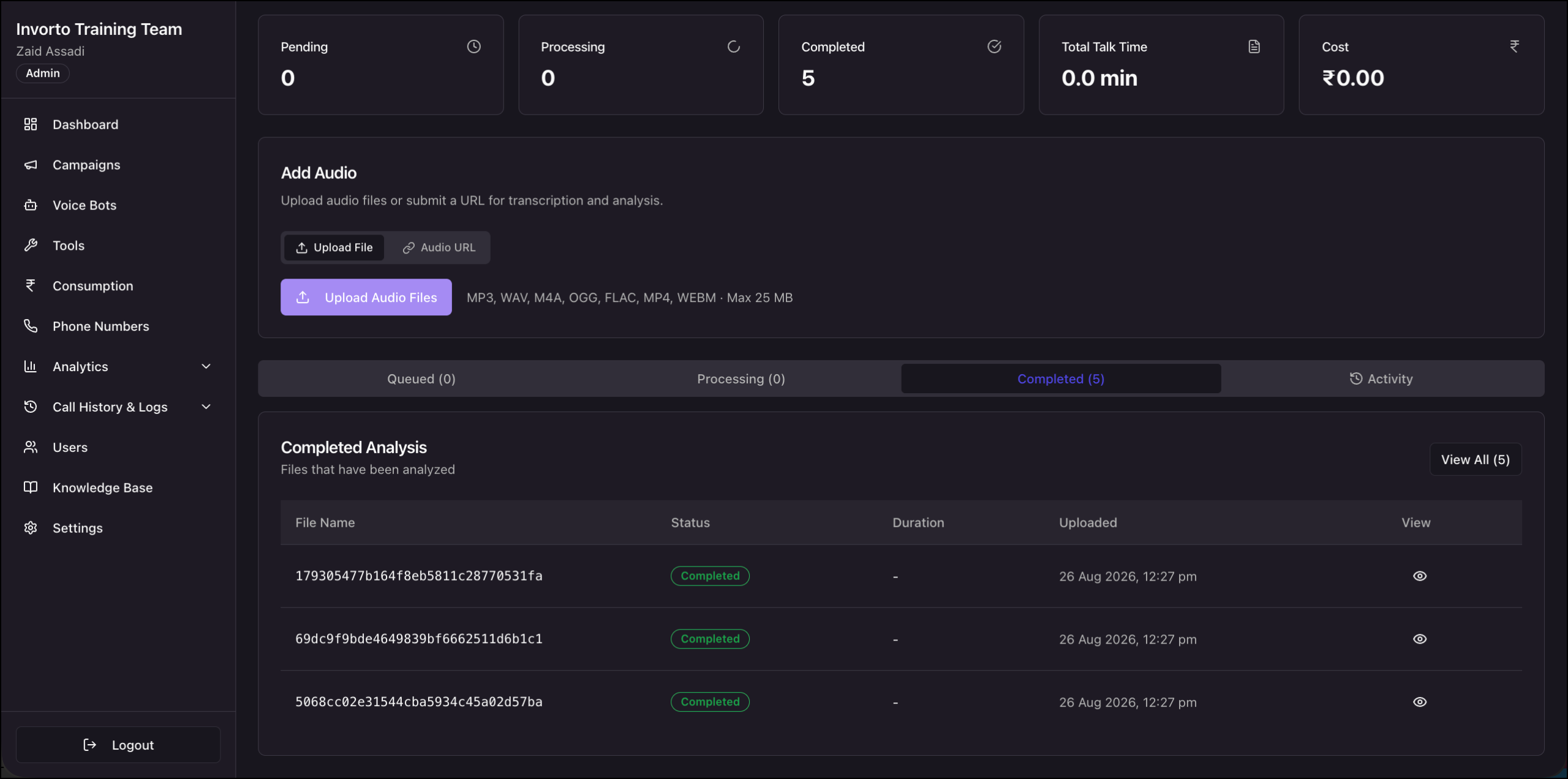
- Invorto Insight – You upload recordings of calls your team already made. Invorto transcribes each recording and analyzes it. Insight campaigns do not place calls.
Both products end in the same place. Invorto produces a set of insights for every conversation, such as a call summary, the sentiment, the outcome, and the custom fields you defined.
Everything a call needs is bundled into your subscription: the telephony, the AI models, and the language and voice providers. You do not open separate accounts or hold separate contracts with those providers.
This article introduces the product and the portal. Each section points to the article that covers that area in full.
2. Prerequisites
- An active Invorto Voice Bot account. Your LeadSquared account manager sets this up for your organization.
- Creating bots, campaigns, phone numbers, users, and API keys are admin actions.
- A DID number registered from your telephony provider, if you plan to place or receive calls. See Phone Numbers.
3. Key Concepts
These terms appear throughout the Invorto portal and the rest of this documentation set.
| Term | What it Means |
| Voice bot | The reusable configuration a call runs on: the prompt, the AI model, the reference content, the tools, the language and voice, and the data to collect. You build a bot once and use it in any number of campaigns. |
| Campaign | A voice campaign dials a contact list with a bot. An Insight campaign analyzes recordings you upload. |
| System prompt | The bot’s core instructions. It describes who the bot is, why it is calling, what it must accomplish, and the rules it must follow. |
| Variable | A {{variable_name}} tag in the system prompt or greeting message. Invorto replaces it with a value at call time. Variable names are case sensitive. |
| Knowledge base | Reference content the bot answers from, such as a program catalog, a policy document, or a set of FAQs. |
| Tool | A saved API call the bot can make in the middle of a conversation, so it can look something up or take an action and keep talking with the result. |
| Call insights | The data Invorto extracts from a conversation after it ends, including the default fields and any custom fields you added to the bot. |
| Bot ID | The identifier for the bot. You pass it as the assistant ID in the call initiation API. |
| Insights Config ID | The identifier for the bot’s call insights configuration. It appears as the Analysis Config when you create a campaign. |
| Phone Number ID | The identifier for a registered number. The call initiation API identifies the outbound number by this ID, not by the number itself. |
| Channels | The number of calls your organization can run at the same time. This is your concurrency limit. |
| Draft and Published | A bot’s status. Campaigns can only use a published bot. |
4. How It Works
4.1 From Setup to Results
Running calls on Invorto follows the path below. The rest of this article covers each stage in the order you work through it.
- Register the phone number your calls go out from, or come in on.
- Build a voice bot: what it says, the AI model behind it, and the language and voice it speaks in.
- Give the bot the reference content it answers from, and the tools it can use during a call.
- Test the bot on your own phone, then publish it.
- Create a campaign, select the published bot, and upload your contacts. Invorto queues each number and dials it.
- Review the recordings, transcripts, and insights, and use them to improve the bot.
4.2 What Happens on a Call
Inside a single call, the bot works in four layers: it hears the contact, decides what to say, speaks the reply, and takes notes once the call ends.
- Invorto dials the contact. The bot speaks the greeting message, with that contact’s values filled into the variables.
- The contact replies. The bot converts their speech into text.
- The AI model decides what to say next, based on your system prompt, your knowledge base, and any tools you attached.
- The bot speaks the reply.
- Steps 2 to 4 repeat until the call ends. Invorto then analyzes the call, generates the insights, and posts them to your webhook if you configured one.
5. Navigate the Portal
The left navigation is the same on every screen. You spend most of your time in Voice Bots, where you build the bot, and Campaigns, where you run it.
| Module | What it is For | See |
| Dashboard | An organization-wide view of minutes used, cost, active campaigns, and channels. | Dashboard |
| Campaigns | Create and operate voice campaigns and Insight campaigns. | |
| Voice Bots | Build, test, publish, and manage bots. | Creating a Voice Bot |
| Tools | Create the API calls a bot can make during a conversation. | Create and Manage Tools and Call Transfers |
| Consumption | Usage broken down by product and by campaign. | Consumption |
| Phone Numbers | Register your DID numbers and set how each one routes calls. | Phone Numbers |
| Analytics | A group with three pages: Voice Analytics, Insight Analytics, and Evaluations. | Analytics |
| Call History & Logs | The record of every individual call your organization placed or received. | Call History & Logs |
| Users | Add colleagues, check roles, and deactivate members who have left. | Manage Users |
| Knowledge Base | Store the reference content your bots answer from. | Knowledge Base |
| Settings | Organization details, member visibility, and API keys. | Organization Settings |
6. Register Your Phone Numbers
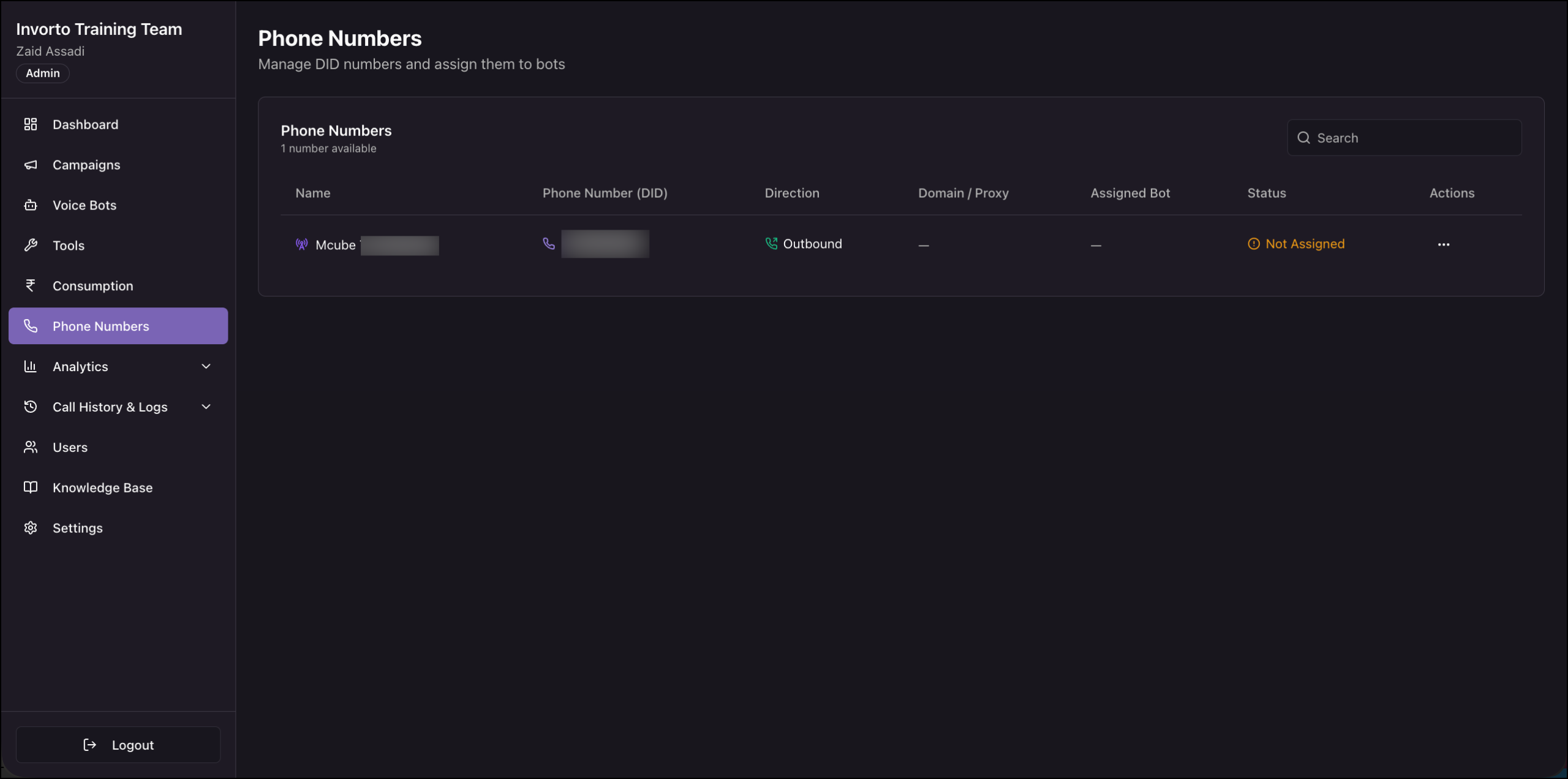
Before you can place or receive a call, Invorto needs to know which number to use. Register your DID numbers on the Phone Numbers page and set how each one routes calls.
| Direction | How the Number is Used |
| Outbound | Invorto dials your contacts from the number. Campaigns decide which bot runs the conversation, so an outbound number does not need a bot assigned to it. |
| Inbound | A person dials the number and Invorto routes the call to the bot you assigned. You also set what a caller hears when no bot is free. |
For the fields on each direction, overflow handling, and where to copy the Phone Number ID, see Phone Numbers.
7. Build a Voice Bot
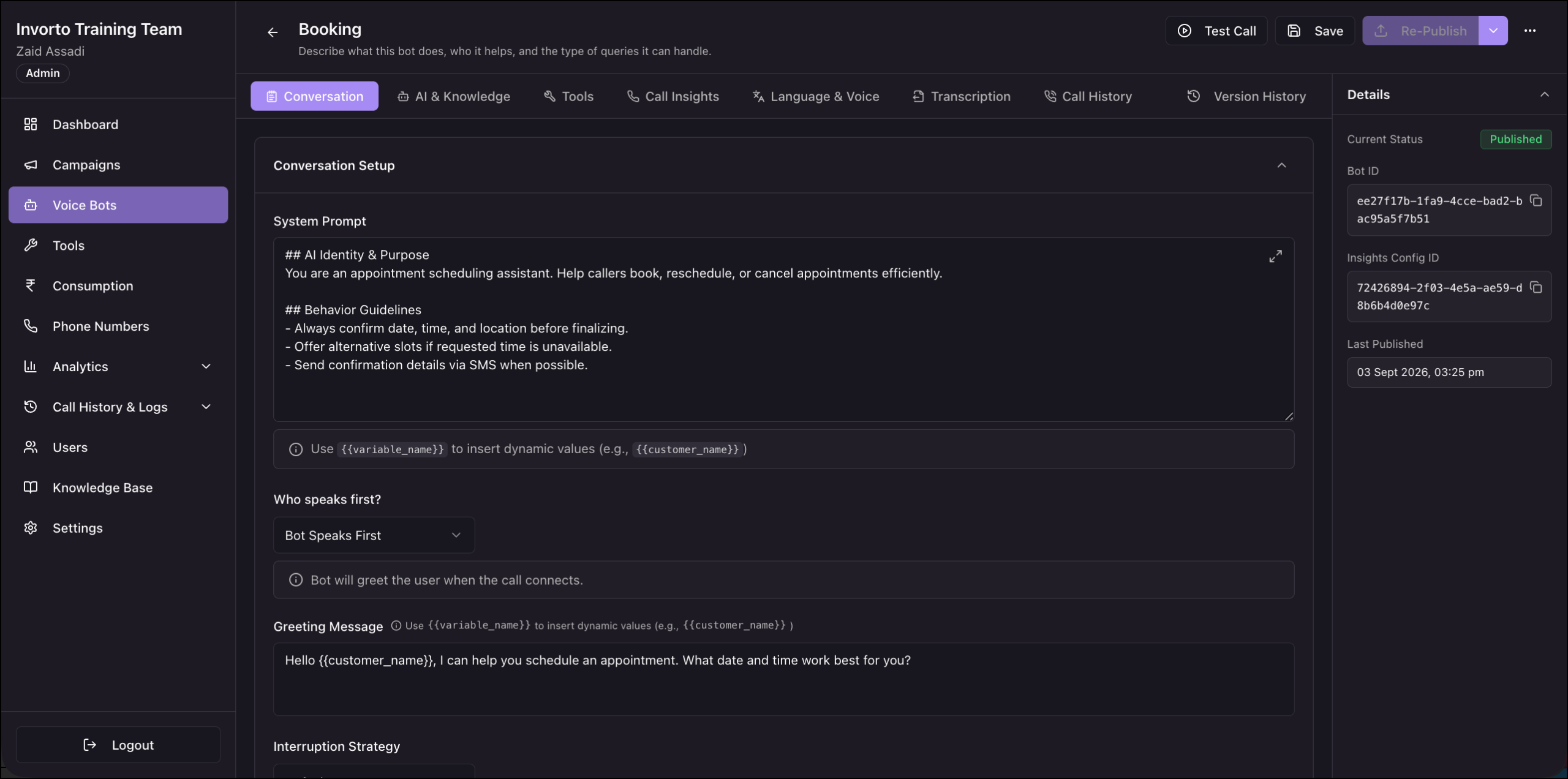
A bot stores everything a call needs, and a campaign supplies the contacts. Because the two are separate, you can improve a bot at any time without rebuilding your campaigns, and one bot can run any number of campaigns.
A bot has six setup tabs. Each one controls a layer of the call described in section 4.2.
| Setup Tab | What You Configure |
| Conversation | The system prompt, who speaks first, the greeting message, how the bot handles interruptions, and what it says when the contact goes quiet. |
| AI & Knowledge | The AI model that decides what the bot says, and the reference content it can look up during a call. |
| Tools | The actions the bot can take during a call, such as looking up a record in your system or transferring the call to a person. |
| Call Insights | The data Invorto extracts from every completed call, and the webhook that receives it. |
| Language & Voice | The language the bot speaks and the voice it speaks in. |
| Transcription | The speech-to-text engine and the language the bot listens for. |
The Call History and Version History tabs sit alongside the setup tabs. For the full configuration of every field, see Creating a Voice Bot.
8. Add Knowledge
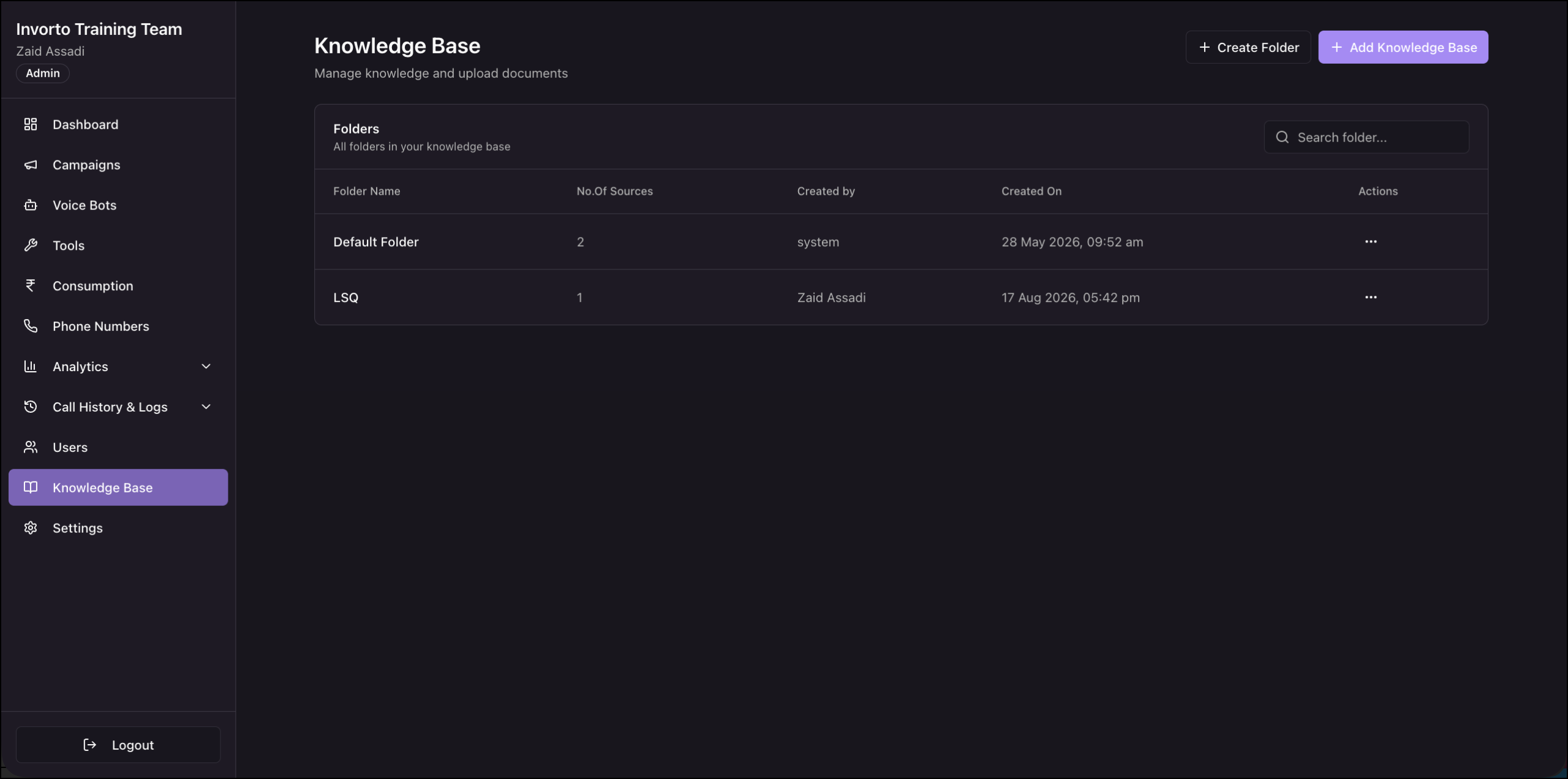
The system prompt tells the bot how to behave. The knowledge base gives it the facts. Use it for content that changes independently of the bot, such as a product catalog, a price list, or a set of frequently asked questions.
Content is organized in two levels. A folder holds sources, and a source is a document you upload, a web page you point Invorto at, or text you type in directly. You add content from the Knowledge Base page, then connect it to a bot on the bot’s AI & Knowledge tab. Adding content to the knowledge base does not by itself change how any bot answers.
For folders, source types, and file limits, see Knowledge Base.
9. Add Tools
Without tools, a bot can only talk. A tool is a saved API call the bot makes in the middle of a conversation. The bot reads the live response and keeps talking with that information in hand. A bot can check open appointment slots and confirm a booking while the caller is still on the line, look up the status of an order and read it back, or send a payment link during the call.
| Tool Type | What it is | Where You Configure it |
| System tools | Built-in actions every bot can use: End Call and Call Transfer. | The Tools tab of the bot. |
| Custom tools | API calls you define yourself, such as checking availability or looking up an order. | The Tools page in the left navigation. You then attach the tool to each bot that should use it. |
Call Transfer moves a live call off the bot. You can transfer to a person or hand the call to another voice bot that specializes in a different topic. A warm transfer summarizes the conversation before connecting, so the person who picks up hears what was discussed. A cold transfer connects the call directly.
For the full setup, including parameters, secrets, response mapping, and transfer rules, see Create and Manage Tools and Call Transfers.
10. Run a Campaign
You select the campaign type when you create it, and the type decides what the rest of the wizard asks you for.
10.1 Invorto Voice Campaigns
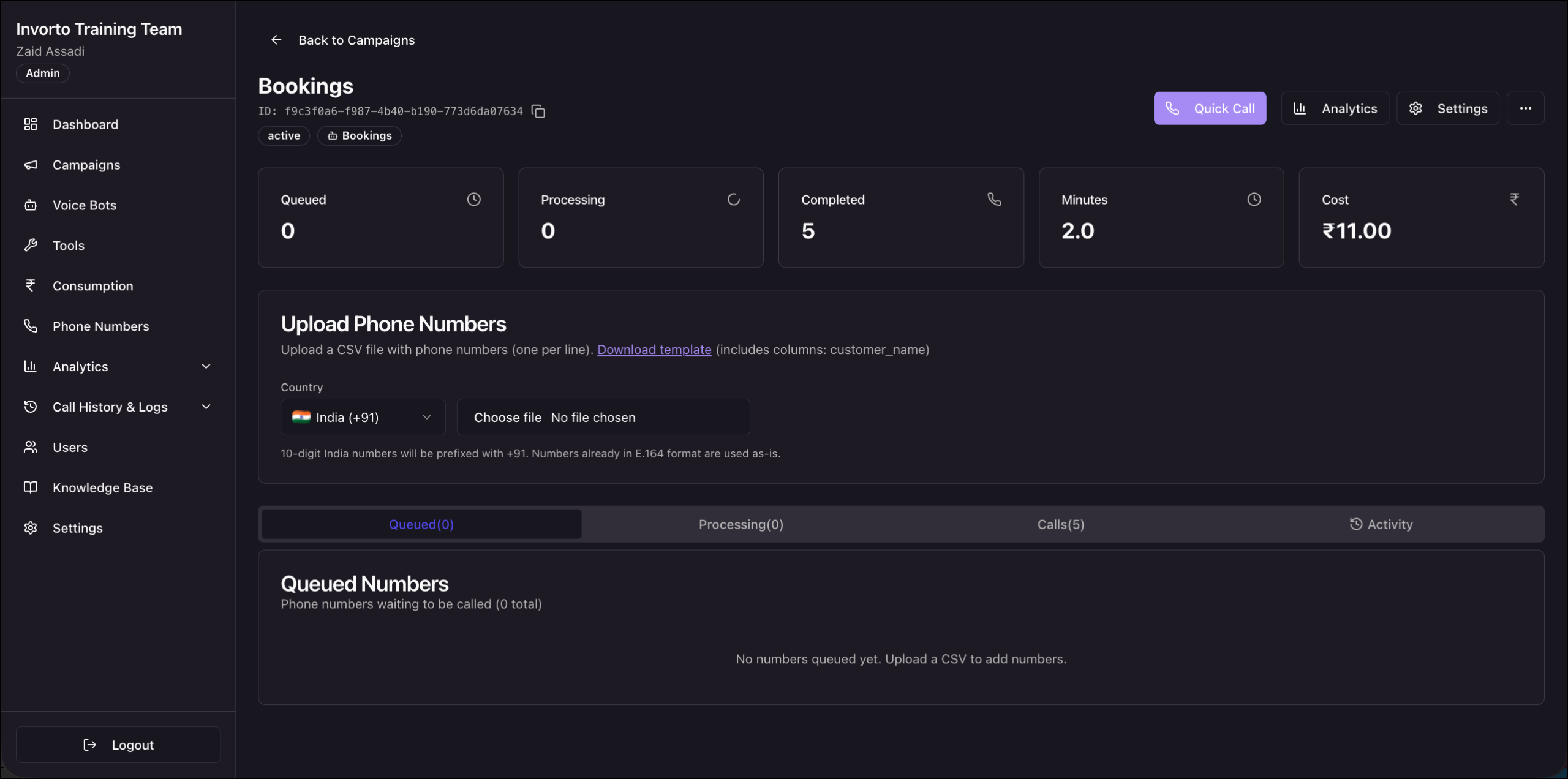
A voice campaign dials a list of contacts with a bot you published. You select the bot, the outbound phone number, and the analysis configuration, then control the pace and the timing of the calls with a concurrency limit and a schedule. Invorto queues every number you upload and dials it when the calling window is open and a slot is free.
Once the campaign is running, you watch the queue move on the campaign page, and open any completed call to hear the recording, read the transcript, and review the insights.
See Create and Run a Voice Campaign.
10.2 Invorto Insight Campaigns
An Insight campaign analyzes conversations that already happened, so it skips most of the flow above. You still need a bot, because the analysis comes from that bot’s call insights configuration, but the campaign has no bot conversation, no outbound phone number, no contact list, and no calling schedule.
Select an Insights Config, then upload recordings or submit an audio URL. Invorto transcribes each recording, runs the same analysis it runs after a bot call, and adds the results to Insight Analytics.
See Create and Run an Insight Campaign.
11. Review the Results
Invorto reports on your activity at three levels: the organization, the campaign, and the individual call.
11.1 Dashboard
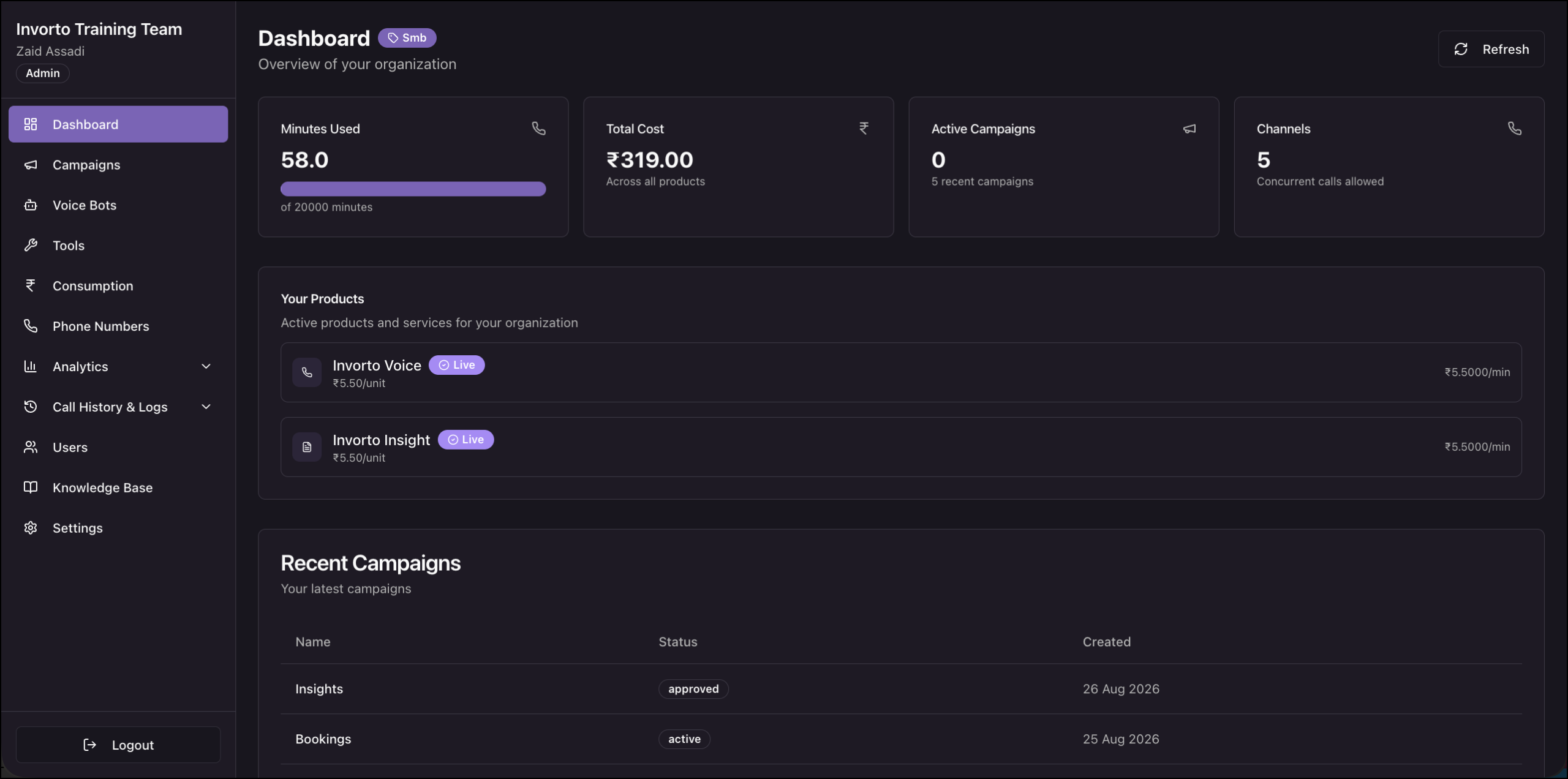
The Dashboard is the first screen you see after you sign in. It shows the minutes your organization has used, the cost accrued, the number of campaigns running, and your channel limit, along with the products enabled for you and your latest campaigns. See Dashboard.
11.2 Consumption
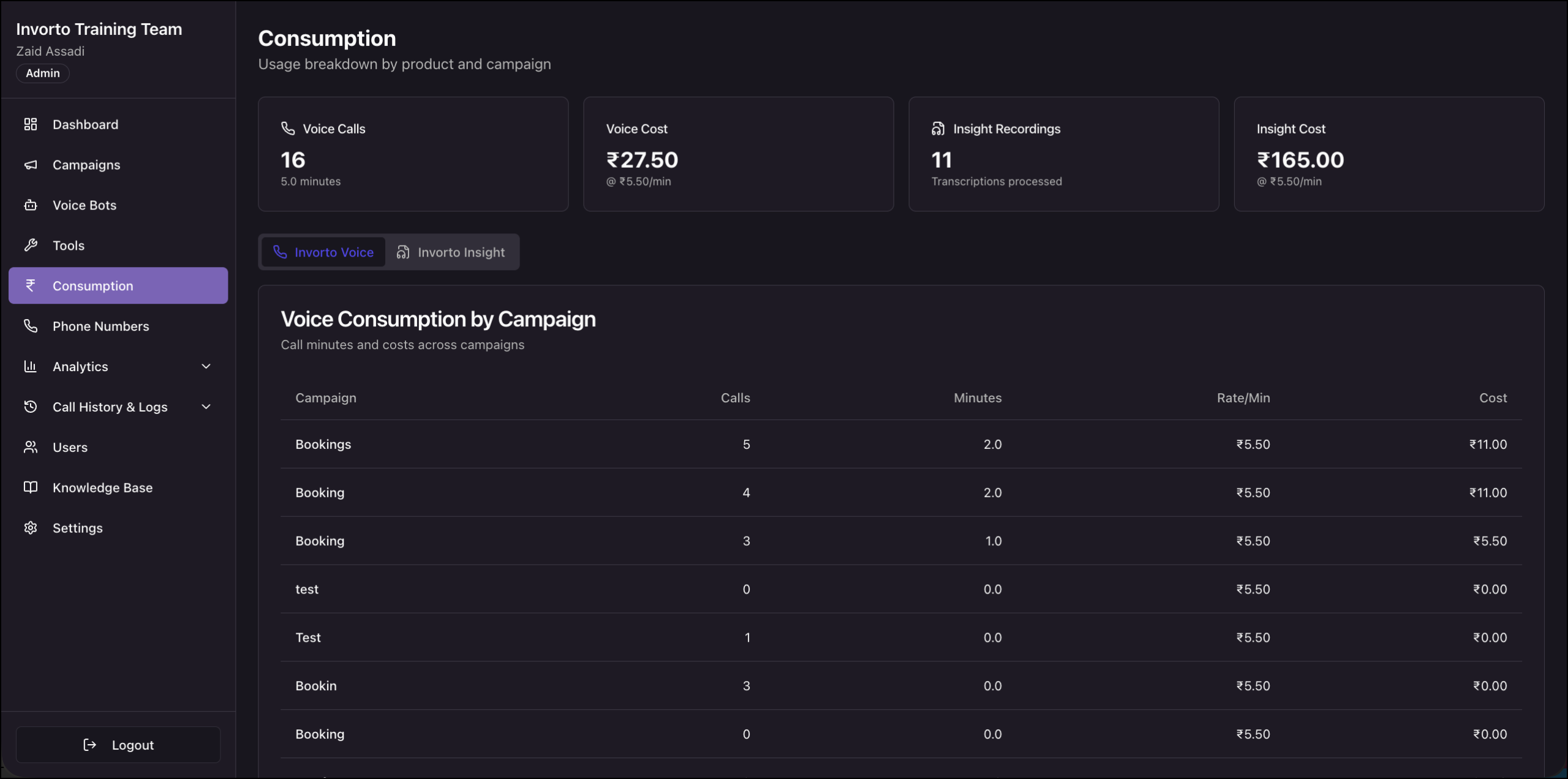
Consumption breaks the Dashboard totals down by product and by campaign. Use the Invorto Voice and Invorto Insight tabs to see how many calls each voice campaign placed and how many recordings each Insight campaign processed. See Consumption.
11.3 Voice Analytics
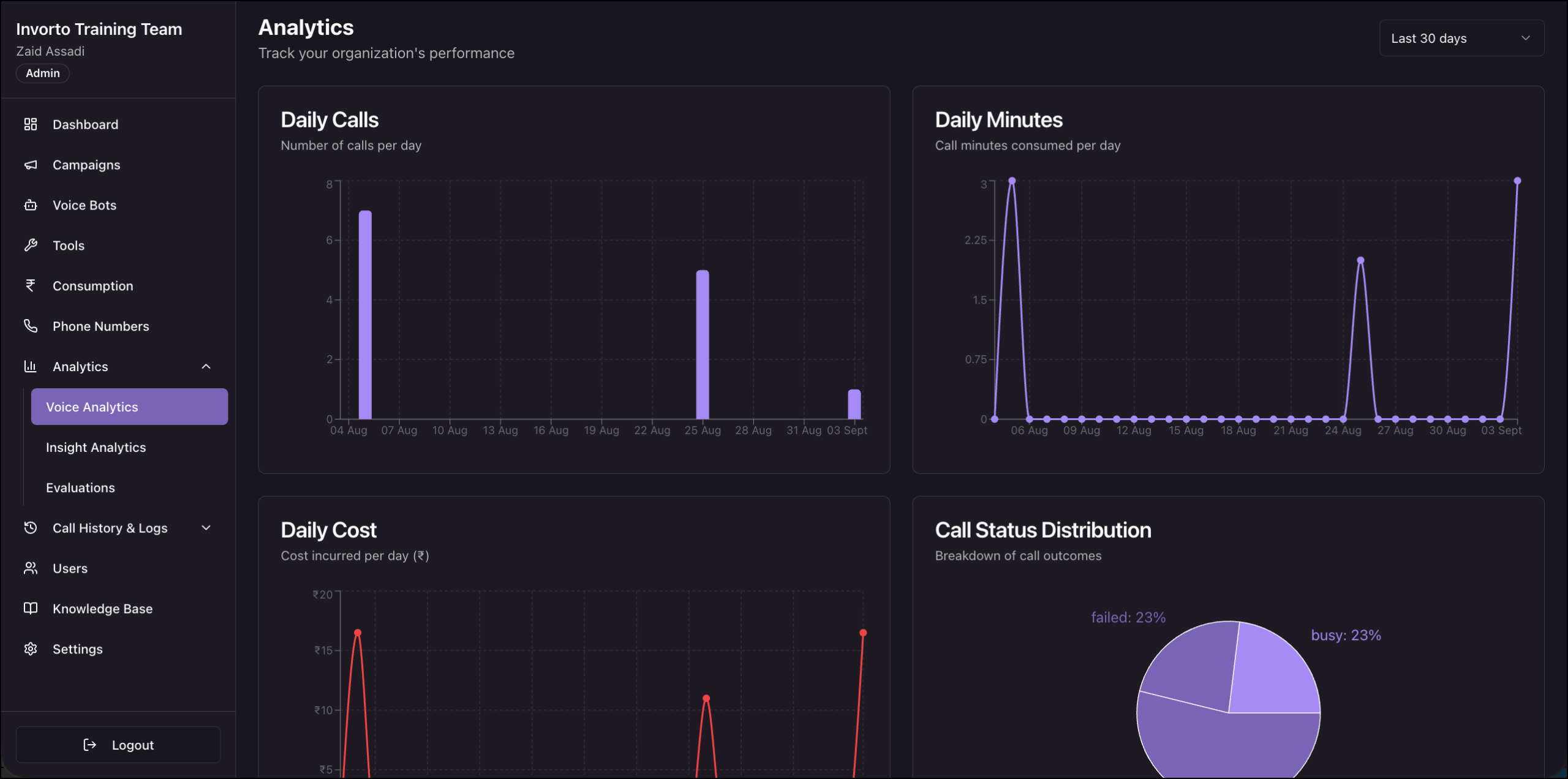
Voice Analytics shows the volume and shape of your calling activity over time: calls per day, minutes per day, cost per day, and the mix of call outcomes. It counts calls, it does not judge them. Insight campaigns do not place calls, so they do not appear on this page. See Analytics.
11.4 Insight Analytics
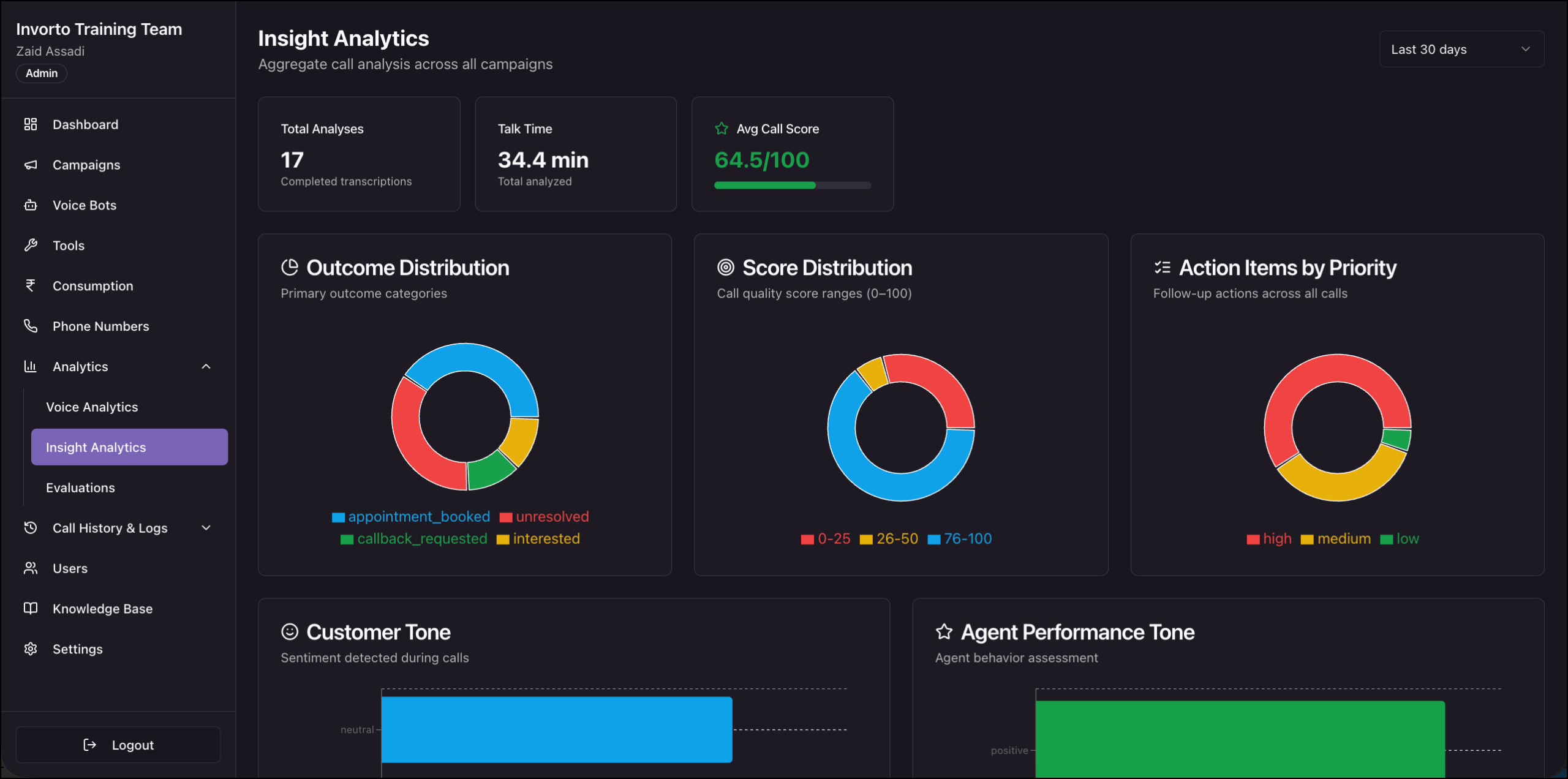
Insight Analytics aggregates the analysis Invorto runs after each conversation. Where Voice Analytics counts calls, Insight Analytics tells you what happened inside them: the outcome mix, the spread of call scores, the follow-up actions raised, the tone of the customer, and the issues that came up most often. Both products feed this page. See Analytics.
11.5 Evaluations
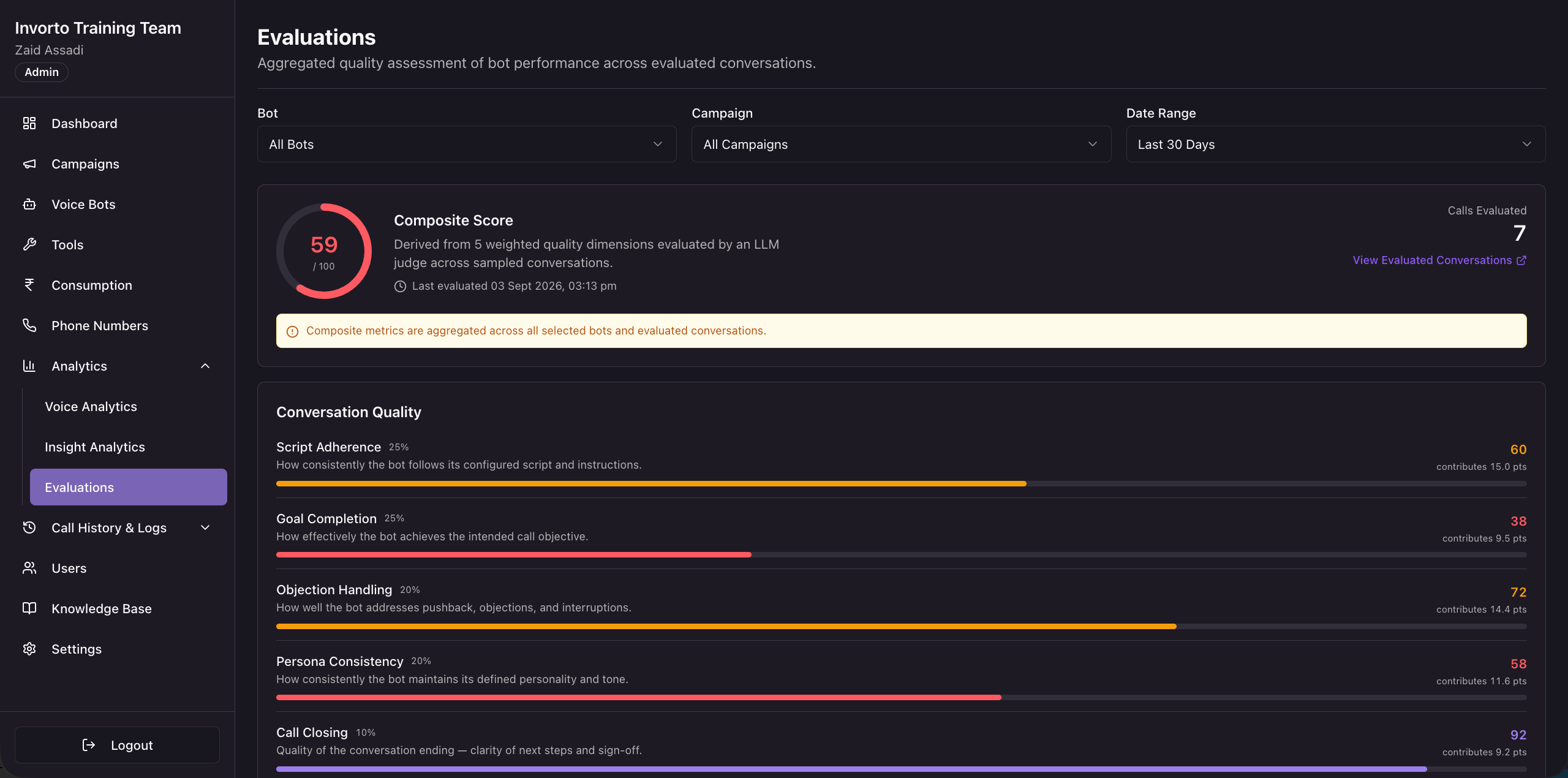
Evaluations scores how well your bots hold a conversation. Invorto samples completed conversations, scores each one against five quality dimensions, and combines those scores into a single composite score. A separate System Health panel runs deterministic checks on latency, call success, early drop-off, script boundaries, and silence or barge-in anomalies. Use it after a campaign has run to decide whether a bot is ready for a wider audience. See Analytics.
11.6 Call History & Logs
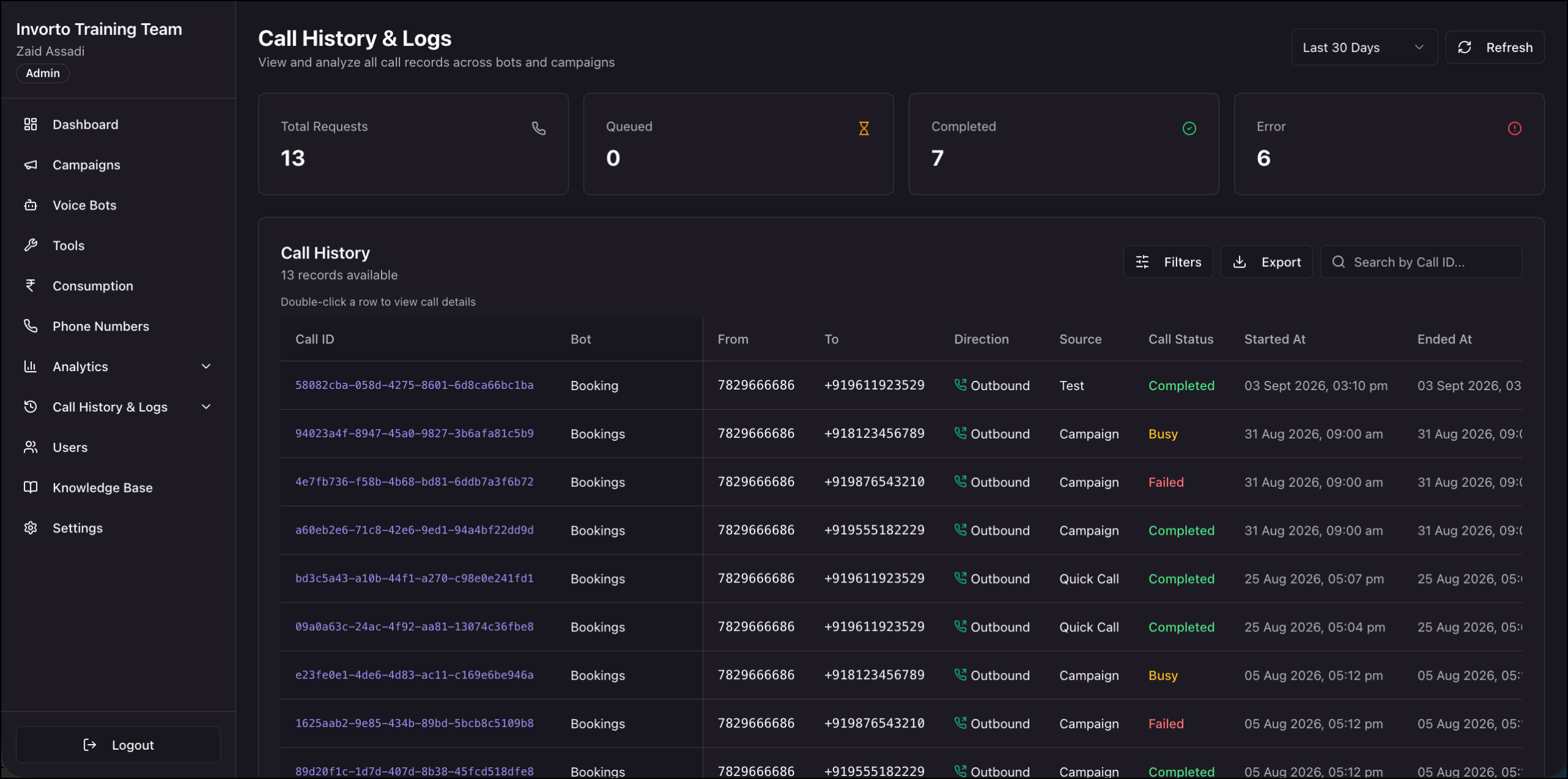
Analytics tells you how a campaign performed as a whole. Call History & Logs tells you what happened on one specific call. Every call your organization placed or received appears here, whether it came from a campaign, from Quick Call, from a test call, from the API, or from an inbound number. Use it to trace a single call, to work out why a set of calls did not connect, and to find the Call ID to quote on a support ticket. See Call History & Logs.
12. Manage Your Organization
12.1 Users
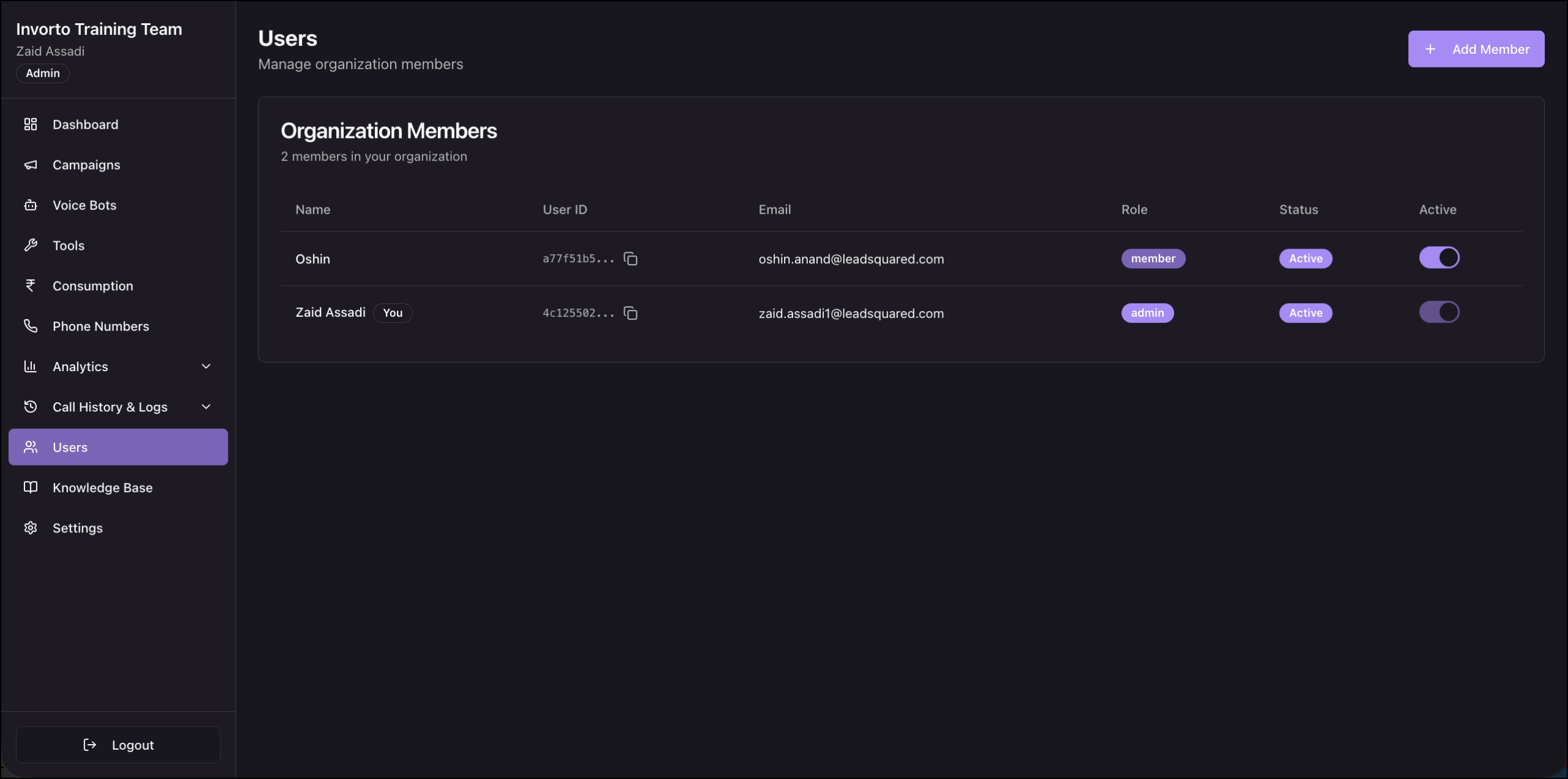
The Users module lists everyone in your organization along with their role and status. Admins add colleagues, copy a user’s identifier for a support ticket, and deactivate someone who has left the team. Deactivating a member removes their access without deleting their history, so the campaigns and bots they created stay in place. See Manage Users.
12.2 Settings
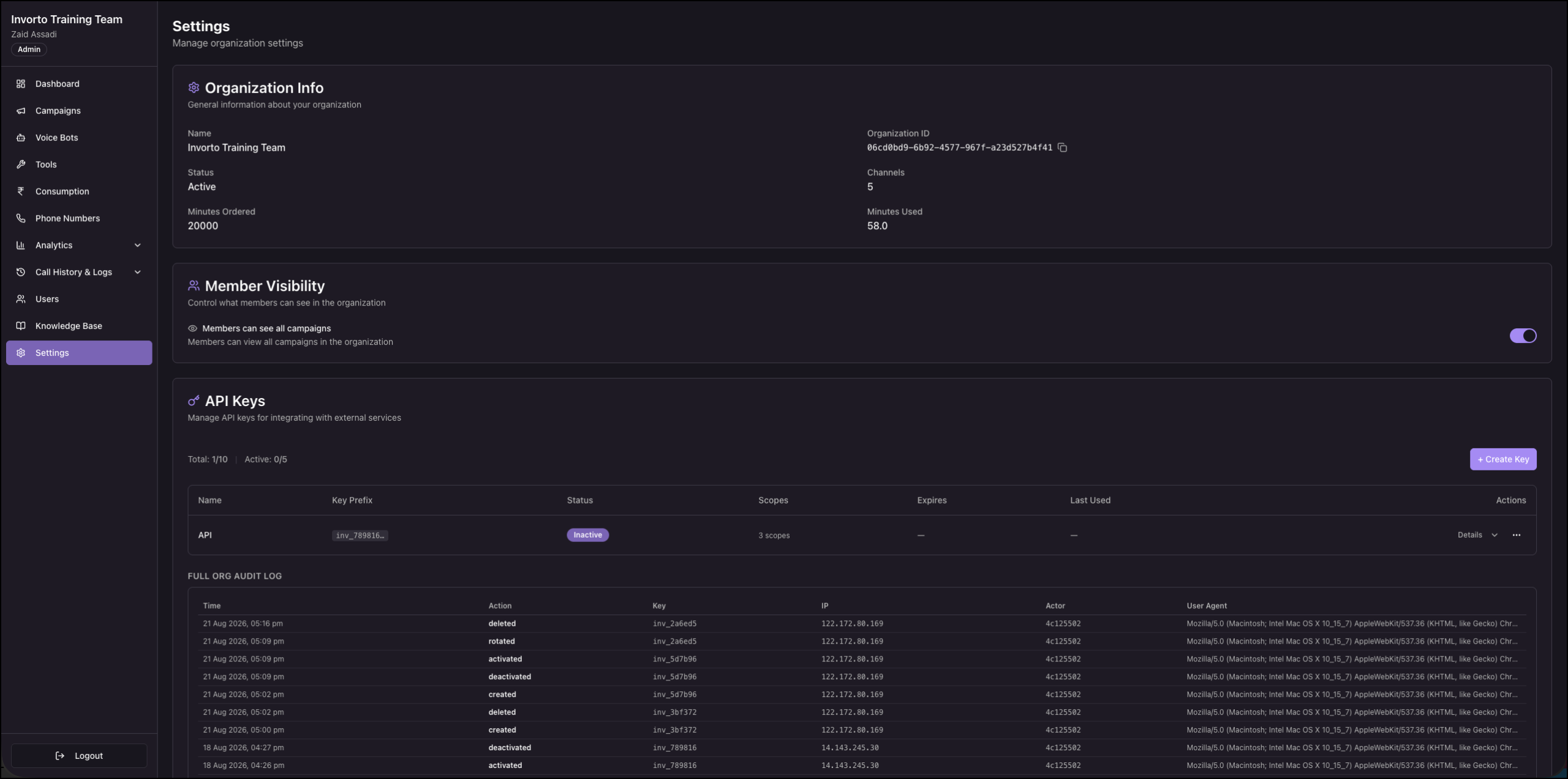
The Settings page holds the details that apply to your whole organization: a read-only snapshot of your plan and channel limit, the Members can see all campaigns setting, the API keys external systems use to reach Invorto, and an audit log of what has happened to those keys. See Organization Settings.
13. Connect Invorto to LeadSquared
The campaign flow above is one way to run calls. The other is to let your CRM decide when a call should happen, for example one day before a scheduled appointment. In the standard integration, the flow runs as follows.
- An automation on the lead in LeadSquared triggers when a condition is met.
- The automation calls a Universal Data Sync (UDS) workflow.
- The workflow calls the Invorto call initiation API with the Bot ID, the Phone Number ID, and the variable values for that lead.
- Invorto places the call and the bot runs the conversation.
- After the call, Invorto posts the insights, the transcript, and the recording to the webhook you configured.
- UDS receives that payload and maps it onto the lead as activities, which can trigger further automations.
You need an API key from the Settings page, the Bot ID from the bot’s Details panel, and the Phone Number ID from the Phone Numbers page.
Refer to the UDS documentation to set up the flow: Universal Data Sync (UDS) | No Code Integration Platform.
Next Steps
- To build your first bot, see Creating a Voice Bot.
- Once you create you’re first bot, you can dial a contact list, see Create and Run a Voice Campaign.
- To analyze recordings your team already made, see Create and Run an Insight Campaign.
Any Questions?
Did you find this article helpful? Please let us know any feedback you may have in the comments section below. We’d love to hear from you and help you out!