


Get Started

Sales Suite
Field Ops
Marketing
Service CRM
Integrations & Apps
FloStack
Manage Users in Invorto Voice Bot

1. Feature Overview
The Users module lists everyone in your Invorto Voice Bot organization. Use it to add colleagues, check who has admin rights, copy a user’s identifier for a support ticket, and deactivate someone who has left the team.
Each row shows one member of your organization along with the role and status that control what they can do in the portal.
2. Prerequisites
- An active Invorto Voice Bot account with admin rights. Members without admin rights can view the page but cannot add or deactivate users.
3. Open the Users Module
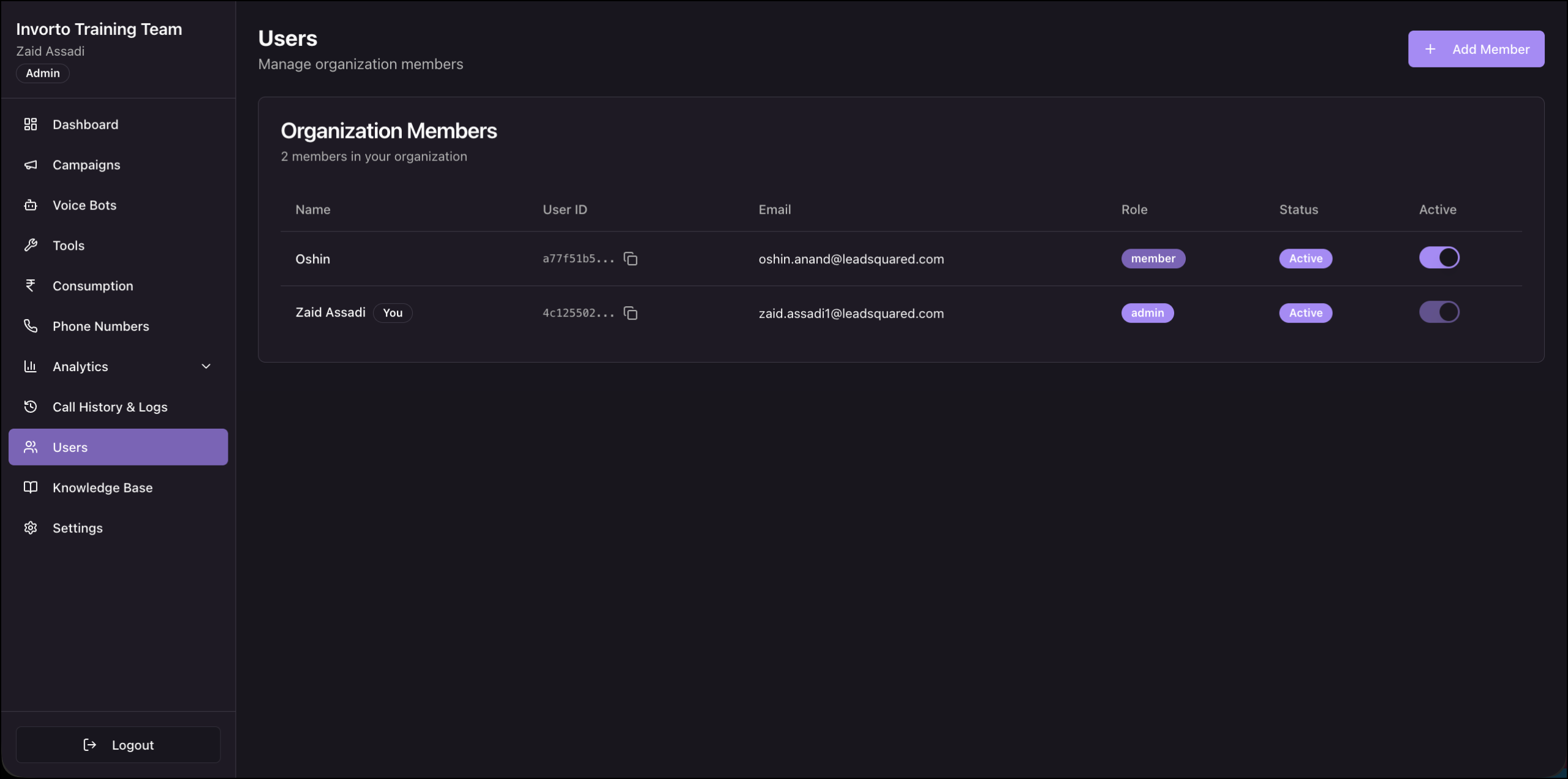
In the left navigation, click Users. The Organization Members card lists every member, with a count of how many members your organization has.
| Column | What it shows |
| Name | The member’s display name. A You chip marks your own row. |
| User ID | The member’s unique identifier. Click the copy icon to copy the full value. |
| The email address the member signs in with. | |
| Role | The member’s role in the organization, for example admin. |
| Status | Whether the account is active. |
| Active | A toggle that turns the member’s access on or off. |
4. Add a Member
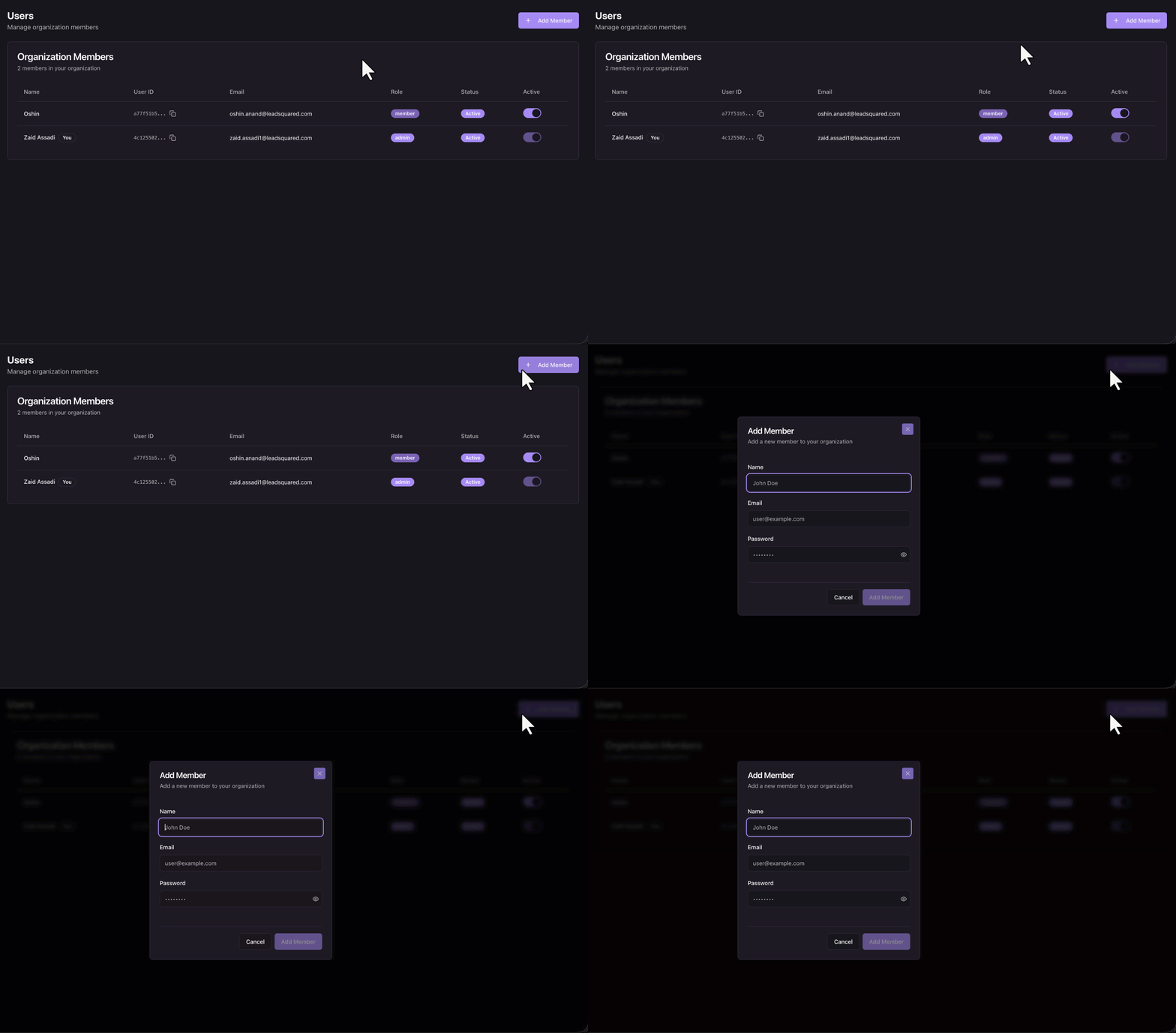
- In the left navigation, click Users.
- Click + Add Member in the top right.
- Complete the fields on the pop-up.
- Click the Add Member button on the pop-up.
The new member appears in the Organization Members table.
Note: It is recommended to add each colleague with their own account.
5. Deactivate or Reactivate a Member
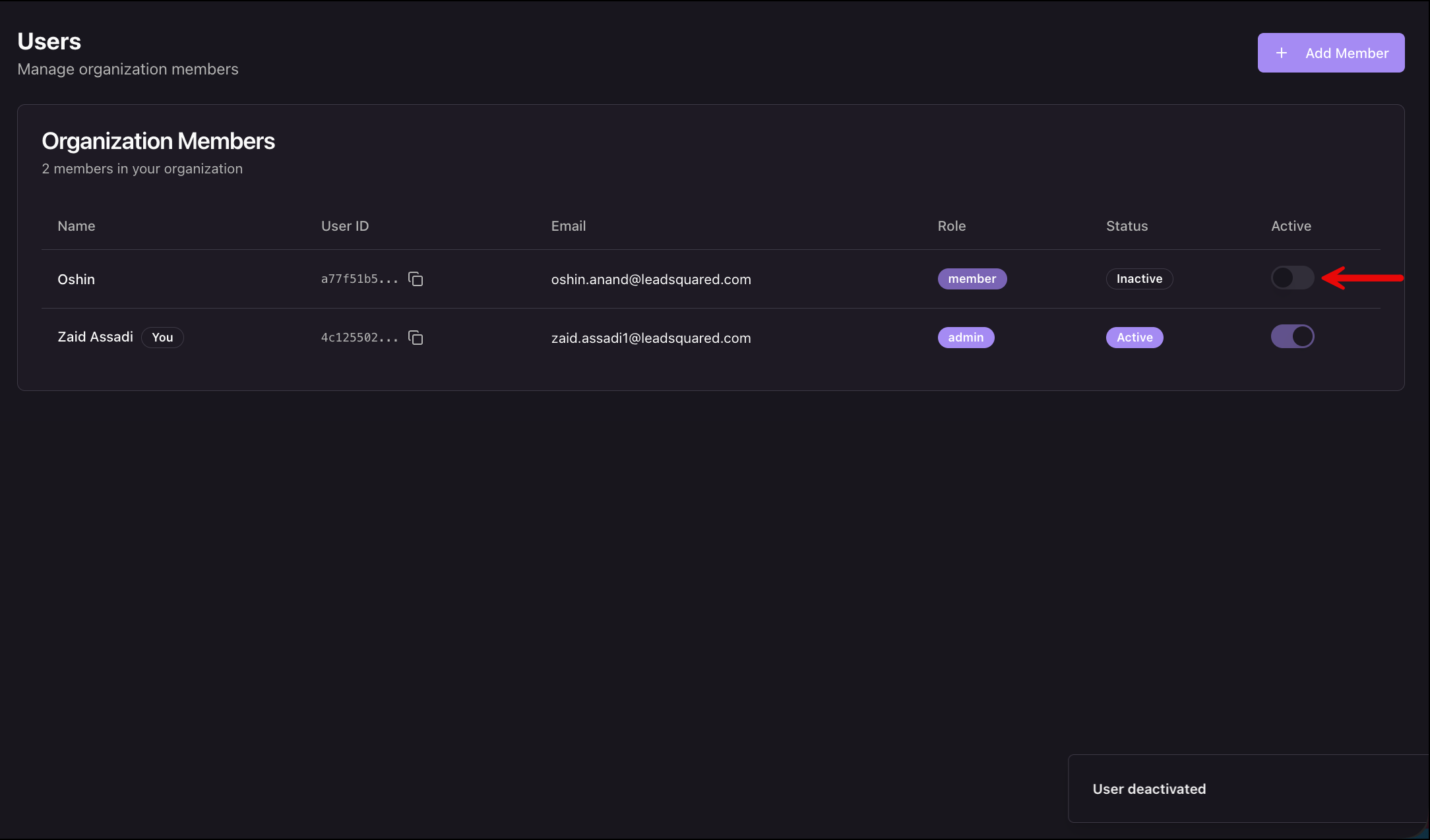
Deactivating a member removes their access without deleting their history. Campaigns and bots they created stay in place.
- Find the member’s row.
- Click the toggle in the Active column to turn access off.
- To restore access, click the toggle again.
6. Control What Members Can See
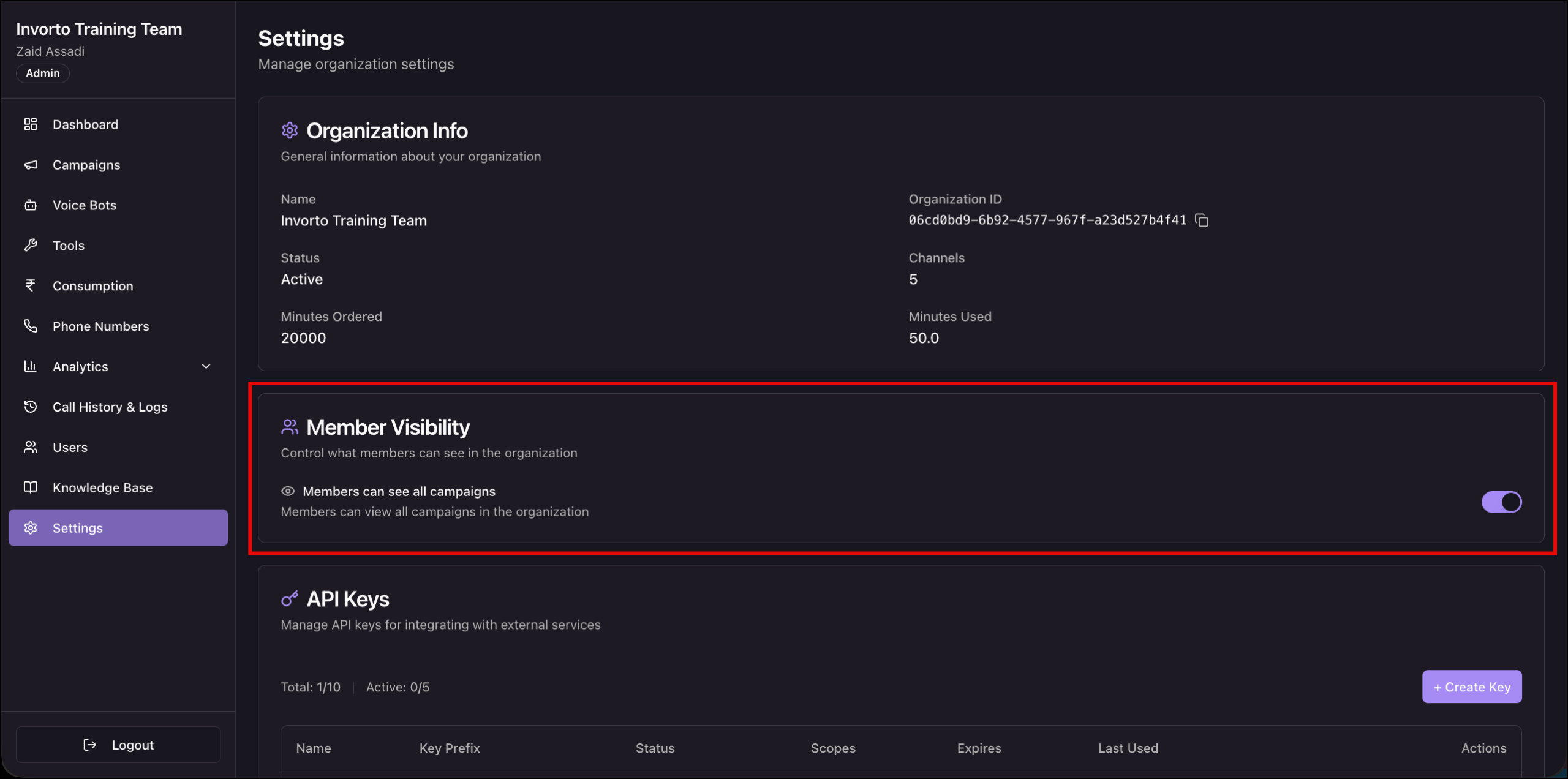
Roles govern what a member can do. A separate configuration in Settings governs how much of the organization’s campaign data they can see.
Any Questions?
Did you find this article helpful? Please let us know any feedback you may have in the comments section below. We’d love to hear from you and help you out!