


Get Started

Sales Suite
Field Ops
Marketing
Service CRM
Integrations & Apps
FloStack
Invorto Voice Bot Dashboard

1. Feature Overview
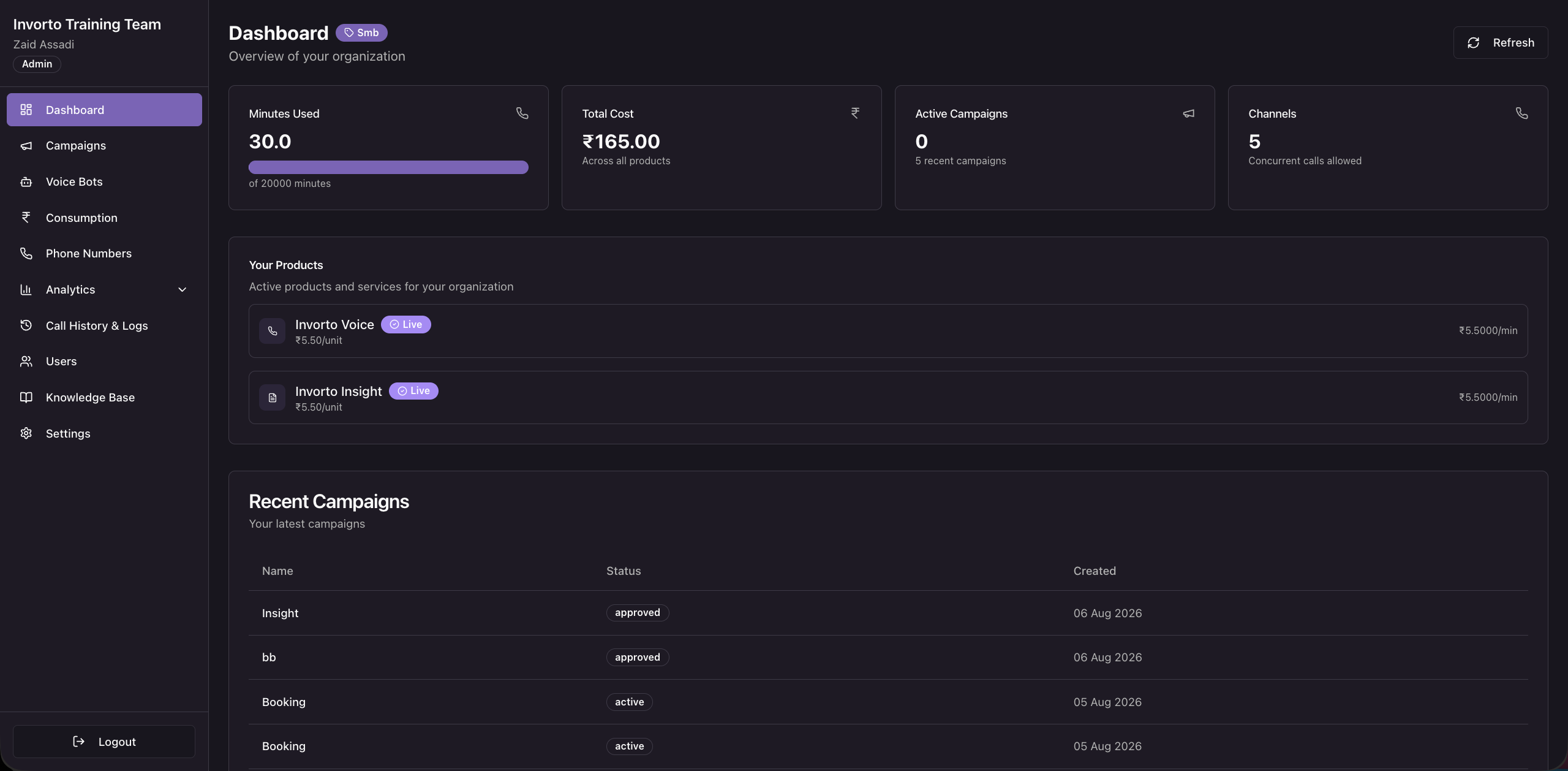
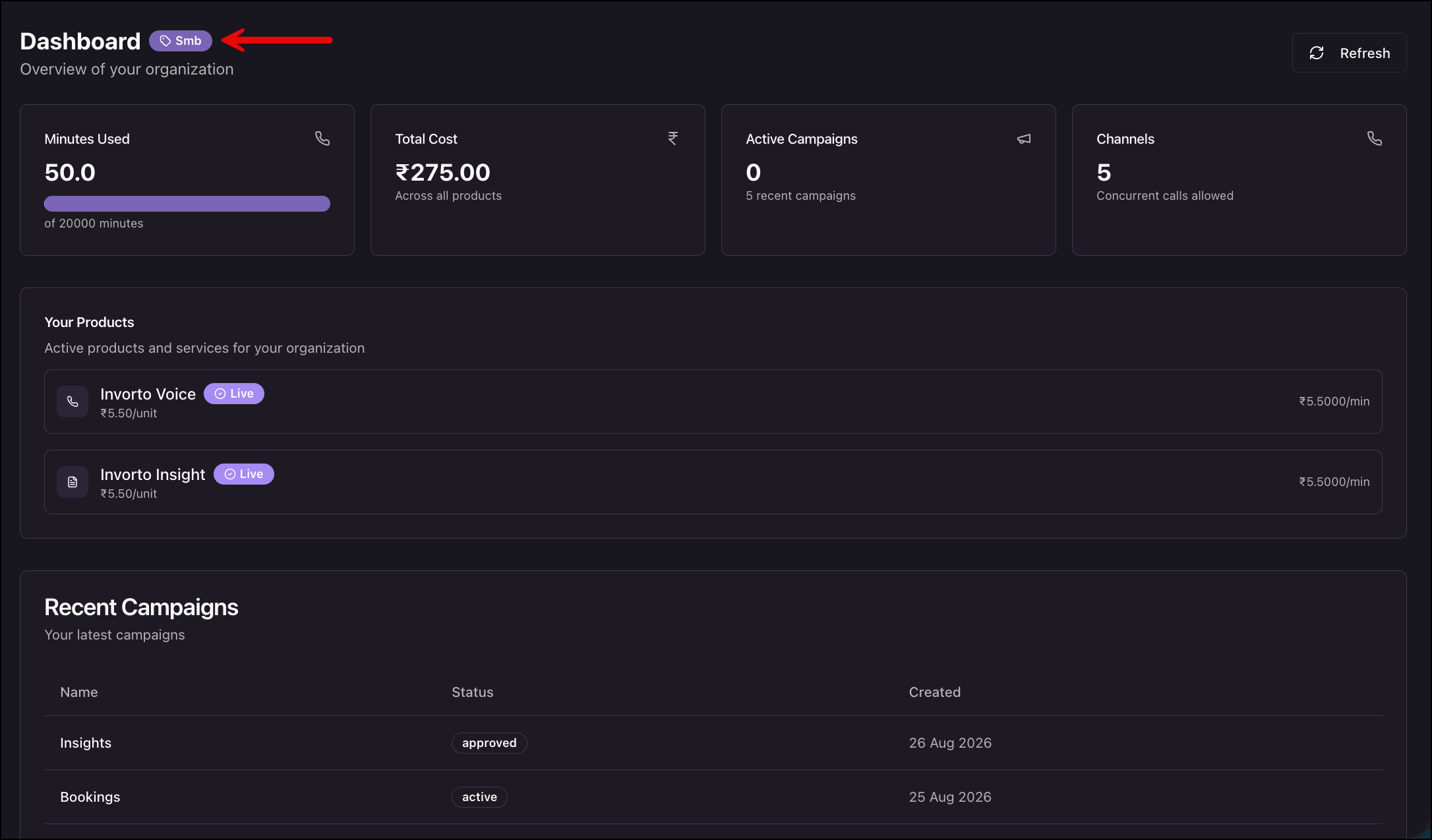
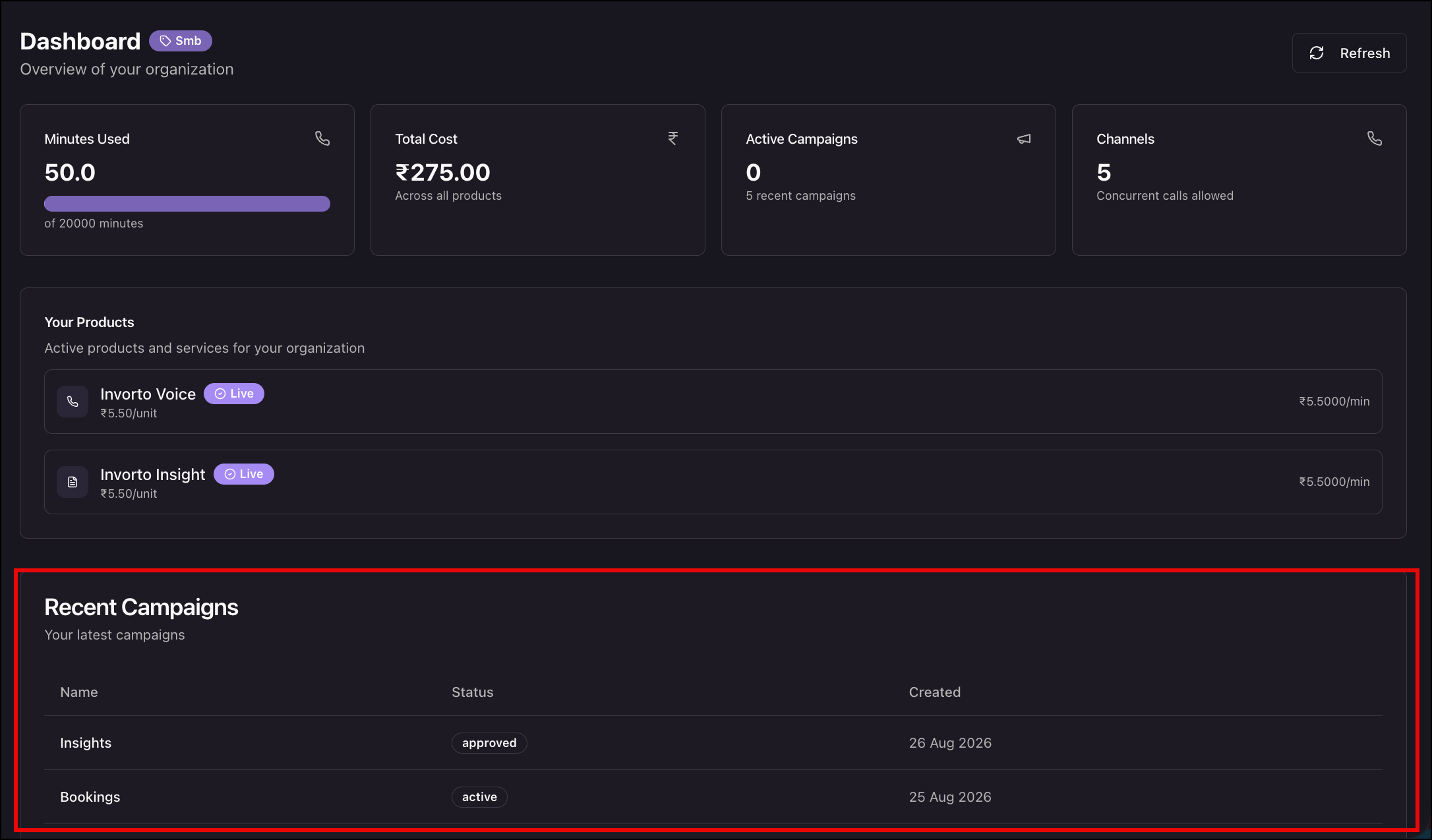
The Dashboard is the first screen you see after you sign in to Invorto Voice Bot. It gives you a single view of how your organization is using Invorto right now.
Use the Dashboard to answer four questions quickly:
- How many talk minutes has my organization used?
- What has that usage cost so far?
- How many campaigns are running?
- How many calls can run at the same time?
The Dashboard is a read-only screen. You cannot create or change anything from this page. It points you to the module where you can act on what you see.
2. Prerequisites
- An active Invorto Voice Bot account.
- At least one campaign, if you want the Active Campaigns tile and the Recent Campaigns table to show data.
3. Open the Dashboard
- Sign in to Invorto. The Dashboard opens by default.
- To return to it from anywhere in the portal, click Dashboard in the left navigation.
- Click Refresh in the top right to pull the latest numbers.
4. Read the KPI Tiles
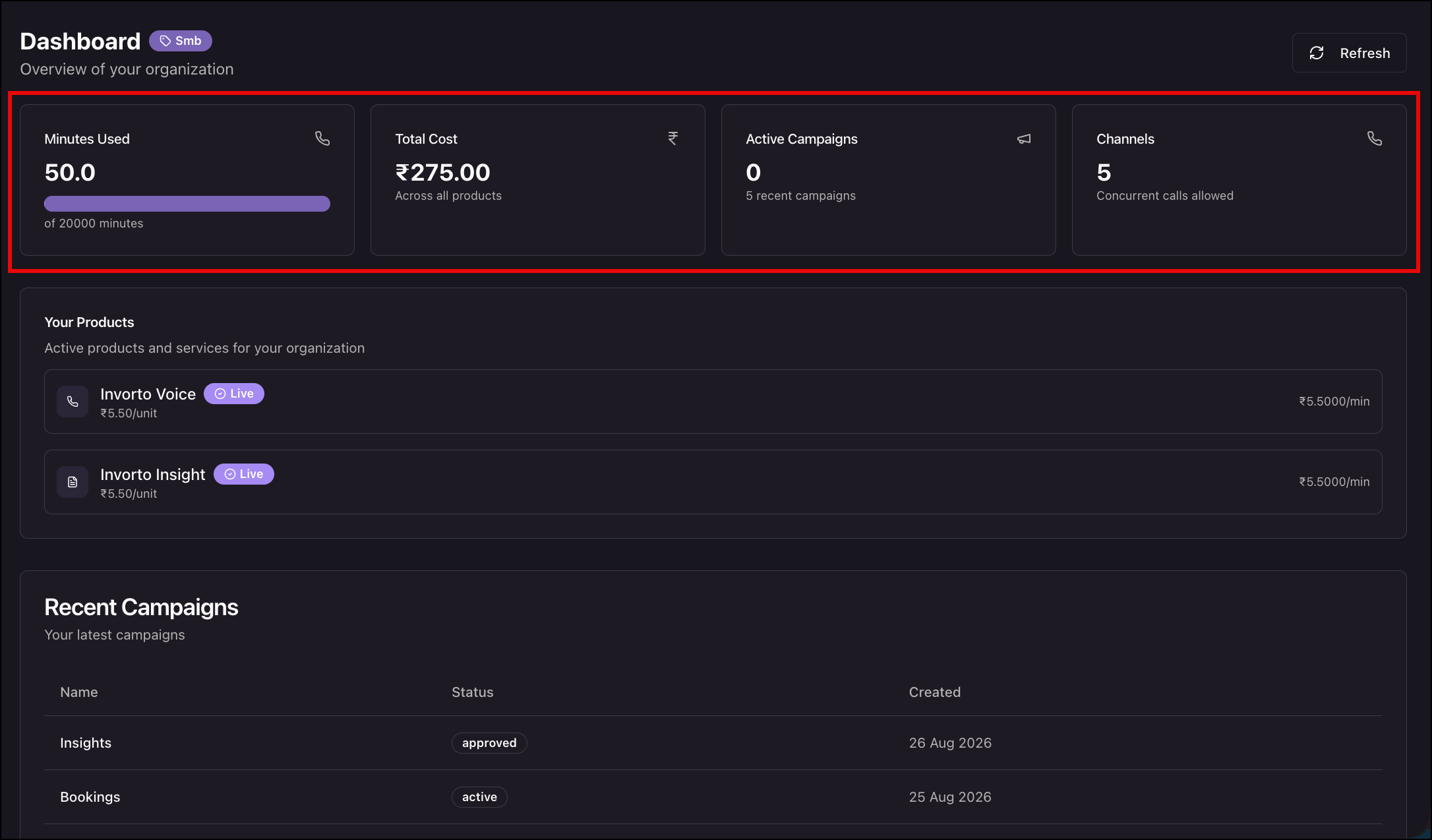
The four tiles across the top summarize your organization’s usage.
| Tile | What it Shows |
| Minutes Used | The talk minutes your organization has consumed, shown against the total minutes in your plan. The progress bar fills as you approach the total. |
| Total Cost | The cost accrued across all Invorto products. |
| Active Campaigns | The number of campaigns currently running. The line below the number tells you how many recent campaigns appear in the table further down the page. |
| Channels | The number of calls Invorto can run at the same time for your organization. |
5. Review Your Products
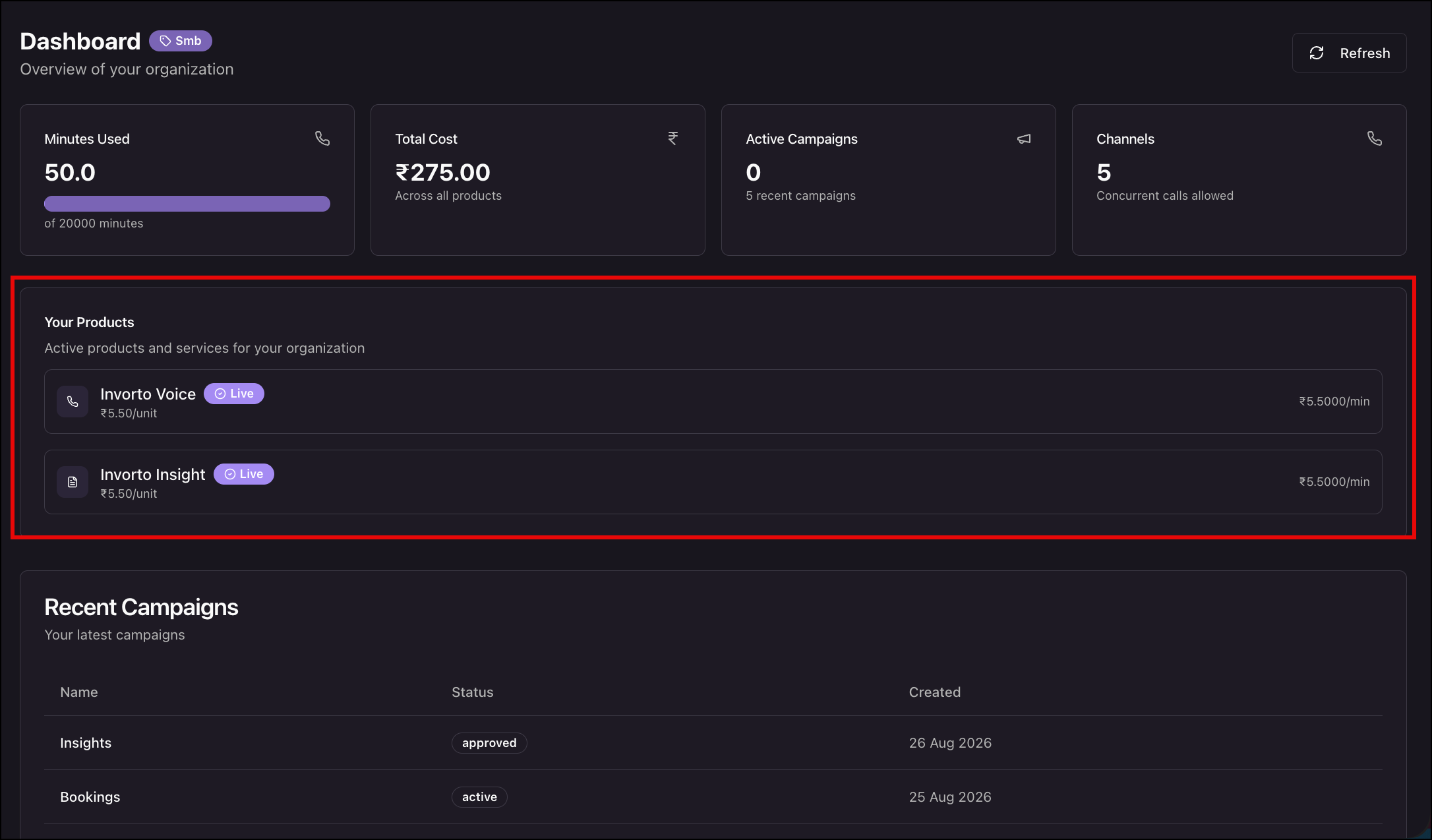
The Your Products panel lists the Invorto products enabled for your organization and their unit cost.
- Invorto Voice dials the contacts you upload to a campaign and runs the conversation.
- Invorto Insight transcribes and analyzes the call recordings you upload. It does not place calls.
A Live badge next to a product name means the product is active for your organization. If a product you expect is missing, contact your LeadSquared account manager.
6. Review Recent Campaigns
The Recent Campaigns table lists your organization’s latest campaigns.
| Column | What it shows |
| Name | The campaign name entered when the campaign was created. |
| Status | The current campaign status. |
| Created | The date the campaign was created. |
Click View All Campaigns below the table to open the Campaigns module, where you can open a campaign, upload contacts, and monitor calls.
7. Where to Go Next
- To see how minutes and cost break down by product and campaign, go to Consumption.
- On Analytics –
- To see call volume trends and call status mix, go to Voice Analytics.
- To see what customers said on those calls, go to Insight Analytics.
- To see how well your bots held the conversation, go to Evaluations.
Any Questions?
Did you find this article helpful? Please let us know any feedback you may have in the comments section below. We’d love to hear from you and help you out!