


Get Started

Sales Suite
Field Ops
Marketing
Service CRM
Integrations & Apps
FloStack
How to Secure Sensitive Data with Field-Level Encryption

1. Feature Overview
LeadSquared’s Field-Level and File-Level Encryption (FLE) enhances data security by encrypting sensitive information at the individual field level. This ensures that critical data, such as identification numbers, attached documents or financial details, remain protected from everyone outside your organization.
This feature enables secure storage and access to sensitive data across Leads, Opportunities, and Activities. Encryption can be applied to both system and custom fields, as well as Lead CFS. Additionally, LeadSquared supports Bring Your Own Key (BYOK) through AWS Key Management Service (KMS), allowing organizations to manage and control their own encryption keys for advanced security and compliance.
Example
Suppose your sales team collects customers’ PAN Numbers and Bank Account Details in LeadSquared. With Field-Level Encryption enabled, when a PAN Number like ABCPD1234F is entered, it’s stored encrypted (e.g., M7p9aZ1Qw==).
2. Prerequisites
- Field-Level Encryption is not available by default. Reach out to your Key Account Manager or support@leadsquared.com to get it enabled.
- You must be an Admin to configure Field-Level Encryption.
- If you’d like to control your own Encryption Key instead of generating from LeadSquared directly, you can get it through AWS Key Management Service (KMS).
3. How It Works
- The admin configures the Encryption Key in the Key Management page and selects the fields to be encrypted in the Web App Settings.
- When a user enters data into an encrypted field (including fields in Leads, Opportunities, or Activities), the CRM automatically encrypts the data before saving it.
- The encrypted value is securely stored in the database or storage system.
- When user accesses the record, LeadSquared decrypts the data using the configured encryption key (including BYOK if enabled via AWS KMS).
4. What Can Be Encrypted
Field-Level Encryption can protect the following types of sensitive data (non-exhaustive list):
Full Name, Phone/Mobile, Email, Address, PAN, Aadhar, ABHA, DL, Voter ID, SSN, Passport, Bank & Credit Card Info, Vehicle Plate Number, etc.
| Entity | Maximum Fields | Supported Fields & Data Types |
| Lead / Object | 10 fields per type | System Fields: First Name, Last Name, Phone, Mobile, Email
Default Custom Fields: Address 1, Address 2, City, State, Country, Zip, Job Title, Company Custom Fields: Text, Number, Email, Phone, Date, CFS |
| Opportunity | 10 fields per type | Custom & CFS Fields: Text, Number, Email, Phone, Date |
| Custom Activity | 10 fields per type | Custom & CFS Fields: Text, Number, Email, Phone, Date |
| Sales Activity | 10 fields | Custom Fields: String, Number, Date |
| File | Maximum File Size: 2 GB | All file types |
5. Field-Level Encryption Settings
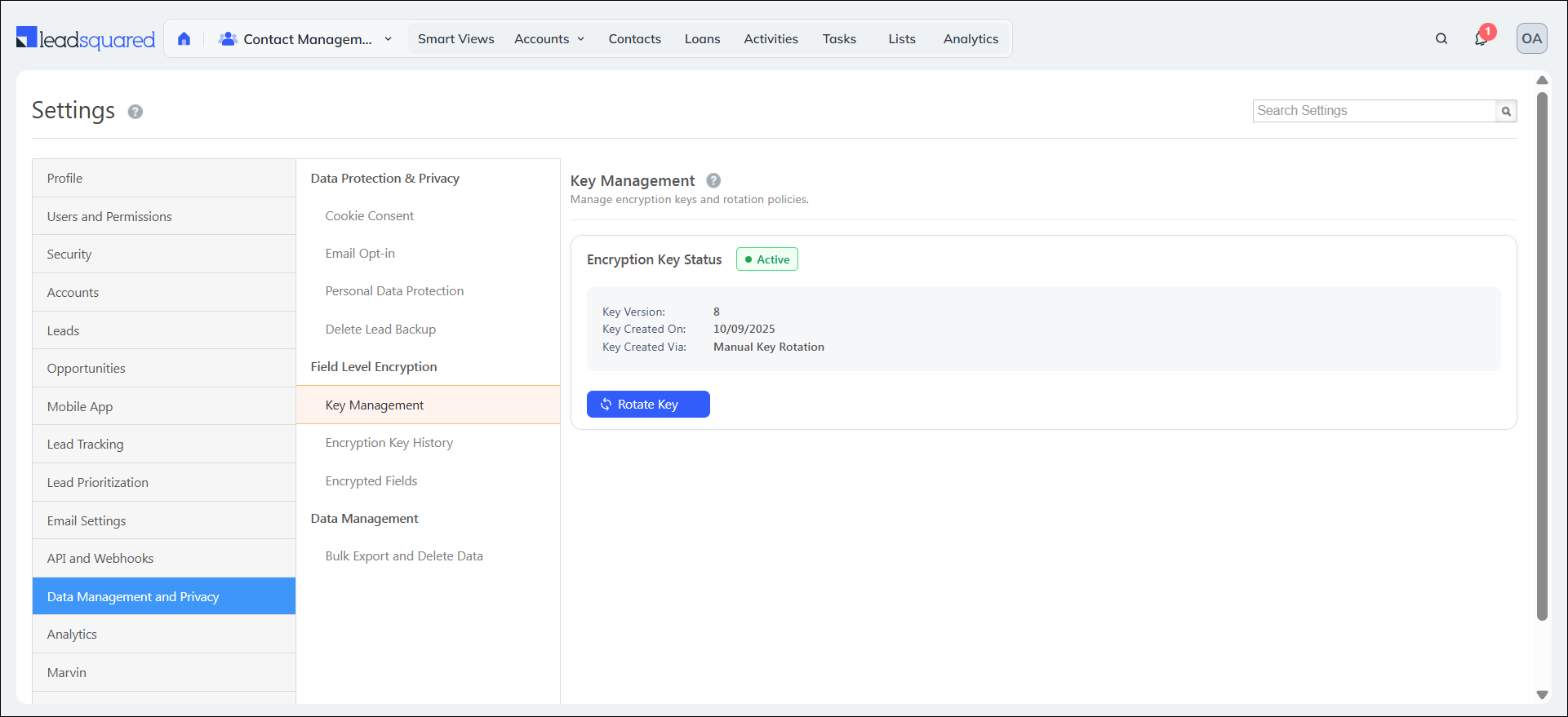
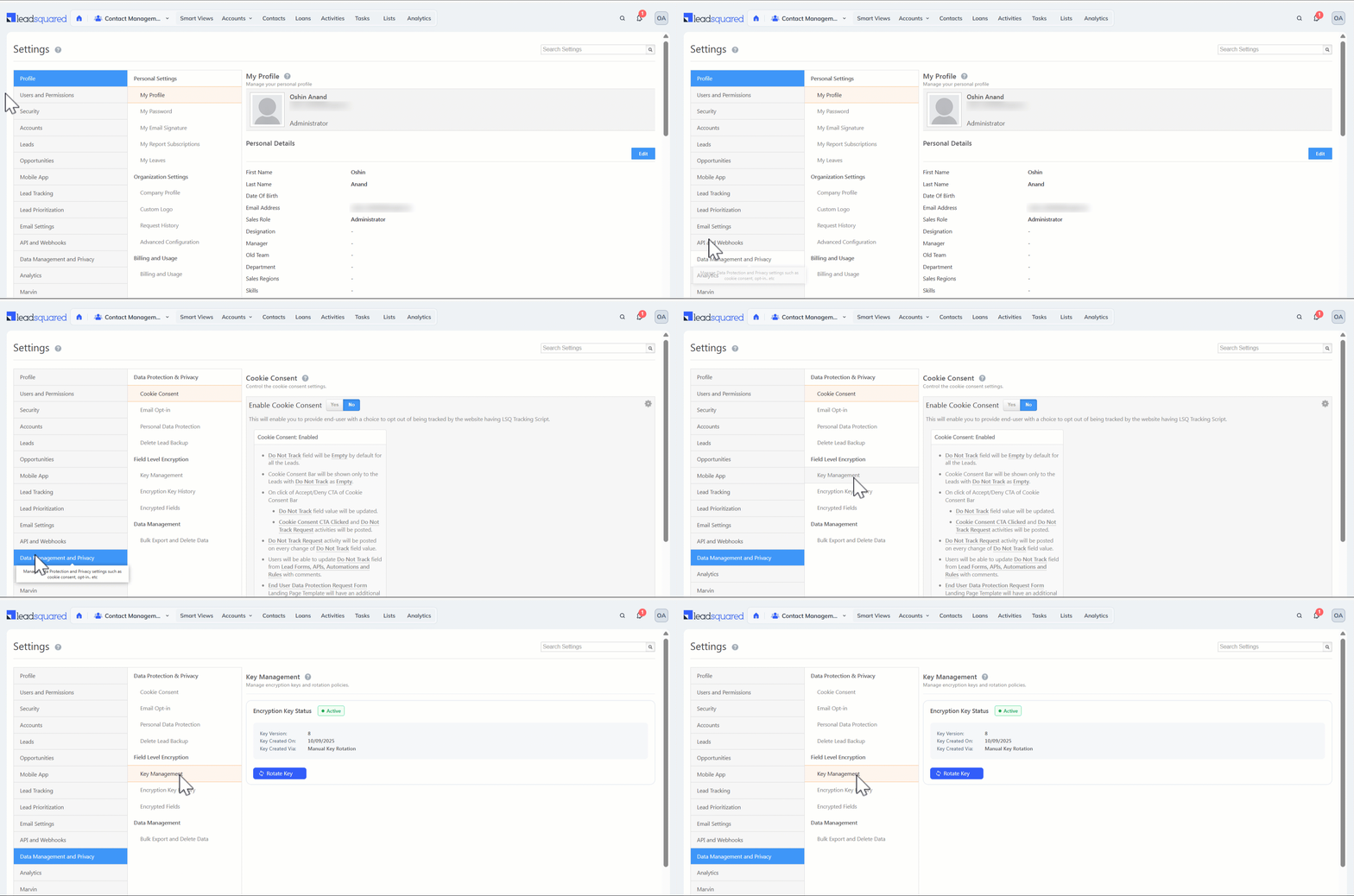
To access Field-Level Encryption Settings, navigate to Settings>Data Management & Privacy>Field Level Encryption.
5.1 Key Management
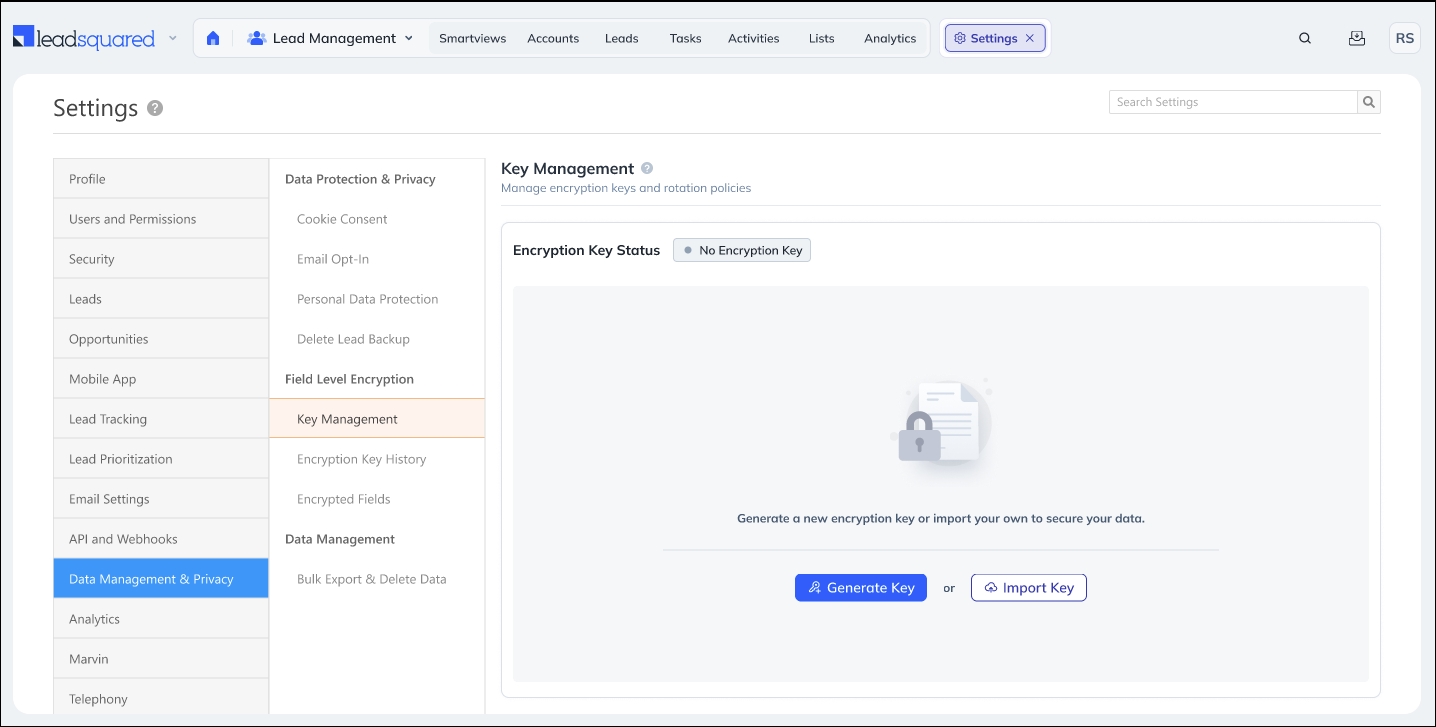
Once Field-Level Encryption is enabled, the admin can configure the encryption by entering an Encryption Key which can either be directly generated from here or be imported from any Key Management System. This key is used to convert data (like a customer’s phone number or ID) into unreadable encrypted text when stored in the database, and to decrypt it back into readable form for authorized users.
- The Master Key is stored in AWS KMS. The Master Key ID and Data Encryption Key are stored in encrypted format in your Database. The Master Key is used to decrypt the data encryption key stored in your database.
- At any given point in time, there will be a maximum of two active data encryption keys and master keys for an account. The older of the two is retained to be able to decrypt already-encrypted data when a key rotation is triggered and a new key is created.
5.1.1 Key Generation
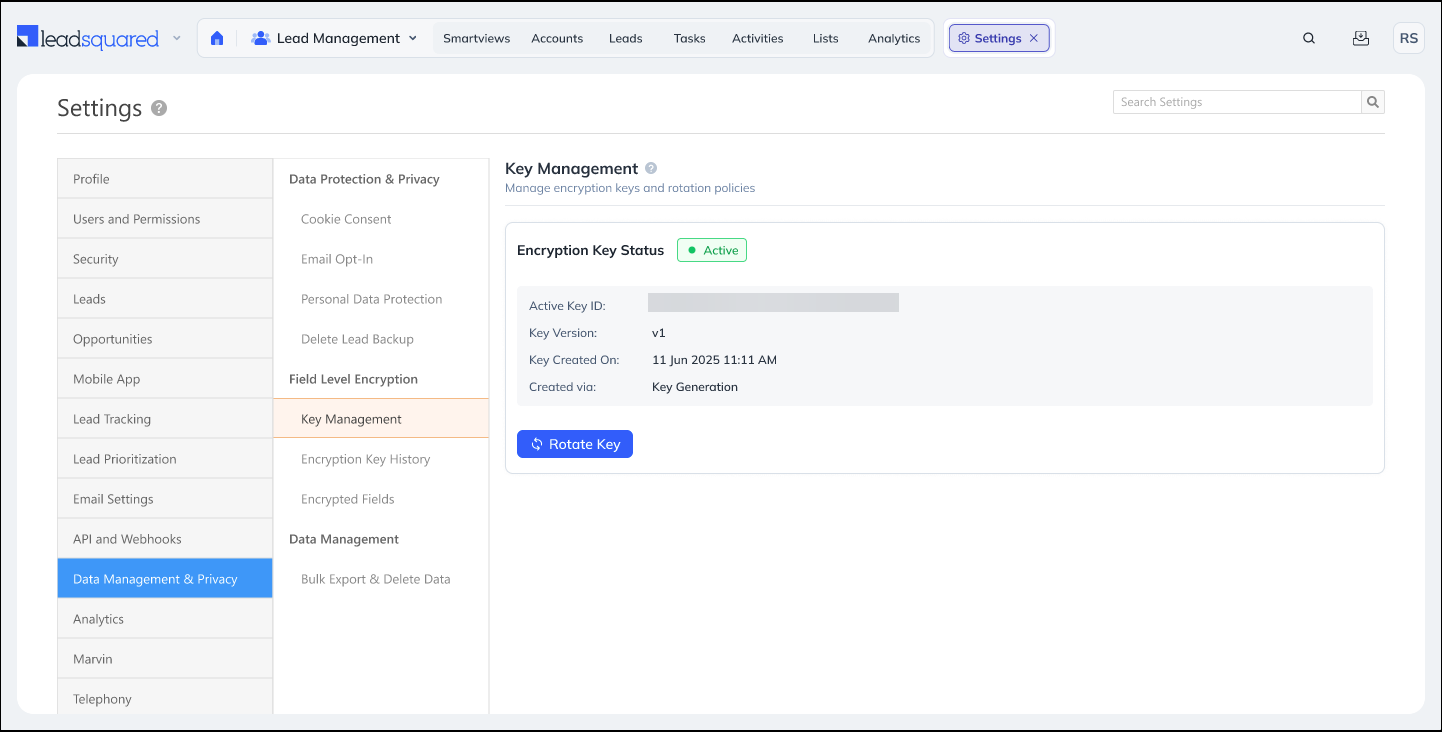
If you select the Generate Key option, then the Encryption Key will be automatically generated. If required, you can manually change the key periodically by clicking the Rotate Key option. Once you update the new key, the ability to make changes to the key will be restricted for 90 days. The key will be automatically rotated every 90 days. However, key rotation is strictly manual if the customer brings in their own key material.
5.1.2 Key Import
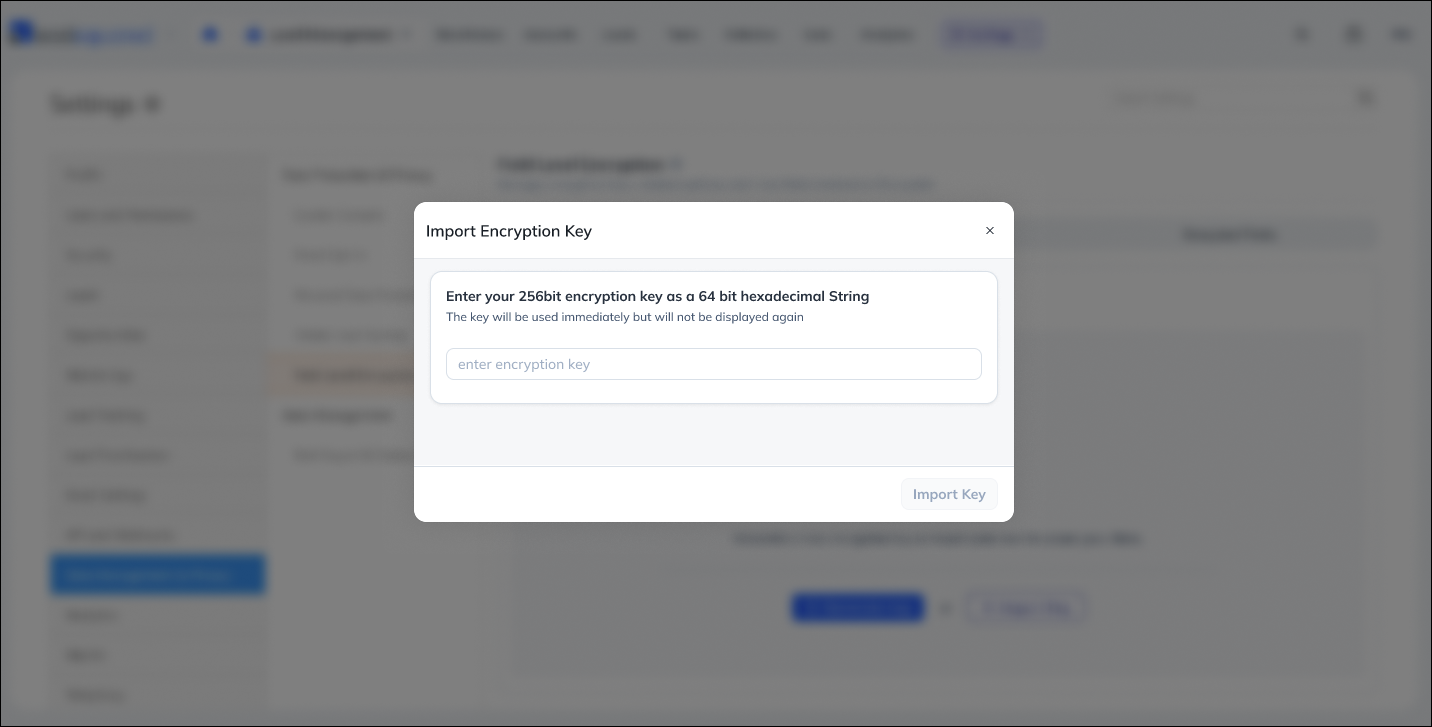
if you select the Import Key option, you can Bring Your Own Key (BYOK) through AWS Key Management Service (KMS) copied from AWS Key Management Service (KMS) and click Import Key. If required, you can import a new key periodically by clicking the Import Key option. Once you update the new key, the ability to import a new key will be restricted for 90 days.
5.2 Encryption Key History
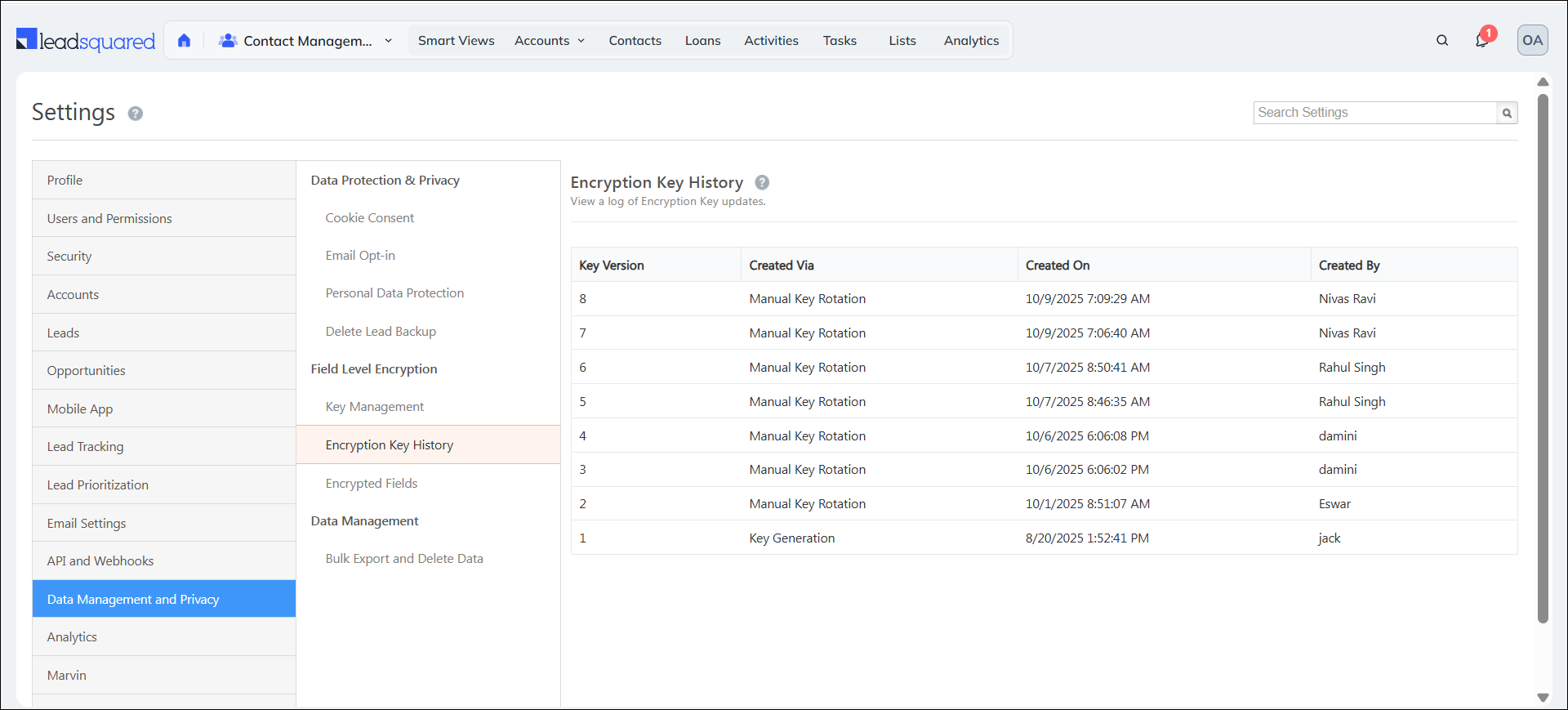
View a log of all the updates that were made to the encryption key. Here you can see –
- Key Version – The version of the key based on the number of times it was updated
- Created Via – The method through which the encryption key was entered
- Key Generation – Either Key Generation or Manual Key Rotation
- Key Import – Import
- Created On – The date and time when the encryption key was created
- Created By – The admin user who created the encryption key
5.3 Encrypted Fields
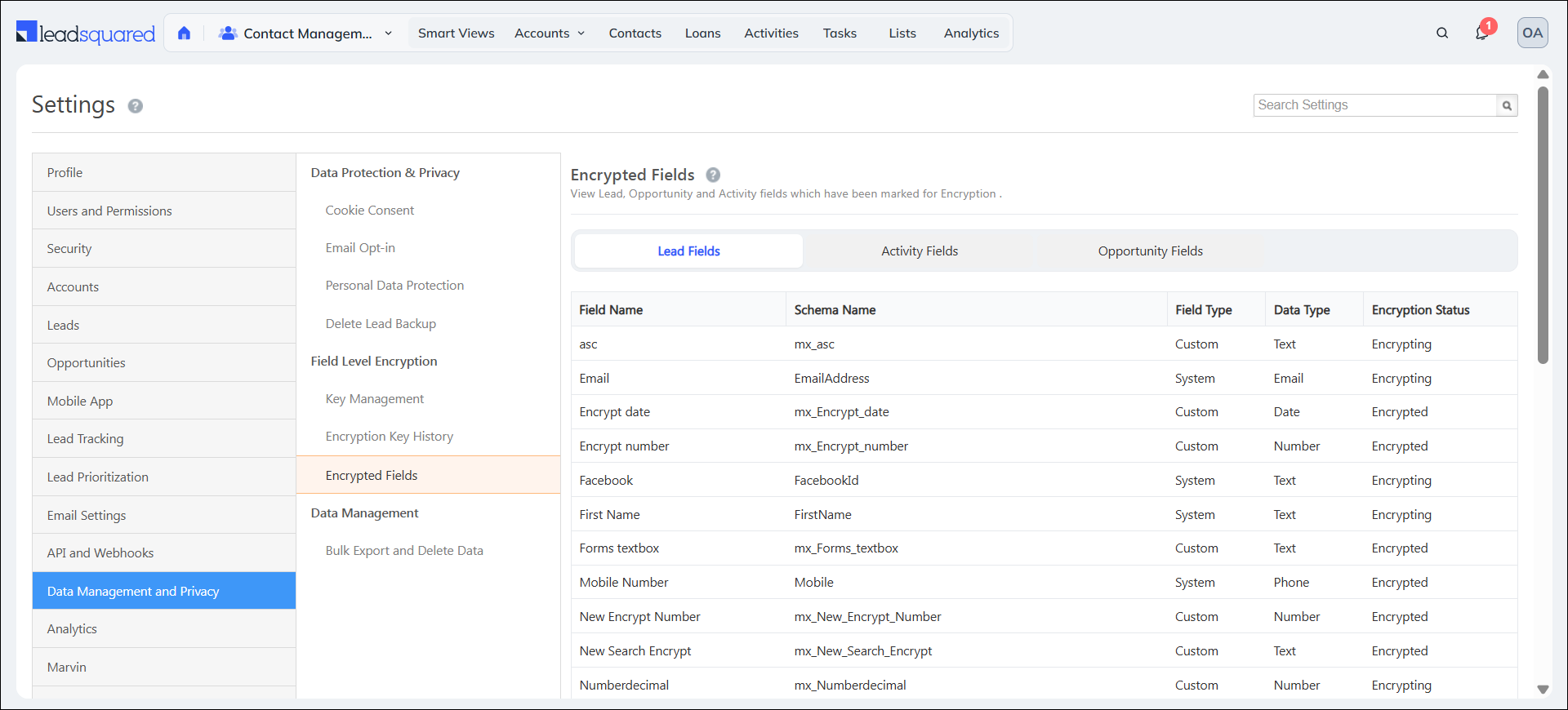
View the Lead, Opportunity and Activity fields marked for encryption in dedicated tabs. The tabs contain grids with the following details –
- Field Name – Name of the field
- Schema Name – Unique identifier assigned to a field
- Field Type – Either Custom or System (specific to Lead Fields)
- Data Type – Text, Number, Email, Phone or Date
- Encryption Status – Either Encrypted or Queued for Encryption (Encrypting)
6. Select Fields to be Encrypted
After configuring the Encryption Key, the admin must select the relevant Lead / Object, Lead CFS, Opportunity and Activity Fields to be encrypted from the Web App Settings.
Note:
- There is a hard limit of 10 encrypted fields per Lead / Object, Opportunity, or Activity Type. If you attempt encrypt a field on reaching this limit, you will face an error.
- When you enable encryption for an existing field, the system creates an encryption request that will be processed in the background. However, for newly created fields, encryption is applied immediately once you select the Encrypt Field option during field creation.
- File Level encryption is supported only for the files stored in LeadSquared storage and it is applicable only to the files uploaded to CFS and Attachments after the enabling the encryption.
6.1 Encrypt a Lead / Object Field and Custom Field Set (CFS) Field
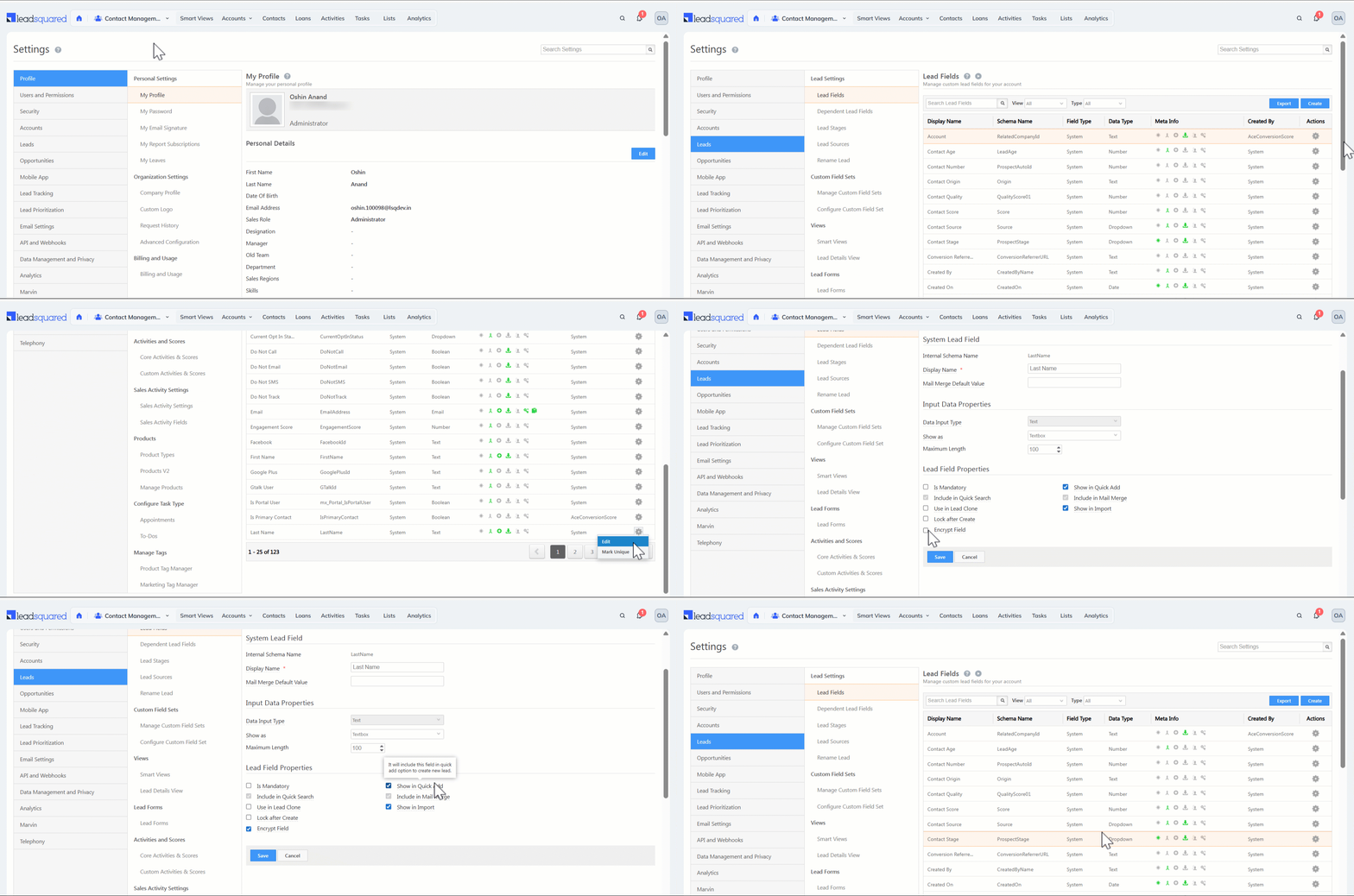
To secure a lead field –
- Navigate to Settings>Leads>Lead Fields.
- Click the
 Actions icon alongside the relevant system or custom lead field and select Edit.
 - On the Edit Lead Field page, under Lead Field Properties, check the box alongside Encrypt Field.
Similarly, to secure a Lead CFS field –
- Click the Actions icon alongside the relevant custom field set and select Edit.
- On the Edit Lead Field page, under Lead Field Properties, check the box alongside Encrypt Field.
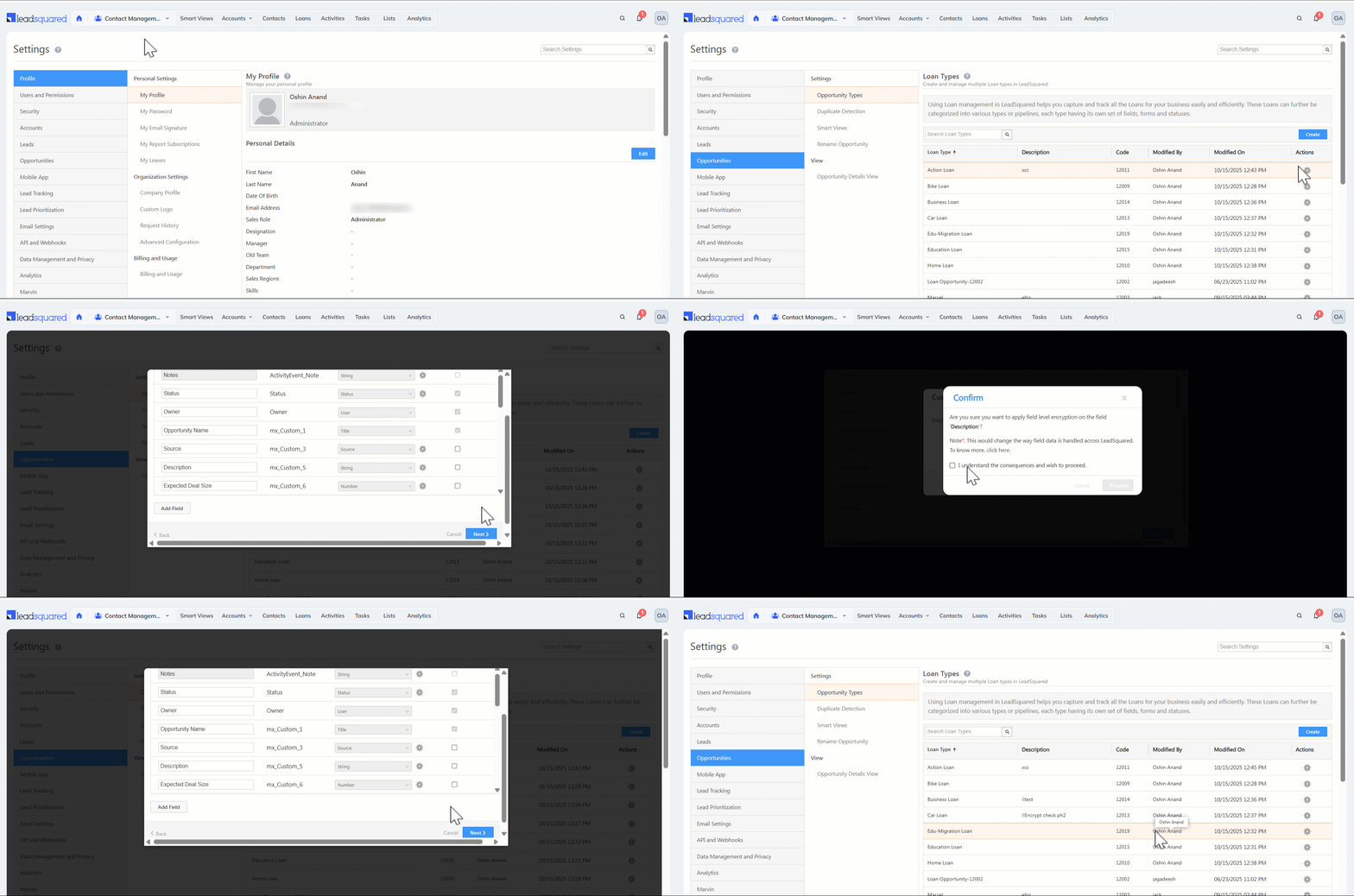
6.2 Encrypt an Opportunity Field
To secure an opportunity field within an opportunity type –
- Navigate to Settings>Opportunities>Opportunity Types.
- Click the Actions icon alongside the relevant opportunity type and select Edit.
- On the Field Configuration Tab in the Update Opportunity Type popup, click the Actions icon alongside the relevant field.
- Check the box alongside Encrypt Field.
6.3 Encrypt an Activity Field
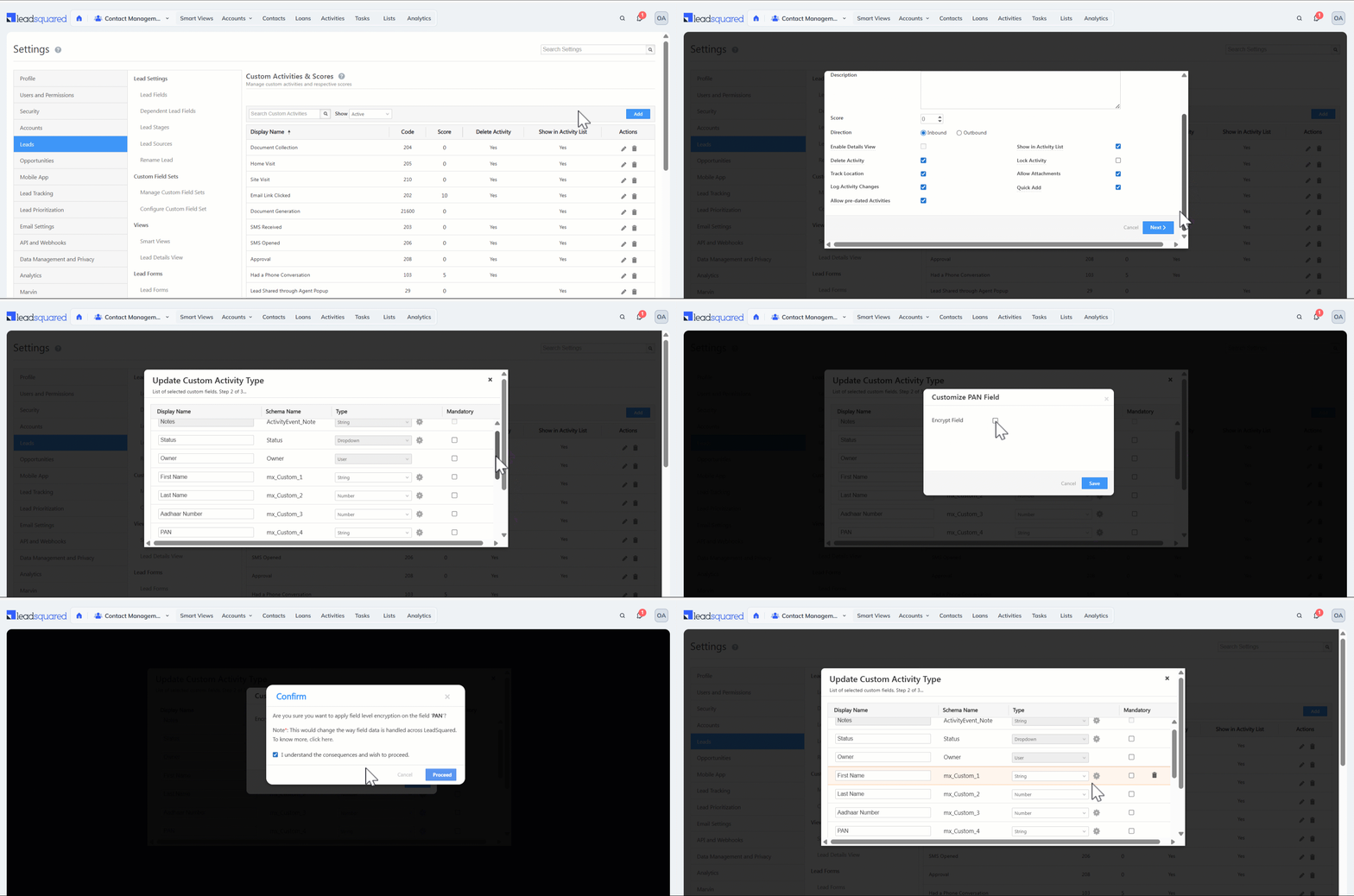
To secure an activity field –
- Navigate to Settings>Leads>Custom Activities & Scores.
- Click the
 Edit icon alongside the relevant activity type.
 - On the second page of the Update Custom Activity Type popup, click the Actions icon alongside the relevant field.
- Check the box alongside Encrypt Field.
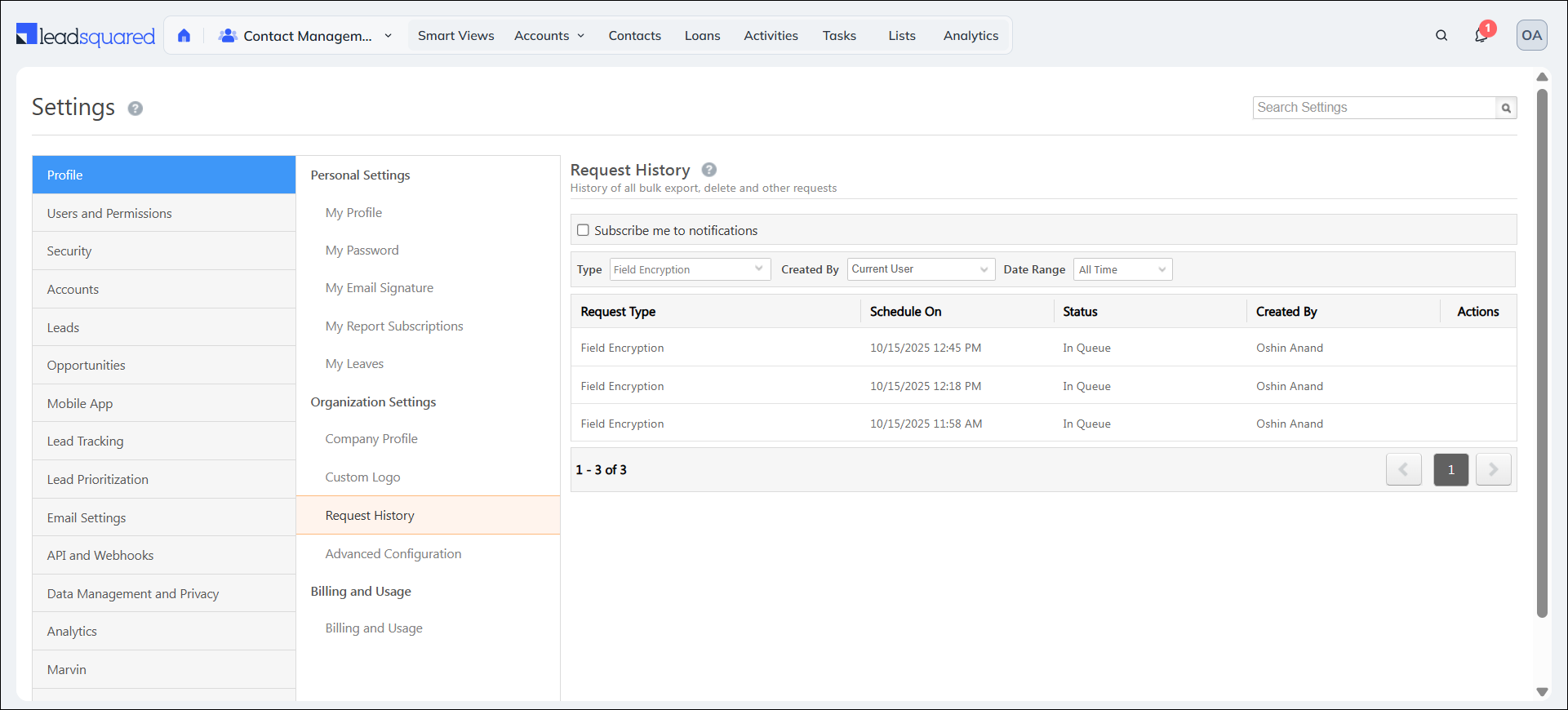
7. View Request History
To see the details about your existing field encryption request, navigate to Settings>Profile>Request History.
8. Limitations
- Global & Quick Search: The Quick Search, Global Search, and Advanced Search features may not function correctly while encryption is in progress.
- Advanced Search: Only the operators Equals, Not Equal, Contains Data, and Does Not Contain Data are supported. All other operators are not available for encrypted fields.
- Search Limitations During Encryption: The Quick Search, Global Search, and Advanced Search features may not function correctly while encryption is in progress.
- Sort/Filter: Sorting is disabled and only partial filtering is enabled for encrypted fields.
- Reporting: In some cases, encrypted fields may display ciphertext if the report or integration does not handle decryption.
- Uniqueness: Only the system fields Email, Phone, and Mobile can be marked as unique if encrypted. Any other field marked as unique cannot be encrypted.
- Uniqueness Criteria Impact: If unique fields (such as Phone, Mobile, or Email) are marked for encryption, the uniqueness validation will not work until the encryption process is complete. This can lead to duplicate records being created. It is strongly recommended to pause record creation and updates while encryption is in progress on unique fields to avoid data inconsistencies.
- Audit: Historical audit records created before encryption was enabled will remain unencrypted. Encryption applies only to new audit entries generated after the field has been encrypted.
9. FAQs
9.1 Technical Details & Implementation
1. What types of data can be encrypted using Field Level Encryption?
Customers can encrypt both system (Phone, email, mobile for leads) and custom fields across Leads, Opportunities, and Activities. Customers can apply encryption at the sub-type level (e.g., “Student” lead type). Common examples of data encrypted this way include identification numbers (PAN, Aadhar, ABHA, DL, Voter ID, SSN, Passport), contact details (name, phone, email, address), and financial data (bank and credit card information).
2. What encryption algorithms does LeadSquared use?
LeadSquared will encrypt the data using the AES 256-bit encryption algorithm.
3. How are encryption keys managed and stored?
Key Management System uses two types of keys: a Master Key and a Data Encryption Key.
Each customer enabled for this feature has a dedicated Master Key. The customer can generate the Master Key from the Admin Settings page or provide their own key material. The Master Key is securely stored in LeadSquared AWS Key Management Service (KMS). The system uses the Master Key to generate a Data Encryption Key, which is then used to encrypt and decrypt data.
4. Do data encryption keys held in memory rotate automatically when the customer rotates the master key?
Yes. However, there will be a delay of a few minutes before the new key reflects in memory.
5. What happens to existing data if I rotate the tenant keys?
Encrypted data is first decrypted with the older data encryption key and then encrypted again using the new data encryption key. This whole operation will take a few hours depending upon the data volume. Any new data input happening during and post key rotation will be encrypted using the new key only.
6. What is the key length of the Master Key and Data Encryption Keys?
The key length will be 256-bit.
7. Can I manage my keys outside of LeadSquared?
No. Key management is done only in AWS KMS provisioned by LeadSquared. However, customers can upload their own key material on the Admin Settings on the Web App, and the key will get stored in LeadSquared-provisioned AWS KMS. Auto-rotation of keys is not feasible if the customer uploads their own key material. They need to rotate the keys manually when needed.
8. Does encrypting fields, files, and attachments with Field Level Encryption count against my organization’s storage limits?
Yes, if any storage limitations are applicable to your account, they will be affected by encryption at the field level.
9. If I can see encrypted data, can LeadSquared Support representatives also see the data?
Yes. If the Admin approves the support request to grant access to the account, they will be able to see the data. To prevent the support team from viewing the data in the encrypted fields at the UI level, the customer can create a dedicated support user in their account and apply permission templates to mask fields they don’t want to expose to support users.
10. What happens to field values in existing entity audit logs after applying Field Level Encryption?
Any logs generated prior to encryption will remain unencrypted.
11. Which LeadSquared editions support Field Level Encryption?
Only Super Plan customers can leverage the field encryption feature.
9.2 Constraints & Considerations
1. What are the constraints of using Field Level Encryption?
Only the system fields Email, Phone Number, and Mobile Number are supported for encryption. Other system fields cannot be encrypted. Custom fields can be encrypted as per the scope mentioned in the What Can Be Encrypted section of this article.
General constraints post field encryption:
Quick Search & Global Search
- Partial Search: Not supported
- Exact Match Search: Supported
Sort
-
Sorting is not supported for encrypted fields across any modules.
Advanced Filter
- Supported operators: Equals, Does Not Equal, Contains Data, Does Not Contain Data
- All other operators (e.g., “Starts With”, “Ends With”, “Contains”, “Like”, “Greater Than”, “Lesser Than”, etc.) are not supported.
2. Are there any performance impacts when using encryption?
Latency: Expect increased read/write latency due to encryption overhead (around 50ms additional page/report load time).
Overall application performance: Enabling Field Level Encryption for a tenant results in an approximate 10% degradation in overall application performance for that tenant, due to the added encryption/decryption processing overhead.
Storage: Encrypted fields consume more storage, owing to encrypted value encoding and metadata overhead.
3. Can an encrypted field still be marked as unique?
Only the Email, Phone, and Mobile system fields can be marked unique when encrypted. Note that uniqueness validation does not function until encryption of existing data completes — during that window, duplicate records can be created.
3. Will reports show correct values for encrypted fields?
Reports may display raw ciphertext instead of readable values if the reporting integration doesn’t handle decryption. (For Clone DB/DREP-based reporting specifically, see the “Impact on DREP/Clone DB Access” section below.)
9.3 Impact on DREP (Data Replication) / Clone DB Access
1. Does encryption change how a field appears in my replicated database (DREP) or Clone DB?
Yes. Enabling encryption changes the underlying database structure for that field — its data type, length, and associated columns. This is a structural change to the table, not just the individual field.
2. Will my existing DREP/Clone DB queries or reports continue to work after a field is encrypted?
Queries, reports, or integrations built directly against a field will need to be updated once that field is encrypted, since its underlying structure changes. We recommend reviewing any solution with a direct database dependency before enabling encryption on a field it uses.
3. Will the encrypted field still be present in my replicated data?
Yes. The field is still replicated, but its value appears in encrypted (unreadable) form rather than as plain text.
4. Can I decrypt the replicated data myself, even if I provided my own encryption key material?
No. Decryption is only available through LeadSquared APIs, regardless of who owns the key material.
5. Is there any way to get decrypted values through DREP or Clone DB?
Not directly. Decrypted values for encrypted fields are only available via LeadSquared APIs.
6. Are non-encrypted fields on the same record still accessible?
Yes, fully accessible. However, as part of the structural change, some fields may now live in a different table than before, so you may need to update table references or joins.
7. Will I be warned in the UI before enabling encryption on a field my DREP/Clone DB integration depends on?
Not currently. No in-app warning is shown. We recommend reviewing your own dependent integrations before enabling encryption on a field you rely on.
8. Can I roll back encryption if needed?
Yes, rollback is possible, but it follows a defined process rather than being instant. Similar to key rotation, encrypted data must be decrypted and restored to its original (unencrypted) structure, which requires coordination with LeadSquared. The time required depends on the volume of data to be decrypted. Larger datasets will take proportionally longer to roll back.
9. Does enabling encryption trigger a full resync of my replicated data?
No. Enabling encryption does not trigger a full resync of your existing replicated data. Only records that are created or modified after encryption is enabled are synchronized incrementally.
10. Does encryption slow down my DREP/Clone DB sync?
No, sync performance is unaffected and remains the same as before encryption.
11. What happens to data that was already replicated before I enabled encryption?
It’s migrated during a planned downtime window, scheduled with you in advance . This isn’t an automatic or silent process.
12. What are my reporting options for encrypted fields?
Encrypted fields are not supported in reports today. To build reporting on top of an encrypted field, you would need to fetch the decrypted values via LeadSquared APIs, store that data in your own system/data store, and build your reporting on top of that separately. Direct reporting via Clone DB/DREP or the LeadSquared Reporting System is not available for encrypted fields.
13. Is there a migration guide for adjusting my DREP/Clone DB-based solutions before enabling encryption?
Not currently. We recommend working with your Key Account Manager (KAM) to plan the transition for any solution that directly depends on a field you plan to encrypt.
9.4 Security
1. What happens if an encryption key is compromised?
You must perform a manual key rotation.
2. Who has access to the Master Key in LeadSquared?
The key is safely stored inside AWS KMS and cannot be viewed by any LeadSquared employee once the key is uploaded for the first time.
3. What are the ways to get decrypted (plain) values for fields that are encrypted?
There are only a few ways to retrieve decrypted values. E4ncrypted fields are never exposed as plain text outside of these:
- LeadSquared application UI: Authorized users viewing a record see the decrypted value automatically. The platform decrypts on authorized access using the configured key.
- LeadSquared APIs: Decrypted values can be fetched programmatically via LeadSquared APIs. This is also the recommended path for building custom reporting on encrypted fields: fetch via API, store in your own system, and report from there.
- LeadSquared Support (with admin approval): If the tenant admin approves a support access request, Support Representatives can view decrypted data through the UI. Admins can restrict this by creating a dedicated support user and applying permission templates to mask specific fields from support visibility.
9.5 Troubleshooting & Support
1. What should I do if encrypted data becomes inaccessible?
There is no possibility of data corruption or inaccessibility, as we have a fail-safe mechanism to prevent data upload without successful encryption.
2. How can I audit key management?
We will maintain internal audit logs to audit key-related events and maintain them in the tenant DB. A third-party audit will be conducted to validate the same. Administrators can also view a Key History log directly in the product UI, showing key versions, how each key was created (generated vs. imported), timestamps, and which admin created it.
3. Who can I contact for support with Field Level Encryption?
Please reach out to support@leadsquared.com for any queries.
Any Questions?
Did you find this article helpful? Please let us know any feedback you may have in the comments section below. We’d love to hear from you and help you out!