


Get Started

Sales Suite
Field Ops
Marketing
Service CRM
Integrations & Apps
FloStack
How to Export More than 1,000,000 Opportunities

By default, you can export up to 100,000 opportunities in a single request. This limit can be increased to 1,000,000 by writing to us at support@leadsquared.com. If you need to export more than 1,000,000 opportunities, you can use a simple workaround by enabling the Auto ID field on your Opportunity Type. This lets you segment and export opportunities in smaller, manageable batches—ensuring you don’t miss any records.
Step 1: Enable the Auto ID Field for Your Opportunity Type
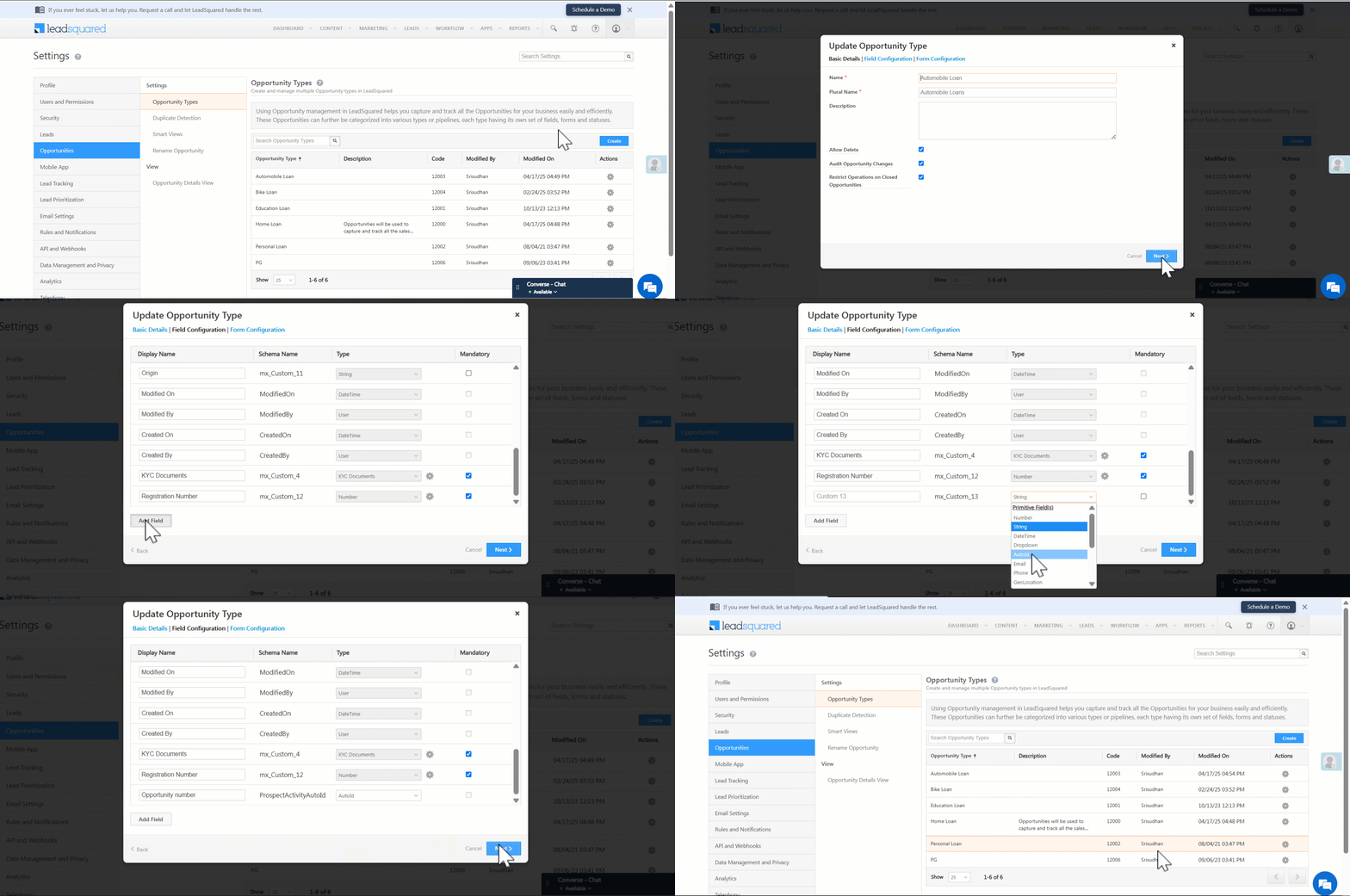
- Navigate to Settings>Opportunities>Opportunity Types.
- Alongside the Opportunity Type you want to export, under Actions, click Edit.
- Click Next on the popup to go to the Field Configurations.
- Click Add Field.
- Choose the data type Auto ID and set a display name (e.g., “Opportunity Number”).
- Click Next, then click Save.
Step 2: Display the Auto ID Column
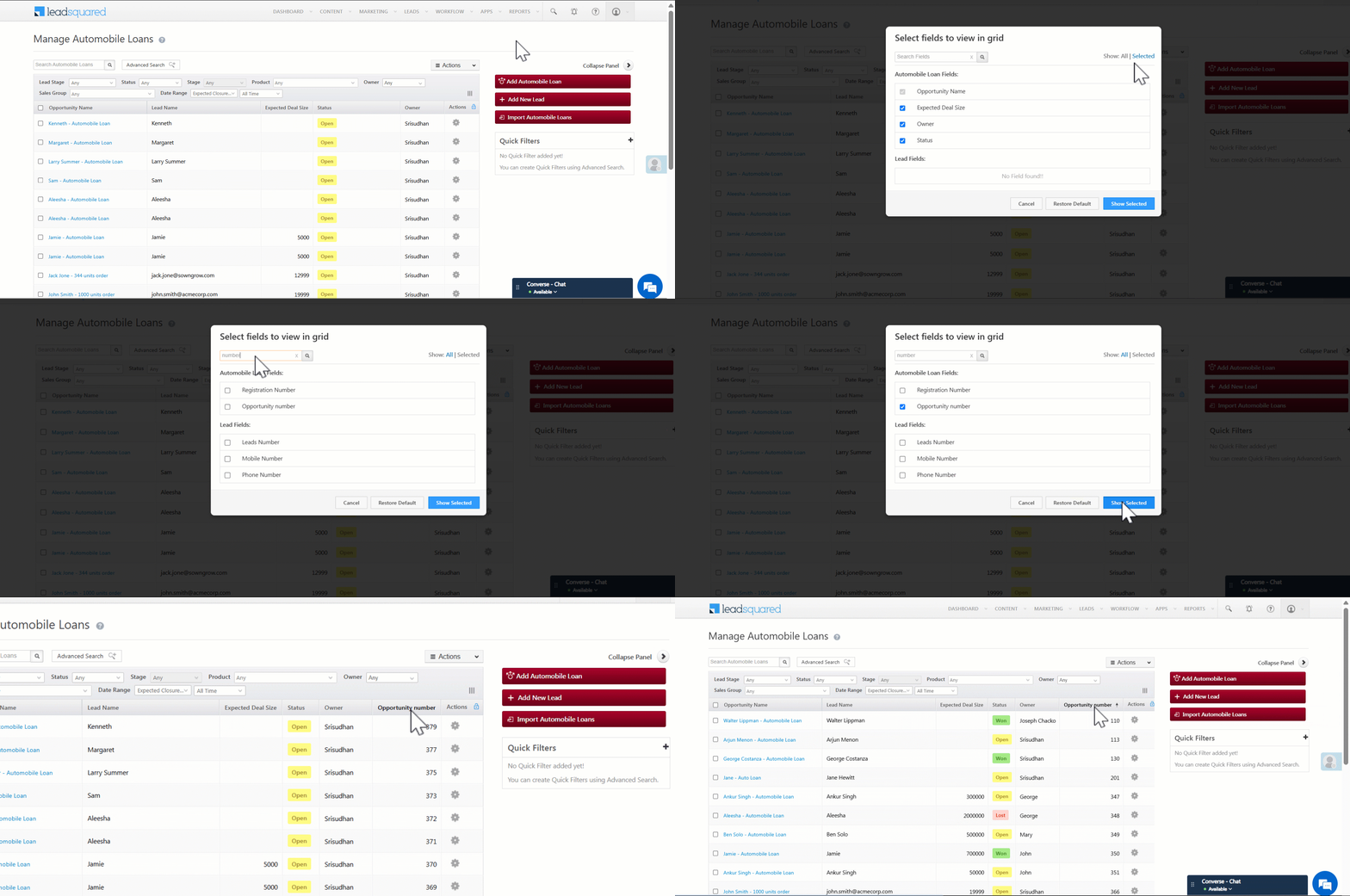
- Go to Opportunities>[Your Opportunity Type].
- Click the Column Customization icon.
- Enable the checkbox for the Auto ID field (we gave it the display name ‘Opportunity Number’).
- Click the column header to sort opportunities by Auto ID.
Step 3: Filter and Export Opportunities Using Auto ID
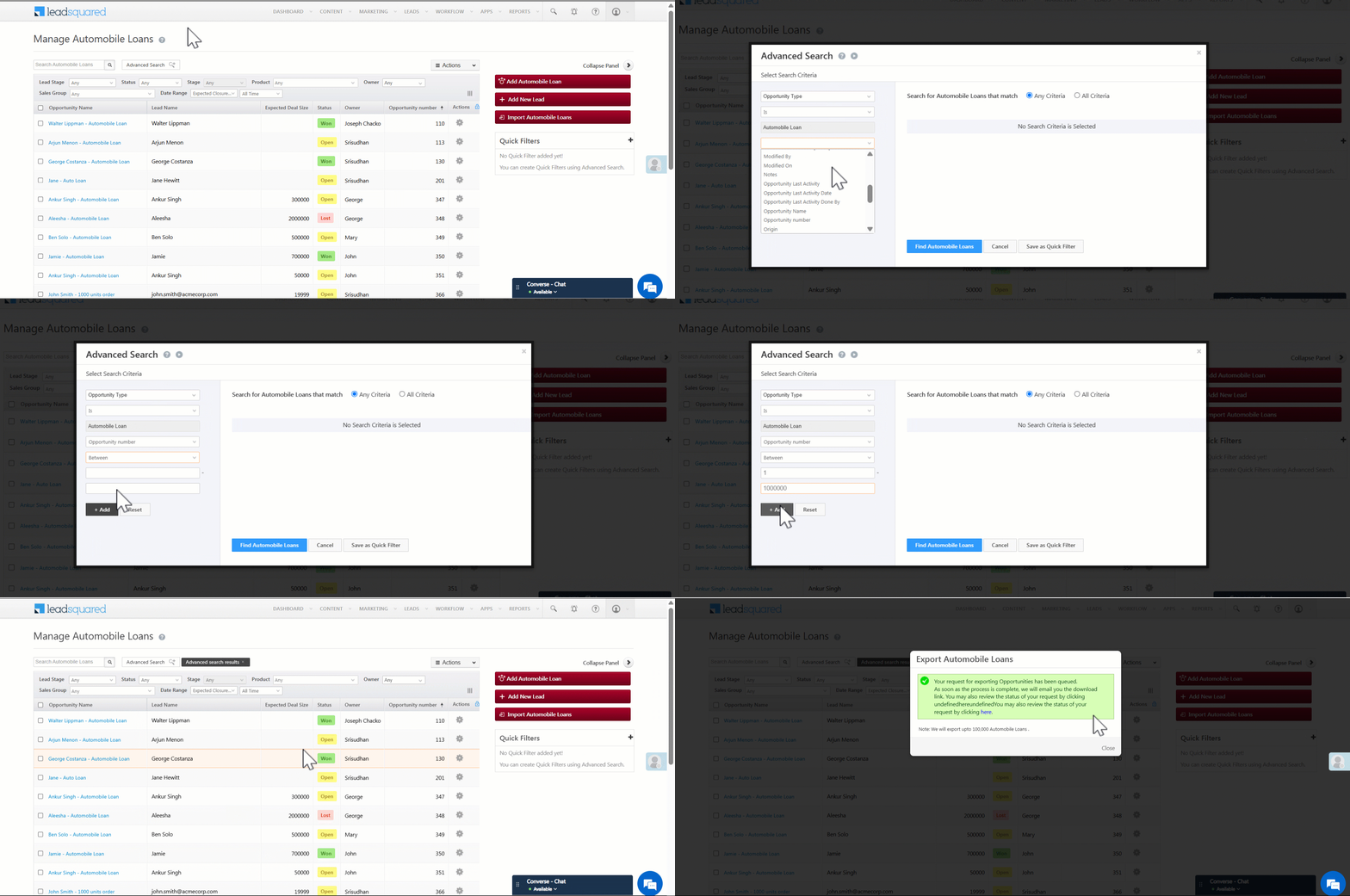
- Click Advanced Search.
- Add a condition: Auto ID is between 1 and 1000000. Click Add Condition.
- Click Find Opportunities to view the filtered results.
- From the grid, go to Actions>Export.
Step 4: Export Opportunities Beyond 1,000,000
- To export more than 1,000,000 opportunities, simply update the Auto ID range in Advanced Search:
- Auto ID is between 1000001 and 2000000, then export the results.
- Then: 2000001 to 3000000, and export the results and so on…
Even though the Auto ID range may include IDs assigned to other opportunity types, this is still the best way to ensure you don’t miss any records.
FAQs
Q. Why are some Auto ID numbers missing from my export?
Auto IDs are globally assigned across all opportunity types. So, within a single opportunity type, some numbers might be skipped if they were used by other types.
Q. Can I export opportunities with filters other than Auto ID?
Yes, but for large exports across millions of records, Auto ID is the most efficient way to paginate without missing any data.
Q. I don’t see the Auto ID option while adding a field. Why?
Make sure you select the correct data type (Auto ID) when creating the field. If it’s missing, reach out to support@leadsquared.com for help.