


Get Started

Sales Suite
Field Ops
Marketing
Service CRM
Integrations & Apps
FloStack
ACE Dashboard

1. Feature Overview
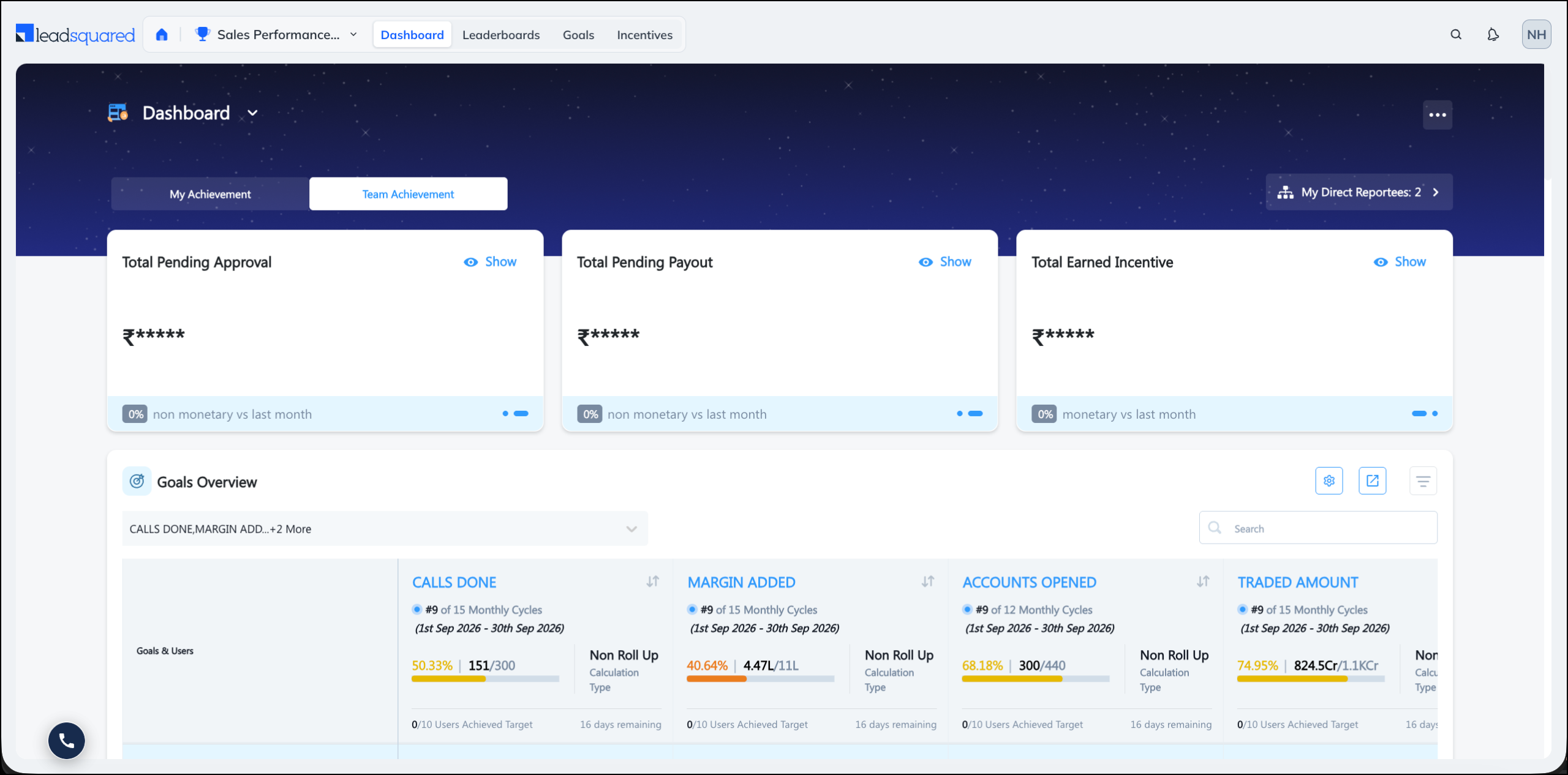
The Ace Dashboard brings your Goals, Incentives, and Leaderboards together on one page. Instead of opening each module separately, you can track targets, incentive payouts, and leaderboard ranks in a single view that updates in real time. Managers can also track the same metrics for everyone who reports to them.
The dashboard is built from widgets, and each widget answers one question about performance. You choose which widgets appear, and in what order.
2. Prerequisites
- Ace is a paid feature. To enable this feature, get in touch with your account manager, or send an email to support@leadsquared.com.
- You must create Goals, Incentive programs, or Leaderboards to define how achievements are calculated.
- Ensure that the Organization Hierarchy for your organization is set up.
3. Access the Dashboard
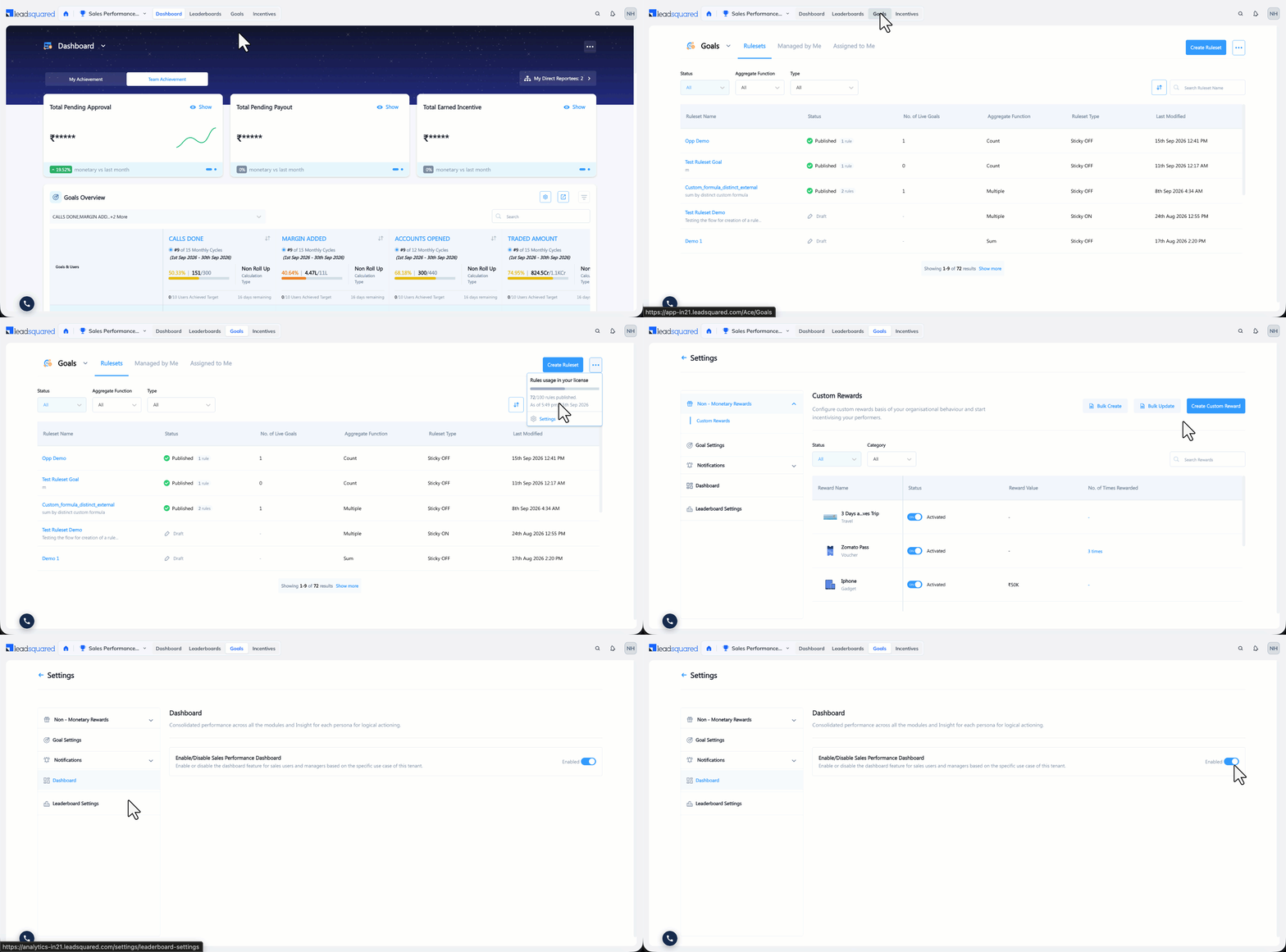
Navigate to Ace>Dashboard.
4. My Achievement and Team Achievement
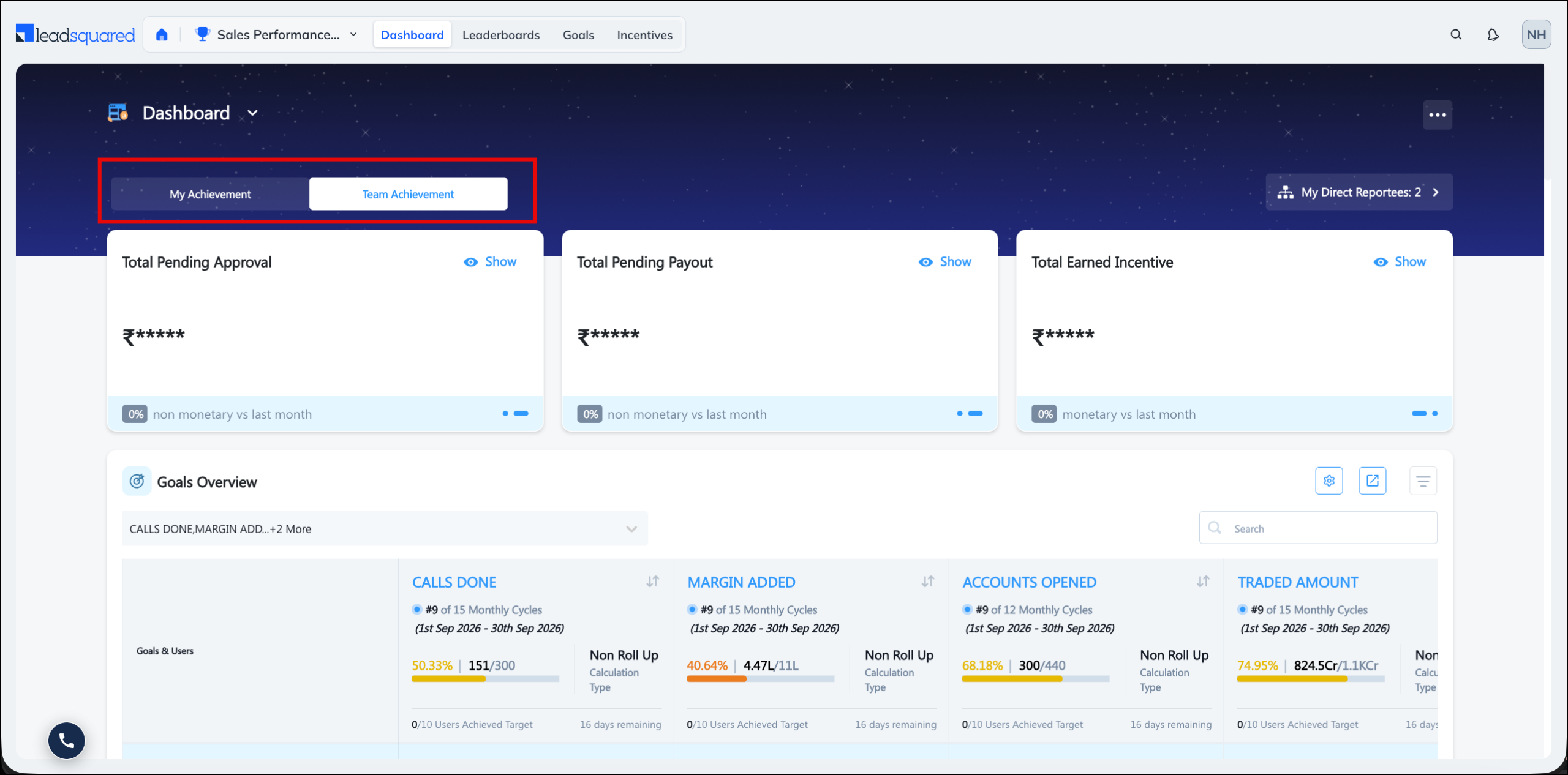
The dashboard has two tabs.
| Tab | What it shows | Who can see it |
| My Achievement | Your own goals, incentives, and leaderboard standing. | All users |
| Team Achievement | The same metrics for the users who report to you. | Admins and Managers |
5. Hierarchy & User Reports
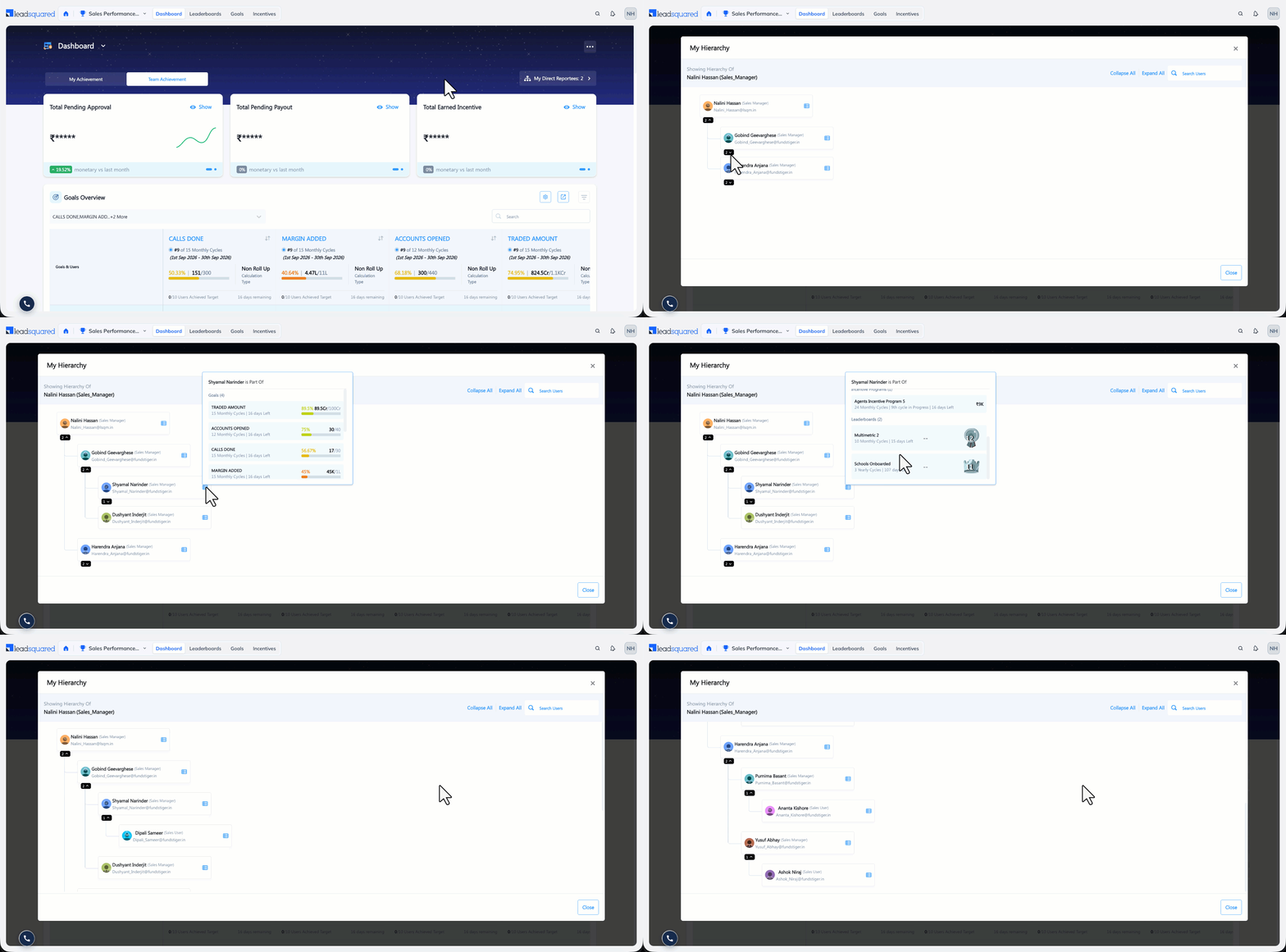
Managers can directly access their direct reports from the dashboard by clicking My Direct Reportees. this eliminates the need to navigate to Manage Users to check the hierarchy. Clicking on a team member’s name expands their detailed performance view, including:
- Goals (Target vs. Achievement breakdown)
- Incentives (Eligible vs. Approved payouts)
- Leaderboard standing (User’s rank comparison)
6. Manage Widgets
You can add, remove, and rearrange widgets on each tab. The two tabs are configured separately, so a widget you add to My Achievement does not appear on Team Achievement.
6.1 Add or Remove a Widget
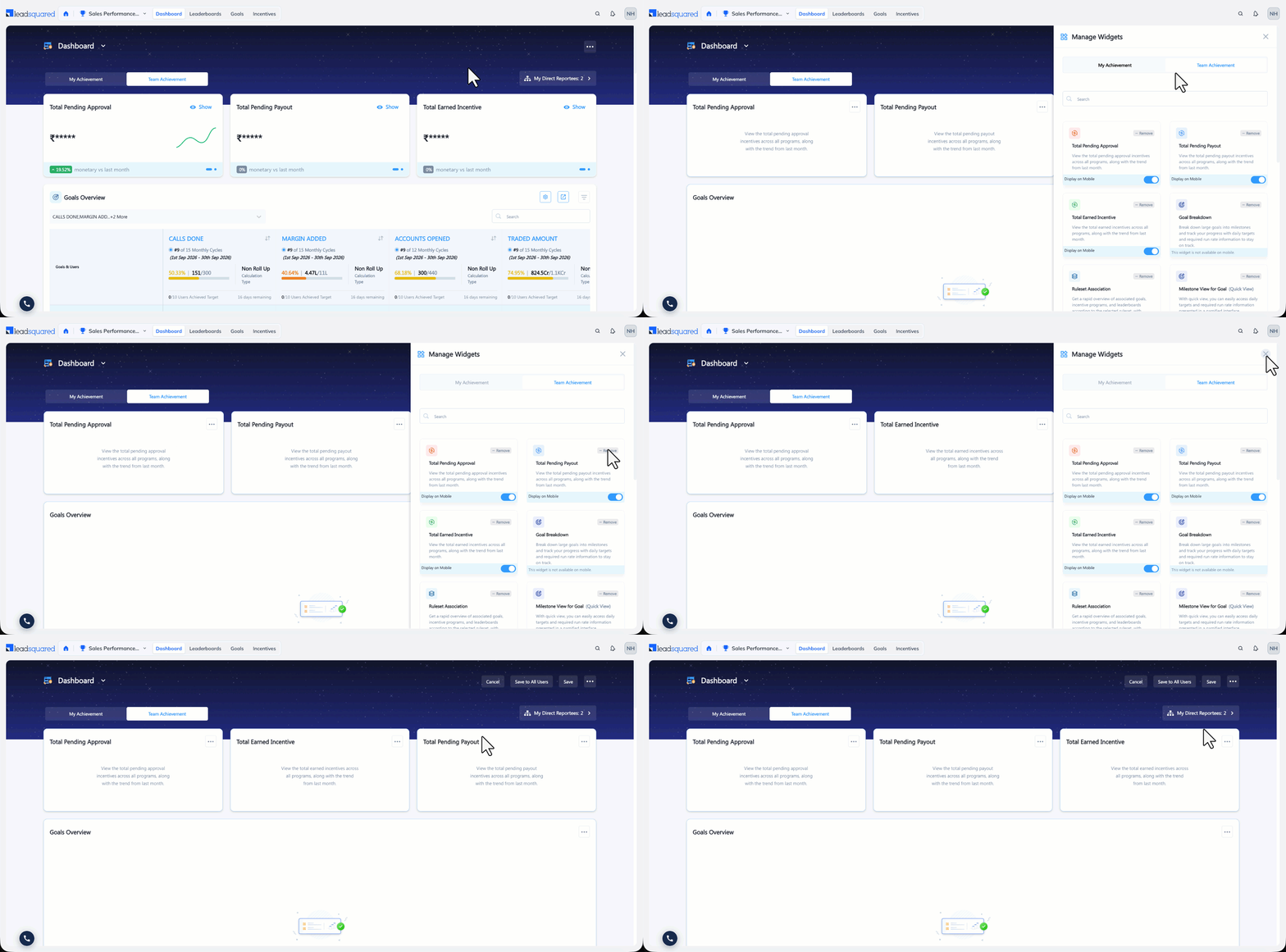
To edit the dashboard –
- Click the options menu icon.
- Toggle the Edit Page Layout option.
- Select Manage Widgets.
- Select any widget to show on the dashboard.
- Additionally, you can toggle the Display on Mobile option to display the widgets on the mobile app as well.
- Drag a widget to move it.
- Click Save to save the layout for yourself.
- Refer to the next section if you want to save a layout for your team.
6.2 Save a Layout for Your Team
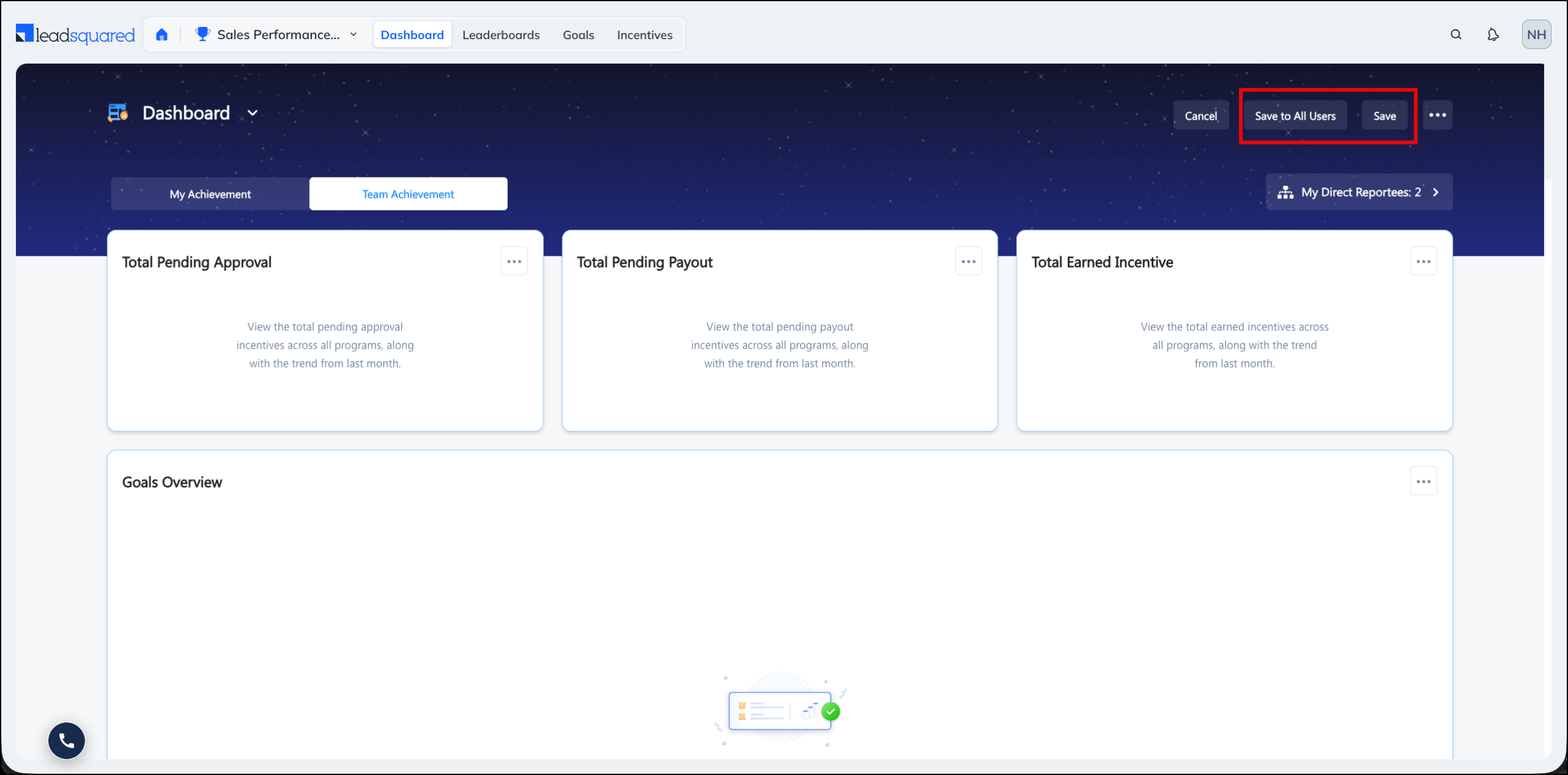
If you are an Admin or Manager, you can save the layout for yourself by clicking Save, or apply it to every user in your hierarchy through Save to All Users.
Two options are available when you select Save to All Users –
- Save as Default – The layout becomes the default for your hierarchy. Users adopt it when they click Reset to Default in their dashboard settings, so their current layout stays untouched until they do.
- Apply Changes Instantly – The layout replaces every user’s current layout immediately. Users see it on their next visit without resetting anything.
6.3 Widgets on the Mobile App
The dashboard is also available on the LeadSquared Mobile App, but not every widget supports it.
The following widgets are not available on the mobile app –
- Goal Breakdown
- Incentive Rewards Overview
- My Goals
- Ruleset Association
- User Details
6.4 Why a Widget Shows No Data
A widget displays data, it does not create it. Each widget reads from a goal, incentive program, leaderboard, or ruleset that must already exist and include you. For example –
- An incentive widget stays empty until a published incentive program exists and you are part of it.
- A goal widget stays empty until a goal is assigned to you.
- Ruleset Association stays empty until a ruleset is published and something is built on it.
A widget that shows zero rather than nothing is a different case. The underlying object exists, but it has not produced a value yet. On payout widgets, this usually means nobody has approved or released an amount.
Goals, incentive programs, leaderboards, and users created outside ACE take a short while to reflect on the dashboard. If a recently created item is missing, wait and refresh.
5. Widget Reference
Widgets are grouped below by the data they read. Where a widget appears on both tabs, it works the same way on each, and shows your own data on My Achievement and your team’s on Team Achievement.
5.1 Widget Availability
| Widget | My Achievement | Team Achievement | Mobile |
| Total Pending Approval | Yes | Yes | Yes |
| Total Pending Payout | Yes | Yes | Yes |
| Total Earned Incentive | Yes | Yes | Yes |
| Achievement v/s Incentive Calculation | Yes | Yes | Yes |
| Incentive Cycle Comparison | Yes | No | Yes |
| Incentive Rewards Overview | Yes | No | No |
| My Incentive Program | Yes | No | Yes |
| Payout Trend | Yes | No | Yes |
| Eligible vs. Approved vs. Paid Out | No | Yes | Yes |
| Incentive Trends for User | No | Yes | Yes |
| My Goals | Yes | No | No |
| Goal Breakdown | Yes | Yes | No |
| Milestone View for Goal | Yes | Yes | Yes |
| Compare Goals | Yes | No | Yes |
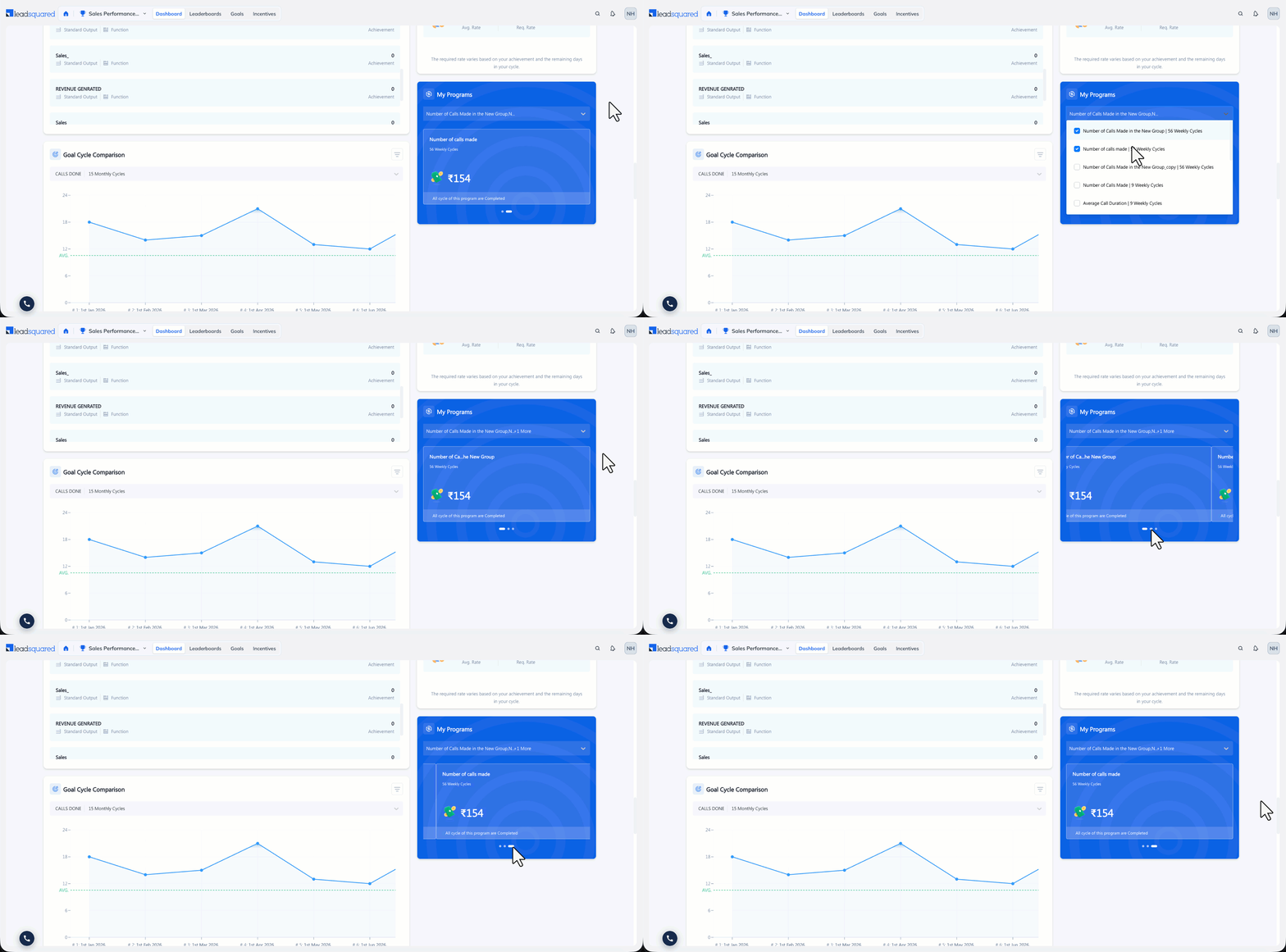
| Goal Cycle Comparison | Yes | No | Yes |
| Goals Overview | No | Yes | Yes |
| Goals Contribution | No | Yes | Yes |
| Goal User Comparison | No | Yes | Yes |
| Leaderboard View | Yes | Yes | Yes |
| Leaderboard Cycle Comparison | Yes | No | Yes |
| User Details | Yes | No | No |
| Ruleset Association | Yes | Yes | No |
6. Incentive Widgets
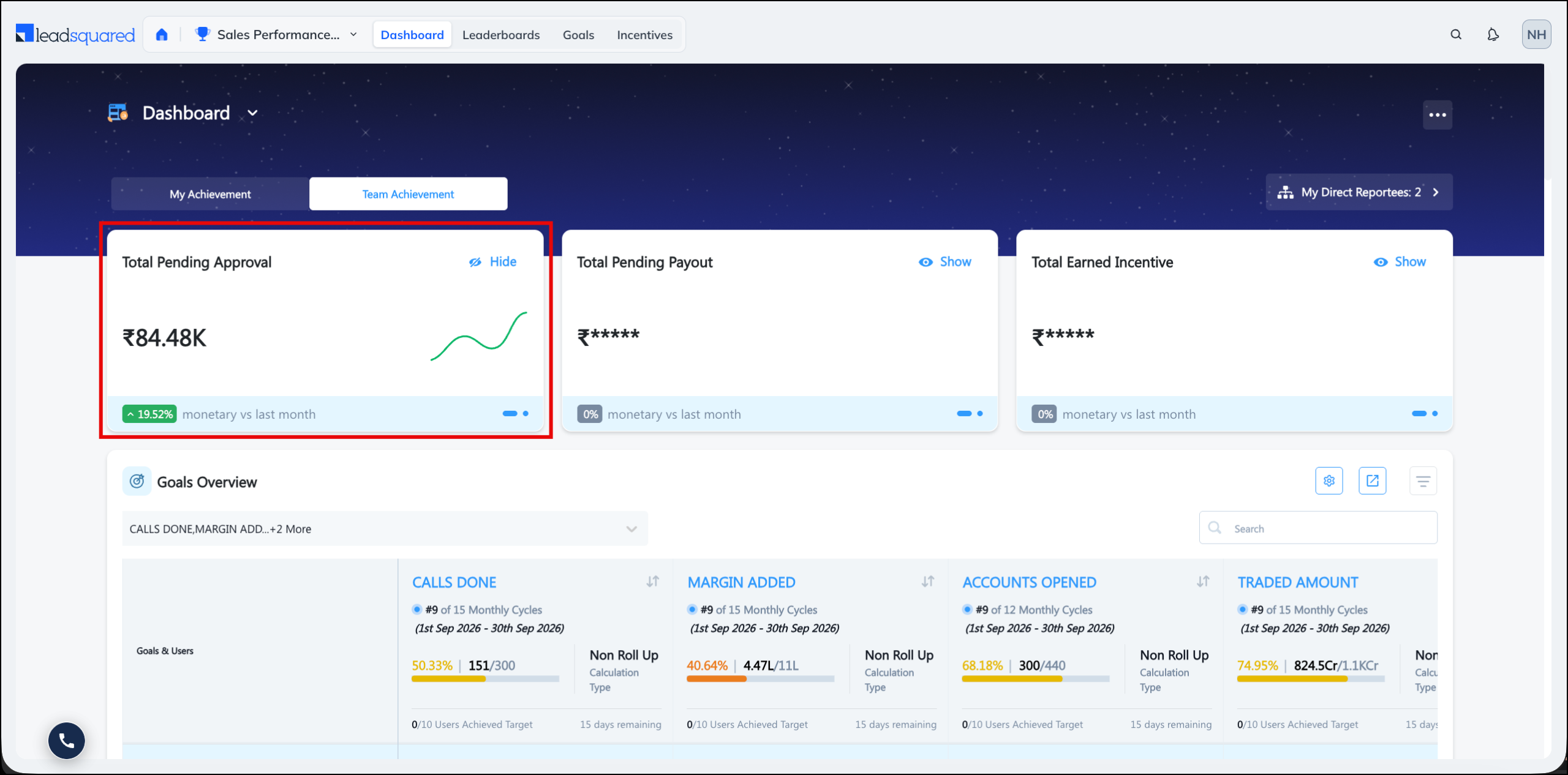
6.1 Total Pending Approval
The total incentive value (monetary or non-monetary) waiting on an approver, across every incentive program, with the trend against last month. The widget shows zero when nothing is pending. You can mask or unmask the value by clicking Hide or Show.
- Available on My Achievement, Team Achievement.
- Available on Mobile.
- Requires an incentive program with a cycle that has produced an eligible amount.
6.2 Total Pending Payout
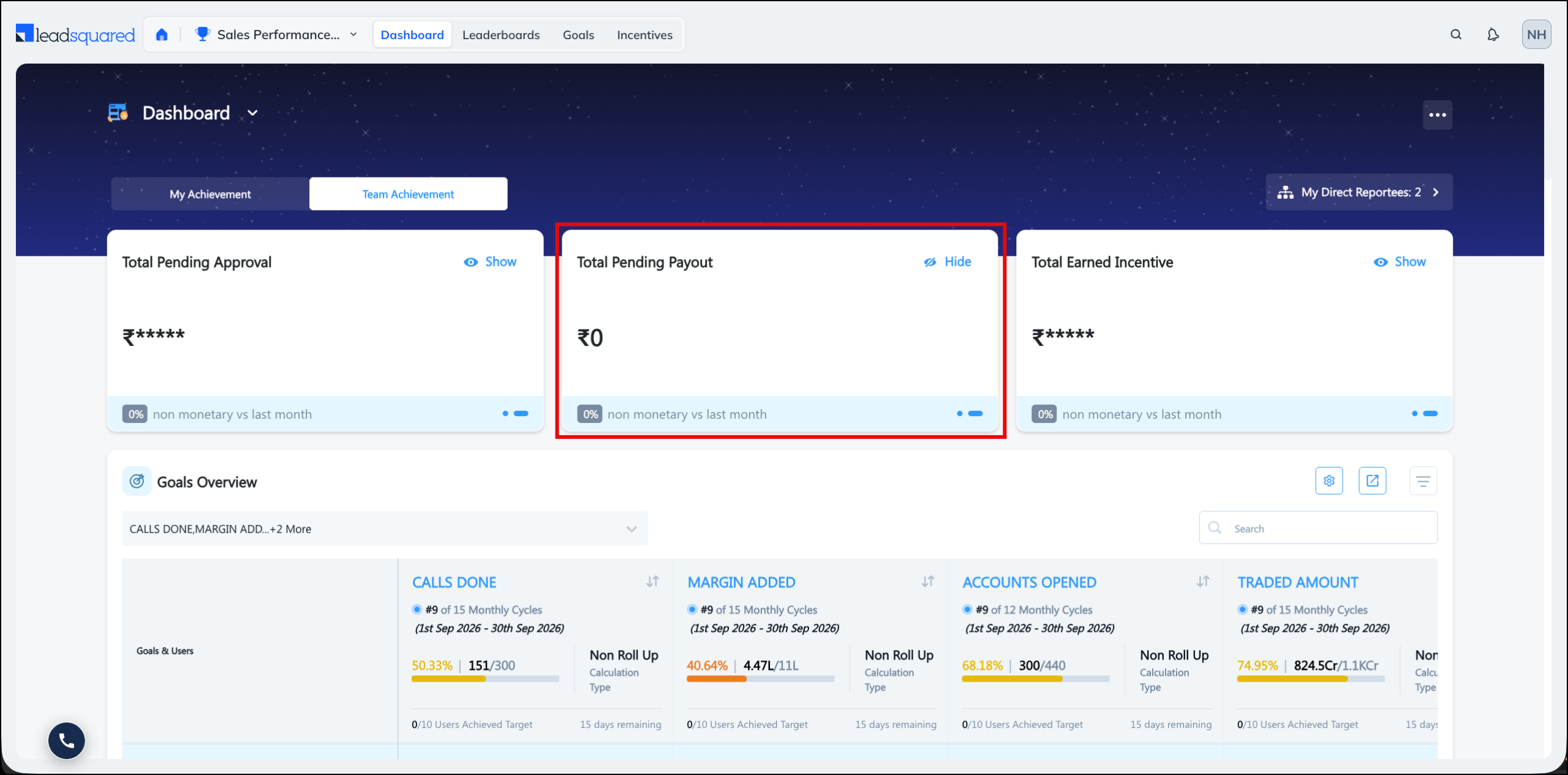
The total incentive value (monetary or non-monetary) that is approved but not yet released, across every incentive program, with the trend against last month. You can mask or unmask the value by clicking Hide or Show.
- Available on My Achievement, Team Achievement.
- Available on Mobile.
- Requires an incentive program with a cycle that has passed approval. The figure stays at zero until an approver acts.
6.3 Total Earned Incentive
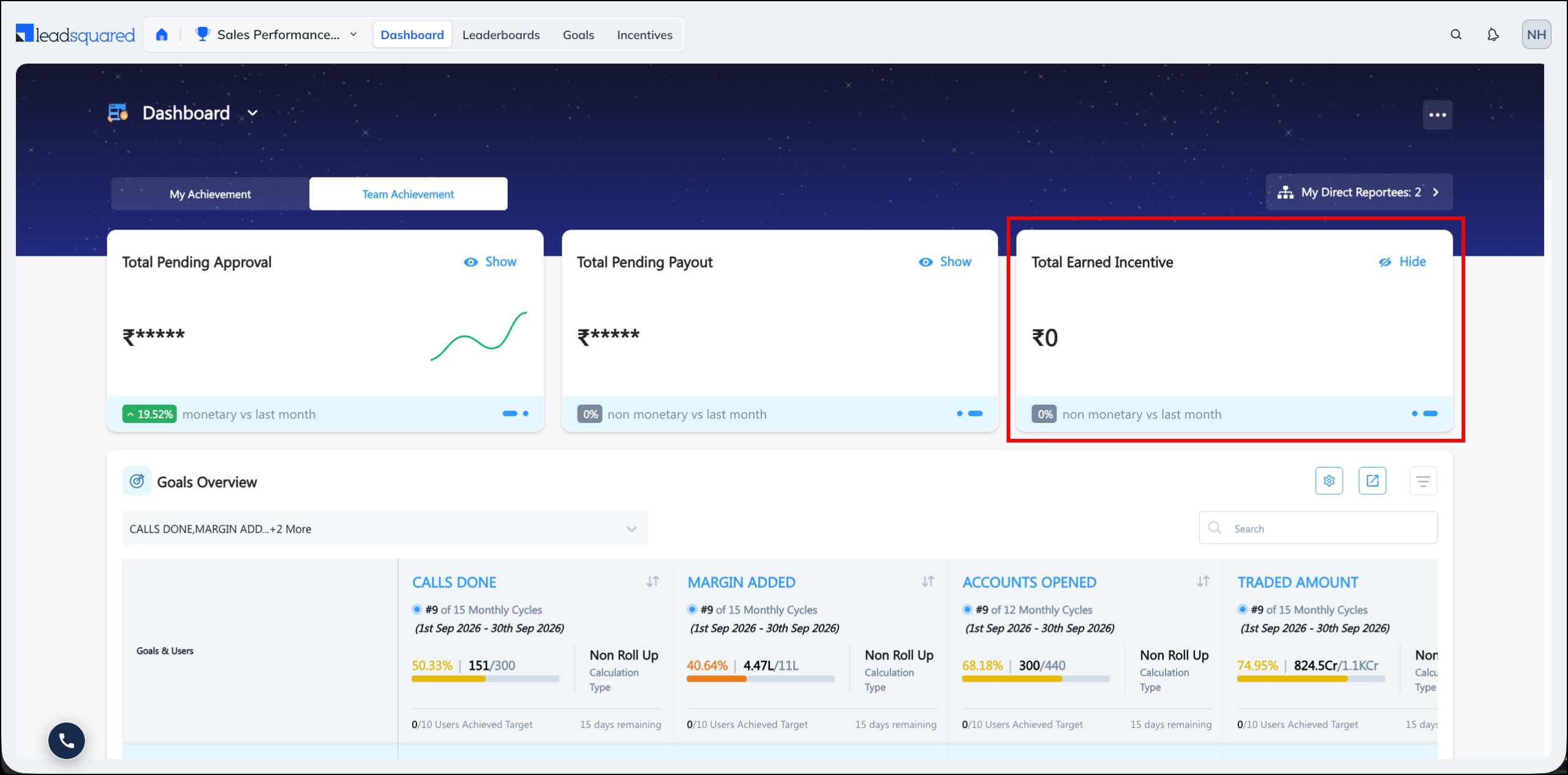
The total incentive value (monetary or non-monetary) released so far, across every incentive program, with the trend against last month. You can mask or unmask the value by clicking Hide or Show.
- Available on My Achievement, Team Achievement.
- Available on Mobile.
- Requires an incentive program with a cycle marked as paid out.
6.4 Achievement v/s Incentive Calculation
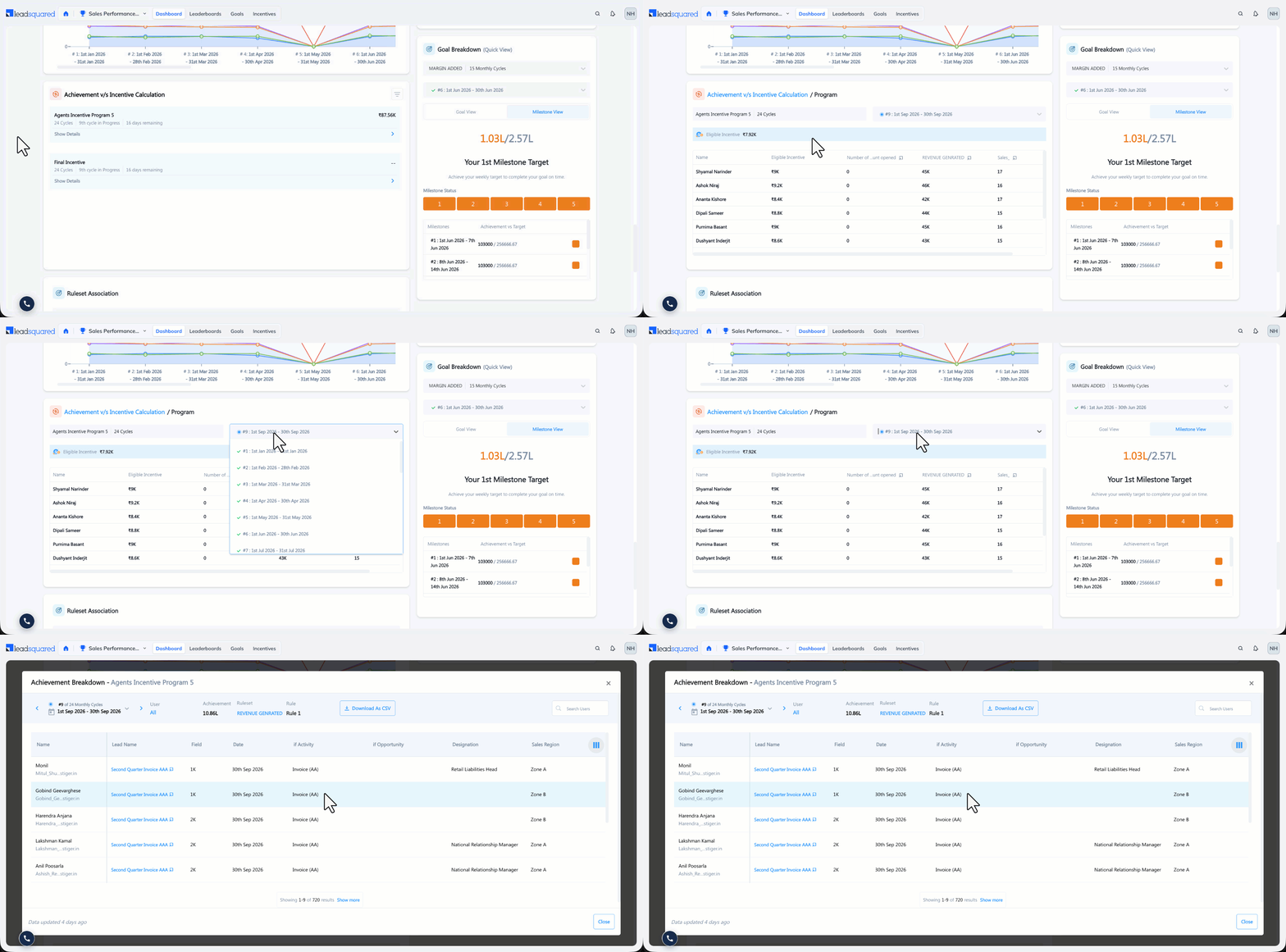
For a selected incentive program and cycle, the achievement recorded against each criteria metric alongside the incentive it produced. The columns are drawn from the program’s own criteria, so they change from program to program. This is the widget to open when someone asks how a payout figure was arrived at.
- Available on My Achievement, Team Achievement.
- Available on Mobile.
- Requires an incentive program with criteria configured, and a cycle that has been computed.
6.5 Incentive Cycle Comparison
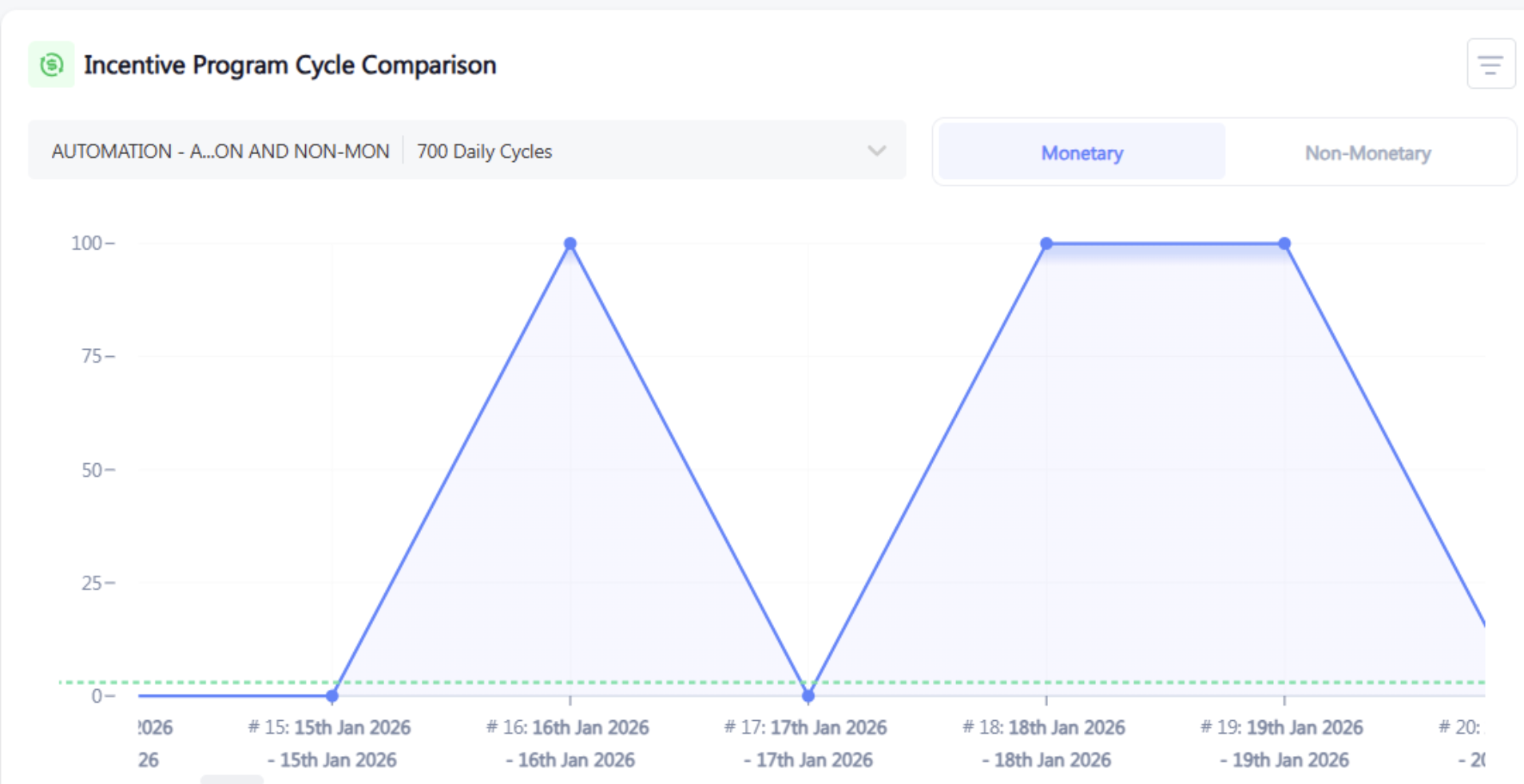
Your reward on one incentive program across several of its cycles, with the trend, so you can see whether you are earning more or less than before.
- Available on My Achievement.
- Available on Mobile.
- Requires an incentive program with two or more cycles that have produced a value.
6.6 Incentive Rewards Overview
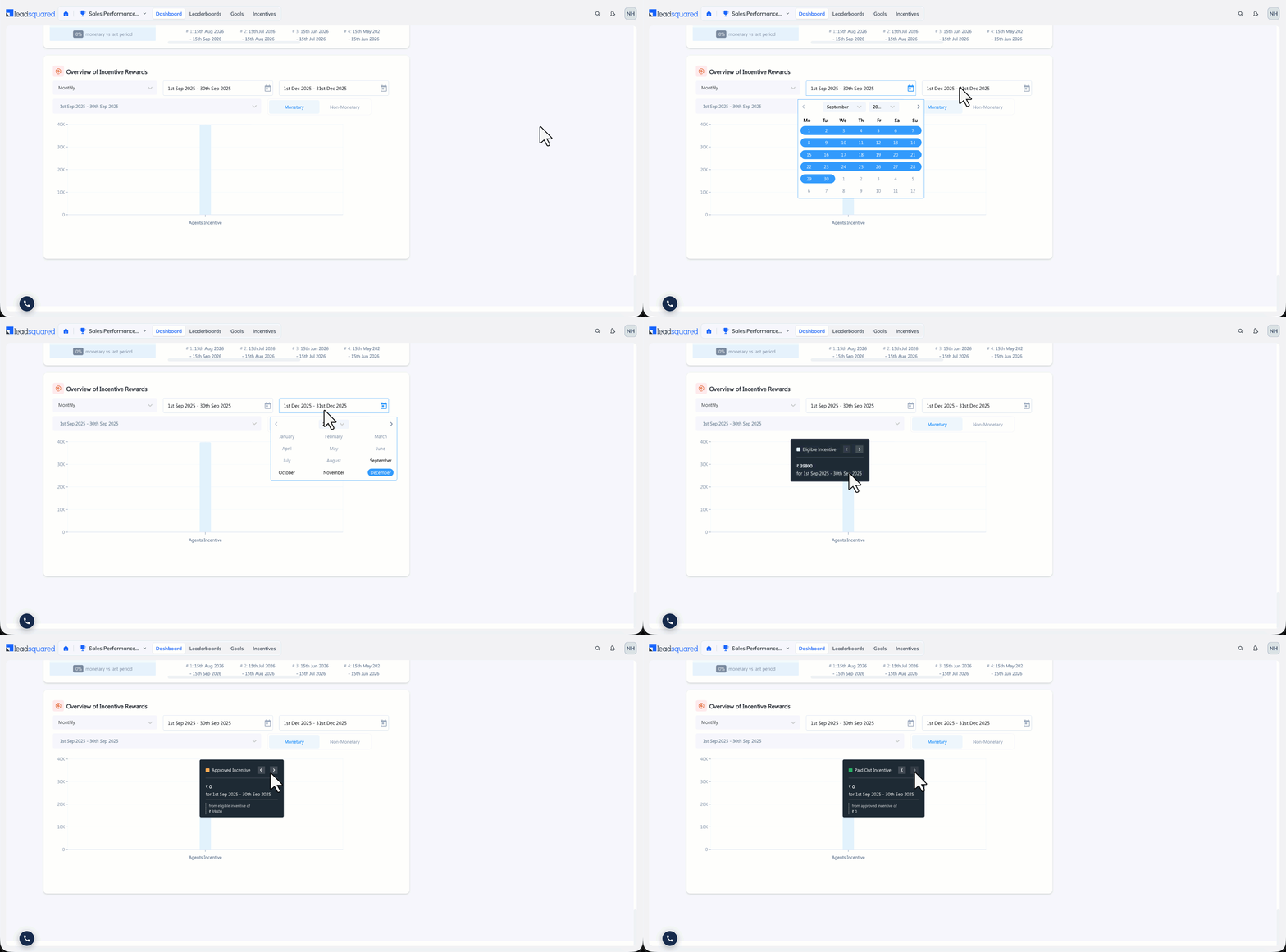
The monetary and non-monetary rewards on offer in each incentive program you are part of, listed side by side.
- Available on My Achievement.
- Not available on Mobile.
- Requires an incentive program you are part of. Non-monetary rewards appear only where Custom Rewards are configured in ACE settings.
6.7 My Incentive Program
One incentive program that you pin, with its eligibility details and insights. Useful when you are tracking several programs but only act on one.
- Available on My Achievement.
- Available on Mobile.
- Requires a pinned program. The widget is blank until you pin one.
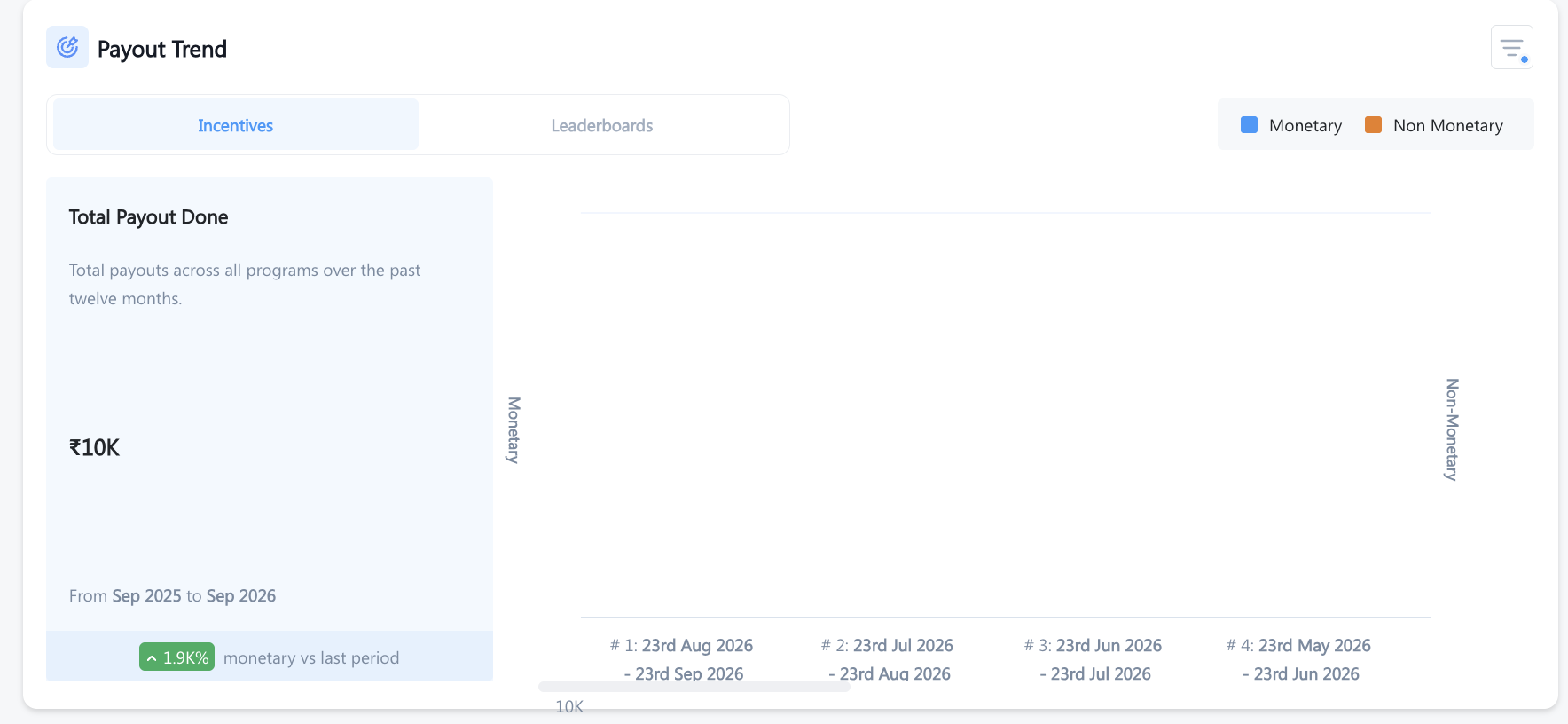
6.8 Payout Trend
Your total payout across all incentive programs and leaderboards, for the selected period against the previous one.
- Available on My Achievement.
- Available on Mobile Yes.
- Requires an incentive program or leaderboard with a released payout.
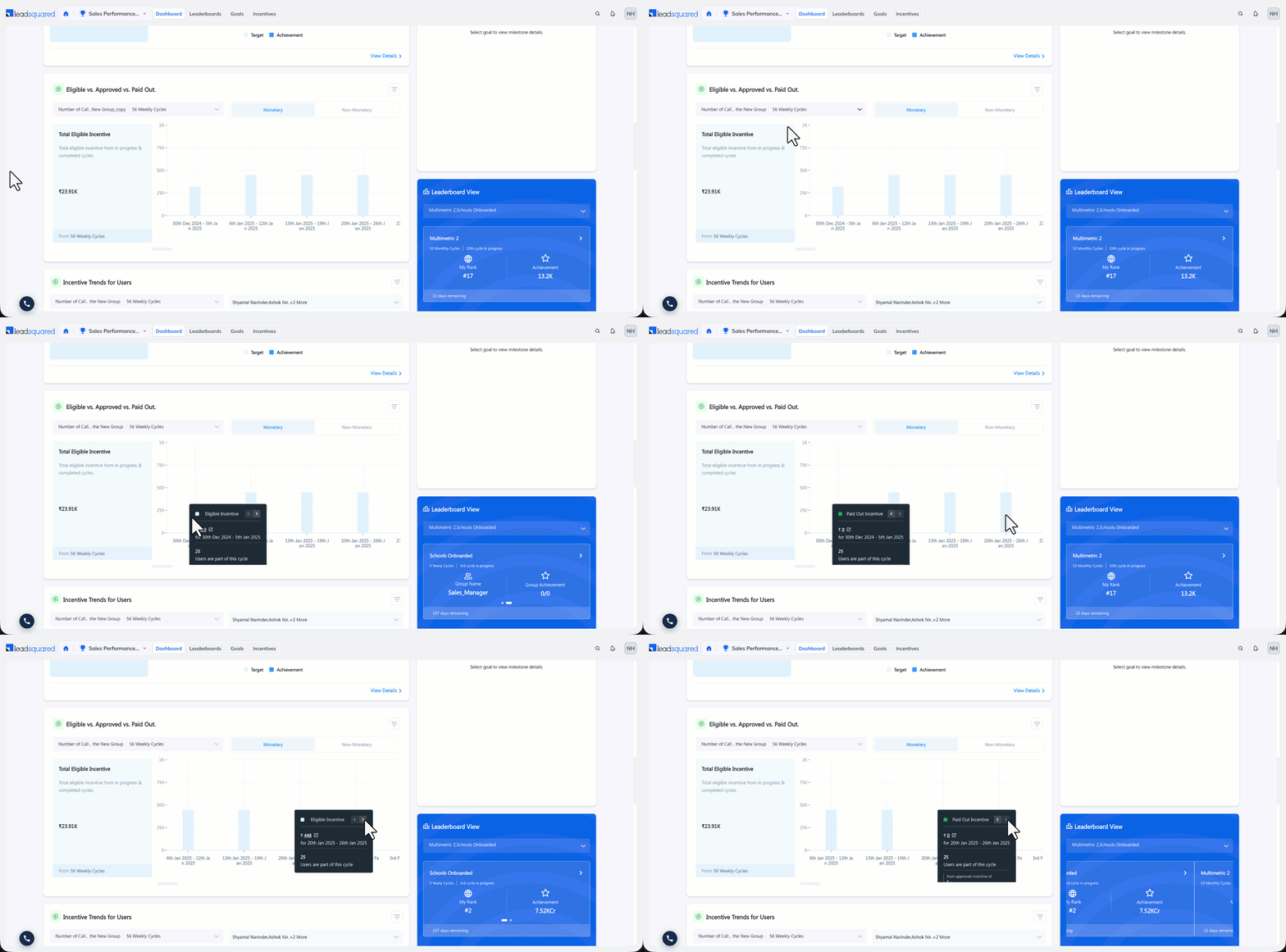
6.9 Eligible vs. Approved vs. Paid Out
For one incentive program, the eligible, approved, and paid out values side by side for each cycle. For example, a cycle may show $100 eligible, $80 approved, and $50 paid.
Read the three values as stages. A gap between Eligible and Approved means approvals are pending, and a gap between Approved and Paid Out means the release is pending.
- Available on Team Achievement.
- Available on Mobile Yes.
- Requires an incentive program that has been through approval. Approved and Paid Out stay at zero until an approver, and then an admin, have acted.
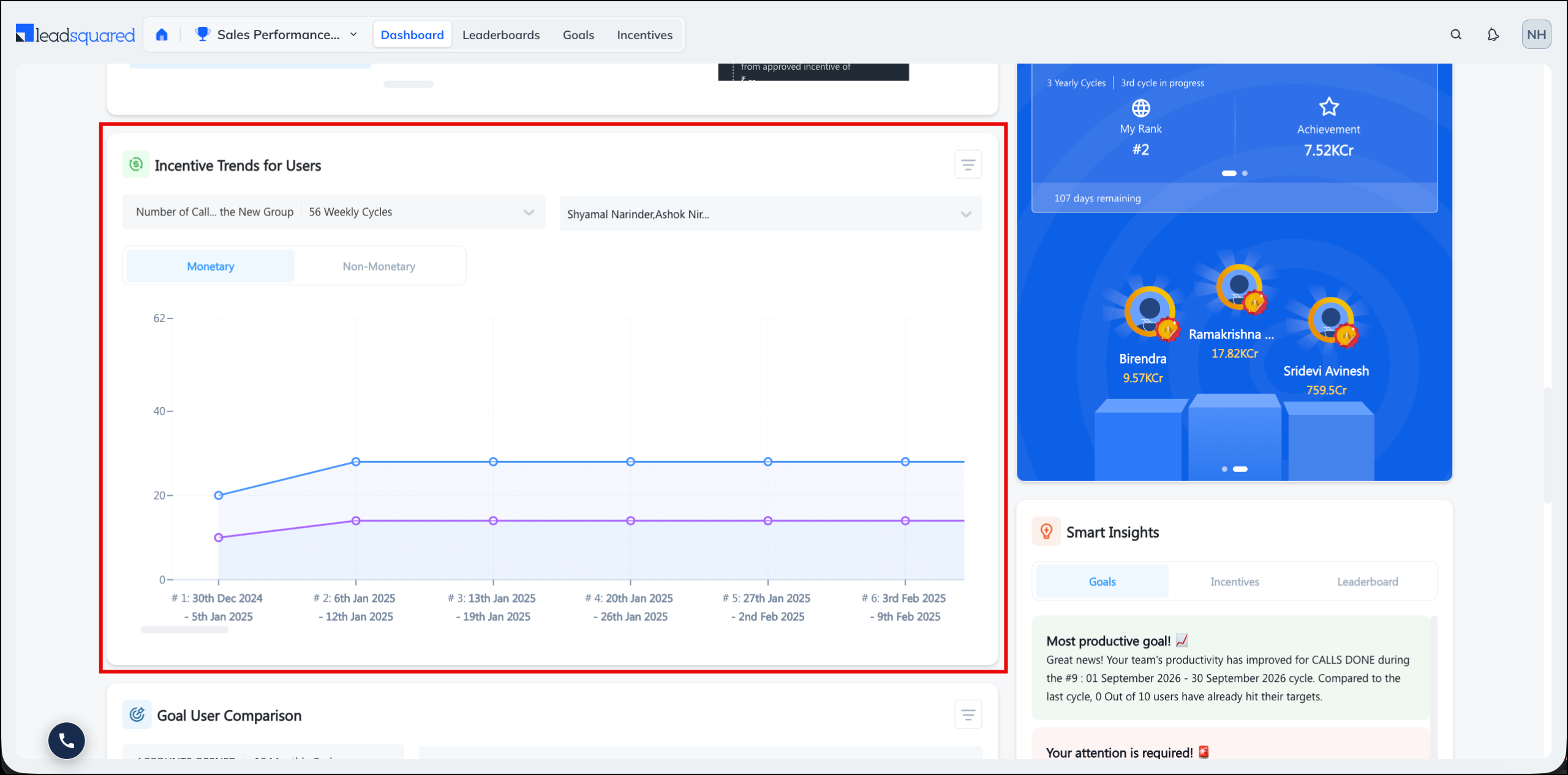
6.10 Incentive Trends for User
Up to five team members compared on calculated incentive per cycle, with trends, so you can see who is earning consistently and who is not.
- Available on Team Achievement.
- Available on Mobile.
- Requires at least two reportees on the same incentive program, with computed cycles.
7. Goal Widgets
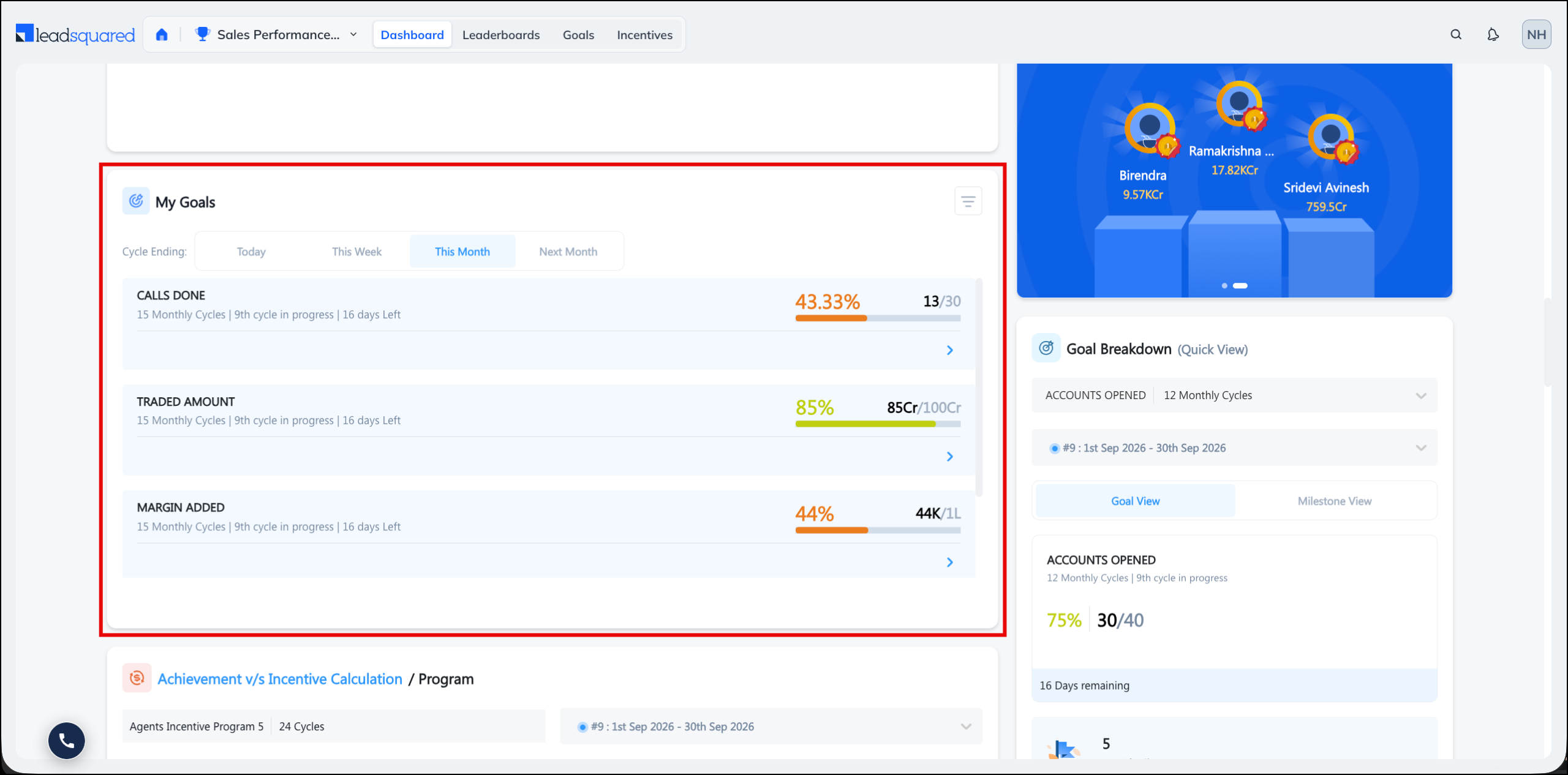
7.1 My Goals
All your active goals with their end dates, grouped as ending today, this week, this month, or next month. Use it to see what is closing soonest.
- Available on My Achievement.
- Not Available on Mobile.
- Requires a published goal assigned to you.
7.2 Goal Breakdown
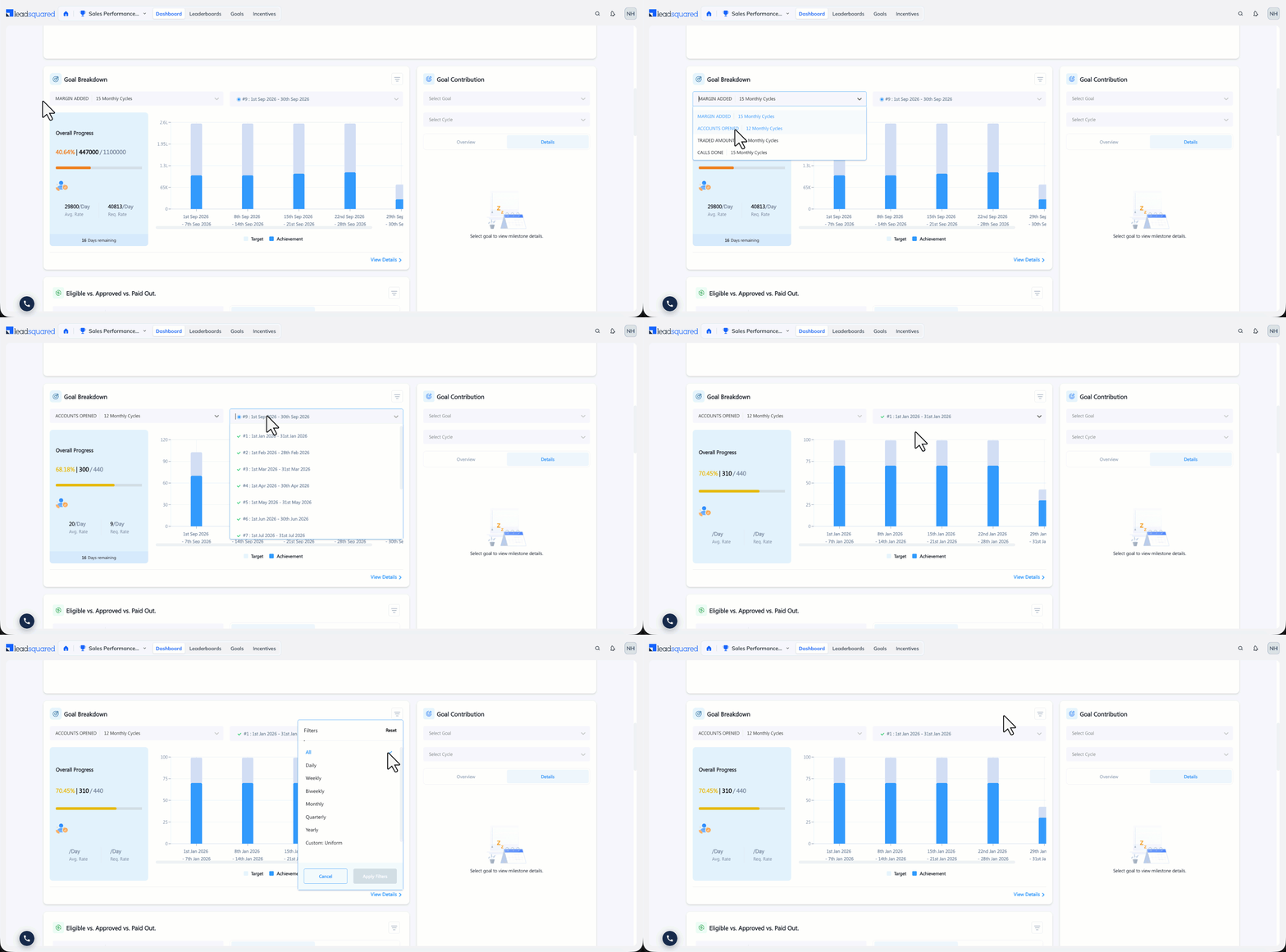
One goal cycle split into its sub-intervals, with target against achievement for each one. A monthly cycle breaks into weeks, and a weekly cycle breaks into days. Hover over a data point to see the current achievement, the progress required, and the effort remaining.
- Available on My Achievement, Team Achievement.
- Not Available on Mobile.
- Requires a published goal with a cycle long enough to divide into intervals.
7.3 Milestone View for Goal (Quick View)
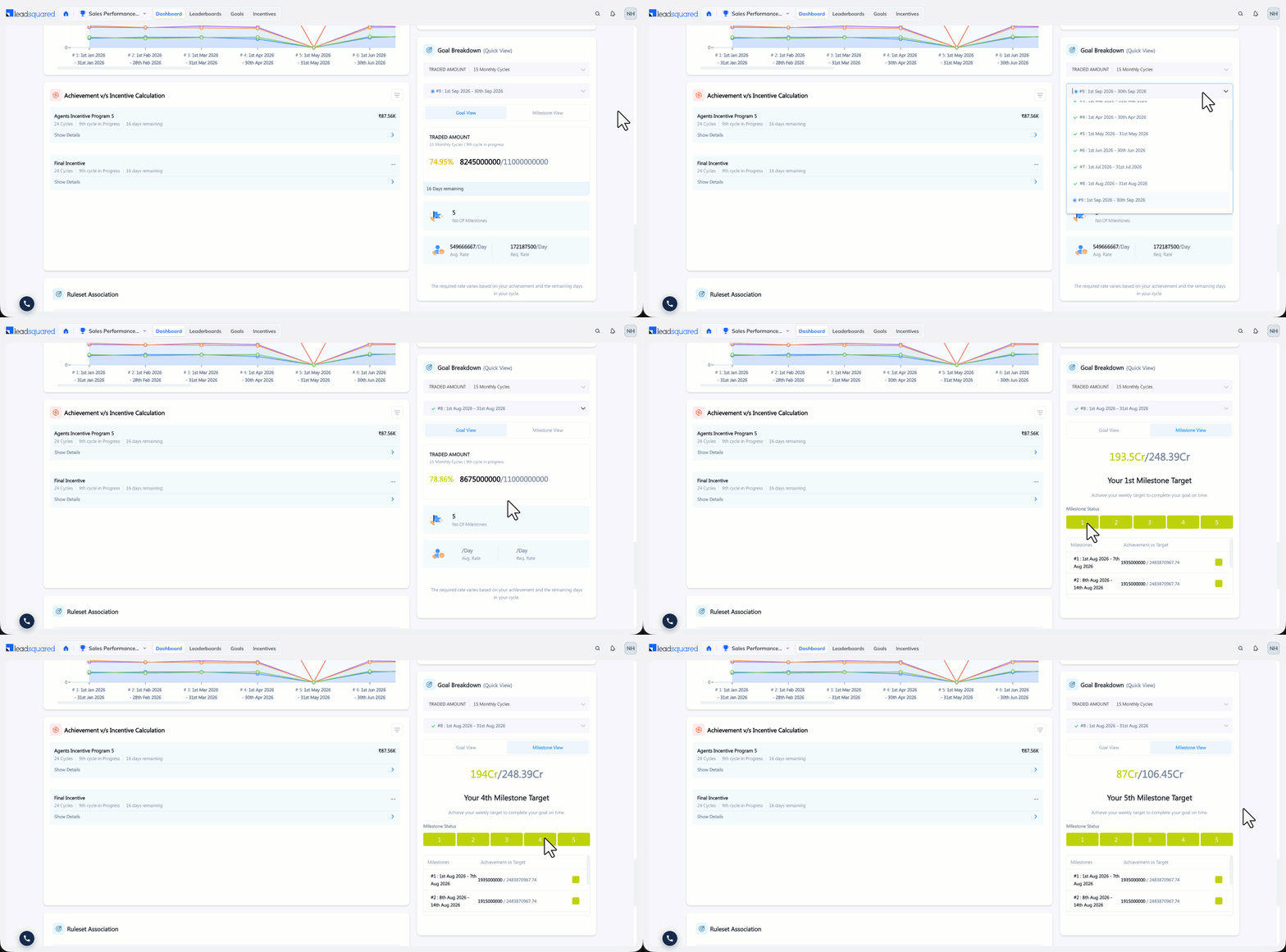
The same cycle breakdown as Goal Breakdown, presented as milestone progress in a gamified view, with the daily target and the run rate you need to maintain.
- Available on My Achievement, Team Achievement.
- Mobile.
- Requires milestones configured on the goal. Without milestones, the widget has nothing to display.
7.4 Compare Goals
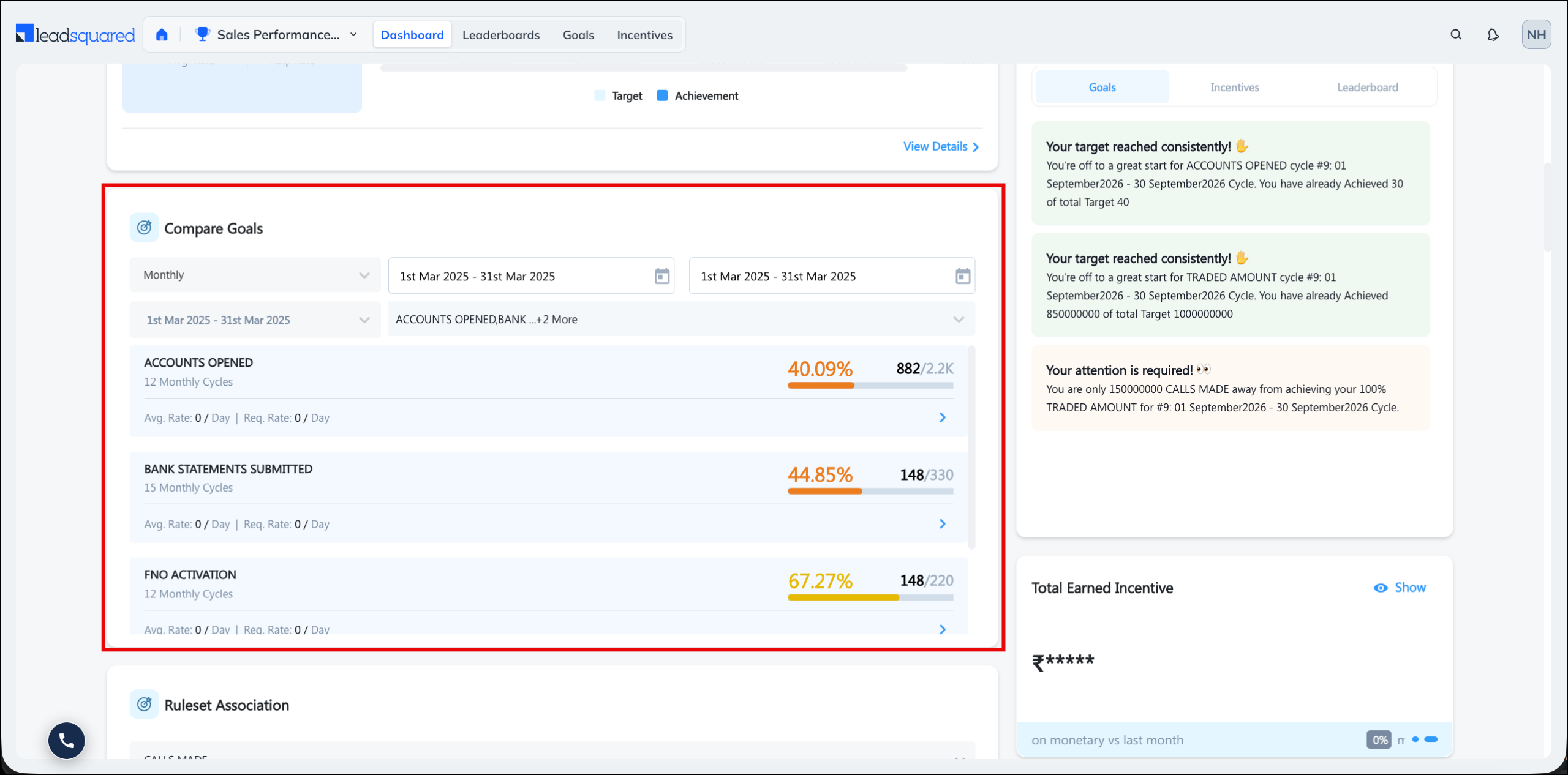
Several of your goals placed side by side, with the average and required achievement for each, so you can see which one you are furthest behind on. Only goals that share a cycle type can be compared.
- Available on My Achievement.
- Available on Mobile.
- Requires two or more published goals assigned to you that share the same cycle type.
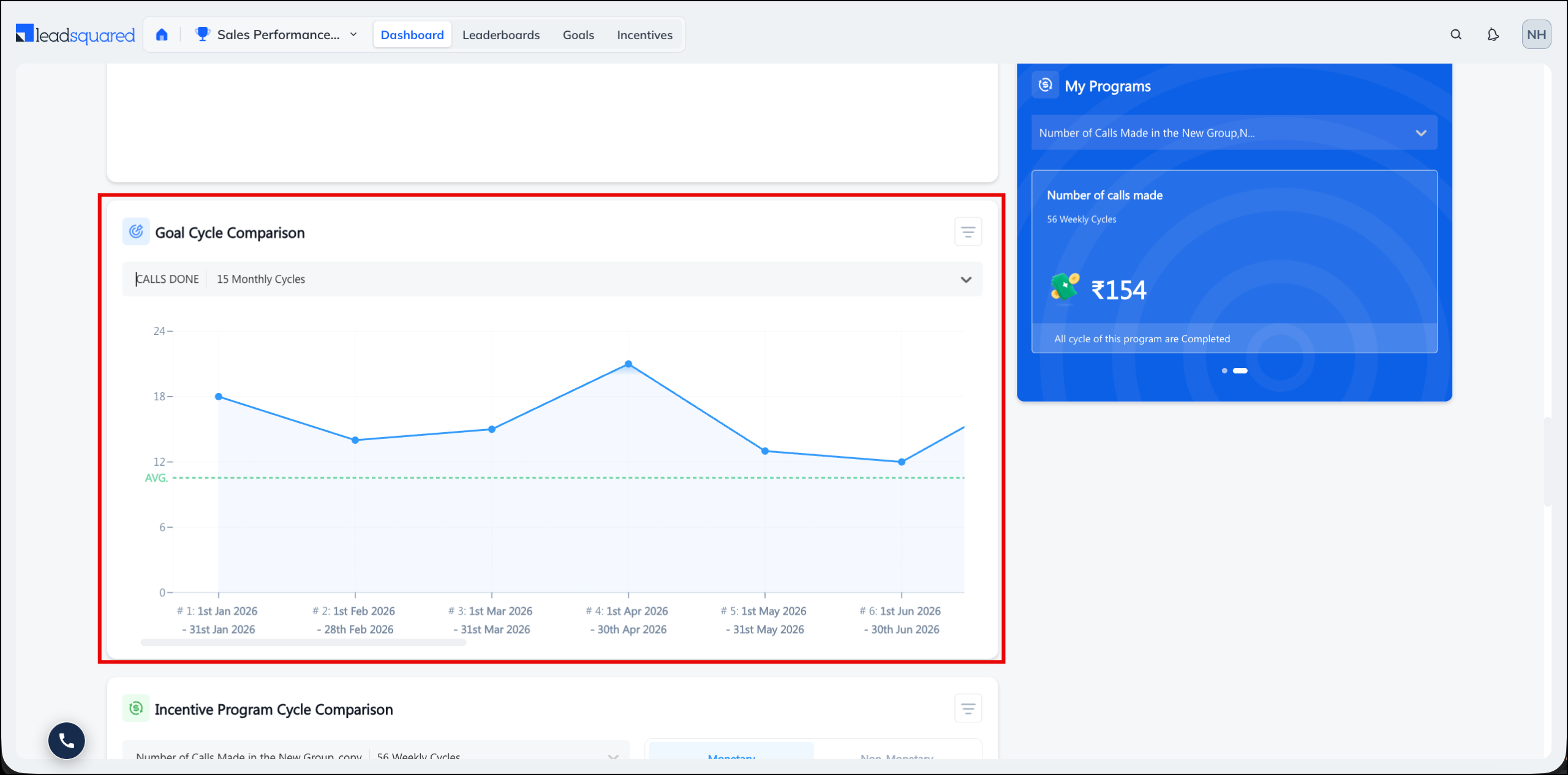
7.5 Goal Cycle Comparison
Your achievement on one goal across several of its cycles, with the trend, so you can see whether your performance on it is improving.
- Available on My Achievement.
- Available on Mobile.
- Requires a published goal with two or more cycles.
7.6 Goals Overview
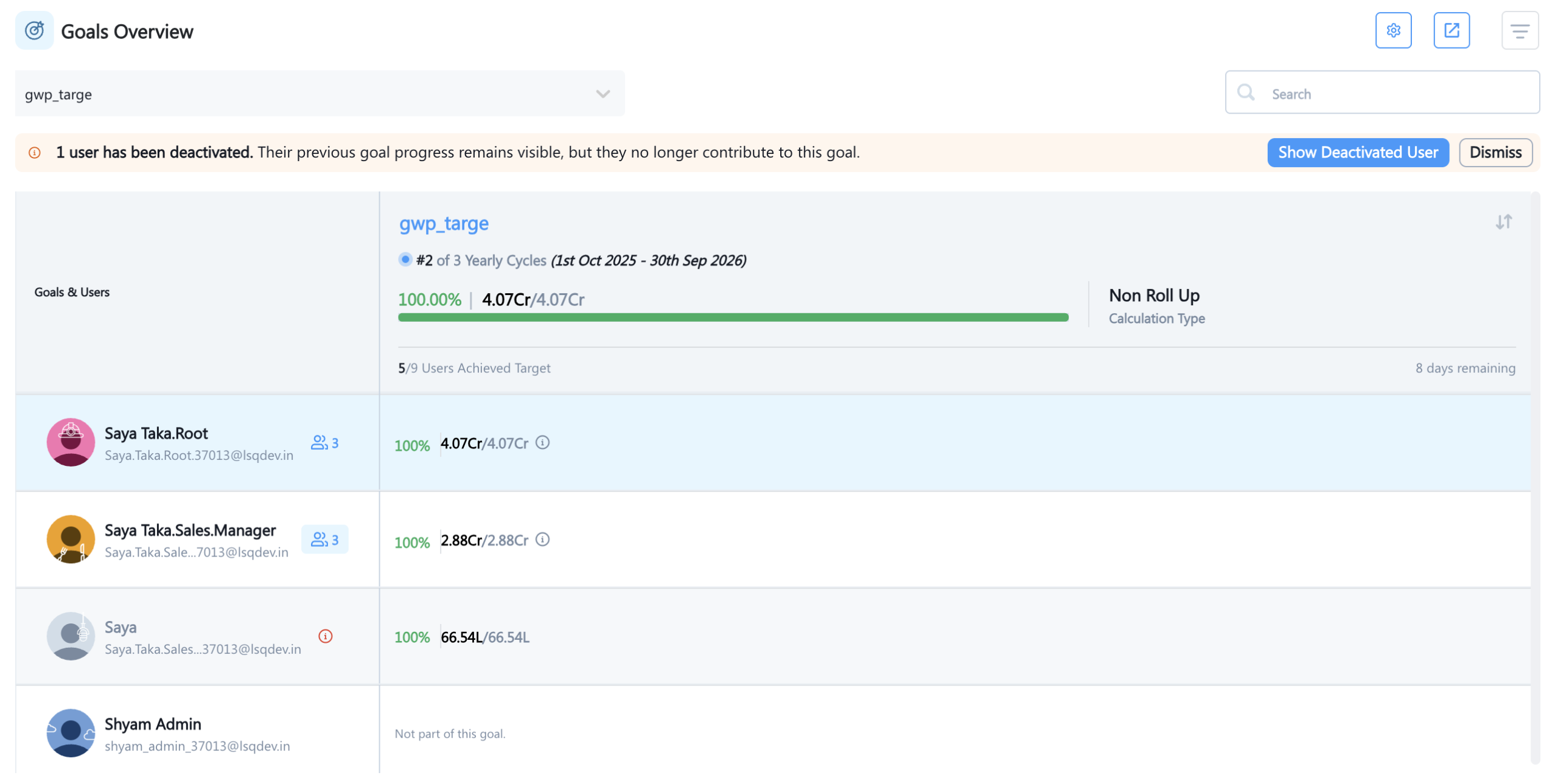
Every in-progress goal across your reportees in one grid, with users down the rows and goals across the columns, and achievement against target in each cell. You can search, configure columns, sort by any goal column, compare up to five goals side by side, expand the widget to full screen, and export the grid to CSV. It replaces checking each user’s progress one at a time.
Click a user to drill into their achievement breakdown. This requires the goal to be a Roll Up goal, with Achievement Breakdown enabled on the ruleset. Both conditions are needed.
- Available on Team Achievement.
- Available on Mobile.
- Requires reportees assigned to at least one in-progress goal.
Deactivated users
If any user associated with the goal has been deactivated, the widget displays a banner with the number of deactivated users, and shows their rows in greyscale. The banner also shows their combined target contribution, so you can see the maximum target the active team can still achieve. For example, on a target of 500 with 50 assigned to deactivated users, the maximum achievable target is 450.
You can dismiss the banner for the current session, but it reappears each time the widget loads until those targets are reassigned to active users.
You can also hide deactivated users from the table. This removes their rows from view only, and does not change the overall goal target.
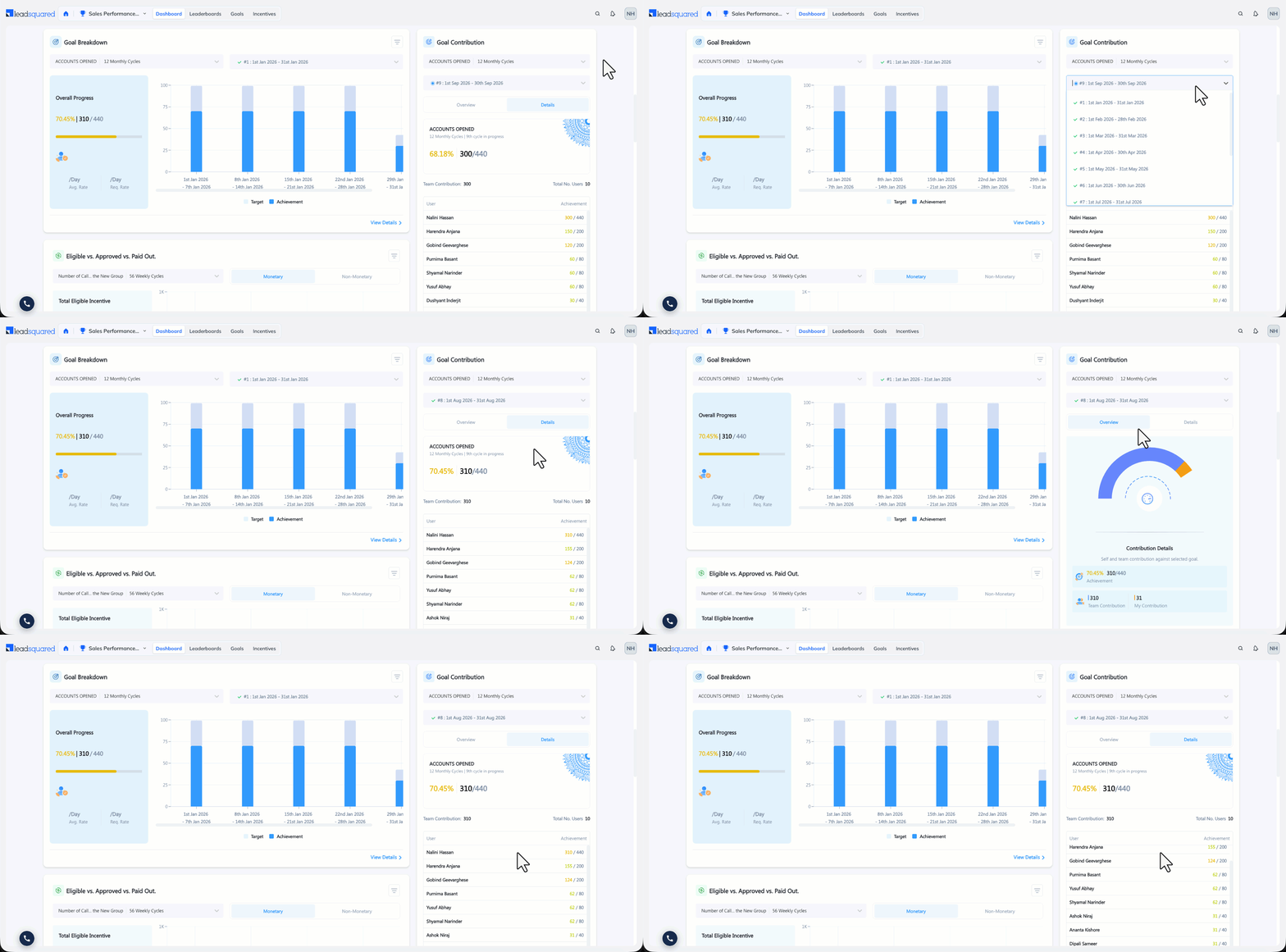
7.7 Goals Contribution
For one goal, how much of the total was contributed by you and by each member of your team. Use it to see who is carrying a shared target.
- Available on Team Achievement.
- Available on Mobile
- Requires a Roll Up goal with reportees assigned to it. A goal that is not set to roll up has no combined total to divide.
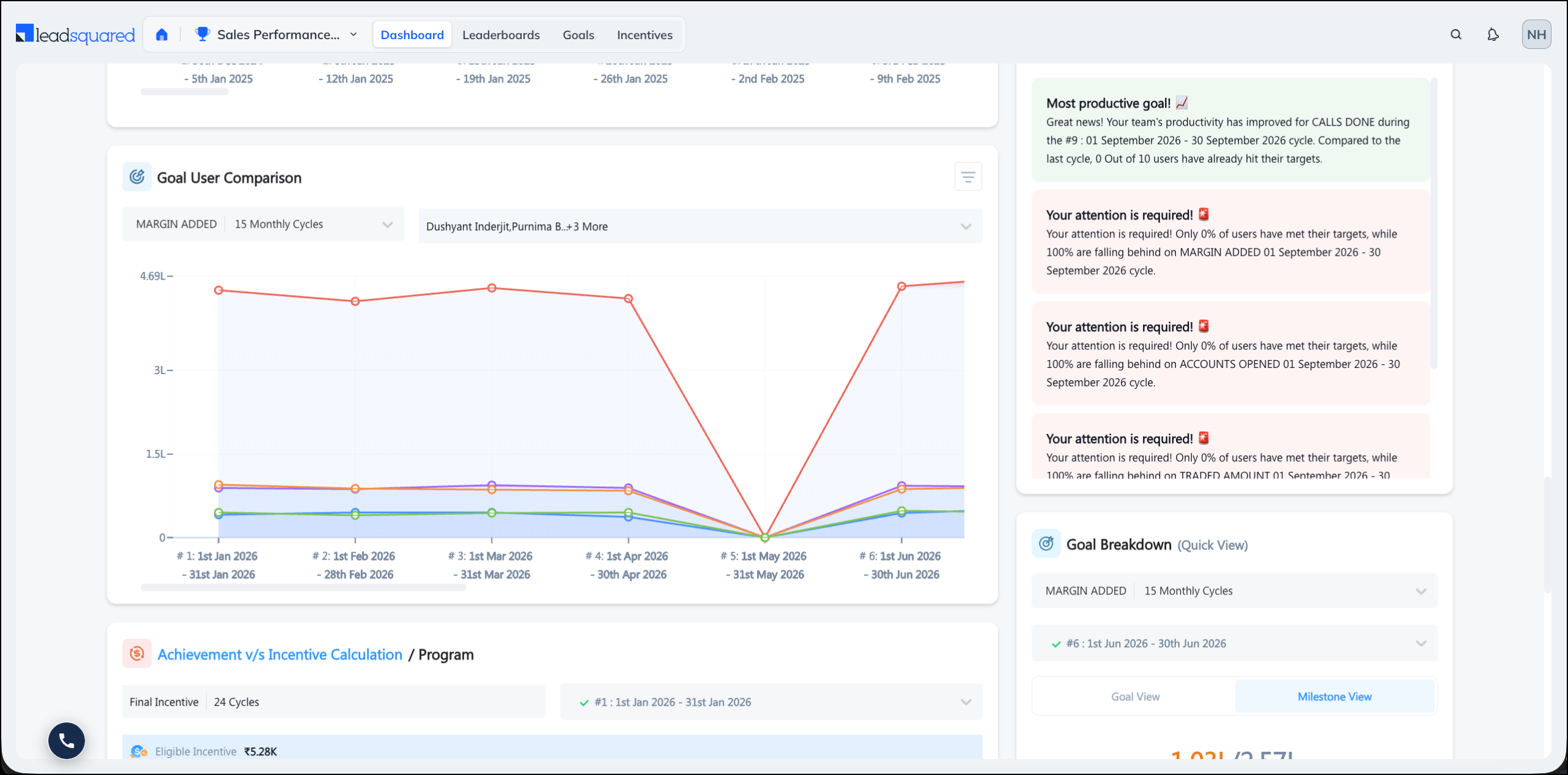
7.8 Goal User Comparison
Up to five team members compared on goal achievement, with trends, so you can separate the users who need support from the ones performing well.
- Available on Team Achievement.
- Available on Mobile.
- Requires at least two reportees assigned to the same goal.
8. Leaderboard Widgets
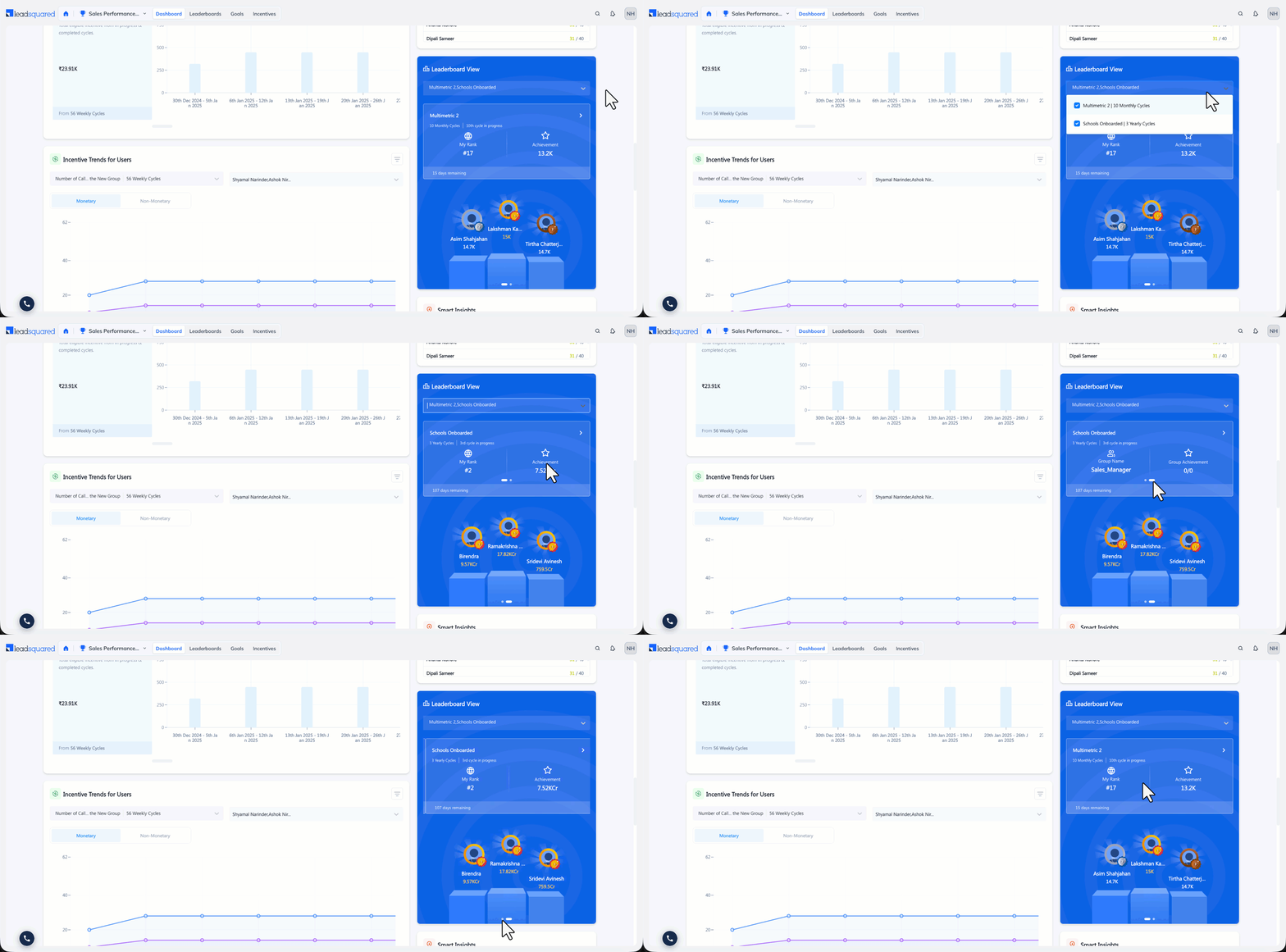
8.1 Leaderboard View
Your rank and achievement on a leaderboard, alongside its top three performers. You can pin up to three leaderboards for real-time updates.
- Available on My Achievement, Team Achievement.
- Available on Mobile.
- Requires a published leaderboard you are part of.
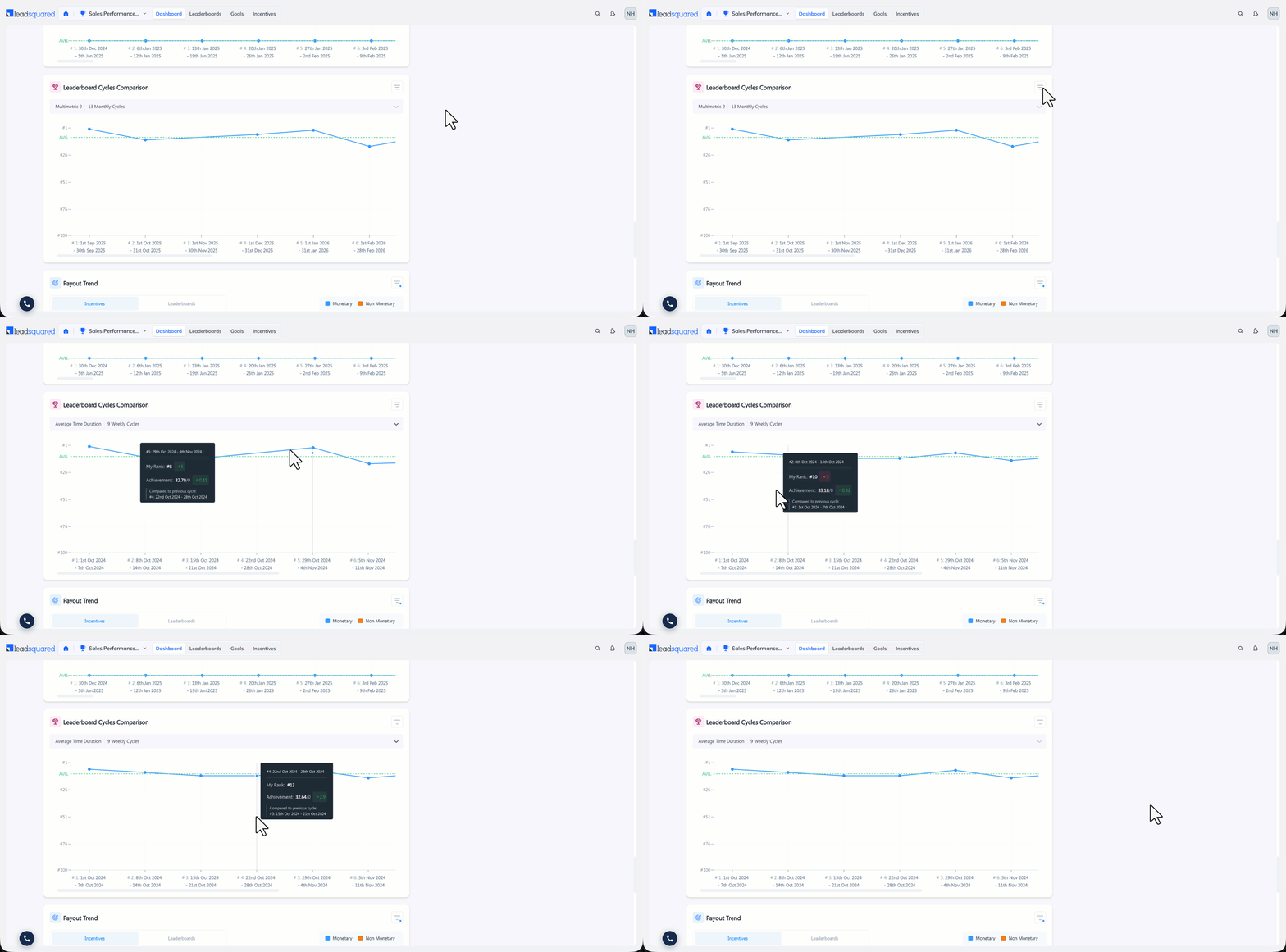
8.2 Leaderboard Cycle Comparison
Your rank and achievement on one leaderboard across several of its cycles, with the trend, so you can see whether your rank is improving.
- Available on My Achievement.
- Available on Mobile.
- Requires a published leaderboard with two or more cycles that are in progress or completed.
9. Other Widgets
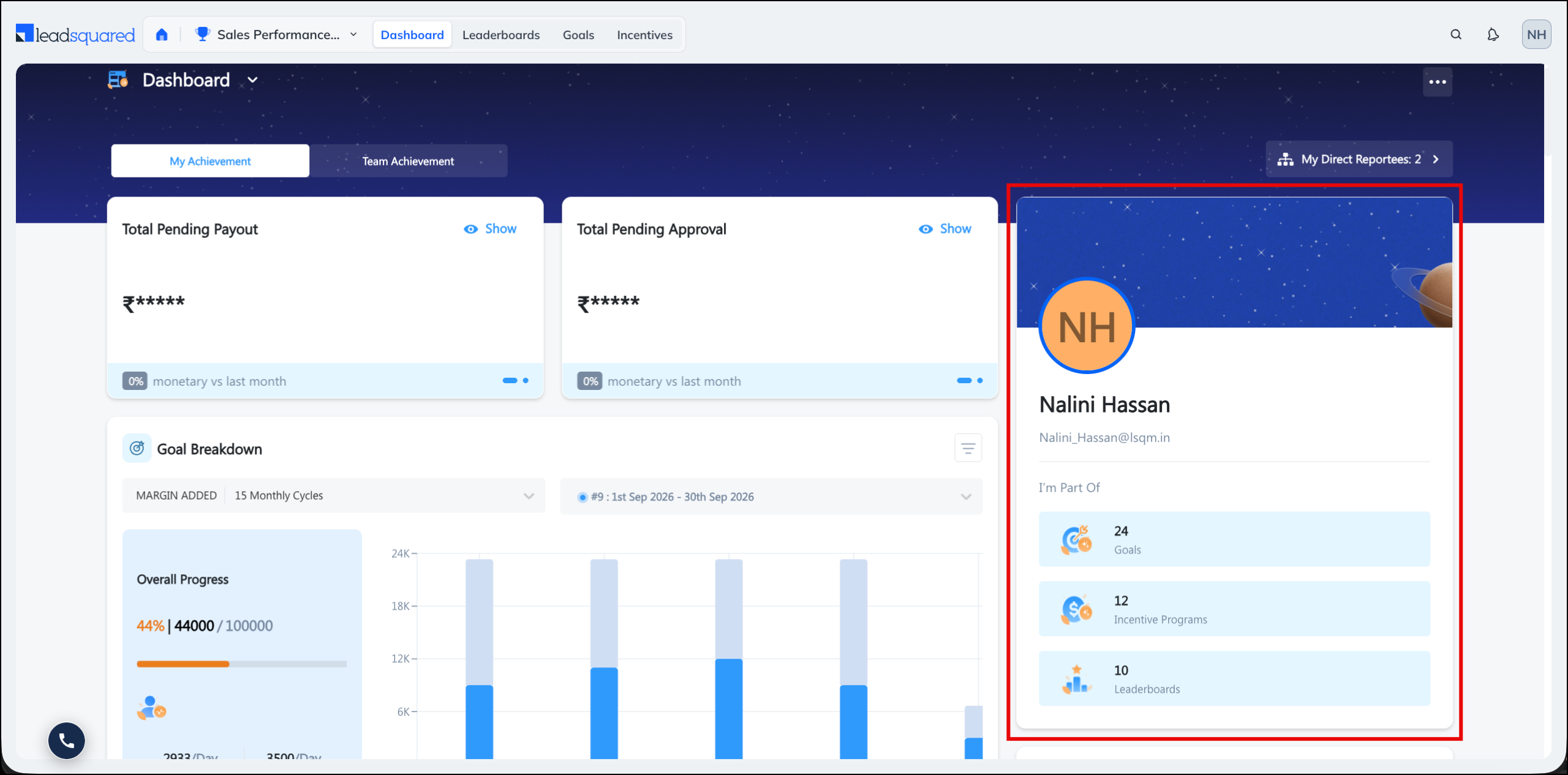
9.1 User Details
Your name and email, with a count of the goals, incentive programs, and leaderboards you are part of. Use it to confirm what you are enrolled in.
- Available on My Achievement.
- Not available on Mobile.
- Requires nothing. Counts show zero where you are not part of any program.
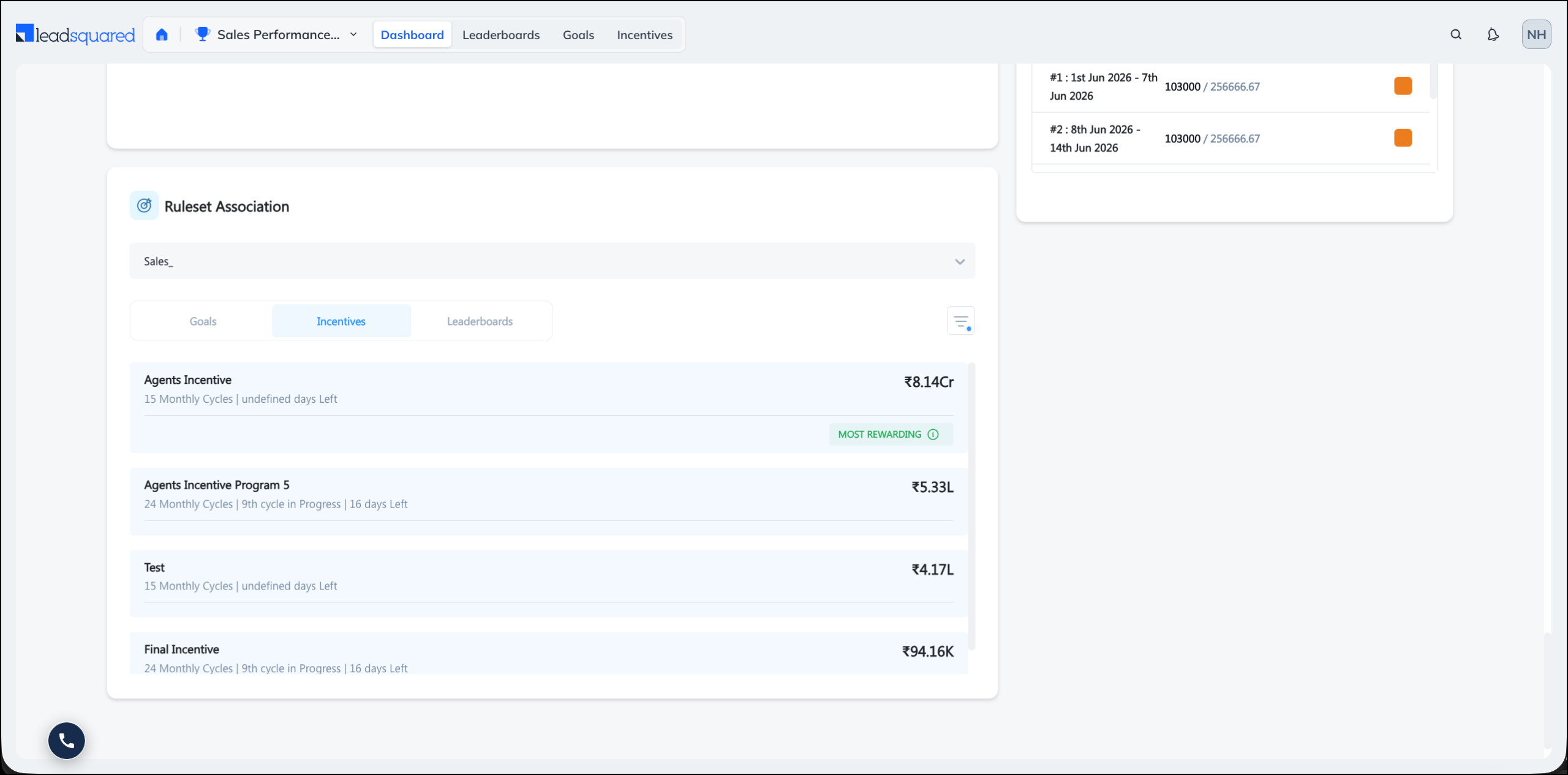
9.2 Ruleset Association
Everything built on a selected ruleset, across three tabs for Goal, Incentive, and Leaderboard. Each tab lists the associated items with their target and achievement position, which shows the target and reward structure that a single policy produces.
- Available on My Achievement, Team Achievement.
- Not available on Mobile.
- Requires a published ruleset with at least one goal, incentive program, or leaderboard built on it. A tab is empty where nothing is associated.
10. Troubleshooting
| Issue | What to check |
| A widget is empty | Does the goal, incentive program, or leaderboard behind it exist, and are you part of it? See section 6.4. |
| A widget shows zero instead of nothing | The object exists but has not produced a value yet. On payout widgets, nobody has approved or released an amount. |
| A widget is missing on the mobile app | Check whether Display on Mobile is off, or whether the widget does not support mobile at all. |
| A widget is missing from a tab | Check whether it was removed from that tab. Each tab is configured separately. |
| The Team Achievement tab is empty | You have no reportees, or a recent hierarchy change has not reflected yet. |
| You cannot drill into a user in Goals Overview | The goal must be a Roll Up goal, with Achievement Breakdown enabled on the ruleset. Both are required. |
| A new goal, incentive program, or user is missing | Items created outside ACE take a short while to reflect. Wait and refresh. |
| Everyone’s layout changed | Apply Changes Instantly was used instead of Save as Default. This cannot be undone. |
Any Questions?
Did you find this article helpful? Please let us know any feedback you may have in the comments section below. We’d love to hear from you and help you out!