


Get Started

Sales Suite
Field Ops
Marketing
Service CRM
Integrations & Apps
FloStack
Access and Generate Your LeadSquared API Access Keys

Updated
16 Nov 2026 | 03:30 PM
1. Feature Overview
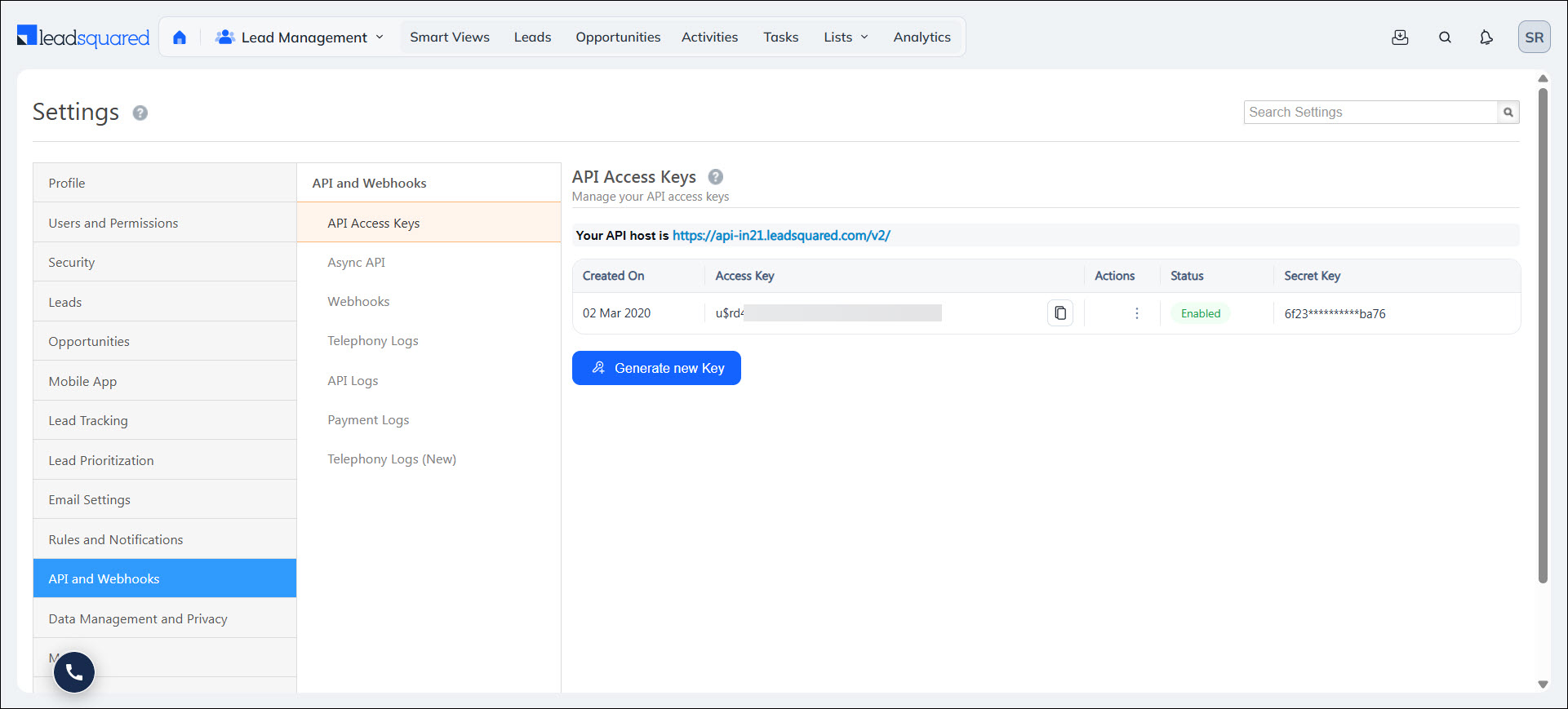
The API host URL, Access Key and Secret Key are required to execute LeadSquared APIs. Both API Access Keys are generated at the user level, and any user in the account can view and use them.
Note: The API host URL is common to all users in your account, while the Access Key and Secret Key are unique to each individual user.
2. Prerequisite
You must be a LeadSquared user to access the keys.
3. Obtain the Access Key and Secret Key
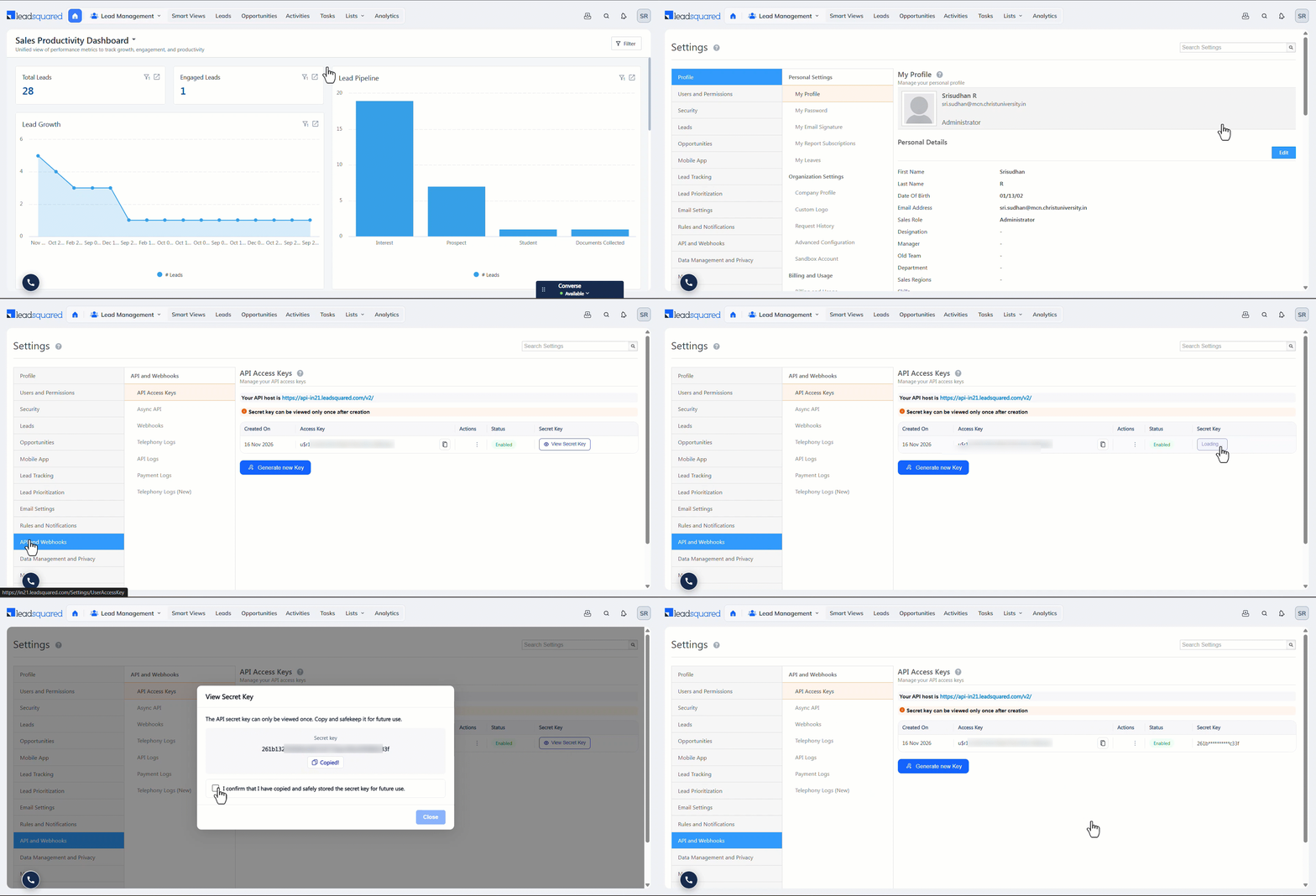
- On your LeadSquared account, navigate to My Profile>Settings>API and Webhooks>API Access Keys.
- Under API Access Keys, the API host URL and Access Key are displayed by default.
- To obtain the Secret Key, click View Secret Key.
- On the View Secret Key pop-up, copy and securely save the generated secret key.
The Secret Key can only be viewed once. - Once you’ve copied it, select the confirmation checkbox and click Close.
Notes:
- You can view and access the Secret Key only once. Once viewed, it remains hidden.
- The only way to obtain a new Secret Key is to generate a new key, which is covered in the next section.
4. Generate a New Secret Key
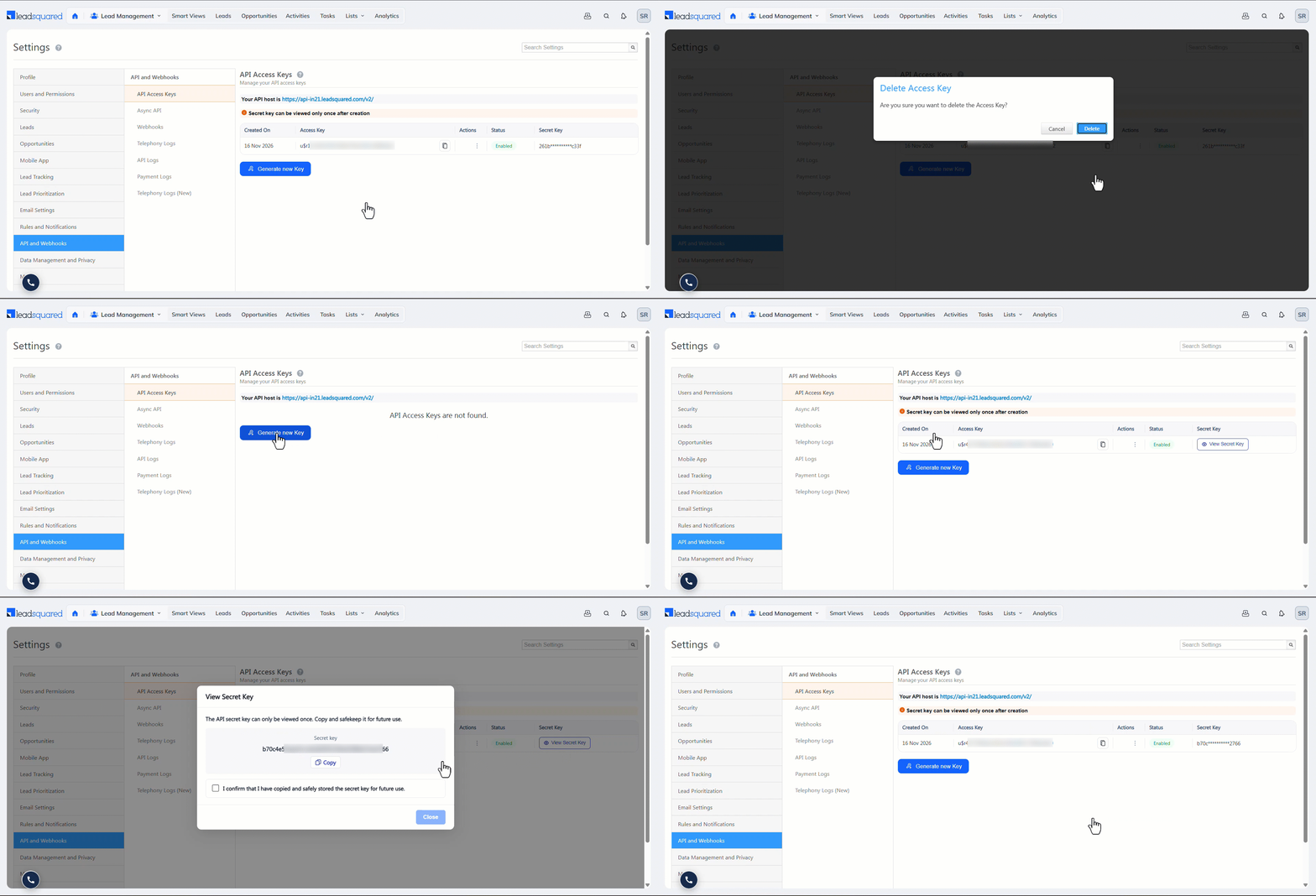
If you need to access your Secret Key, you must generate a new one, as you can view and access the existing Secret Key only once. To generate a new Secret Key, begin by deleting the old Access and Secret Keys. To do this –
- Click the three-dot menu in the Actions column, and click Delete.
- Once it’s deleted, click the Generate New Key button. This generates a new Action and Secret Key.
- Once the keys are generated, please ensure you copy and save them in a secure yet accessible location this time. This ensures you don’t have to go through the process of generating new keys again.
Note: To temporarily pause access to the Access and Secret Keys, click the three-dot menu and then click Disable. When the keys are disabled, you won’t be able to use them to execute APIs.
Any Questions?
Did you find this article helpful? Please let us know any feedback you may have in the comments section below. We’d love to hear from you and help you out!
Subscribe
0 Comments
Newest