


Get Started

Sales Suite
Field Ops
Marketing
Service CRM
Integrations & Apps
FloStack
Opportunity Duplicate Detection

1. Feature Overview
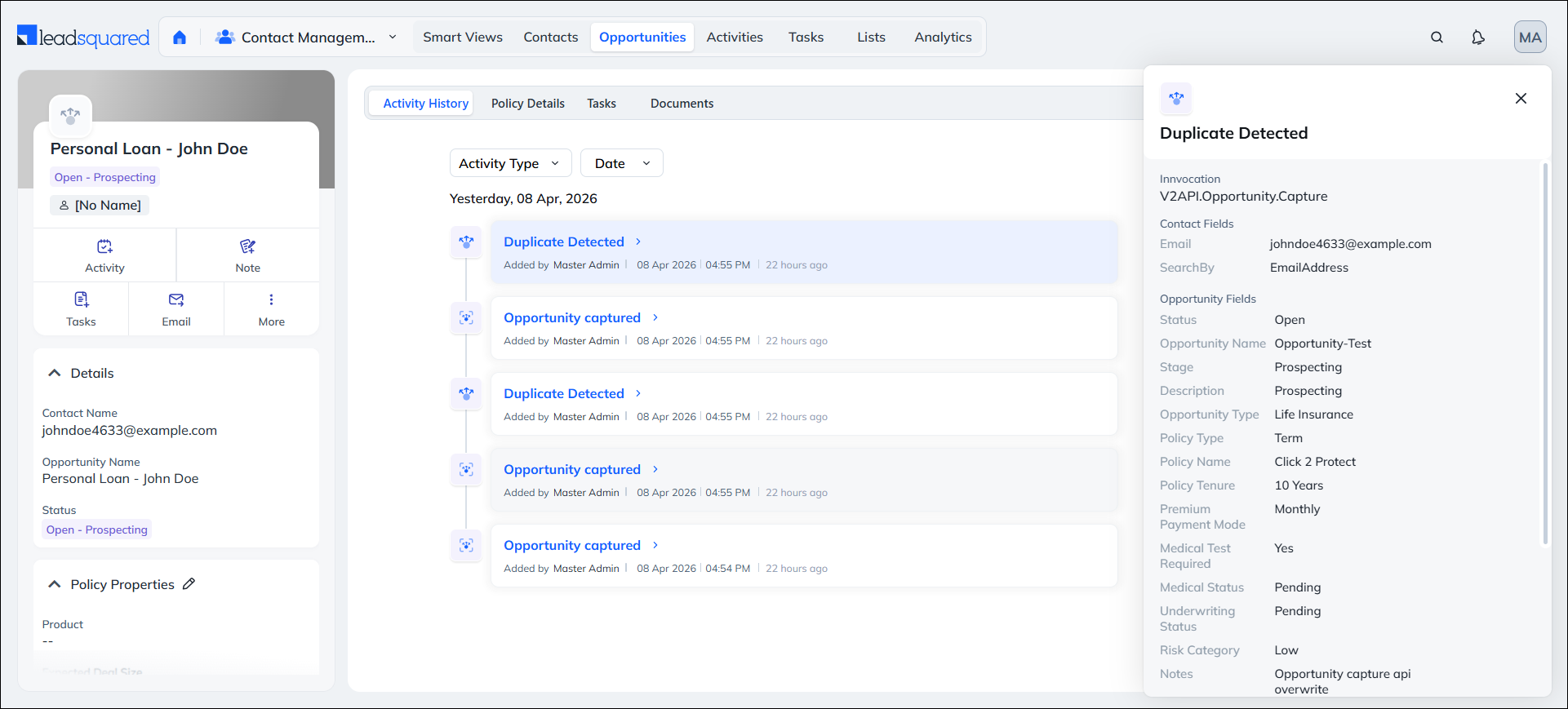
Duplicate opportunities contain details of the same lead who shows interest in the same Opportunity Types across multiple sources, like websites, landing pages, incoming calls, etc. To prevent this, set up dedupe rules to identify duplicate opportunities, which helps optimise your users’ efforts, maintain clean data and improve reporting accuracy.
2. Prerequisite
You must be the Administrator of your LeadSquared account to configure this feature.
3. How it Works
This feature lets you identify duplicate opportunities raised by a lead based on how often the lead shows interest in the same product or service. To do this, set rules (conditions) that are used to identify these leads. For example, identify leads that apply for the same home loan product more than once within the last 30 days. The system posts these duplicates as activities on the Opportunity Details page.
4. Use Cases
Some of the example use cases across various industries for which you can create dedupe rules are –
| Industry | Use Cases | Example Dedupe Rule |
| Automobile Loans | To ensure the customer is not pitched multiple loans for the same automobile. | Detect a duplicate opportunity
|
| Health Insurance | To ensure the same customer is not pitched an upgraded policy by multiple sales users. | Detect a duplicate opportunity
|
| Real Estate | To ensure the same lead is not pitched the same property by multiple sales users. | Detect duplicate opportunity
|
| Education | To ensure the same student is not pitched the same course by multiple sales users. | Detect a duplicate opportunity
|
5. Set Rules
To configure dedupe rules –
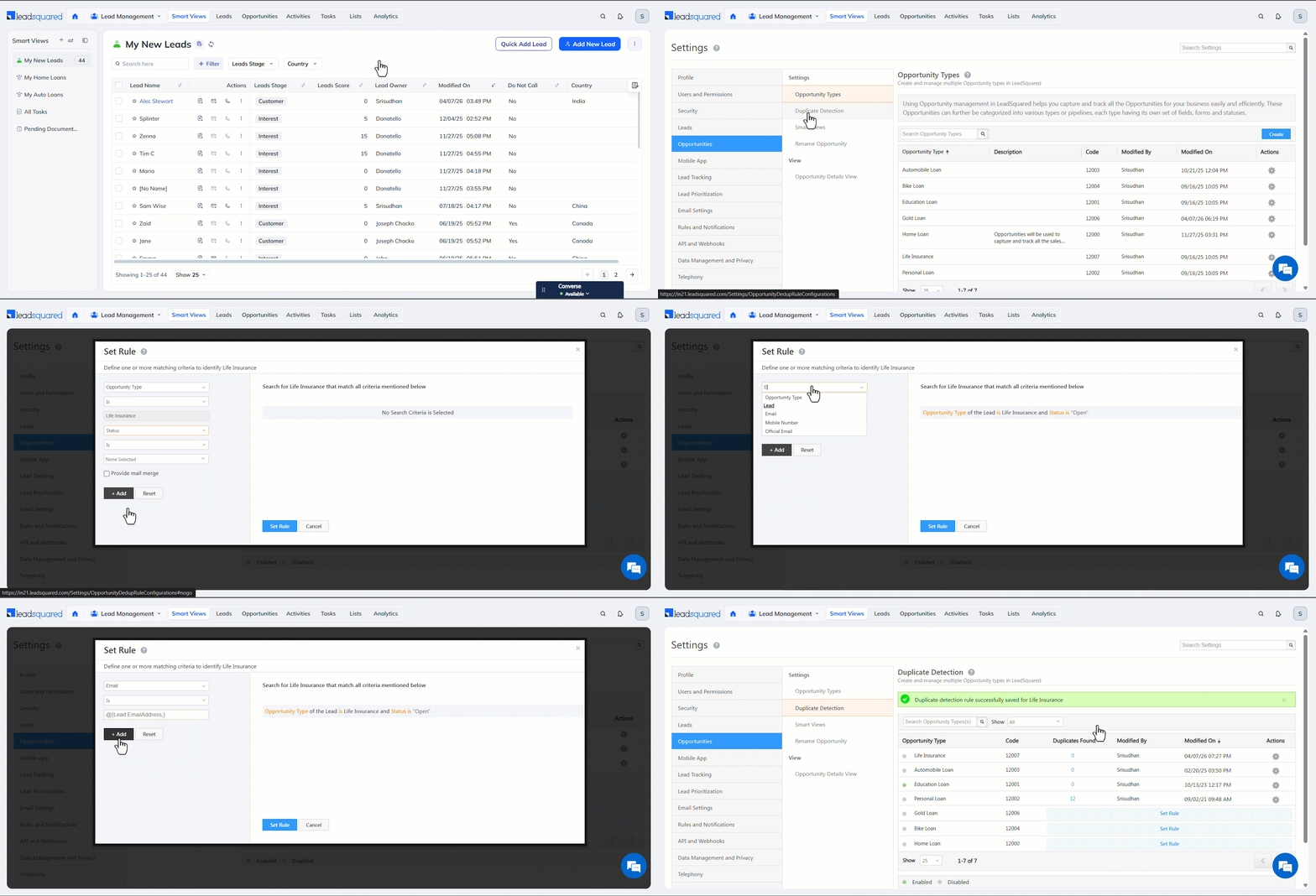
- Navigate to My Profile>Settings>Opportunities>Duplicate Detection.
- Against an existing Opportunity Type, click Set Rule.
- On the Set Rule pop-up, the first three dropdowns are preset by default, and you do not need to make any changes here.
- On the fourth dropdown, select the opportunity field the system uses to identify duplicate opportunities.
- For e.g., if you select “Status” is “Open”, then Life Insurance opportunities (in our GIF) created on the same lead with the status set to Open are marked as duplicates.
- Then, add a lead identifier condition (e.g., Email is Lead’s Email ID). This condition is mandatory, otherwise the system cannot identify the lead on which a duplicate is created.
- Here, use the mail merge* option to fetch data from the lead identifier field.
- Similarly, set as many conditions as required for your business. You can only set multiple AND conditions.
- Once done, click Set Rule. Then, click Save, and on the Confirm pop-up, click Save.
- Here, you can also add multiple rules as well.
- Lastly, enable the dedupe rule. Once this is done, duplicate opportunities
Note:
- *Ensure you use the mail merge option by entering the ‘@’ symbol. This dynamically pulls the value of the selected lead or opportunity field.
- On existing rules, hover over the settings icon to –
- Edit – Lets you update the conditions configured on a rule.
- Disable – Lets you disable an existing rule, which allows duplicates to be created.
6. View Duplicates
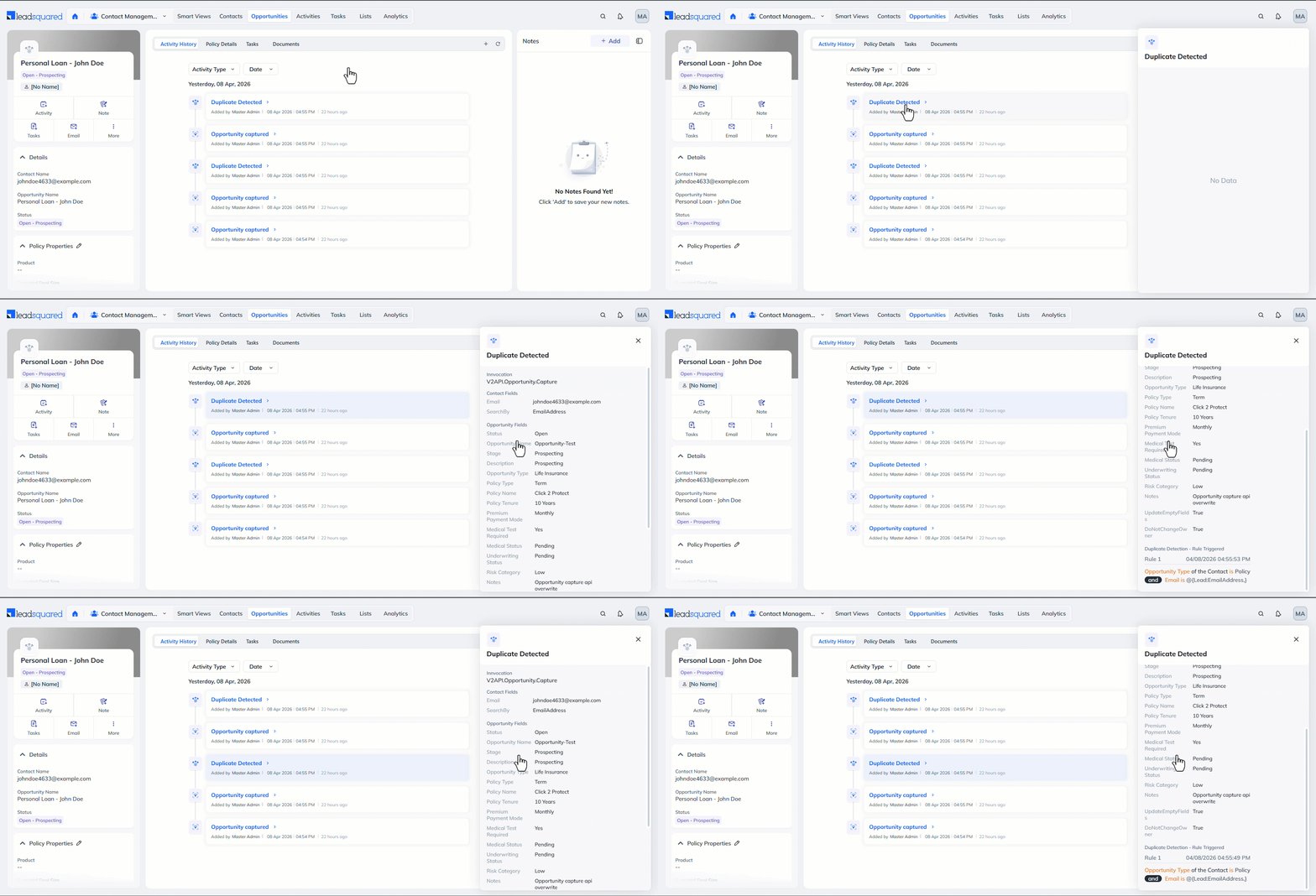
To view duplicates, navigate to the Opportunity Details page, and under Activity History, view the duplicate entry.
7. FAQs
Why Is the Opportunity Duplicate Detection Rule Not Working?
- Issue: The duplicate detection rule for opportunities is not functioning as expected, despite being configured.
- Possible Cause: The duplicate detection rule might be set up but not enabled for the specific opportunity type.
- Solution:
- Go to Settings>Opportunity>Duplicate Detection in your LeadSquared account.
- Check if the duplicate detection rule is enabled for the relevant opportunity type. A green button indicates the rule is active.

Any Questions?
Did you find this article helpful? Please let us know any feedback you may have in the comments section below. We’d love to hear from you and help you out!
Do you have report for this
Hello, Vignesh.
You can access the duplicate logs on My Profile>Settings>Opportunities>Duplication Logs as mentioned in section 6 of this article. Apart from these logs, there are no other reports for duplicate opportunities.
Can we mute / remove view access of duplicate logs for Activity History wall of sales user?
Hello, Kirti.
No, it is not possible to remove view access of duplicate logs on the Activity History tab.