


Get Started

Sales Suite
Field Ops
Marketing
Service CRM
Integrations & Apps
FloStack
Global Search on LeadSquared

1. Feature Overview
Global Search provides a unified way to quickly find Leads, Opportunities, Tasks, Tickets (only on web app), and supported Object Types across the LeadSquared Web and Mobile Apps. Search from a single interface, switch between supported entities without re-entering your keyword, and access relevant record details without navigating away from your current page. On the Web App, you can also use Quick View to view details and take quick actions, while recent searches help you find frequently accessed records faster.
2. Prerequisites
- You must have access to Leads, Opportunities, or Object Types based on your user role and permissions.
- To access Global Search on the mobile app, you must be using iOS v22.3 and Android v22.8 or later.
3. How It Works
- Open Global Search from your LeadSquared Dashboard, Lead List, Opportunity List, or Casa Homepage and enter a search keyword.
- On the mobile app, results are displayed in separate tabs for each entity, allowing you to switch between Leads, Opportunities, and supported Object Types without searching again.
- The search supports partial matches, highlights matching text, remembers recent searches, and displays only records you have permission to access.
4. Access Global Search on the Web App
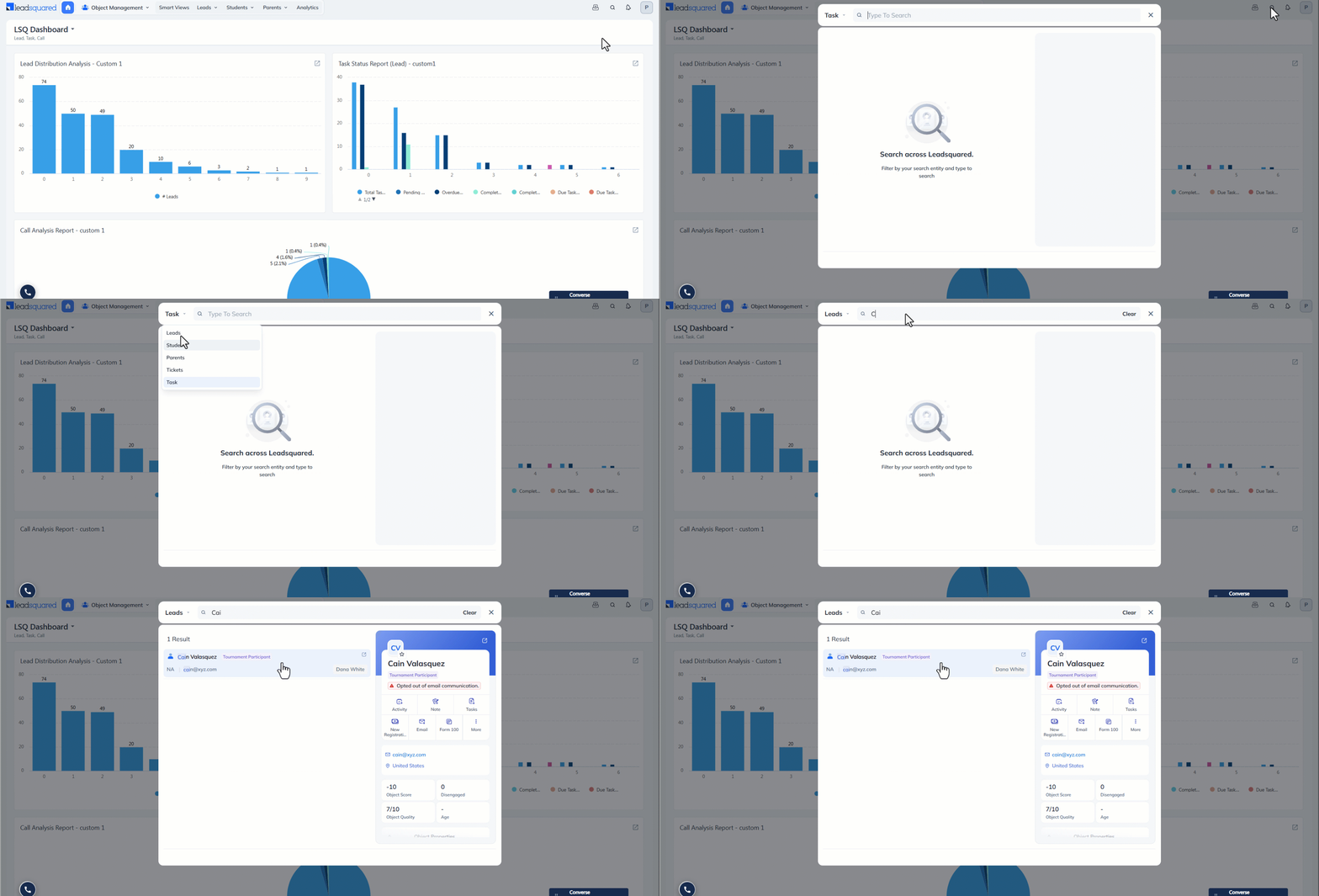
Global Search on the web app lets you quickly find leads, tickets, tasks and opportunities without navigating away from your current page. You can view key record details using Quick View, take actions such as assigning leads or updating statuses, and save recent searches for faster access.
From any page on the LeadSquared Web App –
- Click the Search Bar on the top navigation (on the right side, alongside your user profile).
- Click the drop-down on the top-left corner of the pop-up to select the entity (lead, ticket, etc.)
- Enter a keyword (Lead Name, Ticket ID, Opportunity Name, Task Subject, Task ID, Task Description, etc.).*
- Click a result to get a quick view of the details or take quick actions.
5. Access Global Search on the Mobile App
Global Search lets users search across Leads and Opportunities (and Object Types, if enabled) from a single search interface in the mobile app. Instead of navigating to separate entity screens, users can quickly locate records from one unified search experience. Global Search is accessible from the Lead List, Opportunity List, and Casa Homepage, making it easier for field users to find records while on the move. This feature is available to all users by default.
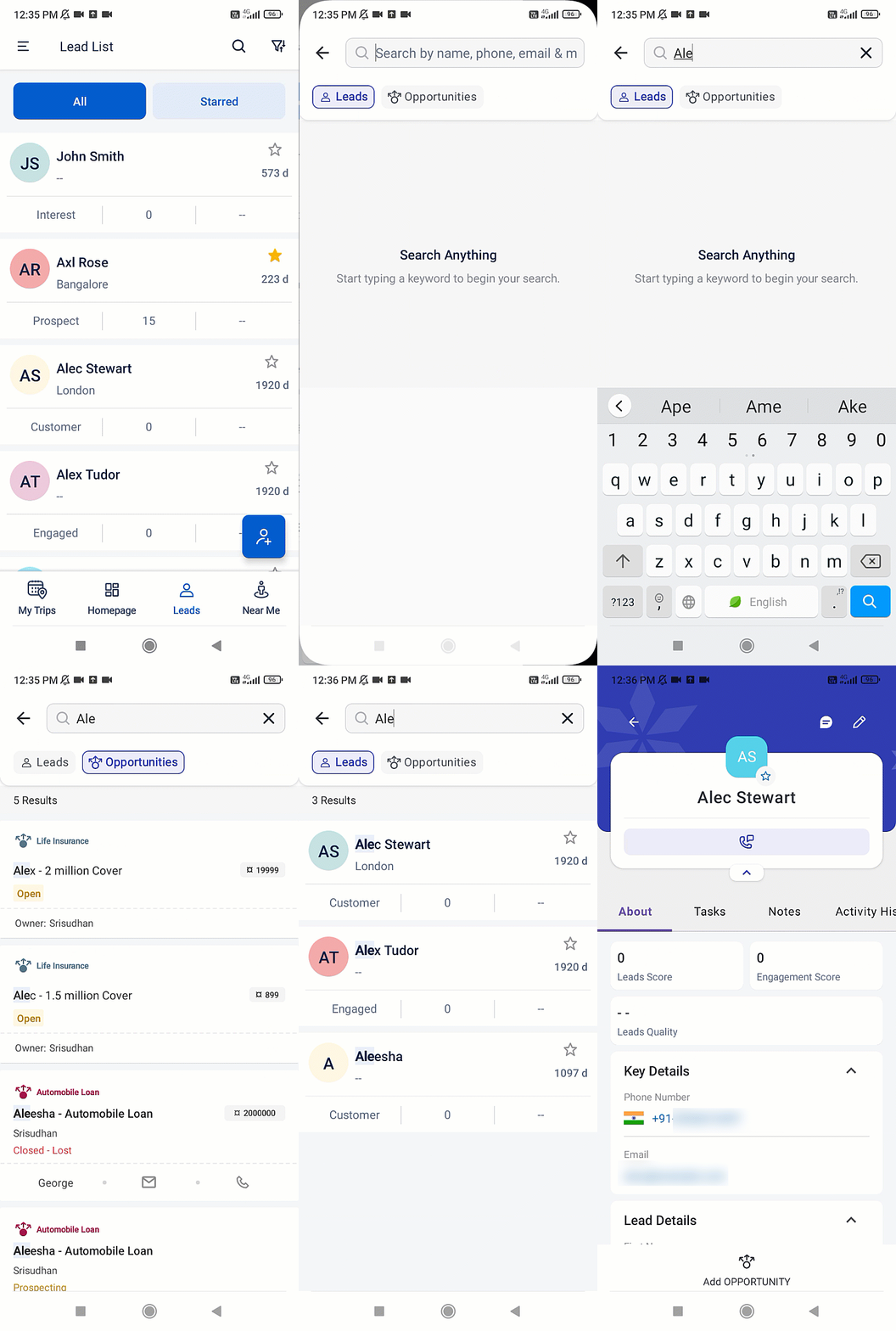
5.1 From the Lead List
- Open the Lead List page.
- Tap the Search icon.
- The Leads tab is selected by default.
- Enter a keyword to search.
5.2 From the Opportunity List
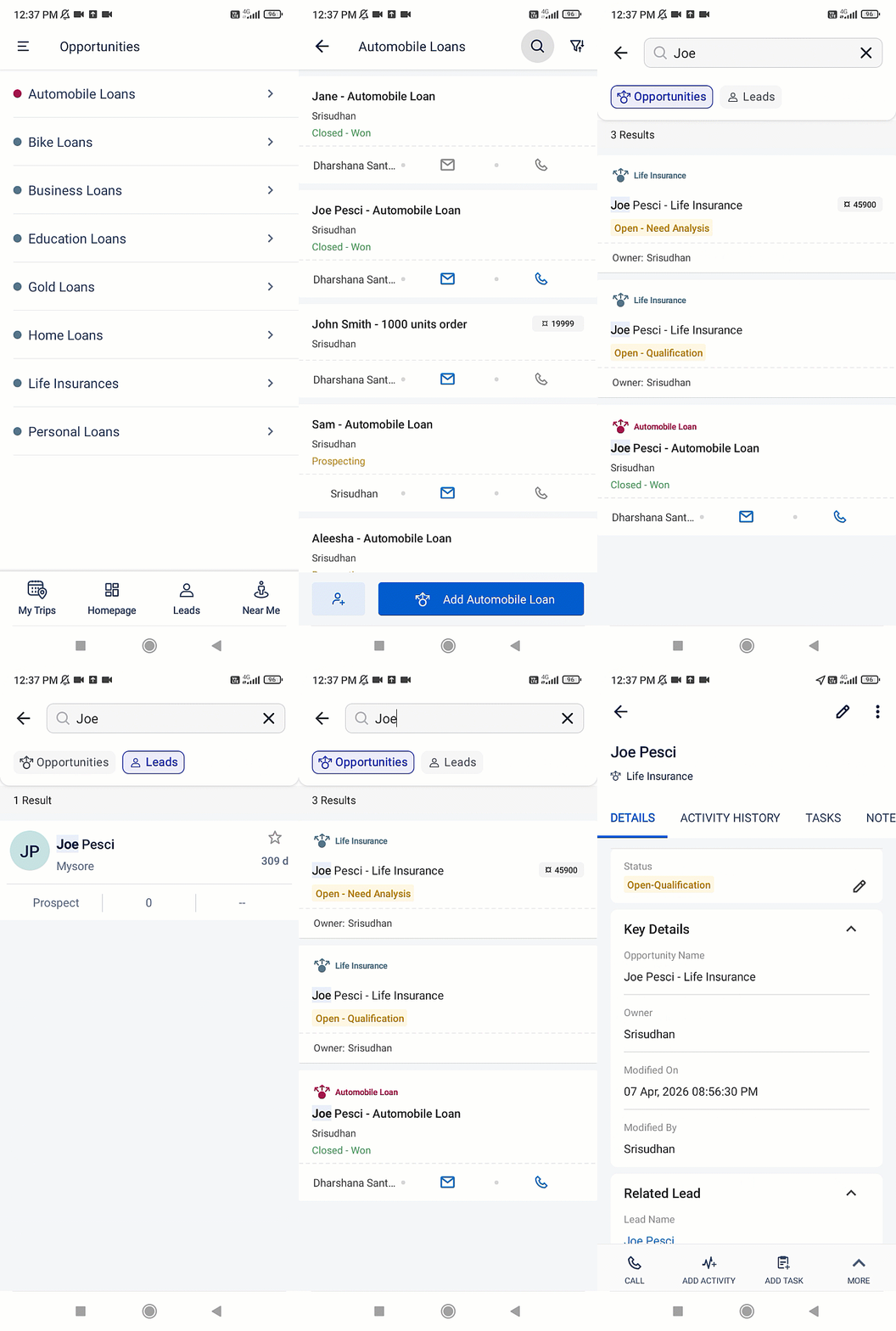
- Open the Opportunity List page.
- Tap the Search icon.
- The Opportunities tab is selected automatically.
- Enter a keyword to search.
5.3 From the Casa Homepage
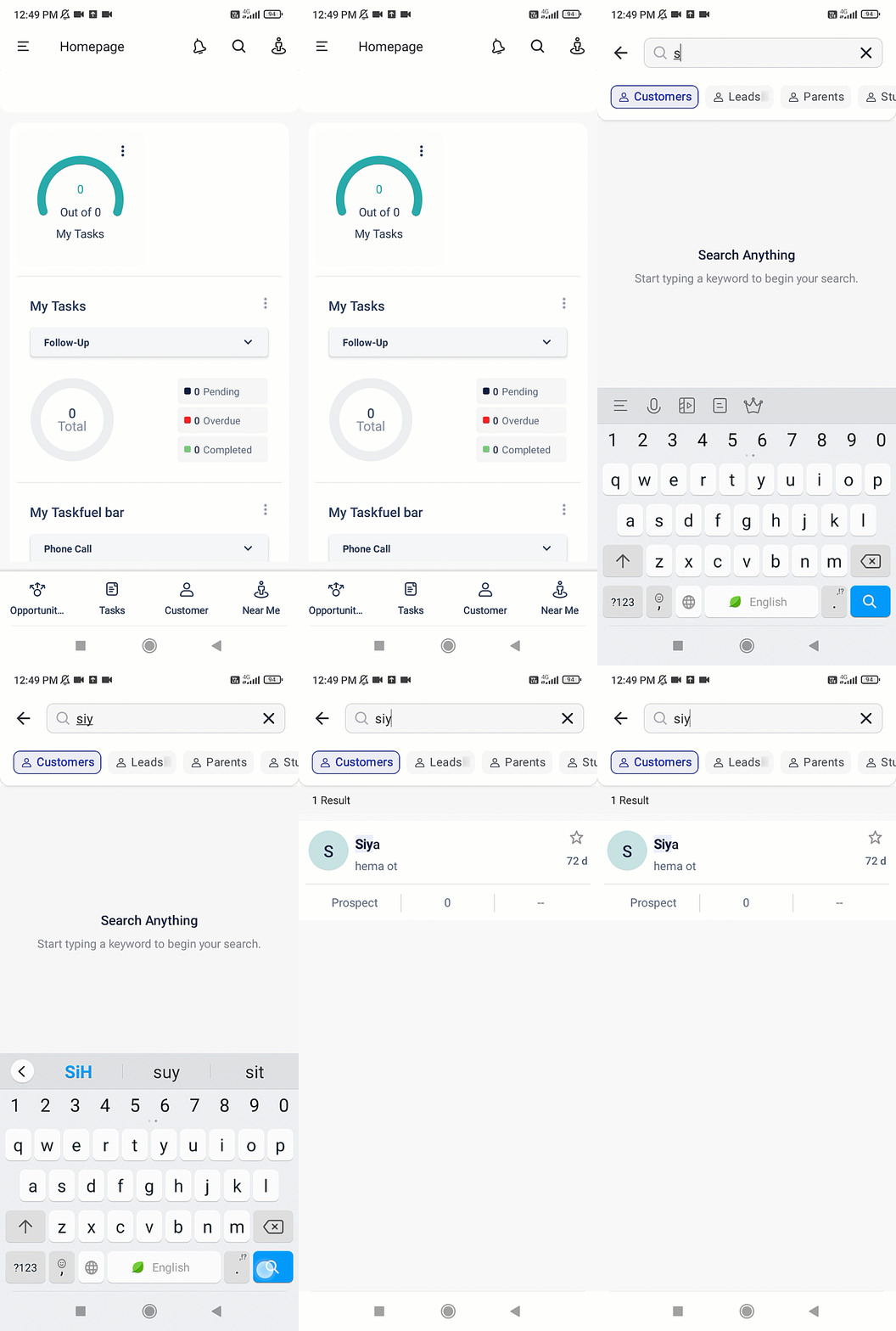
- Open the Casa Homepage.
- Tap the Search icon in the top-right corner, next to the Leads Near Me icon.
- The Global Search screen opens.
- The app automatically selects the last entity tab you used. If no previous selection exists, the Leads tab is selected by default.
- Enter a search keyword to begin searching.
In the example below, the account has Object Types enabled.
6. Points to Note
6.1 On Web App
- For Leads, you can only search lead fields that are enabled for quick search. To learn more, see how to include fields in Quick Search.
- To Tasks, searchable fields include Task Subject, Task ID, Task Description, Lead First Name, Last Name, and Quick Search-enabled unique lead fields. Tasks linked to both Leads and Opportunities are included in search results.
- Results only appear after typing three characters.
- Up to five Recent Search Keywords and Recent Search Results are saved. Clear these by clicking Clear All.
- Results are ranked based on relevance, giving priority to key fields like First Name, Last Name, Email, and Phone Number.
6.2 On Mobile App
- Results are organized into entity-specific tabs, with the tab corresponding to the source screen selected by default. For instance, the Leads tab is selected by default if you’re on the Lead List page. Switch between tabs without re-entering your search keyword.
- Partial search is enabled by default. Matching keywords are highlighted in the search results.
- Up to three recent search keywords and three recently opened records are available for quick access.
- Search results display the total number of matching records. Results are loaded in batches of 10 with pagination for better performance.
Any Questions?
Did you find this article helpful? Please let us know any feedback you may have in the comments section below. We’d love to hear from you and help you out!