


Get Started

Sales Suite
Field Ops
Marketing
Service CRM
Integrations & Apps
FloStack
API Logs

Updated
20 May 2026 | 03:39 PM
You can view the logs of all your API calls in the LeadSquared web application. This includes successful responses, as well as errors (provided the access key and secret key are correct).
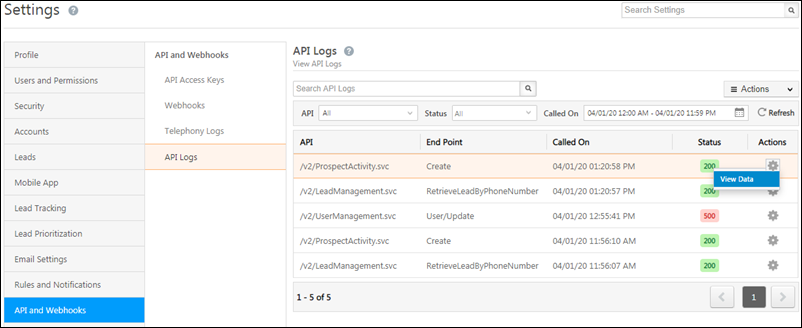
- Navigate to My Profile>Settings>API and Webhooks>API logs.
- Use the search bar, or filter by API type, status, and date range.
- To view data that was retrieved or posted, under the Actions columns, hover your cursor over the settings
 icon, then click View Data.
Note:
- We only display 1000 logs at a time. Use appropriate filters to get a smaller set of results.
- We only keep logs of the previous 30 days.
- While searching, you can set a time range of a maximum of 7 days.
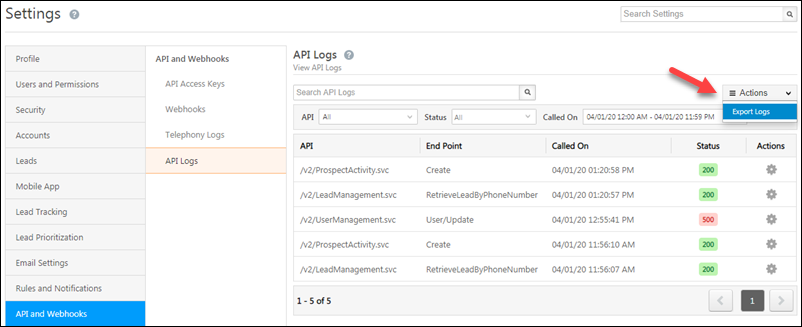
You can also export the logs to a CSV file – hover your cursor over the Actions menu, and click Export Logs. You can only export up to 1000 results.
For more information visit our API Documentation.
Subscribe
0 Comments
Newest