


Get Started

Sales Suite
Field Ops
Marketing
Service CRM
Integrations & Apps
FloStack
LeadSquared Security Settings – Session Management

Updated
09 Sep 2024 | 05:55 PM
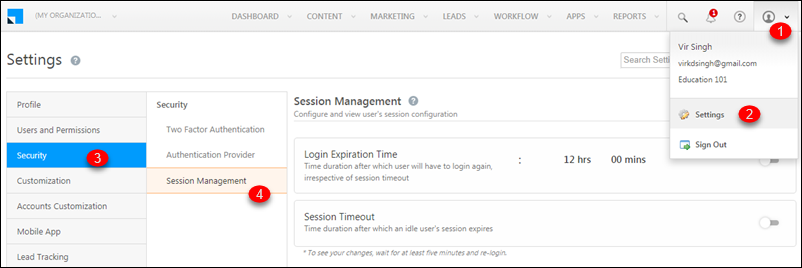
The settings on the Session Management page let you configure –
Login Expiration Time
When enabled, users will be required to log in again, after the configured time elapses.
Session Timeout
When enabled, a user who remains idle for the configured time will be automatically logged out.
Note: The user will also be checked-out of LeadSquared when logged out.
To access these settings,
- Navigate to My Profile>Settings>Security>Session Management.
- Click the slider
 icon alongside the setting you want to enable.
- Set the time limit, then click Save.
Note: Session management configurations apply to both web and the mobile app.
For information on other security related settings, see
- LeadSquared Security Settings – Two Factor Authentication
- LeadSquared Security Settings – Authentication Provider
Any Questions?
If you have any doubts or feedback, please leave us a comment below.
Subscribe
0 Comments
Newest