


Get Started

Sales Suite
Field Ops
Marketing
Service CRM
Integrations & Apps
FloStack
Add Activities to Leads and Opportunities

1. Feature Overview
Activities represent key interactions or events that occur during a lead’s journey toward conversion. These can include default LeadSquared activities—such as form submissions, email opens, or email bounces—as well as Custom Activities configured to match your business workflows (for example, sending WhatsApp messages or scheduling meetings).
LeadSquared allows you to add activities to both Leads and Opportunities. Leads represent potential customers, while Opportunities represent potential deals associated with those leads.
You can add activities individually or in bulk from the Manage Leads, Lead Details, Manage Opportunities, and Opportunity Details pages. This helps teams efficiently log interactions, track engagement, and maintain accurate records of customer activity across the sales lifecycle.
2. Prerequisites
- To add activities to opportunities, you must have the opportunities feature configured in your account. To enable it, please write to support@leadsquared.com
- You must be the administrator or a marketing user of your LeadSquared account.
3. How it Works
- You can add activities to leads from the Manage Leads page and the Lead Details page.
- You can add activities to opportunities from the Manage Opportunities page and the Opportunity Details page.
4. Add Activities to Leads
4.1 From the Manage Leads Page
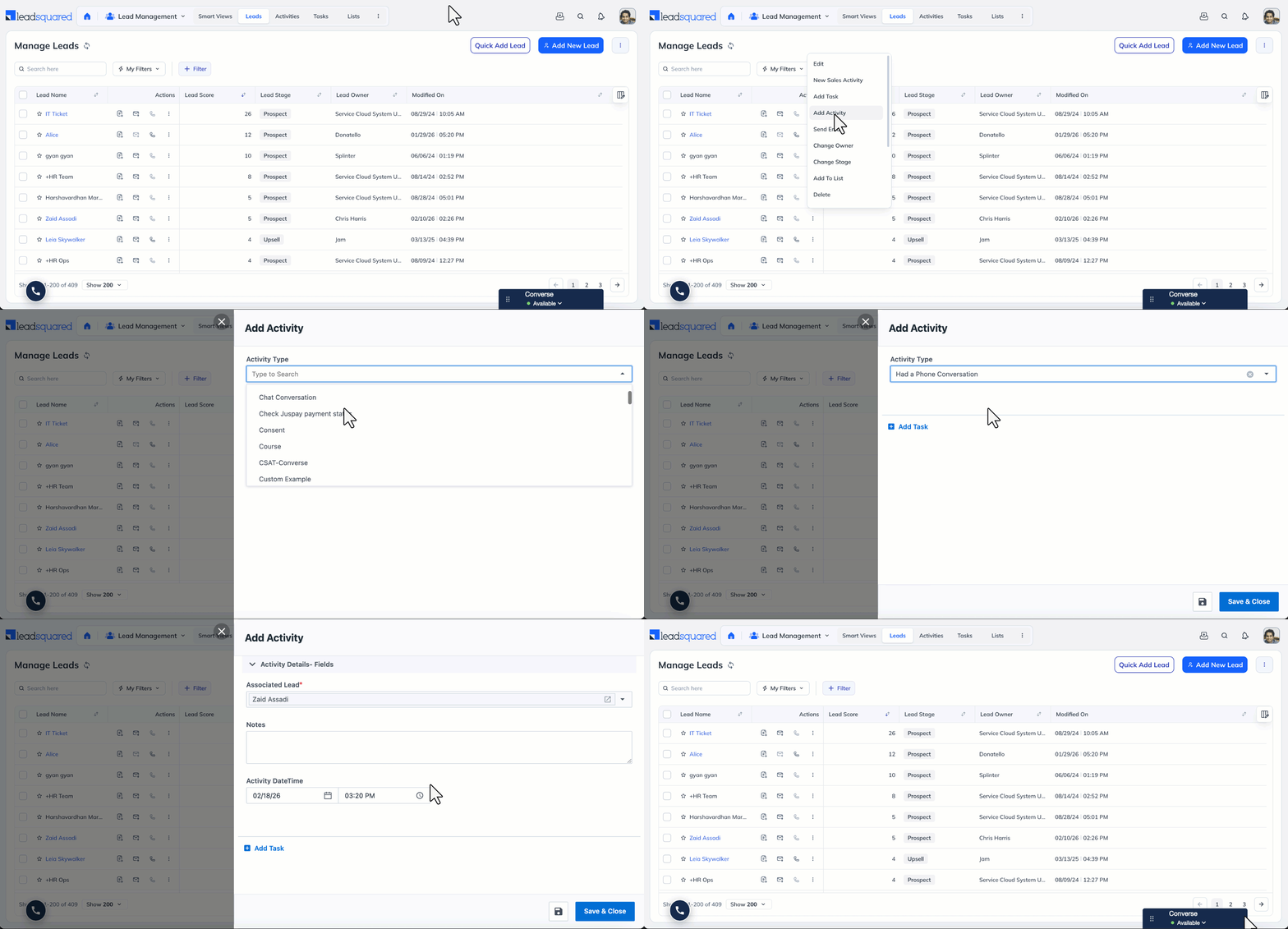
To add an activity to a single lead from the Manage Leads page –
- From the main menu, navigate to Lead Management>Leads.
- From the list of leads, against the lead on who you want to add the activity, hover your cursor over the
 icon.
icon. - From the list of available action, click Add Activity.
- From the Activity Type dropdown, select the activity.
- Enter the Activity Date and Notes if required.
- If required, you can also add a task by clicking Add Task, and entering the required details.
- Once you’re done, click Add. You’ll get a confirmation once the activity is successfully added.
4.2 Bulk Add Activities to Multiple Leads
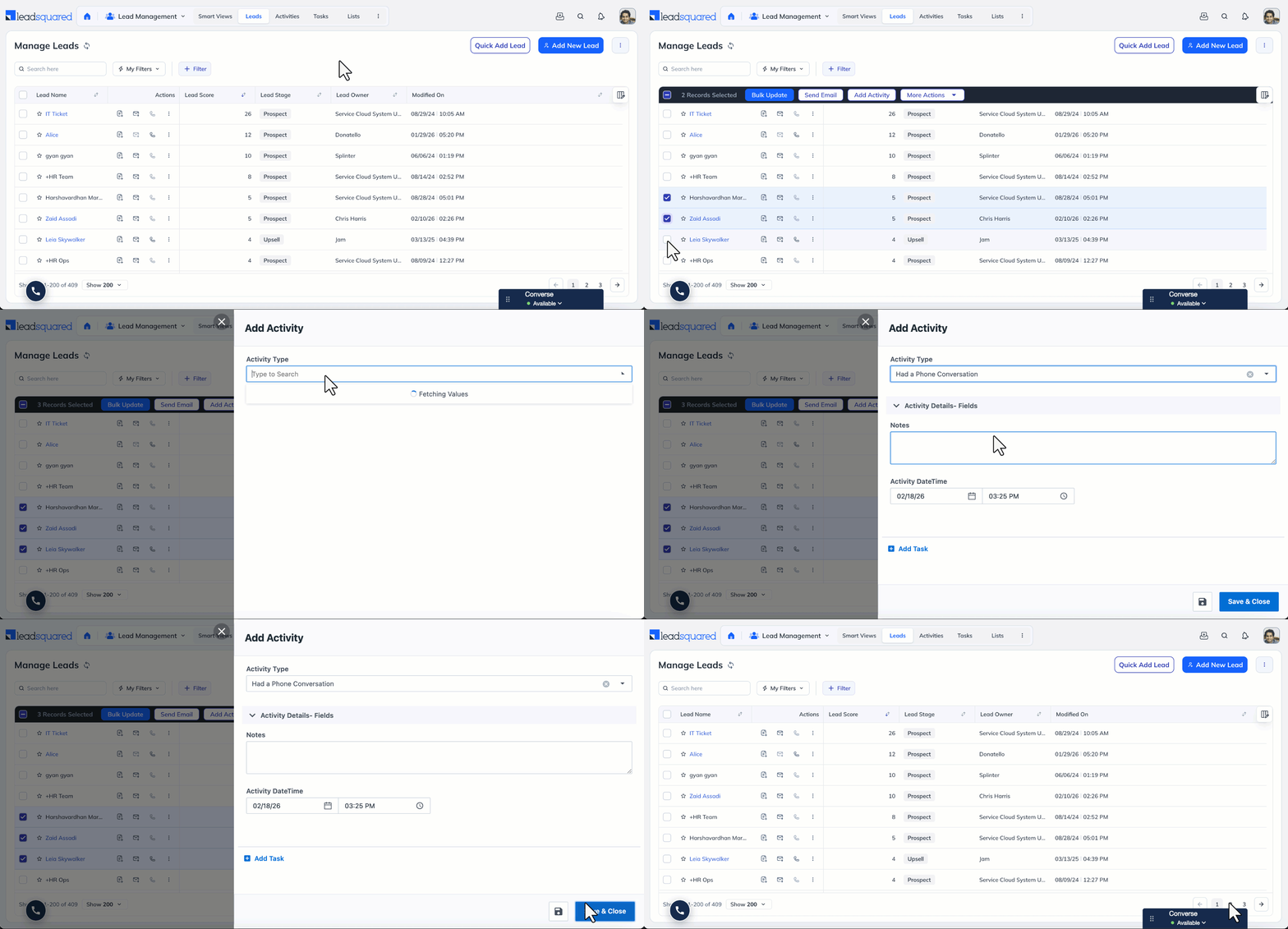
To bulk add an activity to multiple leads from the Manage Leads page –
- From the main menu, navigate to Lead Management>Leads.
- Individually select the leads on whom you want to add the activity by clicking the
 checkbox against the leads. You can also select all the leads on the page by clicking the checkbox against Lead Name.
 - Once you select multiple leads, the Add Activity option will be available, select it.
- From the Activity Type dropdown, select the activity.
- If required, you can also add a task by clicking Add Task, and entering the required details.
- Once you’re done, click Add. You’ll get a confirmation once the activity is successfully added.
4.3 From the Lead Details Page
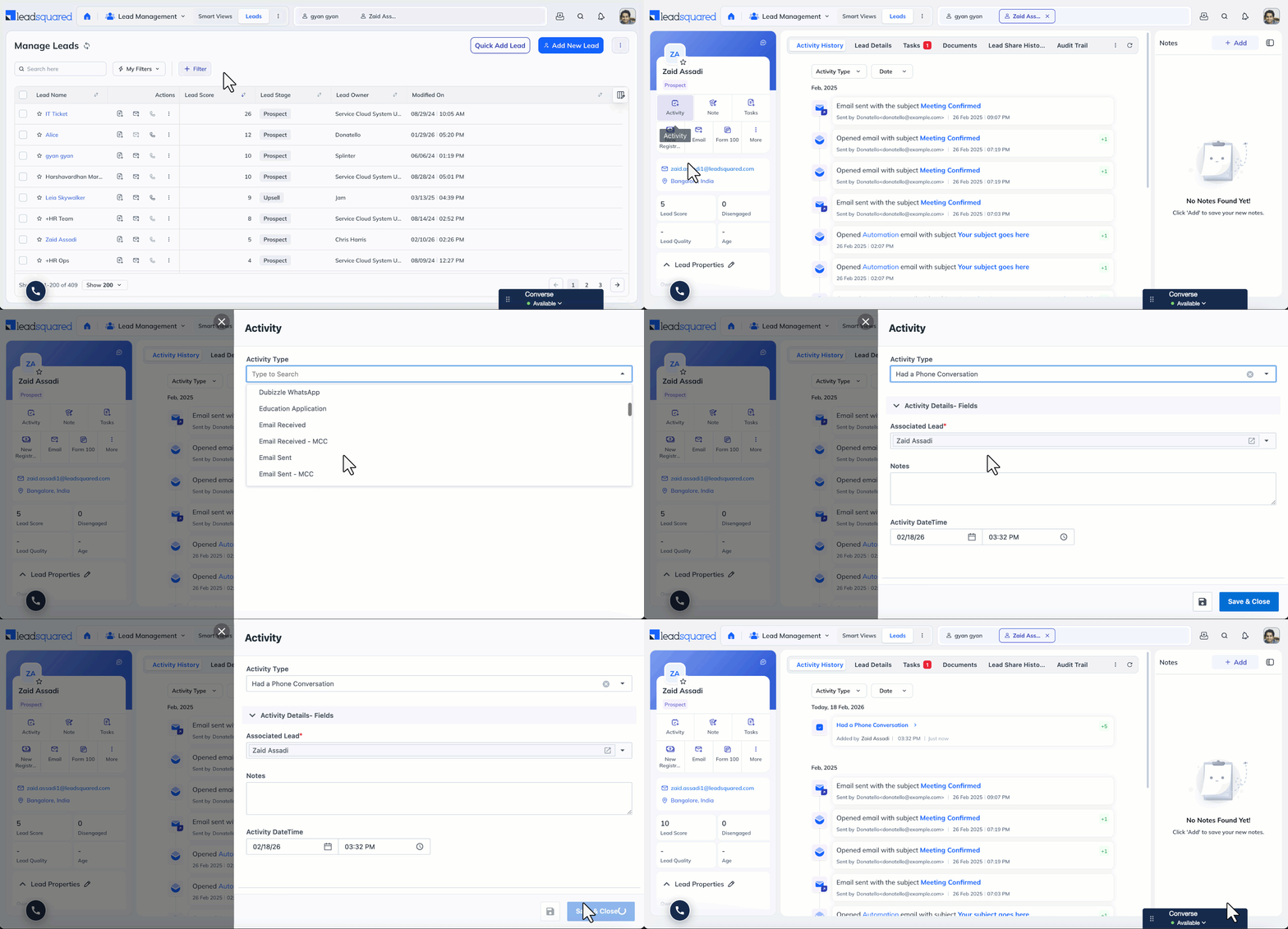
To add an activity to a lead from the Lead Details page –
- From the main menu, navigate to Lead Management>Leads.
- From under Lead Name, click on the lead on whom you want to add the activity.
- On the Lead Details page, on the Lead vCard, select Activity.
- From the Activity Type dropdown, select the activity.
- If required, you can also add a task by clicking Add Task, and entering the required details.
- Once you’re done entering the details, click Add. You’ll get a confirmation once the activity is successfully added.
For more information, refer to How to add Activity to Lead(s).
5. Add Activities to Opportunities
5.1 From the Manage Opportunities Page
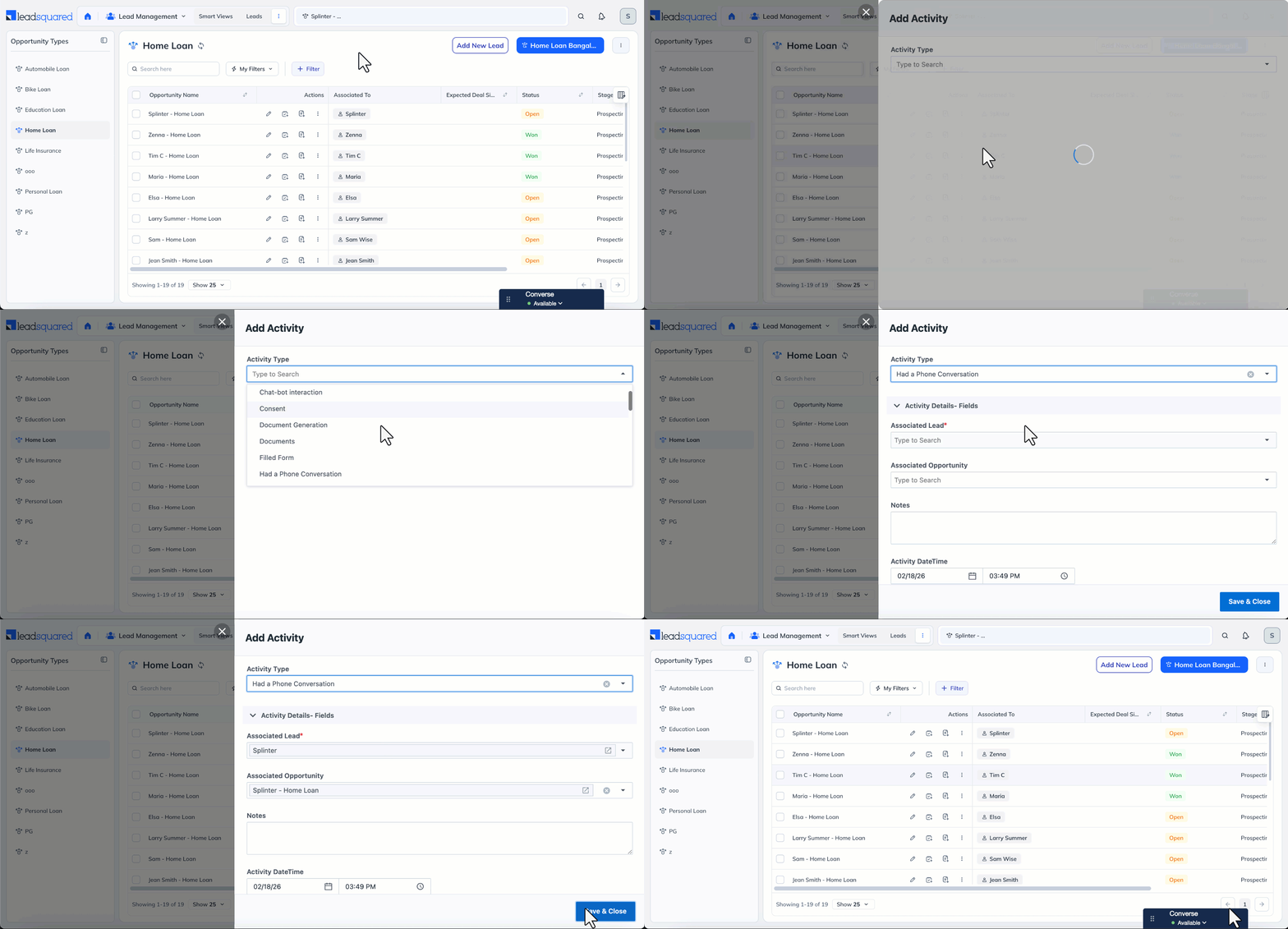
To add an activity to an opportunity from the Manage Opportunities page –
- From the main menu, navigate to Lead Management>Opportunities>Opportunity Type.
- Against an Opportunity Name, under Actions, hover your cursor over the icon, and click Add Activity.
- From the Activity Type dropdown, select the activity.
- Enter the other details such as Activity Date and Notes, if required, on the pop-up.
- Once you’re done, click Add. You’ll get a confirmation once the activity is successfully added.
To know more about the Manage Opportunities page, refer to Opportunity Management.
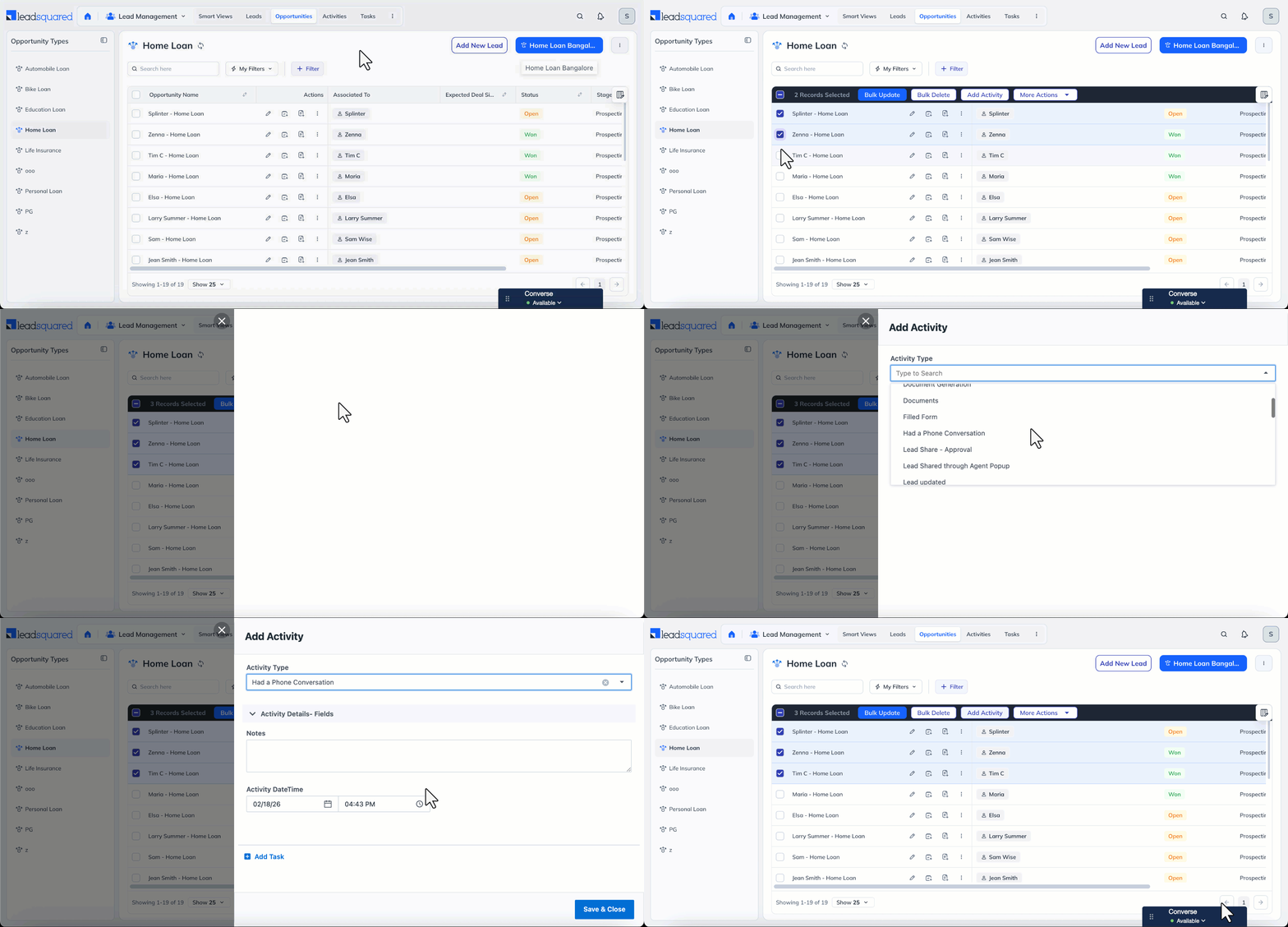
5.2 Bulk Add Activities to Multiple Opportunities
To bulk add an activity to multiple opportunities from the Manage Opportunities page –
- From the main menu, navigate to Lead Management>Opportunities>Opportunity Type.
- Individually select the opportunities to which you want to add the activity, by clicking the checkbox. You can also select all the opportunities on the page by clicking the checkbox against Opportunity Name.
- Once you select multiple opportunities, the Add Activity option will be available, select it.
- From the Activity Type dropdown, select the activity.
- If required, you can also add a task by clicking Add Task, and entering the required details.
- Once you’re done, click Add. You’ll get a confirmation once the activity is successfully added.
5.3 From the Opportunity Details Page
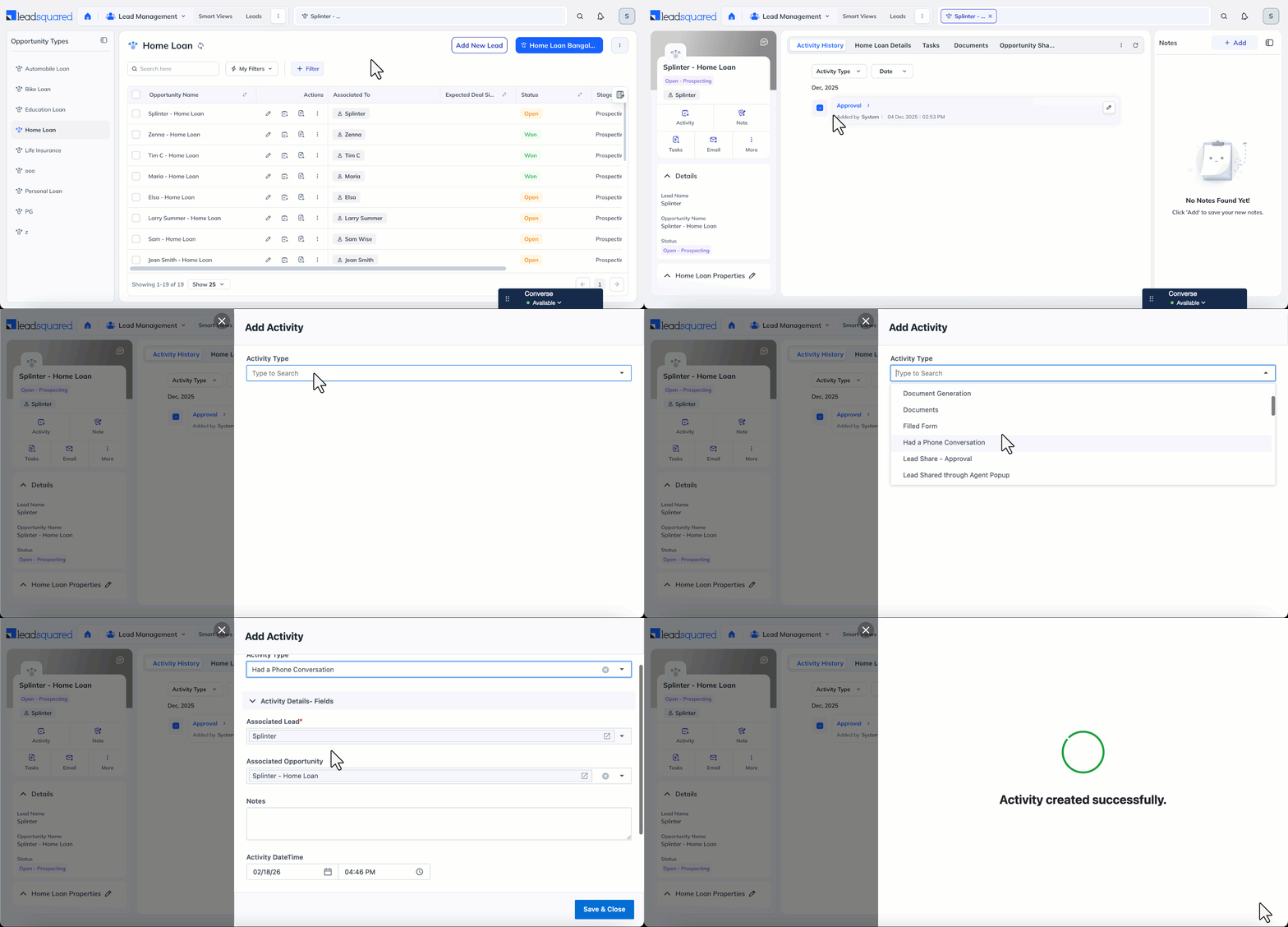
To add an activity to an opportunity from the Opportunity Details page –
- From the main menu, navigate to Lead Management>Opportunities>Opportunity Type.
- From under Opportunity Name, click on the Opportunity on which you want to add the activity.
- On the Opportunity Details page, on the vCard, select Activity.
- From the Activity Type dropdown, select the activity.
- If required, you can also add a task by clicking Add Task, and entering the required details.
- Once you’re done entering the details, click Add. You’ll get a confirmation once the activity is successfully added.
To know more about the Opportunity Details page, refer to Opportunity Details.
Any Questions?
Did you find this article helpful? Please let us know any feedback you may have in the comments section below. We’d love to hear from you and help you out!