


Get Started

Sales Suite
Field Ops
Marketing
Service CRM
Integrations & Apps
FloStack
Import Activities

Updated
07 Apr 2026 | 03:38 PM
1. Feature Overview
In addition to activities posted on leads when they perform an action, activities manually added by your users, and activities added through automations, you can also import activities into LeadSquared using a CSV file and post them on any lead and opportunity. This is useful when you want to post bulk activities, such as adding the Webinar Attended activity to 1,000 leads.
2. How it Works
- On a CSV file, add activity fields with data, along with lead or opportunity identifiers.
- Upload it to your LeadSquared account and map the file to the relevant activity fields.
- A Validation Report displays whether the import was successful.
- After a successful import, the activities are posted to the lead/opportunity.
3. Upload the CSV File
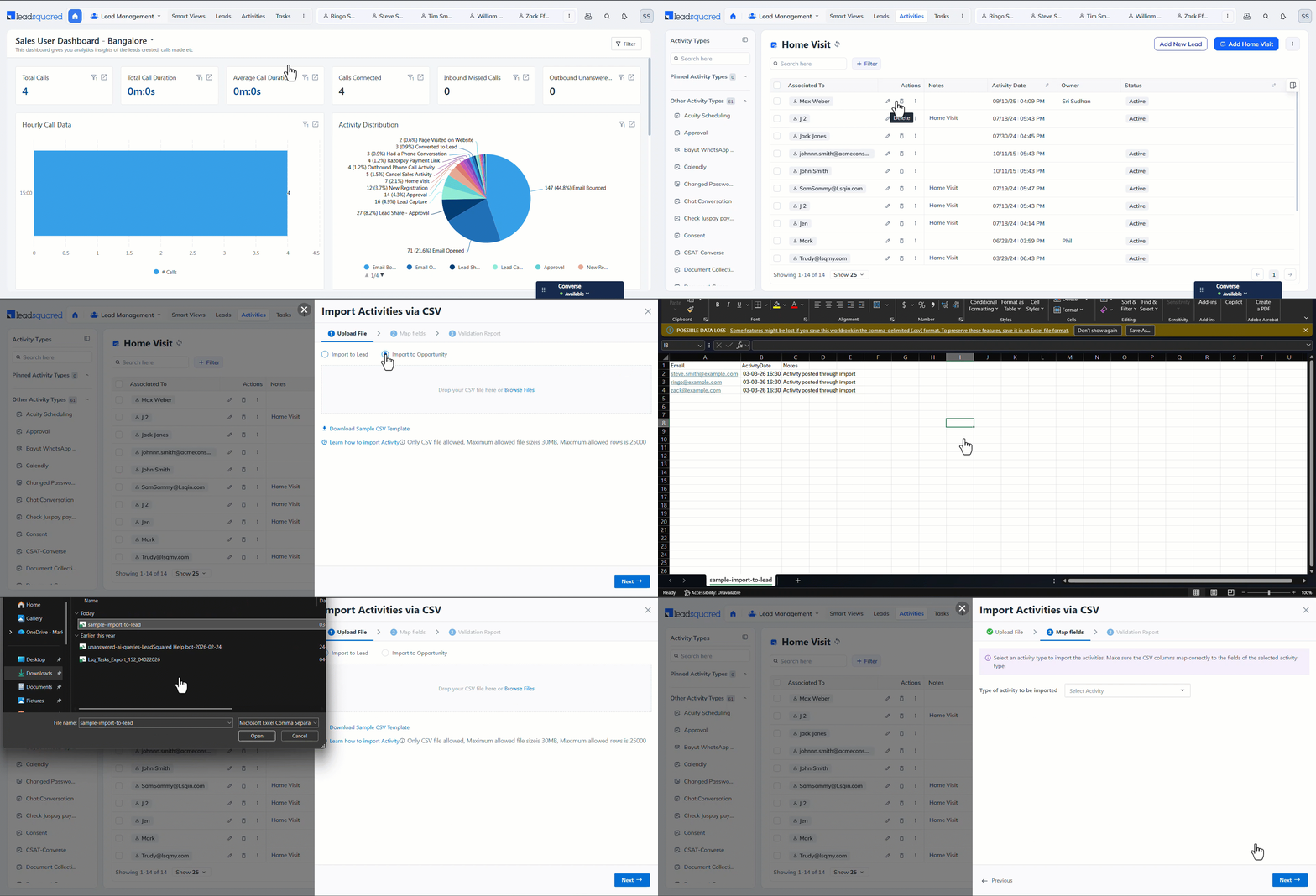
- Navigate to Lead Management>Activities.
- Hover your cursor on the three dots menu on the top-right corner, and click Import Activities.
- On the Import Activities via CSV pop-up, under the Upload File tab, select whether you want to Import to Lead or Import to Opportunity.
- Then, download the sample CSV file, and populate it with the relevant activity fields data*.
- Alternatively, you can use a blank file and populate it with relevant data in the format available on the sample file.
- Once done, upload the file to LeadSquared and click Next.
Note:
- *The CSV file you upload must include one mandatory lead or opportunity identifier.
- For leads, the lead identifier field should be a unique lead field from your account (such as Lead Number, Prospect Id, etc.).
- For opportunities, the unique identifier can be the –
- OpportunityId – To obtain it, use the Get an Opportunity by Id API.
- Opportunity Auto ID – To obtain it, enable the Enhanced Data Type for Opportunities advanced configuration setting.
- For Sales Activities –
- Sales Owner is mandatory. Pass the User ID or the user’s email address.
- Product is mandatory. Obtain the Product ID from the Get Products API or the product SKU from the UI under the ID column.
- Order is mandatory.
- Only CSV file type files are supported.
- The maximum file size is 30MB, and the maximum number of rows allowed in the file is 25,000.
- You can add multiple activity fields in the same file, exceeding the three fields available in the sample file.
4. Map Fields
On the Map Fields tab –
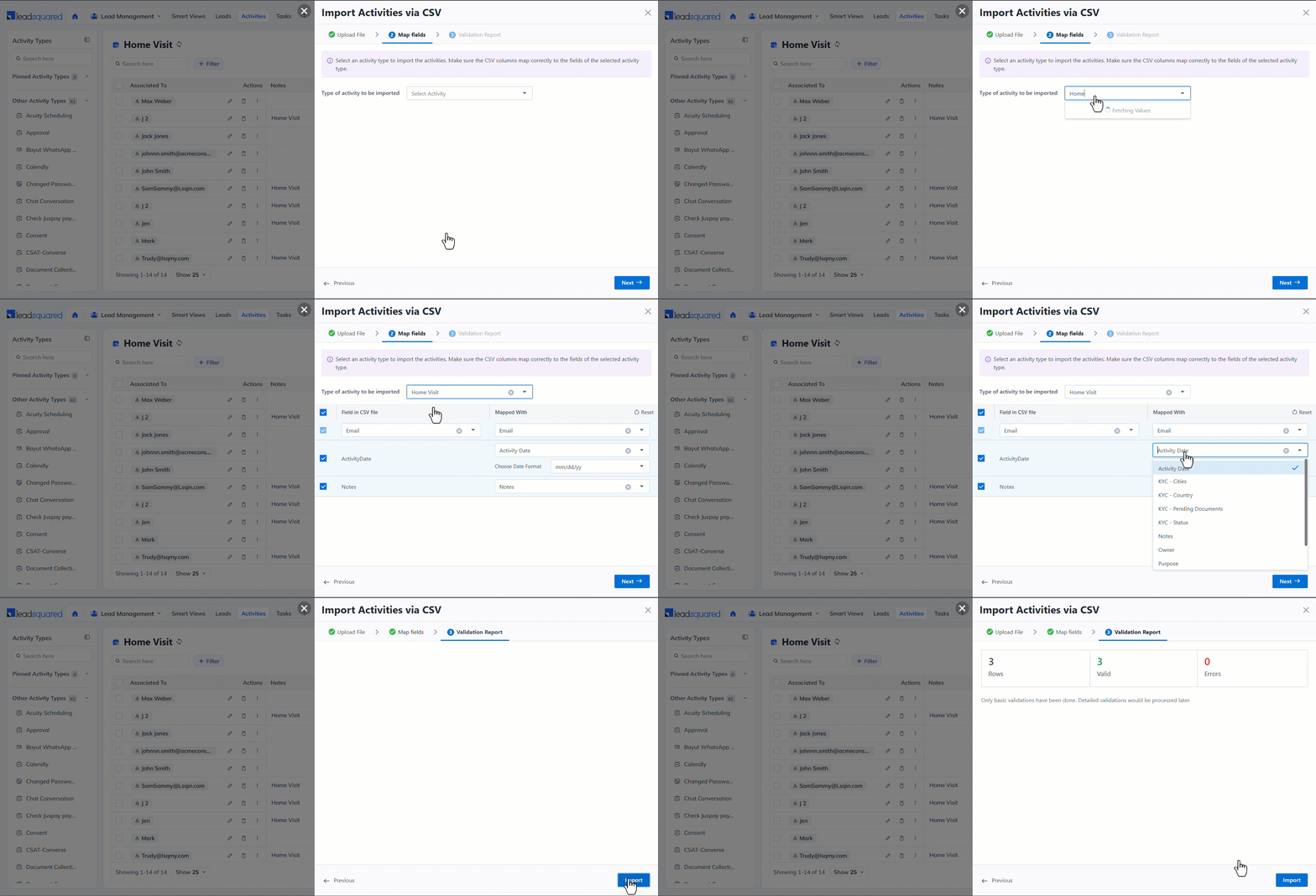
- Select the activity type to which you want to import activities.
- Map the CSV fields (under the Field in CSV file column) to the LeadSquared activity fields (under Mapped With).
- The first row, marked in grey, is the lead or opportunity identifier. Choose the CSV field that matches the identifiers in the activity type fields (Lead Number, OpportunityId, etc.).
- Once you’re done, click Next.
Note:
- To map your CSV file rows to CFS fields, pass the data as <Activity Field Name> – <CFS Field Name>.
-
- For example, if the activity display name is “KYC Collection” and the CFS name is “Street Address Line 1”, name the CSV field as “KYC Collection – Street Address Line 1”.
- Ensure you choose the correct date format. If the date format does not match, the import fails.
5. Validation Report
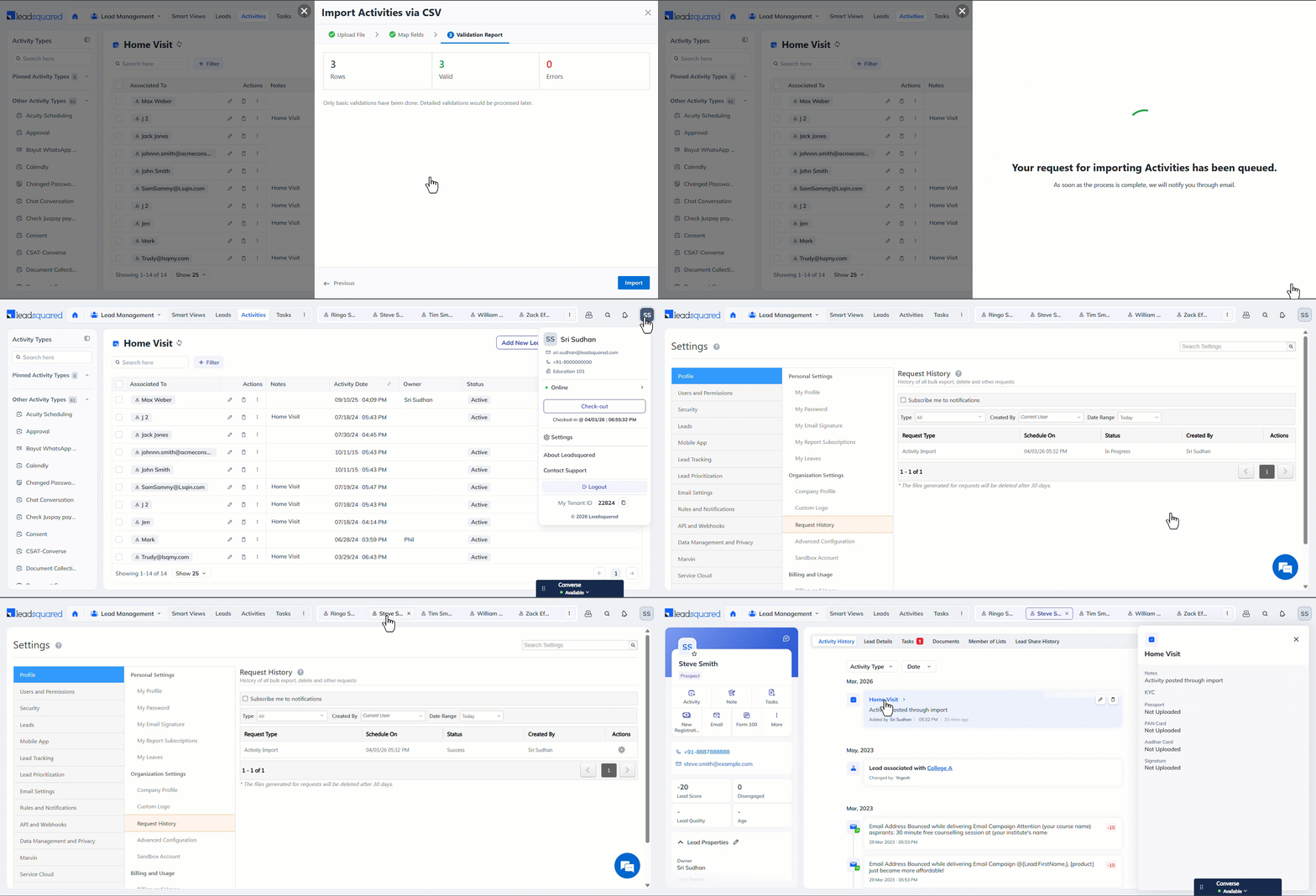
A Validation Report is generated, and it displays the status of your field mapping.
- If there are errors, fix them in the file and re-upload it.
- Under Activity Import Rules, select the system’s behaviour when duplicate activities are identified.
- Ignore Duplicates – The system ignores duplicates in the file, and no new duplicate activities are created.
- Overwrite Duplicates – The system overwrites existing duplicates with data from the new activities.
- Update empty fields of duplicates – The system ignores existing duplicate fields that contain data and updates only empty fields with data from the new activities.
- From the List & Owner dropdown, select a LeadSquared user as the default Activity Owner. If your CSV does not contain an Activity Owner, the system marks this user as the owner by default.
- Once you’re done, click Import.
- Then, you receive an email confirmation, and the system posts the activities on your lead or opportunity.
- You can also view the status from the Request History page.
Note: *If your CSV file contains an Activity Owner field, the system considers it the owner and ignores the default option you select from the List & Owner dropdown.
Any Questions?
Did you find this article helpful? Please let us know any feedback you may have in the comments section below. We’d love to hear from you and help you out!
Subscribe
0 Comments
Newest