


Get Started

Sales Suite
Field Ops
Marketing
Service CRM
Integrations & Apps
FloStack
How to Create a Currency Field

Updated
17 Jun 2026 | 03:57 PM
1. Feature overview
LeadSquared does not have a dedicated currency data type. To capture and display monetary values such as budgets, fees, or loan amounts, you create a Number field through a Custom Field Set (CFS) and display it in currency format. This article explains how to set up a currency-formatted field for leads.
2. Prerequisites
You must have Administrator access to set the default currency format and create custom field sets.
3. How it works
Displaying a value in currency format is a two-stage process:
- First, you set your account’s default currency format. This determines the currency symbol and the comma-separated number format used across your account.
- Then, you create a Number field inside a custom field set and set it to display as currency.
Note: Currency formatting is also available for Opportunity, Task, and Activity number fields.
4. Create a currency field
4.1 Set your default currency format
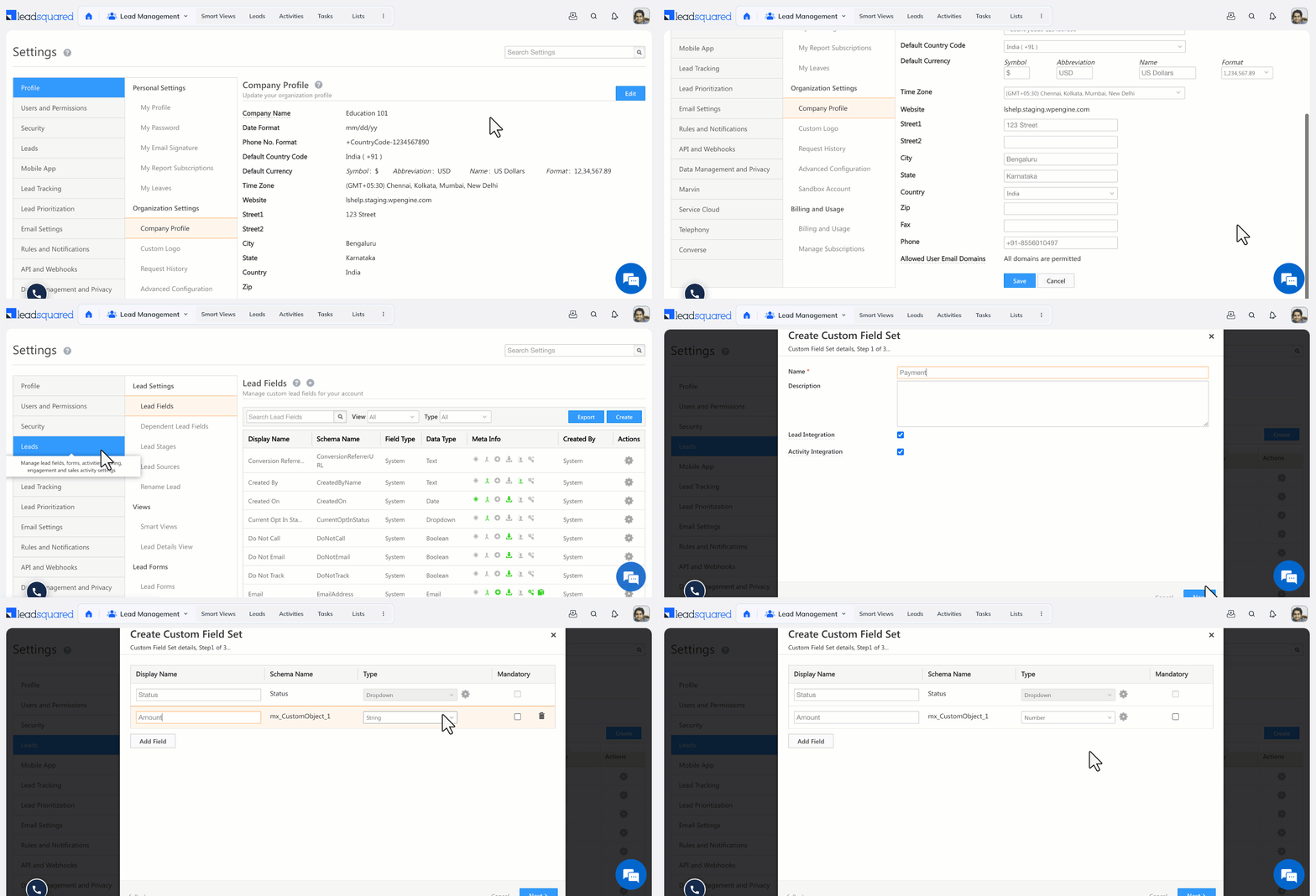
- Go to My Profile>Settings>Profile>Company Profile.
- Click Edit.
- Next to Default Currency, select your preferred comma-separated currency format in the Format dropdown.
- Click Save.
4.2 Create a currency-formatted number field
- Go to My Profile>Settings>Leads>Manage Custom Field Sets.
- Click Create.
- Enter a Name and Description, then click Next.
- Click Add Field, enter a Display Name, then select Number from the Type dropdown.
- Click the actions menu, then select Currency from the Show As dropdown.
- Click Save to save the custom field set.
Any questions?
Did you find this article helpful? Please let us know any feedback you may have in the comments section below. We’d love to hear from you and help you out!
Subscribe
0 Comments
Newest