


Get Started

Sales Suite
Field Ops
Marketing
Service CRM
Integrations & Apps
FloStack
User Advanced Search

1. Feature Overview
The user advanced search feature helps you filter users based on multiple criteria. It’s useful when your account has a large number of users.
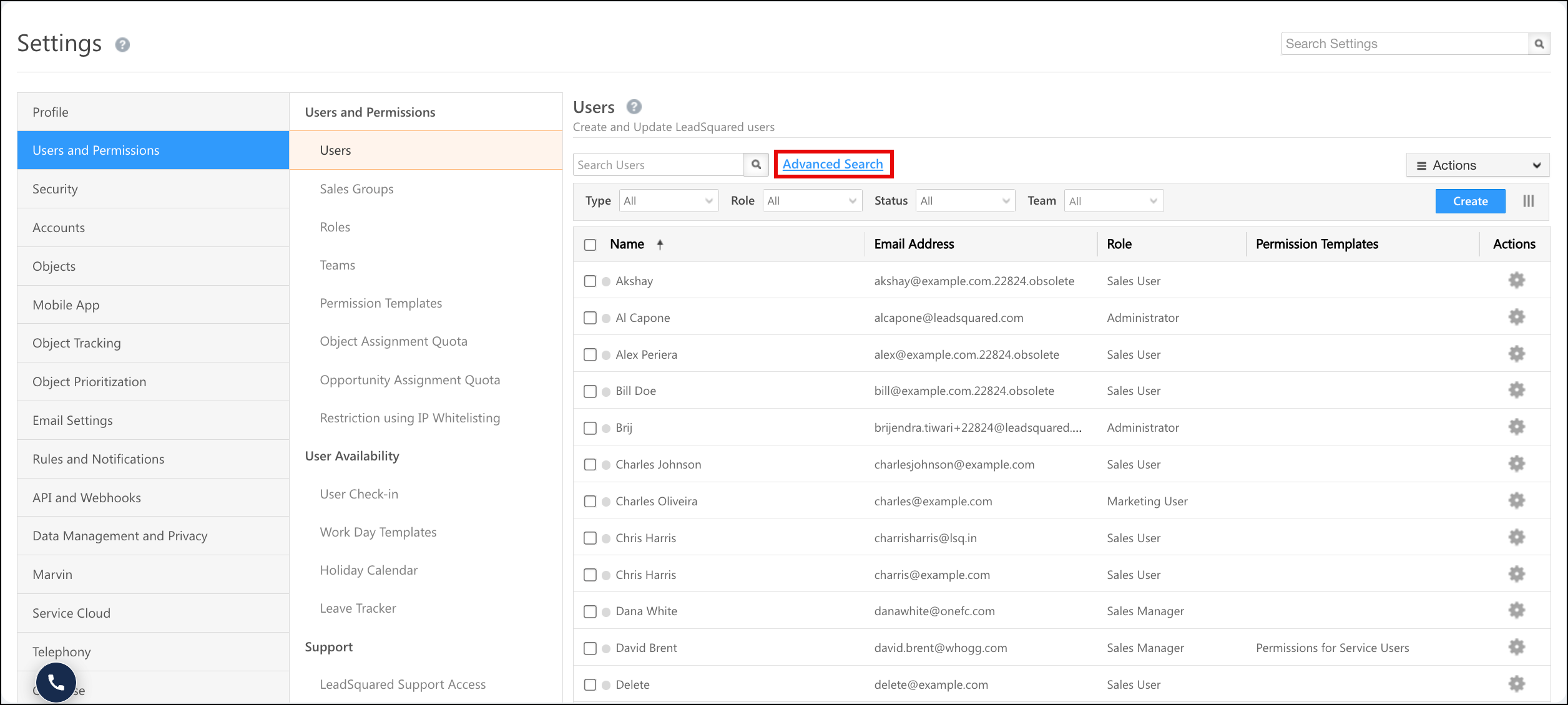
To access this feature, navigate to My Profile>Settings>Users and Permissions>Users, and then click Advanced Search.
2. How it Works
Advanced search uses the following elements:
- Conditions – Each condition consists of a user field, an operator, and a value. For example, City Is Bangalore.
- Condition Groups – A condition group holds one or more conditions.
- AND/OR operators – These operators control how conditions combine within a group, and how groups combine with each other.
On the Search Users pop-up window, select one of the following options:
- All Conditions (AND) – A user must match every condition in a group. The OR operator applies across groups.
- Any Condition (OR) – A user must match at least one condition in a group. The AND operator applies across groups.
3. Search Using a Single Condition Group
Use a single condition group when all your conditions relate to the same requirement.
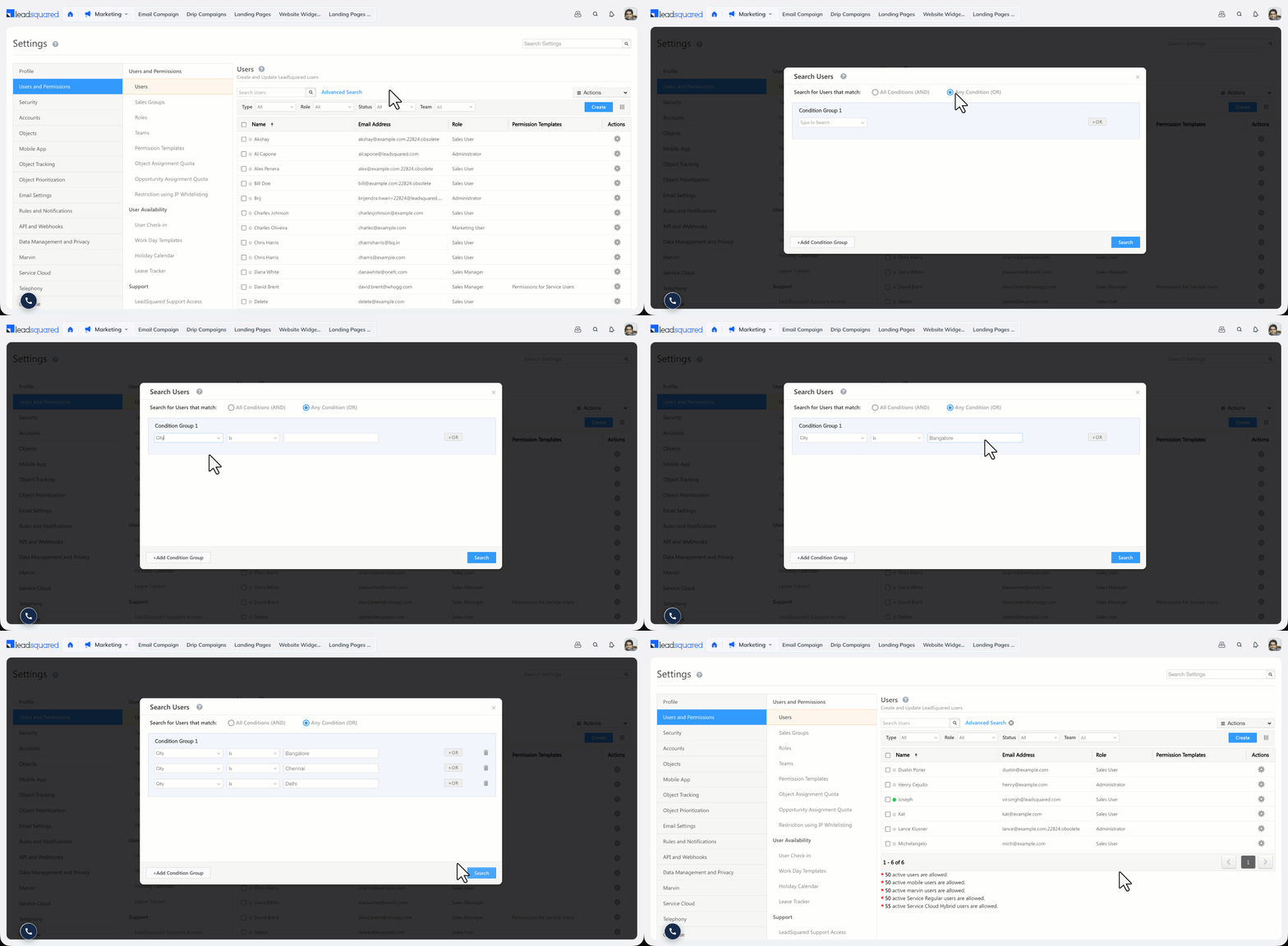
For example, to find users located in Bangalore, Delhi, or Chennai, select Any Condition (OR) and add one condition for each city. A user who matches any one of the three cities appears in the results.
To build this search:
- On the Users page, click Advanced Search.
- On the Search Users pop-up window, select Any Condition (OR).
- Under the Condition Group 1 section, select City from the field list, select Is as the operator, and then enter Bangalore.
- Click +OR, and then add the condition for Delhi.
- Repeat step 4 for Chennai.
- Click Search.
4. Search Using Multiple Condition Groups
Use multiple condition groups when your conditions relate to different requirements. The AND operator applies between the groups, so a user must satisfy every group to appear in the results.
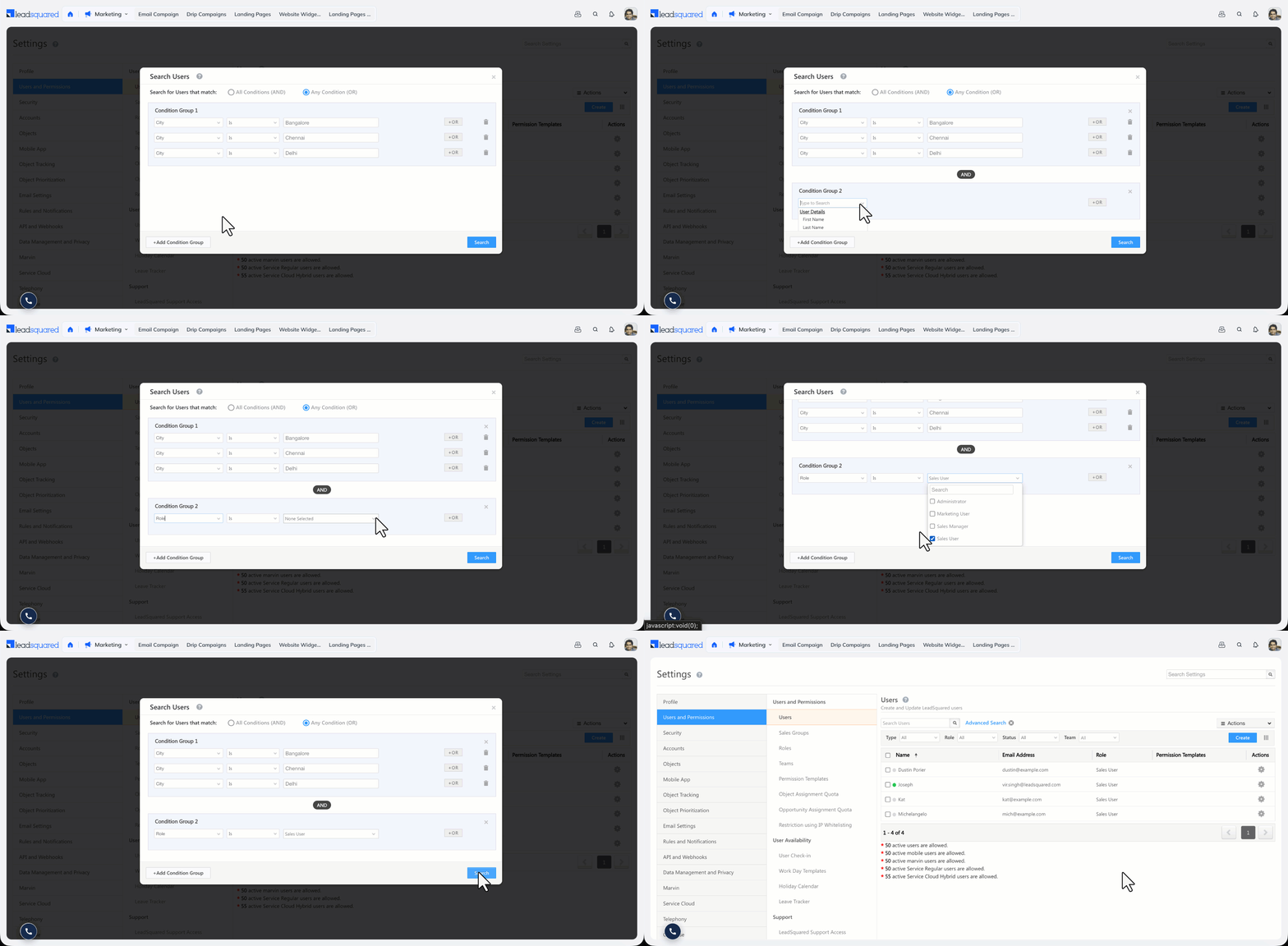
Building on the previous example, to find sales users located in Bangalore, Delhi, or Chennai, add a second condition group for the role.
To build this search:
- Set up the Condition Group 1 section with the three city conditions, as described in section 3.
- Click +Add Condition Group.
- Under the Condition Group 2 section, select Role from the field list, select Is as the operator, and then select Sales User.
- Click Search.
The search returns users who match any one of the three cities, and whose role is Sales User. To remove a condition, click the delete icon next to it. To remove a condition group, click the close icon on the group header.
Any Questions?
Did this article give you the help you needed? Please share your feedback in the comments section below.
Please reach out and help me as my LSQ Acc is not working properly
Hi, Reyan. Someone from our support team should reach out to you soon. Alternatively, you can always send us an email at support@leadsquared.com for help and queries.