Can I add a duplicate Lead Record in LeadSquared?

No. You will not be able to add a duplicate lead record. LeadSquared does not allow duplicate records. A lead record becomes duplicate if the same email Id (or any other field made unique in your account) is used for more than one lead. But you can add a lead with two different email id even though they have the same names. To know more, refer to How to Avoid Creating Duplicate Leads.

Can I rename a Landing Page?

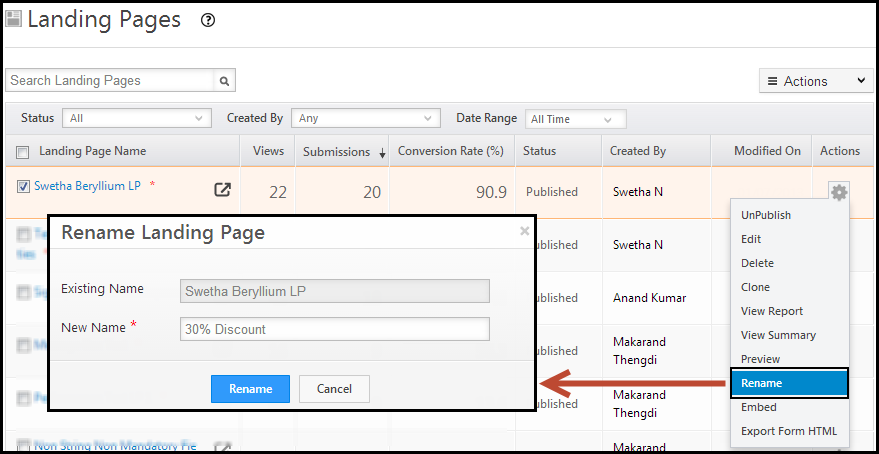
Yes. You can rename a landing page. Navigate to Dashboard > Marketing > Landing Pages. Hover on the Actions button of the required landing page. Click on Rename. Enter the new name and click Rename.

Rename

Can I embed a form in an Email?

No. You will not be able to embed a form in an email. Microsoft Outlook does not allow rendering of forms in emails and hence will not support opening of forms.

Can I embed a video in an Email Campaign?

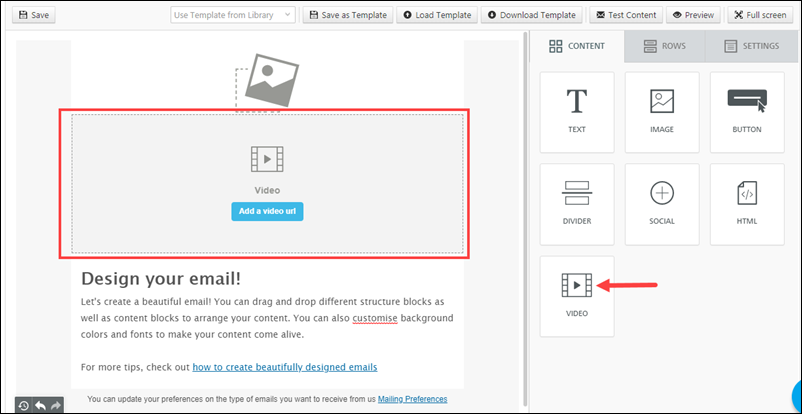
Yes, you can. Drag and drop the video block on to your canvas, and set the properties as desired.

Email

For more information, refer to How to Create Email Campaigns.

Why Is Email Tracking Not Working for My Email Campaign?

General Email Tracking

For email tracking to work correctly, you must ensure all CNAME records provided by us are added correctly in your DNS provider settings. These include the Domain Settings for Email Links and DKIM/SPF Settings.

On our end, the sender domain must be whitelisted in the email provider sub account. If you’ve checked the DNS settings on your end and you’re still facing issues, reach out to us at support@leadsquared.com

Tracking Email Opens

We track Email Open by putting a tiny invisible image at the bottom of your HTML message. When Email is opened this imaged gets downloaded and we track this download as Email Open event.

Email Tracking will work only in HTML messages because we obviously can’t embed an image in plain text message.  Also a lot of Email clients prevent downloading of images in HTML. You will see some text placeholder in place of images in such messages. This is a privacy measure that is used very widely by email applications.  If this privacy measure is in place at your email recipient’s email app, then we will not be able to track Email Open unless the recipient explicitly download the images. You obviously can’t ask your recipients to change their privacy settings.

So the Email Open measurement may not be accurate. You should instead measure Click action on links within Email.  Click is a better measurement from reliability as well as lead engagement perspective.

In HTML message you can hyperlink any text. Any click to the link will be tracked. In plain text message you should provide full URL in plaintext including the “http://”. For example if you want to hyperlink to www.yourwebsite.com then you should write the URL as http://www.yourwebsite.com .

I have changed my website hosting provider and my Landing Pages have stopped working. What could be the issue?

When you change the website hosting provider, they must do the CNAME setting again in the DNS of new hosting provider. You must follow the same procedure which you adopted to change the CNAME settings in your old service provider. For more information, see How to Publish Landing Pages within your Domain Name?

I have created a CNAME but my Landing Pages are still not showing my sub-domain. What could be the issue?

Your landing pages will be published in your domain name if you complete 2 steps. Creating a CNAME is one of the steps. First, you must specify the desirable sub-domain in LeadSquared. Next, edit your Domain Name System (DNS) settings to create a CNAME record. For more information, see How to Publish Landing Pages within your Domain Name?

I have deployed the website tracking script, but visitor visits are not being tracked. What could be the issue?

The possible reasons could be that you have not deployed the tracking script on all pages of your website. Also keep in mind that you have to paste the tracking script exactly as it is, without making any changes. If you make some changes to the script, like pasting it in a single line and so on, tracking will not happen.

I have edited my Landing Page but I can’t see the changes. What could be the Reason?

Typically if you edit your landing page, you will see the changes. But if not, Republish the landing page and try. Also clear the Cache memory and re-try. It should work.

Email Campaign HTML Editor

1. Feature Overview

The HTML Editor of the Email Campaign feature allows you to build custom email templates from scratch or make changes to pre-existing templates/drafts. To know more about how to use this editor, see Bee Editor.

Note:

  • If you’re not familiar with HTML, you can also use existing email templates, blank emails, or the ‘copy from sent’ option to send emails.
  • If you’re using HTML to send emails, you can opt to create the template from scratch using –
    • The rich text editor.
    • The ‘Paste your HTML’ option.
    • The plain text editor.
  • To know more about creating email campaigns, see Create and Schedule Email Campaigns.
  • To control email settings related to subscriptions, senders, and recipients, see Email Settings – Feature Guide.


2. Prerequisite

  • You must be the Administrator or the Marketing User of your LeadSquared account.
  • You must have developer experience using HTML and CSS.


3. Create Email Campaigns using HTML

  1. Navigate to Marketing>Email Campaign and click Create Email Campaign.
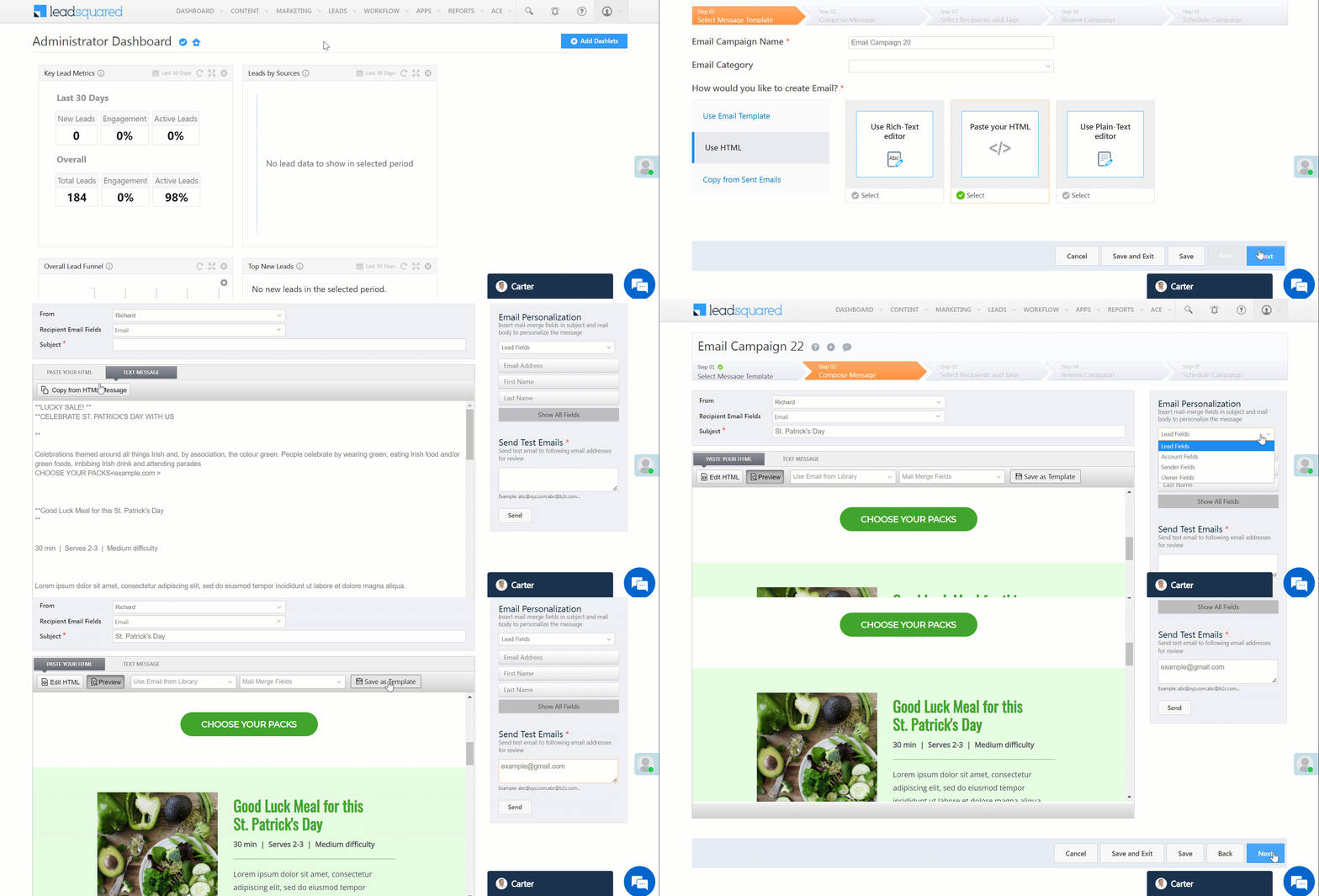
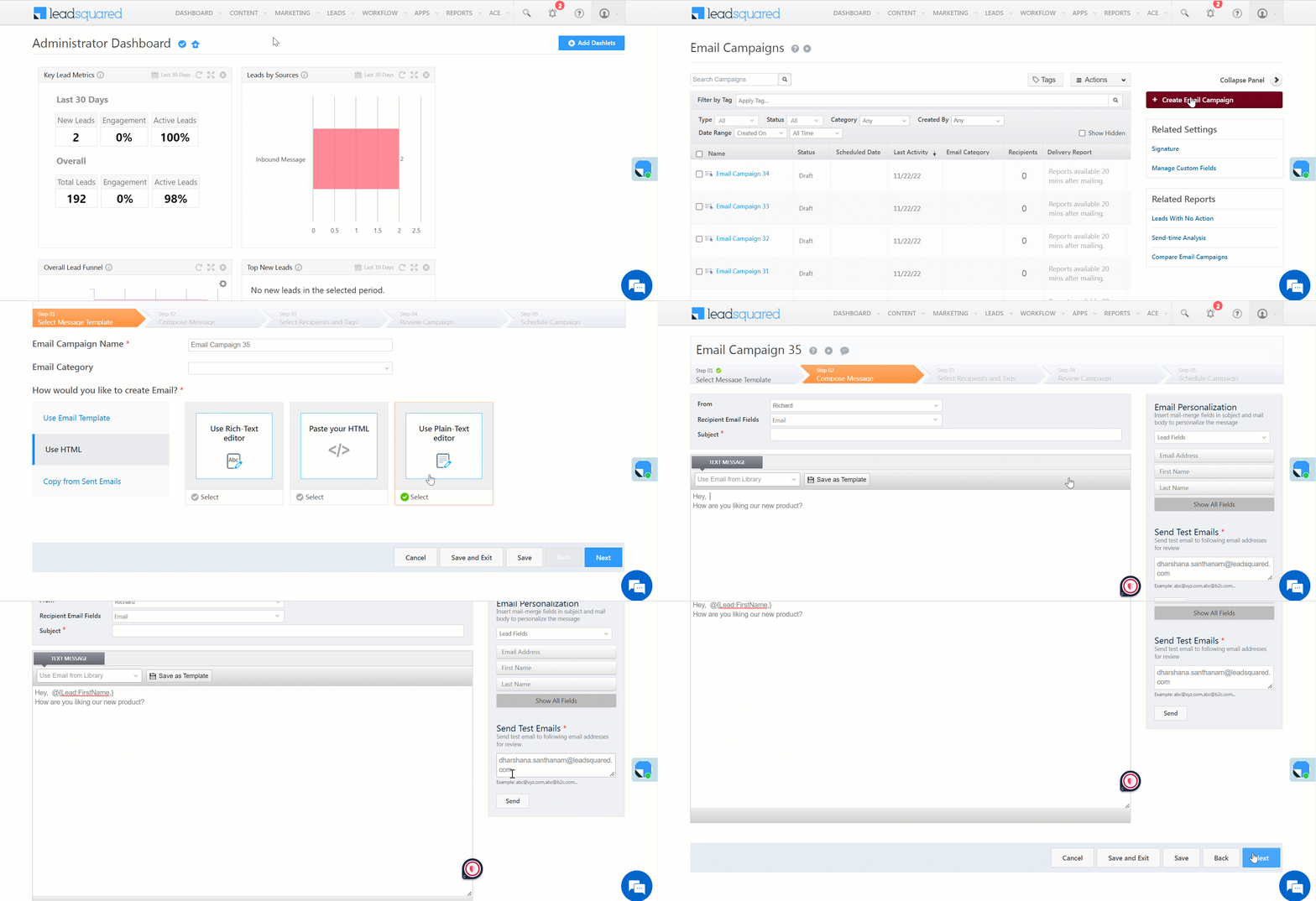
  2. In step 1, under How would you like to create Email?, click Use HTML.
  3. Select an HTML Editor.
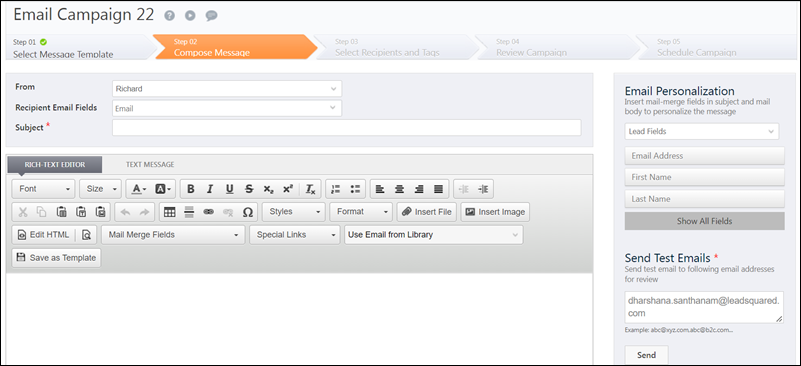
    • If you want to write your own HTML code and add rich text content (like coloured text, bold text, headings, etc.), select Use Rich-Text editor.
    • If you have a pre-written or third-party HTML code for the email, you can directly paste it into the editor by selecting the Paste your HTML option. This option is chosen in the gif shown below.
    • If you want to create a simple text email campaign without images and attachments, select Use Plain-Text editor.
  4. Once you finish writing your HTML message, click Text Message.
  5. Click Copy from HTML Message.
  6. On the right side of your screen, under Send Test Emails, enter the relevant email address(es) and click Send. It is mandatory to send test emails before moving on to the next step.
  7. Click Save and then click Next to move on to the next step.

Note: Creating a text message along with HTML is a mandatory requirement to meet the CAN-SPAM guidelines. If the HTML message is not delivered for any reason, the text email is sent to the inbox of the recipient. To know more about the CAN-SPAM guidelines, see How to Prevent Emails from Ending up in the Spam Folder.

LeadSquared - Create Email Campaigns using HTML


4. Other Actions in HTML Editor

  • To add a link in your email, click   and enter the relevant details.
  • To add an image in your email, click Insert Image. You can upload the image from your computer or from the Image Library.
  • To add a document/file in your email, click Insert File.
  • To personalise your email, click the Mail Merge Fields dropdown and select the relevant field. For example, if you want to include the lead’s first name in the message, click the dropdown and select First Name. To know more about Mail Merge fields, see How to personalize Email Campaign using Mail Merge fields?
    • You can also add mail merge fields in your text by selecting the fields under Email Personalisation on the right side of your screen.
  • You can add special links such as Mailing Preference, Unsubscribe, and View in Browser by clicking the Special Links dropdown.
  • To use a pre-existing template, click Use Email From Library.
  • To save the campaign as an email template, click Save as Template.

Note:

  • If you use a pre-existing template after you’ve started writing the code, your work may not be saved.
  • To create email templates, navigate to Content>Email Library and click Add Email Template.  You can select the type of Email Template you want to add on the Add Email Template pop-up window. The editors you use here are the same as the ones you use while creating an email campaign.

Other Actions in HTML Editor


Troubleshooting

Error Occurs While Sending Test Mail for an HTML Template

  • Issue Description: When sending a test mail for a particular HTML template, the following error appears:“There was an error processing your request. Please try again later.” Additionally, the template cannot be published.
  • Cause: This issue occurs when the HTML content exceeds the system’s character limit. In this case, the template contains approximately 400,000 characters (including spaces), leading to a timeout error when testing the content.
  • Solution:
    • Optimize the HTML Code: Remove unnecessary spaces and reduce excessive content to stay within system limits.
    • Modify and Minify the Code: Optimize the HTML by reducing redundant tags, compressing inline styles, and minifying the code.
    • Escalation: If you’re still getting the error, reach out to us at support@leadsquared.com for assistance in optimizing the template.

Invalid Email Content Error – Unsupported Keywords in Email Templates

If you’re seeing the error: – “Invalid Email content. It should not contain any Javascript code, events, embed script, Javascript URIs or Javascript data URIs”, but there’s no visible JavaScript in your email, it might be due to certain restricted keywords or patterns in the HTML.

  • Blocked Keywords (event attributes that trigger the error):
onafterprint, onbeforeprint, onbeforeunload, onerror, onhashchange, onload, onmessage, onoffline, ononline, onpagehide, onpageshow, onpopstate, onresize, onstorage, onunload, onblur, onchange, oncontextmenu, onfocus, oninput, oninvalid, onreset, onsearch, onselect, onsubmit,onkeydown, onkeypress, onkeyup, onclick, ondblclick, onmousedown, onmousemove, onmouseout, onmouseover, onmouseup,onmousewheel, onwheel, ondrag, ondragend, ondragenter, ondragleave, ondragover, ondragstart, ondrop, onscroll,oncopy, oncut, onpaste, onabort, oncanplay, oncanplaythrough, oncuechange, ondurationchange, onemptied, onended, onloadeddata, onloadedmetadata, onloadstart, onpause, onplay, onplaying, onprogress,onratechange, onseeked, onseeking, onstalled, onsuspend, ontimeupdate, onvolumechange, onwaiting, ontoggle, onauxclick
  • Blocked URI patterns: javascript: and data: are not allowed anywhere in the content.
  • Blocked HTML tags: <script> and <embed> tags are not supported and will cause the template to fail.

What to do: Carefully review your email HTML content and remove any of the above keywords, URI patterns, or tags to resolve the error.


Any Questions?

We’d love to answer your questions or hear your own unique use cases. Feel free to share your experiences in the comments section below.

Create and Schedule Email Campaigns

1. Feature Overview

With LeadSquared’s Email Campaign feature, you can –

  • Design and send powerful Email Campaigns to your prospect base within minutes.
  • Schedule your emails to be sent at a later date and time.
  • Engage with your existing Leads and nurture them by sending updates, offers, greetings, or informational content.
  • Use Automation to send email campaigns based on lead behaviour.
  • Track the activities of your Email recipients (leads).
  • Gain useful insights from Email Campaign Reports and Analytics.
Note: If you’re new to the Email Campaigns feature, see Email Campaigns – Feature Guide.

2. Prerequisites

You must be an Administrator or Marketing User.


3. Create Email Campaign

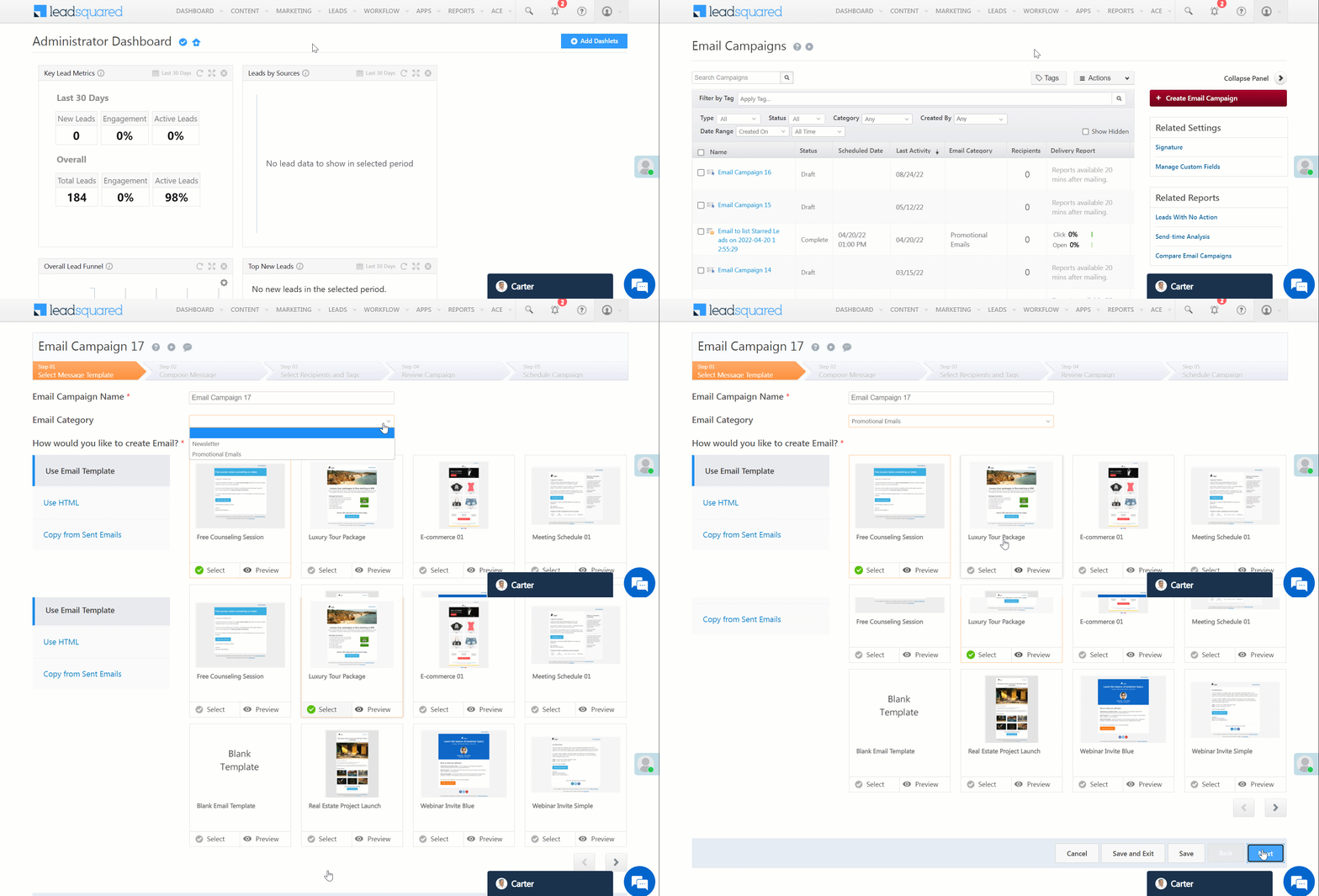
Navigate to Marketing>Email Campaigns and click Create Email Campaign.

Note: We recommend you create email campaigns in a single tab in a single browser window. Opening and editing the same email campaign in multiple tabs can cause issues with the latest content. We also suggest you enable the advanced setting – Avoid edit conflicts on Email Campaign Page, to prevent multiple users from editing a campaign at the same time. Navigate to the Advanced Configuration page, search and enable the setting.

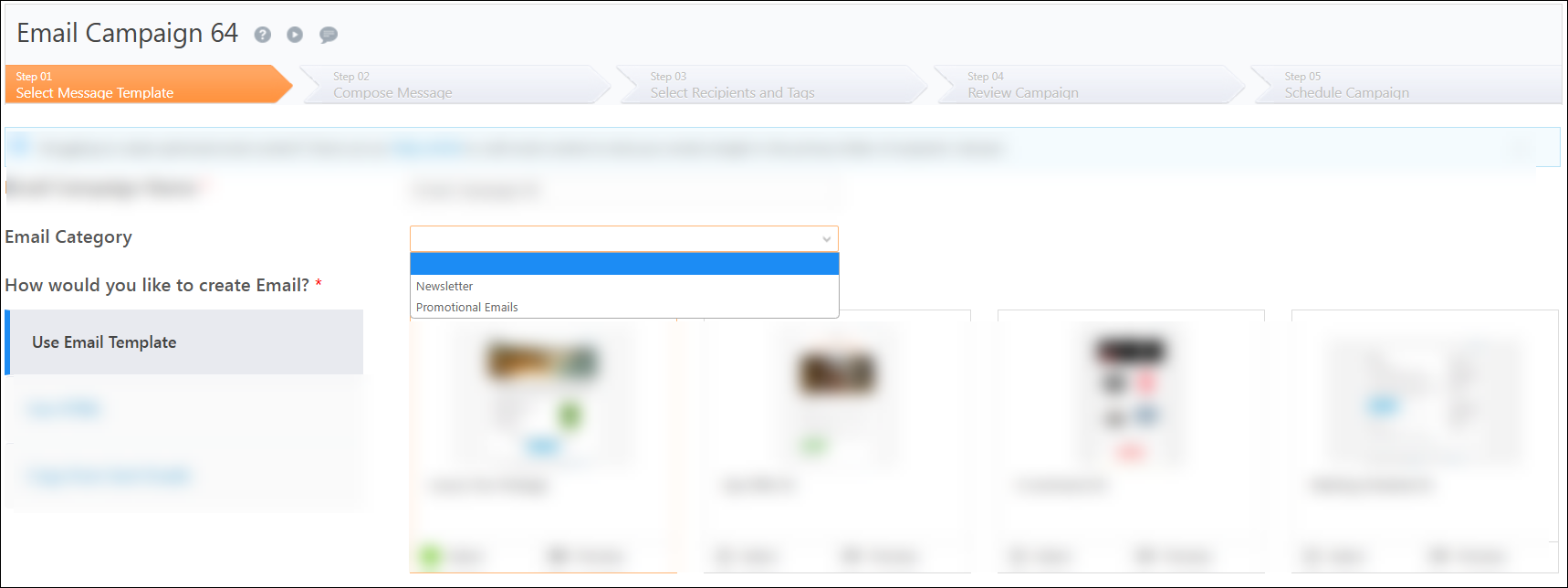
3.1 Select Message Template

  1. Enter the values for Email Campaign Name and Email Category.
  2. Create your Email by
  3. Click Next.

Note:

  • You can also choose a blank template from the available templates and design your email from scratch. To know more about how to use the visual designer, see Bee Editor.
  • For information on simple, plain-text emails, see Plain Text Emails.

LeadSquared - Select Message Template

3.2 Compose Message

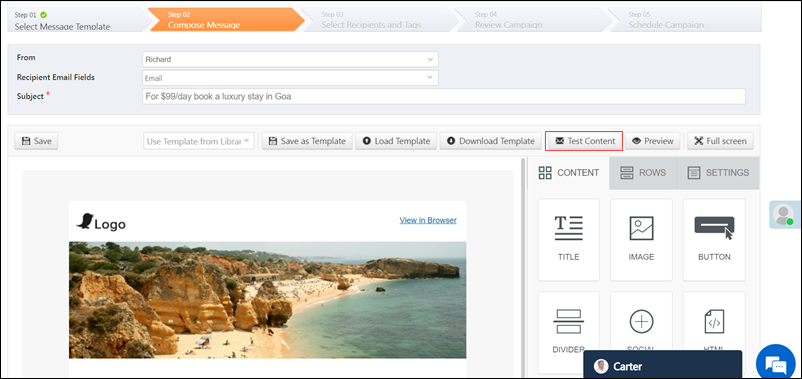
Draft personalised messages for your leads in this section and test your email campaign. Format the text by using the standard icons on the editor panel to –

  • Add different structures and text boxes.
  • Add buttons and icons.
  • Add images.
  • Change font size.
  • Add colour to text and background.
  • Adjust the alignment of content structures.
  • Add bullets and numbers.

If you’ve chosen HTML as your base template –

  1. To write using HTML or copy/paste your content, select HTML Message.
  2. Once you finish writing your HTML message, click Text Message.
  3. Click Copy from HTML Message.

Creating a text message along with HTML is a mandatory requirement to meet the CAN-SPAM guidelines. If the HTML message is not delivered for any reason, the text email is sent to the inbox of the recipient. For more best practices to follow while drafting an email, see How to Prevent Emails from Ending up in the Spam Folder.

Note: 

LeadSquared - Compose Message

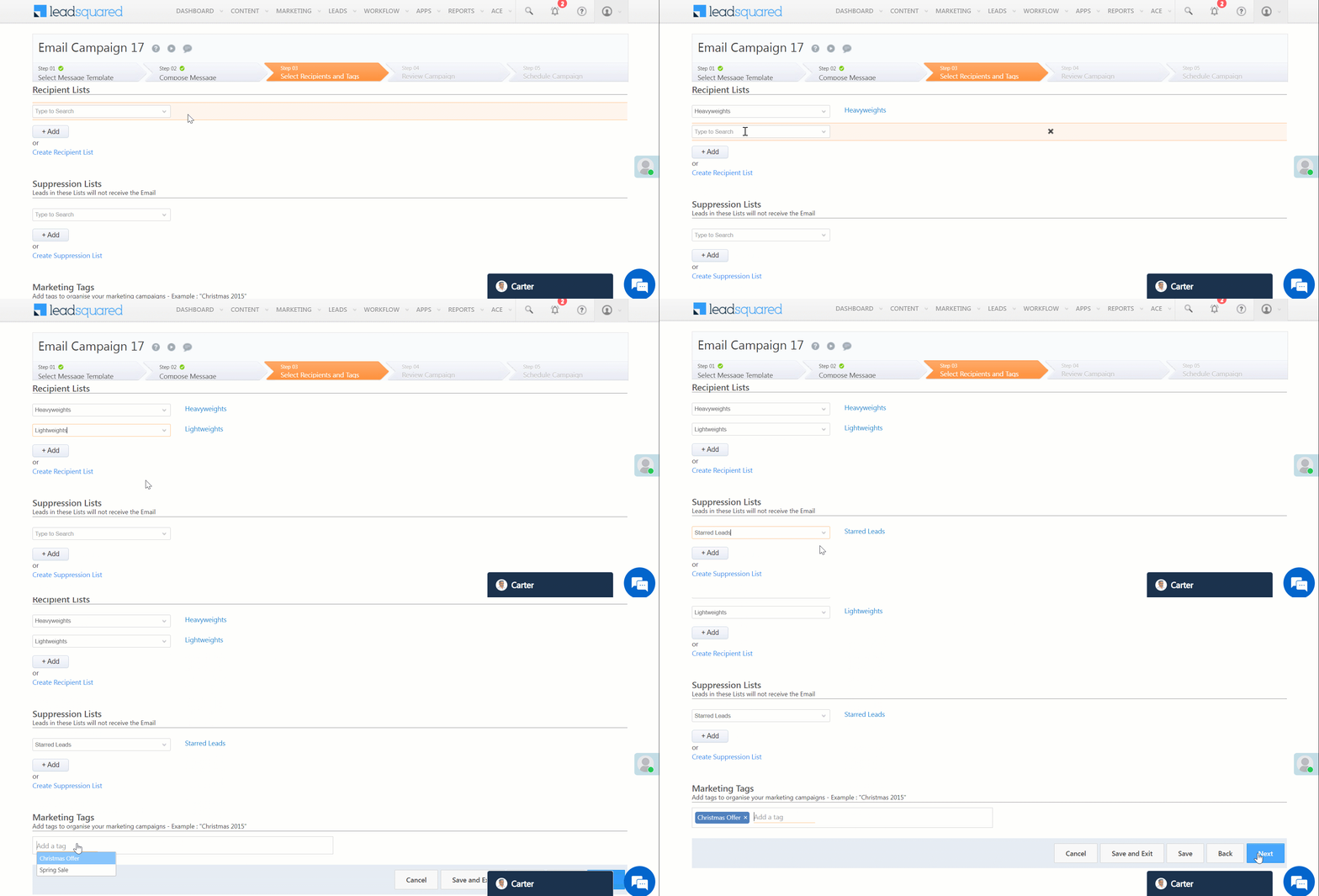
3.3 Select Recipients and Tags

You can send emails to a large number of leads by creating a list of all the recipients.

  1. To search for recipient lists, click the Type to Search dropdown and enter the list name.
  2. To add more lists, click Add.
  3. To create a new list, click Create Recipient List.
  4. To exclude any leads in your list from receiving the email, add them under Suppression Lists.
  5. Under Marketing Tags, add tags to your marketing campaign.
Note: To know more about creating these lists, see How to Create Recipient and Suppression Lists for Your Emails.
LeadSquared - Select Recipients and Tags

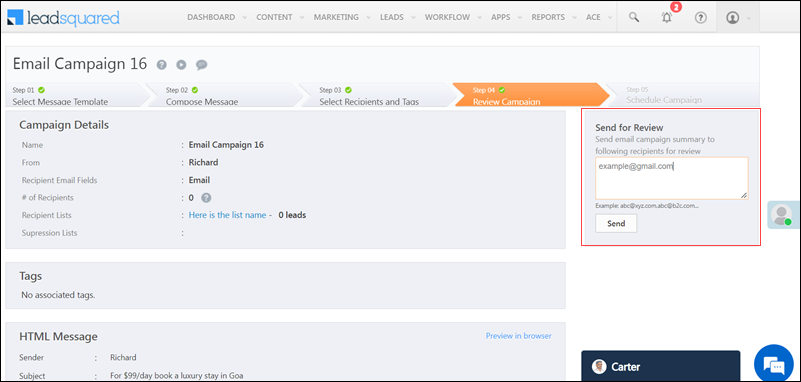
3.4 Review Campaign

You can review your email campaign in this step by viewing the summary of your work or by sending it to another email ID for review.

LeadSquared - Send for review

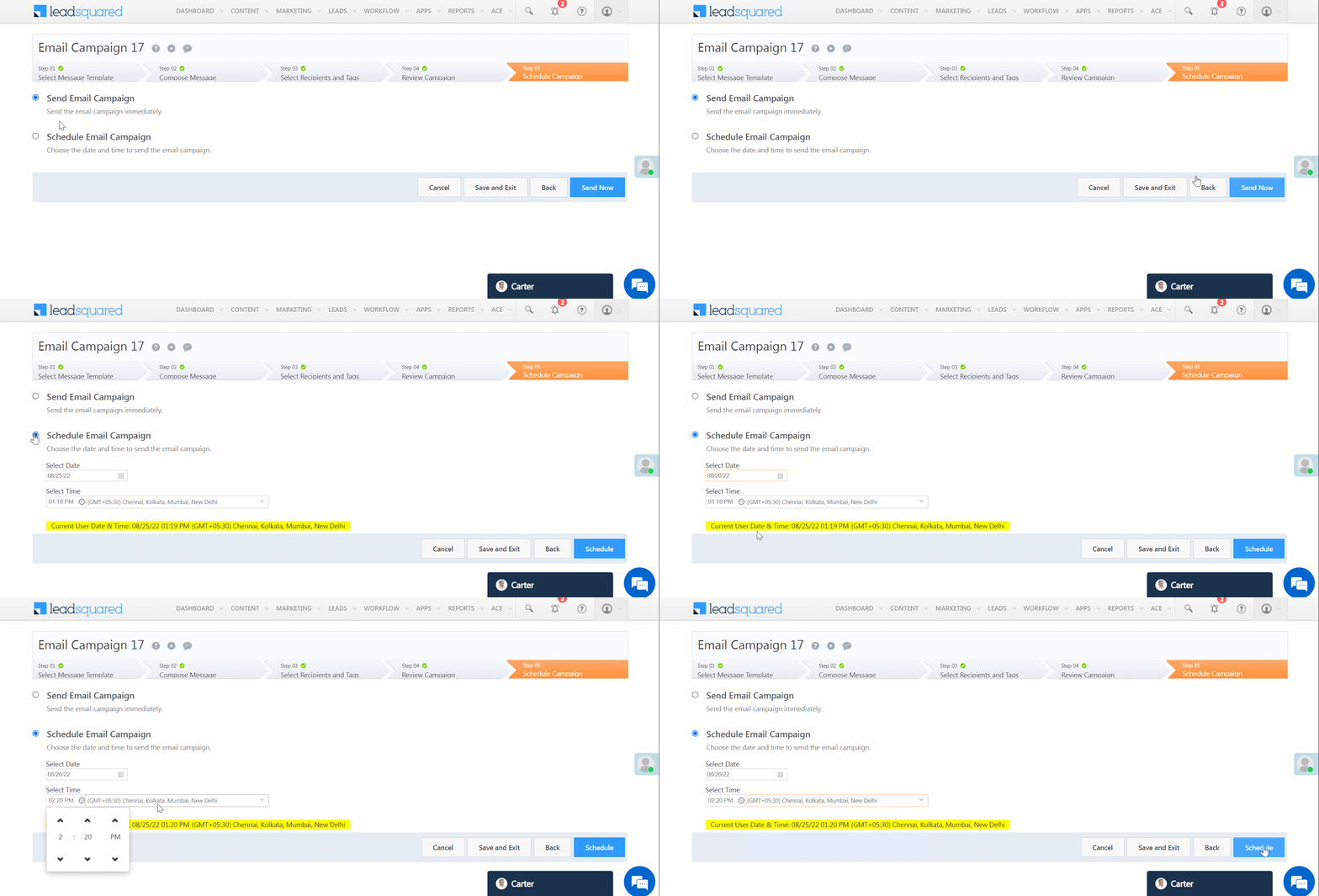
3.5 Schedule Campaign

You can send your email campaign to leads immediately or schedule it to be sent later.

  • To execute immediately –
    1. Alongside Send Email Campaign, click circle.
    2. To send immediately, click Send Now.
    3. To save the email campaign as a draft, click Save and Exit.
  • To schedule the email for later –
    1. Alongside Schedule Email Campaign, click circle.
    2. Select the date and time to send the email campaign. Specify the time zone you wish to follow as well.
    3. To send the email at the scheduled date and time, click Schedule.
    4. To save the email campaign as a draft, click Save and Exit.
Note: You can edit email campaigns saved as drafts but not those that have already been sent.

LeadSquared - Schedule Campaign


4. Troubleshooting

You may encounter the following error when opening an email campaign – “Access Denied. You don’t have permission to access <email campaign URL> on this server”.

To fix the error –

  1. Check if the user’s role was recently changed to Marketing user. It may take some time for the system to update. Check back later to see if he can view the email campaign.
  2. The issue may also be caused due to a Web Application Firewall (WAF) issue. Contact us at support@leadsquared.com and we’ll help you out.


5. FAQs

Why is my email campaign sending 2 emails? / Email received twice from email campaign.
When you send a test email from the email campaign designer, the system sends two versions to the test recipients:

  • A plain-text version (used for spam filter checks)
  • The actual email you designed

This is expected behavior during the test phase only. When the final campaign is sent to your leads, they will only receive the designed email. The plain-text version is not sent to them.

Why Does a Lead Receive Emails After Unsubscribing?

  • Issue: A lead continues to receive emails even after unsubscribing.
  • Explanation: When a lead unsubscribes from an email campaign, the behaviour depends on the email category used during the campaign setup:
    • If the lead unsubscribed from a specific category (e.g., “Newsletter” or “Promotional”), they will stop receiving emails from that category only.
    • The lead will still receive emails from other categories (e.g., “Newsletter,” or “Promotional”) if included in subsequent campaigns.
  • Solution: As a best practice for email campaigns and to ensure a lead is unsubscribed from all future emails, leave the email category field blank when running campaigns. This way, unsubscribing will apply to all email types sent to the lead.

LeadSquared Email Campaigns


Any Questions?

We’d love to answer your questions or hear your own unique use cases. Feel free to share your experiences in the comments section below.

Plain Text Emails

1. Feature Overview

Send simple messages using the plain-text editor in your email campaigns for high deliverability – plain text emails get higher click and open rates because they’re spam filter friendly and also work better for non-traditional email inboxes.

Plain-text emails do not contain any graphic elements or files in them. You can add mail merge fields in your emails to make them personalized. Plain text emails will reach the recipient without getting filtered out as junk emails. To know more about the best practices while creating LeadSquared email campaigns, see How to Prevent Emails from Ending up in the Spam Folder

Note:

  • While sending email campaigns using the HTML editor, create a text message along with the HTML. This is a mandatory requirement to meet the CAN-SPAM guidelines. If the HTML message is not delivered for any reason, the text email is sent to the inbox of the recipient. To know more, see HTML Editor.
  • To know more about creating email campaigns, see Create and Schedule Email Campaigns.
  • To know more about the email campaign editor, see BEE Editor.


2. Prerequisite

You must be the Administrator or the Marketing User of your account.


3. Send Plain Text Emails

  1. Navigate to Marketing>Email Campaigns.
  2. Click Create Email Campaign.
  3. Under How would you like to create Email?, select Use Plain-Text Editor.
  4. Click Next.
  5. Once you can view the plain-text editor, enter the relevant text message.
  6. Customise your emails by inserting the mail merge fields under Email Personalization.
  7. Before proceeding to the next step, you must first send this email for review to another email address. To do so, under Send Test Emails, enter the email ID.

Note:

  • The plain-text email editor does not support any images, links, or files in the email.
  • Sending test emails is mandatory.
  • You can also add mail merge fields in the email’s subject.

LeadSquared - Send plain text emails


Any Questions?

Leave a comment below if you have more questions. We’ll be happy to answer them.

How to find leads using Advanced Search for Leads who clicked on a particular Email campaign?

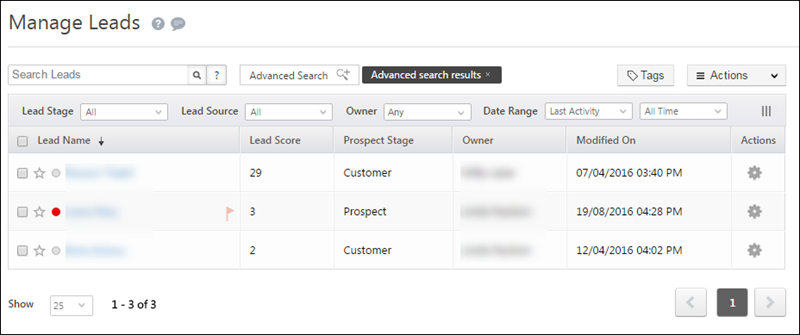
You can find the leads who clicked a link in your Email campaign using the Advanced Search feature of LeadSquared. To do this, follow the steps below:

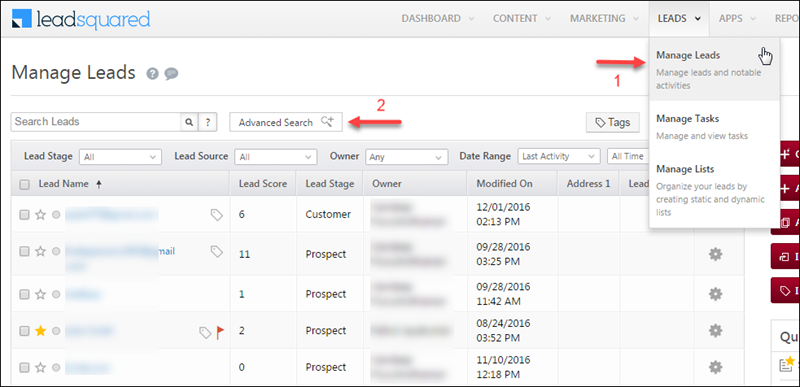
  • From the default LeadSquared dashboard, go to Leads -> Manage Leads. The Managed Leads window appears.

LeadSquared's Advanced Search

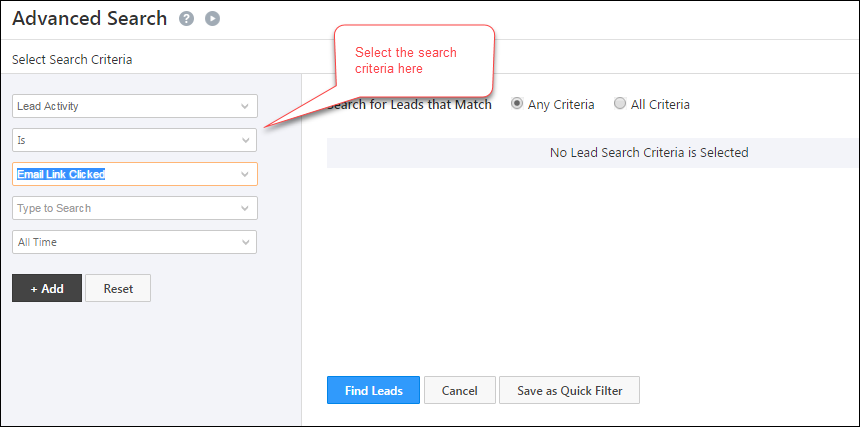
  • Click Advanced Search. The Advanced Search pop-up box appears.

LeadSquared's Advanced Search

  • Select the following criteria
    • Lead Activity
    • Is
    • Email Link Clicked
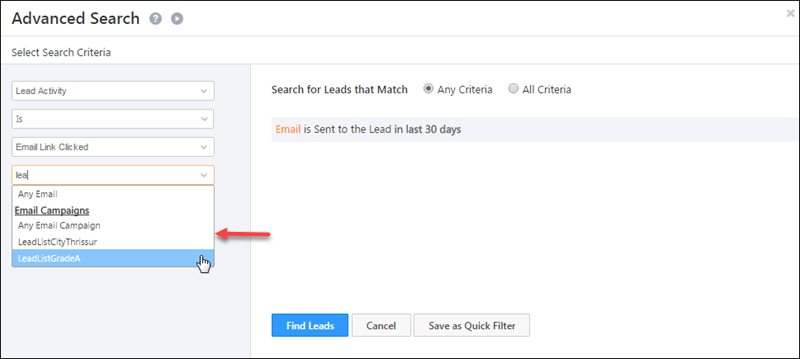
  • If you want to find the leads who clicked on a specific Email campaign, enter the name of the Email campaign in the box as shown in the image below. If you enter ‘Lead’, all the Email campaign with this text appears. Select the required page.

LeadSquared's Advanced Search

  • Select the required time interval. Click Add and select the All Criteria check box. Click Find Leads to get the leads who clicked a link in your Email campaign.
  • You are redirected to the Manage Leads window and all the leads that satisfy the selected criterion appears.

LeadSquared's Advanced Search

For more information on Advanced Search, refer to How do I use Advanced Search feature in LeadSquared?

Network Quality Banner and Badge in LeadSquared NextGen

1. Feature Overview

In the LeadSquared NextGen Web Experience, you may sometimes see a banner at the top of your screen and a badge in the header indicating:
“⚠️ Slow connectivity detected. This may take a little while longer.”

This feature appears whenever there’s a network drop that may slow down page loads or actions in the CRM. It’s not an error or outage – the application will continue to work as expected, just slower than its full potential.

To learn more about the new web experience, see LeadSquared NextGen – New Web Experience.

LeadSquared New Web Experience


2. How it Works

LeadSquared flags network drops based on the input received from your browser, using the Network Information API (navigator.connection.downlink).

  • If your reported speed drops below 5 Mbps, the system displays a slow network banner and a network badge in the header.
  • The banner disappears automatically when your connection improves.
  • Hover on the badge to view your connection speed.
  • You can dismiss the banner, but if conditions remain poor, it will reappear.

LeadSquared New Web Experience

Why you will see this banner and badge:

  • On unstable Wi-Fi or mobile networks
  • When your device throttles bandwidth in battery saver or data saver mode
  • If there is background activity consuming bandwidth
  • When using a VPN, proxy, or corporate firewall that slows real-time traffic


3. Why Speed Tests Show Different Results

You might sometimes wonder why tools like Fast.com or Speedtest show your internet as very fast, while LeadSquared still displays a slow network banner or badge.

This happens because speed tests and your browser measure different things:

  • Speed test tools run short, controlled experiments to measure your maximum possible internet speed under ideal conditions.
  • LeadSquared relies on your browser’s real-time network estimate (via the Network Information API), which reflects what your device can actually deliver at that moment, considering all background factors.
Speed Test Tools LeadSquared Banner and Badge
Run active tests by uploading/downloading large files Use browser-reported effective downlink speed
Measure maximum throughput in ideal conditions Reflect real-world device conditions
Ignore background apps or browser throttling Factor in latency, congestion, and power-saving limits

For example, your Internet Service provider may provide 100 Mbps internet, and a Speedtest may confirm this. But your browser could still report 2-4 Mbps due to the following reasons:

  • If you have unstable connection
  • Connected through a mobile hotspot
  • On a weak Wi-Fi signal
  • Using a VPN or proxy
  • Firewall policies that might affect the bandwidth
  • Device is on low battery with battery/energy saving mode preventing consumption of bandwidth

This is why you might see different results between the speed test platforms and the speed shown on LeadSquared.


4. What You Can Do

If you see the banner or badge frequently:

  1. Refresh the page after a few seconds.
  2. Switch to a stable Wi-Fi or wired (Ethernet) connection.
  3. Close background apps or tabs that may be consuming bandwidth.
  4. Disable battery saver or data saver modes on your device or browser.
  5. If you’re on a corporate network, contact your IT team to check firewall or proxy restrictions.
Note: LeadSquared continues to function even when the banner is visible. It’s only an alert about your network quality.


FAQs

Q: Can I dismiss the banner?
Yes. You can close it, but if your connection stays unstable, it may reappear.

Q: Does this mean LeadSquared is down?
No. The CRM remains fully functional. The banner and badge only indicate that your internet conditions may affect responsiveness.

Q: Why don’t I see the banner and badge all the time?
They only appear when your browser detects a drop in network quality. On stable connections, they won’t show.

Q: Why do I see a warning even though Speedtest shows high speeds?
Because Speedtest measures raw bandwidth in ideal conditions, while LeadSquared uses your browser’s real-time effective speed (which factors in latency, congestion, and device limitations).

Integrate Mavis DB With Smart Views

1. Feature Overview

Admins can create Mavis Smart View tabs to display data stored in Mavis DB.
They can also configure permissions, to enable users to add, update and delete data from the Mavis Smart Views tabs.

For example, you can empower users to manage data on your inventories, properties, courses, etc., or, you can display any data that helps your users in their everyday operations.
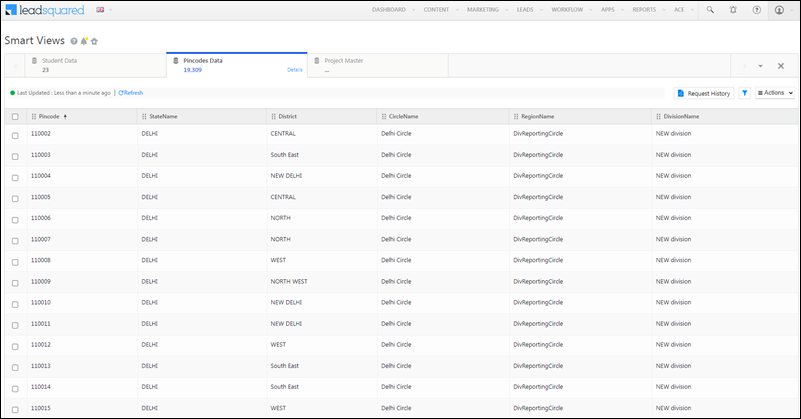
LeadSquared Mavis Database

If you’re new to the Smart Views feature, see LeadSquared Smart Views, and Smart Views for Admins.


2. Example Use Cases

  • Grants users role-based access to add, update or delete data from Mavis DB tables.
  • Give inventory teams CRUD access to manage inventory tables in Mavis DB.
  • Sales managers and sales users can view/update inventory while making sales – e.g., available/blocked/booked properties within a date range, availability of doctors/rooms, inventory of courses, books, etc.


3. Prerequisites

  • You must be an administrator user.
  • You must have Mavis DB enabled on your account. For more details, contact your Account Manager or support@leadsquared.com.

4. Create a Mavis Smart View Tab

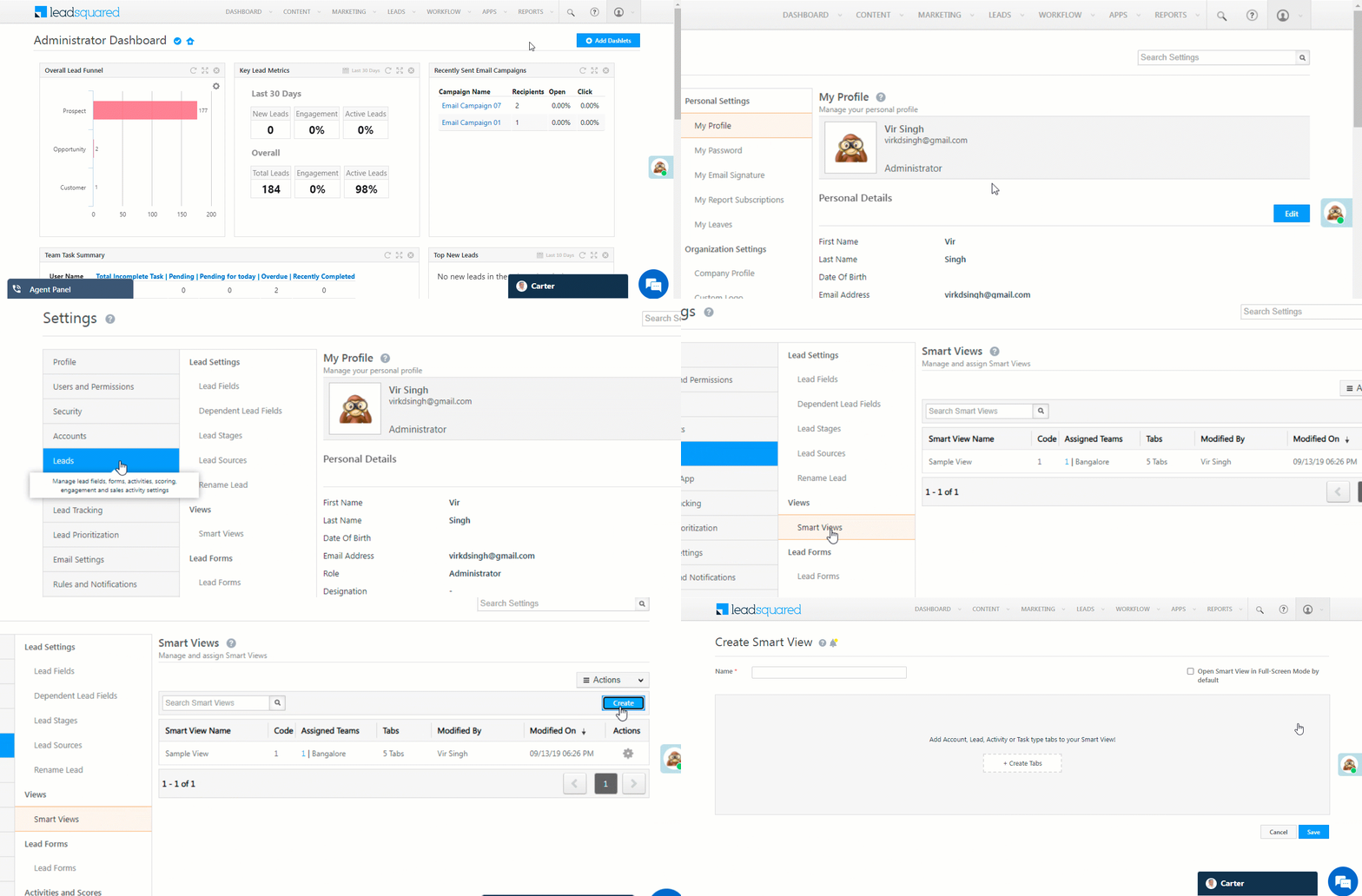
  1. Navigate to My Profile>Settings>Leads>Views>Smart Views.
  2. Click create icon.

LeadSquared Smart Views

  1. Enter a name for the Smart View, then click Create Tabs.
  2. Choose Type as Mavis and enter a Name and Description.
  3. Click the Select Condition link.
    1. Select the database.
    2. Select the table name within the database.
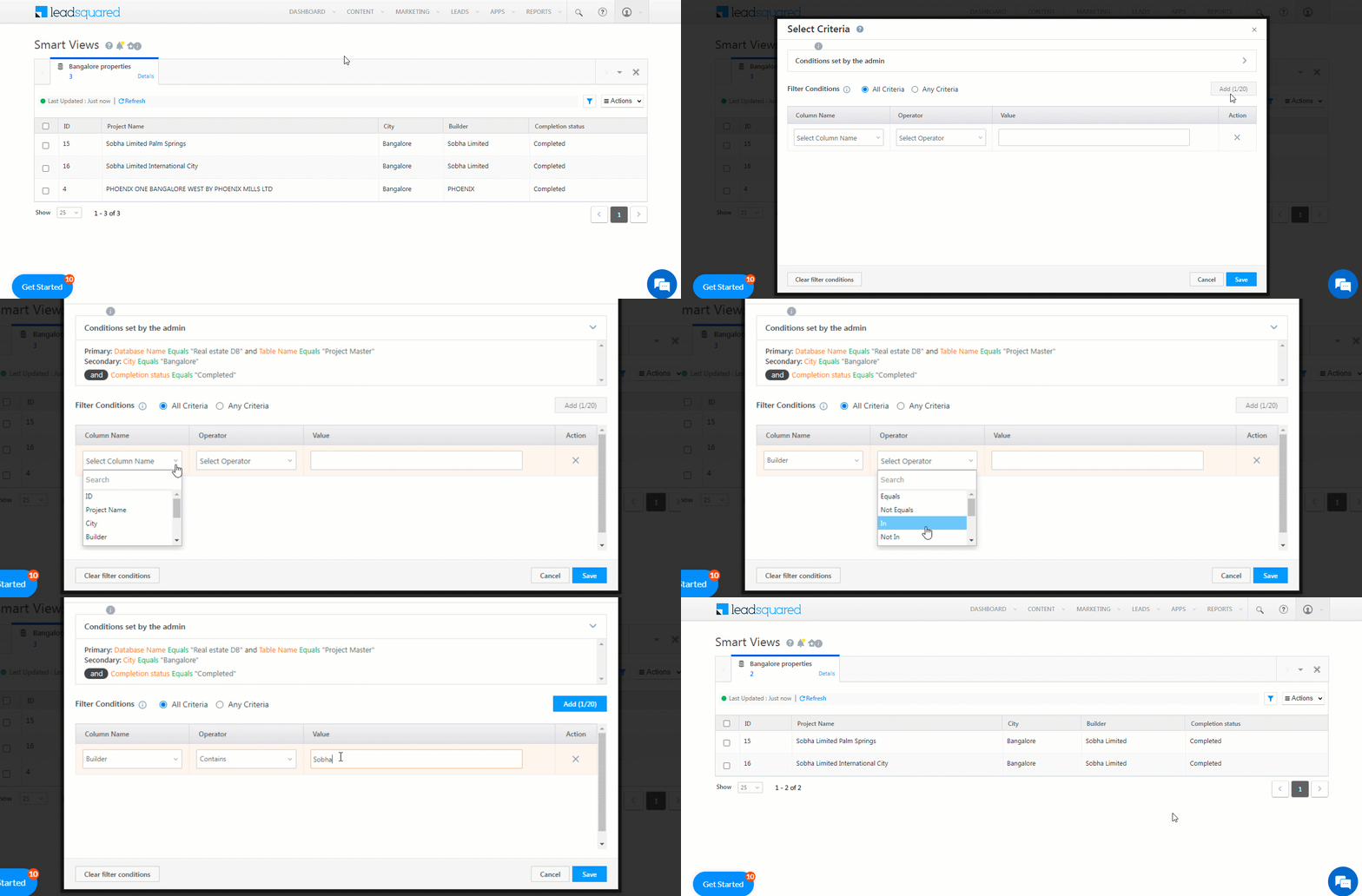
    3. Add filter conditions to filter the data from the table. For example, you can filter the ‘State’ field to display results within a particular state:
      • Column Name – StateName| Operator – Equals | Value – Karnataka
      • For more information on filter conditions, see filter conditions.
    4. Click Add to add more filter conditions. You can add up to 20 filter conditions by default. To increase this limit, reach out to your account manager or support@leadsquared.com.
      • For multiple filter conditions, select whether you want All Criteria (and) or Any Criteria (or) to apply.
    5. Click Save.
  4. Verify the filter conditions, then click Save.
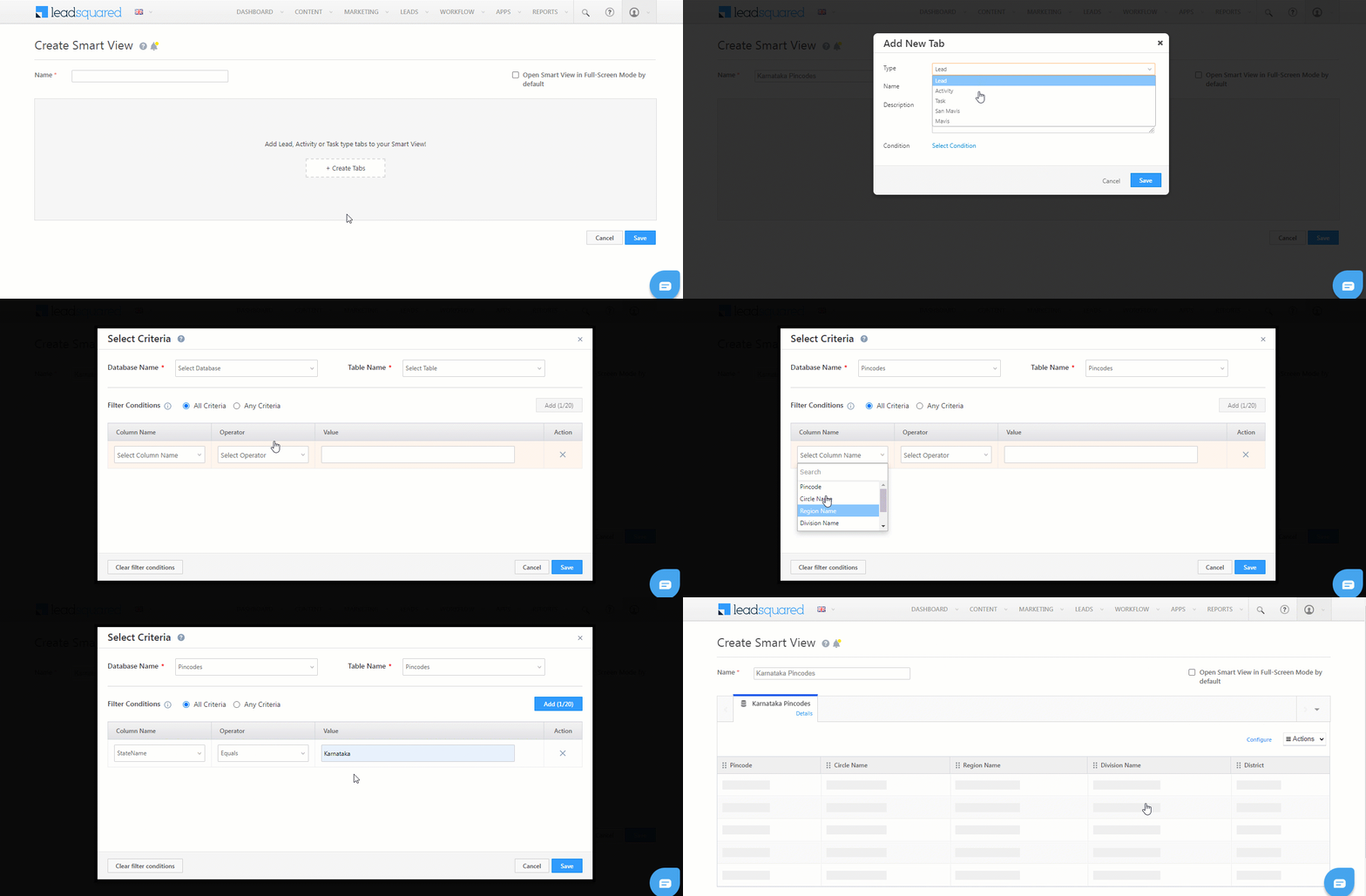
Mavis Smart Views

To create more tabs:

  1. Click the icon.
  2. Click Add New Tab.

Note:

  • You can create tabs of different types (Lead, Activity, Mavis, etc.) in the same Smart View.
  • You can re-order columns on the table by dragging and dropping them.
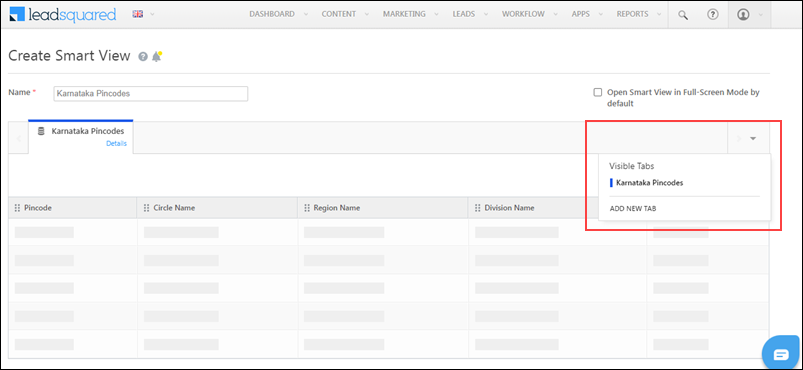
Mavis Smart Views

5. Configure Tab Permissions

Admins can configure the following permissions on the Mavis Smart View tab –

  • Read Data (enabled by default)
  • Add Row
  • Update Row(s)
    • Single Row Update
    • Bulk Update
  • Delete Rows
  • Export Data
  • Import via CSV
    • Create New Record(s)
    • Update record(s)
    • Upsert record(s)

To configure permissions –

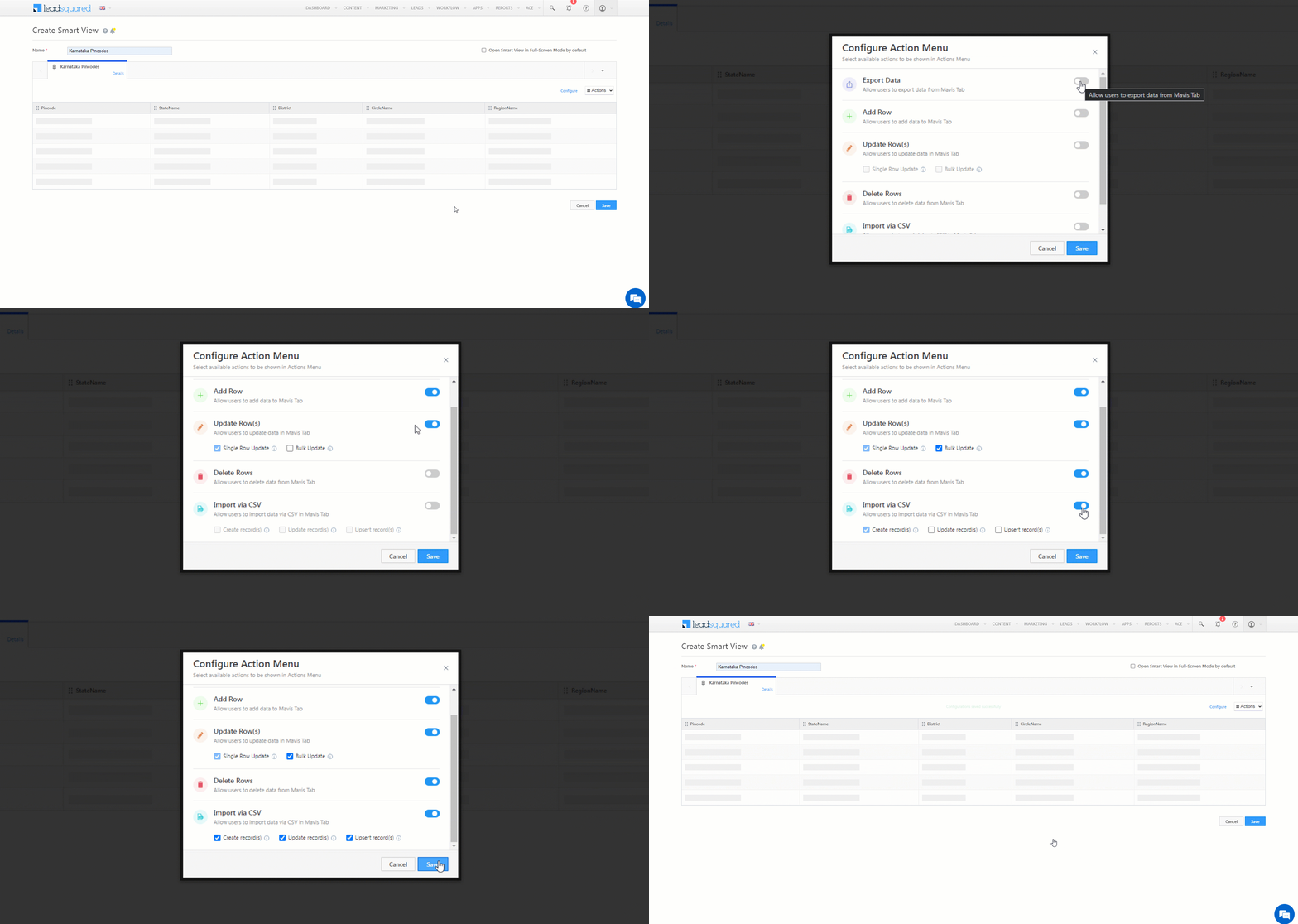
  1. Click the Configure link.
  2. On the Configure Actions Menu pop-up, enable the slider alongside the permissions you want to grant.
  3. Click Save.

LeadSquared Mavis Database


6. Select Columns

Select the columns you want users to see when accessing the Smart View.

To restrict users from viewing certain columns, enable the Restrict Columns option. When enabled, only the selected columns will be available to the user when they’re personalising the smart view tab through column customization.

Note:

  • Restricting columns in the Smart View is prohibited when any of the Add, Update, Delete, or Import actions are enabled.
  • The column restriction is only applied only at the UI level, not the API level.
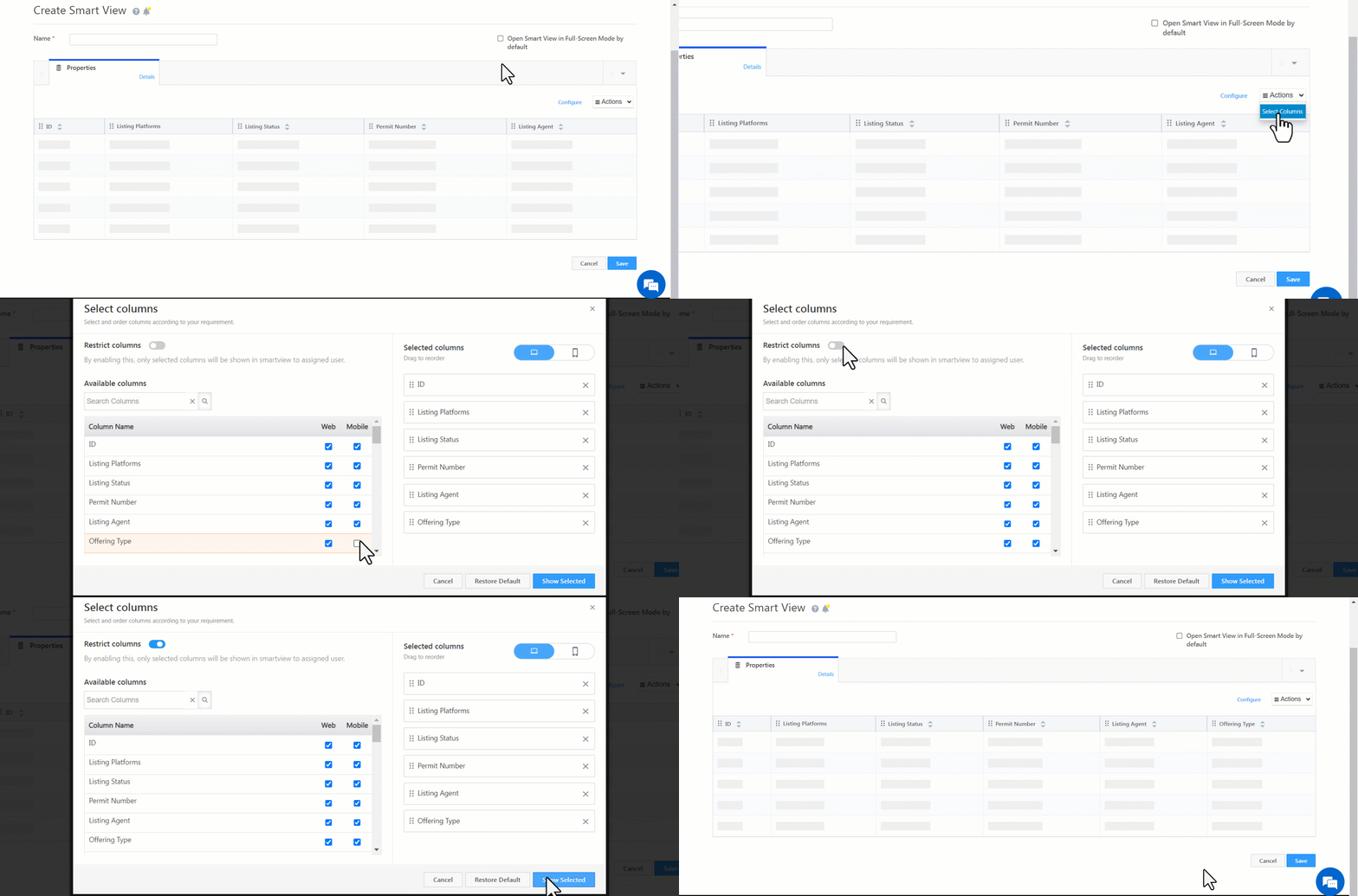
LeadSquared Mavis Database


7. Assign Smart Views to Teams

Now that the Mavis Smart View tabs are created, assign them to your teams – Assign a Smart Views tab to a team.


8. Using Mavis Smart Views Tabs

Users logging in (based on the team) will now be able to work on the Mavis Smart Views tabs, based on the team assignment configured in the previous step.

8.1 Column Customization

To configure the columns you want to see on the grid:

  1. Under Actions, click Select Columns.
  2. Select the columns you want to view.
  3. Click Show Selected.
Note: You can re-order columns on the table by dragging and dropping them.
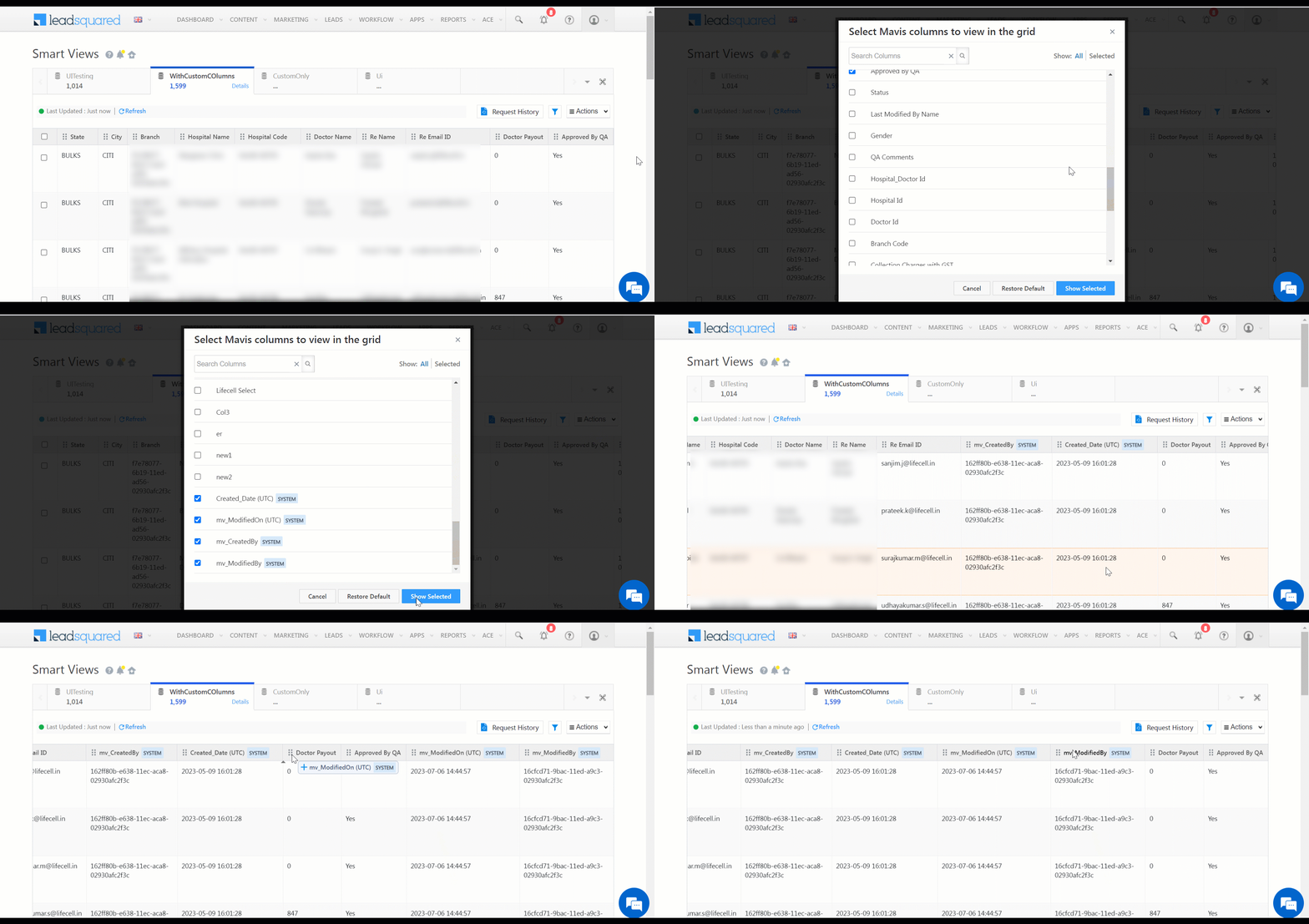
LeadSquared - Mavis smart views

8.2 Manage Filters

Users can add further filters to the existing filter conditions set by the admin:

  1. Click the LeadSquared Mavis Smart Views Integration - LeadSquared icon.
  2. Add the new filter conditions.
  3. Click Save.

LeadSquared Mavis Smart Views Integration - LeadSquared

Adding User Filters
When searching for user data within a Mavis-type Smart View tab, you can search by User Id, Email Address, First Name, and Last Name fields.*
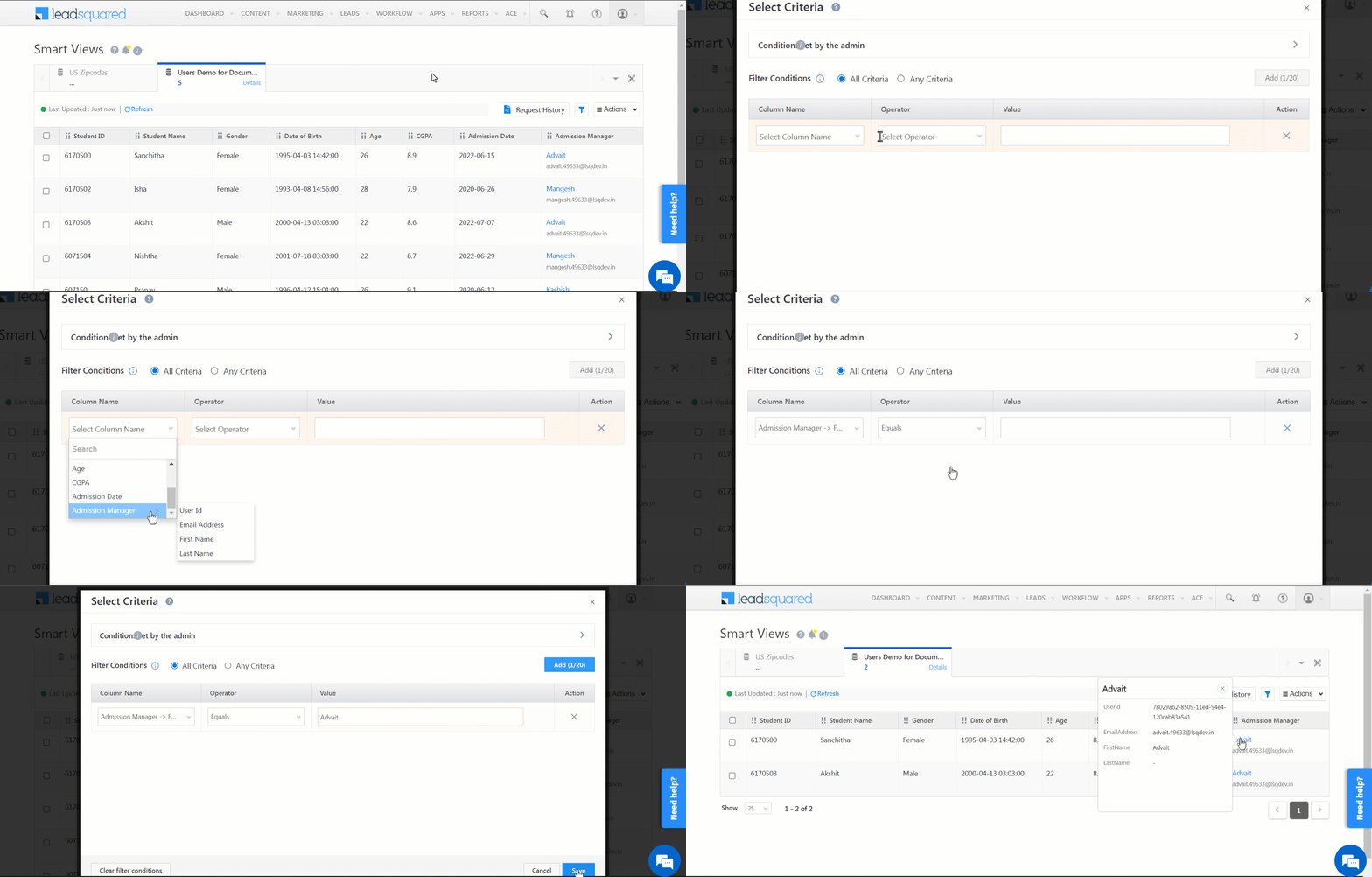
*Note: First Name and Last Name will only appear as options to search by if you include them while configuring the user type column.

LeadSquared Mavis Smart Views

8.3 Add Row

  1. On the Smart Views page, above the table, click Add Row.
  2. Enter the row details, then click Add.

Note:

  • The maximum table size allowed is 40GB.
  • When you add a row, the data under system columns will be auto-populated.
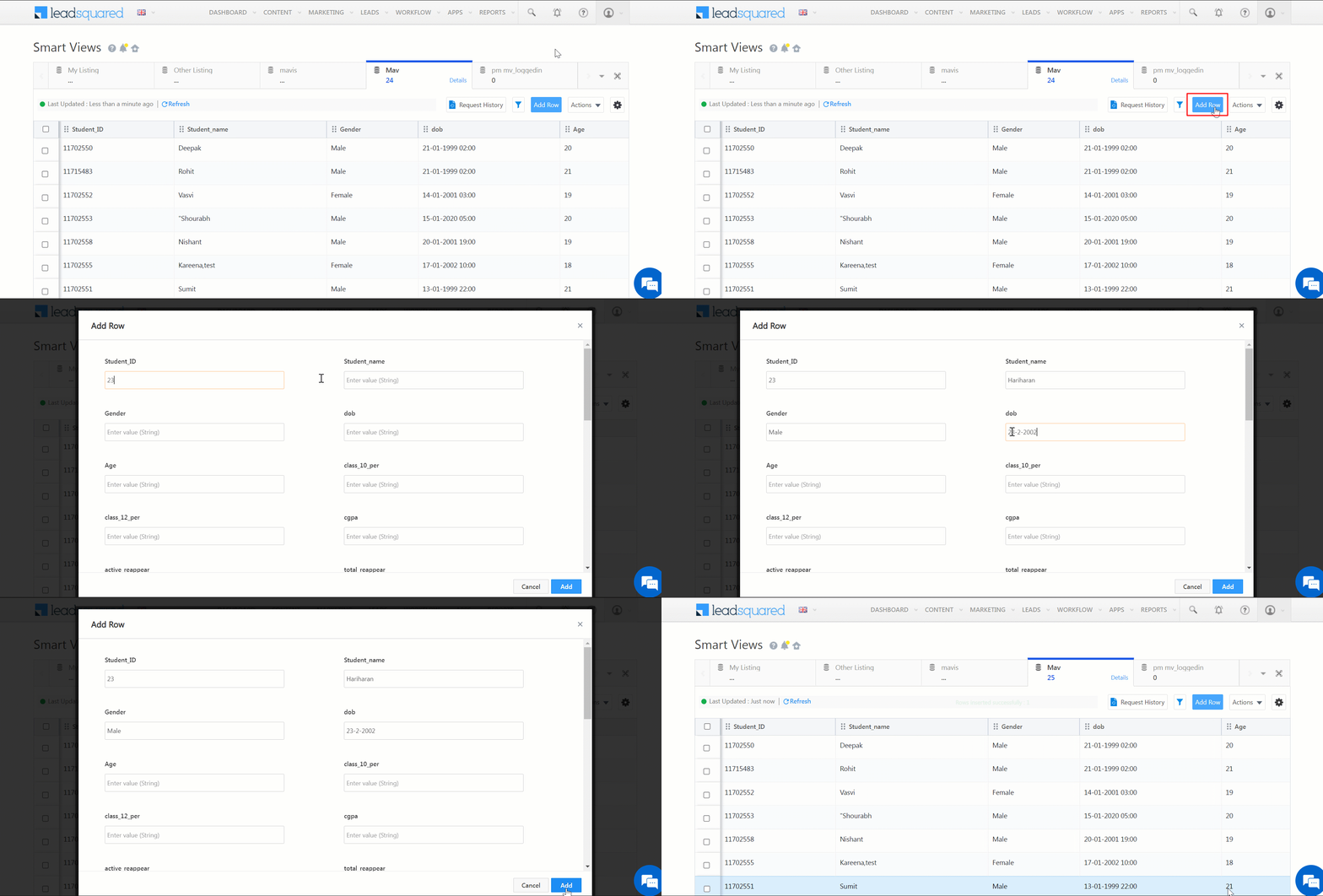
LeadSquared - Add row in Smart Views

8.4 Update Single Row

To update a single row in the table –

  1. Select the row you want to update.
  2. Hover your cursor over the Actions menu.
  3. Click Update Row.
  4. Enter the row details, then click Update.
Note: Users cannot update the data under system fields since they are auto-populated.
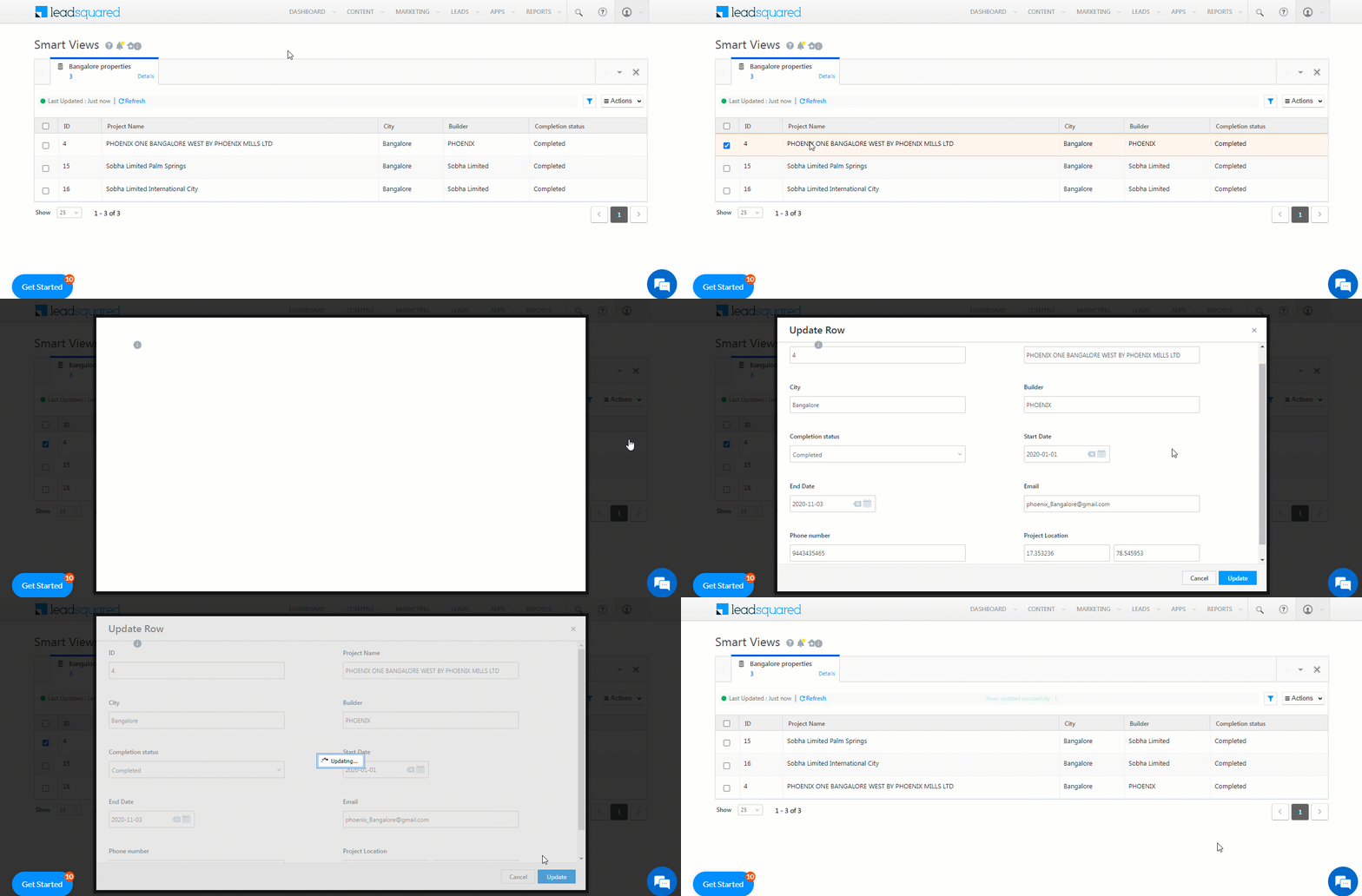
LeadSquared Mavis Smart Views Integration - LeadSquared

8.5 Update Multiple Rows

To update multiple rows in the table –

  1. Select the rows you want to update.
    • To update all the rows present on the current view, on the column header, click Checkbox.
  2. Hover your cursor over the Actions menu, and click Bulk Update.
  3. On the Bulk Update pop-up, on the Select Column & Enter Value tab, from the Column to be updated dropdown, select the column you want to update.
    • If you’ve selected all the rows on the current page to be updated, alongside Bulk update with new value for the…, you’ll have the option to update rows only on the current page, or update all the rows across the entire table.
    • The Bulk update with new value for the selected … row(s) will show up if you’ve manually selected only a few rows to be updated on the current page.
  4. In the New Value box, enter the new value of the selected column.
  5. Once you’re done, click Next.
  6. On the Confirmation tab, verify if all the details are correct, and click Update. You’ll get a confirmation message stating that the update is successful.

Note:

  • Only non-unique columns can be bulk updated. To update unique columns, use the Import Rows feature.
  • Bulk update requests for more than 200 rows may take a couple of minutes to execute.
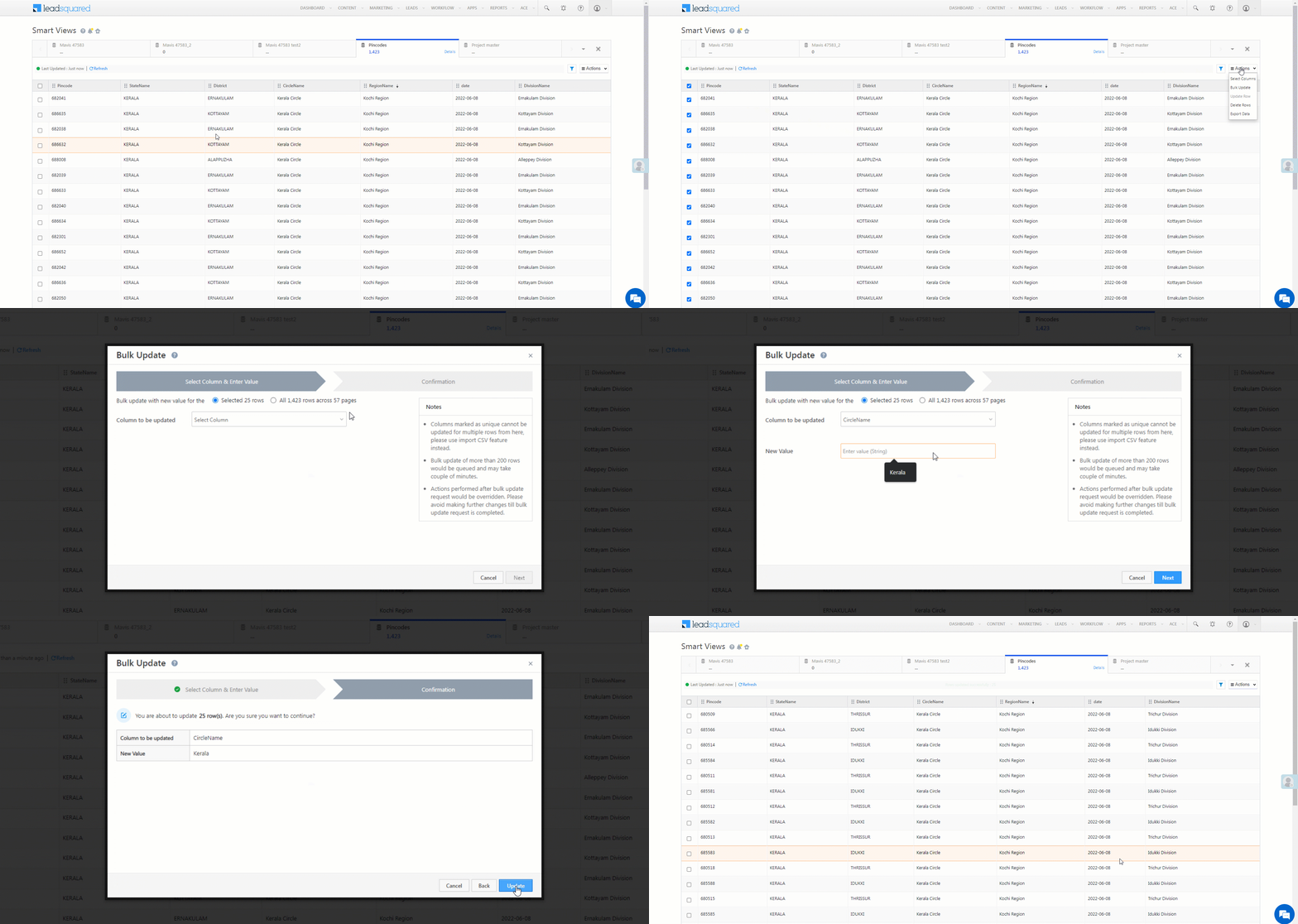
Mavis Smart Views

If you’ve applied Filters, you’ll only be able to update rows selected based on the filters applied.
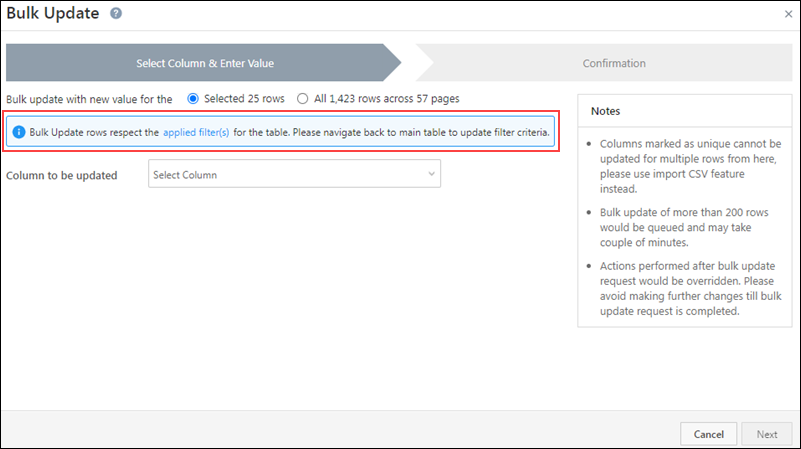
Mavis Smart Views

8.6 Delete Rows

  1. Select the rows you want to delete.
  2. Above the table, click Delete.
    • To cancel deleting the rows, click Cancel.
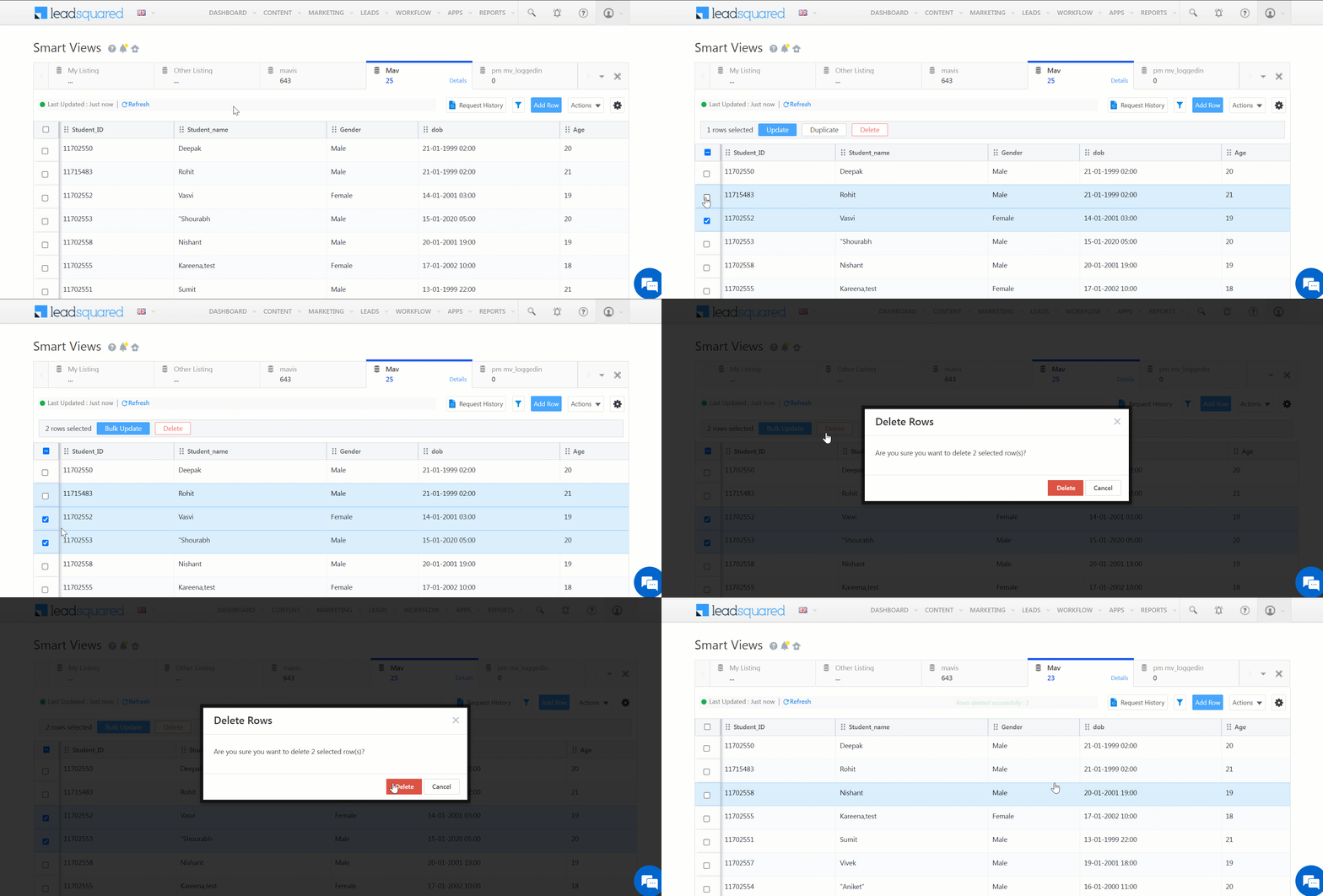
LeadSquared - Delete in Smart Views

8.7 Export Data

  1. Select the rows you wish to export.
    • To export specific rows, alongside the row, click LeadSquared API.
    • To export all rows in that page, alongside the table header, click LeadSquared API.
  2. Hover your cursor over the Actions menu.
  3. On the Export Data pop-up –
    • If you’ve selected specific rows in the table grid, a message with the number of rows being exported will be displayed. For example, if you’ve selected 4 rows, “Number of row(s) to export: 4” will be displayed.
    • If you’ve selected all rows of the page in the table grid, you will get an option to export the selected rows or all rows across all pages.
  4. Once you’ve selected the rows to be exported, you can choose to Export All Columns or Export Selected columns.
    • If you select Export Selected columns, you will be able to choose specific columns you wish to export. Alongside the columns you want to export, click LeadSquared API.
    • If you select Export All Columns, the data in all the Smart Views columns will be exported.
    • If you want to export the Row ID, alongside Include Row ID in Export, click LeadSquared API.
  5. Click Export.

Note:

  • If you do not select specific rows while exporting data, all rows across all pages will be exported.
  • You will only be able to export up to 5GB of data.
  • When exporting data, the Row ID (mv_RowId) is automatically selected and exported.
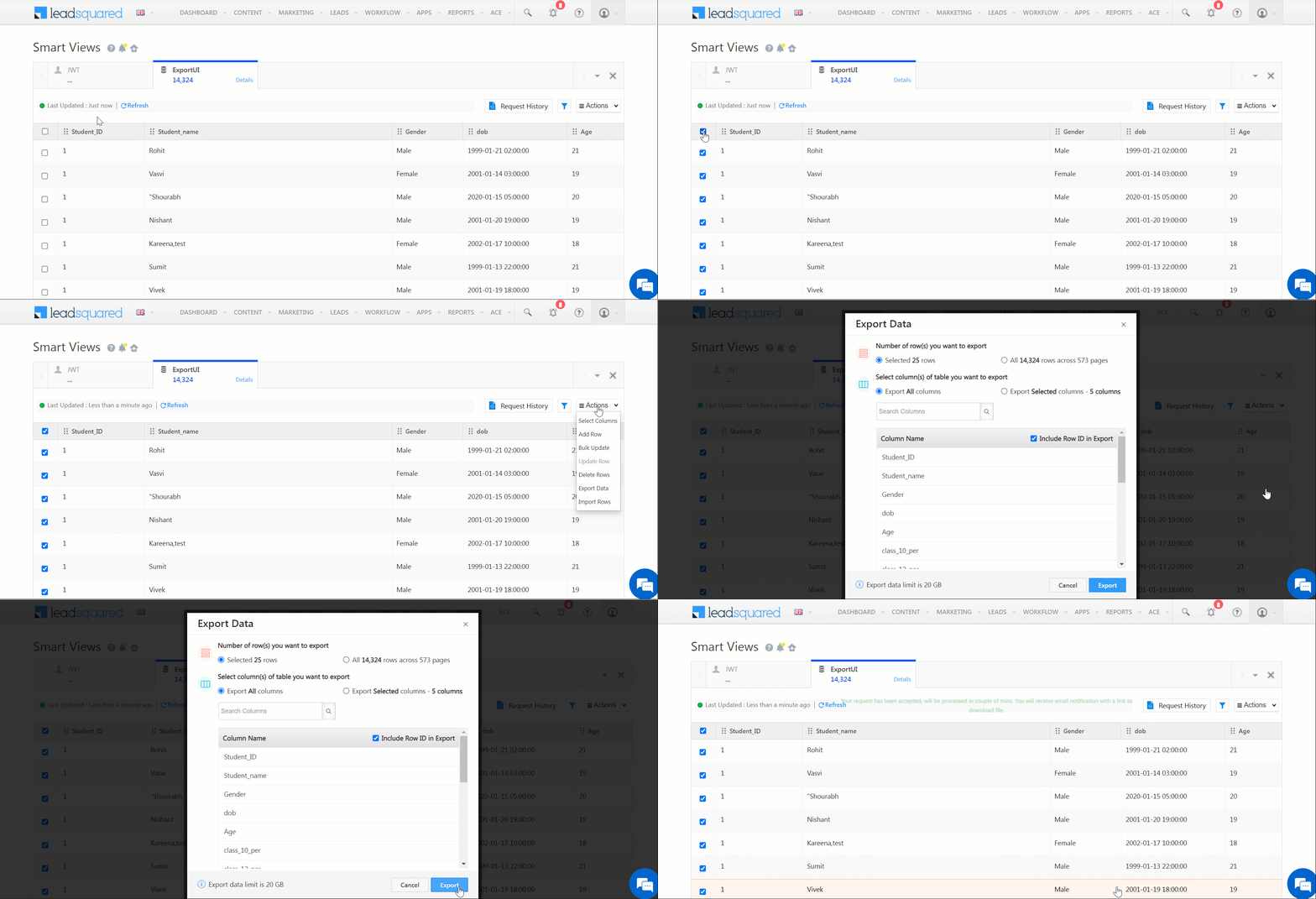
LeadSquared - Export data in Smart Views

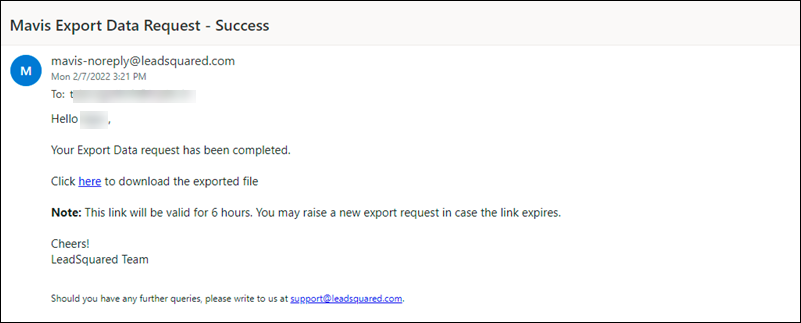
Note: Once the export request is successfully processed, you’ll receive an email with a link to the exported data file. This link is valid only for 6-hours.
Mavis Smart Views

8.8 Import Rows

To import data into your Mavis tab in Smart Views –

  1. First, you’ll have to upload the CSV source file.
  2. Map the columns in the CSV file to the corresponding column within the table.
  3. Then, validate the CSV file. The validations that might show up are Validation Success and Validation Failed.
  4. Once the status is Validation Success or Validation Failed (Partially), click the Import button.

Note:

  • In a single Import action, you can import up to 1-lakh (100,000) rows.
  • The only file format supported while importing is a “.csv” file in the UTF-8 format.
  • Users cannot import data under system fields.

8.8.1 Create New Record(s)

To import and create new records in your Mavis table –

Note:

  • The Create New Records option will be visible only after you enable the Import via CSV – Create New Record(s) setting.
  • You cannot perform the Create New Record(s) action for columns containing the User data type.
  • The maximum table size allowed is 40GB.

Source

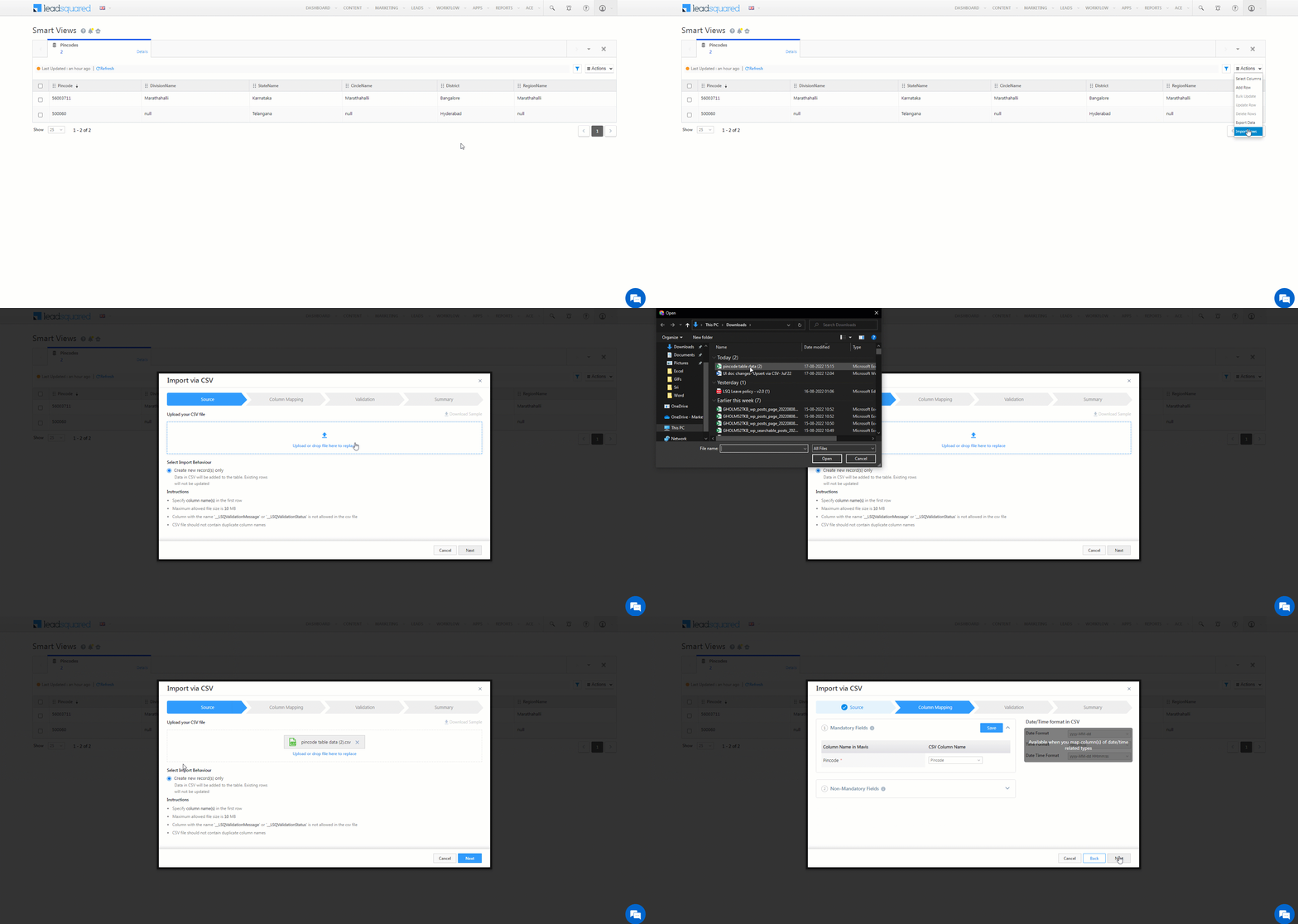
  1. Navigate to the Smart Views screen, and on the right of your screen, hover your cursor over the Actions menu, and click Import Rows.
  2. On the Import via CSV screen, Select Import Behaviour –
    • Create new record(s) only – Data present in the CSV file will get created as new records in the table. Existing rows in the Mavis table will not get updated.
  3. Then, click Download Sample. The sample file is generated dynamically and it contains the schema names of all the columns created in the Table Schema.
  4. On the sample CSV file, enter relevant data in the correct data type under each column, and save the file.
    • If you are not using the sample CSV file, and are instead creating new a CSV file/uploading an existing CSV file to update the table, specify the header names (column names) in the first row, and add data across the subsequent rows.
  5. Click Upload, and add the relevant CSV file.
    • Alternatively, you can drag-and-drop the CSV file.
  6. Once you’re done, click Next.

Note:

  • The only file format supported is a “.csv” file.
  • Column with the name ‘__LSQValidationMessage’ or ‘__LSQValidationStatus’ is not allowed in the CSV file.
  • The maximum file size allowed is 10MB.
Smart Views Mavis

Column Mapping

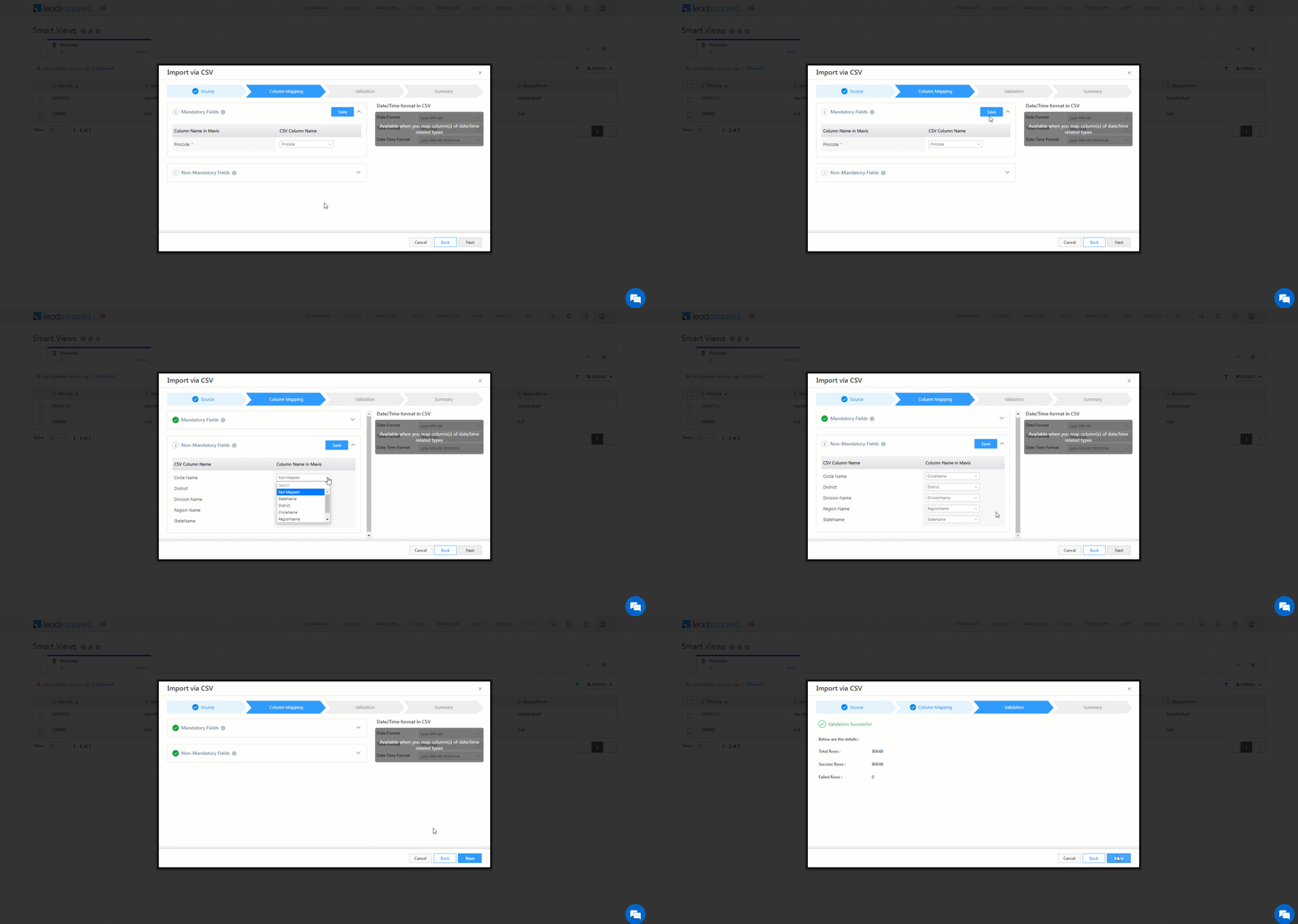
Once you’ve imported the CSV file, you will have to map it against the corresponding column within the table.

  • If the column names in the CSV file are the same as the column names in the table column, then the columns are automatically mapped.
  • Else, from the CSV Column Name dropdowns, you must map the columns to the correct Column Name in Mavis.
  • For Mandatory Fields, map the Column Name in Mavis on the left to the corresponding CSV Column Name on the right.
    • All columns that are marked Unique or Non-Nullable are considered mandatory columns.
    • Once you’re done, click Save.
    • If there are no mandatory columns in the table, the Mandatory Fields option will be disabled, and you’ll not be able to expand or view it.
  • Once you’ve mapped and saved the mandatory columns, for Non-Mandatory Fields, map the remaining non-mandatory CSV Column Name on the left to the corresponding Column Name in Mavis on the right. Note that the order of column mapping is reversed in this step (the CSV Column Name is on the left).
    • All fields marked Is Nullable are considered as non-mandatory columns.
    • The mandatory Mavis columns mapped in the previous step will not show up in the list of options in this step.
    • This step is optional. If you choose to skip it, click Save and continue with the other steps.
    • If there are no non-mandatory columns in the table, the Non-Mandatory Fields option will be disabled, and you’ll not be able to expand or view it.
    • If all the columns under CSV Column Name are mapped, the Non-Mandatory Fields option will be disabled, and you’ll not be able to expand or view it.
  • If DateTime columns are present in the Table Schema –
    • From the Date/Time format in CSV section, select the same Date/Time/DateTime formats given in CSV File.
    • If table schema contains either of Date/DateTime/Time columns, or its combinations, but not all three columns, then in Date/Time format in CSV section, you can choose only those available column formats. Other formats will be disabled.
    • Below are the default formats –
      • Date – yyyy-MM-dd
      • DateTime – yyyy-MM-dd HH:mm:ss
      • Time – HH:mm:ss
  • If there are no Date/Time/DateTime fields in the table schema, then this section will remain greyed out and inaccessible.
  • Once you’re done, click Next.

Note:

  • CSV column names are case-sensitive.
  • Different DateTime fields in the CSV file should follow one uniform format. You cannot upload different format DateTime fields in the same CSV file.
    • For example, in your CSV file, you cannot have one column in the dd-MM-yyyy HH:mm:ss format, and another column in the MM/dd/yyyy HH:mm:ss format.
  • Date, Time and DateTime fields will be stored in the default formats in the Mavis DB.
Smart Views Mavis

Validation

The data in the CSV file will be validated on this screen.

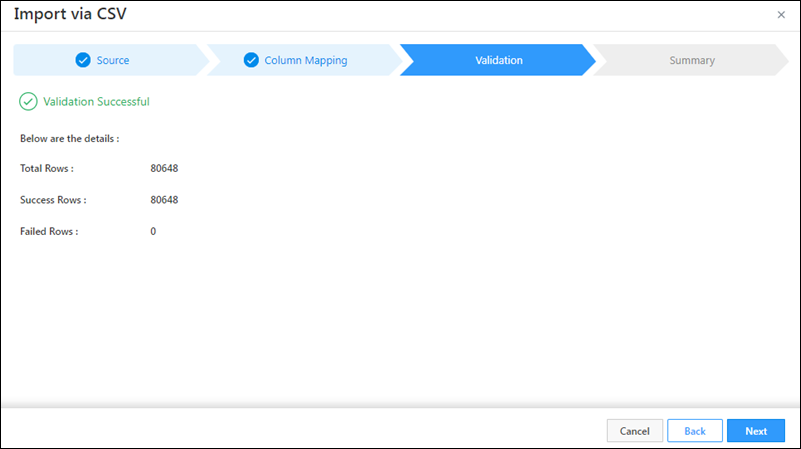
If Validation Success –

If all the row(s) have been successfully validated, you’ll get the Validation Success message. You can choose to continue the CSV file import process by clicking Next.
Smart Views Mavis

If Validation Failed –

If one or all the rows have not been successfully validated, you’ll get the Validation Failed message. There are two types of Validation Failed messages you might receive –

  • Partially Failed – This means the validation for only a few rows in the CSV file failed, while the remaining rows’ validation was successful.
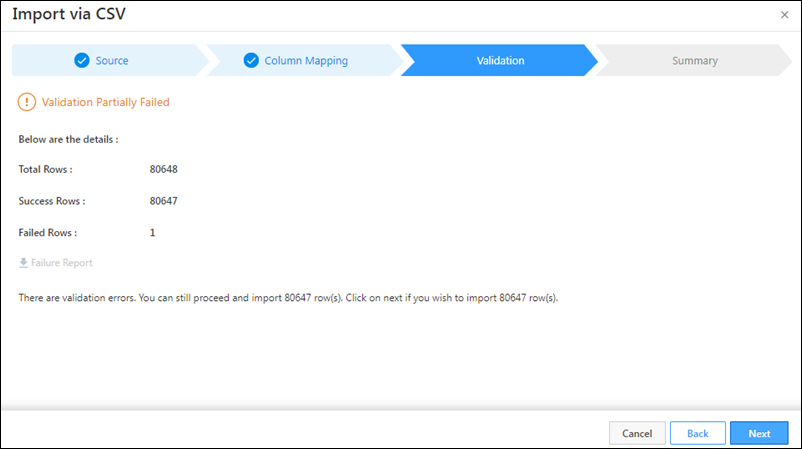
Smart Views Mavis

  • Completely Failed – This means the validation for all the rows in the CSV file failed.
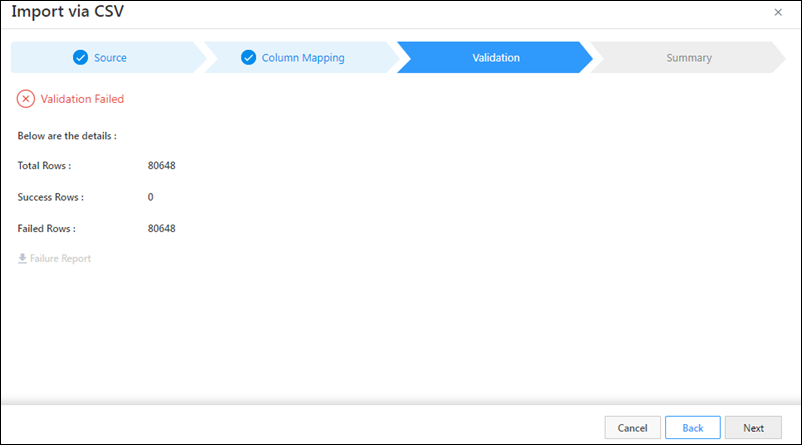
Smart Views Mavis

To rectify a failed validation –

  1. You’ll get the following details about the rows that were validated –
    • Total Rows
    • Success Rows
    • Failed Rows
  2. Here, you can view the rows that failed during validation.
    • If you want to ignore the Failed Rows error and proceed with only uploading the Success Rows in the file import process, you can do so by clicking Next.
  3. To download the failure report, click Failure Report.
  4. In the Failure Report file, you’ll see two new system-generated columns have been added – “__LSQValidationMessage” and “__LSQValidationStatus”
  5. The “__LSQValidationMessage” column will state the reason as to why the validation was unsuccessful for that particular row.
  6. The “__LSQValidationStatus” will display the validation status (“Success” or “Failed”) for that particular row.
  7. Once you’ve rectified the error in the original CSV file, save the file, and re-upload it from the Source screen.
  8. If all the rows have been successfully validated, you’ll get the Validation Success message. You can choose to continue the CSV file import process by clicking Next.
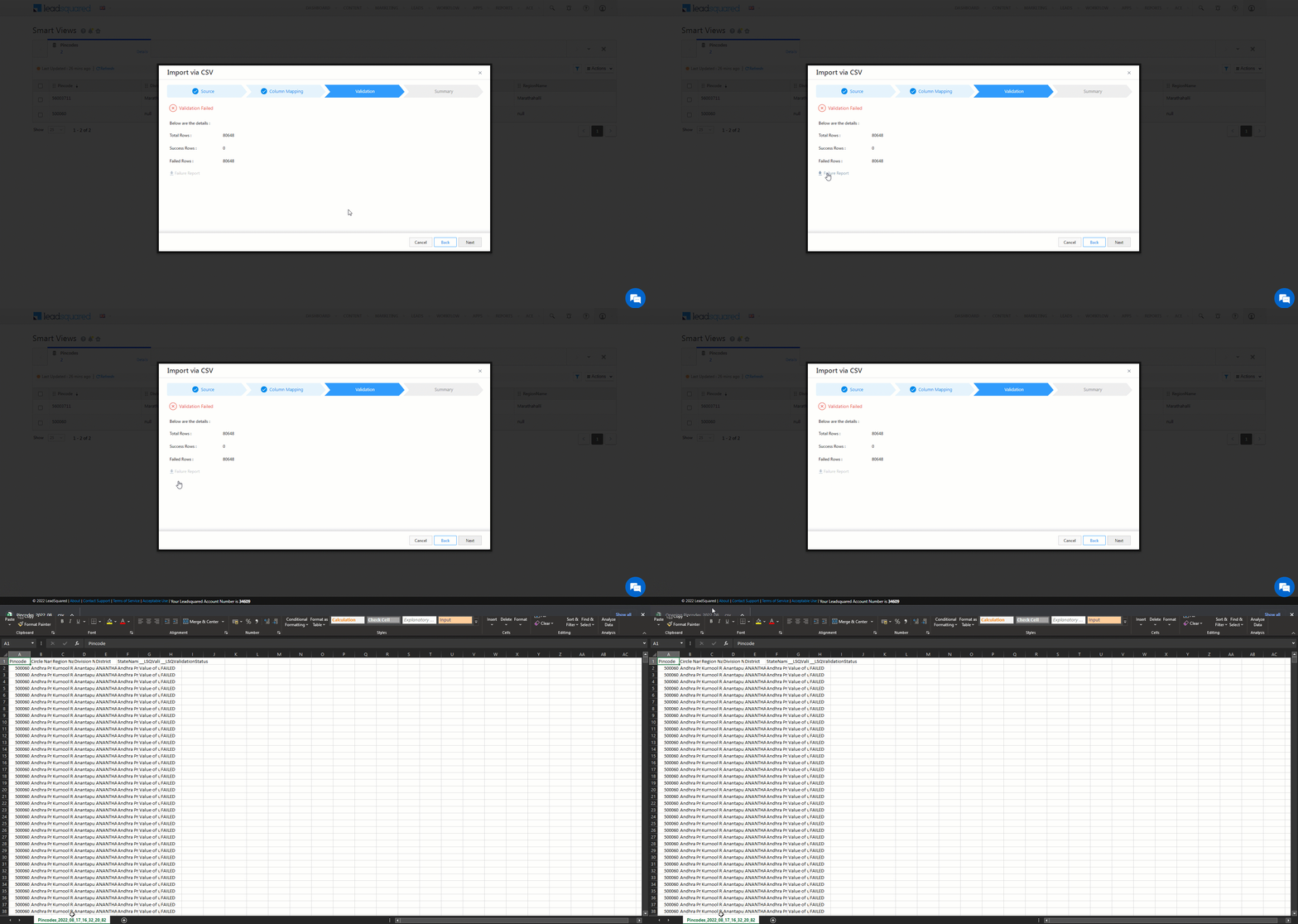
Smart Views Mavis

Summary

All CSV files that are imported are usually queued within our servers. It may take a few minutes for these files to be successfully imported.

In the Summary screen, you’ll get a message stating, “You have successfully imported the file.” This means your file is currently queued for import, and it will be completed within a few minutes. Once the import is successful, the user who performed the import action will receive an email confirmation about the same.

Note: If you cancel or close the Import request midway, the request will be cancelled.
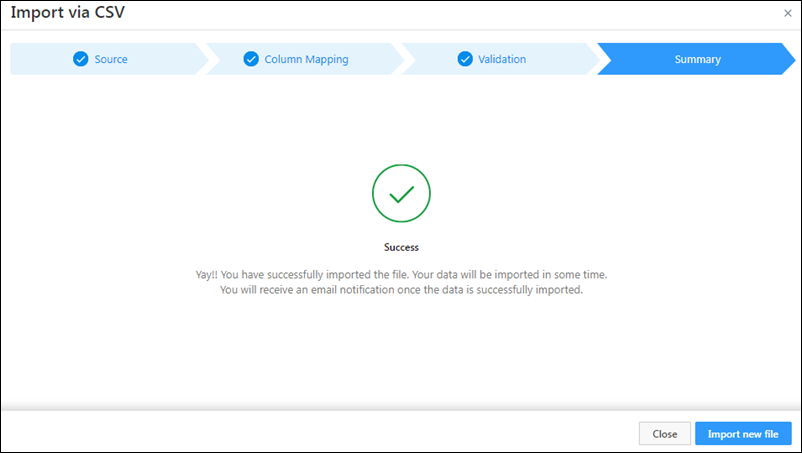
Smart Views Mavis

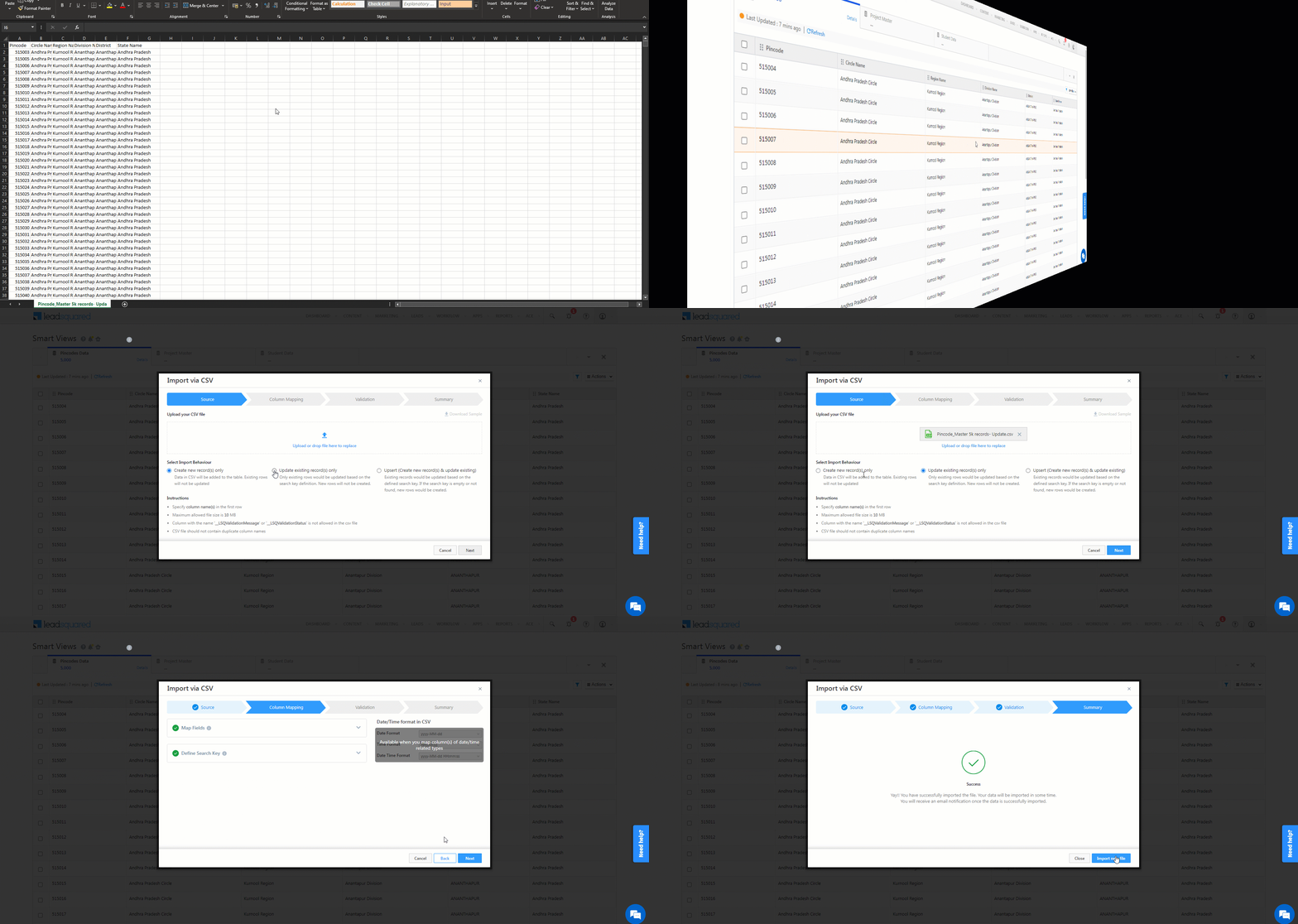
8.8.2 Update Rows through CSV

You can bulk update multiple rows across multiple columns by uploading a CSV file.

Note:

  • The Update Record(s) option will be visible only after you enable the Import via CSV – Update Record(s) setting.
  • The CSV file must have at least two columns – one unique column must be set as the Search Key and the other containing the data to be updated.
    • Only 1 unique column can be defined as the Search Key. Column mapping is mandatory for this column.
  • To use the system field mv_RowId as the Search Key, it must be present in the uploaded CSV file (mv_RowId can be obtained when exporting data).
  • The mv_RowId column name is case-sensitive. Ensure the syntax and case is correct.
  • Column mapping is not required for the mv_RowId.
  • You cannot perform the Update Rows action for columns containing the User data type.
  • Column mapping is required only for the columns where you want to import data.

To bulk update rows through CSV –

  1. Navigate to the Smart Views screen, and on the right of your screen, hover your cursor over the Actions menu, and click Import Rows.
  2. On the Import via CSV screen, Select Import Behaviour –
    • Update existing row(s) only – Based on the Search Key defined, existing rows found in the CSV file will get updated in the corresponding table rows. For rows that don’t exist in both the CSV file as well as the table, no new records will be created in the table.
  3. Click Next to proceed to the column mapping tab.
  4. Map the fields in your CSV file to the fields in your Mavis table, then click Save.
  5. Select the unique column to define as the search key and click Save.
  6. Click Next to proceed to the validation tab. If there’s at least one successfully validated row, you can click next to complete the import. Otherwise, you can fix the errors and re-upload the file. For more details, see Import Rows -Validation.
  7. In the Summary screen, you’ll get a message stating, “You have successfully imported the file.” This means your file is currently queued for import, and it will be completed within a few minutes. Once the import is successful, the user who performed the import action will receive an email confirmation about the same.
LeadSquared Mavis Database

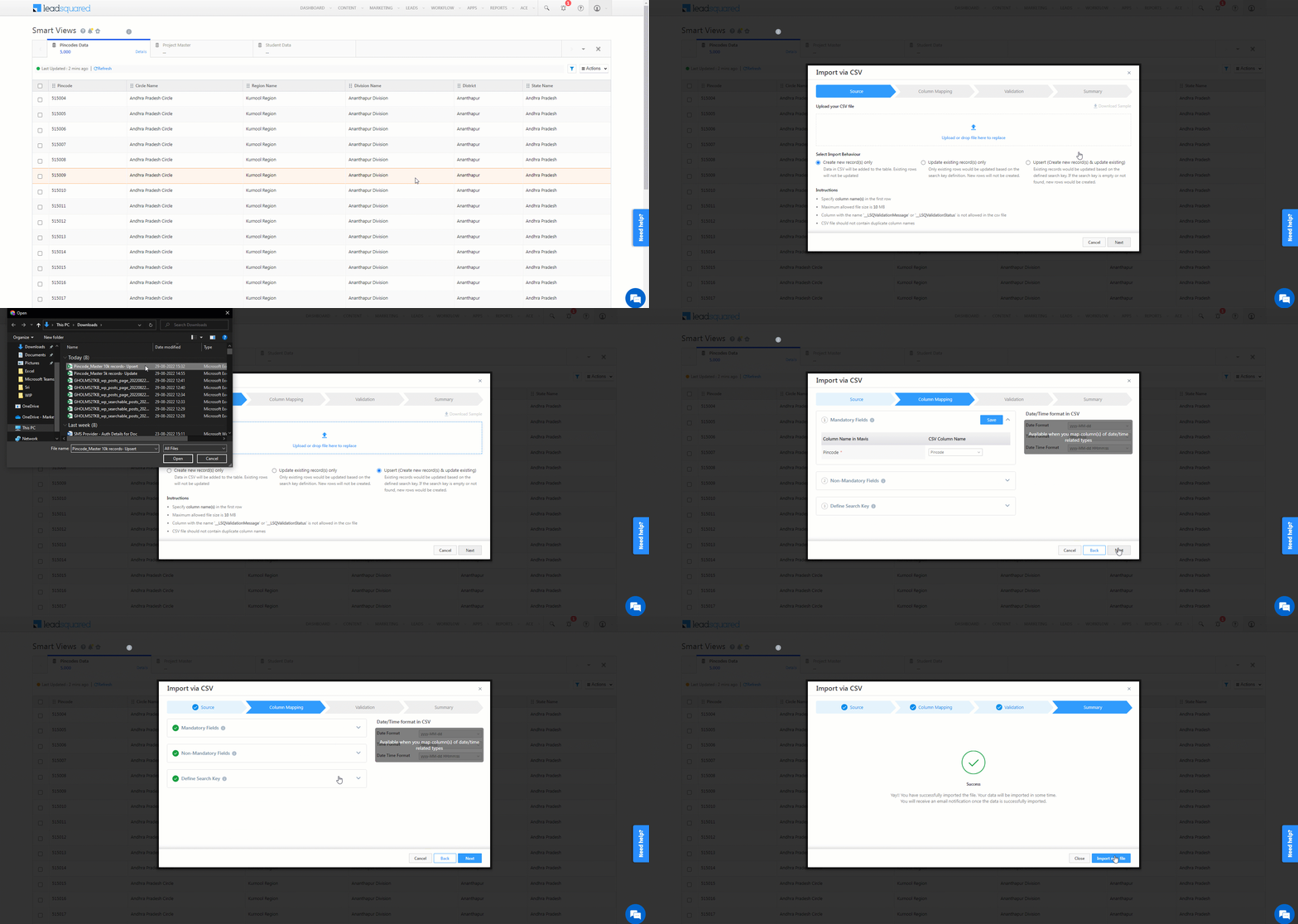
8.8.3 Upsert Rows through CSV

This option allows you to update existing rows as well as add new rows to the table through the same CSV file upload action.

Note:

  • The Upsert Record(s) option will be visible only after you enable the Import via CSV – Upsert Record(s) setting.
  • The CSV file must have at least two columns – one unique column must be set as the Search Key and the other containing the data to be updated.
    • Only 1 unique column can be defined as the Search Key. Column mapping is mandatory for this column.
  • The maximum table size allowed is 40GB.
  • To use the system field mv_RowId as the Search Key, it must be present in the uploaded CSV file (mv_RowId can be obtained when exporting data).
  • If your table doesn’t contain a unique column, then the mv_RowId is used to identify if an existing row needs to be updated, or if a new record has to be created in the table.
  • The mv_RowId column name is case-sensitive. Ensure the syntax and case is correct.
  • Column mapping is not required for the mv_RowId.
  • You cannot perform the Upsert Rows action for columns containing the User data type.
  • Column mapping is required only for the columns where you want to import data.

To upsert rows through the CSV –

  1. Navigate to the Smart Views screen, and on the right of your screen, hover your cursor over the Actions menu, and click Import Rows.
  2. On the Import via CSV screen, Select Import Behaviour –
    • Upsert (Create new record(s) & update existing) – Based on the Search Key defined, existing rows found in the CSV file will get updated in the corresponding table rows. If the Search Key is empty or if it’s not found, new records will get created in the table.
  3. Click Next to proceed to the column mapping tab.
  4. Map the fields in your CSV file to the fields in your Mavis table, then click Save.
  5. Select the unique column to define as the search key and click Save.
  6. Click Next to proceed to the validation tab. If there’s at least one successfully validated row, you can click next to complete the import. Otherwise, you can fix the errors and re-upload the file. For more details, see Import Rows -Validation.
  7. In the Summary screen, you’ll get a message stating, “You have successfully imported the file.” This means your file is currently queued for import, and it will be completed within a few minutes. Once the import is successful, the user who performed the import action will receive an email confirmation about the same.
LeadSquared Mavis Database

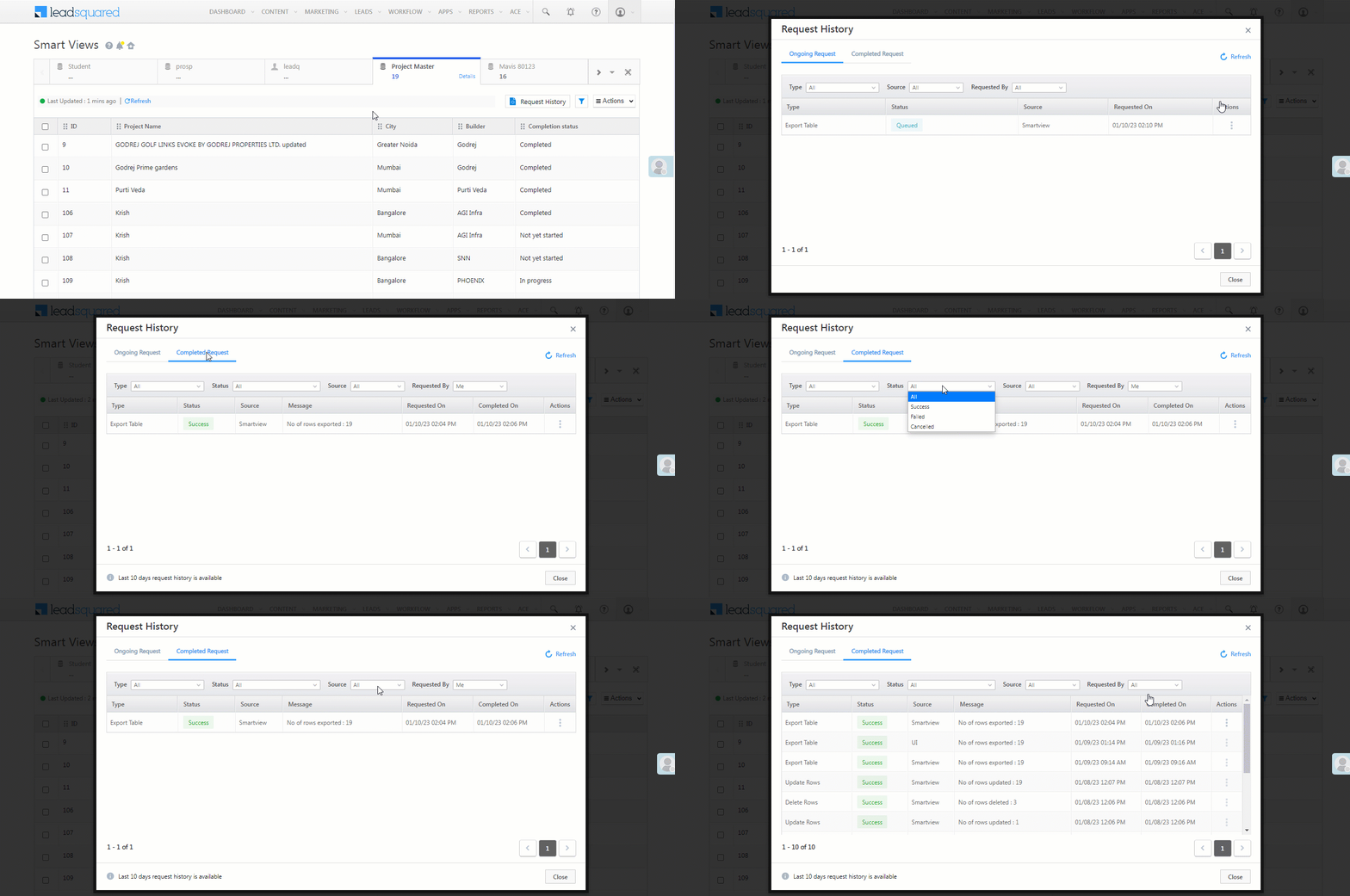
8.9 Request History

The Request History tab keeps track of the following Ongoing Requests and Completed Requests

  • Import Data
  • Export Table
  • Add Rows
  • Update Rows
  • Delete Rows

For Completed Requests, you can filter the requests by the following Statuses

  • Table Operation Success
  • Table Operation Failed
  • Cancelled

For Ongoing and Completed Requests, you can also apply the following filters –

  • Request made by Sources
    • Smartview – Only the requests generated through the Smartview screen.
    • UI – Only the requests generated through the Mavis screen.
  • Requested By
    • All – Requests made by all users in the account.
    • Me – Request made by the logged-in user.
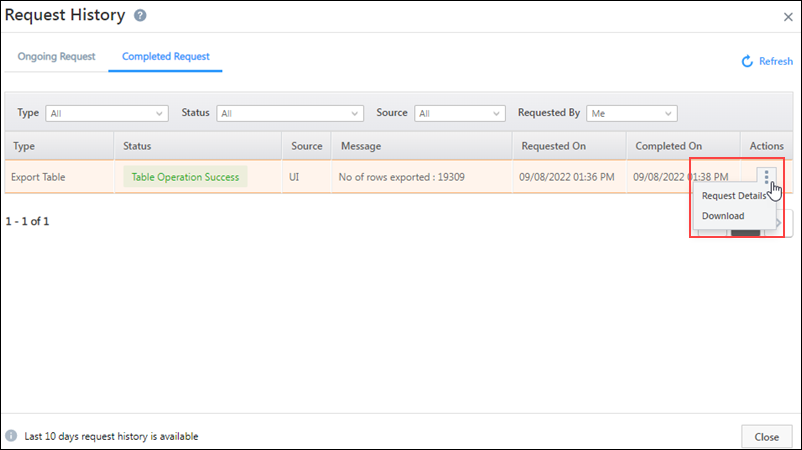
For requests made by you (the logged-in user), click to Three dots perform the following actions –

  • Request Details – Click to view the Request Id.
  • Cancel – Click to cancel an ongoing request.
  • Download – Click to download the Export request file.

Note: Non-admin users will be able to download the imported file of the selected Mavis tab only if the Import via CSV permissions are enabled. For e.g., if a Mavis tab only has the Import via CSV – Upsert Records permission enabled, and if a user tries to download the imported file for a Create/Update Records action, the user will be restricted from downloading this file. The same will apply when a non-admin user tries to cancel an import request.
LeadSquared Mavis Database


Any Questions?

Did you find this article helpful? Please let us know any feedback you may have in the comments section below. We’d love to hear from you and help you out!

How to Redirect Visitors to my Homepage after Submission on Landing Page?

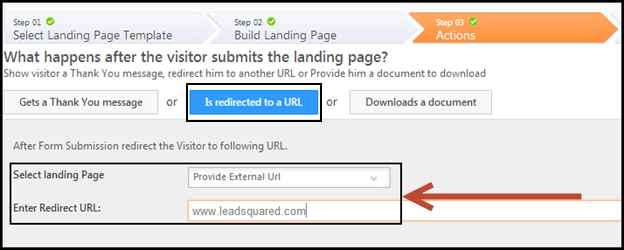
You can redirect visitors  to your company’s website after they submit on your landing page. You can make this action an automatic one during creating a landing page. You use this procedure to redirect visitors  to your company’s website after they submit on your landing page.

Prerequisites

  • You have logged in to LeadSquared.
  • You have completed Step 1 and Step 2 of creating landing page.

Procedure

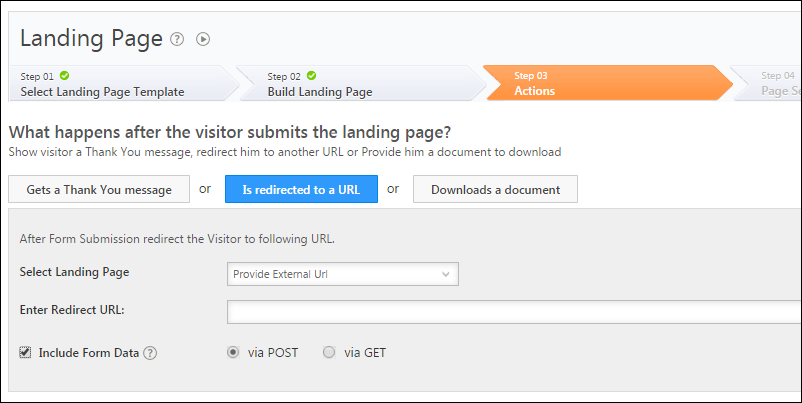
1. In the Actions page, click on Is redirected to a URL button. Select Provide External URL option from the drop down menu. Enter the URL to which you want the visitors have to be redirected. Alternatively, you can also allow the visitors to be redirected to another landing page. You can view the list of landing pages in LeadSquared in the Select landing Page drop down.

Redirected to URL 2

How to Allow Download of a Document after Visitors Submits on Landing Page?

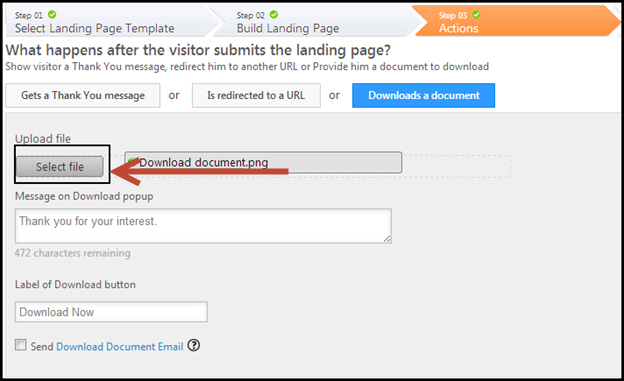
You can let a landing page visitor download any document after submission on your landing page. You can make this action an automatic one during creating a landing page. You use this procedure to let the visitor download a document after submission on your landing page.

Prerequisites

  • You have logged in to LeadSquared.
  • You have completed Step 1 and Step 2 of creating landing page.

Procedure

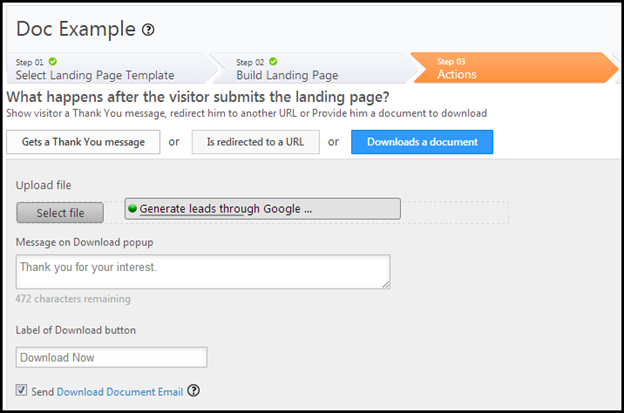
1. In the Actions page, click on Download a document button. Click on Select file button to upload the file which you want the visitor to download.

Download document 2

2. You can enter any required message on the download pop up. Additionally you can choose to send an additional email to the lead containing the link to download the same document. You can do so by selecting the Send Download Document Email check box.


How to send Auto-Response emails to Leads submitting on Landing pages?

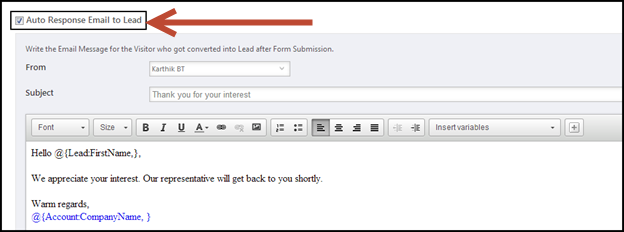
This feature allows you set up to send an automated email when a visitor submits on your landing page. You use this procedure to send a confirmation email to the lead after submission on the form of the landing page.

Prerequisites

  • You have logged in to LeadSquared.
  • You have completed Step 1 and Step 2 of creating landing page.

Procedure

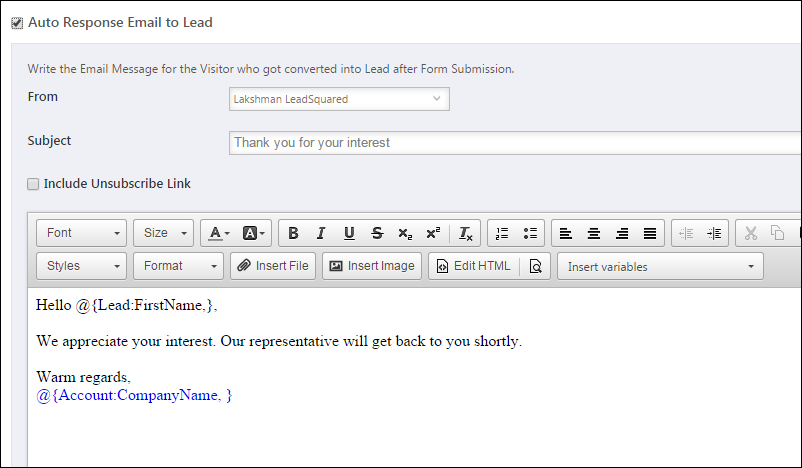
1. In the Actions page, select the Auto Response Email to Lead check box. This option allows you to select the email sender and customize the email notification template.

Auto Response Email 2

2. You can customize the email by inserting the desired variables such as Lead Name, Company name and so on. Once the visitor submits on your landing page, this email will be sent.

How to create a Facebook landing page?

You can create landing pages in LeadSquared and embed them on Facebook. A Facebook landing page can give you greater visibility and higher number of leads. You use this procedure to create a Facebook landing page.

You can now use LeadSquared’s Facebook App to create landing pages. It is recommended that you use LeadSquared’s own Facebook App to host a landing page in your company’s Facebook page. Note that you have to create a landing page in LeadSquared first and then host it in Facebook. For more information, see How can I use LeadSquared Facebook App to have a landing page tab?

Prerequisites

  • You have logged in to LeadSquared.
  • You have created and published a landing age in LeadSquared. For more information, see How to Create and Publish a Landing Page?
  • You have created a Facebook page for your company.

Procedure

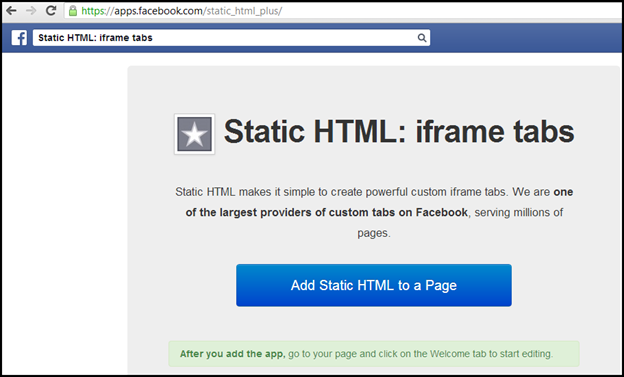
1. Log in to your company’s Facebook page. Search for Static HTML: iframe tabs App in Facebook. Click here to view the App.

Static HTML App

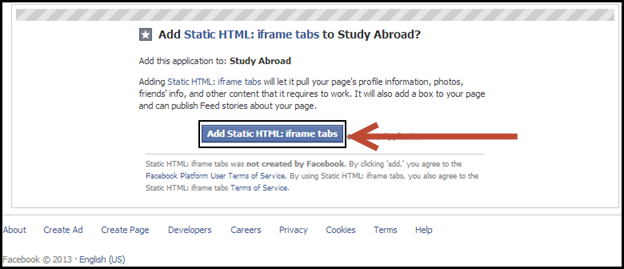
2. Click on Add Static HTML to a Page button. You will be re-directed to another page where you will have to choose the Facebook page to which you want to add a Static HTML (Landing Page). Click on Add Static HTML: iframe tabs button.

Add Static HTML

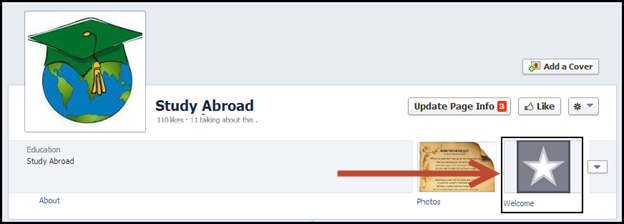
3. After authorizing the App, you would see a new box added to your Facebook tabs, named ‘Welcome’. You can edit it by clicking on it.

Welcome

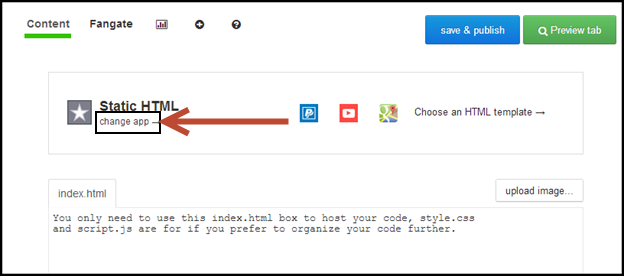
4. The edit app page opens up. Here you can edit the app. Click on change app (as shown in the screen shot).

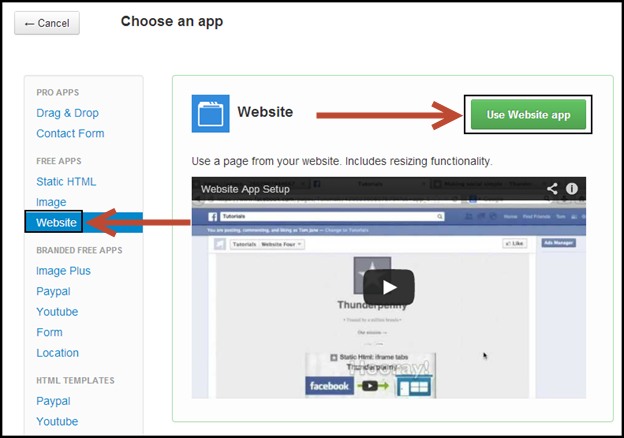
Edit App

5. Select Website option in the left side. Click on Use Website app button.

Website App

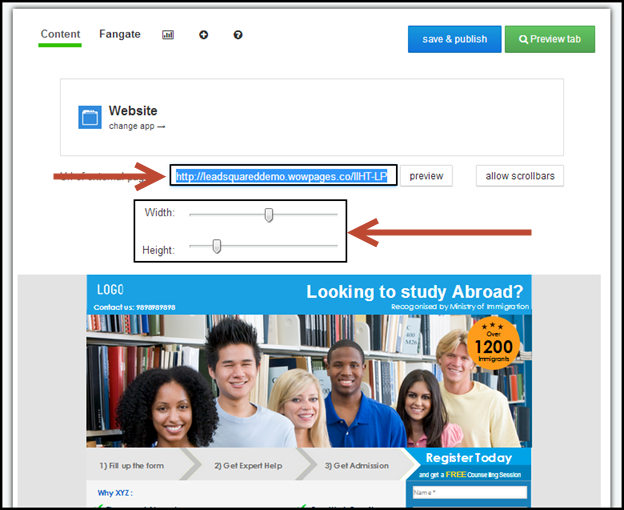
6. You will be redirected to the Website App edit page. Here you can enter the URL of the landing page that you have created in LeadSquared. You can adjust the width and height of the landing page using the scroll buttons available.

Paste URL

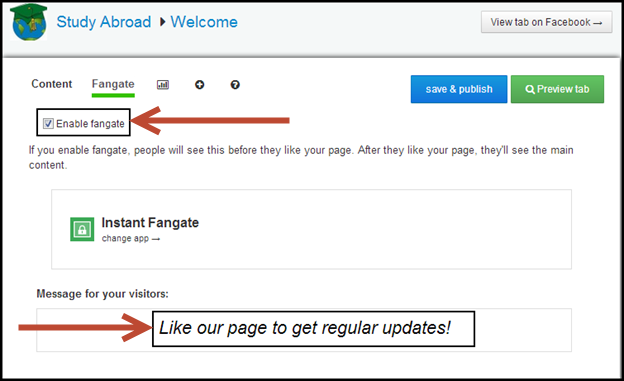
7. Next, click on click on the Fangate tab. Select the Enable fangate check box. If you enable fangate, people will see this before they like your page. After they like your page, they’ll see the main content. You can also edit the Message for your visitors section.

Fangate

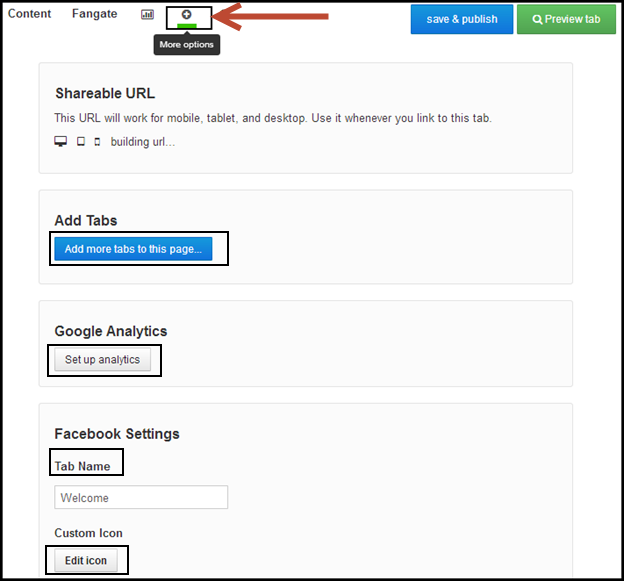
8. Click on More options button. In this page you can Add Tabs to your page, set up Google Analytics (if you have not set up LeadSquared’s own tracking script), edit the Tab Name, and also include a Custom Icon.

More Options

9. You can Preview and Publish the page now. It will be visible in your Facebook page.

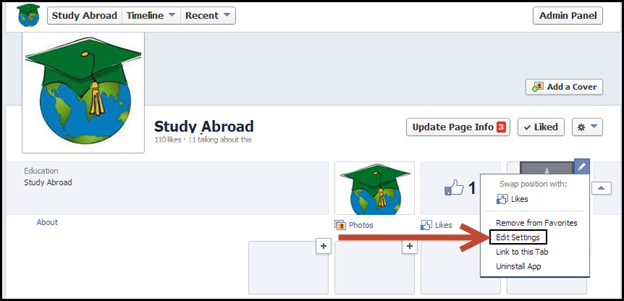
10. If you want to include an image, click on the Dropdown Arrow that you see just next to your tab. Hover over your Tab, you will see an Edit option (the pencil icon on right). Click it. From the Dropdown Box, Click ‘Edit Settings’.

Edit Settings

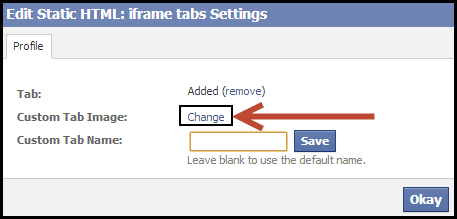
11. On a popup, you would now see an option called Custom Tab Image. Click on Change.

Edit Pop Up

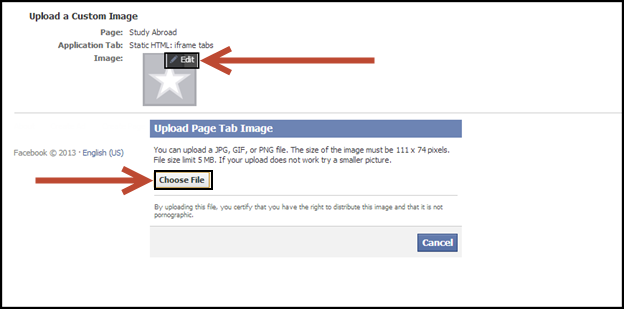
12. You will be re-directed to a new page where you can upload a custom image. Click on the Edit button present on the default image. Upload Image pop-up opens up. Here you can choose the image to upload. You can upload a JPG, GIF, or PNG file. The size of the image must be 111 x 74 pixels. File size limit 5 MB. If your upload does not work try a smaller picture.

Upload Image

13. If anyone clicks on this Icon, your Landing Page would open. You can also use this app’s URL in Facebook ads.

How can I find Leads that Submitted on a Landing Page?

You can create a list of all leads who have submitted on your Landing Page. You can make use of this list to send further campaigns or nurture the leads by, say, sending special offers. You use this procedure to find leads and create a list of leads who submitted on your landing page.

Prerequisites

  • Your leads are present in LeadSquared. Lists cannot be created without leads being present.
  • You have logged in to LeadSquared.
  • You have created and published a Landing Page.
  • When you are creating a landing page in LeadSquared, you can specify that the leads that submit on the landing page be grouped into a list. If you have specified that, then you can find the leads in the Manage Lists grid page.

Procedure

1. There are two ways find leads that submitted on your Landing Page. The first way is by navigating to the landing page report and viewing the leads. For more information, see How to Use Landing Page Reports?

2. The second way is by manually searching and creating a  list from the leads who have submitted on a Landing Page. The procedure below describes the same.

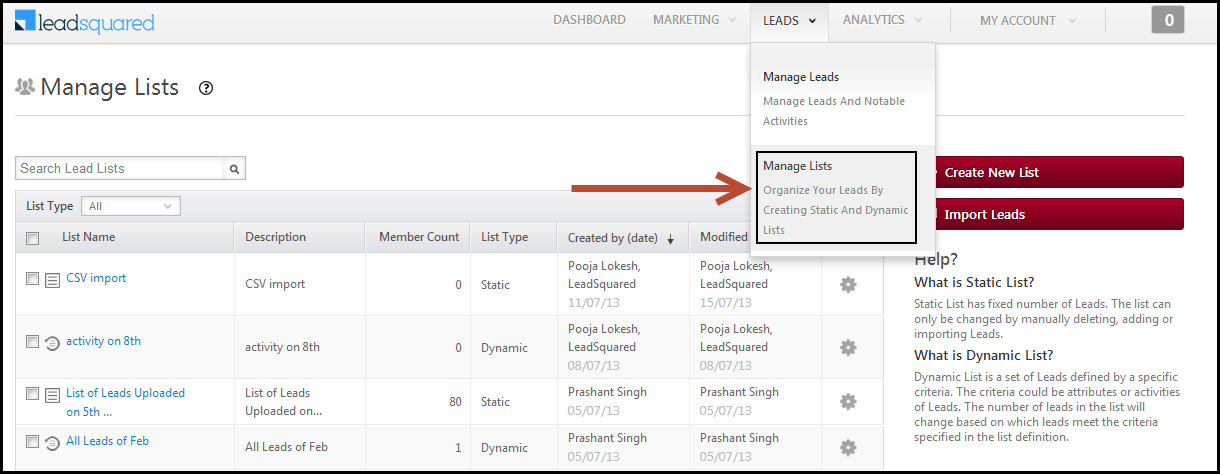
(i) Navigate to Dashboard > Leads > Manage Lists. Click on Create New List.

Manage Lists

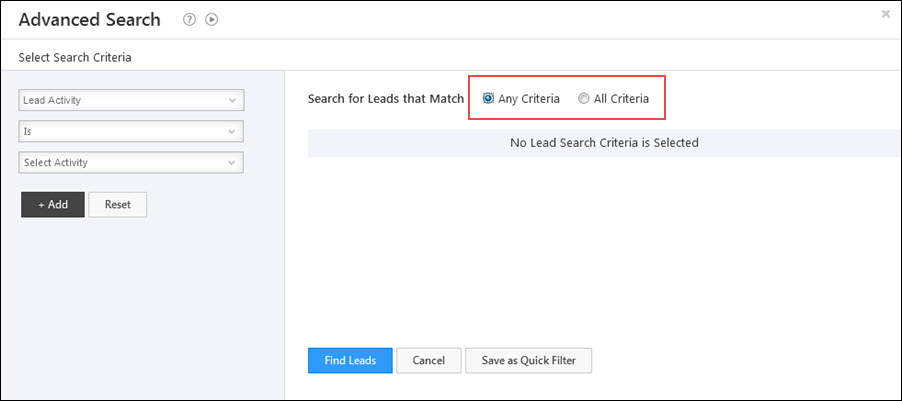
(ii) If you select Any Criteria, then the leads will be filtered based on any one of the specified criteria. If you select All criteria, then the leads will be filtered only if all the specified criteria are met. You can specify any number of criteria to filter the leads. You can click on Add button to specify additional criteria.

Any criteria

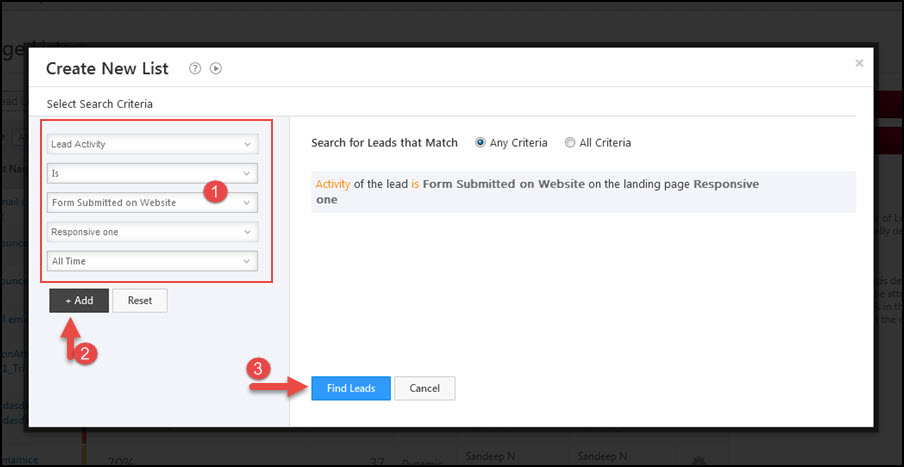
(iii) Select the All criteria check box. Next, select Landing Page in the field drop down. Select Is as the condition. Select the  Landing Page from the drop down.Next, add another criteria by selecting Activity in the field drop down. Select Is as the condition. Select Form Submitted on Website from the last drop down.

search criteria

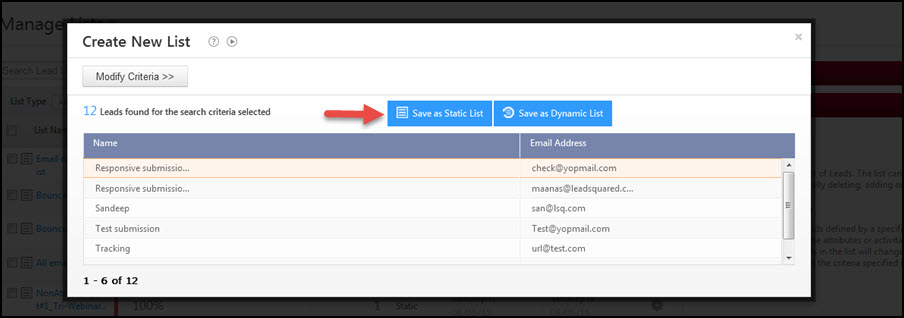
(iv) Click on Search Leads. You will see leads that satisfy the given criteria.

matching the criteria

(v) Click on Save as Static List or as Dynamic List to add the leads to a list. Enter a suitable List Name. You can give a description to the list. Click on Save.

Now that you have created a List of leads who submitted on your landing page, you may want to export the lead details. You can do so by navigating to Dashboard > Leads > Manage Lists. Here click on the list that you have created. In the List Details page, export the lead details using the Export Leads function.

How to Create and Publish a Landing Page?

1. Feature Overview

LeadSquared’s Landing Pages offer a powerful set of features to design and publish high-conversion landing pages. You can create responsive landing pages for different devices (web, mobile, tablet, etc.) and optimize them for search engines (SEO). Whether you’re starting from scratch or using the built-in templates, the Landing Page Editor makes customization simple. It also provides a range of post-form submission options and detailed analytics and reporting.

Note: This article refers to LeadSquared’s legacy Landing Pages. We encourage you to use the new Landing Pages Pro for an enhanced experience.

Leadsquared - Landing page


2. Prerequisites

You should be an Admin or Marketing User of your LeadSquared account.


3. Creating and Publishing a Landing Page

  1. From your LeadSquared dashboard, navigate to Marketing >Landing Pages.
  2. Click Create Landing Page. On the landing page creation wizard, you can create and publish Landing Pages in five steps.

Leadsquared - Landing Pages

  1. Select a Landing Page template – A template gives you a head-start in creating a landing page. Creation becomes easier through template. For more information on this , see Selecting a Landing Page Template.
  2. Build the Landing Page – Customize the Landing Page template using the landing page editor. You can decide and set up the look and feel of the landing page using this editor. For more information on this, refer Responsive Landing Pages.
  3. Set Actions – Create appropriate actions which should follow after a visitor submits on a landing page. This could be displaying a Thank You message, redirecting to a URL or providing a document for the visitor to download . For more information on this, see Actions that should follow when Visitors Submit on your Landing Page.
  4. Customize the Page Settings – Here you can set the Page Title, customize Landing Page URL and Search Engine Optimization (SEO) options for your landing page. SEO options are to increase the landing page’s visibility and traffic. For more information on this, see Page Settings for Landing Page.
  5. View the Summary – This step allows you to review the landing page that you have created. You can review the  key elements of Landing Page here before you publish it.

On completing all the steps, publish the landing page. Once it is published and visitors submit on it, you can view the Landing Page reports. For more information on Landing Page Reports, see How to Use Landing Page Reports?


4. Building Responsive Landing Pages

A responsive landing page is designed to render well across all devices, including desktops, laptops, tablets, and mobiles, by adapting to different screen sizes and orientations. This ensures that the page looks good on every device, improving the viewer’s experience. As the screen size decreases, the page adjusts to avoid horizontal scrolling, allowing viewers to navigate seamlessly by scrolling vertically. LeadSquared’s Landing Page Editor helps you create responsive landing pages. To start building them –

  1. Navigate to Marketing >Landing Pages>Create Landing Page.
  2. Name the landing page and add relevant marketing tags.
  3. Select Use Responsive Templates.  You can select any of the available templates or even a blank template by scrolling to the bottom of the page.

responsive landing page

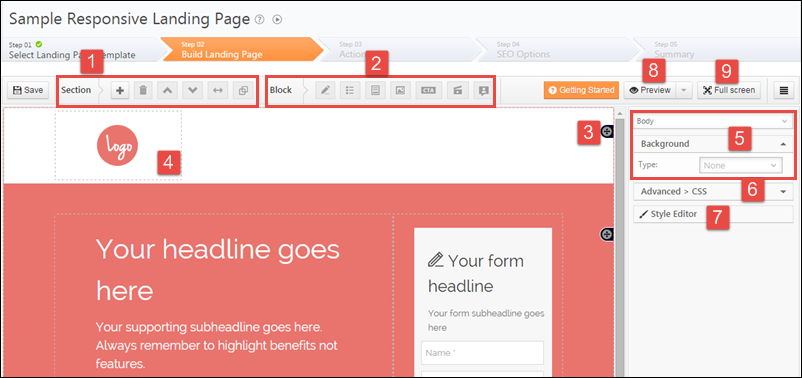
The landing page editor will open up.  Landing Page Editor treats the page as a canvas on which you can add multiple sections. In each section, you can add blocks of different types to include content, image, form, etc.

LP designer

In general there are seven areas to work upon inside the editor –

  1. Section toolbar:  Adding and managing sections
  2. Block toolbar: Work with multiple types of blocks
  3. Work inside a section
  4. Work inside a block
  5. Manage layout properties of the canvas, sections and blocks
  6. Achieve advanced formatting options using custom CSS
  7. Fully control the style of page or any of it’s elements by overriding default styles

You can also (8) preview the page in web, tablet and mobile. And (9) you may choose to work in full screen mode.


5. Troubleshooting

When a lead submits a form on your landing page (legacy/older version of landing pages) and encounters the following error – “Oops something went wrong”, the issue may be caused because –

  1. You’ve run out of web events. Navigate to Billing and Usage and scroll down to the Website Tracking and check if you’ve exceeded your Max Web Events limit.
  2. Check if your landing page form contains at least one unique field.

Leadsquared - Landing Pages

Why are leads not getting captured via Landing Pages?
If leads are not being captured, check the following:

  • The landing page form must include at least one unique identifier system field (First Name, Last Name, Email, or Phone Number).
  • Ensure all field values match the required data type.
  • If fields like City, Stage, or Country are using a predefined list of values (drop downs with Large Option Sets), make sure Allow Auto-Update is enabled.
  • If Reverse IP Lookup is enabled, the system may try to auto-fill location fields. If the detected value doesn’t match the predefined list, lead capture may fail. Enable Allow Auto-Update for these fields.


Any Questions?

Did you find this article helpful? Please let us know any feedback you may have in the comments section below. We’d love to hear from you and help you out!
Select a Landing Page Template

1. Feature Overview

The first step of creating a landing page is to select a template. You can –

  • Select a pre-existing template.
  • Select a blank template and build your landing page from scratch.
  • Use your own HTML template.
  • Copy the template of other landing pages you’ve created.
Note: To know more about landing pages and how to create them, see How to Create Landing Pages.


2. Prerequisite

You must be an Administrator or a Marketing User of your LeadSquared account.


3. Select a Landing Page Template

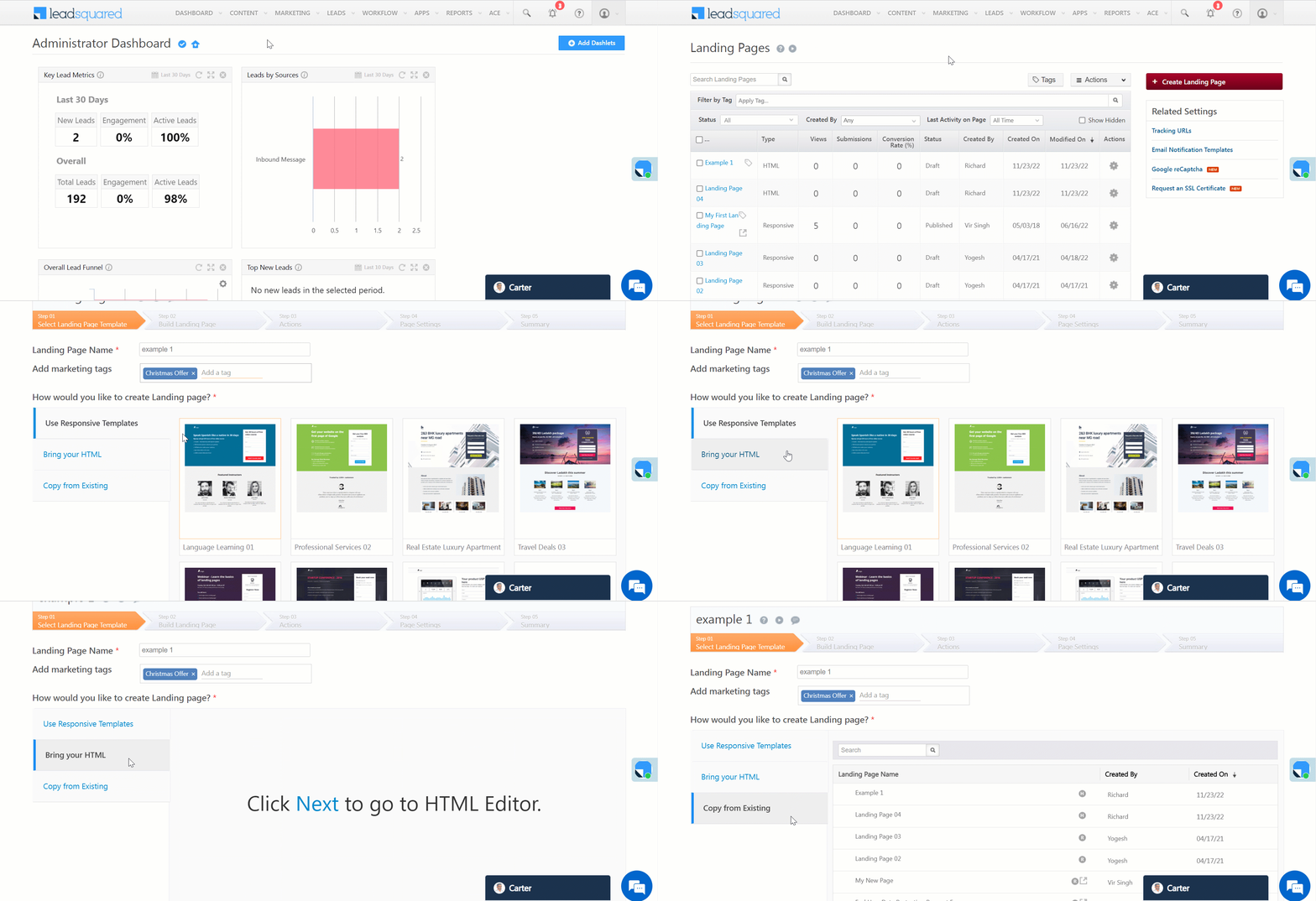
  1. Navigate to Marketing>Landing Pages and click Create Landing Page.
  2. Enter the name of your Landing page on this page. You can also add a marketing tag to the landing page if you wish to.
  3. Select how you would like to create your landing page –
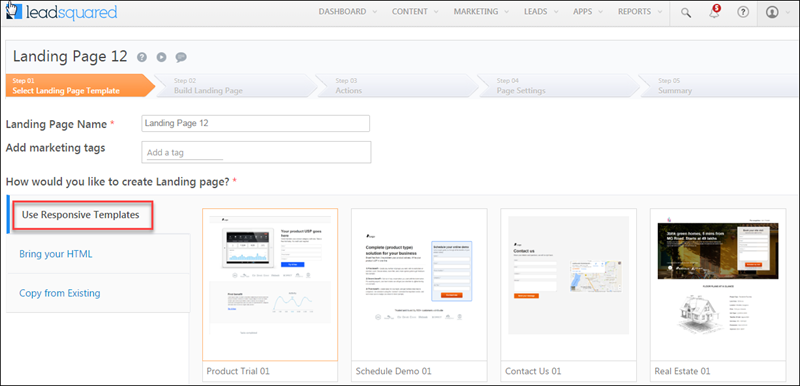
    • Use Responsive Templates – Select any template available on this page to create responsive landing pages that render well on desktops, laptops, tablets, or mobile phones. You can also select a blank template and create your own landing page from scratch. To know more, see Building Responsive Landing Pages.
    • Bring your HTML – Use your own HTML template to create a landing page. To know more, see  Creating Landing Page from HTML.
    • Copy from Existing – Select and copy the template of a previously created landing page.
  4. Click Next.

LeadSquared - Select Landing Page Template


Any Questions?

Did you find this article helpful? Please let us know any feedback you may have in the comments section below. We’d love to hear from you and help you out!
Actions that should follow when a Visitor Submits on your Landing Page

LeadSquared allows you to set up what happens after a visitor submits on your landing page. You can create a work flow for the lading page visitor as well as the marketer who is using LeadSquared. You use this procedure to set actions after publishing the landing pages.
Prerequisites

  • You have logged in to LeadSquared.
  • You are an Admin or Marketing User of your LeadSquared account.
  • You have completed Selecting the Landing page Template and Built Landing Page using the landing page editor. (Step 1 and Step2)

Procedure

  1. Actions for the visitor who submits on the landing page. Click here for more information.
  2. Actions for the marketer. Click here for more information.
  3. Other actions. Click here for information.
  4. Click Next to customize the SEO Options. Alternatively, you can click on Save or Save and Exit to customize the SEO options at a later time.

Actions for the Visitor (Lead)

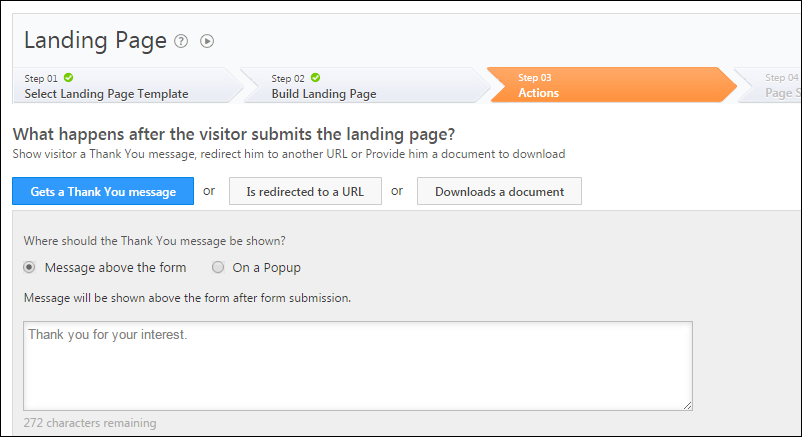
You can show the visitor a Thank You message, redirect him to another URL or provide him a document to download based on your requirement.

  • Gets a Thank You Message:   This options allows you to configure a Thank You message that the visitor (Lead) will see after submitting on the Landing Page.  The thank you message can be shown either above the the form or be displayed as a pop-up.

LeadSquared Landing Pages

  • Is redirected to a URL: This allows you to enable the lead to be redirect to a URL after submitting on the landing page. This URL can include another landing page or your company’s website or any URL you prefer. You can select the landing page of your choice in the drop down menu (You can see landing pages in the drop down if you have created one earlier). You can also send the form data to the “redirect URL”. Both POST & GET methods can be used based on what is required.  So you can use this feature to integrate with your automated user sign-ups, your own apps which require visitor data or even integrate with payment processing gateways like Paypal.

LeadSquared Landing Pages

  • Downloads a document: This option allows you to upload any document for the lead to download.  You can provide the link of the document to be downloaded. You can also choose to send an additional email to the lead containing the link to download the same document. You can do so by selecting the Send Download Document Email check box.

LeadSquared Landing Pages

Auto Response Email

You can check the Auto Response Email to Lead check box to send a confirmation email to the lead after submission on the form of the landing page. This option allows you to select the email sender and customize the email notification template.

LeadSquared Landing Pages

Actions for the Marketer

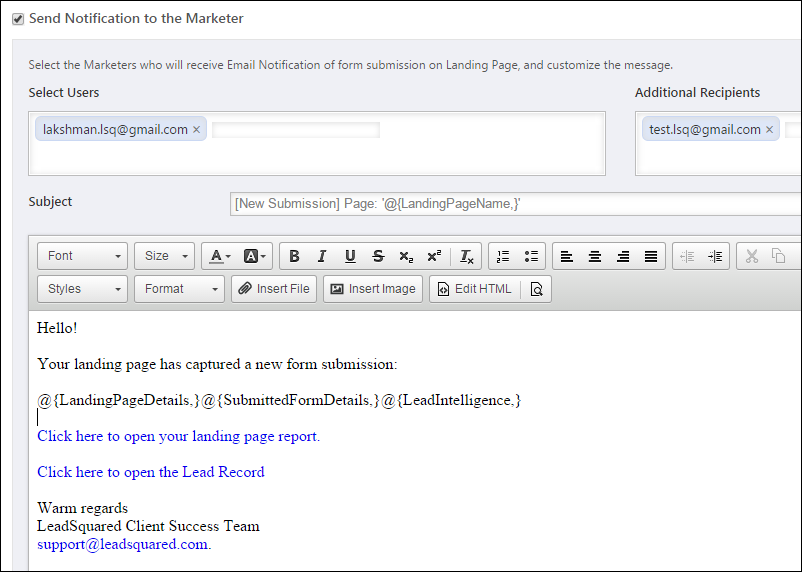
You can click on the Send Notification to the Marketer check box to enable Notification to be sent to the marketers by an Email when a visitor submits on the form of the Landing Page.

Besides Users of your LeadSquared account you may also send notification emails to Additional Recipients who are not necessarily leadsquared Users.

You can also customize the email according to your requirement.

LeadSquared Landing Pages

Other Actions

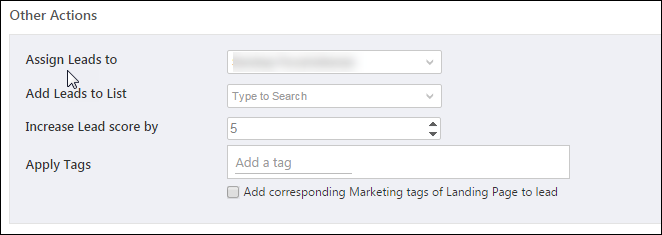
  • In Assign Leads to, assign the leads obtained from the landing page to any of the users in LeadSquared. The user assigned will be the Lead Owner for the leads coming from this landing page.
  • In Add Leads to List, you can add the leads obtained to the lists that you have created in LeadSquared. Alternatively, you can create a new list for the leads obtained through the landing page. The list created here will be a static list. You can create a list if you want to nurture the leads by sending them email campaign in the future.
  • In Increase Lead score by, you can also assign lead score for the leads once they submit on the landing page.
  • In Apply Tags, add the required Lead tags, which is combined with the marketing tags which you can provide from Step 01 of creating landing pages. These tags are used to filter the landing pages in the Landing Pages window.

LeadSquared Landing Pages

Click Next to move to the next step (Page Settings).

Next to Page Settings