Page Settings for Landing Page (SEO Options)

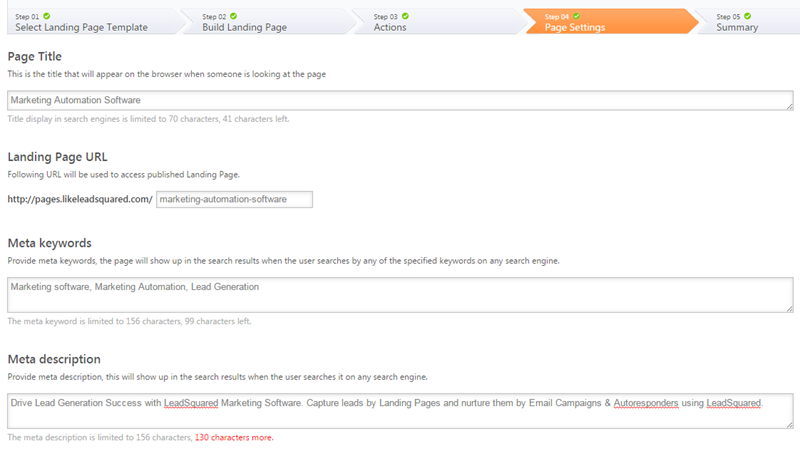
In Page Settings step of building a landing page you can set the Page Title, Landing Page URL, SEO Options and you may embed any web analytics script that you might be using. Each of these is explained here under.

Search Engine Optimization (SEO) is a technique used to increase a website’s visibility and traffic. You use this procedure to customize your landing page’s SEO settings.

Prerequisites

  • You have logged into LeadSquared.
  • You have Admin or Marketing User access for your LeadSquared account.
  • You have completed selecting the Landing Page Template, created the Landing Page and chosen the Actions Post Submission. (Step 1, Step 2 and Step 3)

Procedure

1. Page Title: This is the title that will appear on the browser when someone is viewing the landing page. This Title is attached to your site by means of a Meta Title or Title Tag.  Page title can display the name or description of your company, product or service.

2. Landing Page URL: This URL will be used to access the published landing page. Having clean URLs and domain names can be one of the most effective ways to optimize.  When search engines search the web for keywords to make a query, the most prominent area searched is the URL.  Vague URLs slow down the search process and are easily passed over.

3. Meta Keywords: Here you can provide Meta Keywords for the page to show up in the search results when the user searches by any of the specified keywords on a search engine.

4. Meta Description: Search results often include a short description of the website’s content.  This is called the site’s meta description.  When search engines search through thousands of similar sites related to the searcher’s query, they often use the meta description as a way to categorize. The description must not exceed 200 characters.

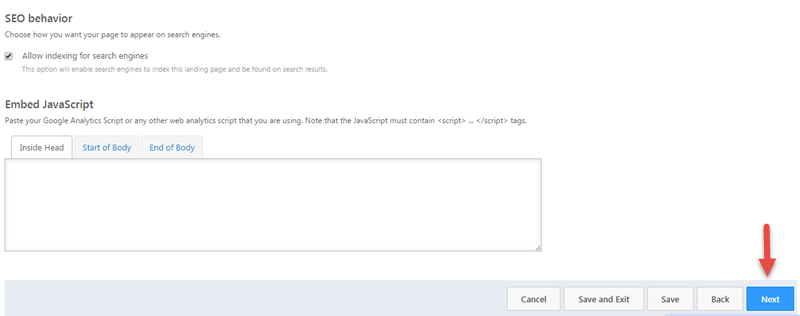
5. SEO Behavior: This allows you to choose how you want your page to appear on search engines. Search engine indexing is the process of a search engine collecting, parsing and storing data for use by the search engine. The actual search engine index is the place where all the data the search engine has collected is stored. It is the search engine index that provides the results for search queries, and pages that are stored within the search engine index that appear on the search engine results page. It is advised to check the Allow Indexing for Search Engines check box.

Note: To make your pages Indexable and Searchable you should get sitemap of your landing pages in LeadSquared and submit it in your Google Webmaster account. For help with it please refer to the following article.  Get Sitemap of Landing Pages.

6. Embed JavaScript: You can also embed any Web-Analytics script such as Google Analytics in the landing page. Although LeadSquared’s own tracking script is present, you can embed any other analytics script if you want to additionally track the visitors. You can choose to embed the script inside the Head tag, Start of the body or End of the body.

Page Settings
Page settings 2

6. Click Next to view the summary of the landing page. You can also click on Save or Save and Exit to view the summary at a later point of time.

How to Use Landing Page Reports?

Analyzing your Landing Page Report is one of the most important aspects in the process of Lead Management. You can use the landing page report to study the success/failure of the landing page through various metrics available in the report.

This article helps you understand the various metrics and parameters of a Landing Page Report.

Prerequisites

  • You have logged into LeadSquared.
  • You are an Admin or Marketing User of your LeadSquared account
  • You have created and published the landing page of which you want to study the report.

Procedure

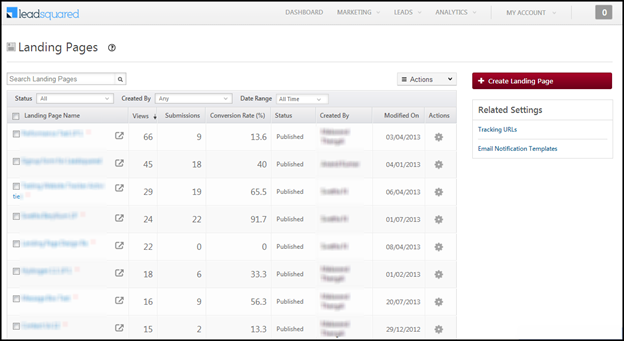
1. Navigate to Marketing > Landing Pages to see the list of all the landing pages you have created in your LeadSquared account.

List

2. Click on the Landing Page Name to view its Report. You will be redirected to its Report page.

Note: You can view the Report of a Landing page only if it is in Published state.

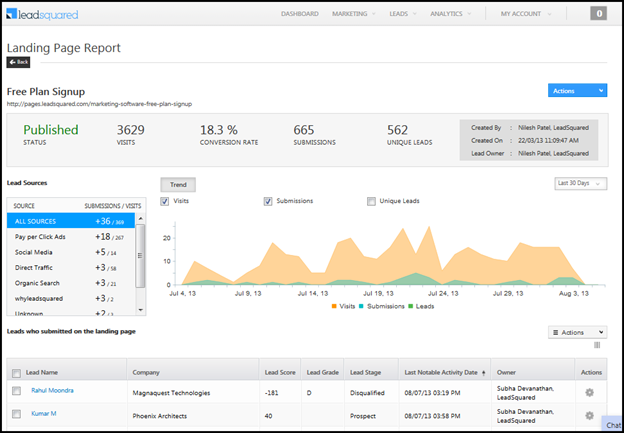
L P report

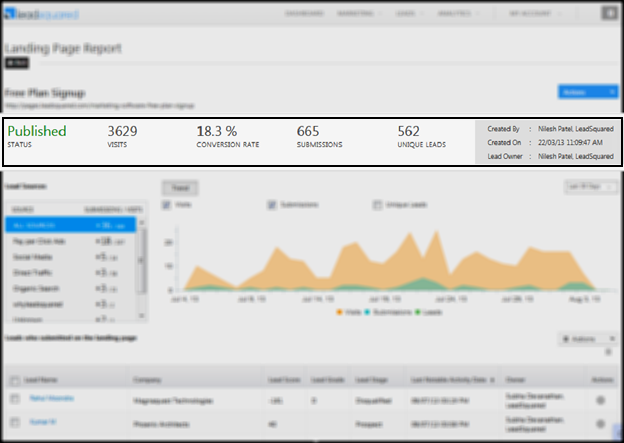
3. You can view the Status of the Landing Page, the number of Visits, Conversion rate, the number of Submissions and the number of Unique Leads at the top of the report.

Top tab

  • Conversion Rate: This is the number of visitors on your landing page who submitted their details and thereby became leads. Their information will be captured in your LeadSquared account. This gives a fair idea about the success of your landing page. If the conversion rate is too less, then you may consider improving the design, changing the content, or even replacing the landing page.
  • Unique Leads: This is the number of new leads that submitted their information on the landing page. The leads who are already in LeadSquared will not be updated again since they will result in duplication. Hence unique leads gives you an exact picture of the recent leads which have submitted on your landing page.

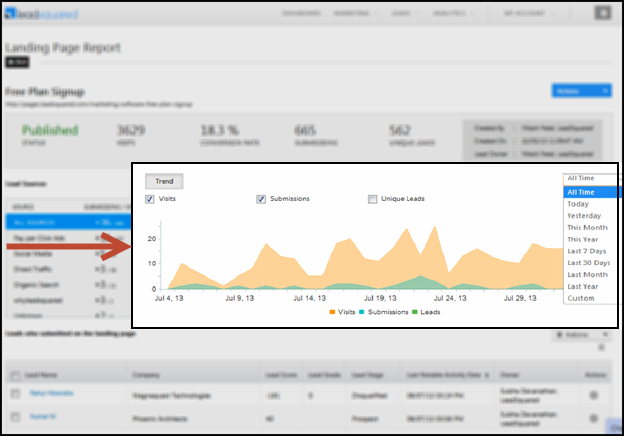
4. The graphs in the landing page illustrate the number of visits, submissions and unique leads. You can choose to view these trends on a daily, weekly, monthly and yearly basis. You can also view graph in any custom time span. You must click on Custom and select the From and To dates.

Graph

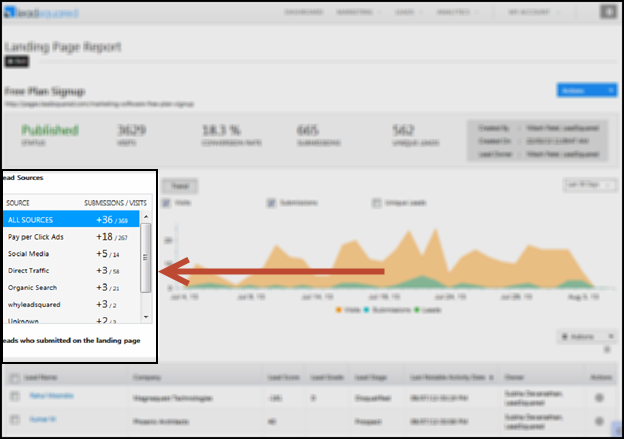
5. You can view the graphical representation of the views and submission on the basis of Lead Sources. You can select any of the available lead sources and view the graph. This way you can analyze the lead details according to the source and look to improve the source in which the leads obtained are less.

Lead source

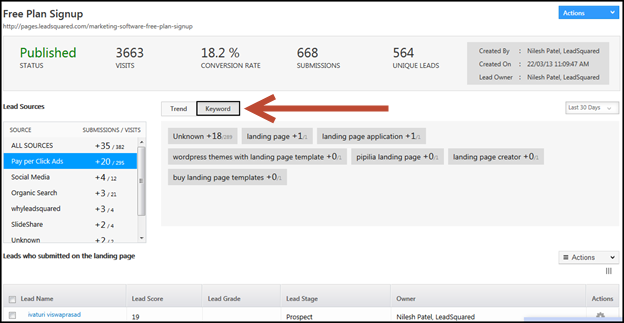
5. You can also view the keywords entered by users through which they were redirected to your landing page. You can view the keywords when you click on Pay Per Click Ads and Organic Search in the lead source tab. Click on the Keyword button in the graph display area. By analyzing the keywords, you could include or exclude terms on your landing page to make it more relevant and searchable.

Keyword

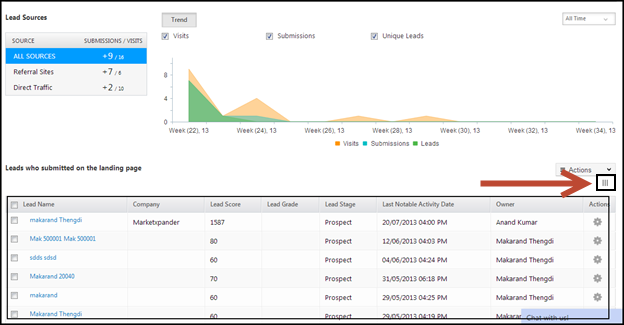
6. You can view the lead list for the respective  lead source below the graph. If you select All Sources in the lead source tab, you can view the list of all leads irrespective of the lead source. You can choose which lead detail you want to view by clicking on the Select Columns button (shown in the screen shot below).

Lead List

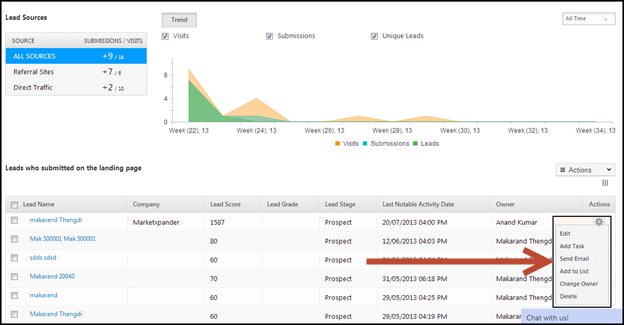
You can perform the following actions to the lead details

Actions

  • Edit: This allows you to edit the lead details. You can edit any of details available in the Edit Lead window.
  • Add Task: This allows you to create a task in relation to the particular lead. You can add any task in the Create Task window.
  • Send Email: This allows you to send a quick one to one email to the lead. In the Send Email window you can compose an email and include any variable that you require.
  • Add To List: This allows you to add the lead to an existing list or add it to a new list, by creating one in the Add to List window.
  • Change Owner: This allows you to assign an owner to the lead. By default the logged in user will be the lead owner.
  • Delete: This allows you to delete the lead details from LeadSquared.

What is the difference between “View All Submissions” and “View Submissions by Source” in the Landing Page report?

  • “View All Submissions” includes all form submissions, even from leads that have been deleted.
  • “View Submissions by Source” only displays submissions from leads that currently exist in the account.

This difference in criteria can result in varying submission counts between the two options.

How to Provide Border to a Block?

You use this procedure to provide border to the blocks in your landing page.

Prerequisites

  • You have logged in to LeadSquared.
  • You have navigated to Dashboard > Marketing > Landing Pages > Create Landing Page. You have selected a landing page template or a blank landing page.
  • You have completed the Select Landing Page Template step (Step 1).

Procedure

1. Click on the block to which you want to provide border. The properties panel on the right side displays the Block Properties tab.

Select Block

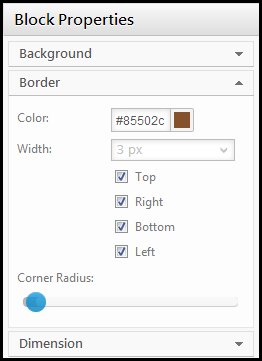
2.  The border settings tab allows you to select the border properties of the block.

border

  • Color: You can specify the color of the border by choosing the color in the color mixer pop up or by entering the HTML code of the color.
  • Width: You can select the thickness of the border and also select where the border is to be present.
  • Corner Radius: You can choose if the borders are to be sharp or curved using the slider.

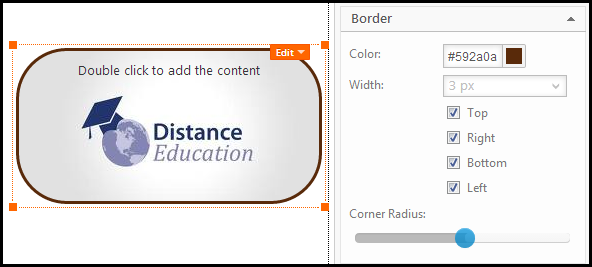
Example

The image below illustrates a landing page block with all the border settings.

Border settings

How to Embed Images in Landing Pages?

Images are the best way to have a positive effect on the conversion rate of your Landing Pages. Embedding images into the landing pages is very simple. You use this procedure to embed images into the landing pages.

Prerequisites

  • You have logged in to LeadSquared.
  • You have navigated to Dashboard > Marketing > Landing Pages > Create Landing Page. You have selected a landing page template or a blank landing page.
  • You have completed the Select Landing Page Template step (Step 1).

Procedure

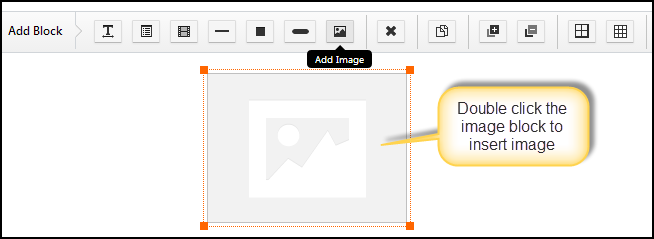
1. Click on the Add Image Block button in the landing page editor.

Insert Image Toolbar

Insert Image Toolbar


2. You have to double click on the block to embed an image.

Add Image Block

Add Image Block


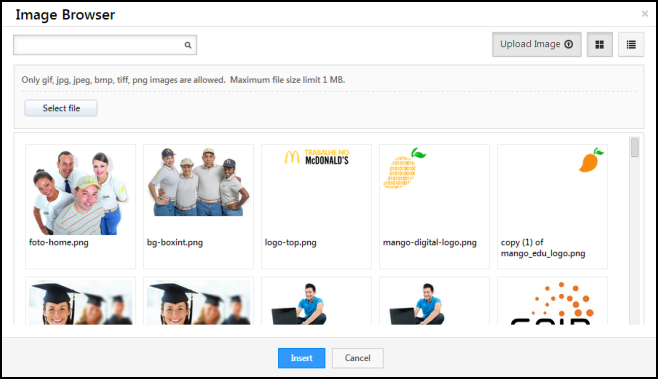
3. The Image Browser window pops up. You can choose an image from your computer or from the LeadSquared library. It should be noted that the file size should be 1MB or less.

Image Broswer


4. Select the image you want to upload and click on Insert. 

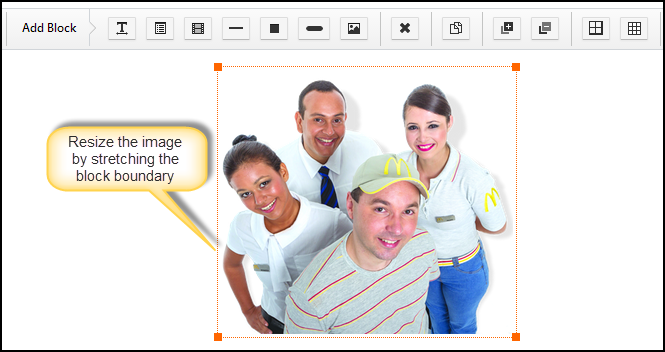
Resize Image

5. You can change the size of image by stretching the Image Block.

Media Block

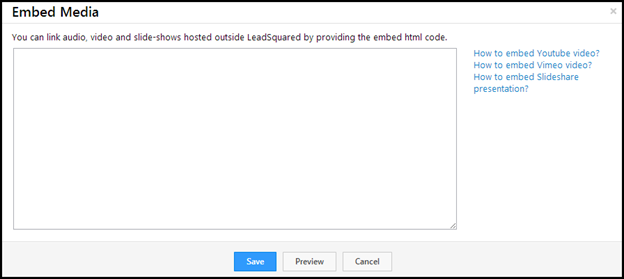
Media block allows you to add videos and presentations in the landing page. A video or a presentation could be very vital in making your landing page successful. You can click on the Add Media Block button in the landing page editor, or double click on an already existing one to change it. The Embed Media window opens up.

To learn more about landing pages, see How to create landing pages.

Embed Media

1. To include a video or presentation in the media block, you have to copy the html code of the same and copy it in the space provided. A typical code for  a youtube video will be something like this. <iframe width="420" height="315" src="//www.youtube.com/embed/NUnOd-Vf4RA" frameborder="0" allowfullscreen></iframe>.

2. You can click on Preview to have a look at the embedded video or click on Save to include it in the landing page.

Create Custom Lead Fields

1. Feature Overview

LeadSquared provides a set of default lead fields out of the box, but every business captures unique information about its leads. Custom lead fields let you extend the standard lead profile with fields specific to your industry or workflow — such as a credit score for financial services, a property budget for real estate, or a patient ID for healthcare.

Note: If an existing unused lead field already has the data input type you need, consider renaming its Display Name instead of creating a new field.

Examples by industry:

Industry Example Custom Fields
Banking & Financial Services Aadhaar Number, Social Security Number, Credit Score
Education & Ed-Tech 12th Grade Results, Course Interest
Real Estate Location Interest, Budget, Property Type
Healthcare Patient ID, Age, Previous Diagnosis
General Spouse’s Name, Permanent Address, Marital Status, Gender


2. Prerequisites

You must have Administrator access to create or modify custom lead fields.


3. How It Works

When you create a custom lead field, you define its properties and the section it belongs to. The section determines where the field appears when adding or viewing a lead record. Properties control the field’s data type — such as text, number, or date — and its behavior, such as whether it is mandatory, searchable, or included in mail merge.

Note: Review the data input type carefully before saving — most field properties cannot be changed after creation.


4. Creating a Custom Lead Field

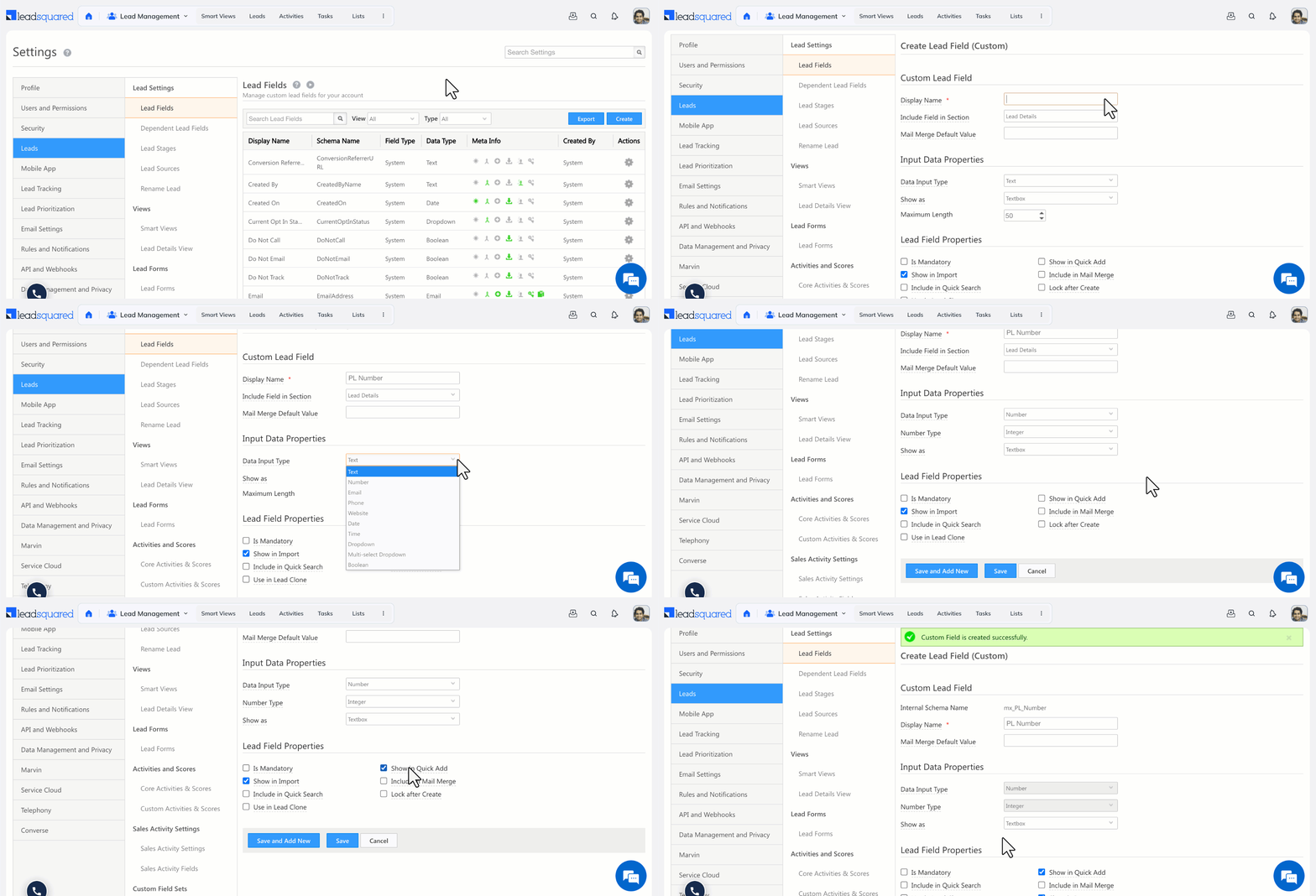
  1. Go to My Profile>Settings>Leads>Lead Fields.
  2. Click the Create icon.
  3. Fill in the field properties (see reference below).
  4. Click Save.

navigate to create custom lead fields


5. Field Properties Reference

5.1 Basic Properties

Property Description
Display Name The label shown to users on the lead form (e.g., Alternate Mobile Number).
Include Field in Section The section of the lead profile where the field appears: Lead Details, Additional Details, or Hidden Fields.
Mail Merge Default Value A fallback value used in mail merge when a lead has no data in this field.
Data Input Type The field’s data type. Determines how the field is rendered and what values are accepted (see table below).

5.2 Data Input Types

Data Type Rendered As Example
Text (String) Text box Designation
Number Text box (select Decimal or Integer) Fax Number
Email Email input Alternate Email Address
Phone Text box or Phone Controller Secondary Phone Number
Website URL input Company Blog
Date Date picker Follow-up Date
Time Time picker Follow-up Time
Boolean Radio button or checkbox Valid Passport
Dropdown Single-select dropdown Country
Multi-Select Dropdown Multi-select dropdown Courses Opted For
Custom Field Set (CFS) Configurable — supports file/image uploads PAN Card
Note: If you need a large number of dropdown options, see Large Options Set for Lead Fields.

5.3 Behavioral Settings

Setting Description
Include in Mail Merge Allows this field’s value to be dynamically merged into email campaigns, automations, and integrations.

Note: File-type CFS fields cannot be included in mail merge.
Is Mandatory Prevents users from saving a lead record without filling in this field.
Include in Quick Search Makes this field searchable from the Quick Search bar on the Manage Leads page.
Show in Quick Add Displays this field when creating a lead through the Quick Add option.
Lock After Create Prevents non-admin users from editing the field value after the lead is created. Does not restrict API-level updates.
Use in Lead Clone Auto-populates this field when cloning an existing lead.
Show in Import Makes this field available for column mapping when importing leads.


6. Editing a Custom Lead Field

Once a field is created, only the following properties can be modified:

  • Mail Merge Default Value
  • Maximum Length
  • Is Mandatory

All other properties, including the data input type, are locked after creation.


7. How to Create a Currency Field

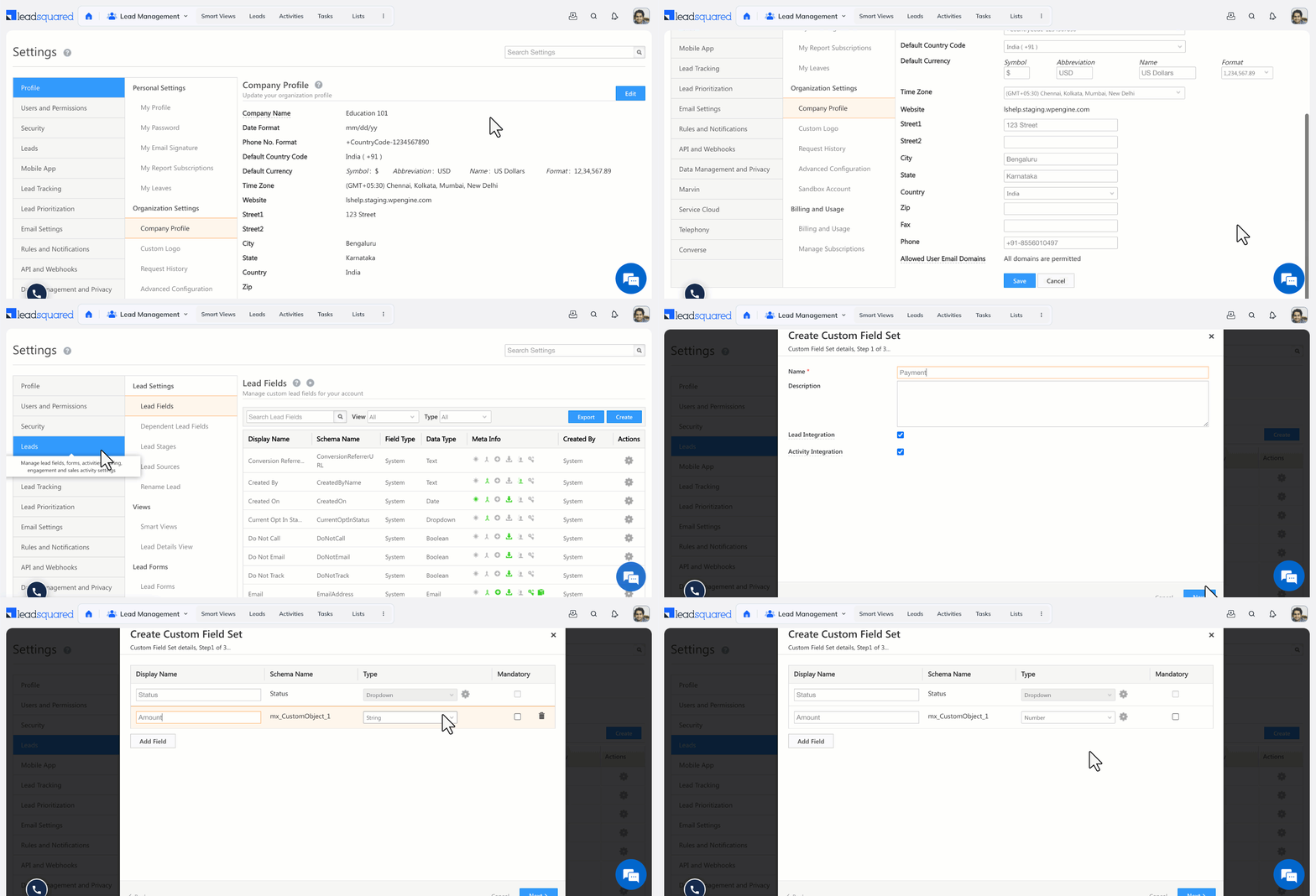
LeadSquared does not have a dedicated currency data type, but you can display a Number field in currency format using Custom Field Sets (CFS). Follow these steps:

Step 1: Set your account’s default currency format.

  1. Go to Settings>Profile>Company Profile.
  2. Click Edit.
  3. Next to Default Currency, click Format, select your preferred comma-separated currency format, and click Save.

Step 2: Create a currency-formatted number field.

  1. Go to Settings>Leads>Manage Custom Field Sets.
  2. Click Create.
  3. Enter a Name and Description, then click Next.
  4. Click Add Field, enter a Display Name, and select Number from the Type dropdown.
  5. Click the actions menu (seria sales user dashboard actions) and select Currency from the Show As dropdown.
Note: Currency formatting is also available for Opportunity, Task, and Activity number fields.

How to Create a Currency Field


Any Questions?

Did you find this article helpful? Please let us know any feedback you may have in the comments section below. We’d love to hear from you and help you out!

LeadSquared Getting Started Guide for Administrators

Hello, Admin. Welcome to LeadSquared.

This guide has step-by-step instructions on setting up your LeadSquared account. At the same time, you will learn how LeadSquared can help your organization.

Note: If you aren’t looking to configure LeadSquared in a live environment yet, you can create a test environment through LeadSquared Sandbox. The Sandbox duplicates your existing Live Production account, to test and evaluate LeadSquared features before subscribing to them.

1. Prerequisites

Before we begin, here are a few prerequisites –

  • LeadSquared account – You will need a paid LeadSquared account. If you do not have one, you can create one by booking a demo.
  • Missing Features – Some of the features listed here may not be available in your current plan. For more information on plans and pricing, visit https://www.leadsquared.com/
  • Account Number – Once your sign-up is complete, log into LeadSquared and note down your account number. You will need to quote this number in all communications with us.


2. Setup your Profile

Personal Settings and Organization Settings capture details about you and your organization. Some of these details are used while interacting with your leads, prospects, and customers. Further, as an administrator, you can choose your daily report delivery preferences.

The Billing and Usage section displays your LeadSquared subscription details. You can view all the features of your account and the status of their current usage. Under Manage Subscriptions, you can view the purchase history of all your orders and make further purchases.
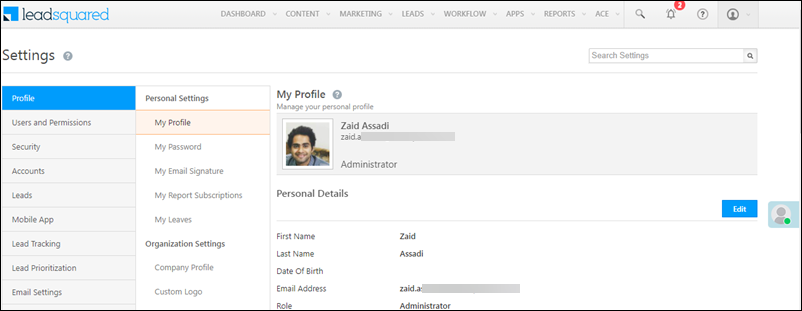
Note: For more information on plans and pricing, visit https://www.leadsquared.com/

getting started admin My profile`

Help Article Description
Setup your personal profile This article will help you set up your personal profile.
Setup your company profile This article will help you set up your company profile
Setup your custom logo This article will help you set up your business/custom logo.
View your LeadSquared billing and usage This article will help you understand and manage your billing and usage, and your recurring and one-time subscriptions.


3. Configure your Lead Settings

Leads are your potential customers. In LeadSquared, you can track your lead’s journey from creation, through marketing and sales activities, all the way to conversion.

The lead entity is customizable. In addition to system fields (first name, email, etc.,), you can create custom Lead Fields (enrolment Id, passport number, etc.,) to capture details specific to your business use cases. Also, you can create a set of fields (using the Custom Field Sets feature) for your document collection business use cases (KYC documents, education qualifications, etc.,)

You also have the option to create a custom Lead Form that is easy to set up. It’s a quick way to capture new leads or update existing ones.

Also, when a lead gets captured, you will know the source through which it originated (for example, social media, newsletters, ads, etc.)
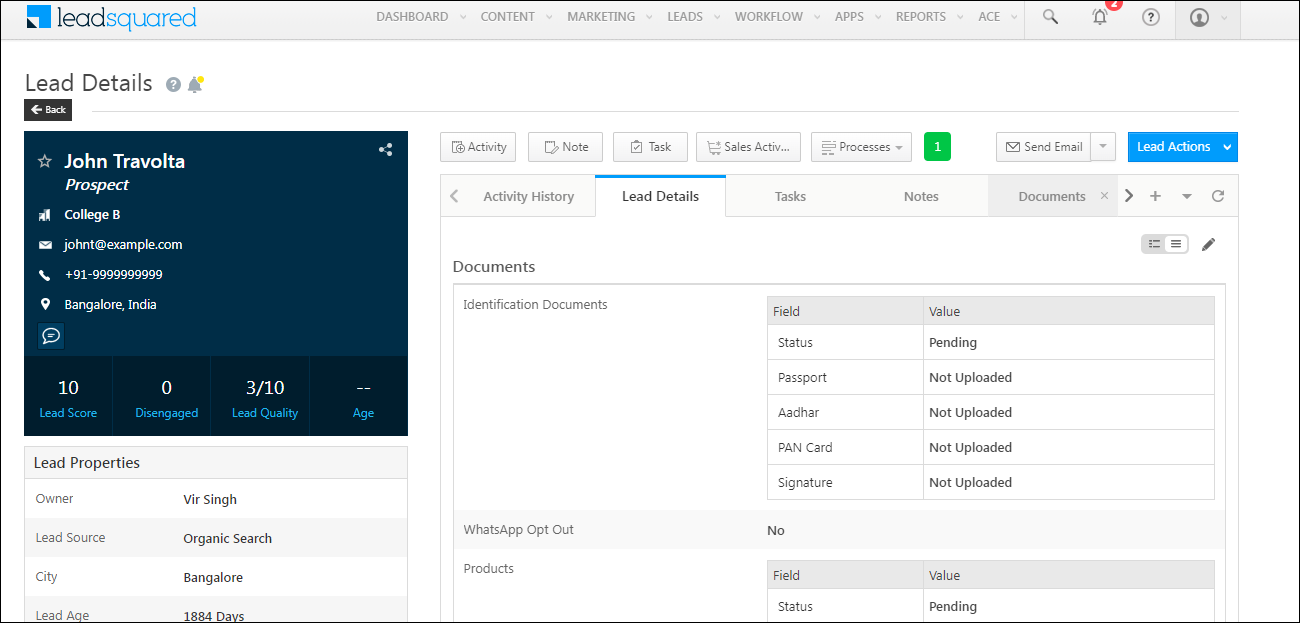
getting started lead details

Help Article Description
Lead Management Feature Guide This article will give you a brief overview of LeadSquared’s Lead Management feature.
Customize the Lead Details View This article will help you understand how to customize your Lead Details page.
Create your custom Lead Fields This article will help you understand how to create custom Lead Fields based on your organization’s requirements
Create a dependency between Lead Fields. This article will help you understand how to create a dependency between 2 Lead Fields. For example, the Campus field is dependent on the Department field for an account created for colleges.
Manage your Lead Stages This article will help you understand how to create different Lead Stages as the lead passes through the sales funnel.
Manage your Lead Sources This article will help you understand how to create and manage Lead Sources.
Rename a lead entity to reflect your business terminology This article will help you understand how to rename the lead entity. For example, rename “lead” to “contact”.
Create Custom Field Sets This article will help you understand how to create Custom Field Sets. For example, a custom field set for KYC Documents with fields Passport, PAN Card, Aadhar Card, and Address Proof.
Create a Lead Form This article will help you understand how to create a Lead Form.

Note: This is a basic version of a Form. You can create more powerful forms through LeadsSquared’s Dynamic Forms.


4. Lead Prioritization and Scoring

LeadSquared provides three configurable metrics to help you qualify and prioritize leads. Each of these metrics tells you something about the quality of the lead or their propensity to buy your product/service.

4.1 The Lead Score

Lead scoring helps you understand how active a lead is. LeadSquared tracks system activities (email open/clicked, website visits, etc.,) of your leads and assigns them a score based on these engagements. Higher the Lead Score, the higher the chance of your lead converting. LeadSquared also allows you to customize the lead score, by assigning numerical values to different Custom Activities along your sales pipeline.
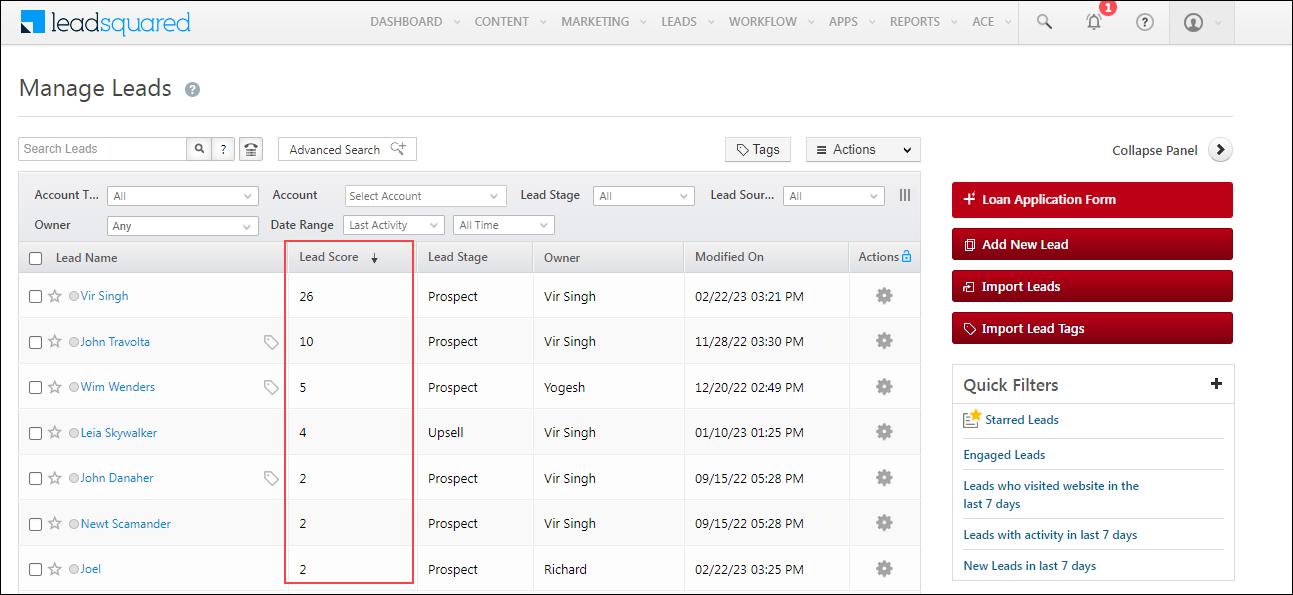
getting started lead score

Help Article Description
How does Lead Scoring Work? This article will help you understand how lead scoring works.
Add Custom Activity Types This article will help you add custom activities for lead scoring.


4.2 The Engagement Score

The engagement score is similar to the lead score, but the key difference is that the engagement score looks at specific activities performed by/on the lead within a specified time period.
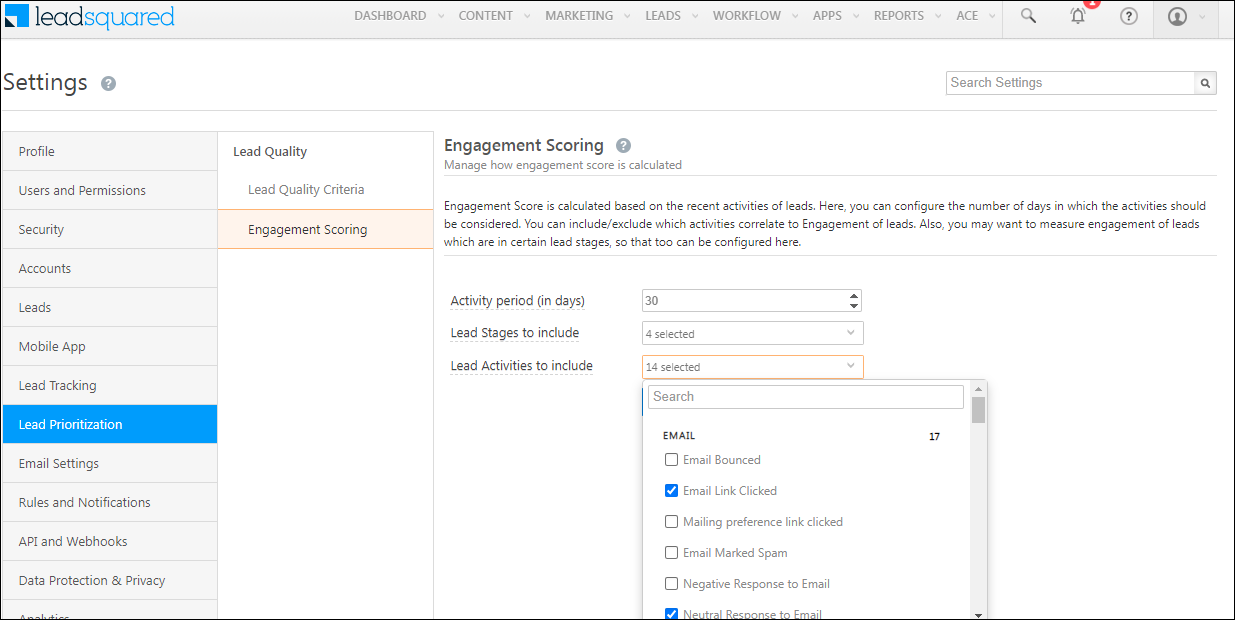
getting started engagement scoring

Help Article Description
Setup Criteria for Lead Engagement Scoring This article will help you create Lead Engagement Scoring.


4.3 The Lead Quality Criteria

The Lead Quality Criteria helps you recognize leads that match your ideal customer profile (ICP). You can set up rules to identify your ICP. For example, your ICP could be an age group between 21 and 25, working in particular locations – leads are evaluated against these rules and assigned a score.
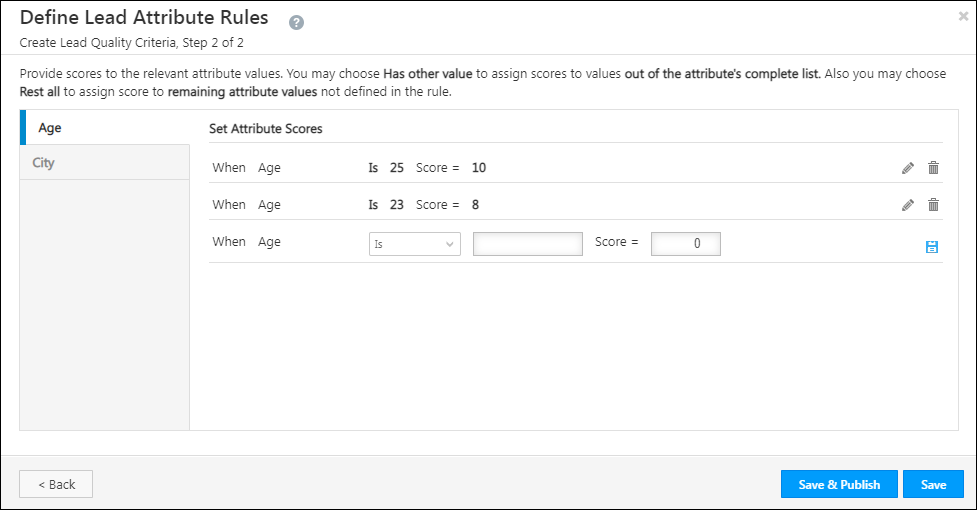
getting started lead quality criteria

Help Article Description
Setup Lead Quality Criteria This article will help you create Lead Qualification Criteria.


5. Capture Activities on Your Leads

Once Leads are captured in your account, you can monitor their progress down the sales funnel by tracking notable interactions and events, or ‘Activities’. Activities help you understand a lead’s position in the conversion funnel, and accordingly automate nurturing and sales processes.

5.1 System/Core Activity

Some activities are available by default on your LeadSquared account. These activities are common across industries. E.g., Emails – Bounced/Link Clicked/Opened, Phone Calls, Website Visits, etc.
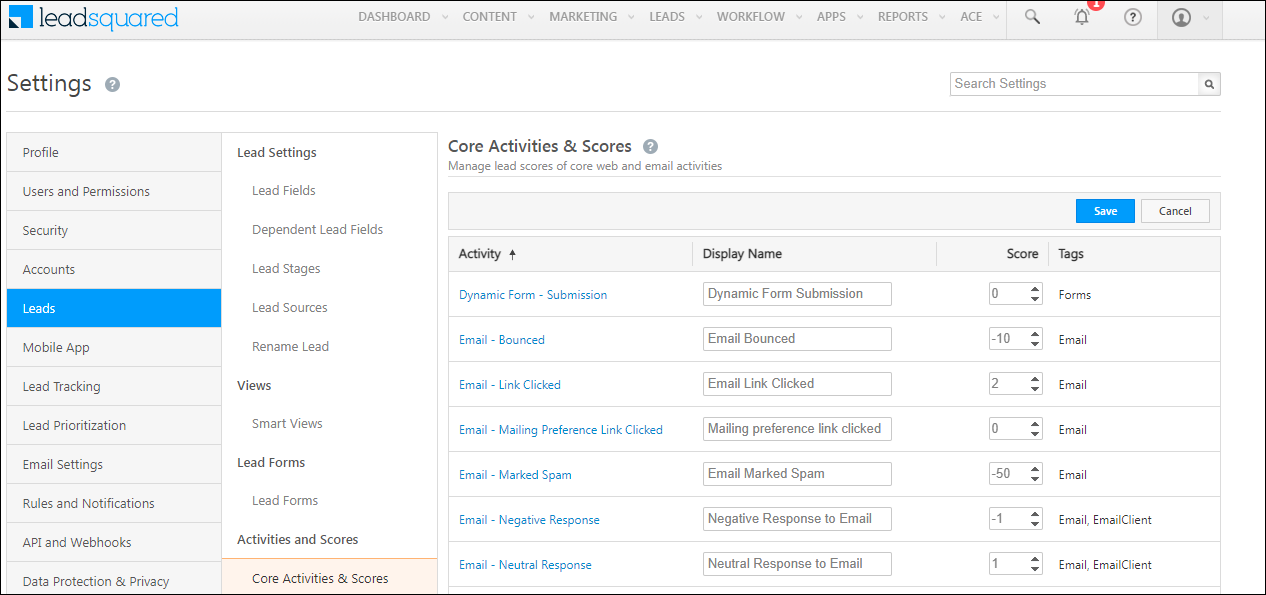
getting started core activities and scores

Help Article Description
Activity Management Feature Guide This article will help you understand LeadSquared’s Activity Management feature.


5.2 Custom Activities

You can also add custom activities to your LeadSquared account. This allows you to create and assign scores to new activities specific to your industry. For example, if you’re in the education industry your custom activities may be attending a seminar, completing a payment, campus visit, etc.
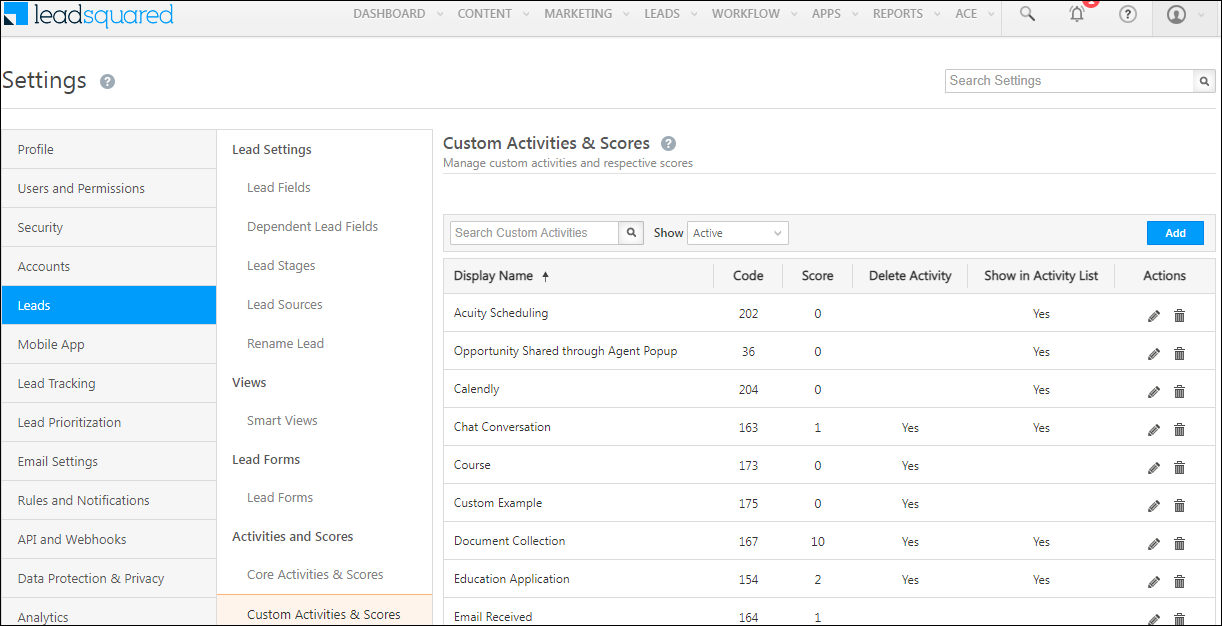
getting started custom activities and scores

Help Article Description
Add Custom Activities This article will help you understand how to add Custom Activity Types.


5.3 Sales Activities

The Sales Activity Management feature lets you capture important information related to each sale (e.g., product sold, sales owner, date, order value, etc.,). You can add and manage the revenue generated by your customers for different products and services offered by your organization. You can also cancel or edit sales activities to manage refunds and returns.
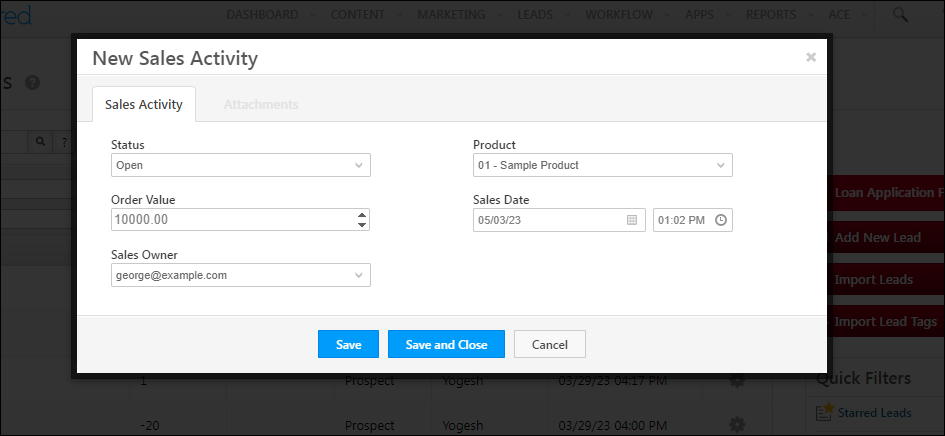
getting started new sales activity

Help Article Description
Sales Activity Management  This article will help you understand how to configure Sales Activities.


6. Configure Tasks for Users

Once a lead is created in your system, you can assign and manage Tasks among your users (schedule meetings, demos, site visits, etc.), and use a variety of other features to convert them into customers.
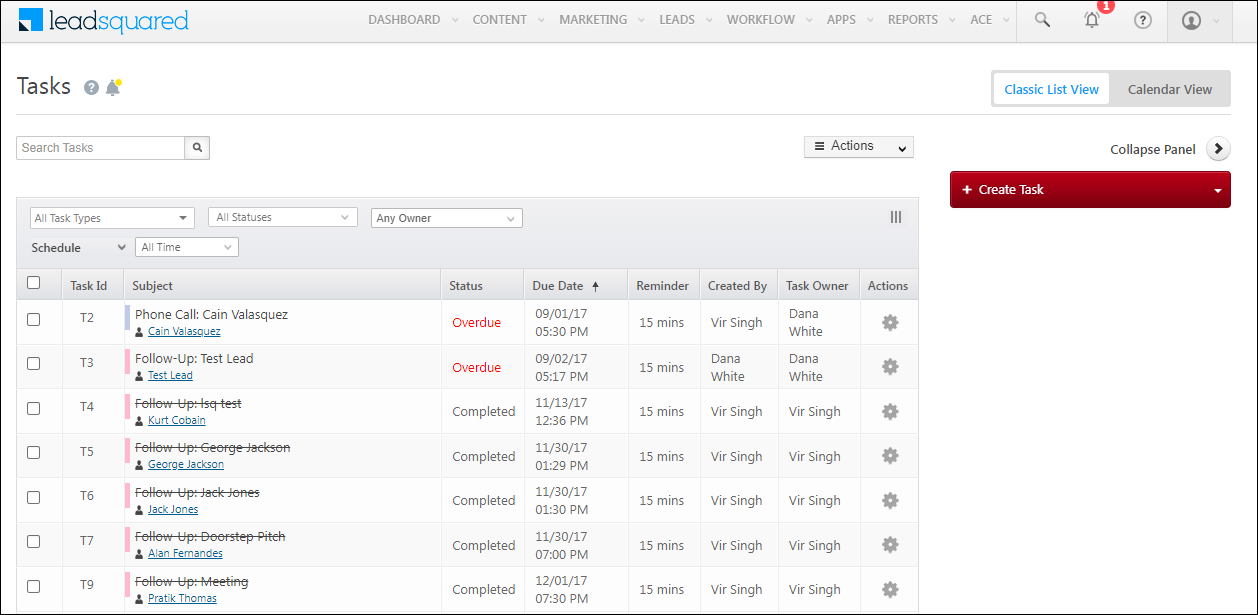
getting started tasks

Help Article Description
Tasks – Feature Guide Understand all the capabilities of the Tasks feature.
Configure your Tasks This article will help you understand and configure Tasks.
How to Create Tasks and Schedule Reminders? This article will help you understand and create Tasks and schedule reminders.


7. Manage Accounts and Opportunities

7.1 Create and Manage Your Accounts

All your B2B relationships can be managed through LeadSquared’s Accounts feature. If you work with partners, vendors, third-party services, etc., you can create accounts for them on LeadSquared and store the data you need (account details, account owners, stages, etc.). You can also add and manage your leads under these accounts.
getting started manage accounts
Help Article Description
Accounts Management Feature Guide This article will help you understand LeadSquared’s Account Management Feature
Account Settings This article will help you set up LeadSquared’s Account feature.
Accounts, Leads, and Opportunities This article will help you understand the difference between Accounts, Leads, and Opportunities.


7.2 Create and Manage Your Opportunities

Opportunities in LeadSquared represent potential deals. A lead could be interested in more than one product offered by your company. For example, a lead might be interested in buying car insurance, term insurance, and health insurance. LeadSquared’s Opportunities feature lets you manage different opportunities for the same lead without creating duplicate contacts. You can route the lead to agents specialized in different products, and create separate sales workflows.
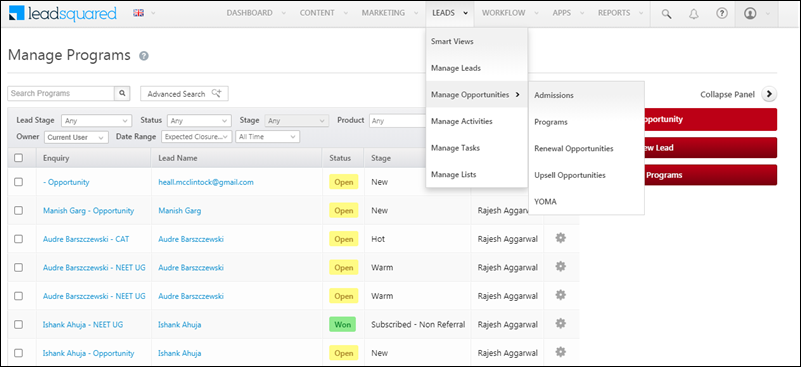
Help Article Description
Opportunity Management Feature Guide This article will help you understand LeadSquared’s Opportunity Management Feature.
Opportunity Configuration This article will help you understand how to create forms for multiple opportunity types, configure opportunity types, and add opportunities to your leads.
Manage Opportunities This article will help you understand how to add opportunities to leads, and perform multiple actions on these opportunities such as bulk and grid updates, export opportunities and reset filters.
Accounts, Leads, and Opportunities This article will help you understand the difference between Accounts, Leads, and Opportunities.


8. Manage Your Leads Through Smart Views

To bring all your important information into one place, LeadSquared launched Smart Views. The Smart Views page gives users a personalized view of your accounts, leads, opportunities, activities, and tasks. Sales users can create their own individual smart views, but as an Admin you create smart views at the organization level and assign them to different teams.
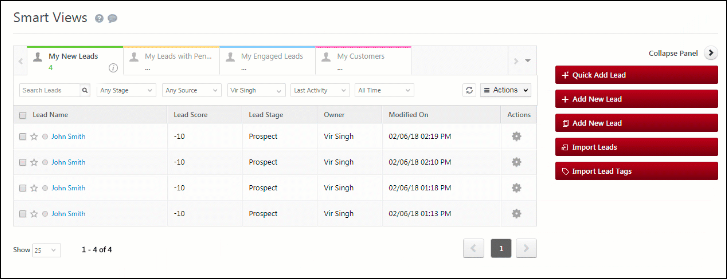
getting started smat views

Help Article Description
Smart Views This article will help you understand Smart Views.
Smart Views for Administrators This article will help you understand how to create Smart Views as an administrator.


9. Build Workflows

9.1 Creating LeadSquared Dynamic Forms

In addition to the basic lead forms feature, the Dynamic Forms Designer feature helps you create intelligent forms to capture entire application processes (e.g, college admission applications, loan applications, etc.). You can customize forms to behave in ways specific to your use cases, and prompt users to collect the right information based on a lead’s previous inputs.

Once you’ve created a form, the Process Designer helps you choose where, and to which users you want the form to appear. You can also use it to combine multiple forms into processes.
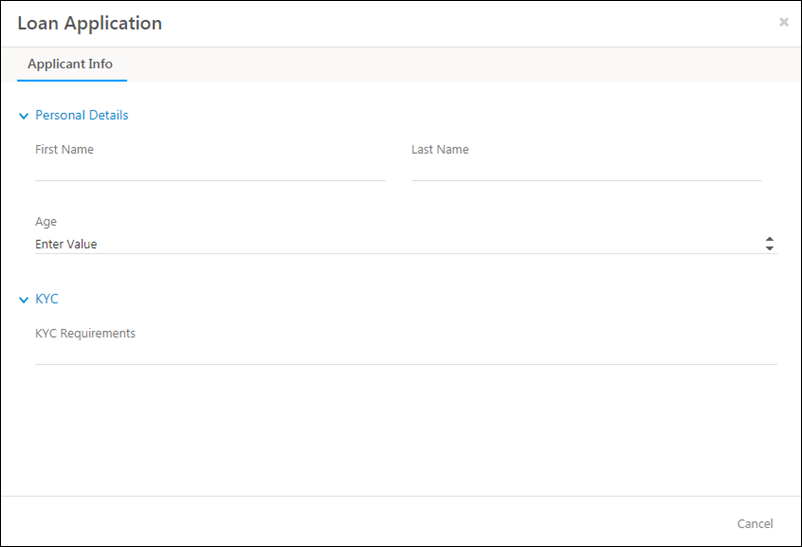
preview form

Help Article Description
LeadSquared Dynamic Forms and Processes – Feature Guide This article will give you an overview of the Dynamic Forms and Process features
LeadSquared Forms This article will help you understand how to create a LeadSquared Dynamic Form.
LeadSquared Process Designer This article will help you organize your forms into workflows with Process Designer.


9.2 Create an Automation Workflow

The Automation feature lets you automate your entire workflow using an intuitive and easy-to-use visual designer. It’s a powerful way to push your leads to conversion. Just set it up once and watch your leads trickle down the sales funnel with minimal manual effort.
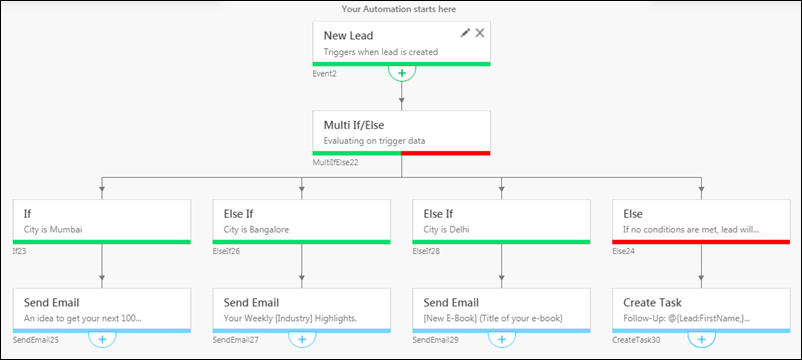
multi if else example

Help Article Description
Automation Feature Guide This feature guide will help you understand LeadSquared’s Automation feature.


9.3 Create LeadSquared Portals and Widgets

LeadSquared’s Portals are a great way to design a self-service website that helps with lead management like online applications or registration processes. LeadSquared’s Portal feature allows you to build your own online portals to capture leads and opportunities, through online forms, making the entire process paperless.

You can also create and embed Widgets on your website or landing page. An LSQ widget acts as a “lead magnet”. An example of a lead magnet is a special deal offered to customers in exchange for their contact details. It can be a discount code, webinar, white paper, ebook, template, inquiry form, or another resource.
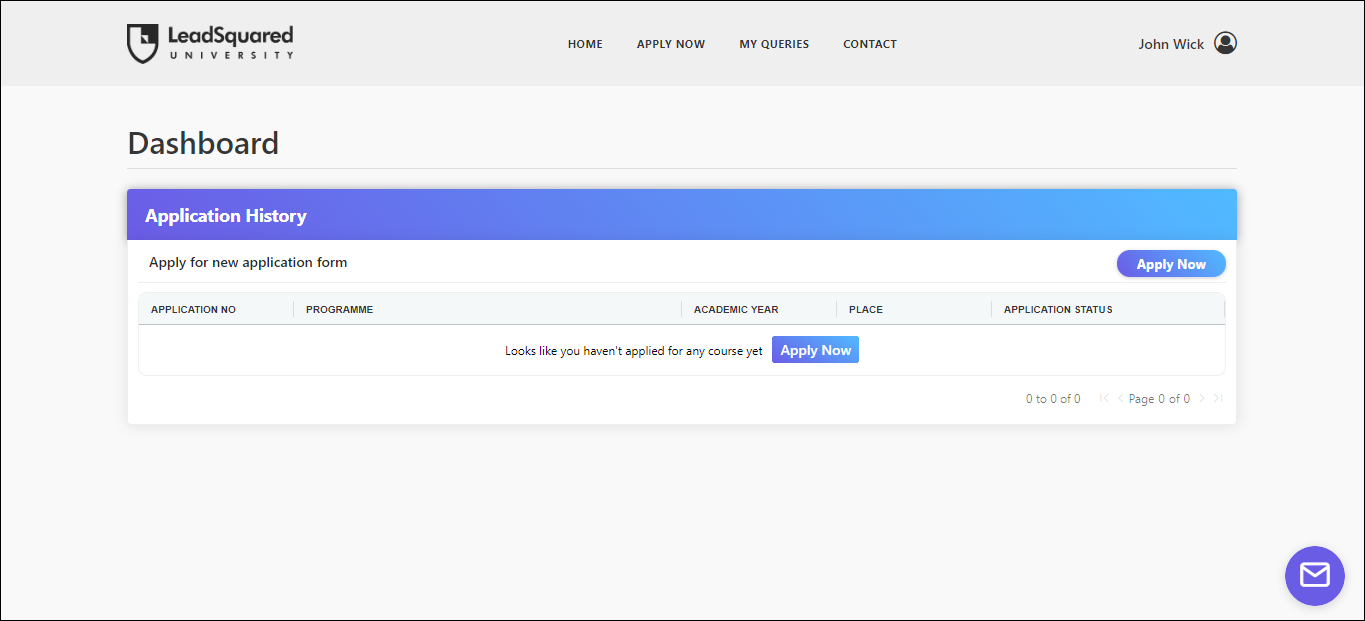
Portal

Help Article Description
Portals Management Feature Guide This article will help you understand and create a LeadSquared Portal.
Capture Leads with LeadSquared Widgets  This article will help you create LeadSquared Enquiry Widget or Registration Widget.


10. Setup Email Campaigns

Communicating with your leads is a breeze with LeadSquared’s Email Campaigns. It’s quick and easy to design and send out email campaigns to engage and nurture leads. You can personalize the content, schedule the timing of the campaigns, and track your lead’s interactions through Campaign Reports and Analytics.

With LeadSquared’s Email Settings, you can manage subscriptions to your email campaigns, set restrictions on which users can send emails, and set restrictions on recipients by blocking email addresses or domains.

Also, LeadSquared’s List Management feature lets you create Static and Dynamic lead lists. You can leverage this feature with your email campaigns to send targeted campaigns. The Manage Lists page allows you to create, edit, and view all your lead lists in one place.
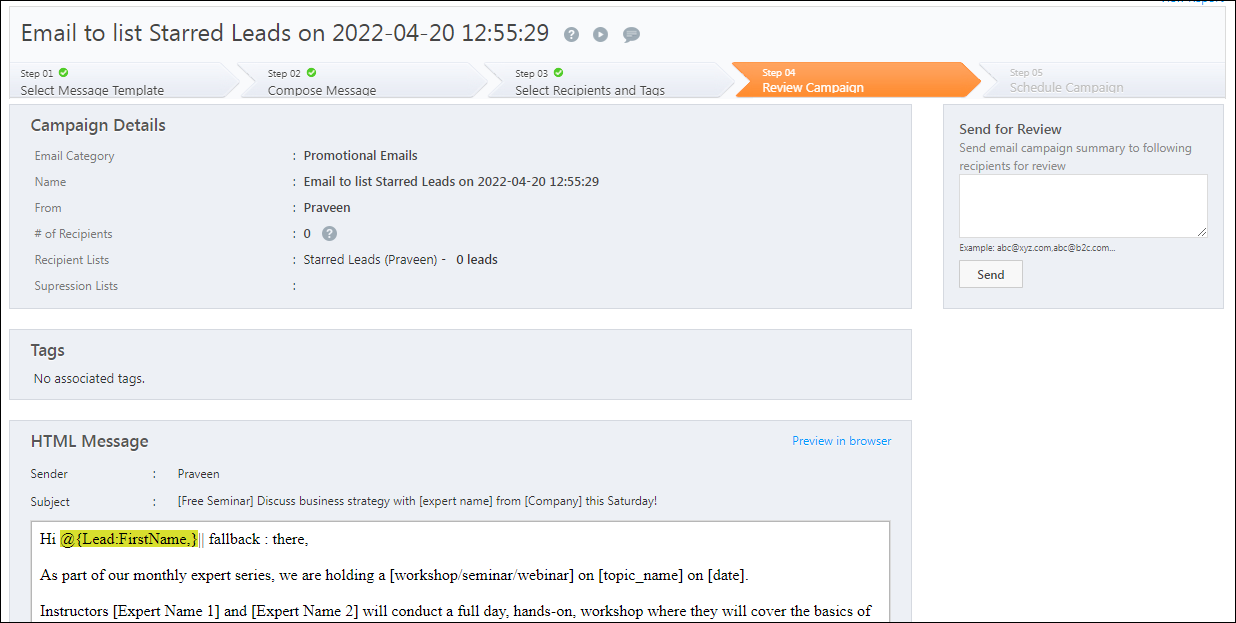
getting started email campaign

Help Article Description
Email Settings Feature Guide This article will help you understand and configure your email settings.
Email Campaign Feature Guide This article will help you set up Email Campaigns through LeadSquared
List Management Feature Guide This article will help you understand and create Lists for your email campaigns.


11. Create Users and Permissions

As an administrator, you can create LeadSquared users and grant them permissions based on their role in your organization.

After creating the users, you can group them into different sales groups based on location, business unit, or any other categorization of your choice.

Based on the reporting structure of your users, LeadSquared will also create an organizational hierarchy.

You can also group users into Teams that reflect your organization’s structure. The most powerful merit of the Teams feature is the ability to auto-check in your users. You can configure work-day templates and holiday calendars in accordance with your organization’s work schedule.
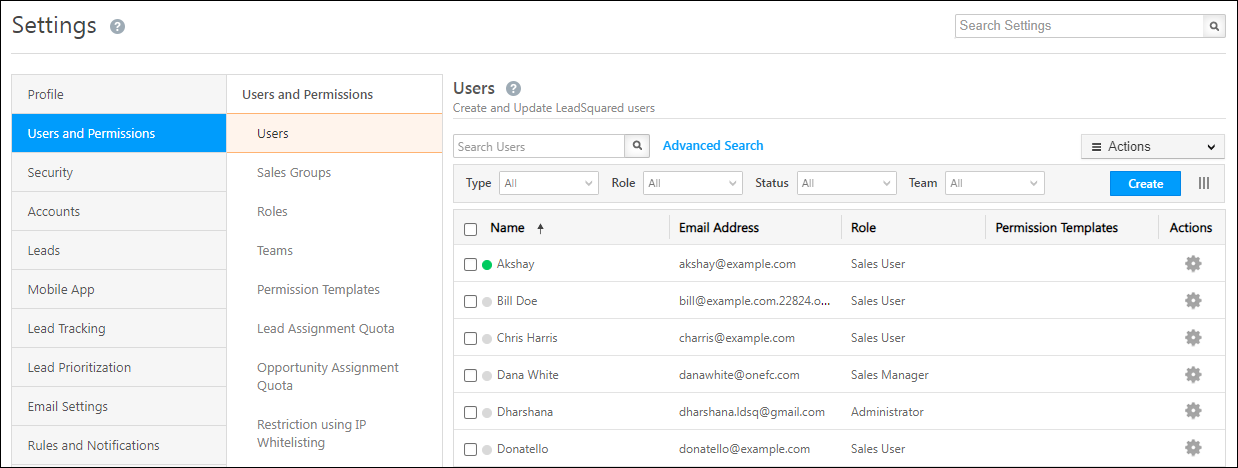
getting started users

Help Article Description
Manage Users This article will help you understand how to create and manage LeadSquared Users.
Manage User Custom Fields This article will help you create Custom Fields for your users.
Check-in/Check-out Users This article will help you understand the Check-in/Check-out feature for users.
Permission Templates Feature Overview This article will help you understand LeadSquared’s Permission Templates feature.
How to Create a Permission Template This article will help you understand how to create a Permission Template.
How to Apply Permission Templates This article will help you understand how to apply a Permission Template.
Managing Sales Groups This article will help you understand how to create and manage your LeadSquared Sales Groups.
Managing Teams This article will help you understand how to create and manage your LeadSquared Teams.
How to Set Up User/Organization Hierarchy  This article will help you understand how to create and manage your organization hierarchy.


12. Reports and Analytics

LeadSquared provides powerful features to track your reports and dive into analytics –

12.1 Create a Custom Dashboard

Your dashboard is the first page you see when you log in to your LeadSquared account. It displays all the important sales and marketing metrics and reports of your account. The dashboard is completely customizable. And, you can also add third-party reports to your LeadSquared dashboard through an external URL.
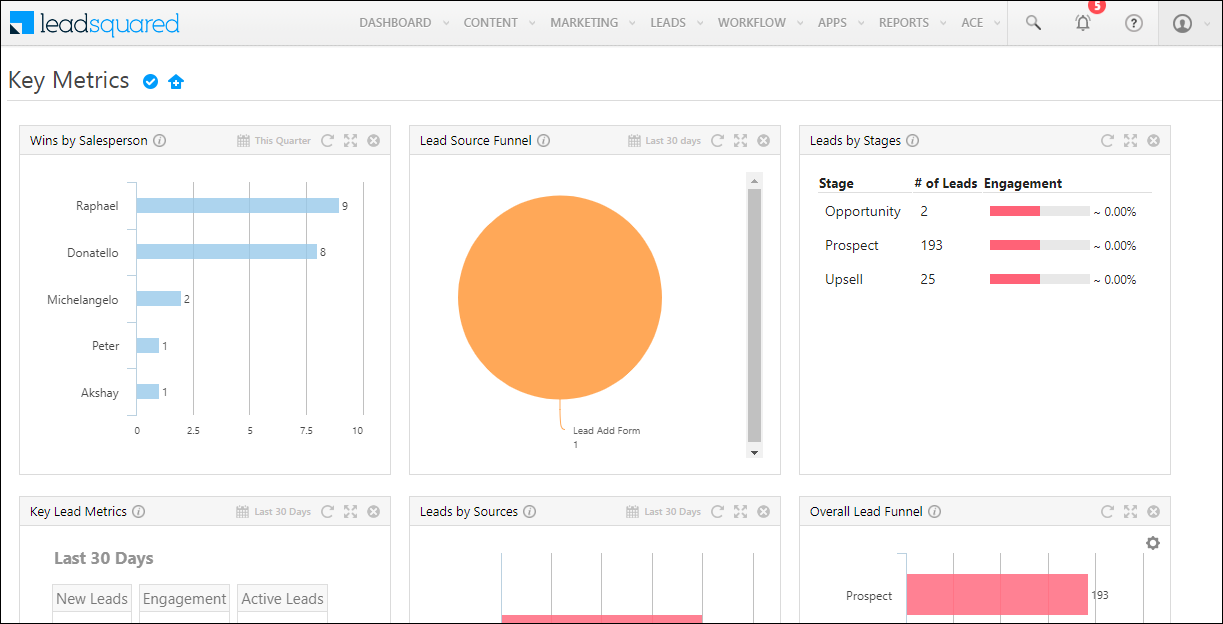
getting started dashboard

Help Article Description
Create a Custom Dashboard This article will help you create a Custom Dashboard on LeadSquared to view your reports and metrics.
Assign Custom Dashboards to Teams This article will help you assign Custom Dashboards to your Teams.
Set a Dashboard as Default  This article will help you understand how to set a Dashboard as default.


12.2 SIERA

Sales Intelligence and Efficiency through Reports and Analytics (SIERA) is LeadSquared’s new-gen self-service reporting tool. Through SIERA, you can track leads, opportunities, organization revenue, user performance, and more.
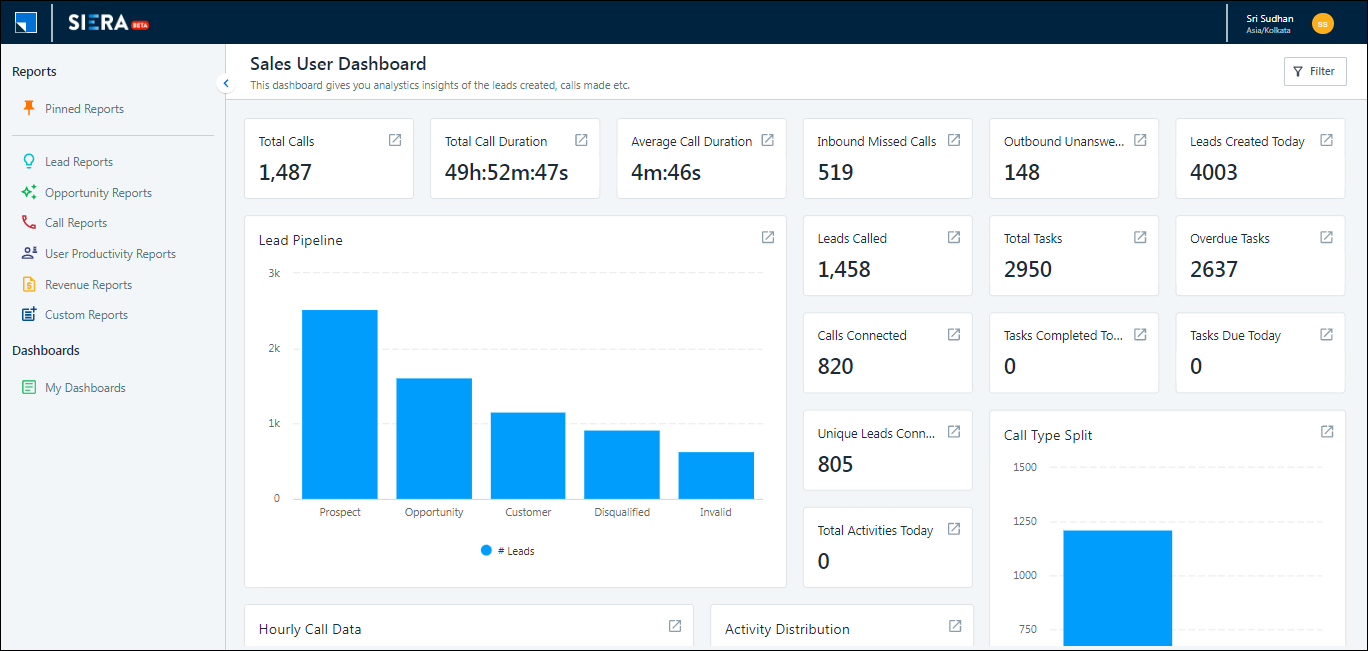
getting started SIERA

Help Article Description
SIERA Feature Guide This article will help you understand LeadSquared’s SIERA feature for viewing your reports and analytics.


12.3 LeadSquared Reports

You can use the LeadSquared Reports feature to analyze your marketing and sales business processes. It helps you track and manage the activities performed by the lead and your users, across all LeadSquared features.

Help Article Description
LeadSquared Reports This article will help you understand and create LeadSquared Reports

LeadSquared Reports


13. Integrate Your Third-Party Apps

The App Marketplace helps you extend LeadSquared’s functionality. If you use an external application that manages lead data, you can sync that data with LeadSquared. Simply download and install the respective application from the App Marketplace and start syncing the data. Once the leads are synced, you can leverage LeadSquared’s CRM features to nurture and convert your leads.
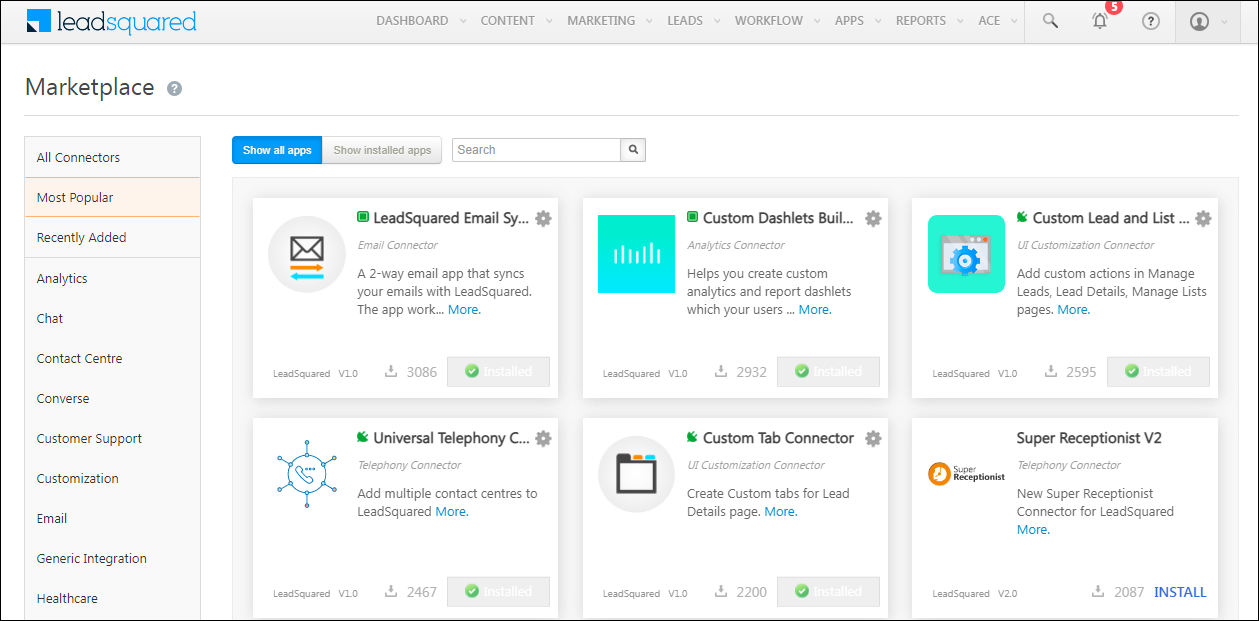
getting started app marketplace

Here are some popular apps on LeadSquared’s App Marketplace –

Help Article Description
WhatsApp Business Messaging Connector This article will help you integrate your WhatsApp business account with LeadSquared.
Email Sync Connector This article will help you integrate your Outlook or Gmail account with LeadSquared.
Facebook/Instagram Lead Ads Connector This article will help you integrate your Facebook Ads account or Instagram Ads account with LeadSquared.
Custom Lead and List Actions Connector This article will help you understand how to extend LeadSquared’s functionality and create Custom Actions (in addition to the actions available by default) on a lead, group of leads, or a list.
Gupshup SMS Connector This article helps you set up WhatsApp messaging through your LeadSquared account using Gupshup as your service provider.
Kalera SMS Connector This article will help you integrate your Kaleyra SMS with LeadSquared.
Super Receptionist Telephony Connector This article will help you integrate the Super Receptionist Telephony provider with LeadSquared.
Exotel Telephony Connector This article helps you integrate the Exotel Telephony provider with LeadSquared.
Universal Telephony Connector This article will help you integrate your cloud telephony service provider(s) with LeadSquared.
Google Forms Lead Capture Connector This article will help you integrate your Google Forms with LeadSquared.
Universal Lead Capture Connector This article will help you integrate your custom connectors with LeadSquared.
Note: LeadSquared also has extensive API Documentation for your reference.


14. Setup Website Tracking

You can start tracking your leads by installing the LeadSquared tracking script on your website.

LeadSquared’s lead tracking system helps you understand the sources from where the leads landed on your website (google search, email newsletters, social media advertisements, etc.,). These statistics give you an insight into what channels or mediums are working well for your business, and the ones that need improvement.

You can even track the leads’ web events such as page views, button clicks, and link clicks on your website.

Once you list your website under Website & Landing Page Domains, you can install the tracker. Plus, there are additional options you can use to configure your lead tracking.
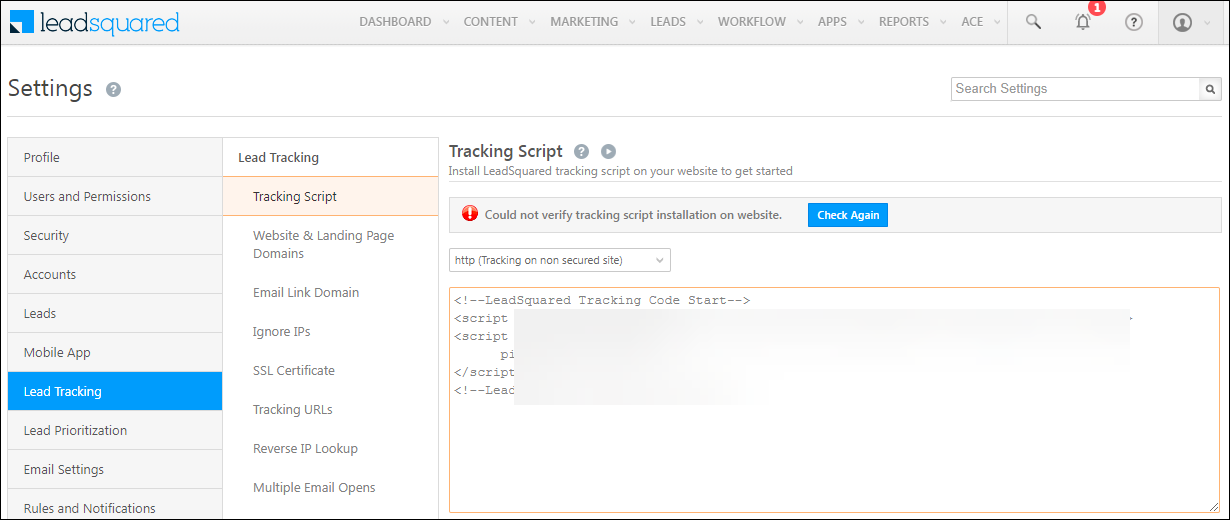
getting started tracking

Help Article Description
Install the LeadSquared tracking script This article will help you install LeadSquared’s Tracking Script on your website.
Add your website and landing page domains This article will help you link your business/brand domains with your LeadSquared account.
Domain settings for email links This article will help you track links sent to your leads through email campaigns.
Control settings for multiple email opens Enabling Multiple Email Opens may help you in case the emails are forwarded in the same organization, and different people open it to trigger a higher lead score.


15. Create Landing Pages

LeadSquared’s landing page module offers powerful features to design and publish conversion-optimized Landing Pages. You can use LeadSquared’s built-in templates to easily create Landing Pages.
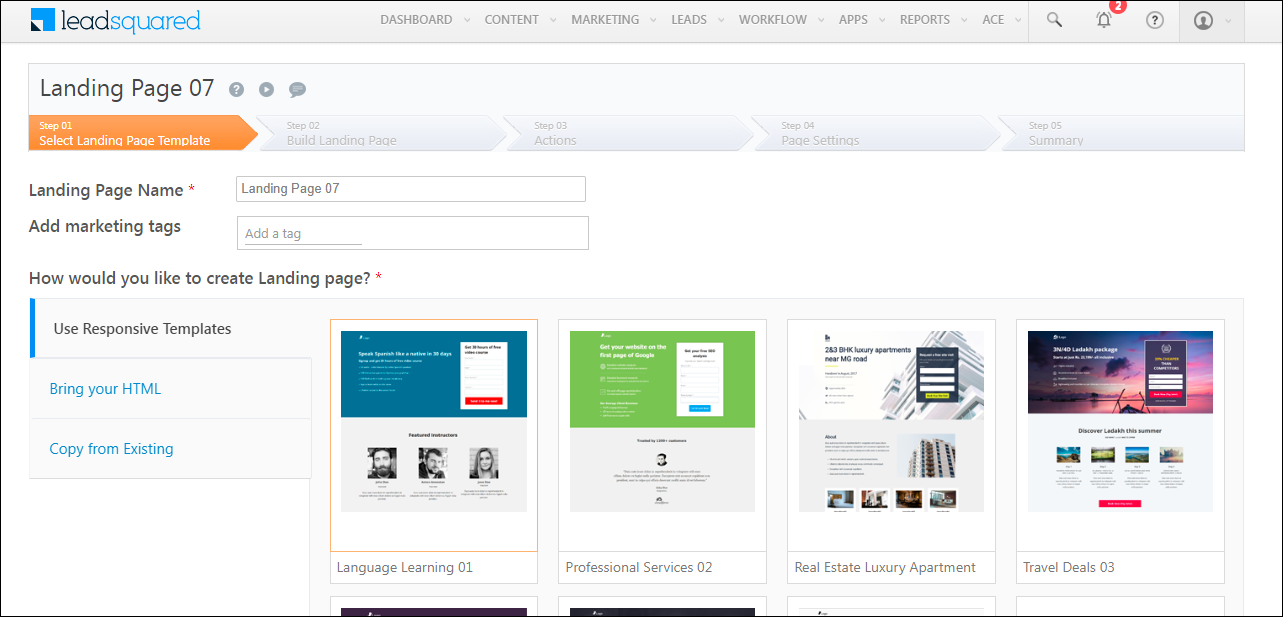
getting started landing pages

Help Article Description
Create and Publish a Landing Page This article will help you understand how to create and publish a landing page
Generate an SSL certificate If you’ve hosted your landing pages on custom domains (outside of LeadSquared), this article will help you obtain SSL Certificates to support these domains.
Create tracking URLs for your landing page This article will help you create tracking URLs through LeadSquared.
Manage reverse IP lookup This article will help you manage reverse IP Lookup. The Reverse IP Lookup setting allows you to automatically view the location (City, State, and Country) of a lead that’s captured from a landing page.


16. Security and Privacy

Here is how you can manage the Security and Privacy settings for your LeadSquared account –

16.1 Manage Your Security Settings

You can secure your account through LeadSquared’s security settings. You can configure the login settings, enable two-factor authentication for all or specific users, enable third-party authentication, manage password policies, manage sessions for users, and more.
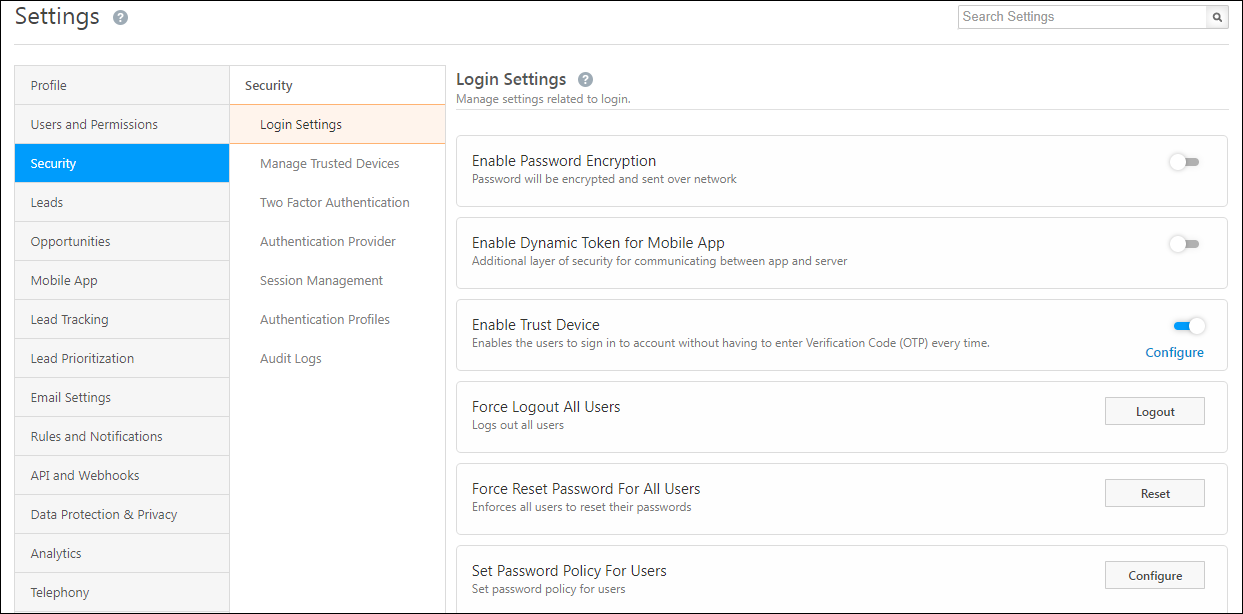
login settings

Help Articles Description
Manage Login Settings This article will help you manage your Login Settings on LeadSquared.
Enable Two Factor Authentication This article will help you enable two-factor authentication on your LeadSquared account.
Authentication Profiles If two-factor authentication is enabled/disabled on your account, it is applied by default to all your users. But if you want to enable or disable this feature for only specific users, it can be done by configuring Authentication Profiles.
Enable Third Party Authentication This article will help you enable third-party authentication through Google, Okta, etc., for your LeadSquared account.
Session Management This article will help you manage login expiration time and session timeout for your LeadSquared users.


16.2 Configure Data Protection and Privacy

You have the option to configure the data protection and privacy of your lead details. It includes the option to enable cookie consent, request for email opt-in, personal data protection, and deletion of lead data backup.
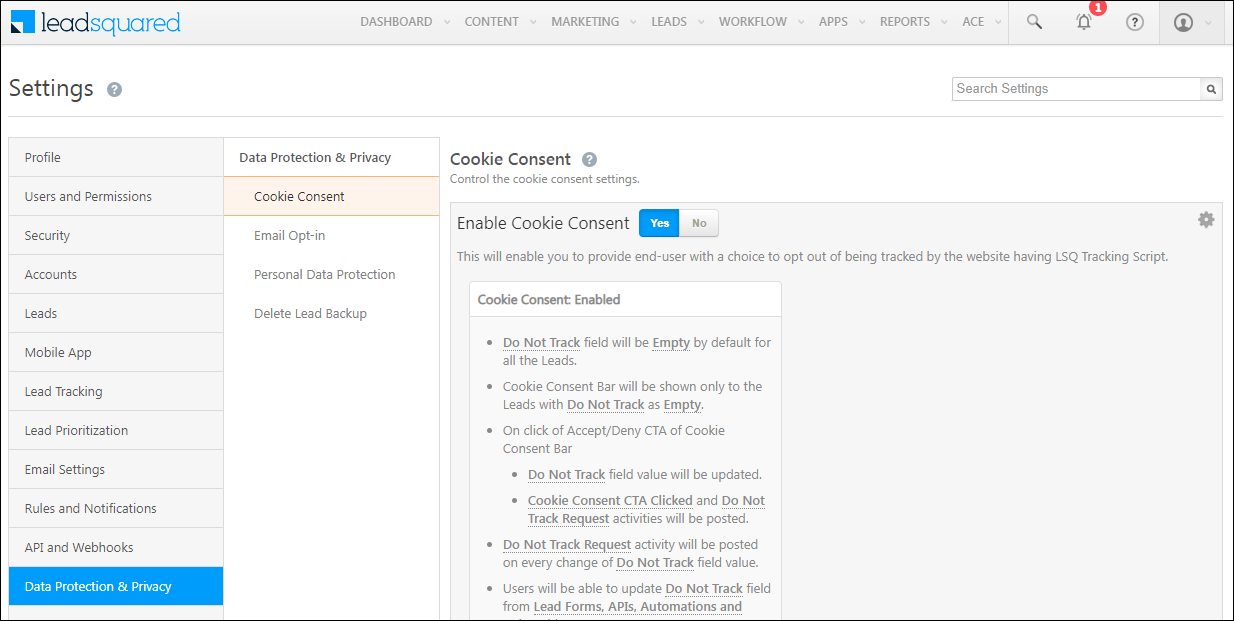
getting started data protection

Help Article Description
Data Protection & Privacy Settings This article will help you manage Data Protection & Privacy Settings for your leads.


17. Marvin

Marvin is LeadSquared’s new Inside Sales Application that features significant improvements in the user experience across the platform. Marvin is designed specifically to increase the productivity of Sales Users and Sales Managers but retains similarities to the existing platform to ensure effortless adoption.
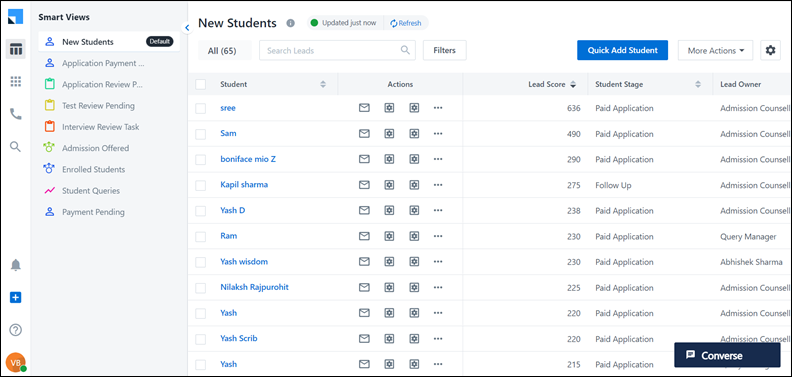
LeadSquared - Marvin - Smart Views

Help Article Description
Marvin Feature Guide This article will help you understand the impact Marvin can have on your Organization.


18. Install LeadSquared’s Mobile App

You can efficiently manage your entire field workforce with LeadSquared Mobile App. When new leads come in, you can easily distribute them to your field agents based on their availability, zip code, product, etc. You can also set tasks and meetings for the leads and assign them to your field agents as well. With instant notifications on the app, your agents will know when new leads or tasks are assigned to them and can get in touch with the lead instantly.

Agents can also instantly add leads they meet on the field using the mobile app, and edit and modify the details on the go. You will have complete visibility into your agents’ day. You will know the sales route that your agent has taken for the day, and get reports on the meetings that they have attended and the status of these meetings.

The LeadSquared Mobile App is available on iOS and Android.
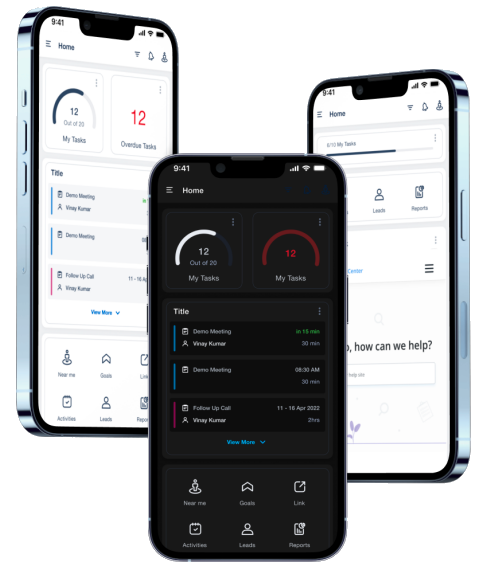
getting started mobile

Help Article Description
LeadSquared Mobile App Video Tutorial This video will help you understand the LeadSquared Mobile App.
Features Supported on LeadSqaured Android and iOS This article will help you understand all the features supported on the LeadSquared Android and iOS App.
Casa – Mobile Home Builder This article will help you create and customize the homepage of the LeadSquared mobile application to reflect your business requirements.


19. Store Your Data on Mavis DB

The Mavis DB lets you create databases where you can store master data (for courses, programs, projects, etc.) right inside your LeadSquared account. Providing an easy-to-use UI, Mavis lets you define table structures, and store and manage data including text, numbers, dates, JSON, coordinates, and more. You can directly import your spreadsheets (CSV format) to create and manage tables within your databases.

In addition to the UI, Mavis API offers a powerful RESTful interface to perform operations, filter, and export your data.
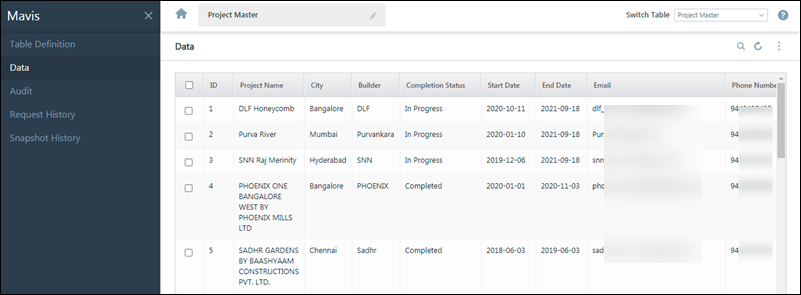
LeadSquared's Mavis Database

Help Article Description
Getting Started with Mavis This article will help you understand and create a Mavis DB.


20. Improve Your Sales Performance with ACE

Ace is LeadSquared’s sales performance management suite. If your organization has a revenue goal for the current year, Ace will help you break it down into smaller goals (or targets) for your users. You can set up Goals for different sales teams in your organization and reward them when they reach their targets or exceed them. Users and Managers can track their achievements and gain insights into the best-performing teams and individuals.
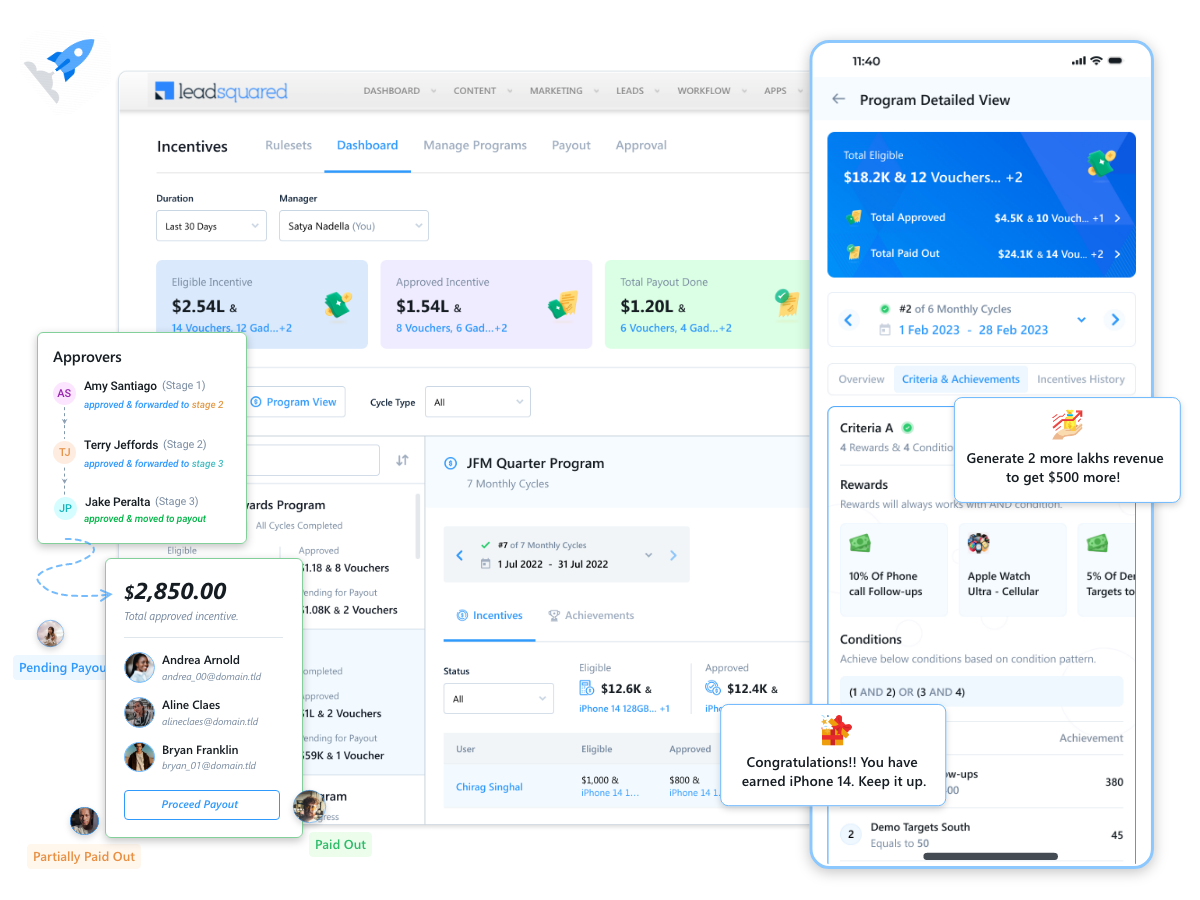

incentives

Help Article Description
Goals Feature Guide This article will help you understand and create Goals for your organization.
Create an Incentive Program This article will help you understand how to create an Incentive Program.
View and Manage Incentive Programs This article will help you view and manage Incentive Programs.

Access Limits of Features

1. Feature Overview

This article lists the data limits of the various features, settings and data fields of the LeadSquared application. Note that some features may not be available in your plan. For more information, contact your LeadSquared account manager.


2. Web Application Limits

Feature or Setting Description Limit Value Customizable Comments
Settings – Unique Lead Fields Maximum of three unique fields in your account. This helps avoids creating duplicate fields. 3 No
Object Types The default Object Types allowed in an account are five. 5 Yes To increase this limit, contact your account manager, or write to support@leadsquared.com.
Settings – Unique Object Type Fields Each Object Type can have three unique fields. 3 per
Object Type
No
Settings – Customization – Custom Fields Maximum number of custom lead fields in Lead Settings. 75 Yes This limit does not include system-defined fields such as lead source, lead stage and so on.

To increase this limit, contact your account manager, or write to support@leadsquared.com.

Settings – Customization – Activity Settings Maximum number of activity fields in Activity Settings. 50 No You can create more fields by using the Custom Field Set option.
Settings – Customization – Sales Activity Settings Maximum number of Products in Manage Products
  • Default – 500
  • Maximum – 1,000
Yes To increase this limit, contact your account manager, or write to support@leadsquared.com.
Settings – Customization – Lead Stage Management Maximum number of lead stages (active) 20 Yes
Settings – Customization – Lead Stage Management Maximum number of lead stages (inactive) 5 Yes
Settings – Customization – Task Types The default maximum number of task types in Tasks. 10 Yes To increase this limit, contact your account manager, or write to support@leadsquared.com.
Manage Leads – Import Maximum file size of the import CSV file in MB
  • Default – 10MB
  • Maximum – 100MB
No To increase this limit, contact your account manager, or write to support@leadsquared.com.
Manage Leads – Import Maximum number of leads that can be updated through Lead Import
  • Default – 25,000
  • Maximum – 300,000
No To increase this limit, contact your account manager, or write to support@leadsquared.com.
Manage Leads – Export Leads Maximum number of leads that can be exported through Lead Export
  • Default – 100,000
  • Maximum – 500,000
No To increase this limit, contact your account manager, or write to support@leadsquared.com.
Manage Leads – Quick Filter Maximum number of quick filters that can be created 20 Yes The limit is per user. Every user can create max 20 filters.
Manage Leads – Bulk Update Maximum number of leads that can be bulk updated 25,000 No
Manage List – Add to List or Create List Maximum number of leads that can be added to a Static Lists 400,000 No
Manage Leads Maximum number of columns that can be added in a lead grid 20 No
Settings – Email Settings – Categories Maximum number of Email categories 20 Yes
Settings – API and Webhooks Maximum number of days upto which Webhook history records are stored
  • Webhook History – 10 days
  • v2 API Logs – 30 days
No
Lead Details – Activity History – Visitor details Maximum number of days the website and landing page visit is captured in the Lead Details page 100 No
Lead Details – Activity History – Sent Email History Maximum number of days the history of sent Emails to Leads is captured in the Lead Details page 100 No
Lead Details – Activity Stream History Maximum number of days Activity Stream (call related activities) is captured in the Lead Details page 100 No
Dashlets – Dashboard Maximum number of dashlets per dashboard 25 No
Marketing – Workflow Automations Maximum number of days up to which workflow history records are stored 10 No
Number of Lead Tabs Maximum number of tabs that can be added under Lead Details using the Custom Tab Connector app 10 No
Number of Smart View Tabs Maximum number of tabs that can be added in Smart Views 10 No Any user can add a new tab in Smart Views, but only an administrator will be allowed to create a Smart View.
Number of Lead Fields in Agent Popup Maximum number of lead fields displayed in agent pop up 10 No
Tracking cookie expiration Allows customer to adjust tracking cookie expiration   2 years Yes This setting impacts landing page’s cookie expiration 
Tasks – Number of Task Types Maximum number of task types that can be created 20 No
Tasks – Number of To-Do Task Types Maximum number of to-do types that can be created 30 No
Entity Access Sharing – Automatic Revoke After When an entity (lead) is shared with a user, and no value is added to revoke the access, the permissions on the entity is automatically revoked after the maximum number of days. 90 days No
Entity Access Sharing – Max Allowed Revoke After When an entity (lead) is shared with a user, the maximum value that can be passed after which the permission on the entity is revoked. 1 year No
Entity Access Sharing – Request Batch Size The maximum number of entities (leads) sharing request that can be made at once. 200 No
Entity Access Sharing – Max Leads that can be Shared with a User at a Time The maximum number of leads you can share with a user in a single request. 2,000
Telephony – Max Allowed Virtual Numbers Allows customer to change the number of virtual numbers for any telephony connector. 10
Automation – Enable Bulk Automation Trigger – Lead Create Allows customers to enable or disable automation for bulk lead create and set limits. 10,000 
Automation – Enable Bulk Automation Trigger – Lead Update Allows customers to enable or disable automation for bulk lead update and set limits. 10,000
Automation – Enable Bulk Automation Trigger – Add Activity Allows customer to enable or disable automation for bulk activity import and set limits  10,000
Automation – Enable Bulk Automation Trigger – Update Activity Allows customer to enable or disable automation for bulk activity update and set limits 10,000
Automation – Enable Bulk Automation Trigger – Lead Added to List  Allows customer to enable or disable automation for bulk lead add to static list and set limits  25,000 
Automation – Enable Bulk Automation Trigger – Account Create Allows customer to enable or disable automation for bulk account create and set limits  10,000
Automation – Enable Bulk Automation Trigger – Account Update  Allows customer to enable or disable automation for bulk account update and set limits  10,000 
Automation – Number of cards  Number of condition and action cards under automations. 50
 Automation – Number of Automations  The number of automations that a user can create in a single automation.  Varies based on the current plan
Automation – Number of Sub-Automations in an Automation The number of sub-automations that a user can create in under a single automation.  


3. API Limits


Any Questions?

Did you find this article helpful? Please let us know any feedback you may have in the comments section below. We’d love to hear from you and help you out!

Settings: Managing Lead Sources

1. Feature Overview

Lead sources are the avenues through which you acquire leads. Common lead sources include social media, organic search, trade shows, inbound calls, etc.

Here are some examples of common lead sources.

Lead Source Description
Organic Search When Leads come through a regular search on search engines. For example, if a person comes to your website after finding it in a search result on a search engine and then submits his contact information then the source will be classified as an Organic Search. Note that it does not include Leads coming through paid online ads like Google Adwords.
Referral Sites When a Lead is captured after it visits your website or Landing Page by clicking a link to a referral site. For example, you may have published URLs of your Landing Pages on a directory listing service. The Leads coming from it will be categorized as having the Lead Source “Referral Sites”.
Direct Traffic When a person directly types the URL of your website or Landing Page and submits his information.
Social Media When Leads come through a link or post on social media sites like LinkedIn, Facebook, Twitter, etc.
Email Marketing When a Lead visits your website or Landing Page by clicking a link in your Email campaign then the Lead source is “Email Marketing”.
Pay per Click Ads When a Lead visits your website or Landing Page by clicking a search advertisement (e.g. Google Ads) that you have bought.
Trade Show You can assign the source as Trade Show for the Leads that you engaged in an event, seminar, conference, etc.
eBook The Leads that are captured as a result of form submission to download an eBook on your website or Landing Page.
Inbound Call The Leads that made a call to your company to inquire/buy your goods or services.
Outbound Call The Leads whom your sales reps called to sell your company’s goods or services.
Customer Referral The Leads that have been referred by one of your customers.
Partner Referral The Leads that have been referred by one of your business partners.
Employee Referral The Leads that have been referred by one of your employees.

In your LeadSquared account, by default, you’ll find the following lead sources –

  • Organic Search
  • Referral Sites
  • Direct Traffic
  • Social Media
  • Inbound Email
  • Inbound Phone Call
  • Outbound Phone Call
  • Email Marketing
  • Pay-per-click Ads

These lead sources are relevant to most businesses, and you cannot delete them from your account. However, you can add your own lead sources that suit your business.


2. Lead Source Configuration

To configure your lead sources, from the main menu, navigate to My>Profile>Settings>Customization>Lead Sources. Here, you can –

2.1 Add a Lead Source


To add a custom lead source to your account –

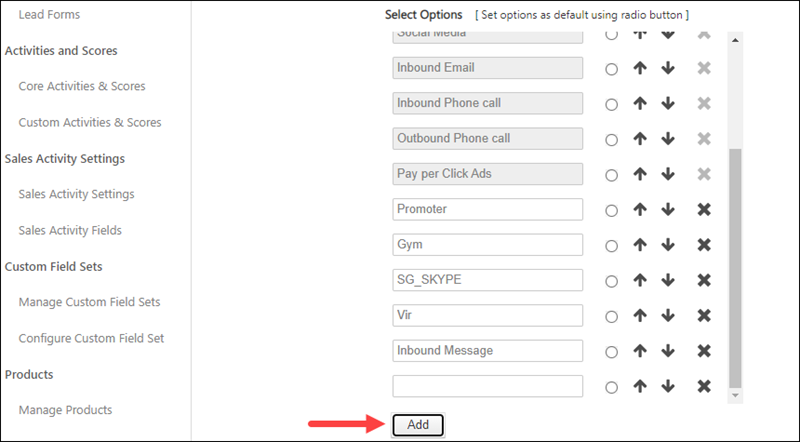
  1. Click the Add button and enter the ‘Lead Source Name’.
  2. Once you’re done with the changes, click Save at the bottom of the page.

Once you update the lead sources, you’ll be able to see the updated drop-down list in places where the lead sources are used (Add Lead Form, Lead Import, etc.).

Adding a lead source


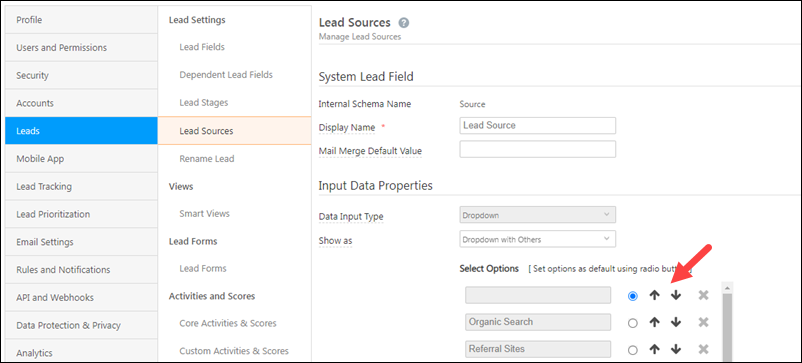
2.2 Change Lead Source Display Order

To change the display order of lead sources by using up and down arrows. The default list is not sorted deliberately. You can sort the list according to your business needs, by using Arrow to change the order of lead sources or  Arrow to change the order of lead sources.

rearrange lead source


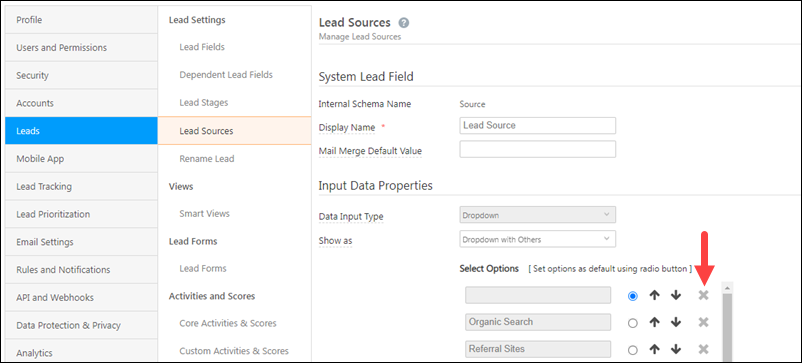
2.3 Delete a Lead Source

To delete a lead source, click the  icon.

Delete lead source

You can’t delete the following lead sources as they’re tracked by default –

  • Organic Search
  • Referral Sites
  • Direct Traffic
  • Social Media
  • Inbound Email
  • Inbound Phone Call
  • Outbound Phone Call
  • Pay-per-click Ads
Note: You should be careful of the impact if you delete a lead source that is already associated with leads. To prevent any data incongruity, LeadSquared does not dissociate a Lead Source from a Lead even if you delete it in from the Settings page. However, you will not be able to use the deleted lead source when you add a new lead. The lead source report will continue to show deleted lead sources as long as there are leads in the system associated with those sources.

2.4 Lead Source Properties

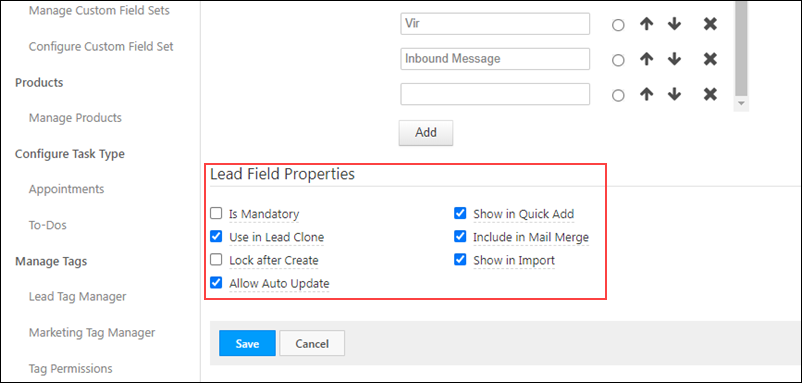
You can enable/disable the following properties for the lead source field.

lead field properties

Property Description
Is Mandatory Marks the field as mandatory. Users won’t be able to create a new lead without filling this field.
Show in Quick Add Includes the field in the quick add lead option.
Use in Lead Clone The field value will be populated when the lead is cloned.
Include in Mail Merge Includes this field as a mail merge option for email personalization.
Lock After Create Non-admin users won’t be able to update the value of this field once a lead is created.
Show in Import Enables the field for mapping during lead import through CSV.
Allow Auto Update When enabled, new lead sources added through APIs will automatically get added as a dropdown option.


Any Questions?

Did you find this article helpful? Please let us know any feedback you may have in the comments section below. We’d love to hear from you and help you out!

Accounts, Leads and Opportunities Access

1. Feature Overview

There are 3 major entities in LeadSquared – Leads, Opportunities, and Accounts.

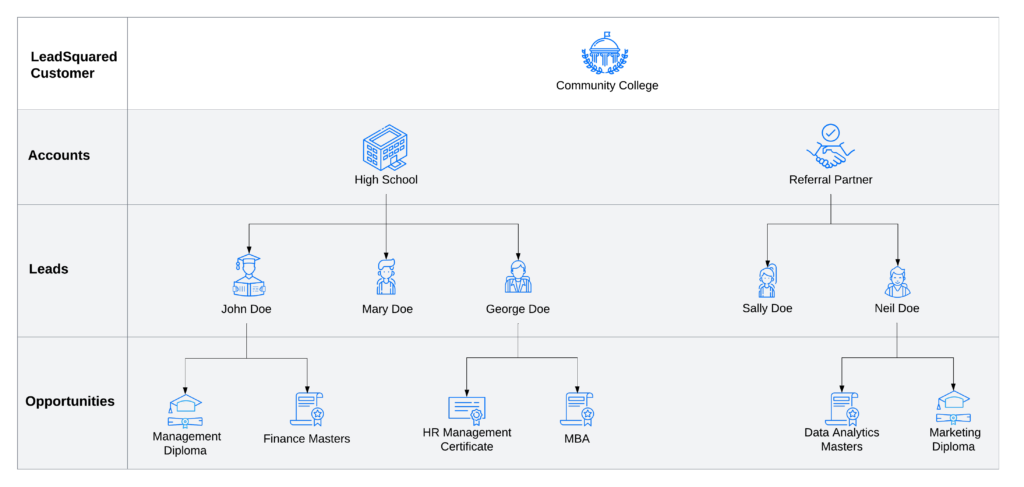
Let’s use a College as an example –

  • Accounts – The college effectively manages its business (B2B) relationships by creating individual accounts for each affiliated high school, referral partner, and vendor, using Account Management.
  • Leads – Students interested in enrolling in the college’s courses are created as Leads. Using Lead Management, the college can send communications to these leads, analyze their activities, assign tasks, and drive them to conversion.
  • Opportunities – The college creates individual opportunities for the courses and programs it offers (such as MBAs, certificates, diplomas, etc.). With Opportunity Management, the college can effectively sell, cross-sell, and/or upsell these courses to existing leads.

LeadSquared Lead Management Features

Note:

  • Users (the other major entity in LeadSquared) are employees at your organization (e.g., academic and admission counselors at the community college) who log in to LeadSquared to engage with leads, close opportunities and manage accounts.
  • While the Leads feature is available by default, Accounts and Opportunities are paid features. To enable these features, contact your account manager, or write to support@leadsquared.com.

Enabling all three entities on the same LeadSquared account will result in changes to the access granted to Sales Users and Sales Groups. This article details the access rights and permissions in such cases.


2. Access to Accounts

Note: By default, all Sales Users, and all Users in a Sales Group can –

LeadSquared Lead Management Features

2.1 For Sales Users

Individual Sales Users can –

  • Create
    • New Accounts.
    • Activities on the accounts they can access.*
  • View
    • Accounts associated with leads they own.
    • Accounts associated with (leads of) opportunities they own.
    • Activities^ posted on the accounts they can access.
  • Update activities posted on accounts they own.
  • Delete
    • Activities posted on accounts they own.
    • Activities they’ve posted on an account they can access.

Note: 

  • *A user can access an account if they own leads that are associated with the account.
  • ^Activities referred to here are account activities. These are activity types created specifically for accounts and are different from lead/opportunity activities.

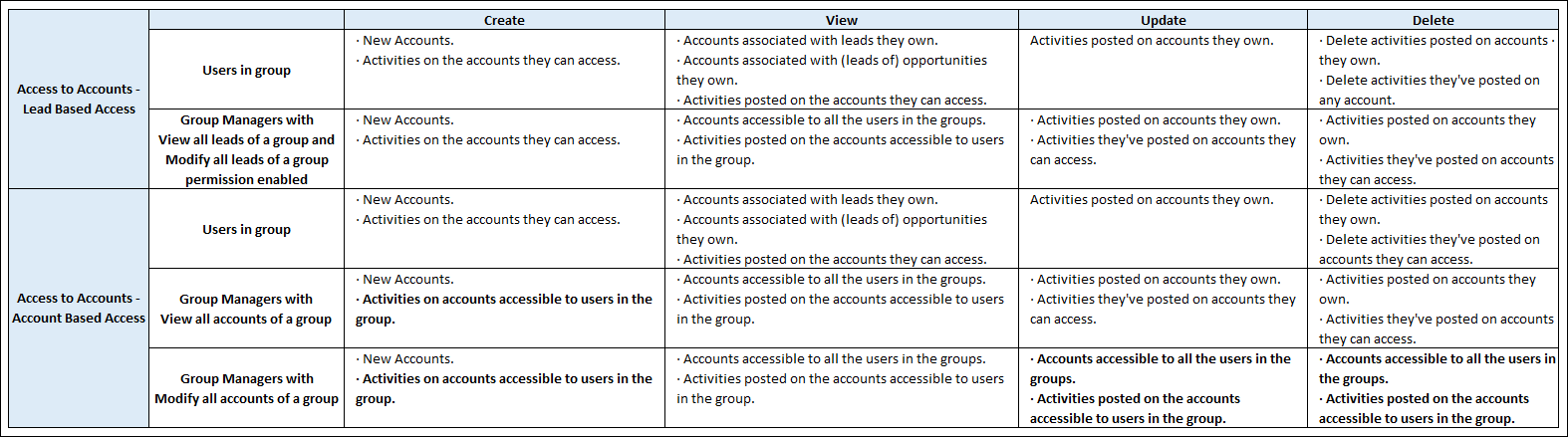
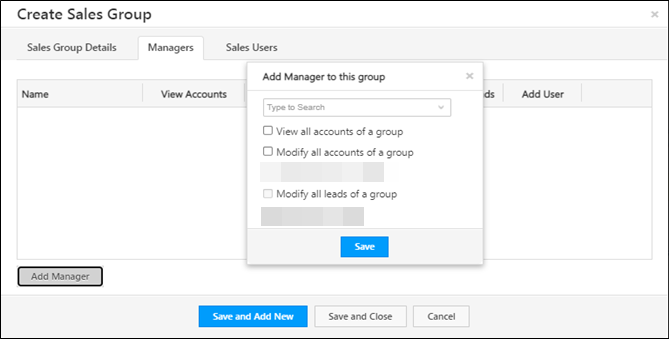
2.2 For Sales Groups with Lead-based Access Enabled

Note: Sales users in a group with lead-based access have the same access to accounts as individual sales users.

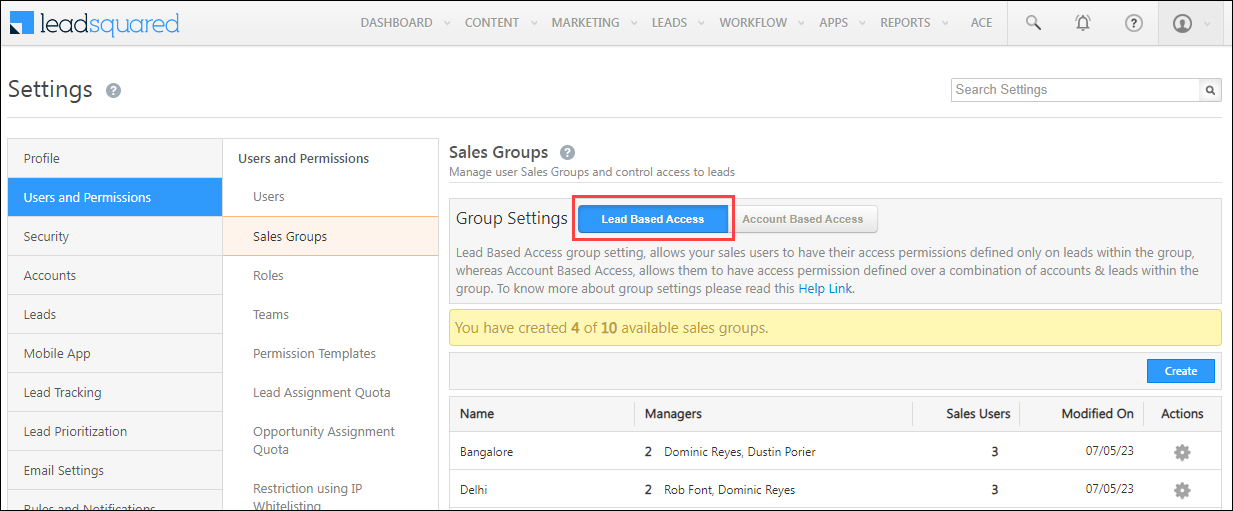
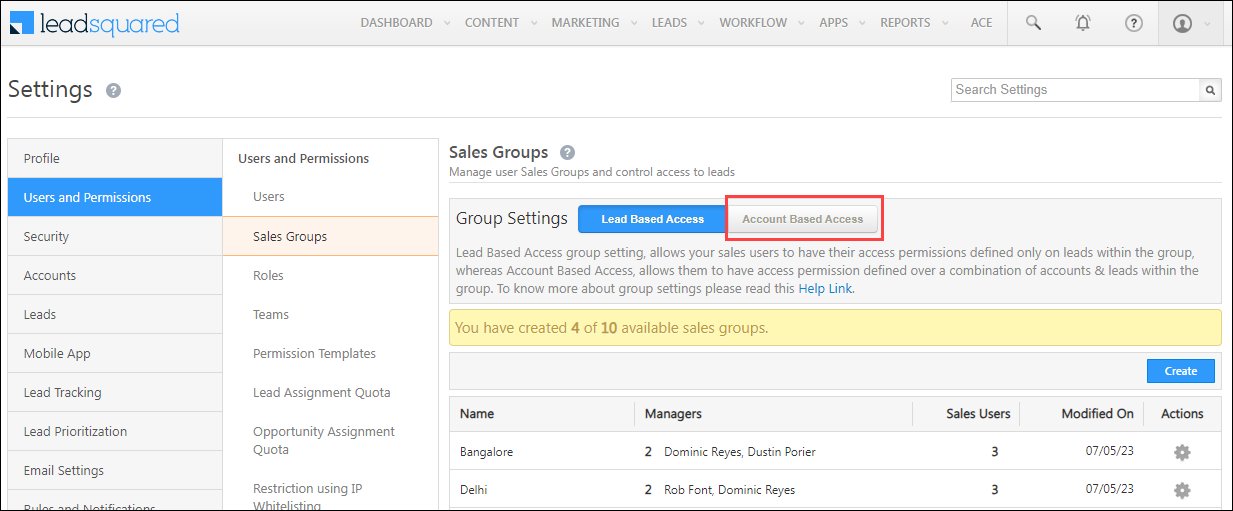
Sales groups can be created with lead-based access or account-based access.

LeadSquared Leads Opportunities and Accounts

Sales Users in the group can –

  • Create
    • New Accounts.
    • Activities on the accounts they can access*.
  • View
    • Accounts associated with leads they own.
    • Accounts associated with (leads of) opportunities they own.
    • Activities^ posted on the accounts they can access.
  • Update activities posted on accounts they own.
  • Delete
    • Activities posted on accounts they own.
    • Activities they’ve posted on any account.

Note: *A user can access an account if they own leads that are associated with the account.

^Activities referred to here are account activities. These are activity types created specifically for accounts and are different from lead/opportunity activities.

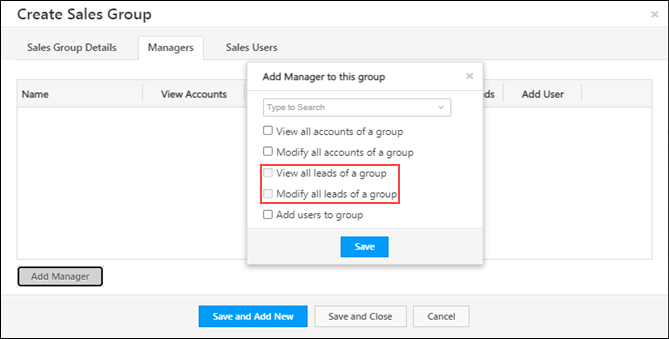
Group Managers who have the View all leads of a group or Modify all leads of a group permissions enabled can –

Note: In addition to permissions afforded to sales users in the group, managers get additional permissions to view the accounts (activities posted on the accounts) accessible to any user in their group.
  • Create
    • New Accounts.
    • Activities on accounts accessible* to users in the group.
  • View
    • Accounts accessible to all the users in the groups.
    • Activities^ posted on the accounts accessible to users in the group.
  • Update
    • Activities posted on accounts they own.
    • Activities they’ve posted on accounts they can access*.
  • Delete
    • Activities posted on accounts they own.
    • Activities they’ve posted on accounts they can access.

Note:

  • *A user can access an account if they own activities that are posted on the account.
  • ^Activities referred to here are account activities. These are activity types created specifically for accounts and are different from lead/opportunity activities.

LeadSquared Leads Opportunities and Accounts

2.3 For Sales Groups with Account-based Access Enabled

Sales groups can be created with lead-based access or accounts-based access.

LeadSquared Leads Opportunities and Accounts

Sales Users in a group can –

  • Create
    • New Accounts.
    • Activities on the accounts they can access.*
  • View
    • Accounts associated with leads they own.
    • Accounts associated with (leads of) opportunities they own.
    • Activities posted on the accounts they can access.
  • Update activities posted on accounts they own.
  • Delete
    • Activities posted on accounts they own.
    • Activities they’ve posted on accounts they can access*.

Note: A user can access an account if they own leads that are associated with the account.

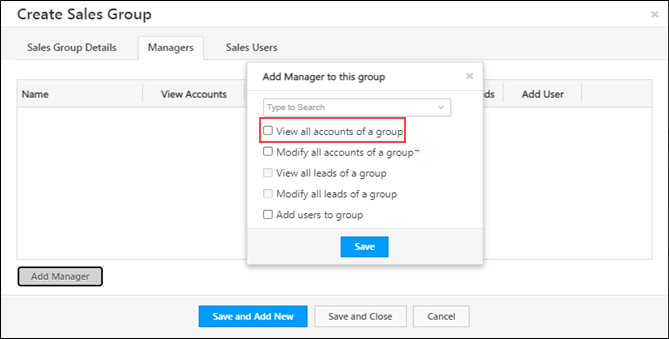
Group Managers who have the View all accounts of a group permission enabled can –

  • Create
    • New Accounts.
    • Activities on accounts accessible to users in the group.
  • View
    • Accounts accessible to all the users in the groups.
    • Activities posted on the accounts accessible* to users in the group.
  • Update
    • Activities posted on accounts they own.
    • Activities they’ve posted on accounts they can access.
  • Delete
    • Activities posted on accounts they own.
    • Activities they’ve posted on accounts they can access.

Note: A user can access an account if they own activities that are posted on the account.

LeadSquared Leads Opportunities and Accounts

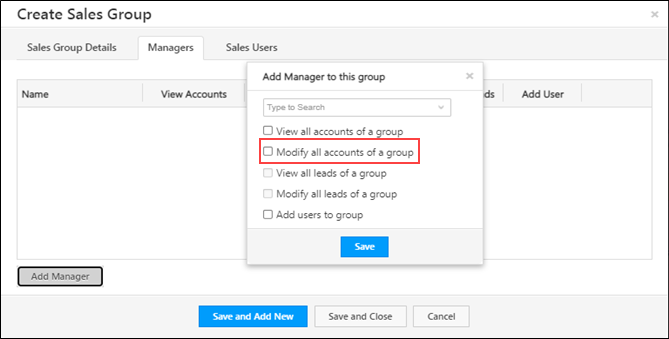
Group Managers who have the Modify all accounts of a group permission enabled can –

  • Create
    • New Accounts.
    • Activities on accounts accessible to users in the group.
  • View
    • Accounts accessible to users in the group.
    • Activities posted on the accounts accessible to users in the group.
  • Update
    • Accounts accessible to users in the group.
    • Activities posted on the accounts accessible to users in the group.
  • Delete
    • Accounts accessible to users in the group.
    • Activities posted on the accounts accessible to users in the group.

Note: A user can access an account if they own activities that are posted on the account.

LeadSquared Leads Opportunities and Accounts


3. Access to Leads

Note: When you enable account-based access, users added to the sales group can see all the leads created under the accounts they own (even the leads owned by other users). With this setting, the account is considered the parent entity, so the account owner gets access to all the leads under that account.
With lead-based access, users can only see the leads they own under their accounts (and not the leads owned by other users under the account).

LeadSquared Lead Management Features

Note: By default, all Sales Users, and all the Users in a Sales Group –

  • View, update and delete the leads they own.
  • Can create Leads.

3.1 For Sales Users

Sales Users can –

  • Create
    • New leads.
    • Activities on the leads they own.
  • View
    • Leads associated with the opportunities they own.
    • Activities posted on the leads they own and leads they can access.
  • Update activities posted on the leads they own.
  • Delete activities posted on the leads they own.

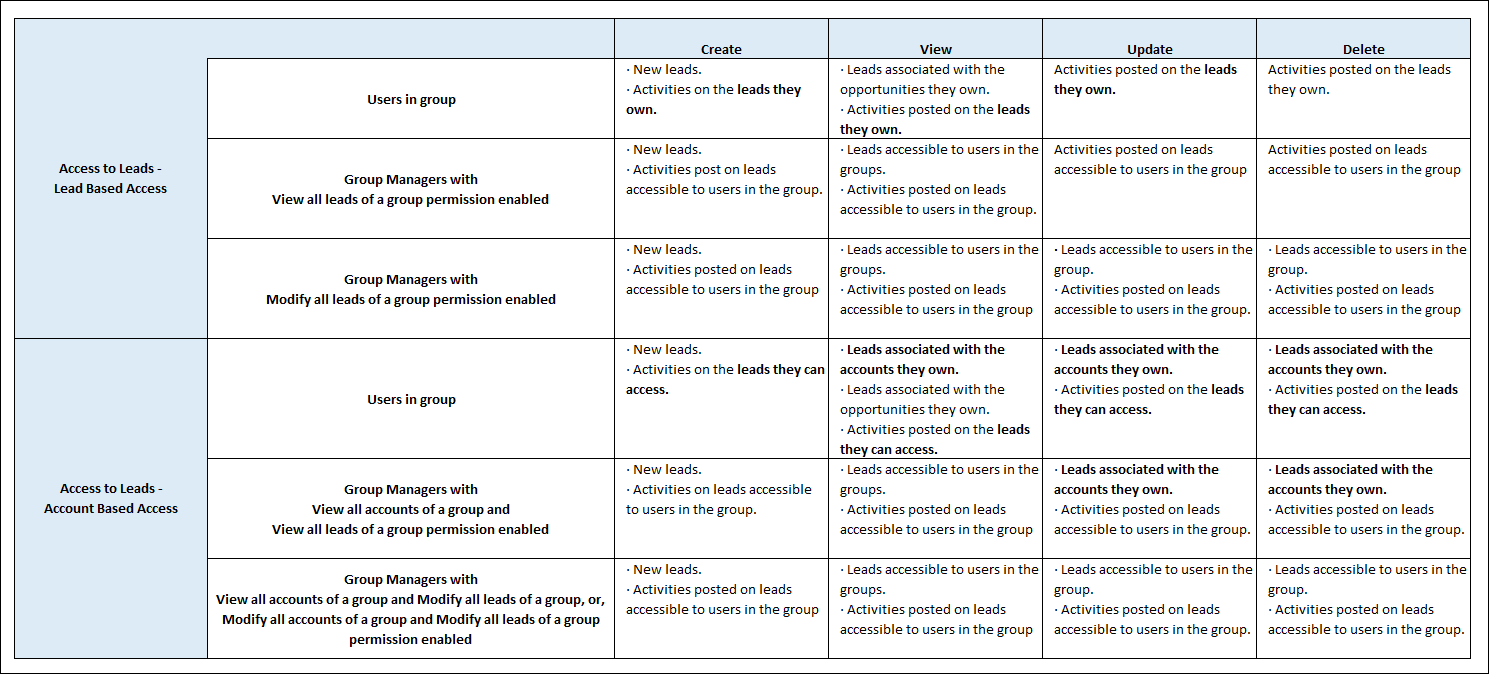
3.2 For Sales Groups with Lead-based Access Enabled

Sales groups can be created with lead-based access or accounts-based access.

LeadSquared Leads Opportunities and Accounts

Sales Users in the group can –

  • Create
    • New leads.
    • Activities on the leads they own.
  • View
    • Leads associated with the opportunities they own.
    • Activities posted on the leads they own.
  • Update activities posted on the leads they own.
  • Delete activities posted on the leads they own.

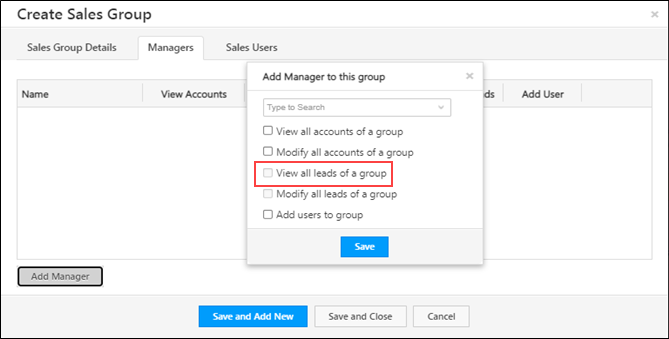
Group Managers who have the View all leads of a group permission enabled can –

  • Create
    • New leads.
    • Activities posted on leads accessible to users in the group.
  • View
    • Leads accessible to users in the groups.
    • Activities posted on leads accessible to users in the group.
  • Update activities posted on leads accessible to users in the group.
  • Delete activities posted on leads accessible to users in the group.

Note: A user can access a lead if –

LeadSquared Leads Opportunities and Accounts

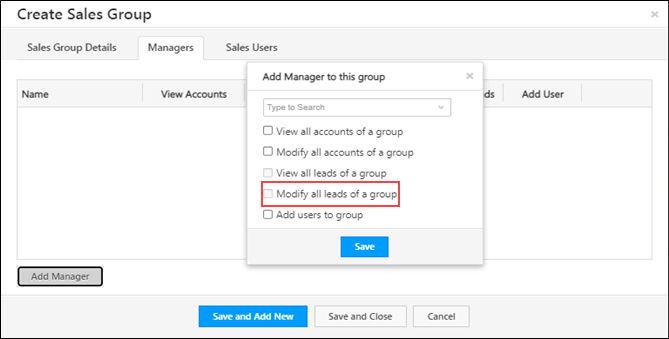
Group Managers who have the Modify all leads of a group permission enabled can –

  • Create
    • New leads.
    • Activities posted on leads accessible to users in the group.
  • View
    • Leads accessible to users in the groups.
    • Activities posted on leads accessible to users in the group.
  • Update
    • Leads accessible to users in the group.
    • Activities posted on leads accessible to users in the group.
  • Delete
    • Leads accessible to users in the group.
    • Activities posted on leads accessible to users in the group.

Note: A user can access a lead if –

LeadSquared Leads Opportunities and Accounts

3.3 For Sales Groups with Account-based Access Enabled

Sales groups can be created with account-based access or accounts-based access.

LeadSquared Leads Opportunities and Accounts

Sales Users in the group can –

  • Create
    • New leads.
    • Activities on the leads they can access.
  • View
    • Leads associated with the accounts they own.
    • Leads associated with the opportunities they own.
    • Activities posted on the leads they can access.
  • Update
    • Leads associated with the accounts they own.
    • Activities posted on the leads they can access.
  • Delete
    • Leads associated with the accounts they own.
    • Activities posted on the leads they can access.

Note: A user can access an account if –

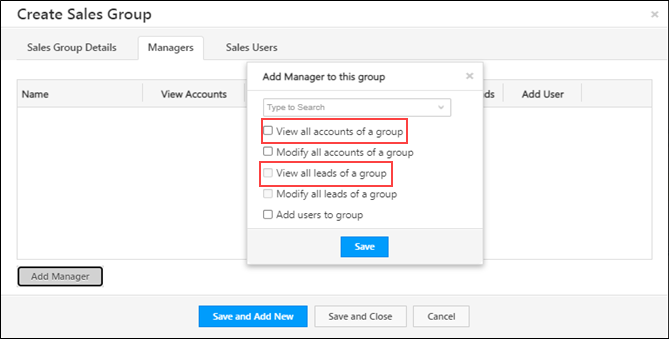
Group Managers who have the View all accounts of a group and View all leads of a group permissions enabled can –

  • Create
    • New leads.
    • Activities on leads accessible to users in the group.
  • View
    • Leads accessible to users in the groups.
    • Activities accessible to users in the group.
  • Update
    • Leads associated with the accounts they own.
    • Activities posted on leads accessible to users in the group.
  • Delete
    • Leads associated with the accounts they own.
    • Activities posted on leads accessible to users in the group.

Note: A user can access a lead if –

LeadSquared Leads Opportunities and Accounts

Group Managers who have the View all accounts of a group and Modify all leads of a group, or, Modify all accounts of a group and Modify all leads of a group permissions enabled can –

  • Create
    • New leads.
    • Activities posted on leads accessible to users in the group.
  • View
    • Leads accessible to users in the groups.
    • Activities posted on leads accessible to users in the group.
  • Update
    • Leads accessible to users in the group.
    • Activities posted on leads accessible to users in the group.
  • Delete
    • Leads accessible to users in the group.
    • Activities posted on leads accessible to users in the group.

Note: A user can access a lead if –

LeadSquared Lead Management Features


4. Access to Opportunities

Note: By default, all Sales Users, and all the Users in a Sales Group, can –

LeadSquared Lead Management Features

4.1 For Sales Users

Individual Sales Users can –

  • Create new opportunities.
  • View opportunities associated with the leads they own.
  • Update opportunities associated with the leads they own.
  • Delete opportunities associated with the leads they own.

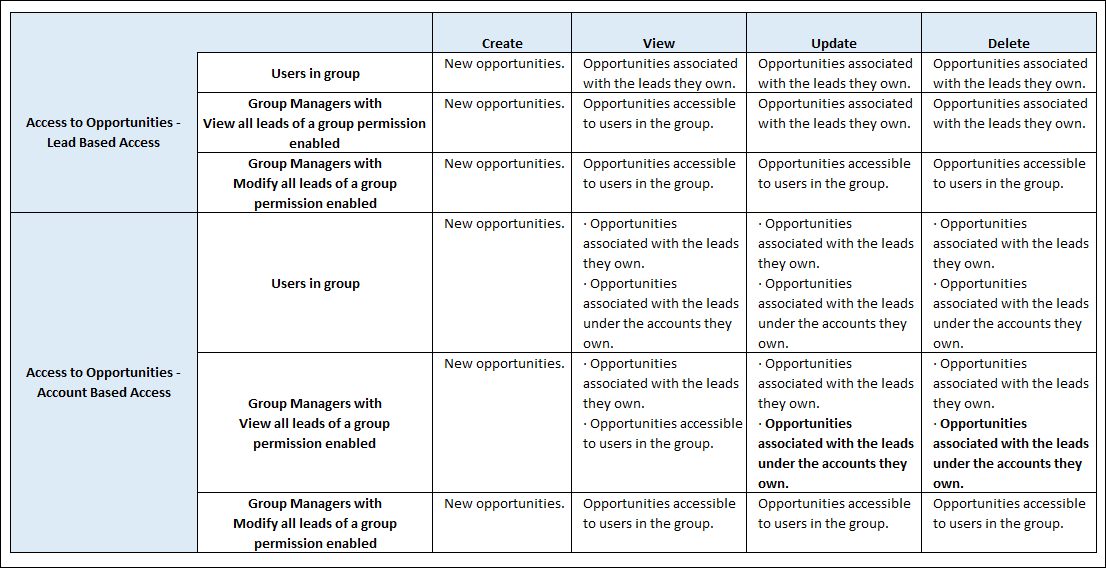
4.2 For Sales Groups with Lead-based Access Enabled

Sales groups can be created with lead-based access or accounts-based access.

LeadSquared Leads Opportunities and Accounts

Sales Users in the group can –

  • Create new opportunities.
  • View opportunities associated with the leads they own.
  • Update opportunities associated with the leads they own.
  • Delete opportunities associated with the leads they own.

Group Managers who have the View all leads of a group permission enabled can –

  • Create new opportunities.
  • View the opportunities accessible to users in the group.
  • Update opportunities associated with the leads they own.
  • Delete opportunities associated with the leads they own.

Note: A user can access an opportunity if –

  • They own a lead on which an opportunity was created.
  • An opportunity is shared with them, which is created on a lead that’s associated with the account.

LeadSquared Leads Opportunities and Accounts

Group Managers who have the Modify all leads of a group permission enabled can –

  • Create new opportunities.
  • View opportunities associated with leads accessible to users in the group.
  • Update opportunities associated with leads accessible to users in the group.
  • Delete opportunities associated with leads accessible to users in the group.

Note: A user can access an opportunity if –

  • They own a lead on which an opportunity was created.
  • An opportunity is shared with them, which is created on a lead that’s associated with the account.

LeadSquared Leads Opportunities and Accounts

4.3 For Sales Groups with Account-based Access Enabled

Sales groups can be created with account-based access or accounts-based access.

LeadSquared Leads Opportunities and Accounts

Sales Users in the group can –

  • Create new opportunities.
  • View
    • Opportunities associated with the leads they own.
    • Opportunities associated with the leads under the accounts they own.
  • Update
    • Opportunities associated with the leads they own.
    • Opportunities associated with the leads under the accounts they own.
  • Delete
    • Opportunities associated with the leads they own.
    • Opportunities associated with the leads under the accounts they own.

Group Managers who have the View all leads of a group permission enabled can –

  • Create new opportunities.
  • View opportunities accessible to users in the group.
  • Update
    • Opportunities associated with the leads they own.
    • Opportunities associated with the leads under the accounts they own.
  • Delete
    • Opportunities associated with the leads they own.
    • Opportunities associated with the leads under the accounts they own.

Note: A user can access an opportunity if –

  • They own a lead on which an opportunity was created.
  • An opportunity is shared with them, which is created on a lead that’s associated with the account.

LeadSquared Leads Opportunities and Accounts

Group Managers who have the following sets of permissions enabled Modify all leads of a group permission enabled can –

  • Create new opportunities.
  • View opportunities accessible to users in the group.
  • Update opportunities accessible to users in the group.
  • Delete opportunities accessible to users in the group.

Note: A user can access an opportunity if –

  • They own a lead on which an opportunity was created.
  • An opportunity is shared with them, which is created on a lead that’s associated with the account.

LeadSquared Leads Opportunities and Accounts


5. FAQs

  • Can Group Managers see the leads of other Group Managers in their group?
    Yes, they can, provided the View all leads of a group permission is enabled. This access applies only to their own group and not to other groups in the LeadSquared account.


Any Questions?

If you have any questions related to this article, please leave us a comment below. We’ll be happy to help!

Referral Portal

1. Feature Overview

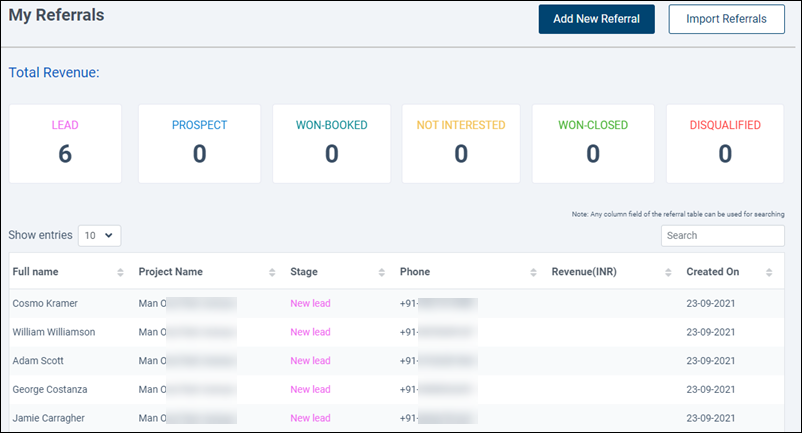
LeadSquared’s Referral Portal is a simple online portal for your users, resellers, affiliates, and partners to refer and track leads through the different stages of the sales funnel. You can also build models for incentives and rewards for your referrers, and display this on the portal.

All portals are responsive and can be used on mobile devices.

Note: This feature was deprecated on February 2023. If you require a similar use case, please get in touch with your account manager or write an email to support@leadsquared.com.

LeadSquared's Referral Portal

Note: This feature does not require any installation and setup from your end.


2. Prerequisites


3. Basic Functionality

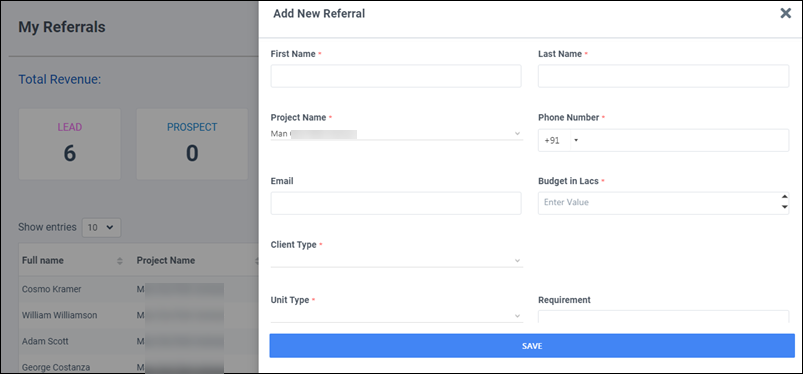
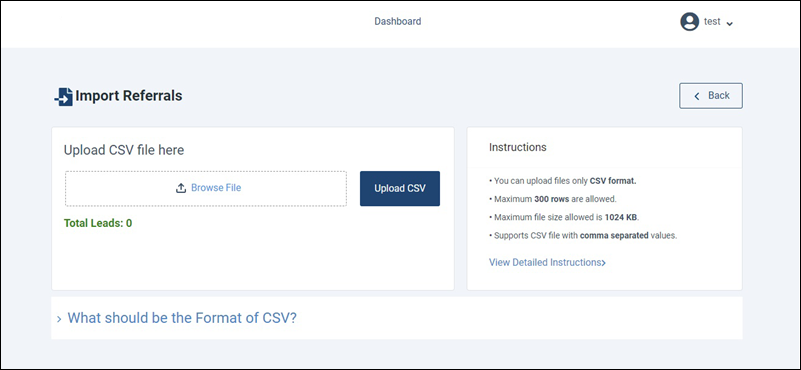
The portal comes built with a dashboard to track all referrals and basic functionality like adding leads individually, and in bulk.

3.1 Add Leads Individually

LeadSquared forms are configured to enable you to add leads individually from the dashboard.

LeadSquared's Referral Portal


3.2 Bulk Leads

Upload a CSV file (containing lead data) to add leads in bulk to the Referral Portal.

LeadSquared's Referral Portal


Any Questions?

Did you find this article helpful? Please let us know any feedback you may have in the comments section below. We’d love to hear from you and help you out!

Landing Pages: Features and Benefits

LeadSquared’s Landing Page module offers powerful features to design and publish conversion optimized landing pages. It helps you design and publish custom landing pages in a matter of minutes.

Features

  • Use LeadSquared’s built-in  templates to easily create landing pages.
  • Create landing pages by selecting published landing page as a template. Do needed changes and publish it.
  • Create Landing page from scratch using Landing Page Editor.
  • Customize your landing page by including forms, media content, and rich HTML content.
  • Create lead data collection forms using the form block.
  • Insert audio-video media content to provide superior marketing experience.
  • Insert rich HTML content including images and links.
  •  Provide a variety of post form submission options, thank you message, file download, or URL redirect.
  • Collect all Leads coming from one landing page to a specified List.
  • Auto-assign a specified owner to all Leads coming from a Landing page.
  • Set custom Lead Score for every action on the landing page.
  • Insert a post submission custom script that provides you to make custom calls to any URL after form submission.
  • Create auto-response emails to Lead and notification templates to marketers.
  • Optimize the landing pages for search engines.
  • Create custom URLs for landing page. Include custom landing page URLs in marketing campaigns to direct the leads to the landing page.
  • Track same landing page using multiple tracking URLs. This is useful when you      want to track the effectiveness of your campaigns in different channels when you drive the traffic to the same landing page.
  • Compare Landing Pages on Visits, Submissions, and Unique Leads.
  • Edit and Republish a Landing page in real-time. No downtime for landing page needed.
  • Analyze Landing Page performance on traffic source and submission by looking at Landing page report.

Benefits

  • Design and publish conversion optimized landing pages very quickly
  • Publish, Unpublish, Republish in matter in minutes.
  • Capture Lead’s action, increase score, assign to list and notify marketers automatically.
  • Gain powerful insights using Landing page report and comparison.

For more information, see How to Create and Publish a Landing Page?

Email Campaign – Feature Guide

1. Feature Overview

With LeadSquared’s Email Campaign feature (navigate to Marketing>Email Campaigns), you can –

  • Design and send powerful Email Campaigns to your leads within minutes.
  • Personalize the content using email personalization mail-merge fields.
  • Schedule your mails to be sent at a later date and time.
  • Engage with your existing Leads and nurture them by sending updates, offers, greetings, or informational content.
  • Use Automation to send email campaigns based on lead behavior.
  • Track the activities of your Email recipients (leads).
  • Gain useful insights from Email Campaign Reports and Analytics.

Note:


2. Prerequisite

You must be an Administrator or a Marketing user.


3. Create and Schedule Email Campaigns


4. How to Use the Email Editor


5. Add Images and Documents

To add images and documents in your email, see Image and File Manager.


6. Email Campaign Report

To view reports of your Email Campaign, see How can I use the Email Campaign report?


7. Send Follow-up Emails to Leads

To resend emails or send follow-up emails to leads, see How to Send Follow Up Emails to Leads?


FAQs

Why is my email campaign sending 2 emails? / Email received twice from email campaign.
When you send a test email from the email campaign designer, the system sends two versions to the test recipients:

  • A plain-text version (used for spam filter checks)
  • The actual email you designed

This is expected behavior during the test phase only. When the final campaign is sent to your leads, they will only receive the designed email. The plain-text version is not sent to them.

Why can’t some leads access links in email campaigns?

  • Issue: Some leads are unable to open links in email campaigns, while others can.
  • Cause: This happens when leads are deleted from LeadSquared after the email campaign has been sent. Since email links contain tracking scripts for URL forwarding, the links become inaccessible once the lead is deleted.
  • Workaround: To restore access, recreate the deleted lead and resend the email.

Why can’t a sales user create an email campaign even after the Marketing permission is enabled via Permission Templates?
This is the expected behaviour. To create an email campaign, the user must be assigned an Administrator or Marketing User role.

Why does the email campaign report show emails as delivered even when they weren’t?
One of the reasons, among others is if the sender’s email domain is not whitelisted and is used as the “From” address, emails won’t be delivered. The report will still show them as delivered for all leads, however, but there’ll be a discrepancy because it won’t show up under open/clicked sections of the report. When troubleshooting, ignore the delivered status in the email campaign report.

Why was the email campaign not triggered for a specific lead in my list?
One possible reason could be that the lead was added to the list after the campaign was already sent.

Why are Mail Merge values not reflecting in emails sent via Automation?
 This may happen if changes in the email template were not saved. To fix this:

  1. Remove the mail merge field from the email template.
  2. Re-add the field using the mail merge drop-down.
  3. Save and publish the template.
  4. In Automation, remove the email template.
  5. Re-add the template, then save and publish the automation.


Any Questions?

We’d love to answer your questions or hear your unique use cases. Feel free to share your experiences in the comments section below.