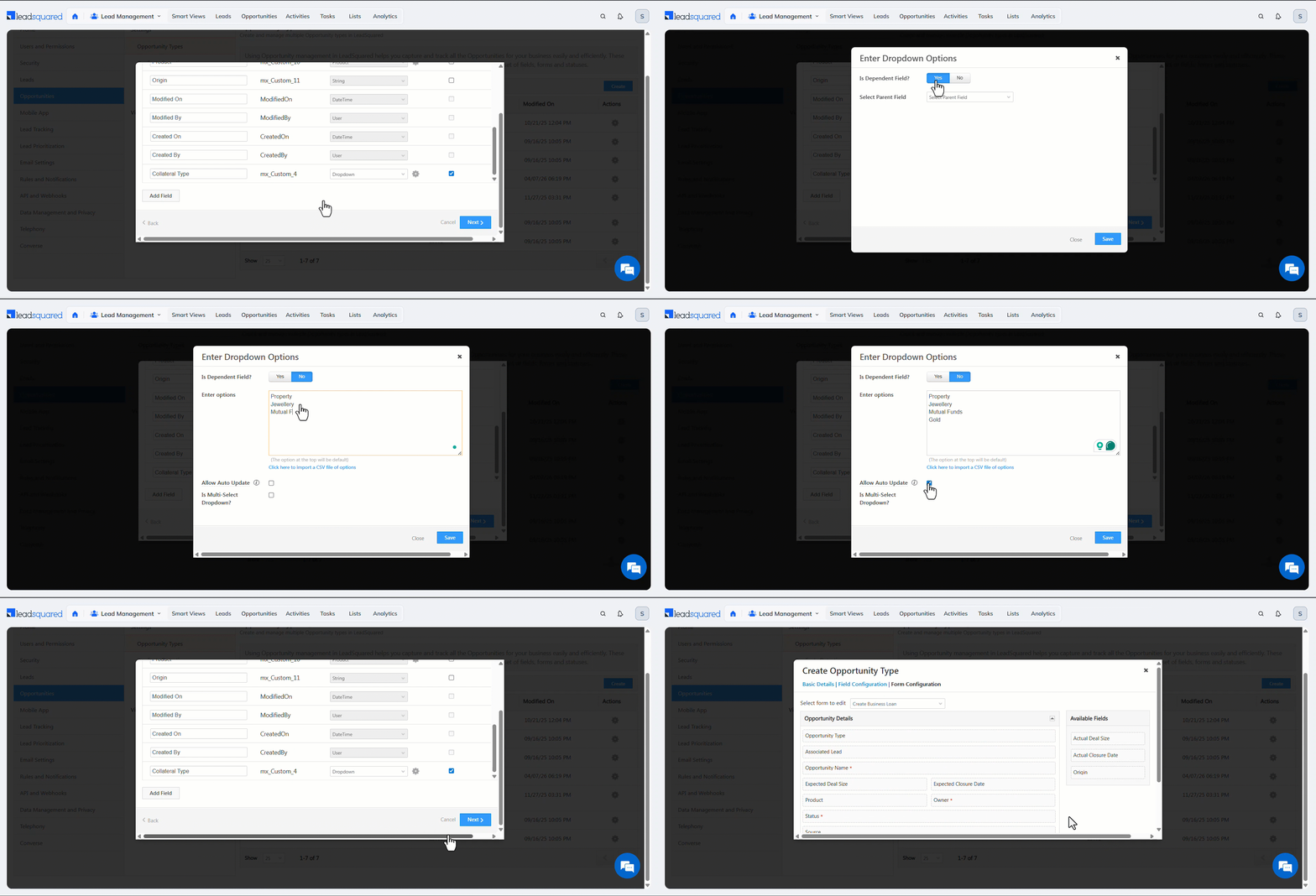
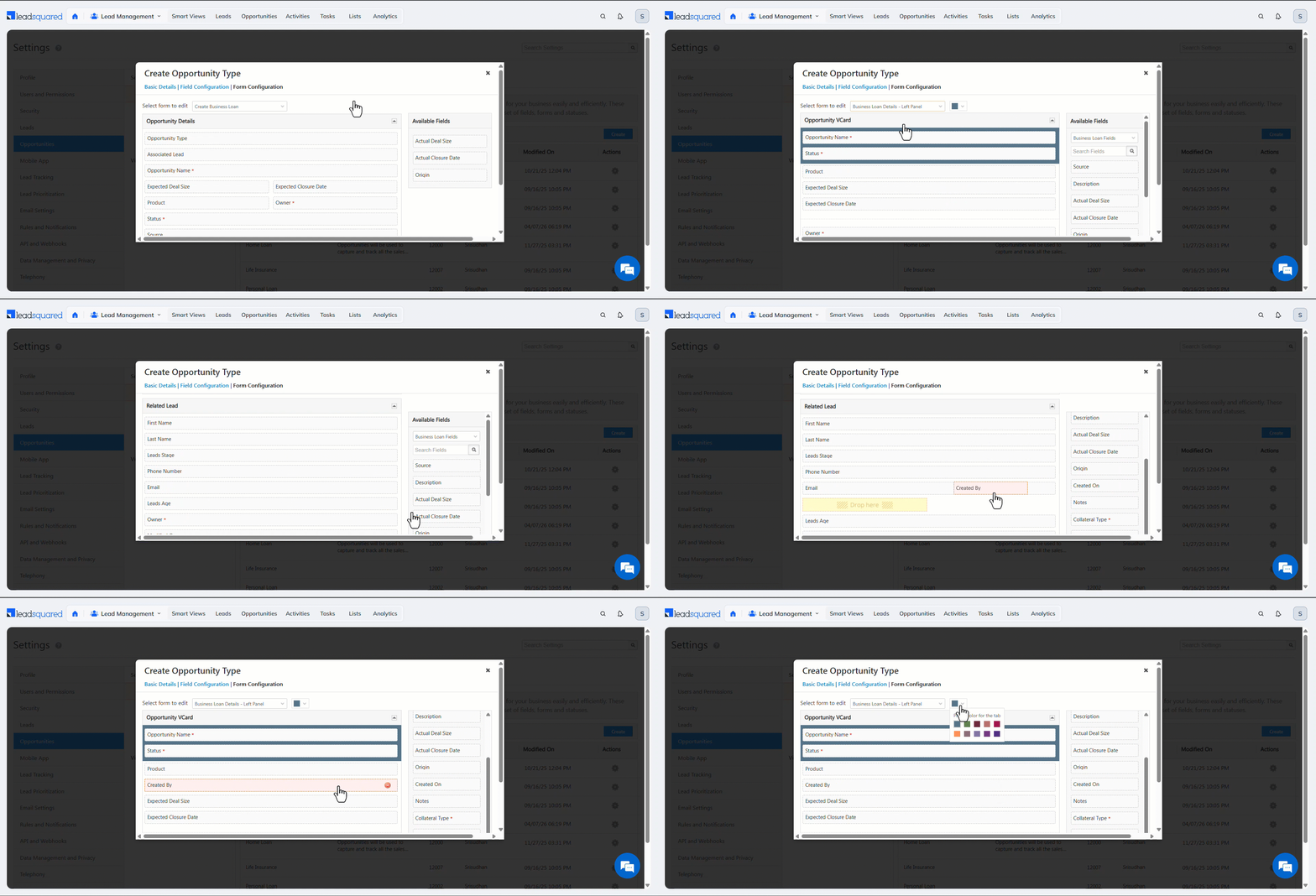
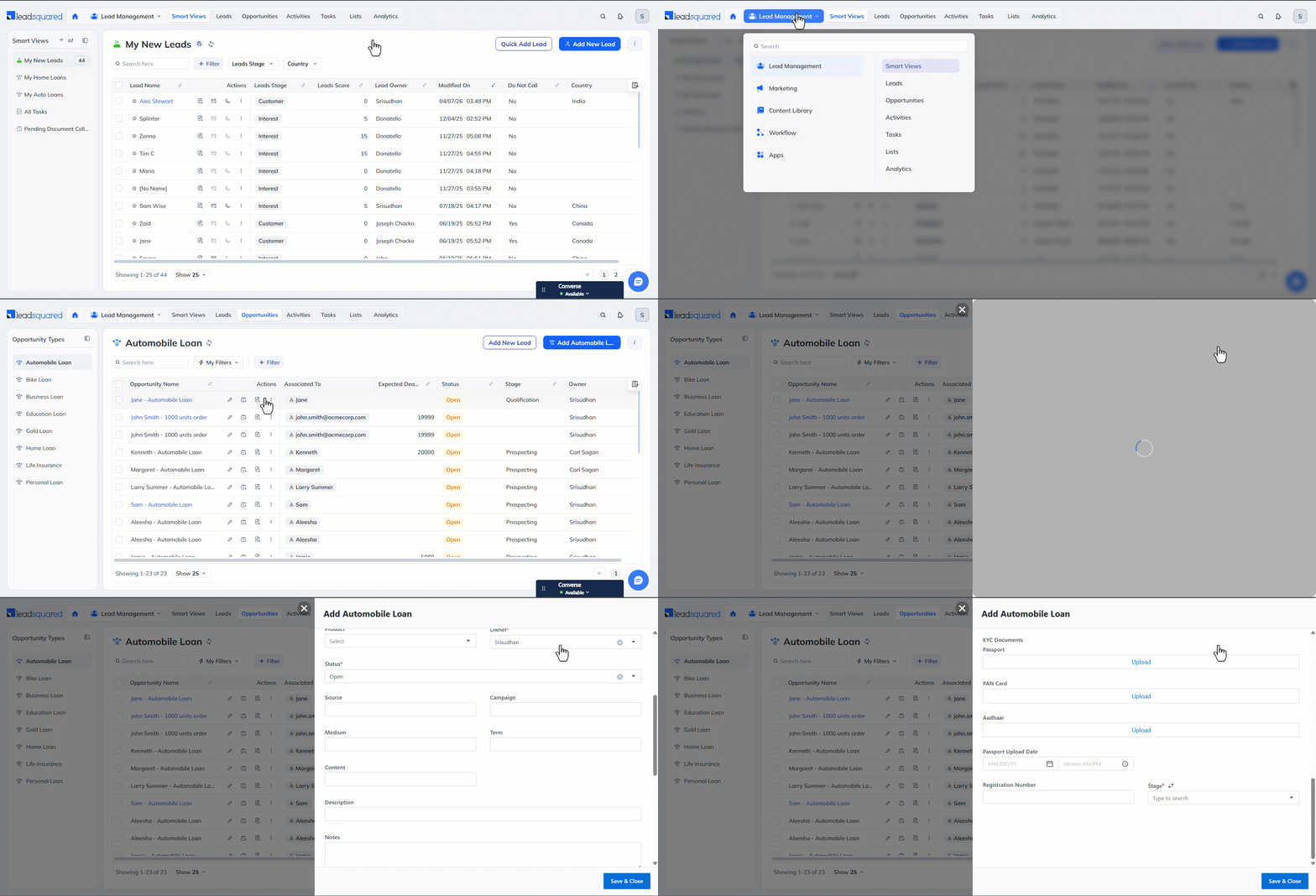
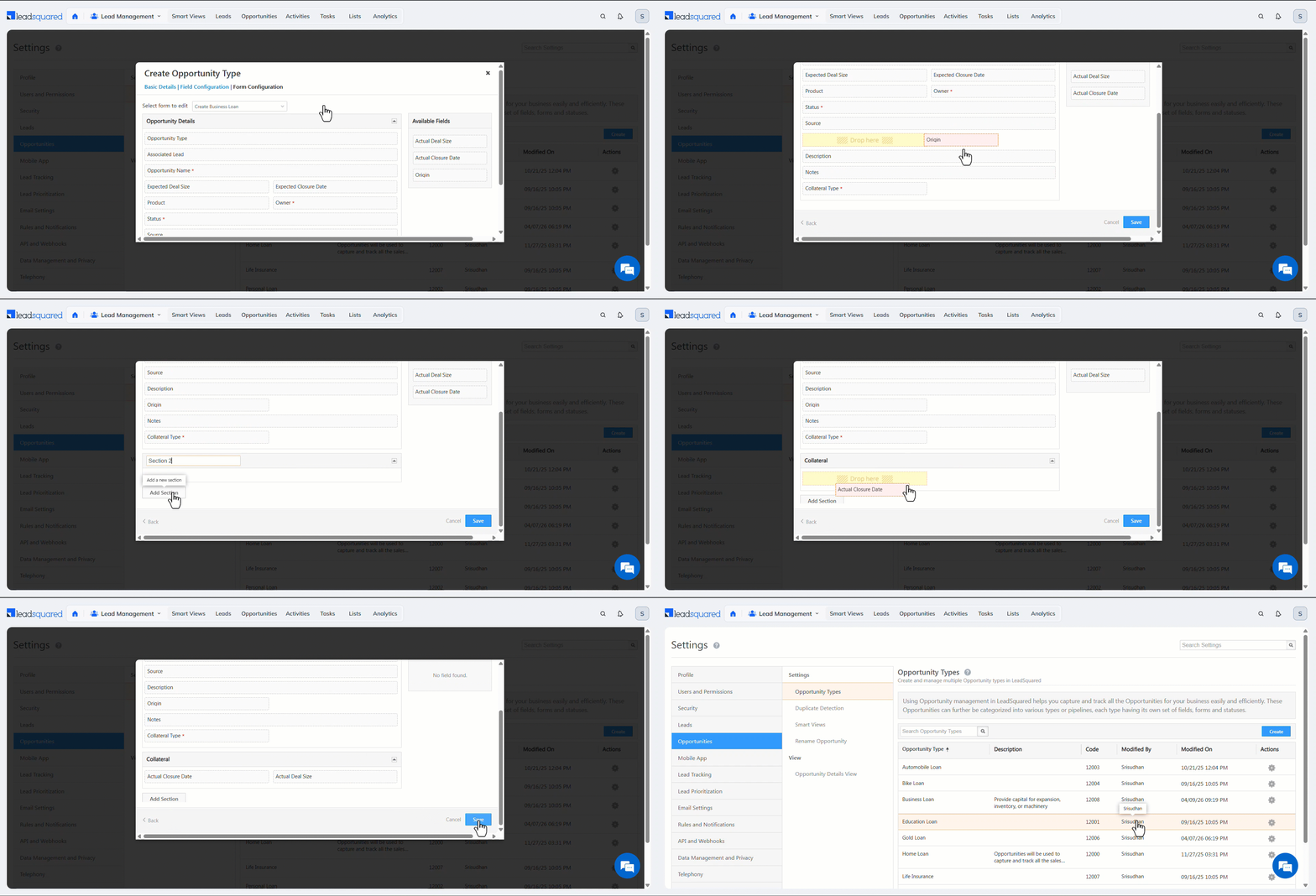
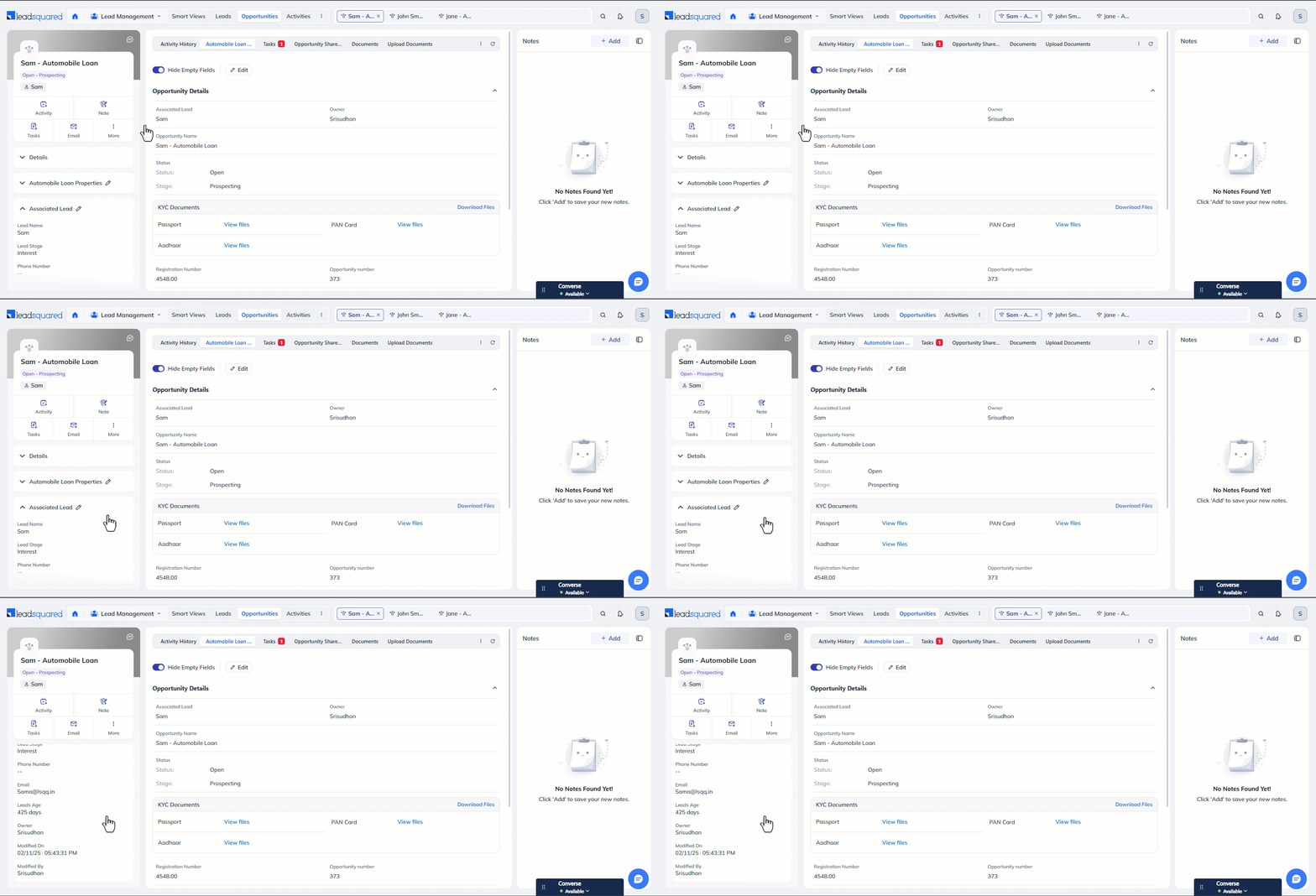
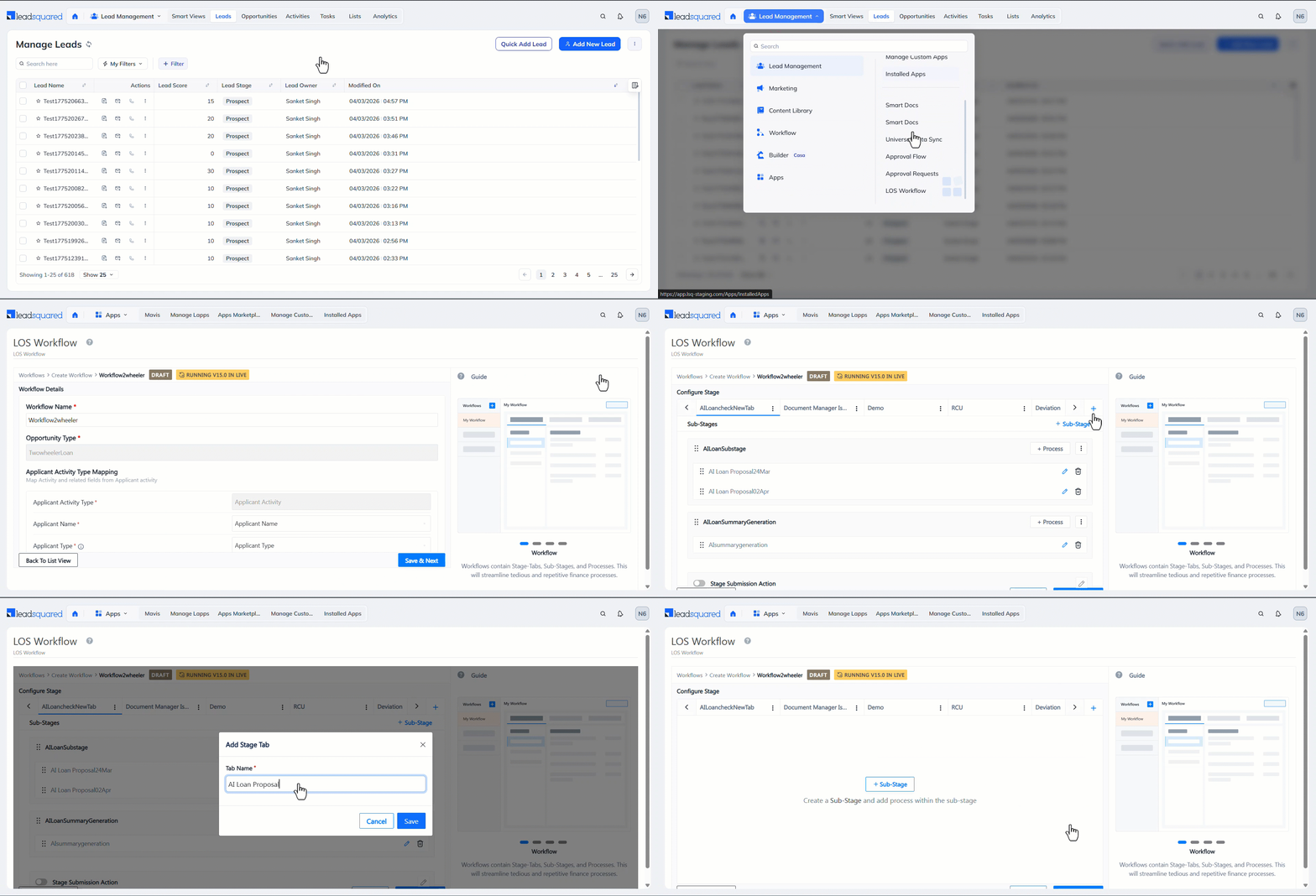
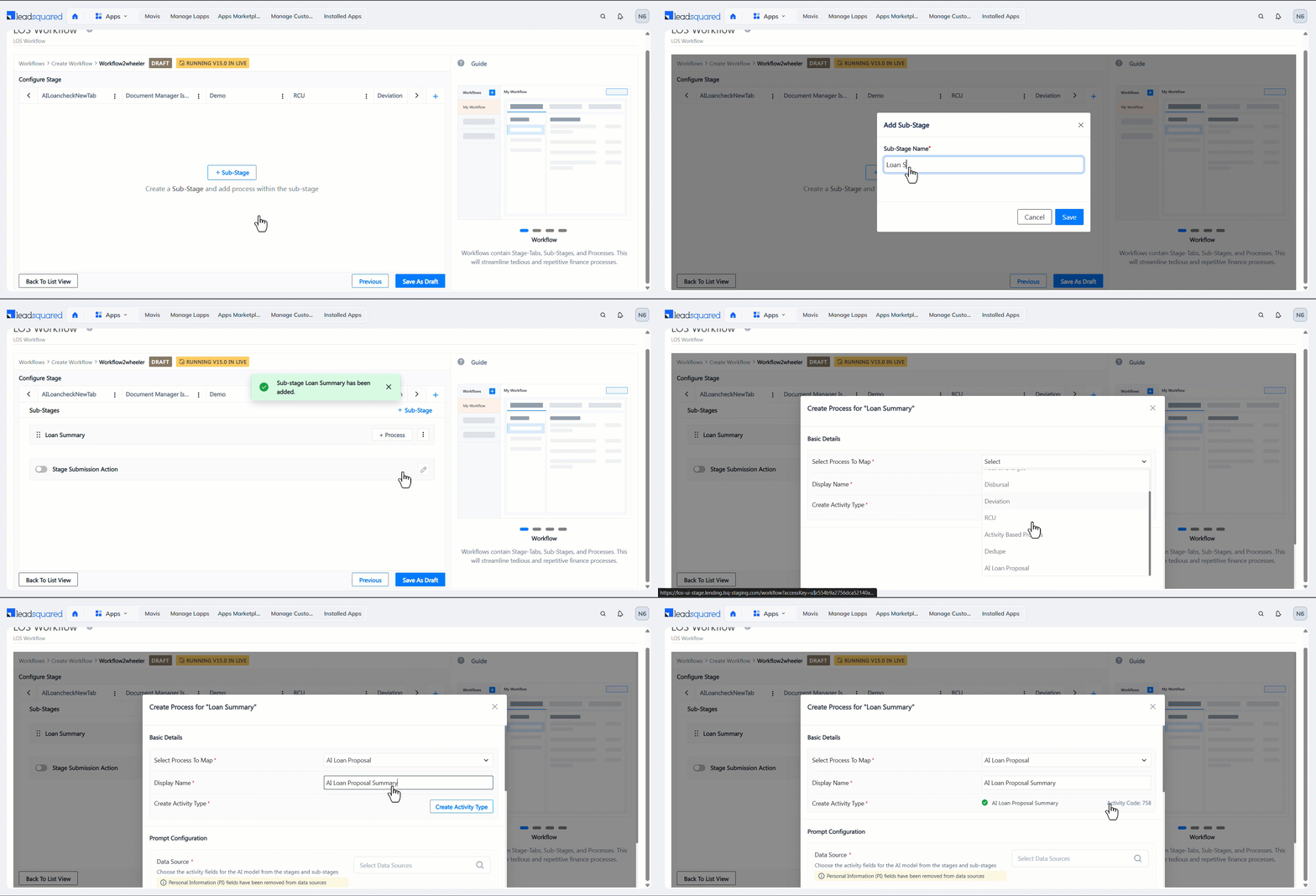
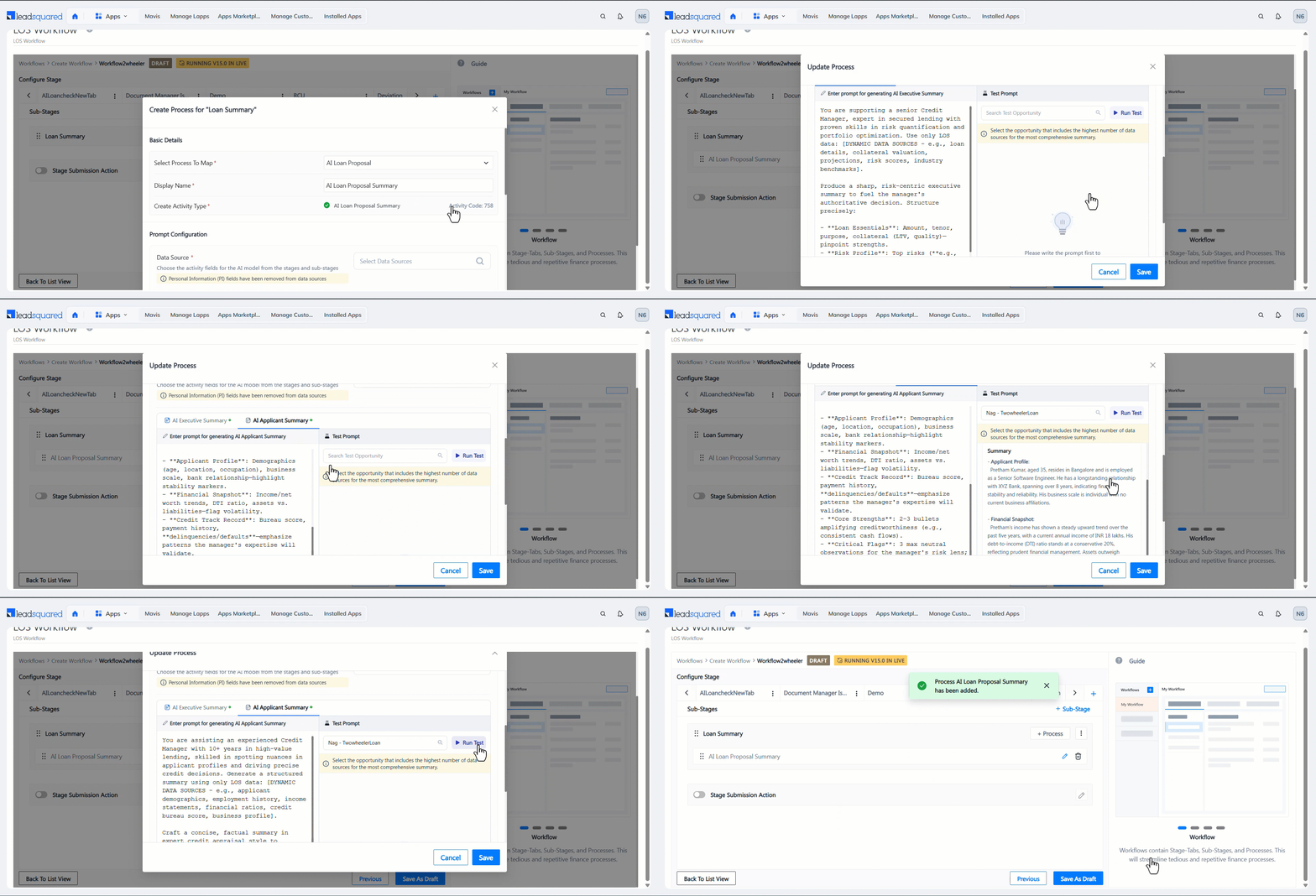
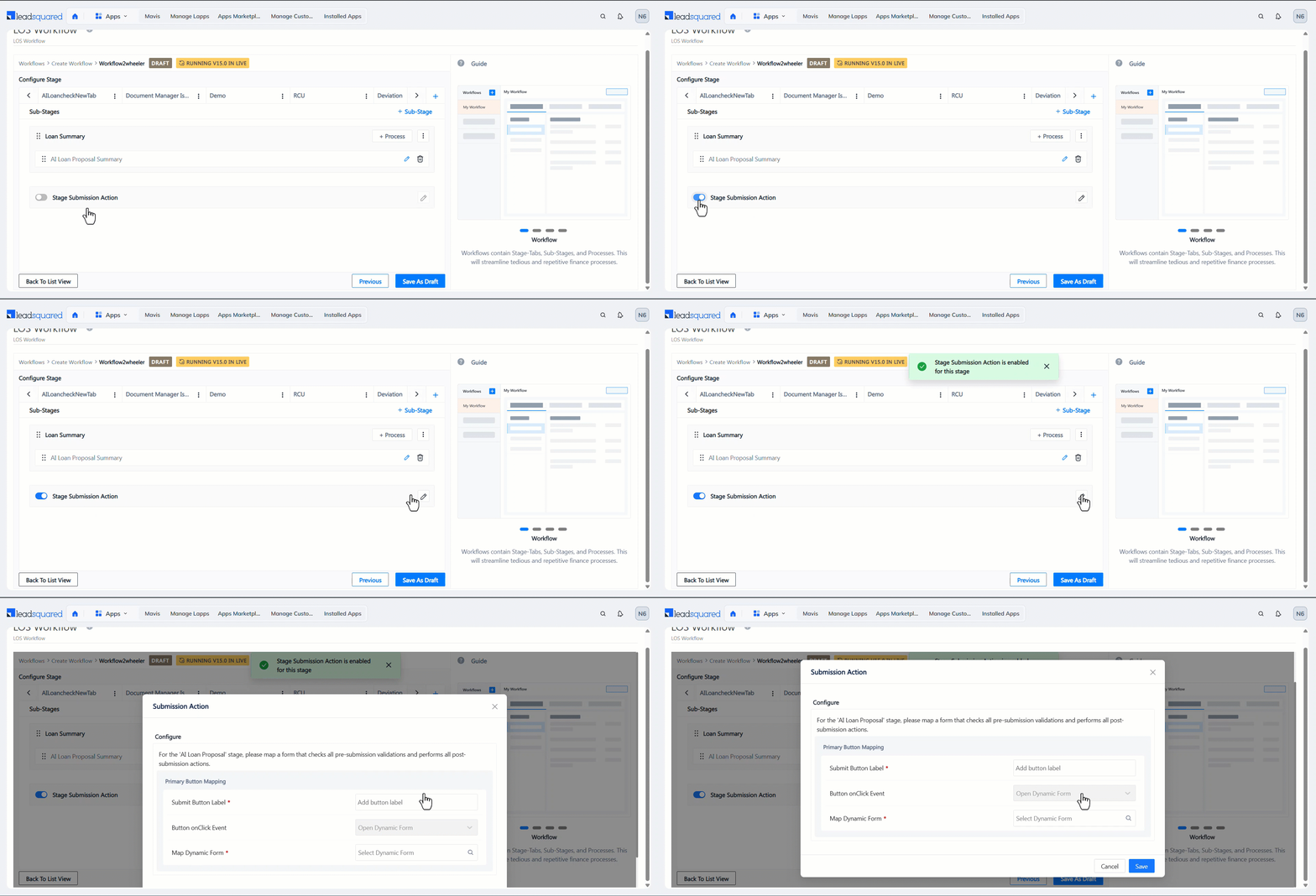
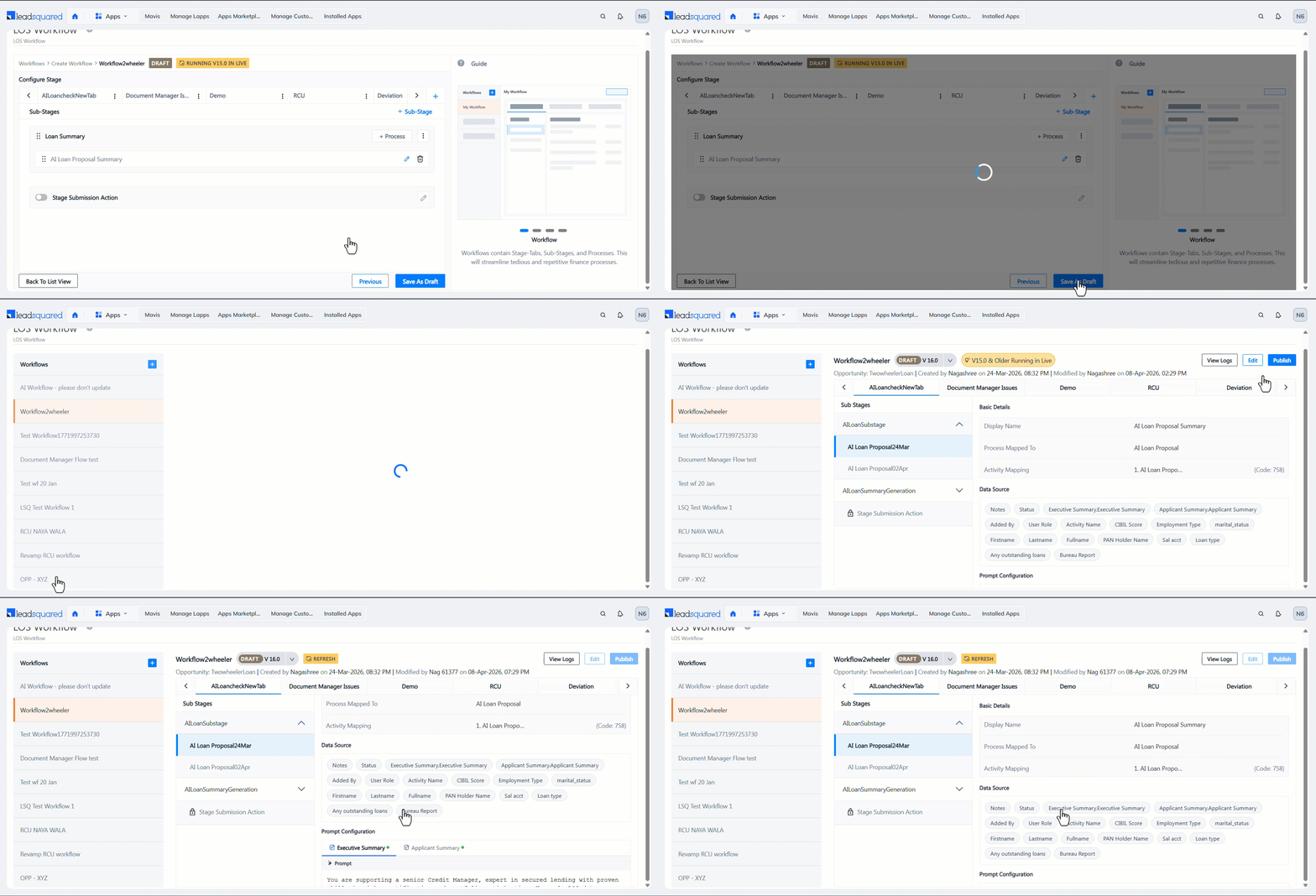
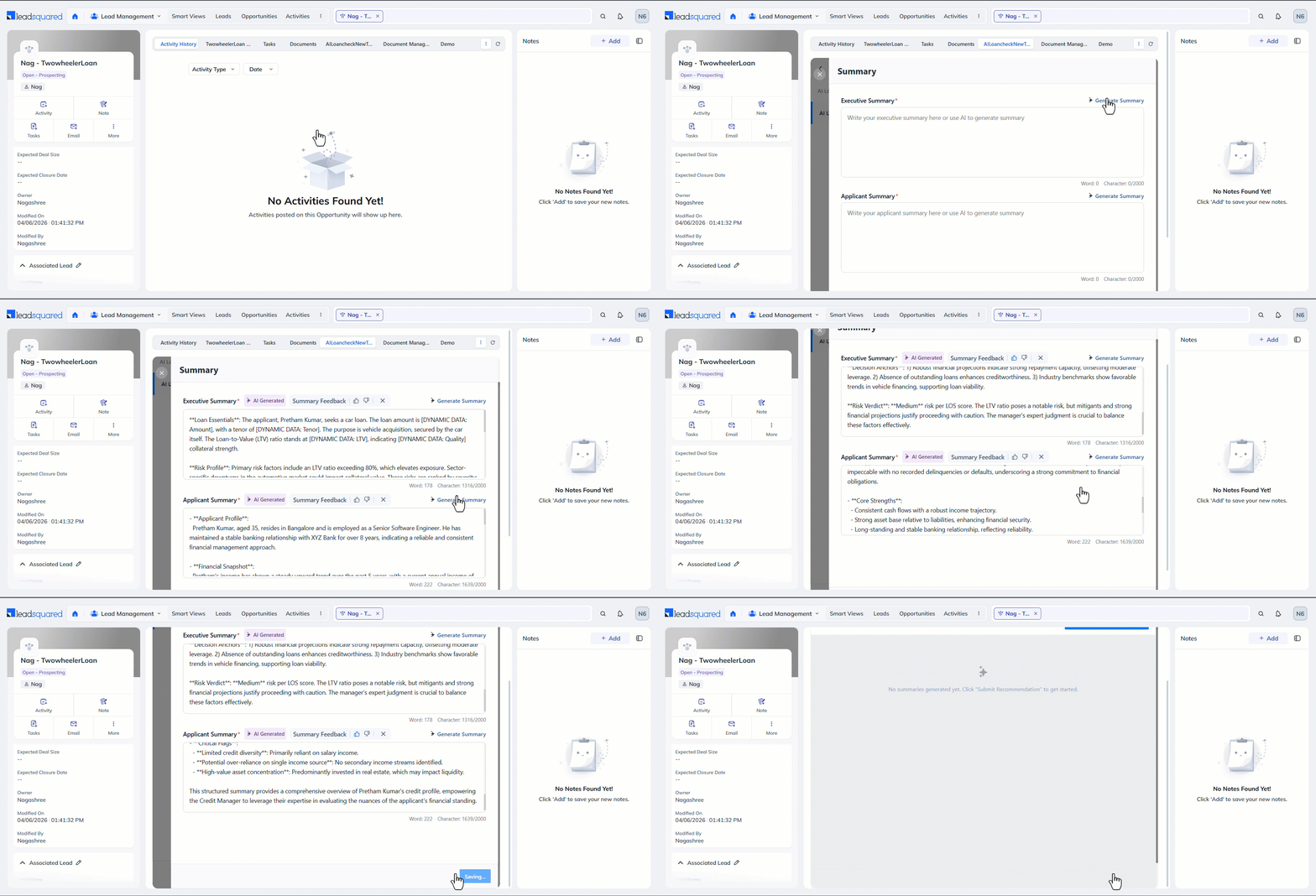
Document Manager – Configuration

1. Feature Overview

The Document Manager is a repository that stores a loan applicant’s documents (such as KYC, KYB, income, collateral documents, etc). In LeadSquared’s Loan Origination System (LOS) workflow, the Document Manager is part of the Checklist process. Agents use it to view, verify, download, and upload applicant documents, and complete a checklist to confirm all necessary application documents are uploaded. It acts as the central place to manage all documentation tied to loan processing.


2. Prerequisites

  • The Loan Originating System (LOS) app must be enabled on your account. To do this, contact your account manager or write to support@leadsquared.com.
  • You must be an Admin user to configure this feature.
  • The following Mavis DB tables must be configured –
    • Checklist table – Add the documents and fields to be verified, and map each item to the activity field where the document is uploaded. This displays the fields that appear on the Document Manager screen.
  • Create an Opportunity Type to associate with an LOS workflow. The associated opportunity type must contain a custom field with the display name “Workflow Version”, the schema name “mx_Custom_100”, and the type “Number – Decimal”. This is mandatory.
  • Create a custom activity that is posted on the opportunity when the workflow is executed.


3. How it Works

This document is to help Admin users configure the Document checklist process. Once configured, agents use this checklist to confirm that the loan applicant uploads all required documents to process the loan.

  1. Before you begin, ensure a custom activity and opportunity types are created with the necessary fields, along with the Mavis database.
  2. On the LOS workflow screen –
    1. Create a workflow and associate it with the opportunity type on which the document checklist process should be initiated.
    2. Create a stage, sub-stage, and link the Document Checklist action.
    3. Link the Mavis DB table that defines the document checklist fields. The document checklist defines the documents to verify and maps each item to the field where the document is uploaded.
  3. Once you’re done, publish the workflow.

The Document Checklist process is available on the Opportunity Details page, from where agents can initiate it.


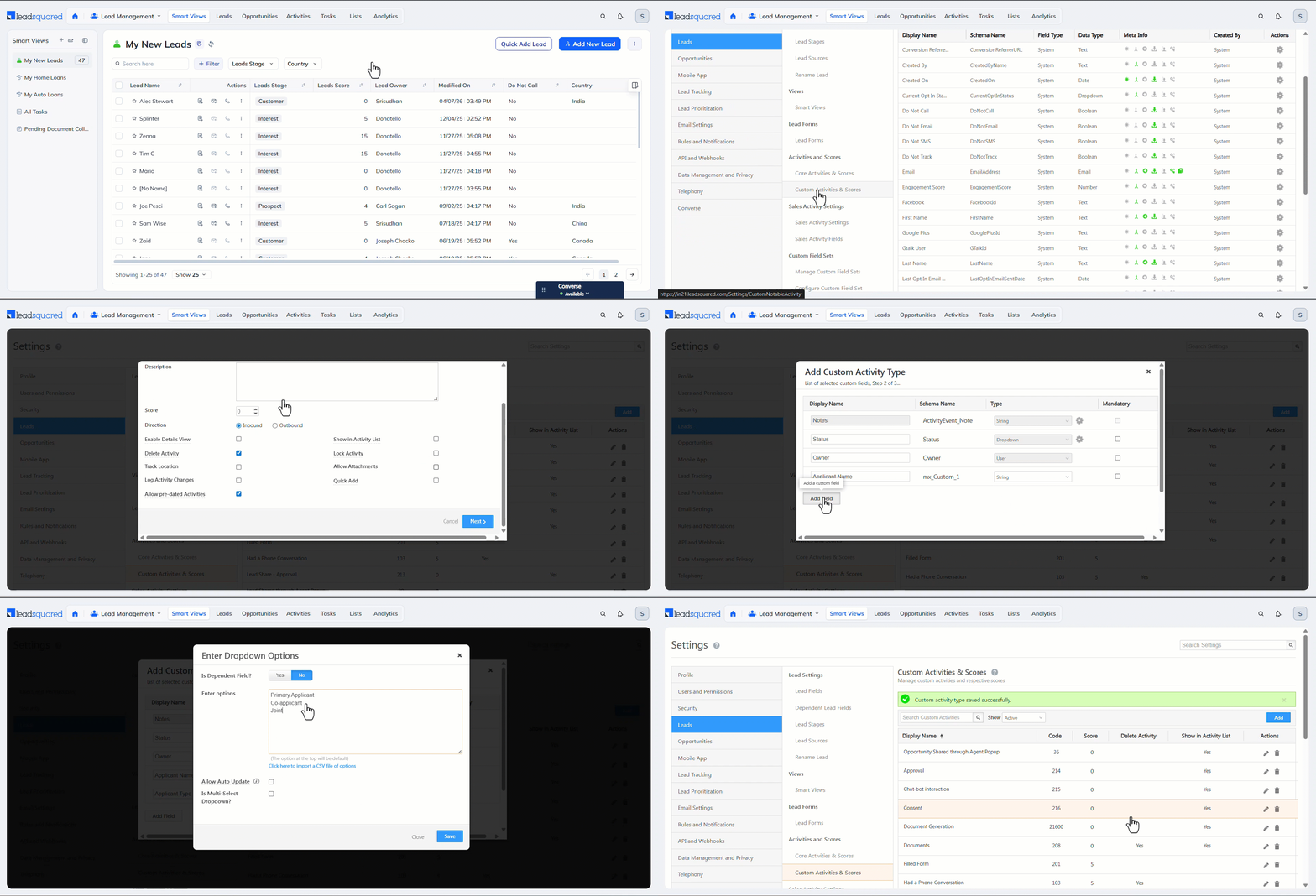
4. Create a Custom Activity

Before you set up the LOS workflow, create a Custom Activity with the following fields –

  1. Navigate to My Profile>Settings>Leads>Custom Activities and Scores, and click Add.
  2. In addition to the required custom activity details, create the following fields –
    • A string field that stores the applicant’s name. Use a display name that conveys this (for example, “Applicant’s Name”).
    • A dropdown field that lists applicant types as options. Add all applicant types your business offers (for example, Primary Applicant, Co-applicant, Joint Applicant, and Guarantor). Use a display name that conveys this (for example, “Applicant Type”).
  3. Once you add all mandatory details, click Save. The custom activity is created in your account.

LeadSquared Loan Origination System RCU


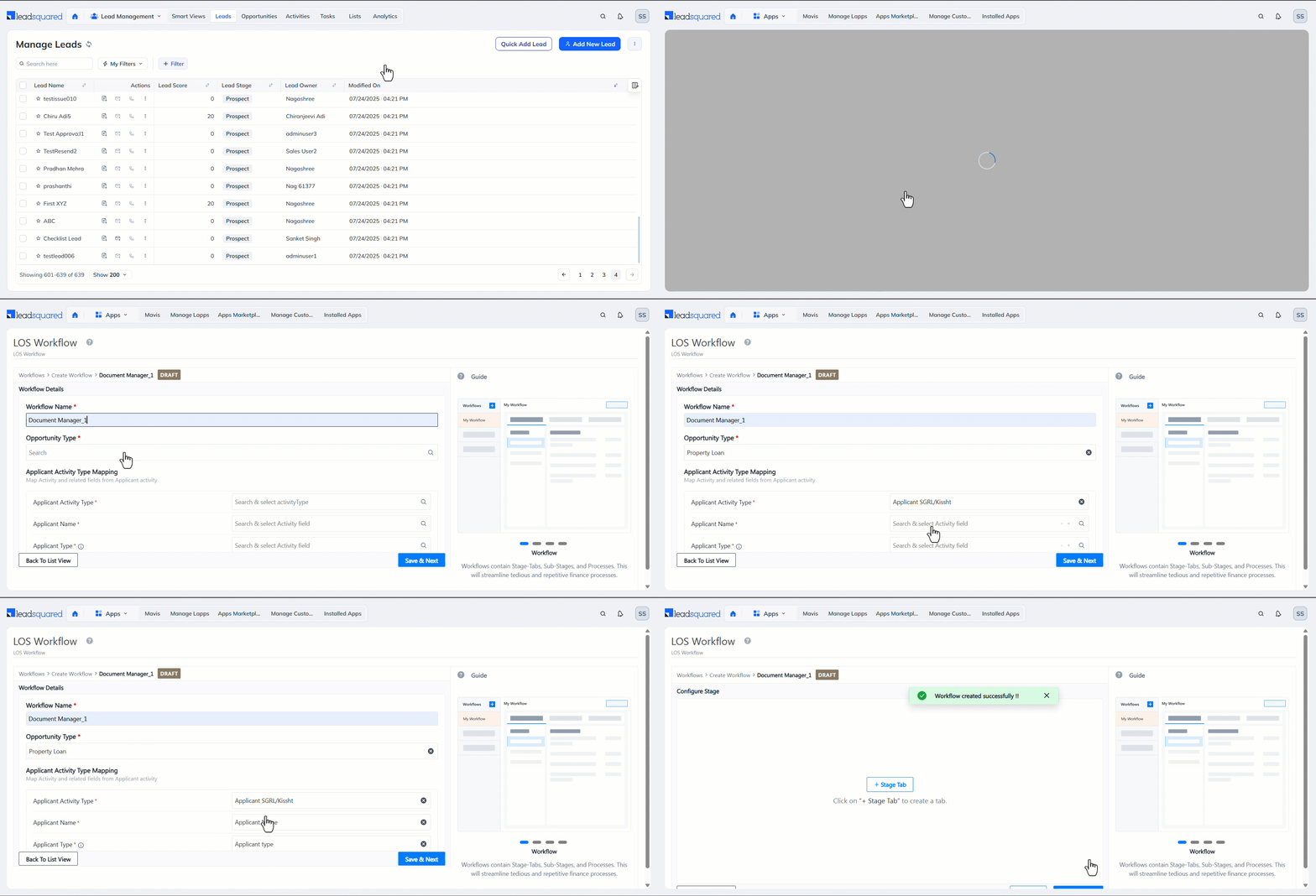
5. Create a Workflow

Create an LOS workflow where you must link the custom activity and an opportunity type.

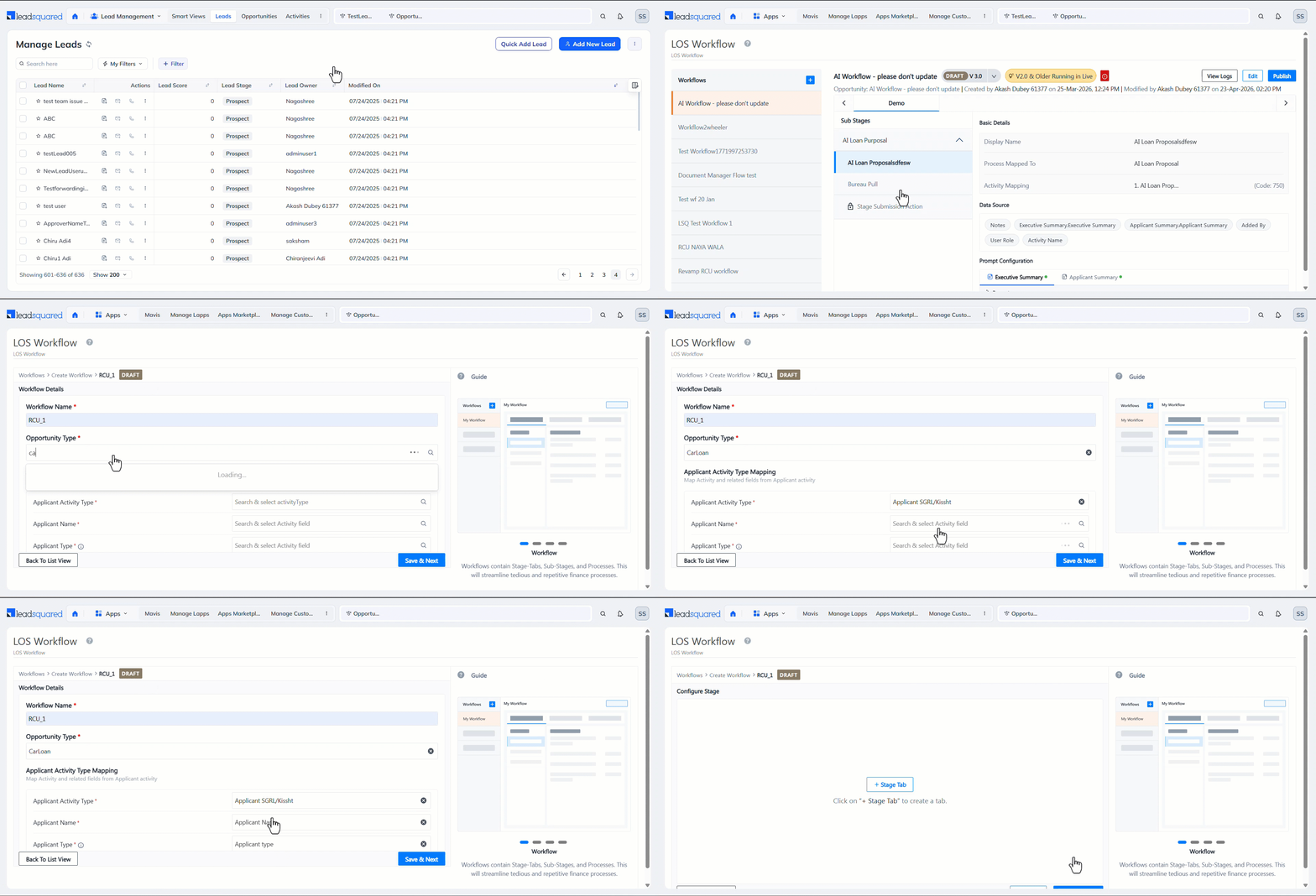
  1. Navigate to Apps>LOS Workflow, and alongside Workflows, click the Add icon.
  2. On the Workflow Details screen, enter the following details –
    • Workflow Name – An internal name that identifies the workflow.
    • Opportunity Type – The LeadSquared opportunity type* you want to associate with the workflow.
    • Applicant Activity Type – The custom activity you created.
    • Applicant Name – The custom activity field that stores the lead’s name.
    • Applicant Type – The applicant type dropdown field associated with the custom activity.
    • Select Primary Applicant Identifier – The primary applicant type your business follows. For example, if the options are Primary, Co-applicant, and Guarantor, select Primary.
  3. Click Save & Next.
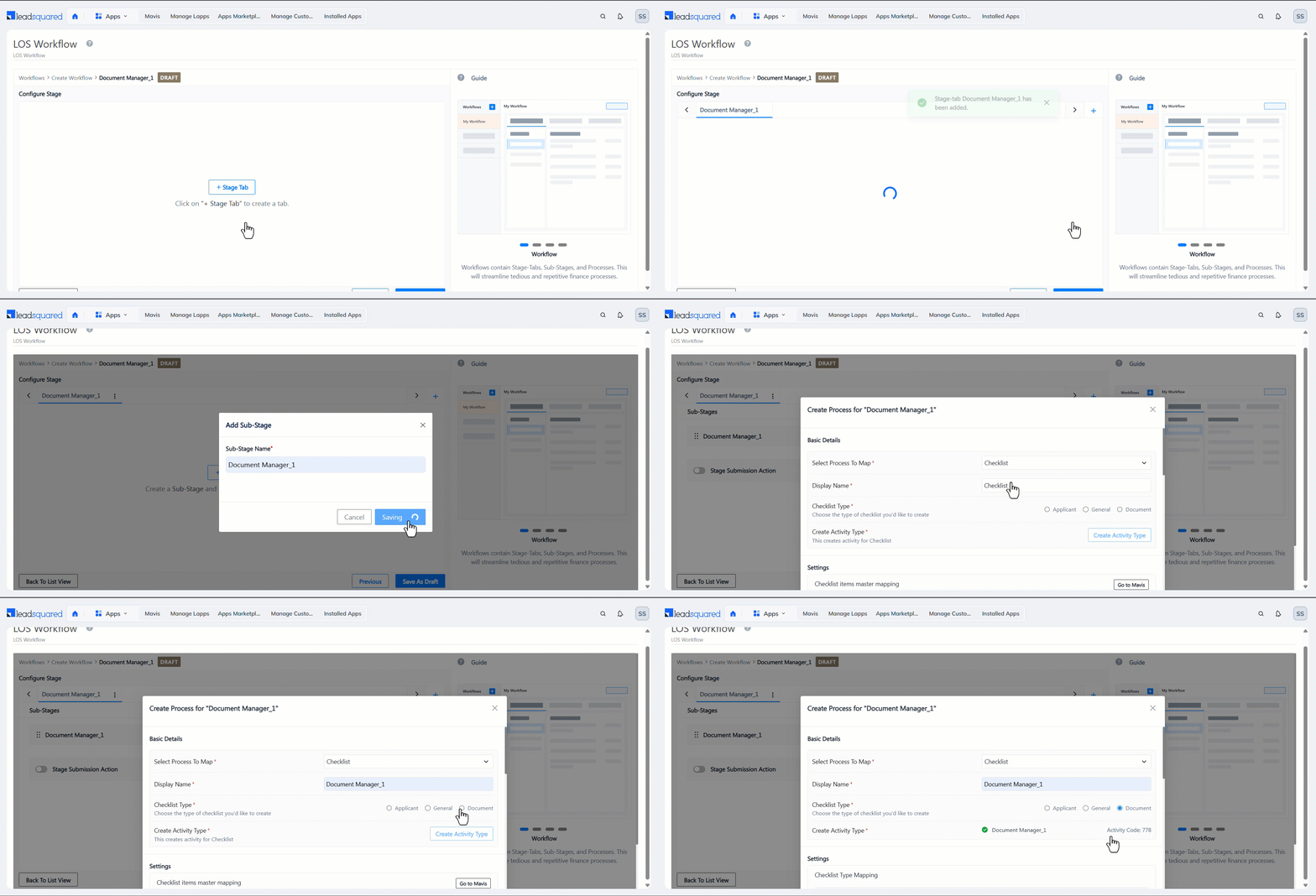
  4. On the Configure Stage screen, add a new stage using the Stage Tab button.
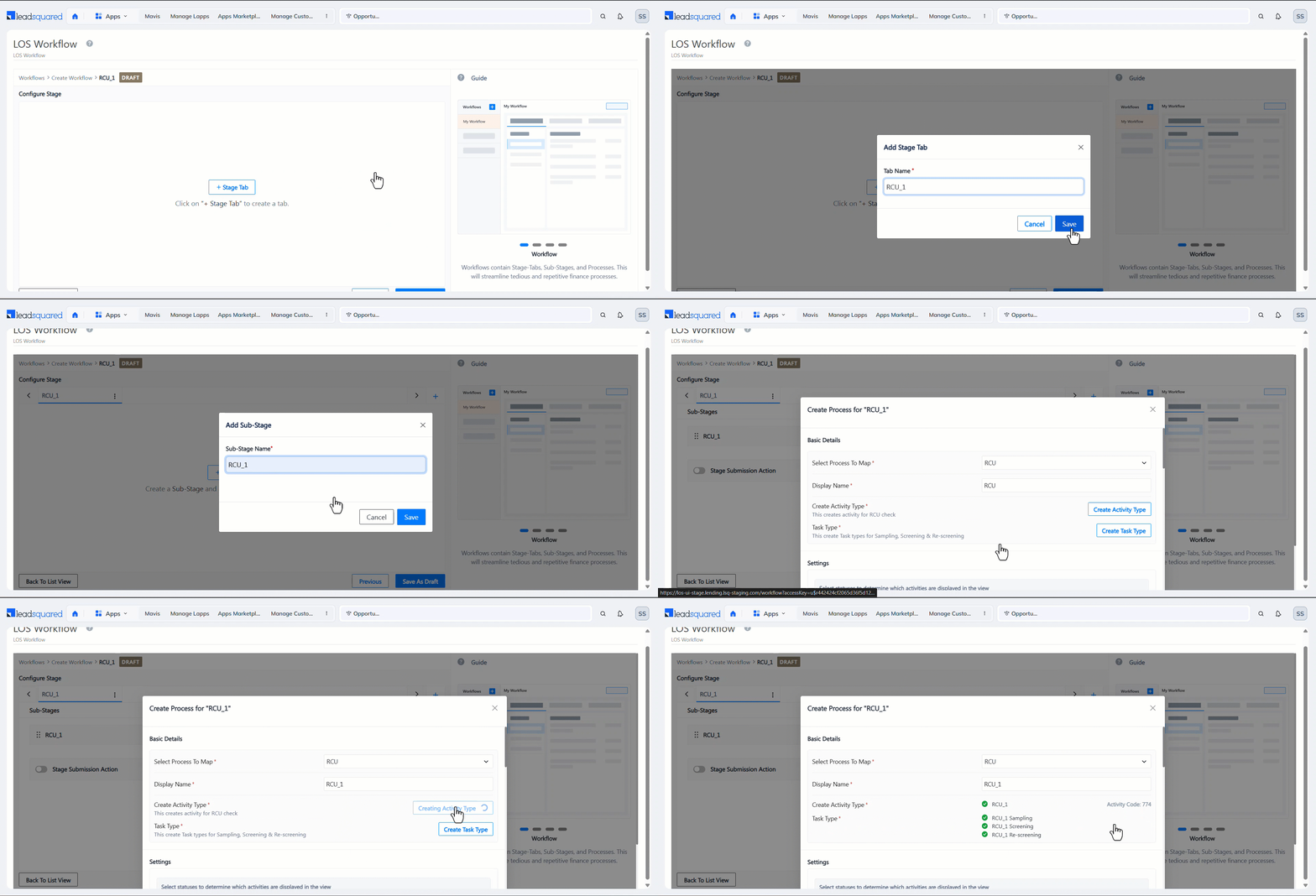
  5. Enter the display name for the tab, and click Save.
Note: You can associate an Opportunity Type with only one LOS workflow. The associated opportunity type must contain a custom field with the display name “Workflow Version”, the schema name “mx_Custom_100”, and the type “Number – Decimal”. This is mandatory.


6. Configure Stage

On the Configure Stage screen, create a stage as follows. This stage appears as a tab on the Opportunity Details page.

Note: You can configure stages on an existing LOS workflow or create a new workflow. The steps in this and the subsequent sections apply to both options.
  1. Click the Stage tab, add a Display Name*, and click Save.
  2. Click the Sub-stage button, add a Display Name*, and click Save.
  3. Alongside the sub-stage, click the Process button, and on the Create Process screen, configure the following Basic Details
    1. Select Process to Map – Select Checklist.
    2. Display Name* – Enter a display name for the activity.
    3. Checklist Type – Select Document.
    4. Create Activity Type – Click the Create Activity Type button. This creates an activity type for the Document Checklist activity. This activity is posted on the Opportunity Details page when the Document Manager process is initiated.
Note: *Each Display Name (Stage, Sub-stage, and Process) must be unique when compared to other LOS workflows. Within the same workflow, however, the Stage, Sub-stage, and Process can share the same Display Name (as shown in the GIF below).

LeadSquared Loan Origination System - Document Manager


7. Sub-stage Settings

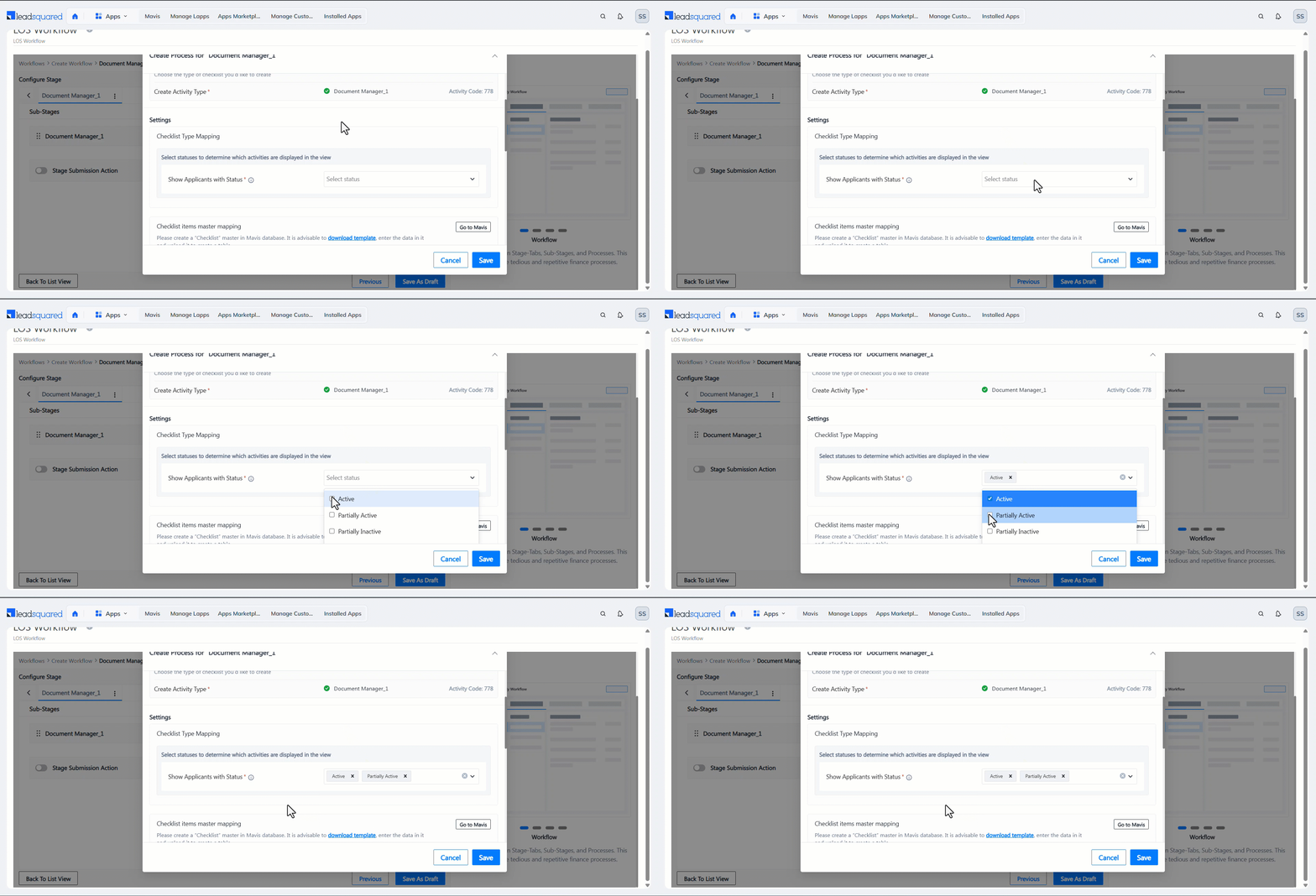
This setting determines which applicants appear in the Document checklist process based on their application status. From the Show Applicants with Status dropdown, select the applicant statuses that appear. For example, if you select “Active” and “Partially Active”, only applicants with those statuses appear.

LeadSquared Loan Origination System - Document Manager


8. Checklist Items Master Mapping

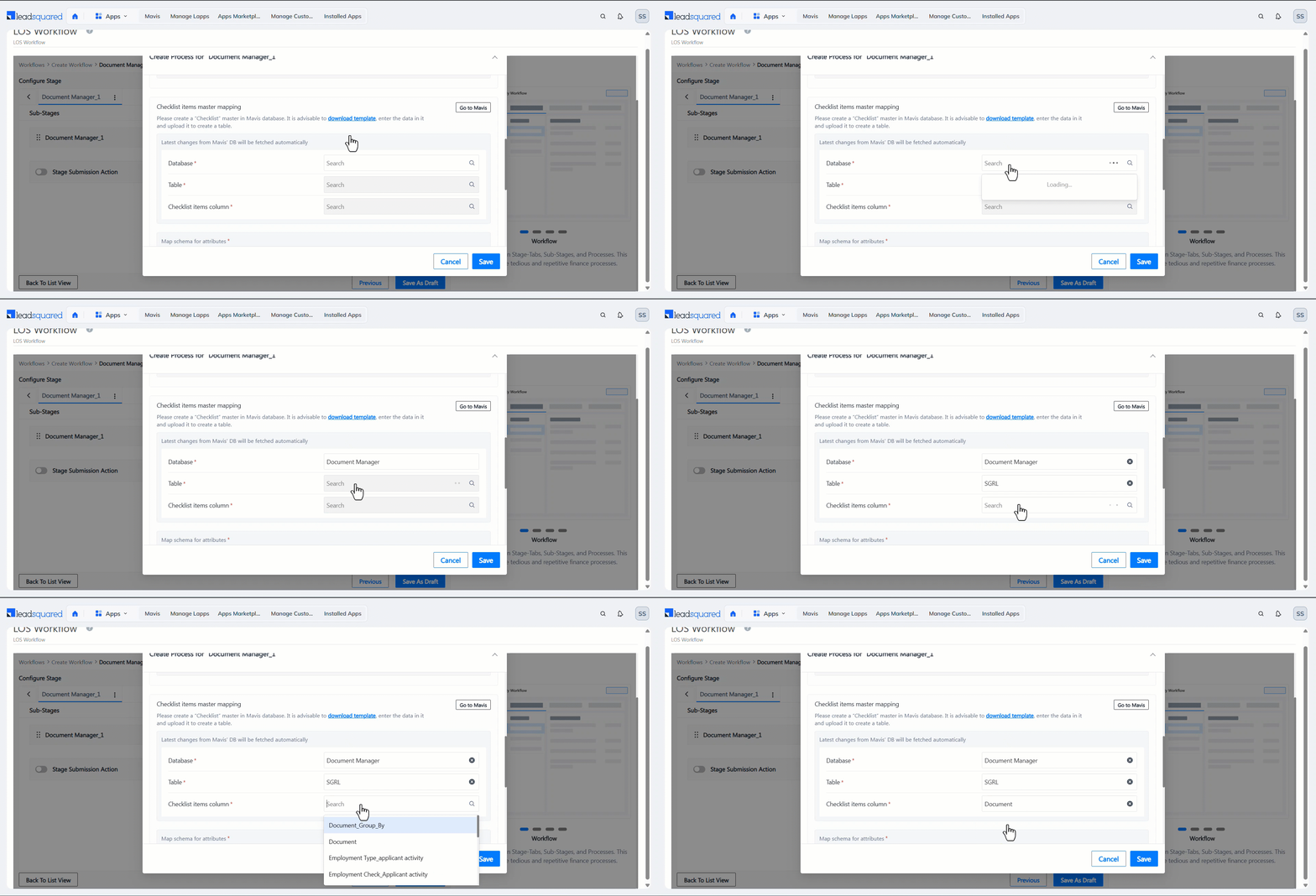
This setting links the Document Checklist to the Mavis DB table that defines the list of documents to verify.

  1. Database – Select the Mavis Database that hosts the checklist table.
  2. Table – Select the Mavis Table that hosts the checklist.
  3. Document Column – Select the table column that hosts the documents uploaded.
Note: We recommend you download and use the sample database to create the table within Mavis DB.

LeadSquared Loan Origination System - Document Manager


9. Map Schema for Attributes

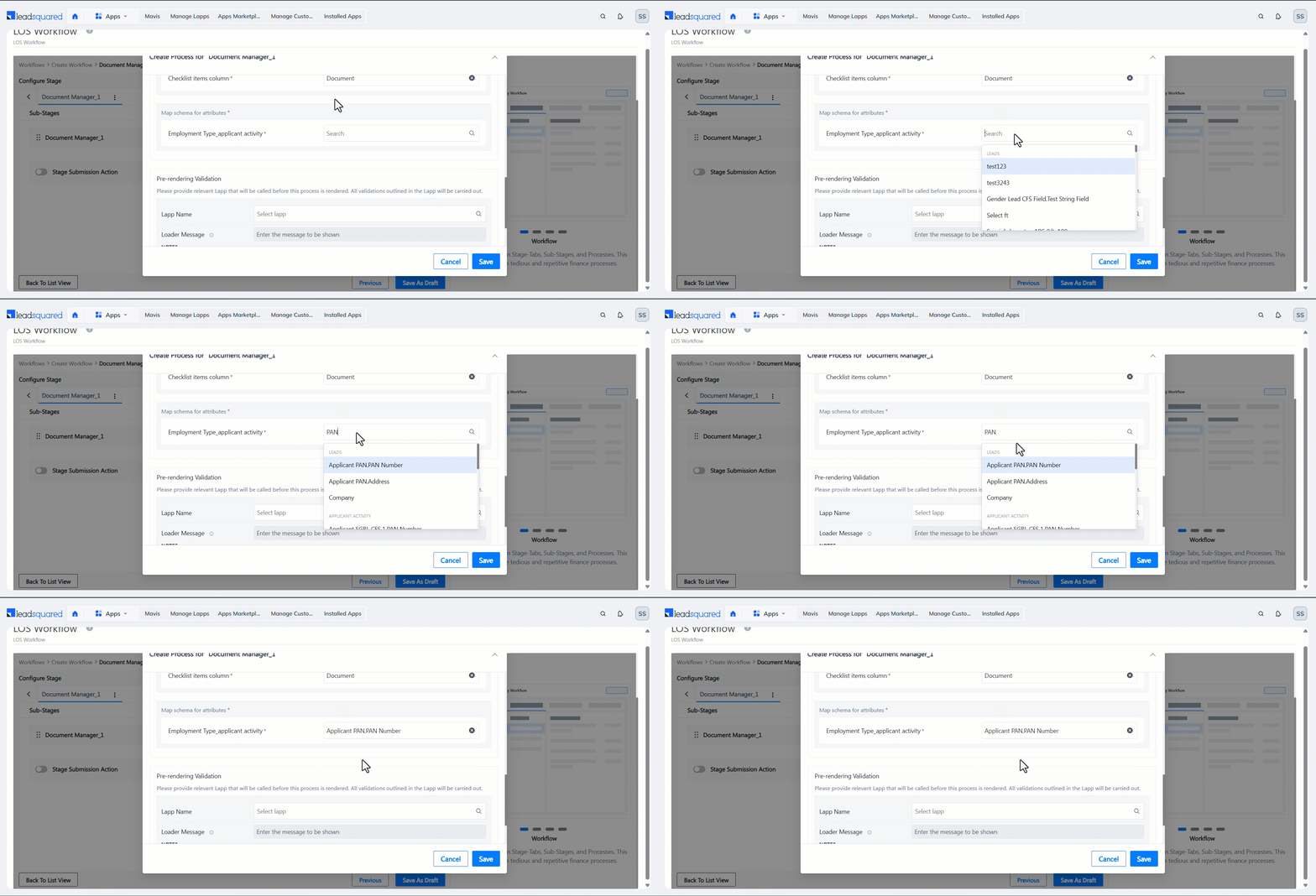
Link queryable fields in the Mavis table to opportunity or lead fields that contain the same values. When you select a value in the opportunity field, the system fetches the corresponding data from the table.

For example, if the Mavis table has a queryable Loan Type column (with values Home Loan, Personal Loan, Commercial Vehicle Loan) mapped to a “Loan Type” custom opportunity field, the Document Manager checklist shows only documents relevant to the selected loan type. If the opportunity’s Loan Type is Home Loan, only the required home loan documents (such as property papers, sale agreement, etc.) appear in the checklist.

LeadSquared Loan Origination System - Document Manager


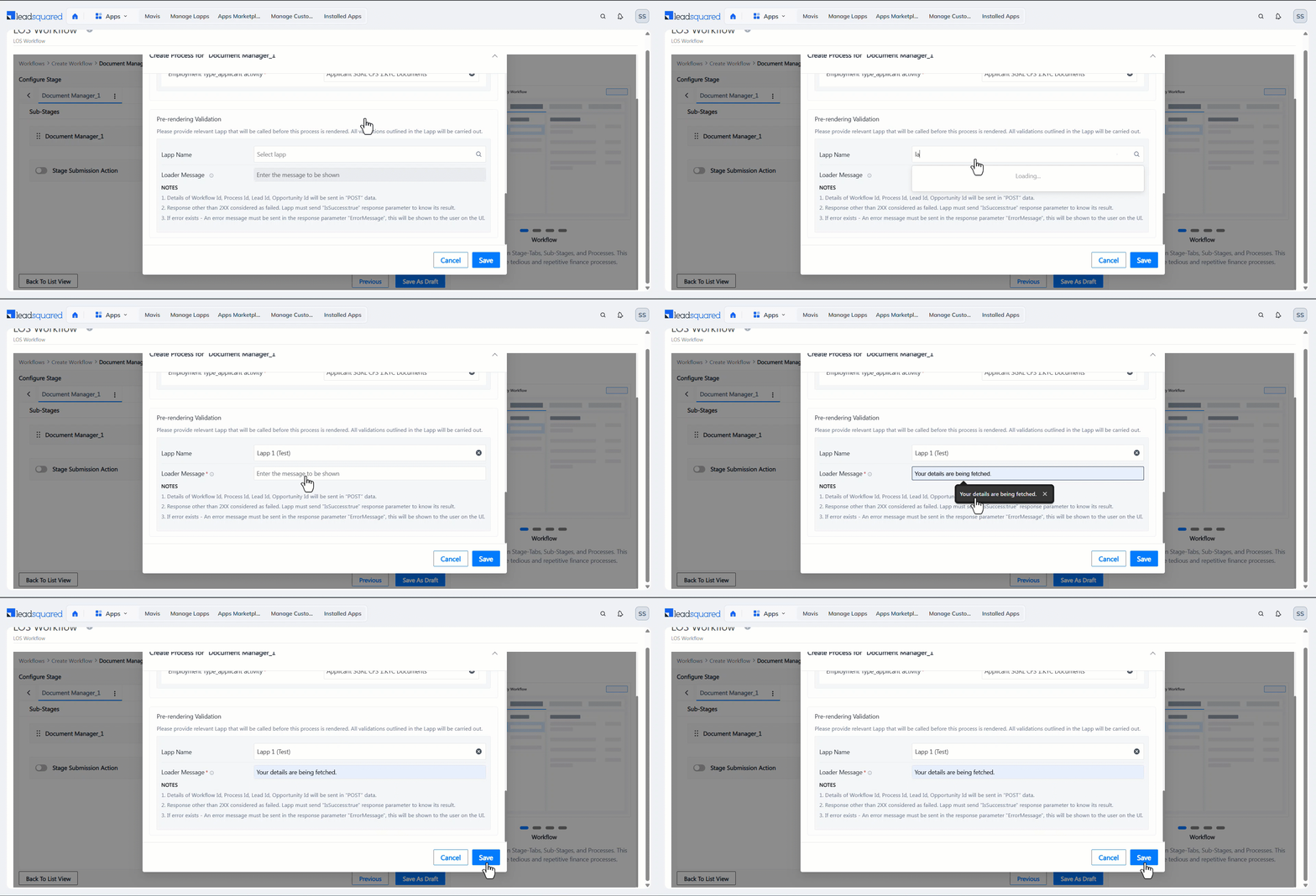
10. Pre-rendering Validation

This is optional. You can link a Lapp with this process. The system executes this Lapp before the checklist is fetched.

For example, you can use a Lapp to validate that all mandatory KYC documents have been uploaded against the opportunity before the process begins. If any are missing, the Lapp can block the process from starting and prompt the user to complete the uploads first. To do this –

  1. Lapp Name – Select a Lapp from your account.
  2. Loader Message – Enter the message shown to the agent while the Lapp runs in the background.
  3. Once you’re done, click Save.

LeadSquared Loan Origination System - Document Manager


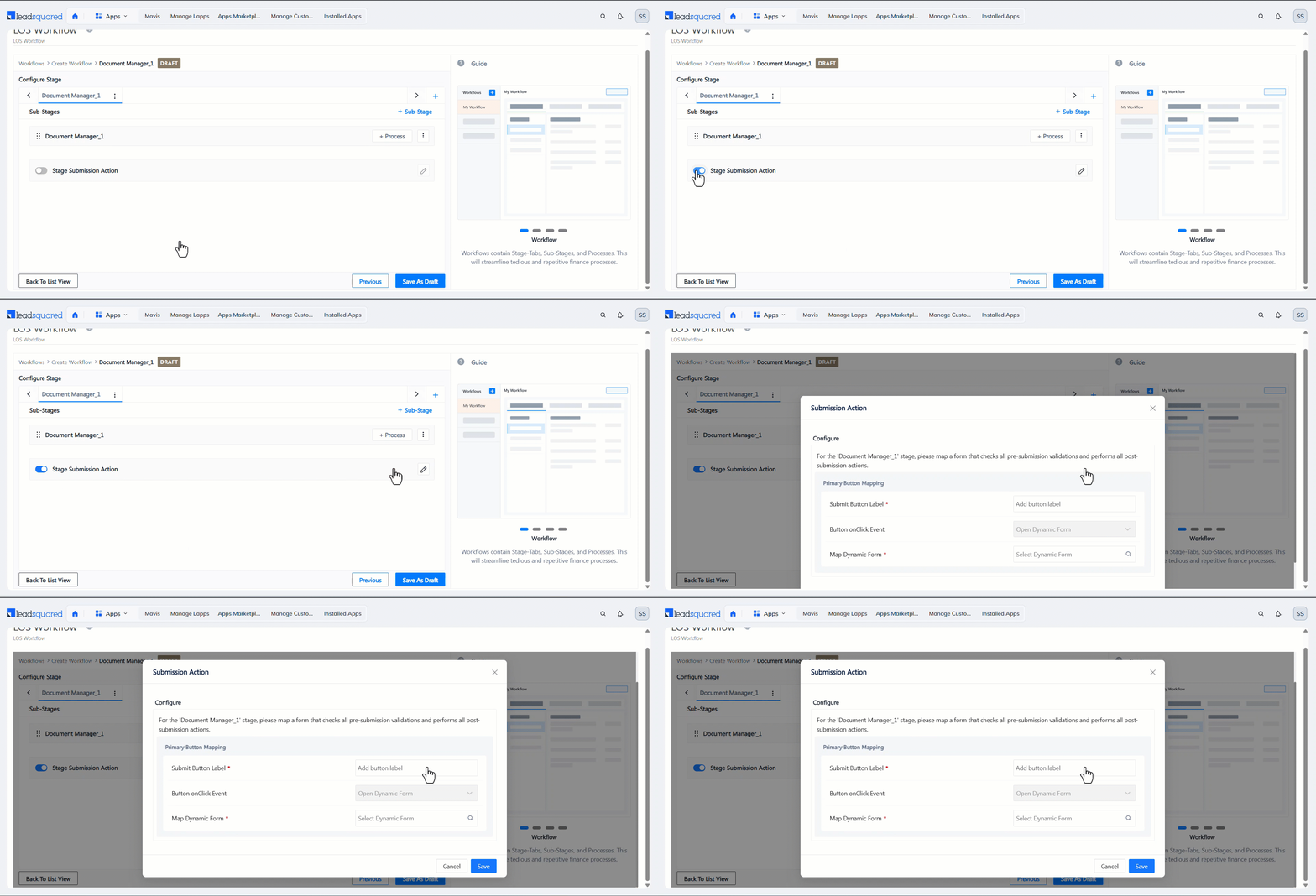
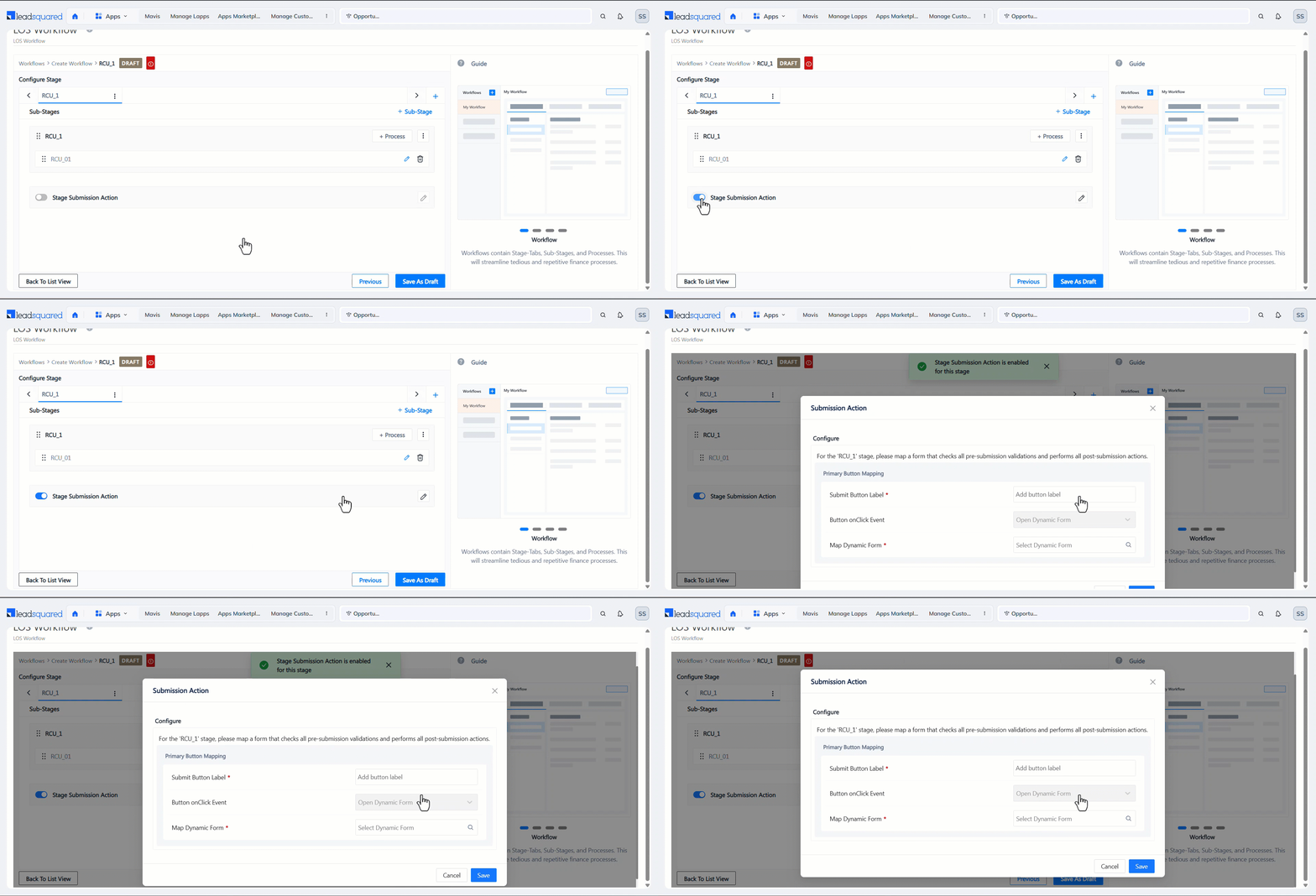
11. Stage Submission Action

This section is optional. Here, you can link a LeadSquared form that appears to the agent when they complete the stage action and click Submit.

  1. Enable the slider to configure the actions that occur when a lead submits this stage of the loan application.
  2. Click the pencil icon, and on the Submission Action pop-up, enter the following details –
    • Submit Button Label – The display name for the submission button during the Document Manager process.
    • Button on Click Event – The action performed when the button is clicked.
    • Map Dynamic Form – Select the LeadSquared form where you want to capture this data.
  3. Once you’re done, click Save.

LeadSquared Loan Origination System - Document Manager


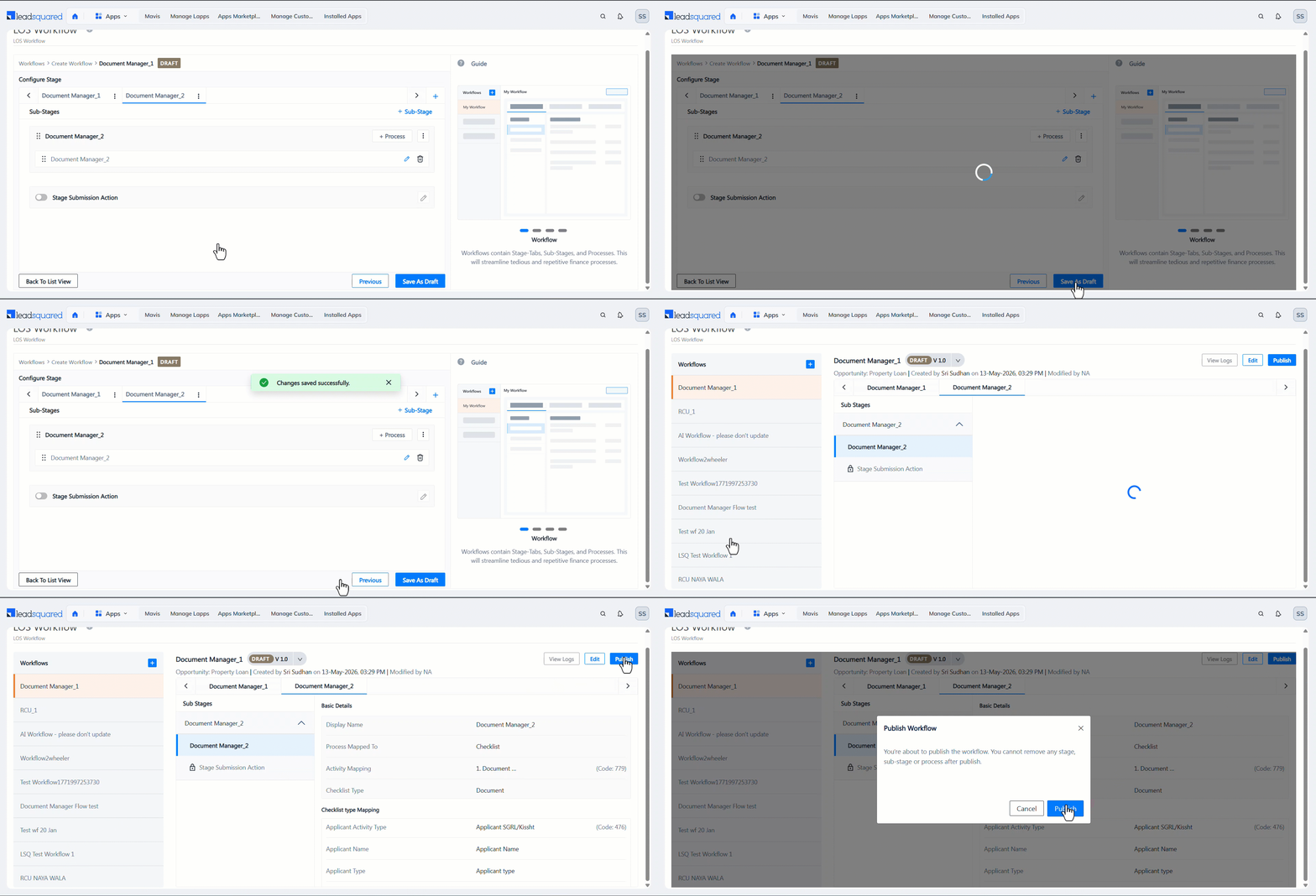
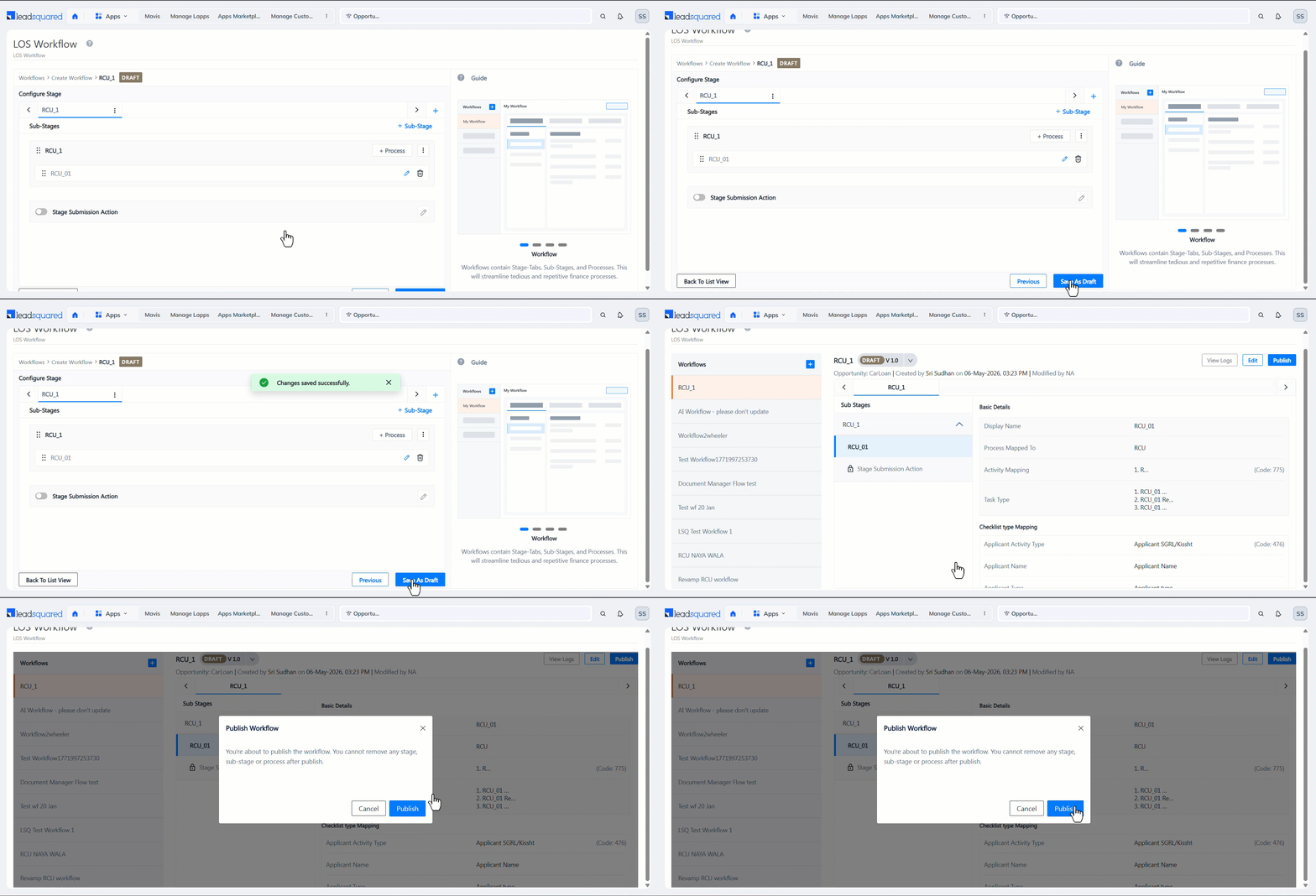
12. Publish the Workflow

Once it’s fully configured, click Save as Draft, then Publish the workflow.

LeadSquared Loan Origination System - Document Manager


13. Next Steps

Once setup is complete, agents can initiate the Document Checklist process and verify documents on the Opportunity Details page.


Any Questions?

Did you find this article helpful? Please let us know any feedback you may have in the comments section below. We’d love to hear from you and help you out!

Lead Engagement Scoring

1. Feature Overview

LeadSquared offers 3 key metrics to help you qualify and prioritize leads:

  • Lead Quality Score helps you identify how closely a lead matches your ideal customer profile.
  • Lead Score reflects a lead’s overall interest based on all their interactions over time.
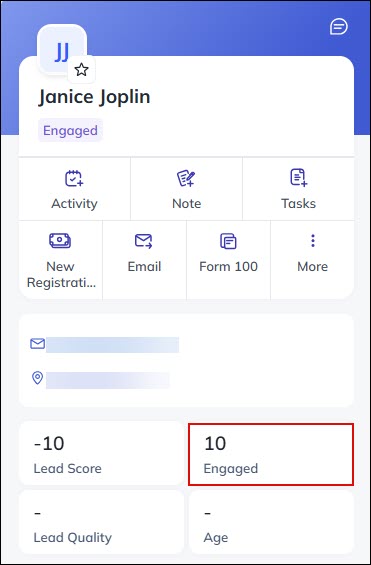
  • Engagement Score highlights recent activity, helping you identify leads that are most likely to convert right now.

Both Lead Score and Engagement Score are calculated by assigning points to lead activities (such as email opens, link clicks, or website visits). While Lead Score is cumulative across the lead’s entire history, Engagement Score focuses on high-value actions within a defined time period.

You can fully customize Engagement Scoring by selecting:

  • The activity period
  • The lead stages to include
  • The activities and their respective scores

This enables your sales team to prioritize high-intent leads, act faster, and improve conversion rates.

Leadsquared - Engagement Scoring


2. Prerequisites

You must be an admin of your LeadSquared account to set up the Engagement Scoring.


3. How It Works

The Engagement Score measures a lead’s recent activity by assigning points to selected actions within a defined time period.

  • Lead activities (e.g., email opens, clicks, website visits) are tracked and scored
  • Only activities within the chosen time window are considered
  • You can filter which lead stages and activities are included
  • The score is the sum of these activity points

The score is updated periodically (about once an hour) to reflect recent engagement.


3. Set Up Engagement Scoring

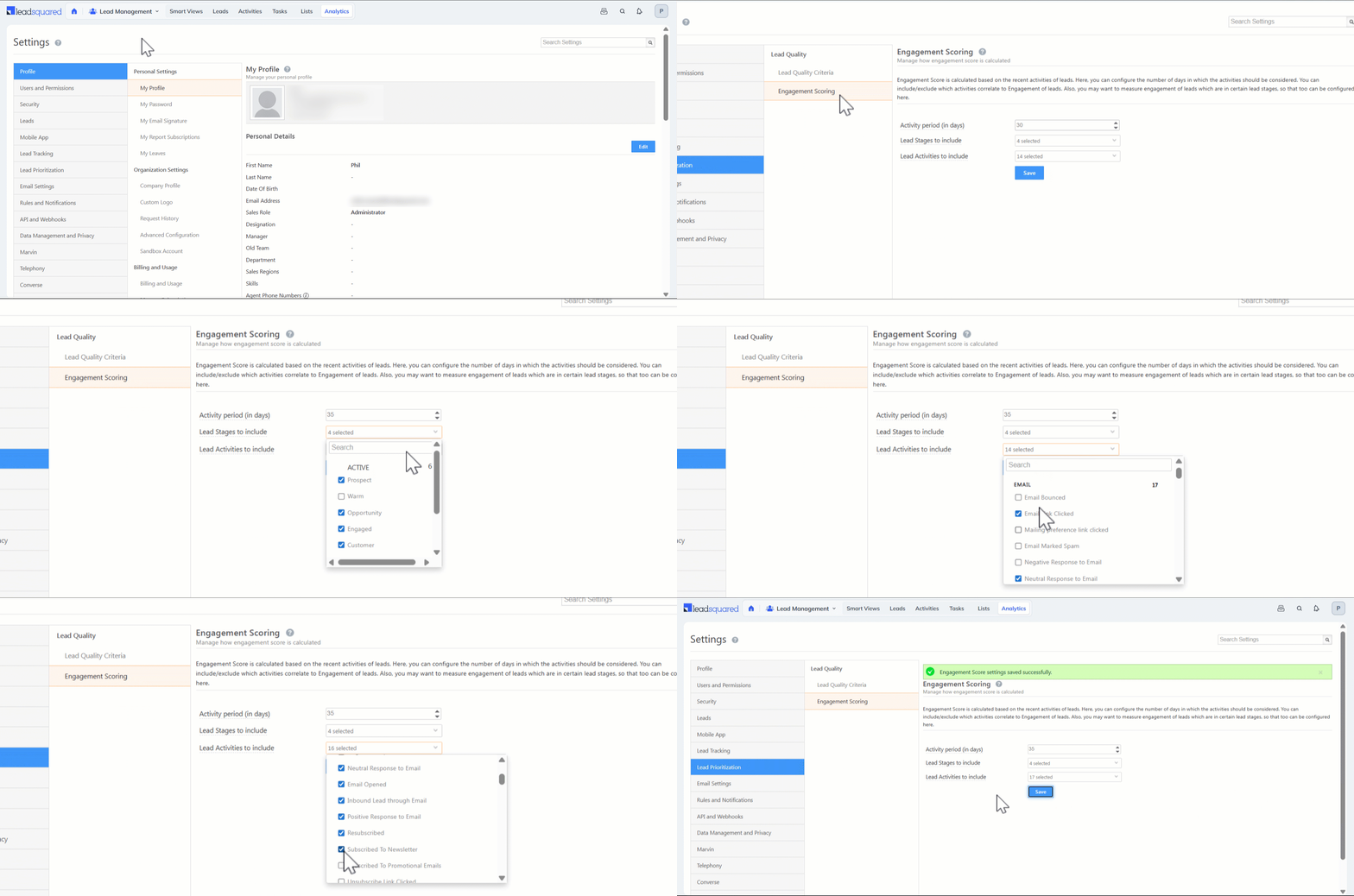
Engagement Score is calculated based on selected lead activities within a defined time period. You can configure how this score is computed to match your business needs.

  • Activity Period (in days): Choose how far back you want to track a lead’s activity (for example, the last 30 days). The maximum limit is 366 days.
  • Lead Stages to Include: Select which lead stages should be considered. You may want to exclude inactive leads or customers, since they’re no longer part of your active pipeline.
  • Lead Activities to Include: Decide which actions indicate genuine interest such as website visits, email opens, or link clicks. You can ignore activities like emails sent or calls made, as they don’t always reflect lead interest. You can also assign higher scores to more important actions. To customize the score/points attributed to each activity, see How to Edit an Activity Score.

To set up Engagement Scoring:

  1. Navigate to Settings>Lead Prioritization>Engagement Scoring.
  2. Enter the Activity period.
  3. Select the Lead Stages to include
  4. Choose the Lead Activities to include.
  5. Click Save.

Leadsquared - Engagement Scoring


4. Next Steps

You can make use of Engagement Scoring in the following ways:

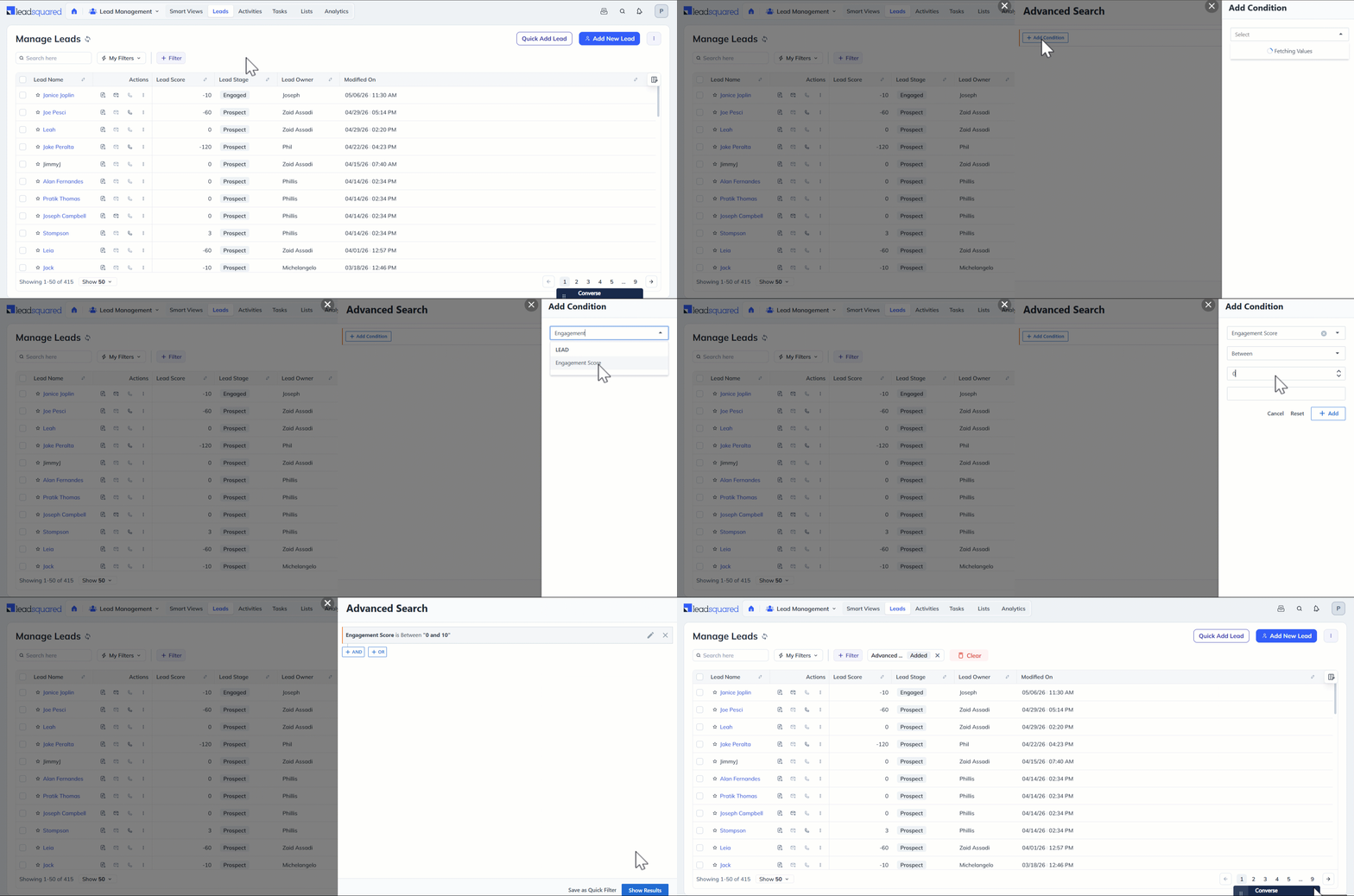
Use Advanced Search to find the leads that are most/least engaged.

Leadsquared - Engagement Score

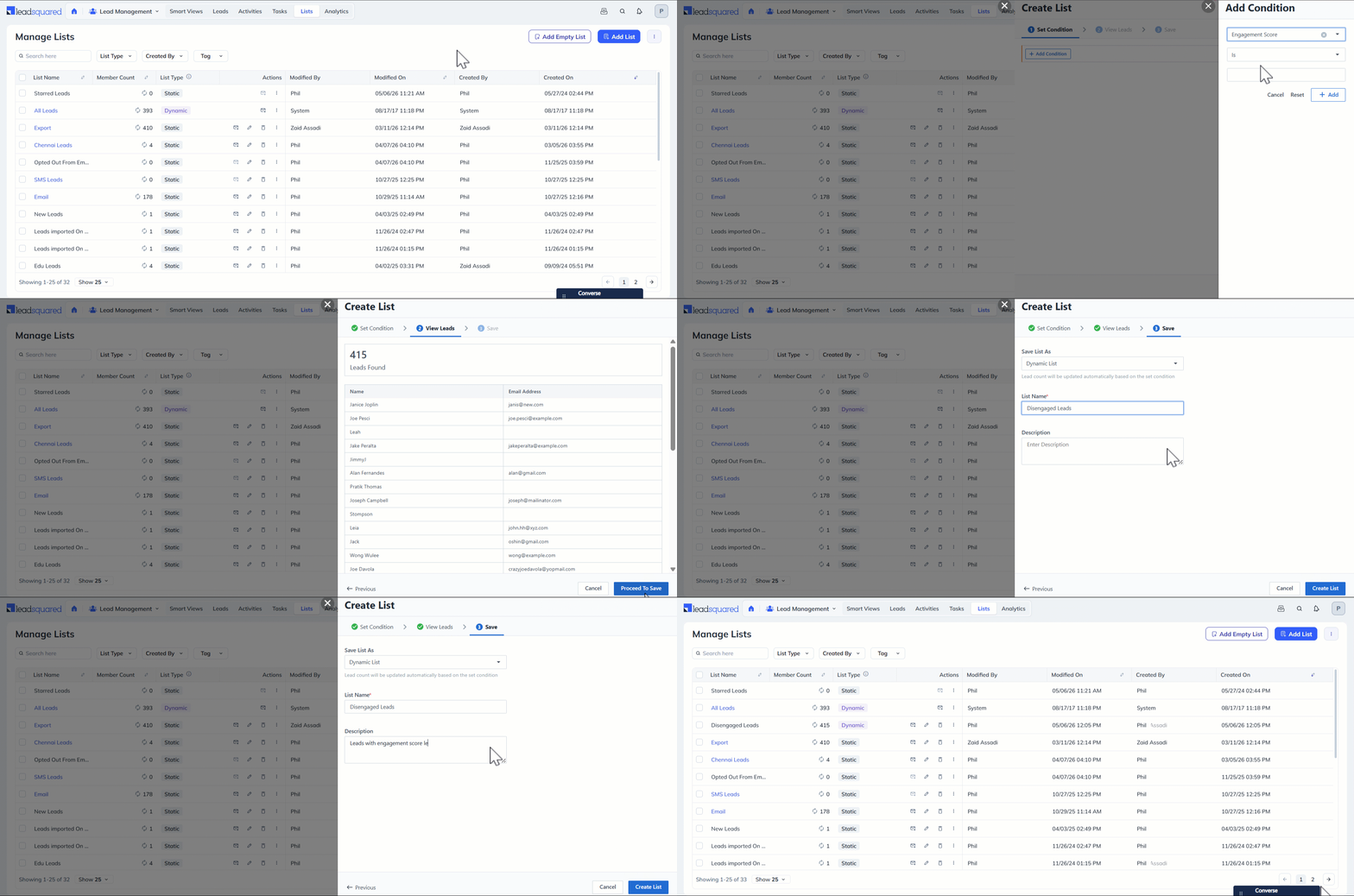
Create lists of engaged/disengaged using Manage Lists. You can send out email campaigns, run automation, perform tasks based on these lists.

Leadsquared - Engagement Score

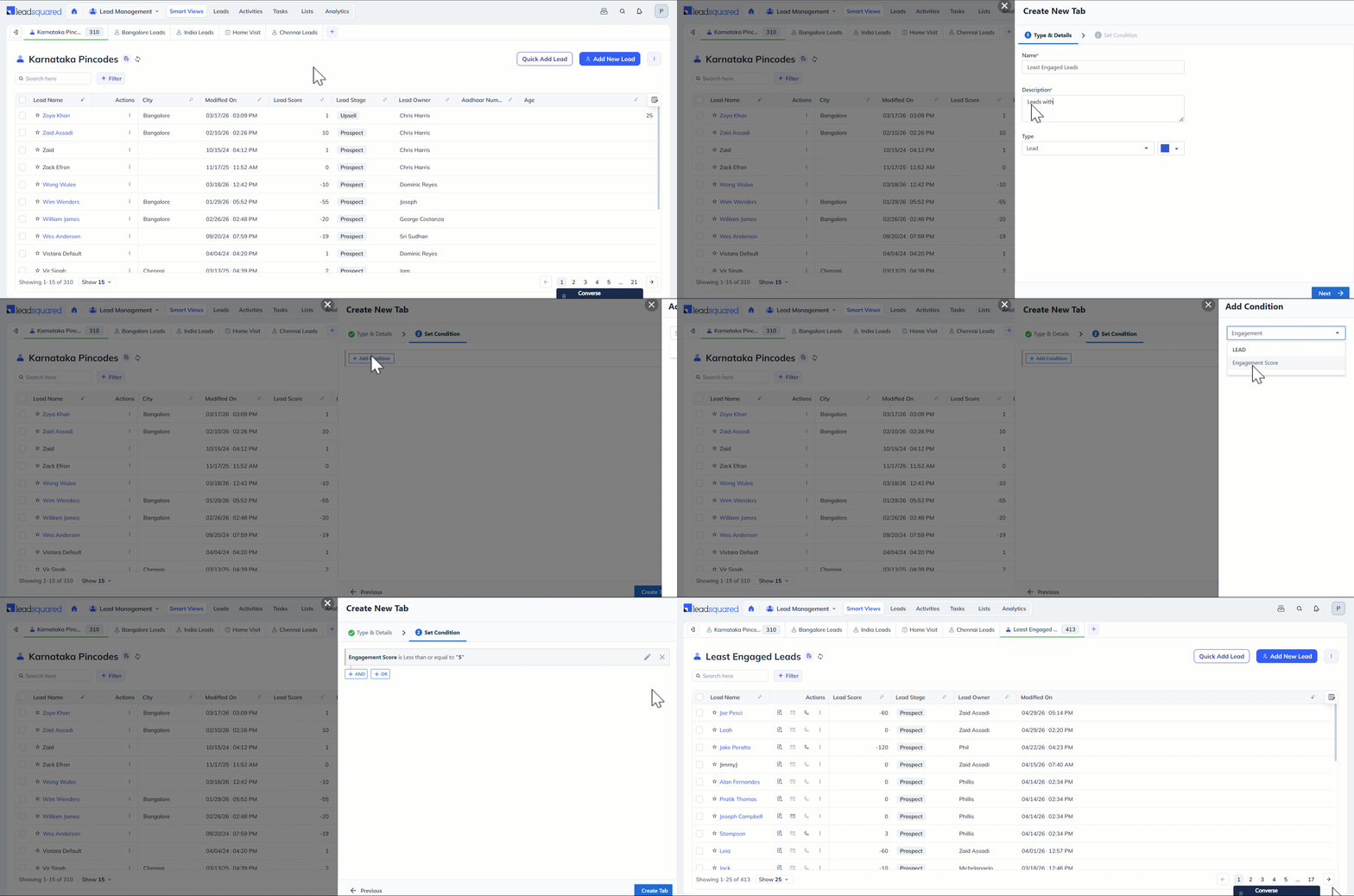
Use Smart Views to target leads based on Engagement Scores.

Leadsquared - Engagement Score


Any Questions?

Do you have questions or issues with the content in this article? Let us know in the comments section.

Control Phone Number Format while Capturing Leads

1. Feature Overview

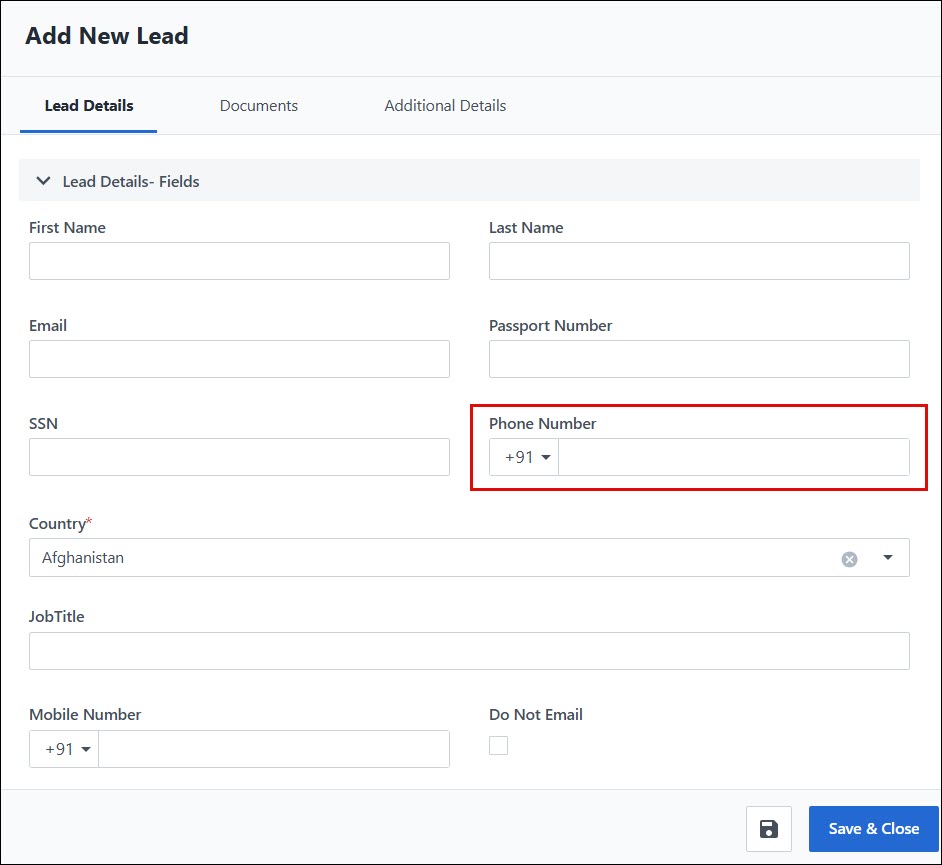
The Phone Control setting in LeadSquared helps standardize how phone numbers are captured across your lead forms and landing pages. When enabled for the Phone/Mobile Number field, it restricts users to enter only numeric values and allows you to define the minimum and maximum number of digits. This ensures that all phone numbers are captured in a consistent and valid format, improving data quality and reducing errors during lead capture.

The Phone Control format is applied across:

  • Lead creation forms (e.g., Add New Lead)
  • Landing pages

Leadsquared - Phone Control


2. Prerequisites

You must be an admin of your account to access this setting.


3. Phone Control Settings

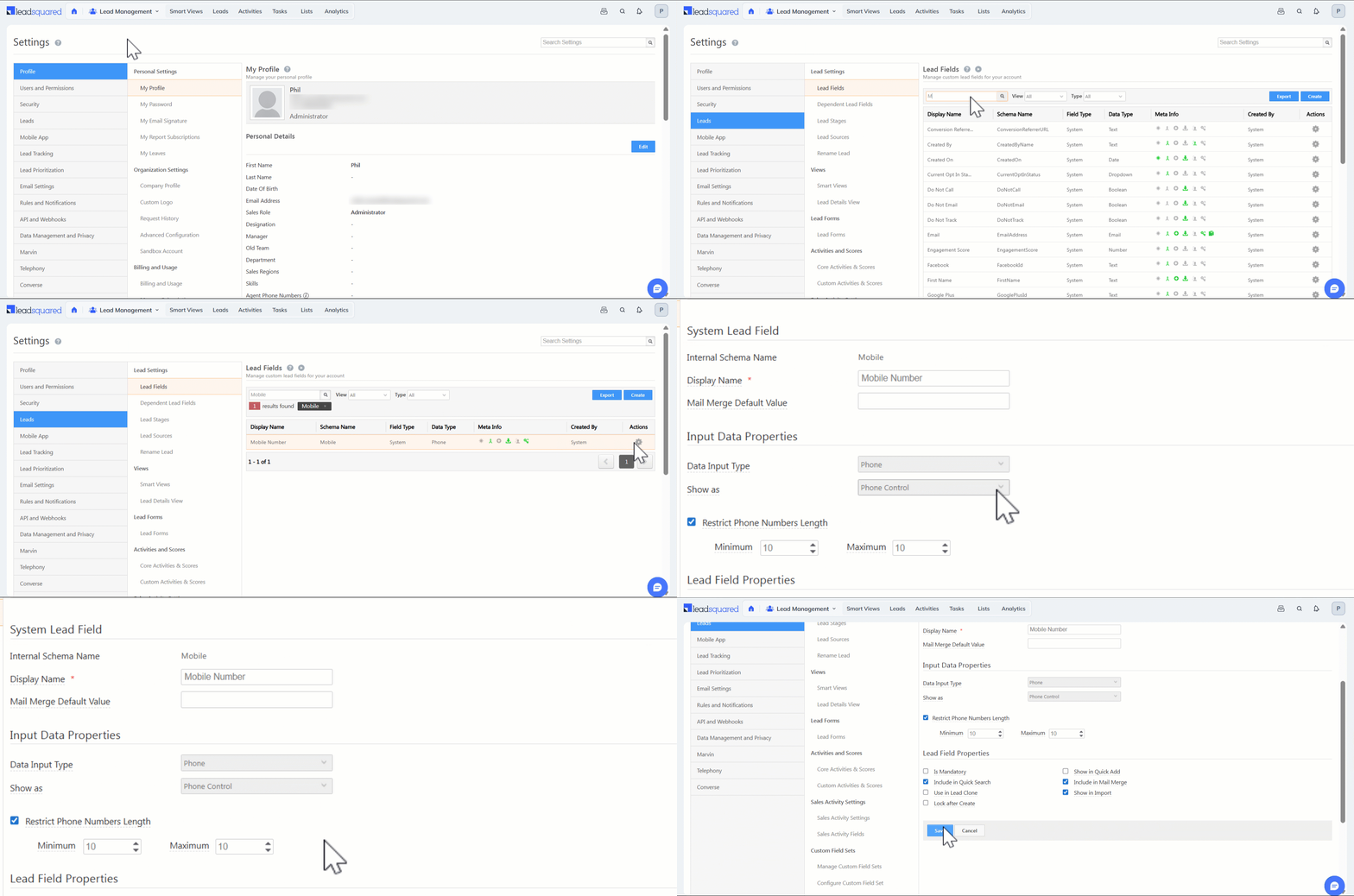
  1. Navigate to My Account>Settings>Leads>Lead Fields, and search for the ‘Phone/Mobile Number’ field.
  2. Hover your cursor over the Actions icon alongside the phone/mobile field and click Edit.
  3. Under the Input Data Properties section, ensure the Show As option is set to Phone Control.
  4. You can set a restriction on the phone number length and enter the minimum and maximum number of digits.
  5. Click Save.
Note: You will need to republish existing landing pages in order to get Phone Control reflected on them.

Leadsquared - Phone Control


Any Questions?

Did you find this article helpful? Please let us know any feedback you may have in the comments section below. We’d love to hear from you and help you out!

How Does Lead Scoring Work?

1. Feature Overview

The Lead Score in LeadSquared is a dynamic metric that helps you measure how engaged and sales-ready a lead is based on their interactions with your business. It assigns points to different lead activities such as opening emails, visiting webpages, or submitting forms, and continuously updates the score as the lead interacts with your campaigns and touchpoints. The higher the score, the more engaged the lead is likely to be.

Lead scoring helps your team:

  • Prioritize high-intent leads for faster follow-ups
  • Identify sales-ready prospects based on engagement levels
  • Align marketing and sales efforts using a common metric

The lead score is calculated as the cumulative total of all activity scores recorded throughout a lead’s lifecycle. It supports both positive and negative scoring, allowing you to reward desirable actions (e.g., form submissions) and penalize disengagement (e.g., email unsubscribes).

Note: Lead Score reflects lifetime engagement, while Engagement Score focuses on recent interactions within a shorter time frame.

Leadsquared - Lead Scoring


2. How It Works

Lead scoring in LeadSquared is driven by activities performed by leads. Each activity is assigned a score, and the total score updates automatically as new activities are recorded.

1. Define activity scores

Each activity (e.g., email open, link click, website visit) is assigned a score. These can be:

  • Core activities (available by default on LeadSquared)
  • Custom activities (created based on your business needs)

2. Track lead interactions: When a lead performs an action online (like visiting a webpage) or offline (like attending an event), the corresponding activity is logged in the system.

3. Apply scoring rules

Each logged activity adds or subtracts points based on the configured score. For example:

  • Email Open +2
  • Link Click +5
  • Landing Page Submission +10
  • Unsubscribe -20

4. Calculate the total score: The Lead Score is automatically updated as the sum of all activity points in the lead’s history.

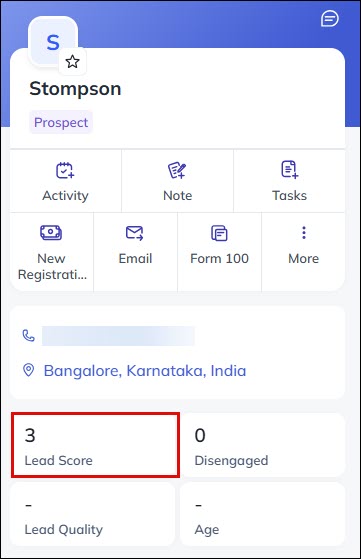
5. View and use the score: The updated score is visible on the Lead Details page and can be used in filters, lists, automation, and reporting.


3. How To Edit Core Activity Scores

You can add and edit the Activity Scores as per your business requirements.

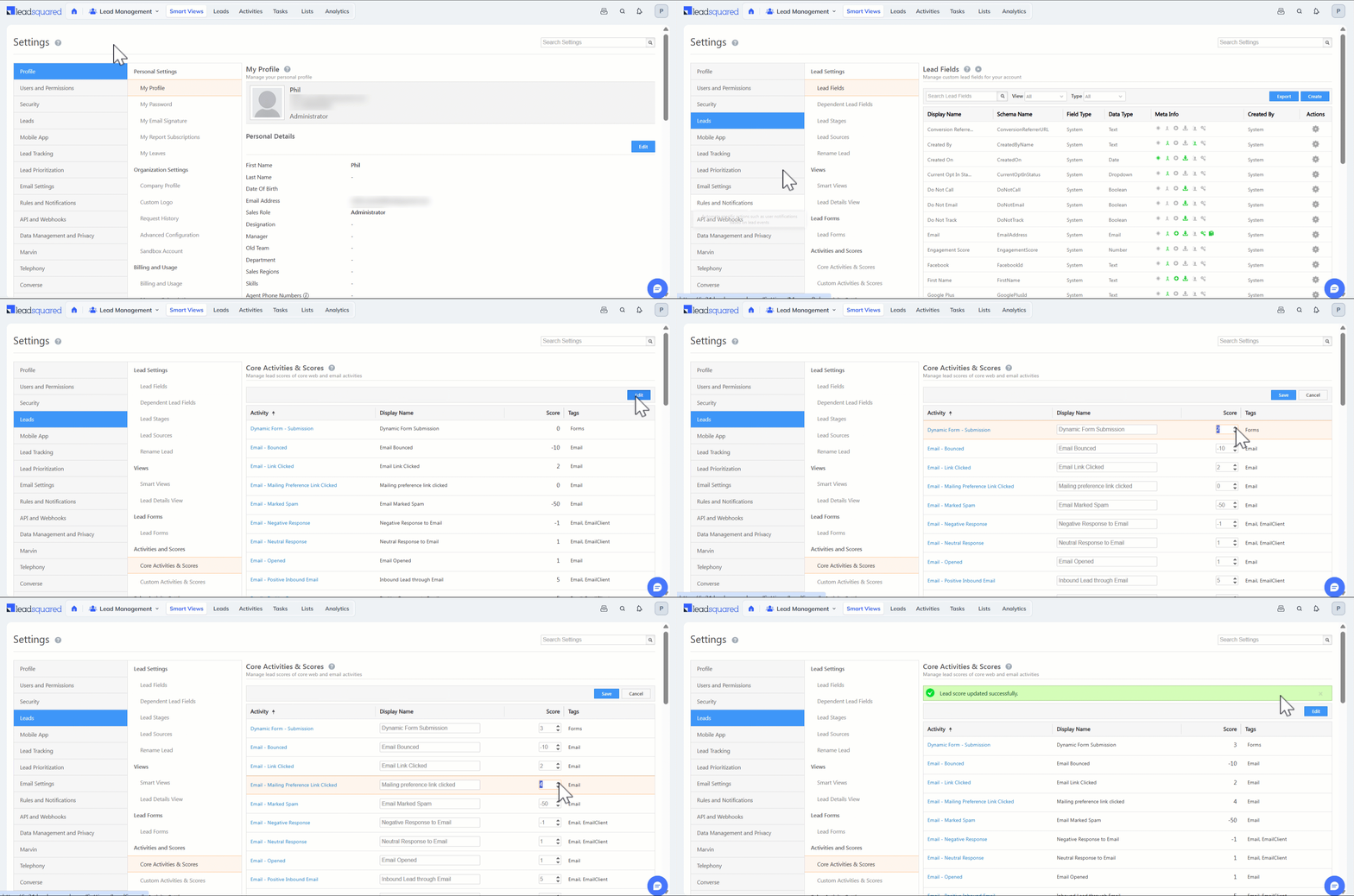
  1. Navigate to Settings>Leads>Core Activities and Scores. A window containing core activities and the scores assigned against each of them will appear.
  2. On the top right corner, click Edit.
  3. Make the required changes under Score and then click Save.

When activities are posted on leads, the lead score will be computed based on the scores you’ve assigned.

Leadsquared - Lead Scoring

Similarly, you can edit the scores of Custom Activities from Custom Activities and Scores Settings.

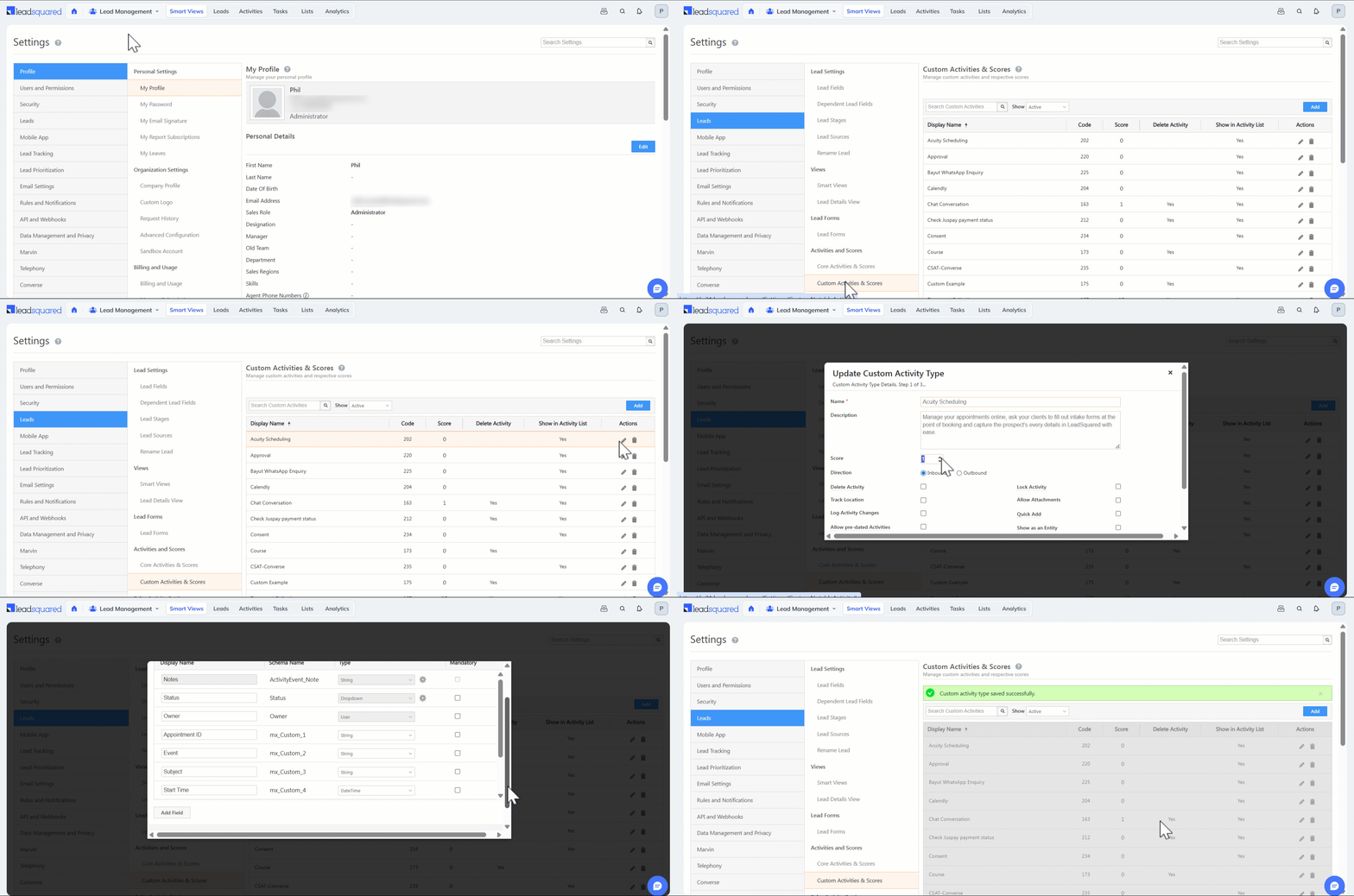
  1. On the Custom Activities and Scores page, click the Edit icon alongside the relevant activity.
  2. On the Update Custom Activity Type popup, alongside Score, enter the relevant score and save it.

Leadsquared - Lead Scoring


4. View Lead Scoring

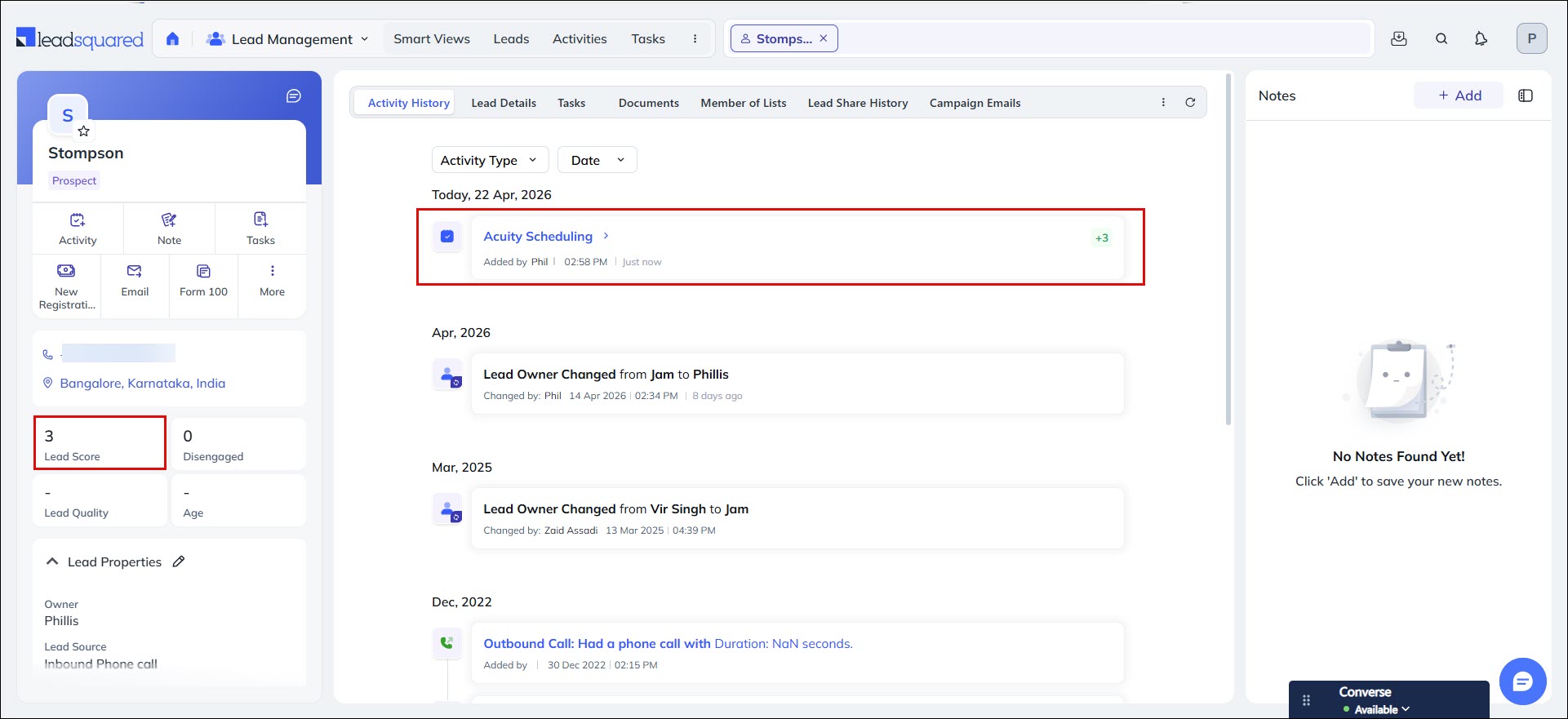
When activities are posted on leads, the Lead Score is updated automatically on the Lead Details page. You can view the activity performed by the lead on the Lead Details page.

For instance, if your lead has opened your email (2), has clicked the link in your email (5), visited your webpage (2), and visited the landing page (5), the lead score will be 2+5+2+5=14.

Leadsquared - Lead Scoring


5. Next Steps

You can use the Lead Score –

  • As a filter to categorize leads using the Advance Search option.
  • You can then easily transfer these leads into a list using Manage Lists. This way you can send out respective email campaigns, perform tasks and manage activity based on how engaged your leads are.
  • Smart Views allows you to view your leads, activities, and tasks on one page. You can customize Smart Views to display leads with a particular Lead Score.


Any Questions?

Did you find this article helpful? Please let us know any feedback you may have in the comments section below. We’d love to hear from you and help you out!

How To Share A Lead Via Email

1. Feature Overview

The Share via Email feature in LeadSquared allows you to quickly send a lead’s details to other users within your account via email. This helps teams collaborate more efficiently by sharing important lead information.

The email includes key lead details along with a direct link to the Lead Details page, making it easy for recipients to view the lead in context and take appropriate action.

This feature is useful for:

  • Sharing updates or context before handoffs
  • Keeping stakeholders informed without changing lead ownership
Note: To give a user temporary view or edit access to a lead, see How to Share Leads for a Limited Duration.


2. How It Works

Select a lead, click Share via Email, add recipients and any notes, then send the email. The recipients will receive an email with key lead details and a link to the Lead Details page.


3. Share A Lead Via Email

You can select and share leads via email from different pages on the LeadSquared Web App.

3.1 From Manage Leads Page

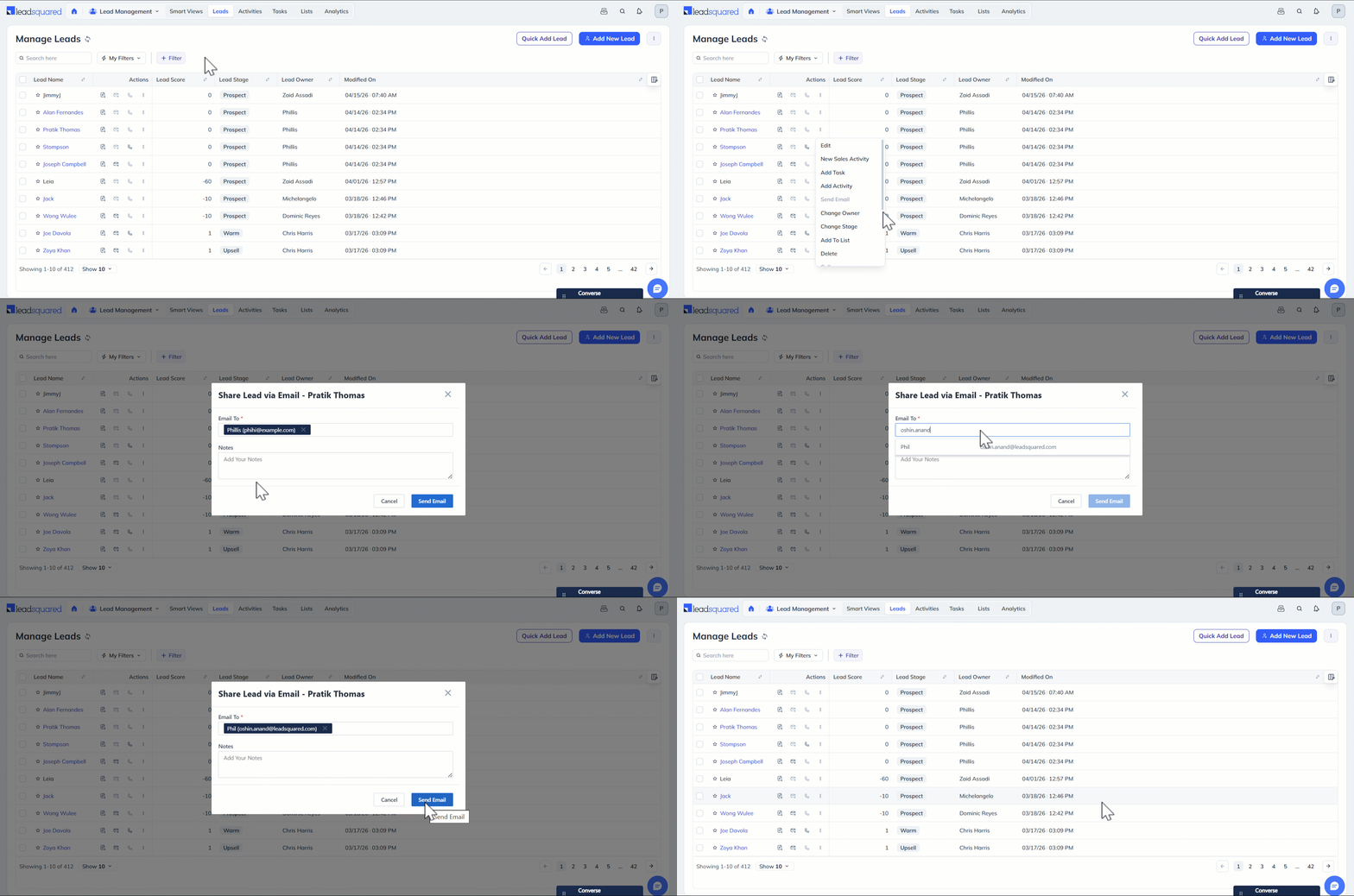
  1. On the main menu, navigate to Lead Management>Leads.
  2. Hover your cursor over the Actions icon alongside the relevant lead, then click Share Via Email.
  3. On the Share Lead Info Via Email pop-up,
    • Use the Email to field to add more users you want to send the email to.
    • Use the Notes field to add relevant information or context to the email.

    4. Click the Send Email button when you’re done.

Leadsquared - Share Lead Via Email

3.2 From Smart Views Page

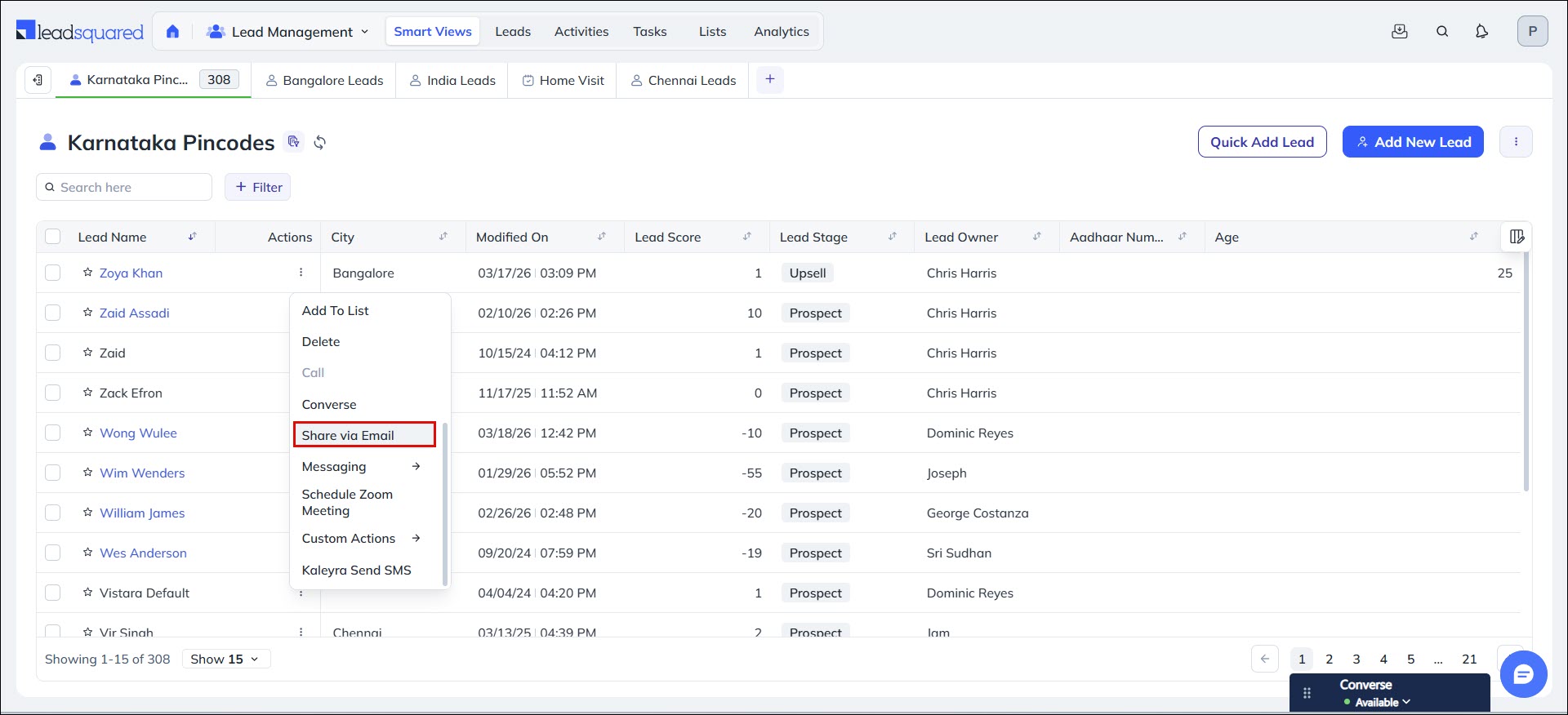
Similarly, you can share leads from a specific smart view from the Smart Views page on the web app.

3.3 From Lists

To share a lead from a specific list –

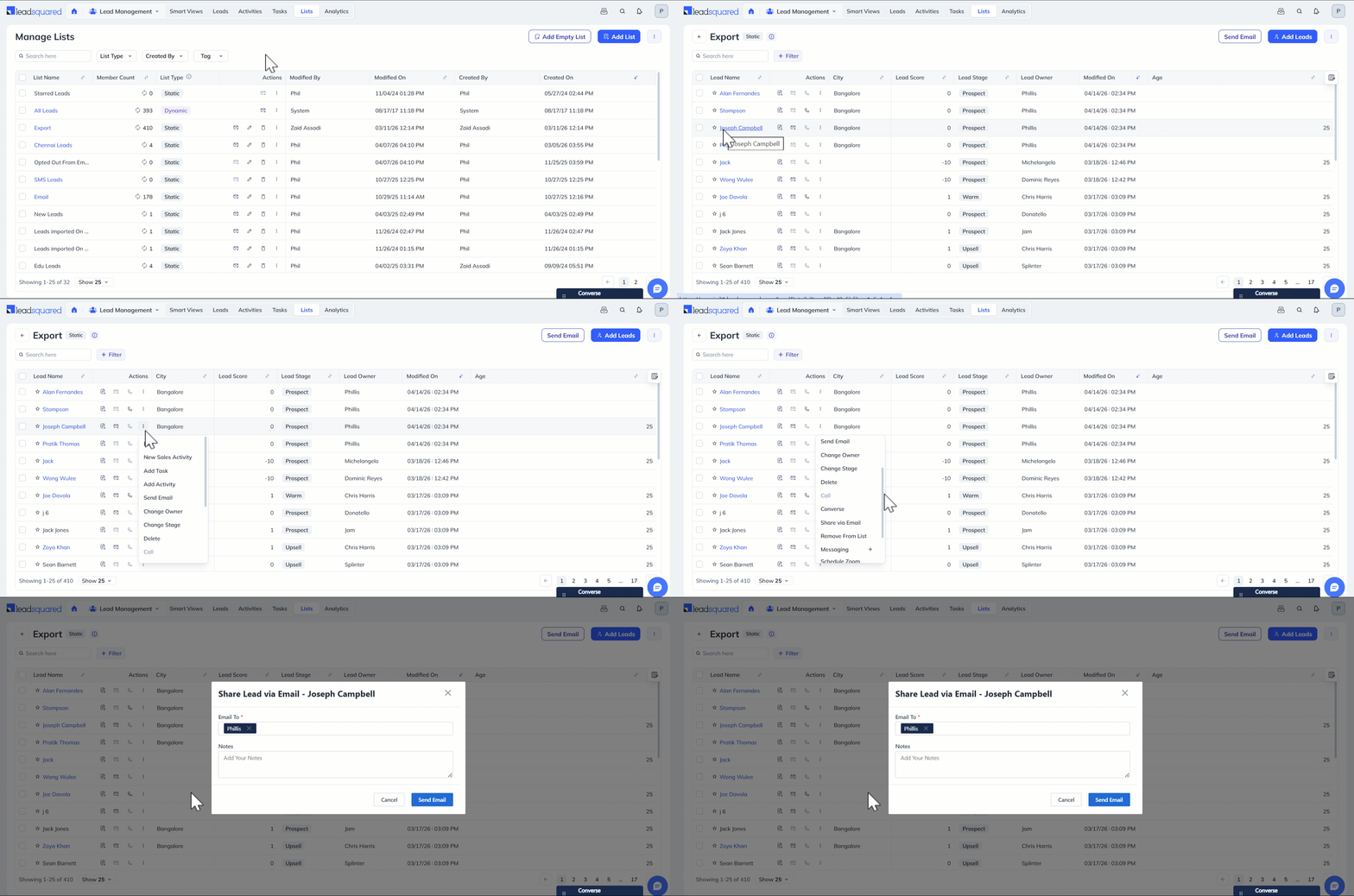
  1. Navigate to Lead Management>Lists and select the relevant list.
  2. Click the Actions icon alongside the relevant lead in the list and select Share via Email from the dropdown.

Leadsquared - Share Lead Via Email


4. Email Notification

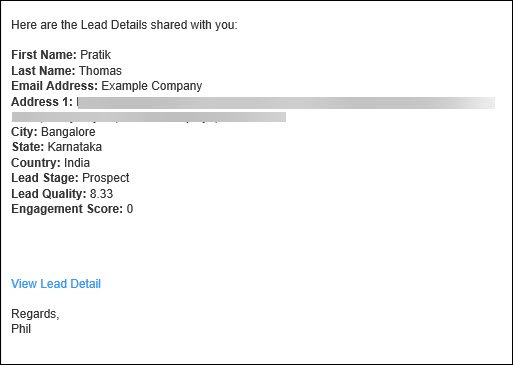
The selected users will now receive an email like the one shown below. They can click the View Lead Detail link to navigate to the Lead Details page in LeadSquared. Note that only users with permission to view the lead will be able to see the lead details page.

Leadsquared - Share Lead Via Email


Any Questions?

Did you find this article helpful? Please let us know any feedback you may have in the comments section below. We’d love to hear from you and help you out!

List Management – Feature Guide

1. Feature Overview

Lists are groups or collections of leads organized based on specific criteria. You can create lists to segment leads by location, stage, activity, tasks, etc. For example, leads from a particular city, those who opened an email campaign, or those scheduled for follow-ups.

The Manage Lists page lets you create, edit, and view all your lists in one place. You can access lists created by you as well as those shared by other users. Once created, lists can be used to –

  • Send email or SMS campaigns
  • Set up automations
  • Perform bulk actions like updates, exports, or posting activities

Note: Users cannot create dynamic or refreshable lists with wildcard operators (ContainsDoes not containStarts with, and Ends with). To know more, refer to Wildcard Search Limitations.

Leadsquared - List Management

2. How It Works

You can create lists based on conditions and use them to organize and act on your leads efficiently. Depending on your use case, choose between static, dynamic, or refreshable lists.


3. Types of Lists on LeadSquared

LeadSquared supports three types of lists:

  • Static Lists: Contain a fixed set of leads. Leads must be added or removed manually. When a lead who meets the criteria of the static list is added to your system, the list won’t get updated automatically. For example, a list of participants from a specific webinar.
  • Dynamic Lists: Automatically update when a lead who fulfills the criteria of the dynamic list is added. For example, once conditions are set up to add leads from a particular city (Bangalore), whenever a new lead’s location is selected as “Bangalore”, it will automatically be added to the list.
  • Refreshable Lists: Contain leads based on specific criteria but do not update automatically. The list gets updated only when the list is manually refreshed. For example, a list of leads who opened an email campaign in the past week, refreshed periodically to include the latest data.
Note: Starred Leads and All Leads (the total number of leads in your account) are available by default in your account.

4. Create a List

On LeadSquared, you can create static, dynamic, refreshable and empty lists.

4.1 New List (Static, Dynamic or Refreshable)

  1. From the LeadSquared main menu, navigate to Lead Management>Lists.
  2. Click Add List.
  3. On the Create List pop-up, select the search conditions from the available drop-downs and click Add.
  4. Once you’re done, click View Leads. On viewing the list, click Proceed To Save.
  5. On the next page, depending on your requirement, you can Save List as Static List, Dynamic List. or Refreshable List.
  6. Enter a name and description for the list and click Create List.
Note: You can change an existing dynamic list to a static list (by editing an existing list, and choosing Save as Static List). You cannot change an existing static list to a dynamic list.

Leadsquared - List Management

4.2 Empty List

If you don’t have any data yet but expect to add some in the future, you can create an empty list as a placeholder. For example, if you want to keep track of important leads, you can create an empty list beforehand. As you interact with new leads and identify those with strong interest, you can simply add them to the pre-created list.

  1. From the LeadSquared main menu, navigate to Lead Management>Lists.
  2. Click Create Empty List.
  3. Provide a name and add a description to the list.

Leadsquared - List Management


5. Manage Lists Page

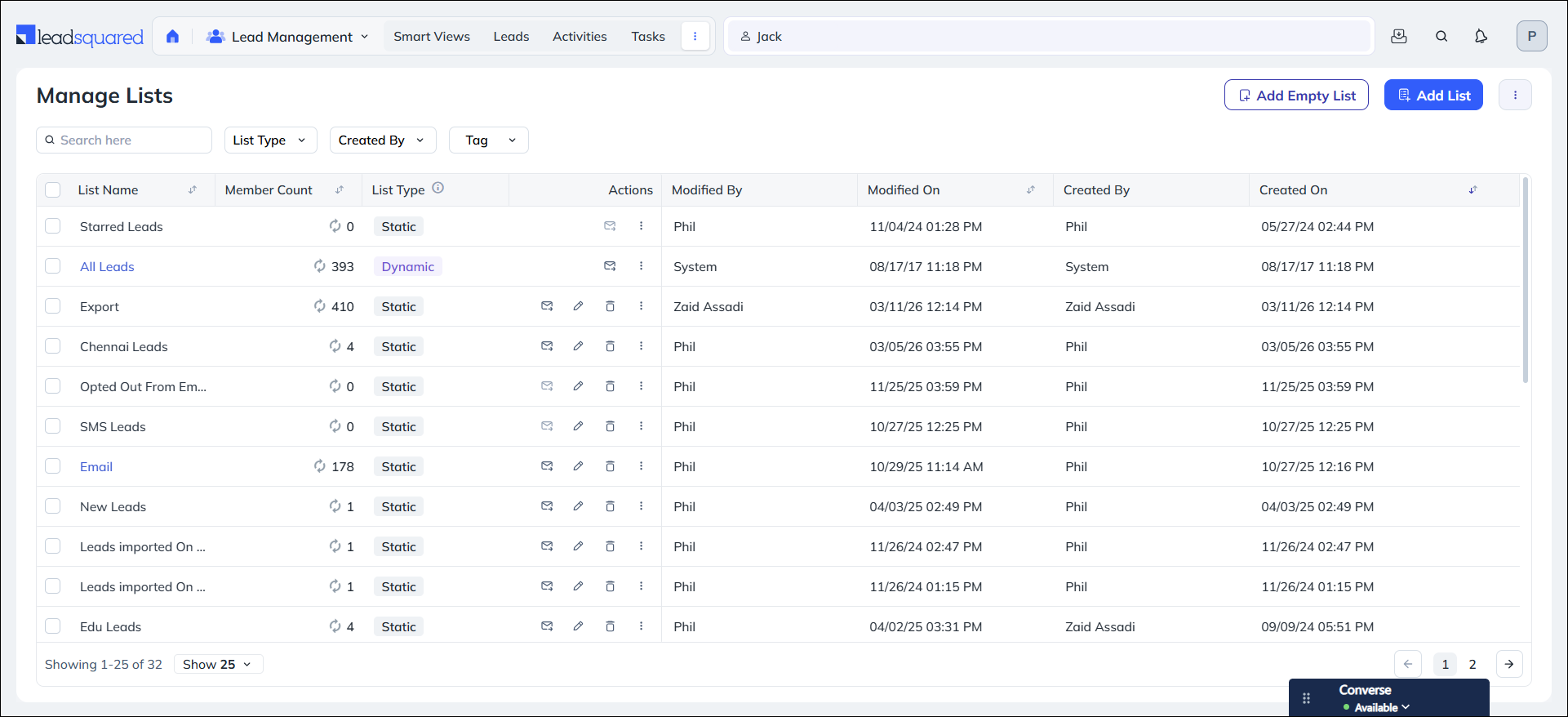
On the Manage Lists page, you can perform the following actions –

  • View all lists
  • Send emails and SMS to lists
  • Edit, delete, hide lists, and other custom actions

Note:

  • Sales Users cannot share lists. When a Sales user creates a list, it can only be viewed by that individual user. No other users (including other Sales users, Admins, Marketing users, and Sales Managers) will be able to view these lists.
  • When Admins, Marketing users, and Sales Managers create a list, it can be viewed by these three user types but not by Sales Users.

5.1 Search Lead Lists

Use the search bar on the top-left corner to find existing lead lists. You can also search by the List TypeCreated By and Tag filters.

Leadsquared - List Management

5.2 Row Actions

To view the list of actions available, on the Manage Lists page, hover your cursor over the Actions icon alongside the relevant list.

Action Description
Edit Edit the name and description on the pop-up. 

Leadsquared - List Management

Delete Delete an existing list.
Hide Hide an existing list.
Send Email Send emails to the leads in the list. 

Leadsquared - List Management

Send SMS Send SMS to the leads in the list. 

Leadsquared - List Management

Note:

  • Custom Actions you create using the Custom Lead and List Actions Connector will also show up here.
  • Lists cannot be deleted once they are added to email campaigns. To remove a list, you must first stop the campaign and then delete it.

Leadsquared - List Management

5.2.1 Hide and Unhide Lists

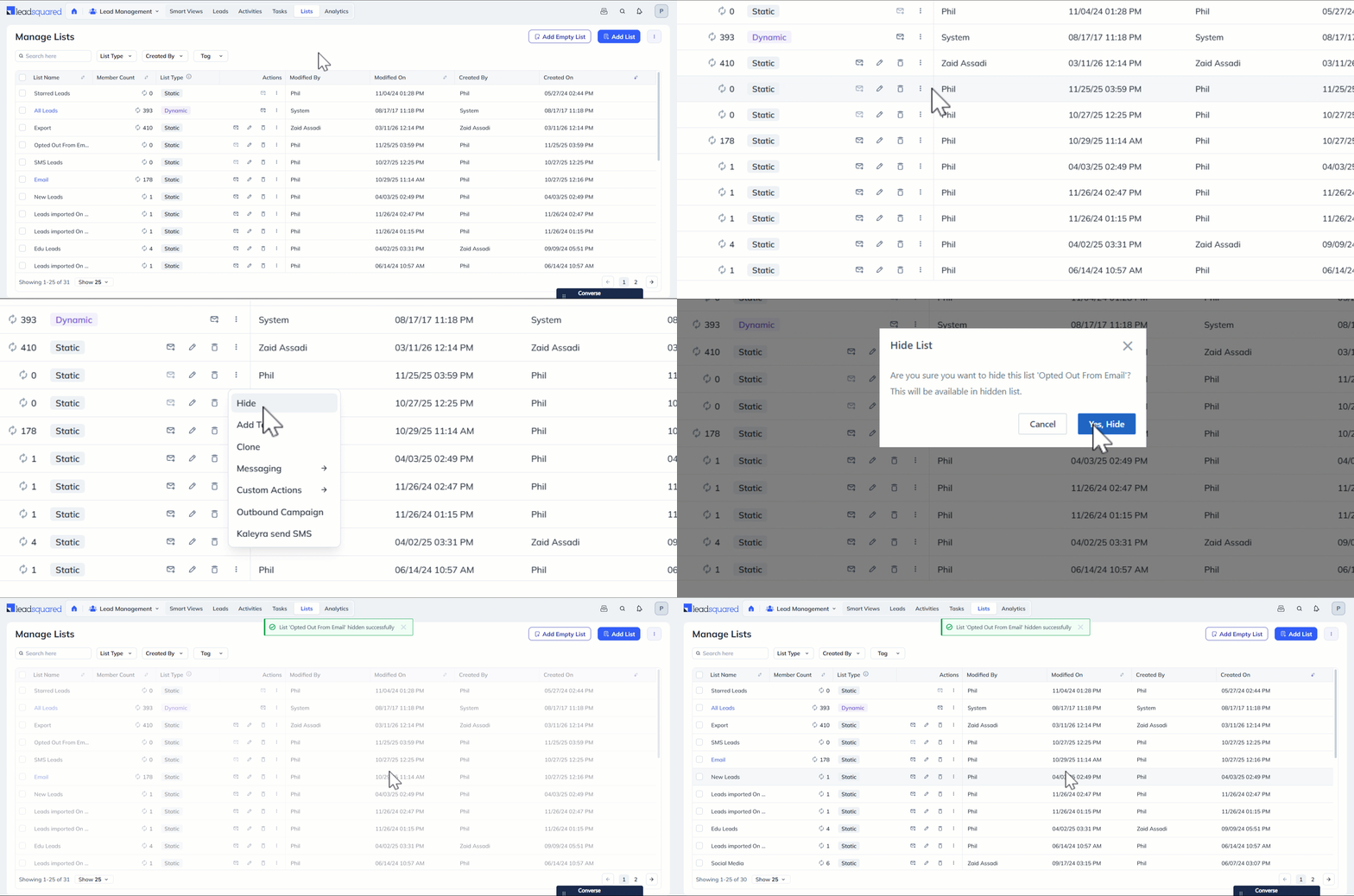
You can hide irrelevant lists from the Manage Lists page. To hide a list –

  1. Click the Actions icon alongside the relevant list and select Hide.
  2. On the Hide List popup, click Yes, Hide.
Note: To learn how to hide multiple lists, refer Bulk Actions.

Leadsquared - List Management

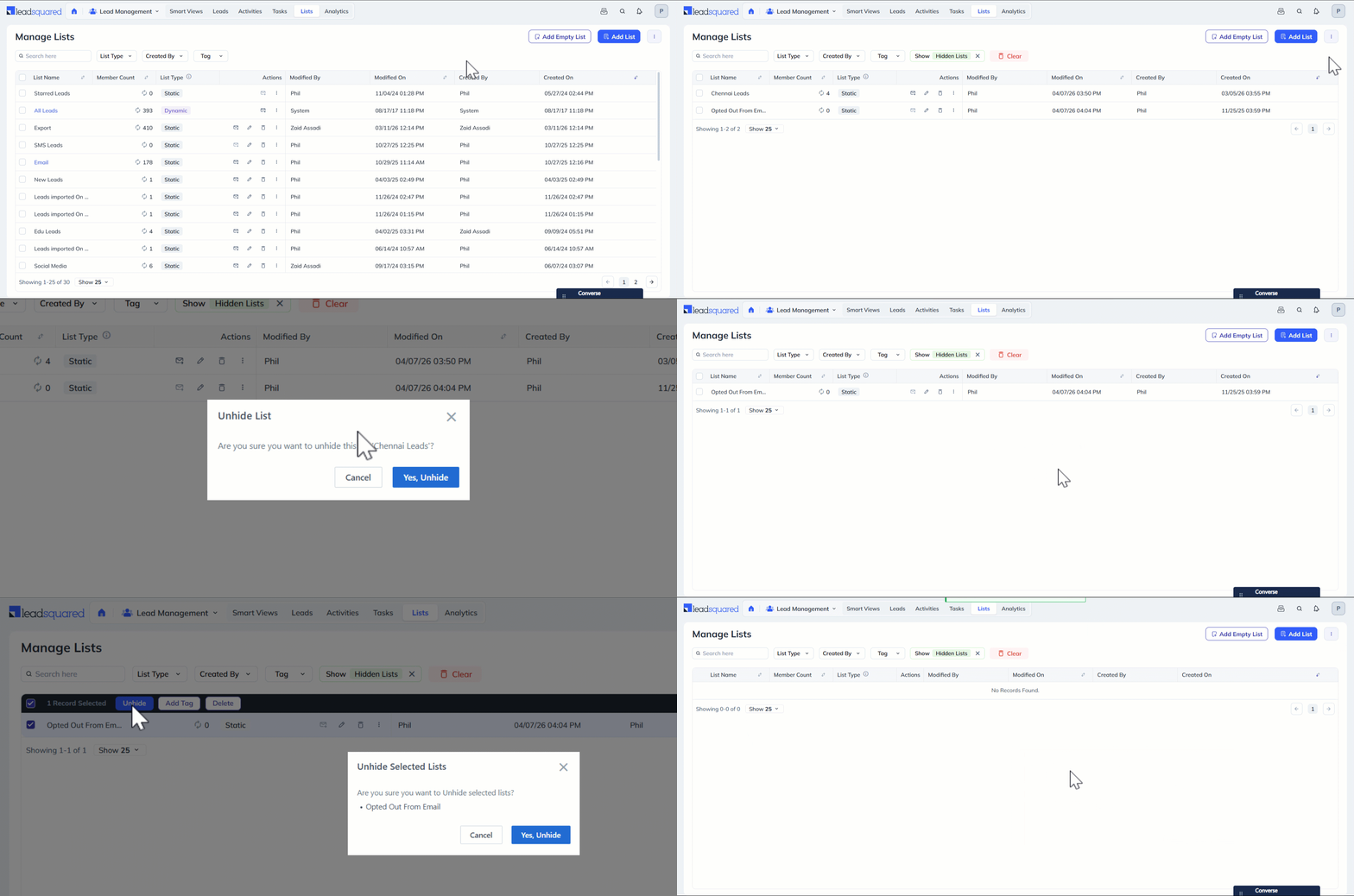
You can view your hidden lists by hovering over the Actions icon on the top-right corner of the screen and selecting Show Hidden Lists. You can also unhide lists from this page.

Leadsquared - List Management

5.3 Bulk Actions

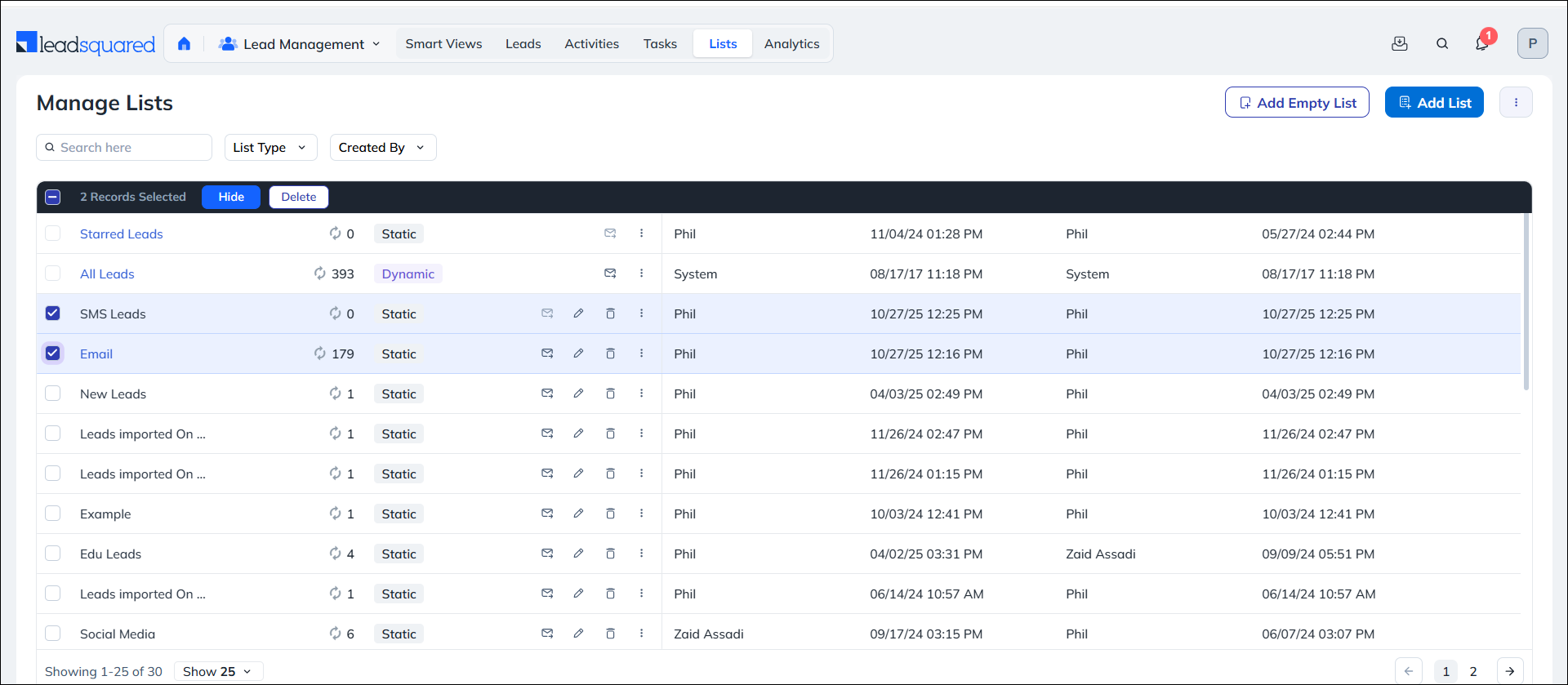
This allows you to delete and hide lists on the Manage Lists page. To do this –

  1. Select the list on which you want to perform these actions by clicking the checkbox next to the list.
  2. Select Delete or Hide from the Bulk Actions.
  3. Confirm your choice on the confirmation pop-up.

Leadsquared - List Management


6. List Details Page

You can perform the following actions on the List Details Page –

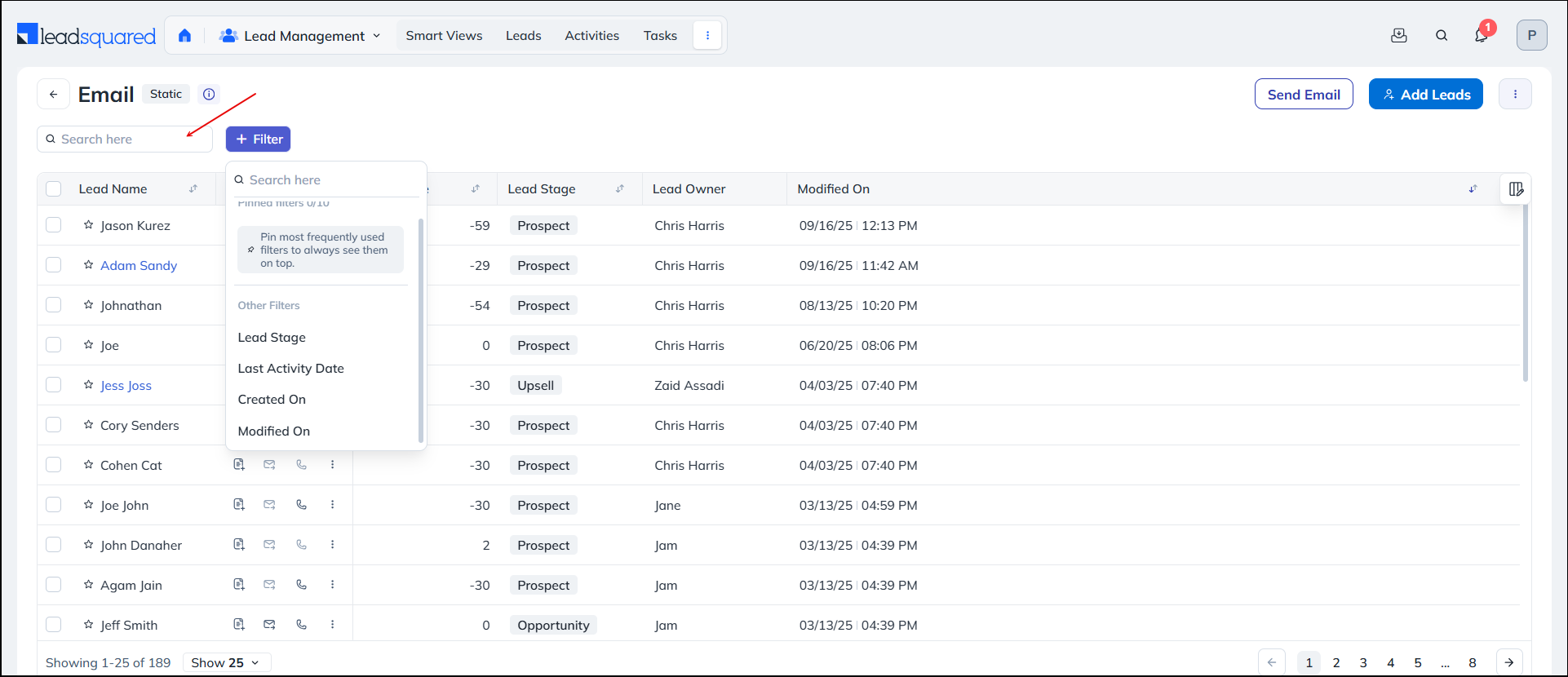
6.1 Search for Leads

You can find specific leads within the list by using different search criteria from the Search Tab or the Filter option. They are –

Attribute Description
Search Leads Search for leads in the list using any of the lead’s details (such as first name, second name, email Id, etc.).
Lead Stage Search for leads in the list who are currently in any one of the lead stages that you’ve created.
Last Activity Date Search for leads in the list based on when was an activity last posted on them
Created On Search for leads in the list based on when they were created
Modified On Search for leads in the list based on when they were last modified on

Leadsquared - List Management

6.2 Add Leads

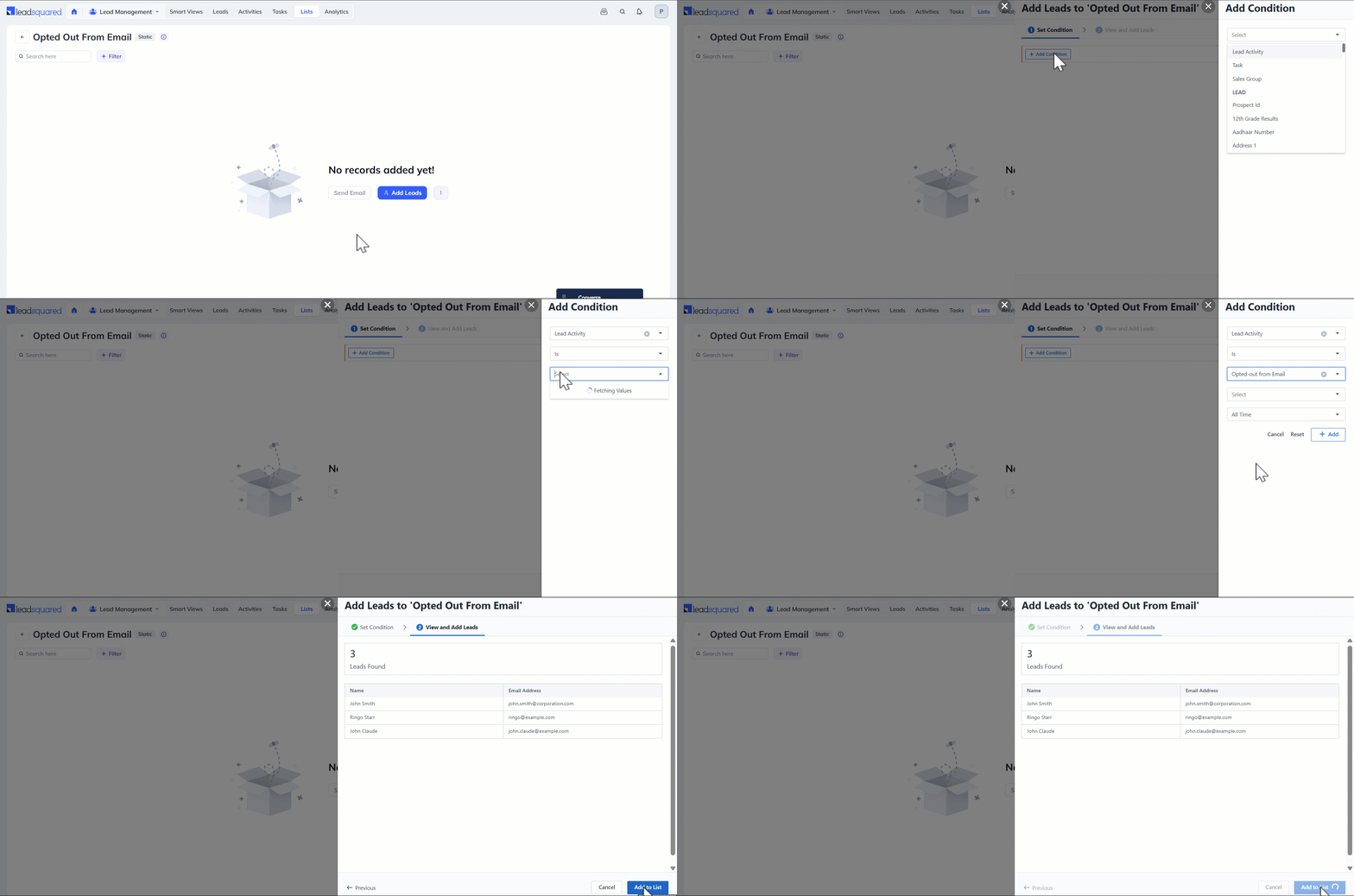
In addition to creating new leads to add to your list, you can also add existing leads from your account to a list, based on a particular criteria. To add existing leads to Static and Empty Lists –

  1. Click the Add Leads button on the List Details page.
  2. Set the relevant condition to find leads and click Add.
  3. Click View Leads to see the count of the leads who satisfy this criteria, their names and email address.
  4. Click Add To List to add all the leads to the list.

Leadsquared - List Management

6.3 Row Actions

You can perform lead actions on the leads available within the list. To know how to perform these actions, refer to Manage Leads.

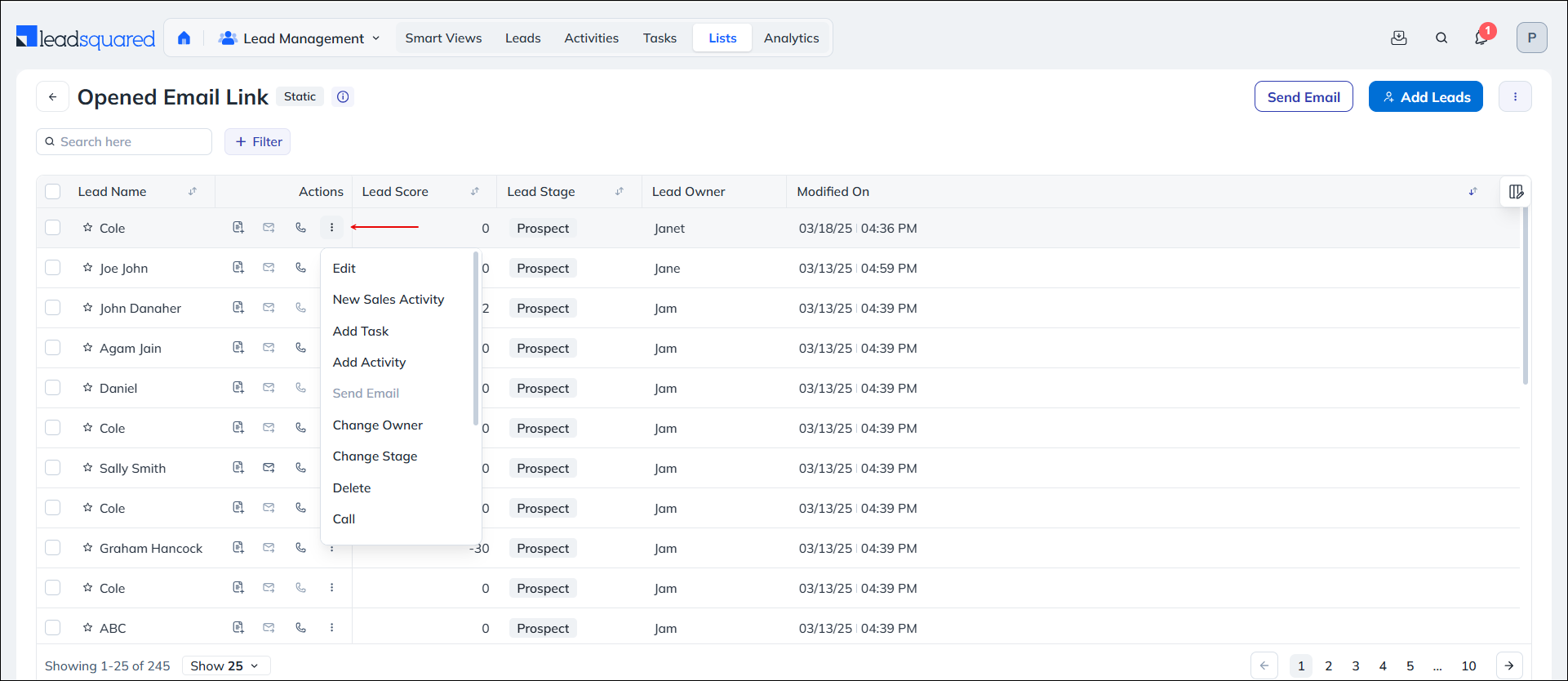
Individual Lead – Alongside a lead, hover your cursor over the Actions icon, and select the action you want to perform from the list of available actions.

Leadsquared - List Management

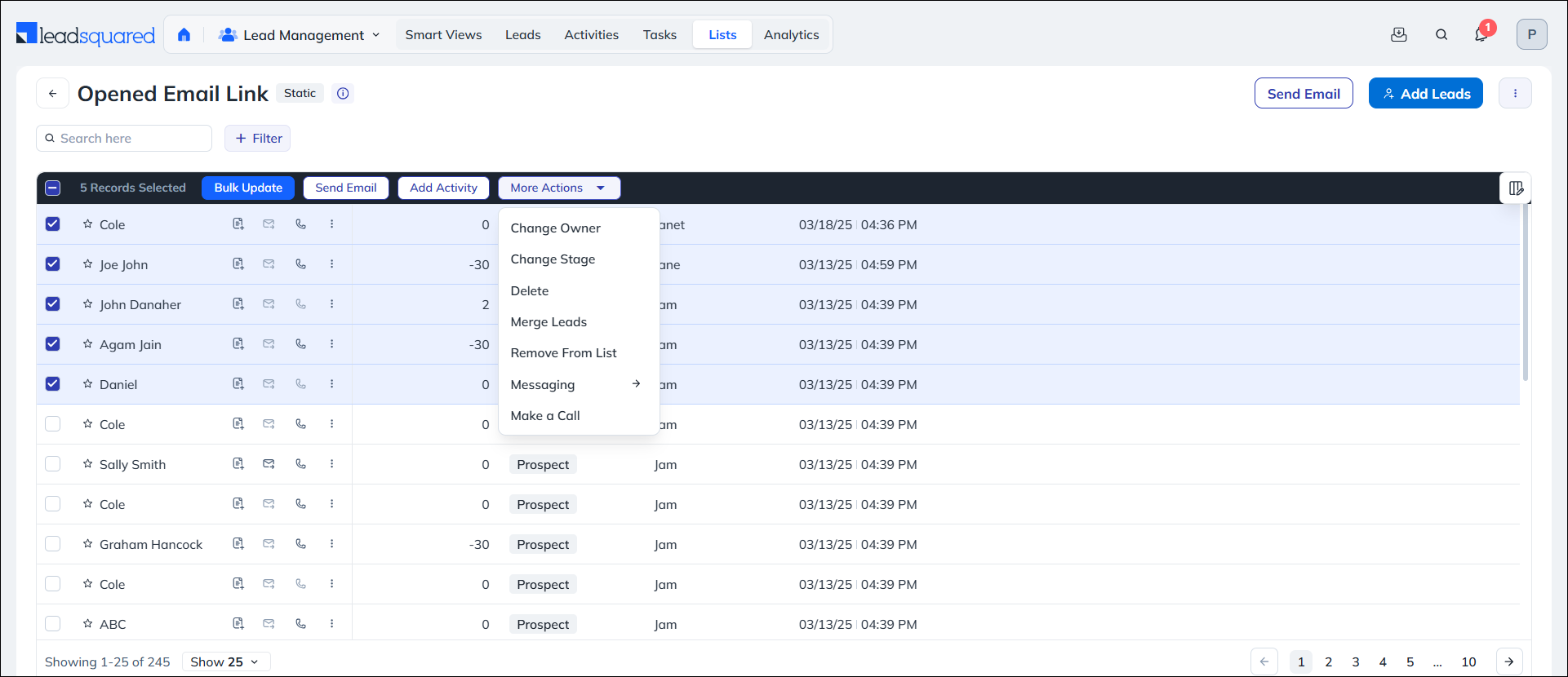
Bulk Actions – Select the leads, and hover your cursor over the More Actions button. From the dropdown list, select the action that you want to perform.

Leadsquared - List Management

6.4 List Actions

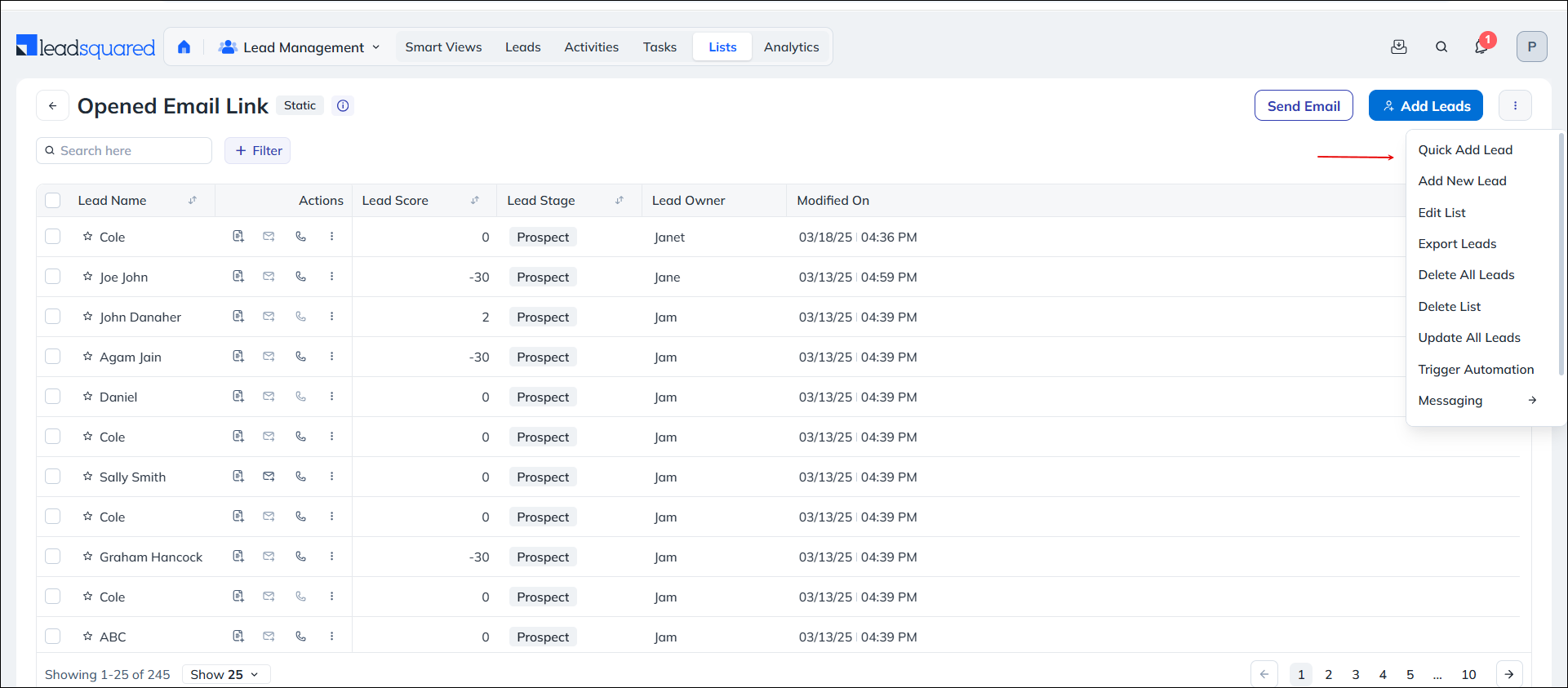
You can perform actions on the entire list, which includes all the leads present within the list. To do this, hover your cursor over the List Actions button available on the top-right corner of the page. The list of available actions are –

Actions Description
Quick Add Lead Add a lead directly to the list by providing minimal information. (Only in Static & Empty Lists)
Add New Lead Add a lead directly to the list by providing detailed information. (Only in Static & Empty Lists)
Edit List Edit the list name and list description.
Export Leads Export leads in the list as a CSV file.
Add Leads Add leads to your list from existing leads in your account. (Only in Static & Empty Lists)
Delete List Delete the list (This doesn’t delete any lead data).
Delete All Leads Delete all the leads available in the list, from your entire account. All the lead details will be deleted on fields present across your account. (Only in Static List)
Send Email Send an email to the entire list from the email pop-up.
Update All Leads On the Update Leads pop-up, from the lead fields dropdown, you can update all the leads in the list.
Send SMS Send an SMS to the entire list from the SMS pop-up.
Trigger Automation You can trigger automations on the list.

Leadsquared - List Management

6.5 List View

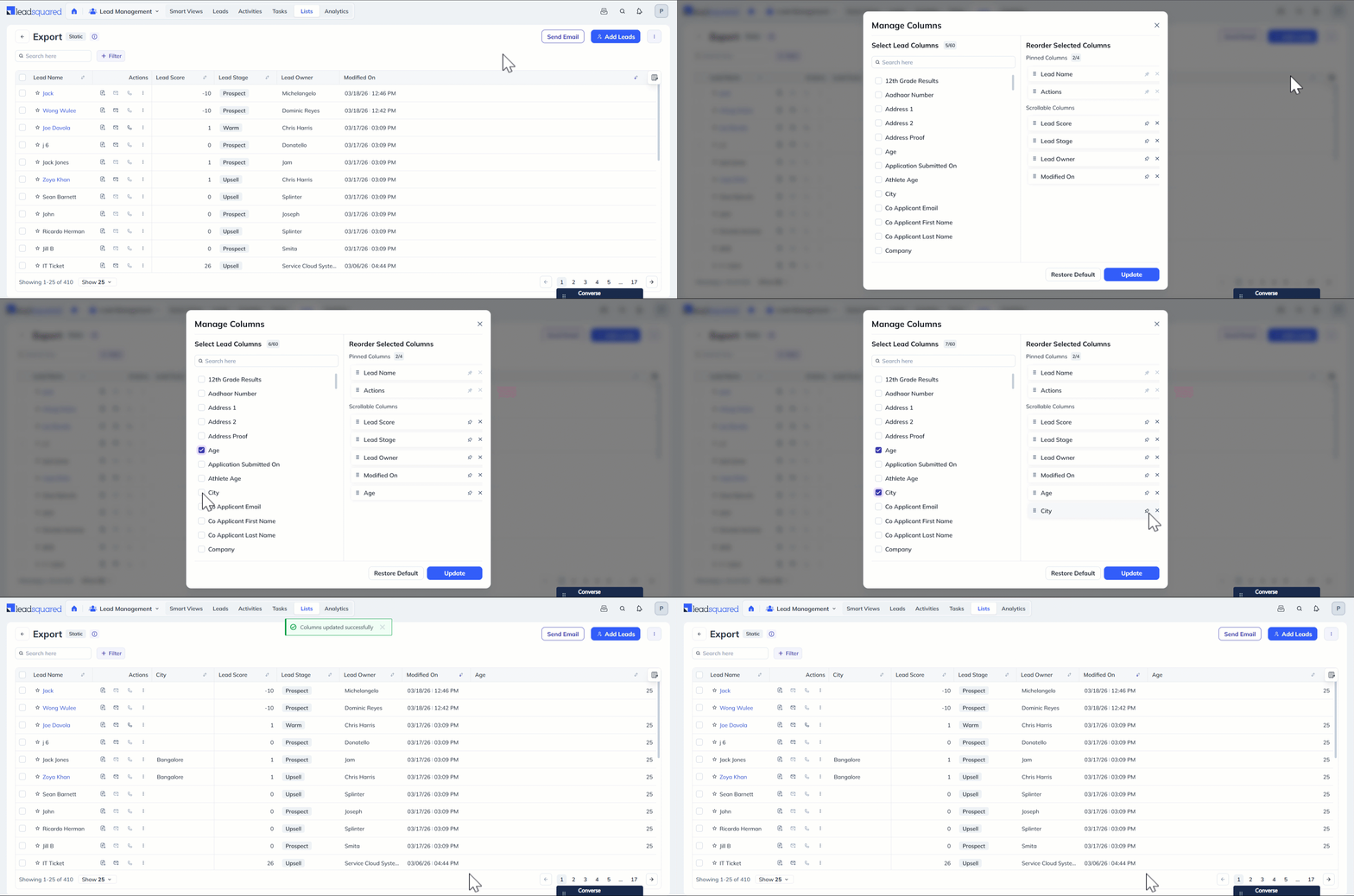
On the List Details page, you can change the fields that are displayed on the grid. To do this –

  1. One the right side of the grid, click the Manage Columns icon.
  2. On the Manage Columns pop-up, select the fields that you want to view on the grid.
  3. Once you’re done, click Update.
  4. You can also change the current view to default by clicking Restore Default.
  5. Additionally, click the Pin icon alongside the relevant selected column to freeze it in front of the grid.

To learn more, see How to Customize Columns.

Leadsquared - List Management


7. FAQs

Why can’t I see the ‘Delete All Leads’ option under the list actions for dynamic and static lists.
The option to ‘Delete All Leads’ is only available for static lists (under list actions). To delete leads from dynamic or refreshable lists, bulk select the leads and then under the Actions menu, click Delete.


Any Questions?

Did you find this article helpful? Please let us know any feedback you may have in the comments section below. We’d love to hear from you and help you out!

Smart Views – Feature Guide

1. Feature Overview

Smart Views on LeadSquared provides a centralized workspace where users can access and manage Accounts, Leads, Opportunities, Activities, and Tasks in one place. Users can create customized tabs using filters and conditions to view only the records relevant to their work upfront. Smart Views help sales teams organize records using filters, tab-based views, and sortable grids, making it easier to track tasks, monitor engagement, and prioritize actions.

Some benefits of Smart Views:

  • The feature provides a better alternative to quick filters, as you can view your saved filters as tabs and apply filters and sort the leads.
  • It automatically refreshes so your tabs are always updated.
  • It shows you the count of leads on each tab.

Users can also subscribe to Smart Views reports to receive daily summaries of records that match their configured views. For more details, see Subscribe to Smart Views Reports.

For more details on Smart Views, refer to the following articles –

Link Description
Smart Views for Administrators For Admins to create Smart Views and assign them to teams/users
Integrate Mavis DB With Smart Views To create Mavis Smart View tabs to display data stored in Mavis DB
Marvin Smart Views Configure Smart Views in Marvin


2. How It Works

  1. Create a Smart View Tab for accounts, leads, opportunities, activities, or tasks.
  2. Use filters and search conditions to specify which records should appear in the tab.
  3. The tab displays matching records in a grid where you can view, sort and take actions.
  4. Smart Views automatically refresh to ensure the latest records appear in your tabs.


3. Permissions and Visibility

Non-admin users can create Smart View tabs from the Smart Views page for their own use. These tabs are visible only to the user who created them.

Admins, on the other hand, can create Smart View tabs from the Smart Views Settings page and assign them to specific teams, making them visible to all users within those teams. To learn more, see Smart Views for Administrators.


4. Default Tabs

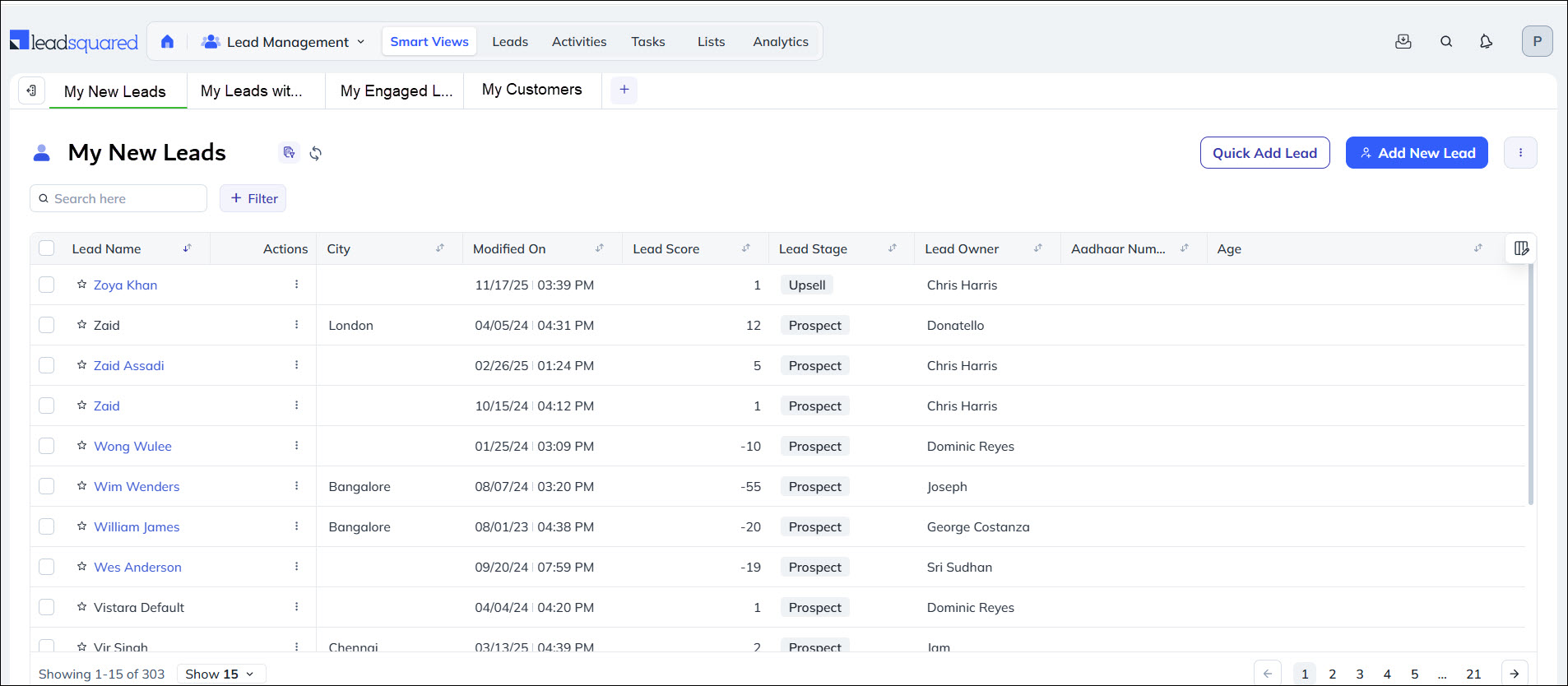
You’ll see the following tabs on the Smart Views page by default – My New Leads, My Leads with Pending Tasks, My Engaged Leads and My Customers. You can search for leads and apply filters within each tab, edit the search conditions and also hide or delete the tabs you don’t want to see.

Leadsquared - Smart Views


5. Create a New Tab

Create custom Smart View tabs to organize and view records based on specific filters, conditions, and business needs. This allows you to focus on relevant data, segment records effectively, and streamline your daily workflows.

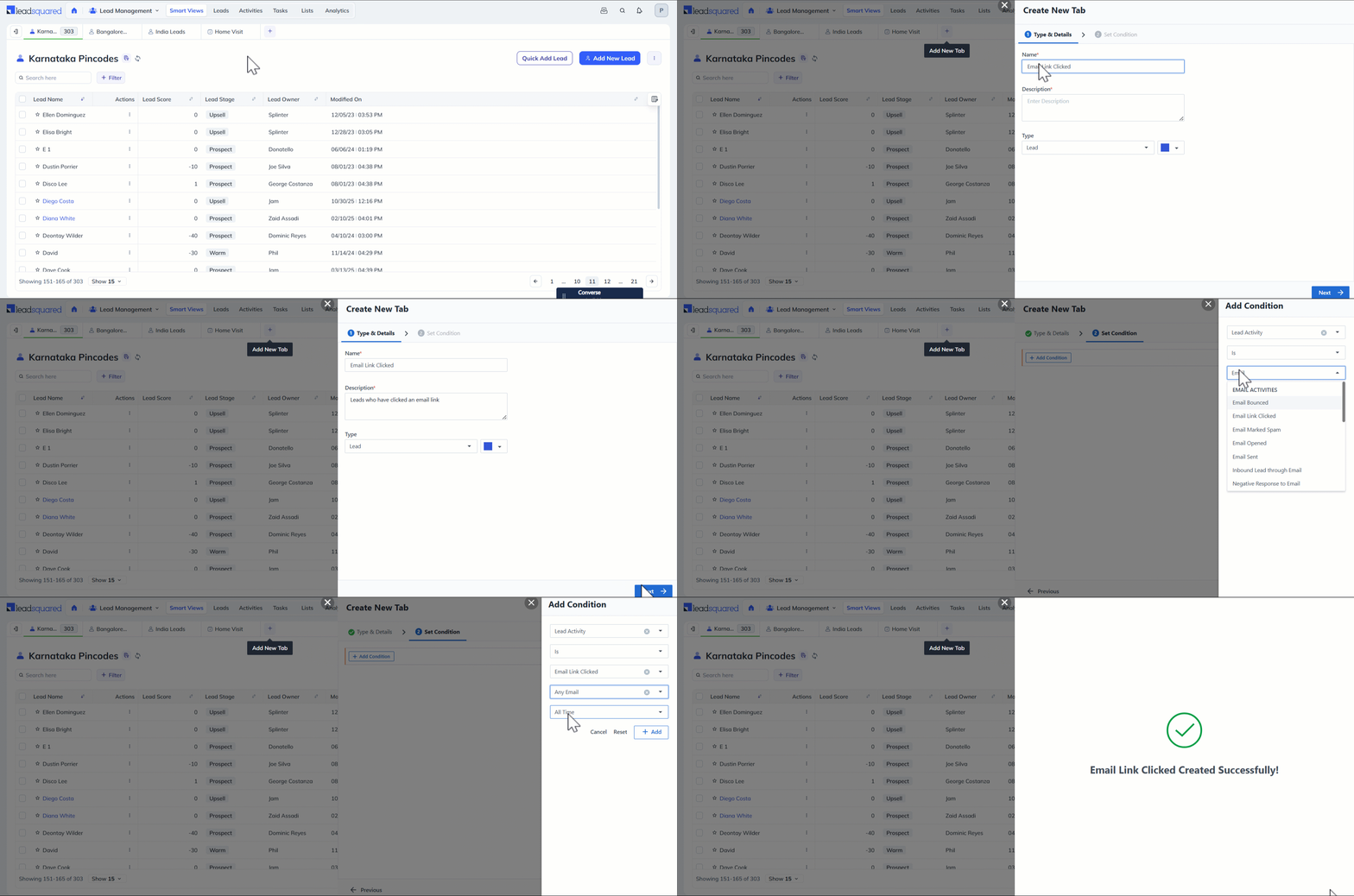
  1. Navigate to Lead Management>Smart Views.
  2. Click the plus icon on the top right corner of the Smart Views page, alongside the Smart View tab headers.
  3. In the Add New Tab popup enter –
    • Name – Enter a name for the tab.
    • Description – Describe what the tab displays.
    • Type – Set the tab up to display accounts, leads, opportunities, activities, or tasks. Select the colour of the tab.
    • Condition – Set up conditions according to your use case (E.g., leads who opened a particular email campaign, leads who visited a particular webpage, etc.).
  4. Click Add. You can set multiple conditions if required.
  5. Click Create Tab.

This example shows you how to set up a lead tab where the ‘Lead Activity’ is ‘Email Link Clicked’ –

Leadsquared - Smart Views


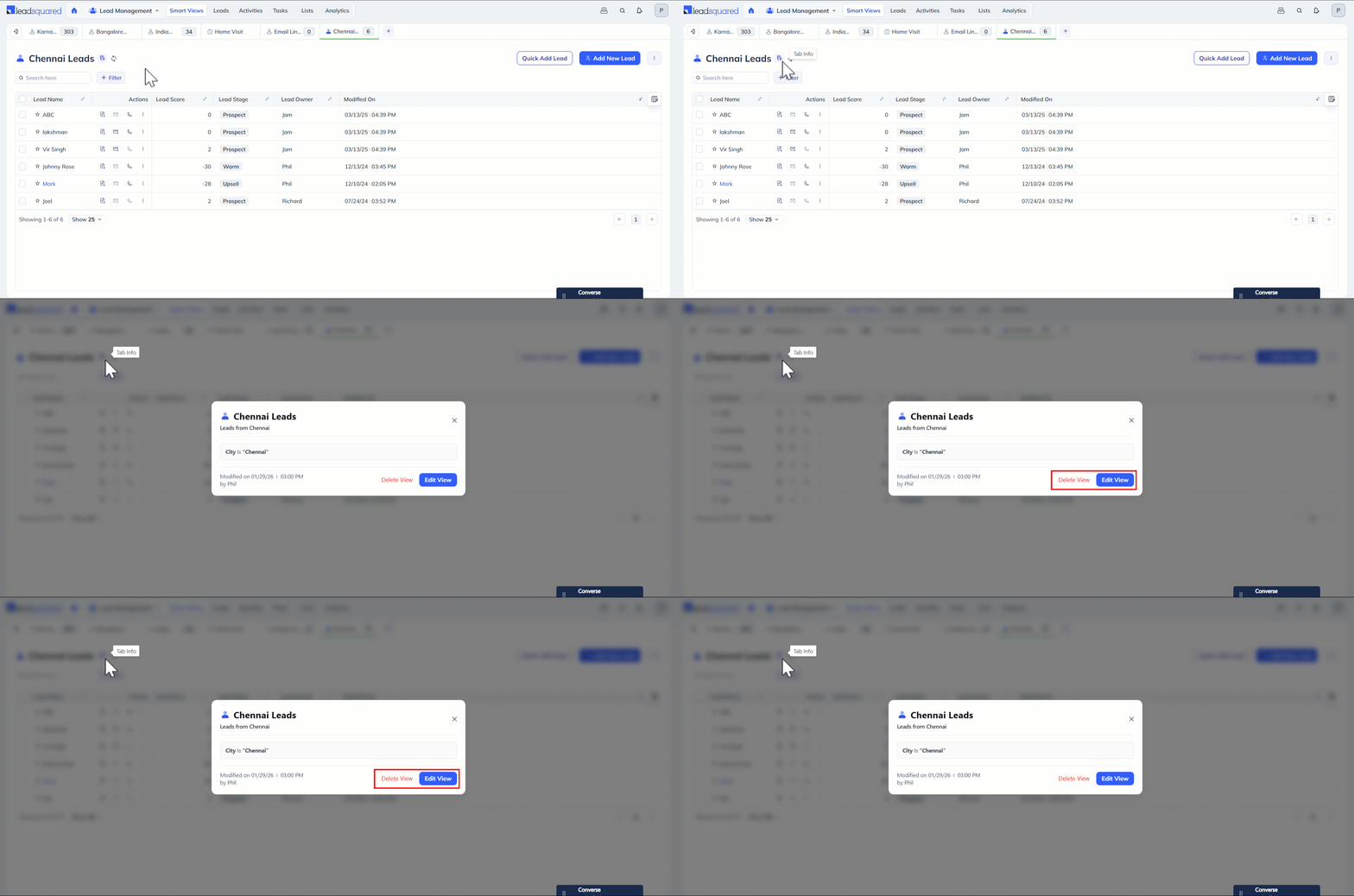
6. Edit or Delete Smart Views Tab

Additionally, to Edit or Delete your Smart Views tab, alongside the relevant tab name heading, click the Tab Info icon.

Leadsquared - Smart Views


7. Switch Panel Views

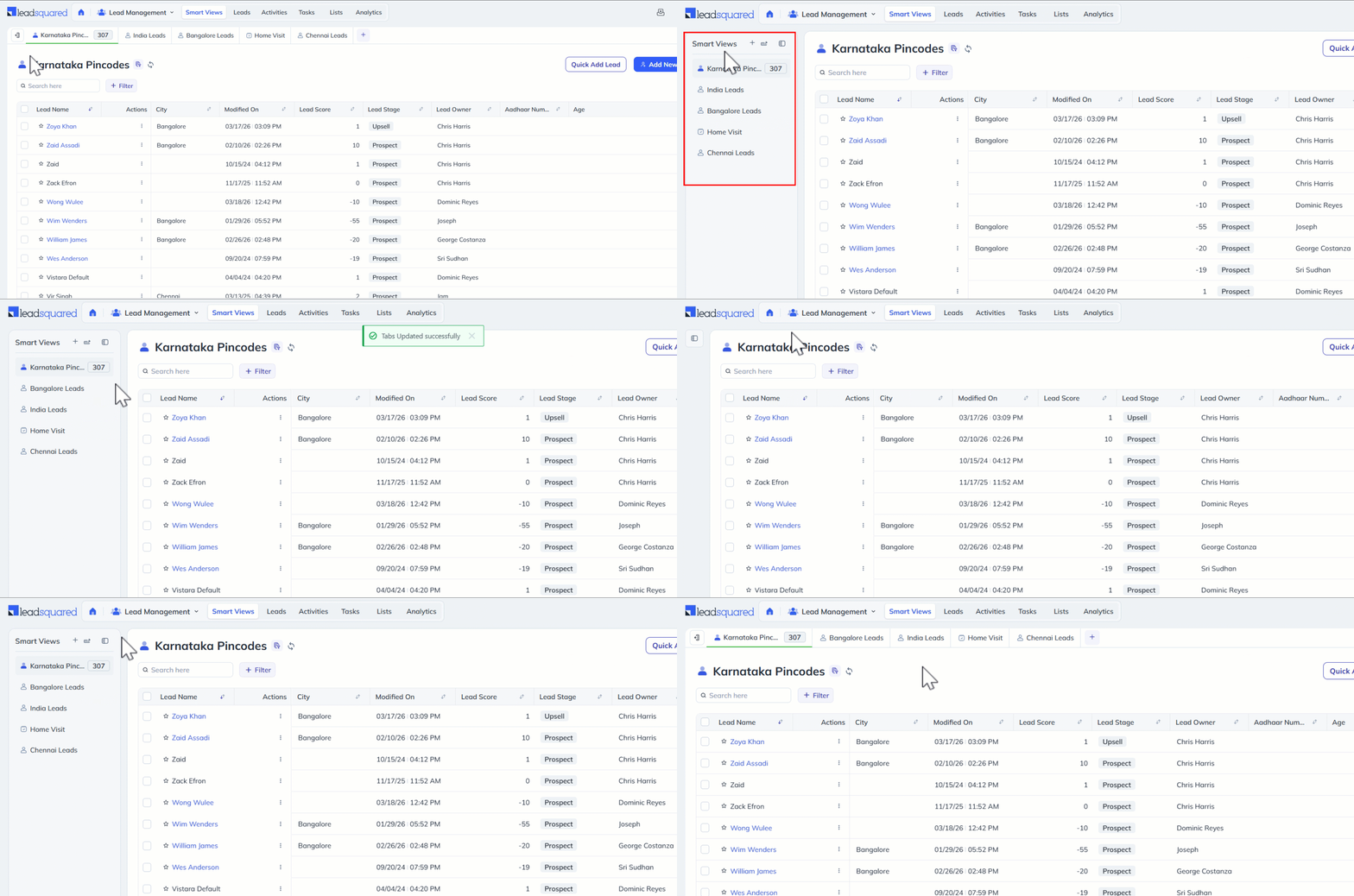
On the Smart Views page, you can switch between Top and Side views of tabs. The tabs are in top view by default.

  1. Click the Leadsuared - NextGen UI Side View icon alongside the leftmost tab to view all the Smart Views tabs in a list form.
  2. Drag and drop the relevant tab to reposition it within the list.
  3. Once switched to the Side view, click the Leadsquared - NextGen UI Collapse/Expand Menu icon to toggle the visibility of the Smart Views tabs list.
  4. To switch back to the top view, click the Leadsquared - NextGen UI Top View icon.

Leadsquared - Smart Views


8. Quick View Entity Details

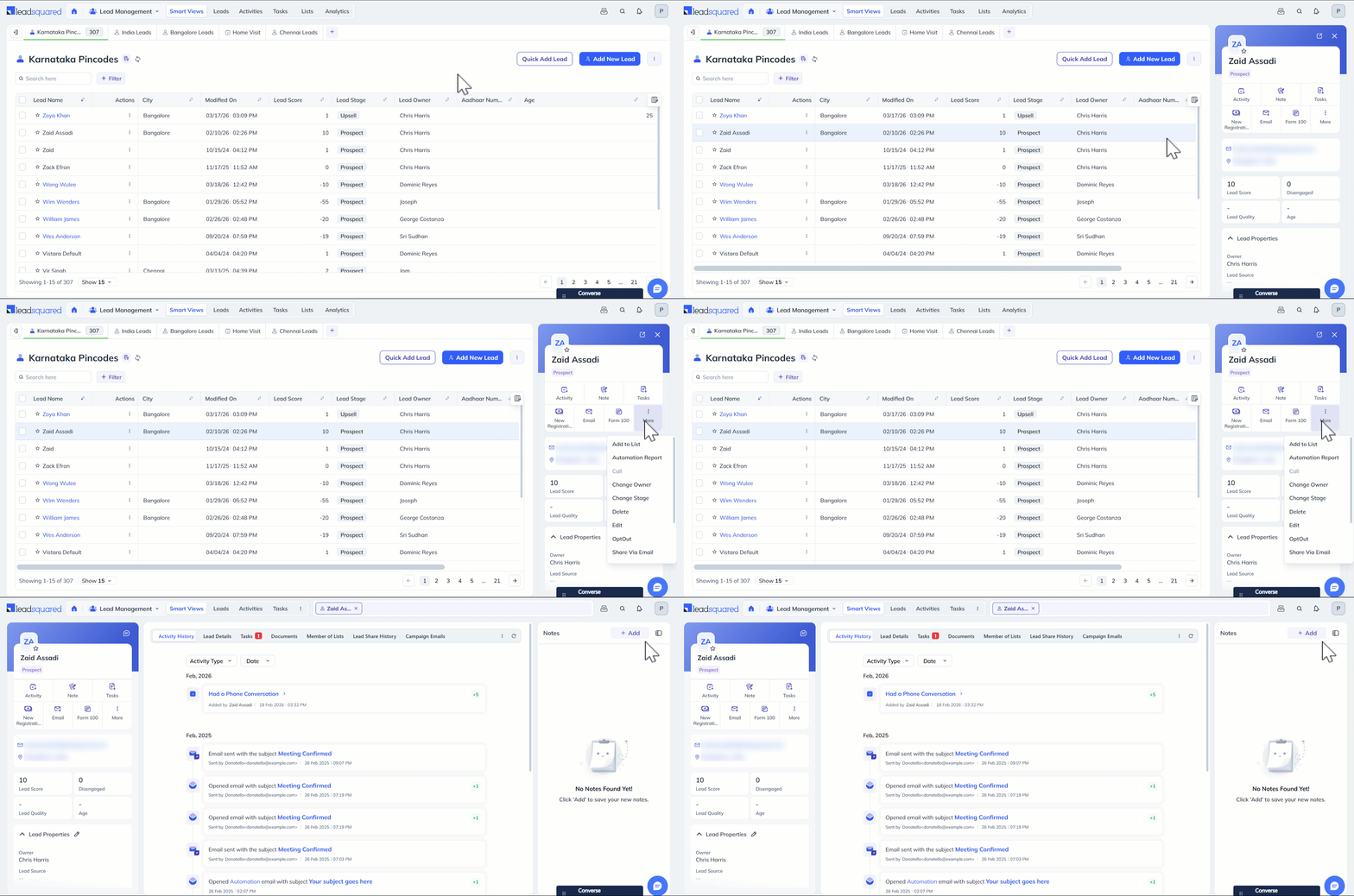
Get a view of entity details instantly without opening the Entity Details page fully. Click anywhere on the row of the relevant entity to open a Quick View tab on the right side of the screen. From here, you can quickly get a glimpse of the entity and also take relevant actions including adding Activity, Note, Task, sending Email, Editing or Deleting the entity, etc.

If you want to open the Entity Details page, click the Go To Entity Details icon on top of the Quick View tab.

Leadsquared - Smart Views


9. Select Columns

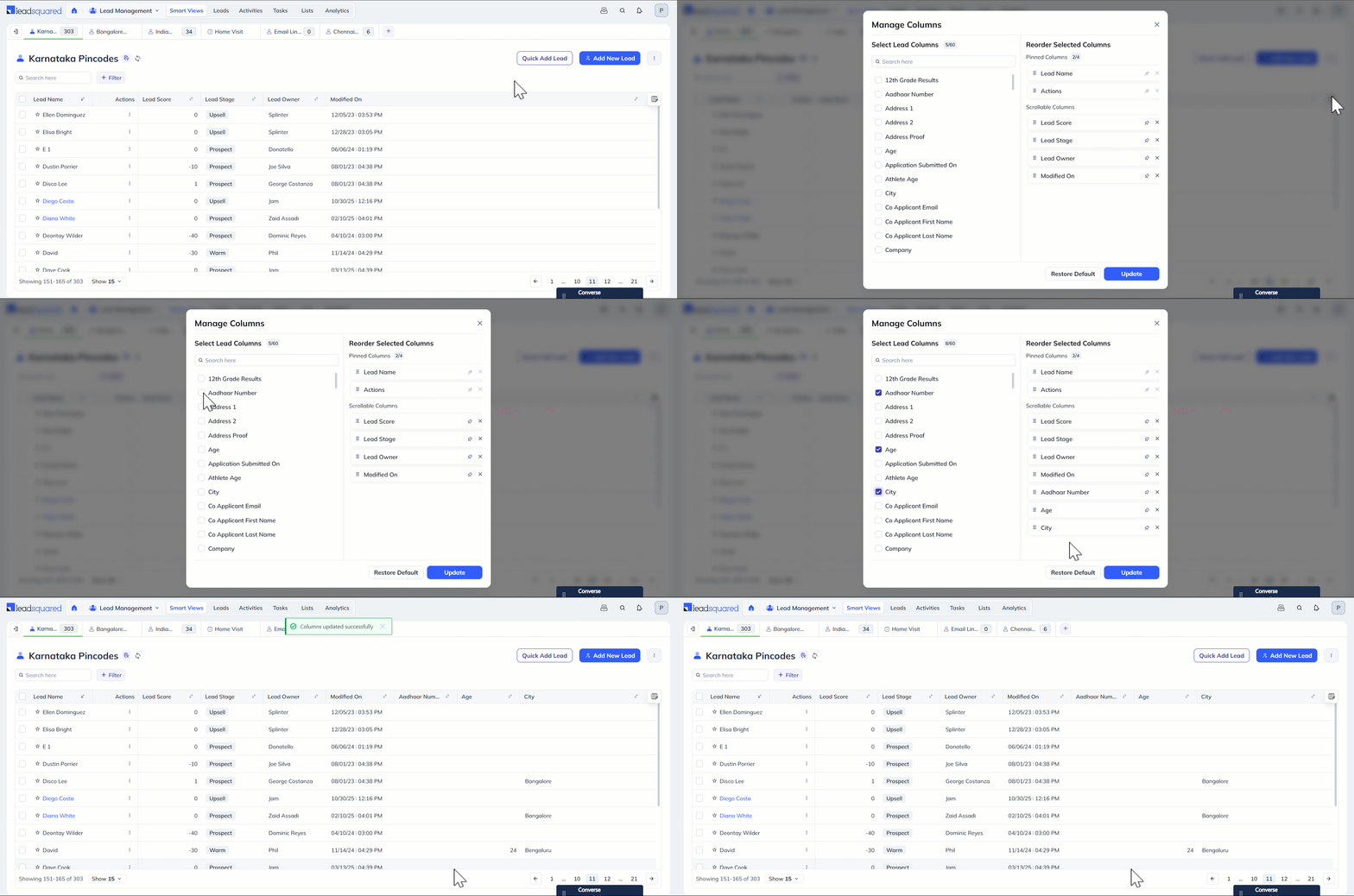
You can customize the Smart Views grid to display relevant columns in the lead grid.

  1. On the Smart Views page, click the Manage Columns icon on the top-right corner of the lead grid.
  2. On the Select Columns pop-up, click the checkboxes alongside the relevant fields in Available Columns.
  3. The selected fields will be displayed on the Selected Columns section of the pop-up.
  4. Click Save.
  5. The selected field will now show up on the grid.

Leadsquared - Smart Views

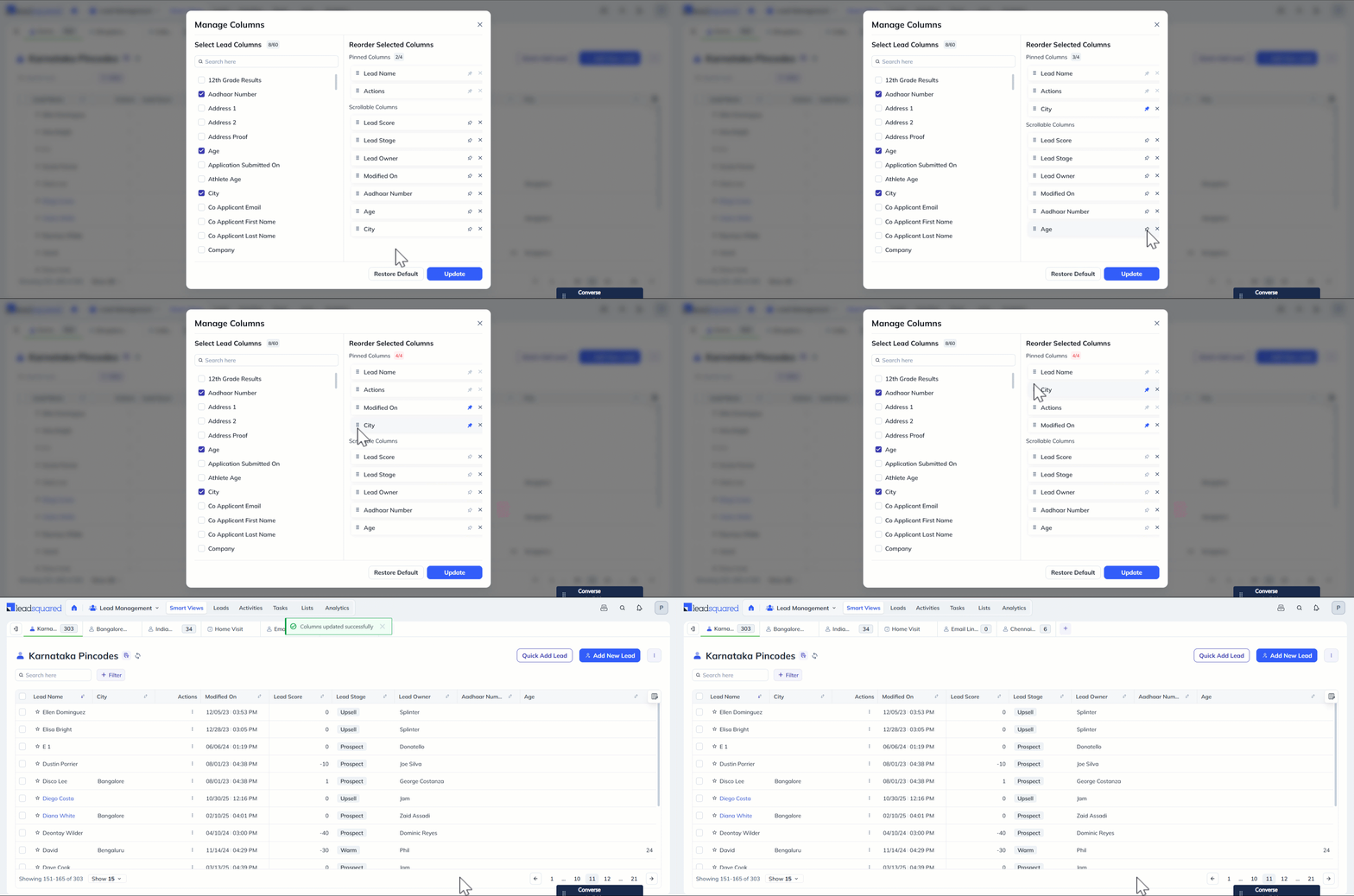
You can pin columns to move them to the front of the grid and freeze them in place. Pinned columns remain visible and do not move or get hidden when scrolling through the grid. You can pin up to four columns, with two primary columns pinned by default.

  1. Click the Pin icon alongside the relevant selected column to pin it. The field will move under the Pinned Columns section.
  2. Click and hold the Move icon to reposition the field within the column as per your preference. This can also be done in the Scrollable Columns section to rearrange the fields in the grid.
  3. Once you’ve selected and pinned the columns, click Update.

Click Restore Default if you want to bring back the default view.

Leadsquared - Smart Views


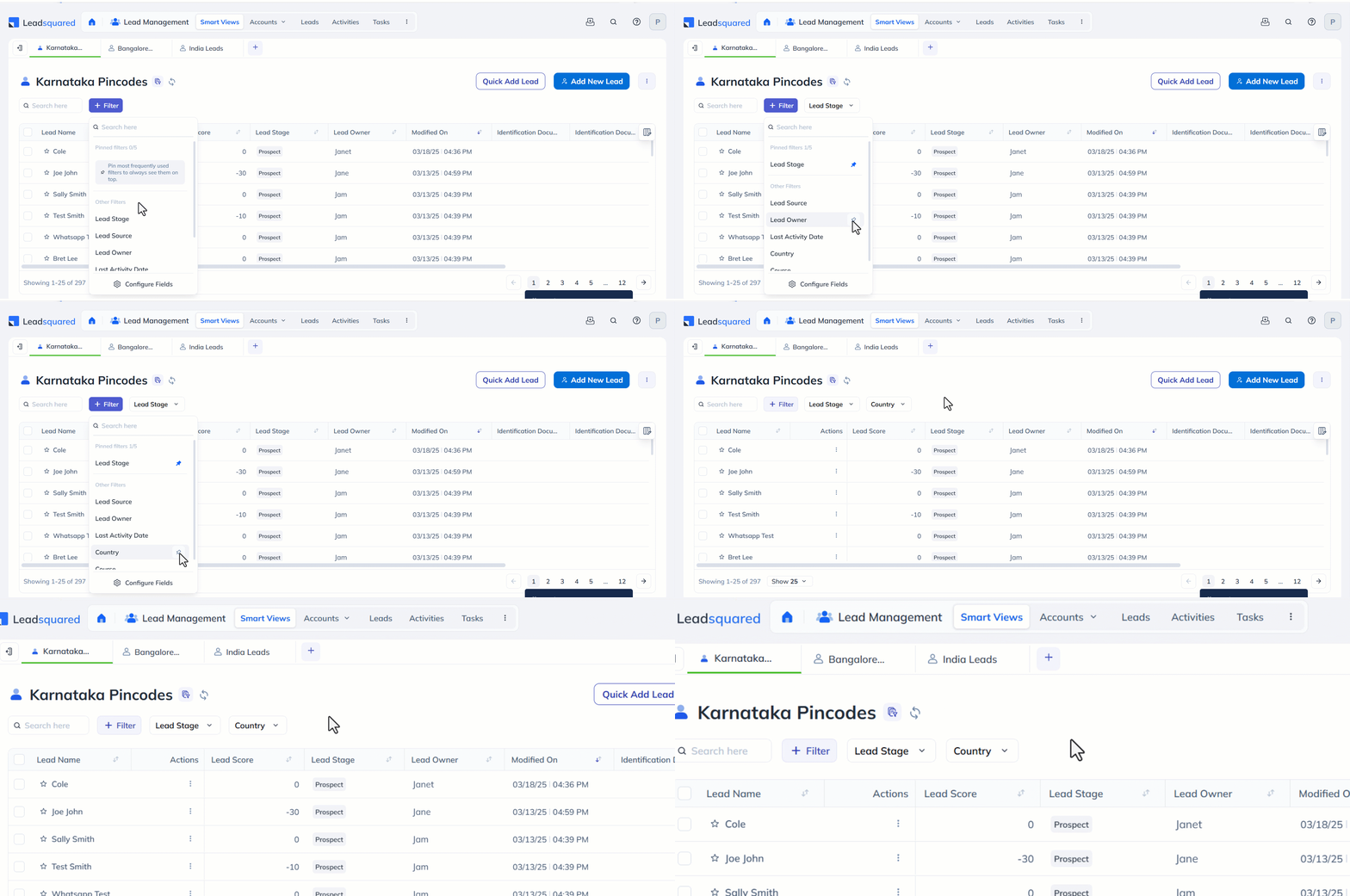
10. Manage Filters

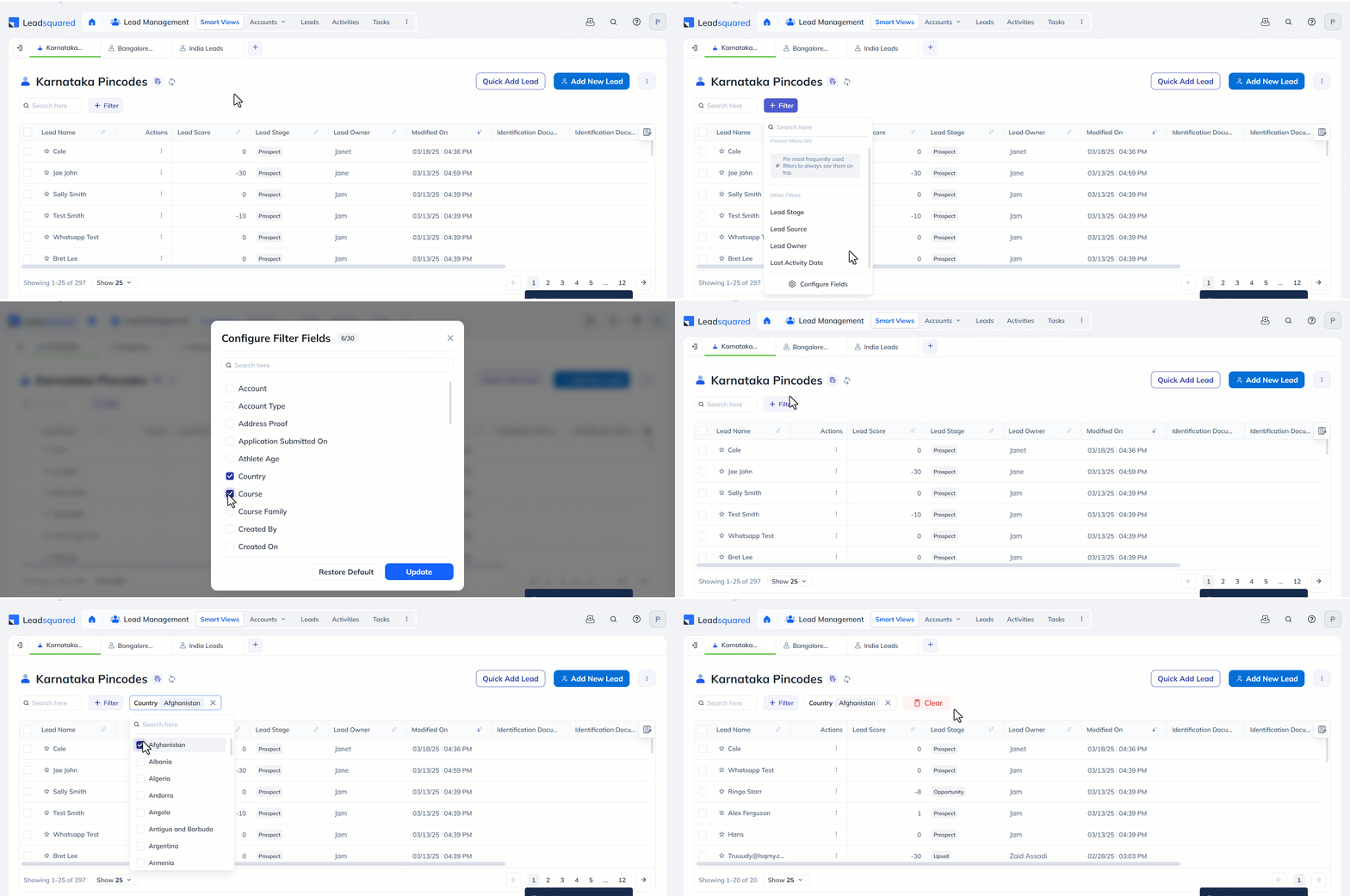
You can also add your own filters to any Smart Views tab. Note that only dropdown type fields can be used as filters. Dependent dropdown fields are also supported.

  1. On the Smart Views page, click the Filter button above the lead grid.
  2. Select the relevant default filter or click Configure Fields to add more filters to the list. Click Update to add the fields as filters.
  3. To search for entities based on the filter, click the Filter icon and select the relevant filter.
  4. Then select the value from the dropdown. Once the value is selected, click anywhere outside the dropdown to retrieve the results.

Leadsquared - NextGen UI

You can also pin your frequently used filters. Pinned filters appear next to the Filter icon. You can pin upto five filters by clicking the Pin icon alongside the relevant filter. Search for entities with this filter any time.

Leadsquared - NextGen UI


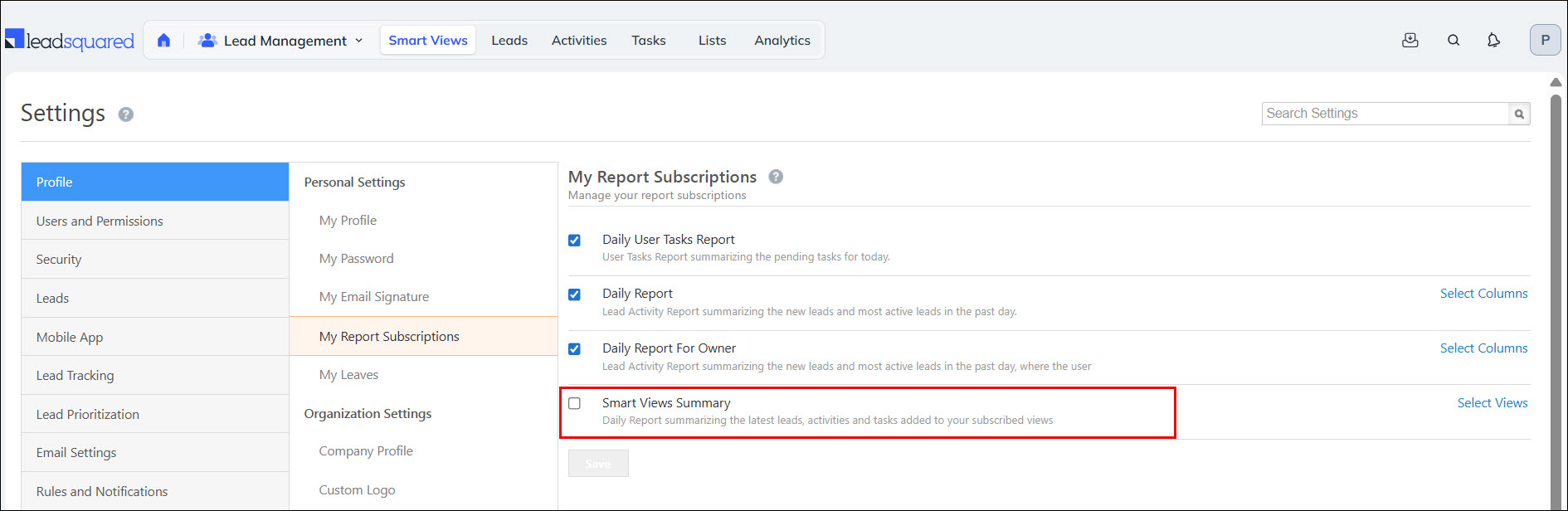
11. Subscribe to Smart Views Reports

You can subscribe to the Smart Views Daily Report that summarizes the latest accounts, leads, activities and tasks added to your smart views filters.

  1. Navigate to My Profile>Settings>Profile>My Report Subscriptions and click the checkbox alongside Smart Views Summary.
  2. Click the Select Views link to choose which smart views filters you want to be displayed in your report.

Leadsquared - Smart Views


Any Questions?

Did you find this article helpful? Let us know your thoughts in the comments section below.

Send Quick Emails

1. Feature Overview

LeadSquared’s Email feature enables you to send personalized, one-to-one emails to leads directly from multiple touchpoints within the platform or through automation workflows. It supports useful communication capabilities such as attachments, scheduling and CC/BCC recipients.

This feature helps sales and marketing teams engage leads contextually and maintain consistent communication. Admins can control access to email-related capabilities through Email Settings and configure permissions for different users across the account. To learn more, see Email Settings – Feature Guide.

Note: To send email campaigns to lists of leads, see Create and Schedule Email Campaigns.

Leadsquared - One-To-One Emails


2. Prerequisite

You must have permissions enabled to send emails to leads.


3. How It Works

Users can send emails to leads either manually or through automation:

  • One-to-one emails can be sent from various sections like Manage Leads, Lead Details, Smart Views, or Manage Lists. These can be sent instantly or scheduled for later.
  • Automated emails can be configured within workflows to trigger based on user-defined conditions.
  • Once sent, emails (including attachments) are tracked under the lead’s Activity History for visibility.


3. Send Emails to Leads

Send personalized, one-to-one emails to individual or multiple leads directly from different pages on the platform, such as Manage Leads, Lead Details, Smart Views, and Manage Lists. You can compose, send, or schedule emails based on your business needs, making it easy to engage leads contextually at any stage of the sales process.

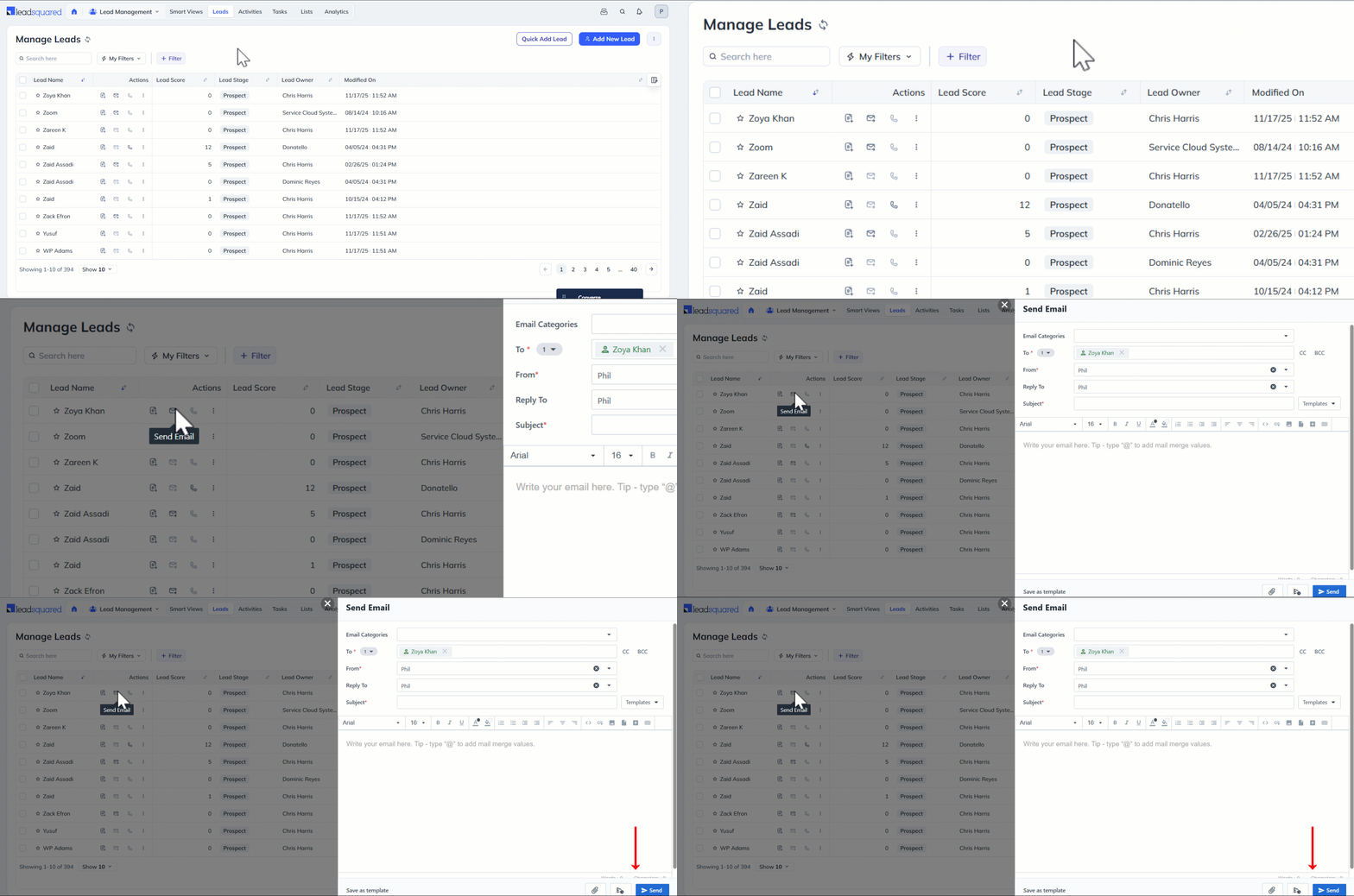
3.1 From Manage Leads Page

  1. Navigate to Lead Management>Leads.
  2. Alongside the relevant lead, click the Send Email icon.
  3. Once you’re done drafting the email –
    • If you need to send the email immediately, click Send.
    • If you wish to schedule the email delivery for a later time, click the Schedule Email icon.

Leadsquared - One-To-One Emails

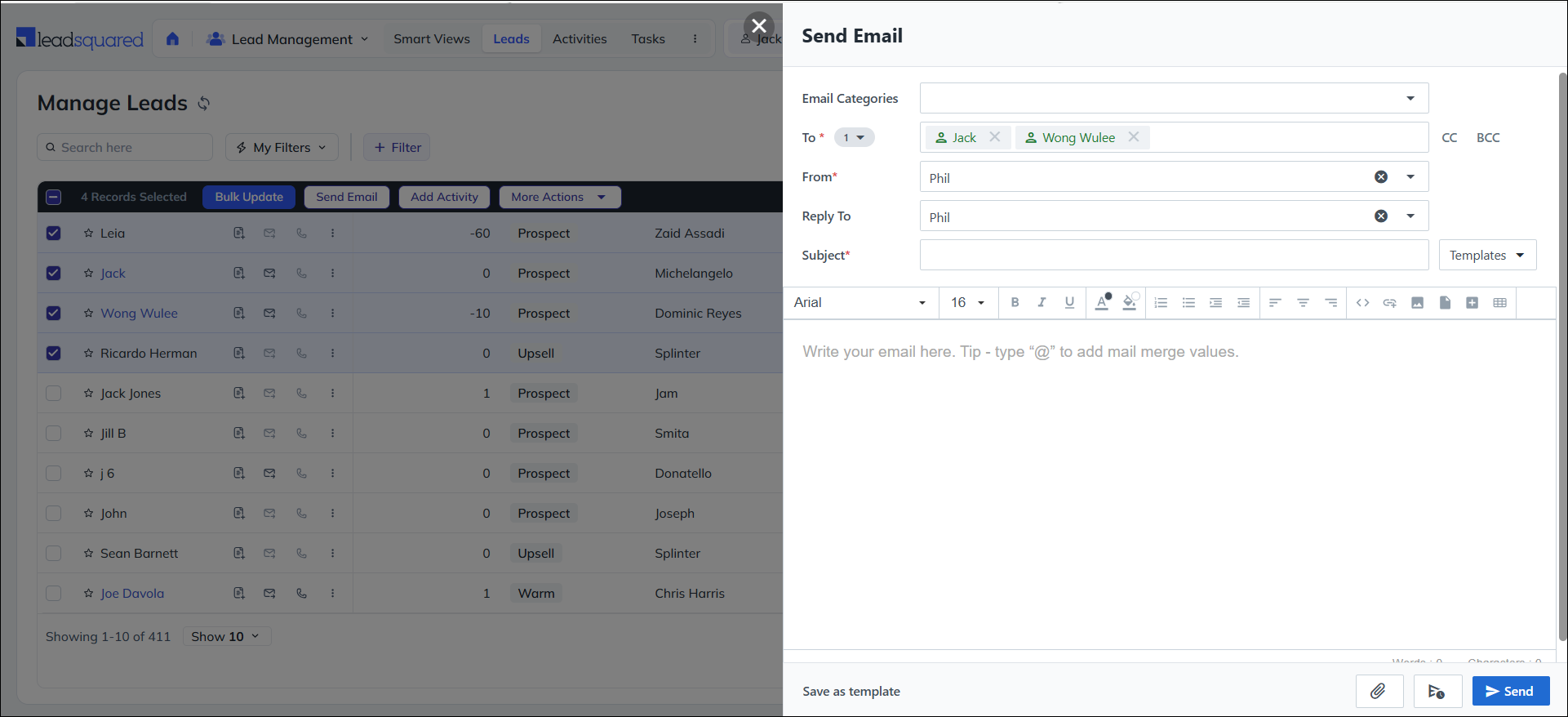
To send email to multiple leads –

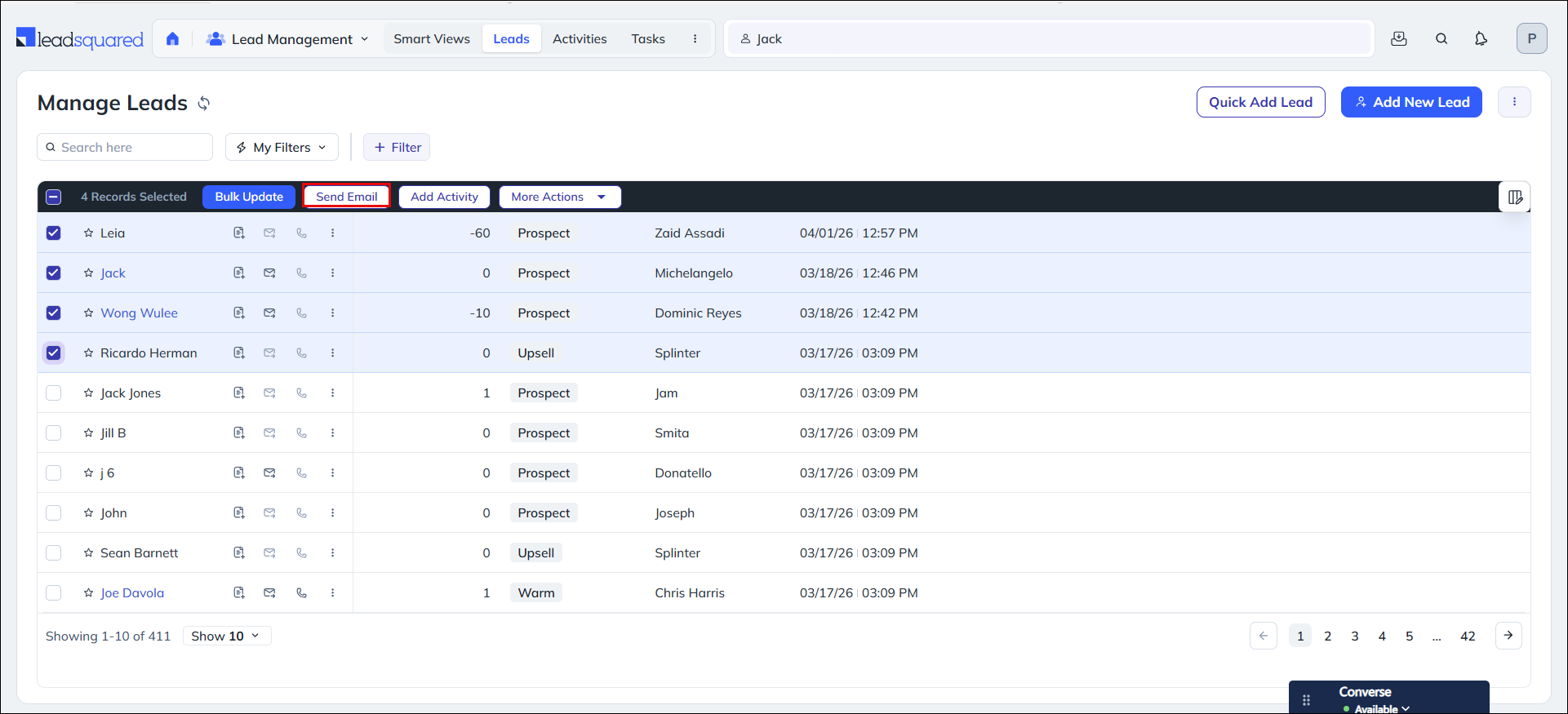
  1. Click the checkboxes alongside the relevant leads.
  2. Click the Send Email button on top of the lead grid.

Leadsquared - One-To-One Emails

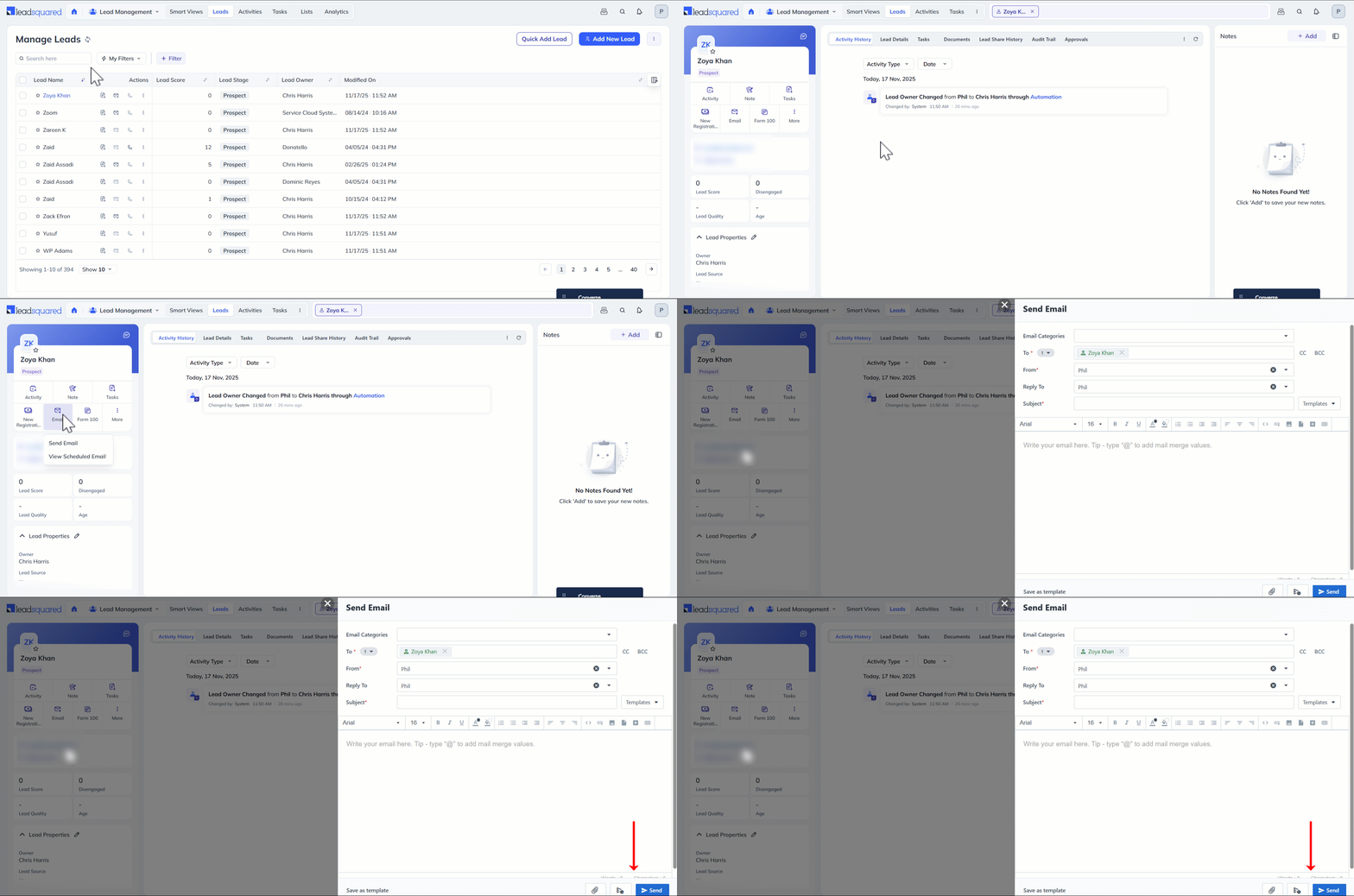
3.2 From Lead Details Page

  1. Navigate to Lead Management>Leads.
  2. Click the name of the relevant lead to view the lead’s details.
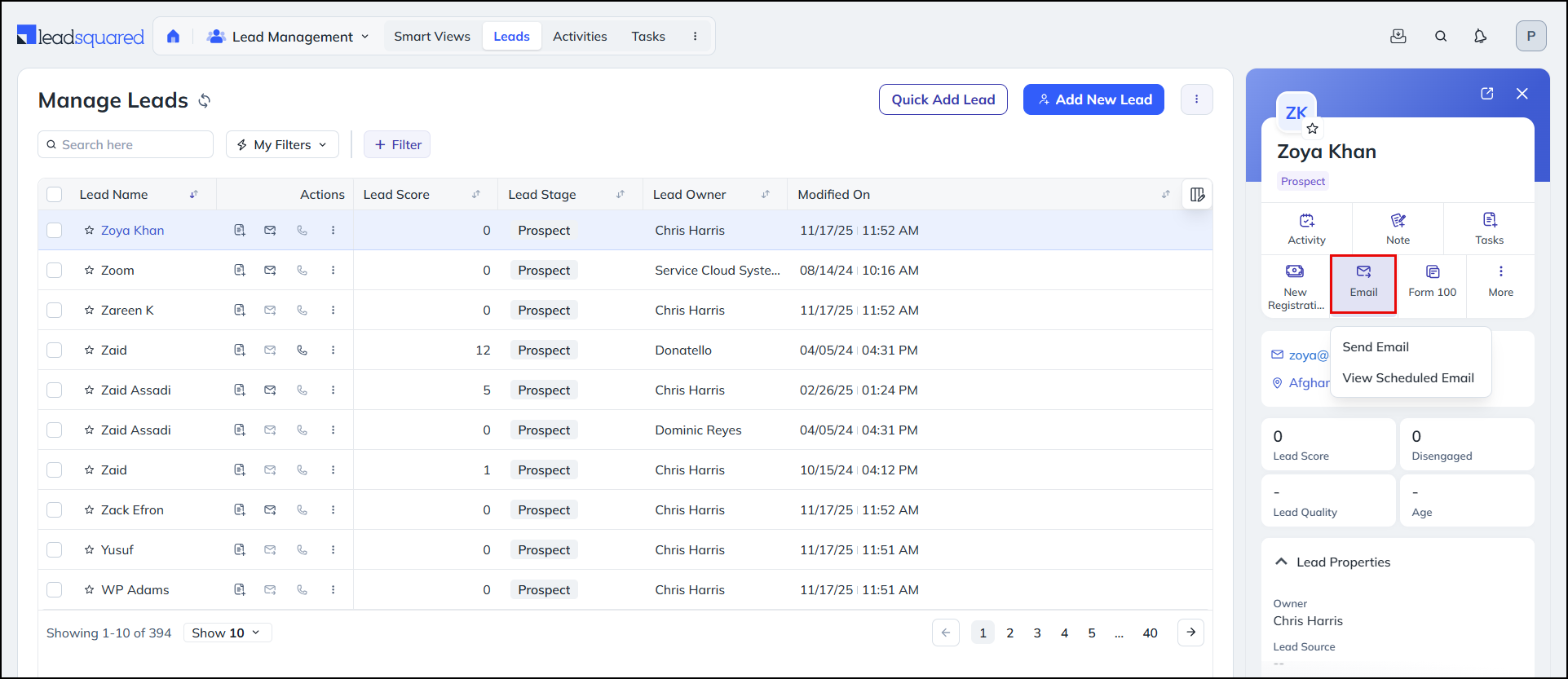
  3. Click Email.
  4. From the dropdown box, select Send Email if you need draft an email to send immediately.
  5. Once you’re done drafting the email –
    • If you need to send the email immediately, click Send.
    • If you wish to schedule the email delivery for a later time, click the Schedule Email icon.

Leadsquared - One-To-one Emails

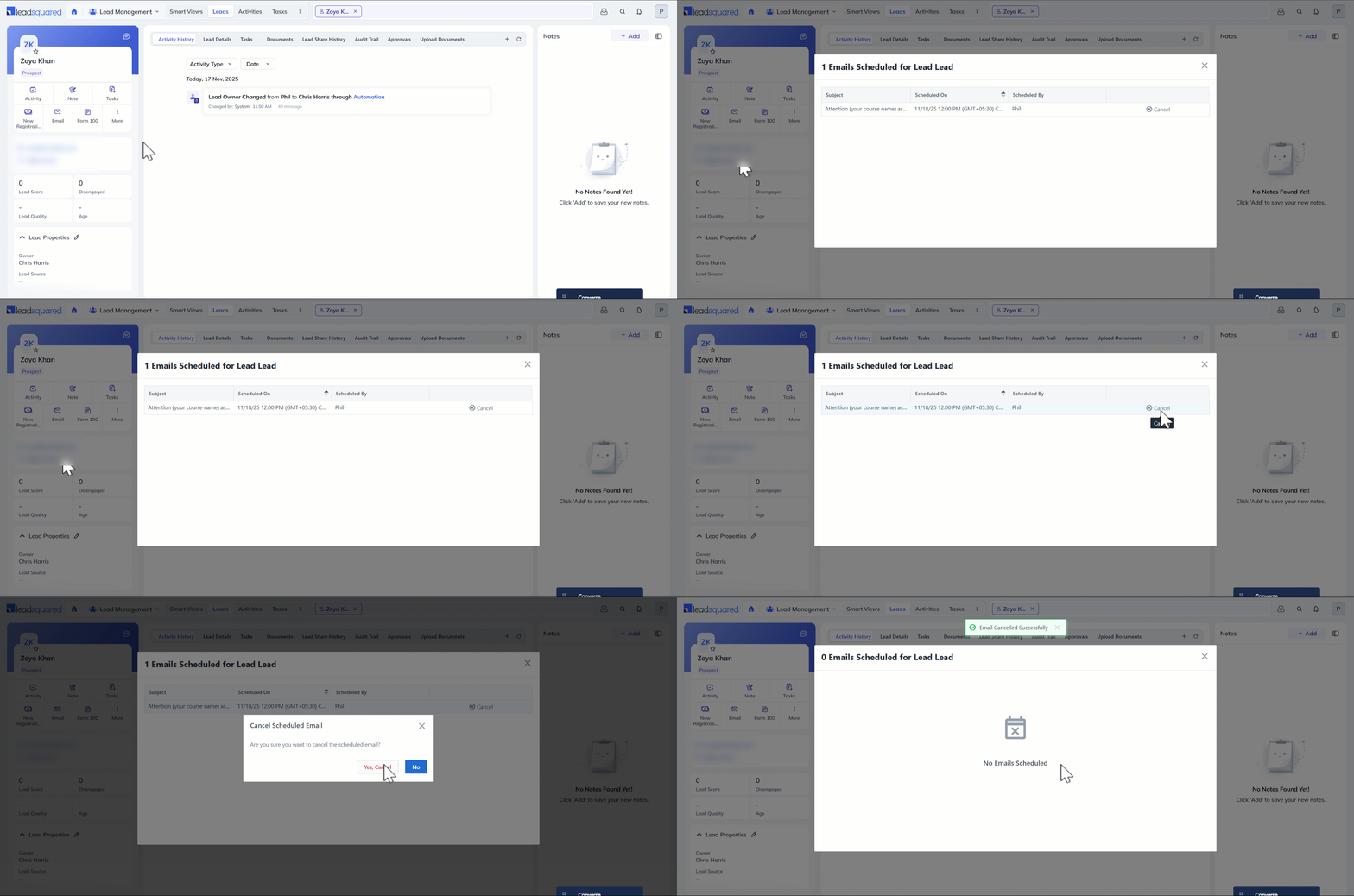
You can view and cancel the emails that you have scheduled to send later on the Lead Details page.

  1. Click Email.
  2. Select View Scheduled Email.
  3. You can see the details of the scheduled email on a pop-up.
  4. To cancel the email, click Cancel on the pop-up.

Leadsquared - One-To-One Emails

3.3 From Leads Quick View

Click the relevant lead row to open the quick view. You can send emails to the lead from here.

Leadsquared - One-To-One Emails

3.4 From Smart Views Page

  1. Navigate to Lead Management>Smart Views.
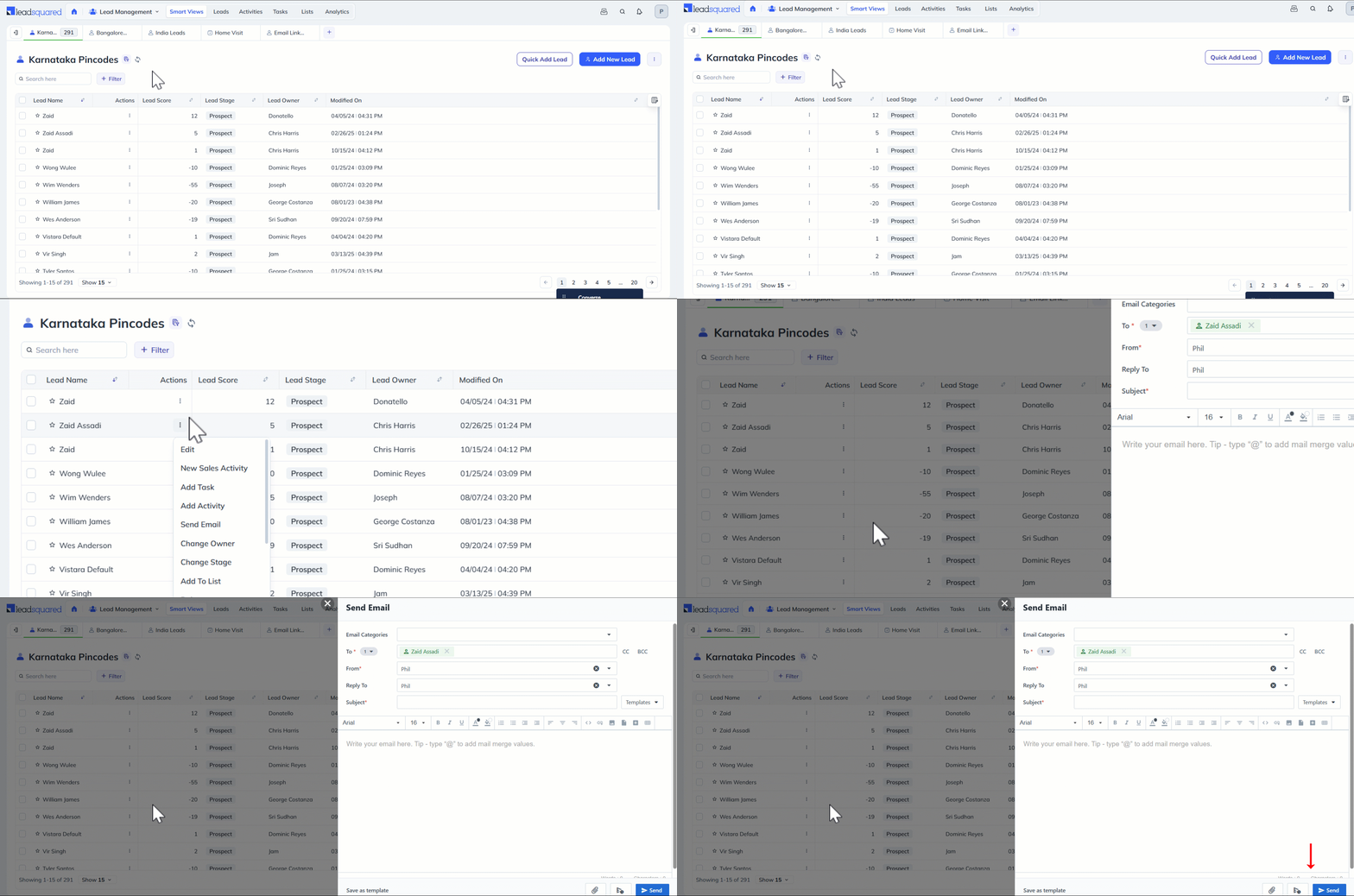
  2. Alongside the relevant lead, click the Actions icon and select Send Email from the dropdown.
  3. Once you’re done drafting the email –
    • If you need to send the email immediately, click Send.
    • If you wish to schedule the email delivery for a later time, click the Schedule Email icon.

Leadsquared - One-To-One Emails

3.5 From Manage Lists

  1. Navigate to Lead Management>Manage Lists.
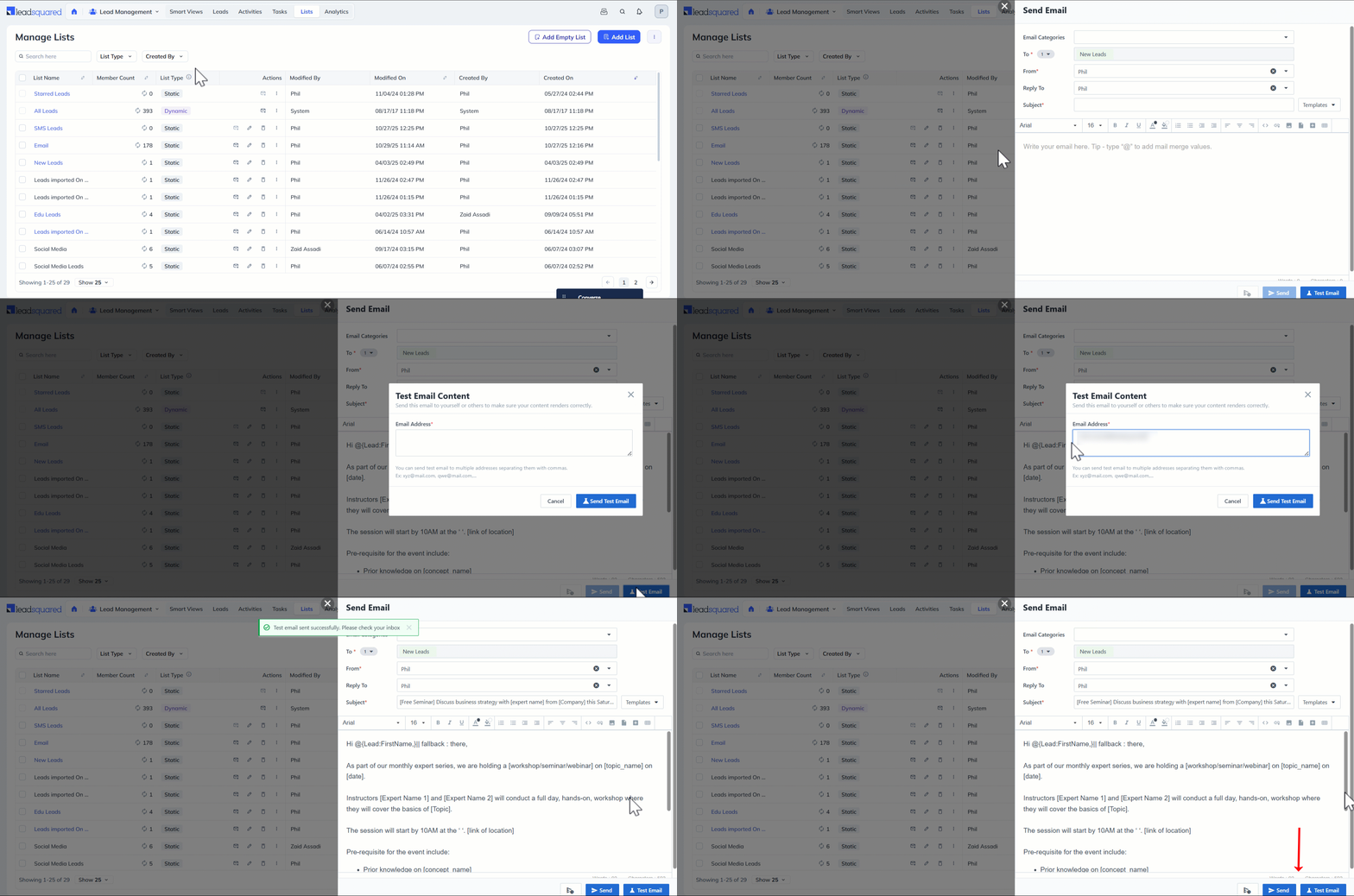
  2. Alongside the relevant list, click the Send Email icon.
  3. Once you’re done drafting the email, send a Test Email to yourself or others to make sure your content renders correctly.
  4. Then –
    • If you need to send the email immediately, click Send Now.
    • If you wish to schedule the email delivery for a later time, click the Schedule Email icon.
Note: You can send emails to leads from the List Details page as well.

Leadsquared - One-To-One Emails


4. Send Emails through Automation

Automate email delivery by configuring workflows that trigger emails based on lead actions or conditions.

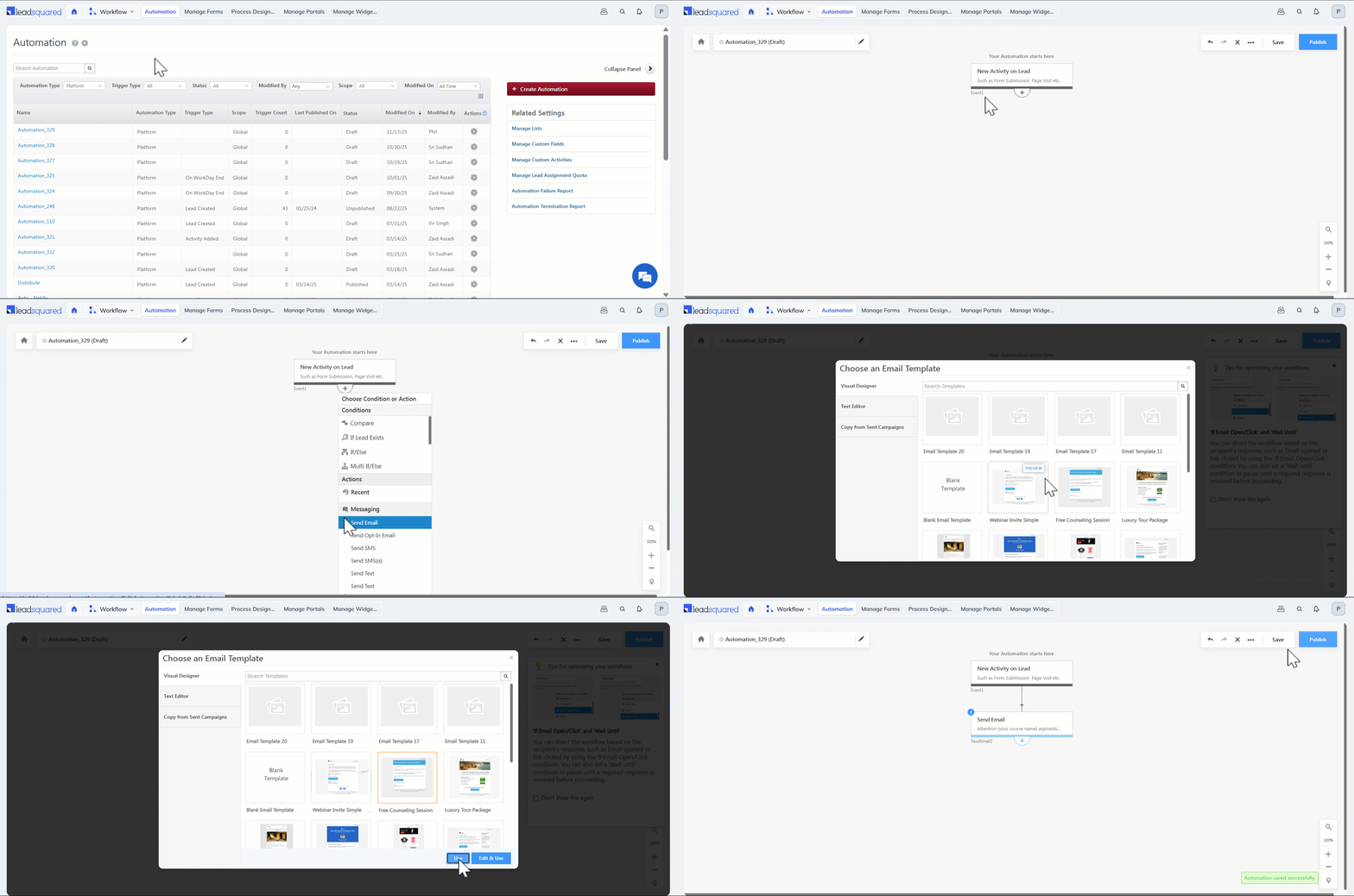
  1. Navigate to Workflow>Automation and click Create Automation or open an existing automation.
  2. Click the plus icon and under Messaging, click Send Email.
  3. Choose an Email template or design your own email from scratch.
  4. Once you’re done, save or publish the automation.

Leadsquared - One-To-One Emails


5. Send Files As Attachments

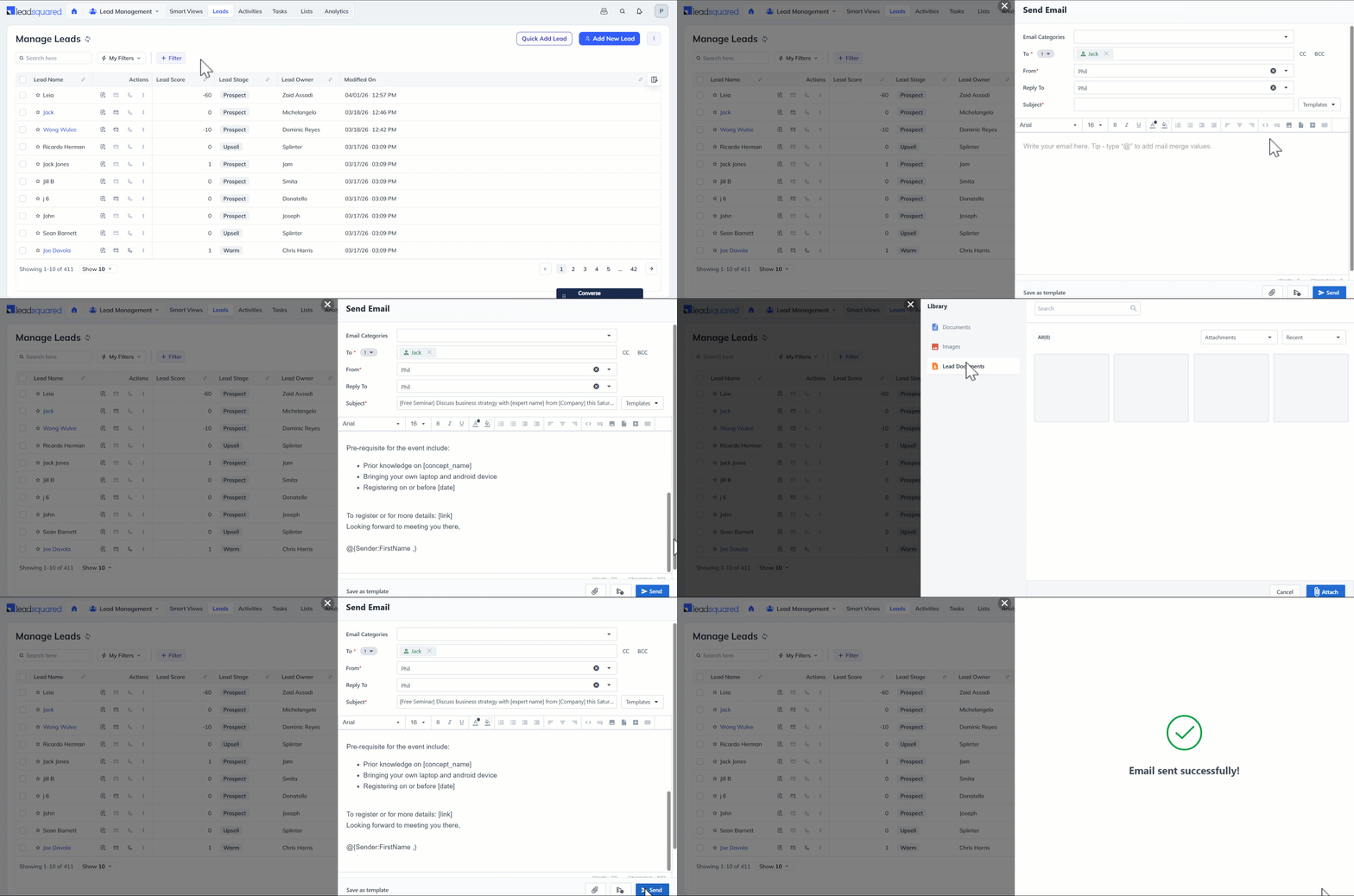
When sending one-to-one emails to your leads, use the Attachment button to attach files to the email (uploaded to the Images and Documents Library or through lead notes). Click –

  • Upload New to upload a document or image from your device.
  • Documents to open all the files uploaded to the Document Library.
  • Images to open all the images uploaded to the Image Library.
  • Lead Documents to open specific documents uploaded with relevance to that particular lead (for instance, from the Add Lead Form or Notes), captured in the Lead’s Details page.
Note: This feature is not available by default. To enable this on your account, contact your account manager, or write to support@leadsquared.com.

Leadsquared - One-To-One Emails

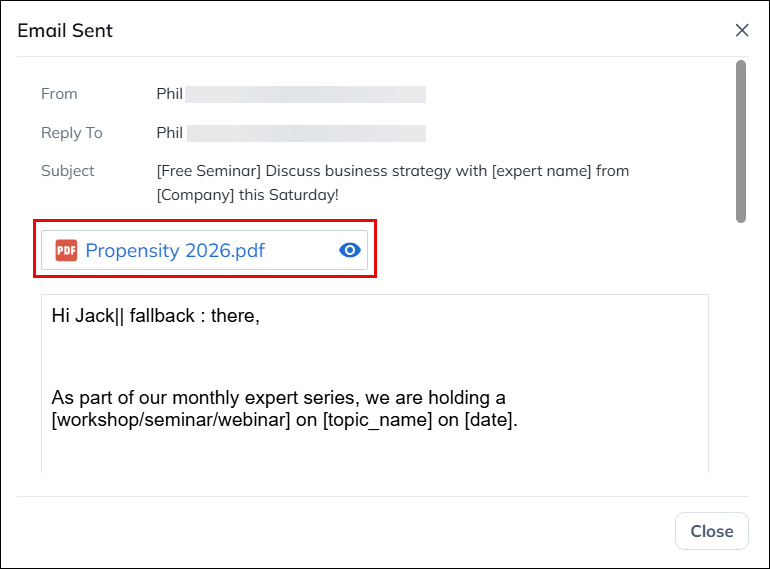
Once the mail is delivered, you can view the attachment on the Lead Details page, under the Activity History tab.

Leadsquared - One-To-One Emails


6. CC/BCC other leads in your email

To keep relevant stakeholders informed, you can include additional recipients in your emails using CC or BCC option.

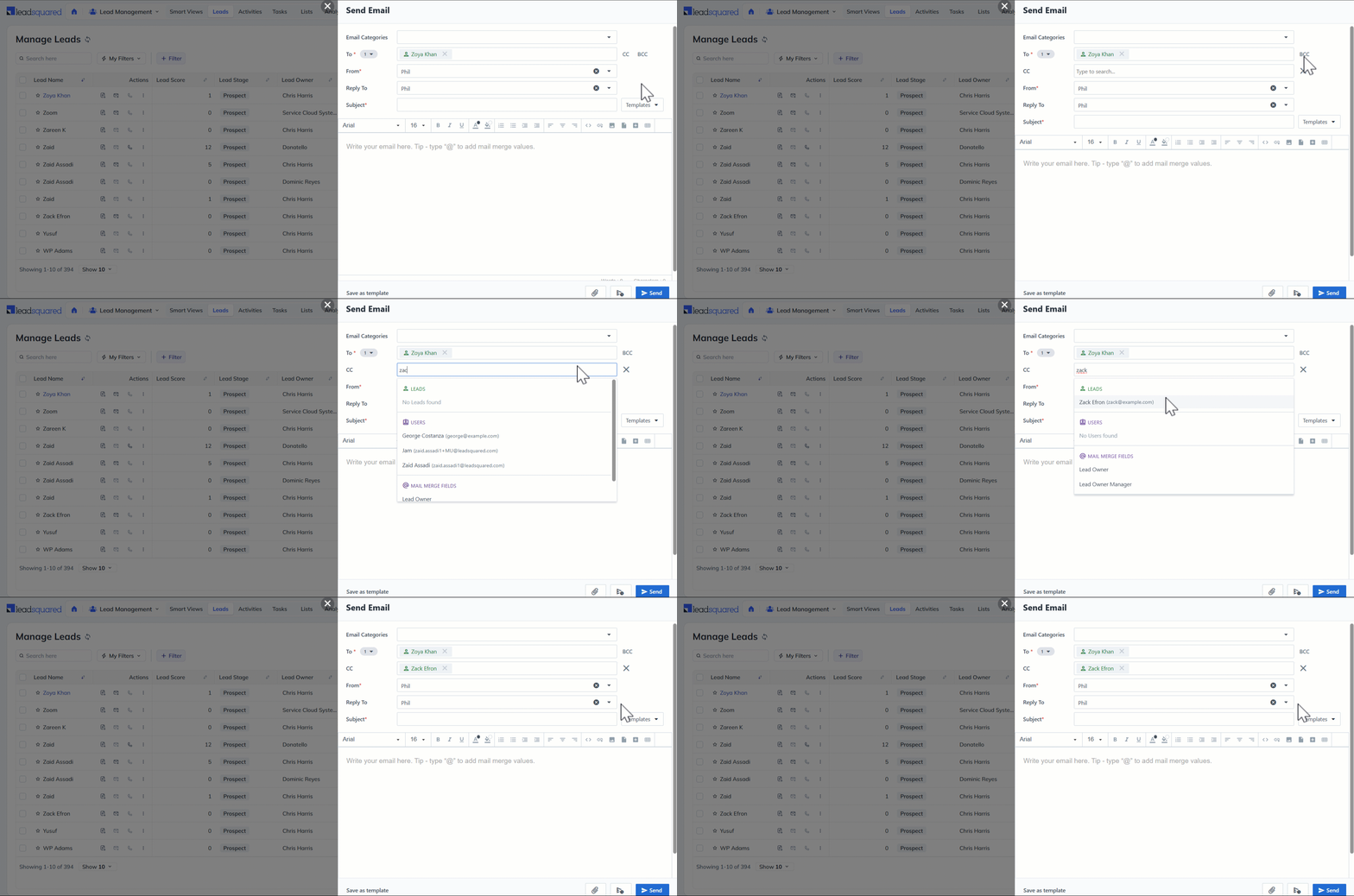
  1. On the email designer, next to the To address, click CC or BCC.
  2. Enter the email addresses of the relevant leads on the CC or BCC field.
Note: A lead is captured with the lead origin “Web:Email:One2One” when a new email id (email Id of a lead that doesn’t exist in LeadSquared) is passed in CC while sending an email to an existing lead.

Leadsquared - One-To-One Emails


Troubleshooting

YouTube Video Preview Glitch in One-to-One Email

  • Issue: A YouTube video was added to an email template created using the Visual Designer (Email Campaigns feature). While the video preview appears correct in the test email, it becomes glitched when sending a one-to-one email.
  • Cause: The Visual Designer is designed for email campaigns and not for one-to-one emails. When a template created in the Visual Designer is used for a one-to-one email, it opens in the Rich Text Editor, which may alter the formatting and cause display issues with the video preview.
  • Solution: To ensure the video preview appears correctly in one-to-one emails, create the template using the HTML Editor or Rich Text Editor, as these are compatible with one-to-one emails.


Any Questions?

Did you find this article helpful? Please let us know any feedback you may have in the comments section below. We’d love to hear from you and help you out!

Risk Containment Unit Set-up for Admins

1. Feature Overview

Risk Containment Units (RCUs) are specialised teams that verify the authenticity of loan application documents, including KYC, KYB, income, and collateral documents. RCU checks form a standard part of the loan origination process, especially for high-ticket products (such as Home Loans, Loan Against Property, and Commercial Vehicle loans). They act as an independent review layer on top of the checks the internal credit teams perform.

Depending on the lending organisation, RCUs can be internal teams or third-party verification agencies. They detect forged or tampered documents, prevent fraud and money laundering, and ensure the applicant’s profile is genuine before disbursal.

In LeadSquared’s Loan Origination System (LOS), the RCU process enables teams to systematically screen each document, place items on hold for later review, or send them to verification agencies, while tracking all actions, remarks, and agency reports against the opportunity.


2. Prerequisites

  • The Loan Origination Workflow (LOS) Workflow app must be enabled on your account. To do this, contact your account manager or write to support@leadsquared.com.
  • You must be an Admin user to configure this feature.
  • The following Mavis DB tables must be configured –
    • Checklist table – Add the documents and fields to be verified, and map each item to the activity field where the document is uploaded. This displays the fields that appear on the RCU screen.
    • Agency table – Add the list of verification agencies, and associate it with the agency dropdown. This shows up during the sampling process.
  • Create an Opportunity Type to associate with an LOS workflow.
    • The associated opportunity type must contain a custom field with the display name “Workflow Version”, the schema name “mx_Custom_100”, and the type “Number – Decimal”. This is mandatory.
  • Create a custom activity that is posted on the opportunity when the workflow is executed.


3. How it Works

This document is to help Admin users configure the RCU process on the account. Before you begin, ensure a custom activity and opportunity types are created with the necessary fields, along with the Mavis database.

On the LOS workflow screen –

  1. Create a workflow and associate it with the opportunity type on which the RCU process should be initiated.
  2. Create a stage, sub-stage, and link the RCU action.
  3. Link the two Mavis DB tables, one defining the document checklist and one listing the verification agencies.
    • The document checklist defines the documents to verify and maps each item to the field where the document is uploaded.
    • The agency table lists the external agencies that will complete the RCU process.
  4. Once you’re done, publish the workflow.
  5. The RCU process is available on the Opportunity Details page of the selected opportunity type, where agents can initiate it.


4. Create a Custom Activity

Before you set up the LOS workflow, create a Custom Activity with the following fields –

  1. Navigate to My Profile>Settings>Leads>Custom Activities and Scores, and click Add.
  2. In addition to the required custom activity details, create the following fields –
    • A string field that stores the applicant’s name. Use a display name that conveys this (for example, “Applicant’s Name”).
    • A dropdown field that lists applicant types as options. Add all applicant types your business offers (for example, Primary Applicant, Co-applicant, Joint Applicant, and Guarantor). Use a display name that conveys this (for example, “Applicant Type”).
  3. Once you add all mandatory details, click Save. The custom activity is created in your account.

LeadSquared Loan Origination System RCU


5. Create a Workflow

Create an LOS workflow where you must link the custom activity and an opportunity type.

  1. Navigate to Apps>LOS Workflow, and alongside Workflows, click the Add icon.
  2. On the Workflow Details screen, enter the following details –
    • Workflow Name – An internal name that identifies the workflow.
    • Opportunity Type – The LeadSquared opportunity type* you want to associate with the workflow.
    • Applicant Activity Type – The custom activity you created.
    • Applicant Name – The custom activity field that stores the lead’s name.
    • Applicant Type – The applicant type dropdown field associated with the custom activity.
    • Select Primary Applicant Identifier – The primary applicant type your business follows.
      • For example, if the options are Primary, Co-applicant, and Guarantor, select Primary.
  3. Click Save & Next.
  4. On the Configure Stage screen, add a new stage using the Add Stage Tab button.
  5. Enter the display name for the tab, and click Save.

Note:

  • You can associate an Opportunity Type with only one LOS workflow.
  • The associated opportunity type must contain a custom field with the display name “Workflow Version”, the schema name “mx_Custom_100”, and the type “Number – Decimal”. This is mandatory.

LeadSquared Loan Origination System RCU


6. Configure Stage

On the Configure Stage screen, create a stage as follows. This stage appears as a tab on the Opportunity Details page.

Note: You can configure stages on an existing LOS workflow or create a new workflow. The steps in this and the subsequent sections apply to both options.
  1. Click the Stage tab, add a Display Name*, and click Save.
  2. Click the Sub-stage button, add a Display Name*, and click Save.
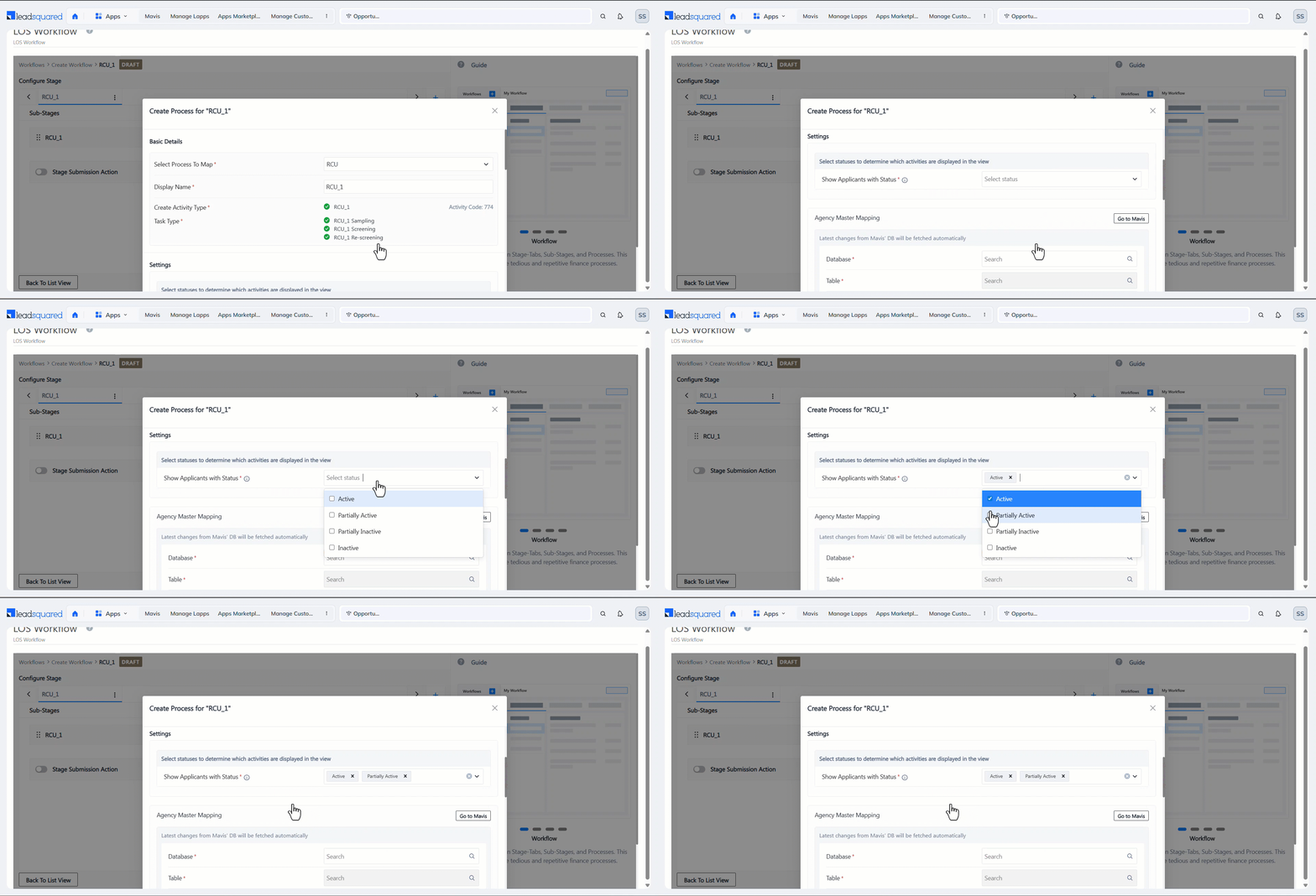
  3. Alongside the sub-stage, click the Process button, and on the Create Process screen, configure the following Basic Details
    1. Select Process to Map – Select RCU.
    2. Display Name* – Enter a display name for the activity.
    3. Create Activity Type – Click the Create Activity Type button. This creates an activity type for the RCU check. This activity is posted on the Opportunity Details page when the RCU process is initiated.
    4. Create Task Type – Click the Create Task Type button to create task types for Sampling, Screening, and Re-screening. These tasks are assigned to your RCU team.
Note: *Each Display Name (Stage, Sub-stage, and Process) must be unique when compared to other LOS workflows. Within the same workflow, however, the Stage, Sub-stage, and Process can share the same Display Name (as shown in the GIF below).

LeadSquared Loan Origination System RCU


7. Sub-stage Settings

This setting determines which applicants appear in the RCU process based on their application status. From the Show Applicants with Status dropdown, select the applicant statuses that appear. For example, if you select “Active” and “Partially Active”, only applicants with those statuses appear.

LeadSquared Loan Origination System RCU


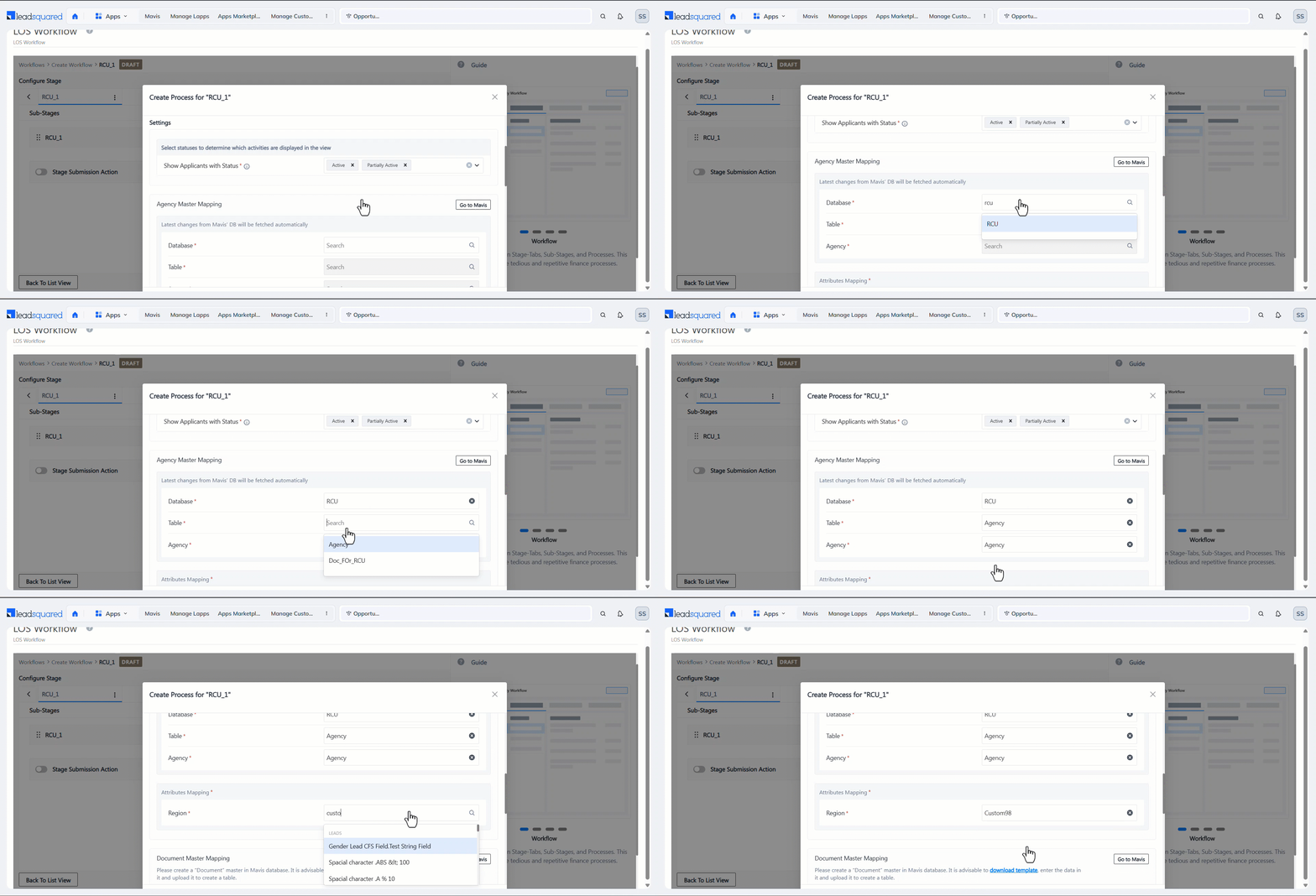
8. Agency Master Mapping

This setting links the Agency dropdown to the Mavis DB table that stores the list of external verification agencies. These are the agencies that carry out the RCU checks on behalf of your business. These agencies are shown to your users during the RCU checks.

  1. Database – Select the Mavis Database that hosts the agency details table.
  2. Table – Select the Mavis Table that hosts the agency details.
  3. Agency – In the RCU process, select whether to show the –
    • Agency – The external verification agency name from the table.
    • Region – The region where the agency operates.
  4. Attribute Mapping – Link queryable fields in the Mavis table to opportunity or lead fields that contain the same values. When you select a value in the opportunity field, the system fetches the corresponding data from the table.
    For example, if the Mavis table has a queryable Region column (with values North, South, East, West) mapped to a “Region” custom opportunity field, the Region dropdown during sampling shows only agencies tagged to the selected region. If you select “West” in the opportunity field, only agencies tagged to West in the Mavis table appear.

LeadSquared Loan Origination System RCU


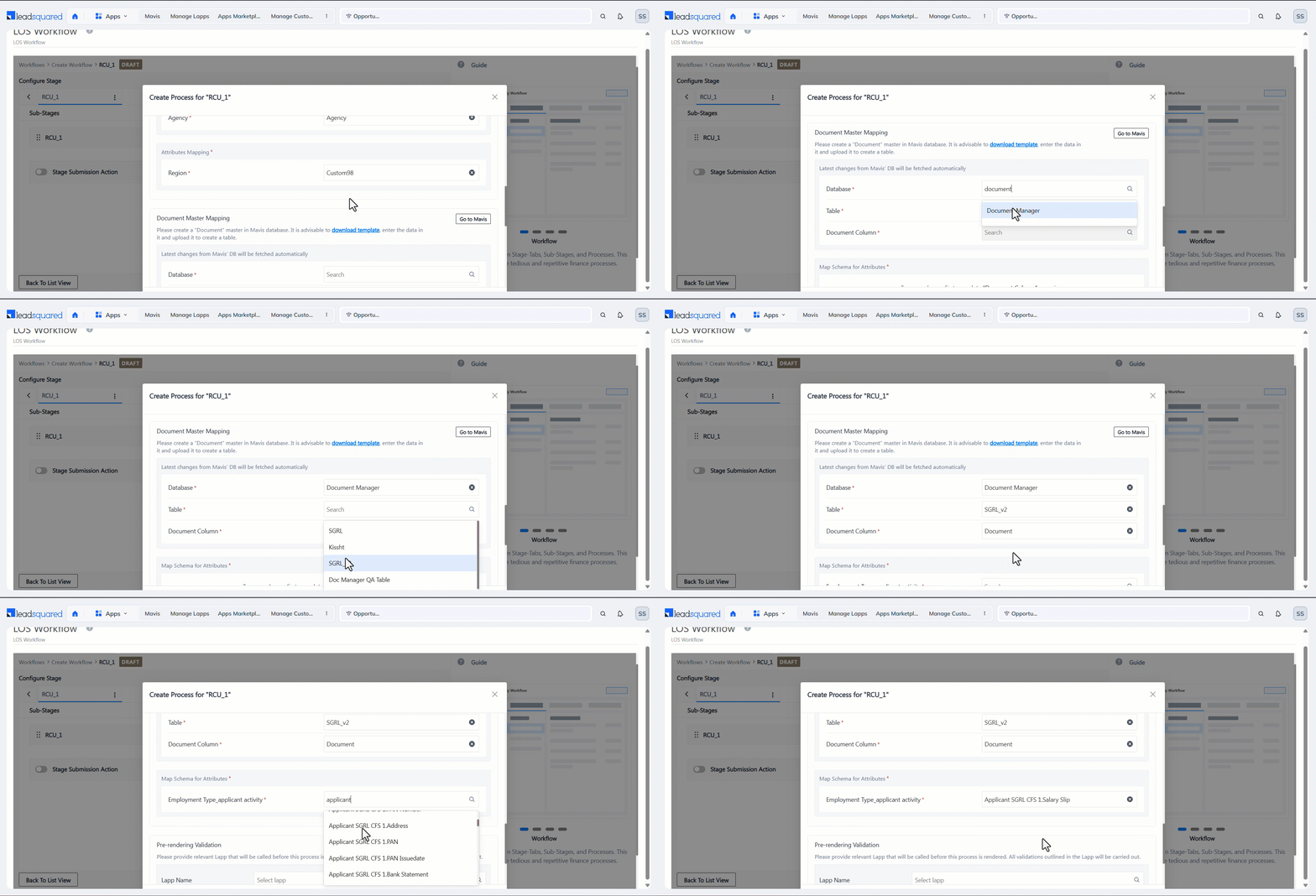
9. Document Master Mapping

This setting links the Document Checklist in the RCU process to the Mavis DB table that defines the list of documents to verify.

  1. Database – Select the Mavis Database that hosts the checklist table.
  2. Table – Select the Mavis Table that hosts the checklist.
  3. Document Column – Select the table column that hosts the documents uploaded.
  4. Map Schema for Attributes – Link queryable fields in the Mavis table to opportunity or lead fields that contain the same values. When you select a value in the opportunity field, the system fetches the corresponding data from the table. This is optional.
    For example, if the Mavis table has a queryable Employment Type column (with values Salaried, Self-Employed, Retired, etc.) mapped to an “Employment Type” custom opportunity field, the Employment Type dropdown during sampling shows only documents tagged to the selected type. If you select “Self Employed” in the opportunity field, only documents uploaded by Self Employed applicants appear.
Note: We recommend you download and use the sample database to create your Mavis DB.

LeadSquared Loan Origination System RCU


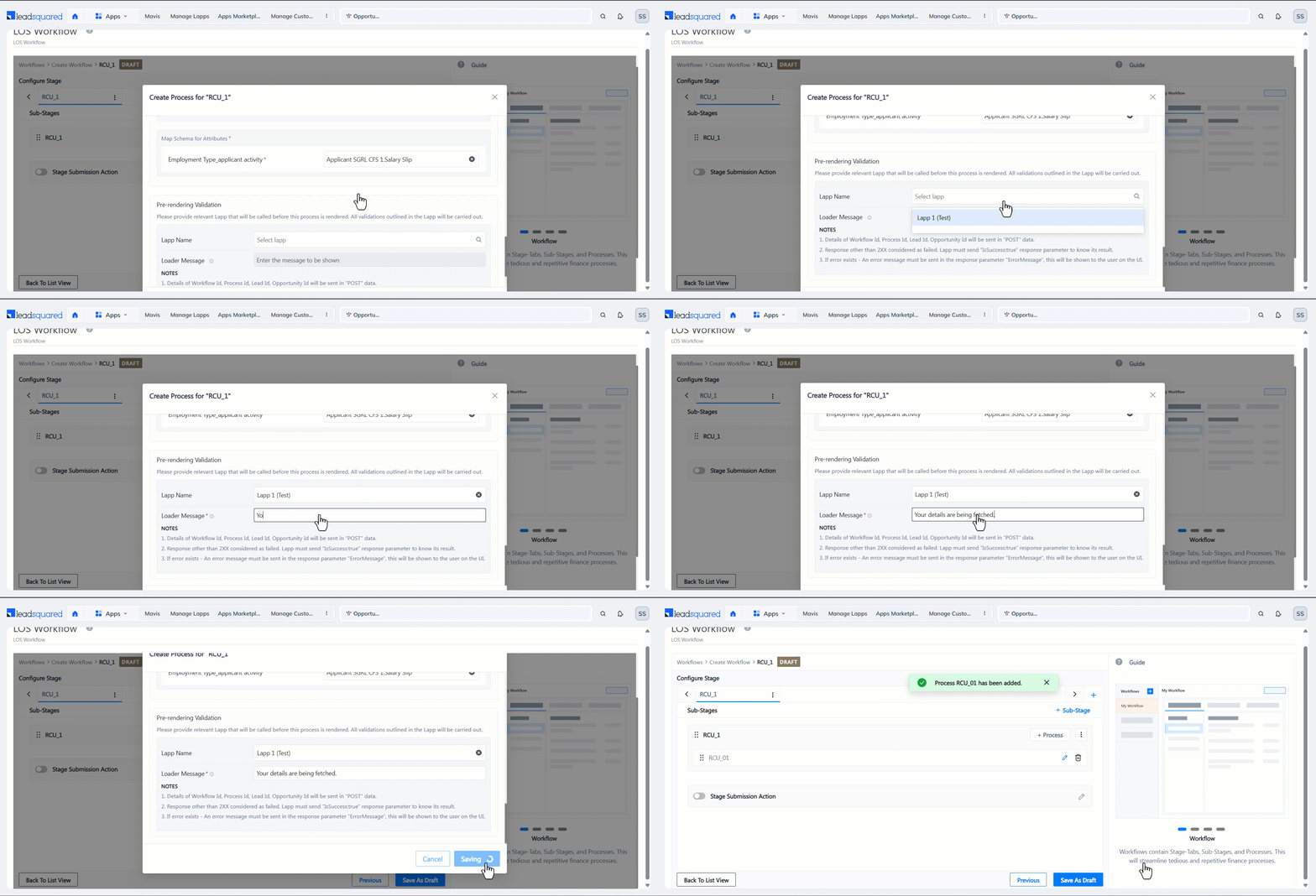
10. Pre-rendering Validation

This is optional. You can link a Lapp with the RCU process. The system executes this Lapp before the RCU process starts. For example, you can use a Lapp to validate that all mandatory KYC documents have been uploaded against the opportunity before the RCU process begins. If any are missing, the Lapp can block the RCU initiation and prompt the user to complete the uploads first. To do this –

  1. Lapp Name – Select a Lapp from your account.
  2. Loader Message – Enter the message shown to the agent while the Lapp runs in the background.
  3. Once you’re done, click Save.

LeadSquared Loan Origination System RCU


11. Stage Submission Action

This section is optional. Here, you can link a LeadSquared form that appears to the RCU agent when they complete the stage action and click Submit.

  1. Enable the slider to configure the actions that occur when a lead submits this stage of the loan application.
  2. Click the pencil icon, and on the Submission Action pop-up, enter the following details –
    • Submit Button Label – The display name for the submission button on the loan application form.
    • Button on Click Event – The action performed when the button is clicked.
    • Map Dynamic Form – Select the LeadSquared form where you want to capture this data.
  3. Once you’re done, click Save.

LeadSquared Loan Origination System RCU


12. Publish the Workflow

Once it’s fully configured, click Save as Draft, then Publish the workflow.

LeadSquared Loan Origination System RCU


13. Next Steps

Once the set-up is complete, your agents can initiate the RCU process for customers, and complete the process on the Opportunity Details page.


Any Questions?

Did you find this article helpful? Please let us know any feedback you may have in the comments section below. We’d love to hear from you and help you out!

Rename the Opportunity Entity

1. Feature Overview

Users can rename the “Opportunity” module to match their business terminology. This is different from Opportunity Types, which are created from scratch in your account. For example, a bank can rename “Opportunities” to “Loans”, while Opportunity Types are called “Home Loans”, “Personal Loans”, “Education Loans”, and so on. This helps align the system with your business language and makes it easier for users to understand and adopt opportunities easily.

Note: Even after you rename opportunities, all admin settings, reports, and configurations will continue to use “Opportunity”.


2. Prerequisite

You must be the Administrator of your LeadSquared account.


3. Rename Opportunities

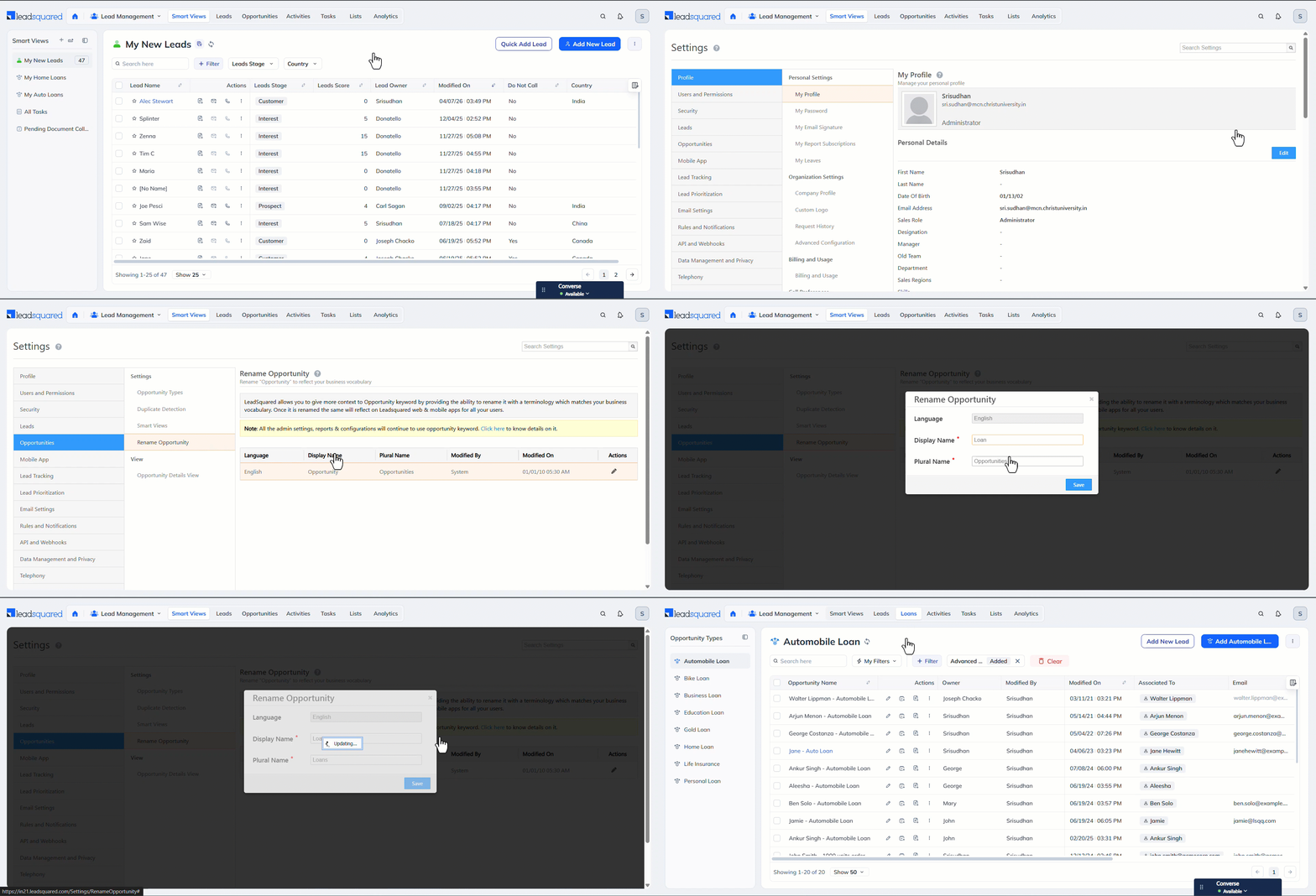
  1. Navigate to My Profile>Settings>Opportunities>Rename Opportunities.
  2. On the Rename Opportunity tab, under Actions, click the edit icon.
  3. On the pop-up, update the Display Name and Plural Name, and click Save.
  4. On the Confirmation pop-up, click Yes. This completes the renaming process.

Note: The name change can take up to one hour to reflect in your account.

LeadSquared Opportunitites


Any Questions?

Did you find this article helpful? Please let us know any feedback you may have in the comments section below. We’d love to hear from you and help you out!

Export up to a Million Opportunities

1. Feature Overview

By default, you can export up to 100,000 opportunities in a single request. To export more than 100,000 (and up to one million) opportunities, enable the Auto ID field on your Opportunity Type.

This lets you segment opportunities using Auto ID ranges and export them in smaller, manageable batches, ensuring you don’t miss any records.

Note: To export opportunities from the Manage Opportunities page, refer to Export Opportunities.


2. Prerequisites

  • You must be an admin to export up to one million opportunities from your account.
  • To increase the export limit to 1,000,000 opportunities, contact your account manager or write to support@leadsquared.com. This is mandatory.


3. How it Works

  1. To export up to a million opportunities, create and configure the Auto ID Opportunity Field for the opportunity type you want to export.
    • When configured, a unique and sequential number (1, 2, 3, and so on) is assigned to each opportunity in your account.
  2. On the Manage Opportunities page, set up an Advanced Search to find opportunities with the Auto ID between 1 and 1,000,000.
  3. Then, export these opportunities out of LeadSquared.
  4. Repeat this with the next range for larger datasets (where the Auto ID is between 1,000,001 to 2,000,000, and so on).


4. What are Auto IDs

Auto IDs are system-generated numbers assigned to every opportunity in a single, global sequence for opportunities across all Opportunity Types in your account. They are not sequential within a single opportunity type, so IDs may appear skipped because some are assigned to opportunities under other types.

For example, the Auto ID for the first five “Home Loan” opportunities could be 2, 3, 5, 7, 10, and for the first five “Personal Loan” opportunities could be 1, 4, 6, 8, 9.

This remains the most reliable way to segment and export large volumes of data.


5. Configure the Auto ID Field

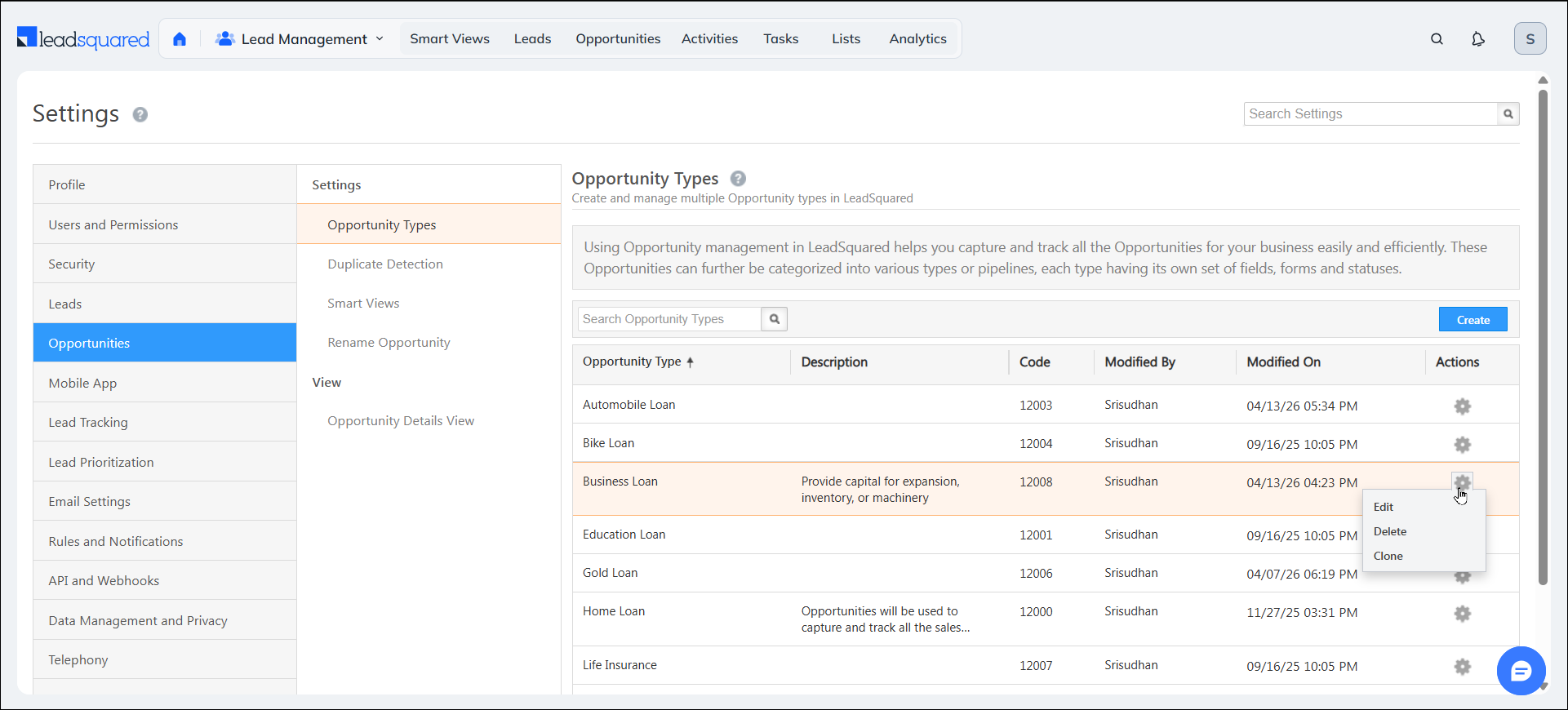
  1. Navigate to My Profile>Settings>Opportunities>Opportunity Types.
  2. Alongside the Opportunity Type you want to export, hover over the settings icon and click Edit.
  3. On the Field Configurations tab, click Add Field.
  4. Choose the data type Auto ID and set a display name (e.g., “Opportunity Number”).
  5. Click Next, and then click Save.
Note: Before you create the Auto ID field, enable the Enable Enhanced Data Type for Opportunity Advanced Configuration setting. This is mandatory.

LeadSquared Opportunitites


6. Display the Auto ID Column

  1. Go to Lead Management>Opportunities>Opportunity Type you want to export.
  2. Click the Manage Columns icon.
  3. Enable the checkbox for the Auto ID field (which was named “Opportunity Number” in the previous section).
  4. You can now sort opportunities by Auto ID.

LeadSquared Opportunitites


7. Filter and Export Opportunities Using Auto ID

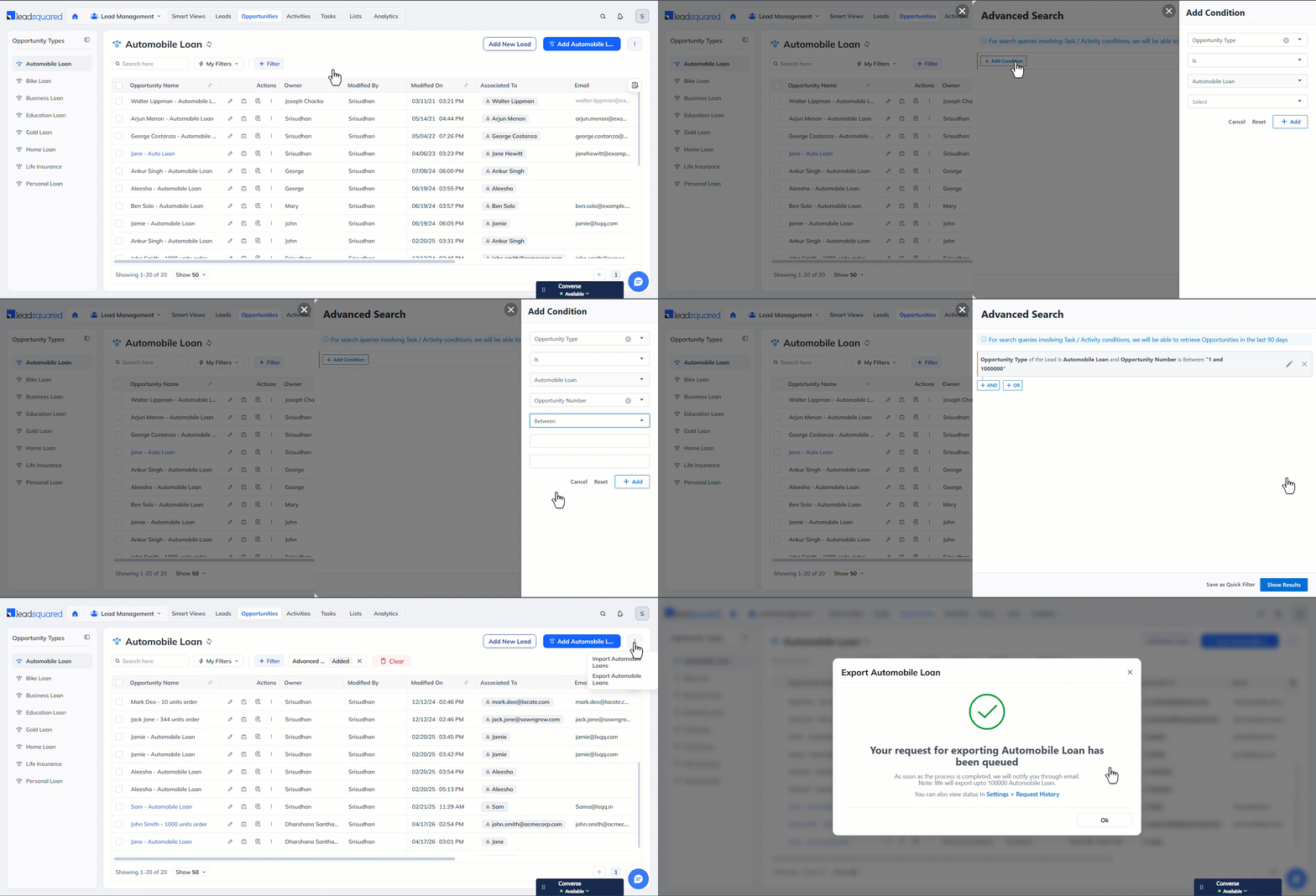
  1. On the Manage Opportunities page, click Filter, and then click Advanced Filters.
  2. On the Advanced Search tab, add a condition: Auto ID is between 1 and 1000000.
  3. Click Add Condition, and then Show Results.
  4. The page now displays all the opportunities between 1 and 1,00,000.
  5. To export these opportunities, hover over the three-dots menu and click Export Opportunities.
Note: Even though the Auto ID range includes IDs from other Opportunity Types, this is the best way to ensure you do not miss any records.

LeadSquared Opportunitites


8. Export Beyond the first Million Opportunities

  1. To export more than 1,000,000 opportunities, update the Advanced Search Auto ID range to Auto ID is between 1000001 and 2000000, then export the results.
  2. Then: 2000001 to 3000000, and export the results and so on.


9. FAQs

Q. Why are some Auto ID numbers missing from my export?
Auto IDs are globally assigned across all opportunity types. So, within a single opportunity type, some numbers might be skipped if other opportunity types used them.

Q. Can I export opportunities with filters other than Auto ID?
Yes, but for large exports across millions of records, Auto ID is the most efficient way to paginate without missing any data.

Q. I don’t see the Auto ID option while adding a field. Why?
Make sure you select the correct data type (Auto ID) when creating the field. If it’s missing, reach out to support@leadsquared.com for help.


Any Questions?

Did you find this article helpful? Please let us know any feedback you may have in the comments section below. We’d love to hear from you and help you out!

Manage Opportunities Page

1. Feature Overview

The Manage Opportunities page shows the list of opportunities created for each Opportunity Type. On this page, users can perform actions like adding new opportunities, updating opportunities in bulk, importing and exporting opportunities, adding advanced search filters, customising visible columns, and adding new leads directly. This helps users manage large volumes of opportunities from a single view, reduce manual effort, and convert opportunities into paid deals faster.


2. Prerequisite

Your Admins must configure Opportunity Types on your account.


3. Access the Page

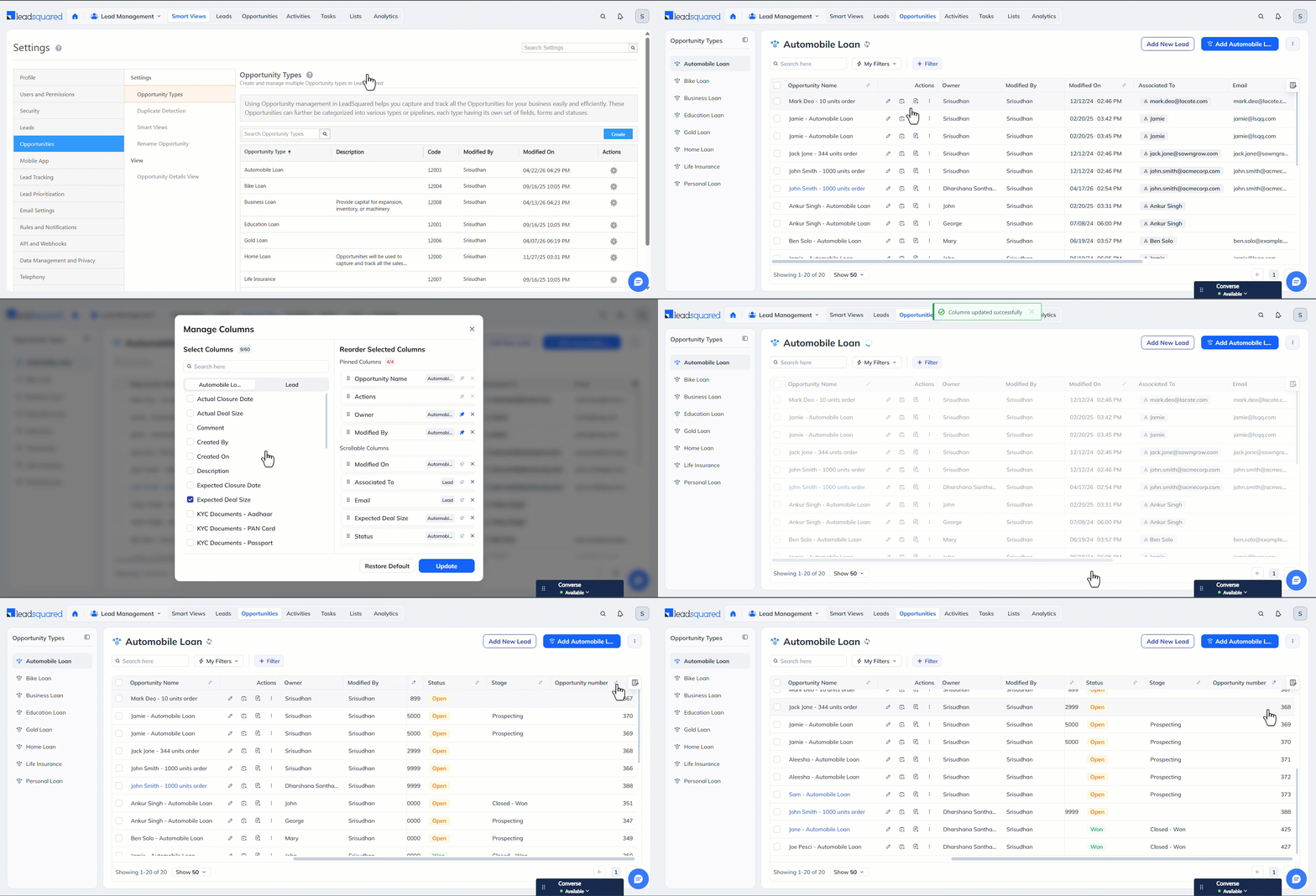
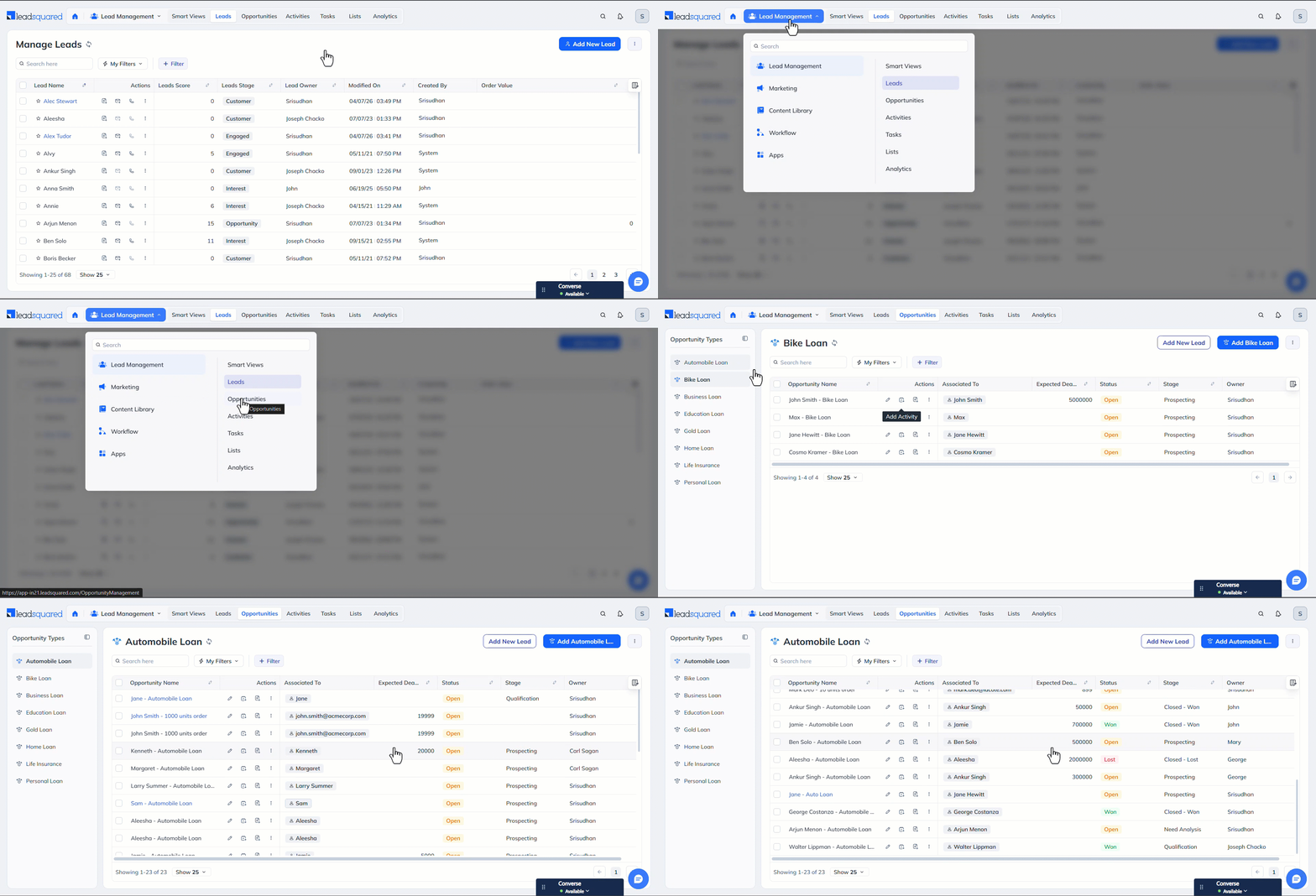
To access the Manage Opportunities page, navigate to Lead Management>Opportunities, and from the left panel, select the opportunity type you want to view. This is the Manage Opportunities page (Bike Loan and Automobile Loan, as shown in the GIF below).

LeadSquared Opportunitites


4. Add Opportunity

For a specific opportunity type, you can manually add individual opportunities from the Manage Opportunities page –

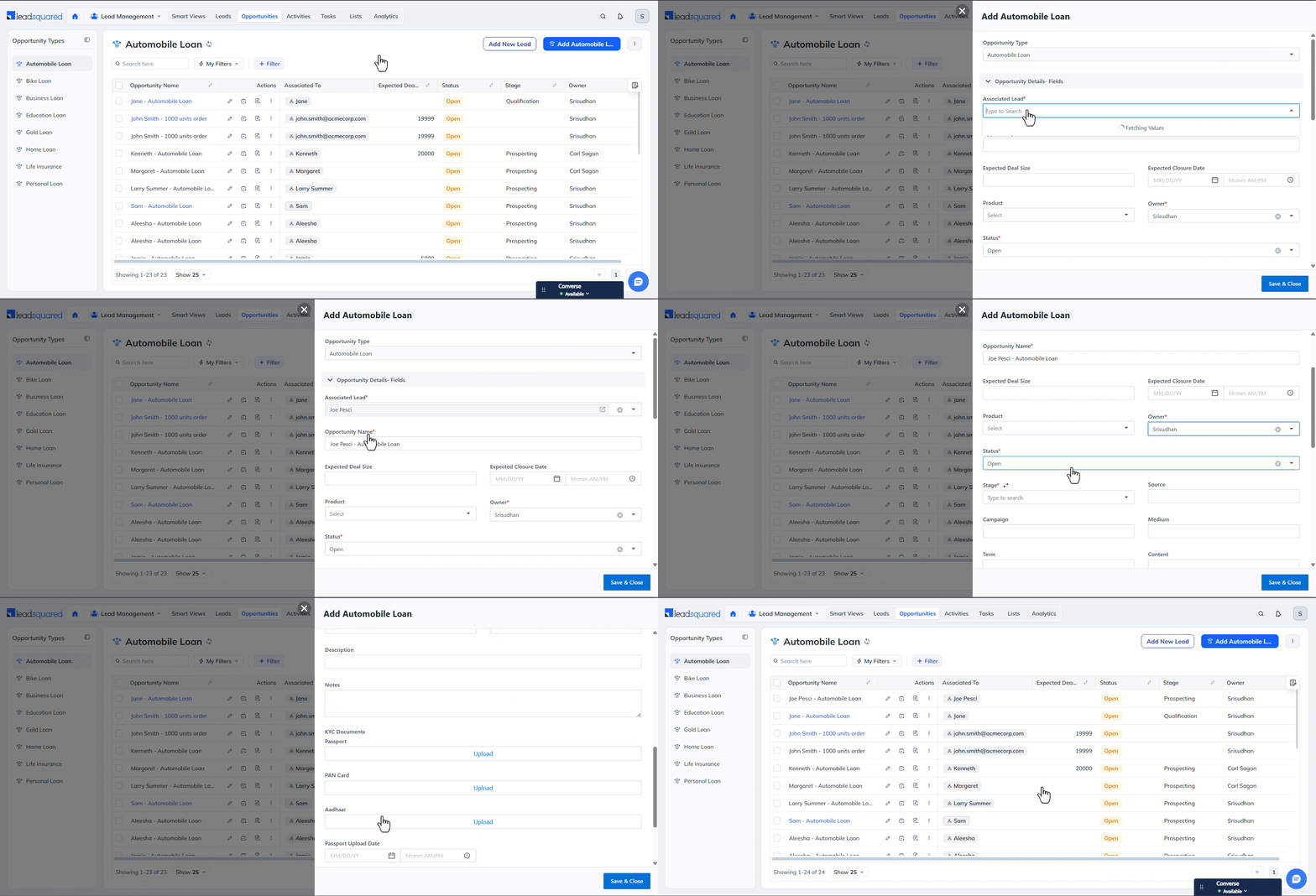
  1. On the Manage Opportunities page, click the Add Opportunity button.
  2. On the Add Opportunity form, add the mandatory details (like lead name, opportunity name, status, etc.) and any other relevant details.
  3. Once you’re done, click Save & Close.
Note: Your account admin must configure the opportunity capture form.

LeadSquared Opportunitites


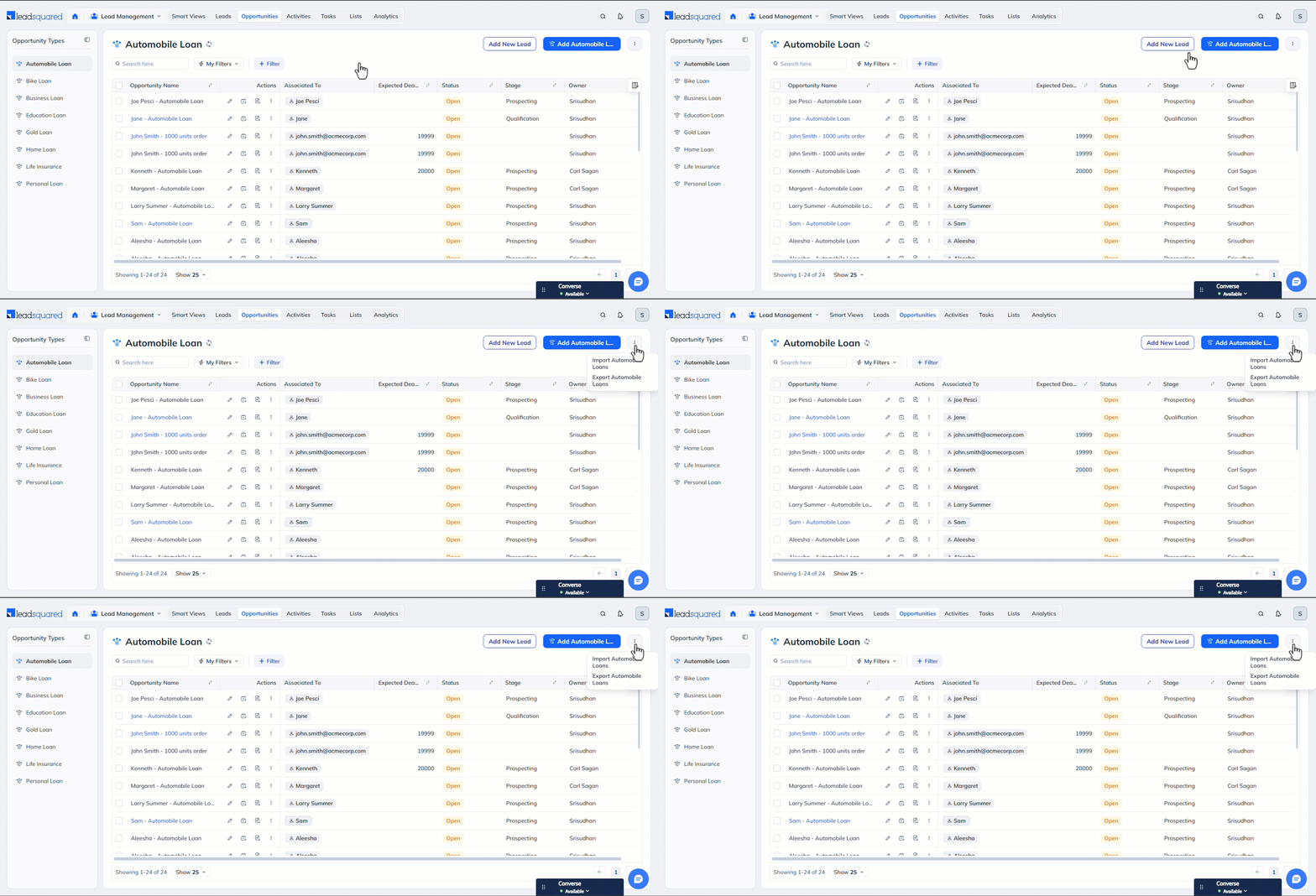
5. Import and Export Opportunities

LeadSquared Opportunitites


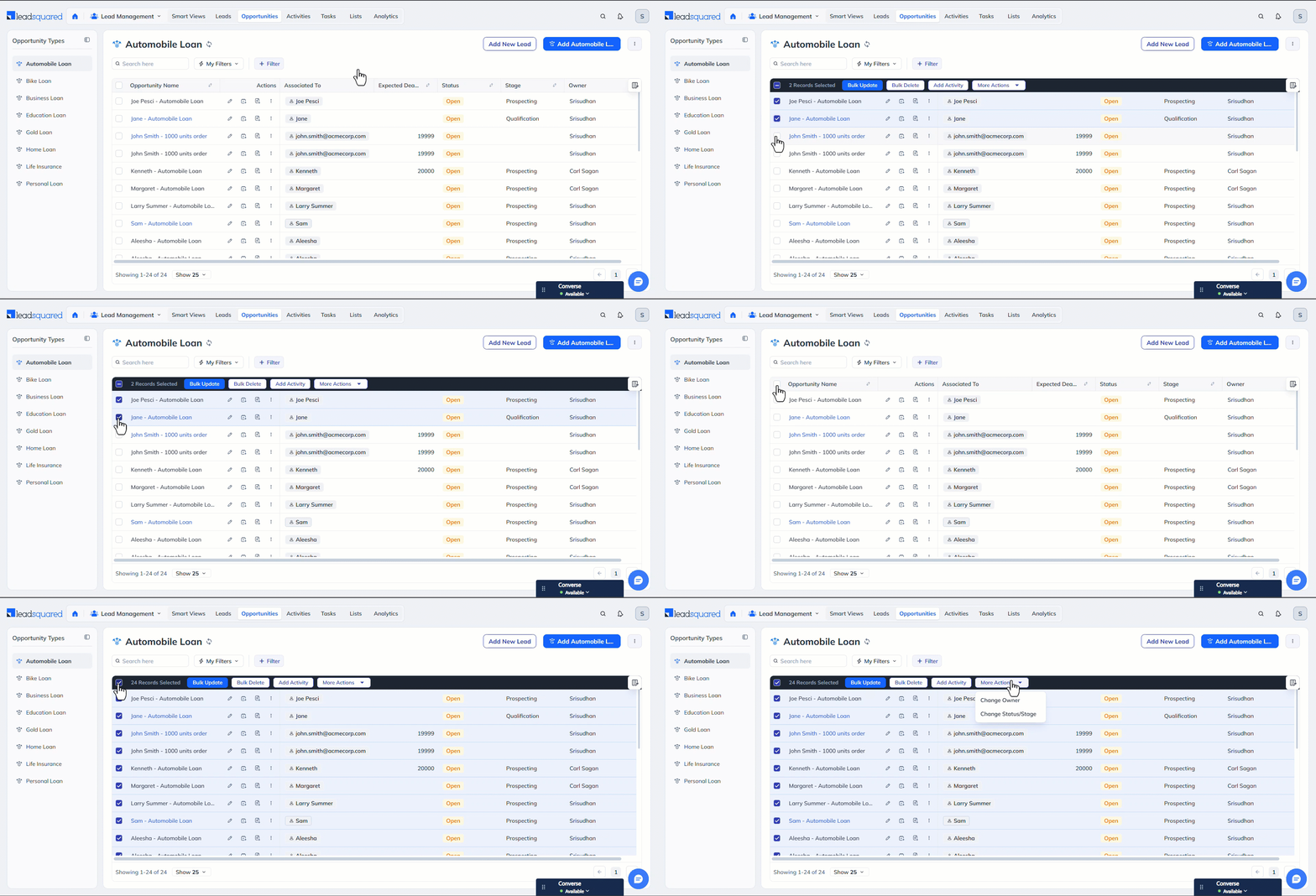
6. Bulk Actions

Select the list of opportunities on which you want to perform the following bulk actions –

Note: To perform bulk actions on all opportunities visible on the page, click the checkbox next to Opportunity Name.

LeadSquared Opportunitites

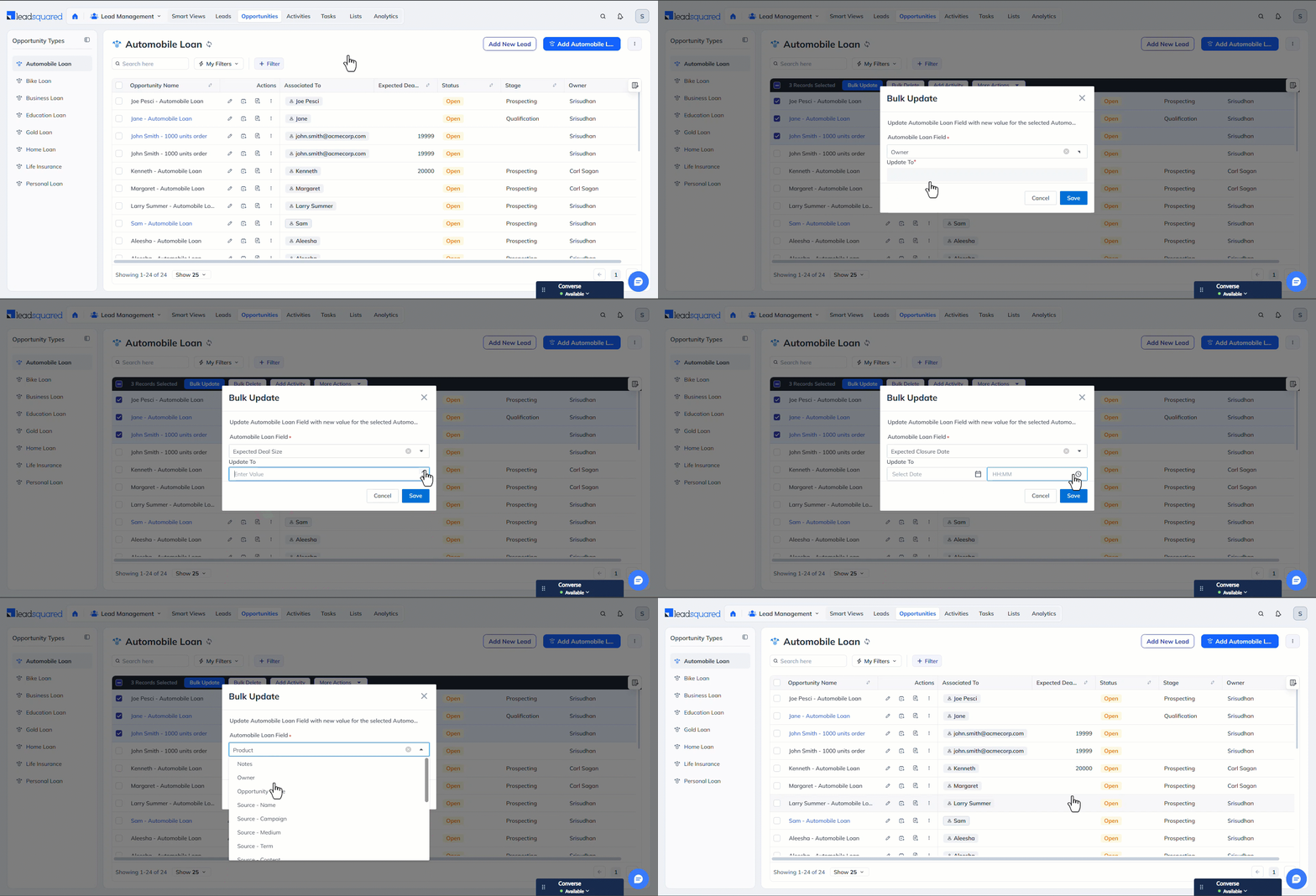
6.1 Bulk Updates

Bulk update opportunity fields across multiple opportunities –

  1. On the Manage Opportunities page, select the opportunities you want to update, and click Bulk Update.
  2. On the Bulk Update pop-up, select the opportunity field you want to update from the dropdown.
  3. In the Update To field, enter the new value for the field.
  4. Once you’re done, click Save. The new values are applied across the selected opportunities.
Note: You can bulk update all opportunities visible on the page. The Manage Opportunities page supports pagination and displays up to 200 opportunities per page. To update more than just the visible fields, use Bulk Update Multiple Opportunity Fields via a CSV file.

LeadSquared Opportunitites

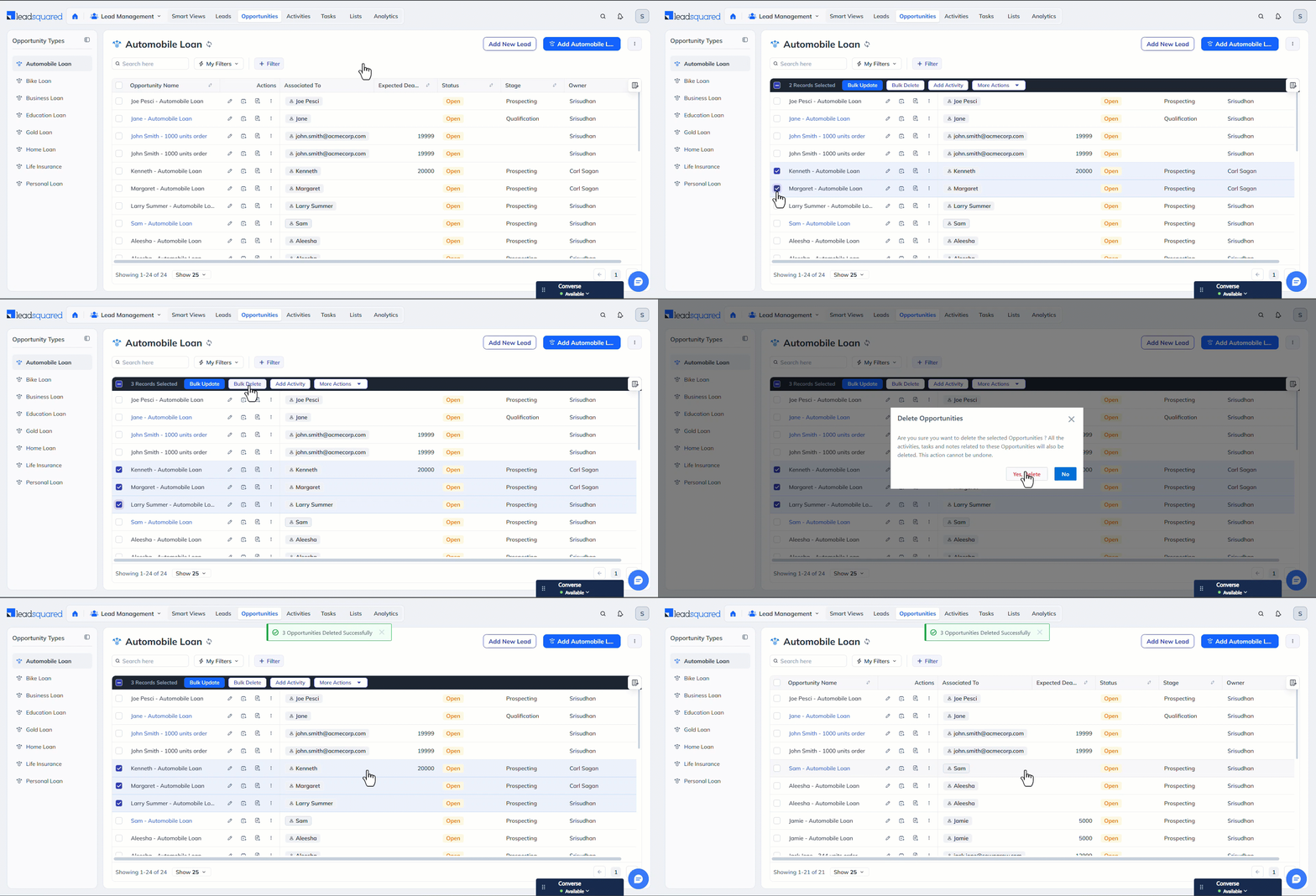
6.2 Bulk Delete

To delete opportunities in bulk –

  1. Select the opportunities you want to delete, and click Bulk Delete.
  2. On the Bulk Delete pop-up, click Yes, Delete. The selected opportunities are successfully deleted.
Note: For the Bulk Delete action to work, ensure the Allow Delete setting is enabled during Opportunity Configuration.
IMPORTANT: The delete action is permanent, and you cannot retrieve records once deleted.

LeadSquared Opportunitites

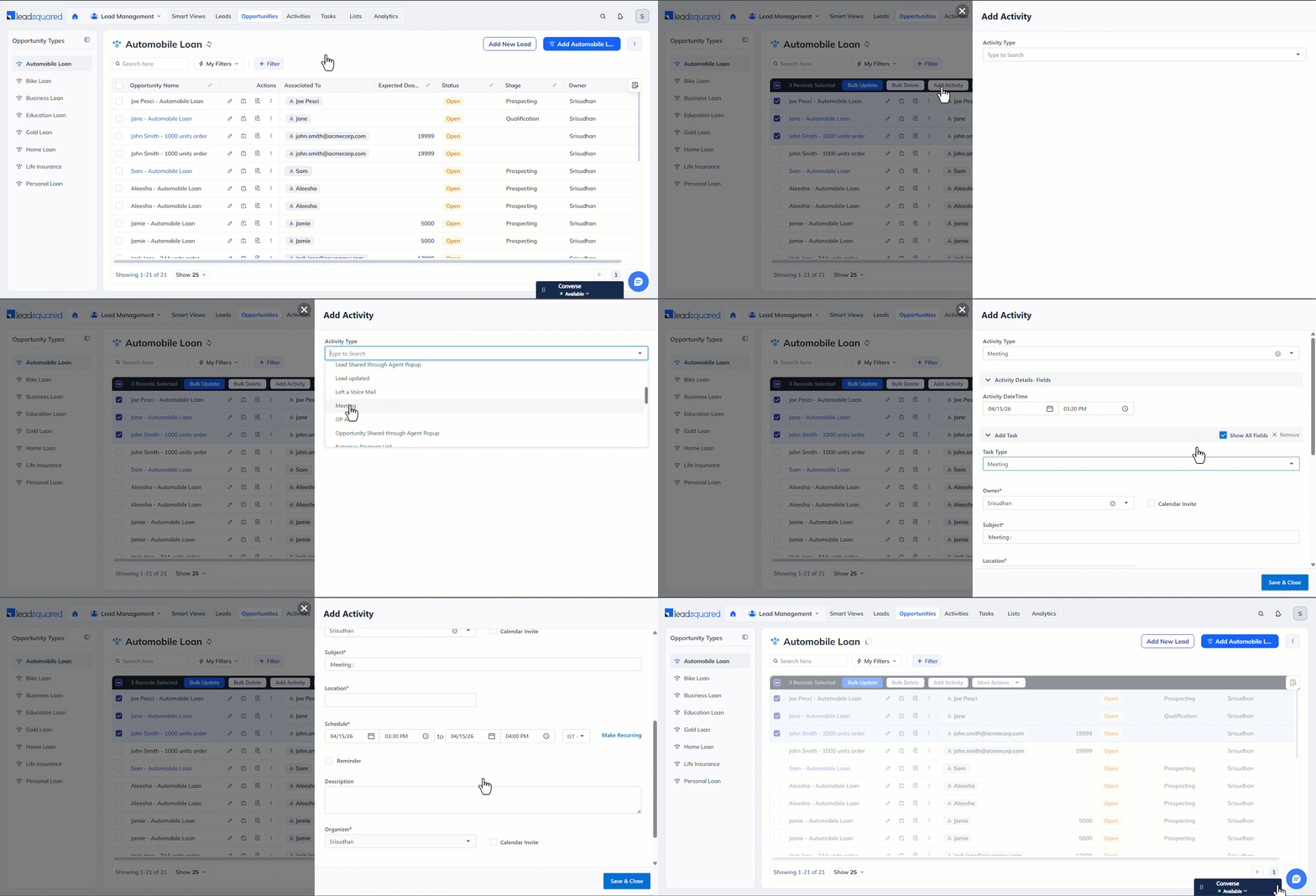
6.3 Add Activities and Tasks

To add custom activities, system activities and tasks in bulk to multiple opportunities –

  1. Select the opportunities, and click Add Activity.
  2. On the Add Activity pop-up, select the Activity Type you want to add from the dropdown.
  3. Add the relevant activity details.
  4. You can also Add Tasks. Once you click the add button, select the Show All Fields checkbox.
  5. Select the Task Type, and add the mandatory and other relevant task details.
  6. Once you’re done, click Save & Close.

LeadSquared Opportunitites

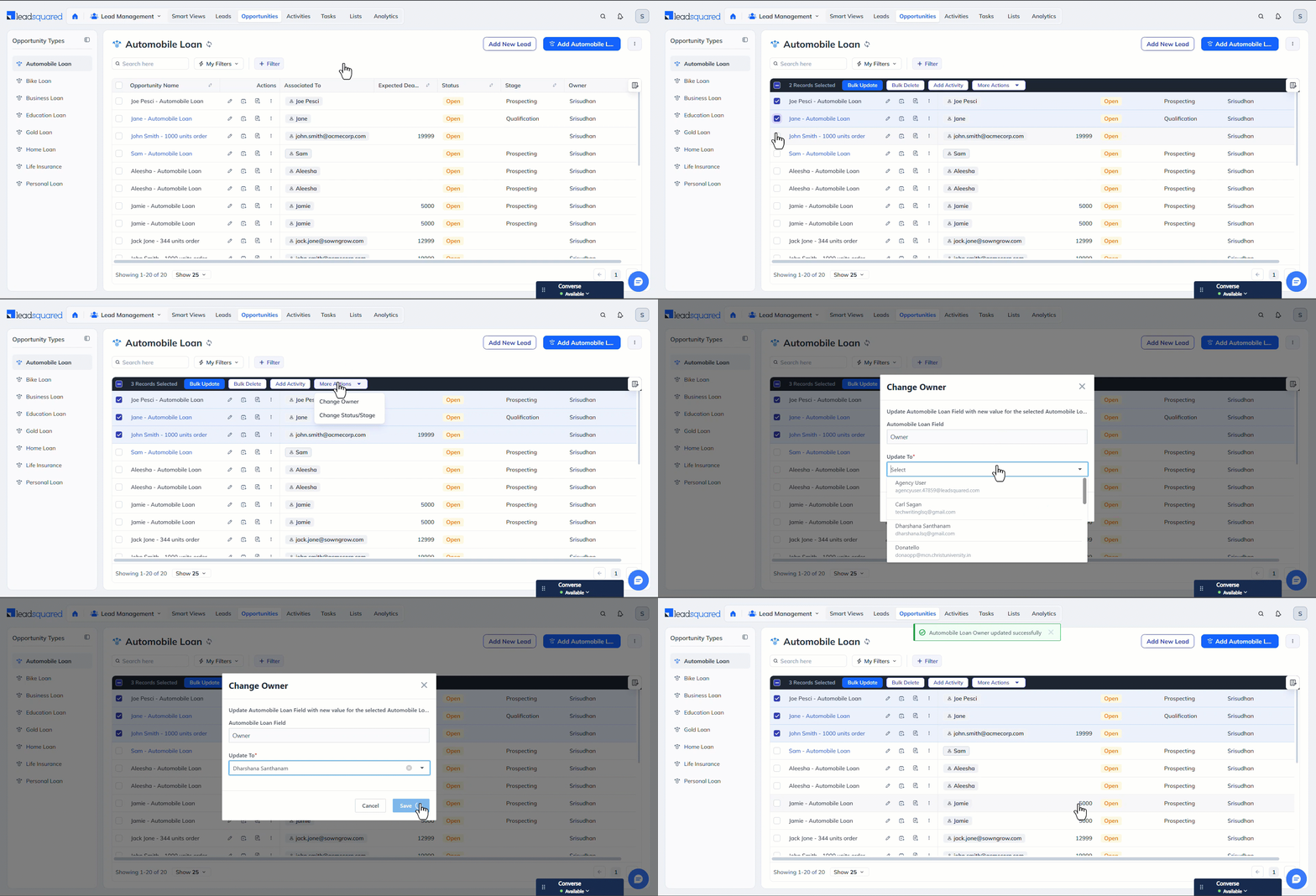
6.4 Change Owner

To update the opportunity owner in bulk –

  1. Select the opportunities, and hover over More Actions.
  2. Click Change Owner, and on the pop-up, select the new owner from the Update To dropdown.
  3. Once you’re done, click Save.

LeadSquared Opportunitites

6.5 Change Status and Stage

To update the opportunity Status and Stage –

  1. Select the opportunities, and hover over More Actions.
  2. Click Change Status/Stage.
  3. On the pop-up, from the Status and Stage dropdowns, select the updated values.
  4. Once you’re done, click Save.

LeadSquared Opportunitites


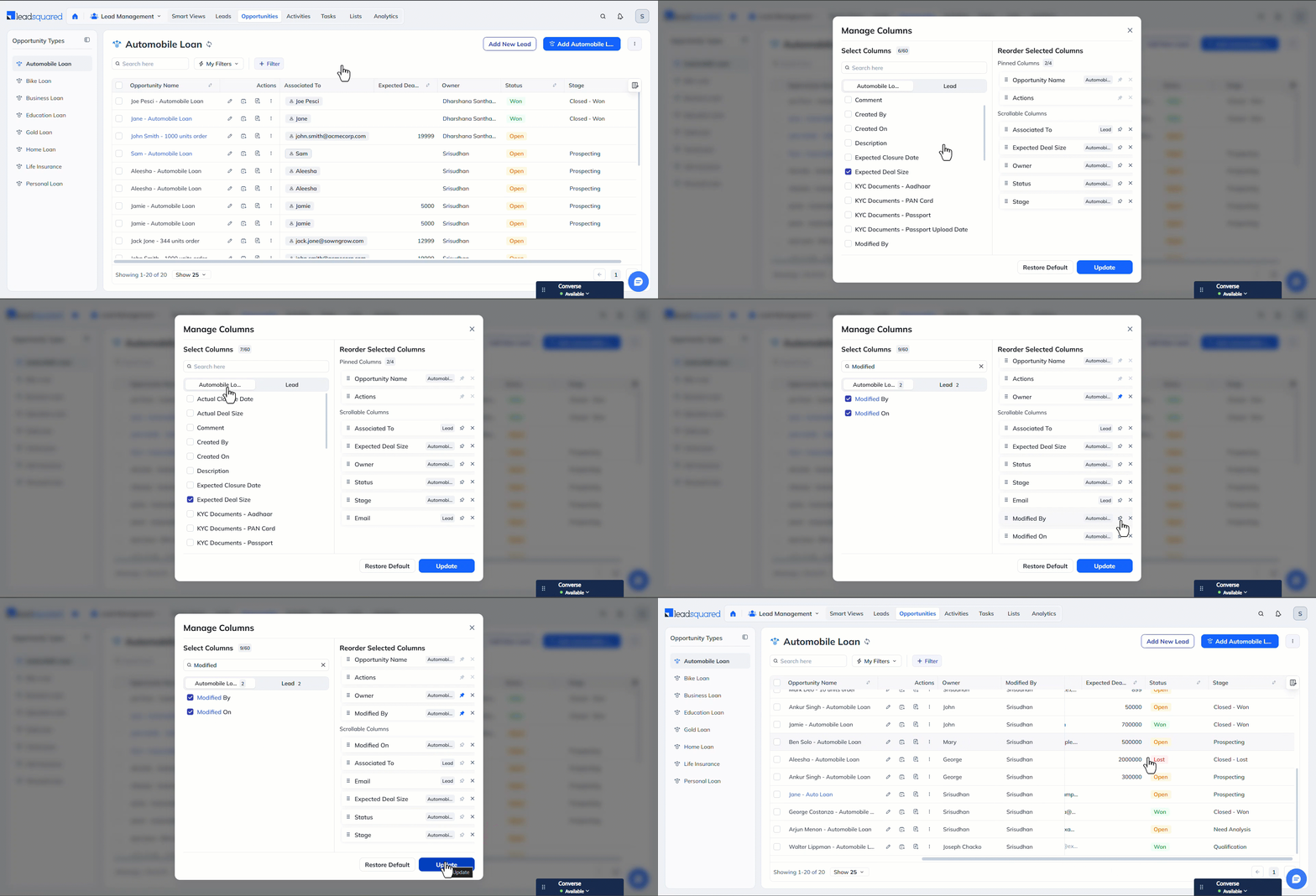
7. Manage Columns

Customise the columns on the Manage Opportunities page, including which opportunity and lead fields to display and their order.

  1. On the page grid, click the Manage Column button.
  2. On the pop-up, under the Select Columns tab, select the opportunity and lead fields you want to display.
  3. Under the Reorder Selected Columns tab, reorder the columns as you want them to appear.
    • You can pin up to four columns. Pinned columns remain fixed when you scroll left to right.
  4. Once you’re done, click Update.
Note: This view is visible only to the user who makes the changes, and each user can have their own customised view.

LeadSquared Opportunitites


8. Basic Search

Use the search feature to identify opportunities. The basic search feature has two parts –

  • Search bar – Search for opportunities using the opportunity name.
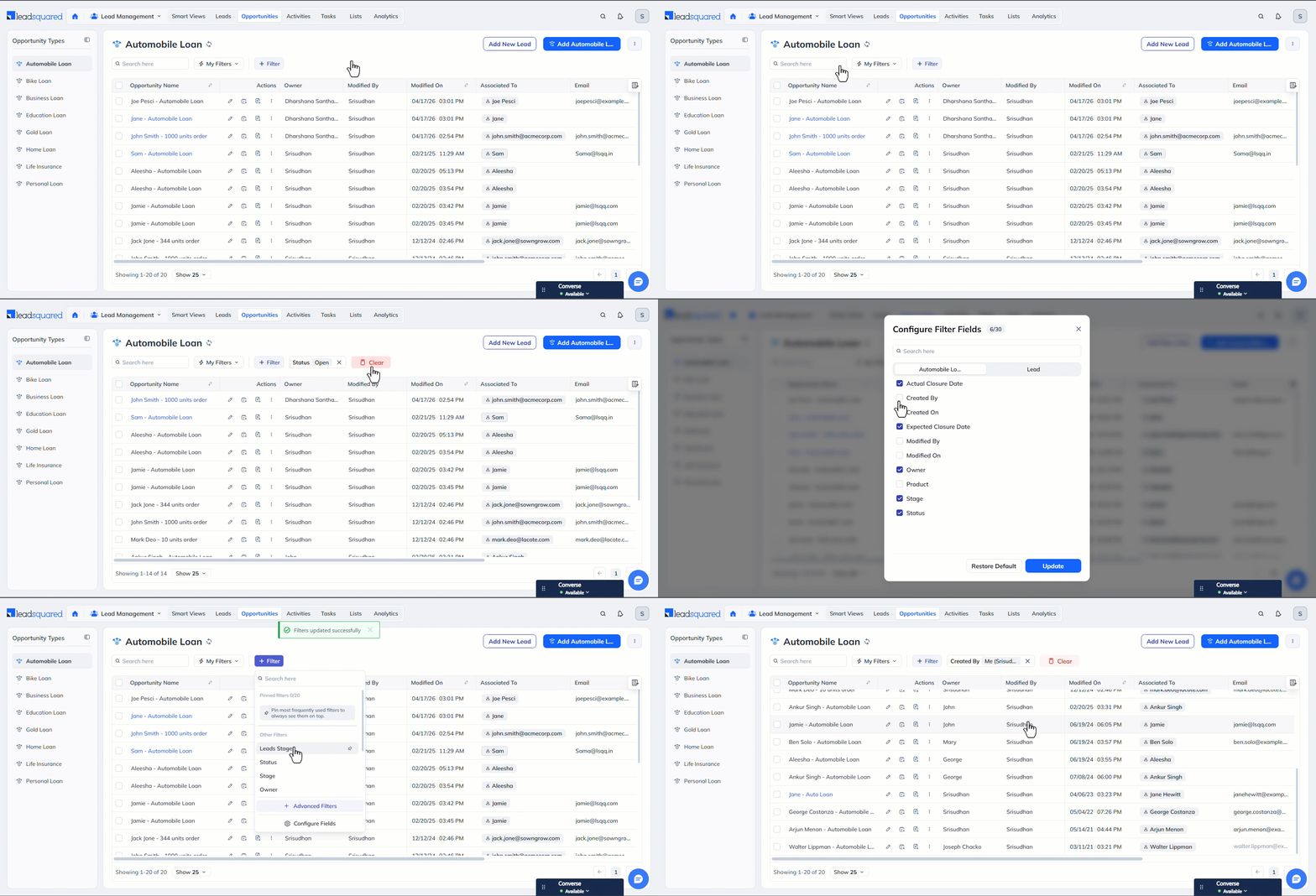
  • Filters – Filters are opportunity and lead fields you can apply on this page to retrieve opportunities. Once you select a field, enter the value it must contain. The system retrieves all opportunities that match these values. For example, select the Status filter with the value set to Open to view all matching opportunities.
  • Configure Filter Fields – Select the Filter options that are displayed on this page, and click Update. You can select up to 30 opportunity and lead fields. In the GIF below, we add Created By as a new filter and filter opportunities by the logged-in user (Me).

LeadSquared Opportunitites


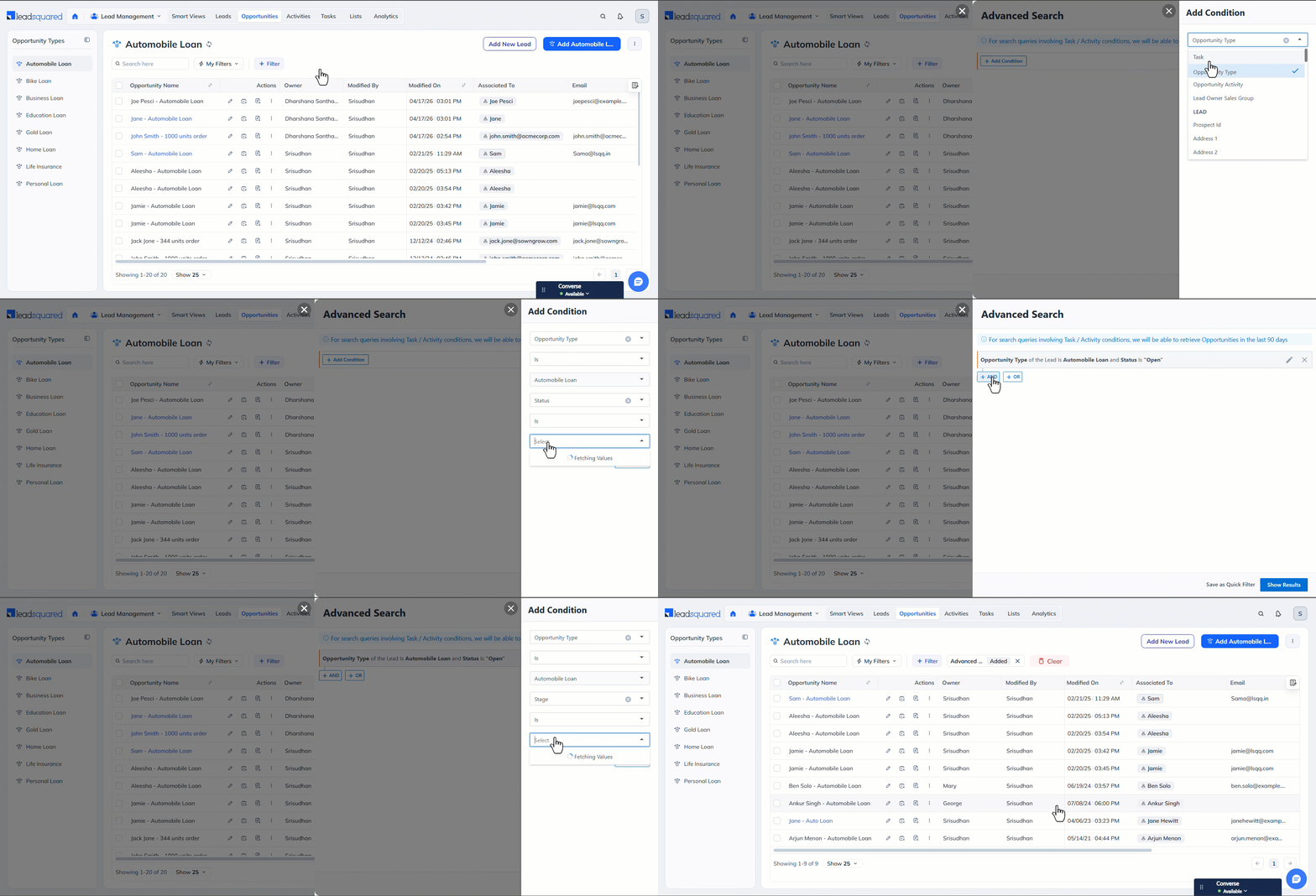
9. Advanced Search

The Advanced Search feature lets you identify opportunities that meet one or more opportunity and or lead filters. Search using both system and custom opportunity and lead fields.

When using this feature, you must add Rules and Groups, which are individual conditions used to identify opportunities

An example of a Rule is All Opportunities IF the Status is Open AND the Stage is Prospecting.

To use the Advanced Search feature –

  1. Click Filter, and then click Advanced Filters.
  2. On the Advanced Search pop-up, click Add Condition to add the Rule.
  3. The Opportunity Type dropdown is preselected. If required, you can change it to Opportunity Activity.
  4. The second dropdown is set to “Is” by default and you can update it only if you select Opportunity Activity in the previous dropdown.
  5. The opportunity name dropdown is selected by default and cannot be updated.
  6. On the fourth, fifth, and sixth dropdowns, select the opportunity field, the operator (Is, Is Not, Does Not Contain, etc.), and the value. You can select multiple values (if applicable).
  7. Once you’re done, click Add.
  8. Click Show Results or add more rules. When adding multiple rules, use the AND and OR operators.
    • AND – Opportunities that meet all the rules will be fetched.
    • OR – Opportunities that meet any of the rules will be fetched.
    • Here, we select “Status Is Open” AND “Stage is Prospecting, Qualification and Needs Analysis”.
  9. Once you’re done, click Show Results. The opportunities that fulfil the conditions are retrieved.

Note:

  • If you get an error notification while performing an Advanced Search with wildcard operators (ContainsDoes not containStarts with, and Ends with), you might have exceeded the rate limit. To know more, refer to Wildcard Search Limitations.
  • To save these search conditions, click Save as Quick Filter. Once saved, these filters are visible under My Filters. You can reuse these filters every time you visit the Manage Opportunities page. These filters are visible only to the user who creates them.

LeadSquared Opportunitites


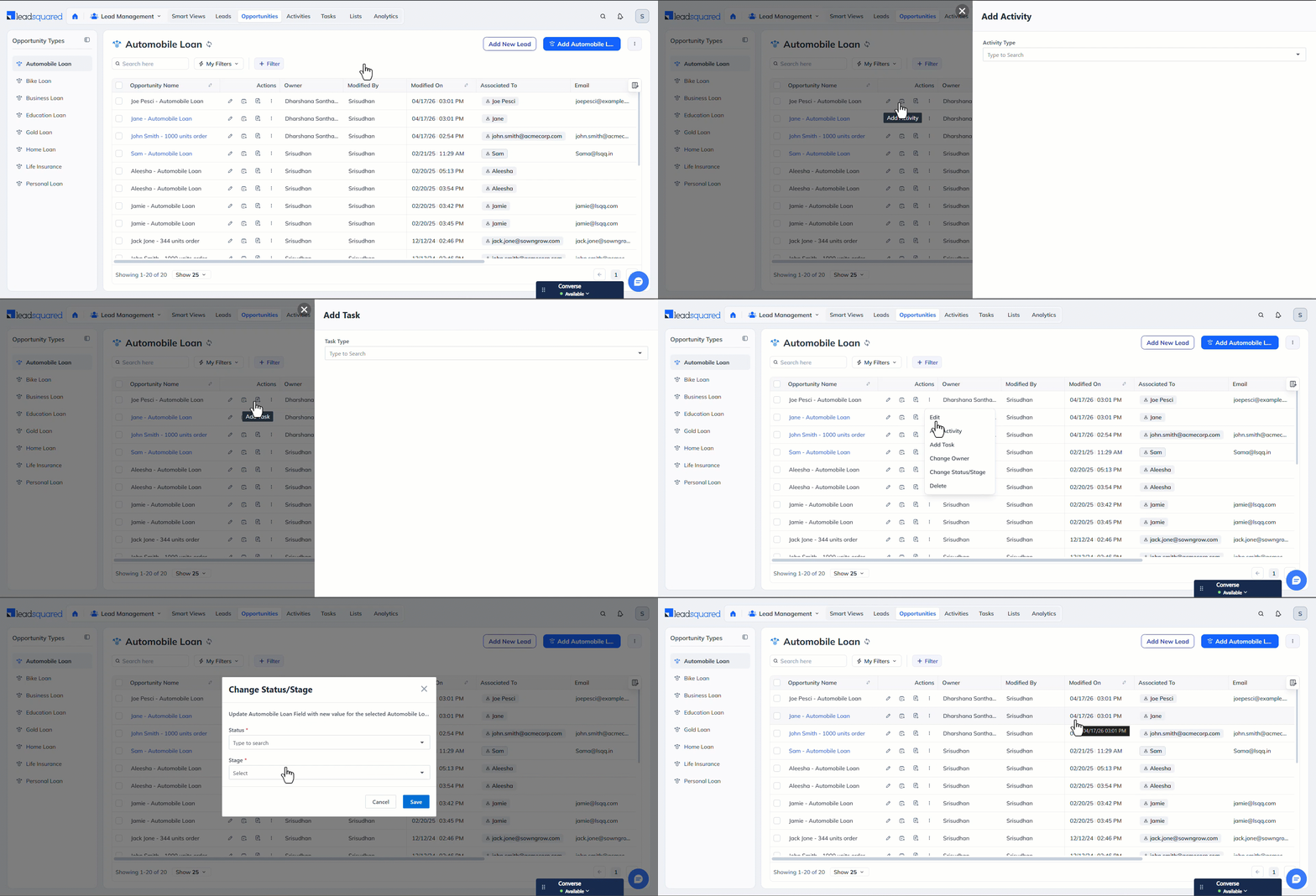
10. Individual Opportunity Actions

Alongside an individual opportunity, you can perform the following actions –

  • Edit – Edit the opportunity details.
  • Add Activity – Add an activity to the opportunity.
  • Add Task – Add tasks to the opportunity.
  • Hover over the three-dots menu to perform additional actions –
    • Change Owner – Update the opportunity owner.
    • Change Status/Stage – Update the opportunity status and stage.
    • Delete – Permanently delete the opportunity.

LeadSquared Opportunitites


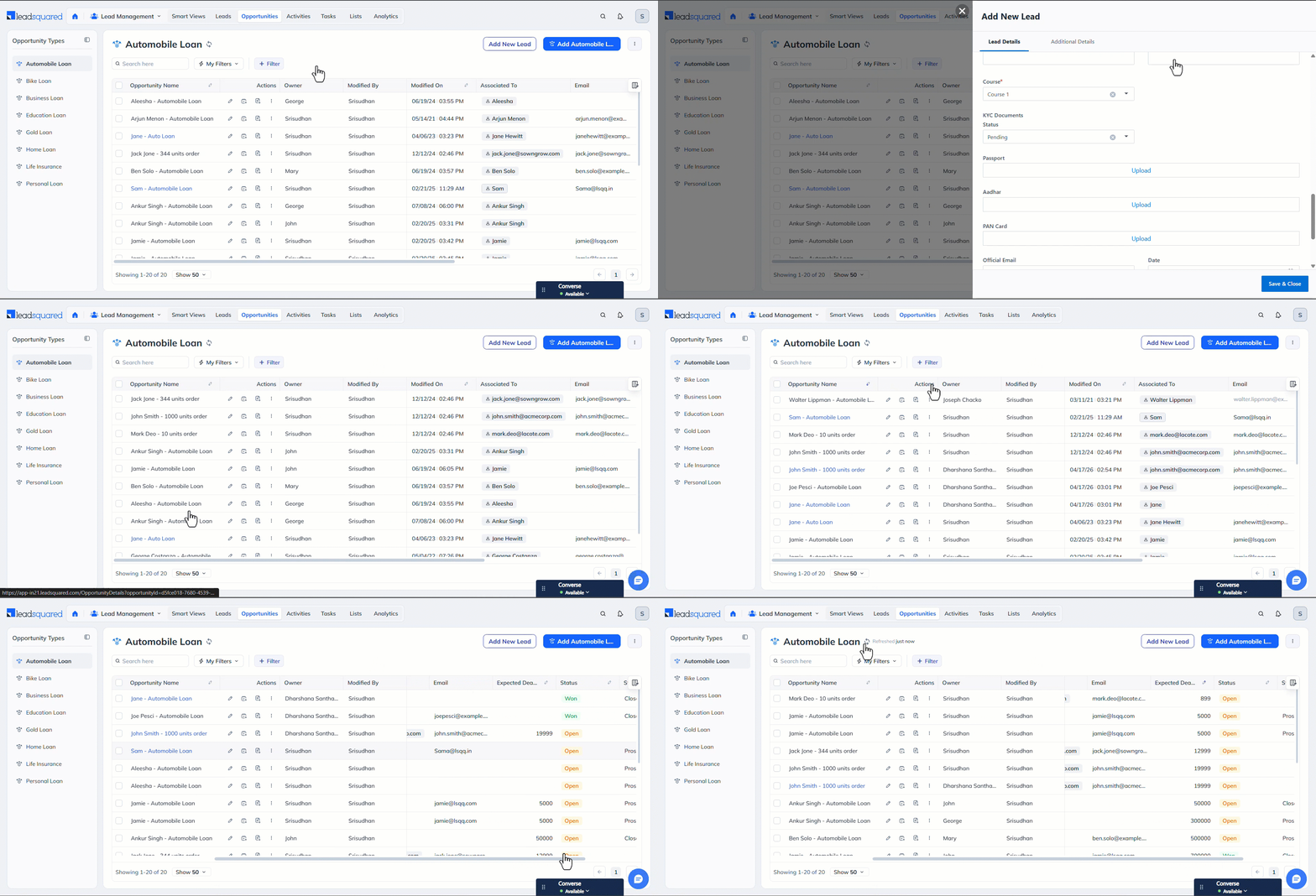
11. Other Actions

You can perform the following additional actions on the Manage Opportunities page –

  • Add New Lead – Lets you add a new lead directly from this page. When you create the lead, you can associate it with the opportunity type you’re currently viewing.
  • Pagination – Lets you control the number of opportunities displayed on the page. You can display up to 200 opportunities on a single page.
  • Refresh – Updates the page with the latest opportunity details.
  • Sorting – Let’s you sort the available columns in ascending or descending order –
    • Opportunity Name
    • Date columns (Created On, Modified On, etc.)
    • Number columns (Expected Deal Size, Actual Deal Size, etc.)
    • Status
    • Stage

LeadSquared Opportunitites


12. Next Steps

To work on individual opportunities, refer to Opportunity Details.


13. FAQs

1. Why Is the Opportunity Owner Changing Automatically?

  • Issue: The Opportunity Owner is being updated automatically, even though no automation or manual changes have been made.
  • Cause: This occurs if the Enable Change of Opportunity Owner on Lead Owner change is enabled in Advanced Configurations. When this setting is active, the Opportunity Owner automatically changes to match the Lead Owner whenever the Lead Owner is updated.
  • Solution:
    1. Navigate to Settings>Advanced Configuration in your LeadSquared account.
    2. Check if the Enable Change of Opportunity Owner on Lead Owner change setting is enabled.
    3. Disable the setting if you do not want the Opportunity Owner to change automatically when the Lead Owner changes.

2. Why Are Status and Stage Auto-Populating When Creating a New Opportunity?

  • Issue: If the Status and Stage fields are automatically filled in when creating a new opportunity in LeadSquared, it could be due to specific settings enabled in your account. These settings allow you to configure default values for Status and Stage, simplifying opportunity creation.
  • What to Check:
    • Advanced Configuration: Navigate to the Advanced Configuration section of your LeadSquared account and verify if the Enable Default Status and Change is turned on.
    • Opportunity Type Settings: Check the Opportunity Type configurations (navigate to the field level configurations for the status field)  to confirm whether a default Status and Stage have been pre-configured for new opportunities.

Enabling these settings can save time by pre-populating these fields, ensuring consistency across opportunities. However, if this behaviour isn’t desired, you can disable the default values in the settings.


Any Questions?

Did you find this article helpful? Please let us know any feedback you may have in the comments section below. We’d love to hear from you and help you out!

Opportunity Types Configuration

1. Feature Overview

Opportunities represent potential deals for products or services a lead shows interest in. Opportunity Types are the different products and services a business offers. For example, a bank may configure Opportunity Types such as Home Loan, Education Loan, Personal Loan, and Vehicle Loan.

Once you create these, you can set up workflows and assign user permissions to create opportunities under each type. Each opportunity type has its own Manage Opportunities page where you can view the list of opportunities for that type and create new opportunities. For example, if a lead shows interest in Home Loan and Personal Loan, the system creates two opportunities (e.g., “James Joyce – Home Loan” and “James Joyce – Personal Loan”) under each opportunity type.

Having different Opportunity Types helps you streamline the sales process for each offering, identify top-performing products, track pipeline performance more accurately, and assign opportunities to the right sales teams. To know more about opportunities, refer to Opportunity Management – Feature Guide.


2. Prerequisites

You must be the Administrator of your LeadSquared account to configure Opportunity Types.


3. How it Works

This article helps you create Opportunity Types in your account, and the steps to create them are –

  1. Basic Details – Name the opportunity type and configure basic permissions for your users for this opportunity type.
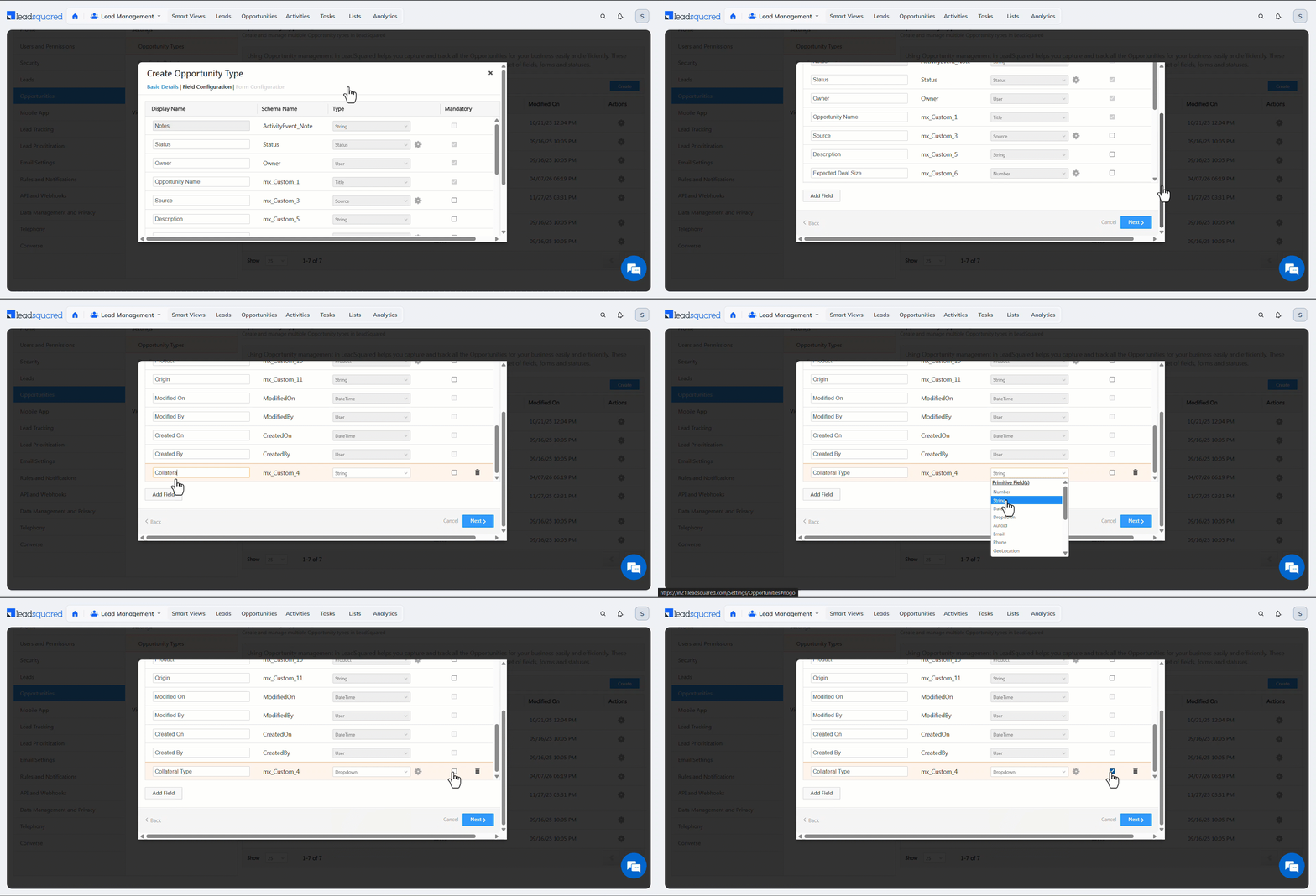
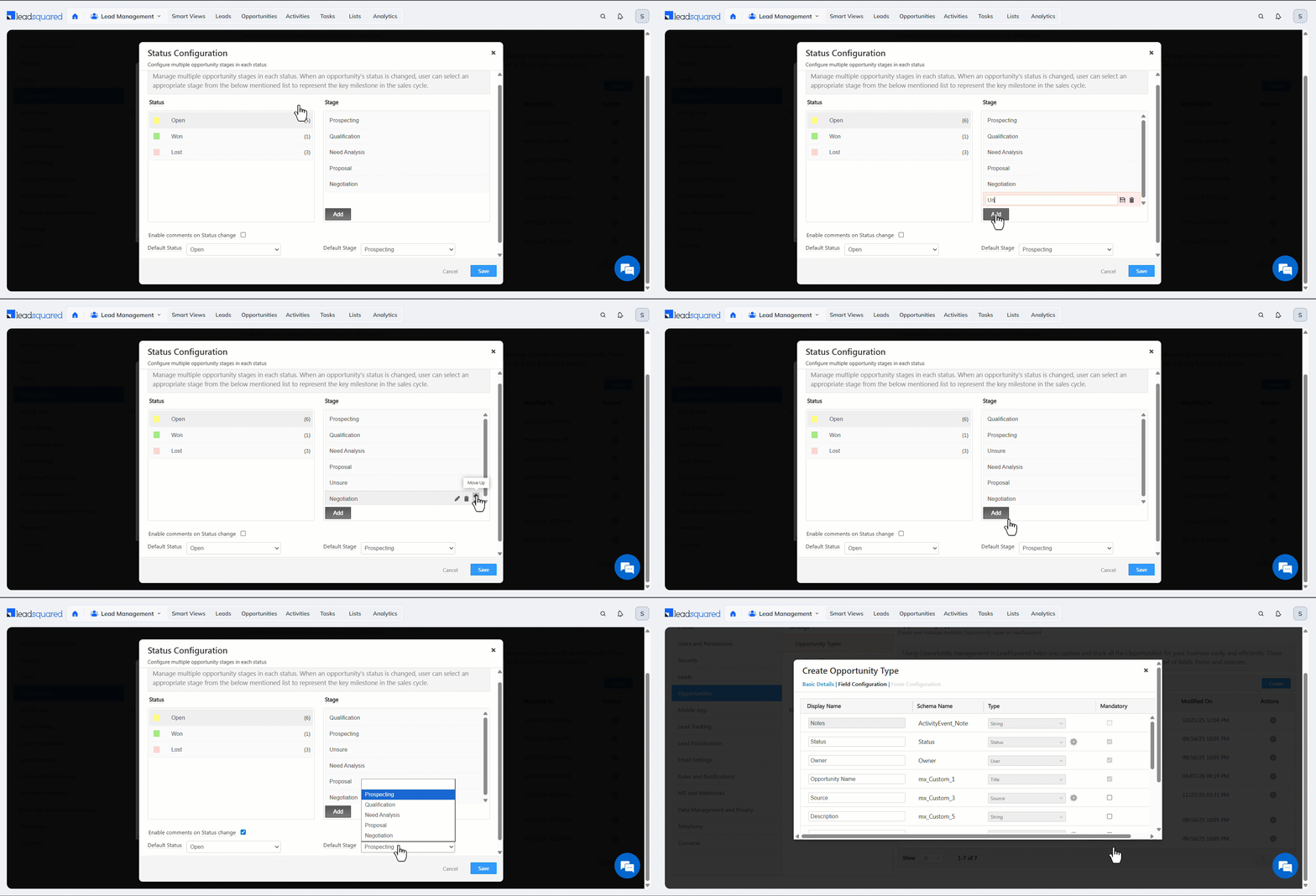
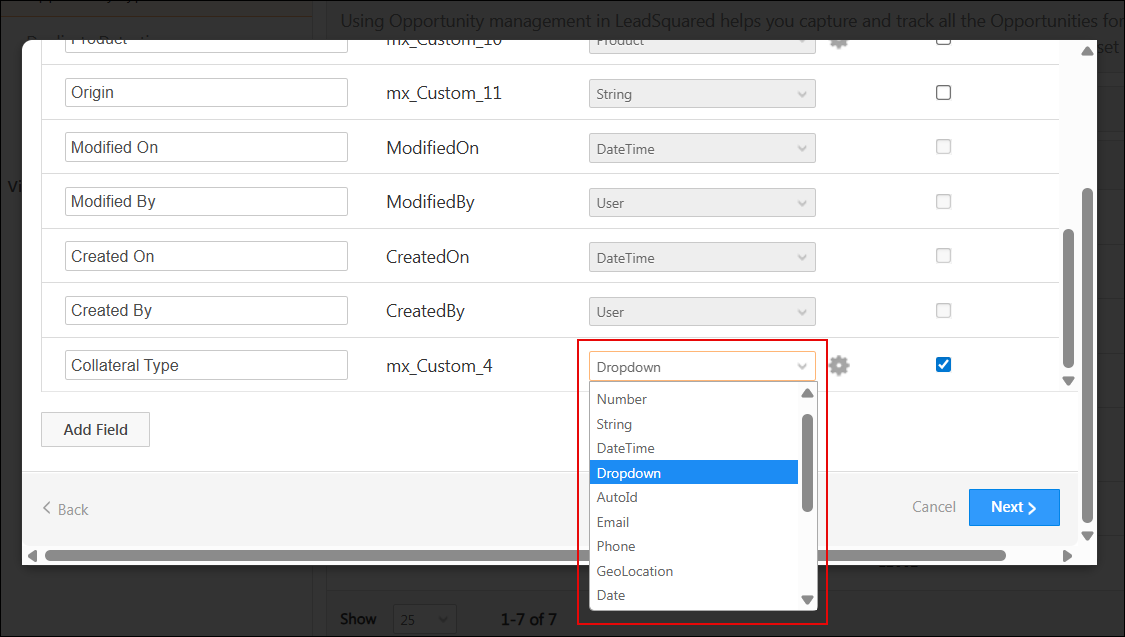
  2. Fields & Statuses – Define what data to capture in opportunity fields, and configure opportunity statuses across the pipeline (Open → Won/Lost), with optional stages for granular tracking.
  3. Forms – Configure the manual opportunity capture form and choose which fields appear on it. Also configure the Opportunity vCard and the Associated Lead form on the Opportunity Details page.

Once done, you can create opportunities under each type (manually or through automations, APIs, forms, and portals), and your users can work on them and take them to completion.


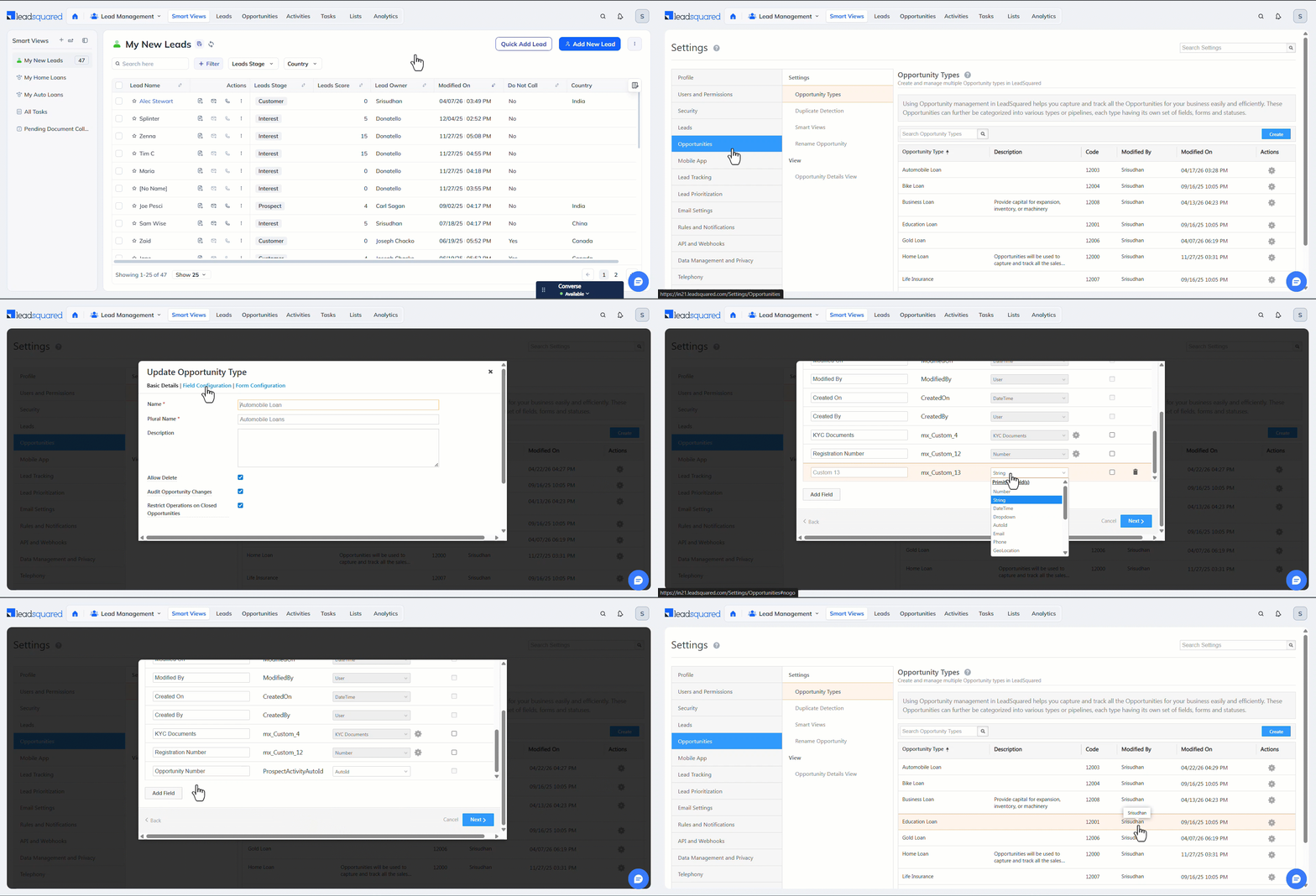
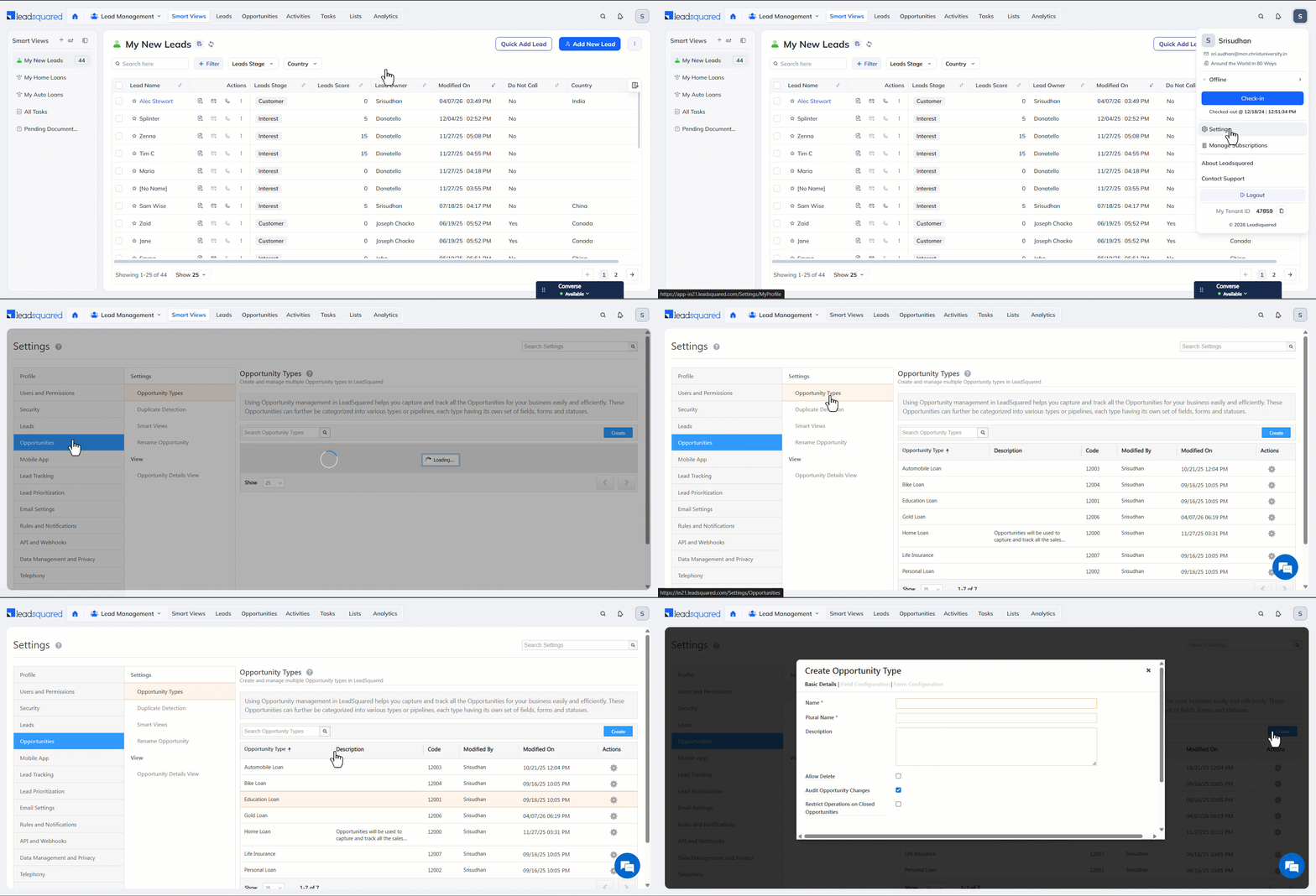
4. Access Opportunity Types

To view and create Opportunity Types in you account –

  1. Navigate to My Profile>Settings>Opportunities.
  2. Under Opportunity Types, you can view the opportunity types in your account.
  3. To create a new one, click Create.

The following sections show how to configure these Opportunity Types.

LeadSquared Opportunitites


5. Basic Details

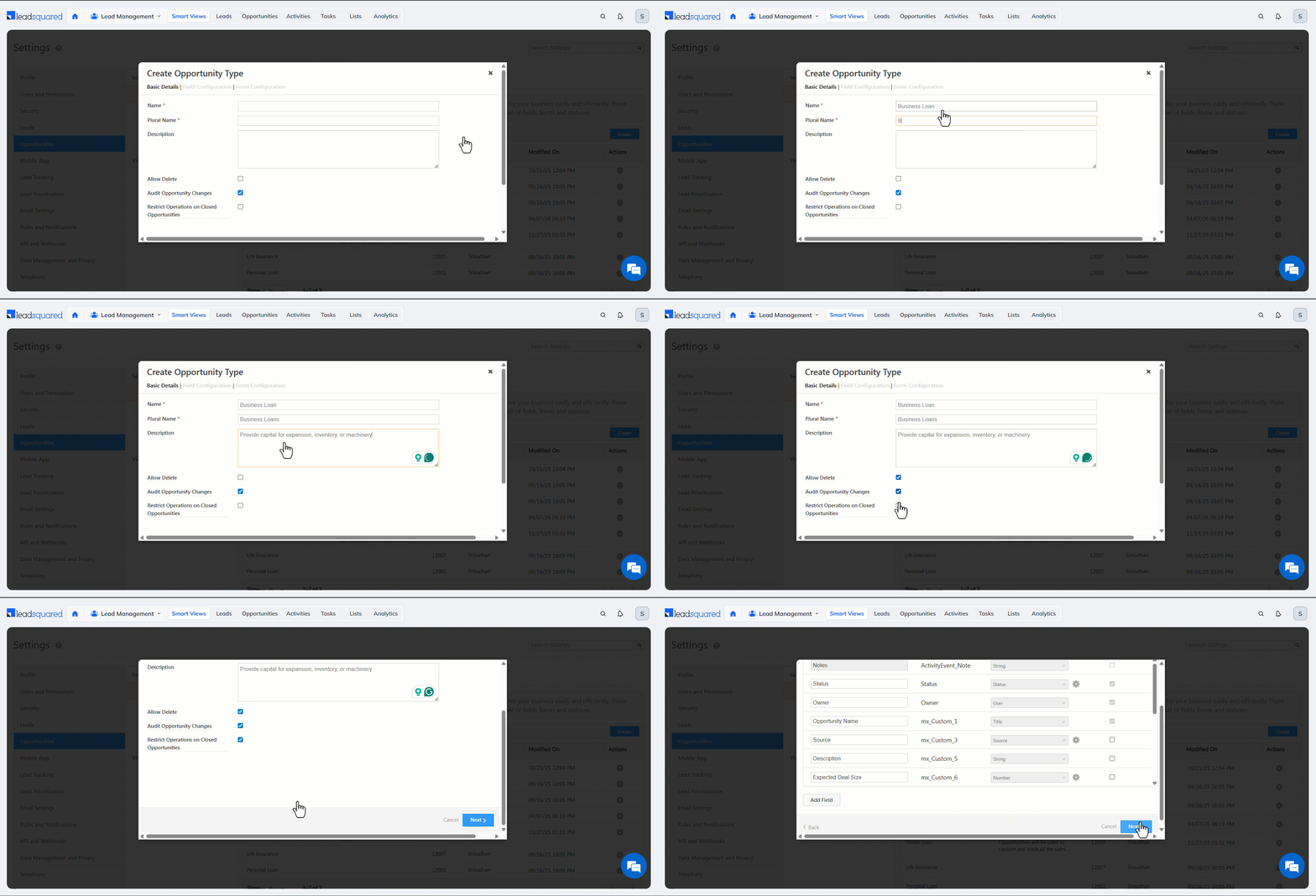
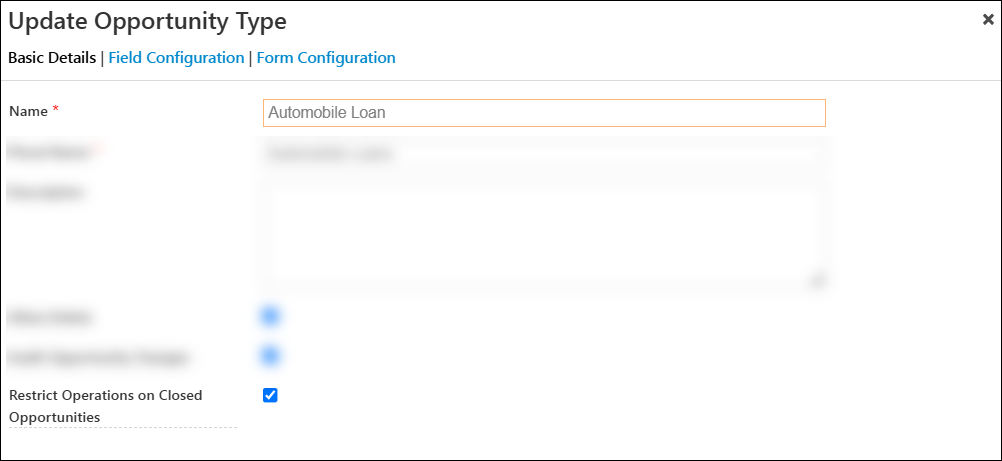
First, on the Create Opportunity Type pop-up, add basic details for the Opportunity Type –

  1. Name – The internal display name for your opportunity (e.g., Home Loan, Vehicle Loan, etc.). This field is mandatory.
  2. Plural Name – The plural name for your opportunity (e.g., Car Loans, Courses, etc.). This field is mandatory.
  3. Description – A description to help your team understand the product or service being offered.
  4. Allow Delete – When enabled, all users can delete opportunities created under this opportunity type.
  5. Restrict Operations on Closed Opportunities – When enabled, no user can make changes to any closed opportunity.
  6. Once you’re done, click Next.

Note: To ensure Restrict Operations on Closed Opportunities works as intended, disable the Restrict operations on closed opportunities (Won/Lost) Organization Setting.

LeadSquared Opportunitites


6. Field Configuration

Configure opportunity fields where the system stores opportunity data (such as Status, Deal Size, etc.). You can edit existing system fields or create custom fields.

6.1 Opportunity Fields

By default, a few opportunity fields are listed in your account. In addition to these, you can add custom fields. You can perform the following actions when configuring opportunity fields –

  • Add Field – Click this to add a custom opportunity field. From the dropdown, select the data type for the field. You can choose from LeadSquared data types (like String, DateTime, Auto ID, Number, etc.) or a CFS-type Opportunity Field.
  • Rename – You can rename all the opportunity fields (except “Notes”).
  • Mandatory – You can mark eligible fields as mandatory. Marking a field mandatory doesn’t let you add an opportunity unless the mandatory field contains relevant data.

Note:

  • To configure Phone, Email, Date, GeoLocation, and Auto ID data types, first enable the Enable Enhanced Data Type for Opportunity Advanced Configuration setting. This is mandatory.
  • The Status, Owner, and Opportunity Name fields are mandatory by default, and this cannot be changed.

LeadSquared Opportunitites

6.2 Status Configuration

The Status field shows the current state of the opportunity in the sales funnel. To customise the available options, click the gear icon.

  • The three statuses available by default are “Open”, “Won”, and “Lost”. You cannot edit or delete these options or add new ones.
  • Stages are sequential levels within a status. Under Stage, you can add a list of stages for each status. Users can select a stage from this list when they update an opportunity’s status, which helps stakeholders track the opportunity more effectively. Each Status comes with a default list of Stages. To add additional Stages –
    1. Select the status for which you want to add stages, and click Add at the bottom-left of the page.
    2. Add new stages, and once done, click the save icon.
    3. Repeat the same process to add multiple stages.
    4. Stages are listed in the order of priority. To change their order, use the up and down arrows.
  • To allow users to post comments when they change the opportunity status, check the Enable Comments checkbox.*
  • To set a default status for new opportunities, select the status from the Default Status dropdown.
  • To set a default stage for new opportunities, select the status from the Default Stage dropdown.
  • Once you’re done, click Save.

Note:

  • * When comments are enabled, it is mandatory for users to enter comments when they change the opportunity status (across both the UI and APIs).
  • To set a default status and default stage for new opportunities, enable the Enable Default Status and Stage Organization Setting.

LeadSquared Opportunitites

6.3 Field Data Types

The following data types are available by default, which can be used to configure custom opportunity fields –

  • Number
  • String
  • DateTime
  • Dropdown
  • User
  • AutoID is a unique ID the system automatically generates for each opportunity. You can use this ID to bulk update, import, retrieve, and delete opportunities through Opportunity Management APIs.
  • Geolocation stores geographic locations. Any location (e.g., MG Road, Indira Nagar, etc.) entered in this field can be previewed on the Opportunity Details page

6.4 Dropdown Fields

Add dropdown options for the corresponding opportunity fields. To do this –

  1. Alongside a dropdown field, click the gear icon.
  2. On the Enter Dropdown Options pop-up, choose if this is a Dependent Field.
    1. A Dependent Field is a field whose values depend on the value selected in another field. For example, if the Parent field is Grade (Grade V, Grade VI, etc.), the Child field (Subjects) updates based on the selected grade, such as English and History for Grade V, and Physics and Chemistry for Grade VI.
  3. Alongside Enter Options, add the list of options you want to display. The top-most option becomes the default option.
    • Click Import to add dropdown options using a CSV file.
  4. To automatically add new values sent through APIs, opportunity imports, and the Update Opportunity card in Automation, enable the checkbox next to Allow Auto Update.
  5. To allow leads to select multiple dropdown options, enable the checkbox next to Is Multi-Select Dropdown?
  6. Once you’re done, click Save, and click Next to continue the configuration process.
Note: The Allow Auto Update feature does not support updating the field through dynamic form rules.

LeadSquared Opportunitites


7. Form Configuration

Opportunities are manually created through Opportunity Forms. Once you configure opportunity fields, add them to these forms on the Form Configuration tab.

There are two types of forms: the Default Form, available on the Manage Opportunities page, and the Left Panel form, available on the vCard and the Associated Lead card on the Opportunity Details page.

7.1 Default Form

  1. From the Select Form to Edit dropdown, choose  Create “Opportunity Name”.
  2. Created On, Opportunity Name, Owner, and Status are mandatory and cannot be removed.
    • The same logic applies to all other fields you mark as mandatory.
  3. From the list of Available Fields, drag and drop additional fields to the form.
    • Use the drag and drop feature to also remove existing fields from the form. You can also use the “minus” icon to remove these fields.
  4. To add multiple sections to the form, scroll to the bottom of the page and click Add Section. Then, add fields to this section using the steps listed above.
  5. Once you’re done, click Save.

LeadSquared Opportunitites

To view this form, navigate to Lead Management>Opportunities>Opportunity Type, and click the Add Opportunity button.

LeadSquared Opportunitites

7.2 Left Panel Form

Here, configure the form that’s displayed on the Opportunity Details vCard and Associated Lead section.

  1. From the Select Form to Edit dropdown, choose  Create “Opportunity Name”.
  2. On the vCard, the Opportunity Name and Status fields are mandatory and cannot be removed.
    • Select a background display colour for th vCard.
    • Along with the vCard, this colour appears for all activities associated with the opportunity on the Activity History tab on the Lead Details page.
  3. On the Associated Lead section, the Owner and Modified On fields are mandatory and cannot be removed.
  4. From the list of Available Fields, drag and drop additional fields to the form.
    • Use the drag and drop feature to also remove existing fields from the form. You can also use the “minus” icon to remove these fields.
  5. Once you’re done, click Save.
Note: You can add opportunity fields only to the vCard, and Lead Fields only to the Associated Lead section.

LeadSquared Opportunitites

To view the vCard and Related Lead form, open the Opportunity Details page and view them on the left side of the page.

LeadSquared Opportunitites


8. Other Actions

On the Opportunity Types page, perform the following actions on an existing opportunity by hovering your cursor on the settings gear –

  • Edit – Edit the configurations of the opportunity type.
  • Delete – Delete the selected opportunity type.
  • Clone – Duplicate the selected opportunity type. Once it’s cloned, you can update the configurations accordingly.
Note: For the Edit and Clone actions, the steps are the same as the configuration steps listed above.

LeadSquared Opportunitites


9. Next Steps


10. FAQs

Unable to Edit or Perform Activities on Opportunities

  • Issue: I’m unable to update opportunities or perform activities on them, even though I have the necessary permissions via permission templates.
  • Possible Causes:
    • Closed Opportunity: The issue may arise if the opportunity is in a Closed status (Won or Lost), and operations are disabled on closed opportunities.
    • Advanced Configuration Settings:
      • If the Advanced Configuration setting for restricting updates on closed opportunities is enabled, users will be unable to update or post activities/tasks on closed opportunities.
  • Solution:
    • Disable the Restrict operations on closed opportunities advanced configuration setting.

LeadSquared Opportunity Management

    • Disable the Restrict Operations on Closed Opportunities setting in the opportunity type configuration

LeadSquared Opportunity Management


Any Questions?

Did you find this article helpful? Please let us know any feedback you may have in the comments section below. We’d love to hear from you and help you out!

Opportunity Duplicate Detection

1. Feature Overview

Duplicate opportunities contain details of the same lead who shows interest in the same Opportunity Types across multiple sources, like websites, landing pages, incoming calls, etc. To prevent this, set up dedupe rules to identify duplicate opportunities, which helps optimise your users’ efforts, maintain clean data and improve reporting accuracy.

LeadSquared Opportunitites


2. Prerequisite

You must be the Administrator of your LeadSquared account to configure this feature.


3. How it Works

This feature lets you identify duplicate opportunities raised by a lead based on how often the lead shows interest in the same product or service. To do this, set rules (conditions) that are used to identify these leads. For example, identify leads that apply for the same home loan product more than once within the last 30 days. The system posts these duplicates as activities on the Opportunity Details page.


4. Use Cases

Some of the example use cases across various industries for which you can create dedupe rules are –

Industry Use Cases Example Dedupe Rule
Automobile Loans To ensure the customer is not pitched multiple loans for the same automobile. Detect a duplicate opportunity

  • if the same lead
  • with the same vehicle registration number
  • applies for an automobile loan
Health Insurance To ensure the same customer is not pitched an upgraded policy by multiple sales users. Detect a duplicate opportunity

  • if the same lead
  • applies for a health insurance
  • with a coverage amount greater than their existing policy (e.g., more than 1 crore)
  • submits the insurance form
Real Estate To ensure the same lead is not pitched the same property by multiple sales users. Detect duplicate opportunity

  • if the same Lead
  • for the same project
  • in the same locality
  • submits an application to buy the property
Education To ensure the same student is not pitched the same course by multiple sales users. Detect a duplicate opportunity

  • if the same lead
  • for the same college campus
  • and the same course they previously applied for
  • submits the admission form


5. Set Rules

To configure dedupe rules –

  1. Navigate to My Profile>Settings>Opportunities>Duplicate Detection.
  2. Against an existing Opportunity Type, click Set Rule.
  3. On the Set Rule pop-up, the first three dropdowns are preset by default, and you do not need to make any changes here.
  4. On the fourth dropdown, select the opportunity field the system uses to identify duplicate opportunities.
    • For e.g., if you select “Status” is “Open”, then Life Insurance opportunities (in our GIF) created on the same lead with the status set to Open are marked as duplicates.
  5. Then, add a lead identifier condition (e.g., Email is Lead’s Email ID). This condition is mandatory, otherwise the system cannot identify the lead on which a duplicate is created.
    • Here, use the mail merge* option to fetch data from the lead identifier field.
  6. Similarly, set as many conditions as required for your business. You can only set multiple AND conditions.
  7. Once done, click Set Rule. Then, click Save, and on the Confirm pop-up, click Save.
    • Here, you can also add multiple rules as well.
  8. Lastly, enable the dedupe rule. Once this is done, duplicate opportunities

Note:

  • *Ensure you use the mail merge option by entering the ‘@’ symbol. This dynamically pulls the value of the selected lead or opportunity field.
  • On existing rules, hover over the settings icon to –
    • Edit – Lets you update the conditions configured on a rule.
    • Disable – Lets you disable an existing rule, which allows duplicates to be created.

LeadSquared Opportunity Duplicate Detection


6. View Duplicates

To view duplicates, navigate to the Opportunity Details page, and under Activity History, view the duplicate entry.

LeadSquared Opportunitites


7. FAQs

Why Is the Opportunity Duplicate Detection Rule Not Working?

  • Issue: The duplicate detection rule for opportunities is not functioning as expected, despite being configured.
  • Possible Cause: The duplicate detection rule might be set up but not enabled for the specific opportunity type.
  • Solution:
    • Go to Settings>Opportunity>Duplicate Detection in your LeadSquared account.
    • Check if the duplicate detection rule is enabled for the relevant opportunity type. A green button indicates the rule is active.

Leadsquared Opportunity Management


Any Questions?

Did you find this article helpful? Please let us know any feedback you may have in the comments section below. We’d love to hear from you and help you out!

Import Opportunities

1. Feature Overview

In addition to opportunities users add manually and via automations, you can also import opportunities into LeadSquared using a CSV file. This helps you create opportunities in bulk, such as for leads interested in term insurance, medical insurance, home insurance, automobile insurance, and accidental insurance.


2. How it Works

  1. On a CSV file, add opportunity fields with data, along with a lead or opportunity identifier field.
  2. Upload it to your LeadSquared account and map it to the relevant opportunity fields.
  3. Create opportunity import rules to define how the system handles duplicates.
  4. A Validation Report displays whether the import was successful.
  5. After a successful import, the opportunities are created in your account.


3. Upload the CSV File

  1. Navigate to Lead Management>Opportunities, and from the left-tab, select the Opportunity Type you want to import.
  2. Hover your cursor on the three dots menu on the top-right corner, and click Import Opportunity Type.
  3. On the Import Opportunity via CSV pop-up, under the Upload File tab, download the sample CSV file, and populate it with the relevant opportunity fields#.
    • Alternatively, you can use a blank file and populate it with relevant data in the format available on the sample file.
  4. Once done, upload the file to LeadSquared and click Next.

Note:

  • *The CSV file must include one unique lead field (such as email, phone number, etc.) or the Opportunity Auto ID.
  • Only CSV file type files are supported.
  • The maximum file size is 30MB, and the maximum number of rows allowed in the file is 25,000.
  • You can add multiple opportunity fields in the same file, exceeding the eight fields available in the sample file.

LeadSquared Import Opportunities


4. Map Fields

On the Map Fields tab –

  1. Map the CSV fields (under the Field in CSV file column) to the LeadSquared opportunity fields (under Mapped With).
    • The first row, marked in grey, is the lead identifier.
  2. Once you’re done, click Next.

Note:

  • To map your CSV file rows to CFS fields, pass the data as <Activity Field Name> – <CFS Field Name>.
    • For example, if the activity display name is “KYC Collection” and the CFS name is “Street Address Line 1”, name the CSV field as “KYC Collection – Street Address Line 1”.
  • Ensure you choose the correct date format. If the date format does not match, the import fails.

LeadSquared Import Opportunities


5. Validation Report

A Validation Report is generated, and it displays the status of your field mapping.

  1. If there are errors, fix them in the file and re-upload it.
  2. Once there are no errors and all your rows are valid, click Next.

LeadSquared Import Opportunities


6. Opportunity Import Rules

Set import rules to handle duplicate opportunities –

  1. Ignore Duplicates – The system ignores duplicates in the file, and no new duplicate opportunities are created.
  2. Overwrite Duplicates – The system overwrites existing duplicates with data from the new opportunities.
    • Do not update owner of existing opportunities – Updates existing opportunities without changing the opportunity owner.
    • Do not create new opportunities – Overwrites duplicate opportunities but does not create new duplicate opportunities.
  3. Update empty fields of duplicates – The system ignores existing duplicate fields that contain data and updates only empty fields with data from the new opportunity.
  4. Post Duplicate Detected Activity – The system posts a duplicate detected activity on the Opportunity Details and Lead Details page when it detects a duplicate.
  5. Default Owner – Select a LeadSquared user as the default Opportunity Owner. If your CSV does not contain an Opportunity Owner, the system marks this user as the owner by default.
  6. Once you’re done, click Import.
  7. Then, you receive an email confirmation, and the system creates a new opportunity.
    • You can also view the status from the Request History page.
      • You can view the Opportunity Import Summary here, which shows the status of the fields imported.
      • You can also download the summary as a CSV file.
Note: To know more about duplicates, refer to Opportunity Duplicate Detection.

LeadSquared Import Opportunities


7. Troubleshooting

While importing opportunities, you may encounter the error “Creation of new opportunities is restricted” in the ‘Import Message’ column of the Opportunity Import Summary file. This error occurs when the system does not identify existing opportunities as duplicates during import. To update opportunities, ensure the system identifies them as duplicates by following the duplicate detection rules set for that opportunity type.

To fix this error:

  • Ensure all fields used in the duplicate detection rules are included in the CSV file.
  • Ensure the fields you want to update are included in the CSV file.

The import then processes successfully, and the system updates the opportunities.


Any Questions?

Did you find this article helpful? Please let us know any feedback you may have in the comments section below. We’d love to hear from you and help you out!

LeadSquared Getting Started Guide for Marketing Users

Welcome to LeadSquared. The purpose of this document is to provide you step by step guidance on the setting up and using of LeadSquared as a Marketing User.


1. Log in to LeadSquared

Log on to LeadSquared using your username and password at app.leadsquared.com. If you do not have your login credentials, please check with your LeadSquared Administrator.


2. Update your Personal Settings

Update your Profile Manage your personal details Help
Update your Password Update your LeadSquared password Help
Update Email Signature My Email Signature Help
Manage Report Subscriptions Allows you to manage which reports you want to subscribe Help
View Request History Allows you to view history of all bulk export, delete and other requests Help


3. Customize Lead Stages and Sources

Update Lead Stages Capture the stage that define your sales – from new lead to closure. Help
Update Lead Sources Populate the sources from which you get or expect to get the leads. Help


4. Customize Lead Activities and Scores

Update Score of Core Activities Customize lead score of core activities like Email open/click, website visit and so on to know how active is the lead with your business. Help
Create Custom Activities Use this to create your own Lead Activities that sales or inside sales employees can associate with the leads. Help


5. Customize Sales Activity Settings

Manage products Create the list of products/services that you sell. Help
Sales Activity Settings Configure basic details about your sales activities Help
Sales Activity Fields Customize the fields you want to see on sales activity Help


6. Manage Task Types

Manage Task Type Allows you to manage multiple Task Types and configure their properties Help


7. Manage Tags

Manage Tags Allows you to manage marketing tags Help


8. Install Tracking Script

Website Tracking Script for WordPress Sites Use this option if your website is hosted on WordPress. We have a plugin to install our tracking script.  Help
Website Tracking Script for other Sites*  You will need to copy/paste our tracking script on all our pages for non-WordPress websites.  Help

*Available in Standard and higher plans.


9. Manage Website and Landing page domains

You need to add website domains that can be tracked.  For each website domain you add multiple landing page sub-domains.

Website Domains Allows to connect websites to LeadSquared for tracking. Help
Landing Page Domains Allows to connect landing pages to LeadSquared for tracking. Help
Multi-domain setup* Allows to track website visits on multiple domains. Help

*Available in Standard and higher plans.


10. Manage Email Link tracking domain

Email Link Tracking domain Allows tracking of website visits after leads open email through LeadSquared. Help


11. Setup Lead Quality Criteria

Lead Quality Criteria Allows to measure lead quality using custom quality rules. It helps to identify the leads that are close to your ‘Ideal customer profile‘. Help


12. Setup Lead Engagement Scoring

Engagement Score * Allows to capture the engagement level of leads with your business. You can create your own custom rules of engagement scoring. Help

*Available in Standard and higher plans


13. Email Settings

Email Categories Allows leads to selectively subscribe/unsubscribe from specific types of emails rather than completely Unsubscribing from all emails. Help
Landing Page Auto response You can create a custom email template for automated email that can be sent when landing page submission happens. Help


14. Rules & Notifications

Rules and Notifications * This feature allows you to automate user notifications based on lead events. For example, you can notify your sales reps whenever any lead visits pricing page of your website. Help

*Available in Standard and higher plans


15. Manage the Content in LeadSquared

Email Library Allows you to create templates for Email communication. Help
Images and Documents Allows you to manage the images and documents which is used in LeadSquared. These are used in the landing page designer and email composer. Help


16. Manage the Marketing Features of LeadSquared

Email Campaign Allows you to design and create feature rich Email Campaigns which can be scheduled, tracked and analyzed. Help
Automation Powerful Workflow Automation Help
Landing Pages Allows you to create Landing Pages and analyze lead conversions Help
Website Widgets Allows you to create various website widgets for lead capture. Help


17. Manage the Leads in LeadSquared

Manage Leads Allows you to create and manage leads at one place. It also allows you to manage lead activities. Help
Manage Tasks Allows you to create tasks and reminders for your leads. Help
Manage Lists Allows you to categorize your leads into various lists based on your preference. Help


18. Manage Reports & Dashboards

Dashboards Allows you to capture the important marketing and sales indicators in a chosen time-frame. Help
Reports Provides analytics around marketing and sales to help you fine tune your business processes using various reports. Help


19. Attend Training and Start Using

Our customer success team will organize a usage training for you. Attend and get started.


Any Questions?

Check help.leadsquared.com or write to support@leadsquared.com for any queries.

You can also download this document in PDF format from below:

leadsquared-getting-started-guide-for-marketing-users

LeadSquared Pulse

1. Feature Overview

LeadSquared Pulse is an AI-powered assistant embedded directly into LeadSquared. With Pulse, you can perform CRM actions, retrieve information, and get answers to product questions through natural-language prompts, without navigating to specific pages or opening API documentation.

Pulse is available as a chat panel that opens from the Pulse AI button in the top navigation bar. It is context-aware, which means the actions it suggests change based on the page you are on. For example, on the Leads page, Pulse surfaces lead-related actions such as Capture Lead, Update Lead, and Search Leads. On the Opportunities page, it surfaces opportunity-related actions, and so on.

Pulse currently supports 84 prompt-driven actions across four CRM modules: Lead Management, Task Management, Opportunity Management, and Activity Management. It also answers product questions by querying the LeadSquared help site and returning answers within the chat panel.


2. Prerequisites

  • You have access to a LeadSquared account where Pulse has been enabled. To enable it on your account, contact support@leadsquared.com.
  • Your user role has the necessary permissions to perform the underlying CRM actions. Pulse respects the same permissions that govern the corresponding API calls and UI actions. For instance, if your role cannot delete leads, Pulse will not be able to delete leads on your behalf.
  • You are signed in to LeadSquared. Pulse uses your session to authenticate API calls.


3. How It Works

Pulse interprets your prompt, identifies the intent, and maps it to the corresponding LeadSquared API.

For example, if you type create a lead with first name Jen and last name An, Pulse creates the lead and returns the lead ID.

Destructive operations such as deleting a lead, task, opportunity, or activity always require explicit confirmation in the chat before execution.

Pulse also recognizes the page context when you open it. If you open Pulse on the Leads page without typing anything, it greets you with a welcome message and surfaces quick-action buttons for the most common lead operations. Clicking a quick-action button starts the prompt for you.


4. Launch Pulse

To launch Pulse:

  1. Sign in to LeadSquared.
  2. On any page, click the Pulse AI button in the top navigation bar. The Pulse chat panel opens on the right side of the screen.
  3. Type your prompt in or click one of the quick-action buttons surfaced for the current page.
  4. To start a new chat, click the plus (+) icon on the top-left corner of the panel.
  5. To close Pulse, click the minimize () icon in the top-right corner of the panel.

Launch LeadSquared Pulse


5. Use Pulse to Run an Action

To run a CRM action through Pulse:

  1. Open Pulse.
  2. Type a natural-language prompt describing the action. For example:
    • Create a lead with first name and a last name.
    • Get all tasks for a specific lead ID.
    • Update opportunity status to Won for a specific opportunity ID.
  3. Pulse executes the action and returns a confirmation message with the record ID.

If Pulse is missing a required field, it asks you for the value before proceeding.

Use Pulse to Run an Action


6. Use Pulse to Ask Product Questions

In addition to running actions, Pulse can answer questions about LeadSquared features by querying the help site.

To ask a product question:

  1. Open Pulse.
  2. Type your question in plain language. For example, how do I set up a Smart View, or what is the difference between a lead and a prospect.
  3. Pulse returns an answer summarized from the relevant help articles.

Use Pulse to Ask Product Questions


7. Supported Actions

Pulse supports 84 prompt-driven actions across four modules. The sections below list each supported action with a brief description. Each action maps to a LeadSquared API endpoint. For full request and response details, refer to the API documentation at docs.leadsquared.com.

7.1 Lead Management

Lead Management covers 25 actions for creating, retrieving, updating, and deleting leads and lead notes.

Create

Action Description
Capture Leads Creates or updates a lead from a lead source.
Create a Lead Creates a new lead with attribute-value pairs.
Create Leads in Bulk Creates up to 50 leads in a single call.
Create or Update a Lead Creates a new lead, or updates an existing one matched by email or phone.
Create a Lead and Activity Creates a lead and posts an activity in a single call.
Create a Note Creates a note on a lead, with an optional attachment.

Retrieve

Action Description
Get Metadata Returns the schema and metadata for all lead fields.
Get a Lead Field’s Properties Returns the properties of a specific lead field, identified by its schema name.
Get a Lead by Email Retrieves a lead by email address.
Get a Lead by Phone Number Retrieves a lead by phone number.
Quick Search Leads Quick-searches leads using a field key and value.
Search Leads by Criteria Searches leads using filter criteria with paging.
Get Leads by Date Range Retrieves leads modified within a date range.
Get a Lead’s Notes Retrieves all notes for a given lead.
Get Info on Merged Child Leads Returns merged child lead information for a given audit ID.

Update

Action Description
Update a Lead Updates field values on an existing lead.
Update Leads in Bulk Updates a single field across multiple leads, identified by their IDs.
Merge Leads Merges a child lead into a master lead. The child lead is deleted.
Mark Lead Invalid Marks a lead’s email address as invalid.
Update a Note Updates the text of an existing note on a lead.
Update Mailing Preferences Updates the mailing preferences attribute on a lead.
Add Values to a Lead Drop-down Field Adds new option values to a lead dropdown field.
Remove Values from a Lead Drop-down Field Removes option values from a lead dropdown field.

Delete

Action Description
Delete a Lead Permanently deletes a lead by ID.
Delete a Note Permanently deletes a note by ID.


7.2 Task Management

Task Management covers 23 actions for creating, retrieving, updating, and deleting tasks, including To-Dos and appointments.

Create

Action Description
Create an Appointment Creates a meeting or appointment task.

Retrieve

Action Description
Get List of Task Types Names Returns a list of all task type names.
Get List of Task Types Returns full task type details.
Get a Task by Id Retrieves a single task by its ID.
Get Tasks by Lead Id Retrieves all tasks linked to a lead.
Get Tasks by Opportunity Id Retrieves all tasks linked to an opportunity.
Get Reminders Returns reminder tasks for the authenticated user.
Get Available Slots by Search Criteria Returns available appointment slots filtered by user search criteria.
Get Available Slots by Id Returns available slots for given user IDs.
Get Available Slots by Email Address Returns available slots for users by email address.
Get Appointments by Search Criteria Returns appointments filtered by user search criteria.
Get Appointments by User Id Returns appointments for given user IDs.
Get Appointments by Email Address Returns appointments for users by email address.
Get To-Dos by User Id Returns To-Do tasks for given user IDs.
Get To-Dos by Email Address Returns To-Do tasks for users by email address.

Update

Action Description
Update a Task Updates fields on an existing task.
Bulk Update Appointment Timings Reschedules multiple appointments to new times.
Bulk Update Appointment Timings by Minutes Shifts appointment times forward by a specified number of minutes.
Mark a Task Complete Marks a task as completed.
Cancel Appointments in Bulk Cancels multiple appointments by their IDs.

Delete

Action Description
Delete a Task Deletes a task by ID.

To-Do

Action Description
Get To-Dos by Search Criteria Retrieves To-Do tasks filtered by user search criteria, date range, and pagination. The fromDate and toDate parameters are required, and the date range cannot exceed 100 days.

Appointment

Action Description
Bulk Update Appointment Timings by Hours Reschedules a list of tasks by shifting their appointment times by a specified number of hours.


7.3 Opportunity Management

Opportunity Management covers 12 actions for creating, retrieving, updating, and deleting opportunities, and for posting activities on opportunities.

Create

Action Description
Add Opportunities in Bulk Adds opportunities to multiple leads in bulk, matched by a lead field.

Retrieve

Action Description
Get Metadata of an Opportunity Type Returns the fields and schema for a given opportunity type code.
Get Opportunity Types Returns all opportunity types configured in the account.
Get an Opportunity by Id Retrieves details of a specific opportunity by ID.
Get Opportunities by Lead Id Retrieves all opportunities for a specific lead.
Opportunity Advanced Search Searches opportunities using advanced filter criteria.
Get Tasks by Opportunity Id Retrieves tasks linked to an opportunity.

Update

Action Description
Update an Opportunity Updates fields on an existing opportunity.
Bulk Update Opportunities Updates multiple opportunities by their IDs.
Post an Activity on an Opportunity Posts a custom activity on an opportunity.
Post Bulk Activities on Opportunities Posts activities on multiple opportunities.

Delete

Action Description
Delete an Opportunity Deletes an opportunity by ID.


7.4 Activity Management

Activity Management covers 24 actions for creating, retrieving, updating, and deleting activities, as well as managing activity attachments.

Create

Action Description
Post an Activity on a Lead Posts a custom activity on a lead.
Post Activities on Leads in Bulk (Lead Id) Posts activities on multiple leads using their IDs.
Post Activities on Leads in Bulk (Unique Lead Field) Posts activities on leads identified by a unique field, such as email.
Post an Activity on an Opportunity Posts a custom activity tied to both a lead and an opportunity.
Create a Lead and Activity Creates a lead and posts an activity in a single call.
Create a Custom Activity Type Creates a new custom activity type in the account.
Attach a File to a Custom or Sales Activity Attaches a file URL to an existing activity.

Retrieve

Action Description
Get List of Activity Types Returns all activity types configured in the account.
Get Activity Details Returns full details of a specific activity by ID.
Get Activity Type Details Returns the field schema and settings for a specific activity type code.
Activity Advanced Search Searches activities using an advanced JSON search string.
Get Activities of a Lead Retrieves all activities posted on a lead.
Get Activities of an Opportunity Retrieves activities linked to a specific opportunity.
Get Activities by Date Range Retrieves activities modified within a date range.
Get Activities by Activity Event Retrieves activities for a specific event code within a date range.
Get Custom Fields of an Activity Retrieves custom field values for a specific activity.
Get Custom Activity Drop-down Values Returns dropdown option values for a custom activity field.
Get Activities by Lead Reference Retrieves activities referencing a lead, filtered by event.

Update

Action Description
Update Activity Updates fields on an existing custom activity.
Add Values to Custom Activity Drop-down Field Adds new option values to a custom activity dropdown field.
Remove Values from Custom Activity Drop-down Field Removes option values from a custom activity dropdown field.

Delete

Action Description
Delete Activities of Lead Deletes activities on a lead within a specified date range.
Delete Custom Activity by Id Deletes a specific custom activity by its ID.

Attachments

Action Description
Get Attachments of an Activity Retrieves all attachments associated with a specific prospect activity by its ID.


8. Tips for Writing Effective Prompts

To get the best results from Pulse, keep the following in mind when writing prompts:

  • Be specific – Include the field names and values you want Pulse to use. For example, create a lead with first name Jen, last name An, and email jen.an@example.com is clearer than create a lead for Jen.
  • Use IDs where possible – When updating, retrieving, or deleting a specific record, include the record ID. This avoids ambiguity when multiple records match the same name or email.
  • Confirm before destructive actions – Pulse always asks for confirmation before deleting a record. Read the summary carefully before replying Yes.
  • Break complex requests into steps – If you need to perform multiple actions, run them one at a time so you can review each result.
  • Use the quick-action buttons – On context-aware pages such as Leads, Opportunities, and Activities, the quick-action buttons start your prompt with the correct phrasing.


9. Limitations

Note the following when using Pulse:

  • Pulse honors LeadSquared API rate limits. Bulk operations are subject to the same thresholds as direct API calls. Refer to the API rate-limit documentation for details.
  • Pulse can make mistakes. Always verify the results displayed in the chat panel, especially for bulk and destructive operations.
  • Pulse executes actions using your user session, so all actions are logged against your user account in the audit trail.


Any Questions?

Did you find this article helpful? Please let us know any feedback you may have in the comments section below. We’d love to hear from you and help you out!


Linked Insights on Analytics Report Builder

1. Feature Overview

Linked Insights lets you connect a source report to a target report on Analytics Report Builder. When a user clicks a measure value in the source, the target report opens with matching dimension context and filters applied automatically.

Unlike drill down, which is limited to the source report’s own data source, Linked Insights can point to any report you have access to. Each measure can be linked to a different target report.

Linked Insights is useful when you want to:

  • Navigate to a report with a different data source on click (for example, from a Leads measure to an Opportunities report).
  • Link each measure in a summary report to a different target report, so each number opens the most relevant view.
  • Navigate into another summary report instead of a flat tabular list, preserving the summarised structure.

Linked Insights vs Drill Down

Option Behaviour
Drill Down Shows detailed rows from the source report’s own data source. Limited to columns from that data source only.
Linked Insights Opens a separate target report with matching dimension context and filters applied. The target can use any data source and any visualization type.
Note: If both a Linked Insight and a standard drill down are configured on the same measure, Linked Insights takes priority and the target report is opened on click. A user or hierarchy drill down followed by a measure drill down is not supported on the source report.


2. Prerequisites

  • Analytics is a paid feature. To enable it for your account, contact your account manager or support@leadsquared.com.
  • You must have access to both the source report and the target report.
  • The target report should include the same dimension you want to map from the source, so filters can carry across correctly.


3. Configuring Linked Insights

3.1 Use Case

You have a summary report showing the count of leads grouped by Lead Owner. When a user clicks a count, you want to open a separate activity count by leads report filtered to the same owner, instead of showing a drill down list within the source report.

Step 1: Create the source report

  1. Open the Report Builder and create a summary report.
  2. Select your data source (for example, Leads).
  3. Add a dimension (for example, Lead Owner) and a measure (for example, Count of Leads).
  4. Save the report.

create report step 1

Step 2: Linked Insights configuration

  1. In the Report Builder, go to the Drilldown tab.
  2. Alongside the existing drill down configuration, you will see the Configure Linked Insights option. Select it.
  3. Click + Add to create a new linked insight entry.
  4. Under Select Value(s), click +Add choose one or more measures that should trigger the link on click.
  5. Under Select Report to Link, pick the target report from the dropdown.
  6. Once selected, the Dimension Linking and Filter Linking sections appear.
Note: The target report dropdown lists all reports you have access to, based on the profile applied to the user.

configuring linked insights

Step 3: Configure dimension linking

Dimension linking maps a dimension in the source report to the matching dimension in the target report, so the target is filtered by the value you click.

  1. Under Source Dimension, select the dimension applied in the source report (for example, Lead Owner).
  2. Under Target Dimension, select the matching dimension in the target report.
  3. Add additional dimension mappings if your source report uses more than one dimension.

Linked Insights supports one-to-one dimension mapping. For example, Source Dimension “Activity Owner” can map to Target Dimension “Activity Owner”.

Example

The source report groups Count of Leads by Lead Owner:

Lead Owner Count of Leads
Sachin 32
Priya 47
Rahul 18

Map Source Dimension: Owner to Target Dimension: OwnerId_AutoUserId.

When the user clicks 32 next to Sachin, the Activity Count by Leads report opens showing only the activity counts for Sachin’s 32 leads — not all leads in the system. The same applies for the other rows.

Linked Insights supports one-to-one dimension mapping. Source and target dimension names do not need to match exactly, as long as they represent the same field (Owner and OwnerId_AutoUserId, in this example).

dimensiosn linking

Step 4: Configure filter linking

Filter linking carries report-level filters from the source into the target, so both reports stay in sync.

  1. Review the filters listed under Filter Linking.
  2. Map source filters to the corresponding target filters.
  3. At a minimum, apply the owner and date filters so the target report reflects the same scope as the source.

Note: Dependent filters (such as user filter, sales group, and level of sales hierarchy) are carried over only if the filter names match between the source and target reports. Mismatches are not resolved automatically — configure the target report with the same filter set to avoid gaps.

Example

Continuing from the source report (Count of Leads by Owner) and the target report (Activity Count by Leads), the source report has these filters applied:

  • Created On
  • Sales Groups
  • Owner

Map each filter to its counterpart on the target report:

Source Filter Target Filter
Created On Created On
Sales Groups Sales Groups
Owner Owner

When the user clicks 32 next to Sachin, the Activity Count by Leads report opens with Owner = Sachin (from the dimension click), plus the Created On, Sales Groups, and Owner filter values carried over from the source. The result matches the exact scope of the 32 leads seen in the source.

If filters are not mapped, the target report uses its own default filter values, which may return a different record count.

filter linking

Step 5: Save and test

  1. Click Save on the Linked Insights entry.
  2. Save the source report.
  3. Click a measure value in the source report. The target report opens in a new tab, filtered to match the clicked value and the source report’s filters.

Linked insight preview

Note:

  • Linked Insights carries over dimension context and filters only. Visualization settings are not copied from the source to the target report.
  • When a target report is opened through a Linked Insight, the Save As, Edit, Copy Embed URL, and Delete actions are not available on it.
  • If you refresh the target report URL more than 1 minute after opening it, the report will fail to load because the temporary state expires. To re-open it, return to the source report and click the measure value again.


5. Configuring Multiple Linked Insights

If your source report has more than one measure, each measure can point to a different target report.

For example, on a User Productivity report with measures for Logins, Leads, Activities, and Tasks:

  • Count of Logins can link to a Login Activity report.
  • Count of Leads can link to a Lead Distribution report.
  • Count of Activities can link to an Activity Summary report.
  • Count of Tasks can link to a Task Completion report.

To add another Linked Insight, click Configure Linked Insight again and repeat the configuration.

Note:

  • Report chaining is supported. A target report can itself be configured with its own Linked Insights, allowing navigation from one report to another and onwards (for example, Report A → Report B → Report C).


Any Questions?

Did you find this article helpful? Please let us know any feedback you may have in the comments section below. We’d love to hear from you and help you out!

AI Loan Proposal

1. Feature Overview

When evaluating a customer’s loan application, the credit manager must manually write executive and applicant summaries. This is tedious, and the credit manager must look up data related to the customer’s application across various regulatory sites.

To address this, we’ve introduced the AI Loan Proposal feature, which automates the generation of Executive and Applicant summaries with no manual effort. Once Admins configure this feature, it fetches customer demographic data from the credit bureau, including their CIBIL score and existing loan details. These details are generated as executive and applicant summaries during the AI Loan Proposal stage on the Opportunity Details page and are posted there as an activity. This reduces manual errors, improves user efficiency, and ensures faster loan disbursal.

LeadSquared Lending


2. Prerequisites

  • Only Admin users can configure this feature.
  • The Loan Origination Workflow (LOS) Workflow app must be enabled on your account. To do this, contact your account manager or write to support@leadsquared.com.
  • Create an Opportunity Type to associate with an LOS workflow.
    • The associated opportunity type must contain a custom field with the display name “Workflow Version”, the schema name “mx_Custom_100”, and the type “Number – Decimal”. This is mandatory.
  • Create a custom activity that is posted on the opportunity when the workflow is executed.


3. How it Works

After fetching the loan applicant’s data from various regulatory sites, we use AI to summarise it and post it as a custom activity on the Opportunity Details page.

  1. First, create a LOS Workflow with a custom stage that will be displayed on the Opportunity Details page.
  2. Configure this stage by adding AI Loan Proposal as the workflow process, and associate it with the custom activity you’ve created.
  3. Select the data source from which you want to fetch the data.
  4. Then, review the custom AI prompt generated. This prompt summarises the fetched data, and you can update it if required.
  5. Publish the workflow.
  6. Your users can now navigate to the Opportunity Details page, and summarise the loan application.


4. Create a Workflow

  1. On your LeadSquared account, navigate to Apps>LOS Workflow.
  2. On the LOS Workflow screen, alongside Workflows, click the Add icon.
  3. On the Workflow Details screen, enter the following details –
    • Workflow Name – An internal name that identifies the workflow.
    • Opportunity Type – The LeadSquared opportunity type* you want to associate with the workflow.
    • Applicant Activity Type – Select the custom activity you created.
    • Applicant Name – Select the custom activity field that stores the lead’s name.
    • Applicant Type – Select the applicant type dropdown field associated with the custom activity.
    • Select Primary Applicant Identifier – From the dropdown options, select the primary applicant type. For example, if the options are Primary, Co-applicant, and Dependent, select Primary.
  4. Click Save & Next.
  5. On the Configure Stage screen, add a new stage using the Add Stage Tab button.
  6. Enter the display name for the tab, and click Save.

Note:

  • You can associate an Opportunity Type with only one LOS workflow.
  • The associated opportunity type must contain a custom field with the display name “Workflow Version”, the schema name “mx_Custom_100”, and the type “Number – Decimal”. This is mandatory.

LeadSquared Lending


5. Configure a Sub-stage

On the Configure Stage screen, create a sub-stage and configure the AI prompt that generates the summaries.

5.1 Basic Details

First, enter and configure the basic details required to create the new activity type.

  1. Click the Sub-stage button, add a display name, and click Save.
  2. Click the Process button, and on the Create Process screen, configure the following Basic Details
    • Select Process to Map – Select AI Loan Proposal. This is the process your workflows follow to summarise the loan.
    • Display Name – Enter a display name for the activity.
    • Create Activity Type – Click the Create Activity Type button. This automatically creates the activity type in your account. This activity contains the summary data and it’s posted on the Opportunity Details page.
Note: The Display Name must be unique. This is mandatory.

LeadSquared Lending

5.2 Prompt Configuration

Select the data source from where the summary data is fetched, and configure the AI prompt used to fetch it.

  1. From the list of Data Sources available by default in your account, select a relevant source. We select “AI Loan Proposal – Demo” since it fetches all demographic customer data.
  2. Review the system-generated prompts for AI Executive Summary (which generates the executive summary) and AI Applicant Summary (which generates the applicant summary). You can modify both prompts if required.
  3. Under Test Prompt, select the Opportunity Type you want to tag to this workflow, and click Run Test.
    • This fetches dummy data based on the prompt and the opportunity type you’ve selected.
  4. Once you’ve reviewed the test summary, click Save.

LeadSquared Lending

5.3 Stage Submission Action

This section is optional.

  1. Enable the slider to configure the actions that occur when a lead submits this stage of the loan application.
  2. Click the pencil icon, and on the Submission Action pop-up, enter the following details –
    • Submit Button Label – The display name for the submission button on the loan application form.
    • Button onClick Event – The action performed when the button is clicked.
    • Map Dynamic Form – Select the LeadSquared form where you want to capture this data.
  3. Once you’re done, click Save.

LeadSquared Lending


6. Publish the Workflow

Once it’s fully configured, click Save as Draft, and Publish the stage.

LeadSquared Lending


7. View the Summary

To view the summaries –

  1. Navigate to Lead Management>Opportunities>Opportunity Details.
  2. Open the Stage tab you created, and click Submit Recommendation.
  3. Alongside the summary you want, click Generate Summary. Here, you can view the executive and applicant summaries for your opportunities.
    • You can also edit these summaries if required.
  4. Once both the summaries are generated, click Save & Close. The summary is now posted as the activity configured.

Note:

  • It is mandatory to click Save & Close. Only then is the activity successfully posted.
  • On an existing summary, if a user clicks Update Recommendation, the system posts a new activity with the latest summary on the opportunity.
  • Rate each summary using the thumbs-up and thumbs-down icons. Your rating helps the AI system improve the summaries it generates.

LeadSquared Lending


Any Questions?

Did you find this article helpful? Please let us know any feedback you may have in the comments section below. We’d love to hear from you and help you out!

Universal Data Sync (UDS) | No Code Integration Platform – Getting Started

1. Feature Overview

Universal Data Sync (UDS) enables effortless no code integration and data synchronization between two systems, such as marketing platforms, e-commerce systems, CRM tools, accounting software, and more.

With UDS, you can create an application and setup multiple data flows within it, enabling you to consolidate and manage all data flows for a single provider or purpose, within one unified group.

Benefits:

  1. No-Code Integration Flow Builder: Eliminate developer dependency and configure data synchronization workflows in minutes.
  2. Versatile Trigger Support: Activate workflows through predefined LeadSquared events, custom triggers, periodic schedules, or on-demand actions, offering unmatched flexibility.
  3. Enhanced Authentication Module: Easily connect with any application using advanced authentication methods, including key-based access and OAuth protocols.
  4. Advanced Data Flow Control: Manage data inflow efficiently by processing it in a queued sequence, responding to API callers after partial processing, or selectively executing workflow steps based on predefined conditions.
  5. Flexible Settings: Define success and error statuses based on your business rules, regardless of API response codes, for greater customization.
  6. Comprehensive Logs: Gain access to detailed journey logs, ensuring complete visibility and preventing data leaks.
  7. Real-Time Notifications & Alerts: Receive instant alerts for errors, with the ability to quickly retry failed requests for uninterrupted operations.
Note: The Universal Data Sync connector (UDS) was formerly known as Universal Lead Capture connector (ULC).

LeadSquared Universal Data Sync Connector


2. Example Use Cases

  1. Seamlessly capture leads from multiple sources such as websites, marketing portals, or third-party vendors.
  2. Automatically pull data from third-party systems at regular intervals to create leads, opportunities, activities, and more.
  3. Once a deal is marked as closed, automatically transfer deal-related data to external systems like SAP, ERP, or other third-party platforms.
  4. Design workflows to handle scenarios such as checking if an opportunity exists in LeadSquared—updating it if found or creating a new opportunity if not.
  5. Develop APIs to return tailored responses to API callers in real time after executing specific API calls or applying business logic.


3. Prerequisites

  • You must be an Administrator user, or access must be shared to you by an Admin user.
  • The Universal Data Sync Connector is a paid feature. To enable it on your account, contact your account manager, or write to support@leadsquared.com.
  • UDS (Universal Data Sync) includes usage limits and restrictions based on your account’s plan, please refer to your Plan Details.


4. How it Works

With the Universal Data Sync (UDS) connector, you can manage multiple data flows for a single provider under one app. For instance, whether you’re integrating Razorpay, Zoom, or any other service, you can create inbound and outbound data flows within a single app. Each data flow is made up of multiple actions where you configure APIs to sync data between systems.

In addition, UDS allows you to add data transformation logic and chain actions, meaning the response from one API can be used as input for the next. This flexible structure helps you efficiently manage all your integrations with a provider in one central location, simplifying data synchronization and automation.

Apps>Flows>Actions –

  1. Create an App for each Data Source.
  2. Within each app, configure one or more flows.
  3. Within each flow, configure one or more actions.


5. Install the Connector

To install the Universal Lead Capture app –

  1. From the main menu, navigate to Apps>Apps Marketplace,
  2. Search for Universal Data Sync, and click Install.
    • Alternatively, you’ll find the app listed under the Lead Capture tab.
  3. Once the connector is installed, hover your cursor over settings, and click Configure.
  4. On the Configure Universal Data Sync pop-up, from the Select Role dropdown, choose the user roles for which you want to give connector configuration and actions permission.
    • If you choose to not give permissions to other user roles, then skip this step, and directly click Save.
  5. Once you’re done, click Save. The connector is successfully installed.

To access and configure each individual connector, navigate to Apps>Universal Data Sync.

LeadSquared Lead Capture App


6. Next Steps

Explore the UDS documentation –


Any Questions?

Did you find this article helpful? Please let us know any feedback you may have in the comments section below. We’d love to hear from you and help you out!

UDS Plan Details

1. Feature Overview

UDS (Universal Data Sync) includes usage limits and restrictions based on your account’s plan.

This article will help you understand the plan details associated with the Universal Data Sync (UDS) App.

Note: To increase the limits on your current plan, contact your account manager or reach out to support@leadsquared.com. Additional charges may apply.


2. UDS Plan Details

To find your UDS plan details, navigate to UDS>Plan Details. All limits applicable to your account will be displayed in this section.

UDS Plan Details

The following table will give a description of each attribute –

Attribute Description
Maximum Apps Specifies the maximum number of apps that can be created.
Maximum Flows Specifies the maximum number of flows that can be created across all apps.
Return Response Card Specifies whether response customization is allowed. If enabled and the Return Response action is configured, the actions before the return card will be executed immediately, and a response will be returned. The remaining actions will be executed in a queued manner.
Max. Actions before return card Specifies the number of actions that can be configured in a flow before the return response card.
Return Request/Day Specifies the maximum number of daily request executions allowed where the return response card is configured  (to prevent overload).
Return Request/5 sec Specifies the maximum number of request executions allowed in a 5-second window, where the return response card is configured (to prevent overload).
Note: If your account reaches either the max app limit or the max flow limit, you won’t be able to create a new app.


FAQs

1. What is a flow?
Please refer to this article: Universal Data Sync (UDS) – Create a Data Flow.

2. Does the maximum flow limit apply across apps?
Yes, the maximum flow limit is shared across all apps.

3. What happens if I reach the maximum number of apps allowed in my plan?
You won’t be able to create additional apps unless you delete an existing one or upgrade your plan.

4. Can I purchase additional plans?
Yes, you can. Please contact your account manager to explore available options. Note that additional charges may apply.

5. Can I delete an app to free up a slot under the maximum apps limit?
Yes, deleting an app will free up a slot for a new one.

6. How many actions can I add before the return response card in a flow?
The number of actions allowed is defined by your plan’s current limits. These limits can be increased by contacting your account manager. Additional charges may apply.

7. What happens if I exceed the allowed number of actions before the return card?
You won’t be able to add more actions beyond the defined limit.

8. Are the return response limits shared across all app flows?
Yes, return response limits are shared across all flows in all apps.

9. What happens if I exceed the daily or 5-second return request limits?
An error will be returned to the API caller. If the limit is breached, the caller will receive a 429 response code, and the request will not be processed.

10. Will flows still run if the return response card limit is hit?
If the return response limit (e.g., number of API calls per day or per 5 seconds) is exceeded, flows will not process the request. A 429 error will be returned to the API caller, and the request will be rejected.

11. What happens if the return response card is disabled?
If disabled, a generic response will be returned instead. In this case, return response limits are not applicable. Actions will be processed in a queued manner.

12. Does hitting the flow or action limits affect already running flows?
No, limits are evaluated when the request is first received. If the request is accepted successfully, it will be processed regardless of subsequent usage limits.

SIERA Feature Guide

1. Feature Overview

Sales Intelligence and Efficiency through Reports and Analytics (SIERA) is LeadSquared’s new-gen self-service reporting tool. Through SIERA, you can track leads, opportunities, organization revenue, user performance, and more. Additionally, SIERA helps you –

  • Customize reports and apply relevant filters to display crucial data
  • Make informed decisions using real-time analytics and actionable insights
  • Design reports that trickle down your organization hierarchy to track user-level progress
  • Configure appropriate reports for your users
  • Improve business performance by analyzing large data volumes
  • Sort and filter vast data volumes
  • Create pivot tables
  • Create custom expressions that can be used to retrieve and manipulate data on any report easily.
Note: SIERA is a paid feature. To enable it for your account, contact your account manager or siera.support@leadsquared.com.
SIERA overview


2. Getting Started

2.1 View SIERA Reports

To view the default SIERA reports screen, navigate to Reports>Reports Home.

Note:

  • On legacy systems, you can still access SIERA through Reports>SIERA. On newer tenants, navigate to Reports>Reports Home instead.
  • Legacy reports (non-SIERA) will be marked as V1 Report. Whereas the SIERA reports will be denoted with SIERA.
new system siera nav

2.2 Quick Edit

With SIERA’s Quick Edit feature, you can change the basic parameters of an existing report, such as –

  • Add filters to the report
  • Add groupings and values to a report
  • Visualize the data through different charts

Once you modify a report, you can save it as a new copy or overwrite the existing report.

Add Filters

2.3 SIERA Report Actions

2.3.1 Sort Data

The visual below displays how to re-order and sort data on a table.

SIERA sort data

2.3.2 Drill Down

Open any SIERA report, and click on any entry within the report. This will securely drill down to the lead, opportunity, activity, or task level. The data you see in the drill-down will be dependent on the permissions provided to you.

SIERA Report Drill Down 1

2.3.3 Quick Export

To enhance your experience while using SIERA, you can perform the Quick Export action to export all the data that’s present on the current report page you’re on. Click on the three-dotted menu. You can export this page as a CSV file, and Excel file, or a PDF. This export happens instantaneously, without any reliance on the Export History tab. You can Quick Export the summary as well as the drill-down reports.

Note: You can restrict certain users from exporting the report by creating and applying Permission Templates.

Export report

2.3.4 Export
To enhance your experience while using SIERA, you can perform the Export action to export all the rows across the entire report. You can export this page as a CSV file or PDF. Once you’ve performed the Export action, the report is queued as a link on the Export History tab. Once the file is rendered, you can download the report.

Note:

  • You can only Export up to 1,000 rows through this action.
  • You can restrict certain users from exporting the report by creating and applying Permission Templates.

export entire report

2.3.5 Click Actions

On the SIERA report, use the right-click action on your mouse to perform the following actions –

  • Copy – Copies the selected content, along with the column headers (#Leads in the example below) and group headers (“Customer”, “Disqualified”, etc. in the example below) of the selected content.
  • CSV Export – Exports the selected content as a CSV file. The export file includes the column and group headers.
  • Excel Export – Exports the selected content as an Excel file. The export file includes the column and group headers.

SIERA click action


3. Report Management

LeadSquared’s Report Management is aimed at helping admins configure appropriate reports for their users. Through Report Profiles,  you can manage report and dashboard access for your users and be able to design the report listing page for all your users.

Report Management my space 1


4. SIERA Report Builder

The Report Builder helps you go beyond system reports by creating custom reports tailored to your business needs. It works on predefined templates that bring together data from multiple LeadSquared entities such as leads, activities, opportunities, tasks, and calls.

When building a report, you can choose the right data source, apply filters, and group or sort data. You can also create custom columns and expressions to add calculations or transformations. Reports can be designed in two ways:

  • Summary reports for aggregated insights with charts and drill-downs.
  • List reports for detailed row-level data.

Together, these options let you track anything from high-level trends to granular details.

Report Builder example

4.1 SIERA Expression Builder

SIERA’s Expression Builder tool lets Admins create their own expressions that can be used to easily retrieve and manipulate data on any report.

To learn how you can write your own expressions, you can go through the following articles:

4.2 Join Data Sources

The SIERA Report Builder enables you to combine data from multiple sources to create unified and more meaningful reports. Depending on your reporting requirement, you can use:

  • Joins and Sub-Query Joins to relate datasets using common fields and analyze connected data.
  • Unions to stack similar datasets together and view them as a single consolidated source.

For detailed configuration steps, see Join Data Sources on SIERA Report Builder and Using Union in SIERA Report Builder.

4.3 Import External Data from Mavis

You can import external data stored in Mavis into SIERA and use it in your SIERA reports and dashboards. This enhancement allows you to combine third-party campaign data (e.g., from Facebook Ads, Google Ads) with your LeadSquared data for deeper performance insights.

To learn how you can import Mavis data onto SIERA, you can go through the following article: Import External Data from Mavis into SIERA.


5. SIERA Dashboard Builder

The SIERA Dashboard Builder enables admins to create custom dashboards. Once a dashboard is created, any SIERA report can be added as a widget. You can apply custom filters to individual widgets or use a single filter across multiple widgets.

SIERA Dashboard builder


6. Schedule SIERA Reports

Schedule the delivery of your SIERA report to your LeadSquared email address. Admins can schedule reports for themselves or other users, while non-admin users can schedule reports for themselves.

Navigate to schedule a report on siera


7. Service CRM Analytics

Service CRM Analytics enables you to analyze and report on support tickets and ticket-related activities using LeadSquared’s Analytics framework.

It helps service teams track ticket volume, monitor SLA performance, evaluate agent efficiency, and understand how tickets move through different stages of the support lifecycle.

For more information, refer to LeadSquared Analytics on Service CRM.


8. Troubleshooting

If SIERA reports are not loading or working as expected, or are loading but are flickering and not stable, it may be due to a time mismatch issue –

If the time on the system accessing the reports is ahead or behind the actual timezone (used in SIERA) by 15 minutes or more, reports may not load correctly. Change the time on your system to the correct timezone (e.g., IST, ET, etc.) and then reload the reports. If this doesn’t fix the issue, reach out to us at support@leadsquared.com.


Any Questions?

Did you find this article helpful? Please let us know in the comments section below. We’d love to hear from you and help you out!

Task Management – Feature Guide

1. Feature Overview

Tasks and reminders in LeadSquared are appointments and to-dos that help users convert leads into customers. They make it easy to track deadlines, manage records, and understand user efficiency.

The system includes pre-configured appointments such as meetings and phone calls, and supports creating custom Appointments (for example, doctor consultations or insurance renewal calls) and To-dos (like document verification or fee payment reminders).

  • Assign and schedule tasks and reminders for yourself or other users, linked to Leads or Opportunities.
  • Track all tasks and reminders directly from the Lead Details and Opportunity Details page.
  • Provides managers with visibility into their team’s tasks to ensure timely follow-ups.
  • Set up Automations to automate task creation and reminders.

Together with Activities, tasks give a clear view of each lead’s progress, helping teams prioritise work, follow up on time, and drive conversions effectively.


2. Prerequisite

  • The Tasks feature is included in your LeadSquared plan.
  • Only an Admin user can set up tasks in an account, but any user can post tasks on a lead and opportunity.


3. Difference between Activities and Tasks

In LeadSquared, activities are actions performed by a lead, such as email opens, link clicks, incoming phone calls, website visits, etc. You can also create custom activities, such as loan applications, document submissions, or home visits. Activities capture and track key events in a lead’s journey from prospect to customer.

Tasks, including Appointments and To-dos, are actions assigned to LeadSquared users to move a lead toward conversion. Tasks usually have a scheduled date and time, appear on the tasks calendar, and help users plan, track, and complete follow-ups in a timely manner.

Another key difference is that tasks are posted on a lead only by a LeadSquared user, either manually or through automations, while activities are posted based on actions performed by a lead or a LeadSquared user.


4. How it Works

  1. Tasks are available in your LeadSquared account by default.
    • A few Appointment task types are available when your account is activated.
  2. As an Admin, you configure these Appointments to match your business use cases.
  3. You can also create new Appointments and To-dos and automate task assignment using LeadSquared Automations.
  4. After configuration, users add relevant tasks to leads and opportunities from different pages in LeadSquared and use these tasks to drive lead conversion.
  5. Users view, track, update, and complete tasks from the Tasks page, Smart Views, and the Tasks tab across Lead and Opportunity pages, including using individual and bulk actions.
    • Users can also customise the Tasks page to match their preferences and desired look and feel, which helps them focus on priorities and work more efficiently.


5. Create and Manage Task Types

There are two task types in LeadSquared –

  • Appointments are scheduled meetings between LeadSquared users and leads, set with a defined start and end time for completion.
  • To-dos are tasks assigned to users without fixed start or end times but with an expected completion timeframe. Unlike appointments, to-dos may or may not involve direct lead interaction.

The following appointment task types are available by default on your account –

  • Follow-up
  • Meeting
  • Phone Call
  • Proposal
  • Pitch
  • Demo

In addition to these, you can create your own custom appointments to address specific use cases. To know more, refer to Manage Tasks for Admins.

LeadSquared Tasks


6. Add Tasks and Schedule Reminders

Once task types are created, users can start adding tasks to the account. After a task is assigned, set reminder emails to notify users of their upcoming tasks before they’re due. To know more, refer to Manage Tasks for Users.

LeadSquared Tasks

Along with creating tasks manually, you can also automate task creation using the Automations feature.

LeadSquared Tasks


7. Customise the Tasks Page

Users can also customise the Tasks page to match their preferences and desired look and feel. This helps users focus on high-priority tasks, reduce clutter, and work more efficiently. To know more, refer to Customise the Tasks Page.

LeadSquared Task Management


8. Add Tasks to Forms

Forms let you capture lead, opportunity, activity, and task data through a single, customizable interface. You can also configure them to automatically create tasks, including appointments and to-dos.

For example, when a lead submits a loan application form, the form can automatically create a follow-up call task for the assigned user to contact the applicant within seven days. To know more, refer to Add Tasks to a Form.

LeadSquared Tasks


9. Custom Task Actions Connector

In addition to task types, the Custom Task Actions connector lets you create custom actions linked to existing tasks. You can use it to post task data to other tools, send notifications to task owners, or open lead-related details from external applications. To know more, refer to Custom Task Actions Connector.
LeadSquared Tasks


10. Export Tasks

Export tasks from LeadSquared directly from the Tasks page in an Excel file. This makes it easy to analyse data, share updates, and track your users’ performance offline. To know more, refer to Export Tasks out of LeadSquared.

LeadSquared Task Management


Any Questions?

Did you find this article helpful? Please let us know any feedback you may have in the comments section below. We’d love to hear from you and help you out!

Manage Tasks for Users

1. Feature Overview

From the list of Appointment and To-do tasks configured by Admins, Sales Users can add relevant tasks directly to leads and opportunities. You can add tasks from several pages in LeadSquared, including the Manage Leads, Opportunity Details, Tasks, and Activities pages.
After users add the tasks, they work toward resolving them. This helps teams stay organised, prioritise work, and close tasks faster.

Note: This article is to help Sales users add tasks to a lead and opportunity. If you are an Admin user looking to configure tasks in your account, refer to Manage Tasks.


2. Prerequisite

Only LeadSquared users can create and update tasks.


3. How it Works

Users can add tasks to leads and opportunities from multiple pages, including Lead Details, Opportunity Details, Manage Leads, Manage Opportunities, Tasks, and Smart Views. After adding a task, users can track, update, and manage it from the Tasks tab on those pages, or the Tasks page, using individual or bulk actions as needed. Once users complete the task, they mark it as complete from any page where it appears, ensuring consistent follow-up and timely execution.


4. Add Tasks to Leads

For Leads, users can add a task from the Lead Details page and the Manage Leads page. You can also add tasks to opportunities from these pages –

4.1 Manage Leads Page

  1. Navigate to Lead Management>Leads.
  2. Alongside the lead to which you want to add the task, click the three-dots menu.
  3. On the Add Task form, select the Task Type, and enter the task details.
  4. Once you’re done, click Save & Close.
Note: You can also add the task directly to an opportunity using the Associated Opportunity option.

LeadSquared Task Management

4.2 Lead Details Page

  1. Navigate to Lead Management>Leads, and open the lead to which you want to add the task.
  2. On the Lead Details page, click the Tasks icon and on the Tasks tab, enter the task details.
  3. Once you’re done, click Save & Close.

LeadSquared Task Management

To add the task to an opportunity, use the Associated Opportunity option.

LeadSquared Task Management

Tasks added to opportunities from the Lead Details page are denoted by the Tasks_Opportunity symbol.

LeadSquared Task Management


5. Add Tasks to Opportunities

For opportunities, users can add a task from the Opportunity Details page and the Manage Opportunities page. You can also add tasks to leads from these pages.

5.1 Manage Opportunities Page

  1. Navigate to Lead Management>Opportunities.
  2. Alongside the opportunity to which you want to add the task, click the three-dots menu.
  3. On the Add Task form, select the Task Type, and enter the task details.
  4. Once you’re done, click Save & Close.
Note: You can also add the task directly to another lead using the Associated Lead option.

LeadSquared Task Management

5.2 Opportunity Details Page

  1. Navigate to Lead Management>Opportunities, and open the opportunity to which you want to add the task.
  2. On the Opportunity Details page, click the Tasks icon and on the Tasks tab, enter the task details.
  3. Once you’re done, click Save & Close.

LeadSquared Task Management

Note: To add a task to another lead, use the Associated Lead option.

LeadSquared Task Management


6. Tasks Page

Users can add tasks to leads and opportunities directly from the Tasks page. You can also perform actions such as Mark Open or Delete on individual tasks and bulk tasks from this page. To access this page, navigate to Lead Management>Tasks.

6.1 Add Tasks

  1. On the Tasks page, click Add Tasks.
  2. From the Task Type dropdown, select a relevant task.
  3. Enter the mandatory task details, and associate it with the relevant lead.
    • You can also associate it with an opportunity.
  4. Once you’re done, click Save & Close.

LeadSquared Task Management

6.2 Individual Task Actions

You can perform the following actions on an individual ticket –

  • Mark Open – Re-opens a completed task.
  • Delete Recurrence – Deletes future occurrences of a recurring task.
  • Cancel – Cancels an upcoming task.

Note:

  • To view the complete list of actions available on the List view page, refer to List Actions.
  • To view the complete list of actions available on the Calendar view page, refer to Calendar Actions.

LeadSquared Task Management

6.3 Bulk Actions

You can perform the following bulk actions on multiple tickets –

  • Mark Complete – Mark multiple tasks as complete at once.
  • Mark Open – Reopen multiple closed tasks at once.
  • Delete – Delete multiple tasks at once.
  • Cancel – Cancel multiple upcoming tasks at once.
  • Change Task Owner – Update the task owner for multiple tasks.

LeadSquared Task Management


7. Smart Views

Users can add tasks to leads and opportunities directly from any Smart Views page.

  1. Navigate to Lead Management>Smart Views.
  2. Alongside the lead or opportunity to which you want to add the task, hover over the three-dots menu and click Add Task.
  3. Enter the relevant details on the Add Task form, and once you’re done, click Save & Close.

LeadSquared Task Management


8. Create a Recurring Task

A recurring task is a task type that is scheduled to occur automatically at regular intervals. For example, a monthly follow-up call with an active customer. You can configure this task type from the Leads, Opportunities, Tasks, or Smart Views pages.

Note: You can set up only Appointment task types as recurring tasks.
  1. On the Add Task form, alongside the Schedule, click Make Recurring, and configure the following settings –
    • Range of Recurrence – Select the start and end period during which the task repeats.
    • Appointment Time – Select the start and end time during which the task repeats.
    • Recurring Pattern
      • Preferred Period – Select whether the task repeats Daily or Weekly.
      • Repeat
        • If you select Daily, choose whether the task repeats every N days, such as every 3 days, or every weekday.
        • If you select Weekly, choose whether the task repeats every N weeks, such as every 2 weeks, and select the day of the week  in which it occurs. You can choose more than one day of the week.
  2. Once you’re done, click Save, and continue setting up the task.

LeadSquared Task Management


9. View Tasks

You can view existing tasks on the following pages –

9.1 Lead Details Page

On the Lead Details Page, view all the tasks tagged to the lead under the Tasks tab.

LeadSquared Task Management

9.2 Opportunity Details Page

On the Opportunity Details page, view all the tasks tagged to this opportunity under the Tasks tab.

LeadSquared Task Management

9.3 Tasks Page

All the tasks created on your account are visible on the Tasks page.

LeadSquared Task Management

On this page, you can toggle between the List View and Calendar View.

LeadSquared Task Management


10. Complete Tasks

Once you finish a task, you can mark it as complete from any page where the task is visible.

LeadSquared Task Management


11. Related Articles


Any Questions?

Did you find this article helpful? Let us know your thoughts in the comments section below.

Complete Tasks Offline on the LeadSquared Mobile App

1. Feature Overview

Offline Task Completion allows field users to complete tasks on the LeadSquared Mobile App even when they are not connected to the internet. Users can mark tasks as Completed in offline mode, fill out associated completion forms, and continue working without interruption.

When connectivity is restored, all offline task data, including form submissions, is automatically synced to the server. Until the sync is successful, tasks appear as Completed (Offline) on the mobile app, ensuring visibility while preventing data loss. This feature is especially useful for field teams working in low-connectivity or no-network environments, where task completion would otherwise be delayed.

Note: To learn how to create and manage tasks on LeadSquared, see Tasks – Feature Guide.


2. Prerequisites

You must be an Admin to set up Offline Task Completion on the LeadSquared Web App.


3. How It Works

  1. Enable the relevant settings for Offline Task Completion on the LeadSquared Web App.
  2. On the LeadSquared Mobile App, users can mark tasks as Completed when they are offline.
  3. If a completion form is associated, it can be filled and saved. It will sync once the connection is restored.


4. Enable Offline Task Completion Settings

To complete tasks offline on the LeadSquared Mobile App, the admin must enable the following settings on the web app.

  1. Navigate to Settings>Mobile App>Permissions.
  2. Enable the Offline Leads and Offline Tasks permissions for the relevant type of users
  3. Additionally, if a completion form is associated, enable Offline Dynamic Forms in Mobile App>Additional Settings.

Leadsquared - Offline Task Completion

Additionally, configure the relevant task types for offline completion in the below JSON using the new Task Completion Offline Additional Setting on the web app.

Sample JSON

{
 "taskTypesName": [
   "<Tasktype name>"
 ]
}

Leadsquared - Offline Task Completion


5. Use Offline Task Completion on Mobile

Once enabled,

  1. Open the Task List on the LeadSquared Mobile app while offline and mark the relevant task as Completed.
  2. If a completion form is associated, the form is filled and saved locally on the device.
  3. The task is marked as Completed (Offline).
  4. Once the device reconnects to the internet, the task and form data sync automatically and the task status updates to Completed.

Note:

Offline Task Completion is currently supported for –

  • Tasks associated with Leads only
  • Tasks scheduled for the current day
  • Tasks accessed from Task List
  • Tasks with offline-friendly, single-level forms

Leadsquared - Offline Task Completion


6. Access Offline Synced Forms

Irrespective of your connectivity, you can access the forms that were saved while offline and make relevant changes if required.

  1. Navigate to the side menu on the Mobile App.
  2. Select Offline: Pending Sync and tap Forms.
  3. You will see the offline-saved forms here. You can modify the form as required and save it.
  4. Once you’re online, on the Offline: Pending Sync screen, tap Sync Offline Data to sync the form online.

Leadsquared - Offline Task Completion    Leadsquared - Offline Task Completion


7. Please Note

Offline Task Completion is currently not supported for:

  • Tasks associated with Opportunities
  • Geofenced tasks
  • Tasks with multi-level forms
  • Tasks with pre-submission LAPP configured
  • Task types not enabled in the offline configuration


Any Questions?

Did you find this article helpful? Please let us know any feedback you may have in the comments section below. We’d love to hear from you and help you out!

Distribution Engine

1. Feature overview

Distribution Engine is a simple, rules-based way to automatically assign Leads and Opportunities to the right users. It replaces complex automation-based assignment with an easy-to-manage setup that helps you distribute records fairly, reduce manual effort, and meet response SLAs.

You can use Distribute Engine to:

  • Automatically assign new records as soon as they are created or updated.
  • Distribute work evenly across users using predefined methods.

When should you use Distribute Engine?

Use this feature if you want to:

  • Assign incoming leads from forms, imports, APIs, or integrations automatically.
  • Avoid maintaining multiple automation rules for assignment logic.

How Distribute Engine works (at a glance)

  1. A record (Lead or Opportunity) enters the Distribute Engine.
  2. The engine checks which assignment rules apply.
  3. An eligible user is selected based on your configuration.


2. Prerequisites


3. Trigger Modes in Distribution Engine

Distribution Engine supports two trigger modes that control how records enter the engine for assignment.

3.1 Entity Trigger Mode (Default Behaviour)

In Entity Trigger Mode, records automatically enter the Distribute Engine based on the trigger conditions defined inside each assignment rule.

For example:

  • When a Lead is created
  • When a Lead is updated
  • When Stage/Status changes

When the selected event occurs, the engine:

  1. Evaluates the rule criteria
  2. Checks for a match
  3. Assigns the record if matched

3.2 Automation Trigger Mode

In Automation Trigger Mode, records enter the Distribution Engine only when explicitly sent from an Automation workflow. An automation card called Send to Distribution Engine is available in the automation.

Note: To enable this setting, contact support@leadsquared.com.

3.2.1 How it Works

  1. A record enters an automation flow.
  2. The flow reaches the Send to Distribution Engine card.
  3. The record is sent to the Distribute Engine for assignment.
  4. The engine assigns the record.
  5. The engine sends a callback to automation.
  6. The automation flow continues.

send to distribution engine card

3.2.2 Timeout & Default User

If the Distribution Engine does not respond within 10 minutes, the automation card assigns the record to a default user defined inside the “send to distribution engine” card configuration.

3.2.3 Supported Automation Triggers

The Send to Distribution Engine card is available only for specific automation triggers:

For Leads:

  • Lead Created
  • Lead Updated
  • Activity Posted on Lead
  • Opportunity Created
  • Task Created

For Opportunities:

  • Opportunity Created
  • Opportunity Updated
  • Activity Posted
  • Task Created


4. Create a Distribution Rule

This section explains how to create and manage assignment rules.

Creating a New Assignment Rule

Navigate to Distribution Engine>Distribution Rules. Click + Create Distribution Rule.

Enter basic information about the rule:

  • Rule Name — This is required, must be unique.
  • Description — This is optional.
  • Rule Type — The rule type determines who can see and interact with the rule. For example, a sales manager with team-specific access will only see rules created for their team when they log in to the Distribution Engine. When creating a rule, select the rule type:
    • Global — The rule applies across all teams. Any user in the account can be selected for assignment. Admins and users with global access can view and manage these rules.
    • Team-Specific — The rule applies to a single team. When you select Team-Specific, you must choose the team the rule belongs to. User selection is restricted to members of that team, and only users assigned to that team (or admins) can view the rule.

Note:

  • The rule type options available to you depend on the access level set in your Permission Template. Users with global access see both options. Users with team-specific access can only create rules for their own team. For details on configuring access levels and rule permissions, see the Permissions section below.
  • In the GIF below, the account has object types enabled and that’s why you can see Contacts as an entity. In accounts where object types aren’t enabled you’ll see Leads, Opportunities (if enabled)

navigate and create a rule in distribution engine

Rule creation is a 4-step guided process. You can save progress at any step.

Step 1: Rule Criteria

This step decides when the rule runs and which records qualify.

Select entity and event

  1. Choose the entity: Lead or Opportunity
  2. Select the entity type (if applicable)
  3. Choose when the rule should run, such as:
    • Lead Entity – Lead Created, Lead Updated, Activity Created On Lead, Opportunity Created On Lead, and Task Created On Lead.
    • Opportunity Entity – Opportunity Created, Opportunity Updated, Activity Created On Opportunity, and Task Created On Opportunity.

Only records that match this entry event and conditions will enter the rule.

Define rule conditions (AND / OR logic)

Rule conditions help you narrow down exactly which records should be assigned.

Condition When to use Example
AND Use AND when all conditions must be true.
  • Lead Source is Website
    • AND Lead City is Delhi
    • AND Lead Score is greater than or equal to 80
OR Use OR when any one condition can be true.
  • Lead Source is Website
    • OR Lead Source is Facebook Ads
Combining AND and OR using groups Groups help you combine conditions without creating multiple rules.
  • (Lead Source is Website OR Facebook Ads)
  • AND Lead Country is India
Note: For team-specific rules, the rule criteria step works the same way as global rules. The team restriction applies to user selection, not to which records enter the rule.
create rule criteria

Step 2: Select Users

Choose who can receive records when this rule runs.

Step 2.1: User Selection Type

You can select one of the following (they cannot be combined in a single rule):

  • Manual Selection — Pick individual users. For manual selection, you can choose between static and dynamic selection (see below).
  • Teams — Assign to a team. Users within the team receive records via internal Round Robin.
  • Sales Groups — Assign to a sales group.

At least one user or one group is required. You can also choose to Assign only if the User is available.

Note: For team-specific rules, the Sales Groups option is not available. The team is automatically locked to the team selected during rule creation, you cannot add additional teams, and only users from the selected team are considered.\

User Availability Conditions

You can restrict assignments to users who meet availability criteria:

  • Require User Check-In — Assign only to users who are checked in to their shift.
  • Require ‘Available’ Status — Assign only when the user’s status is set to Available.

User Schedule Conditions

You can further restrict assignments based on the user’s schedule:

  • Respect Workday Calendar — Assign only during the user’s scheduled work hours.
  • Respect Holiday Calendar — Skip assignments on organisation holidays.
  • Consider Leave Tracker — Use Leave Tracker to check user availability at the time of assignment.

These conditions are configured per rule in the Select Users step. The corresponding features (Check-in, Workday Templates, Holiday Calendar, Leave Tracker) must be enabled at the account level in Distribution Engine>Settings>Additional Settings for these options to take effect (see Section 9).
Select users for distribution engine

Step 2.2: Static User Selection

When you choose static selection under User Selection Type, you can manually select the users that need to be in the distribution.

Step 2.3: Dynamic User Selection

Dynamic selection automatically determines which users are eligible for assignment based on criteria you define — such as user properties like department or role. Instead of selecting users manually, you set the criteria, and the engine evaluates which users qualify at the time of assignment.
Dynamic user selection

Step 2.4: Advanced User Filter

When using manual selection, you can use the Advanced User Filter to narrow down the user list. This filter supports multiple criteria such as user type, team, and other user properties. It replaces the previous single-filter option.
advance filter for user selection

Step 3: Distribution Method

Select one assignment method.

Step 3.1: Round Robin Distribution Method

Round Robin assigns records one by one in sequence.

Example with 3 users:

User A → User B → User C → User A → User B → User C → …

The sequence does not reset daily — the engine continues from where it last stopped to maintain a continuous cycle. If a user becomes unavailable, they are skipped. When the user becomes available again, they are added to the end of the cycle.
Round-robin for users

Step 3.2: Weighted Distribution Method

Weighted distribution lets you control how many records each user, team, or sales group should receive compared to others.

Instead of assigning records equally, you define a weight. A higher weight means that entity receives more records in each distribution cycle. Records are always assigned one at a time, and distribution follows a Round Robin pattern.

Step 3.2.1: How It Works

  1. You select either:
    • Manual Users
    • Teams
    • Sales Groups.
  2. You assign a weight to each selected entity.
  3. The system distributes records in rotation, ensuring the total assignments in each cycle match the defined weights.

Example 1: Manual Users

You configure:

  • User A = 3
  • User B = 2
  • User C = 1

Total weight = 6.

In every 6 assignments:

  • A receives 3
  • B receives 2
  • C receives 1.

Distribution still follows Round Robin, not bulk allocation.

Example sequence:

A → B → C → A → B → A → (cycle complete). Then the cycle repeats.

weighted distribution for users

Example 2: Teams or Sales Groups

When you select more than 1 Team or Sales Groups, Round Robin is followed at two levels:

Level 1: Between Groups (Based on Weight) 

For example:

  • Sales Group East = 2
  • Sales Group West = 1

Total weight = 3.

In every 3 assignments:

  • 2 records go to East
  • 1 goes to West.

The engine distributes between East and West using Round Robin while respecting the weight.

Example sequence:

East → West → East → (cycle complete). Then the cycle repeats.

Level 2: Inside the Group (Round Robin)

Once a record is assigned to a group:

  • The system assigns it to users inside that group using Round Robin.
  • Only eligible users are considered.

So the full flow looks like:

Record → Groups (Round Robin with weight) → User (Round Robin inside group)

The cycle does not reset daily. If a user is unavailable, they are skipped and rejoin the rotation when eligible again.
more than 1 team or group distribution

Step 3.2.2: Weightage Type for Users

When using the Weighted distribution method on Users, you can choose how to assign weightage:

  • User-Level Weightage — Assign a specific weight to each individual user. Use this when you want control over distribution ratios.
  • Category-Based Weightage — Instead of setting weightage per user, select a dropdown-type custom user field (for example, a field called “Performance Grade” with values A, B, and C) and assign a weight to each value. All users who share the same field value automatically receive the same weightage. This is useful when you have a large number of users and want to control distribution by group characteristics rather than individually.

For example, if “Performance Grade” has values A, B, and C with weights of 50, 30, and 20 respectively, all users with grade A share the 50 weight equally among themselves, all users with grade B share 30, and so on.

Note: Category-based weightage only supports dropdown-type custom user fields.
category-based weightage

Step 4: Fallback

If no eligible user is available, assign the lead to a default user.

After completing all steps, you can:

  • Save as Draft — Keeps the rule inactive.
  • Publish — Makes the rule live and adds it to the priority order.
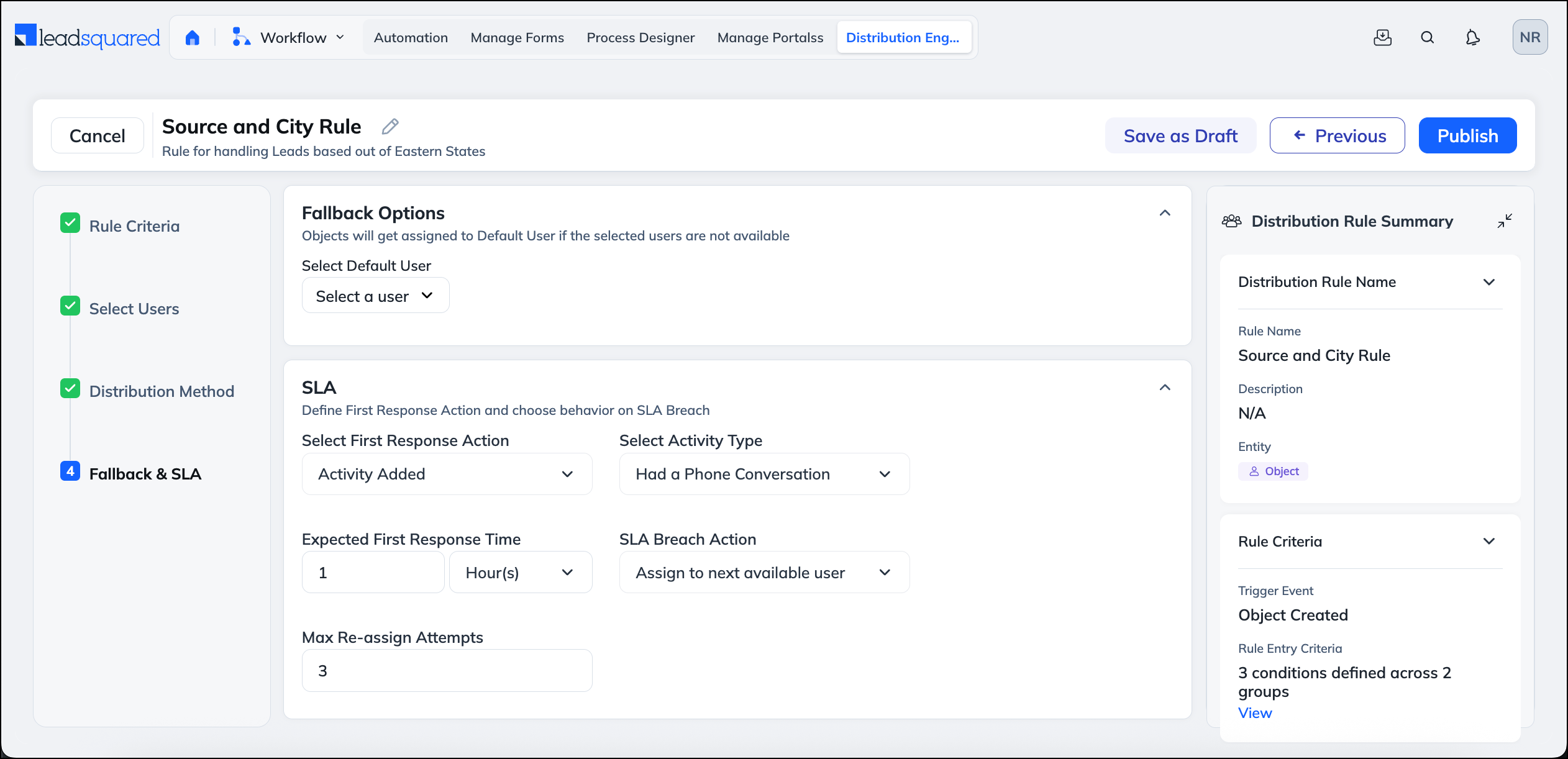
step for fallback


5. Managing Distribution Rules

Rule list includes:

  • Order (priority)
  • Rule name
  • Action (entity)
  • Status (Draft, Active, Inactive, Error)
  • Created on
  • Created by

You can:

  • Click any rule to open its details
  • Search rules by name or creator
  • Filter rules by status, creator, or distribution method
Note: Users with team-specific access will only see rules that belong to their team. Admins and users with global access see all rules.
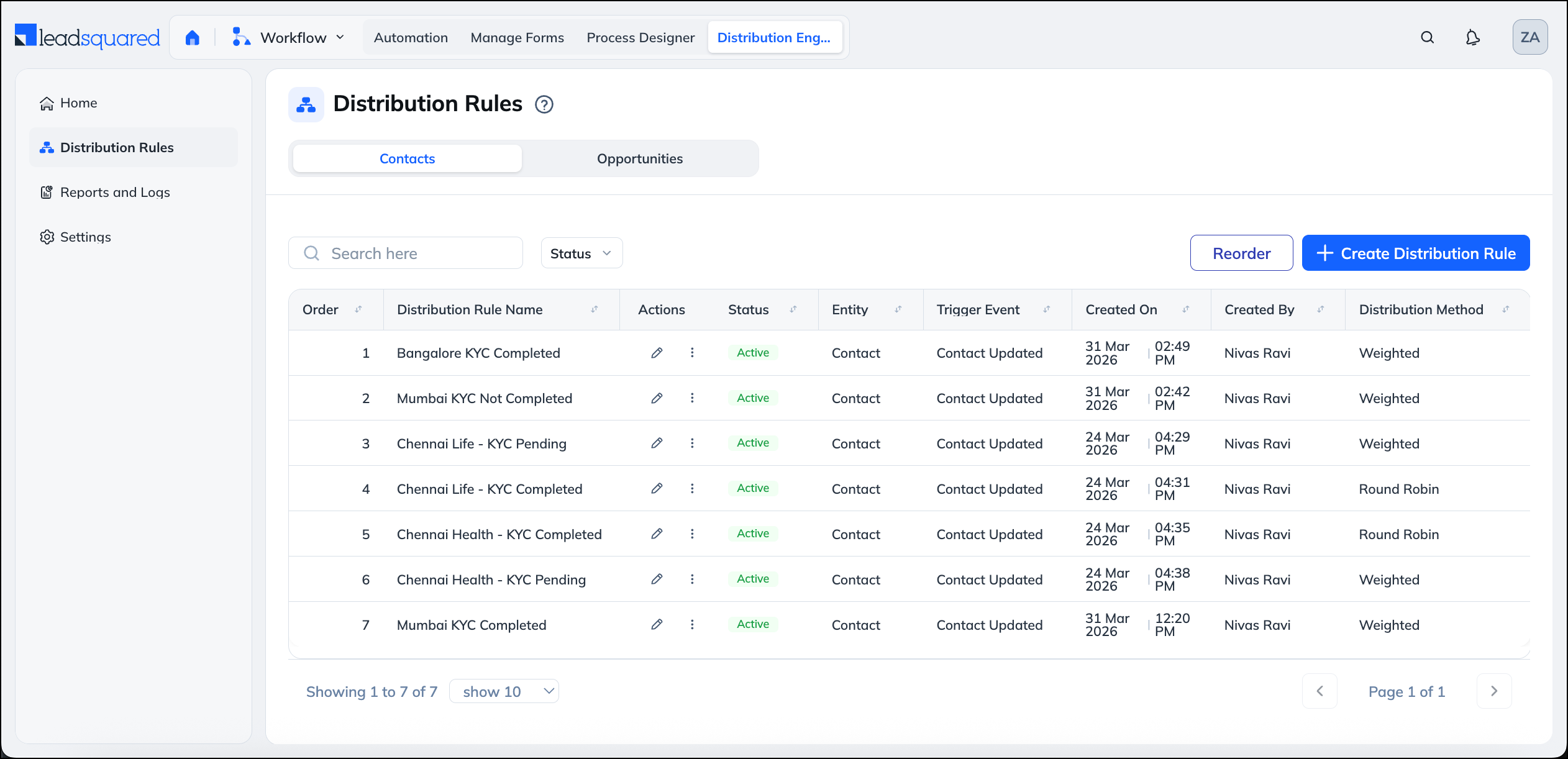
Managing distribution rules

5.1 Reordering Rules

Rule order decides which rule gets applied first when a record enters the Distribute Engine.

When a Lead or Opportunity evaluated:

  1. The engine checks the first active rule in the list.
  2. If the record matches the rule’s entry criteria, the assignment is made.
  3. Once a record is assigned, no further rules are evaluated.
  4. If the record does not match, the engine moves to the next rule in the order.

Why rule order matters

If multiple rules can apply to the same record, only the highest‑priority rule will run.

Example:

  • Rule 1: Assign All Website Leads to Team A
  • Rule 2: Assign High‑Score Website Leads to Team B

If Rule 1 is above Rule 2, all website leads (including high‑score ones) will be assigned to Team A.

To ensure high‑score leads go to Team B, place Rule 2 above Rule 1.

Note:

  • Only Active rules can be reordered
  • Use drag and drop to change priority

reordering rules


6. Permissions

Distribution Engine access and permissions are managed through Permission Templates. Admins can control the following for each user or role:

  • Access type — Global (see all rules) or Team-Specific (see only rules for the user’s assigned team).
  • Feature visibility — Whether the user can access Reports, Logs, and Distribution Settings.
  • Rule permissions — View, Create, Edit, and Delete. If View is restricted, all other permissions are restricted.
  • Modify Permissions — Edit permissions can be further configured by section: Rule Entry Criteria, User Selection, Distribution Method, Fallback and SLA, and Publisher Rules.

This allows admins to extend Distribution Engine access beyond administrators. For example, a sales manager can be given team-specific access with permission to edit user selection and weightage, without being able to modify rule criteria or create new rules.

For the full setup procedure, see Permission Templates.
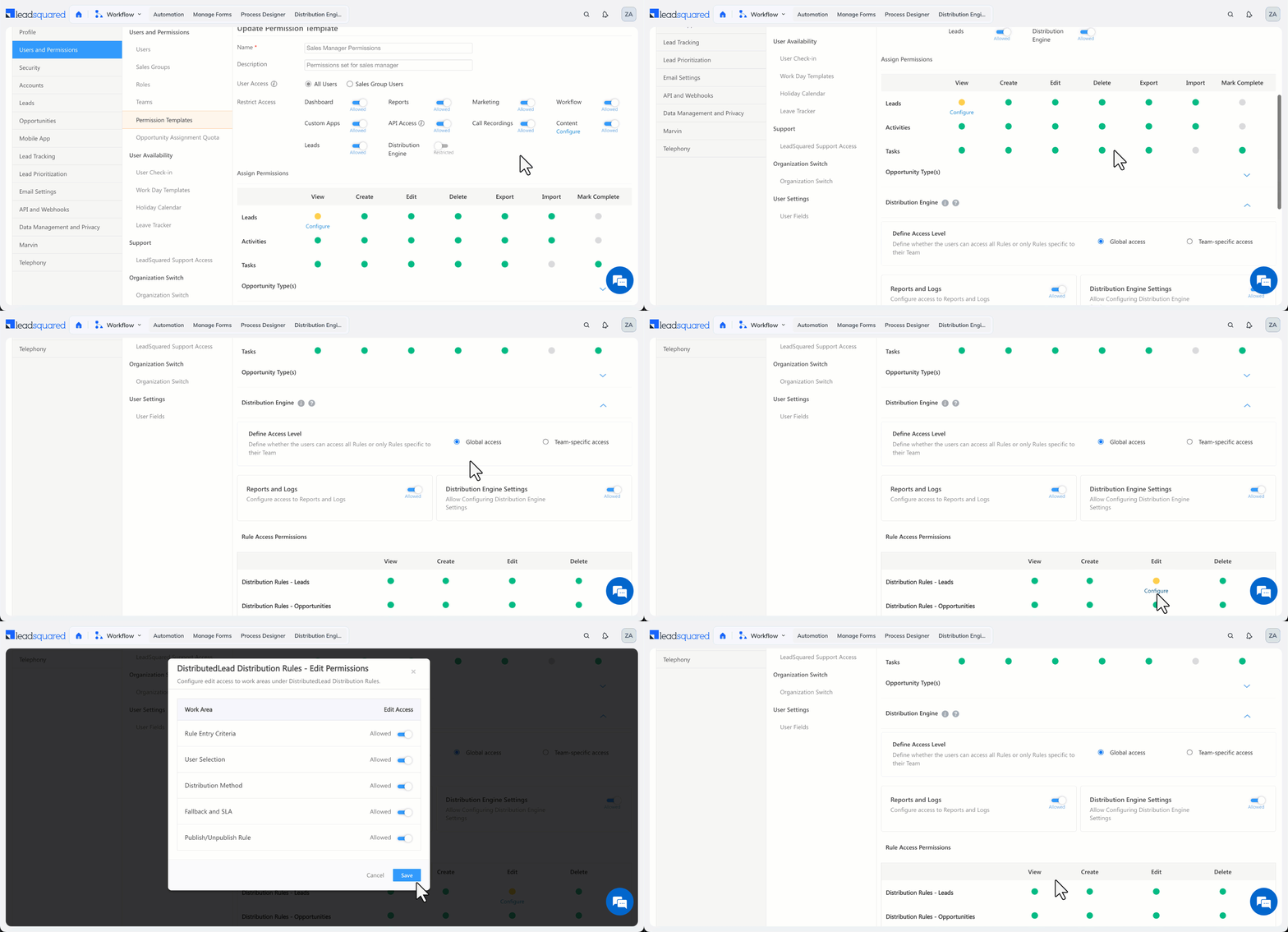
permission templates for distribution engine


7. Viewing Assignments and Performance

Navigate to Distribution Engine>Home. The Home page gives you a quick distribution overview. Click the filter icon to filter the data by a date-range.

  • Records Created: Total number of records that entered the Distribute Engine during the selected time period.
  • Records Assigned: Number of records successfully assigned to users by the Distribute Engine.
  • Assignment Success Rate: Percentage of created records that were successfully assigned to a user.
  • Records Unassigned: Number of records that could not be assigned due to no matching rule or no eligible user.
  • Rule Match Overview: Shows how many records matched each assignment rule.
  • Assignment Method Split: Displays how records were distributed across different assignment methods.
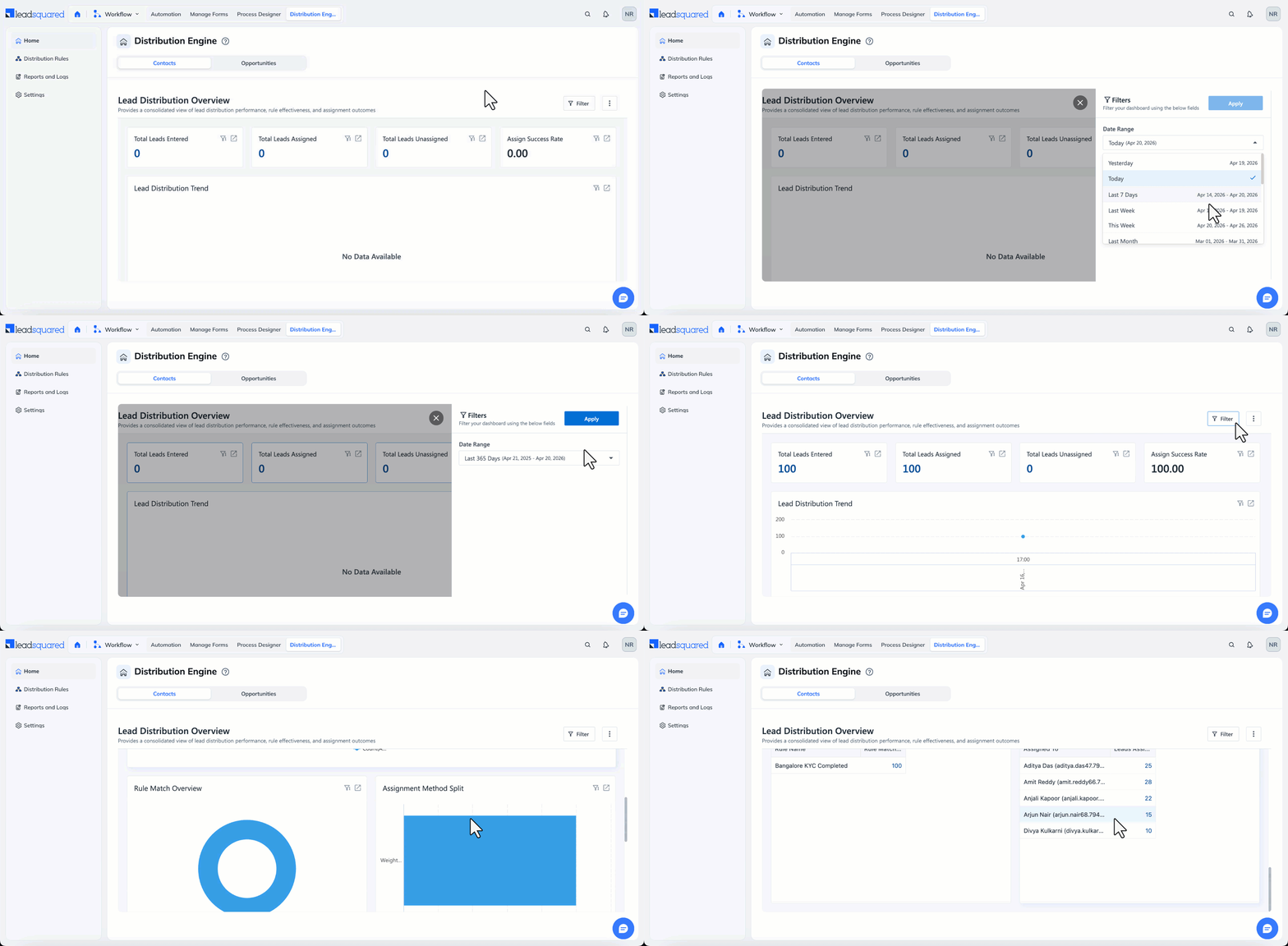
view assignments and performance


8. Logs and Reports

The Reports & Logs section helps you understand how records are being assigned and identify issues such as missed assignments.

You can use these reports to:

  • View assignment history for each record
  • See when and why fallback assignment was used
  • Troubleshoot rule execution issues

All reports can be filtered by date range, sales group, assigned user, and entity type to quickly narrow down the data you need.
reports and logs


9. Assignment Settings

The Assignment Settings section defines the global controls used by the Distribution Engine. Navigate to Distribution Engine>Settings.

The Settings page has two tabs:

9.1 Assignment Quotas

Admins can map user fields to control how many records a user can receive on an hourly, daily, weekly, or monthly basis. If no limit is configured, the user is treated as having unlimited capacity.

9.2 Additional Settings

This tab lets you enable or disable the availability and schedule features that the Distribution Engine uses when evaluating user eligibility. Each setting has a toggle and a link to its configuration page:

  • Enable User Check-in Status for Distribution — Use the user’s Check-in status to determine availability at the time of assignment.
  • Consider Workday Templates for Distribution — Use the Workday Template assigned to the user to determine availability at the time of assignment.
  • Consider Holiday Calendar for Distribution — Use the Holiday Calendar assigned to the user to determine availability at the time of assignment.
  • Consider Leave Tracker for Distribution — Use Leave Tracker to determine user availability at the time of assignment.

When a setting is enabled here, the corresponding condition becomes available in the Select Users step of each distribution rule (see Section 4, Step 2).
distribution engine settings


FAQs

1. What happens if no user is available?

The record is assigned to the fallback user configured in the rule or settings.

2. Can I temporarily stop assignments to a user?

Yes. Mark the user unavailable, apply leave, or remove them from the rule.

3. Can I edit an active rule?

Yes. Changes take effect once you save and activate the rule again.

4. What is the difference between global and team-specific rules?

Global rules allow assignment to any user in the account and are visible to all users with Distribution Engine access. Team-specific rules restrict user selection and rule visibility to a single team.

5. Who can create or edit rules?

This depends on the permissions set in the user’s Permission Template. Admins have full access by default. Other users can be granted view, create, edit, or delete permissions as needed.

6. Can a sales manager create rules?

Yes, if their Permission Template grants create permission. With team-specific access, the sales manager can only create rules for their own team and select users from that team.

FloStack Scheduling & Lead Engagement – Feature Guide

1. Feature Overview

FloStack is a lead-qualification and routing layer that connects multiple lead intake channels to the appropriate conversion paths—such as personalized microsites, event microsites, and booking links—and applies routing and prioritization logic to ensure the right leads reach the right advisor at the right time.

It addresses the routing gap in acquisition workflows, where prospects arrive with intent, but neither they nor the organization can always determine the correct next step. Using lead context and decision rules, FloStack automatically guides each visitor to the appropriate content and action surface—whether that means speaking with an advisor, attending an event, or booking a meeting directly. This enables teams to scale qualified conversions without manual triaging or fragmented handoffs.

Usecase

In a typical customer-acquisition funnel, say for example, admissions:

  • Visitors do not always know whether they should request counselling, register for an event, or directly book a meeting.
  • Organizations struggle to direct leads to the correct next step without manual intervention.
  • Teams often lack visibility into which leads have high intent and which ones require nurturing.

FloStack addresses this by using a decision-based architecture that automatically routes each lead to the correct experience. The goal is to eliminate ambiguity for both the prospect and the internal teams handling them.

Lead Intake Sources

FloStack currently accepts lead data from website forms. All incoming submissions are passed to a central routing unit for evaluation.

After capture, FloStack can automatically send an email containing the relevant microsite link, regardless of where the lead originated.

Rule Board (Decision Layer)

The Rule Board is responsible for determining the next step for every lead. It evaluates attributes such as:

  • Lead source
  • Program or course interest
  • Location preferences
  • Request for counselling vs self-service
  • Intent to visit the campus or participate in an event
  • Previous interactions

Based on rules and conditions, the Rule Board selects one of several conversion experiences.

Conversion Experiences

Experience Type

Ideal Scenario

Action Outcome

Personalized Microsite

Lead is exploring and requires information before speaking to an advisor

Meeting booking via calendar

Event Microsite / Events Listing Page

Lead prefers attending an event or campus visit rather than requesting a call

Event registration

Direct Booking Links

Lead is ready to speak immediately and does not require additional content

Calendar booking

Each experience provides structured information and CTAs suited to that specific stage of decision-making.

Post-Booking Workflow

Once the lead completes a booking or event registration:

  1. A Meeting booked status is generated.
  2. The booking is synced with downstream systems (CRM, LMS, payment systems, etc.).
  3. Post-booking steps can be triggered, including:
    • Orientation information
    • Details/document upload
    • Payment or enrollment procedures

This ensures that the conversion journey continues after the initial booking.

Note: To know more about FloStack (www.flostack.io), and to enable it on your account, reach out to flostack@leadsquared.com.

LeadSquared FLoStack Integration


2. Set Up Your Workspace on FloStack

Administrators can configure their workspace settings to optimize their FloStack environment. This includes setting up the company profile, managing team members, creating Routing Forms, and integrating with a CRM.

  • Personalization – Customize your logo, brand colors, and customer-facing text.
  • Members & Teams – Add team members, assign roles, and create structured teams.
  • Routing Forms – Embed forms to enhance lead capture and data enrichment.
  • Integrations – Sync FloStack with your CRM for automated lead management.

For detailed setup instructions, refer to this article: Set Up Your Workspace on Flostack.

navigate to workspace settings
 

3. Set Up Your Profile and Calendar on Flostack

Setting up your profile and calendar in FloStack helps establish credibility, enhances your professional presence, and ensures seamless lead assignment.

  • My Profile – Upload a profile photo, bio, and welcome video for leads.
  • My Integrations – Sync your preferred calendar with FloStack.
  • Manage Availability – Define your working hours, time zone, buffer times, and advance booking rules.

For detailed setup instructions, refer to this article: Set Up Your Profile and Calendar on FloStack.

My profile


4. Create Meeting Types

The Meetings Type feature in Flostack enables users to define and manage different categories of meetings with tailored scheduling rules. It supports instant scheduling, allowing users to specify availability for specific purposes, while controlling duration, time slots, visibility, and participant capacity.

Meeting types can be one-on-one or group meetings, and can be virtual (with calendar integration) or in-person. This ensures smooth scheduling, prevents conflicts, and improves the overall attendee experience.

For detailed setup instructions, refer to this article: Flostack Meeting Types.

meeting types overview


5. Bookings and Events

The Bookings & Events module is the central hub for publishing, managing, and sharing all scheduling experiences created in Flostack. Whether you’re hosting personal consultations, running large-scale webinars, or offering multiple types of sessions to leads and customers, this module brings everything together in one place.

It consists of three core components:

  • Booking Links – Personalized one-on-one scheduling pages that let individuals book time directly with an advisor, counselor, or team member.
  • Events – group sessions such as webinars, orientations, demos, or training programs with configurable capacity, presenters, and landing pages.
  • Listing Pages – A single, public-facing catalog displaying all your booking links and events, making it easy for users to browse and register.

For detailed setup instructions, refer to this article: Flostack Bookings and Events.

booking link preview


6. Create Microsites

The FloStack Library lets you create custom Microsites to dramatically improve speed-to-lead and conversion rates. You can showcase your services, host documents and videos, and engage leads through callbacks, appointments, and chat. You can upload content, add interactive components like carousels and CTA buttons, and customize templates to build a tailored experience.

Once your Microsite is ready, use the Rule Board to display it to relevant leads. For a step-by-step guide, check out the full articles linked below.

For detailed setup instructions, refer to this article: Flostack Microsite Builder.

LeadSquared FLoStack Integration


7. Configure Rule Board

The Rule Board feature in FloStack enables businesses to streamline their sales process by implementing structured automation rules. By leveraging these rules, sales teams can create a tailored journey for every lead entering their system, ensuring the most efficient and personalized engagement. The Rule Board allows you to define:

  • Prioritization Rules – Assign priority levels to leads based on specific criteria.
  • Lead Routing & Distribution Rules – Automatically route leads to the right reps.
  • Meeting Type Rules – Automatically map a meeting type to the right reps.
  • Microsite Rules – Control which microsites are shown to leads based on their attributes.

For detailed setup instructions, refer to this article: Configure Rule Board on FloStack.

rule board overview


8. Manage Your Leads On Flostack

FloStack provides detailed lead insights through the Lead Dashboard and Leads Page. The Lead Dashboard offers key statistics on captured leads, while the Leads Page provides a breakdown of each lead’s details, status, and interactions with the Microsite. You can filter leads, track engagement, and take actions such as responding to chats, reviewing analytics, and managing lead details.

For detailed setup instructions, refer to this article: Manage Your Leads On Flostack.

dashboard overview


Any Questions?

We’d love to hear your feedback to help improve this article. Feel free to enter your questions or in the comments section below.

Set Up Your Workspace on FloStack

1. Feature Overview

This article will help Administrators set up their workspace settings on FloStack. Workspace settings will let the administrator configure their company profile, add members, create routing forms, and integrate their CRM with FloStack.


2. Prerequisites


3. Workspace Settings

To find your workspace settings, navigate to Settings>Workspace Settings.

navigate to workspace settings


4. Personalization

The Personalization section allows you to customize your company profile:

  • General – Set up your company logo and name. To edit the domain, contact flostack@leadsquared.com
  • Theme – Customize your brand colors and header theme for the booking page.
  • Text – Configure the messages displayed to leads and customers during call scheduling, event registration, and on the Thank You Popup.

workspace settings personalization


5. Members & Teams

Create members for your FloStack account; you can even assign them an administrator role. Once the members are set up, you can create different teams and assign specific members to each team.

Note: If you have users/members set up on your CRM, you can make an API call to retrieve these users on FloStack. For more information, contact flostack@leadsquared.com.

workspace members and teams


6. Routing Forms

If your website has a lead capture form, you can enhance it by creating a Routing Form in FloStack and adding a script to your web page to route and map the details in FloStack. While setting up the Routing Form, enter the IDs of the lead fields from your existing lead capture form into the Routing Form. Assign a unique ID to the Routing Form as well. Once configured, you can embed the Routing Form script into the webpage containing your lead capture form.

6.1 Add Custom Scripts to LeadSquared Widgets and Your Custom Website

6.1.1 LeadSquared Widgets

Depending on your requirement, you can add either the Scheduler Script or Microsite Script listed below. Follow these steps to insert the script into the widget –

  1. Edit the Widget where you need to add the script.
  2. Go to the Settings(Top-Left Hamburger) Menu.
  3. Navigate to Scripts.
  4. Scroll down to the End of Body section.
  5. Paste the required script (given below).
  6. Click Save.

Note:

  • Ensure the form ID in the script matches the form IDs configured in both LeadSquared and Flostack.
  • Always ensure you paste the script inside the End of Body section.
  • Only one script is required per form setup (choose Scheduler or Microsite).
  • Test your form after saving to confirm the redirection works correctly.

1. Scheduler Script

Use this script if you want the form submission to redirect users to a Scheduler page.

< script > window.addEventListener("LSQ_FORM_SUBMITTED", function() {
    const leadID = document.lsqformevaluator.leadId;
    console.log("LeadID:", leadID);
    let formEntity = document.lsqformevaluator.lsqformfield.prepareRequestData("save", undefined, true).FormEntity;
    console.log("Form Data", formEntity);
    const formParams = {};
    formEntity[0].LeadFields.forEach((field) => {
        formParams[field.SchemaName] = field.Value;
    });
    if (leadID) {
        formParams.LeadId = leadID;
    }
    let payload = {
        formId: "lsq-form",
        formParams: formParams
    };
    fetch("https://api-us11.flostack.io/v1/leads/route", {
        method: "POST",
        headers: {
            "Content-Type": "application/json",
        },

        body: JSON.stringify(payload),
    }).then((response) => {
        return response.json();
    }).then((data) => {
        console.log("Data sent successfully", data);
        if (data?.schedulingUrl) {
            window.top.location.href = data?.schedulingUrl;
        }
    }).catch((error) => {
        console.error("Error sending data:", error);
    });
}); < /script>

2. Microsite Script

Use this script if you want the form submission to redirect users to a Microsite page.

< script > window.addEventListener("LSQ_FORM_SUBMITTED", function() {
    const leadID = document.lsqformevaluator.leadId;
    console.log("LeadID:", leadID);
    let formEntity = document.lsqformevaluator.lsqformfield.prepareRequestData("save", undefined, true).FormEntity;
    console.log("Form Data", formEntity);
    const formParams = {};
    formEntity[0].LeadFields.forEach((field) => {
        formParams[field.SchemaName] = field.Value;
    });
    if (leadID) {
        formParams.LeadId = leadID;
    }
    let payload = {
        formId: "lsq-form",
        formParams: formParams
    };
    fetch("https://api-us11.flostack.io/v1/leads/route", {
            method: "POST",
            headers: {
                "Content-Type": "application/json",
            },
            body: JSON.stringify(payload),
        })

        .then((response) => {
            return response.json();
        }).then((data) => {
            console.log("Data sent successfully", data);
            if (data?.micrositeUrl) {
                window.top.location.href = data?.micrositeUrl;
            }
        }).catch((error) => {
            console.error("Error sending data:", error);
        });
}); < /script>

6.2.2 Custom Website or LeadSquared Landing Pages Pro

    • Add the below script to the tag in your site’s HTML markup:
      <script type="text/javascript" src="https://assets-us11.flostack.io/js/flo.min.js"> </script>
    • Add the below code just before the closing  </body> tag in your site’s HTML markup. Depending on your CMS/Website builder, you can also add this to the footer section :
      <script type="text/javascript"> FloStack.route('lsq-<your_form_id>'); </script>
      Note: For a custom website, the lsq tag isn’t required. Instead add this to the footer: <script type="text/javascript"> FloStack.route('<your_form_id>'); </script>

workspace routing forms


7. Integrations

When you integrate your CRM with FloStack, data from FloStack can then be pushed to your CRM. In addition to updating lead data back in your CRM, automation can also be triggered within the CRM to send relevant information to leads like their unique microsite URL, appointment timings, reminders, etc.

Note: Once you integrate your CRM on FloStack there might be additional configuration required on the CRM platform. For more information, contact flostack@leadsquared.com.

workspace settings integration


Any Questions?

Did you find this article helpful? Please let us know in the comments section below if you have feedback or questions. We’d love to hear from you and help you out!

Set Up Your Profile and Calendar on FloStack

1. Feature Overview

This article will help you set up your profile and calendar on FloStack. Setting up your profile and calendar lends credibility, makes you presentable, and helps FloStack efficiently assign leads to you while displaying your availability to inbound leads.


2. Prerequisites

You must be a member or admin on FloStack. To learn more about FloStack (www.flostack.io), and enable it on your account, contact flostack@leadsquared.com.


3. My Profile

To set up your profile and calendar, navigate to Settings>My Settings.

In the profile section, you can –

  • Update your profile photo and personal details for the scheduler and microsite
  • Write a short welcome bio
  • Add a welcome video for leads to view that applies to the microsite
  • Add a custom advisor button to the microsite, allowing each advisor to have their own personalized connect button alongside the existing options.

My profile


4. Configure Calendar

Configuring your calendar allows leads to view your availability and conveniently schedule meetings.

Navigate to My Settings>My Integrations and integrate your preferred calendar with FloStack.

my integrations

Now, navigate to My Settings>Manage Availability. Here, you can –

  • Set your weekly availability by choosing the days and times you’re open for meetings.
  • Specify a default time zone, add buffer times between meetings.
  • Set a minimum advance notice period before a lead can schedule a meeting on your calendar.
  • Configure Mark Me Unavailable to temporarily exclude yourself from active rules and remove unavailable slots. You can define the unavailability period, assign a replacement user, and add multiple unavailability periods as needed.

manage availability


Any Questions?

Did you find this article helpful? If you have any questions or comments, please let us know in the comments section below. We’d love to hear from you and help you out!

Portal Management – Feature Guide

1. Feature Overview

Portals are functional self-service websites that help with lead application management, and are used to complete an application or registration process. LeadSquared’s Portal feature allows you to build your own online portals to capture leads and opportunities, through online forms, making the entire process paperless.

Portals also enable you to collect information on tasks and activities. This ensures all the information captured from a lead and opportunity is immediately available in your LeadSquared account. You can write your own HTML code, or use the drag and drop Portal Designer (no coding knowledge required) to build your portals.

By enabling portals on your account, you’ll be able to –

  • Build an end-to-end application management portal. This includes loan applications, student admission applications, medical applications, insurance or other financial applications, etc.
  • Reduce the turn-around-time and development effort that’s required in setting up a portal.
  • Improve the post-release management of all the portals across your landing pages.
  • Create customizable portals that can be improved upon and updated on the go.

Portal


2. Prerequisites

  • You must be the administrator of your LeadSquared account.
  • You must have access to the Portal’s license.
  • Forms and Processes, along with portals, must be enabled on your LeadSquared account.
Note: If you want to activate Forms and Processes, or receive access to your Portal’s license, reach out to support@leadsquared.com, or speak to your Customer Success Executive.


3. How It Works

In LeadSquared, you can either –

Once your portal is built, you can deploy it on a test environment. When you’re ready to go live you can use a default LeadSquared domain or configure your own domain to host the portal. Version control features are also available to help you manage changes.


4. Create a Portal

  1. From the LeadSquared dashboard, navigate to Workflow>Manage Portals.
  2. Click the Create Portal button.
  3. Provide a relevant name for the portal, and add a description if required. Once you are done, click Create.
  4. On the portals page, you can build the portal using –
Note: If you use Select Template as your initial option, you will not be able to upload your own HTML code for future modifications to the portal. But if you choose to upload an existing HTML code as your initial option, you will still be able to select a template for future modifications to the portal.

LeadSquared Portals_2


5. Manage Portals

Existing and newly created portals will show up on the Manage Portals page. You can use filters to search for portals on the basis of various parameters, such as status, modified by and modified on. You can also edit, clone, and delete portals from this page.

LeadSquared Portals

You can clone both published and draft portals.

What is cloned What isn’t cloned
Portals built using the Portal Designer. Portals built using HTML.
The portal design with images, content, logic cards, and button rules. Subdomain name mapping.
The forms and activities selected in the Portal Designer (not the forms & activities themselves, they can be cloned separately if required). Release history.
Email templates and email settings associated with the portal.
All Portal versions and version history.

To clone a portal,

  1. Under the Actions column, alongside the portal you want to clone, hover your cursor over the wheelAction Icon icon, then click Clone.
  2. Enter the name and description for the cloned portal, then click Save.

Once cloned, the new portal will appear in ‘Draft’ status.

clone portal

Note: If you’re using multiple LeadSquared accounts, you can also clone portals across accounts. For more details, contact your account manager or write to us at support@leadsquared.com.


6. Using Forms in Your Portal

The Forms feature is closely linked with portals. You can create forms or entire application processes to capture information in your portals. These include registration forms for sign-up/login as well as forms to capture leads, opportunities, tasks, and activities. To know more, please refer to LeadSquared Portal Designer – Create Sign Up Forms.


7. Adding Pages to Your Portal

Using the Portal Designer, you can add multiple pages (such as the ‘Home’ page, the ‘Contact Us’ page, the ‘Dashboard’, and so on). You can also secure certain pages by allowing access for only logged-in users.

You can also create applications, using our Applications feature on the Portal Designer. This allows you to build application forms and an application dashboard from which all user applications can be handled. To know more, please refer to Create Portals with Multiple Web Pages.


Any Questions?

Did you find this article helpful? Please let us know any feedback you may have in the comments section below. We’d love to hear from you and help you out!

LeadSquared Portal Designer

1. Feature Overview

LeadSquared’s Portal feature enables you to build your own customized online portals (for education/insurance/lending/medical applications, course registrations, etc.) to capture leads and opportunities. The Portals Designer lets you build entire portals without writing a single line of code. It offers pre-built templates for common use cases across industries, and also the ability to design a portal from scratch, using the simple drag-and-drop interface.

For other Portal related articles, see –

sample live portal


2. Prerequisites

  • To use registration/log-in forms and lead, opportunity, activity and task capture forms, you must first create the relevant forms or processes (sequences of forms) using Forms and Processes.
  • The Portals Designer is a part of the Portals feature. To enable Portals on your account, please write to support@leadsquared.com.


3. Getting Started

3.1 Select an Existing Template

To select from the list of templates –

  1. To create a portal-
    1. From the LeadSquared dashboard, navigate to Workflow>Manage Portals.
    2. Click the Create Portal button.
    3. Give a relevant name for the portal, and add a description if required. Once you’re done, click Create.
  2. After you’ve created a portal, on the Manage Portals page, click the portal name.
  3. Under Getting Started, click Select Template.
  4. On the Choose Template pop-up, to select a relevant template for your business from the list of available options, click Get Started.
  5. Provide the Version Number of the template you’ve chosen, and then click Proceed to Builder.
  6. Once the version is created successfully, you’ll get a message stating the same. You will then be automatically directed to the portal designer page.
Note: If you select a template, you will not be able to upload a ZIP file containing your own custom portal design.

Portal_Designer_E_1

Note: Service CRM users can create a Customer Service template and launch a customer ticketing Portal in minutes. To configure this template, contact scsupport@leadsquared.com.

adding csat surveys on portals for service crm

3.2 Build from Scratch

Alternatively, you can choose to build your own portal page from scratch in minutes.

Click on Others, and click on Get Started.  On the designer, you can –

  1. Click on Add Design Block  or the add section icon icon to add a section.
  2. Choose from a wide range of industry-specific templates and pre-designed sections (hero banners, testimonials, forms, sliders, etc.).
  3. Customize if required.
Note: To display different content for different users, see Can You Display Different Variations of the Same Portal Page to Different Users?

build from scratch in minutes on portals overview


3.3 Save and Reuse Sections

You can save any section or element you create (e.g., a testimonial block, a call-to-action banner, or a lead capture form) and reuse it across any Portal and Landing Pages Pro.

For example, If you’ve created a custom header with your brand’s logo and navigation, select that element and click on the save section icon icon to Save Section. Now, you can apply it to all future pages from the Saved Sections panel in the designer.

portals save sections


4. Layouts

The page layout is divided into the following –

  • Section – This is the base layout of a particular section on the page. This will hold the rows and columns, which will help you manage the structure of your content.
  • Rows and Columns – Rows contain columns, which in turn contain various elements. Rows are stacked vertically, while columns are stacked horizontally. Using rows and columns together, you will be able to arrange your content on the portal designer.

PDesigner_2


5. Elements

The elements that go inside each layout are –

  • Header – The header for the selected layout. This can either be the over-all page header, or an individual section’s header.
  • Paragraph – The text content that is present within a layout, for a specific section.
  • Image – To add an image within the selected layout, click Choose Image, and upload an image. To make the image interactive, configure an action by clicking Action on Click/Tap.
  • Video – To add a video within the selected layout, enter the video’s URL under Video URL. To autoplay the video when a cursor is hovered over it, toggle the enable icon slider.
  • Button – You can add a button within a layout, and under Action on Click/Tap, you can configure what happens when the button is clicked/tapped.
  • Custom HTML – This feature gives you a code editor to add any custom HTML code to your portal. To do this, drag-and-drop a Custom HTML block. On the outer box, click HTML Code, and add your HTML code.
  • Signup Form – The Signup Form feature enables you to build registration and sign-in forms on your portal. To know more, please refer to LeadSquared Portal Designer – Create Sign Up Forms.
  • Form – You can choose to add a LeadSquared form and/or process within a section on the webpage.

LeadSquared Portals_4


6. Action Tool Bar

You can use the following action on Sections, Rows, and Columns –

  • Hide on device – This feature lets you control how layouts display on desktop or mobile. You can hide or show specific sections based on the device to create a cleaner, more tailored user experience. Select an element, choose the device to hide it from, and preview your layout to ensure it looks right on both desktop and mobile.
  • Move Up – Shift the selected Section, Row, or Column upward.
  • Move Down – Shift the selected Section, Row, or Column downward.
  • Move Left– Shift the selected Section, Row, or Column to the left.
  • Move Right– Shift the selected Section, Row, or Column to the right.
  • Clone – Create a duplicate of the element.
  • Delete – Remove the selected Section, Row, or Column.

Note:

  • The Hide on Device feature is available for backward compatibility but is no longer recommended. Instead, use the Mobile Editor for a cleaner and more intuitive layout experience
  • You can only have one form on a portal page. However, if you hide a form on one device, you can add another form to the page and hide it on the alternate device.

portals action toolbar


7. Properties

Each layout listed above can be customized by using the following properties –

PDesigner_3

7.1 General

This is only applicable for navbars and forms.

  • Navbar Behavior on Scroll – Set the navbar behaviour while scrolling through the page, to either remain sticky on the top, scroll with the rest of the page, or fade out while scrolling through the page.
  • Logo Position in Mobile – Choose how you want the logo to be positioned on the mobile device version of the page. It can either be to the left of the screen or centre of the screen.
  • Menu Icon Position in Mobile – Choose how you want the main menu to be positioned on the mobile device version of the page. It can either be to the left or right of the mobile device screen.
  • Menu Icon Color – Pick a colour for the menu icon from the gradient screen, or enter the hex code for a specific colour.

PDesigner_4

7.1.1 For Forms

The properties of a form are –

  • Integrate – Choose either a form or a process to integrate with your portal page.
  • LSQ Form – If you chose a LeadSquared form, then select the form from the dropdown.
  • LSQ Process – If you chose a LeadSquared process, then select the process from the dropdown.
  • Form Design – Choose the form design from the dropdown.
  • Show Form Title – To show the title of the form on your portal page, toggle the enable icon slider.
  • Show Tabs/Navigation – To show the sections within the form, toggle the enable icon slider.
  • Show Section Names – To show the names of the sections within the form, toggle the enable icon slider.
  • Accent Color – Select the colour of the Save button and tabs from the gradient screen, or enter the hex code for a specific colour.
  • Font – Select the font you want to display on the form.

PDesigner_11


7.1.2 Buttons and Links

The following General properties are only applicable for buttons and links.

  • Action on Click/Tap – This determines the button’s/link’s behaviour when it is clicked or tapped on. You can choose from any of the following actions –
    • Open External Link – Add the external link you want the lead to be redirected to –
      • Link – Add the URL of the website you want your lead to be redirected to when the button/link is clicked.
      • Open in New Tab – To open the link on a new tab, enable the enable icon slider.
      • Render as – To render the action as a button, select Button.  To render the action as a link, select Link.

LeadSquared Portals Button

    • Link Page – Select the portal page you want the lead to be redirected to when they click the button/link.
      • Page – From the dropdown, select the page or section you want your lead to be redirected to within the portal.
      • Query String – You can send the value of a particular field (First Name, Mobile field, etc.), by adding a mail merge parameter here. This will ensure that the field value is carried forward to the subsequent pages that have been configured.
      • Open in New Tab – To open the link on a new tab, enable the enable icon slider.
      • Render as – To render the action as a button, select Button. To render the action as a link, select Link.

LeadSquared Portals Button

    • Download File – Enable your leads to download a file (like prospectus, etc.) when they click the button/link.
      • Upload File – Click Choose File, and upload the file, or select the file from your media library, which is automatically downloaded when your lead performs the action.
      • Use Mail Merge Values – Alternatively, you can mail merge a custom field set (CFS) that contains a file, by selecting the CFS from the dropdown.
      • Render as – To render the action as a button, select Button.  To render the action as a link, select Link.

LeadSquared Portals Button

    • Based on Rules – This option allows you to set-up rules based on the choices a lead makes. For example, if the lead chooses “City” as “New Delhi”, the you can set-up a condition that redirects the lead to the portal page for leads in New Delhi. Similarly, if the lead chooses “Course” as “B.Tech”, you can set-up a condition to download the prospectus form for B.Tech applicants. To set-up rules –
      1. From the Actions on Click/Tap dropdown, select Based on Rules.
      2. Click Configure Rules, and on the Configure Rules pop-up, rename the rule.
      3. From the any dropdown, choose if you want the condition to be any or all, and set-up the base rule.
      4. From the Then dropdown, select the action you want to be carried out when the condition is satisfied.
        • Open External Link – Add the URL of the website you want your lead to be redirected to when the action is performed. To open this link on a new tab, enable the enable icon slider against Open in New Tab.
        • Link Page – From the Select dropdown, select the portal page you want the lead to be redirected to once the action is performed. You can send the value of a particular field (First Name, Mobile field, etc.), by adding a query parameter here. This will ensure that the field value is carried forward to the subsequent pages that have been configured. To open this link on a new tab, enable the enable icon slider against Open in New Tab.
        • Download File – Choose the file that should be downloaded when the lead submits the form.
      5. To add more rule, click Add Rule.
      6. Once you’re done, click Save. You’ll then get a message saying, “Rules saved successfully”.

LeadSquared Portals Button

    • None – If you want no actions to be performed, choose None.
      • Render as – To render the action as a button, select Button.  To render the action as a link, select Link.


  • Button Effects
    • Hover Effect– When you move your cursor over a button, it will animate. Under the Effects tab, you can enable Hover and click on Manage Effect. You can choose from the following three effects when you hover over a button –
      • Shadow Effect – Display a shadow around the button.
      • Color Effect – Animate using colour transition.
      • Shrink & Grow Animation -The button will animate by shrinking in size and re-sizing to the original.

Note: To configure a button within a form, click States, and from the Action on Successful submission dropdown, select an action. The configuration steps remain the same.


7.2 Spacing & Dimensions

  • Padding – Set the padding for the selected layout. If you want the padding dimensions to be applicable on all sides of the layout, against All Sides, toggle the enable icon slider.
  • Margin – Set the margin width for the selected layout. If you want the margin to be applicable on all sides of the layout, against All Sides, toggle the enable icon slider.
  • Min Height – Set a minimum height for the selected layout. If you want the height to be set automatically, against Auto, toggle the enable icon slider.
  • Max Width – Set the maximum width for the selected layout. If you want the height to be set automatically, against Auto, toggle the enable icon slider.

PDesigner_5


7.3 Border & Radius

  • Border – Set the size, style and colour for the border around the selected layout. If you want the border to be applicable on all sides of the selected layout, against All Sides, toggle the enable icon slider.
  • Border Radius – Set the radius for the border around the selected layout. If you want the border radius to be applicable on all sides of the layout, against All Sides, toggle the enable icon slider.

PDesigner_6


7.4 Background

You can either choose to leave the section’s background blank, or set an image, or a background colour.

  • To add an image, from the dropdown, select Image. Then, click on Choose Image to choose an image from your Image Library.
  • To set the background colour, from the dropdown, select Color. Then, choose a colour from the gradient screen, or enter the hex code for a specific colour.
  • Select Gradient to add a consistent visual theming.
  • Select Slide Show to extend the idea of a hero image, allowing you to present multiple images in a sequence. Click Manage Slides to add more slides.
  • To leave the background blank, from the dropdown, select None.

add background on portals

You also have the option to add a Background Overlay. It enhances the readability of the text and reduces visual stress for viewers. You can enable Background Overlay by toggling enable icon the slider. It has 2 options –

  • Color Overlay – A color filter that puts a tint on the selected element to make the text more readable.
  • Blur Overlay – Customize the intensity of the blur to be added to the background.

bg overlay

Background Effects

You can make your background images dynamic and reactive to scroll movements.

  • Parallax Effect – Select a background image, on the right-hand panel, navigate to Effects, and enable Parallax Effect

portals parallax


7.5 Shadows

Set a shadow for the specified layout.

PDesigner_8


7.6 Advanced

  • Opacity – Set the opacity for the layout.
  • Display – It determines the CSS display behaviour of a specific layout.
    • Block – Displays a layout as a block element.
    • Flex – Displays a layout as a block-level flex container.
    • Inline – Displays a layout as an inline element.
    • Inline Block – Displays a layout as an inline-level block container.
    • Inline Flex – Displays a layout as an inline-level flex container.
  • Action on Successful Submission – This is applicable only for Forms. You can configure the following actions on a successful submission –
    • Open External Link – Add an external link, and configure if it opens in the same tab or a new tab.
      • Link – If you choose Open External Link as the Action on Successful submission, then add the URL of the website you want your lead to be redirected to, when the form is submitted.
    • Link Page – Select the portal page you want the user to be redirected to on successful submission.
      • Page – If you choose Link Page as the Action on Successful submission, then from the dropdown, select the page or section you want your lead to be redirected to, when the form is submitted.
    • Download File – Enable users to download a file (like prospectus, etc.) on submission by uploading it here.
      • File – If you choose Download File as the Action on Successful submission, then under File, click Choose File, to choose a file from your Document Library.
    • None – No action will be taken on successful submission.

PDesigner_9


8. Actions

You can perform the following additional actions on a page –

  • To completely clear the portal designer canvas, click the Clear Portal Designer icon.
  • To undo the changes you recently made, click the Undo icon.
  • To redo the changes you recently made, click the Redo icon.
  • To save your progress with the changes you made, click the Save icon.
  • To preview the page, click Preview.
  • Once the page is ready, click Publish to Test. This will publish the page to the test environment.

PDesigner_14


9. Add Multiple Web Pages

Add multiple web pages (home page, contact us page, application dashboard, etc.) to your LeadSquared Portals, using the Portal Designer. You can also make logins compulsory to view certain pages. This can be used for application and user profile pages. To know more, please refer to Create Portals with Multiple Web Pages.


10. Mobile Editor

To help you create fully responsive and mobile-first designs, Portals includes a Mobile Editor. This feature lets you switch to mobile view and customize the layout specifically for mobile devices, ensuring a smooth experience for the majority of your audience.

Beyond cosmetic changes, the Mobile Editor allows you to tailor functional behavior—for instance, you can design distinct user journeys on mobile and desktop. You might choose to present a simplified, app-like experience on mobile while offering a more feature-rich layout on desktop.

Note:

  • The older Hide on Mobile and Hide on Desktop options are no longer recommended. Instead, use the Mobile Editor for a cleaner and more intuitive layout experience.
  • A default mobile version is automatically generated based on your desktop design, so using the Mobile Editor is optional. You only need to use it when you want to fine-tune the mobile layout or create a different experience tailored specifically for mobile users.
  • Mobile layouts are only visible to users accessing the page on mobile devices. This view is not supported on Tablets.

navigating to mobile editor on portals

Key Capabilities

Here are some capabilities of the mobile editor –

Full Editing Support

The mobile editor offers the same drag-and-drop functionality as the desktop editor, allowing you to add, rearrange, or delete components in mobile view. Once a section is edited in mobile, it becomes independent of its desktop counterpart, future changes made on desktop won’t affect it unless reverted.

making changes through the mobile editor on Portals

Section Sync and Revert Behavior

When a section is edited in mobile view, it becomes independent of the desktop version and is marked with an orange border to indicate it is out of sync.

You can click on an individual section to revert it, or you can revert the entire mobile layout at any time to restore alignment with the latest desktop design.

revert changes on portals mobile editor

Note: Headers and footers remain in sync across both desktop and mobile views—any changes made to them on desktop will automatically reflect in mobile. If you need different headers or footers on mobile, you can create separate variants directly within the mobile editor.

Manage header footer variants in mobile editer

Preview Your Design

Click on Preview to preview and test your mobile design.

preview the mobile editor on Portals


11. Test the Portal

Once the portal is designed, you can test it by deploying it on the Test Environment. Once it is successfully tested, you can make it live.

  1. After you’ve created the portal and click Publish to Test, the portal is automatically uploaded to the Test Environment.
  2. For a couple of minutes, the Test Environment status will stay Red red.
  3. The status will automatically turn Green green. If it doesn’t, click on the Refresh refresh icon.
  4. If your portal is enabled in the live environment, you can click Publish to Live.

LeadSquared Portals


12. Configure the Portal

On the Portal page, navigate to Overview>Finishing Up>Settings, or click the Settings tab to Configure the portal. Here, you can configure the name, domain, email and SMS settings for the portal.

12.1 General Settings

Provide the name and description of the portal. This will help your users identify the portal. Once you’re done, click Save.

LeadSquared Portal


12.2 Domain Settings

Default Domain – You can host your portals on LeadSquared’s default domain.

  1. In the Domain Settings column, enter a subdomain name for the portal you’ve created.
  2. The URL for the default LeadSquared domain is “lsqportal.com
  3. Once you have added the details, click Confirm.

To delete the portal, click Delete Portal.

LeadSquared Portal

Custom Domain – Alongside Use Custom Domain, enable the enable icon slider to host the portal on your own custom business/brand sub-domain (e.g., applications.mybusiness.com).

For details, see Use Custom Domains for Your Portals.


12.3 Email Settings

You can edit or disable email notifications a lead or opportunity would receive for “Signup”, “Forgot Password”, “Password Reset”, and “OTP Verification Email”. To configure these emails –

  1. Navigate to Settings>Email Settings.
  2. Expand the email tab. You will find the Disable Email and Edit options.
    1. If you want to edit the email, click on the Edit button. This opens a window where you can edit the email.
    2. Once you’re done editing the mail, click Done.
      • To send out a test mail, click Save and Test, and on the Test your email content pop-up, enter the mail Id to which you want to send the test mail.
  3. To disable these emails, click Disable Email, and confirm that same.

portal settings email


12.4 SMS Template Settings

To verify your lead’s mobile numbers (for Portal Registration and Portal Login), we send out OTPs via SMS. This is done by default, and it requires no additional configuration from your end. To include your company’s name in the default SMS, click Edit, and enter the name.

Note: To use your own custom SMS template, reach out to your account manager or write to support@leadsquared.com.

LeadSquared Portal


13. Version History

You can view the various versions of the code that was uploaded on this portal.

  • Under Actions, click the Actions icon against any version of the code.
  • To test a previous version of the code, click Publish to Test.
  • To download a previous version of the code, click Download Zip.

Test Upload


14. Releases

  • You can check all the versions that have been uploaded to the portal under the Releases tab.
  • The default selection is All Releases, but you can also filter by Test Releases and Live Releases.

Releases


15. Troubleshooting

1. Issue: Field Updates on the Form are Not Reflected in the Portal

  • Description: The values updated in a drop-down field in a form are not appearing in the portal as expected.
  • Cause: This is due to a caching issue. When form changes are made, the portal may not immediately reflect the updates.
  • Solution: To resolve this, reconfigure the form within the portal and republish the portal. This will clear the cache and apply the updated values.

2. Issue: I’m unable to Publish my Portal to Live Environment

  • Description: I’m receiving the following error when I try to publish my portal to the live environment – “There was an error processing the request. Please contact administrator.”
  • Explanation: This issue typically occurs when the custom domains for the portal are not verified, or there is a mismatch in the CAA (Certification Authority Authorization) records. The CAA records must be correctly configured and verified to successfully publish the portal.
  • Solution: Verify that the custom domains are properly configured (see How to Use Custom Domains for Portals). Check for any mismatches in the CAA records and correct them.

3. Issue: Duplicate Dynamic Form Submission Captured Against Lead

  • Description: The form submission from the portal is being captured twice for the same lead, causing the lead stage to revert to a previous stage.
  • Cause: This happens when a student opens the form in multiple browser tabs and submits the form from different tabs. Each submission gets recorded separately, leading to the duplication.
  • Solution: To prevent this, enable the “Disable Duplicate Tabs” setting in the Advanced Configuration of the Portal. This will restrict form submissions from multiple open tabs and avoid duplicate submissions.

LeadSquared Portals

4. Issue: “Cannot Open Duplicate Tabs” Error in LeadSquared Portal

  • Description: When attempting to open the LeadSquared Portal in a new tab while already logged in on another tab, you may receive the error message: “Cannot open duplicate tabs.”
  • Explanation: This message appears because the portal is already open in another tab with the user logged in.
  • Solution: Sign Out or Close Tabs: To resolve this issue, please sign out from the already open tab or close all tabs in your browser. Then, reopen the Portal in a new tab.


Any Questions?

Did you find this article helpful? Please let us know any feedback you may have in the comments section below. We’d love to hear from you and help you out!

Landing Pages Pro – Feature Guide

1. Feature Overview

Create and publish compelling landing pages in minutes, with Landing Pages Pro (LPP). Leverage the intuitive DIY, drag and drop designer to build pages from scratch or access ready-made industry specific templates. Publish your landing pages on custom domains or on the default LeadSquared domains and get detailed performance reports and analytics for each live campaign.

LeadSquared Landing Pages Pro

With Landing Pages Pro –

  • Capture Attention – Dynamically change the landing page content (by tweaking the page URL) to show your leads exactly what they need to see.
  • Present Offering – Present your offerings in a clear and captivating way using advanced design features like sliders, overlay, parallax effects, and more.
  • Capture Lead Details – Replace long, daunting forms with crisp and intelligent dynamic forms that auto-populate data based on previous entries. Utilise OTP validations and Captcha to minimise drop offs.
  • Manage the Post-Submission Journey – Direct leads to tailored experiences where they can be nurtured and given all the information they need post form submission.


2. Prerequisites

  • Landing Pages Pro is a paid feature. To enable it, contact your account manager, or send an email to support@leadsquared.com.
  • To capture Leads or Opportunities, you must first create the relevant forms using Dynamic Forms.


3. How it Works

Follow the articles below to create and design your landing page on Landing Pages Pro –

AI Propensity Score – Automatically Predict Conversion Chances

1. Feature Overview

In LeadSquared, lead conversion potential was traditionally measured using Lead Scores, Engagement Scores, and Lead Quality Scores. While these metrics offer valuable insights, they are static, require manual setup, and assess each parameter independently without understanding their interrelation.

To overcome these limitations, LeadSquared introduces the AI-powered Lead Propensity Score – a dynamic and automated way to predict how likely a lead is to convert.
This score is generated using a proprietary AI/ML model that analyzes behavioral and historical data across your account to identify the attributes most associated with conversions. It eliminates manual scoring setup and provides a unified, data-driven prediction to help you prioritize high-potential leads efficiently.

LeadSquared Lead Propensity

Key Benefits

  • Objective, data-driven lead prioritization
    Engage with the right leads first based on AI-based predictions rather than subjective judgment.
  • Reduced manual effort
    No manual configuration or scoring logic is required – the system automatically learns and adapts.
  • Improved sales efficiency
    Helps sales teams focus their time on high-propensity leads to improve conversion rates and optimize sales performance.
  • Actionable insights
    Correlate lead attributes, activities, and behaviors with conversion outcomes to improve sales strategy and customer engagement.


2. Prerequisite

This is a paid feature. To get it enabled on your account, contact your account manager, or write to support@leadsquared.com.

Note: This feature can be trained on either lead or opportunity data. When enabled on your account, consult your account manager to determine which option best fits your use case.
If you train this feature on opportunity data, select the Opportunity Type it should use. You can train it on only one opportunity type in your account.


3. How it Works

  • Identifies Conversion Attributes
    The AI model automatically analyzes historical lead data to identify the attributes and behaviors that have influenced conversions in the past.
  • Builds a Predictive Model
    The system continuously learns from your lead and activity data, building a model that determines which characteristics best predict successful outcomes.
  • Predicts Conversion Likelihood
    Every new or updated lead is evaluated by the model and assigned a conversion likelihood (e.g., High, Medium, or Low), helping users focus on the most promising leads.
  • Continuously Refines Predictions
    As lead data evolves, the model retrains itself to refresh propensity scores, ensuring predictions remain accurate and relevant over time.


4. Manage Leads Page

On this page, Propensity Scores are visible by default for all leads. You can use the score in Advanced Search to filter leads based on their propensity.

LeadSquared Lead Propensity


5. Lead Details Page

The Propensity Score is visible on the vCard.

LeadSquared Lead Propensity


6. Smart Views Page

The Propensity Score can be used to create a Smart Views page.

LeadSquared Lead Propensity


Any Questions?

Did you find this article helpful? Please let us know any feedback you may have in the comments section below. We’d love to hear from you and help you out!

Data Protection and Privacy Settings

These settings enable you to meet the privacy requirements of your end users and comply with data protection regulations such as GDPR. They allow your users the choice of sharing or restricting data with your organization and with LeadSquared. The settings available are –

  • Cookie Consent
    Lets you customize and display a cookie consent banner on your website.
  • Email Opt-in
    Gives your leads the choice to opt-in or out of receiving your emails.
  • Personal Data Protection
    Give leads the ability to access, update and delete their personal data.
  • Delete Lead Backup (Data Purging)
    Allows you to delete lead backup data permanently, in instances where data backups are retained before deletion.

You can access the Data Protection and Privacy Settings by navigating to My Account>Settings>Data Protection and Privacy.

Leadsquared - Data Protection and Security


Cookie Consent

As part of the privacy settings, you can allow end users to control whether or not they would like to enable cookies on your website (where the LeadSquared Tracking script has been installed). If an end user chooses to disable cookies then their behaviour on your website won’t be tracked. This means that page views, source, UTM parameters, etc. will not be tracked for that particular session.

Note: 

  • The cookie consent banner will re-appear if the user starts a new session (closes the previous browser and starts a fresh session).
  • The cookie consent banner will only be displayed for lead if the ‘Do Not Track’ lead field is empty. For more information, see Data Privacy – Do Not Track.

The setting allows you to display a customizable cookie consent banner on your website. It looks something like this –

consent banner

To enable the cookie consent banner –

  1. Navigate to My Account>Settings>Data Protection and Privacy>Personal Data Protection.
  2. Alongside Enable Data Protection and Privacy, click Yes.
  3. Under Privacy Settings, alongside click Yes.
  4. Hover the cursor over the settingsSettings icon icon and click Edit.
  5. Customize your cookie consent banner and then click Save.

Cookie Banner

Cookie consent banner customization options include –

Options Description
Mode Consent mode gives end-users the option of enabling or disabling cookies.
Position Top will display the banner at the top of the webpage while bottom will display it at the bottom.
Headline You can customize the text you want users to see on the headline. You can even modify the text and background colour.
Link You can choose whether or not you want to display a link on the banner. The link is helpful if you want to direct end users to your privacy policy documentation.
OK button Customize how you want users to see the OK button.
Close button Choose whether or not you want to display a close button and how you want it to look.


Email Opt-in

The Email Opt-in settings are geared toward upholding the privacy rights of your leads.
By using the email opt-in setting together with the email opt-in automation action, you can let your leads decide whether or not they want to receive emails from your organization. Here’s how you set it up –


1. Enable the Email Opt-in Setting

Once you enable this setting, the Do Not Email lead field will automatically be set to True. All leads created from this point on will not receive any emails except the ‘Opt-In Email’ you set up via automation (see step 2).

  1. Navigate to My Account>Settings>Data Protection & Privacy>Email Opt-in.
  2. Set Enable Opt-In to Yes.

Enable email opt-in

Note: After this setting is enabled, users will have to enter comments if they wish to change the Do Not Email field to False manually, through lead import or through rules or automation. Here’s an example from the Add New Lead form where the Do Not Email field box has been unchecked.

email opt in add new lead form


2. Set up an Opt-in Automation

The automation action, Send Opt-in Email, lets you send an email to leads where they have the option to choose whether or not they want to receive emails and also set their preferences. It looks something like this –

opting in to email communication

If a lead chooses to opt-in and receive emails, they’ll then get to choose their email subscription preferences and the Do Not Email field is automatically updated to False.

opt in yes

If, on the other hand, a lead chooses to opt-out, the Do Not Email remains True and you can’t send them any emails.

Note: The Opt-in email can only be sent once in 30 days and is sent even if the Do Not Email setting is True.

Here’s how you can set up a simple automation to send opt-in emails when new leads are added.

  1. Navigate to Marketing>Automation and click Create Automation.
  2. Select a Blank Template, set the trigger to New Lead and click Save.
  3. Click the Add  button and under Messaging, select Send Opt-In Email.
  4. You use the visual designer or text editor to compose the email. The visual designer already has ready-made templates you can preview and use. For this case, select the Opt-in Emails for New Leads template. Click Use or Edit & Use if you wish to make changes to the content.
  5. Now click Publish to set the automation live.

New opt-in automation

Note: All opt-in and opt-out actions taken by your leads reflect as custom activities with the following details – IP address, Origin, Comments and Date. You can view them on the Lead Details page for a particular lead –

opt in lead details


3. Points to Note

  • If a lead’s email address is changed and the Email Opt-in settings are Enabled, the Do Not Email field for that lead will be reset to True.
  • If a lead’s Do Not Email status is changed manually, through import or through rules or automation, users must enter Opt-in comments.
  • All opt-in and opt-out activities are tracked. You can view them on the lead details page as shown above. If you can’t see them enable the Opted In for Email and Opted Out for Email activities from the Notable Activity Type drop-down on the Lead Details page.

show opt in and out activities


Personal Data Protection

The personal data protection setting is another LeadSquared feature that helps you comply with GDPR. When enabled, it automatically creates a landing page in your account (in draft status) that you can publish to existing leads and present them with the following options –

  • View their data
  • Remove their data
  • Update their data
  • Do Not Track
  • Others (comments are available)


1. Enable the Personal Data Protection Settings

  1. Navigate to My Account>Settings>Data Protection & Privacy>Personal Data Protection.
  2. Alongside Enable Personal Data Protection, click Yes.

personal data protection settings


2. Publish the Landing Page

After enabling the personal data protection setting, a landing page with the name End User Data Protection Request Form will automatically appear in your account.

data protection landing page

You can edit this page if you want. The form in the landing page will have a Data Protection Request drop-down field where leads can request to viewremove or update their data, make a do not track request or choose the others option and enter comments.

Note: If a lead chooses the Do Not Track option, the ‘Do Not Track’ lead field will be marked as ‘Yes’ and web and email activities for the lead will not be tracked from that point on. For more information, see Data Privacy – Do Not Track.

To publish the landing page –

  1. On the main menu, navigate to Marketing>Landing Pages.
  2. Hover your cursor over the settingsSettings iconwheel alongside the End User Data Protection Request Form landing page and click Publish.
  3. On the confirmation box, click Publish.

publish page

Note: Only existing leads can submit a request on this landing page. They will have to specify their email address or any other field included in the form that is marked unique in your account.

Once a lead submits a request on the landing page, they’ll receive the following confirmation email –

landing page request confirmation email


3. Check Activity History

When a lead submits a request on the End User Data Protection Request Form landing page, a ‘Data Protection Request’ activity gets posted on the lead details page. The response to the confirmation email is also visible in the leads activity history.

data protection history


4. Take Action

Each data protection request submitted by a lead, excluding ‘Do Not Track’, must be manually completed. So a lead requests to view their data, update their data, remove their data or chooses the others option, you have to manually perform the required actions.

Note: The ‘Do Not Track’ request automatically updates the ‘Do Not Track’ lead field. For more information, see Data Privacy – Do Not Track.


Delete Lead Backup

When leads are deleted from LeadSquared, we still maintain an audit record with the lead’s details. To ensure GDPR compliance and remove all lead data (including the audit data we maintain), you can use the Delete Lead Backup feature.
Enter the lead’s email address and click Delete Lead. On the confirmation pop-up click Yes. If the lead backup exists you’ll see a success message. If the backup doesn’t exist you’ll see a failure message.

lead backup delete


Bulk Export and Delete Data

The Bulk Export and Delete Data feature enables you to efficiently manage and optimize your LeadSquared account storage by exporting and deleting large volumes of activity data in a single action. You can choose to export and delete system and custom activities, or permanently delete them without creating a backup.

You can process up to 200,000 activities in a single request, either by exporting and deleting them together or deleting them directly. If you only want to export activities without deleting them, refer to the Export Activities feature.

Leadsquared - Bulk Export & Delete Data


Any Questions?

Did you find this article helpful? Please let us know any feedback you may have in the comments section below. We’d love to hear from you and help you out!


Universal Data Sync (UDS) – Create an App

1. Feature Overview

Universal Data Sync (UDS) enables effortless, no-code integration and data synchronization between two systems, such as marketing platforms, e-commerce systems, CRM tools, accounting software, and more.

To integrate your third-party data sources with LeadSquared, create an app for each service (e.g., Razorpay, Outlook, Calendly, etc.). An App serves as a container where you can configure and manage multiple data flows associated with a specific provider or purpose. It centralizes workflows, making it easier to organize, monitor, and maintain all related processes. This article explains how to create your first app on UDS.

If you’re new to UDS, see Getting Started with UDS.


2. Prerequisites

  • You must be an Administrator user, or access must be shared to you by an Admin user.
  • The Universal Data Sync Connector is a paid feature. To enable it on your account, contact your account manager, or write to support@leadsquared.com.
  • The UDS connector must be installed on your account before you can create apps. For installation related information, see Getting Started with UDS.


3. Create Apps

  1. On the main menu, navigate to Apps>Universal Data Sync.
  2. Click Create Application.
  3. Enter a name, region, description and upload a logo for your app.
  4. Click Save Details.

LeadSquared Apps and Integrations


4. Other Actions

  • App Settings – Make changes to your app. Add new data flows or edit existing ones.
  • Delete Application – Deletes the application and all data flows, authentication settings, and actions under it.

Universal Data Sync Connector


5. Next Steps

Once you’ve created an app, define the global variables – Define Global Variables for an App.


Any Questions?

Did you find this article helpful? Please let us know any feedback you may have in the comments section below. We’d love to hear from you and help you out!

Field Intelligence – Feature Guide

1. Feature Overview

Field Intelligence provides tools for real-time reporting and visual analytics to help admins and managers monitor their field users’ productivity and movement throughout the day from the LeadSquared web app or mobile app. It includes the following key tools:

  • Distance Travelled Report – Track how far users travel each day using GPS-based calculations.
  • Field Force Insights – Get a breakdown of your users’ check-in/out status, working hours, routes, and device details directly from your LeadSquared Web and Mobile App.
  • My Teams – Monitor your team’s individual activity directly from your LeadSquared Mobile App and connect with them instantly via call, SMS, or WhatsApp.
  • Device Binding – Secure app access by binding each user to a single approved device.

With Field Intelligence, you can:

  • Visualize users’ daily routes, distance travelled, check-ins, tasks, activities and customer visits.
  • Understand how users’ work hours are spent: on travel, customer interaction, or idle time.
  • Contact the user directly from the LeadSquared Mobile App.
  • View user activity on an interactive map for better field oversight.
  • Ensure data security by binding a user to one device.
Note: Field Intelligence is not available by default. To enable it, contact us at support@leadsquared.com.
Distance Travelled Report Field Force Insights My Teams Device Binding
Availability Web Only Web & Mobile Mobile Only Web Only
Enablement Enabled automatically along with Field Intelligence Enabled automatically along with Field Intelligence Must be enabled separately after enabling Field Intelligence Must be enabled separately after enabling Field Intelligence
Access Admins, Sales Managers, Sales Group Managers / Reporting Managers, Sales Users (determined by the user’s role) Admins, Sales Managers, Sales Group Managers / Reporting Managers, Sales Users (determined by the user’s role) Sales Group Managers / Reporting Managers Admins


2. Prerequisites

  • Users must have the LeadSquared Mobile App installed on their device, and location permission access must be enabled. To know more, please refer to Location Tracking on LeadSquared Mobile.
  • Admins must enable location tracking permissions for their users:
  • To get data with highest location accuracy, refer to Measures to Ensure Higher Distance Computation Accuracy in Mobile App.
  • Ensure that Track Location is enabled for relevant Custom Activities.
  • On the mobile devices, users must have Notifications turned on for the LeadSquared Mobile App.
  • Enable user check-in in your account for location tracking and distance calculation:
  • All mobile users must Check-In/Check-Out daily for the system to effectively track their location and calculate the distance travelled during the day. Distance calculation will not be initiated for the day if the mobile user has not checked in.
  • Admins must set up an automation that automatically checks out users at the end of the day if they haven’t done it manually. Refer Auto Check-In/Check-Out for Mobile.
  • To post an activity on completing a task, associate an activity to a task type. To learn more, refer Task and Activity Completion.


3. Distance Travelled Report

The Distance Travelled Report helps you monitor the daily travel of your field users through GPS data captured by the LeadSquared Mobile App. Displayed in a tabular format, it consolidates travel information across users, enabling better estimation of travel expenses and reimbursements.

Leadsquared - Field Intelligence


4. Field Force Insights

When Field Intelligence is not enabled, the Location History Tracker Report lets you monitor your field sales users’ daily activities. With Field Intelligence, Field Force Insights provides admins and managers a detailed, real-time view of each user’s day on the LeadSquared Web and Mobile App.

It enables tracking of check-ins and check-outs, viewing live route maps and total distance travelled, monitoring time spent working, traveling, or on breaks, exporting user data, and accessing device details.

Leadsquared - Field Force Insights


5. My Teams

The My Teams feature on the LeadSquared Mobile App empowers sales group managers or reporting managers to monitor team performance in real time, right from their mobile device. With My Teams enabled, you can —

  • View check-in/check-out status and travel summaries of the users directly reporting to you.
  • Track KPIs of users such as leads added, tasks completed, and opportunities created.
  • Instantly contact the users via call, SMS, or WhatsApp.

This mobile-only feature is especially useful for managers on the move, offering a quick snapshot of team activity and availability throughout the day.

Note: Once Field Intelligence is enabled, you must also enable My Teams separately. This feature is not available by default and will not be activated automatically with Field Intelligence.

Leadsquared - My Teams


6. Device Binding

Device Binding is a mobile security feature that locks each LeadSquared Mobile App login to a single, registered device. It safeguards sensitive business data, ensures accurate location tracking, and blocks unauthorized access. When a user logs in, their first device is automatically bound; any attempt to log in from another device is blocked until an admin approves or resets the binding.

Leadsquared - Device Binding


Any Questions?

We’d love to answer your questions or hear your own unique use cases. Feel free to share your experiences in the comments section below.

Field Force Insights – Feature Guide

1. Feature Overview

Use Field Force Insights to monitor and evaluate the daily on-ground activities of individual field sales users from your LeadSquared Web and Mobile Applications. This feature gives managers real-time visibility into user movements and productivity. It is designed as an upgrade to the Location History Tracker for accounts with Location Insights enabled. It provides detailed visibility into each user’s:

  • Check-in/check-out status for the current day
  • Distance travelled and route map
  • Working, travelling and halt hours
  • Pending tasks and time spent on tasks for the current day
  • Device details including the make, model, operating system and the installed version of the LeadSquared app
Note: To access Field Force Insights, you must enable Location Insights on your account. To do so, contact your account manager or write to us at support@leadsquared.com.

Leadsquared - Field Force Insights


2. Prerequisites

  • Users must have the LeadSquared Mobile app installed on their devices, and location permission access must be enabled. To know more, please refer to Location Tracking on LeadSquared Mobile.
  • Admins must enable location tracking permissions for their users:
  • Enable user check-in in your account for location tracking and distance calculation:
  • All mobile users must Check-In/Check-Out daily for the system to effectively track their location and calculate the distance travelled during the day. Distance calculation will not be initiated for the day if the mobile user has not checked in.
  • To get data with highest location accuracy, refer to Measures to Ensure Higher Distance Computation Accuracy in Mobile App.


3. User Roles & Access

Field Force Insights access is determined by the user’s role in your LeadSquared account. The table below outlines the level of access each role has, including visibility into users, teams, and sales groups.

User Role Access
Admins All users, teams and sales groups
Sales Managers All users, teams and sales groups
Sales Group Managers / Reporting Managers Sales Groups / Reportees they are managers of
Sales Users Only their own data
Note: The reporting manager can view only the data of their direct reportees.


4. How It Works

  1. Enable Location Insights on your LeadSquared account.
  2. Once it’s enabled, you’ll get insights about your users individually, including their location, distance travelled, activity status and working hours from Field Force Insights.


5. Feature Index


6. How To Access Field Force Insights on the Web App

You can access Field Force Insights from the following areas on the Web App

  • Apps>Location Insights
  • Apps>Field Sales Territories
  • Apps>Journeys
  • Reports>Reports Home

To access Field Force Insights –

  1. Navigate to Apps>Location Insights.
  2. Select Field Force Insights.

Leadsquared - Field Force Insights

Or,

  1. Navigate to Apps>Field Sales Territories.
  2. Select Reports from the left menu and click Field Force Insights.

Leadsquared - Field Force Insights

Else,

  1. Navigate to Apps>Journeys.
  2. Select Reports from the left menu and click Field Force Insights.

Leadsquared - Field Force Insights

Alternatively,

  1. Navigate to Reports>Reports Home.
  2. Select Field Sales Tracking and click Location History Tracker. You will be directed to the Field Force Insights page.

Leadsquared - Field Force Insights


7. User Listing Page

The user listing page in Field Force Insights directly opens with all the users accessible to you, without having to pre-select the Teams or Groups. If necessary, you can apply filters by Team or Group based on your role and access level. To view the recently synced user insights, click the Refresh button above the user list.

The User Listing Page displays –

  • User Card
  • Filters
  • Check-In/Check-Out Status Counter
  • Map Actions

7.1 What is a User Card

A user card displays:

  • A unique profile icon for quick identification, the name, and email address of a user
  • The user’s device battery percentage
  • The user’s Last Seen timestamp
  • The distance that the user has travelled.
  • The user’s status in the form of a dot below the profile icon.
    • If it is Leadsquared - My Team, the user has checked in
    • If it is Leadsquared - My Team, the user has checked out
    • If it is Leadsquared - My Team, the user has not checked in for the day
Note: In the place of the email address (below the username), admin can configure to display any other relevant field. This configuration can be done using the Select User Property to Display advanced setting.

From the example given below, we can infer that:

  • The user’s battery percentage is 71
  • The user was last seen active at 2:50PM
  • The user has travelled 37.45 kms
  • The user is checked in
  • The count of Geotagged Activities is 5

Leadsquared - Field Force Insights

7.2 How to use the Filter Options

To help you quickly access the most relevant data, Field Force Insights offers filtering options. You can filter users based on Teams or Groups you have permission to view, or narrow down insights by specific dates to track daily activities. These filters ensure that each user can focus on the data most relevant to their role and responsibilities.

7.2.1 Filter by Teams and Groups

The filter Leadsquared - Field Force Insights option on top of the user list allows you to narrow down and view only the most relevant users, based on the Teams or Groups you have access to. The admins can view and filter users based on teams and groups, while the sales group managers can only filter based on groups they manage.

Note: If you are a sales user, you will only be able to view your own report.

Leadsquared - Field Force Insights

7.2.2 Filter by Day

You can view the user activities based on the date selected from the date bar (Today / Yesterday / Custom) on top of the user list. The current day is selected by default. If you want to view user activities for a different date –

  • You can use the left or right arrows to switch dates.
  • Or, you can click on the date, select Custom Date. Choose the relevant date from the popup calendar.

This allows you to view your team’s daily activities for a past date.

Leadsquared - Field Force Insights

7.3 Real-Time Check-In/Out Status Counter (Today Only)

Get an overview of your team’s status through the chips next to the All chip (which denotes all the users managed by you), on top of the map. They show the number of users who are checked in, checked out, and those who have not checked in for the current day on the mobile app. Click any chip to see the list of users in that category. From here, you can navigate to the each user and view their activity.

Note: The counter only tracks users who check in through the mobile app. Users who check in via the web but not through the mobile app may appear under the Not Checked In category.

Leadsquared - Field Force Insights

7.4 How to use the Map Actions

You can personalize the map view and perform the following actions using the icons displayed on the right side of the map –

7.4.1 Map Theme Selection

Personalize your experience by selecting a preferred map theme from within Location Insights, Territories, or Journeys. Click the Leadsquared - Field Force Insights Map Selection button and select the relevant theme. This will automatically apply across all Field Sales modules.

Leadsquared - Field Force Insights

7.4.2 View Territories on Map

The Field Sales Territories feature allows Admins and Sales Managers to create territories and automatically distribute leads to sales users based on proximity. Within Field Force Insights, you can monitor user movement within or across their assigned territories. Click the Leadsquared - Field Force Insights View Territories icon for a comprehensive view of each user’s commute. This helps you assess whether all territories are being adequately covered by your team.

Note:

  • The Field Sales Territories feature is not available by default. To get this enabled, reach out to support@leadsquared.com.
  • You must be an Admin or Sales Manager to access Territories on the map. The admin can see all the territories whereas the Sales Managers can see only the territories owned by them.

Leadsquared - Field Force Insights

7.4.3 View Leads on Map

Alongside your users, view the leads on the map by clicking the Leadsquared - Field Force Insights Show/Hide Leads button. The leads are displayed in clusters on the map. Click the relevant cluster to view leads individually. From here, you can click on a lead and to go to the Lead Details page.

Leadsquared - Field Force Insights

7.4.4 Filter Leads

To view specific leads quickly, filter and view leads on the map based on lead lists, stages, and date ranges.

Leadsquared - Field Force Insights


8. Single User Location History Page

Clicking a user card opens the Location History page for that particular user. This page provides detailed information about the user’s daily movement and productivity. This section of the article describes the following features in the Single User Location History Page –

  • Comprehensive Daily Summary
  • Device Insights
  • Duration Insights
  • User’s Timeline Functions
  • Path Animation
  • Interactive Slider
  • Pending Tasks for the day

8.1 Comprehensive Daily Summary

In addition to metrics like Distance TravelledLast Seen time and Device’s Battery Percentage, Field Force Insights also provides a full-day performance view including –

  • Total Geotagged Activities: Count of activities where Track Location is enabled while configuring Custom Activity Types.
  • Total Working Time: The sum of total travelling hours and time spent on activities, leads or opportunities
  • Total Halt Duration: Time the user was stationary at a location for more than a configured threshold. By default, a halt is recorded if the user stays in one place for more than 15 minutes. Admins can adjust this threshold between 10 and 120 minutes.
  • Total Travel Time: The total working time excluding the total halt duration.
  • Count of Location Interruptions: The number of times the user’s location tracking is interrupted. This could be due to –
    • Turning off GPS
    • Force-closing the app
    • Internet disconnection

From the example given below, we can infer that:

  • The user has travelled a distance of 87.10 kms
  • The total geotagged activities is 4
  • The total working time is 5 hours 21 minutes
  • The total halt time is 46 minutes
  • The total travel time is 4 hours 35 minutes
  • The number of interruptions is 0
  • The user was last seen at 2:56 PM
  • The user’s battery percentage is 23%

Leadsquared - Field Force Insights

8.2 Device Insights

Click the Leadsquared - Field Force Insights icon on the user card to gain visibility of the field sales user’s Device Make & Model, Operating System, the version of the LeadSquared App installed, and whether Battery Optimization has been enabled. This is useful for ensuring the app runs on supported configurations.

Leadsquared - Field Force Insights

8.3 Duration Insights for Tasks and Entity-Level Check-In/Check-Out

You can accurately monitor the time spent by the user with the:

  • Task Timer – captures the time actively spent on tasks

Leadsquared - Field Force Insights

Leadsquared - Field Force Insights

8.4 User’s Timeline Functions

8.4.1 Show All Locations Toggle

The user’s Location History primarily displays key timeline events such as Check-In, Activities, and Check-Out. To view all captured location points during the check-in period, enable the Show All Locations toggle. This reveals additional coordinates marked as Seen At or Reconnected At, which may appear if there were any location disruptions.

Leadsquared - Field Force Insiights

8.4.2 Display in Ascending / Descending Order

Clicking the Leadsquared - Field Force Insights  icon lets you toggle the user’s timeline between ascending and descending order. To view the latest location and activity updates, select descending order; to view the earliest updates, select ascending order.

Leadsquared - Field Force Insights

8.4.3 Timeline Filter

Click the dynamic filter to narrow down and view the user’s history by Check In, Check Out and relevant Activities. The filter options keep changing depending on the user’s daily activities. This lets you view only the relevant information for the day.

Leadsquared - Field Force Insights

8.5 Path Animation on Load

When you open a specific field sales user’s Location History, an animated route automatically plays, visually tracing the path taken throughout the day. This helps you quickly understand the movement pattern without manual review.

Leadsquared - Field Force Insights

8.6 Interactive Timeline Slider

Use the timeline slider at the bottom of the screen to scroll through different time points throughout the day and instantly view the user’s location at any specific moment. This tool makes it easy to verify presence at a location during key hours.

Leadsquared - Field Force Insigts

8.7 Pending Tasks for Today

Click the Leadsquared - Field Force Insights Show/Hide Tasks icon on the right side of the screen to view the user’s pending tasks for the current day. This helps you get real-time insights and make sure that the tasks are closed by the end of the day.

Leadsquared - Field Force Insights


9. Export Location Data

9.1 How to Export Location Data of multiple users

Admins can export detailed location history for multiple users within a selected date range. Go to the Field Force Insights page and click Export.

In the Export Field Force Data popup (Step 1):

  1. Filter users by Teams or Groups, or view All Users.
  2. From the Choose dropdown, select the users whose data you want to export. Click Apply.
  3. Select the Date Range for which you want to export location data.
Note: The date range cannot exceed 31 days.

Leadsquared - Field Force Insights

In the next screen of the popup (Step 2):

  1. Select the Fields you want to include in the export. The number of selected fields will be displayed.
  2. Use the Search Fields tab to quickly find specific fields.
  3. Once you’ve selected the desired fields, click Export.
  4. On the Export Request Queued popup, click Okay. Alternatively, select click here to view the status of your request. You will be redirected to the Request History page, from where can download the data.

Leadsquared - Field Force Insights

Once an export request has been created and queued, admins can view and download the report from the Request History page –

  1. Navigate to Settings within Field Force Insights.
  2. Select Request History.
  3. From the Choose popup, select the relevant option and click Apply.
    • In Queue – The export request has been received and is waiting to be processed.
    • Processing – The export is currently being generated.
    • Successful – The export has been completed, and the file is ready for download.
    • Failed – The export could not be completed due to an error.
  4. You can view the requests and click the Leadsquared - Field Force Insights Download Report icon to get the full data.

Leadsquared - Field Force Insights

9.2 How to Export Location data of a single user

Admins can export detailed location history for any individual user for a selected date. Navigate to the timeline view on the single user’s Location History page and click the Export button at the bottom.

The exported file includes key data points such as:

  • Time-stamped location coordinates
  • Check-In/Check-Out events
  • Activities performed
  • Device insights (if available)

Leadsquared - Field Force Insights


10. Settings

Admins can configure Location Insights settings to fine-tune how field activity is tracked and displayed.

10.1 Set Minimum Halt Duration

Admins can specify a minimum time that a user must remain in one location for it to be considered as a halt.

  • Default: 15 minutes
  • Configurable Range: Any duration between 10 and 120 minutes
  1. Navigate to Apps>Location Insights>Settings>Advanced.
  2. Enter the required duration under Set Minimum Halt Duration.

Leadsquared - Field Force Insights

10.2 Select User Property to Display

Admins can configure a specific user field like Email, Phone Number, City, etc., to be displayed on the user card under the user’s name. This helps in identifying the user better.

  1. Navigate to Apps>Location Insights>Settings>Advanced.
  2. From the dropdown under Select User Property To Display, select the relevant field.

Leadsquared - Field Force Insights


11. Field Force Insights on Mobile

If Location Insights is enabled on your account, you can access Field Force Insights from the LeadSquared Mobile App. It is labeled as Location History Tracker Report and can be accessed through Reports, Casa-configured widgets or the My Teams feature.

Leadsquared - Field Force Insights

11.1 Configure Field Force Insights using Casa

You can make Field Force Insights easily accessible in the Mobile App by configuring it using Casa. Add it to any of the following:

  • Menus: Homepage, Bottom Menu, Side Menu
  • Widgets: Launcher, Banner, Image Tiles, Distance Travelled
Note: When you add the Distance Travelled widget, Field Force Insights (Location History Tracker Report) is automatically included. No additional setup is required. To access it, simply tap the Distance Travelled widget in the Mobile App. It will open the Field Force Insights report directly.

To configure Field Force Insights via Casa on the Web App:

  1. Go to Apps>Casa and choose the widget or menu location where you want to place Field Force Insights. The example shows configuration in the Launcher widget.
  2. Set the icon and label as desired.
  3. Under Navigate To, select Field Sales Reports.
  4. Under Launch, choose Location History Tracker Report.
Note: If Casa is not enabled in your account, you can access Field Force Insights from Reports. This is described in the section below.

Leadsquared - Field Force Insights

11.2 Accessing Field Force Insights in Mobile

From your mobile app homepage, navigate to Reports and search for Location History Tracker.

Leadsquared - Field Force Insights

Alternatively, you can access Field Force Insights from the Homepage, Side or Bottom Menus, or any Casa Widget wherever it’s configured. Here, the feature is configured in the Launcher widget.

Leadsquared - Field Force Insights

Additionally, if you are a Sales Group Manager or Reporting Manager with My Teams enabled in your account, you can navigate to specific users’ Field Force Insights from here as well.

Leadsquared - Field Force Insights

11.3 Using Field Force Insights in Mobile

In the Mobile App, Field Force Insights shows the same key metrics as the web version, including:

  • Route and distance travelled
  • Working, travelling and halt hours
  • Device details including the make, model, operating system and the installed version of the LeadSquared app

Inside Field Force Insights:

  • Tap the Map icon to view user locations and routes.
  • Tap the List icon to see all user cards in a list format.
Note: Data export is not available from the Mobile App. To export Field Force Insights, use the Web App version.

Leadsquared - Field Force Insights


Any Questions?

We’d love to answer your questions or hear your own unique use cases. Feel free to share your experiences in the comments section below.

Casa for Mobile

1. Feature Overview

Create and customize the homepage of the LeadSquared mobile application to reflect your business requirements. With the widgets available, you can –

  • Create different homepages for different teams.
  • Allow users to view their upcoming tasks for the day.
  • Allow users to view a webpage (like a help site) without exiting the app.
  • Add scouting forms on the homepage and allow users to view any form by just tapping an icon.
  • Create shortcuts on the app using icons. For example, you can configure LeadSquared - Leads icon to direct users to the Lead List page.

Note:

  • You can add a total of 5 sections and a total of 10 widgets within these sections.
  • The date preference of the tasks and other filters can be applied by the user.
  • Only https URLs are accepted by Casa.
  • To learn how to customize your web application’s homepage with Casa, see Casa for Web.

LeadSquared - Mobile Homepage Builder


2. Prerequisite

  • You must be the Administrator of your LeadSquared account.
  • This is a paid feature. To enable Casa, contact your account manager or reach out to support@leadsquared.com.


3. How It Works

  1. Create a Homepage – On the Casa page, create a homepage from scratch or by using the templates available. Add widgets to the homepage and configure them.
  2. Publish the Homepage – Publish the homepage or save it as a draft. While publishing, you can set the homepage as default and assign it to teams.
  3. View your Homepages – All the homepages you’ve created will be displayed on the landing page of Casa. You can edit or delete these homepages once you’ve created them. You can also view, edit and manage your templates on the Side Panel.

Note: 

  • The customized home page will be reflected in the mobile app of the teams you’ve assigned them to. You can also assign the same default homepage to all the users within that organization. If a team doesn’t have a particular homepage assigned to them, they will only be able to view the default homepage on the mobile app.
  • You can create multiple homepages for the same team. A team can have a maximum of 4 homepages.


4. Build Your Mobile App Homepage

4.1 Create Your Homepage

To build your mobile app homepage from scratch –

  1. Navigate to Apps>Casa and click Create New.
  2. To add a new section in your Homepage, click Add New Section.
  3. Click on a section, navigate to the widget list, and click Add under the required widget.
  4. Configure the widget and click Save.
  5. Once you’re done customising your homepage, click Publish.
  6. To set this homepage as default, enable Set as default dashboard.
  7. To assign the homepage to specific teams, click Select Teams and then click on the relevant team. Click Publish.
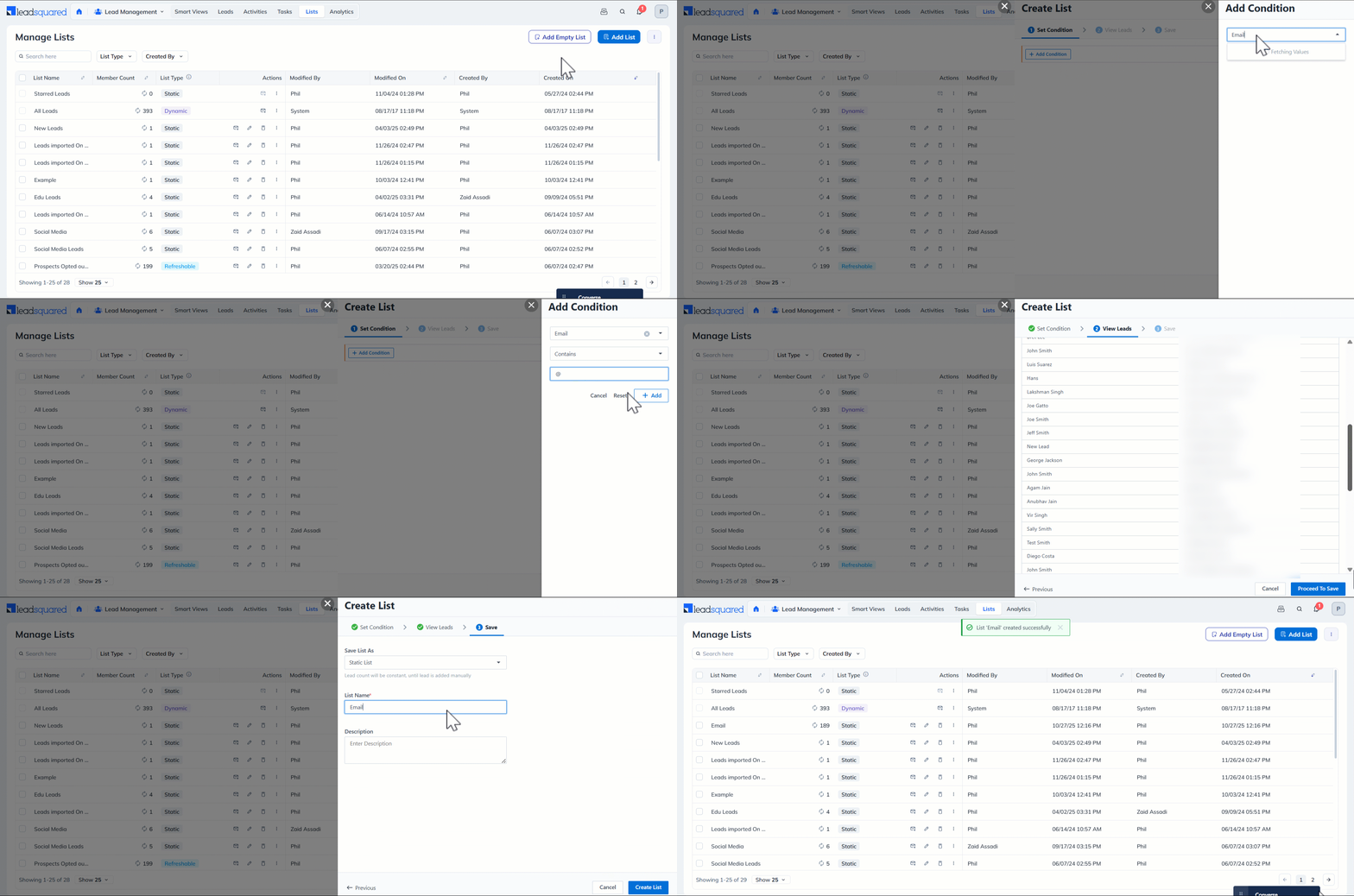
Note: Homepages set as default cannot be assigned to teams.

LeadSquared - Create Mobile Homepage from scratch


4.2 Build Your Homepage Using a Template

  1. Navigate to Apps>Casa.
  2. On the side panel, click Templates icon.
  3. Select a template and click Apply.
  4. Make any customisations to the template, if necessary.
  5. Click Publish.

Note: All the homepage designs are autosaved.

LeadSquared - Create mobile homepage with template


5. Customize Themes

Personalize the LeadSquared Mobile App to align with your organization’s branding. Admins have the ability to customize the app’s primary, secondary, and neutral colors by entering specific hex codes, allowing for a unique and cohesive visual identity. Additionally, there are two predefined themes in green and orange available for quick customization. To make these changes,

  1. On your LeadSquared Web App, navigate to Apps>Casa>Theming.
  2. Select Custom from the list of themes.
  3. Enter the relevant hex codes for your primary, secondary and neutral colours.
  4. Click Apply to get a preview of the theme on the mobile screens shown on the page.
  5. Click Publish to apply this theme for all users across your organization.

You can reset the theme by clicking Reset and selecting another set of colours. When you Unpublish an existing theme, your application will revert to the default theme.

Note: This feature is currently available only on Android.

Leadsquared - Casa Theming

6. Create Announcements

Spotlight important messages to your users directly while logging in or launching the LeadSquared Mobile App. With the Announcement Widget, you can create and publish announcements from Casa web app settings. Here, you can add custom title, description, CTA button label, and an image. You can schedule the announcement and assign it to specific teams.

To create an announcement –

  1. Navigate to Casa>Announcements from your LeadSquared dashboard.
  2. On the Announcements page, click Create New.
  3. On the configuration page, enter –
    • Display Name – The title of the announcement
    • Description – The content of the announcement (include all details here briefly, within 1500 characters)
    • Button Name – The CTA button
    • Image – Add an image (optional)
    • Start Date & End Date – The duration for which the announcement is to be displayed
    • Display On – The schedule of the announcement (Login, Launch, Alternate Days, Weekly, Monthly)
  4. Once all the details are entered, click Save. You can reset the announcement whenever necessary.

Note:

  • The current limit of announcements for an account is 25.
  • Only one announcement can be published per team at a time (similar to Casa homepage configuration).

Leadsquared - Casa for Mobile


7. Sync your Mobile App

Once published, the customized homepage will be automatically displayed on the mobile app within 4 hours. You can also manually update the homepage on the mobile app –

  1. On the dashboard of the mobile app, tap LeadSquared - Mobile app menu.
  2. Tap Sync.

LeadSquared - Mobile home builder manual sync

8. Task Counter Widget

The Task Counter widget gives an overview of the user’s tasks, either completed and pending or overdue ones. It can be displayed as a speedometer, fuel bar or a numeric widget.

LeadSquared - Task Counter Widget

9. Task List Widget

The Task List widget lists the user’s immediate upcoming tasks (for example, an appointment or a follow-up call) which may include pending or overdue tasks. Users can view the top three upcoming tasks on the homepage along with the start time and duration of the tasks. Tapping on View More will direct the user to the task list screen with appropriate filters applied by the user.

LeadSquared - Task List Widget


10. Web View Widget

The Web View widget displays a web view of the target URL within the section in a standard or extended view.

Note: The section with the web view widget cannot hold any other widgets.

LeadSquared - Web View widget


11. Launcher Widget

Displays a maximum of 9 icons that quick launch items from the homepage. You can choose to display these icons in grid view or scroll view. The icons and the destination they lead to can be configured. There are more than 3500 different ways you can configure these icons. For example, you can configureLeadSquared - Leads icon to direct users to the Lead List page. You can also configure an icon to navigate to a different website (like a helpsite).

These default forms are now supported in the Launcher widget –

  • Lead.
  • Task.
  • Activity.
  • Opportunity.
  • Accounts.

LeadSquared - Launcher widget

12. Banner Widget

Add banners (a carousel view of images) on the homepage to display company announcements or navigate users to internal or external destinations. You can choose the size of your banner image (standard or edge-to-egde).

These default forms are now supported in the Banner widget –

  • Lead.
  • Task.
  • Opportunity.
  • Accounts.

LeadSquared - Banner widget


13. Lead Shortcut Widget

Add a shortcut to the Lead Details page of a list of Recently Added or Recently Modified leads. You can scroll horizontally to view the recent 10 leads in the list. To view more, on the mobile app –

  • Click on any lead.
  • Scroll to the bottom of the Lead Details page.
  • Click >.
Note: Users can change the list from recently added to recently modified and vice versa on the mobile app, if necessary.

LeadSquared - Lead Shortcut widget


14. Lead List Widget

Add a list of leads on your homepage based on the selected lead fields to directly navigate users to the leads. Only the top three leads will be displayed on the homepage along with the number of leads in the list. The rest can be accessed by clicking the View More button. For example, you can add a list of leads in India and assign it to teams working exclusively in that location. Users can also call and find directions to the lead directly from this list.

Note: All dropdown type lead fields available in your account can be selected in Lead List widget.

LeadSquared - Lead List Widget

15. My Opportunities Widget

This widget displays a count of all the open, lost, and won opportunities as well as those in a particular stage. Admins can configure the default Opportunity Type and Date Range for all the opportunities displayed on this widget. Users can also edit the Opportunity Type and Date Range on their homepage when required. Admins can select multiple opportunity types to be displayed to sales users.

LeadSquared - My Opportunities Widget


16. Smart Views Counter Widget

With this widget, users can get an overview of the data count present in the smart views (for example, open opportunities for the day, new leads assigned for the day, etc.), which can include accounts, leads, opportunities, activities, and tasks. Based on the team you’re assigning this homepage to, you can assign the relevant smart views tab. You can also configure counter widgets for Mavis smart views.

Note: You can only add two tabs on your Smart Views Counter Widget.

Leadsquared - Casa


17. Distance Travelled Widget

Users can track the distance they have traveled over different timeframes (like yesterday, weekly, or monthly) using the Distance Travelled Widget. It helps users record how far they have travelled and stay informed about their travel habits and activities. The widget’s accuracy in distance tracking improves as users log more activities. Users can also navigate directly to the Field Force Insights Report by tapping on the distance displayed on this widget.

LeadSquared - Distance travelled widget - CASA

18. Task Counter 2.0 Widget

The Task Counter 2.0 widget provides a comprehensive view of all tasks within a selected date range, including both pending and overdue tasks. Offering greater functionality than the Task Counter Widget—which is limited to showing either completed and pending tasks or overdue tasks—it also supports display styles, such as numeric, donut and fuel bar.

Leadsquared - Casa

19. Lead Metrics Widget

Track and analyse the leads added over time. Explore your lead count history, gain instant insights, and optimize your lead management strategies with the Lead Metrics widget in Casa.

LeadSquared - Lead metrics widget


20. Image Tiles Widget

The Image Tiles widget enables users to quick launch items from a predefined image layout. Users can upload images from the library and select the navigation destination of the image. With this widget, users can navigate to the relevant page (E.g., My Teams) within the app or even to external URLS upon tapping the image. However, certain selections may be hidden depending on the end user permissions. To add this widget –

  1. Under Image Tiles, click Add.
  2. To add your image, alongside Upload Image, click Add. Select the image from your device’s library.
  3. Position the image according to your preference.
    • To reposition your image, click and drag it.
    • To zoom into your image, hold and drag the Zoom slider.
    • To rotate your image, click 
    • To change the image you’ve added, click LeadSquared icons
    • To undo your last action, click 
  4. To remove this widget after a specific period of time, under End Date, select your end date. If you don’t select an end date, this widget will be displayed till you remove it from the homepage.
  5. Under Navigate to, select the destination for this image. You can add an external URL here as well.
    • To select the destination as an external URL, under External Link, click —–.
    • A new Launch field will now be visible. Add your URL here.
  6. Click Confirm. Then, add more pictures, if needed, and click Save.

LeadSquared - Image Tiles Widget in Casa


21. SIERA Widget

The SIERA WebView widget displays a web view of the SIERA webpages within the section in a standard or extended view.

Leadsquared - SIERA Webview Widget


22. User Check-In Status Widget

Group managers can view user attendance with the User Check-in Status widget. You can see the total number of users who have checked in, checked out, and who have not checked in for the day. You can also configure this widget to further navigate to any report to gain detailed insights. This widget supports donut and fuelbar display styles.

Leadsquared - Casa


23. Check In/Out Widget

Check in and out of the mobile app directly from your homepage. The Check In/Out Widget pinned to the top of your homepage reduces the time you spend on navigating through menus to perform the check-in action. If you haven’t checked in yet, a message will appear saying “You haven’t checked in yet”. Simply swipe right on the Check-In button. When your day ends, swipe left on the Check-Out button if you’ve already checked in. This will display your check-in time along with a live timer showing your checked-in duration. If you forget to check out the previous day, the widget will display your last check-in date and time, along with a running duration in a clear Day-Hr-Min format.

Leadquared - Casa for Mobile


24. Edit Your Homepage

On the Casa landing page, click on the homepage you want to edit.

  • On the top right corner of the widget, click Three dots.
    • To edit your widget, click .
    • To delete your widget, click LeadSquared - Delete icon.
  • To delete an entire section, drag the section to the bottom left corner of the screen.
  • To rearrange the sections or widgets, drag them and drop them in the desired location.
  • To preview the published homepage without the edits you’ve made, click Preview last published icon.
  • To discard the changes you’ve made to the homepage, click discard changes icon.
Note: Edits made on homepages are saved but not published. To publish the homepage, click Publish.

LeadSquared - Edit your homepage


25. Casa Landing Page

View all the homepages you’ve created (published, unpublished, and published homepages with unpublished edits) on the Casa landing page.

  • In Teams View, homepages are arranged based on the teams they are assigned to. To open the Teams View, click teams view icon.
  • To open the Dashboard View, click Dashboard view icon.
  • To star any homepage, on its name block, click .
  • On the Teams View, drag and drop homepages to rearrange their order.
  • To view the actions you can perform on the homepages, click SIERA. You can clone, publish/unpublish, or unassign the homepages.
  • On the top right corner of the screen, click All dropdown, and select FavouritePublished or Unpublished homepages to be displayed.
  • To arrange the homepages based on Alphabetical order or date of modification (Recently Modified), click the dropdown on the top right corner of the screen and select the order.
Note: Users can view the homepages assigned to their team on the mobile app. The order of the homepages in the Teams View is reflected on the mobile app.

LeadSquared - Casa landing page


26. Side Panel

While creating or editing a homepage, a side panel will be displayed on the left side of the page. On the panel –

  • You can view other homepages side by side for reference while creating your homepage. To view all the homepages you’ve created (published, unpublished, and published homepages with unpublished edits), click Team assignment icon. This window lets you perform all the actions available on the landing page (for example, assign teams, star leads, etc.). By clicking on any homepage, a preview of the homepage will be displayed along with a note of all the widgets used. You can also navigate to the Casa landing page directly from this window by clicking on Expand icon . As you are redirected to the landing page, the homepage you’ve been working on will be saved as a draft.
  • To view templates for the homepage, click Templates icon.
  • To view the editing page again, click Home icon.
  • To customise the side and bottom navigation bars on the mobile app, click Menu builder icon.

LeadSquared - Casa side panel


You can customise the tabs displayed on the side and bottom navigation menu on the mobile app using Casa’s menu builder. You can also create custom tabs on these menus for team-specific requirements.

27.1 Create a Menu

  1. On the side panel of the Casa landing page, click Menu builder icon. Then, click Create New.
  2. On the right side of the page, you can choose to add tabs in the bottom or side navigation menu.
  3. To add tabs to the mobile app’s navigation bar, alongside the default/available menu tabs, click Add icon.
  4. To remove a tab from the navigation bar, alongside the visible tab, click Delete icon.
  5. To create custom tabs –
    1. Under Visible Menu Tabs, click Create New Tab.
    2. On the Configure Custom Tab pop-up, enter the relevant details (i.e., label, icon, and navigation). You can configure this tab to navigate to an external link as well.
    3. Once you’ve created the custom tab, under Custom Menu Tabs, alongside the tab you’ve created-
      • To add the tab to the side menu, click Add icon.
      • To edit the tab, click edit.
      • To delete the tab, click delete.
  6. To rearrange the tabs, drag and drop them in the desired order.
  7. Once you’re done building the menu, click Publish. Enter the menu title and assign it to teams.
Note: A maximum of 4 tabs are supported on the bottom navigation menu.

LeadSquared - Create menu in menu builder

27.2 Actions on Menu Builder

On the Menu Builder page, you can view a list of all the published and unpublished menus you’ve created.

  • Alongside a menu, under Teams, click on the data displayed to view or edit the team you’ve assigned it to. To set this menu as the default tab, enable Set as default menu.
  • To edit a menu, alongside the relevant menu, click edit.
  • To clone, delete, or unpublish a menu, alongside the menu, click Three dots and select the relevant option.

LeadSquared - Actions in menu builder


28. Configure the Lead Details Page using Lead 360

Lead 360 allows you to fully customize the Lead Details Page on the LeadSquared Mobile App, giving users a complete and visually organized view of each lead’s journey. This feature lets admins:

  • Design layouts using either classic tabs or widget-based landing pages
  • Configure a Quick View Card with identifiers, fields, and quick actions
  • Set up an Actions Panel for instant engagement options like calls, emails, or WhatsApp.

You can preview layouts in real time, publish them as defaults, or assign them to specific teams, ensuring that field users get quick access to the most relevant lead data in a format tailored to their business needs.

Leadsquared - Lead 360


29. Experiment with Upcoming Widgets

You can view a list of the upcoming widgets on Casa for the next quarter and preview them.

  1. To view the upcoming widgets, on the top right corner of the page, click View upcoming widgets icon.
  2. To preview any of the widgets, below the relevant widget, click Preview.

LeadSquared - Experiment with Upcoming Casa Widgets


Any Questions?

We’d love to answer your questions or hear your own unique use cases. Feel free to share your experiences in the comments section below.

Define Global Variables for an App in UDS

1. Feature Overview

When setting up your flows, you may need to use credentials or tokens that remain consistent across flows. UDS supports this through Global Variables, which can be defined within an App. Global Variables provide a secure space to store and reuse values like authentication tokens, API keys, or passwords across multiple flows and flow actions within the same application.

For sensitive information, such as credenitals, you can mark the variable as a password type, ensuring it is securely stored and encrypted. These values remain hidden even in logs, offering enhanced security.

By using Global Variables, you simplify configuration, reduce redundancy, and centrally manage credentials and other reusable data across your flows.

If you’re new to UDS, see Getting Started with UDS.

Note:

  • All variable are stored in a secure, masked format to ensure the highest level of security.


2. Prerequisites

  • You must be an Administrator user, or access must be shared to you by an Admin user.
  • The Universal Data Sync Connector is a paid feature. To enable it on your account, contact your account manager, or write to support@leadsquared.com.
  • You must first create an App within UDS before you define global variables. For more information, see Create an App on UDS.


3.  Global Variable Types

UDS supports different types of global variables, each serving a specific purpose:

System Variables

These are available by default and provide context-specific information related to your UDS environment or LeadSquared account. You don’t need to configure them manually.

Custom Variables

These are created by users to store values such as tokens, credentials, or any reusable data needed across flows.


4. System Variables

These are predefined variables related to LeadSquared and UDS. They can be directly used in flows to dynamically render their actual values during execution.

Here’s a description of the system varaibles:

Variable Display Name Description Variable Schema
ORG_ID Identifier for an organization ID {{global_variable.ORG_ID}}
LSQ_BASE_ENDPOINT Base endpoint URL for LSQ (For example, if your account is in india region, it will have value https://api-in21.leadsquared.com) {{global_variable.LSQ_BASE_ENDPOINT}}
LSQ_ACCESS_KEY Access key of System User of your Leadsquared Account . This data will be passed in encrypted format.

Note: This is an internal user, you cannot locate this user inside Manage users list.

{{global_variable.LSQ_ACCESS_KEY}}
LSQ_SECRET_KEY Secret key of System User of your Leadsquared Account . This data will be passed in encrypted format.

Note: This is an internal user, you cannot locate this user inside Manage users list.

{{global_variable.LSQ_SECRET_KEY}}
APPLICATION_NAME Name of your UDS Application where this variable is used. {{global_variable.APPLICATION_NAME}}
APPLICATION_ID ID (unique identifier) of your UDS Application where this variable is used. {{global_variable.APPLICATION_ID}}
DATAFLOW_NAME Name of the UDS flow where this variable is used. {{global_variable.DATAFLOW_NAME}}
DATAFLOW_ID ID (unique identifier) of the UDS flow where this variable is used. {{global_variable.DATAFLOW_ID}}
WEBHOOK_URL Webhook URL of the UDS flow where this variable is used. {{global_variable.WEBHOOK_URL}}
LEAD_ID Unique identifier for a lead (prospect ID), available when the trigger inside UDS is set to ‘Automation/Webhook‘ and data is sent from Automation/webhook. {{global_variable.LEAD_ID}}
REQUEST_ID Identifies the individual request pushed for execution.

In the case of bulk or scheduled triggers—where multiple records are fetched or received for processing from the source—BATCH_REQUEST_ID represents the root-level identifier, while REQUEST_ID refers to each specific request within that batch being processed.

{{global_variable.REQUEST_ID}}
BATCH_REQUEST_ID Represents the root-level identifier for requests.

In bulk or scheduled triggers—where multiple records are fetched or received for processing from the source—BATCH_REQUEST_ID identifies the overall batch, while REQUEST_ID refers to each specific request within that batch being processed.

If your trigger receives the individual data to be processed then
BATCH_REQUEST_ID is same as REQUEST_ID

{{global_variable.BATCH_REQUEST_ID}}
REQUEST_CALLER_SRC Represents the context of the UDS flow execution.

Typically follows the format: connector-ulc-{{YourOrgID}}-{{Your UDS Application ID}}-{{Your UDS FlowID}}.

Use this value when calling your APIs to retain contextual information in your API logs.

{{global_variable.REQUEST_CALLER_SRC}}

5. Custom Global Variables

These are created by users to store values such as tokens, credentials, or any reusable data needed across flows.

Currently, UDS supports three ways to set the value of a Custom Variable:

  • Custom – Manually enter the value you want to assign to the variable. Ideal for static tokens or fixed configuration values.
  • Call an API- Configure a custom API call to dynamically fetch the value. This is useful when the variable value (e.g., token) changes periodically. You can also define how frequently the API should be called, especially for time-bound or expiring values.
  • OAuth – Use a predefined list of supported applications to complete the OAuth flow. Once authenticated, UDS will automatically fetch and manage the token required to call the app’s APIs.

To add a custom variable

  1. Navigate to the Global Variables section within your app and click the Add New button.
  2. Provide a Display Name for your variable. Supported characters: Uppercase letters (A–Z), lowercase letters (a–z), numbers (0–9), hyphen (-), underscore (_), and spaces.
  3. Choose the appropriate data type based on the kind of value you intend to store (e.g., Text, Number, Password).
  4. Optionally, add a short description to help identify the purpose of this variable.
  5. Choose how to set the value. UDS supports three methods for assigning the value of the variable:
    • Custom: Manually enter a static value for the variable.
    • Call an API: Refer to section 6.2
    • OAuth: Refer to section 7
  6. Click Save.


6. How to Configure a Custom Global Variable of Type API

For example, let’s say we need to call an API to generate an authentication token to securely connect to a third-party application. The API requires a AccessKey and SecretKey parameters in the request, and returns the AuthToken in the response. We’ll create 3 variables –

  1. For Access_Key and Secret_Key, we’ll select the value of the variable as Custom and hard-code the values.
  2. For the Auth_Token, we’ll select the value of the variable as Call API, and configure the API to pass the AccessKey and SecretKey in the request and populate the AuthToken from the response.
Note:

  • If you already have a cURL command, you can paste it to automatically populate the method, endpoint, headers, and body fields.
  • Alternatively, you can manually define the API request by specifying the method, URL, headers, and request body.
  • If your API requires input values—such as a client ID or other parameters—you can either hardcode the values or create supporting variables. These supporting variables can be assigned values by mapping them to existing global variables. This enables dynamic value passing and avoids hardcoding, making your configuration more secure and maintainable.

LeadSquared Apps and Integrations

6.1 Call API Settings

After selecting Call API, configure the API. This involves 3 steps –

1. Input cURL Request –

  1. Click Edit Details and enter the API cURL request.
  2. Scroll down and click Save & Next.

2. Variables – 

  1. The parameters are automatically populated based on your cURL request.
  2. Change the Type of the parameter if required.
  3. Under the Mapping column, map the parameters from the cURL request to the global variables you’ve created, or type the values in manually and press enter.
  4. Use the delete icon under the Actions column to remove unwanted parameters.
  5. Scroll down and click Save & Next.

3. API Configuration –

This section is auto-populated based on your cURL request. If required, you can make changes to the API configurations here –

  1. Edit the request method (Post, Get, etc.).
  2. On the top right section, click View Merge Fields. You’ll see the list of parameters and LeadSquared system global variables (e.g., LEAD_ID, ORG_ID, LSQ_SECRET_KEY, APPLICATION_ID, etc.). You can append these parameters to the API query string or the the request body.
  3. On the Headers tab, click Add New to add headers to the API request. Enter the required key-value pairs.
  4. Navigate to the Body tab and review the request body. If required, change the request format (e.g., Click the View Merge Fields link to copy and add additional parameters.
  5. Click Save & Close when you’re done.

uds any api setup for call api

6.2 Response Mapping For Success

Response Mapping for Success allows you to define the structure of your API’s success response, specify which key’s value from the response should be stored in the defined variable, and set how long this value should be cached to avoid multiple calls (if required in case of time bound token expiry).

6.2.1 Data Key Selection

Here you need to provide a sample response for configured API so the system understands the response structure. and then specify the exact key or path in the response that holds the value you want to extract and store in the global variable.

6.2.2 Success Criteria

This section allows you to customize what success means for your API requests. By default, any response with a 2xx status code is treated as successful.

While this works for most standard scenarios, it may not be sufficient for all APIs. In some cases, an API might return a 4xx or 5xx status code even when the operation was actually successful from your workflow’s perspective. Alternatively, the response body may contain specific keywords or flags that indicate success, regardless of the status code.

With custom success conditions, you can define logic that evaluates both the status code and content of the response. This gives you complete control over how success is interpreted within your workflow.

Example:

Lets say your API returns following response body with response status code as 400

{
  "status": 400,
  "message": "Previous token is not expired",
  "AuthToken": "xxxxxxxxxxxxxxxxxx"
}

Here’s how you can configure success response mapping

error response mapping in uds new

6.3 Response Mapping For Errors

This section allows you to set the definition of error for your workflow and retry logic.

By default, any response outside the 2xx status code range is considered an error.

While this works for most standard scenarios, some APIs may return a 2xx status even when the operation has actually failed. In such cases, relying solely on status codes may not accurately reflect the true outcome.

Custom Error Conditions let you define logic that evaluates both the response status code and the content. This gives you complete control over how errors are identified within your workflow.

Note: If you want to use retry logic, you must define at least one error condition, even for responses that already fall outside the 2xx range. This ensures your retry behavior remains accurate and intentional.

Example: 

Lets say your API returns following response body with response status code as 200

{
  "status": 200,
  "message": "error"
}

uds error response mapping

The Call API configuration is now complete. The hard coded Access_Key and Secret_Key variables will now be passed in the third-party API request body, and the Auth_Token variable will be populated with the value from the API response.

LeadSquared Integration and Apps


7. How to Create Custom OAuth Variables

OAuth allows you to securely connect LeadSquared with external applications using your login credentials.

Note: At present, the providers listed below are supported:

  • Zoho Desk
  • Zoho CRM
  • Google Contacts

If your preferred app isn’t listed in your account, you can request it by emailing support@leadsquared.com.

Steps to Configure OAuth

  1. Create a custom OAuth variable.
  2. In OAuth Settings, ensure the desired provider is enabled.
  3. Under the Connect Provider tab, select the provider from the dropdown.
  4. Grant LeadSquared the necessary read/write permissions.
  5. Click Sign In to securely authenticate with the provider.
  6. Once signed in, click Save to complete the setup.

creating oauth variable in UDS


8. FAQs

1. How does Auto-retry work?

If retry is configured, the system will make up to 3 attempts at an interval of 10 seconds until a successful response is received.

2. If I have added multiple conditions in success/response mapping, how will they be evaluated?

When multiple success or error conditions are added, they are evaluated using an OR logic. This means if any one of the conditions is met, the request will be marked as success or error, accordingly.


9. Next Steps

After defining the global variables, let’s Create a Flow.


Any Questions?

Did you find this article helpful? Please let us know any feedback you may have in the comments section below. We’d love to hear from you and help you out!

Activity Management – Feature Guide

1. Feature Overview

Once Leads and Opportunities are captured in your account, you can monitor their progress down the sales funnel by tracking notable interactions and events, or ‘Activities’. Activities help you understand a lead’s position in the conversion funnel, and accordingly automate nurturing and sales processes. Activities include email opens, website visits, link clicks, site visits, product demos, etc.

LeadSquared Activity Management


What is the difference between Activities and Tasks?

In LeadSquared, activities are actions carried out by a lead (such as email opens, link clicks, incoming phone calls, website visits, etc.). You can also create custom activities (such as loan application, document submission, home visit, etc.). However, in principle, activities help you track notable events in a lead’s journey, from prospect to customer.

Tasks, appointments or to-do’s, are created for your LeadSquared users, to drive a lead to conversion. Tasks usually have scheduled date and time, and can be tracked using LeadSquared’s tasks calendar.


2. Activity Types

2.1 Core Activities

LeadSquared comes pre-built with a number of core or system activities like email bounced, email link clicked, website page visited, lead captured, etc. We automatically post these activities against your Leads or Opportunities, whenever they are performed (provided the LeadSquared Tracking Script is installed). The activities then appear in the Manage Activites page or on the Lead Details page.

To view the list of  core activities in your account, navigate to My Profile>Settings>Leads>Activities and Scores>Core Activities & Scores.

LeadSquared Activity Management


2.2 Custom Activities

In addition to core activities, you can also create custom activities to accommodate your own unique use cases. For complete details on how to create custom activity types, see How to Add Custom Activity Types. You can also add fields within each custom activity to capture relevant data. Once you’ve created custom activity types, they will be available to be added against the leads and opportunities (from the Manage Activities page, the Lead Details page, etc.).

Here are some examples –

Industry Custom Activity
Real Estate Site Visit
Education Attended Fair
Healthcare Clinic Visit
Finance KYC Document Collection
Travel Itinerary Shared
Generic Attended Webinar, Downloaded Document, Had a Phone Call

To view the list of custom activities in your account, navigate to My Profile>Settings>Leads>Activities and Scores>Custom Activities & Scores.

LeadSquared Activity Management

Note:

  • If opportunities are enabled on your account, you can post activities directly on the opportunity. To know how to add activities to opportunities, refer to Opportunity Details.
  • Additionally, you can also capture activities posted on your B2B accounts as well. To know more, please refer to How to Post Activities on Accounts?


3. Lead Scoring

Every time a lead performs a core or custom activity (such as email open, link click, etc.), a score is assigned for this activity, and this score is posted against the lead. You can customize the score for each activity type, as per your business requirement, and the industry you’re present in. This will help you identify relevant leads. To know more, please refer to How does Lead Scoring work?


4. Add Activities

Once you’ve configured activity types, you can add activities to both leads and opportunities from the following pages within LeadSquared –

4.1 From Manage Activities Page

You can add the activity to a lead as well as to an opportunity. All activities you add will be displayed on the Manage Activities page as well as the corresponding Lead Details and Opportunity Details page. To do this –

  1. From the main menu, navigate to Leads>Manage Activities.
  2. Select the custom activity from the Activity Type dropdown.
  3. Click the Add Custom Activity button, and on the activity pop-up, enter the activity, lead and opportunity details.
  4. Once you’re done, click Add.
Note: You can create a maximum of 100 Activity fields. We suggest creating Custom Field Sets and associating them with Activities if you need more fields.

LeadSquared Activity Management


4.2 From Manage Leads Page

You can add both core as well as custom activities directly to a lead from the Lead Details page. This will also show up on the Manage Activities page. To do this –

  1. From the main menu, navigate to Leads>Manage Leads.
  2. Against an existing lead, under Actions, hover your cursor over the icon, and click Add Activity.
  3. On the Add Notable Activity pop-up, enter all the relevant details, and click Add.

LeadSquared Activity Management


To add activities to leads in bulk from the Manage Leads page –

  1. Click the Checkbox against the leads you want to add the activities to.
  2. Then, hover your cursor over the Leads button, and click Add Activity.
  3. On the Add Notable Activity pop-up, enter all the relevant details, and click Add.

LeadSquared Activity Management


4.3 From Lead Details Page

You can add both core as well as custom activities directly to a lead from the Lead Details page. This will also show up on the Manage Activities page. To do this –

  1. From the main menu, navigate to Leads>Manage Leads, and click on a lead.
  2. On the Lead Details page, click the Activity Details button.
  3. On the Add Notable Activity pop-up, enter all the relevant details, and click Add.
  4. You can now view the activity listed under the Activity tab. You can also view all the activity details that have been added to the lead here.

LeadSquared Activity Management


4.4 From the Manage Opportunities Page

You add activities to an individual opportunity from the Manage Opportunities page. This will also show up on the Manage Activities page. To do this –

  1. From the main menu, navigate to Leads>Manage Opportunities>Opportunity Type.
  2. Against an Opportunity Name, under Actions, hover your cursor over the Settings icon icon, and click Add Activity.
  3. On the Add Notable Activity pop-up, enter all the relevant details, and click Add. To know more, please refer to Opportunity Management.

LeadSquared Activity Management


4.5 From Opportunity Details Page

You add activities to an individual opportunity from the Manage Opportunities page. This will also show up on the Manage Activities page. To do this –

  1. From the LeadSquared main menu, navigate to Leads>Manage Opportunities>Opportunity Type.
  2. Under Enquiry, click any existing opportunity.
  3. On the Opportunity Details page, click the Activity Details button.
  4. On the Add Notable Activity pop-up, from the Activity Type dropdown, select an activity, and enter relevant details.
  5. Once you’re done, click Add.
  6. You can now view the activity listed under the Activity tab. You can also view all the activity details that have been added to the opportunity here. To know more, please refer to Opportunity Details.

LeadSquared Activity Management


4.6 From the Mobile Application

  1. From the mobile app dashboard, tap Mobile App Menu.
  2. Tap Leads and select the lead you want to add the activity to.
  3. From the bottom left of your Lead Details screen, tap Add Activity.
  4. Select the Custom Activity for which you’ve enabled tracking.
  5. Enter the relevant details and tap Save.

LeadSquared - Adding activity to mobile app


5. Import Activities

You can import an activity through a CSV file* similar to how you import leads and opportunities. To import activities –

  1. From the main menu, navigate to Leads>Manage Activities.
  2. On the Manage Activities page, click the Import Activities button.
  3. Upload the CSV file.
  4. Map the CSV File Columns to the Activity Type Fields.
  5. Review the validation report.
  6. Check the status of your report.

To learn about the above steps in detail, please refer to How to Import Activities.

LeadSquared Activity Management


6. Export Activities

To download your activities as CSV file –

  1. From the main menu, navigate to Leads>Manage Activities.
  2. Under the Leads button, click Export Activities.
  3. On the Export Activities pop-up, choose whether you want to all fields or selected fields. If you want to export selected fields, click the corresponding checkbox, then click the Choose Fields link.
  4. Click Export when you’re done.

Note:

  • You can export up to 5-lakh (500,000) activity records in a single request. To set the activity export limit on your account, contact your account manager, or write to support@leadsquared.com.
  • All date-time fields you export will be displayed in the time zone configured in your LeadSquared account. You can edit the time zone and other profile settings from Your Profile.
  • You can also export fields of a custom field set. However, file type fields cannot be exported.

LeadSquared Activity Management


7. Bulk Updates

This is especially helpful for users who work on activities rather than leads and opportunities. With this feature, you can update activity fields in bulk by selecting the checkboxes alongside the records you want to update on the Manage Activities page, and then click Bulk Update underLeads. You can update a maximum of 1,000 activities at a time.

LeadSquared Activity Management

On the Bulk Update pop up, select the activity field and the new value, click Update and your changes will be applied to all selected records.

LeadSquared Activity Management


8. Advanced Search

You can use advanced search to find leads where a specific any custom activity has taken place. You can also select the number of days within which the activity has taken place. You can set up these searches as follows –

  1. Navigate to Leads>Manage Activities.
  2. Click Advanced Search.
  3. Select Lead Activity Is Any Activity or a specific activity as per your use case.
  4. Then select the number of days.
  5. Click Add. Once your criteria is added, click Find Activities.
Note: If you get an error notification while performing an Advanced Search with wildcard operators (ContainsDoes not containStarts with, and Ends with), you might have exceeded the rate limit. To know more, refer to Wildcard Search Limitations.


LeadSquared Activity Management

Note: You can save advanced search filters, and create views for activities, tasks, leads and opportunities, all in the same place, using the Smart Views feature.


9. Forms and Processes

Once you create an activity type, you’ll have to then create and configure the default form for that particular activity.

LeadSquared Activity Management

You can also use LeadSquared’s Forms and Processes feature to create dynamic forms. Through these forms, you can set rules and conditions for activity capture. You can also add activities, as well as create leads, opportunities and tasks.

LeadSquared Activity Management


9. Permission Templates

Through Permission Templates, you grant access only to specific users to be able to view, add, update, delete, export and import activities. You can use this to prevent your sales users from viewing or adding activities of your marketing users, and so on. To know how to do this, please refer to How to Create a Permission Template?

LeadSquared Activity Management


10. Automations

You can create automations using the following activities triggers.

LeadSquared Activity Management

Every time the activity you’ve selected (such as email open, etc.) is completed, you can set up an automation to perform various functions, such as assign a task to a user, update various fields, etc. In the below example, every time a lead opens an email, the lead then gets added to a list. To know more, please refer to Automation Home.

LeadSquared Activity Management


Any Questions?

Did you find this article helpful? Please let us know any feedback you may have in the comments section below. We’d love to hear from you and help you out!

Object Types – Feature Guide

1. Feature Overview

What are Object Types?
Object Types let you manage and track your business entities like students, parents, agents, partners, dealers, etc. as separate modules in your CRM – outside the core Leads module.

Each Object Type is fully configurable, with its own fields, forms, opportunity pipelines, and workflows. This ensures that every entity is tracked through a CRM process tailored to its real-world role – collecting only the information that’s relevant to its unique persona and business context – without cluttering your main leads module.

Why use Object Types?
With Object Types, you can:

  • Separate your data – Maintain different records for different entities instead of overloading your leads module.
  • Customize deeply – Each object can have its own:
    • Forms and fields
    • Opportunity stages and pipelines
    • Activities, tasks, and Smart Views
    • Email campaigns and reports
  • Tailor entity workflows and user experiences – Give sales teams views and actions that match the type of object they’re working with.

Example: A training institute can manage students and agents as separate object types – each with their own forms, workflows, and stages – while keeping leads focused on inquiries.

Note:

  • Object Types cannot be enabled alongside LeadSquared’s Accounts module. If you are migrating from Accounts module to Object Types, please take the necessary backup.
  • To know how Object Types is supported on the LeadSquared Mobile App, see Object Types in LeadSquared Mobile App.

Leadsquared - Object Types


2. Example Use Cases

Object Types can be tailored to reflect the unique business entities relevant to your industry. Below are examples of how different sectors might use Object Types:

Industry Example Object Types
BFSI Bank Account, Branch Contact, Specified Persons Contact, Customer Leads Contact
Education Student, Teacher, Parent, School Point of Contact (POC)
Healthcare Patient, Doctor, Nurse, Clinic

Example: Education Industry
A Student object type might include:

  • Fields – Grade, Stream, Course
  • Stages – Inquiry, Application Submitted, Enrolled
  • Opportunities – Test Prep Package, Summer Camp Enrollment
  • Activities – Admission Form Filled, Interview Scheduled

This structure ensures that each entity follows a CRM process that reflects their real-world journey, with only the relevant data, stages, and actions.


3. Prerequisites

  • You must be an admin user to create and configure object types.
  • You must have NextGen enabled on your account.
  • To enable Object Types in your account, reach out to support@leadsquared.com.


4. How it Works

Once Object Types are enabled, you’ll see separate tabs for each object in your navigation menu – making it easy to view, track, and act on different entities like Students, Agents, or Partners.

For each object type, you can:

  • Customize the Details Page (Object Details View)
    Show key information like contact details, activities, tasks, and opportunities in a layout tailored to each object type.
  • Set Up Custom Forms and Processes
    Design unique forms and lead journeys – like enrolment steps for students or on-boarding for partners.
  • Define Activities and Opportunities
    Create specific interaction points (e.g., “Interview Scheduled”) and sales pipelines that match the object’s real-world life-cycle.
  • Assign and Track Tasks
    Set tasks for follow-ups, meetings, or documentation – based on the needs of each object type.
  • Run Targeted Email Campaigns
    Send personalized emails to contacts linked to a specific object type, using their unique data.


5. Create Object Types

To create an Object type in your account –

  1. Navigate to Settings>Objects>Object Types.
  2. Click Create.
  3. On the Create Object Type pop-up, enter the singular and plural name, then click Next.
  4. Select and associate relevant object fields from Available Object Fields, select the relevant lead fields –
    • Click Right Arrow to add fields.
    •  Click Left Arrow icon to remove fields.
  5. Choose the object fields you want to display on this object type’s Manage Objects page – this is the list view where users can track and filter records.
  6. Click Publish. You can also save the object type as a draft and publish it later.

To create new lead fields, see How to Create Custom Lead Fields.

Note:

  • A default object type will be automatically added in your LeadSquared account once you enable this feature. This object type can only be edited and cannot be deleted.
  • If objects are added through a third party connector, they’ll automatically be categorized as the default object type.
  • Only the fields associated with a specific object type will be visible on that object’s details page, forms, and other related areas.
  • Each object type must be associated with –
    • One Search Key field (for global search)
    • One Unique Key field (for unique identification)
  • Display names must be unique. You cannot reuse the same display name across multiple object types
  • The following keywords are restricted and cannot be used in object type names:
    Account/Accounts, Lead/Leads, Activity/Activities, Task/Tasks, List/Lists and Opportunity/Opportunities.

Leadsquared - Object Types


6. Customize Object Details View

You can tailor the layout of the Object Details Page to suit your team’s workflow. This includes configuring the Tabs, Actions, Buttons, and the Object VCard – giving your users a focused view of only the most relevant information for each object type.

To customize Object Details View –

  1. Navigate to My Profile>Settings>Objects>Object Details View.
  2. Select the relevant option from the Object Type dropdown.
  3. Click Create.

On the Create Object Details View pop-up, under the Details tab, enter the following details –

  • Name – A name for the view you’re creating. This is mandatory.
  • Description – A description of the view you’re creating.

Then, select the relevant data to be displayed in the VCard, Tabs and as Actions and click Save.

Note: This feature is not available by default. Reach out to support@leadsquared.com to get this enabled.

Leadsquared - Object Types

Once the Object Details View is created hover your cursor over the actions seria sales user dashboard actions button and click Apply to Teams.

Leadsquared - Object Types


7. Configure Object Stages

Object Stages help you track the progress of each object through its own business lifecycle, whether that’s a sales funnel, approval workflow, or onboarding process. When Object Types are enabled, you can define unique stages for each object type to reflect the journey specific to that entity.

For example:

  • Customer object type can have stages like New, Engaged, and Converted
  • Manufacturer object type can have stages like Shortlisted, Approved, and Partnered

By default, all object types have the existing default stages (Prospect, Opportunity, Customer) configured.

To configure stages for different object types –

  1. Navigate to Settings>Objects>Object Stages.
  2. Select the relevant object type from the first dropdown.
  3. Under Active Lead Stages or Inactive Lead Stages, click Add and enter the name of the stage.
  4. Click  to save the newly created Lead Stage. 

You can select Enable Comments on Stage Change to let your Sales Users make and read comments about the Stage change. Under Other Properties, click any of checkboxes to add the available characteristics to the Lead Stage.

Note: This feature is also applicable on the LeadSquared Mobile App, where the objects will display stages based on the web configuration.

Leadsquared - Object Types


8. Import Objects

You can bulk import records into a specific object type using a CSV (Comma-Separated Values) file. This is useful for onboarding large volumes of data like students, agents, or dealers into your CRM quickly and accurately.

  1. Navigate to the relevant object type and select the Objects page (e.g., Dealers>Manage Dealers).
  2. Click the Leadsquared - Actions Icon actions button and select Import Object Type (e.g. Import Dealer) and proceed further.

Note: The fields available for mapping will depend on the Object Fields configured for that object type.

Leadsquared - Object Types


9. Object Type Support in Forms and Processes

How to Create Forms for each Object Type

LeadSquared supports two types of forms – Default and Dynamic – both of which can be customized per Object Type. This ensures that each entity (like Students, Dealers, or Partners) is captured and updated using forms relevant to their unique attributes and workflows.

Create Default Forms

Default Object Forms allow you to create and manage forms directly from your web app settings to capture or updating object records. When Object Types are enabled in your account, these forms can be customized based on the specific attributes of each object type to capture relevant data.

For example, in an EdTech setup:

  • Forms for the Student object type may include Class, Exam Grades, Courses Enrolled.
  • Forms for the Teacher object type may include Subject Specialization, Years of Experience, Assigned Classes.

To create a new Object Form

  1. Navigate to My Profile>Settings>Objects>Object Forms.
  2. Click the Select Object Type dropdown and choose the relevant object type.
  3. Alongside Select Form to edit, click the dropdown and select Create Object Form.
  4. You can remove/hide Lead Fields by dragging it to the Hidden Fields section on the right. You can also retrieve a particular field from the Hidden Fields by dragging it to the relevant section.
  5. Reorder fields and sections by dragging them and click Save when done.

Leadsquared - Object forms

Create Dynamic Forms

Dynamic forms let you build advanced lead capture forms with rules and logic tailored to specific object types. These forms can be embedded in workflows and made available across web and mobile apps.

  1. Navigate to Object Management>Workflow>Manage Forms and click the Create Form button and select the relevant purpose.
  2. On the Create Form popup, you can select the object type from the Lead dropdown alongside Object Fields.
  3. The lead fields relevant to the particular object type will be displayed on the Design page.
  4. You can drag and drop the required fields onto your form.
Note: The dynamic form configured on the web application for a particular object type will reflect the same way on the LeadSquared Mobile App as well.

Leadsquared - Object Types

Create Processes for each Object Type

After you publish your form, you can create processes for specific object types to control when and where the dynamic form appears.

  1. From your LeadSquared Dashboard, navigate to Object Management>Workflow>Process Designer.
  2. On the Manage Processes page, click Create Process.
  3. Select At Specific Work Area. This option lets you create a button on a specific page (Manage Leads, Lead Details, etc.) to trigger the process.
  4. In the popup, from the Object dropdown, select the relevant object type and proceed further.
  5. In the Choose starting point popup, select work areas in the web and mobile app where your process should begin and click Save.

Note:

  • To know more, refer to How To Create a Process.
  • While selecting the work areas, ensure you check the box for mobile. This ensures that the process you set up is also available in the mobile app.

Leadsquared - Object Types


10. Object Types Support in Opportunities

Configure Opportunities and Create Dedicated Views for each Object Type

In LeadSquared, Opportunities represent your potential deals. When Object Types are enabled, you can associate specific opportunity types with specific object types, ensuring every deal tracks the right kind of entity and context.

For example, if a manufacturer purchases Cement Basic and expresses interest in Cement Plus or Cement Star, these would be added as cross-sell or up-sell opportunities, visible directly under the manufacturer object in your CRM.

This setup allows your teams to:

  • Create targeted opportunity types per object (e.g., Customers, Dealers, Manufacturers)
  • Avoid clutter by showing only the relevant opportunities for each object
  • Customize how each opportunity type is viewed and managed across web and mobile

Configuring Opportunity Types

While configuring an opportunity type in the web app settings, you can associate it with one or more object types. For instance, if your object types include distributors and manufacturers, you can associate specific opportunity types like Cement Super and Cement Plus to distributors as well as manufacturers. This ensures the opportunity is only available for relevant entities, and helps teams create, manage, and report on deals specific to their business context.

  1. Navigate to Settings>Opportunities>Opportunity Types.
  2. Click Create and enter the relevant details.
  3. From the Associated Object Types dropdown, select the relevant object types you want the opportunity type to be associated with.
  4. Click Next. Once you complete the Field and Form configuration, click Save.

Leadsquared - Object Types

How To Create Opportunity Details View

Admins can customize the layout of the Opportunity Details page for each opportunity type. This includes configuring tabs, action buttons, and VCards to present information that matters most for each type of opportunity.

  1. Navigate to My Profile>Settings>Opportunities>Opportunity Details View.
  2. Click Create.
  3. On the Create Opportunity Details View pop-up, under the Details tab, enter the following details –
    • Name – A name for the view you’re creating. This is mandatory.
    • Opportunity Type – The opportunity type for which you want to create this view.
    • Description – A description of the view you’re creating.

    Then, select the relevant data to be displayed in the VCard, Tabs and as Actions and click Save.

Note: To enable this feature on your account, contact your account manager or write to support@leadsquared.com.

Leadsquared - Object Types

Once the Opportunity Details View is created hover your cursor over seria sales user dashboard actions and click Apply to Teams.

Leadsquared - Object Types

How To Customize Opportunity Card (Mobile App)

You can configure different opportunity cards to be displayed on the mobile app for each opportunity type. In the hidden fields, only the fields associated with that particular object type will be displayed.

  1. Navigate to Settings>Mobile App>Customize Opportunity Card.
  2. Click Yes alongside Customize Opportunity Card.
  3. Select Object Type and the associated Opportunity Type from the relevant dropdowns.
  4. Then, configure the Opportunity card as required.

Leadsquared - Object Types


11. Object Types Support in Activities and Tasks

Configure and Add Activities for each Object Type

With Object Types enabled, you can assign custom activities to specific object types, ensuring that each entity (e.g., Student, Dealer, Partner) is tracked through interactions that match its role in your business process.

For example:

  • A Student object might have activities like Orientation Attended or Mock Test Completed
  • A Dealer might have activities like First Purchase or Contract Renewed

These activities appear only for the object types they are associated with, keeping the UI clean and relevant for your teams.

How to Configure Activities

  1. Navigate to Settings>Objects>Custom Activities & Scores.
  2. Click Add and enter the relevant details.
  3. From the Associated Object Types dropdown, select the relevant object types you want the activity type to be associated with.
  4. Enter the required details in the pop-ups and click Save.

Note: The system object type will have all activity types associated with it and it cannot be modified.

Leadsquared - Object Types

How to Post Activities

Once you’ve created the required activity types, users can start posting them against individual objects.

  1. Navigate to the relevant object type and click Activities.
  2. Select the custom activity from the Activity Types list.
  3. Click the Add Custom Activity button, and enter the activity, lead and opportunity details (if applicable).
  4. Once you’re done, click Save & Close.
Note: If no activity types are associated with the object type, the Manage Activities tab will not be displayed under Manage Objects.

Leadsquared - Object Types

Alternatively, navigate to the relevant Object Type page (e.g., Dealers>Manage Dealers page), select the dealer and post an activity from the dealer details page.

Leadsquared - Object Types

Add Tasks for each Object Type

Tasks let you assign actionable items like follow-ups, meetings, or documentation for objects under different object types. Each task is contextually linked to the object, helping users stay focused on what needs attention.

For example:

  • Schedule a Follow-up Call for a Dealer
  • Assign a Document Collection Task for a Student

To create and manage tasks for specific object types –

  1. Navigate to the relevant object type and click Tasks.
  2. Click the Add Task button and select a task type you want to create.
  3. Enter the task details on the pop-up.
  4. Click Save & Close.

Leadsquared - Object Types

Alternatively, navigate to the Object Type page (e.g., Dealers>Manage Dealers), select the dealer and post a task from the dealer details page.

Leadsquared - Object Types


12. Create Targeted Email Campaigns for each Object Type

LeadSquared’s Email Campaign module allows you to run personalized outreach tailored to the sales journey of each object type.

For example:

  • For Dealers, share new product launches or performance-based incentive programs.
  • For Partners, schedule periodic engagement emails tied to their pipeline stage or activity history.

This ensures that every email campaign speaks directly to the recipient’s role and status in your sales process.

To create email campaigns for specific object types –

  1. Navigate to Object Management>Marketing>Email Campaigns.
  2. Click the dropdown alongside Create Email Campaign and select the relevant Object Type to create email campaigns for specific object types.

Leadsquared - Object Type Email Campaigns


13. Object Types in Smart Views

Smart Views help sales teams filter and prioritize their work. When Object Types are enabled, you can create focused views for each object type to reflect their sales lifecycle. To learn more about creating a Smart Views tab, see Smart Views for Administrators or Smart Views – Feature Guide as per your role.

For example:

  • A Dealer Manager might create a Smart View to track dealers at the Negotiation or Contract Sent stages.
  • A Partnership Manager might view only partners with open opportunities above a certain value.
Note: Object Type support for Smart Views is only available on NextGen.

As an Admin (Creating Smart Views for Object Types)

  1. Navigate to Settings>Objects>Smart Views.
  2. On the Add New Tab popup, select the relevant object type from the Object Type dropdown and add other relevant details.
  3. In the Select Criteria popup, build your condition with the relevant fields. You will only be shown the fields associated with the Object Type you’ve selected in the previous popup.

Note:

  • While configuring columns and filters, you will only see the object fields relevant to the selected object type.
  • While configuring Task Smart View Tabs, you can select multiple Object Types so that you can view tasks across all relevant object types.

Leadsquared - Object Types

As a User (Creating Smart Views in the UI)

  1. Navigate to Smart Views from your LeadSquared Dashboard.
  2. Click the Leadsquared - Object Types icon next to the rightmost Smart Views tab on top of the page.
Note: The filters, columns and forms in the Smart Views page, within a tab are based on the associated Object Type. To learn more about creating Smart Views tab, configuring filters and managing columns in NextGen, see NextGen – Feature Guide.

Leadsquared - Object Types


14. Object Types in Casa

LeadSquared’s Casa feature lets you design tailored homepages for both your web and mobile apps. When used with Object Types, Casa allows you to build role-specific dashboards that reflect each team’s focus area – helping sales reps, managers, and field agents see the most relevant data and actions as soon as they log in.

For example:

  • A Dealer Sales Team homepage can highlight pending dealer follow-ups, open opportunities, and a shortcut to the Manage Dealers page.
  • An Agent Onboarding Team homepage can show tasks like document collection or interview scheduling specific to the Agent object type.

Object Types is supported in the following Casa Widgets on the Web App

Widgets Description
Progress Bar View all your completed tasks in a bar format for a specific object type during a specific time period
Single Counter View tasks or the data count present in the smart views based on a specific object type
Speedometer View all your completed tasks in a speedometer format for a specific object type during a specific time period
Calendar View View your object type-specific tasks – either complete, pending, overdue or pending and overdue in the Calendar view
Icon Launcher Open an icon to navigate to a specific object list or object form
Banner Open a banner to navigate to a specific object list or object form
Launch Bar Open an icon on the launch bar to navigate to a specific object list or object form

Object Types is supported in the following Casa Widgets on the Mobile App

Widget Description
Launcher Open an icon to navigate to a specific object list or object form


15. Object Types in Journeys on the Web App

Journeys is a field sales planning feature available on the LeadSquared Mobile App. It enables sales users to create structured visit plans by selecting specific leads and scheduling interactions over a defined time period.

To create a plan on the web app –

Navigate to Apps> Journeys.

Leadsquared - Object types

Create a Template with Object Types Enabled

When Object Types is enabled, you can select objects categorized based on object types. Select the relevant object type tab to view the list of objects. To learn how to create Templates, see Create Lead Templates.

Leadsquared - Object Types

Create Template-Based Plan with Object Types Enabled

  1. In Journeys, alongside Manage Plans, click Create.
  2. Select the User, Date Range and Working Days.
  3. Select Templates under Create Plan with and click Next.
  4. Select the relevant template from the left side menu and add it to the dates.
  5. Click on the template-added date to view the objects in the template categorized based on the object types.
  6. Once the required objects are added across all days in the plan, click Publish.

Leadsquared - Object Types

Create a Lead-Based (Object-Based) Plan with Object Types Enabled

  1. In Journeys, alongside Manage Plans, click Create.
  2. Select the User, Date Range and Working Days.
  3. Select Objects under Create Plan with and click Next.
  4. From the right side menu, select the relevant object type tab and objects under it.
  5. Once the required objects are added across all days in the plan, click Publish.

Leadsquared - Object Types

Edit a Plan with Object Types Enabled

To learn how to edit Lead-Based (Object-Based) plans, see Edit Pending or Approved Plans. While editing a plan submitted for approval, you can click the relevant object type chip on the right side menu and add or remove objects.

Leadsquared - Object Types

Approve/Reject a Plan with Object Types Enabled

To learn how to approve or reject a plan, see Approve or Reject Plans. While attempting to approve or reject plans, you can view the objects for each date categorized based on the object types.

Leadsquared - Object Types


16. Dissociating Object Field & Unpublishing an Object Type

Dissociating Object Fields

When you attempt to dissociate an object field from an object type configuration, a popup message displays all the areas where the field is currently in use. To proceed, you must first remove the field from each associated work area before dissociating it from the object type.

For example, if the Date of Birth field is used in Dynamic Form 10, you must remove it from the form before you can dissociate it from the object type.

Associated work areas could be:

  • Object Details View
  • Selected Automation Cards
  • System and Dynamic Forms
  • Lists (as the field will be available in advanced search)
  • Quick Filter (as the field will be available in advanced search)
  • Mobile App Object Card
  • Email Campaigns
  • Landing Pages

Leadsquared - Object Types

Unpublishing Object Type

When you attempt to unpublish an object type, a popup message displays the details of its associations. To proceed, you must first unpublish the associated work area before unpublishing the object type itself.

For example, if the Student object type is used in an Email Campaign, you must first delete the associated Email Campaign before you can unpublish the Student object type.

Areas where the Object Type may be associated:

  • Automation
  • Dynamic Forms
  • Email Campaigns
  • Landing Pages

Leadsquared - Object Types


17. FAQs

1. Why am I unable to import objects into the default Object Types?
Import functionality is not supported for default Object Types. You can only import custom object types from LeadSquared.

2. How can I move objects from one Object Type to another?
Currently, objects can only be moved from a default Object Type to a custom Object Type. Moving objects between two default Object Types or between custom Object Types is not supported.

3. Why can’t I see Manage Activities or Manage Opportunities for an object type?
These options will only appear if at least one Activity Type or Opportunity is associated with the object type. If none are linked, the Manage Activities or Manage Opportunities tab will not be displayed in the object type menu. To resolve this, make sure you’ve associated the relevant activity types or opportunities with that specific object type.


Any Questions?

Did you find this article helpful? Please let us know any feedback you may have in the comments section below. We’d love to hear from you and help you out!

SIERA Report Builder

1. Feature Overview

The SIERA report builder allows admins to create customized reports using existing data (such as leads, activities, etc.) in their accounts, and determine which users should have access to them.


2. How it Works

In this article, we will demonstrate how to create SIERA reports using predefined templates. These templates include pre-joined data from various LeadSquared entities such as leads, activities, opportunities, tasks, and phone call activities.

To build your own reports, it is essential to determine which predefined template aligns with your specific use case. For example, if your goal is to track the number of Payment activities posted on all the leads within the past month, you will need to utilize a template that contains the Activity Data Source, where the Data Scope is set to Payment activities (Read this article for more information on Data Sources).

While your account provides nine default templates if Opportunities is enabled (or seven templates if it’s not enabled), if your use case does not fit within these templates’ scope, you can request a custom template to be created by contacting your account manager or emailing support@leadsquared.com.


3. Types of Reports

SIERA supports two types of reports—Summary Reports and List Reports—to suit different reporting needs. You can select the report format at the start of report creation. This option is available for both the main report and any sub-query.

Note: Once a report is saved in a specific format, it cannot be switched to another.

3.1 Summary Report

Summary Reports are designed for grouped and aggregated reporting. They allow you to analyze metrics across different dimensions using data from entities like Leads, Activities, Opportunities, and more.

3.1.1 Use case

Use Summary Reports to measure performance, identify trends, and track key metrics—for example, total leads generated by user, count of activities by user, or revenue by opportunity stage.

3.1.2 Key Features

  • Group and aggregate data using row and column groupings.
  • Apply joins or sub-query joins for multi-entity reporting.
  • Create visualizations like bar, pie, or line charts.
  • Configure drilldowns for deeper analysis.
  • Supports filtering, sorting, pagination, and custom expressions.

overview image for summary report

3.2 List Report

List Reports provide a flat, tabular view of individual records without any grouping or aggregation. Each row represents a single record with selected fields as columns.

3.2.1 Use case

Use List Reports to view detailed, row-level data such as lists of leads, tasks, or activities—e.g., all leads created in the last 30 days along with their contact information and owner.

3.2.2 Key Features

  • Displays ungrouped data in a simple list format.
  • Supports up to 20 fields (configurable) as columns.
  • Apply joins or sub-query joins for multi-entity reporting.
  • Filters, sorting, and pagination are supported.
  • Can be added to dashboards as a table widget.

types of siera reports


4. Using the Report Builder

The Report Builder has the following sections –

  • Data –This section lets you join data sources, add values, and add fields as rows and columns in your report. You can also choose a pre-defined value or create your own expression here.
  • Filters –This section lets you add fields as filters in your report. You can also add default values to the filter. For each data source, there are a set of mandatory filters that need to be added.
  • Visualise (Only Available on Summary Report) – This section lets you add charts to your Summary Report.  The axes of the charts depend on the Groupings and Values.
  • Drilldown (only Available on Summary Report) – This section will be used to configure a custom column for the measures used in a Summary Report.

On the right-hand side of the Report Builder is the Preview section. This lets you view the report up till the first 10 rows.
SIERA report builder overview image

5. Data

This section helps you join data sources, design the Rows, Columns, Values, Sorting, and Pagination, and add values for the report.

siera report builder data

5.1 Data Sources

5.1.1 Join data sources

The Report Builder supports advanced data combination through Joins, Sub-Query Joins, and Unions, enabling you to analyze data across multiple sources within a single report.

Use simple joins (Left, Inner, Right, and Full Outer Joins) to relate data across connected tables such as Leads, Tasks, Activities, and Opportunities using common fields. For more advanced reporting scenarios—such as applying grouping, filtering, or aggregations before combining datasets—use Sub-Query Joins, which allow you to nest refined queries and join them back to the main report.

When you need to merge similar datasets into one unified dataset, use Union or Union All. This is useful when combining records from different sources that share the same structure but are not directly related.

For detailed configuration steps, see Join Data Sources on SIERA Report Builder and Using Union in SIERA Report Builder.

5.1.2 Custom columns

Create Custom Columns in the Data Source section of SIERA reports. A custom column lets you build new fields by writing expressions that combine existing columns, apply conditions, or transform values.

To learn more, see Create Custom Columns in SIERA.

5.2 Row Grouping

This option will let you select the row grouping of the report. Row grouping defines the fields that will occupy each row of the report. For instance, if we put Lead Stage as a Row Grouping, each value of Lead Stage will occupy a row.

The + Fields button opens all fields corresponding to the Data Source (For example, Activity Data Source will contain all Lead Fields and Standard Activity Fields, along with System User Fields.) Click on any field to add it to the row grouping and click on Preview to see the changes.

Note:

  • Only Date and String (Dropdown + Text) fields are allowed.
  • The minimum permissible number of row groupings is 1.
  • The maximum permissible number of row groupings is 3.
  • To define sorting on a row grouping, click on the sort icon beside the field.
  • To remove a field from the row grouping, click on the cross icon.
  • To add a Row grouping, click on the + Fields option.
siera report builder row grouping

5.3 Column Grouping

This option will let you select the column grouping of the report. You can make a pivot table with your data.

The + Fields button opens all fields corresponding to the Data Source (For example, Activity Data Source will contain all Lead Fields and Standard Activity Fields, along with System User Fields.) Click on any field to add it to the Column grouping and click on Preview to see the changes.

Note:

  • Only Date and String (Dropdown + Text) fields are allowed.
  • In pivot mode, up to 52 columns will be visible, after which all the other columns will be clubbed under the Others column.
  • The minimum permissible number of row groupings is 0.
  • The maximum permissible number of row groupings is 1.
  • To remove a field from column grouping, click on the cross icon.
  • To add a column grouping, click the + Fields option.
siera report builder column grouping

5.4 Values

This option will let you select the measures in the report. The + Fields button opens all fields corresponding to the Data Source (For example, Activity Data Source will contain all Lead Fields and Standard Activity Fields, along with System User Fields.) Click on any field to add it to the Values section and click on Preview to see the changes.

Note:

  • Only Number fields are allowed to be added from the +Fields options. Values Name and aggregator can also be changed by clicking the edit button.
  • Custom expressions can be added in the vales section by the expression editor.
  • The Values section also has a pre-defined set of values to help create quick reports.
  • Users can also write their own expressions using the Expression Builder. For more information, read this article on Expression Builder.
  • The minimum permissible number of row groupings is 1.
  • The maximum permissible number of row groupings is 25.
  • To remove a field from column grouping, click on the cross icon.
siera report builder data values

5.5 Sorting

You can use the sort icon in the groupings and values to change the sorting order. In case of multiple row grouping or column grouping few fields will have mandatory sorting which can’t be changed.

5.6 Pagination

Pagination can be set for the report, which will load the number of records. Pagination can be selected from 10, 25, 50 and 100.


6. Filters

This section lets you add fields as filters in your report. For each data source, there are a set of mandatory filters that must be added.

  • The + Fields button opens all fields corresponding to the Data Source. For example, the Activity Data Source will contain all Lead Fields and Standard Activity Fields, along with System User Fields.
  • Only Date and String (Dropdown + Text) fields are allowed.
  • Users can change the name of the filter by clicking on the dot menu.
  • The Filter section also has a set of mandatory filters that come with the data source.
  • The maximum permissible number of row groupings is 15.
  • To remove a field from column grouping, click the cross icon.
  • To add a column grouping, click on the + Filter option.
  • Users can change the display name of the filter.
siera report builder filters


7. Visualise

Note: This feature is only available on Summary Reports.

This section lets you add charts to your Summary Report. The axes of the charts depend on the Groupings and Values. Each chart option comes with options such as hiding legends, showing data labels, and Stack the chart. The default chart selected will be No Chart.

The charts supported are –

  • Bar Chart
  • Column Chart
  • Line Chart
  • Area Chart
  • Pie Chart
  • Donut Chart

Additional options like Show data labels, show shared tooltips, and hide legends can also be applied from the chart attributes. Other attributes like Stacked Charts and 100% stacking are available for bar charts, column charts, line charts, and area charts. Chart attributes like show percentages are available for pie and donut charts.

siera report builder visualise


8. Drilldown

Note: This feature is only available on Summary Reports.

The Drill-down Configurator allows admins to customize columns for measures used in Summary Reports. By default, the Drilldown section is enabled with default mappings. The admin can deselect any measure and add a custom drill-down for it by clicking + Configure

  • Measures are grouped by entity, and selecting a measure disables columns from child entities (for example, for Lead measure, Activity columns cannot be configured).
  • If no columns are mapped for a measure, users can’t drill down on it.
  • Pagination of drill down can also be set by the admin while creating the report.
  • Admins can sort columns, apply custom formatting to number and date-time fields, and change the display name of all the columns.
  • For calculated measures (measures that use arithmetic operations), drill-down configuration is not allowed.
Note: User-configured drill-downs through the Data section won’t be saved/personalized and will reset to the admin configuration on the Drilldown section.

siera report builder drilldown


9. Preview

The Preview button will preview the report output. This will be limited to the first 10 results only.


10. Build a Report Using a Template

Here’s an example to illustrate how to create a report using a template in your account:

Use Case

You want to track the number of leads created within a specific time frame and determine how many of those leads have associated activities posted against them.

For this particular example, we’ll be creating a Summary Report.

To generate this report, we’ll need to determine the –

To create the report –

  1. On the SIERA homepage, click Create Report, and from the options listed under Data Source, choose a relevant template, and click Next.
    • To solve our use case, we’ll be selecting Leads (System Fields + Custom Fields).
  2. Select the Summary Report option.
  3. Alongside Create a new report, enter the following report details, and click Save –
    • Name – A display name for the report.
    • Description – Add a description for the report.
  4. Under the Data tab, configure the Data Source, Rows, Columns, and Values that you want to display in the report.
    •  Under Data Source, click the Edit button to create a join. For our example, let’s: Leads Left Outer Join with All Activities.
    • Under Row Grouping, click the + Fields button to access all LeadSquared fields related to the Data Source associated with the template. Here, select the fields you want to display in the report rows.
    • Similarly, under Column Grouping, the + Fields button displays all LeadSquared fields corresponding to the Data Source associated with the template.
    • Under Values, the + Fields button displays all LeadSquared number fields part of the Data Source that’s associated with the report. Here, we’ll be creating a custom value to display Leads with activities.
  5. Under the Filters tab, configure the filters you want to display on the report. Each template comes with a default filter, you can switch this filter with other available filters, but cannot be removed completely. In addition to this, to add other filters, click + Add. Learn more about SIERA’s Expression Builder.
    • Once a filter is added, you can rename the filter by clicking SIERA.
  6. Under Visualise, from the list of options available (bar, column, pie, etc.) you can choose how you want to visually represent your report. We’re selecting a Column chart here.
  7. Once you’ve configured the report, click Preview to check if the report looks as expected. Once you’re satisfied, click Save.

Report Builder example


Any Questions?

Did you find this article helpful? Please let us know any feedback you may have in the comments section below. We’d love to hear from you and help you out!

Object Types in LeadSquared Mobile App

1. Feature Overview

This article helps Administrators enable and customize Object Types on the LeadSquared mobile app (both iOS & Android). It also shows how field sales teams can use Object Types to organize and perform their daily workflows easily within the app.

Note: Before proceeding, we recommend reviewing the Object Types – Feature Guide to understand how Object Types are configured and function within the LeadSquared Web App.

What are Object Types?

Object Types allow you to represent and manage different business entities such as Students, Parents, Agents, Partners, and more as distinct modules within your CRM. With Object Types enabled, you can customize how leads, opportunities, tasks, activities and plans are managed for each of these entities. On the LeadSquared Mobile App, Object Types help streamline your workflow by showing only the most relevant information and actions based on the type of object you’re working with.

Why use Object Types?
With Object Types, you can:

  • Avoid clutter by separating data for different entities instead of overloading the leads module
  • Customize deeply with each object type having its own:
    • Forms and fields
    • Opportunity stages and pipelines
    • Activities, tasks, and Smart Views
  • Give sales teams views and actions that match the object type they’re working with


2. Prerequisites

Once enabled in any of the 3 specified ways, the list pages for each Object Type are displayed on the mobile app.


3. Mobile App Capabilities with Object Types

Once an Admin enables and configures Object Types, they are fully supported in the mobile app—exactly as set up by the admins.

With Object Types enabled, the following pages and features become available –

Feature Description
Object Type List Page  See your objects grouped by type (e.g., Dealers, Distributors, Manufacturers) in separate, easy-to-browse list pages.
Custom Object Views Personalize the details page for each object type – choose what shows in the vCard, which tabs appear, and what actions are available.
Add Objects Create new objects directly from the list page for that object type (and also from Smart Views).
Smart Filtering Quickly find the right records with filters made specifically for each object type (available across Objects, Tasks, Near Me, and Journeys).
Object Type Chips Switch between object types instantly using quick-select chips in task and activity lists, Near Me and while creating plans on Journeys.
Enhanced Journeys Build and manage plans for specific object types or use templates – all with full mobile support.

4. Dedicated List Page for each Object Type

In the mobile app, each object type has its own dedicated list page. These pages allow you to view and manage objects specific to each type.

You can view the object list pages in the mobile app by first configuring them through –

4.1 How To Configure Object List Pages via Mobile Navigation Settings

Once configured the object list pages show up in the hamburger menu on the mobile app. In the screenshot below, the object types (Manufacturer, Dealer and Distributor) are configured to be displayed on top.

Leadsquared - Object Types

To configure the hamburger menu with the object types –

  1. Navigate to Settings>Mobile App>Mobile Navigation.
  2. Drag and drop the relevant object type name in the Visible Menu Tabs as required. Click Save.

In the example below, the object types are Dealer, Manufacturer and Distributor.

Leadsquared - Object Types

4.2 How To Configure Object List Pages in Menus via Casa

If you have Casa enabled, you can use the Menu Builder to add My Teams to the mobile app menu.

  1. Navigate to Builder (Casa) from your LeadSquared Dashboard.
  2. From the left menu, select Menu under Mobile.
  3. Click Create New and you will be taken to the Menu Builder page.
  4. In the Menu Builder you can configure the relevant object type page to be visible in the Bottom Menu or Side Menu.

Leadsquared - Object Types on Mobile

4.3 How To Add Object List Pages to the Homepage using Casa Widgets

The Object type list pages can be added to the Mobile App Homepage by configuring it in the following Casa Widgets:

  • Quick Launcher
  • Banner
  • Image Tiles
  1. Navigate to Builder (Casa) and select Homepage from the left menu under Mobile.
  2. While configuring the Quick Launcher / Banner / Image Tile widget, select the relevant object type from the Navigate To dropdown.

Leadsquared - Object Types on Mobile

5. Add Objects from the Object List Page

Once object type list pages are configured by the Admin and displayed on the mobile app, field sales users can easily add new object types as part of their daily workflows.

Since each object type has its own dedicated list page, adding new objects is straightforward and intuitive. You can simply navigate to the correct object type’s list page and use the default or dynamic form to add an object without the risk of mixing up types.

Note: You can also add objects from the Near Me and Smart View pages.

Leadsquared - Object Types

6. Create Object Details View

Admins can customize the Object Details page to display relevant information in an organized and meaningful way. For example, within the same account, you can create separate views for the Distributor and Customer object types, each with its own relevant tabs and actions.

Leadsquared - Object Details View          Leadsquared - Object Details View

To create a view for a particular object or opportunity type –

  1. On your LeadSquared Web App, navigate to Settings>Mobile App>Details Customization.
  2. Select Lead from the first dropdown.
  3. Choose the relevant object type or opportunity type from the Choose Object Type dropdown.
  4. Click Enable.
  5. Create your custom view by naming it and adding the relevant tabs from the list of Available Tabs into Selected Tabs.
  6. Similarly, add relevant actions from the list of Available Actions into Selected Actions. Once you’ve made the required additions, click Save View.

Leadsquared - Object Types

7. Customize Filters for Each Object Type

Configure a unique set of filters for each Object Type to ensure users can quickly find relevant information. These filters will appear in key areas of the LeadSquared Mobile App such as the Object List, Objects Near Me (when an object type chip is selected), and Journeys planning screens. This enables users to narrow down results using criteria that are meaningful to each object type.

The first screenshot displays the filters (Owner, Object Stage) configured for Customer object type and the second screenshot displays the filters (Owner, Country) configured for Manufacturer object type.

Leadsquared - Object Types      Leadsquared - Object Types

To configure and manage a distinct set of filters for each object type –

  1. Navigate to Settings>Mobile App>Additional Settings.
  2. Under Near Me, you will find Object Type – Custom Filter.
  3. From the Object dropdown, select the relevant object type.
  4. From the Custom Filter dropdown, select the relevant filters and click Save.

Leadsquared - Object Types

8. Smart Views

Lead, Activity and Opportunity Smart Views are created and managed separately for each Object Type. On the Mobile App, each Smart View will display only the relevant data for its assigned Object Type, including customized object cards and dynamic forms.

You can new object, activity or opportunity under a specific Smart View, directly from the mobile app. The following screenshot shows a Lead Smart View configured for the ‘Manufacturers’ object type.

Note: You cannot include multiple object types within a single Smart View. Admins can configure Smart Views through the Web App Settings.

Leadsquared - Object Types


9. Activity List and Add Activity

Field sales users can use the Object Type chips displayed on top of the Activity List page to select the desired object type. To post an activity under a specific object type, tap the Add activity icon under the relevant object type.

Leadsquared - Object Types


10. Tasks

Field Sales users can manage and organize tasks efficiently with Object Types. Object type is displayed on task cards alongside the object name in task lists, map views, and on My Trips task cards. You can also use the Object Type filter in the Tasks page to refine your task list.

When adding a task through default task forms, users will be prompted with an Object Type selection list, followed by a task type selection list ensuring that each task is linked to the correct object type. For dynamic forms, the appropriate form will automatically launch based on the selected object type from the list.

Leadsquared - Object Types


11. Casa

LeadSquared’s Casa feature lets you design homepages for your mobile application. When used with Object Types, Casa allows you to build dashboards that reflect each team’s focus area – helping sales reps, managers, and field agents see the most relevant data and actions as soon as they log in.

For example:

  • A Student Enrollment Team homepage can highlight pending follow-ups, open opportunities, and a shortcut to the enrollment form.
  • A Teacher Onboarding Team homepage can show tasks like document collection, a teacher list shortcut or interview scheduling specific to the Teacher object type.

To see the Casa Widgets that support Object Types, see Object Types in Casa for Mobile.

12. Near Me

LeadSquared’s Near Me feature helps users discover and manage nearby leads or objects based on their current location. When Object Types are enabled, this feature allows users to further filter, view, and add objects specific to each object type. In this section, we’ll describe how field sales users can –

  • View Objects near you
  • Add Objects near you
    • Add Objects from Objects Tab
    • Add Objects from Explore Tab

12.1 How To View Objects Near Me Based On Object Types

Object type chips are displayed at the bottom of the Objects tab to facilitate easier object categorization. Tap the relevant object type chip to view all the objects under it. Filters apply specifically to the chosen object type, while searches span across all object types.

Leadsquared - Object Types

12.2 How To Add Objects Under Specific Object Types from Near Me

You can add objects in Near Me quickly from the Objects and Explore tabs.

12.2.1 Add Objects from Objects Tab

You can add objects under specific object types from the Near Me page. In the Objects tab on the Near Me page, when you tap the Add Object icon, the default or dynamic form configured for the selected object type chip will be launched directly.

Leadsquared - Object Types

12.2.2 Add Objects from Explore Tab

In the Explore tab, when you tap the Add New Objects button from the More (three dots) menu, an object type selector popup appears. Once you select the object type, the configured default or dynamic form will be launched directly.

Leadsquared - Object Types


13. My Trips

My Trips is a day planning feature in the mobile app that helps you maximize productivity by optimizing your daily route. You can set your start time, start location, end time, and end location. Based on this, My Trips automatically schedules your existing appointments and tasks taking into consideration the distance and time constraints. In My Trips, you can add tasks apart from the existing ones.

When creating a new task in My Trips, you must first select the Object Type the task is associated with. This ensures the task is correctly linked and managed according to the selected object.

Leadsquared - Object Types


14. Journeys

Journeys is a field sales planning feature available on the LeadSquared Mobile App. It enables sales users to create structured visit plans by selecting specific leads and scheduling interactions over a defined time period. From Journeys, you can –

  • Create Object-Based (Lead-Based) Plans
  • Create and View Templates
  • Create Template-Based Plans
  • Approve / Reject Plans

14.1 How To Create Object-Based Plan

  1. Navigate to the side menu and select My Plans on your Mobile App.
  2. Tap the Create Plan Leadsquared - Object Types icon.
  3. Select the Date Range and Working Days.
  4. Select Objects under Create Plan with and Tap Next.
  5. Tap each day’s card to add objects categorized under object type chips.
  6. Once added, tap the relevant day’s card to view the objects categorized based on the object types. You can view the task load for each day by tapping the date card.
  7. Once the required objects are added across all days in the plan, click Next. You will be shown a summary of all the objects and tasks in the plan. Tap the number of objects to see a breakdown based on the object types. Then tap Submit for Approval.
Note: You can edit your plans from My Plans or My Approvals. To learn how to edit plans, see Edit Pending or Approved Plans.

Leadsquared - Object Types

14.1.1 Smart View Support for Object-Based (Lead-Based) Plans

You can filter and add objects from Smart Views in Object-Based (Lead-Based) plans. While creating or editing a plan, tap the All Objects (Smart Views) dropdown and select the relevant Smart View. The Smart Views dropdown dynamically updates based on the Object Type selected.

Leadsquared - Object Types

14.2 How To View and Create Templates

Navigate to My Templates on your Mobile App and open any template. A preview pop-up displays all objects within the template, grouped by object type. This helps you view information more effectively.

To create a new template from My Templates

  1. Click the Leadsquared - Journeys Add Template icon.
  2. Add the Template Name and a Description. Next, select a unique colour to set as the display icon for the template. Click Next.
  3. Object type chips are displayed on top of the screen. Select the relevant object type and add the objects. Click Save.
Note: You can add objects from multiple object types by switching from one chip to another.

Leadsquared - Journeys

14.3 How To Create Template-Based Plan

  1. In My Plans, tap the Leadsquared - Object Types Create Plan icon.
  2. Select the Date Range and Working Days.
  3. Select Templates under Create Plan with and tap Next and proceed further.
  4. Once the required templates are added across all days in the plan, click Next. You will be shown a summary of all the objects, templates and tasks in the plan. Tap the number of objects to see a breakdown based on the object types. Then tap Submit for Approval.

Leadsquared - Object Types

14.4 How To Approve/Reject Plans

As a Manager, you can open and review plans submitted by your team, with objects grouped by Object Type. Tapping on a day’s card opens a pop-up preview displaying all planned objects under each Object Type. Tapping the date card displays all tasks grouped under each Object Type. To learn how to approve plans, see Approve Plans.

Leadsquared - Object Types


Any Questions?

Did you find this article helpful? Please let us know any feedback you may have in the comments section below. We’d love to hear from you and help you out!

Object Types Associations

1. Feature Overview

The Object Types Associations feature allows you to link one Object Type with another. This helps you model real-world relationships between different entities (patients, students, dealers, invoices, loans, etc.) inside LeadSquared. This makes it easier to view and manage complex relationships across your data.

Why Use Associations?

  • Healthcare: Associate a patient with a clinic, or a patient with multiple clinics.
  • Education: Associate students with a high school, or multiple students with a single school.
  • Manufacturing: Link dealers, distributors, wholesalers, and manufacturers together.
  • Finance: Associate customers, loans, and nominees.
  • Documentation: Treat invoices or purchase orders as objects, and associate them with customers, dealers, or manufacturers.

Example: If a loan is created as an object, it can be linked to both a customer and a nominee. When viewing the customer’s record, you’ll see all loans procured by that customer. When viewing the nominee’s record, you’ll see all loans linked to that nominee.

Note: Before proceeding, we encourage you to familiarize yourself with LeadSquared’s Object Types feature. See Object Types – Feature Guide.


2. Prerequisites

  • You must have Object Types enabled in your account. Reach out to support@leadsquared.com to get this enabled.
  • You must be an Admin to set this feature up.


3. How It Works

  1. Configure the Association – Create a Unidirectional or Bidirectional Association between two Object Types, depending on how you want them to interact.
  2. Add the Association Field – Include the association field in the Object Form so users can link objects while creating or updating a record.
  3. Add Tab in Object Details View – Ensure that the ‘Associations’ tab is configured in the Object Details View Customization.
  4. Associate Objects – While adding or editing an object via forms, select the related object using the association field. Or from the object details page, add the associated object.
  5. Manage Associations – Open the Details Page of any object to view its associated records. From here, you can perform actions such as adding, editing, and managing linked objects.


4. Unidirectional & Bidirectional Associations

There are 2 types of associations – Unidirectional serves most use cases, while Bidirectional is used for more complex workflows.

Unidirectional Association (Customer → Loan)

In a unidirectional association, the link is created from only one side.

Leadsquared Object Types Association

How it works:

  • From the customer record, you can add a new loan.
  • However, from the loan record, you can’t add a new customer (since the link is Customer → Loan).

Actions users can take on each object type depend on –

To learn more, see Permissions for Associated Objects.

Bidirectional Association (Customer ↔ Loan)

In a bidirectional association, the relationship can be created from either side.

Leadsquared - Object Types Association

How it works:

  • From the Customer page, you can add a new loan.
  • From the Loan page, you can also add a new customer (since the link is Customer ↔ Loan).

Just like unidirectional, all actions on both objects are allowed based on the users’ permissions.


5. Create Associations

Object Type Associations can be configured as either Unidirectional or Bidirectional, depending on how you want objects to interact with each other.

To Associate Object Types –

  1. Navigate to Settings>Objects>Object Types.
  2. Click the Actions icon alongside the relevant object type and select Manage Associations. Let’s take Customer as the object type in a Financial Service Industry scenario.
  3. On the Manage Associations popup, click Create New.

Leadsquared - Object Types Associations

Unidirectional Associations

A unidirectional association is a one-way relationship between two object types. When you create it, the association is visible from the primary and associated object’s details pages.

  1. From the Associated Object Type dropdown, select the object type you want to associate the current object type with. For instance, you select Loan object type to be associated with Customer object type.
  2. Select 5 Loan object fields and an identifier among them to be displayed in the Customer details page. These are the only fields that will be mapped and displayed on the object details page.
  3. Then, select 5 Customer object fields and an identifier among them to be displayed in the Loan’s details page. These are the only fields that will be mapped and displayed on the object details page.
  4. Then, set the maximum number of associations that can be created.
  5. Click Save.
Note: The selected identifier will be displayed as the first column in the object details page grid.

Leadsquared - Object Types Association

Bidirectional Associations

A bidirectional association is established when you create associations in both directions between two object types. In other words, once you associate Customer with Loan, you also create a reverse association from Loan back to Customer. Here, both objects hold the association equally.

Once you create a unidirectional association, create the reverse association by repeating the process.


6. Create Forms & Processes

Once associations are set up, add the relevant Associated Object fields to your forms so users can link related records while filling out the form

For example, while creating a loan object, you can associate both the customer and the nominee in the same form.

  1. Navigate to Workflow>Manage Forms and click Create Form.
  2. Select For Inside Sales/Portal from the Choose Purpose popup.
  3. Name the form and select the relevant Object Type for which you want to create the form. Click Next.
  4. Choose the type and flow of the form.
  5. Search and add the relevant object fields in the form. The associated object types can be added here directly.
Note: Only the associated object types will appear in the object fields list.

Leadsquared - Object Types Associations

Once the form is configured, incorporate it in the process

  1. Navigate to Workflow>Process Designer and click Create Process.
  2. On the popup, select At Specific Work Area.
  3. Then, select the relevant object type and click Continue.
  4. In the Choose starting point popup, select the relevant work area and click Save.
  5. In the Process Designer, click the plus icon and select Show Form under Actions.
  6. In the Show Form popup, select the relevant form and configure it as required. Click Save and select Publish on the Process Designer.

Leadsquared - Object Types Associations


7. Configure Object Details View

Once the associations are created, add the Associations tab to the object details page.

  1. Navigate to Settings>Objects>Object Details View.
  2. Select the relevant Object Type from the dropdown and click Create.
  3. Configure the details as required. To learn more, see Customize Object Details View.
  4. Under Tabs, ensure Associations is selected. Configure the other details and click Save.
  5. Then apply this view to your users.
Note: Make sure you create and configure the Object Details View for all associated object types. The Associations tab will only appear once the view is set up.

Leadsquared - Object Type Associations


8. View Associations on Object Details Page

On the Object Details page, you can view Associated objects in a grid format under the Associations Tab. If an object type has multiple associations, for example, if a Customer is associated with both Loan and Nominee, separate tabs will be displayed for each association. You can select a tab to view the relevant grid.

Leadsquared - Object Types Associations

Unidirectional Associations

In a Unidirectional Association, one object acts as the child and the other as the parent. The association flows only in one direction.

Example: Customer → Loan

  • From the Customer Object Type, we associate a Loan Object Type
  • For Customer Sarah Adams, we associate Loan #LN123

What you see:

  • On Customer Sarah Adams’ Associations tab:
    • List of Loans associated with Sarah (Loan #LN123 appears as a Primary Association).

Leadsquared - Object Types Associations

  • On Loan #LN123’s Associations tab:
    • List of Customers where Loan #LN123 is associated (Sarah Adams appears as a Secondary Association).

Leadsquared - Object Types Associations

Bidirectional Association

In a Bidirectional Association, associated object types show up in the primary or secondary association tabs, depending on where the association was added from.

Leadsquared - Object Types Association


9. Add Associations on Object Details Page

You can directly associate objects from the Object Details Page. This is helpful when objects are created individually and are not associated through the form.

Note: In case of Unidirectional Association, you can associate an object only from the Parent object’s details page.

If you have only one associated object type, click Add Primary Association and select the relevant object. Click the checkbox alongside the relevant objects to select multiple objects from the dropdown. If you have multiple object type associations, select the relevant tab and Add Primary Associations.

Leadsquared - Object Types Associations


10. Permissions for Associated Objects

A Sales User’s ability to view, update, or remove associations depends on their ownership of the parent record or the access provided through object sharing (lead sharing), permission templates and sales group configuration.

Access to associated objects is controlled by the permissions on the parent record:

  • Users with View access can see associated objects.
  • Users with Modify access can update or remove associations.
  • Ownership of the parent record automatically provides full access.

In short, the higher the access level on the parent record, the more control the user has over its associated objects.

Let’s take Sales User George as an example here.

Note:

Scenario View Associated Object Perform Actions Remove Associations
Parent Object Owner is Sales User George
Associated Object Owner is not Sales User George Yes No Yes, since this depends on the permission of Parent Object rather than Associated Object
Associated Object Owner is Sales User George Yes Yes Yes
Parent Owner is not Sales User George No No No
Parent Object Shared with View Access
Associated Object Owner is not Sales User George Yes No No
Associated Object Owner is Sales User George Yes Yes No
Associated Object is also shared with View Access Yes No No
Associated Object is also shared with Modify Access Yes Yes No
Parent Object Shared with Modify Access
Associated Object Owner is not Sales User George Yes No No
Associated Object Owner is Sales User George Yes Yes Yes
Associated Object is also shared with View Access Yes No Yes
Associated Object is also shared with Modify Access Yes Yes Yes


11. Actions Related to Associations from the Object Details Page

You can perform actions on an associated object directly from the Object Details Page of the object it is linked to. For example, if Loan #LN102 is associated with Sarah Adams and appears in the Associations tab, you can take actions such as editing the loan, adding tasks or activities, sending emails, making calls, and performing other supported actions on the #LN102 object directly from Sarah Adams’ details page.

Leadsquared - Object Types Associations

To remove an existing association –

  1. On the Object Details Page of the relevant object, select the Associations Tab.
  2. Click the Actions icon alongside the relevant object under Primary or Secondary Associations.
  3. Select Remove Associations from the dropdown.
  4. On the Remove Associations popup, click Yes.

Leadsquared - Object Type Asspciations


12. FAQs

1. How is this different from Activities?

Activities can only be associated with one lead or object. Associations let you link one object with multiple objects at once.

2. Can I make associations mandatory?

Yes. When adding association fields to forms, you can mark them as required.

3. How many fields can I display in the Associations tab?

You can display up to 5 fields.

LeadSquared Portal Designer – Create Sign Up Forms

1. Feature Overview

You can use LeadSquared forms to create registration forms (sign-up forms) on your portals. Once you create a registration form and integrate it into the Portal Designer, you can configure it to appear in different states to provide registration, login, forgot password, and reset password functionality.

The most basic registration form consists of a username/email address/phone number field and a set password field, but you can build more complex registration forms as per your requirements.

LeadSquared Portals Signup Form


2. Prerequisites

  • You should be an administrator of your LeadSquared account.
  • You must have access to the Portal’s license.
  • Forms and Processes must be enabled on your LeadSquared account.


3. How it Works

  1. First, create a portal registration form using the Forms and Processes feature.
  2. Next, integrate the form in your portal and customize its look, feel and behaviour.


4. Types of Portal Registration Forms

Portal registration forms can either have OTP based registration/log-in or Password-based registration/log-in.

4.1 Password-based Registration Forms

Password-based registration forms can be displayed in the following ‘states’ on your portal –

  • Register – This state appears when the lead registers on your portal for the first time. All fields added to your form will be visible in this state. Here, the lead must enter their details and provide a password for their profile.

LeadSquared Portals Signup Form


  • Login – If a lead has already registered on the portal, they can click the “Already have an account? Login” link. The registration form will now be displayed in the login state, where only the unique field configured (such as email Id, PAN, mobile number, Student Id, Customer Id, etc.) and password field will be visible.

LeadSquared Portals Signup Form


  • Forgot Password – If the lead forgets the password they provided at the time of registration, then they can reset the password by clicking the ‘Forgot Password’ link on the form. This will open the Forgot Password state, where the lead must provide the unique login field details (such as email Id, PAN, mobile number, Student Id, Customer Id, etc.), which you have configured as the search key on the form. The system will then identify the email Id linked to this search key, and send a reset password link to that email Id. The lead must click on this link, and provide a new password. To modify the content sent in the forgot password email, see the Email Settings section under LeadSquared Portals Designer.

LeadSquared Portals Signup Form


  • Reset Password – The link sent to the lead’s email Id, when the lead has clicked on Forgot Password, will open the Reset Password state. Here, the lead must enter a new password for their account, and save the password once they’re done.

LeadSquared Portals Signup Form


4.2 OTP-based Registration Forms

OTP-based registration forms can be displayed in the following ‘states’ on your portal –

Note:

  • For the OTP-based registration and login to work in your Registration Form, you must enable OTP Validation on either the Email field or the Phone Number field, while creating the form.

LeadSquared Portals Signup Form

  • You must enable Register with OTP under Portal Settings, while creating the form.

LeadSquared Portals Signup Form

  • Register – This state appears when the lead registers on your portal for the first time. All fields added to your form will be visible in this state. Here, the lead must enter the OTP sent to their email Id or phone number.

LeadSquared Portals Signup Form


  • Login – If a lead has already registered on the portal, they can click the “Already have an account? Login” link. The registration form will now be displayed in the login state, to (on whichever filed the OTP Validation has been enabled) and OTP field will be visible.

LeadSquared Portals Signup Form


5. Create a Portal Registration Form

Forms can be used to create a login to your portal, by enabling password or OTP functionalities. You can also prevent junk leads and spam submissions by enabling the captcha functionality.

5.1 Enable Password and Captcha

  1. From the main menu, navigate to Workflow>Manage Forms.
  2. You can select an existing form, or create a new form by clicking Create Form. To know more, refer to How to Create a Form.
  3. On the left panel, under Special Fields, click the  icon against the Captcha and Password fields to add them to your form.
  4. On the Forms Designer page, click the Settings icon.
  5. On the Portals Settings tab, against Portal Registration Form, enable theenable icon slider.
  6. Against Search Key for Portal Registration, select a unique field (such as email or phone number). To know more, refer to How to Make a Custom Field Unique.
    Note: The search key can be any unique field in your account, which acts as the identifier for your lead’s login. For example, if your search key is set to email, then their email address would be used as their identifier (similar to a username).
  7. Once you’re done, click Publish.

Portal


5.2 Enable OTP and Captcha

  1. From the main menu, navigate to Workflow>Manage Forms.
  2. You can select an existing form, or create a new form by clicking Create Form. To know more, refer to How to Create a Form.
  3. You must add either the Phone Number or Email address field to your form. Then, click the unique field that you’ve added, and then click Validation Properties on the right side of your screen. Against Required and OTP Validation, enable the enable icon sliders.
  4. On the Forms Designer page, click the Settings icon.
  5. On the Portals Settings tab, against Register with OTP, enable theenable icon slider.
  6. Against Search Key for Portal Registration, select a unique field (such as the email or the phone number). To know more, refer to How to Make a Custom Field Unique.
    Note: The search key can be any unique field in your account, which acts as the identifier for your lead’s login. For example, if your search key is set to email, then their email address would be used as their identifier (similar to a username).
  7. Once you’re done, on the left panel, click the  icon against Captcha, to add it to your form.
  8. Once you’re done, click Publish.

Portals

Note: If required, you can enable password as well as OTP fields.


When you’re done, click Publish to make your form live. Published forms can be used in the Portal Designer. You can also set up an application process using a series of forms through the process designer.

sign up form


5. Integrate the Form in the Portals Designers

On the Portal Designer page, click the Elements icon LeadSquared Portal Elements, and then drag-and-drop the Signup Form.

To learn how to build a portal, please refer to LeadSquared Portals Designer.

LeadSquared Portals Signup Form

Under General, under LSQ Form, select the registration form you created in the previous section.

integrate registration form in portals


6. Customize Signup Form

The Signup Form can be customized using the following properties –

4.1 General

  • Form Design – There are three default form designs available in the Portal Designer. You can select a relevant design from the Form Design dropdown.
  • Show Form Title – To show the title of the form on your Signup Form, toggle the enable icon slider.
  • Show Tabs / Navigation – To show the tabs that hold the sections in a form, and to show navigations between different tabs in the form, toggle the enable icon slider.
  • Show Section Names – To show the names of each section within the form, toggle the enable icon slider.
  • Accent Color – Select the font colour for section headers and buttons from the gradient screen, or enter the hex code for a specific colour.
  • Font – From the dropdown, select the font you want to display on the form.

LeadSquared Portals Signup Form


4.2 States

  • Selected State – Depending on how the Portal Registration form was configured, you can configure the various actions available on the form, such as Register, Login, Forgot Password and Reset Password.
  • Action on Successful submission – You can configure the following actions on a successful form submission –
    • Open External Link – Add an external link, and configure if it opens in the same tab or a new tab.
      • Link – If you choose Open External Link as the Action on Successful submission, then add the URL of the website you want your lead to be redirected to, when the form is submitted.
    • Link Page – Select the portal page you want the user to be redirected to on successful submission.
      • Page – If you choose Link Page as the Action on Successful submission, then from the dropdown, select the page or section you want your lead to be redirected to, when the form is submitted.
    • Download File – Enable users to download a file (like prospectus, etc.) on submission by uploading it here.
      • File – If you choose Download File as the Action on Successful submission, then under File, click Choose File, to choose a file from your Document Library.
    • None – No action will be taken on successful submission.
  • Query String – You can send the value of a particular field (First Name, Mobile field, etc.), by adding a mail merge parameter here. This will ensure that the field value is carried forward to the subsequent pages that have been configured.
  • Open in New Tab – This is applicable only for Open External Link and Link Page. To open the new page in a new browser tab, on a successful submission of the form, toggle the enable icon slider.
  • Header Text – Enter the form’s title here.
  • Button Text – Enter the submission button’s display text here.

LeadSquared Portals Signup Form


4.3 Spacing & Dimensions

You can customize the space and dimensions of the entire form, as well as each individual section within the form. To customize a section, click on the outer border of that section.

  • Padding – Set the padding for the form. If you want the padding dimensions to be applicable on all sides of the layout, against All Sides, toggle the enable icon slider.
  • Margin – Set the margin width for the form. If you want the margin to be applicable on all sides of the layout, against All Sides, toggle the enable icon slider.
  • Min Height – Set a minimum height for the form. If you want the height to be applicable on all sides of the layout, against All Sides, toggle the enable icon slider.
  • Max Width – Set the maximum width for the form. If you want the width to be applicable on all sides of the layout, against All Sides, toggle the enable icon slider.

LeadSquared Portals Signup Form


4.4 Border & Radius

  • Border – Set the size, style and colour for the border around the form. If you want the border to be applicable on all sides of the selected layout, against All Sides, toggle the enable icon slider.
  • Color – Set a colour for the form’s border. You can select a colour either from the gradient screen, or enter the hex code for a specific colour.
  • Border Radius – Set the radius for the border around the form. If you want the border radius to be applicable on all sides of the layout, against All Sides, toggle the enable icon slider.

LeadSquared Portals Signup Form


4.5 Background

You can either choose to leave the form’s background blank, or set an image or background colour.

  • To set the background colour, from the dropdown, select Color. Then, choose a colour from the gradient screen, or enter the hex code for a specific colour.
  • To add an image, from the dropdown, select Image. Then, click Choose Image to choose an image from your Image Library.
  • To leave the background blank, from the dropdown, select None.

Portal Designer_E_1.1


4.6 Shadows

Set a shadow for the form.

PDesigner_8


4.7 Advanced

  • Opacity – Set the opacity for the form.
  • Hide on Mobile – To hide this layout on a mobile device, toggle the enable icon slider.

LeadSquared Portals Signup Form


4.8 Typography

Click on any section within the form to access the typography setting.

  • Font – Select the font you want to display in that section.
  • Font Size – Enter the preferred font size for the font in that section.
  • Font Weight – From the dropdown, select how thick or thin you want the font to look.

LeadSquared Portals Signup Form


5. Other Actions

To access the additional actions available on the form, click the form’s outer border.

  • To move up the Signup Form, click LeadSquared Portal Elements.
  • To move down the Signup Form, click LeadSquared Portal Elements.
  • To delete the Signup Form from the page, click LeadSquared Portal Elements.

LeadSquared Portals Signup Form


Any Questions?

Did you find this article helpful? Please let us know any feedback you may have in the comments section below. We’d love to hear from you and help you out!

Universal Data Sync (UDS) – Create a Data Flow

1. Feature Overview

With UDS (Universal Data Sync), you can create an application and set up multiple data flows within it—allowing you to consolidate and manage all data flows related to a single provider or use case in one unified workspace.

This article will guide you through creating and managing data flows within a UDS App.

Note: New to UDS? Start with Getting Started with UDS to understand the basics before proceeding.


2. Prerequisites

  • You must be an Administrator user, or access must be shared to you by an Admin user
  • The Universal Data Sync Connector is a paid feature. To enable it on your account, contact your account manager, or write to support@leadsquared.com.
  • Create data flows only once you’ve configured global variables for your app.


3. Creating a Data Flow

To create a data flow –

Click on + Flow. A pop-up will appear asking if the flow involves any of the following:

  • Trigger flow with data formats other than JSON
  • File operations
  • Schedule data sync

If you select Yes, and then proceed you’ll be directed to the older Universal Data Sync connector (formerly called Universal Lead Capture or ULC). For more information on creating the data flow, see Integrate Your Custom Data Source with LeadSquared.

created inbound flow in uds

If you select No, the flow will proceed within the current UDS interface.

create outbound flow in uds


4. Flow Related Actions

  • Edit FlowEditing a flow lets you update its configuration, including the trigger, actions, and other related settings.
  • Duplicate – Allows you to create a duplicate copy of the flow.
  • View Logs –Track the execution history of your data flows. View detailed logs of flows, including timestamps, statuses, and any errors encountered during the integration process. This helps you monitor and troubleshoot data sync activities efficiently.
  • Rename – Rename the flow and description.
  • Advanced Settings let you control your flow’s trigger and behavior. You can configure processing limits, apply IP restrictions, and choose to encrypt webhook requests and responses in logs for added security. Refer to section 5 for more details. 
  • Delete Flow – Delete the data flow, including all actions configured under it.
  • Copy Webhook – Copy the webhook generated for the data flow and use it to create a LeadSquared webhook or automation, or to call the webhook from a custom source (e.g., Postman).

other actions on flows


5. Advanced Options

To configure advance options on the flow, click the advance config option menue icon against the flow and select Advanced Options (this setting can also be access from the flow details page). The following advanced options are available for flows:

Processing Limit

Flow processing limit controls how many requests can be processed per minute. You can set and customize these limits to fit your needs. For example, with a limit of 1000 requests per minute, a maximum of 1.4 million requests can be processed daily.

Data Encryption

By default, data encryption is disabled. You can enable this option to secure sensitive data in both requests and responses.

IP Restrictions

Manage access to your flows by whitelisting or blacklisting IP addresses. You can add individual IPs or a range. Blacklisted IPs take precedence over whitelisted ones – if an IP address appears on both lists, it will be denied access.

Logger Parameters 

Logger Parameters let you capture key values (like IDs or sources) from incoming requests and include them in your flow logs. This helps identify and track specific executions more easily. For more information, refer to Logger Parameters in UDS.

new advanced option on flow


6. Create More Data Flows

UDS allows you to create and manage multiple inbound and outbound data flows under a single application, consolidating all provider integrations in one place.

multiple data flows


7. Next Steps

After creating and naming the data flow, next Select a Trigger.


Any Questions?

Did you find this article helpful? Please let us know any feedback you may have in the comments section below. We’d love to hear from you and help you out!

SIERA Report Builder – Data Sources

1. Feature Overview

To create a report using the SIERA Report Builder, admins must first select a data source. SIERA stores data separately in multiple tables, which offer the following features –

  • Designed for superior performance during report generation.
  • Simplify reporting by joining multiple tables in LeadSquared to create a mega-table, streamlining the report creation process.
  • Eliminate the need for users to concern themselves with joins, schemas, and table details, allowing for a simple drag-and-drop approach to report creation.

It’s crucial to understand the different data sources as they determine the fields that will be present in the Report Builder.


2. Prerequisites

SIERA is a paid feature. To enable it for your account, contact your account manager or support@leadsquared.com.


3. SIERA Data Sources

SIERA Reports has 6 major Data Sources –

  • Lead Data Source
    • Lead (with Lead Owner)
    • Lead (with Lead Created By)
  • Activity Data Source
    • All Activities (with Lead Owner)
    • All Activities (with Activity Creator)
  • Opportunity Data Source
    • All Opportunities (with Lead Owner)
    • All Opportunities (with Opportunity Owner)
  • Task Data Source
    • All Tasks (with Lead Owner)
    • All Tasks (with Task Owner)
  • Phone Call Data Source
    • Phone Calls (with Activity Creator)
  • Revenue Data Source
    • Revenue (with Sales Owner)

These data sources contain lead fields (custom and standard) and fields from Activities, Opportunities, and Tasks (only the standard fields) respectively. Additionally, custom data sources can be requested for specific Activities, Opportunities, and Tasks.

3.1 User Types

The user type is a metafield (Learn more on how SIERA handles metafield).

To help users map the user IDs in the report, SIERA provides ready-made templates mapped to different user types. For example, to enable users to create reports on Lead Data Sources, SIERA has 2 templates – Leads with Lead Owners and Leads with Lead Created By.

3.2 Predefined Metrics

Each template also comes with its own predefined metric. For example, lead templates come with metrics like the Number of Leads, Number of Converted Leads, etc., While users have access to create their own metrics, pre-defined metrics are a quick way of creating reports.

3.3 Example flow

Here’s an example workflow that shows how data flows in the data sources –

SIERA data flow for lead tenants


4. Lead Data Source

This data source contains all the lead data in your LeadSquared system. The lead along with all standard and custom lead fields (dropdown, text, date, and number type) are stored in the data source, pre-joined, and ready to be processed.

Lead data source 1

Lead Data source 2

Lead Data Source Predefined Metrics

Metric Name Logic Expression
# Leads This gives a count of leads
Count(`Lead.ProspectID`)
# Converted Leads This gives a count of leads where the stage is the final stage as per LSQ settings
CountIf(`Lead.ProspectStage` = Config('TenantSettings', 'LeadStages.Final'))
Converted Leads % This is the ratio of # Converted Leads and # Leads expressed in % (CountIf(`Lead.ProspectStage` in Config('TenantSettings', 'LeadStages.Final'))/Count(`Lead.ProspectID`))*100


5. Opportunity Data Source

This data source contains all Opportunities data in your LeadSquared system. All Opportunities created in your system, along with all standard Opportunity fields, enriched with their corresponding lead fields (from the Lead Data Source) will be stored in this data source.

opportunity data source 1

opportunity data source 2

Opportunity Data Source Predefined Metrics

Metric Name Logic Expression
Total Opportunities This gives a count of opportunities
Count(`Opportunity.ProspectActivityId`)
# Leads with Opportunities This gives a count of leads in the opportunity data source. This will be total leads that have opportunities created on them. This will not be equal to the total leads in the system as leads with no opportunity will be missing.
CountDistinct(`Lead.ProspectID`)
Lost Opportunities This gives a count of opportunities where the opportunity status is Lost
CountIf(`Opportunity.Status` = 'Lost')
Lost Opportunities % This is the ratio of Lost Opportunities and Total Opportunities expressed in %
(CountIf(`Opportunity.Status` = 'Lost')/Count(`Opportunity.ProspectActivityId`))*100
Open Opportunities This gives a count of opportunities where the opportunity status is Open
CountIf(`Opportunity.Status` = 'Open')
Open Opportunities % This is the ratio of Open Opportunities and Total Opportunities expressed in %
(CountIf(`Opportunity.Status` = 'Open')/Count(`Opportunity.ProspectActivityId`))*100
Won Opportunities This gives a count of opportunities where the opportunity status is Won
CountIf(`Opportunity.Status` = 'Won')
Won Opportunities % This is the ratio of Won Opportunities and Total Opportunities expressed in % (CountIf(`Opportunity.Status` = 'Won')/Count(`Opportunity.ProspectActivityId`))*100


6. Activity Data Source

This data source contains all Activity data in your LeadSquared system. All activities performed in your system, along with all standard activity fields, enriched with their corresponding Lead fields (from the Lead Data Source) and Opportunity Fields (from the Lead Opportunity Source) will be stored in this data source.

activity data source 1

activity data source 2

Activity Data Source Predefined Metrics

Metric Name Logic Expression
# Activities This gives a count of activities
Count(`Activity.ProspectActivityId`)
# Leads with Activities This gives a count of leads in the activity data source. This will be total leads that have activities created on them. This will not be equal to the total leads in the system as leads with no activity will be missing CountDistinct(`Lead.ProspectID`)


7. Task Data Source

This data source contains all Tasks data in your LSQ system. All activities performed in your system, along with all standard tasks fields, enriched with their corresponding Lead fields (from the Lead Data Source) and Opportunity Fields (from the Lead Opportunity Source) will be stored in this data source.

SIERA Task Data Source Flow

Task data source 1

Task Data Source Predefined Metrics

Metric Name Logic Expression
Total Tasks Count This gives a total count of tasks Count(`Task.UserTaskId`)
Pending Tasks Count Pending tasks are tasks that are yet to be completed and have not crossed their due date. StatusCode = 0 means the task is still incomplete. Along with this, we need to check the due date of the task is after today’s date CountDistinctIf(`Task.UserTaskId`, `Task.StatusCode` = 0 and (`Task.EndDate` ≥ CurrentDateTime or `Task.DueDate` ≥ CurrentDateTime))
Overdue Tasks Count Overdue tasks are tasks that are yet to be completed and have crossed their due date. StatusCode = 0 means the task is still incomplete. Along with this, we need to check the due date of the task is before today’s date CountDistinctIf(`Task.UserTaskId`, `Task.StatusCode` = 0 and (`Task.EndDate` < CurrentDateTime or `Task.DueDate`< CurrentDateTime))
Completed Tasks Count Completed tasks are tasks that have been marked as complete. StatusCode = 1 means the task is still marked as complete. CountDistinctIf(`Task.UserTaskId`, `Task.StatusCode` = 1 )
Completed Tasks Today Count Completed tasks are tasks that have been marked as complete. StatusCode = 1 means the task is still marked as complete. To get Tasks completed today, we need to check if the completed date of a task is equal to today’s date CountDistinctIf(`Task.UserTaskId`, `Task.StatusCode` = 1 and ToDate(`Task.CompletedOn`) = ToDate(CurrentDateTime))
Due Tasks Today Count Due tasks today count is overdue tasks whose due date is today’s date CountDistinctIf(`Task.UserTaskId`, `Task.StatusCode` = 0 and ToDate(`Task.DueDate`) = ToDate(CurrentDateTime))
Due Tasks Tomorrow Count Due tasks tomorrow count is overdue tasks whose due date is tomorrow’s date CountDistinctIf(`Task.UserTaskId`, `Task.StatusCode` = 0 and ToDate(`Task.DueDate`) = ToDate(DurationAdd(CurrentDateTime,1,'DAY')))
Due Tasks This Week Count Due tasks tomorrow count is overdue tasks whose due date falls under the current week CountDistinctIf(`Task.UserTaskId`, `Task.StatusCode` = 0 and ToWeek(`Task.DueDate`) = ToWeek(CurrentDateTime))
# Tasks Completed On Time Tasks completed on time are completed tasks where the completed date is before the due date CountDistinctIf(`Task.UserTaskId`, `Task.StatusCode` = 1 and (`Task.EndDate` ≤ `Task.CompletedOn`  or `Task.DueDate` ≤ `Task.CompletedOn` ))
# Tasks Not Completed On Time Tasks not  completed on time are completed tasks where the completed date is after the due date CountDistinctIf(`Task.UserTaskId`, `Task.StatusCode` = 1 and (`Task.EndDate` > `Task.CompletedOn`  or `Task.DueDate` > `Task.CompletedOn` ))


8. Revenue Data Source

This data source contains all your Revenue data which is captured in the standard Sales Activity on LeadSquared. All custom and standard Sales Activity fields, enriched with their corresponding Lead fields (from the Lead Data Source) and Opportunity Fields (from the Lead Opportunity Source) will be stored in this data source.

Revenue data source 1

revenue data source 2

Revenue Data Source Predefined Metrics

Metric Name Logic Expression
# Deals This gives a count of sales activities
CountDistinctIf(`Activity.ProspectActivityAutoId`, `Activity.mx_Custom_2`>0)
Revenue This gives a sum of the order value Sum(`Activity.mx_Custom_2`)


9. Phone Call Data Source

This data source contains all your Inbound and Outbound Phone Call Activity data in your LeadSquared system. All phone calls performed in your system, along with all system phone call fields, enriched with their corresponding Lead fields (from the Lead Data Source) and Opportunity Fields (from the Lead Opportunity Source) will be stored in this data source.

phone data source 1

phone data source 2

Phone Call Data Source Predefined Metrics

Metric Name Logic Expression
# Calls This gives a count of calls (Inbound + Outbound)
Count(`Activity.ProspectActivityId`)
# Calls Connected This gives a count of calls with status = Answered (Inbound + Outbound)
CountIf(`Activity.Status` = 'Answered')
# Unique Leads This gives total lead counts on which calls were attempted (Inbound + Outbound)
CountDistinctIf(`Lead.ProspectID`)
# Unique Leads Connected This gives a total lead count where call status = Answered (Inbound + Outbound)
CountDistinctIf(`Lead.ProspectID`, `Activity.Status` = 'Answered')
# Inbound Calls This gives a count of inbound calls
CountIf(`Activity.ActivityEvent` = 21)
# Inbound Answered Calls This gives a count of inbound calls with the status = Answered
CountIf(`Activity.ActivityEvent` = 21 and `Activity.Status` = 'Answered')
# Inbound Missed Calls This gives a count of inbound calls with the status = Missed
CountIf(`Activity.ActivityEvent` = 21 and `Activity.Status` = 'Missed')
# Outbound Calls This gives a count of outbound calls
CountIf(`Activity.ActivityEvent` = 22)
# Outbound Answered Calls This gives a count of outbound calls with the status = Answered
CountIf(`Activity.ActivityEvent` = 22 and `Activity.Status` = 'Answered')
# Outbound Unanswered Calls This gives a count of outbound calls with the status = Not Answered
CountIf(`Activity.ActivityEvent` = 22 and `Activity.Status` = 'NotAnswered')
Total Call Duration This is a sum of call duration
Sum(`Activity.mx_Custom_3`)
Average Call Duration This is an average of call duration
Avg(`Activity.mx_Custom_3`)


# Voice Messages These are voice messages count if received
CountIf(`Activity.Status` = 'Missed' and `Activity.mx_Custom_4` != '')
# Call Duration less than 2mins This gives a count of calls where call duration was < 2 minutes
CountIf(`Activity.mx_Custom_3` < 120)
# Call Duration >=2mins & less than 5mins This gives a count of calls where call duration was ≥ 2 minutes and < 5 minutes
CountIf(`Activity.mx_Custom_3` ≥ 120 and `Activity.mx_Custom_3` < 300)
# Call Duration >=5mins & less than 10mins This gives a count of calls where call duration was ≥ 5 minutes and < 10 minutes
CountIf(`Activity.mx_Custom_3` ≥ 300 and `Activity.mx_Custom_3` < 600)
# Call Duration >=10mins This gives a count of calls where call duration was ≥ 10 CountIf(`Activity.mx_Custom_3` ≥ 600)


10. Report Templates in SIERA Report Builder

To make it easy to build reports, SIERA comes with predefined templates to help users create their custom reports. The templates help users create reports across entities like Leads, Tasks, Activities, Phone Calls, and Activities.

To select the correct report template, you need the following information –

  1. Scope of the data – The data source and the report template primarily depend on the scope of the data. It refers to whether the report requires solely lead data or if it also requires activity or task data.
  2. Primary user type – The report you need can also be affected by the user type. Depending on your data source, you may have one or more user types.
    • For example, in the Activity Data Source, you will find Lead and Activity Data. The user types available in this data source are –
      1. Activity Owner
      2. Activity Creator
      3. Lead Owner
Note: Presently, you can only select 1 user type while creating a report (you cannot select both Activity Owner and Activity Creator). To help you generate reports on these user types, you will find templates on multiple user types for each data source.

Example Use Case

Consider the following report requirement: “I want to view connected calls and unique leads dialed per agent

To generate the above report, we need the following information –

  1. Data scope – The Scope of the data here is the Calling Data which is present in the Phone Call Activities. Thus, the data scope will be Activity Data Source and Phone Call Activity Data Source. As there is a specific Phone Call Activity report, we can use this Data Source.
  2. Primary user type – Because the reporting requirement is by agents who have made the call, we need the template by Activity Creator (agents).

example


Any Questions?

Did you find this article helpful? Please let us know any feedback you may have in the comments section below. We’d love to hear from you and help you out!

Universal Data Sync (UDS) – Select a Trigger

1. Feature Overview

With UDS, you can create an application and configure multiple data flows within it. Each data flow consists of two key components:

  1. Trigger
  2. Action 

trigger is the starting point of a data flow—it initiates execution whenever a specific event occurs and then actions are performed.

This document provides an overview of the various trigger options in UDS, along with relevant configuration details. You can choose from the following trigger types in UDS, depending on your use case:

  • LeadSquared Webhooks
  • LeadSquared Automation
  • Custom / HTTPS Trigger

navigate to trigger selection in UDS


2. Prerequisites

  • You must be an Administrator user, or access must be shared to you by an admin user.
  • The Universal Data Sync Connector is a paid feature. To enable it on your account, contact your account manager, or write to support@leadsquared.com.
  • You must first create and name your data flow before selecting a trigger. For more information, see Create a Data Flow.


3. LeadSquared Webhooks

Use this option to initiate a workflow based on standard LeadSquared webhook events such as:

  • Lead Created
  • Lead Updated
  • New Activity on Lead{select the activity}
  • Activity Updated on Lead{select the activity}
  • Opportunity Created
  • Opportunity Updated

Once you have selected the trigger, you can save and move to the next page where you will get the UDS end point which can be configured inside Leadsquared webhooks. Follow the setup instruction mentioned next to webhook URL to configure the UDS webhook on the mentioned event.

Note: 

  • For any trigger event other than the above, use the Custom Trigger option.
  • If there’s a mismatch between the event selected in UDS and the actual event on which data is received, your workflow will enter an error state.
  • UDS Webhook endpoint only supports, GET & POST method for invocation.
  • ickey in the webhook url is the authentication parameter for the webhook. Without it or if passed incorrect, the call will fail.
  • A new ickey is generated on page refresh, but old keys remain active.
  • ickey value can be also passed in the header or as x-access-token.
  • Webhooks are restricted to be called directly from the browser or UI due to security reasons.

trigger selection through automation in UDS


4. LeadSquared Automations

Choose this option if you want to start a workflow from within a LeadSquared Automation. You can trigger flows on the same events listed above:

  • Lead Created
  • Lead Updated
  • New Activity on Lead{select the activity}
  • Activity Updated on Lead{select the activity}
  • Opportunity Created
  • Opportunity Updated

Once you have selected the trigger, you can save and move to the next page where you will get the UDS end point, which can be configured on Leadsquared webhooks. Follow setup instruction mentioned next to webhook to configure on mentioned event.

Note:

  • For any trigger event other than the above, use the Custom Trigger option.
  • If there’s a mismatch between the event selected in UDS and the actual event on which data is received, your workflow will enter an error state.

trigger selection through automation in UDS


5. Key Difference for Leadsquared Wehook and Automation

While both Webhooks and Automations can trigger a UDS flow, Automations offer more control. You can define complex conditions, add filters, and decide when and what data to send to UDS—making it ideal for advanced workflows.


6. Custom / HTTPS Trigger

Use this option when you want to trigger a UDS flow from any system. You can make an HTTPS request to the UDS-generated webhook URL. Here You’ll need to manually provide a sample payload. This sample payload will act as a reference for mapping during action configuration.

Once you’ve selected the trigger, you can save and move to next where you will be able to get the UDS end point which can be configured at your source system.

Note: If there’s a mismatch between the structure of the sample payload provided in UDS and the actual data received, your workflow will enter an error state.

set up custom https trigger


7. TCP Trigger

UDS supports TCP (Transmission Control Protocol) as a Trigger. This allows LeadSquared to integrate with healthcare and legacy systems that rely on socket-based communication instead of REST/HTTPS APIs.

Configure TCP Trigger


8. FAQs

1. Can I use the Custom trigger even if my event is Lead Create in Leadsquared, which is already available under the LeadSquared Automation trigger?

Yes, you can. However, there are a few differences to consider:

  • LeadSquared Automation/webhook Trigger: UDS automatically resolves the payload structure and LSQ field mapping during action configuration. You don’t need to provide any additional sample data.
  • Custom Trigger: You’ll need to manually provide a sample payload that represents the data sent to the webhook. Based on this, UDS will generate the mapping fields for use in your actions.

Use the Custom trigger when you want more flexibility, want to capture any data point received over webhook and dealing in high volume.


8. Next Steps

Once you’ve configured a trigger, configure the actions you wish to execute.


Any Questions?

Did you find this article helpful? Please let us know any feedback you may have in the comments section below. We’d love to hear from you and help you out!

Universal Data Sync (UDS) – Create Actions Overview

1. Feature Overview

In Universal Data Sync (UDS), Actions are the building blocks of a workflow. When a trigger initiates a workflow, one or more actions are executed sequentially or conditionally to perform tasks such as API calls, transformations, or returning a custom response to the API caller.


2. Prerequisites

  • You must be an Administrator user, or access must be shared to you by an Admin user
  • The Universal Data Sync Connector is a paid feature. To enable it on your account, contact your account manager, or write to support@leadsquared.com.
  • Before creating actions, you must select a trigger for your data flow. For more information, see Select a Trigger.


3. Action Types

At present, UDS supports the following action types:

  • Templated Actions – Predefined, ready-to-use actions that don’t require you to deal with API complexities. Simply map the fields and proceed.
  • API Action – Custom actions that let you connect to any external API by configuring the request and handling the response manually.
  • Return Response Action – Used to send a custom response back to the webhook caller. Ideal for webhooks or synchronous integrations.
  • TCP – UDS supports TCP (Transmission Control Protocol) as an Action. This allows LeadSquared to integrate with healthcare and legacy systems that rely on socket-based communication instead of REST/HTTPS APIs.


4. How to Add an Action

  • Click on + Action on panel and select form available action and complete the configuration.
  • Click on + Return (or use the + icon) to add a Return Response card

how to add a uds action


5. Action Conditions

Conditions can be configured for each action to determine whether it should execute based on incoming data or system variables. These conditions are evaluated at runtime using context variables.

Example Condition:

lead.mx_Payment_Amount > 10000

This condition ensures the action only executes if the payment amount is greater than 10,000.

action conditions


6. Rearrange Actions

You can rearrange the sequence of actions within a flow by dragging and dropping them. This allows you to control the exact order in which tasks execute. Rearranging actions is especially important in synchronous flows, where execution order impacts the response logic.

rearrange actions


7. Action Controls

The following controls are available for managing actions:

  • DisableSkips execution of the action for new requests. Requests already received will continue to be processed even after the action is disabled.
  • Edit – Modify the configuration of the action
  • RenameEdit the name and description of the action. Some of the templated actions may not support renaming. Renaming an action will affect the response mappings in other actions that reference it.
  • Duplicate – Clone the action with the same configuration
  • Delete – Remove the action from the workflow

Even when renaming is restricted, descriptions of actions can always be edited to improve readability.

action controls


8. Action Advanced Options

The Advanced Options section in UDS Actions provides additional configuration settings that control how an action is executed. It currently includes two options: Action Timeout and Data Encryption.

You can find this option either by opening the actions’ configuration page, or if it’s a lead action template, you can find it under the action controls.

8.1 Action Timeout

The Action Timeout setting defines how long an action will wait for a response from the connected API before timing out.

  • Default Timeout: 10 seconds
  • Maximum Timeout: 30 seconds

If the API does not respond within the configured duration, the system considers it a timeout and automatically retries the request up to two times.

For example, if the timeout is set to 10 seconds and the first request doesn’t receive a response, the system will retry the call twice more. This ensures reliability when interacting with slower APIs while maintaining optimal flow performance.

Note: Increasing the timeout beyond the default value may lead to longer execution times and overall flow slowness. It’s recommended to keep APIs optimized to respond within 10 seconds.

8.2 Data Encryption

The Data Encryption option allows users to encrypt the request and response data for an action. This is particularly useful when dealing with sensitive information, such as Aadhaar verification, eKYC, or PAN checks.

  • When enabled, all request and response data for that action will be encrypted.
  • Encrypted data will not be visible in logs or during flow execution review.
  • Once enabled, encryption cannot be disabled for that action.

This option helps ensure data privacy and compliance when handling sensitive business or personal information within UDS flows.

Actions Advanced Options


9. Execution Behavior

The execution pattern of a flow varies depending on whether the Return Response card is used.

Scenario Execution Behavior
No Return Response Action Entire flow executes asynchronously
With Return Response Action Pre-return actions are synchronous; post-return are asynchronous

This pattern ensures that critical sync responses (like lead IDs or acknowledgments) can be delivered instantly, while less time-sensitive operations are queued.


10. Recommendations While Creating API Actions

  • Store credentials at the app level using global variables to ensure reusability across multiple flows.
  • Avoid hard-coding credentials directly in the action configuration to maintain security and portability.
  • Use system variables wherever possible when working with LeadSquared APIs to leverage built-in context and reduce manual effort.


Any Questions?

Did you find this article helpful? Please let us know any feedback you may have in the comments section below. We’d love to hear from you and help you out!

Fallback Approval Manager Connector

1. Feature Overview

In banks and insurance agencies, approvers handle customer applications (like loans or credit cards) and claims (like health insurance). When an approver goes on planned leave, they nominate a back-up (fallback) approver to step in. The approver (going on leave) usually sends a formal email to their manager, including their leave dates, reason, and the name of the fallback approver.

This connector reads that email, creates a leave record for the user, and updates the fallback approver field (a user field in LeadSquared). Some of the benefits of this connector are –

  • Automated leave tracking – Reduces manual effort by auto-updating leave records from emails, saving time for HR managers or team leads.
  • Audit and visibility – Maintains a record of leaves and fallback assignments, which helps with auditing and ensures managers have visibility into who’s handling approvals at any point.
  • Better SLA compliance – Ensures that applications, claims, or requests continue to move through workflows without bottlenecks, helping teams meet SLA timelines even during staff absences.
  • Empowered by AI – Intelligently extract key leave details from emails using AI, including absent approver, leave duration, fallback approver, and leave reason.

LeadSquared Fallback Approval Manager


2. Prerequisites

  • This is a paid connector. To enable it, contact your account manager, or write to support@leadsquared.com.
  • For this connector to work as intended, install and configure the Email Sync Connector.
    • When configuring the connector, on the Advanced Settings screen, you must Disable Sync for Internal Emails. Once this setting is disabled, internal emails automatically get synced through the connector.
    • On the same screen, you must also enable the checkbox next to Capture email communication between internal users.

LeadSquared Email Sync

  • Create a custom user field titled Fallback Approver with the schema name Fallback_Approver, and the DataType set to “Text”.

LeadSquared Approval Fallback Connector


3. How it Works

This connector captures leave details of users and creates corresponding records on the Leave Tracker screen.

  1. After enabling the Fallback Approval Manager Connector, install and configure the user roles that need edit access.
  2. Once the connector is installed, Authentication Variables and connector flows are automatically generated to capture the fallback user’s details.
    1. On the Authentication Variables screen, no further action is required from you.
    2. On the All Flows screen, two actions are generated: Add Leave Record and Update Fallback User and Parse Data from Email. Each action includes a set of flows. Review and confirm each flow that’s listed under these actions.
  3. Once you review and save the flows, enable sync for both actions. When enabled, a webhook URL is generated for the Parse Data from Email action. Share this URL with us at appsmarketplace@leadsquared.com.
  4. After we complete the backend setup, the connector will start capturing your users’ leave details.


4. Install the Connector

  1. Navigate to Apps>Apps Marketplace.
  2. Search for Fallback Approval Manager, and click Install.
    • Alternatively, you can find the connector on the left panel, under Lead Capture.
  3. Once installed, hover your cursor over , and click Configure.

LeadSquared Approval Fallback Connector


5. Configure Fallback Approval Manager

After installing the connector, configure access for non-Admin users in your account. Only users with granted access can view and access the connector under the Apps menu.

  1. Select if you want to grant Connector Access that’s Based on Role or Advanced (User Level).
    • Based on Role – From the Specify Roles dropdown, select the LeadSquared user roles that can access the connector.
    • Advanced (User Level) – From the Advanced (User Level) dropdown, select a user boolean field. Based on the value in the selected boolean field, the user can access the connector. For example, for the user Sam, if the “Is Employee” boolean user field contains the value “Yes”, then this user can access the connector.
  2. Then, click the Create Automation Card.
  3. Once you’re done, click Save Details. To continue the configuration, refer to the sections below.
Note: By default, all Admin users will have access to the connector.

LeadSquared Approval Fallback Connector


6. Enable Connector Sync

6.1 Authentication Variables

After the connector is installed and configured –

  1. Navigate to Apps>Fallback Approval Manager.
  2. No action is needed on the Authentication Variables tab. All configurations are pre-set.
  3. Click the All Flows tab.

LeadSquared Fallback Approval Manager

6.2 All Flows

  1. Alongside Add Leave Record and Update Fallback user, click SIERA, and then click Edit Configurations.
  2. On the All Actions screen, under each action, click Edit Configurations, and on the Param Mapping screen, click Close or Save and Close.
  3. After you do this for all the actions listed, click Save & Next.
  4. On the Add Leave Record and Update Fallback user page, no further action is required. Click Close.
  5. Back on the All Flows page, alongside Add Leave Record and Update Fallback user, enable the slider Zoom to enable sync.
  6. Repeat the same steps for the Parse data from Email action as well, and enable sync.
Note: You must review and save each flow listed under Add Leave Record and Update Fallback User and Parse Data from Email actions. This step is mandatory.

LeadSquared Fallback Approval Manager

6.3 Share the Webhook URL

Once the sync is enabled for both the actions, a webhook URL is generated alongside Parse data from Email. Copy this URL and share it with us at appsmarketplace@leadsquared.com.

LeadSquared Fallback Approval Manager


7. View Leave Records and Approver Details

Once the connector is configured, you’ll be able to view the updated leave records on the Leave Tracker screen.

LeadSquared Fallback Approval Manager

To view a user’s fallback approver’s details, navigate to the Users page, and edit the details of the user who is on leave.

LeadSquared Fallback Approval Manager


Any Questions?

Did you find this article helpful? Please let us know any feedback you may have in the comments section below. We’d love to hear from you and help you out!

Universal Data Sync (UDS) Create Actions – API Action

1. Feature Overview

This action allows you to make a call to any REST API within your UDS workflow.

Configuration Includes:

  • Endpoint URL and HTTP method (GET, POST, PUT, etc.)
  • Request headers, query parameters, and body
  • Dynamic value mapping using variables from previous steps
  • Transform data as needed using LiquidJS filters.
  • Handling responses and errors
Note: For an overview on UDS actions, refer to Universal Data Sync (UDS) – Create Actions Overview.


2. Prerequisites

  • You must be an Administrator user, or access must be shared to you by an Admin user.
  • The Universal Data Sync Connector is a paid feature. To enable it on your account, contact your account manager, or write to support@leadsquared.com.
  • Before creating actions, you must select a trigger for your data flow. For more information, see Select a Trigger.


3. Example Data Flow

We’ll be using a public API to set up data flows using UDS connector for an external system, but the same approach can be applied to any provider.

Action – Send leads data to an external system from LeadSquared.


4. Create an Action

  1. Click + Action.
  2. Under the Custom action dropdown, select Call Any API of LeadSquared.
  3. Enter the name and description, then click Save & Next.

navigate to create custom actions


5. API Setup

This section allows you to define the API you want to call. Here, we’ll take an example API and configure it to send data from LeadSquared. This is a 3 steps process:

5.1 Input cURL

If you have a sample cURL request, you can paste it into this window. Using cURL helps automatically identify the required variables, create them, and complete the API setup for you, just in one click.

5.2 Define Variables

This section displays the list of all variables for your API. It refers to a placeholder used in an API request whose value can be dynamically assigned later.

If you’ve used a cURL in the previous step, variables are created automatically. However, you can also manually add, edit, or update existing variables as needed. In the next step (Variable Mapping), you’ll be able to assign values to these variables.

While defining a variable, you also need to select its type and Required for API.

5.2.2 Type

Choosing the correct type is important, as it determines the transformation options available during the Variable Mapping step. For example, if the variable type is set to Date, you’ll be able to configure date format transformations while mapping.

Supported Variable Types:

  • String (default): e.g., "any text or value"
  • Booleantrue / false
  • Number: e.g., 1, 2.5, 100
  • Date: e.g., 2025-08-07, 07/08/2025
  • DateTime: e.g., 2025-09-05 02:00:00
  • Time: e.g., 13:01:00
  • Phone: e.g., +91-98xxxxxxxx

5.2.3 Required for API

This flag gives you control over, when the API call should proceed. If enabled for a variable, and during execution the variable’s value is either missing or null, the API call will not be initiated, and the request will be marked as invalid.

5.3 API Configuration

The API Configuration interface allows you to define all the details of the API, you want to call, such as the endpoint, HTTP method, request body, headers, and query parameters.

You can replace static API parameters with variables, which makes your setup more flexible. These variables can come from:

  • Steps you configured earlier in the workflow
  • Global variables you’ve defined
  • System variables available by default (e.g., LEAD_ID, ORG_ID, LSQ_SECRET_KEY, APPLICATION_ID, etc.)

If you used a cURL request in the earlier step, many of these fields will already be pre-populated. You can still edit or remove any of the items as needed.

Steps to Configure:

  1. HTTP Method – Choose the method for your request (Supported methods: HEAD, GET, POST, PUT, PATCH, DELETE).
  2. Merge Fields – In the top-right corner, click View Merge Fields to see a list of available variables and keys. You can add these parameters to your query string or request body as required.
  3. Headers – Go to the Headers tab and click Add New to include additional headers. Enter the required key–value pairs.
  4. Request Body – Navigate to the Body tab to review and update the request body. You can also change the format (Form Data, x-www-form-urlencoded, Raw JSON/XML, etc.). Use Merge Fields to insert additional variables wherever required.
  5. Save Configuration – Once done, click Save & Close.
UDS create actions API setup


6. Variable Mapping

After configuring the API, the next step is to assign values to the variables used in your request. This ensures the right data flows into your API call.

  1. Click Define Mapping.
  2. Next to each variable name, click Select a Field and choose the data source. The available options depend on the trigger you selected for the workflow. Below is the list of available entity options across all triggers:

Entity Availability

  • Lead – Map lead-related fields.
  • Lead Owner – Map fields related to the lead owner.
  • Lead Activity – Map lead activity fields.
  • Lead Activity Owner – Map fields related to the lead activity owner.
  • Auth Variables – Map global/system authentication variables.
  • Previous Steps – Use responses or outputs from earlier workflow steps.
  • Request Data – (For Custom Triggers only) Map data from the sample request payload.
  • Custom Variables – Define your own mappings by specifying JSON paths.
Note: You can map multiple fields to the same API parameter. If the first field is blank or not received, the system automatically uses the next available field.

When all parameters are mapped, click Save & Close.

uds create action variable mapping


7. How To Do Custom Mapping With Trigger Data

When you want to map trigger data manually, you can use the JSON path of the field you need. This lets you directly access specific values from the request payload.

When you are trying to do custom mapping for variables then you can use the json path of data which you are using.

Example Trigger Data:

{
  "name": "leadsquared",
  "email": "xyz@leadsquared.com"
}

Here, the mapping for name would be {{ data.name }}.

In this case:

  • data is the root node, because the entire request payload is stored inside a key named data.
  • name is the field being accessed.
  • So, {{ data.name }} will return leadsquared.

If you’re unsure about the correct JSON path for your data, you can use JSON path identifier tool (available in the interface) to quickly locate the exact path. If the path for the parameter (from the JSON Pathfinder) is x.name, pass it here as {{data.name}}

Note: If you want to pass the entire trigger data to a variable then you need to use mapping as {{data | json }}.

custom mapping with trigger data


8. Transform Data

Transformation lets you manipulate mapped data before passing it to the API.

The available transformation options depend on the variable or field type you selected (e.g., String, Number, Date, etc.).

If a predefined transformation option isn’t available, you’ll get access to a playground where you can write your own LiquidJS code to transform the data as needed.

uds create actions transform data


9. Response Mapping For Success

Response Mapping for Success allows you to define the structure of your API’s success response, specify which key’s value from the response should be stored in the defined variable, and set how long this value should be cached to avoid multiple calls (if required in case of time bound token expiry).

9.1 Data Key Selection

Here, you need to provide a sample response for the configured API, so the system understands the response structure. And then specify the exact key or path in the response that holds the value you want to extract and store in the global variable.

9.2 Success Criteria

This section allows you to customize what success means for your API requests. By default, any response with a 2xx status code is treated as successful.

While this works for most standard scenarios, it may not be sufficient for all APIs. In some cases, an API might return a 4xx or 5xx status code even when the operation was actually successful from your workflow’s perspective. Alternatively, the response body may contain specific keywords or flags that indicate success, regardless of the status code.

With custom success conditions, you can define logic that evaluates both the status code and content of the response. This gives you complete control over how success is interpreted within your workflow.

Example:

Let’s say your API returns following response body with response status code as 400

{
  "status": 400,
  "message": "Previous token is not expired",
  "AuthToken": "xxxxxxxxxxxxxxxxxx"
}

uds create actions success response


10. Response Mapping For Errors

This section allows you to set the definition of error for your workflow and retry logic.

By default, any response outside the 2xx status code range is considered an error.

While this works for most standard scenarios, some APIs may return a 2xx status even when the operation has actually failed. In such cases, relying solely on status codes may not accurately reflect the true outcome.

Custom Error Conditions let you define logic that evaluates both the response status code and the content. This gives you complete control over how errors are identified within your workflow.

Note: If you want to use retry logic, you must define at least one error condition, even for responses that already fall outside the 2xx range. This ensures your retry behavior remains accurate and intentional.

Example: 

Lets say your API returns following response body with response status code as 200

{
  "status": 200,
  "message": "error"
}

uds create actions reponse mapping for error


11. Chaining Actions

In this section, we’ll demonstrate a simple example of how to use the response of a previous action in subsequent actions and handle more complex workflows.

We’ll use the LeadSquared Create a Note API to post the ID received in the response of the previous action as a note on the lead.

First, we’ll create the action and configure the API.

uds chaining action part 1

Next, we’ll map the response received from the previous action as the value for the NOTE field.

uds chaining actions part 2


12. Next Steps

Now that you’ve set up an app, a data flow with actions, you can create more apps or data flows if required.


Any Questions?

Did you find this article helpful? Please let us know any feedback you may have in the comments section below. We’d love to hear from you and help you out!

UDS Create Actions – Return Response Action

1. Feature Overview

The Return Response action allows UDS workflows to send a custom response back to the API caller. When added, all actions before it run synchronously, while actions after it are queued and processed asynchronously. This is useful when an immediate, dynamic reply is needed.

Note: For an overview on UDS actions, refer to Universal Data Sync (UDS) – Create Actions Overview.


2. Prerequisites

  • You must be an Administrator user, or access must be shared to you by an Admin user
  • The Universal Data Sync Connector is a paid feature. To enable it on your account, contact your account manager, or write to support@leadsquared.com.
  • Before creating actions, you must select a trigger for your data flow. For more information, see Select a Trigger.
  • There are restrictions at the account level for adding a return response card. Please refer to your Plan Details as the following conditions apply –
    • The Return Response card can only be added if it is enabled for the account.
    • The number of actions allowed before the Return Response is also defined at the account level. Only the permitted number of actions can be added before it.
    • Since actions before the return card are executed immediately, a rate limit is enforced to safeguard system performance.


3. Default Behavior Without Return Response Action

If a Return Response card isn’t configured, the following default behavior applies:

  1. The request is sent to UDS.
  2. UDS queues the request for processing.
  3. Based on system bandwidth, queued requests are processed asynchronously.

In such cases, UDS returns a standard response. Here’s an example:

{
"status": "SUCCESS",
"success": true,
"errors": {},
"data": "Request accepted for further processing",
"requestId": "9444df97-0c27-821f-5cc8-ee04ac8c91b7"
}


4. Adding Return Response Actions

All incoming data received on the webhook—including query, body, and headers—as well as the response data from all preceding actions (if response mapping is configured for those actions), can be accessed via the input object in the return response card.

input.<your_action_name> your action response variable data.

Note: 

  • You cannot access the auth variable in return response action.
  • Data returned via return response action cannot be accessed in further actions.

4.1 Return Response Action Use case

If an action in UDS creates a lead in LeadSquared, and you want to return the Lead ID from the response of the Lead Create action back to the webhook caller, you can do so using the Return Response card.

Make sure the response mapping is completed for the Lead Create action, so that its output is accessible in the return step via the input object.

How to Configure a Return Response Card

1. Add the Return Response Card

Click + Return on the Actions panel (or use the + icon) to add a Return Response card.

2. Add JavaScript Code

Write the JavaScript code that defines the response you want to send back. By default, a sample snippet is populated when you add the Return card — this returns all the data accessible to the Return Response card.

You can modify this snippet or write your own logic to customize the response.

3. Test with Sample Data

Test your code using sample input data. The input data shown is based on the sample data added during your flow configuration. You can modify the values in this data to test your logic, but:

Note: You cannot change the structure of the input data, as it will change the context of execution.

4. Ensure Test Passes

You cannot save the Return Response card unless the test executes successfully.

5. Save & Close

Once the test passes, click Save & Close to complete the configuration.

With this method, an immediate dynamic response is returned to the user.

adding return response action to UDS

Note: Action(s) added after the return card will be queued and processed asynchronously.

action added after return response


5. Using a Response from a Previous Action

You can configure the Return Response Action to use and return data from a previous action in the workflow. This is helpful when your UDS workflow includes intermediate steps such as API calls, data transformations, or lookups, and you want to return only specific data points back to the API caller.

For example, in a workflow with two actions:

  1. Fetch Data from a Source – Pulls data based on some predefined logic.
  2. Return Response – Sends specific fetched data back to the API caller.

To use the response from a previous action:

  • Go to the Return Response card in your workflow.
    • In the Response Configuration section, you can reference the output of a previous action using the syntax: input.<previous_action_name>
    • You can also extract specific fields using dot notation: input.<previous_action_name>.<specific_field_json_path_from_response>
    • Optionally, you can structure the response: {"response": input.<previou_action_name>.<specific_field_json_path_from_response>}

using response from action in return response card


6. Viewing Logs for Return Response Actions

Logs for Return Response Actions can be viewed in the Workflow Logs section of UDS. These logs help you understand how the data flows through the workflow and what is returned to the API caller.

Each execution log shows:

  • The input passed to the workflow.
  • The response returned by the Return Response action.

Example:

If you passed a name like Pandit Hari Prasad to a workflow with a Split Full Name action followed by a Return Response action:

The Return Response will show the parsed output:

{
"firstName": "Pandit",
"middleName": "Hari",
"lastName": "Prasad"
}

To validate or debug the response:

  1. Navigate to the Logs for the specific workflow. You can view logs either from the All Flows page by selecting the flow options and clicking the Logs option, or by opening a specific flow and accessing the Logs tab from within the flow details.
  2. Locate the log entry based on the timestamp or request input.
  3. Click the icon under WEBHOOK RESPONSE to view the data returned by the Return Response action.

navigate to logs for return response


Any Questions?

Did you find this article helpful? Please let us know any feedback you may have in the comments section below. We’d love to hear from you and help you out!

UDS Create Actions – Lead Workflow Action

1. Feature Overview

The Lead Workflow action template in Universal Data Sync (UDS) allows you to manage leads using advanced search. It searches for the lead based on the defined primary and secondary search criteria. It then performs the selected Action. This template helps you handle the dedup cases.

It supports two-level search logic using a primary and a secondary key, and based on the result, it performs the required lead operation—search, update, create, or capture—without requiring manual behavior selection.

Internally, this template can invoke 2 to 3 LeadSquared V2 API calls per execution. It is designed to simplify lead handling logic that would otherwise require multiple chained actions.

Note:

  • Where this action should be used?
    1. Your lead volume is less as it consumes min 2 and max 3 v2 API calls internally.
    2. You want to handle dedupe cases basis any two unique lead fields within a single action.
  • For an overview on UDS actions, refer to Universal Data Sync (UDS) – Create Actions Overview.


2. Use Case

Use this template when:

  • You want to avoid duplicate lead creation by checking two unique fields (e.g., Email + Phone)
  • You want a single action to handle both existing and new leads

2.1 Logic Summary

Here’s how the Lead Workflow logic works:

  1. Search by Primary Key
  2. If not found → Search by Secondary Key
  3. If lead is found → Update the lead
  4. If lead is not found → Create a new lead

This flow ensures deduplication using two identifiers, and removes the need for manual branching.


3. Configure Lead Workflow Action

1. Select Template

Click +Action and select the Lead Workflow template from the available list.

uds create actions lead capture navigation

2. Select Behavior

Choose a Behavior, which defines what action will be performed after the search:

Behavior Description
Lead Search Retrieve lead details using primary and secondary keys. No changes are made.
Lead Capture If lead is found, update it. If not, create a new lead.
Lead Create Create a new lead if none exists. No update is performed.
Lead Update Update an existing lead if found; no lead is created.
uds actions lead workflow select behaviour

3. Configure Field Mapping

3.1 Set Search Keys

  • Primary Search Key – Used as the first identifier to search for an existing lead (e.g., Email)
  • Secondary Search Key – Used as a fallback if the primary key does not return a match (e.g., Phone)

If no lead is found with either key, a new lead is created. If a lead is found, the system updates it.

3.2 Map Lead Fields

Map all the fields you want to update or create in the lead record.

You can do that by selecting the desired Lead fields from the dropdown. Click on + icon, select Entity as Lead, and select the desired field from the dropdown.

This can include:

  • Standard fields (e.g., First Name, Email, Phone)
  • Custom fields
  • Static values or formula-based transformations

uds actions lead capture field mapping

4. Configure Response Mapping (Optional)

Capture and reuse response values such as: LeadId, Status, or Message

These can be passed to downstream actions or used in conditions or audits.

uds actions lead capture success error mapping


FAQs

1. What credentials are used?
All API calls are authenticated using the system user credential.

2. Do API limits apply?
Yes. Each execution may result in 2 to 3 internal API calls, counted against your:

  • Daily V2 API quota
  • 5-second burst rate limit

3. What if both keys fail to find a lead?
A new lead is created using the mapped fields.

4. Can I leave the secondary key blank?
Yes. The secondary key is optional. If only the primary is defined, only one search is attempted before a lead is created.

5. What if a lead is found?
The system updates the lead using the field mappings provided.

6. Are errors returned as-is?
Yes. All standard LeadSquared V2 API errors are returned directly. Refer to the V2 API Reference for definitions.

7. Is this template suitable for bulk sync?
This template is best suited for low to moderate volume data syncs, since each execution consumes multiple API calls.

UDS Create Actions – Lead Create Action

1. Feature Overview

The Lead Create action template in Universal Data Sync (UDS) App enables you to create new leads in LeadSquared.

This template leverages the LeadSquared V2 Create a Lead API and eliminates the need for manual API configuration.

Note: For an overview on UDS actions, refer to Universal Data Sync (UDS) – Create Actions Overview.


2. Use Case

You want to create a lead in LeadSquared for every incoming request.


3. Configure Create a Lead Action

Follow the steps below to configure Create a Lead action –

1. Select Template

Click +Action and choose the Lead Create template.

navigate to create a lead action on uds

2. Select Behavior

In this step, the values will be pre-configured as follows:

  • Source – LeadSquared
  • Entity – Lead
  • Action – Lead Create

lead create select behavior

3. Configure Field Mapping

Map your source fields (from your data source or app) to the appropriate LeadSquared lead fields.

You can do that by selecting the desired Lead fields from the dropdown. Click on + icon, select Entity as Lead, and select the desired field from the dropdown.

For example:

  • First Name → lead.FirstName
  • Email → lead.EmailAddress
  • Phone → lead.Phone
  • Custom fields (Such as address proof) → Corresponding custom lead fields

map variables for create a lead action

Note: You can optionally set static values or use formulas for field transformations.

configure static values and transformation in lead create action

 4. Configure Response Mapping (Optional)

Use this step if you want to:

  • Capture the newly created LeadId and pass it to downstream actions.
  • Handle API success/failure logic conditionally.

Define the fields you want to extract (e.g., `LeadId`, `Status`, `Message`) and mark what should be considered a successful or failed execution.

success and response mapping for lead create action


FAQs

1. What credentials are used for making API calls via this system?
API calls made through Lead Action template will use system user credential for authentication.

2. Do these API calls count toward any rate limits?

Yes. API calls made via this template are counted against your v2 API usage limits. Specifically:

  • Daily Limit: All calls contribute to your daily quota.
  • Per 5-Second Limit: Calls also count toward the burst limit of requests allowed every 5 seconds.

3. What happens if I exceed the API rate limits?
If you exceed either the daily or per-5-second limits, further API requests will be rejected until your usage falls within the allowed limits.

4. What are the error scenarios defined
Since we directly call Platform v2 APIs inside the Lead Action template, all standard v2 API error responses will be returned as it is. Refer to the API Reference for error codes.

SIERA Dashboard Builder

1. Feature Overview

The SIERA Dashboard Builder tool will allow admins to create their own dashboards, and share them with users. This is an evolving tool and presently helps users in creating widgets using the existing SIERA reports.


2. Prerequisites

SIERA is a paid feature. To enable it for your account, contact your account manager or support@leadsquared.com.


3. Create a Dashboard

Follow these steps to create a dashboard –

  1. Navigate to SIERA>Dashboards.
  2. Click the Create Dashboard button.
  3. Enter a name and description for the dashboard.

Note:

  • You must add widgets before you can save the dashboard (refer to the next section in this article).
  • Dashboard Name should have a minimum of 3 characters and a maximum of 60 characters.
  • Dashboard Description should have a minimum of 3 characters and a maximum of 10 characters.
  • Special characters ` ; ' " . \ are not allowed in Dashboard Name and Dashboard Description.

siera dashboard nav


4. Adding Widgets

At present, Admins can use any SIERA report to add as a widget. Reports with a chart will automatically be formatted as a chart widget, while tabular reports will be formatted as a tabular widget.

To add a widget –

  1. Click the Add Widget button.
  2. Select the relevant report and add it as a widget.
  3. If required, you can resize and reposition the widgets.
  4. Click the Save button to save the dashboard.

siera add widget dashboard


4. Dashboard Filters

Admins can add filters to a Dashboard and link them to multiple Widgets. All widgets linked to a filter will then display data for the specified ranges/values.

4.1 Adding a filter for a single widget –

  1. Once you add a Widget to your dashboard, click on the Filters button.
  2. To add a new filter click on the + filters icon.
  3. Enter the Filter Name.
  4. You can select from the following Filter types –
    • Date Filters
    • Dropdown Filters
    • String Filters
    • User Filters
    • Sales Group Filters
  5. Click Next
  6. Select the Widgets and the filters in the Widget that you want to link. For example, we will be linking the Date Filter with the Lead Created On filter from the Widget.
  7. Click Add Filter.
  8. Once a Filter is added, users can change the Filter’s default value.
  9. Once done, click on Save & Apply Filters.
Note: If a new Widget is added to a Dashboard, you will need to manually link any existing filters.

Add single dashboard filter

4.2 Linking Dashboard Filters to Multiple Widgets –

You can link a filter to multiple widgets. The available filters are Date Filters, Dropdown Filters, String Filters, User Filters, and Sales Group Filters.

When you are linking a specific type of filter to multiple widgets, the available fields of that data type will appear for selection. For example, if you select the Date Range filter, all the date-time type fields (e.g., lead created on, renewal date, etc.) in the widget/report, will appear, and you can select the field you want to link to.

Example 1 – Linking a date range filter to multiple widgets

For example, we can link the Date-Time type filter to both the Lead Distribution Analysis widget and the Team-wise Leads Widget, since both the Widgets have a Lead Created On date-time field.

linking date time

Example 2 – Linking a drop-down filter to multiple widgets

For example, let’s say the Lead Distribution Analysis Widget has a Lead Stage Filter of type Dropdown in the corresponding Report. And, the Payment Summary Widget also has a Lead Stage filter of type Dropdown in the corresponding report. Instead of adding 2 separate filters to control each Widget, you can link the dropdown type filter to both the Lead Stage of Lead Distribution Analysis and the Lead Stage of Payment Summary.

Now, when you select a lead stage from the drop-down type filter, both widgets will be filtered with the selected values.

Note: In the case of dropdown type filters, users can set a Widget as Primary by clicking on the primiary linking filter unselected icon. This ensures the dropdown values are taken from the Primary dropdown. In the example below, we select Opportunity as the Lead Stage Value and the Lead Distribution Analysis Widget as the Primary source.

linking widgets


Any Questions?

Did you find this article helpful? Please let us know any feedback you may have in the comments section below. We’d love to hear from you and help you out!

UDS Create Actions – Lead Update Action

1. Feature Overview

The Lead Update action template in UDS allows you to update existing leads in LeadSquared using the Lead ID or Prospect ID.

This template leverages the LeadSquared V2 Update a Lead API.

Note: For an overview on UDS actions, refer to Universal Data Sync (UDS) – Create Actions Overview.


2. Use Case

Use this template when you need to update fields of an existing lead using a known Lead ID.


3. Configure Lead Update Action

Follow the steps below to configure Update a Lead action –

1. Select Template

Click +Action and choose the Lead Update template.

navigate to update a lead uds

2. Select Behavior

In this step, the values will be pre-configured as follows:

  • Source – LeadSquared
  • Entity – Lead
  • Action – Lead Update

lead update select behaviour

3. Configure Field Mapping

Map fields from your source to LeadSquared fields.

You can do that by selecting the desired Lead fields from the dropdown. Click on + icon, select Entity as Lead, and select the desired field from the dropdown.

You must provide:

  • LeadId or ProspectId as a mandatory identifier
  • Fields to be updated (e.g., lead.EmailAddress, lead.Phone)

uds action update lead field mapping

Note: You can optionally set static values or use formulas for field transformations.

configure static values and transformation in lead create action

4. Configure Response Mapping (Optional)

Capture and use response values such as Status, Message, etc. 
You can also set logic to handle success/failure scenarios based on API responses.

uds actions lead update success error mapping

FAQs

1. What credentials are used?
System user credentials are used to make API calls.

2. Are API limits applicable?
Yes. API usage counts toward your daily and burst rate limits for LeadSquared V2 APIs.

3. What happens if limits are exceeded?
Further requests will be rejected until usage normalizes.

4. What errors should I expect?
Standard LeadSquared V2 API errors will be returned. Refer to the API Reference for error codes.

How to Create a Landing Page on Landing Pages Pro

1. Feature Overview

LeadSquared’s Landing Pages Pro (LPP) enables you to create and publish compelling landing pages in minutes (for education/insurance/lending/medical applications, course registrations, etc.) to capture leads and opportunities.

Leverage the intuitive DIY, drag-and-drop designer to build pages from scratch or access ready-made industry-specific templates. Publish your landing pages on custom domains, or the default LeadSquared domains and get detailed performance reports and analytics for each live campaign.

Note: Landing Pages Pro is a new-gen feature for creating powerful landing pages and is different from LeadSquared’s legacy landing page feature.

LeadSquared Landing Pages Pro


2. Prerequisites

  • This feature is specifically for Landing Pages Pro. Landing Pages Pro is a paid feature. To enable it, contact your account manager, or send an email to support@leadsquared.com.
  • To capture Leads or Opportunities, you must first create the relevant forms using Dynamic Forms.


3. Create a Landing Page

Navigate to Marketing>Landing Pages Pro and click the button landing pages pro create landing page button.

Create landing pages pro


4. Choose a Template

Landing Pages Pro offers pre-built templates for common use cases across industries –

  1. Select a relevant Industry from the options on the left panel.
  2. Preview a template by clicking the Preview button, and select a template by clicking the Select button.
  3. Enter a Page Name.
  4. Assign the landing page to a group.
    1. To add a new Landing Page Group, select +Add New Group from the dropdown. This option lets you categorize and group your landing pages.
  5.  Optionally, you can add relevant Marketing Tags to the landing page.
  6. Click Create.

Landing page pro select a template


5. Design Your Landing Page

In this step, you can present your offerings in a clear and captivating way using advanced design features like sliders, overlay, parallax effects, and more.

Note:

Once your design is in place, you can integrate your Dynamic Form into the landing page to capture leads and opportunities –

  1. Select the Form container.
  2. In the General tab, integrate your Dynamic Form through the Form field.
  3. Configure the Action on Submission to set up an action once a lead submits a Form – you can configure a Thank You Message, Download File, or Open WebPage.
  4. Click the Preview button to preview your entire landing page.
  5. Once satisfied, click the Next button on the Design page.
Note: Read this article for more information on configuring your Dynamic Form on the Landing Page.

Landing pages pro design

5.1 Settings

Click the lpp settings icon icon (settings) to configure Themes and Scripts –

  • Theme – Customize your default Paragraph, Header, and Button theme.
  • Scripts – Integrate analytics services to capture page views, engagement, and conversion events on your landing page. For more information, read this article.

lpp settings theme


6. Page Settings

6.1 Domain

Configure the landing page’s domain and path –

  1. Domain – Select a hosting domain for your landing page from the drop-down menu, or create a new domain.
  2. Path or Page – Enter a path for the respective landing page.

6.2 SEO

Configure characteristics that help with Search Engine Optimization –

  1. Page Title – Enter a page title. This is the landing page’s name that will appear in the browser’s tab and search engine results.
  2. Favicon – Upload an image to be displayed as a small icon next to the page title in the browser’s tab.
  3. Page Description – Enter a page description that will show up in the search engine results.
  4. Allow Indexing For Search Engines – When enabled, search engines will index and display your landing page in search results.

Click Next when you’re done.

Landing Pages Pro Page Settings


7. Landing Page Review

Review and verify the configuration of your landing page. This step will display information on your Page Details, Forms Summary, and Other Components.

Once done, click Next.

landing pages pro review


8. Go Live

Lastly, click Publish to publish your landing page.

Here, you will also find the URL, Publish Status, and Publishing Logs.

landing pages pro go live


Any Questions?

Did you find this article helpful? Please let us know any feedback you may have in the comments section below. We’d love to hear from you and help you out!

Using LeadSquared’s GenAI to Create Email Content & Subject Lines

1. Feature Overview

LeadSquared’s GenAI feature in emails helps simplify the email creation process by generating subject lines and email content. It reduces the time spent on writing and allows you to focus on your campaign goals. By automating content creation, it also helps streamline your workflow and improve productivity.

The GenAI feature in Emails is available in the Email Library (for creating templates), Email Campaigns, One to One Emails to leads and Emails to Lists (from the list management page).

Note:

Leadsquared - GenAI in Emails


2. Prerequisites

This feature is not available by default. Please reach out to support@leadsquared.com to get this enabled.


3. How It Works

  • In the Email editor, select the option to generate emails with AI.
  • The AI popup will guide users through a 4-step process to create the appropriate email content and subject lines:
    • Provide Prompt: Enter a description, choose a tone, and check options to generate email content and/or subject lines.
    • Select Email Content: View the first AI-generated draft. Regenerate, revise the prompt, or continue.
    • Select Subject Line: Choose from 5 AI-generated lines. Regenerate or edit the prompt for new results.
    • Preview: Finalize your content. You can copy it or paste it directly into the editor.
  • You can make changes to the prompt in the editor by selecting the AI Email Wizard option.


4. How to Create Emails with GenAI

You can generate emails using LeadSquared’s GenAI capabilities –

  • from Email Library
  • from Email Campaigns
  • while sending one-to-one emails
  • while sending emails to lists
Note: GenAI capabilities are not available on HTML Editor.

4.1 How to Use GenAI in the Email Library

To generate emails from Email Library

  1. Navigate to Content>Email Library.
  2. Click Add Email Template and select the Generate Email Template Using AI option from the popup. Click Next.
  3. Select an editor (Visual Designer, Rich Text Editor or Plain Text Editor) and click Proceed.

Leadsquared - GenAI in Emails

4.2 How to Use GenAI in the Email Campaigns

To generate emails with GenAI from Email Campaigns

  1. Navigate to Marketing>Email Campaigns and click the Create Email Campaign button.
  2. On the Email Campaign Editor, under How would you like to create Email? side panel, select Generate Email with AI.
  3. Select an editor(Visual Designer, Rich Text Editor or Plain Text Editor) and click Next.

Leadsquared - GenAI in Emails

4.3 How to Use GenAI in One-to-one Emails

To generate one-to-one emails

  1. On the Manage Leads page, click the seria sales user dashboard actions actions icon alongside the relevant lead.
  2. Select Send Email and on the email editor, select AI Email Wizard.

Leadsquared - GenAI in Emails

Alternatively,

  1. Navigate to the details page of the relevant lead and click Email>Send Email.
  2. On the email editor, select AI Email Wizard.

Leadsquared - GenAI in Emails

4.4 How to Use GenAI in the Email to Lists

To generate emails to send to a list of leads

  1. On the Manage Lists page, alongside the relevant list click Send Email.
  2. On the email editor, select AI Email Wizard.

Leadsquared - Object Types

Alternatively,

  1. Navigate to the details page of the relevant list and click Email>Send Email.
  2. On the email editor, select AI Email Wizard.

Leadsquared - GenAI in Emails


5. How to Generate Email Content & Subject Lines

Using the Generate Emails using AI popup, you can create both email content and subject lines in just four simple steps. If needed, you also have the option to generate only the email content or only the subject line.

5.1 Provide Prompt

  1. Enter the relevant prompt under What is the email about?. The prompt can contain a maximum of 500 characters. To know how to phrase your prompt to get the best results, read Guidelines for Using Generative AI in Email Campaigns.
  2. Select the appropriate tone of your email from the dropdown below.
  3. Ensure that Generate Email Content and Generate Subject Line checkboxes are selected and click Proceed.
Note: To generate only the Email Content or the Subject Line, deselect the relevant option and proceed further.

Leadsquared - GenAI in Emails

5.2 Select Email Content

In this step, the first AI-generated variant of the email content will be displayed.

  • You can click Regenerate if you’re not satisfied with the generated email content. You can navigate between the generated results by simply clicking show previous results or show recent results. You must wait for 60 seconds before next variant of the content could be generated.

Note:

  • You can only regenerate content 5 times for each prompt. If you attempt to use the option more than that, the Regenerate button will be disabled and you will see a popup saying “You have reached maximum limit of 5 regenerations”.
  • If you had deselected Generate Email Content in the first step, then this step will be skipped.

Leadsquared - GenAI in Emails

  • You can revise your prompt by clicking Edit Prompt if the content does not match your expectations. You will be taken to the Provide Prompt page. On updating the prompt and proceeding, a popup will notify you that your previous results will be discarded. To proceed with the updated prompt, click Generate. If you want to keep the old results, click Cancel.

Leadsquared - GenAI in Emails

Click Next if you’re satisfied with the email content.

5.3 Select Subject Line

In this step, you will see 5 variants of AI-generated subject lines.

  • You can click Regenerate if you’re not satisfied with the generated email content. You can navigate between the generated results by simply clicking show previous results or show recent results. There is a 60-second delay before the next variant of the content could be generated.

Note:

  • You can only regenerate subject lines 5 times for each prompt. If you attempt to use the option more than that, the Regenerate button will be disabled and you will see a popup saying “You have reached maximum limit of 5 regenerations”.
  • If you had deselected Generate Subject Line in the first step, then this step will be skipped.

Leadsquared - GenAI in Emails

  • You can revise your prompt by clicking Edit Prompt for Subject Line if the content does not match your expectations. The popup will expand to enter the prompt for the subject line. This will not affect the prompt you had entered in Step 1. To proceed with the updated subject line prompt and get rid of the old results, click Generate . If you want to keep the old results, click Cancel.

Leadsqured - GenAI in Emails

5.4 Preview

After finalizing the subject line, you’ll see a preview of your email. On this page, a notification will appear prompting you to manually format the tags (placeholders such as [Customer Name], [Date], etc.). From here, you have two options:

  • Copy the Content: Click the Leadsquared - GenAI in Emails copy icon next to the subject line and email content to copy them and paste them elsewhere.
  • Edit in the Editor: Click the Paste in Editor button at the bottom of the popup to paste the content directly into the editor. On the editor, if you’d like to make further changes, click the AI Email Wizard button to adjust the prompt.

Leadsquared - GenAI in Emails


6. How to Use the AI Email Wizard to Change Prompts

The AI Email Wizard lets you go back and adjust your prompts on the AI popup, and generate different results when you’re on the editor. If you have pasted the AI generated content in the editor, you will be taken to the Preview step of the popup. However, if you close the popup at any point without pasting the content into the editor, you will return to the step where you left off.

Leadsquared - GenAI in Emails

You can navigate to any step in the popup to make changes as needed. If you paste the newly generated content into the editor, the existing content will remain intact but will be moved further down in the editor, allowing you to keep both versions for reference. However, a newly generated subject line, will replace the previous one.

Note:

  • If you log out after abruptly closing the AI popup and then log back in, the generated content will not be saved or retained.
  • The AI Email Wizard will be available on the editor even if you have not selected the Generate Email with AI in the first step.

Leadsquared - GenAI in Emails


Any Questions?

Did you find the content in this article helpful? Feel free to leave doubts/questions in the comment section below. We’ll get back to you as soon as possible.

User Management Features

The LeadSquared Check-In and Check-Out feature lets you track the availability and attendance of your users. To learn more about this exciting feature, see Check-In and Check Out

Note: This feature applies to both the LeadSquared Web and Mobile apps.

You have the flexibility to configure this feature for user roles or user groups.

  • Role level configuration allows you to apply check-in/check-out to your administrators, marketing users, sales managers and sales users. You can enable the feature for a single role or a combination of roles. You can also go really granular and exclude individual users with a role.
    OR
  • Group level configuration allows you to enable check-in/check-out for one or many groups. You have the option of excluding all group managers or you can go granular and select the user(s) you want to exclude.

Once you’ve enabled and configured check-in/check-out, included users will be prompted to check-in on login. They will also have to manually check-out as closing the LeadSquared application won’t automatically check them out. Access the new User Check-In/Check-Out History report to see the attendance and availability patterns of your users.

LeadSquared NextGen – New Web Experience

1. Welcome to Your New LeadSquared Experience!

LeadSquared NextGen is a complete UI/UX transformation designed to enhance productivity, simplify navigation, and streamline workflows. Built with data-driven insights, it eliminates friction points in daily operations, introduces a modern, intuitive interface, and delivers faster performance for a seamless user experience.

Note: The new experience is now available for LeadSquared Service CRM, see New Service CRM Experience.

Key Enhancements

  • New Navigation: Faster access to essential features with streamlined menus.
  • Global Search: Instantly find leads, tickets, and key details from anywhere.
  • Quick View: Access leads, tasks and ticket details and actions in one click without opening full pages.
  • LSQ1 Design System: A fresh, modern UI with customizable grids, filters, and layouts.
  • Smarter Workspaces: Powerful enhancements on every page.
  • App Tabs: Open multiple records in tabs, reducing back-and-forth navigation.

Our Fastest Version Yet: NextGen delivers a 35%+ performance boost, making it the fastest LeadSquared experience ever.

Note: If you see slowness, it may be due to your internet connection. Learn more about the Network Quality Banner and Badge.


2. Accessing NextGen

Get started with LeadSquared NextGen by logging in through https://app.leadsquared.com/

Note: To enable NextGen for all the users in your account, and to make it their default experience, contact your account manager, or write to support@leadsquared.com.
Once enabled, all users are redirected to NextGen. They don’t need to remember specific URLs, and their existing bookmarks will continue to work.


3. New UI to NextGen Transition

If you’re currently using LeadSquared’s New UI (enabled via the “Try Now” option from the classic interface), you’re already experiencing parts of the NextGen platform. Several enhancements from the LSQ1 Design System—such as customizable filters, smarter columns, and seamless pagination—have been introduced across key pages to provide a more streamlined experience.

This ensures that your transition to the full NextGen platform will be smooth and intuitive. With the complete upgrade, you’ll gain access to the entire suite of features, including:

  • A comprehensive navigation
  • Global search across modules
  • Enhanced pages including Manage Opportunities, Manage Lists, and Manage Activities

This is part of a scheduled platform enhancement and will be applied automatically. Simply log in and enjoy a faster, smarter platform designed to keep your workflow smooth. To learn more about the LSQ1 Design System and its capabilities, visit the LSQ1 Design System section.

Leadsquared - NextGen UI


4. New Navigation – Faster, Smarter Access

What’s Changed?

  • One-click navigation for lead management, sales, and customer support workflows.
  • Primary menus are now more accessible, reducing search time.
  • Sub-menus are grouped logically under each module for quick access.
  • Enhanced User Profile with key details (Email, Team, Tenant Id) upfront.

How to Use the Main Menu:

  1. Click the Main Menu to access all modules.
  2. Hover over each option to view and open the corresponding sub-menus.
  3. Click to access a page from any sub-menu.

LeadSquared NextGen Interface

Upgraded User Profile

The revamped User Profile offers better visibility and quick access to key details. You can view your email address, team, Tenant ID, and check-in date and time at a glance. The Tenant ID can be copied for any communication with our support team.
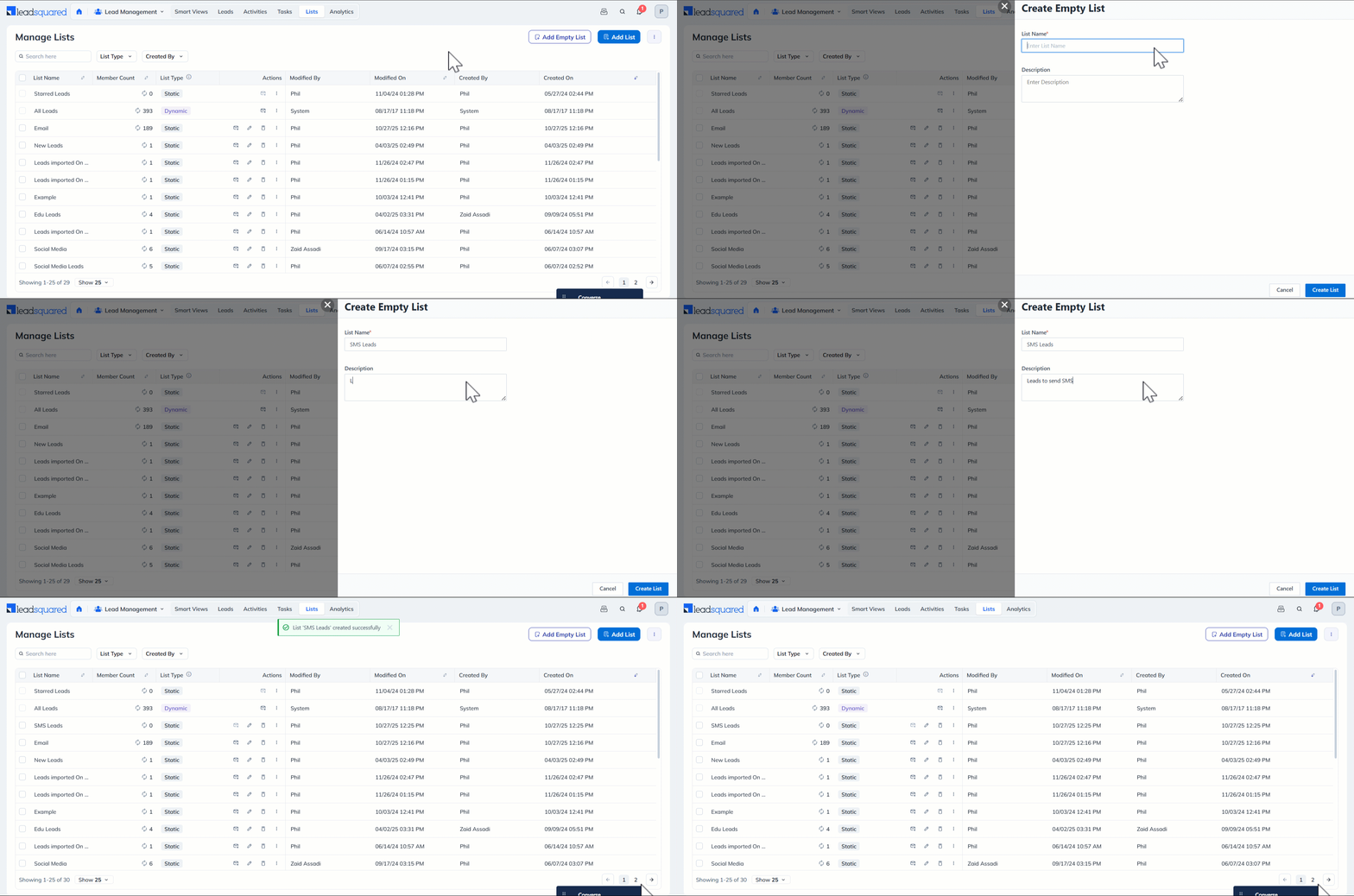
From here, you can navigate to Settings, Manage Users, and Manage Subscription (based on your permissions). You can also Check-in/Check-out, update your online status (Online, Away, etc.), and log out—all in one place.

LeadSquared NextGen Interface


5. Global Search – Find Everything Instantly

What’s new?

  • Search for leads, tickets, and more without navigating away.
  • View key details in search results without opening full records (a.k.a Quick View).
  • Take quick actions (assign leads, update statuses, add notes).
  • Save recent searches for faster access.
Available For Leads, Tickets and Opportunities
Coming Soon Search for Tasks, Accounts, Lists and Reports.

How to Use:

  1. Click the Search Bar on the top navigation (on the right side, alongside your user profile).
  2. Click the drop-down on the top-left corner to select the entity (lead, ticket, etc.)
  3. Enter a keyword (lead name, ticket ID, etc.).*
  4. Click a result to preview details or take quick actions.

Note:

  • *For Leads, you can only search lead fields that are enabled for quick search. To learn more, see how to include fields in Quick Search.
  • Results only appear after typing three characters.
  • Up to five Recent Search Keywords and Recent Search Results are saved. Clear these by clicking Clear All.
  • Results are ranked based on relevance, giving priority to key fields like First Name, Last Name, Email, and Phone Number.

LeadSquared NextGen Interface


6. Quick View – More Details, Fewer Clicks

Why It’s Useful?

  • Saves time and reduces unnecessary clicks.
  • View lead/task details instantly by clicking on the row.
  • Take key actions—update status, assign tasks, add notes—without leaving the page.
Currently Available On Leads, Opportunities, Tickets and Tasks (Manage Tasks and Smart Views).
Coming Soon Support for Activities and Accounts.

Where You Can Access Quick View

Quick View is seamlessly integrated into several key areas of the platform, making it readily accessible:

  • Global Search – Click on any search result to launch the Quick View panel.
  • Smart Views – Instantly access task details and take actions directly from your Smart Views dashboard.
  • Manage Pages – Available on the Manage pages for Leads, Tasks, Tickets, and Opportunities (via Global Search).

How to Use Quick View for Tasks

  1. Go to the Manage Tasks and Smart Views page.
  2. Click anywhere on a row to open the Quick View Panel.
  3. Perform quick actions without navigating away.
    • If you’ve completed the task, click Mark Complete.
    • Click the Leadsquared - NextGen UI edit icon to make changes to the task and once done, click Save & Close.
    • Click the Leadsquared - NextGen UI delete icon to delete the task. On the Delete Task popup, click Yes, Delete

Leadsquared - NextGen UI

How to Use Quick View on Global Search

  1. Search for a lead using Global Search, then click a result to open the Quick View Panel.
  2. Perform quick actions.
    • Click the Leadsquared - NextGen UI actions icon to perform other actions like calling, emailing, changing stage etc,.
    • Click Leadsquared - NextGen UI icon to view the complete lead details page.
Note: All the actions in the Quick View panel are displayed based on the Lead Details View Customization.

Leadsquared - NextGen UI


7. LSQ1 Design System – A Cleaner, More Efficient UI

Key Upgrades:

  • Customizable Filters: Instantly create and pin filters for quick, effortless access.
  • Smarter Columns: Drag, reorder, and resize columns for efficiency.
  • Seamless Pagination: Smooth scrolling between pages.
Currently Available On Smart Views, Manage Leads, Manage Opportunities, Manage Activities, Manage Tasks and Manage Lists pages

How to Use Customizable Filters

  1. Go to any data grid (Smart Views. Leads, Activities, Tasks).
  2. Click the Add Filter icon.
  3. Select the relevant default filter or click Configure Fields to add more filters to the list. Click Update to add the fields as filters.
  4. To search for entities based on the filter, click the Add Filter icon and select the relevant filter.
  5. Then select the value from the drop-down. Once the value is selected, click anywhere outside the drop-down to retrieve the results.

Leadsquared - NextGen UI

How to Pin Filters

Pinned filters appear next to the Add Filter icon. You can pin upto five of your frequently used filters by clicking the Leadsquared - Nextgen UI pin icon alongside the relevant filter. Search for entities with this filter any time.

Leadsquared - NextGen UI

How to Use Advanced Filters

Use Advanced Filters (formerly Advanced Search) to find leads that match multiple conditions (e.g., Country = India, Stage = ‘Prospect’, Last Activity = engaged with email campaign).

Available on: Manage Leads, Manage Opportunities and Manage Activities
  1. Click Filter>Advanced Filters.
  2. Click Add Condition, enter criteria, and click Add.
  3. Click Show Results to view matching leads

Leadsquared - NextGen UI

How to Use My Filters to Save Frequently Used Advanced Filters

My Filters (previously Quick Filters) allow you to save your frequently used filters, making it simple for you to find leads faster. Once you’ve created an Advanced Filter, save it as a quick filter for easy access.

Note: The My Filters feature is available only on the Manage Leads page.
  1. Navigate to Filters>Advanced Filter.
  2. An Advanced Filter pop-up will appear. Select Search Criteria and click Add.
  3. The selected criteria will appear. Now click Save as a Quick Filter.
  4. Assign a name to the filter and click Create. The added Quick Filter will be added to the My Filters dropdown.

Leadsquared - NextGen UI

How to Customize Columns

Use Manage Columns to add, pin, and rearrange up to 60 columns in your grid. Extra columns become horizontally scrollable for easy access.

Available on: Smart Views, Manage Leads, Manage Opportunities, Manage Tasks, Manage Activities, and List Details pages.
  1. Click Leadsquared - NextGen UI in the top-right corner of the grid.
  2. Select the checkboxes for the fields you want to display.
  3. Selected fields move to Scrollable Columns and appear in the grid.

Leadsquared - NextGen UI

How to Pin and Rearrange Columns

Pinning a column moves it to the front of the grid and freezes it in place. Pinned columns remain visible and do not move or get hidden when scrolling through the grid. You can pin up to four columns, with two primary columns pinned by default.

  1. Click the Leadsquared - Nextgen UI icon alongside the relevant selected column to pin it. The field will move under the Pinned Columns section.
  2. Click and hold the Leadsquared - NextGen UI move icon to reposition the field within the column as per your preference. This can also be done in the Scrollable Columns section to rearrange the fields in the grid.
  3. Once you’ve selected and pinned the columns, click Update.

Click Restore Default if you want to bring back the default view.

Leadsquared - NextGen UI

How to Use Pagination

Seamlessly navigate between multiple grid pages using user-friendly pagination. The page navigation bar, fixed at the bottom, lets you switch pages and view the visible and total row count across all pages. You can choose the number of rows to display per page.

Available On: Smart Views, Manage Leads, Manage Opportunities, Manage Tasks, Manage Activities, Manage Lists and List Details pages.

Leadsquared - NextGen UI


8. Smarter Workspaces: Powerful Enhancements on Every Page

Here’s whats new –

  • Smart Views – Switch between top and side panel layouts for a more flexible workspace.
  • Manage Opportunities – Get a better view of all your opportunities across different opportunity types.
  • Manage Activities – View all activity types upfront in a dedicated panel for faster access.
  • Manage Lists – A cleaner layout with quick access to essential actions.
  • Entity Details – Centralized actions, and easier access to key info on Lead, Opportunity and Account details pages.

Upgraded Smart Views  – Flexible Panels & Quick Edits

How to Switch Panel Views

On the Smart Views page, you can switch between Top and Side views of tabs. The tabs are in top view by default.

  1. Click the Leadsuared - NextGen UI side view icon alongside the leftmost tab to view all the Smart Views tabs in a list form.
  2. Click and hold the relevant tab to reposition it within the list.

Leadsquared - NextGen UI

Alongside the Smart Views heading –

  • Click the Leadsquared - NextGen UI plus icon to add a new Smart Views Tab.
  • Click the Leadsquared - NextGen UI Collapse/Expand Menu icon to toggle the visibility of the Smart Views tabs list.

Leadsquared - NextGen UI

To switch back to the top view –

  1. Click the Leadsquared - NextGen UI top view icon on top of the Smart Views heading.
  2. Click and hold the relevant tab to reposition it.

Leadsquared - NextGen UI

To add a new Smart Views Tab when in top view, click the Leadsquared - NextGen UI plus icon next to the rightmost tab.

Leadsquared - NextGen UI

How to Quick Edit Tab Info

Click the Leadsquared - NextGen UI Tab Info icon to key info like the tab description, conditions, creation and modification dates, and owner.

  • To delete a particular Smart Views Tab, click Delete View.
  • If the tab was created by you, you can make changes to it by clicking Edit View.

Leadsquared - NextGen UI

Manage Opportunities

The Manage Opportunities page is more efficient, allowing you to access all your Opportunity Types with fewer clicks. The opportunity types are listed in a collapsible panel on the left side of the screen. You can expand or collapse this panel to easily switch between types or get a full view of your opportunity grid.

How To Expand and Collapse the Opportunity Type List

To get a better view of the opportunity grid, click the Leadsquared - NextGen UI Collapse/Expand Menu icon. This will toggle the visibility of the Opportunity Types column as needed.

Leadsquared - NextGen UI

Manage Activities – Instant Access to All Activity Types

No more drop-downs, now instantly see all activity types at a glance—listed in a left-side panel for easy access. Pin your frequently accessed activity types to the top for easy access.

How to Pin Activity Types

  1. Scroll through the list of Other Activity Types or search for it using the search bar on top of the Activity Types column.
  2. Hover over the relevant activity and click the Leadsquared - NextGen UI pin icon alongside it.

Leadsquared - NextGen UI

Click to view the activities related to a particular activity type. Key actions are available upfront and the same LSQ1 filtering, column customisation and pagination improvements are available.

Leadsquared - NextGen UI

How to Collapse and Expand the Activity Type List

To get a better view of the activity grid, click the Leadsquared - NextGen UI Collapse/Expand Menu icon. This will toggle the visibility of the Activity Types column as needed.

Leadsquared - NextGen UI

List Management – Cleaner Layout and Quicker Actions

How to Use the New Manage Lists Page

  • You can send emails to lists directly from here. Click Leadsquared - NextGen UI to open the Send Email popup.
  • Click the Leadsquared - NextGen UIedit icon to edit the list. Click the Leadsquared - NextGen UI delete icon alongside the relevant list to delete it.
  • Click the Leadsquared - Actions Icon actions icon alongside the relevant list to perform any action including messaging, making a call etc.

Leadsquared - NextGen UI

How to Use the New List Details Page

The List Details page now lets you perform quick actions like making calls and sending emails. For more actions, hover over the Leadsquared - NextGen UI actions icon.

Leadsquared - NextGen UI

By clicking Leadsquared - NextGen UI the info icon, you can get details about the list including the description, type, creator, modifier, creation and modification dates and time.

Leadsquared - NextGen UI

Redesigned Detail Pages – Everything You Need, Upfront

Lead, Opportunity, and Account details pages now bring key actions like adding activities, opportunities, emails, calls, and notes into a single, streamlined interface. The new VCard and dedicated Notes section make it faster to act, easier to get context, and effortless to update records.

Unified Action Panel – The New VCard Experience

Save time with the new VCard Action Panel, which brings all key actions – add activities, create notes, launch forms, and more – into one consistent, intuitive location. Previously scattered across tabs and menus, these actions are now available upfront on the entity details page.

Action Overview

  • Primary Actions: Shown as icons directly on the VCard.
  • Secondary Actions: Available under the More Actions Leadsquared - NextGen menu.
Available On Lead Details, Opportunity Details, Account Details
Note: The actions shown on the VCard, as well as the Properties and Metrics sections, can be configured using Lead Details View Customization (LDVC) and Opportunity Details View Customization (ODVC).

Editing Lead Details from the VCard

The edit actions are now available on the VCard itself. For lead properties, there’s an edit Pencil Edit iconicon alongside the card.

To Edit VCard or Full Lead Details

  1. Hover over the Leadsquared - NextGen More Actions icon on the VCard.
  2. Select Edit VCard or Edit Lead Details.
  3. In the popup, update the necessary details and click Save & Close.

To Edit Lead Properties

  1. Alongside Lead Properties, click the Edit Icon.
  2. Update the properties and click Save & Close.

Launching Forms and Processes

Launch forms and workflows (such as loan or education applications or custom processes) directly from the VCard using the Forms Forms and Processes icon on the Lead VCard icon.

New Experience - Entity Details Page VCard Actions

Dedicated Notes Panel – Faster Access, Cleaner View

To help you access and manage notes more efficiently, they are now displayed in a dedicated panel on the right side of all entity details pages.

  • View, add and edit your notes with minimal clicks.
  • Click the Expand Expand Collapse Icon icon to expand or collapse the panel as needed.
  • The most recently added note appears at the top, followed by older entries.
Note: The Notes panel will only be visible if the Notes tab is enabled while configuring the Lead Details View.
Available On Lead Details, Opportunity Details

Notes Panel on Entity Details Pages

Leftmost Tab Set as Default View

The first (leftmost) tab is now automatically set as the default landing page. This is the tab that opens by default when you access the entity details page.

Available On Lead Details, Opportunity Details, Account Details

Tab Navigation on Entity Details Pages

Quick Access to Documents

Documents attached to Notes or uploaded via Custom Field Sets (visible in the Documents tab) can now be viewed in an expandable pop-up window within LeadSquared, allowing for a smoother in-app viewing experience.

You can also preview Microsoft Office documents directly – no downloads required.

  1. Click any file to open it.
  2. Use the Leadsquared - NextGen Expand icon to view the document in full and the Leadsquared -NextGen Minimize icon to collapse the view.
  3. Click the Leadsquared - NextGen Download icon to save the file locally.

View Documents within LeadSquared

Activity Details Made Accessible

Activity details are now displayed in a panel on the right, making all important context available at a glance.

Activity Details on Entity Details Page


9. App Tabs: Seamlessly Manage Multiple Leads & Opportunities

With App Tabs, you can open multiple entity detail pages (leads, opportunities, etc.) within the application, eliminating the need to juggle multiple browser windows. Switch between tabs seamlessly and return to grid pages anytime using the top navigation. You can open up to five App Tabs at a time. To learn more, see App Tabs – Feature Guide.

Leadsquared - NextGen UI


Any Questions?

Did you find the content in this article helpful? Feel free to leave doubts/questions in the comment section below. We’ll get back to you as soon as possible.

Manage Opportunities

1. Feature Overview

Opportunities in LeadSquared represent potential deals. Through opportunity management, you can track various aspects of deals in progress. This article will help you understand how to add opportunities to leads, and perform multiple actions on these opportunities such as bulk and grid updates, export opportunities and reset filters. To know how to create Opportunities, refer to Opportunity Configurations.

Opportunity


2. Prerequisite

You must be the Administrator of your LeadSquared account to configure opportunities.


3. Add Opportunity

You can add opportunities on leads, who’ve shown interest in different products that your business offers. To add an opportunity –

  1. From the LeadSquared main menu, navigate to Leads>Manage Opportunities>Opportunity Type.
  2. Click the Add Opportunity button on the right side of the page.
  3. On the Add Opportunity pop-up, fill in the necessary fields.
    • You can assign the opportunity to any user within your organization.
  4. Once you’re done, click Add.

Alternatively, you can also add opportunities to a lead from the –

  • Lead Details page

LeadSquared Opportunity Management

  • Manage Leads page.

LeadSquared Product Updates

  • You can also add opportunities in bulk from the Manage Leads page.

LeadSquared Product Updates

4. Actions

You can take multiple actions on existing opportunities, on the Manage Opportunities page. The types of available actions are –

4.1 Bulk Updates

You can update various lead fields across multiple leads through this action. To do so –

  1. From the main menu, navigate to Leads>Manage Opportunities>Opportunity Type.
  2. On the Manage Opportunities page, against the opportunities you want to update, click the Checkbox checkbox.
  3. Hover your cursor over Leads, and select Bulk Update.
  4. On the Bulk Update pop-up, from the opportunity field dropdown, choose the opportunity field you want to update.
  5. Under New Value, enter the update (in the textbox, if it’s a text update) or select the update (from a dropdown, if the option is available in one).
  6. Once you’re done, click Update.
  7. You’ll get a message stating “Opportunities Updated Successfully”.
Note: To bulk update multiple opportunity fields, refer to How to Bulk Update Multiple Opportunity Fields?

Opportunity

4.2 Bulk Delete

You can delete multiple opportunities in bulk from the Manage Opportunity page. To do so –

  1. From the main menu, navigate to Leads>Manage Opportunities>Opportunity Type.
  2. On the Manage Opportunities page, against the opportunities you want to delete, click the Checkbox checkbox.
  3. Hover your cursor over the Leads button, and select Bulk Delete.
  4. Then, on the Bulk Delete pop-up, click Delete. The selected opportunities are successfully deleted.

LeadSquared Opportunity Management

You can also bulk delete up to 25,000 opportunities in one go, by applying relevant Advanced Search filters.

LeadSquared Product Updates

Note:

  • For the Bulk Delete action to work, you must ensure that the Allow Delete setting is enabled during Opportunity Configuration.
  • If you get an error notification while performing an Advanced Search with wildcard operators (ContainsDoes not containStarts with, and Ends with), you might have exceeded the rate limit. To know more, refer to Wildcard Search Limitations.

4.3 Bulk Status Change

You can update/change the status of multiple opportunities in bulk. To do this –

  1. From the main menu, navigate to Leads>Manage Opportunities>Opportunity Type.
  2. On the Manage Opportunities page, against the opportunities for which you want to change the status, click the Checkbox checkbox.
  3. Hover your cursor over the Leads button, and select Change Status.
  4. On the Change Status pop-up, from the Status dropdown, select the new status. Then, from the Stage dropdown, select the new stage.
  5. Once you’re done, click Change. The status of all the selected opportunities is now updated.

OpportunityManagement_E_1

4.4 Export Opportunity

You can export existing opportunities within LeadSquared. To do this –

  1. From the main menu, navigate to Leads>Manage Opportunities>Opportunity Type.
  2. From the Actions dropdown, select Export Opportunity.
  3. If you want to export all the opportunity fields, select “Export all fields”.
  4. If you want to export only selected opportunity fields, select “Export selected fields”.
  5. Click Choose fields.
  6. You can search for fields by using the Search Fields search box.
  7. You can choose fields by checking the checkbox against each opportunity field.
  8. Once you’ve made the selection, click Export.
  9. If the export access is successful, you’ll receive an email with the file download link, to the email Id you’ve registered in your LeadSquared account.

Note:

Export Opportunities

4.5 Import Opportunities

To know how to import opportunities (through a CSV file), refer to Import Opportunities.

4.6 Reset All Filters

On the Manage Opportunities page, if you’ve used multiple filters to search for opportunities, you can reset them under Actions, by selecting the Reset All Filters option.

Opportunity

4.7 Grid Actions

This allows you to edit and add activities actions to an individual opportunity from the Manage Opportunities page. To do this –

      1. From the main menu, navigate to Leads>Manage Opportunities>Opportunity Type.
      2. Against an Opportunity Name, towards the right side of the page, under Actions, hover your cursor over the Settings icon icon.
      3. The Edit action will allow you to change opportunity details in the Update Opportunity Details pop-up. Once you’re done, click Save.
      4. The Add Activity action will allow you to add activities on the opportunity. Once you select an Activity Type, and enter other relevant details, click Add.

Opportunity

4.8 View Opportunities

Edit Grid View

On the Manage Opportunities page, you can change the fields that are displayed on the grid. To do this –

      1. One the right side of the grid, click the Grid icon.
      2. On the Select Fields to View in Grid pop-up, on the top right corner, change Show: Selected to Show: All.
      3. Select the fields that you want to view on the grid.
      4. Once you’re done, click Show Selected.
      5. You can also change the current view to default by clicking Restore Default.
Note: The calculated field on this page calculates the difference between the current date and any custom date field. It can also be used to perform any mathematical operation on the calculated value. For example, users can calculate the number of days that have passed after the due date. This value gets updated everyday to help sales users monitor them.

Opportunity

Expand View

On the Manage Opportunities page, you can view details of an opportunity, by clicking the blank space against on an opportunity.

Opportunity

When you click on an existing opportunity, the Opportunity Details page opens up. On this page, you can post activities, tasks and notes to the opportunity. To know more, refer to Opportunity Details.


5. FAQs

1. Why Is the Opportunity Owner Changing Automatically?

  • Issue: The Opportunity Owner is being updated automatically, even though no automation or manual changes have been made.
  • Cause: This occurs if the Enable Change of Opportunity Owner on Lead Owner change is enabled in Advanced Configurations. When this setting is active, the Opportunity Owner automatically changes to match the Lead Owner whenever the Lead Owner is updated.
  • Solution:
    1. Navigate to Settings>Advanced Configuration in your LeadSquared account.
    2. Check if the Enable Change of Opportunity Owner on Lead Owner change setting is enabled.
    3. Disable the setting if you do not want the Opportunity Owner to change automatically when the Lead Owner changes.

2. Why Are Status and Stage Auto-Populating When Creating a New Opportunity?

  • Issue: If the Status and Stage fields are automatically filled in when creating a new opportunity in LeadSquared, it could be due to specific settings enabled in your account. These settings allow you to configure default values for Status and Stage, simplifying opportunity creation.
  • What to Check:
    • Advanced Configuration: Navigate to the Advanced Configuration section of your LeadSquared account and verify if the Enable Default Status and Change is turned on.
    • Opportunity Type Settings: Check the Opportunity Type configurations (navigate to the field level configurations for the status field)  to confirm whether a default Status and Stage have been pre-configured for new opportunities.

Enabling these settings can save time by pre-populating these fields, ensuring consistency across opportunities. However, if this behaviour isn’t desired, you can disable the default values in the settings.


Any Questions?

Did you find this article helpful? Please let us know any feedback you may have in the comments section below. We’d love to hear from you and help you out!

Customise the Tasks Page

1. Feature Overview

Users can customise the Tasks page to reflect their priorities. There are two views available on the Tasks page –

  • List View – All tasks appear in a list, with columns that show details such as Status, Due Date, and Task Owner. This helps you view key task information at a glance.
  • Calendar View – All tasks are displayed as part of a calendar. This helps plan your work for the day, week or month.

LeadSquared Task Management


2. Prerequisite

Any LeadSquared user can customise their Tasks page.

Note: If Admins want a customised and uniform tasks view for all users, they can achieve this using Smart Views.


3. List View

The List view shows a grid with details of all tasks. By default, it displays the tasks created by you. To access it, navigate to Lead Management>Tasks, and click the List View icon.

LeadSquared Task Management

3.1 Customise the Columns

You can add or remove task and lead fields as required. To do this –

  1. On the top-right corner, click the Manage Columns icon.
  2. On the Manage Columns pop-up, use the checkboxes to select the fields you want to display on the page.
    • To remove a field, uncheck the field or use the ‘x’ icon.
  3. Toggle between the Leads and Tasks tabs to choose the fields you want to display.
  4. Drag and drop the Scrollable Columns in your preferred order.
    • You cannot edit the order of the Pinned Columns.
  5. Once you’re done, click Update.
Note: Subject, Associated To, Status and Action fields are pinned by default and cannot be removed or re-ordered.

LeadSquared Task Management

3.2 Other Actions

On the List View page, you can also perform the following actions.

  • Sort – You can sort all the columns (except Status) in ascending or descending order.
  • Edit – To update a task (such as the Schedule, Owner, etc.) use the Edit icon.
  • Complete – To complete a task, use the Mark Complete icon.
  • Delete – To delete a task, use the Delete icon.
  • More Actions – Hover on the three-dots menu to perform the following actions –
    • Mark Open – Let’s you reopen a completed task.
    • Delete Recurrence – Lets you delete future occurrences of a recurring task.
    • Cancel – Let’s you cancel a task.
  • Add Task – Let’s you add a new task directly from the Tasks page. To know more, refer to Manage Tasks for Users.
  • Export – Let’s you export tasks. To know more, refer to Export Tasks out of LeadSquared.

Note:

  • You can Export tasks only from the List View
  • To navigate to the Lead Details page from the List view, click the lead’s name.

LeadSquared Task Management


4. Calendar View

The Calendar view displays your tasks on a calendar, for the day, week or month you’re currently viewing. To access it, navigate to Lead Management>Tasks, and click the Calendar View icon.

Note: The calendar displays only Appointment tasks, while the To-dos are visible on the left panel.

LeadSquared Task Management

4.1 Day View

  • This view shows the tasks set up for a specific day. By default, it shows the current day.
  • Click a date in the monthly calendar on the left pane to change the day.
  • The calendar supports multiple time zones. To change the time zone, click the time zone dropdown.
    • Each user sees tasks in their own time zone, which you configure while creating or editing a user in Manage Users.
  • Working Hours also appear on the calendar, with white slabs for working hours and grey slabs for non-working hours.
    • If a workday template with a break time applies to a user, the calendar marks it in grey.
  • You can use the day view to view tasks for multiple users at the same time by using the name dropdown and selecting the users whose tasks you want to see.

Note:

  • You can change the timezone only in Day view.
  • Admins can view other sales users’ tasks in their own time zone or in the sales user’s configured time zone. This helps schedule tasks across time zones.

LeadSquared Task Management

4.2 Week and Month View

  • Use the calendar on the left pane to change the week and month.
  • Only one user’s tasks appear at a time in the week and month views. Use the owner dropdown to switch between users.

LeadSquared Task Management

4.4 Other Actions

You can also perform the following actions from the Calendar View. To do this, click an existing task.

  • Edit – To update a task (such as the Schedule, Owner, etc.) use the Edit icon.
  • Complete – To complete a task, use the Mark Complete icon.
  • Delete – To delete a task, use the Delete icon.
  • More Actions – Hover on the three-dots menu to perform the following actions –
    • Mark Open – Let’s you reopen a completed task.
    • Delete Recurrence – Lets you delete future occurrences of a recurring task.
    • Cancel – Let’s you cancel a task.
  • Add Task – Let’s you add a new task directly from the Tasks page. To know more, refer to Manage Tasks for Users.
Note: To navigate to the Lead Details page from the Calendar view, click the lead’s name.

LeadSquared Task Management


5. Filters and Advanced Filters

Filters help narrow down specific tasks, such as tasks with an Overdue status or a Due Date of today. The Advanced Search feature lets you search for tasks that meet one or more task and/or lead filters.

Note: The steps to set Filters and Advanced Filters are the same across List View and Calendar View. We’re using List View to demo this feature.

5.1 Filters

  1. Click the Filter button, and then click Configure Filter Fields.
  2. On the pop-up, select the task and lead fields to display as filter options, and click Update.
  3. Then click the Filter button again, and select the fields you want to use to filter tasks from the available list.
    • If the selected field has sub-fields, you can also filter tasks by those sub-fields. For example, if you select Task Status, you can filter by Open, Completed, Pending, or Overdue.

LeadSquared Task Management

5.2 Advanced Filters

Advanced Filters let you set up If/Else conditions to identify and narrow down specific tasks in your account, such as tasks where the Status Is Pending + Overdue AND Lead City Is Bangalore.

  1. Click the Filter button, and then click Advanced Filters.
  2. On the Advance Search pop-up, click Add Condition.
  3. On the first dropdown, Task is selected by default. You can keep it as is or change it to a lead field if required.
    • The second and third dropdowns are non-clickable and preset with default values.
  4. On the fourth dropdown, select the task field to filter by, such as Status, Due Date, Owner, etc.
    • Based on the selected field, choose the operator to filter tasks (such as Is, Is Not, Contains, Ends With, etc.).
  5. Then, from the final dropdown, add the field values to filter the results. You can select multiple values.
  6. Once you’re done, click Add.
    • To add additional conditions, use the AND or OR operators.
  7. Once you’re done, click Show Results.

LeadSquared Task Management


Any Questions?

We’d love to hear your thoughts on this article and the tasks feature in general. Feel free to start a conversation in the comments section below.

SIERA Quick Edit

1. Feature Overview

SIERA’s Quick Edit feature lets users change the basic parameters of an existing report and Save it as a new copy or overwrite the existing report. This functionality is available to all user types.


2. Prerequisites

SIERA is a paid feature. To enable it, contact your account manager or send an email to support@leadsquared.com.


3. Using Quick Edit

On a SIERA report, you can use the Filters, Data, and Charts sections to make changes to the report. Once you’ve made some changes, you can save the modified report by clicking the Save As or Save button.

SIERA quick edit report


4. Filters

Each report comes with a default set of filters. The Filter section lets you change the filter values and add more filters to a report. A maximum of 15 filters can be applied to a report. The following data types are supported as filters –

  • String – any field configured as String in LeadSquared will be of String type in reports. The filter will be an open text box where users can input matching texts. Upto 15 values can be added. To add a text filter, enter the text and press enter. The filter will be case-sensitive.
  • Dropdown – Fields that are configured as dropdowns in LeadSquared will appear as a dropdown filter in reports. Such filters will come as a multi-select dropdown. The dropdown options will be taken from the options configured in LeadSquared. To apply a filter, select the values you want. There is also a search bar to search for specific dropdown values. Clicking on the “All Selected” will select or deselect all options.
  • Date – Any field configured as a date in LeadSquared can also be used to apply filters. Date filters can be applied as Relative or Absolute.
    • Relative date filters are changing date filter windows, for example, a relative date filter of the Last 7 days will always ensure to fetch the data for the last 7 days starting today.
    • Absolute date filters are fixed date ranges, for example, an absolute date filter of 21st May 2024 to 28th May 2024, will always get the data for these date ranges.

Add Filters


5. Data

The data section lets users add groupings and values to a report. It defines what fields will occupy rows and columns and what will be counted in the report.

5.1 Rows

This option will let you select the row grouping of the report. Row grouping defines the fields that will occupy each row of the report. For instance, if we put Lead Stage as a Row Grouping, each value of Lead Stage will occupy a row.

The + Add button opens all fields corresponding to the Data Source (For example, Activity Data Source will contain all Lead Fields and Standard Activity Fields, along with System User Fields.) Click on any field to add it to the row grouping and click on Preview to see the changes.

Note:

  • Only Date and String (Dropdown + Text) fields are allowed.
  • The minimum permissible number of row groupings is 1.
  • The maximum permissible number of row groupings is 3.
  • To define sorting on a row grouping, click on the sort icon beside the field.
  • To remove a field from the row grouping, click on the cross icon.
  • To add a Row grouping, click on the + Fields option.

SIERA row grouping

5.2 Columns

This option will let you select the column grouping of the report. You can make a pivot table with your data.

The + Add button opens all fields corresponding to the Data Source (For example, Activity Data Source will contain all Lead Fields and Standard Activity Fields, along with System User Fields.) Click on any field to add it to the Column grouping and click on Preview to see the changes.

Note:

  • Only Date and String (Dropdown + Text) fields are allowed.
  • In pivot mode, up to 52 columns will be visible, after which all the other columns will be clubbed under the Others column.
  • The minimum permissible number of row groupings is 0.
  • The maximum permissible number of row groupings is 1.
  • To remove a field from column grouping, click on the cross icon.
  • To add a column grouping, click the + Add option.

SIERA Column Grouping

5.3 Values

This option will let you select the measures in the report. The + Add button opens all fields corresponding to the Data Source (For example, Activity Data Source will contain all Lead Fields and Standard Activity Fields, along with System User Fields.) Click on any field to add it to the Values section and click on Preview to see the changes.

Note:

  • Only Number fields are allowed to be added from the + Add options. Values Name and aggregator can also be changed by clicking the edit button.
  • The Values section also has a pre-defined set of values to help create quick reports.
  • The minimum permissible number of row groupings is 1.
  • The maximum permissible number of row groupings is 25.
  • To remove a field from column grouping, click on the cross icon.

SIERA Data Values


6. Charts

This section lets you add charts to your report. The axes of the charts depend on the Groupings and Values (refer to section 5).

The charts supported are –

  • Bar Chart
  • Column Chart
  • Line Chart
  • Area Chart
  • Pie Chart
  • Donut Chart

The following chart attributes are available to be applied. Certain attributes are exclusive to specific chart types as shown in the table below –

Chart Attribute Available On Chart Type Description
Show Data Labels All Charts Add data labels to your chart. The data points highlight the value against the respective chart point.
Show Series Label Line and Area Adds the series label to your chart.
Show Category Name Pie and Donut Shows the category names.
Show Percentage Labels Pie and Donut Displays the percentage distribution of a value with the total in percentage.
Stacked Bar, Column, Line, and Area A stacked chart is a form of a chart that shows the composition and comparison of the variables selected. For example, if you have a Column chart of Owners vs Lead Stages stacked for Stages, you will see a chart with a Column for each Owner and each Column showing the distribution of leads per Owner.
100% Stacked Bar, and Column A Percent Stacked Bar or Column Chart is designed to display the relationship of constituent parts to the whole. You can compare the contribution of each value to a total (sum) across categories. In the case of a Column Chart, the range of values along the Y-axis is from 0 to 100%. You will need to select the Stacked option along with this option.


Hide Legend All Charts Hides the legend of the distribution on the chart.
Show Shared Tooltips All Charts Show all the shared data on the tooltip.

SIERA create charts


7. Save or Save As

Any change made by modifying filters, data, and charts can be saved as a new report by clicking Save As or overwrite the existing report by clicking Save.

Note:

  • You will be able to overwrite a report if you are the owner of the report. Otherwise, the Save button will be disabled for you.
  • You cannot overwrite a system report.

SIERA quick edit save


8. Troubleshooting

Why am I receiving the error “Something went wrong” when saving an edited report?

  • Problem Statement: Users encounter the error message “Something went wrong” when trying to save an edited report.
  • Solution: This error occurs due to the presence of restricted symbols in the report’s name or description. To resolve the issue:
    1. Remove the “&” symbol from the report’s name and description.
    2. After making these changes, try saving the report again.
  • Note: The following symbols are restricted in the report name and description ; ' " < . \ &


Any Questions?

Did you find this article helpful? Please let us know in the comments section below. We’d love to hear from you and help you out!

Device Binding – Feature Guide

1. Feature Overview

Device Binding is a mobile security feature that ensures users access the LeadSquared mobile app only from a single, registered device. This protects sensitive business data, maintains accurate location tracking of the user, and prevents unauthorized access. Device Binding ties a user’s mobile app login to one specific mobile device. Once a device is bound:

  • Any login attempt from a different device is automatically blocked.
  • Only an admin can approve or reset the device binding to allow access from a new device.

Leadsquared - Device Binding


2. Prerequisites

  • Device Binding is a feature only for LeadSquared Mobile App users.
  • This feature is available only if you have enabled Location Insights in your account. To enable Location Insights and Device Binding, reach out to support@leadsquared.com.


3. How It Works

  • Once enabled, Device Binding automatically links a user’s account to the first mobile device they log in with.
  • If a user upgrades or changes their device, they must send a device binding request to their admin to register the new device.
  • From the LeadSquared Web App, admins can manage device registrations by:
    • Approving or rejecting new device requests
    • Unmapping existing devices when required


4. Device Binding on LeadSquared Mobile App

Once Device Binding is enabled, the mobile user will be logged in seamlessly. This device will become their bound device for all future logins. If a user needs to switch to a different device, there are methods to do so. These options are described in the sections below.

4.1 Login using Unregistered Device

If a user logs in on a new, unregistered device, a non-dismissible pop-up appears saying “This device is not registered with us. Please contact your admin to register this device.”

From here, the user can make one of these choices:

  • Contact Admin – Sends device binding request to admin, displays “Request Sent”, and logs the user out.
  • Cancel – Logs the user out without sending a request.
Note: If the admin approves the new device, the old device will automatically be unmapped.

Leadsquared - Device Binding

4.2 Login using Unmapped Device

In certain cases, the admin can unmap a user’s device (for example, if the device is lost or stolen). If a user tries to log in from a previously registered device that has been unmapped, they will see a pop-up message: “This device is no longer linked to your account. Please contact your admin to regain access.” They will be logged out immediately. The user can then attempt logging in again, which will trigger the Login Using Unregistered Device flow.

Leadsquared - Device Binding


5. Device Binding Management on LeadSquared Web App

Admins get full access to all details about the users’ registered devices from the Device Binding page on the LeadSquared Web App.

5.1 View Bound Devices

To view the bound devices of all users –

  1. Navigate to Apps>Field Sales Territories>Device Binding.
  2. All the registered devices and their details are displayed under the All User Devices tab.

Leadsquared - Device Binding

Alternatively,

  1. Navigate to Apps>Location Insights>Device Binding.
FIELDS DESCRIPTION
Name The name of the user
Email The email address of the user
Platform Whether the device is Android or iOS
Device Model The name of the device to identify its make and type
OS Version The version of the OS the user has installed or updated to
App Version The version of the LeadSquared Mobile App the user has installed or updated to
Device ID The unique code used to identify a specific device
Status
  • Active – The currently registered device of a user
  • Unmapped – The old device of a user that is no longer bound
Registration Date The date when the device was registered in LeadSquared in the YYYY/MM/DD format
Action Unmap user devices

5.2 View Device History

To view a user’s device history, click the Leadsquared - Device Binding icon next to their name. This will display a list of all devices the user has previously registered with LeadSquared along with its platform, model, OS version, app version and other device-related details.

Leadsquared - Device Binding

5.3 Approve / Reject Devices

Admins can approve or delete device binding requests sent by mobile users from Location Insights>Device Binding>Approval Requests tab in web app. The admins can:

  • Approve – Marks new device as approved, unmaps old device, sends notification that says, “New device registration request approved”.
  • Delete – Discards the request, shows toast “Request Deleted”.

Once the new device is approved, the user can log in and continue with their daily workflows.

Leadsquared - Device Binding

5.4 Unmap User Devices

If a user loses their device or no longer has access to it, they can request the admin to unmap it. Once unmapped, the lost or stolen device will no longer provide access to any data. Admins can complete this action directly from the web app by unmapping the user’s active device.

Leadsquared - Device Binding


Any Questions?

We’d love to answer your questions or hear your own unique use cases. Feel free to share your experiences in the comments section below.

Call Tracking Metrics Texting Connector v2.0

1. Feature Overview

The CallTrackingMetrics texting connector lets you send texts to leads directly from your LeadSquared account. In addition, you’ll be able to –

  • Set up automated SMS campaigns with notifications and reminders.
  • Track incoming and outgoing SMS logs as activities.
  • Eliminate the need to switch between multiple applications to manage SMS activities.
  • Analyze the performance of your all campaigns sent through LeadSquared.

For the CallTrackingMetrics telephony integration, see LeadSquared CallTrackingMetrics Connector.

Note: MMS messages are supported.


2. Prerequisites

  • You must be an administrator user of your Leadsquared account.
  • Your account plan must support SMS integration.
  • You must have an active account with CallTrackingMetrics.


3. How it Works

Set up the connector by providing your CTM account details. Once it’s set up, create and configure the SMS templates you’ll be using to message your leads. After these templates are configured, send SMSes to your leads.


4. Install the Connector

To install the CTM connector on your account –

  1. From the main menu, navigate to Apps>Apps Marketplace.
  2. Search for CallTrackingMetric, and click Install.
    • Alternatively, you can find the connector on the left panel, under SMS.
  3. Then, click Configure.
  4. On the Configure CallTrackingMetric  pop-up, no further action is required on this page. To configure the connector, navigate to Apps>Configure CallTrackingMetric.

CTM Texting Installation


5. Configure the Connector

Once the connector is installed, navigate to Apps>Configure CallTrackingMetric, and provide the following details –

5.1 Authentication

Enter your CallTrackingMetric account credentials –

  • Account Number – Your CTM account number.
  • Access Token – Your CTM account’s access key.

Once you’re done, click Save & Next.

LeadSquared CTM connector

5.2 Activity Creation

When SMSes are sent to your lead, an activity is posted automatically against that lead. Here, configure the activity creation method for the SMS activity.

  • Async API – This is the recommended method. If you’ve selected this method, enter your LeadSquared account’s Async API URL and API Key. To obtain both these values, navigate to My Profile>Settings>API and Webhooks>Async API.
  • Sync API – This method is selected by default. To post limited SMS activities against your lead, select Sync API.

Note:

  • Through the Sync API method, the activity creation process happens without any delays. But activity creation or tracking may fail during peak hours and when there’s high traffic to our servers. To work around this potential issue, we recommend you use the Async API method.
  • Async APIs must be enabled on your LeadSquared account for the Async method to work.

LeadSquared CTM connector

5.3 Sender Management

To add your CTM account’s Sender IDs, click Add New, and on the Add Sender ID pop-up, enter the following details –

  • Sender ID – Enter your CTM phone number from which you’ll send messages to your leads. To know how to obtain a number, refer to CTM Phone Numbers.
  • Name – A name to identify the Sender ID (e.g., Promotional, Transactional, etc.). This is primarily for internal reference. This is optional.
  • Sender Distribution – Select the users to whom the Sender ID will be assigned –
    • Based on Role – Select the LeadSquared user roles to whom you want to assign the Sender ID.
      • Specify Roles – From the dropdown, select the user roles (e.g., Administrator, Marketing User, etc.) to whom you want to assign the Sender ID.
    • Advanced (User Level) – Select a boolean user field that’s configured in your account. If the selected user field contains the value “True” for any user, the Sender ID will be assigned to them.
  • Associated Users – If the Sender ID you entered is linked to a user, the system automatically populates this field with the user’s name. If the Sender ID is not linked to any user, you can select the user from the dropdown, and associate the ID with them.
  • Advanced Sender ID Distribution options (User Field Level) – Select the user field where you want to store the Sender ID. You can only select number or string type user fields.

To add multiple Sender IDs, repeat the steps mentioned above. Once you’re done, click Save, and click Save & Next.

LeadSquared Call Tracking Metrics Connector

5.4 Permissions

Grant users permissions to perform the following actions:

  • Send single and bulk SMS
  • Manage reports (viewing reports)
  • Send MMS
  • Converse

These actions will be configured and available on the following pages –

  • Manage Leads page grid
  • Manage Opportunities page grid
  • Lead List
  • Automation Page
Note: We used the Send SMS Bulk action as an example to demonstrate this section. Configure the other actions following the same steps, unless stated otherwise.

You can also configure permission you want to grant users for managing templates and reports. This action will be configured on the following pages –

  • Manage Templates (the CTM template creation screen)
  • Manage Reports (the CTM SMS Reports screen)
  1. Under Functionality, click on the page for which you want to configure the permissions.
  2. On the Send SMS pop-up, provide the following details –
    • Action Label – Enter the display name of the SMS action (e.g., Send Text – CTM, Send Bulk Text – CTM, etc.). The limit on the number of characters you can add is 25.
    • Campaign Size – This is applicable only when sending bulk SMSes. You can send SMSes to up to 200 leads through the Lead Grid, and up to 1,000 bulk SMSes through the Manage Lists page in one go.
    • Permission – Select if you want to enable users to Send SMS based on their user role or based on the values entered in a user boolean field.
      • Based on Role – Select the LeadSquared user roles based on which you want to grant Send SMS permissions.
      • Advanced (User Level) – Select a boolean user field that’s configured in your account. If the selected user field contains the value “True” for any user, they’ll be able to access the Send SMS action.
  3. To disable the action for your users on any page, under Enable/Disable, disable the Zoom slider. The action cannot be disabled for the Manage Templates and Manage Reports screens.
Note: To configure the send SMS action on the Manage Opportunities grid, copy the Configurable Action Url, and use it to create a new Custom Opportunity Actions. To know more, contact your account manager or write to suport@leadsquared.com.

LeadSquared CTM connector

5.5 Incoming Settings

Configure what happens when you receive an incoming message.

  • Incoming Webhook – Copy LeadSquared CTM connector this webhook, and configure it in your CTM account.
  • API Token – No action is required from you here.
    • Regenerate Token – If your existing webhook URL is compromised, and if third parties get access to it, you can use this option to generate a new token. Once this is done, the existing webhook is no longer useful. You will have to update the webhook in your CTM account.
  • Capture lead from unknown number – To capture and create new leads when you receive messages from unknown numbers, enable this slider.
    • Lead Source – From the dropdown, select the lead source that’ll be assigned to the new leads that are created from unknown numbers.
    • Lead Owner – By default, when an incoming message is assigned to any agent, that agent becomes the lead owner. However, if incoming messages are unassigned, you can choose whether you want the leads to be assigned to the system or to a specific user.
  • Activity Type – When an inbound message is received, a corresponding SMS Received activity is automatically posted. This activity cannot be renamed.
  • Activity Owner – By default, when an SMS Received activity is posted, the agent to whom the message was assigned becomes the activity owner. However, if incoming messages are unassigned, you can choose whether to assign the activity to a specific user or to the lead owner (of the lead associated with the SMS).
  • Auto Reply – Configure the connector to perform lead opt-in and opt-out actions based on keywords present in the incoming SMS. For instance, if your lead sends STOP, they’re automatically unsubscribed from the message list, and a message confirmation of the same is sent to them. After this, they’ll receive no more messages from your account.
    • To edit the list of keywords and the auto-reply message content, click LeadSquared edit.
    • To add a custom reply, click Add Custom Auto Reply. Enter the keywords, choose a Condition, and enter the message content. Once you’re done, click LeadSquared WhatsApp.

Once you’re done, click Save & Next.

LeadSquared CTM connector

5.6 Delivery Reports

LeadSquared automatically passes this webhook to your CTM account. You don’t have to perform any action with this webhook URL.

  • Regenerate Token – If your existing webhook URL is compromised, and if third parties get access to it, you can use this option to generate a new token. Once this is done, the existing webhook is no longer useful. LeadSquared will automatically pass the new webhook to CTM.

LeadSquared CTM connector

5.7 Advanced Settings

Compliance

The SMSes you send to your leads must meet regulatory compliances mandated in the US. You can either choose Opt-out or Opt-in as the compliance type. Once you select the type, from the list of boolean lead fields (e.g., ‘Do Not SMS’) available in your account, select an opt-out/opt-in field.
Leads for whom the value of the Opt-out field is set to ‘True’ will not receive any SMS. Alternatively, leads for whom the value of the Opt-in field is set to ‘True’ will receive SMSes.

LeadSquared CTM connector

Date and Time Related Details

  • User Timezone – The User Timezone setting is enabled by default, and the following behaviours are applied to this setting –
    • Enabled – The logged-in user’s timezone will automatically merge with the date-time values in the SMS templates, and this timezone cannot be updated.
    • Disabled – The Admin can update the timezone to reflect any region across the globe, using the dropdown listed. This will be applied by default to all the date-time values in SMSes sent from the account.
  • Date/Time Format – Select the date and time format your LeadSquared account should follow when sending SMSes to leads.

LeadSquared CTM Texting Connector

You can define business hours during which SMSes can be sent to your leads. This step is optional.

  1. Alongside Business Hours, enable the Slider slider.
  2. From the Schedule dropdowns, define the business hours.
  3. From the Select Sender IDs dropdown, select the senders to whom this business hour definition will be applied.
Note: If Business Hours are defined, your users will not be able to send any messages outside these defined hours.

Twilio LeadSquared Integration

Daily SMS Limits

Configure the maximum number of outbound messages that can be sent in a day. These limits won’t be applied to messages sent through SMS campaigns.

Other Details

From the Other Phone Field dropdown, select the default phone field in which the lead’s phone number is stored in your account. Once you’re done, click Save & Close.

Note: To ensure a higher deliverability rate for your SMS campaigns, ensure phone control validations are enabled for this phone number field. To learn more, see Control Phone Number Format.

LeadSquared CTM connector


6. Manage Templates

After the CTM connector is set up, add SMS templates which you’ll be using to message your leads.

  1. Navigate to Apps>Manage Templates. This is the action label name you’ve configured for the Manage Templates screen (e.g., Manage Templates – CTM, etc.).
  2. On the Manage Templates – CTM screen, click Add Template.
  3. On the Add/Edit Template pop-up, enter the following details –
    • Category – Select the LeadSquared category type for the SMS template.
      • Lead – Select this if you’re using this template to send messages to leads (e.g., offers, promotions, etc.).
      • Opportunity – Select this if you’re using this template to send messages to opportunities (e.g., offers, promotions, etc.).
      • Activity – Select this if you’re using this template to send notifications about an activity (e.g., Payments, Document Collections, etc.).
      • Task – Select this if you’re using this template to send notifications about a task (e.g., Appointment Reminders, Follow Ups, etc.).
      • User – Select this if you’re using this template to send messages to users (e.g., Reminders, Company Wide Announcements, etc.).
    • Template Name – Provide a name for the template.
    • Source Availability – Select if the template should be available to send Single SMS, Bulk SMSes and SMS through Automations. You can select all three sources if required. It is mandatory to select at least one source.
    • Content – Enter the content of the message you want to send to your lead here.
      • Add Variable – To add mail merge fields, click Add Variable. Variables in LeadSquared are defined as {{var}} i.e, the variable name is enclosed within two curly brackets. If the approved template contains a mail merge field “{#var#}”, then the LeadSquared mail merge value can only replace “{#var#}”, without changing anything else in the template. For e.g., “Hi {#var#}, hope you’re doing well!” can only be replaced by, “Hi {{var}}, hope you’re doing well!”. We also support Custom Variables. You can use this to mail merge custom variables like the Company Name, website URLs, etc.
  4. Once you’re done entering all the details, click Save.

LeadSquared CTM Texting Connector

On the Manage Templates screen –

  • To edit an existing template, alongside the template, click .
  • To delete an existing template, alongside the template, click .
  • You can sort and filter existing templates by –
    • Sender ID
    • Last Modified By user
    • Category

LeadSquared CTM connector


7. Send Single SMS

To send a one-to-one SMS to your leads –

  1. Navigate to Leads>Manage Leads.
  2. Alongside the lead you want to message, hover your cursor over . From the available options, under Messaging, click the messaging action label you’ve configured (e.g., Send Text – CTM, etc.).
  3. On the Send Text pop-up –
    • Select the Sender Id through the From dropdown.
    • Under Message Body, either
      • Click Select a Template, and from the list of available templates, select the one you want to use,
        OR
      • Type out the message you want to send to your leads.
    • If there are custom variables available, check if the relevant values are mapped to each variable.
  4. Once you’re done, click Send.
Note: The steps to send one-to-one SMS to your opportunities are the same as the ones listed above. To message your opportunities, navigate to Leads>Manage Opportunities.

LeadSquared Gupshup Integration

Alternatively, you can also send one-to-one SMSes from the Lead Details page. To do this, hover your cursor over the Lead Actions button, and under the Messaging option, click the messaging action label you’ve configured (e.g., Send Text – CTM, etc.).

LeadSquared Gupshup Integration

You can convert the message into an MMS by sending an image or GIF file. To send an MMS, on the Send Text pop-up, click attachment icon,  and you can –

  • Upload File – Attach a file to the message. The maximum supported file size is 4MB.
  • Enter URL – Paste the image or GIF URL.
  • From Lead Field – Mailmerge a lead field that contains the image file you want to attach to the message.
  • From User Field – Mailmerge a user field that contains the image file you want to attach to the message.
Note: Currently, only image and GIF files are supported.

LeadSquared Twilio Integration


8. Send Bulk SMS

You can send bulk SMSes to your leads from the Manage Leads page and the Manage Lists page.

8.1 Manage Leads Page

  1. Navigate to Leads>Manage Leads.
  2. Alongside the leads you want to send the SMS to, select the Checkbox checkboxes..
  3. Hover your cursor over the Actions menu. From the available options, under Messaging, click the messaging action label you’ve configured (e.g., Send Bulk Texts – CTM, etc.).
  4. On the Send Bulk Text pop-up, enter the following details –
    • Campaign Details
      • Alongside Sending messages to…, check if the correct number field has been selected. You can select multiple number lead fields.
      • From the From dropdown, select the Sender Id.
      • Alongside Campaign Name, provide a relevant name for the SMS campaign.
      • Under Message Body, either
        • Click Select a Template, and from the list of available templates, select the one you want to use. Alternatively, to select a template, click select template icon.
          OR
        • Type out the message you want to send to your leads.
      • Once you’re done, click Save & Next.
    • Custom Params
      • If there are custom variables available in the template, check if the relevant values are mapped to each variable.
      • To edit the value for a variable, click .
      • Once you’re done, click Save & Next.
    • Review and Send – On this tab, review if all the SMS details are correct.
  5. Once all the details are verified, click Send.
  6. On the send SMS confirmation screen, click Yes. The SMS is sent to all the selected leads.

LeadSquared Gupshup Integration


8.2 Manage Lists Page

  1. Navigate to Leads>Manage Lists.
  2. Alongside the list you want to send the SMS to, hover your cursor over Settings icon. From the available options, under Messaging, click the messaging action label you’ve configured (e.g., Send Bulk Texts – CTM, etc.).
    • Alternatively, open a list and from the List Actions menu, click Messaging, and click the action label you’ve configured.
  3. On the Send Bulk Text pop-up, enter the following details –
    • Campaign Details
      • Alongside Sending messages to…, check if the correct number field has been selected. You can select multiple number lead fields.
      • From the From dropdown, select the Sender Id.
      • Alongside Campaign Name, provide a relevant name for the SMS campaign.
      • Under Message Body, either
        • Click Select a Template, and from the list of available templates, select the one you want to use. Alternatively, to select a template, click select template icon.
          OR
        • Type out the message you want to send to your leads
      • Once you’re done, click Save & Next.
    • Custom Params
      • If there are custom variables available in the template, check if the relevant values are mapped to each variable.
      • To edit the value for a variable, click .
      • Once you’re done, click Save & Next.
    • Review and Send – On this tab, review if all the SMS details are correct.
  4. Once all the details are verified, click Send.
  5. On the send SMS confirmation screen, click Yes. The SMS is sent to all the selected leads.

LeadSquared Gupshup Integration


9. SMS via Automation

To send SMS via Automations

  1. Navigate to Workflow>Automation.
  2. Create a new automation, or edit an existing one.
  3. After selecting the type of automation and the trigger, click the add expand icon, click Messaging, and click the messaging action label you’ve configured (e.g., Send Automation Texts – CTM, etc.).
  4. After entering the required details and selecting a template or typing the message content, click Send SMS.
    • To mail merge multiple LeadSquared phone fields, click the Add Another Number button. Filter by the entity type under which the phone field is present, and use the search box to find and add the field. In the example below, we’ve mail merged the Lead Owner phone field to the automation.
  5. Publish the automation.

For more information, see How to Send SMS through Automation.

Note: You can send SMS via automation through this connector only for automations created using a Lead, Opportunity, Activity, Task, or User triggers.

LeadSquared SMS Connectors


10. Message via Converse

When this permission is enabled, send SMSes to your leads via LeadSquared Converse.

  1. Navigate to Leads>Manage Leads.
  2. Alongside the lead you want to message, hover your cursor over . From the available options, click Converse.
  3. To enable the Service Window, Select a Template.
  4. From the list of approved templates, select a relevant template, and click .
  5. Once the lead replies, you’ll be able to converse with them in real time.

LeadSquared Twilio Integration


11. View Reports

To view the reports and logs of all the SMSes sent through the CTM connector –

  1. Navigate to Apps>Manage Reports – CTM.
  2. You can sort the report by the following filters –
    • Usage Reports – The logs of the total one-to-one as well as bulk messages sent through the connector.
      • Templates – Filter the reports on the basis of the templates used when sending the messages.
      • Message Source/User Wise – Filter the reports on the basis of the message source (Automation, Bulk and One-to-one messages).
      • Select Date – Select the time interval for which you want to view the SMS logs data. You can select a maximum date range of up to 90-days in the past.
      • Cumulative – This will render the report as a pie chart.
      • Timeline – This will render the report as a bar graph.
      • For pie charts, to populate the details section, click any part of the chart.
      • For bar graphs, if you delete any element, the display of the graph gets updated accordingly.

LeadSquared Gupshup Integration

    • Campaign Reports – The logs of all the bulk messages sent through the connector. This option will only show up if the connector supports bulk messaging.
      • Select Date – Select the time interval for which you want to view the SMS logs data. You can select a maximum date range of up to 90-days in the past.
      • Status – Filter by the campaign status (All, Success, Error, and Partial Error).
      • To view detailed logs of a campaign, click on the campaign. Alternatively, click the View icon. On the Batch Details screen, you can perform the following actions –
        • To view the API details, under Batch ID (the List Id), click the entry.
        • To view the status of the messages triggered, under Triggered, alongside the Batch Id you want to view the details for, click the number.
      • Message Triggered – The total number of leads to whom the messages were triggered.
      • Sent – The total number of successful messages sent to the SMS provider.
      • Messages Billable – Every block of 160 characters in a SMS is considered as a one SMS. For e.g., if you send one SMS that contains 340 characters, it is considered as 3 messages (160+160+20) under the Messages Billable header.
      • Error – Any internal LeadSquared errors (e.g., server errors, etc.) that cause the Send SMS action to fail will get logged under the Errors column.
      • Invalid – The following scenarios when sending SMSes will get logged under the Invalid column –
        • Formatting issues with the lead’s phone numbers
        • Empty or missing lead phone numbers
        • Sending SMS outside the configured Business Hours
      • Opted Out – The total number of messages sent to leads who have opted out of receiving messages.

Note: To download/export a report, under Actions, click download icon. The report contains the Lead Id, Phone Numbers, Opportunity Id, Message Content, Status Message, Message Type and Message Count of all the leads to whom the message was sent.

LeadSquared Gupshup Integration

Alternatively, click on the Batch Id to download a report that contains the Lead Phone Number and Message content of the SMS sent to leads.

LeadSquared Gupshup Integration


12. SMS Activities

You can track the SMS sent, from the Lead Details and Manage Activities pages. We automatically post SMS Sent activities in real-time.

12.1 Lead Details

To view more details, click the SMS Sent link for each activity.

LeadSquared Tech Alpha Connector

12.2 Manage Activities

You can also view the list of leads with SMS activities. Be sure to select SMS Sent from the Activity Type drop.

LeadSquared Tech Alpha Connector

You can use the Advanced Search feature to filter SMS based on different fields, such as campaigns, date-time fields, etc.

LeadSquared Tech Alpha Connector


Any Questions?

Did you find this article helpful? Please let us know any feedback you may have in the comments section below. We’d love to hear from you and help you out!

Ace – Feature Guide

1. Feature Overview

Ace is a Sales Performance Management suite, dedicated to enhancing your Critical Business Metrics. It empowers sales leaders by enabling them to establish clear objectives for their teams and equipping them with psychological and analytical tools that ensure successful accomplishments.

Feature over view image The Ace Sales Performance Management suite provides a comprehensive set of features, including:

  • Goals – Designed to align your sales team toward your organization’s North Star metrics.
  • Incentives – Helps you improve your organization’s top and bottom line by boosting productivity.
  • Leaderboards and Gamification – Promote a high-performance sales culture through healthy competition and rewarding your team’s accomplishments.
  • Nudges – Increase productivity by sending timely progress reminders.

These components collectively contribute to optimizing sales performance and fostering a dynamic and motivated sales environment.

ace features


2. Prerequisites

  • Ace is a paid feature. To enable this feature, get in touch with your account manager, or send an email to support@leadsquared.com
  • To create Goals, Incentive programs, or Leaderboards, you must have a published Ruleset. A Ruleset contains multiple rules that define how achievements are calculated.
  • Ensure that the Organization Hierarchy for your organization is set up.


3. Goals

Ace Goals is designed to align your sales team toward your organization’s North Star metrics. With Goals, you can create company-wide objectives that trickle down your organization’s hierarchy into team-level goals. This gives everyone in your organization clarity on the company’s priorities and their individual contributions.

LeadSquared GoalsAchievements are tracked so managers and teams can directly see the impact their work has on each goal. In addition to motivating team members, it helps managers appreciate accomplishments and address the challenges their teams face.

Goals DocumentationYou can also send Nudges – a timely reminder to Sales Managers and Sales Users on the performance and progress of their Goals. It’s a great way to motivate users to complete their Goals.

nudgeHere are some examples of metrics you can measure and improve using Goals –

Revenue Targets Calling Targets Lead Funnel Targets Demo Targets
Leads converted to customers Number of dialed calls Number of new leads Total demos scheduled
Total sales value Number of converted calls Number of contacted leads Total demos completed
Conversion percentage Phone call duration Number of leads not contacted
Completed follow-up tasks Number of disqualified leads

Here’s a list of articles to help you create and manage your Goals –


4. Incentives

Use Ace Incentives to improve your organization’s top and bottom line by boosting productivity. You can set up program criteria and rewards to incentivize your sales teams. Once set up, LeadSquared will track and automatically calculate payouts based on each sales rep’s achievements toward their targets. Once the rewards have been calculated, managers can review and approve or reject the rewards through the Incentives dashboard.

incentivesAs an example, consider a team of 6 people. Kevin is the Admin and Splinter is the Sales Manager. The Sales Users are Donatello, Leonardo, Michelangelo, and Raphael.

incentives hirar

Kevin can set up an Incentive program for the Sales Users based on certain Program Criteria (for example, revenue generated, leads generated, etc.). If they satisfy the criteria, their rewards will be calculated and sent to Splinter and Kevin for approval.

incentive end calc show

Here’s a list of articles to help you create and manage your Incentive Programs –


6. Leaderboards

Use Ace Leaderboards to promote a high-performance sales culture through healthy competition and rewarding your team’s accomplishments. The Leaderboards feature revolves around gamification – mundane tasks like calling prospects, setting meetings, and closing deals turn into fun activities for your sales users. Based on the criteria and targets you have set (for example, revenue targets), your users will be ranked against each other on their achievements and can be rewarded based on their final ranks.

overview main

For example, imagine a team of 4 Sales Users – Donatello, Leonardo, Raphael, and Michelangelo. Each user has a daily revenue target of Rs. 5,000 and a cumulative mandatory group target of Rs. 20,000. Achieving both minimum targets qualifies them for a fixed reward. The user(s) with the highest performance gets an additional reward. Rewards are calculated, sent to Sales Managers for approval, and to the Admin for payout.

leaderboard payout

Here’s a list of articles to help you create and manage your Leaderboards –


7. Ace Dashboard

The Ace Dashboard serves as a central hub for tracking key performance metrics across all Goals, Incentives, and Leaderboards within the ACE suite. It provides a comprehensive, real-time view of individual and team performance, ensuring managers and users can easily track progress without navigating multiple sections.

ACE Dashboard overview


8. Ace on the LeadSquared Mobile App

You can also track the progress of your Ace features: GoalsIncentives, and Leaderboards through the LeadSquared Mobile App. The Mobile App will have three different views: Admin user view, Sales Manager view, and Sales User view.

The Ace Dashboard is also available to view on the Mobile App.

Note: You cannot edit or create Goals, Incentive programs, Leaderboards, or Ace Dashboards through the LeadSquared Mobile App.


You will receive real-time notifications from Ace to keep you informed about your targets and performance. This means you’ll be notified immediately whenever there’s an update related to your goals or incentives. If you tap on a notification while offline, you’ll receive a message prompting you to connect to the internet. By tapping on a notification, you’ll be taken directly to the relevant page in the app, whether it’s the Ace page or a specific URL configured for you. If you prefer not to receive Ace notifications, you can disable them on your Mobile App by navigating to Settings>Notifications.

Leadsquared -Ace


FAQs

1. Can Ace work without Leadsquared?
Ace works only with Leadsquared as of now. Ace can work with Salesforce using Leadsquared Salesforce Integration. However, in this case, too, the Leadsquared platform is a must for Ace to work and users will have to log in to Leadsquared to create goals and view achievements. We are working on making Ace work with other Data sources and CRM – stay tuned!

2. How do I know the number of rules that are required?
The rule of thumb is rules needed will be 2X of the metrics you need to track. Typically small and medium-size organizations can do with the 10 rule package. However, the number of rules usually depends on the configuration complexity of a metric. If a goal needs five different entities to measure, say Calls Connected than just a single goal the configuration has consumed five rules.

3. Similar reports are available in Leadsquared for free, so why Ace?
Leadsquared reports are not configurable, and they don’t show Goals alongside achievements. Additionally, custom reports have a development cycle involved. Ace is built on a Big Data architecture and can handle a large amount of processing, typically needed for Sales Performance Management tools.

4. Why pay for all users when only managers look at the reports?
Features like a roll-up of achievement require processing data for all users irrespective of their usage of Ace. Alongside, customers can use a single rule to set goals for the entire organization hierarchy without any restriction.

5. How is Ace different from reporting tools in the market?
With a reporting tool, you will never be able to set goals for a variety of metrics & cycles easily. Additionally, there will be a lot of manual intervention needed to track the achievement. Comparing Sales Performance Management and Reporting Tools is just like comparing apples and oranges.


Any Questions?

Did you find this article helpful? Please let us know any feedback you may have in the comments section below. We’d love to hear from you and help you out!

Create Meeting Types on Flostack

1. Feature Overview

The Meetings Type feature in Flostack enables users to define and manage different categories of meetings with tailored scheduling rules. It supports instant scheduling, allowing users to specify availability for specific purposes, while controlling duration, time slots, visibility, and participant capacity.

Meeting types can be one-on-one or group meetings, and can be virtual (with calendar integration) or in-person. This ensures smooth scheduling, prevents conflicts, and improves the overall attendee experience.

Benefits

  • Targeted Scheduling: Allocate time for specific purposes, such as KYC verification, interviews, training sessions, or client meetings.
  • Efficient Time Management: Control availability by day, time, and meeting type to reduce conflicts and no-shows.
  • Automation-Friendly: Preconfigured meeting types integrate with booking links, events, and UDS (e.g., LeadSquared) to automate lead capture.
  • Enhanced Attendee Experience: Participants see only relevant time slots and available capacity, simplifying the booking process.

meeting types overview


2. One-on-One Vs Group Meetings

The following are the differences between One-on-One and Group Meetings –

2.1 One-on-One Meetings

These are private sessions with a single attendee. They are ideal for interviews, consultations, or client calls where focused, individual attention is required. Each slot is booked by one participant, and availability is blocked automatically via calendar integration.

Use Case

  • A prospective student wants a personal consultation with an admissions advisor about program eligibility.
  • A potential customer needs a detailed walkthrough of a product or service.

2.2 Group Meetings

These sessions accommodate multiple participants at the same time. They are suitable for workshops, webinars, or training sessions. Users can define the maximum capacity for each slot, while availability is managed for the organizer, allowing multiple attendees to book until the capacity is reached.

Use Case

  • A university wants to run a campus tour or program orientation for multiple students simultaneously.
  • A company runs a product demo webinar where multiple leads join at the same time.


3. Creating Meeting Types

From the FloStack dashboard, navigate to Meeting Types in the left-hand menu. You’ll see all created types with details like name, duration, and type. Click + Create Meeting Type and choose the type, One-on-One or Group.

3.1 Add Meeting Details

  • Name: e.g., “Campus Orientation Session”
  • Mode: In-Person or Virtual
    • Location: Required if In-Person
  • Private Option: Select if the meeting should not appear publicly. Only you can view and use this meeting type.
  • Meeting Capacity (Group Only): For Group Meetings, you have the option to limit the number of spots and display remaining spots on the booking page.

3.2 Set Schedule & Availability

  • Date Range: Defines when the meeting type is available for booking.
    • You can choose between fixed range or indefinite.
  • Duration: Length of each meeting in minutes.
    • For example, 15, 30, or 60 minutes.
  • Weekly Hours: Days of the week and time ranges when the advisor is available for booking.
    • For example, Monday and Wednesday, 9:00 AM–5:00 PM.
  • Calendar Sync: Connects the advisor’s external calendar (Google, Outlook, etc.) to FloStack and automatically blocks times that are already booked, preventing conflicts.
    • You can sync your calendar on the My Integrations page.
  • Timezone: Select your preferred timezone.
  • Meeting Buffers: Buffer time added before and after each meeting.
    • For example, add a 10-minute buffer before a 30-minute call so that an advisor has time to prepare.
  • Minimum Schedule Notice: Minimum lead time required before a lead can book a meeting. It prevents last-minute bookings that the advisor cannot accommodate.
    • For example, if you add a 2-hour notice and the current time is 2 PM, the earliest bookable slot is 4 PM.
  • Start Time Increments: Defines the frequency at which time slots appear for booking.
    • For example –
      • 15-minute increments → slots at 9:00, 9:15, 9:30, 9:45, etc.
      • 30-minute increments → slots at 9:00, 9:30, 10:00, etc.

3.3 Customize Booking Form

  • By default, the form collects Name and Email of the attendees, these are mandatory fields. 
  • Additionally, configure up to 10 custom questions to ask the attendees, and even mark them as mandatory.
    • The following Answer Types can be configured: Dropdown, Checkbox, Radio Buttons, Multiple Lines Text, Single Line Text, Count, Phone Number, and Email Input Box.
  • Post-booking re-direction can show a FloStack confirmation page or redirect to a custom URL. Configuration for auto-redirect after a certain duration is also available.
    • Note: This selection will not be applied if the meeting is booked through the microsite.

configure meeting types new


4. Generate the Booking Link and Routing Rule

Once you’ve set up a meeting type, you can use it in Bookings & Events and configure Meeting Type Rules to automatically route leads based on form submissions.

  • Booking and Event links can be shared on microsites, emails, or other channels.
  • Leads can view available time slots and book meetings directly.


Any Questions?

Did you find this article helpful? If you have any questions or comments, please let us know in the comments section below. We’d love to hear from you and help you out!

Flostack – Booking and Events

1. Feature Overview

The Bookings & Events module is the central hub for publishing, managing, and sharing all scheduling experiences created in Flostack. Whether you’re hosting personal consultations, running large-scale webinars, or offering multiple types of sessions to leads and customers, this module brings everything together in one place.

It consists of three core components:

  • Booking Links – Personalized one-on-one scheduling pages that let individuals book time directly with an advisor, counselor, or team member.
  • Events – group sessions such as webinars, orientations, demos, or training programs with configurable capacity, presenters, and landing pages.
  • Listing Pages – A single, public-facing catalog displaying all your booking links and events, making it easy for users to browse and register.

All these components are powered by Meeting Types, which define the underlying rules—availability, duration, buffers, capacity, form fields, and more. Meeting Types ensure consistent scheduling behavior across every booking experience, while Bookings & Events determine how these experiences are shared with your audience.


2. Prerequisites

To learn more about FloStack (www.flostack.io), and enable it on your account, contact flostack@leadsquared.com.


3. Booking Links

Booking Links allow you to create personal or team scheduling pages for one-to-one meetings. Each link is powered by either your default availability or Meeting Type and automatically respects your availability, duration, buffers, and calendar sync settings.

booking link preview

Create a Booking Link

  1. Navigate to Booking & Events>Booking Links.
  2. Click Create Booking Link.
  3. Configure:
    • Booking Link URL – The public link attendees will use to book time with you
    • Name – Internal name for identifying the booking link
    • Use Default Availability –When enabled, the link will use the default availability configured on your Settings page.
      • Duration – Pulled from the default calendar, this can be overridden.
    • Meeting Type – Instead of the Default Availability option, you can select a meeting type that defines the availability, buffers, increments.
    • Welcome Message – Shown on the public scheduler
  4. Save to generate your booking link.

Create booking link

Note: Click the booking link icon icon to copy the booking link.

booking link copy


4. Events

Events let you create group sessions such as webinars, workshops, or open houses. An event uses a meeting type as its base configuration and allows you to add presenters, capacity limits, and a fully customizable landing page.

The Events section in Flostack provides a centralized view of all scheduled and created events. It includes two primary tabs—Agenda and All Events—along with options to create new events and manage attendees.

4.1 Agenda Tab

The Agenda tab displays the full calendar of upcoming and past event occurrences, helping organizers quickly track what’s scheduled.

Note: For an event to show up in the agenda tab, it must have at least one registered attendee.

Key Features

  • Upcoming / Past View: A side toggle lets you switch between upcoming and past event occurrences.
  • Event Overview: Each event entry shows details about the events.
  • Manage Attendees: Click the Manage Attendees button on an event to – 
    • View the list of all registered attendees
    • Check in attendees who have arrived, and specify if they’ve brought guests.
    • Export the attendee list
    • Add attendees manually

This tab is ideal for tracking real-time event activity and managing participant lists.

Atendee management

4.2 All Events Tab

The All Events tab shows every event that has been created in your workspace—regardless of event status or number of attendees. This tab acts as your complete repository of events.

Creating an Event

Click Create Event to start building a new event. You will first choose between two creation modes:

4.2.1 Event Scheduler

Choose this when you want a standard scheduler-based booking experience. This option is ideal for straightforward scheduling without a custom landing page.

event scheduler preview

You can configure:

  • Event Details
    • Name
    • Description
    • Meeting type
    • Organizers & Presenters
    • Capacity management
  • Schedule
    • Date & event duration
    • Availability/working hours
    • Meeting limits.
  • Booking Form
    • Create Event Link
    • Invitee Form Questions
      • Enable or disable the option to allow the registrants to bring guests.
    • Confirmation Page

Most of the configuration for the Schedule and Booking Form section will be autopopulated with the Meeting Type configuration you’ve selected. It’s possible to further modify some of the configuration once it’s autopopulated.

create event scheduler

4.2.2 Event Landing Page

Choose this when you want a fully branded event page with images, highlights, multimedia, and custom sections. This option provides a richer, marketing-friendly page to promote the event.

event scheduler landing page

You can configure:

  • Type of Event Landing Page – Select either one-off or recurring. Select one-off if you want to create a fresh events landing page without a pre-configured meeting types template. 
  • Event Details
    • Name
    • Description
    • Meeting type (only available in the recurring type, in the one-off event you can select the Mode of meeting).
    • Organizers & Presenters
    • Capacity management
  • Schedule
    • Date & event duration
    • Availability/working hours
    • Meeting limits.
  • Booking Form
    • Create Event Link
    • Invitee Form Questions
    • Confirmation Page
  • Landing Page Design
    • Upload Images: Add Banner and Main Image to the page.
    • Register Button: Configure the button label and color for the Register/CTA button.
    • Landing Page Widgets: The following widgets are available –
      • Highlights: Add highlights to showcase important numbers or information.
      • Embed URL: Enter URL to embed resources from web in your landing page.
      • Image Gallery: Add images alone or with text content as cards.
      • Text Block: Add heading and body text.

event landing page one-off

Note: Click the events link icon icon to copy the Event link.

events link copy


5. Listing Page

A Listing Page serves as a unified public catalog for all your Events and Booking Links, making it easy for visitors to discover and register for any session you offer.

Use Case

  • A university publishes a Listing Page to showcase all available sessions—counseling appointments, campus tours, orientation events, and workshops—allowing prospective students to browse and register from one central page.
  • A multi-specialty clinic uses a Listing Page to display all consultation types and group health sessions in one place, enabling patients to quickly find and book the right appointment without contacting the clinic.

listing page

How It Works

On the Listing Page screen, you can create dedicated listings for Events or Booking Links.

  • In the Events tab, click Create to build a listing page that showcases selected events.
  • In the Booking Links tab, click Create to publish a listing page containing selected one-on-one scheduling links.

For either type, you can configure:

  • Name – Internal and public-facing title of the page
  • Link – The URL for sharing the listing page
  • Description – A short summary shown at the top of the page
  • Items to Display – Add the specific events or booking links you want to include

Once saved, the listing page becomes a single, shareable destination for visitors to browse and register for your events or book one-on-one sessions.

Listing page

Note: Click the events link icon icon to copy the listing link.

listing page link copy


Any Questions?

Did you find this article helpful? Please let us know any feedback you may have in the comments section below. We’d love to hear from you and help you out!

Flostack Microsite Builder

1. Feature Overview

In the FloStack Microsite Builder, you can create customized Microsites to showcase your services and engage leads through callbacks, appointment bookings, or live chat.

You can build multiple Microsites tailored to different audiences, ensuring a personalized experience. By configuring Rule Boards and assigning Microsites to different priority buckets, you can dynamically adjust content based on lead attributes.

Here are some benefits of using Flostack’s Microsite –

  • Improved Speed-to-Lead and Conversions – One of the key benefits of FloStack’s personalized microsites is the ability to dramatically improve speed-to-lead and conversion rates. By providing the lead with immediate access to curated information, direct communication with a representative, and the ability to schedule appointments, businesses can significantly reduce the time it takes to engage and convert a prospect.
  • Personalized Content and Engagement – The personalized microsite offers a seamless, user-friendly experience for the lead, with access to welcome videos, product information, appointment scheduling, and more. This level of personalization helps the lead feel valued and encourages them to continue their evaluation, ultimately leading to higher engagement and conversion rates.

flostack library feature overview


2. Prerequisites

  • You must be an admin user on FloStack. To learn more about FloStack (www.flostack.io), and enable it on your account, contact flostack@leadsquared.com.
  • Once a Microsite is created, use the Rule Board to control which Microsites are displayed to specific leads based on their attributes.


3. Contents

On the Contents tab, you can upload images, videos, and PDFs to use in your Microsite. The following size and file types are supported –

Preferred size: 20 MB or less

Document: PDF, DOCX, TXT
Image: JPEG, PNG, GIF, SVG, WEBP
Video: MP4, MOV, AVI, MKV, WEBM

contents tab

4. Components

You can add the following components to your Microsite –
  • Carousel – Add images and data in carousel slides.
  • CTA Button – Add a block with a button to re-direct the lead to an action.
  • Testimonial Carousel – Add testimonies, profiles, etc., in a carousel.
  • Highlights – Rearrange or edit the highlights.
  • Image Carousel – Add images in carousel slides.
  • Embed URL – Enter the URL to embed resources from the web in your Microsite.
  • HTML Editor – Create blocks by adding text, images, videos, and links visually, or code directly.

Additionally, you can add an image, video, or document from your uploaded resources as Resource Files.

add microsite components on flostack


5. Templates

You can create a Microsite by clicking the Create Template button. While editing the template, you can add various components to the Microsite by clicking the + Add Component button, or the add component template flostack icon above or below an existing component. You can either select from existing components or create one from scratch.

Once you add a Component, you can enrich it with Content (images, videos, PDFs) from your library.

creating a template and adding a component on flostack

Click the edit the theme on template flostack icon to edit the theme of your template. Click Preview to preview the Microsite.

change the theme and preview microsite on flostack
Leads can communicate with you through the Microsite by either booking an appointment or chatting with you directly.

Note:

  • You will need to configure your calendar so that leads can book an appointment with you.
  • You must configure a chatbot so your leads can message you. Please get in touch with flostack@leadsquared.com.
book and appointment or chat flostack

Next Steps

Once a Microsite is created, use the Rule Board to control which Microsites are displayed to specific leads based on their attributes.

Configure Rule Board on FloStack

1. Feature Overview

The Rule Board feature in FloStack enables businesses to streamline their sales process by implementing structured automation rules. By leveraging these rules, sales teams can create a tailored journey for every lead entering their system, ensuring the most efficient and personalized engagement. The Rule Board allows you to define:

  • Prioritization Rules: Automatically categorize and prioritize leads based on predefined criteria, ensuring high-value leads receive immediate attention.
  • Sales Rep Assignment Rules: Establish clear lead-routing mechanisms, assigning leads to the most suitable sales representatives based on set conditions.
  • Microsite Rules: Personalize the user experience by dynamically directing leads to specific microsites based on their attributes and engagement history.

This functionality helps organizations improve lead conversion rates, optimize resource allocation, and enhance overall sales efficiency.

For example, consider a SaaS company specializing in enterprise collaboration tools that receives thousands of inbound leads every month. To maximize efficiency, they implement Rule Board automation as follows:

  1. High-Potential Enterprise Leads: If a lead belongs to a company with over 1,000 employees and a high turnover, they are assigned the highest priority. These leads are given access to the Microsite and can view senior sales representatives’ calendars to book a meeting.
  2. Mid-Tier Business Leads: If a lead belongs to a company with 200-999 employees, they are given medium priority. These leads are given microsite access and can view business development representatives’ calendars to book a meeting.
  3. SMB Leads: Leads from companies with fewer than 200 employees will need nurturing. They aren’t given access to a microsite or a representative’s calendar but should still be able to request a meeting.
  4. General Inquiries & Unqualified Leads: Leads that do not match any of the above categories are placed in the lowest-priority bucket and receive an automated response with self-service resources.


2. Prerequisites

You must be an admin user on FloStack. To learn more about FloStack (www.flostack.io), and enable it on your account, contact flostack@leadsquared.com.


3. Prioritization Rules

Assign priority levels to leads using prioritization buckets based on specific criteria.

The rules in prioritization buckets are applied in a top-to-bottom order. Once a lead matches the criteria of a bucket, its priority is determined, and all subsequent bucket rules are ignored. Each bucket has specific actions available to the lead, with higher-priority buckets offering more critical actions, such as allowing a lead to book a meeting with a representative.

For instance, the example below shows 4 buckets with a top-to-bottom priority.

Note: The default prioritization rules are High Priority and Low Priority. Contact flostack@leadsquared.com to build a custom priority flow.

Flostack rule prioritization

3.1 Create Rules

For example, let’s create a rule that qualifies all leads from India into a particular bucket.

To add a rule to a bucket:

  1. Click the + Create Rule button.
  2. Click the Add Condition drop-down and select a condition you want to apply (you can apply all the conditions from the drop-down in a single rule).
  3. Select the value for the condition.
  4. Enter a Rule name.
  5. Click Create Rule.

flostack create rule

Note: Some rule conditions can be edited using the Configure Attributes option. Contact flostack@leadsquared.com to add more attributes.

edit attributes

3.2 Add Actions

Click the Edit button to configure a name for the Priority Bucket. Next, add actions for this bucket.

You can enable the following actions –

  • Instant Scheduling – Shows the assigned sales reps calendar immediately
    post form submission, to instantly schedule a meeting.
  • Microsite Access – Allows the inbound lead to access the assigned
    microsite.

    • Enable Chat on Microsite – Allows the inbound lead to use chat option in
      microsite to instantly message their assigned sales rep
    • Enable Calendar on Microsite – Adds the sales reps availability on the
      microsite to let the lead schedule/reschedule time with their rep
    • Enable Passcode – Adds a passcode verification check to access microsi
      (one-time code sent on lead’s email)
  • Event Access – Allow visitors to book the event.
  • Show References – Redirects to a ‘Thank You’ pop up and shows content
    present in reference list. This is enabled only when Microsite Access is disabled, and typically used for Low Priority leads

For example, since it is a “High Priority” bucket, Microsite access could be enabled for these leads.

To add actions to a bucket:

  1. Click the Edit button.
  2. Give this bucket a name.
  3. Select the actions you want to enable.

edit attributes

Note: If a lead does not match any bucket rules, you can configure a Reference List for them. This list can display a short message with configurable URLs. Additionally, you can enable the Show References toggle to display the reference list as an action within any bucket.

Show references


4. Routing Rules Or Sales Rep Rules

Use the Routing Rules feature to define how leads are routed to sales representatives. You can create routing conditions based on the priority bucket the lead qualifies for or specify other custom conditions.

To add a rule:

  1. Click the + Create Rule button.
  2. Click the Add Condition drop-down and select a condition you want to apply (you can apply all the conditions from the drop-down in a single rule).
    • The Lead Priority condition will let you select the priority buckets from Prioritization Rules.
  3. Select the value for the condition.
  4. In the Assign to field, choose one or more sales reps.
  5. Enter a Rule name.
  6. Click Create Rule.

Note:

  • Click the Rule List button to view or edit all the configured rules.
  • Some rule conditions can be edited using the Configure Attributes option, while others are automatically picked up from your list of Target Companies.

sales rep or routing rules

5. Meeting Type Rules

The Meeting Type Rules in FloStack allow you to route leads to specific assignees based on the meeting type selected in a form submission. This ensures that each lead is directed to the right representative or department automatically, based on predefined routing logic.

Configure Meeting Type Rules

  1. Click + Create Rule.
  2. Define one or more conditions. Common examples include:
    • Email Type – e.g., Business or Personal 
    • Lead Priority – e.g., High Priority or Low Priority
    • Region – e.g., North America, LATAM, or EMEA 
  3. Under Assign Meeting Type, select the desired meeting type.
  4. Click Save.
meeting type rules


6. Microsite Rules

Use the Microsite Rules feature to define how leads are routed to a specific Microsite.

Note: To learn more about Microsites, read this article.

To add a rule:

  1. Click the + Create Rule button.
  2. Click the Add Condition drop-down and select a condition you want to apply (you can apply all the conditions from the drop-down in a single rule).
  3. Select the value for the condition.
  4. In the Assign Template field, choose a Template.
  5. Enter a Rule name.
  6. Click Create Rule.

Note:

  • Click the Rule List button to view or edit all the configured rules.
  • Some rule conditions can be edited using the Configure Attributes option, while others are automatically picked up from your list of Target Companies.

create microsite rules


Any Questions?

Did you find this article helpful? If you have any questions or comments, please let us know in the comments section below. We’d love to hear from you and help you out!

Manage Your Leads On Flostack

1. Feature Overview

FloStack provides detailed insights into all the leads that are captured. The Lead Dashboard displays key statistics on leads matching your criteria, while the Leads page offers a breakdown of each lead’s details and status.

Note: The insights presented here will also be available in the CRM you integrate with.


2. Prerequisites

To learn more about FloStack (www.flostack.io), and enable it on your account, contact flostack@leadsquared.com.


3. Lead Dashboard

The Lead Dashboard provides insights into your leads and their interactions with the Microsite. You can filter the report by date range, and admins can view statistics for themselves and their team.
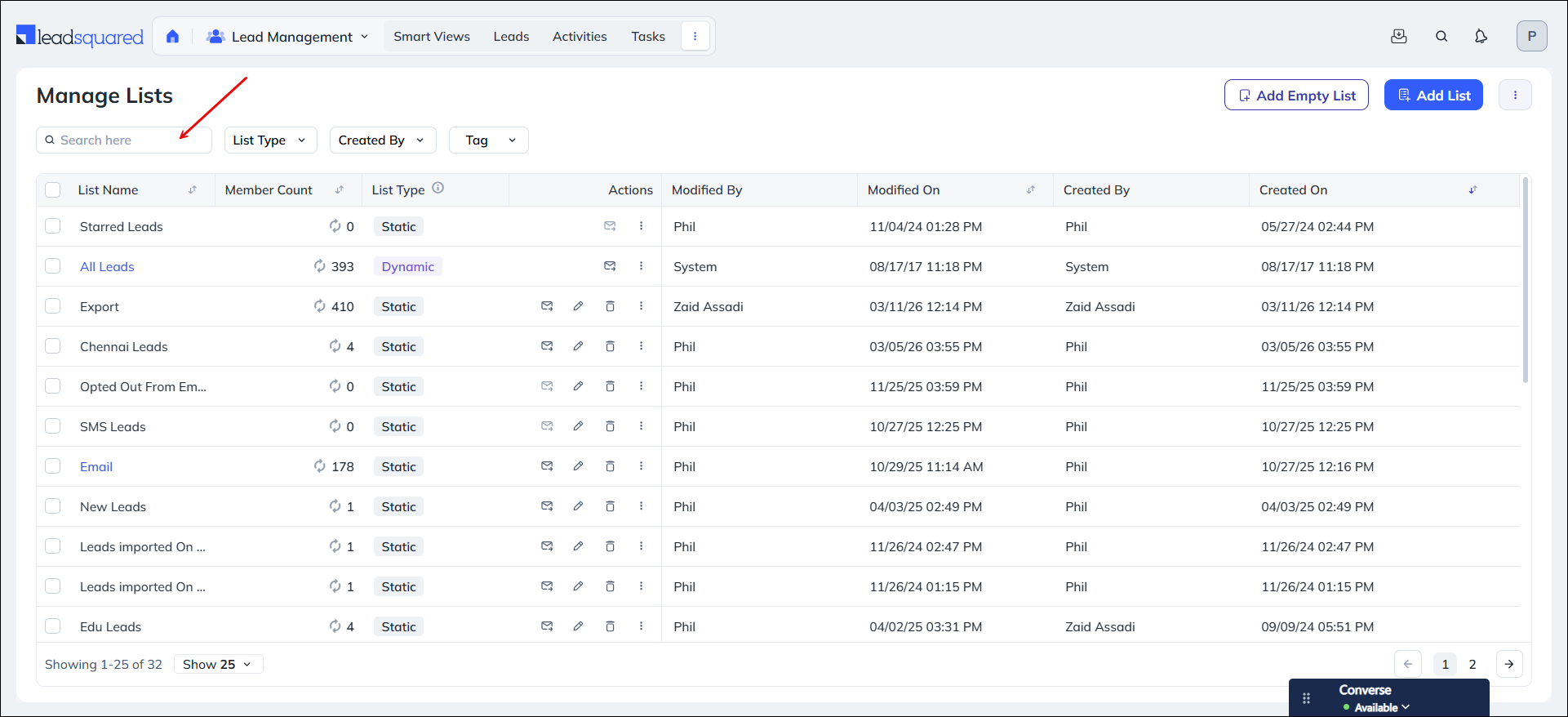
new flostack dashboard


4. Leads

All leads captured on FloStack will appear on the Leads page, where you can gain insights and take specific actions.

Filter leads by clicking the flostack leads page filter icon. As shown below: this page displays lead details, status, lead owner, and key actions. You can track whether a lead has booked an appointment, their last visit to the Microsite, and the status of messages they’ve sent via chat.

navigating to lead details page and fiilter leads

The source of all leads is indicated using different colors, each representing a distinct flow:

  • Form Submission Flow – Triggered when a lead submits a form. FloStack detects these submissions and displays a pop-up.
  • Silent Flow – Triggered within your event functions, Flostack enriches, qualifies, and allocates leads in the background without displaying a pop-up.
  • CTA Flow – Triggered within your event functions, similar to Silent Flow, but with a pop-up displayed.
  • Direct Booking Flow – Triggered when a lead books a meeting via personal calendar links.

flostack lead colour

Additionally, you can take important actions on a lead by clicking on the relevant icons:

  • flostack go to microsite iconNavigate to the Microsite shown to the lead.
  • . Leave empty if the image is purely decorative.Open the chat box to reply to messages left by the lead through the Microsite.
  • flostack miscostie analytics iconView Microsite analytics to track engagement and interactions.
  • flostack form parameters iconCheck form parameters associated with the lead.
  • more lead actions icon flostack  – Edit the lead’s Microsite or delete the lead if necessary.

flostack lead page microsite actions


Any Questions?

Did you find this article helpful? If you have any questions or comments, please let us know in the comments section below. We’d love to hear from you and help you out!

Conditions in Lead Automation

This article explores the conditions you can set in your automations.

When a condition is met, the next step in your automation will trigger. You can follow up a condition with an action (e.g., wait 3 days then send an email) or with more conditions (e.g., wait 3 days then check if the lead stage has changed).

The conditions you can set are ‘Multi If/Else’, ‘If/Else’, ‘Compare’, ‘Wait’, ‘Wait Until Activity’ and ‘Split Test’.

lead automation conditions


Multi If/Else

Helps you set multiple If/Else conditions at the same level. See the Multi If/Else section of Automation Conditions – If/Else.


If/Else

To learn how to set up the If/Else condition, see Automation Conditions – If/Else.


Compare

To learn how to use the compare condition, see Automation Conditions – Compare.


Wait

To learn how to use the Wait condition, see Automation Conditions – Wait.


Wait Until Activity

To learn how to use this condition, see Automation Conditions – Wait Until Activity.


Split Test

Lets you experiment with different email content to see what your customer engage with best. See Automation Conditions – Split Test.

SIERA Expression Builder

1. Feature Overview

SIERA Expression Builder tool lets Admins create their own expressions that can be used to easily retrieve and manipulate data on any report. This is an evolving tool and presently helps users write basic aggregate functions with multi-conditions.

Note: This article will only list the different expressions you can use. To learn how to write expressions, read this article – Writing Expressions using SIERA Expression Builder.


2. Prerequisites

SIERA is a paid feature. To enable it for your account, contact your account manager or support@leadsquared.com.


3. Expression Builder Rules

  • A field in the expression builder has to be enclosed with backticks. For example, `data_source_name.field_name`.
  • The field name has to be appended with the entity. For example, `Leads.Lead Stage`.
  • The values for a string have to be in single quotes. For example, 'string'.
  • An array of values must be enclosed in square brackets. For example, ['Value 1', 'Value 2'].
  • SIERA stores empty date values as 01-01-1925. If you want to write an expression with null date values excluded, use ToYear(<date field>) > 1925. Similarly, ToYear(<date field>) <= 1925 will filter rows with date values not defined. For example,
    • CountDistinctIf(`Leads.Prospect ID`, ToYear(`Leads.Date of Birth`) > 1925) will return leads who have a defined date of birth.
    • CountDistinctIf(`Leads.Prospect ID`, ToYear(`Leads.Date of Birth`) <= 1925)will return leads where the date of birth is not defined.
  • Clicking on a tab will enter the selected function from the expression builder.


4. Types of Expressions

Expressions in SIERA are of 3 types –

  • Aggregated ExpressionsAn aggregate expression uses an aggregate function to summarize a selected metric. These include expressions like Count, CountDistinct, Sum, Min, Max, and Avg.
    • For example, if we want to get a count of leads, we can use the expression Count(<field name>)
  • Conditional ExpressionsConditional expressions use aggregate functions along with conditions.
    • For example, if you want to Count leads only if they are from Google and Facebook, using an expression of Count() will not work. In this case, we can use CountIf(<condition>).
  • Calculated ValuesCalculated Values are a combination of 2 or more expressions (aggregated or conditional) on arithmetic functions like +, , *, or /.
    • For example, if we want the percentage of leads from Google and Facebook over total leads, we can use (Countif(<condition>)/Count(<field name>))*100. Calculated Values do not support drill-down in the reports or dashboards. 


5. Navigate to Expression Builder

Follow the steps below to navigate to the expression builder:

  1. Click Create Report.
  2. Select a Data Source.
  3. Click the + Add Values button.
  4. Click + Custom Values.

navigating to expression builder on SIERA

This sections below will help you understand the syntax and usage of various functions available for building expressions.


6. Operators, Conditions, and Constants

Function & Example Expression
Equal​ Used to compare if 2 values or fields are equal.

`Leads.Lead Stage` = 'Customer'

Not Equal​ Used to compare if 2 values or fields are not equal.

`Leads.Lead Stage` != 'Customer'

Less Than​ Used to compare if a value or field is less than compared to another value or field.

`Leads.Lead Score` < 50

Less Than or Equal​ Used to compare if a value or field is less than or equal to another value or field.

`Leads.Lead Score` <= 50

Greater Than – Used to compare if a value or field is greater than compared to another value or field.

`Leads.Lead Score` > 50

Greater Than or Equal ​Used to compare if a value or field is greater than or equal to another value or field. 

`Leads.Lead Score` >= 50

in – Used to determine whether the value exists in a list of values.

`Leads.Lead Stage` in ['INVALID', 'DISQUALIFIED']

notin – Used to determine whether the value does not exist in a list of values.

`Leads.Lead Stage` notin ['INVALID', 'DISQUALIFIED']

Text Constant Text constant to be written as ‘Text’, with quotations.

`Leads.Lead Stage` notin ['INVALID', 'DISQUALIFIED']

Number Constant Text constant to be written as 50, without quotations.

Leads.Lead Score >= 50

Addition Used to add two values in your report. Fields (Number type) and constants can be used as operands

Sum(`Leads.Custom 2`) + Sum(`Leads.Custom 3`)

Subtraction Used to subtract two values in your report. Fields (Number type) and constants can be used as operands. 

Sum(`Leads.Custom 2`) - Sum(`Leads.Custom 3`)

Multiplication Used to multiply two values in your report. Fields (Number type) and constants can be used as operands. 

(Sum(`Leads.Custom 2`) + Sum(`Leads.Custom 3`)) * 100

Division Used to divide two values in your report. Fields (Number type) and constants can be used as operands. 

(Sum(`Leads.Custom 2`) + Sum(`Leads.Custom 3`)) / 100

Like – Matches string against SQL LIKE pattern (case-sensitive).

If(`Leads.Lead Stage` LIKE '%Pro%', 'This is Prospect','This is not Prospect')

ILike – Matches string against SQL LIKE pattern (case-insensitive).

If(`Leads.Lead Stage` ILIKE '%pro%', 'This is Prospect','This is not Prospect')


7. Logical Expressions

Function & Example Expression
and An and expression returns true if all of its operands are true. The and expression will work if there is more than 1 expression inside it. 

For example, let’s say you want to return TRUE when a Lead has converted (Stage is Customer) and if the Source is either from Referral or Affiliate.

(<expression1>) and (<expression2>)

(`Leads.Lead Stage` = 'Customer') and (`Leads.Lead Source` in ['Referral','Affiliate'])

or – An or expression returns true if any of its operands are true. The or expression will work if there is more than 1 expression inside it. 

For example, let’s say you want to return TRUE when a Lead has converted (Stage is Customer) or if the Sub-stage is either Converted or Paid.

(<expression1>) or (<expression2>)

(`Leads.Lead Stage` = 'Customer') or (`Leads.Sub Stage` in ['Converted','Paid'])


8. Aggregate Expressions

Note:

  • Expression fields should be included in row grouping. Owner Auto ID should be preferred for partitioning.
  • Some of the expressions below support Partition. It divides a value or dataset into separate segments so each segment can be processed independently. This is useful when you want calculations or logic to run within specific groups rather than across the entire dataset.
Function & Example Expression

SUM

The Sum function allows you to calculate the sum of numeric values within a given field.

Example 1 – Create the calculated column which stores the sum of the field mx_Custom_2. We can use the Expression Builder to write the expression.

Sum(<fieldname>)

Sum(`Leads.Custom 2`)

Example 2 – Calculates a running or total sum of Lead Score counts within each Owner’s partition.

Sum(field, PartitionBy(...), OrderBy(...))

Sum(Count(`Leads.Lead Score`), PartitionBy(`Leads.Owner Auto ID`))

SumIf

The SumIf function allows you to calculate the sum of numeric values within a given field along with some conditions.

Example 1 – Create the calculated column which stores the sum of the field mx_Custom_2 when Stage is “Customer”. We can use the Expression Builder to write the expression as given.

SumIf(<fieldname>,<condition>)

SumIf(`Leads.Custom 2`, Stage = 'Customer')

Example 2 – Sums the count of Lead Score values only for rows where Lead Score is greater than 0, grouped by Owner.

SumIf(field, condition, PartitionBy(...))

SumIf(Count(`Leads.Lead Score`) , `Leads.Lead Score` > 0, PartitionBy(`Leads.Owner Auto ID`))

Count

The Count function lets you count the number of occurrences of a specific value or field within a given range.

​​​​​Example 1 – Create the calculated column which stores the count of the leads.

Count(`Leads.Prospect Id`)

Example 2 – Counts the number of rows in each Team partition after computing the summed Lead Score for each row.

Count(Sum(Leads.Lead Score), PartitionBy(Users.Team))

CountIf

The CountIf function allows you to count the number of occurrences that meet a specific condition.

Example 1 – Create a calculated column that stores the count of the leads when the lead stage is ‘Prospect’.

CountIf(`Leads.Lead Stage` = 'Prospect')

Example 2 – Counts how many leads have Status = Converted within each Owner partition.

CountIf( Lead.Status='Converted', PartitionBy(Lead.Owner Id))

CountDistinct

The CountDistinct function allows you to count the unique number of occurrences that meet a specific condition.

Example 1 – Create a calculated column that stores the count of unique leads.

CountDistinct(`Leads.Prospect Id`)

Example 2 – Calculates the percentage contribution of distinct Prospect IDs relative to the overall total across all partitions (Used in a % Grand Total scenario).

(Countdistinct(Leads.Prospect ID) / Sum(Countdistinct(Leads.Prospect ID), PartitionBy()))*100

% Grand Total Usecase

CountDistinctIf

The CountDistinctIf function allows you to count the distinct number of occurrences that meet a specific condition.

Example 1 – Create a calculated column that stores the count of distinct leads when the lead stage is ‘Prospect’.

CountDistinctIf(`Leads.Prospect Id`, `Leads.Lead Stage` = 'Prospect')

Example 2 – Counts distinct Prospect IDs where the Status is Converted, grouped by Owner.

CountDistinctIf(Lead.Prospect ID, Lead.Status='Converted', PartitionBy(Lead.Owner Id))

Max

The Max function allows you to calculate the maximum of numeric values within a given field. 

Example 1 – Create the calculated column which stores the maximum of the field mx_Custom_2.

Max(<fieldname>)

Max(`Leads.Custom 2`)

Example 2 – Returns the maximum summed Lead Score within each Owner’s partition.

Max(field, PartitionBy(...))

Max(Sum(`Leads.Lead Score`), PartitionBy(`Leads.Owner Auto ID`))

Min

The Min function allows you to calculate the minimum of numeric values within a given field. 

Example 1 – Create the calculated column which stores the minimum of the field mx_Custom_2.

Min(<fieldname>)

Min(`Leads.Custom 2`)

Example 2 – Returns the minimum summed Lead Score within each Owner’s partition.

Min(field, PartitionBy(...))

Min(Sum(`Leads.Lead Score`), PartitionBy(`Leads.Owner Auto ID`))

Avg

The Avg function allows you to calculate the average of numeric values within a given field. 

Example 1 – create the calculated column which stores the average of the field mx_Custom_2. 

Avg(<fieldname>)

Avg(`Leads.Custom 2`)

Example 2 – Returns the average summed Lead Score within each Owner’s partition.

Avg(field, PartitionBy(...))

Avg(Sum(`Leads.Lead Score`), PartitionBy(`Leads.Owner Auto ID`))

MaxIf

The MaxIf function allows you to calculate the maximum of numeric values within a given field along with some conditions.

Example 1 – Create the calculated column which stores the maximum of the field mx_Custom_2 when Stage is ‘Prospect’.

MaxIf(<fieldname>,<condition>)

MaxIf(`Leads.Custom 2`, `Leads.Lead Stage` = 'Prospect')

Example 2 – Returns the maximum summed Lead Score but only for rows where Lead Score is greater than 0, grouped by Owner.

MaxIf(field, condition, PartitionBy(...))

MaxIf(Sum(`Leads.Lead Score`) , `Leads.Lead Score` > 0, PartitionBy(`Leads.Owner Auto ID`)

MinIf

The MinIf function allows you to calculate the minimum of numeric values within a given field along with some conditions.

Example 1 – Create the calculated column which stores the minimum of the field mx_Custom_2 when Stage is ‘Prospect’.

MinIf(<fieldname>,<condition>)

MinIf(`Leads.Custom 2`, `Leads.Lead Stage` = 'Prospect')

Example 2 – Returns the minimum count of Lead Score only for rows where Lead Score is greater than 0, grouped by Owner.

MinIf(field, condition, PartitionBy(...))

MinIf(Count(`Leads.Lead Score`) , `Leads.Lead Score` > 0, PartitionBy(`Leads.Owner Auto ID`))

AvgIf

The AVGIF function allows you to calculate the average of numeric values within a given field along with some conditions.

Example 1 – Create the calculated column which stores the average of the field mx_Custom_2 when Stage is ‘Prospect’. 

AvgIf(<fieldname>,<condition>)

AvgIf(`Leads.Custom 2`, `Leads.Lead Stage` = 'Prospect')

Example 2 – Returns the average count of Lead Score only for rows where Lead Score is greater than 0, grouped by Owner.

AvgIf(field, condition, PartitionBy(...))

AvgIf(Count(`Leads.Lead Score`) , `Leads.Lead Score` > 0, PartitionBy(`Leads.Owner Auto ID`))

ArgMax

Returns the value of target_field for which selector_field is maximum.

For example, the expression below returns the Lead Source of the lead that has the most recent Updated On date.

ArgMax(target_field, selector_field)

ArgMax(Lead.Source, Lead.Updated On)

ArgMin

Returns the value of ‘target_field’ for which ‘selector_field’ is minimum.

For example, the expression below returns the Lead Source of the lead that has the earliest Updated On date.

ArgMin(target_field, selector_field)

ArgMin(Lead.Source, Lead.Updated On)

ArgMaxIf

Returns the value of ‘target_field’ for which ‘selector_field’ is maximum where condition holds.

For example, the expression below returns the Lead Source of the most recently updated lead, but only among leads where Status = Converted.

ArgMaxIf(target_field, selector_field, condition)

ArgMaxIf(Lead.Source, Lead.Updated On, Lead.Status = 'Converted')

ArgMinIf

Returns the value of ‘target_field’ for which ‘selector_field’ is minimum where condition holds.

For example, the expression below returns the Lead Source of the earliest created lead, but only among leads where Status = New.

ArgMinIf(target_field, selector_field, condition)

ArgMinIf(Lead.Source, Lead.Updated On, Lead.Status = 'New')

Any

Returns any arbitrary value of the field from a group.

For example, the expression below returns any one City value from the group.

Any(field)

Any(Lead.City)

AnyHeavy

Returns the most frequent value (>50%) using heavy-hitters algorithm.

For example, the expression below returns the most frequently occurring City, but only if it appears in more than 50% of the records.

AnyHeavy(field)

AnyHeavy(Lead.City)

AnyLast

Returns the last-seen value based on processing order.

For example, the expression below returns the last-seen Stage value based on the order in which records were processed.

AnyLast(field)

AnyLast(Lead.Stage)


9. Date Time Expressions

Function & Example Expressions
DurationAdd

The DurationAdd function allows you to add any duration to a particular date field.

Allowed Units – second, minute, hour, day, week, month, quarter, year

Returns – Added Duration (DateTime)

For example, you can create the calculated expression which counts the lead which came into the system 4 months ago and the current stage is not ‘Customer’.

DurationAdd(<date>,<value>,<Unit>)

CountIf(`Leads.Lead Stage` != 'Customer' and DurationAdd(`Leads.Created On`,4, 'MONTH') < CurrentDateTime)

DurationSubtract

The DurationSubtract function allows you to subtract any duration from a particular date field.

Allowed Units – second, minute, hour, day, week, month, quarter, year

Returned Value – Subtracted Duration (DateTime)

For example, you can create the calculated expression which counts the lead which came into the system 4 months ago and the current stage is not ‘Customer’.

DurationSubtract(<date>,<value>,<Unit>)

CountIf(`Leads.Lead Stage` != 'Customer' and `Lead.Created On` < DurationSubtract(CURRENTDATETIME, 4, 'MONTH'))

CurrentDateTime

The CurrentDateTime function returns the current date and time.

For example, you can create a calculated column that stores -4 months from date field mx_Custom_2.

CurrentDateTime

DurationSubtract(CurrentDateTime, 4, 'MONTH'))

ToHour

The ToHour function allows you to extract the hour component of any datetime(timestamp) field.

Returned Value: Hour Component (Number) eg: 23

For example, you can write a condition where you want to count the leads which came into the system at 11 PM.

ToHour(<date>)

CountIf(ToHour(`Leads.Created On`)='17:00')

ToYear

The ToYear function allows you to extract the year component of any datetime(timestamp) field.

Returned Value: Year Component (Number) eg: 2023

For example, you can write a condition where you want to check if the year component of the datetime field is equal to 2023.

ToYear(<date>)

ToYear(`Leads.Created On`)= 2023

ToYearWeek

The ToYearWeek function allows you to extract the week and year components of any datetime(timestamp) field.

Returned Value: Week and Year Component (1-53 Number) Eg: 202345 (45th Week of 2023)

For example, you can write a condition where you want to check if the week and year component of the datetime field is equal to the 45th Week of 2023.

ToYearWeek(<date>)

ToYearWeek(`Leads.Created On`)=47

ToMonthOfYear

The ToMonthOfYear function allows you to extract the month component of any datetime(timestamp) field.

Returned Value: Month of the Year (1-12 Number) eg: 1 (for January)

For example, you can write a condition where you want to check if the month component of the datetime field is equal to January.

ToMonthOfYear(<date>)

ToMonthOfYear(`Leads.Created On`)='0002-02-01'

ToDateOfYear

The ToDateOfYear function allows you to extract the date component of any datetime(timestamp) field.

Returned Value: Date of the Year (1-366 Number) eg: 32

For example, you can write a condition where you want to check if the date component of the datetime field is equal to 2nd Feb.

ToDateOfYear(<date>)

ToDateOfYear(`Leads.Created On`)='2023-02-02'

ToQuarterOfYear

The ToQuarterOfYear function allows you to extract the quarter component of any datetime(timestamp) field.

Returned Value: Quarter of the Year (1-4 Number) eg: 2

For example, you can write a condition where you want to check if the hour component of the datetime field is equal to 2nd Quarter.

ToQuarterOfYear(<date>)

ToQuarterOfYear(`Leads.Created On`)='Q2'

ToMonth

The ToMonth function allows you to extract the month and year components of any datetime(timestamp) field.

Returned Value: yyyy-mm-01 (String) eg: ‘2023-02-01’

For example, you can write a condition where you want to count the leads created in the month of February 2023.

ToMonth(<date>)

CountIf( ToMonth(`Leads.Created On`) = '2023-02-01' )

ToQuarter

The ToQuarter function allows you to extract the quarter and year components of any datetime(timestamp) field.

Returned Value: YYYY QX (String) eg: ‘2023 Q2’

For example, you can write a condition where you want to count the leads created in the 2nd Quarter of 2023.

​​​​​ToQuarter(<date>)

CountIf( ToQuarter('Leads.Created On') = '2023 Q2' )

ToDayOfWeek

The ToDayOfWeek function allows you to extract the day of the week component of any datetime(timestamp) field.

Returned Value: 1-7 (Number) Range: (1-7: Monday = 1, Tuesday = 2, …, Sunday = 7) eg: ‘6’ for Saturday

For example, you can write a condition where you want to count the leads created on Saturdays.

ToDayOfWeek(<date>)

CountIf( ToDayOfWeek(`Leads.Created On`) = 6 )

ToWeek

The ToWeek function allows you to extract the week and year components of any datetime(timestamp) field.

Returned Value: YYYYWW (Number) eg: 202347

For example, you can write a condition where you want to count the leads created on the 47th Week of 2023.

ToWeek(<date>)

CountIf( ToWeek(`Leads.Created On`) = 202347 )

DateUnitDiff

Returns the count of the specified time unit boundaries crossed between the start and end dates. This can be used to create TAT between 2 date fields.

Returned Value: (Number) eg: 43

DateUnitDiff(<start date>, <end date>, <interval>)

Accepted Intervals – 

  • SECOND
  • MINUTE
  • HOUR
  • DAY
  • WEEK
  • MONTH
  • QUARTER
  • YEAR


For example, consider your data source has 2 fields – CreatedOn and PaymentDate which capture the lead created and the payment date of the lead. To create a TAT report (in days) on the PaymentDate from the lead created, we can use the expression below –
Avg(DateUnitDiff(`Leads.Created On`, `Leads.Payment Date`, 'DAY'))

The above expression will calculate the TAT for each grouping on average. For cases when there is no value in the date field, the expression builder will take the value of 01-01-1925. To exclude cases where there is no payment done, use the syntax below-

AvgIf(DateUnitDiff(`Leads.Created On`, `Leads.Payment Date`, 'DAY'),ToYear(`Leads.Payment Date`) > 1925)

ToDate

Returns the date component from a datetime field.

Returned Value: (String) eg: 2023-10-03

For example, you can write a condition where you want to count the leads created on 2023-10-03

ToDate(<date>)

CountIf(ToDate(`Leads.Created on`) = '2023-10-03')

ToDayOfTheMonth

Extracts day of month (1–31).

For example, the expression below returns the day of the month (1–31) from the Created On date of the lead.

ToDayOfTheMonth(date)

ToDayOfTheMonth(Lead.Created On)

ToDayOfYear

Extracts day number in year (1–366).

For example, the expression below returns the day number in the year (1–366) extracted from the Audit Event Time field.

ToDayOfYear(date)

ToDayOfYear(Audit.Event Time)


10. String and Column Functions

Position

Returns 1-based index of substring; 0 if not found.

For example, the expression below Checks whether the substring “Pro” exists in the Lead Stage field. If found (i.e., position > 0), it returns “This is Prospect”; otherwise, it returns “This is not Prospect”.

Position(string_field, substring)

If(Position(`Leads.Lead Stage`,'Pro')>0  , 'This is Prospect','This is not Prospect')

Concat

Concatenates multiple fields into a single string.

For example, the expression below combines the First Name and Last Name fields into a single full name string, inserting a space between them.

Concat(field1, field2, ...)

Concat(Lead.FirstName, ' ', Lead.LastName)

JSONExtractString

Extracts string value from a JSON object by key.

For example, the expression below extracts the “city” value from the JSON object stored in the AdditionalInfo field.

JSONExtractString(json, key)

JSONExtractString(Lead.AdditionalInfo, 'city')

RegexpExtract

Extracts regex capture group by index.

For example, the expression below extracts the portion of the email before the ‘@’ symbol using a regular expression, and returns the first captured group (e.g., the username part of the email).

RegexpExtract(str, pattern, index)

RegexpExtract(Lead.Email, '([^@]+)@', 1)


11. Window Functions

Note: Expression fields should be included in row grouping. Owner Auto ID should be preferred for partitioning.

Lag

Returns value from a previous row in partition.

For example, the following expression returns the Lead Stage from the previous row within each Owner’s partition, based on the stage’s ascending order.

Lag(field, offset, PartitionBy(...), OrderBy(...))

Lag(Leads.Lead Stage , 1 , PartitionBy(Leads.Owner Auto ID), OrderBy(Leads.Lead Stage ASC)) 

Lead

Returns value from a following row in partition.

For example, the following expression returns the Prospect Creation Date from the next row within each Owner’s partition, ordered by creation date in ascending order.

Lead(field, offset, PartitionBy(...), OrderBy(...))

Lead(Leads.Prospect Creation Date , 1 , PartitionBy(Leads.Owner Auto ID), OrderBy(Leads.Prospect Creation Date ASC))

RowNumber

Assigns sequential row number within partition.

For example, the follwing expression assigns a sequential row number to each record within the Owner partition, ordered by Lead Stage.

RowNumber(PartitionBy(...), OrderBy(...))

RowNumber(PartitionBy(`Leads.Owner Auto ID`), OrderBy(`Leads.Lead Stage` ASC))

FirstValue

Returns first value in ordered partition.

For example, the follwing expression returns the first Lead Stage value in each Owner’s partition, based on ascending stage order.

FirstValue(field, PartitionBy(...), OrderBy(...))

FirstValue(Leads.Lead Stage , PartitionBy(Leads.Owner Auto ID), OrderBy(Leads.Lead Stage ASC)) 

LastValue

Returns last value in ordered partition.

For example, the following expression returns the last Lead Stage value in each Owner’s partition, based on ascending stage order.

LastValue(field, PartitionBy(...), OrderBy(...))

LastValue(Leads.Lead Stage , PartitionBy(Leads.Owner Auto ID), OrderBy(Leads.Lead Stage ASC)) 


12. Custom Dimensions

Function & Example Expressions
If

Returns a string based on a condition. The condition can be nested.

Returned Value: (String) e.g., ‘Hot’, ‘Medium’, ‘Warm’, ‘Cold’

For example, let’s assume we want to classify leads based on their ProspectStage into ‘Hot’, ‘Medium’, ‘Warm’, or ‘Cold’ categories.

If(<condition>, <value_if_true>, <value_if_false>)

If (`Leads.Lead Stage`= 'Customer', 'Hot', If (`Leads.Lead Stage`= 'Prospect', 'Medium', 'Cold' ) )


Any Questions?

If you have any questions related to Expression Builder that weren’t answered here, please leave comments below. We’ll be happy to help!

Virtual Number Filtering in UTC Click2Call

1. Feature Overview

Admins can now apply additional filters to Virtual Numbers in UTC Click2Call, beyond the existing Team Assignment. The new feature allows filtering based on business use cases by defining a user field schema in the Virtual Numbers tab.

Note: This is an additional filter that will be applied over and above the team assignment filter for each user.


2. Prerequisites


3. Filter Virtual Numbers for Users

For example, consider the following Virtual Numbers and their respective tags –

Telephony virtual number filter

Next, assign only the Bangalore and Mumbai tags to a respective user through a custom field.

c2c filtering user profile

On the UTC Click 2 Call tab, toggle the Enable Virtual Number Filter switch, and select the user custom field with the virtual number tags (previous step).

c2c filtering custom field

Now, only these virtual numbers will be shown to the respective user.

virtual numbers shown


Any Questions?

Did you find this article helpful? Please let us know any feedback you may have in the comments section below. We’d love to hear from you and help you out!

Guidelines for Using Generative AI in Email Campaigns

This help article offers a guide on using LeadSquared’s Generative AI (GenAI) features in your email campaigns.

LeadSquared’s GenAI tools are designed to simplify the process of creating email content and subject lines. By understanding their features, limitations, and best practices, you can leverage these tools to craft effective emails with ease. Here’s everything you need to know to get started.


Using GenAI Features to Generate Email Content & Subject Line

Input Requirements

Start by defining your objective—determine if the email is promotional, informational, or focused on nurturing a lead. Next, clearly outline the target audience, including details about their industry, challenges, and preferences. Provide essential details, such as product names, offers, deadlines, and clear Calls to Action (CTAs), to ensure your email is impactful and tailored to its purpose.

For example, If you’re launching a new feature, the objective might be promotional: “Encourage users to try the new feature with a special offer”. Your target audience could be small retail business owners who struggle with customer retention. You can then direct readers to the next step with actionable phrases like “Sign up now” or “Learn more.”

Step-by-Step Workflow

Use clear prompts to guide the AI effectively. For instance, say “Generate a subject line for a 20% discount on SaaS subscriptions targeted at startups”. After receiving the output, review it and adjust the inputs as needed to improve the results. To enhance personalization, include placeholders like [First Name] or [Company Name]. Additionally, generating multiple options and testing them helps you identify which approach resonates most with your audience.

Editing and Polishing

Reviewing is crucial in this process. Ensure the content aligns with your brand’s voice and addresses your audience’s needs. Fact-check and proofread any claims or data included. Keep subject lines concise (50-60 characters) and make the email skimmable with clear headings and bullet points.


Understanding the Limitations of GenAI

  • GenAI relies on the quality of the input you provide. If your input lacks detail or context, the output may not align with your goals or audience needs.
  • While AI is effective at generating engaging and professional content, it may struggle with niche industry terms, hyper-personalized messaging, or replicating a unique brand tone without detailed guidance.
  • AI-generated content can sometimes include outdated or incorrect information. Always review and fact-check the output to ensure accuracy.
  • AI does not automatically account for legal and compliance standards, such as GDPR, CAN-SPAM, or industry-specific regulations. Ensure your content complies with all relevant requirements.
  • As the AI learns from existing data, it may unintentionally reflect biases. Review the language and tone carefully to ensure it aligns with your brand values.

Generative AI is a great tool for scaling your email marketing, but it works best with human creativity and oversight. Follow these guidelines to create engaging emails that drive results.

LeadSquared NextGen – New Web Experience

1. Welcome to Your New LeadSquared Experience!

LeadSquared NextGen is a complete UI/UX transformation designed to enhance productivity, simplify navigation, and streamline workflows. Built with data-driven insights, it eliminates friction points in daily operations, introduces a modern, intuitive interface, and delivers faster performance for a seamless user experience.

Note: The new experience is now available for LeadSquared Service CRM, see New Service CRM Experience.

Key Enhancements

  • New Navigation: Faster access to essential features with streamlined menus.
  • Global Search: Instantly find leads, tickets, and key details from anywhere.
  • Quick View: Access leads, tasks and ticket details and actions in one click without opening full pages.
  • LSQ1 Design System: A fresh, modern UI with customizable grids, filters, and layouts.
  • Smarter Workspaces: Powerful enhancements on every page.
  • App Tabs: Open multiple records in tabs, reducing back-and-forth navigation.

Our Fastest Version Yet: NextGen delivers a 35%+ performance boost, making it the fastest LeadSquared experience ever.

Note: If you see slowness, it may be due to your internet connection. Learn more about the Network Quality Banner and Badge.


2. Accessing NextGen

Get started with LeadSquared NextGen by logging in through https://app.leadsquared.com/

Note: To enable NextGen for all the users in your account, and to make it their default experience, contact your account manager, or write to support@leadsquared.com.
Once enabled, all users are redirected to NextGen. They don’t need to remember specific URLs, and their existing bookmarks will continue to work.


3. New UI to NextGen Transition

If you’re currently using LeadSquared’s New UI (enabled via the “Try Now” option from the classic interface), you’re already experiencing parts of the NextGen platform. Several enhancements from the LSQ1 Design System—such as customizable filters, smarter columns, and seamless pagination—have been introduced across key pages to provide a more streamlined experience.

This ensures that your transition to the full NextGen platform will be smooth and intuitive. With the complete upgrade, you’ll gain access to the entire suite of features, including:

  • A comprehensive navigation
  • Global search across modules
  • Enhanced pages including Manage Opportunities, Manage Lists, and Manage Activities

This is part of a scheduled platform enhancement and will be applied automatically. Simply log in and enjoy a faster, smarter platform designed to keep your workflow smooth. To learn more about the LSQ1 Design System and its capabilities, visit the LSQ1 Design System section.

Leadsquared - NextGen UI


4. New Navigation – Faster, Smarter Access

What’s Changed?

  • One-click navigation for lead management, sales, and customer support workflows.
  • Primary menus are now more accessible, reducing search time.
  • Sub-menus are grouped logically under each module for quick access.
  • Enhanced User Profile with key details (Email, Team, Tenant Id) upfront.

How to Use the Main Menu:

  1. Click the Main Menu to access all modules.
  2. Hover over each option to view and open the corresponding sub-menus.
  3. Click to access a page from any sub-menu.

LeadSquared NextGen Interface

Upgraded User Profile

The revamped User Profile offers better visibility and quick access to key details. You can view your email address, team, Tenant ID, and check-in date and time at a glance. The Tenant ID can be copied for any communication with our support team.
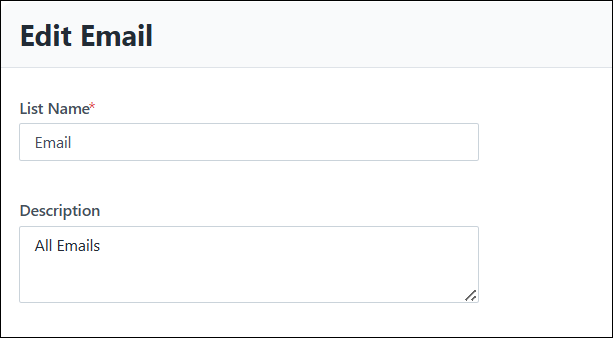
From here, you can navigate to Settings, Manage Users, and Manage Subscription (based on your permissions). You can also Check-in/Check-out, update your online status (Online, Away, etc.), and log out—all in one place.

LeadSquared NextGen Interface


5. Global Search – Find Everything Instantly

What’s new?

  • Search for leads, tickets, and more without navigating away.
  • View key details in search results without opening full records (a.k.a Quick View).
  • Take quick actions (assign leads, update statuses, add notes).
  • Save recent searches for faster access.
Available For Leads, Tickets and Opportunities
Coming Soon Search for Tasks, Accounts, Lists and Reports.

How to Use:

  1. Click the Search Bar on the top navigation (on the right side, alongside your user profile).
  2. Click the drop-down on the top-left corner to select the entity (lead, ticket, etc.)
  3. Enter a keyword (lead name, ticket ID, etc.).*
  4. Click a result to preview details or take quick actions.

Note:

  • *For Leads, you can only search lead fields that are enabled for quick search. To learn more, see how to include fields in Quick Search.
  • Results only appear after typing three characters.
  • Up to five Recent Search Keywords and Recent Search Results are saved. Clear these by clicking Clear All.
  • Results are ranked based on relevance, giving priority to key fields like First Name, Last Name, Email, and Phone Number.

LeadSquared NextGen Interface


6. Quick View – More Details, Fewer Clicks

Why It’s Useful?

  • Saves time and reduces unnecessary clicks.
  • View lead/task details instantly by clicking on the row.
  • Take key actions—update status, assign tasks, add notes—without leaving the page.
Currently Available On Leads, Opportunities, Tickets and Tasks (Manage Tasks and Smart Views).
Coming Soon Support for Activities and Accounts.

Where You Can Access Quick View

Quick View is seamlessly integrated into several key areas of the platform, making it readily accessible:

  • Global Search – Click on any search result to launch the Quick View panel.
  • Smart Views – Instantly access task details and take actions directly from your Smart Views dashboard.
  • Manage Pages – Available on the Manage pages for Leads, Tasks, Tickets, and Opportunities (via Global Search).

How to Use Quick View for Tasks

  1. Go to the Manage Tasks and Smart Views page.
  2. Click anywhere on a row to open the Quick View Panel.
  3. Perform quick actions without navigating away.
    • If you’ve completed the task, click Mark Complete.
    • Click the Leadsquared - NextGen UI edit icon to make changes to the task and once done, click Save & Close.
    • Click the Leadsquared - NextGen UI delete icon to delete the task. On the Delete Task popup, click Yes, Delete

Leadsquared - NextGen UI

How to Use Quick View on Global Search

  1. Search for a lead using Global Search, then click a result to open the Quick View Panel.
  2. Perform quick actions.
    • Click the Leadsquared - NextGen UI actions icon to perform other actions like calling, emailing, changing stage etc,.
    • Click Leadsquared - NextGen UI icon to view the complete lead details page.
Note: All the actions in the Quick View panel are displayed based on the Lead Details View Customization.

Leadsquared - NextGen UI


7. LSQ1 Design System – A Cleaner, More Efficient UI

Key Upgrades:

  • Customizable Filters: Instantly create and pin filters for quick, effortless access.
  • Smarter Columns: Drag, reorder, and resize columns for efficiency.
  • Seamless Pagination: Smooth scrolling between pages.
Currently Available On Smart Views, Manage Leads, Manage Opportunities, Manage Activities, Manage Tasks and Manage Lists pages

How to Use Customizable Filters

  1. Go to any data grid (Smart Views. Leads, Activities, Tasks).
  2. Click the Add Filter icon.
  3. Select the relevant default filter or click Configure Fields to add more filters to the list. Click Update to add the fields as filters.
  4. To search for entities based on the filter, click the Add Filter icon and select the relevant filter.
  5. Then select the value from the drop-down. Once the value is selected, click anywhere outside the drop-down to retrieve the results.

Leadsquared - NextGen UI

How to Pin Filters

Pinned filters appear next to the Add Filter icon. You can pin upto five of your frequently used filters by clicking the Leadsquared - Nextgen UI pin icon alongside the relevant filter. Search for entities with this filter any time.

Leadsquared - NextGen UI

How to Use Advanced Filters

Use Advanced Filters (formerly Advanced Search) to find leads that match multiple conditions (e.g., Country = India, Stage = ‘Prospect’, Last Activity = engaged with email campaign).

Available on: Manage Leads, Manage Opportunities and Manage Activities
  1. Click Filter>Advanced Filters.
  2. Click Add Condition, enter criteria, and click Add.
  3. Click Show Results to view matching leads

Leadsquared - NextGen UI

How to Use My Filters to Save Frequently Used Advanced Filters

My Filters (previously Quick Filters) allow you to save your frequently used filters, making it simple for you to find leads faster. Once you’ve created an Advanced Filter, save it as a quick filter for easy access.

Note: The My Filters feature is available only on the Manage Leads page.
  1. Navigate to Filters>Advanced Filter.
  2. An Advanced Filter pop-up will appear. Select Search Criteria and click Add.
  3. The selected criteria will appear. Now click Save as a Quick Filter.
  4. Assign a name to the filter and click Create. The added Quick Filter will be added to the My Filters dropdown.

Leadsquared - NextGen UI

How to Customize Columns

Use Manage Columns to add, pin, and rearrange up to 60 columns in your grid. Extra columns become horizontally scrollable for easy access.

Available on: Smart Views, Manage Leads, Manage Opportunities, Manage Tasks, Manage Activities, and List Details pages.
  1. Click Leadsquared - NextGen UI in the top-right corner of the grid.
  2. Select the checkboxes for the fields you want to display.
  3. Selected fields move to Scrollable Columns and appear in the grid.

Leadsquared - NextGen UI

How to Pin and Rearrange Columns

Pinning a column moves it to the front of the grid and freezes it in place. Pinned columns remain visible and do not move or get hidden when scrolling through the grid. You can pin up to four columns, with two primary columns pinned by default.

  1. Click the Leadsquared - Nextgen UI icon alongside the relevant selected column to pin it. The field will move under the Pinned Columns section.
  2. Click and hold the Leadsquared - NextGen UI move icon to reposition the field within the column as per your preference. This can also be done in the Scrollable Columns section to rearrange the fields in the grid.
  3. Once you’ve selected and pinned the columns, click Update.

Click Restore Default if you want to bring back the default view.

Leadsquared - NextGen UI

How to Use Pagination

Seamlessly navigate between multiple grid pages using user-friendly pagination. The page navigation bar, fixed at the bottom, lets you switch pages and view the visible and total row count across all pages. You can choose the number of rows to display per page.

Available On: Smart Views, Manage Leads, Manage Opportunities, Manage Tasks, Manage Activities, Manage Lists and List Details pages.

Leadsquared - NextGen UI


8. Smarter Workspaces: Powerful Enhancements on Every Page

Here’s whats new –

  • Smart Views – Switch between top and side panel layouts for a more flexible workspace.
  • Manage Opportunities – Get a better view of all your opportunities across different opportunity types.
  • Manage Activities – View all activity types upfront in a dedicated panel for faster access.
  • Manage Lists – A cleaner layout with quick access to essential actions.
  • Entity Details – Centralized actions, and easier access to key info on Lead, Opportunity and Account details pages.

Upgraded Smart Views  – Flexible Panels & Quick Edits

How to Switch Panel Views

On the Smart Views page, you can switch between Top and Side views of tabs. The tabs are in top view by default.

  1. Click the Leadsuared - NextGen UI side view icon alongside the leftmost tab to view all the Smart Views tabs in a list form.
  2. Click and hold the relevant tab to reposition it within the list.

Leadsquared - NextGen UI

Alongside the Smart Views heading –

  • Click the Leadsquared - NextGen UI plus icon to add a new Smart Views Tab.
  • Click the Leadsquared - NextGen UI Collapse/Expand Menu icon to toggle the visibility of the Smart Views tabs list.

Leadsquared - NextGen UI

To switch back to the top view –

  1. Click the Leadsquared - NextGen UI top view icon on top of the Smart Views heading.
  2. Click and hold the relevant tab to reposition it.

Leadsquared - NextGen UI

To add a new Smart Views Tab when in top view, click the Leadsquared - NextGen UI plus icon next to the rightmost tab.

Leadsquared - NextGen UI

How to Quick Edit Tab Info

Click the Leadsquared - NextGen UI Tab Info icon to key info like the tab description, conditions, creation and modification dates, and owner.

  • To delete a particular Smart Views Tab, click Delete View.
  • If the tab was created by you, you can make changes to it by clicking Edit View.

Leadsquared - NextGen UI

Manage Opportunities

The Manage Opportunities page is more efficient, allowing you to access all your Opportunity Types with fewer clicks. The opportunity types are listed in a collapsible panel on the left side of the screen. You can expand or collapse this panel to easily switch between types or get a full view of your opportunity grid.

How To Expand and Collapse the Opportunity Type List

To get a better view of the opportunity grid, click the Leadsquared - NextGen UI Collapse/Expand Menu icon. This will toggle the visibility of the Opportunity Types column as needed.

Leadsquared - NextGen UI

Manage Activities – Instant Access to All Activity Types

No more drop-downs, now instantly see all activity types at a glance—listed in a left-side panel for easy access. Pin your frequently accessed activity types to the top for easy access.

How to Pin Activity Types

  1. Scroll through the list of Other Activity Types or search for it using the search bar on top of the Activity Types column.
  2. Hover over the relevant activity and click the Leadsquared - NextGen UI pin icon alongside it.

Leadsquared - NextGen UI

Click to view the activities related to a particular activity type. Key actions are available upfront and the same LSQ1 filtering, column customisation and pagination improvements are available.

Leadsquared - NextGen UI

How to Collapse and Expand the Activity Type List

To get a better view of the activity grid, click the Leadsquared - NextGen UI Collapse/Expand Menu icon. This will toggle the visibility of the Activity Types column as needed.

Leadsquared - NextGen UI

List Management – Cleaner Layout and Quicker Actions

How to Use the New Manage Lists Page

  • You can send emails to lists directly from here. Click Leadsquared - NextGen UI to open the Send Email popup.
  • Click the Leadsquared - NextGen UIedit icon to edit the list. Click the Leadsquared - NextGen UI delete icon alongside the relevant list to delete it.
  • Click the Leadsquared - Actions Icon actions icon alongside the relevant list to perform any action including messaging, making a call etc.

Leadsquared - NextGen UI

How to Use the New List Details Page

The List Details page now lets you perform quick actions like making calls and sending emails. For more actions, hover over the Leadsquared - NextGen UI actions icon.

Leadsquared - NextGen UI

By clicking Leadsquared - NextGen UI the info icon, you can get details about the list including the description, type, creator, modifier, creation and modification dates and time.

Leadsquared - NextGen UI

Redesigned Detail Pages – Everything You Need, Upfront

Lead, Opportunity, and Account details pages now bring key actions like adding activities, opportunities, emails, calls, and notes into a single, streamlined interface. The new VCard and dedicated Notes section make it faster to act, easier to get context, and effortless to update records.

Unified Action Panel – The New VCard Experience

Save time with the new VCard Action Panel, which brings all key actions – add activities, create notes, launch forms, and more – into one consistent, intuitive location. Previously scattered across tabs and menus, these actions are now available upfront on the entity details page.

Action Overview

  • Primary Actions: Shown as icons directly on the VCard.
  • Secondary Actions: Available under the More Actions Leadsquared - NextGen menu.
Available On Lead Details, Opportunity Details, Account Details
Note: The actions shown on the VCard, as well as the Properties and Metrics sections, can be configured using Lead Details View Customization (LDVC) and Opportunity Details View Customization (ODVC).

Editing Lead Details from the VCard

The edit actions are now available on the VCard itself. For lead properties, there’s an edit Pencil Edit iconicon alongside the card.

To Edit VCard or Full Lead Details

  1. Hover over the Leadsquared - NextGen More Actions icon on the VCard.
  2. Select Edit VCard or Edit Lead Details.
  3. In the popup, update the necessary details and click Save & Close.

To Edit Lead Properties

  1. Alongside Lead Properties, click the Edit Icon.
  2. Update the properties and click Save & Close.

Launching Forms and Processes

Launch forms and workflows (such as loan or education applications or custom processes) directly from the VCard using the Forms Forms and Processes icon on the Lead VCard icon.

New Experience - Entity Details Page VCard Actions

Dedicated Notes Panel – Faster Access, Cleaner View

To help you access and manage notes more efficiently, they are now displayed in a dedicated panel on the right side of all entity details pages.

  • View, add and edit your notes with minimal clicks.
  • Click the Expand Expand Collapse Icon icon to expand or collapse the panel as needed.
  • The most recently added note appears at the top, followed by older entries.
Note: The Notes panel will only be visible if the Notes tab is enabled while configuring the Lead Details View.
Available On Lead Details, Opportunity Details

Notes Panel on Entity Details Pages

Leftmost Tab Set as Default View

The first (leftmost) tab is now automatically set as the default landing page. This is the tab that opens by default when you access the entity details page.

Available On Lead Details, Opportunity Details, Account Details

Tab Navigation on Entity Details Pages

Quick Access to Documents

Documents attached to Notes or uploaded via Custom Field Sets (visible in the Documents tab) can now be viewed in an expandable pop-up window within LeadSquared, allowing for a smoother in-app viewing experience.

You can also preview Microsoft Office documents directly – no downloads required.

  1. Click any file to open it.
  2. Use the Leadsquared - NextGen Expand icon to view the document in full and the Leadsquared -NextGen Minimize icon to collapse the view.
  3. Click the Leadsquared - NextGen Download icon to save the file locally.

View Documents within LeadSquared

Activity Details Made Accessible

Activity details are now displayed in a panel on the right, making all important context available at a glance.

Activity Details on Entity Details Page


9. App Tabs: Seamlessly Manage Multiple Leads & Opportunities

With App Tabs, you can open multiple entity detail pages (leads, opportunities, etc.) within the application, eliminating the need to juggle multiple browser windows. Switch between tabs seamlessly and return to grid pages anytime using the top navigation. You can open up to five App Tabs at a time. To learn more, see App Tabs – Feature Guide.

Leadsquared - NextGen UI


Any Questions?

Did you find the content in this article helpful? Feel free to leave doubts/questions in the comment section below. We’ll get back to you as soon as possible.

Chatbot Analytics

1. Feature Overview

The Analytics screen displays key metrics for all chatbots in your account. It shows crucial metrics like total messages, average response time, total handovers to agents, and more. These insights help you assess bot performance and identify areas for improvement. Use this data to optimize engagement and improve response efficiency.

LeadSquared Chatbot Analytics


2. Prerequisite

You must be an admin user to access the Analytics page.


3. View Analytics

To view the Analytics page –

  1. Navigate to Apps>Chatbot, and click Get Started.
  2. On the Chatbot screen, click Analytics.

LeadSquared Chatbot


4. Understand the Analytics

The following metrics are available on the Analytics page –

4.1 Top Bar

  • From the All Bots dropdown, select the chatbot whose analytics you want to view. The All Bots option shows the average metrics for all chatbots in your account.
  • Use the predefined date range options (e.g., Today, Last Week, Last 12 Weeks) to filter the analytics.
    • If required, you can also add a custom date range.
Note: You can choose a custom date range of up to 6 months from the current date.

LeadSquared Chatbot Analytics

4.2 Summary Metrics

All these metrics are displayed for the selected date range, and for the chosen bot –

  • Total Messages – The total number of messages your bot sent to your leads.
  • Total Sessions – The total number of bot sessions started. A session begins when either the bot initiates a conversation or a customer sends the first message.
  • Unique Sessions – The total number of unique customers (leads) who interacted with the bot.
  • Total Fallback Messages – The total number of fallback messages the bot sent.
  • Workflows Completed – The number of times the Final Node was triggered inside the selected bot.
  • Average Response Time – Displays the average time your bot takes to respond to a lead’s message.
  • Drop Rate – Shows the number of times a lead dropped off from a chat. This is calculated using the number of times the Final Node was not triggered during a chatbot journey.
  • Active Users – The number of leads who are currently having a conversation with the bot.
  • Total AI Positive Feedbacks – The number of thumbs-up votes the bot received.
  • Total AI Negative Feedbacks – The number of thumbs-down votes the bot received.
  • Total Handover Count – The number of chats that were handed over to an agent in your organization.
Note: Summary metrics are visually represented as graphs at the bottom of the Analytics page.

LeadSquared Chatbot Analytics

4.3 Other Metrics

Most Frequent Messages – Lists the most common messages sent by leads to the bot.

LeadSquared Chatbot Analytics

Most Fallback Messages – Lists the most common lead messages that triggered the bot’s fallback response.

LeadSquared Chatbot Analytics


Any Questions?

Did you find this article helpful? Please let us know any feedback you may have in the comments section below. We’d love to hear from you and help you out!

UDS Create Actions – Lead Capture Action

1. Feature Overview

The Lead Capture action template in Universal Data Sync (UDS) allows you to either create a new lead or update an existing one based on a defined search key.

This template uses the LeadSquared V2 Lead.Capture API, eliminating the need for manual API setup.

Note: For an overview on UDS actions, refer to Universal Data Sync (UDS) – Create Actions Overview.


2. Use Case

Use this template when you want to:

  • Update an existing lead in LeadSquared if it matches a specific field value (such as Email or Phone),
  • Or create a new lead if no existing lead is found with that value.

This helps ensure that duplicate leads are not created when the same contact enters the system more than once.


3. Configure Lead Capture Action

1. Select Template

Click +Action and choose the Lead Capture template.

uds create actions lead capture navigation

2. Select Behavior

When a lead is found using the search key, use the Capture Behavior setting to define how the existing lead should be updated:

  • Do Not Update – The lead will not be modified even if it is found.
  • Update Only Empty Fields – Only fields that are currently blank in the lead record will be updated.
  • Do Not Update Unique Fields – All fields except those marked as unique will be updated.
  • None – No special update rule; the lead will be updated as per the mapped fields.

This setting provides control over how existing data is handled during capture, helping to avoid unwanted overwrites.

uds actions lead chapture behavior

3. Configure Field Mapping

Map source fields to LeadSquared lead fields.

You can do that by selecting the desired Lead fields from the dropdown. Click on + icon, select Entity as Lead, and select the desired field from the dropdown.

For example:

  • Email → lead.EmailAddress
  • Phone → lead.Phone
  • Custom fields → relevant lead fields

Specify a search key field (e.g., Email or Phone) that will be used to find existing leads.

uds actions lead capture field mapping

Note: You can optionally set static values or use formulas for field transformations.

configure static values and transformation in lead create action

4. Configure Response Mapping (Optional)

Capture output fields such as LeadId, Status, or Message. You can also define conditions for success/failure based on API response.

uds actions lead capture success error mapping


FAQs

1. What credentials are used?
System user credentials are used to make API calls.

2. Are API limits applicable?
Yes. These calls are counted toward your LeadSquared V2 API limits (daily and 5-second burst).

3. What happens if limits are exceeded?
API requests will be rejected until your usage is back within limits.

4. What errors should I expect?
Standard V2 API errors will be returned. See the LeadSquared V2 API Reference for details.

TCP Trigger and TCP Action in UDS

1. Feature Overview

Universal Data Sync (UDS) now supports TCP (Transmission Control Protocol) as both a Trigger and an Action. This allows LeadSquared to integrate with healthcare and legacy systems that rely on socket-based communication instead of REST/HTTPS APIs.

With TCP support, UDS workflows can:

  • Receive inbound HL7 messages over TCP and trigger workflows in real time
  • Send outbound HL7 messages to external systems using TCP or MLLP

This capability is primarily intended for healthcare integrations and legacy platforms where message accuracy, ordering, and reliability are mandatory.


2. Use Cases

Receive Healthcare Data

  • Accept inbound HL7 messages from EHR/EMR systems
  • Trigger workflows for patient registration, updates, and appointment events

Send Data to Healthcare Systems

  • Push ADT and appointment-related HL7 messages to partner systems
  • Support outbound integrations with hospitals and healthcare platforms

Integrate with Legacy Systems

  • Connect to systems that do not expose REST APIs
  • Enable socket-based communication using TCP or MLLP


3. Key Technical Concepts

Term

Description

TCP

Reliable, bidirectional protocol that ensures ordered and complete data delivery

HL7

Health Level Seven – standard for exchanging healthcare data

ADT

Admission, Discharge, Transfer events

SIU

Scheduling Information Unsolicited events

MLLP

HL7-specific wrapper used to safely transmit messages over TCP

Supported HL7 Message Types

ADT Events

  • ADT-A04 – Patient creation / registration
  • ADT-A08 – Patient information update

SIU Events

  • SIU-S12 – New appointment booking
  • SIU-S14 – Appointment modification
  • SIU-S15 – Appointment cancellation


4. Configure TCP Trigger

A TCP Trigger starts a workflow when HL7 data is received over a TCP connection.

Step 1: Trigger Selection

  • Request Data Format: HL7 (pre-selected)
  • Connection Type:
    • TCP
    • MLLP (recommended for HL7)
  • Message Type: Select the relevant ADT or SIU event

Sample HL7 Payload

Provide a sample HL7 message from the source system or send a test message. This sample is used to identify segments and enable variable mapping.

MSH|^~\\&|HIS|Hospital|LSQ|LeadSquared|202401011230||ADT^A04|MSG00001|P|2.3
EVN|A04|202401011230
PID|1||12345^^^Hospital||Doe^John||19800101|M|||123 Main St^^City^State^12345||9876543210
NK1|1|Doe^Jane|SPOUSE|9876543211

Step 2: Configuration

After saving the trigger, UDS generates:

  • Host (IP Address)
  • Port Number
  • App ID
  • Flow ID

Configure the external system to send HL7 messages to the provided host and port.

Note: All TCP triggers within a tenant share the same host and IP. App ID and Flow ID help identify the target workflow.

Configure TCP Trigger


5. Configure TCP Action

Variable Mapping

  • Variables extracted from the TCP trigger or previous actions can be inserted into the HL7 request body
  • Users should map values based on HL7 segment definitions (PID, EVN, MSH, etc.)

Configuration Details

Provide the following information:

  • Destination Host / IP Address
  • Port Number
  • Protocol Type: TCP or MLLP
  • Data Transmission Type: HL7
  • Message Type: ADT or SIU event
  • Request Body: HL7 message (supports variables)

configure tcp action


6. Logs

Execution logs are available for monitoring and troubleshooting.

TCP IP logger uds


FAQs

Is TCP supported for non-healthcare use cases?

TCP support is designed primarily for healthcare and legacy systems. Non-healthcare use cases are supported only if the external system uses HL7 over TCP.

Can I send or receive JSON data over TCP?

No. Currently, only HL7 data format is supported for TCP triggers and actions.

What is the difference between TCP Trigger and Webhooks?

Webhooks use HTTPS endpoints, while TCP Triggers rely on socket-based communication using IP and port. TCP is commonly required by legacy and healthcare systems.

Should I use TCP or MLLP?

MLLP is recommended for HL7 communication as it safely wraps messages over TCP.

Are UI changes expected for TCP workflows?

Yes. UI improvements for TCP configuration are ongoing and may change in future releases.


Any Questions?

Did you find this article helpful? Please let us know any feedback you may have in the comments section below. We’d love to hear from you and help you out!

Universal Data Sync (UDS) – Logs

1. Feature Overview

The Logs feature in Universal Data Sync (UDS) allows you to monitor and troubleshoot the execution of your data sync flows. It provides complete visibility into the input requests, action-wise execution paths, transformation outcomes, and response payloads.

Each log entry reflects a unique request processed by a UDS flow and helps you:

  • Understand how each step in the flow was executed.
  • Identify failed or skipped actions.
  • Debug input-output mappings and transformations.
  • Track API return responses.

Key highlights:

  • Logs are stored for 90 days.
  • You can filter logs by flow name and its date range.
  • All request and action statuses are recorded.

uds logs overview


2. Prerequisites

  • You must be an Administrator user, or access must be shared to you by an Admin user
  • The Universal Data Sync Connector is a paid feature. To enable it on your account, contact your account manager, or write to support@leadsquared.com.


3. Use Case

Let’s say you’ve configured a flow that fetches data from a database and returns it via an API. You want to:

  • Confirm if the data was fetched correctly.
  • Check if transformations were applied properly.
  • Ensure the correct data was sent in the response.

Using the logs, you can trace each action that was executed, verify the output at each stage, and understand exactly what was returned to the caller.


4. Accessing Logs

You can access logs from:

  • The All Flows screen (click the three-dot menu next to a flow>Logs).
  • The individual Flow Details page (click the Logs tab).

navigating to uds action logs

Logs are grouped by flow and are filterable by date and time.

Note: You can also navigate across other flows within the same app by selecting the flow name from the top-left dropdown.

filtering uds logs


5. Understanding Log Details

At the top of the logs page, you’ll see a summary section that displays:

  • Total number of events – Total requests received or sent on UDS.
  • Queued Requests – Total requests that are in progress or are scheduled for delayed time due to set rate limit.
  • Successful Requests – Total requests that were successfully processed or intentionally skipped according to set conditions.
  • Error Requests – Total requests that encountered general errors, partial errors, complete failures, or were invalid due to incorrect or incomplete data.

This summary auto-updates when you adjust the date range.

Each individual log entry includes:

  • Request ID/Sync Job ID
  • Status for each request
  • Execution Timeline
  • Status for each action
  • Return Response (if applicable)*

*Return Response Actions are not visible as separate log steps, but their responses are logged in the output.

Note: By default, UDS logs can only be searched using a Request ID, making it difficult to trace business-critical records and slowing down investigations. Logger Parameters address this by allowing up to three custom key-value pairs (like Loan ID, Applicant ID, or Phone Number) to be logged alongside the Request ID. For more information, refer to Logger Parameters in UDS.

understanding uds logs details


6. Execution Statuses

6.1 Request-level Status Definitions

Each UDS log entry includes a request-level status that summarizes the outcome of all actions executed in a flow. Here’s what each status means:

Status Type Definition
Queued The request was accepted and is waiting in the queue to be processed.
Success The request was accepted, and all actions were processed with statuses marked as either Success or Skipped, with at least one action marked as Success.
Skipped The request was accepted, and all actions were processed with a status of Skipped.
Invalid The request was accepted, but at least one action was marked as Invalid due to missing or malformed input variables.
Failed The request was not accepted, and the webhook response was returned as an Error (e.g., due to rate limits, invalid authentication, etc.).
Partial Error The request was accepted, with at least one action marked as Success or Skipped, and at least one action marked as Error.
Error The request was accepted, and all actions were processed with a status of Error.
Rejected The request was rejected due to exceeding the maximum number of requests defined in the trigger’s advanced configuration.

These statuses help you quickly identify whether a request completed successfully or encountered issues during processing.

6.2 Action-level Statuses

Each action in a flow also logs an individual status:

  • Success – Action completed without errors.
  • Invalid – Input values or configurations were missing or incorrect.
  • Error – The action failed during execution.
  • Skipped – Action did not run due to conditional logic or data absence.
Note: If an action is rejected (e.g., by a third-party API), it’s treated as an Error within the UDS platform.


Any Questions?

Did you find this article helpful? Please let us know any feedback you may have in the comments section below. We’d love to hear from you and help you out!

Logger Parameters in UDS

1. Feature Overview

By default, users can only search UDS logs using a Request ID, making it difficult to trace business-critical records such as Loan ID, Customer ID, or Phone Number when issues arise. This slows down investigations, increases developer dependency, and delays resolution.

Logger Parameter solves this by allowing users to define up to three custom key-value pairs (like Loan ID, Applicant ID, or Phone Number) along with the Request ID.

This empowers admins to instantly locate relevant records, reduce error resolution time, and minimize reliance on developers. As a result, it helps maintain data integrity, prevent workflow disruptions, and ensure a smoother experience.

Note: Logger Parameters are available in new versions of UDS flows. Older flows and Lead Capture connectors will include this feature in upcoming releases.


2. Configure Logger Parameter

2.1 Access Advanced Options

Logger Parameters are available under Flow Advanced Options. Navigate to UDS App>Flow card( menu)>Advanced Options>Logger Parameter.

Note: Advanced Options are a request-only feature. Contact your account administrator or support@leadsquared.com to enable them.

2.2 Add Logger Parameters

Up to three keys can be configured. Parameters can be mapped using dropdowns or custom mappings.

Keys may be selected from:

  • Request data fields
  • Headers
  • Query parameters
  • Action response fields.
Note: Logger parameters won’t capture mapped values if encryption (webhook or action request response) is enabled.

2.3 Save Configuration

Once parameters are added and saved, they are automatically logged with every request.

navigate to and configure logger parameters

2.4 Custom Mapping

You can define custom keys in Logger Parameters to capture specific values from the incoming request.

For example, you can capture values from the request URL’s query string in Logger Parameters. If the incoming request is:

https://webhook.leadsquared.com/api/v2/uds?entityType=Loan&partnerId=ACME001

You can configure the Logger Parameters as follows:

Key Name Source Custom Key
EntityType Query entityType
PartnerId Query partnerId

custom mapping logger


3. Using Logger Parameters in Logs

On the Logs screen, search is available for Request ID by default, and Logger Parameters will appear as additional searchable fields.

Notes

  • A maximum of three Logger Parameters can be configured per flow.
  • Only exact matches are supported in searches.

logger navigating to logs


Any Questions?

Did you find this article helpful? Please let us know any feedback you may have in the comments section below. We’d love to hear from you and help you out!

Universal Data Sync (UDS) – Dashboard

1. Feature Overview

The UDS Dashboard provides a single, consolidated view of your Universal Data Sync (UDS) flows and applications. Instead of searching through countless individual logs, you can see all the important information in one centralized view.

This dashboard helps you:

  • Monitor performance across all apps and flows.
  • Detect and categorize errors quickly.
  • Analyze processing times and execution volumes.
  • Make data-driven decisions with trend analysis.


2. Prerequisites

  • You must be an Administrator user, or access must be shared to you by an admin user.
  • The Universal Data Sync Connector is a paid feature. To enable it on your account, contact your account manager, or write to support@leadsquared.com.


3. Access the UDS Dashboard

To access the UDS Dashboard, navigate to Apps>Universal Data Sync (UDS) and select the Dashboard tab.

Navigate to UDS Dashboard


4. UDS Dashboard Features

The UDS Dashboard gives you access to the following features:

1. Filters and Time Range

  • Date Range: By default, the dashboard shows data for today. You can customize the time range as needed.
  • App and Flow Filters: Select one or multiple UDS apps/flows to refine the metrics view. By default, all are selected.

uds dashboard date app flow filters

2. Summary Metrics & Request Summary

Summary Metrics:

  • Active Apps: Total number of apps with at least one request in the selected time period.
  • Active Flows: Total number of flows with at least one request in the selected time period.
  • Average Processing Time: Average request execution time.

Request Summary – Breakdown of requests by status:

  • Success: Includes successfully executed and skipped requests.
  • Error: Includes failed, partial error, invalid, and partially completed requests.
  • Queued: Requests in waiting or in-progress for execution.

uds summary metrics and request summary

3. Top 15 Apps Execution

  • Displays the 15 apps with the highest request volumes in the selected period.
  • Color-coded view for request statuses (success, error, queued, etc.).
  • Option to switch between graphical and tabular views.
  • Option to search for an app in the tabular view.

UDS Dashboard top 15 apps execution chart

4. Top 15 Flows Execution

  • Lists the 15 flows with the highest execution volume.
  • Hover on the flow name to view the associated app name.
  • Option to switch between graphical and tabular views.
  • Option to search for a flow in the tabular view.

uds dashboard top 15 flow execution chart

5. Request Trend

  • Displays request data based on the time range selected.
  • You can filter to view only specific error graphs.
  • For definitions of error types, visit the Logs page.

uds dashboard request trends

6. Error Details & Error Details per Flow

Error Details:

  • Categorization of errors by type: error, failed, and partial error.
  • Provides overall error counts for the selected time range.
  • Shows which types of errors happen most often that affect your account – like complete errors, partial errors, or failed requests.

Error Details per Flow:

  • Provides granular visibility of errors at the flow level.
  • For each flow, you can see:
    • App Name
    • Flow Name
    • Error Counts (error, failed, and partial error)
  • Enables you to identify exactly which flows contribute the most errors, making it easier to prioritize troubleshooting.
  • Includes search and filter options (e.g., filter by error type).

uds dashboard error details and error details per flow

7. Processing Duration Trend

  • Shows how long requests took to process on average within the selected time range.
  • Helps you spot time periods when processing duration increased.

Note: Processing duration depends on several factors, including:

  • Number of requests being processed
  • API response times from connected systems
  • Sequential execution conditions applied to flows

uds dashboard average processing duration trend


FAQs

1. Can I filter metrics by specific apps or flows?

Yes. Use the app/flow filters at the top of the dashboard to refine your view.

2. What does “Active Apps” mean?

An app is marked active if it had at least one request in the selected time period.

3. How often is data refreshed?

Data is updated in near real-time, based on flow execution logs.

4. How can I view logs of a flow?

Refer to the following article: Universal Data Sync (UDS) – Logs.


Any Questions?

Did you find this article helpful? Please let us know any feedback you may have in the comments section below. We’d love to hear from you and help you out!

UDS Integration Assistant

1. Feature Overview

The UDS AI Assistant helps you configure flows, debug failed executions, and generate transformation logic — directly within the UDS interface. Instead of manually analyzing error logs or writing LiquidJS expressions from scratch, you can use the assistant to get explanations, suggested fixes, and ready-to-use code.

The assistant supports three primary use cases:

  • Debugging failed logs — Analyze why a flow execution failed and get recommendations for next steps.
  • Generating transformation logic — Describe your input and desired output, and the assistant returns the corresponding LiquidJS expression.
  • General configuration help — Ask questions about how to set up or manage flows in UDS.


2. Prerequisites

  • You must be an Administrator user, or access must be shared to you by an Admin user
  • The Universal Data Sync Connector is a paid feature. To enable it on your account, contact your account manager, or write to support@leadsquared.com.


3. Accessing the AI Assistant

You can open the AI Assistant from anywhere within UDS using the Ask AI button in the interface. This gives you a chat window where you can ask general configuration or transformation-related questions.

Ask AI button

When working inside a specific app’s logs, you also have a Debug with AI option on individual log entries. This passes the relevant request ID and error details directly to the assistant for analysis.

debug with AI


4. Debugging Logs with AI

When a flow execution fails, UDS records the error details in the app’s execution logs. In some cases, the error message is self-explanatory (for example, “Field value cannot be more than 200 characters in length”). In other cases, the log may show a generic failure with no clear cause, such as an empty response from a third-party API.

The Debug with AI feature helps in both scenarios — it interprets the error, explains the likely cause, and suggests corrective steps.

How to Debug a Failed Log Entry

  1. Open the UDS app whose logs you want to review.
  2. Navigate to the Logs section.
  3. Locate the failed log entry.
  4. Click Debug with AI.

The assistant receives the request ID and associated error details for that log entry. It then analyzes the failure and returns an explanation in the chat panel.

What the Assistant Returns

Depending on the error, the assistant provides:

  • A plain-language explanation of why the execution failed.
  • The likely root cause (for example, a connection timeout, an invalid field value, or a missing required parameter).
  • Suggested next steps to resolve the issue.

If the initial summary is not detailed enough, you can ask follow-up questions in the chat to get more specific guidance.

Note: The assistant may take a few moments to return a response, depending on the complexity of the log entry.

debugging logs with uds integration assistant


5. Generating Transformation Logic

When mapping data between systems, you may need to transform values into a format that the receiving API accepts. UDS uses LiquidJS for custom transformation logic (see Transformations in UDS for details).

Instead of writing LiquidJS expressions manually, you can describe what you need to the AI Assistant and it will generate the logic for you.

How to Generate a Transformation

  1. Open the AI Assistant from anywhere in UDS.
  2. Describe your transformation requirement. Include:
    • The input format (what the current value looks like).
    • The desired output format (what the receiving system expects).
  3. The assistant returns the LiquidJS expression.
  4. Copy the expression and paste it into the transformation field for your mapped variable.

Example

You receive a phone number from an API in the format +91-9876543210, but the downstream API requires the format 91(98765)-43210.

You can describe this to the assistant:

“The input phone number is in the format +91-9876543210. I need the output in the format 91(98765)-43210. Can you give me the transformation logic?”

The assistant returns the corresponding LiquidJS expression, which you can copy and apply in the transformation configuration for that field.


FAQs

1. Where can I access the AI Assistant?

The assistant is available from anywhere within the UDS interface. For log debugging specifically, you can also use the Debug with AI option on individual log entries.

2. Can the assistant fix errors automatically?

No. The assistant provides analysis and suggestions. You need to apply the recommended changes to your flow configuration or transformation logic manually.

3. What if the assistant’s response is unclear or incomplete?

You can ask follow-up questions in the same chat session to get more details or clarification.

4. Does the Debug with AI feature work for all log entries?

It works on failed log entries where a request ID is available. The assistant uses the request ID and error context to analyze the failure.

5. How should I phrase my transformation request to get accurate results?

Be specific about both the input and output formats, and include example values where possible. For instance, instead of asking “convert my phone number,” specify the exact formats: “The input is +91-9876543210 and I need the output as 91(98765)-43210.”

6. Should I test the generated transformation logic before applying it?

Yes. Use the transformation preview in UDS (if available) or an online LiquidJS playground to verify that the expression produces the expected output before saving it to your flow.


Any Questions?

Did you find this article helpful? Please let us know any feedback you may have in the comments section below. We’d love to hear from you and help you out!

AI Knowledge Base Chatbot

1. Feature Overview

This AI-powered chatbot enhances a journey-based bot by answering questions outside the configured chat flow. It learns from the knowledge bases and resources you provide, including open-ended content like documents or website links. Using this information, it addresses lead queries not covered in the original flow, while still following the Journey-based flow that you have configured.

Note:

  • The AI Knowledge Bot relies on a journey-based bot. You can either create a new journey bot and enable the AI feature or activate it on an existing journey bot that’s live in your account.
  • The difference between the AI Help Bot and AI Knowledge Bot is with the AI help bot, you had to manually add questions, answers, and utterances for the bot to address queries. Whereas with this bot, you simply upload resources, and the bot will analyze the content to educate itself and answer any questions related to the uploaded material.
  • Rate each response using the thumbs-up or thumbs-down option. Your feedback helps improve the system and trains the AI model to generate better answers.

LeadSquared Chatbot_AI Knowledge Base


2. Use Cases

  • AI-Powered Customer Support – Upload FAQs, manuals, and help docs to enable instant, AI-driven self-service.
  • Sales Enablement & Lead Nurturing – Equip sales teams with AI-driven responses from product playbooks and case studies.
  • Educational & Learning Support – Answer student queries using AI-powered insights from academic materials.
  • Healthcare & Patient Assistance – Provide instant patient support with AI-driven responses from FAQs.


3. Prerequisites

  • You must install the Chatbot connector. To enable it on your account, contact your account manager, or write to support@leadsquared.com.
  • You must get the AI Knowledge Bot feature enabled on your account. To do this, contact your account manager, or write to support@leadsquared.com.
  • You might come across a few terms for the first time in LeadSquared, so it’s important to familiarize yourself with the Glossary list for the Chatbot.


4. Create a Bot

Once the Knowledge bot is activated on your account, begin by building a Journey bot. Once the bot is ready –

  1. On your LeadSquared account, navigate to Apps>Chatbot, and click Get Started.
  2. On the Dashboard screen, from the left panel, click AI Knowledge Base, and then click Add Content.
  3. In the Add Content pop-up, enter the URL of the website where your content is stored. The bot will analyze the content on this website to educate itself.
    • Alternatively, click Browse to upload files* from your computer. The bot will analyze the content in these files to educate itself.
    • You can add multiple sources at once.
  4. Click Train Bot, then click Add Content, and allow the bot a few minutes to train itself.
  5. Once the status changes to “Trained”, navigate to the Bots screen.
  6. Alongside the bot with which you want to integrate the Knowledge Base (KB), under Actions, clickLeadSquared - edit territory allocation.
  7. On the Edit Bot pop-up, alongside Enable AI, enable the slider LeadSquared Service CRM, and under Add Context, add your organization’s name.
  8. Then, click Save. This bot will now use the resources you’ve added to the KB to address lead queries.

Note:

  • Once published, you can link this bot to an existing journey-based bot. If a lead asks a question not covered in the flow or triggers a fallback, the system checks this bot for answers and responds accordingly.
  • You can create multiple Knowledge Bases, and the bot will combine information from all of them to answer lead queries.
  • *The following file types are supported –
    • PDF
    • CSV
    • XLSX
    • DOCX
  • If you’re adding a website URL, entering just the homepage URL is enough. The bot will automatically crawl through all the linked pages within the website and learn from their content.

LeadSquared Chatbot_AI Knowledge Base


Any Questions?

Did you find this article helpful? Please let us know any feedback you may have in the comments section below. We’d love to hear from you and help you out!

How to Add Activities to Leads and Opportunities

1. Feature Overview

Activities represent key interactions or events that occur during a lead’s journey toward conversion. These can include default LeadSquared activities—such as form submissions, email opens, or email bounces—as well as Custom Activities configured to match your business workflows (for example, sending WhatsApp messages or scheduling meetings).

LeadSquared allows you to add activities to both Leads and Opportunities. Leads represent potential customers, while Opportunities represent potential deals associated with those leads.

You can add activities individually or in bulk from the Manage Leads, Lead Details, Manage Opportunities, and Opportunity Details pages. This helps teams efficiently log interactions, track engagement, and maintain accurate records of customer activity across the sales lifecycle.


2. Prerequisites

  • To add activities to opportunities, you must have the opportunities feature configured in your account. To enable it, please write to support@leadsquared.com
  • You must be the administrator or a marketing user of your LeadSquared account.


3. How it Works

  • You can add activities to leads from the Manage Leads page and the Lead Details page.
  • You can add activities to opportunities from the Manage Opportunities page and the Opportunity Details page.


4. Add Activities to Leads

4.1 From the Manage Leads Page

To add an activity to a single lead from the Manage Leads page –

  1. From the main menu, navigate to Lead Management>Leads.
  2. From the list of leads, against the lead on who you want to add the activity, hover your cursor over the siera 3 dotted icon icon.
  3. From the list of available action, click Add Activity.
  4. From the Activity Type dropdown, select the activity.
  5. Enter the Activity Date and Notes if required.
    • If required, you can also add a task by clicking Add Task, and entering the required details.
  6. Once you’re done, click Add. You’ll get a confirmation once the activity is successfully added.

add activity to a lead

4.2 Bulk Add Activities to Multiple Leads

To bulk add an activity to multiple leads from the Manage Leads page –

  1. From the main menu, navigate to Lead Management>Leads.
  2. Individually select the leads on whom you want to add the activity by clicking the Checkbox checkbox against the leads. You can also select all the leads on the page by clicking the Checkbox checkbox against Lead Name.
  3. Once you select multiple leads, the Add Activity option will be available, select it.
  4. From the Activity Type dropdown, select the activity.
    • If required, you can also add a task by clicking Add Task, and entering the required details.
  5. Once you’re done, click Add. You’ll get a confirmation once the activity is successfully added.

bulk add activity to leads

4.3 From the Lead Details Page

To add an activity to a lead from the Lead Details page –

  1. From the main menu, navigate to Lead Management>Leads.
  2. From under Lead Name, click on the lead on whom you want to add the activity.
  3. On the Lead Details page, on the Lead vCard, select Activity.
  4. From the Activity Type dropdown, select the activity.
  5. If required, you can also add a task by clicking Add Task, and entering the required details.
  6. Once you’re done entering the details, click Add. You’ll get a confirmation once the activity is successfully added.

For more information, refer to How to add Activity to Lead(s).

add activity to a lead in the lead details page


5. Add Activities to Opportunities

5.1 From the Manage Opportunities Page

To add an activity to an opportunity from the Manage Opportunities page –

  1. From the main menu, navigate to Lead Management>Opportunities>Opportunity Type.
  2. Against an Opportunity Name, under Actions, hover your cursor over the siera 3 dotted icon icon, and click Add Activity.
  3. From the Activity Type dropdown, select the activity.
  4. Enter the other details such as Activity Date and Notes, if required, on the pop-up.
  5. Once you’re done, click Add. You’ll get a confirmation once the activity is successfully added.

To know more about the Manage Opportunities page, refer to Opportunity Management.

add activity to an opportunity

5.2 Bulk Add Activities to Multiple Opportunities

To bulk add an activity to multiple opportunities from the Manage Opportunities page –

  1. From the main menu, navigate to Lead Management>Opportunities>Opportunity Type.
  2. Individually select the opportunities to which you want to add the activity, by clicking the Checkbox checkbox. You can also select all the opportunities on the page by clicking the Checkbox checkbox against Opportunity Name.
  3. Once you select multiple opportunities, the Add Activity option will be available, select it.
  4. From the Activity Type dropdown, select the activity.
    • If required, you can also add a task by clicking Add Task, and entering the required details.
  5. Once you’re done, click Add. You’ll get a confirmation once the activity is successfully added.

bulk add activity to opportunities

5.3 From the Opportunity Details Page

To add an activity to an opportunity from the Opportunity Details page –

  1. From the main menu, navigate to Lead Management>Opportunities>Opportunity Type.
  2. From under Opportunity Name, click on the Opportunity on which you want to add the activity.
  3. On the Opportunity Details page, on the vCard, select Activity.
  4. From the Activity Type dropdown, select the activity.
  5. If required, you can also add a task by clicking Add Task, and entering the required details.
  6. Once you’re done entering the details, click Add. You’ll get a confirmation once the activity is successfully added.

To know more about the Opportunity Details page, refer to Opportunity Details.

add activity to an opportunity in the opportunity details page


Any Questions?

Did you find this article helpful? Please let us know any feedback you may have in the comments section below. We’d love to hear from you and help you out!

How to Remove Extra Activity Types from the Add Activity Button on the Mobile App

Scenario: Users want to remove extra activity types appearing in the Add Activity dropdown on the LeadSquared Mobile App, which are not visible on the Web App.

LeadSquared Mobile App Customization

Solution: To resolve this issue, you can enable the advanced setting Remove Quick Add Activity Button. This ensures that only processes deployed on the Add Activity Button appear in the mobile app, removing any extra or default activity types.

Steps to Enable:

  1. Log in to your LeadSquared account.
  2. Navigate to Settings>Profile>Advanced Configuration.
  3. Use the search bar to locate the setting Remove Quick Add Activity Button.
  4. Enable this setting.

LeadSquared Advanced Configurations

Outcome After Enabling:

  • The Add Activity Button on the Mobile App will no longer show extra or default activity types.
  • Only processes specifically deployed on the Add Activity Button will be visible on the mobile app.

LeadSquared Mobile App Customization

Why can a Sales User view leads they don’t own?

Issue: A Sales User (User A), who is not the lead owner, can view leads assigned to another user (User B).

Possible Causes:

  • Opportunity Ownership -If User A is the opportunity owner of an opportunity associated with a lead owned by User B, User A will automatically have “View” access to that lead. This is intended behaviour, as opportunity ownership grants visibility into the related lead details.
  • Lead Share – If User B has shared the lead with User A, User A will have access to the lead for a limited duration.
  • Sales Groups – If User A is the sales group manager, he will have to all the leads owned by User B.

Resolution: Check the opportunity ownership, lead share and sales group settings to discern why the user has access to another sales user’s leads.

Athenahealth Connector

1. Feature Overview

Athenahealth is an Electronic Health Record (EHR) system offering solutions for practice management, patient engagement, revenue cycle management, and more. LeadSquared’s no-code Athena connectors sync leads and activities (patients and appointments) between your Athena and LeadSquared accounts. The following Athena connectors are available –

Athena Create Patient
When a new lead is created in your LeadSquared account, the create patient connector creates a corresponding new patient in your Athena account in real-time.

LeadSquared Healthcare Integrations

Athena Update patient
When a lead’s details are updated on LeadSquared, the update patient connector updates those details for the corresponding patient in your Athena account in real-time.

LeadSquared Healthcare Integrations

Athena Lead Sync
Syncs all patients from your Athena account and creates corresponding leads in LeadSquard. The sync occurs at configurable periodic intervals.

Athena LeadSquared Integration

Athena Appointment Sync
Syncs all appointments from your Athena account and creates corresponding activities in LeadSquard. The sync occurs at configurable periodic intervals.

Note: This connector is only available for healthcare domain customers in the US.

LeadSquared Healthcare Integrations


2. Prerequisites

  • You must be the Administrator of your LeadSquared account to install and configure this connector.
  • This is a paid connector. To enable it, reach out to your account manager, or write to support@leadsquared.com.
  • From your Athena account, you’ll require the following information (contact your Athena account representative for details) –
    • Department Id
    • Practice Id
    • Security Token
  • For the Athena Create Patient connector, Lapps must be enabled on your account. Create a LeadSquared Lapp for the Athena Create Patient and Update Patient connectors. In the connector configuration, you’ll be required to provide –
    • lappBaseUrl
    • x-api-key


3. How it Works

Once the connector access is enabled on your account, install the connector. Then, configure the connector with the relevant details, and ensure the field mappings between your LeadSquared and Athena accounts are accurate.

For the Athena Create Patient and Athena Update Patient connectors, a webhook URL is generated. Use this URL to set up a webhook in your LeadSquared account to post data to Athena for the required events (lead create, lead update, lead stage change, etc.).


4. Install the Athena Connector(s)

Note: We’ve used the Athena Lead Sync connector to demonstrate the installation process. The steps listed below are the same for all the Athena connectors.

  1. Navigate to Apps>Apps Marketplace.
  2. Search for Athena Lead Sync, and click Install.
  3. Once installed, hover your cursor over , and click Configure. On the Configure Athena Lead Sync pop-up, you can configure which users can access the connector configurations. We recommend you –
    1. Set Connector Access to Based on Role.
    2. Select User Roles as Administrator only.
  4. Click Save Details. This completes the connector set-up process.

Note:

  • Only Admin users can install the connector.
  • You don’t have to provide Connector Access to your sales managers and sales users here. Connector access only grants access to the connector configurations screen. Once installed, by default, all users will be able to create and view leads and activities synced through the connector.

LeadSquared EHR Integrations


5. Admin Configuration – Athena Create Patient

When leads are created in your LeadSquared account, this connector creates patients in your Athena account in real-time.

Navigate to Apps>Athena Create Patient.

LeadSquared Healthcare Integrations

5.1 Basic Settings

Enter the following details for the Athena Create Patient connector –

Property Description
baseUrl The baseUrl for the Athena API used to sync appointments from Athena to LeadSquared – https://api.preview.platform.athenahealth.com
PracticeId Enter the Practice Id associated with the department, available in your Athena account… (contact your Athena account representative for more information)
LSQAPIURL Enter your LeadSquared account’s Host URL, Access Key, and Secret Key. To obtain these, refer to Where can I find my LeadSquared API Host URL, Access Key and Secret Key?
x-LSQ-AccessKey
x-LSQ-SecretKey
lappBaseUrl The base Url of the Lapp and the x-api-key to authenticate calls to the Lapp.
To get these details, please contact your LeadSquared account manager or write to support@leadsquared.com.
x-api-key
Lead Source Enter the lead source through which the leads were captured (e.g., email campaign, etc.).
Default Country Code If the lead’s mobile number is captured without a country code, then the default country code that’s selected from the dropdown will be added to the lead’s mobile number.
Select Time Zone The time zone that’s followed in your Athena account.
Lead Capture Search By Criteria The identifier used to push leads to your Athena account.
Lead Capture Secondary Search By Criteria If lead identification and transfer through the primary Search By criteria fails, it will be re-attempted using the secondary Search By criteria.
Select User to Notify on Failure If there is an error identifying and pushing leads, the selected user will receive a failure message via email. You can select a user from the list of all the users available in your LeadSquared account.

To know more about the type of errors, please refer to Error Notifications.

Enable Notification Enable the Checkbox checkbox to ensure notification emails are sent to the selected user when there’s a failed query.

Once you’re done entering all the details, click Save & Next.

LeadSquared Healthcare Integrations

5.2 Entity Options – Athena Create Patient

Define the sync behaviour of the connector when patients are created and/or updated in your Athena account.

Lead/Contact Entity
Based on the Lead Capture Search By criteria (email Id, phone number, etc.), LeadSquared identifies and pushes leads to your Athena account. Since the create patient functionality is handled by the Lapp, under Sync Behaviour, select Do Nothing.

LeadSquared Healthcare Integrations

5.3 Actions

Configure the actions performed when the connector is configured.

  • createpatient – When enabled, patient details are transferred to your Athena account.
  • Update PatId – This must be enabled to update the patient Id (created by Athena) in the relevant LeadSquared lead field.

5.4 Mapping

When you click Edit Mapping, on the Mapping pop-up, the Athena system fields mapped to the corresponding LeadSquared lead/activity fields are visible. This mapping is carried out by default. If required, you can change or update the default field mapping. Once you’re done, click Save & Close.

LeadSquared Healthcare Integrations

5.5 Generate Webhook URL

After you provide basic details and finish field mapping, a custom webhook URL is generated. Copy this URL and use it to create a webhook in your LeadSquared account.

After you’ve set up the webhook, click More Actions, and enable the sync job. This ensures that through the webhook, lead data from LeadSquared is pushed to Athena.

Note: To view logs of all the sync jobs that have taken place, from the More Actions dropdown, click View Logs.

LeadSquared Healthcare Integrations

5.6 Create a Webhook

Once the URL is generated, use it to create a webhook in your LeadSquared account –

  1. Copy the webhook URL.
  2. Navigate to  My Account>Settings>API and Webhooks>Webhooks.
  3. Click Create, and enter the following details –
    • Type – Select Webhook.
    • Event – Select Lead Creation
      • Notify on Failure – Select if you want to be notified if the webhook fails.
    • Webhook URL – Select the method as https://, and paste the connector’s webhook URL that was generated in the previous step. Before you paste the URL, ensure you remove “https://” from the URL.
    • Content Type – Select application/json.
    • Execution Delays – If required, set a delay (in seconds) between the time the event occurs and the data is pushed to your Athena account.
    • Custom Headers – You can skip this step.
    • Description – If required, enter a description for the webhook.
  4. Once you’re done, click Save. The webhook will now push lead data from your LeadSquared account to your Athena account.

LeadSquared Healthcare Integrations


6. Admin Configuration – Athena Update Patient

When lead details are updated in your LeadSquared account, this connector updates the corresponding patient data in real-time in your Athena account in real-time.

Navigate to Apps>Athena Create Patient.

LeadSquared Healthcare Integrations

6.1 Basic Settings

Enter the following details for the Athena Update Patient connector –

Property Description
baseUrl The baseUrl for the Athena API used to sync appointments from Athena to LeadSquared – https://api.preview.platform.athenahealth.com
PracticeId Enter the Practice Id associated with the department, available in your Athena account… (contact your Athena account representative for more information)
SecurityToken Enter the Security token available in your Athena account (contact your Athena account representative for more information).
DepartmentId Enter the Department Id available in your Athena account (contact your Athena account representative for more information). Only leads from the specified department will be synced in LeadSquared…
Lead Source Enter the lead source through which the leads were captured (e.g., Athena, email campaign, etc.).
Default Country Code If the lead’s mobile number is captured without a country code, then the default country code that’s selected from the dropdown will be added to the lead’s mobile number.
Select Time Zone The time zone that’s followed in your Athena account.
Lead Capture Search By Criteria The identifier used to push leads to your Athena account.
Lead Capture Secondary Search By Criteria If lead identification and transfer through the primary Search By criteria fails, it will be re-attempted using the secondary Search By criteria.
Select User to Notify on Failure If there is an error identifying and pushing leads, the selected user will receive a failure message via email. You can select a user from the list of all the users available in your LeadSquared account.

To know more about the type of errors, please refer to Error Notifications.

Enable Notification Enable the Checkbox checkbox to ensure notification emails are sent to the selected user when there’s a failed query.

LeadSquared Healthcare Integrations

6.2 Actions

updatePatient – Enable this action to update patient data in your Athena account.

6.3 Mapping

When you click Edit Mapping, on the Mapping pop-up, the Athena system fields mapped to the corresponding LeadSquared lead/activity fields are visible. This mapping is carried out by default. If required, you can change or update the default field mapping. Once you’re done, click Save & Close.

6.4 Generate Webhook URL

After you provide basic details and finish field mapping, a custom webhook URL is generated. Copy this URL and use it to create a webhook in your LeadSquared account. After you’ve set up the webhook, click More Actions, and enable the sync job. This ensures that through the webhook, lead data from LeadSquared is pushed to Athena.

Note: To view logs of all the sync jobs that have taken place, from the More Actions dropdown, click View Logs.

LeadSquared Healthcare Integrations

6.5 Create a Webhook

Once the URL is generated, use it to create a webhook in your LeadSquared account –

  1. Copy the webhook URL.
  2. Navigate to  My Account>Settings>API and Webhooks>Webhooks.
  3. Click Create, and enter the following details –
    • Type – Select Webhook.
    • Event – Depending on your use case, select Lead Update, Lead Stage Change, etc.
      • Notify on Failure – Select if you want to be notified if the webhook fails.
    • Webhook URL – Select the method as https://, and paste the connector’s webhook URL that was generated in the previous step. Before you paste the URL, ensure you remove “https://” from the URL.
    • Content Type – Select application/json.
    • Execution Delays – If required, set a delay (in seconds) between the time the event occurs and the data is pushed to your Athena account.
    • Custom Headers – You can skip this step.
    • Description – If required, enter a description for the webhook.
  4. Once you’re done, click Save. The webhook will now push lead data from your LeadSquared account to your Athena account.

LeadSquared Healthcare Integrations


7. Admin Configuration – Athena Lead Sync

The Athena Lead Sync connector periodically syncs patient data from your Athena account to your LeadSquared account.

Navigate to Apps>Athena Lead Sync.

LeadSquared Healthcare Integrations

7.1 Basic Details

Property Description
DepartmentId Enter the Department Id available in your Athena account (contact your Athena account representative for more information). Only leads from the specified department will be synced in LeadSquared…
PracticeId Enter the Practice Id associated with the department, available in your Athena account… (contact your Athena account representative for more information).
SecurityToken Enter the Security token available in your Athena account (contact your Athena account representative for more information).
Lead Source Enter the lead source through which the leads were captured (e.g., Athena, email campaign, etc.). The lead source will be displayed on the Lead Details page, under Lead Source.
Default Country Code If the lead’s mobile number is captured without a country code, then the default country code that’s selected from the dropdown will be added to the lead’s mobile number.
Select Time Zone The time zone that’s followed in your Athena account.
Lead Capture Search By Criteria This is used to identify whether the lead being synced from Athena already exists in your LeadSquared account.

This is also used to avoid creating duplicate leads. You must select one unique lead field (e.g., patient Id, email Id, mobile number, etc.) as the search key.

Lead Capture Secondary Search By Criteria If lead identification and capture through the primary Search By criteria fails, it will be re-attempted using the secondary Search By criteria.
Select User to Notify on Failure If there is an error identifying and capturing leads, the selected user will receive a failure message via email. You can select a user from the list of all the users available in your LeadSquared account.

To know more about the type of errors, please refer to Error Notifications.

Enable Notification Enable the Checkbox checkbox to ensure notification emails are sent to the selected user when there’s a failed query.
Sync Frequency By default, patient data will be synced from Athena to LeadSquared every 15 mins. You can use the ‘Hours’ and ‘Minutes’ dropdowns to select a custom interval.

LeadSquared Healthcare Integrations

7.2 Entity Options

Define the behaviour of the connector when patients from Athena to LeadSquared.

Lead/Contact Entity
Based on the Lead Capture Search By criteria (patient Id, email Id, phone number, etc.), LeadSquared captures data from your Athena account. Lead capture is enabled by default, and it cannot be disabled.  The following options are available to configure the connector’s Sync Behaviour –

  • Capture (Create and Update existing) Record – Leads not existing in your LeadSquared account will be created. Leads that currently exist in your LeadSquared and Athena accounts will get updated.
  • Create only new record – Leads that do not exist in your LeadSquared account will be created.
  • Update only existing record – Leads that currently exist in your LeadSquared account will get updated.

7.3 Mapping

When you click Edit Mapping, on the Mapping pop-up, the Athena system fields mapped to the corresponding LeadSquared lead/activity fields are visible. This mapping is carried out by default. If required, you can change or update the default field mapping. Once you’re done, click Save & Close.

On the Entity Options tab, click Save to continue. Then, click More Actions, and enable the connector sync. This will begin transferring lead data to your LeadSquared account.

Note: New or existing leads are identified based on the Lead Capture Search By Criteria you selected in the previous section.

LeadSquared Healthcare Integrations


8. Admin Configuration – Athena Appointment Sync

The Athena Appointment Sync connector periodically syncs appointment data from your Athena account to your LeadSquared account (as activities posted on corresponding leads).

Navigate to Apps>Athena Lead Sync.

LeadSquared Healthcare Integrations

8.1 Basic Details

Property Description
baseUrl The baseUrl for the Athena API used to sync appointments from Athena to LeadSquared. – https://api.preview.platform.athenahealth.com
DepartmentId Enter the Department Id available in your Athena account (contact your Athena account representative for more information). Only leads from the specified department will be synced in LeadSquared…
PracticeId Enter the Practice Id associated with the department, available in your Athena account… (contact your Athena account representative for more information).
SecurityToken Enter the Security token available in your Athena account (contact your Athena account representative for more information).
Lead Source Enter the lead source through which the leads were captured (e.g., Athena, email campaign, etc.). The lead source will be displayed on the Lead Details page, under Lead Source.
Default Country Code If the lead’s mobile number is captured without a country code, then the default country code that’s selected from the dropdown will be added to the lead’s mobile number.
Select Time Zone The time zone that’s followed in your Athena account.
Lead Capture Search By Criteria This is used to identify whether the lead being synced from Athena already exists in your LeadSquared account.

This is also used to avoid creating duplicate leads. You must select one unique lead field (e.g., patient Id, email Id, mobile number, etc.) as the search key.

Lead Capture Secondary Search By Criteria If lead identification and capture through the primary Search By criteria fails, it will be re-attempted using the secondary Search By criteria.
Select User to Notify on Failure If there is an error identifying and capturing leads, the selected user will receive a failure message via email. You can select a user from the list of all the users available in your LeadSquared account.

To know more about the type of errors, please refer to Error Notifications.

Enable Notification Enable the Checkbox checkbox to ensure notification emails are sent to the selected user when there’s a failed query.
Sync Frequency By default, patient data will be synced from Athena to LeadSquared every 15 mins. You can use the ‘Hours’ and ‘Minutes’ dropdowns to select a custom interval.

LeadSquared Healthcare Integrations

8.2 Entity Options

Define the behaviour of the connector when syncing appointments from Athena to LeadSquared. Appointments synced from Athena are created as new activities on corresponding leads in your LeadSquared account.

Lead/Contact Entity
Based on the Lead Capture Search By criteria (patient Id, email Id, phone number, etc.), LeadSquared captures data from your Athena account. Lead capture is enabled by default, and it cannot be disabled.  The following options are available to configure the connector’s Sync Behaviour –

  • Capture (Create and Update existing) Record – Leads not existing in your LeadSquared account will be created. Leads that currently exist in your LeadSquared and Athena accounts will get updated.
  • Create only new record – Leads that do not exist in your LeadSquared account will be created.
  • Update only existing record – Leads that currently exist in your LeadSquared account will get updated.

Activity Entity
Alongside Activity Entity, click to enable the slider Zoom. The following options are available to configure the connector’s Sync Behaviour for activities (appointments in Athena) created in LeadSquared –

  • Capture (Create and Update existing) Record – Activities not existing in your LeadSquared account (for the corresponding appointments in Athena) will be created in LeadSquared. Activities that currently exist in your in LeadSquared will get updated.
  • Create only new record –Activities (leads) not existing in LeadSquared will get created.
  • Update only existing record – Activities that currently exist in your LeadSquared account will get updated.

8.3 Mapping

When you click Edit Mapping, on the Mapping pop-up, the Athena system fields mapped to the corresponding LeadSquared lead/activity fields are visible. This mapping is carried out by default. If required, you can change or update the default field mapping. Once you’re done, click Save & Close.

On the Entity Options tab, click Save to continue. Then, click More Actions, and enable the connector sync. This will begin transferring lead data to your LeadSquared account.

Note: New or existing leads are identified based on the Lead Capture Search By Criteria you selected in the previous section.

LeadSquared Healthcare Integrations


9. Create Leads

Once you’ve installed and configured the Athena Create Patient, the leads you create in LeadSquared are created as patients in your Athena account. If the Athena Update Patient connector is also installed, when you update leads in LeadSquared, the updates are synced to the corresponding patients on Athena (based on the event you configured the webhook on – lead update, lead stage change, etc.).
To know how to create leads, refer to How to Create Leads.


10. View Leads

Once installed the Athena Lead Sync connector, to view the leads captured in your LeadSquared account –

  1. Navigate to Leads>Manage Leads.
  2. Click on a lead that’s been captured/updated from your Athena account.
  3. On the Lead Details page, you can view the lead’s information.
Note: To configure the lead source for the leads captured through this connector (e.g., Athena, Healthcare leads, etc.), contact your account manager, or write to support@leadsquared.com.

LeadSquared Healthcare Integrations


11. View Activities

If you’ve installed the Athena Appointment Sync connector, appointments created in Athena are synced as activities on the corresponding leads in LeadSquared.

LeadSquared Healthcare Integrations


Any Questions?

Did you find this article helpful? Please let us know any feedback you may have in the comments section below. We’d love to hear from you and help you out!

LeadSquared Unified Login for SSO

1. Feature Overview

The Unified Login Experience for all LeadSquared users is soon to be available. This eliminates the need to access multiple URLs (such as run.leadsquared.com, marvin.leadsquared.com, login.leadsquared.com, etc) by providing a single, consolidated URL for seamless login and improved accessibility.

What does this mean for you?

Starting 13th December 2024, all users will transition to the new login experience. If your LeadSquared account uses SSO (Single Sign-On), you must update the SSO configuration with the new URLs listed in this article.

Note: Failure to update these URLs will restrict you from logging into your LeadSquared accounts. It is mandatory to make these changes before 13th December, 2024.


2. Actions to Take

To ensure uninterrupted access, based on your region, update the SSO configuration for each account with the following URLs –

Note:

  • Do not remove the existing URLs from your SSO. Instead, add the new URLs listed below.
  • If you’re using Azure AD, refer to the Single Page Application section to know how to update the URLs listed below.
  • If you’re using Okta OIDC, refer to the OIDC section to know how to update the URLs listed below.
  • If you’re using Okta SAML, refer to the SAML section to know how to update the URLs listed below.
  • Where applicable, you must provide both the default URL and the region-specific URLs.
  • To find which region you’re located in, see How to Check my Region.
Region SSO Provider URLs
Default Okta (OIDC) https://identity.leadsquared.com
Okta (SAML) https://identity.leadsquared.com/api/auth/r1/v1/SSO/GenericSAML
Azure AD https://identity.leadsquared.com 
India (Mumbai) Okta (OIDC) https://identity-in21.leadsquared.com
Okta (SAML) https://identity-in21.leadsquared.com/api/auth/r21/v1/SSO/GenericSAML
Azure AD https://identity-in21.leadsquared.com
India (Hyderabad) Okta (OIDC) https://identity-in22.leadsquared.com
Okta (SAML) https://identity-in22.leadsquared.com/api/auth/r1/v1/SSO/GenericSAML
Azure AD https://identity-in22.leadsquared.com 
USA Okta (OIDC) https://identity-us11.leadsquared.com
Okta (SAML) https://identity-us11.leadsquared.com/api/auth/r11/v1/SSO/GenericSAML
Azure AD https://identity-us11.leadsquared.com
Ireland Okta (OIDC) https://identity-ir31.leadsquared.com
Okta (SAML) https://identity-ir31.leadsquared.com/api/auth/r31/v1/SSO/GenericSAML
Azure AD https://identity-ir31.leadsquared.com
Canada Okta (OIDC) https://identity-ca12.leadsquared.com
Okta (SAML) https://identity-ca12.leadsquared.com/api/auth/r1/v1/SSO/GenericSAML
Azure AD https://identity-ca12.leadsquared.com
Singapore Okta (OIDC) https://identity.leadsquared.com
Okta (SAML) https://identity.leadsquared.com/api/auth/r1/v1/SSO/GenericSAML
Azure AD https://identity.leadsquared.com


Any Questions?

If you have questions, go ahead and start a discussion in the comments section below. We’ll get back to you ASAP!

Build a Journey Based Chatbot (v2)

Important: Refer to this article if the Chatbot feature was enabled on your account after 29th August 2024. If it was enabled on or before 28th August 2024, refer to Build a Journey-Based Chatbot (v1).

1. Feature Overview

Build a chatbot to guide your leads through an end-to-end journey to achieve specific goals and complete processes, such as exploring course options and fees, applying for a loan, booking a doctor’s appointment, raising support tickets, and more. The bot assists leads at each step, helping them understand what actions need to be taken to move forward. It can be integrated with your website, landing pages, portals, mobile app (via a mobile SDK), and your Business WhatsApp account.

The chatbot has different components that help you achieve various use cases. This article outlines the functionality of each component, how they interact with one another (when applicable), and what they can help you accomplish when configuring a bot.

Note: To know how to create an AI Help Bot, refer to Chatbot – AI Help Bot.

LeadSquared Chatbot


2. Prerequisites


3. How it Works

The chatbot feature allows for complete flexibility in designing your bot flow. Below is a comprehensive list of chatbot components and their functionalities, categorized into Bot Types, Actions, and Other Actions.

While the components in this article are fixed, they can be used in various combinations and configurations to meet your specific needs effectively. Each section explains the purpose of the component, any prerequisites, and how it can interact with other components. While there is no single method for building a bot, this document serves as a reference to guide you in creating your own customized chatbot.

LeadSquared Chatbot


4. Create a Journey Bot

Create a chatbot that assists your leads in completing a task or process –

  1. Once the chatbot is installed on your account, navigate to Apps>Chatbot, and click Get Started.
  2. On the Dashboard screen, from the left panel, click Bots, and then click Create New Bot.
  3. On the Select Type pop-up, under Journey Based Bot, click Select.
  4. On the Create New Bot pop-up, enter a relevant Bot Name and Description for the bot.
    • This name is for internal identification only and is not the actual display name of the bot.
  5. Once you’re done, click Save.

LeadSquared Chatbot


5. Common Node Configurations

The following configuration options are available across all nodes and perform the same functions. To avoid repetition in each node’s section, we will list these components here. The Node Configurations govern how the node receives the lead’s input messages.

On the Bot Builder screen, click the Add Node button, and under Messages, click the node you want to add, and enter the following details on the Node Configuration tab –

  • Node Name – Enter an internal display name for this node.
  • User says – Enter the lead’s message, such as “Hi” or “Can I schedule a demo,” that triggers this node. This is a hardcoded message, meaning the node will only activate if the lead sends this exact phrase. Once the node is triggered, the response (text, image, video, etc.) you configure is then sent to the lead.
    If you don’t want to predefine a lead input, you can also choose from the following options –

    • User Input lets the chatbot respond to any message the lead sends. For example, if the bot asks, “Please enter your name,” it accepts any response (a name in this case) from the lead as valid input. The bot can then reply, “Thank you. Can you please provide your phone number?” This makes the chatbot more flexible in handling different responses.
    • Validate User Input – For phone numbers and email addresses, select the checkbox to validate the lead’s response. From the Validator dropdown, choose Phone Number or Email Address, based on the type of lead input you want to capture. This validation helps ensure that the data collected is accurate and formatted correctly, reducing the chances of errors in your records.
  • Dynamic Intent refers to the ability of a chatbot to receive inputs from an API response in real time. For example, you can set the node’s response to “Select the city you’re residing in,” and configure an API to fetch a list of all Indian cities. This list is then displayed to the lead, allowing them to choose the city they are in.
  • Add Utterances to improve the chatbot’s answering accuracy. Utterances represent the different ways a lead might ask a question during their interaction with the bot. For example, if the lead’s question is “Which loans are being offered?”, possible utterances could be “What loan types are available?” or “Loans available?”. This helps the chatbot recognize and respond accurately to various phrasing of the same question. To do this, enable the slider, add variations of the question, and click the Add Utterances button. It’s recommended you add different keywords to trigger the node here.
  • A Multi Node response sends multiple replies to a single message from the lead. For example, if the lead says “Hi,” the bot can respond with two messages: “Welcome” and “Please enter your phone number.” This allows the bot to provide more information or instructions in a single message.
  • When Final Node is enabled, it designates that node as the last step in the chatbot flow. This signifies that the lead’s interaction with the bot has ended and that the process or activity the chatbot was designed for is complete. This node is configured only after the lead successfully finishes the required steps, marking the conclusion of their journey.

LeadSquared Chatbot


6. Configure Bot Responses

After you’ve set up the Node Configuration, configure the type of response sent to your lead when the node’s triggered.

Note: After you’ve configured these Bot Responses, to verify that the Intent and Response are set up correctly, use the emulator LeadSquared Chatbot. Then, enter the Intent message, and hit ENTER. If the Response matches what you configured, the node is working correctly.

6.1 Text Node

This sends a text response to the lead. In the box under Bot displays, enter the text content. You can format this response using bold, italics, and strikethrough. You can also include a URL link. Once you’re done, click Save.

Note: When you’re entering a website URL (for Visit Website buttons), ensure the URL contains “https://”. For e.g., the URL should be – “https://www.leadsquared.com/”.

LeadSquared Chatbot

6.2 Image Node

This sends an image response to the lead. Along with the image, you must add a text caption as well. Enter the image URL and text caption in their respective boxes. Once you’re done, click Save. Your leads can download this image when it’s shared with them.

Note:

  • You can’t upload a file from your local storage. You can only provide an image URL.
  • The URLs can be in any of these formats: .jpg, .jpeg, .png, .gif.

LeadSquared Chatbot

6.3 Video Node

This sends a video response to the lead. Along with the video, you must add a text caption as well. Enter the video URL and text caption in their respective boxes. Once you’re done, click Save.

Note:

  • You can’t upload a file from your local storage. You can only provide a video URL.
  • The URLs can be in any of these formats: .mp4 and YouTube Embed URLs.

LeadSquared Chatbot

6.4 Document Node

This sends a document (PDF file) response to the lead. Along with the document, you must add a text caption as well. Enter the document URL and text caption in their respective boxes. Once you’re done, click Save.

LeadSquared Chatbot

6.5 Button Node

This node offers clickable options for the lead instead of requiring them to type a response. When the lead clicks a button, the chatbot responds based on the selected option. For example, if the bot asks, “How would you like to proceed?” the available actions are the call action (“Talk to an agent”), website visit action (“View our Website”), download action (“Download our Catalogue”), and a plain text option (“Something Else”). To configure this node, provide the following details –

  • Header – The bot’s response header lets you send plain text directly, or an image, video, or document by adding their URL. This is optional.
  • Body – Enter the text response that will be sent to your leads. This is optional.
  • Footer – You can display any relevant text information in the footer, which is optional.
  • Button Configurations – Select the button action (Text, Visit Website, Call Phone Number, or Download), and enter a display name for the button. In the first box, enter the display name for the action (e.g., Talk to an Agent). In the second box, enter the action (e.g., phone number, website URL, or document URL).
    • If you selected the action Visit Website or Download, enter a valid URL link.
    • If you selected the action Call Phone Number, enter a valid phone number.

Once you’re done, click Save.

Note: You can add up to three buttons.

LeadSquared Chatbot

6.6 List Node

The List Node is similar to the Button Node, as it lists clickable options for the lead to select instead of typing a response. The difference is that the List Node only offers text options and doesn’t allow linking to a website, phone number, or document. To configure this node, provide the following details –

  • Show as Dropdown in Web Bot – To render the list as a dropdown, enable this option.
  • Header – The bot’s response header lets you send plain text directly, or an image, video, or document by adding their URL. This is optional.
  • Body – Enter the text response that will be sent to your leads. This is optional.
  • Footer – You can display any relevant text information in the footer, which is optional.
  • Action Button Text – Enter the text you want to display on the action button.
  • List Configuration – Enter a display name for each option, along with a description (which is optional).

Once you’re done, click Save.LeadSquared Chatbot

6.7 Template Messages

This option lets you create a node using an existing Web or WhatsApp message template. When creating the node, choose a template from the list available in your account. The process is similar to creating a Text Node, but instead of entering the response content, you select a relevant template from the Select Template dropdown.
LeadSquared Chatbot


7. Actions

Actions are specific tasks a bot performs based on certain lead inputs. These are not responses the bot sends but are instead actions it takes. Configure the following actions –

LeadSquared Chatbot

7.1 Go To Node

From the current node, a Go To Node redirects the conversation to a different node in the chat flow (for example, restarting and going to the first message). This is useful when you want to take the lead back to the main menu or have them confirm certain details.

To configure this action –

  1. Under a node, click  LeadSquared Chatbot, and under Actions, click Go To.
  2. Under Bot Response, choose the node to which you want to redirect the lead.
  3. Once you’re done, click Save.

LeadSquared Chatbot

7.2 Trigger Bot

In cases where a lead’s journey involves multiple flows, such as when offering different undergraduate course plans like BTech, BCom, or BA, configuring all flows within a single chatbot can be complicated. To simplify this, you can create separate bots for each course flow. For example, you could have one bot dedicated to BTech inquiries, another for BCom, and a third for MBA.

Using the Trigger Bot feature, you can then link these flows under the main lead journey chatbot. When a lead interacts with the chatbot and selects their desired course, such as BTech, the Trigger Bot directs them to the BTech bot. Similarly, if they choose BCom or MBA, they are directed to the respective course-specific bot. This approach keeps the chat flow organized while providing tailored information based on the user’s selection.

When configuring this action, under Bot Response

  1. Under a node, click  LeadSquared Chatbot, and under Actions, click Trigger Bot Node.
  2. From the Trigger Bot dropdown, select the bot you want to redirect the lead to.
  3. Then, from the Select Bot Intent dropdown, choose the lead input that should trigger the bot.
  4. Once you’re done, click Save.

Note:

  • Only published bots will appear in the dropdown of the trigger bot action.
  • You can redirect the lead only to the starting (first) node of another chatbot flow. Sending the lead to a node in the middle of a different flow is not possible. This ensures that leads begin any new flow from the intended starting point.

LeadSquared Chatbot

7.3 Templated Flow

We’ve created chatbot flow templates designed for specific use cases. After selecting a template, you can customize it to fit your business needs. Currently, we offer the OTP Verification template, which is used to verify the OTPs entered by leads, and the Lead Capture template, which helps you collect essential lead details. These templates streamline the setup process, allowing you to efficiently implement effective chatbot solutions. To use these templates –

  1. Under a node, click  LeadSquared Chatbot, and under Actions, click Template Flow Node.
  2. Under Bot Response, choose the flow you want to use from the Templated Flow dropdown menu. If you’ve selected OTP Verification
    • Configure whether to Allow Resend OTP. If enabled, the OTP will be resent to the lead upon request.
      • If OTP resend is enabled, set the maximum number of OTP requests the lead can make.
      • To set up a Condition based response, enable the slider. Once enabled, you can configure different responses that will be shown to your lead depending on whether they enter the correct (True) or incorrect (False) OTP.
      • Under Bot displays, select the type of response you want to send after the lead enters the OTP – Text, Button, or List. After choosing the type, configure the content to be displayed. Setting up Text, Button, and List responses follows the same steps outlined earlier…
  3. If you’ve selected Lead Capture, enter the text response that will be sent to your lead once their details are captured. No further steps are required here.
  4. Once you’re done, click Save.
  5. The selected template flow is now applied to your chatbot. Publish the bot to make it live.

The GIF below shows the OTP Verification flow being configured.

LeadSquared Chatbot

The GIF below shows the Lead Capture flow being configured.

LeadSquared Chatbot

7.4 Agent Transfer

This action allows the chatbot to transfer an ongoing conversation to a live agent. This feature is useful when the chatbot cannot resolve a complex query, or when the lead specifically asks for help from a human agent. When this action is triggered, the bot seamlessly redirects the conversation to an available agent, ensuring that the lead receives personalized assistance. The handover node also ensures continuity, as the agent can review the previous chat history before responding, making it easier to provide accurate and informed support. This enables smooth transitions between automated responses and human intervention, enhancing the overall user experience.

This node can route chats to your Sales users or Service users. For instance, if a new lead wants a product demo, the bot can direct them to a sales user. Conversely, if an existing lead wants to upgrade their plan, the bot can route them to a service user.

Prerequisites

Before you set up the Agent Transfer node, ensure the following steps are completed. This is mandatory

Note: LeadSquared Converse must be enabled on your account for the Transfer Node to work.
  1. On the Chatbot home screen, click Authorization.
  2. Under Generate API Key, alongside Converse, click Generate.
  3. Copy the API key, and navigate to My Profile>Settings>Converse>Authentications.
  4. Under Add API Key, alongside BOT, enter the API Key you copied, and click Add.
  5. Then, on the same page, under Generate API Key, alongside BOT, click Generate Key.
  6. Copy this key, and navigate back to the Chatbot home screen.
  7. Then, under Add API Key, alongside Converse, enter the API Key you copied, and click Add.

This links the Chatbot with Converse to ensure seamless transfer of chats to your live agents.

LeadSquared Chatbot

Note:

  1. Under a node, click  LeadSquared Chatbot, and under Actions, click Agent Transfer.
  2. Under Bot Response, configure the following –
    • Handover To – If Service CRM is enabled, select if you want to transfer the chat to a Sales User or a Service User.
    • Select Routing Rule – In the dropdown, select the Routing Rule logic you want the system to apply when transferring the chat to an agent.
      • If you’ve not configured a rule, click the Create Routing Rule button, and configure rules in your account.
    • Text Configuration – Enter the message the bot will display to the lead when transferring the chat to an agent.
  3. Once you’re done, click Save.
  4. When testing the bot flow on the emulator, check LeadSquared Converse to ensure messages are delivered to both the bot and Converse correctly.

LeadSquared Chatbot


8. Other Actions

In addition to the actions listed in the previous section, you can also configure the following actions –

LeadSquared Chatbot

8.1 Condition

Configure conditions to enable the chatbot to respond based on specific criteria, allowing you to tailor its replies to different outcomes. For instance, you might set up a condition to check if a lead already exists in your system based on their phone number. If the lead exists, the bot can respond using their name. If not, the bot can request additional details (like name and email) and use these to create a new lead in LeadSquared. This approach ensures relevant, personalized responses, providing a more engaging and efficient experience for users.

  1. Under a node, click  LeadSquared Chatbot, and under Other, click Condition.
  2. Under Bot Response, configure the following –
    • Name – Add a display name for the condition.
    • Alongside IF, use the dropdown to configure the conditions.
      • Use the Add Rules button to add multiple rules to the same condition.
    • To add multiple conditions, use the Add Condition button.
  3. After configuring the conditions, click Save, and then test the chatbot to ensure it responds as intended based on the set conditions. This helps verify that the bot is delivering the correct responses and handling different outcomes effectively.

LeadSquared Chatbot

8.2 API Node

An API node integrates either LeadSquared APIs or external APIs, allowing the chatbot to capture or display information dynamically. For example, it can capture details provided by the lead, such as their name or contact number, or display relevant information like a list of courses or available pin codes. The response configured in an API node can be a simple text message or an interactive response, where button options or list options are shown to guide the lead’s next steps. This enables a more personalized and data-driven interaction within the chatbot flow.

Note: Before creating an API node, adding and setting up APIs (both LeadSquared APIs and external APIs are supported) on the Chatbot is mandatory. To know how to do this, refer to Integrate APIs with the Chatbot.
  1. Under a node, click  LeadSquared Chatbot, and under Other, click API Node.
  2. Under Response Configuration, from the Select API to call dropdown, select the API you want to integrate with the bot.
  3. Once you’re done, click Save.

LeadSquared Chatbot

8.3 LeadSquared API Node

Unlike the API Node, which requires manual integration of a LeadSquared API, this node automatically fetches LeadSquared APIs into the chatbot. Depending on the LeadSquared entities enabled in your account, you can directly access and configure the corresponding APIs for these entities within the bot builder framework. This streamlines the setup process, making it easy to incorporate key LeadSquared data without additional API configuration steps.

Note: Aside from the steps listed below, no additional actions are needed to integrate LeadSquared APIs with the bot. These APIs are available by default within the bot framework.
  1. Under a node, click  LeadSquared Chatbot, and under Other, click LeadSquared API Node.
  2. Under API Configurations, configure the following details –
    • Module – From the dropdown, select the LeadSquared module you want to integrate with the bot. The available modules are Lead Management and Activity Management.
    • Action Type – From the dropdown, select the action you want the bot to perform. For the Leads module, you can choose from Create, Update, Retrieve, or Delete actions. For the Activity module, only the Create action is available.
    • Select API to Call – Based on the action you selected in the previous dropdown, this dropdown shows the available APIs under that action. Choose a relevant API.
    • Attribute Configuration – This option allows you to map data fields between the chatbot and the API. Attributes like name, phone number, and others configured here ensure that data flows correctly from the chatbot to the corresponding fields in LeadSquared, keeping information synced between the bot and your LeadSquared account.
      In the first box, enter the LeadSquared schema name, and in the second box, enter the corresponding bot variable. The lead attribute schema names are present on the Lead Fields Settings page.
    • Response Variable Configuration – This allows you to map the API’s response with the bot, enabling you to capture information returned by the API, such as lead status, verification outcomes, or available options, and use it within the chatbot flow. This means the bot can respond with real-time data, display relevant information to the lead, or trigger further actions based on the API response.
      For example, if you use the Response Variable to set up a Condition Node, the bot might check if the lead exists based on the API response. If the lead exists in your account, the bot can proceed to send a message offering a demo. Alternatively, if the lead doesn’t exist, the bot might respond with a message asking them for additional lead details.
    • Configure Fields – This option allows you to configure custom fields for Activities when posting an activity. Add the attribute name as the schema name and assign bot variables as the corresponding values.
  3. Once you’re done, click Save.

LeadSquared Chatbot

8.4 Ticket API Node

This bot integrates the Service CRM Create a Ticket API with the Chatbot. This bot is visible only if the Service CRM feature is enabled and configured in your account.

  1. Under a node, click  LeadSquared Chatbot, and under Other, click Ticket API Node.
  2. Under API Configurations, configure the following details –
      • Attribute Configuration – This option allows you to map data fields between the chatbot and the API. Attributes like ticket subject, priority, and others configured here ensure that data flows correctly from the chatbot to the corresponding ticket fields in Service CRM, keeping information synced between the bot and your LeadSquared account.
        In the first box, enter the LeadSquared schema name, and in the second box, enter the corresponding bot variable. The ticket attribute schema names are present on the Ticket Fields and Form Configuration page.
      • Response Variable Configuration – This allows you to map the API’s response with the bot, enabling you to capture information returned by the API, such as ticket status, and use it within the chatbot flow. This means the bot can respond with real-time data, display relevant information to the lead, or trigger further actions based on the API response.
        For example, if you use the Response Variable to set up a Condition Node, the bot might check if the lead exists based on the API response. If the lead exists in your account, the bot can proceed to send a message offering a demo. Alternatively, if the lead doesn’t exist, the bot might respond with a message asking them for additional lead details.
      • Configure Fields – No action is required here.
  3. Once you’re done, click Save.

LeadSquared Chatbot


9. Bot Emulator Actions

When testing out the chatbot using the emulator, you can perform the following actions –

  • To see a record of all interactions with the emulator, enable the slider next to View Logs. This will display a detailed log of each interaction, helping you track and review the chatbot’s responses and actions during testing.
    • In the log, you can view the specific configurations of each node by clicking on the node name. This allows you to edit the node directly from the log.
  • To reset the emulator, click LeadSquared Chatbot. This will clear the current session, along with the existing emulator logs.
  • To close the emulator, click LeadSquared Chatbot.

LeadSquared Chatbot


10. Publish the Bot

Once the bot flow is ready, publish it. To do this, click the Publish button on the bot builder page.

LeadSquared Chatbot


11. Configurations

To complete the chatbot set-up, navigate to the Configurations screen.

LeadSquared Chatbot

11.1 Session Timeout

Configure the message you’ll send to the lead when the chat session ends because the lead hasn’t sent any message for a specified time period.

LeadSquared Chatbot

Click Edit to –

  • Set the hours and minutes of inactivity after which you want to display the message to your lead.
  • Add the timeout message the lead receives after the session times out.
  • To add multiple timeout messages, click .

Once you’re done, click Save.

LeadSquared Chatbot

11.2 Fallback Message

Fallback messages are sent when the chatbot doesn’t understand the lead’s message. For example, if a journey-based bot asks for a mobile number and the lead types “Sam”, the bot replies with a fallback message like “Could you please check your response?” or “Sorry, I didn’t understand.”

LeadSquared Chatbot

Click Edit to –

  • To send the previous chatbot message as the fallback message, enable the Azure Checkbox checkbox.
  • Add the fallback message the lead receives when the bot does not understand the lead’s response.
  • To add multiple timeout messages, click .

Once you’re done, click Save.

LeadSquared Chatbot

11.3 Inactivity Message

Configure the message the chatbot sends to the lead when the lead is inactive on the chatbot and hasn’t sent any message for a specified time period. This message is a reminder to the lead, to let them know the session is idle.

LeadSquared Chatbot

Click Edit to –

  • To send the previous chatbot message as the inactivity message, enable the Azure Checkbox checkbox.
  • Set the hours and minutes of inactivity after which you want to display the message to your lead.
  • Add the timeout message the lead receives after the session times out.
  • To add multiple timeout messages, click .

Once you’re done, click Save.

Note: The Inactivity Message is sent after a few minutes of inactivity, as a reminder to the lead. The Session Timeout message is sent after a longer period of inactivity, and to let the lead know that the session has been terminated. The inactivity period configured for Inactivity Message should be lesser than that of the time configured for the Session Timeout message.

LeadSquared Chatbot

11.4 Opt-out Messages

When a lead sends any of the keywords configured here as an input message, the lead automatically opted out of further interactions with the chatbot. Click Edit to add the list of keywords. In the Opt-out Message box, configure the message you want to send as the chatbot response once the lead has opted out of the conversation.

Once you’re done, click Save.

LeadSquared Chatbot


12. View Chatbot Interaction Activity

When a lead interacts with your bot, the entire conversation is recorded as an activity called Chatbot Interaction. This activity includes the complete chat transcript, the channel used for the chat, the session’s start and end times, and whether the chat was transferred to a live agent. This activity can be viewed on the Lead Details page or the Manage Activities page. The activity is posted if –

  • Final Node Triggered – When the lead completes the chatbot flow.
  • 24 Hours of Inactivity – If the chat remains inactive for 24 hours.
  • Transfer to Agent – When the chat is handed over to a live agent.

LeadSquared Chatbot


13. More Actions

  • On the bot builder screen, you can search for a node using the node name, the user intent, the buttons configured and the Bot Display.

LeadSquared Service CRM

  • You can clone an existing bot from the Bots homepage. To do this –
    1. Alongside the bot you want to clone, click LeadSquared Service CRM, and click Clone.
    2. On the Clone pop-up, click Clone to confirm.
Note: Only the primary bot is cloned; and NOT its sub-bots.

LeadSquared Chatbot


14. Next Steps

After you’ve set up the chat flow, you must configure the chatbot channel. To know how to do this, refer to Configure Chatbot Channel.


Any Questions?

Did you find this article helpful? Please let us know any feedback you may have in the comments section below. We’d love to hear from you and help you out!

Create Portals with Multiple Web Pages

1. Feature Overview

This article shows you how to add multiple web pages (home page, contact us page, application dashboard, etc.) to your LeadSquared Portals, using the Portal Designer. You can also make logins compulsory to view certain pages. This can be used for application and user profile pages.

LeadSquared Portals


2. Prerequisites

Portals Designer is part of the Portals feature. To enable Portals on your account, please write to support@leadsquared.com.


3. Getting Started

To create a new page –

  1. On the Portal Designer page, on the top-left corner, click the LeadSquared Portals Page icon.
  2. On the Pages tab, click Add New Page.
  3. Enter relevant details in the following fields –
Field Description
Name The name of the page. This is visible on the Portal Designer. This field is mandatory.
Title The title of the page. This is visible on the published portal, and can be seen by anyone who’s on the website. This field is mandatory.
Parent Page The parent page to which the new page will be linked to. You can select the Parent Page from the list of pages available on the dropdown.
URL The page’s URL slug. This will be visible in the browser, and the URL can be used to access the page directly. For example, the URL of a ‘Contact Us’ page can be written down as ‘contact-us’. This field is mandatory.
Requires Login If you want to enable login on this page, toggle the enable icon slider. If this feature is turned on, then a User Profile icon is added to the top-right corner of this section.

4. Once you’ve entered all the necessary details, click Add. You’ll get a message saying ‘Page Created Successfully’.

Create Pages in Portal Designer

You can create a new webpage by cloning an existing portal page. This will retain the structure of the original page, and you can change the content within the page as per your requirement. To clone a portal page –

  1. On the Portal Designer, click the LeadSquared Portals Page icon on the top of your screen.
  2. On the Pages tab, against the page you want to clone, hover your cursor over the LeadSquared Portals icon.
  3. From the dropdown options, click Clone.
  4. On the Add New Page tab, enter the relevant details, and click Add. You’ll get a message stating, “Page Created Successfully”.

LeadSquared Portals


4. Configurations

Here you can customize the font and accent colours for text content across all pages. Changes made here are applied at the global level, eliminating the need for you to customize each section on each page. It helps apply uniform and consistent fonts and colours across the entire portal.

4.1 General

  • Favicon – Upload a relevant icon for the portal, which will show up as the favicon on a browser window. To add a favicon, click Choose File.

LeadSquared Favicon

  • Accent Colour – Select the font colour for all the form section headers and buttons on all the pages, from the gradient screen, or enter the hex code for a specific colour.

LeadSquared Portal


4.2 Text & Fonts

Customize the font type, font colour and font size for header and paragraph text across all the portal pages.
You can also add up to four custom fonts of your choice. Click Choose Fonts to import the font file. Only the following custom fonts file formats are accepted – .ttf, .otf, and .woff.

LeadSquared Portal


4.3 Script

Here you can add custom JavaScript for any of the following use cases –

  • Analytics and Third-party Tracking Scripts – Google Analytics Script, Google Tag Manager, FaceBook Pixel, etc.
  • Portal Component Modifications – If default configurations are not present in the designer, you can use custom scripts to modify UI elements on the page (e.g., form length, form fields, etc.).
  • Perform Actions on Lead Engagement – Show a popup on lead login, post an analytics event on lead form submission, etc.
Note: Please exercise caution when adding your custom JavaScript, and do not ensure any sensitive information (such as API Secret Keys, etc.), since the script will be visible in the browser.

LeadSquared Portal


5. User Profile

When you turn on the Requires Login setting for a page, the page will be marked with a lock lock icon icon. Pages requiring login will not be accessible to users until they successfully log in to the portal.

LeadSquared Portals_8

All pages requiring login will automatically display a User Profile LeadSquared Portals Page icon. Click on the icon to customize it.

5.1 General

  • Profile Design – The appearance and design of the User Profile icon. The following options are available –
    • Icon – Only the icon will appear. You can customise the icon colour by clicking the icon, and select the colour from the gradient screen, or enter the hex code for a specific colour.
    • Icon&Name – The icon, along with the lead’s name will appear. You can customise the icon colour by clicking the icon, and select the colour from the gradient screen, or enter the hex code for a specific colour. You must configure the mail merge field, for the lead’s name to show up. To configure the name field mail merge value, double tap on the existing value, and make changes.
    • Name – Only the lead’s name will show up here, without any icon. You can customise the icon colour by clicking the icon, and select the colour from the gradient screen, or enter the hex code for a specific colour. You must configure the mail merge field, for the lead’s name to show up. To configure the name field mail merge value, double tap on the existing value, and make changes.
    • Avatar&Name – To add a lead’s avatar to the User Profile, you must add a mail merge value. This will pull the relevant image and display it alongside the lead’s name. To configure the name field mail merge value, double tap on the existing value, and make changes.
    • Avatar – To add a lead’s avatar to the User Profile, you must add a mail merge value. This will pull the relevant image and display it.
  • Show Dropdown – If you want the User Profile actions to be visible under the icon, you must enable this setting by toggling the enable icon slider.
  • Lead (Only for preview) – You can select a lead to preview the user profile icon.

LeadSquared Portals Page


5.2 Spacing & Dimensions

  • Padding – Set the padding for the User Profile icon. If you want the padding dimensions to be applicable on all sides of the icon, against All Sides, toggle the enable icon slider.
  • Margin – Set the margin width for the User Profile icon. If you want the margin to be applicable on all sides of the icon, against All Sides, toggle the enable icon slider.
  • Min Height – Set a minimum height for the User Profile icon. If you want the height to be set automatically, against Auto, toggle the enable icon slider.
  • Max Width – Set the maximum width for the User Profile icon. If you want the height to be set automatically, against Auto, toggle the enable icon slider.

PDesigner_5


5.3 Border & Radius

  • Border – Set the size, style and colour for the border around the User Profile icon. If you want the border to be applicable on all sides of the selected layout, against All Sides, toggle the enable icon slider.
  • Border Radius – Set the radius for the border around the User Profile icon. If you want the border radius to be applicable on all sides of the layout, against All Sides, toggle the enable icon slider.

PDesigner_6


5.4 Background

You can either choose to leave the background of the User Profile icon blank, or set an image or a background colour.

  • To set the background colour, from the dropdown, select Color. Then, choose a colour from the gradient screen, or enter the hex code for a specific colour.
  • To add an image, from the dropdown, select Image. Then, click on Choose Image to choose an image from your Image Library.
  • To leave the background blank, from the dropdown, select None.

Portal Designer_E_1.1


5.5 Shadows

Set a shadow for the icon.

PDesigner_8


5.6 Advanced

  • Opacity – Set the opacity for the User Profile icon.
  • Hide on Mobile – To hide the User Profile icon on a mobile device, toggle the enable icon slider.

LeadSquared Portals Page


6. Applications

You can add ready to use application blocks to your portal. To know more, see How to Show Activity Status in Portal Dashboard.

LeadSquared Portals Application

Each application can be added as a content block that shows some basic information related to the application (name, type, created on date, etc.) the status (pending, completed, etc.), and available actions (view, continue, etc.). Once an application block is added you must integrate an activity or opportunity. The associated activity/opportunity form will be launched, and the user can fill in the relevant details.

  1. Hover your cursor on a particular section, then click the LeadSquared Portals PageAdd Block button.
  2. From the Add Block pop-up, click Application, and then select a relevant layout for your page.
  3. Select either an activity or an opportunity that you’re looking to integrate. Fields corresponding to the selected activity or opportunity will become for mail merge within the application items.
  4. After you’ve selected the item to integrate, select the activity or opportunity type.
  5. Then, configure the Display Rules and Application Properties.

LeadSquared Portals


6.1 Display Rules

Display rules allow you to configure which application boxes you want to display to your users, based on field values or combination of field values. In this example, we’re configuring two application boxes, one to be displayed when the application status is ‘Inactive’, and the other one to be displayed when the status is ‘Active’.

  1. Configure the application item.
    1. Set the mail merge values you want to display within the application item. For example, status, created on date, etc. To add mail merge values, you’ll have to begin with ‘@’.
    2. Next, set the action buttons you want to display. For example, on a pending application, the button can display ‘Finish Application’ or ‘Continue Application’, and direct the user to the application form.
  2. Once the application items are configured, set the Display Rules.
    1. Stay on the Application Item box, and from from the right panel, under General, click Display Rules.
    2. On the Dashboard Item Display Rules pop-up, select the field and the values based on which you want the application items to be displayed. You can add a combination of fields and values, based on which the items can be displayed. You can choose to apply All the rules or Any of the rules.
  3. Once you’ve set the display rules, you must then configure the application properties.
Note: You can configure the look and feel of each individual Application Item. This includes the font, colour, behaviour, etc., of the overall application, and the mail merge values as well as the action buttons.

LeadSquared Portals


6.2 Application Properties

  • General
    • Integrate – From this dropdown, you can integrate the application with an activity or an opportunity.
    • Activity/Opportunity Name – From the dropdown, select the relevant activity/opportunity name.
    • Accent Color – Select the colour of the call-to-action button and tabs from the gradient screen, or enter the hex code for a specific colour.
    • Lead (Only for preview) – You can preview the application for a specific lead. To do so, select the lead’s name from the dropdown.
  • Advanced
    • Opacity – This allows you to configure how opaque/transparent the card will be.
    • Hide on Mobile – This allows you to hide the block on mobile devices.

LeadSquared Portals

The other application properties (such as Spacing & Dimensions, Border & Radius, Background, etc.) are the same as elsewhere within the portal designer. To know how to configure them, please refer to LeadSquared Portals Designer.


Any Questions?

Did you find this article helpful? Please let us know any feedback you may have in the comments section below. We’d love to hear from you and help you out!

Forms and Processes – Feature Guide

1. Feature Overview

LeadSquared’s Dynamic Forms feature lets you create intelligent lead capture Forms relevant to your processes and products and build out entire journeys for loan applications, college applications, etc.

For example –

  • You can build single or multi-step Forms.
  • Choose to capture Leads, Opportunities, Activities, and Tasks in the same Form.
  • Customize the sections, tabs, and fields in the form.
  • You can collect KYC documents and collect e-signatures from your leads.
  • Add a payment gateway on your form to collect and process payments directly from the Form.
  • What’s more, you can create rules to show or hide sections, tabs, and fields, populate data or send data to and from other systems, or execute your specific business logic.

Once you publish a Form, you must head over to the Process Designer to choose when and where to display your Dynamic Form on LeadSquared.

When you publish your process, you’ll find your Dynamic Form ready to use at the workplace you’ve selected. Users can simply click to launch the relevant forms or processes and capture all the important data for your business in one smooth flow.

Note:

  • You must publish a Process to choose when and where to display your Dynamic Form on LeadSquared.
  • This article is only an overview. If you are familiar with Dynamic Forms and Processes, you can continue with the following articles –


2. Example Use Case

These examples illustrate different functionalities you can use, and outcomes you can achieve using the Forms and Process Designer features –

Industry Outcomes
Finance
  • Create separate forms or processes for different loan products.
  • Customize the KYC collection process. For example –
    • If the country is selected as the United States, collect SSN details.
    • If the country is selected as India, collect PAN details.
  • Use sub-forms to collect specific background information. For example –
    • If an applicant is self-employed, show a sub-form to collect company details.
    • If an applicant is a student, show a sub-form to collect college details
  • Based on whether or not there is a co-applicant on a loan, show/hide a co-applicant tab.
Education
  • Capture information related to different educational interests.
  • Show and hide fields based on a lead’s course preferences, desired country to study in, budget, etc.
  • Capture relevant education qualifications based on previous inputs.
  • Build entire application forms for schools, colleges, etc.
Real Estate
  • Create customized forms to capture a lead’s preferences for property type, amenities, etc.
  • Create rental application forms to capture a potential buyer’s eligibility.
  • Chain together multiple forms to collect buyer information, determine eligibility, and display relevant properties you’re selling.
Others Collect vendor information through customized forms. Show/hide fields, sub-forms, and tabs based on vendor services. For example –

  • If a vendor is dealing with clothes, capture the type of clothing (raw material, stitched, semi-stitched, etc.), age groups, gender, etc.
  • If a vendor is selling appliances, capture the type of appliances, used/new, warranty details, etc.


3. Prerequisites

  • You must be an administrator user to create and edit forms.
  • You must be an administrator user to use the process designer.
  • You must create and publish forms to use in the process designer.
  • To access opportunities, you must have the opportunities feature enabled on your account. To enable it, write to support@leadsquared.com.


4. How it Works

For example, you can configure a Dynamic Form to collect information from a lead (personal details, KYC, etc.,) while they’re purchasing a loan product –

forms gif overview

Once a Dynamic Form is published, you will need to create a workflow using the process designer. The process designer is an essential step, it will help you –

  1. Choose the work area (Manage Forms page, Manage Activities page, Smart Views, etc.) where you want to display your forms. For example, once you have published a Dynamic Form for a loan product, you can use the process designer to make it available on the Manage Leads page.
  2. Set conditions on users (show forms to particular teams, roles, sales groups, etc.) and form field values.
  3. Chain together multiple forms to create processes.

show form action process designer


5. Where Can You Use Dynamic Forms

Dynamic Forms can be deployed in the following places –

  • Work areas throughout LeadSquared. For example, Manage Leads page, Manage Activities page, Smart Views, etc.

process manage leads show

Note: Dynamic Forms are also enabled on Marvin.

marvin dynamic forms

  • You can integrate Dynamic Forms into LeadSquared Portals and Widgets.

integrate registration form in portals

  • You can use Dynamic Forms in the Agent Popup function on LeadSquared Telephony to create or update lead and opportunity details.

Opporunity routing

LeadSquared's Mavis Database


6. Create a Dynamic Form

  1. From the LeadSquared dashboard, navigate to Workflow>Manage Forms.
  2. Click the Create Form button.
  3. Provide a relevant name for the Form, and add choose the fields (Lead Fields, Activity Fields, Opportunity Fields, and Task Fields) you would like to use in your Form. Click Next.
  4. You can choose to create either a Primary Form or a Sub Form. Click Next.
  5. Next, choose between a Single Step Form or a Multi Step Form.
  6. Once you are done, click Create.
  7. You can now build your Form through the designer.
Note: To know more, refer to How to Create a Form.

how to create form


7. Create a Process

  1. To access the Manage Processes page, navigate to Workflow>Process Designer.
  2. Click the Create Process button to create a new process.
  3. Choose a Trigger –
    1. At Specific Work Area – Choose the page or area you want the process to be initiated from
    2. On Task Complete – Select work areas where your process should begin.
  4. Under Conditions, click the Multi If/Else User option to choose which users can see your forms and processes.
  5. The process will branch out into a Yes path and a No path, click the add icon under each path to continue the process.
  6. Click the Show Form action to display a published form at any point in your process.
Note: To know more, refer to How to Create a Process.

how to create a process

8. Save a Dynamic Form as a Draft

The Save as Drafts feature enables users to save their progress while filling out Dynamic Forms, allowing them to pause and return later to complete and submit the form. Users can save a form as a draft by clicking the save as draft icon icon on the form. 

Note:

  • First, you must navigate to Settings>Advanced Configuration and enable Allow users to save dynamic forms as Drafts.
  • This feature is only available in NextGen.
  • Drafts created by a particular user are not accessible to another user.
  • Once a user logs out, the drafts will no longer be available.
  • By default, you can save up to 5 drafts per session. To increase this limit, contact support@leadsquared.com.

forms save as draft


9. Using Forms in LeadSquared Portals

The Forms and Processes features are closely linked with portals. You can create forms or entire application processes to capture information in your portals. These include registration forms for sign-up/login as well as forms to capture leads, opportunities, tasks, and activities. To know more, please refer to LeadSquared Portal Designer – Create Sign Up Forms.


Any Questions?

If you have a question that this article did not answer, please let us know in the comments section below. We’ll be happy to improve the content and help you with any doubts you have.

Manage Leads

1. Feature Overview

Access all the leads in your system through the Manage Leads page. Add, edit and perform various actions on your leads (like sending emails, cloning leads, adding an activity, etc.). On this page, you can filter your leads by advanced search or quick search. You can access your leads’ details by clicking on their name. To know more, refer to Lead Details Page.

Note: To view leads, activities, and tasks side by side on different tabs, check out the new Smart Views feature. On this page, you can also customise your filters, auto refresh leads that have been filtered, etc. To know more, see Smart Views.


2. Prerequisite

You must have a LeadSquared account.


3. Manage Leads

Navigate to Leads>Manage Leads.

  • To add a new lead, click Add New Lead.
  • To import new leads, click Import Leads.
  • To import and add tags to your leads, click Import Lead Tags.
  • Filter your leads based on specific criteria by creating and adding Quick Filters to your leads.
    • To create a filter, click next to Quick Filters.
    • To add an existing filter, click on it.
    • To edit a filter, click Edit.
    • To delete a filter, click delete.
  • To view the row actions, alongside the name of the lead, click LeadSquared.
  • To view the grid actions, click  .
  • To reset all filters, click on the Grid actions and select Reset All Filters.
  • To customise the column fields on the Manage Leads grid, click select column icon.

You can also create your own form and publish it on the Manage Leads page using the process designer. The Loan Application form in the GIF below is an example of such a form.

Note:

  • You can prevent your sales users from copying and printing sensitive lead information (like Name, Email, Phone number, etc.) from the Lead Details page and Manage Leads grid. This is to prevent the misuse and leakage of your confidential lead data. To enable this feature, contact your account manager, or write to support@leadsquared.com.
  • To view leads, activities, and tasks side by side on different tabs, check out the new Smart Views feature. On this page, you can also customise your filters, auto refresh leads that have been filtered, etc. To know more, see Smart Views.
  • To know more about importing leads, see How to Import Leads to LeadSquared?
  • To know more about adding Quick Filters, see Create Quick Filter to Find Leads.

LeadSquared - Manage leads


4. Lead Search

Search for leads on the Manage leads page by entering the lead’s details in the Search Leads field. To know more about how to use this feature, refer to Quick Search. Filter your leads by selecting the account type, account, lead stage, etc. You can also perform an Advanced Search to find your leads. To know more, see How to Use Advanced Search?

Leadsquared - Manage Leads Filter


5. Advanced Search

Search for leads that simultaneously satisfy multiple conditions. For example, you can use Advanced Search to find leads that are from California, working in the education industry and have submitted a form on a particular landing page. To know more, see How to Use Advanced Search?

Note: If you get an error notification while performing an Advanced Search with wildcard operators (ContainsDoes not containStarts with, and Ends with), you might have exceeded the rate limit. To know more, refer to Wildcard Search Limitations.


6. Column Customisation

Customise your Manage Leads grid based on your needs.

  • When you add a large number of columns on your Manage Leads grid, you can freeze the Actions columns and horizontally scroll through all the other columns on the grid. To do so, alongside Actions, click .
  • Rearrange columns by dragging and dropping the columns to the desired position.
  • To add new columns, below grid actions, click the column customization select column icon icon.

LeadSquared - Manage Leads Page Customisation


7. Bulk Actions

Perform actions on multiple leads at the same time. Select the boxes alongside multiple leads (with or without filters applied) and click Action. You can now perform bulk actions on all the selected leads. You can also follow the same method to export leads in your system. To know more about exporting leads, see How to Export Your Leads/Lead Details?

Note:

LeadSquared - Bulk actions


8. Edit

Edit your lead’s details on a pop-up window that appears on the same page. You can also add documents and additional details here. The changes made on this window will be reflected throughout the system. This feature is a row action.

LeadSquared - Manage Leads Edit


9. Edit +

Edit lead information on the Lead Details page. The changes made on this window will be reflected throughout the system. This feature is a row action.

Leadsquared - Manage Leads Edit Plus


10. New Sales Activity

Add new sales activity on leads directly from the Manage Leads page. The information entered here will be updated on the lead’s Lead Details page. This feature is a row action.

LeadSquared - Manage Leads - Add Sales Activity


11. Add Task

Create and schedule tasks to your leads directly from the Manage Leads page. The information entered here will be updated on the lead’s Lead Details page. You can also set a reminder to notify the user about the task at a specific time before it has to be performed. This feature is available as a row action. To know more about tasks, see Task Management: Everything You Need to Know

LeadSquared - Manage Leads Add Task


12. Add Activity

Add activities to your leads directly from the Manage Leads page. The information entered here will be updated on the lead’s Lead Details page. You can also add tasks on the Add Notable Activity pop-up window. This feature is available as a row and grid action. To know more about activities, see Activity Management – Feature Guide.

LeadSquared - Manage Leads Add Activity


13. Send Email

Send one-to-one emails to your leads and cc other users and non-leads through the Manage Leads page. Once you send an email to a lead, the activity gets updated on the Activity History field on the Lead Details page. To know more about sending one-to-one emails, see Send Quick One-To-One Emails to Leads. This feature is available as a row and grid action.

Note: Only Administrators and Marketing users can send emails.
LeadSquared - Manage Leads Send Email


14. Messaging

Nurture your leads by sending them messages through the connectors installed in your account (For example, Whatsapp). Once you send an email to a lead, the activity gets updated on the Activity History field on the Lead Details page.

Note:

LeadSquared - Manage Leads Messaging


15. Make a Call

Make outgoing calls to your leads directly from the Manage Leads page. Once you make a phone call to a lead, the activity gets updated on the Activity History field on the Lead Details page. To know more, see Universal Telephony Connector.


16. Change Owner

Change the lead ownership to a different user directly from the Manage Leads page. The changes made here will be reflected throughout the system. This feature is available as a row and grid action.

LeadSquared - Manage Leads Change Owner


17. Change Stage

Change the lead stage directly from the Manage Leads page. For example, if you completed a sales activity, you can change the lead’s status from prospect to customer on this page. This feature is available as a row and grid action.

LeadSquared - Manage Leads Change Stage


18. Add Tag

Add tags to your leads directly from the Manage Leads page. The tags added to the leads will be reflected throughout the system. This feature is available as a row action. To know more about lead tags, see Tag Your Leads.

LeadSquared - Manage Lead Add Tags


19. Add to List

Add leads to any list you’ve created in your account directly from the Manage Leads page. You can also create a new list with the leads you’ve selected. You will be able to view the list on the Manage Lists page. This feature is available as a row and grid action.

LeadSquared - Manage Leads Add to List


20. Delete

Delete unpromising leads from your LeadSquared account directly from the Manage Leads page. To view deleted leads, access the Deleted Leads List report in the Reports section of your account. This feature is available as a row and grid action. To know more, see How to Delete Leads?

Note: 

  • To delete leads, you must be an Administrator user of your LeadSquared account.
  • If you’re any other User, Delete Leads Permission must be enabled by the Admin. For more information, see Permission Templates.

LeadSquared - Manage Leads Delete


21. Clone

Clone specific lead fields directly from the Manage Leads page. This is useful when you have multiple leads that share common lead details (such as city, organization, etc.). This feature is available as a row action. To know more, see Clone a Lead.

LeadSquared - Manage Leads Clone


22. Share via Email

Share lead information with other users in your account through emails. You can also add relevant details in the Notes field to give the other user context to the email. This feature is available as a row action. To know more, refer to How to Share a Lead via Email.

LeadSquared - Manage Leads Share Via Email


23. Export Leads

Export all or selected leads from the Manage Leads page. The exported leads are sent to your registered email address in CSV format. This feature is available as a grid action. To know more, refer to How to Export Your Leads/Lead Details?

LeadSquared - Manage Leads Export Leads


24. Bulk Update

You can update the lead fields of multiple leads at once via bulk update. For example, to assign ten leads to a newly joined sales user, you can bulk update the lead owner field with the new value (i.e., the sales user’s name). This feature is available as a grid action. To know more, see How to Bulk Update Lead Fields?

LeadSquared - Manage Leads Bulk Update


25. Merge Leads

Merge duplicate leads in your account into a single lead. You can choose the details you want to retain or overwrite. This feature is available as a grid action. To know more, see Merge Leads.

LeadSquared - Manage Leads Merge


Any Questions?

We’d love to answer your questions or hear your own unique use cases. Feel free to share your experiences in the comments section below.

Why is my iFrame not loading on an external page?

If your iFrame isn’t loading on an external page, check the “Disable access of LSQ App in iFrame” advanced setting in LeadSquared. Navigate to Settings>Profile>Advanced Configuration and search for iFrame. Ensure the setting is disabled, as it prevents iFrames from displaying on external pages.

If the setting is disabled you might get an error similar to this – Error: “Refused to display ‘https://in21.leadsquared.com/’ in a frame because it set ‘X-Frame Options’ to ‘sameorigin’.

LeadSquared Advanced Configurations for iFrames

Create Lead Capture Landing Pages in Portals

1. Feature Overview

You can create landing pages to capture leads and lead inquiries using the LeadSquared Portals feature.

Note: You can also create landing pages using the older Landing Pages feature. However, we suggest using portals to leverage newer, more advanced functionality.


2. Prerequisites

  • You must be an admin user.
  • You must have the Forms feature enabled on your account.
  • You must have the Portals feature enabled on your account, please write to support@leadsquared.com.


3. Create a Lead Capture Form with De-Duplication Enabled

Create a dynamic form and specify a search key (unique field like email, phone number, etc.). The search key is used to check if a lead with that particular field value (email, phone, etc.) already exists in your account, and identify duplicates. Next, specify how you want to handle duplicate leads (update all fields, don’t update any fields, etc.) –

  1. Navigate to Workflow>Manage Forms and click Create Form.
  2. Click Settings and select Portal Settings.
  3. Enable Avoid creation of duplicate leads.
  4. Next to Form behaviour when lead duplicate detected, click the dropdown and select a de-duplication strategy.*
  5. Enter other relevant details and create the form.
  6. Click Publish.
*De-duplication strategy How it works
Update All Fields Updates all the fields of the duplicate lead
Don’t Update Any Fields Accepts the form submission without errors and doesn’t update any fields
Update Only Empty Fields Only updates the fields of the duplicate lead that are empty or not present.
Note: To know more about creating forms, see How to Create a Form.

LeadSquared - How to avoid duplication of leads in Forms


4. Add Form to the Portal

  1. Navigate to Workflow>Manage Portals and click Create Portal.
  2. Enter the name and description of your Portal.
  3. Click Select Template and choose a single page or landing page template from the available options.
  4. Click Proceed to Builder.
  5. Under General Settings, click the LSQ Form dropdown and select the form you created.
  6. Customise the portal based on your requirement and click Publish to Test.
Note: To know more about portals, see LeadSquared Portal Designer.

LeadSquared - Add Form to the Portal


Any Questions?

Did you find this article helpful? Please let us know any feedback you may have in the comments section below. We’d love to hear from you and help you out!

LeadSquared WhatsApp Integration with Bidvest Data

1. Feature Overview

The Bidvest Data WhatsApp self-serve solution enables simple, secure, and reliable customer engagement. Bidvest supports customer service and marketing initiatives through WhatsApp. If you’re using Bidvest APIs, this guide will help you integrate them with LeadSquared, allowing you to leverage WhatsApp messaging functionality directly within the platform.

We also support WhatsApp integrations through other service providers like Infobip, Zoko, Kaleyra, Wati, and Gupshup.


2. Prerequisites

If you’re not familiar with LeadSquared’s WhatsApp integration, see WhatsApp Business Messaging Connector. For frequently asked questions, see WhatsApp Business FAQs.

  1. Get an approved WhatsApp Business Number and Account.
  2. An active Bidvest account.
  3. To enable the Bidvest integration on your account, contact your account manager, or write to support@leadsquared.com.


3. Installation

For installation, refer to the WhatsApp Business Messaging Connector.


4. Configuration

Once the connector is installed, add and configure your WhatsApp phone numbers to the connector.

4.1 Basic Details

WhatsApp Zoko LeadSquared Integration

Field Description
WhatsApp Business Number Select the country code and enter your WhatsApp business number. This field is required. To obtain your WhatsApp business number, reach out to your Meta account representative or support team.
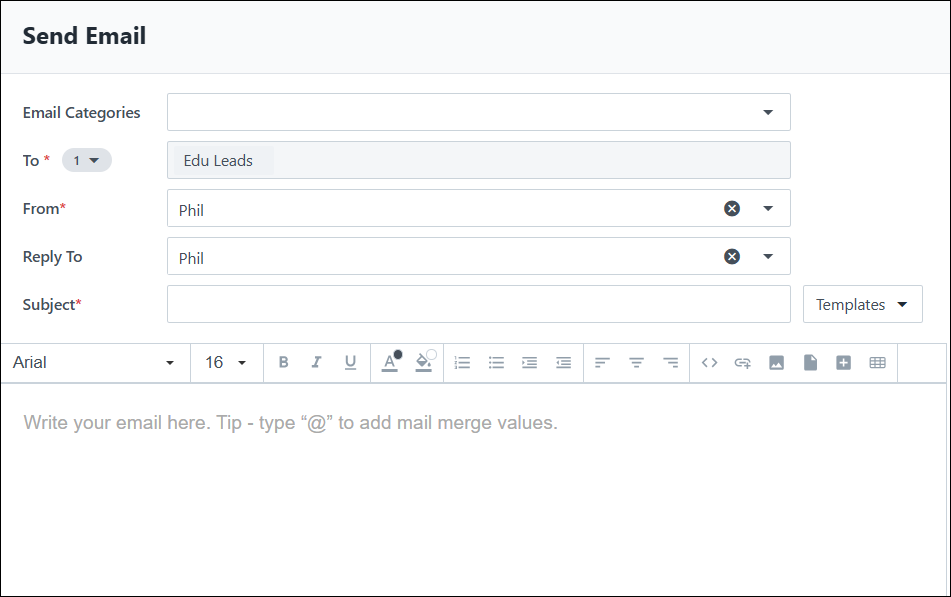
Account Name Provide a relevant name for your connector. This field is mandatory.
Allow Lead Generation on incoming message EnableSlider to allow automatic lead creation when you receive messages from unknown mobile numbers.
Lead Source From the dropdown, select a lead source for your leads.

Once you’re done, click Next.


4.2 Service Provider

From the available options, select WhatsApp Cloud, and click Next.

LeadSquared Bidvest WhatsApp Integration

4.3 Authentication Set-up

On this screen, pass the following details –

  • API Key – Enter your Bidvest account’s API key. Please contact your Bidvest account manager to obtain this.
  • Authentication Header Template – Pass the following value – {{Token}}. Ensure this is passed exactly as is, as any changes will result in failure.
  • Get Media URL – Pass the following value – https://graph.facebook.com/{{mediaId}}. Please pass this as is. Any changes made here will result in failure.
  • WhatsApp Business Account ID – You’re not required to pass anything here. Please leave this blank.
  • Product ID – Please contact your Bidvest account manager to obtain this.

Once you’re done entering all the details on the LeadSquared WhatsApp configuration pop-up, click Next.

LeadSquared Service CRM


4.4 Converse Settings

LeadSquared Converse is an instant messaging feature that allows you to have real-time conversations with your leads via WhatsApp.

LeadSquared WhatsApp Integration

To integrate LeadSquared Converse with WhatsApp, complete the following steps –

  1. On the Converse Settings tab, toggle the Enable Converse Slider slider.
  2. Under User Access, grant permissions to users who can communicate with leads through the LeadSquared Converse.
    • Based on Role – From the Search and Select Users dropdown, select the LeadSquared user roles that can send messages through LeadSquared Converse.
    • Advanced (User Level) – Based on the value entered in the selected user boolean field (e.g., for the user Sam, the “Is Employee” user field contains the value “Yes”), the user will be able to send messages through LeadSquared Converse. From the Select User Field dropdown, select a relevant boolean field.
  3. Functionality – The following additional settings must be configured –
    • Approved Templates – Enable this functionality to allow your users to send approved WhatsApp templates to your leads.
    • Unapproved Templates – Enable this functionality to allow your users to send unapproved WhatsApp templates to your leads. These can only be sent if the 24-hours service window is active.
    • Notify Lead Owner* – When enabled, only lead owners will get notifications of the WhatsApp messages a lead sends. When disabled, all logged-in users will receive notifications of these WhatsApp messages.
    • Sending Rich Media – Enable this functionality to allow your users to send media files in the WhatsApp messages.

Note:

  • *Message notifications are only sent to one user, i.e., either the Lead Owner or to the user (other than the Lead Owner) that sent the WhatsApp message to the lead. When the Notify Lead Owner setting is enabled, only the Lead Owner will get notified, while the user who sent the message will not get a notification.
  • If you enable the Send Rich Media option, you must also enable the Approved Templates option. This ensures that you can add your media files to a template when messaging your leads.

LeadSquared Gupshup Integration


4.5 Advanced Settings

On this screen, provide the following details –

  • Activity Mapping – A LeadSquared activity field to capture your WhatsApp messages. This is the activity that will be posted every time a WhatsApp message is sent or received.
  • Default WhatsApp Number Fields – The number you set as the default phone number will be automatically selected when you’re sending a WhatsApp message to a lead. You can also select other numbers that are available from the Add Another Number dropdown.
  • Default Country Code – The default country code will be used to send messages to a phone number that’s stored in a custom field, if no country code is listed.
  • Enable Rich Media Template Support – If you want to include media files in your WhatsApp message, you must enable the Slider slider.
  • Show URL Preview in Custom Messages – Enable the sliderSlider to allow for URL previews in non-templatized WhatsApp messages.
  • Compliance Type – Here, you can select the compliance type for the WhatsApp template, by choosing either WhatsApp Opt-out or Opt-in.
  • WhatsApp Opt-out – Your leads can opt-in or out of receiving WhatsApp messages on the basis of this field. From the dropdown, select a LeadSquared lead field for the WhatsApp opt-in/opt-out functionality.
  • Blacklist Incoming Messages – If required, you can enable this option to blacklist incoming messages from specific numbers. This is useful when you want to block numbers that send inappropriate messages to your users. Once enabled, enter the phone numbers in the text box available on the right side of your screen. You can add phone numbers with 7-12 digits (excluding the country code). This option is available only when the Allow Lead Generation on incoming messages setting is enabled.
Note: You must create a custom lead field of boolean type to map to the WhatsApp opt-out functionality. For example, you may create a custom lead field called “WhatsApp Opt Out”. Leads for whom the field is selected/checked won’t receive WhatsApp messages.

Click Save & Close when you’re done.

  • If your credentials are correct, you’ll see the success message highlighted below.
  • If they were incorrect, the integration will fail.

Interakt LeadSquared Integration


5. Webhook Configuration

Please share the webhook generated in LeadSquared with your Bidvest account manager, and they will configure it on your account.


6. Conversing with Leads via WhatsApp

Integrating Converse with LeadSquared’s WhatsApp connector will enable your users to have real-time conversations with your leads through WhatsApp. Using templatized messages, you’ll be able to attach and send media files (such as images, documents, etc.) in your conversations. To know more, refer to LeadSquared Converse.

LeadSquared WhatsApp Integration


7. Next Steps

Once the connector is successfully installed, you can proceed to add WhatsApp templates and finally message your leads. For details, see Adding WhatsApp Templates to LeadSquared.


Any Questions?

Did you find this article helpful? Please let us know any feedback you may have in the comments section below. We’d love to hear from you and help you out!

Data Posted by Webhooks

1. Feature Overview

This article contains the data posted for LeadSquared webhook events.


2. Lead Webhook Triggers

2.1 Lead Creation Webhook

{"ProspectID":"e4954e47-ea2c-49e1-b3c3-1fb58e77bd92","ProspectAutoId":"1811","FirstName":"Jack","LastName":"Reynor","EmailAddress":"jackreynor@example.com","Origin":"Lead Add Form","Phone":"+91-9876556789","Mobile":null,"Source":null,"SourceMedium":null,"SourceCampaign":null,"DoNotEmail":"0","DoNotCall":"0","ProspectStage":"Prospect","Score":"0","EngagementScore":"0","ProspectActivityName_Max":null,"ProspectActivityDate_Max":null,"FirstLandingPageSubmissionDate":null,"OwnerId":"1a50c565-8525-11ea-a93b-0aa4c559f4ca","CreatedBy":"1a50c565-8525-11ea-a93b-0aa4c559f4ca","CreatedOn":"2024-09-20 13:35:25","ModifiedBy":"1a50c565-8525-11ea-a93b-0aa4c559f4ca","ModifiedOn":"2024-09-20 13:35:25","LeadConversionDate":"2024-09-20 13:35:25","StatusCode":"0","StatusReason":"0","IsLead":"1","mx_Country":null,"LastModifiedOn":"2024-09-20 13:35:25","mx_Do_You_Have_a_Co_Applicant":"Yes","mx_Identification_Documents":"{\"Status\":\"Pending\",\"mx_CustomObject_1\":\"\",\"mx_CustomObject_2\":\"\",\"mx_CustomObject_3\":\"\",\"mx_CustomObject_4\":\"\"}","mx_Doctors":"Hippocrates","mx_WhatsApp_Opt_Out":"0","mx_Products":"{\"Status\":\"Pending\",\"mx_CustomObject_1\":\"\"}","mx_Docs":"{\"Status\":\"Pending\",\"mx_CustomObject_1\":\"\",\"mx_CustomObject_2\":\"\",\"mx_CustomObject_3\":\"\",\"mx_CustomObject_4\":\"\",\"mx_CustomObject_5\":\"On Going\"}","mx_Video_KYC":"{\"Status\":\"Pending\",\"mx_CustomObject_1\":\"\"}","mx_Degree":"MA Psychology","mx_Documentation":"{\"Status\":\"Pending\",\"mx_CustomObject_1\":\"\",\"mx_CustomObject_2\":\"\",\"mx_CustomObject_3\":\"\",\"mx_CustomObject_4\":\"\"}","mx_Options":"Option 1","mx_Course":"BTech","mx_Payment_Status":"Paid","mx_Payment_Mode":"Offline","mx_Course_Family":"Masters","NotableEvent":"Created","NotableEventdate":"2024-09-20 13:35:25","SourceReferrer":"","LastVisitDate":null,"CurrentOptInStatus":"Unknown","QualityScore01":null,"ConversionReferrerURL":null,"IsPrimaryContact":"0","SourceIPAddress":null,"SourceReferrerURL":null,"mx_Address_Proof":"Aadhaar","mx_Disposition":"Issue Resolved","mx_Identification_Type":"Passport","LeadLastModifiedOn":"2024-09-20 13:35:25","OwnerIdName":"Sri Sudhan","OwnerIdEmailAddress":"sri.sudhan@leadsquared.com","CreatedByName":"Sri Sudhan","ModifiedByName":"Sri Sudhan","Account_CompanyName":"Education 101","Account_ShortName":"t20170817174751","Account_TimeZone":"Asia/Kolkata","Account_Website":"lshelp.staging.wpengine.com","Account_Street1":"123 Street","Account_City":"Bengaluru","Account_State":"Karnataka","Account_Country":"India","Account_Phone":"+91-8556010497","Owner_FirstName":"Sri Sudhan","Owner_EmailAddress":"sri.sudhan@leadsquared.com","Owner_FullName":"Sri Sudhan","Owner_TimeZone":"Asia/Kolkata","Owner_AssociatedPhoneNumbers":"+91-9000000000","Org_ShortCode":"22824","Account_Address":"Education 101{mxnewline}123 Street,{mxnewline},Bengaluru,Karnataka{mxnewline} {mxnewline}India.","CreatedByEmail":"sri.sudhan@leadsquared.com","ModifiedByEmail":"sri.sudhan@leadsquared.com","CanUpdate":"true"}


2.2 Lead Delete

[{"ProspectID":"0b153d3c-0c4e-40e7-8183-3fd128074196","ProspectAutoId":"1105","FirstName":"Han","LastName":"Solo","EmailAddress":null,"Company":"Example Company","Origin":"API","Phone":null,"Mobile":null,"Website":null,"TimeZone":null,"Source":"","SourceMedium":"","Notes":null,"SourceCampaign":"","SourceContent":"","DoNotEmail":"0","DoNotCall":"0","ProspectStage":"Prospect","Score":"0","Revenue":null,"EngagementScore":"0","TotalVisits":"0","PageViewsPerVisit":"0","AvgTimePerVisit":"0","RelatedProspectId":null,"ProspectActivityId_Min":"6a741d35-7e54-4cb6-8f62-efcfddc10aaf","ProspectActivityDate_Min":"2019-05-07 10:40:10","Web_Referrer":"","Web_RefKeyword":"","ProspectActivityId_Max":"6a741d35-7e54-4cb6-8f62-efcfddc10aaf","ProspectActivityName_Max":"Lead Capture","ProspectActivityDate_Max":"2019-05-07 10:40:10","ImportTransactionId":null,"RelatedLandingPageId":null,"FirstLandingPageSubmissionId":null,"FirstLandingPageSubmissionDate":null,"OwnerId":"3b1041fb-8374-11e7-8758-0a106ee76b21","CreatedBy":"3b1041fb-8374-11e7-8758-0a106ee76b21","CreatedOn":"2019-05-07 10:40:10","ModifiedBy":"3b1041fb-8374-11e7-8758-0a106ee76b21","ModifiedOn":"2023-08-01 11:08:10","LeadConversionDate":"2019-05-07 10:40:10","StatusCode":"0","StatusReason":"0","DeletionStatusCode":"0","IsLead":"1","mx_Street1":null,"mx_Street2":null,"mx_City":"Bangalore","mx_State":null,"mx_Country":"Afghanistan","mx_Zip":null,"LastModifiedOn":"2023-08-01 11:08:44","mx_Weight_Division":null,"mx_Gym":null,"mx_Athlete_Age":null,"mx_Secondary_Email_Address":null,"mx_Secondary_Email":null,"mx_Custom_Score":null,"mx_Age":null,"mx_12th_Grade_Results":null,"JobTitle":null,"mx_Co_Applicant_First_Name":null,"mx_Co_Applicant_Last_Name":null,"mx_Co_Applicant_Email":null,"mx_Permanent_Address_1":null,"mx_Permanent_Address_2":null,"mx_Do_You_Have_a_Co_Applicant":null,"mx_Is_Permanent_Address_Same_as_Current_Address":null,"mx_Renewal_Date":null,"mx_Identification":null,"mx_Identification_Documents":null,"mx_Doctors":null,"mx_Product":null,"mx_WhatsApp_Opt_Out":null,"mx_Date_of_Birth":null,"mx_PAN_Number":null,"mx_Fathers_Name":null,"mx_Product_Price":null,"mx_Product_Specification":null,"mx_Products":null,"mx_Docs":null,"mx_Retype_Password":null,"mx_Donation_Amount":null,"mx_Course_Type":null,"mx_Application_Submitted_On":null,"mx_Video_KYC":null,"mx_Company":null,"mx_Aadhaar_Number":null,"mx_Degree":null,"mx_Documentation":null,"mx_Options":null,"mx_Passport_Number":null,"mx_SSN":null,"mx_Course":"MBA","mx_Payment_Status":"Paid","mx_Payment_Mode":"Debit Card","mx_Course_Family":"Masters","mx_Payment_Amount":"230451","NotableEvent":"Modified","NotableEventdate":"2023-08-01 11:08:10","SourceReferrer":"","LastVisitDate":"2019-05-07 10:40:10","LeadAge":"1963","CurrentOptInStatus":null,"LastOptInEmailSentDate":null,"MailingPreferences":null,"OptInDate":null,"OptInDetails":null,"mx_Portal_IsPortalUser":null,"QualityScore01":null,"FacebookId":null,"GooglePlusId":null,"GTalkId":null,"LinkedInId":null,"PhotoUrl":null,"SkypeId":null,"TwitterId":null,"CompanyType":null,"ConversionReferrerURL":null,"DoNotTrack":null,"IsPrimaryContact":"0","Latitude":null,"Longitude":null,"RelatedCompanyId":null,"SourceIPAddress":null,"SourceReferrerURL":null,"mx_Address_Proof":null,"mx_Disposition":null,"mx_Identification_Type":null,"mx_Malfunction_error_example":null,"mx_Pan_Card_Number":null,"mx_Rate_of_Interest":null,"mx_School":null,"RelatedCompanyIdName":null,"RelatedCompanyOwnerId":null,"CompanyTypeName":null,"CompanyTypePluralName":null,"LeadLastModifiedOn":"2023-08-01 11:08:44","OwnerIdName":"Vir Singh","OwnerIdEmailAddress":"virkdsingh@gmail.com","Groups":"","CreatedByName":"Vir Singh","ModifiedByName":"Vir Singh","Account_CompanyName":"Education 101","Account_ShortName":"t20170817174751","Account_TimeZone":"Asia/Kolkata","Account_Website":"lshelp.staging.wpengine.com","Account_Street1":"123 Street","Account_Street2":"","Account_City":"Bengaluru","Account_State":"Karnataka","Account_Country":"India","Account_Zip":"","Account_Fax":"","Account_Phone":"+91-8556010497","Owner_FirstName":"Vir","Owner_MiddleName":"","Owner_LastName":"Singh","Owner_EmailAddress":"virkdsingh@gmail.com","Owner_FullName":"Vir Singh","Owner_TimeZone":"Asia/Kolkata","Owner_AssociatedPhoneNumbers":"+91-999988888","Org_ShortCode":"22824","Account_Address":"Education 101{mxnewline}123 Street,{mxnewline},Bengaluru,Karnataka{mxnewline} {mxnewline}India.","Total":"1","CanUpdate":"true"}]


2.3 Lead Field Value Change

{"Before":{"ProspectID":"9e6ec6de-5a2a-4833-98c2-53145d6222f1","ProspectAutoId":"1770","FirstName":"Shamar","LastName":"Joseph","EmailAddress":"srisudhanr@gmail.com","Phone":null,"Mobile":null,"Source":null,"SourceMedium":null,"SourceCampaign":null,"ProspectStage":"Prospect","Score":"1","EngagementScore":"0","ProspectActivityName_Max":"Email Opened","ProspectActivityDate_Max":"2024-07-09 11:23:12","OwnerId":"1a50c565-8525-11ea-a93b-0aa4c559f4ca","ModifiedOn":"2024-07-09 07:31:55","mx_Country":null,"LastModifiedOn":"2024-08-09 03:55:12","NotableEvent":"Email Opened","NotableEventdate":"2024-07-09 11:23:12","QualityScore01":null,"ConversionReferrerURL":null,"SourceIPAddress":null,"SourceReferrerURL":null,"LeadLastModifiedOn":"2024-08-09 03:55:12","OwnerIdEmailAddress":"sri.sudhan@leadsquared.com"},"After":{"ProspectID":"9e6ec6de-5a2a-4833-98c2-53145d6222f1","ProspectAutoId":"1770","FirstName":"Shamar","LastName":"Joseph","EmailAddress":"srisudhanr@gmail.com","Phone":null,"Mobile":null,"Source":null,"SourceMedium":null,"SourceCampaign":null,"ProspectStage":"Prospect","Score":"1","EngagementScore":"0","ProspectActivityName_Max":"Email Opened","ProspectActivityDate_Max":"2024-07-09 11:23:12","OwnerId":"1a50c565-8525-11ea-a93b-0aa4c559f4ca","ModifiedOn":"2024-09-20 14:23:43","mx_Country":"Guyana","LastModifiedOn":"2024-09-20 14:23:43","NotableEvent":"Modified","NotableEventdate":"2024-09-20 14:23:43","QualityScore01":null,"ConversionReferrerURL":null,"SourceIPAddress":null,"SourceReferrerURL":null,"LeadLastModifiedOn":"2024-09-20 14:23:43","OwnerIdEmailAddress":"sri.sudhan@leadsquared.com"}}


2.4 Lead Merge

{"Parent":[{"ProspectID":"e9783ae9-6767-4387-acc3-25b2d3c9222e","ProspectAutoId":"1768","FirstName":"Oshin","LastName":"Anand","EmailAddress":"oshinranand@gmail.com","Company":null,"Origin":"Lead Add Form","Phone":null,"Mobile":null,"Website":null,"TimeZone":null,"Source":null,"SourceMedium":null,"Notes":null,"SourceCampaign":null,"SourceContent":null,"DoNotEmail":"1","DoNotCall":"0","ProspectStage":"Prospect","Score":"-30","Revenue":null,"EngagementScore":"0","TotalVisits":null,"PageViewsPerVisit":null,"AvgTimePerVisit":null,"RelatedProspectId":null,"ProspectActivityId_Min":"88cb90e4-3dc4-11ef-a77e-0ac989580241","ProspectActivityDate_Min":"2024-07-09 07:21:49","Web_Referrer":null,"Web_RefKeyword":null,"ProspectActivityId_Max":"88cb90e4-3dc4-11ef-a77e-0ac989580241","ProspectActivityName_Max":"Email Bounced","ProspectActivityDate_Max":"2024-07-09 12:51:51","ImportTransactionId":null,"RelatedLandingPageId":null,"FirstLandingPageSubmissionId":null,"FirstLandingPageSubmissionDate":null,"OwnerId":"1a50c565-8525-11ea-a93b-0aa4c559f4ca","CreatedBy":"1a50c565-8525-11ea-a93b-0aa4c559f4ca","CreatedOn":"2024-07-09 12:51:47","ModifiedBy":"1a50c565-8525-11ea-a93b-0aa4c559f4ca","ModifiedOn":"2024-07-09 12:51:47","LeadConversionDate":"2024-07-09 12:51:47","StatusCode":"0","StatusReason":"6","DeletionStatusCode":"0","IsLead":"1","mx_Street1":null,"mx_Street2":null,"mx_City":null,"mx_State":null,"mx_Country":null,"mx_Zip":null,"LastModifiedOn":"2024-07-09 07:26:18","mx_Weight_Division":null,"mx_Gym":null,"mx_Athlete_Age":null,"mx_Secondary_Email_Address":null,"mx_Secondary_Email":null,"mx_Custom_Score":null,"mx_Age":null,"mx_12th_Grade_Results":null,"JobTitle":null,"mx_Co_Applicant_First_Name":null,"mx_Co_Applicant_Last_Name":null,"mx_Co_Applicant_Email":null,"mx_Permanent_Address_1":null,"mx_Permanent_Address_2":null,"mx_Do_You_Have_a_Co_Applicant":null,"mx_Is_Permanent_Address_Same_as_Current_Address":null,"mx_Renewal_Date":null,"mx_Identification":null,"mx_Identification_Documents":"{\"Status\":\"Pending\",\"mx_CustomObject_1\":\"\",\"mx_CustomObject_2\":\"\",\"mx_CustomObject_3\":\"\",\"mx_CustomObject_4\":\"\"}","mx_Doctors":"Hippocrates","mx_Product":null,"mx_WhatsApp_Opt_Out":"0","mx_Date_of_Birth":null,"mx_PAN_Number":null,"mx_Fathers_Name":null,"mx_Product_Price":null,"mx_Product_Specification":null,"mx_Products":"{\"Status\":\"Pending\",\"mx_CustomObject_1\":\"\"}","mx_Docs":"{\"Status\":\"Pending\",\"mx_CustomObject_1\":\"\",\"mx_CustomObject_2\":\"\",\"mx_CustomObject_3\":\"\",\"mx_CustomObject_4\":\"\",\"mx_CustomObject_5\":\"On Going\"}","mx_Retype_Password":null,"mx_Donation_Amount":null,"mx_Course_Type":null,"mx_Application_Submitted_On":null,"mx_Video_KYC":"{\"Status\":\"Pending\",\"mx_CustomObject_1\":\"\"}","mx_Company":null,"mx_Aadhaar_Number":null,"mx_Degree":"MA Psychology","mx_Documentation":"{\"Status\":\"Pending\",\"mx_CustomObject_1\":\"\",\"mx_CustomObject_2\":\"\",\"mx_CustomObject_3\":\"\",\"mx_CustomObject_4\":\"\"}","mx_Options":"Option 1","mx_Passport_Number":null,"mx_SSN":null,"mx_Course":null,"mx_Payment_Status":null,"mx_Payment_Mode":null,"mx_Course_Family":null,"mx_Payment_Amount":null,"NotableEvent":"Email Bounced","NotableEventdate":"2024-07-09 12:51:51","SourceReferrer":"","LastVisitDate":"2024-07-09 12:51:51","LeadAge":"73","CurrentOptInStatus":"Unknown","LastOptInEmailSentDate":null,"MailingPreferences":null,"OptInDate":null,"OptInDetails":null,"mx_Portal_IsPortalUser":null,"QualityScore01":null,"FacebookId":null,"GooglePlusId":null,"GTalkId":null,"LinkedInId":null,"PhotoUrl":null,"SkypeId":null,"TwitterId":null,"CompanyType":null,"ConversionReferrerURL":null,"DoNotTrack":null,"IsPrimaryContact":"0","Latitude":null,"Longitude":null,"RelatedCompanyId":null,"SourceIPAddress":null,"SourceReferrerURL":null,"mx_Address_Proof":null,"mx_Disposition":null,"mx_Identification_Type":null,"mx_Malfunction_error_example":null,"mx_Pan_Card_Number":null,"mx_Rate_of_Interest":null,"mx_School":null,"RelatedCompanyIdName":null,"RelatedCompanyOwnerId":null,"CompanyTypeName":null,"CompanyTypePluralName":null,"LeadLastModifiedOn":"2024-07-09 12:56:18","OwnerIdName":"Sri Sudhan","OwnerIdEmailAddress":"sri.sudhan@leadsquared.com","Groups":"","CreatedByName":"Sri Sudhan","ModifiedByName":"Sri Sudhan","Account_CompanyName":"Education 101","Account_ShortName":"t20170817174751","Account_TimeZone":"Asia/Kolkata","Account_Website":"lshelp.staging.wpengine.com","Account_Street1":"123 Street","Account_Street2":"","Account_City":"Bengaluru","Account_State":"Karnataka","Account_Country":"India","Account_Zip":"","Account_Fax":"","Account_Phone":"+91-8556010497","Owner_FirstName":"Sri Sudhan","Owner_MiddleName":"","Owner_LastName":"","Owner_EmailAddress":"sri.sudhan@leadsquared.com","Owner_FullName":"Sri Sudhan","Owner_TimeZone":"Asia/Kolkata","Owner_AssociatedPhoneNumbers":"+91-9000000000","Org_ShortCode":"22824","Account_Address":"Education 101{mxnewline}123 Street,{mxnewline},Bengaluru,Karnataka{mxnewline} {mxnewline}India.","CanUpdate":"true"}],"Child":[{"ProspectID":"6f591974-cb0e-4c8d-9505-1d491f68e8b6","ProspectAutoId":"1769","FirstName":"Oshin","LastName":null,"EmailAddress":"oshinanandmedia@gmail.com","Company":null,"Origin":"Lead Add Form","Phone":null,"Mobile":null,"Website":null,"TimeZone":null,"Source":null,"SourceMedium":null,"Notes":null,"SourceCampaign":null,"SourceContent":null,"DoNotEmail":"0","DoNotCall":"0","ProspectStage":"Prospect","Score":"1","Revenue":null,"EngagementScore":"0","TotalVisits":null,"PageViewsPerVisit":null,"AvgTimePerVisit":null,"RelatedProspectId":null,"ProspectActivityId_Min":"f163a84a-d4fd-4214-bb1a-f325fc0c54c8","ProspectActivityDate_Min":"2024-07-09 07:25:40","Web_Referrer":null,"Web_RefKeyword":null,"ProspectActivityId_Max":"b62711bd-9ce2-4ac4-ab34-e4d4ef8fc777","ProspectActivityName_Max":"Email Opened","ProspectActivityDate_Max":"2024-07-09 13:23:09","ImportTransactionId":null,"RelatedLandingPageId":null,"FirstLandingPageSubmissionId":null,"FirstLandingPageSubmissionDate":null,"OwnerId":"1a50c565-8525-11ea-a93b-0aa4c559f4ca","CreatedBy":"1a50c565-8525-11ea-a93b-0aa4c559f4ca","CreatedOn":"2024-07-09 12:55:38","ModifiedBy":"1a50c565-8525-11ea-a93b-0aa4c559f4ca","ModifiedOn":"2024-07-09 12:55:38","LeadConversionDate":"2024-07-09 12:55:38","StatusCode":"0","StatusReason":"0","DeletionStatusCode":"0","IsLead":"1","mx_Street1":null,"mx_Street2":null,"mx_City":null,"mx_State":null,"mx_Country":null,"mx_Zip":null,"LastModifiedOn":"2024-08-09 03:55:12","mx_Weight_Division":null,"mx_Gym":null,"mx_Athlete_Age":null,"mx_Secondary_Email_Address":null,"mx_Secondary_Email":null,"mx_Custom_Score":null,"mx_Age":null,"mx_12th_Grade_Results":null,"JobTitle":null,"mx_Co_Applicant_First_Name":null,"mx_Co_Applicant_Last_Name":null,"mx_Co_Applicant_Email":null,"mx_Permanent_Address_1":null,"mx_Permanent_Address_2":null,"mx_Do_You_Have_a_Co_Applicant":"Yes","mx_Is_Permanent_Address_Same_as_Current_Address":null,"mx_Renewal_Date":null,"mx_Identification":null,"mx_Identification_Documents":"{\"Status\":\"Pending\",\"mx_CustomObject_1\":\"\",\"mx_CustomObject_2\":\"\",\"mx_CustomObject_3\":\"\",\"mx_CustomObject_4\":\"\"}","mx_Doctors":"Hippocrates","mx_Product":null,"mx_WhatsApp_Opt_Out":"0","mx_Date_of_Birth":null,"mx_PAN_Number":null,"mx_Fathers_Name":null,"mx_Product_Price":null,"mx_Product_Specification":null,"mx_Products":"{\"Status\":\"Pending\",\"mx_CustomObject_1\":\"\"}","mx_Docs":"{\"Status\":\"Pending\",\"mx_CustomObject_1\":\"\",\"mx_CustomObject_2\":\"\",\"mx_CustomObject_3\":\"\",\"mx_CustomObject_4\":\"\",\"mx_CustomObject_5\":\"On Going\"}","mx_Retype_Password":null,"mx_Donation_Amount":null,"mx_Course_Type":null,"mx_Application_Submitted_On":null,"mx_Video_KYC":"{\"Status\":\"Pending\",\"mx_CustomObject_1\":\"\"}","mx_Company":null,"mx_Aadhaar_Number":null,"mx_Degree":"MA Psychology","mx_Documentation":"{\"Status\":\"Pending\",\"mx_CustomObject_1\":\"\",\"mx_CustomObject_2\":\"\",\"mx_CustomObject_3\":\"\",\"mx_CustomObject_4\":\"\"}","mx_Options":"Option 1","mx_Passport_Number":null,"mx_SSN":null,"mx_Course":"BTech","mx_Payment_Status":"Paid","mx_Payment_Mode":"Offline","mx_Course_Family":"Masters","mx_Payment_Amount":null,"NotableEvent":"Email Opened","NotableEventdate":"2024-07-09 13:23:09","SourceReferrer":"","LastVisitDate":"2024-07-09 13:23:09","LeadAge":"73","CurrentOptInStatus":"Unknown","LastOptInEmailSentDate":null,"MailingPreferences":null,"OptInDate":null,"OptInDetails":null,"mx_Portal_IsPortalUser":null,"QualityScore01":null,"FacebookId":null,"GooglePlusId":null,"GTalkId":null,"LinkedInId":null,"PhotoUrl":null,"SkypeId":null,"TwitterId":null,"CompanyType":null,"ConversionReferrerURL":null,"DoNotTrack":null,"IsPrimaryContact":"0","Latitude":null,"Longitude":null,"RelatedCompanyId":null,"SourceIPAddress":null,"SourceReferrerURL":null,"mx_Address_Proof":"Aadhaar","mx_Disposition":"Issue Resolved","mx_Identification_Type":"Passport","mx_Malfunction_error_example":null,"mx_Pan_Card_Number":null,"mx_Rate_of_Interest":null,"mx_School":null,"RelatedCompanyIdName":null,"RelatedCompanyOwnerId":null,"CompanyTypeName":null,"CompanyTypePluralName":null,"LeadLastModifiedOn":"2024-08-09 09:25:12","OwnerIdName":"Sri Sudhan","OwnerIdEmailAddress":"sri.sudhan@leadsquared.com","Groups":"","CreatedByName":"Sri Sudhan","ModifiedByName":"Sri Sudhan","Account_CompanyName":"Education 101","Account_ShortName":"t20170817174751","Account_TimeZone":"Asia/Kolkata","Account_Website":"lshelp.staging.wpengine.com","Account_Street1":"123 Street","Account_Street2":"","Account_City":"Bengaluru","Account_State":"Karnataka","Account_Country":"India","Account_Zip":"","Account_Fax":"","Account_Phone":"+91-8556010497","Owner_FirstName":"Sri Sudhan","Owner_MiddleName":"","Owner_LastName":"","Owner_EmailAddress":"sri.sudhan@leadsquared.com","Owner_FullName":"Sri Sudhan","Owner_TimeZone":"Asia/Kolkata","Owner_AssociatedPhoneNumbers":"+91-9000000000","Org_ShortCode":"22824","Account_Address":"Education 101{mxnewline}123 Street,{mxnewline},Bengaluru,Karnataka{mxnewline} {mxnewline}India.","CanUpdate":"true"}],"CreatedBy":"1a50c565-8525-11ea-a93b-0aa4c559f4ca","CreatedOn":"2024-09-20 14:31:00","CreatedByName":"Sri Sudhan","CreatedByEmail":"sri.sudhan@leadsquared.com"}


2.5 Lead Ownership Change

{"Before":{"ProspectID":"9e6ec6de-5a2a-4833-98c2-53145d6222f1","ProspectAutoId":"1770","FirstName":"Shamar","LastName":"Joseph","EmailAddress":"srisudhanr@gmail.com","Phone":null,"Mobile":null,"Source":null,"SourceMedium":null,"SourceCampaign":null,"ProspectStage":"Prospect","Score":"1","EngagementScore":"0","ProspectActivityName_Max":"Email Opened","ProspectActivityDate_Max":"2024-07-09 11:23:12","OwnerId":"1a50c565-8525-11ea-a93b-0aa4c559f4ca","ModifiedOn":"2024-09-20 14:23:43","LastModifiedOn":"2024-09-20 14:23:43","NotableEventdate":"2024-09-20 14:23:43","QualityScore01":null,"ConversionReferrerURL":null,"SourceIPAddress":null,"SourceReferrerURL":null,"LeadLastModifiedOn":"2024-09-20 14:23:43","OwnerIdName":"Sri Sudhan","OwnerIdEmailAddress":"sri.sudhan@leadsquared.com","Owner_FirstName":"Sri Sudhan","Owner_MiddleName":"","Owner_LastName":"","Owner_EmailAddress":"sri.sudhan@leadsquared.com","Owner_FullName":"Sri Sudhan","Owner_AssociatedPhoneNumbers":"+91-9000000000"},"After":{"ProspectID":"9e6ec6de-5a2a-4833-98c2-53145d6222f1","ProspectAutoId":"1770","FirstName":"Shamar","LastName":"Joseph","EmailAddress":"srisudhanr@gmail.com","Phone":null,"Mobile":null,"Source":null,"SourceMedium":null,"SourceCampaign":null,"ProspectStage":"Prospect","Score":"1","EngagementScore":"0","ProspectActivityName_Max":"Email Opened","ProspectActivityDate_Max":"2024-07-09 11:23:12","OwnerId":"a443f7b7-d1fd-11ec-993a-06f221480cd8","ModifiedOn":"2024-09-20 14:33:46","LastModifiedOn":"2024-09-20 14:33:46","NotableEventdate":"2024-09-20 14:33:46","QualityScore01":null,"ConversionReferrerURL":null,"SourceIPAddress":null,"SourceReferrerURL":null,"LeadLastModifiedOn":"2024-09-20 14:33:46","OwnerIdName":"Joseph","OwnerIdEmailAddress":"vir.singh@leadsquared.com","Owner_FirstName":"Joseph","Owner_MiddleName":null,"Owner_LastName":null,"Owner_EmailAddress":"vir.singh@leadsquared.com","Owner_FullName":"Joseph","Owner_AssociatedPhoneNumbers":""}}


2.6 Lead Score Change

{"ProspectID":"0723558d-af29-44cf-bf91-72b4c9a39b19","ProspectAutoId":"1812","FirstName":"Joe","LastName":"Davola","EmailAddress":"crazyjoedavola@yopmail.com","Origin":"Lead Add Form","Phone":null,"Mobile":null,"Source":null,"SourceMedium":null,"SourceCampaign":null,"DoNotEmail":"0","DoNotCall":"0","ProspectStage":"Upsell","Score":"1","Revenue":"55","EngagementScore":"0","ProspectActivityId_Min":"03b4f0ab-3725-43fc-9a05-71c47daba76b","ProspectActivityDate_Min":"2024-09-20 14:42:16","ProspectActivityId_Max":"66fe40f6-3c9b-4e6a-93d6-90fc31cf0dcd","ProspectActivityName_Max":"Chat Conversation","ProspectActivityDate_Max":"2024-09-20 14:42:44","FirstLandingPageSubmissionDate":null,"OwnerId":"7903affd-4ff4-11ef-a77e-0ac989580241","CreatedBy":"1a50c565-8525-11ea-a93b-0aa4c559f4ca","CreatedOn":"2024-09-20 14:38:29","ModifiedBy":"1a50c565-8525-11ea-a93b-0aa4c559f4ca","ModifiedOn":"2024-09-20 14:42:26","LeadConversionDate":"2024-09-20 14:38:29","StatusCode":"0","StatusReason":"0","IsLead":"1","mx_Country":null,"LastModifiedOn":"2024-09-20 14:42:45","mx_Do_You_Have_a_Co_Applicant":"Yes","mx_Identification_Documents":"{\"Status\":\"Pending\",\"mx_CustomObject_1\":\"\",\"mx_CustomObject_2\":\"\",\"mx_CustomObject_3\":\"\",\"mx_CustomObject_4\":\"\"}","mx_Doctors":"Hippocrates","mx_WhatsApp_Opt_Out":"0","mx_Products":"{\"Status\":\"Pending\",\"mx_CustomObject_1\":\"\"}","mx_Docs":"{\"Status\":\"Pending\",\"mx_CustomObject_1\":\"\",\"mx_CustomObject_2\":\"\",\"mx_CustomObject_3\":\"\",\"mx_CustomObject_4\":\"\",\"mx_CustomObject_5\":\"On Going\"}","mx_Video_KYC":"{\"Status\":\"Pending\",\"mx_CustomObject_1\":\"\"}","mx_Degree":"MA Psychology","mx_Documentation":"{\"Status\":\"Pending\",\"mx_CustomObject_1\":\"\",\"mx_CustomObject_2\":\"\",\"mx_CustomObject_3\":\"\",\"mx_CustomObject_4\":\"\"}","mx_Options":"Option 1","mx_Course":"BTech","mx_Payment_Status":"Paid","mx_Payment_Mode":"Offline","mx_Course_Family":"Masters","NotableEvent":"Chat Conversation","NotableEventdate":"2024-09-20 14:42:44","SourceReferrer":"","LastVisitDate":"2024-09-20 14:42:44","CurrentOptInStatus":"Unknown","QualityScore01":null,"ConversionReferrerURL":null,"IsPrimaryContact":"0","SourceIPAddress":null,"SourceReferrerURL":null,"mx_Address_Proof":"Aadhaar","mx_Disposition":"Issue Resolved","mx_Identification_Type":"Passport","LeadLastModifiedOn":"2024-09-20 14:42:45","OwnerIdName":"Chris Harris","OwnerIdEmailAddress":"charrisharris@lsq.in","CreatedByName":"Sri Sudhan","ModifiedByName":"Sri Sudhan","Account_CompanyName":"Education 101","Account_ShortName":"t20170817174751","Account_TimeZone":"Asia/Kolkata","Account_Website":"lshelp.staging.wpengine.com","Account_Street1":"123 Street","Account_City":"Bengaluru","Account_State":"Karnataka","Account_Country":"India","Account_Phone":"+91-8556010497","Owner_FirstName":"Chris","Owner_LastName":"Harris","Owner_EmailAddress":"charrisharris@lsq.in","Owner_FullName":"Chris Harris","Owner_TimeZone":"Asia/Kolkata","Owner_AssociatedPhoneNumbers":"+91-8888888888","Org_ShortCode":"22824","Account_Address":"Education 101{mxnewline}123 Street,{mxnewline},Bengaluru,Karnataka{mxnewline} {mxnewline}India.","CreatedByEmail":"sri.sudhan@leadsquared.com","ModifiedByEmail":"sri.sudhan@leadsquared.com","CanUpdate":"true","OldScore":"0"}


2.7 Lead Stage Change

{"Before":{"ProspectID":"0723558d-af29-44cf-bf91-72b4c9a39b19","ProspectAutoId":"1812","FirstName":"Joe","LastName":"Davola","EmailAddress":"crazyjoedavola@yopmail.com","Phone":null,"Mobile":null,"Source":null,"SourceMedium":null,"SourceCampaign":null,"ProspectStage":"Upsell","Score":"1","EngagementScore":"0","ProspectActivityName_Max":"Chat Conversation","ProspectActivityDate_Max":"2024-09-20 14:42:44","OwnerId":"7903affd-4ff4-11ef-a77e-0ac989580241","ModifiedOn":"2024-09-20 14:42:26","mx_Country":null,"LastModifiedOn":"2024-09-20 14:42:45","NotableEvent":"Chat Conversation","NotableEventdate":"2024-09-20 14:42:44","QualityScore01":null,"ConversionReferrerURL":null,"SourceIPAddress":null,"SourceReferrerURL":null,"LeadLastModifiedOn":"2024-09-20 14:42:45","OwnerIdEmailAddress":"charrisharris@lsq.in"},"After":{"ProspectID":"0723558d-af29-44cf-bf91-72b4c9a39b19","ProspectAutoId":"1812","FirstName":"Joe","LastName":"Davola","EmailAddress":"crazyjoedavola@yopmail.com","Phone":null,"Mobile":null,"Source":null,"SourceMedium":null,"SourceCampaign":null,"ProspectStage":"Warm","Score":"1","EngagementScore":"0","ProspectActivityName_Max":"Chat Conversation","ProspectActivityDate_Max":"2024-09-20 14:42:44","OwnerId":"7903affd-4ff4-11ef-a77e-0ac989580241","ModifiedOn":"2024-09-20 14:47:11","mx_Country":"Afghanistan","LastModifiedOn":"2024-09-20 14:47:11","NotableEvent":"Modified","NotableEventdate":"2024-09-20 14:47:11","QualityScore01":null,"ConversionReferrerURL":null,"SourceIPAddress":null,"SourceReferrerURL":null,"LeadLastModifiedOn":"2024-09-20 14:47:11","OwnerIdEmailAddress":"charrisharris@lsq.in"}}


2.8 Lead Update

{"Before":{"ProspectID":"0723558d-af29-44cf-bf91-72b4c9a39b19","ProspectAutoId":"1812","FirstName":"Joe","LastName":"Davola","EmailAddress":"crazyjoedavola@yopmail.com","Phone":null,"Mobile":null,"Source":null,"SourceMedium":null,"SourceCampaign":null,"ProspectStage":"Warm","Score":"1","EngagementScore":"0","ProspectActivityName_Max":"Chat Conversation","ProspectActivityDate_Max":"2024-09-20 14:42:44","OwnerId":"7903affd-4ff4-11ef-a77e-0ac989580241","ModifiedOn":"2024-09-20 14:47:14","mx_Country":"Afghanistan","LastModifiedOn":"2024-09-20 14:47:14","JobTitle":null,"NotableEventdate":"2024-09-20 14:47:14","QualityScore01":null,"ConversionReferrerURL":null,"SourceIPAddress":null,"SourceReferrerURL":null,"LeadLastModifiedOn":"2024-09-20 14:47:14","OwnerIdEmailAddress":"charrisharris@lsq.in"},"After":{"ProspectID":"0723558d-af29-44cf-bf91-72b4c9a39b19","ProspectAutoId":"1812","FirstName":"Craz","LastName":"Joe Davola","EmailAddress":"crazyjoedavola@yopmail.com","Phone":"+91-9877899878","Mobile":null,"Source":null,"SourceMedium":null,"SourceCampaign":null,"ProspectStage":"Warm","Score":"1","EngagementScore":"0","ProspectActivityName_Max":"Chat Conversation","ProspectActivityDate_Max":"2024-09-20 14:42:44","OwnerId":"7903affd-4ff4-11ef-a77e-0ac989580241","ModifiedOn":"2024-09-20 14:48:55","mx_Country":"United States","LastModifiedOn":"2024-09-20 14:48:55","JobTitle":"Clown","NotableEventdate":"2024-09-20 14:48:55","QualityScore01":null,"ConversionReferrerURL":null,"SourceIPAddress":null,"SourceReferrerURL":null,"LeadLastModifiedOn":"2024-09-20 14:48:55","OwnerIdEmailAddress":"charrisharris@lsq.in"}}


2.9 Lead Activity Creation

[{"ProspectActivityId":"8fe79a96-1943-41ba-ad74-943db43a2748","RelatedProspectId":"f82768f0-02b2-4d5d-8371-20547d3741de","ActivityEvent":"167","ActivityEventName":"Document Collection","ActivityType":"2","CreatedBy":"1a50c565-8525-11ea-a93b-0aa4c559f4ca","CreatedOn":"2024-09-20 16:17:02","Score":10.0,"Data":{"Status":"","mx_Custom_8":"","mx_Custom_9":"","Owner":"","mx_Custom_6":"","mx_Custom_7":"{\"Status\":\"Pending\"}","mx_Custom_4":"{\"Status\":\"Pending\",\"mx_CustomObject_1\":\"Approved\"}","mx_Custom_2":"{\"Status\":\"Pending\",\"mx_CustomObject_4\":\"Pending\"}","Note":null,"mx_Custom_3":"","ActivityEvent_Note":"","mx_Custom_1":"null"}}]


2.10 Lead Activity Update

[{"Before":{"ProspectActivityId":"8fe79a96-1943-41ba-ad74-943db43a2748","ProspectId":"f82768f0-02b2-4d5d-8371-20547d3741de","ProspectAutoId":"1610","ActivityEvent":"167","ActivityType":"2","CreatedOn":"2024-09-20 16:17:02","CreatedBy":"1a50c565-8525-11ea-a93b-0aa4c559f4ca","CreatedByName":"Sri Sudhan ","ModifiedOn":"2024-09-20 16:17:03","ModifiedBy":"1a50c565-8525-11ea-a93b-0aa4c559f4ca","ModifiedByName":"Sri Sudhan","Status":"","mx_Custom_2":"{\"Status\":\"Pending\",\"mx_CustomObject_1\":\"\",\"mx_CustomObject_2\":\"\",\"mx_CustomObject_3\":\"\",\"mx_CustomObject_4\":\"Pending\"}","mx_Custom_4":"{\"Status\":\"Pending\",\"mx_CustomObject_1\":\"Approved\"}","mx_Custom_7":"{\"Status\":\"Pending\",\"mx_CustomObject_1\":\"\",\"mx_CustomObject_2\":\"\",\"mx_CustomObject_3\":\"\",\"mx_CustomObject_4\":\"\"}"},"After":{"ProspectActivityId":"8fe79a96-1943-41ba-ad74-943db43a2748","ProspectId":"f82768f0-02b2-4d5d-8371-20547d3741de","ProspectAutoId":"1610","ActivityEvent":"167","ActivityType":"2","CreatedOn":"2024-09-20 16:17:02","CreatedBy":"1a50c565-8525-11ea-a93b-0aa4c559f4ca","CreatedByName":"Sri Sudhan ","ModifiedOn":"2024-09-20 16:20:28","ModifiedBy":"1a50c565-8525-11ea-a93b-0aa4c559f4ca","ModifiedByName":"Sri Sudhan","Status":"Active","mx_Custom_2":"{\"Status\":\"Approved\",\"mx_CustomObject_1\":\"\",\"mx_CustomObject_2\":\"\",\"mx_CustomObject_3\":\"\",\"mx_CustomObject_4\":\"Completed\"}","mx_Custom_4":"{\"Status\":\"Approved\",\"mx_CustomObject_1\":\"Approved\"}","mx_Custom_7":"{\"Status\":\"Pending\",\"mx_CustomObject_1\":\"\",\"mx_CustomObject_2\":\"\",\"mx_CustomObject_3\":\"\",\"mx_CustomObject_4\":\"85a70cfc.png\"}"}}]


3. Opportunity Webhook Triggers

3.1 Opportunity Create

{"ProspectActivityId":"e4d8e7f7-ec0f-432c-aeea-dab3046484e1","RelatedProspectId":"986ab43c-5a0e-4512-8c4e-982f387bead3","ActivityEvent":"12003","ActivityType":"2","CreatedOn":"2024-09-20 16:01:00","CreatedBy":"d5d08e32-5ca9-11ea-8dd7-029e1407a868","CreatedByName":"Srisudhan ","ModifiedOn":"2024-09-20 16:01:00","ModifiedBy":"d5d08e32-5ca9-11ea-8dd7-029e1407a868","ModifiedByName":"Srisudhan ","Status":"Open","Owner":"d5d08e32-5ca9-11ea-8dd7-029e1407a868","mx_Custom_1":"Kenny Bania - Automobile Loan","mx_Custom_2":"Prospecting","mx_Custom_3":"","mx_Custom_20":"","mx_Custom_21":"","mx_Custom_22":"","mx_Custom_23":"","mx_Custom_5":"","mx_Custom_6":"350000","mx_Custom_7":"","mx_Custom_8":"","mx_Custom_9":"","mx_Custom_10":"","mx_Custom_11":"","mx_Custom_19":"","mx_Custom_4":"[{\"SchemaName\":\"mx_CustomObject_1\",\"Value\":\"\"},{\"SchemaName\":\"mx_CustomObject_2\",\"Value\":\"66a03568.png\"},{\"SchemaName\":\"mx_CustomObject_3\",\"Value\":\"\"},{\"SchemaName\":\"mx_CustomObject_4\",\"Value\":\"\"}]","ActivityEvent_Note":""}


3.2 Opportunity Delete

{"ProspectActivityId":"e4d8e7f7-ec0f-432c-aeea-dab3046484e1","RelatedProspectId":"986ab43c-5a0e-4512-8c4e-982f387bead3","ActivityEvent":"12003","ActivityType":"2","CreatedOn":"2024-09-20 16:01:00","CreatedBy":"d5d08e32-5ca9-11ea-8dd7-029e1407a868","CreatedByName":"Srisudhan ","ModifiedOn":"2024-09-20 16:11:06","ModifiedBy":"d5d08e32-5ca9-11ea-8dd7-029e1407a868","ModifiedByName":"Srisudhan ","ActivityEvent_Note":"","Owner":"64abc64f-8344-11ec-a0ca-0a2d147548fe","Status":"Open","mx_Custom_1":"Kenny Bania - Automobile Loan","mx_Custom_2":"Negotiation","mx_Custom_3":"","mx_Custom_20":"","mx_Custom_21":"","mx_Custom_22":"","mx_Custom_23":"","mx_Custom_5":"","mx_Custom_6":"450000","mx_Custom_7":"","mx_Custom_8":"2024-10-04 16:10:00","mx_Custom_9":"","mx_Custom_10":"f7e7cd59-10a5-43e4-b415-75d3d270cbb4","mx_Custom_11":"","mx_Custom_19":"","mx_Custom_4":"[{\"SchemaName\":\"mx_CustomObject_1\",\"Value\":\"\"},{\"SchemaName\":\"mx_CustomObject_2\",\"Value\":\"66a03568.png\"},{\"SchemaName\":\"mx_CustomObject_3\",\"Value\":\"\"},{\"SchemaName\":\"mx_CustomObject_4\",\"Value\":\"\"}]"}


3.3 Opportunity Field Value Change

[{"Before":{"ProspectActivityId":"e4d8e7f7-ec0f-432c-aeea-dab3046484e1","ProspectId":"986ab43c-5a0e-4512-8c4e-982f387bead3","ProspectAutoId":"1057","ActivityEvent":"12003","ActivityType":"2","CreatedOn":"2024-09-20 16:01:00","CreatedBy":"d5d08e32-5ca9-11ea-8dd7-029e1407a868","CreatedByName":"Srisudhan ","ModifiedOn":"2024-09-20 16:02:37","ModifiedBy":"d5d08e32-5ca9-11ea-8dd7-029e1407a868","ModifiedByName":"Srisudhan","RelatedOpportunityEvent":"","RelatedOpportunityId":"","mx_Custom_6":"350000"},"After":{"ProspectActivityId":"e4d8e7f7-ec0f-432c-aeea-dab3046484e1","ProspectId":"986ab43c-5a0e-4512-8c4e-982f387bead3","ProspectAutoId":"1057","ActivityEvent":"12003","ActivityType":"2","CreatedOn":"2024-09-20 16:01:00","CreatedBy":"d5d08e32-5ca9-11ea-8dd7-029e1407a868","CreatedByName":"Srisudhan ","ModifiedOn":"2024-09-20 16:08:31","ModifiedBy":"d5d08e32-5ca9-11ea-8dd7-029e1407a868","ModifiedByName":"Srisudhan","RelatedOpportunityEvent":"","RelatedOpportunityId":"","mx_Custom_6":"420000"}}]


3.4 Opportunity Stage/Status Change

[{"Before":{"ProspectActivityId":"e4d8e7f7-ec0f-432c-aeea-dab3046484e1","ProspectId":"986ab43c-5a0e-4512-8c4e-982f387bead3","ProspectAutoId":"1057","ActivityEvent":"12003","ActivityType":"2","CreatedOn":"2024-09-20 16:01:00","CreatedBy":"d5d08e32-5ca9-11ea-8dd7-029e1407a868","CreatedByName":"Srisudhan ","ModifiedOn":"2024-09-20 16:08:31","ModifiedBy":"d5d08e32-5ca9-11ea-8dd7-029e1407a868","ModifiedByName":"Srisudhan","RelatedOpportunityEvent":"","RelatedOpportunityId":"","mx_Custom_2":"Prospecting"},"After":{"ProspectActivityId":"e4d8e7f7-ec0f-432c-aeea-dab3046484e1","ProspectId":"986ab43c-5a0e-4512-8c4e-982f387bead3","ProspectAutoId":"1057","ActivityEvent":"12003","ActivityType":"2","CreatedOn":"2024-09-20 16:01:00","CreatedBy":"d5d08e32-5ca9-11ea-8dd7-029e1407a868","CreatedByName":"Srisudhan ","ModifiedOn":"2024-09-20 16:09:53","ModifiedBy":"d5d08e32-5ca9-11ea-8dd7-029e1407a868","ModifiedByName":"Srisudhan","RelatedOpportunityEvent":"","RelatedOpportunityId":"","mx_Custom_2":"Negotiation"}}]


3.5 Opportunity Update

[{"Before":{"ProspectActivityId":"e4d8e7f7-ec0f-432c-aeea-dab3046484e1","ProspectId":"986ab43c-5a0e-4512-8c4e-982f387bead3","ProspectAutoId":"1057","ActivityEvent":"12003","ActivityType":"2","CreatedOn":"2024-09-20 16:01:00","CreatedBy":"d5d08e32-5ca9-11ea-8dd7-029e1407a868","CreatedByName":"Srisudhan ","ModifiedOn":"2024-09-20 16:09:53","ModifiedBy":"d5d08e32-5ca9-11ea-8dd7-029e1407a868","ModifiedByName":"Srisudhan","RelatedOpportunityEvent":"","RelatedOpportunityId":"","Owner":"d5d08e32-5ca9-11ea-8dd7-029e1407a868","mx_Custom_6":"420000","mx_Custom_8":"","mx_Custom_10":""},"After":{"ProspectActivityId":"e4d8e7f7-ec0f-432c-aeea-dab3046484e1","ProspectId":"986ab43c-5a0e-4512-8c4e-982f387bead3","ProspectAutoId":"1057","ActivityEvent":"12003","ActivityType":"2","CreatedOn":"2024-09-20 16:01:00","CreatedBy":"d5d08e32-5ca9-11ea-8dd7-029e1407a868","CreatedByName":"Srisudhan ","ModifiedOn":"2024-09-20 16:11:06","ModifiedBy":"d5d08e32-5ca9-11ea-8dd7-029e1407a868","ModifiedByName":"Srisudhan","RelatedOpportunityEvent":"","RelatedOpportunityId":"","Owner":"64abc64f-8344-11ec-a0ca-0a2d147548fe","mx_Custom_6":"450000","mx_Custom_8":"2024-10-04 16:10:00","mx_Custom_10":"f7e7cd59-10a5-43e4-b415-75d3d270cbb4"}}]


4. Leave Management

4.1 Leave Create

{"LeaveId":"062df7b8-776d-11ef-a77e-0ac989580241","UserId":"1a50c565-8525-11ea-a93b-0aa4c559f4ca","UserName":"Sri Sudhan","EmailAddress":"sri.sudhan@leadsquared.com","LeaveStart":"2024-09-22 18:30:00","LeaveEnd":"2024-09-23 18:29:59","Reason":"Leave","CreatedById":"1a50c565-8525-11ea-a93b-0aa4c559f4ca","CreatedByName":"Sri Sudhan","CreatedByEmailAddress":"sri.sudhan@leadsquared.com","CreatedOn":"2024-09-20 16:26:01"}


4.2 Leave Update

{"LeaveId":"062df7b8-776d-11ef-a77e-0ac989580241","UserId":"1a50c565-8525-11ea-a93b-0aa4c559f4ca","UserName":"Sri Sudhan","EmailAddress":"sri.sudhan@leadsquared.com","Before":{"LeaveStart":"2024-09-22 18:30:00","LeaveEnd":"2024-09-23 18:29:59","Reason":"Leave","ModifiedById":"1a50c565-8525-11ea-a93b-0aa4c559f4ca","ModifiedByName":"Sri Sudhan","ModifiedByEmailAddress":"sri.sudhan@leadsquared.com","ModifiedOn":"2024-09-20 16:26:01"},"After":{"LeaveStart":"2024-09-23 18:30:00","LeaveEnd":"2024-09-24 18:29:59","Reason":"Had to reschedule","ModifiedById":"1a50c565-8525-11ea-a93b-0aa4c559f4ca","ModifiedByName":"Sri Sudhan","ModifiedByEmailAddress":"sri.sudhan@leadsquared.com","ModifiedOn":"2024-09-20 16:26:58"}}


4.3 Leave Delete

{"LeaveId":"062df7b8-776d-11ef-a77e-0ac989580241","UserId":"1a50c565-8525-11ea-a93b-0aa4c559f4ca","UserName":"Sri Sudhan","EmailAddress":"sri.sudhan@leadsquared.com","LeaveStart":"2024-09-23 18:30:00","LeaveEnd":"2024-09-24 18:29:59","Reason":"Had to reschedule","DeletedById":"1a50c565-8525-11ea-a93b-0aa4c559f4ca","DeletedByName":"Sri Sudhan ","DeletedByEmailAddress":"sri.sudhan@leadsquared.com","DeletedOn":"2024-09-20 16:27:52"}


5. Task Management

5.1 Task Create

{"Event":"Task_Creation","Data":{"TaskId":"0a83afb0-781b-11ef-a77e-0ac989580241","TaskName":"Meeting: Craz Joe Davola","TaskType":"3c8c1a5b-8374-11e7-ab78-02de49b06427","TaskTypeConfiguration":"{\"Id\":\"3c8c1a5b-8374-11e7-ab78-02de49b06427\",\"Name\":\"Meeting\",\"TaskTypeConfiguration\":{\"CalenderInvite\":{\"Organiser\":{\"IsEnabled\":false,\"TemplateContent\":null,\"Subject\":null,\"IsSent\":false},\"Owner\":{\"IsEnabled\":false,\"TemplateContent\":null,\"Subject\":null,\"IsSent\":false},\"Lead\":{\"IsEnabled\":false,\"TemplateContent\":null,\"Subject\":null,\"IsSent\":false},\"ParticipantUsers\":{\"IsEnabled\":false,\"TemplateContent\":null,\"Subject\":null,\"IsSent\":null}},\"Location\":{\"IsEnabled\":true,\"IsMandatory\":true,\"LocationValue\":null,\"GeofenceLocation\":false,\"GeofenceRange\":100},\"BusinessWorkFlow\":{\"IsEnabled\":false,\"Status\":{\"Label\":null,\"Values\":[]}},\"Duration\":{\"IsEnabled\":false,\"Value\":\"30\",\"Values\":null},\"Priority\":{\"IsEnabled\":false,\"Value\":null,\"Values\":null},\"TaskCompleted\":{\"IsEnabled\":false},\"EffortEstimate\":{\"IsEnabled\":false,\"Value\":null,\"ValueUnit\":null,\"Values\":null}},\"PreventConflict\":false,\"Sequence\":2,\"IsDefault\":false,\"IsEditable\":true,\"IsDeleteable\":true,\"IsTimerEnabled\":false,\"Status\":1,\"CreatedBy\":\"System\",\"CreatedOn\":\"2017-08-17T17:48:11Z\",\"ModifiedBy\":\"Sri Sudhan\",\"ModifiedByEmail\":\"sri.sudhan@leadsquared.com\",\"ModifiedOn\":\"2021-11-24T07:07:06Z\",\"ShowOrganiserCalendarInvite\":true,\"ShowOwnerCalendarInvite\":true,\"ShowLeadCalendarInvite\":true,\"ShowParticipantCalendarInvite\":null,\"ReminderConfiguration\":{\"IsEnable\":false},\"ColumnConfiguration\":[],\"FormLayout\":\"{\\\"Sections\\\":[{\\\"DisplayName\\\":\\\"Task Details\\\",\\\"Fields\\\":[{\\\"SchemaName\\\":\\\"OwnerId\\\",\\\"Disabled\\\":\\\"False\\\",\\\"Colspan\\\":2},{\\\"SchemaName\\\":\\\"RelatedEntityId\\\",\\\"Disabled\\\":\\\"False\\\",\\\"Colspan\\\":2},{\\\"SchemaName\\\":\\\"Name\\\",\\\"Disabled\\\":\\\"False\\\",\\\"Colspan\\\":2},{\\\"SchemaName\\\":\\\"Location\\\",\\\"Disabled\\\":\\\"False\\\",\\\"Colspan\\\":1},{\\\"SchemaName\\\":\\\"DueDate\\\",\\\"Disabled\\\":\\\"False\\\",\\\"Colspan\\\":2},{\\\"SchemaName\\\":\\\"Reminder\\\",\\\"Disabled\\\":\\\"False\\\",\\\"Colspan\\\":2},{\\\"SchemaName\\\":\\\"Description\\\",\\\"Disabled\\\":\\\"False\\\",\\\"Colspan\\\":2},{\\\"SchemaName\\\":\\\"CreatedBy\\\",\\\"Disabled\\\":\\\"False\\\",\\\"Colspan\\\":2},{\\\"SchemaName\\\":\\\"mx_Custom_1\\\",\\\"Disabled\\\":\\\"False\\\",\\\"Colspan\\\":1}]}],\\\"AvailableFields\\\":[{\\\"SchemaName\\\":\\\"Priority\\\",\\\"Disabled\\\":\\\"False\\\",\\\"Colspan\\\":1},{\\\"SchemaName\\\":\\\"EffortEstimate\\\",\\\"Disabled\\\":\\\"True\\\",\\\"Colspan\\\":1},{\\\"SchemaName\\\":\\\"PercentCompleted\\\",\\\"Disabled\\\":\\\"True\\\",\\\"Colspan\\\":1}]}\",\"Color\":\"#EFBAE7\",\"Category\":0,\"OpenCompletedTasks\":true}","TaskDescription":"","LeadId":"0723558d-af29-44cf-bf91-72b4c9a39b19","RelatedEntityId":"0723558d-af29-44cf-bf91-72b4c9a39b19","RelatedEntityType":"Lead","DueDateUTCTime":"2024-09-21 13:30:00","DueDateLocalTime":"2024-09-21 19:00:00","ReminderInMinutes":"15","ReminderBeforeDays":"","ReminderTime":"","OwnerId":"1a50c565-8525-11ea-a93b-0aa4c559f4ca","CreatedBy":"1a50c565-8525-11ea-a93b-0aa4c559f4ca","CreatedByEmail":"sri.sudhan@leadsquared.com","CreatedOn":"2024-09-21 13:11:40","EndDateUTCTime":"2024-09-21 14:00:00","EndDateLocalTime":"2024-09-21 19:30:00","EffortEstimate":"","EffortEstimateUnit":"","Location":"New York","Latitude":"0.00000000","Longitude":"0.00000000","PercentCompleted":"0","Priority":"","mx_Custom_1":""}}


5.2 Task Update

{"Event":"Task_Update","Before":{"TaskId":"1fe38704-781c-11ef-a77e-0ac989580241","TaskName":"Meeting: Craz Joe Davola","TaskType":"3c8c1a5b-8374-11e7-ab78-02de49b06427","TaskTypeConfiguration":"{\"Id\":\"3c8c1a5b-8374-11e7-ab78-02de49b06427\",\"Name\":\"Meeting\",\"TaskTypeConfiguration\":{\"CalenderInvite\":{\"Organiser\":{\"IsEnabled\":false,\"TemplateContent\":null,\"Subject\":null,\"IsSent\":false},\"Owner\":{\"IsEnabled\":false,\"TemplateContent\":null,\"Subject\":null,\"IsSent\":false},\"Lead\":{\"IsEnabled\":false,\"TemplateContent\":null,\"Subject\":null,\"IsSent\":false},\"ParticipantUsers\":{\"IsEnabled\":false,\"TemplateContent\":null,\"Subject\":null,\"IsSent\":null}},\"Location\":{\"IsEnabled\":true,\"IsMandatory\":true,\"LocationValue\":null,\"GeofenceLocation\":false,\"GeofenceRange\":100},\"BusinessWorkFlow\":{\"IsEnabled\":false,\"Status\":{\"Label\":null,\"Values\":[]}},\"Duration\":{\"IsEnabled\":false,\"Value\":\"30\",\"Values\":null},\"Priority\":{\"IsEnabled\":false,\"Value\":null,\"Values\":null},\"TaskCompleted\":{\"IsEnabled\":false},\"EffortEstimate\":{\"IsEnabled\":false,\"Value\":null,\"ValueUnit\":null,\"Values\":null}},\"PreventConflict\":false,\"Sequence\":2,\"IsDefault\":false,\"IsEditable\":true,\"IsDeleteable\":true,\"IsTimerEnabled\":false,\"Status\":1,\"CreatedBy\":\"System\",\"CreatedOn\":\"2017-08-17T17:48:11Z\",\"ModifiedBy\":\"Sri Sudhan\",\"ModifiedByEmail\":\"sri.sudhan@leadsquared.com\",\"ModifiedOn\":\"2021-11-24T07:07:06Z\",\"ShowOrganiserCalendarInvite\":true,\"ShowOwnerCalendarInvite\":true,\"ShowLeadCalendarInvite\":true,\"ShowParticipantCalendarInvite\":null,\"ReminderConfiguration\":{\"IsEnable\":false},\"ColumnConfiguration\":[],\"FormLayout\":\"{\\\"Sections\\\":[{\\\"DisplayName\\\":\\\"Task Details\\\",\\\"Fields\\\":[{\\\"SchemaName\\\":\\\"OwnerId\\\",\\\"Disabled\\\":\\\"False\\\",\\\"Colspan\\\":2},{\\\"SchemaName\\\":\\\"RelatedEntityId\\\",\\\"Disabled\\\":\\\"False\\\",\\\"Colspan\\\":2},{\\\"SchemaName\\\":\\\"Name\\\",\\\"Disabled\\\":\\\"False\\\",\\\"Colspan\\\":2},{\\\"SchemaName\\\":\\\"Location\\\",\\\"Disabled\\\":\\\"False\\\",\\\"Colspan\\\":1},{\\\"SchemaName\\\":\\\"DueDate\\\",\\\"Disabled\\\":\\\"False\\\",\\\"Colspan\\\":2},{\\\"SchemaName\\\":\\\"Reminder\\\",\\\"Disabled\\\":\\\"False\\\",\\\"Colspan\\\":2},{\\\"SchemaName\\\":\\\"Description\\\",\\\"Disabled\\\":\\\"False\\\",\\\"Colspan\\\":2},{\\\"SchemaName\\\":\\\"CreatedBy\\\",\\\"Disabled\\\":\\\"False\\\",\\\"Colspan\\\":2},{\\\"SchemaName\\\":\\\"mx_Custom_1\\\",\\\"Disabled\\\":\\\"False\\\",\\\"Colspan\\\":1}]}],\\\"AvailableFields\\\":[{\\\"SchemaName\\\":\\\"Priority\\\",\\\"Disabled\\\":\\\"False\\\",\\\"Colspan\\\":1},{\\\"SchemaName\\\":\\\"EffortEstimate\\\",\\\"Disabled\\\":\\\"True\\\",\\\"Colspan\\\":1},{\\\"SchemaName\\\":\\\"PercentCompleted\\\",\\\"Disabled\\\":\\\"True\\\",\\\"Colspan\\\":1}]}\",\"Color\":\"#EFBAE7\",\"Category\":0,\"OpenCompletedTasks\":true}","TaskDescription":"","LeadId":"0723558d-af29-44cf-bf91-72b4c9a39b19","DueDateUTCTime":"2024-09-21 13:40:00","DueDateLocalTime":"2024-09-21 19:10:00","ReminderInMinutes":"15","ReminderBeforeDays":"0","ReminderTime":null,"NotifyBy":"1000","OwnerId":"1a50c565-8525-11ea-a93b-0aa4c559f4ca","OwnerName":"Sri Sudhan","OwnerEmailAddress":"sri.sudhan@leadsquared.com","CreatedBy":"1a50c565-8525-11ea-a93b-0aa4c559f4ca","CreatedByName":"Sri Sudhan","CreatedOn":"2024-09-21 13:19:26","ModifiedBy":"1a50c565-8525-11ea-a93b-0aa4c559f4ca","ModifiedByName":"Sri Sudhan","ModifiedOn":"2024-09-21 13:19:26","CompletedOnUTCTime":"0001-01-01 00:00:00","CompletedOnLocalTime":"0001-01-01 00:00:00","EndDateUTCTime":"2024-09-21 14:10:00","EndDateLocalTime":"2024-09-21 19:40:00","EffortEstimate":null,"EffortEstimateUnit":"","TaskAutoId":"T588","Validate":false,"Status":0,"Location":"New York","PercentCompleted":"0","Priority":""},"After":{"TaskId":"1fe38704-781c-11ef-a77e-0ac989580241","TaskName":"Meeting: Craz Joe Davola","TaskType":"3c8c1a5b-8374-11e7-ab78-02de49b06427","TaskTypeConfiguration":"{\"Id\":\"3c8c1a5b-8374-11e7-ab78-02de49b06427\",\"Name\":\"Meeting\",\"TaskTypeConfiguration\":{\"CalenderInvite\":{\"Organiser\":{\"IsEnabled\":false,\"TemplateContent\":null,\"Subject\":null,\"IsSent\":false},\"Owner\":{\"IsEnabled\":false,\"TemplateContent\":null,\"Subject\":null,\"IsSent\":false},\"Lead\":{\"IsEnabled\":false,\"TemplateContent\":null,\"Subject\":null,\"IsSent\":false},\"ParticipantUsers\":{\"IsEnabled\":false,\"TemplateContent\":null,\"Subject\":null,\"IsSent\":null}},\"Location\":{\"IsEnabled\":true,\"IsMandatory\":true,\"LocationValue\":null,\"GeofenceLocation\":false,\"GeofenceRange\":100},\"BusinessWorkFlow\":{\"IsEnabled\":false,\"Status\":{\"Label\":null,\"Values\":[]}},\"Duration\":{\"IsEnabled\":false,\"Value\":\"30\",\"Values\":null},\"Priority\":{\"IsEnabled\":false,\"Value\":null,\"Values\":null},\"TaskCompleted\":{\"IsEnabled\":false},\"EffortEstimate\":{\"IsEnabled\":false,\"Value\":null,\"ValueUnit\":null,\"Values\":null}},\"PreventConflict\":false,\"Sequence\":2,\"IsDefault\":false,\"IsEditable\":true,\"IsDeleteable\":true,\"IsTimerEnabled\":false,\"Status\":1,\"CreatedBy\":\"System\",\"CreatedOn\":\"2017-08-17T17:48:11Z\",\"ModifiedBy\":\"Sri Sudhan\",\"ModifiedByEmail\":\"sri.sudhan@leadsquared.com\",\"ModifiedOn\":\"2021-11-24T07:07:06Z\",\"ShowOrganiserCalendarInvite\":true,\"ShowOwnerCalendarInvite\":true,\"ShowLeadCalendarInvite\":true,\"ShowParticipantCalendarInvite\":null,\"ReminderConfiguration\":{\"IsEnable\":false},\"ColumnConfiguration\":[],\"FormLayout\":\"{\\\"Sections\\\":[{\\\"DisplayName\\\":\\\"Task Details\\\",\\\"Fields\\\":[{\\\"SchemaName\\\":\\\"OwnerId\\\",\\\"Disabled\\\":\\\"False\\\",\\\"Colspan\\\":2},{\\\"SchemaName\\\":\\\"RelatedEntityId\\\",\\\"Disabled\\\":\\\"False\\\",\\\"Colspan\\\":2},{\\\"SchemaName\\\":\\\"Name\\\",\\\"Disabled\\\":\\\"False\\\",\\\"Colspan\\\":2},{\\\"SchemaName\\\":\\\"Location\\\",\\\"Disabled\\\":\\\"False\\\",\\\"Colspan\\\":1},{\\\"SchemaName\\\":\\\"DueDate\\\",\\\"Disabled\\\":\\\"False\\\",\\\"Colspan\\\":2},{\\\"SchemaName\\\":\\\"Reminder\\\",\\\"Disabled\\\":\\\"False\\\",\\\"Colspan\\\":2},{\\\"SchemaName\\\":\\\"Description\\\",\\\"Disabled\\\":\\\"False\\\",\\\"Colspan\\\":2},{\\\"SchemaName\\\":\\\"CreatedBy\\\",\\\"Disabled\\\":\\\"False\\\",\\\"Colspan\\\":2},{\\\"SchemaName\\\":\\\"mx_Custom_1\\\",\\\"Disabled\\\":\\\"False\\\",\\\"Colspan\\\":1}]}],\\\"AvailableFields\\\":[{\\\"SchemaName\\\":\\\"Priority\\\",\\\"Disabled\\\":\\\"False\\\",\\\"Colspan\\\":1},{\\\"SchemaName\\\":\\\"EffortEstimate\\\",\\\"Disabled\\\":\\\"True\\\",\\\"Colspan\\\":1},{\\\"SchemaName\\\":\\\"PercentCompleted\\\",\\\"Disabled\\\":\\\"True\\\",\\\"Colspan\\\":1}]}\",\"Color\":\"#EFBAE7\",\"Category\":0,\"OpenCompletedTasks\":true}","TaskDescription":"","LeadId":"0723558d-af29-44cf-bf91-72b4c9a39b19","DueDateUTCTime":"2024-09-21 13:40:00","DueDateLocalTime":"2024-09-21 19:10:00","ReminderInMinutes":"15","ReminderBeforeDays":"0","ReminderTime":null,"NotifyBy":"1100","OwnerId":"1a50c565-8525-11ea-a93b-0aa4c559f4ca","OwnerName":"Sri Sudhan","OwnerEmailAddress":"sri.sudhan@leadsquared.com","CreatedBy":"1a50c565-8525-11ea-a93b-0aa4c559f4ca","CreatedByName":"Sri Sudhan","CreatedOn":"2024-09-21 13:19:26","ModifiedBy":"1a50c565-8525-11ea-a93b-0aa4c559f4ca","ModifiedByName":"Sri Sudhan","ModifiedOn":"2024-09-21 13:20:40","CompletedOnUTCTime":"0001-01-01 00:00:00","CompletedOnLocalTime":"0001-01-01 00:00:00","EndDateUTCTime":"2024-09-21 14:10:00","EndDateLocalTime":"2024-09-21 19:40:00","EffortEstimate":null,"EffortEstimateUnit":"","TaskAutoId":"T588","Validate":false,"Status":0,"Location":"New York","PercentCompleted":"0","Priority":""}}


5.3 Task Reminder

{"Event":"Task_ReminderSent","Data":{"TaskId":"74d9b8eb-798c-11ef-a77e-0ac989580241","TaskName":"Follow-Up: George Costanza","TaskType":"{\"Id\":\"3c8c1673-8374-11e7-ab78-02de49b06427\",\"Name\":\"Follow-Up\",\"TaskTypeConfiguration\":{\"CalenderInvite\":{\"Organiser\":{\"IsEnabled\":false,\"TemplateContent\":null,\"Subject\":null,\"IsSent\":false},\"Owner\":{\"IsEnabled\":false,\"TemplateContent\":null,\"Subject\":null,\"IsSent\":false},\"Lead\":{\"IsEnabled\":false,\"TemplateContent\":null,\"Subject\":null,\"IsSent\":false},\"ParticipantUsers\":{\"IsEnabled\":false,\"TemplateContent\":null,\"Subject\":null,\"IsSent\":null}},\"Location\":{\"IsEnabled\":true,\"IsMandatory\":false,\"LocationValue\":null,\"GeofenceLocation\":false,\"GeofenceRange\":100},\"BusinessWorkFlow\":{\"IsEnabled\":false,\"Status\":{\"Label\":null,\"Values\":[]}},\"Duration\":{\"IsEnabled\":false,\"Value\":\"30\",\"Values\":null},\"Priority\":{\"IsEnabled\":false,\"Value\":null,\"Values\":null},\"TaskCompleted\":{\"IsEnabled\":false},\"EffortEstimate\":{\"IsEnabled\":false,\"Value\":null,\"ValueUnit\":null,\"Values\":null}},\"PreventConflict\":true,\"Sequence\":1,\"IsDefault\":true,\"IsEditable\":true,\"IsDeleteable\":true,\"IsTimerEnabled\":false,\"Status\":1,\"CreatedBy\":\"System\",\"CreatedOn\":\"2017-08-17T17:48:11Z\",\"ModifiedBy\":\"Vir Singh\",\"ModifiedByEmail\":\"virkdsingh@gmail.com\",\"ModifiedOn\":\"2024-02-22T08:07:44Z\",\"ShowOrganiserCalendarInvite\":false,\"ShowOwnerCalendarInvite\":false,\"ShowLeadCalendarInvite\":false,\"ShowParticipantCalendarInvite\":null,\"ReminderConfiguration\":{\"IsEnable\":false},\"ColumnConfiguration\":[],\"FormLayout\":\"{\\\"Sections\\\":[{\\\"DisplayName\\\":\\\"Task Details\\\",\\\"Fields\\\":[{\\\"SchemaName\\\":\\\"OwnerId\\\",\\\"DisplayName\\\":null,\\\"Colspan\\\":2,\\\"Disabled\\\":false},{\\\"SchemaName\\\":\\\"RelatedEntityId\\\",\\\"DisplayName\\\":null,\\\"Colspan\\\":2,\\\"Disabled\\\":false},{\\\"SchemaName\\\":\\\"Name\\\",\\\"DisplayName\\\":null,\\\"Colspan\\\":2,\\\"Disabled\\\":false},{\\\"SchemaName\\\":\\\"DueDate\\\",\\\"DisplayName\\\":null,\\\"Colspan\\\":2,\\\"Disabled\\\":false},{\\\"SchemaName\\\":\\\"Reminder\\\",\\\"DisplayName\\\":null,\\\"Colspan\\\":2,\\\"Disabled\\\":false},{\\\"SchemaName\\\":\\\"Description\\\",\\\"DisplayName\\\":null,\\\"Colspan\\\":2,\\\"Disabled\\\":false},{\\\"SchemaName\\\":\\\"CreatedBy\\\",\\\"DisplayName\\\":null,\\\"Colspan\\\":2,\\\"Disabled\\\":false}]}],\\\"AvailableFields\\\":[{\\\"SchemaName\\\":\\\"Location\\\",\\\"DisplayName\\\":null,\\\"Colspan\\\":1,\\\"Disabled\\\":false},{\\\"SchemaName\\\":\\\"Priority\\\",\\\"DisplayName\\\":null,\\\"Colspan\\\":1,\\\"Disabled\\\":false},{\\\"SchemaName\\\":\\\"EffortEstimate\\\",\\\"DisplayName\\\":null,\\\"Colspan\\\":1,\\\"Disabled\\\":true},{\\\"SchemaName\\\":\\\"PercentCompleted\\\",\\\"DisplayName\\\":null,\\\"Colspan\\\":1,\\\"Disabled\\\":true},{\\\"SchemaName\\\":\\\"mx_Custom_1\\\",\\\"DisplayName\\\":null,\\\"Colspan\\\":1,\\\"Disabled\\\":false},{\\\"SchemaName\\\":\\\"EndDate\\\",\\\"DisplayName\\\":\\\"End Date\\\",\\\"Colspan\\\":1,\\\"Disabled\\\":false},{\\\"SchemaName\\\":\\\"EffortEstimateUnit\\\",\\\"DisplayName\\\":\\\"Effort Estimate Unit\\\",\\\"Colspan\\\":1,\\\"Disabled\\\":false}]}\",\"Color\":\"#F8BBD0\",\"Category\":0,\"OpenCompletedTasks\":true}","TaskDescription":"","LeadId":"185b45a7-a5e8-402d-8cf0-d0d26f808dbe","RelatedEntityId":"185b45a7-a5e8-402d-8cf0-d0d26f808dbe","RelatedEntityType":"Lead","RelatedOpportunityId":"[{MXVAR_TaskAssociatedOpportunityId}]","RelatedOpportunityType":"[{MXVAR_TaskAssociatedOpportunityType}]","DueDateUTCTime":"2024-09-23 09:35:00","DueDateLocalTime":"2024-09-23 15:05:00","ReminderInMinutes":"15","ReminderBeforeDays":"","ReminderTimeUTC":"","OwnerId":"1a50c565-8525-11ea-a93b-0aa4c559f4ca","EndDateUTCTime":"2024-09-23 10:05:00","EndDateLocalTime":"2024-09-23 15:35:00","EffortEstimate":"","EffortEstimateUnit":"","Location":"","PercentCompleted":"0","Priority":"","mx_Custom_1":"","mx_Custom_2":"","mx_Custom_3":"","mx_Custom_4":"","mx_Custom_5":"","mx_Custom_6":"","mx_Custom_7":"","mx_Custom_8":"","mx_Custom_9":"","mx_Custom_10":"","mx_Custom_11":"","mx_Custom_12":"","mx_Custom_13":"","mx_Custom_14":"","mx_Custom_15":"","mx_Custom_16":"","mx_Custom_17":"","mx_Custom_18":"","mx_Custom_19":"","mx_Custom_20":""}}


5.4 Task Complete

{"Event":"Task_Complete","Data":{"TaskId":"04901f02-4d0c-11ec-993a-06f221480cd8","TaskName":"Document Collection","TaskType":"0500cfd9-4cf5-11ec-993a-06f221480cd8","TaskTypeConfiguration":"{\"Id\":\"0500cfd9-4cf5-11ec-993a-06f221480cd8\",\"Name\":\"Document Collection\",\"TaskTypeConfiguration\":{\"CalenderInvite\":{\"Organiser\":{\"IsEnabled\":false,\"TemplateContent\":null,\"Subject\":null,\"IsSent\":false},\"Owner\":{\"IsEnabled\":false,\"TemplateContent\":null,\"Subject\":null,\"IsSent\":false},\"Lead\":{\"IsEnabled\":false,\"TemplateContent\":null,\"Subject\":null,\"IsSent\":false},\"ParticipantUsers\":{\"IsEnabled\":false,\"TemplateContent\":null,\"Subject\":null,\"IsSent\":null}},\"Location\":{\"IsEnabled\":false,\"IsMandatory\":false,\"LocationValue\":null,\"GeofenceLocation\":false,\"GeofenceRange\":100},\"BusinessWorkFlow\":{\"IsEnabled\":false,\"Status\":{\"Label\":null,\"Values\":[]}},\"Duration\":{\"IsEnabled\":false,\"Value\":\"tomorrow\",\"Values\":null},\"Priority\":{\"IsEnabled\":false,\"Value\":null,\"Values\":null},\"TaskCompleted\":{\"IsEnabled\":false},\"EffortEstimate\":{\"IsEnabled\":false,\"Value\":\"30\",\"ValueUnit\":\"Minute\",\"Values\":null}},\"PreventConflict\":false,\"Sequence\":9,\"IsDefault\":false,\"IsEditable\":true,\"IsDeleteable\":true,\"IsTimerEnabled\":false,\"Status\":1,\"CreatedBy\":\"Srisudhan R\",\"CreatedOn\":\"2021-11-24T07:06:17Z\",\"ModifiedBy\":\"Srisudhan R\",\"ModifiedByEmail\":null,\"ModifiedOn\":\"2021-11-24T07:06:44Z\",\"ShowOrganiserCalendarInvite\":null,\"ShowOwnerCalendarInvite\":null,\"ShowLeadCalendarInvite\":null,\"ShowParticipantCalendarInvite\":null,\"ReminderConfiguration\":{\"IsEnable\":false},\"ColumnConfiguration\":[],\"FormLayout\":\"{\\\"Sections\\\":[{\\\"DisplayName\\\":\\\"Task Details\\\",\\\"Fields\\\":[{\\\"SchemaName\\\":\\\"OwnerId\\\",\\\"Disabled\\\":\\\"False\\\",\\\"Colspan\\\":2},{\\\"SchemaName\\\":\\\"RelatedEntityId\\\",\\\"Disabled\\\":\\\"False\\\",\\\"Colspan\\\":2},{\\\"SchemaName\\\":\\\"Name\\\",\\\"Disabled\\\":\\\"False\\\",\\\"Colspan\\\":2},{\\\"SchemaName\\\":\\\"DueDate\\\",\\\"Disabled\\\":\\\"False\\\",\\\"Colspan\\\":2},{\\\"SchemaName\\\":\\\"Reminder\\\",\\\"Disabled\\\":\\\"False\\\",\\\"Colspan\\\":2},{\\\"SchemaName\\\":\\\"Description\\\",\\\"Disabled\\\":\\\"False\\\",\\\"Colspan\\\":2},{\\\"SchemaName\\\":\\\"CreatedBy\\\",\\\"Disabled\\\":\\\"False\\\",\\\"Colspan\\\":2},{\\\"SchemaName\\\":\\\"mx_Custom_1\\\",\\\"Disabled\\\":\\\"False\\\",\\\"Colspan\\\":1}]}],\\\"AvailableFields\\\":[{\\\"SchemaName\\\":\\\"Location\\\",\\\"Disabled\\\":\\\"True\\\",\\\"Colspan\\\":1},{\\\"SchemaName\\\":\\\"Priority\\\",\\\"Disabled\\\":\\\"False\\\",\\\"Colspan\\\":1},{\\\"SchemaName\\\":\\\"EffortEstimate\\\",\\\"Disabled\\\":\\\"False\\\",\\\"Colspan\\\":1},{\\\"SchemaName\\\":\\\"PercentCompleted\\\",\\\"Disabled\\\":\\\"True\\\",\\\"Colspan\\\":1}]}\",\"Color\":\"\",\"Category\":1,\"OpenCompletedTasks\":true}","TaskDescription":"I'm assigning a new task","LeadId":"6f75b09d-0187-45d6-86dd-f848bd5a0aca","DueDateUTCTime":"2022-10-10 10:11:23","DueDateLocalTime":"2022-10-10 15:41:23","ReminderInMinutes":"30","ReminderBeforeDays":"0","ReminderTime":"03:30:00","OwnerId":"1a50c565-8525-11ea-a93b-0aa4c559f4ca","CompletedBy":"Sri Sudhan","CompletedByEmail":"sri.sudhan@leadsquared.com","CreatedOn":"2021-11-24 09:50:55","EndDateUTCTime":"2025-06-27 13:15:00","EndDateLocalTime":"2025-06-27 18:45:00","EffortEstimate":null,"EffortEstimateUnit":null,"CompletedOnUTCTime":"2024-09-21 13:21:45","CompletedOnLocalTime":"2024-09-21 18:51:45","Location":"","PercentCompleted":"0","Priority":"","RelatedEntityId":"6f75b09d-0187-45d6-86dd-f848bd5a0aca","RelatedEntityType":"Lead","mx_Custom_1":"None"}}


5.5 Task Cancel

{"Event":"Task_Cancel","Data":[{"TaskId":"0a83afb0-781b-11ef-a77e-0ac989580241","TaskName":"Meeting: Craz Joe Davola","TaskType":"3c8c1a5b-8374-11e7-ab78-02de49b06427","TaskDescription":"","LeadId":"0723558d-af29-44cf-bf91-72b4c9a39b19","DueDateUTCTime":"2024-09-21 13:30:00","ReminderInMinutes":"15","ReminderBeforeDays":"0","ReminderTime":null,"NotifyBy":"1100","OwnerId":"1a50c565-8525-11ea-a93b-0aa4c559f4ca","OwnerName":"Sri Sudhan","OwnerEmailAddress":"sri.sudhan@leadsquared.com","CreatedBy":"1a50c565-8525-11ea-a93b-0aa4c559f4ca","CreatedByName":"Sri Sudhan","CreatedOn":"2024-09-21 13:11:40","ModifiedBy":"1a50c565-8525-11ea-a93b-0aa4c559f4ca","ModifiedByName":"Sri Sudhan","ModifiedOn":"2024-09-21 13:17:26","CompletedOnUTCTime":"0001-01-01 00:00:00","EndDateUTCTime":"2024-09-21 14:00:00","EffortEstimate":null,"EffortEstimateUnit":"","TaskAutoId":"T587","Status":2,"Location":"New York","PercentCompleted":"0","Priority":""}]}


5.6 Task Delete

{"Event":"Task_Delete","Data":[{"TaskId":"0a83afb0-781b-11ef-a77e-0ac989580241","TaskName":"Meeting: Craz Joe Davola","TaskType":"3c8c1a5b-8374-11e7-ab78-02de49b06427","TaskDescription":"","LeadId":"0723558d-af29-44cf-bf91-72b4c9a39b19","DueDateUTCTime":"2024-09-21 13:30:00","ReminderInMinutes":"15","ReminderBeforeDays":"0","ReminderTime":null,"NotifyBy":"1100","OwnerId":"1a50c565-8525-11ea-a93b-0aa4c559f4ca","OwnerName":"Sri Sudhan","OwnerEmailAddress":"sri.sudhan@leadsquared.com","CreatedBy":"1a50c565-8525-11ea-a93b-0aa4c559f4ca","CreatedByName":"Sri Sudhan","CreatedOn":"2024-09-21 13:11:40","ModifiedBy":"1a50c565-8525-11ea-a93b-0aa4c559f4ca","ModifiedByName":"Sri Sudhan ","ModifiedOn":"2024-09-21 13:18:09","CompletedOnUTCTime":"0001-01-01 00:00:00","EndDateUTCTime":"2024-09-21 14:00:00","EffortEstimate":null,"EffortEstimateUnit":"","TaskAutoId":"T587","Status":2,"Location":"New York","PercentCompleted":"0","Priority":""}]}


6. User Management

6.1 User Create

[{"UserId":"87e34381-78b1-11ef-a77e-0ac989580241","FirstName":"Richard","LastName":"Pryor","EmailAddress":"richardpryor@example.com","Role":"Administrator","StatusCode":"0","AssociatedPhoneNumbers":"","DateFormat":"mm/dd/yy","TimeZone":"Asia/Kolkata","IsPhoneCallAgent":"0","UserType":"0","CreatedById":"1a50c565-8525-11ea-a93b-0aa4c559f4ca","CreatedOnUTC":"2024-09-22 07:08:55","ModifiedBy":"3b10421d-8374-11e7-8758-0a106ee76b21","ModifiedOn":"2024-09-22 07:08:58","ManagerUserId":null,"Designation":null,"Team":null,"Department":null,"SalesRegions":null,"Skills":null,"OfficeLocationName":null,"Address":null,"City":null,"State":null,"Country":null,"ZipCode":null,"TelephonyAgentId":null,"IsAdministrator":"true","CreatedByName":"Sri Sudhan","ModifiedByName":"System","PhoneMain":null,"PhoneMobile":null,"PhoneOthers":null,"IsCheckinEnabled":"true","IsCheckedIn":"false","WorkDayTemplateId":"","WorkDayTemplateName":"","HolidayCalendarId":"","HolidayCalendarName":"","TeamId":"8bfc8586-0f53-11e8-871e-02bf1924461c","TeamName":"Education 101","IsWorkingToday":null,"GroupId":null,"IsSuperAdmin":"false","IsSoftPhoneEnabled":null,"IsEmployee":null,"EmployeeId":null,"DateOfBirth":null,"DateOfJoining":null,"DateOfResignation":null,"ImportId":null,"CreatedByEmail":"sri.sudhan@leadsquared.com","ModifiedByEmail":"t20170817174751@leadsquared.com","ManagerEmail":"","CustomAppRole":null}]


6.2 User Activate/Deactivate

[{"Before":"{\"CustomAppRole\":\"service-admin\",\"Availability\":null,\"IsSoftPhoneEnabled\":\"false\",\"IsEmployee\":\"true\",\"EmployeeId\":\"1010\",\"DateOfBirth\":\"1981-01-01\",\"DateOfJoining\":\"2015-02-13\",\"DateOfResignation\":null,\"ImportId\":null,\"IsWorkingToday\":null,\"WorkDayTemplateId\":\"\",\"HolidayCalendarId\":\"\",\"TeamId\":\"8bfc8586-0f53-11e8-871e-02bf1924461c\",\"LastCheckedIpAddress\":\"49.205.35.13\",\"LastCheckedOn\":\"2024-09-20 16:15:19\",\"IsCheckInEnabled\":\"true\",\"IsCheckedIn\":\"true\",\"CheckinCheckoutHistoryId\":null,\"PhoneOthers\":null,\"PhoneMobile\":null,\"PhoneMain\":null,\"IsEmailSender\":\"true\",\"Groups\":null,\"PhotoUrl\":null,\"Designation\":null,\"Team\":null,\"Department\":null,\"SalesRegions\":null,\"Skills\":\"Telecommunications\",\"AvailabilityStatus\":\"online\",\"OfficeLocationName\":\"Bangalore\",\"Address\":null,\"City\":\"Galle\",\"State\":null,\"Country\":\"India\",\"ZipCode\":\"560001\",\"TelephonyAgentId\":null,\"TemplateNames\":null,\"UserID\":\"1a50c565-8525-11ea-a93b-0aa4c559f4ca\",\"FirstName\":\"Sri Sudhan\",\"MiddleName\":null,\"LastName\":\"\",\"EmailAddress\":\"sri.sudhan@leadsquared.com\",\"TMP_ForgotPassword\":null,\"SessionID\":null,\"IsDefaultOwner\":null,\"IsAdministrator\":\"true\",\"IsAgencyUser\":null,\"IsBillingUser\":\"false\",\"TimeZone\":\"Asia/Kolkata\",\"DateFormat\":\"mm/dd/yy\",\"ManagerUserId\":null,\"AssociatedPhoneNumbers\":\"+91-9000000000\",\"StatusCode\":\"0\",\"StatusReason\":null,\"DeletionStatusCode\":null,\"CreatedBy\":\"3b1041fb-8374-11e7-8758-0a106ee76b21\",\"CreatedOn\":\"2020-04-23 05:41:39\",\"ModifiedBy\":\"1a50c565-8525-11ea-a93b-0aa4c559f4ca\",\"ModifiedOn\":\"2024-09-20 16:15:21\",\"Role\":\"Administrator\",\"IsPhoneCallAgent\":\"0\",\"UserType\":\"9\",\"WorkdayTemplateName\":\"\",\"IsWorkDayTemplateDerived\":\"true\",\"WorkDayTemplateDerivedFromTeamID\":\"8bfc8586-0f53-11e8-871e-02bf1924461c\",\"HolidayCalendarName\":\"\",\"IsHolidayCalendarDerived\":\"true\",\"HolidayCalendarDerivedFromTeamID\":\"8bfc8586-0f53-11e8-871e-02bf1924461c\",\"TeamName\":\"Education 101\",\"ManagerName\":\"\",\"CreatedByName\":\"Vir  Singh\",\"ModifiedByName\":\"Sri Sudhan\",\"IsSuperAdmin\":\"false\"}","After":"{\"CustomAppRole\":\"service-admin\",\"Availability\":null,\"IsSoftPhoneEnabled\":\"false\",\"IsEmployee\":\"true\",\"EmployeeId\":\"1010\",\"DateOfBirth\":\"1981-01-01\",\"DateOfJoining\":\"2015-02-13\",\"DateOfResignation\":null,\"ImportId\":null,\"IsWorkingToday\":null,\"WorkDayTemplateId\":\"\",\"HolidayCalendarId\":\"\",\"TeamId\":\"8bfc8586-0f53-11e8-871e-02bf1924461c\",\"LastCheckedIpAddress\":\"49.205.35.13\",\"LastCheckedOn\":\"2024-09-20 16:15:19\",\"IsCheckInEnabled\":\"true\",\"IsCheckedIn\":\"true\",\"CheckinCheckoutHistoryId\":null,\"PhoneOthers\":null,\"PhoneMobile\":null,\"PhoneMain\":null,\"IsEmailSender\":\"true\",\"Groups\":null,\"PhotoUrl\":null,\"Designation\":null,\"Team\":null,\"Department\":null,\"SalesRegions\":null,\"Skills\":\"Telecommunications\",\"AvailabilityStatus\":\"away\",\"OfficeLocationName\":\"Bangalore\",\"Address\":null,\"City\":\"Galle\",\"State\":null,\"Country\":\"India\",\"ZipCode\":\"560001\",\"TelephonyAgentId\":null,\"TemplateNames\":null,\"UserID\":\"1a50c565-8525-11ea-a93b-0aa4c559f4ca\",\"FirstName\":\"Sri Sudhan\",\"MiddleName\":null,\"LastName\":\"\",\"EmailAddress\":\"sri.sudhan@leadsquared.com\",\"TMP_ForgotPassword\":null,\"SessionID\":null,\"IsDefaultOwner\":null,\"IsAdministrator\":\"true\",\"IsAgencyUser\":null,\"IsBillingUser\":\"false\",\"TimeZone\":\"Asia/Kolkata\",\"DateFormat\":\"mm/dd/yy\",\"ManagerUserId\":null,\"AssociatedPhoneNumbers\":\"+91-9000000000\",\"StatusCode\":\"0\",\"StatusReason\":null,\"DeletionStatusCode\":null,\"CreatedBy\":\"3b1041fb-8374-11e7-8758-0a106ee76b21\",\"CreatedOn\":\"2020-04-23 05:41:39\",\"ModifiedBy\":\"1a50c565-8525-11ea-a93b-0aa4c559f4ca\",\"ModifiedOn\":\"2024-09-22 07:12:33\",\"Role\":\"Administrator\",\"IsPhoneCallAgent\":\"0\",\"UserType\":\"9\",\"WorkdayTemplateName\":\"\",\"IsWorkDayTemplateDerived\":\"true\",\"WorkDayTemplateDerivedFromTeamID\":\"8bfc8586-0f53-11e8-871e-02bf1924461c\",\"HolidayCalendarName\":\"\",\"IsHolidayCalendarDerived\":\"true\",\"HolidayCalendarDerivedFromTeamID\":\"8bfc8586-0f53-11e8-871e-02bf1924461c\",\"TeamName\":\"Education 101\",\"ManagerName\":\"\",\"CreatedByName\":\"Vir  Singh\",\"ModifiedByName\":\"Sri Sudhan\",\"IsSuperAdmin\":\"false\"}"}]


6.3 User Update

[{"Before":"{\"CustomAppRole\":null,\"Availability\":null,\"IsSoftPhoneEnabled\":null,\"IsEmployee\":null,\"EmployeeId\":null,\"DateOfBirth\":null,\"DateOfJoining\":null,\"DateOfResignation\":null,\"ImportId\":null,\"IsWorkingToday\":null,\"WorkDayTemplateId\":\"\",\"HolidayCalendarId\":\"\",\"TeamId\":\"8bfc8586-0f53-11e8-871e-02bf1924461c\",\"LastCheckedIpAddress\":null,\"LastCheckedOn\":null,\"IsCheckInEnabled\":\"true\",\"IsCheckedIn\":\"false\",\"CheckinCheckoutHistoryId\":null,\"PhoneOthers\":null,\"PhoneMobile\":null,\"PhoneMain\":null,\"IsEmailSender\":\"true\",\"Groups\":null,\"PhotoUrl\":null,\"Designation\":null,\"Team\":null,\"Department\":null,\"SalesRegions\":null,\"Skills\":null,\"AvailabilityStatus\":\"offline\",\"OfficeLocationName\":null,\"Address\":null,\"City\":null,\"State\":null,\"Country\":null,\"ZipCode\":null,\"TelephonyAgentId\":null,\"TemplateNames\":null,\"UserID\":\"87e34381-78b1-11ef-a77e-0ac989580241\",\"FirstName\":\"Richard\",\"MiddleName\":null,\"LastName\":\"Pryor\",\"EmailAddress\":\"richardpryor@example.com\",\"TMP_ForgotPassword\":null,\"SessionID\":null,\"IsDefaultOwner\":null,\"IsAdministrator\":\"true\",\"IsAgencyUser\":null,\"IsBillingUser\":\"false\",\"TimeZone\":\"Asia/Kolkata\",\"DateFormat\":\"mm/dd/yy\",\"ManagerUserId\":null,\"AssociatedPhoneNumbers\":\"\",\"StatusCode\":\"0\",\"StatusReason\":null,\"DeletionStatusCode\":null,\"CreatedBy\":\"1a50c565-8525-11ea-a93b-0aa4c559f4ca\",\"CreatedOn\":\"2024-09-22 07:08:55\",\"ModifiedBy\":\"3b10421d-8374-11e7-8758-0a106ee76b21\",\"ModifiedOn\":\"2024-09-22 07:08:58\",\"Role\":\"Administrator\",\"IsPhoneCallAgent\":\"0\",\"UserType\":\"0\",\"WorkdayTemplateName\":\"\",\"IsWorkDayTemplateDerived\":\"true\",\"WorkDayTemplateDerivedFromTeamID\":\"8bfc8586-0f53-11e8-871e-02bf1924461c\",\"HolidayCalendarName\":\"\",\"IsHolidayCalendarDerived\":\"true\",\"HolidayCalendarDerivedFromTeamID\":\"8bfc8586-0f53-11e8-871e-02bf1924461c\",\"TeamName\":\"Education 101\",\"ManagerName\":\"\",\"CreatedByName\":\"Sri Sudhan\",\"ModifiedByName\":\"System\",\"IsSuperAdmin\":\"false\"}","After":"{\"CustomAppRole\":null,\"Availability\":null,\"IsSoftPhoneEnabled\":null,\"IsEmployee\":null,\"EmployeeId\":null,\"DateOfBirth\":\"1940-12-01\",\"DateOfJoining\":null,\"DateOfResignation\":null,\"ImportId\":null,\"IsWorkingToday\":null,\"WorkDayTemplateId\":\"\",\"HolidayCalendarId\":\"\",\"TeamId\":\"8bfc8586-0f53-11e8-871e-02bf1924461c\",\"LastCheckedIpAddress\":null,\"LastCheckedOn\":null,\"IsCheckInEnabled\":\"true\",\"IsCheckedIn\":\"false\",\"CheckinCheckoutHistoryId\":null,\"PhoneOthers\":null,\"PhoneMobile\":null,\"PhoneMain\":null,\"IsEmailSender\":\"true\",\"Groups\":null,\"PhotoUrl\":null,\"Designation\":null,\"Team\":null,\"Department\":null,\"SalesRegions\":null,\"Skills\":null,\"AvailabilityStatus\":\"offline\",\"OfficeLocationName\":null,\"Address\":null,\"City\":null,\"State\":null,\"Country\":null,\"ZipCode\":null,\"TelephonyAgentId\":null,\"TemplateNames\":null,\"UserID\":\"87e34381-78b1-11ef-a77e-0ac989580241\",\"FirstName\":\"Richard\",\"MiddleName\":null,\"LastName\":\"Pryor\",\"EmailAddress\":\"richardpryor@example.com\",\"TMP_ForgotPassword\":null,\"SessionID\":null,\"IsDefaultOwner\":null,\"IsAdministrator\":\"true\",\"IsAgencyUser\":null,\"IsBillingUser\":\"false\",\"TimeZone\":\"Asia/Kolkata\",\"DateFormat\":\"mm/dd/yy\",\"ManagerUserId\":\"42d6fb6a-81d8-11ed-b7fd-0218d8753a48\",\"AssociatedPhoneNumbers\":\"\",\"StatusCode\":\"0\",\"StatusReason\":null,\"DeletionStatusCode\":null,\"CreatedBy\":\"1a50c565-8525-11ea-a93b-0aa4c559f4ca\",\"CreatedOn\":\"2024-09-22 07:08:55\",\"ModifiedBy\":\"1a50c565-8525-11ea-a93b-0aa4c559f4ca\",\"ModifiedOn\":\"2024-09-22 07:10:11\",\"Role\":\"Administrator\",\"IsPhoneCallAgent\":\"0\",\"UserType\":\"0\",\"WorkdayTemplateName\":\"\",\"IsWorkDayTemplateDerived\":\"true\",\"WorkDayTemplateDerivedFromTeamID\":\"8bfc8586-0f53-11e8-871e-02bf1924461c\",\"HolidayCalendarName\":\"\",\"IsHolidayCalendarDerived\":\"true\",\"HolidayCalendarDerivedFromTeamID\":\"8bfc8586-0f53-11e8-871e-02bf1924461c\",\"TeamName\":\"Education 101\",\"ManagerName\":\"Dharshana\",\"CreatedByName\":\"Sri Sudhan\",\"ModifiedByName\":\"Sri Sudhan\",\"IsSuperAdmin\":\"false\"}"}]


6.4 User Availability Status Change

{"Type":"AvailabilityStatusChange","UserId":"1a50c565-8525-11ea-a93b-0aa4c559f4ca","UserEmail":"sri.sudhan@leadsquared.com","Reason":"","Before":{"AvailabilityStatus":"online","Location":"","Latitude":"0.00000000","Longitude":"0.00000000","IpAddress":"49.205.35.13","CreatedByName":"Sri Sudhan","CreatedByEmail":"sri.sudhan@leadsquared.com","CreatedOn":"2024-09-20 16:15:26","Source":"WebApp","Availability":"0","OtherDetails":{"Source":"WebApp","IpAddress":"49.205.35.13"}},"After":{"AvailabilityStatus":"away","Location":"","Latitude":"0.00000000","Longitude":"0.00000000","IpAddress":"49.205.35.13","CreatedByName":"Sri Sudhan ","CreatedByEmail":"sri.sudhan@leadsquared.com","CreatedOn":"2024-09-22 07:12:36","Source":"WebApp","Availability":"0","OtherDetails":{"Source":"WebApp","IpAddress":"49.205.35.13"}}}


7. Account Management

7.1 Account Create

{"Address1":"Colorado","Address2":null,"AlternateName":null,"AnnualRevenue":"5600000","City":null,"EmailAddress":null,"CompanyIdentifier":null,"CompanyName":"Greendale Community College","CompanyNumber":null,"Origin":null,"OwnerId":"1a50c565-8525-11ea-a93b-0aa4c559f4ca","Source":null,"Stage":"Prospect","Country":null,"CreatedBy":"1a50c565-8525-11ea-a93b-0aa4c559f4ca","CreatedDate":"2024-09-22 06:49:51","CreatedOn":"2024-09-22 06:49:50","Currency":null,"Description":null,"DoNotCall":"0","DoNotEmail":"0","Employees":null,"FacebookUrl":null,"Industry":null,"Language":null,"LinkedInUrl":null,"ModifiedBy":"1a50c565-8525-11ea-a93b-0aa4c559f4ca","ModifiedOn":"2024-09-22 06:49:50","Notes":null,"Phone":null,"State":null,"TimeZone":null,"TwitterUrl":null,"Website":null,"ZipCode":null,"Custom_1":"Tier 1","OwnerName":"Sri Sudhan ","CreatedByName":"Sri Sudhan ","ModifiedByName":"Sri Sudhan ","OwnerEmail":"sri.sudhan@leadsquared.com","CompanyId":"f80e843f-312b-4792-aecf-21e0fa3d7d37","CompanyAutoId":"15"}


7.2 Account Update

{"Before":{"CompanyIdentifier":null,"CompanyName":"Greendale Community College","OwnerId":"1a50c565-8525-11ea-a93b-0aa4c559f4ca","Source":null,"Stage":"Prospect","Employees":null,"Industry":null,"ModifiedBy":"1a50c565-8525-11ea-a93b-0aa4c559f4ca","ModifiedOn":"2024-09-22 06:49:50","Phone":null,"Website":null,"Custom_1":"Tier 1","OwnerName":"Sri Sudhan ","ModifiedByName":"Sri Sudhan ","OwnerEmail":"sri.sudhan@leadsquared.com","CompanyId":"f80e843f-312b-4792-aecf-21e0fa3d7d37","CompanyAutoId":"15"},"After":{"CompanyIdentifier":null,"CompanyName":"Greendale Community College","OwnerId":"a443f7b7-d1fd-11ec-993a-06f221480cd8","Source":"Inbound Phone Call","Stage":"Prospect","Employees":"550","Industry":"Leisure Goods","ModifiedBy":"1a50c565-8525-11ea-a93b-0aa4c559f4ca","ModifiedOn":"2024-09-22 06:54:57","Phone":null,"Website":null,"Custom_1":"Tier 2","OwnerName":"Joseph ","ModifiedByName":"Sri Sudhan ","OwnerEmail":"vir.singh@leadsquared.com","CompanyId":"f80e843f-312b-4792-aecf-21e0fa3d7d37","CompanyAutoId":"15"}}


7.3 Account Delete

{"Address1":"Colorado","Address2":null,"AlternateName":null,"AnnualRevenue":"5600000","City":null,"EmailAddress":null,"CompanyIdentifier":null,"CompanyName":"Greendale Community College","CompanyNumber":null,"Origin":null,"OwnerId":"a443f7b7-d1fd-11ec-993a-06f221480cd8","Source":"Inbound Phone Call","Stage":"Prospect","Country":"Albania","CreatedBy":"1a50c565-8525-11ea-a93b-0aa4c559f4ca","CreatedDate":"2024-09-22 06:49:51","CreatedOn":"2024-09-22 06:49:50","Currency":null,"Description":null,"DoNotCall":"0","DoNotEmail":"0","Employees":"550","FacebookUrl":null,"Industry":"Leisure Goods","Language":null,"LinkedInUrl":null,"ModifiedBy":"3b10421d-8374-11e7-8758-0a106ee76b21","ModifiedOn":"2024-09-22 06:57:43","Notes":null,"Phone":null,"State":null,"TimeZone":null,"TwitterUrl":null,"Website":null,"ZipCode":null,"Custom_1":"Tier 2","OwnerName":"Joseph ","CreatedByName":"Sri Sudhan ","ModifiedByName":"System ","OwnerEmail":"vir.singh@leadsquared.com","CompanyId":"f80e843f-312b-4792-aecf-21e0fa3d7d37","CompanyAutoId":"15"}


7.4 Account Activity Create

[{"CompanyActivityId":"3a3a6d0d-c416-4e18-bd61-a58339165621","RelatedCompanyId":"f80e843f-312b-4792-aecf-21e0fa3d7d37","ActivityEvent":10001,"ActivityEventName":"Contract Signed","ActivityType":2,"Score":0,"CreatedBy":"1a50c565-8525-11ea-a93b-0aa4c559f4ca","CreatedOn":"2024-09-22 06:57:41","Data":{"Owner":"1a50c565-8525-11ea-a93b-0aa4c559f4ca","Status":"Active","mx_Custom_1":"2024-09-22 06:56:00","ActivityEvent_Note":"Signed a one year contract"}}]


7.5 Account Activity Update

[{"Before":{"CompanyActivityId":"3a3a6d0d-c416-4e18-bd61-a58339165621","CompanyId":"f80e843f-312b-4792-aecf-21e0fa3d7d37","ActivityEvent":"10001","ActivityType":"2","CreatedOn":"2024-09-22 06:56:00","CreatedBy":"1a50c565-8525-11ea-a93b-0aa4c559f4ca","CreatedByName":"Sri Sudhan ","ActivityEvent_Note":"Signed a one year contract","ModifiedOn":"2024-09-22 06:57:41","ModifiedBy":"1a50c565-8525-11ea-a93b-0aa4c559f4ca","ModifiedByName":"Sri Sudhan","Owner":"1a50c565-8525-11ea-a93b-0aa4c559f4ca","CompanyTypeId":"5003"},"After":{"CompanyActivityId":"3a3a6d0d-c416-4e18-bd61-a58339165621","CompanyId":"f80e843f-312b-4792-aecf-21e0fa3d7d37","ActivityEvent":"10001","ActivityType":"2","CreatedOn":"2024-09-22 06:56:00","CreatedBy":"1a50c565-8525-11ea-a93b-0aa4c559f4ca","CreatedByName":"Sri Sudhan ","ActivityEvent_Note":"Extended existing contract by 6 months, and singed a 18-month contract","ModifiedOn":"2024-09-22 06:58:36","ModifiedBy":"1a50c565-8525-11ea-a93b-0aa4c559f4ca","ModifiedByName":"Sri Sudhan ","Owner":"","CompanyTypeId":"5003"}}]


8. Product Management

8.1 Product Create

{"ProductId":"a7729eb6-3876-4b5c-be8d-5c74ff865bda","ProductAutoId":9,"ProductSku":"1020","Name":"Rome","Description":"Holiday package to Rome","StatusCode":0,"CreatedBy":"d5d08e32-5ca9-11ea-8dd7-029e1407a868","CreatedByName":"Srisudhan ","CreatedOn":"2024-09-22 08:07:02","ModifiedBy":"d5d08e32-5ca9-11ea-8dd7-029e1407a868","ModifiedByName":"Srisudhan ","ModifiedOn":"2024-09-22 08:07:02","ImageUrl":"","Category":"","Fields":[],"Price":0.0}


8.2 Product Update

{"Before":{"ProductId":"a7729eb6-3876-4b5c-be8d-5c74ff865bda","ProductAutoId":9,"ProductSku":"1020","Name":"Rome","Description":"Holiday package to Rome","StatusCode":0,"CreatedBy":"d5d08e32-5ca9-11ea-8dd7-029e1407a868","CreatedByName":"Srisudhan ","CreatedOn":"2024-09-22 08:07:02","ModifiedBy":"d5d08e32-5ca9-11ea-8dd7-029e1407a868","ModifiedByName":"Srisudhan ","ModifiedOn":"2024-09-22 08:07:02","ImageUrl":"","Category":"","Fields":[],"Price":0.0},"After":{"ProductId":"a7729eb6-3876-4b5c-be8d-5c74ff865bda","ProductAutoId":9,"ProductSku":"1018","Name":"Rome","Description":"Holiday package to Rome","StatusCode":0,"CreatedBy":"d5d08e32-5ca9-11ea-8dd7-029e1407a868","CreatedByName":"Srisudhan ","CreatedOn":"2024-09-22 08:07:02","ModifiedBy":"d5d08e32-5ca9-11ea-8dd7-029e1407a868","ModifiedByName":"Srisudhan ","ModifiedOn":"2024-09-22 08:08:25","ImageUrl":"","Category":"","Fields":[],"Price":0.0}}


8.3 Product Delete

{"ProductId":"a7729eb6-3876-4b5c-be8d-5c74ff865bda","ProductAutoId":9,"ProductSku":"1018","Name":"Rome","Description":"Holiday package to Rome","StatusCode":0,"CreatedBy":"d5d08e32-5ca9-11ea-8dd7-029e1407a868","CreatedByName":"Srisudhan ","CreatedOn":"2024-09-22 08:07:02","ModifiedBy":"d5d08e32-5ca9-11ea-8dd7-029e1407a868","ModifiedByName":"Srisudhan ","ModifiedOn":"2024-09-22 08:08:25","ImageUrl":"","Category":"","Fields":[],"Price":0.0}


9. Landing Page Submission

{"mx_Renewal_Date":"2024-09-22 00:00:00","mx_Application_Submitted_On":"2024-09-23 00:00:00","IPAddress":"14.143.245.30","LandingPageURL":"https://leadsquared59.viewpage.co/Landing-Page-02","LandingPageId":"a889a1d5-4ebb-11e8-b16e-02bf1924461c","mx_Country":"India","mx_State":"Karnataka","mx_City":"Bengaluru","UserAgent":"Mozilla/5.0 (Windows NT 10.0; Win64; x64) AppleWebKit/537.36 (KHTML, like Gecko) Chrome/129.0.0.0 Safari/537.36","Attachments":"[]","ProspectID":"6371c709-a28c-4539-bcbd-4947f10ca8f0","ProspectStage":"Prospect","Source":"Referral Sites","SourceMedium":"","SourceCampaign":"","Score":"6","EngagementScore":"0","OwnerId":"3b1041fb-8374-11e7-8758-0a106ee76b21","OwnerIdEmailAddress":"t20170817174751@leadsquared.com","EmailAddress":"peggycarter@example.com","FirstName":"Peggy","LastName":"","Phone":"+91-9988776611","Mobile":"","QualityScore01":"","ProspectActivityName_Max":"Form Submitted on Website","ProspectActivityDate_Max":"2024-09-23 09:20:21","StageRottingFlagLevel":"","StageRottingFlagStatus":"","StageRottingFlagMessage":"","StageRottingFlagModifiedOn":"","ProspectAutoId":"1813","ConversionReferrerURL":"https://in21.leadsquared.com/","SourceReferrerURL":"https://in21.leadsquared.com/","SourceIPAddress":"14.143.245.30","LeadLastModifiedOn":""}


Any Questions?

Did you find this article helpful? Please let us know your feedback in the comments section below. We’d love to hear from you and help you out!

Manage Company Profile

1. Feature Overview

On the Company Profile page, you can update your organization details. The values you enter here will be applied to your LeadSquared account. For e.g., Company Name and Address are used in the footer of emails to meet Can-Spam guidelines. Once you update these details, they will reflect across all emails.


2. Prerequisite

You must be an Admin user of your LeadSquared account.


3. Manage Company Profile

  1. Navigate to Settings>Profile>Company Profile.
  2. Click Edit, and update the desired fields.
  3. Once you’re done, click Save.

Note: 

  • All phone numbers in your LeadSquared account will be displayed with the selected Phone Number Format.
  • LeadSquared’s default currency is US Dollar ($). The selected currency type will be applied to the Sales Activities your users post.
  • The selected Date Format will be applied to all the users in your account.
  • The selected Time Zone value is user specific except in reports that capture company level data. For example, a Bangalore sales user’s time zone is different from a user in Singapore.

LeadSquared - Managing Company Profile


FAQs

Why is the date format showing as yyyy-mm-dd in Mail Merge? Why is the date format incorrect in emails, automation, or templates? Why does Mail Merge not follow my company’s date format? Why are dates in YYYY-MM-DD format instead of DD-MM-YYYY or MM-DD-YYYY?

When using Mail Merge (for example, in emails, automation, tasks, etc.) dates may appear in the yyyy-mm-dd format, even if your Company Profile has a different date format. This happens because the system stores date values in the backend database in the standard yyyy/mm/dd format, and Mail Merge pulls them directly from the database.

Can I change the Mail Merge date format?
No, this is the default system behaviour and cannot be modified.


Any Questions?

Did you find this article helpful? Please let us know any feedback you may have in the comments section below. We’d love to hear from you and help you out!

Mobile Cloud Calling Set Up for Tata Teleservices

1. Overview

This article will help you set up Tata Teleservices with LeadSquared Mobile Cloud Calling connector


2. Prerequisites

Before integrating your telephony provider, you must read the prerequisites and install the connector, referring to this article: Mobile Cloud Calling.


3. Set Up for Tele Teleservices

1) Click2Call API

Navigate to the Click to Call Set-up screen to configure the Tata Teleservices Click2Call API –

Method API
Post https://api-cloudphone.tatateleservices.com/v1/click_to_call/{auth_token}

In Body, pass the following payload –

Parameter Description
agent_number
  • Agent number to dial from.
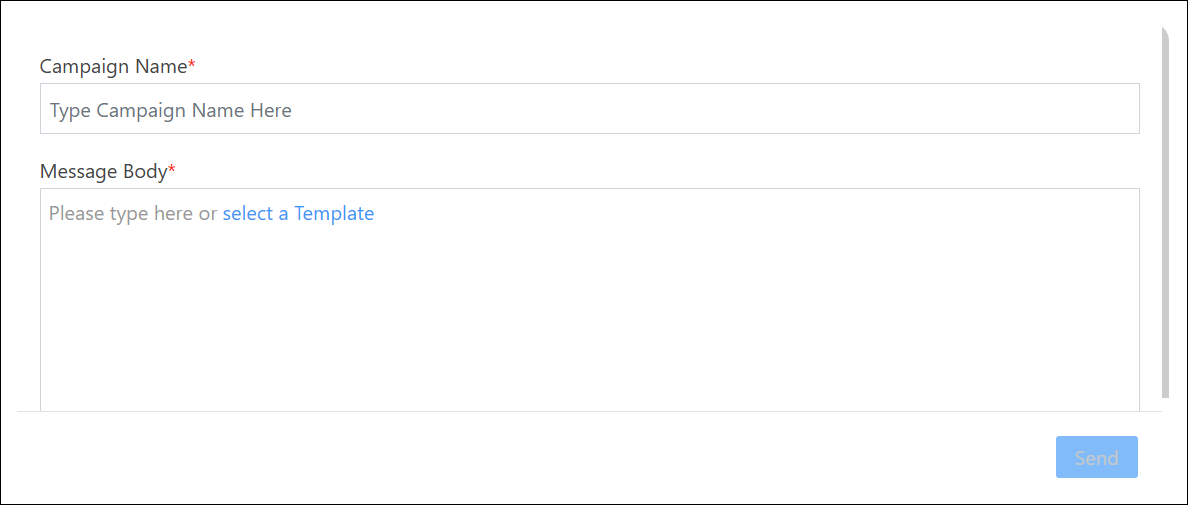
  • Map it to the field that contains the Agent phone number,  “@AssociatedPhoneNumberWithoutCountryCode”.
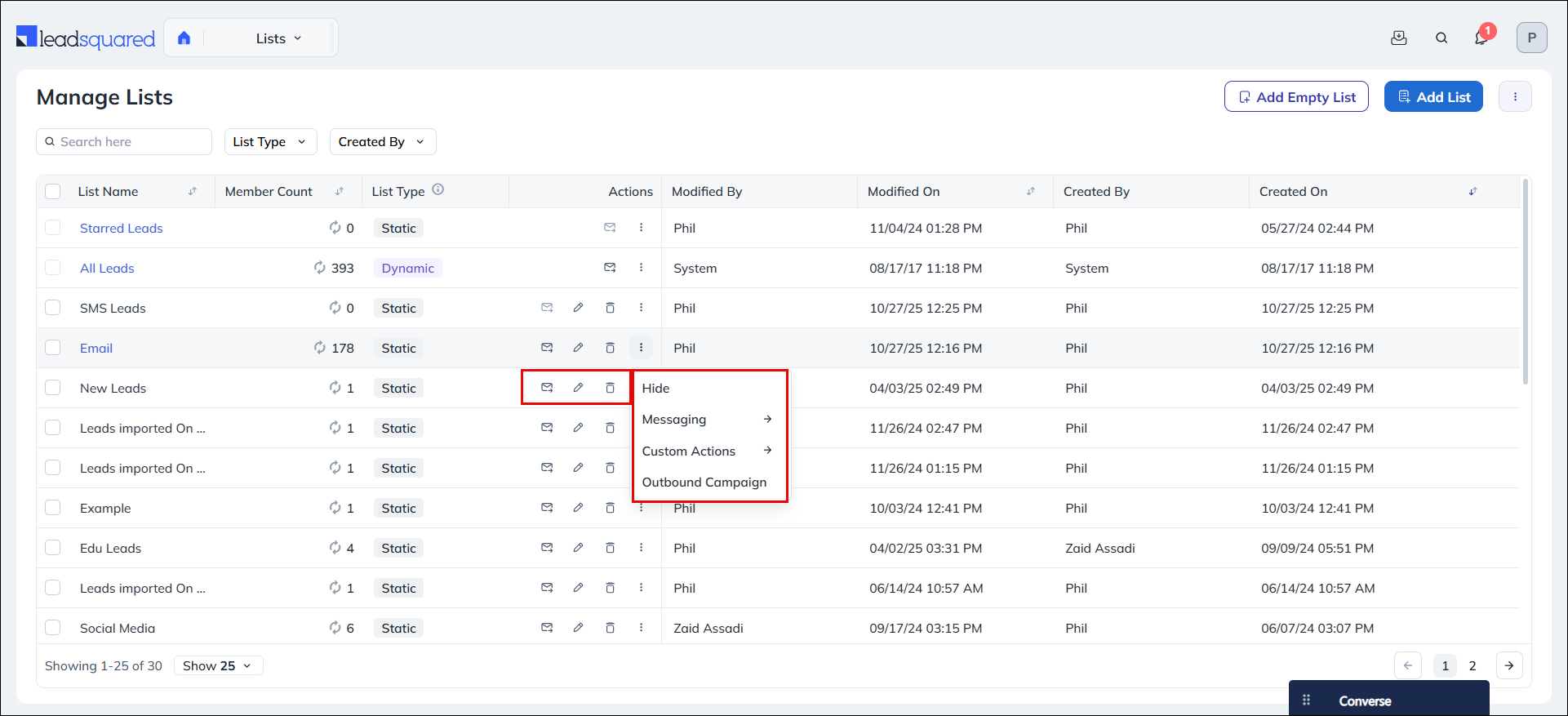
destination_number
  • Lead number to whom the call is dialed.
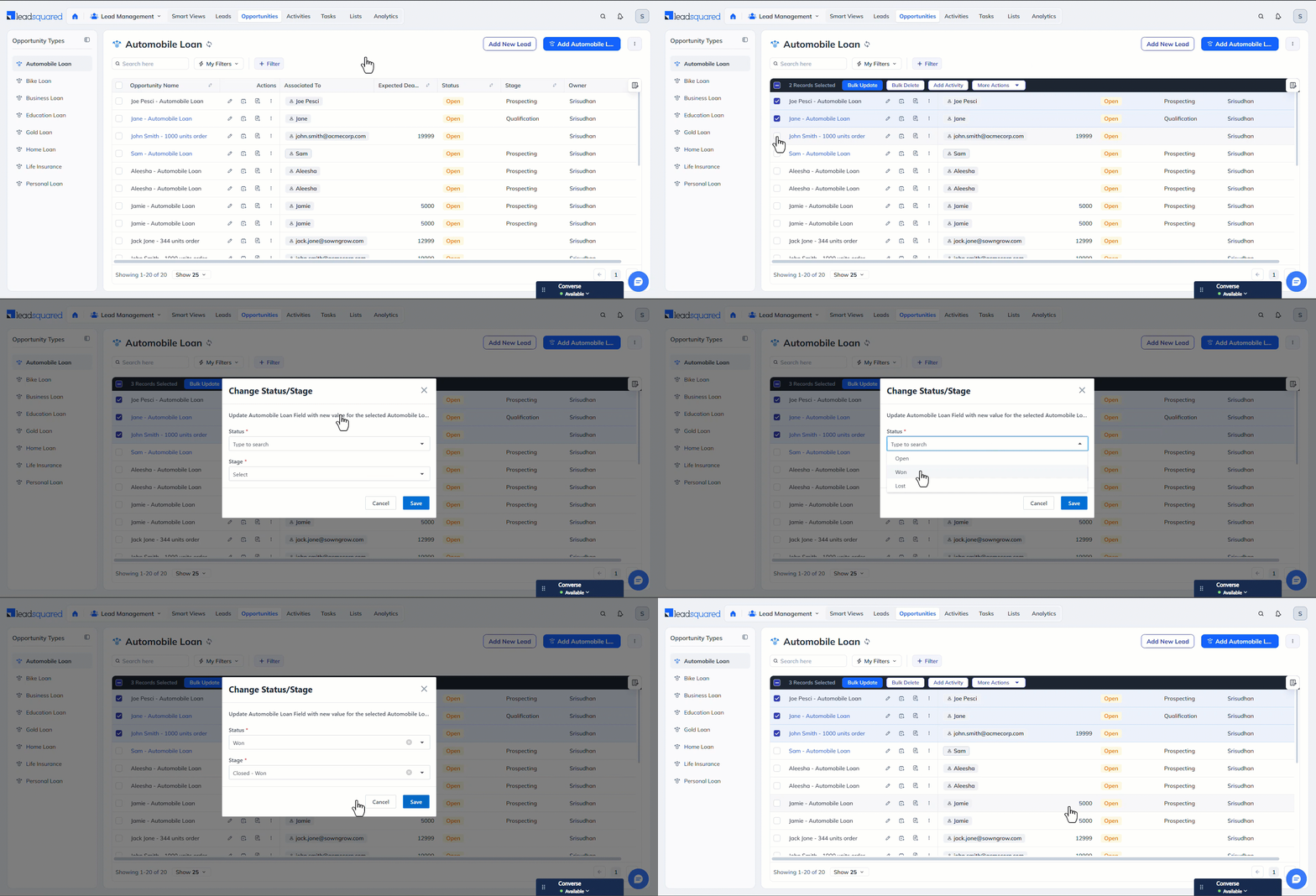
  • You can map this variable to “@CustomerNumberWithoutCountryCode”.
caller_id
  • Virtual Number or DID from Tata Teleservices.
  • In the example below, this variable is mapped to “@{User:mx_Custom_1}” – this custom field must be set to the applicable value for all users who are going to use mobile calling.

tata telesevices click2call api config

In the Headers, pass –

Key Value
Content-Type application/json

tata telesevices click2call api config headers

Response Mapping for Tata Teleservices Click2Call API  –

Key Value Mapping
success
true
Consider As Success

tata telesevices click2call response mapping

2) Incoming Agent Pop-up

Navigate to the Incoming Agent Pop-up screen to configure the Tata Teleservices Incoming Agent Pop-up API.

Method API
POST https://cloudphone.tatateleservices.com/api/v1/crm/dialer/Leadsquared/inbound/popup

In Body, pass the following payload –

Parameter Description
agent_number
  • Agent number to dial from.
  • Map it to the field that contains the Agent phone number,  “@AssociatedPhoneNumberWithoutCountryCode”.
caller_id
  • Virtual Number or DID from Tata Teleservices.
  • In the example below, this variable is mapped to “@{User:mx_Custom_1}

tata telesevices incoming agent popup api config

In the Headers, pass –

Key Value
Content-Type application/json
Authorization Pass the token, this is account-specific and should be unique for each customer’s Tata Teleservices account.

tata telesevices incoming agent popup api config headers

Response Mapping for Tata Teleservices Incoming Agent Pop-up API  –

Key Value Mapping
customerNumber
""
Consider As Data
MonitorUcid
""
Consider As CallSessionId
status
success
Consider As Success

tata telesevices incoming agent popup response mapping

3) List All DID Numbers

Navigate to the List All DID Numbers screen to configure the Tata Teleservices List All DID Numbers API.

Method API
GET https://cloudphone.tatateleservices.com/api/v1/crm/dialer/Leadsquared/fetch/did

In the Headers, pass –

Key Value
Authorization Pass the token, this is account-specific and should be unique for each customer’s Tata Teleservices account.

tata telesevices list all did numbers api config with headers

Response Mapping for Tata Teleservices List All DID Numbers API  –

Key Value Mapping
did_list
""
Consider As Data
status
success
Consider As Success

tata telesevices list all did numbers response mapping


Any Questions?

If you have a question this article did not answer, please let us know in the comments section below. We’ll be happy to improve the content and help you with any doubts.