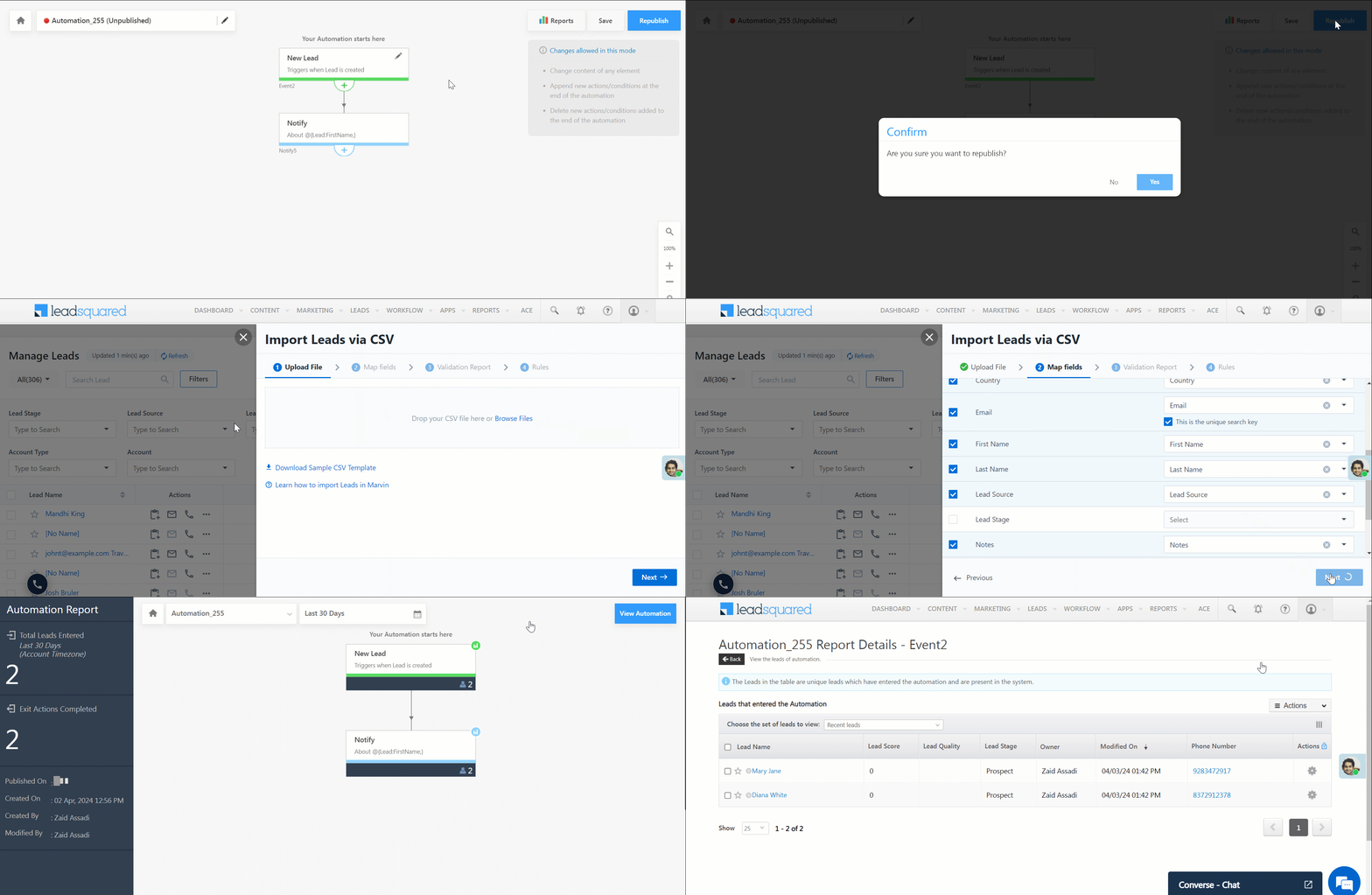
Lead Automation Conditions – Wait Until Activity

The ‘Wait Until Activity’ condition lets you wait until activities are performed before taking an action. You can choose to wait until a single activity occurs or you can set and/or conditions to include multiple activities.

Wait until activity


Business Use Cases

To illustrate this feature, imagine you have 2 teams – sales and legal. You want to set up an automation such that when a sales member meets a lead and posts a custom activity (Meeting) you want to create a task for the legal team. Let’s assume that the legal team’s task is dynamic and it could take anywhere between 1 to 5 days. In this case, rather than using the regular Wait Condition (which defines a fixed period), you can set up a ‘Wait Until Activity’ condition so you can take action (say send an email to the lead) only once the legal team completes their task and posts an activity (E.g., Contract Created).


Setting up the Condition

  1. Access an existing automation or create a new one by navigating to Marketing>Automation.
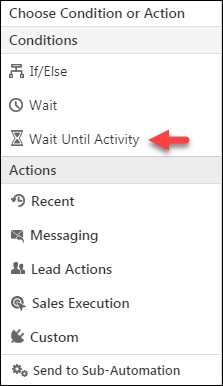
  2. Select the Wait Until Activity under Automation Conditions.
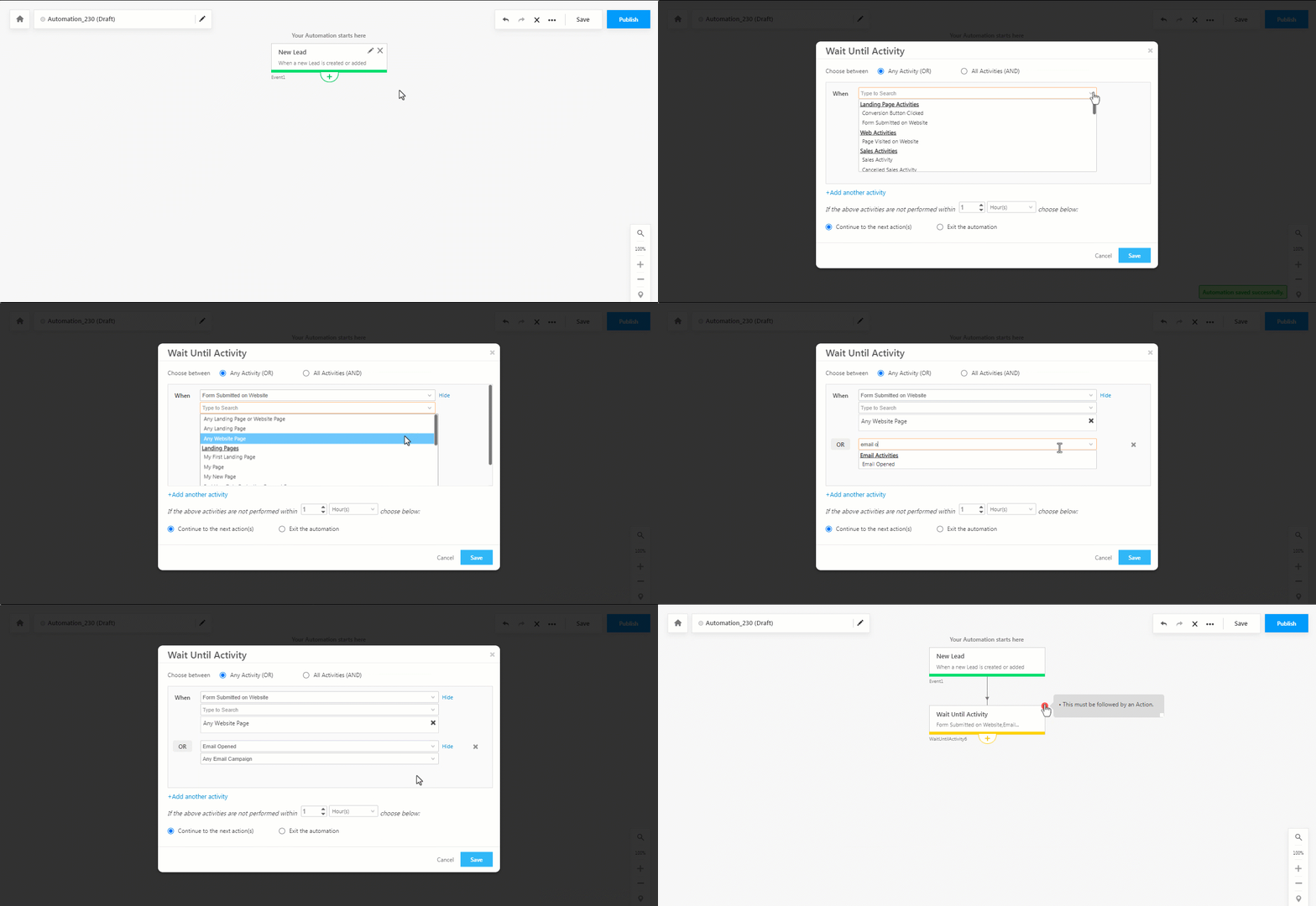
  3. Choose between Any Activity (OR) or All Activities (AND).
  4. Under the When drop-down fields, select the activity you want to set up. Click the Add Another Activity link to add multiple activities. In the example below, we’ve set up ‘Form Submitted on Website’ or ‘Email Open’.
  5. Select if you want to continue the next action in the automation or exit the automation if the activities aren’t performed within a certain amount of time (customizable in minutes, hours, days, weeks, months, or years).
  6. Once you’re done, click Save. Then, add an action to the condition.

Wait until activity

Note: The ‘Wait Until Activity’ automation card must be followed by an action.

Manage Subscriptions – Feature Guide

1. Feature Overview

The Manage Subscriptions UI allows you to efficiently view and manage all aspects of your LeadSquared subscription. Access detailed information about your current active plan, including licenses, utilization, and any add-ons associated with your subscription. Additionally, you can review and pay invoices related to your LeadSquared licenses, ensuring your account remains up-to-date. The UI also provides a convenient way to directly purchase add-on licenses along with your subscription. Furthermore, you can view your company’s profile and billing details, as well as LeadSquared’s registration and banking information, all in one place.

Note:


2. Prerequisites

Manage Subscriptions must be enabled on your account. Reach out to support@leadsquared.com.

Note: Manage Subscriptions option will not be visible in the user account menu for non-billing users.


3. Home Page

3.1 Plan Details

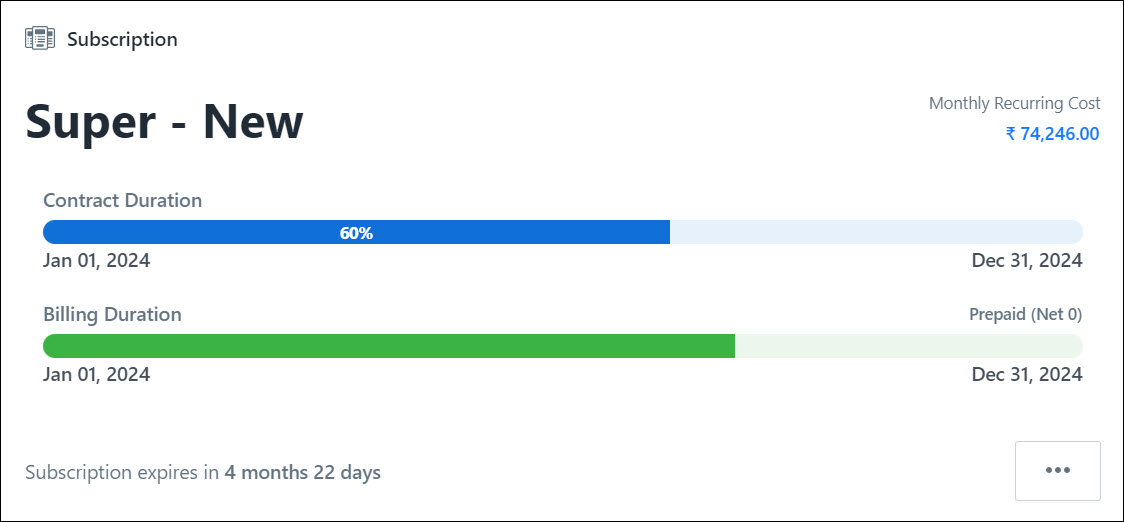
The Subscription card on the homepage provides an overview of your plan. It displays the name of your current plan along with visual representations of both the contract duration and billing duration.

The Contract Duration bar represents the start date, end date, and total duration of your LeadSquared contract. The duration of the subscription is represented in percentage. By hovering over the percentage displayed on the bar, you can see how many days of the subscription have passed.

The Billing Duration bar represents the billing period for your LeadSquared subscription. The bar displays the billing start date, billing end date and total billing duration of the plan. Payments can be made on a monthly, quarterly, half-yearly or yearly basis. Hover over the green bar to view the current billing period. The bar’s progression increases as billing cycle invoices are raised for each billing period.
For example, in the screenshot below the progress bar is green till the end of August 2024, as the billing cycle invoices are raised till that date.
Leadsquared - Subscription Management

3.2 Subscription History

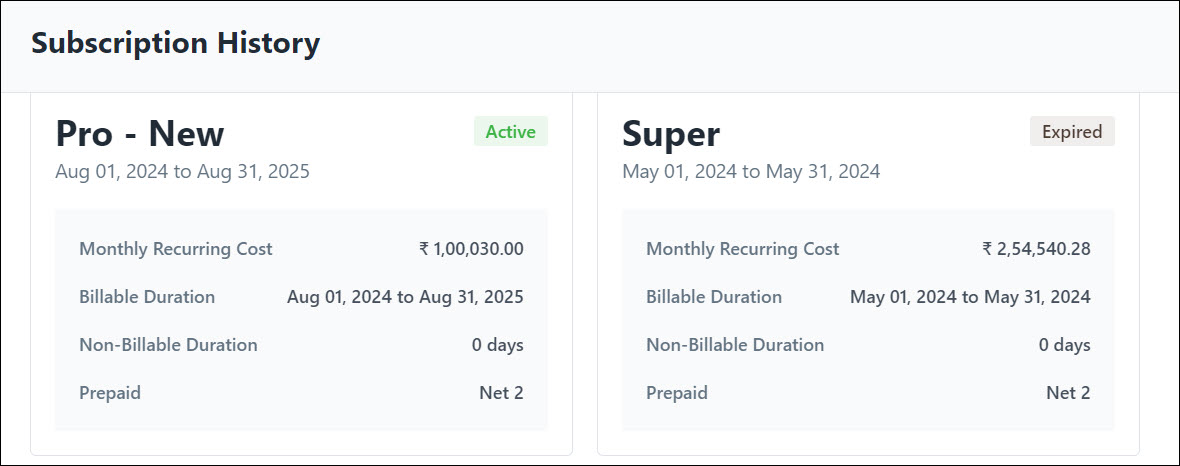
Click Leadsquared - Subscription Managementand navigate to Show History on the Subscription card to view the Subscription History popup. Here, you can view your past and current subscriptions with their details including the plan name, contract duration, billable duration, and payment mode with the statuses of the subscribed plans –

  • Active – current plan of your LeadSquared subscription
  • Expired – previous plan of your LeadSquared subscription
Leadsquared - Subscription Management

3.3 Monthly Subscription

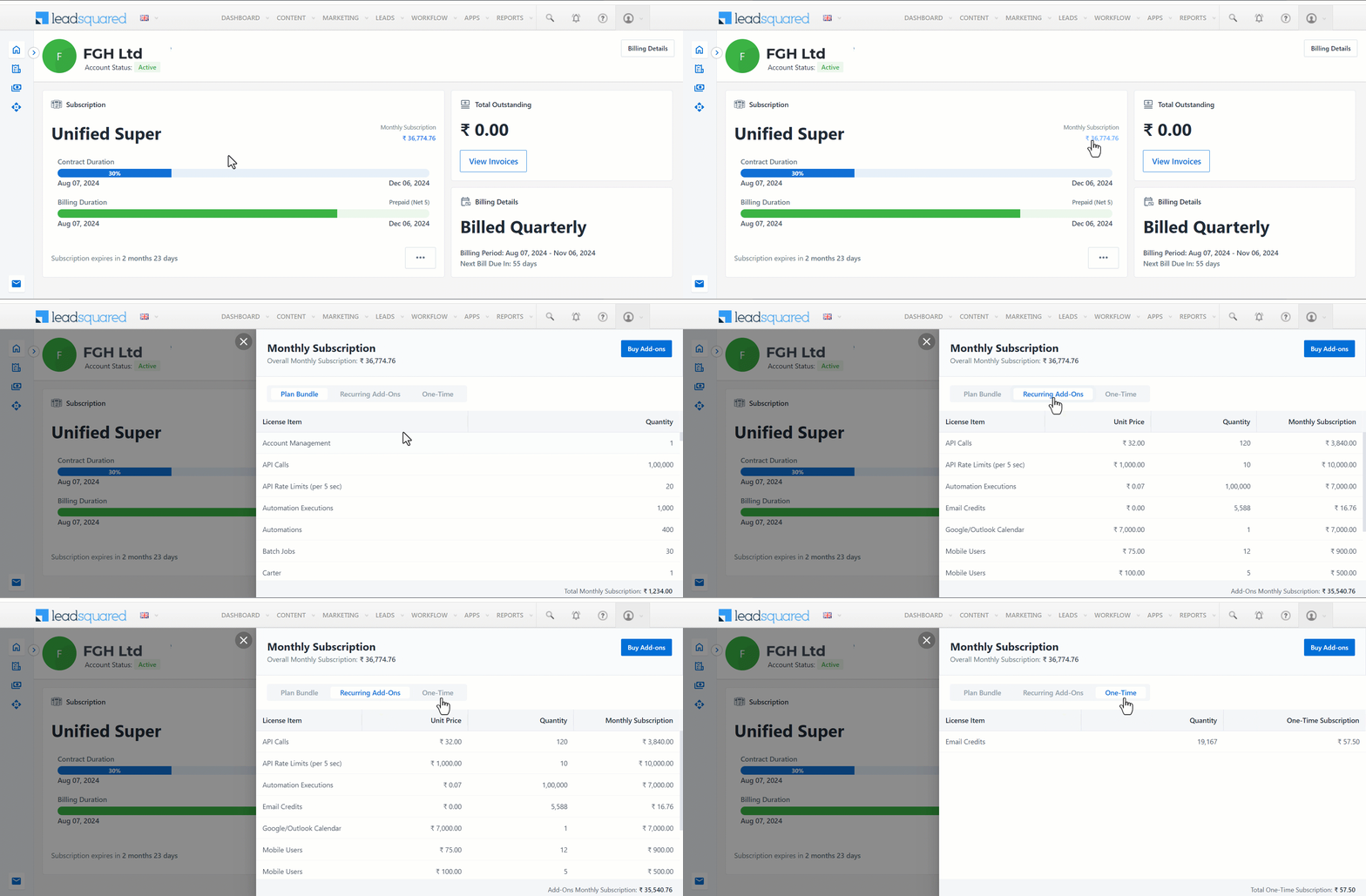
Click on the amount shown under Monthly Subscription on the Manage Subscriptions homepage to see a detailed breakdown of your subscription which includes your plan and add-on (recurring and one-time) details.
Leadsquared - Manage Subscription

Plan Bundle is the default set of licenses procured, that consists of base and contractual adjustments.

Leadsquared - Subscription Management

Recurring Add-ons are additional licenses purchased apart from the ones included in your plan bundle. They come with a monthly value based on the number of units purchased.
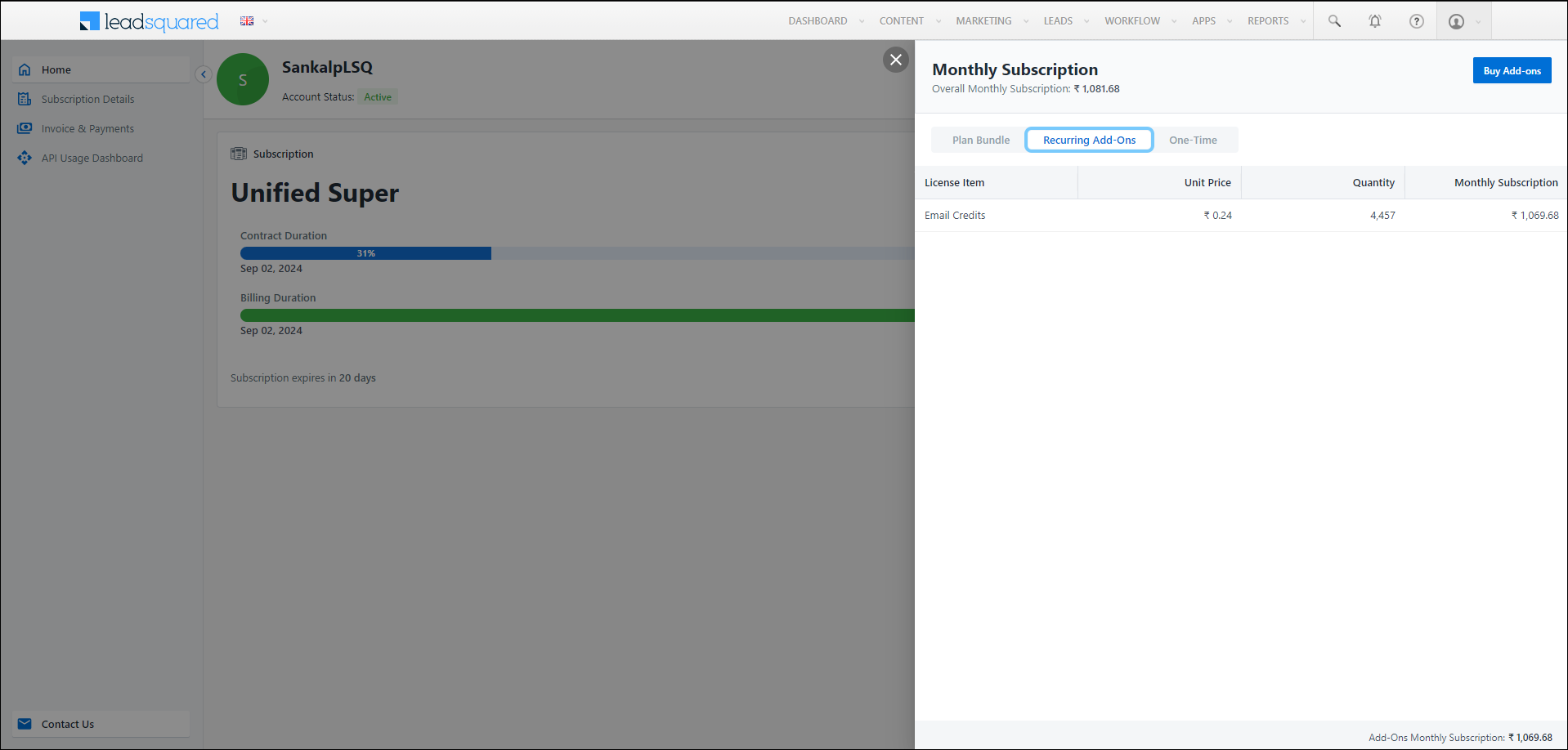
Leadsquared - Subscription Management

One-Time Add-ons are additional licenses purchased separately from the plan bundle and are charged only once.
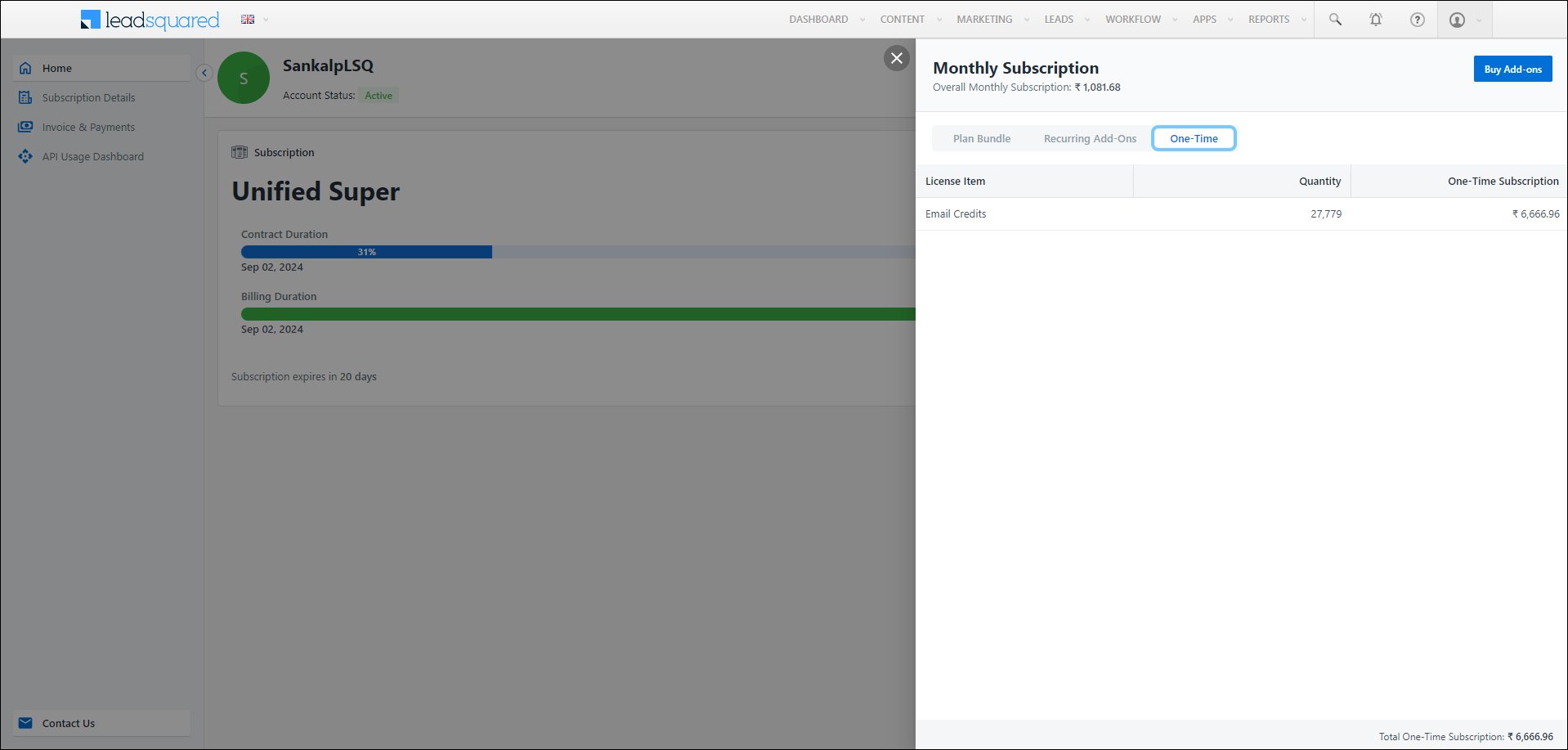
Leadsquared - Subscription Management

Note:

  • Even if your billing frequency is quarterly or half-yearly or yearly, the payment amount is automatically divided and calculated as a monthly subscription by default.
  • You can buy add-on licenses in addition to the licenses available by default with their plan by clicking on Buy Add-ons.


3.4 Total Outstanding

The Total Outstanding card on the homepage shows the total amount that must be paid. This includes both due and overdue invoices. Click Review & Pay to see a detailed list of all your invoices on the Invoice & Payments page. Here, your pending invoices will be selected by default to proceed with the payment.

Leadsquared - Manage Subscriptions

3.5 Billing Frequency

The Billing Details card displays your billing frequency, billing period and next bill due date.
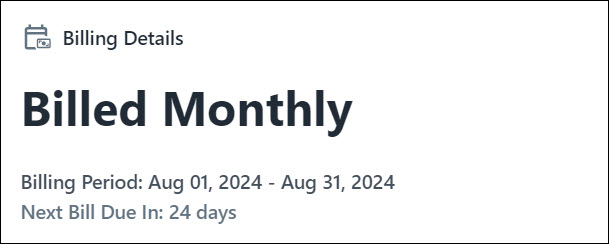
Leadsquared - Subscription Management

Your billing frequency could be –

Monthly Payment must be made every month
Quarterly Payment must be made every 3 months
Half-Yearly Payment must be made every 6 months
Yearly Payment must be made every 12 months


3.6 Billing Details

The Billing Details button on the top right of your Manage Subscription homepage opens a popup with –

  • Customer Information – Your company details based on your country (refer table below). Here you can add email IDs of upto 20 Billing Recipients and Billing Escalation Recipients to notify the users about invoice release and updates. All the other details are non-editable. To edit these details, reach out your account owner or billing.ops@leadsquared.com.
  • About LeadSquared – LeadSquared company details including the Legal Entity Name, address, registration details and bank details.
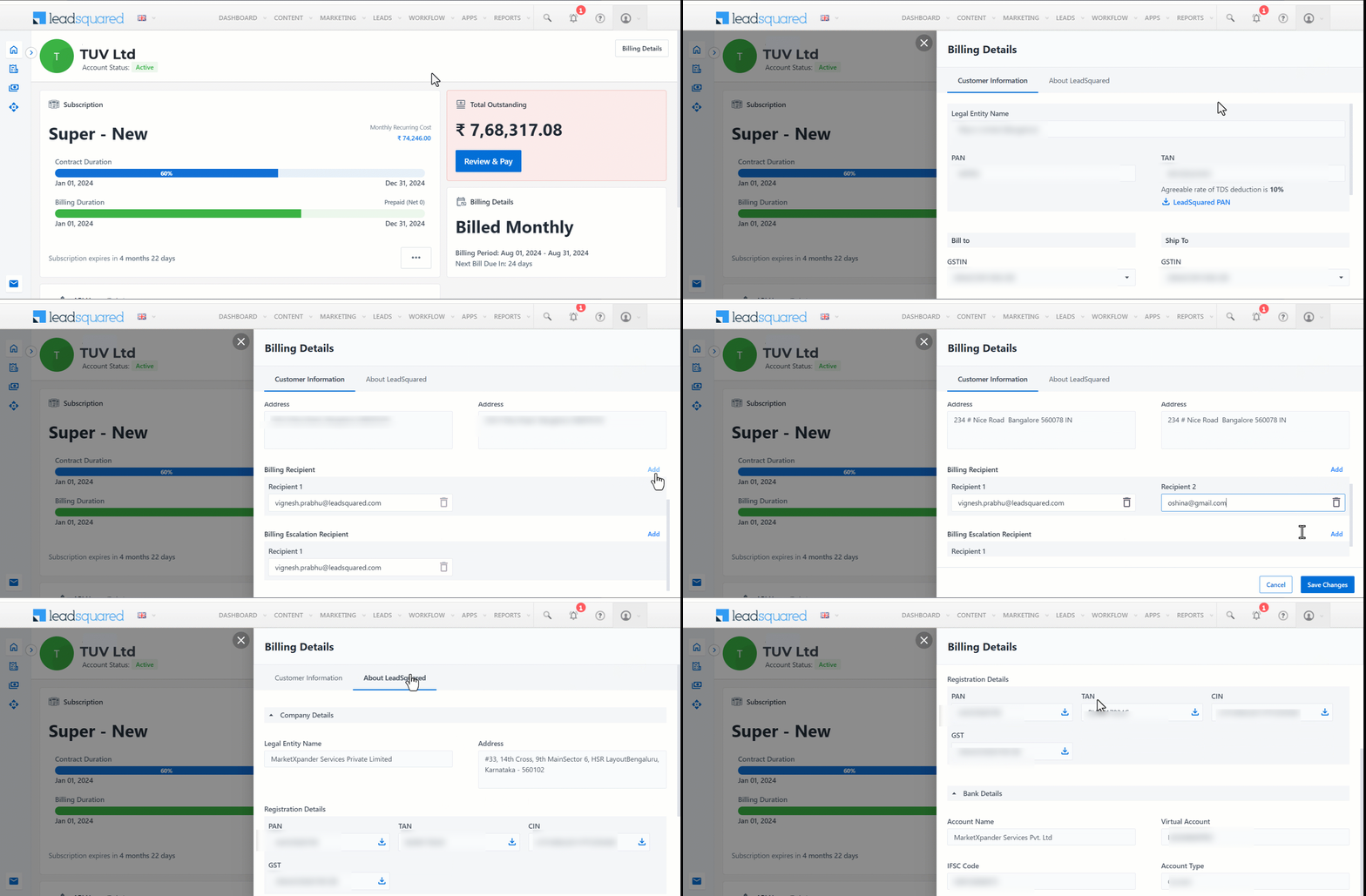
Leadsquared - Manage Subscription

The following table displays the Customer Information displayed based on different geographical settings –

Country / Legal Entity Registration Details Bank Details
India
  • PAN
  • TAN
  • CIN
  • Payee Name
  • Bank Name
  • Virtual Account Number
  • Bank Code
  • Branch
US
  • EIN
  • Sales Tax Registration
  • TRC
  • Payee Name
  • Bank Name
  • Account Number
  • SWIFT Code
  • Branch
  • Fed ABA Number
  • CHIPS ABA Number
  • ACH Routing Number
Australia
  • ABN
  • GST
  • Payee Name
  • Bank Name
  • Account Number
  • SWIFT Code
  • Branch
Singapore
  • UEN
  • GST
  • Payee Name
  • Bank Name
  • Account Number
  • SWIFT Code
  • Branch
Africa
  • Registration Number
  • VAT
  • Payee Name
  • Bank Name
  • Account Number
  • SWIFT Code
  • Branch


4. Subscription Details Page

The Subscription Details page offers an overview of all the licenses purchased and their limits. Here, you can make additional license purchases by clicking Buy Add-ons. You can also toggle between License Usage and Metered Usage, and search for a particular license using the search tab.

4.1 License Usage

The License Usage page under Subscription Details displays the usage of all the licenses in your account. Here, you can view license details including –

License Name Name of the license
Maximum Limit Total limit available for the customer to use
Utilization Total limit used by the customer in percentage
Remaining Limit Limits available for consumption after current usage

Hover over the number displayed under maximum limit of a particular license to see the breakdown of the license allocated within your plan which includes the base limit, contractual adjustments, purchased as recurring add-ons or one-time add-ons. A pop-up displays the Limit Bifurcation of each license.

Leadsquared - Manage Subscriptions

4.2 Metered Usage

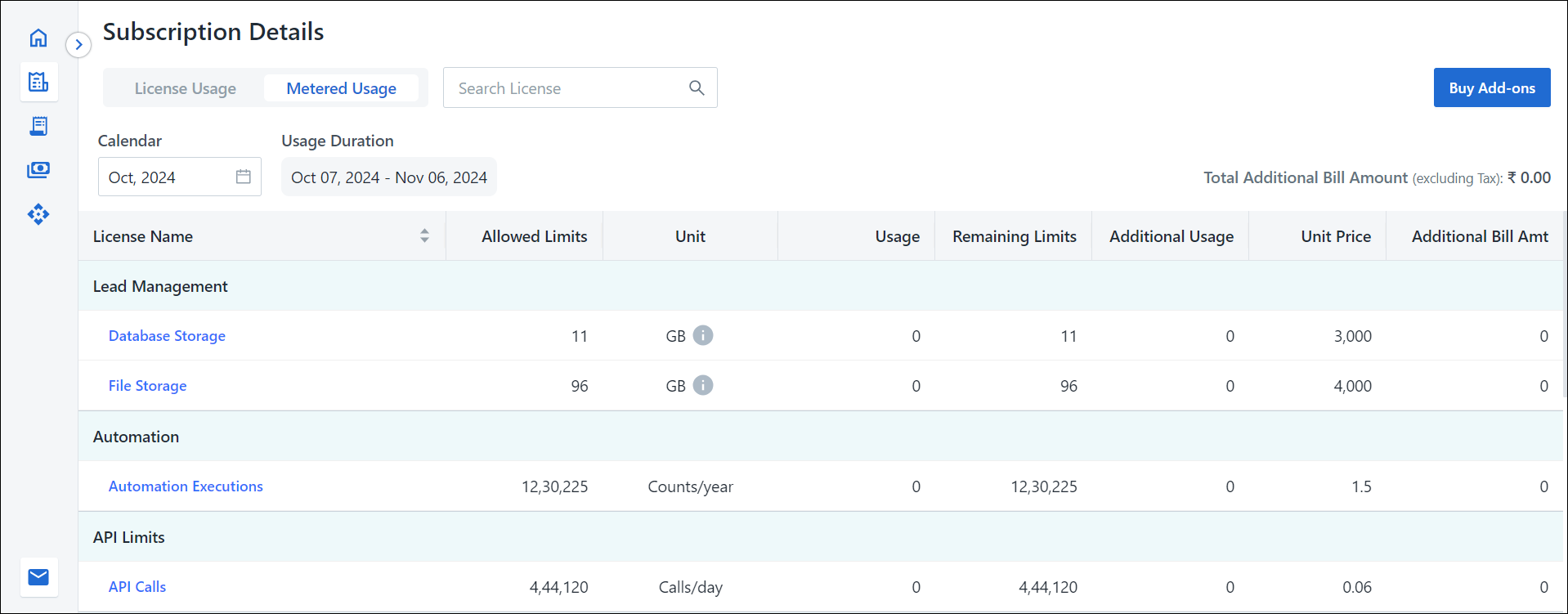
The Metered Usage page displays the usage of all licenses that are metered in nature. This includes licenses that can be consumed in specific transactions like API calls/messages/emails/conversations/automation executions, etc. You can monitor the usage at any point of time. On this page, you can view license details including –

License Name Name of the license
Allowed Limits Daily/Monthly/Yearly limit as defined in the plan
Unit The basis on which the license is measured (e.g., Calls, Counts)
Usage Actual usage of the units as of the previous day
Remaining Limits Limits remaining after usage
Additional Usage Usage exceeding the limit (Usage – Limit = Additional Usage)
Rate Charge for additional consumption (per unit)
Additional Bill Amount Calculated based on the additional usage and rate which is prorated as per the end date of the current billing cycle

(Additional Usage x Rate)

Note: Each license has a set limit. If you go over that limit, you can continue using the feature up till 125%, but you’ll be billed for additional usage at the applicable rate. On crossing the 125% limit, the service will stop, and you won’t be able to use it until you purchase additional limits. Monitor your usage and buy more add-ons to avoid service interruption.
License Name Limit
API Calls Daily Limit
Executions Yearly Limit
Email Monthly Limit
Landing Page Submissions Monthly Limit
Widgets Submissions Monthly Limit
Conversations Monthly Limit
Email Parser Monthly Limit
Storage – Active Data For Entire Plan Duration
File Storage For Entire Plan Duration

Leadsquared - Subscription Management

You can see the Metered Usage of a particular month by clicking the box under Calendar and selecting the relevant month from the pop-up.

Leadsquared - Manage Subscriptions

4.3 Monitoring Metered Usage

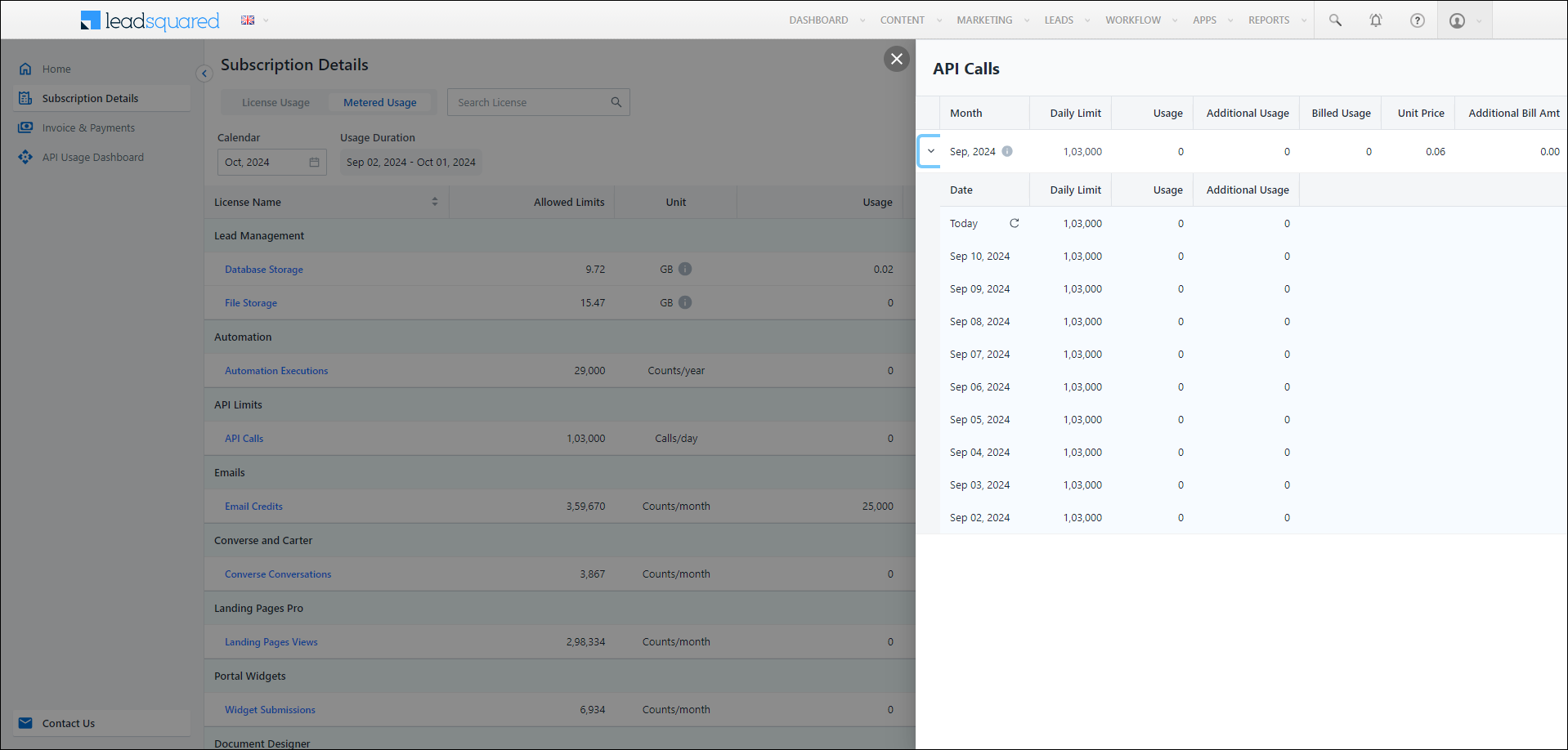
While using licenses that are metered in nature, there is a possibility that you exceed your limits. To drill down to a monthly/daily view of your metered usage –

  1. Click the relevant license on the Metered Usage page.
  2. A pop-up displays the details about the usage of the license including the usage of the month, the allocated limit, the usage, the additional usage, billed usage, rate and additional bill amount.
  3. Click Leadsquared - Manage Subscriptions alongside the month column to view a day-wise breakdown of the usage.
Leadsquared - Subscription Management

4.3 Refresh Metered Usage

On the Subscription Details page, get the latest usage of your metered license by hovering over the Usage number alongside the relevant license. Click Leadsquared - Manage Subscriptionsto refresh. This will display the most recent usage count.

Leadsquared - Manage Subscriptions


5. Invoices & Payments Page

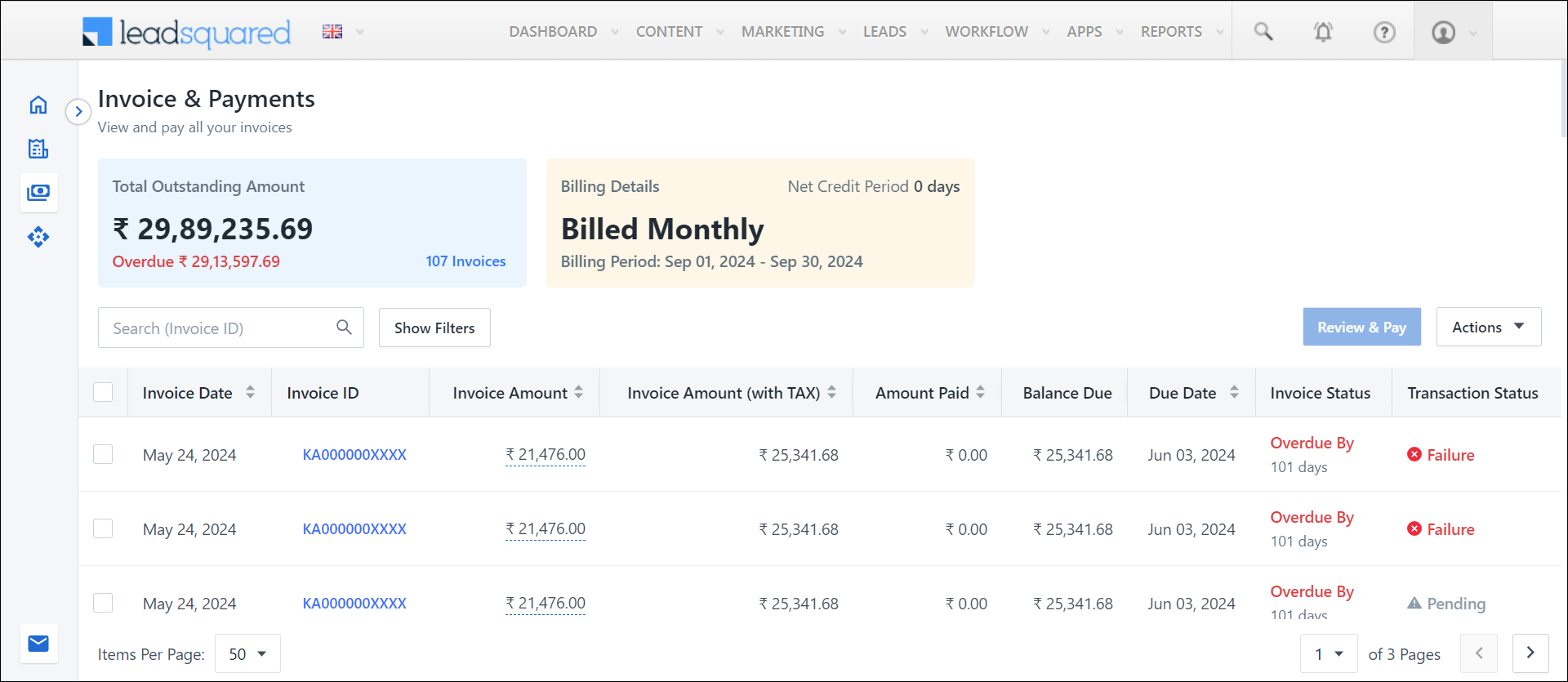
On the Invoice & Payments page, you can view, download and pay all your LeadSquared subscription invoices.
Leadsquared - Subscription Management

The page displays details of invoices including –

Invoice Date The date on which the invoice was raised
Invoice ID Tax Invoice Number
Invoice Amount The invoice amount
Invoice Amount (with TAX) The total amount including taxes
Amount Paid The amount that has been paid by the customer
Balance Due The remaining amount to be paid if any partial payment has been made previously

(Invoice Amount (including taxes) – Partial Payment = Balance Due)

Due Date The date by when the invoice must be paid
Invoice Status If your invoice is issued on August 1, 2024, and the payment is due by August 15, 2024 –

  • From August 1 to August 14, 2024, the invoice is due. On August 2, it’s due in 13 days, on August 3, it’s due in 12 days and so on.
  • On August 15, 2024, the invoice is Due. This is the last day to make the payment on time.
  • After August 15, 2024, if the payment hasn’t been made, the invoice becomes Overdue.
  • All your overdue and due invoices are considered to be Outstanding.
  • If the invoice is paid and reconciled successfully any time, it’s marked Paid.
  • If the invoice is paid, but reconciliation is pending, it’s marked Paid-Clearing Pending. This usually occurs when partial payments are made through bank transfer.
Transaction Status The status of the transaction as shown on the payment gateway:

  • Success
  • Failure
  • Processing
  • Pending (Payment not initiated yet)
Note: If your transaction status says Paid-Clearing Pending, reach out to billing.ops@leadsquared.com.

5.1 Search & Filter Invoices

To search for a particular invoice based on the Invoice ID –

  1. Click Search.
  2. Enter the relevant Tax Invoice Number and click LeadSquared - Search leads icon.

To Filter and view relevant invoices –

  1. Click Show Filters.
  2. You can filter invoices based on the Invoice Date, Invoice Status and Transaction Status. Select the relevant filter from the dropdowns.

Leadsquared - Subscription Management

5.2 Pay Outstanding Invoices

The outstanding LeadSquared subscription invoices can be paid by selecting either single or multiple invoices.

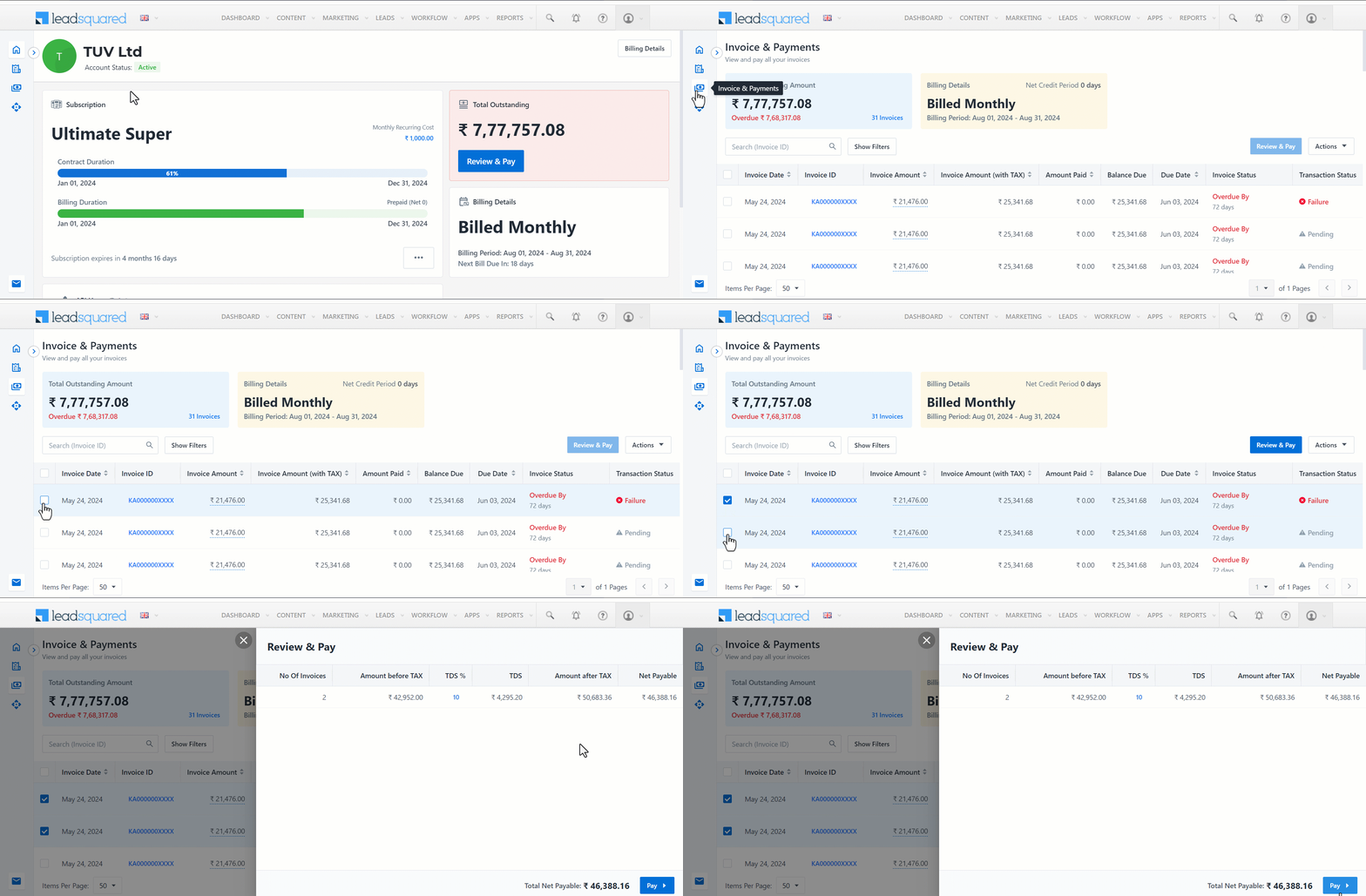
To pay a single or selected number of invoices –

  1. Navigate to Manage Subscriptions>Invoice & Payments.
  2. Click the check box alongside the relevant invoice or invoices.
  3. Click Review & Pay. The popup displays the breakdown of your subscription –
  • India – number of invoices you are paying for, amount before tax, TDS percentage, TDS amount, amount after tax and the Net Payable amount.
  • The US and other countries – number of invoices you are paying for, amount before tax, amount after tax and the Net Payable amount.

Click Pay on the bottom of the screen. You will be redirected to the payment gateway.
Leadsquared - Manage Subscriptions

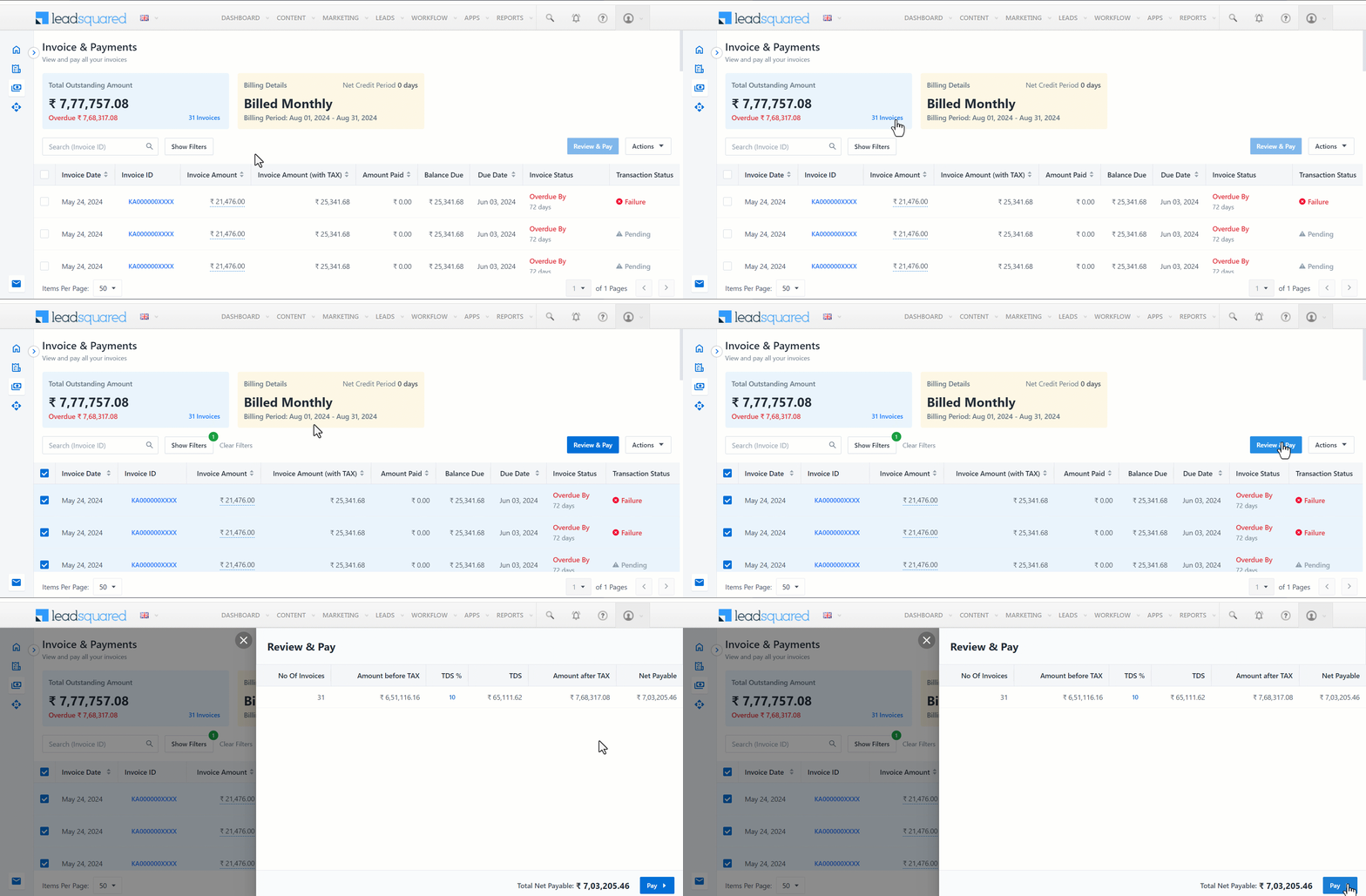
To pay all outstanding invoices –

  1. On the Invoices & Payments page, click the number of invoices on the Total Outstanding Amount card. All the unpaid invoices will be selected.
  2. Click Review & Pay. A popup displays the breakdown of your payment with details.
  3. Click Pay and you will be directed to the payment gateway.
Note: The maximum single payment limit on Razorpay is ₹1 lakh. For Stripe, the limit depends on your bank’s restrictions. If you try to make a payment exceeding these limits, you will encounter an error.
Leadsquared - Subscription Management

5.3 Download Invoices

You can download your LeadSquared subscription invoices in single or bulk from the Invoice & Payments page.

To download a single invoice –

  1. Navigate to Manage Subscriptions>Invoice & Payments.
  2. Click the Invoice ID of the relevant invoice. The invoice will be downloaded.
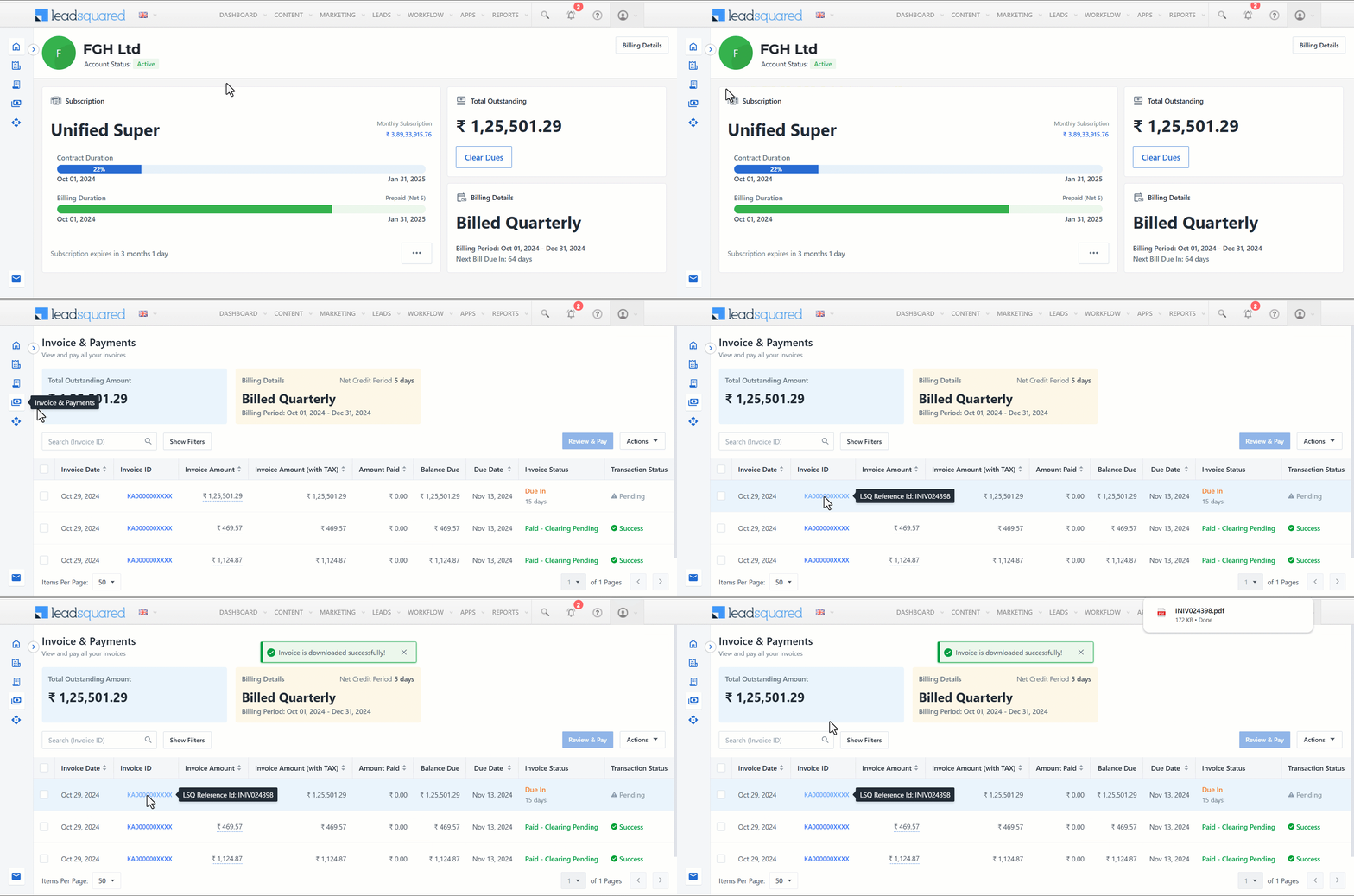
Leadsquared - Manage Subscription

To download multiple invoices –

  1. Click the check box alongside all the relevant invoices.
  2. Click Actions and select Download Invoice. All the selected invoices will be downloaded.
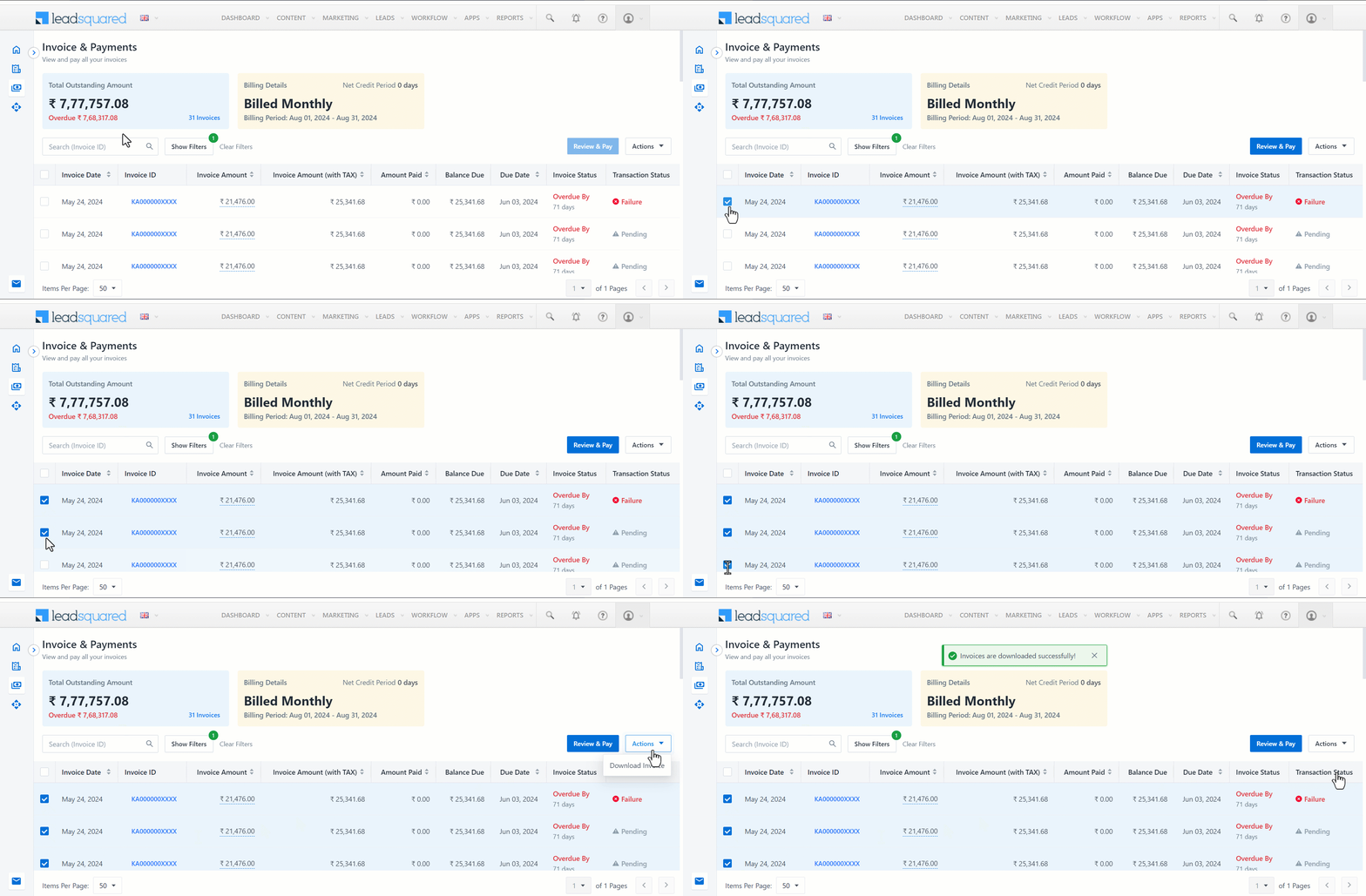
Leadsquared - Subscription Management

To download all your outstanding invoices –

  1. Click on the number of invoices mentioned in the Total Outstanding Amount card. All the outstanding invoices will be selected.
  2. Click Actions and select Download Invoice.
Note: A maximum of 20 invoices can be selected and downloaded in one go. If you attempt to download more than the limit, you will receive the following error message on top of your screen: “Max 20 invoices can be downloaded at once”.
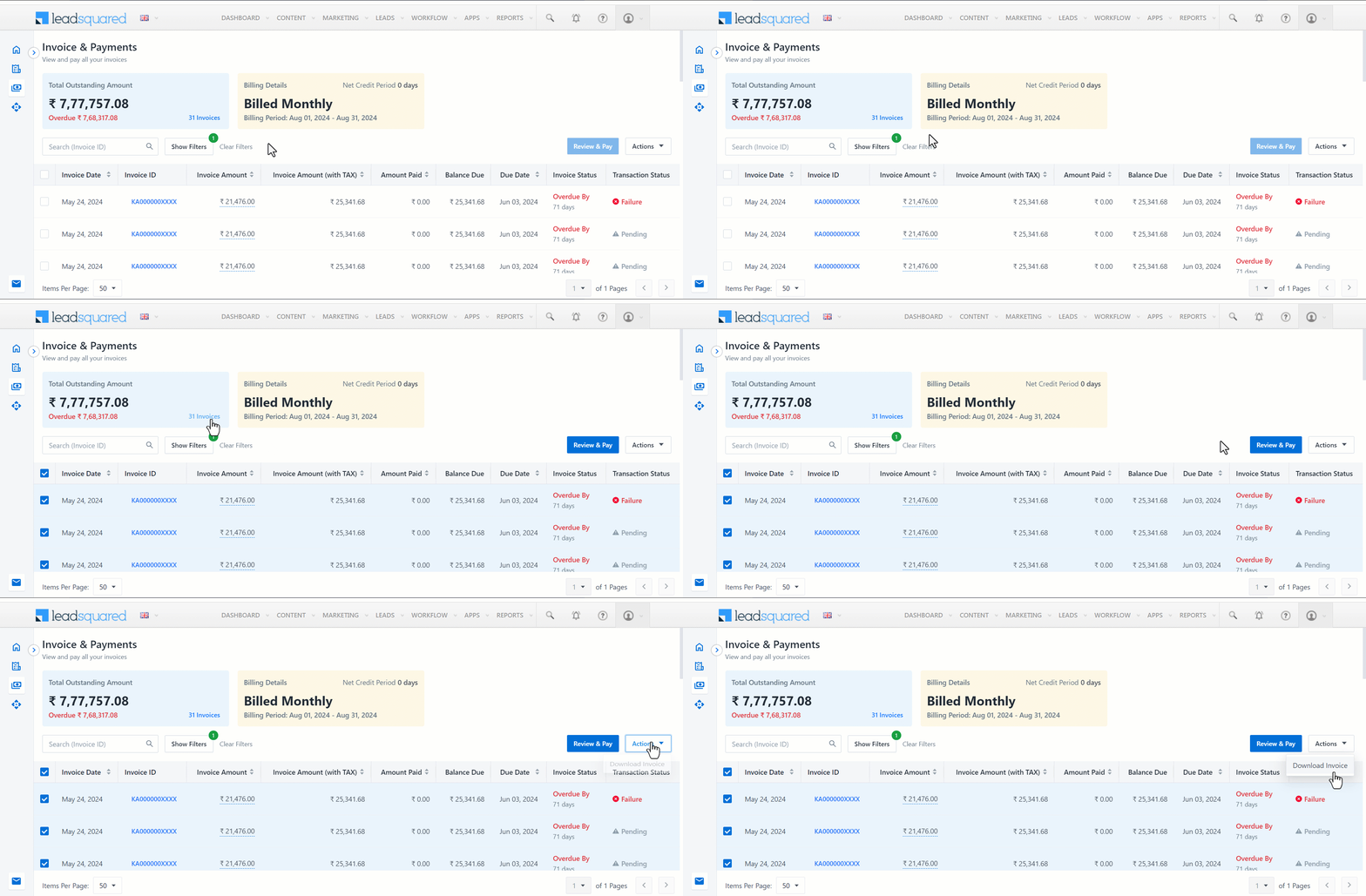
Leadsquared - Subscription Management

6. Buy Add-ons

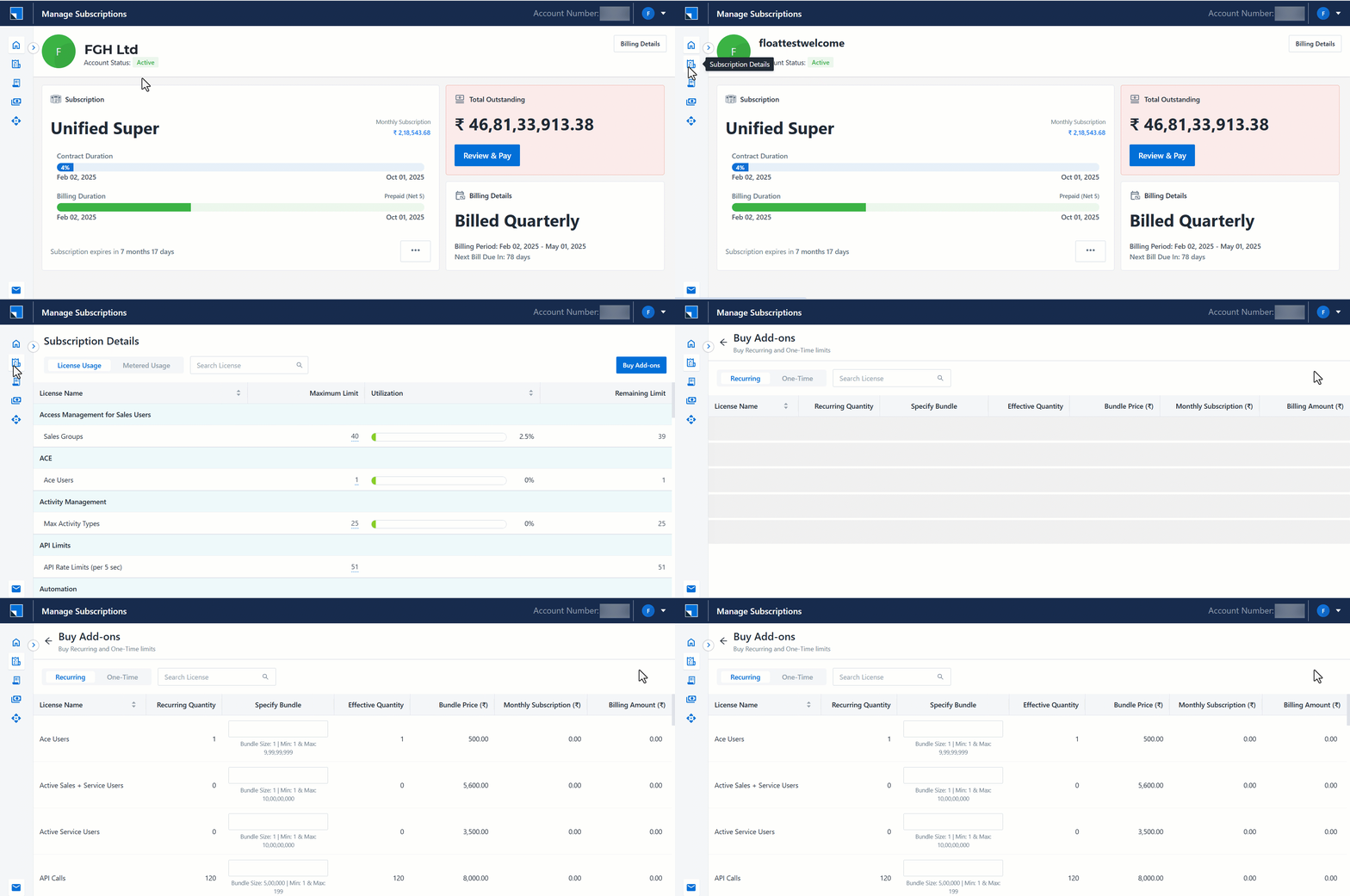
You can increase the limits of your recurring or one-time licenses using the Buy Add-ons page on the Manage Subscriptions UI.

You can access Buy Add-ons from the following pages –

  1. Navigate to the Subscription Details page on Manage Subscriptions UI.
  2. On the top right, click Buy Add-ons.

Leadsquared - Subscription Management

Alternatively, you can access the Buy Add-ons page –

  1. On your Manage Subscriptions homepage, click the amount displayed below the Monthly Subscription.
  2. On the Monthly Subscription popup, click Buy Add-ons. You will be redirected to the Manage Subscriptions page where you can purchase the add-ons.
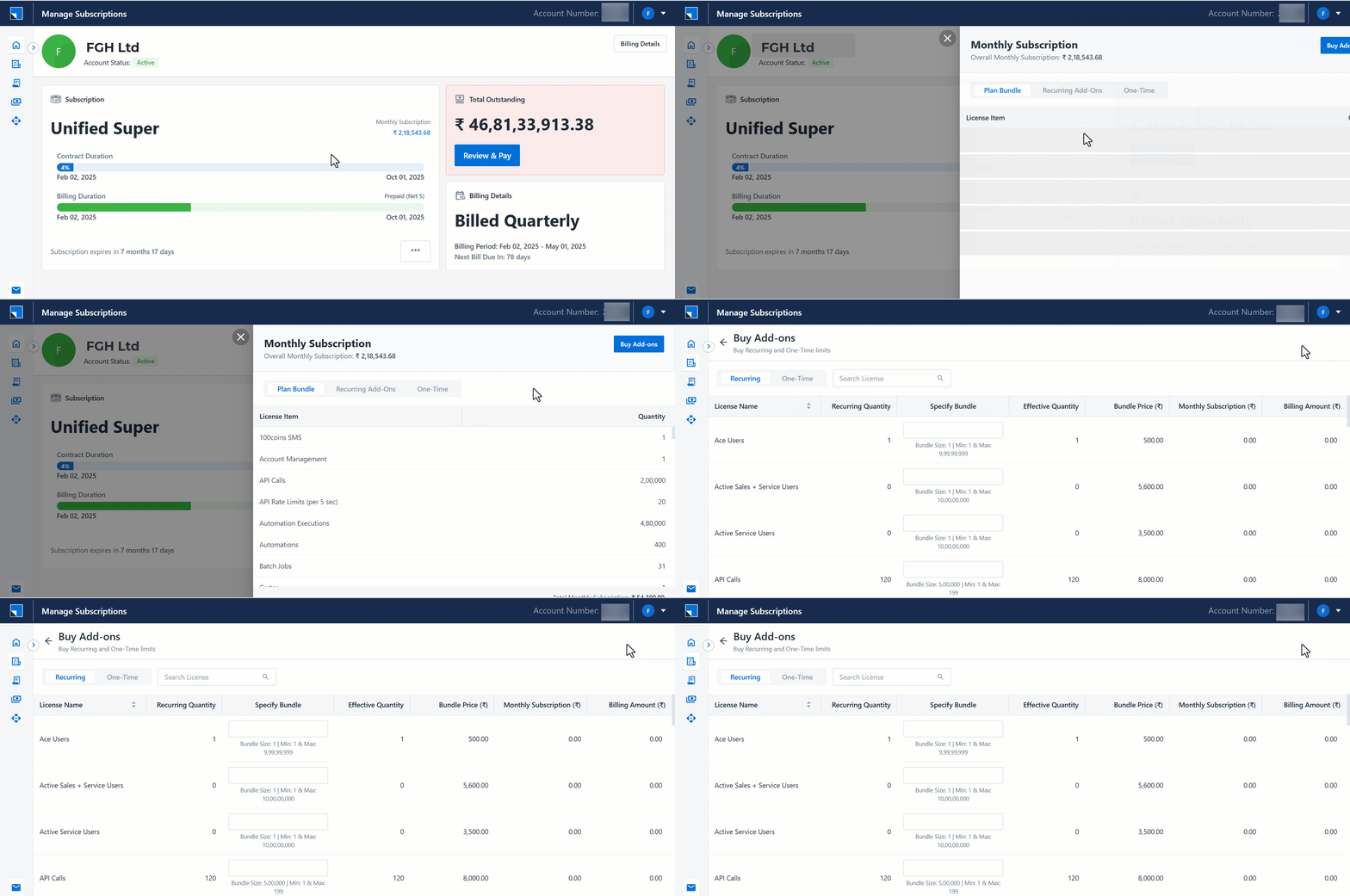
Leadsquared - Subscription Management

You can also access the Buy Add-ons page –

  1. Navigate to Purchase History page on Manage Subscriptions UI.
  2. On the top right, click Buy Add-ons.

Leadsquared - Subscription Management

6.1 Buy Recurring Add-ons

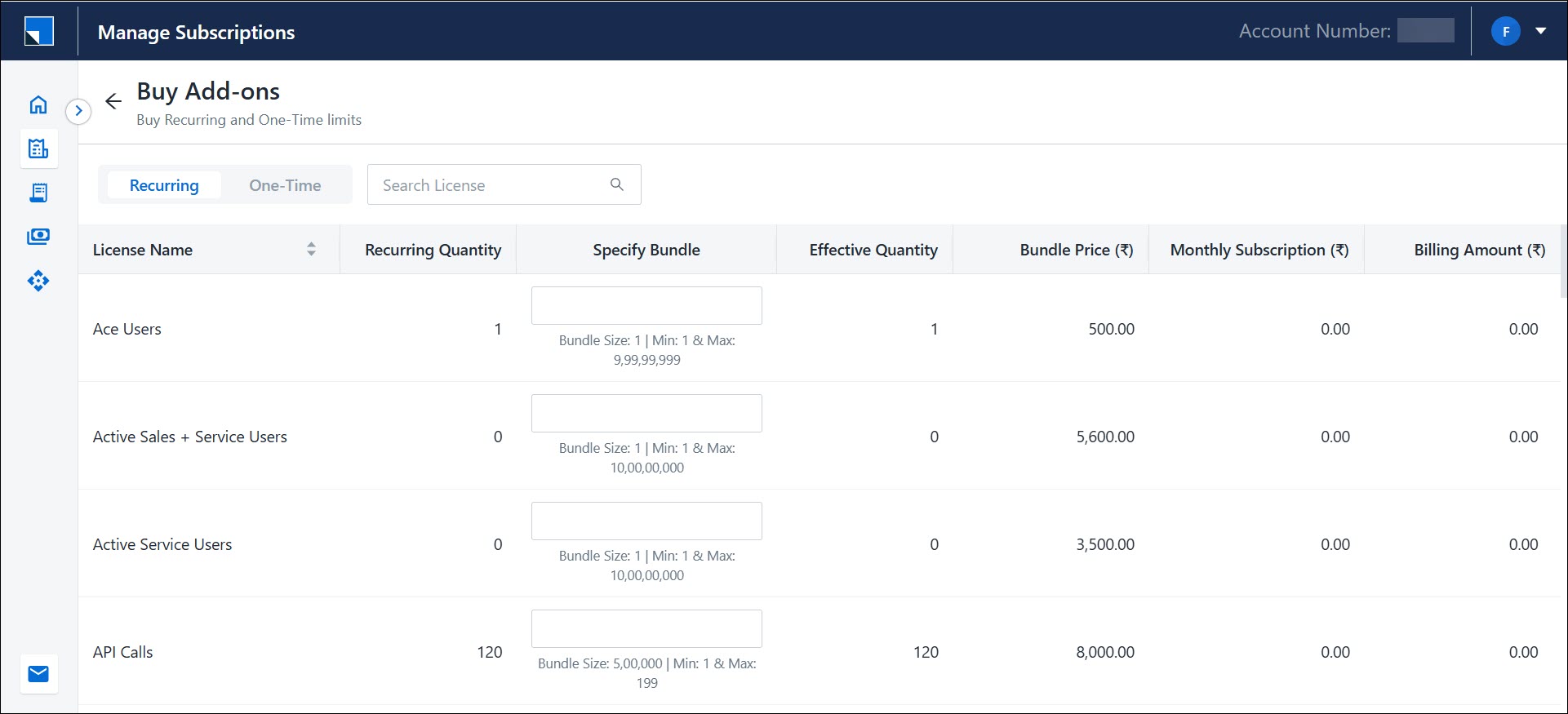
The Recurring add-ons page displays details including –

License Name Name of the license
Recurring Quantity The allocated license limit on monthly recurring basis
Specify Bundle Enter the quantity of bundles that you wish to purchase
Effective Quantity Total quantity after including add-ons
Bundle Price Price per bundle
Monthly Subscription The amount to be paid for the specified quantity for an entire billing month
Billing Amount Prorated amount calculated till the end of the billing cycle

Billing Amount = (Number of days remaining in the billing cycle / Total days in the billing cycle) x (Monthly Subscription x Number of months in the billing cycle)

For Instance, let’s take

  • Billing Cycle – 1st January – 31st March (90 days)
  • Date of Add-on Purchase – 1st March
  • Number of days remaining in the billing cycle – 31 Days
  • Monthly Subscription – 3,000/-
  • Total cost for the billing duration – 3,000 x 3 = 9,000/-
  • Billing Amount – (31 / 90) x 9,000 = 3,100/-
Note: In the Specify Quantity column, the number alongside Bundle Size denotes the number of units per bundle. The numbers alongside Min and Max denote the minimum number of bundles and maximum number of bundles that can be purchased, respectively.
Leadsquared - Subscription Management

6.2 Buy One-Time Add-ons

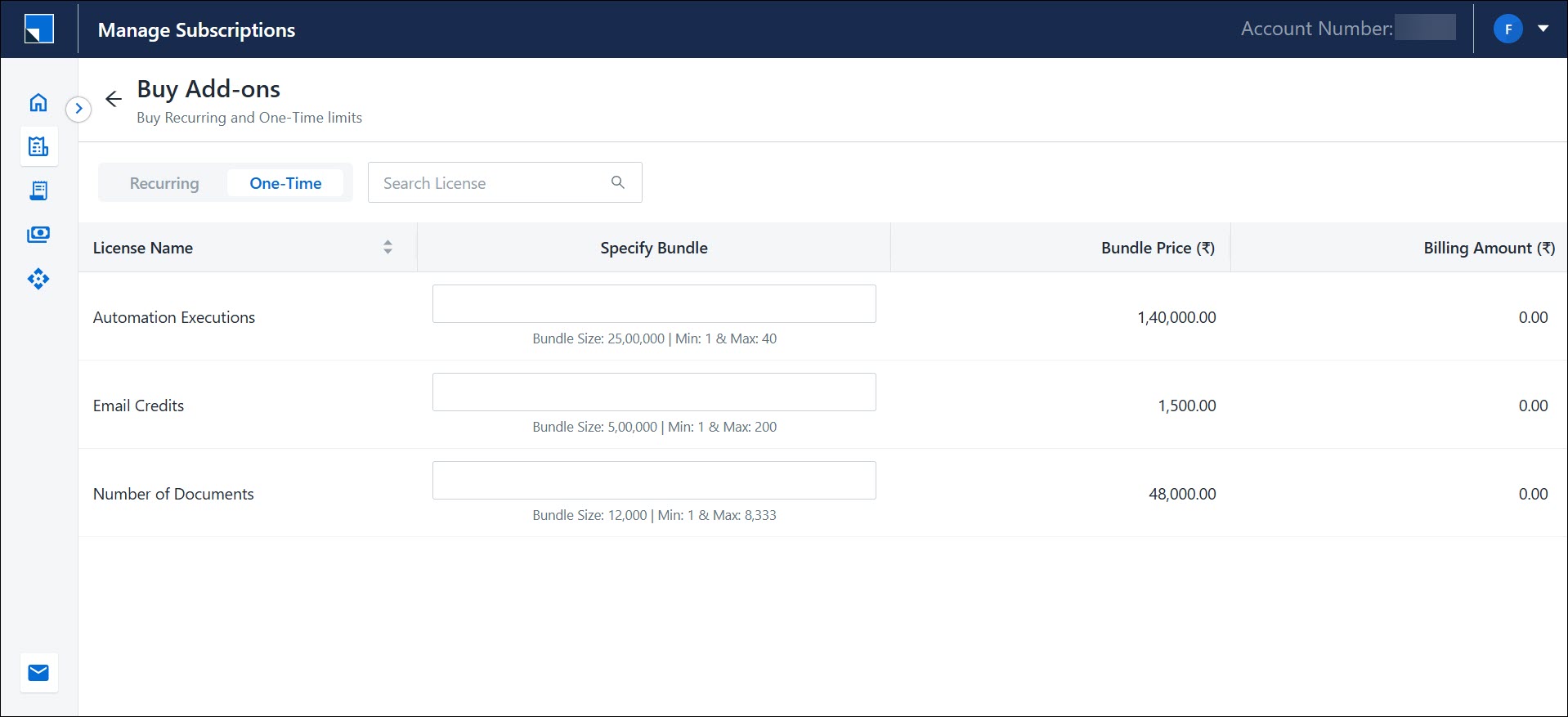
The Onetime add-ons page displays details including –

License Name Name of the license
Specify Bundle Enter the quantity of bundles that you wish to purchase
Bundle Price Price per bundle
Billing Amount The amount to be paid for the specified quantity

Leadsquared - Subscription Management

7. Purchase History Page

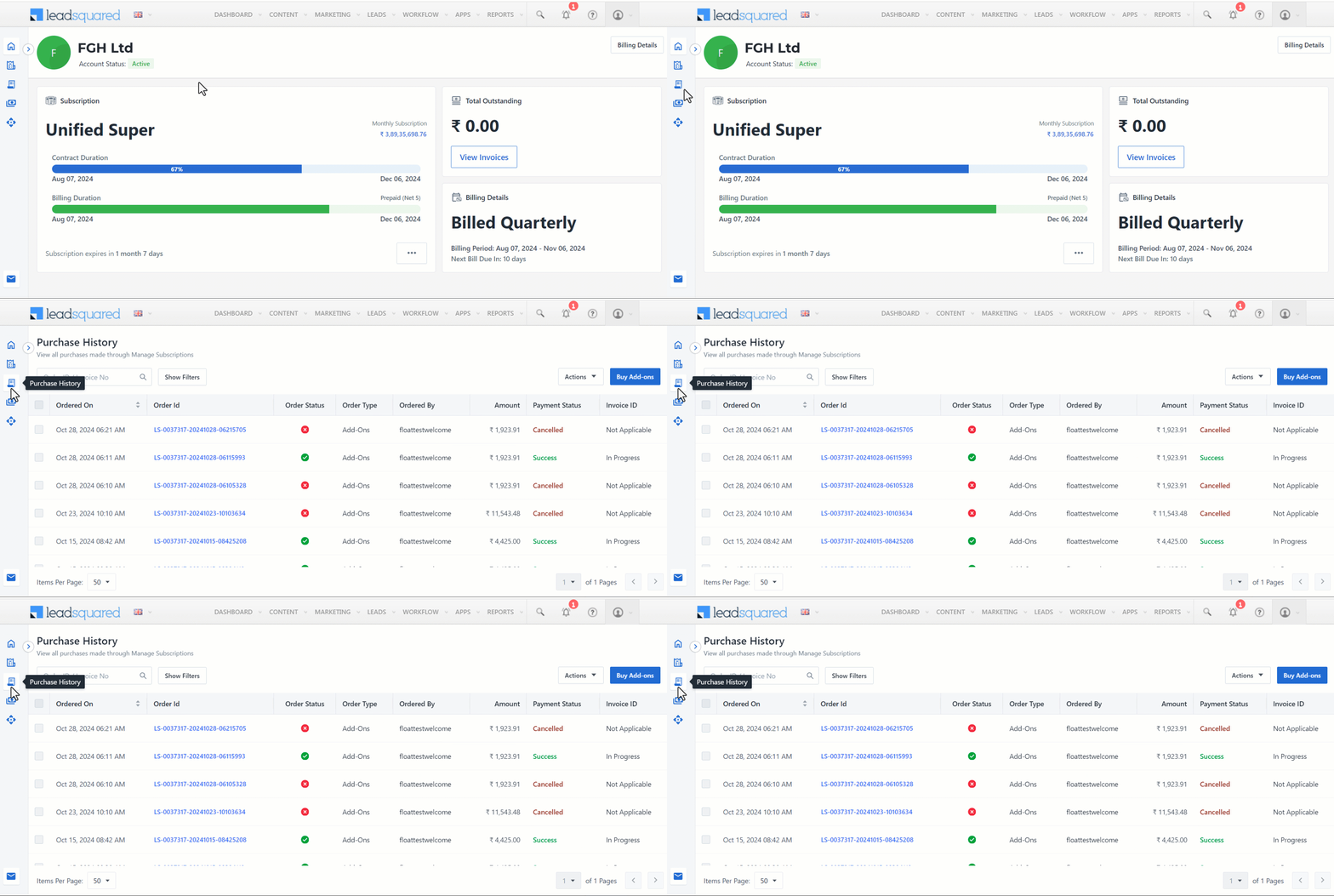
Purchase History page provides a comprehensive view of all add-on orders placed through the Manage Subscriptions UI. To navigate to the Purchase History page, from the left side menu on the Manage Subscriptions UI, click Leadsquared - Subscription Management.

Leadsquared - Manage Subscription

This page displays details including –

Ordered On Date and time of order as per the user’s time zone
Order ID Generated order ID

(Clicking on the Order ID will open a pop-up with the order details)

Order Status Indicates whether the order is –

  • Success – order placed successfully and paid
  • Pending – order not completely placed by the user
  • In-progress – order placed but not processed yet
  • Failed – order failed
Order Type Indicates the type of order

(Currently, only add-ons are available)

Ordered By Displays the user who placed the order
Amount Indicates the order amount
Payment Status Indicates if the payment was successfully completed or not
Invoice ID Shows the invoice number

(Orders with failed payment status will not have an Invoice ID)

7.1 Search & Filter Orders

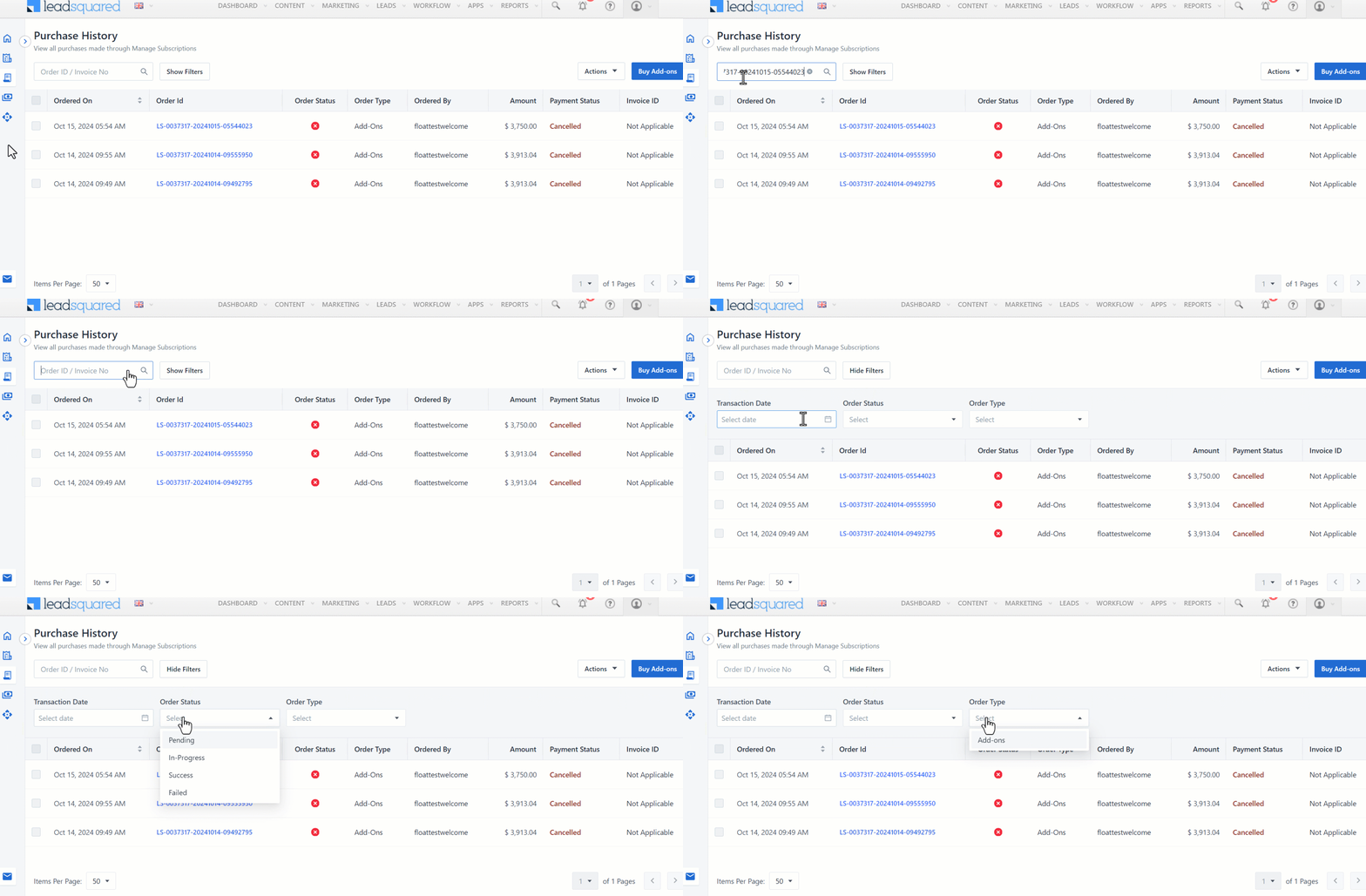
On the Purchase History page, you can search for specific orders by using the search tab or filters.

To search for a particular order based on the Invoice ID or Order ID-

  1. Click the Search Tab.
  2. Enter the relevant Order ID or Invoice ID and click LeadSquared - Search leads icon.

To Filter and view relevant invoices –

  1. Click Show Filters.
  2. You can filter invoices based on the Transaction Date, Order Status and Order Type. Select the relevant filter from the dropdowns.
Leadsquared - Subscription Management

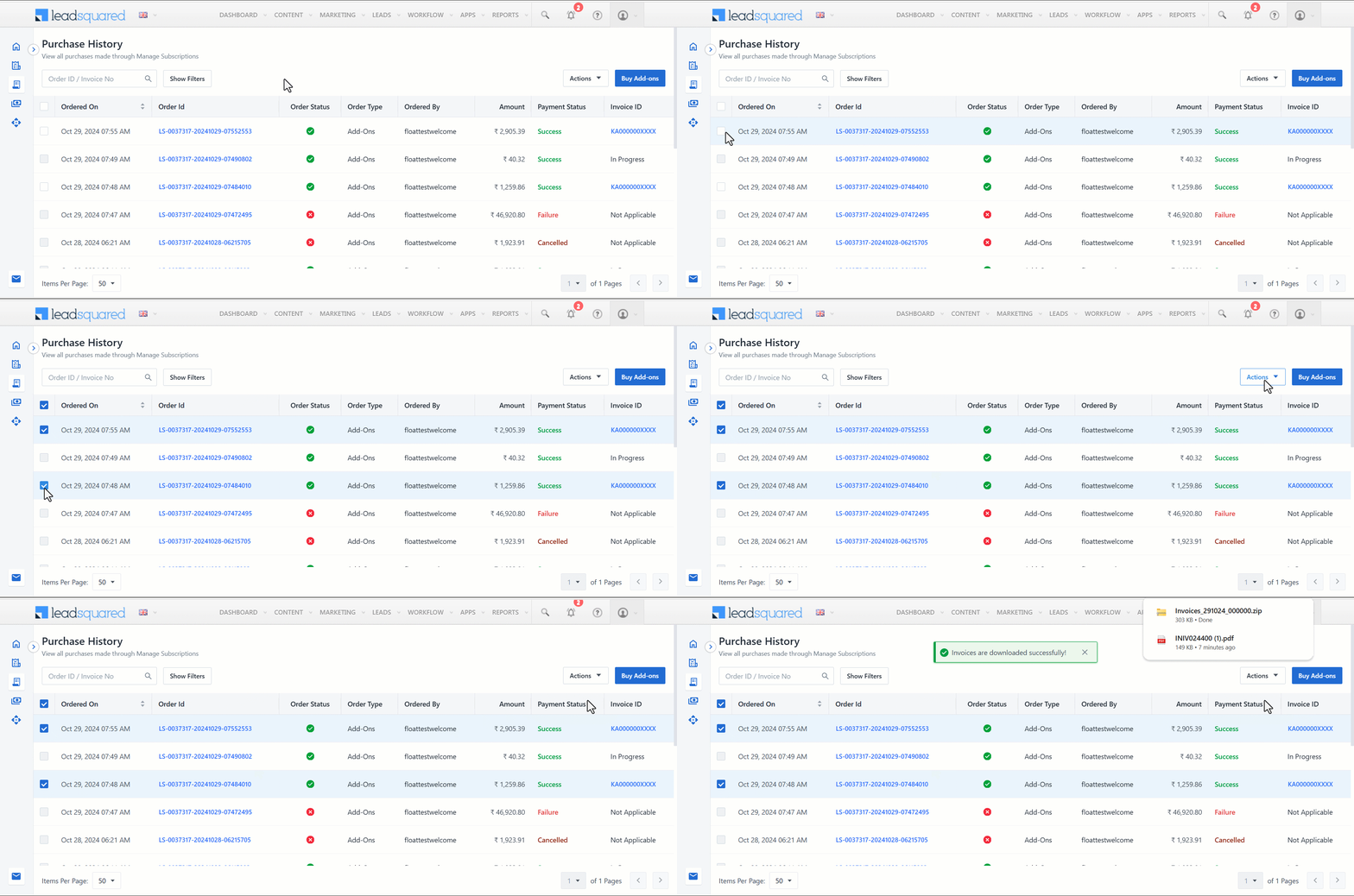
7.2 Download Invoices

To download a single invoice, click the Invoice ID of the relevant invoice. The invoice will be downloaded.

Leadsquared - Subscription Management

To download multiple invoices –

  1. Click the check box alongside all the relevant invoices.
  2. Click Actions and select Download Invoice. All the selected invoices will be downloaded.
Leadsquared - Subscription Management


8. Contact Us

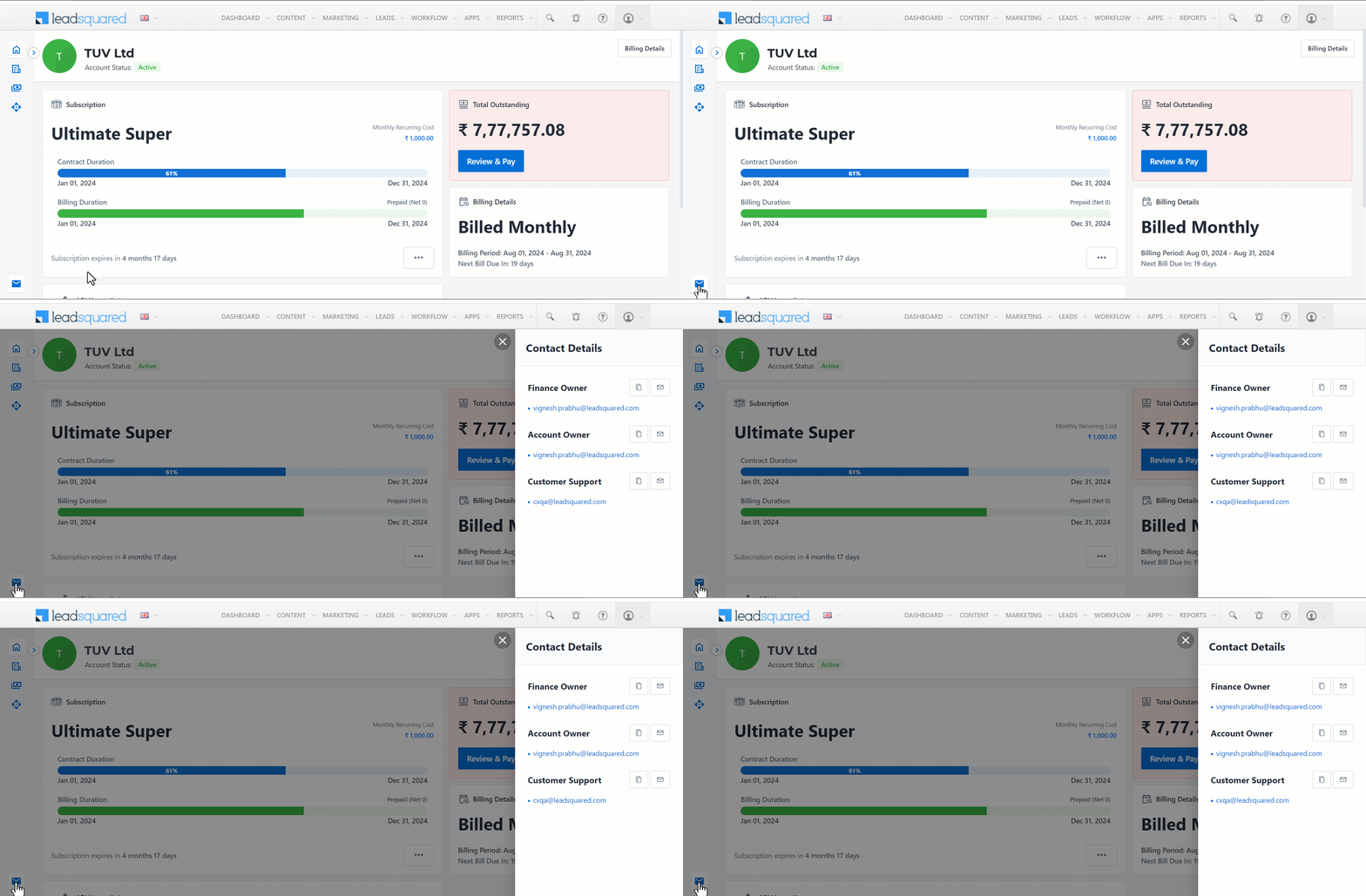
Click Leadsquared - Subscription Managementto find email IDs of your Finance Owners, Account Owners and Customer Support on your Manage Subscriptions homepage. You can reach out to the relevant personnel to upgrade, downgrade or switch plans, or if you face any issues with your invoice payment. You can send emails to them individually or in bulk. You can also copy these emails to add them to your own directories.
Leadsquared - Manage Subscription

To send an email to a single specific point of contact, click on their email address. This will open a draft in your default email application, allowing you to compose and send your mail.
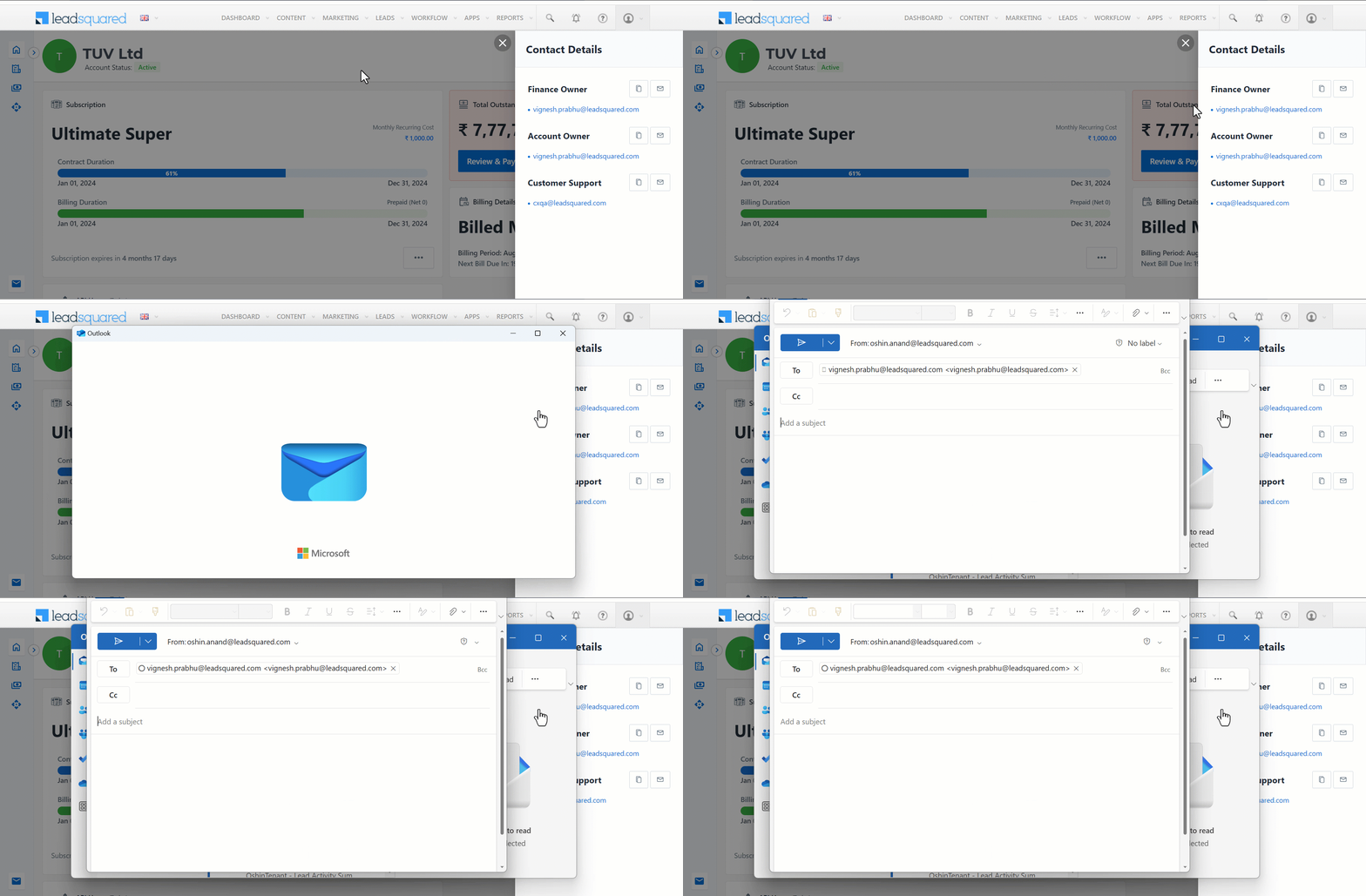
Leadsquared - Manage Subscription

To send an email to multiple points of contact, click Leadsquared - Subscription Management. This will open a draft in your default email application, allowing you to compose and send mails to all the relevant POCs.


9. Usage Notifications

All admin users will receive email notifications for reaching certain limits of license usage. By clicking on the Manage Subscriptions button, they can access the Manage Subscriptions portal to review their plan and licenses.

Email Notifications will be sent when your License  –

  • Usage reaches Critical Levels (Below 100%)
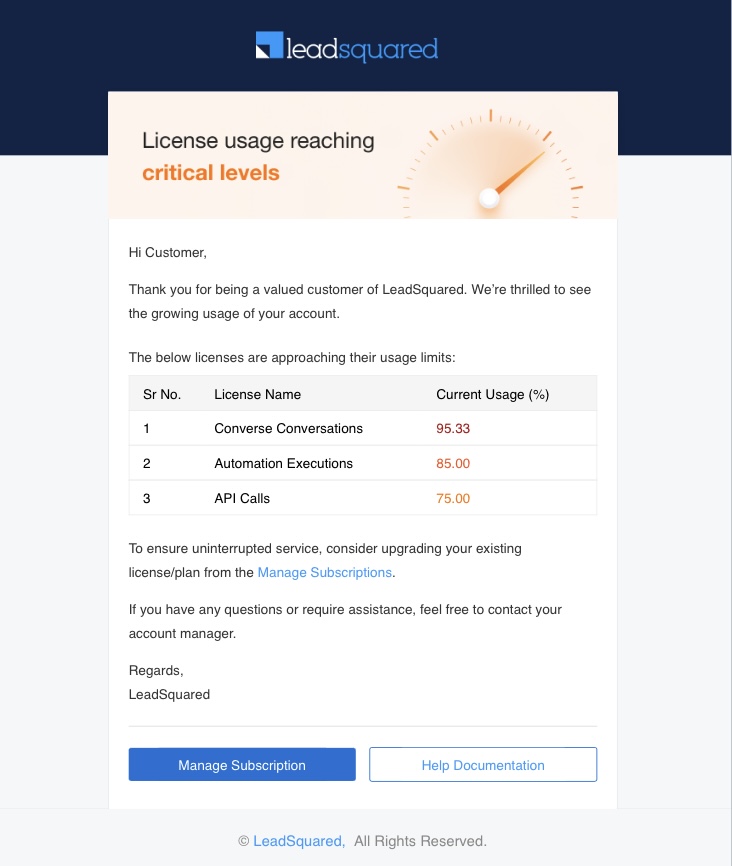
Leadsquared - Subscription Management

  • Capacity is Fully Utilized (Over 100%)
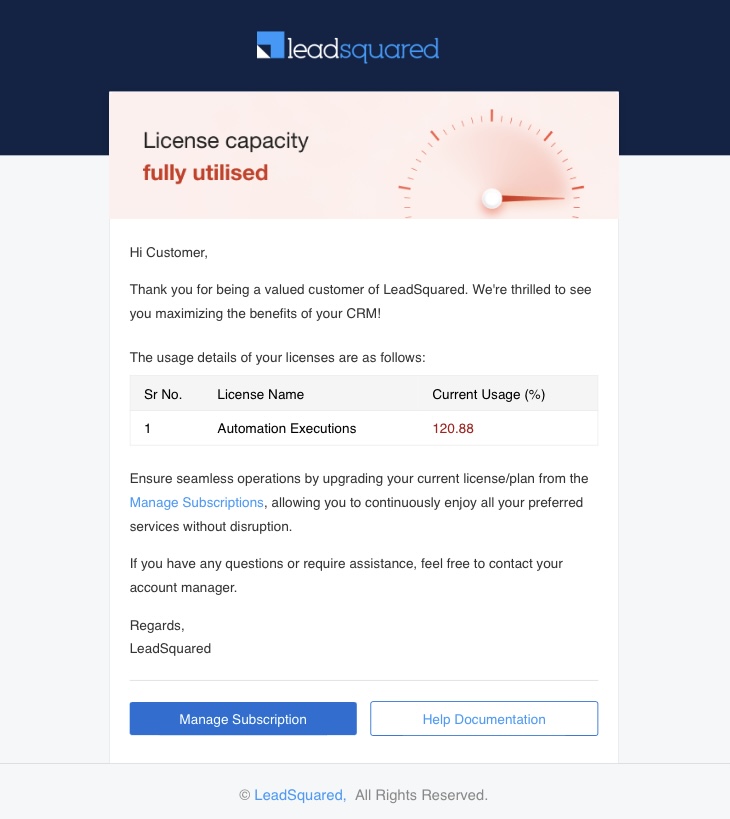
Leadsquared - Subscription Management

  • Usage stops due to Overuse (Over 125%)
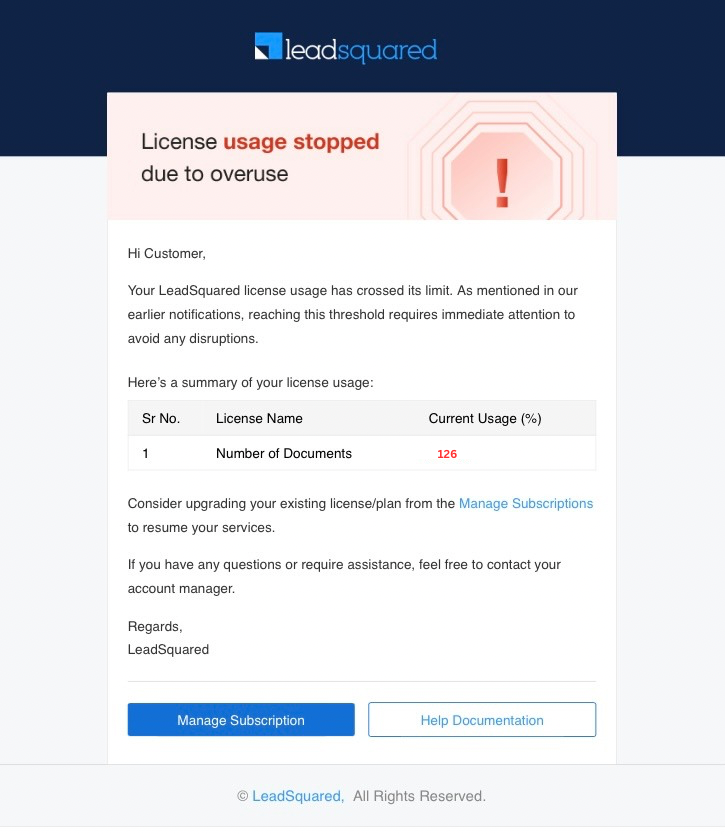
Leadsquared - Subscription Management


10. Error

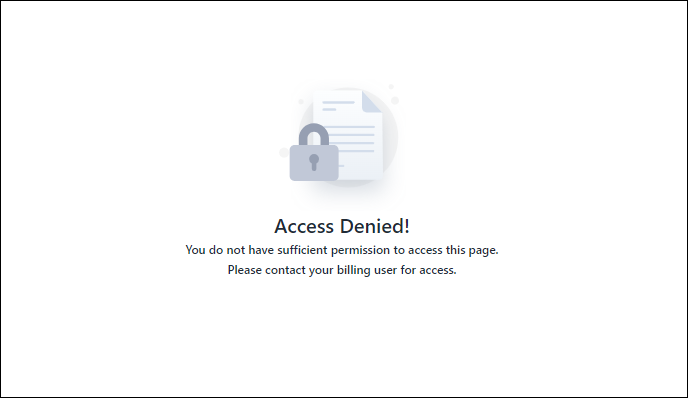
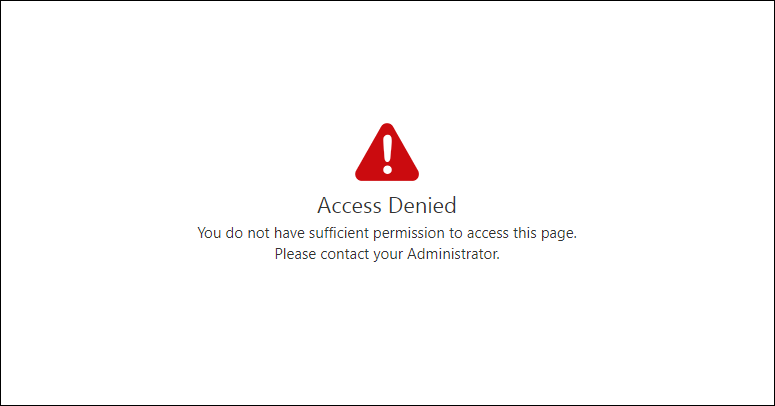
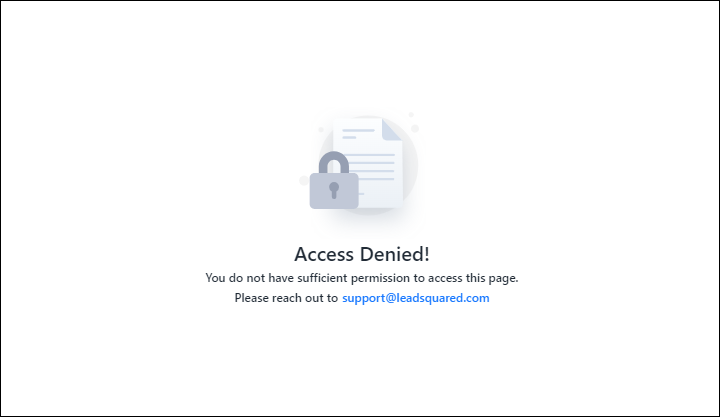
If you face the error saying “Access Denied! You do not have sufficient permission to access this page.”, it could be because
Leadsquared - Subscription Management

Leadsquared - Subscription Management

  • You are not an administrator user.

Leadsquared - Subscription Management


11. FAQ

1. What licenses are included in my current plan and how can I add more?

To see the licenses included in your current plan, click the amount shown on the Subscription Details page. You can toggle between Metered Usage and License Usage to view the relevant licenses. You can purchase additional licenses through Manage Subscriptions. To add more licenses to your base plan, click Buy Add-ons from your Subscription Details page. You can only buy those add-ons that are available with your plan.

2. How can I upgrade, downgrade or switch my subscription plan?

Click the email icon in the bottom left corner of the Manage Subscriptions page and contact the finance or account owner to request a change.

3. How to change the Billing User?

There can only be one billing user at any given time. To set another Administrator as the billing user –

  1. Navigate to Settings>Users and Permissions>Users.
  2. Along the row of the Administrator you want to set as the billing user, hover your cursor over   and select Set Billing User.
  3. On the Set Billing User pop-up, click Yes.

4. How do I track my usage of metered licenses (API calls, emails, automation executions, etc.)?

To view your usage of metered licenses –

  1. Navigate to Manage Subscriptions>Subscription Details.
  2. Click the Metered Usage tab.
  3. Click the relevant license from the list of metered licenses.
  4. A popup comprehensively displays the month-wise and day-wise breakdown of the limits, usage, additional usage, billed usage, rate and additional bill amount of the particular license.

5. What are the limits for my Metered Licenses?

The limits for your Metered Licenses are based on your plan. However, you are free to use more than the given limit at a defined rate, by incurring an additional cost.

6. How can I monitor my License Usage to avoid exceeding limits?

The Subscription Details page displays all the licenses you have purchased along with their maximum limit, your utilization, remaining limit and a bar visually representing your usage. Hover over the number displayed under maximum limit of a particular license to view a pop-up displaying the Limit Bifurcation of the license. This pop-up displays the limit of the license available –

  • With your Base Plan
  • under Contractual Adjustments
  • As Recurring Add-on
  • As One-Time Add-on

7. How is my billing calculated?

Your bill is based on your Monthly Subscription, which includes your base plan (or Plan Bundle) and any recurring add-ons. One-time licenses involve a single payment. If you exceed your plan’s limits through metered usage, additional charges will apply. When you choose to pay quarterly, half-yearly, or yearly, the Monthly Subscription rate is multiplied by the number of months in that period—three months for quarterly, six months for semi-annual, and twelve months for annual payments. Additionally, all add-ons are billed on a pro rata basis, depending on the end date of your respective billing cycles.

8. Can I view and download my invoices?

You can view and download your invoices, either individually or in bulk, from the Invoice & Payments page on Manage Subscriptions.

9. How do I update my Billing Details?

You can access your company profile and LeadSquared’s billing details on clicking the Billing Details button on the Manage Subscription homepage. You cannot edit your company’s information by yourself. Reach out to your Account Owner to change these details.

10. What happens if I exceed my usage limits? Are there any overage charges (additional billing/costs)?

You will receive email notifications about your license usage limits periodically (at 75%, 85%, 95%,100% and 125%). You will be billed additionally for extra usage and you can continue using the license. However, on crossing the 125% limit, the service will stop, and you won’t be able to use it until you purchase additional limits. Monitor your usage and buy more add-ons to avoid service interruption.

11. How quickly will new licenses be activated after purchase?

The new licenses that you purchase will be activated immediately.

12. Can I get a refund for unused licenses if I downgrade or cancel my plan?

Refund is not applicable on the licenses procured.


Any Questions?

Do you have questions or issues with the content in this article? Let us know in the comments section below. We’ll get back to you asap!

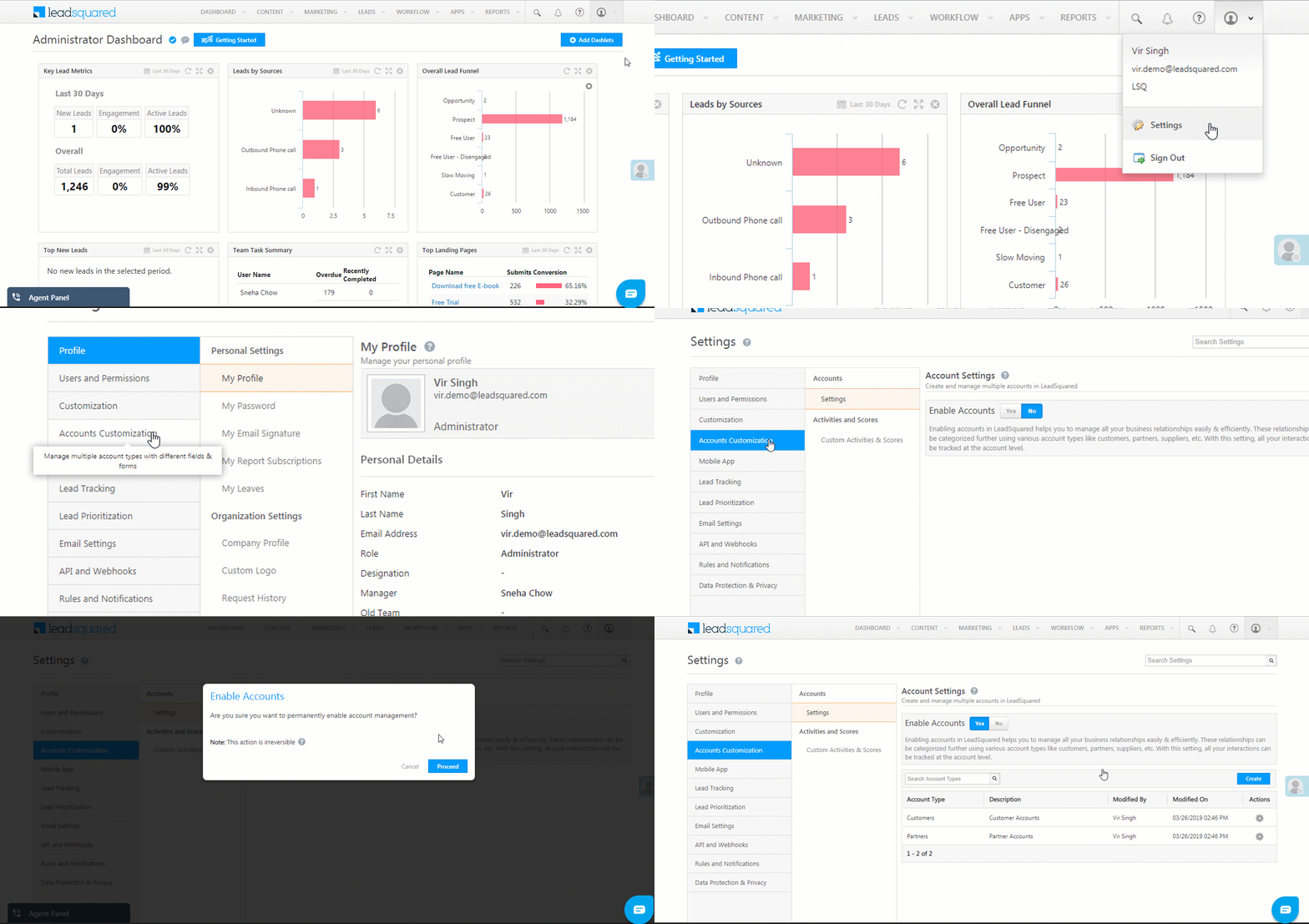
Embed Your Call Tracking Metrics Dashboard in LeadSquared

You can embed your entire Call Tracking Metrics (CTM) dashboard inside LeadSquared. Not only does this make it easier for you to access your call logs (and other dashboard functions) directly from your LeadSquared account, but you can also receive inbound phone calls via the agent pop-up simultaneously.


Prerequisites

  • You must be an administrator user of your LeadSquared account.
  • You must have your Call Tracking Metrics account login credentials.
  • You should integrate your Call Tracking Metrics account with LeadSquared. For more information, see LeadSquared Call Tracking Metrics Connector.
  • You must install the Custom Menu For Web app. For more details, see Custom Menu For Web Installation.

Note: Although you can still embed your CTM dashboard in LeadSquared without installing the LeadSquared Call Tracking Metrics Connector, we recommend completing that step first to leverage a number of other awesome features. For more information, see LeadSquared Call Tracking Metrics Connector.


Procedure

Once you’ve installed the Custom Menu for Web app, you just have to configure the URL given below and you’ll be good to go –

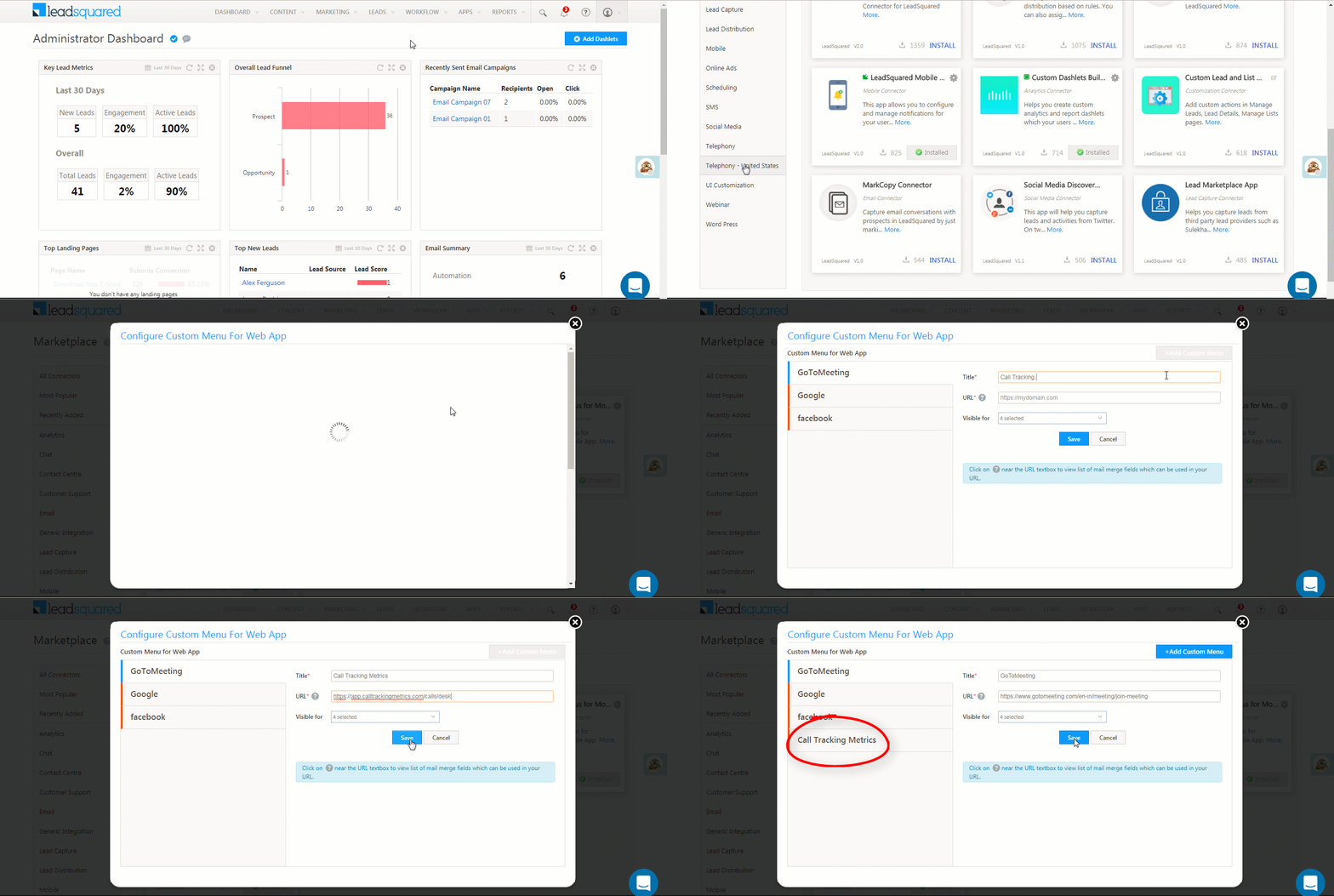
  1. From the main menu, navigate to Apps>Apps Marketplace>UI Customization.
  2. On the Custom Menu for Web app, hover your cursor over the settingsSettings iconwheel, then click Configure.
  3. On the Configure Custom Menu for Web pop-up, click Add Custom Menu.
  4. Enter a title (‘Call Tracking Metrics’ preferably), and then paste the following URL- https://app.calltrackingmetrics.com/calls/desk
    You can also choose which user roles will have access to the custom menu.
  5. Click Save.

Configure CTM dashboard in LeadSquared

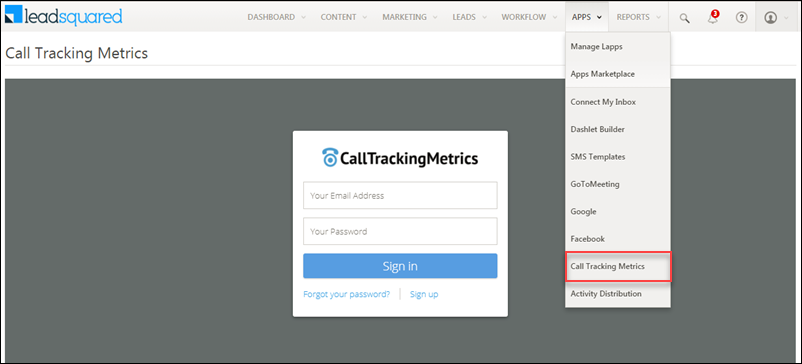
Once the custom menu is created successfully, it’ll be visible in your account –

  1. From your main menu, navigate to Apps>Call Tracking Metrics (Or whatever the title you gave the custom menu was).
    Note: You may need to logout and then log back in to your account to see the Call Tracking Metrics tab appear under the Apps menu.
  2. You’ll need to pass your CTM credentials and login to your account.

custom menu for CTM

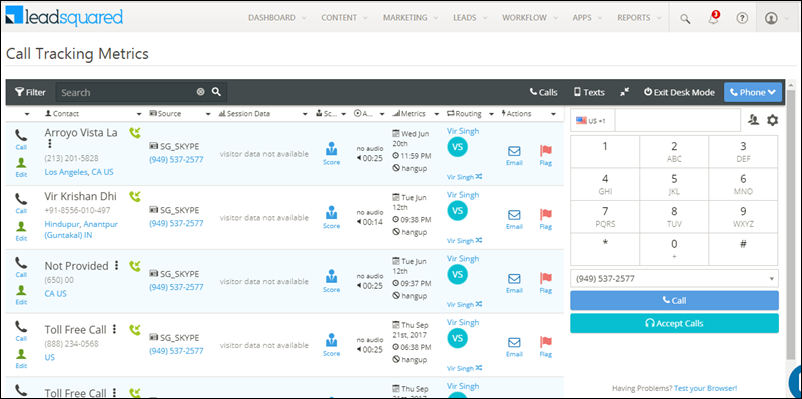
Once you’ve logged in, your dashboard will be visible –

CTM Dashboard

Note: Please refresh the page if the dashboard doesn’t appear.


Any Questions?

Have any feedback or questions related to this feature? We’d love to help you out! Go ahead and start a dicussion in the comments section below.

Where can I find the Activity Code of an Activity?

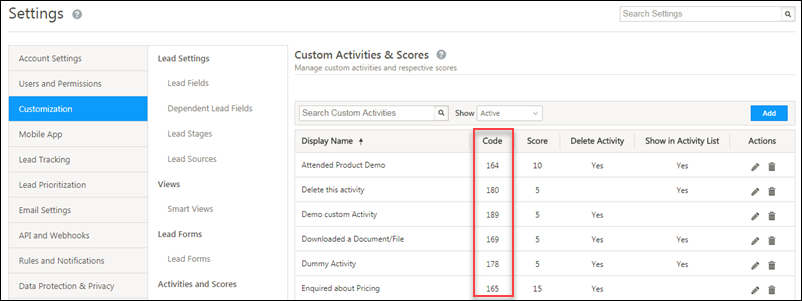
Each custom activity has a unique activity code associated with it. To find the activity code –

  1. Navigate to My Profile>Settings>Leads>Custom Activities & Scores.
  2. You’ll find it under the ‘Code’ column in the activity grid.

find activity codes

Lead Automation Conditions – Split Test

1. Feature Overview

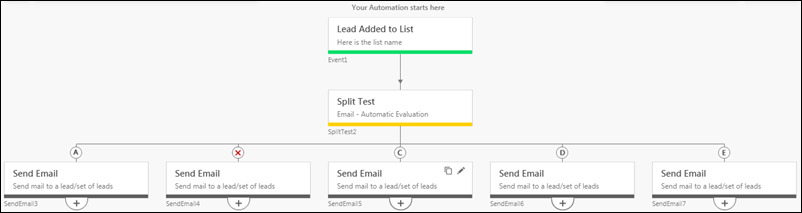
A Split Test (A/B Test) lets you experiment with different email content and find what works best for your automation. You can try out different subject lines, senders, etc. and see how your leads are responding. Based on the responses, you can either manually or automatically select the best email to use going forward.

split test intro


2. Prerequisites

The Split Test feature is only available on select plans. If you want it enabled for your account, contact us at support@leadsquared.com.


3. Example Use Case

Say you want to figure out which subject line works best for your welcome emails. Either –

  • “Hey, we’re so glad you signed up” or
  • “Welcome to the <my organization> family!”.

With Split Test, you can send 2 emails (one with each subject line) to your leads and analyze which one receives more opens/clicks. Based on these results, you can select one of the emails as the ‘winner’. All new leads entering the automation will now only receive the email you chose as the ‘winner’.


4. How it Works

As described in the example use case section, a Split Test lets you send multiple emails and determine a winner based on how your leads respond.

Note: These emails are sent to your leads in round robin fashion until a winner is determined.

There are 2 ways to determine a winner – Automatically or Manually.

Automatic Split Test Manual Split test
The winner is decided automatically by the system based on the number of email opens or clicks after a specified number of hours/days/weeks.

If the number of clicks/opens are equal after the specified time, a user will have to manually choose a winner from the automation report.

The winner must be determined manually from the Automation Report after the specified number of hours/days/weeks.

The specified user(s) will receive a notification to manually select a winner after the configured period has elapsed.

Once an email is selected as the winner (automatically or manually), it’ll be sent to all leads entering the automation from that point onward.

Note: You can test up to 5 different emails.


5. Setting Up a Split Test

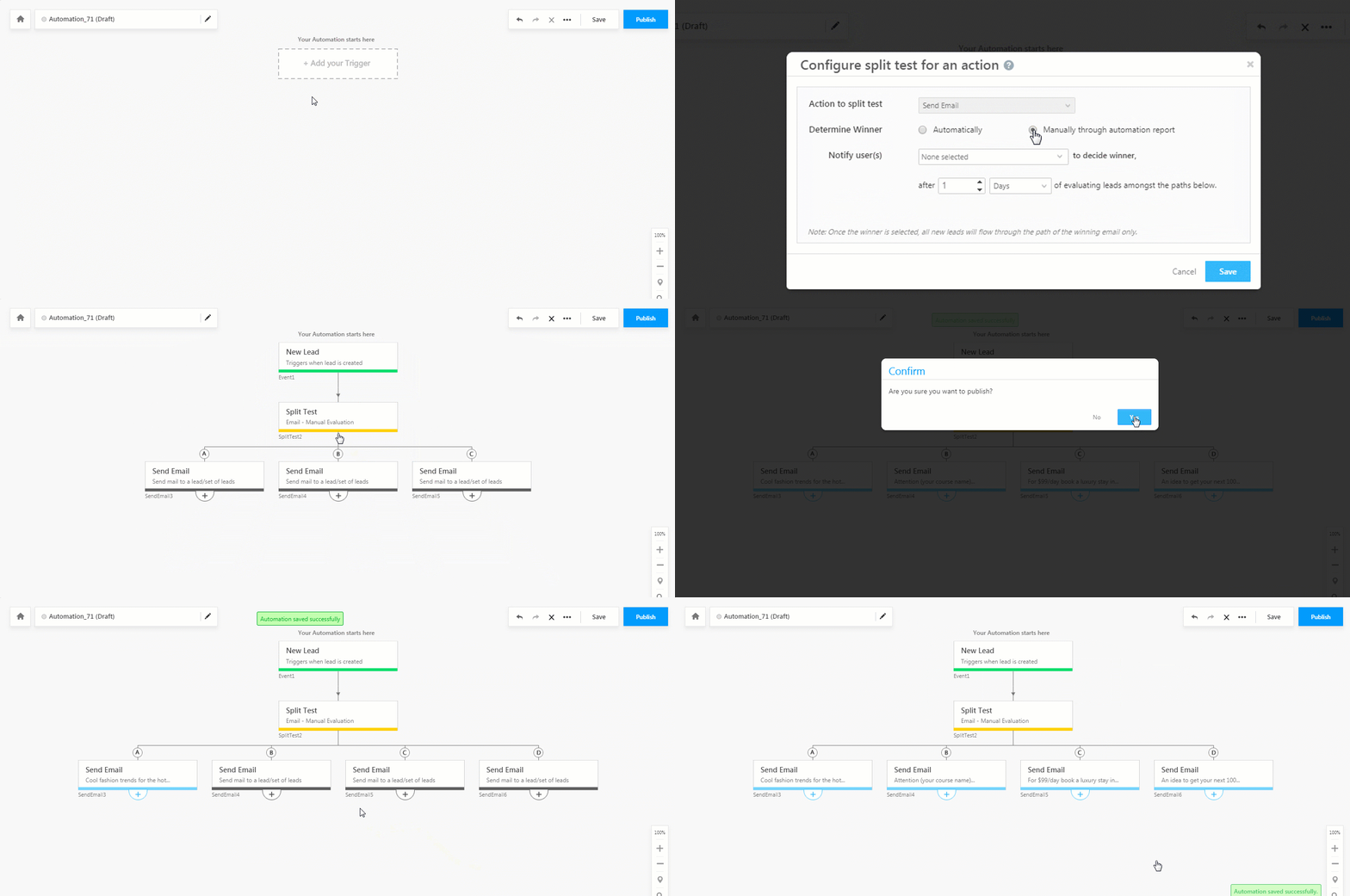
On your main menu, navigate to Workflow>Automation and click Create Automation.

  1. Select an automation trigger (New Lead Added and Lead Added to List)
  2. At any point after selecting a trigger, click the expand expand icon under any automation card and choose the Split Test condition (you may have to scroll down under the Conditions section to find it).
  3. On the Configure Split Test pop-up, choose whether you want to determine the winner Automatically or Manually.
    1. If you select the Automatically option, choose whether you want to determine the winner based on the number of email opens or clicks. Next, set the number of hours/days/weeks you want the winner to be determined after. Finally, select the users you want to notify once a winner is determined.
    2. If you select the Manually option, choose the user(s) you want to notify to select a winner. Then set the number of hours/days/weeks you want to wait for before you allow users to select the winner.
  4. Click Save.
  5. To add more emails to your split test, click the add yellow add icon under the split test card.
  6. Click the Edit pencil icon icon on each Send Email card to set the email content.
  7. After you’re done, click Publish on the top right corner of your screen to publish the automation.

automation split test card


6. Determining a Winner

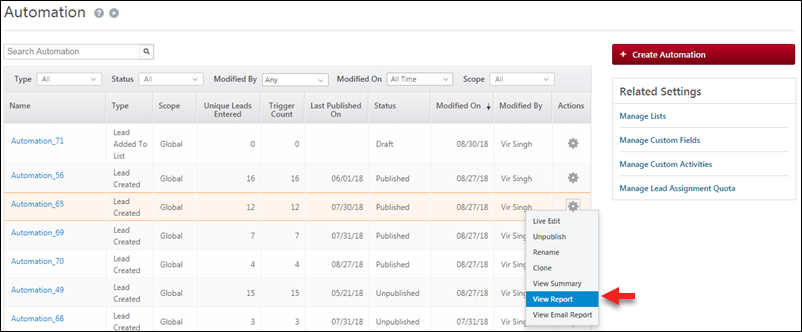
To view the results of the split test, on the automation grid (Workflow>Automation), hover your cursor over the settings Settings icon wheel and click View Report.

view auto report

  • If you configured the split test to Automatically determine a winner, the winner will be decided by the system after the set period.
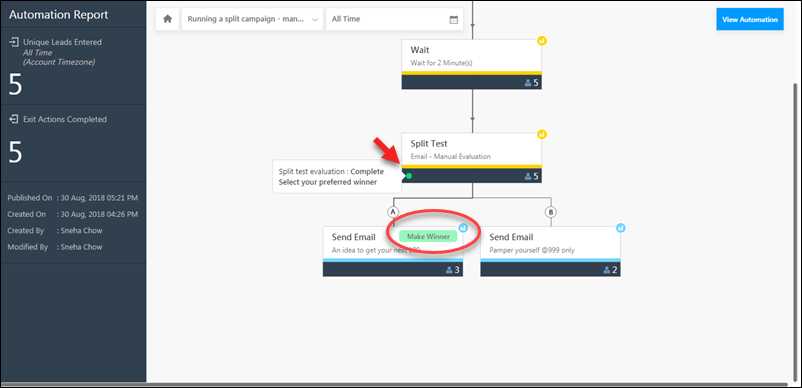
  • If you chose the Manuallyoption, you can view the performance of each email by clicking the stats statistics icon icon on the Send Email card. Next, hover your cursor over the email card you want to pick as the winner and click the Make Winner option that appears.

Note: You can’t pick a winner for the Split Test until the configured waiting period has elapsed.
Once the waiting period has elapsed, the progress indicator on the Split Test card will turn green split test and you can pick a winner.

picking a split test winner

The winning email will now be sent to all leads who enter the automation from this point onward.


Any Questions?

Did you find this article helpful? Please let us know any feedback you may have in the comments section below. We’d love to help you out!

How to Secure Sensitive Data with Field-Level Encryption

1. Feature Overview

LeadSquared’s Field-Level and File-Level Encryption (FLE) enhances data security by encrypting sensitive information at the individual field level. This ensures that critical data, such as identification numbers, attached documents or financial details, remain protected from everyone outside your organization.

This feature enables secure storage and access to sensitive data across Leads, Opportunities, and Activities. Encryption can be applied to both system and custom fields, as well as Lead CFS. Additionally, LeadSquared supports Bring Your Own Key (BYOK) through AWS Key Management Service (KMS), allowing organizations to manage and control their own encryption keys for advanced security and compliance.

Example

Suppose your sales team collects customers’ PAN Numbers and Bank Account Details in LeadSquared. With Field-Level Encryption enabled, when a PAN Number like ABCPD1234F is entered, it’s stored encrypted (e.g., M7p9aZ1Qw==).

Leadsquared - Field Level Encryption


2. Prerequisites

  • Field-Level Encryption is not available by default. Reach out to support@leadsquared.com to get it enabled.
  • You must be an Admin to configure Field-Level Encryption.
  • If you’d like to control your own Encryption Key instead of generating from LeadSquared directly, you can get it through AWS Key Management Service (KMS).


3. How It Works

  1. The admin configures the Encryption Key in the Key Management page and selects the fields to be encrypted in the Web App Settings.
  2. When a user enters data into an encrypted field (including fields in Leads, Opportunities, or Activities), the CRM automatically encrypts the data before saving it.
  3. The encrypted value is securely stored in the database or storage system.
  4. When user accesses the record, LeadSquared decrypts the data using the configured encryption key (including BYOK if enabled via AWS KMS).


4. What Can Be Encrypted

Field-Level Encryption can protect the following types of sensitive data (non-exhaustive list):

Full Name, Phone/Mobile, Email, Address, PAN, Aadhar, ABHA, DL, Voter ID, SSN, Passport, Bank & Credit Card Info, Vehicle Plate Number, etc.

Entity Maximum Fields Supported Fields & Data Types
Lead / Object 10 fields per type System Fields: First Name, Last Name, Phone, Mobile, Email, Facebook, Google Plus, Google Talk User, LinkedIn, Latitude, Longitude, Skype Name, Twitter

Default Custom Fields: Address 1, Address 2, City, State, Country, Zip, Job Title, Company

Custom Fields: Text, Number, Email, Phone, Date, CFS

Opportunity 10 fields per type Custom & CFS Fields: Text, Number, Email, Phone, Date
Custom Activity 10 fields per type Custom & CFS Fields: Text, Number, Email, Phone, Date
Sales Activity 10 fields Custom Fields: String, Number, Date
File Maximum File Size: 2 GB All file types


5. Field-Level Encryption Settings

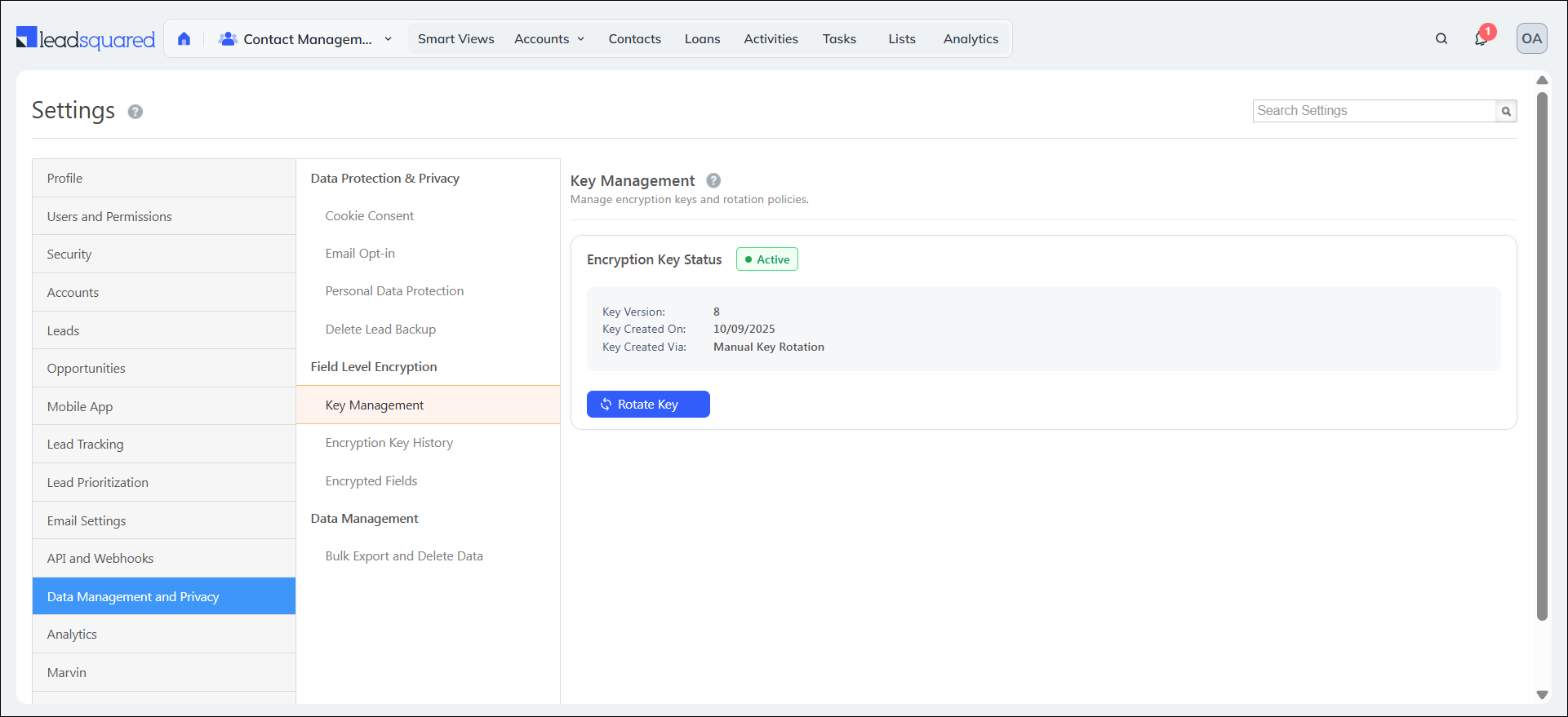
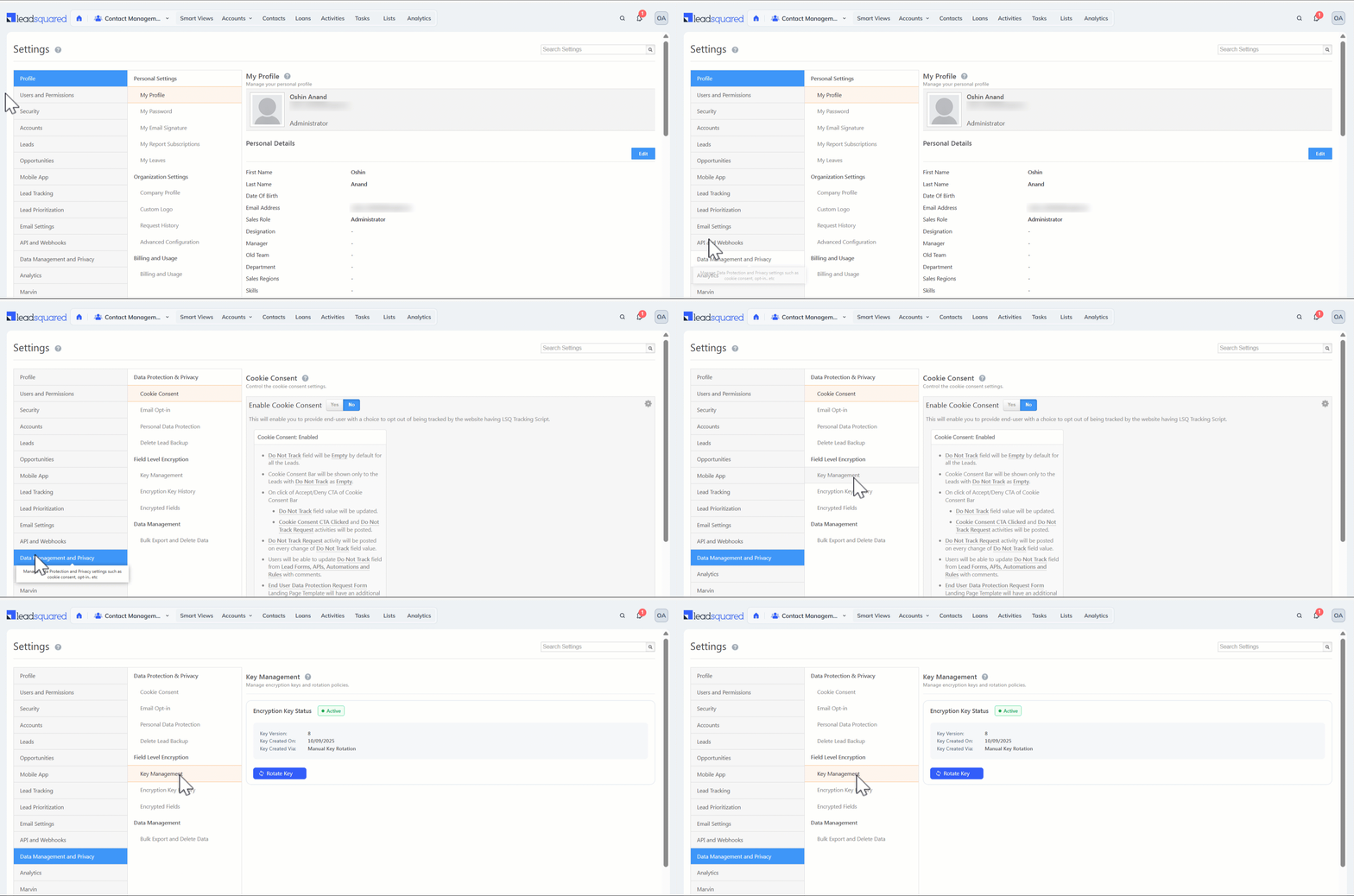
To access Field-Level Encryption Settings, navigate to Settings>Data Management & Privacy>Field Level Encryption.

Leadsquared - Field Level Encryption

5.1 Key Management

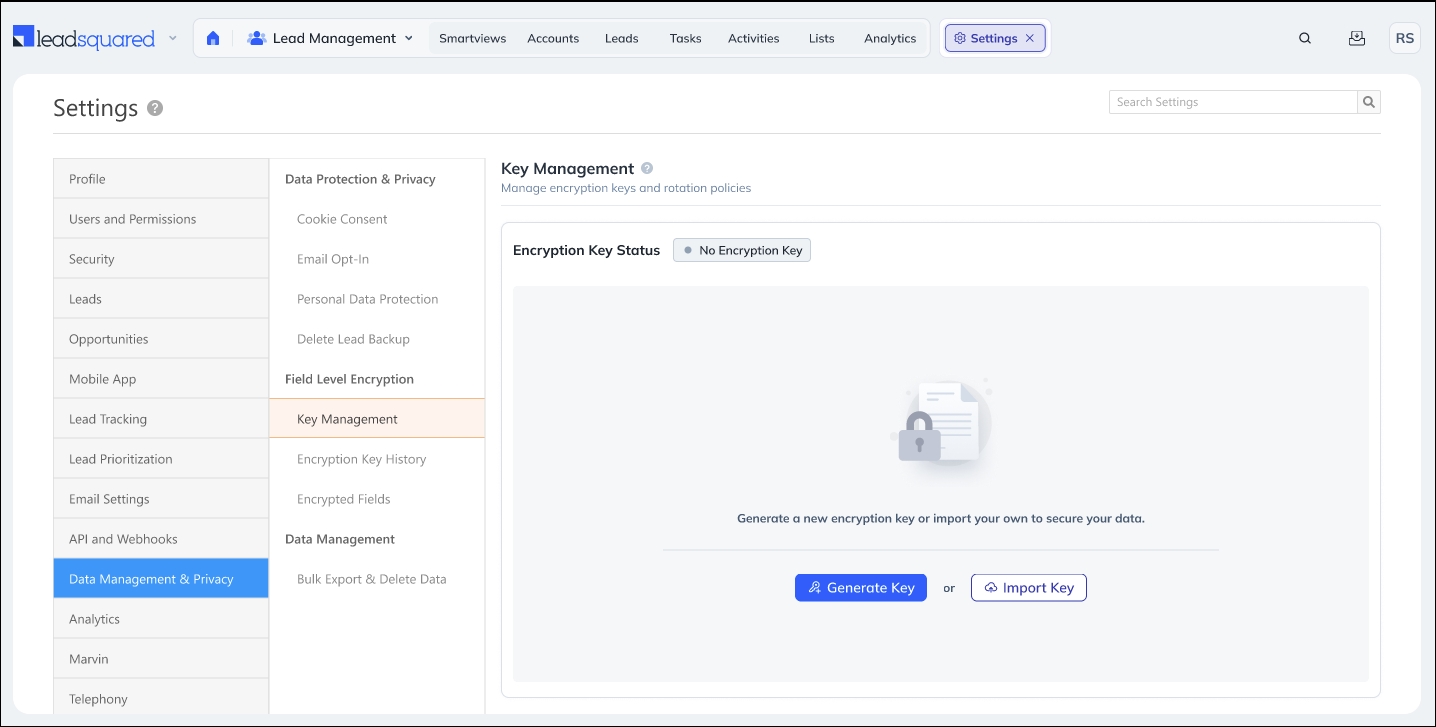
Once Field-Level Encryption is enabled, the admin can configure the encryption by entering an Encryption Key which can either be directly generated from here or be imported from any Key Management System. This key is used to convert data (like a customer’s phone number or ID) into unreadable encrypted text when stored in the database, and to decrypt it back into readable form for authorized users.

Leadsquared - Field Level Encryption

5.1.1 Key Generation

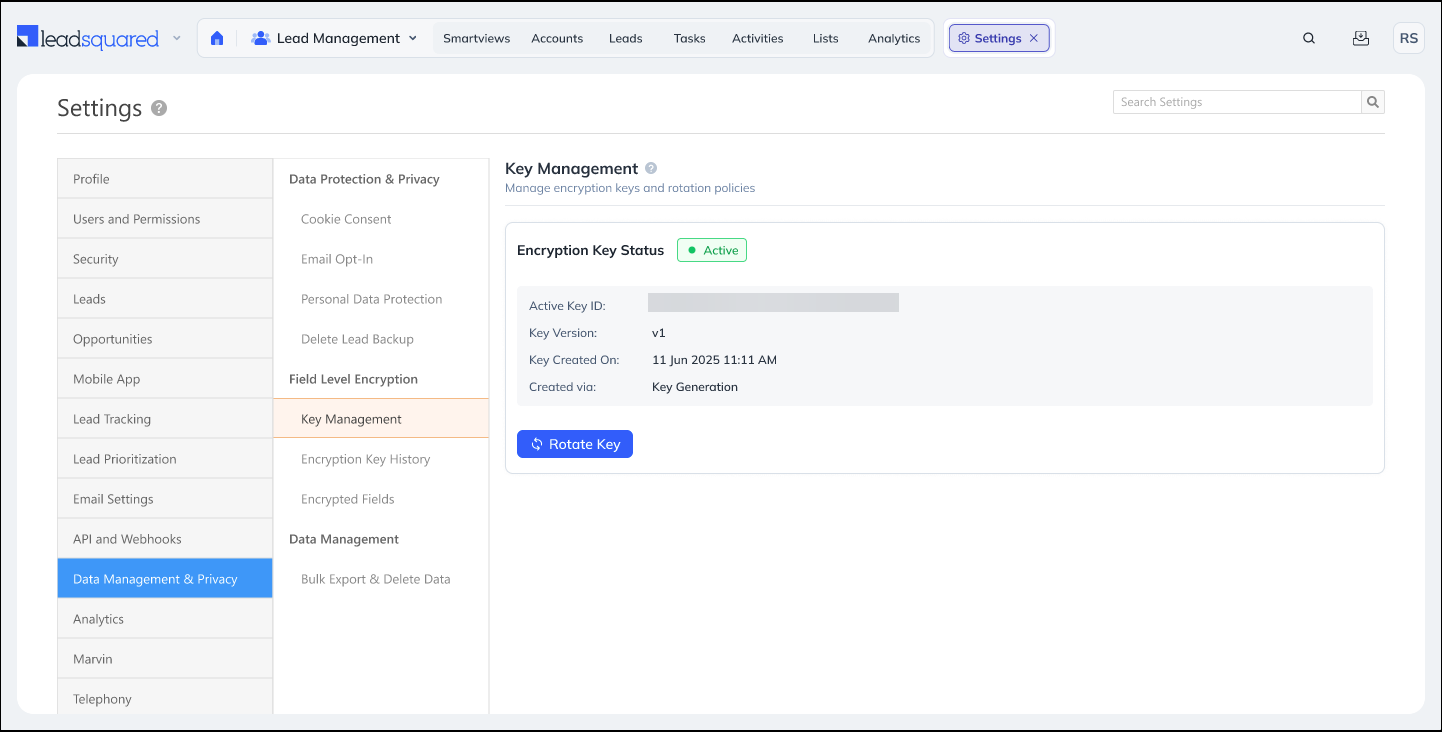
If you select the Generate Key option, then the Encryption Key will be automatically generated. If required, you can change the key periodically by clicking the Rotate Key option. Once you update the new key, the ability to make changes to the key will be restricted for 90 days.

Leadsquared - Field Level Encryption

5.1.2 Key Import

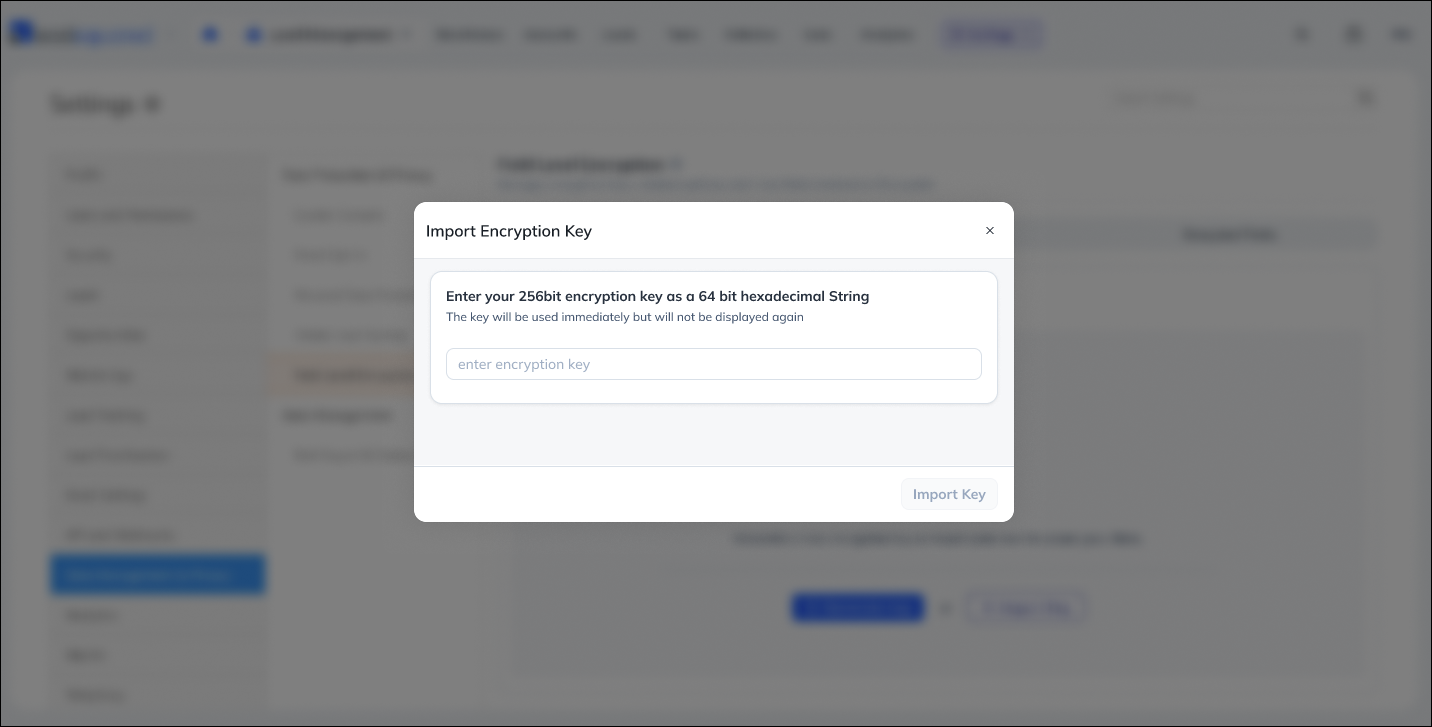
if you select the Import Key option, you can Bring Your Own Key (BYOK) through AWS Key Management Service (KMS) copied from AWS Key Management Service (KMS) and click Import Key. If required, you can import a new key periodically by clicking the Import Key option. Once you update the new key, the ability to import a new key will be restricted for 90 days.

Leadsquared - Field Level Encryption

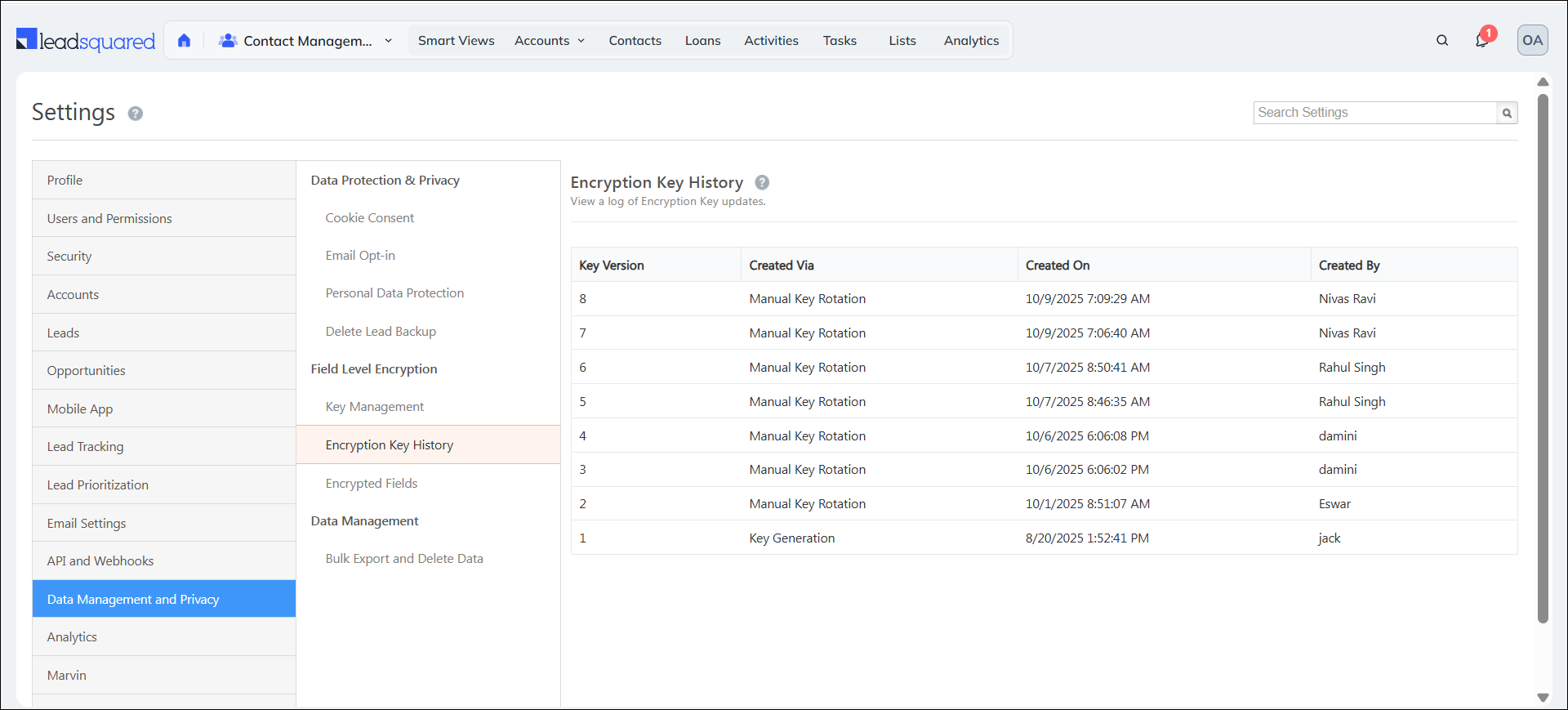
5.2 Encryption Key History

View a log of all the updates that were made to the encryption key. Here you can see –

  • Key Version – The version of the key based on the number of times it was updated
  • Created Via – The method through which the encryption key was entered
    • Key Generation – Either Key Generation or Manual Key Rotation
    • Key Import – Import
  • Created On – The date and time when the encryption key was created
  • Created By – The admin user who created the encryption key

Leadsquared - Field Level Encryption

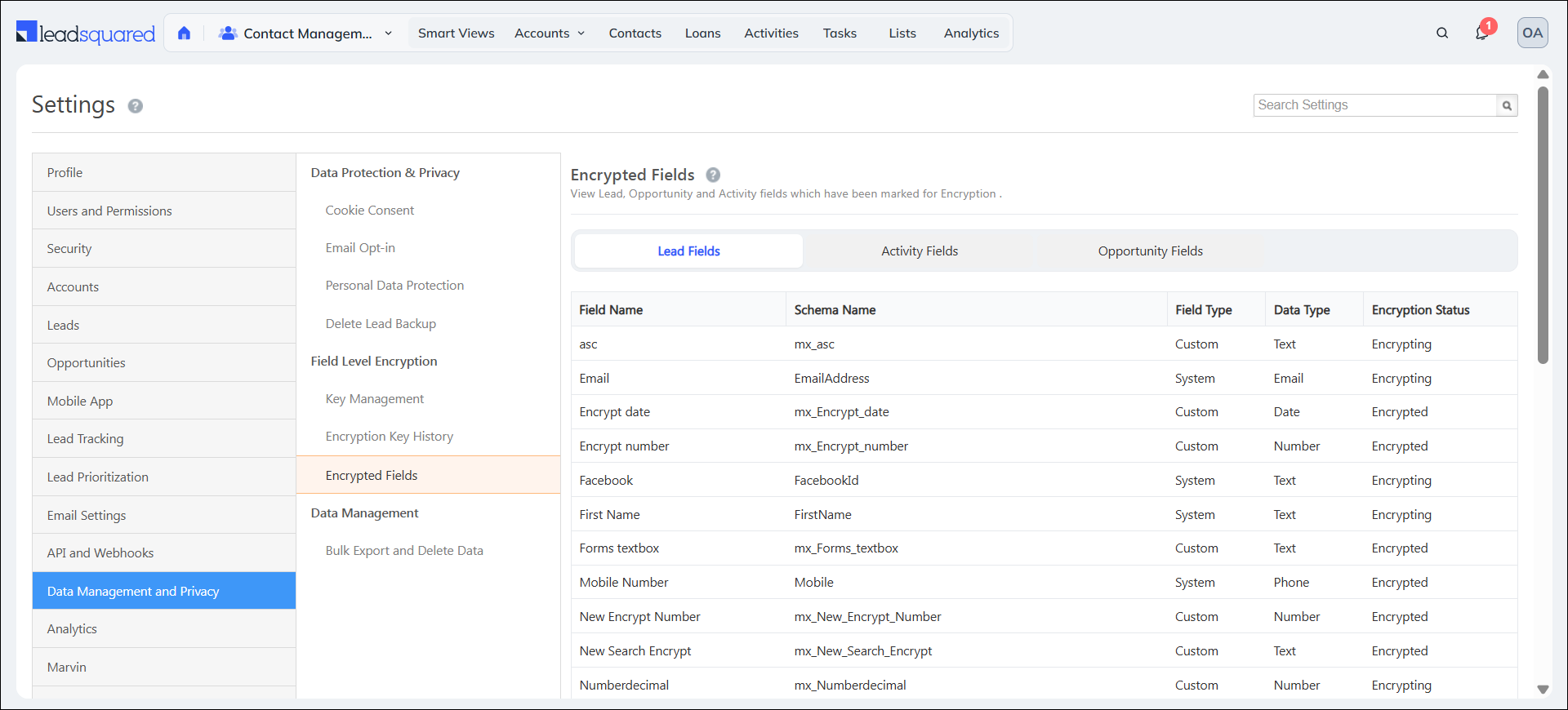
5.3 Encrypted Fields

View the Lead, Opportunity and Activity fields marked for encryption in dedicated tabs. The tabs contain grids with the following details –

  • Field Name – Name of the field
  • Schema Name – Unique identifier assigned to a field
  • Field Type – Either Custom or System (specific to Lead Fields)
  • Data Type – Text, Number, Email, Phone or Date
  • Encryption Status – Either Encrypted or Queued for Encryption (Encrypting)

Leadsquared -Field Level Encryption


6. Select Fields to be Encrypted

After configuring the Encryption Key, the admin must select the relevant Lead / Object, Lead CFS, Opportunity and Activity Fields to be encrypted from the Web App Settings.

Note:

  • There is a hard limit of 10 encrypted fields per Lead / Object, Opportunity, or Activity Type. If you attempt encrypt a field on reaching this limit, you will face an error.
  • When you enable encryption for an existing field, the system creates an encryption request that will be processed in the background. However, for newly created fields, encryption is applied immediately once you select the Encrypt Field option during field creation.
  • File Level encryption is supported only for the files stored in LeadSquared storage and it is applicable only to the files uploaded to CFS and Attachments after the enabling the encryption.

6.1 Encrypt a Lead / Object Field and Custom Field Set (CFS) Field

To secure a lead field –

  1. Navigate to Settings>Leads>Lead Fields.
  2. Click the Leadsquared - Actions Actions icon alongside the relevant system or custom lead field and select Edit.
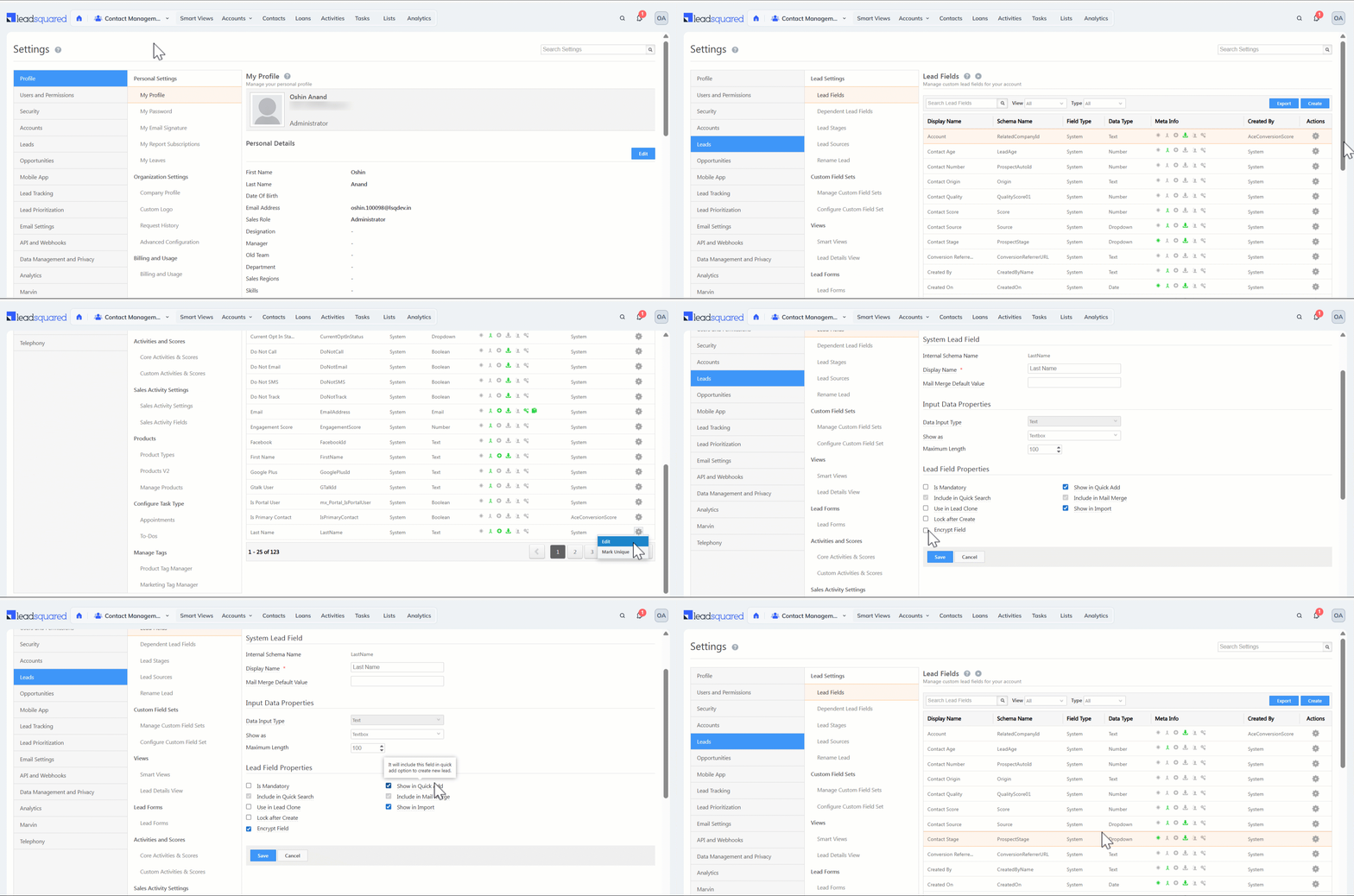
  3. On the Edit Lead Field page, under Lead Field Properties, check the box alongside Encrypt Field.

Similarly, to secure a Lead CFS field –

  1. Click the Leadsquared - Actions Actions icon alongside the relevant custom field set and select Edit.
  2. On the Edit Lead Field page, under Lead Field Properties, check the box alongside Encrypt Field.

Leadsquared - Field Level Encryption

6.2 Encrypt an Opportunity Field

To secure an opportunity field within an opportunity type –

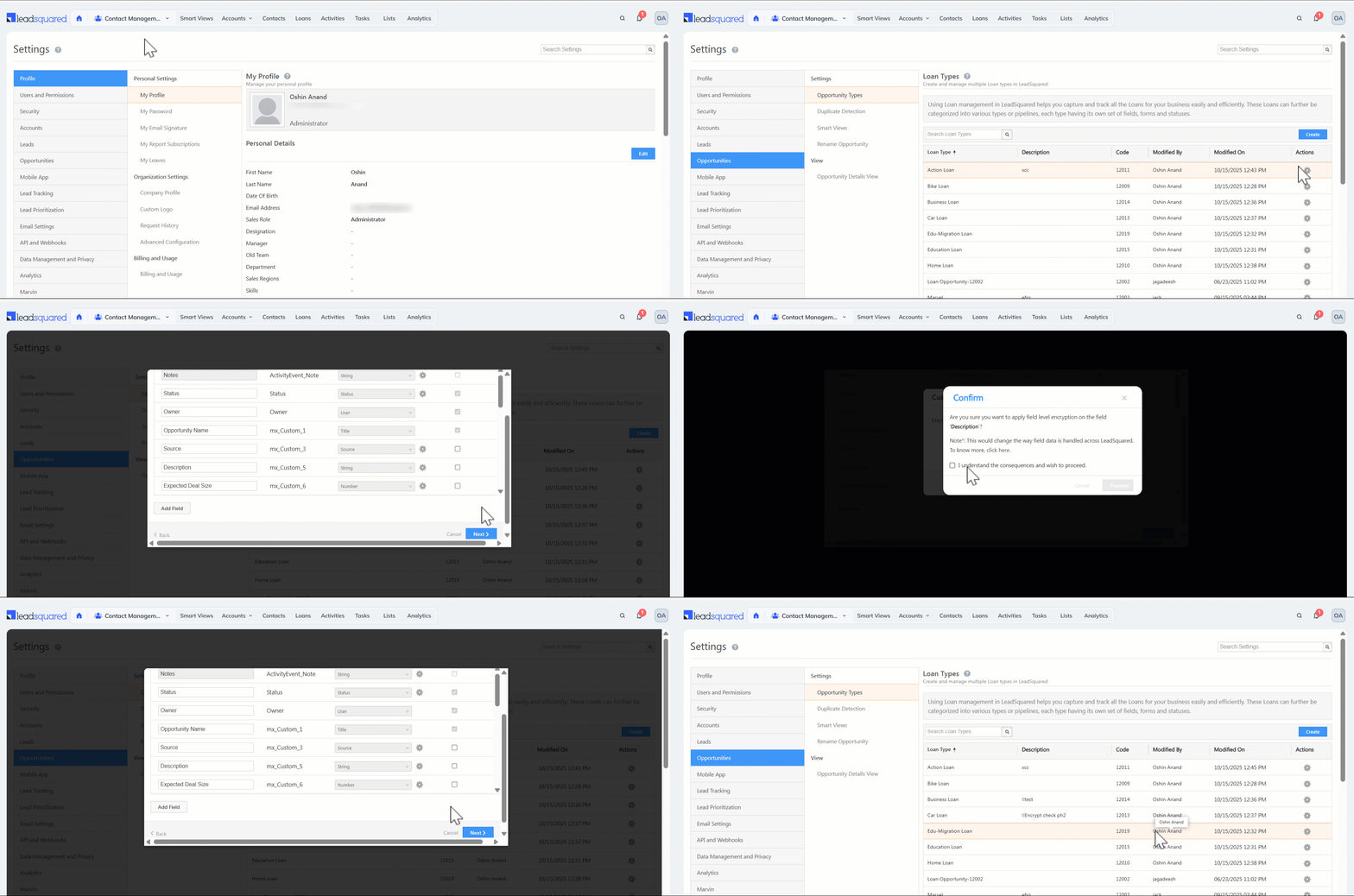
  1. Navigate to Settings>Opportunities>Opportunity Types.
  2. Click the Leadsquared - Actions Actions icon alongside the relevant opportunity type and select Edit.
  3. On the Field Configuration Tab in the Update Opportunity Type popup, click the Leadsquared - Actions Actions icon alongside the relevant field.
  4. Check the box alongside Encrypt Field.

Leadsquared - Field Level Encryption

6.3 Encrypt an Activity Field

To secure an activity field –

  1. Navigate to Settings>Leads>Custom Activities & Scores.
  2. Click the Leadsquared - Edit Icon Edit icon alongside the relevant activity type.
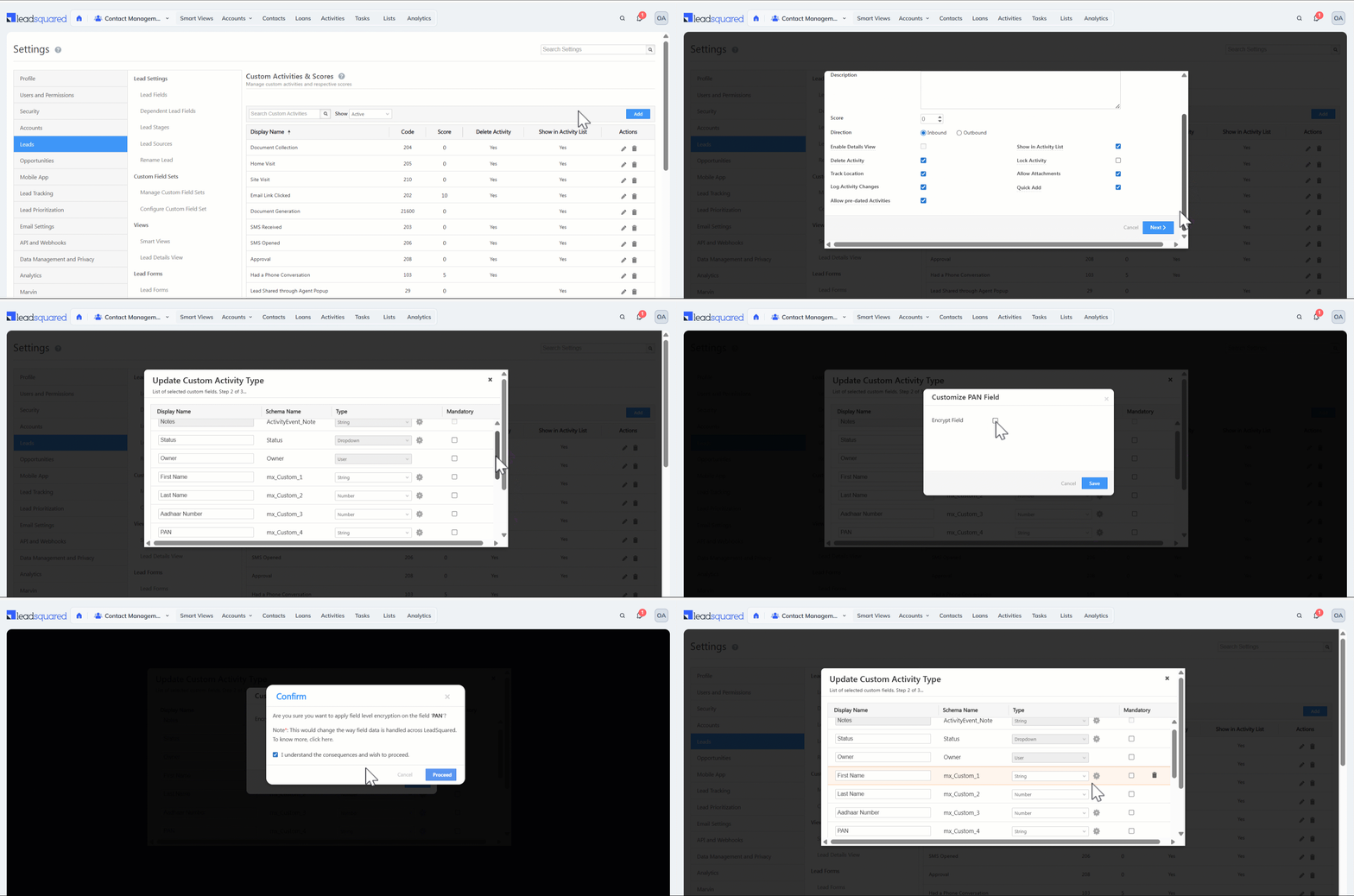
  3. On the second page of the Update Custom Activity Type popup, click the Leadsquared - Actions Actions icon alongside the relevant field.
  4. Check the box alongside Encrypt Field.

Leadsquared - Field Level Encryption


7. View Request History

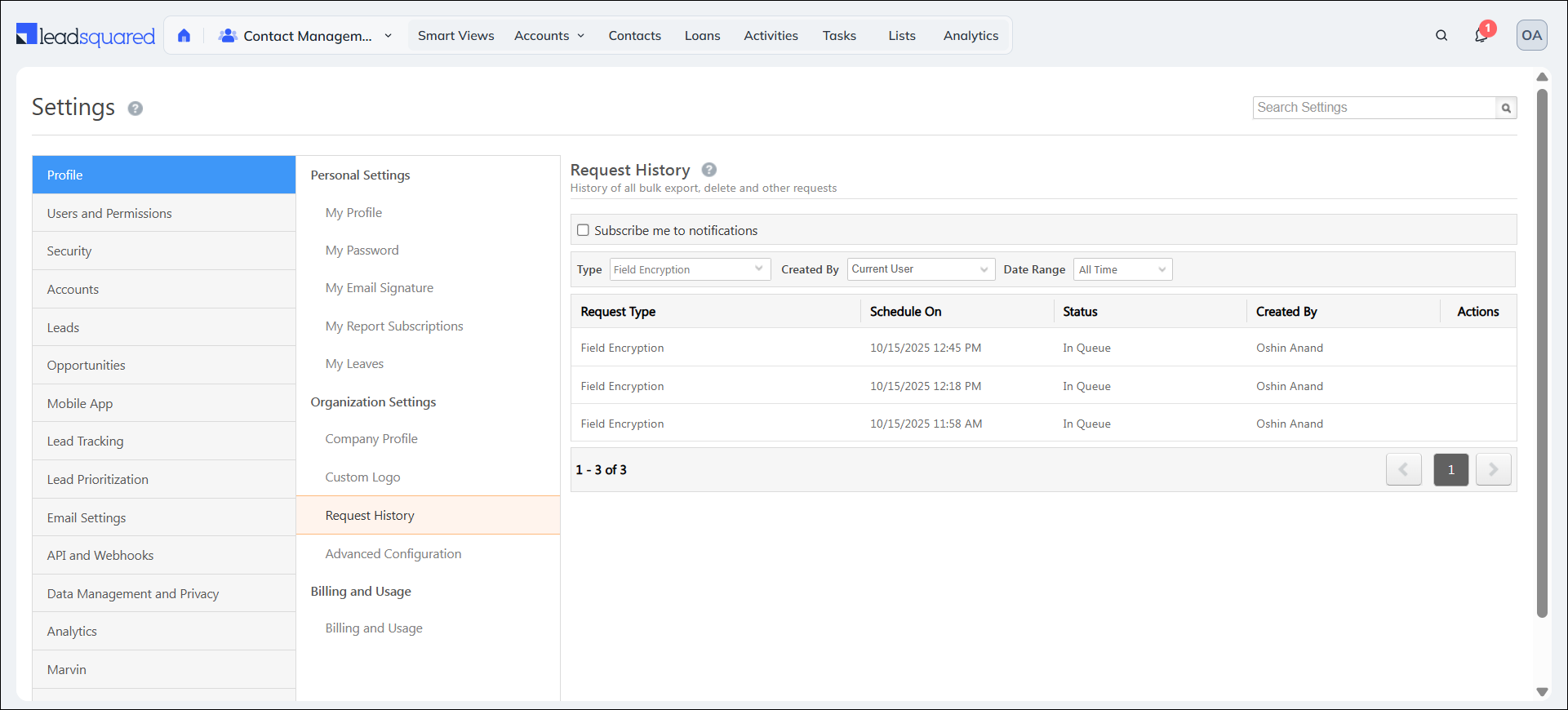
To see the details about your existing field encryption request, navigate to Settings>Profile>Request History.

Leadsquared - Field Level Encryption


8. Limitations

  • Global & Quick Search: The Quick Search, Global Search, and Advanced Search features may not function correctly while encryption is in progress.
  • Advanced Search: Only the operators Equals, Not Equal, Contains Data, and Does Not Contain Data are supported. All other operators are not available for encrypted fields.
  • Search Limitations During Encryption: The Quick Search, Global Search, and Advanced Search features may not function correctly while encryption is in progress.
  • Sort/Filter: Sorting and filtering are disabled for encrypted fields.
  • Reporting: In some cases, encrypted fields may display ciphertext if the report or integration does not handle decryption.
  • Uniqueness: Only the system fields Email, Phone, and Mobile can be marked as unique if encrypted. Any other field marked as unique cannot be encrypted.
  • Uniqueness Criteria Impact: If unique fields (such as Phone, Mobile, or Email) are marked for encryption, the uniqueness validation will not work until the encryption process is complete. This can lead to duplicate records being created. It is strongly recommended to pause record creation and updates while encryption is in progress on unique fields to avoid data inconsistencies.
  • Audit: Historical audit records created before encryption was enabled will remain unencrypted. Encryption applies only to new audit entries generated after the field has been encrypted.


Any Questions?

Did you find this article helpful? Please let us know any feedback you may have in the comments section below. We’d love to hear from you and help you out!

Manage User Custom Fields

1. Feature Overview

When you create users, there are a number of system fields available (such as first name, last name, etc.) to store their information. You can also create custom user fields (like their work anniversaries, gender, marital status, etc.). You can choose the data types you want the fields to accept and customize them according to your preferences.
You can also setup automations on the basis of some of these fields. To know more, see How to Create a User Automation.


2. Prerequisites

You must be an Admin user to create and edit user fields. If you require more than the available number of custom fields, please write to support@leadsquared.com.


3. Create Custom Fields

To create a custom user field –

  1. Navigate to Settings>Users and Permissions>User Fields.
  2. Click Create.
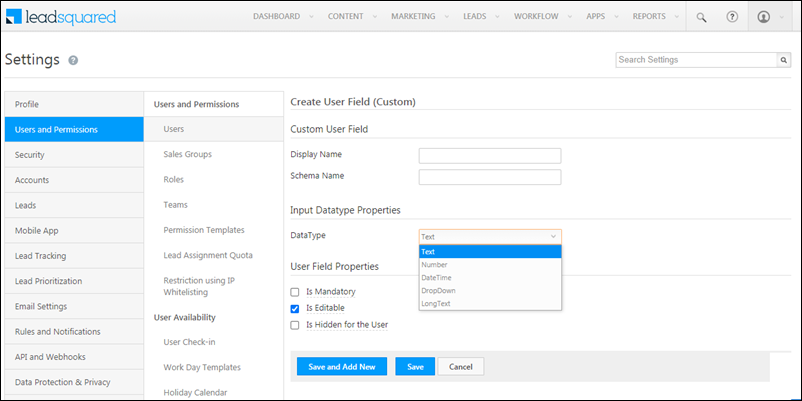
  3. On the Create User Field (Custom) form, enter relevant details in the following properties –
Property Description
Enter the display name (eg, “Birthday”, “Work Anniversary”, etc.) of the field that’s being created.
Enter the schema name of the field. Only alphanumeric characters and underscores are allowed.
DataType The data type of the field. The following are the data types available, along with their limits –

  • Text – You can add up to 20 fields, with a limit of 250 characters per field.
  • Number – You can add up to 40 number fields.
  • DateTime – You can add up to 10 DateTime fields.
  • Dropdown – You can add up to 20 dropdown fields.
  • Long Text – You can add up to 10 long text fields, with a limit of 1024 characters per field.
Is Mandatory To make this field mandatory for your users to fill in, enable the checkbox.
Is Editable To allow your users to edit this field on the My Profile page, after they’ve submitted the details, enable the checkbox.
Is Hidden for the User To hide this field for the user on the My Profile page, enable this checkbox.

Once you’re done, click Save. You can now enter the details of each custom field while creating or editing a user from the Manage Users page. For more information, see Manage Users.

LeadSquared Custom User Fields

Note: Once published, you cannot change the DataType of a custom user field.


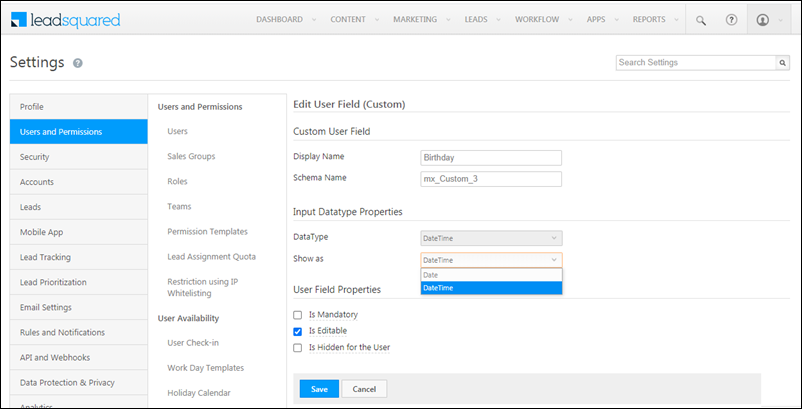
3. Edit Custom User Fields

To edit a custom user field –

  1. Navigate to Settings>Users and Permissions>User Fields.
  2. Against the field you want to edit, hover your cursor over the icon, and click Edit.
  3. On the Edit User Field (Custom) form, you can edit the following fields –
Property Description
Edit the display name (eg, “Birthday”, “Work Anniversary”, etc.) of the field that’s being created.
Edit the schema name of the field. Only alphanumeric characters and underscores are allowed.
Show As This option will show up only for a DateType field. You can choose how the field is displayed, either as a ‘Date’ field or a ‘DateType’ field.
Is Mandatory To make this field mandatory for your users to fill in, enable the checkbox.
Is Editable To allow your users to edit this field on the My Profile page, after they’ve submitted the details, enable the checkbox.
Is Hidden for the User To hide this field for the user on the My Profile page, enable this checkbox.

Once you’re done, click Save.

LeadSquared Custom User Fields


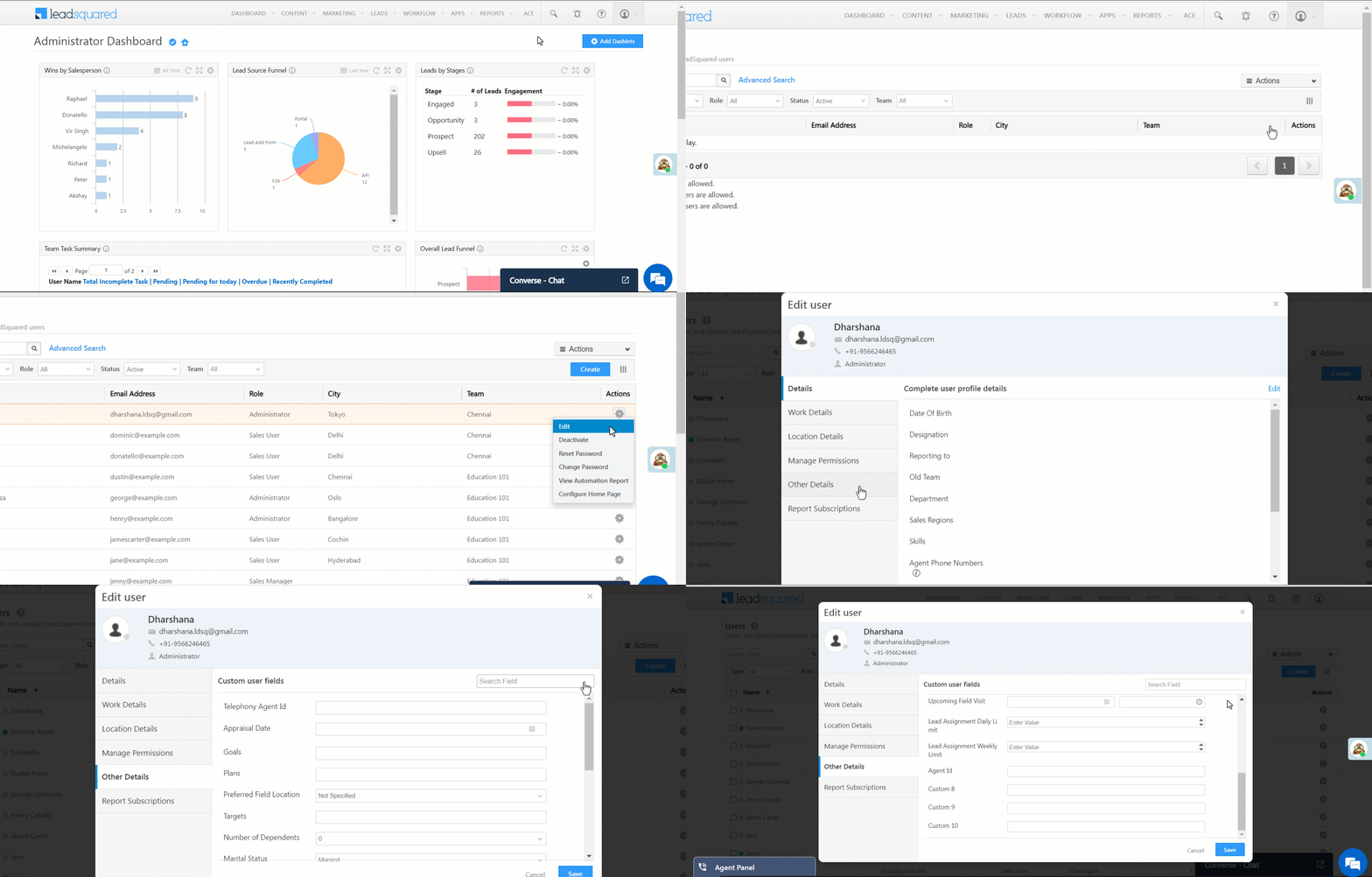
4. Populate Custom Fields for Users

Once you’ve created and configured custom user fields in your account, you can populate them with data for each user.

  1. Navigate to the Manage Users page.
  2. When creating or editing a user, click the Other Details tab.
  3. All the custom fields are available here. Click Edit to populate them with values.

LeadSquared User Management


5. FAQs

What is the maximum number of custom lead fields I can create?
You can create up to 260 custom lead fields in your LeadSquared account.


Any Questions?

Have any questions you’d like to voice? Or any experiences with this feature you’d like to share? Please feel free to start a discussion in the comments section.

Bulk Delete Data

1. Feature Overview

The Bulk Delete Data feature allows you to delete system & core activities, and custom activities from your account in a single action. This feature lets you efficiently manage your storage by removing older data that your business no longer requires.

Note: This feature allows you to delete up to 200,000 activities in a single request.

Leadsquared - Bulk Delete Data


2. Prerequisites

  • To enable this feature, contact your account manager, or write to support@leadsquared.com.
  • You must be an admin to access this feature.


3. How it Works

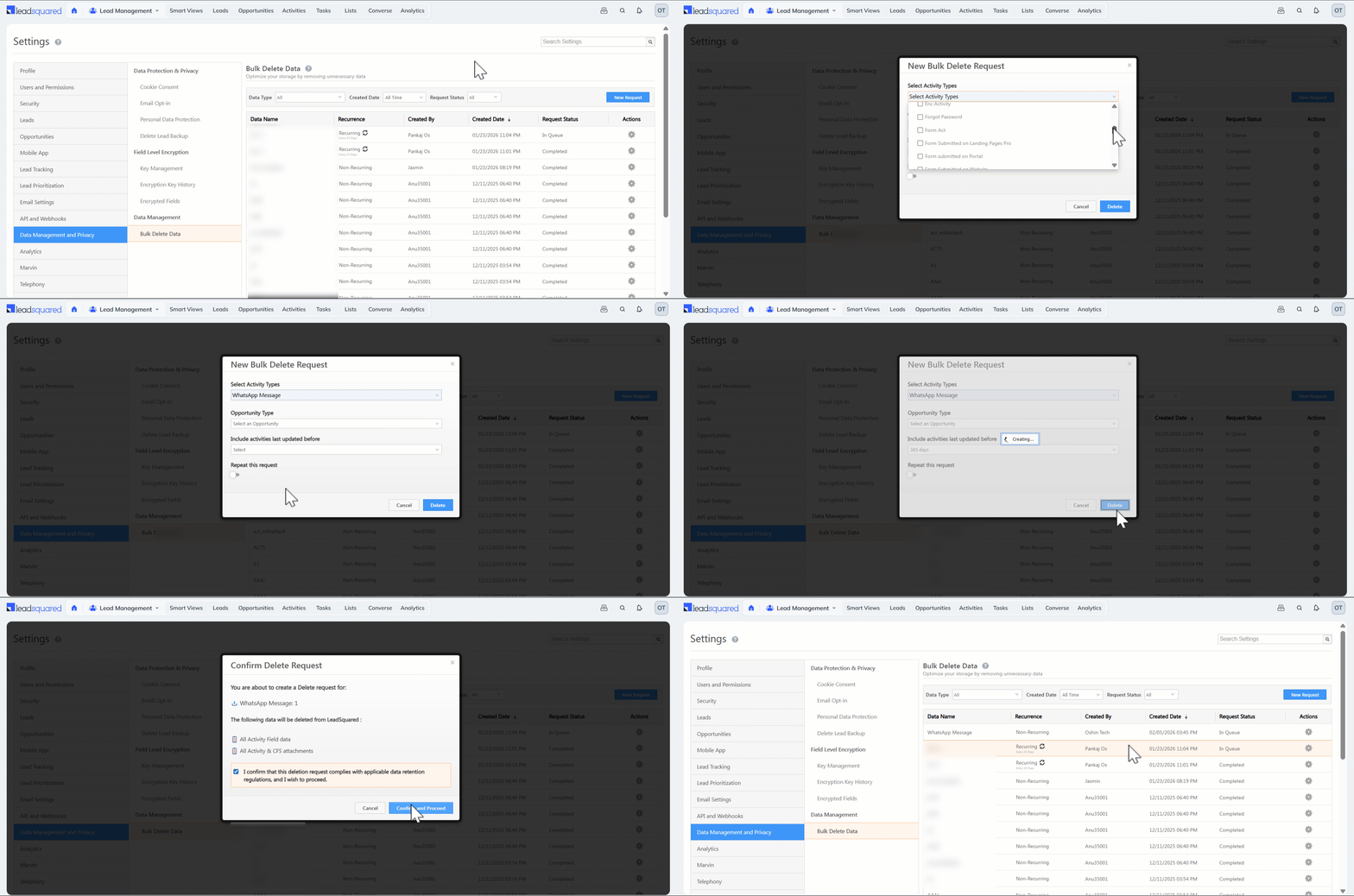
  1. In the first step, create a bulk delete request and select the custom activity you want to delete. You can either delete the activities under all entities or a particular Opportunity Type.
  2. Select a date range (30 days, custom range, etc.) outside of which you want to delete this activity.
    • Only activities modified outside the selected date range will be deleted.
    • Activities modified within the date range will remain in your account.
      • For example, suppose today’s date is April 30th and you want to delete the “Document Collection” activity, and you select a 30-day date range. In that case, only activities modified before April 1st (more than 30 days ago) will be deleted. Activities modified within the last 30 days, regardless of their creation date (such as a Document Collection activity posted on February 15th but modified on April 18th), will remain in your account.


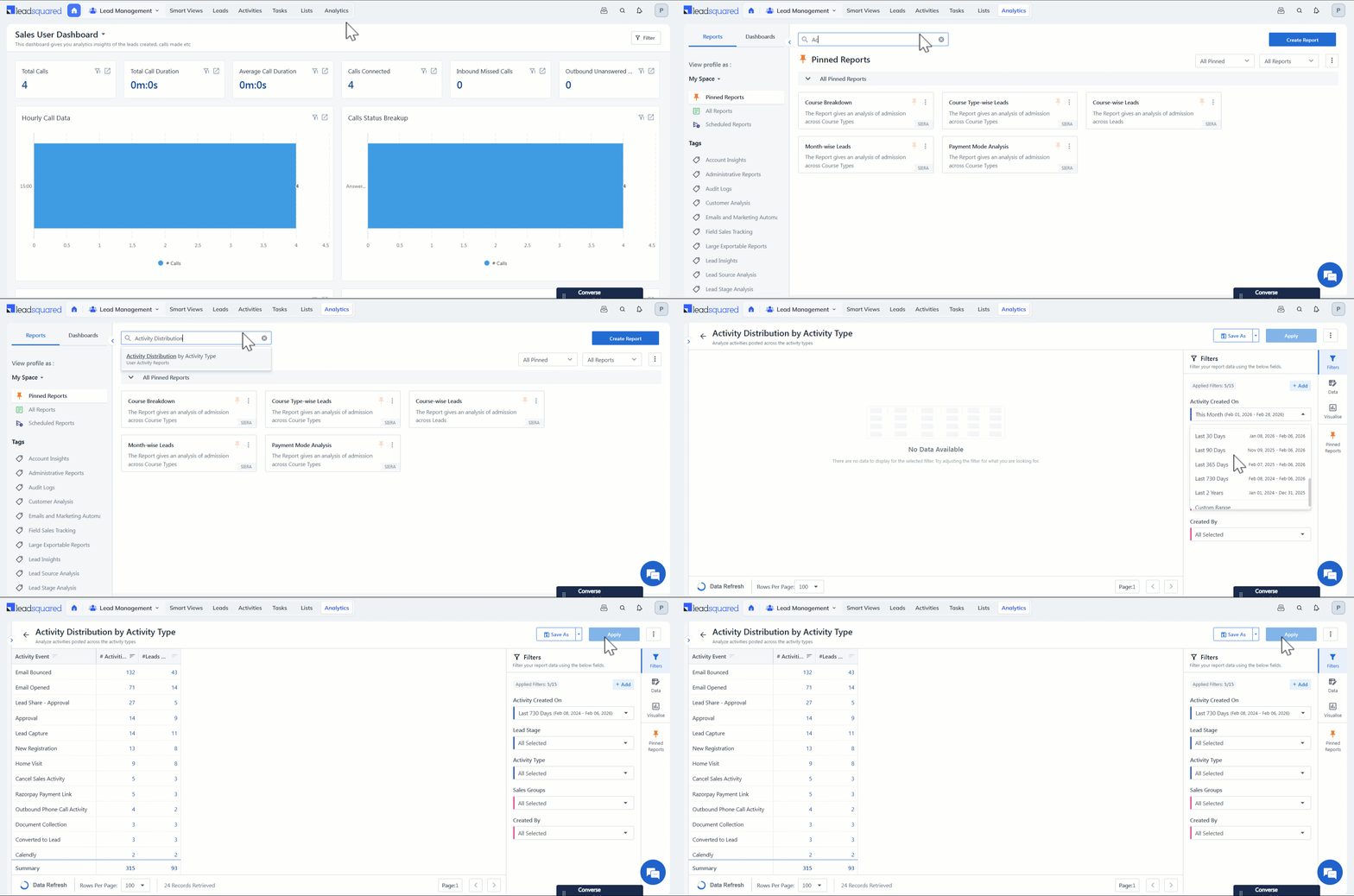
4. View Activity Distribution by Activity Type Report

Before you bulk delete the activities, you can navigate to the Activity Distribution by Activity Type report and view the count of activities in each activity type. This helps you make better decisions and avoid mistakes.

  1. Navigate to Analytics from your LeadSquared Dashboard.
  2. In the search bar, look for “Activity Distribution by Activity Type”.
  3. In the report, under Activity Created On dropdown, select the relevant date range and click Apply. For instance, if today’s date is March 31, 2025 and you select Last 90 Days, all the activities created between January 1, 2025 and March 31, 2025 will be displayed.

Leadsquared - Bulk Delete Data


5. Create Bulk Delete Data Request

To export and delete data –

  1. Navigate to My Profile>Settings>Data Management and Privacy>Bulk Export & Delete Data.
  2. On the Bulk Delete Data grid, click New Request.
  3. On the New Bulk Delete Request popup, from the Activity Type dropdown, select the activity type you want to delete.
  4. From the Activities with ‘Modified On’ date older than dropdown, select the date range for which you want to delete the activities. Only activities modified outside the selected date range will be deleted.
    • For instance, if the current date is April 30th and you select 30 days, activities modified before April 1st will be deleted.*
    • You can also select Custom and enter a custom date range to  delete activities modified outside this range.
  5. Once you’ve entered the relevant information, click Delete.

Note:

  • *Activities modified within the last 30 days, regardless of their creation date (e.g., Document Collection activity posted on February 15th but modified on April 18th), will remain in your account.
  • You can select only one custom activity type at a time.
  • Core Activities, Service CRM Ticket Activities and Account Activities will not be displayed in the Activity Type dropdown.

On the Confirm popup –

  1. You’re shown a summary of what you’ve selected to be deleted, which includes –
    • The activity type you’ve selected
    • The data that will be deleted (All Activity field data and All Activity & CFS Attachments)
  2. Before proceeding with data deletion, click the checkbox.
    • This is to confirm your understanding of region-specific compliance guidelines.
  3. Then, click Confirm and Proceed.
Note: Before initiating a request, ensure you are complying with your applicable regulatory guidelines. Storage periods vary based on factors such as industry regulations, the type of data processing, and applicable legal requirements.

Leadsquared - Bulk Delete Data

Repeat Delete Request

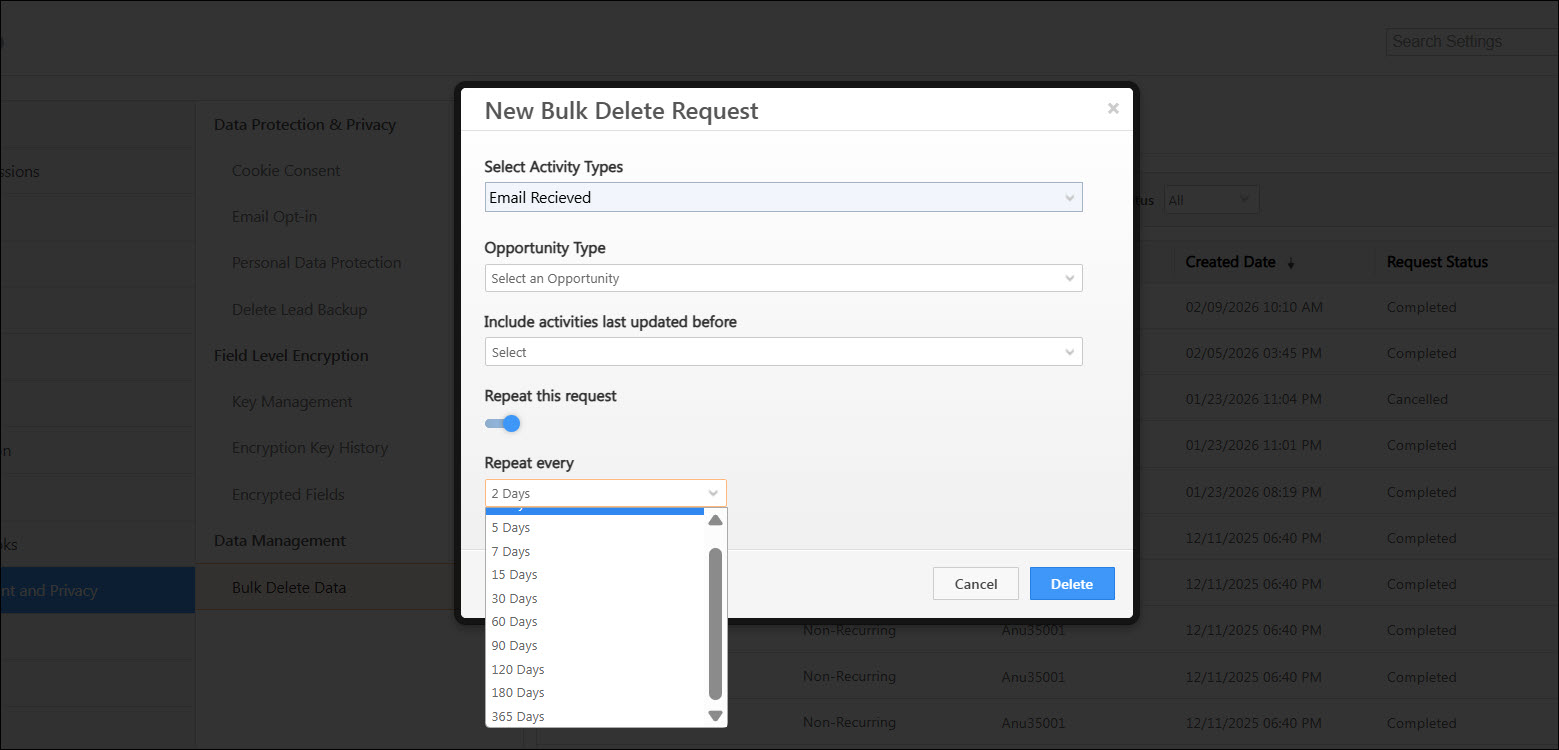
You can set a delete request to run on a recurring basis. This allows data associated with a specific entity to be automatically deleted at regular intervals. To configure a recurring delete request –

  1. After selecting the data you want to delete, enable the Repeat this request toggle on the New Bulk Delete Request popup.
  2. From the Repeat every dropdown, choose how often the delete request should run.

Leadsquared - Bulk Delete Data


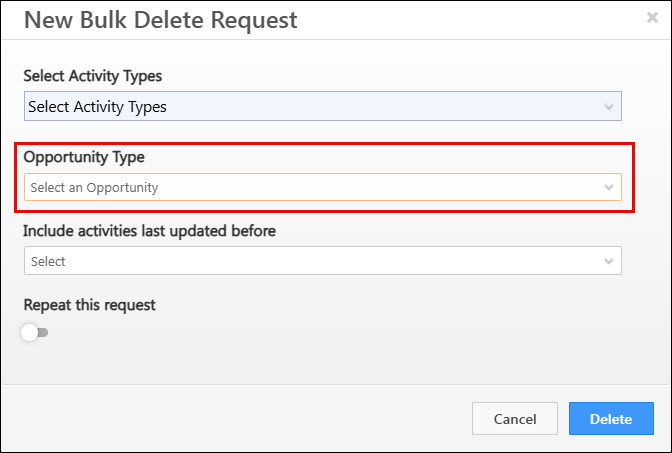
6. Bulk Delete Data Under a Particular Opportunity Type

You can bulk delete activity data for a specific Opportunity Type without affecting Lead data. While creating the bulk delete request, select the required Opportunity Type from the dropdown and complete the remaining steps as described earlier. Only data associated with the selected Opportunity Type will be deleted.

Leadsquared - Bulk Delete Data


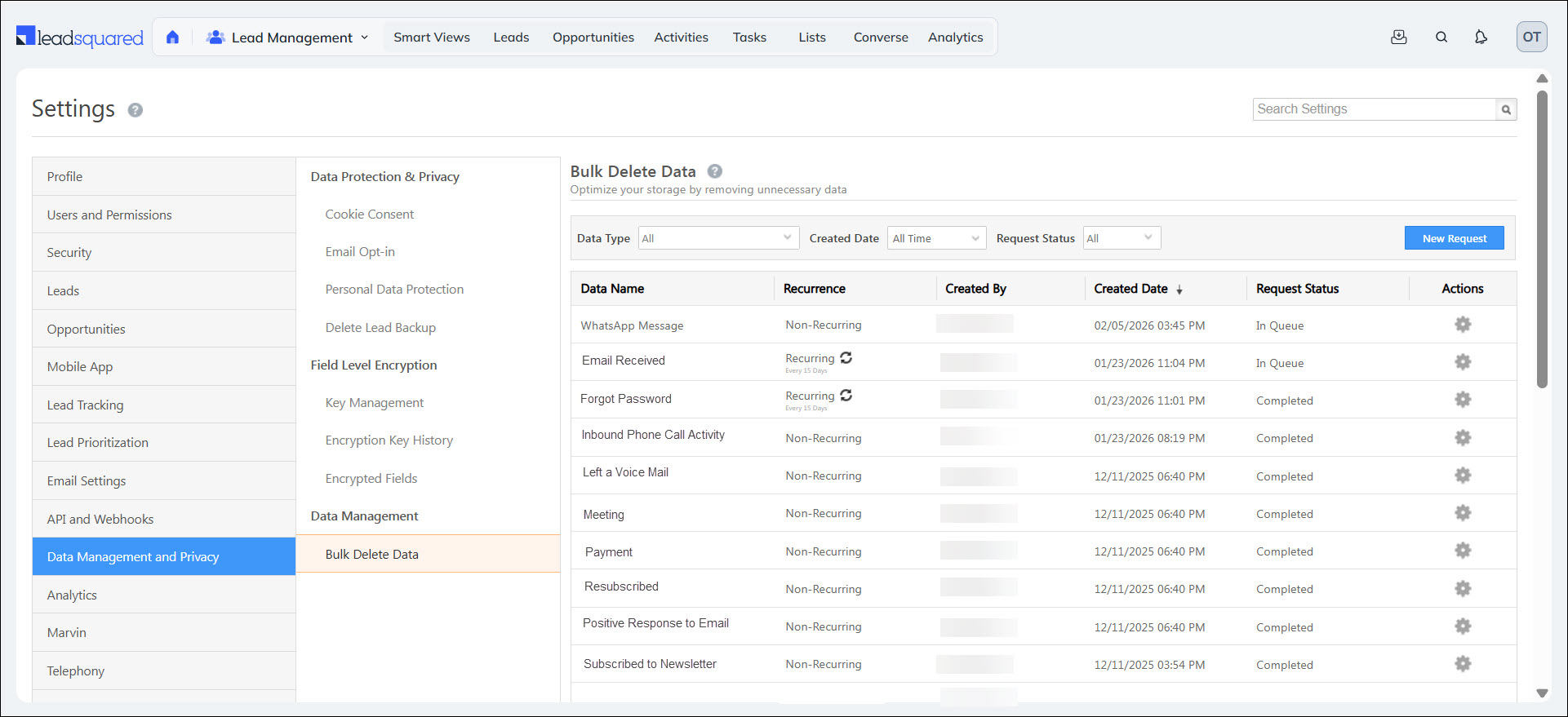
7. Bulk Delete Data Grid

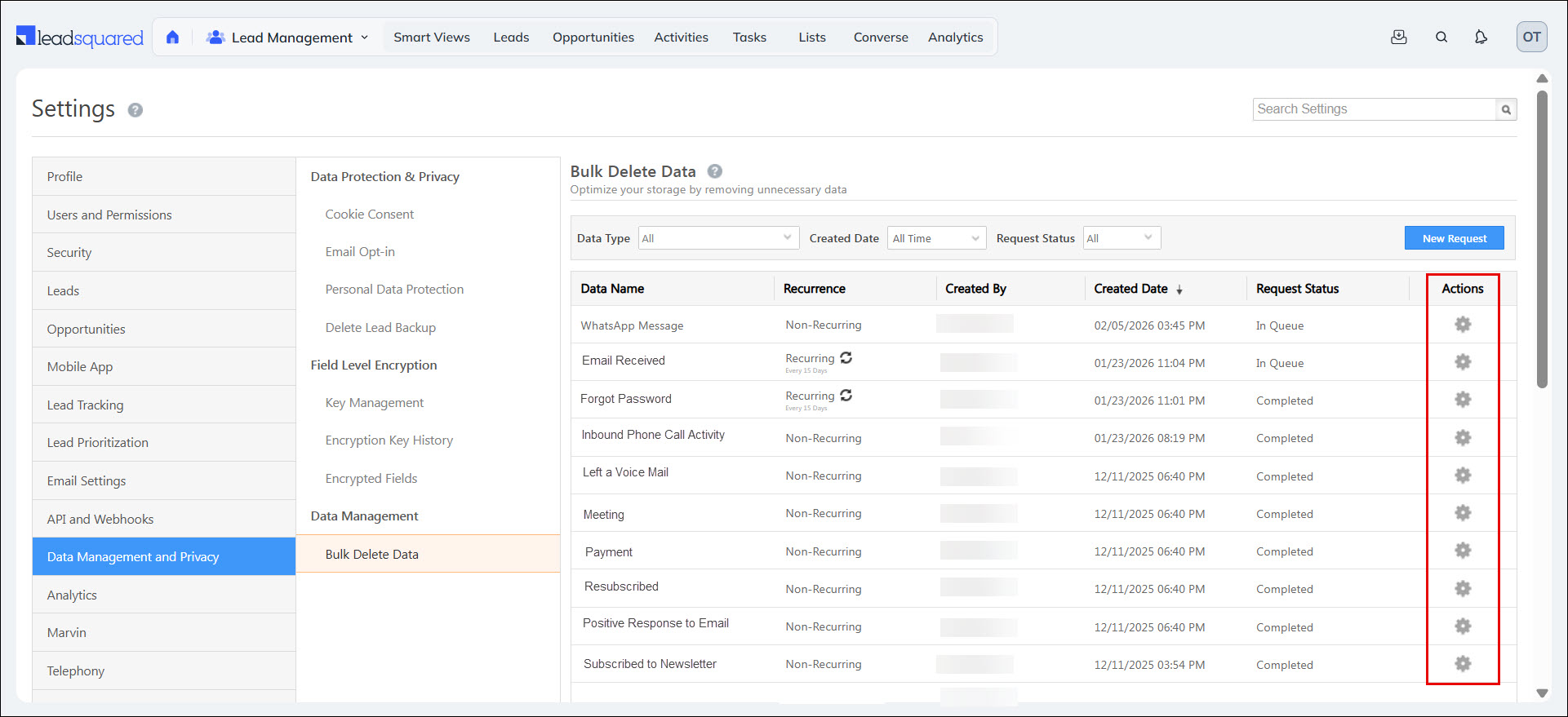
After creating the request, it will appear on the Bulk Delete Data Grid with the following details –

Leadsquared - Bulk Delete Data

Element Description
Entity Name Name of the activity.
Recurrence Indicates whether the bulk delete request is set to run once or repeat automatically at a defined interval
Created By The name of the user who created the request.
Created Date The date and time when the request was created.
Status The status of the request –

  • Success – The request has been successfully executed.
  • Failed – The request has failed.
  • In Queue – The request has been created and is awaiting execution.
  • In Progress – The request is currently being executed.
  • Revoked – The user has cancelled the request while it was in the queue.

You can also perform the following actions from the actions grid –

7.1 View Report

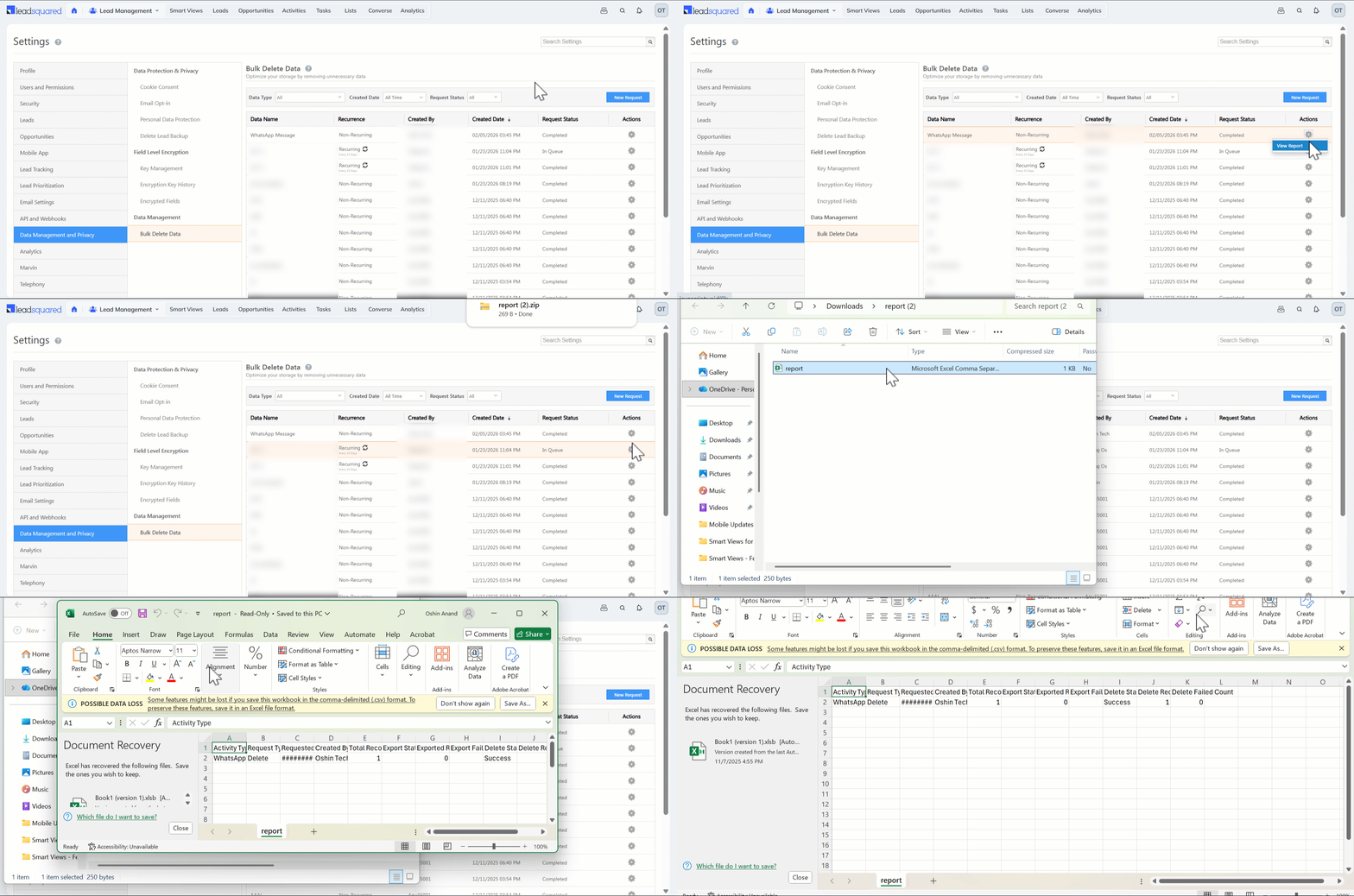
Once the request is completed, you can download and view a report anytime.

  1. On the Bulk Delete Data grid, under Actions, click the LeadSquared - Settings icon gear icon.
  2. Select View Report. The report will be automatically downloaded as a CSV file to your device.

Leadsquared - Bulk Delete Data

7.2 Revoke Request

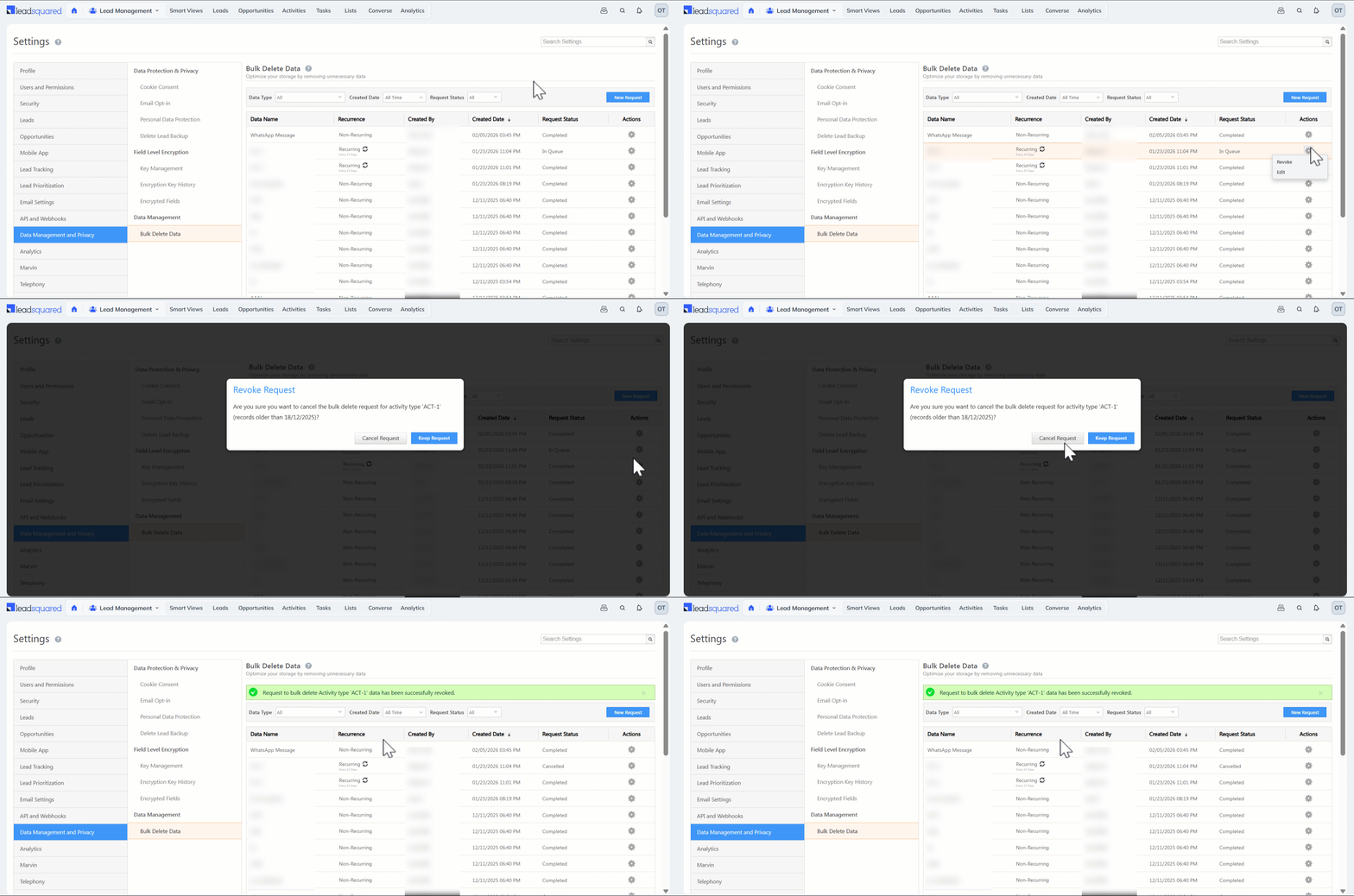
All requests are processed during off-business hours. You can revoke the requests you’ve made when it’s in the ‘In Queue’ status.

  1. On the Bulk Delete Data grid, under Actions, click the LeadSquared - Settings icon gear icon.
  2. Select Revoke, and on the Revoke Request popup, click Cancel Request.
Note: The Revoke action will only be visible for requests with the status ‘In Queue’.

Leadsquared - Bulk Delete Data


8. Errors

8.1 Another Request Already Exists

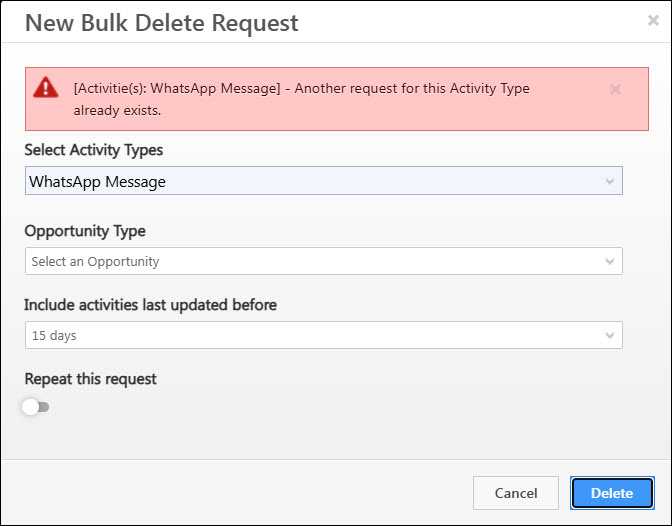
You can create only one request at a time for a single activity type. For example, in the image below, “WhatsApp Message” cannot be processed because an existing request to delete the this activity is already in the queue. Attempting to create another request for the same activity type will result in an error message – “Another request for this Activity Type already exists.”

Leadsquared - Bulk Delete Data

8.2 Access Denied

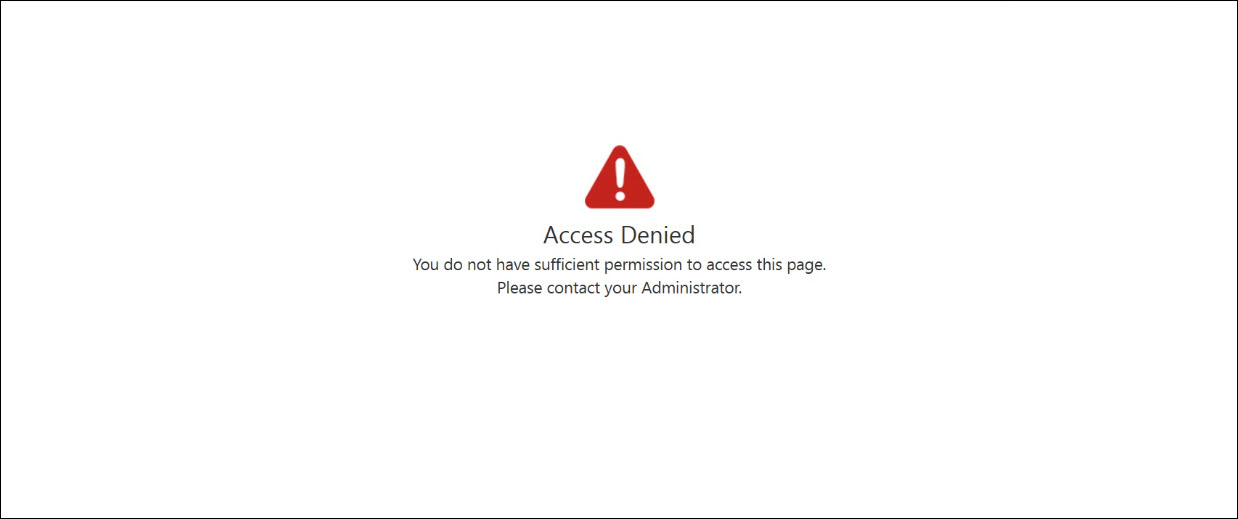
Only admins have access to the Bulk Delete Data page. If users with other roles attempt to access the page, they will see an “Access Denied” error message.

Leadsquared - Bulk Delete Data


Any Questions?

Did you find this article helpful? Please let us know any feedback you may have in the comments section below. We’d love to hear from you and help you out!

How to Select Lead Fields to view on Lead Management page?

1. Feature Overview

The Column Customization feature lets you choose which columns appear on key pages such as Manage Leads, Manage Opportunities, Activities, and Tasks.
It helps you view important information at a glance, without opening individual Lead or Opportunity details. You can display both default fields (like Lead Score, Lead Owner, etc.) and custom fields (like Course Interest, Insurance Type, or Budget) directly in the grid.

Additionally, you can pin columns to keep important fields (such as Lead Name or Phone Number) fixed in place while scrolling through the grid. This ensures that critical information always remains visible.

Note: In addition to the default fields, you can also display custom lead fields on the grid. For more information, see How to Create Custom Lead Fields.


2. Customize Columns in Manage Leads Page

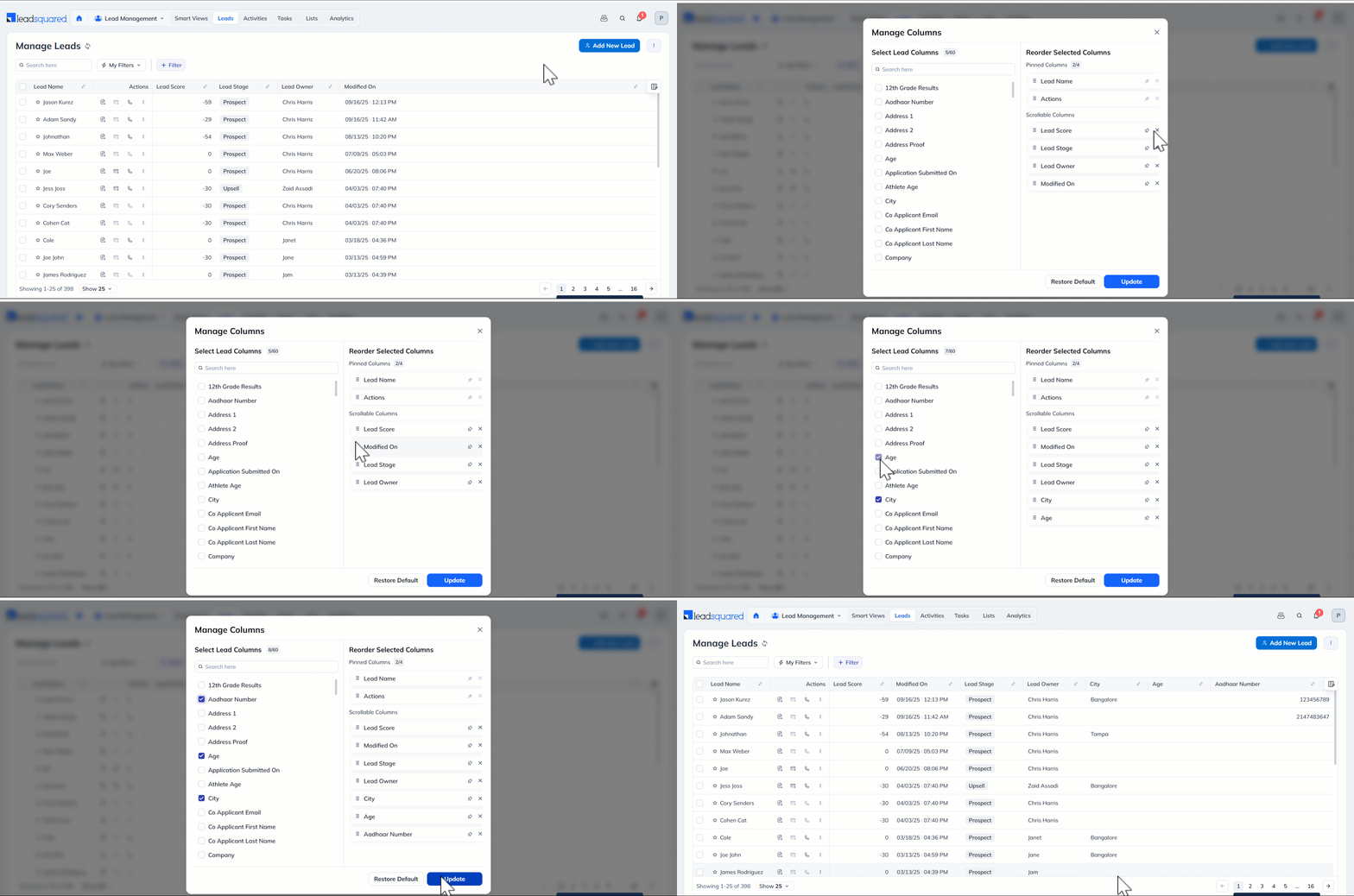
  1. Navigate to Lead Management>Leads to view the list of all your leads.
  2. Click the Manage Columns icon on the top-right corner of the lead grid. Here, you’ll see the list of available and selected lead field columns.
  3. Hover over the relevant selected column, and drag and drop it in the desired position to reorder the grid.
  4. To add new columns, click on the relevant checkbox alongside the relevant field under Select Lead Columns.
  5. Once you’ve added the fields, click Update.

Leadsquared - Manage Columns

2.1 Pin Columns

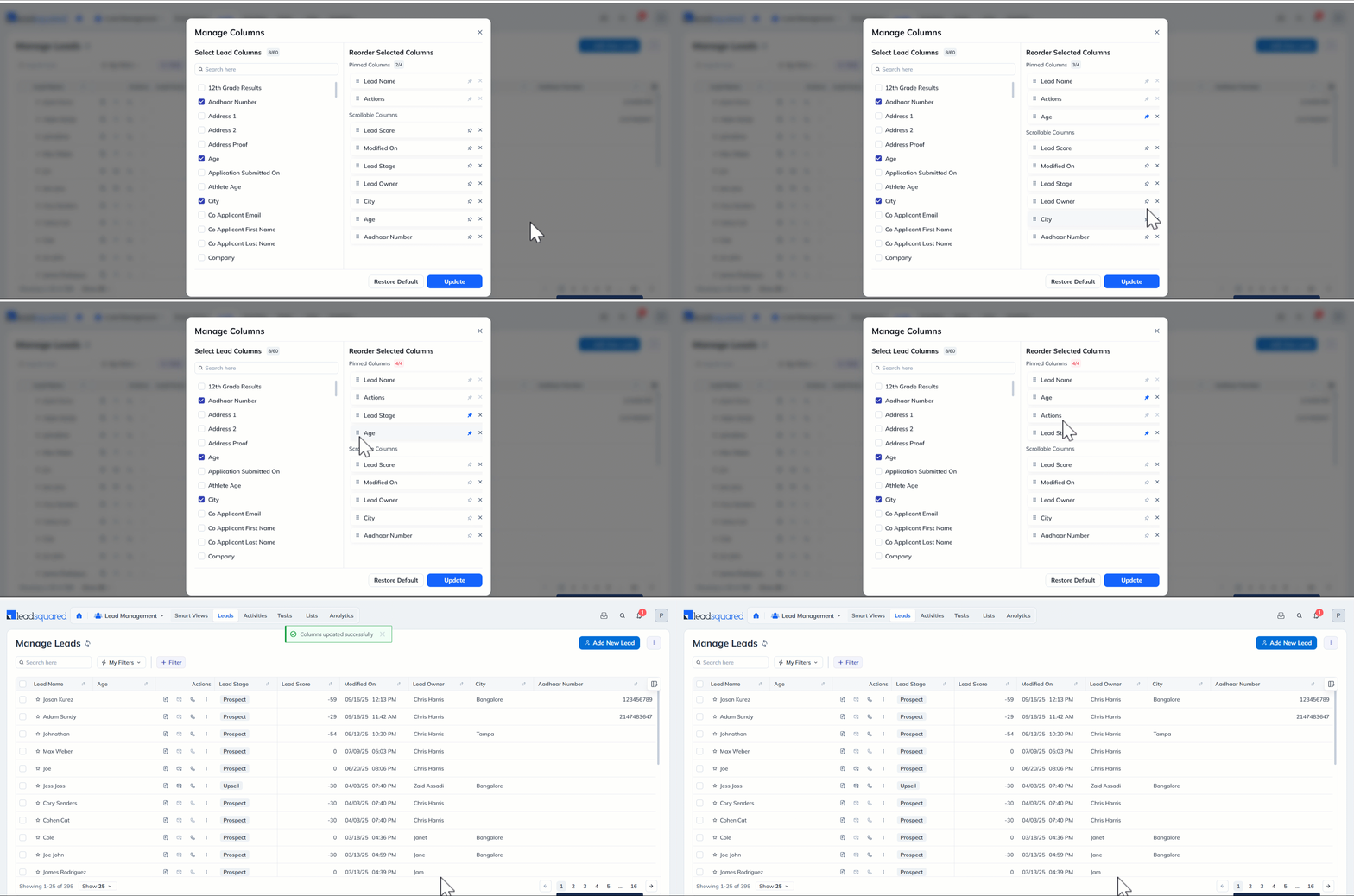
Pin a column to move it to the front of the grid and freeze it in place. Pinned columns remain visible and do not move or get hidden when scrolling through the grid. You can pin upto four columns, with two primary columns pinned by default.

  1. Click the Pin icon alongside the relevant selected column to pin it. The field will move under the Pinned Columns section.
  2. Drag and drop to reposition the field within the column as per your preference.
  3. Once you’ve selected and pinned the columns, click Update.

Leadsquared - Manage Columns

2.2 Restore Default Columns

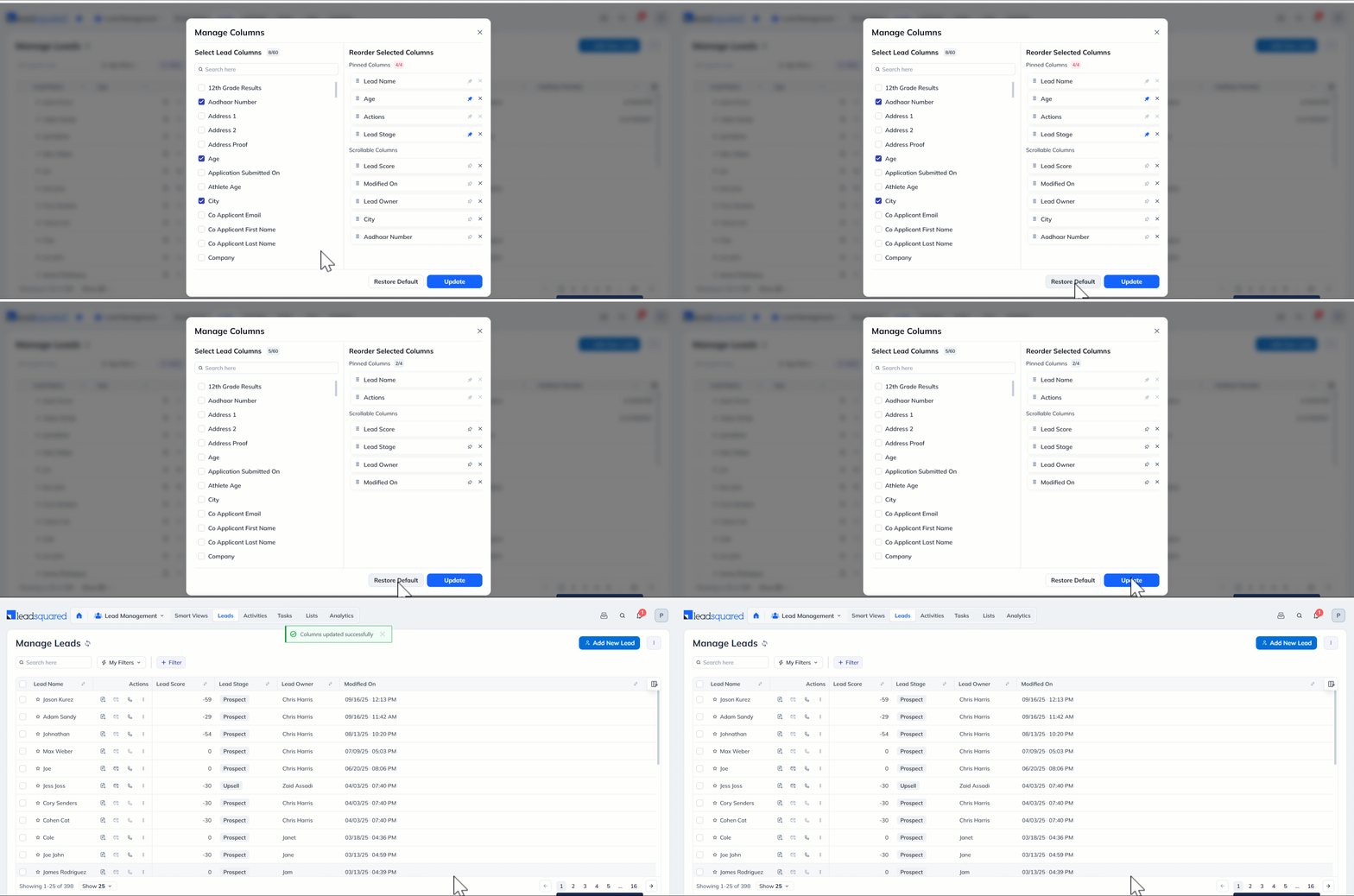
The default columns are Lead Name, Actions, Lead Score, Lead Stage, Lead Owner and Modified On. To view these default columns, click Restore Default and select Update.

Leadsquared - Manage Columns


3. Manage Columns in Smart Views

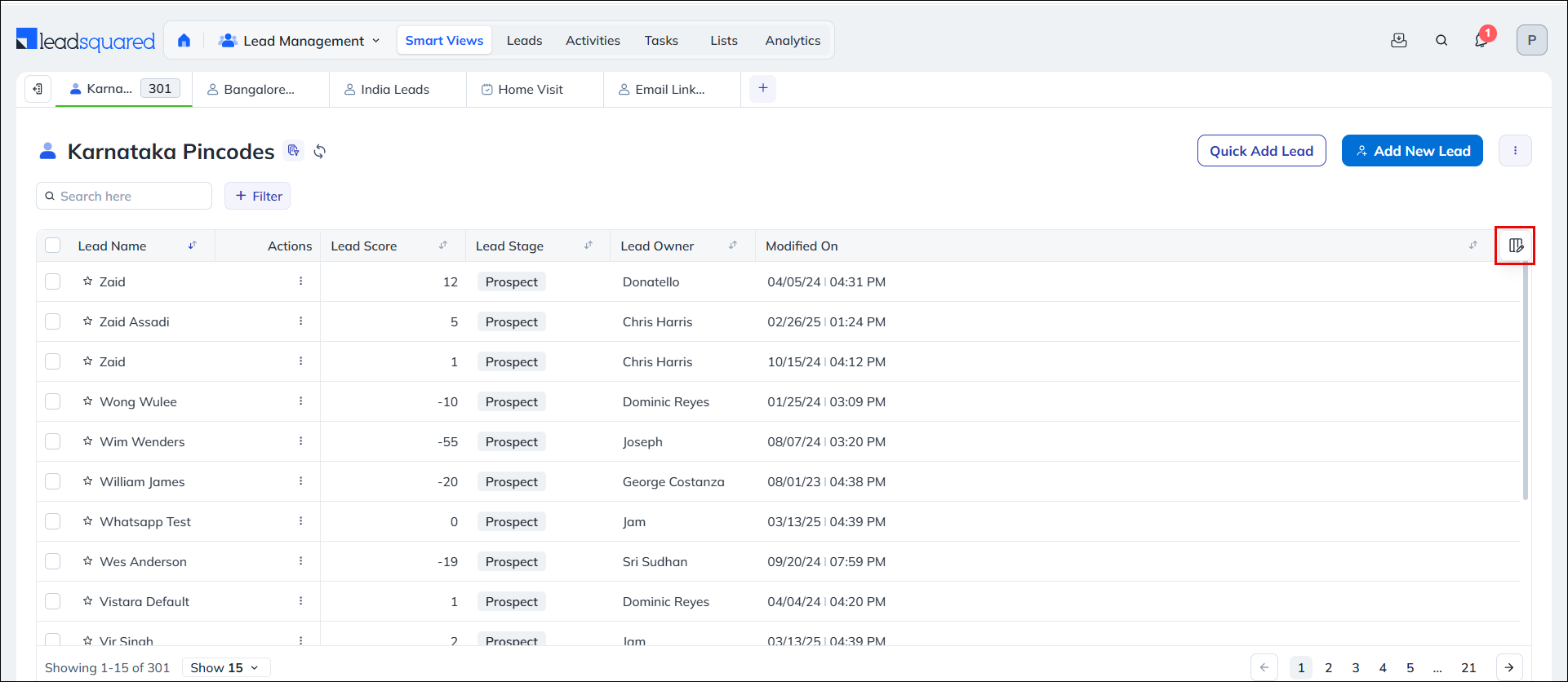
You can also customize columns in Smart Views.  To do so, click the Manage Columns icon on the upper right corner of the lead grid and follow the same steps as described above.

Leadsquared -Manage Columns


Any Questions?

Did you find this article helpful? Please let us know any feedback you may have in the comments section below. We’d love to hear from you and help you out!

Bulk Automation Triggers

1. Feature Overview

The Bulk Automation Trigger feature enables Automations to trigger when entities (leads, opportunities, activities, etc.) are created or updated in bulk through Import and Bulk Update via UI or API.

Note: Once an automation is triggered 50 times for a lead within a single day, it will automatically terminate. This is done to prevent any potential looping.


2. Prerequisites

  • Once you enable an Automation Trigger (for example, the Opportunity Create trigger), you can then enable the corresponding Bulk Trigger setting on that Automation trigger. You must raise a request to enable Bulk Automation Triggers – send an email to support@leadsquared.com.
  • The maximum limit by default for bulk automation triggers is 10,000 – you cannot update more than 10,000 records at once. For example, if you import 15,000 leads, the Bulk Automation on all 15,000 records will fail. You can increase the limit on bulk automation triggers to 25,000 by contacting support@leadsquared.com.


3. Bulk Automation Triggers

After the Bulk Automation Trigger settings are enabled on your automation triggers, your Automations will trigger during bulk imports.

Note: 

  • For the following triggers, you will need to enable an additional setting, Trigger on Import when configuring the trigger  –
    • Lead Create
    • Opportunity Create
    • Account Create
  • You must first enable the  Automation Triggers (Lead Create, Opportunity Crate, Account Create)  for the Trigger on Import option to be visible.

Bulk overview


Any Questions?

If you have any additional questions, please leave them in the comment section below.

I checked in by tapping the notification on my phone but it hasn’t reflected in my account. Why?

Try switching the LeadSquared mobile app from the background to the foreground of your device. If that doesn’t work, either the ‘Location Tracking’ settings are disabled for your device or the mobile app, or your internet connection is not working.

For more information, see Auto Check-In/Check-Out Guide.

I configured reminders to be delivered in my automation but my users aren’t receiving them. Why?

Ensure that notifications for the LeadSquared mobile app are enabled. Also, see if the webhooks you’ve configured have the correct ‘Request Type’.

For more information, see Auto Check-In/Check-Out Guide.

I got a notification to check-in but it doesn’t work when I tap on it. Why?

Either the ‘Location Tracking’ settings are disabled for your device or the mobile app or your internet connection is not working.

For more information, see Auto Check-In/Check-Out Guide.

I set up work day templates with different time blocks for multiple shifts. Why am I still not being checked out and checked in between shifts?

We only consider the first check-in time and last check-out time. Time blocks and breaks are not accounted for.

For more information, see Auto Check-In/Check-Out Guide.

Will the mobile app prompt me in case the location tracking settings on my device are disabled?

Yes (for Android), you’ll get a notification to turn your device’s location tracking settings on.

For more information, see Auto Check-In/Check-Out Guide.

I checked in on mobile but lost connectivity while travelling. Will my location still be tracked?

Yes, you’ll remain checked-in in this case. Your location will still be tracked and it will reflect in your LeadSquared account as soon as you regain your connection.

For more information, see Auto Check-In/Check-Out Guide.

I got auto checked out at the end of my workday but I’m working late and want check-in again. What should I do?

In this case, you can manually check yourself in.

For more information, see Auto Check-In/Check-Out Guide.

The internet connection on my phone isn’t working. Can I still check-in and check-out from mobile?

No, the check-in and check-out features require an internet connection.

For more information, see Auto Check-In/Check-Out Guide.

I finished my workday early and checked-out from the mobile app. Will my location still be tracked?

No, we don’t track your location after you check-out.

For more information, see Auto Check-In/Check-Out Guide.

I’ve set up an auto check-in/check-out automation but I don’t see any users entering my automation. Why?

Have you set up work day templates? Your automation won’t know when to check-in/check-out your users if you haven’t set up work day templates and applied them to users/teams.
Also, automations you create on a particular day won’t trigger till the following day. Our service runs once a day (at 12 a.m. for the configured timezone) and therefore you’ll only see users enter your automation they day after you publish it.

For more information, see Auto Check-In/Check-Out Guide.

I applied for leave but changed my plans and decided to work anyway. Can I manually check-in/check-out?

Yes, you can manually check-in and out on holidays and leaves. However, you won’t be auto checked in or out on these days.

For more information, see Auto Check-In/Check-Out Guide.

I checked out from the web before the end of my workday but I didn’t get checked out from the mobile app. Why?

If you checked out early from the web, you’ll get checked out on mobile only once your work day is over. However, if you check-out from mobile before the end of the workday, you will be automatically checked out of the web application as well.

For more information, see Auto Check-In/Check-Out Guide.

I disabled the check-in for a user role but the auto check-in feature is still working. Why?

The auto check-in feature works regardless of the user role settings you’ve configured.

For more information, see Auto Check-In/Check-Out Guide.