LeadSquared Support Processes and SLA

Incident Support SLA

Already have a LeadSquared account? Reach us on our support channels below.
1. Support Channels

Official Channels Details
Support over Email support@leadsquared.com ; mobile.support@leadsquared.com
Submit ticket via web https://help.leadsquared.com/ > Contact Support
Support Over Call India: 080-468-01265; North America: +1-732-385-3546
Note: Writing to support@leadsquared.com is the fastest way to get support.


2. Support Timings

Region Support Time Support Coverage
Asia Pacific (APAC) Mon to Fri: 8 a.m. – 11 p.m. IST

Sat & Sun: 9 a.m. – 9 p.m. IST

Weekdays – 15×5

Weekends – 12×2

Europe, the Middle East, and Africa (EMEA) Mon to Fri 24×5
United States of America (USA) Mon to Fri 24×5


3. Incident Support Ticket Severity Classification

Severity Level Definition Examples
Urgent (1) Critical production issue that severely impacts your use of the service. The situation halts your business operations and no procedural workaround exists
  • Service is down or unavailable.
  • Data corrupted or lost and must be restored from backup.
  • Your business operations have been severely disrupted.
High (2) Major functionality is impacted, or significant performance degradation is experienced. Temporary workaround is available.
  • Service is operational but highly degraded performance to the point of major impact on usage.
  • Important features of the Software as a Service offering are unavailable.
  • Operations can continue in a restricted fashion.
Medium (3) There is a partial, non-critical loss of use of the service with a medium-to-low impact on your business, but your business continues to function.
  • Impaired operations of some components but allows the user to continue using the software.
  • Short-term workaround is available, but not scalable.
Low (4) Inquiry regarding a routine technical issue; information requested on application capabilities, navigation, installation, or configuration; bug affecting a small number of users. Acceptable workaround is available.
  • General usage questions.
  • Training issues (Internal, Customers).
  • Documentation related queries, FAQ’s


5. Incident Support Ticket SLA

Standard Support SLA –

Incident Classification First Response1 SLA Resolution Time2 SLA
Urgent (1) 30 mins 6 hours
High (2) 2 hours 1 business day3
Medium (3) 4 hours 2 business days
Low (4) 8 hours 3 business days

Premium Support SLA –

Incident Classification First Response1 SLA Resolution Time2 SLA
Urgent (1) 15 mins 4 hours
High (2) 1 hour 8 hours
Medium (3) 2 hours 1 business day3
Low (4) 4 hours 2 business days

1First Response is a response given by a human to a support incident. It is not the default automated response.

2Resolution would mean a reasonable workable solution has been provided for the incident that restores the states of the application to pre-incident state from user experience perspective. It may be a workaround or temporary resolution in some cases where a larger fix may happen later.

3Business Days and Business Hours. Business hours are the time during the working hours of the LeadSquared user. One business day may consist of some business hours on the working day the ticket is raised and the remaining hours on the next working day.

Note: These SLAs will not be applicable in the case of a Business Continuity Process/Plan (BCP) or Disaster Recovery (DR) situation. For Recovery Time Objective (RTO), Recovery Point Objective (RPO), and Maximum Tolerable Period of Disruption (MTD), please request for the BCP plan document at security@leadsquared.com.


6. Plan-wise Support

Plan Web Support Email Support Phone Support
Lite Yes Yes No
Pro Yes Yes No
Super Yes Yes Yes
Basic Yes Yes No
Standard Yes Yes Yes
Enterprise Yes Yes Yes


7. Escalation

First level contact support@leadsquared.com
First Escalation level1.escalation@leadsquared.com
Second Escalation level2.escalation@leadsquared.com
Final Escalation level3.escalation@leadsquared.com

Lead Automation Actions – Merge Leads

1. Feature Overview

The Merge Lead action helps you to avoid creating duplicate leads.


2. Prerequisites

The Merge Leads action must be preceded by an If Lead Exists condition, and must follow the Yes expand path under the condition.


3. Set Up Merge Leads

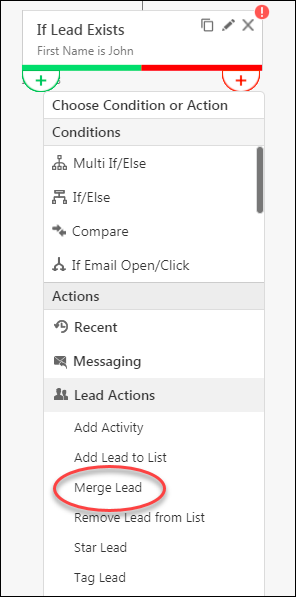
Click the Yes expand path icon under the If Lead Exists condition, click Lead Actions, then click Merge Lead.

Merge Lead action

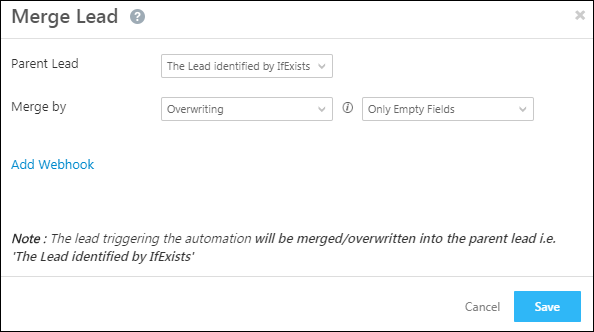
In the configurations pop-up, select the appropriate Parent Lead and Merge by options. Since the lead will be merged in our system, you can additionally use the Add Webhook option, to post the lead data to a URL.

merge lead popup

Attribute Description
Parent Lead
  • Lead identified by If Exists – The lead matching the criteria set in the If Lead Exists condition will become the parent lead. The lead triggering the automation will become the child lead. The child lead will be merged into or overwritten by the parent lead.
  • Lead triggering the automation – The lead triggering the automation will become the parent lead. The lead matching the criteria set in the If Lead Exists condition will become the child lead. The child lead will be merged into or overwritten by the parent lead.
Merge By
  • Overwriting – The parent field will be overwritten by the child field. You may choose to overwrite only empty fields or select the fields you want to overwrite
  • Appending – The child field will be appended to the parent field.

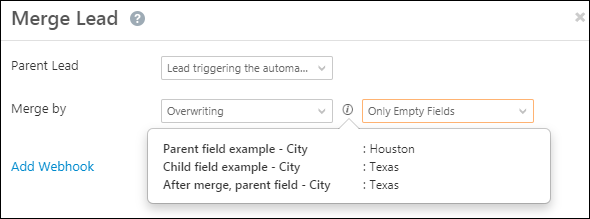
Hover your cursor over theinformation icon icon for more details –

merge example

To learn more about automation features, see Automation Home.

Lead Automation Conditions – Wait

Feature Overview

The wait condition lets you delay an action or condition for a specified period. A few of the many applications of this feature are listed here –

  • Delay sending emails to avoid flooding a lead’s inbox.
  • Wait till a lead score exceeds ‘x’ number and then change the lead stage.
  • Wait a certain amount of time to see if a lead has performed an activity (Email opened, email link clicked, etc.) and then send a follow-up email.
  • Wait till a lead’s stage changes from ‘Opportunity’ to ‘Customer’ and then send ‘Customer-only’ discount emails.
  • Send email campaigns on specific occasions (birthdays, festivals, etc.).
  • Wait till a sales user has sold a product and then send a thank you email.

Note: Daylight savings are accounted for when you choose a specific date and time to wait until. This functionality is configured for all time zones that observe daylight savings. You can edit your time zone and other profile settings under My Profile>Settings>My Profile.


2. Set Wait Condition

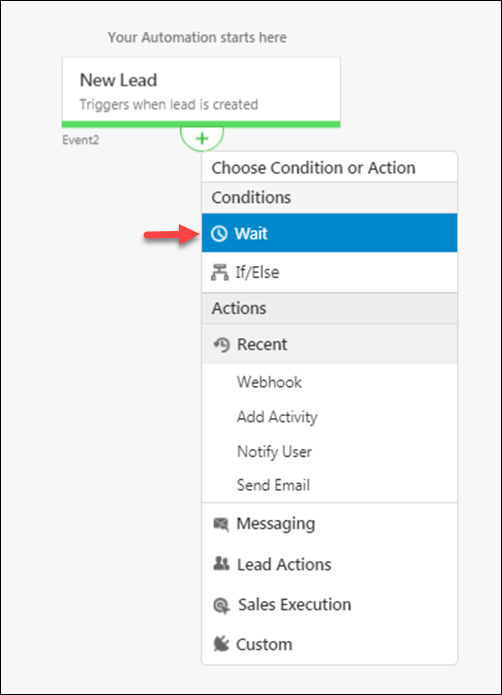
LeadSquared Automation Conditions

Click the Wait condition highlighted above to see the Set Wait Condition pop-up.

LeadSquared Automation Conditions

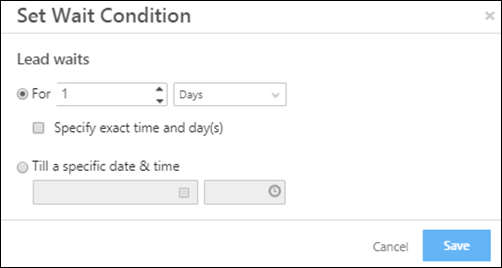
Here you can specify the time period to delay the action in two different ways –

1. For a Specific Amount of Time

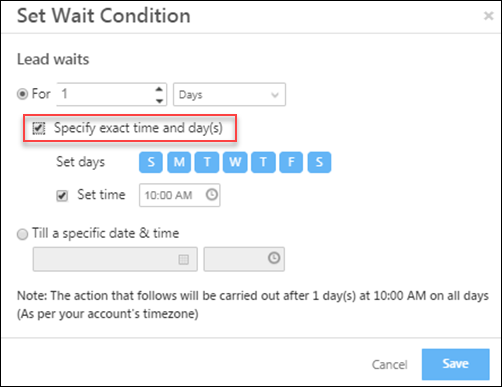
Allows you to enter the time delay in minutes, hours, days, weeks, months and years. In addition to this, you can also set the exact day of the week and time of day that you want to wait before the next action. Use the highlighted checkbox to pick a day and set a time.

LeadSquared Automation Conditions

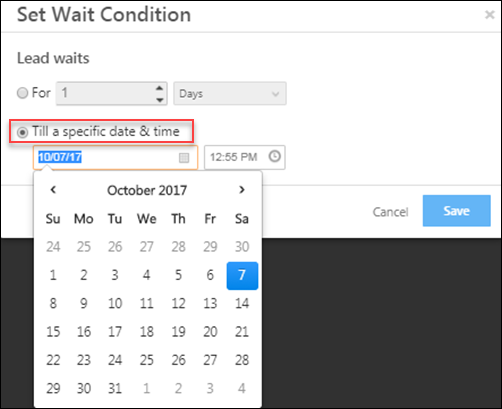
2. Until a Specific Date & Time

Allows you to enter the date and time till which the succeeding activity will be delayed. Click the checkbox highlighted below to use this feature.

LeadSquared Automation Conditions

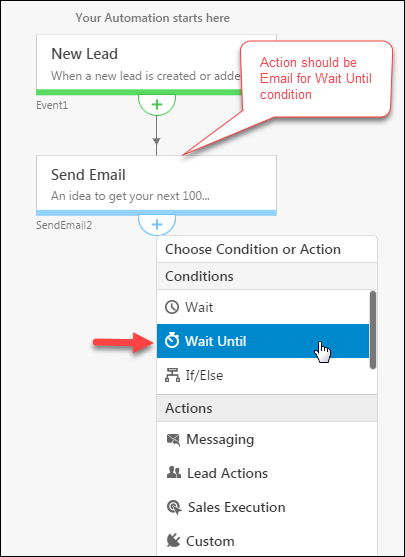
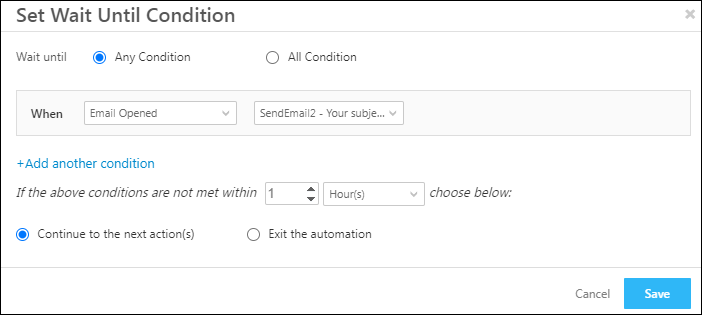
If you are giving an Email action, you have the option to give another condition called Wait Until. This condition allows you to delay until an Email activity is satisfied by the Lead in order to proceed to another action.

To add the Wait Until condition:

After an Email action, click Wait Until under Conditions. The Set Wait Until Condition pop-up box appears.

LeadSquared Automation Conditions

wait until card continue exit

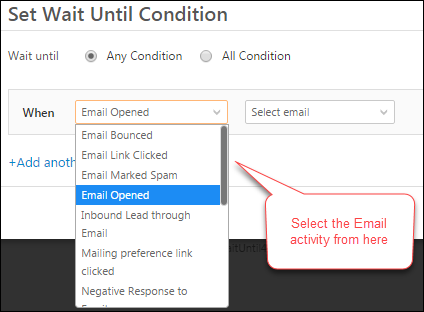
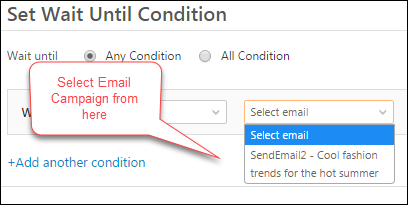
Here you can specify the Email condition and the Email Campaign which the Lead should satisfy in order to proceed to the next action.

set wait until2

set wait until3

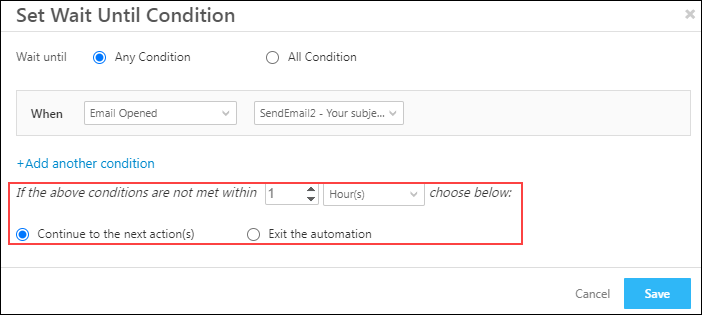
You can also define the time within which the selected action (Email Opened) should be performed. If the action isn’t performed within the defined time, you can choose to continue with the next action or exit the automation.

wait until card continue exit

Note: You can add multiple conditions here. Select Any Condition, if you want your Lead to satisfy any one of the conditions that you provide. Select All Condition, if you want the Lead to satisfy all the conditions that you provide.

Click Save when you’re done.

3. Set Wait Condition (Advanced)

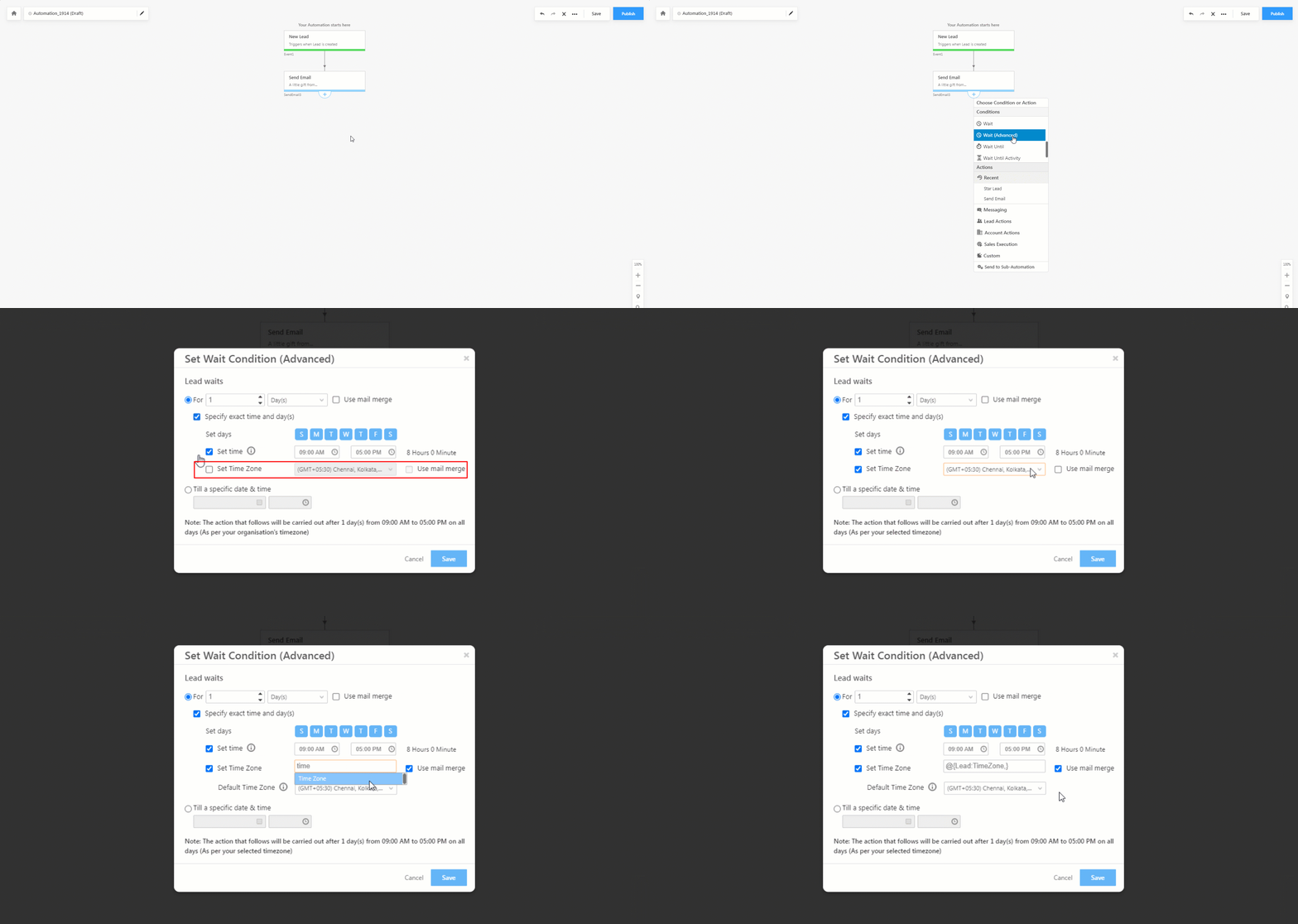
In addition to the Set Wait Condition, you also have the option to use the Set Wait Condition (Advanced). The difference between the two conditions is on the Set Wait Condition (Advanced), you can configure a timezone of your choice when setting up the condition. This is useful when your LeadSquared account follows a particular timezone, but leads are present across multiple timezones.

To set the timezone –

  1. On the Set Wait Condition (Advanced) pop-up, alongside Set Time Zone, enable the checkbox Checkbox.
  2. From the timezone dropdown, select the timezone you want to set.
    1. Alternatively, you can Use mail merge option to mail merge the relevant timezone lead field.
    2. Once you select the mail merge field, set a default timezone. This will be applied when there’s no value in the selected mail merge field.
  3. Once you’re done, enter the other details, and click Save. The rest of the steps to set the condition are the same as the ones listed above.

Note: The Set Wait Condition (Advanced) card is available for automations set-up using the following triggers –

  • Lead
  • Opportunity
  • Accounts
  • Activity
  • Tasks
  • Users

Wait Until Condition Advanced_1


4. Example

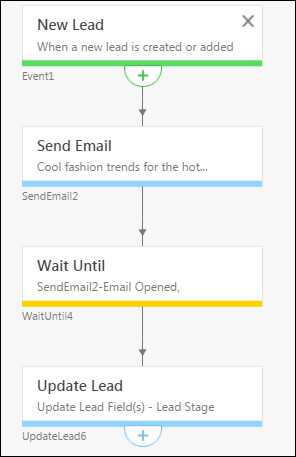
A sample image of an automation with the Wait Until condition is given below:

LeadSquared Automation Conditions

Here, after the new lead is created, an Email is sent to the Lead. After this, a Wait Until condition to wait until the Lead opens the first Email is given. If the Lead opens the Email, the Lead Stage of the Lead is updated to ‘Opportunity’.


5. FAQs

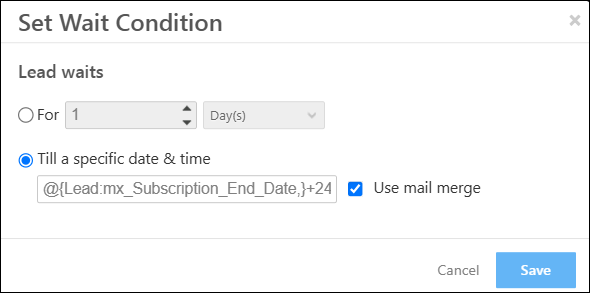
Can I subtract days from a “Date and Time” field in automation? What’s the Rule Syntax for Subtracting Days from a Date-Time Field in Automation. 

You can only subtract or add the number of hours, not days to/from a date-time field in the Wait automation card. The syntax is as follows – @{Lead:mx_Subscription_End_Date,}+24

LeadSquared Automation Wait Card

Schedule Automations At Regular Intervals

1. Feature Overview

Schedule your automations to be triggered at regular intervals. You can set up an automation to run every morning and distribute leads based on user availability. You can trigger automations for leads, users, opportunities and non-entities like Lapps. To know more about creating automations, refer to Automation – Feature Guide.


2. Prerequisite

You must be the Administrator of your LeadSquared account.


3. Schedule Automations At Regular Intervals

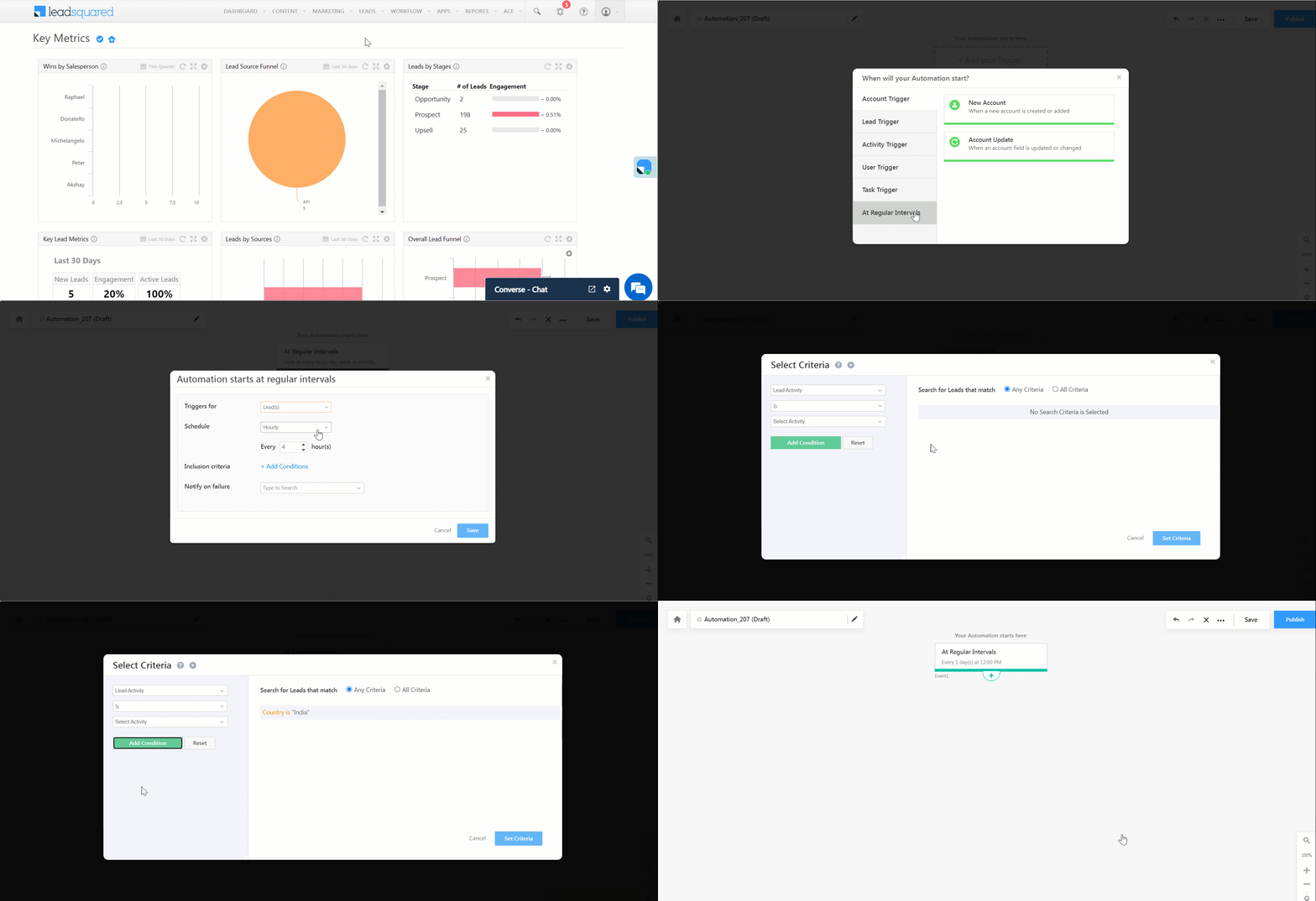
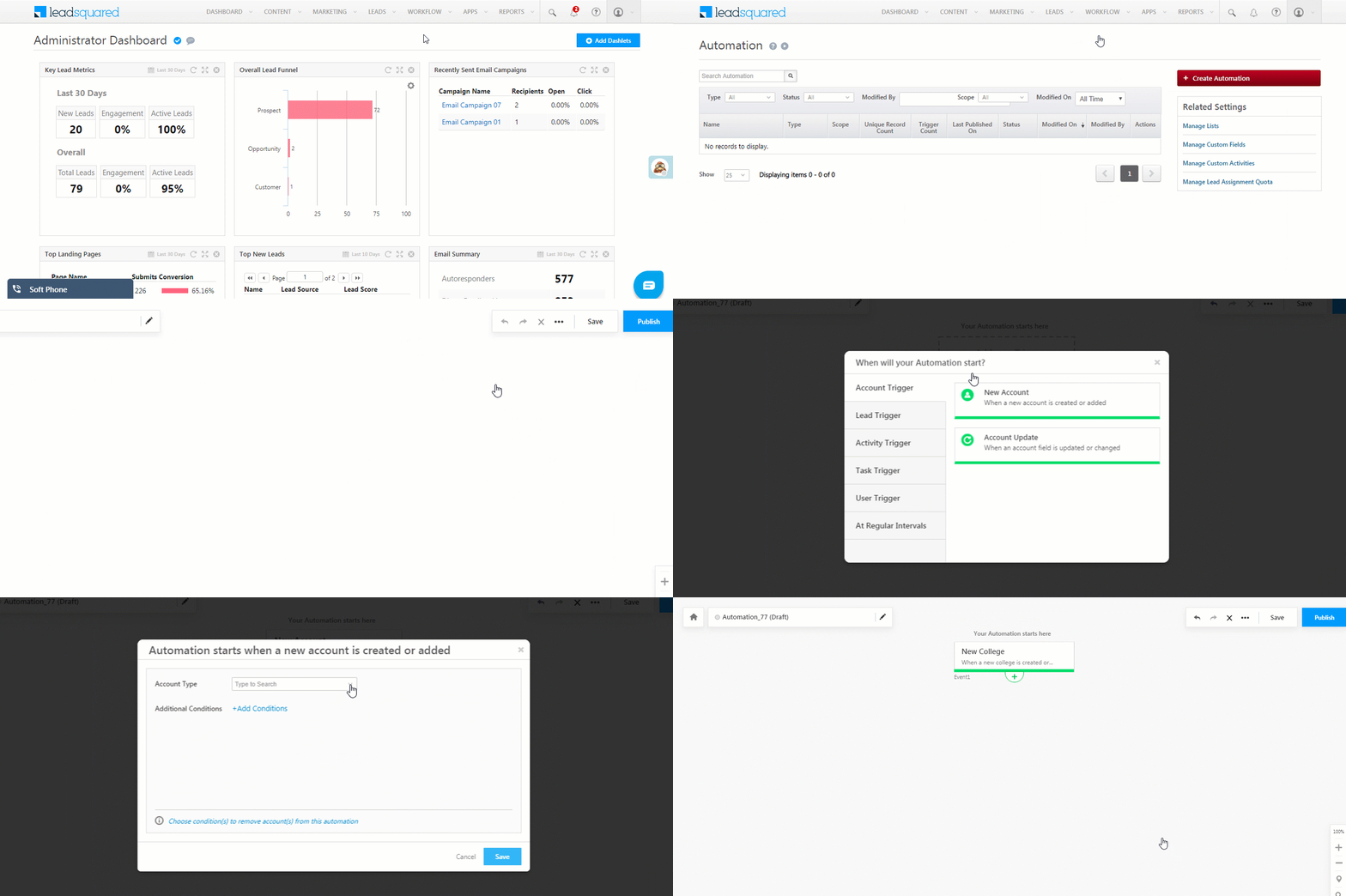
  1. Navigate to Workflow>Automation and click Create Automation.
  2. Select a blank template and then select At Regular Intervals.
  3. On the Automation starts at regular intervals pop-up window, enter the following data –
    • Triggers for: Select the entity you want to trigger the automation for – Leads, Users, Opportunities or No Entities.
    • Schedule: Select how you want to schedule the automation – hourly, daily, weekly, or monthly.  You can then select how often you want the automation to be triggered. For example, you can schedule it to be triggered every 2 days at 11 am.
    • Inclusion criteria: Click Add Conditions to select the criteria required to include the relevant entities. The criteria will differ based on the entity you’ve selected. The gif below uses the example of  triggering an automation for all leads in India.
    • Notify on failure: Select the user you wish to notify if the automation does not get triggered.

Click Save and build your automation.

Note:

  • There is an entity limit for the inclusion criteria you set. If you’ve selected the automation to be triggered for Leads, the number of leads that satisfy the inclusion criteria must be within the limit. If not, the automation will not get triggered. Be default the limits are: Hourly- 2500, Daily – 25000, Weekly – 25000, Monthly – 25000. To change this limit, contact your account manager or reach out to support@leadsquared.com.
  • If there no leads that satisfy the inclusion criteria, the automation will not get triggered.
  • Only the Triggers for and Schedule field will be available for non entities.

LeadSquared - Schedule Automations At Regular Intervals


4. Troubleshooting

Issue: The At Regular Interval (CRON) Automation did not trigger on any leads

Issue Description: The automation did not trigger over any leads with the trigger action set to “At Regular Interval,” even though the leads satisfy the inclusion criteria set in the trigger card.

Root Cause: The automation’s trigger action, “At Regular Interval,” has a lead limit of 25,000. If the number of leads satisfying the inclusion criteria exceeds 25,000 at the set interval, the automation will not trigger on any leads.

Solution: Reach out to your account manager to see if a workaround is possible or write to us at support@leadsquared.com.


Any Questions?

Did you find this article helpful? Please let us know any feedback you may have in the comments section below. We’d love to hear from you and help you out!

How to Create an Account Automation?

With account automation, you can create workflows around your B2B relationships. You can notify account owners to take action when new accounts are added, when an account’s stage changes or when important events such as renewals or stakeholder meetings are due.

If you’re new to the accounts feature, see Account Settings. For basic information on automation, see Automation Home.


Account Automation Triggers

To create an account based automation,

  1. On the main menu, navigate to Worklow>Automation.
  2. Click Create Automation.
  3. Choose the Build from Scratch option from the list of templates
  4. Select an Account Trigger.

account automation triggers

For more information, see Triggers in Account Automation.


Account Automation Conditions

Conditions in account automation are the same as those in lead automations.

For more information, see

Note: The Multi If/Else condition is not available for account automation.


Account Automation Actions

To know more, please refer to Account Automation Actions.


Any Questions?

If you have any questions or feedback related to this article, please leave us a comment below.

Lead Automation – Account Update Actions

This automation action enables you to update account fields. You can directly choose a value or use the mail merge option. For example, you can automatically change the stage of an account (from say, ‘Prospect’ to ‘Customer’) when a lead’s stage changes.


Prerequisites

  • You must be the Administrator of your LeadSquared account.
  • Account actions are only available when the automation is set up on lead and account based triggers.


Set Up Account Action

You can either set up the trigger on a new automation, or on an existing one.

  1. From the main menu, navigate to Workflow>Automation.
  2. Click an existing automation, or click the Create Automation button.
  3. Select a Lead based trigger (new lead, update lead, etc.). To know more, see How to Create a Lead Automation.
  4. Once you’re done, click Save.
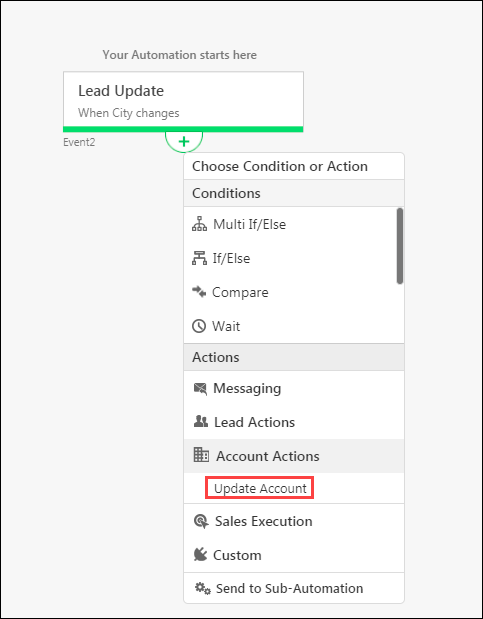
  5. Click the Yes expand path icon under the automation, click Account Actions, and then click Update Account.

Automation

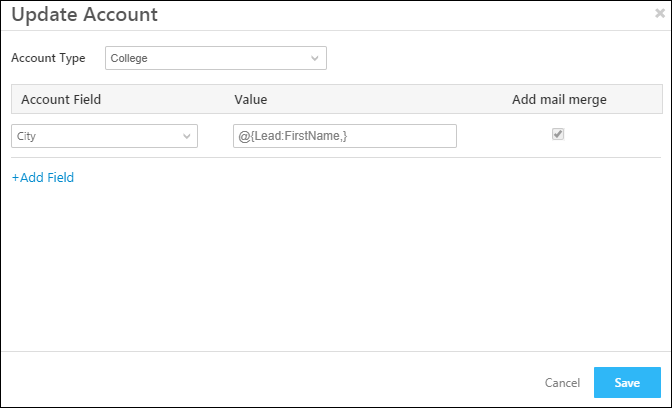
6. Under Account Type, select the account type from the list. To know more, refer to Account Settings.
7. Under Account Field, select the field you want to update.
8. Under Value, you can directly choose a value, or use the mail merge option to dynamically merge a value at run-time.
9. Click Save once you’re done.
10. Publish the automation to make it live on your account.

Automation


Any Questions?

Did you find this article helpful? Please let us know any feedback you may have in the comments section below. We’d love to hear from you and help you out!

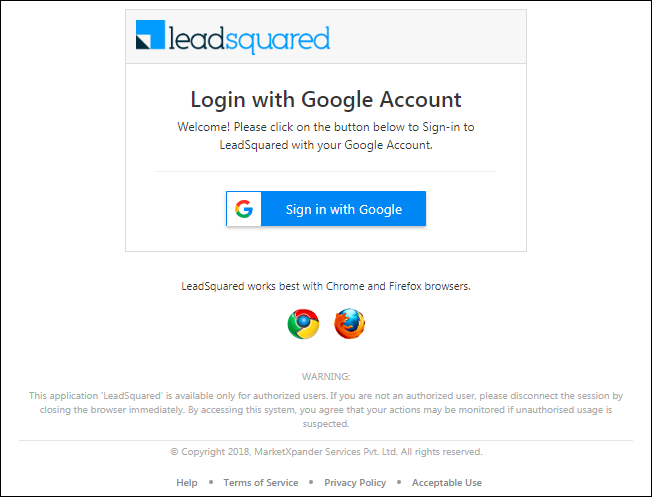
ADFS Integration for Signing in to LeadSquared

1. Feature Overview

LeadSquared offers sign-in integration with a self-hosted Active Directory Federation Services (ADFS) server.

ADFS is a Microsoft service that allows you to log-in to web applications using your Active Directory (AD) credentials. After integration, you won’t need to manage a separate set of credentials for LeadSquared, and can log-in directly with your AD credentials.

To integrate, you must complete the following steps –

  1. Add a Relying Party Trust to your ADFS server
  2. Obtain the Certificate Thumbprint
  3. Configure LeadSquared Authentication Provider settings

To integrate Azure AD with LeadSquared, see Integrating Azure AD with LeadSquared using ROPC Approach.

Note: When you enable ADFS integration, it is applied by default to all the users in your account. It CANNOT be disabled for specific users.


2. Prerequisites

  • You must be a LeadSquared administrator user.
  • You must set up an Active Directory instance, where all users have an email address attribute and the email address is the same as their LeadSquared account.
  • ADFS service must be installed and configured.
  • A Global SSL certificate and the thumbprint for that certificate.
Note: This article does not explain the process of installing and configuring ADFS. For installation details, please refer to Active Directory Federation Services.


3. Adding a Relying Party Trust

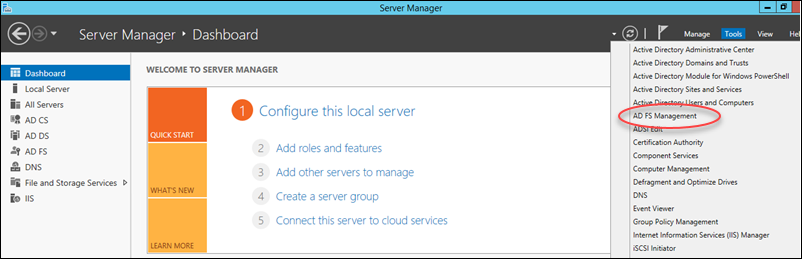
1. Open the ADFS Management console (Server Mangager>Tools>ADFS Management).
open adfs console

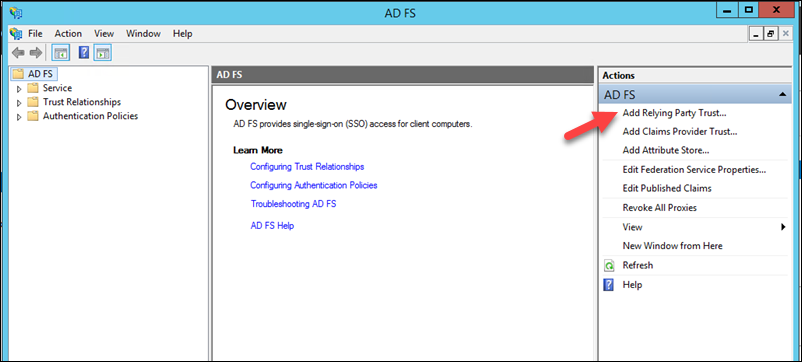
2. Under the Actions pane, click Add Relying Party Trust.
add relying party trust

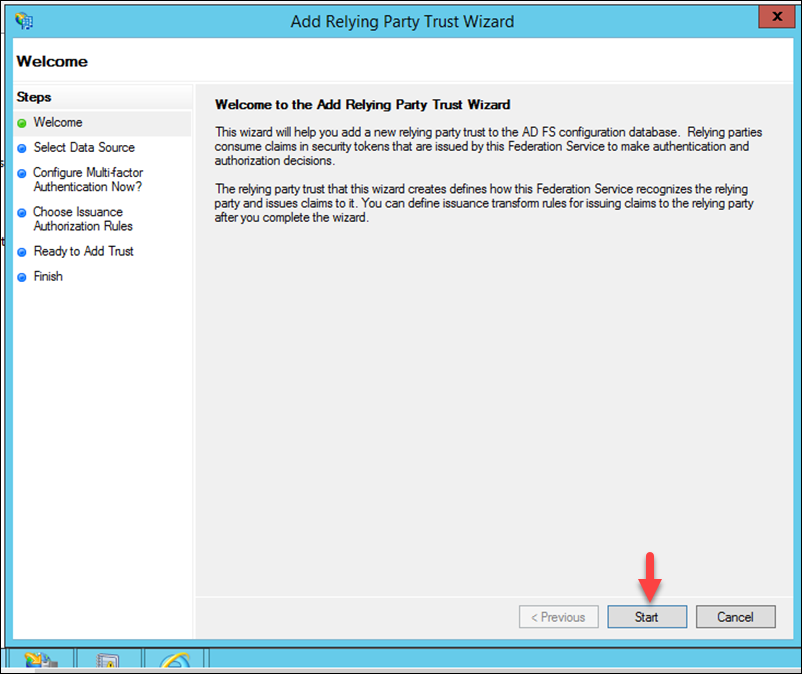
3. You’ll now see the welcome page of the Add Relying Party Trust Wizard. Click Start.
add trust wizard

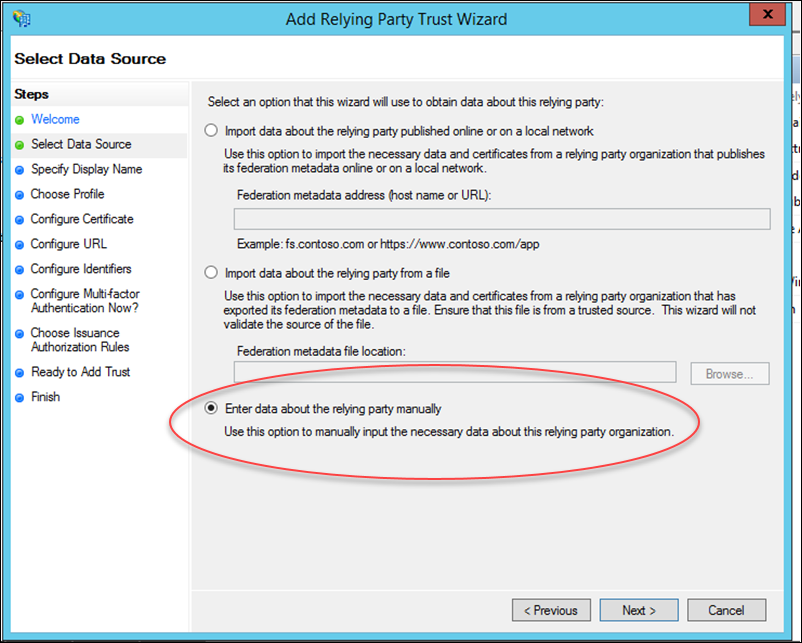
4. Now click Enter data about relying party manually radio button, then click Next.
adfs configs

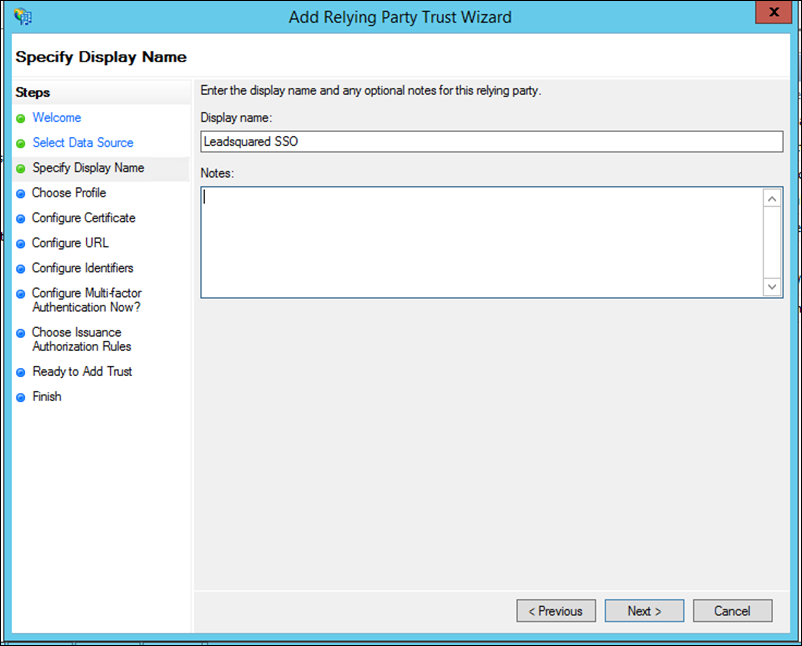
5. Enter a display name of your choice, then click Next.
adding display name

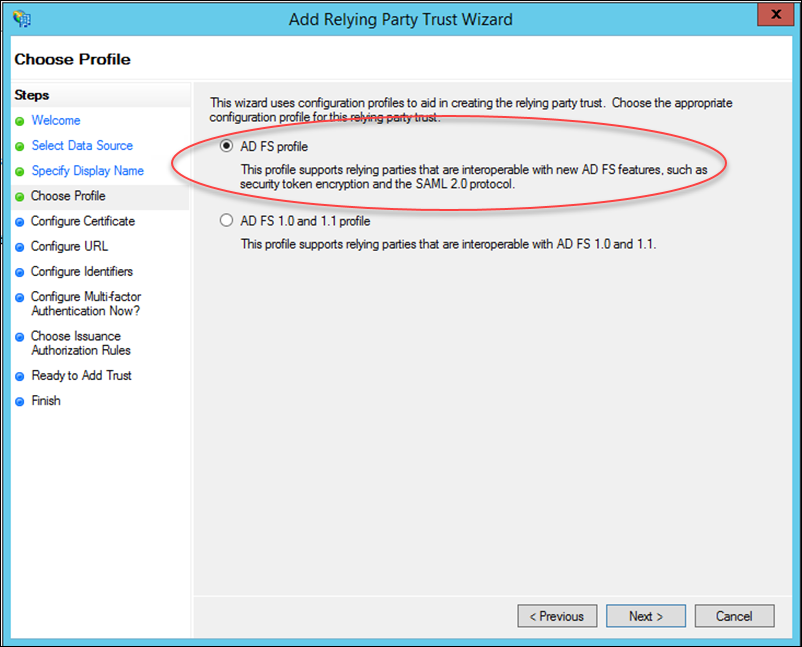
6. Select AD FS profile and click Next.
adfs profile

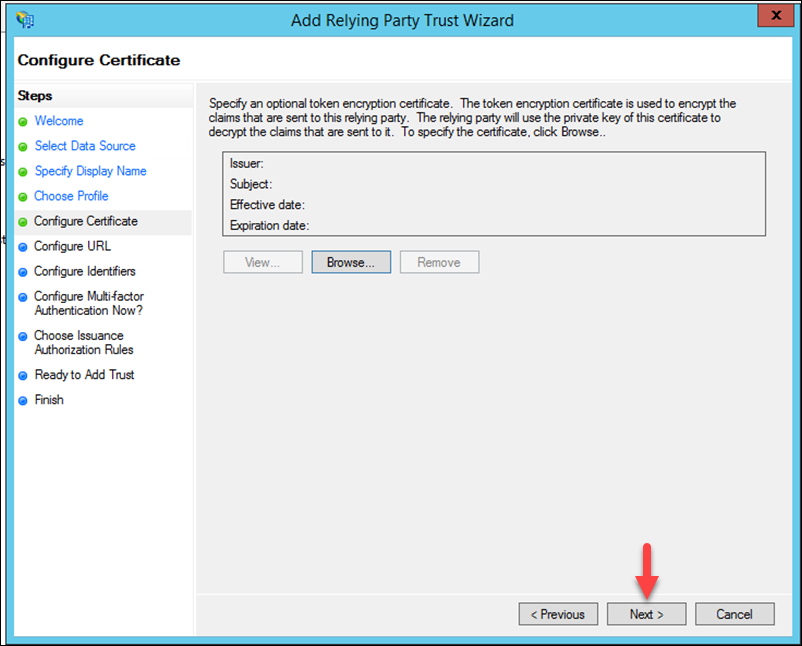
7. Leave the certificate settings here as their defaults and just click Next.
default certificate settings

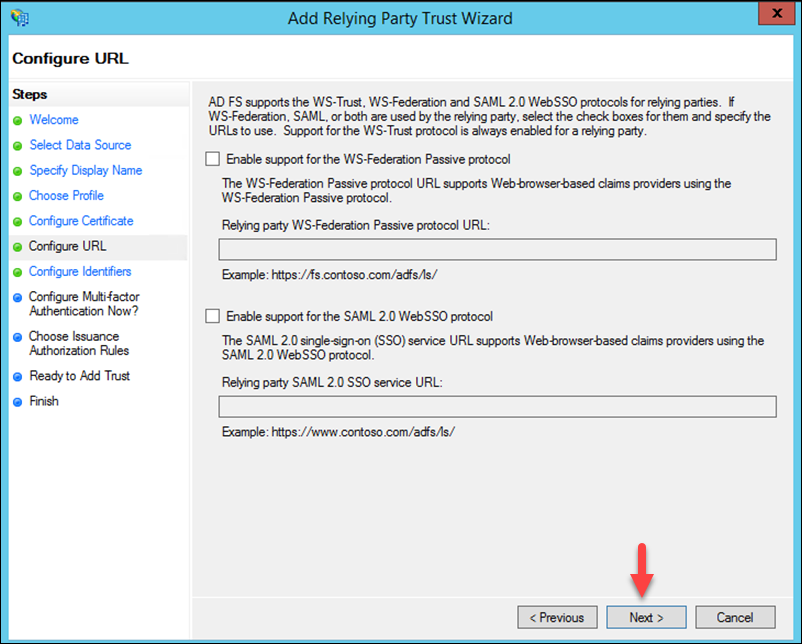
8. No action is required here, click Next.
config url settings

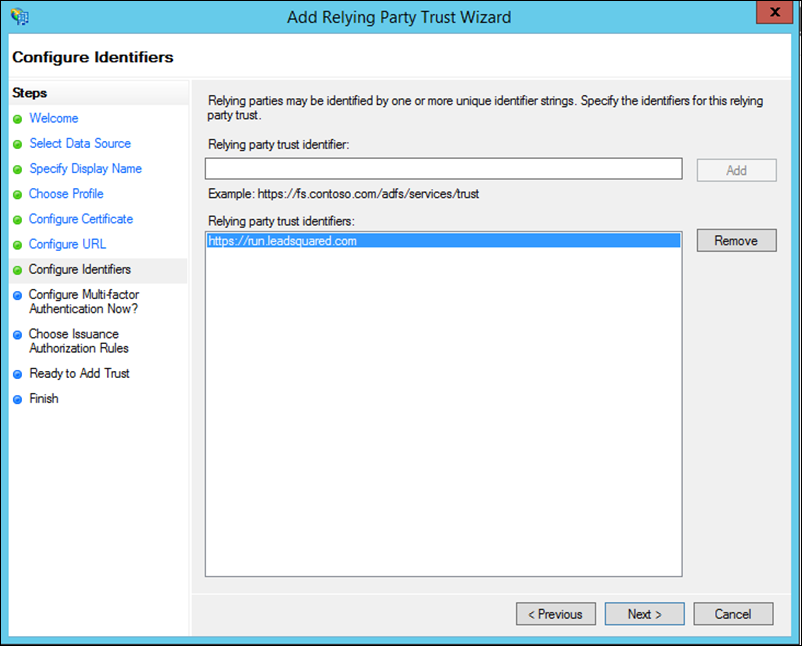
9. Add a Relying party trust identifier depending on the region your account was created –

  • https://run.leadsquared.com for accounts created in the Singapore region.
  • https://us11.leadsquared.com for accounts created in the US region.
  • https://in21.leadsquared.com for accounts created in the India (Mumbai) region.
  • https://in22.leadsquared.com for accounts created in the India (Hyderabad) region.
  • https://ir31.leadsquared.com for accounts created in the Ireland region.
  • https://ca12.leadsquared.com for accounts created in the Canada region.

Click Next.

ADFS Integration add URL

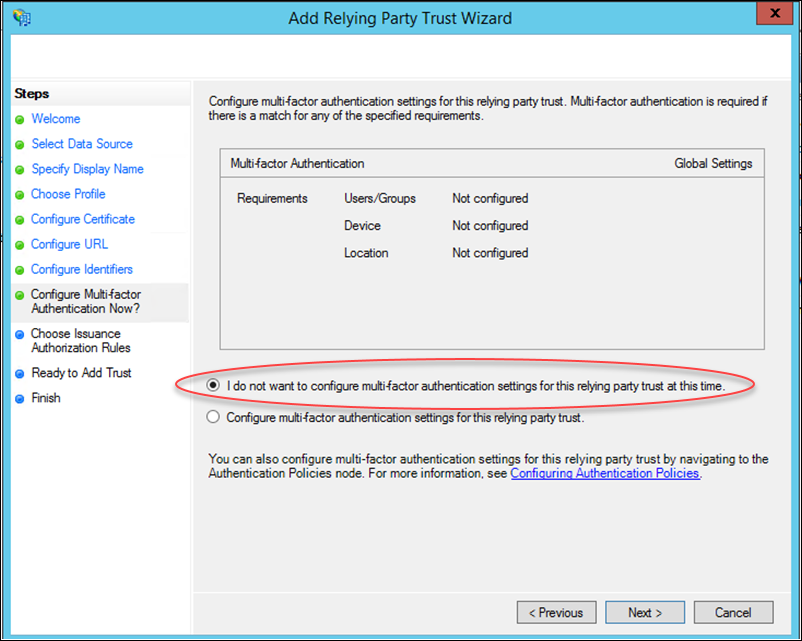
10. Select the I do not want to configure multifactor… checkbox, then click Next.
multifactor adfs settings

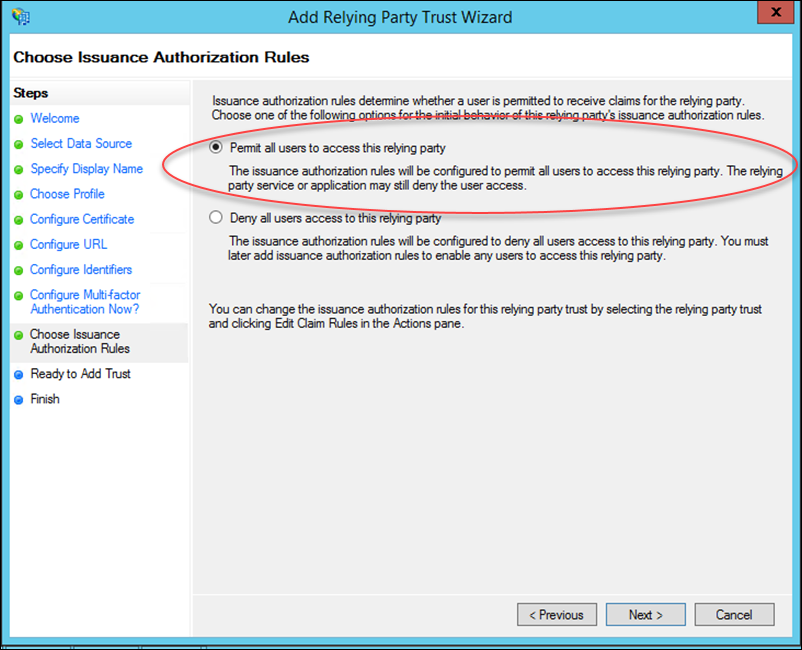
11. Keep the default setting (Permit all users to access…) and click Next.
ADFS auth rules

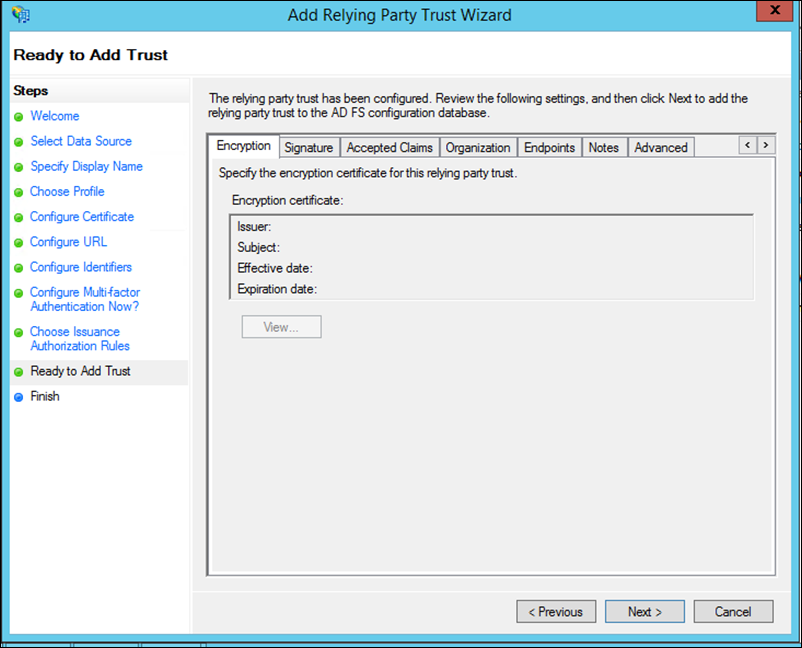
12. The configurations are now complete. Click Next to continue.
adfs trust config summary

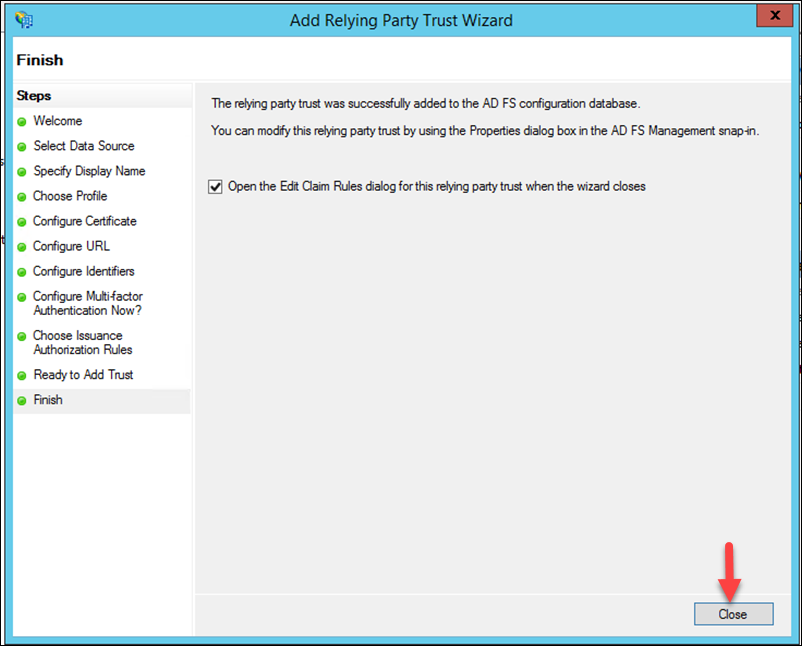
13. The relying party trust has now been added. Click Close to proceed to the Edit Claim Rules dialog.
add claim rules

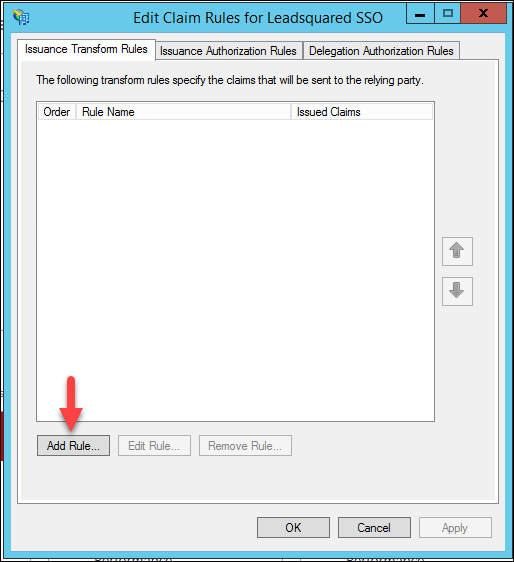
14. Click the Add Rule button.
add new claim rules to ADFS

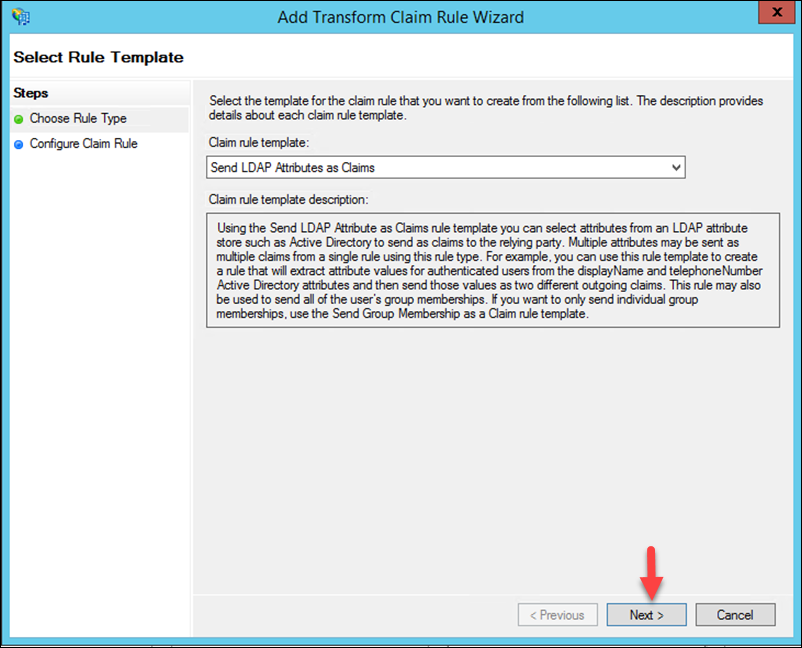
15. Click Next to create a Send LDAP Attributes as Claims rule.
claim rules

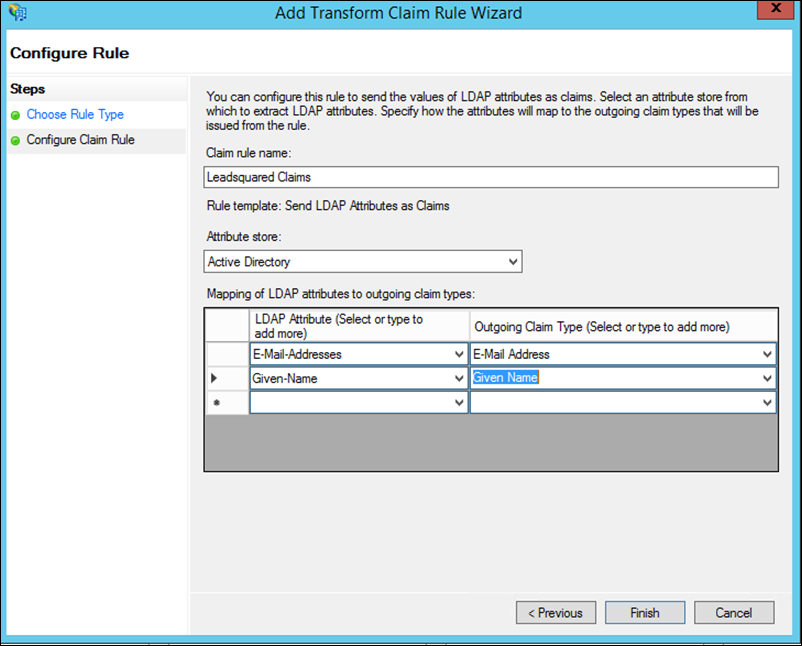
16. Enter a name for the claim rule, select the Attribute store as Active Directory (this is where the LDAP attributes will be extracted from), then map the LDAP attributes to the outgoing claim type as shown below. Click Finish when you’re done.
configuring adfs claim rules

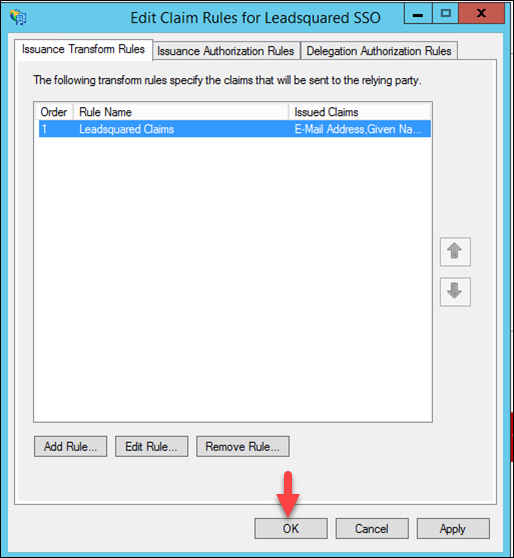
17. Now click OK.
continue with claim rules

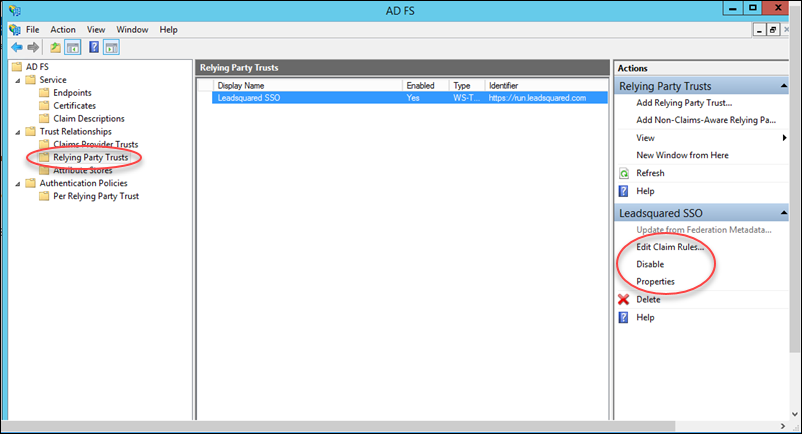
18. Now navigate to ADFS Management>Relying Party Trusts, You can see all relying party trusts here. If required, you can edit claims by clicking Edit claim rules. You may also change identifiers by clicking Properties.
edit existing relying party trust

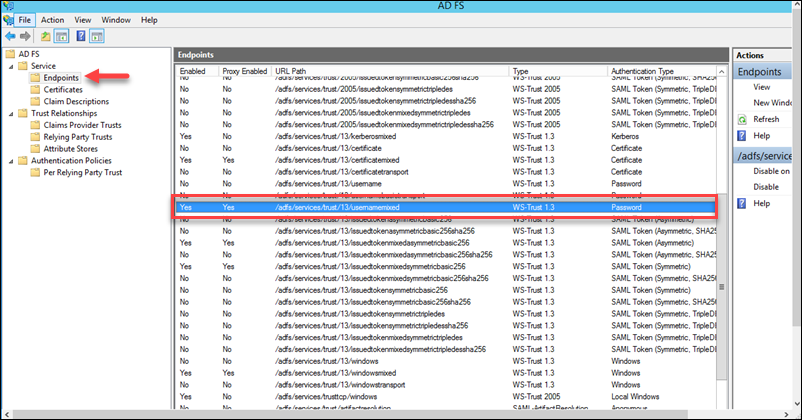
19. Navigate to ADFS>Service>Endpoints, and ensure that the following endpoint is enabled /adfs/services/trust/13/usernamemixed
enable adfs endpoints


4. ADFS Certificate Thumbprint

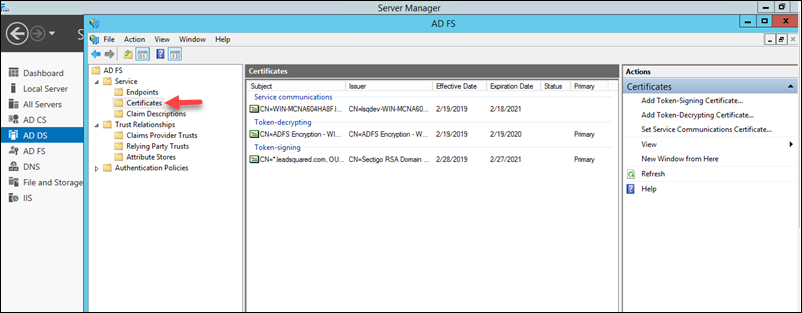
1. Navigate to ADFS>Service>Certificates.
adfs certificate

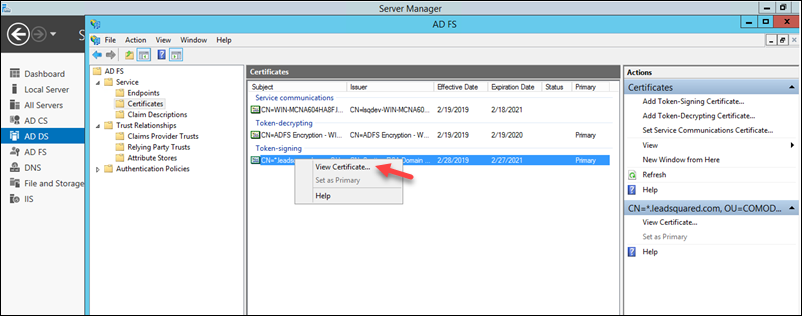
2. Right-click the certificate under Token-signing, then click View Certificate.
adfs cert

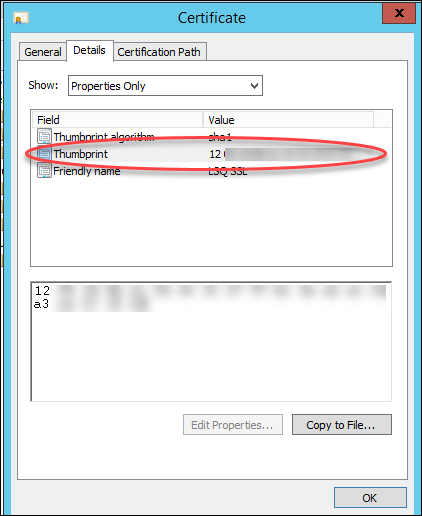
3. On the Certificate pop-up, navigate to the Details tab, then copy the Thumbprint value of the certificate. You will need to paste this value in the LeadSquared Authentication Provider wizard as instructed below.
certificate thumbprint value


5. LeadSquared Authentication Provider Settings

This section assumes that you’ve completed the steps described above on the ADFS server side. Now log-in to the LeadSquared application and follow these steps –

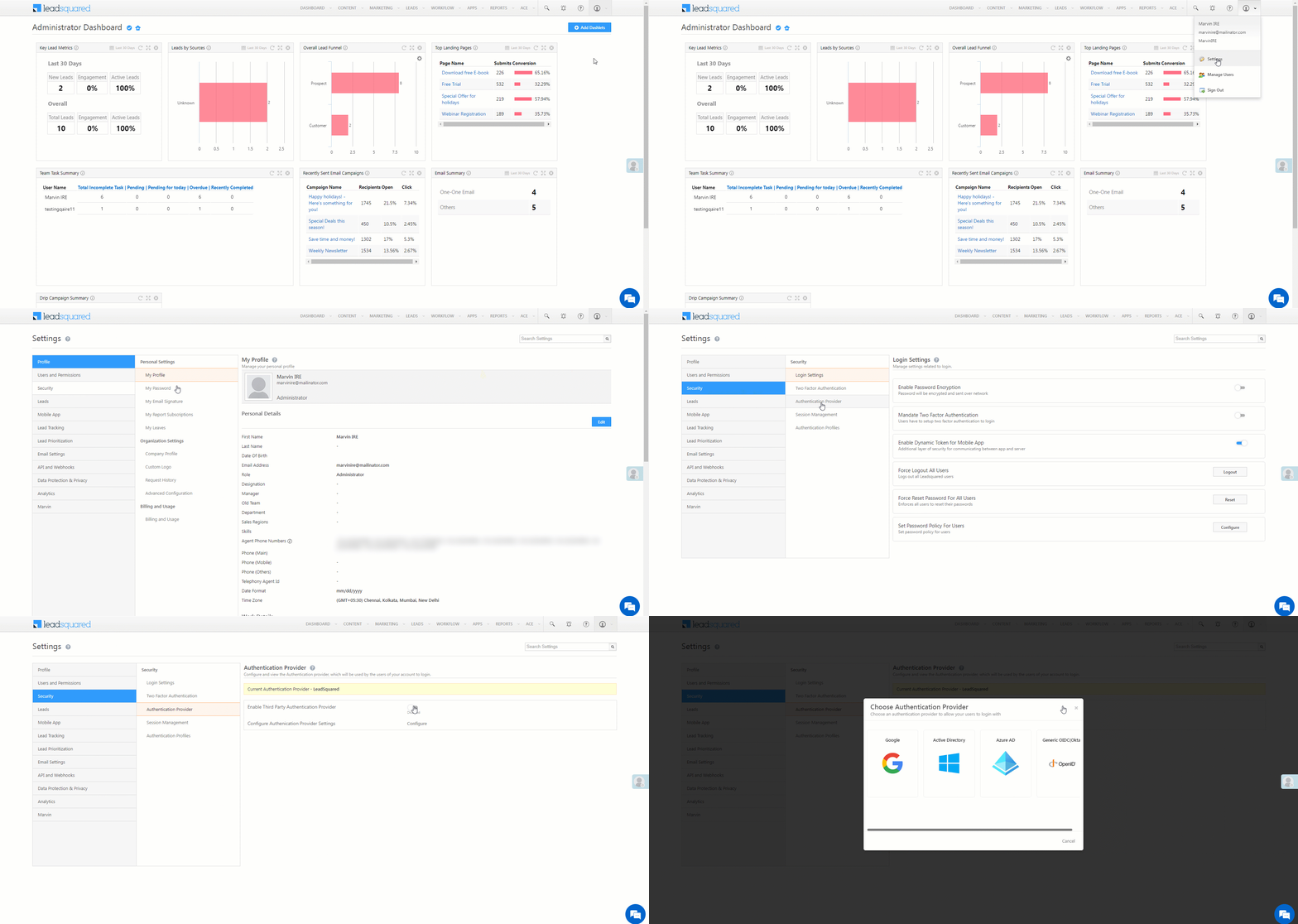
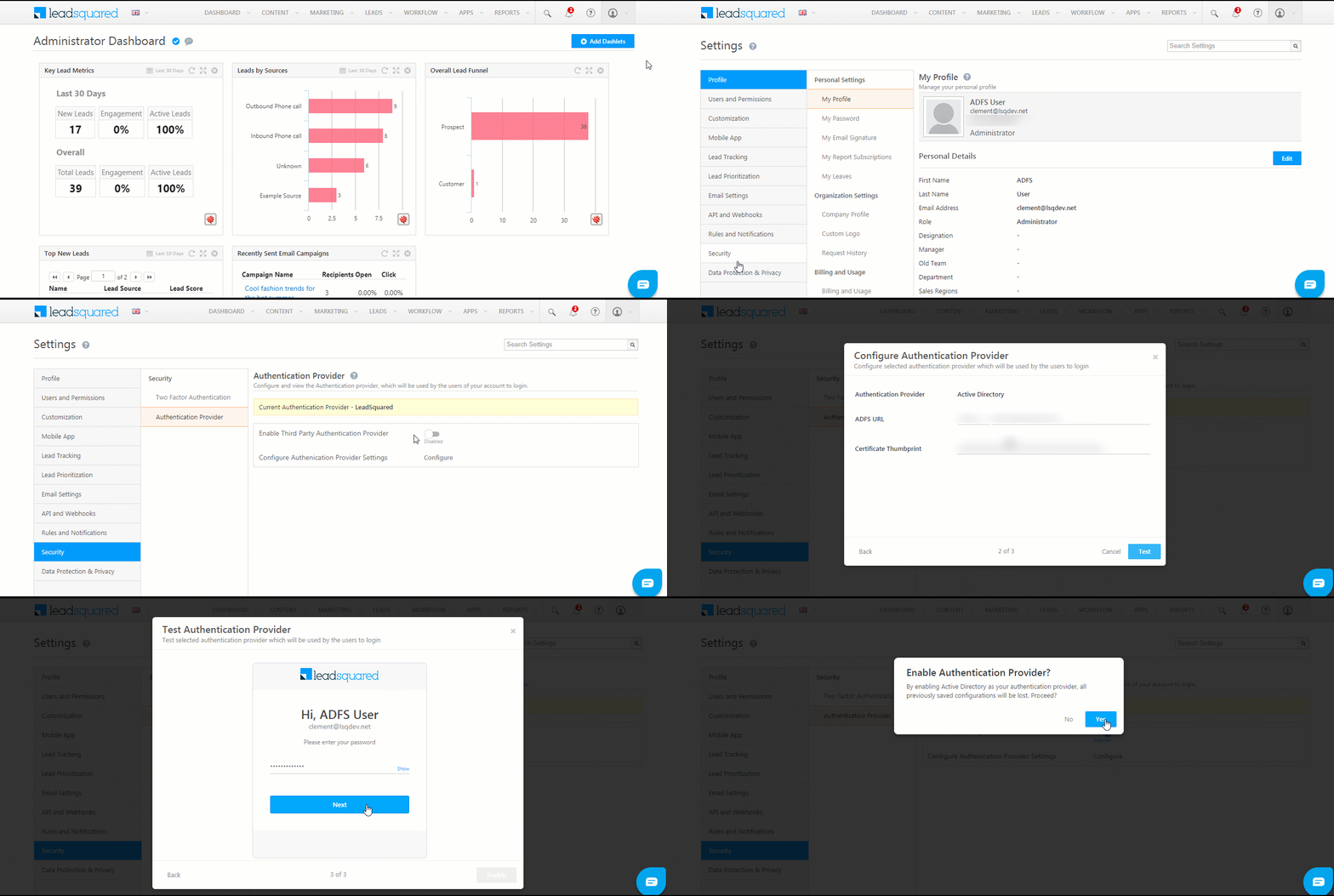
  1. Navigate to My Profile>Settings>Security>Authentication Provider.
  2. Click the slider enable authentication to Enable Third Party Authentication Provider.
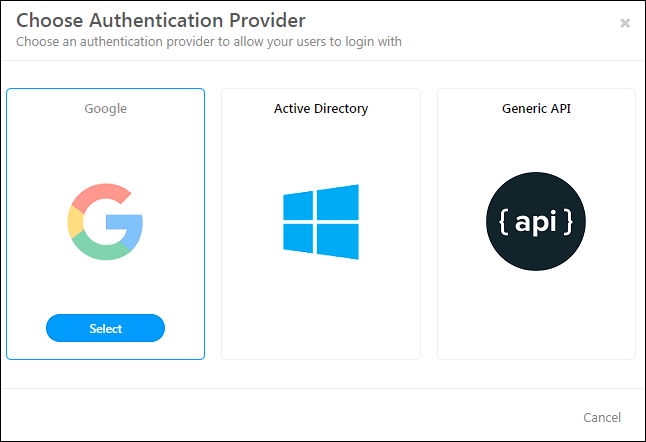
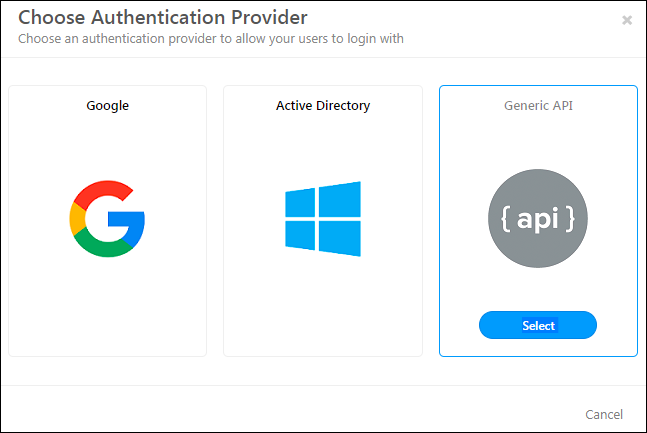
  3. On the Choose Authentication Provider window, click Active Directory.
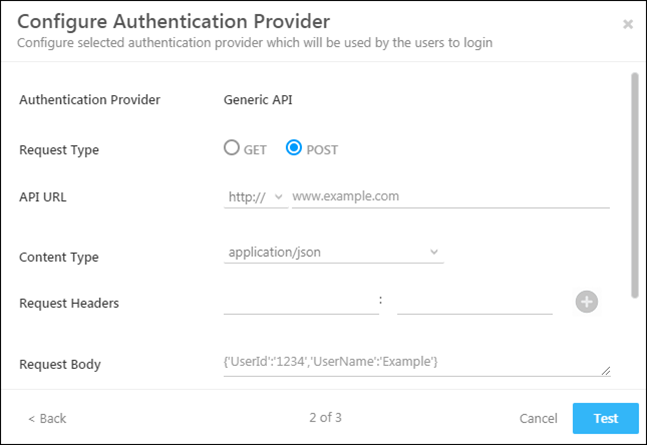
  4. Alongside ADFS URL, enter your server URL. Be sure to choose the correct protocol  – as either http:// or https://
  5. Now paste the value of the Certificate Thumbprint (see Step 3 under the ADFS Certificate Thumbprint section above).
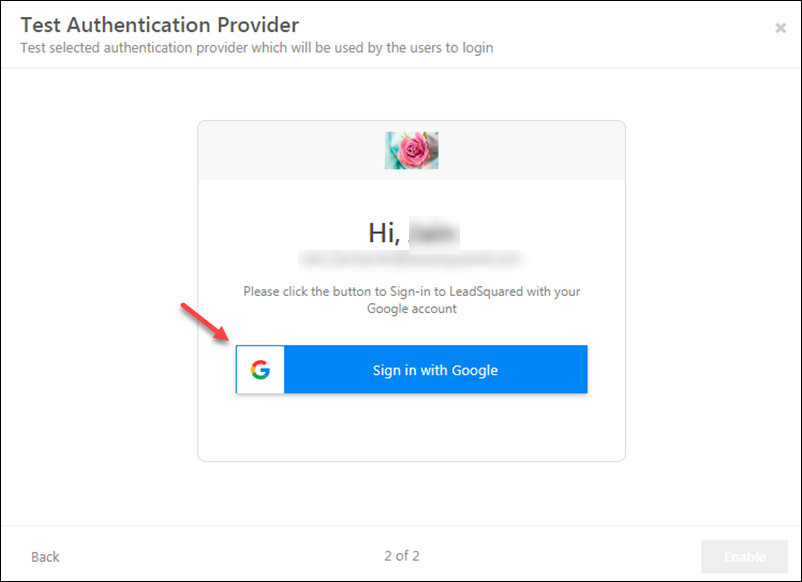
  6. Click Test.
  7. Now enter your Active Directory password and click Next.
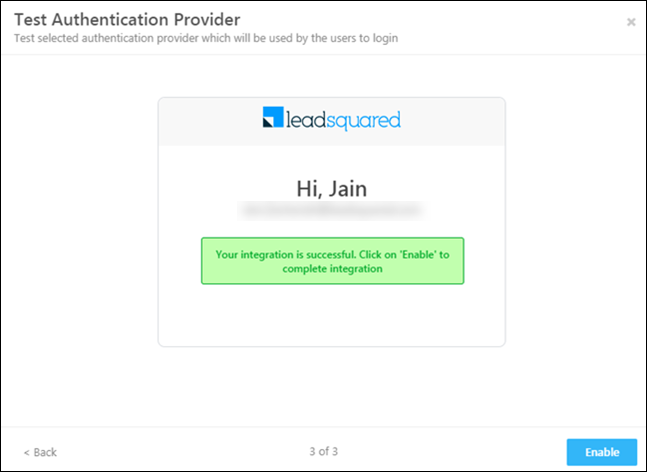
  8. Once the password is verified, you’ll receive a success message. Click Enable, then click Yes on the Enable Authentication Provider pop-up.

Your LeadSquared account has now been integrated with your Active Directory.

ADFS as Auth Provider

Note:

  • The next time you log in to your LeadSquared account, you must enter your AD credentials*.
  • To disable the integration, just click the slider enable authentication alongside Enable Third Party Authentication Provider on the Authentication Provider Settings page.

*The email address of your LeadSquared users may be different from the AD user. For example, you may have your employee Id as the AD login.  If this is the case, you can create a custom user field to store these login Ids.
When a LeadSquared user logs in with the regular email address, we’ll internally pick the value from the custom field and send it to your AD for authentication. Please reach out to support@leadsquared.com to enable this feature.


6. FAQs

1. Why are users unable to log in to the LeadSquared application when ADFS is configured?

  • Issue Description: Users are facing an error while trying to log in to the LeadSquared application, even when entering the correct credentials.
  • Root Cause: This error typically occurs when the client side’s Active Directory (AD) is failing. The login authentication is handled by ADFS (Active Directory Federation Services), not by LeadSquared.
  • Solution: Please reach out to your internal IT team, as the issue is related to your ADFS configuration.

2. Can we disable ADFS for specific users?

  • Issue Description: Can ADFS can be disabled for specific users.
  • Solution: If ADFS is enabled, it is applied to all users by default. It cannot be disabled for specific users because it is enabled at the account  level.


Any Questions?

Did you find the content here helpful? Leave a comment below and we’ll be happy to address your doubts.

LeadSquared Security Settings – Two-factor Authentication 2FA

1. Feature Overview

Two-factor authentication (also known as 2FA or Multi-factor authentication) lets you add an additional layer of security to your account. With 2FA, you’ll need to provide another form of authentication in addition to your username and password to access your account. It’s a great way to protect yourself against brute force attacks and hacks even when your password has been compromised.

Note:

  • This article explains how admins and users can enable 2FA for their own accounts. However, if you’re an admin and want to enforce 2FA for specific users or across your entire organization, you can do so using the Authentication Profiles feature. Alternatively, you can contact support@leadsquared.com.
  • With the Trusted Devices feature, users can log into their LeadSquared account without verifying themselves through Two-Factor Authentication (2FA) each time.


2. Prerequisites

  • To enable 2FA using mobile, you must ensure that the correct mobile number is saved under your user details. To edit an existing mobile number or add a new one please contact your LeadSquared administrator.
  • Likewise, 2FA can also be enabled through email. To change the email address of your LeadSquared account, contact your administrator.


3. How It Works

With 2FA, you’ll be required to enter –

  1. Your username and password
  2. An OTP sent to your mobile device, email, or generated through an app such as Google Authenticator*

*Other Time-based OTP (TOTP) authenticator apps on Android/iOS devices such as Microsoft Authenticator, Duo, Authy, etc. are also supported.

Note: 2FA is enabled by default for Admins, Sales Managers, and Marketing Users. For Sales Users, it can be enabled by each individual or at the account level by the admin user.


4. Setting Up Two Factor Authentication

Two-Factor Authentication is mandated by default for Admins, Marketing users, and Sales Managers. These users will be prompted to set up their preferred method of authentication while logging in to their accounts.

2fa login

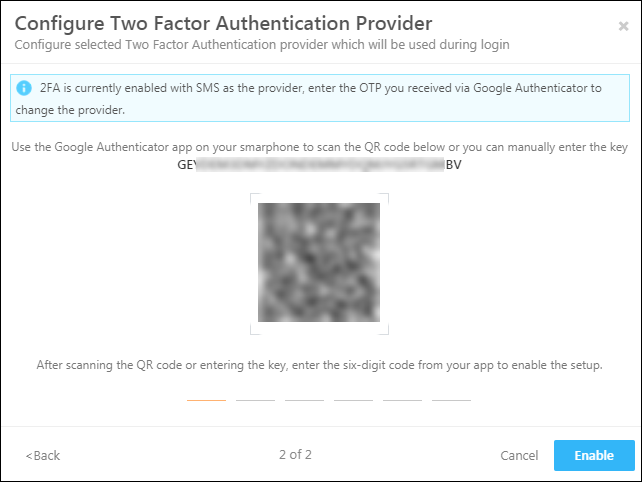
If you choose the Google Authenticator option, you’ll see a QR code and a key. Use these to configure your LeadSquared account in the app you’re using (Google Authenticator, Microsoft Authenticator, Authy, etc.). Then enter the current OTP in the space provided and click Enable.

google auth config

Note: To remove the mandatory 2FA for your account, please get in touch with your account manager or contact support@leadsquared.com

For more details, see LeadSquared Security Settings – Login Settings.

4.1 Sales User Level

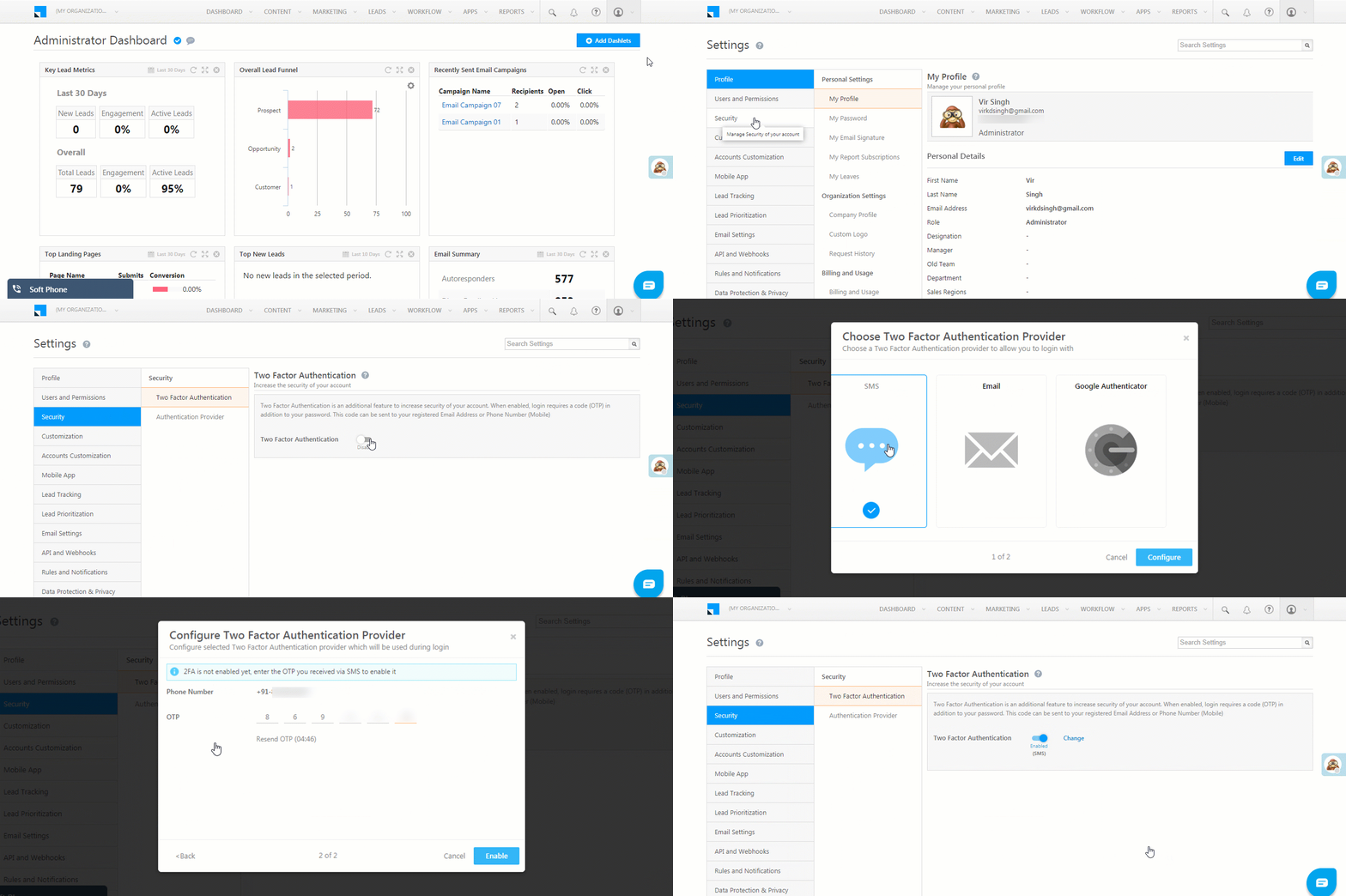
Alternatively, Sales Users can set up two-factor authentication for their own accounts –

  1. From the main menu, navigate to My Profile>Settings>Security>Two Factor Authentication.
  2. Click the slider enable authenticationto enable two-factor authentication*.
  3. Select either the SMS, Email, or Google Authenticator option.
  4. Enter the OTP received on your mobile or email, then click Enable.

Multi-factor Auth

* You can disable two-factor authentication at any time.

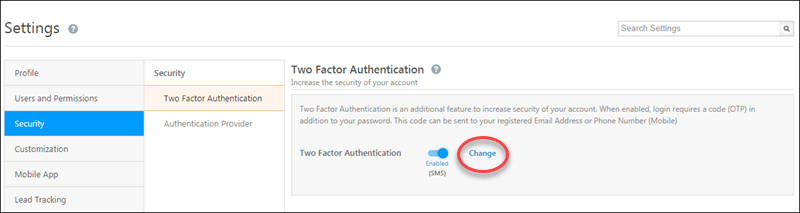
If you want to change the configuration from to SMS, Email or Google Authenticator at any time, click the Change link –

change 2fa config


5. Logging In With 2FA

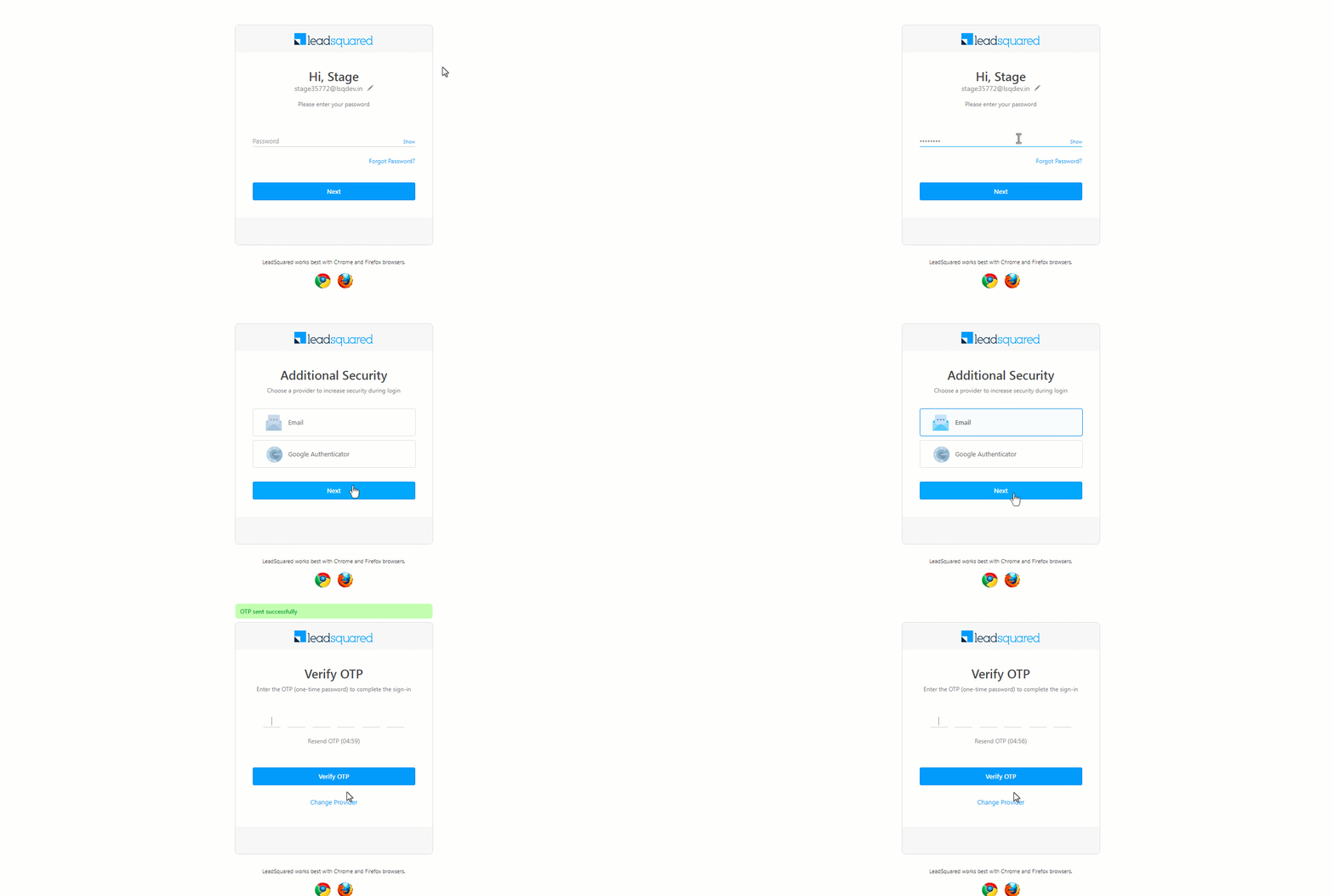
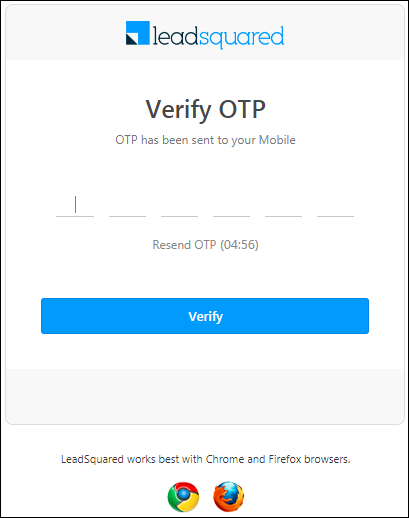
After setting up 2FA, you’ll be prompted to enter your OTP the next time you log in –

OTP on login

If you don’t receive an OTP, you can re-send it after the 5-minute count-down elapses.


6. Reports

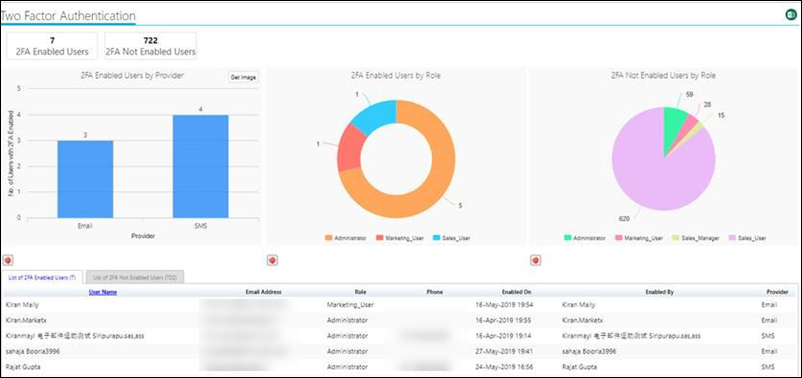
You can access the Two-Factor Authentication report on the UI. It gives you details of users with 2FA enabled versus those with 2FA disabled. You can also see the provider (SMS, Email) used and the list of users with details such as phone numbers and email addresses.

Note: The report can be accessed by Admins, Marketing Users and Sales Managers.

To view the report,

1. On the main menu, navigate to Reports>Reports Home.

reports home

2. Type ‘Two Factor Authentication‘ into the search bar and then select the report from the auto-suggestions –

2fa report search

3. Hover your cursor over each chart or navigate between the tabs for more details.

2fa UI report


7. FAQs

1. I entered the OTP incorrectly 3 times and am now locked out of my account. What do I do?
LeadSquared automatically locks you out of your account after 3 invalid attempts. However, you can retry after 30 mins.

2. I’m locked out of my account and can’t get a new OTP. What should I do?
This may happen if you’ve lost your phone or can’t access your email. Don’t worry though, just contact us at support@leadsquared.com.

3. What else can I do to strengthen my account security?
There are many ways to improve the security of your account. Here are a few basic tips –

  • Change your passwords frequently.
  • Don’t re-use passwords.
  • Don’t share your account’s password with anyone.
  • Don’t click the links on suspicious or unexpected emails.
  • Be careful of what you download from the internet.
  • Beware of phishing attempts.

4. Is 2FA enabled by default for all users?

2 Factor Authentication is enabled by default for Admins, Sales Managers, and Marketing Users. It is not enabled by default for Sales Users.

5. How can Admins and Managers disable or turn off 2FA?

You will need to contact support@leadsquared.com.

6. How can Admins enable 2FA for specific users or at the org level? 

To enable 2FA for specific users or at the org level, you can use the Authentication Profiles feature. Or, you can send a request to support@leadsquared.com.

7. Can 2FA be modified by the admin after it is set by the sales user?

The specific 2FA configuration cannot be modified by the admin, but the admin can disable 2FA for each user in the Manage Users page.


8. Troubleshooting

1. I enabled Two factor authentication (2FA), but it isn’t working for a mobile user in my organization.

Ensure you add the user’s correct mobile number in the user profile. Once added, 2FA should work as expected. If you still face issues, contact support@leadsquared.com.


Any Questions?

Did this article answer your question? If not, leave a comment below and we’ll get back to you ASAP.

How to Send Follow Up Emails to Leads?

1. Feature Overview

Nurture your leads by sending them follow-up emails. After you’ve sent an email campaign to a list of leads –

  • Resend the same email to those who haven’t opened it.
  • Send a new email campaign to those who have opened the previous one.
Note: To know more about how to send email campaigns, see Create and Schedule Email Campaigns.


2. Prerequisite

  • You must be the Administrator or the Marketing user of your account.
  • You must have already sent an email campaign.


3. Resending Emails to Leads

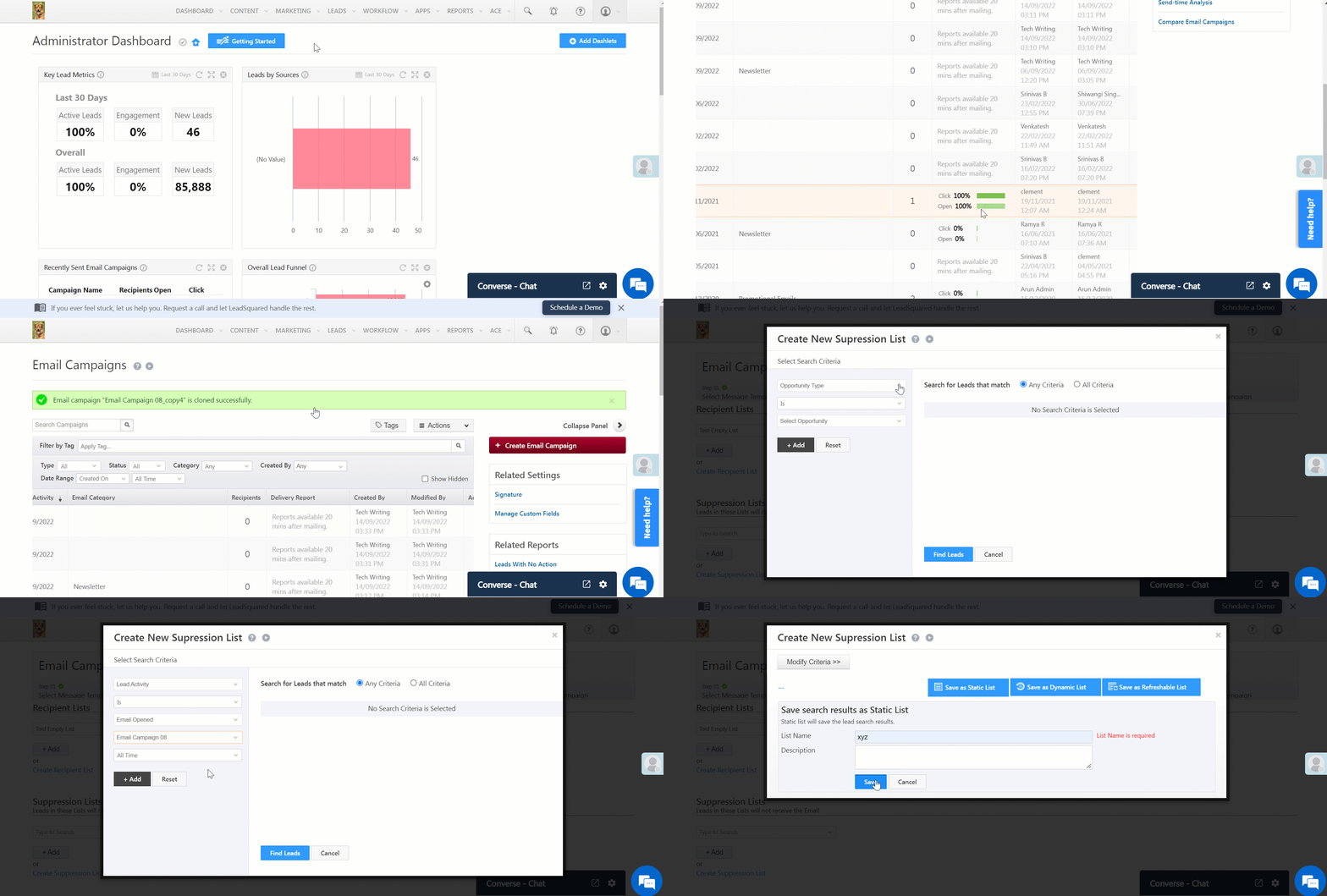
If any of your leads haven’t opened your email campaign, you can resend it by cloning the email. To do so –

  1. Navigate to Marketing>Email Campaign.
  2. Alongside the email, you need to resend, click LeadSquared and select Clone.
  3. A copy of the email campaign will be created. Open the campaign and complete steps 1 & 2.
  4. In step 3, under Suppression Lists, click Create Suppression List and create a list of leads who have opened the mail.
  5. Complete steps 4 & 5.
Note: When you clone an email campaign, it retains the recipient list in step 3. Leave it as it is.

LeadSquared - Resending Emails to Leads


4. Sending Follow-Up Emails to Leads

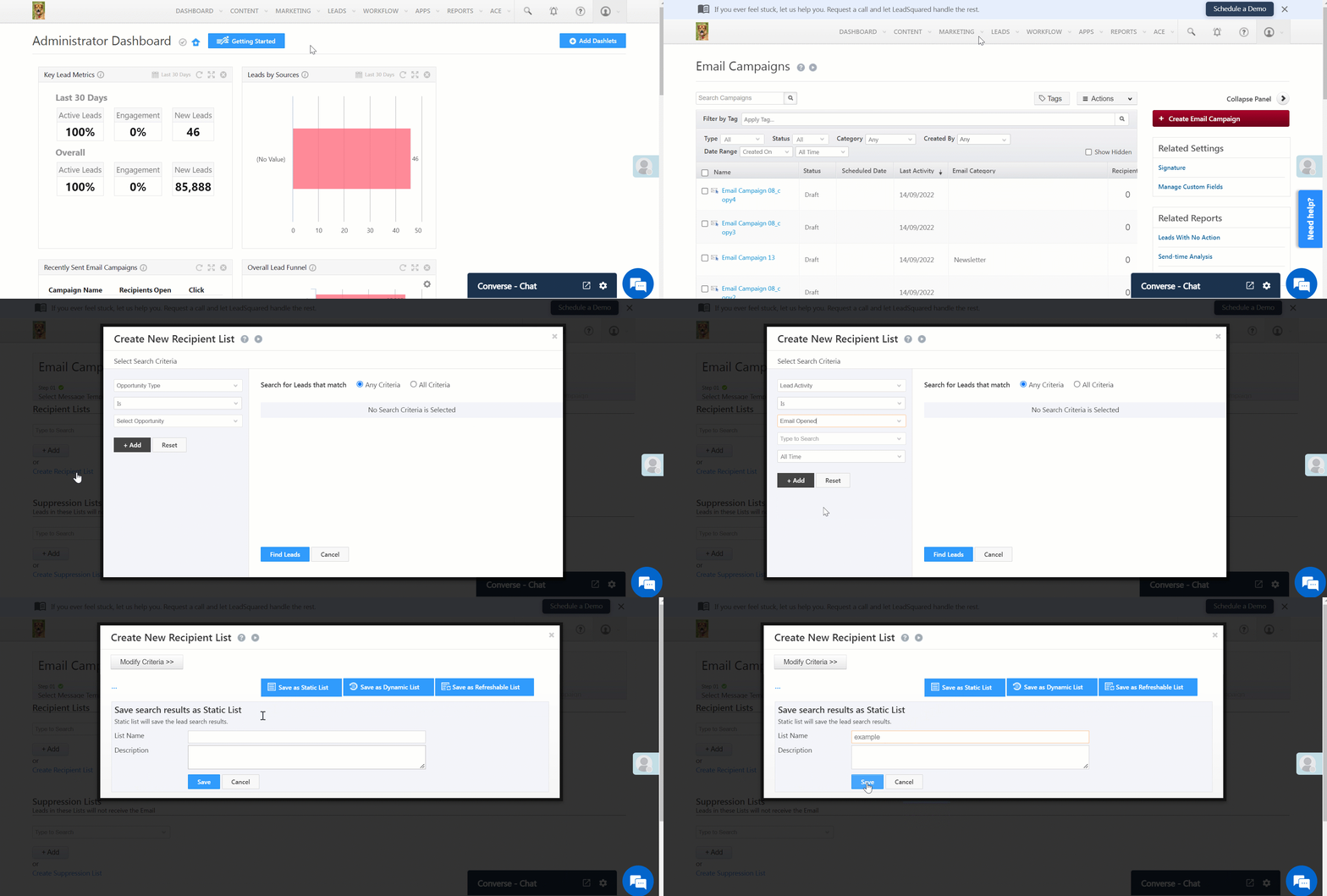
Send follow-up emails to leads who have opened your previous email campaign. To do so –

  1. Navigate to Marketing>Email Campaign and click Create Email Campaign.
  2. Complete steps 1 & 2 of the email campaign.
  3. In step 3, under Recipient Lists, click Create Recipient List and create a list of leads who have opened the mail (using the criteria Lead Activity is Email Opened, and select the Email Campaign).
  4. Complete steps 4 & 5.

LeadSquared - Sending Follow-Up Emails to Leads


Any Questions?

We’d love to answer your questions or hear your own unique use cases. Feel free to share your experiences in the comments section below.

How to Import Accounts?

You can import accounts to LeadSquared through a CSV* file. Here are some things you need to consider before beginning the import process –

  • You can only import accounts pertaining to one account type (e.g., colleges, partners, vendors, etc.).
    For example, you can import multiple entries of a ‘College’ account type activity but you can’t import both ‘College’ and ‘Vendor’ account types with one CSV file.
  • How the fields in your CSV will match the fields of that account type. You’ll have to do the mapping after uploading the file.

*Max file size allowed – 10 MB. Max rows allowed 25000.

To learn more about accounts, see Account Settings.


Prerequisites

  • The Accounts Feature must be installed and at least one account type should be available.
  • The Account Name field is mandatory. You must include it in the CSV file you upload.


Import Accounts

1. Download the Sample CSV File

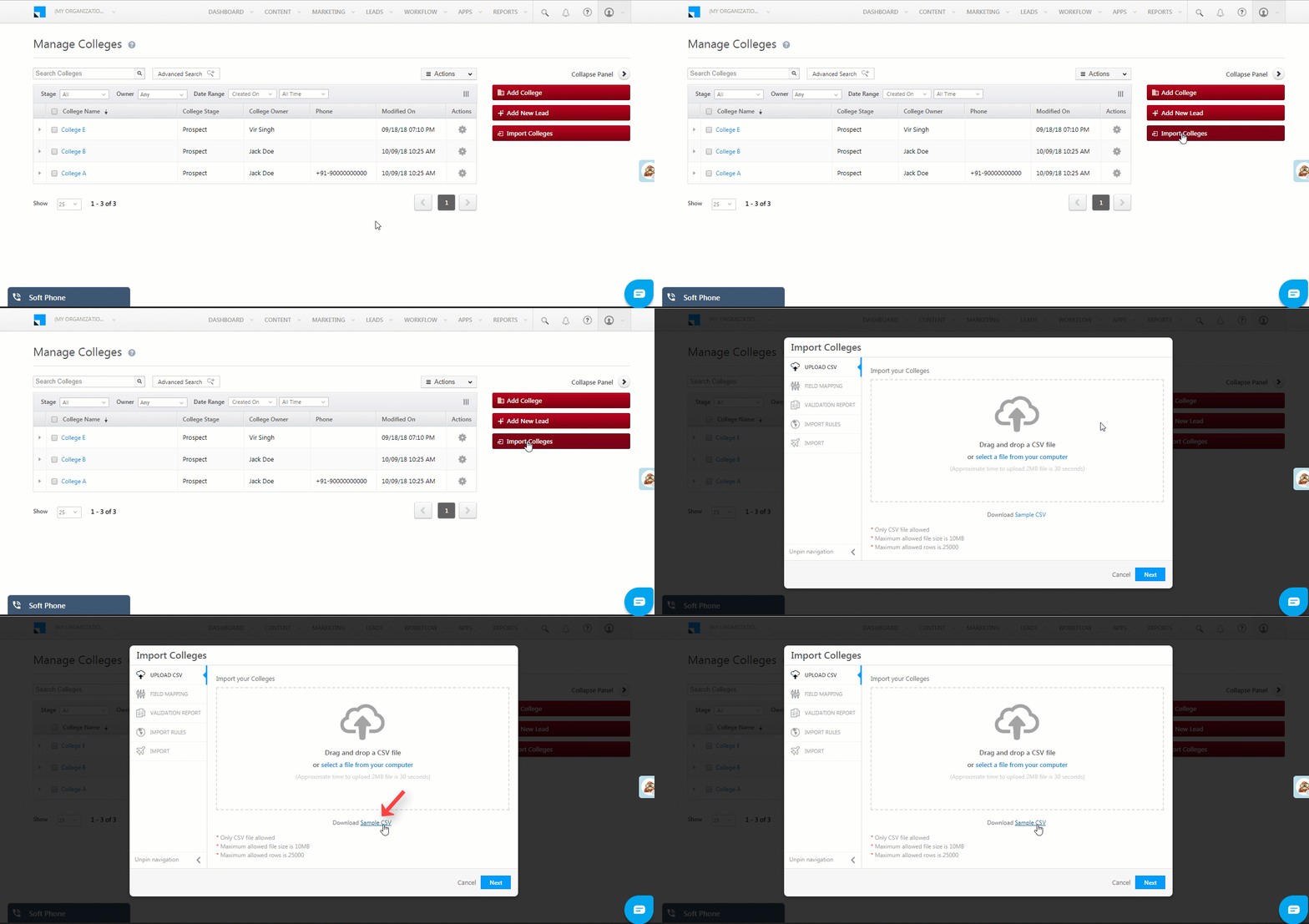
  1. On the Manage Accounts page, click the Import Accounts button.
  2. The Import Account wizard will appear. Click the Download Sample CSV link.

The sample file will now be downloaded (to the downloads folder or any location you’ve configured for your browser’s downloads). View the file to understand how to structure the CSV you want to upload.


2. Upload Your CSV File 

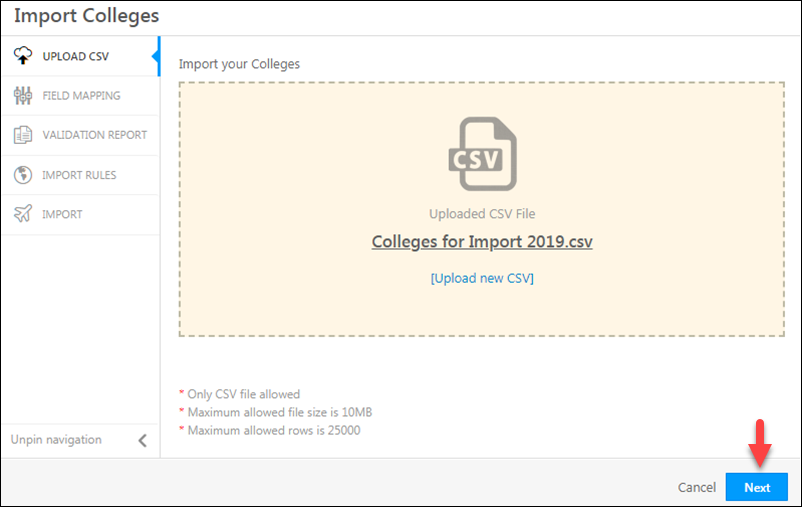
  1. On the Import Account wizard, either click the select a file from your computer link or directly drag and drop the CSV file into the area demarcated by the dotted line.
  2. Once the file has been uploaded, click Next.

Import CSV


3. Map the CSV File Columns to the Account Type Fields – 

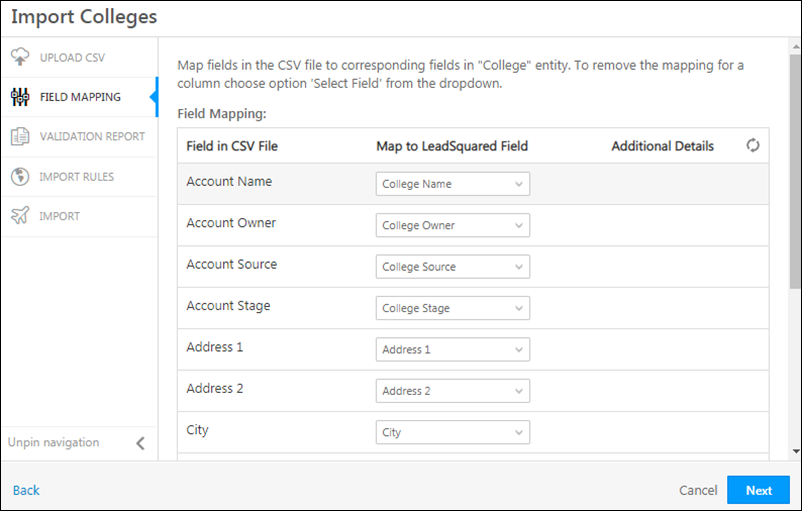
  1. Map the fields in the CSV file to the account type fields. Choose the appropriate field in the CSV that matches the identifiers in the account type fields (For example, College Name, College Owner, College Source, etc.).
  2. Click Next when you’re done.

account import fields


4. Review the Validation Report
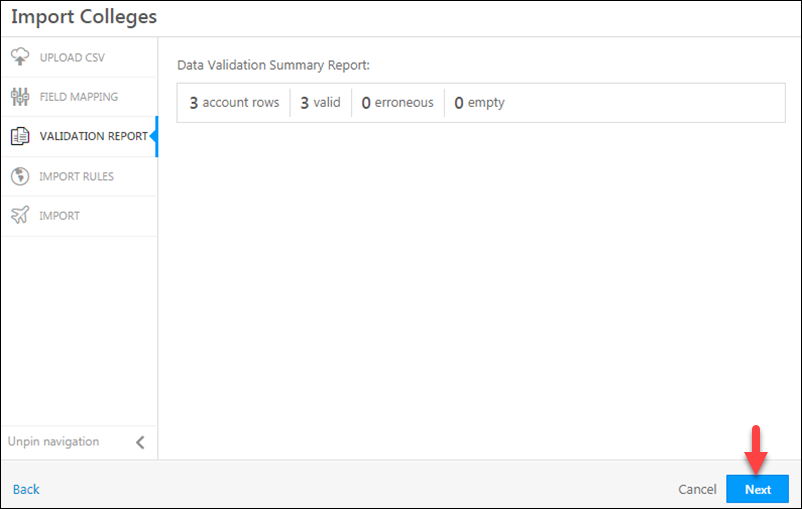
The validation report will show you errors in your mapping configurations. You can –

  1. Fix these errors and re-upload the CSV
    or
  2. Ignore the errors and continue. If you do so, accounts won’t be created for the rows which contained errors.

import validation review


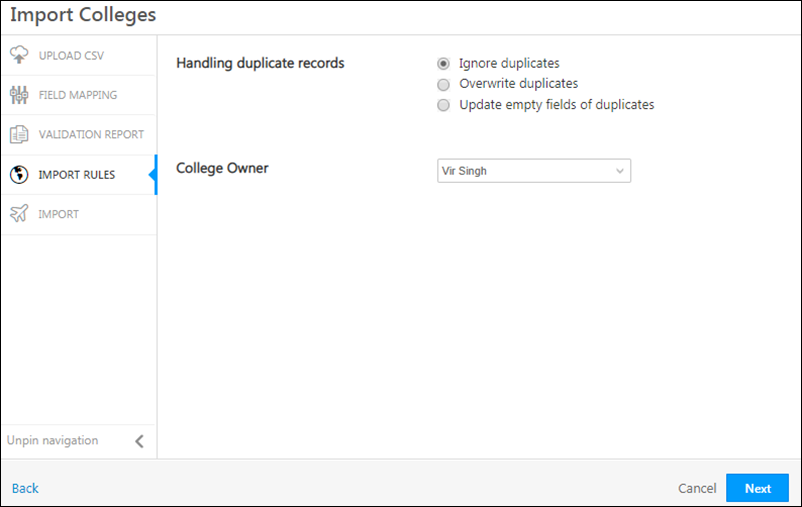
5. Set Import Rules
Set import rules on how you want to handle duplicates –

  • Ignore duplicates
    If you select this option, duplicate records will not be imported. This is the default option that is pre-selected.
  • Overwrite duplicates
    If you select this option, the CSV file data will overwrite the data in your LeadSquared account.
  • Update empty fields of duplicates
    With this option, only empty fields of the duplicate records in LeadSquared will be updated with the data in the  CSV file.

You can also set the default owner –

  • If the account specified in your CSV is missing an owner, the selected user will be assigned as the account owner.
  • It won’t be overridden if you’ve mentioned an account owner in your CSV file (for example, that user X is the account owner for account A1).

Click Next when you’re finished.

set rules for account import


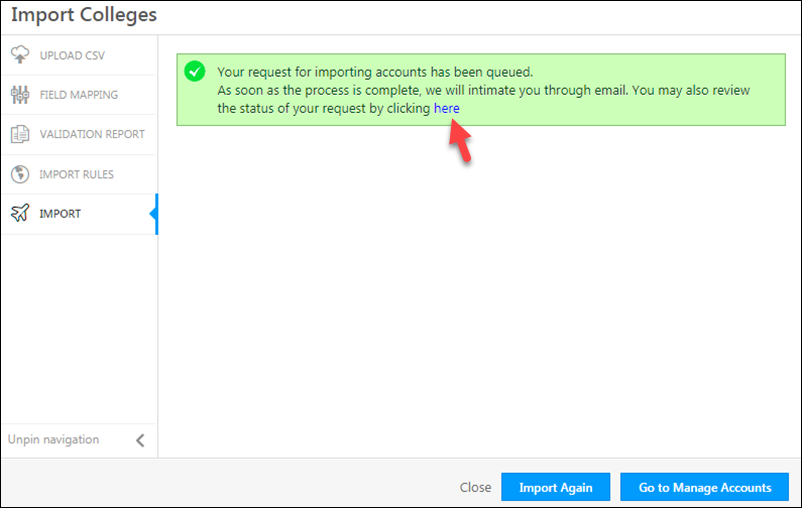
6. Check the Status of Your Import
Your import request is now successfully queued. Click the link shown below to view the status of the import. You’ll also be notified by email once the import is complete.
You can now choose to import another file or proceed to the Manage Accounts page.

import status accounts

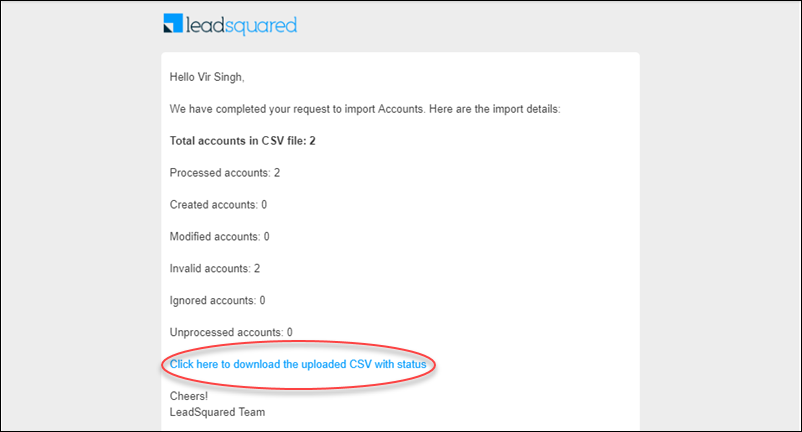
Here’s an example of the email you’ll receive in your inbox. Click the link to download a summary report CSV.

account email

The “Import Status” and “Import Message” columns give you details on what happened with each account.

account details


Any Questions?

If you have trouble importing accounts or wish to give us feedback on this article, feel free to post a comment below.

What is LeadSquared’s Data Archival Policy?

LeadSquared archives most of the data elements of your LeadSquared CRM in order to keep performance optimized.

Here are some measures we take to ensure better performance –

  • Visitors and associated visits are stored only for 100 days. They are deleted from your LeadSquared CRM after 100 days.
  • The records of sent emails which are not clicked or opened are archived after 180 days. This means that a ‘Sent Email’ record which does not correspond to an open or click from a lead does not appear in the Lead Activity History after 180 days.
  • Webhook history records and workflow automation records are stored only for 10 days in your LeadSquared CRM.
  • “SMS Sent” activities posted against leads in your account are preserved till they are deleted or till leads are deleted. However, the SMS Billing and Usage reports will show data only for the last 6 months.
  • Location history data is stored only for the last 6 months.

Send Quick Emails

1. Feature Overview

LeadSquared’s Email feature enables you to send personalized, one-to-one emails to leads directly from multiple touchpoints within the platform or through automation workflows. It supports useful communication capabilities such as attachments, scheduling and CC/BCC recipients.

This feature helps sales and marketing teams engage leads contextually and maintain consistent communication. Admins can control access to email-related capabilities through Email Settings and configure permissions for different users across the account. To learn more, see Email Settings – Feature Guide.

Note: To send email campaigns to lists of leads, see Create and Schedule Email Campaigns.

Leadsquared - One-To-One Emails


2. Prerequisite

You must have permissions enabled to send emails to leads.


3. How It Works

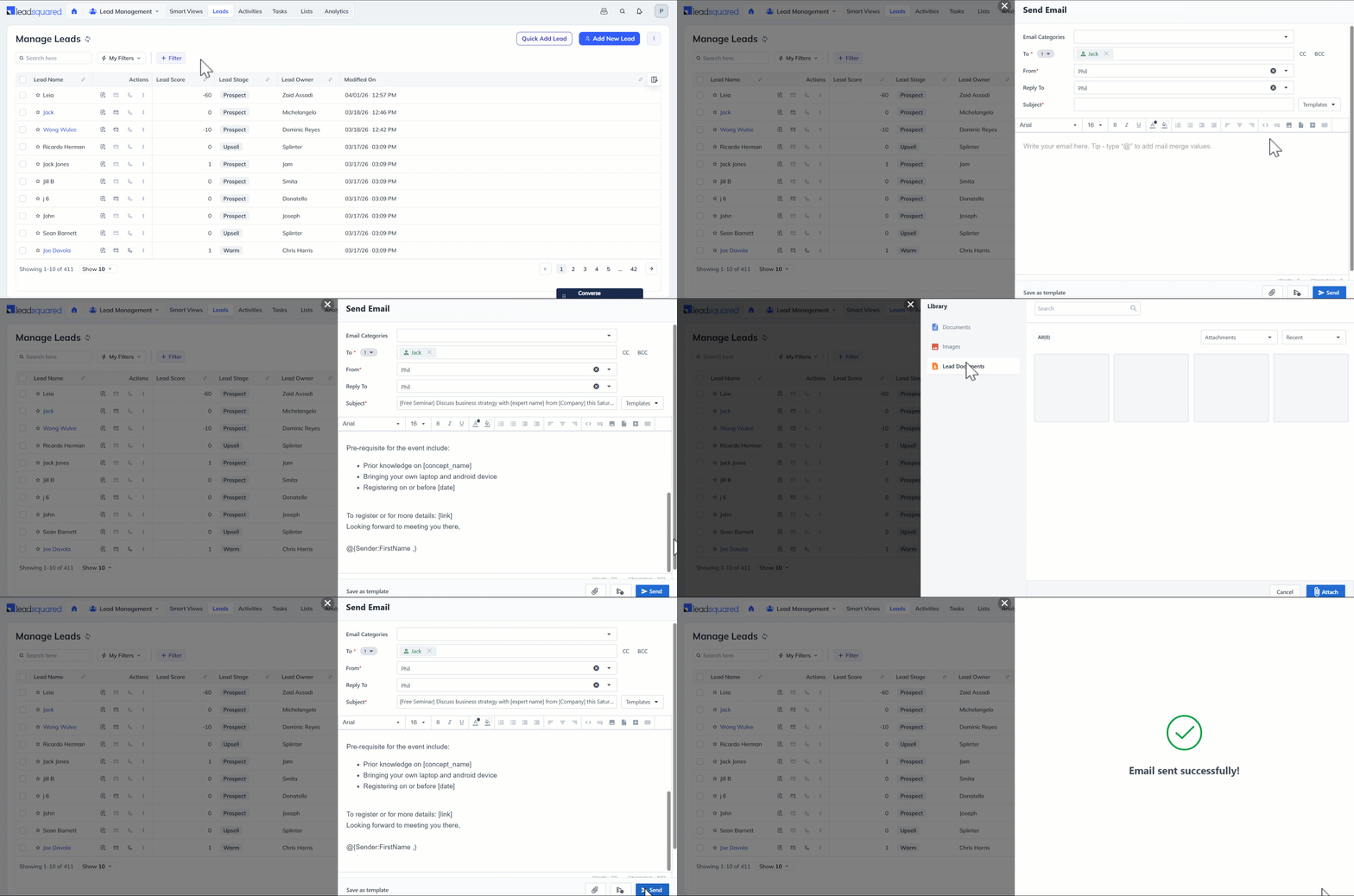
Users can send emails to leads either manually or through automation:

  • One-to-one emails can be sent from various sections like Manage Leads, Lead Details, Smart Views, or Manage Lists. These can be sent instantly or scheduled for later.
  • Automated emails can be configured within workflows to trigger based on user-defined conditions.
  • Once sent, emails (including attachments) are tracked under the lead’s Activity History for visibility.


3. Send Emails to Leads

Send personalized, one-to-one emails to individual or multiple leads directly from different pages on the platform, such as Manage Leads, Lead Details, Smart Views, and Manage Lists. You can compose, send, or schedule emails based on your business needs, making it easy to engage leads contextually at any stage of the sales process.

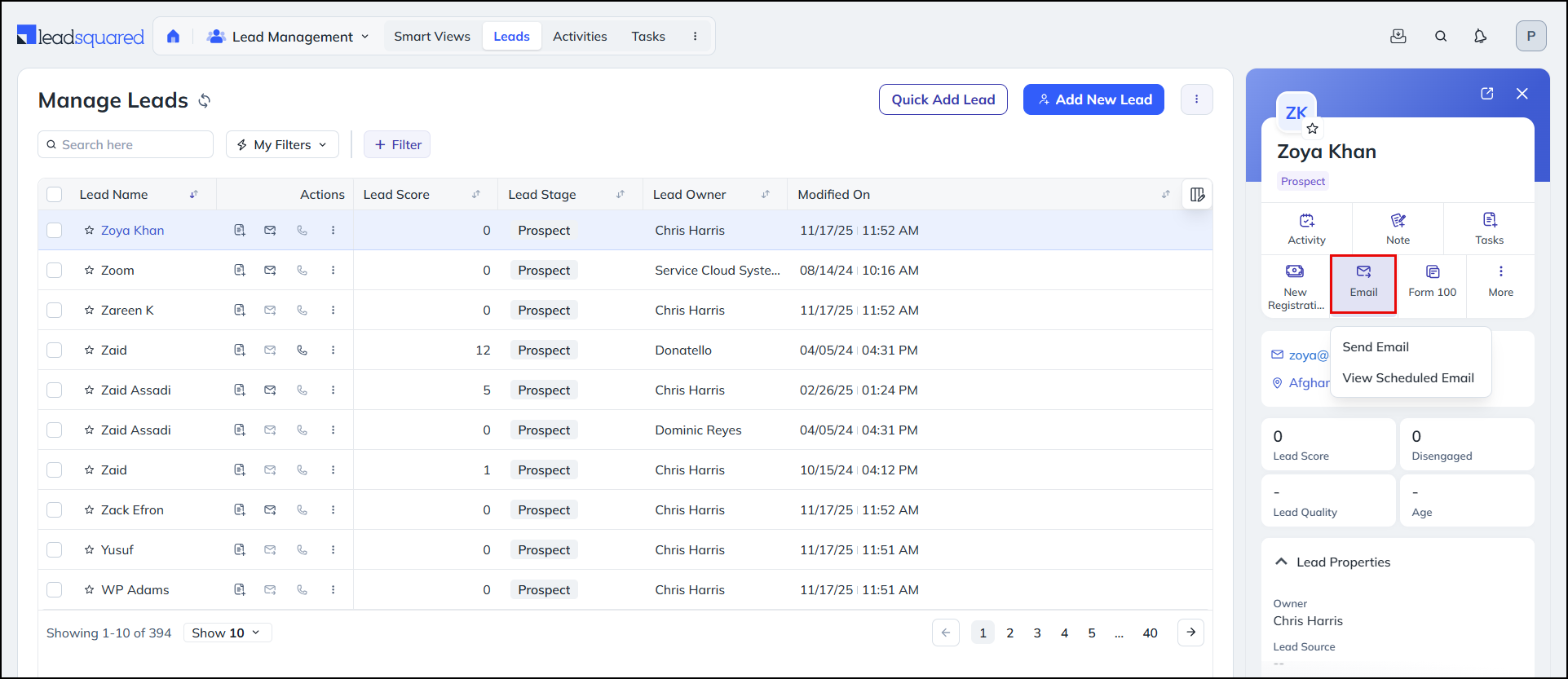
3.1 From Manage Leads Page

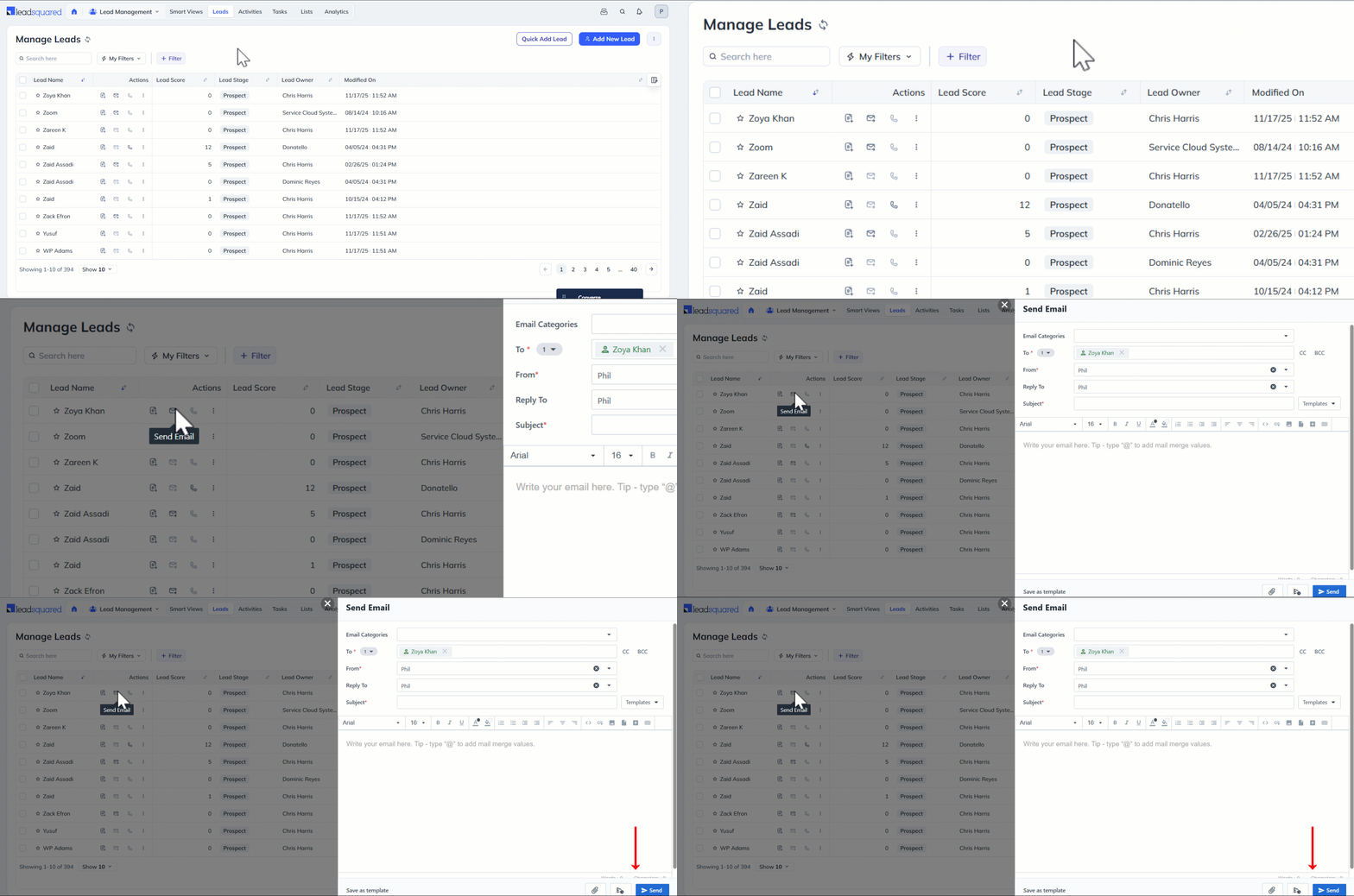
  1. Navigate to Lead Management>Leads.
  2. Alongside the relevant lead, click the Send Email icon.
  3. Once you’re done drafting the email –
    • If you need to send the email immediately, click Send.
    • If you wish to schedule the email delivery for a later time, click the Schedule Email icon.

Leadsquared - One-To-One Emails

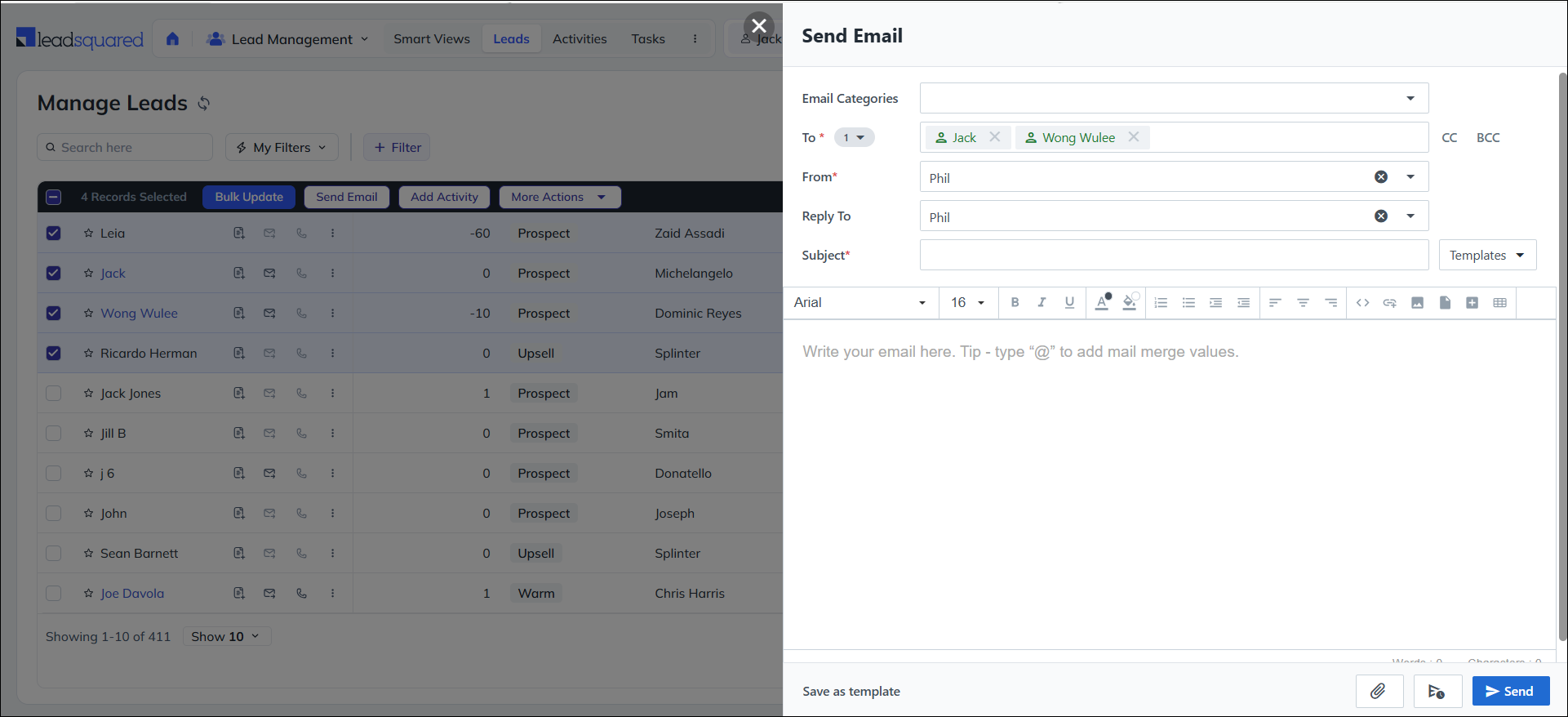
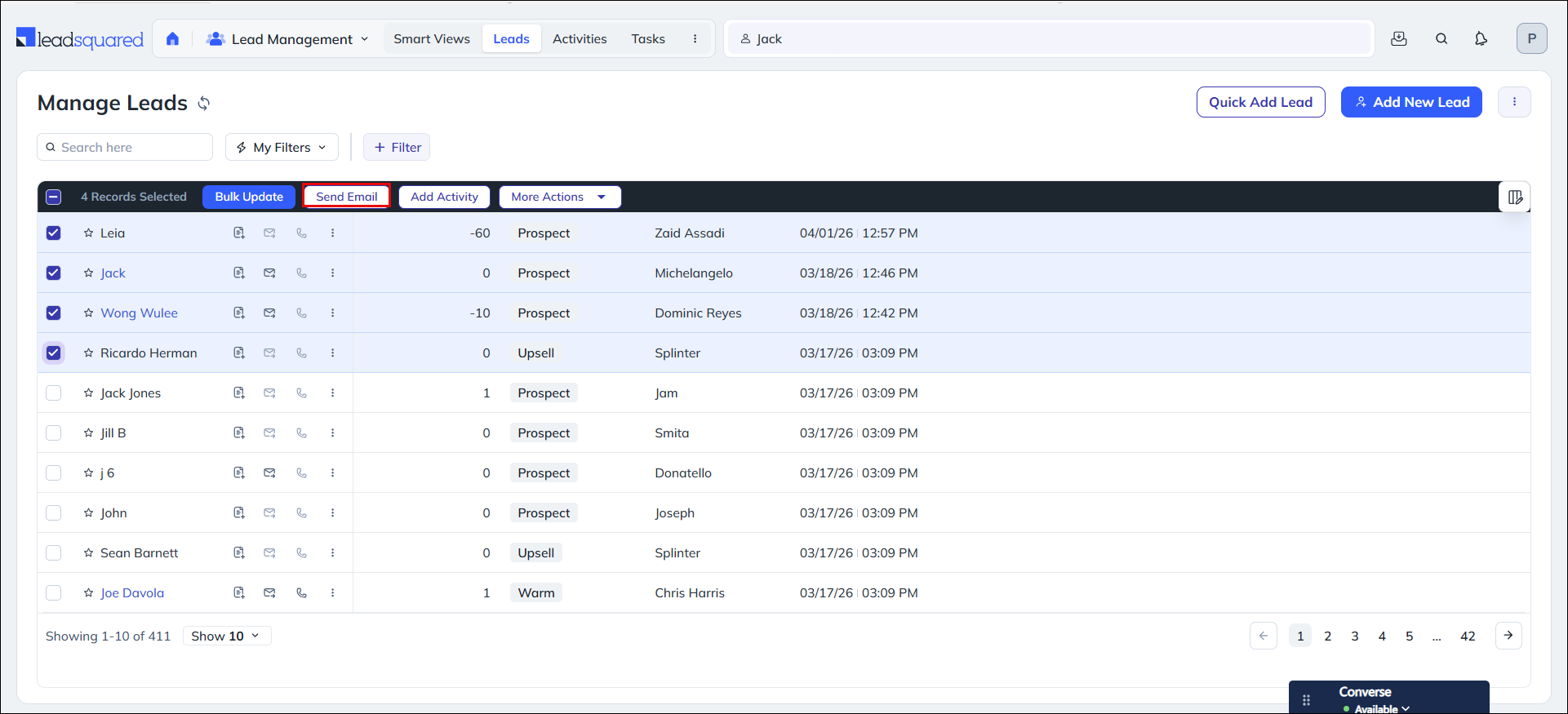
To send email to multiple leads –

  1. Click the checkboxes alongside the relevant leads.
  2. Click the Send Email button on top of the lead grid.

Leadsquared - One-To-One Emails

3.2 From Lead Details Page

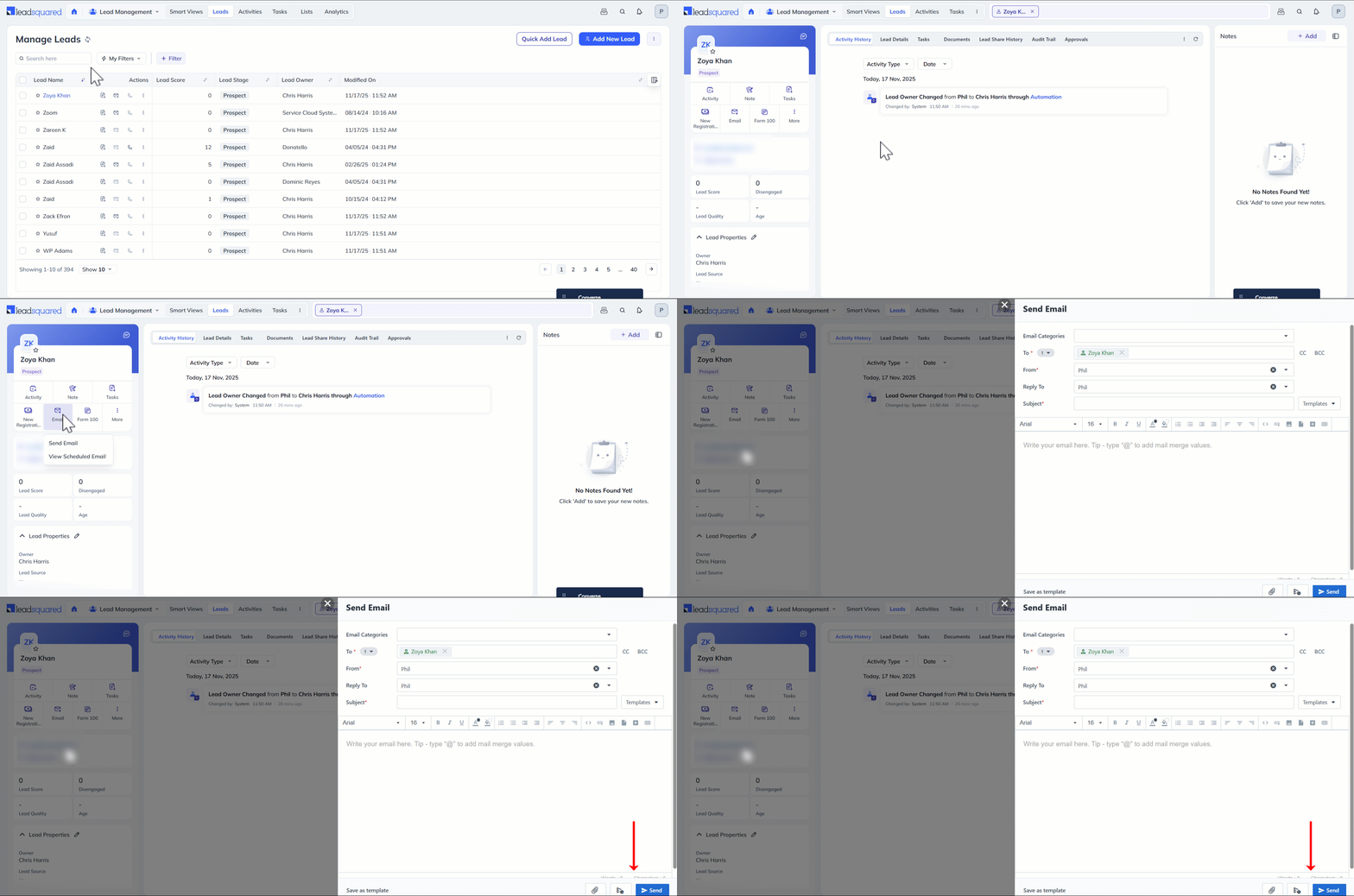
  1. Navigate to Lead Management>Leads.
  2. Click the name of the relevant lead to view the lead’s details.
  3. Click Email.
  4. From the dropdown box, select Send Email if you need draft an email to send immediately.
  5. Once you’re done drafting the email –
    • If you need to send the email immediately, click Send.
    • If you wish to schedule the email delivery for a later time, click the Schedule Email icon.

Leadsquared - One-To-one Emails

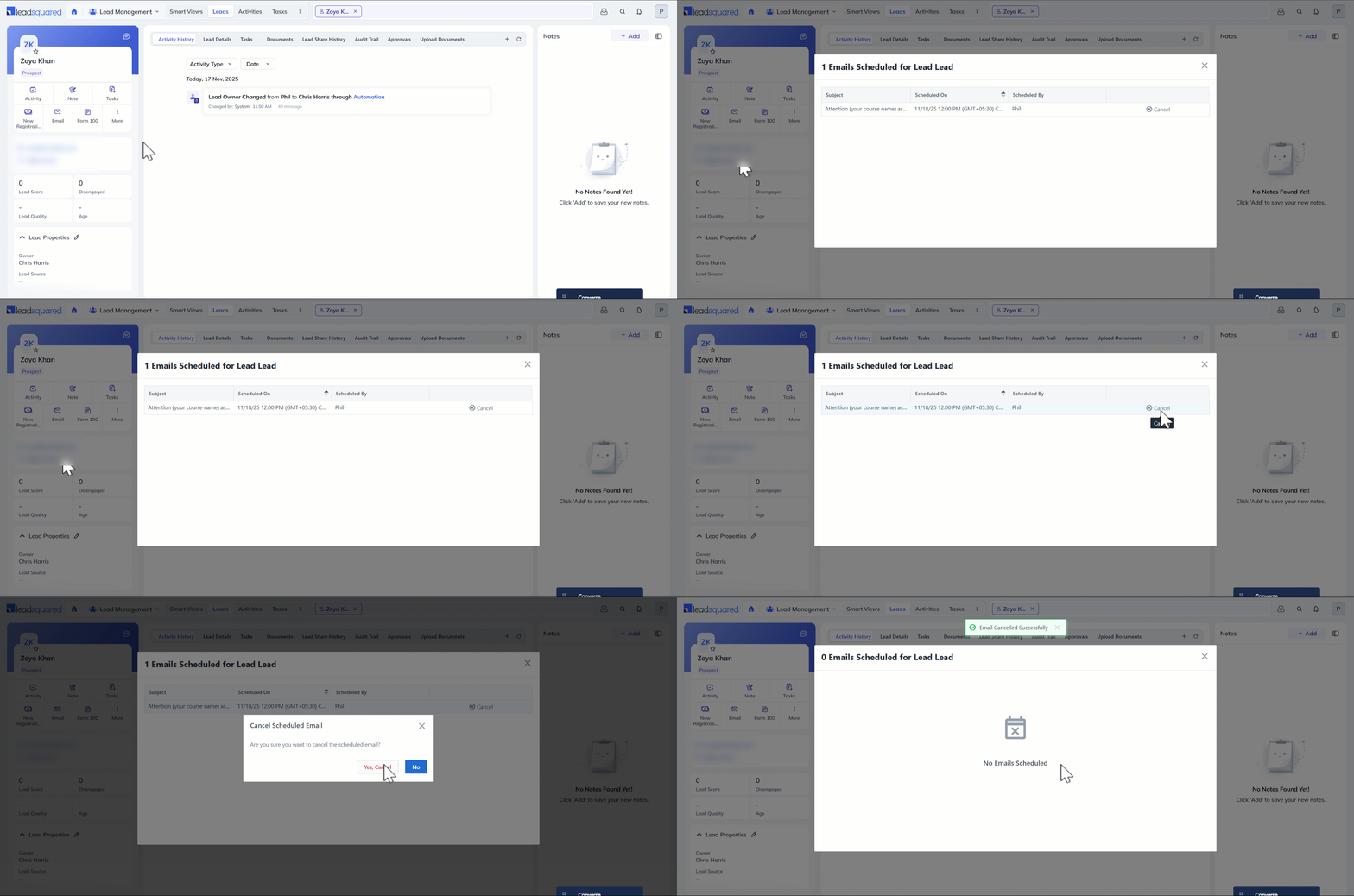
You can view and cancel the emails that you have scheduled to send later on the Lead Details page.

  1. Click Email.
  2. Select View Scheduled Email.
  3. You can see the details of the scheduled email on a pop-up.
  4. To cancel the email, click Cancel on the pop-up.

Leadsquared - One-To-One Emails

3.3 From Leads Quick View

Click the relevant lead row to open the quick view. You can send emails to the lead from here.

Leadsquared - One-To-One Emails

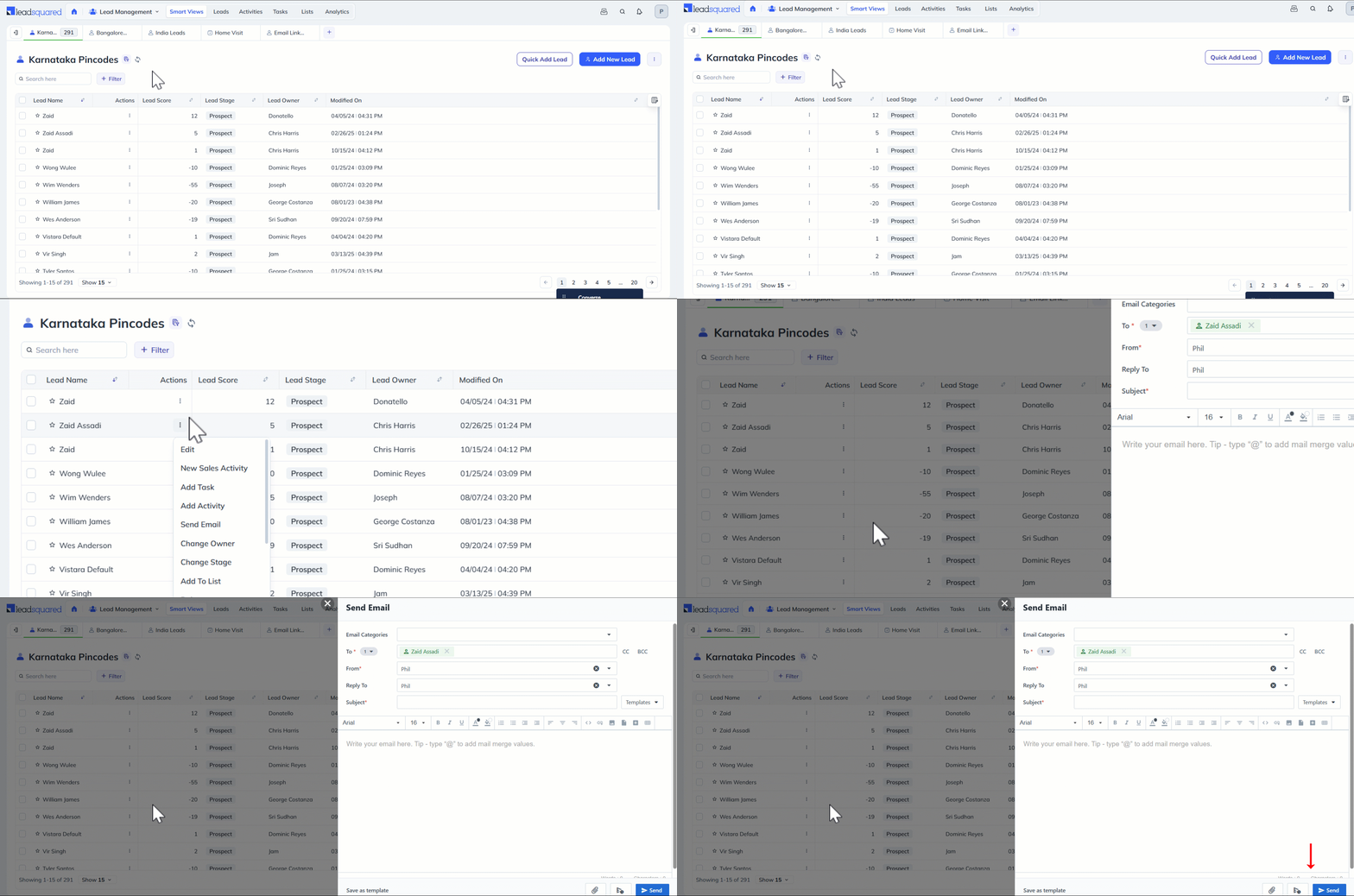
3.4 From Smart Views Page

  1. Navigate to Lead Management>Smart Views.
  2. Alongside the relevant lead, click the Actions icon and select Send Email from the dropdown.
  3. Once you’re done drafting the email –
    • If you need to send the email immediately, click Send.
    • If you wish to schedule the email delivery for a later time, click the Schedule Email icon.

Leadsquared - One-To-One Emails

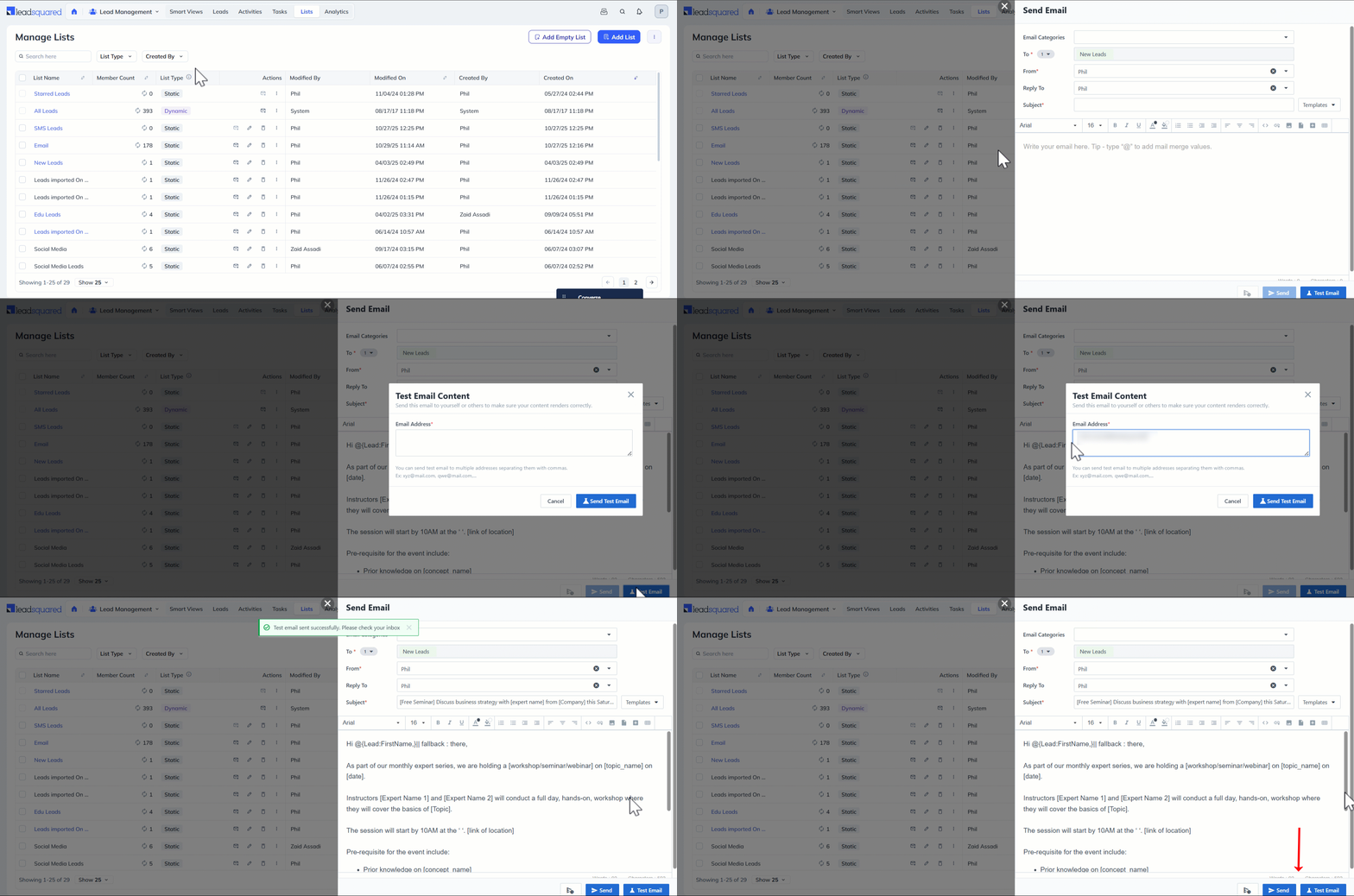
3.5 From Manage Lists

  1. Navigate to Lead Management>Manage Lists.
  2. Alongside the relevant list, click the Send Email icon.
  3. Once you’re done drafting the email, send a Test Email to yourself or others to make sure your content renders correctly.
  4. Then –
    • If you need to send the email immediately, click Send Now.
    • If you wish to schedule the email delivery for a later time, click the Schedule Email icon.
Note: You can send emails to leads from the List Details page as well.

Leadsquared - One-To-One Emails


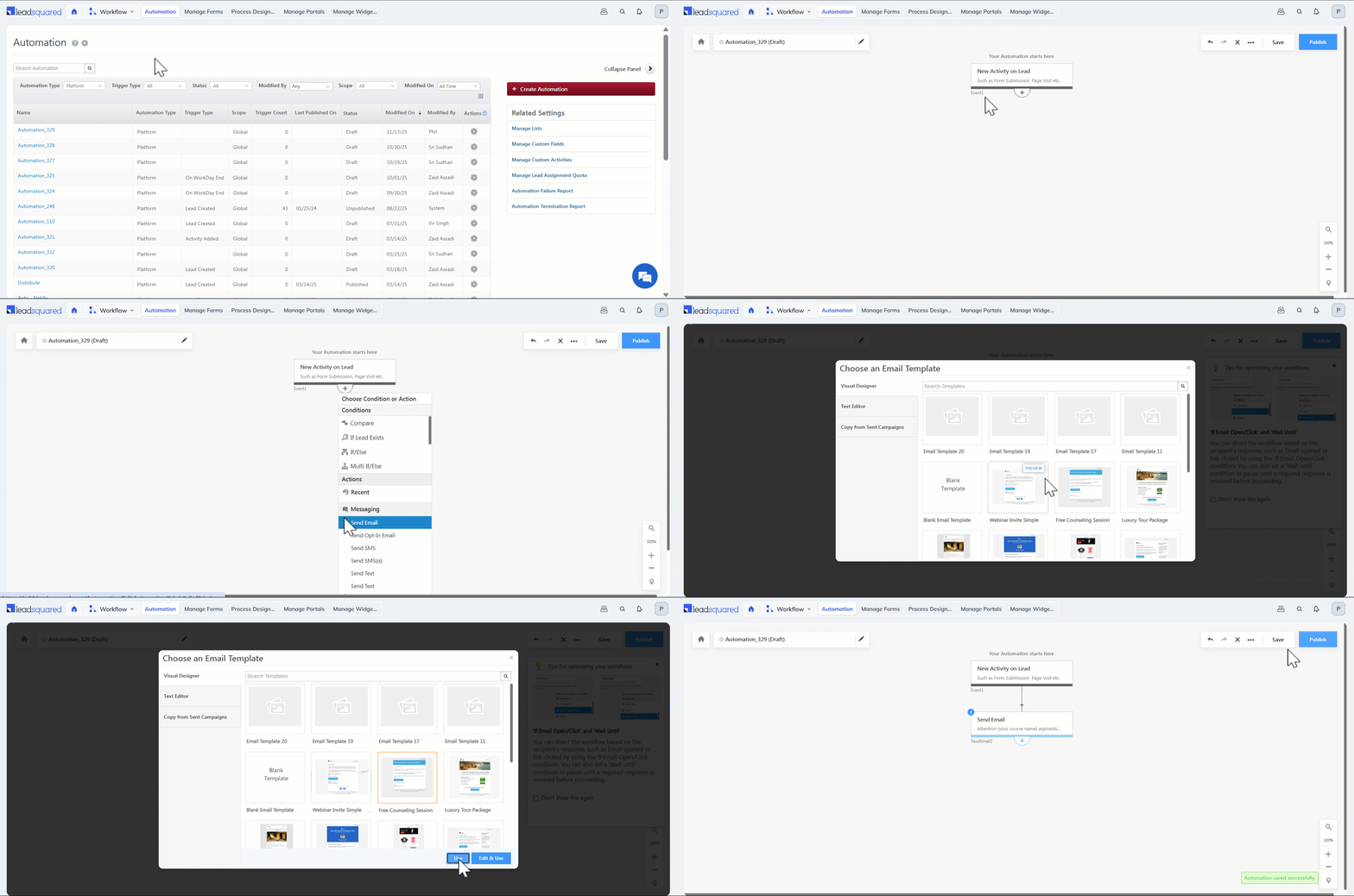
4. Send Emails through Automation

Automate email delivery by configuring workflows that trigger emails based on lead actions or conditions.

  1. Navigate to Workflow>Automation and click Create Automation or open an existing automation.
  2. Click the plus icon and under Messaging, click Send Email.
  3. Choose an Email template or design your own email from scratch.
  4. Once you’re done, save or publish the automation.

Leadsquared - One-To-One Emails


5. Send Files As Attachments

When sending one-to-one emails to your leads, use the Attachment button to attach files to the email (uploaded to the Images and Documents Library or through lead notes). Click –

  • Upload New to upload a document or image from your device.
  • Documents to open all the files uploaded to the Document Library.
  • Images to open all the images uploaded to the Image Library.
  • Lead Documents to open specific documents uploaded with relevance to that particular lead (for instance, from the Add Lead Form or Notes), captured in the Lead’s Details page.
Note: This feature is not available by default. To enable this on your account, contact your account manager, or write to support@leadsquared.com.

Leadsquared - One-To-One Emails

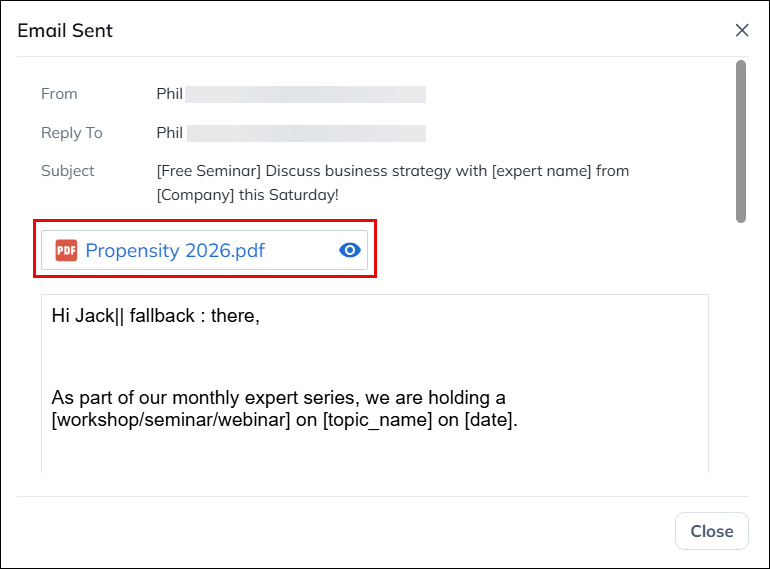
Once the mail is delivered, you can view the attachment on the Lead Details page, under the Activity History tab.

Leadsquared - One-To-One Emails


6. CC/BCC other leads in your email

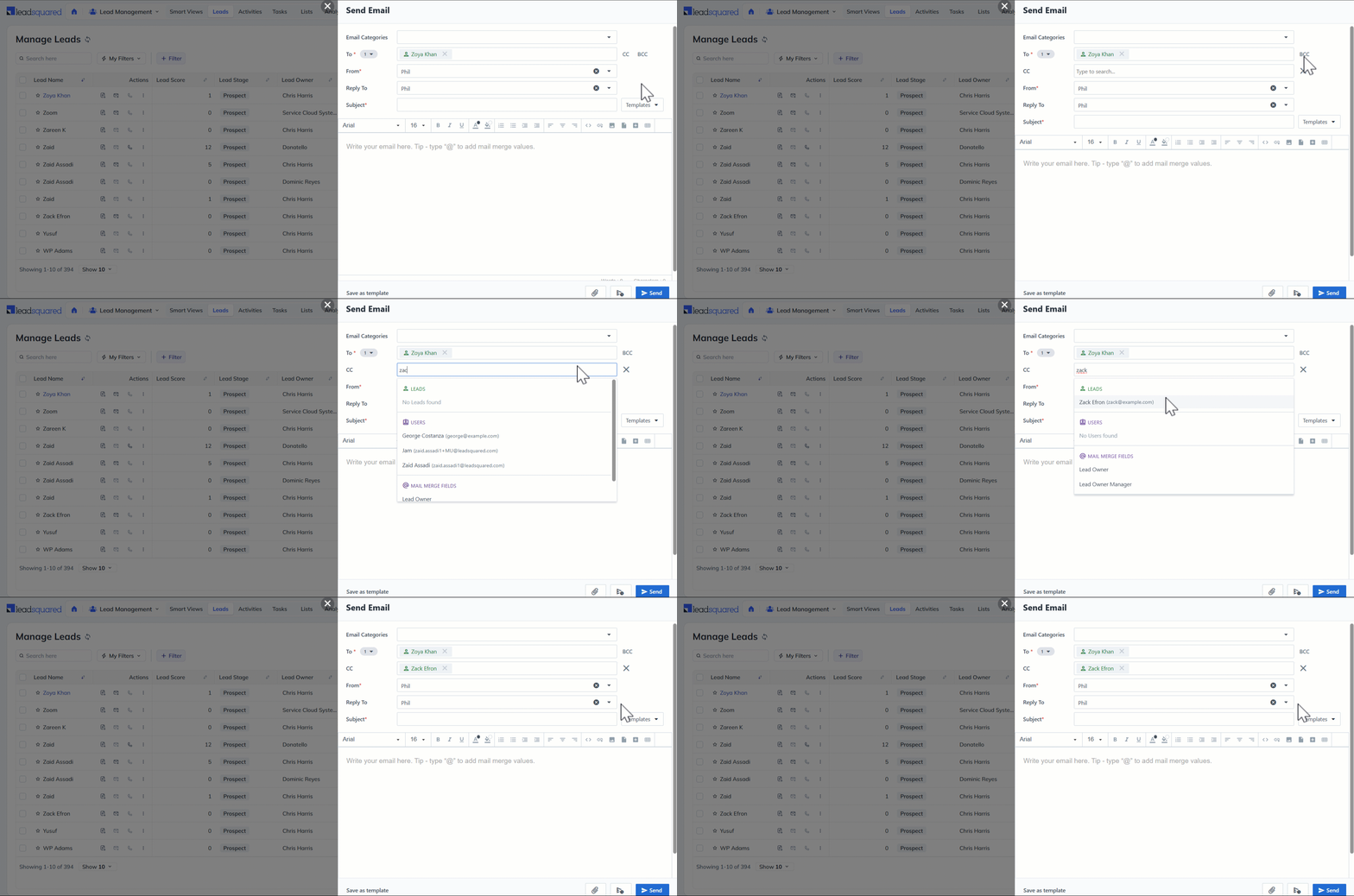
To keep relevant stakeholders informed, you can include additional recipients in your emails using CC or BCC option.

  1. On the email designer, next to the To address, click CC or BCC.
  2. Enter the email addresses of the relevant leads on the CC or BCC field.
Note: A lead is captured with the lead origin “Web:Email:One2One” when a new email id (email Id of a lead that doesn’t exist in LeadSquared) is passed in CC while sending an email to an existing lead.

Leadsquared - One-To-One Emails


Troubleshooting

YouTube Video Preview Glitch in One-to-One Email

  • Issue: A YouTube video was added to an email template created using the Visual Designer (Email Campaigns feature). While the video preview appears correct in the test email, it becomes glitched when sending a one-to-one email.
  • Cause: The Visual Designer is designed for email campaigns and not for one-to-one emails. When a template created in the Visual Designer is used for a one-to-one email, it opens in the Rich Text Editor, which may alter the formatting and cause display issues with the video preview.
  • Solution: To ensure the video preview appears correctly in one-to-one emails, create the template using the HTML Editor or Rich Text Editor, as these are compatible with one-to-one emails.


Any Questions?

Did you find this article helpful? Please let us know any feedback you may have in the comments section below. We’d love to hear from you and help you out!

LeadSquared Call and SMS Tracker App

Important: Effective from Android v20.6 and above, Call & SMS Tracking features are available directly on the LeadSquared Mobile App (downloadable from the Google Play Store). However, to enable the Call Recording feature, the Call & SMS Tracker App described in this article must be installed separately.

1. Feature Overview

Previously, the Call and SMS Tracker App described in this article, provided call and SMS tracking features (posting calls and SMS as activities against relevant leads). Now the Call and SMS Tracker App only provides call recording functionality. To enable call recording, download the app from the section below. Recorded calls will be available against the Phone Call activities on your leads for listening and downloading.

Note:

  • Call recording is not guaranteed on all devices due to voice recording restrictions imposed by certain operating systems. If it does not function on your device, it is likely due to these OS limitations.
  • This app is only an assistant to the main LeadSquared app available on the Play Store. Its purpose is to enable Call Recording functionality.
  • To automatically record calls, on the Permissions page, under Call and SMS, enable the Record Calls permission.


2. Prerequisite

  • You must have an Android mobile device. The call recording feature is not supported on iOS devices.
  • Only install this app once you have updated the main LeadSquared Mobile App to the latest version.
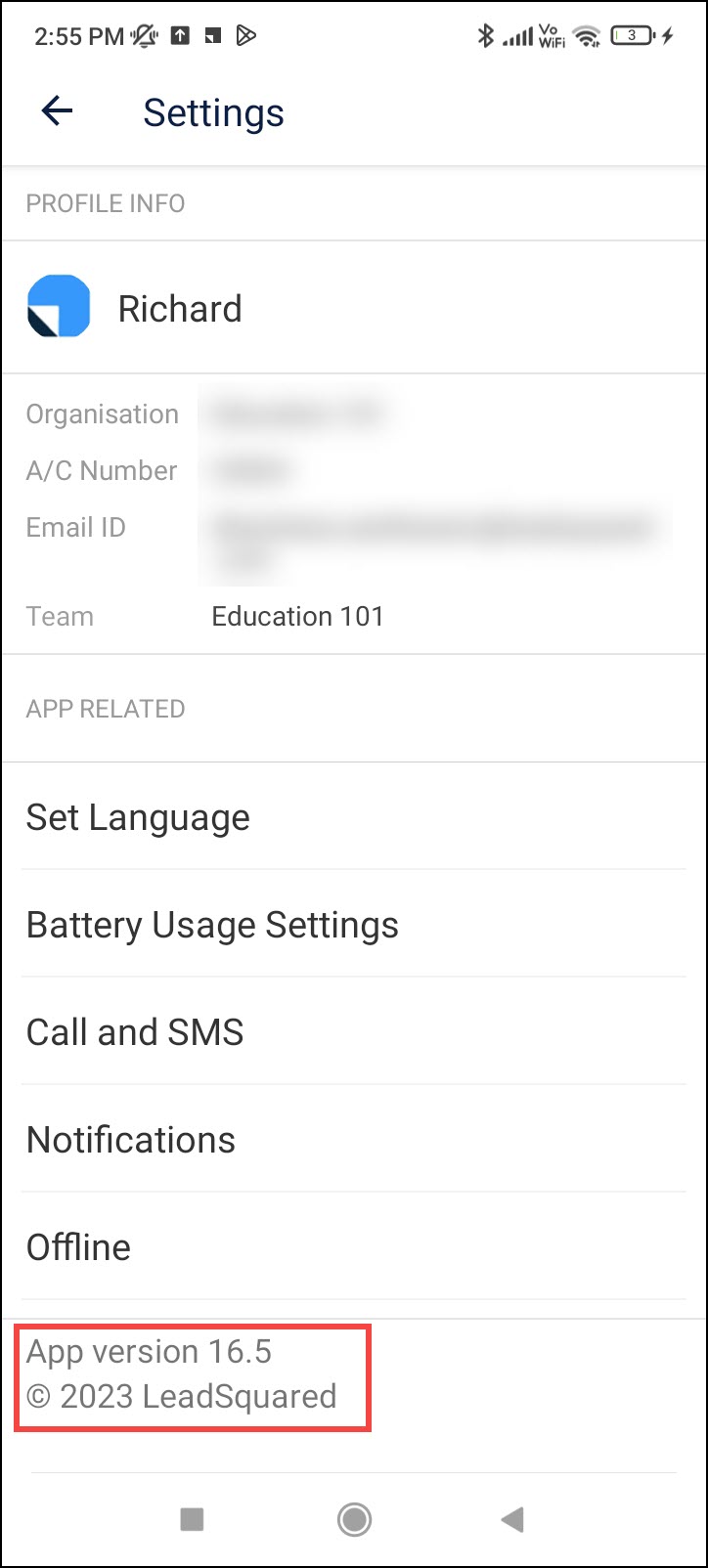
  • You can check the version number by navigating to the main menu of the app and selecting Setting icon –

LeadSquared app version


3. Install Call and SMS Tracker App

To start tracking call and SMS activities on your LeadSquared mobile app, download our Call and SMS tracker app –

Download the latest version now

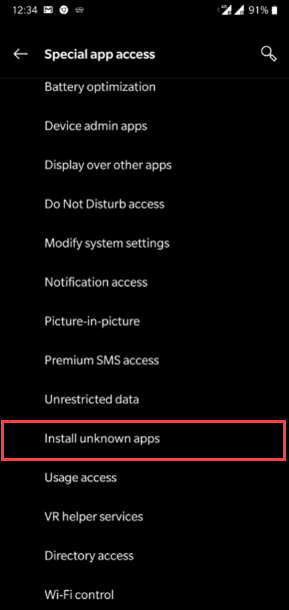
Once you click the download app button above, you may be prompted with a request to ‘Install Apps from Unknown Sources’. This is required to allow your default browser to download apps from the web.

You can also enable this permission from your device settings –

  1. On your device, navigate to Settings.
  2. Search for Unknown Sources. Then enable Allow installation of apps from unknown sources.

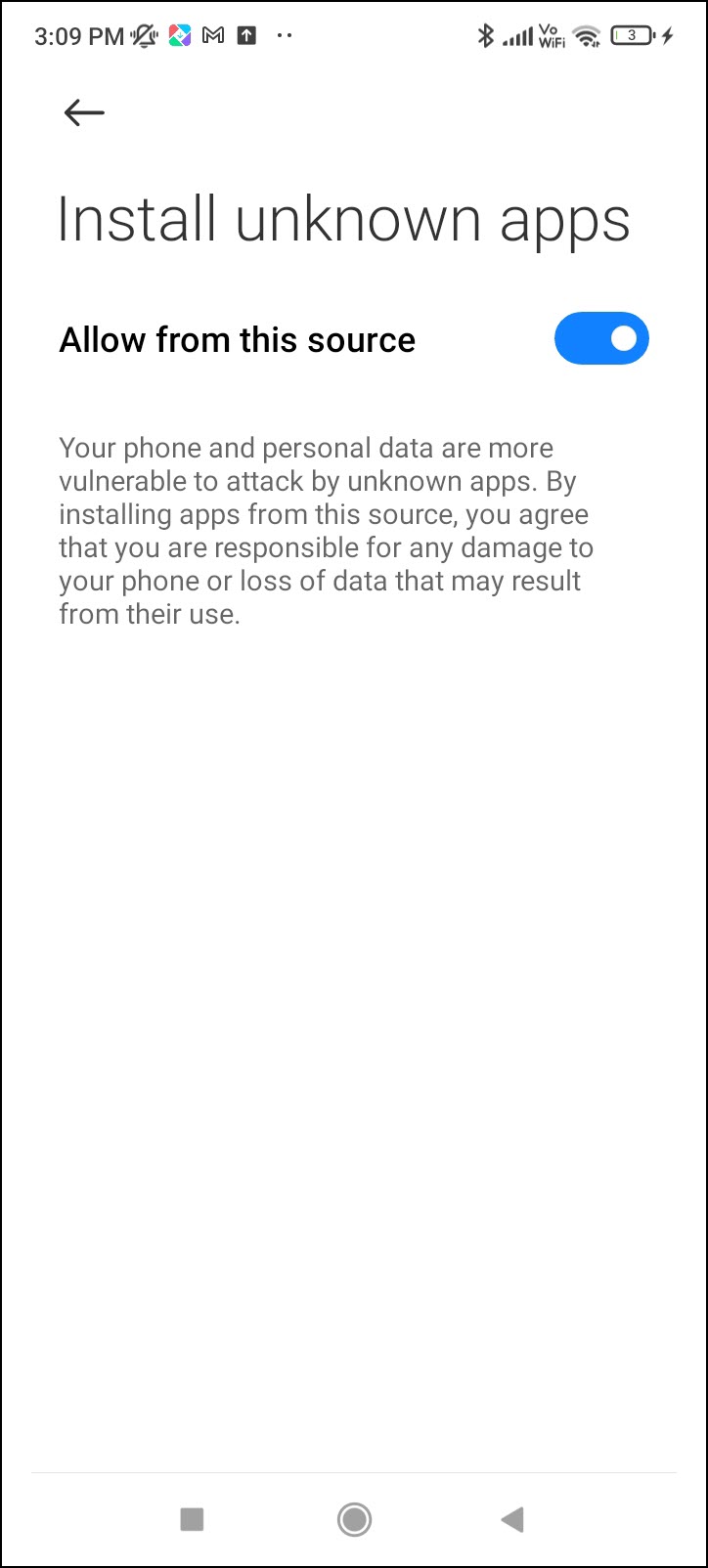
Depending on your device the setting may look like this –

apps from unknown sources chrome permissions for apps

Or like this –

LeadSquared - Install unknown apps

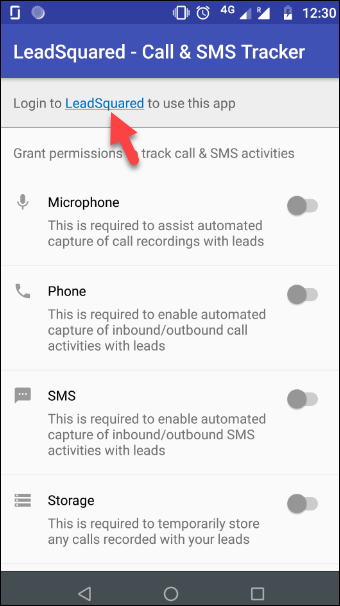
Once you install the app, first login to your LeadSquared account –

call and SMS app permissions

Be sure to accept all permissions so calls that were recorded can be stored in your device.


4. Enable Call Recording on Your Device

You can record your users’ inbound/outbound calls for review and quality control. The calls are automatically posted as activities in the Activity History section of the Lead Details page. Recorded calls can also be downloaded.

Note:

  • This feature may not be supported in some mobile phones as it is device dependent. If it is not supported on your mobile, reach out to your account manager or write to support.
  • If you’re using Xiaomi mobile phone, enable call recording through Mobile device settings.

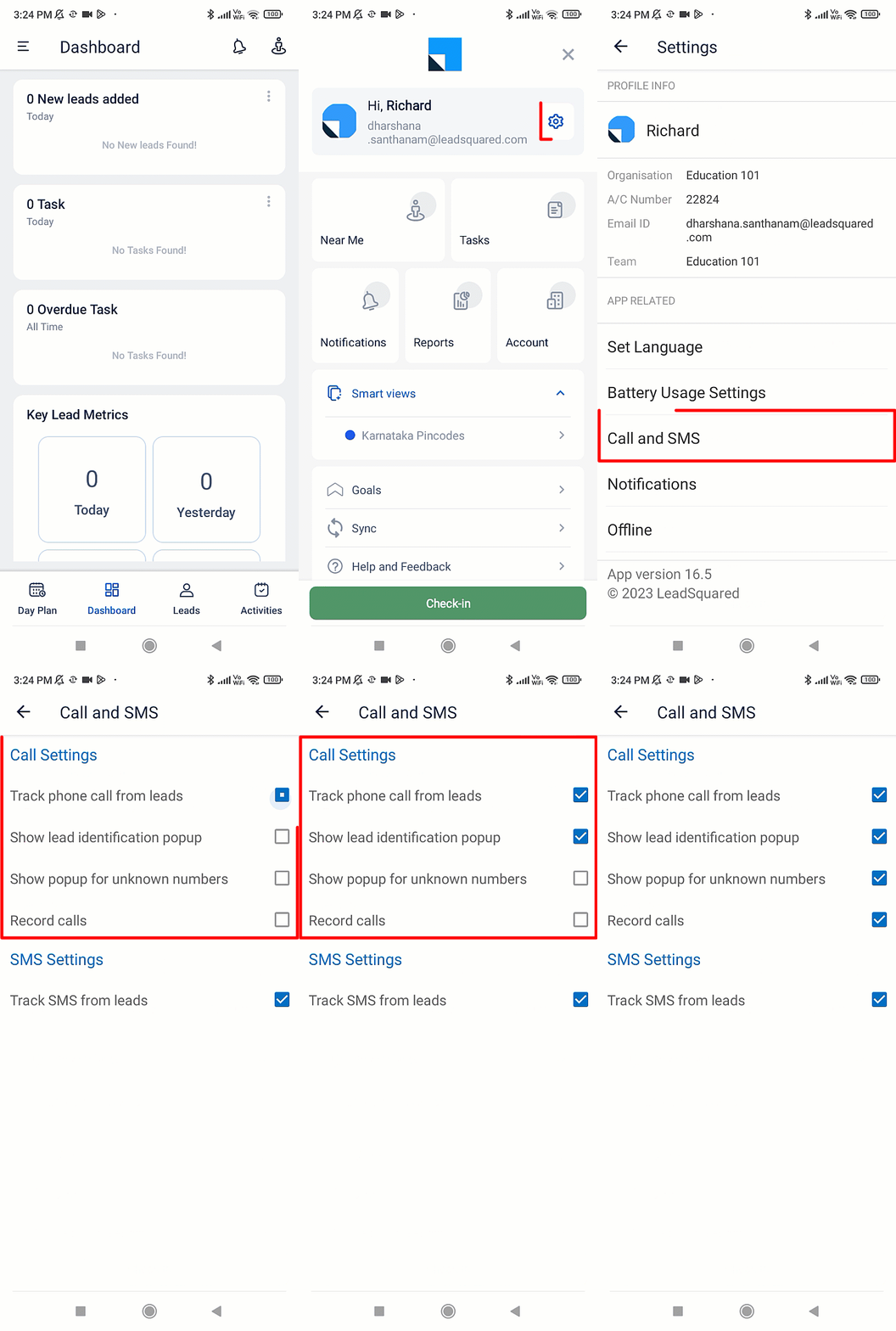
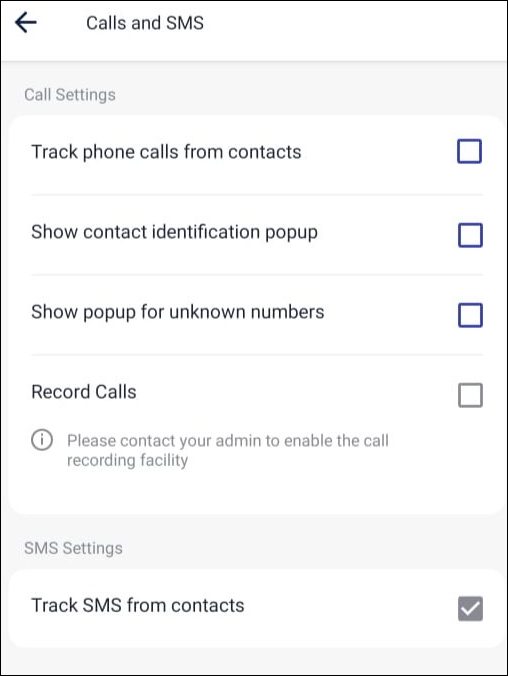
To enable call recording on your device –

  1. From the dashboard, tap LeadSquared - Mobile app menu.
  2. Tap Setting icon and then tap Call and SMS.
  3. Under Call Settings, enable the Record Calls Permission.

LeadSquared - Enable Call Recording on Your Device


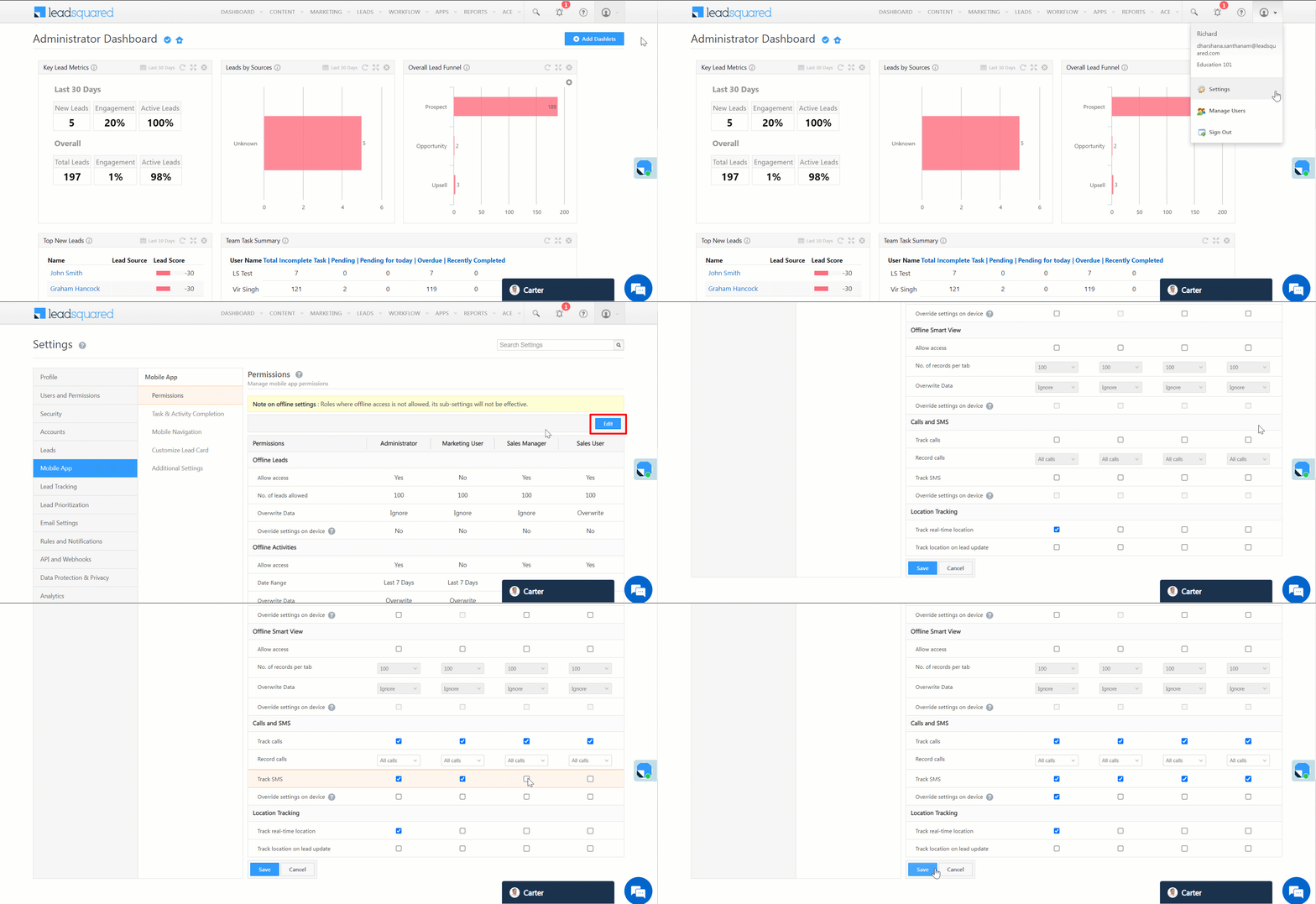
5. Set Call Recording Permissions on Web App

  1. From the main menu, navigate to My Profile>Settings>Mobile App>Permissions.
  2. Click Edit.
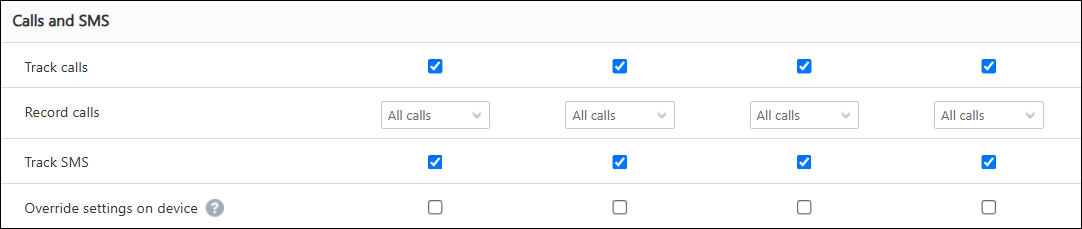
  3. Under Calls and SMS, set these permissions under the specific user roles to record calls –
    • Track Calls.
    • Record Calls –
      • No Calls –  No call activities are recorded.
      • All Calls – All call activities are recorded.
    • Track SMS.
    • Override settings on device – If enabled, the call and sms permissions set by the Admin will override the mobile device level settings enabled by the users.
  4. Click Save.
Note: To know more about setting mobile app permissions on the web platform, see Configure Mobile App Settings from the Web Platform.

LeadSquared - Set Call Recording Permissions on Web App


6. View Recorded Activities

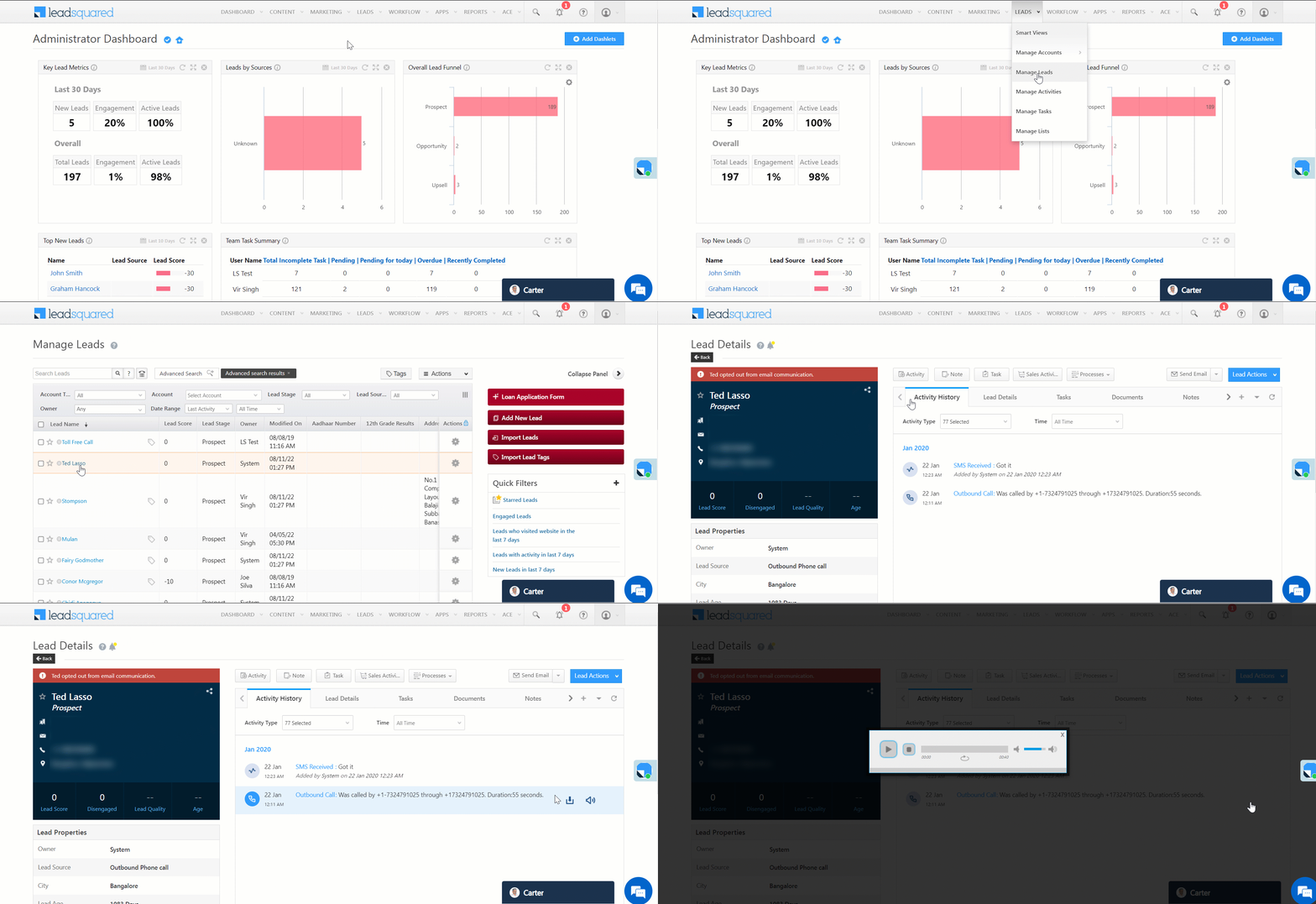
6.1 On the Web App

  1. Navigate to Lead>Manage Leads.
  2. Click on a relevant lead and open the Lead Details page.
  3. On the Lead Details tab, click Activity History.
  4. Alongside the call activity,
    • To download the recording, click Cloud Calling.
    • To listen to the recording, click LeadSquared CTM Telephony.
Note: The recorded calls are stored in mp4 format.

LeadSquared - View Recorded Activities


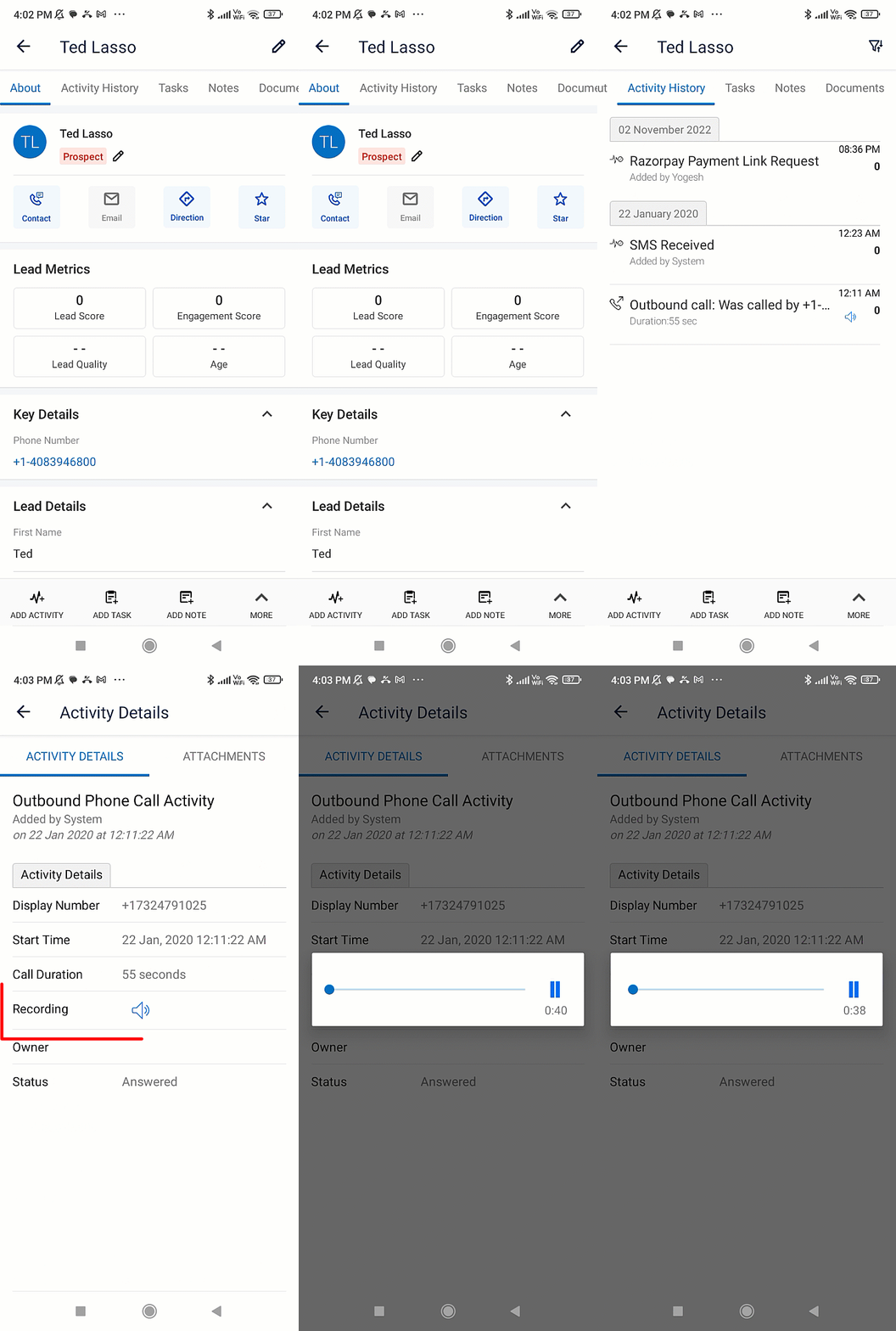
6.2 On the Mobile App

  1. Navigate to the relevant Lead Details page.
  2. Tap Activity History.
  3. Tap on the relevant outbound call activity.
  4. On the Activity Details page, alongside Recording, tap LeadSquared - Listen to Recording icon.

LeadSquared - View call recording on mobile


7. FAQs

Why can’t I select required Call & SMS permissions in the LeadSquared Mobile App?

  • Issue: Users are unable to select the required call settings in the LeadSquared Mobile App.
  • Root Cause: Effective from Android v20.6 and above, Call & SMS Tracking features are available directly on the LeadSquared Mobile App. Unless users require the call recording feature, they don’t need to install the Call & SMS tracker.
    This issue is typically caused when the “Track calls” option is disabled in the mobile app settings of the web application.

LeadSquared Mobile App Call & SMS Settings

  • Solution: To resolve this –
    1. Go to Settings in the web application.
    2. Navigate to Mobile App>Permissions>Call and SMS.
    3. Ensure that the required permissions for tracking calls and SMS are all enabled.

LeadSquared Mobile App Call & SMS Settings


Any Questions?

Did you find this article helpful? Please let us know any feedback you may have in the comments section below. We’d love to hear from you and help you out!

Why aren’t emojis showing up in my email campaigns?

Our emails (campaigns or 1 to 1 emails) don’t support emojis. If you’ve added emojis to an email campaign, either by copy-pasting it from a different application or through your HTML code, they won’t show up on your live email campaigns.

Although they may show up on the test emails you send, we suggest you remove them, as the content after the emoji won’t get sent or may get erased from the email body once the campaign goes live.

How to distribute leads to users by matching lead and user properties?

The Distribute Lead card in automation lets you choose the users you want to distribute leads to in one of 3 ways –

  1. Users
  2. Groups
  3. User Properties

Options 1. and 2., let you directly select the users or groups of users you want to distribute leads to.
Option 3 lets you select user properties like city, department etc.

You can also use option 3 – User Properties to mail merge fields (lead, activity*, owner, forms and process designer fields).
*Activity fields can be mail merged only for automations with activity based triggers.

For example, lets say your business operates in 200 cities. You want to distribute leads to users based on city (Bangalore leads to Bangalore users). You don’t have to create 200 if/else conditions to distribute your leads across these cities. Instead, you can use a single Lead Distribution card – all you have to do is match the user’s city field to the lead’s city field as shown below –

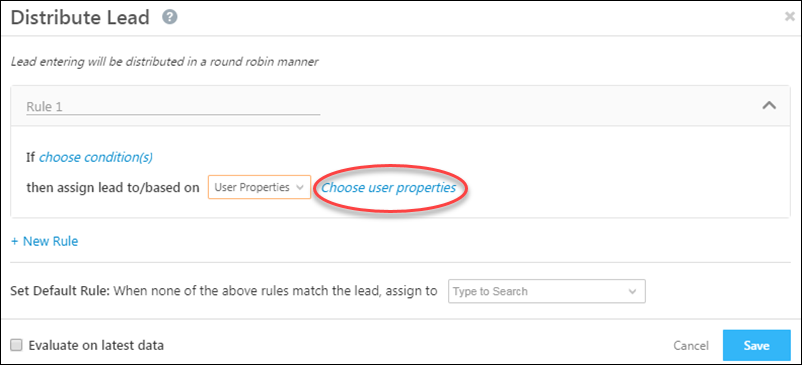
In the Distribute Lead card, select the User Properties option from the drop-down, then click Choose user properties.

lead distribution automation

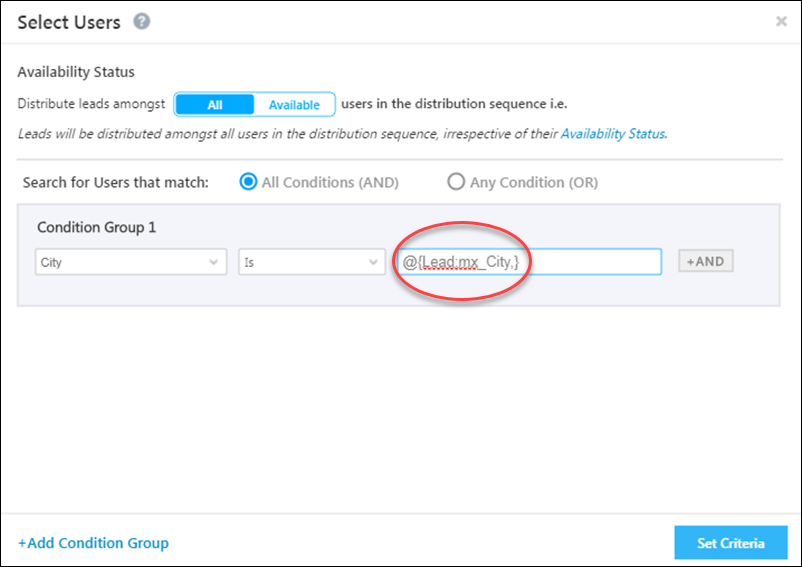
Instead of specifying the city as say, Bangalore, you can mail merge the lead city – @{Lead:mx_City,} and at run time the lead’s city will be dynamically selected and matched with the user’s. While setting up a condition group, type ‘@‘ to select a field to mail merge.

mail merging lead conditions in user advanced search

For more information on lead distribution, see Lead Distribution Automation.

Mail Merge

1. Feature Overview

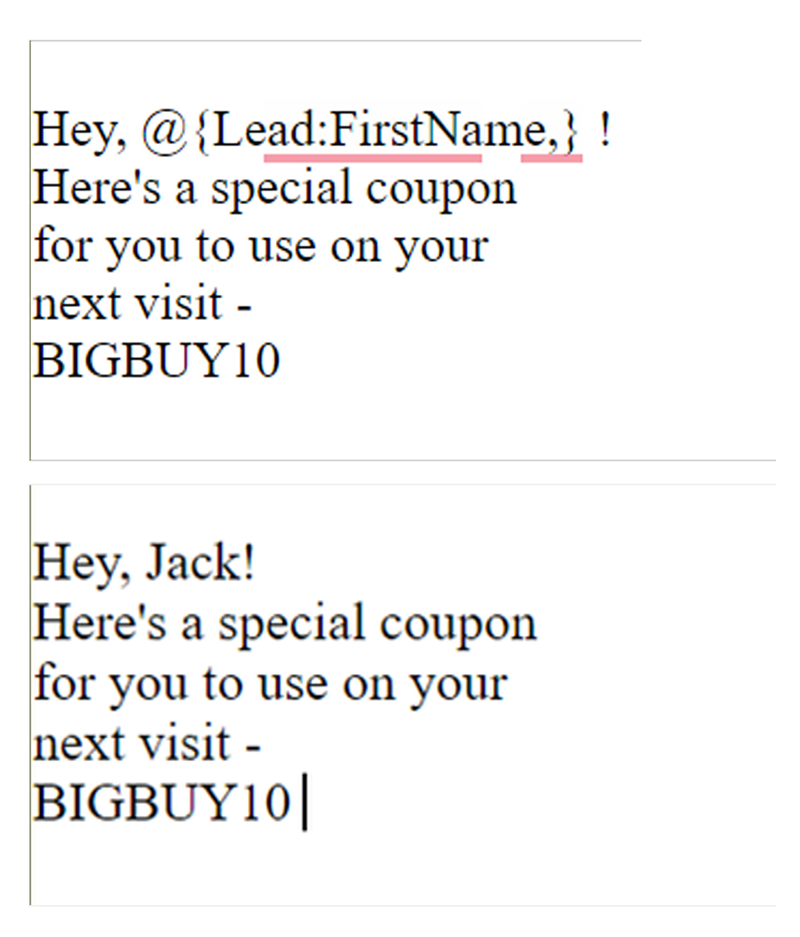
Personalise emails, SMS and WhatsApp communication with lead, account, and sender details using Mail Merge fields. For example, to include the lead’s name in your email’s body (e.g., Hi Richard), add the First Name tag. When the email is sent to a list of leads, it gets personalized based on the name of each lead. Mail merge tags can be added in the body and footer of the email.

In addition to using mail merge for email and message personalization, you can also use mail merge in –

  • Automations
    • To copy the value of one field into another across entities like lead, activity, task, opportunity, etc.
    • To dynamically pick the value contained in a field at run time. For example, assign a lead to a user in the same city by matching the user’s and lead’s City field.
  • Forms and Processes – In form rules, to perform various actions.
  • Connectors and integrations – To push data to external systems.

You can mail merge fields for all LeadSquared entities (lead, opportunity, account, activity, task and user) in relevant features.

Even custom fields in your account can be used as Mail Merge Tags. If you need a tag that doesn’t exist in your account, create a custom field and include it in Mail Merge. To know more, see How To Create Custom Fields.

Note:

LeadSquared - Mail Merge example


2. Prerequisite

You must be the Administrator or the Marketing User of your account.


3. Use Mail Merge in Emails

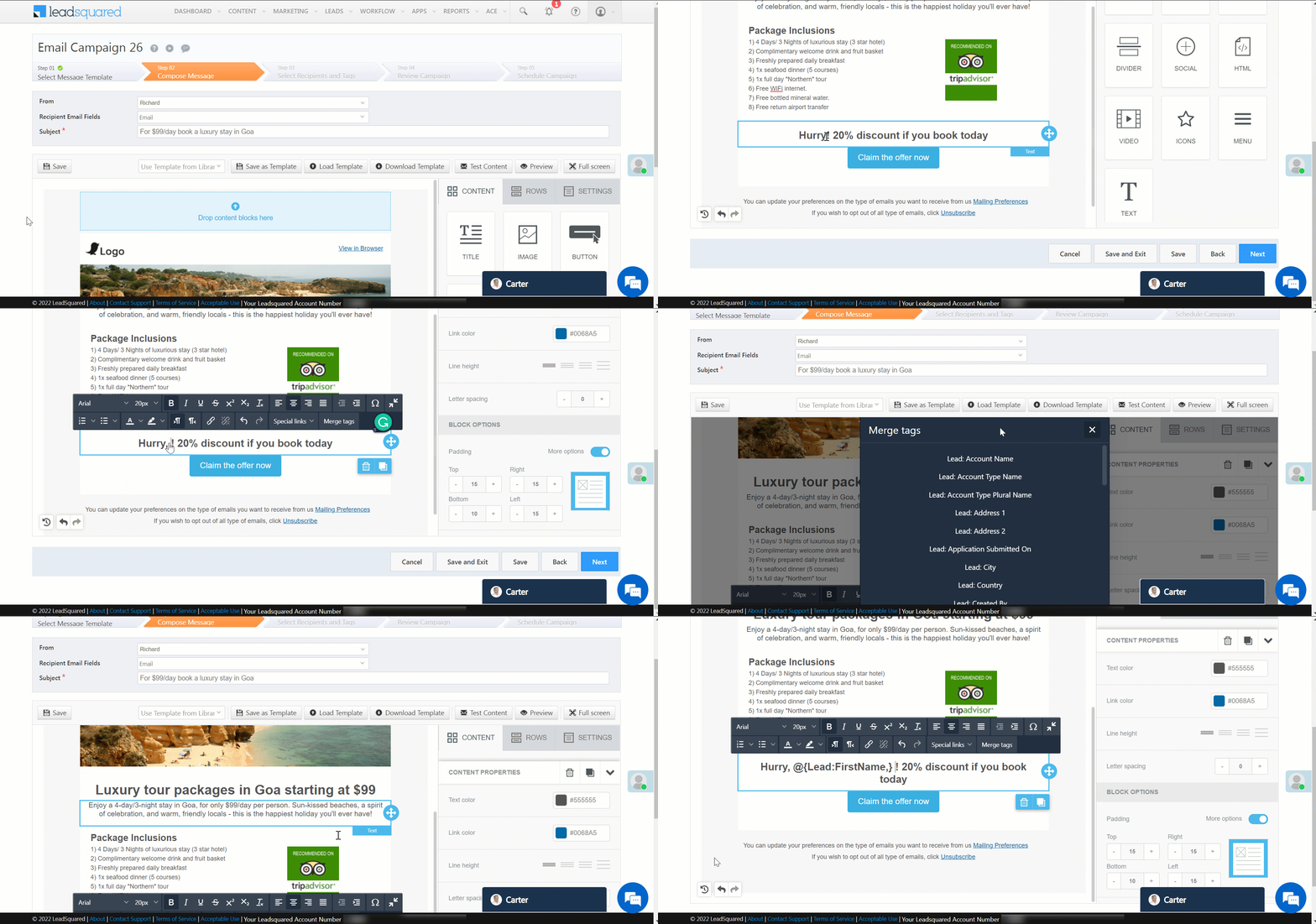
3.1 Insert Mail Merge Tags in Visual Designer

To insert mail merge tags in the body of your email –

  1. Click the text box where you need to insert a mail merge tag. Alternatively, type ‘@’ and select the required tag.
  2. On the toolbox, click Merge tags.
  3. Select the required mail merge tag.
Note: Add mail merge tags in your subject line by copying and pasting the tags from the body.
LeadSquared - Mail Merge Tags in Visual Designer


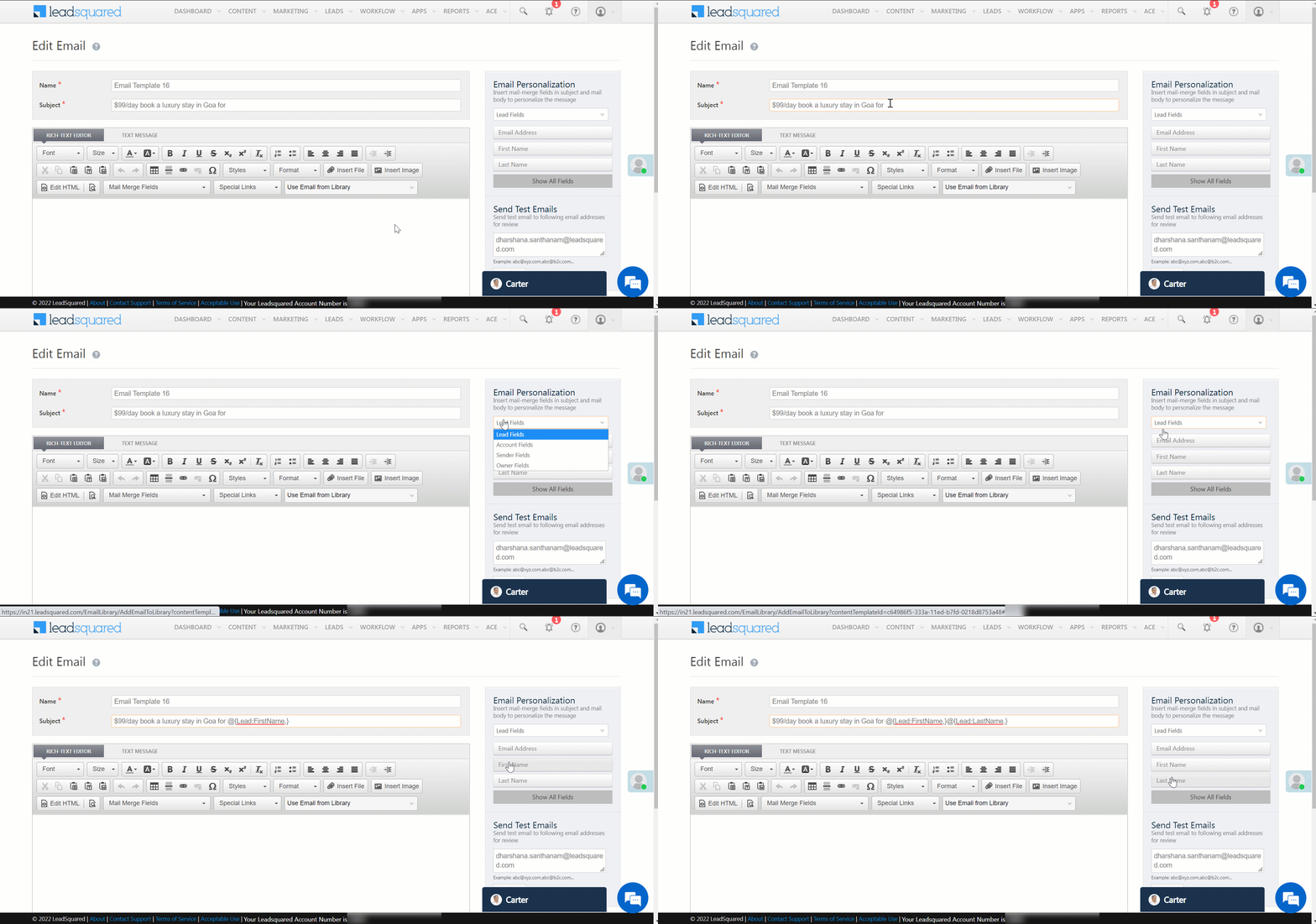
3.2 Insert Mail Merge Tags in Rich Text, Plain Text, and HTML Editor

To insert mail merge tags in your email’s subject line and body –

  1. Navigate to the right-hand side of your editor.
  2. Under Email Personalization, select the required category of mail merge tags (For example – Lead Fields, Account Fields, etc.).
  3. Place your cursor on the required position (on the subject line or the body of the email) and click the mail merge field.
LeadSquared - Mail Merge Tags in Email Editor


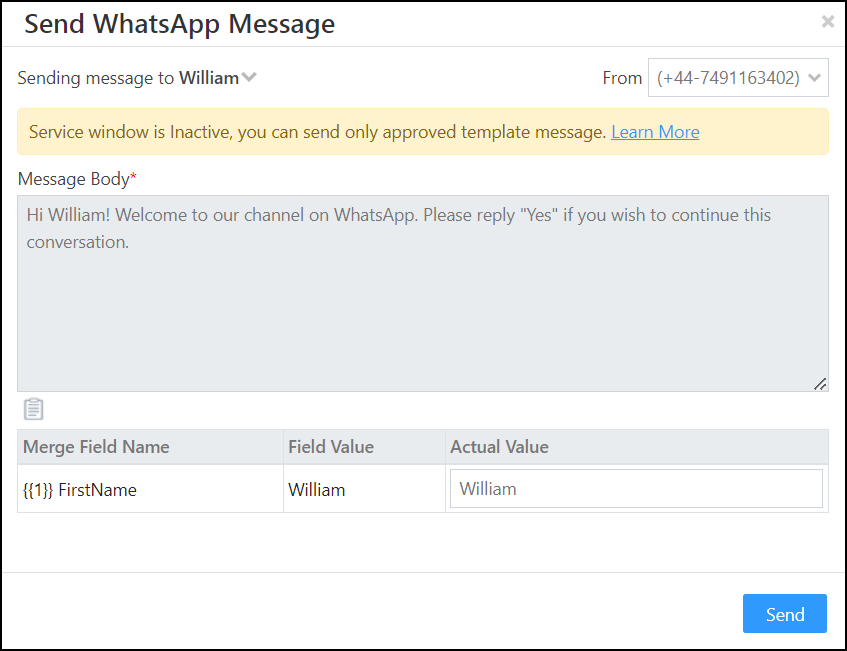
4. Use Mail Merge in WhatsApp and SMS

You can use Mail Merge fields when sending WhatsApp and SMS (one-to-one or templatized messages) to personalize communication with leads.

Note: To know more about creating SMS and WhatsApp templates, refer to Creating SMS Templates and WhatsApp Business Messaging Connector.

LeadSquared - Mail Merge in whatsapp


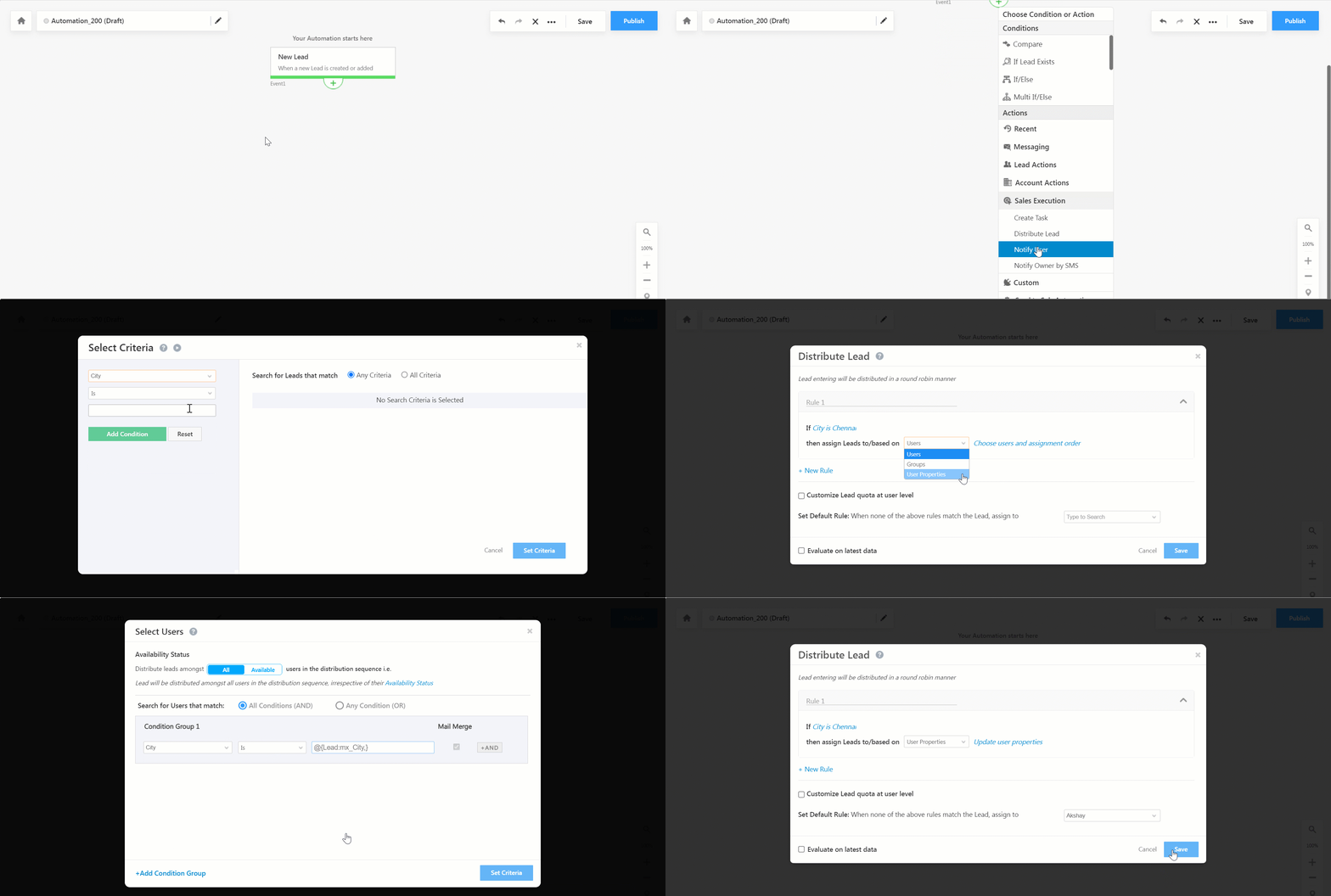
5. Use Mail Merge in Automations

You can use Mail Merge while creating automations to dynamically pick data from your account and perform automated actions. The GIF below is an example of using mail merge to distribute a lead to a user in the same city.

LeadSquared - Mail Merge in Automations


6. Use Mail Merge in Forms

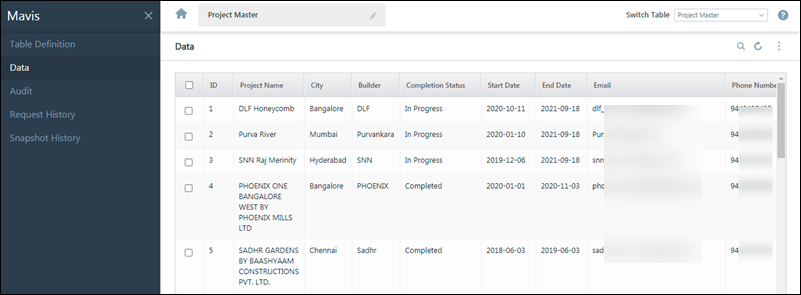
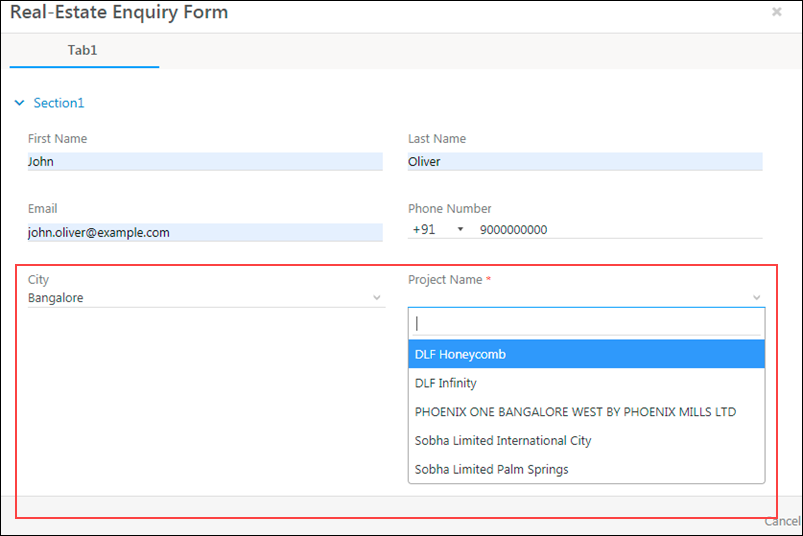
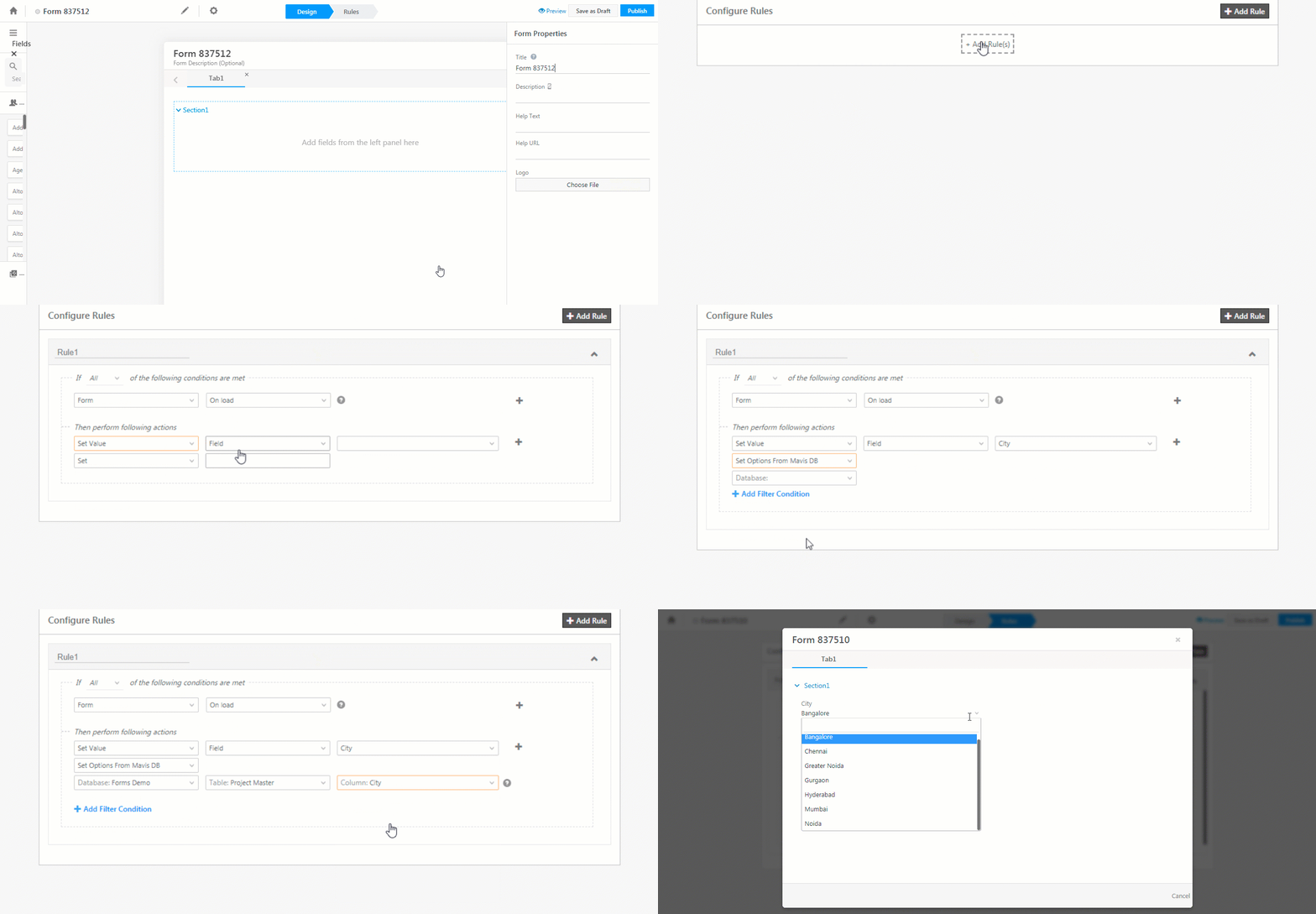
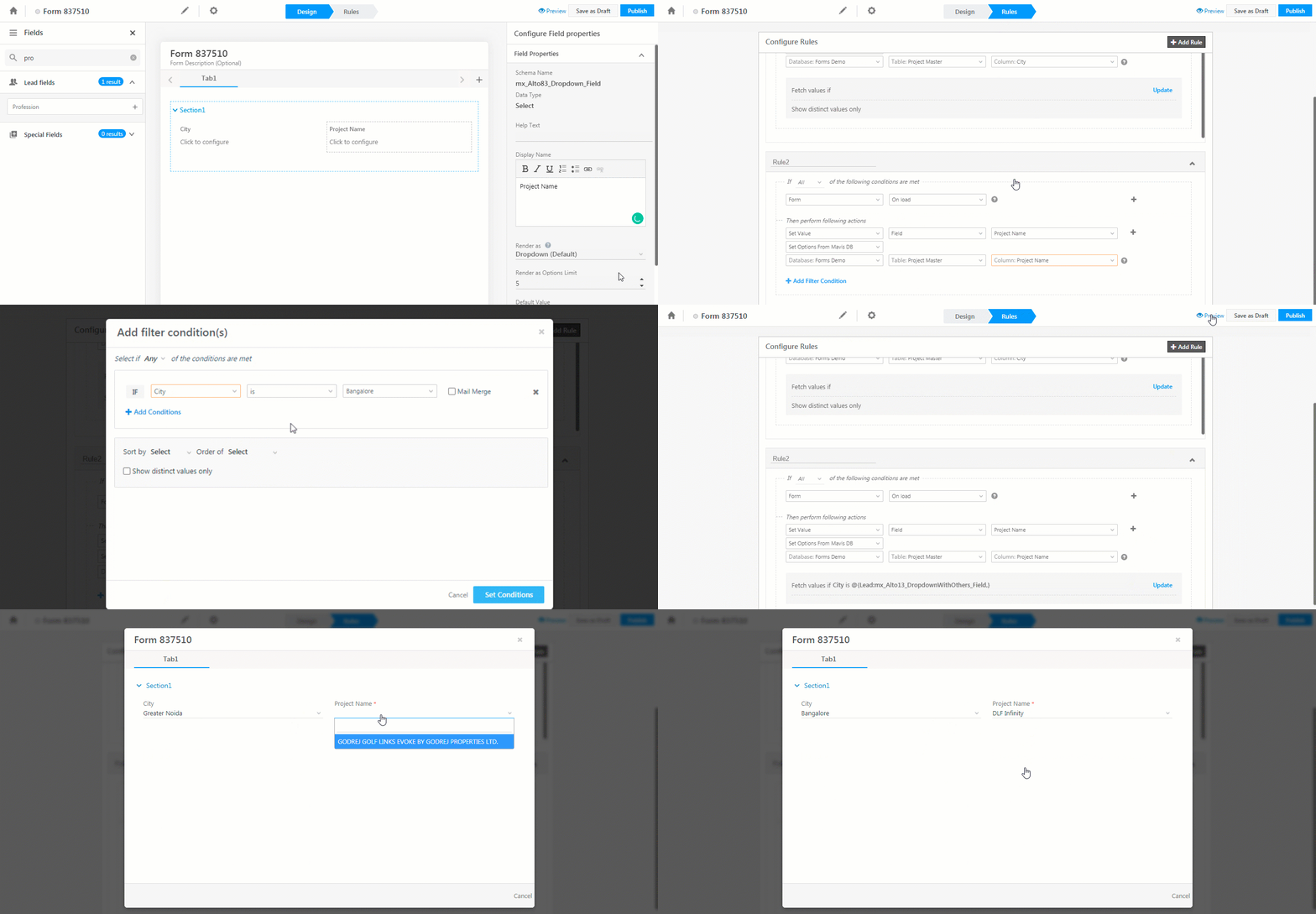
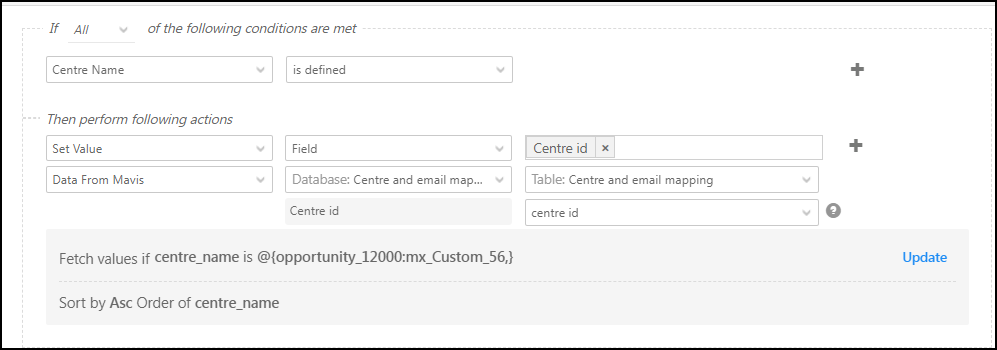
You can use Mail Merge while creating forms to define values of certain fields based on the data stored in your account. For example, populate the value of a field in the form with data from a Mavis Database table. In the example below, we’re populating the centre name and centre ID fields from data stored in Mavis for an education company.

LeadSquared - Mail Merge in forms


7. FAQs

How to Mail Merge Date-Time Values in Automations?

In LeadSquared automations, you can mail merge Date-Time values using the following options depending on your requirements:

  1. Account Time Zone Mail Merge: Use @{DateTime:Account_Current_DateTime,}
    • This provides the Date-Time in the user’s account time zone.
  2. UTC Time Zone Mail Merge: Use @{DateTime:UTC_Current_DateTime,}
    • This provides the Date-Time in UTC format.


Any Questions?

We’d love to answer your questions or hear your unique use cases. Feel free to share your experiences in the comments section below.

Store CFS Files on Your Own Amazon S3 Bucket

1. Feature Overview

All files uploaded through custom field sets are securely stored in the LeadSquared Amazon S3 account and are not publicly available. However, if you prefer, you can configure the custom field set to store files in your own Amazon S3 account.

To learn more about CFS fields, see Custom Field Sets.


2. S3 Bucket Configuration

Before connecting your Amazon S3 bucket with LeadSquared, ensure –

1. The bucket is created in the same region as your LeadSquared account. The following are the valid LeadSquared regions –

    • ap-south-1
    • ap-southeast-1
    • us-east-1

2. Add the following policy to the S3 bucket –

"Version":"2012-10-17",
"Statement":[
{
"Sid":"VisualEditor0",
"Effect":"Allow",
"Action":[
"s3:DeleteObjectTagging",
"s3:GetObjectRetention",
"s3:DeleteObjectVersion",
"s3:GetObjectVersionTagging",
"s3:PutObjectVersionTagging",
"s3:ListBucket",
"s3:DeleteObjectVersionTagging",
"s3:GetObjectLegalHold",
"s3:ReplicateObject",
"s3:GetObjectVersionTorrent",
"s3:PutObject",
"s3:GetObjectAcl",
"s3:GetObject",
"s3:PutObjectVersionAcl",
"s3:GetObjectVersionAcl",
"s3:PutObjectTagging",
"s3:GetObjectVersionForReplication",
"s3:DeleteObject",
"s3:PutObjectAcl",
"s3:ReplicateDelete",
"s3:GetObjectVersion"
]
}
]
}

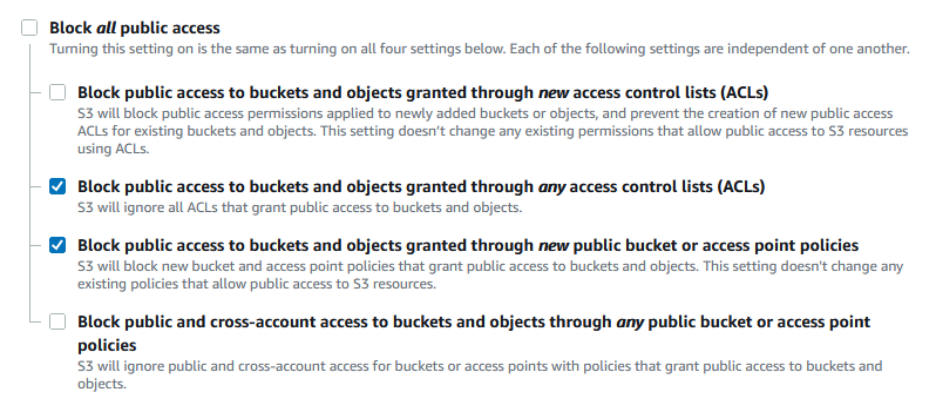
3. The bucket settings under the Permissions tab are set as follows –

Storing files securely on LeadSquared

4. Add the following CORS configuration to the bucket –

[
{
"AllowedHeaders": ["*"],
"AllowedMethods": ["GET","HEAD"],
"AllowedOrigins": ["https*"],
"ExposeHeaders": [],
"MaxAgeSeconds": 3000
},
{
"AllowedHeaders": ["*"],
"AllowedMethods": ["GET","HEAD"],
"AllowedOrigins": [
"http*"
],
"ExposeHeaders": [],
"MaxAgeSeconds": 3000
},
{
"AllowedHeaders": ["*"],
"AllowedMethods": ["GET","HEAD"],
"AllowedOrigins": [
"*"
],
"ExposeHeaders": [],
"MaxAgeSeconds": 3000
}
]


3. Connect Your S3 Bucket to LeadSquared

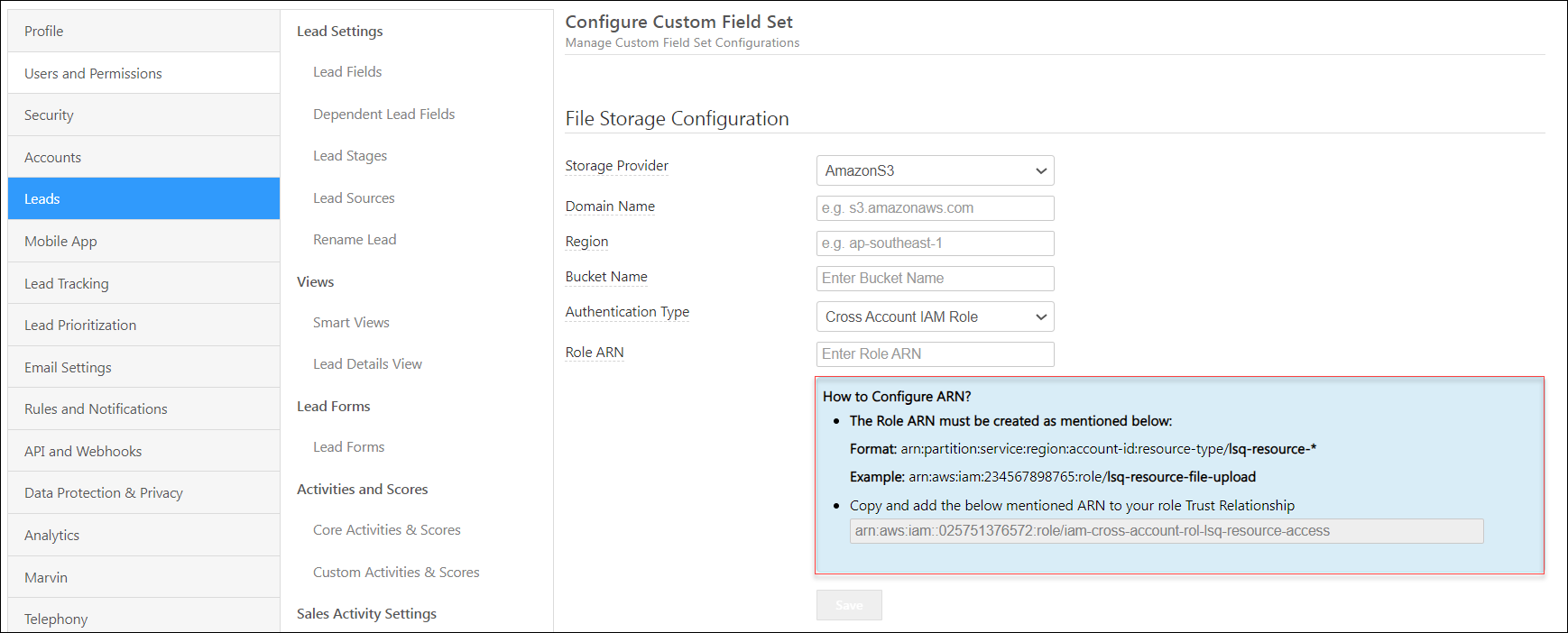
On your LeadSquared account –

  1. Navigate to My Profile>Settings>Leads>Configure Custom Filed Sets.
  2. From the Authentication Type drop-down, select either Access Key and Secret Key or Cross Account IAM Role (Amazon’s recommended authentication method).

For Access Key and Secret Key based authentication

Enter the Access Key and Secret Key associated with your Amazon S3 storage. For more information, see Managing Access Keys on AWS.

For IAM Role based authentication (Amazon’s recommended authentication method)

Enter the Amazon Resource Names (ARNs) identified with your S3 bucket –

  • The Role ARN must be created as follows –
    • Format: arn:partition:service:region:account-id:resource-type/lsq-resource-*
    • Example: arn:aws:iam:234567898765:role/lsq-resource-file-upload
  • Copy and add the ARN mentioned on the UI to your role Trust Relationship.

LeadSquared Custom Field Set File Storage

For more information, see Amazon Resource Names (ARNs) Reference.
Note: It takes 5 minutes to reflect your new storage configuration.

Any Questions?

Did you find the content in this article helpful? Feel free to leave doubts/questions in the comment section below. We’ll get back to you as soon as possible.

How to Setup SMS Verification (OTP) In Landing Pages

1. Feature Overview

You can verify phone numbers entered in your landing page forms using the SMS Verification/One Time Password (OTP) feature. It’ll help you reduce erroneous form submissions as well as junk leads in your LeadSquared account.

If you’re new to landing pages and the LeadSquared landing page designer, see Video Tutorial on Responsive Landing Pages.


2. Prerequisites

  1. When setting up the Company name, ensure the name meets the sender name character restrictions set by your SMS provider. For e.g., if your SMS provider is Gupshup, the sender name must be less than 30 characters, and it shouldn’t contain special characters like ‘<‘ and ‘>’.
  2. You must be an Administrator or Marketing User of your LeadSquared account to create landing pages.
  3. This feature is not available by default. If you want it enabled for your account, contact us at support@leadsquared.com.


3. Procedure

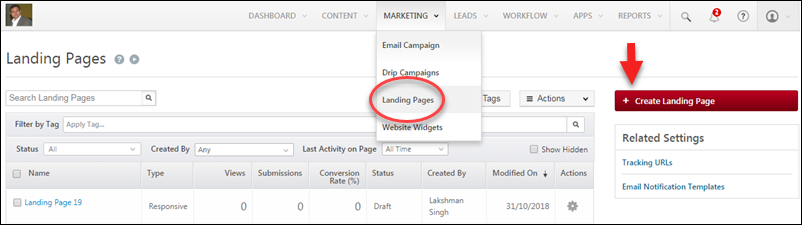
1. Navigate to Marketing>Landing Pages and click Create Landing Page.

create new landing page

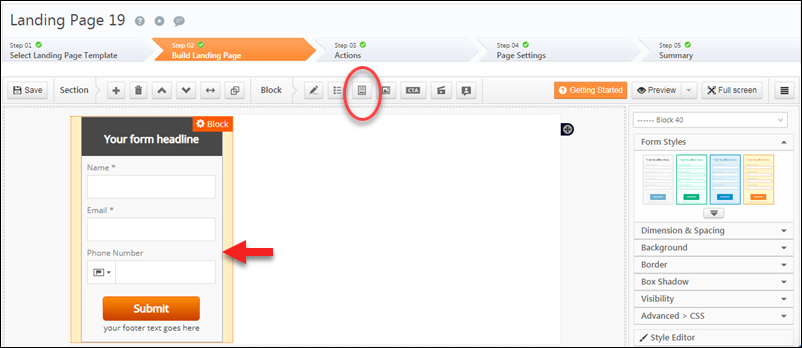
2. On Step 2 of the landing page creation wizard (landing page editor), click the highlighted button to add a form block. Next, double click on the form itself to open the form editor.

form block

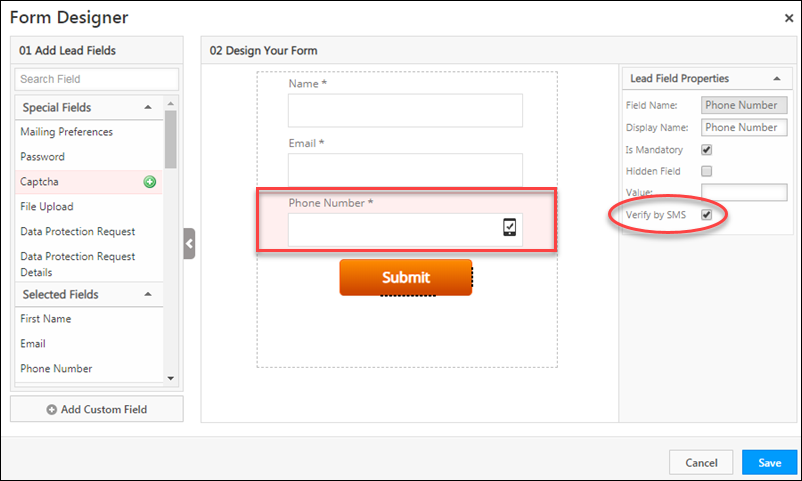
3. Now click the Phone Number field, then click the Verify by SMS checkbox under the Lead Field Properties section. Click Save.

Note: You should mark the phone number field as mandatory so leads can’t submit the form without entering their phone numbers. The Is Mandatory option is available above the Verify by SMS checkbox under Lead Field Properties.

verify by SMS feature

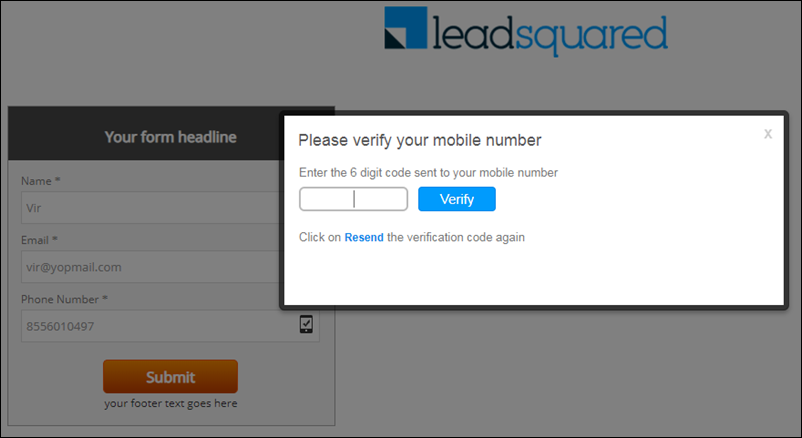
Advance through the remaining steps on the landing page creation wizard. Once your landing page is published and a lead enters their phone number, they’ll receive an OTP. If they enter it correctly they can proceed to submit the form.

OTP verification


Troubleshooting

Why am I not receiving OTPs on my landing pages?

  • Issue: OTPs not getting delivered on landing page.
  • Solution: If all configurations are correct and you’re still not receiving OTPs, the issue might be due to a long ‘Company name’ in your organization’s profile. If your company name exceeds 35 characters, OTPs won’t be sent. To fix this, go to Settings>Profile >Organization Settings>Company Profile, click Edit, and enter a company name with fewer than 35 characters.


Any Questions?

Was this article helpful? If you need more clarity or had trouble implementing this feature, we’d love to help you out. Go ahead and start a discussion in the comments section below.

How to Send and Receive SMS Using Call Tracking Metrics

1. Feature Overview

Note: This article will soon be removed. We launched a new Call TrackingMetrics SMS Connector for quicker and easier SMS integration.

We have a number of apps to help you integrate with Call Tracking Metrics (CTM) telephony services. You can find these apps and more in the Apps Marketplace.

First, you need to integrate your CTM account with LeadSquared using the Call Tracking Metrics app (see LeadSquared Call Tracking Metrics Connector). That will take care of your incoming and outgoing calls and post them as activities you can track in your LeadSquared account.

This article will help you integrate incoming and outgoing text messages (SMS) sent through CTM, with your LeadSquared account.


2. Outgoing Text Messages

The LeadSquared SMS Marketing App allows you to send text messages to your leads. You can integrate your CTM account with LeadSquared and send text messages once you install and configure the app.

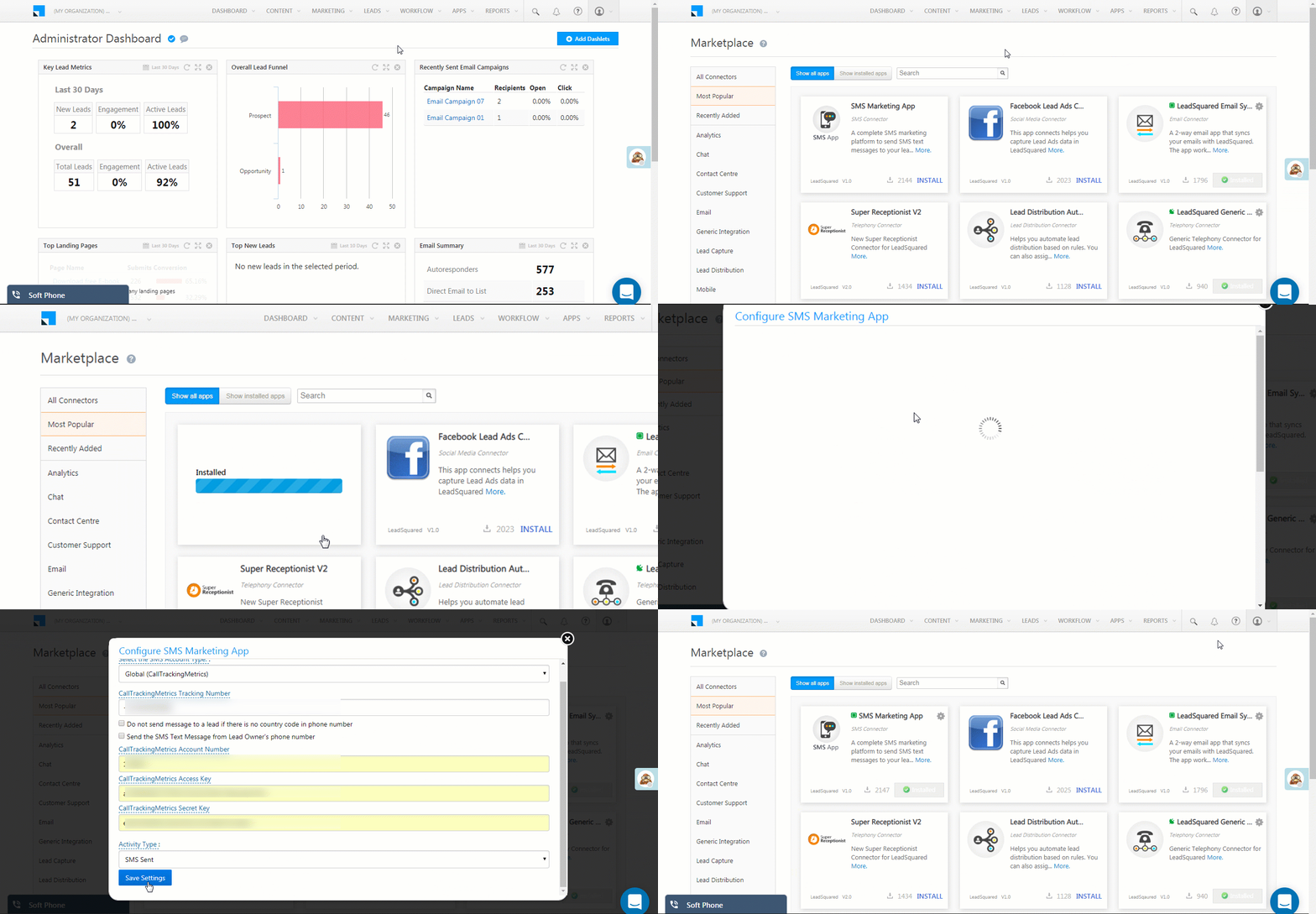
  1. From the main menu, navigate to Apps>Apps Marketplace.
  2. Search for the “SMS Marketing App”, then click Install.
  3. Once installed, hover your cursor over the settingsSettings iconwheel, then click Configure.
  4. On the Configure SMS Marketing App pop-up, from the Select SMS Account Type dropdown, select the Global (Call Tracking Metrics) option.
  5. Enter your Call Tracking Metrics Tracking Number, Account Number, Access Key and Secret Key. This information will be available in your Call Tracking Metrics portal. Use the check-boxes to –
    • Prevent sending messages to leads without country codes in their phone numbers.
    • Send messages only from the lead owner’s phone number.
  6. Select the Activity Type as SMS Sent. This will ensure that any text messages you send your leads appear and can be tracked in their activity history.
  7. Click Save Settings.

Send SMS using Call Tracking Metrics

Once installed and configured, you can send text messages to leads

To a single lead –

SMS to one lead

To multiple leads –

bulk SMS

  • From the lead details page.

sms to a single lead

manage lists

  • From the List Details page.

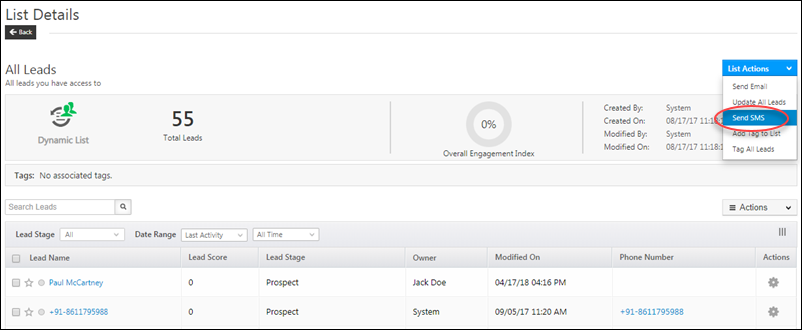
list details page


3. Incoming Text Messages

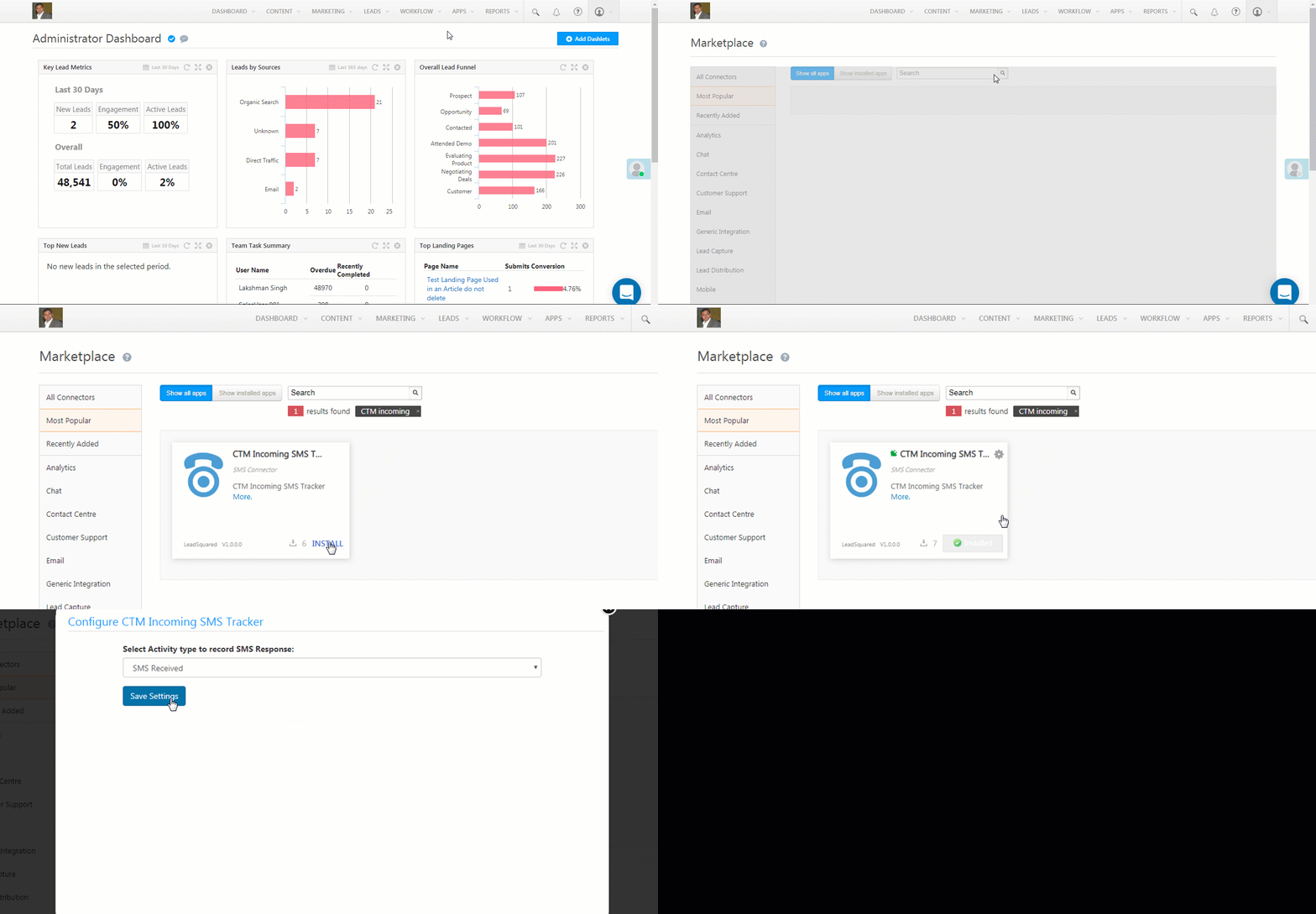
You can capture incoming text messages received in your CTM account as activities against your leads. First, install the CTM Incoming SMS tracker from the apps marketplace –

  1. From the main menu, navigate to Apps>Apps Marketplace.
  2. Search for the “CTM Incoming SMS Tracker”, then click Install.
  3. Once installed, hover your cursor over the settingsSettings iconwheel, then click Configure.
  4. On the Configure SMS Incoming Tracker pop-up, the SMS Received activity is already selected by default. Click Save Settings.
  5. Copy the displayed URL.

Received SMS Tracker CTM

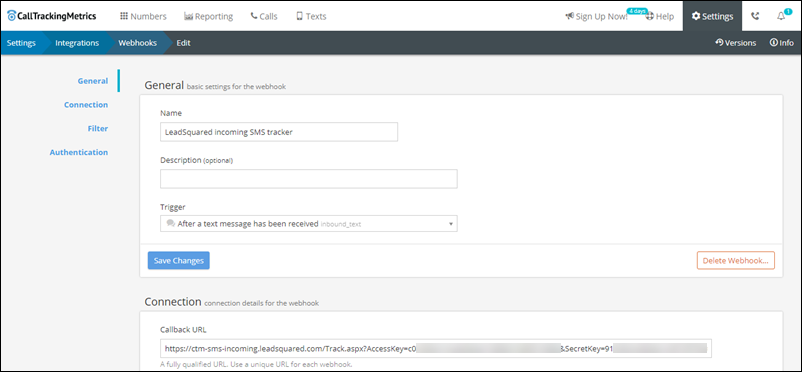
Now create a webhook in your CTM account using the URL you just copied.

  1. Navigate to https://app.calltrackingmetrics.com/webhooks
  2. Add a new webhook with the following details –
    1. Name  – LeadSquared Incoming SMS Tracker
    2. Trigger – After a text message is received
    3. Callback URL – This is the URL you copied from the LeadSquared CTM Incoming SMS Tracker app.
    4. Leave the remaining configurations as they are.
  3. Save the new webhook.

CTM Incoming SMS webhook

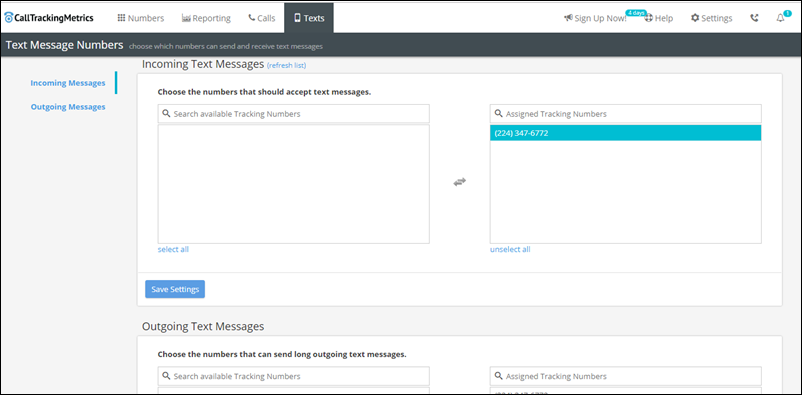
In your CTM account, now navigate to Texts>Text Numbers. Ensure that the tracking numbers you’re using are moved to the box on the right (assigned tracking numbers) for both incoming and outgoing text messages.

Text message configurations CTM

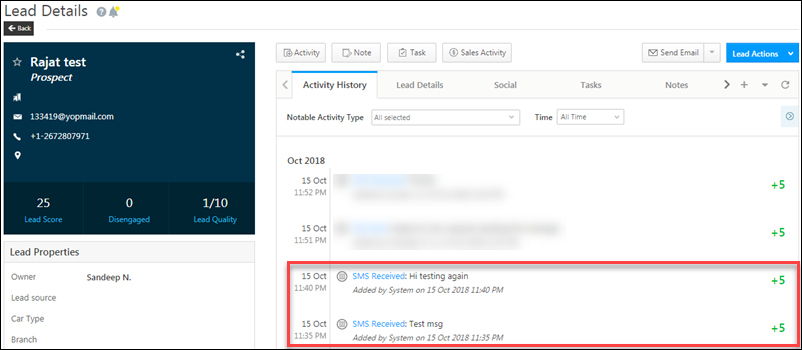
Incoming texts in your CTM account will now be posted as activities against your leads. You can view the details in the Activity History tab of the corresponding Lead’s Details page.

CTM Incoming texts


Any Questions?

If you have any questions related to CTM SMS integration, please feel free to share them in the comments section below. We’ll be on it ASAP!

Permission Templates

1. Feature Overview

Permission templates let you configure access rights for your users. They let you control who sees what and which users can edit, delete, export or import your data.
You can set up access control in 2 quick steps –

  1. Create a permission template to control access to features and actions.
  2. Apply that template at the user, role, or sales group level.

Also see –


Example Use Cases

With permission templates, you can restrict users from –

  • Viewing, creating, editing, deleting, exporting and importing leads
  • Viewing, creating, editing, deleting, exporting and importing opportunities
  • Viewing, creating, editing, deleting, exporting and importing accounts*
  • Creating, activating, editing and deactivating users#
  • Viewing, creating, editing, deleting and exporting activities
  • Viewing, creating, editing and deleting tasks
  • Accessing accounts, dashboards, reports, custom apps and APIs

You can also configure partial access and allow users to view/edit only certain lead fields/activity fields/tasks.

Note:


2. Prerequisites

  • You should be an administrator user.
  • The permission template feature is available on select plans. For more information, contact sales@leadsquared.com.
  • To enable opportunities on your account, please write to support@leadsquared.com.


3. How to Access Permission Templates

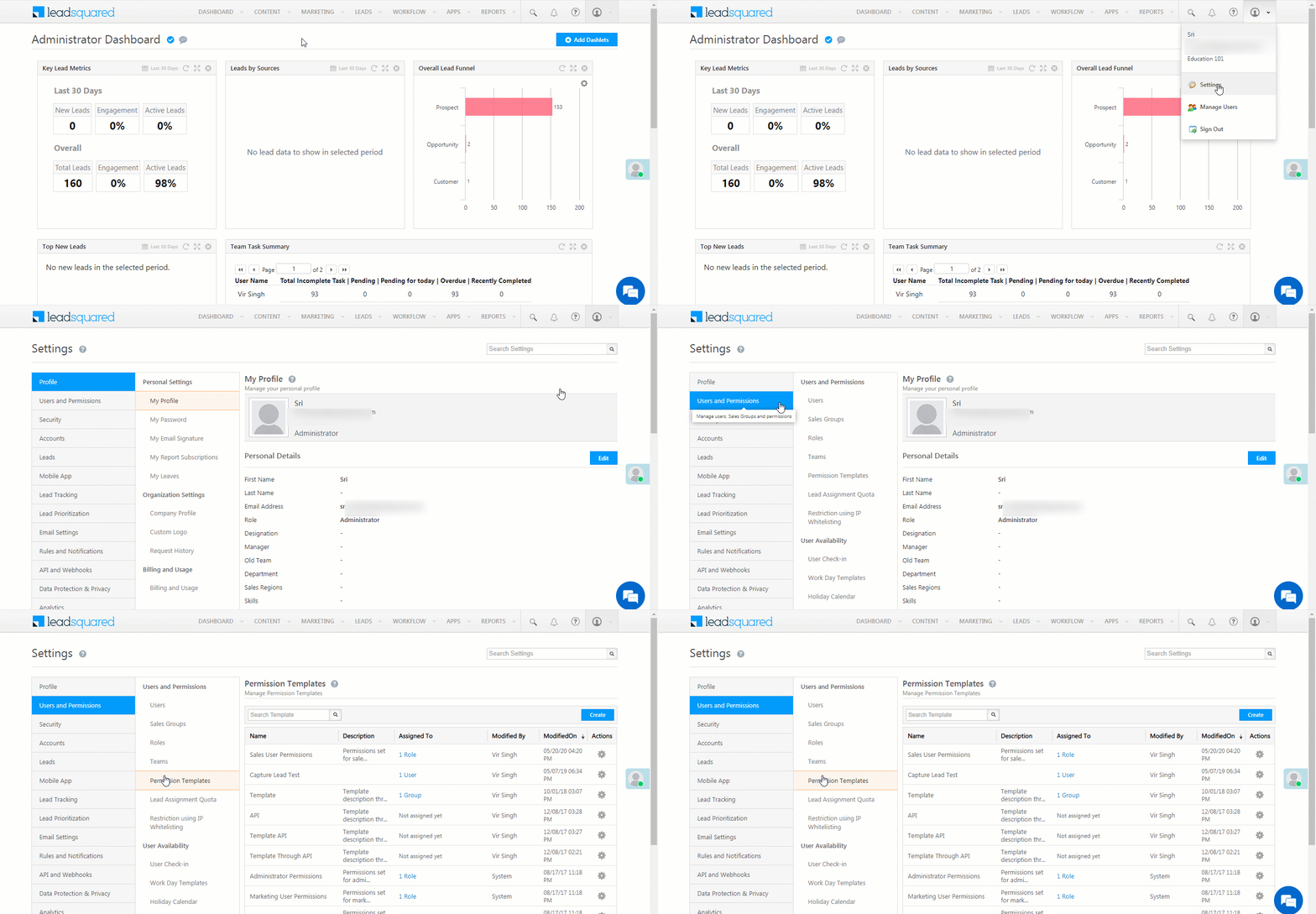
From your dashboard, navigate to My Profile>Settings>Users and Permissions>Permission Templates

Permission Templates_1


Related Articles


Any Questions?

Did you find this article helpful? Please let us know any feedback you may have in the comments section below. We’d love to hear from you and help you out!

App Tabs – Feature Guide

1. Feature Overview

Managing multiple leads, opportunities, and accounts often requires opening many browser tabs, making it difficult to track follow-ups, switch between work areas, and prevent accidental tab closures. If you have the NextGen UI enabled in your LeadSquared Web App, with the App Tabs feature, open and view multiple entity details pages (lead, opportunity, account and ticket) within a single browser window, without overcrowding your browser. The feature is available in key work areas like Smart Views, Manage Leads and Manage Tasks and lets you navigate between entity details pages from different work areas simultaneously.

This helps you:

  • Work on multiple leads simultaneously without losing track
  • Quickly switch across Smart Views, Manage Leads, Manage Tasks and other pages to view leads
  • Maintain context while performing parallel sales tasks

Note:

  • You can open a maximum of ten app tabs.
  • If you are a Softphone user, then this functionality is mandatory for you to avoid any call disruption. Ensure that the Disable Opening of Entity Details in Marvin is turned off in the Advanced Configuration settings. This ensures incoming calls automatically open the lead’s detail page in an app tab, offering instant context for conversations.

Leadsquared - App Tabs


2. Prerequisite

This feature is available only on NextGen UI. Reach out to support@leadsquared.com to get this enabled.


3. How It Works

You can open multiple entity details within the same tab from the Smart Views, Manage Leads, Manage Tasks, Manage Opportunities, Manage Accounts and Manage Activities pages.

  1. Enable App Tabs on your LeadSquared Web App.
  2. From your LeadSquared Dashboard, navigate to any of the entity list pages (Smart Views, Manage Leads, Manage Opportunities or Manage Accounts page).
  3. You will see the Main Menu (Smart Views, Leads, Activities, Tasks, etc.) on top of the page.
  4. On any of these pages, click the relevant entity. This could be a lead, opportunity or account.
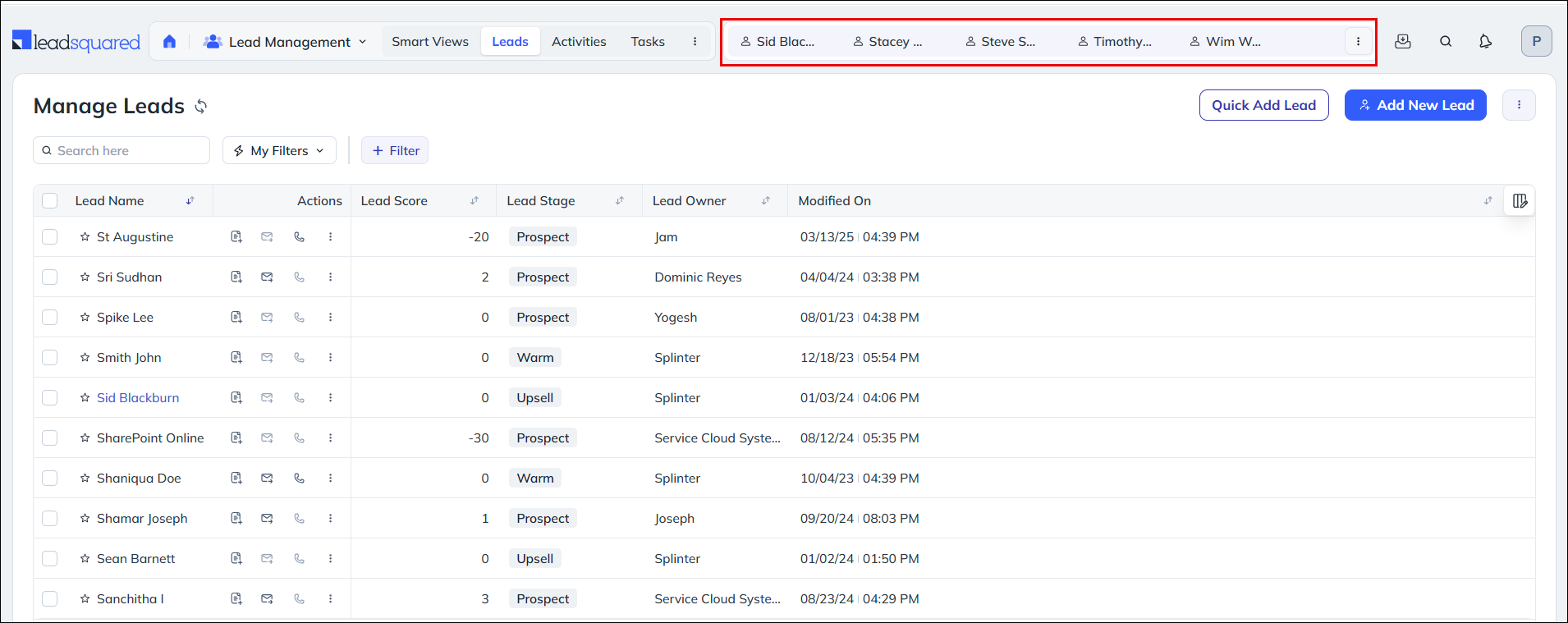
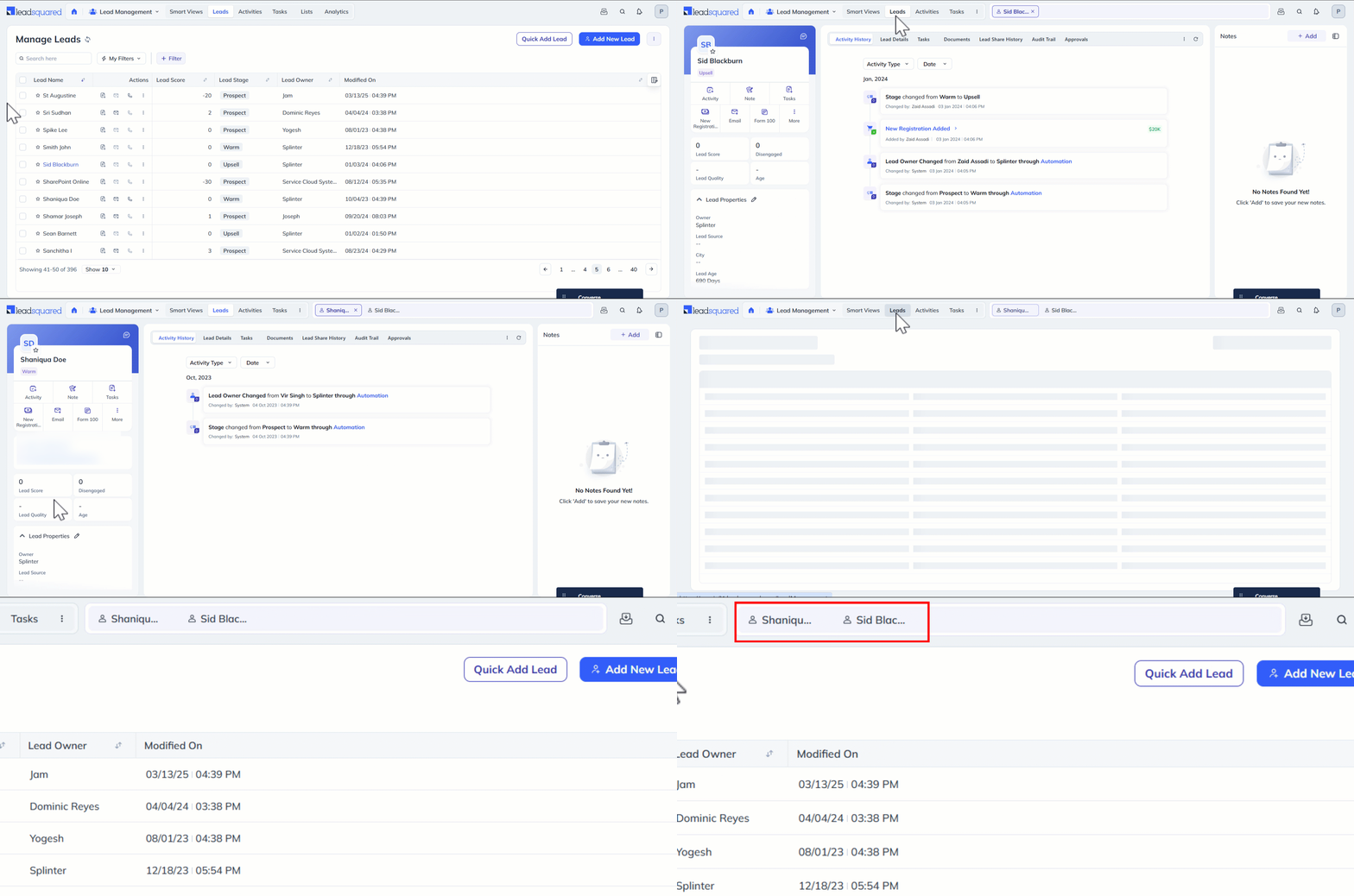
  5. A tab with the entity name will be created on top of the page.
  6. To open another entity details tab, click on the relevant primary tab and repeat the same.
  7. You can open entity tabs from across Smart Views, Manage Leads, Manage Opportunities and Manage Accounts pages simultaneously.

Note:

  • The selected tabs will be visible across Smart Views, Manage Leads, Manage Tasks and all entity details pages.
  • When you open an entity details page, it now reloads each time, instead of staying preloaded.


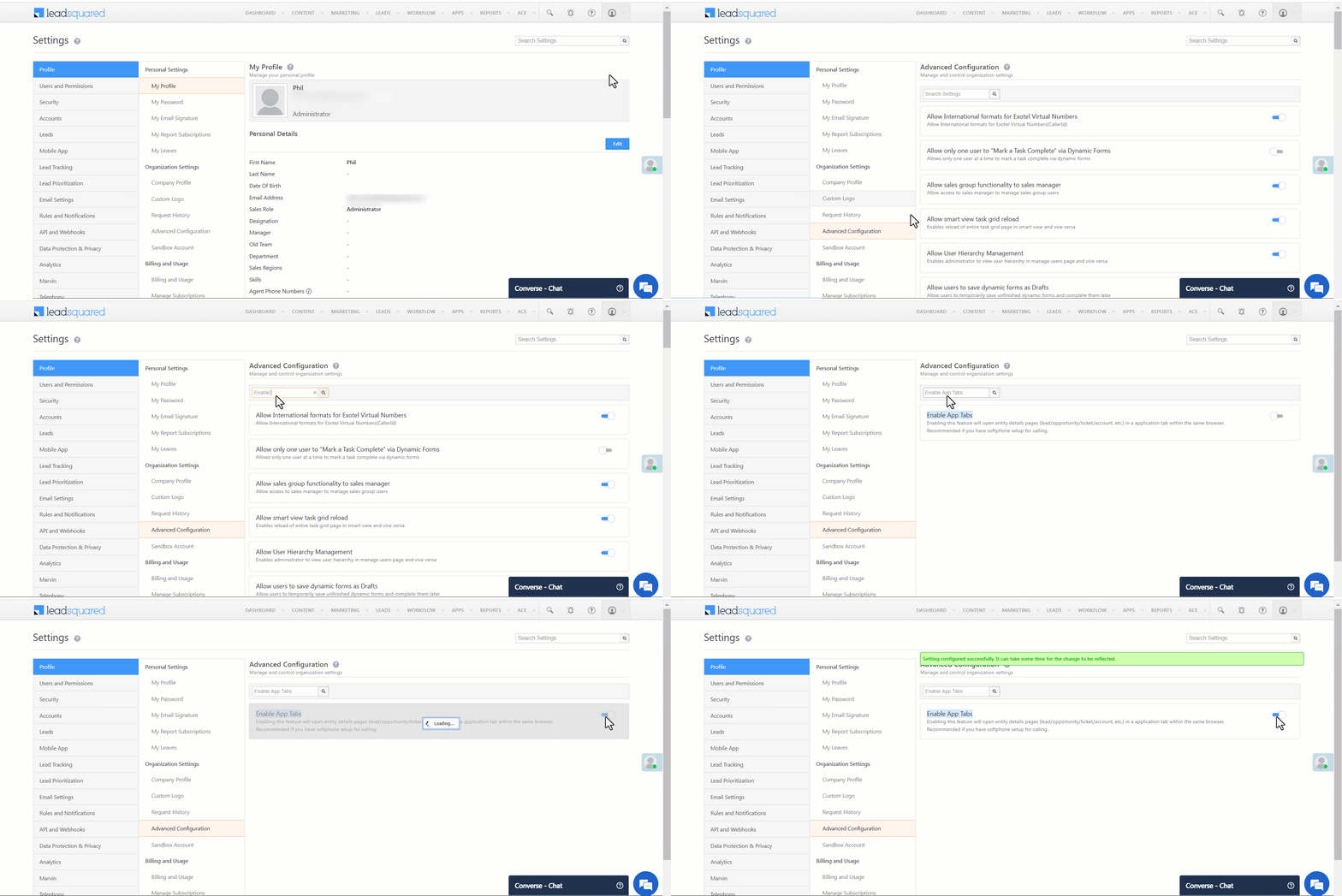
4. Enable App Tabs

To view multiple entity details within the same tab, you must enable a setting. To do this –

  1. From your LeadSquared Dashboard, navigate to Settings>Profile>Advanced Configuration.
  2. In the search tab, look for Enable App Tabs.
  3. Click the slider alongside the Enable App Tabs setting to enable it. The feature will be enabled once you log out and log back in.

Leadsquared - App Tabs


5. Open App Tabs

You can clearly view multiple entity details from Manage Leads, Smart Views, Manage Tasks, Manage Opportunities, Manage Activities and Manage Accounts pages. Here, we’ve described the process of adding app tabs from the Manage Leads Page –

  1. From your LeadSquared Dashboard, navigate to the Manage Leads page.
  2. You will see the primary ‘Leads’ tab highlighted on top of the page.
  3. Click on the relevant lead. You will be directed to its details page.
  4. A tab with the lead name will be created on top of the page.
  5. To open another lead details tab, click the primary tab and repeat the same.

Leadsquared - App Tabs


6. App Tab Behaviors

6.1 App Tab View

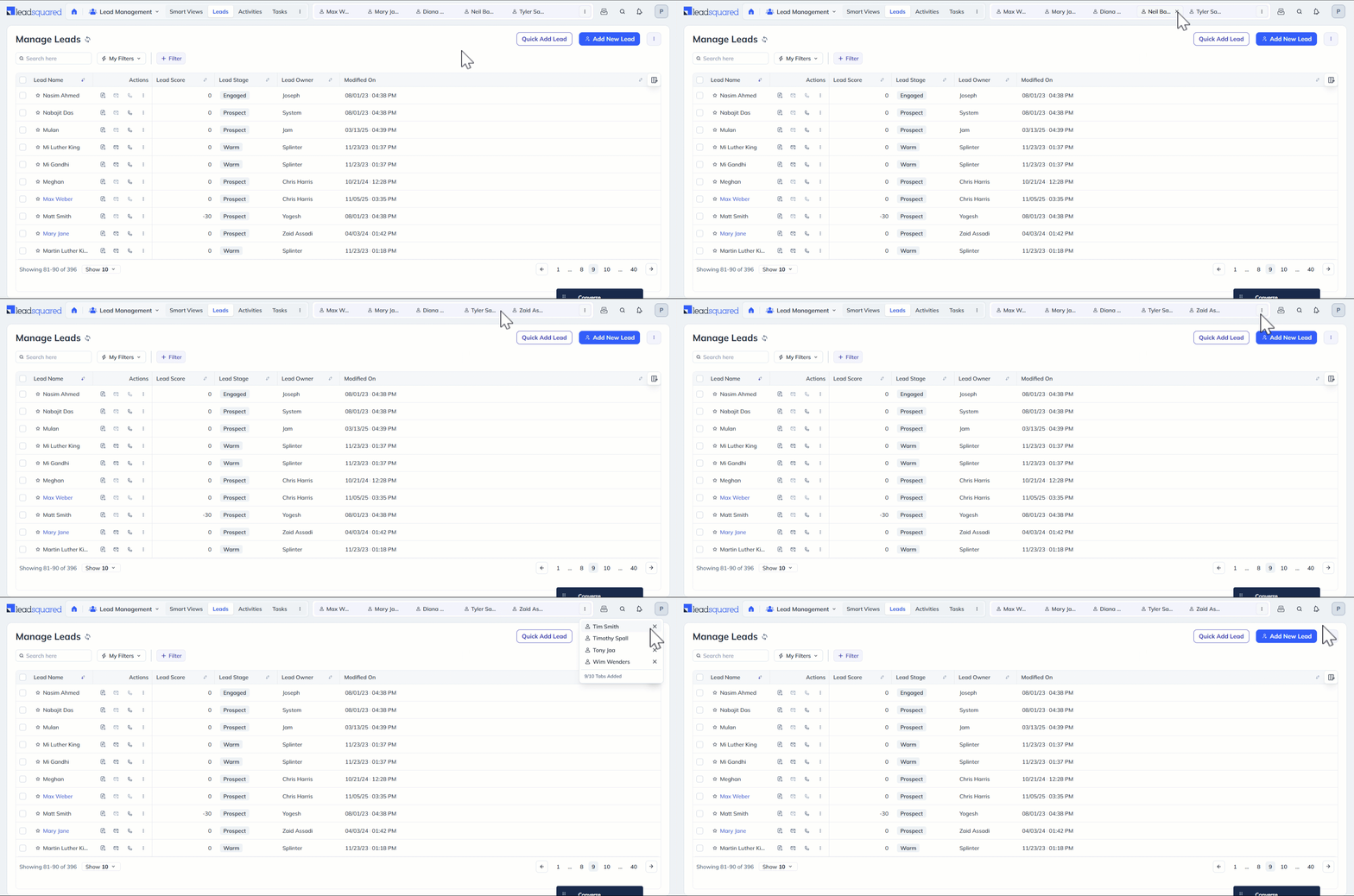
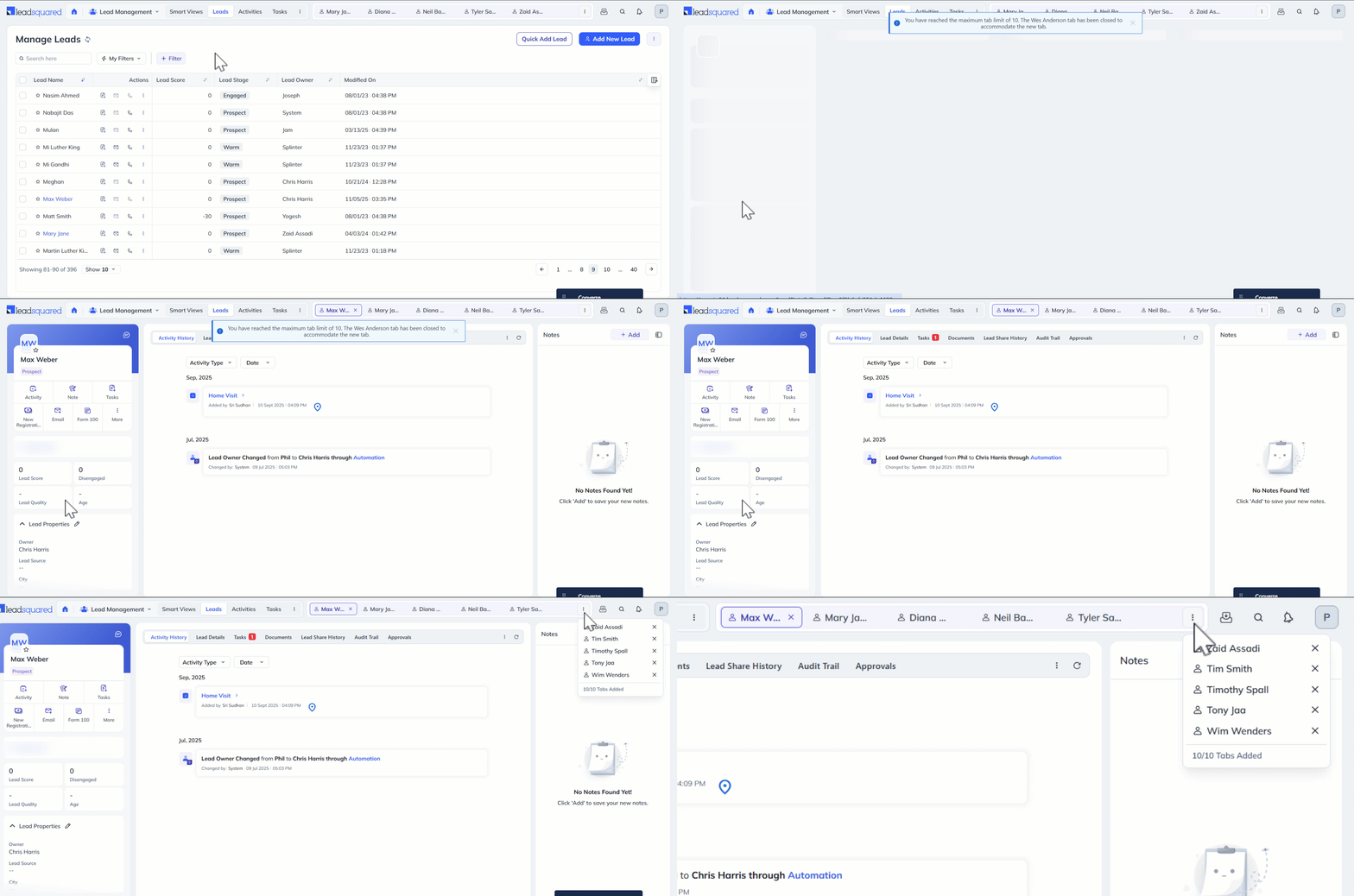
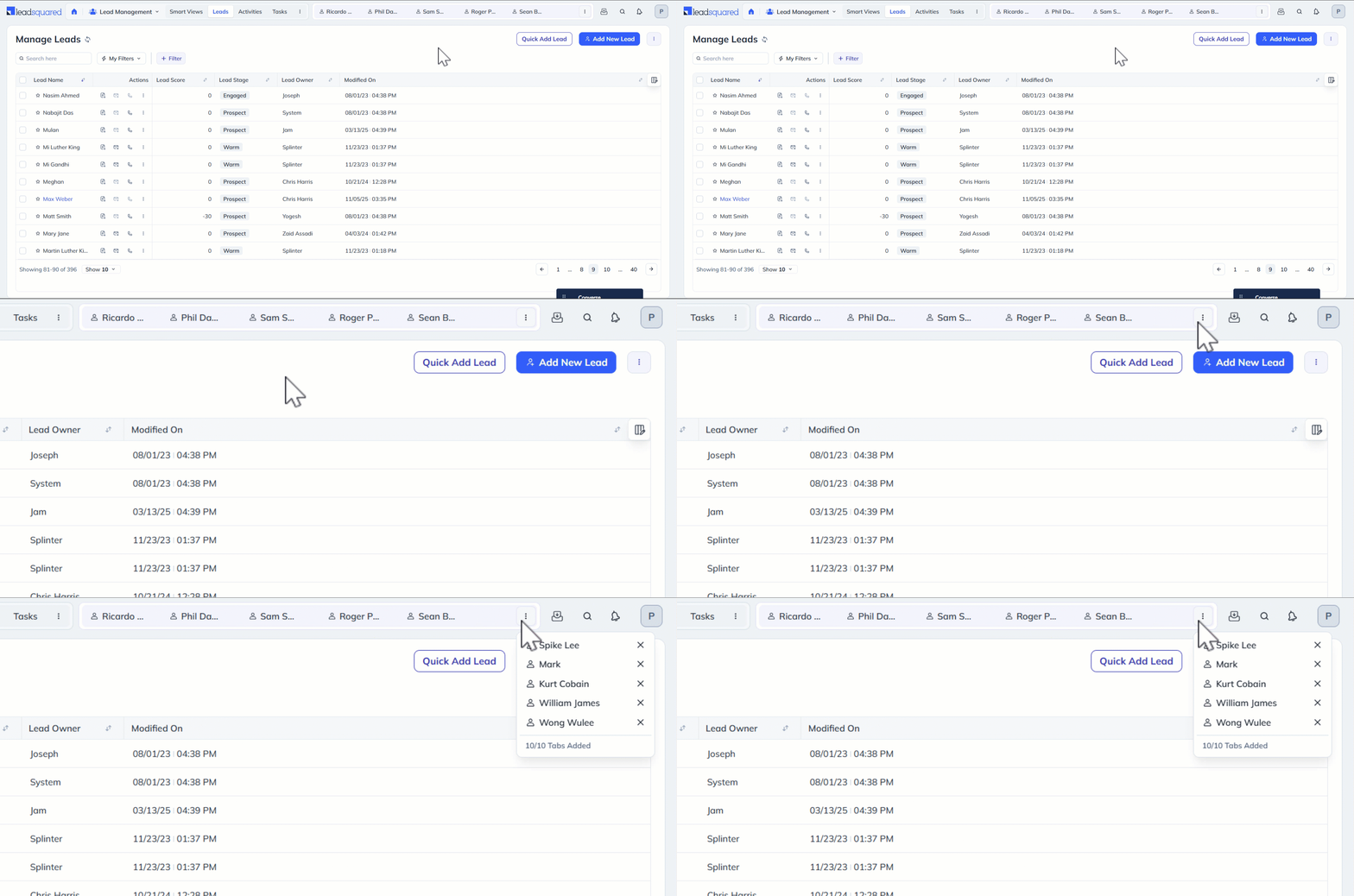
The app tabs adjust dynamically based on your device’s display scale. For example, if you’ve opened ten tabs but only five are visible, you can access the remaining two tabs through a dropdown by hovering over the More Leadsquared - App Tabs icon on the top-right corner of the screen. This dropdown also indicates the total number of tabs you’ve added. For instance, if you have added ten tabs, it will display “10/10 Tabs Added”.
Leadsquared - App Tabs

6.2 App Tab Movement

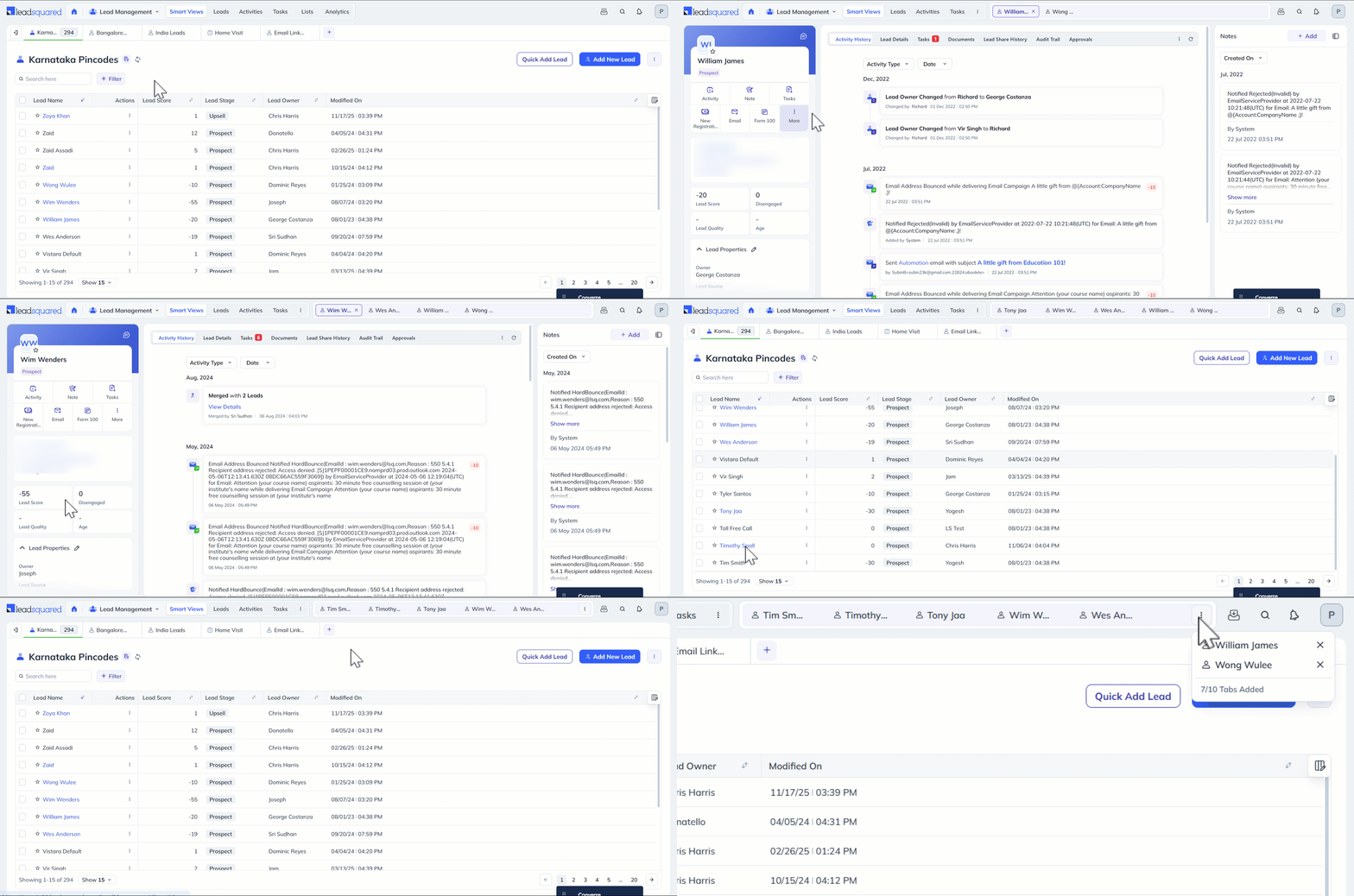
As noted earlier, you can open up to ten app tabs alongside the primary tab. The first app tab you open will appear directly next to the primary tab. When you open additional tabs, the existing tabs shift to the right to make room for the most recently opened tab, which always appears next to the primary tab. In this way, the oldest tab gradually moves to the far right, while the newest tab remains on the left.

Leadsquared - App Tabs

6.3 Close an App Tab

You can close an app tab by clicking the Close Leadsquared - App Tabs icon alongside the entity name.

Leadsquared - App Tabs

Alternatively, if you try to open more than ten app tabs, the rightmost tab will automatically close, and the tab preceding it will shift into the last position. You will also see a message on top of the page saying you’ve reached the maximum tab limit of 10 and the last entity tab will be closed to accommodate the new tab.

Leadsquared - App Tabs


Any Questions?

Did you find this article helpful? Please let us know any feedback you may have in the comments section below. We’d love to hear from you and help you out!

Disable Sales Activity Access

1. Feature Overview

The Sales Activity Management feature lets you capture key details about each sale (e.g., product sold, sales owner, date, order value, etc.). This article shows you how to disable user access to this feature. This prevents users from adding new sales activities while allowing them to view and edit existing ones. It can also completely remove access to sales activities in your account, including existing activities.

LeadSquared Sales Activity


2. Prerequisite

You must be the Adminstrator to disable this feature.


3. Disable the Sales Activity

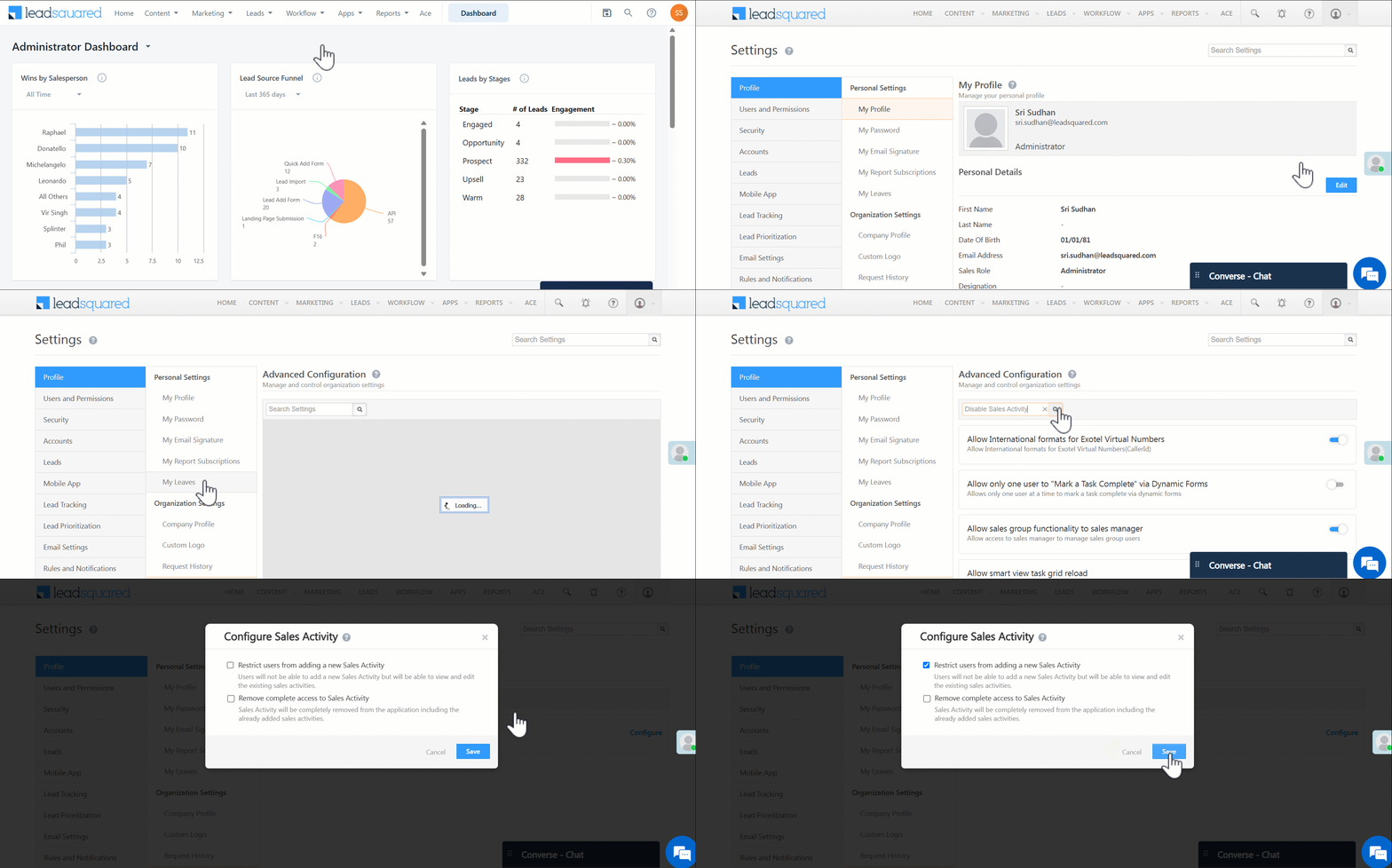
  1. Navigate to My Profile>Settings>Profile>Advanced Configuration. To know more about this page, refer to Organization Settings – Advanced Configuration.
  2. Alongside Disable Sales Activity, click Configure.
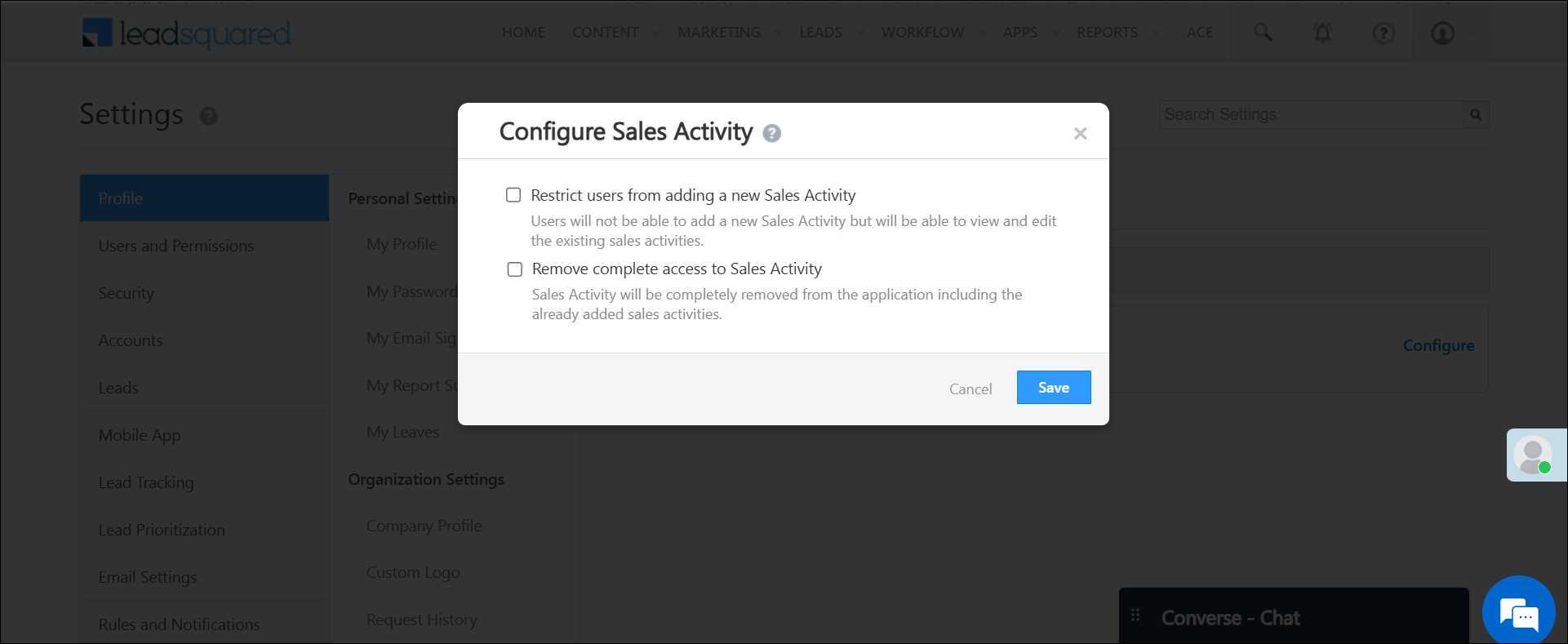
  3. On the Configure Sales Activity pop-up, enable the checkbox Checkbox  next to the action you want to restrict the user from performing –
    • Restrict users from adding a new Sales Activity – Users won’t be able to add new sales activities, but can view and edit existing activities.
    • Remove complete access to Sales Activity – Sales Activities will be completely removed from your account, including existing activities that are posted on your leads.
  4. Once you’re done, click Save. The setting is applied across your account.

Note:

  • The Remove Complete access to Sales Activity setting is permanent. Once existing activities are removed, they cannot be retrieved. Enable this setting only when you’re sure of your decision.
  • Before configuring this setting, ensure Sales Activities are not linked to any forms, portals, dashboards, etc. You cannot disable Sales Activities if they are linked to any active workflows in your account.

LeadSquared Sales Activity


Any Questions?

Did you find this article helpful? Please let us know any feedback you may have in the comments section below. We’d love to hear from you and help you out!