Managing Users through CSV Imports

1. Feature Overview

You can upload CSV files to create and update users in bulk. This article also covers exporting users and bulk updates through the UI.
These features are available under the Actions tab on the Manage Users page (My Profile>Settings>Users and Permissions>Users).

Note: These features are only available to administrator users.


2. Import Users

Note that the following fields are mandatory in your CSV file for creating new users –

  • FirstName
  • EmailAddress
  • Role
2.1 Download the Sample CSV File
  1. On the Manage Users page, under Actions, click Import Users.
  2. The Import Users wizard will appear. Click the Download Sample CSV link.

The sample file will now be downloaded (to the downloads folder or any location you’ve configured for your browser’s downloads). View the file to understand how to structure the CSV you want to upload.
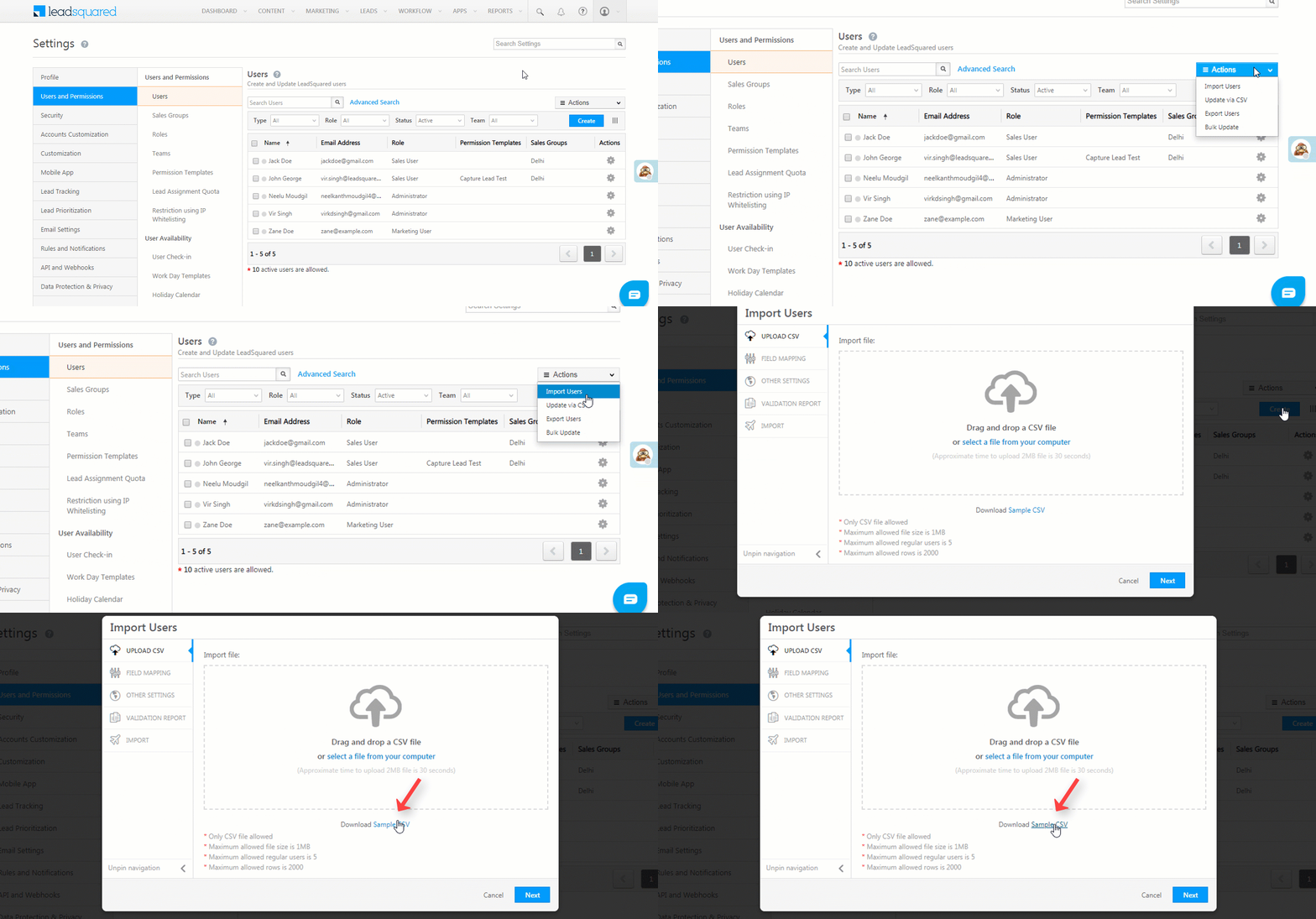
Import Users Download Sample CSV

2.2 Upload Your CSV File 
  1. On the Import Users wizard, either click the select a file from your computer link or directly drag and drop the CSV file into the area demarcated by the dotted line.
  2. Once the file has been uploaded, click Next.
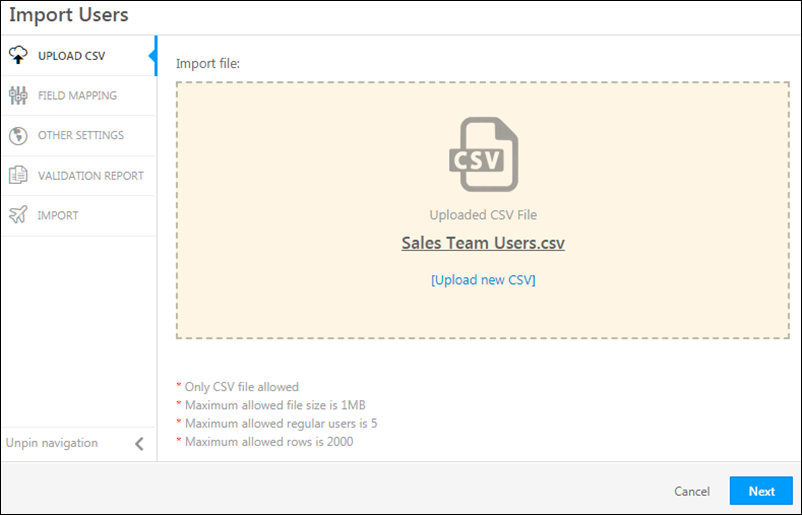
import users

Note:

  • The maximum allowed file size is 1MB
  • Maximum allowed users and rows are configurable. Contact us at support@leadsquared.com for assistance.
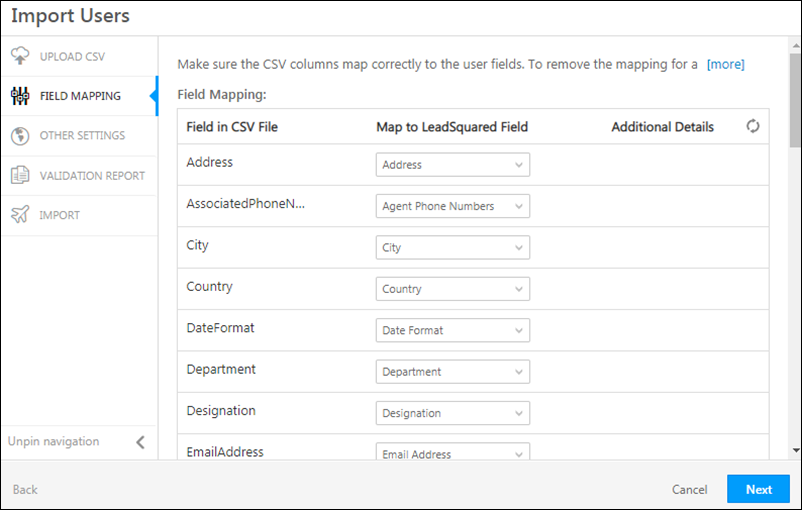
2.3 Map the CSV File Columns to User Fields 
  1. Map the fields in the CSV file to the user fields in your account. Ensure that the mandatory fields – FirstName, EmailAddress and Role are mapped correctly.
  2. Click Next when you’re done.

Import User Mapping

2.4 Other Settings

Select the checkbox if you do not want to send welcome emails to the new users. Click Next.
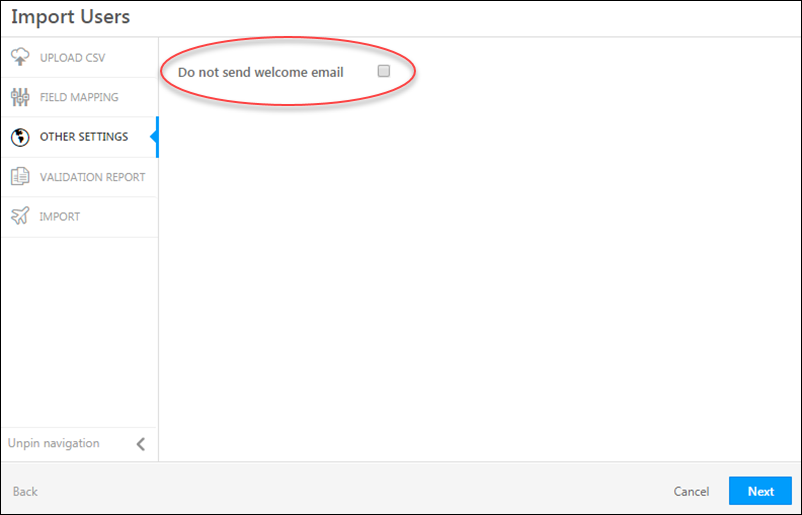
Import Users Other Settings

2.5 Review the Validation Report

The validation report will show you errors in your mapping configurations. You can –

  1. Fix these errors and re-upload the CSV
    or
  2. Ignore the errors and click Import. If you do so, users won’t be created for the rows which contained the errors.
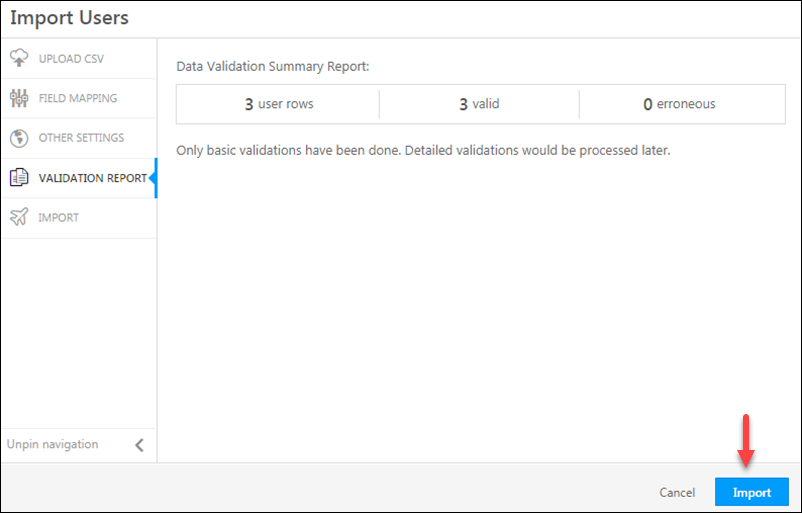
User Import Validation Report

2.6 Check the Status of Your Import

Your import request is now successfully queued. Click the link shown below to view the status of the import. You’ll also be notified by email once the import is complete.
You can now choose to import another file or proceed to the Manage Users page.
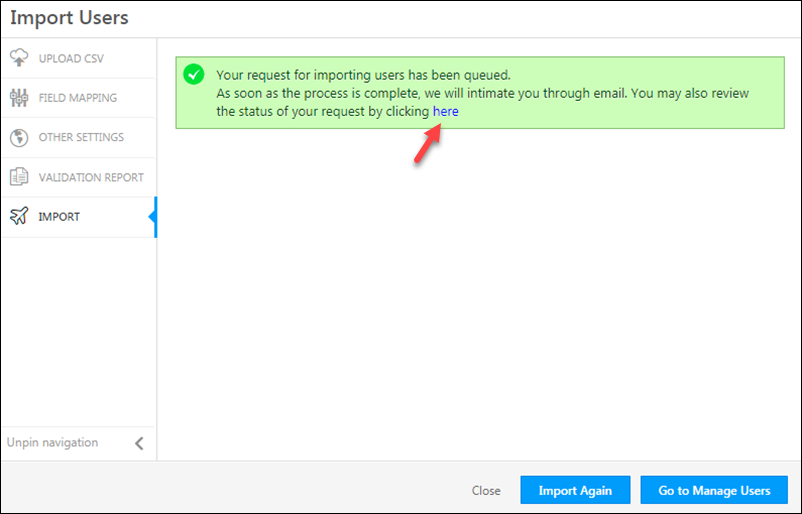
import queued


3. Update Users via CSV

You can use this feature to update a large number of users in one go. For example, you can update the status fields to activate or deactivate users who join or leave your organization, add multiple users to a particular team or department, apply calendars and workday templates to a group of users, and lots more.

The process for updating users via CSV is similar to the lead import action, but has a few key differences –

  1. Your CSV must contain at least 2 user fields and it is mandatory to pass 1 user identifier –
    • UserId
      or
    • EmailAddress
  2. The following fields cannot be updated and will not appear for mapping in the wizard (in the field mapping step) –
    • Email Address
    • Password
    • PhoneMobile

The Other Settings step in the update users wizard allows you to Reset values for empty data.

  • If you enable this option, the corresponding fields in your account will be overwritten by the fields with empty values in your CSV file.
  • If you don’t enable the option, the empty fields in the CSV file will be ignored, and corresponding user fields will retain their original values.
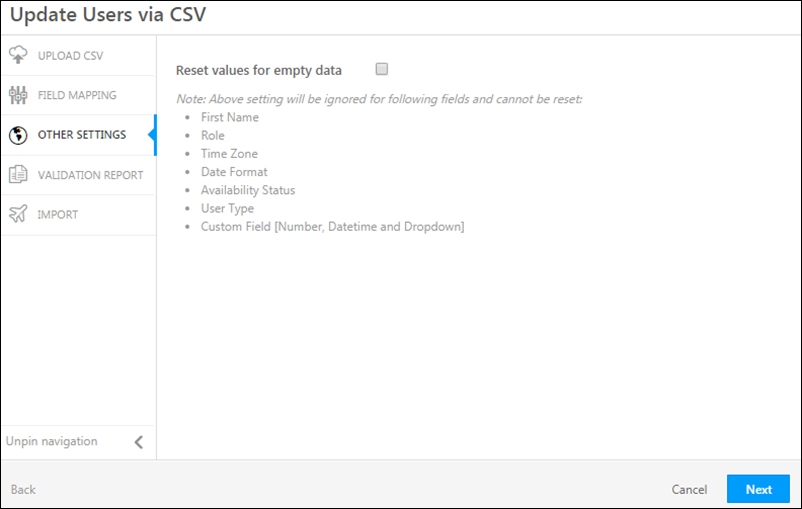
Update User via CSV Other Settings

Use the Validation Report to identify errors in your CSV file. For more details, click the link highlighted in the screenshot below.
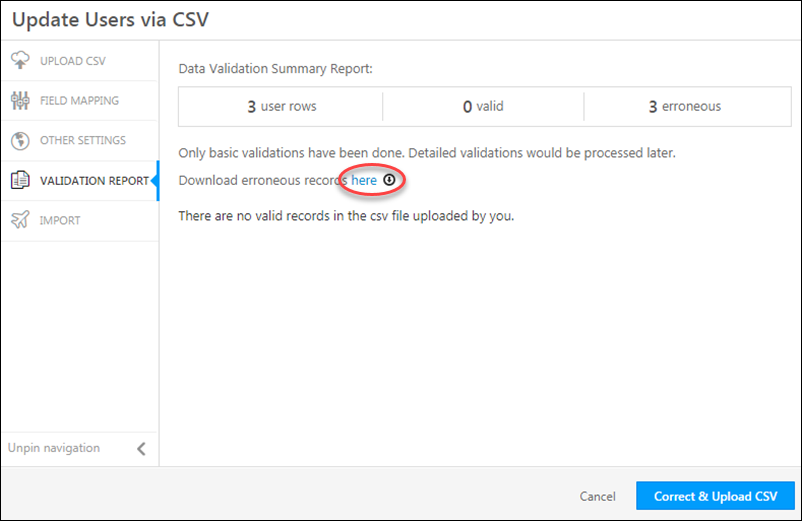
Update Users via CSV Validation Report

The CSV file that’s automatically downloaded will contain InvalidField and ErrorMessage columns to help you identify the exact error –

Update via CSV Error Handling


4. Export Users

The Export Users action exports the list of users in your account in CSV format.

The columns appearing on the Manage Users page are exported. In case you want to have a different set of columns, use the column customization option –
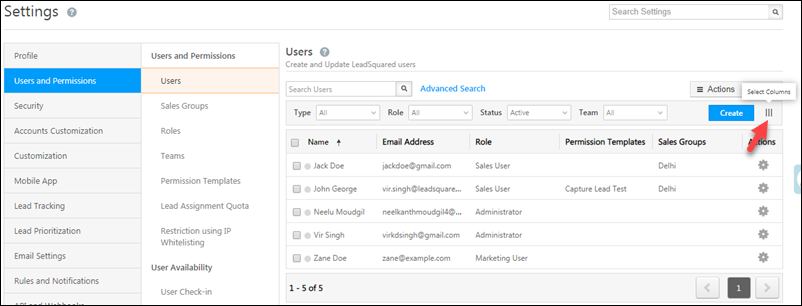
column customization on manage users

Under the Actions menu, click Export Users, then click Yes on the confirmation dialog box.
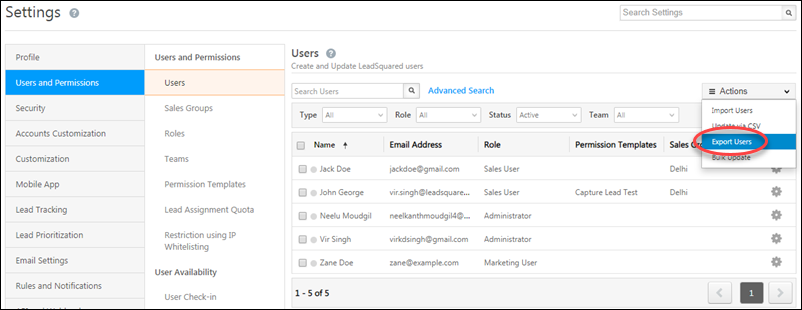
manage users export users

Note: Date-time fields will be exported in the user’s timezone.


5. Bulk Update

Unlike the update via CSV option, bulk update lets you change only a single user field. Be sure to select the checkboxes alongside the users you want to update before clicking the action.
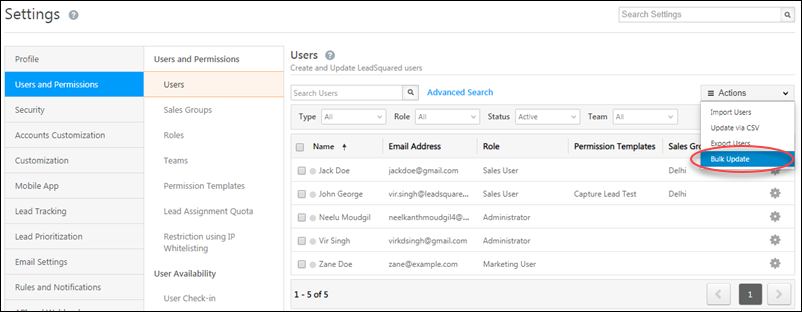
manage users bulk update

Alternatively, you can also drag and drop a CSV file into the demarcated area on the dialog box. This will launch the update via CSV process detailed above.
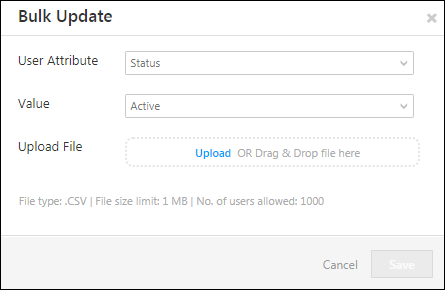
Bulk update users


Any Questions?

Did this article help you with your use case? Feel free to leave feedback in the comments section below.

How to Save Progress for Multi-Step Forms in LeadSquared Portals

1. Feature Overview

Portals allow you to fill out lengthy applications with multi-step forms. This article shows you how to save a form’s progress in each step, and how to open a specific tab when the user revisits the form after dropping off.

This is applicable to multi-step forms used within the LeadSquared application and also for forms embedded in the Portals feature.

Note: To know more about configuring portals, see Portal Management – Feature Guide.


2. Prerequisite


3. Save Multi-step forms at each step

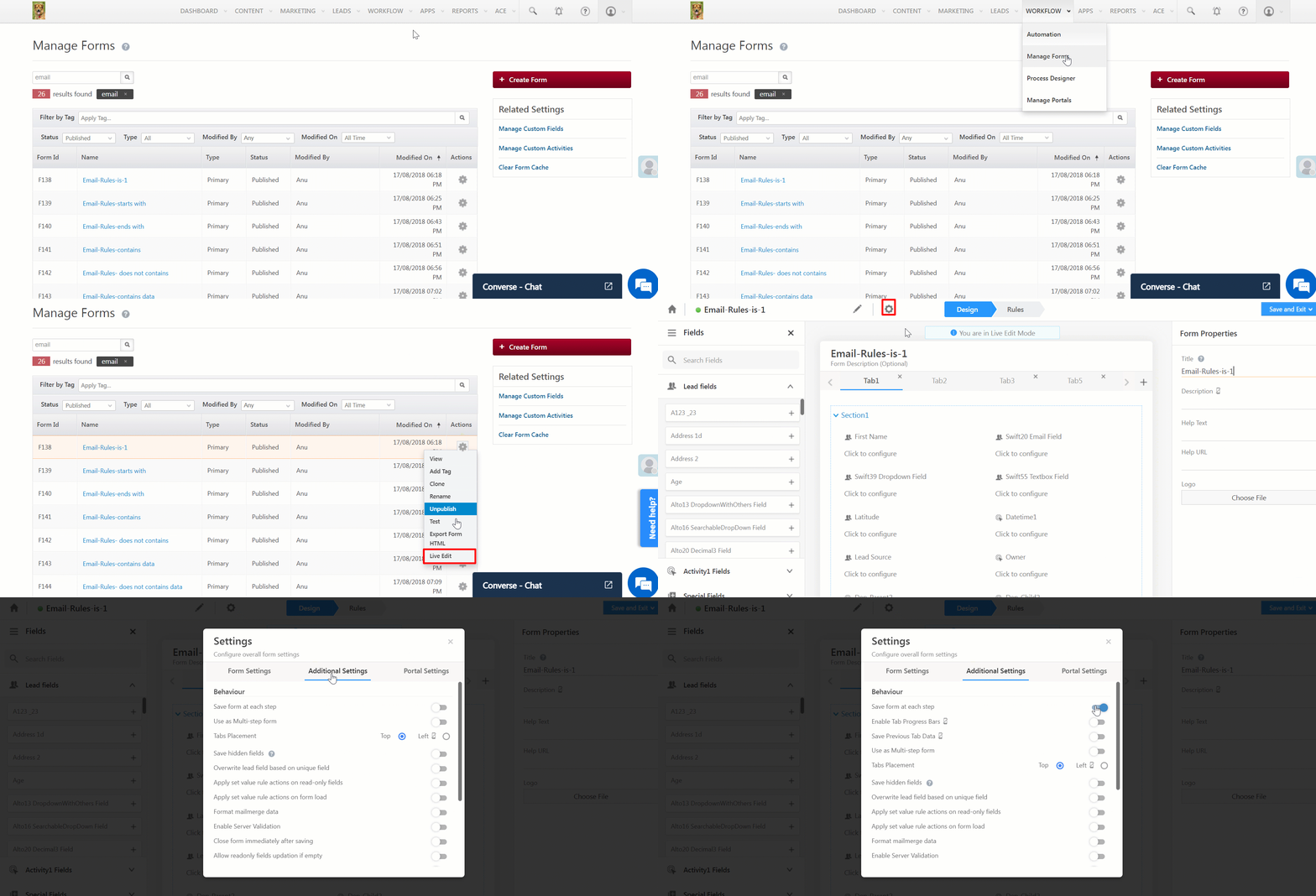
  1. Navigate to Workflow>Manage Forms.
  2. Hover your cursor above LeadSquared and select Live Edit.
  3. To open the Form Settings, click .
  4. Click the Additional Settings tab.
  5. Enable the Save form at each step option.

Leadsquared - Save form at each step

4. Reopen Multi-step form with saved data

4.1 Create a Process

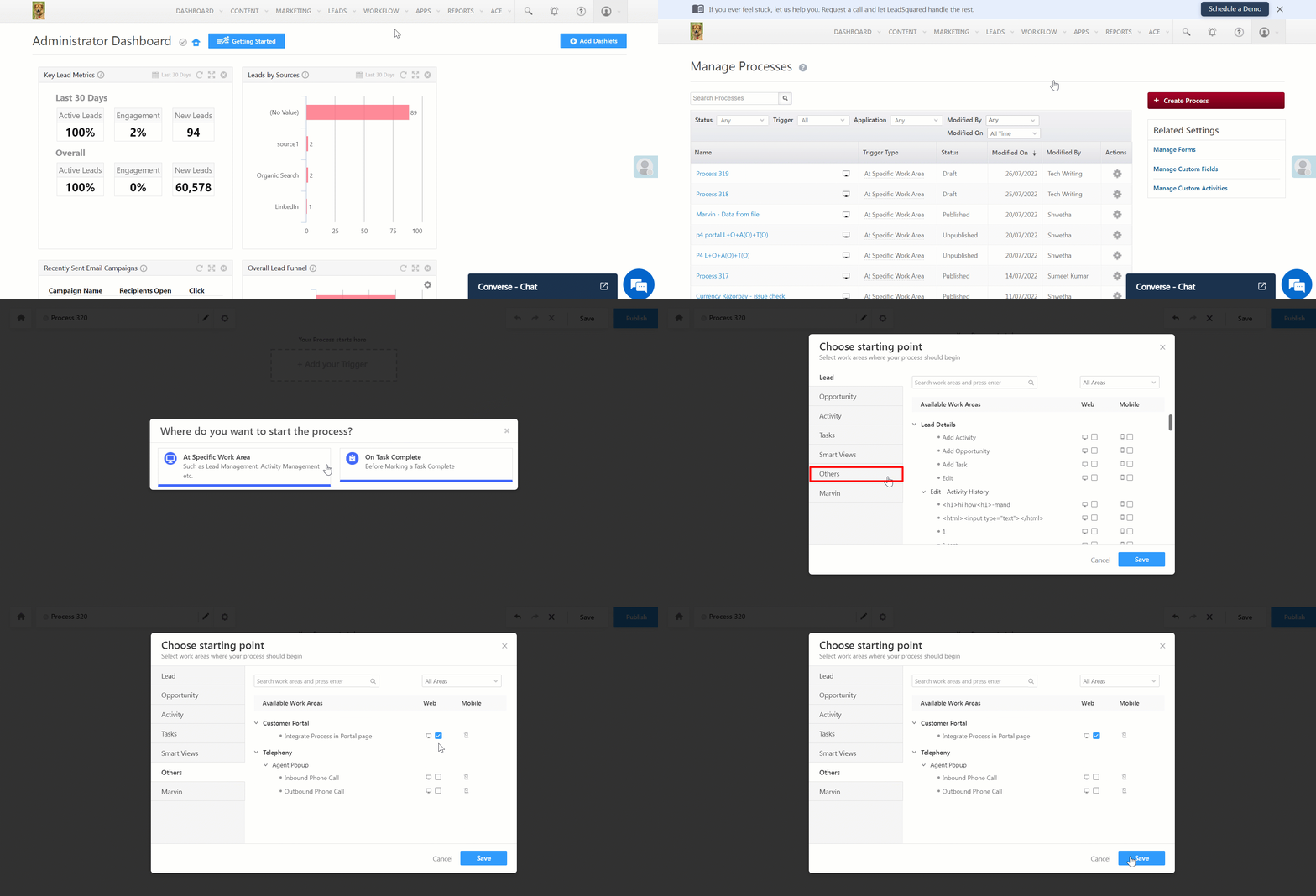
  1. Navigate to Workflow>Process Designer and click on Create Process.
  2. Select the trigger point as At Specific Work Area.
  3. In the next pop up window, navigate to Others.
  4. Under Customer Portal, click Integrate Process in Portal Page.
  5. Click Save.

Leadsquared - Create a process

4.2 Enable Process Progress Saving

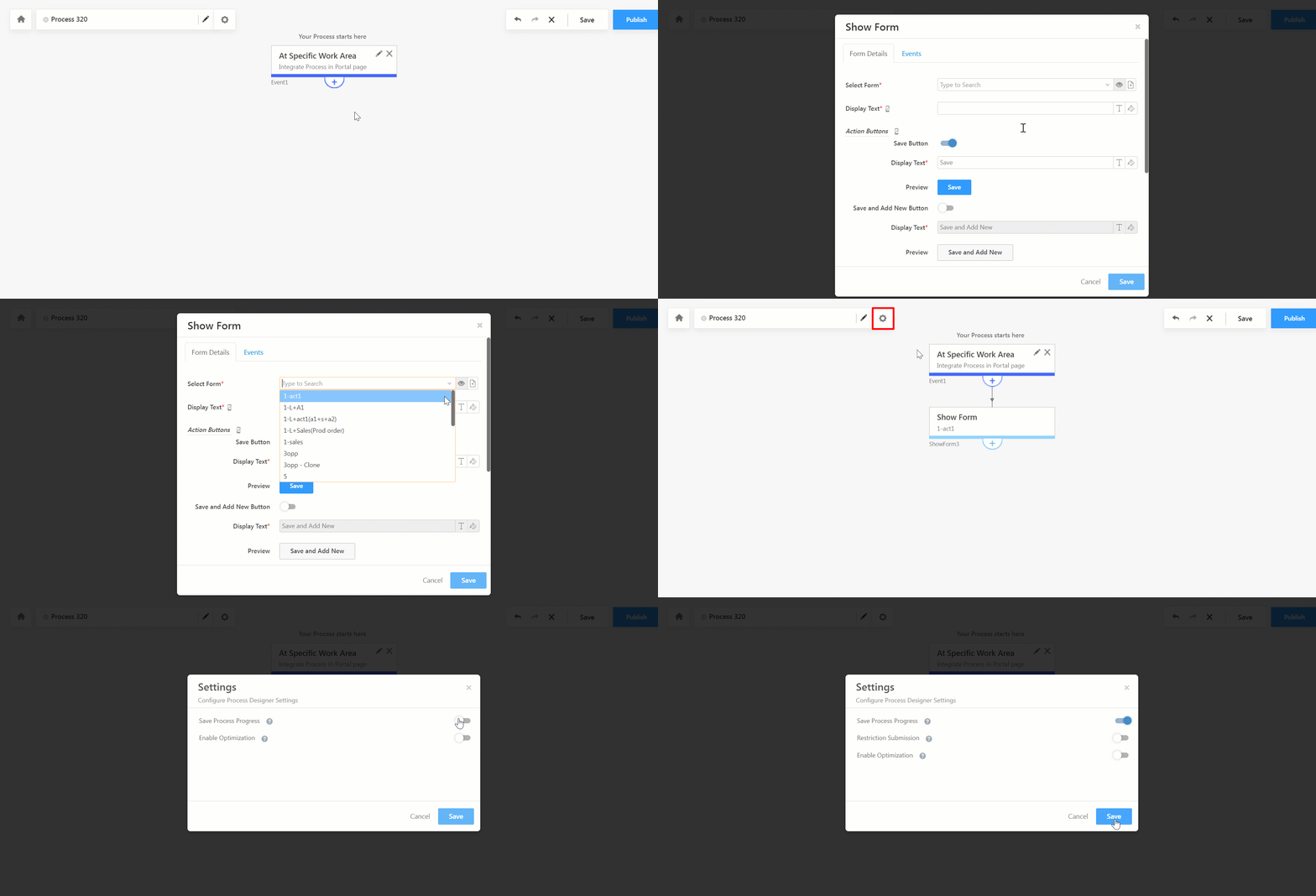
  1. To add an action on a trigger, click Add process and select Show Form.
  2. To select your multi-step form, click the Select Form dropdown field.
  3. Configure other options related to it and click Save.
  4. Click Settings and enable the Save Process Progress setting.
  5. Save and Publish your process.

LeadSquared - Enable Process Progress Saving

4.3 Integrate Process in the Portal Form Block

  1. Navigate to Workflow>Manage Portals.
  2. Select the Portal you need to view and click Continue Editing.
  3. Click on the General settings dropdown and select the relevant Form.
  4. Click Mobile App Menu  and select the page to be integrated with the Process.
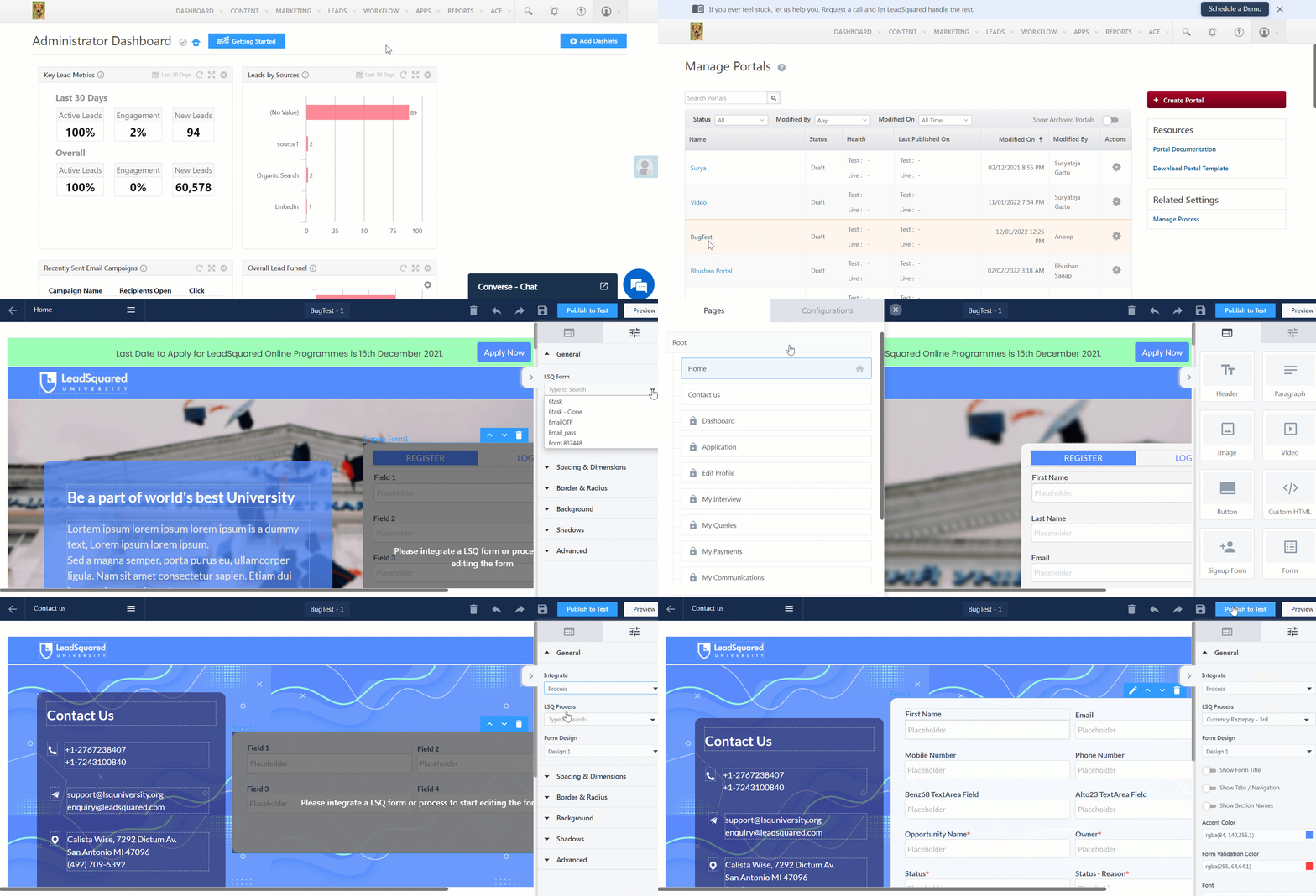
  5. Click the Integrate dropdown and select Process.
  6. Select the LSQ Process you just published.
  7. Click Publish to Test.

LeadSquared - Integrate Process in Portal Form


Any Questions?

Did you find this article helpful? Please let us know any feedback you may have in the comments section below. We’d love to hear from you and help you out!

User Automation Conditions – Wait

The wait condition lets you delay an action or another condition for a specified period.

Example Use Case

If you trigger an automation to start, say, half an hour before a work day, you can send the user a notification (your work day starts soon) and then wait half an hour before auto checking in the user.


Setting Up the Wait Condition

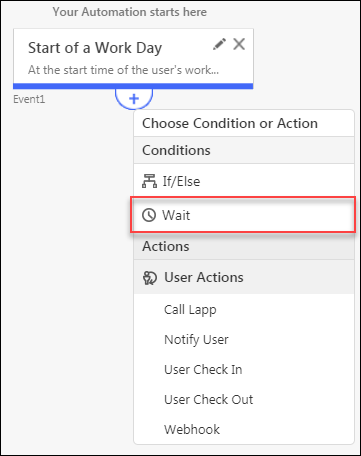
Wait Condition

On clicking the Wait condition, you’ll see the Set Wait Condition pop-up appear.

Here you can specify the time period to delay the action in two different ways:

1. For a Specific Amount of Time

Allows you enter the time delay in minutes, hours, days, weeks, months and years. In addition, you can also set the exact day of the week and time of day that you want to wait before the next action. Use the highlighted checkbox to pick a day and set a time.

2. Until a Specific Date & Time

Allows you to enter the date and time till which the succeeding activity will be delayed. Click the checkbox highlighted below to use this feature.

Can I enable website tracking on multiple domains?

Yes, but to do so you’ll have to –

  1. Deploy the LeadSquared Tracking Script on all domains.
  2. Reach out to our support team at support@leadsquared.com to enable the back-end settings.

How to set a Dashboard as default?

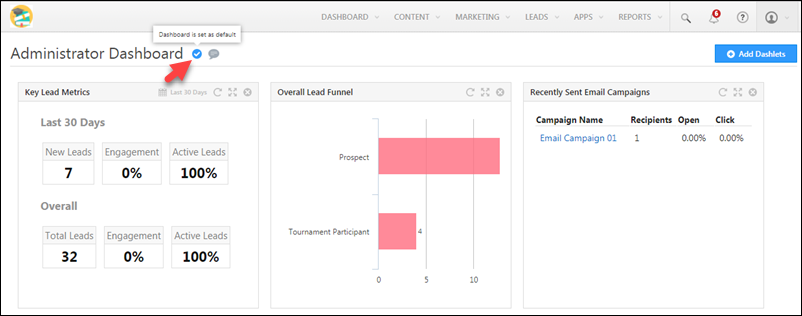
You can set a dashboard as default by navigating to a dashboard page and clicking the tick icon alongside the dashboard title –

Set dashboard as default

How many Custom Dashlets can I add to my Dashboard?

There is no limit on the number of Custom Dashlets you can create but you can only add 12 Custom Dashlets to your dashboard. For more information on Custom Dashlets, see Custom Dashlet Builder App.

What is the best way to distribute leads to my users?

The best way to distribute leads to your users is through automation. To know more, see Lead Distribution Automation in LeadSquared. However, if you want to distribute leads based on Zipcode, use the Zip Based Lead Distribution App.

Note: The Lead Distribution App in the apps marketplace has now been deprecated. All lead distribution functionality is available through automation.

Through the Lead Distribution card in automation, you can –

  • Distribute leads to available users only by integrating the check-in/check-out feature.
  • Set up lead criteria for the distribution without having to know the schema names of the lead attributes.
  • Advanced search to filter through hundreds of users using any combination of user attributes.
  • Combine the power of other automation actions to –
    • keep leads engaged and push them further down the sales funnel.
    • simultaneously create tasks for users and set up notifications.
    • enrol leads into a list to send certain email campaigns.
    • the list goes on and on…
  • Access the automation report to see how many leads were distributed to which users and the path they’ve taken thereafter.

Managing Lead Access Across Groups – Group Hierarchies

If you’re new to the groups feature, see Managing Lead Access for Sales Users – Groups.
Here’s a quick video on how you can manage lead access rights across different groups and setup hierarchies –

How to Login to LeadSquared?

There are 2 ways you can login to your account –

  1. By accessing the https://login.leadsquared.com URL
  2. By logging in from the LeadSquared website.

If you forgot the email address or password of your account, contact your manager or LeadSquared administrator.

logging in to Lsq

How Do I Raise a Support Ticket?

There are a few ways you can raise a support ticket –

How to raise a support ticket

Custom Menus for Web App

1. Feature Overview

The Custom Menu for Web connector lets you create custom menu tabs in your LeadSquared web application. These tabs appear in your navigation menu and let you access external URLs or third-party websites directly from your LeadSquared account.

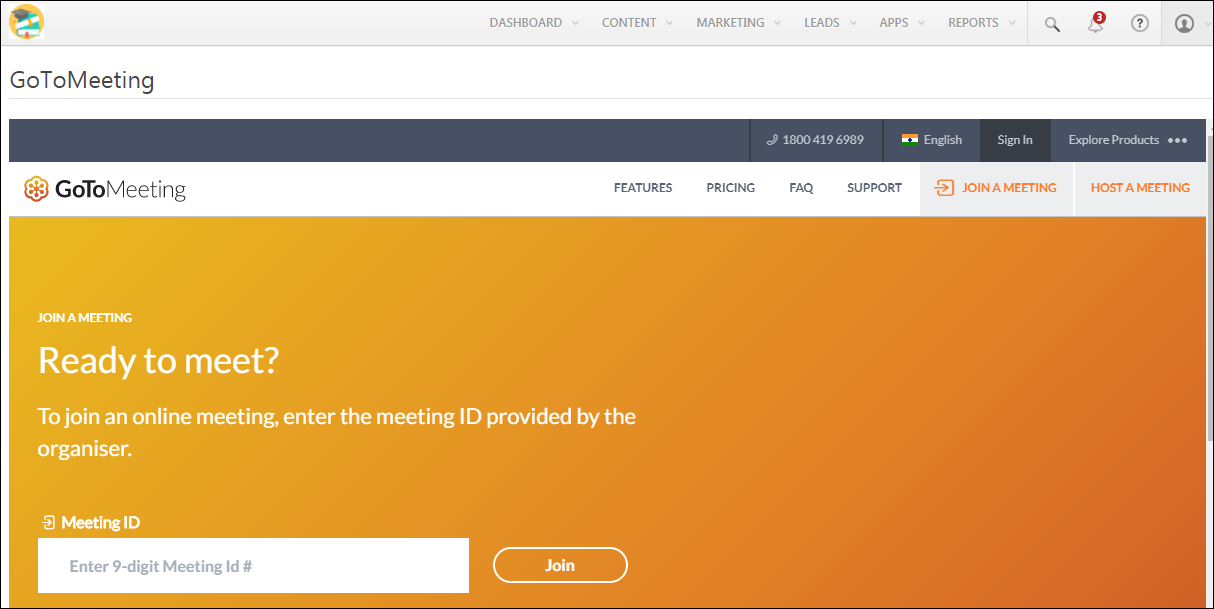
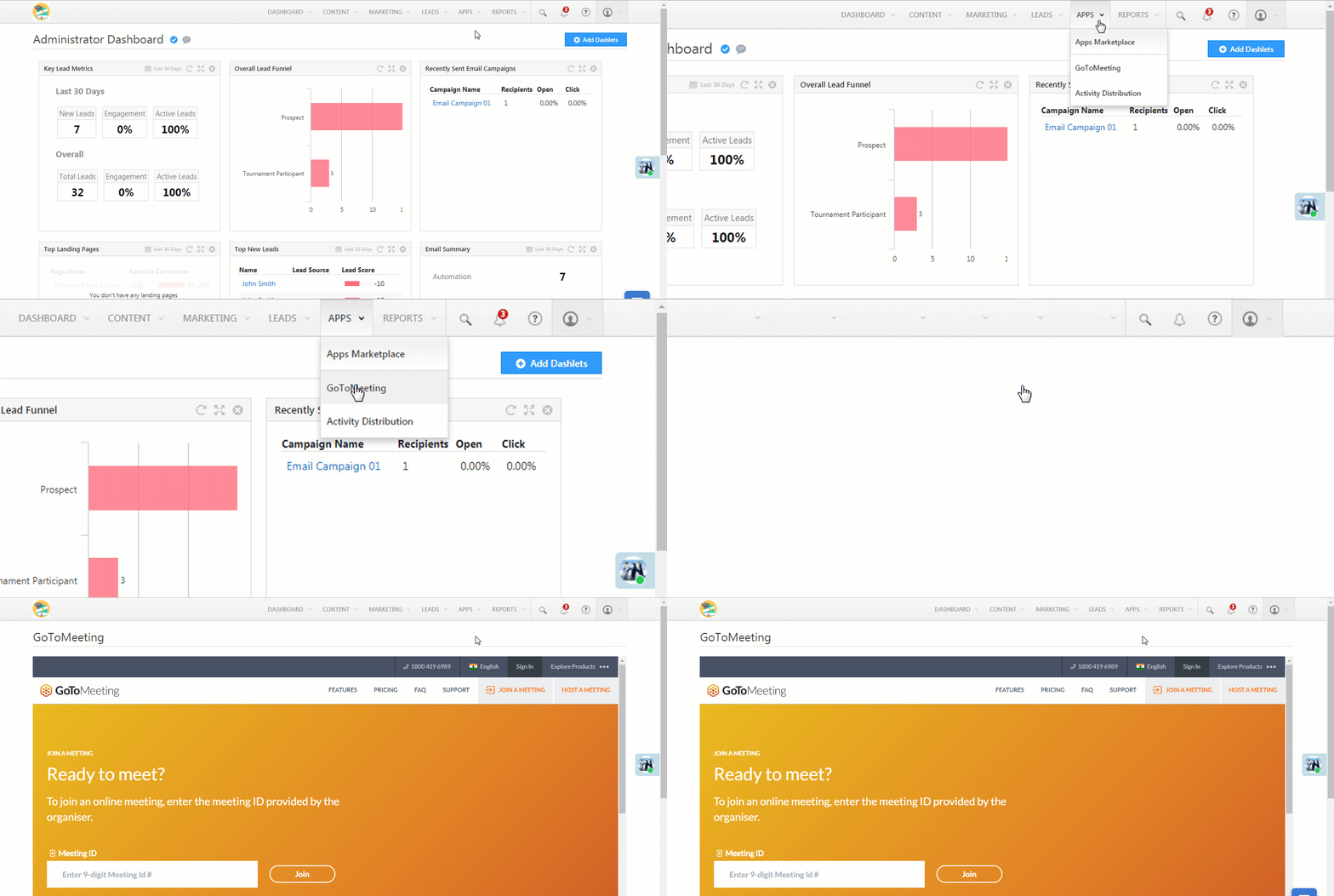
Say you use GoToMeeting to schedule meetings with your leads. Using this connector, you can create a custom GoToMeeting tab within your LeadSquared account. When you open this tab, you’ll get a browser view of the GoTo meeting URL you pass while configuring the connector. The end result will look something like this –

GTM tab


2. Installation

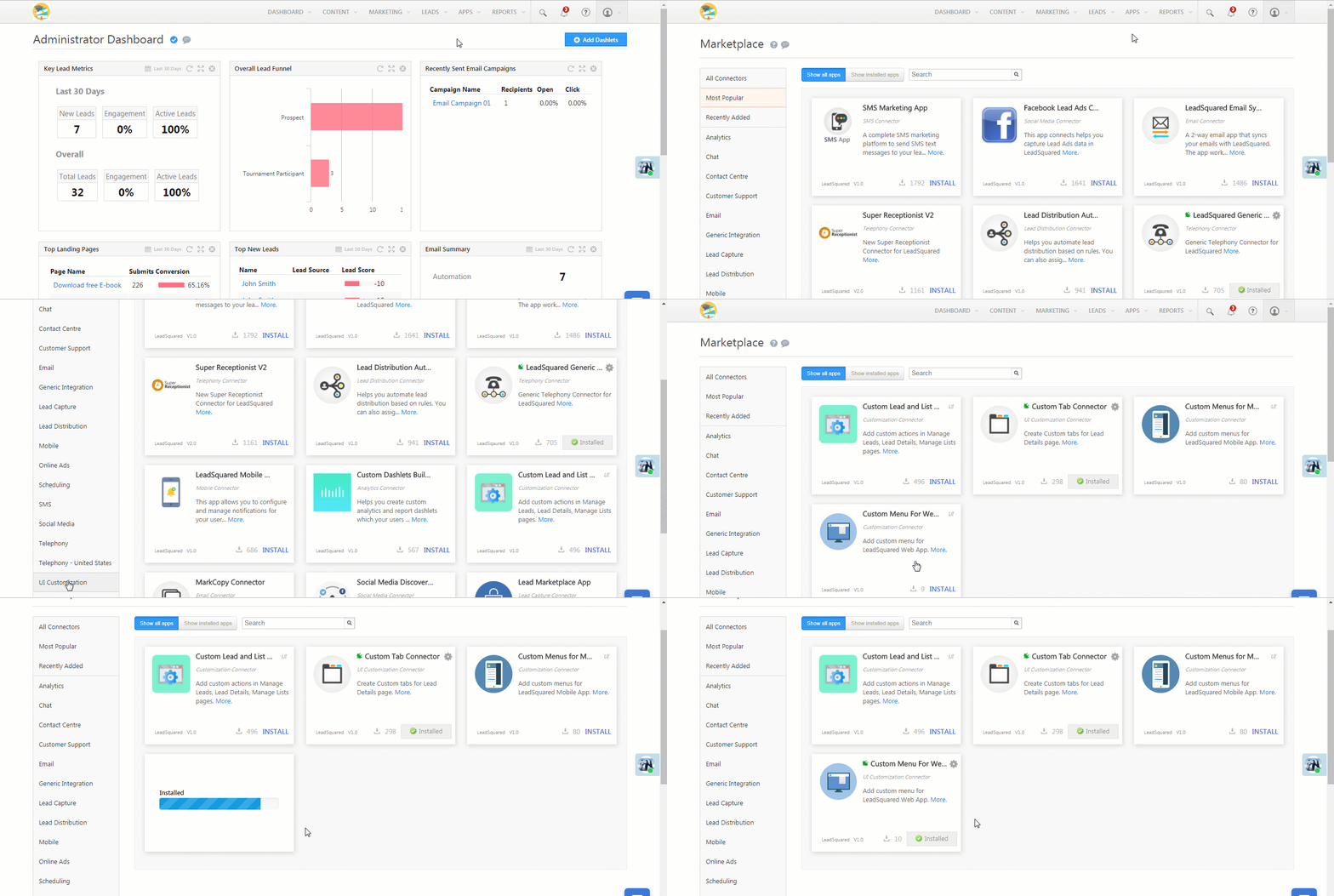
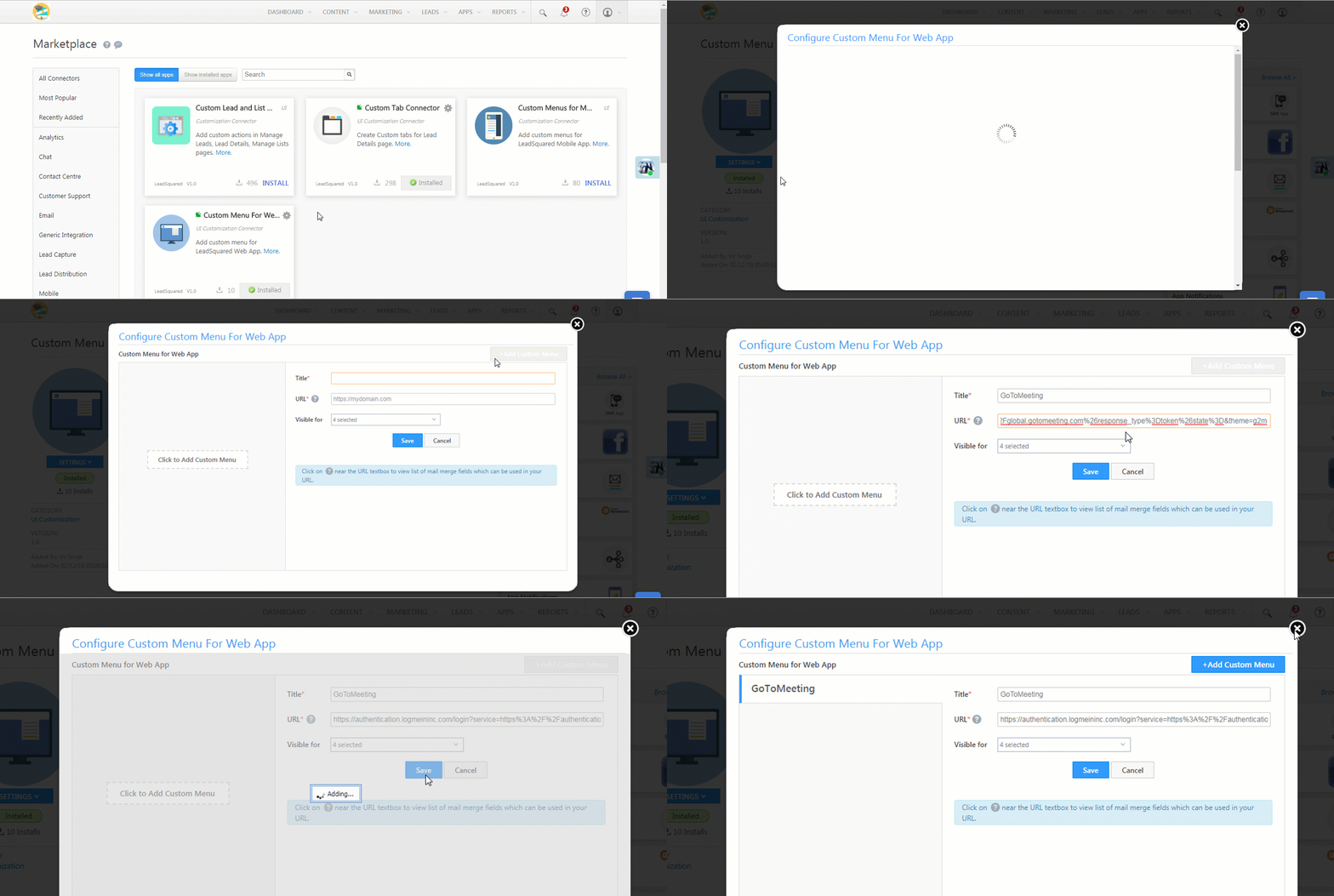
Navigate to Apps>Apps Marketplace>UI Customization and click Install on the Custom Menu for Web app.


3. Configuration

  1. Once installed, under Settings, click Configure on the Custom Menu for Web connector page.
  2. On Configure Custom Menu For Web App menu, click the Add Custom Menu button.
    • Title – Enter a title for the custom menu.
    • URL – Enter the URL of the third party website here.
    • Visible For – Select the user roles you want the custom menu to be visible for.
  3. Click Save. Use the Add Custom Menu button to add another custom tab.

Configure app


4. Navigation

The custom tab will appear under the Apps menu after you’ve successfully configured it.

Navigation


5. Limitations

Certain websites use the X-Frame-Options HTTP response header to prevent browsers from rendering their pages in a <frame>, <iframe> or <object>. This is done mainly to prevent clickjacking attacks by ensuring that the website content is not embedded in any other sites. For more information, see X-Frame-Options.

Any site that has this header (X-Frame-Options), won’t load inside LeadSquared. If you’re planning to embed your own business website inside LeadSquared, ensure that this header is not included.


Any Questions?

Did this article help? If you still have doubts, leave us a comment below.

Group Level Automation

Group managers can create lead automations for their own sales groups. This is beneficial for organizations that want their managers to create automations as well, instead of reserving the permission solely for admins.

If you’re new to the new automation feature, Automation Home is the best place to start.

Note: This feature is available on demand. If you want to enable it for your LeadSquared account, contact support@leadsquared.com.


Example Use Case

Let’s say you create a sales group consisting of a group manager and a number of sales users. You want to create an automation that sends notifications to users in the group everytime a new lead is created and assigned to them.
With the group level automation feature, you can now give the group manager permission to directly create this automation, as appose to asking your administrator user to set it up.


Prerequisites

1. Send a request for this feature to support@leadsquared.com.

2. Enable the Create Automation permission for the group manager (this feature can be configured by Administrator users only).

  1. Navigate to My Account>Settings>Users and Permissions>Sales Groups.
  2. Click Create if you want to create a new sales group or Edit (under the settingsSettings iconwheel) alongside an existing sales group.
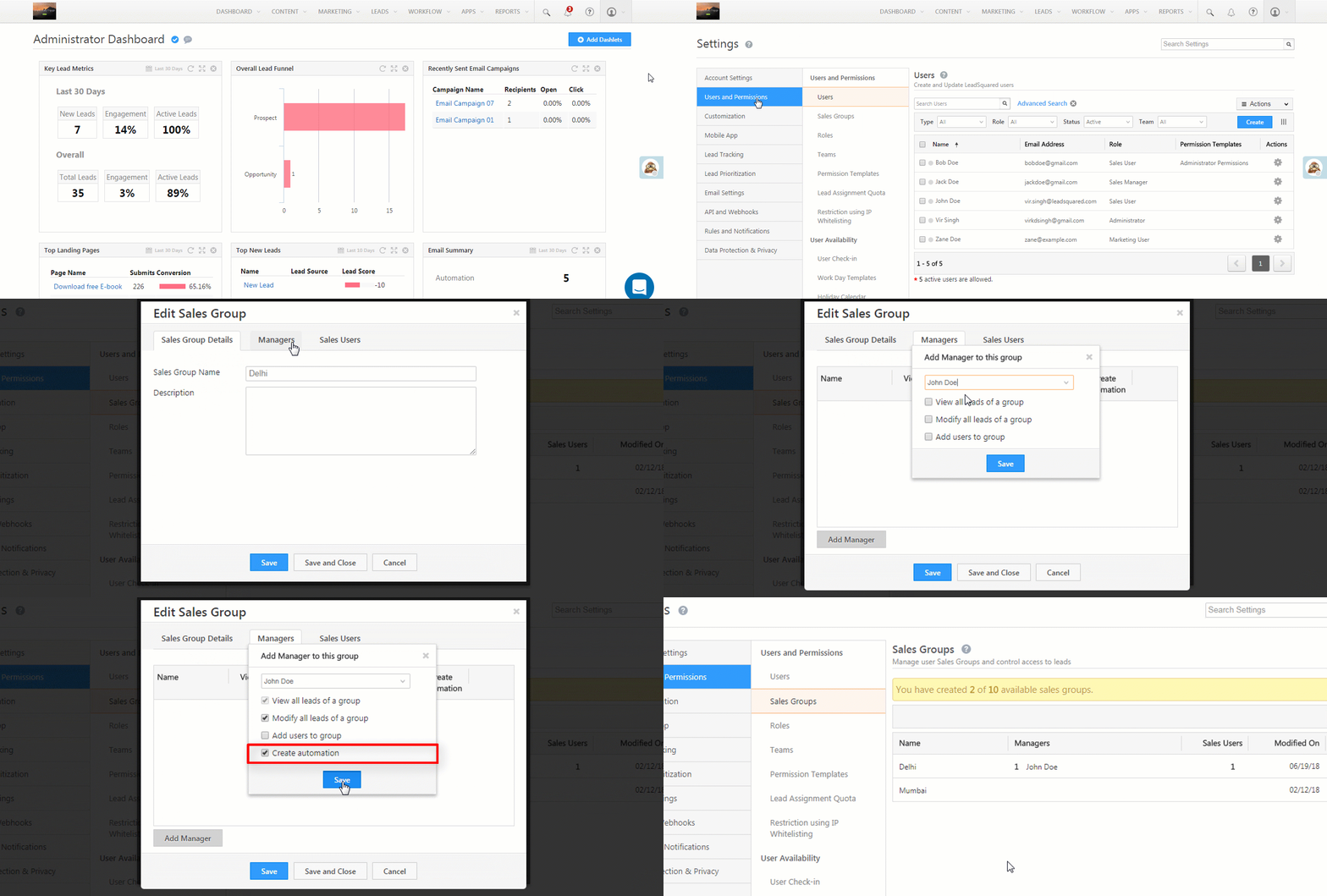
  3. On the pop-up, navigate to the Managers tab and mark the Create Automation* permission as Yes.
  4. Click Save.

*The ‘Create Automation’ permission can only be enabled when both View all leads of a group’ and ‘Modify all leads of a group’ permissions are enabled.

group level automation

Once enabled, sales group managers will see the Automation option appear on the main menu of their accounts (WorkFlow>Automation).


How It Works

Once the prerequisites are met –

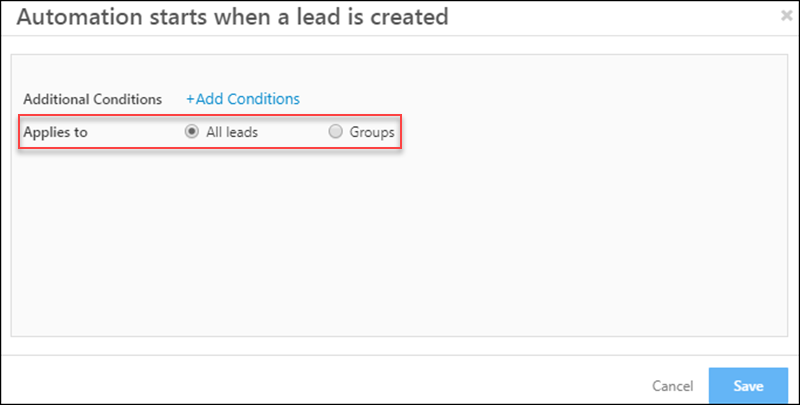
  • While selecting an automation trigger, Administrator users will see the option of creating automations for all leads or for sales groups only.

all leads vs. group automation

  • On selecting a trigger, sales group managers will only be allowed to create automations at the group level for the groups where –
    • They are managers
    • They have ‘Create Automation’ permissions.

sales manager automation view

Note:

  • Once set up, a group automation will only trigger for leads where the lead owner is part of the sales group the automation was created for.
  • Group managers can only create automations using lead automation triggers (lead create, lead added to list, etc.) and not on user automation triggers.


How to Create a Group-Level Automation

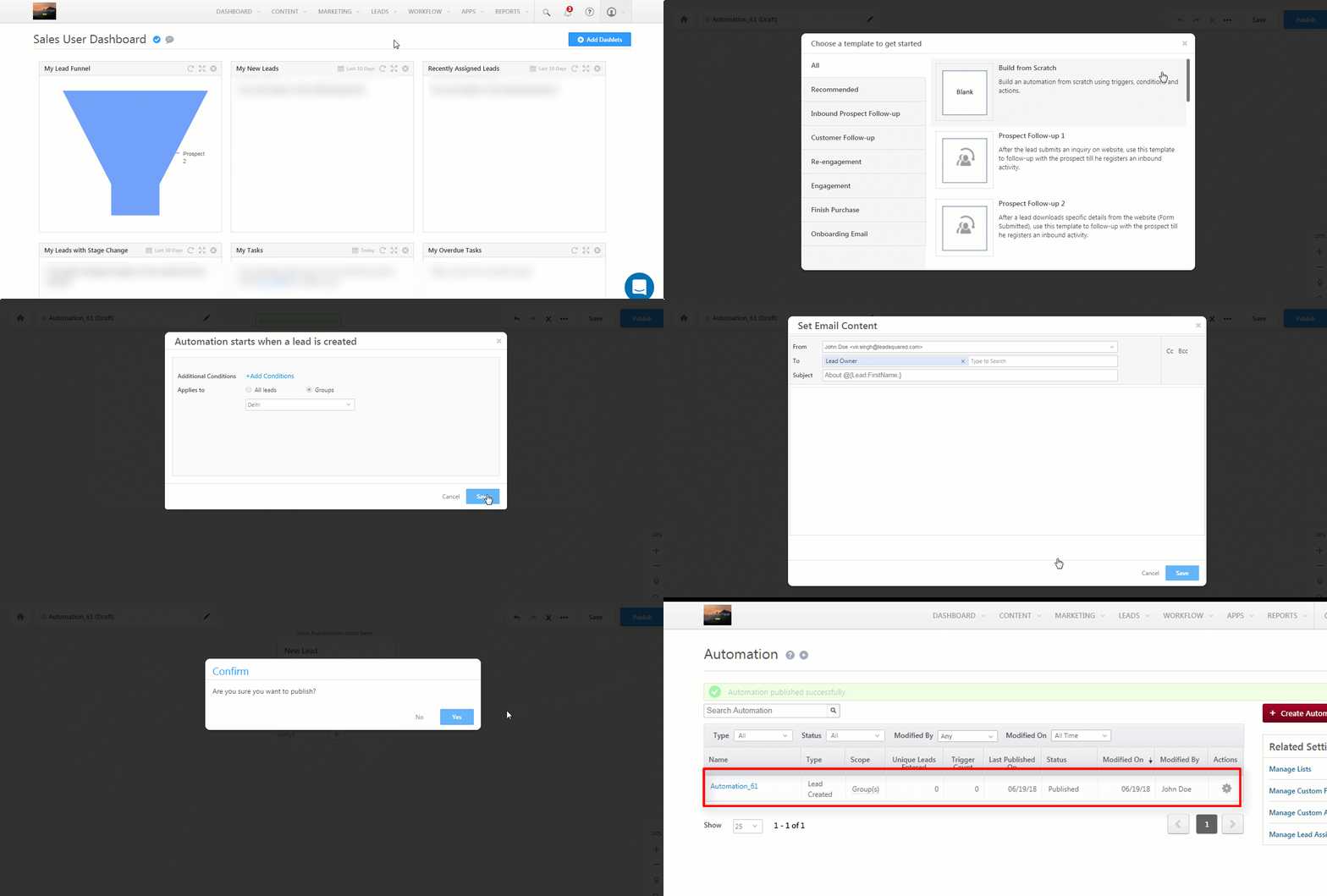
Assuming you’re the manager of a sales group –

  1. Navigate to WorkFlow>Automation.
  2. Choose an automation template or build an automation from scratch.
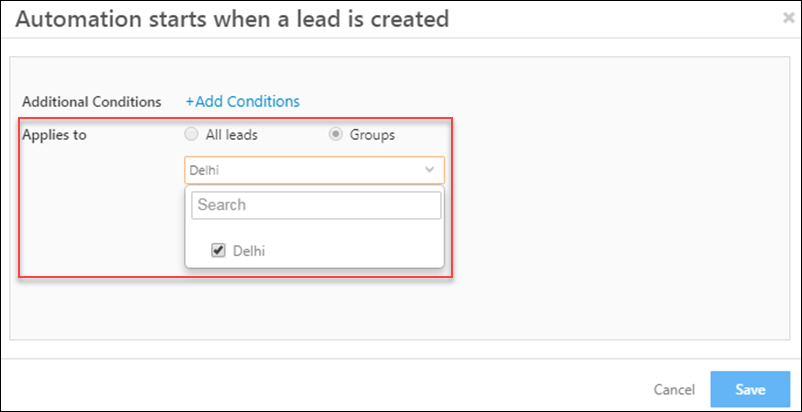
  3. Select the sales group(s) you want to create the automation for.
  4. Create the automation using the appropriate trigger, conditions and actions.
  5. Publish the automation.

This example shows the group level automation described in the example use case above (users in the group are notified when new leads are created).

group automations

Lock Activity after Creation

1. Feature Overview

Once your users post a Custom Activity, you can lock that activity to prevent anyone from making changes to it. Some use cases where the Lock Activity setting can be applied are when there’s a custom activity that collects customer data or contains some computed value like incentives, loans, interest rates, etc. Once these values are assigned, locking the activity will prevent users from editing or deleting it.


2. Prerequisite

You must be the Admin user of your LeadSquared account in order to use this feature.


3. How it Works

After you enable the Lock Activity setting on a custom activity, you must pass the Lock an Activity API for every activity you want to lock. You can either –


4. Enable the Lock Activity setting

  1. Navigate to My Profile>Settings>Leads>Custom Activities & Scores.
  2. Alongside an existing activity, click Edit.
    • For a new custom activity, click Add.
  3. On the Add/Update Custom Activity Type pop-up, alongside Lock Activity, enable the checkbox Checkbox.
  4. Then select the user roles for which you want to lock the activity. These users won’t be able to edit or delete the activity once locked.
  5. Click Next, and then click Save.

LeadSquared Lock Activity


5. Call the Lock an Activity API

Pass the activityId of the activity you want to lock in the Lock an Activity API.


Any Questions?

Did you find this article helpful? Please let us know any feedback you may have in the comments section below. We’d love to hear from you and help you out!

How to Import Leads to LeadSquared?

1. Feature Overview

You can import your leads into LeadSquared through a CSV (Comma Separated Value) file. If you’re storing your lead data in a spreadsheet, database application or any other software, you’ll first have to export the leads to a CSV file and then follow the steps listed here.

Note:

  • You can’t stop or undo a lead import once it starts.
  • The default import limit through CSV is 25,000 leads. To extend this limit, contact your account manager or write to support@leadsquared.com. It can be extended to a maximum of 300,000.
  • You can also bulk-update lead fields through CSV (excel) import by selecting Overwrite duplicates or Update empty fields of duplicates in Import Setting.


2. Prerequisites

  • The file type must be CSV. If your data is stored in a Microsoft Excel file, save it as a Comma Separated Value (CSV) file. CSV content should not have comma (,) semicolon (;), pipe (|), tilde (~), back quote (`), caret (^) in the header. You can refer to Formats supported in Excel to learn more on how to save an excel file into CSV file.
  • Column names are mandatory. You must enter column names in the CSV file. These are the different lead attributes or fields like First Name, Last Name, Email, etc.
  • Download the sample CSV file. Download the sample CSV file to understand how your file should be structured.
  • Create custom lead fields. LeadSquared has standard system fields like First Name, Last Name, Email, Phone, etc. If you want to import custom lead attributes specific to your business like Budget, Examination Results, etc., you can create them by navigating to My Account>Settings>Customization>Lead Fields. For more information, see How to Create Custom Lead Fields.

Note:

  • You can also import custom field sets (non-file type fields). For example, if you have a parent lead field called ‘Identification Documents’ and the associated custom field set has the child field – ‘Status’, then pass – Identification Documents – Status.
  • Lead import supports Prospect ID as a column header in the CSV file as well. This is useful when there are no unique fields configured in an account. Users can export the CSV, and use the Prospect ID to make updates and re-import the leads.


3. How it Works

  1. Upload the CSV file with your lead information.
  2. Map the CSV fields to the fields in your LeadSquared account.
  3. View the validation report to look for errors.
  4. Choose how you want to handle duplicate lead records, select the lead owner, and choose lead sources.


4. Upload the CSV File

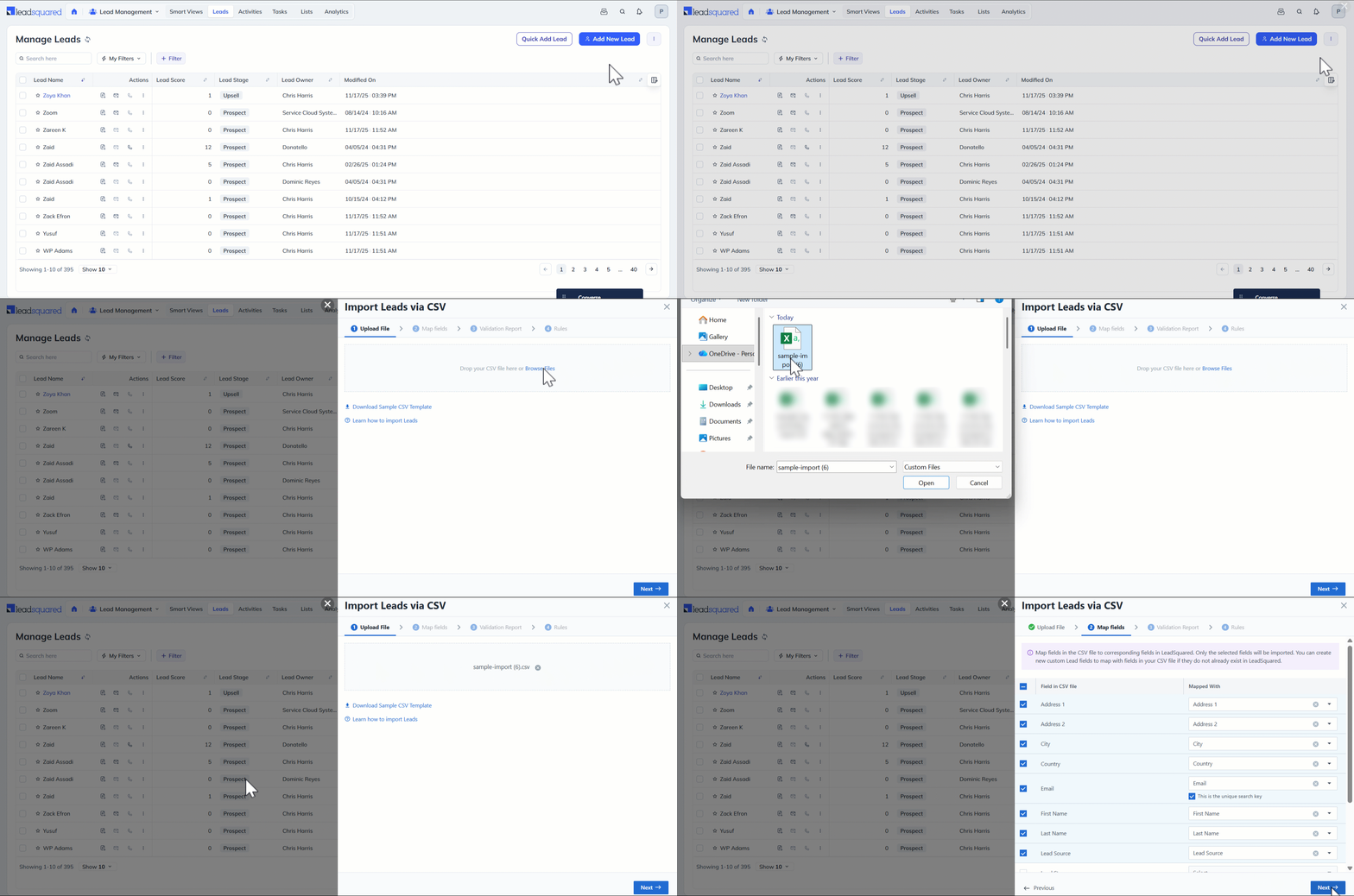
  1. Navigate to Lead Management>Leads, hover over the More Actions icon on the top-right corner of the screen and select Import Leads from the dropdown.
  2. Click Browse Files, select the file and upload it. Click Next once the file is uploaded.

Leadsquared - Import Leads

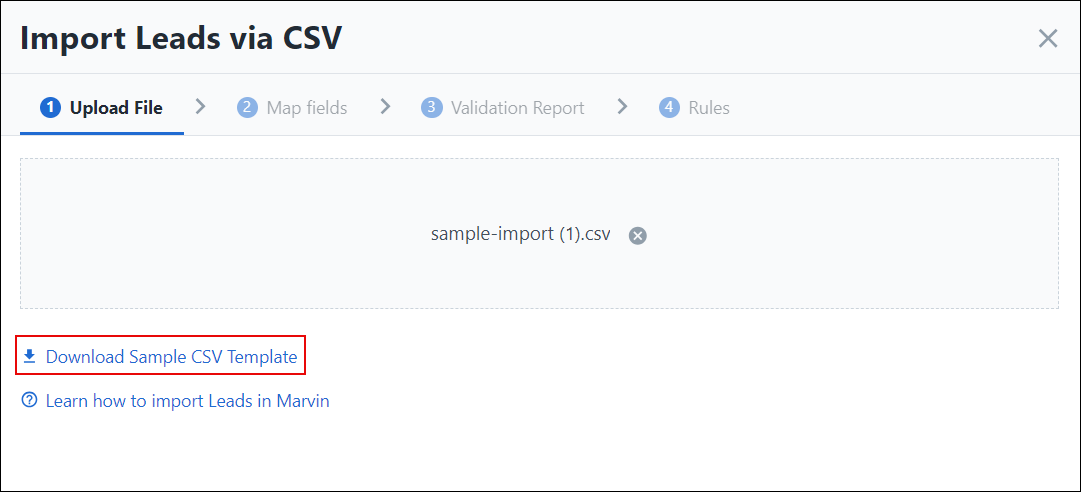
If you’re not sure of how to arrange the data in the CSV file, click to download the sample CSV as highlighted below –

Leadsquared - Import Leads


5. Map Fields

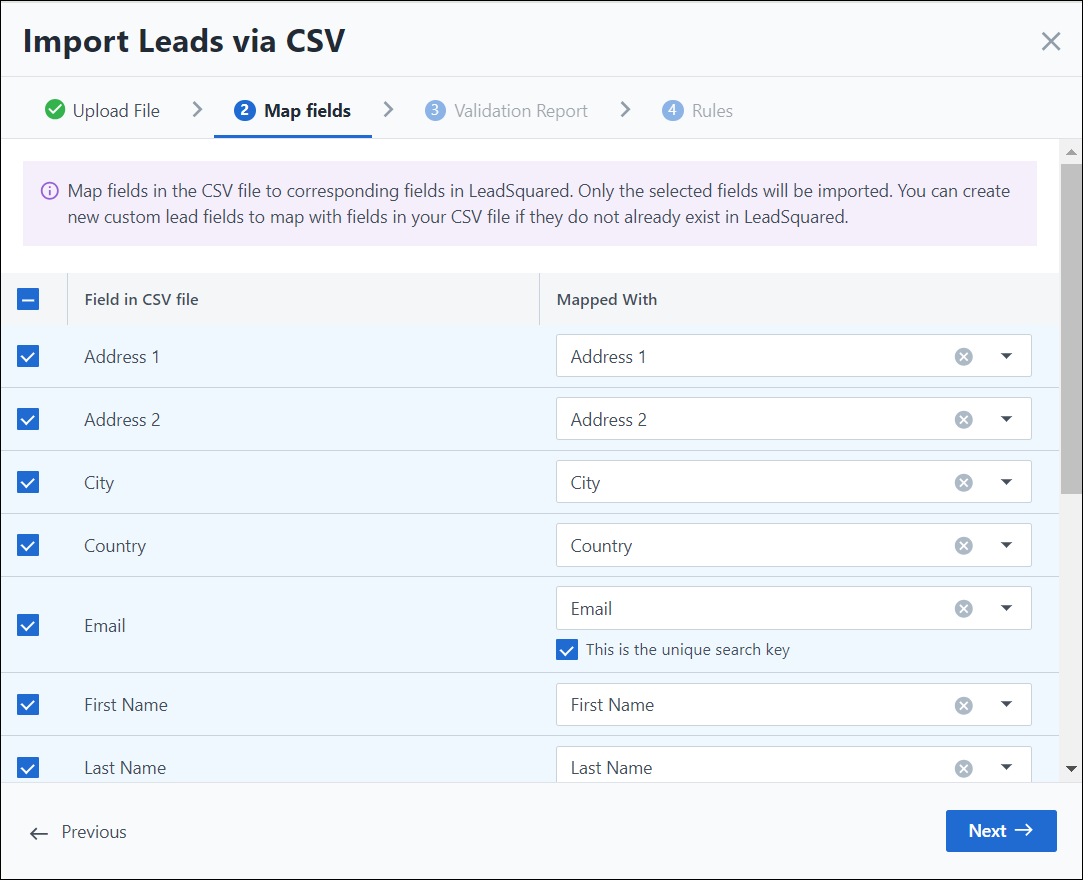
Click the checkboxes alongside the fields you want to map. By default, all the checkboxes are selected. You can uncheck the irrelevant fields. Select the relevant field in your LeadSquared account from the drop-down on the right.

Leadsquared - Import Leads

Note: You can also map Account Type and Account Name fields in your CSV to an account type and account name in LeadSquared.

  • The Account Type you pass in the CSV must exist in your LeadSquared system.
    • If you pass an existing account name, the lead will be added to that account.
    • If you pass a new account name, a new account will be created in LeadSquared and the lead will be added to it.


6. Validation Report

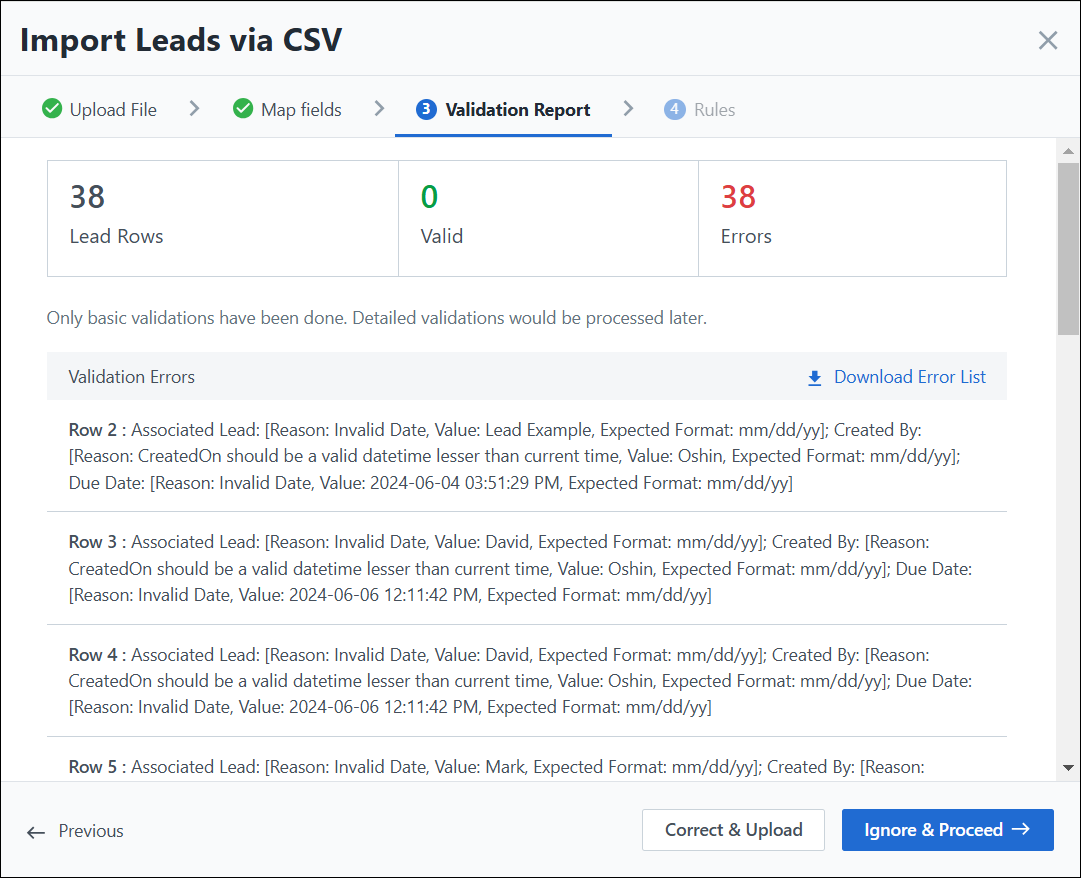
You can view the status of your lead import. This pop-up displays a table with the number of lead rows, the number of valid lead rows and the errors. Below the table, you can find the list of Validation Errors. You can also download the error list from here. At the bottom of the pop-up, select –

  • Correct & Upload to make changes in the CSV and re-upload the file
  • Ignore & Proceed to continue with the import without making any changes

Leadsquared - Lead Import


7. Import Settings

7.1 Lead Import Rules

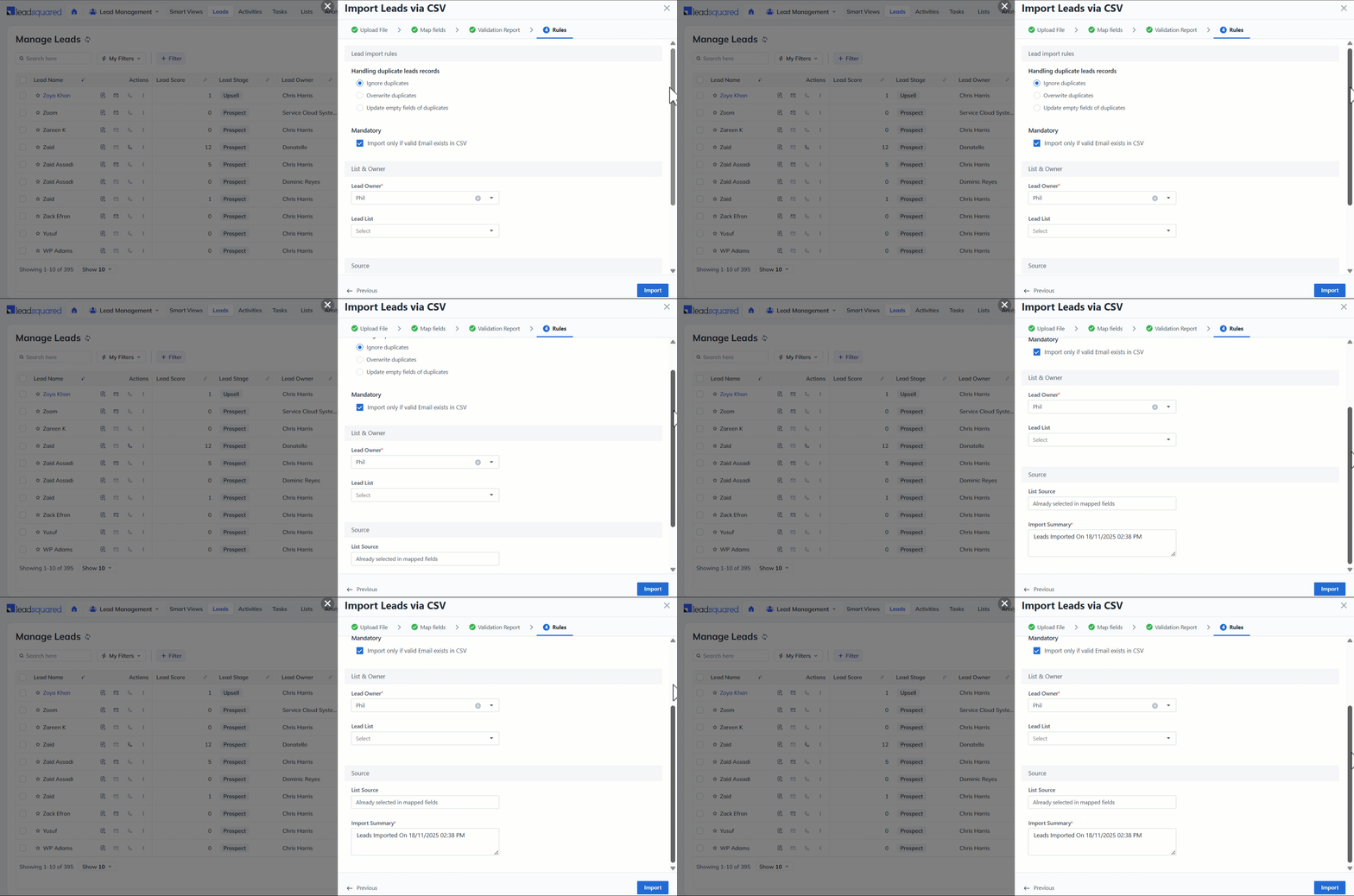
If a CSV file contains a lead with an email address that already exists in your LeadSquared account, the lead is considered to be a duplicate.

You have three options to handle duplicates –

  • Ignore duplicates – If you select this option, duplicate records will not be imported. This is the default option that is pre-selected.
  • Overwrite duplicates – If you select this option, the CSV file data will overwrite the data in your LeadSquared account. The following checkboxes will also be available for selection.
    • Import only if valid email exists in CSV
    • Do not update owner of existing leads
    • Do not create new leads – this will ensure leads are only updated and no new leads are created.
  • Update empty fields of duplicates – With this option, only empty fields of the duplicate records in LeadSquared will be updated with the data in the CSV file.

Uncheck the Import only if valid email ID exists in CSV if you want to import leads with invalid email addresses as well.

Here are some examples –

Assume that example@acmecorp.com already exists in your LeadSquared account. The CSV file you’re importing also contains the same Email Id.

Import Leads into LeadSquared

  • If you select Ignore duplicates, the lead will not be imported.
  • If you choose Overwrite duplicates, the lead fields you have chosen to map will update the existing lead in your account.
    • For example, if you selected First Name, Company and Lead Stage, only these fields will be updated for the existing record. The new values in LeadSquared will be John, Acme Corp and Prospect.
  • If you select Update empty fields of duplicates, lead fields which are empty in your LeadSquared account will be updated.
    • For example, if you have chosen to map Lead Stage, and that field is empty for the lead in your account, then only the Lead Stage will be updated to Prospect. The remaining fields will remain the same.

7.2 Select List and Owner

  • By default, the logged in user is displayed as the lead owner. You can change the lead owner from the drop-down.
  • You can assign the leads to a list you’ve created, or you can create a new list. If you want to create a new list, enter the list name and a description.
Note: When you create a new list, it gets created as a Static List. To learn more, see List Management.

7.3 Select Source

  • You can specify the source (organic search, referral sites, etc.) from which you obtained your leads.
  • The Import Summary Note option lets you enter text to specify details about the CSV file. For example, you could mention where you collected the data (Mall, Kiosk, Office, etc.), a partner you received the data from or even the old system (Zoho CRM, SalesForce, etc.)
Note: If you mapped a particular lead field in your CSV file to the Lead Source field in LeadSquared, then this option is automatically updated. You will not be allowed to make changes here. For instance, if a field named Reference is mapped to Lead Source, these details will get updated automatically.

Leadsquared - Import Leads


8. Send Import Report

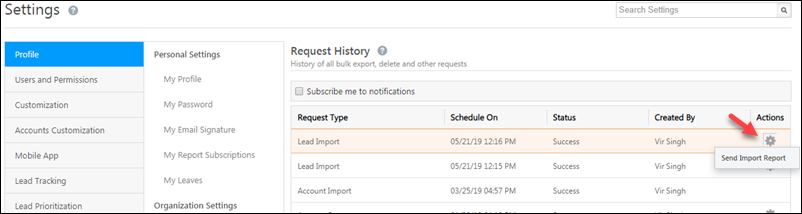
You can also view the Import Report by navigating to Settings>Profile>Request History. Alongside the relevant Request Type, click Settings icon and select Send Import Report to receive an email with the details of your import.

Import Leads into LeadSquared

Regardless of the Send Import Report option, once your import is complete, you’ll receive an email with a link to download your original CSV. This CSV will have two additional columns ‘ImportStatus’ and ‘ImportMessage’ to help you understand which records were imported/ignored. Correct the unprocessed records and restart the Import Leads process with the corrected file. Import Leads into LeadSquared


9. Data Formats

You may encounter some of the following situations –

  • When your CSV files contain date fields, example ‘Contacted On’, ‘Followed Up On’, ‘Birthday’, and so on, you should ensure that you’ve created a matching custom field in your LeadSquared account. For more information on how to create a custom field, see How to Create Custom Fields. Also, ensure that date fields have the correct format – dd/mm/yy or mm/dd/yy.
  • If your CSV file contains a field which can be represented through a drop-down, you could create a matching custom field to map it to during the import process.
  • If the CSV file contains a lead field of type ‘Boolean’, you can create a matching custom field and then map the information during the import process. If the field is empty then, by default it is mapped as ‘NO’ in LeadSquared.
    • For example, you may have a lead field for ‘Valid Passport’. If a lead in your CSV file has an empty value for this column, it will get mapped as a ‘No’ in your LeadSquared account.
  • If your CSV file contains a field for ‘Do Not Email‘  you can map it to the ‘Do Not Email’ field in your account.


Any Questions?

We hope this article was helpful. Please leave us a comment below if you have more questions.

How to Delete Leads?

1. Feature Overview

You can permanently delete leads from LeadSquared to maintain data hygiene and improve account performance. When a lead is deleted, all associated activities, tasks, and updates are permanently removed as well.

Note:

  • Bulk lead deletes are processed overnight.
  • To view deleted leads, access the Deleted Leads List report in the Reports section of your account.
  • To merge duplicate leads, see How to Merge Leads.
  • Deleting a lead does not remove LeadSquared’s internal audit record. To fully remove lead data for GDPR compliance, use the Delete Lead Backup feature.


2. Prerequisites

Admin users can delete leads by default. For other user roles, the Delete Leads permission must be explicitly enabled by an Admin through the Permission Template. For more information, see Permission Templates.


3. How It Works

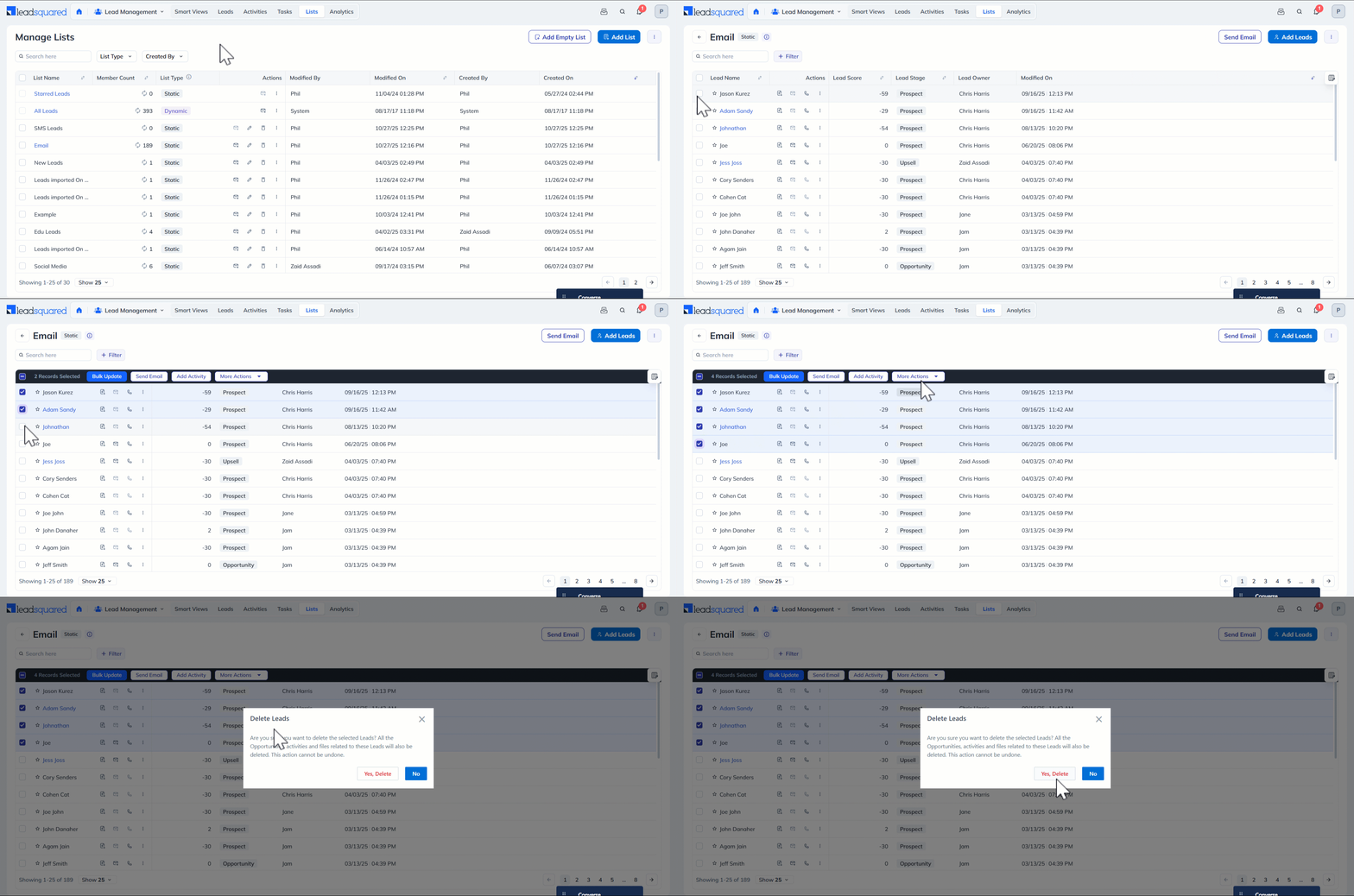
Leads can be deleted one at a time, in a selection, or in bulk. Three pages support lead deletion: Manage Leads, Lead Details, and Manage Lists. The method you use determines the scope of the deletion.

  • Single delete — removes one lead via the Actions menu.
  • Multi-select delete — removes a specific selection of leads using checkboxes.
  • Bulk delete — selects all leads displayed on a page and removes them. Bulk deletions are processed overnight.

Deleted leads can be reviewed in the Deleted Leads List report under the Reports section.


4.Delete Leads from Manage Leads Page

4.1 Delete a Single Lead

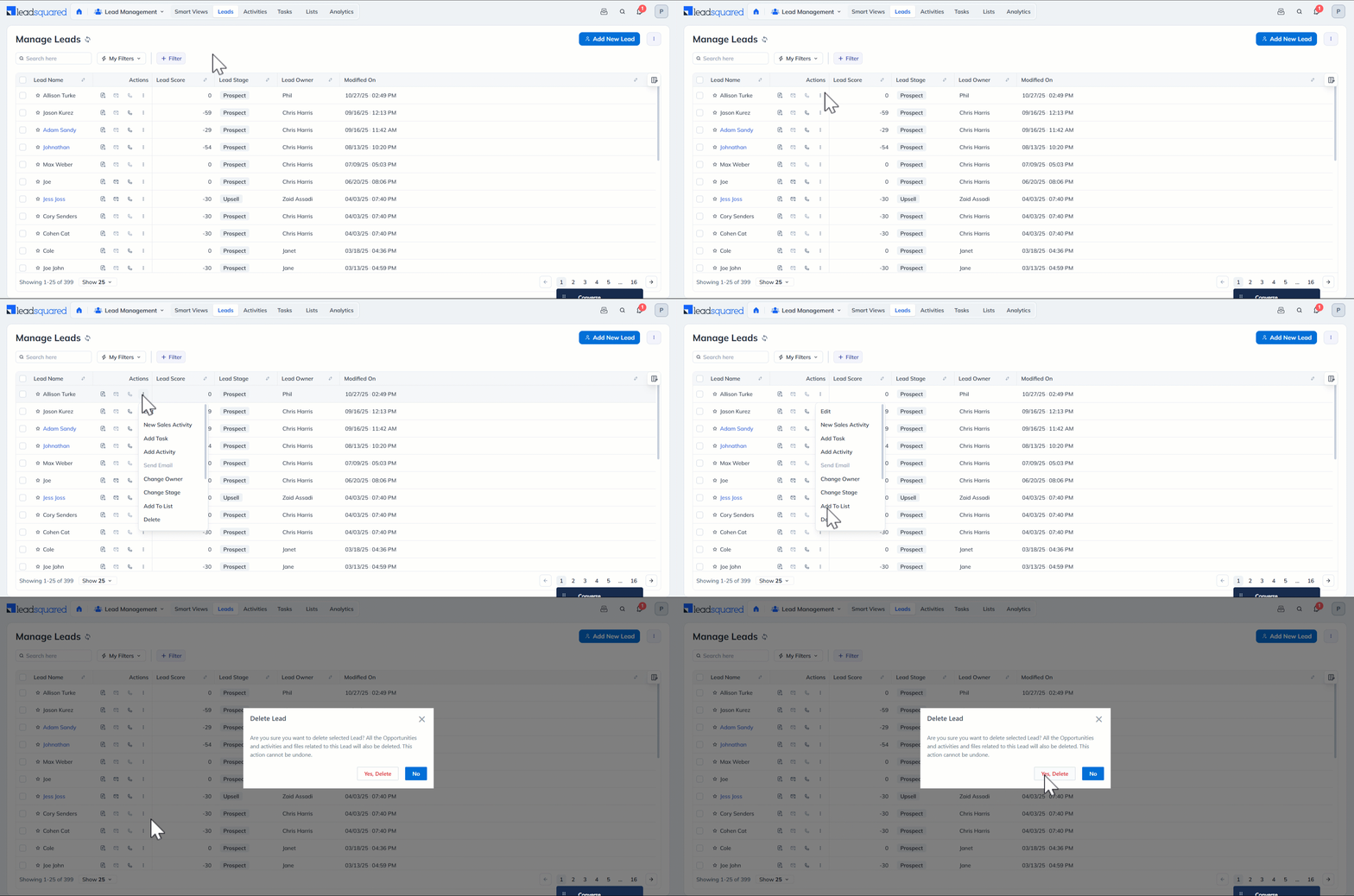
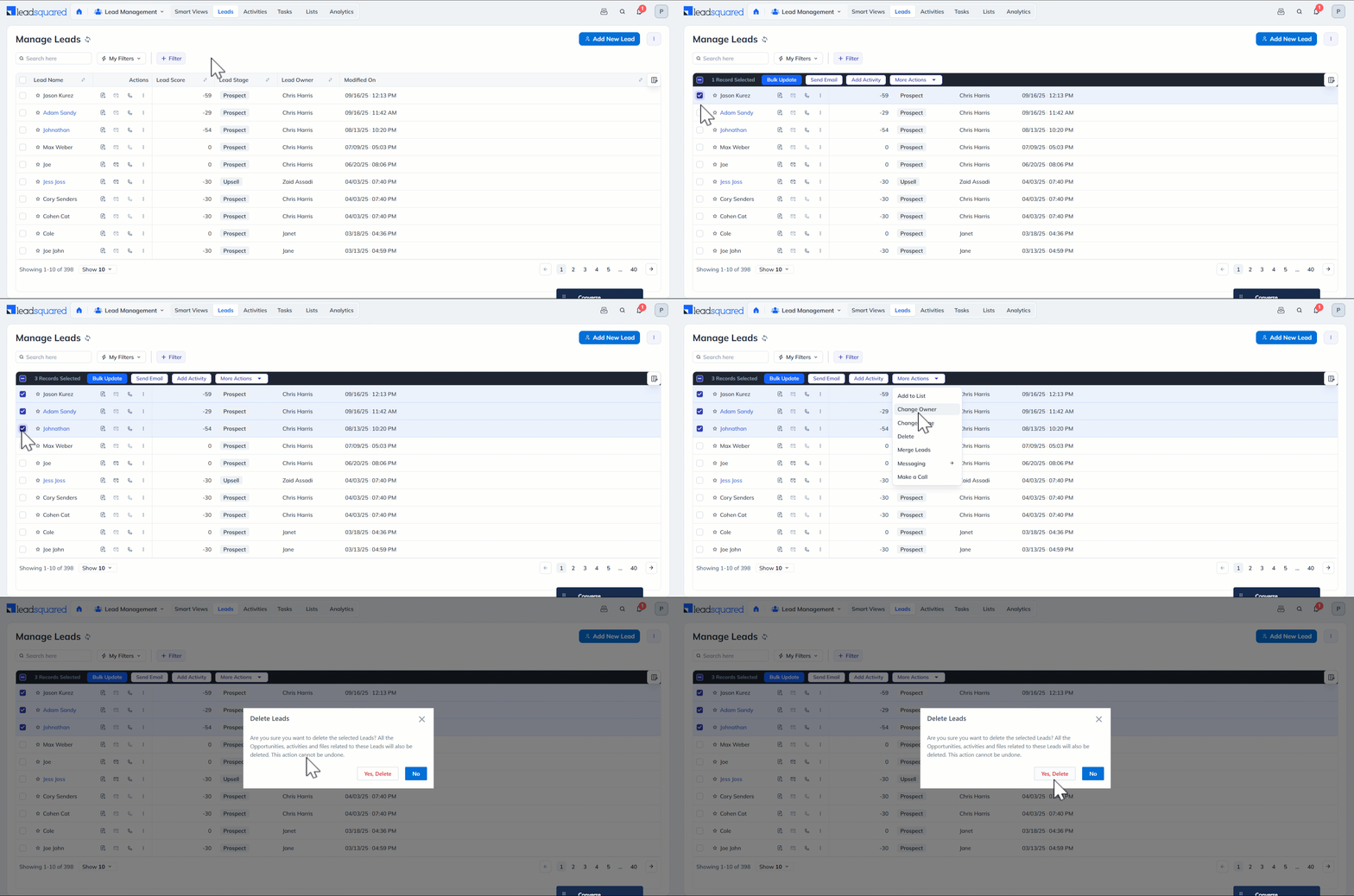
To delete a Single lead from the Manage Leads page –

  1. Go to Lead Management>Leads.
  2. Hover over the Actions icon alongside the lead and select Delete.
  3. Click Yes, Delete to confirm.

Leadsquared - Delete Leads

4.2 Delete Multiple Leads

To delete multiple leads from the Manage Leads page –

  1. Go to Lead Management>Leads.
  2. Select the checkboxes alongside the leads you want to delete.
  3. From the dropdown, select Delete.
  4. Click Yes, Delete to confirm.

Leadsquared - Delete Leads

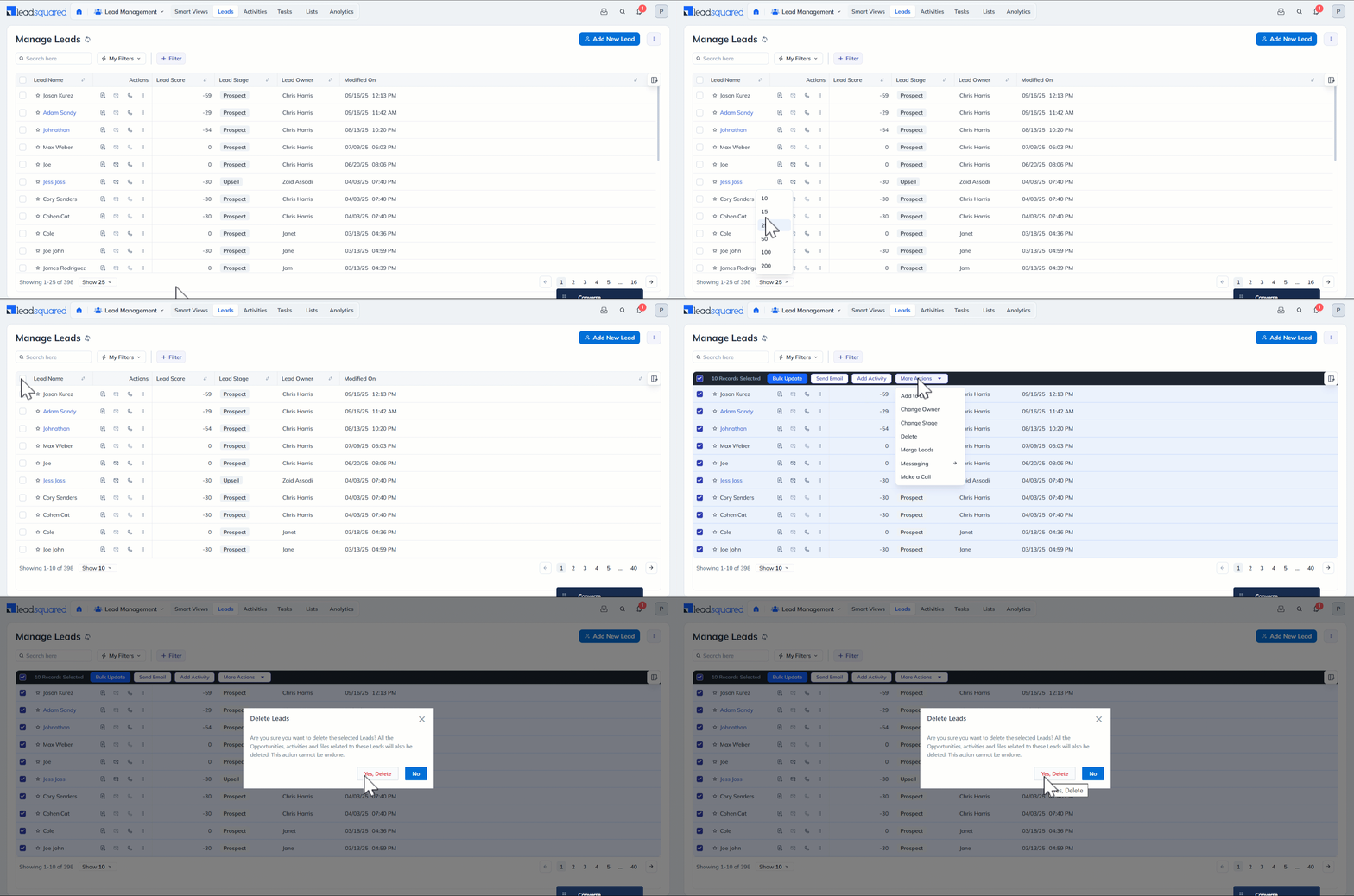
4.3 Delete Bulk Leads

To delete leads in bulk using the Manage Leads page –

  1. Go to Lead Management>Leads.
  2. Use the pagination control at the bottom to set how many leads are shown per page (10, 15, 25, 50, 100, or 200).
  3. Click the checkbox next to the Lead Name column header to select all leads on the page.
  4. From the More Actions menu, select Delete.
  5. Click Yes, Delete to confirm.

Leadsquared - Delete Leads


5. Delete Leads from Lead Details Page

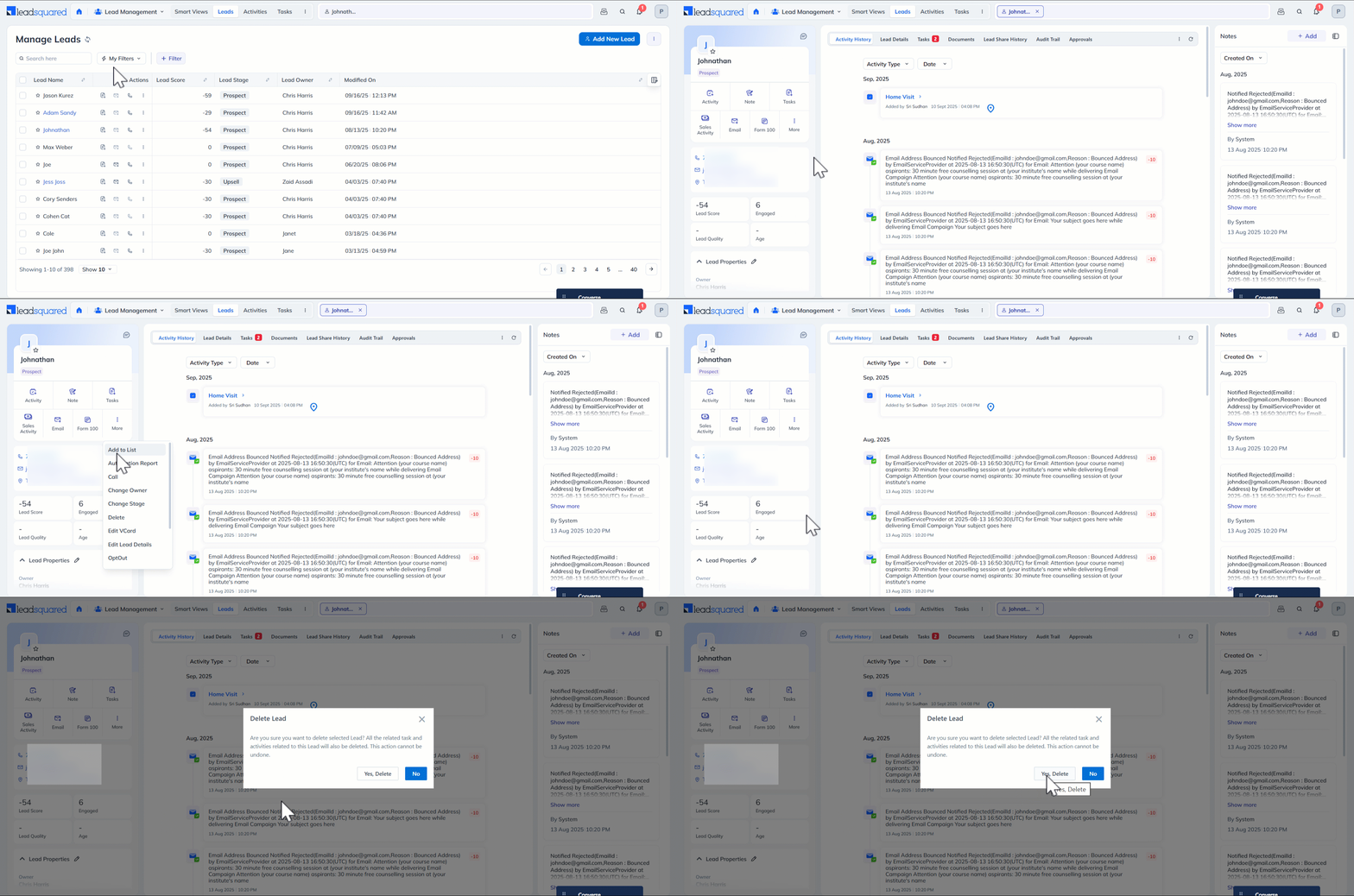
To delete a lead from the Lead Details page –

  1. Go to Lead Management>Leads and click the name of the lead.
  2. On the Lead Details page, open the More Actions menu and select Delete.
  3. Click Yes, Delete to confirm.

Leadsquared - Delete Leads


6. Delete Leads from Manage Lists Page

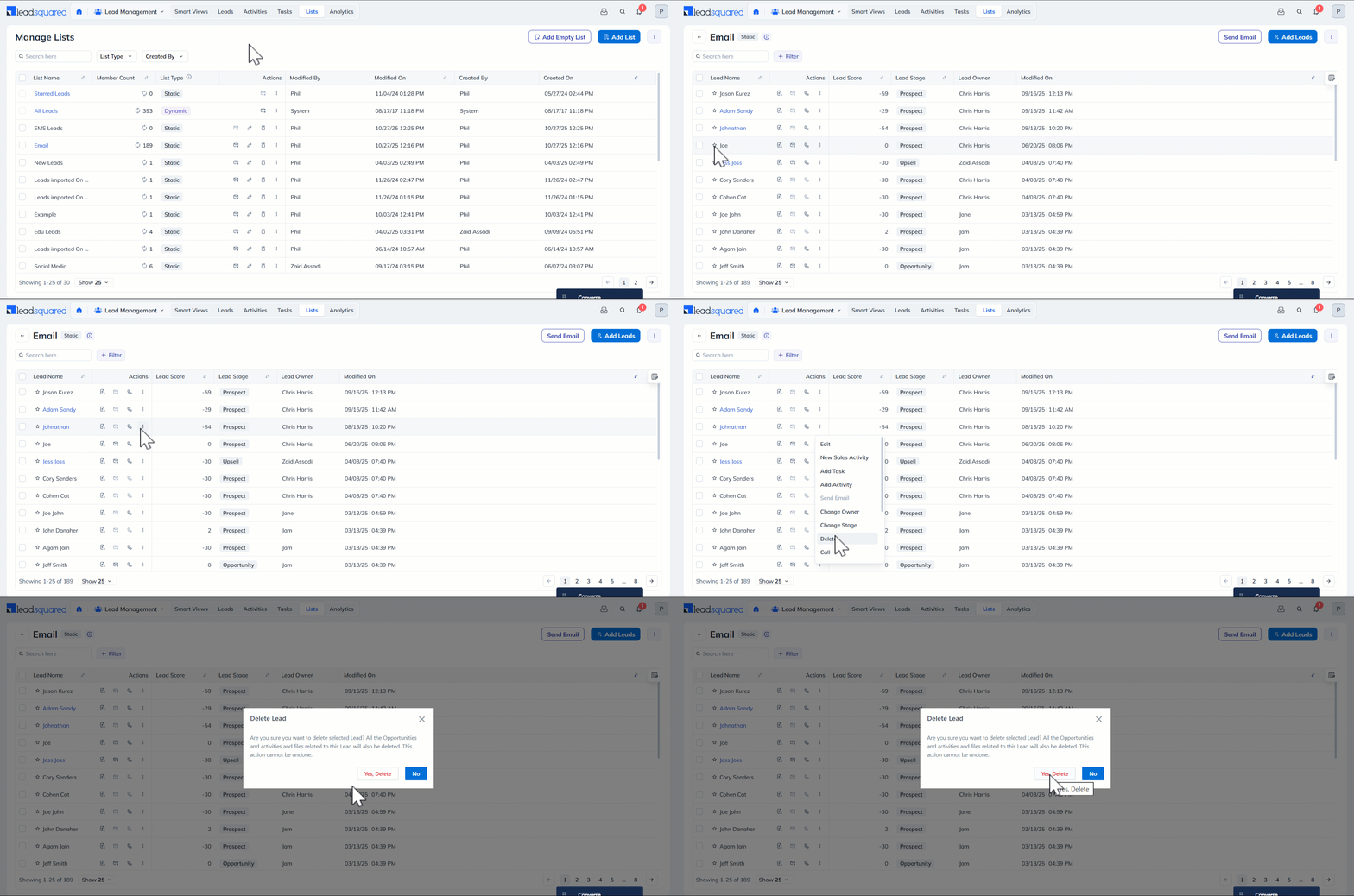
You must open an existing list or create one before deleting leads through this page. Deleting a list does not delete the leads within it. See List Management for details.

6.1 Delete a Single Lead

To delete a Single lead using Manage Lists –

  1. Go to Lead Management>Lists and open the relevant list.
  2. Hover over the Actions icon alongside the lead and select Delete.
  3. Click Yes, Delete to confirm.

Leadsquared - Delete Leads

6.2 Delete Multiple Leads

To delete multiple leads using Manage Lists –

  1. Go to Lead Management>Lists and open the relevant list.
  2. Select the checkboxes alongside the leads you want to delete.
  3. From the Actions menu, select Delete.
  4. Click Yes, Delete to confirm.

Leadsquared - Delete Leads

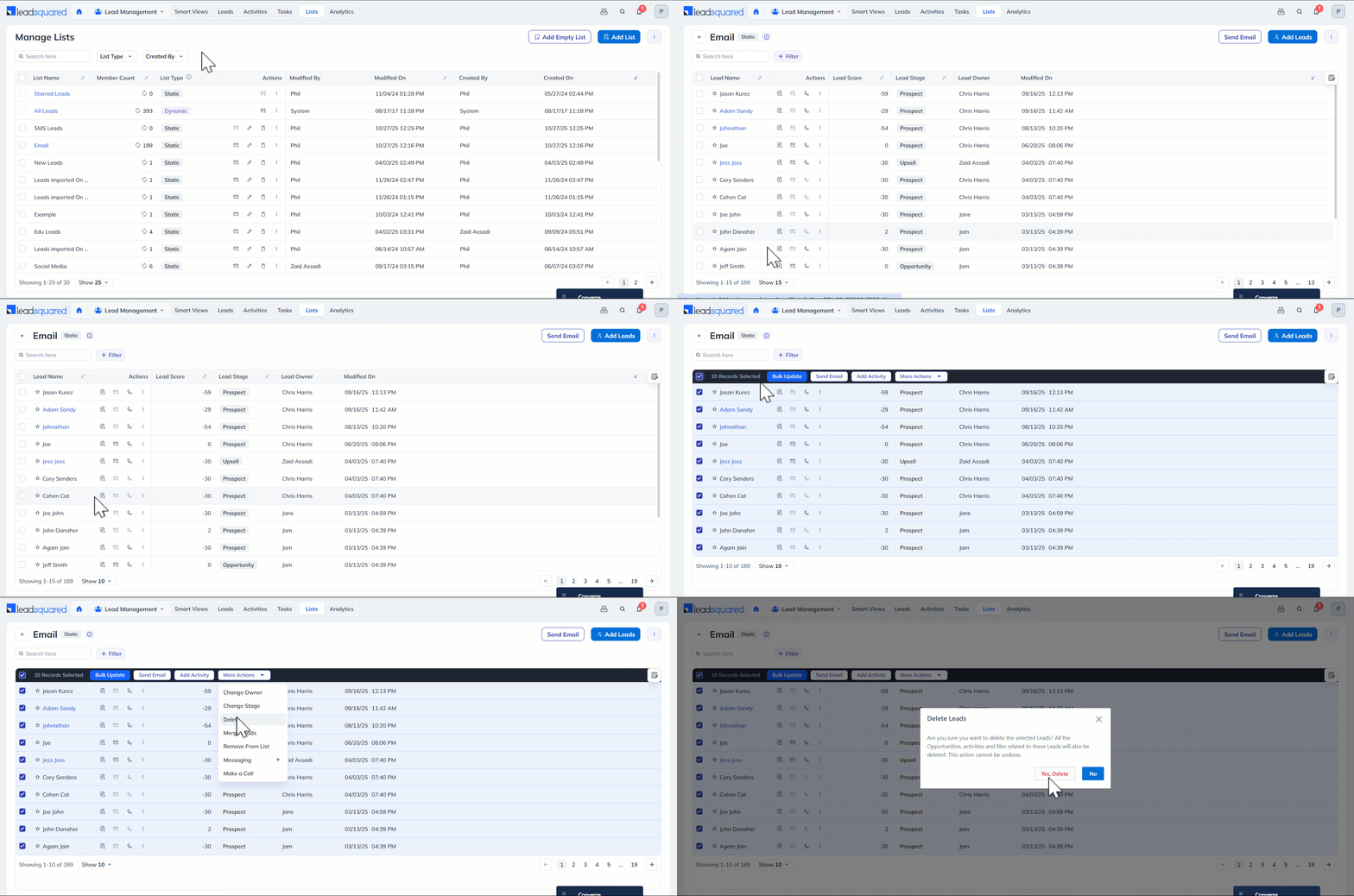
6.3 Delete Bulk Leads

To delete leads in bulk using Manage Lists –

  1. Go to Lead Management>Lists and open the relevant list.
  2. Use the pagination control at the bottom to set how many leads are shown per page (10, 15, 25, 50, 100, or 200).
  3. Click the checkbox next to the Lead Name column header to select all leads on the page.
  4. From the More Actions menu, select Delete.
  5. Click Yes, Delete to confirm.

Leadsquared - Delete Leads


Any Questions?

Did you find this article helpful? Please let us know any feedback you may have in the comments section below. We’d love to hear from you and help you out!

Lead Field Audit

1. Feature Overview

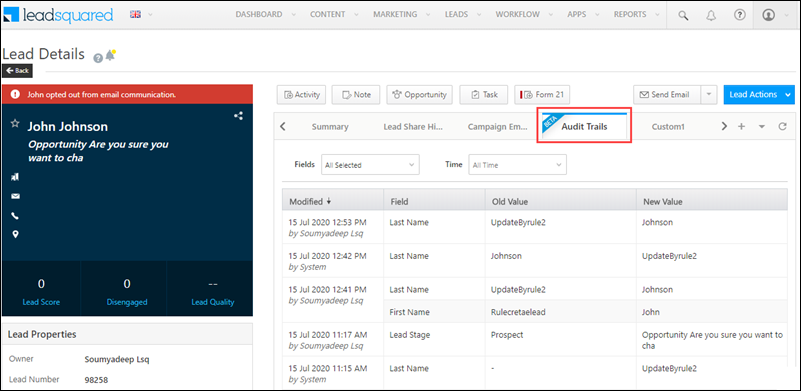
The Lead Field Audit helps you keep track of all the changes that have been made to your leads, by your users or the system (Automation, Rules, etc.). When enabled, you can view an Audit Trails tab on the lead details page where you can view the particular lead fields that have been changed along with the time stamp and user/system that made the change.

Audit


2. Prerequisites

  • This is a paid feature that’s available only on the Enterprise and Super plans.
  • To get this feature activated on your account, or to upgrade your plan, please write to support@leadsquared.com.


3. Audit Trails Tab

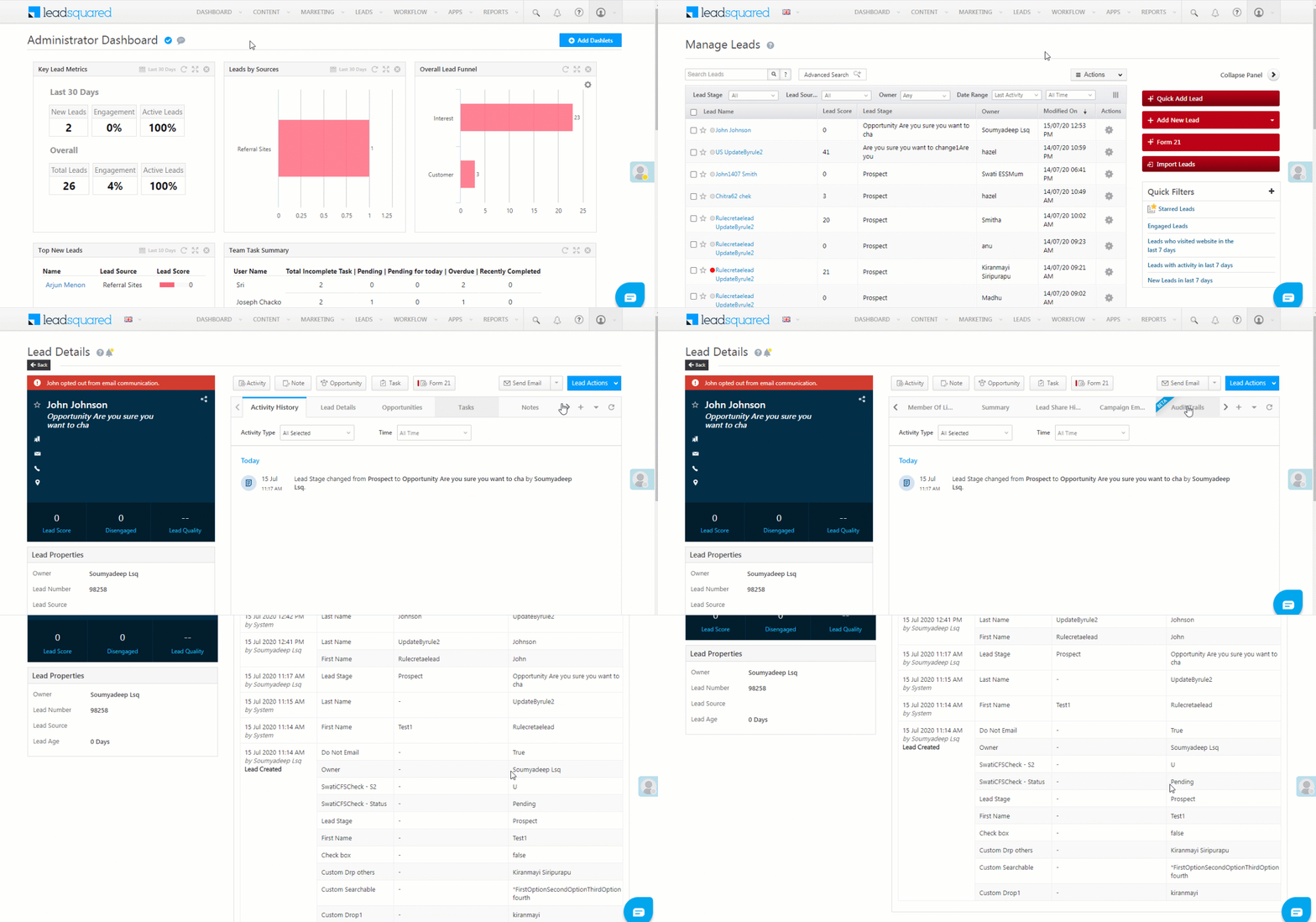
  1. From the main menu, navigate to Lead>Manage Leads, and click on any lead.
  2. On the list of tabs, click the Right Arrow arrow, and then click Audit Trails.
  3. Under Audit Trails, you can view the records of all the changes that have been performed on the lead.
Note: For individual as well as bulk updates, it takes around 15 minutes for the changes to reflect under Audit Trails.

Audit Trail


4. FAQs

Why Does the Date/Time Differ Between Lead Properties and Lead Audit Trail?

  • Issue: The date and time displayed in the Lead Properties differ from the date and time shown in the Lead Audit Trail.
  • Explanation:
    • In the Lead Audit Trail, the date and time are shown in UTC format (Coordinated Universal Time).
    • In the Lead Properties, the date and time are rendered in the account timezone format (e.g., IST – Indian Standard Time, UTC +5:30).
    • This discrepancy occurs because the Lead Audit Trail always logs changes in UTC for consistency, while the Lead Properties display information in the account’s configured time zone for user convenience.
  • Common Scenarios Addressed:
    • Different time zones for Lead Properties vs. Audit Trail.
    • Audit Trail showing UTC time, while Lead Properties display local time (IST).
    • Clarification on date/time discrepancies in LeadSquared’s Lead details.

This behaviour is by design to maintain standardization in the Audit Trail while offering localized time visibility in the Lead Properties.


Any Questions?

Did you find this article helpful? Please let us know any feedback you may have in the comments section below. We’d love to hear from you and help you out!

How to Share Leads for a Limited Duration

1. Feature Overview

LeadSquared’s Lead Share feature lets you share a lead with a sales user for a specific period of time. This feature is especially useful in scenarios where collaboration is required for a limited time without permanently transferring ownership or access to the lead. You can also control whether the user has view (read) or edit access to that lead.

This is different from Sales Groups. Sales Groups are used to organize users and give them ongoing access to leads. This access does not expire automatically and must be manually removed. Also, leads cannot be shared across different sales groups.

In contrast, leads shared using Lead Share are:

  • Shared for a limited time
  • Automatically revoked after the set duration
  • Can be shared with any user, regardless of group

Note:

  • There’s another Share Lead Via Email feature in LeadSquared which allows you to send a lead’s details to a user via email. The email includes some of the lead’s basic information and a link to the lead details page. However, only users who have access to the lead will be able to view the lead details page.
    Access (read, edit) to the lead can be granted (for a chosen period) by making use of the feature described in this article.
  • To share opportunities, see How to Share Opportunities for a Limited Duration.


2. Example Use Cases

Cross-team collaboration

In organizations with multi-stage sales processes, different teams may interact with the same lead at different stages. For example, a pre-sales team qualifies a lead and schedules a meeting, after which the sales team takes over for conversion. During this transition, the pre-sales team may still need temporary access for follow-ups or clarifications. Lead Share enables controlled, time-bound access without permanently assigning the lead.

Activity-based access

Certain workflows require specialized actions to be performed by different users. For instance, a lead may need to undergo loan evaluation, credit checks, or technical validation. The lead owner can share the lead with the respective user responsible for the activity, granting access only for the duration required to complete the activity.

Field sales coordination

In field sales scenarios, a user may need to collaborate with another representative who is geographically closer to the lead. The lead can be temporarily shared to enable coordination for meetings or site visits, without permanently transferring ownership.


3. Prerequisites

  • This feature is not available by default. Reach out to us at support@leadsquared.com to get this feature enabled for your account.
  • You must be an administrator user to set up a lead share automation.


4. How It Works

The Lead Share feature in LeadSquared works through automation triggered by activities. Once set up, leads are automatically shared with the relevant sales user when a specific activity is created or updated.

  1. Create an automation: An administrator must create and publish an automation that includes the Share Lead action.
  2. Trigger the automation using an activity: The automation is triggered when a selected activity (any custom activity) is added or updated on a lead.
  3. Share the lead with the activity owner
    • In the automation:

      • The lead is shared with the activity owner (the user assigned to the activity)
      • You can define:
        • The access level (View or Edit)
        • The duration (minutes, days, months, etc.)
  4. Sales User gets temporary access: Once the activity is logged, the selected sales user can access the lead from pages like Manage Leads and Smart Views, based on the permissions assigned.
  5. Access is automatically revoked: After the specified duration expires, the sales user’s access to the lead is automatically removed (no manual action required).


5. Setting Up Lead Share

Lead sharing is set up in two steps –

  1. Activity forms must capture the Activity Owner.
  2. Creation and publishing of an Automation where lead share is triggered when the activity is posted.

5.1 Ensure Activity Owner is Captured

  1. Navigate to Settings>Leads>Custom Activities & Scores.
  2. Click the edit icon alongside the the activity type you want to add/update as the trigger for lead share.
  3. On the Update Custom Activity Type pop-up, navigate to step 3 of 3.
  4. If the Owner field is under the Available Fields section, drag and drop it into any of the form sections.
  5. Click Save.

Leadsquared - Share Leads for Limited Duration

5.2 Create an Automation

  1. On your main menu, navigate to Workflow>Automation and click the Create Automation button.
  2. Select the New Activity on Lead or Activity Update on Lead trigger*.
  3. Choose any custom activity, then click Save.
  4. Click the plus icon. Under Actions, click Lead Actions, then click Share Lead.
  5. Configure the Share Lead settings –
    1. For the Share with option, select Owner in Trigger.
    2. Select the duration you want to share the lead for.
    3. Select the access as either View Lead or Modify Lead.
    4. Click Save.
  6. Now click Publish to make the automation live.

*The lead share option will only appear under the Activity Create and Update triggers and the Create Activity action.

Leadsquared -Share Lead for a Limited Duration

Now that the automation is published, whenever the chosen activity is posted on a lead, the lead will be shared with the activity owner for the specified duration. For more information on activities, see Manage Activities. The sales user will now be able to view the lead after logging in.


6. Lead Share History Tab

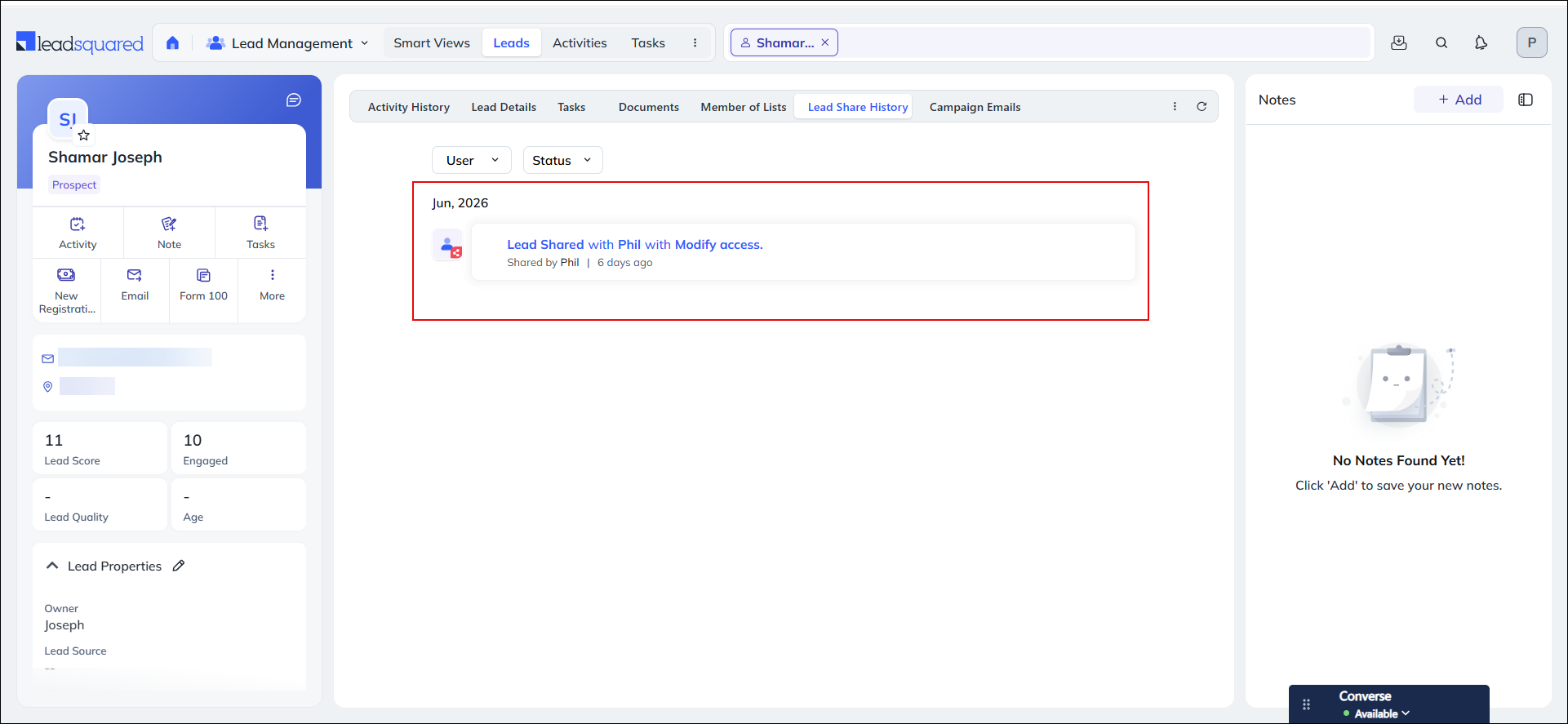
You can view the lead share history for any particular lead, with details such as the activity, the duration the lead was shared for, and the lead share source (API or Automation). The page can be filtered by users the lead was shared with and the share status (Processing, Completed, Failed). The tab is available on the Lead Details page.

Leadsquared - Share Leads


Any Questions?

Do you have questions or issues with the content in this article? Let us know in the comments section below. We’ll get back to you asap!

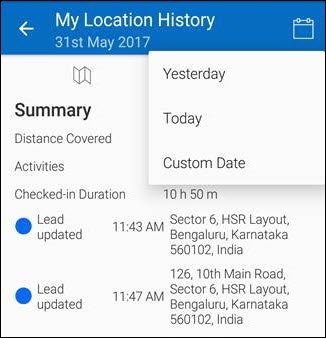
How to Use the My Location History Report?

The My Location History report allows you to track your route on the go, the distance you have covered and the activities you have posted along the route.

To access this report:

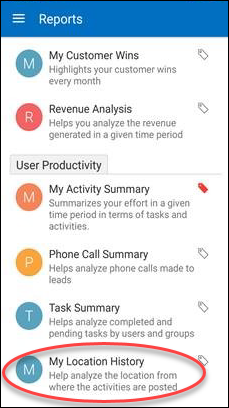
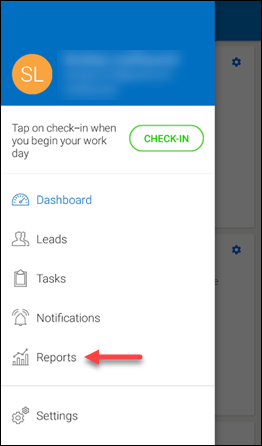
  • From the default dashboard menu, go to Reports -> User Productivity Reports -> My Location History. The My Location History report appears:

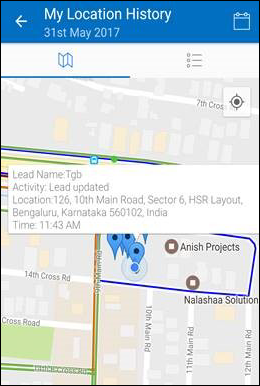
Here, by default, the Map view tab of the report appears as shown in the image above. Here you can view the following:

  • Routes you have taken
  • Checkin-Checkout locations
  • Activities posted from different locations

To view the details of the above:

  • To view the details of the Activity posted, tap on any of the blue pins.
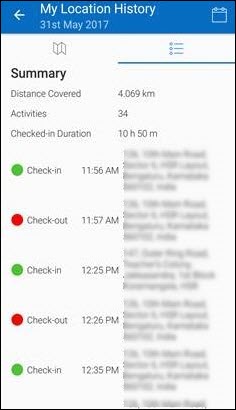
  • To view your location history details, tap the List view tab on the right.

  • To filter by date, click the calendar icon on the top-right corner to view by Date. By default, you can view the location history of a day before.

Location Tracking on LeadSquared Mobile

The LeadSquared mobile app comes with real-time location tracking capabilities. This feature is available on both Android and iOS platforms and enables you to –

  • Geo track your entire field sales team.
  • Get real-time location insights and metrics.
  • Find leads closest to you and plan tasks accordingly.


Prerequisites (on your device)

  • You must have a working internet connection.
  • The GPS and Location Services must be turned on.
  • Runtime permissions for LeadSquared must be enabled.
  • Ensure that you’re running the latest version of the LeadSquared App (Android or iOS).
  • Ensure that the location accuracy on your device is set to the highest level.
  • The LeadSquared mobile app should continue running in the background. If you’re using a Xiaomi, Asus, OnePlus, Micromax, Lenovo, Intex or Panasonic device, you may have to allow the LeadSquared app to ‘Autostart’. To do this –
    • Go to Settings>Security>Permissions>Autostart (May differ depending on the device)
    • Enable auto-start for the LeadSquared mobile app.


Geotracking Your Users

To track the location of users (your sales team for instance) make sure –

  1. Location tracking has been enabled via the LeadSquared web app.
  2. Your users are checking-in and checking-out of the mobile app.

For more information on mobile permissions and setting up check-in/check-out, see Mobile App Permissions.

In addition, you can also track the locations from which your users are posting activities. See Enable Geo Tracking for LeadSquared Mobile App Users.

You can use the following reports to get insights and compare user metrics for the geotracking you’ve set-up –


Leads Near Me

The Leads Near Me feature helps you plan your day by showing you which leads are closest to you.
To get the most out of this feature, make sure you’ve updated the location coordinates of your leads (through the web app or mobile) so their locations show up on your map. See How to Update Lead Location through Mobile.

Ozonetel v2 Connector

Important: The Ozonetel V2 connector is no longer listed on the Apps Marketplace. Customers onboarded after 28th Feb will be unable to install it, but we’ll continue to provide support for existing installations. For new installations, please use the Universal Telephony Connector instead.

The Ozonetel v2 connector lets you integrate your Ozonetel account with LeadSquared. It makes it possible for you to –

  • Prevent lead leakage by logging incoming and outgoing calls as leads and activities.
  • Make calls directly from LeadSquared.
  • Access call recordings
  • Automatically route calls to lead owners.
  • Trigger the agent pop-up to easily update lead and activity details.
  • Manage inbound/outbound campaigns and send leads to campaigns through lists and automation.

This article takes you through –

  1. Installing the connector from the apps marketplace.
  2. Configuring the connector in your LeadSquared and Ozonetel accounts.
  3. Actions that appear in Lists and Automation after successful configuration.

Note: Existing customers using the previous version of the Ozonetel connector can first uninstall the old version and then install and configure Ozonetel v2 as instructed in this article.


Installation

Prerequisites for using the connector –

  • You must be a LeadSquared administrator user.
  • You must have an Ozonetel CloudAgent account.

To install the connector, from your LeadSquared account –

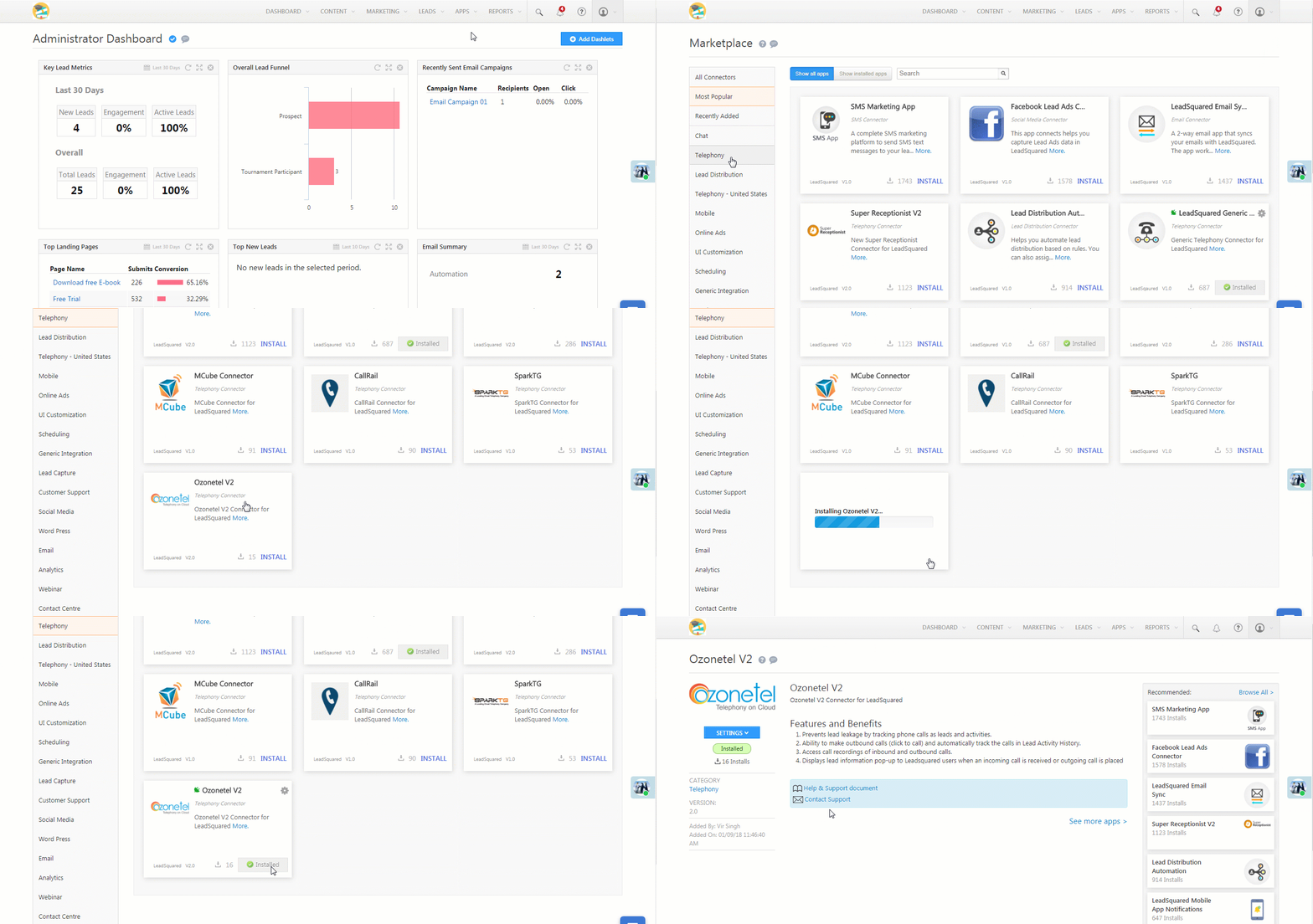
  1. Navigate to Apps>Apps MarketPlace>Telephony.
  2. Click Install under the Ozonetel v2 connector. Once installed, click to open the connector.

Ozonetel navigation


Configuration

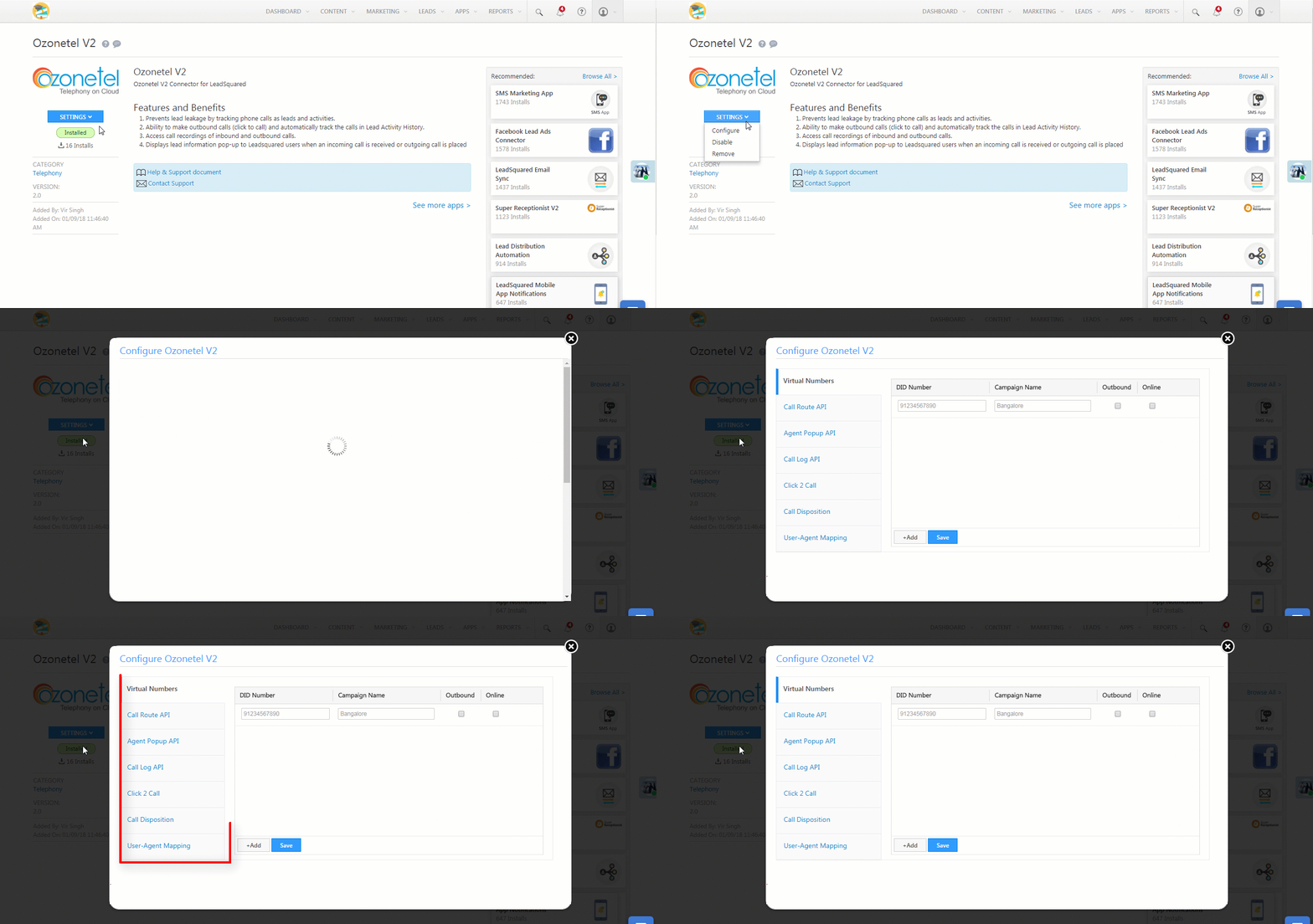
  1. Under Settings, click Configure.
  2. On the Configure Ozonetel v2 pop-up, you’ll see multiple configuration steps starting with Virtual numbers. The followings sections will take you through each configuration step.

Configure Ozonetel


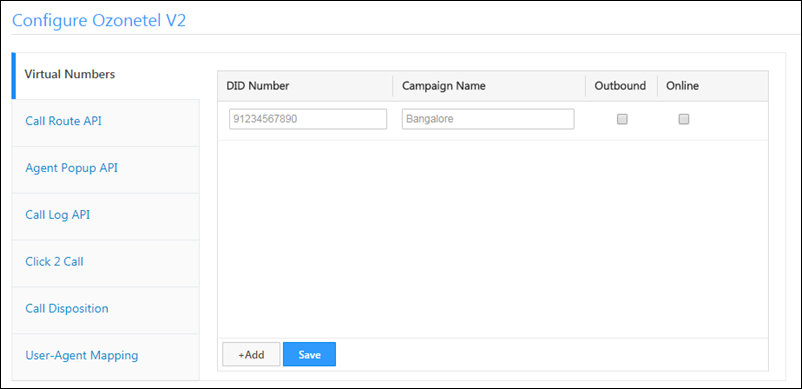
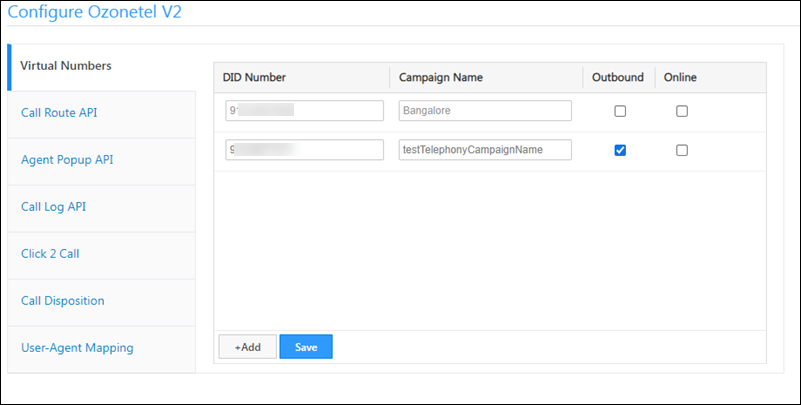
Virtual Numbers

Virtual Number Configurations

Enter these details in the ‘Virtual Numbers’ section –

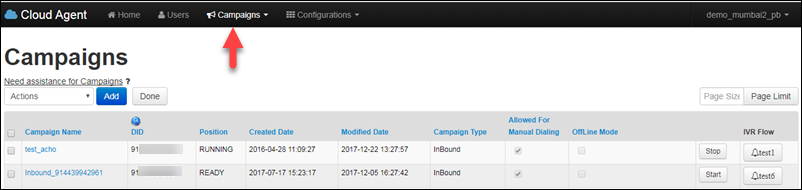
  • DID Number: These are Direct Inward Dialing numbers unique to your OzoneTel Cloud Agent account.
  • Campaign Name: The name of the call campaign in your Ozonetel account.
  • Outbound: Whether the campaign is inbound or outbound.
  • Online: Whether the campaign is online or offline.

To find these details, navigate to the Campaigns tab of your Ozonetel account.

Ozonetel campaigns tab


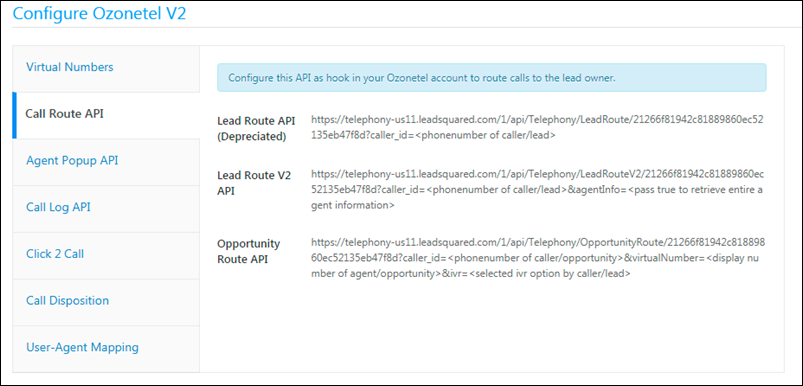
Call Route API

Ozonetel Connector

This API is used to get the lead/opportunity owner. It is setup up automatically. You aren’t required to do anything in this step.


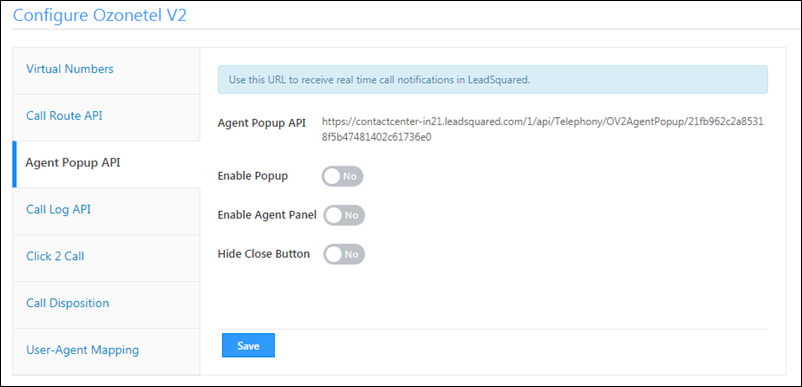
Agent Popup API

Agent pop-up config

You can configure these options (Yes/No) –

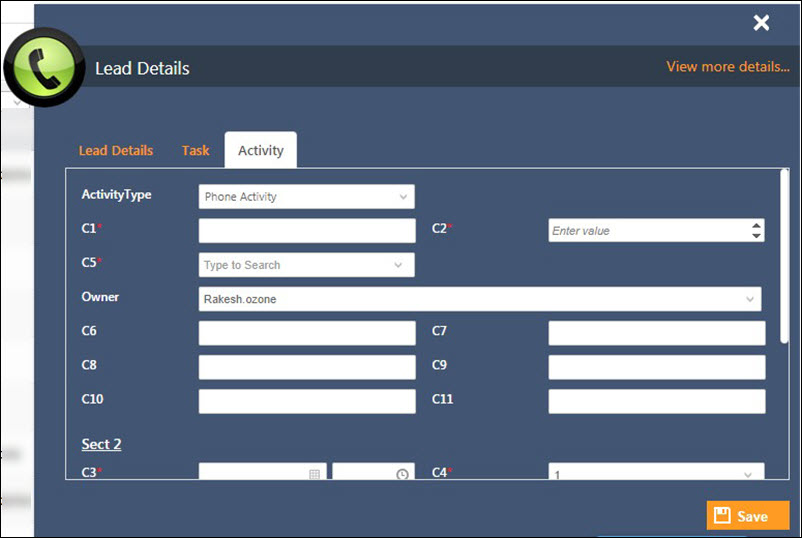
  • Enable Popup: Choosing ‘Yes’ triggers the agent pop-up to appear everytime an incoming or outgoing call takes place. It allows users to enter lead, task and activity details as the call progresses. The agent pop also has a ‘Pause Campaign’ option which allows users to temporarily pause receiving incoming calls.
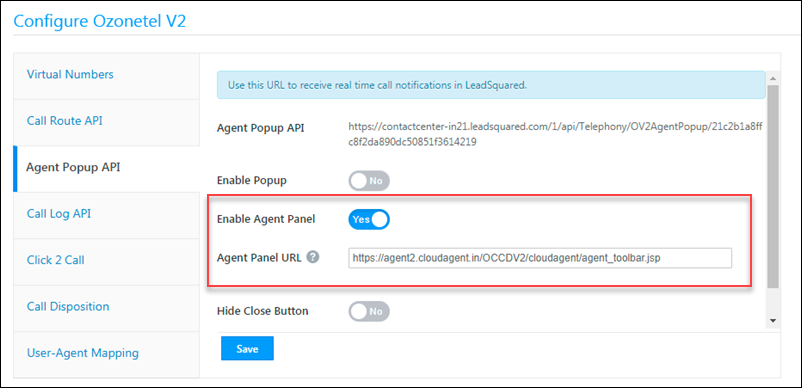
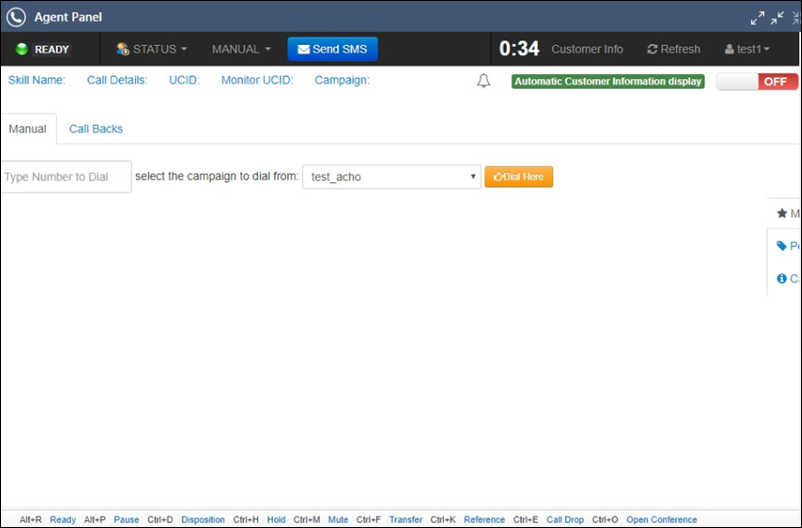
  • Enable Agent Panel: The agent panel gives you a convenient way to manage your call center actions directly from your LeadSquared account. You can add a custom URL here, and append mail merge parameters (click the help help icon).

Agent Panel Custom URLs

  • Hide Close Button: If you enable this option, users won’t be able to see the close button on the agent pop-up. This prevents them from accidentally closing the pop-up in the middle of a conversation.
Note: If you have multiple leads with the same phone number, you can pass the LeadId in the Agent Popup API. This will ensure that the correct lead details appear in the agent popup. For e.g., "LeadId": "4c70ce73-0732-4977-85a2-fb49a978b85c".

Here’s an example of an agent pop-up –

And here’s an agent panel –

panel ozonetel


Call Log API

Logging Calls

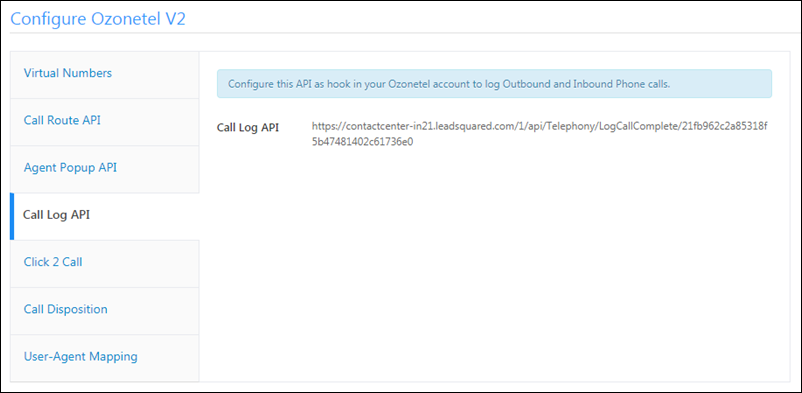
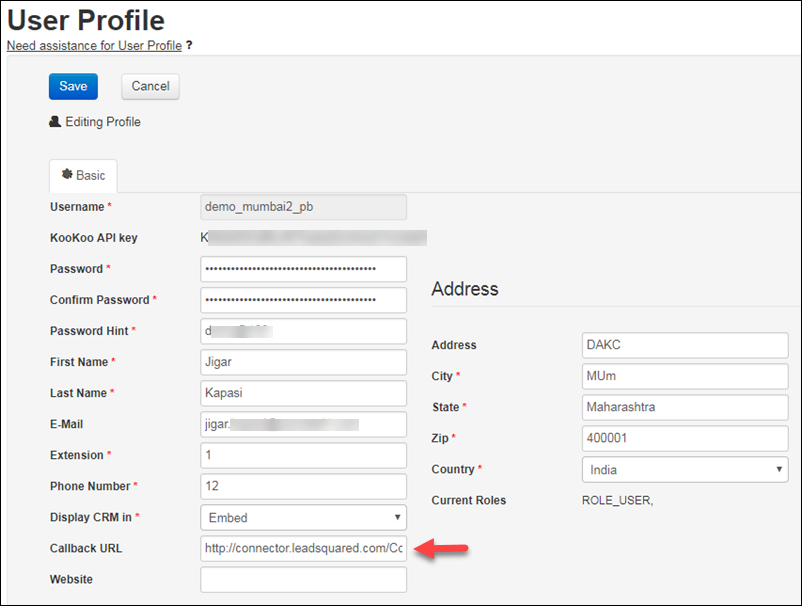
The call log API enables LeadSquared to capture all the details of your phone calls. Copy the Call Log URL and paste it in the Callback URL field in the profile page of your Ozonetel account.

Click 2 Call

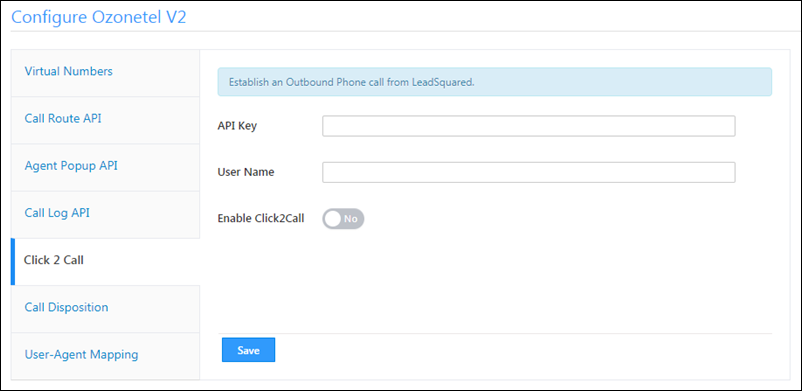
Enable click 2 call

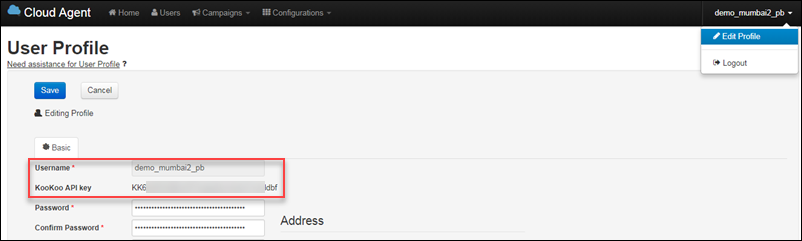
If you want to make outbound phone calls from LeadSquared, you have to enter your Ozonetel API key, User Name and then enable the Click2Call option. You can find your API key and username on the profile page of your Ozonetel account.

Ozonetel Keys

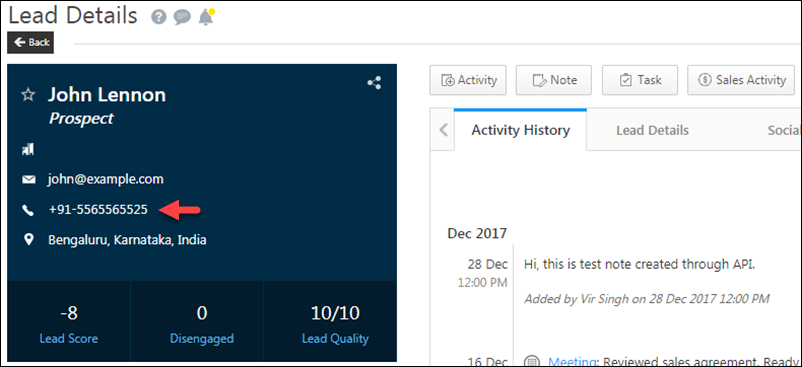
Once configured, you can make phone calls directly from the Lead Details page.

Click 2 Call

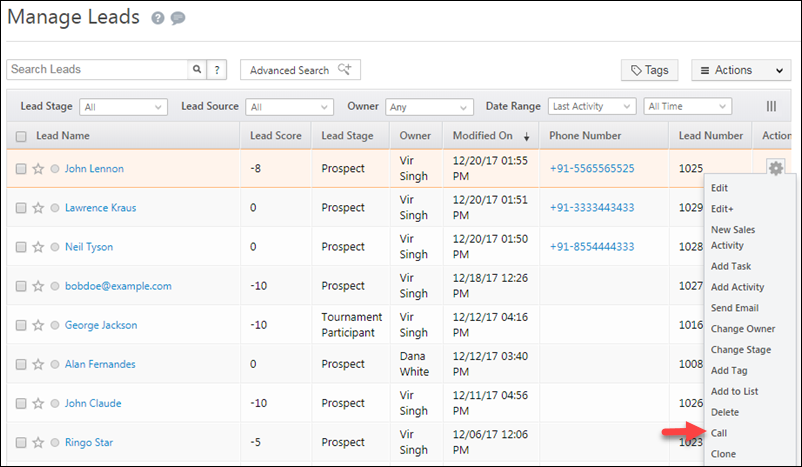
And the Manage Leads page.

Click 2 Call from Manage Leads


Call Disposition

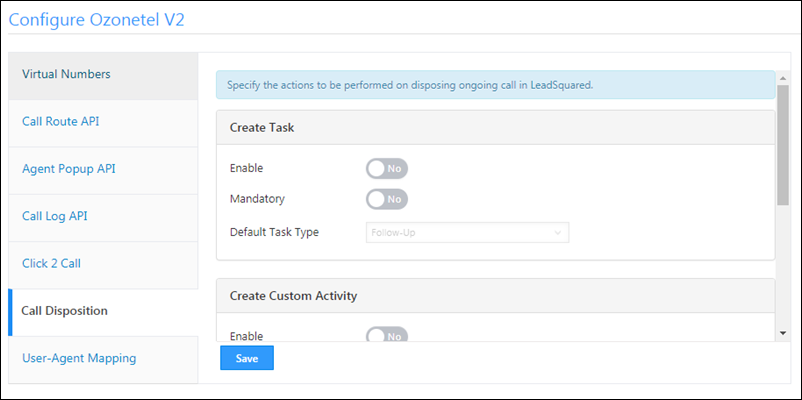
Ozonetel Disposition Config

Set up your call disposition preferences here –

  1. Create Task: Automatically creates a task when a call is completed. You must also specify the default task type (meeting, follow-up, etc.).
  2. Create Custom Activity: Automatically creates a custom activity in LeadSquared. If you enable this option, you have to select a custom activity type.
  3. Lead Field Update: Automatically updates a lead field when a call is completed. You must specify the lead field to update.


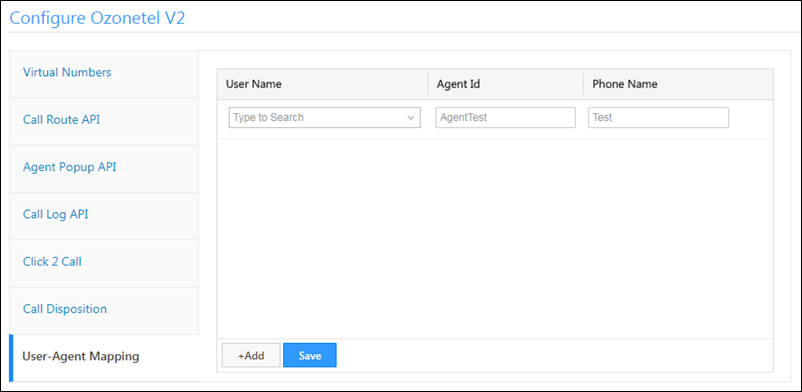
User-Agent Mapping

Ozonetel Mapping

Here’s where you map your Ozonetel agents to LeadSquared users.

  • In the User Name column, enter the name(s) of your LeadSquared users.
  • In the Agent Id column, enter the Ozonetel Agent Id(s). You can find them on the Agents page under Configurations in your Ozonetel account.
  • You can find the Phone Name on the Phone Numbers page under the Configurations tab in your Ozonetel account.


Lists & Automation Actions

You can trigger new actions in Lists and Automation after successfully configuring the Ozonetel v2 connector.

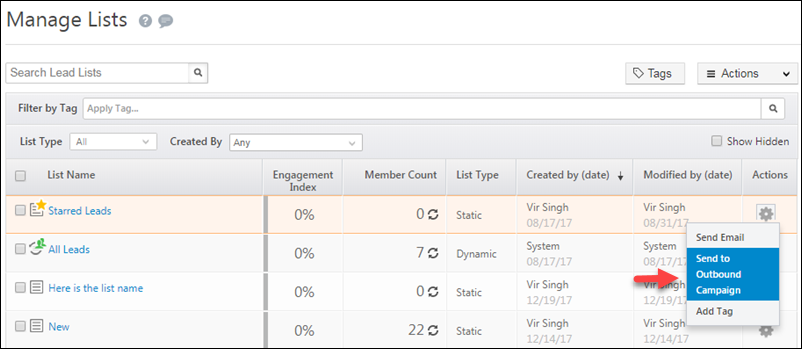
1. Send leads in a list to an outbound campaign from the Manage Lists page.

New List Action

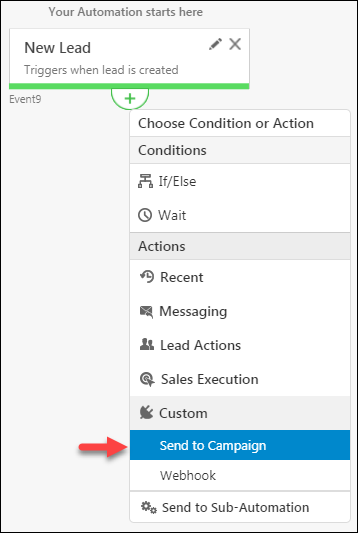
2. You can also ‘Send to Campaign’ as an automation action.

Send to ozonetel cmpaign


Mapping Virtual Numbers/Campaigns to Users

  • For customers using the Ozonetel telephony connector, you can now assign campaigns/virtual number to individual agents. To do this –

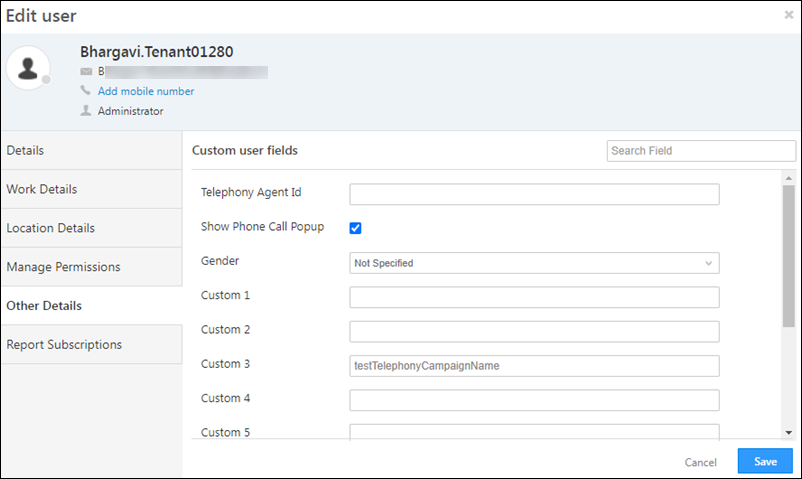
Step 1 – Store the Telephony Campaign name in a User Custom Field

  1. Navigate to My Profile>Settings>Users and Permissions>User Fields, and Edit the user you want to assign a campaign/virtual number to.
  2. Enter the campaign name in the custom user field. The campaign name is case-sensitive, therefore enter the campaign name as configured in the Ozonetel connector.
  3. Once you’re done, click Save.

Ozonetel Integration with LeadSquared


Step 2 – Update the Connector Configuration

  1. Navigate to Apps>Apps Marketplace, and open the Ozonetel V2 connector configuration.
    • Alternatively, if you are using the Universal Telephony Connector (UTC), then navigate to the Ozontel instance within the Universal Telephony Connector.
  2. In the virtual numbers tab, ensure the campaign names are listed correctly, alongside the virtual numbers.

Ozonetel Integration with LeadSquared

iii. Then, navigate to the Click 2 Call tab, and enable the Ozonetel Integration with LeadSquared slider alongside Enable Virtual Number Filter, select the custom field you’ve created in the previous step, and click Save.
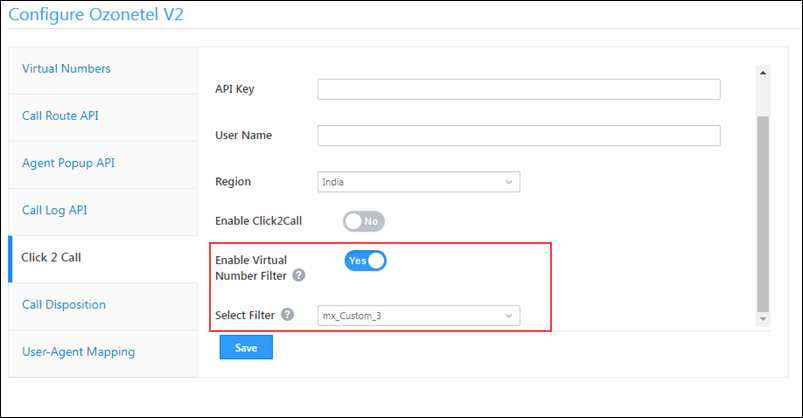
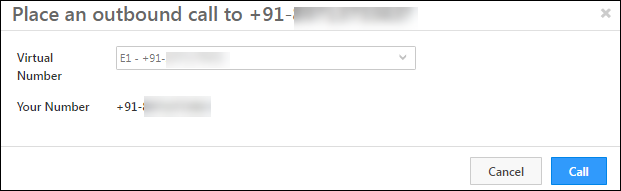
Ozonetel Integration with LeadSquared

iv. Finally, when an agent places a phone call, only the virtual number/campaign mapped to the user will be available to place the phone call from.

Ozonetel Integration with LeadSquared

Note: Only one-to-one mapping is supported (you can only map a user to one virtual number/campaign).


Troubleshooting

Why is the agent panel not working?
The Ozonetel Agent panel is loaded in our iframe. If the login page is not being loaded please reach out to us at support@leadsquared.com. If the login page is loaded and you can’t log in, contact the Ozonetel team.


Integrate with Opportunities

You can integrate the Ozonetel v2 connector with LeadSquared Opportunities. To know how to do this, please refer to Opportunity Integrations in Telephony.

This will enable you to track phone call interactions with your leads, for each opportunity or potential deal. Completed calls will get posted as activities, against the respective opportunities, on the Opportunity Details page.


Any Questions?

Did you find this article helpful? Please let us know any feedback you may have in the comments section below. We’d love to hear from you and help you out!

Limit the Number of Leads Assigned to a User – Lead Assignment Quotas

1. Feature Overview

The Lead Assignment Quota feature gives you granular control over lead distribution. You can set limits on the number of leads that can be assigned to users based on quotas defined at the user role level (such as Sales User, etc.), or individual user level. This will help prevent overburdening your users with too many leads, based on the following criteria –

  • Role Level – You can set quotas based on the user role (such as Sales User, Sales Manager, etc.).
  • User Level – You can set quotas for individual users in your organization (such as for users John, Paul, George and Ringo).
  • Duration – You can set quotas based on daily or weekly durations (such as assigning 5 leads to all users daily, 20 leads to all users weekly, 100 leads to all users monthly, etc.).

This article details how you can configure lead assignment quotas across daily, weekly and monthly cycles at the Role level or User level.

  • For the Role level, all you need to do is configure the Lead Assignment Quota, and it will be applicable across the selected user role in your account. No additional configuration is required when you set up the lead distribution automation. This quota will apply to manual lead distributions (for e.g., if a manager assigns leads to a user) and to lead distributions set up via automation (using the lead distribution automation card).
  • For the User level assignment, once you’ve set up the assignment quotas, you’ll have to configure the ‘Distribute Lead’ card of an Automation to execute the lead assignment quotas defined on the Settings page.


2. How it Works

First, configure the Lead Assignment Quota settings. You can set up quotas on both Role-level and User-level –

  • For Role-level lead assignment, once you configure the Lead Assignment Quota settings, no further steps are required while setting up the lead distribution automation. Once the settings are saved, it’s applied to the selected Role level across your organization.
  • For User-level lead assignment, when you set up an automation using the Distribute Lead card, select a relevant quota you configured in the previous step. Once you’ve selected the quota, configure whether the lead assignment quota should apply to daily, weekly, or monthly cycles. Once this is done, Publish the automation. Your users will start receiving leads according to the quotas you’ve defined.


3. Configure Lead Assignment Quotas

You can configure the Lead Assignment Quota on the Role Level (such as Sales User, Sales Manager, etc.) and User Level (such as assign leads to users John, Paul, George, and Ringo).

To enable this feature –

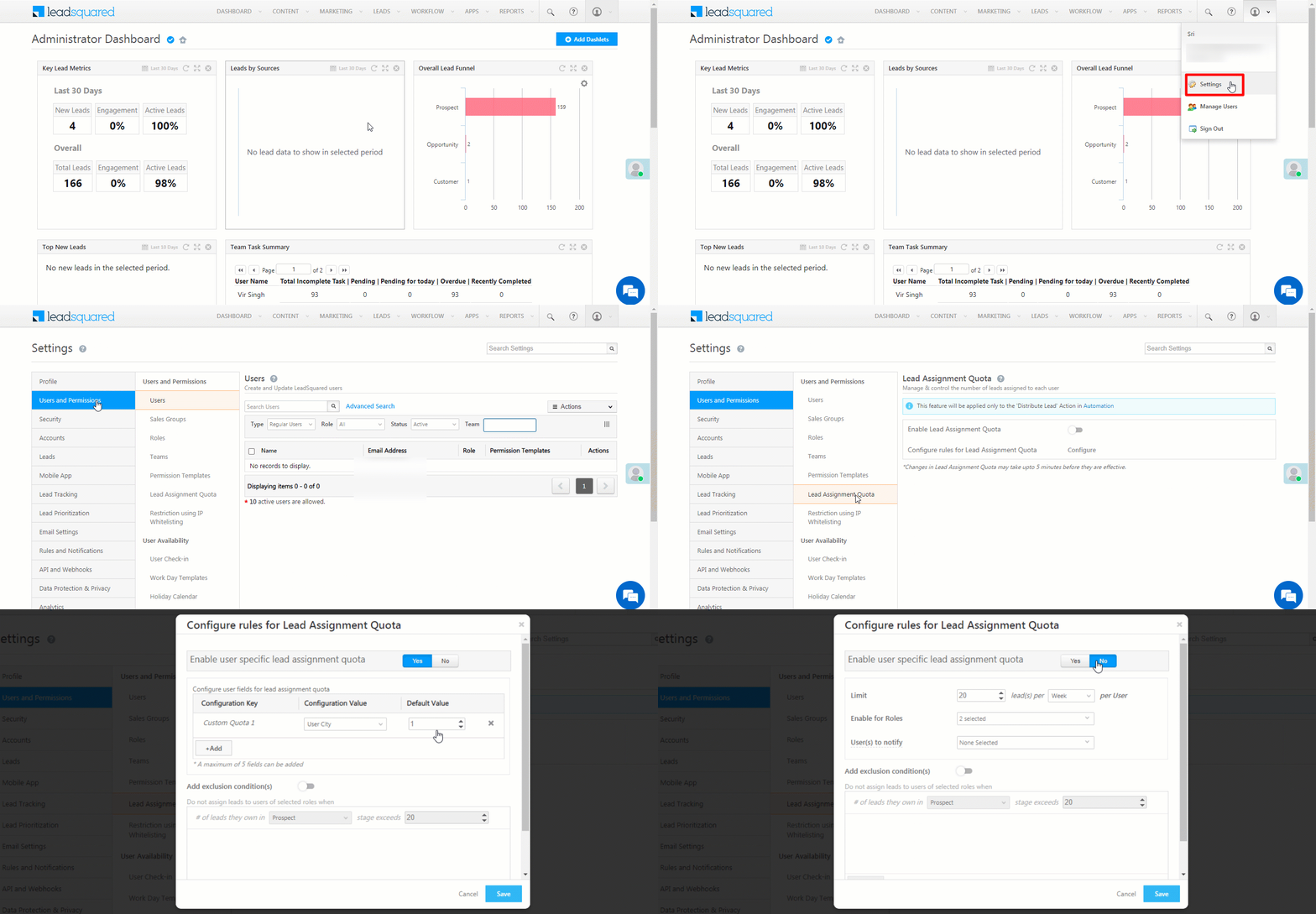
  1. Navigate My Account>Settings>Users and Permissions>Lead Assignment Quota.
  2. Click the Enable Lead Assignment Quota slider.
Note: For automations with opportunity distribution cards, you can define opportunity distribution quotas to limit the number of opportunities assigned to your users. To know more, please refer to Opportunity Assignment Quotas.

Lead Assign_5

3.1 Configure Role level Lead Assignment Quota

Here, you can configure lead assignment quotas based on different user roles (Sales Users, Sales Managers, Marketing Users and Admins) in your organization. This is useful when you want to assign a maximum number of leads uniformly to a specific user role.

For e.g., if you configure this quota to assign only 50 leads to Sales Users per day, from the total leads captured in a day, a maximum of 50 leads will be assigned to each sales user.
This quota will not affect lead distribution among the non-sales users (such as Admins, Marketing Users) in the organization.

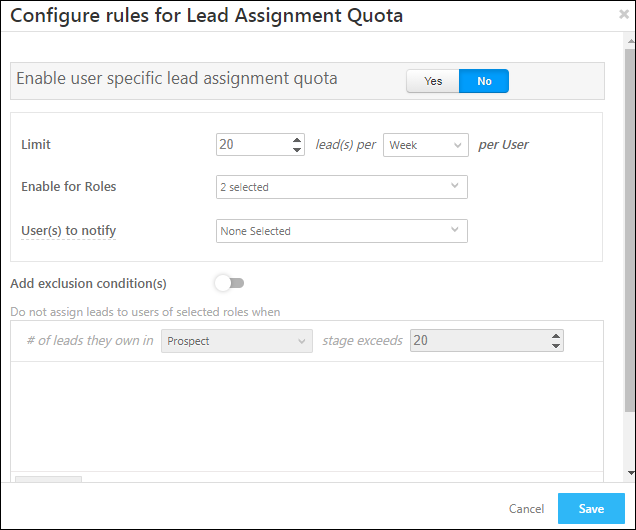
On the Configure rules for Lead Assignment Quota pop-up, against Enable user-specific lead assignment quota enter, select No. Then, enter the following details –

 Configuration Description
Limit Set a limit on the number of leads you want to assign to a user role across daily, weekly or monthly cycles.
Enable for Roles Enable lead assignment limits for user roles.
Users to Notify Notify users when the quota is reached. The ‘User’s Manager’ is selected based on the value you provide in the ‘Reporting To’ field of the user’s profile.
Add Exclusion Conditions Prevent leads from being assigned to users when they already have a specific number of leads in a particular lead stage. This ensures users aren’t overwhelmed and allows them to concentrate on leads in critical stages.

For e.g., if you configure the stage to ‘Prospect’ and leads to ’20’, users that have more than 20 leads in the prospect stage won’t get assigned new leads.

Once you’re done, click Save.

Lead Assign_7

3.2 Configure User specific Lead Assignment Quota

Here, you can configure lead assignment quotas for specific users in your organization. These users can have different user roles. This is useful when you want to assign different number of leads to different users.

For e.g., let’s look at an organization that has five users – John, Paul, George, Ringo, and Yoko. John, Paul, and Yoko are Sales Users, while George and Ringo are Admins. If the company wants to assign 5 leads to John, Yoko, and Ringo, and 3 leads to Paul and George, they can achieve this through User specific Lead Assignment Quota. The organization can further define quotas for different durations  (daily, weekly, monthly) for each individual user.

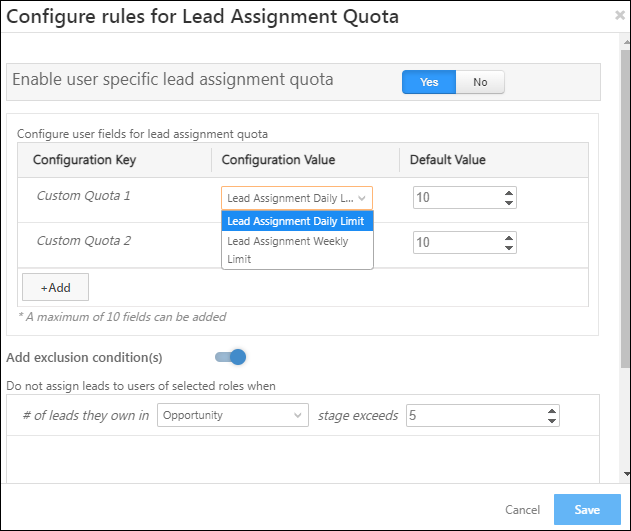
On the Configure rules for Lead Assignment Quota pop-up, against Enable user-specific lead assignment quota, select Yes. In the configuration, you must use a custom user field with the data-type as Number. This field will contain the lead assignment quota (which is 5 and 3 in the example given above) for each user.

Note: The custom field must be a number-type field. To know how to create a field, refer to Manage User Custom Fields.

Enter the following details –

Configuration Description
Configuration Key The name of the configuration which will help you distinguish the configurations on the Distribute Lead card automation. This field is non-editable.
Configuration Value All the custom number-type user fields you’ve created will show up in this dropdown. From the list of fields, select the relevant field you created to assign leads to the user.
Default Value Enter the number of leads you want to assign to your users by default.*

This is useful when the custom number-type user field is blank for a particular user. In this instance, the default value will get assigned to the user. But if the field already has an existing value, then the default value will be ignored.

Add To add additional configurations, click Add. You can add up to 10 configurations in total.
Add Exclusion Conditions Prevent leads from being assigned to users when they already have a specific number of leads in a particular lead stage. This ensures users aren’t overwhelmed and allows them to concentrate on leads in critical stages.

For e.g., if you configure the stage to ‘Prospect’ and leads to ’20’, users that have more than 20 leads in the prospect stage won’t get assigned new leads.

LeadSquared Automation

Once you’re done, click Save.

Note:

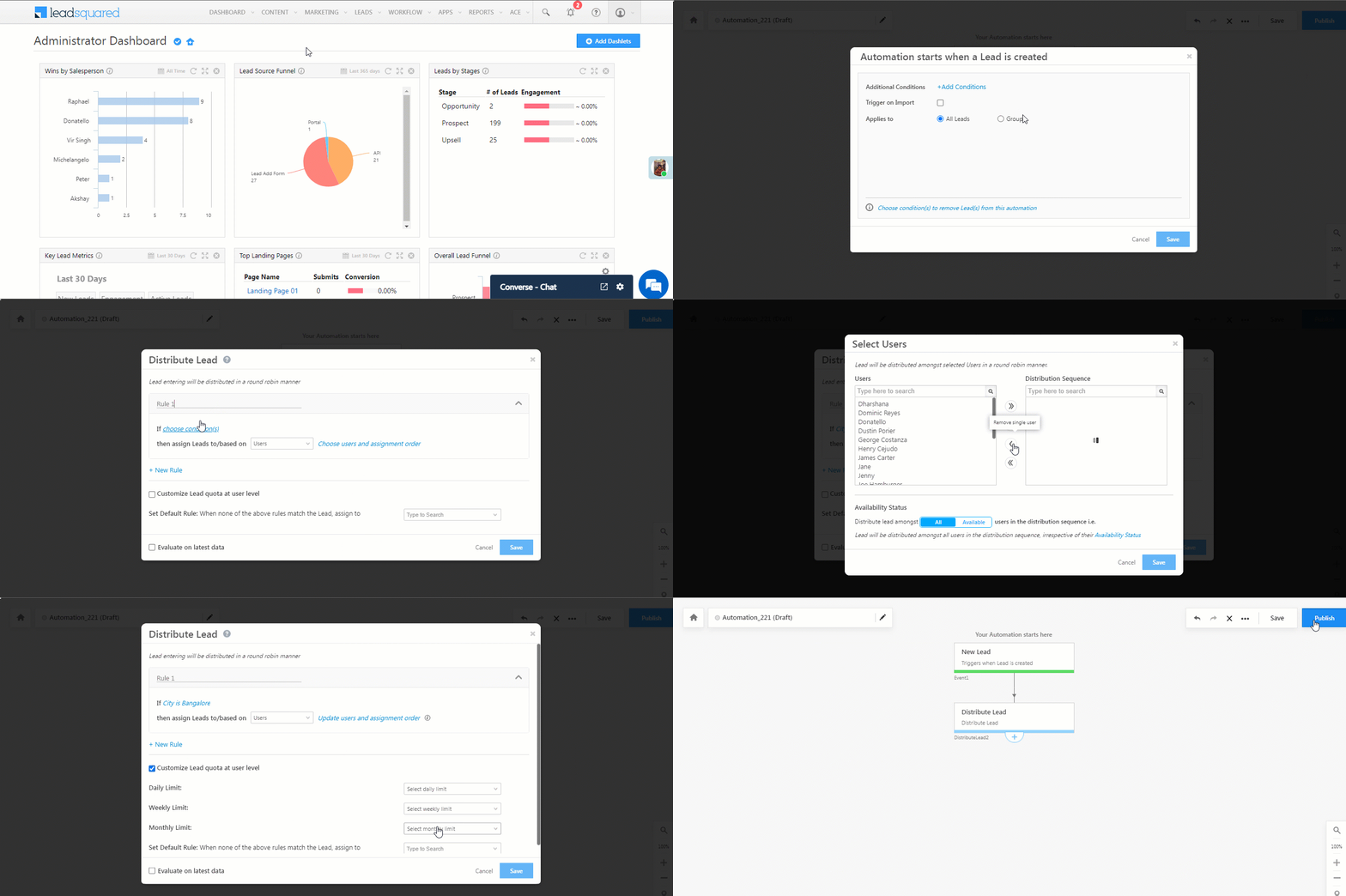
  • The assignment quota limit for users will apply across all automations, where the Customize Lead Quota at User Level setting is enabled on the Distribute Lead card.
  • *To assign the lead distribution value for each of your users, navigate to the Manage Users page, and edit the custom user number-type field you selected from the Configuration Value dropdown. For e.g., for the user John, if we edit the Lead Assignment Daily Limit user field (which we created), and set the value to 5, then a maximum of 5 leads will get assigned to John.


4. Configure Lead Distribution Automation

Once you’ve configured User specific Lead Assignment Quotas, you’ll have to set up an automation, with the Distribute Lead card. On this card, select the User level quota you created in the previous step, and Publish the automation.

  1. Navigate to Workflow>Automation, and click Create Automation, and from the list of available triggers, select any trigger.
  2. After selecting a trigger, click Sales Execution, and then click Distribute Lead.
  3. Enter a rule name in the space provided and then click the Choose conditions(s) link, and add relevant conditions.
  4. On the Distribute Lead pop-up, from the Assign Leads To dropdown, select Users, and click Choose users and assignment order.
    • Alternatively, you can select Groups or User Properties from the dropdown. All three options are equally valid.
  5. On the Select Users pop-up, from the Users column, select the list of users you want to apply the assignment quota to. Once you’re done, click Save.
    • Under Availability Status, you can choose to distribute leads to –
      • All – When selected, leads will be distributed to all the users you’ve selected, irrespective of whether they’re online (checked-in) or offline.
      • Available – When selected, from the list of users you’ve selected, leads will only be distributed to the users who are online.
  6. Then, alongside Customize Lead quota at user level, enable the Checkbox checkbox.
  7. Alongside the cycle duration on which you want to set up lead distribution, from the dropdown, select a relevant custom quota (which you created in the previous step). Based on this quota, and based on the lead distribution cycle you’ve selected, leads will get assigned to the selected users.
    • Daily Limit – The quota you’ve configured will be applied to daily lead distribution. For e.g., if the quota is set to 5 leads, then a maximum of 5 leads will be assigned daily to each of the selected users.
    • Weekly Limit – The quota you’ve configured will be applied to weekly lead distribution. For e.g., if the quota is set to 20 leads, then a maximum of 20 leads will be assigned weekly to each of the selected users.
    • Monthly Limit – The quota you’ve configured will be applied to monthly lead distribution. For e.g., if the quota is set to 80 leads, then a maximum of 80 leads will be assigned monthly to each of the selected users.
    • Set Default Rule – When a lead doesn’t satisfy the rules you’ve set, select a default user to whom the lead should be assigned.
    • Evaluate on latest data – When enabled, the automation will consider the latest data available in your account at the time of triggering.
  8. Once you’re done, click Save.

Note:

  • The definitions for a
    • Day is from 12 AM to 11:59 PM.
    • Week is from Monday to Friday.
    • Month is from the month’s first calendar day to the last calendar day.
  • Zipcode or Pincode based lead distribution among users cannot be carried out. To do that, please refer to Zip Based Lead Distribution.

LeadSquared Automation


5. FAQs

  • For a User-level lead distribution, can the lead assignment quota for a user get exceeded? Like, if the Lead Assignment Quota is set to 5, can the user get 12 leads assigned to him?
    Yes, this is possible. If the lead is assigned to the user manually, or through other automations where the Customize Lead Quota at User Level setting is disabled on the Distribute Lead card, or through APIs.


  • Why are leads not getting assigned to the selected user (based on the User-level), even though the number of leads assigned through the Lead Distribution automation is less than the maximum limit configured on the custom number-type user field?
    Leads that are assigned manually, or through other automations, are also counted under the quota limit you’ve set on the custom number-type user field. For e.g., if you’ve set the limit to 15 leads, and a user gets 10 leads assigned manually by his manager, and 5 leads through the Lead Distribution automation you’ve configured (where the Customize Lead Quota at User Level setting is enabled), the system would consider that the limit you’ve configured has been reached. No new leads will be assigned to the user within the assignment cycle.


Any Questions?

Did you find this article helpful? Please let us know any feedback you may have in the comments section below. We’d love to hear from you and help you out!

Adding Custom Field Sets to Activities

1. Feature Overview

This article assumes that you’ve already created one or more custom field sets and are now looking to integrate them with activities.


2. Prerequisites

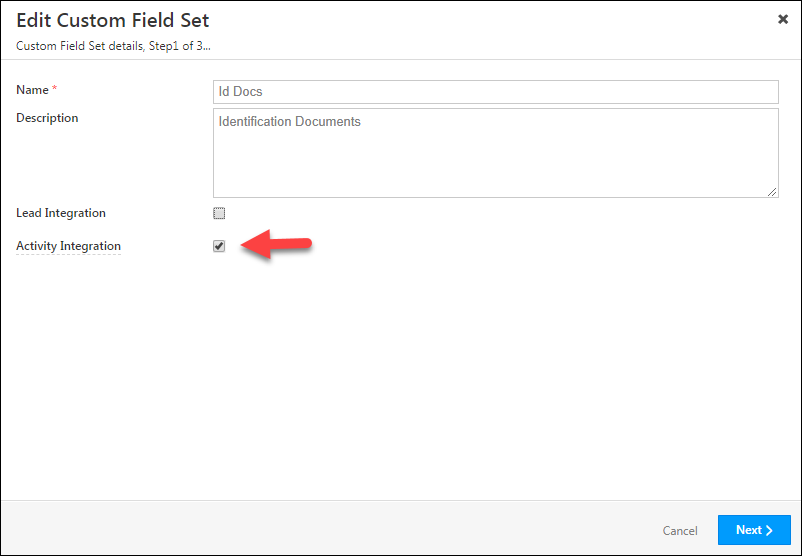
While creating a custom field set, you must select the activity integration checkbox. This will make the custom field set available for activity integration –

CFS activity integration


3. Associate a Custom Field Set with an Activity

Once you’ve created a custom field set, you can add it as the data type for a field in any custom activity.

  1. Navigate to My Profile>Settings>Leads>Custom Activities and Scores.
  2. Click the Editpencil iconicon alongside an activity (you can also follow the same steps while creating a new activity).
  3. On the Update Custom Activity Type pop-up, click Next to navigate to step 2 of 3.
  4. Create a new field, or edit an existing one. Click the drop-down under the Type column alongside the field you want to associate the custom field set to, then select a custom field set.
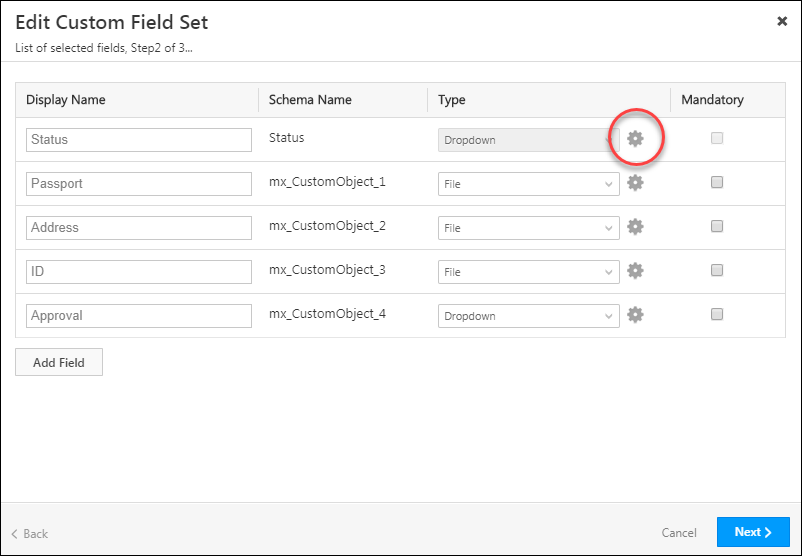
  5. Click the Settingsicon to edit the custom field set. Click Next when you’re done.
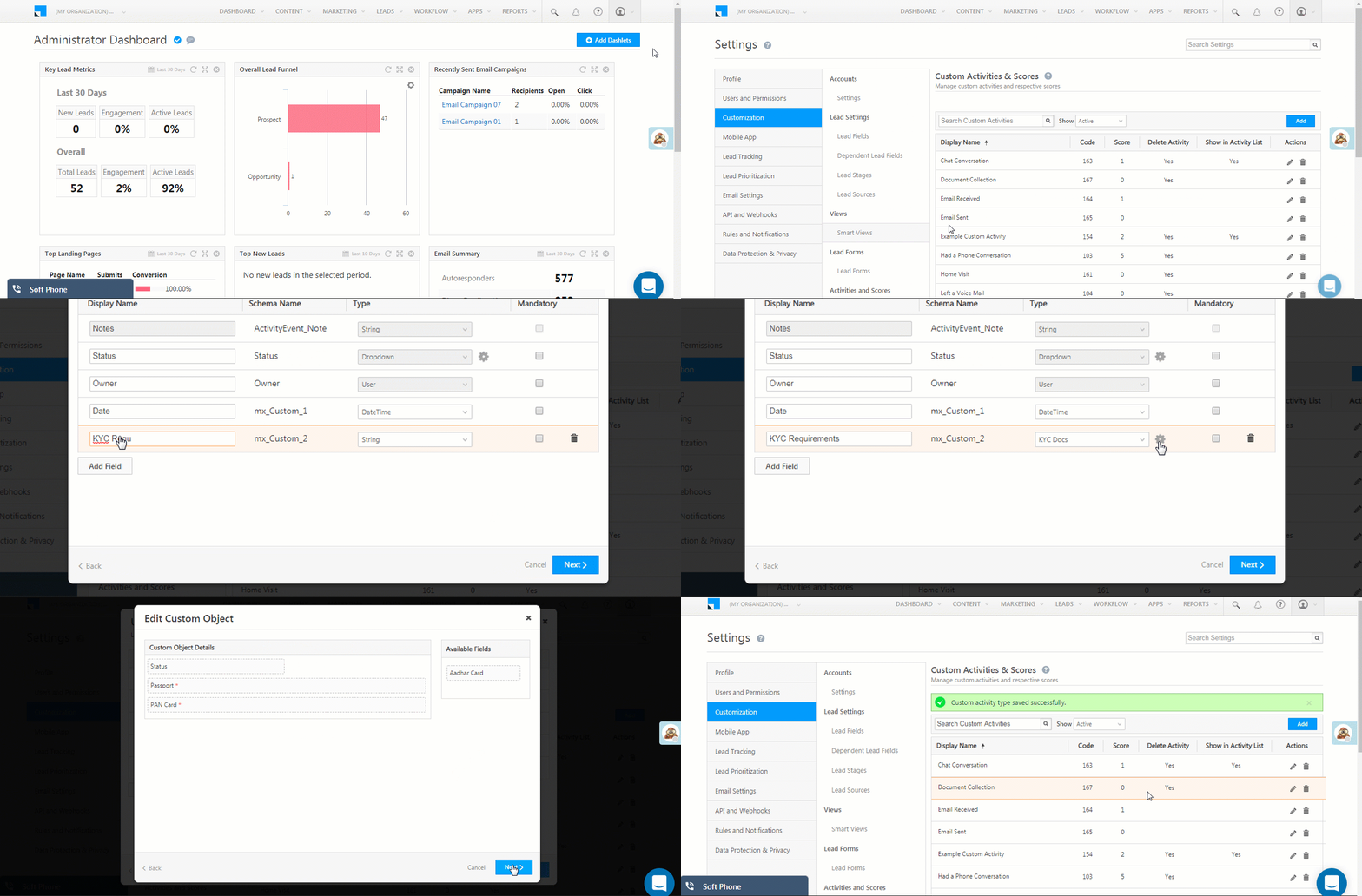
    Note: Edits you make to a custom field set from here will not apply to the actual custom field set template you created. The edits will only apply to how the custom field set behaves with respect to this activity field.
  6. Drag and drop the custom field set to change its order or positioning on your create/edit activity forms.
  7. Click Save.

Associate custom object with activity field

Note:

If a custom field set has any field(s) marked as mandatory,

  1. The custom field set field will automatically be marked as mandatory while configuring the activity fields (in step 2 of 3).
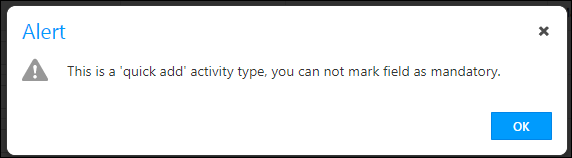
  2. You won’t be able to enable Quick Add for the associated activity. Conversely, if you enable quick add and then try and make a custom field set mandatory, you’ll still receive an error –

validate quick add


Adding an Activity with a Custom Field Set

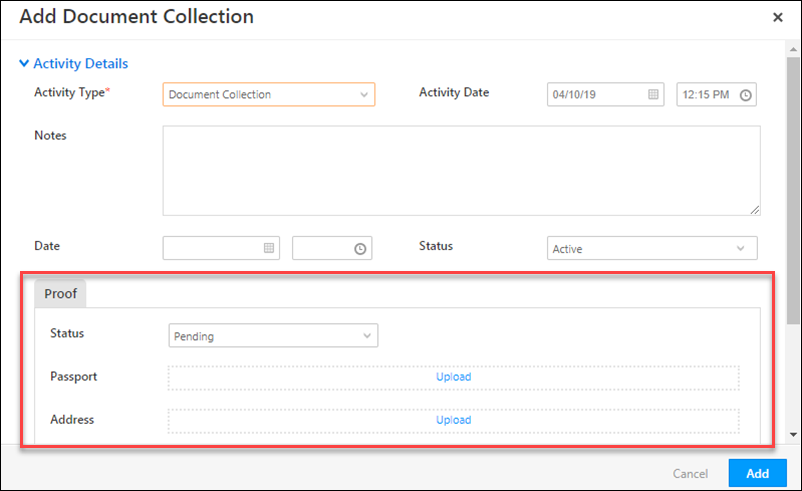
The custom field set will now be available in the create/edit activity forms for that particular activity.

add custom field details

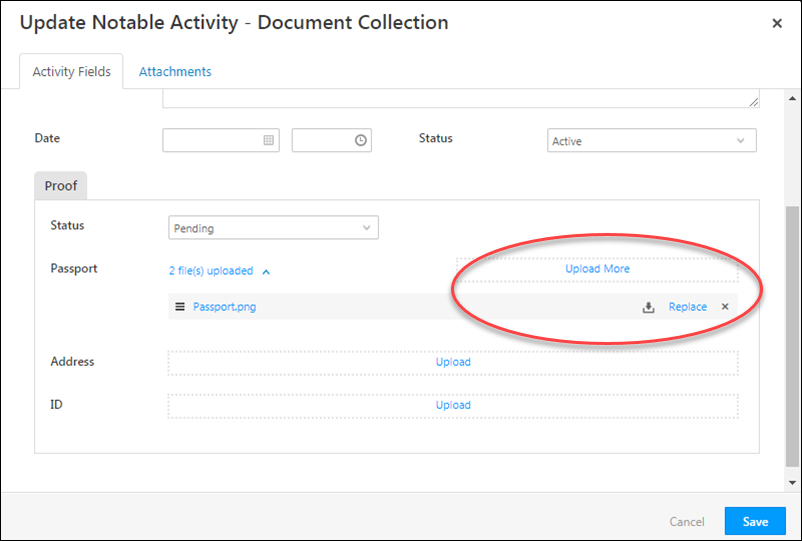
You can upload multiple files to a single field (multiple pages of a passport for example). You can even remove or replace a file after you’ve uploaded one.

upload, remove, replace

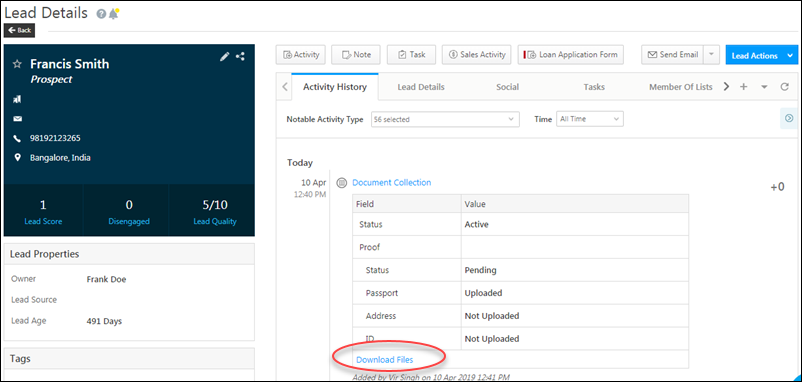
You can download the uploaded files from the Lead Details page.

downloaded file


4. Viewing Custom Field Sets

You can view custom field sets along with the parent activities on the following pages –

4.1 Lead Details Page – Documents Tab

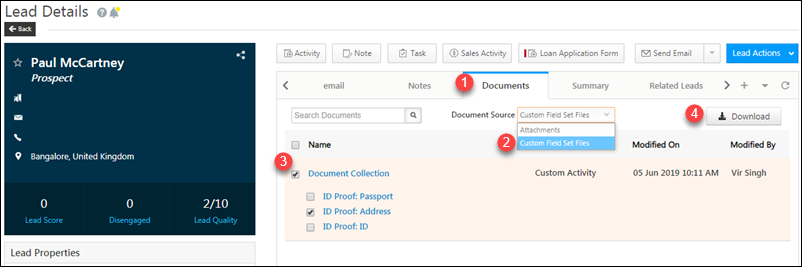
Files uploaded through Custom Fields Sets are available on the Documents tab of the Lead Details page.

  1. Navigate to the Lead Details page.
  2. Click the Documents tab (step 1 in the screenshot below).
  3. Select Custom Field Sets from the Document Source drop-down (step 2 in the screenshot below).
  4. Click on a file to launch the file viewer.
  5. To download one or more files, select the checkboxes alongside the files (step 3 in the screenshot below), then click Download (step 4 in the screenshot below).

You can use the search box to search based on the activity name, custom field set name and the sub-fields within a custom field set.

lead details docs tab


4.2 Lead Details Page – Activity History Tab

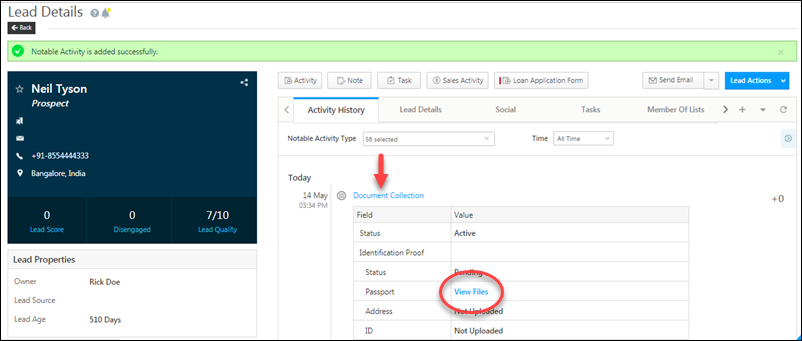
Custom field sets are visible on the Lead Details page. Click the activity to view them along with other activity fields.
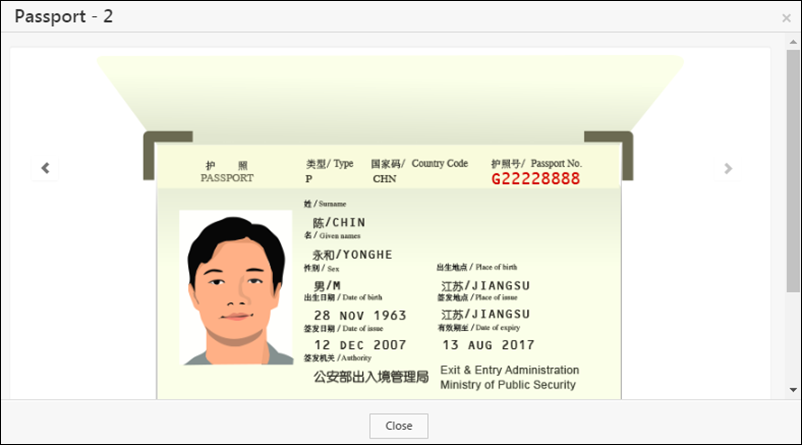
Click the View Files link alongside a custom field set field to view the uploaded files.

cfs lead activity history

cfs file viewer

Note: You can only view image and pdf files on the application file viewer. For other file types, you’ll be prompted to download the files and view them on your local drive.


4.3 Manage Activities Page

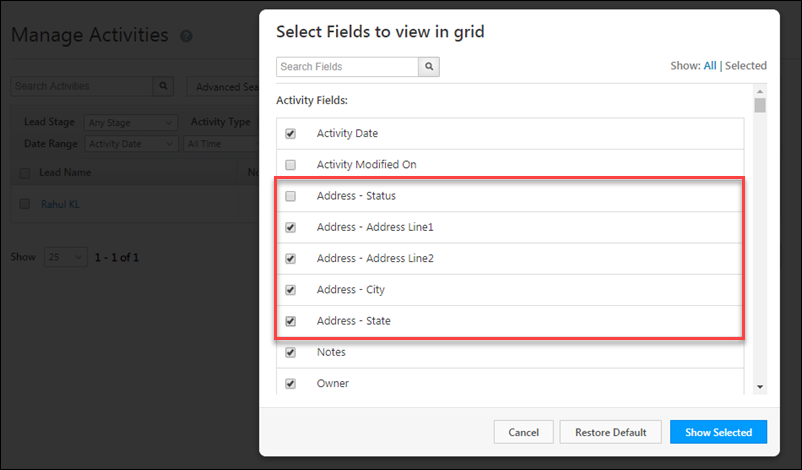
You can view custom fields sets on the Manage Activities page –

  1. Navigate to Leads>Manage Activities
  2. In the Activity Type drop-down, choose an activity where you’ve added a custom field set
  3. Click the select columns select column icon icon.
  4. On the pop-up, alongside Show, click All.
  5. Select the custom field set, then click Show Selected.

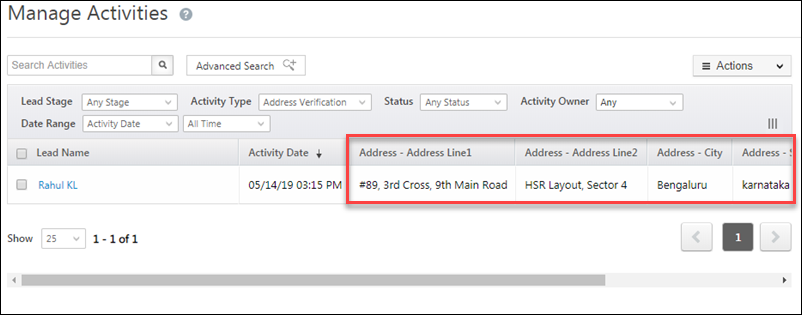
The custom field set will now be visible on the Manage Activities grid.

Show CFS Columns on Manage Activities

Note: ESS tenants can select and view individual CFS fields on the grid as shown below. String type fields configured as 1000 character fields and content type fields won’t show up here  –

ESS CFS on manage activities page

ESS CFS Manage Activities Show columns

4.4 Smart Views

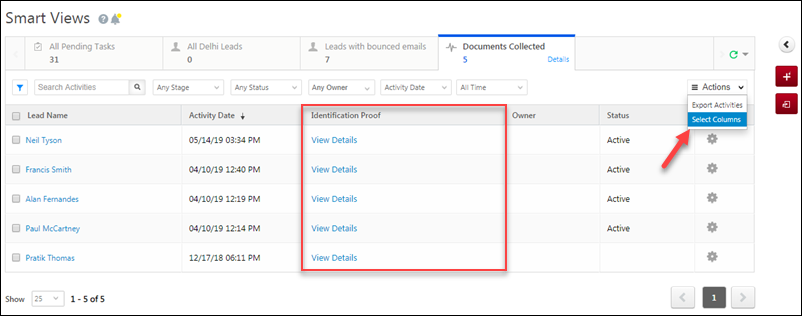
Similar to Manage Activities, you can also customize the Smart Views grid to display Custom Field Sets –

  1. Navigate to Leads>Smart Views.
  2. Under Actions, click Select Columns.
  3. On the pop-up, alongside Show, click All.
  4. Select the custom field set, then click Show Selected.

smart views CFS columns


5. Bulk Update Custom Field Sets

To bulk update the activity Custom Fields Sets in your account –

  1. From the main menu, navigate to Leads>Manage Activities.
  2. Select the leads you want to bulk update the activity fields by clicking the Checkbox checkbox against their names.
  3. Then, hover your cursor over the Leads button, and from the dropdown, click Bulk Update.
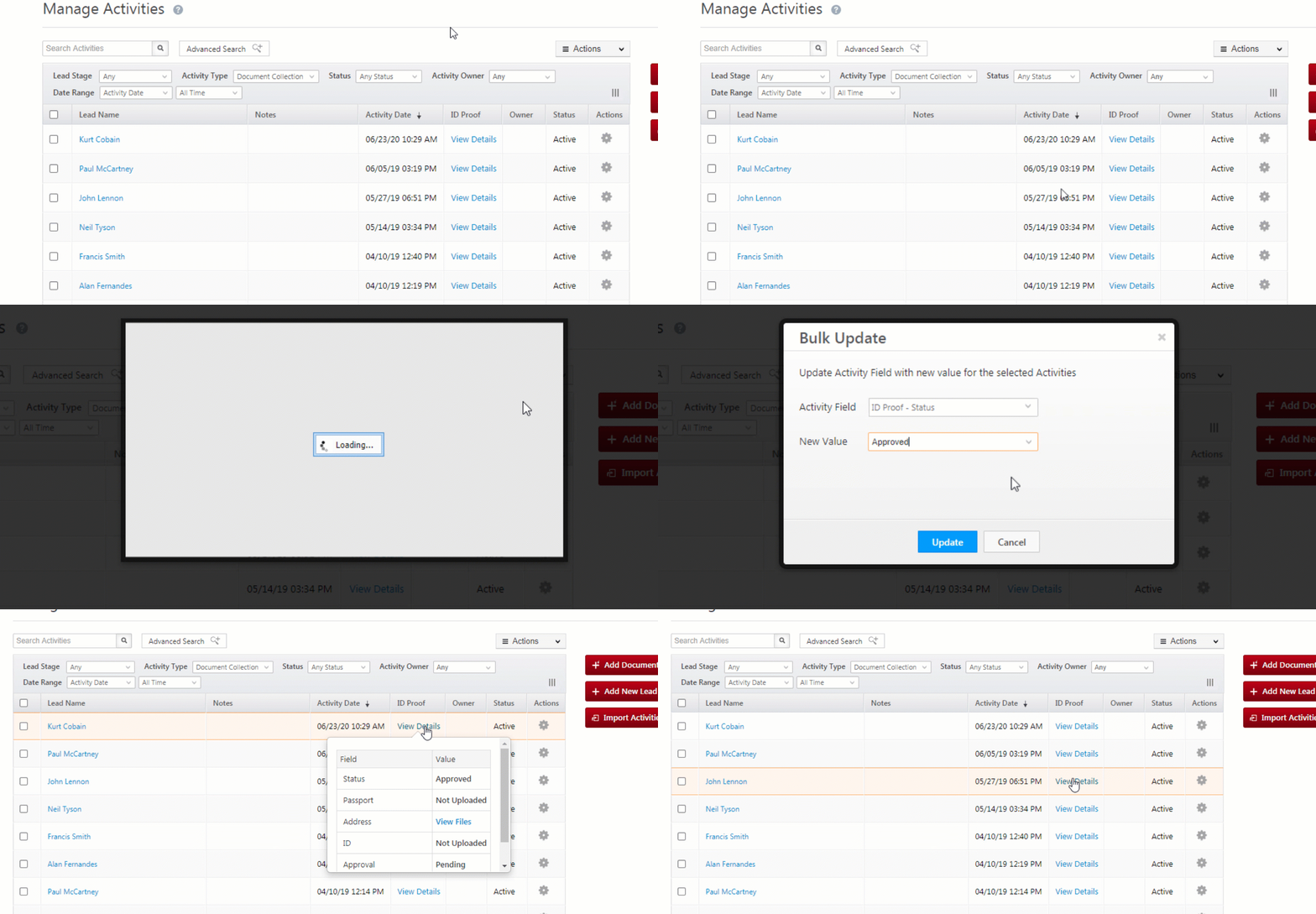
  4. In the Bulk Update pop-up, against Activity Field, from the dropdown, select the field you’re looking to bulk update.
  5. Against New Value, depending on the field type, either select the new value from the dropdown or enter it in the given field.
  6. Once you’re done, click Update. The selected activity custom fields are now updated.

CFS_E_1


6. Import & Export Custom Field Sets

You can import and export custom fields sets along with other activity fields. See the import/export section of Manage Activities for more details.


7. Current Limitations

  1. You cannot delete custom field sets.
  2. The status field cannot be removed from a custom field set.

cfs status field

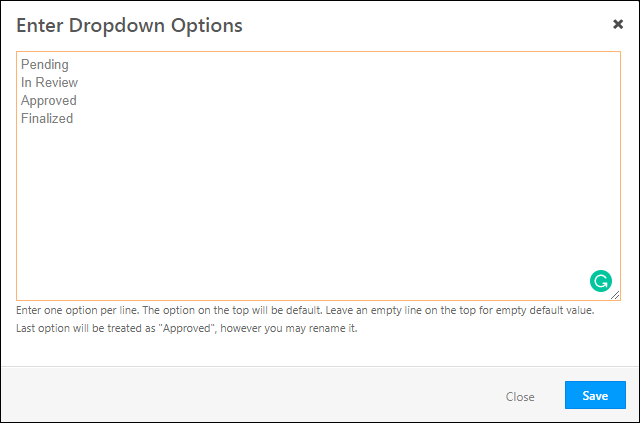
3. You can add/remove the drop-down values of the status field. Note that the last value you enter will be treated as ‘Approved’, regardless of how you rename it.

CFS status fields


Any Questions?

We hope this article was helpful. If you still have doubts, feel free to leave a comment below.

Opportunity Automation Conditions – If Opportunity Exists

Use the ‘If Opportunity Exists’ condition to check if an opportunity with a defined set of parameters exists in the system. For example, when a new opportunity is created, you can use this card to check if another opportunity of the same type exists in your account. You can follow this up with an action to add the opportunity owner of the old opportunity to the new opportunity. Or, if the old opportunity has expired (older than say, 60 days), you can change it’s stage so that the users can focus on the new opportunity.

For more information on any automation feature, see Automation Home, and for more information on opportunities, please see Opportunity Management – Feature Guide.


Set Up If Opportunity Exists

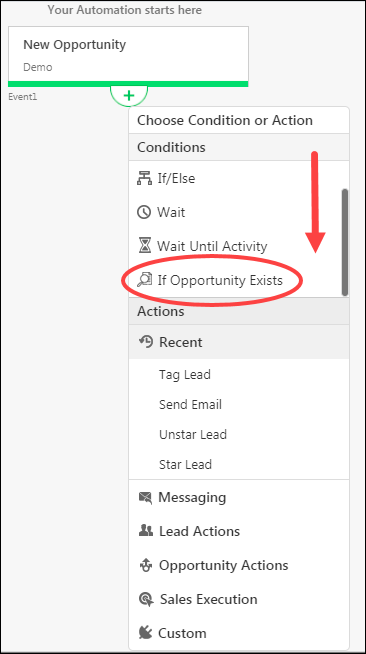
You can set up the condition at any point after the automation trigger. Scroll down under Conditions, then click If Opportunity Exists.

Note: This condition will work only on an automation created using an Opportunity trigger.
If Opportunity Exists_2

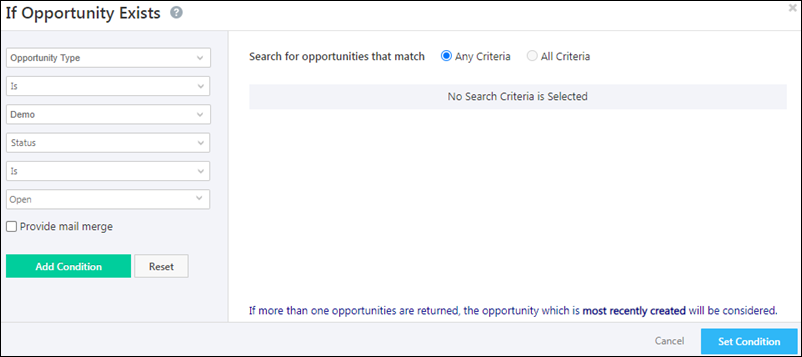
On the configuration pop-up, enter the required conditions, then click Add Condition. When you’re done adding conditions, click Set Condition.

If Opportunity Exists_3

Notes:

  • If multiple opportunities match your criteria, they will be sorted based on Created On date in ascending format.
  • A link to the latest (newest) opportunity will be provided in the opportunity level automation report.


Any Questions?

Did you find this article helpful? Please let us know any feedback you may have in the comments section below. We’d love to hear from you and help you out!

Wait Until Workday Condition

Important: The Wait Until Workday Condition’s workday hours are defined as your Workday end minus 15-minutes. For e.g., if your workday is set up as 8AM to 6PM, the Wait Until Workday Condition will stop executing at 5:45PM.

1. Feature Overview

The Wait Until Workday condition allows you to distribute work to users only on their workdays. When set-up, only users who have signed-in, basis the Workday Templates you’ve set-up, will be assigned leads, opportunities, activities and tasks. This will ensure that users get notified only when they log-in to work.

To know more about automations, please refer to Automation Home.


2. Example Use Case

When a new lead is created and assigned to a user who’s currently offline. In this instance, the user won’t get a notification until he/she logs in to work for that day.


3. Prerequisite

To enable this feature in your account, contact your account manager, or write to support@leadsquared.com.


4. Procedure

  1. Access an existing automation or create a new one by navigating to Marketing>Automation.
  2. Click the icon, and then click Wait Until Work Day.
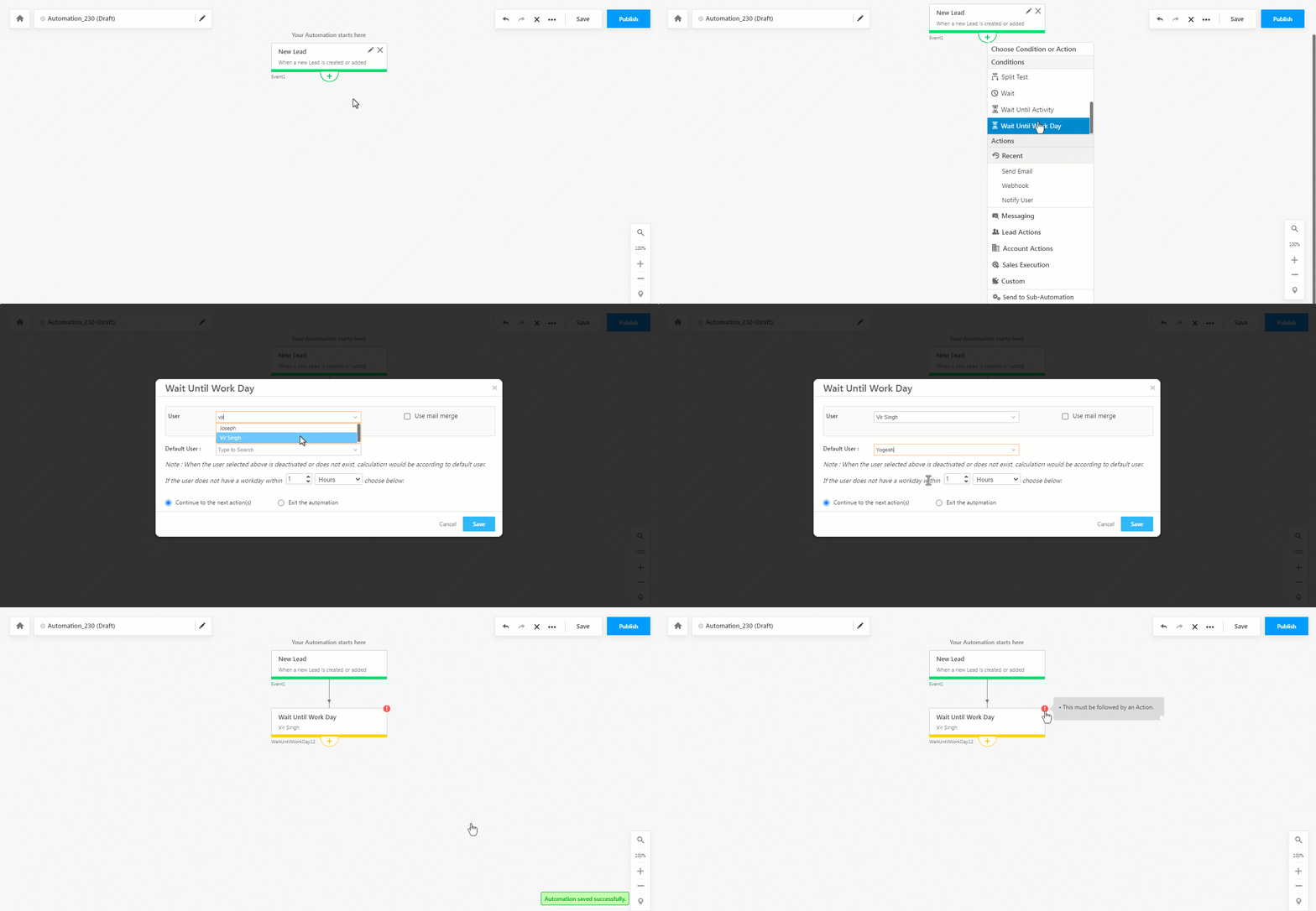
  3. Enter the User and Default User. If required, add mail merge fields.
  4. Select if you want to continue the next action in the automation or exit the automation if the User and Default user do not have a work day within a certain amount of time (customizable in minutes, hours, days, weeks, months, or years).
  5. Once you’re done, click Save. Then, add an action to the condition.

wait until workday

Note:

    • To assign a lead owner or opportunity owner, use the mail merge fields by clicking the box.
    • The Default User is the back-up user in your organization, to whom the work will be given to, incase the primary user is unavailable.
    • Work day template time blocks are also supported, For example, if a user has two working blocks: 10 AM – 2 PM and 4 PM – 8 PM, and a lead enters an automation at 3 PM, the lead will be distributed between 4 PM and 8 PM.
    • The Wait Until Workday condition doesn’t consider the leaves applied on the Leave Tracker.


Any Questions?

Did you find this article helpful? Please let us know any feedback you may have in the comments section below. We’d love to hear from you and help you out!