Lead Distribution Automation in LeadSquared

1. Feature Overview

This article covers how the Distribute Lead card works in automations. The distribute lead action allows you to set conditions to distribute leads among your users. Example – You may want to distribute leads based on their location, interest, industry type and so on. If you’re new to the lead distribution feature we highly recommend you first understand the best way to distribute leads to your users.

With the Lead Distribution automation card, you can build a series of rules and assign leads to one specific user, groups of users, or based on user properties, in a round-robin manner. When a new lead is created in your account (or based on any other trigger), the lead distribution engine executes each rule, one by one, till the conditions defined in your rule match the new lead. Once a rule’s conditions match the lead, no more rules are executed.

When no rule matches the incoming lead, then the default rule is executed.

Note: You can define lead/opportunity distribution quotas to limit the number of leads/opportunities assigned to your users through the distribution engine. To know more, refer to


2. Create an Automation

To get started –

  1. Navigate to Workflow>Automation, and click Create Automation.
  2. From the list of available triggers, select any trigger.
  3. After selecting a trigger, click Sales Execution, and then click Distribute Lead.
  4. On the Distribute Lead pop-up, you can create lead distribution rules. Based on these rules, you can –
    • Distribute leads to users
    • Distribute leads to groups
    • Distribute leads based on user properties

LeadSquared Automation


3. Create Lead Distribution Rules

The distribute lead action allows you to set conditions to distribute leads among your users.
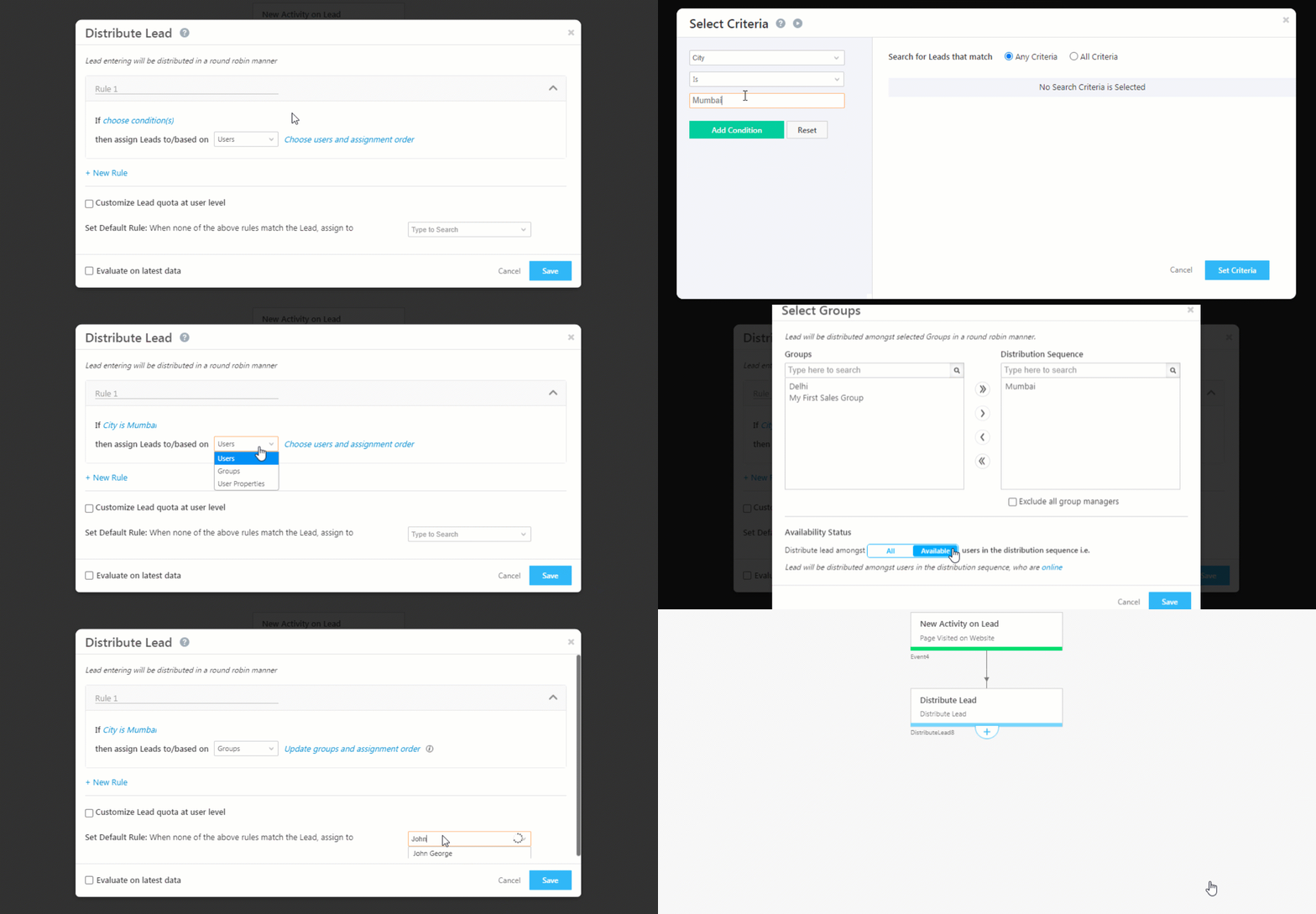
As an example, let’s say you want to distribute all leads from a certain city to specific users. Click the Distribute Lead action to open the Distribute Lead pop-up window.
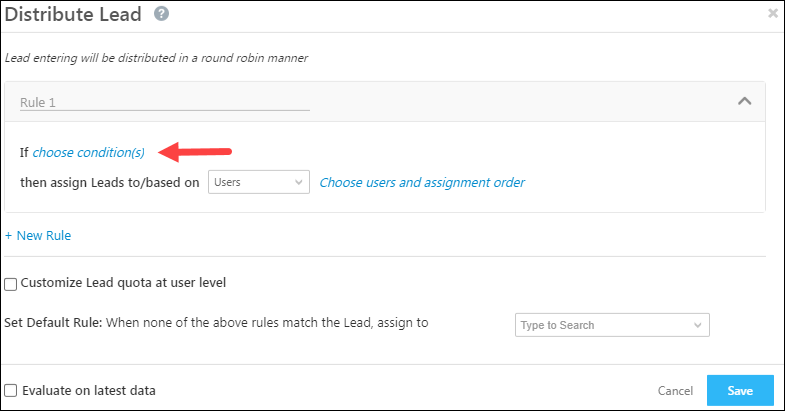
Enter a rule name in the space provided and then click the choose conditions(s) link.

Note: When the Lead Owner is updated through the Distribute Card, automations configured to trigger on Lead Owner changes will not activate. For instance, if the owner is modified using Distribute Leads and the Update Lead Card, automations tied to the lead card update will run, but those related to changes made via the Distribute Card will be bypassed.

LeadSquared Automation

On the Select Criteria pop up, choose the lead field as City and then enter Bangalore. Next, click Add Condition.

LeadSquared Automation

Your criteria will show up as highlighted below. Click Set Criteria to proceed.

LeadSquared Automation

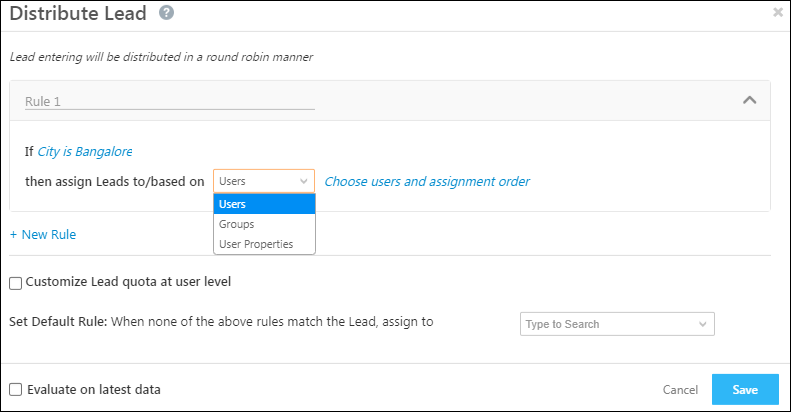
Now select one of the following options from the drop-down

  • Users – Select particular users to distribute the leads to.
  • Sales Groups – Select the group you want to distribute leads to.
  • User Properties – Perform an advanced search based on user attributes. For more information, see User Advanced Search.


3.1 Distributing Leads to Users

From the dropdown, select Users.

LeadSquared Automation

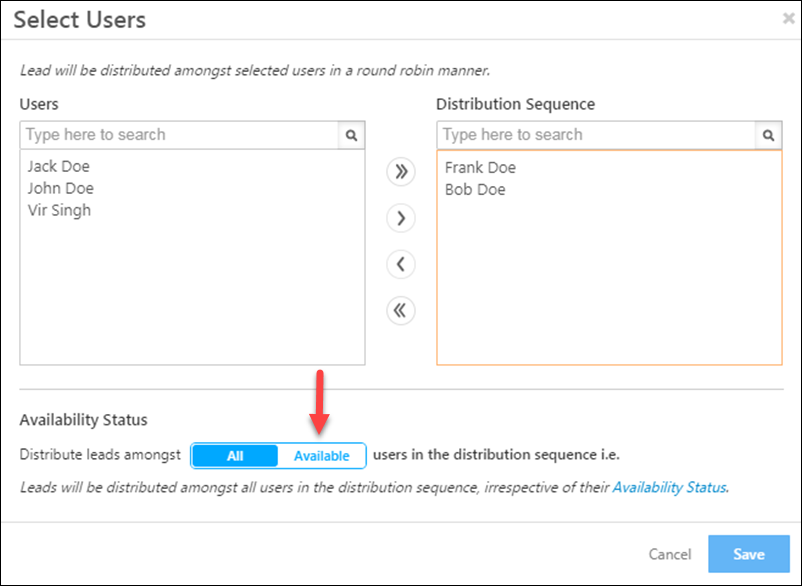
On the Select Users pop-up, choose the users and the sequence you want your distribution to follow.
You’ll see an Availability Status section at the bottom if you’ve enabled the Check In and Check Out feature for user management. You can toggle the between the All and Available options to distribute leads to all users or to available users only. Click Save when you’re done.

LeadSquared Automation

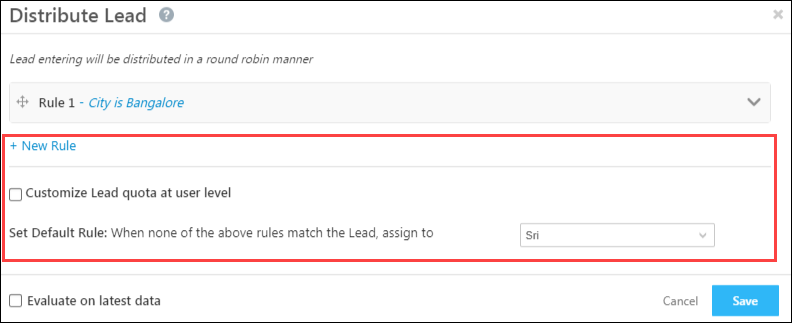
You can proceed to add multiple rules by using the New Rule link. You can name each rule and then re-order them by simply dragging and dropping. The rules will execute in the sequence you set up.

You must set a default rule that will execute when no other rules match the set criteria. The default rule will automatically distribute the lead to a user you select.

Note: If you’ve chosen the Available users option and the user is not available, the lead will be distributed to the user specified in your default rule.

LeadSquared Automation

Note: Evaluate on latest data assesses the distribution rule on the current lead data in your account. For example, you set a lead distribution rule where the ‘Stage is Prospect’. A lead, whose stage is ‘Prospect’, enters the automation. While passing through the automation, the lead’s stage changes to ‘Disqualified’.

  • If ‘Evaluate on latest data’ is enabled, the lead won’t be considered by the lead distribution rule (Stage is Prospect), because according to the latest data, the lead’s stage is now ‘Disqualified’.
  • If ‘Evaluate on latest data’ isn’t enabled, the lead will be considered by the lead distribution rule (Stage is Prospect), because only the data at the time the lead entered the automation will be considered (and at that time the lead’s stage was ‘Prospect’).

Your automation is now set up to distribute leads to your users based on the city lead field.

LeadSquared Automation


3.2 Distributing Leads to Sales Groups

You can distribute leads to multiple sales groups (in different regions for instance). For example, you can create 2 rules, such that Delhi leads get assigned to the Delhi sales group and Mumbai Leads get assigned to the Mumbai sales group –

  1. On the Distribute Lead pop-up, once you’ve set up the conditions for the rule, select the Groups option and click Choose groups and assignment order.
  2. The Select Groups pop-up will appear. Select the groups you want to distribute the leads to.
  3. You can also distribute leads to only the available users in a group by clicking the  option. This feature will only work if you’ve configured the Check-in/Check-Out functionality.
  4. Click Save when you’re done.
  5. Back on the Distribute Lead pop-up, you’ll have to set a default rule that will execute when no other rules match the set criteria. The default rule will automatically distribute the lead to a user you select.
  6. Click Save.

LeadSquared Automation

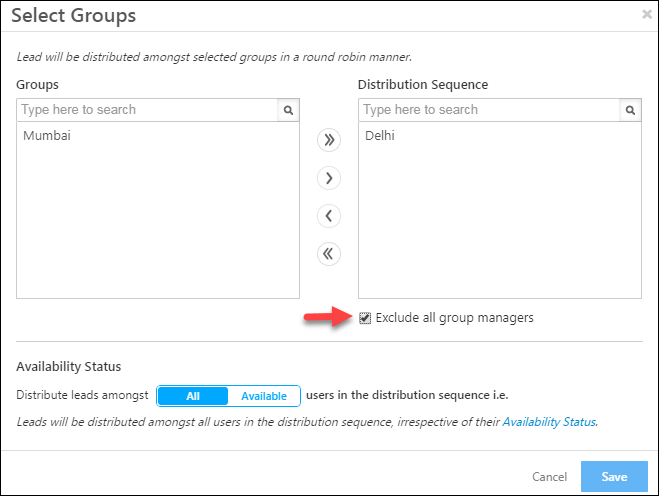
Note: If you don’t want leads to be distributed to the managers of a sales group, click the Exclude all group managers checkbox as shown below –

LeadSquared Automation

3.3 Distributing Leads based on User Properties

You can also distribute leads to user’s based on user properties. For instance, you can distribute leads to users based on their designation, department, Manager name etc. You can even combine multiple properties using the All Conditions (And) and Any Condition (Or) operators. So for example, you can assign leads to users who are from a particular department and have a particular designation.

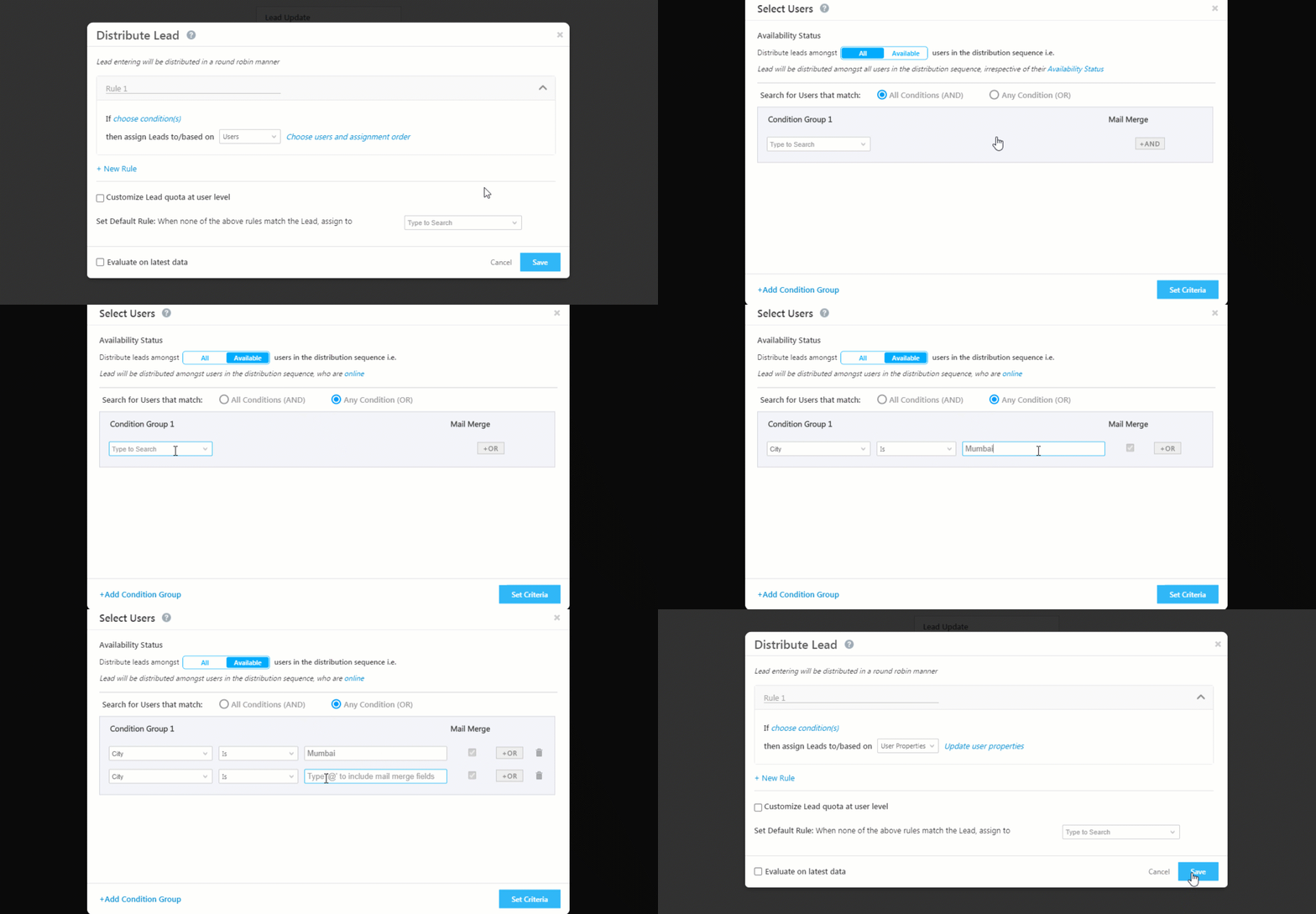
In this example, we’re setting up the lead distribution such that If a lead’s state is Maharashtra then we’re assigning him to users who work out of Mumbai Or Pune –

  1. On the Distribute Lead pop-up, once you’ve set up the conditions for the rule, select the User Properties option and click Choose user properties.
  2. The Select Users pop-up will appear. You can also distribute leads to only the available users in a group by clicking the  option. This feature will only work if you’ve configured the Check-in/Check-Out functionality.
  3. Choose the operator you want to use between condition groups (AND/OR). Select the user details from the drop-down. To add another condition within the same group click the And/Or button inside the condition group box.
  4. If you want to add multiple condition groups, click Add Condition Group on the bottom left side of the pop-up.
  5. When your conditions are set up, click Set Criteria button.
  6. Back on the Distribute Lead pop-up, you’ll have to set a default rule that will execute when no other rules match the set criteria. The default rule will automatically distribute the lead to a user you select.
  7. Click Save.
Note: In the example below, instead of entering the user’s city, you can also dynamically match the lead’s city with the user’s city using mail merge. Type ‘@’ to view and select the list of user attributes.

LeadSquared Automation

Note: You can also mail merge fields while creating condition groups. For more information, see How to distribute leads to users by matching lead and user properties?


4. Assign Leads based on Lead Distribution Quota

After you have configured lead distribution in the previous step, you can further define quotas determining how many leads will be assigned to your users. To learn more, please refer to Limit the Number of Leads Assigned to a User – Lead Assignment Quotas.

4.1 Set Quotas on User Role Level

This will set limits on lead distribution on a user role level (such as sales users, admin users, marketing users). To understand this better, let’s look at the following example. Once enabled from the Settings page (Account>Settings>Users and Permissions>Lead Assignment Quota), the quotas defined at the user role level will automatically apply to the lead distribute automation.

4.2 Set Quotas on Individual User Level

This will set limits on lead distribution quotas for individual users (rather than the user role level). The organization can further define quotas for different durations (daily, weekly, monthly) for each individual users. To know more, please refer to Limit the Number of Leads Assigned to a User – Lead Assignment Quotas.

To enable this –

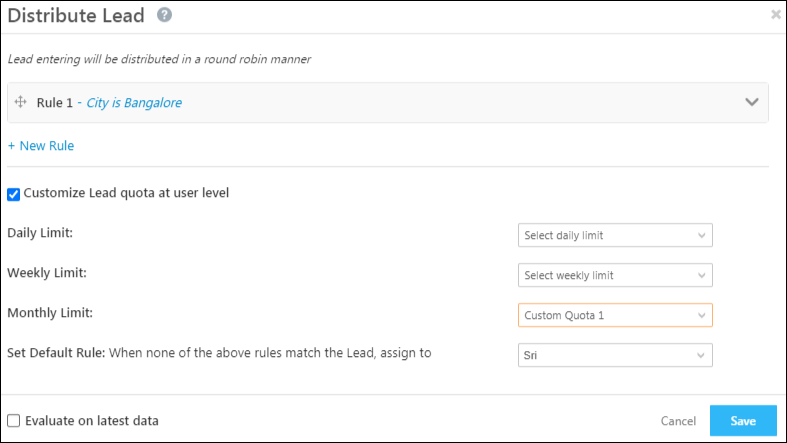
  1. On the Distribute Lead pop-up, check the Checkbox checkbox against Customize Lead quota at user level.
  2. Depending on your preference, choose the Custom Quota options from the dropdown. This will ensure that leads are distributed to only the users who fulfil the criteria of that specific quota.
    • You can set quotas for the daily, weekly and monthly durations. These quotas first have to be first configured under Lead Assignment Quota settings page (Account>Settings>Users and Permissions>Lead Assignment Quota).
    • For example, if you select a monthly duration, then the leads captured for that month will get distributed based on the quota you’ve set for that month.
  3. Once you’re done, click Save.

Note: The assignment quota limit for a user will apply across all automations. So for example, if a user’s quota is defined as 10, and multiple automations are set up, leads assigned from either automation will increase the assignment quota counter. Once the quota is exceeded, more leads won’t be assigned to the user from any of the automations.

LeadSquared Automation


FAQs

The leads are not getting assigned to my users/or assigned to the default user even after setting up the Lead Distribution Automation. Why could this be the case?
It could be because of one or more of the following reasons –

  • The rule conditions you’d set up were not satisfied.
  • When you’ve enabled or disabled the Evaluate on Latest Data setting. This depends on the use case you’re trying to solve, and enable/disable the setting accordingly.
  • Under Availability Status, you’ve selected Available users, and when the automation was executed, none of your users was available (online).
  • When the Lead Assignment Quota (if configured) was exceeded for all your users.


Any Questions?

Have any questions you’d like to voice? Or any experiences with this feature you’d like to share? Please feel free to start a discussion in the comments section.

Summary of LeadSquared Security Features

1. Feature Overview

LeadSquared is ISO 27001:2022 certified and HIPAA compliant. LeadSquared was built to deliver a robust and secure experience. In addition to our process and infrastructure-level safeguards, the LeadSquared application itself has a number of security-related features. This article summarizes the list of available features and describes how you can use them to protect your account.

Note: You can also download a pdf version of our security features.


2. Prerequisites

  • All security-related features (except user-level two-factor authentication) must be set up by the LeadSquared administrator user.
  • Some features listed in the article are not available on all plans. Please contact us at support@leadsquared.com for more details.


3. User Access

These features let you configure the level of access available to your users.

Feature Description Help Documentation
User Roles Each LeadSquared user role comes with its own set of restrictions for accessing features and data. Assigning roles based on how you want users to access your account. User Roles and Access Rights
Sales Groups By default, sales users can only view their own leads. However, you can give certain sales users (team leads, managers, etc.) special privileges through sales groups. Managing Lead and Account Access to Sales Users – Sales Groups
Permission Templates Permission templates give you granular level control over leads, activities and tasks. In addition, they let you control access to features like imports, exports, API, dashboards and reports.
IP Whitelisting You can whitelist the IP addresses that can access LeadSquared. Logins through suspect IPs (tors/anonymous proxies) will be automatically disabled. Restrict User Access to LeadSquared using IP Whitelisting


4. Login and Session Security

These features help secure your account by providing additional security capabilities.

Feature Description Help Documentation
Password Encryption When enabled, passwords will be encrypted and sent from the browser to the server. Users will not be able to ‘Remember Password’ and the password won’t be stored anywhere in the browser cache. LeadSquared Login Security Settings
Enable Dynamic Token for Mobile App Lets you enable an additional layer of security for communicating between the app and server.
Two Factor Authentication Two-factor authentication can be mandated for all users or configured at the individual user level. LeadSquared Security Settings – Two Factor Authentication
Authentication Provider As an alternative to logging in with your LeadSquared credentials, you can configure your account to enable log-in through the following third-party authentication providers –

  • Google
  • Active Directory Federation Services (ADFS)
  • API
LeadSquared Security Settings – Authentication Provider
Trusted Device Users can log into their LeadSquared account without verifying themselves through Two-Factor Authentication (2FA) each time Authentication – Trusted Device
Session Management Login Expiration Time –
When enabled, users will be required to log in again, after the configured time elapses. Session Timeout –
When enabled, a user who remains idle for the configured time will be automatically logged out.
LeadSquared Security Settings – Session Management
Force Logout All Users You may want to force logout users from your account for a number of possible reasons –

  • LeadSquared may have added new features/enhancements or you may have opted for additional features or a change of plan. Sometimes, this requires users to log back in.
  • If you suspect that your account has been compromised, you can force log-out all users as the first safety precaution.
  • Some users prefer not to log out of their accounts which may pose security risks.
LeadSquared Security Settings – Login Settings
Set Password Policy for users Customize the password policy of your LeadSquared account (e.g., minimum password length allowed, minimum special characters allowed, etc.) to comply with your organization’s policies. LeadSquared Security Settings – Set password Policy


5. Landing Page Security

The following security feature help secure landing pages you create using LeadSquared –

  • Google reCAPTCHA
    reCAPTCHA protects your landing pages against malicious software and spam. To learn how to embed them in your landing page forms, see Google reCAPTCHA on Landing Pages.
  • Allow submissions from registered domains only
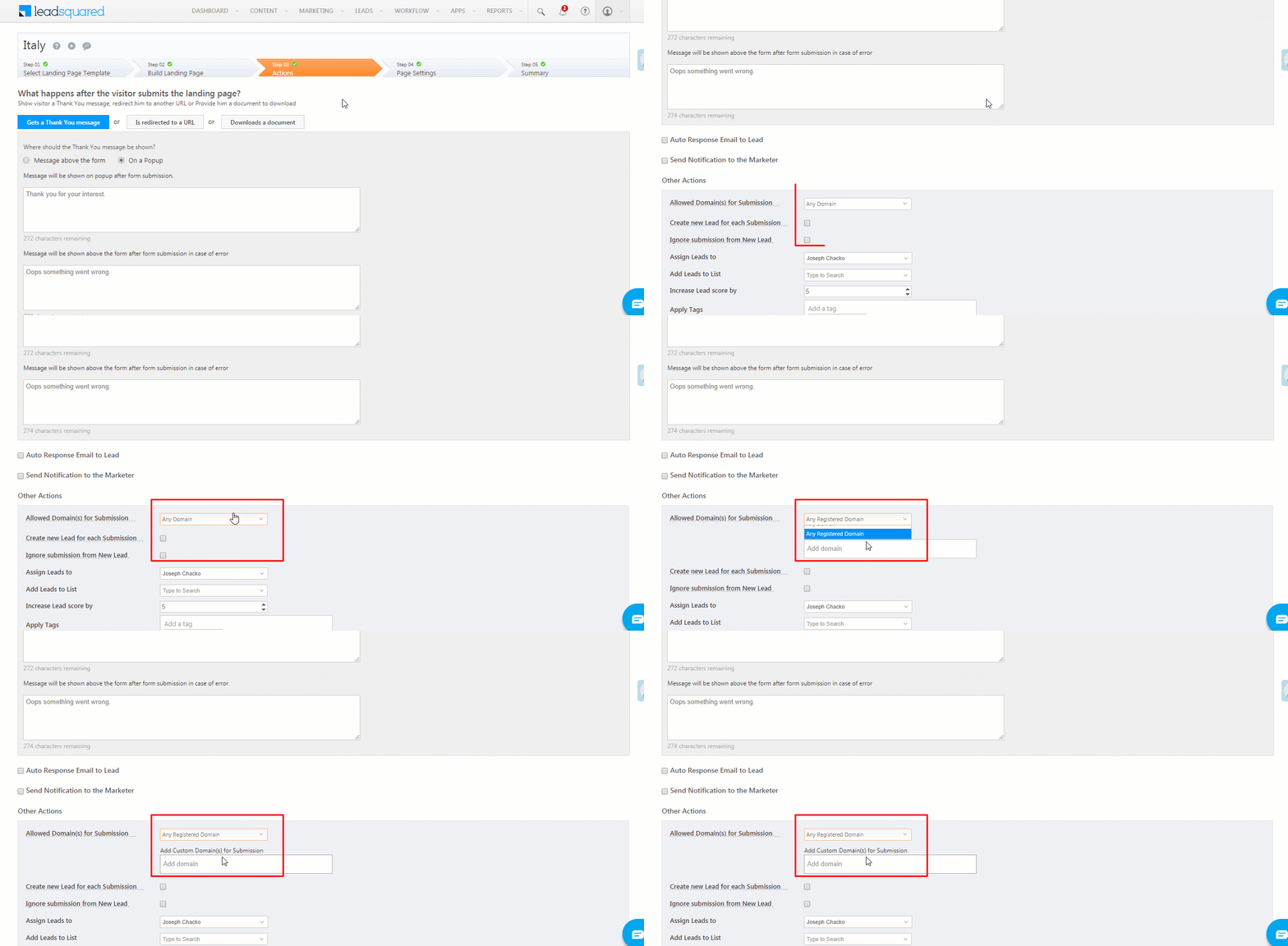
    You can restrict the domains on which form submissions will be accepted.


6. Audit Logs

Audit logs provide numerous benefits including better transparency, record integrity and accuracy, and security of sensitive or vital information. A weekly review of audit log reports in LeadSquared will keep you on top of any activity in your account.

  • Audit Log Reports
    List of reports that help you track changes made to users, leads, automations, etc.
  • Request History
    Monitor all bulk requests such as import, export and delete, and also the history of support access requests.


7. API Security

LeadSquared APIs support Transport Layer Security (TLS) encryption. TLS is a standard that keeps an internet connection private and checks that the data sent between two systems (a server and a server, or a server and a client) is encrypted and unmodified. While using our APIs, we recommend following these best practices –
  • Keep your API keys secret
    We use access keys and secret keys (unique for each user) for authentication. These keys give you access to LeadSquared functionality and data, so they should always be kept secret.
  • IP Whitelisting
    With IP whitelisting, only requests made from specified IPs will be accepted. Whitelist the IPs you’ll be making API calls from. To learn more, see Restrict User Access to LeadSquared using IP Whitelisting.
  • Restricting API access through permission templates
    For users who don’t need access to API, we recommend disabling API access through permission templates. To learn more, see How to Create a Permission Template.
  • Reviewing API Logs
    View your API logs to check for unauthorized access. For details, see API Logs.


8. Data Protection and Privacy

These features were created with GDPR in mind. They enable you to provide transparency to your leads in relation to their data and privacy.

Feature Description Help Documentation
Cookie Consent As part of the privacy settings, you can allow end-users to control whether or not they would like to enable cookies on your website (where the LeadSquared Tracking Script has been installed) Data Protection and Privacy Settings
Email Opt-in By using the email opt-in setting together with the email opt-in automation action, you can let your leads decide whether or not they want to receive emails from your organization.
Personal Data Protection When enabled, it automatically creates a landing page in your account, that you can publish to existing leads and present them with the following options –

  • View their data
  • Remove their data
  • Update their data
  • Do Not Track


Any Questions?

We hope this article was helpful. Please leave us a comment below if you have more questions.

Check-in/Check-out Location and Time Restrictions

1. Feature Overview

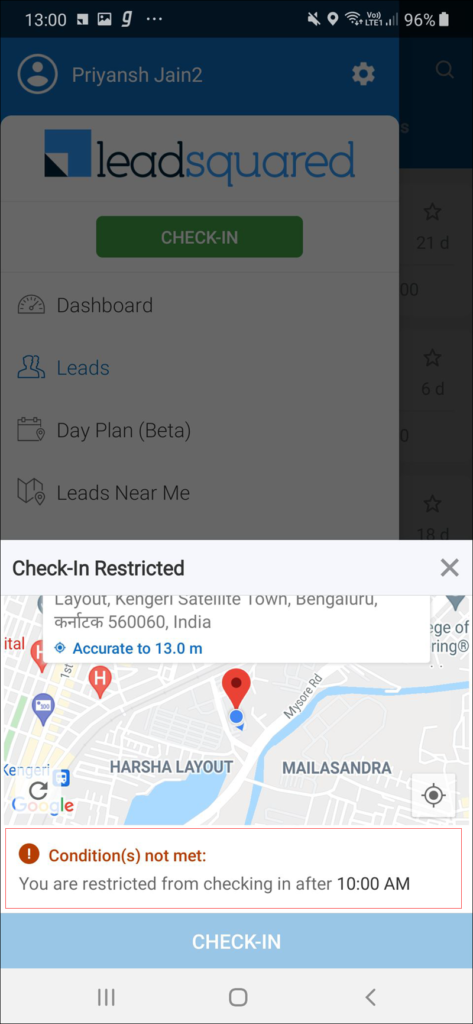
You can restrict users from checking-in and checking-out from the mobile app based on location and time preferences. The feature is available on both Android and iOS.

  • Allow users to check-in/out within a defined radius around a particular latitude and longitude.
  • Prevent users from checking-in/out before a certain time or before a certain duration.
  • Use combinations of location and time to meet nuanced use cases.

Using these features, you can enable your users to check-in/out from their specific office locations at the appropriate office timings.

Note: If you’re new to the Check-in/out features, see How to Check-in/out.

LeadSquared Attendance Management


2. Prerequisites

  • This feature is not available by default. Contact us at support@leadsquared.com to enable it for your account.
  • Admins must configure and update the user custom fields that will be used to set location and time restrictions.


3. How It Works

You can set location restrictions (latitude, longitude, and radius), time restrictions (duration, specific time) or a combination of both. The restrictions are applied on the basis of defined user custom fields. These fields are mapped to location and time restriction as follows –

3.1 Location Restrictions

All location restrictions are user-specific. They can be applied in one of two ways –

  • Lat-Long-Radius geo-fencing – Users can check-in/out only within the defined latitude, longitude and radius (in meters).
    Or
  • ZipCode geo-fencing – Users can check-in/out only within the list of defined Zip Codes.

3.2 Time Restrictions

Time restrictions can either be user-specific or a general setting implemented for all users. They can be applied as any one or as a combination of both duration and fixed-time –

  • Duration – Once checked-in, users can only check-out after the defined duration has elapsed.
    For example, if the duration restriction = 8 hours, the user will be restricted from checking out before 8 hours have passed. So, if the user has checked-in at 8 AM they will be able to check-out only after 8 hours (after 4 PM).
  • After Fixed Time -Users are only allowed to check-in after a fixed time. For example, if this value is set to 10 AM, users can check-in after 10 AM (users won’t be allowed to check-in before the specified time).
  • Before Fixed Time – Users must check-in before a fixed time. For example, if this value is set to 9 AM, the user must check-in before 9AM (users won’t be allowed to check-in after the specified time).

You can allow users to check-in within a certain time frame by using both before and after fixed time restrictions (e.g., users can check-in after 7 AM but before 10 AM).

3.3 Combining Location and Time Restrictions

You can combine both location and time restrictions. For example, you can –

  • Restrict users from checking-in/out outside the office location (using lat-long-radius) and from checking-out before completing their office hours (using duration).
  • Ensure users check-in/out from one of multiple office/client locations (using zip-codes) and after a particular time (using fixed time).

According to your use case, you have the flexibility to set multiple restrictions with the option to respect “All” or “Any” conditions during check-in or check-out.


4. Set Up

Here’s the procedure you need to follow –

  1. Configure the user custom fields in your account.
  2. Populate the fields with values for each user.
  3. Contact us at support@leadsquared.com and let us know the schema names of the custom fields you want to map for the location and time restrictions.

4.1 Configure Custom Field Data Types

Here are the accepted data types for each restriction –

Restriction  Field Data Type Example Notes
Location Latitude Text or Number 12.9121
Longitude Text or Number 77.6446
Radius Text or Number 500 Radius is measured in meters (m).
ZipCodes Text 560001 | 560005 | 560017 You can enter multiple Zip Codes separated by pipes “|”
Time Duration Text or Number 8 Number of hours
Time Text 21:30 Format must be HH:MM

To configure user custom fields –

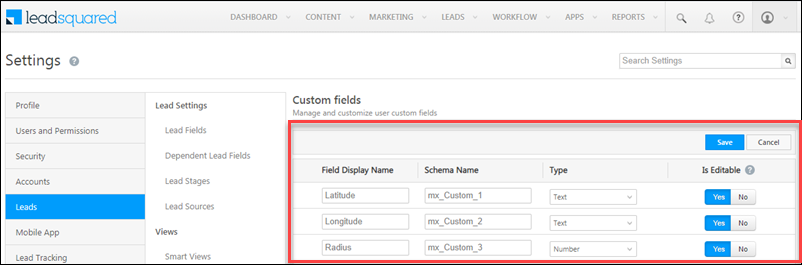
  1. Navigate to My Profile>Settings>Leads>Users>Custom Fields.
  2. Click Edit.
  3. Enter the display name (e.g., latitude, longitude, radius, etc.) and select the appropriate data type.
  4. Click Save.

user custom fields for check-in

4.2 Populate Values for Users

Next, update the values of the custom fields for the users you want to apply the check-in/out restrictions to. You can update the users manually or in bulk through CSV. For details, see

4.3 Contact Us

After completing the steps listed under sections 3.1 and 3.2, contact us at support@leadsquared.com. Let us know which fields you want to map. For example, Latitude (mx_custom_1), Longitude (mx_custom_2), etc.


5. Points to Note

  • Users will not be able to check-in/out while offline.
  • None of the restrictions in this article are supported in auto check-in/out.

5.1 Single Restriction

When only a single restriction is applied to an account and –

  • If the restriction field is blank for a particular user, check-in/out will work as normal (no restrictions will be enforced).
  • If the restriction field contains an invalid value for a user, a configuration error message will be displayed.

5.2 Multiple Restrictions

If multiple restrictions are applied on an account and –

  • If any one restriction field is blank for a user, that particular restriction will not apply to the user. The restriction check will be applied to “All” or “Any” of the remaining non-blank restrictions.
  • If all restriction fields are blank for a user, check-in/out will work as normal (no restrictions will be enforced).
  • If any of the restriction fields have an invalid value for a user, a configuration error will be displayed, but the user will be able to check-in if “Any” other condition is satisfied. In case, the “And” condition is configured, the user will be blocked from checking-in/out.
  • If all the restriction fields have invalid values for a user, a configuration error message will be shown and the user will be blocked from checking-in/out.


6. FAQs

Issue: How can I change the default check-in time for users on the LeadSquared mobile app?

Resolution:

  1. Log in to your LeadSquared account.
  2. Navigate to Settings>Mobile App>Additional Settings>Check-in/Check-out Location and Time Restriction.
  3. The textbox here allows you to enter a JSON that controls the default check-in and check-out time on the mobile app.
    1. If no data is available in the column, contact us at support@leadsquared.com to get the necessary JSON.
    2. If data is available, edit the parameter “After Fixed Time” and enter the new check-in time as needed.


Any Questions?

Was this helpful? Feel free to leave us a comment below.

Lead/Opportunity Level Check-in and Check-out on Mobile App

1. Feature Overview

The Lead and Opportunity Level Check-in/Check-out feature tracks the time a user spends on a lead or opportunity. This is different from the app-level check-in, which is meant for marking attendance. This feature provides more accurate data on the time spent on leads and opportunities, and enhances productivity analysis and reporting for managers. When Location Tracking is enabled, you can also track the location of your field user when they have checked-in at the Lead or Opportunity Level.


2. Prerequisite

You must have the LeadSquared mobile app installed in your device.


3. How It Works

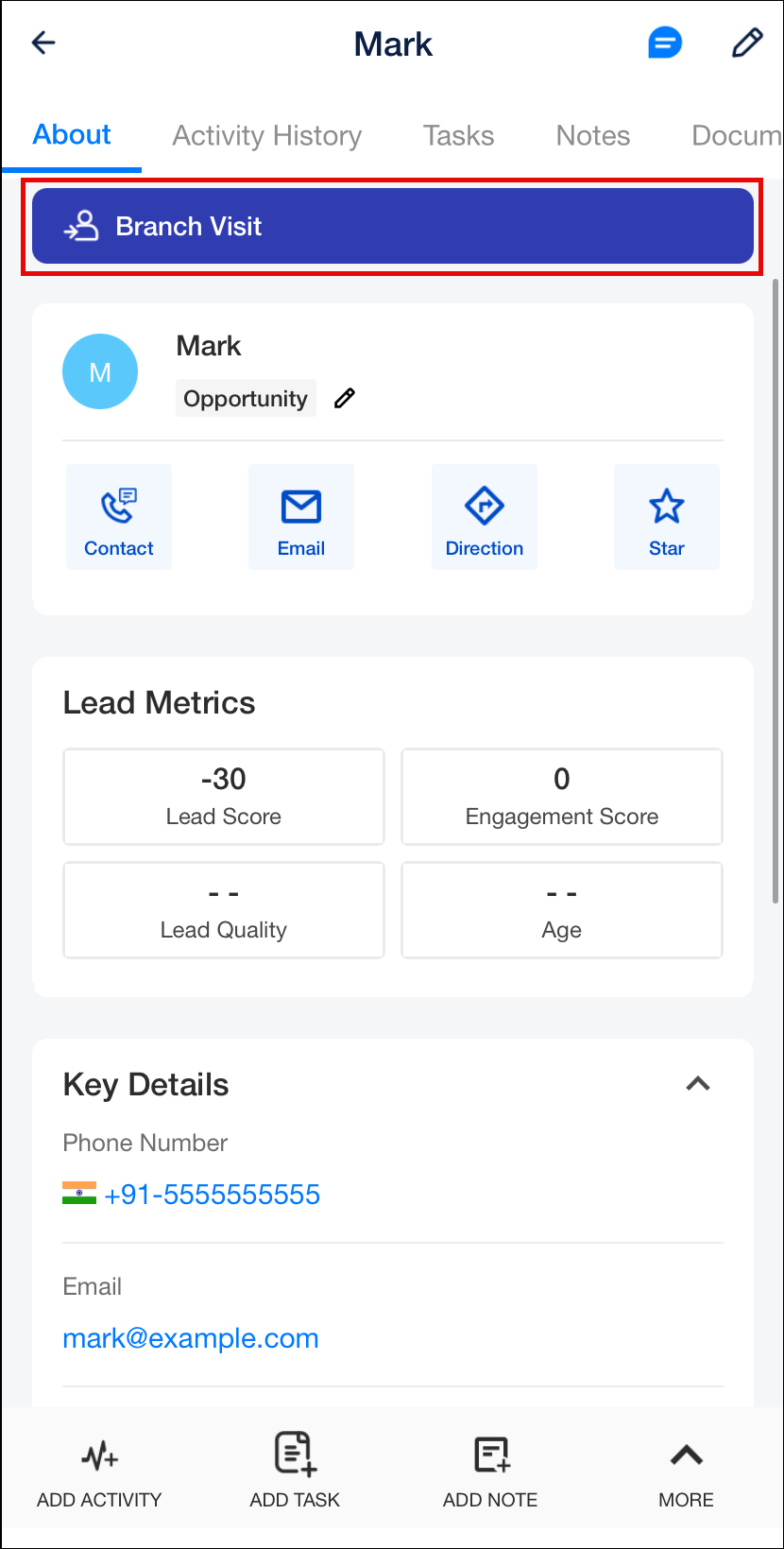
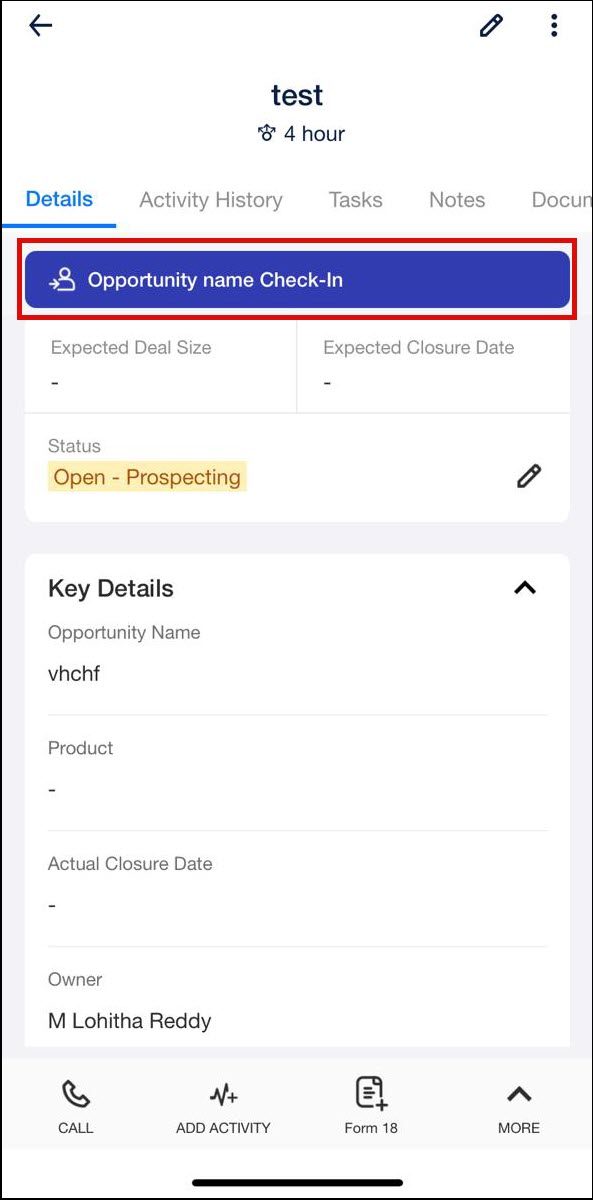
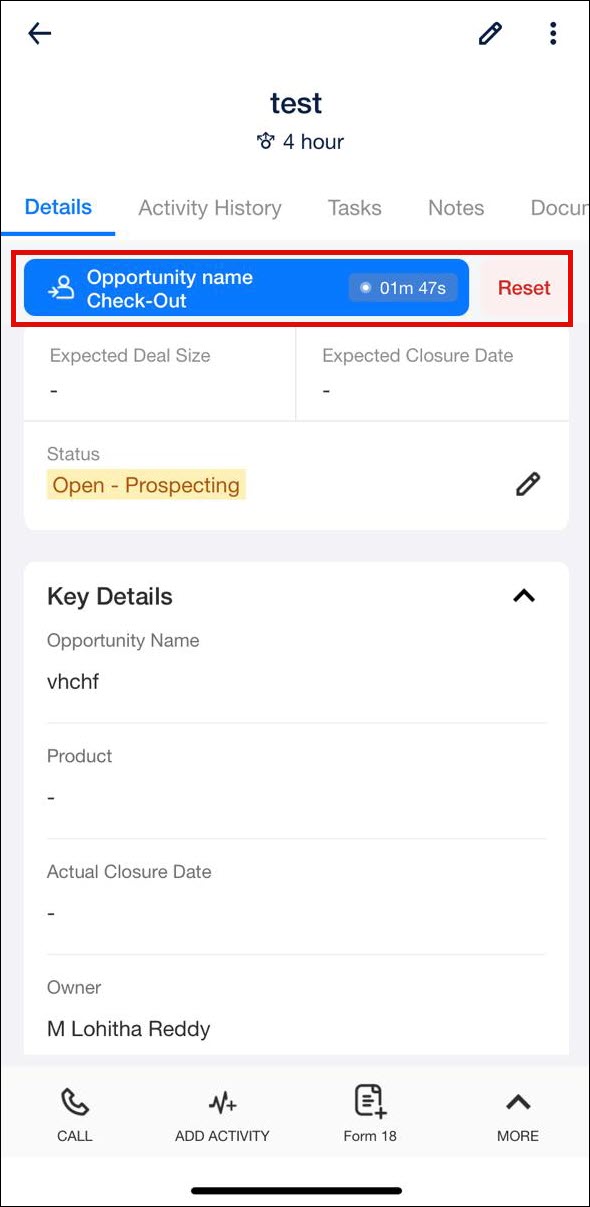
First, Admins must configure the JSON on Mobile App Additional Settings in a specific format to enable check-in and check-out at lead or opportunity level. Once this setting is configured, an Lead/Opportunity Check-In button will be displayed on the opportunity and lead details pages respectively. Users can tap this to start their meeting. A timer will appear in hours, minutes, and seconds.

The check-in/out actions can be linked to either a dynamic form or a default activity form, which can be manually submitted by the user or posted in the background. The corresponding activities will be posted upon checking in and out. The duration between these two activities will serve as the time spent by the sales user on the lead or opportunity. If geofencing is enabled, the user’s current location is fetched and verified to ensure they are within the defined radius from the location of the opportunity.

Lead Level Check-In and Check-out

LeadSquared - lead level check in  LeadSquared - lead level check out

Opportunity Level Check-In and Check-out

Leadsquared - opportunity level checkin Leadsquared - opportunity level checkout


4. Enable Lead Level Check-in/Check-out

  1. Navigate to Settings>Mobile App>Additional Settings.
  2. Alongside Check In and Out Entity Level, configure the JSON using the sample code given below.
  3. Once you’re done, click Save.
{
“lead”: [
{
“entityId”: “lead”,
“checkIn”: {
“title”: “Branch Visit”,
“activityCode”: “161”,
“backgroundPost”: true
},
“checkOut”: {
“title”: “End Branch Visit”,
“formId”: “e3c67a2c-8e73-11ee-9431-0e4a094f7057”,
“backgroundPost”: false,
“checkInTimeField”: “mx_Custom_3mx_CustomObject_1”,
“checkOutTimeField”: “mx_Custom_3mx_CustomObject_2”,
“durationField”: “mx_Custom_3mx_CustomObject_3”
}
}
]
}


5. Enable Opportunity Level Check-in/Check-out

  1. Navigate to Settings>Mobile App>Additional Settings.
  2. Alongside Check In and Out Entity Level, configure the JSON using the sample code given below.
  3. Once you’re done, click Save.

Sample JSON

{
“opportunity”:[
{
“entityId”:“12001”,
“checkIn”:{
“title”:“Start Meeting”,
“activityCode”:“209”,
“backgroundPost”:true
},
“checkOut”:{
“title”:“End Meeting”,
“activityCode”:“222”,
“backgroundPost”:false,
“checkInTimeField”:“mx_Custom_1”,
“checkOutTimeField”:“mx_Custom_2”,
“durationField”:“mx_Custom_3”
}
}
]
}
activityCode The code associated with a specific Activity Type
backgroundPost Pass ‘true’ to post the activity automatically on the lead, pass ‘false’ for the user to post the activity manually on the lead
formId Id of the form displayed to the user on check-out
checkInTimeField Schema name of field where the check-in time will be stored
checkOutTimeField Schema name of the field where the check-out time will be stored
durationField Schema name of the field where the duration of the activity will be stored


6. Enable Location Tracking

When Location Tracking is enabled, you can view a user’s location data while they are checked in at the Lead or Opportunity level. In addition to tracking the time spent on a lead or opportunity, the user’s exact travel path during on-site meetings can also be monitored. This is especially valuable in industries like automotive sales, on-site product demos, and field service, where physical movement is a key part of the engagement.

To configure this –

  1. Navigate to Settings>Mobile App>Additional Settings.
  2. Alongside Check In and Out Entity Level, configure the JSON using the sample code given below.
  3. Once you’re done, click Save.

Sample JSON

{
   "lead": [
       {
           "entityId": "lead",
           "checkIn": {
               "activityCode": "209",
               "title": "Start Meeting",
               "backgroundPost": true
           },
           "checkOut": {
               "title": "End Meeting",
               "activityCode": "211",
               "checkInTimeField": "mx_Custom_3",
               "checkOutTimeField": "mx_Custom_4",
               "durationField": "mx_Custom_5",
               "backgroundPost": true
           },
           "reset": {
               "FormId": "c6f081d7-4b48-11ef-8630-0af59550b647",
               "backgroundPost": "false"
           },
           "validations": [
               {
                   "method": "userField",
                   "data": {
                       "expectedValue": "sales",
                       "userFieldSchema": "mx_Custom_8"
                   }
               }
           ],
           "enableLocationTracking": true
       }
   ]
}


Once enabled, when a user logs into the app, they must –

  1. Perform the app-level check-in from the homepage or navigation menu.
  2. Navigate to the relevant lead or opportunity details page and check-in. The location during the checked-in duration will be tracked.
  3. Once the meeting is over, check-out.

The location history of the user can be accessed from the Field Force Insights Report. This helps you gain full visibility into your field team’s movement during customer visits.


Any Questions?

Did you find this article helpful? Please let us know any feedback you may have in the comments section below. We’d love to hear from you and help you out!

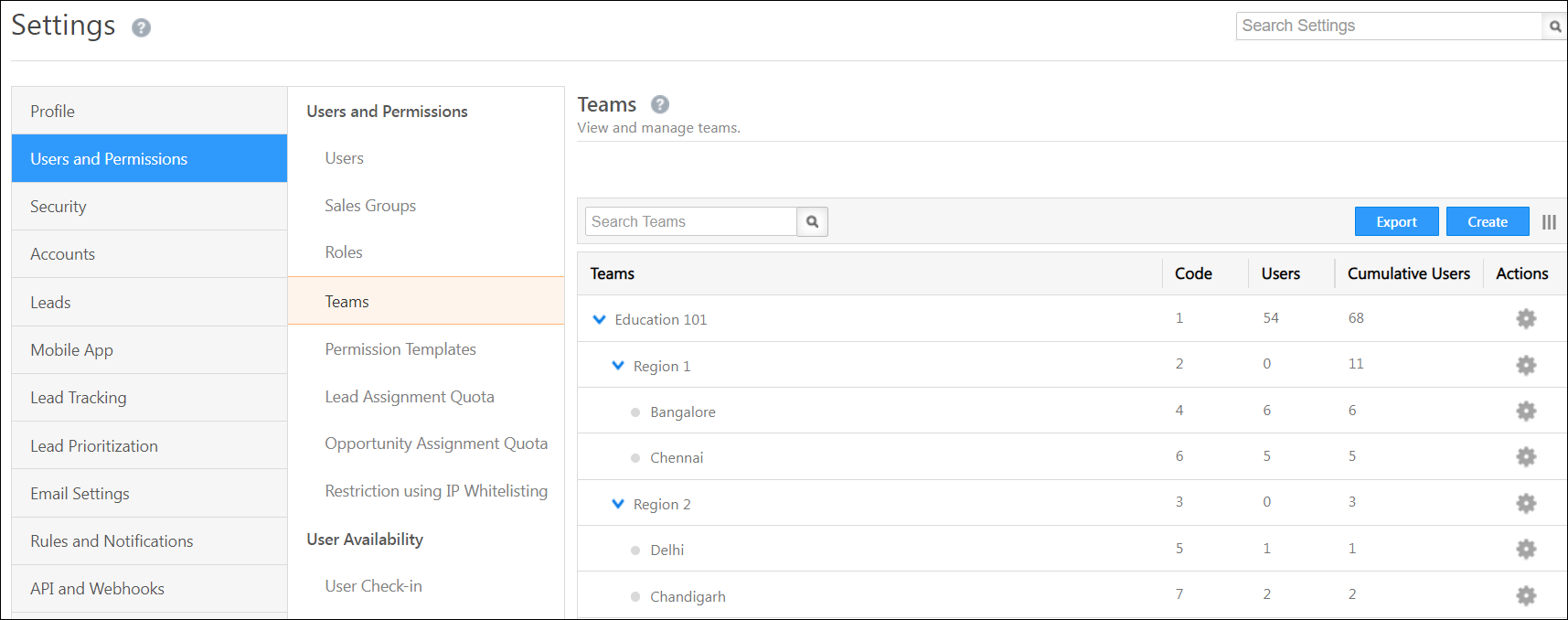
What is the difference between Sales Groups and Teams?

Sales Groups and Teams are two distinct features under Users and Permissions, built for different use cases.

Note: Only admins can create and configure Sales Groups and Teams.

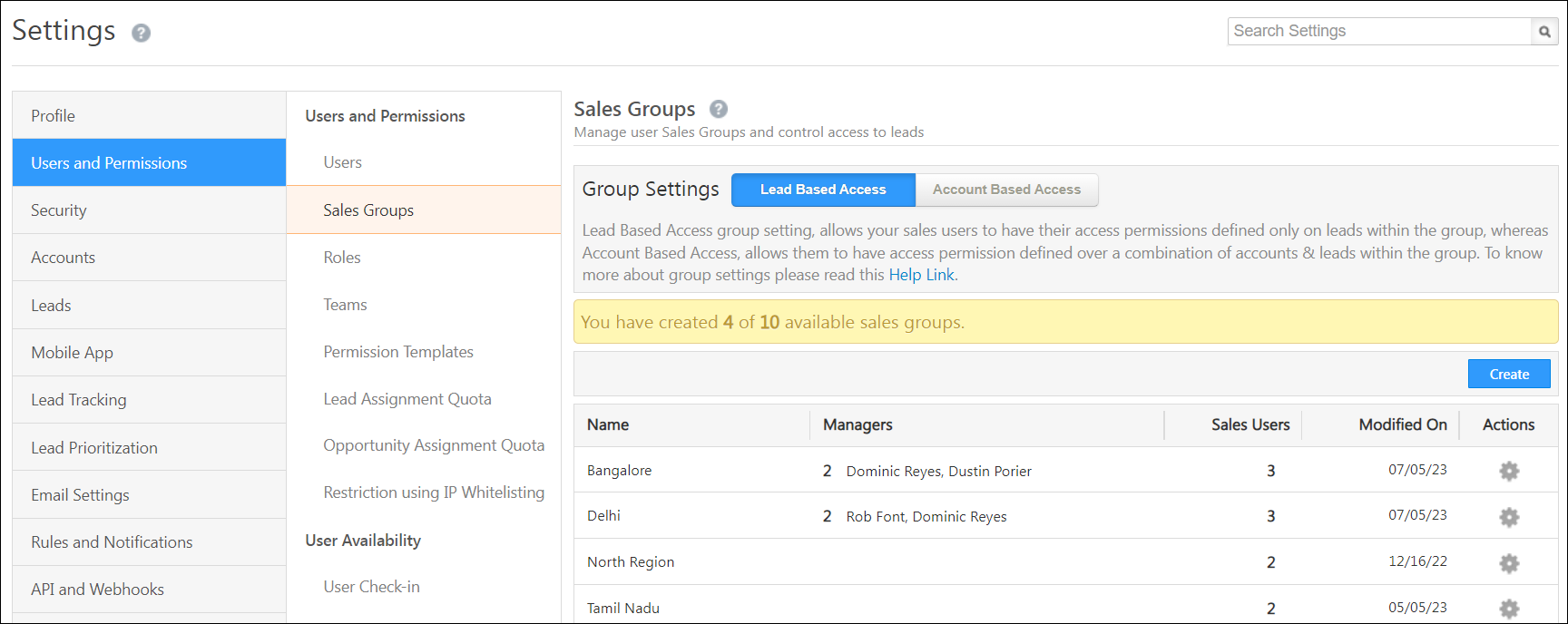
Sales groups are created to manage access to leads (and accounts and opportunities).

LeadSquared User Management Features

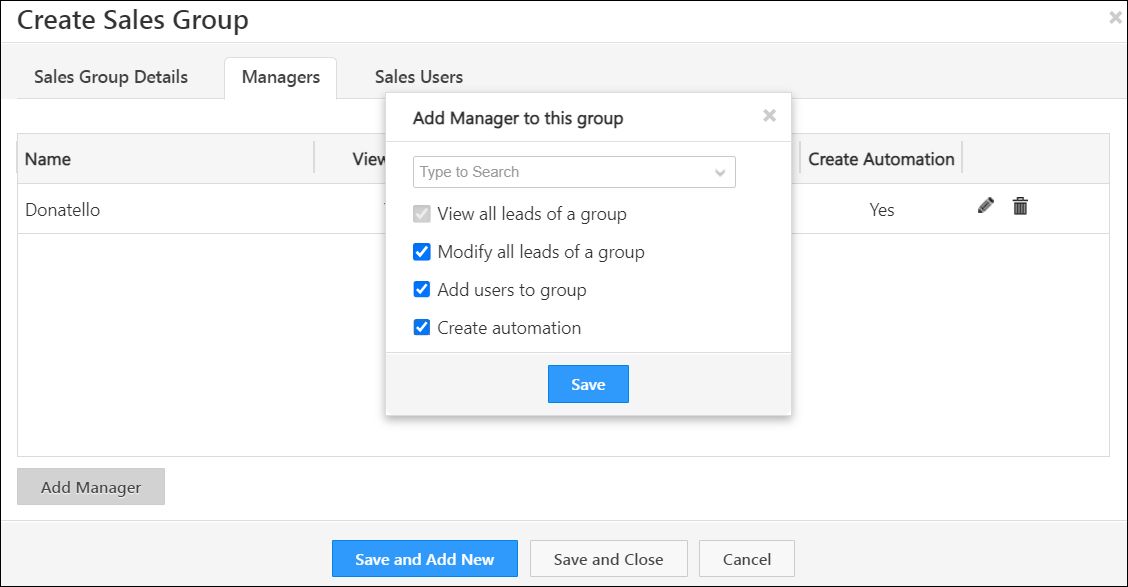
When you create a sales group you do two things –

  1. You define which sales users will be added to the group
  2. You define which sales users will be the group managers

By default, sales users can only view their own leads (leads for which they are the lead owners).
Group managers are also sales users, but they get special access to view and modify all the leads of all the users in their group (and also to add users to the group and create automations depending on your configurations).

Sales groups are usually location-based (e.g., North India, South India, etc.) but you can create them based on any use case, like sales division (pre-sales, enterprise sales, etc.), industry vertical, product type, etc.

LeadSquared Users and Permissions features

Features that work closely with sales groups –

  • Permission Templates – Add additional, more granular permissions to sales groups, like masking certain lead fields containing sensitive data and preventing users from exporting lead data.
  • Lead Distribution Automation – Automate lead distribution to sales groups depending on lead and user attributes like location, product, department, and lots more.


Teams, on the other hand, are created to assign key user management and lead management features to all users in your account (not just sales users). You can create teams based on department/vertical to reflect your organization’s structure and manage their attendance, working hours, holidays, and leaves. You can also assign key lead management features to them such as smart views, reports, and customized views of the lead details pages.

LeadSquared User Management Features

Features that work closely with teams –

  • Work Day Templates – Define the working hours of your team. This can also be leveraged in lead distribution automation for availability-based distribution
  • Holiday Calendar – Define the yearly holiday calendar for your teams.
  • Leave Tracker – Track leaves and attendance.
  • Lead Details Customisation View – Give each team a customized view of the lead details page.
  • Smart Views – Create a single work area for each team with all the lead, opportunity, activity and task information available upfront.
  • Custom Dashboards – Present each team with the key metrics and analytics they need.


Summary

Sales Group Teams
This feature is only available for Sales Users. This feature is available for all all users.
Organise your sales users into different sales groups based on their location, business unit, or any other category. Reflect the structure of different teams/departments in your organization according to their hierarchy.
Used to manage lead access to sales users. Used to manage users and leverage some lead management features like smart views and customized lead details views.

RingCentral Texting Connector

1. Feature Overview

The RingCentral texting connector lets you send texts to leads directly from your LeadSquared account. In addition, you’ll be able to –

  • Set up automated SMS campaigns with notifications and reminders.
  • Track incoming and outgoing SMS logs as activities.
  • Eliminate the need to switch between multiple applications, and manage your SMS activities in one place.

For RingCentral call integration, see RingCentral Telephony Connector.


2. Prerequisites

  • You must be an administrator user of your Leadsquared account.
  • Your account plan must support SMS integration.
  • You must have an active account with RingCentral.


3. Installation

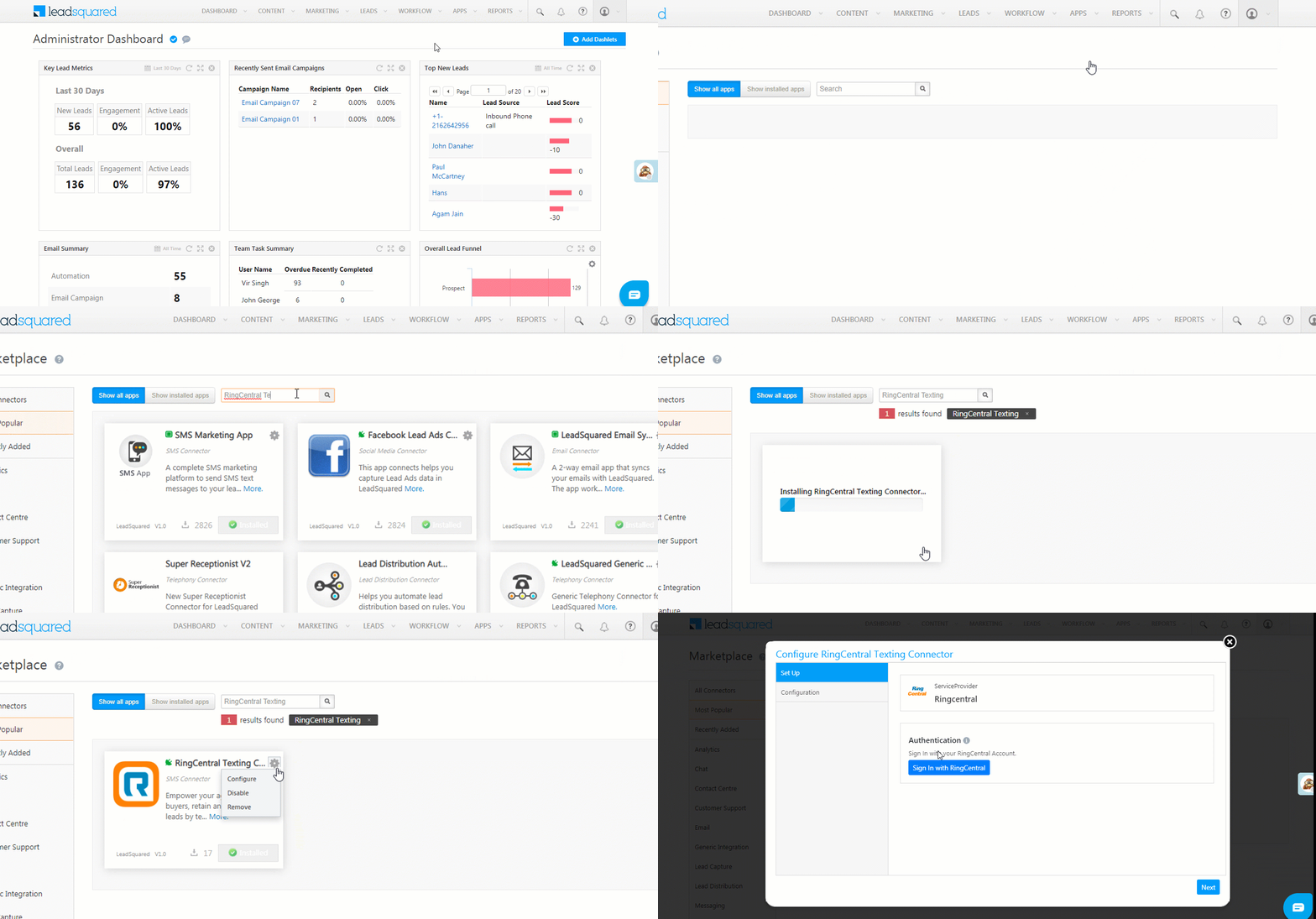
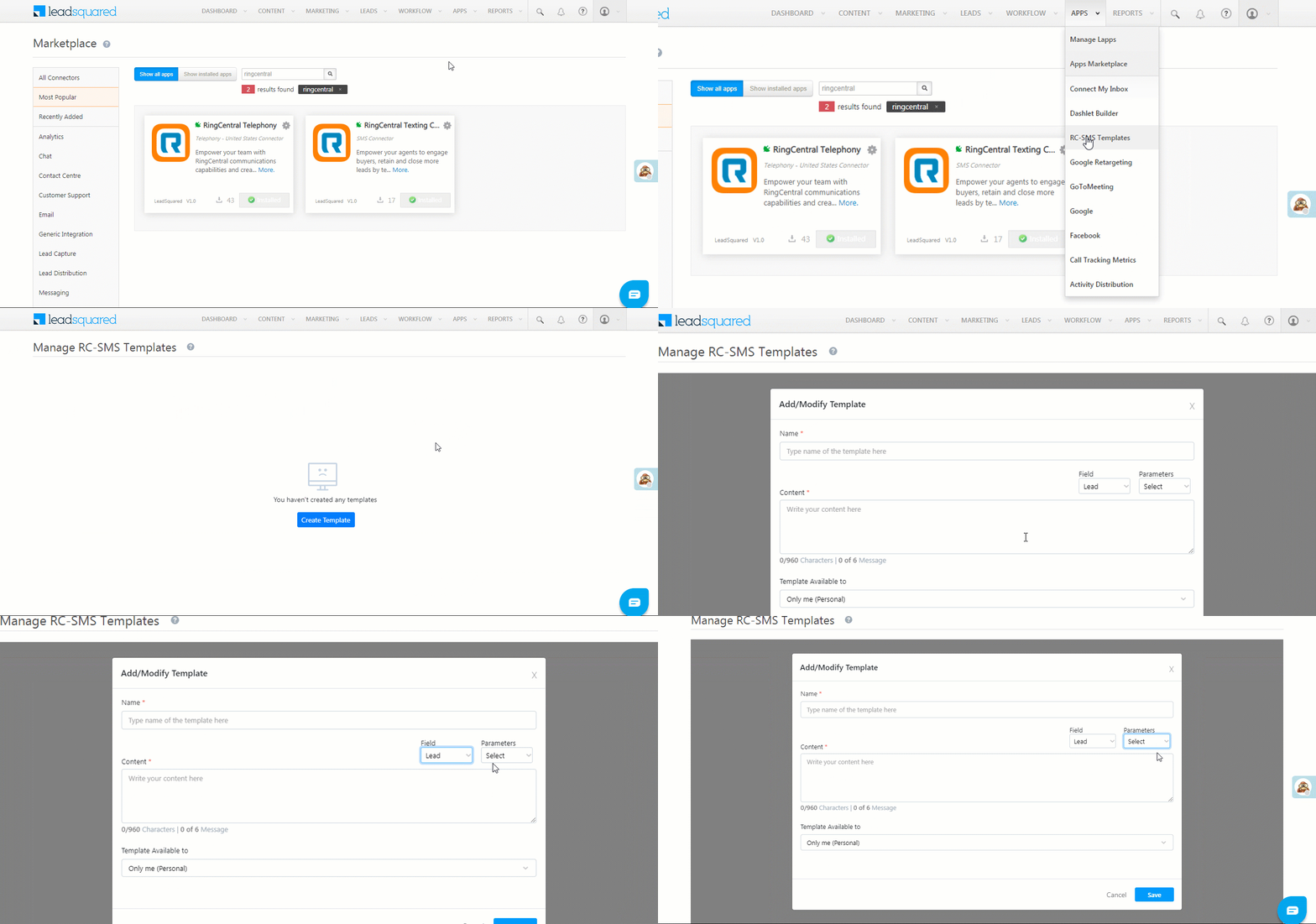
  1. On the main menu, navigate to Apps>Apps Marketplace and search for “RingCentral Texting”.*
  2. Click Install.
  3. Once installed, hover your cursor over the settings settings wheel, then click Configure.

* You can also find it under the SMS category on the left pane.

RingCentral Texting Connector Installation


4. Configuration

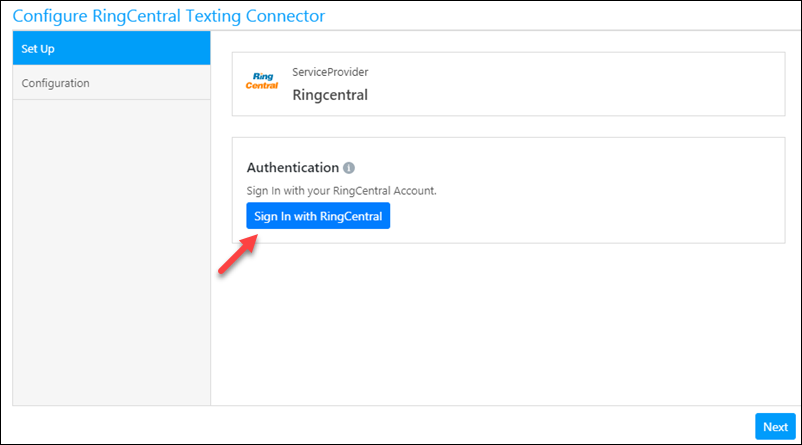
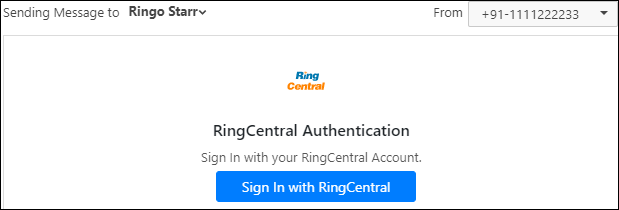
First, complete the Set Up step by clicking Sign In with RingCentral.

Ring central texting app set up

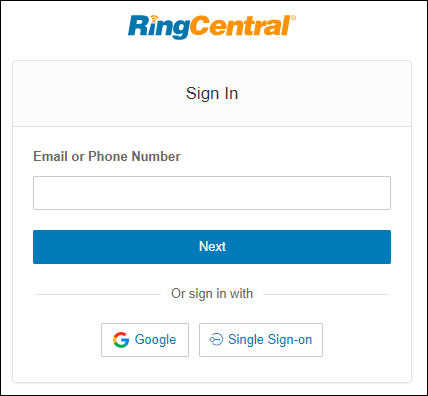
Enter your RingCentral account credentials.

Signin with ringcentral

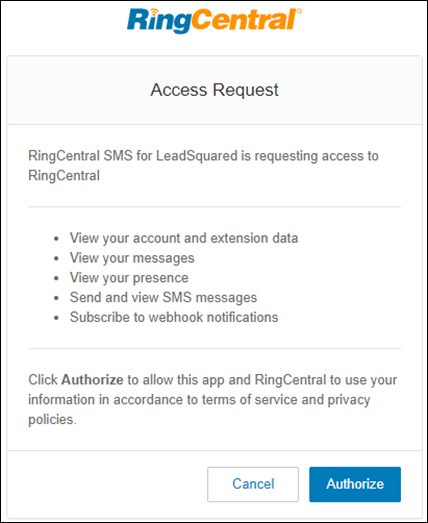
Click Authorize to give LeadSquared access to the necessary permissions.

Ringcentral texting app permissions

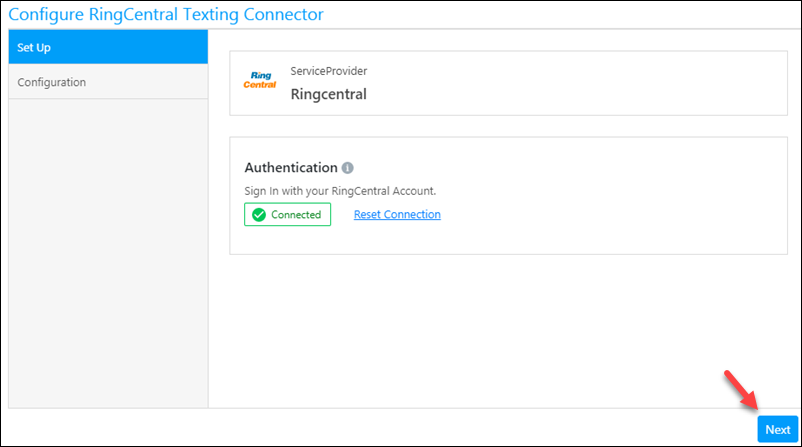
You’ll see the connected icon icon once you’ve successfully connected to your RingCentral account. Click Next.

ring central authentication

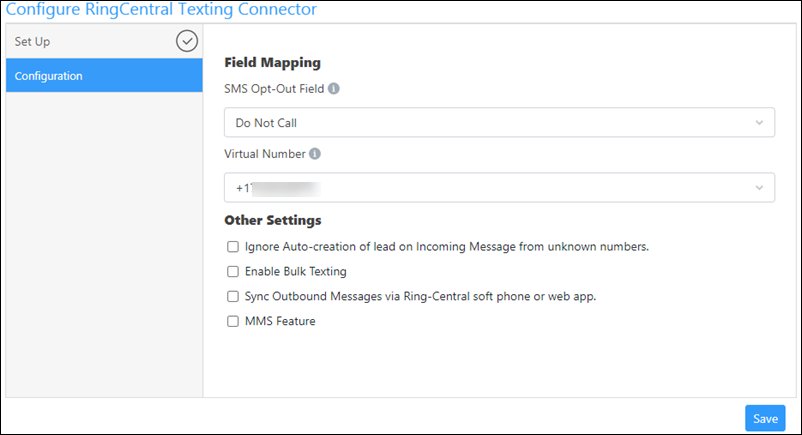
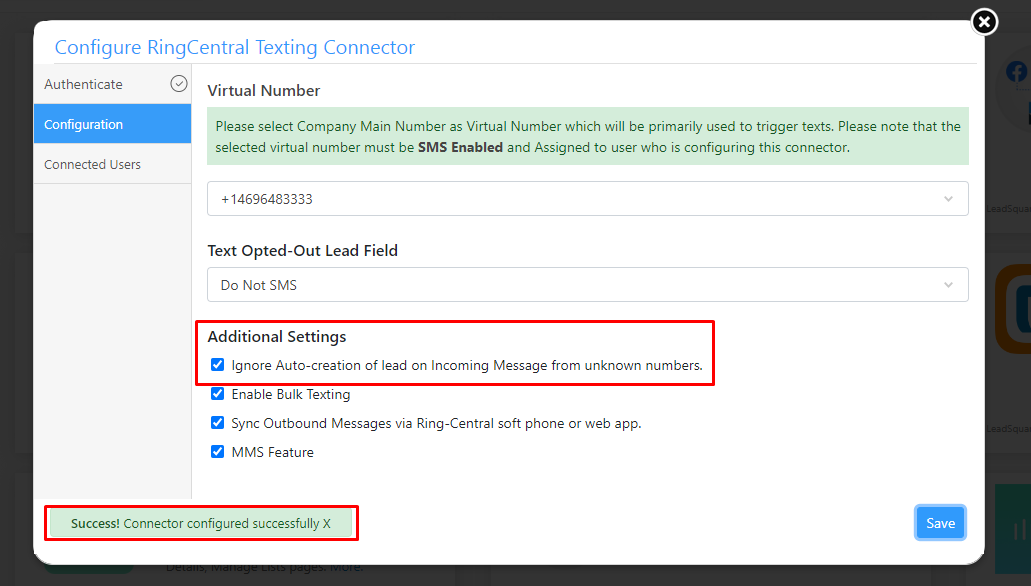
Fill in the required fields (see table below), then click Save.

RingCentral Texting Connector in LeadSquared

Field Description
SMS Opt-Out Field By default, the ‘Do Not SMS’ field will be considered. If this field is not available in your account, you can select a field (of boolean type) from the list. Leads for which the value of the opt-out field is set to ‘True’ will not receive any SMS.
Virtual Number Select the number that will be primarily used to send SMS, for example, the company’s main phone number. Ensure that the number is –

  • SMS enabled from your RingCentral account
  • Assigned to the user configuring the connector
Ignore Auto-creation of lead on Incoming Message from unknown numbers Enable this setting to stop automatic lead creation when you receive messages from unknown mobile numbers.
Enable Bulk Texting Enable this setting to send bulk SMS to multiple leads.
Sync Outbound Messages via Ring-Central softphone or web app Enable this setting to sync SMS sent via RingCentral softphone or the RingCentral web app, with your LeadSquared account.
MMS Feature Enable this setting to send MMS messages to your leads.


5. Configure SMS Templates

Once the app is installed, you can configure SMS templates –

  1. From the main menu, navigate to Apps>RC-SMS Templates.
  2. Click Create Template.
  3. Enter the template details, then click Save.

RingCentral Configure SMS Templates


6. Send SMS

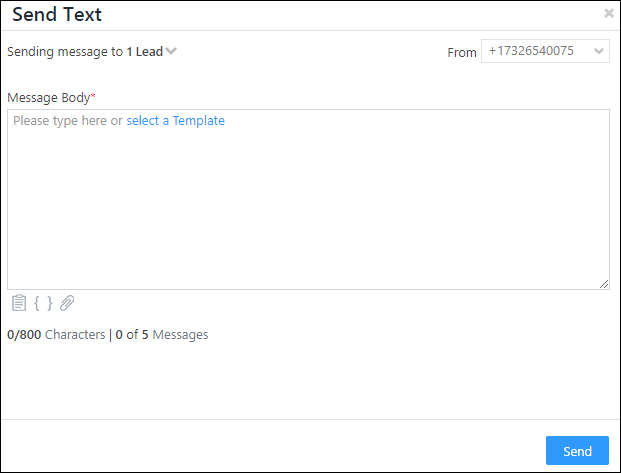
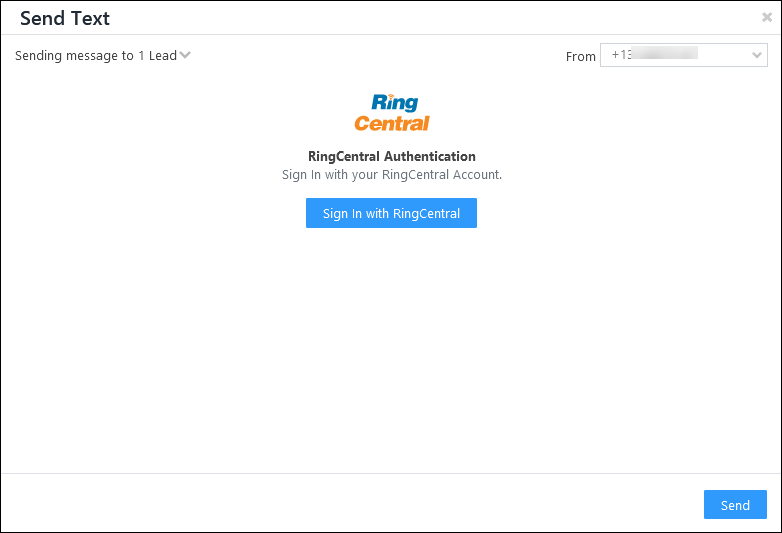
You can now send SMS to your leads from multiple areas within the application. When you initiate the send text action, you’ll see the following pop-up –

RingCentral Texting Connector in LeadSquared

Field Description
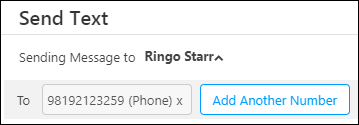
Sending Message to You can send messages to multiple numbers saved under the lead.

Send Message To Send Text popup

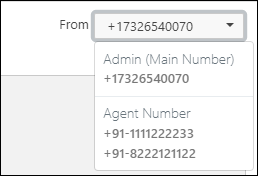
From You can send the message from the main virtual number configured in the connector, or from other numbers saved under the agent. To add more numbers to an agent, navigate to My Profile>Settings>Users and Permissions and edit the user’s mobile number details.

Send Text pop-up From field description

Note: If you want to send the message from any agent number other than the main number, you’ll be prompted to sign-in to the RingCentral account associated with that number. This is a one-time activity.

Sing in to RingCentral for agent numbers

Message Body You can type your own custom message in the body and make of templates (reference 4) and mail merge fields (reference 5).
Templates select template icon See section 5 above to configure SMS templates.
Parameter Let’s you select lead and user parameters.
Mail Merge mail merge code icon Let’s you select lead and user mail merge parameters.
Attachments attachment icon You can send MMS messages with attachments.

Note:

  • File names should not contain any special characters. Only period (.), dash (-), and underscore (_) are allowed.
  • Supported filetypes include – image/jpeg, image/png, image/jpg, image/gif, text/vcard, text/directory, text/x-vcard.
  • Max file size is 4 MB.


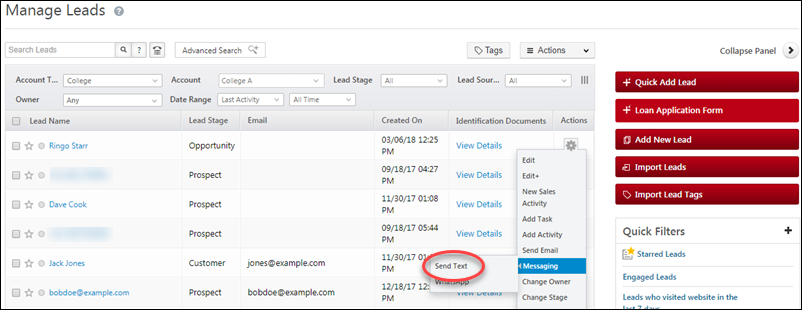
6.1 One to One SMS from Manage Leads Page

On the Manage Leads page (from the main menu, navigate to Leads>Manage Leads) –

  1. Under Actions, click the settingsSettings iconicon.
  2. Hover your cursor over Messaging, then click Send Text.

Send SMS from Manage Leads


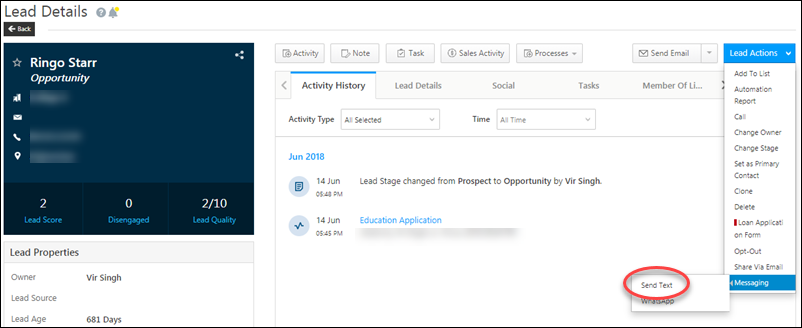
6.2 One to One SMS from the Lead Details Page

On the Lead Details page –

  1. Hover your cursor over Lead Actions.
  2. Under Messaging, click Send Text.

Send SMS Lead Details


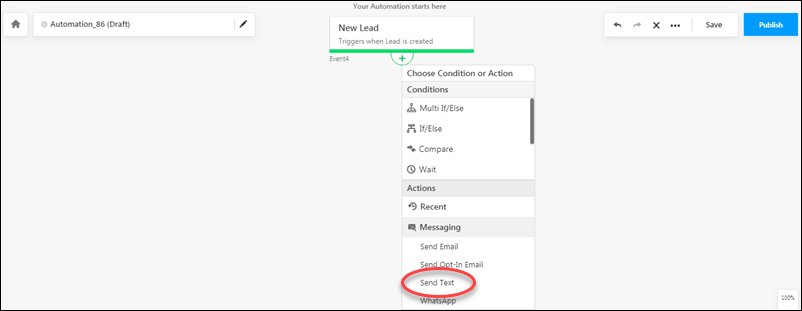
6.3 SMS via Automation

You can also send SMS to leads through automation.

  1. Navigate to Workflow>Automation.
  2. Create a new automation or edit an existing one.
  3. After selecting the type of automation and the trigger, click the add expand icon, click Messaging, then click Send Text.

For more information, see How to Send SMS through Automation.

send SMS through Automation


6.4 Bulk SMS from Manage Leads Page

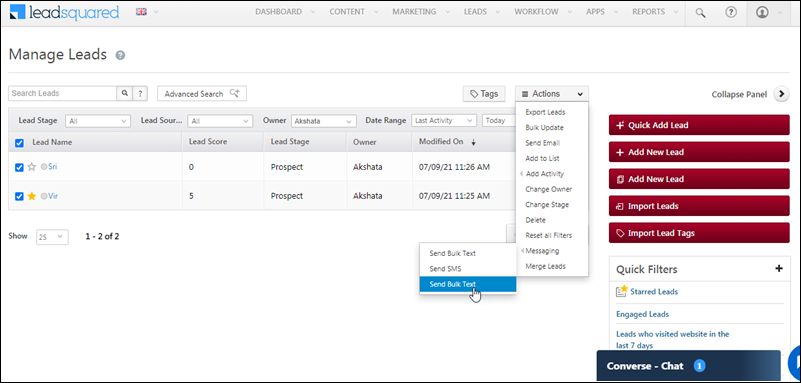
  1. Navigate to Leads>Manage Leads.
  2. Select the Checkbox checkboxes alongside the leads you want to send the SMS to.
  3. Hover your cursor over the Actions button, then hover it over Messaging, and click Send Bulk Text.
Note: You can also use filters or the Advanced Search feature to find the leads you want to message.

RingCentral Texting Connector in LeadSquared


6.5 Manage Lists

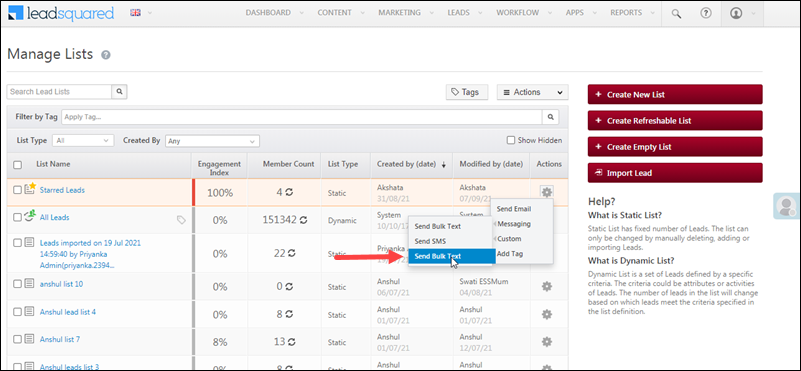
You can send bulk SMS to your lead lists from the Manage Lists page.

  1. Navigate to Leads>Manage Lists.
  2. Alongside the list you want to send the SMS to, hover your cursor over Settings icon.
  3. From the options available, hover your cursor over Messaging, and click Send Bulk Text.

RingCentral Texting Connector in LeadSquared


7. SMS Activities

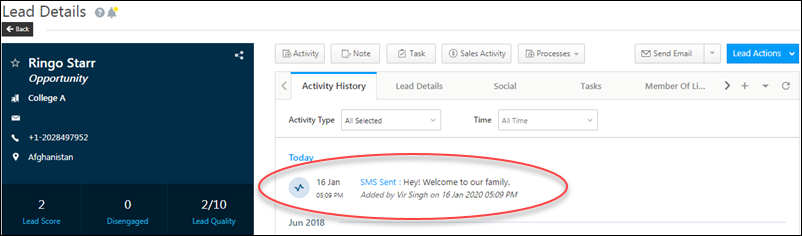
You can track your sent and received SMS from the Lead Details or Manage Activities pages. We automatically post either SMS Sent or SMS Received activities in real-time.

7.1 Lead Details

You can also click on the SMS Sent link to view more details.

SMS Sent activity


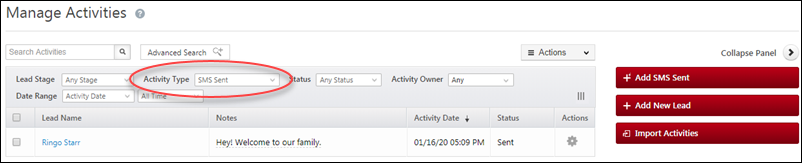
7.2 Manage Activities

You can also view the list of leads with SMS activities. Be sure to select either SMS Sent or SMS Received activities from the Activity Type drop.

Manage Activities SMS activities

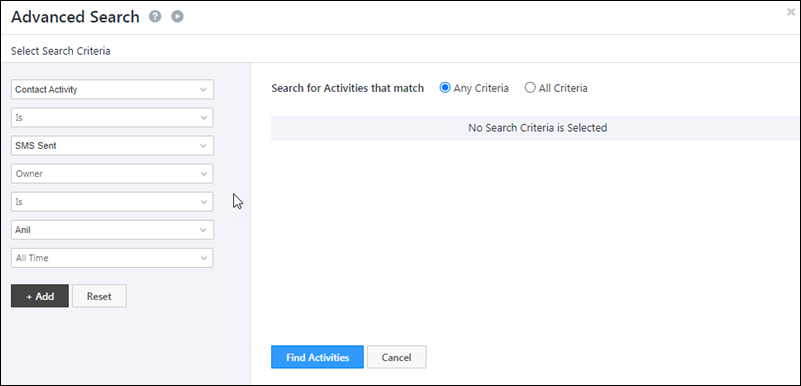
You can use the Advanced Search feature to filter SMS based on different fields, such as campaigns, date-time fields, etc.

LeadSquared Tech Alpha Connector


8. Delivery Reports

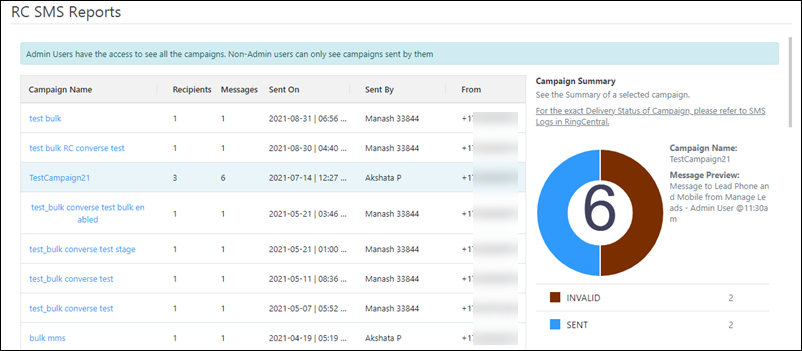
Delivery statistics are available for both one-to-one and bulk SMS campaigns.

  1. On the main menu, navigate to Apps>RC SMS Reports.
  2. Use the tab options to view data on single or bulk SMS campaigns.

RingCentral Texting Connector in LeadSquared


9. Troubleshooting

We’ve listed down a few errors you might come across when using this connector –

1. Unable to Complete Authentication

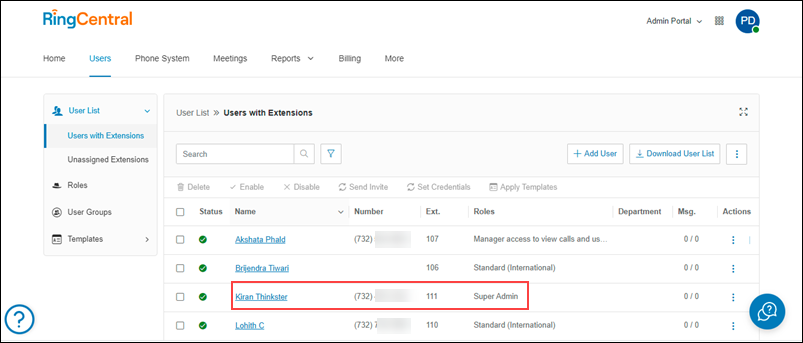
  • In your RingCentral account, ensure the user that’s performing the authentication is a Super Admin User.
  • In your RingCentral account, ensure at least one phone number is assigned to the Super Admin User that’s performing the authentication.

LeadSquared RingCentral Integration

2. Unable to Send/Receive Messages using the Agent’s Number

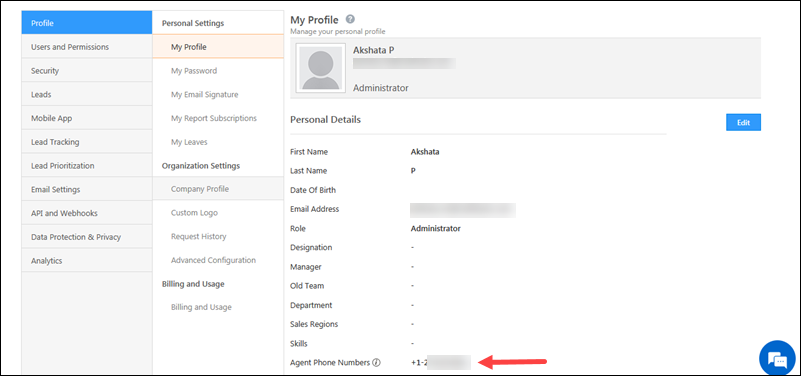
  • In your RingCentral account, navigate to Settings>My Profile>Agent Phone Number, and add the agent’s correct phone number.

LeadSquared RingCentral Integration

  • In your LeadSquared account, from the Send Text pop-up, each agent’s number must be authenticated at least once before they send or receive a text message for the first time.

LeadSquared RingCentral Integration

3. Leads are being created with no name.

The Ring Central Texting connector automatically creates a new lead for every inbound text. To prevent the creation of these spam leads:

Enable the ‘Ignore New Leads’ setting by checking the designated box in the connector settings.

LeadSquared Telephony Integrations

4. SMSs are not syncing between RingCentral and LeadSquared (SMS sync issues). 

Step 1: Reset the Connection

  1. Navigate to the Apps Marketplace.
  2. Configure the RingCentral Texting connector.
  3. Click on “Reset connection.”
  4. Sign in using RingCentral’s super admin credentials.
  5. Set the required configuration and save it.

Step 2: User Re-Authentication: Each user needs to re-authenticate with RingCentral by following these steps –

  1. Clear Browser Cache.
  2. Login to LeadSquared.
  3. Create a Test Lead: Open an existing test lead or create a new one.
  4. Send a Text: Navigate to the lead details page, click the “Action” menu, and select “Send Text.”
  5. Authorise LeadSquared: In the pop-up, choose your assigned phone number from the top right corner.
  6. Log in with your RingCentral account and authorise LeadSquared to send texts.
  7. After authorization, choose your assigned phone number again in the pop-up.
  8. Send a Test Message: Send a test text message to confirm the setup.
  9. Re-login: Log out and back into your LeadSquared account to complete the process.

By following these steps, the SMS sync issue will be resolved


Any Questions?

Was this article helpful? Leave us a comment and let us know.

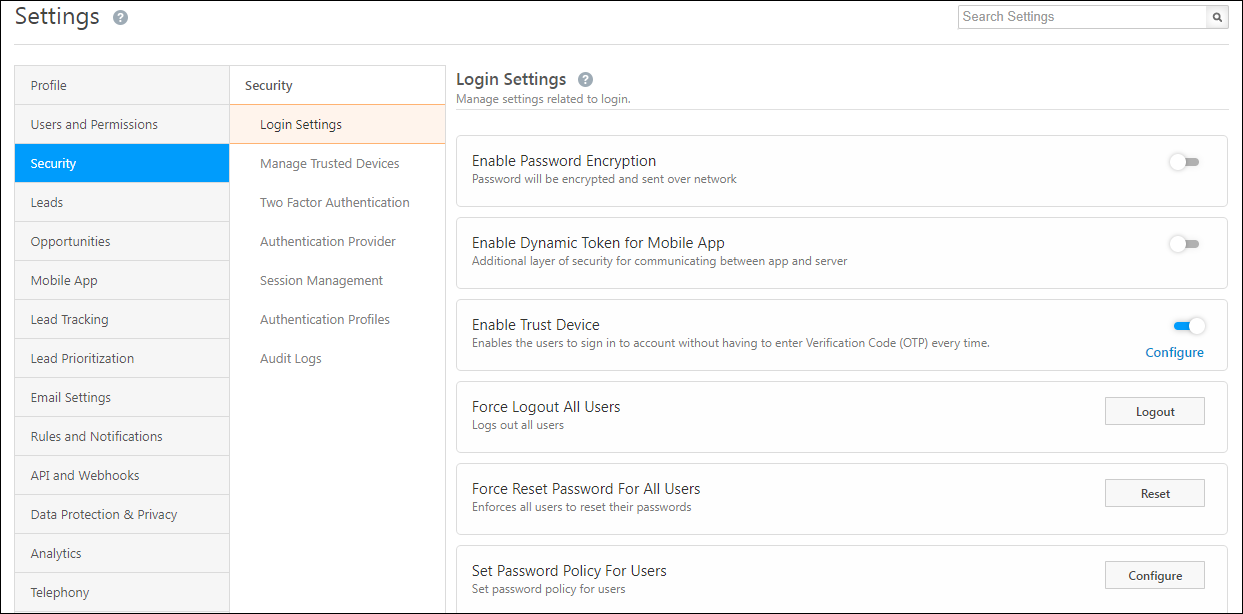
LeadSquared Security Settings – Login Settings

1. Feature Overview

Administrator users can configure LeadSquared login settings for their users. To access these settings, navigate to My Profile>Settings>Security>Login Settings.

login settings

For information on other security-related settings, see –


2. Enable Password Encryption

To enable this setting, click the slider enable icon. When enabled, passwords will be encrypted and sent from the browser to the server. Users will not be able to ‘Remember Password’ and the password won’t be stored anywhere in the browser cache.


3. Enable Dynamic Token for Mobile App

To enable this setting, click the slider enable icon. You can add more security to your Leadsquared account on the mobile app by enabling a dynamic authentication token. When you enable this feature, you won’t be able to simultaneously log in to your account on different mobile devices. If you log in from a second device, you’ll be logged out of your account on the first device.


4. Enforce Password Reset

To enable this setting, click the slider enable icon. If an admin has changed a user’s password, this setting will require the user to reset the new password upon their next login.


5. Enable Trust Device

To enable this setting, click the slider enable icon. Users can log into their LeadSquared account without verifying themselves through Two-Factor Authentication (2FA) each time. Click on Configure to set the default expiration period for a trusted device.

To learn more, read Authentication – Trusted Device.


6. Force Logout All Users

You may want to force logout users from your account for a number of possible reasons –

  • LeadSquared may have added new features/enhancements or you may have opted for additional features or a change of plan. Sometimes, this requires users to log back in.
  • If you suspect that your account has been compromised, you can force log-out all users as the first safety precaution.
  • Some users prefer not to log out (and/or check out) of their accounts which may pose security risks.

Alongside the Force Logout All Users setting, click logout button.


7. Force Reset Password For All Users

To ensure all your users change (reset) their passwords, alongside Force Reset Password For All Users, click Reset. This will automatically log out all your users from their LeadSquared accounts. When they try logging in, they’ll be required to set new passwords for their accounts.


8. Set Password Policy For Users

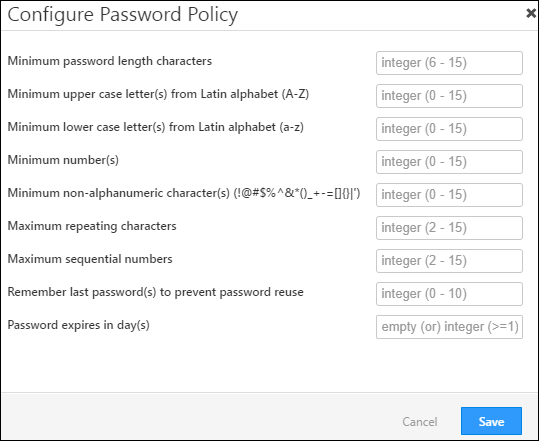
You can customise and set requirements (e.g., minimum password length allowed, minimum special characters allowed, etc.) for the passwords your users create. To do this, click Configure, and enter the following details –

  • Minimum password length characters The minimum character limit for the password. This setting is mandatory. The minimum limit you can set is 6 characters.
  • Minimum upper case letter(s) from Latin alphabet (A-Z) – The minimum number of upper case letters that can be included in the password. You can allow up to 15 upper case letters in a password.
  • Minimum lower case letter(s) from Latin alphabet (a-z) – The minimum number of lower case letters that can be included in the password. You can allow up to 15 lower case letters in a password.
  • Minimum number(s) – The minimum number of numbers (0-9) that can be included in the password. You can allow up to 15 numbers in a password.
  • Minimum non-alphanumeric character(s) – The minimum number of special characters (e.g., !@#$%, etc.) that can be included in the password. You can allow up to 15 special characters in a password.
  • Maximum repeating characters – The minimum number of repeating characters (e.g., the letter ‘s’ ‘passssword’) that can be included in the password. You can allow between 2-15 repeating characters.
  • Maximum sequential numbers – The maximum number of sequential numbers (e.g. the numbers 1,2,3 or 7,8,9) that can be included in the password. You can allow between 2-15 sequential numbers.
  • Remember last password(s) to prevent password reuse – The number of last passwords (in sequential order) that cannot be set as the new password. For example, if your last four passwords were Purple, Orange, Maroon and Yellow (Purple being the newest), and if you set the value to 2, you cannot set Purple or Orange as the new password, but you can set Maroon or Yellow. You can restrict up to 10 previous passwords from being set as the new password.
  • Password expires in day(s) – The number of days for which the current password will be valid. Once the password expires, your users will be required to set a new password. The minimum number of days you can set is 1.

Once you’re done, click Save.

Note:

  • We recommend you Force Reset Password For All Users when you set your new password policy. This ensures all users comply with the new password policy requirements.
  • When a user enters an incorrect password, LeadSquared tracks the number of failed login attempts. After three consecutive invalid attempts, the user receives an email notifying them that login attempts were made from a specific IP address. From the fourth attempt onward, a CAPTCHA is displayed, and no further emails are sent regarding failed login attempts.

LeadSquared Login Settings


Any Questions?

Did you find this article helpful? Please let us know any feedback you may have in the comments section below. We’d love to hear from you and help you out!

Super Admin Users

1. Feature Overview

In the usual set up, LeadSquared users can have one of four roles – Administrator (Admin) User, Marketing User, Sales Manager and Sales User (for details, see User Roles and Access Rights).
In addition, we also support a Super Administrator user role that can control permissions given to LeadSquared admins. If you want to grant admin users permission to set up all the important account features and configurations, but also want to limit them from viewing sensitive information or exporting your data, contact us at support@leadsquared.com to enable this feature.


2. Prerequisites

You must contact us at support@leadsquared.com to get this feature enabled.


3. How It Works

Super Admins have all the permissions granted to regular Admin users, plus the ability to –

  • Convert other Admin users to Super Admins
  • Apply Permission Templates on Admin users


3.1 Converting Admins to Super Admins

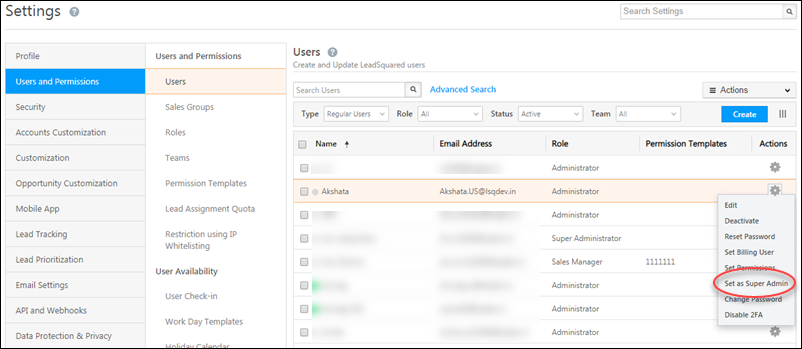
Super Admins will see this additional action on the Manage Users page –

  1. Navigate to My Profile>Settings>Users and Permissions.
  2. Alongside any user, under the Actions column, hover your cursor over the settingsSettings iconwheel and click Set as Super Admin.
  3. On the confirmation dialog box, click Yes.

Set as Super Admin - Manage Users


3.2 Applying Permission Templates on Admins

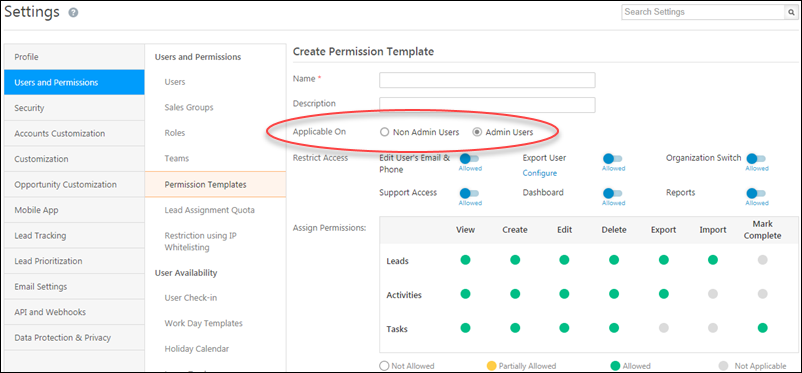
Super admins will see the additional option of creating Permission Templates specifically for Admin users –

  1. Navigate to My Profile>Settings>Users and Permissions>Permission Templates.
  2. Click Create.
  3. Alongside Applicable On, click the Admins Users radio button.

Admin User Permission Templates

See Organization Switch and LeadSquared Support Access for information on those options.
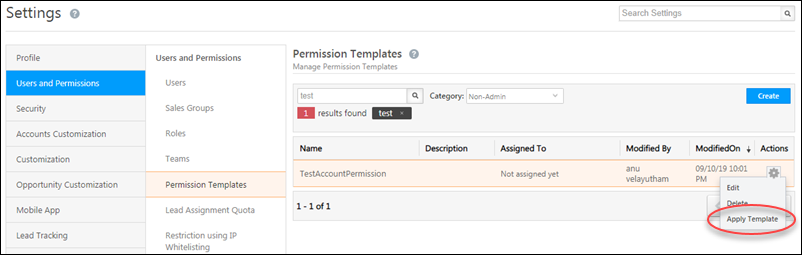
Once you’ve created the permission template, you can apply to it admin users. For more information, see Permission Templates.

Apply Admin Template


Any Questions?

Was this article helpful? Leave us a comment below!

RingCentral Telephony Connector

1. Feature Overview

The RingCentral Telephony Connector lets you integrate your RingCentral account with LeadSquared. Once integrated, you’ll be able to –

  • Make calls directly from your LeadSquared account.
  • Automatically create new leads through incoming phone calls from unknown numbers.
  • Utilize the agent pop-up to store or view lead information during phone calls.
  • View your call logs as LeadSquared activities together with downloadable recordings.

For RingCentral SMS integrations, see RingCentral Texting Connector.


2. Prerequisites

  • You must be an administrator user of your Leadsquared account.
  • Your account plan must support telephony integration.
  • You must have an active account with RingCentral.


3. Installation

  1. On the main menu, navigate to Apps>Apps Marketplace and search for “RingCentral Telephony”.*
  2. Click Install.
  3. Once installed, hover your cursor over the settings settings wheel, then click Configure.

* You can also find it under the category Telephony – United States on the left pane.

RingCentral Installation


4. Configuration

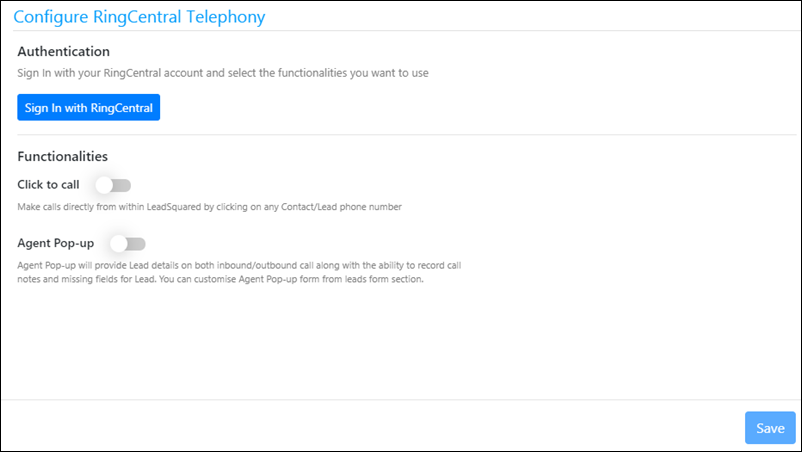
First, complete the Authentication step by clicking Sign In with RingCentral.

Ringcentral configuration

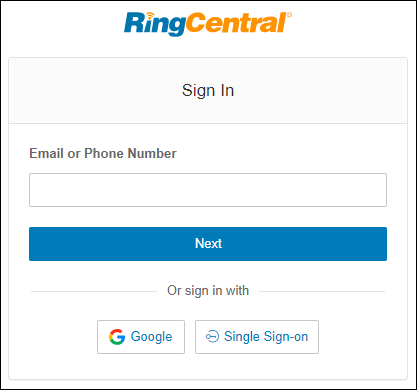
Enter your RingCentral account credentials

ring central integration

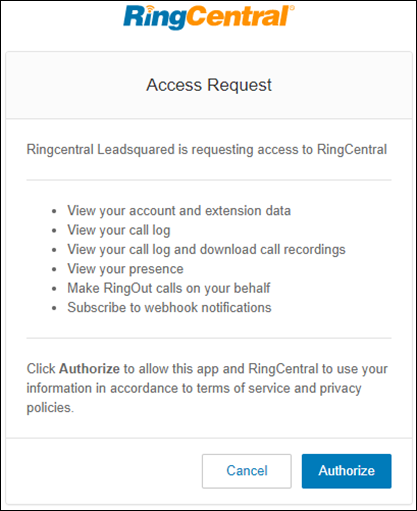
Click Authorize to give LeadSquared access to the necessary permissions.

ring central permissions

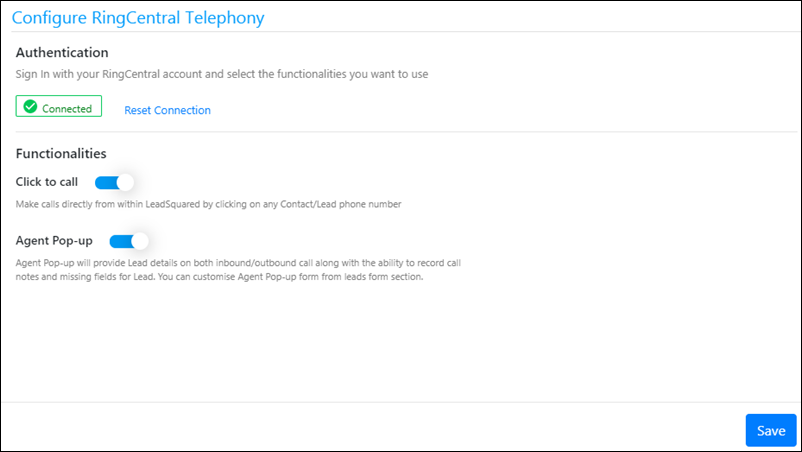
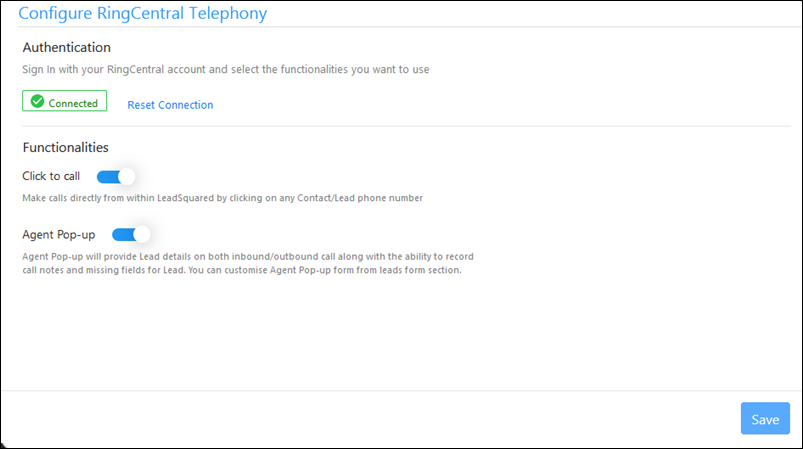
After connecting to your RingCentral account, enable the Click to call and Agent Pop-up features, then click Save.

Ringcentral authentication

Note: The administrator user of your RingCentral account can create roles and assign the set of permissions required for calling (from the users page in your RingCentral account, https://service.ringcentral.com).


4.1 Adding Agent Phone Numbers

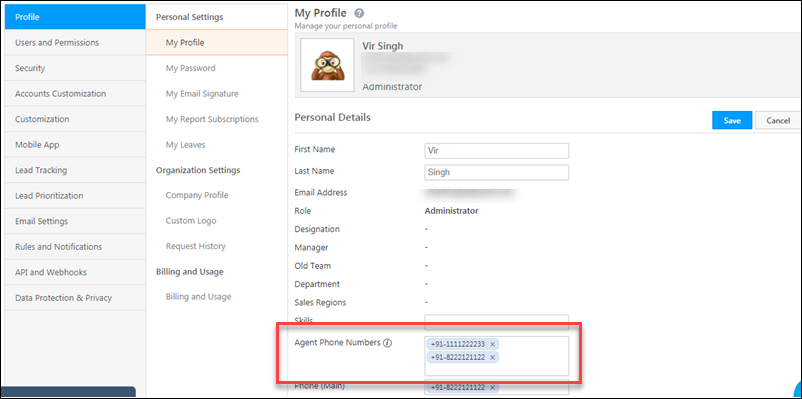
Now add the agent’s direct phone number to the corresponding user in your LeadSquared account.

  1. Navigate to My Profile>Settings.
  2. Alongside the personal details section, click Edit.
  3. Add the agent’s direct phone number in the Agent Phone Numbers field.

Note: You can add multiple agent phone numbers. While placing a call, you’ll be able to choose a number from the list you enter here.

store agent phone numbers


5. Click to Call

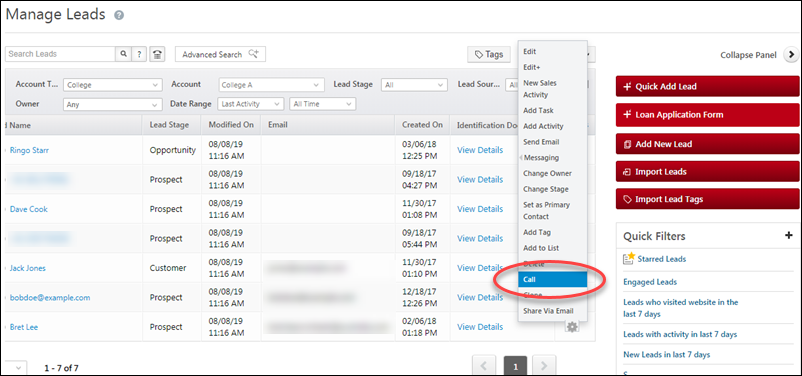
If you enabled click to call during configuration, you’ll now be able to call leads directly from your LeadSquared account. Note that when you place a call to a lead, first the agent receives a call and only once that call is answered does it connect to the lead.


5.1 Manage Leads Page

On the Manage Leads page, alongside the lead you want to call, hover your cursor over the settingsSettings iconwheel, then click Call.

Click to Call ringcentral


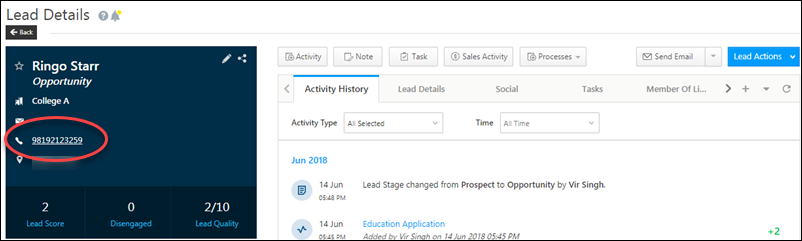
5.2 Lead Details – vCard

You can also make calls from the lead details page. Click the lead’s phone number in the vCard to initiate the call.

Click to call lead details


6. Phone Call Activities

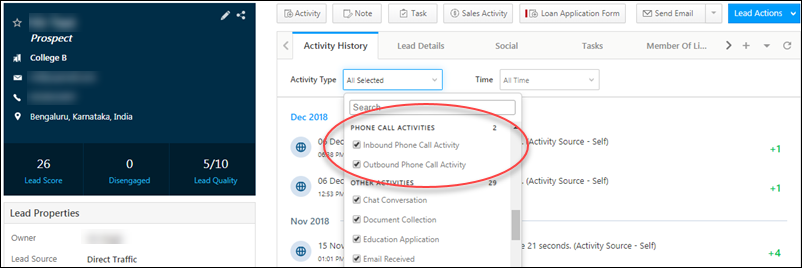
Outbound and Inbound phone call activities will be automatically posted and you can view them on the following pages –


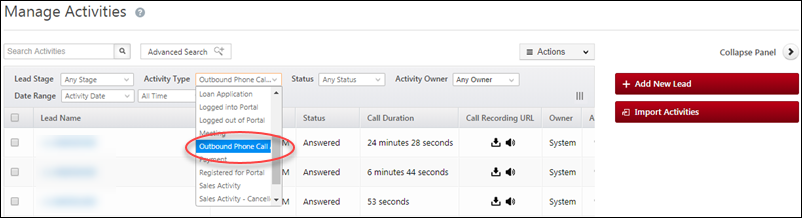
6.1 Manage Activities

Be sure to set the filter to ‘Outbound Phone Call’ or ‘Inbound Phone Call’ on the Manage Activities page. You can also use advanced search to set multiple search criteria.

Phone call activities


6.2 Lead Details – Activity History

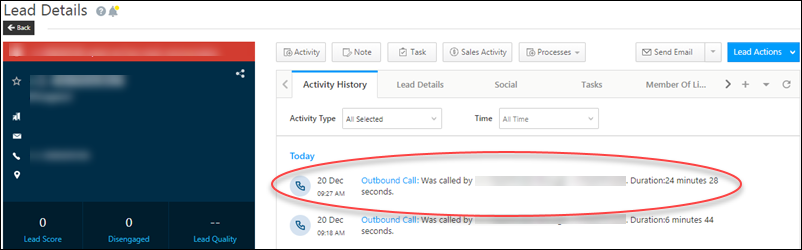
Phone call activities will also be visible in the Activity History tab on the Lead Details page.

phone call activities lead details


7. Agent Pop-up

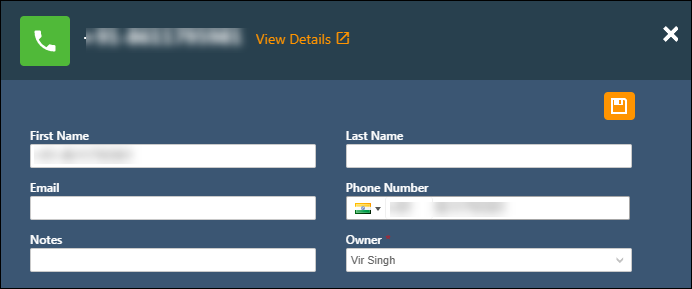
If you enable the Agent Pop-up during configuration, when you’re making inbound and outbound phone calls, you’ll see a pop-up like this –

Agent popup example

To configure the fields in the agent popup –

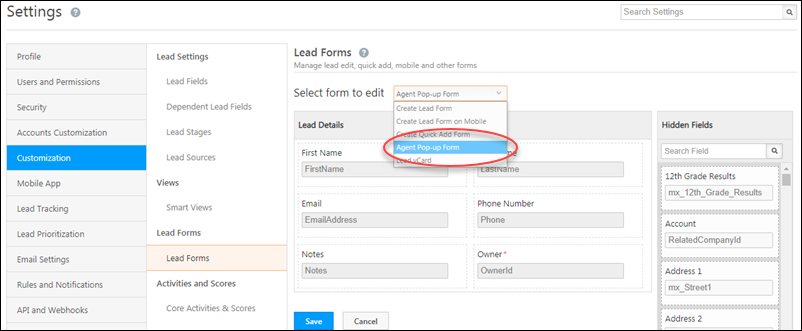
  1. Navigate to My Profile>Settings>Customization>Lead Forms.
  2. Select the Agent Pop-up form from the dropdown.
  3. Drag and drop the fields you want displayed in the form, then click Save.

agent popup configurations


8. RingCentral Account Settings

This section explains some of the settings needed in your RingCentral account for seamless integration. The following settings are accessible to the RingCentral Administrator user at https://service.ringcentral.com.

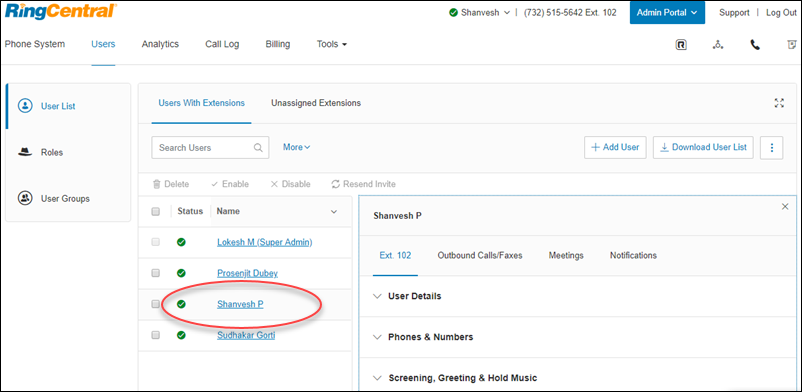
On the Users page, click on a particular user to configure the devices, phone numbers and other functionality –

RingCentral admin user configurations

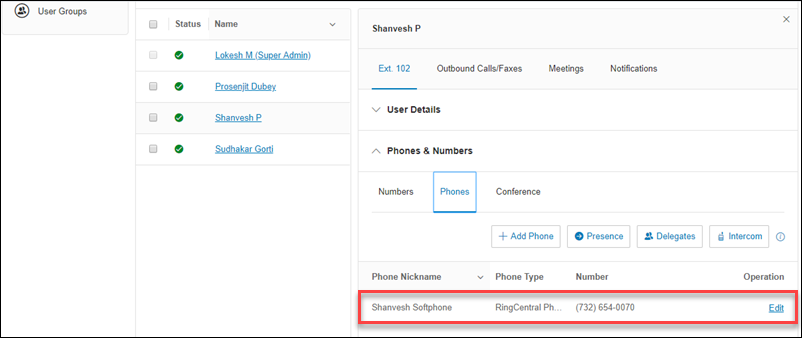
Click Phones & Numbers>Phones and enter the agent’s direct number –

Ringcentral phone configuration

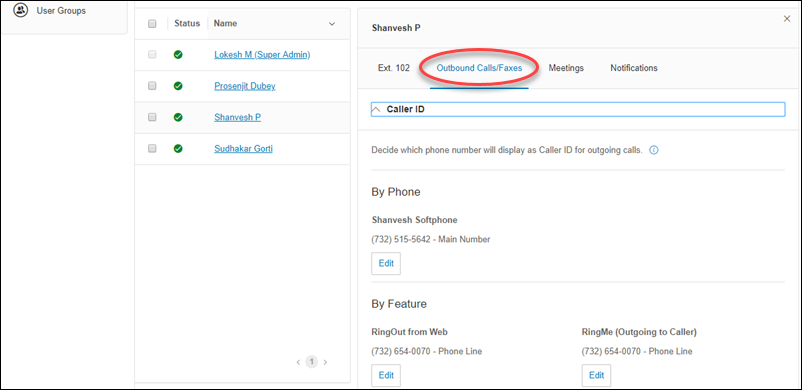
Next, navigate to Outbound Calls/Faxes>Caller ID, and configure the caller Id or display number –

Ringcentral configure caller Id

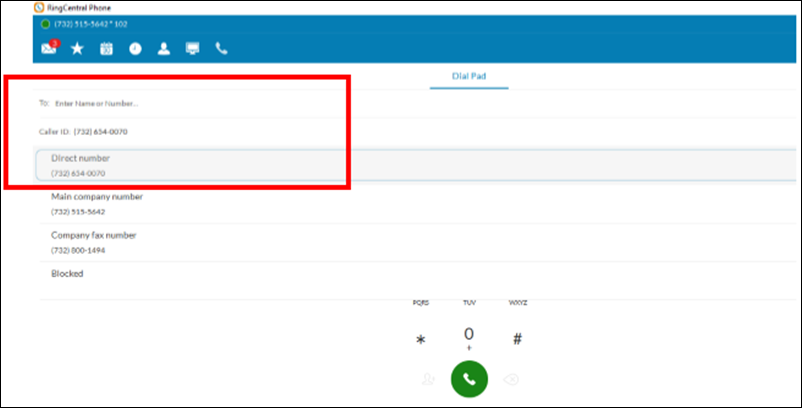
To avail the Soft Phone feature, download and install the RingCentral app. Remember to select the direct agent number while placing a RingOut call to get accurate call log details.

Finally, to ensure accurate call logs, add the agent direct number to the RingOut from Web feature –

ring central account configs


9. Troubleshooting

We’ve listed down a few errors you might come across when using this connector.

1. Unable to Complete Authentication

  • Ensure your RingCentral subscription plan is Premium or Ultimate. To know more, refer to RingCentral Plans.
  • In your RingCentral account, ensure the user performing the authentication has the following permissions –
    • Read Company CallLog
    • Read Extensions
    • Read Company Info
    • Call Recording
    • Company Call Log
    • Read Call Log
    • Read Call Recordings
    • Read Company Call Recordings
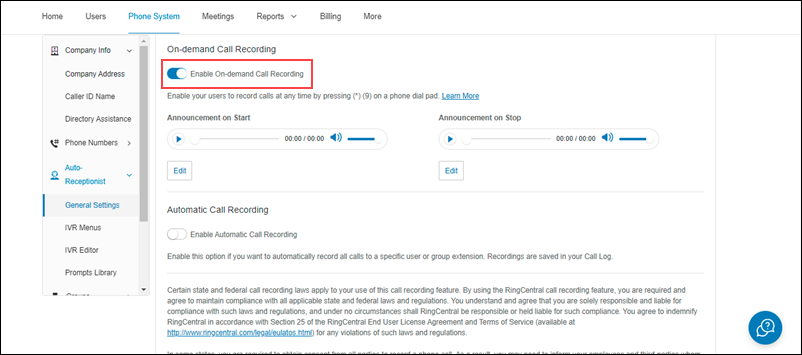
  • If the CallRecording permission is missing, then in your RingCentral account, navigate to Phone Systems>Auto-Receptionist>General Settings, and enable On Demand Call Recording.

LeadSquared RingCentral Integration


2. Error in Click2Call

If you’re facing a Click2Call error in your LeadSquared account, then –

  • Ensure the Click2Call option is enabled for the RingCentral Telephony Connector (and not any other connector) in your account.
  • On the Connector Configuration pop-up, the connection status should be “Connected”. If the status is “Not Connected”, please reauthenticate the connector by entering valid RingCentral credentials.

LeadSquared RingCentral Integration

LeadSquared RingCentral Integration


3. Call Logs are not Created

If call logs are not getting created in your LeadSquared account, then –

  • Ensure the RingCentral Telephony connector is configured with valid account credentials, and the “Connected” status is displayed after authentication.

LeadSquared RingCentral Integration

  • Configure the connector with your RingCentral account credentials only in a single LeadSquared account, as call logs will get captured only in a single account (tenant).


4. Call Recordings are Not Available

If the call recordings are not available in your LeadSquared account, then –

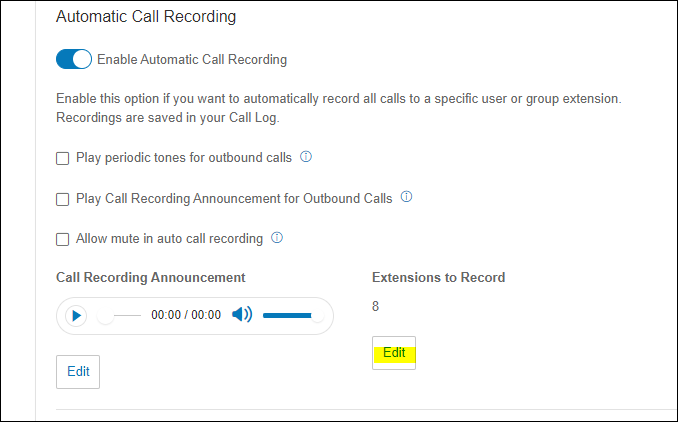
  • In your RingCentral account, ensure the Call Recording permission is enabled. To do this, navigate to Phone Systems>Auto-Receptionist>General Settings, and enable On Demand Call Recording.

LeadSquared RingCentral Integration

  • On the General Settings screen, under Automatic Call Recording>Extension’s Recording, click the Edit button.

LeadSquared RingCentral Integration

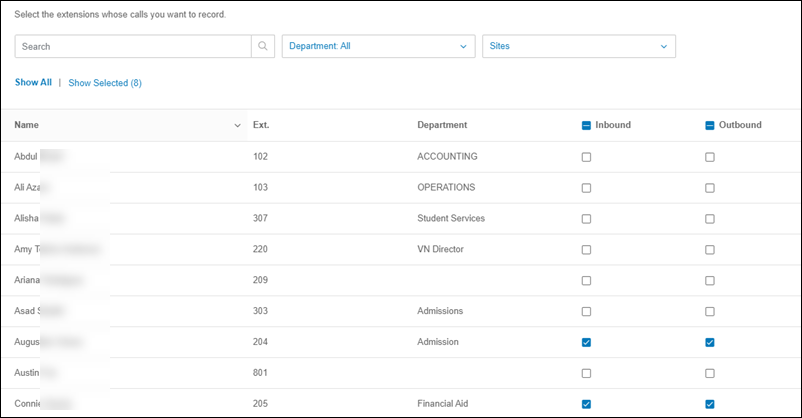
Then, select the users for whom inbound and outbound calls will be recorded.

LeadSquared RingCentral Integration


Any Questions?

Was this article helpful? Leave us a comment below!

Mcube Connector

You can integrate your Mcube cloud telephony account with LeadSquared using the Mcube Connector. Once installed and configured, you’ll be able to –

  • Create new leads through incoming phone calls.
  • Track incoming and outgoing calls as activities against leads.
  • Access call recordings for all phone calls.
  • Automatically view a lead’s details through the agent pop-up during incoming calls.


Prerequisites

  • You must be an administrator user of your Leadsquared account.
  • Your account plan must support telephony integration.
  • You must have an active account with Mcube cloud telephony services.


Installation

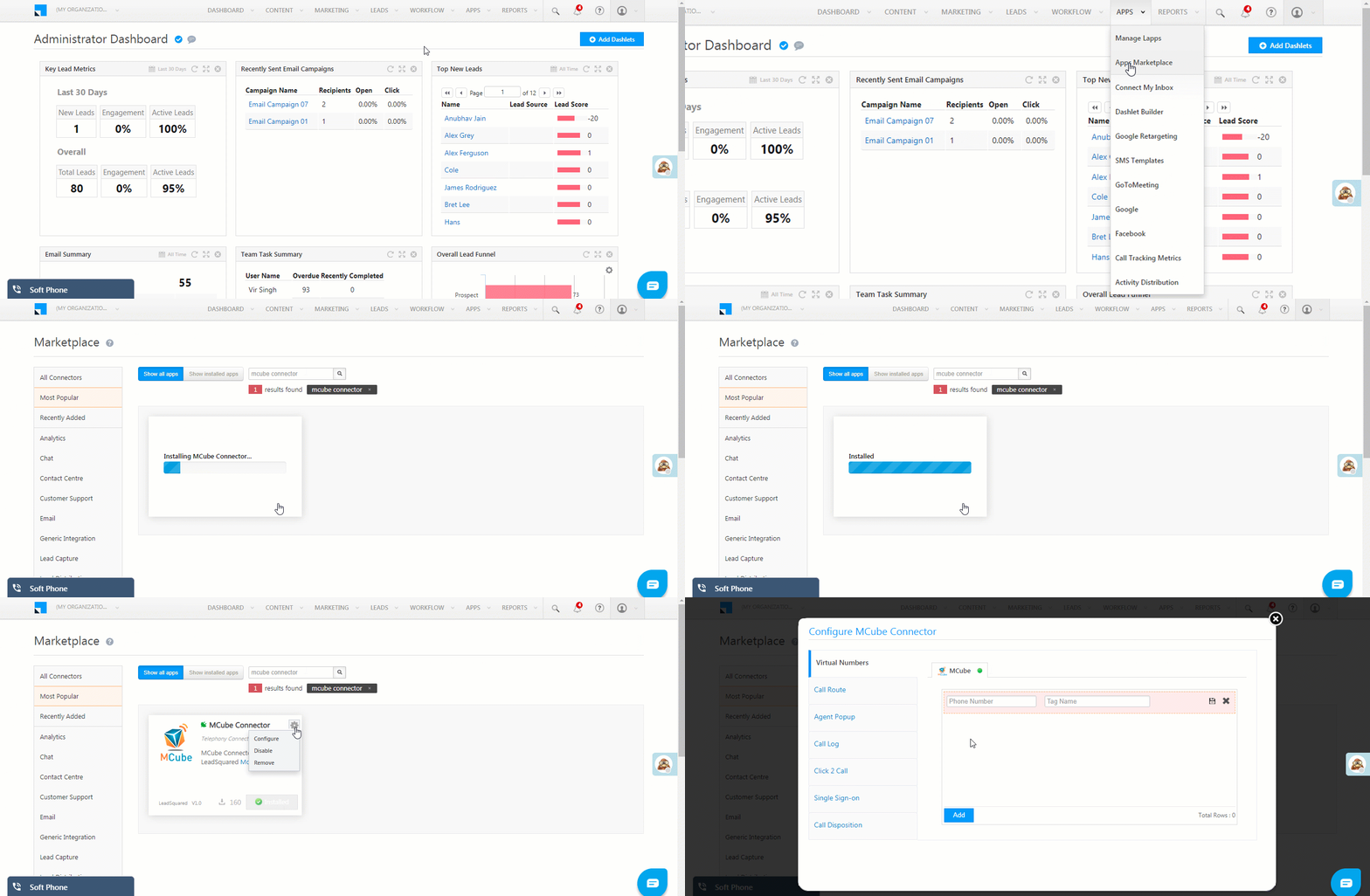
  1. On the main menu, navigate to Apps>Apps Marketplace and search for the “Mcube Connector”.
  2. Click Install.
  3. Once installed, hover your cursor over the settings settings wheel, then click Configure.

Mcube connector installation


Configuration

The configuration pop-up requires you to fill each tab on the left pane.

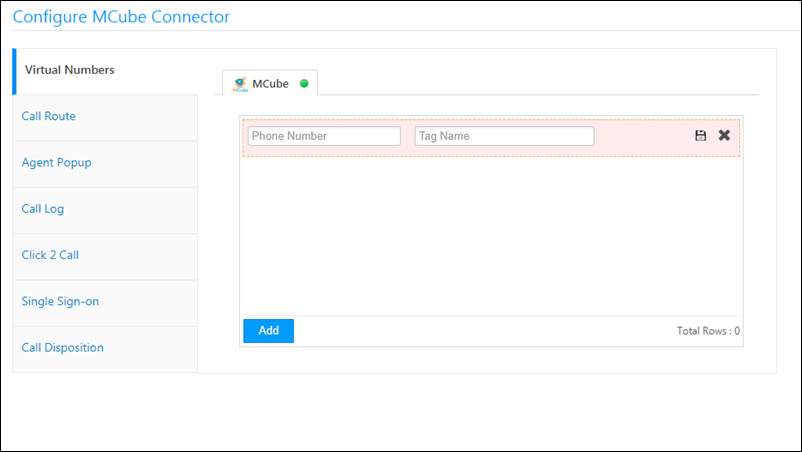
  • Virtual Numbers – These are the virtual numbers you use for incoming and outgoing phone calls.
  • Agent Popup – When you receive an incoming call, a pop-up will appear where you can save the lead’s information.
  • Call Log – This configuration ensures that call logs for all records are posted from Mcube to LeadSquared.
  • Click 2 Call – Allows you to initiate phone calls to leads directly from LeadSquared.

Note: The other tabs displayed on the left pane are not supported.


Virtual Numbers

Add virtual numbers, enter a tag name and click the save icon. When you’ve added the numbers you want, click Add.

virtual numbers mcube connector


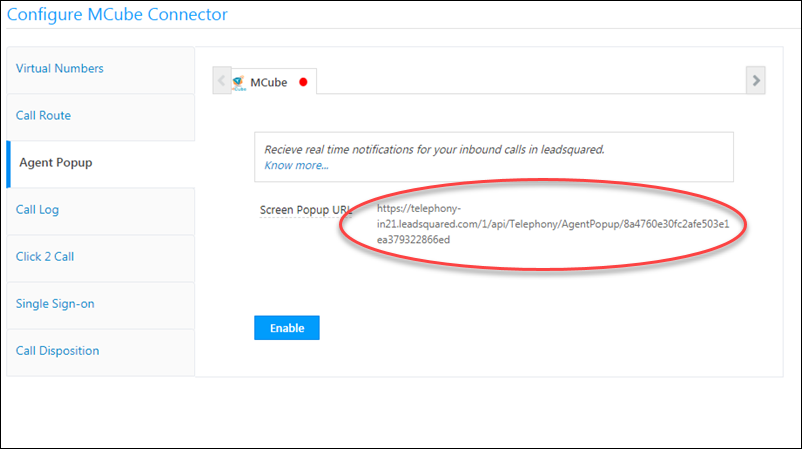
Agent Popup

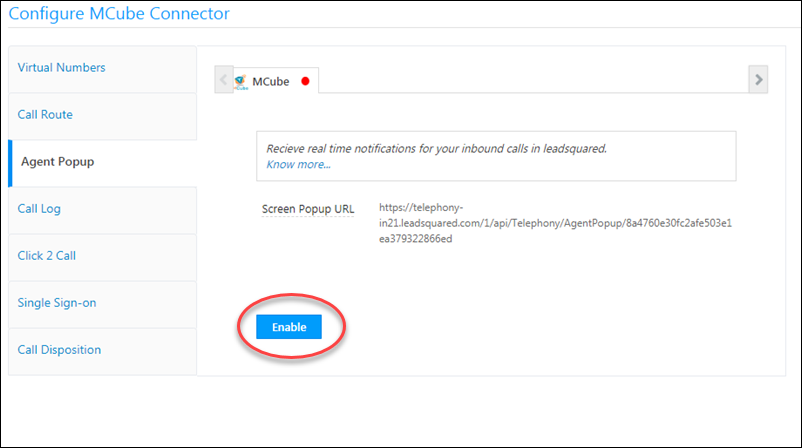
Next, navigate to the agent pop-up tab. Copy the Screen Popup URL.

agent pop up Mcube

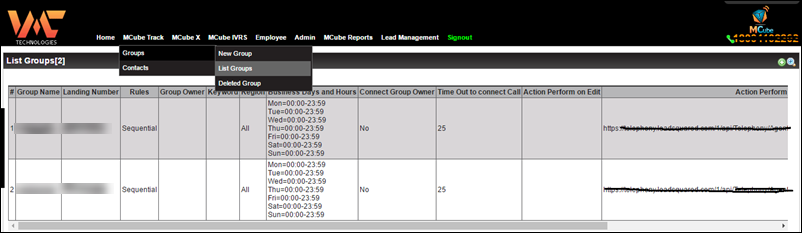
You must set up an action to be performed on the call URL in the Mcube panel. Login to your Mcube account and navigate to Mcube Track>Groups>List Groups

mcube configs

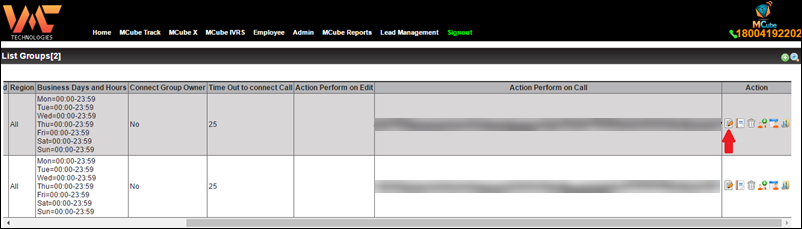
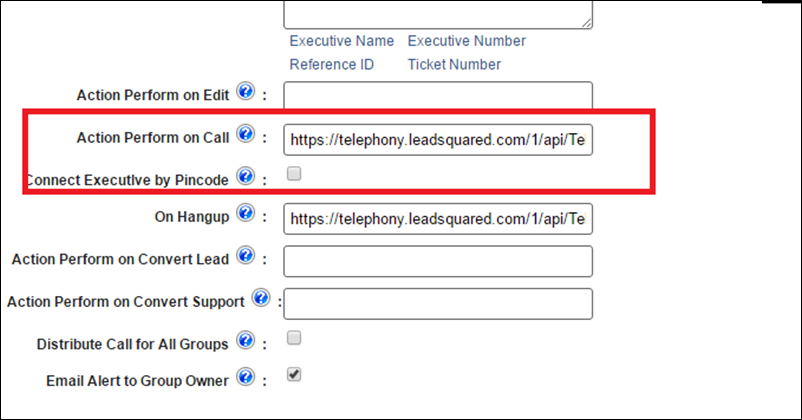
Click on the edit option of the respective virtual DID & paste the screen popup URL as ‘Action Perform on Call’ URL as shown below.

Mcube panel integration

Mcube connector settings

After saving these changes, return to your LeadSquared account and click Enable.

enable agent pop-up for Mcube

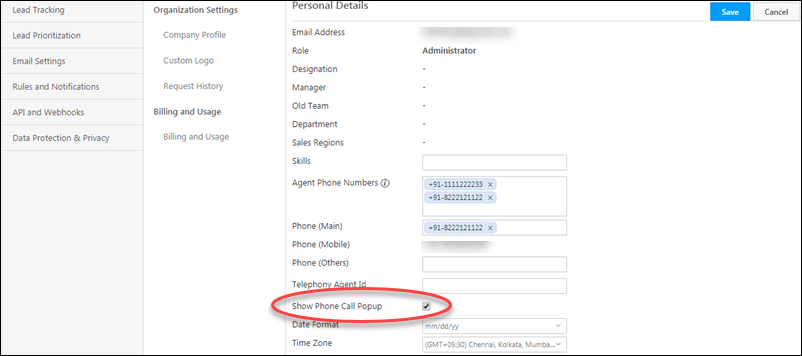
For the agent pop-up to work properly, it must also be enabled at the user level. Navigate to your LeadSquared user profile and select the Show Phone Call Popup checkbox.

Enable Phone call pop-up


Call Log

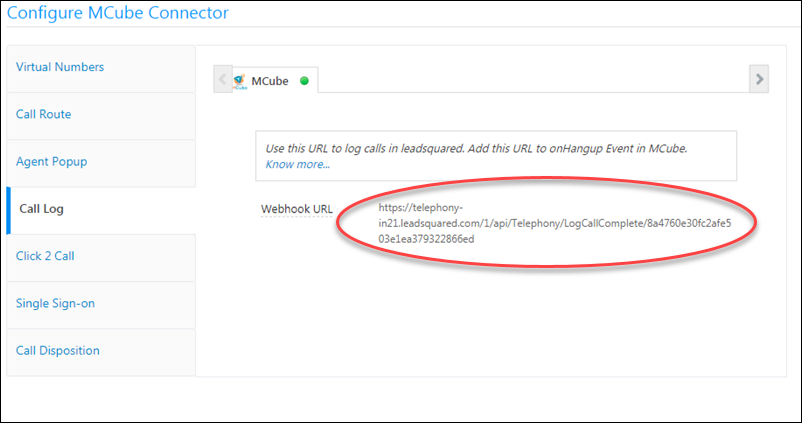
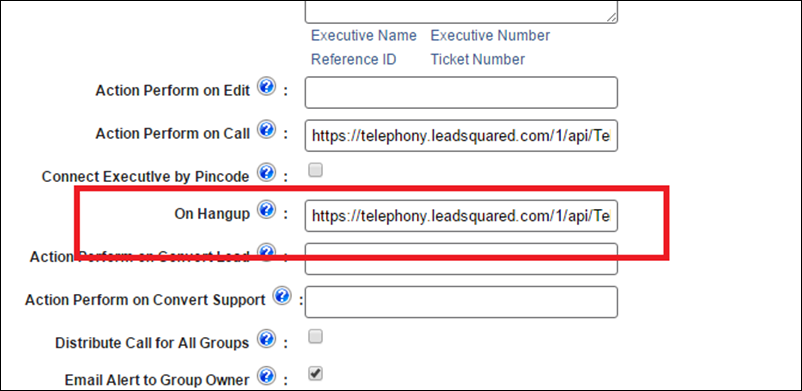
Now navigate to the Call Log tab and copy the webhook URL. You’ll need to add this webhook as the hang-up URL in your Mcube panel. It will be used to post the call record details to your LeadSquared account.

call log url mcube

Paste the webhook URL in the On Hangup field –

hang up URL mcube


Click 2 Call

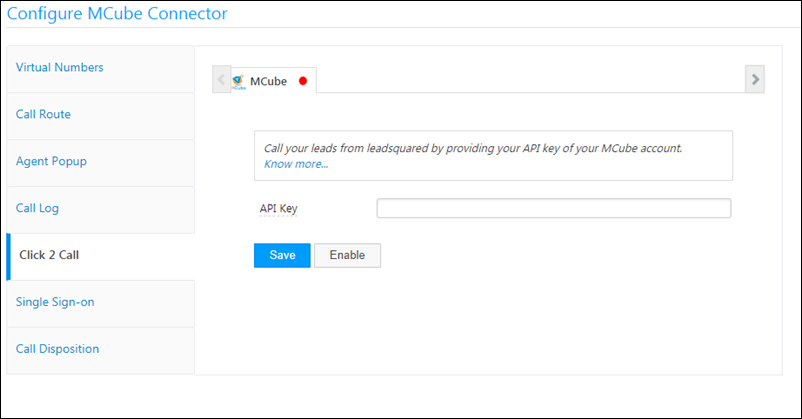
Navigate to the Click 2 Call tab. Here, you have to enter the API key associated with your Mcube account. This integrates your Mcube outbound call services with LeadSquared. Once configured, you’ll be able to make outbound calls directly from your LeadSquared account.

click 2 call for Mcube

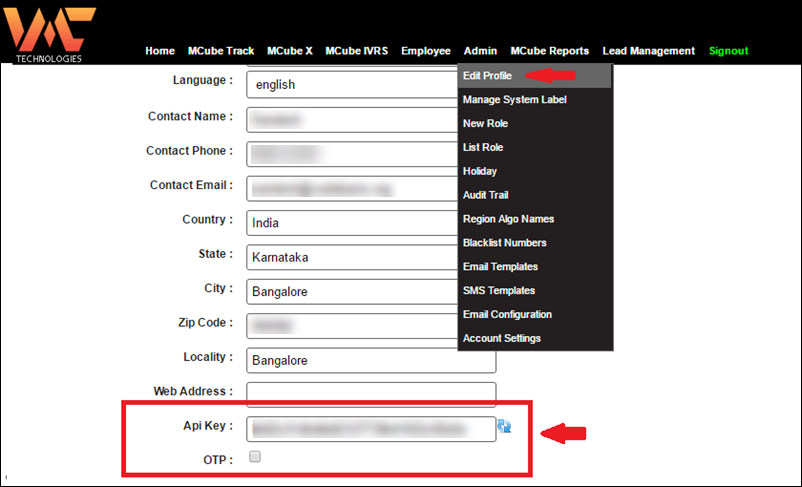
You’ll find your API key in your Mcube account under Edit Profile.

Mcube API key

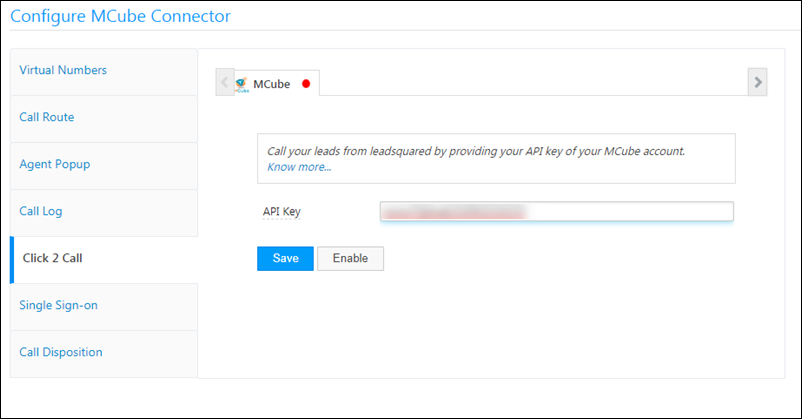
Once you’ve pasted the API key, be sure to first click Save, then Enable.

mcube click 2 call


Activity History

Once integrated, you can view the inbound and outbound phone call activities on the lead details page –

lead details phone call activities


Any Questions?

Feel free to leave us a comment below if you have any questions.

How to Make a Custom Field Unique

1. Feature Overview

Marking a custom field as unique helps you easily identify and differentiate leads from one another. Unique custom fields also prevent duplicate leads in the system.
As an example, assume you run an educational institution, and every student in your database has a unique student Id. In this case, you create a custom field called “Student Id”. This custom field can be used to uniquely identify students in your LeadSquared account.

Similar to student Id, a driving license number, Aadhaar number, a Social Security Number, and so on can be marked as a unique field in your LeadSquared account.

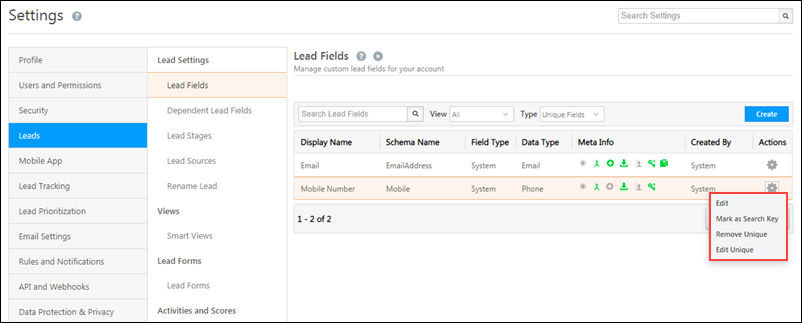
Note: By default, ‘Email’, ‘Phone’ and ‘Mobile’ system lead fields are marked unique.


2. Prerequisite

You should be an administrator of your LeadSquared account.


3. Process

3.1 Create a Custom Field

To create a new custom field –

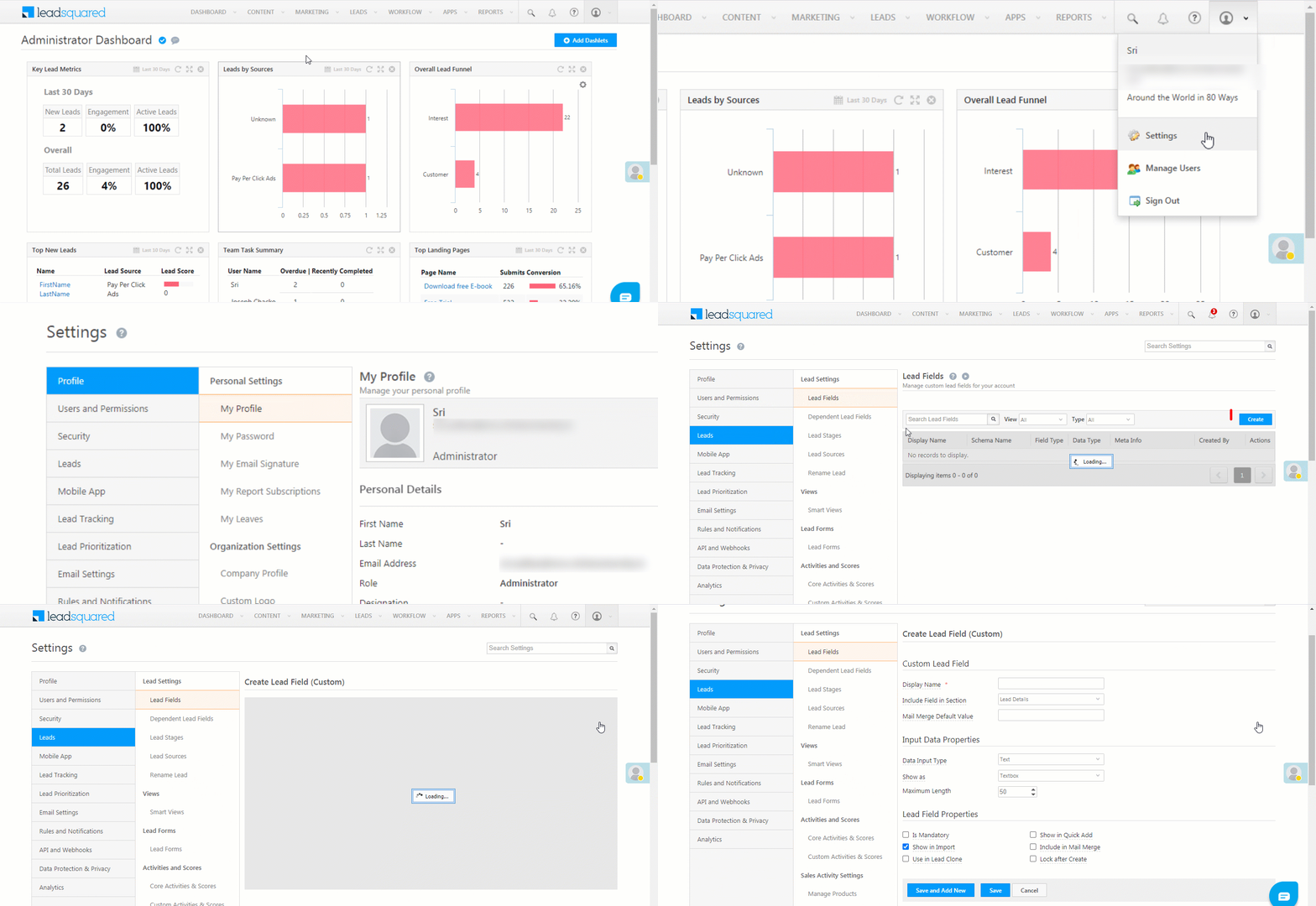
  1. From your main menu, navigate to My Profile>Settings>Leads>Lead Settings>Lead Fields.
  2. On the top-left corner, click the Create button.
  3. Enter the following details –
Property

Description
Display Name The name of the field (first name, second name, email Id, etc.). This field is compulsory.
Include Field in Section The section in which the lead field will be visible. The options available are Lead Details, Additional Details and Hidden Fields.
Mail Merge Default Value The default value that’ll be used when the mail merge value is not provided for this field.
Data Input Type The data type of the lead field. Some of the options available are number, email Id, website, dropdown, boolean, etc.
Show As The way in which the input field will appear on the LeadSquared user interface. The options are either as a text-box or text-area.
Maximum Length The maximum number of characters which can be included in the field is 256 characters.
Lead Field Properties The additional properties which determine how the lead field behaves. Hover your cursor over each option to know more about the field.
Is Mandatory Marks the field as mandatory. Users won’t be able to create a new lead record without filling this field.
Show in Import Makes this field available for mapping during lead import through CSV.
Use in Lead Clone Makes the field available when users try to clone a lead.
Show in Quick Add Makes this field available when a user uses the Quick Add form to add a lead.
Include in Mail Merge Includes this field as a mail merge option for email personalization or automation.
Lock after Create Non-admin users won’t be able to update this field once a lead is created.

Once you’re done, click Save. Your custom field is created successfully.

Custom Fields

3.2 Mark as Unique Field

To mark an existing field as a custom field –

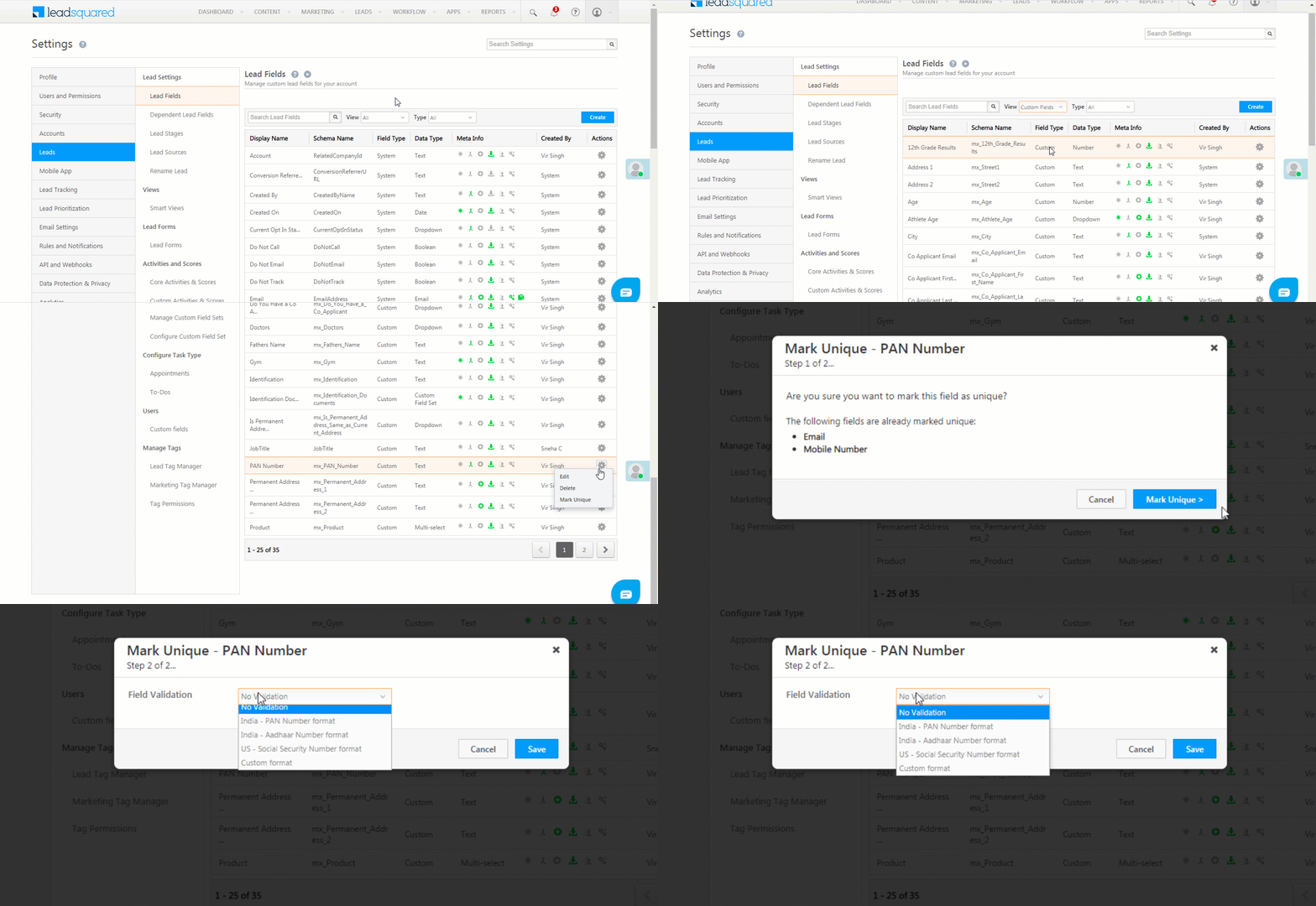
  1. From your main menu, navigate to My Profile>Settings>Leads>Lead Settings>Lead Fields.
  2. Change the View filter from All to Custom.
  3. Against an existing custom field, hover your cursor over the  icon, and click Mark Unique.
  4. On the pop-up, click Mark Unique.
  5. You can either save the field with No Validation, or add a Validation Format.
  6. Once you’re done, click Save.
Note: The Validation Format step is available only when marking ‘Text’ type fields unique.

Custom

3.3 Validation Format

If you chose to have a Validation Format

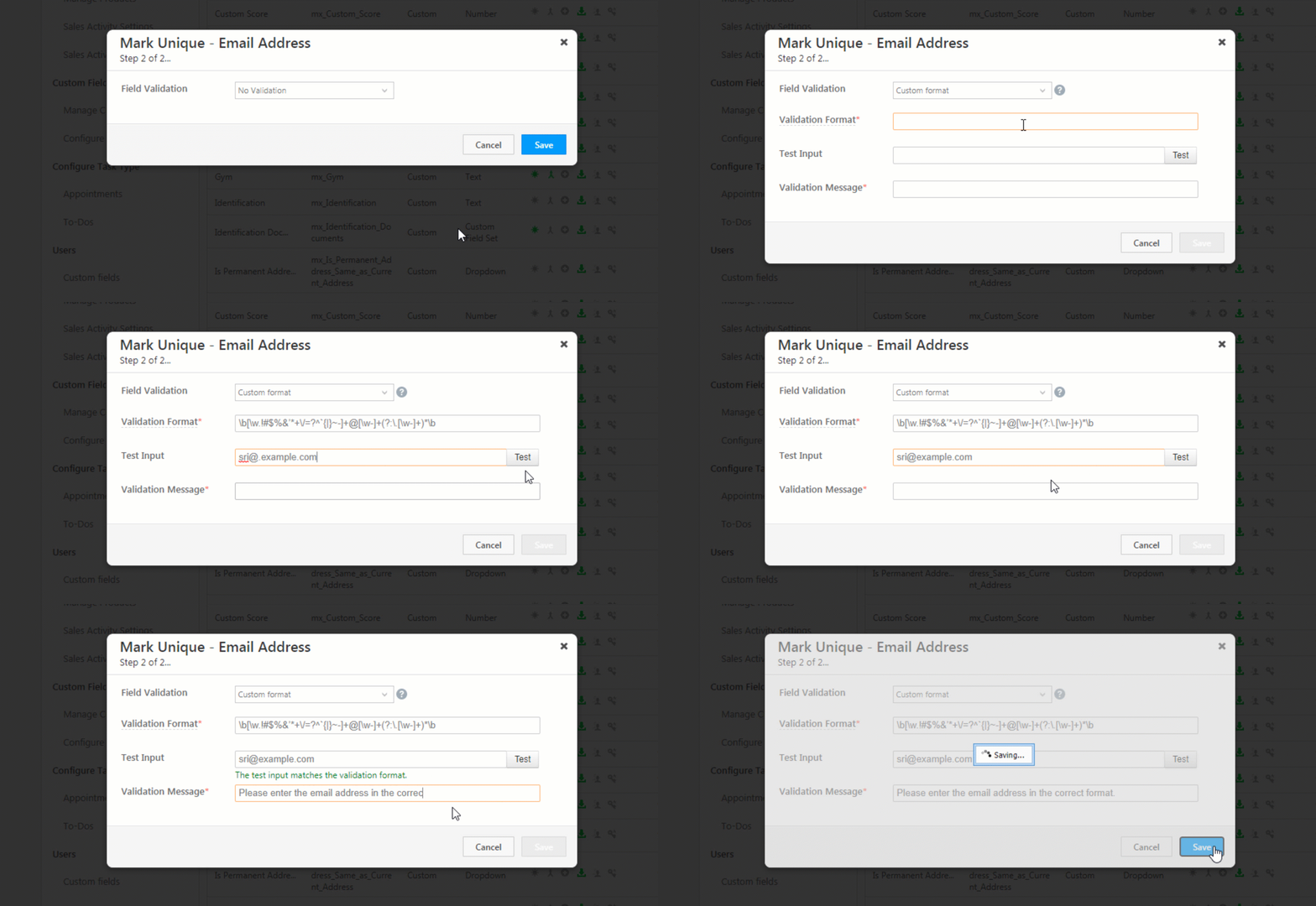
  • From the Field Validation dropdown, select a format from the available options (such as PAN, Aadhaar or Social Security number) if applicable, or select Custom format.
  • If you select either PAN, Aadhaar or Social Security format, enter an appropriate Validation Message to show when an incorrect entry (due to a wrong number format) is made.
  • If you select Custom format
Property Description
Validation Format To create your custom validation format, enter a correct regular expression (regex) format.
Test Input Input an entry to test if the regex format is correct.
Validation Format Enter a validation error message for when the entry is incorrect (due to incorrect format).

Once you enter the above details, press Enter. Now, click on Save.

Note:

  • You can only mark up-to three fields as unique.
  • You can only mark a custom field as unique.
  • You can only mark a field as unique once a day.

In the below example, we’re creating a custom field for email addresses –

Custom


4. Custom Actions

You can perform the following actions on a unique custom field –

Custom

4.1 Delete Uniqueness

To delete the uniqueness of an existing unique field –

  1. Change the Type filter to Unique Fields.
  2. Against the field for which you want to delete the uniqueness, hover your cursor over the icon, and click Remove Unique.
  3. On the confirmation screen, click Yes.

4.2 Mark Field as Search Key

  1. Change the View filter to Custom Fields.
  2. Against the field for which you want to delete the uniqueness, hover your cursor over the icon, and click Mark as Search Key.
  3. On the confirmation screen, click Yes.

4.3 Edit Uniqueness

  1. Change the Type filter to Unique Fields.
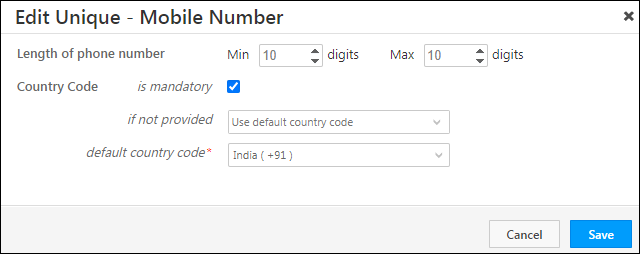
  2. Against the unique field for which you want to delete the uniqueness, hover your cursor over the icon, and click Edit Uniqueness.
  3. On the Edit Unique pop-up, change the fields as per your requirements.
  4. Once you’re done, click Save.

Custom


Any Questions?

Did you find this article helpful? Please let us know any feedback you may have in the comments section below. We’d love to hear from you and help you out!

Export Tasks out of LeadSquared

1. Feature Overview

Export tasks from LeadSquared directly from the Tasks page in an Excel file. This makes it easy to analyse data, share updates, and track your users’ performance offline.

Note: All user roles, including Sales users, can export tasks by default. Admins can restrict export access using Permission Templates.


2. Prerequisite

Any LeadSquared user can export tasks.


3. Export Tasks

  1. Navigate to Lead Management>Tasks, and select the List View.
  2. Select the tasks you want to export. You can choose specific tasks or export all tasks on the page.
    • To export all the tasks visible on the page, click the checkbox on the top-left corner, under the searchbox.
  3. Hover on the three-dots menu, and click Export Task.
  4. On the Export Task pop-up, choose to export –
    • All Fields – This includes all configured task fields for the selected tasks, along with key lead identifier fields.
    • Selected Fields – You can select the task and lead fields you want to export.
  5. Once you’re done, click Export. The CSV file is saved directly to your desktop.
Note:

  • You can only export tasks from the List View.
  • By default, you can export up to 100,000 tasks from your account. To increase this limit to 500,000 records, contact your account manager, or write to support@leadsquared.com.

LeadSquared Task Management


Any Questions?

We’d love to hear your thoughts on this article and the tasks feature in general. Feel free to start a conversation in the comments section below.

Custom Opportunity Tab Connector

1. Feature Overview

The custom opportunity tab allows you to fetch and display data from external sources on the Opportunity Details page. Here are some examples of what you can achieve with custom tabs –

  • Show all support tickets associated with an opportunity stored in external systems (e.g., Zendesk, FreshDesk, etc.)
  • Display the list of products added to an opportunity’s cart on an external site.
  • Create a tab for the various custom views related to an opportunity.
Note: Custom tabs will reflect on the LeadSquared mobile app as well.

LeadSquared's Custom Tabs Opportunity Connector


2. Prerequisites

  • You must be the administrator of your LeadSquared account.
  • The opportunities feature must be enabled on your account. To enable it, please write to support@leadsquared.com.


3. How it Works

The custom tab gets created on the Opportunity Details page, and displays data from external URLs. You can also pass mailmerge parameters to the URL, such as @{Opportunity:Status, }, @{Opportunity:Owner, }, etc.

To use the Custom Opportunity Tab connector on your account –

  • Install the connector
  • Configure the connector
  • Use the custom tab

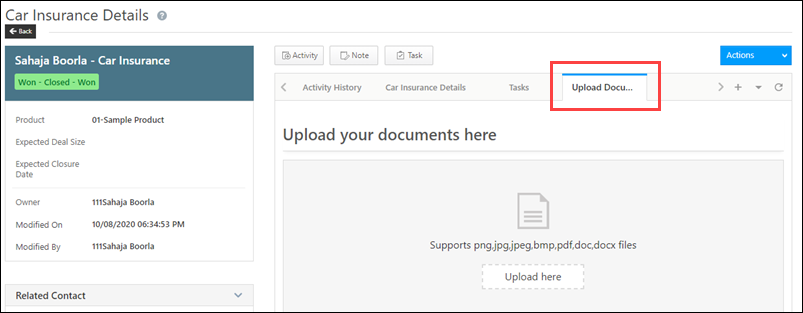
Opportunities Tab_4


4. Install the Connector

To install the Custom Opportunity Tab connector on your account –

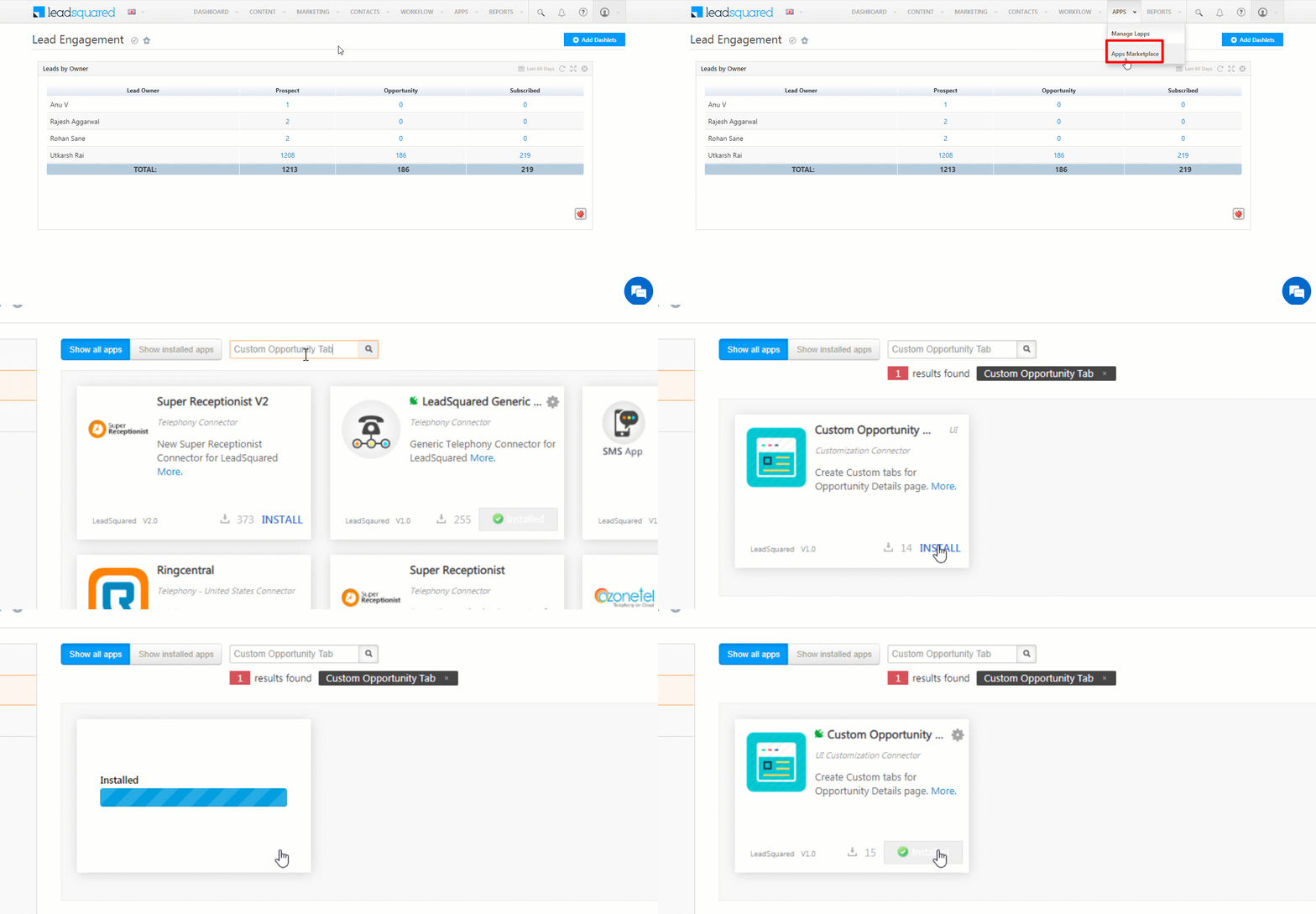
  1. From the main menu, navigate to Apps>Apps Marketplace.
  2. In the search box, type “Custom Opportunity Tab”, and click the Search icon.
    • Alternatively, from the left panel, click UI Customization. The Custom Opportunity Tab connector is listed on this page as well.
  3. On the Custom Opportunity Tabs connector, click Install.

Opportunities Tab_1


5. Configure the Connector

You must configure the connector to add custom tabs. To do this –

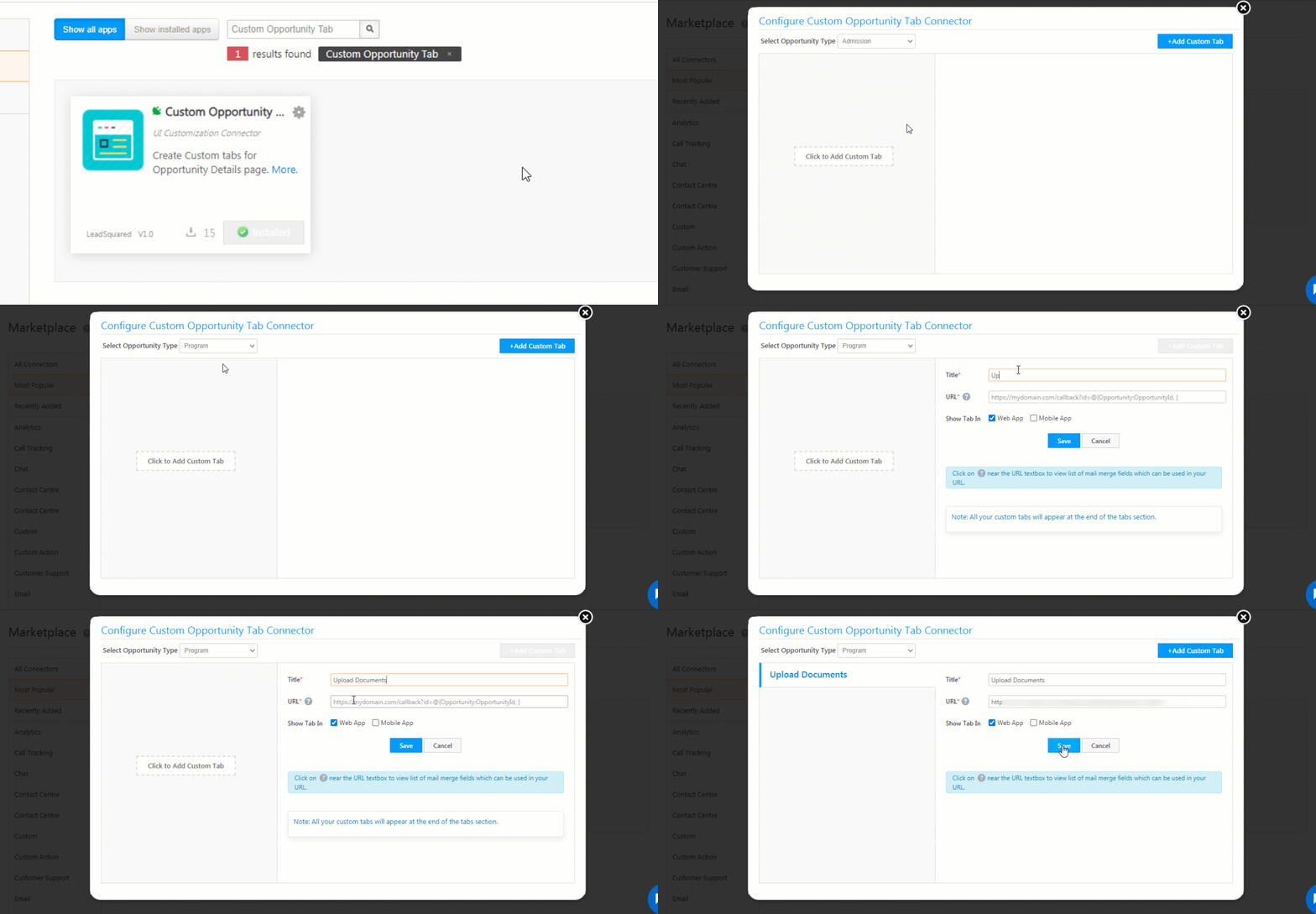
  1. Once the Custom Opportunity Tab connector is installed, hover your cursor over the icon, and click Configure.
  2. On the Configure Custom Opportunity Tab Connector pop-up, select the opportunity type on which you want the custom tab to appear in, from the Select Opportunity Type dropdown.
  3. Click Add Custom Tab, and enter the details of the custom tab.

Opportunities Tab_3

Attribute Description
Title The display name of the tab. This attribute is mandatory.
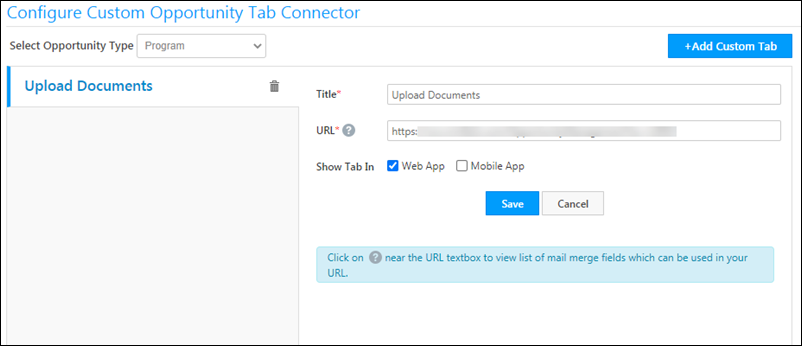
URL Enter the HTTPs URL which will be rendered as a custom tab. The URL should be of a tab that accepts LeadSquared mail merge fields as parameters and passes them to an external application (e.g., a support system, another CRM or marketing system, another LeadSquared account, etc.) to get the data. Click the question markquestion mark iconicon to view the available mail merge fields. This attribute is mandatory.
Show Tab In Depending on whether you want the tab to be visible on the Web App or Mobile app or both, click the Checkbox checkbox against each type.

Once you’re done, click Save.

Notes:

  • To delete an existing custom tab, click the delete icon against the tab’s name.
  • To edit an existing custom tab, makes the changes on the Configure Custom Opportunity Tab Connector pop-up, and click Save.

Opportunities Tab_5


6. Use the Custom Tab

The custom tab is now visible on the Opportunity Details page, under the opportunity type for which the tab was created. To view the tab –

  1. From the LeadSquared main menu, navigate to Leads>Manage Opportunities>Opportunity Type.
  2. Under Enquiry, click any opportunity.
  3. On the Opportunity Details page, you can now view the custom tab.

Opportunities Tab_4

Note: It will take up to 30 minutes for the custom tab to appear on the Opportunity Details page.


Any Questions?

Did you find this article helpful? Please let us know any feedback you may have in the comments section below. We’d love to hear from you and help you out!

Update Existing Opportunity through Forms when Duplicate Opportunity is Detected

1. Feature Overview

If a Sales User or a Lead attempts to create an Opportunity through Dynamic Forms, and the Opportunity is identified as a Duplicate (based on the configured Duplication logic for that Opportunity Type), the Form will display an error message stating “Duplicate Opportunity detected.”

Now, the feature explained in this article will allow the Form to be Submitted when a duplicate opportunity is detected while simultaneously updating the existing opportunity. 

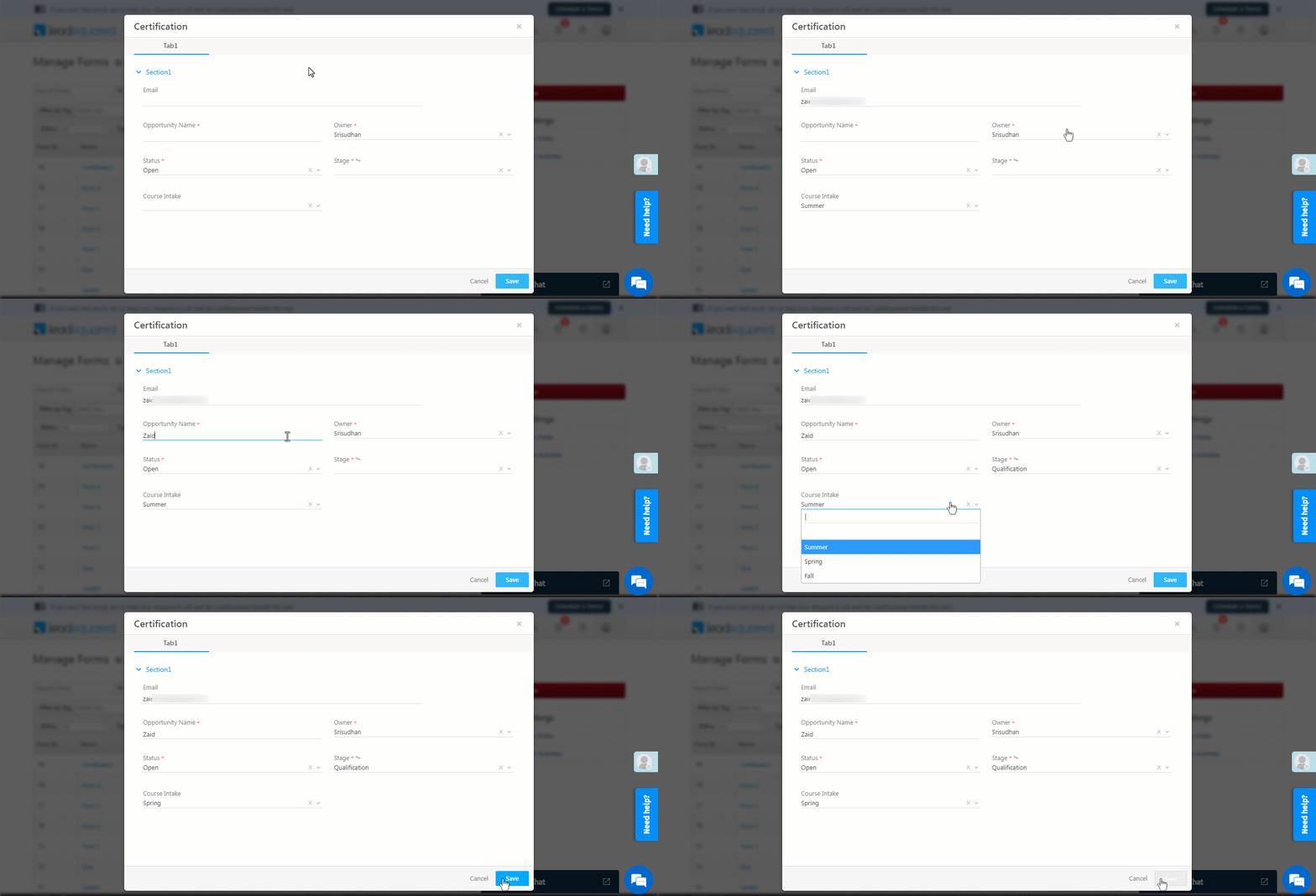
For example, consider a student who has enrolled in a Data Science certification course for the Summer intake. But, due to certain reasons, the student wants to change their intake to Spring. The existing Data Science opportunity (with the Summer intake) can now be updated to the Spring intake through Dynamic Forms.

overview


2. Prerequisites


3. Update Existing Opportunity when Duplicate Opportunity is Detected

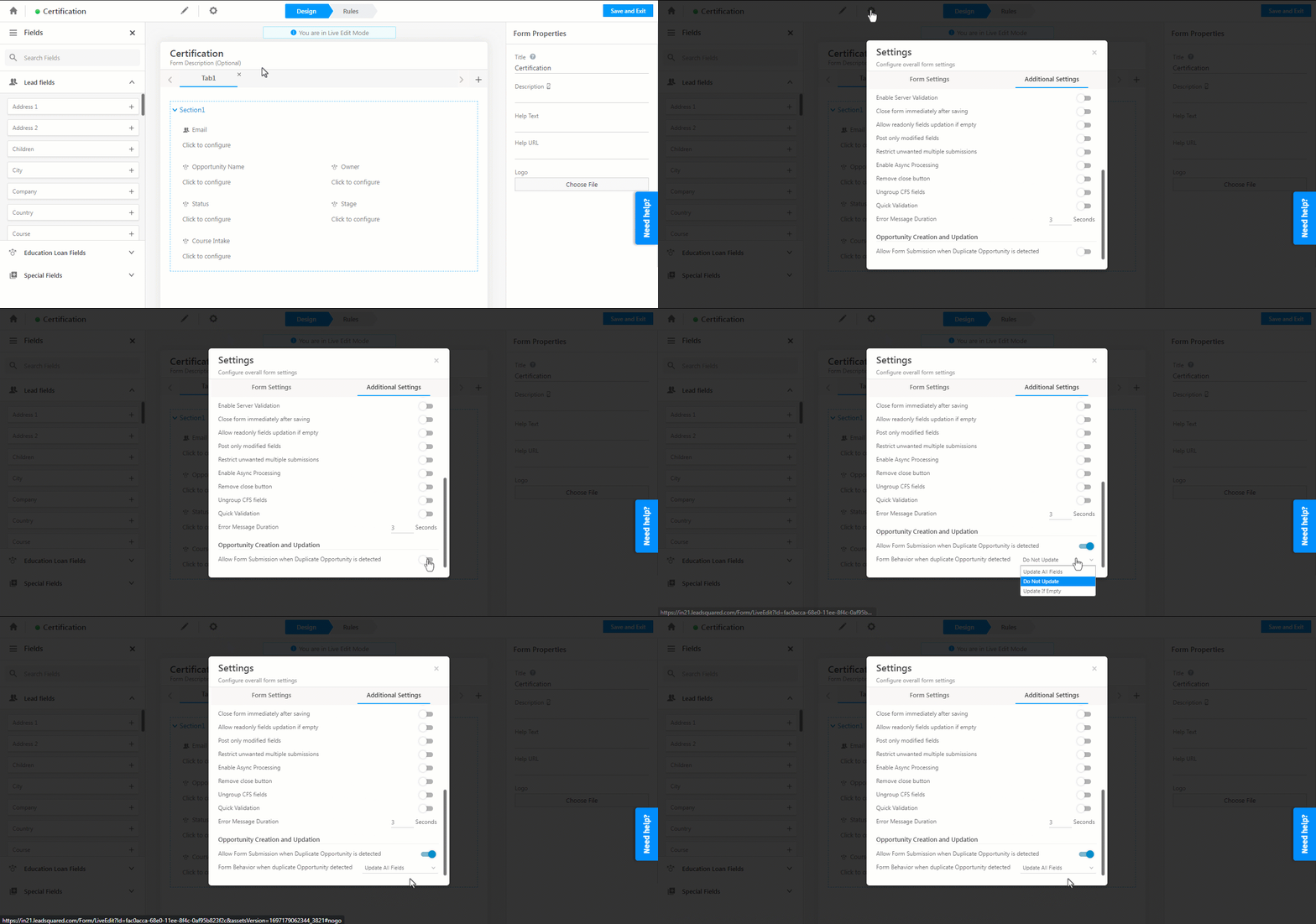
Navigate to Form Settings>Additional Settings and enable Allow Form Submission when Duplicate Opportunity is Detected by togglingtoggle.  You will be presented with three Form behaviors when a duplicate Opportunity is detected –

  1. Update All Fields – Once the Form is submitted, this will update all the Opportunity Field values present in the Form.
  2. Do Not Update – Once the Form is submitted, this will not update any Opportunity Field values present in the Form.
  3. Update If Empty – Once the Form is submitted, this will update Opportunity Field values that were empty before the Form submission and the user has now added values for.
    1. For example, if an Opportunity Field City did not have a value, then through the Form, you can update the value for the City Field. But, no other field that has an existing value can be updated.
Note: In our example in the Feature Overview section, we have selected the Update All Fields option. This will allow us to update the existing Opportunity with the updated fields submitted through the Dynamic Form.

update setting


Any Questions?

If you have any questions that weren’t answered here, please leave comments below. We’ll be happy to help!

WhatsApp Business FAQs

This article lists some frequently asked questions related to LeadSquared-WhatsApp integration. To start integrating WhatsApp into your LeadSquared account, see WhatsApp Business Messaging Connector.


What are the requirements for a business to be approved for WhatsApp?

WhatsApp requires businesses to be compliant with the WhatsApp Business Solution Terms, the WhatsApp Business Solution Policy and the Commerce Policy.


What is the cost of the WhatsApp service?

The WhatsApp service is charged in by per-message fees along with set-up fees provided by solution providers. You can find more information about the cost of sending WhatsApp messages by contacting your existing solution provider or sending an email to sales@leadsquared.com.


Can I check if a lead’s phone number is enabled for WhatsApp?

After sending a message the number can be marked as WhatsApp enabled or not based on the delivery receipt from the provider.


What formatting options do I have in WhatsApp?

Your messages can be bolditalicized, struck-through, or preformatted.

Formatting Symbol Example
  • Bold
  • Asterisk (*)
  • Your total is *$10.50*.
  • Italic
  • Underscore (_)
  • Welcome to _WhatsApp_!
  • Strike-through
  • Tilde (~)
  • This is ~better~ best!
  • Code / Pre-formatted
  • Three backticks (“`)
  • “`print ‘Hello World’;“`

The text inside the formatting symbols will take on the format you choose.


Can I send messages to WhatsApp groups or manage groups?

Currently, we do not support messaging with or managing WhatsApp groups. We expect to add support for groups in the future.


What use-cases are supported by WhatsApp Business?

WhatsApp supports only two use cases: Customer Care and Notifications. Customer Care is initiated with an inbound message. When the first message is received from the lead, it opens a conversation, in which the business can reply with free-form messages. The conversation will remain open for 24hrs from the last message received from the lead. Notifications are designed for the business to send alerts and informational notifications to users. Messages sent in this use case are required to use pre-approved templates.  WhatsApp restricts marketing/promotional use cases and will not approve templates with promotional content.


What is the process to get a live number for WhatsApp?

The process includes 3 major steps:

  1. Facebook approval,
  2. Number set up
  3. Templates submission and account verification. This process is performed by our partner WhatsApp solution providers such as Kaleyra and may take 15-20 days to get a live WhatsApp business number.

For more info on the process you can get in touch with your account executive or contact us at sales@leadsquared.com


Is it possible to use an existing Landline Number or Business Mobile Number for enabling WhatsApp?

Due to technical limitations, this capability may not be supported by the WhatsApp solution provider based on country restrictions and compliance. For more information, you may contact your LeadSquared account representative or get in touch with your existing WhatsApp solution provider.

WhatsApp Business Messaging Connector

1. Feature Overview

The WhatsApp Messaging Connector enables you to integrate your WhatsApp business account with LeadSquared. Once integrated, you’ll be able to –

  • Convert more leads through WhatsApp messaging
  • Add multiple WhatsApp numbers
  • Engage in real-time conversations through LeadSquared Converse
  • Set up Automations to send notifications and reminders
  • Send personalized messages based on a lead’s preferences
  • Send marketing campaigns (bulk messages) to multiple leads, or lead lists
  • Track delivery and reads to re-engage leads and close opportunities

For frequently asked questions, see WhatsApp Business FAQs.

The following WhatsApp service providers are supported in LeadSquared –


2. Prerequisites

You must meet the following prerequisites before installing and configuring the WhatsApp Messaging Connector –

  1. Get approved WhatsApp Business numbers and accounts
  2. Submit Message Templates for approval


2.1 Get an Approved WhatsApp Business Number and Account

Approach a WhatsApp solution provider like Infobip, Kaleyra, Zoko, Wati, Gupshup or any other provider that’s supported by LeadSquared, to get your business number and account created. In case you already have an approved WhatsApp business profile with any of the solution providers we support, you can directly pass your credentials to the WhatsApp Messaging Connector.


2.2 Submit Message Templates for Approval

Message templates will be used to send notifications, alerts, updates, etc., to your leads. These will allow you to send only the template identifier along with the appropriate parameters instead of the full message content.

You must submit the templates for approval to your existing solution provider. The templates will be reviewed by WhatsApp to ensure that they don’t violate any of their policies. The approval process may take around 24-48 hours.

Once your templates are approved, add them to your LeadSquared account (on the Apps>WhatsApp Templates screen). If you face any difficulties when adding these templates, contact your account manager, or write to us at support@leadsquared.com.

Here are some guidelines you should follow while creating templates –

  • The message template name can only contain lowercase alphanumeric characters and underscores ( _ ). No other characters or white space are allowed.
  • The message content should be a string of no more than 1024 characters, with no newlines, tabs, or more than 4 consecutive spaces and variables indicated with {{#}} where the number represents the variable index. Variables must begin counting at {{1}}.

Examples
Common template categories include Account Update, Alert Update, Appointment Update, Issue Resolution, Payment Update, Personal Finance Update, etc.

Here’s what a welcome message may look like –

“Welcome {{1}}. We look forward to serving you on WhatsApp.”

And here’s a sample order confirmation message (order_confirmation can be the message name) –

“Your order {{1}} for a total of {{2}} is confirmed. The expected delivery is {{3}}.”

Note:

  • Variables (e.g., {{1}}, {{2}}) can later be replaced using Leadsquared mail merge fields like lead’s first name, lead’s course interest, lead’s product interest, etc.
  • If a lead sends you a message first, you have a 24-hour customer care window to reply. Messages sent within customer care window don’t need to follow a template. The 24-hour customer window restarts each time the lead sends a new inbound message.


3. Opt-In & Opt-Out Guidelines

You must receive an explicit opt-in before sending messages to your leads. Users must explicitly sign up to receive messages from your business by a user action, such as entering a phone number or checking a box to indicate consent. Users must be made aware of the type(s) of messaging they are signing up for.

We recommend keeping a record of customer opt-ins within CRM. Users can provide consent via any channel your business uses for communication such as Web Form, App, Email, SMS, etc. The partner and WhatsApp will monitor if the Opt-in rules are violated and will ask you to demonstrate proof of opt-in based on quality signals.
For more information, see How to Get Opt-In for WhatsApp.


4. Rate Limits and Quality Monitoring

Approved WhatsApp users are initially limited to 1,000 unique message recipients a day. Customers intending to message with more than 1,000 unique leads should gradually roll out their WhatsApp launch over the course of time.
For more information, see WhatsApp Rate Limiting.

Quality ratings show how messages have been received by your leads. To maintain high quality, follow these best practices –

  • Make sure messages follow the WhatsApp Business Policy.
  • Only send messages to customers who have opted-in to receiving messages from your business.
  • Make the messages highly personalized and useful to customers.
  • Be mindful of messaging frequency; avoid sending customers too many messages a day.

WhatsApp can increase your WhatsApp message limits based on your engagement quality and levels with your leads. When this occurs, contact your account manager and provide them with Support Access to update the new message limit on the WhatsApp Connector.

Once your account manager has access, they’ll –

  1. Navigate to Apps>Apps Marketplace, and search for the WhatsApp Business connector.
  2. Hover your cursor over , and click Configure.
  3. Select the WhatsApp account for which the rate limit needs to be changed.
  4. Alongside Message Limit, click LeadSquared WhatsApp, and from the Update Messaging Limit dropdown, select the updated limits.
  5. Once you select the updated limits, click LeadSquared WhatsApp. This is mandatory.
  6. Once done, click Save. This will update the message limit.

Note:

  • The Message Limit can only be updated through Support Access.
  • The above steps need not be carried out by you. They are mentioned for both your and LeadSquared’s internal reference.
  • Only standard WhatsApp limits can be set. Custom limits are not allowed. To know more, refer to Facebook Messaging Limits.
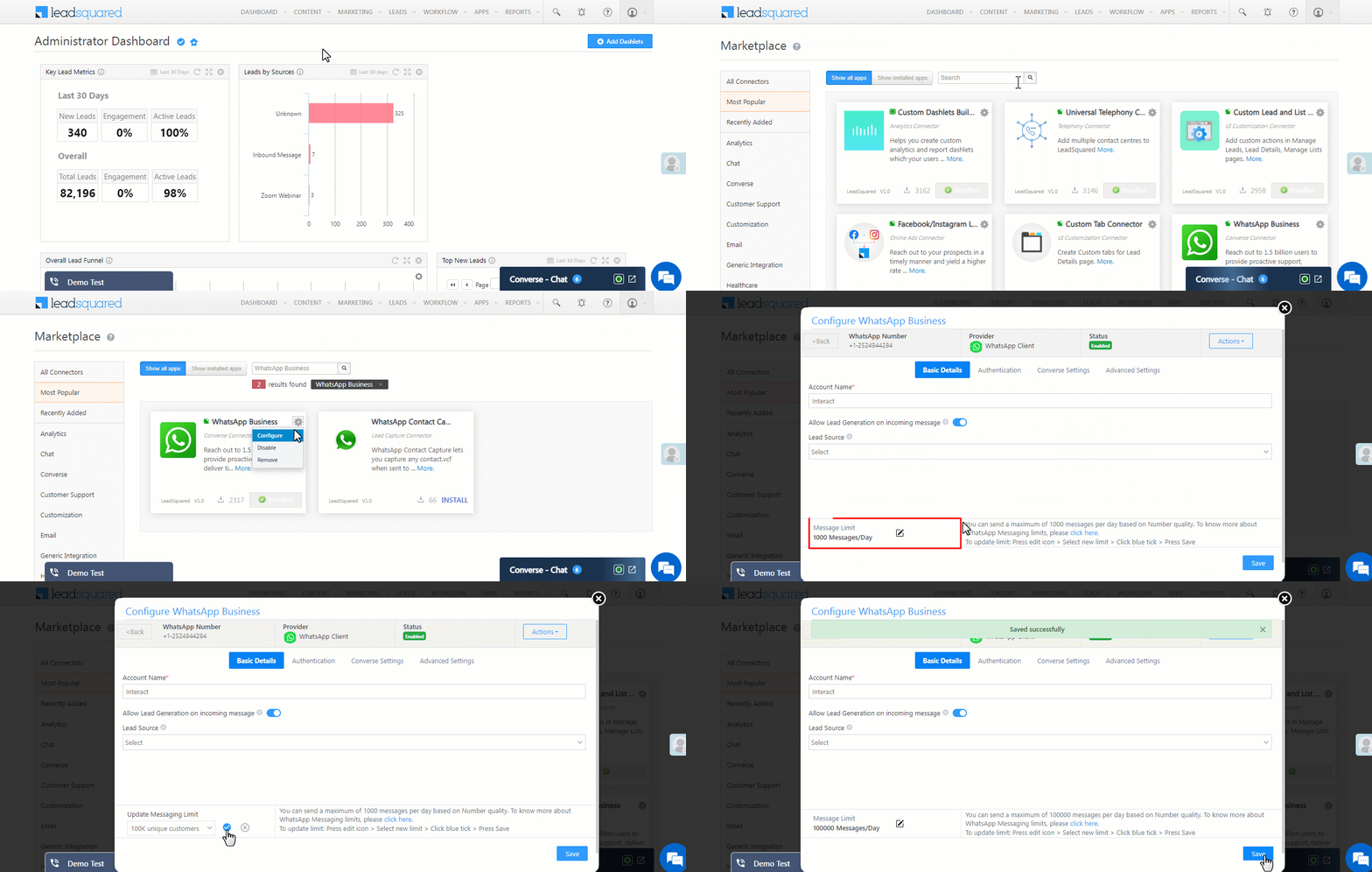
LeadSquared WhatsApp


5. Pricing and Availability

WhatsApp Business is available globally. Set-up fees & per-message costs vary from country to country and also depend on the type of message. Get in touch with us at sales@leadsquared.com or contact your LeadSquared account representative for more information.


6. Installation

To install the WhatsApp Messaging Connector –

  1. From the main menu, navigate to Apps>Apps Marketplace.
  2. Search for WhatsApp Business, and click Install.
    • Alternatively, you’ll find the connector listed under the Messaging tab.
  3. Once installed, hover your cursor over Settings icon and click Configure.
  4. On the Configure WhatsApp Business pop-up, click Add Number.
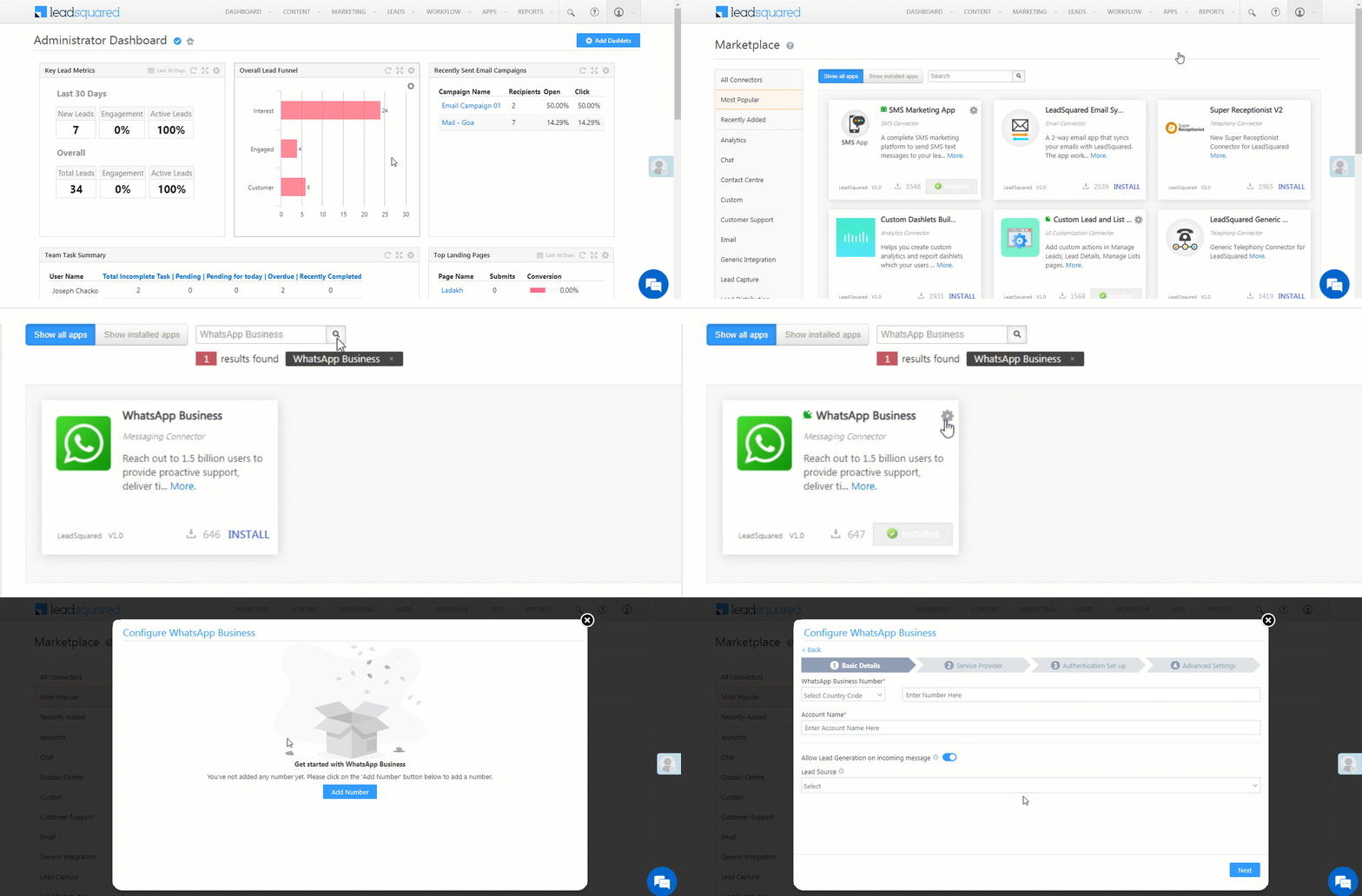
Integrate WhatsApp with LeadSquared


7. Configuration

Once the connector is installed, add and configure your WhatsApp phone numbers to the connector. To do this, enter –

7.1 Basic Details
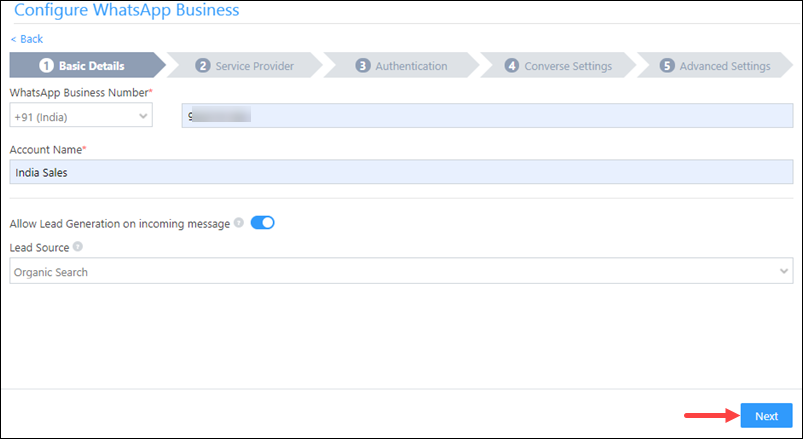
LeadSquared WhatsApp Integration

Field Description
WhatsApp Business Number Select the country code, and provide your WhatsApp business number. This field is mandatory.
Account Name Provide a relevant name for your connector. This field is mandatory.
Allow Lead Generation on incoming message Click Slider to allow automatic lead creation when you receive messages from unknown mobile numbers.
Lead Source From the dropdown, select a lead source for your leads.

Once you’re done, click Next.


7.2 Service Provider

From the available options, choose a service provider –
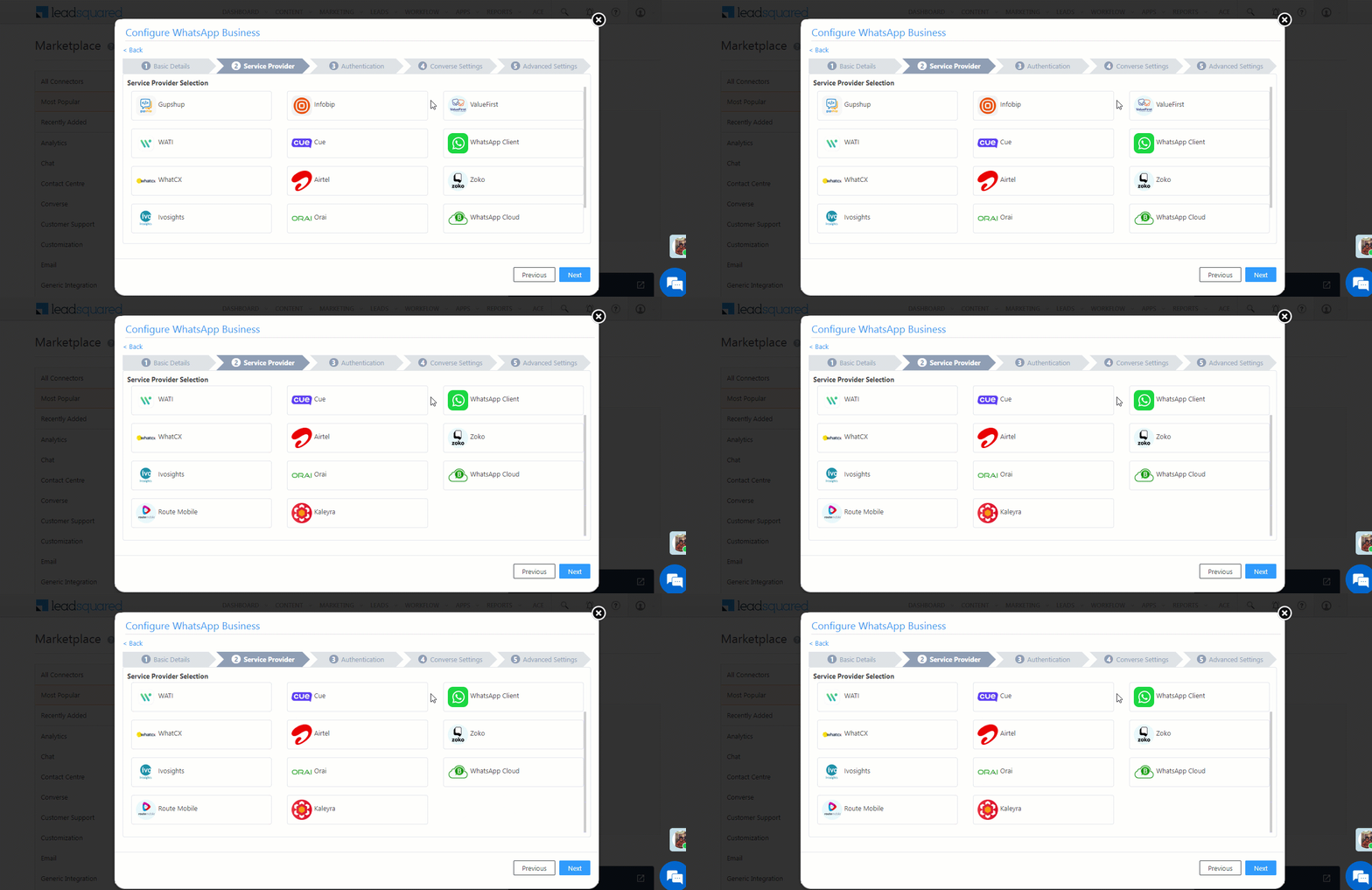
WhatsApp LeadSquared Connector


WhatsApp Client

Authentication Set-up

Instead of directly exposing a public REST API, WhatsApp requires deploying a WhatsApp API Client. This enables end-to-end encryption, media storage and permanent connection to the WhatsApp network. When connecting WhatsApp to LeadSquared you can leverage our WhatsApp API Client hosting solution or your own hosted client for connection.

  • To get access to the WhatsApp API client hosted by LeadSquared, please contact us at sales@leadsquared.com.
  • If you already have your own hosted WhatsApp API client, enter the following details –
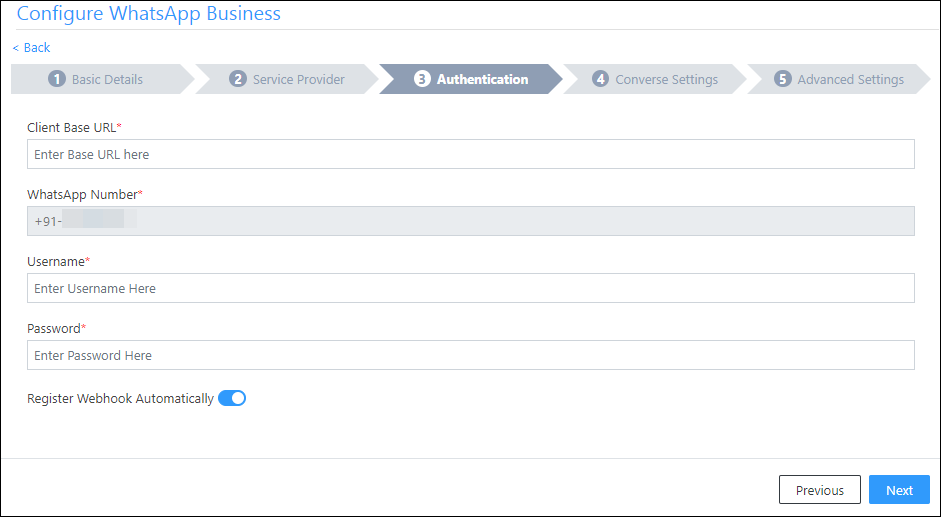
WhatsApp LeadSquared Connector

Field Description
Client Base URL The base URL for the API client. If you’re using the LeadSquared hosted API enter the URL provided to you.
WhatsApp Number Your WhatsApp business number.
Username Your WhatsApp business account username.
Password Your WhatsApp business account password.
Register Webhook Automatically This setting is enabled by default.
If your provider does not support automatic webhook registration, disable this setting. You can then copy the webhook, and manually configure it in your provider’s portal.

Once you’re done entering all the details, click Next.


Converse Settings
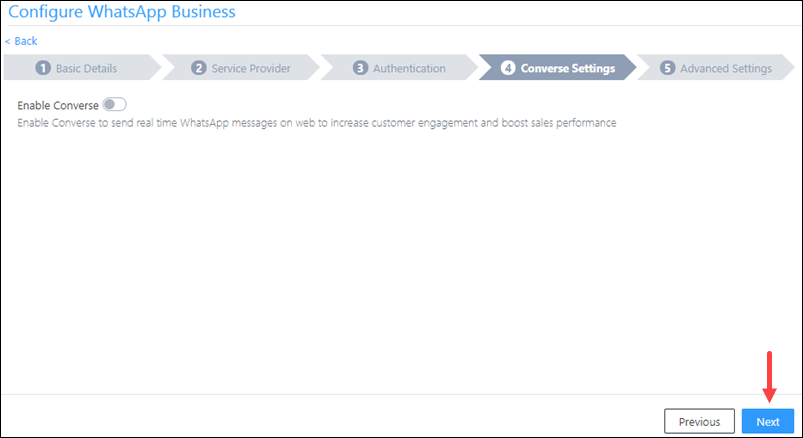
LeadSquared WhatsApp Integration


Advanced Settings

In this screen, you must map –

  • Activity Mapping – A LeadSquared activity field to your WhatsApp messages. This is the activity that will be posted every time a WhatsApp message is sent or received.
  • Default WhatsApp Number Fields – The number you set as the default phone number will be automatically selected when you’re sending a WhatsApp message to a lead. You can also select other numbers that are available from the Add Another Number dropdown.
  • Default Country Code – The default country code will be used to send messages to a phone number that’s stored in a custom field, if no country code is listed.
  • Compliance Type – Here, you can select the compliance type for the WhatsApp template, by choosing either WhatsApp Opt-out or Opt-in.
    • Opt-Out Lead Field – From the dropdown, select a lead field for the WhatsApp opt-out functionality. When selected, your leads will not receive outbound WhatsApp messages.
    • Opt-In Lead Field – From the dropdown, select a lead field for the WhatsApp opt-in functionality. When selected, your leads will receive outbound WhatsApp messages.
  • Blacklist Incoming Messages – If required, you can enable this option to blacklist incoming messages from specific numbers. This is useful when you want to block numbers that send inappropriate messages to your users. Once enabled, enter the phone numbers in the text box available on the right side of your screen. You can add phone numbers with 7-12 digits (excluding the country code). This option is available only when the Allow Lead Generation on incoming messages setting is enabled.
  • Show URL Preview in Custom Messages – When enabled, if the template contains a URL, a URL preview will be added as part of the message.
  • Enable Rich Media Template Support – If you want to include media files in your WhatsApp message, you must enable the Slider slider.
  • Enable HSM – Enable this setting ONLY if your provider expects text templates in the HSM format.
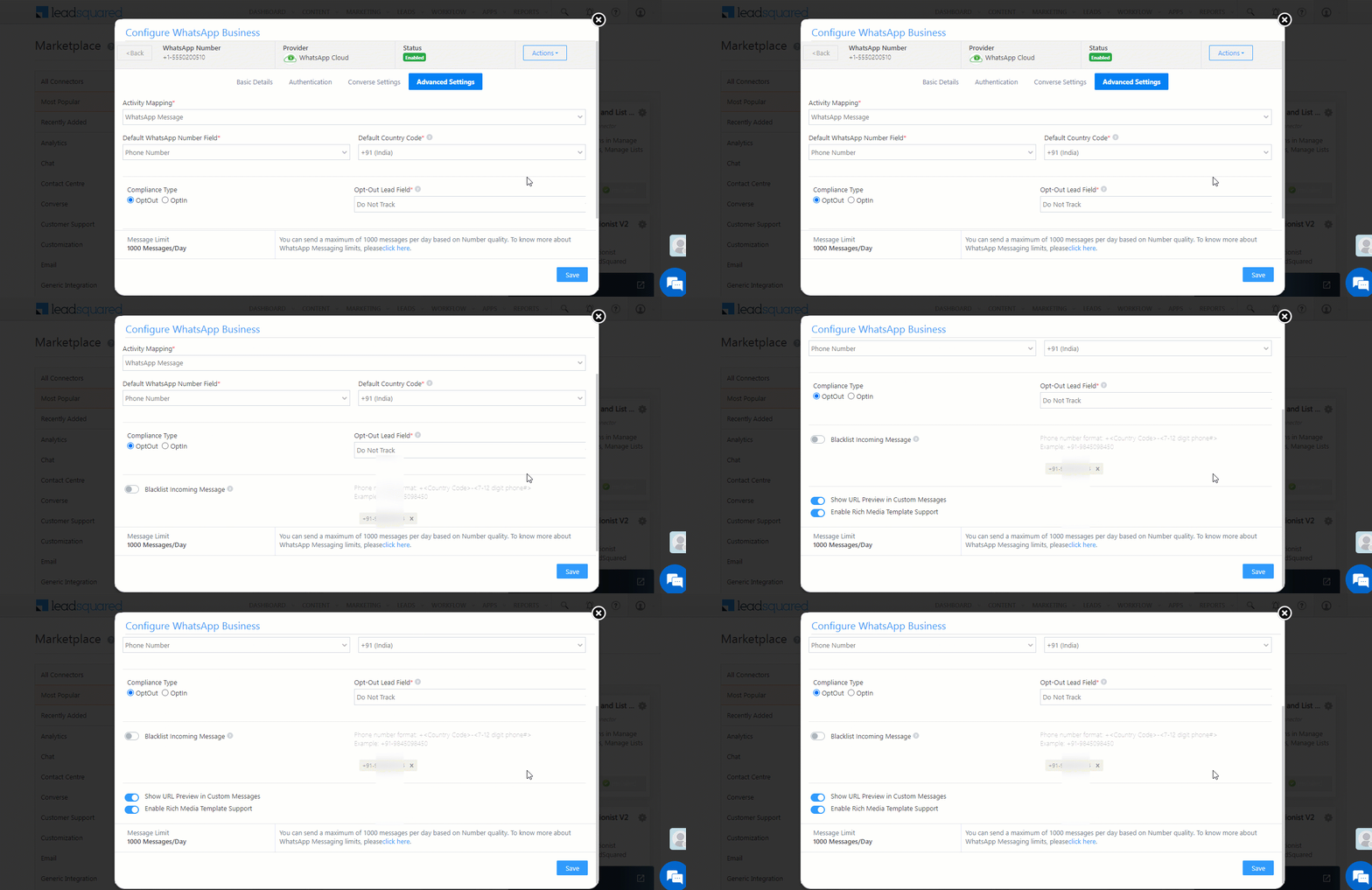
LeadSquared WhatsApp

Once you’re done entering the required details, click Save & Close.


Infobip

Infobip is a cloud communication solution that helps business manage all their communication channels through a single platform. LeadSquared offers easy WhatsApp integration through Infobip. For integration details, see LeadSquared WhatsApp Integration with Infobip.


Gupshup

Gupshup enables businesses to build engaging conversational experiences seamlessly across 30+ messaging channels using a single API. LeadSquared offers easy WhatsApp integration through Gupshup. For integration details, see LeadSquared WhatsApp Integration with Gupshup.


Kaleyra

To integrate Kaleyra with LeadSquared, refer to How to integrate Kalyera with LeadSquared.


Zoko

Zoko’s WhatsApp self-serve solution helps you engage your customers in a simple, secure and reliable way. Zoko facilitates customer support and other marketing efforts through WhatsApp. To know more, refer to LeadSquared WhatsApp Integration with Zoko.


Wati

Wati’s WhatsApp self-serve solution helps you engage your customers in a simple, secure and reliable way. Wati drive sales, support & marketing conversations through WhatsApp. To know more, refer to LeadSquared WhatsApp Integration with Wati.


Ivosights

Ivosights facilitates customer support and other marketing efforts through WhatsApp. To know more, refer to LeadSquared WhatsApp Integration with Ivosights.


WhatsApp Cloud API

To use the WhatsApp Cloud API, refer to LeadSquared WhatsApp Integration with WhatsApp Cloud API.


Airtel

Airel facilitates customer support and other marketing efforts through WhatsApp. To know more, refer to LeadSquared WhatsApp Integration with Airtel.


DoubleTick

To integrate DoubleTick with LeadSquared, refer to LeadSquared WhatsApp Integration with DoubleTick.


AiSensy

To integrate AiSensy with LeadSquared, refer to Integrate LeadSquared with WhatsApp via AiSensy.


Interakt

To integrate Interakt with LeadSquared, refer to LeadSquared WhatsApp Integration with Interakt.


Cue

To integrate Cue with LeadSquared, refer to the WhatsApp Client section that’s listed above. You can get your username and password by reaching out to the Cue support team.


Tata Tele Business Services

To integrate Tata Tele Business Services with LeadSquared, refer to LeadSquared WhatsApp Integration with Tata Tele Business Services.


Chatbot.team

To integrate Chabot.team with LeadSquared, refer to LeadSquared WhatsApp Integration with Chatbot.team.

7.3 Object Types Integration with WhatsApp

Along with leads, you can send messages to LeadSquared Object Types configured on your account. The steps remain the same as those listed in this section above, with the only difference being selecting the relevant object type from the Object Type for Inbound Messages dropdown. Once you’re done, create WhatsApp templates with object types.
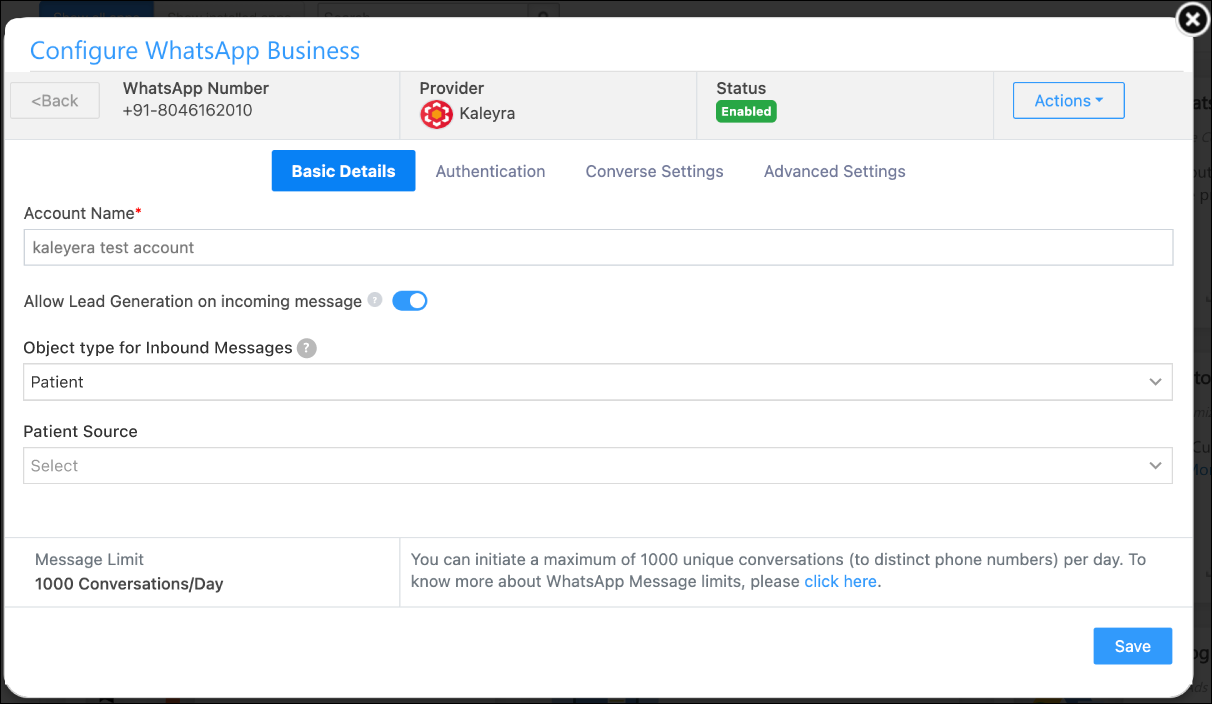
LeadSquared Object Types WhatsApp


8. Integrate LeadSquared Converse with WhatsApp

LeadSquared Converse is an instant messaging feature that allows you to have real-time conversations with your leads via WhatsApp. To integrate LeadSquared Converse with WhatsApp, refer to LeadSquared Converse.

Note: Templates with interactive buttons are not supported in Converse.
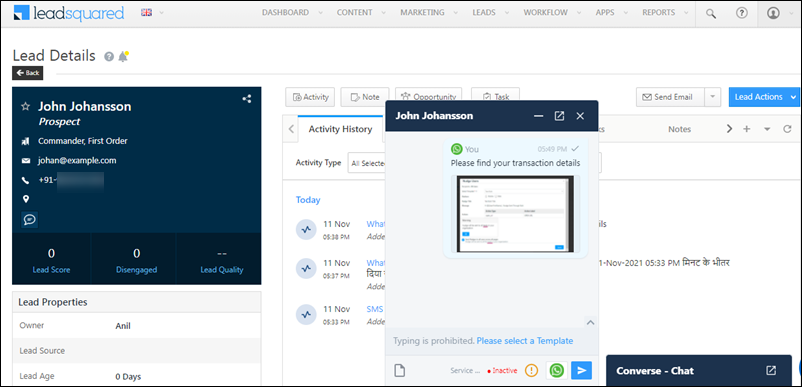
LeadSquared WhatsApp Integration


9. Add Multiple WhatsApp Numbers

You can add multiple WhatsApp numbers, through which you can send messages. These numbers can be configured across different service providers. To add multiple numbers, on the Configure WhatsApp Business pop-up, click the Add Number button. The steps to add a number are the same as ones listed in the previous section.
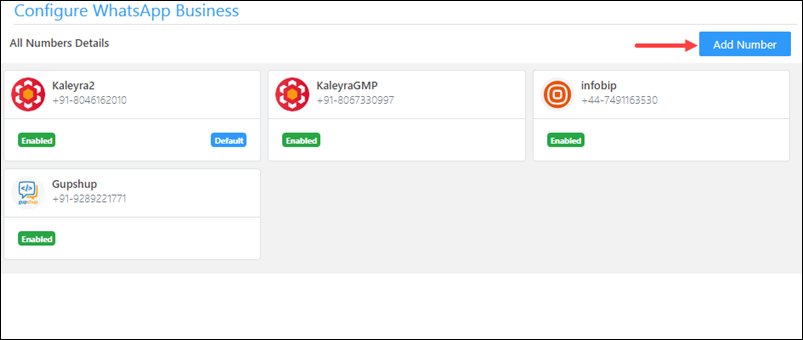
Integrate WhatsApp with LeadSquared


10. Adding WhatsApp Templates to LeadSquared

Once your templates have been approved (see Submit Message Templates for Approval), you can add them to your LeadSquared account.

  1. On your main menu, navigate to Apps>WhatsApp Templates.*
  2. Click Add Template.
  3. Enter the Name, Namespace#, and Content of your message template.
  4. Click Save.

Note:

  • *If the option doesn’t show up on the menu, you may have to re-install the WhatsApp Connector.
  • Be sure to enter the exact template content that was approved. Characters are case-sensitive.
  • To enable link tracking for messages that contain URLs, refer to WhatsApp Link Tracking in LeadSquared.
  • #The Namespace is optional. If you don’t have a namespace value, please leave this field empty. However, if you choose to include a namespace value (or if the messages to your leads are failing due to missing namespace value), ensure that it is accurate. An incorrect value will cause the template to fail, and the message will not be sent to your leads..
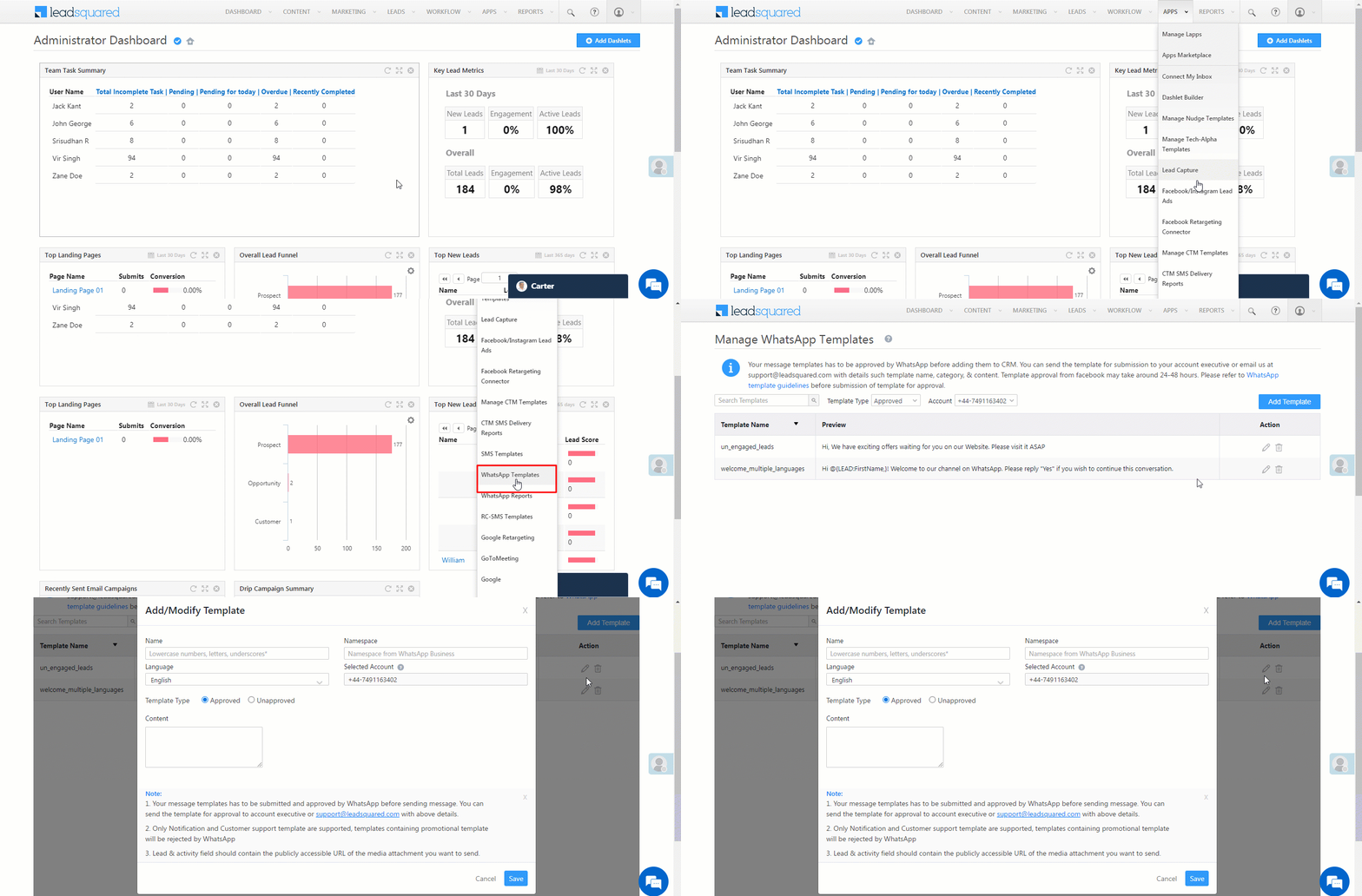
Integrate WhatsApp with LeadSquared


10.1 Adding Media to WhatsApp Templates

You can add media to your WhatsApp templates.

Note:

  • If you add Media to your template, you’ll not be able to add a Header to the same template.
  • All attachment URLs must be public.
  • Templates with interactive buttons are not supported.
  1. On the WhatsApp Templates screen, click the Add Template button.
    • To add the media file against an existing template, click the icon.
  2. On the Add/Modify Template pop-up, against Media Attachments, toggle the Slider slider.
  3. To attach an image, click Image. To attach a document file, click Document. To attach a video file, click Video.
  4. Alongside Select Attachment Type, select Static.
  5. You can insert the file into the template by entering the file URL in the Details field. Alternatively, you can attach the file from your desktop by clicking the attachment icon icon , to upload it.
  6. To use this template in your LeadSquared Converse, enable the Checkbox alongside Available in Converse. This ensures the template is displayed in the Converse chat window.
  7. Once you’re done, click Save. Once the file is successfully saved, you will get a message denoting the same on the bottom-left corner.
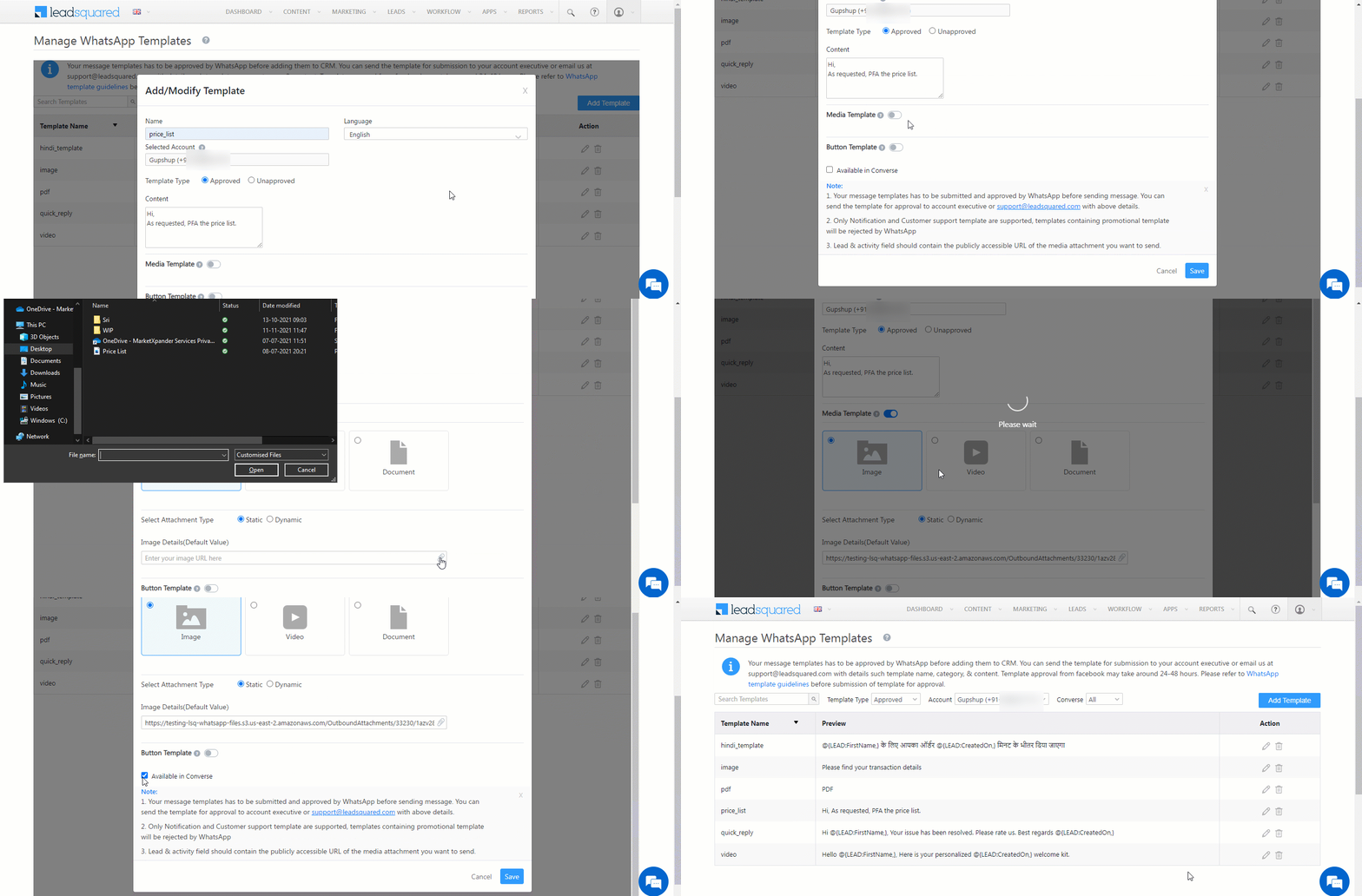
LeadSquared WhatsApp Integration


The media file types that are supported are –

Service Providers Image File Video File Document File Text Header and Footer Button Templates
Kaleyra Supported Supported Supported Supported Supported
Infobip Supported Supported Supported Supported Supported
WhatsApp Client Supported Supported Supported Supported Supported
Gupshup Supported Supported Supported Supported Supported

The media file type formats are –

File Type Format Size
Images image/jpeg, image/png 5 MB
Videos video/mp4, video/3gpp 16 MB
Documents PDFs 100 MB
Text Header and Footer Header, text content, and footer

To know more about how to attach media to your WhatsApp templates, please refer to WhatsApp Media.


10.2 Sending Media Dynamically through Automation

You can send media attachments dynamically in WhatsApp messages to your leads, using automation. Examples of this feature in action are –

  • Travel websites that send you PDF files of your tickets when you’ve made a flight booking.
  • Insurance companies that send you PDFs with the details of your newly purchased insurance package.
  • Colleges/schools dynamically sending report cards to each student.
  • Invoices sent as attachments to customers after purchases, on renewal dates, etc.

First, you’ll need to decide where you want to store the documents/images (invoices, tickets, student reports, etc.). They can be stored in either a lead or activity field of text type. To learn how to create new custom fields for leads, see How to Create Custom Lead Fields, for activities, see How to Create Custom Activity Types.

Next, while creating a WhatsApp template, click the Dynamic radio button highlighted below and enter the following details.

  • Default File Name (only applicable to document type template) – The default file name of the attachment. For example, Invoice, Ticket, etc.
  • Object – Specify the object where the attachment URL is being stored. As mentioned above this could be either Lead or Activity.
  • Field – Specify the field in which the attachment is being stored.
  • Document Details (Default Value) – Specify a URL, or upload an attachment by clicking attachment icon and choosing a file. If the field you specify is null (if there is no URL contained in the specified field), this attachment will be sent in the WhatsApp message.

Click Save when you’re done.
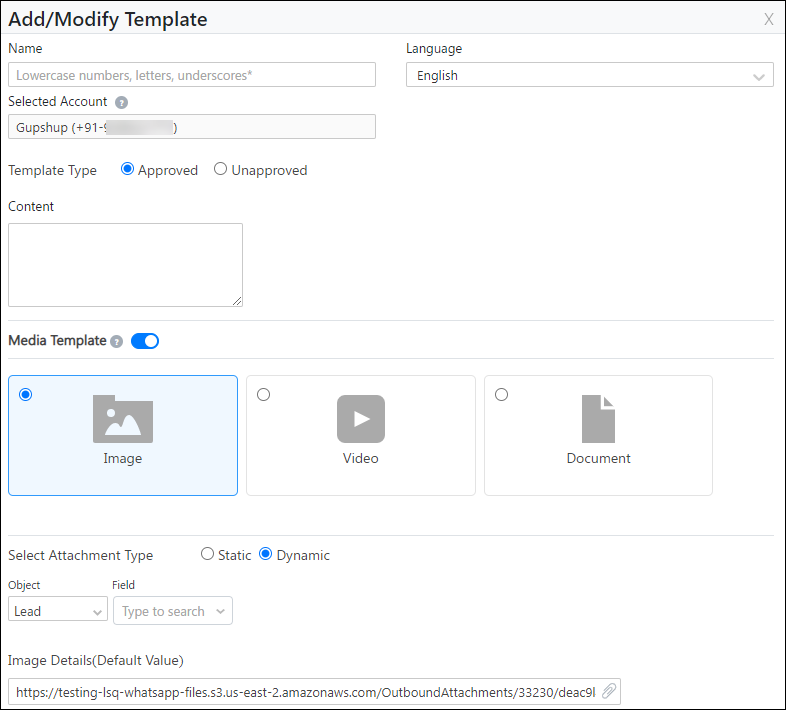
WhatsApp Templates

Note: There is no validation on the URL. You must ensure that the URL contains the correct attachment type (for example, if you specify ‘image’ in the template, ensure that the URL contains an image file and not a document).

Once your template is ready, you must configure an automation to send the WhatsApp messages. Dynamic attachments cannot be sent through the regular Send Message action on the Lead Details or Manage Leads pages. After setting up the automation and selecting Messaging>WhatsApp, select the correct template configured above and you’re done (For more details see section 8.5 Automation).
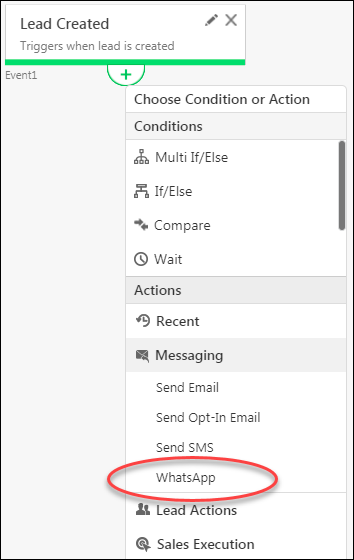
whats app automation


10.3 Header and Footer

You can include additional text information in your message templates by enabling the Header Footer option. Text present on the top of the message template are Headers (“LSQ Kart” in the below image), and text present on the bottom of the message are Footers (“Thank you” in the below image).
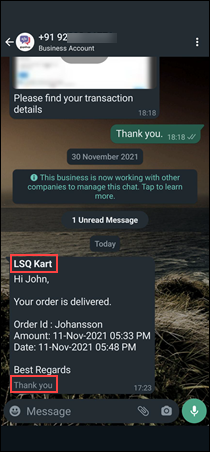
WhatsApp Templates

Alongside Header Footer, enable the Slider slider, and add relevant text under Header and Footer. Note that the maximum character limit for each Header and Footer is 200 characters. Once you’re done, click Save.
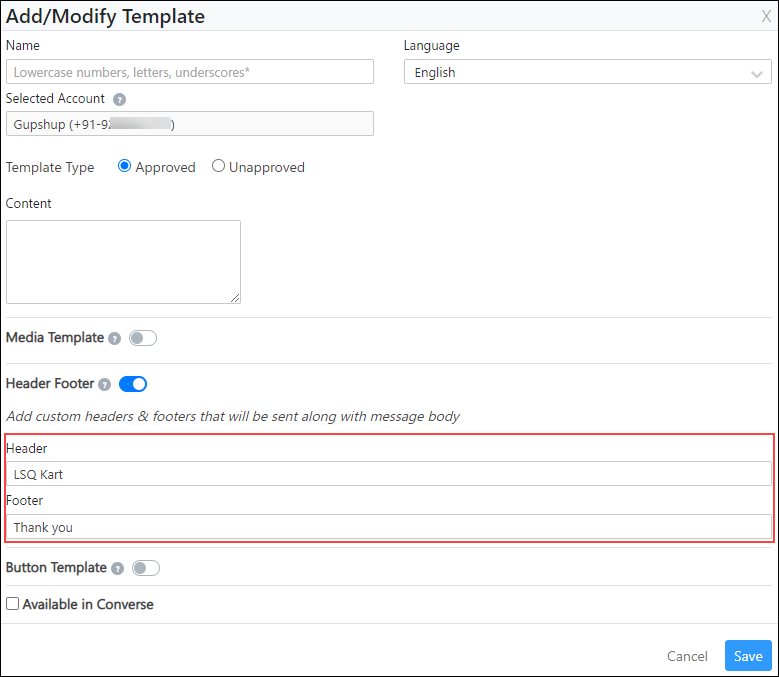
WhatsApp Templates


10.4 Adding Button Templates

Buttons are interactive templates that enable your leads to send Quick Replies and perform Call To Actions (such as Call Phone Number and Visit Website).

Note: If you enable Button Templates, you’ll not be able to enable the Available in Converse option for the selected template.
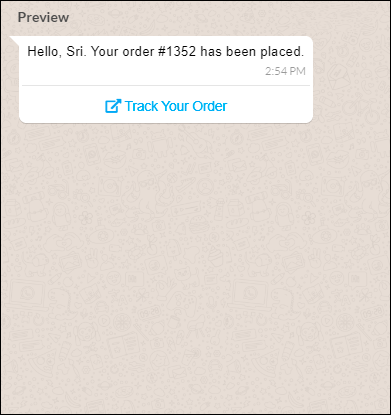
WhatsApp Button Templates

If you created a template to perform Visit Website (that enables a lead to visit your website), you can either select a Static Button Type (for a static URL) or a Dynamic Button Type (for a dynamic URL). Templates that contain Quick Reply buttons will be considered as Static Button Types.

The Static Button will remain the same for all your leads, and no further action is required within LeadSquared. If you choose a Dynamic Button, you must configure the button, to fetch data from the relevant LeadSquared field. To enable and configure a Dynamic Button –

  1. On the Add/Modify Template pop-up, against Button Template, enable the Slider slider.
  2. Against Select Button Type, select Dynamic.
  3. Under Variable Mapping, select the Object,(Lead or Activity).
  4. From the Field dropdown, select the Lead/Activity field that contains the URL. This URL value will dynamically be added for all the messages that will be sent to your leads through automations and bulk messages.
  5. In the Default Value box, enter the default URL value. This URL value will be added by default for all the instances where a value is missing in the Lead/Activity field you selected in the previous step. The default value will be added by default to all one-on-one WhatsApp messages you send to your leads.
  6. Once you’re done, click Save.

WhatsApp Templates

If required, you can change the default value when sending a one-on-one message to a lead. To do this –

  1. Navigate to the Manage Leads page, and against the lead to whom you want to send a one-on-one message, select Messaging>WhatsApp.
  2. On the Send WhatsApp Message pop-up, select the Dynamic Button template that you created.
  3. Then, scroll down to the Dynamic Button Content Below section.
  4. In the URL field, update the default field value to the new field value.
  5. Once you’re done, click Send. The message to this specific lead will be sent with the updated URL value.
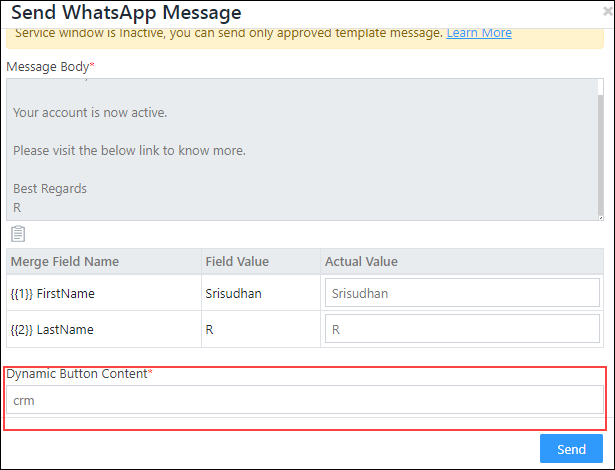
Integrate WhatsApp with LeadSquared

10.5 Adding Object Types to Templates

Once you integrate Object Types with the connector, create templates that support Object Types. The steps remain the same as those in this section, with the only change on the Body tab. Enter the message body, and from the Entity dropdown, select Object and the object type fields you want to display in your message body.
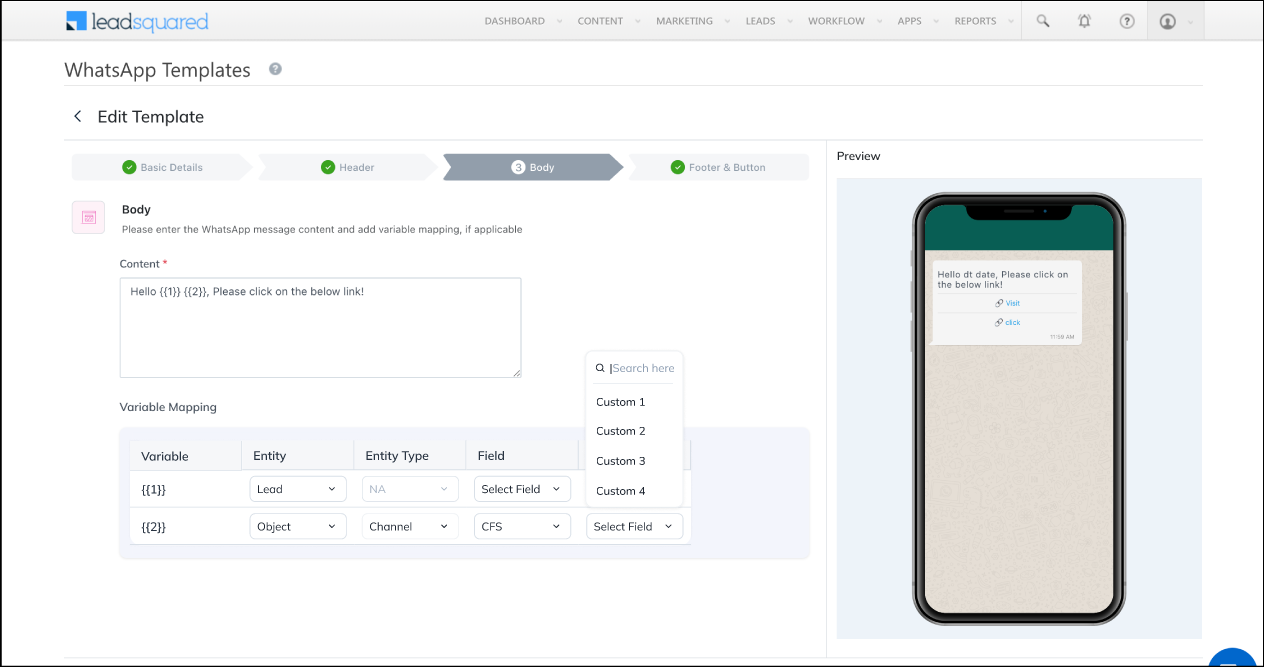
LeadSquared Object Types WhatsApp


11. Sending WhatsApp Messages to Leads

You can send one-to-one as well as bulk messages to your leads from the Manage Leads and Lead Details pages. Additionally, you can also set up an Automation to send messages to your leads.

11.1 Prerequisites


11.2 Manage Leads Page

To send a WhatsApp message to a single lead,

  1. Navigate to Leads>Manage Leads.
  2. Hover your cursor over the settingssettingswheel, then click WhatsApp (if you have multiple messaging connectors installed, the WhatsApp option will appear when you hover over Messaging).
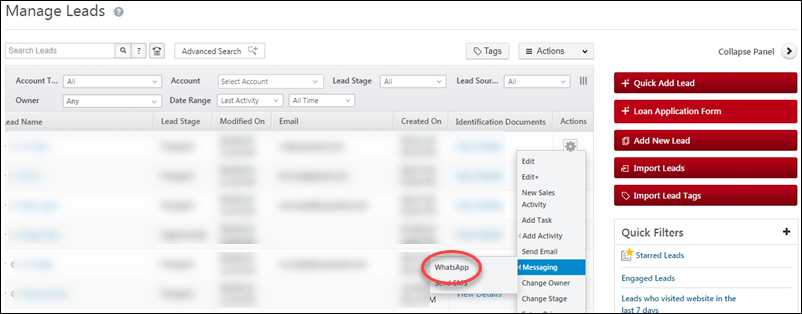
whatsapp leads

On the Send WhatsApp Message pop-up, select a template and click Send.
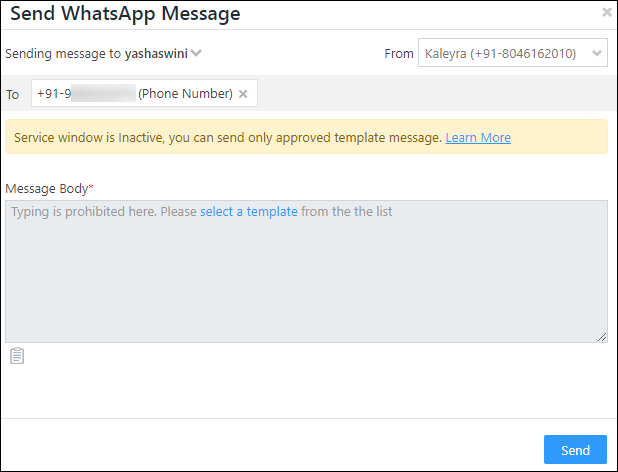
Integrate WhatsApp with LeadSquared

To send WhatsApp messages in bulk (to multiple leads),

  1. Select the leads on the Manage Leads page.
  2. Hover your cursor over the Actions menu, hover over Messaging, then click WhatsApp.
  3. Select a template and click Send.

WhatsApp LeadSquared Connector


11.3 Manage Lists

You can also send messages to lists from the Manage Lists page,

  1. Navigate to Leads>Manage Lists.
  2. Alongside a list, under the Actions column, hover your cursor over the settings Settings icon wheel, under Messaging, select WhatsApp.
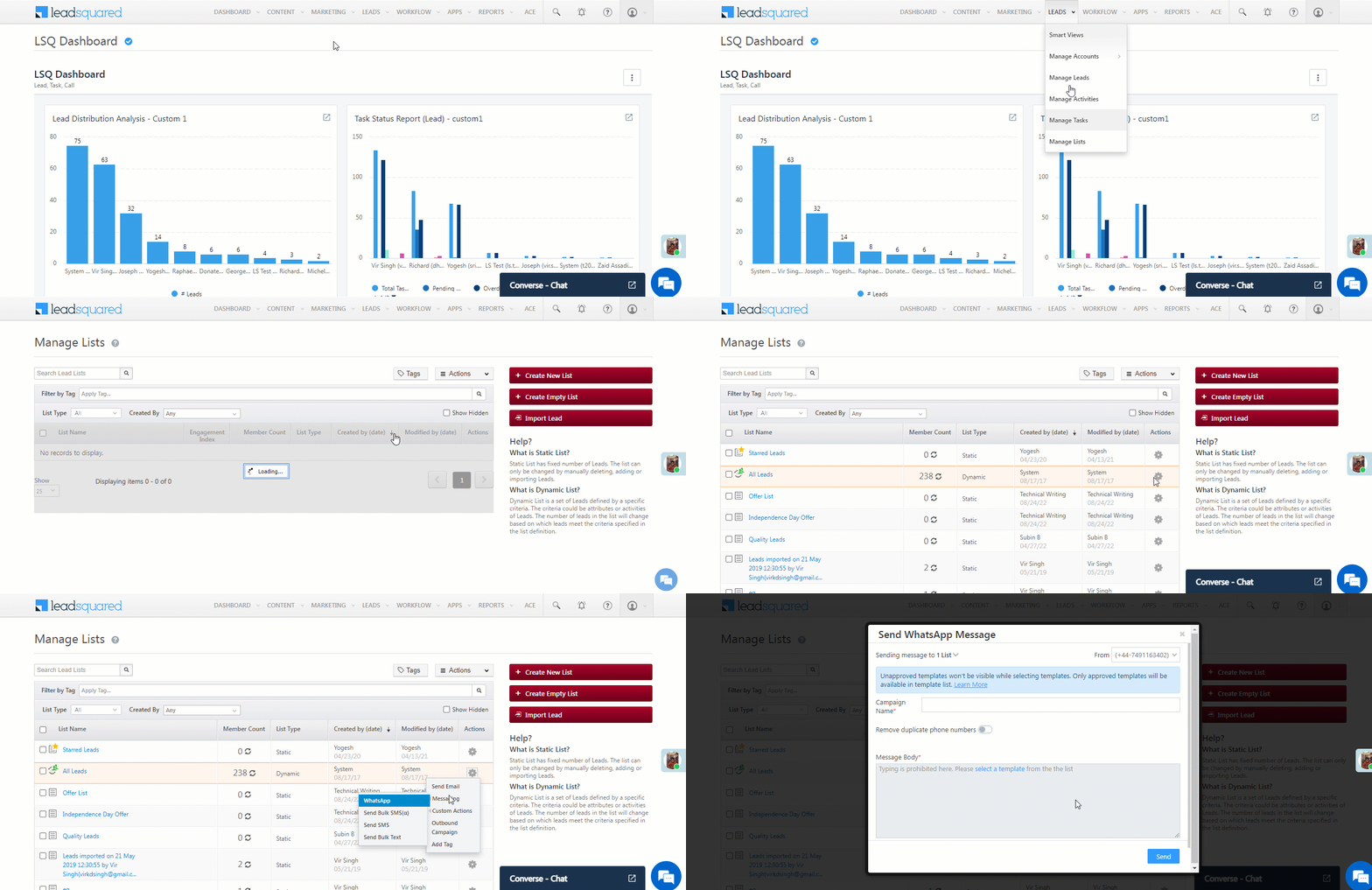
WhatsApp LeadSquared Connector


11.4 Lead Details Page

Click on a lead on the Manage Leads page to navigate to the Lead Details page. Hover your cursor over the Lead Actions menu, then click the WhatsApp option (if you have multiple messaging connectors installed, the WhatsApp option will appear when you hover over Messaging).
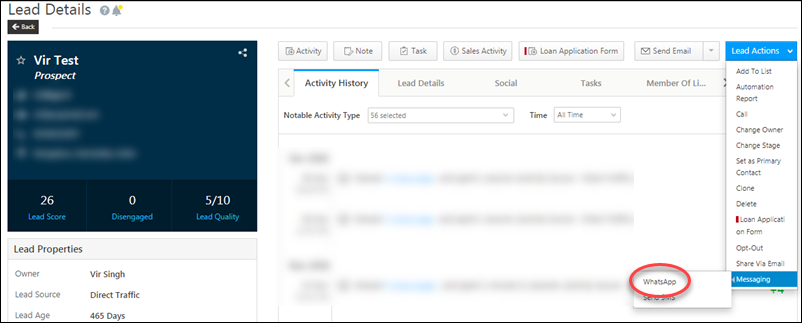
Lead details whatsapp leads


11.5 Automation

You can set up automations to send messages to your leads when certain triggers and conditions are executed.

  1. Navigate to Workflow>Automation.
  2. Click Create Automation.
  3. Choose an automation template or build one from scratch.
  4. Select a trigger*.
  5. Click the expand icon under the trigger, under Actions, click Messaging, then click WhatsApp.
  6. Choose a template, then click Save.
  7. When you’re done, click Publish to set the automation live.

* The WhatsApp messaging option appears on Lead, Opportunity, Activity, and Task triggers.

whats app automation


11.6 Service Window

On the Send WhatsApp Message pop-up, you will find the Service Window. While using this window, you should remember the following –

  • The first message you send to a lead on WhatsApp can only be a template message. Navigate to Apps>WhatsApp Templates to add or edit a template.
  • You cannot edit the template message in the Send WhatsApp Message pop-up.
  • If a lead replies to your first message, Inactive will change to Active for a 24-hours.
  • During this 24-hour window, you can send multiple customized messages, along with template messages.
  • This window will get reset every time the lead replies to a message.
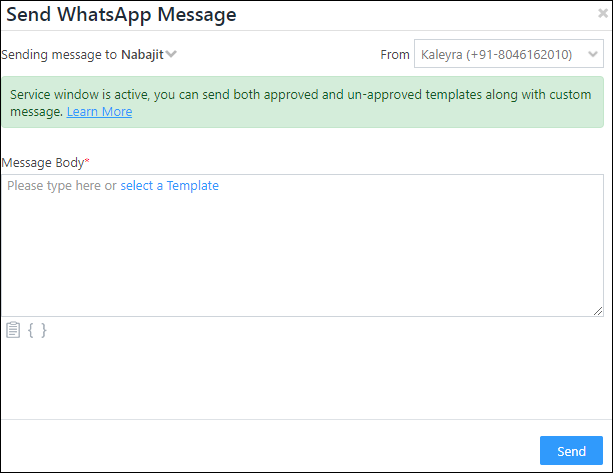
Integrate WhatsApp with LeadSquared

Note: If you Add Another Number, you cannot send a custom reply, and the service window on the top-right corner of the pop-up will show N/A (not applicable).


12. Sending WhatsApp Messages to Opportunities

You can send one-to-one as well as bulk messages to your leads from the Manage Opportunities and Opportunity Details pages.

Use Case

In instances when multiple opportunities are created on the same lead, and when different WhatsApp messages are sent to the lead as well as the opportunities, the reply from the lead is posted as an activity against the last message sent to the lead/opportunity.
For e.g., on a lead called Aaron, two different opportunities are created – Home Loan and Automobile Loan. The following WhatsApp messages are sent –

Entity Message Time
Aaron (the lead) “Welcome to ABC Bank. We’re glad to serve you…” Message sent at 5 PM
Home Loan – Aaron “Thank you for showing an interest in obtaining a loan for your dream home…” Message sent at 5:15 PM
Automobile Loan – Aaron “Give wheels to your dream by taking an automobile loan at attractive interest rates…” Message sent at 5:30 PM

If Aaron responds at 5:35 PM, then irrespective of the message he chooses to reply to, the reply message activity is posted against the Automobile Loan – Aaron message that was sent at 5:30 PM. Similarly, if Aaron replied to the “Welcome…” message at 5:20 PM, the reply activity is posted against the “Thank you…” message that was sent at 5:15 PM.


12.1 Prerequisites

  • Opportunities must be enabled on your account.
  • The lead associated with the opportunity you’re messaging must have a valid WhatsApp enabled number in the Phone Number lead field.


12.2 Manage Opportunities Page

To send a WhatsApp message to a single opportunity –

  1. Navigate to Leads>Manage Opportunities.
  2. Alongside the opportunity you want to message, hover your cursor over the settingssettingswheel.
  3. From the list of available options, hover your cursor over Messaging, and click WhatsApp.
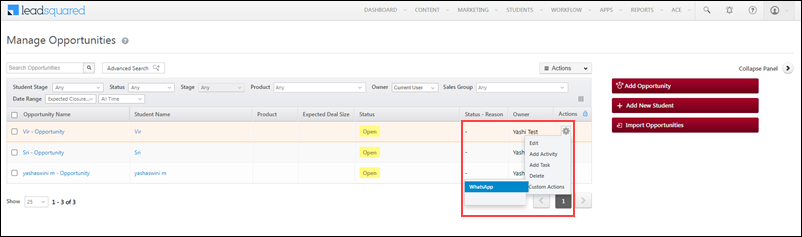
LeadSquared WhatsApp Integration

On the Send WhatsApp Message pop-up, select a template and click Send.

Integrate WhatsApp with LeadSquared

To send WhatsApp messages in bulk (to multiple opportunities),

  1. Select the leads on the Manage Opportunities page.
  2. Hover your cursor over the Actions menu, and click WhatsApp Bulk.
  3. Select a template and click Send.

LeadSquared WhatsApp Integration


12.3 Opportunity Details Page

  1. Click on an opportunity on the Manage Opportunities page.
  2. On the Opportunity Details page, hover your cursor over the Actions menu.
  3. Click the WhatsApp option.
  4. Select a template and click Send.

LeadSquared WhatsApp Integration


13. WhatsApp Message Activities

When a WhatsApp message is triggered through automation or the manage leads page, an activity of type WhatsApp Message is created against each corresponding lead.

Note: The activity type that gets posted is configurable from the WhatsApp Messaging Connector configurations (See Installation and Configuration above).

The WhatsApp Message activity has the following parameters –

Parameter Description
Status Sent Message sent by you was received by the server.
Delivered Message sent by you was delivered to lead’s device.
Read Message sent by you was read by the lead.
Failed Message sent by your business failed to send. For more information, see Whatsapp API Error Messages.
Deleted Messages sent were deleted by the lead (ideally, you should ensure that the message is deleted from your system if it was downloaded from the server).
Notes Notes in the activity will contain the template name along with the actual text that was sent to the lead.

You can view WhatsApp Message activities on the corresponding lead’s details page, in the activity stream –
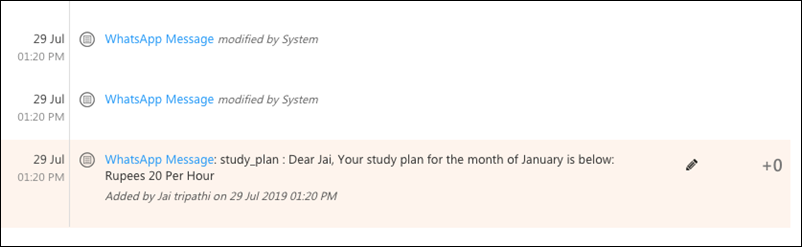
view whatsapp activities

A WhatsApp message activity update notification will be posted once the delivery receipt or read receipts are received for a particular message –
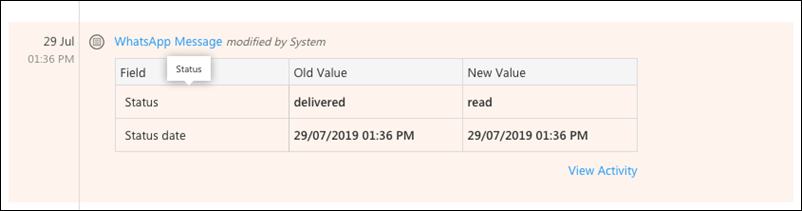
whats app activity update

Click the View Activity link shown in the screenshot above to view more details –
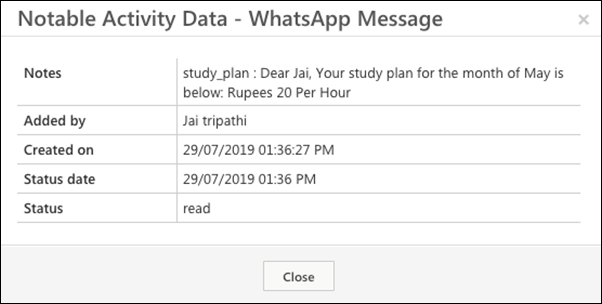
whatsapp activity details

When a lead responds to a WhatsApp message, you’ll see an inbound activity posted on the lead details page –
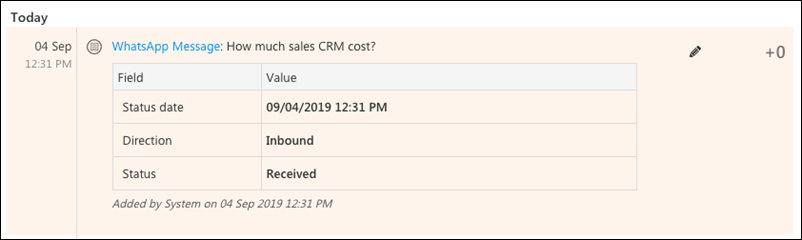
whats app inbound activity


14. Receiving Inbound Attachments

We support incoming attachments for integrations configured through Kaleyra and Infobip.

No. Media Type Media Format Kaleyra  Infobip 
1 Text Character Count 4096 characters supported 2000 characters supported
2 Images JPG/JPEG Supported Supported
PNG Supported Supported
GIF Converted to Video Converted to Video
3 Audio AAC Supported Supported
MP3 Supported Supported
AMR Kaleyra account URL is displayed and file gets downloaded Need to login to Infobip portal to play audio
M4A Supported Supported
OGG Supported Supported
WAV Supported Supported
OPUS Supported Supported
12 Video MP4 Supported Supported
AVI Supported but Kaleyra account URL is displayed Need to login to Infobip portal to view video
3GP Not Supported by WhatsApp Not Supported by WhatsApp
15 Documents PDF Supported Supported
PPT(X) Supported Supported
DOC(X) Supported Supported
XLS(X) Supported Supported
TXT Supported Supported
20 Location Current Location Supported Supported
Live Location Not Supported Not Supported
Google Maps Supported Supported
23 Contact Contact Only First Name, Last Name, Contact number, Phone Type are supported. Only First Name, Last Name, Contact number, Phone Type are supported.

These attachments can be viewed from the Activity History tab on the Lead Details page.

Here’s a sample inbound message with a location attachment. A View Attachments link will appear if an inbound file has been received in (document, video, audio, or image). Clicking the link will open the following pop-up.
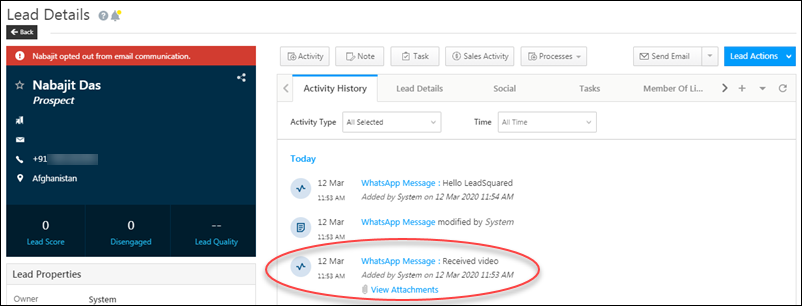
inbound attachments whatsapp

Click the link to view the attachment.

whatsapp attachment link

Here’s a sample message with a location attachment. Clicking the link will direct you to the location on google maps.

whatsapp messages location


15. WhatsApp Reports

These reports show the level of engagement between your business and your leads through WhatsApp. To know how to view these reports in detail, read WhatsApp Reports.
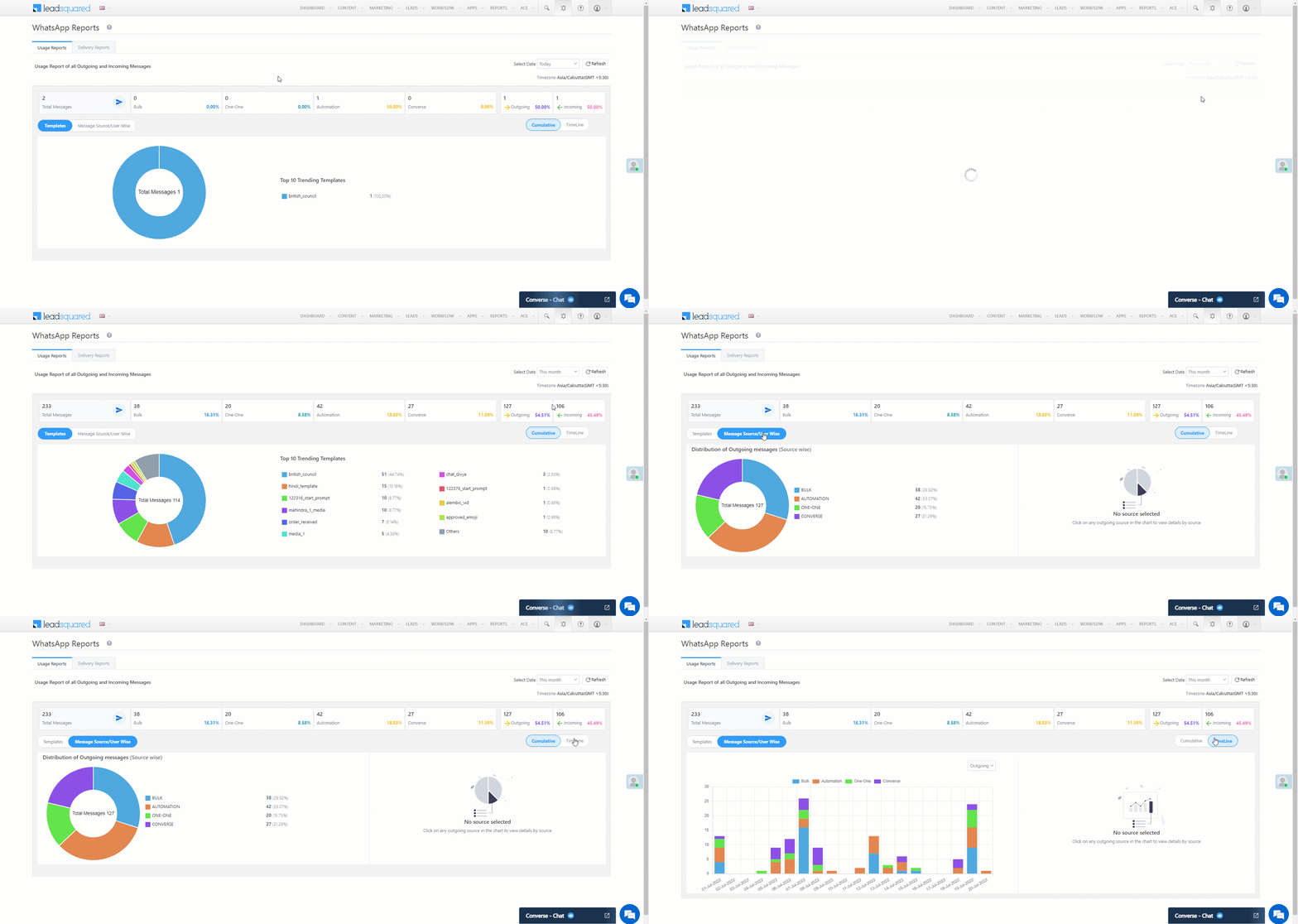
WhatsApp Connector


FAQs and Troubleshooting

Why did the WhatsApp campaign fail with a ‘TO’ number empty error?
This error occurs when the recipient’s phone number is not correctly mapped. To resolve this:

  • Open the lead record to which the message was triggered.
  • Check if the phone number is stored in the Phone Number or Mobile Number lead field.
  • Go to the WhatsApp connector settings and verify the Default WhatsApp Number Field mapping.
  • While sending the campaign, ensure the ‘TO’ field is mapped to the correct lead field configured in the WhatsApp connector.

WhatsApp Message Error: “Error occurred. Please contact support.”

This error may occur when clicking the Send WhatsApp Message button, and no template selection appears.
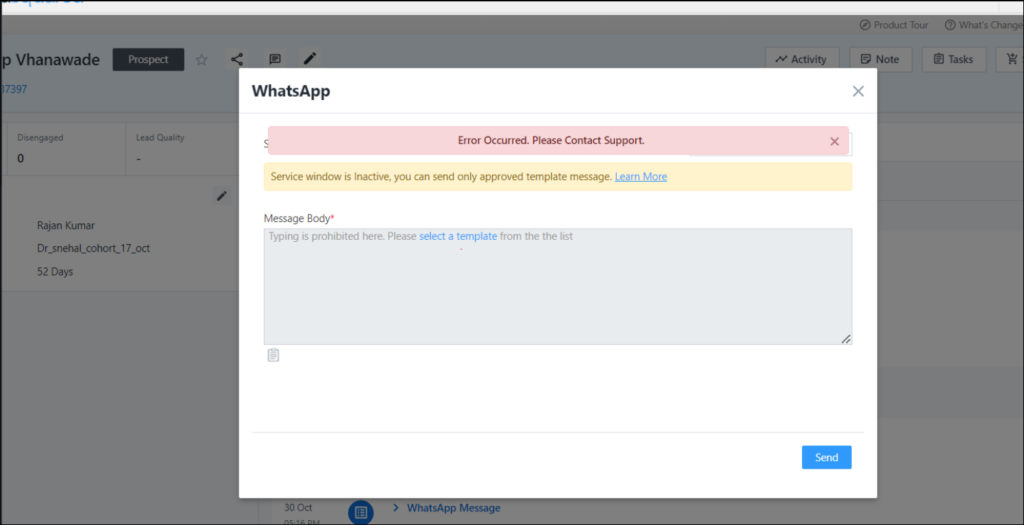
LeadSquared WhatsApp Integration

Possible Causes & Solutions:

  • Configuration Fetch Failure
    • This happens when the system fails to fetch the required settings.
    • Solution: Contact support@leadsquared.com for assistance.
  • V2 API Failures (UserDetails, MetaData, LeadPhoneFieldsAndNumbers, etc.)
    • This could be due to temporary API issues affecting lead, user, or opportunity details.
    • Solution: Retry after some time. API failures are temporary and cannot be fixed manually.
  • Lead Owner Inactive or Disabled
    • The system checks for an active Lead Owner to mail merge certain parameters.
    • Solution: Reactivate the Lead Owner or Bulk Update leads with a new Lead Owner.

ErrorYour message couldn’t be sent. Failed to Opt-in WhatsApp number.
You may be seeing this error because the lead has opted out of receiving your WhatsApp messages.
While configuring the Compliance Type for the connector, you selected a boolean field to opt-in/opt-out leads from WhatsApp communication.  Check the value of this field for that particular lead on the lead details page.
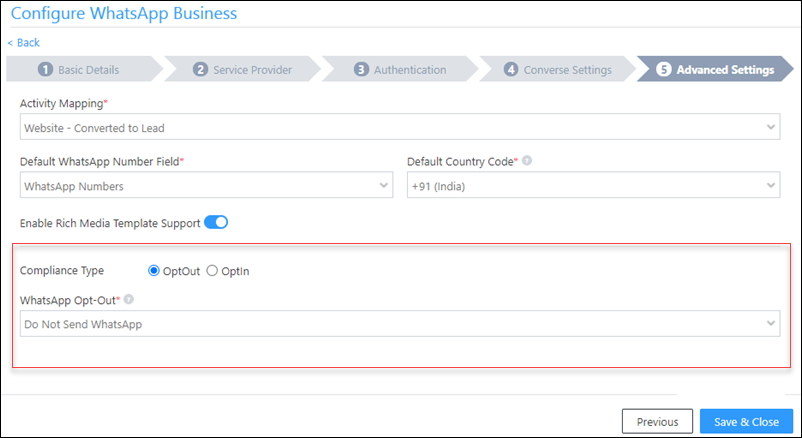
LeadSquared WhatsApp Integration

If that didn’t solve the problem, the error may be caused by an issue on the service provider’s end. Contact us at support@leadsquared.com if that’s the case.

Why do I see “OptIn failed error [106]” when sending WhatsApp messages?
A: This error typically occurs if your WhatsApp connector has incorrect username or password. Go to the connector settings, re-enter the correct credentials, and save.

Why does my WhatsApp message fail with “OptinFailed: non 200 response code”?
A: This also indicates an authentication issue. Verify the WhatsApp connector credentials with your provider. If needed, reconnect with the correct username and password.


Any Questions?

Was this article helpful? If you still have doubts, check out the WhatsApp Connector FAQs. Also, feel free to leave us a comment below.

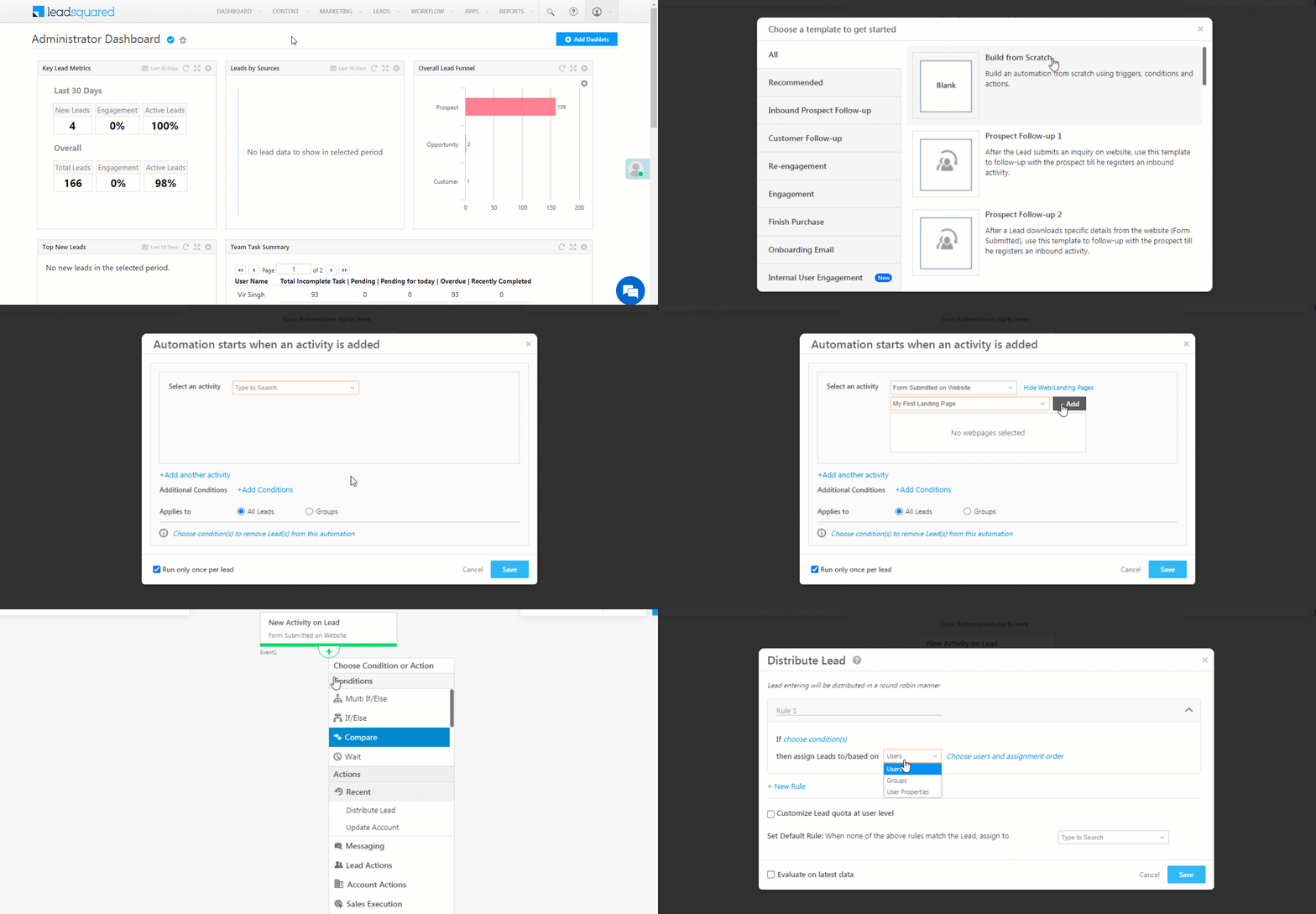
How to Post Activities on Accounts?

Lead activities capture B2C activities performed on leads. You can similarly capture B2B related activities performed on your accounts. These activities help you log your interactions and track your overall journey with a particular business partner/vendor/associate.

If you’re new to the accounts feature, see Account Settings.


Example Use Cases

Here are some examples of account activities to get you started –

  • Stakeholder Meeting
  • Quotation Sent
  • Contract Signed
  • Contact Renewed
  • Van/Umbrella Activity, etc.


Create Activity Types

Step one is to create the activity types you require. Once you’ve created an activity type, you can add activities of that type to your accounts from the Manage Accounts or Account Details page.

  1. Navigate to My Profile>Settings>Accounts Customization>Custom Activities & Scores.
  2. Click the Add button.
  3. On the Add Custom Activity Type pop-up, add all relevant details (see the table below for more information).
  4. Now add custom fields related to the activity. Notes, Status and Owner fields are available by default. Click Add Field to add more custom fields. Select the Type as String, Number, DateTime, DropDown or User. You can also mark fields as mandatory. Click Next to go to the final step.
  5. Customize how you want your add/edit activity forms to appear. Drag and drop the fields you want displayed on the form from Available Fields to Activity Details. Click Add Section to add another section to the form.
  6. Click Save.

Account Activity Type Configuration

Fields on the Add Custom Activity Type form (step 1 of 3) –

 Field Description
Name Name the activity here.
Description Describe the activity here.
Account Types Use the multi-select dropdown to choose the account types you want the activity type to be applicable to.
Score Associate an account score with the activity. For example, increase the account score by 5 once a formal NDA has been signed.
Direction Inbound or Outbound.
Delete Activity Allow users to delete the activity. If you want to select CRUD permissions for specific users, see Permission Templates.
Log Activity Changes Log updates to the activity. See How to Log Activity Updates.
Allow pre-dated Activities If you check this option, users won’t be able to add activities on earlier dates.


Add Activities to Accounts

You can now add activities to your accounts from the Manage Accounts or Account Details pages.

Add Activities from the Manage Accounts Page 

  1. On the main menu, navigate to Leads>Manage Accounts and select an account type.
  2. On the Manage Accounts page, alongside the account you want to add an activity to, hover your cursor over the settingswheel, then click Add Activity.
  3. On the Add Notable Activity form, select an Activity Type from the dropdown (only your created activity types will show up here). Enter the fields relevant fields and be sure to fill in the mandatory data. Click Add to proceed.

Add Activities


Add Activities from the Account Details Page 

  1. On the Manage Accounts page, click the name of the account you want to add an activity to. This will direct you to the Account Details page.
  2. Hover your cursor over the Add Activity button, then click Account Activity.
  3. On the Add Notable Activity form, select an Activity Type from the dropdown (only your created activity types will show up here). Enter the fields relevant fields and be sure to fill in the mandatory data. Click Add to proceed.

Add activity account details


Activity History

The Activity History tab of the Account Details page displays the list of all activities posted against a particular account. You can hover your cursor over an activity and click the pencil pencil icon icon to edit or the delete icon to delete.
account activity history


Any Questions?

Did you find the answer to your question? If there’s anything more you’d like to know or feedback you want to provide, go ahead and leave a comment below.

How to Track the Up-time and Service Status of the LeadSquared Application and APIs

If you’re having trouble accessing LeadSquared APIs, web or mobile applications, there’s a chance we’re currently experiencing a temporary problem.

You can check for outages and downtime on our status site – https://status.leadsquared.com

Be sure ‘Subscribe to Updates’ to get notifications whenever incidents are encountered and resolved –

  1. Click the Subscribe to Updates button.
  2. Choose the notification medium (email, phone, RSS feed, etc).
  3. Enter relevant details, then click the Subscribe button.

subscribe to status updates


Up-Time Stats

The up-time status is the first thing you’ll see as you scroll down the status page. Click on any region to view API, web and mobile application up-time statistics. Click the View historical uptime link to view up-time statistics preceding 90 days.

The historical up-time page represents the severity of each outage (major or partial) through different colours.
Hover your cursor over any block to view details of the outage. You can use the drop-down to select different regions and also scroll through different date ranges.

outage stats

Click the Incidents tab to view the summary of all incidents.

incidents tab on status page

Click on a particular incident to view resolution and postmortem analysis details.

incident resolution


System Metrics

Scroll further down the status page to view API response times.

system metrics


Google Analytics Reports in LeadSquared

You can access Google Analytics reports right from the reports section of your LeadSquared account.
They are available at Reports>Reports Home>Website and Landing Pages.

google analytics reports

A one-time set up is required to access these reports. You must complete the following configurations in both the Google Developer Console as well as the LeadSquared web application –

  1. Create a new project in the Google Developer Console
  2. Enable Google Analytics API
  3. Generate OAuth Client ID and whitelist ‘leadsquared.com’ in both the application and for the Client ID
  4. Pass the OAuth Client ID in any Google Analytics report in the LeadSquared application, then log in and accept permissions

This article takes you through the setup procedure, step by step.


Prerequisites

  • Ensure that the user performing the setup has access to LeadSquared reports.
  • You must have a Google account with access to Google Analytics and Google Developer Console.


Create a New Project

1. In the Google Developer Console (https://console.developers.google.com), click Select a project, and create a new project when prompted.

select a project google dev console

2. Give the project a valid name (for e.g., ‘LeadSquared Embedded Reports’) and click the Create button.

create new project - google developer console


Enable Google Analytics API

1. Navigate to https://console.developers.google.com and login with the Gmail ID associated with your Google Analytics account.

google developer platform login

2. On the left pane, click API & Services.

google developers api and services

3. Click Enable APIs and Services.

enable apis and services google dev

4. You’ll be directed to the API Library page.

google api library page

5. Search for and select Google Analytics API.

google analytics api - developer console

6. Click the Enable button.

enable analytics api google developer console


Generate OAuth Client ID and Whitelist URL

1. Navigate to https://console.developers.google.com. On the left pane, click the Credentials tab, then click OAuth Consent Screen. Enter an application name (for e.g., ‘LeadSquared Embedded Reports App’)

OAuth Consent - Google Developer Platform

2. Scroll down the page and under Authorised domains, enter ‘leadsquared.com’. Click Save.

authorised domains - google developer console

3. Click the Credentials tab, then click Create Credentials and select OAuth Client ID.

oauth client ID - google developer console

4. Select the Application Type as Web Application. Enter a valid name for the OAuth Client ID. Under Authorized JavaScript origins enter this URL – https://r-sg.leadsquared.com then click Create.

Create OAuth Client ID - google developer console

5. The Client ID that gets generated must be used in the LeadSquared Reports to access the embedded Google Analytics report. Copy this Client ID.

OAuth Client


Access Google Analytics Reports in LeadSquared

1. Log in to your LeadSquared account (https://login.leadsquared.com).

2. Navigate to Reports>Reports Home.

reports home page

3. Scroll down the page and click Website and Landing Pages.

website and landing pages reports

4. Open any Google Analytics report (reports starting with ‘GA Report’).

GA reports

5. On the top right corner of the page, click the settings settings gear icon icon.

GA Report Initial Setup

6. Enter the Client ID generated in previous steps. Close the popup, then click Run Report.

GA Client Id

7. If the Client ID is correct and the URL whitelisting was done correctly, you’ll see an Access Google Analytics button. Click this button to proceed.

Access Google Analytics Reports

8. A Google Sign in pop window will appear. Log in with the same Gmail ID you used for the settings in the Google Developer Console.

login to google account LeadSquared

9. The following warning screen may appear. You can either submit a verification request to remove this screen. Or Click Advanced.

verifying app for GA reports

10. After clicking on advanced, click the Go to leadsquared.com (unsafe) link.

app verification

11. Click to Allow to grant LeadSquared the required permissions.

allow GA permissions

12. Click to confirm granting all permissions.

grant GA all permissions

13. Once the permissions are confirmed, the report will load. You can now select any Google Analytics account associated with your Gmail ID.

GA Users by Country Report

Note: This is a one-time setup. You can now load any other Google Analytics report in LeadSquared without entering your Client ID or granting permissions.


Any Questions?

If you have trouble with the setup or any feedback on the article, please share your feedback in the comments below.

Adding Custom Field Sets to Leads

Feature Overview

This article assumes that you’ve already created one or more custom field sets and are now looking to integrate them with leads.

Note: Files uploaded to a Custom Field Set are considered private to the specific lead they are associated with. If the lead is deleted, all attached files will also be deleted. Don’t attach the same file to multiple leads without re-uploading it, as the file will not be accessible for preview or download if any of the leads are deleted.


Prerequisites

While creating a custom field set, you must select the lead integration checkbox. This will make the custom field set available for lead integration –

CFS Lead Integration


Associate a Custom Field Set with Leads

After creating a custom field set, you can associate it with a new custom lead field. Note that you cannot associate a custom field set with an existing lead field. You must create a new one.

  1. Navigate to My Profile>Leads>Lead Fields and click Create.
  2. After entering the custom lead field details, in the Data Input Type dropdown, select Custom Field Set.
  3. Use the Custom Field Set Type drop-down, to select a custom field set you created. Click the settings Settings icon icon alongside the drop-down to edit the custom field set
    Note: Edits you make to a custom field set from here will not apply to the actual custom field set template you created. The edits will only apply to how the custom field set behaves with respect to this lead field.
  4. Configure the Lead Fields Properties, then click Save.

Add Custom Field Set to Lead


Customize Your Lead Forms

Once you associate a custom field set with a lead field, you can configure where you want it to appear in the layout of your lead forms.

  1. Navigate to My Profile>Settings>Leads>Lead Forms.
  2. Use the Select form to edit drop-down to select either the Create Lead Form or the Create Quick Add Form*.
  3. You can now drag and drop the custom field set to customize the form layout. If you don’t want it to appear on the form, drag and drop it to the Hidden Fields pane on the right.
  4. Click Save.

* Custom field sets are currently not supported for the ‘Create lead form on mobile’, ‘Agent popup form’ or ‘Lead vCard’.

CFS Lead Forms

The custom field set will now appear on the form as customized. Navigate to the Manage Leads page and click the Add New Lead form (or the Quick Add Lead form).

add new lead form

In this example, a custom field set for identification documents has been included in a ‘Documents’ section of the Add New Lead form.

cfs in lead form

Note that the ‘Edit Lead’ pop-up on the Manage Leads page will also display the custom field set as configured –

edit lead pop-up

CFS in edit lead popup


Viewing Custom Field Sets

Custom field sets will appear in all places where lead fields are available such as  –

Manage Leads and Smart Views

You can use column customization to display custom field sets on the Manage Leads and Smart Views pages. Click the column customization select column icon icon.

column customization CFS

Click the checkbox alongside the custom field set, then click Save.

CFS customization

The selected field will now show up on the grid –

CFS in lead grid

Advanced Search

Custom fields sets associated with lead fields are available in advanced search throughout the application –

CFS in advanced search

Lead Details Page

You can view and edit custom fields sets from the lead details page –

lead details CFS


Bulk Update

You can bulk update custom field sets from the Manage Leads page. For more information, see How to Bulk Update Lead Fields.

CFS bulk update

Note: File type fields of custom field sets will not be available for bulk update.


Import and Export

  • You can import custom field sets through regular lead import.
  • You can export custom field sets along with other lead fields from the Manage Leads page. For more information, see How to Export Leads.


Any Questions?

If you have questions related to this article, please leave us a comment below. We’re happy to help!

LeadSquared Security Settings – Session Management

The settings on the Session Management page let you configure –

Login Expiration Time

When enabled, users will be required to log in again, after the configured time elapses.


Session Timeout

When enabled, a user who remains idle for the configured time will be automatically logged out.

Note: The user will also be checked-out of LeadSquared when logged out.

To access these settings,

  1. Navigate to My Profile>Settings>Security>Session Management.
  2. Click the slider enable icon icon alongside the setting you want to enable.
  3. Set the time limit, then click Save.
Note: Session management configurations apply to both web and the mobile app.

session management

For information on other security related settings, see


Any Questions?

If you have any doubts or feedback, please leave us a comment below.

Associating Leads through Custom Field Sets

Custom Field Sets allow you to create a group of fields to capture data on a lead or an activity. If you’re new to the feature, see Custom Field Sets.
This article shows you how to use custom field sets to associate individual leads in your LeadSquared account.


Example Use Cases

Using this feature you can associate leads who are –

  • Primary and secondary applicants on insurance products
  • Applicants and guarantors on loans
  • Students and guardians for education applications
  • Patients and emergency contacts on healthcare applications


Prerequisites

  • You must be an administrator user to set up the custom field set functionality. Once set up, all users can use it.
  • Lead
  • If you’re unfamiliar with this feature, first see Custom Field Sets.


How it Works

You can associate multiple leads to an activity through a custom field set –

  1. Create a custom field set with one or more fields of ‘lead’ type. Configure the lead type (see the table below for details) field to allow access to*
    • Accessible Leads
    • All leads
  2. Associate the custom field set with an activity.
  3. When the activity is being posted through a regular or dynamic form, the option to associate a lead will now appear.
Note: While creating/editing a custom field set, ensure that only the Activity Integration checkbox is selected. If the ‘Lead Integration’ checkbox is selected, the option to create a field of lead type will not appear in the next step.

activity integration CFS

*Configuration Description
Accessible Leads Users will only be able to search for and associate leads to which they have access (as configured through permission templates and/or sales groups).
All Leads Users will be able to search for and associate all leads available in the LeadSquared account, regardless of permissions assigned through permission templates and/or sales groups.

Note: Users will only be able to search for and associate the leads within the context of the activity form. They will still not be able to view the lead details page.


Demo

Since the procedure varies for each use case, the following sections demonstrate an easy to follow example –

An education application requires information of both a student and a guardian. The education application is created as an activity in LeadSquared. Here are the steps required to associate the leads through custom field sets –

  1. While creating/editing a custom field set, add a field of ‘lead’ type.
  2. Associate the custom field set with the education application activity.
  3. Either
    • Post the activity through the default activity form that appears in Manage Activities or on the lead details page.
      OR
    • Create a dynamic form to capture the activity (Optional).
  4. When the application is being filled
    1. The activity will be posted against the student.
    2. The guardian can be selected from the lead type field in the custom field set (step 1).

The two leads will now be associated as student and guardian in the context of the education application activity.

Add a Lead Type Field to a Custom Field Set

While creating or editing a custom field set –

  1. Select the Activity integration checkbox.
  2. Add a lead type field.
  3. Click the settings settings icon, then choose Accessible Leads or All Leads.

For more details on how to create or edit a custom field set, see Custom Field Sets.

CFS adding a lead type field

Associate the Custom Field Set with the Activity

Now add the custom field set to the required activity. For the detailed procedure, see Adding Custom Field Sets to Activities.

Here we’ve added the custom field set to an ‘Education Application’ activity –

custom field sets with lead field

Post the Activity Through a Default Activity Form

You can now post the activity from the Manage Activities page or the Lead Details page. For detailed information, see How to Post Activities.

The Lead Name field lets you search for a lead using quick search parameters. Click the Add button to associate the lead.

Note: By default, First Name, Last Name, Email Address, and Phone are displayed in the quick search results. To customize the fields you want to display, contact us at support@leadsquared.com.

associate lead through activity

If you can’t find the lead you’re looking for, use the Add New option that appears under the lead field.

add new lead to associate

You’ll be directed to the Add New Lead form by default. For details, see How to Customize Lead Forms. Note that the forms mentioned here are the basic lead forms available on your settings page (My Profile>Settings>Customization>Lead Forms). Dynamic forms are discussed below.

Create a Dynamic Form to Capture the Activity

You also have the option of creating a dynamic form to capture the activity. For details, see How to Create a Form.

If you can’t find the lead you’re looking for, the Add New option will appear under the lead field.

Lead association in dynamic forms

You can customize the Add New option to display a sub-form of lead type –

  1. Select the Lead Name field.
  2. On the right-pane, under Field Properties, under Configure Sub-Form for Lead Creation, click Create New Sub-Form.
  3. Now create the sub-form with the lead fields you require (see the sub-form section in How to Create a Form).

create sub form for lead association


View and Filter Activities with Associated Leads

Once you post activities with associated leads, you can view them on the Manage Activities, Lead Details and Smart Views pages.

Note: Custom field sets shown below may be displayed differently for ESS tenants.

Manage Activities

On the Manage Activities page, you can view the associated lead in the grid. Clicking the lead name will direct you to the lead details page (provided you have access, see FAQs for more information).

Manage activities associated lead

If you don’t see the lead column at all on the grid, click the column select column icon customization icon and select the lead column.

manage activities column customization

Lead Details

You can also view and edit the activity from the Lead Details page.

lead details activity example

Smart Views

Similarly, the activities will be visible from your activity-based smart views tabs.

activities with associated leads in smart views

Advanced Search

Lead fields within the custom field set will be available for filtering through advanced search.

CFS lead fields in CFS


FAQs

Here are some frequently asked questions about this feature –

1. I’m searching for a certain lead that is not showing up on the lead association search. When I click ‘Add New’ and try to create a lead, I encounter a ‘Duplicate Lead Found’ error. Why is this happening?

You don’t have permission to view the lead, therefore it isn’t showing up on the search. However, the lead does exist in the system so you can’t enter the same email address and create a duplicate lead.

If you set the properties of the lead field within the custom field set to All Leads, you can avoid this issue.

CFS lead type field configurations

2. I set the lead field properties within the custom field set to allow access to All Leads. Does this mean, that a user can see all leads in the system regardless of the permission templates and sales groups?

No. When you set the lead field properties to allow access to all leads, the leads will only appear in the quick search option. Users will still not be able to navigate to the lead details page for these leads. You can also configure which fields you want to display in the quick search results by contacting us at support@leadsquared.com.

associate lead through activity

3. I posted an activity against a lead. The admin user in my account associated a lead to the activity to which I don’t have access. Will I be able to view the associated lead?

No, if you try and view the associated lead through Manage Activities or Smart Views, you’ll receive a ‘No Access’ notification.


Any Questions?

Please feel free to leave comments if you have additional questions. It would really help us understand your issues better.

How to Log Activity Updates?

If you’re not familiar with the custom activities feature, see How to Add a Custom Activity.

You can track changes or updates to custom activities from the Lead Details page. All you have to do is enable the configuration for the custom activities you want to track –

  1. Navigate to My Profile>Settings>Leads>Custom Activities and Scores, then click Edit alongside the custom activity you want to edit.
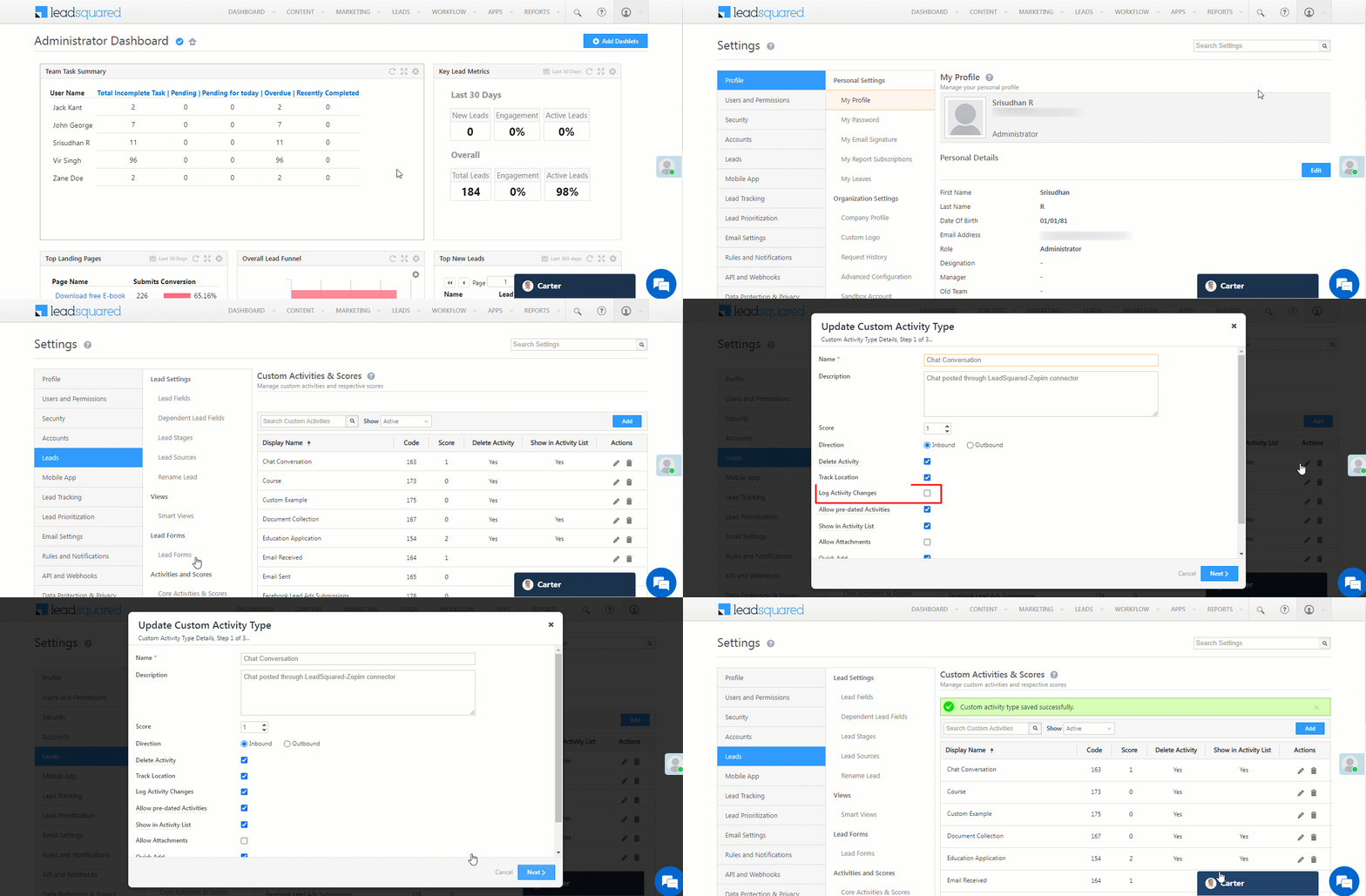
  2. On the Update Custom Activity Type pop-up, click the Checkbox checkbox alongside Log Activity Changes.
  3. Click Next, and then click Save.

Log Activity Changes

Once you’ve enabled the activity logging configuration, you can view these changes for a lead the activity is posted on –

  1. Navigate to the Lead Details page for a lead where the activity is posted.
  2. On the Activity History tab, click the filter icon (on the right side).
  3. In the Notable Activity Type drop-down, under Logs click the Activity Change Logs checkbox.
  4. You’ll now see the activity update history under the Activity History tab.

Lead Details Activity History

To log Sales Activity changes –

  1. Navigate to My Profile>Leads>Sales Activity Settings.
  2. Enable the Checkbox checkbox alongside Log Activity Changes.
  3. Click Save.

Sales Activity Log

Manage Tasks for Admins

1. Feature Overview

This article explains how to configure and use different task types in LeadSquared. You’ll also learn how to create custom task types based on your business needs. For example, you can add a “Collect KYC Documents” task to a lead or an “Inspect Vehicle for Motor Insurance” task to an opportunity. You can also configure reminders, fields, and forms for each task type.

LeadSquared has two task types:

  • Appointments are scheduled meetings between LeadSquared users and leads, with a defined start and end time.
  • To-dos are tasks assigned to users without fixed start or end times but with an expected completion timeframe. Unlike appointments, to-dos may or may not involve direct lead interaction.
Note: This article is to help Admin users create task types. Once tasks are configured, your users can start posting them on leads and opportunities. To know more, see Create Tasks and Schedule Reminders.
Appointments To-dos
Have a definite start and end date and time (e.g., 14 November 2018, 2 p.m. to 4 p.m.). They don’t have a specific start and end time.

But, they can be set to be completed within a date range (e.g., tomorrow, this week, this month) without defining an exact time.

Examples include meetings, webinars, demos, and presentations. Examples include follow-ups on old leads, cold calls, in-field address verification, and similar tasks that don’t need a set time.
Appear on both the classic list and calendar views on the Manage Tasks and Smart Views pages. Appear on the classic list view and in the right pane of the calendar view.
There are a few system Appointments. There are no system To-dos.


2. Prerequisite

You must be an Admin user to create and customise task types.


3. How it Works

This article lists the task types you can create and configure in your account, and explains how you can customize each one for your business. There are two task types: Appointments and To Dos.

You can create custom tasks that match your business needs. To create a task type, configure a few basic settings such as Name, Reminder, and Location. Your account also includes a few system tasks by default, such as Meeting, Phone Calls, Proposal, Pitch, and Demo. You can edit these tasks as required. After you configure the tasks, your users can add them to leads and opportunities, and work towards completing them. Admins can also add tasks to leads and opportunities, and use LeadSquared Automations to automate task creation.


4. Create a New Appointment Task Type

To access Appointments, navigate to My Account>Settings>Leads>Configure Task Types>Appointments. Here, you can edit existing Appointments and create new ones. In this section, we show you how to create a new Appointment.

LeadSquared Task Management

4.1 Configure Appointment Details

  1. On the Appointments page, click Create.
  2. On the Configure tab, enter the following details –
    • Name – Enter a relevant name. This is mandatory.
      • You can also choose a relevant colour for the task based on its urgency, such as using shades of red for high-priority tasks.
    • Calendar Invites – You can enable calendar invites for the organizer, lead owner, and leads. The system sends invites as .ics files that work with iCalendar clients such as Outlook, Google Calendar, Apple Calendar, and Lotus Notes. You can also customise the email content by clicking Configure Content.
    • Set default duration for the appointment – Select a default duration for the task from the dropdown. You can override it while creating the task.
    • Conflict – Select Allowed to create more than one Appointment in the same time slot. For example, you can create two Appointments at 5 PM.
    • Reminder – When enabled, the system sends an email reminder to the task owner before the task is due. The default reminder goes out 15 minutes before the task time, which you can change while creating the task.
    • Include Location – When enabled, this lets you capture a location directly in a task field using maps.
      • Geofence Appointment Location* – If Include Location is set to Yes, you can geofence the appointment so users complete it only when they are within a specific distance from the lead’s location. To know more, refer to LeadSquared’s Geofencing.
      • Geofence Range – Defines the radius, in meters, within which the task must be completed. For example, if you select 100 meters, users must be within 100 m of the lead’s location to complete the task.
    • Open Completed Tasks – Lets you reopen a task that has already been completed.
    • Timer in Mobile App – When enabled, a Start Task button appears in the mobile app. When clicked, it tracks the time taken to complete the task. To know more, refer to Task Timer in LeadSquared Mobile App.
  3. Once you’re done, click Create.

The task type is now created. In the following sections, you can configure the task fields and their layout.

Note: *This feature applies when users complete tasks through the LeadSquared mobile app.

LeadSquared Tasks

4.2 Task Fields

Task fields store and display information specific to a particular task.

  • On this tab, you’ll see several system-created task fields.
    • You can’t delete them, but you can mark them as mandatory or optional.
  • You can also create custom task fields by clicking Add Field, setting a name and data type (number, text, date-time, or dropdown), and clicking Save.

LeadSquared Tasks

4.3 Form Layout

All task fields are displayed in a form that users fill out while working on a task. You can select and reorder these fields as needed.

  1. On the Form Layout tab, drag and drop the fields you want to display in the task creation form.
    • You can expand and contract the size of a task field.
  2. Click Add Section to include multiple sections in the form.
  3. Once you’re done, click Save. This completes the task creation process.

Note: Mandatory fields cannot be removed from the form.

LeadSquared Tasks

4.4 Set as Default

You must mark one Appointment task type as the default. This task appears by default in the Add Task form when users add a task to a lead or an opportunity.

LeadSquared Task Management


5. Create a New To-do Task Type

To access To-dos, navigate to My Account>Settings>Leads>Configure Task Types>To-Dos. Here, you can edit existing To-dos and create new ones. In this section, we show you how to create a new To-do task.

LeadSquared Task Management

5.1 Configure To-do Details

  1. On the To-do page, click Create.
  2. On the Configure tab, enter the following details –
    • Name – Enter a relevant name. This is mandatory.
    • Set default due date for To-Do – Select a default completion due date for the task from the dropdown. This applies to all to-dos by default, and you can override it while creating the task.
    • Default Effort Estimate – Configure the estimated time it would take for your users to complete the task.
    • Reminder – When enabled, the system sends an email reminder to the task owner before the task is due. The default reminder goes out 15 minutes before the task time, which you can change while creating the task.
    • Include Location – When enabled, this lets you capture a location directly in a task field using maps.
      • Geofence Appointment Location – If Include Location is set to Yes, you can geofence the appointment so users complete it only when they are within a specific distance from the lead’s location.
      • Geofence Range – Defines the radius, in meters, within which the task must be completed. For example, if you select 100 meters, users must be within 100 m of the lead’s location to complete the task.
    • Open Completed Tasks – Lets you reopen a task that has already been completed.
    • Timer in Mobile App – When enabled, a Start Task button appears in the mobile app. When clicked, it tracks the time taken to complete the task. To know more, refer to Task Timer in LeadSquared Mobile App.
  3. Once you’re done, click Create.

The task type is now created. In the following sections, you can configure the task fields and their layout.

LeadSquared Task Management

5.2 Task Fields

Task fields store and display information specific to a particular task.

  • On this tab, you’ll see several system-created task fields.
    • You can’t delete them, but you can mark them as mandatory or optional.
  • You can also create custom task fields by clicking Add Field, setting a name and data type (number, text, date-time, or dropdown), and clicking Save.

LeadSquared Task Management

5.3 Form Layout

All task fields are displayed in a form that users fill out while working on a task. You can select and reorder these fields as needed.

  1. On the Form Layout tab, drag and drop the fields you want to display in the task creation form.
    • You can expand and contract the size of a task field.
  2. Click Add Section to include multiple sections in the form.
  3. Once you’re done, click Save. This completes the task creation process.

Note: Mandatory fields cannot be removed from the form.

LeadSquared Task Management


6. Update a Task Type

The steps to update an existing system task type and a custom task, including Appointments and To Dos, are the same. To update a task type –

  1. Navigate to My Account>Settings>Leads>Configure Task Types, and select Appointments or To-dos.
  2. Alongside the task type you want to update, hover your cursor on the settings wheel, and click Edit.
  3. On the Edit pop-up, update the relevant details. You can make changes across the Configure, Task Fields and Form Layout tabs.
  4. Once you’re done, click Save & Close.

LeadSquared Task Management


7. Next Steps


Any Questions?

Did this article give you what you were looking for? Have any unique use cases you’d like to share? We’d love to hear from you in the comments section below.