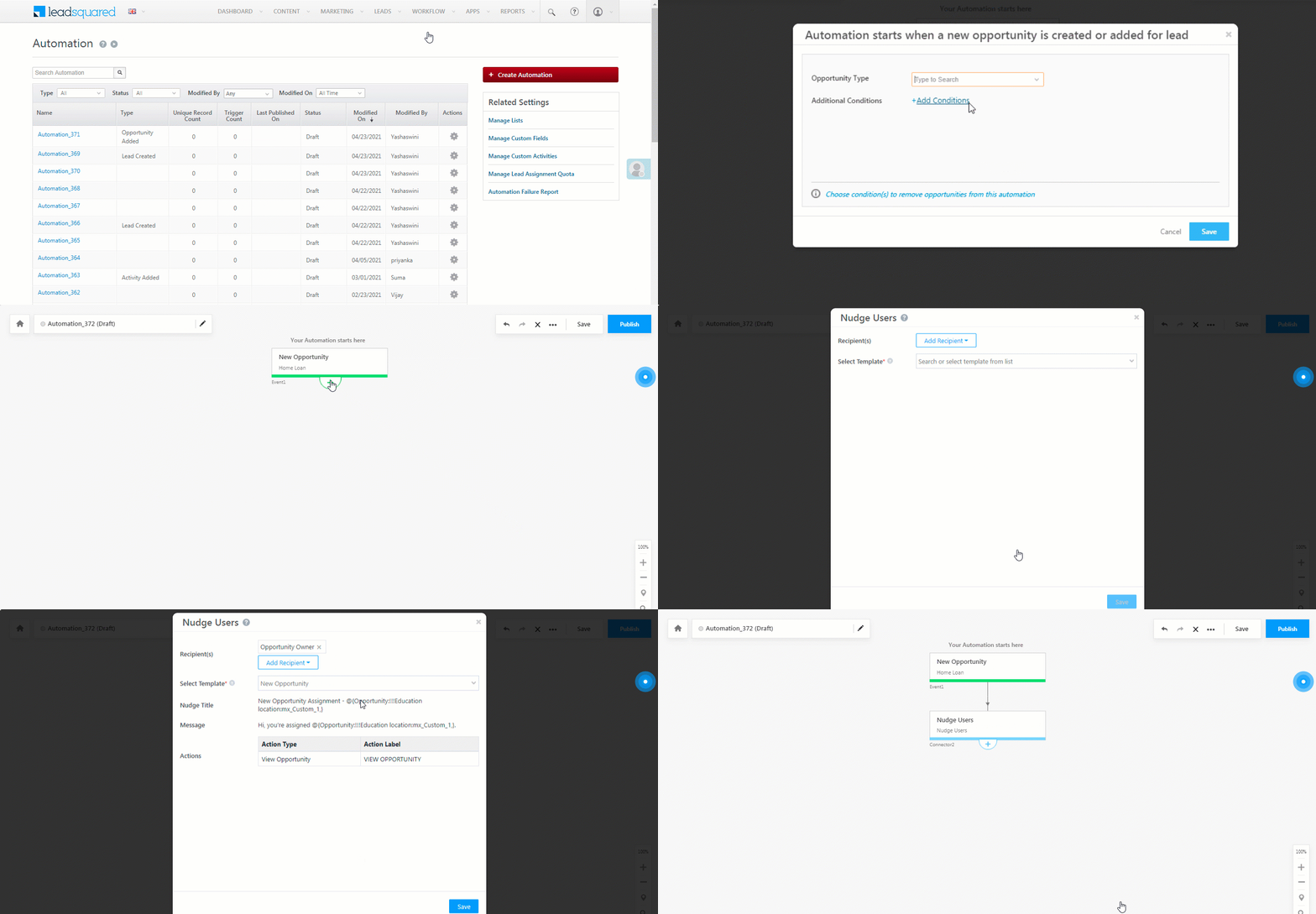
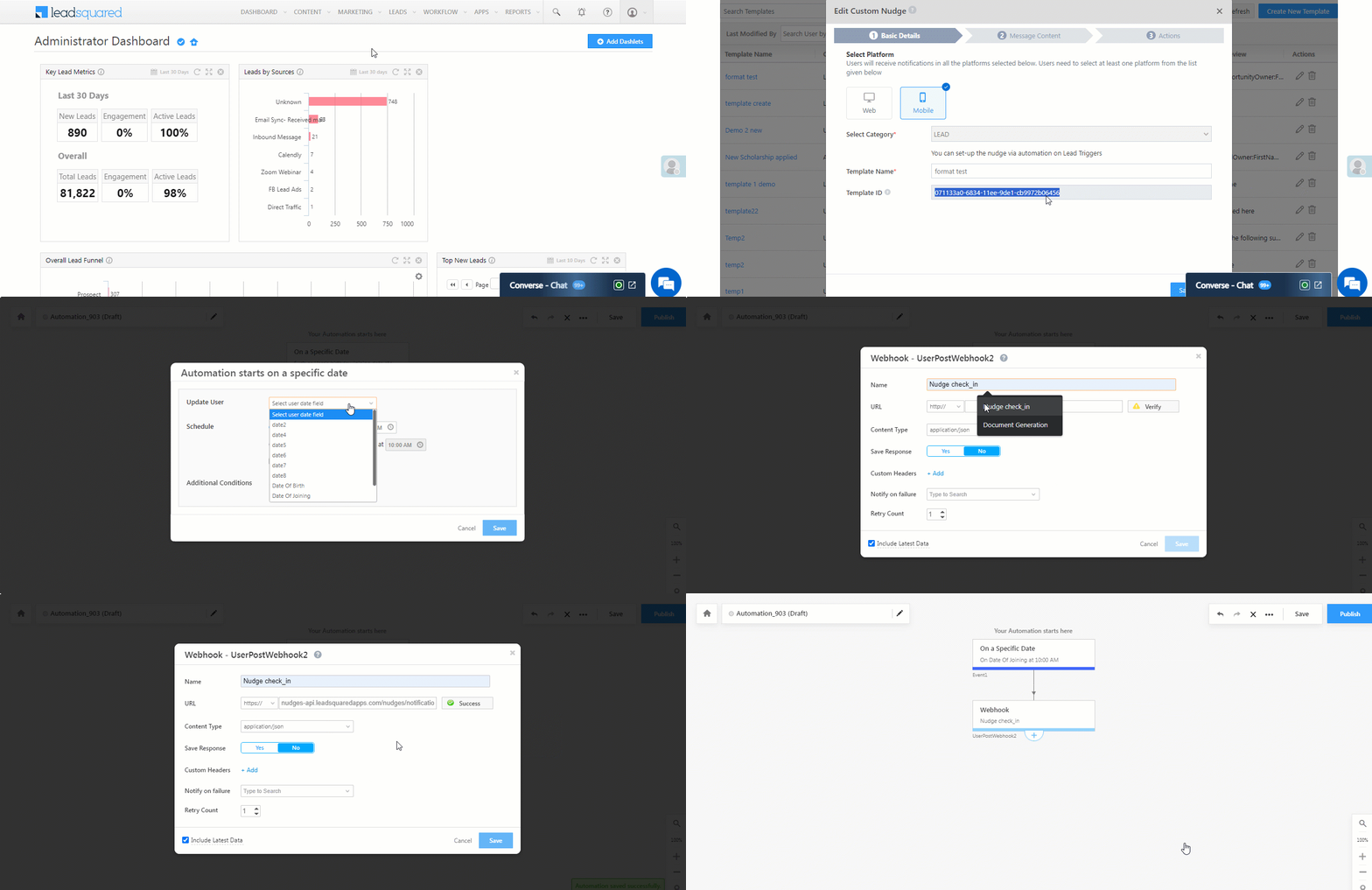
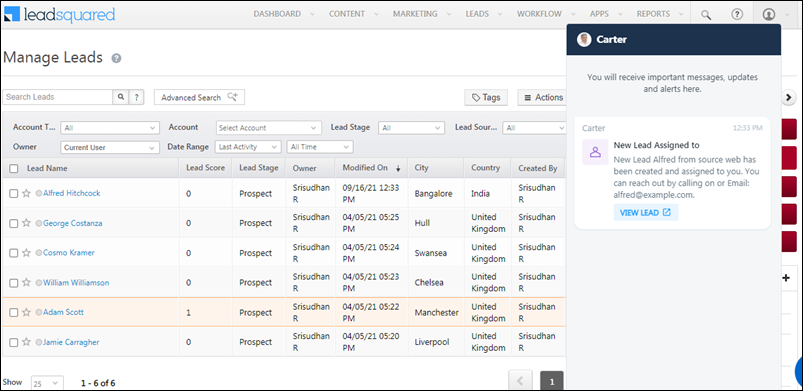
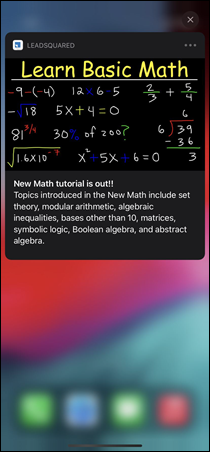
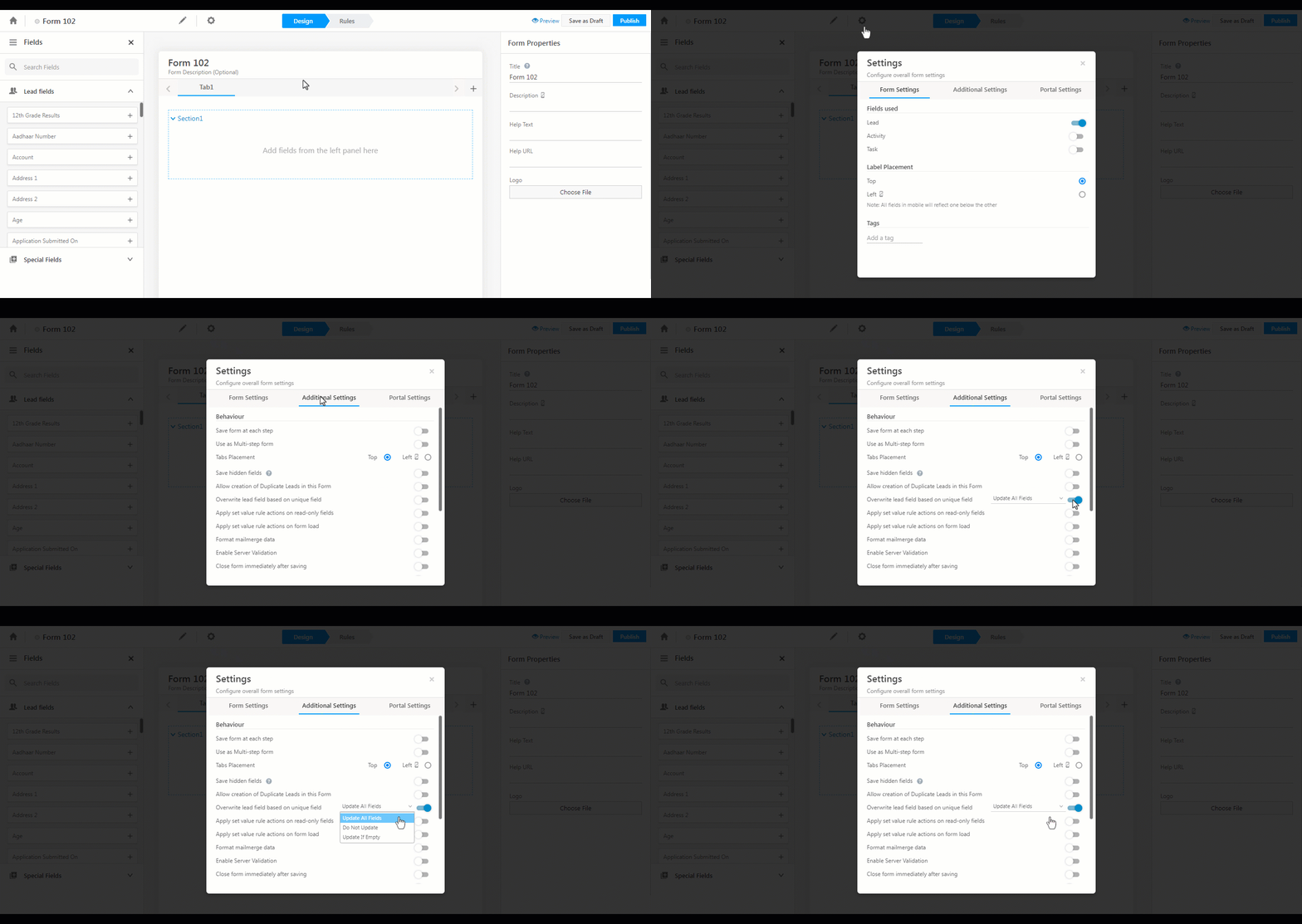
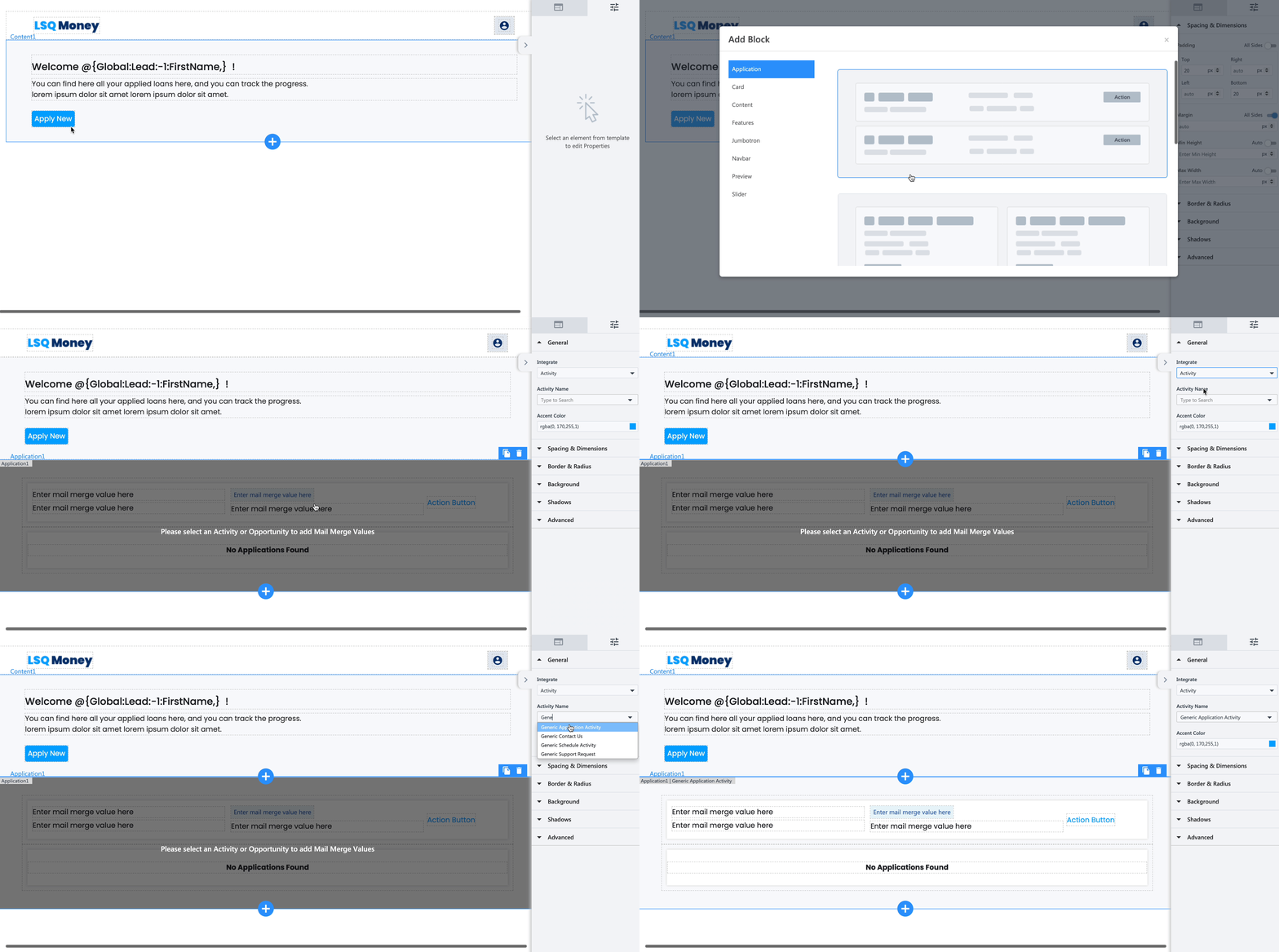
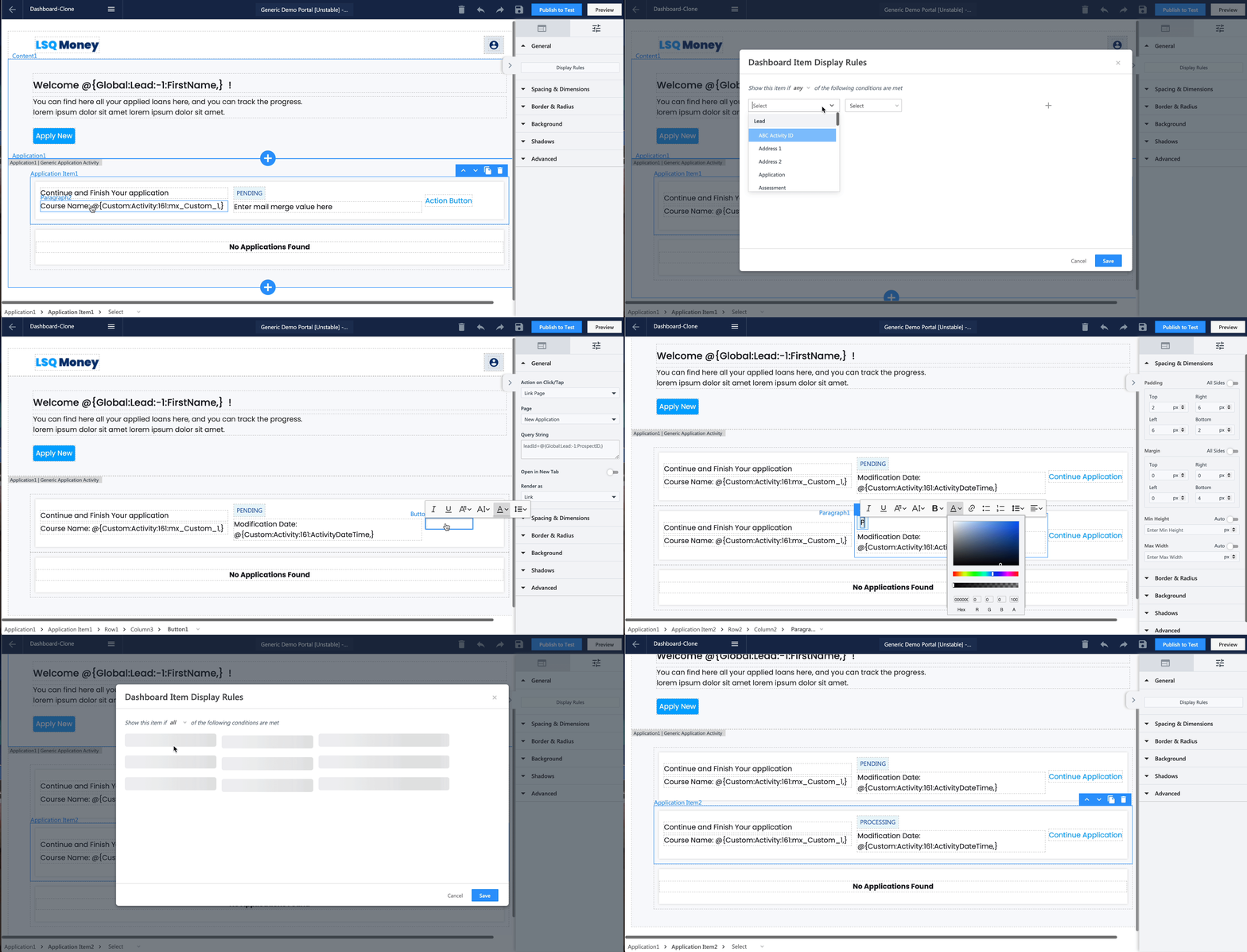
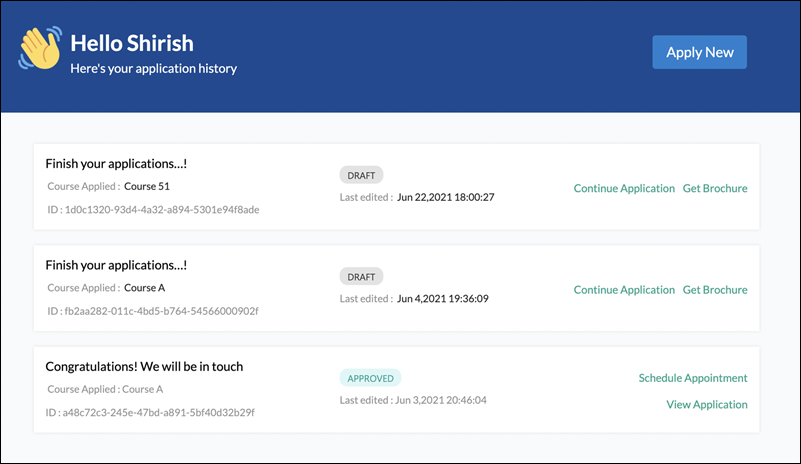
Error Notifications When Capturing Leads from Third Party Apps

Error Notifications

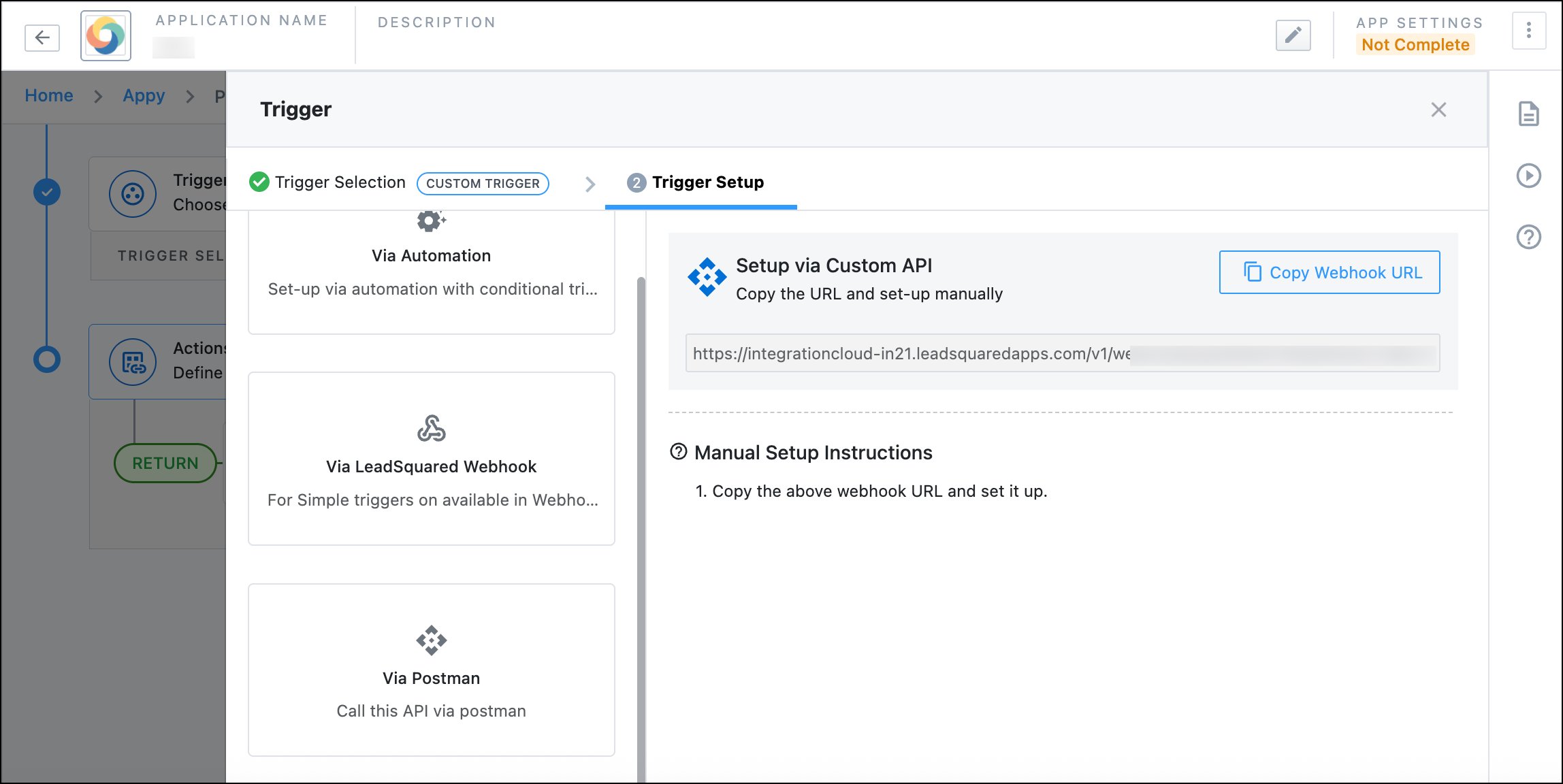
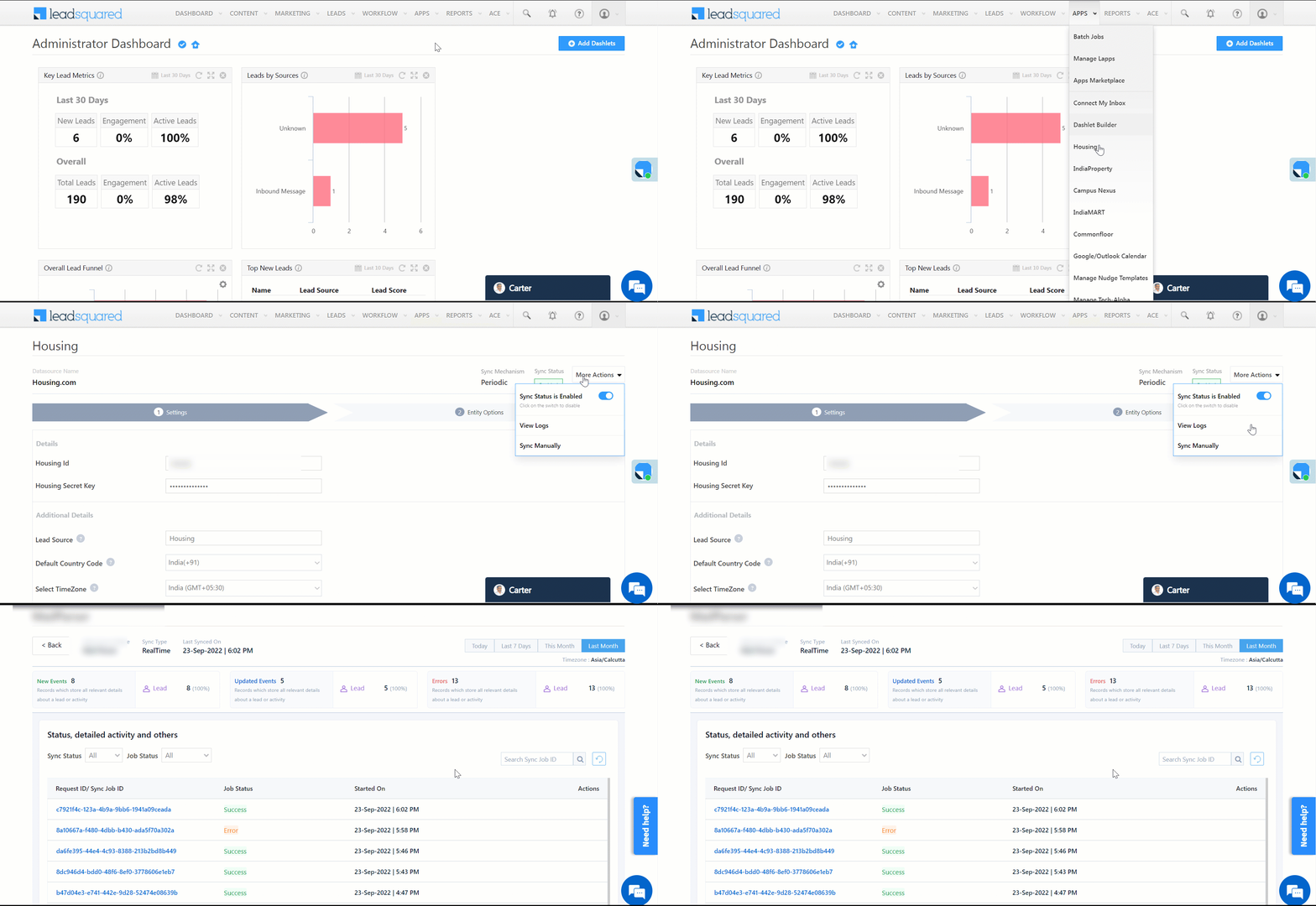
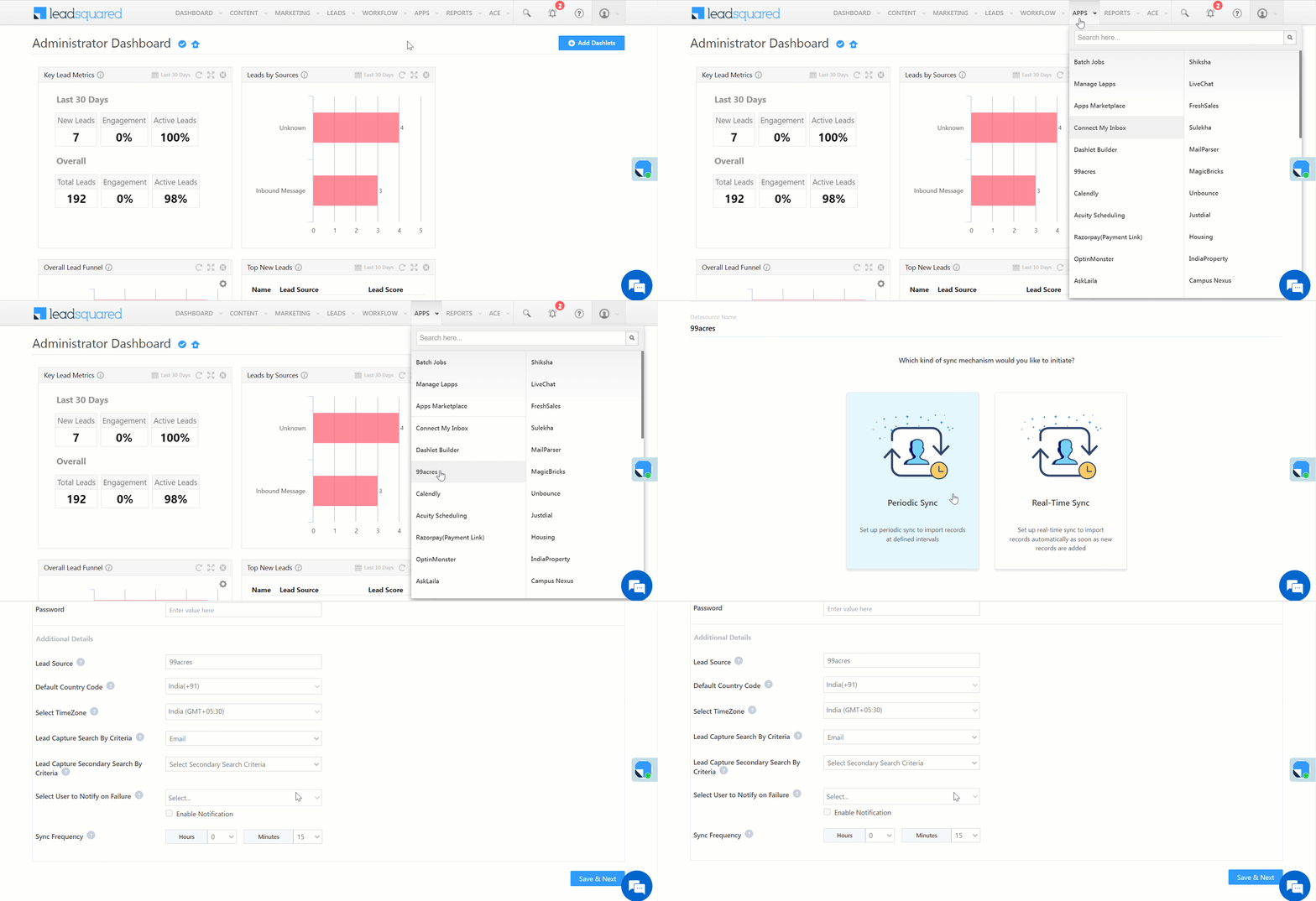
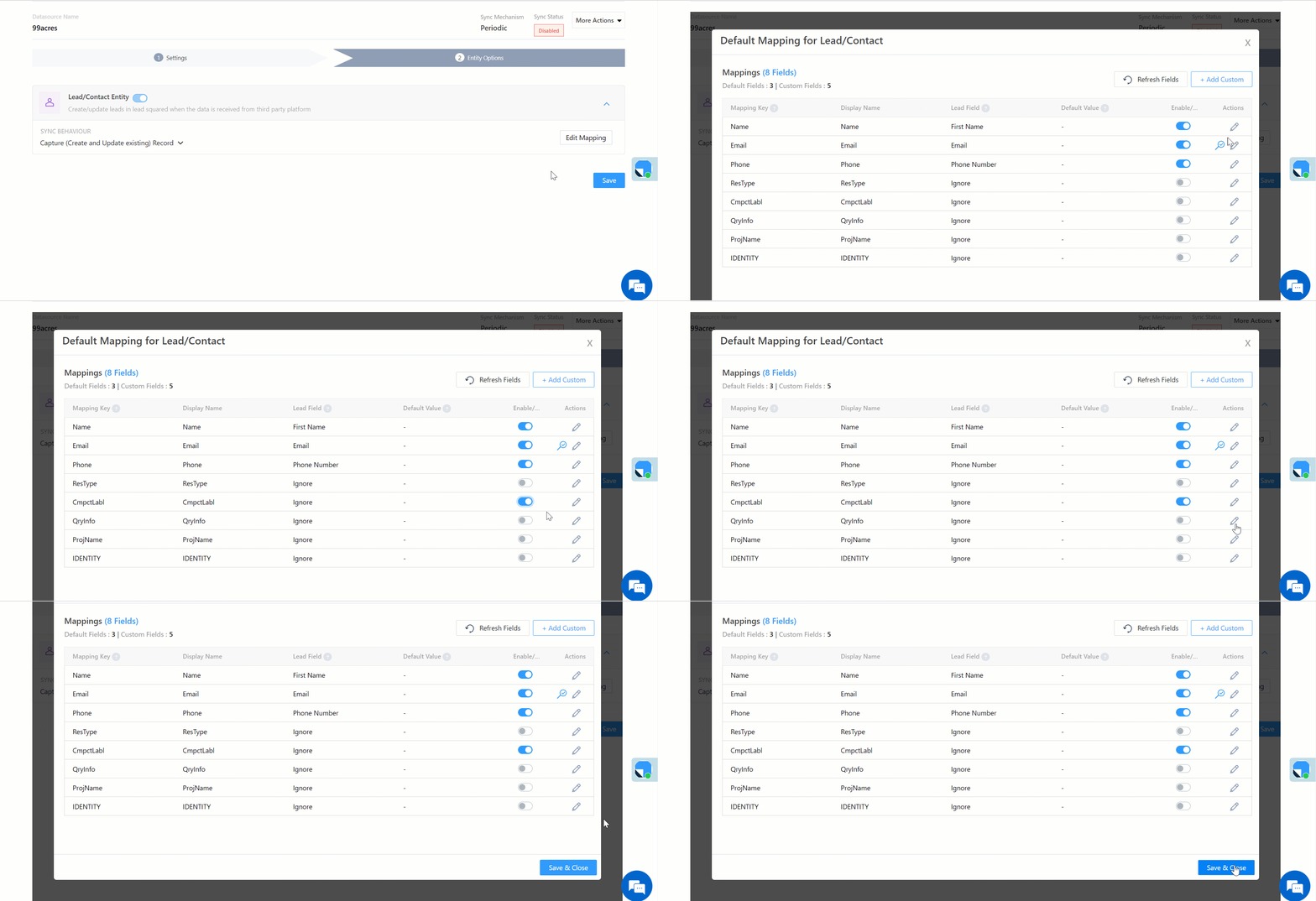
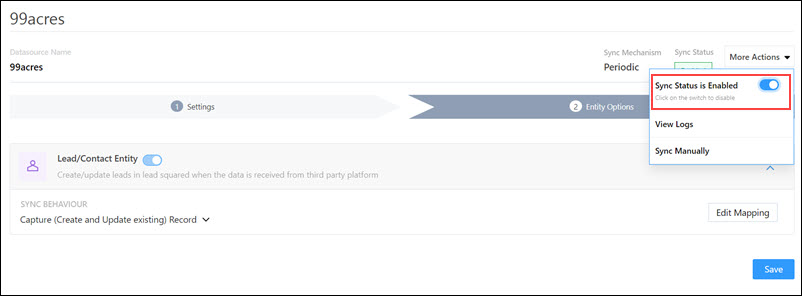
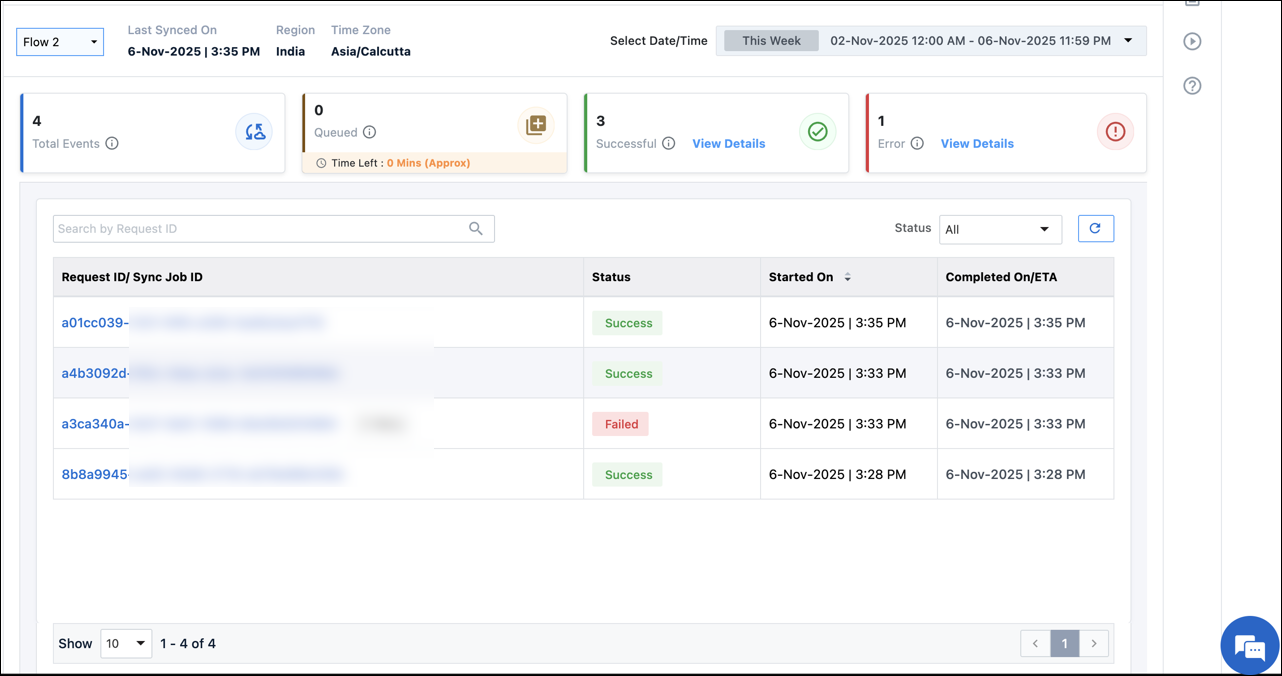
When capturing leads from a thrid-party application, if your leads are not being captured as intended, we’ll notify you via email, about the reasons behind this failure.

  • Sync Job Failed – In this instance, the Sync API or the Transformation API have failed, and no leads have been pulled from the data source.

LeadSquared Lead Capture Connector

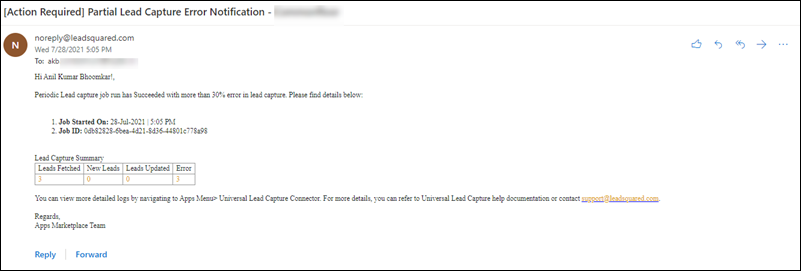
  • Partial Sync Error Notification – In this instance, more than 30% of the total leads pulled have an error.

LeadSquared Lead Capture Connector

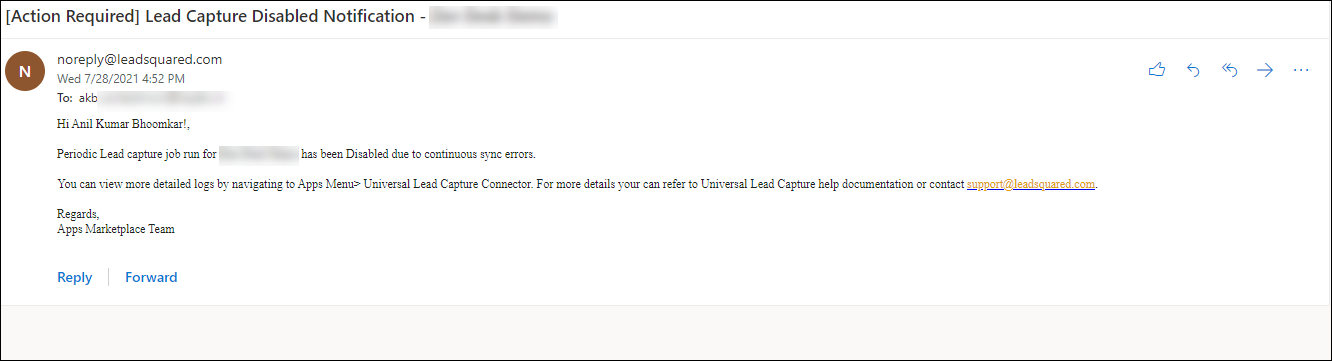
  • Sync Job Failed continuously – In this instance, the sync job has failed to fetch any leads in five continuous attempts.

LeadSquared Lead Capture Connector

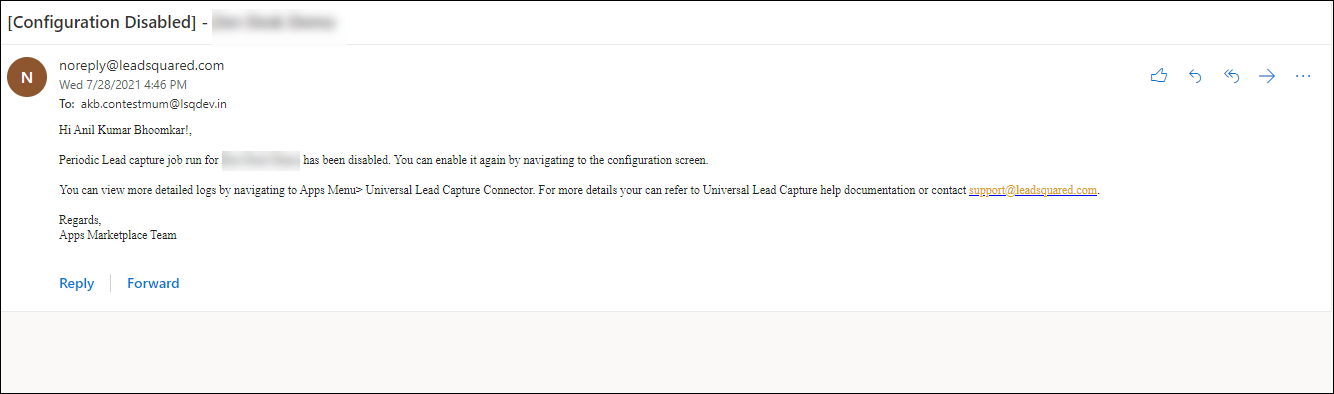
  • Configuration/Sync Disabled – If any user has manually disabled the sync process, we will notify you about the same. This is done to ensure that you’re aware of the update, and to remind you to enable the sync process before you restart the lead capture process.

LeadSquared Lead Capture Connector


Any Questions?

Did you find this article helpful? Please let us know any feedback you may have in the comments section below. We’d love to hear from you and help you out!

Integrate IndiaMART with LeadSquared

1. Feature Overview

This connector captures leads periodically from your IndiaMART account to LeadSquared. Once the leads are synced, you can leverage LeadSquared’s CRM features to nurture and convert your leads.


2. Prerequisites

  • You must be the Administrator of your LeadSquared account.
  • You must have an active IndiaMART account.
  • This is a paid feature. To enable it, reach out to your account manager, or write to support@leadsquared.com.


3. How it Works

To pull leads, activities and tasks from IndiaMART to LeadSquared, configure the IndiaMART connector instance, and add your IndiaMART account credentials. Once this is done, enable sync for the connector instance in LeadSquared. This will begin the lead, activity and task capture process.


4. Installation

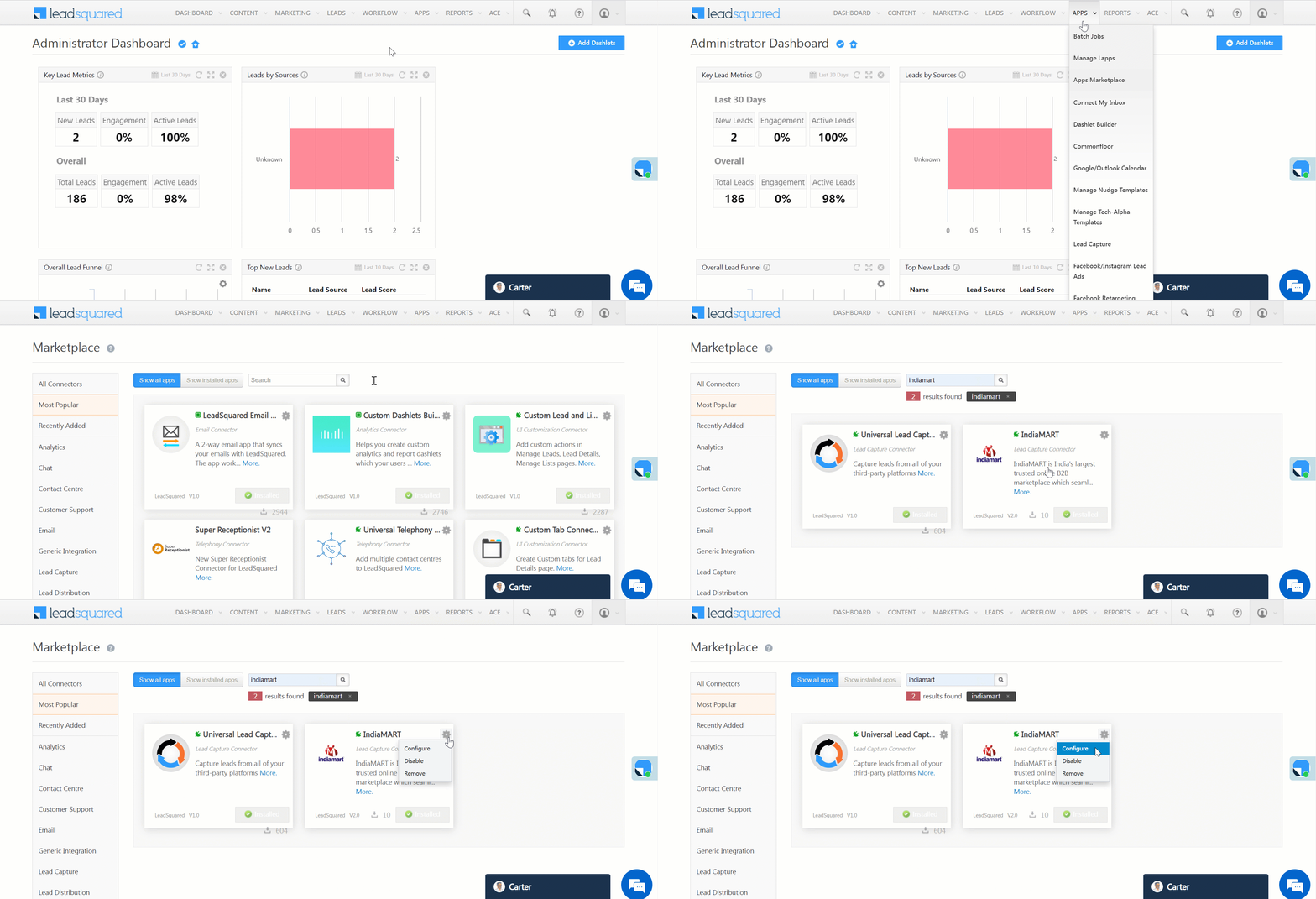
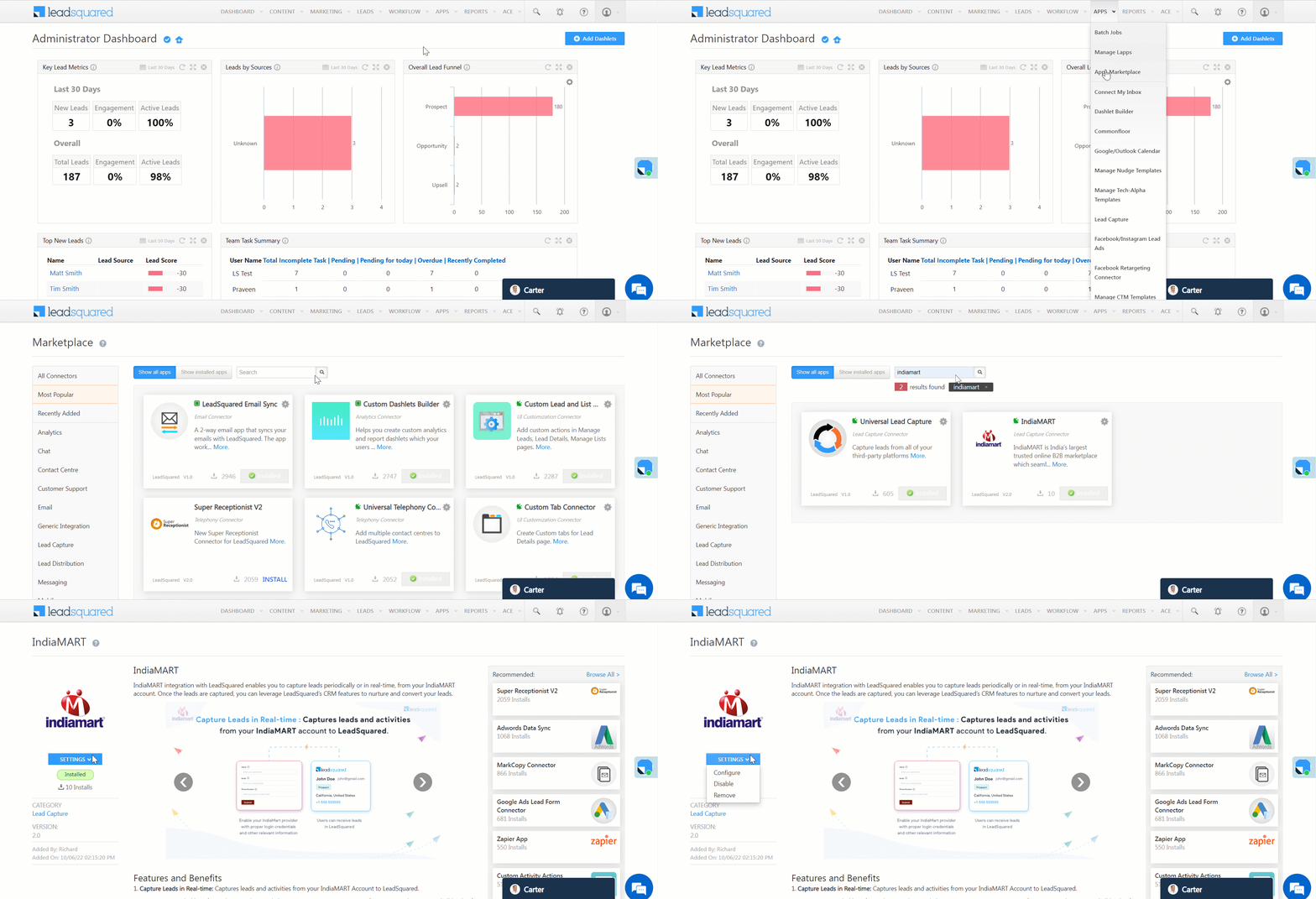
  1. Navigate to Apps>Apps Marketplace.
  2. Search for IndiaMART, and click Install.
    • Alternatively, you can find the connector on the left panel, under Lead Capture.
  3. Once installed, hover your cursor over , and click Configure.

LeadSquared - Indiamart Installation


5. Configure the Connector

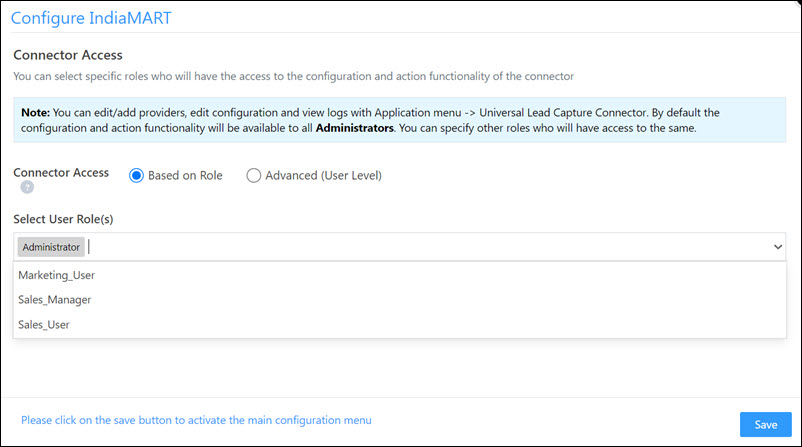
Once you’ve installed the connector, on the Configure IndiaMART pop-up, configure the connector access for the non-Admin users in your account. Only those users for whom access is granted can view and access the connector (under the Apps main menu).

  1. Select if you want to grant Connector Access that’s Based on Role or Advanced (User Level).
    • Based on Role – From the Specify Roles dropdown, select the LeadSquared user roles that can use the connector.
    • Advanced (User Level) – From the Advanced (User Level) dropdown, select a user boolean field. Based on the value entered in the selected boolean field, the user can access the connector (e.g., for the user Sam, if the “Is Employee” boolean user field contains the value “Yes”, then this user can access the connector).
  2. Once you’re done, click Save Details. To continue the configuration, refer to the below sections.
Note: By default, all Admin users will have access to the connector.
LeadSquared - Indiamart initial configurations


6. Admin Configurations

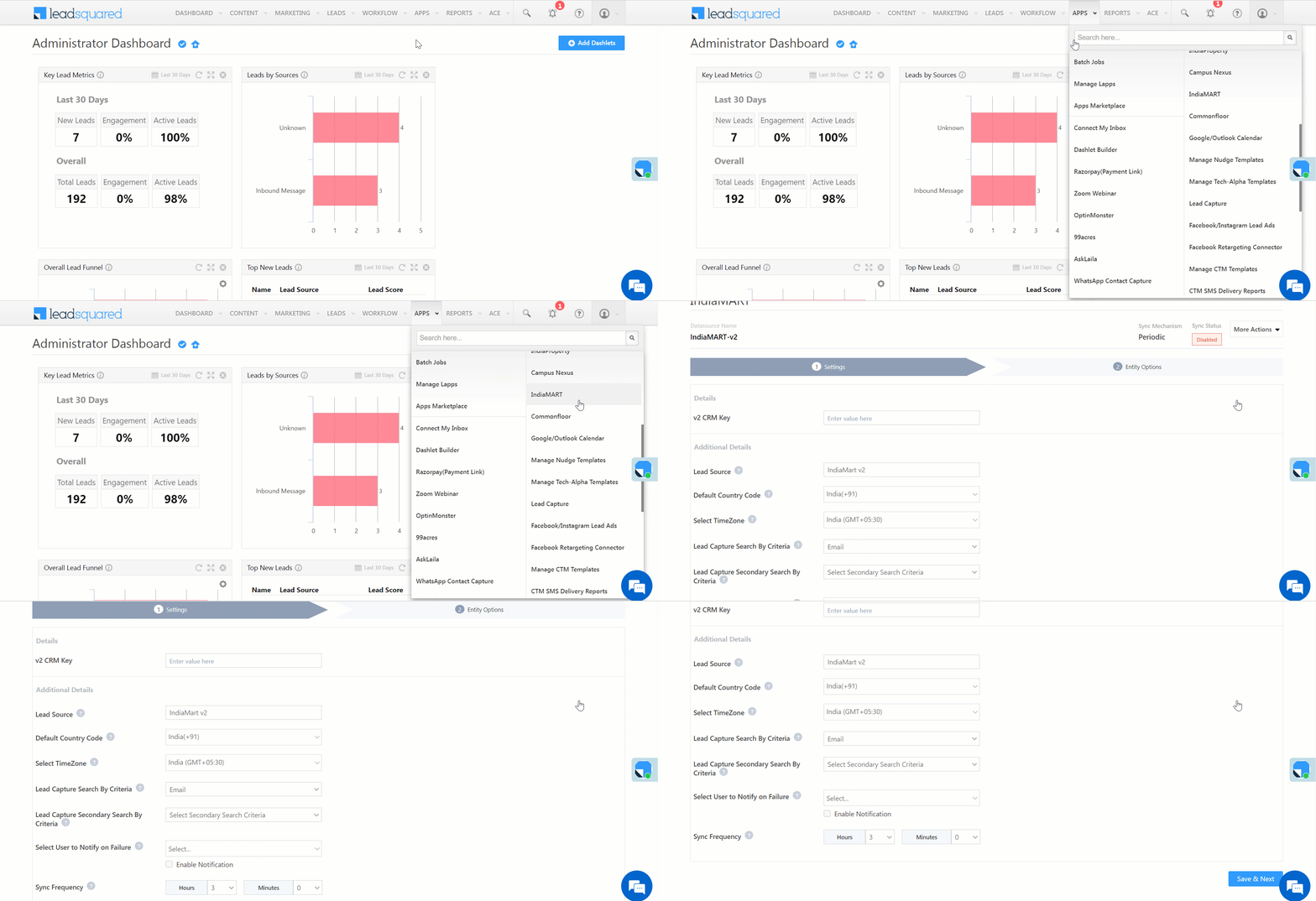
To configure the connector settings to pull data from IndiaMART, navigate to Apps>IndiaMART.

6.1 Settings

On the Settings screen, enter the following details –

LeadSquared - Indiamart settings

Property Description
v2 CRM Key Reach out to your account representative from IndiaMART to obtain the v2 CRM key.
Lead Source Enter the lead source through which leads were captured (e.g., IndiaMART, email campaign, etc.). This detail will be displayed on the Lead Details page, under Lead Source.
Default Country Code If the lead’s mobile number is captured without a country code, then the default country code that’s selected from the dropdown will be added to the lead’s mobile number.
Select Time Zone The time zone of your IndiaMART account.
Lead Capture Search By Criteria To avoid duplicate leads, you must select one unique lead field (e.g., email Id, mobile number, PAN number, etc.) as the search key. This will be used to identify and pull leads from IndiaMART.

To know how to mark a LeadSquared lead field as unique, please refer to How to Make a Custom Field Unique.

Select User to Notify on Failure If there is an error in fetching leads, the selected user will receive a failure message via email. You can select a user from the list of all the users available in your LeadSquared account.

To know more about the type of errors, please refer to Error Notifications.

Sync Frequency By default, we’ve selected a 3-hours frequency to pull data from IndiaMART. You can use the ‘Hours’ and ‘Minutes’ dropdowns to select a custom interval, based on which lead data will be pulled.

Once you’re done entering all the details, click Save & Next.


6.2 Lead/Contact Entity

Based on the Lead Capture Search By criteria selected (email Id, phone number, etc.), LeadSquared identifies and captures leads from your IndiaMART account. Lead capture is enabled by default, and it cannot be disabled.

Select one of the following options to configure the connector’s Sync Behaviour 

  • Capture (Create and Update existing) Record – Leads that only exist in your IndiaMART account (but not in your LeadSquared account) will get created in LeadSquared. Leads that exist in both your IndiaMART and LeadSquared accounts will get updated.
  • Create only new record – Leads that only exist in your IndiaMART account (but not in your LeadSquared account) will get created in LeadSquared.
  • Update only existing record – Leads that exist in both your IndiaMART and LeadSquared accounts will get updated in LeadSquared.
  • Do Nothing – When this option is selected, no action will be performed when a lead is created or updated in your IndiaMART account.


6.3 Mapping & Manage Sync

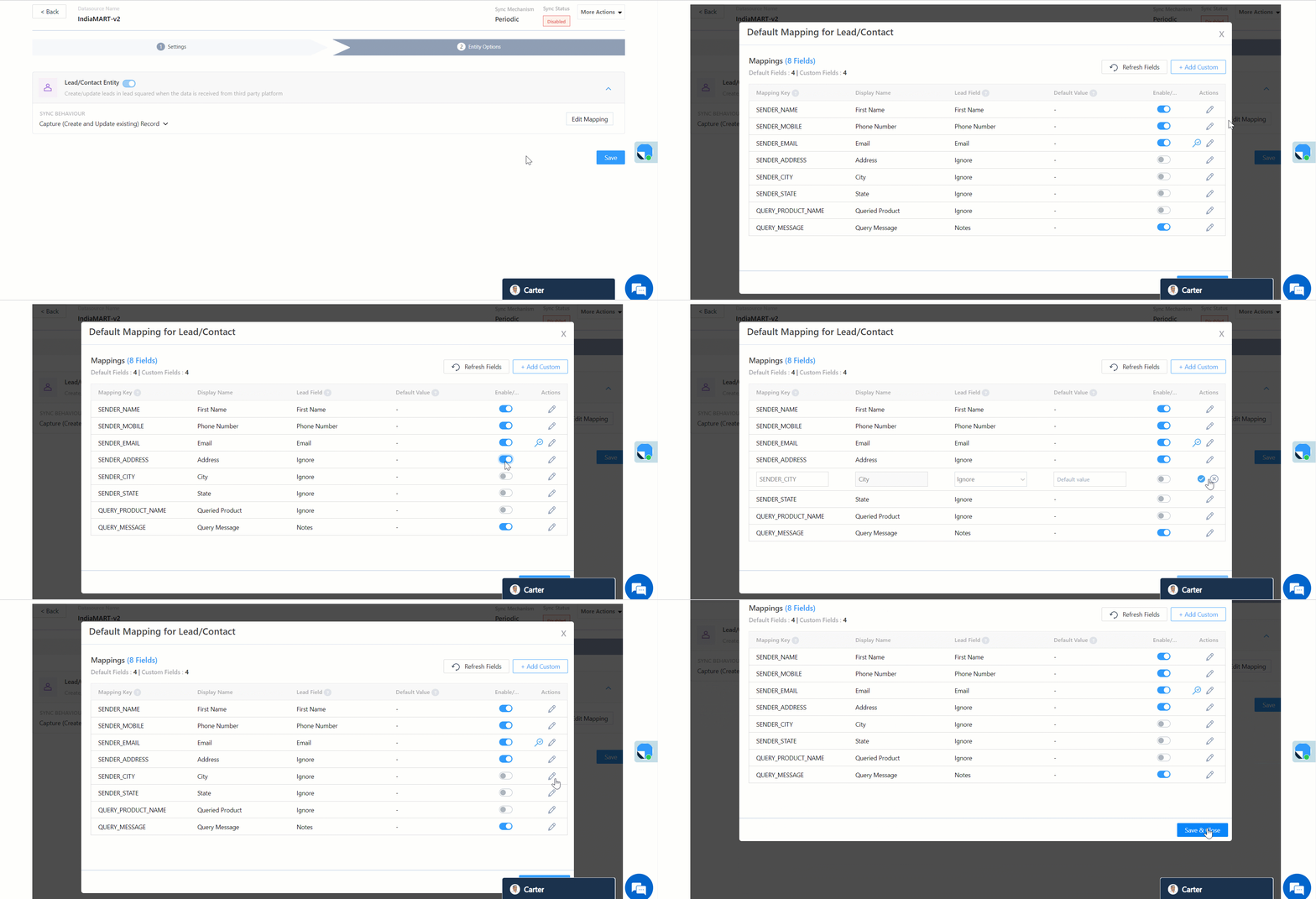
On the Entity Options screen, click Edit Mapping. The IndiaMART system fields mapped to the corresponding LeadSquared lead fields are visible. This mapping is carried out by default. If required, you can change or update the default field mapping.

  • To provide a default value for any field, enter the value under Default Value.
    • If the data provider doesn’t send data for any lead field, then the default value will get assigned to that specific field. But if the field already has an existing value, then the default value will be ignored.
  • To disable lead data capture for any field, disable the Zoom slider.
  • You can also mark and update a unique lead field as the search key from this screen, by clicking unique icon.
  • To create a custom IndiaMART field, click the Add Custom button.
    1. Once this field is created, you must map it to the relevant LeadSquared lead field.
    2. After the field is mapped, to save the custom field, click Google.
    3. To delete a custom field, click .

LeadSquared - Indiamart Mapping


6.4 Enable Sync

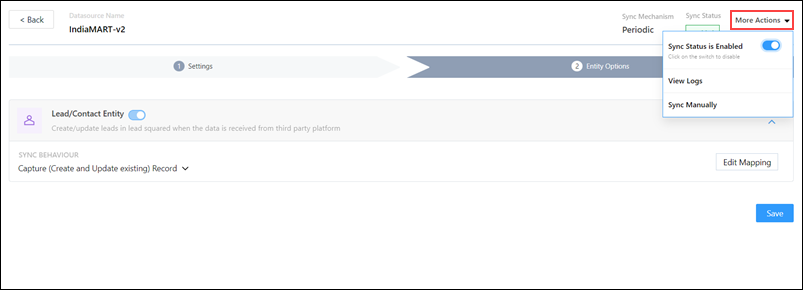
After mapping the IndiaMART fields to the corresponding LeadSquared lead fields, enable lead sync. To do this, from the More Actions dropdown, click the Slider slider, and then click Save. Once the sync is enabled, LeadSquared will pull leads from IndiaMART every 3-hours (or depending on the Sync Frequency configured).

LeadSquared - Indiamart Sync

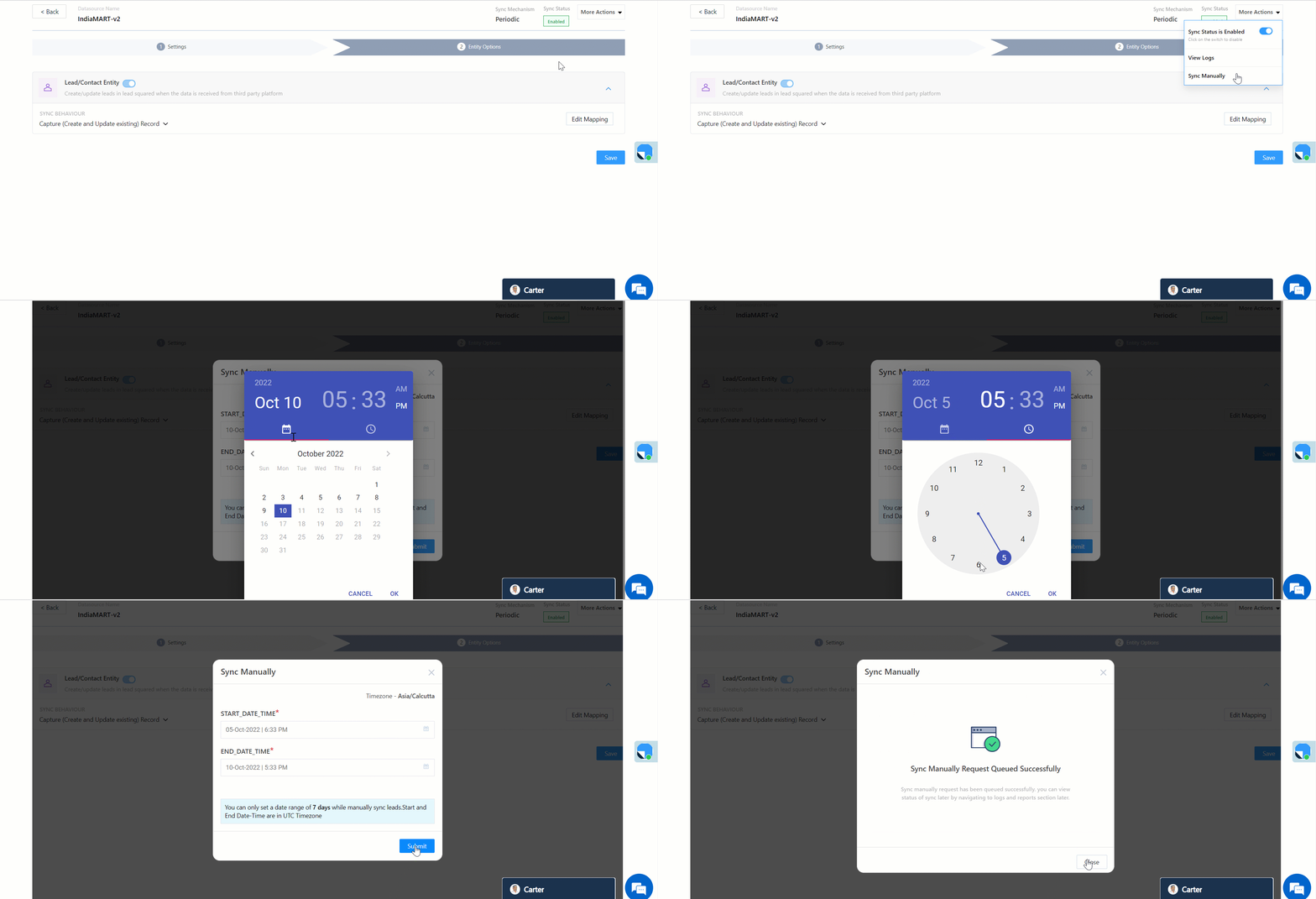
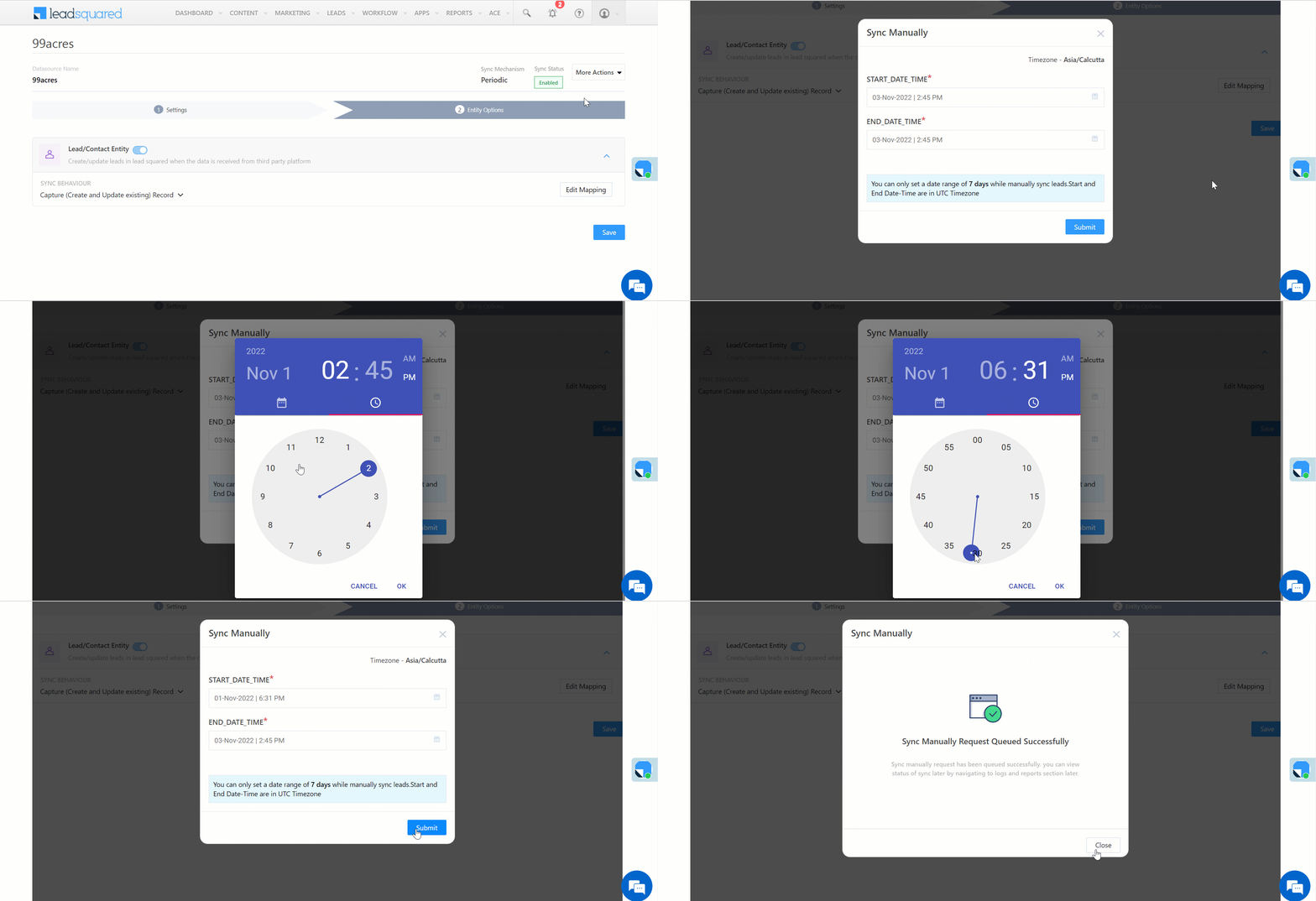
You can also manually sync leads, outside of the Sync Frequency that’s configured. This is especially useful if you have old/legacy lead data in your IndiaMART account.

  1. From the More Actions dropdown, click Sync Manually.
  2. On the Sync Manually pop-up, enter Start Date, End Date, and Time during which the lead data was captured in your IndiaMART account.
  3. Once you’re done, click Submit. The leads that were captured during the selected time frame will be synced to LeadSquared.

Note:

  • It is recommended you run a manual sync job right after you configure the connector. This will ensure all the historic lead data available on your IndiaMART account will be synced to LeadSquared.
  • The Sync Start Time & End Time must be within a date range of seven days (e.g., from 20th July to 26th July).
  • You can sync up to 4,000 leads at once.

LeadSquared - Indiamart manual sync


7. View Logs

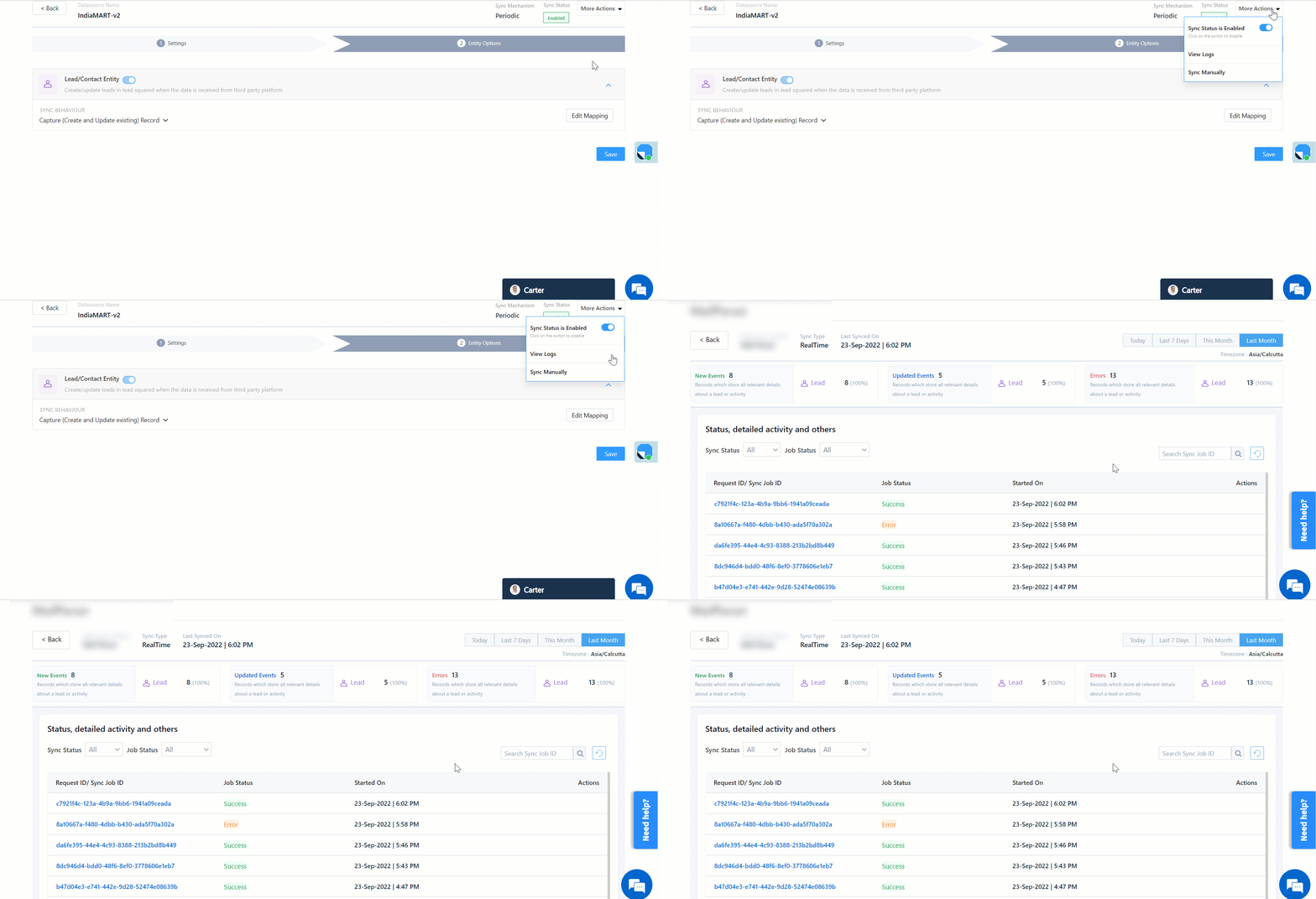
Here, you can view logs of all the sync jobs that have taken place. View new leads, updated leads, lead capture errors and total lead capture events. You can also view the lead sync response and lead capture job status.

  1. Navigate to Apps>IndiaMART.
  2. Click the More Actions dropdown and select View Logs.
  3. You can filter the logs by selecting a date range, and by selecting a Job Status (“All”, “Success” and “Failure”).
    • The maximum date range you can select is the last 60 days.
  4. You can view the sync status of the leads captured across the following tiles –
    • New Leads – List of all the new leads that have been pulled by LeadSquared during the selected date range.
    • Updated Leads – A list of all the –
      • Duplicate leads that were created with the same Search by Criteria value (e.g., with the same Email Id, Mobile Number, etc.).
      • Leads that previously contained an error, which were fixed and synced successfully.
    • Errors – The list of leads that have not been captured due to mapping errors (e.g., when a boolean field is mapped to an integer field, etc.).
    • Total Events – A list of all the lead capture events that have taken place.
  5. To view the Sync Response details, under Sync API Response, click the response.
    • Here, you can view the response status, the API URL, the request and the response.
    • The responses that are successful will contain the details of the leads that have been pulled from IndiaMART.
    • You can also view the lead capture response under Created, Updated and Errors, by clicking Information.
Note: For a response that contains an error, the reason for the error is listed in the response. Once you fix it, you can click the Retry button to perform the sync again.

LeadSquared - Indiamart View logs


8. Other Actions

You can edit or delete the IndiaMART connector instance you created.

  1. Navigate to Apps>Apps Marketplace and click the IndiaMART connector.
  2. On the IndiaMART connector page, click Settings.
  3. From the list of options, you can perform the following actions –
    • Add or edit Configurations
    • Disable the connector
    • Remove the connector

LeadSquared - Indiamart Other actions


9. View Reports

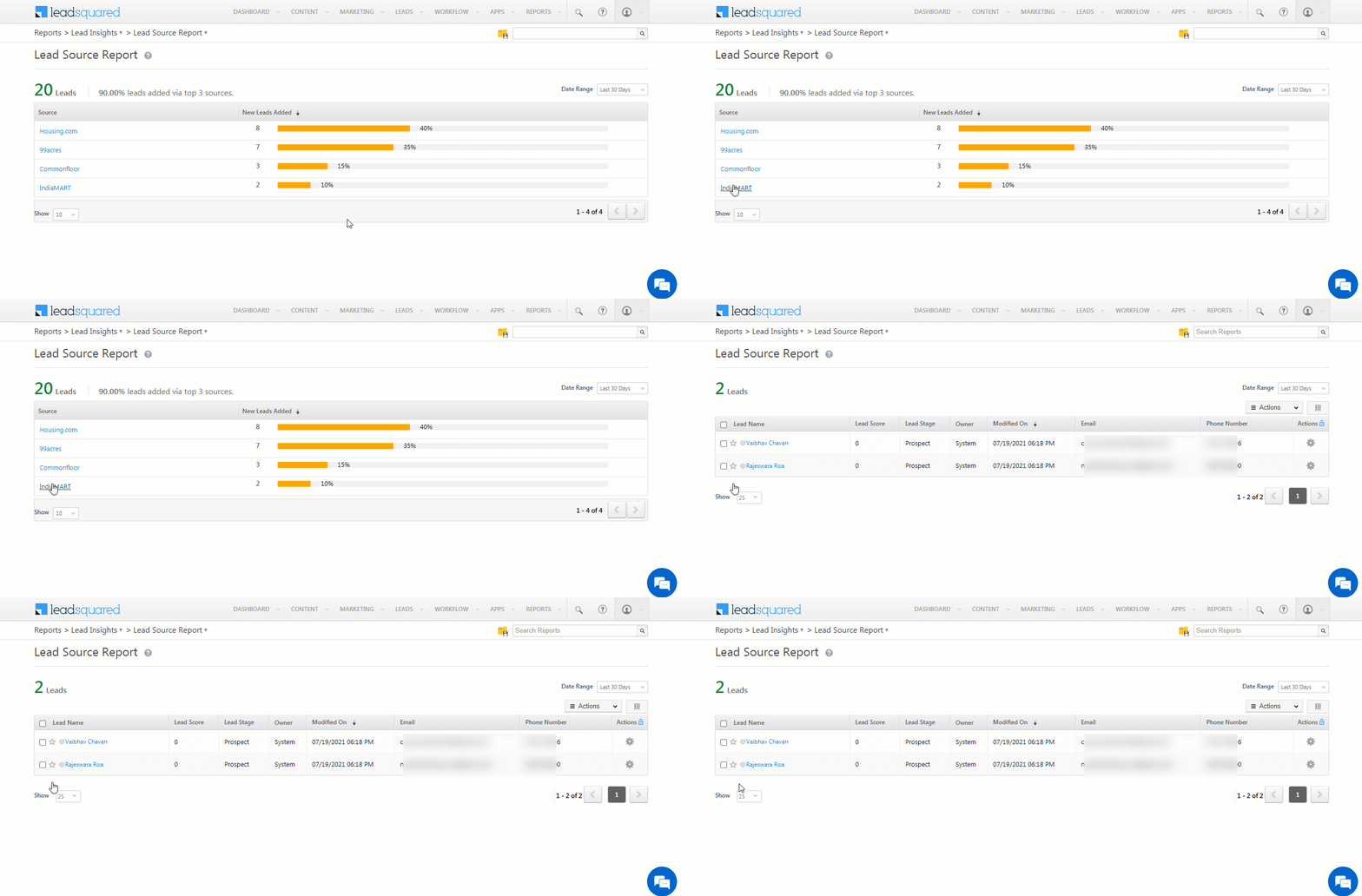
You can view the total number of leads that have been pulled from IndiaMART by referring to the Lead Source report. To know more, please refer to How to track the source of your Leads using Lead Source Report?

LeadSquared Integration with IndiaMART


Any Questions?

Did you find this article helpful? Please let us know any feedback you may have in the comments section below. We’d love to hear from you and help you out!

Integrate Commonfloor with LeadSquared

1. Feature Overview

This connector captures leads periodically from your Commonfloor account to LeadSquared. Once the leads are synced, you can leverage LeadSquared’s CRM features to nurture and convert your leads.


2. Prerequisites

  • You must be the Administrator of your LeadSquared account.
  • You must have an active Commonfloor account.
  • This is a paid feature. To enable it, reach out to your account manager, or write to support@leadsquared.com.


3. How it Works

To pull leads, activities and tasks from Commonfloor to LeadSquared, configure the Commonfloor connector instance, and add your Commonfloor account credentials. Once this is done, enable sync for the connector instance in LeadSquared. This will begin the lead, activity and task capture process.


4. Installation

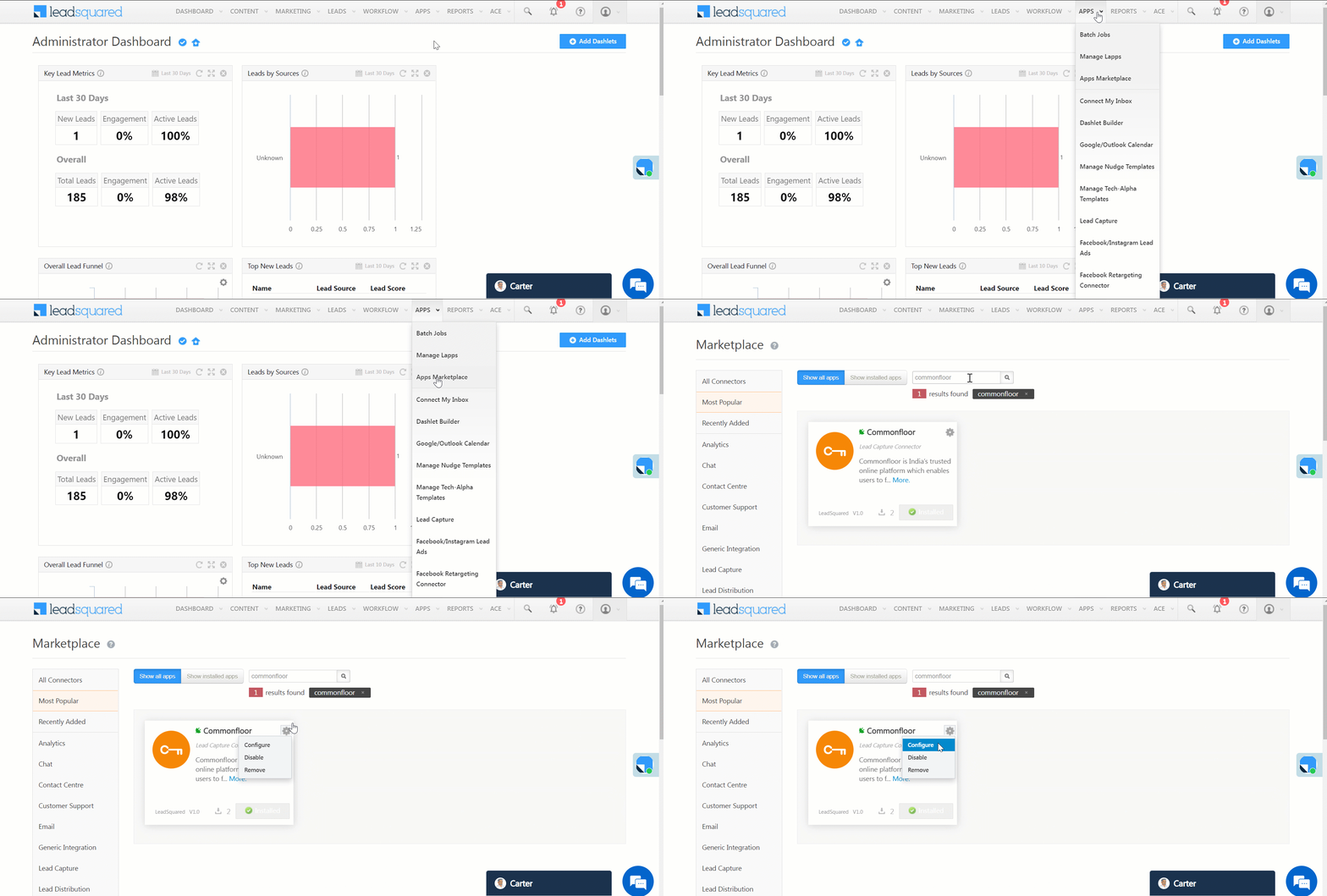
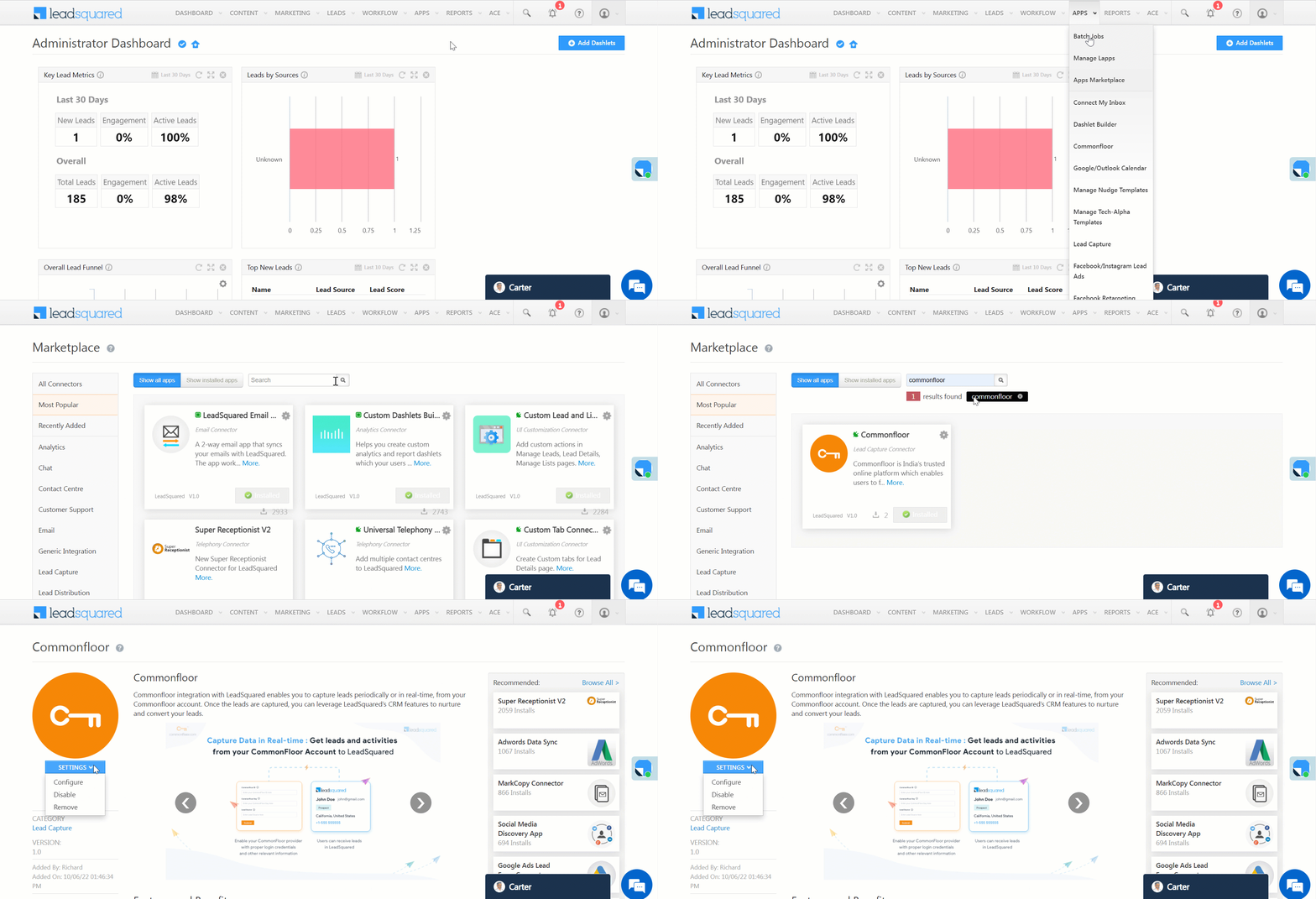
  1. Navigate to Apps>Apps Marketplace.
  2. Search for Commonfloor, and click Install.
    • Alternatively, you can find the connector on the left panel, under Lead Capture.
  3. Once installed, hover your cursor over , and click Configure.

LeadSquared - Commonfloor navigation


5. Configure the Connector

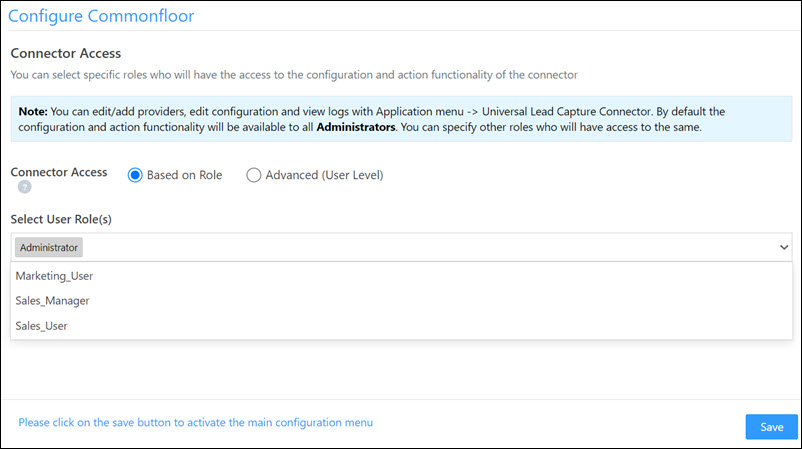
Once you’ve installed the connector, on the Configure Commonfloor pop-up, configure the connector access for the non-Admin users in your account. Only those users for whom access is granted can view and access the connector (under the Apps main menu).

  1. Select if you want to grant Connector Access that’s Based on Role or Advanced (User Level).
    • Based on Role – From the Specify Roles dropdown, select the LeadSquared user roles that can use the connector.
    • Advanced (User Level) – From the Advanced (User Level) dropdown, select a user boolean field. Based on the value entered in the selected boolean field, the user can access the connector (e.g., for the user Sam, if the “Is Employee” boolean user field contains the value “Yes”, then this user can access the connector).
  2. Once you’re done, click Save Details. To continue the configuration, refer to the below sections.
Note: By default, all Admin users will have access to the connector.
LeadSquared - Commonfloor initial configurations


6. Admin Configurations

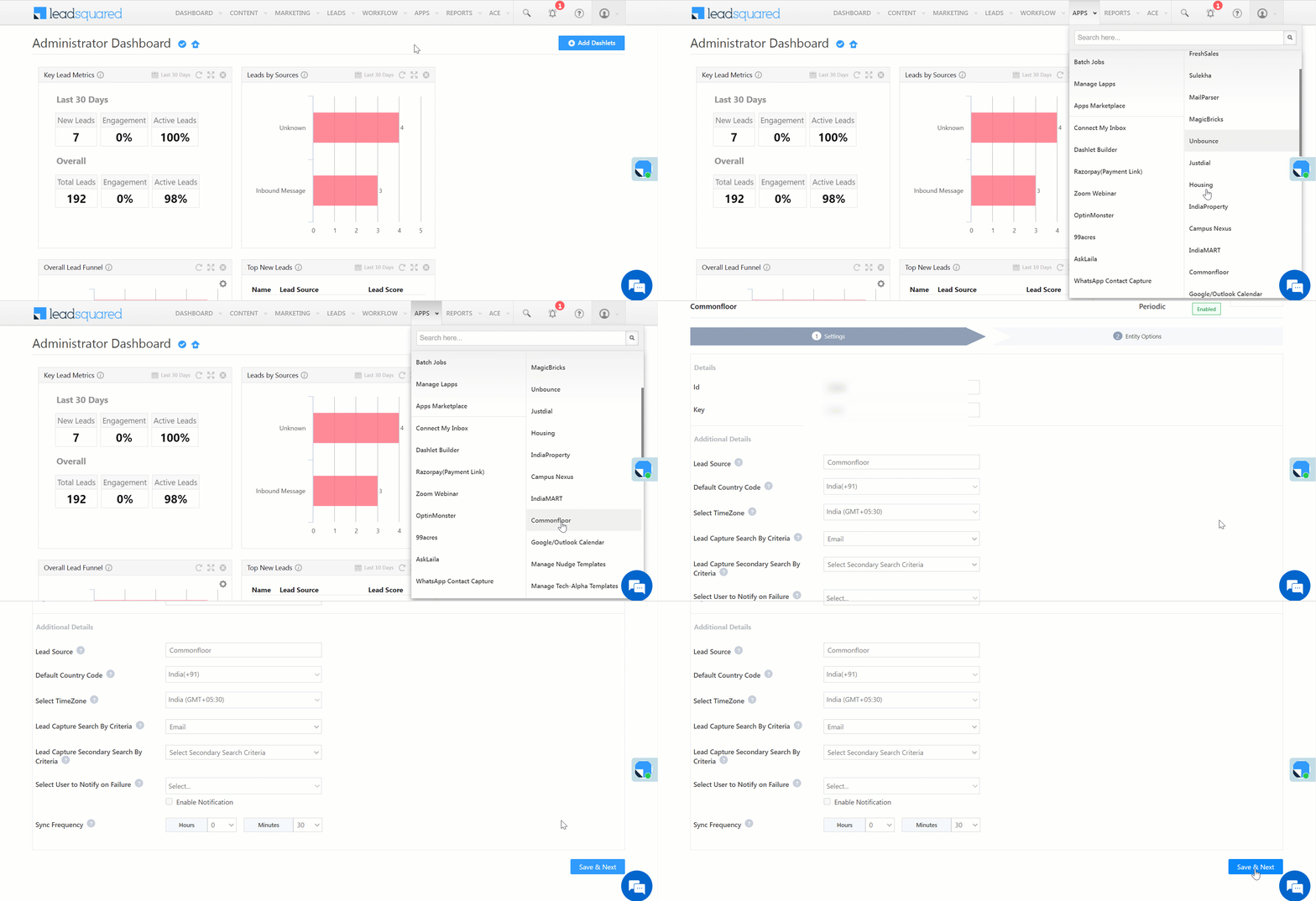
To configure the connector settings to pull data from Commonfloor, navigate to Apps>Commonfloor.

6.1 Settings

On the Settings screen, enter the following details –

LeadSquared - Commonfloor settings

Property Description
Id Enter your Commonfloor account Id.
Key Enter your Commonfloor account key.
Lead Source Enter the lead source through which leads were captured (e.g., Commonfloor, email campaign, etc.). This detail will be displayed on the Lead Details page, under Lead Source.
Default Country Code If the lead’s mobile number is captured without a country code, then the default country code that’s selected from the dropdown will be added to the lead’s mobile number.
Select Time Zone The time zone of your Commonfloor account.
Lead Capture Search By Criteria To avoid duplicate leads, you must select one unique lead field (e.g., email Id, mobile number, PAN number, etc.) as the search key. This will be used to identify and pull leads from Commonfloor.

To know how to mark a LeadSquared lead field as unique, please refer to How to Make a Custom Field Unique.

Lead Capture Secondary Search By Criteria If lead identification and capture through the primary Search By criteria fails, it will be re-attempted using the secondary Search By criteria.
Select User to Notify on Failure If there is an error in fetching leads, the selected user will receive a failure message via email. You can select a user from the list of all the users available in your LeadSquared account.

To know more about the type of errors, please refer to Error Notifications.

Sync Frequency By default, we’ve selected a 30-minutes frequency to pull data from Commonfloor. You can use the ‘Hours’ and ‘Minutes’ dropdowns to select a custom interval, based on which lead data will be pulled.

Once you’re done entering all the details, click Save & Next.


6.2 Mapping & Manage Sync

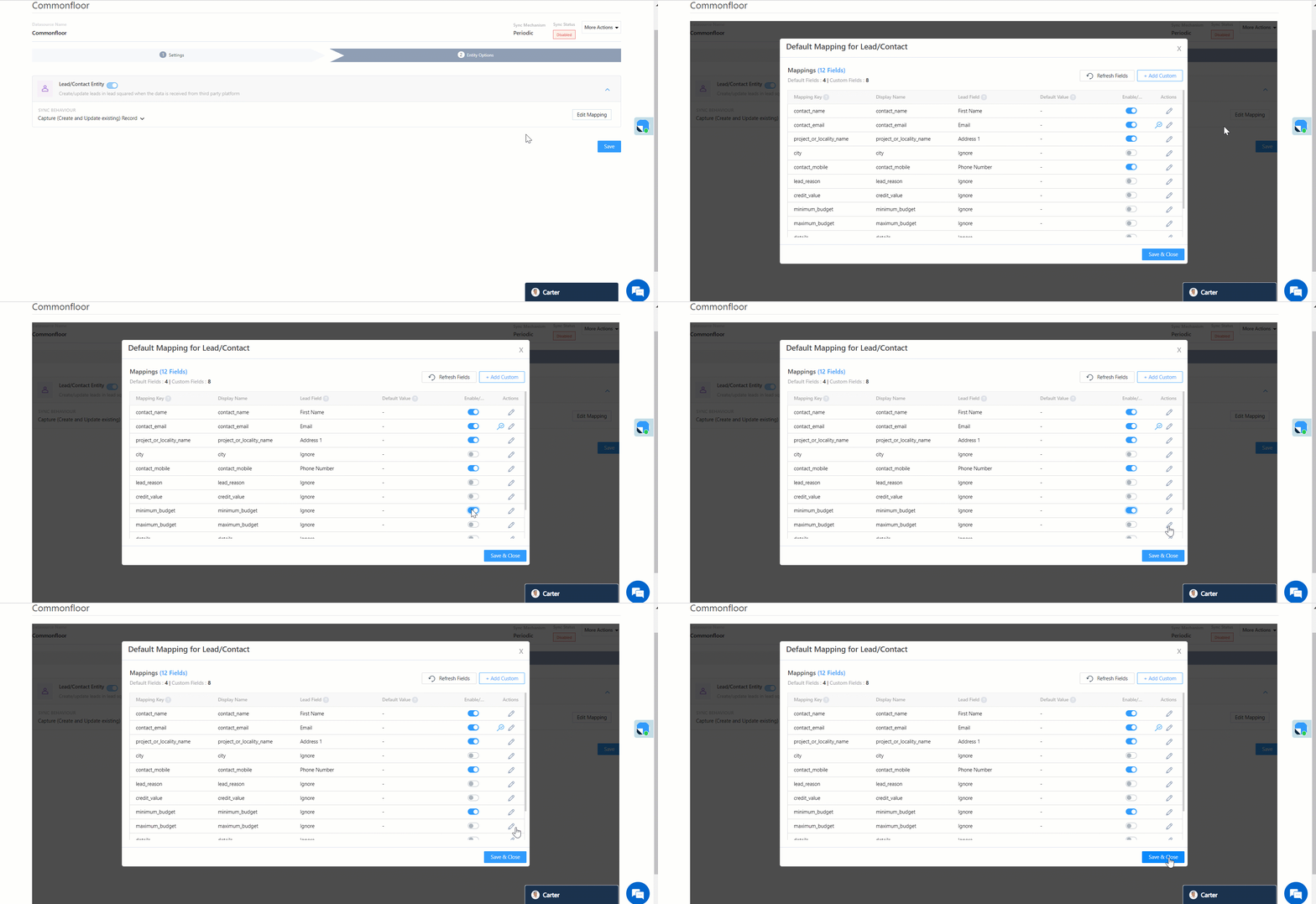
On the Entity Options screen, click Edit Mapping. The Commonfloor system fields mapped to the corresponding LeadSquared lead fields are visible. This mapping is carried out by default. If required, you can change or update the default field mapping.

  • To provide a default value for any field, enter the value under Default Value.
    • If the data provider doesn’t send data for any lead field, then the default value will get assigned to that specific field. But if the field already has an existing value, then the default value will be ignored.
  • To disable lead data capture for any field, disable the Zoom slider.
  • You can also mark and update a unique lead field as the search key from this screen, by clicking unique icon.
  • To create a custom Commonfloor field, click the Add Custom button.
    1. Once this field is created, you must map it to the relevant LeadSquared lead field.
    2. After the field is mapped, to save the custom field, click Google.
    3. To delete a custom field, click .

LeadSquared - Commonfloor mapping


6.3 Enable Sync

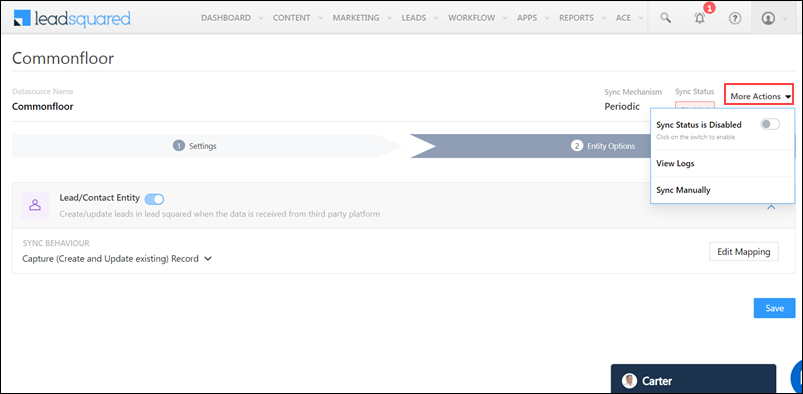
After mapping the Commonfloor fields to the corresponding LeadSquared lead fields, enable lead sync. To do this, from the More Actions dropdown, click the Slider slider. Once the sync is enabled, LeadSquared will pull leads from Commonfloor every 30 minutes (or depending on the Sync Frequency configured).

LeadSquared - Commonfloor sync

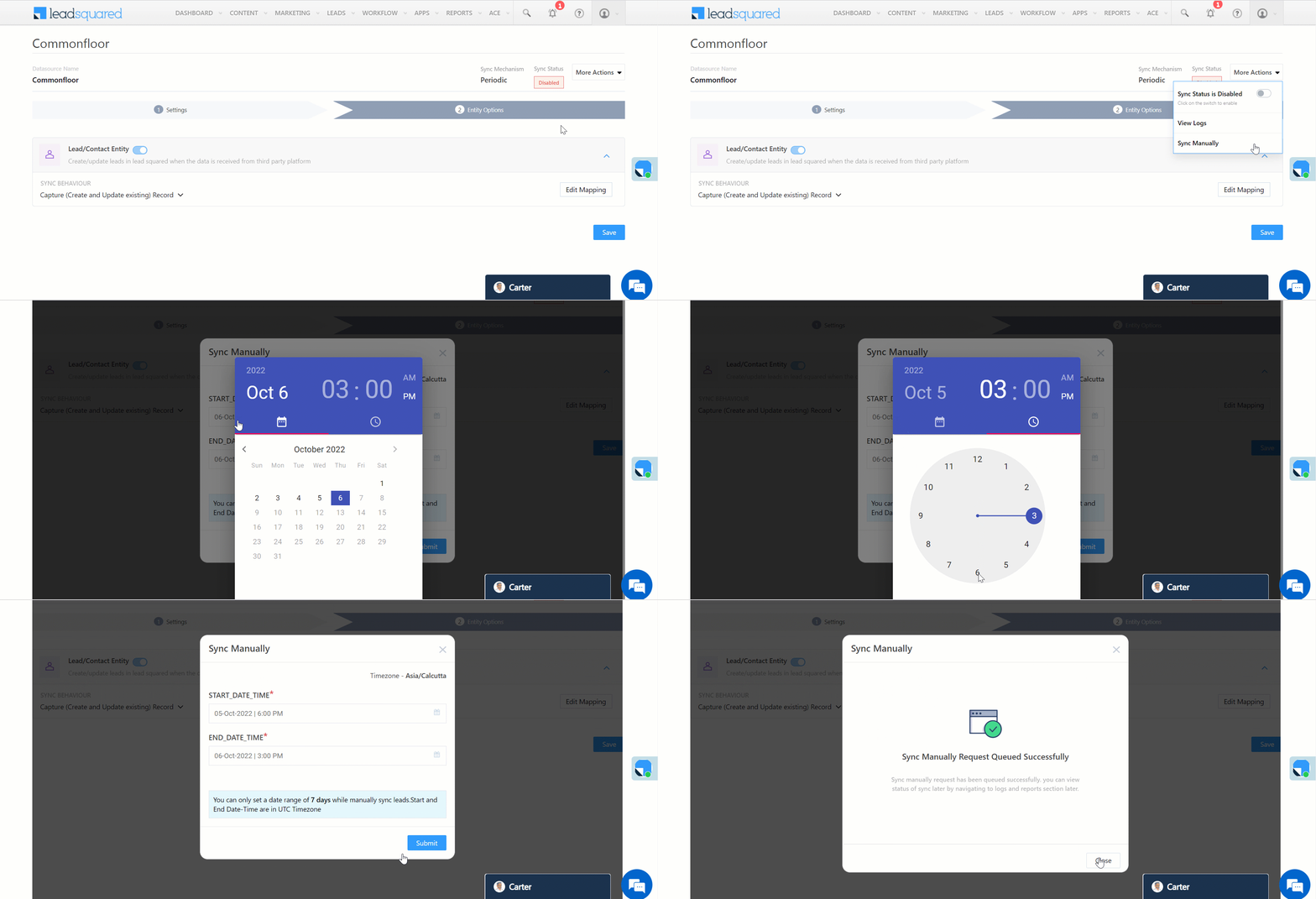
You can also manually sync leads, outside of the Sync Frequency that’s configured. This is especially useful if you have old/legacy lead data in your Commonfloor account.

  1. From the More Actions dropdown, click Sync Manually.
  2. On the Sync Manually pop-up, enter Start Date, End Date, and Time during which the lead data was captured in your Commonfloor account.
  3. Once you’re done, click Submit. The leads that were captured during the selected time frame will be synced to LeadSquared.

Note:

  • It is recommended you run a manual sync job right after you configure the connector. This will ensure all the historic lead data available on your Commonfloor account will be synced to LeadSquared.
  • The Sync Start Time & End Time must be within a date range of seven days (e.g., from 20th July to 26th July).
  • You can sync up to 4,000 leads at once.

LeadSquared - Commonfloor Sync manually


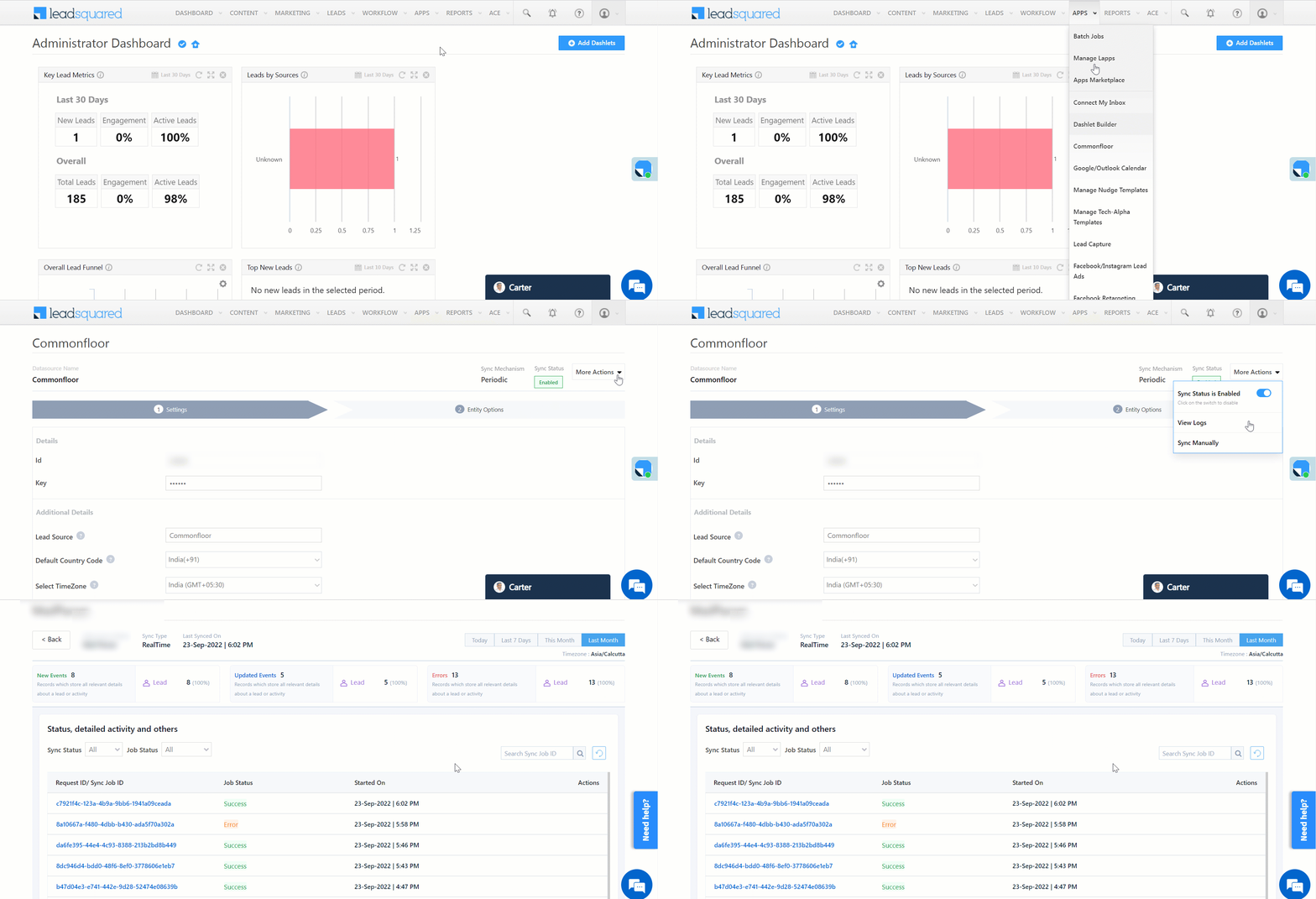
7. View Logs

Here, you can view logs of all the sync jobs that have taken place. View new leads, updated leads, lead capture errors and total lead capture events. You can also view the lead sync response and lead capture job status.

  1. Navigate to Apps>Commonfloor.
  2. Click the More Actions dropdown and select View Logs.
  3. You can filter the logs by selecting a date range, and by selecting a Job Status (“All”, “Success” and “Failure”).
    • The maximum date range you can select is the last 60 days.
  4. You can view the sync status of the leads captured across the following tiles –
    • New Leads – List of all the new leads that have been pulled by LeadSquared during the selected date range.
    • Updated Leads – A list of all the –
      • Duplicate leads that were created with the same Search by Criteria value (e.g., with the same Email Id, Mobile Number, etc.).
      • Leads that previously contained errors, which were fixed and synced successfully.
    • Errors – The list of leads that have not been captured due to mapping errors (e.g., when a boolean field is mapped to an integer field, etc.).
    • Total Events – A list of all the lead capture events that have taken place.
  5. To view the Sync Response details, under Sync API Response, click the response.
    • Here, you can view the response status, the API URL, the request and the response.
    • The responses that are successful will contain the details of the leads that have been pulled from Commonfloor.
    • You can also view the lead capture response under Created, Updated and Errors, by clicking Information.
Note: For a response that contains an error, the reason for the error is listed in the response. Once you fix it, you can click the Retry button to perform the sync again.

LeadSquared - commonfloor view logs


8. Other Actions

You can edit or delete the Commonfloor connector instance you created.

  1. Navigate to Apps>Apps Marketplace and click the Commonfloor connector.
  2. On the Commonfloor connector page, click Settings.
  3. From the list of options, you can perform the following actions –
    • Add or edit Configurations
    • Disable the connector
    • Remove the connector

LeadSquared - Commonfloor other actions


9. View Reports

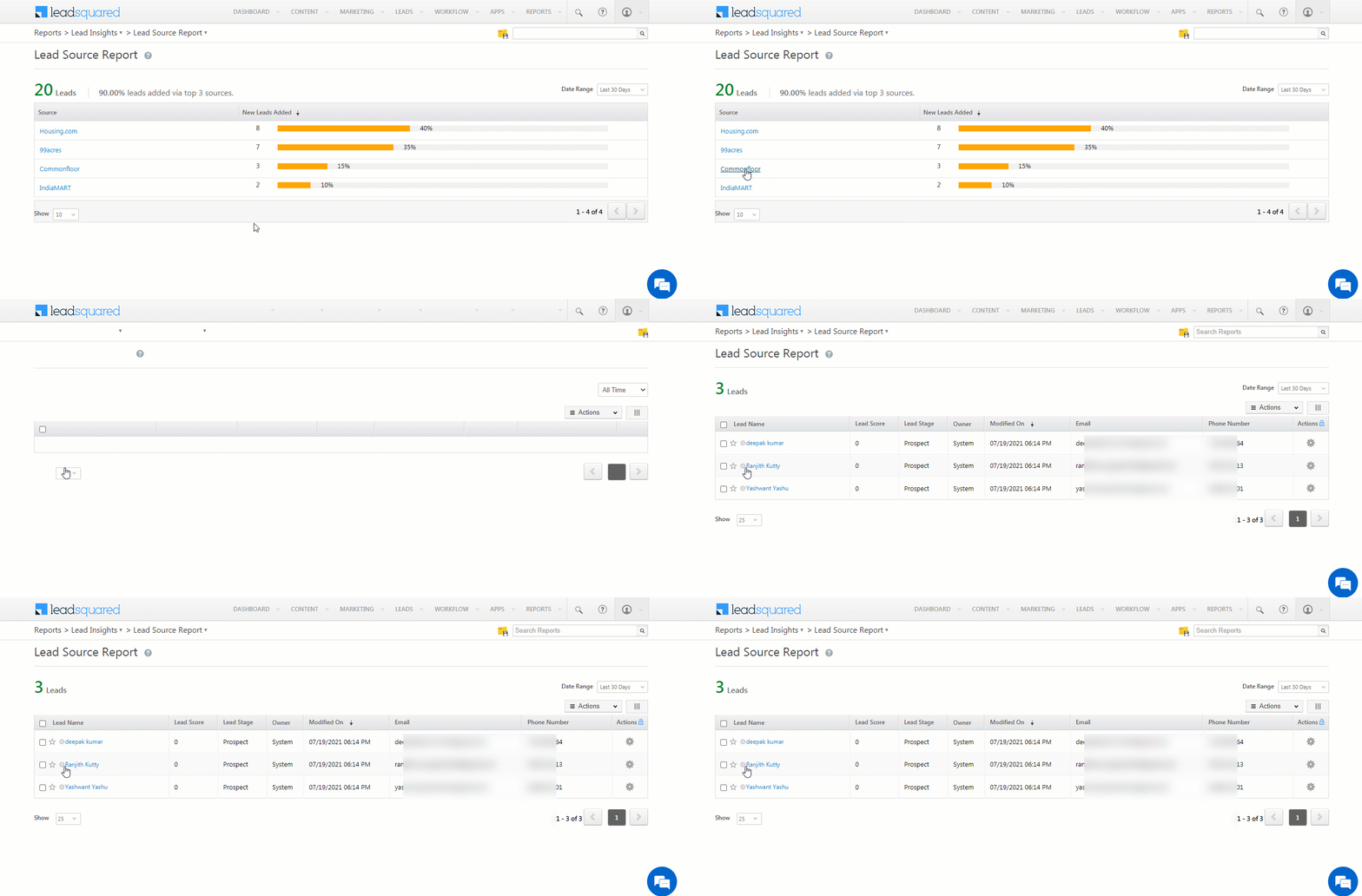
You can view the total number of leads that have been pulled from Commonfloor by referring to the Lead Source report. To know more, please refer to How to track the source of your Leads using Lead Source Report?

LeadSquared Integration with Commonfloor


Any Questions?

Did you find this article helpful? Please let us know any feedback you may have in the comments section below. We’d love to hear from you and help you out!

Integrate Housing.com with LeadSquared

1. Feature Overview

This connector captures leads periodically from your Housing.com account to LeadSquared. Once the leads are synced, you can leverage LeadSquared’s CRM features to nurture and convert your leads.


2. Prerequisites

  • You must be the Administrator of your LeadSquared account.
  • You must have an active Housing.com account.
  • This is a paid feature. To enable it, reach out to your account manager, or write to support@leadsquared.com.


3. How it Works

To push lead data from Housing.com to your LeadSquared account, configure the Housing.com connector instance. Once configured, enable the connector sync.

During configuration, a webhook URL is generated in LeadSquared. Copy this URL and set it up in your Housing.com account. Once it’s set up, the lead capture process is initiated.


4. Installation

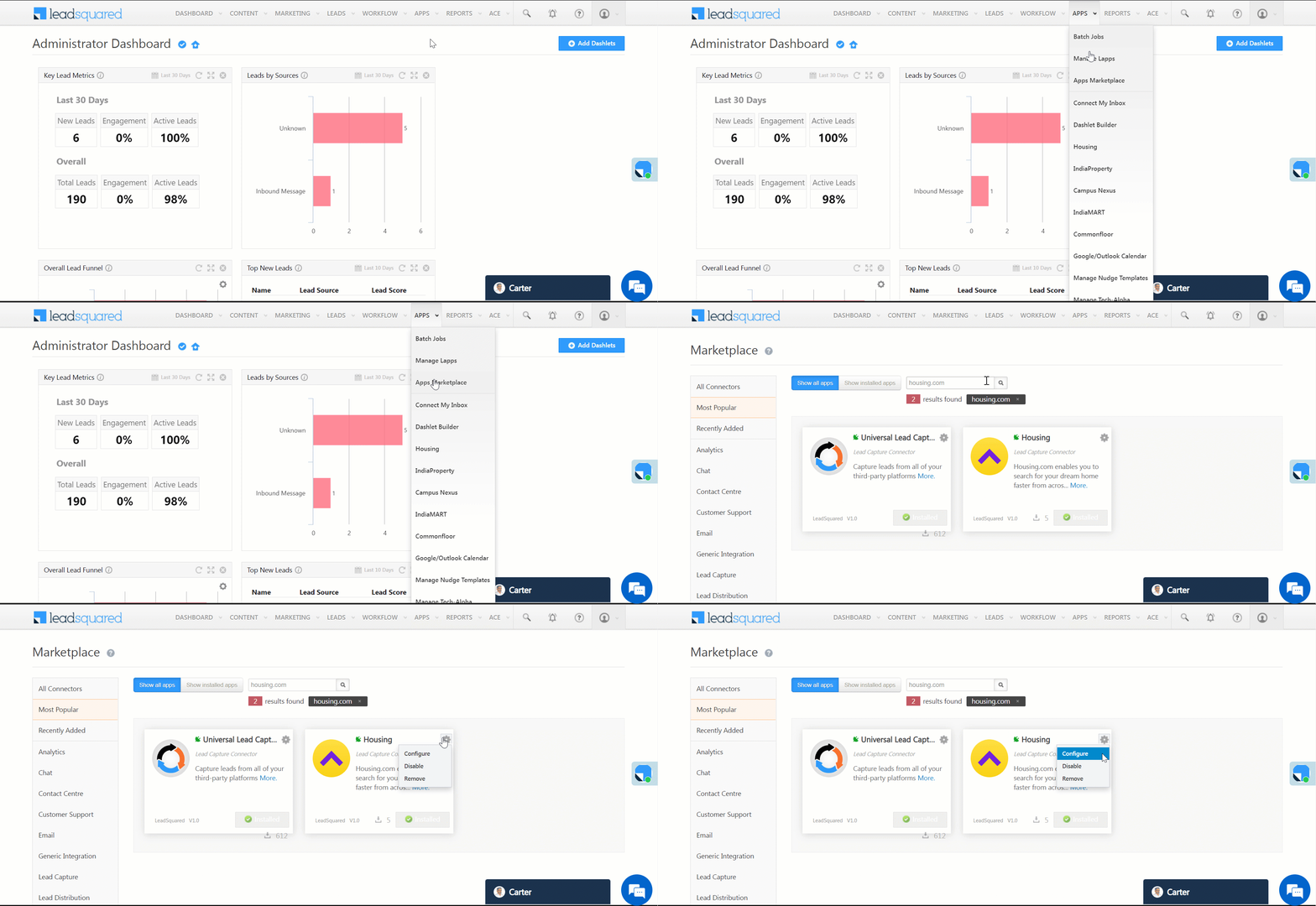
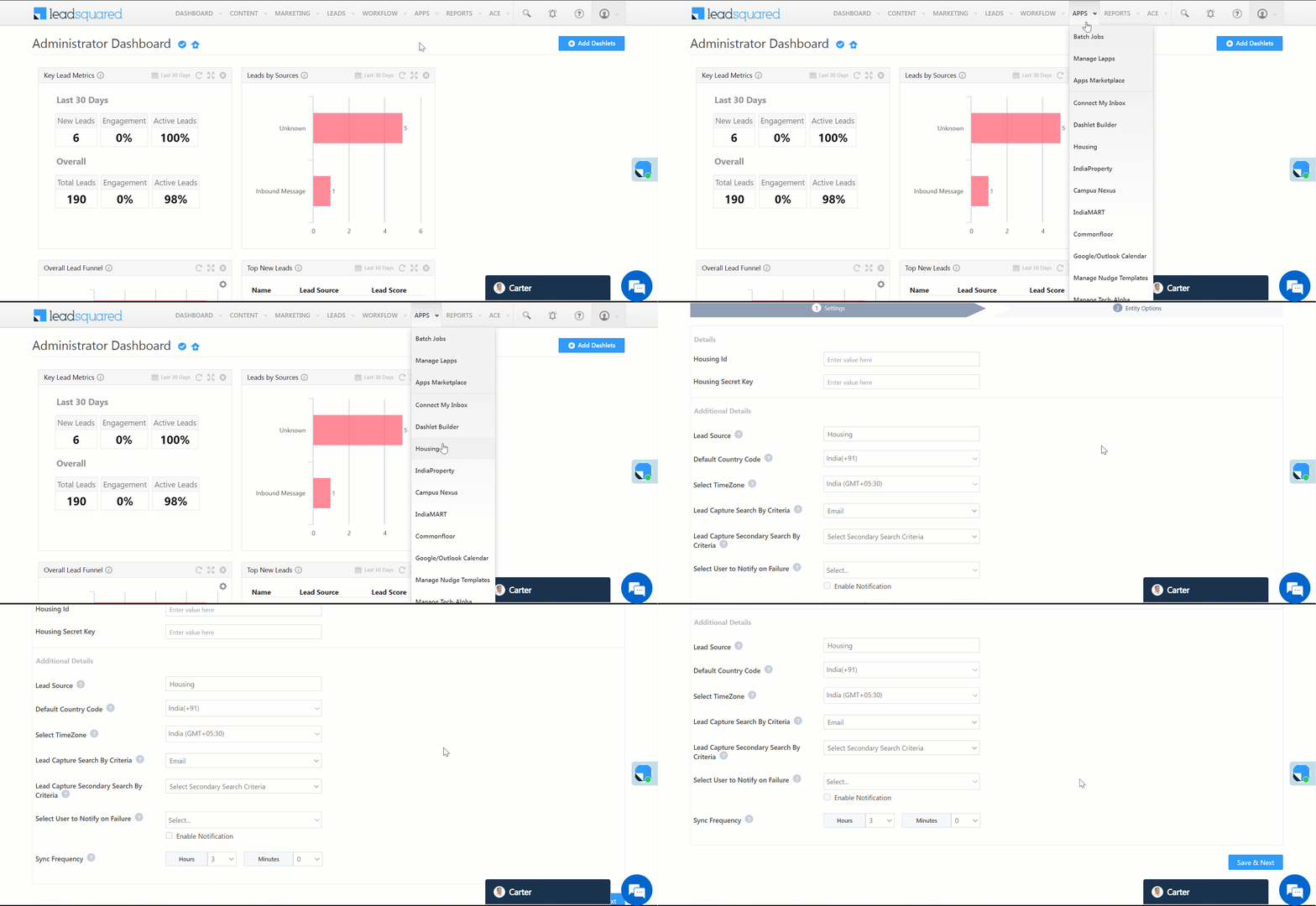
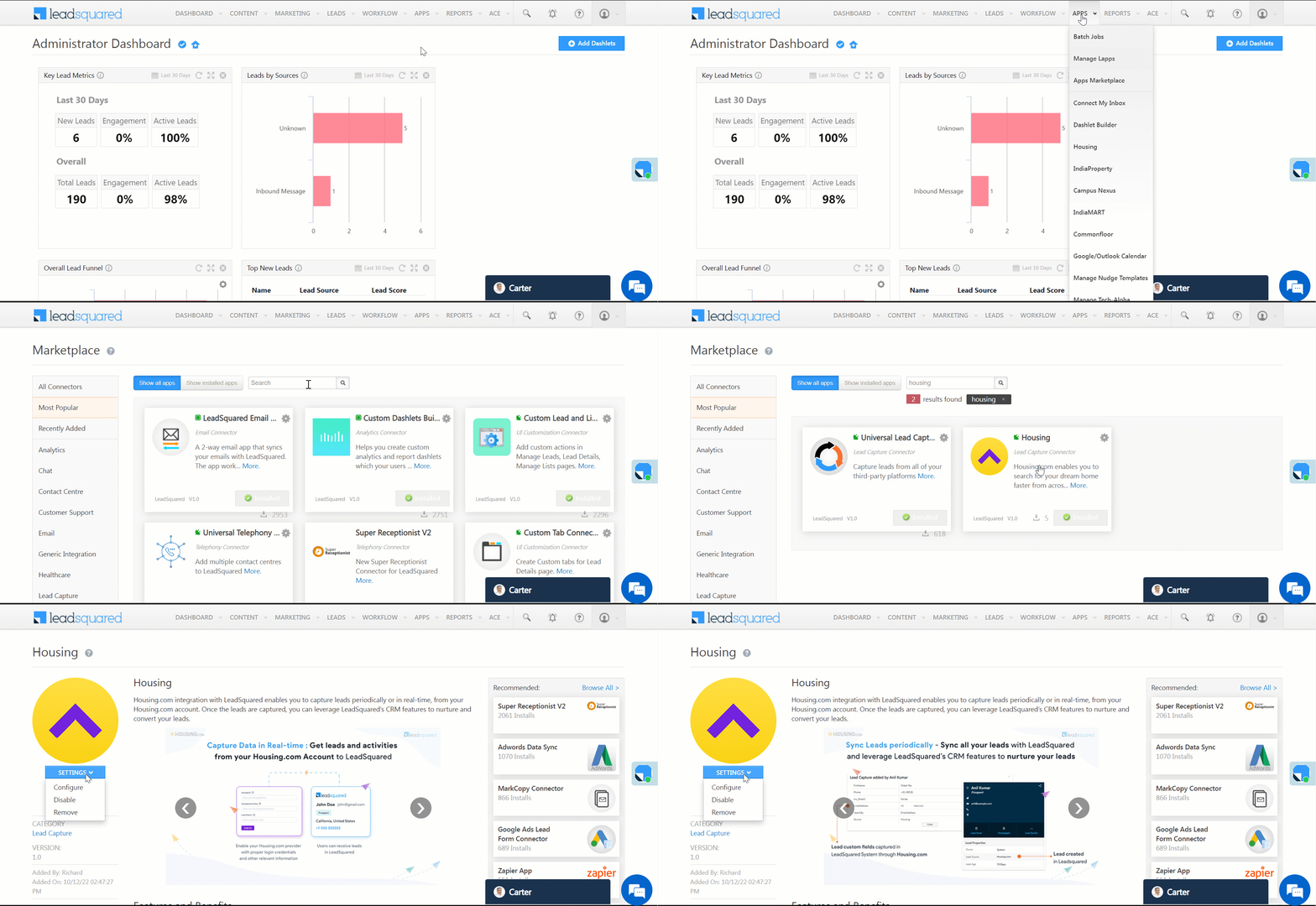
  1. Navigate to Apps>Apps Marketplace.
  2. Search for Housing, and click Install.
    • Alternatively, you can find the connector on the left panel, under Lead Capture.
  3. Once installed, hover your cursor over , and click Configure.

LeadSquared - Housing installation


5. Configure the Connector

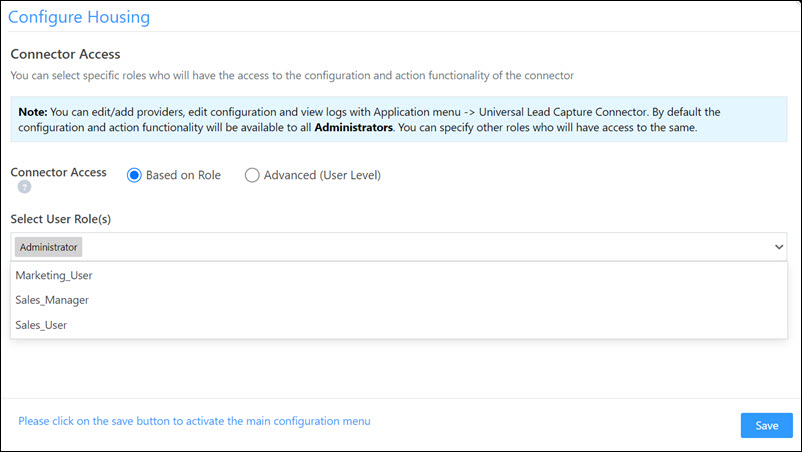
Once you’ve installed the connector, on the Configure Housing pop-up, configure the connector access for the non-Admin users in your account. Only those users for whom access is granted can view and access the connector (under the Apps main menu).

  1. Select if you want to grant Connector Access that’s Based on Role or Advanced (User Level).
    • Based on Role – From the Specify Roles dropdown, select the LeadSquared user roles that can use the connector.
    • Advanced (User Level) – From the Advanced (User Level) dropdown, select a user boolean field. Based on the value entered in the selected boolean field, the user can access the connector (e.g., for the user Sam, if the “Is Employee” boolean user field contains the value “Yes”, then this user can access the connector).
  2. Once you’re done, click Save Details. To continue the configuration, refer to the below sections.
Note: By default, all Admin users will have access to the connector.
LeadSquared - housing initial configurations


6. Admin Configurations

After installation, navigate to Apps>Housing and configure the connector settings in order to pull data from Housing.com.

6.1 Settings

On the Settings screen, enter the following details –

LeadSquared - Housing configurations

Property Description
Housing Id Enter your Housing.com account Id.
Housing Secret Key Enter your Housing.com account secret key.
Lead Source Enter the lead source through which leads were captured (e.g., Housing.com, email campaign, etc.). This detail will be displayed on the Lead Details page, under Lead Source.
Default Country Code If the lead’s mobile number is captured without a country code, then the default country code that’s selected from the dropdown will be added to the lead’s mobile number.
Select Time Zone The time zone of your Housing.com account.
Lead Capture Search By Criteria To avoid duplicate leads, you must select one unique lead field (e.g., email Id, mobile number, PAN number, etc.) as the search key. This will be used to identify and pull leads from Housing.com.

To know how to mark a LeadSquared lead field as unique, please refer to How to Make a Custom Field Unique.

Select User to Notify on Failure If there is an error in fetching leads, the selected user will receive a failure message via email. You can select a user from the list of all the users available in your LeadSquared account.

To know more about the type of errors, please refer to Error Notifications.

Sync Frequency By default, we’ve selected a 3-hour frequency to pull data from Housing.com. You can use the ‘Hours’ and ‘Minutes’ dropdowns to select a custom interval, based on which lead data will be pulled.

Once you’re done entering all the details, click Save & Next.


Mapping & Manage Sync

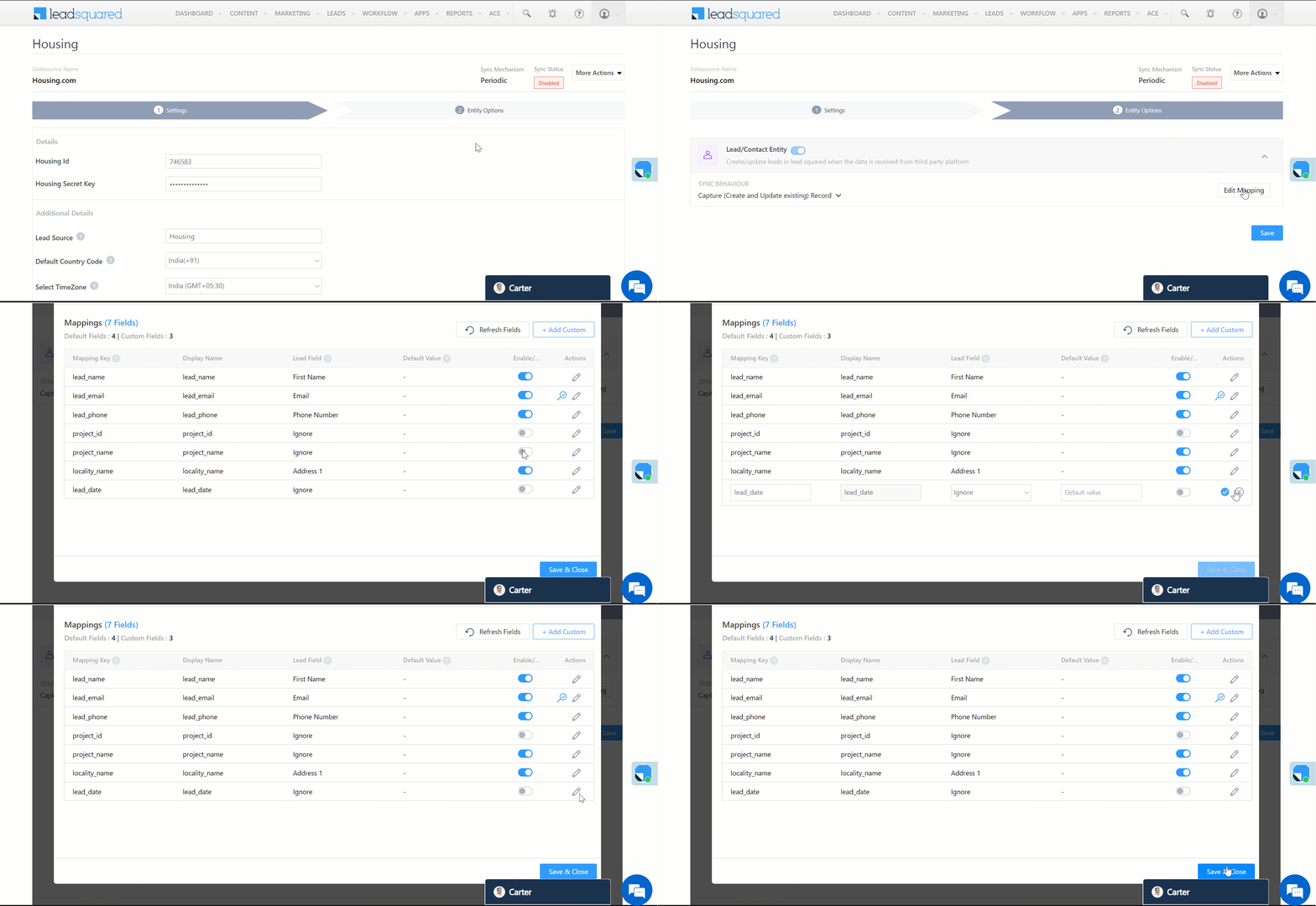
Once you’re done with the basic settings, click Entity Options. On the Mapping screen, the Housing.com system fields mapped to the corresponding LeadSquared lead fields are visible. This mapping is carried out by default. If required, you can change or update the default field mapping.

  • To provide a default value for any field, enter the value under Default Value.
    • If the data provider doesn’t send data for any lead field, then the default value will get assigned to that specific field. But if the field already has an existing value, then the default value will be ignored.
  • To disable lead data capture for any field, disable the Zoom slider.
  • You can also mark and update a unique lead field as the search key from this screen, by clicking unique icon.
  • To create a custom Housing.com field, click the Add Custom button.
    1. Once this field is created, you must map it to the relevant LeadSquared lead field.
    2. After the field is mapped, to save the custom field, click Google.
    3. To delete a custom field, click .

LeadSquared - Housing mapping


Enable Sync

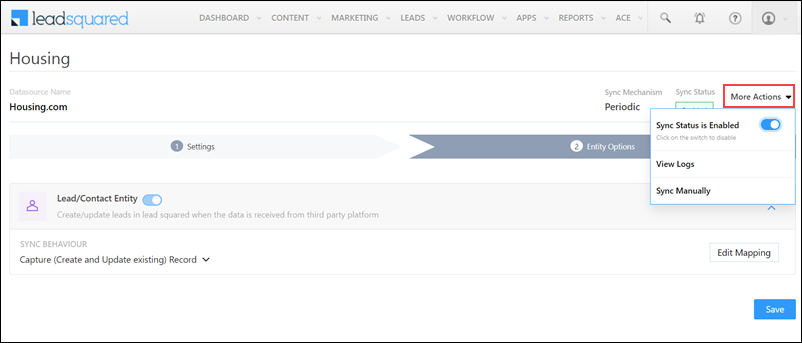
After mapping the Housing.com fields to the corresponding LeadSquared lead fields, enable lead sync. To do this, from the More Actions dropdown, click the Slider slider, and then click Save. Once the sync is enabled, LeadSquared will pull leads from Housing.com every 3-hours (or depending on the Sync Frequency configured).

LeadSquared - Housing sync

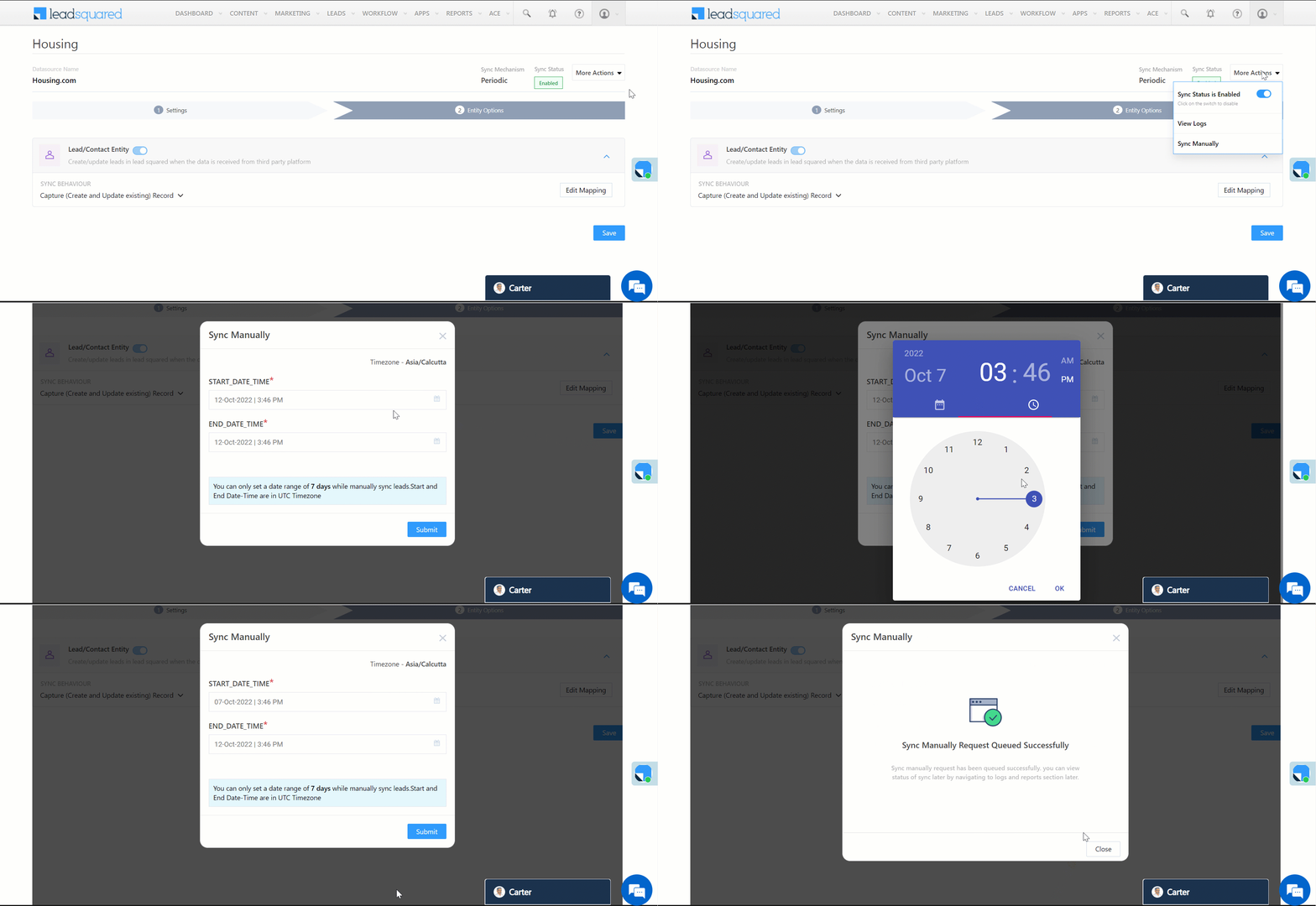
You can also manually sync leads, outside of the Sync Frequency that’s configured. This is especially useful if you have old/legacy lead data in your Housing.com account.

  1. From the More Actions dropdown, click Sync Manually.
  2. On the Sync Manually pop-up, enter Start Date, End Date, and Time during which the lead data was captured in your Housing.com account.
  3. Once you’re done, click Submit. The leads that were captured during the selected time frame will be synced to LeadSquared.

Note:

  • It is recommended you run a manual sync job right after you configure the connector. This will ensure all the historic lead data available on your Housing.com account will be synced to LeadSquared.
  • The Sync Start Time & End Time must be within a date range of seven days (e.g., from 20th July to 26th July).
  • You can sync up to 4,000 leads at once.

LeadSquared - Housing manual sync


7. View Logs

Here, you can view logs of all the sync jobs that have taken place. View new leads, updated leads, lead capture errors and total lead capture events. You can also view the lead sync response and lead capture job status.

  1. Navigate to Apps>Housing.
  2. Click the More Actions dropdown and select View Logs.
  3. You can filter the logs by selecting a date range, and by selecting a Job Status (“All”, “Success” and “Failure”).
    • The maximum date range you can select is the last 60 days.
  4. You can view the sync status of the leads captured across the following tiles –
    • New Leads – List of all the new leads that have been pulled by LeadSquared during the selected date range.
    • Updated Leads – A list of all the –
      • Duplicate leads that were created with the same Search by Criteria value (e.g., with the same Email Id, Mobile Number, etc.).
      • Leads that previously contained an error, which were fixed and synced successfully.
    • Errors – The list of leads that have not been captured due to mapping errors (e.g., when a boolean field is mapped to an integer field, etc.).
    • Total Events – A list of all the lead capture events that have taken place.
  5. To view the Sync Response details, under Sync API Response, click the response.
    • Here, you can view the response status, the API URL, the request and the response.
    • The responses that are successful will contain the details of the leads that have been pulled from Housing.com.
    • You can also view the lead capture response under Created, Updated and Errors, by clicking Information.
Note: For a response that contains an error, the reason for the error is listed in the response. Once you fix it, you can click the Retry button to perform the sync again.

LeadSquared - Housing view logs


8. Other Actions

You can edit or delete the Housing.com connector instance you created. To do so –

  1. Navigate to Apps>Apps Marketplace and click the Housing connector.
  2. On the Housing connector page, click Settings.
  3. From the list of options, you can perform the following actions –
    • Add or edit Configurations
    • Disable the connector
    • Remove the connector

LeadSquared - Housing other actions


9. View Reports

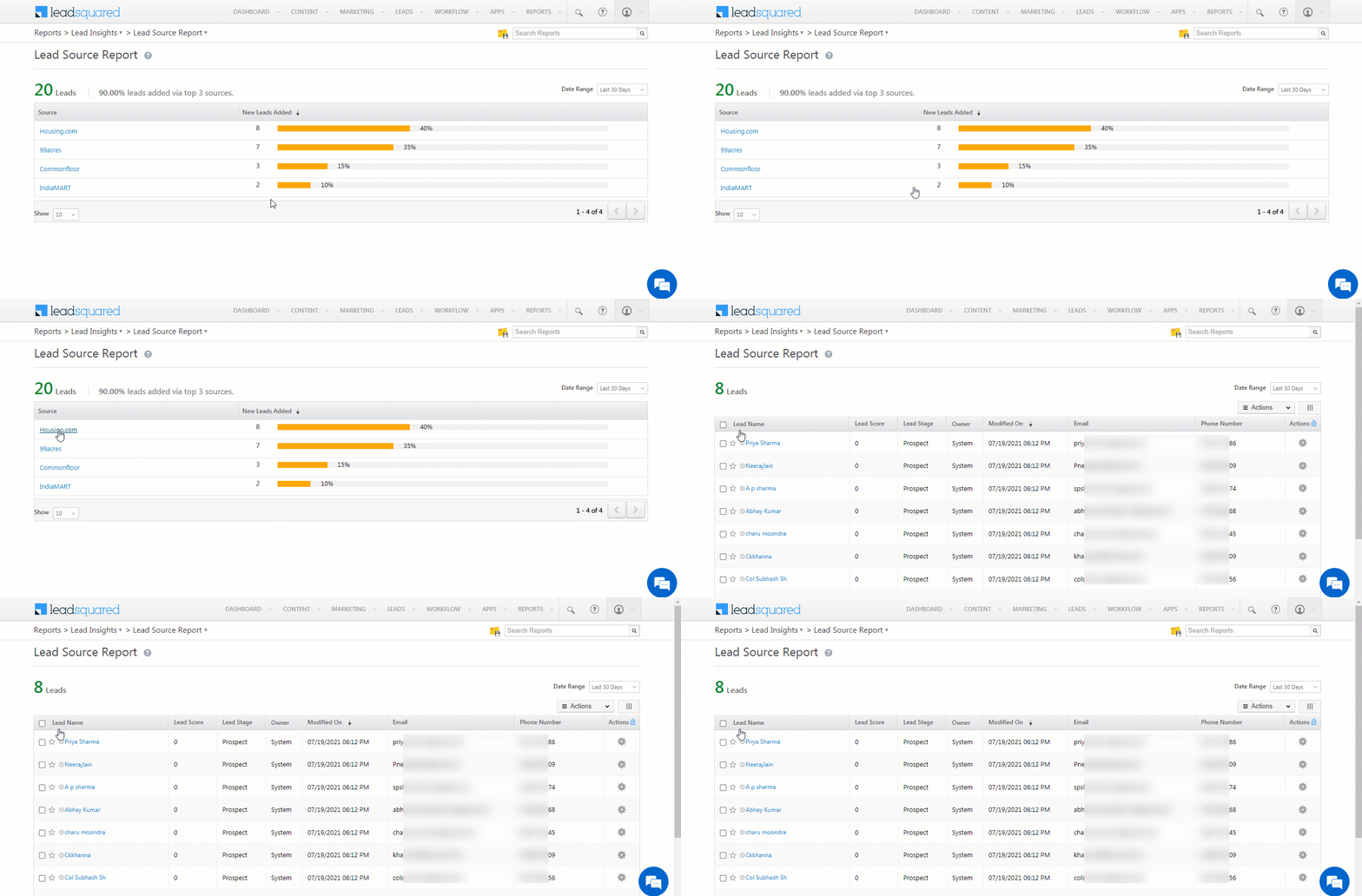
You can view the total number of leads that have been pulled from Housing.com by referring to the Lead Source report. To know more, please refer to How to track the source of your Leads using Lead Source Report?

LeadSquared Integration with Housing.com


Any Questions?

Did you find this article helpful? Please let us know any feedback you may have in the comments section below. We’d love to hear from you and help you out!

Integrate 99acres with LeadSquared

1. Feature Overview

This connector captures leads from your 99acres account to LeadSquared. You can configure the connector to capture leads periodically or in real-time, from your 99acres account. Once the leads are captured, you can leverage LeadSquared’s CRM features to nurture and convert your leads.


2. Prerequisites

  • You must be the Administrator of your LeadSquared account.
  • You must have an active 99acres account.
  • This is a paid feature. To enable it, reach out to your account manager, or write to support@leadsquared.com.


3. How it Works

Real-time Sync

To push lead data from your 99acres account to your LeadSquared account, configure the 99acres connector. Once configured, enable the connector sync.

During configuration, a webhook URL is generated in LeadSquared. Copy this URL and set it up in your 99acres account. Once it’s set up, the lead capture process is initiated.


Periodic Sync

To pull leads, activities and tasks from 99acres to LeadSquared, configure the 99acres connector instance, and add your 99acres account credentials. Once this is done, enable sync for the connector in LeadSquared. This will begin the lead, activity and task capture process.


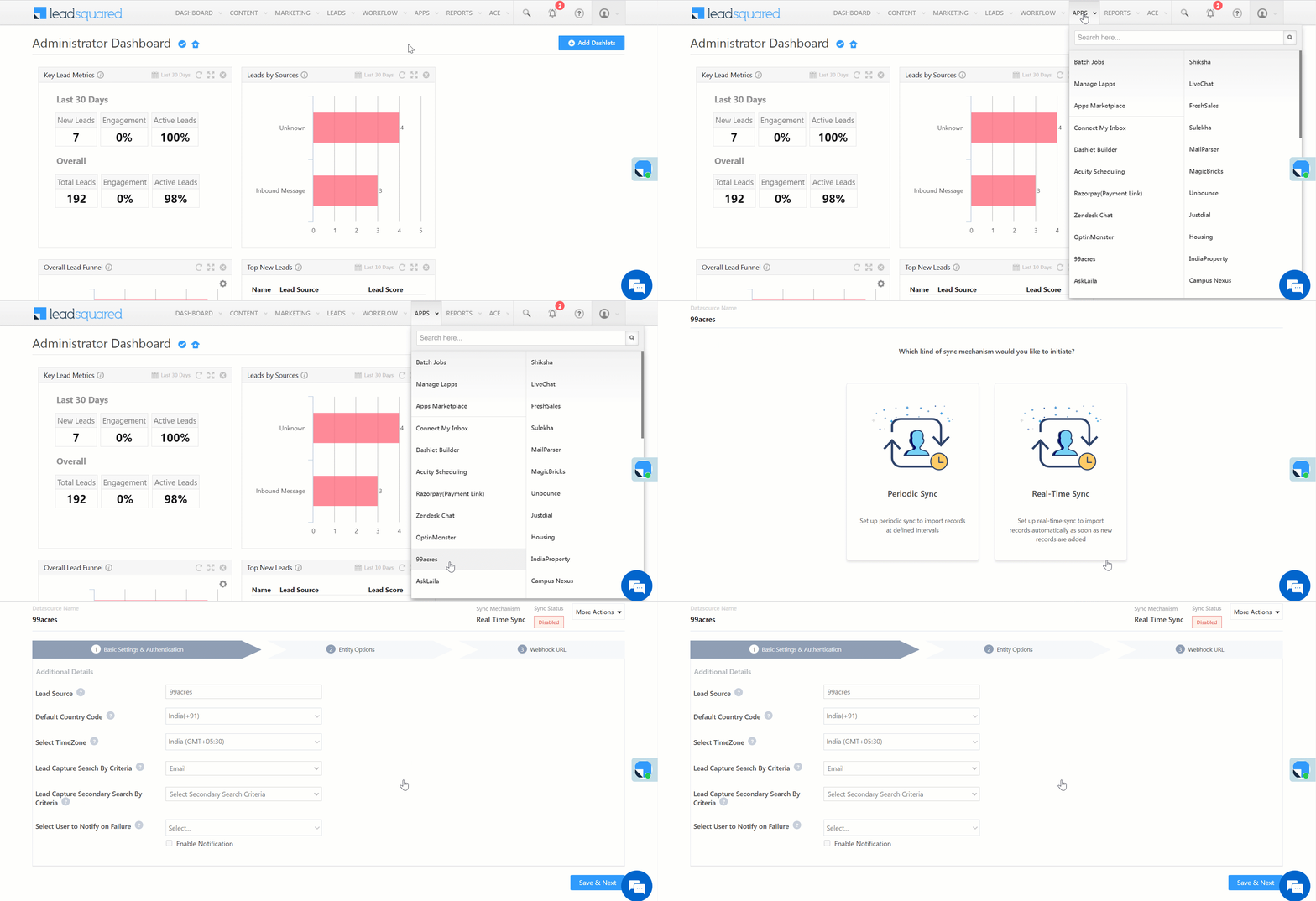
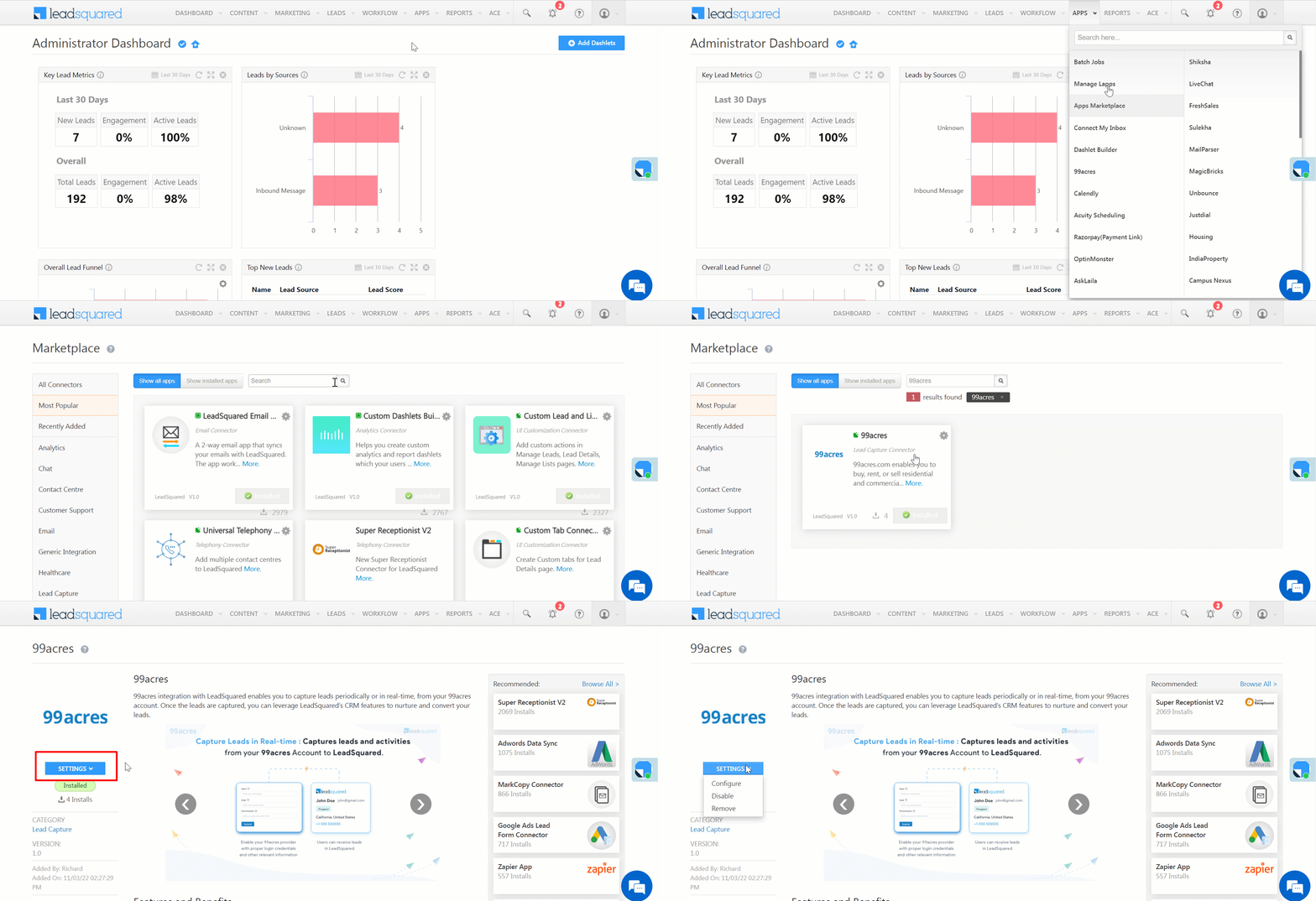
4. Installation

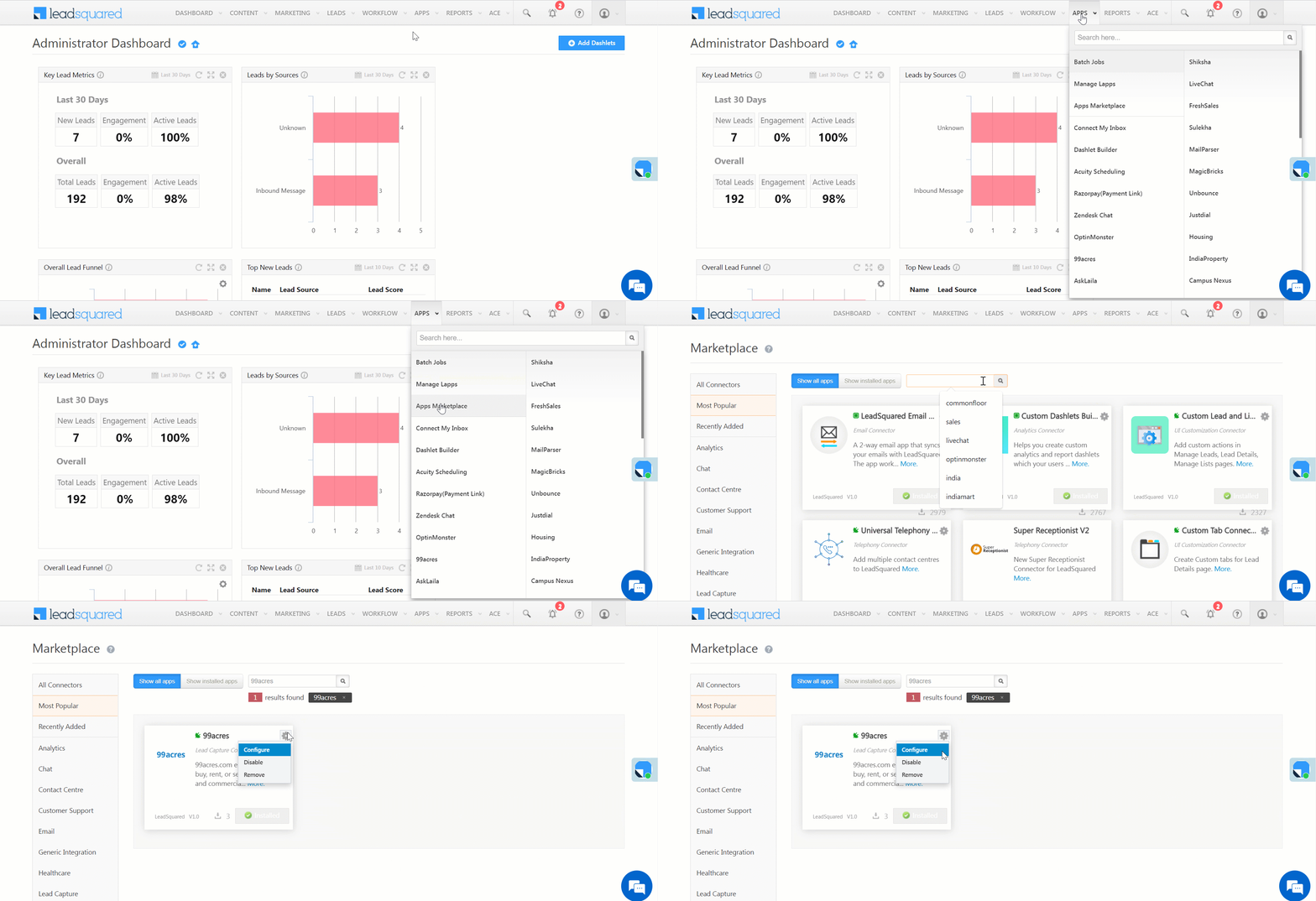
  1. Navigate to Apps>Apps Marketplace.
  2. Search for 99acres, and click Install.
    • Alternatively, you can find the connector on the left panel, under Lead Capture.
  3. Once installed, hover your cursor over , and click Configure.

LeadSquared - 99acres installation


5. Configure the Connector

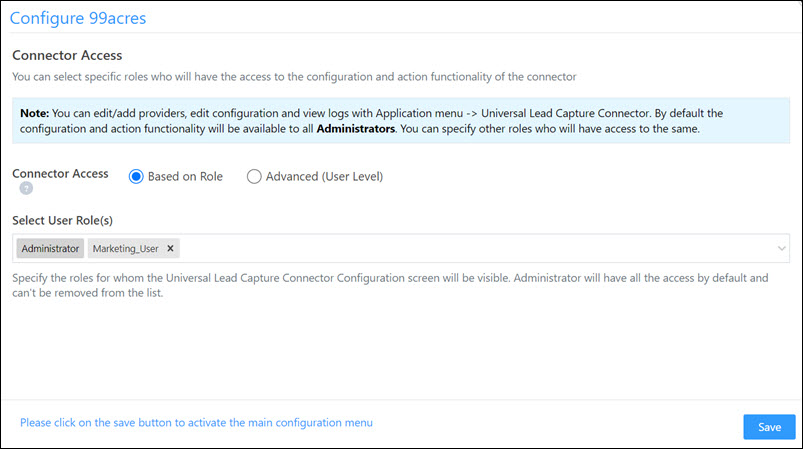
Once you’ve installed the connector, on the Configure 99acres pop-up, configure the connector access for the non-Admin users in your account. Only those users for whom access is granted can view and access the connector (under the Apps main menu).

  1. Select if you want to grant Connector Access that’s Based on Role or Advanced (User Level).
    • Based on Role – From the Specify Roles dropdown, select the LeadSquared user roles that can use the connector.
    • Advanced (User Level) – From the Advanced (User Level) dropdown, select a user boolean field. Based on the value entered in the selected boolean field, the user can access the connector (e.g., for the user Sam, if the “Is Employee” boolean user field contains the value “Yes”, then this user can access the connector).
  2. Once you’re done, click Save Details. To continue the configuration, refer to the below sections.
Note: By default, all Admin users will have access to the connector.

LeadSquared - 99acres initial configurations


6. Configuration – Real-time Sync

After installation, navigate to Apps>99acres and select Real-time Sync. Then, configure the connector settings to push data from 99acres –

6.1 Basic Details

Enter the following details –

LeadSquared - 99acres settings

Property Description
Lead Source Enter the lead source through which the leads were captured (e.g., 99acres, email campaign, etc.). This detail will be displayed on the Lead Details page, under Lead Source.
Default Country Code If the lead’s mobile number is captured without a country code, then the default country code that’s selected from the dropdown will be added to the lead’s mobile number.
Select Time Zone The time zone of your 99acres account.
Lead Capture Search By Criteria To avoid duplicate leads, you must select one unique lead field (e.g., email Id, mobile number, PAN number, etc.) as the search key. -This will be used to identify the leads pushed from 99acres.

To know how to mark a LeadSquared lead field as unique, please refer to How to Make a Custom Field Unique.

Lead Capture Secondary Search By Criteria If lead identification and capture through the primary Search By criteria fails, it will be re-attempted using the secondary Search By criteria.
Select User to Notify on Failure If there is an error in fetching leads, the selected user will receive a failure message via email. You can select a user from the list of all the users available in your LeadSquared account.

To know more about the type of errors, please refer to Error Notifications.

Once you’re done entering all the details, click Save & Next.


6.2 Mapping

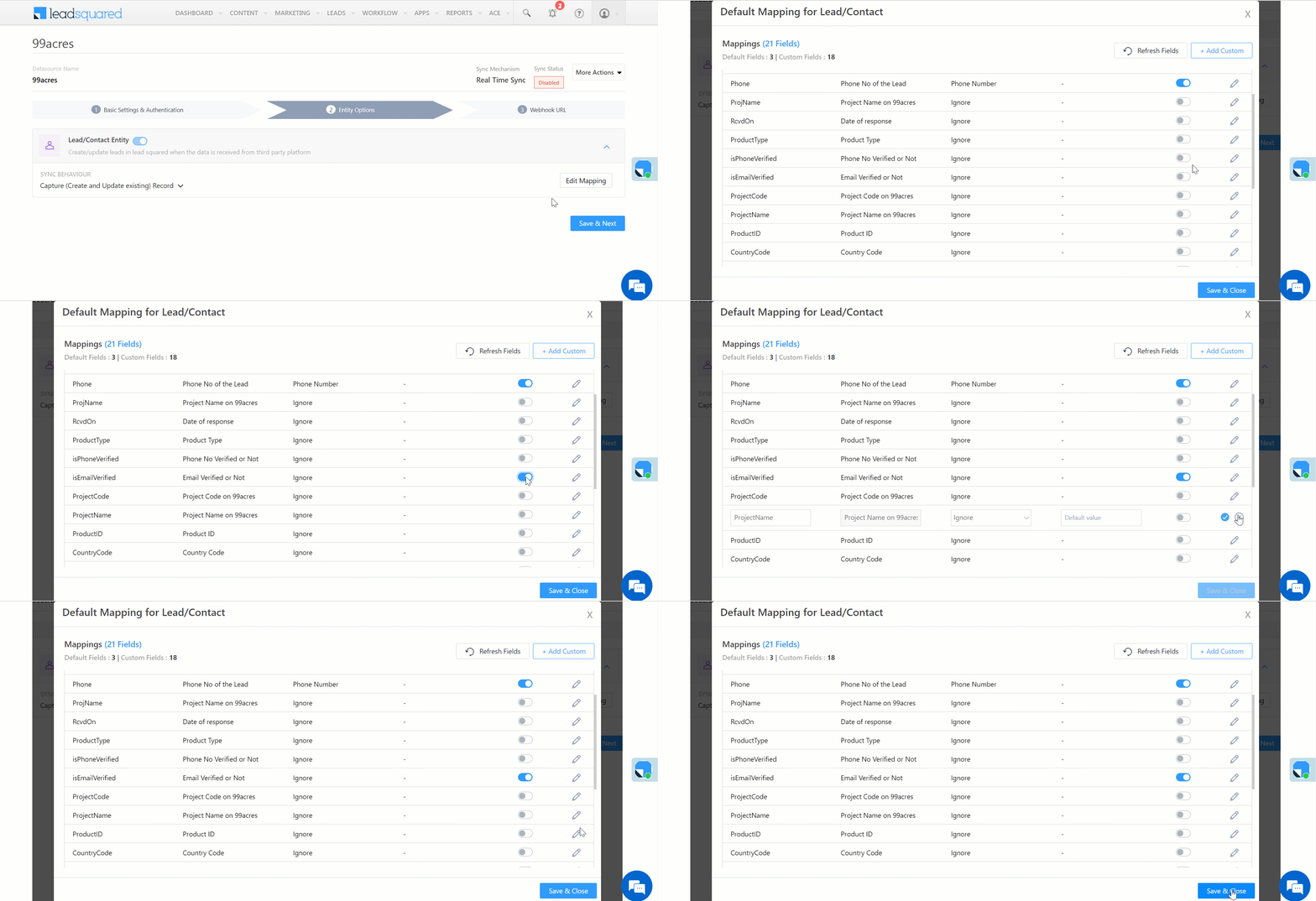
On the Mapping screen, the 99acres system fields mapped to the corresponding LeadSquared lead fields are visible. This mapping is carried out by default. If required, you can change or update the default field mapping.

  • To provide a default value for any field, click  , enter the value under Default Value, and click Google.
    • If the data provider doesn’t send data for any lead field, then the default value will get assigned to that specific field. But if the field already has an existing value, then the default value will be ignored.
  • To disable lead data capture for any field, disable the Zoom slider.
  • You can also mark and update a unique lead field as the search key from this screen, by clicking unique icon.
  • To create a custom 99acres field, click the Add Custom button.
    1. Once this field is created, you must map it to the relevant LeadSquared lead field.
    2. After the field is mapped, to save the custom field, click Google.
    3. To delete a custom field, click .

Once you’re done mapping, click Save & Next.

LeadSquared - 99acres mapping


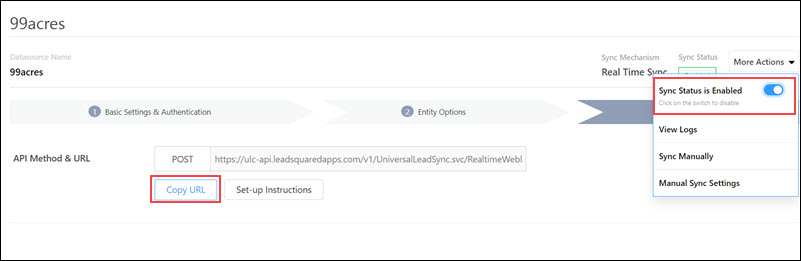
6.3 Webhook URL

After you provide basic details and finish field mapping, a custom webhook URL is generated. To automate lead capture, copy this URL and configure it in your 99acres account (reach out to your account manager from 99acres).

After you’ve configured the URL, click More Actions, and enable the sync job. This ensures the data will be pushed to LeadSquared using the webhook configured in 99acres.

LeadSquared - 99acres sync

Note: To know how to configure this Webhook URL in your 99acres account, please get in touch with your account manager from 99acres.

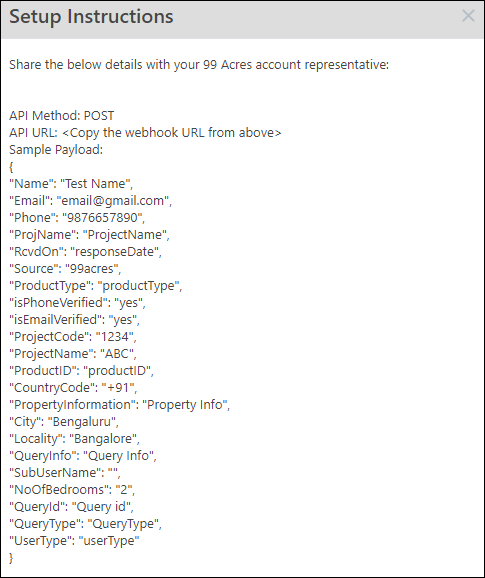
To know more, you can refer to the setup instructions –

Integrate LeadSquared with 99acres


7. Configuration – Periodic Sync

After installation, navigate to Apps>99acres and select Periodic Sync. Then, configure the connector settings to pull data from 99acres –

7.1 Settings

On the Settings screen, enter the following details –

LeadSquared - 99acres periodic settings

Property Description
User Name Enter your 99acres account username.
Password Enter your 99acres account password.
Lead Source Enter the lead source through which the leads were captured (e.g., 99acres, email campaign, etc.). This detail will be displayed on the Lead Details page, under Lead Source.
Default Country Code If the lead’s mobile number is captured without a country code, then the default country code that’s selected from the dropdown will be added to the lead’s mobile number.
Select Time Zone The time zone of your 99acres account.
Lead Capture Search By Criteria To avoid duplicate leads, you must select one unique lead field (e.g., email Id, mobile number, PAN number, etc.) as the search key. This will be used to identify and pull leads from 99acres.

To know how to mark a LeadSquared lead field as unique, please refer to How to Make a Custom Field Unique.

Lead Capture Secondary Search By Criteria If lead identification and capture through the primary Search By criteria fails, it will be re-attempted using the secondary Search By criteria.
Select User to Notify on Failure If there is an error in fetching leads, the selected user will receive a failure message via email. You can select a user from the list of all the users available in your LeadSquared account.

To know more about the type of errors, please refer to Error Notifications.

Sync Frequency By default, we’ve selected a 15-minute frequency to pull data from 99acres. You can use the ‘Hours’ and ‘Minutes’ dropdowns to select a custom interval, based on which lead data will be pulled.

Once you’re done entering all the details, click Save & Next.


6.2 Mapping & Manage Sync

Map Fields

On the Mapping screen, the 99acres system fields mapped to the corresponding LeadSquared lead fields are visible. This mapping is carried out by default. If required, you can change or update the default field mapping.

  • To provide a default value for any field, enter the value under Default Value.
    • If data is not captured for any lead field, then the default value will get assigned to that specific field. But if the field already has an existing value, then the default value will be ignored.
  • To disable lead data capture for any field, disable the Zoom slider.
  • You can also mark and update a unique lead field as the search key from this screen, by clicking unique icon.
  • To create a custom 99acres field, click the Add Custom button.
    1. Once this field is created, you must map it to the relevant LeadSquared lead field.
    2. After the field is mapped, to save the custom field, click Google.
    3. To delete a custom field, click .

LeadSquared - 99acres periodic mapping


Enable Sync

After mapping the 99acres fields to the corresponding LeadSquared lead fields, enable lead sync. To do this, from the More Actions dropdown, click the Slider slider, and then click Save & Close. Once the sync is enabled, LeadSquared will pull leads from 99acres every 15 minutes (or depending on the Sync Frequency configured).

LeadSquared - 99acres periodic sync

You can also manually sync leads, outside of the Sync Frequency that’s configured. This is especially useful if you have old/legacy lead data in your 99acres account.

  1. From the More Actions dropdown, click Sync Manually.
  2. On the Sync Manually pop-up, enter Start Date, End Date, and Time during which the lead data was captured in your 99acres account.
  3. Once you’re done, click Submit. The leads that were captured during the selected time frame will be synced to LeadSquared.

Note:

  • It is recommended you run a manual sync job right after you configure the connector. This will ensure all the historic lead data available on your 99acres account will be synced to LeadSquared.
  • The Sync Start Time & End Time must be within a date range of seven days (e.g., from 20th July to 26th July).
  • You can sync up to 4,000 leads at once.

LeadSquared - 99acres sync manually


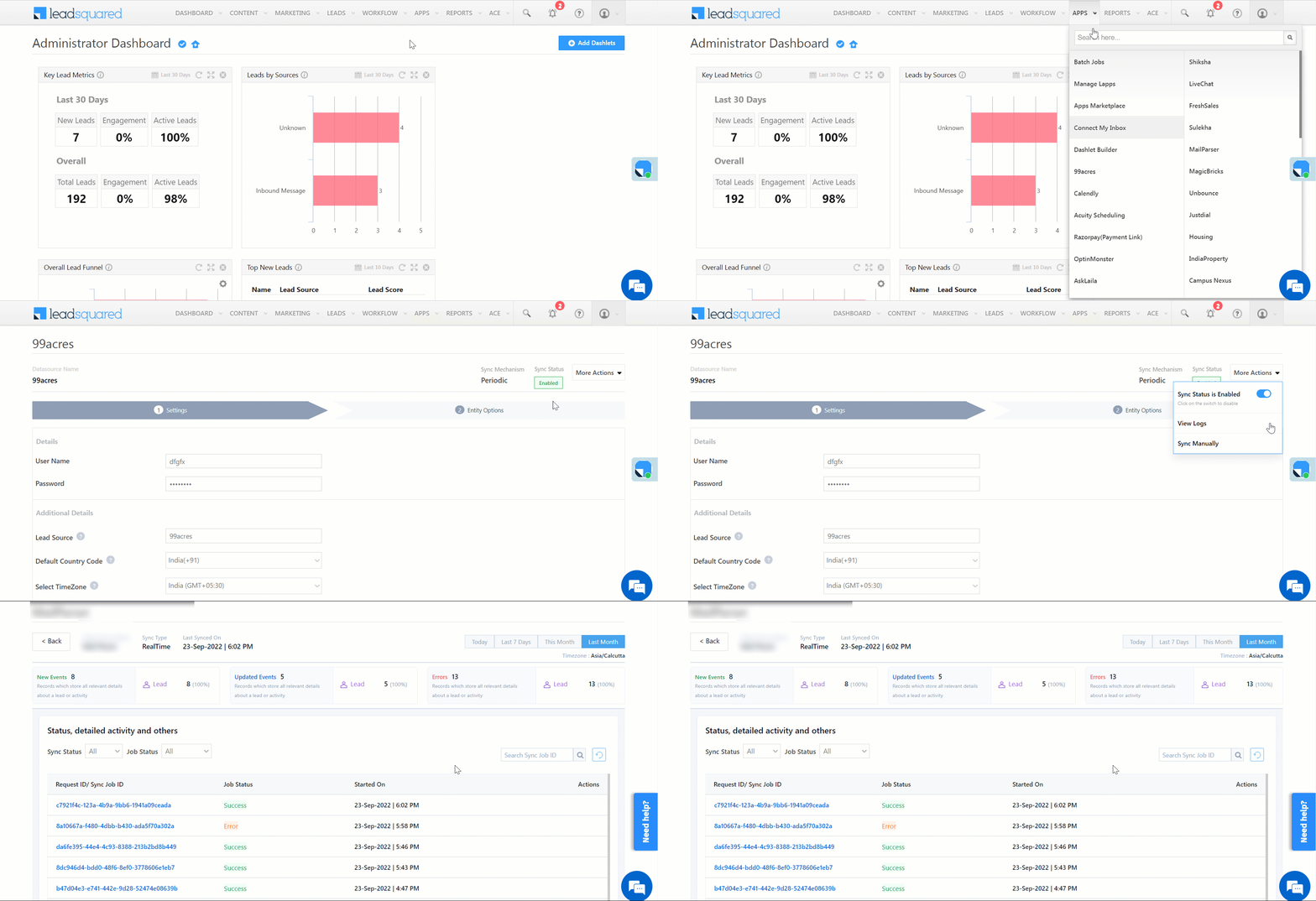
7. View Logs

Here, you can view logs of all the sync jobs that have taken place. View new leads, updated leads, lead capture errors and total lead capture events. You can also view the lead sync response and lead capture job status.

  1. Navigate to Apps>99acres.
  2. Click the More Actions dropdown and select View Logs.
  3. You can filter the logs by selecting a date range, and by selecting a Job Status (“All”, “Success” and “Failure”).
    • The maximum date range you can select is the last 60 days.
  4. You can view the sync status of the leads captured across the following tiles –
    • New Leads – List of all the new leads that have been captured by LeadSquared during the selected date range.
    • Updated Leads – A list of all the –
      • Duplicate leads that were created with the same Search by Criteria value (e.g., with the same Email Id, Mobile Number, etc.).
      • Leads that previously contained errors, which were fixed and synced successfully.
    • Errors – The list of leads that have not been captured due to mapping errors (e.g., when a boolean field is mapped to an integer field, etc.).
    • Total Events – A list of all the lead capture events that have taken place.
  5. To view the Sync Response details, under Sync API Response, click the response.
    • Here, you can view the response status, the API URL, the request and the response.
    • The responses that are successful will contain the details of the leads that have been captured from 99acres.
    • You can also view the lead capture response under Created, Updated and Errors, by clicking Information.
Note: For a response that contains an error, the reason for the error is listed in the response. Once you fix it, you can click the Retry button to perform the sync again.

LeadSquared - 99acres view logs


8. Other Actions

You can edit or delete a 99acres connector instance you created.

  1. Navigate to Apps>Apps Marketplace and click the 99acres connector.
  2. On the 99acres connector page, click Settings.
  3. From the list of options, you can perform the following actions –
    • Add or edit Configurations
    • Disable the connector
    • Remove the connector

LeadSquared - 99acres other actions


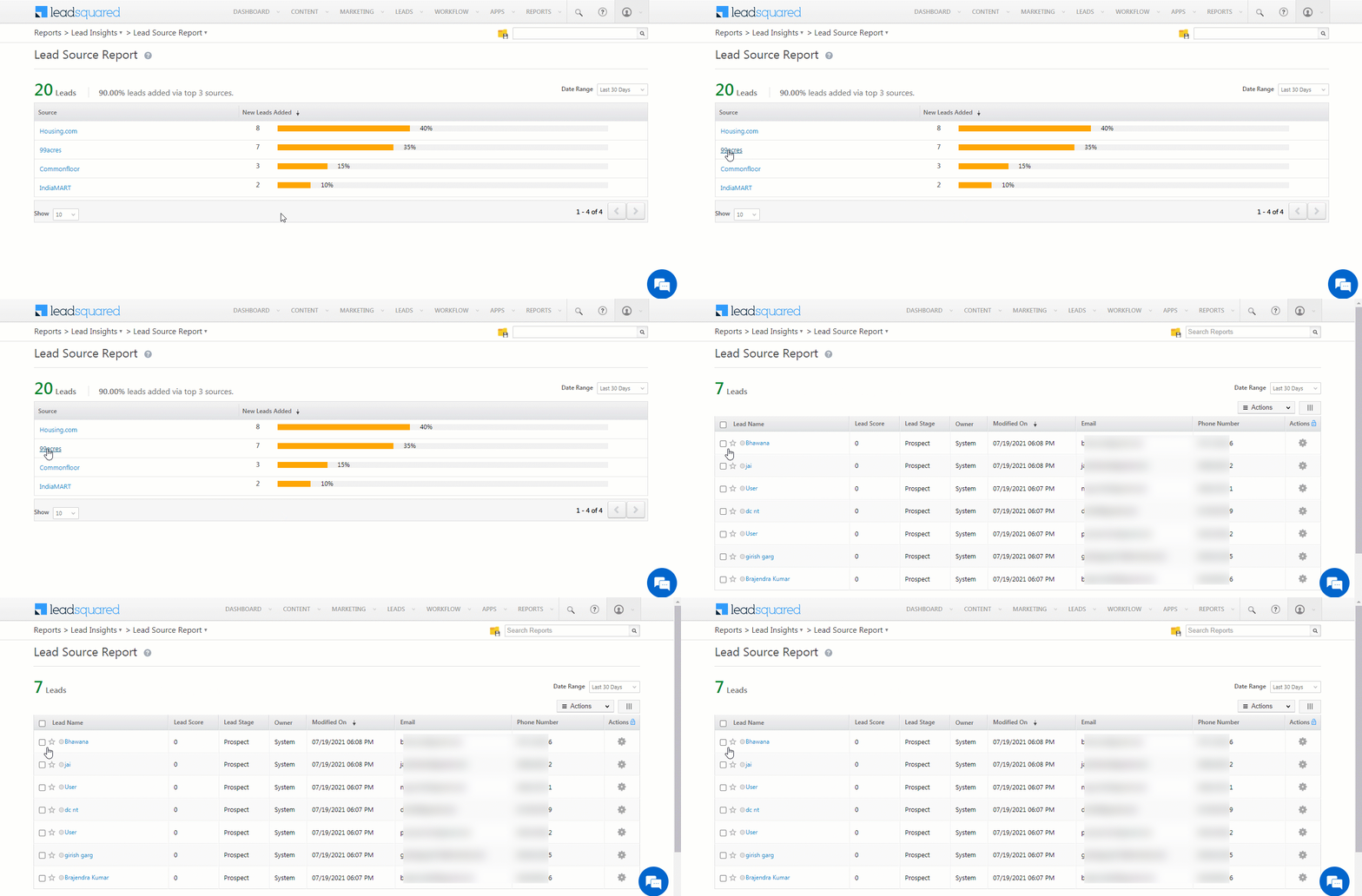
9. View Reports

You can view the total number of leads that have been captured from 99acres by referring to the Lead Source report. To know more, please refer to How to track the source of your Leads using Lead Source Report?

LeadSquared Integration with 99acres


Any Questions?

Did you find this article helpful? Please let us know any feedback you may have in the comments section below. We’d love to hear from you and help you out!

Portal Redirection & Error Handling

1. Overview

This document outlines the Portal’s redirection rules and provides explanations to assist in debugging your implementation.


2.SmartLink Auto-Evaluation Matrix

When configuring a SmartLink—a feature designed to automatically log users into the Portal—options are available to configure associated activities and opportunities. Once an activity or opportunity is configured within the SmartLink and subsequently triggered via automation, the relevant activity ID or opportunity ID is integrated into the SmartLink’s URL.

Although this table specifically illustrates activity-based SmartLinks, the principles apply similarly to opportunity-based and combined activity-and-opportunity integrations.

Example: Activity-Based SmartLink

Case
Activity Defined
ActivityId Passed
Same Actvity Type
URL Has ActivityId
Valid Link
Outcome
A
Yes
Yes
Yes
Yes
Yes
Configured SmartLink target
B
Yes
Yes
No
No
No
Home Page
C
No
No
No
Yes
No
Home Page
D
No
Yes
No
Yes
Yes
Configured SmartLink target

2.1 SmartLink Failure Routing

If a SmartLink fails for any reason, such as expiration, the user will be redirected to the Portal’s Home Page.

Scenario
Trigger
Outcome
SmartLink failure
SmartLink cannot be validated/resolved
Home Page

3. Duplicate Activity

If duplicate activity handling is configured within the forms (under Portal Settings), this section outlines how the system behaves when a duplicate is detected. Essentially, the system attempts to redirect to the flow configured in the Login or Signup form.

Step
Check
If True
If False
1
Any page with login action exists (by hierarchy)
Go to first page with login action
Home Page
2
Login action type = Link Page
Configured Link Page, likely dashboard
Home Page
3
Login action type = Rule-Based
Execute rules
Home Page
4
Any rule outputs “Link Page”
To Configured Link Page, likely dashboard
Home Page

4. Mismatch / Unauthorized — Routing

If a user attempts to access the Portal using a Lead, Activity, or Opportunity ID not associated with their account, they will be logged out and redirected to the Home Page.

Scenario
Trigger
Outcome
Activity–Lead mismatch
Activity does not belong to the referenced Lead
Logout → Home Page
Unauthorized entity usage
Using another user’s Lead/Activity/Opportunity Id
Logout → Home Page

Set SIERA Dashboard or Report as Your Mobile App Landing Page

1. Feature Overview

Quickly view all the important metrics and insights the moment you launch the mobile app by setting a SIERA report or dashboard as the landing page. This eliminates the need to navigate through widgets and log in once again to view the complete dashboard. When a SIERA dashboard or report is linked through the ‘Custom Menu Tab – External Link’ in the Menu Builder, the app will handle authentication automatically, ensuring users are logged in without needing to re-enter their credentials.

Leadsquared - Set SIERA as Landing Page


2. Prerequisite

Casa must be enabled on your account. Contact support@leadsquared.com to activate it.


3. How It Works

To set a specific report or dashboard as the mobile app’s landing page, start by looking for it in SIERA. Then, copy its URL. Go to Casa Menu Builder and add this URL to the Custom Menu Tab as an External Link. This will make the report or dashboard the first thing you see when you open the mobile app.


4. Select SIERA Report or Dashboard

If you want to select a SIERA Report to be set as the mobile app landing page –

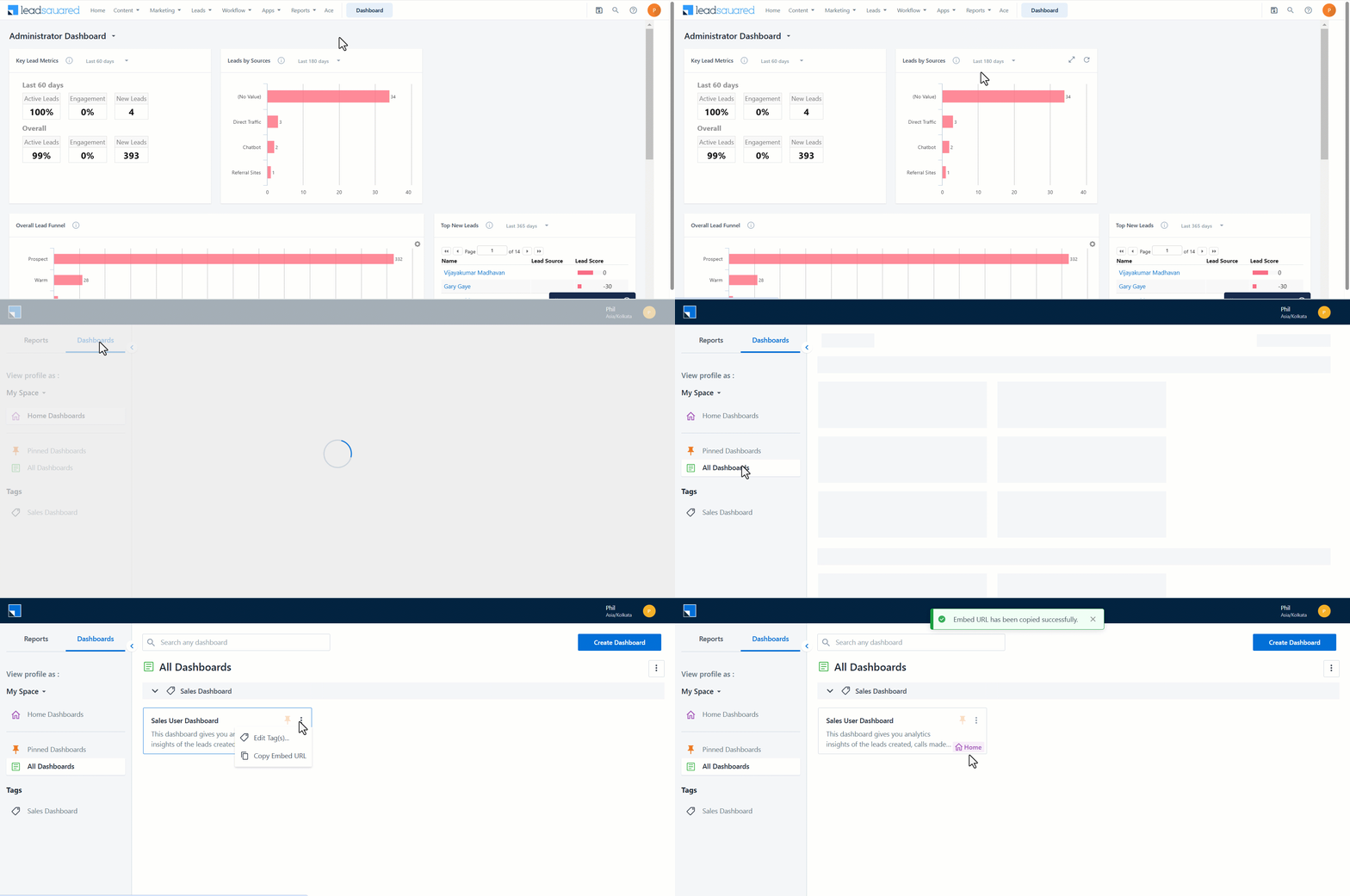
  1. From you LeadSquared Dashboard, navigate to Reports>SIERA.
  2. By default, the Reports page will be opened. If you want to set a SIERA Report as the landing page, click All Reports.
  3. Alongside the relevant report, click the Leadsquared - Set SIERA as Landing Page Actions button and select Copy Embed URL.

Leadsquared - Set SIERA as Landing Page

If you want to select a SIERA Dashboard to be set as the mobile app landing page –

  1. Navigate to Reports>SIERA and select Dashboards on the top-left corner of the screen alongside Reports.
  2. Click All Dashboards, and alongside the relevant dashboard, click the Leadsquared - Set SIERA as Landing Page Actions button and select Copy Embed URL.

Leadsquared - Set SIERA as Landing Page


5. Set SIERA Dashboard or Report as your Mobile App Landing Page

To set a SIERA dashboard or report as the landing page –

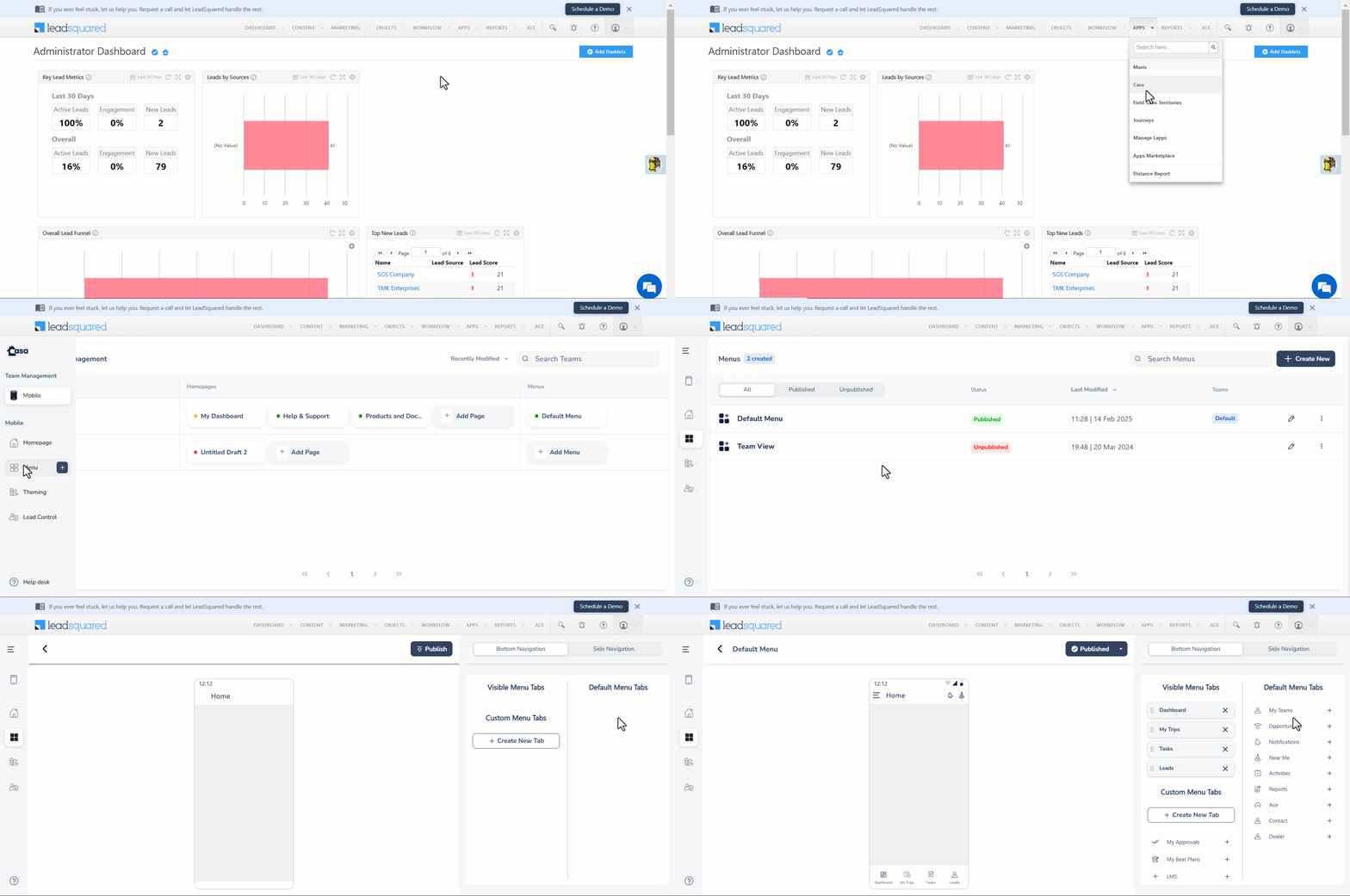
  1. Navigate to Apps>Casa from your LeadSquared Dashboard.
  2. From the side menu, under Mobile, select Menu.
  3. Click the edit icon alongside the relevant menu. You will be taken to the Menu Builder.

Leadsquared - Set SIERA as Landing Page

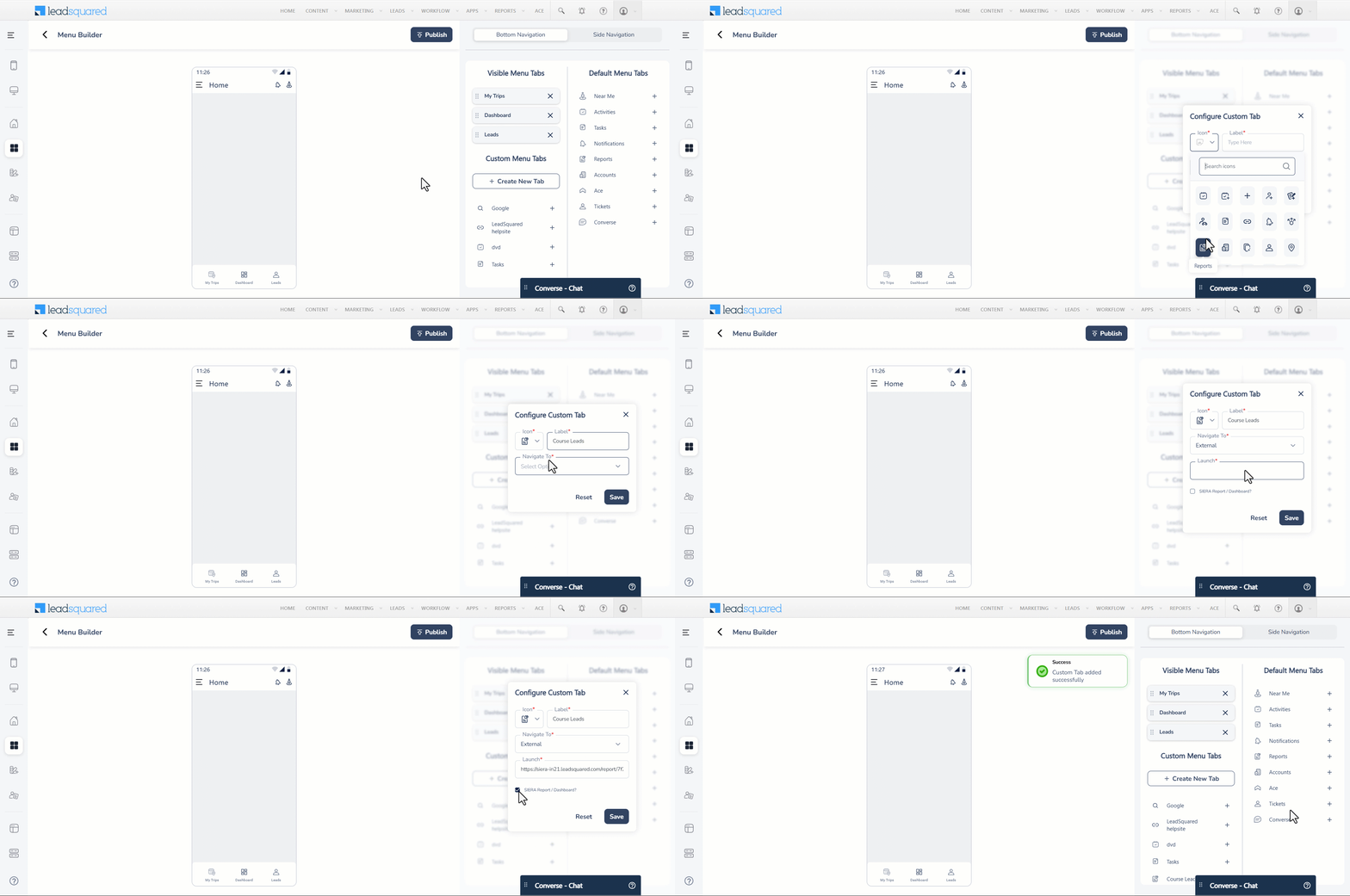
In the Menu Builder –

  1. Select Create New Tab under Custom Menu Tabs.
  2. On the popup, select the relevant icon and add the label.
  3. From the Navigate To dropdown select External Link and under Launch, paste the copied SIERA report or dashboard link.
  4. Ensure that the box alongside “SIERA Report / Dashboard?” is checked. Click Save.

Leadsquared - SIERA as Landing Page

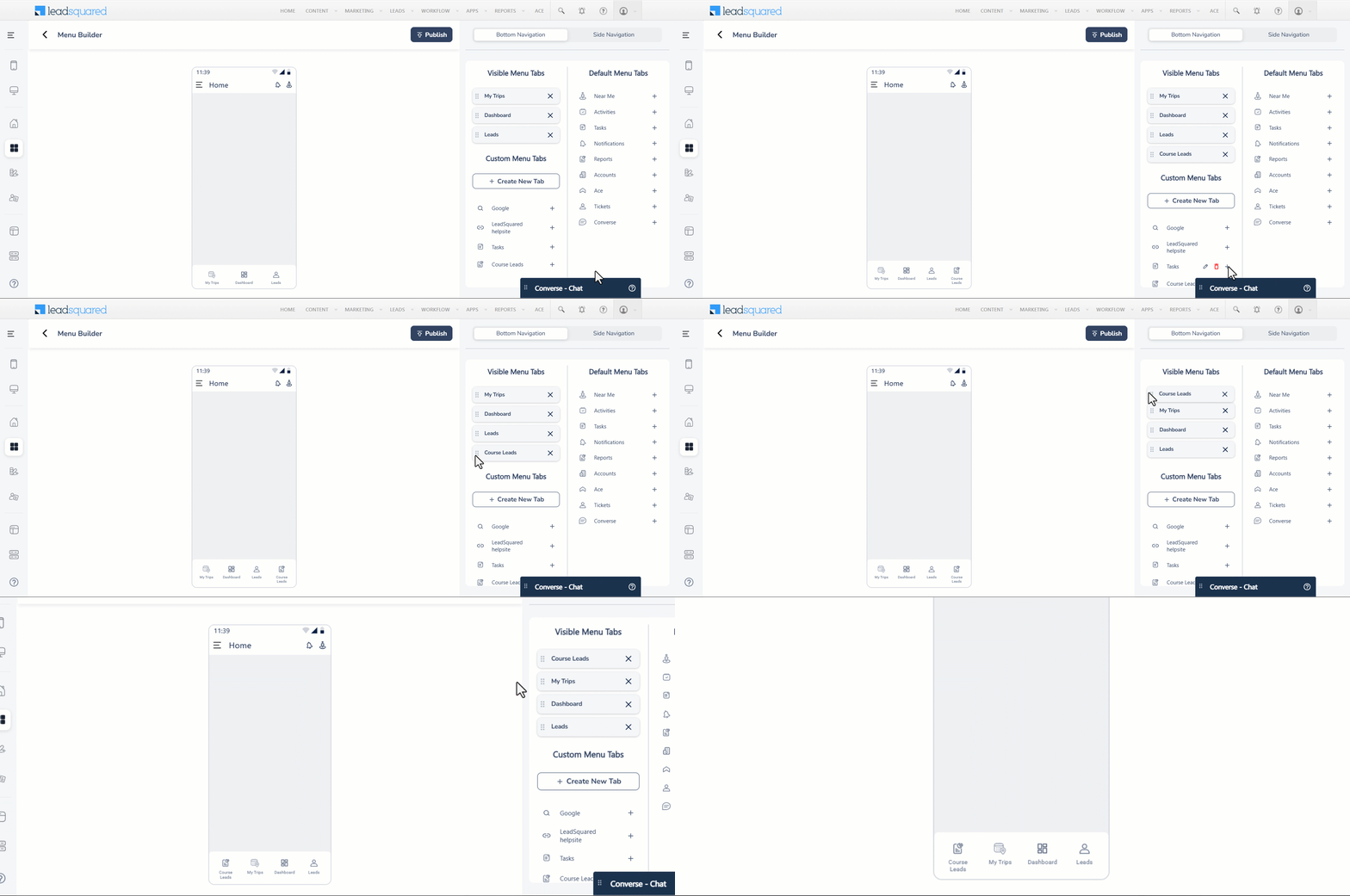
Once the tab is configured –

  1. Click the + plus button alongside the name. The tab will be added to Visible Menu Tabs.
  2. Click and hold the Leadsquared - Set SIERA as Landing Page Move icon alongside the SIERA tab and drag it to the top of the Visible Menu Tabs list. Since the first tab in the list is set as the default landing page, this action will make the SIERA dashboard or report the landing page of your mobile app.

Leadsquared - SIERA as Landing Page


Any Questions?

Do you have questions or issues with the content in this article? Let us know in the comments section below. We’ll get back to you asap!

Lead Automation Actions – Lead Actions

Feature Overview

Here you’ll learn to trigger lead actions through automation.
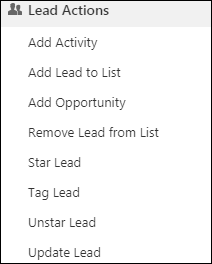
Define criteria and then set up lead actions to automatically execute when that criteria is met –

  • Add Activity
  • Add Lead to List
  • Add Opportunity
  • Remove Lead from List
  • Star Lead
  • Tag Lead
  • Unstar Lead
  • Update Lead

Lead Automation_1


Add Activity

Click Add Activity and the Add Activity pop-up box appears. On this pop-up, you can add custom activities:

Select the required custom activity from the drop-down list.

Note: If your custom activity has any associated custom fields, click Add an Additional Field to add these fields.  You can additionally add mail merge field to the selected activity type.

Once you’re done, click Save. For more information on custom activities, please refer to How to Add a Custom Activity.

Use Dynamic Responses –

You can use dynamic responses from webhooks and Lapps to update lead fields. For more information, see Dynamic Responses in Automation.


Add Lead to List

Click Add Lead to List to add leads to a list, based on the previous set of criteria you’ve chosen.

Once you’ve selected the list to which you’ll be adding the leads, click Save.


Add Opportunity

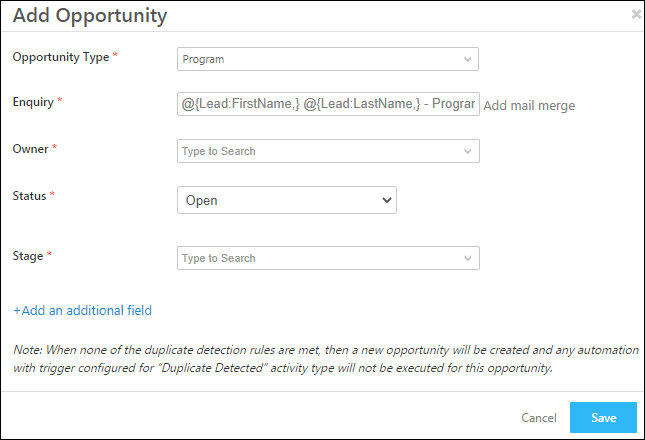
Click Add Opportunity to add an opportunity on the lead.

Lead Automation_3

  • Opportunity Type – The opportunity type you want to add to the lead.
  • Enquiry – The enquiry under the opportunity type. By default, the first name, last name, and program (opportunity type name) are merged to create the enquiry name. You can also add additional mail merge fields.
  • Owner – The opportunity owner.
  • Status – The opportunity status.
  • Stage – The opportunity stage.


Remove Lead from List

Click Remove Lead from List to remove leads from an existing list, based on the previous set of criteria you’ve chosen.

Once you’re done selecting a list, click Save.

Note: To add a list name in the Remove Lead from List card or in the Add Lead to List card, you must first create a list from the Manage Lists page.


Star Lead

Star Lead allows you to highlight and discover leads seamlessly. For more information, refer to ‘Star’ your Leads.


Tag Lead

Tagging is a quick way to add a label to a lead for easy identification of leads. To automate adding tags to your leads, click Tag Lead, and on the pop-up, add relevant tags. For more information on Tags, refer to Tag your Leads.


Unstar Lead

Allows you to unstar or unmark a lead as important. For more information on this, refer to ‘Star’ your Leads.


Update Lead

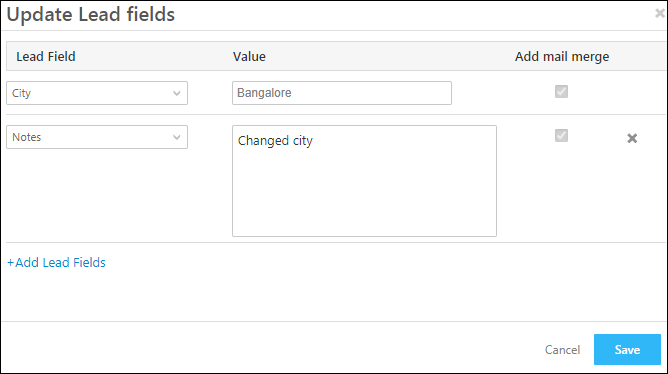
Allows you to update an existing lead, by changing the lead field values, if required. To do this, click Update Lead, and update the required lead fields in the pop-up.

Lead Automation_2

In the above image, the ‘City’ lead field is updated to Bangalore, and the ‘Notes’ field is also updated. These lead fields are updated with these specific values if the lead satisfies the criteria you have specified.

Set Activity Owner as Lead Owner – 

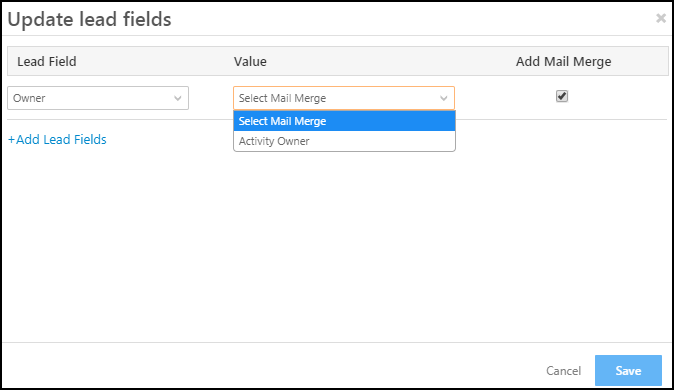
You can set the activity owner as the lead owner. This is only possible when the trigger is New Activity on a Lead or Activity Update on a Lead. To do this all you have to do is select the Lead Field as Owner, click the Mail Merge checkbox and then select Activity Owner as under Value.

Note: If you use mail merge tags in the Update Lead card within an automation, the tag is always replaced with the latest available value of the field at the time the automation runs. When multiple automations update the same field (for example, Lead Status), the value set by the most recently executed automation will override earlier updates.

set lead owner as activity owner

Use Dynamic Responses –

You can use dynamic responses from webhooks and Lapps to update lead fields. For more information, see Dynamic Responses in Automation.


Update Activity

If you have selected an activity-based trigger (New activity on lead or Activity update on lead), you an additional lead action, Update Activity, will appear under the lead actions menu.

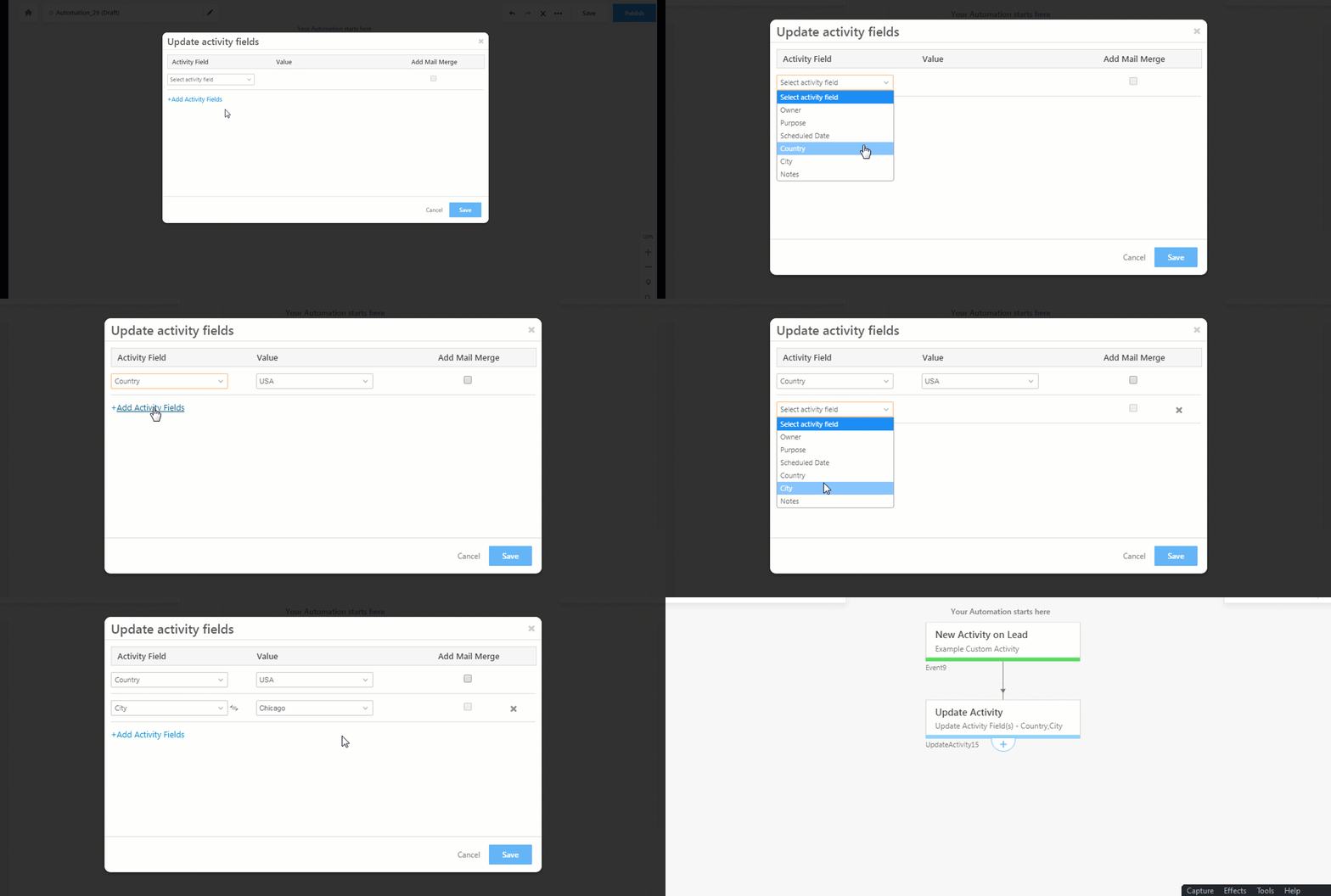
This functionality lets you automatically update any field created under that activity. Let’s say you triggered your automation with a ‘New Activity on Lead’ and set that new activity as a ‘Meeting’. You can now use the Update Activity option to automatically update any fields created under the meeting activity. Say you want to update the ‘Notes’ field of the meeting to say ‘Done with Meeting’, just click the Update Activity option, select the ‘Notes’ field and add the value ‘Done with Meeting’. You can also add additional activity fields using the Add Activity Fields link highlighted below.

Click Save. Every time there is a meeting with a lead, the notes field of the meeting will automatically be populated with the value ‘Done with Meeting’.

Use Dynamic Responses –

You can use dynamic responses from webhooks and Lapps to update lead fields. For more information, see Dynamic Responses in Automation.

Updating Dependent Fields –

The update activity action also supports dependent fields. So if you’ve created dependent fields through the Custom Scores and Activities page they’ll show up in the Update Activity action card. Here’s how you do it –

  1. Select the parent field from the Activity Field drop-down and select its value.
  2. Click the Add Activity Fields link.
  3. Select the child field and its value. The child field will only show values based on what you’ve chosen for the parent field due to the dependency.
  4. Click Save.

Updating Activity Fields


Numerical Calculations on Lead and Activity Fields

Update Lead, Add Activity and Update Activity actions now supports Numeric Calculations.
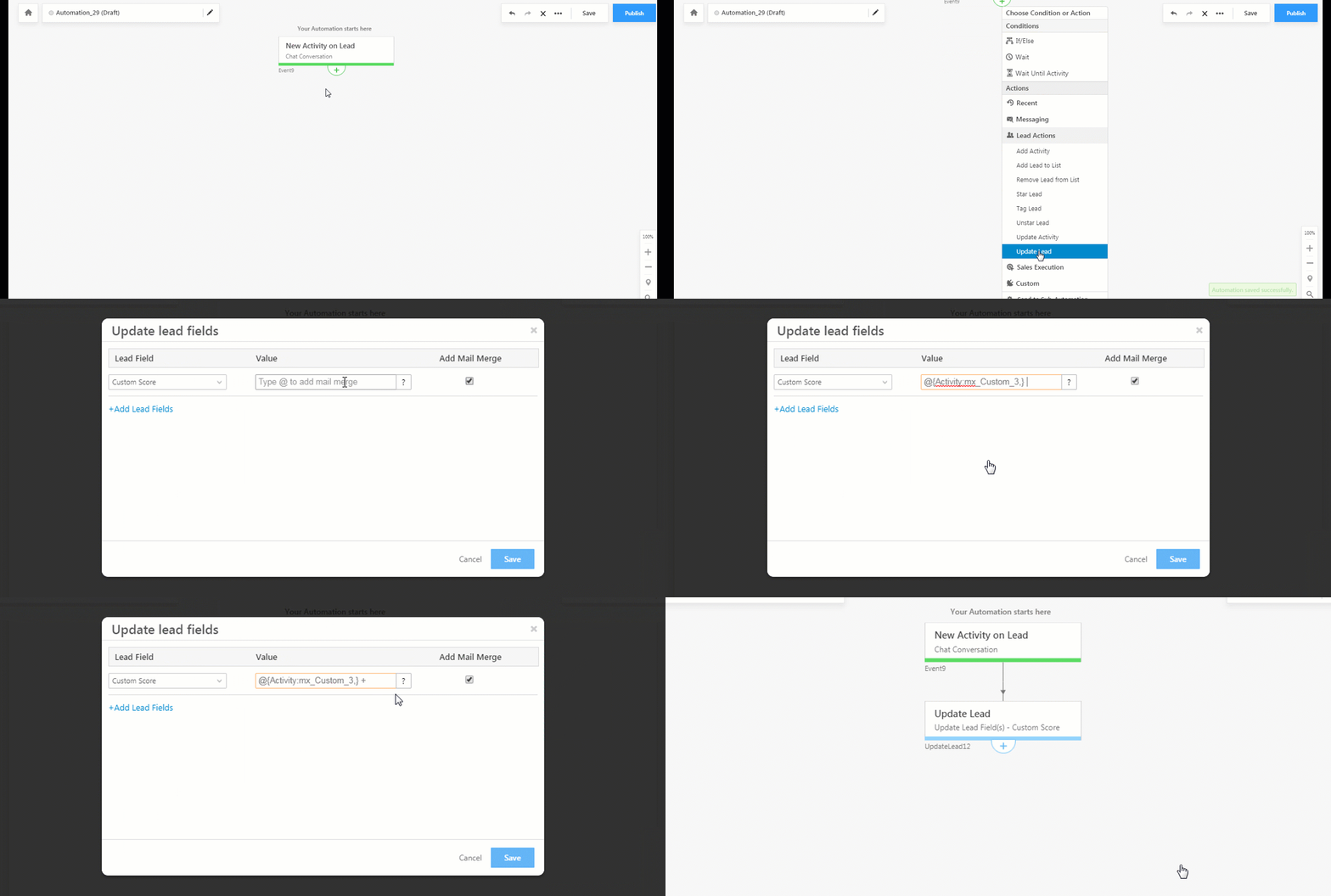
For example, if you maintain some numeric field like a custom score outside LeadSquared and you want to update that score based on LeadSquared attributes then here’s how you can do it –

  1. In the Update Lead, Add Activity or Update Activity action cards select the lead field (e.g., custom score) you want to update through a numeric calculation.
  2. Click the checkbox under the Add Mail Merge column.
  3. Type @ and select the lead and activity fields you want to perform numeric calculations on. Click the icon to see the possible numerical operators you can use.
  4. Click Save.

Note: The automation trigger must be New Activity on a Lead or Activity Update on a Lead. If you want to perform a numerical calculation involving an activity field,

  • The activity must be part of the automation trigger.
  • The activity field you want to perform numerical operations on must be of numerical type.

Numerical calculations in add, update activity and update lead

In the example, we’re updating the value of the lead field ‘Custom Score’ to @{Activity:mx_Custom_3,}  + @{Lead:EngagementScore,}


Troubleshooting

1. Lead Field Displays UTC Time Instead of Default Time Zone

  • Issue: When using Mail Merge on Lead fields (Date Type) via the Automation Update Lead card, the displayed time in the Lead field is shown in UTC instead of the Default time zone set in the user profile.
  • Cause: The automation process passes all date and time values in UTC by default, and then converts them based on the Default time zone set up in the user profile. However, if the lead field is not configured as “Date Time” in the “Show as” field, the time zone is not converted from UTC to the user’s time zone.
  • Solution:
    To resolve this issue, change the Lead field’s configuration from “Date” to “Date Time” in the “Show as” field. Save the changes to ensure proper time-zone conversion.

This adjustment will ensure that the displayed times align with the user’s Default time zone settings.


Any Questions?

Did you find this article helpful? Please let us know any feedback you may have in the comments section below. We’d love to hear from you and help you out!

Lead Automation Actions – Messaging

1. Feature Overview

Automate the entire process of contacting your leads!
Send emails and SMS to leads at the opportune moment. For example,

  • Send a warm welcome message when a lead signs up on your website.
  • A nurturing email to engage a lead who visited a pricing page.
  • A thank you note after you’ve made a sale.
  • Send an automated email on special occasions/holidays.
  • And lots more…

LeadSquared Messaging Automation


2. Send Email

This allows you to send emails to leads based on the condition satisfied.

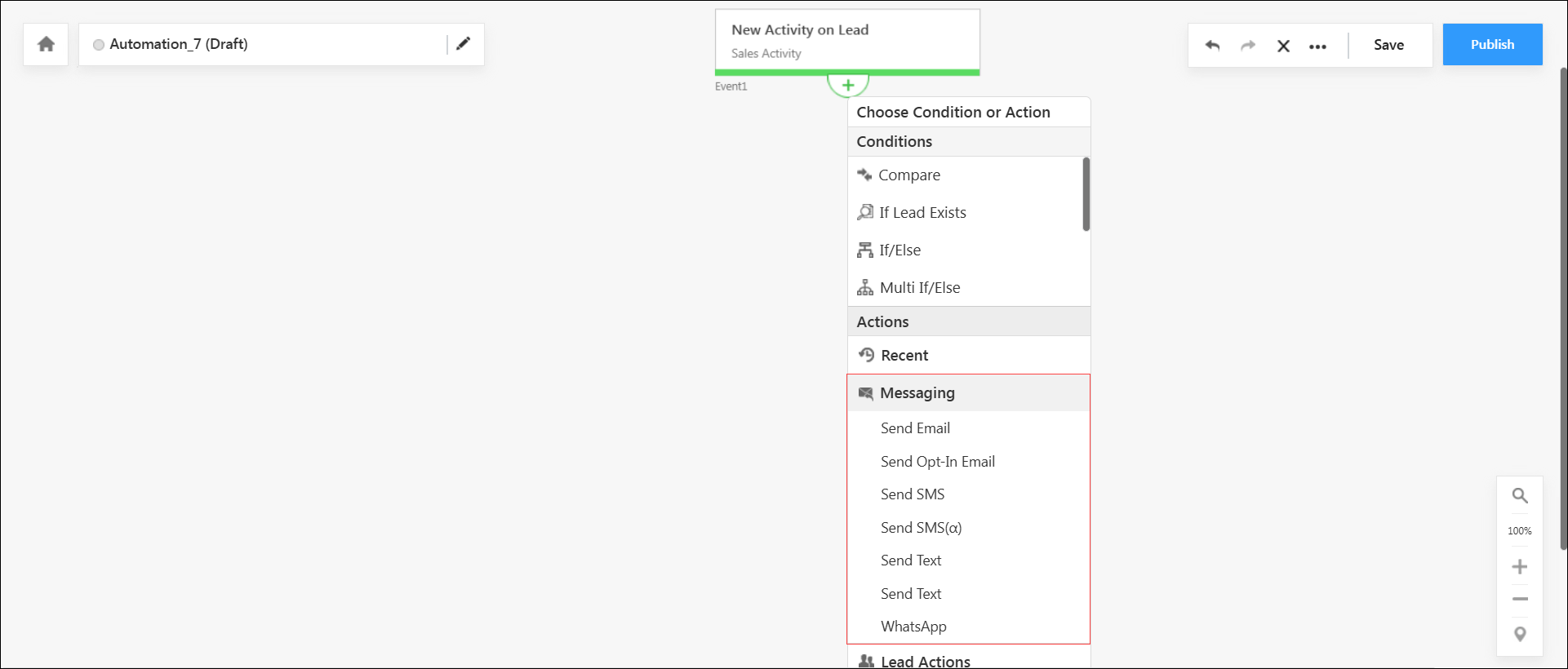
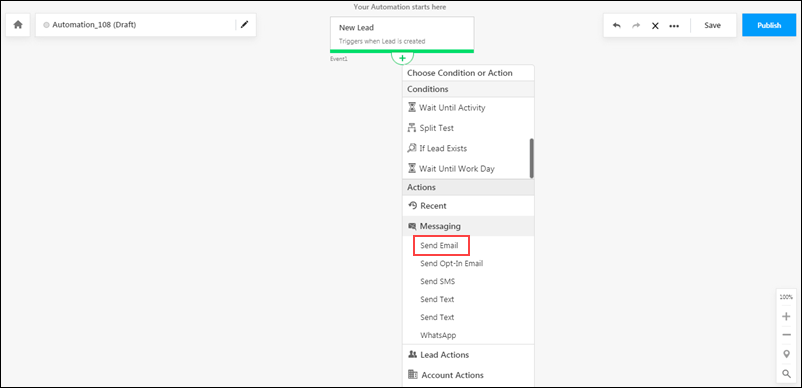
  1. After clicking the Add expand icon on the previous card, under Actions, click Messaging, then click Send Email.
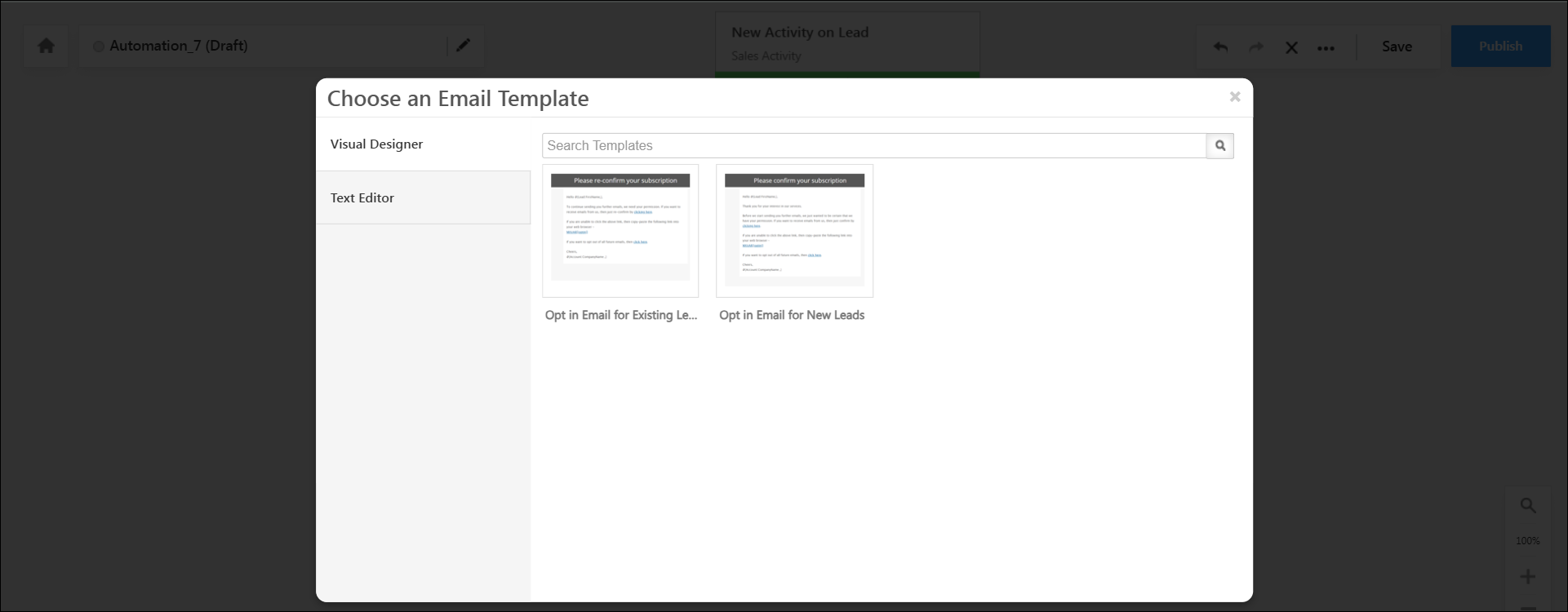
  2. On the Choose an Email Template pop-up box, select an existing email template or create a new one.

Email template select

You’ll be directed back to the automation page and the send email action will be visible.


3. Send Opt-in Email

Email Opt-in settings help protect your lead’s privacy rights. By combining these settings with the email opt-in automation action, enable leads to choose whether or not they want to receive emails from your organization. To know more, refer to Data Protection and Privacy Settings.

LeadSquared Messaging Automation


4. Send SMS

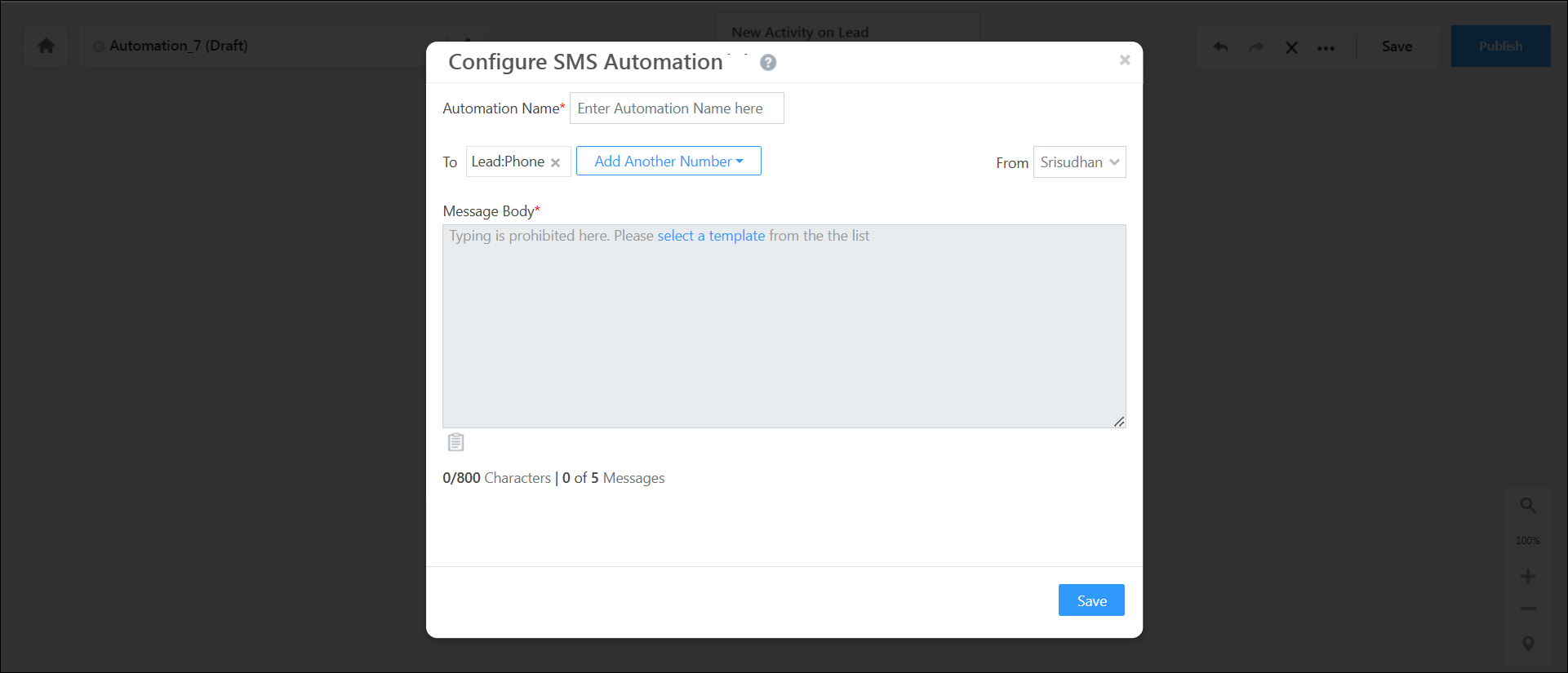
Sending SMS through automation required you to first install and configure an SMS connector. See How to Send SMS using Automation, for all the details.

LeadSquared Messaging Automation


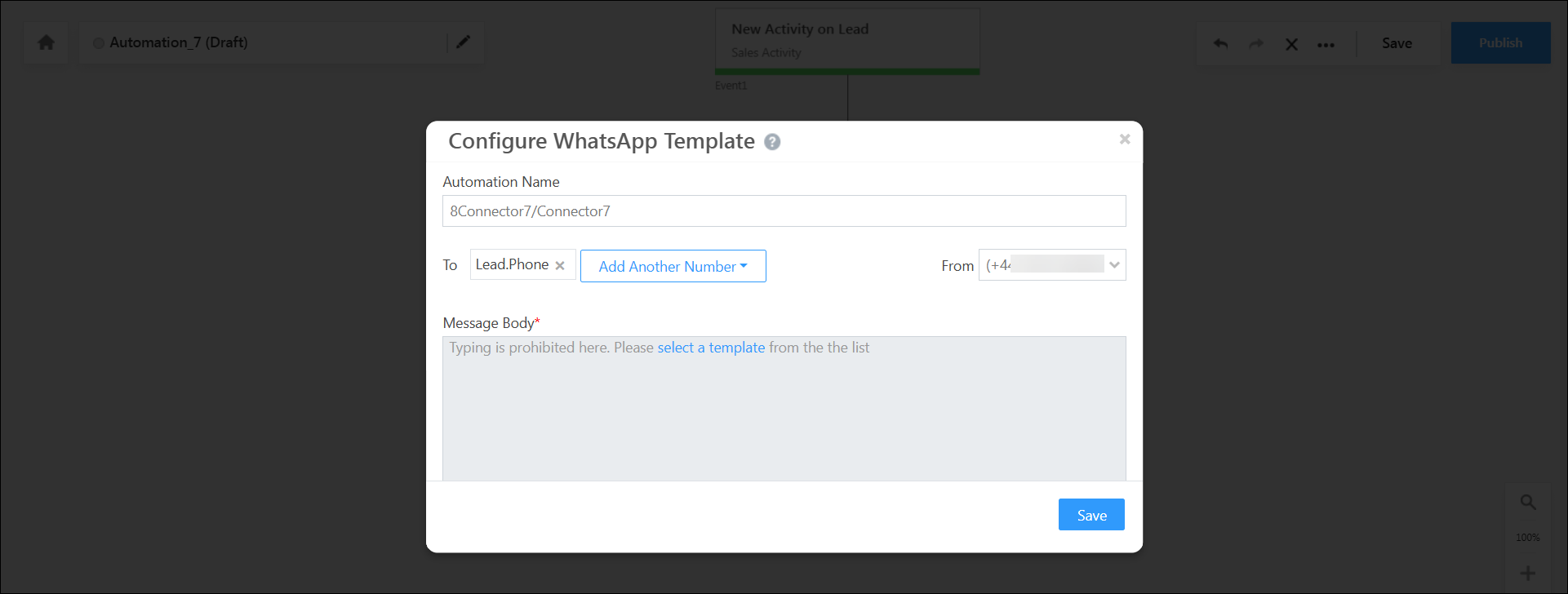
5. WhatsApp

To send automated WhatsApp messages to your leads, refer to Send WhatsApp messages using Automations.

LeadSquared Messaging Automation


6. Troubleshooting

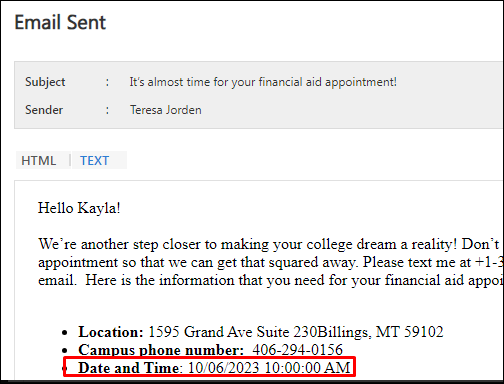
Issue: Appointment times vary between text reminders and email reminders for users in different time zones.

Example:

Text Reminder

Automation Troubleshooting

Email Reminder

Automation Troubleshooting

Root Cause:
This discrepancy occurs due to expected platform behaviour:

  • Email Reminders: The “Send Email” card loads the appointment or DateTime values statically based on the company’s time zone set in the “Company Profile” settings. As a result, email reminders reflect the time according to the company’s time zone.
  • Text Reminders: The “Send Text” card dynamically pulls data from the LeadSquared database. The DateTime values are updated based on the user’s time zone, as the telephony connector maps the DateTime according to user-specific data.

Solution:
Enable the ‘Enable Automation Mail Merge as per ‘From’ User’s Time Zone in Email Cards’ advanced configuration settings shown below. If you can’t find the setting, contact us at support@leadsquared.com.

LeadSquared Automation Troubleshooting


Any Questions?

Was this article helpful? Leave us a comment and let us know.

Publisher Connector & Publisher Portal

1. Feature Overview

Education institutions and publishers can use LeadSquared to maintain transparency on lead delivery and track leads in real-time. There are two features available –

  • The Publisher Connector gives education institutions a dashboard to view and compare the performance of different publishers.
  • The Publisher Portal helps publishers analyze the outcomes and real-time statuses of leads delivered to different educational institutions.


2. Publisher Connector

If you’re an educational institution with a LeadSquared account, you can download the Publisher Connector from the Apps Marketplace. You’ll get access to a similar dashboard where you can monitor the performance of your associated publishers –

LeadSquared's Publisher Portal


2.1 Prerequisites

  • This feature isn’t available by default. To enable it, please reach out to your account manager, or write to publisher.support@leadsquared.com.
  • You must be the administrator of your LeadSquared account to install and configure this connector.
  • The Publisher Connector will work as intended when colleges use student portals powered by LeadSquared. To know more, please refer to Portal Management – Feature Guide.
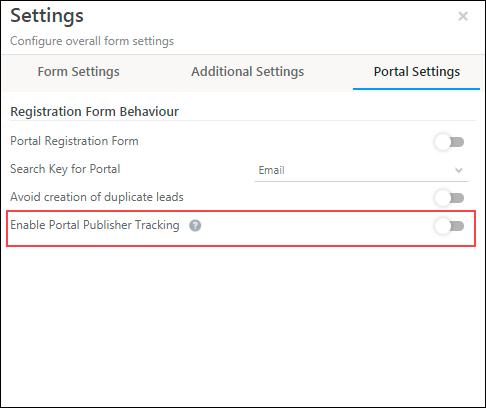
  • You can enable the Enable Portal Publisher Tracking setting to track the applicant’s journey. This step is optional. To enable this –
    1. Navigate to Workflow>Manage Forms.
    2. You can build a new form from scratch, or edit an existing form.
    3. On the Forms Designer, click theSettings iconicon to open the settings menu.
    4. Here, enable the Enable Portal Publisher Tracking setting.

LeadSquared's Publisher Portal


2.2 Installation

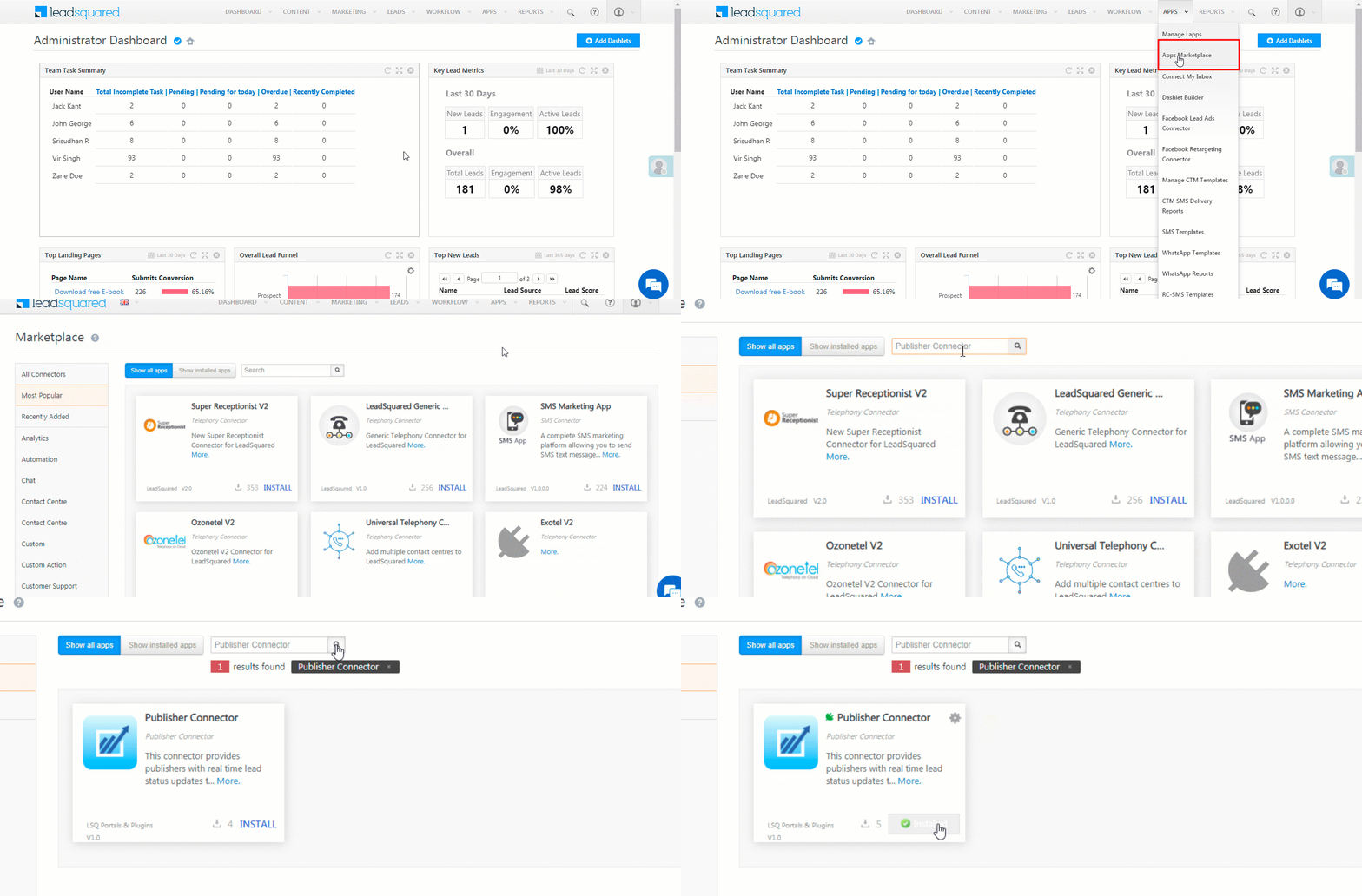
  1. From the main menu, navigate to Apps>Apps Marketplace.
  2. Search for Publisher Connector, and click Install.
    • Alternatively, you can find the connector on the left panel, under Publisher.

LeadSquared Publisher Portal


2.3 Configuration

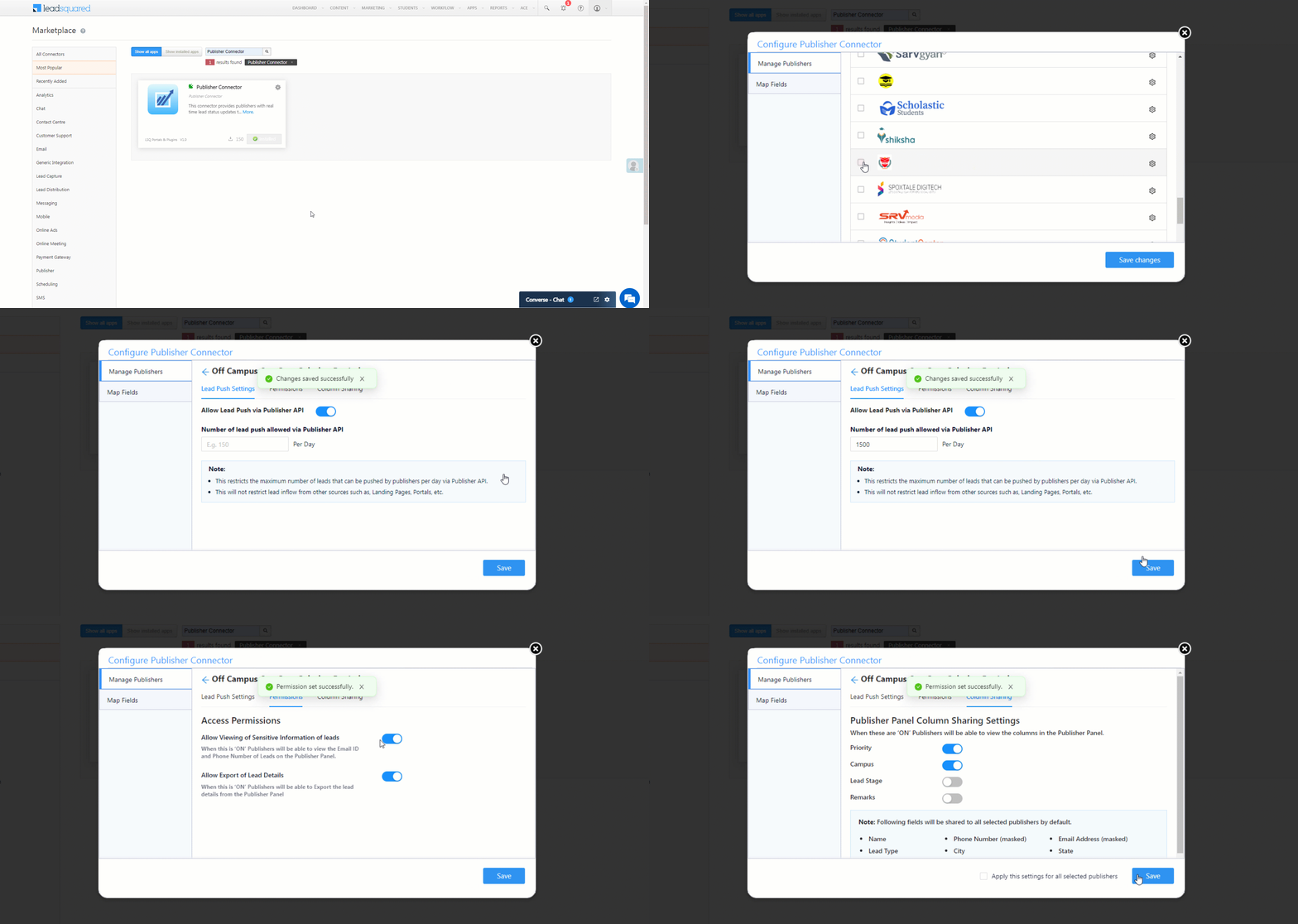
Once the connector is installed, hover your cursor over , and click Configure.

Manage Publishers

  1. On the Configure Publisher Connector pop-up, from the list of available publishers, Select Publishers who can access and push lead data to your account.
  2. Alongside the publishers you’ve selected, to configure lead limits and permissions, click LeadSquared Publisher Portal. This step is optional.
    • Lead Push Settings – To Allow Lead Push via Publisher API, enable the Slider slider. Once enabled*, publishers can send leads using the Publisher API.
      • If the slider is enabled, you can set limits on the maximum number of leads publishers can send in a day through the Publisher API. If you choose to leave the field empty, then no limits are set on the number of leads the publisher can push. Once you enter the lead limit, click Save.
    • Permissions – Configure the following permissions –
      • Allow Viewing of Sensitive Information of leads – To allow your publishers to view your lead’s email Id and phone number lead fields, enable the Slider slider.
      • Allow Export of Lead Details – To allow your publishers to export leads out of the Publisher Portal, enable the Slider slider.
      • Once you’re done, click Save.
    • Column Sharing – To allow your publishers to view the following lead columns on the Publisher Portal, alongside the relevant column, enable the Slider slider –
      • Priority
      • Campus
      • Lead Stage
      • Remarks
      • To Apply this settings for all selected publishers, enable the Checkbox checkbox.
      • Once you’re done, click Save.

Note:

  • *When this setting is disabled, publishers will not be able to push leads through the Publisher API.
  • The Allow Lead Push via Publisher API setting does not affect leads that are sent through other sources (such as Landing Pages, LeadSquared Portals, etc.).
  • Based on your LeadSquared plan, there are rate limits imposed on the number of API calls you can make. To know more, refer to LeadSquared Rate Limits.
  • It’ll take 24-hours for the lead limit on the Publisher API to become live.

LeadSquared's Publisher Portal


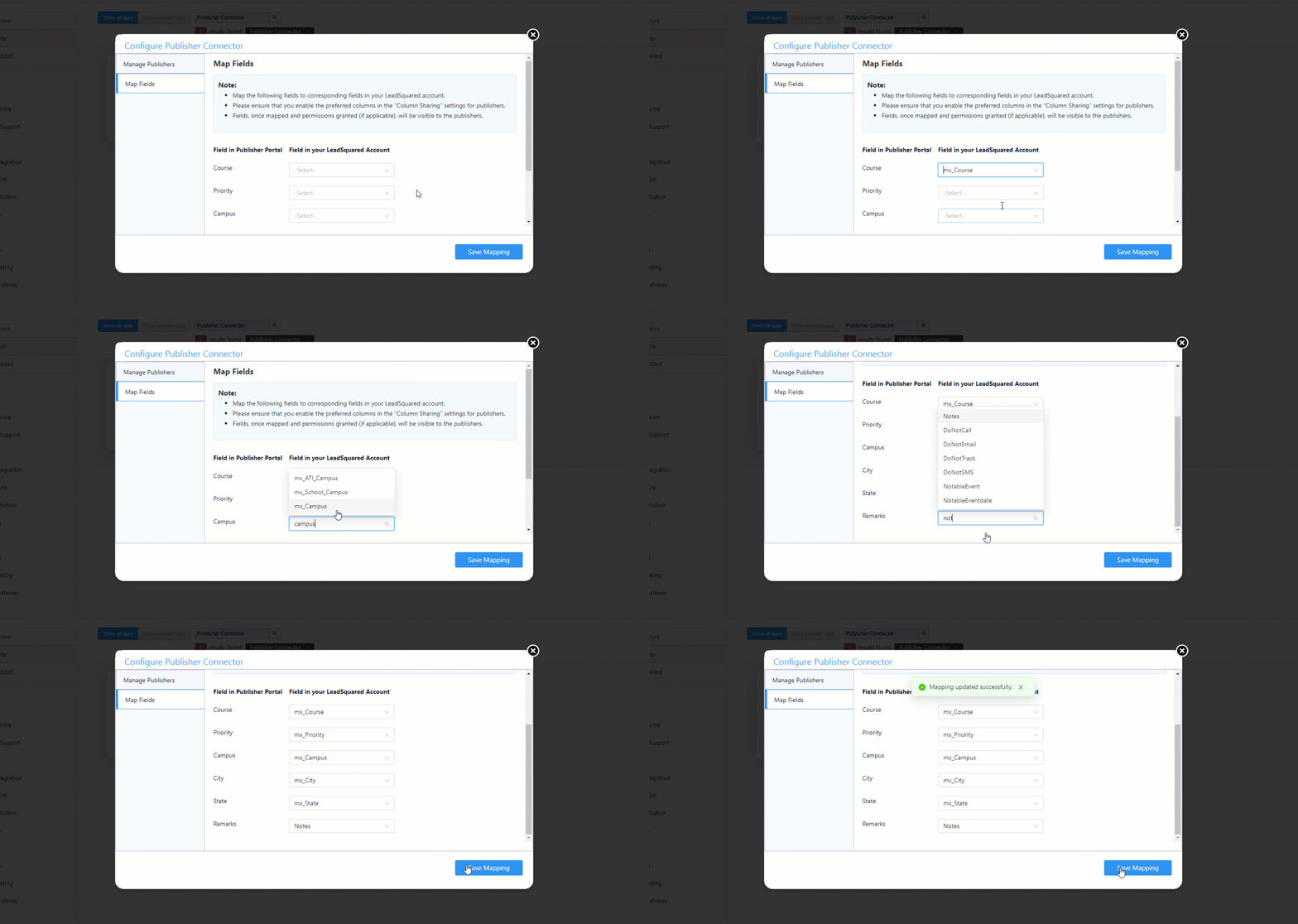
Map Fields

  1. After you select the publishers, navigate to the Map Fields tab. Here, to capture a lead’s Cours, Priority, Campus, City, State and Remarks fields, map these to the corresponding LeadSquared lead fields. If a corresponding field doesn’t exist in your LeadSquared account, we’d recommend you Create a Custom Lead Field to capture this information.
  2. Once you’re done, click Save Mapping.
  3. No further action is required from your end. You can now track the lead data pushed by your publishers.

LeadSquared's Publisher Portal


2.4 View Lead Data

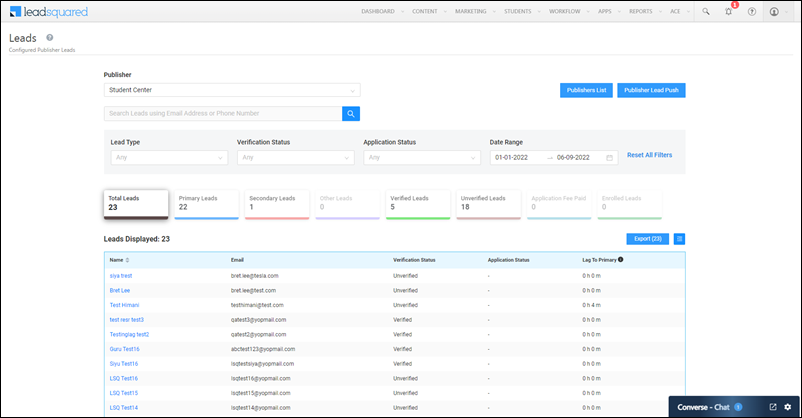
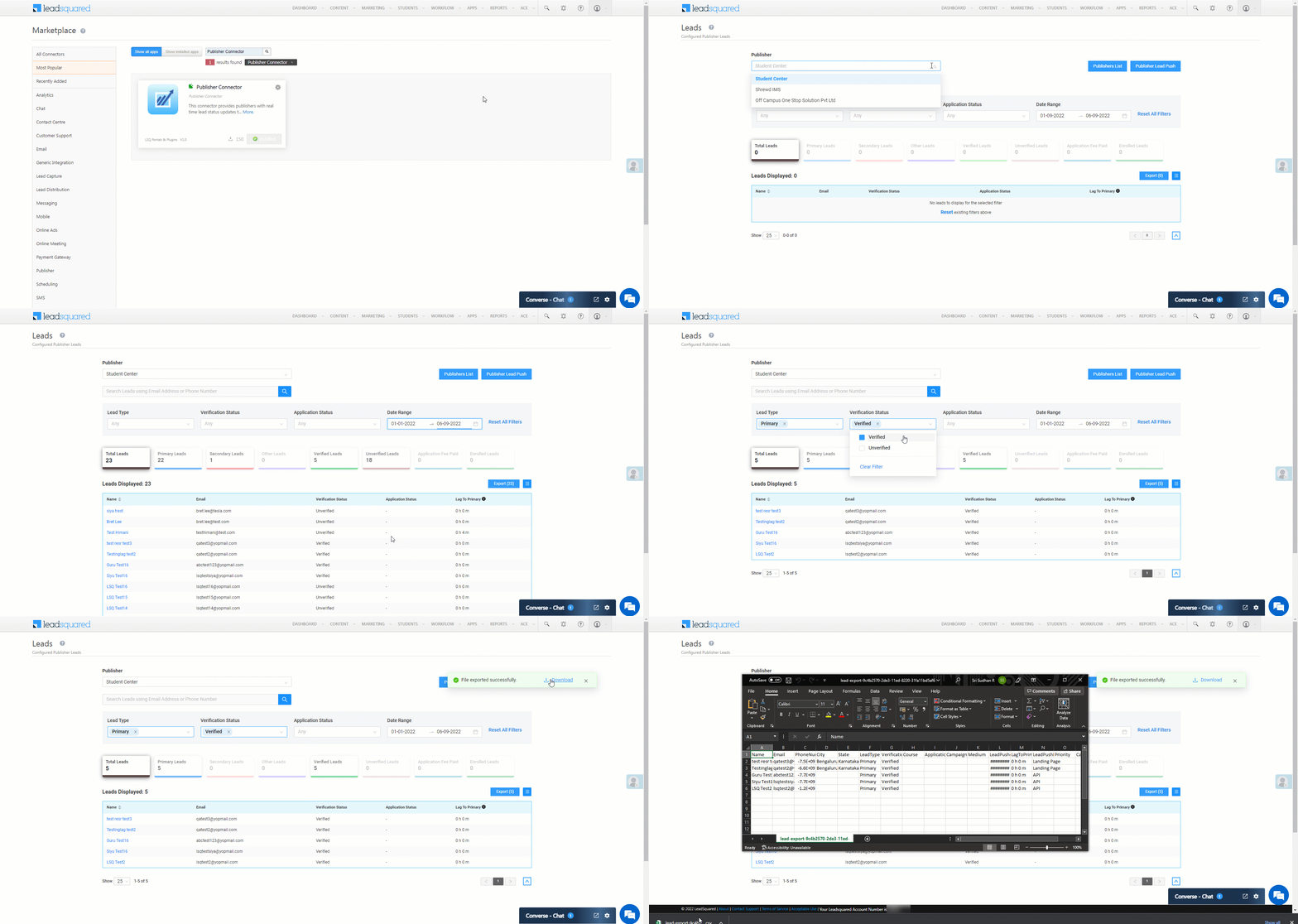
Once you’ve installed and configured the connector, you can now view the leads pushed by each publisher. To view the lead data, navigate to Apps>Publisher Leads.

On this page, you can perform the following actions –

  • Publisher – Select the publisher whose data you want to view, from where the leads have been pushed.
  • Lead Type – Filter by the lead type that’s been pushed to your account (Primary, Secondary, or Others).
  • Verification Status – Filter by the verification status (Verified, Not Verified) of the leads that have been pushed to your account.
  • Application Status – Filter by the lead’s student application status (Application Initiated, Enrolled, etc.) on your portal.
  • Date Range – Filter by the date range for which you want to view the lead data. By default, the last 30-days are displayed.
  • Export Leads – To export the leads as a CSV file, click Export Leads, and once the file is rendered, click Download.

LeadSquared's Publisher Portal

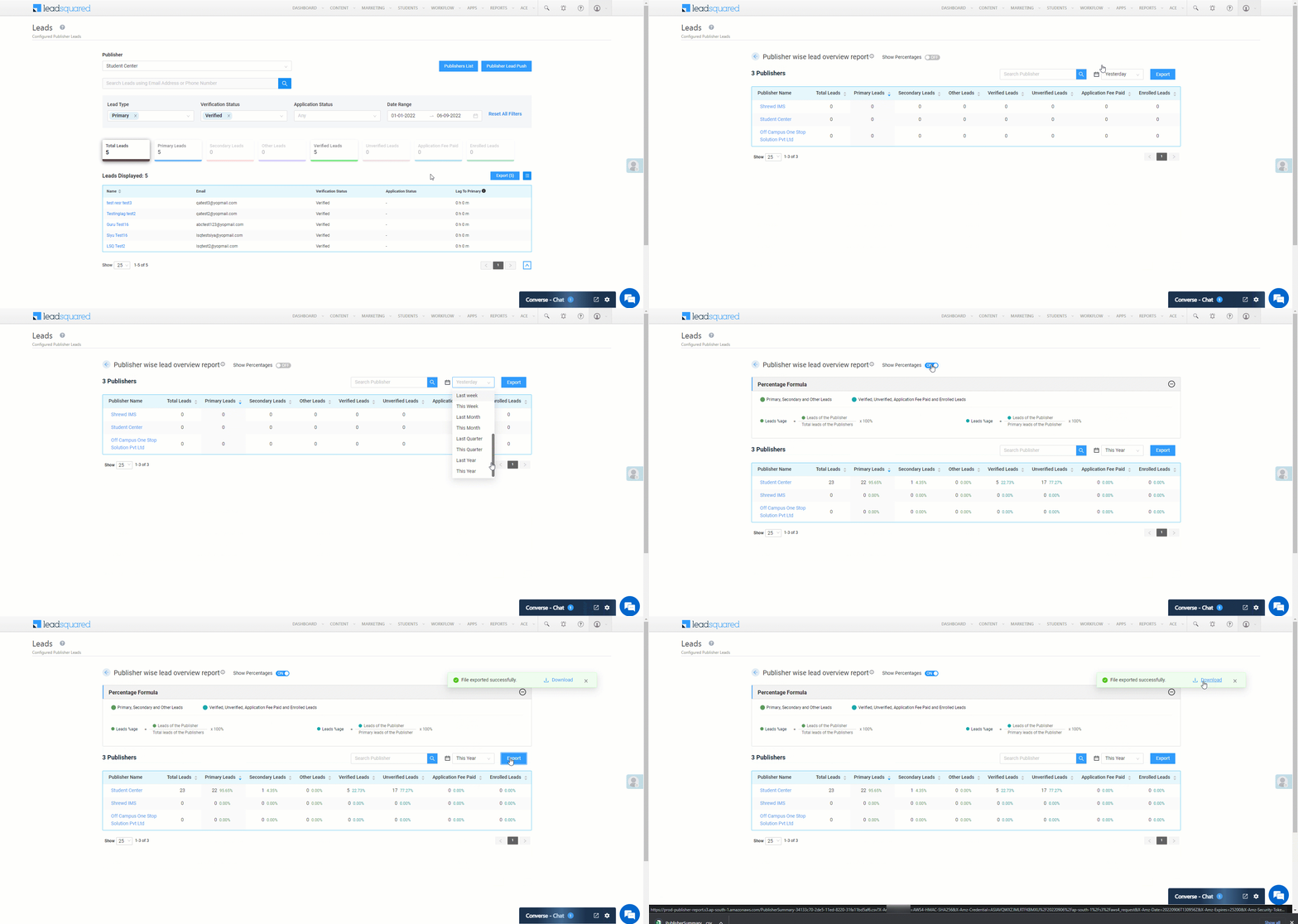
Publisher List – Click here to view a report that displays the total number of leads sent by each publisher.

  • To render the numbers as a percentage, alongside Show Percentages, enable the Slider slider.
  • To change the time frame of the list, use the date interval dropdown present alongside Export.
  • To export the list as a CSV file out of LeadSquared, click Export, and once the file is rendered, click Download.

LeadSquared's Publisher Portal


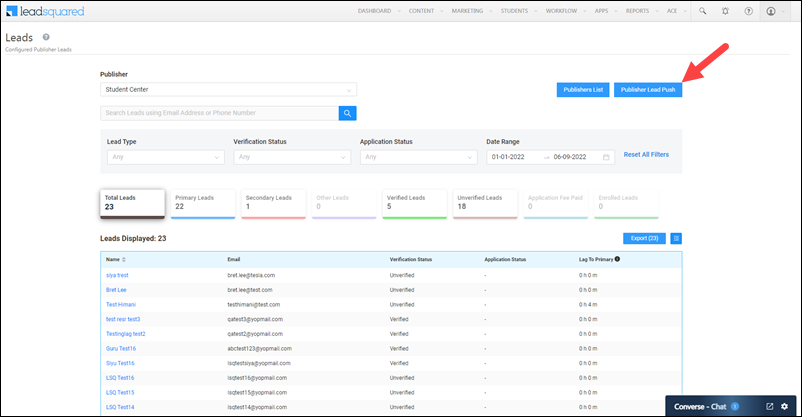
Publisher Lead Push

To share the API details with your publishers on how to push leads, click the Publisher Lead Push button.

LeadSquared's Publisher Portal

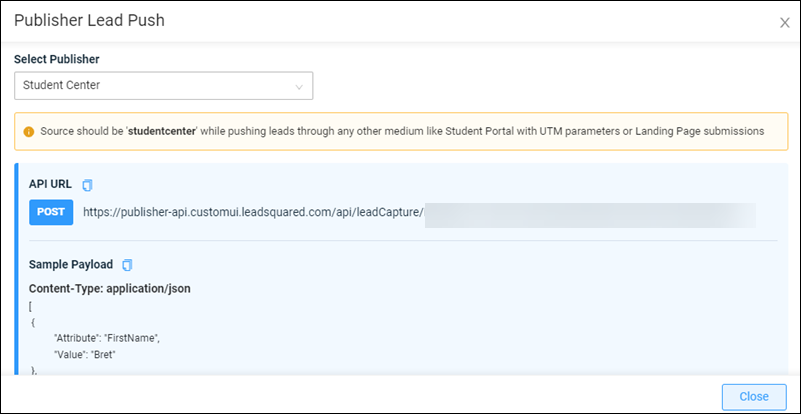
The API details will appear on the pop-up. From the drop-down, select the publisher with whom you want to share the API details. The API URL will change accordingly. Copy the URL and share it with your publisher.

LeadSquared's Publisher Portal


3. Publisher Portal

If you’re a publisher, you can log in to the portal using the URL and credentials provided to you. For more details, contact your account manager or write to publisher.support@leadsquared.com.

Note: Publishers must use the Publisher API, not the Lead Capture API to push leads to education institutes.

3.1 Push Leads

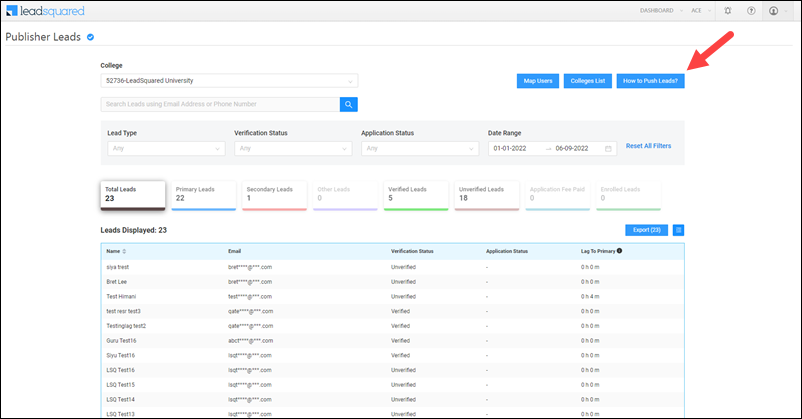
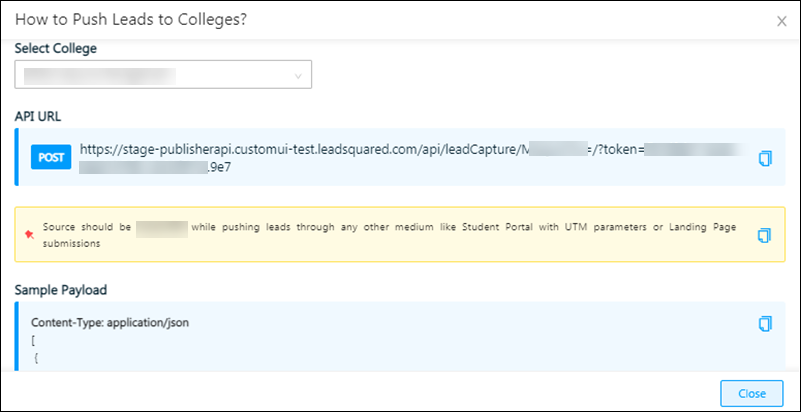
For details on how to push leads to the education institution, click the How to Push Leads button.

LeadSquared's Publisher Portal

The API details will appear on the pop-up. From the drop-down, select the education institution to push leads to. The API URL will change accordingly. Copy the URL and ensure that the POST HTTP method is used while calling the URL from your system/application.

push leads to colleges from publisher

Note: If you’re pushing leads to an educational institution from another medium, such as a student portal or landing page, you must use the source value provided in the pop-up. This ensures you can track leads correctly.

In the JSON payload, pass the lead details of the leads as attribute-value pairs, where –

  • Attribute – Schema name of the Lead field. To get the Schema name for all Lead fields, use the LeadsMetaData API.
  • Value – Value assigned to the given attribute.


3.2 View Lead Data

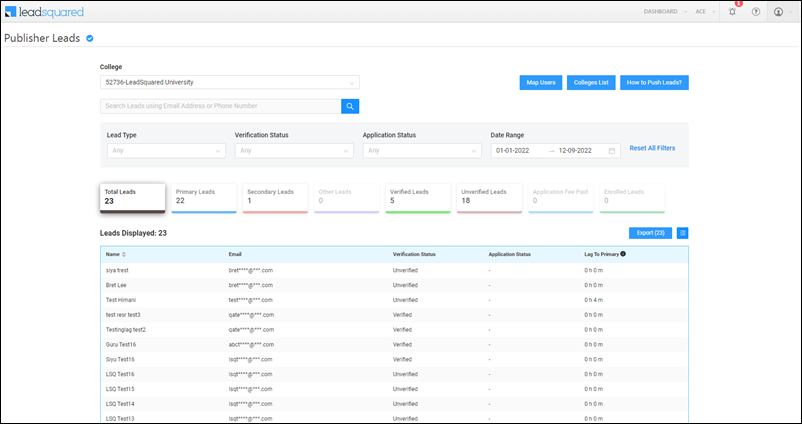
Once you’ve installed and configured the connector, on the dashboard, you can now view the lead data that’s captured. On this page, you can apply the following filters when viewing your leads –

  • College – Select the education institute to which the lead data has been pushed.
  • Lead Type – The lead type that’s been pushed to the college (Primary, Secondary, or Others).
  • Verification Status – The verification status (Verified, Not Verified) of the leads that have been pushed to a college.
  • Application Status – The lead’s current application status (Application Initiated, Enrolled, etc.).
  • Date Range – The date range for which you want to view the lead data. By default, the last 30-days are displayed.

LeadSquared Publisher Portal


3.3 Export Lead Data

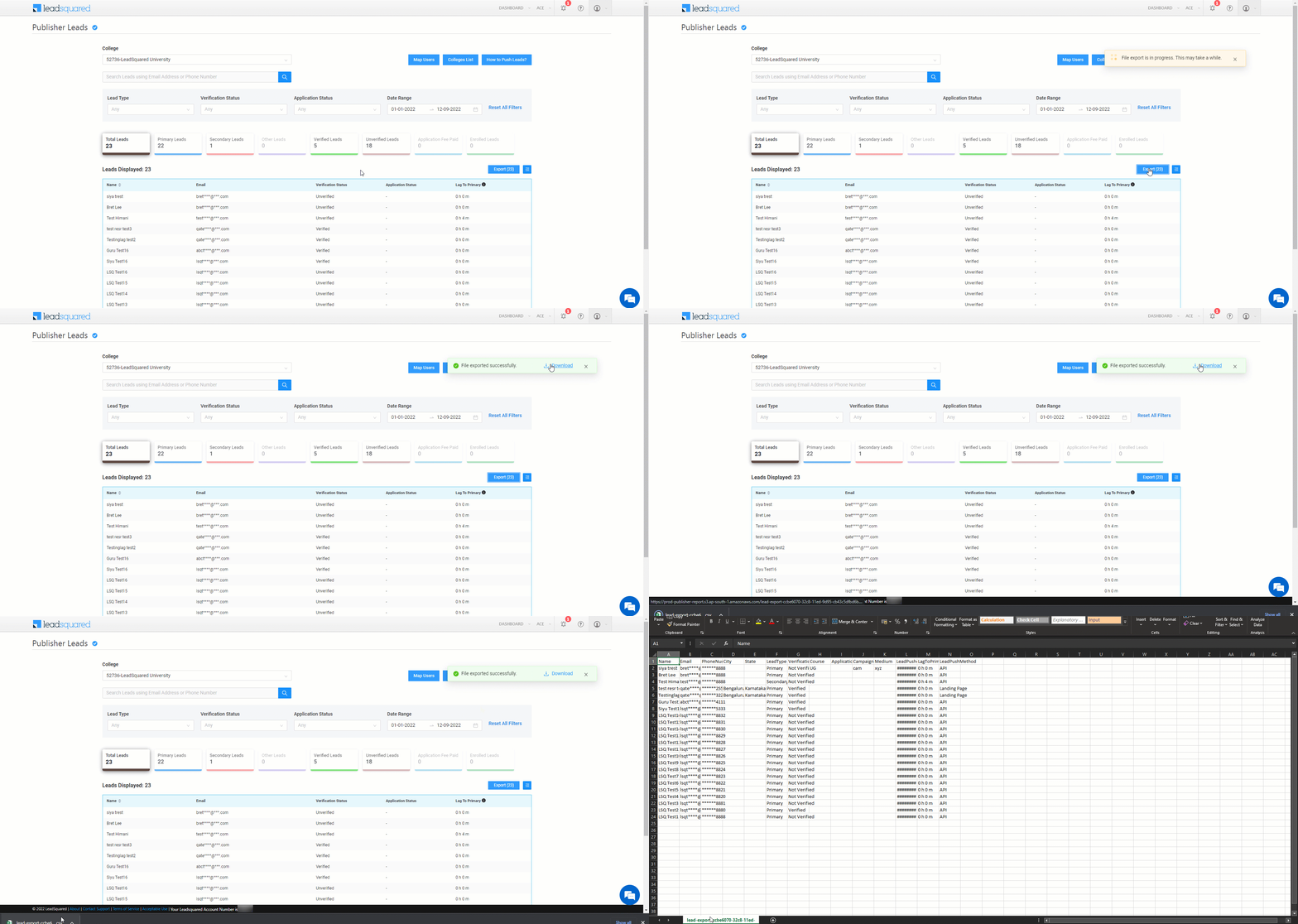
To export lead data, click the Export button, and once the export file is ready, click Download.

LeadSquared Publisher Portal


3.4 Map Users

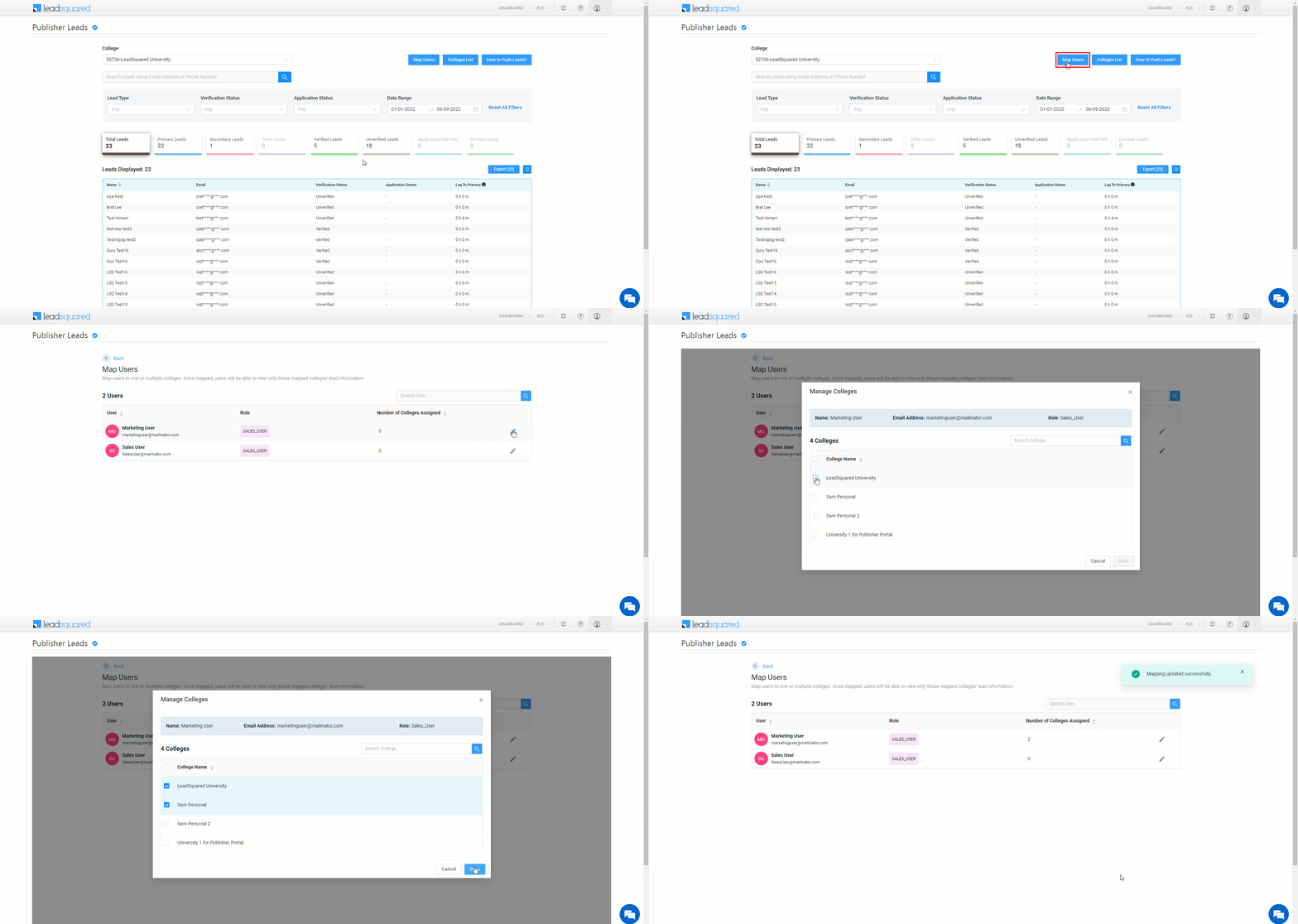
By default, only Admin users can view and access the Publisher Portal. Through the Map Users setting, Admins can give permissions to other user roles to view the student data pertaining to specific colleges in the Publisher Portal. To do this –

  1. Click the Map Users button.
  2. Alongside the user you want to whom you want to give permission to view the Publisher Portal, click LeadSquared's Publisher Portal.
  3. From the list of colleges, select the colleges for which you want to give the view permission.
  4. Once you’re done, click Save.

LeadSquared's Publisher Portal


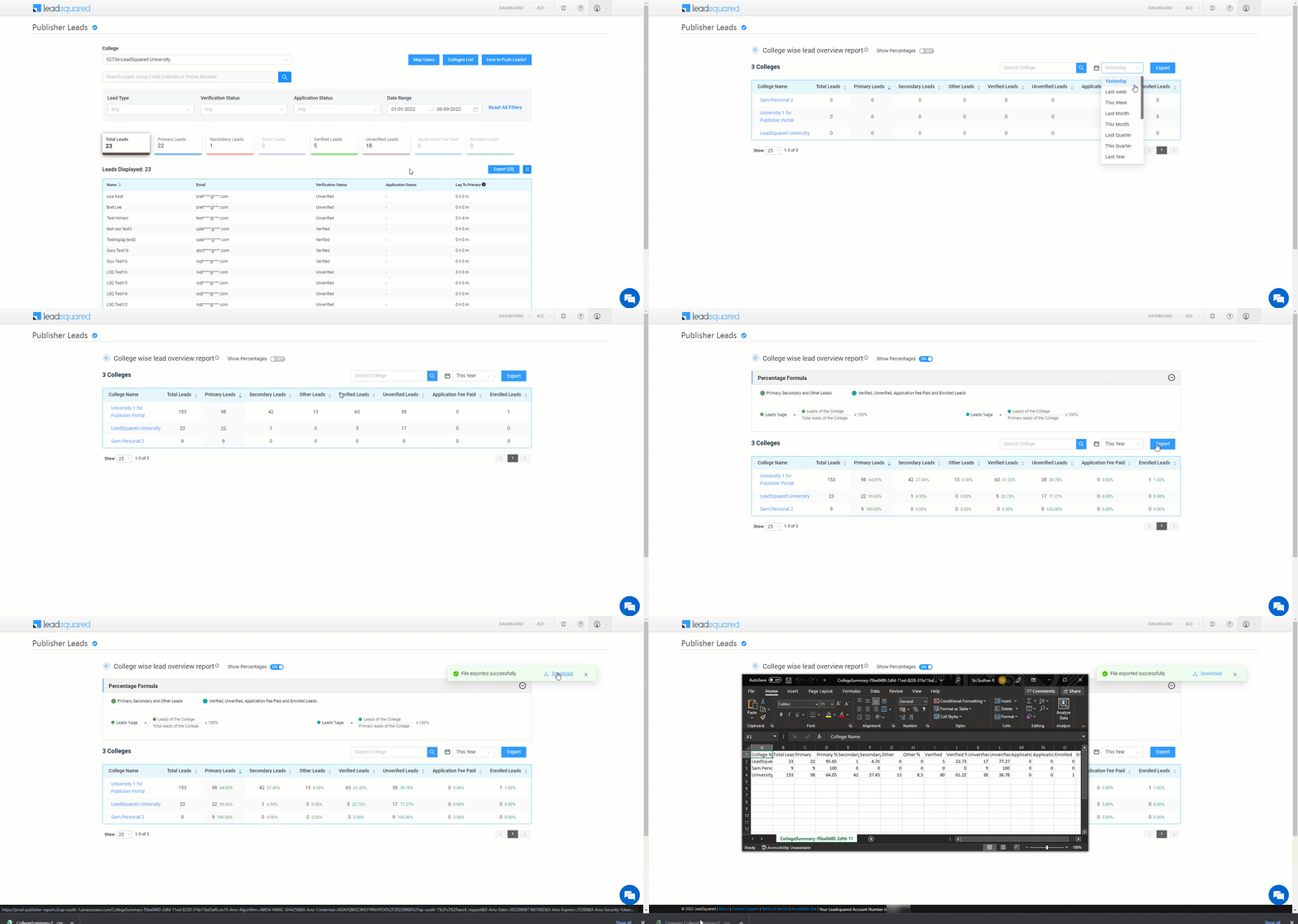
3.5 College Lists

To view the report that displays the total number of leads sent to each college, click the Colleges List button.

  • To render the numbers as a percentage, alongside Show Percentages, enable the Slider slider.
  • To change the time frame of the list, use the date interval dropdown present alongside Export.
  • To export the list as a CSV file out of LeadSquared, click Export, and once the file is rendered, click Download.

LeadSquared's Publisher Portal


Any Questions?

Did you find this article helpful? Please let us know any feedback you may have in the comments section below. We’d love to hear from you and help you out!

Distance Travelled Report

Note: The Distance Travelled Connector has been deprecated and replaced by the Distance Travelled Report documented here.

1. Feature Overview

Track and monitor the distance travelled (in kilometres or miles) by your field sales users on any particular day. The distance travelled is calculated based on the check-in/check-out activities, and location coordinates identified by the LeadSquared Mobile App. Admins and Sales Managers can also apply filters on the report and export data.


2. Prerequisites

  • You must have the LeadSquared Mobile app installed on your device, and location permission access must be enabled. To know more, please refer to Location Tracking on LeadSquared Mobile.
  • Enable Location Insights on your account. To do so, contact your account manager or write to us at support@leadsquared.com.
  •  Admins must enable location tracking permissions for their users. To do so, navigate to Settings>Mobile App>Permissions. Under Location Tracking, enable all the permissions.
  •  Enable user check-in in your account for location tracking and distance calculation. To do so, navigate to Settings>Users and Permissions>User Check-in and enable the Show check-in widget to web users setting.
  •  All mobile users must Check-In/Check-Out daily for the system to effectively track their location and calculate the distance travelled during the day. Distance calculation will not be initiated for the day if the mobile user has not checked in.
  • To get data with highest location accuracy, refer to Measures to Ensure Higher Distance Computation Accuracy in Mobile App.


3. Distance Travelled Report

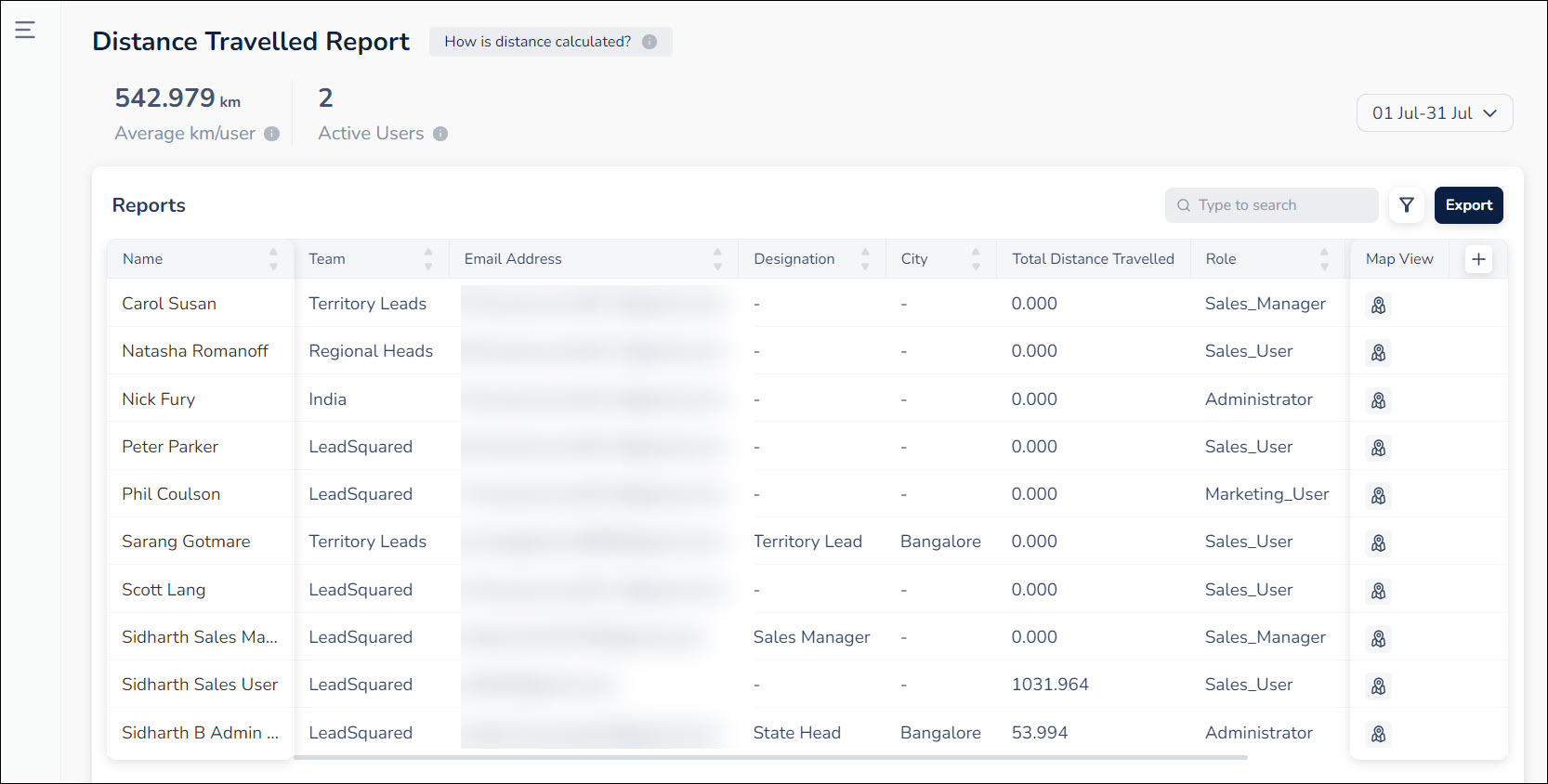
To view the Distance Travelled Report, navigate to Reports>Reports Home>Field Sales Tracking>Distance Travelled Report. On this page, based on your user role and organisational hierarchy, you can view the list of users and their corresponding distance travelled during the specified date range.

  • To edit the date range, above the list of users, click on the date dropdown and select the relevant date range. You can also create a custom date range here.
  • To add and/or reorder columns, alongside the column headers, click Add icon.
  • To find a specific user, enter the user’s name or email ID on the search bar.
  • To view a user’s location history, alongside the user name, click map icon.
  • To filter the report by teams or sales groups, click filter icon.
  • To export the report, on the top right side of the page, click Export. The data available for the selected date range will be exported in CSV format.

Note:

  • To view a user’s location history, you must select a specific date in the date range.
  • Distance calculation will not be initiated for the day if the mobile user has not checked in.
  • Sales Users cannot export the distance travelled report or perform any search/filter-related operations on the report.
  • The Distance Travelled Report cannot be accessed on mobile.

LeadSquared - Distance Travelled Report


4. Settings

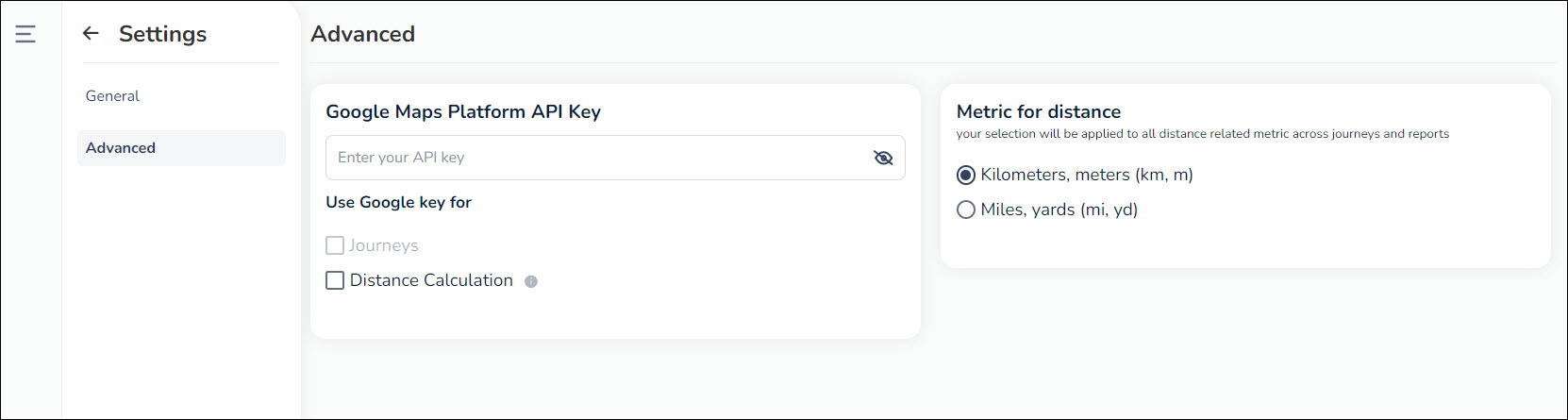
To view the settings, on the bottom left corner of the page, click mobile settings icon. On this page, you can configure the following advanced setting –

  • Metric for distance – You can set the metric for distance as Kilometres and metres (km, m) or Miles and yards (mi, yd). Your selection will be applied to all distance related metric across journeys and reports.

Note: 

  • LeadSquared’s Proprietary Distance Computation Algorithm (Recommended) utilizes location coordinates from the mobile device of a checked-in user to estimate the distance travelled fairly accurately for any given day.
  • The Google Direction Maps API records the latitude and longitude coordinates and returns the distance travelled by your users, by assuming a specific path of travel.

Leadsquared - distance travelled report advanced settings


Any Questions?

We’d love to answer your questions or hear your unique use cases. Feel free to share your experiences in the comments section below.

How to Export More than 1,000,000 Opportunities

By default, you can export up to 100,000 opportunities in a single request. This limit can be increased to 1,000,000 by writing to us at support@leadsquared.com. If you need to export more than 1,000,000 opportunities, you can use a simple workaround by enabling the Auto ID field on your Opportunity Type. This lets you segment and export opportunities in smaller, manageable batches—ensuring you don’t miss any records.

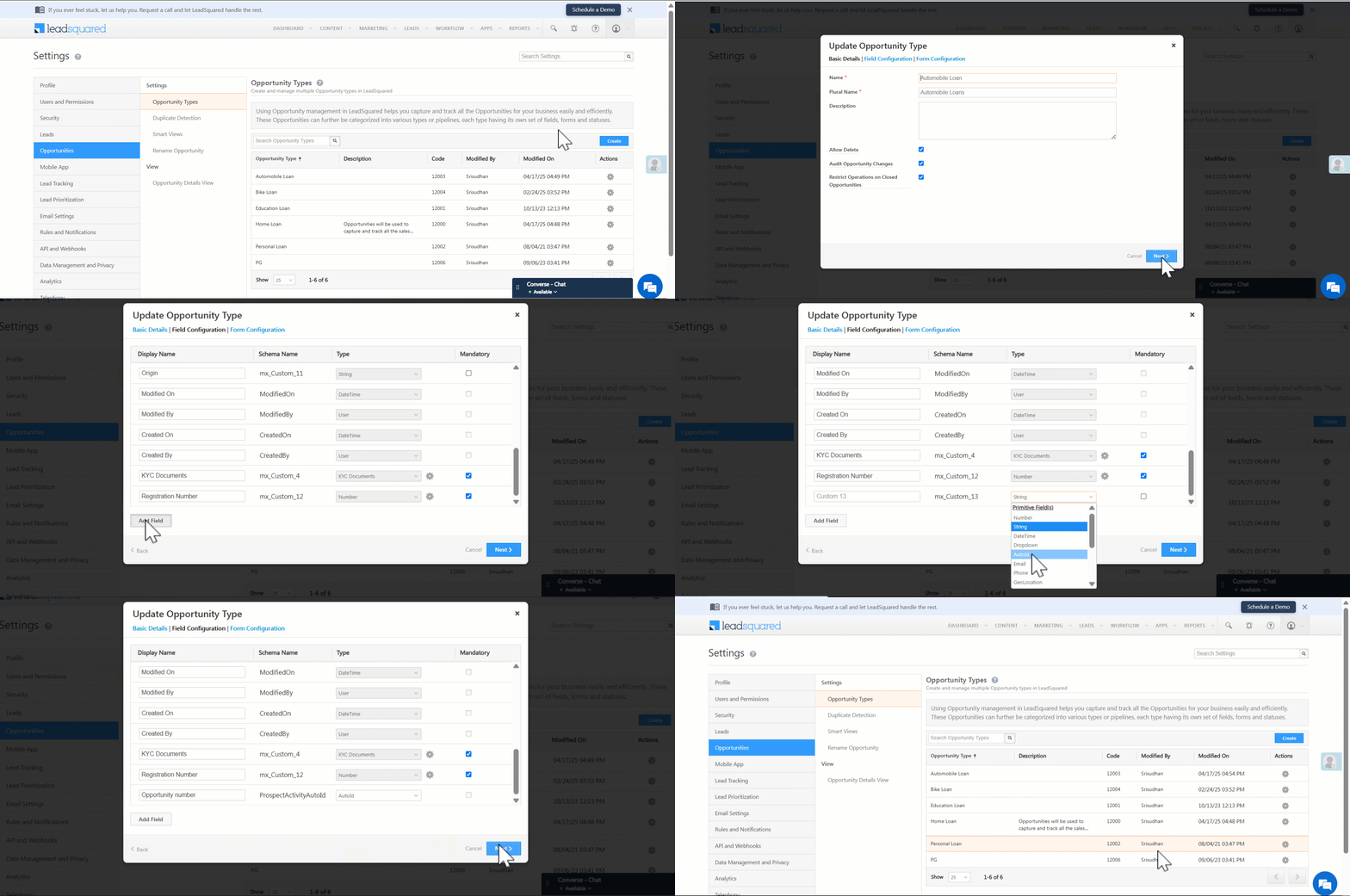
Step 1: Enable the Auto ID Field for Your Opportunity Type

  1. Navigate to Settings>Opportunities>Opportunity Types.
  2. Alongside the Opportunity Type you want to export, under Actions, click Edit.
  3. Click Next on the popup to go to the Field Configurations.
  4. Click Add Field.
  5. Choose the data type Auto ID and set a display name (e.g., “Opportunity Number”).
  6. Click Next, then click Save.
Note: Auto ID is a system-generated number assigned to every opportunity. These numbers are not sequential across opportunity types—so IDs may appear “skipped” within a type because some are assigned to other types. However, it’s still the most reliable way to segment and export large volumes of data.

LeadSquared Opportunity Management

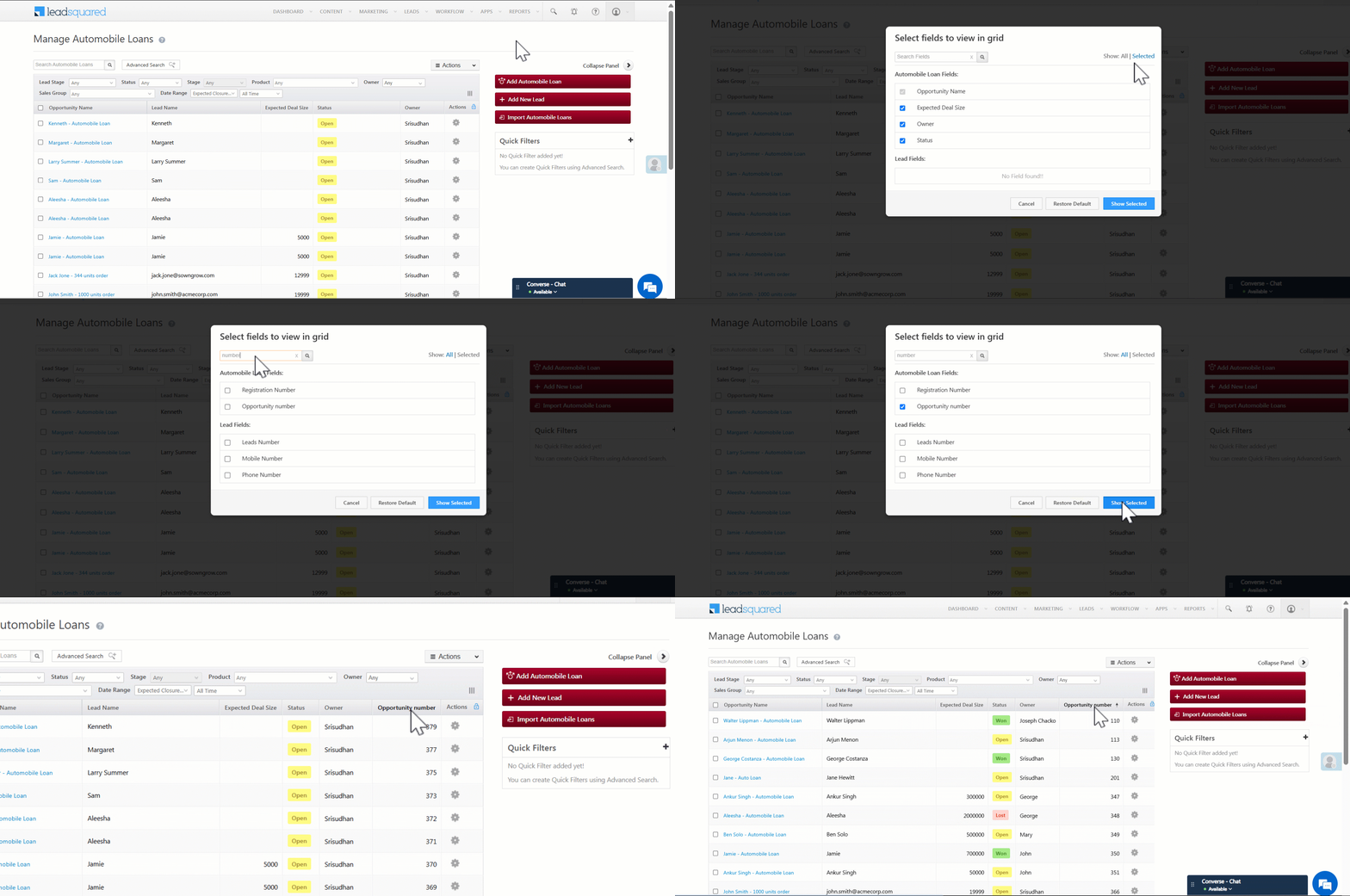
Step 2: Display the Auto ID Column

  1. Go to Opportunities>[Your Opportunity Type].
  2. Click the Column Customization icon.
  3. Enable the checkbox for the Auto ID field (we gave it the display name ‘Opportunity Number’).
  4. Click the column header to sort opportunities by Auto ID.

LeadSquared Opportunity Management

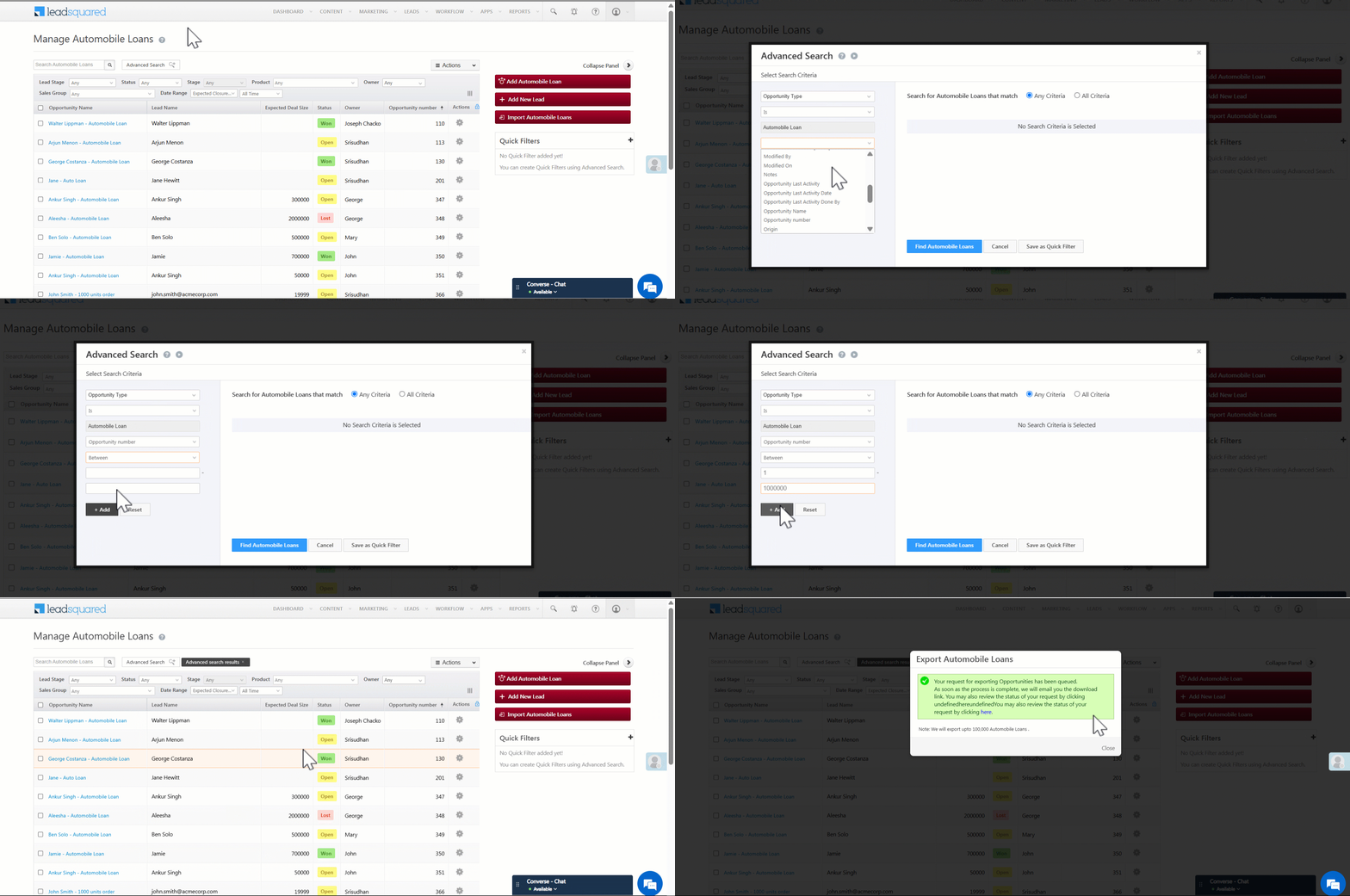
Step 3: Filter and Export Opportunities Using Auto ID

  1. Click Advanced Search.
  2. Add a condition: Auto ID is between 1 and 1000000. Click Add Condition.
  3. Click Find Opportunities to view the filtered results.
  4. From the grid, go to Actions>Export.

LeadSquared Opportunity Management

Step 4: Export Opportunities Beyond 1,000,000

  1. To export more than 1,000,000 opportunities, simply update the Auto ID range in Advanced Search:
  2. Auto ID is between 1000001 and 2000000, then export the results.
  3. Then: 2000001 to 3000000, and export the results and so on…

Even though the Auto ID range may include IDs assigned to other opportunity types, this is still the best way to ensure you don’t miss any records.

FAQs

Q. Why are some Auto ID numbers missing from my export?
Auto IDs are globally assigned across all opportunity types. So, within a single opportunity type, some numbers might be skipped if they were used by other types.

Q. Can I export opportunities with filters other than Auto ID?
Yes, but for large exports across millions of records, Auto ID is the most efficient way to paginate without missing any data.

Q. I don’t see the Auto ID option while adding a field. Why?
Make sure you select the correct data type (Auto ID) when creating the field. If it’s missing, reach out to support@leadsquared.com for help.

Customize LeadSquared Application Logo

1. Feature Overview

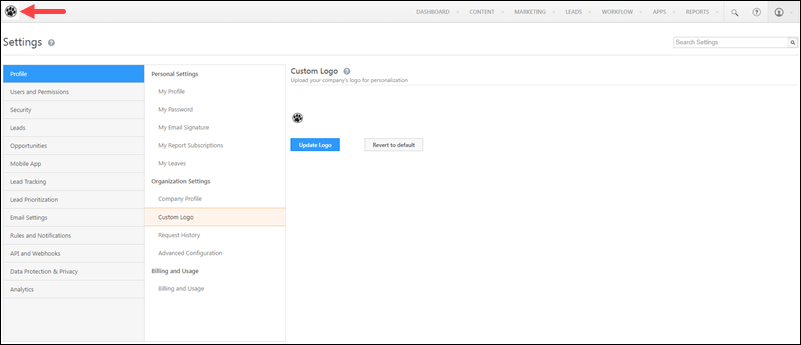
Personalize your account by uploading your organization’s logo in place of the default LeadSquared logo.

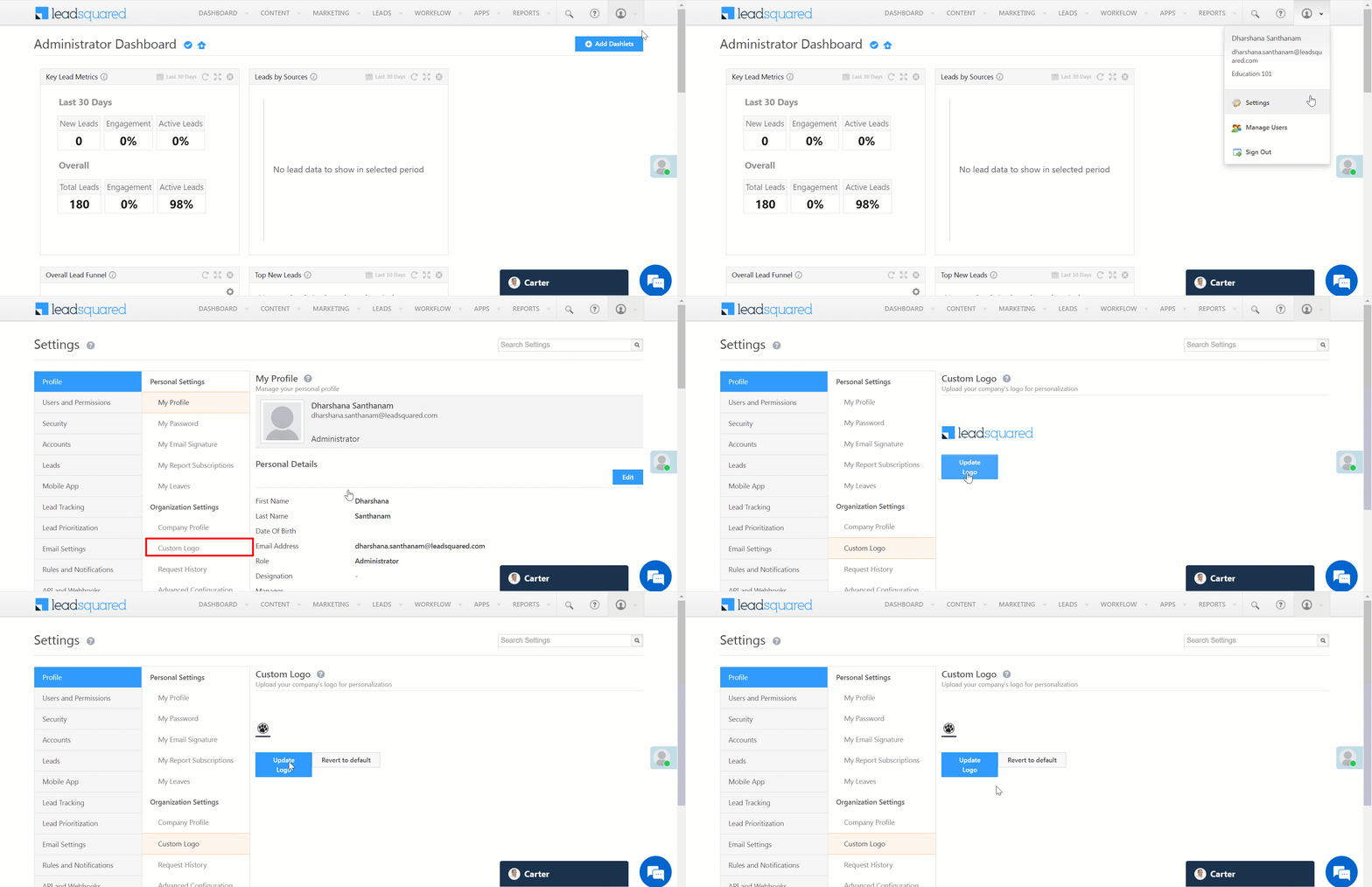
LeadSquared Logo


2. Prerequisite

You must be the Administrator of your LeadSquared account.


3. Upload a Logo

  1. Navigate to Settings>Profile>Custom Logo. 
  2. Click Update Logo.
  3. Once you’ve uploaded the new logo, click Save.

Note:

  • Only the following file types are supported –
    • gif.
    • jpg.
    • jpeg.
    • bmp.
    • tiff.
    • png.
  • Maximum file size allowed is 1024 KB.
  • There are no fixed dimension limits for the logo. For best results, use images with an aspect ratio between 1:1 (square) and 3:1 (rectangle). Logos with a width of 240px or more will display clearly without pixelation (240px is a recommended guideline, not a minimum requirement).

LeadSquared - Upload logo


Any Questions?

Did you find this article helpful? Please let us know any feedback you may have in the comments section below. We’d love to hear from you and help you out!

Nudges Connector

1. Feature Overview

The LeadSquared Nudges Connector sends nudges (push notifications) to your user’s desktop and mobile devices for various events, such as Lead Creation, Upcoming Tasks, Opportunity Creation, Activity Completion, etc.

Additionally, you can create custom nudge templates and add images to them for custom events such as policy update announcements, upcoming holidays, etc. You can also add and configure actions your users can perform through these nudges, such as View Lead Details, Call Lead, etc.

This connector will help you –

  • Close More Leads – Help your users achieve their goals by sending reminders and important updates as nudges.
  • Engage Your Team – Help your team prioritize key tasks with custom messages, program highlights, and policy updates.
  • Personalize Notifications – Send custom nudges to your users, unique to your organization.

To know more about this connector, please refer to Nudges via Carter.

Note:

  • If the Mobile App Notifications Connector is installed and configured on your account, you will not be able to send nudges to your user’s mobile device. Uninstall the Mobile App Notifications Connector before you install the Nudges Connector.
  • To send nudges to your user’s desktop, Carter must be enabled on your account. Contact us at support@leadsquared.com or your account manager to get it enabled for your account.

LeadSquared's Nudge Connector


2. Prerequisites

  • You must be an Administrator to configure this connector.
  • The Nudges Connector is a paid feature. To enable it on your account, please reach out to your account manager, or write to support@leadsquared.com.
    • To send desktop notifications, Carter must be enabled on your account.
  • To send mobile notifications, your users must be running the following versions of the mobile app –
  • Users must be signed in to the LeadSquared mobile and/or the web app to receive notifications.
  • Users must be connected to the internet on their mobile and/or desktop devices to receive notifications.


3. How it Works

To send nudge notifications, install and set up the Nudges Connector in your account. To send desktop notifications (in addition to mobile notifications), configure Carter Settings during installation.

Once the connector is installed, configure the templates that will go out as nudges to your users. You can choose from the default templates that are available, or you can build your own custom template from scratch.

After the templates are configured, nudges are sent to your users based on –

  • The pre-defined events for default templates.
  • Events you configure through automation triggers for custom templates. Ensure that the category you select while creating the template is the same as the automation trigger. For example, if you create a custom template with the Activity template, create an automation using an activity trigger (activity create, activity update, etc.).

You can also send one-time nudges to your users (in bulk) from the User Settings page.


4. Install the Connector

To install the Nudges Connector on your account –

  1. From the main menu, navigate to Apps>Apps Marketplace.
  2. Search for Nudges Connector, and click Install.
    • Alternatively, you can find the connector on the left panel, under Custom.
  3. Once the connector is installed, hover your cursor over settings, and click Configure.

LeadSquared's Nudges Connector

4.1 Connector Access

  1. On the Connector Access pop-up, click the Checkbox checkbox against the user roles for which you want to give template configuration and actions permissions.
    • By default, all the permissions are granted for the Admin User role.
    • If you choose to not give permissions to other user roles, then skip this step, and directly click Save & Next.
  2. Once you’re done, click Save & Next.

LeadSquared's Nudges Connector

4.2 Carter Settings

To send desktop notifications to your users, enable and configure Carter.

  1. On the Carter Settings pop-up, against Enable Carter, enable the Slider slider.
  2. From the Select Time Zone dropdown, select the time zone in which your users work.
  3. From the Select Date/Time Format dropdown, select the format you want to follow for date/time entries in your nudge templates.
  4. Once you’re done, click Save Details.
Note: If you don’t want to send desktop notifications, you can skip this section, and click Save Details.


5. Manage Default Nudge Templates

Once the connector is installed, configure and enable nudge templates. The following pre-defined nudge templates are available on the Manage Default Nudge Templates page –

  • Lead Create
  • Lead Owner Change (Update)
  • Task Create
  • Task Update
  • Task Reminder

To enable and manage the pre-defined nudge templates for leads and tasks –

  1. Navigate to Apps>Manage Nudge Templates.
  2. On the Manage Nudge Templates page, default templates are available under the Lead tab and the Task & Appointments tab.
  3. To do enable a default template, under Status, enable the Slider slider.
  4. To edit and configure a default template, under Actions, click , and edit the template from the Edit Predefined Nudges pop-up.

LeadSquared's Nudges Connector

5.1 Basic Details

Select the platform (Web and/or Mobile) on which you want your users to receive nudges. If you select both options, then the same notification will be sent to your user’s desktop as well as mobile.

Additionally, the following fields are available, but they cannot be edited –

  • Select Category – The category under which the default nudge template was created (Lead or Tasks & Appointments).
  • Nudge Event – The event (like Lead Create or Lead Owner change) on which you’re sending a nudge.
  • Template ID – The template ID of the nudge.

Once you’re done, click Save & Next.

Note: The Web option can be selected only if Carter is enabled on your account.

LeadSquared's Nudges Connector

5.2 Message Content

Here, add the following –

  1. Nudges Title – The title of the nudge notification your user will receive. If required, you can add mail merge lead fields to the title by clicking mail merge code icon. For e.g, you can title the nudge as New Lead Created – @{Lead:FirstName,}, Updated Lead Owner – @{LeadOwner:FirstName,}, etc.
  2. Message – The notification message your users will receive. If required, you can add mail merge lead fields to the title by clicking mail merge code icon. You can include up to 500 characters in the message.

Once you’re done, click Save & Next.

LeadSquared's Nudges Connector

5.3 Actions

The actions that your users can perform through the nudge notification. These actions will redirect your users to the selected screen within LeadSquared.

  • Click the Add Action button to add a new action. In total, you can add up to three actions.
  • Action Type – From the following options, select the action that will take place when your user interacts with the nudge notification –
    • View Lead
    • View Opportunity
    • View Activity
    • View Task
    • Open URL (Web/Mobile)
    • Open URL in device browser (Mobile Only)
    • Call
    • Check-In (Mobile Only)
    • Check-Out
    • Add Lead
    • Add Activity
    • Add Opportunity
    • Add Task
    • Call Routing (Mobile Only)
    • Open Smartviews (Mobile Only)
  • Action Label – The display name for the action inside the nudge notification.
  • Data Payload – For each action, we’ve configured the parameters that will be passed in the notification payload. You don’t need to edit the payload unless your implementation requires you to send certain parameters in place of the default ones.
  • Click Action – From the Action Types you’ve selected, only one action can be set as the Click Action. The click action will be performed when a user clicks (or taps) anywhere on the nudge notification. To perform the other two actions, the user must click on the Action Label inside the notification.

Once you’re done, click Save & Close. The template is automatically assigned to relevant users.

Note:

  • For Call Routing to work as intended, add only the Call Routing action to the Nudge template (and not other actions). To configure the Call Routing Custom Action, refer to Call From Mobile – Initiate phone calls from LeadSquared.
  • To add an action, click the Add Action button.
  • To delete an action, against an action, click .

LeadSquared's Nudges Connector


6. Manage Custom Nudge Templates

In addition to the pre-defined templates listed above, you can also create custom templates and add images to them. These templates can be created on events not listed as default templates. You can create templates for events like Opportunity Creation, Activity Creation, User Check-Out, etc. To create a custom template –

  1. Navigate to Apps>Manage Nudge Templates.
  2. On the Manage Nudge Templates page, navigate to the Custom Nudges tab, and click Create New Template.

LeadSquared's Nudges Connector


6.1 Basic Details

Add the following details –

  • Select Category – Select the LeadSquared category (Leads, Opportunity, Activity, Task, and User) under which you want to create a nudge.
  • Template Name – Display name for the template.

Once you’re done, click Save & Next.

LeadSquared's Nudges Connector

6.2 Message Content

Here, add the following –

  1. Nudges Title – The title of the nudge notification your user will receive. If required, you can add mail merge lead fields to the title by clicking mail merge code icon. For e.g, you can title the nudge as New Opportunity Assigned – @{Opportunity:Opportunity:mx_Custom_1,}, etc.
  2. Message – The notification message your users will receive. If required, you can add mail merge fields to the title by clicking mail merge code icon. You can include up to 500 characters in the message.
  3. Attach Image – You can display an image inside your custom template. Upload and attach the image by clicking attachment icon, or mail merge an image type field that contains the image by clicking mail merge code icon. This field is optional.

Once you’re done, click Save & Next.

LeadSquared's Nudges Connector

6.3 Actions

To know how to add actions to your nudges, please refer to Manage Default Nudge Templates – Actions.

Once you’re done, click Save & Close. After you publish the custom template, set up an automation to assign it to your users.


7. Assign Custom Templates through Automations

Once a custom template is created, set up an automation (except for One-time User nudges) that will assign the nudge to your users. In the automation, specify the trigger event that will prompt the nudges to be sent.

7.1 Lead, Opportunity, Activity and Task Triggers

If you’re setting up the automation using Lead, Opportunity, Activity, or Task triggers, to assign nudges to your users –

Note:

  • The entity selected as the category in your custom template should match the entity selected as an automation trigger. For example, if you choose “Lead” as the category when creating the custom template, ensure that the automation uses a Lead trigger (such as lead create, lead update, etc.).
  • If you’ve used a User trigger to set-up the automation, refer to the section below.
  1. Navigate to Workflow>Automation, and click Create Automation.
  2. Set up an automation, and ensure the trigger is the same as the entity used to create the template.
  3. Click the Add Automation button, click Custom, and then click Nudge Users.
  4. On the Nudge Users pop-up, from the Add Recipient dropdown, select the user that should receive the nudge. The following options are available –
    • Lead Owner
    • Activity Owner
    • Opportunity Owner
    • Task Owner
    • Select User – From this dropdown, you can select individual users to whom you want to send the nudge.
    • Object Field – If you have any field of type “User” that you want to send the nudge to, select the field here.
  5. From the Select Template dropdown, select the custom template you want to send to your users.
  6. Once you’re done, click Save, and Publish the automation.

LeadSquared's Nudges Connector

7.2 User Triggers

Send nudges to users on significant occasions, such as Anniversary Date, Appraisal Date, upon logging in, and similar events. To assign nudges to your users –

Note: Before you set up the automation, it is mandatory to obtain the token, which is passed as a Custom Header in the webhook. To obtain this, contact your account manager, or write to marketplaceteam@leadsquared.com, with the email subject line – [CM-Nudges] Access Token for {{Organization Name}}. For example, the email subject for us would be “[CM-Nudges] Access Token for LeadSquared”.

  1. Navigate to Apps>Nudges Connector. Alongside the template you want to send through the automation, click , and copy the Template ID.
  2. Then, navigate to Workflow>Automation, and click Create Automation. Select any User trigger. We’ve selected the On a Specific Date trigger.
  3. Click Add Automation, and under Custom, click Webhook. On the Webhook pop-up, enter the following details –
    • Name – Enter a relevant name for the webhook. We’re calling it “Nudge check in”.
    • URL – Select the method as https://, and paste this URL – nudges-api.leadsquaredapps.com/nudges/notificationPushEvent/api?to=@{User:UserID,}&templateId={{templateId}}&userId=@{User:UserID,}
      • In the URL, replace {{templateId}} with the Template ID copied from the Nudges Connector page.
      • Remove “https://” from the URL before you paste it.
    • Content Type – Select application/json.
    • Save Response – You can select either Yes or No.
    • Custom Headers – Click Add. Name the header as “x-auth-token” and pass the token value shared via email*.
    • Notify on Failure – Select which user you want to notify if the webhook fails.
    • Retry Count – The number of times you want to retry when the webhook fails.
  4. Once you’re done, click Save, and Publish.
Note: *To obtain this value, contact your account manager, or write to marketplaceteam@leadsquared.com, with the email subject line – [CM-Nudges] Access Token for {{Organization Name}}. For example, the email subject for us would be “[CM-Nudges] Access Token for LeadSquared”.

LeadSquared Nudges Connector


8. View Nudges

This is how Nudges look like on the desktop –

LeadSquared's Nudges Connector

And this is how it’ll look on the mobile app –

LeadSquared Mobile App updates


9. Send One-time Nudge Templates to Users

You can also send a single, one-time nudge (for both custom and default templates) to your users. This can be used for important announcements like a policy update, an upcoming event (a holiday), a critical situation at work, etc.

Note: From the User Settings page, you can only send user-based nudges, and not lead, opportunity, activity, or task-based nudges.
  1. Navigate to My Profile>Settings>Users and Permissions>Users.
  2. Against the users you want to send the nudge to, click the Checkbox checkbox.
  3. Then, hover your cursor over the Leads button, and click Nudge Users.
  4. On the Nudge User pop-up, from the Select Template dropdown, select the template you want to assign.
  5. Once you’re done, click Send. Your users will receive the nudge on their mobile devices.
Note: To know how to set up and initiate calls on the mobile app through Nudges, refer to Initiate Phone Calls on the LeadSquared Mobile app through the Web Platform.

LeadSquared's Nudges Connector


Any Questions?

Did you find this article helpful? Please let us know any feedback you may have in the comments section below. We’d love to hear from you and help you out!

How to Track Application Status Using Forms & Activities in Portals

1. Feature Overview

Portals allow users to fill out complex application forms (e.g. course application, loan application, scholarship application, etc) and track the status of their applications. They can also be configured to enable users to perform different actions based on the status of the application. A user’s application will go through several stages – Initiated, Applied, Processing, Approved, Rejected, etc.

Each stage change can be triggered either by some user interaction like initiating an application, submitting an application or through an external event like getting an application approved or rejected. These interactions are carried by the user onto Forms in Portals.

We expect:

  1. ​​​​​​​When a user starts filling out an application form ​​​​​​​–> Change the application activity status to ‘Initiated’
  2. When a user submits the application form –> Change the application activity status to ‘Applied

This article explains how you can automatically change the status of the application activity as per the user’s interaction with the application form. To know more about Portals, see Portal Management.


2. Prerequisites

  1. An Activity: To track the actions (status, information, selections, etc) carried out by the user/lead on the application Form. Here, the status will be a dropdown field with the following items: Active, Processing, Approved. To learn more about activities, see Manage Activities.
  2. A Multi-step Form: (Lead & Activity Fields) This will be our application Form with the above (1) activity fields integrated. Toggle the’Save at each step’ option via Manage Form > [Select the Form] > Additional Settings. So, it saves the Form progress at each step. For more details, see How to Save Multi-step forms in Portals.
  3. A Portal with the Form linked to the page.


3. Example Use Case

Let’s take the example of an education portal where users can visit and fill the application for a course. When the user opens the Form and saves the first step, we want to change the status of our activity (which gets created on the first save) to Active. This represents an application for a lead that is active and needs nurturing. When the user submits the application form, the status needs to be changed to Processing so that the lead’s application can be processed and given immediate attention.

Form filling initiated (Active) –> Form submitted (Processing) –> Approved (Approved)


4. Change Activity status to ‘Active’

This section explains how you can change the application activity status to Active when a user starts filling an application form.

Here we want to set the activity status to Active once the user fills the first form step/tab and clicks save. Hence, we’ll configure the rule accordingly on an activity field in the first tab so that when the user saves the first step, and this field contains a value, then we can consider the application as Active.

Note: Setting the rule on a lead field will make it difficult to operate on multiple applications by the same lead, therefore, we will set it on an activity field.
  1. Navigate to Workflow>Manage Forms.
  2. Hover your cursor over LeadSquared and select Live Edit.
  3. Drag an activity field from left hand side Field drawer. Your activity field must –
    • not be hidden
    • be required
    • need input in the first tab inside form.
  4. Click on the activity status field in the first tab and enable Hide by default.
  5. Switch to Rules from Form Designer via the topmost tab.
  6. To add a new rule, click on Add Rule.
  7. Add the rule – If Activity field (e.g., Application Name) contains data, then set value in the hidden Activity field to Active.

When the user opens the form and fills the first tab with the specific activity field and saves it, the activity status field will be set to Active. Based on this, we can set up automations to communicate with the user or even integrate application blocks in the Portal portals page acting as a ‘Dashboard’ page where users can track their Active applications and complete them.

LeadSquared - Changing Activity status to 'Active'

LeadSquared - Changing Activity status to 'Active' - rules


5. Change Activity Status to ‘Processing’

The activity status must be changed to Processing once the user fills the form and submits it. To do so –

  1. Navigate to Manage Forms.
  2. Hover your cursor over LeadSquared and select Live Edit.
  3. Drag an activity field from left hand side Field drawer. Your activity field must –
    • not be hidden
    • be required
    • need input in the first tab inside form.
  4. Switch to Rules from Form Designer via the topmost tab.
  5. To add a new rule, click on Add Rule.
  6. Add the rule – If Activity field (i.e. your activity field that’s not hidden) contains data, then set value in the hidden Activity field to Processing.

When the user submits the form after filling the last tab with the specific activity field, the activity status field will be set to Processing. Based on this we can set up automations to communicate with the user or even integrate application blocks in Portal portals page acting as a ‘Dashboard’ page where users can track their Processing applications and download their PDFs.

LeadSquared - Changing Activity status to 'Processing'

LeadSquared - Changing Activity status to 'Processing' - rules

Be sure to integrate Application Block with the application activity in the portals so that users can track their application status in real time and take specific actions on each status assigned.

LeadSquared - Application block


Any Questions?

Did you find this article helpful? Please let us know any feedback you may have in the comments section below. We’d love to hear from you and help you out!

Overwrite Lead Fields Through Dynamic Forms

1. Feature Overview

When a Lead Owner is filling a LeadSquared Dynamic Form, and if the lead already exists, the owner will now have the option to auto-populate the Form with the existing Lead Field details. The owner can also overwrite (or update) the existing Lead Field details through the Form submission. A unique identifier field (for example, an email or phone number) on the Form will be used to check if the lead exists.

forms overwrite Lead fields based on Unique fields


2. Prerequisites


3. Lead Owners Can Overwrite Existing Lead Fields Values

Navigate to Form Settings>Additional Settings and enable Overwrite lead field based on unique field by togglingtoggle.  You will be presented with three overwrite mechanisms for the Lead Fields on Form submission –

  1. Update All Fields – This will update all the Lead Field values that are present in the Form post the Form submission.
  2. Do Not Update – This will not update any Lead Field values post the Form submission.
  3. Update If Empty – This will update Lead Field values that were empty before the Form submission and the user has now added values for. 
Note: Permission Template settings will be respected first when overwriting any Lead Field details on the Form. If a Permission Template defines that a Sales User cannot update the Lead Fields, then the field values will be read-only after auto-populating.

forms overwrite lead fields

When an existing lead is recognized on the Form through the unique identifier, you will be presented with an option – Would you like to fill field values? Yes | No. You can hover your mouse over View Details to preview the lead details. Click Yes to auto-populate the fields. On successful Form submission, the Lead Field details will be updated according to the overwrite mechanism you have specified.

forms overwrite Lead fields based on Unique fields


Any Questions?

If you have any questions related to forms that weren’t answered here, please leave comments below. We’ll be happy to help!

How to Show Activity Status in Portal Dashboard

1. Feature Overview

Portals allow users to fill out complex application forms (e.g. course application, loan application, scholarship application, etc) and track the status of their applications. They can also be configured to enable users to perform different actions based on the status of the application. To learn more about portals, see LeadSquared Portals and Portal Management.
A user’s application will go through several stages like Initiated, Applied, Processing, Approved, Rejected, etc.

This feature can be used to –

  • Show payment transaction status & history
  • Show communication status & history
  • Show loan application status & history
  • Show interview or counseling status & history

Let’s configure a portal dashboard to show the statuses of all the application activities, relevant information with respect to each activity status and configure rules to route users to specific actions.


2. Prerequisites

  • An Activity: To track the actions (status, information, selections, etc) carried out by the user/lead on the application Form. Here, status will be a dropdown field with the following items: Active, Processing, Approved. To learn more about activities, see Manage Activities.
  • You must have a Portal with a Dashboard page.


  1. Navigate to Workflow>Manage Portals.
  2. Select the Portal you need to view and click Continue Editing.
  3. Click Google to add a new block and select Application from the Prompt. Pick a design that suits your use case.
  4. Once the block is added, click it and configure it from the Component Drawer.
  5. Expand the General settings and select Activity from the Integrate dropdown.
  6. Select the activity from the Activity dropdown below it.

LeadSquared - Add new block in Forms

4. Create UI State for Every Activity Status with Actions

You can track every status of the lead’s activities and take necessary actions on them. Let’s configure our integrated activity so that we can display the necessary information and link actions on every activity status. In this example, our activity goes through three status changes – Active > Processing > Approved. Every status change is displayed to the user.

​​​​​There are three items we need to figure out before we proceed – display trigger or rule for each state, the UI for each state, and the actions (if any) required on each state.

  1. ACTIVE:
    • Trigger: When activity status is active.
    • Display: The application ID, date of modification, status, and such.
    • Action: Direct the user to finish their pending application.
  2. PROCESSING:
    • Trigger: When activity status is processing.
    • Display: The application ID, date of modification, service selected, payment status, agent assigned and such.
    • Action: Direct the user to view their application in PDF format.
  3. APPROVED:
    • Trigger: When activity status is approved.
    • Display: The application ID, date of modification, status, and a congratulations message.
    • Action: Download the digital on-boarding kit.

Now, let’s look at how to configure each application activity state to reflect the above items.

  1. Click on the first component to edit the text and add activity-specific items using mail-merge fields.
  2. To configure the display rules or triggers, expand General settings and switch to Configuration tab.
  3. Click on Display Rules to open the prompt and configure the rule If Status is ‘Active’ Show and save.
  4. Click on the button in the component to configure the Action for the button.
  5. By opening the Component drawer, Configuration tab, General > Action on Click/Tap > Link Page (Application Page) ​​​​​​​Clone this item for other activity states and configure the triggers, and actions in similar fashion.
  6. Expand the General settings and under Action on Click/Tap, click Link Page.
  7. ​​​​​​​Clone this item for other activity states and configure the triggers, and actions in similar fashion.
LeadSquared - Configuring Application Activity Status
LeadSquared - Use cases with application block

5. Payment Transactions

Leads can track their payments better in Portals with the help of the Payment Transactions Application block. It reduces the custom design efforts and improves the user experience for the lead. You can use it as a dashboard for Payment tracking across use cases involving a Payment Activity.

  1. Add a block and select the Application tab.
  2. Select the Payment Transactions block.
  3. Select the newly added block and select payment activity under Activity Name.
  4. Configure Rules and mail-merge fields as mentioned in the previous sections.

portal payment transactions block


Any Questions?

Did you find this article helpful? Please let us know any feedback you may have in the comments section below. We’d love to hear from you and help you out!

Mobile Cloud Calling

1. Feature Overview

The LeadSquared Mobile Cloud Calling connector allows you to make calls to your leads over the internet, through the LeadSquared mobile app. The features of this connector are –

  • You can enable mobile cloud calling through your existing telephony provider by configuring APIs.
  • You can initiate cloud calling to your leads via your mobile app. This will eliminate your dependency on patchy mobile network coverage and other connectivity issues.
  • View lead details when a virtual call is received or initiated via the mobile app.
  • Track virtual missed calls, received via the mobile app. Also, record calls with 100% reliable call recordings and dispositions.

Note: Using this connector, you will only be able to place cloud calls through the LeadSquared mobile app.


2. Prerequisites

  • You must be the Administrator of your LeadSquared account.
  • Your account plan must support telephony integration.
  • There’s an API dependency on your Telephony Provider. Before configuring the connector, there are certain additional APIs required from your Telephony Provider. Please write to support@leadsquared.com, or reach out to your telephony partner account representative to make sure if the integration is possible with their telephony provider. Please refer to Click to Call Set-up, Incoming Agent Pop-up and List All DID Numbers sections to know more. (The APIs for Ozonetel are available. Please refer to the Sample APIs For Ozonetel section to know more).
  • Install and configure the LeadSquared Call and SMS Tracker App.
  • You must have the updated LeadSquared Apps on your mobile devices –
  • This is a paid feature. To enable it on your account, write to support@leadsquared.com or reach out to your Customer Success Executive.

Your telephony partner must provide the following APIs, to integrate with the Generic Mobile Cloud Calling connector. These APIs are part of the prerequisites.

1. Click2Call – GET/POST API for Click2Call (The GET as well as POST format will work)

This API will ensure that a cloud call is placed successfully from your user to your lead, from the LeadSquared mobile app.

Sample API –

Method – GET/POST
https://<Base API URL>/click2call?api_key=XXXX&username=XXXX&agentID=@{User:TelephonyAgentId,}&campaignName=@VirtualNumber&customerNumber=@CustomerNumber

Success Response{"status":"success", “message”: “call initiated successfully” "monitorUcid":"9179160xxxxx","callStartTime":"2020-xx-xx xx:xx:xx"}

Response
If DND: {“status”: “error”,”message”: “Customer number is in DND”}
Customer number format should be +91-95XXXXXX or 95XXXXXXX (Without country code).


2. Get Incoming Call session by Agent Number (for the Agent Pop-up API)

This API retrieves the lead’s mobile number from which an incoming call is received on your user’s mobile device. This enables LeadSquared to show an agent pop-up, from where your users can capture the lead’s details.

Sample API –

Method – GET/POST

Input Parameters –

  • Authentication credentials (apiKey or userName)
  • agentPhoneNumber (In request parameter, the agent Phone Number can be passed to API as a query parameter or in the request body)

Request: https://<Base API URL>PullAPI?apiKey=KKxxxxxxx&userName=demouser&agentPhoneNumber=984xxxxxxx

Success Response: {“status”:”success”,”customerNumber”:”984xxxxxx”,”monitorUcid”:”9179160xxxxx”,”callStartTime”:”2020-xx-xx xx:xx:xx”}

Note: The Success Response should contain the customerNumber on which the call is received.

Response

  • If the userName field is empty: { “status”: “error”,”message”: “userName should not be empty”}
  • If the apiKey field is empty: { “status”: “error”,”message”: “apiKey should not be empty”}
  • If the agentPhoneNumber field is empty: { “status”: “error”,”message”: “agentPhoneNumber should not be empty”}
  • If invalid userName or apiKey: { “status”: “error”,”message”: “userName or apiKey is Invalid”}
  • If invalid agentPhoneNumber: { “status”: “error”,”message”: Invalid Agent Phone Number”}
  • If maxLimit Exceeded: { “status”: “error”,”message”: “max limit exceeded”}
  • If No Data Found: {“status”:”error”,”message”:”There is no call at this moment with this Agent PhoneNumber”}


3. List of All DID/Virtual numbers for a Particular Account

We will be calling this API to sync all the DID number on our platform with a defined frequency, for example, once every 4 hours.

GET/POST: https://<Base API URL>/LeadSquare/PullDIDNumbers.php

Response: {“status”:”success”,”did_list”:[“984xxxxxx”, “94544545XX”]}


3. How it Works

  1. Install the Mobile Cloud Calling connector
  2. Set-up the Click To Call API
  3. Set-up the Incoming Agent Pop-up API
  4. Set-up the List All DID Numbers API
  5. Place a cloud call to your lead


4. Installation

  1. On the main menu, navigate to Apps>Apps Marketplace and search for Mobile Cloud Calling connector.
    • Alternatively, you can find the connector on the left panel, listed under Mobile.
  2. Click Install.
  3. Once the connector is installed, hover your cursor over the settings icon, and click Configure.
  4. On the Prerequisites screen, depending on your requirements, you can choose either Mobile App Calling – Both Default and Cloud Calling Enabled or Mobile App Calling – Only Cloud Calling Enabled.
    • Mobile App Calling – Both Default and Cloud Calling Enabled – From the LeadSquared mobile app, you can place cloud calls as well as regular calls through your service provider (such as Airtel, Vodafone, etc).
    • Mobile App Calling – Only Cloud Calling Enabled – From the LeadSquared mobile app, you can only place cloud calls.
  5. Then, from the User Field Containing Virtual Number(DID) dropdown, select the custom user field that contains the DID number. To know how to create user custom fields to add virtual numbers for your users, see Manage User Custom Fields.
  6. Once you’re done, click Next.

LeadSquared Cloud Calling Connector


5. Click to Call Set-up

You must then configure the Click to Call API. This API is called when your users tap the CloudCall option on the LeadSquared mobile app. This API will ensure that the call is placed successfully to the lead, from your user.

Below is an example of the sample API request and response –

  • Request (Method – GET) –https://telephonyProvider.leadsquared.com/CallManagement.svc/InitiateCall?AccessKey=@{User:AccessKey,}&SecretKey=@{User:SecretKey,}&LeadID=@{Lead:ProspectID,}&LeadPhone=@{Lead:Phone,}&LeadMobile=@{Lead:Mobile,}&AgentPhone=@{User:PhoneMobile,}&UserID=@{User:UserId,}
  • Response – {"status": "success", "data": "Call initiated successfully"}
Note: Only GET and POST methods are supported while configuring the API.

To set-up the Click to Call API, you must complete the following steps –

5.1 API Configuration

  1. On the Configure Mobile Cloud Calling pop-up, navigate to the Click to Call Set-up screen.
  2. From the dropdown, select the HTTP method.
  3. Enter the API request URL in the Enter request URL box.
    • You can use mail merge parameters in the API as shown in the example above.
  4. Map the query parameters to the relevant values (lead or user fields). To do so, for that particular Key-Value pair, under Actions, click . Then, click the value, and from the dropdown, select the relevant value. Once you’re done, click Google.
    • To delete an existing Key-Value pair, against the corresponding pair, under Actions, click .
    • To discard configuring a Key-Value pair, click Cross.
  5. To add a new Key-Value pair to the API request URL, click the Add New button.
  6. Once you’re done, click Go to Test API.

LeadSquared Cloud Calling Connector


5.2 Test API

Test the mail merge parameters that are present in the API, by providing sample values for each parameter. This is to ensure the API’s behaviour is correct when actual LeadSquared data is mapped to it in the live environment. To test the API –

  1. For each mail merge Input Test Data fields, provide a relevant sample value.
  2. Then, click Test and Map Response. This will automatically test the API and map the responses.

To make changes to the API, and to add or remove parameters, click Back to API Request.

LeadSquared Cloud Calling Connector


5.3 Response Mapping

To help LeadSquared make sense of the API response, map the response parameters as data, success, or errors. This will help the system identify success or error responses.

To configure and map the responses –

  1. To map a response, click the Add Mapping button.
  2. Under the Key and Value fields, enter relevant key-value responses.
    • To delete an existing Key-Value pair, against the corresponding pair, under Actions, click .
  3. Then, from the Mapping dropdown, select the correct outcome for that particular response. You can choose Consider as Success, Consider as Error or Consider as Data.
  4. To map additional responses, click the Add Mapping button.
  5. Once you’re done, click Save.
Note: Only APIs using JSON format are supported.

LeadSquared Cloud Calling Connector


6. Incoming Agent Pop-up

For Incoming Agent Pop-up to work, you must install the LeadSquared Call and SMS Tracker App, and configure the following setting –

  1. Navigate to the Settings screen, and tap Call and SMS.
  2. On the Call Settings screen, enable the following settings –
    • Show lead identification popup
    • Show popup for unknown numbers
  3. Once you’re done, the settings will be applied.

LeadSquared Mobile Cloud Calling app

Once these settings are enabled, the Incoming Agent Pop-up API fetches and displays the lead’s details (based on the incoming call Phone Number) as a pop-up.

LeadSquared Mobile Cloud Calling

If the lead doesn’t exist in LeadSquared, the pop-up displays “is not present in”, along with the DID number. You have the option to Add Contact (lead) in LeadSquared. Note that this is the DID number (and not the lead’s Phone Number). You are advised to obtain the lead’s Phone Number from the lead.

LeadSquared Mobile Cloud Calling

Below is an example of the sample API request and response –

  • Request (Method – GET) –
    https://providerapi/LeadSquared/PullAPI.php?apiKey=KKxxxxxxx&userName=demouser&agentPhoneNumber={{Agent_Number}}
  • Response – {"status":"success","customerNumber":"984xxxxxx","monitorUcid":"9179160xxxxx","callStartTime":"2020-xx-xx xx:xx:xx"}

The steps to configure the API, test the API and map the responses are the same as the steps for the Click to Call API. Please refer to the Click to Call Set-up section to carry out these steps.


7. List All DID Numbers

This API ensures that the user sees the Agent Pop-up only for calls received through the DID Number associated with their account. Since lead calls will be routed through the DID Number, the Agenet Pop-up will show up only for calls made by leads. This will prevent calls from non-leads, and other non-critical calls, from taking up your users time. This will also ensure that the API is deployed only for calls received from authorized DID/virtual numbers, and will reduce the overall load time, by not being deployed for calls being received from other numbers.

Below is an example of the sample API request and response –

  • Request (Method – GET) – https://providerapi/LeadSquare/DIDNumbers?apiKey=KKxxxxxxx
  • Response – {"status":"success","did_list":["984xxxxxx", "94544545XX"]}

The steps to configure the API, test the API and map the responses are the same as the steps for the Click to Call API. Please refer to the Click to Call Set-up section to carry out these steps.


8. Initiate Cloud Call

Once you’ve installed and configured the connector, your users can make and receive cloud calls. The following steps are uniform across Android and iOS devices.

  1. Open the LeadSquared mobile app, and navigate to the Leads screen.
  2. For the lead you want to call, tap on the lead, or swipe the lead card.
  3. On the Lead Details page, tap the icon, or tap the lead’s phone number.
  4. From the options, tap Cloud Call Lead, and wait for the call to initiate.
  5. Once the call is completed, the call details are available on the Activity History tab.
Note: Cloud call cannot be initiated for leads marked as ‘Do Not Call’.

LeadSquared Cloud Calling Connector

Once the call is completed, an outbound call activity is created on the Lead Activity History screen. If you haven’t installed the Universal Telephony Connector yet, install it and set up Call Log API. All inbound and outbound calls made through your Telephony account can be logged in LeadSquared by setting up Call Logs. These logs will be posted to LeadSquared as incoming/outgoing phone call activities.

LeadSquared Cloud Calling Connector


9. Mobile Cloud Connector Mail Merge Fields

This section lists the various mail merge fields available in the Mobile Cloud Calling connector.

Mail merge Expected value Description
@AssociatedPhoneNumberInE164 +918050004000 User phone number in E164 format, i.e. with country code (CC), but without ‘-‘ (hyphen).
@CustomerNumberInE164 +916565656565 Lead phone number in E164 format, i.e. with country code (CC), but without ‘-‘ (hyphen).
@CustomerNumberWithoutCountryCode 6565656565 Lead phone number without country code (CC).
@CustomerNumber +91-6565656565 Lead phone number with country code (CC).
@VirtualNumber +91-8050004000 Virtual Number with country code (CC).
@OpportunityId oppId Opportunity ID
@AssociatedPhoneNumberWithoutCountryCode 8050004000 User phone number without country code (CC).

9.1 Lead Mail Merge Fields

Note: Custom fields created for leads are not displayed here.

Field Description
@{Lead:mx_Alternate_Number, } Lead alternate number
@{Lead:Groups, } Lead sales groups
@{Lead:Longitude, } Lead location – longitude
@{Lead:Latitude, } Lead location – latitude
@{Lead:SourceIPAddress, } Lead source IP address
@{Lead:SourceReferrerURL, } Lead source referrer URL
@{Lead:ConversionReferrerURL, } Lead conversion referrer URL
@{Lead:LeadAge, } Lead age
@{Lead:GTalkId, } Lead Google Talk ID
@{Lead:TwitterId, } Lead Twitter ID
@{Lead:FacebookId, } Lead Facebook ID
@{Lead:LinkedInId, } Lead LinkedIn ID
@{Lead:SkypeId, } Lead Skype ID
@{Lead:GooglePlusId, } Lead Google Plus ID
@{Lead:CurrentOptInStatus, } The lead’s current opt-in status
@{Lead:OptInDate, } Lead opt-in date
@{Lead:OptInDetails, }
Lead opt-in details
@{Lead:LastOptInEmailSentDate, } Lead’s last opt-in email date
@{Lead:PhotoUrl, }  Lead photo URL
@{Lead:SourceReferrer, } Lead source referrer
@{Lead:SourceContent, } Lead source content
@{Lead:FirstLandingPageSubmissionDate, } Lead first landing page submission date
@{Lead:FirstLandingPageSubmissionId, } Lead first landing page submission ID
@{Lead:RelatedLandingPageId, } Lead related landing page ID
@{Lead:SourceMedium, } Lead source medium
@{Lead:LastVisitDate,} Lead last visit date
@{Lead:NotableEventdate, } Lead last notable activity date
@{Lead:NotableEvent, } Lead last notable activity
@{Lead:SourceCampaign, } Lead source campaign
@{Lead:CreatedByName, } Lead created by
@{Lead:ModifiedByName, } Lead modified by
@{Lead:ProspectActivityName_Max, } Lead last activity
@{Lead:ProspectActivityDate_Max, } Lead last activity date
@{Lead:EngagementScore, } Lead engagement score
@{Lead:Origin, } Lead origin
@{Lead:Revenue, } Lead order value
@{Lead:MailingPreferences, } Lead mailing preferences
@{Lead:ProspectActivityDate_Min, } Lead first activity date
@{Lead:Web_Referrer, } Lead web referrer
@{Lead:Web_RefKeyword,} Lead web referrer keyword
@{Lead:LeadLastModifiedOn,} Lead recently modified on
@{Lead:QualityScore01, } Lead quality score, 01
@{Lead:TimeZone, } Lead time zone
@{Lead:ProspectActivityId_Min, } Lead first activity ID
@{Lead:ProspectActivityId_Max, } Lead last activity ID
@{Lead:DoNotSMS, } Do Not SMS lead
@{Lead:Score, } Lead score
@{Lead:ProspectStage, } Lead stage
@{Lead:DoNotTrack, } Do not track lead
@{Lead:DoNotEmail, } Do not email lead
@{Lead:DoNotCall, } Do not call lead
@{Lead:JobTitle, } Lead job title
@{Lead:Company, } Lead company
@{Lead:StatusCode, } Lead status code
@{Lead:Website, } Lead website
@{Lead:Mobile, } Lead mobile number
@{Lead:Phone, } Lead phone number
@{Lead:Notes, } Lead notes
@{Lead:Source, } Lead source
@{Lead:EmailAddress, } Lead email
@{Lead:LastName, } Lead last name
@{Lead:FirstName, } Lead first name
@{Lead:ProspectAutoId, } Lead identification number
@{Lead:PageViewsPerVisit, } Lead page views per visit
@{Lead:OwnerIdEmailAddress, } Lead owner email
@{Lead:OwnerIdName, } Lead owner
@{Lead:mx_Zip, } Lead location – zip
@{Lead:mx_Country, } Lead location – country
@{Lead:mx_State, } Lead location – state
@{Lead:mx_City, } Lead location – city
@{Lead:mx_Street2, } Lead location – street address 2
@{Lead:mx_Street1, } Lead location – street address 1
@{Lead:RelatedProspectId, } Lead related prospect ID
@{Lead:AvgTimePerVisit, } Lead average time per visit
@{Lead:ProspectID, } Lead prospect ID
@{Lead:TotalVisits, } Lead total visits
@{Lead:LeadConversionDate, } Lead prospect creation date
@{Lead:ModifiedOn, } Lead modified on
@{Lead:ModifiedBy, } Lead modified by ID
@{Lead:CreatedOn, } Lead created on
@{Lead:CreatedBy, } Lead created by ID
@{Lead:OwnerId, } Lead owner
@{Lead:DeletionStatusCode, } Lead deletion status code
@{Lead:StatusReason, }  Lead status reason

9.2 User Mail Merge Fields

Note: Only the fields mx_Custom_1 to mx_Custom_10 are listed here. Other custom user fields will not appear, as they are created based on specific requirements.

Field Description
@{User:Availability, } User availability
@{User:IsCheckInEnabled, } Is user check-in enabled
@{User:State, } User’s state
@{User:PhoneOthers, } User’s other phone numbers
@{User:PhoneMobile, } User’s phone (Mobile)
@{User:PhoneMain, } User’s phone (Main)
@{User:AutoUserId, } User identification number (Auto ID)
@{User:TemplateNames, } Permission templates
@{User:mx_Custom_10, } Custom 10
@{User:mx_Custom_9, } Custom 9
@{User:mx_Custom_8, } Custom 8
@{User:mx_Custom_7, } Custom 7
@{User:mx_Custom_6, } Custom 6
@{User:mx_Custom_5, } Custom 5
@{User:mx_Custom_4, } Custom 4
@{User:mx_Custom_3, } Custom 3
@{User:mx_Custom_2, } Custom 2
@{User:mx_Custom_1, } Custom 1
@{User:TelephonyAgentId, } Telephony Agent Id
@{User:ZipCode, } User location – zip Code
@{User:Country, } User location – country
@{User:City, } User location – city
@{User:EmployeeId, } User Employee ID
@{User:longText, } Long text
@{User:dateTime, } User date-time
@{User:Test, } Test
@{User:number, } number
@{User:mx_Custom_Gender, } Gender
@{User:ImportId, } Import ID
@{User:DateOfResignation, } Date Of Resignation
@{User:DateOfJoining, } Date Of Joining
@{User:DateOfBirth, } Date Of Birth
@{User:IsCheckedIn, } Is user checked in
@{User:IsEmployee, } Is user Employee
@{User:IsSoftPhoneEnabled, } Is SoftPhone enabled
@{User:IsWorkingToday, } Is user working today
@{User:TeamId, } User’s team ID
@{User:WorkDayTemplateId, }  User’s work day template
@{User:HolidayCalendarId, } User’s holiday calendar
@{User:LastCheckedIpAddress, } User’s last checked IP address
@{User:CheckinCheckoutHistoryId, } User’s checkin-checkout history ID
@{User:LastCheckedOn, } User last checked on
@{User:IsAdministrator, } Is user an administrator
@{User:DeletionStatusCode, } User deletion status code
@{User:StatusReason, } User status reason
@{User:StatusCode, } User status code
@{User:AssociatedPhoneNumbers, } User associated phone numbers
@{User:Signature_Text, } User signature text
@{User:Signature_Html, } User signature HTML
@{User:DateFormat, } User date format
@{User:TimeZone, } User timezone
@{User:IsBillingUser, } Is Billing User
@{User:IsAgencyUser, } Is Agency User
@{User:CreatedBy, } User created by
@{User:IsDefaultOwner, } Is Default Owner
@{User:SessionID, } User session Id
@{User:TMP_ForgotPassword, } TMP Forgot Password
@{User:AuthToken, } User AuthToken
@{User:Password, } User password
@{User:EmailAddress, } User email address
@{User:LastName, } User last name
@{User:MiddleName, } User middle name
@{User:FirstName, } User first name
@{User:IsEmailSender, } Is user email sender
@{User:Address, } User address
@{User:OfficeLocationName, } User office location name
@{User:AvailabilityStatus, } User availability status
@{User:Skills, } User skills
@{User:SalesRegions, } User sales regions
@{User:Department, } User department
@{User:Team, } User old team
@{User:Designation, } User designation
@{User:PhotoUrl, } User photo URL
@{User:Groups, } User sales groups
@{User:UserID, } User Id
@{User:ManagerUserId, } Manager Name
@{User:UserType, } User type
@{User:IsPhoneCallAgent, } Is User a phone call agent
@{User:ModifyAllLeadsOfGroup, } Modify All Leads Of Group
@{User:ViewAllLeadsOfGroup, } View All Leads Of Group
@{User:Role, } User role
@{User:ModifiedOn, } User modified on
@{User:ModifiedBy, } User modified by
@{User:CreatedOn, } User created on


Any Questions?

Did you find this article helpful? Please let us know any feedback you may have in the comments section below. We’d love to hear from you and help you out!


Can You Display Different Variations of the Same Portal Page to Different Users?

Yes, Logic Cards enable you to display different variations of the same portal page to different users. Logic cards can be applied directly to content blocks in the Portals Designer.

For example, let’s say you want to display different credit cards on your homepage to different users based on their interests. So for example, you can show leads interested in ‘Platinum Chip Credit Cards’ a content block like this –

LeadSquared Portals

And leads interested in a ‘Silver Chip Credit Card’ will see a content block variation like this –

LeadSquared Portals


Modify Blocks

You can modify a content block by creating Logic Cards in two ways.

  1. Based on lead fields.
  2. Based on query parameters. For example, “https://cc.lsqportal.com/?product=platinum

For example, for a college application portal, different variations can be designed for users based in New Delhi, Mumbai, Hyderabad, etc. A user based in New Delhi will view a page that’s specific to only his city, and so on.

To modify Content blocks using Logic Cards –

  1. Click the outer border on a Content block.
    • To add a Content block, click the Google icon, and from the Add Block pop-up, select Content.
  2. On the right-panel, click Advanced, and then click Convert to Logic Card.
  3. Under Manage Logic Cards, click Manage.
  4. Against Logic 1, click the Logic Clone icon to clone the logic to add logic rules. You must repeat this process when you want to add a new logic.
  5. Then, close the Manage Logic Cards view, and from the Logic dropdown, select the logic you want to configure, and then click Display Rules. The display rules determine the critera based on which a specfic variation of the content block will be displayed.
    • You can perform the following actions a logic by clicking the LeadSquared Portals icon against it –
      • Rename
      • Set as default
      • Delete
  6. In the Logic Card Display Rules pop-up, set the rules based on which you want to display the Content block.
    • If you choose Entity Fields, then from the Select dropdown, choose the relevant lead field, and set the rule.
    • If you choose Query Parms, then enter the query parameter, and set the rule.
    • To add rules, click Add Form Tab.
    • To remove a rule, click Delete.
  7. Once you’re done adding rules, click Save.
  8. Repeat this process across the various Content blocks that you want to display, by adding multiple, similar rules.

LeadSquared Portals

Note: You must set one logic as default. This is to ensure that there’s a failsafe in place, if all other logics that are set fail. Logic 1 is already set to default.

Any Questions?

Did you find this article helpful? Please let us know any feedback you may have in the comments section below. We’d love to hear from you and help you out!

LeadSquared Portal Designer – Preview Forms as PDFs

1. Feature Overview

The ‘Preview’ content block in the Portal Designer allows your users to preview a non-editable version of a form. You can use it to display application forms that have been submitted, or acceptance/acknowledgement forms once an application is received.
You can also add and configure a button to allow users to download a form.

LeadSquared Platform Updates


2. Prerequisites

The Preview content block works by allowing you to integrate a field from a Custom Field Set (CFS), where a form has been saved (as a PDF). The block simply displays the PDF files saved in the field, on the portal webpage.

  • If you want to preview a form that a portal user has just submitted, you must enable the Save to Field settings when creating a form. This option is available while adding the Preview special field (Preview and Download Forms). If you’re new to the forms feature, see How to Create a Form.

LeadSquared Portal

  • Enabling the Save to Field setting is not necessary if you want to display any other PDF document (such as an acceptance/acknowledgement letter). You must ensure saved that this document is saved as a PDF file in either a CFS lead field, CFS activity field or CFS opportunity field. To know how to create a Custom Field Set, please refer to Custom Field Sets.
  • The Preview feature is a part of the LeadSquared Portals. To enable Portals on your account, please write to support@leadsquared.com.


3. How it Works

  1. You must add a Preview block to your Portal page.
  2. Inside the Preview block, you must integrate a Custom Field Set field where the PDF file is stored.
  3. Lastly, you can configure the look and feel of the Preview block.


4. Procedure

To preview a form to your leads –

  1. On the Portal Designer, hover your cursor where you want to add the Preview block, and click the  Add Block button.
  2. On the Add Block pop-up, click Preview, and select the layout from the list of available options.
  3. Then, to preview a form, choose a CFS field in which the form is stored.
    • If you want to display a lead CFS field where the PDF file is stored, then from the Select File Field dropdown, choose the lead field.
    • If you want to display an activity or opportunity CFS field where the PDF file is stored, then –
      1. From the Integrate dropdown, choose the entity (Activity or Opportunity).
      2. From the Activity/Opportunity dropdown, choose the activity/opportunity type within which the PDF file is stored.
      3. From the Select File Field dropdown, choose the activity/opportunity field.
  4. Once you’ve selected the PDF, configure the look and feel of the Preview section. To know how to do this, please refer to LeadSquared Portal Designer.
Note: By default, in the Select File Field dropdown, only fields that support PDF file types show up.

LeadSquared Portal

Download Form

Your users can also download the PDF file. To do this –

  1. In the Preview content block section, add a Button.
  2. From the Action on Click/Tap dropdown, select Download File.
  3. Then, select Use Mail Merge value, and choose the CFS field where the PDF file is stored.
  4. You can then chose to render this button as a Link or a Button.

LeadSquared Platform Updates


Any Questions?

Did you find this article helpful? Please let us know any feedback you may have in the comments section below. We’d love to hear from you and help you out!

How UDS Helps You Sign-up Only Verified Users in Portals

1. Overview

LeadSquared Portals now support UDS-based validation for signup (registration/login) forms. This ensures that only verified and approved users can sign up on your portal

When a user submits a registration form, the portal sends the form data to a UDS flow for real-time validation before the user account is created. UDS can run any custom logic—such as checking duplicates, verifying phone or email, blocking blacklisted users, or validating against external systems.

The validation runs on the Register Save Request at each step of the signup process — applicable to both single-step and multi-step forms.

Note: Non-registration forms are not supported in this integration.


2. Core Rules

Parameter

Description

Integration Point

The UDS endpoint can be integrated only with the Portal Signup Form.

Execution Trigger

The UDS flow is executed during the Registration Save Request (Save at Each Step).

Form Compatibility

Supports both single-step and multi-step signup forms.


3. Response Handling and Error Logic

The Portal’s behavior depends strictly on the HTTP status code returned by the UDS endpoint.

3.1 Successful Submissions

The signup submission proceeds only if the UDS returns a 200 status code.

Example – Success Response (200)

{
  "statusCode": 200,
  "responseHeaders": {},
  "body": {
    "status": "SUCCESS",
    "success": true,
    "errors": {},
    "data": "{{Write your message here}}",
    "requestId": "c1d2e3f4-5678-9012-3456-abcdefabcdef"
  }
}

3.2 Error Handling

If the UDS returns any other status code (e.g., 400, 500), the save request will be restricted. The error message displayed to the user depends on the response body received from the UDS.

Here are two possible error scenarios:

3.2.1 Scenario 1 – Custom Error Message (From UDS)

If the UDS response includes a correctly formatted body with an errors message array, the portal displays the custom message returned by UDS.

Example:

As seen in the screenshot, the user enters a blacklisted number.

The UDS returns a 500 status code, the UDS response body includes a requestId and an errors.message array containing, “This is a blacklisted number. Please try with another number.“.

The portal UI correctly displays this custom message to the user.
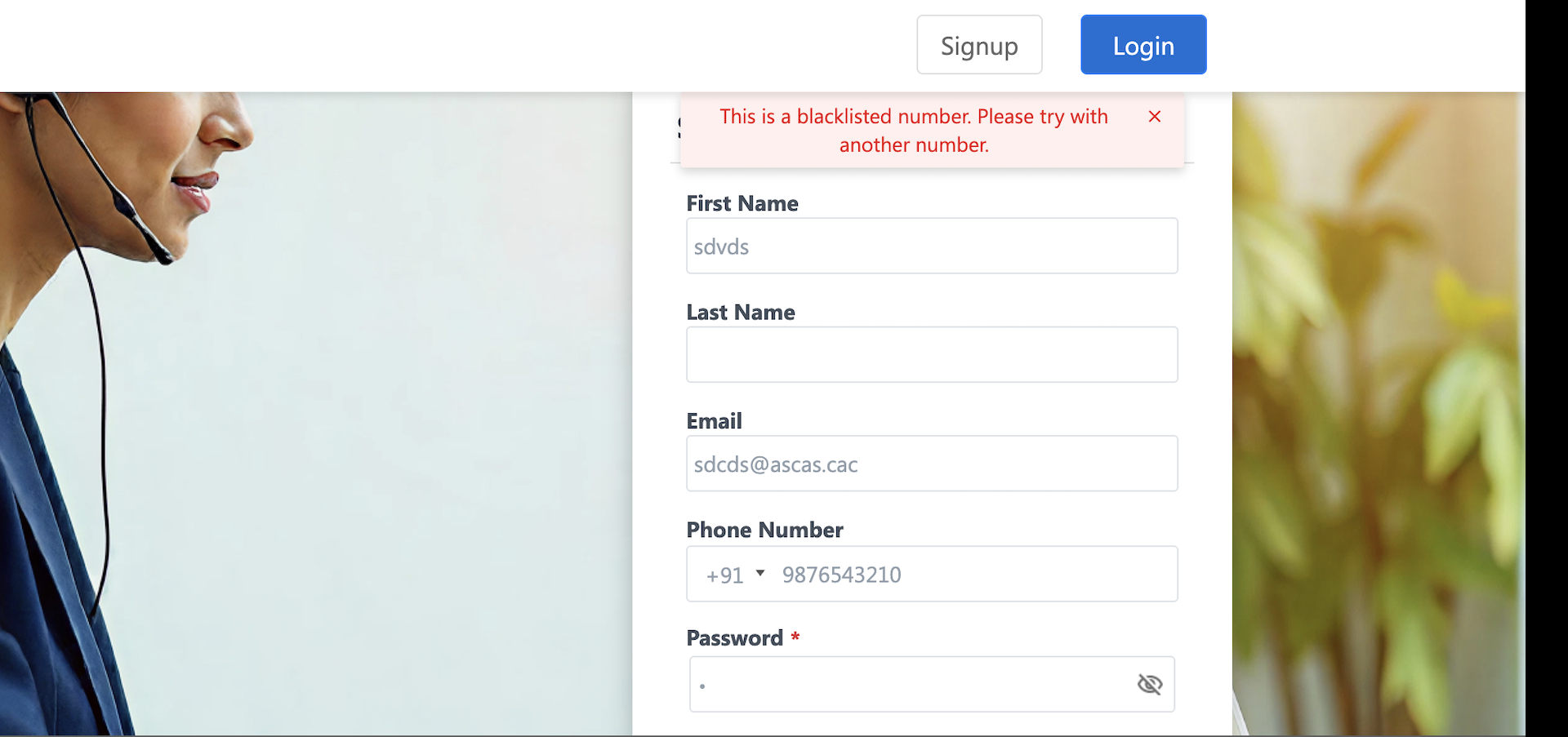
custom error message 1

3.2.2 Scenario 2 – Default Error Message (Fallback)

If the UDS response is not formatted correctly or lacks required fields, the portal shows a default error message.

Default Message: Portal-Form Validation Failed. Please check the Portal-Form Validation service.

Triggers for Default Message:

  • UDS returns an error status, but the response body does not include errors.message field.
  • The UDS response is missing either the status code or the request ID.

Example:

The screenshot shows a 500 status in the network request, but the UI displays the defaultPortal-Form Validation Failed...” error. This indicates the UDS response for that specific error did not provide the required message or Request ID in the expected format.
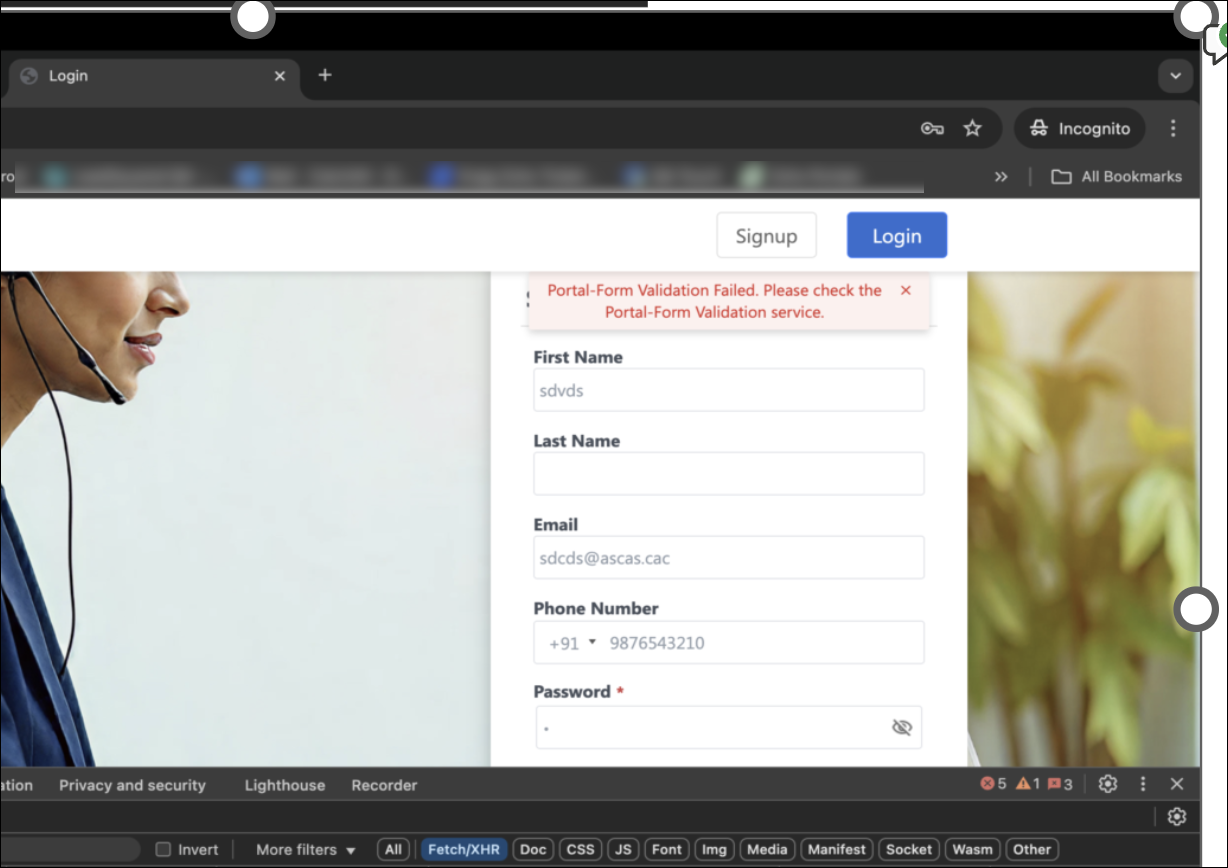
Default Error Message (Fallback)


4. UDS Configuration

To ensure successful validation, the flow should be a custom configuration type with real time response. Configure the UDS flow with the following settings:

Configuration

Required Setting

Flow Trigger

Custom Trigger

Action Type

Return Response (to send data back to Portal)

uds portals config overview

The flow must be initiated by a Custom Trigger and must use the Return Response action to send data back to the portal.
portals uds config custom return response

Next, copy the custom webhook URL.

custom webhook url

On the Portal Designer, select your Registration Form. Under States, paste the webhook URL in the UDS URL field. You should see a succesful validation.
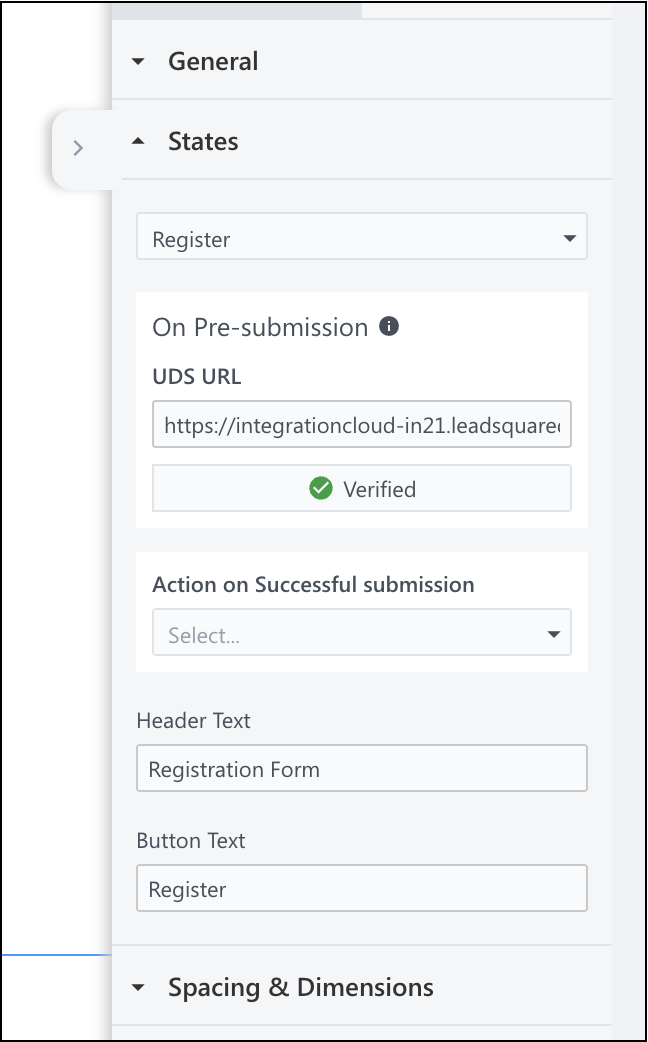
enter uds link on portals


5. Trigger Details – Sample Payload data

Note: The following link provides a sample custom UDS app: UDS-POR Phone Number Dup Check. You can import this file directly to create the sample UDS flow (This file contains sensitive information and is accessible only to LeadSquared’s internal team). For assistance, contact support@leadsquared.com.

Below is a sample payload sent from the Portal during registration save. You can copy this payload directly into UDS to create a sample flow.

{ 

    "TaskId": "", 

    "ActivityId": "", 

    "FormId": "bf34eb59-4520-11ef-8227-064299b60867", 

    "PageId": "dllkufl5y", 

    "IsFormPreValidationEnabled": true, 

    "OpportunityId": "", 

    "FormEntity": [ 

        { 

            "FormId": "bf34eb59-4520-11ef-8227-064299b60867", 

            "TabId": "tab1", 

            "SectionId": "bf34eb59-4520-11ef-8227-064299b60867_tab1_section1", 

            "LeadFields": [ 

                { 

                    "SchemaName": "EmailAddress", 

                    "Value": "fjdsi@jifods.com", 

                    "RuleAppliedInfo": { 

                        "Hidden": 1, 

                        "Mandatory": 0 

                    }, 

                    "DataType": "Email", 

                    "RenderType": "Email" 

                }, 

                { 

                    "SchemaName": "Phone", 

                    "Value": "+91-9123411101", 

                    "RuleAppliedInfo": { 

                        "Hidden": 1, 

                        "Mandatory": 0 

                    }, 

                    "DataType": "Phone", 

                    "RenderType": "Phone" 

                }, 

                { 

                    "SchemaName": "FirstName", 

                    "Value": "firstname", 

                    "RuleAppliedInfo": { 

                        "Hidden": 1, 

                        "Mandatory": 0 

                    }, 

                    "DataType": "Text", 

                    "RenderType": "Textbox" 

                }, 

                { 

                    "SchemaName": "mx_Street1", 

                    "Value": "address", 

                    "RuleAppliedInfo": { 

                        "Hidden": 1, 

                        "Mandatory": 0 

                    }, 

                    "DataType": "Text", 

                    "RenderType": "Textbox" 

                } 

            ], 

            "ActivityFields": [], 

            "TaskFields": [], 

            "OpportunityFields": [] 

        } 

    ], 

    "ProcessFormEntity": [ 

        { 

            "FormId": "bf34eb59-4520-11ef-8227-064299b60867", 

            "TabId": "tab1", 

            "SectionId": "bf34eb59-4520-11ef-8227-064299b60867_tab1_section1", 

            "LeadFields": [ 

                { 

                    "SchemaName": "EmailAddress", 

                    "Value": "fjdsi@jifods.com", 

                    "RuleAppliedInfo": { 

                        "Hidden": 1, 

                        "Mandatory": 0 

                    }, 

                    "DataType": "Email", 

                    "RenderType": "Email" 

                }, 

                { 

                    "SchemaName": "Phone", 

                    "Value": "+91-9123411101", 

                    "RuleAppliedInfo": { 

                        "Hidden": 1, 

                        "Mandatory": 0 

                    }, 

                    "DataType": "Phone", 

                    "RenderType": "Phone" 

                }, 

                { 

                    "SchemaName": "FirstName", 

                    "Value": "firstname", 

                    "RuleAppliedInfo": { 

                        "Hidden": 1, 

                        "Mandatory": 0 

                    }, 

                    "DataType": "Text", 

                    "RenderType": "Textbox" 

                }, 

                { 

                    "SchemaName": "mx_Street1", 

                    "Value": "address", 

                    "RuleAppliedInfo": { 

                        "Hidden": 1, 

                        "Mandatory": 0 

                    }, 

                    "DataType": "Text", 

                    "RenderType": "Textbox" 

                } 

            ], 

            "ActivityFields": [], 

            "TaskFields": [], 

            "OpportunityFields": [] 

        } 

    ], 

    "ExecutionId": "", 

    "ActionId": "", 

    "ProcessDesignerId": "", 

    "ActivityCodeToUpdate": "", 

    "FormOpportunityCode": "0", 

    "ActivityCodesToUpdate": [], 

    "FormOperation": 1, 

    "DraftId": "", 

    "ActivityIdsToBeRemoved": [], 

    "RemovedOriginalSubformIds": [], 

    "PaymentVerificationKey": "", 

    "CurrentTabId": "", 

    "IsPortalRegistrationForm": true, 

    "UseRegisterV2": true, 

    "RegisterLeadEntity": { 

        "Email": "fjdsi@jifods.com", 

        "Password": "e5/ttqpaoGaZ8YOwJi1oMhD5G84sNxxxxxxxxxxxxxxxxxxxnQsxxxxxxxxxxxxxxxxxxxxxxxxxxxxxxxd88fnYUpUG8s4NJYLYSRPuJJiimQCZLnomE5+4E5WTCpP3ok4EAXJt9LEfZxxxxxxxxxxxxxx=", 

        "ConfirmPassword": "iJtO8GCA0LWnogZ0BrjXXZ8lXQKTKxxxxxxxxxxxxxxxxxxxqErxxxxxxxxxxxxxxxxxxxxxxxxxxxxxxxDKbOvM0d19OeYujwgDx52sbZlyhry0ZilMBfQs6TqCMZttI/nOECUjaubcxPJ1CUtdKna9AZyYXLQTxxxxxxxxxxxxx=" 

    }, 

    "PortalSpecificDetails": { 

        "TimeZoneInfo": "US/Central" 

    }, 

    "URLSearchParams": {}, 

    "LockKey": "", 

    "PortalDetails": { 

        "URL": "https://landingpagecreate4-dobwavuz.marketxpander.net/", 

        "IPAddress": "10.230.13.6", 

        "ConnectionSpeed": "4g", 

        "Platform": "Windows", 

        "BrowserName": "Chrome", 

        "BrowserVersion": "141.0.0.0", 

        "DeviceType": "Desktop", 

        "PageUrl": "https://landingpagecreate4-dobwavuz.marketxpander.net/", 

        "ReferrerUrl": "" 

    }, 

    "RenderSettings": { 

        "ProcessDesignerId": "", 

        "ActionId": "" 

    }, 

    "SavedTabIds": [], 

    "ConnectionSpeed": "4g", 

    "Platform": "Windows", 

    "BrowserName": "Chrome", 

    "BrowserVersion": "141.0.0.0", 

    "DeviceType": "Desktop", 

    "PageUrl": "https://landingpagecreate4-dobwavuz.marketxpander.net/", 

    "ReferrerUrl": "" 

}


6. Sample Return Response Logic

Here’s an example of how the Return Response action can handle phone number validation within a UDS Custom Flow.

const main = (input) => { 

    const phoneField = input?.data?.FormEntity?.[0]?.LeadFields?.find( 

        field => field?.SchemaName === "Phone" 

    ); 


    const phone = phoneField?.Value; 


    function findLead(phone) { 

        if (!phone) { 

            return { 

                statusCode: 200, 

                responseHeaders: {}, 

                body: { 

                    status: "SUCCESS", 

                    success: true, 

                    errors: {}, 

                    data: "Number is not provided", 

                    requestId: "c1d2e3f4-5678-9012-3456-abcdefabcdef" 

                } 

            }; 

        } else if (String(phone) === "+91-9876543210") { 

            return { 

                statusCode: 500, 

                responseHeaders: {}, 

                body: { 

                    status: "ERROR", 

                    success: false, 

                    errors: { 

                        message: [ 

                            "This is a blacklisted number. Please try with another number." 

                        ] 

                    }, 

                    data: null, 

                    requestId: "3bfcfe46-39dd-7c86-6a87-5196d2c65971" 

                } 

            }; 

        } else if (String(phone) === "+1-9876543210") { // +1 -> 400 

            return { 

                statusCode: 400, 

                responseHeaders: {}, 

                body: { 

                    status: "ERROR", 

                    success: false, 

                    errors: { 

                        message: [ 

                            "Bad request for this US number." 

                        ] 

                    }, 

                    data: null, 

                    requestId: "a1111111-2222-3333-4444-555555555001" 

                } 

            }; 

        } else if (String(phone) === "+93-9876543210") { // +202 -> 202 

            return { 

                statusCode: 202, 

                responseHeaders: {}, 

                body: { 

                    status: "SUCCESS", 

                    success: true, 

                    errors: {}, 

                    data: "Accepted for asynchronous processing", 

                    requestId: "a1111111-2222-3333-4444-555555555002" 

                } 

            }; 

        } else if (String(phone) === "+98-9876543210") { // +98 -> 400 

            return { 

                statusCode: 400, 

                responseHeaders: {}, 

                body: { 

                    status: "ERROR", 

                    success: false, 

                    errors: { 

                        message: [ 

                            "Invalid or malformed number for +98 sample." 

                        ] 

                    }, 

                    data: null, 

                    requestId: "b2222222-3333-4444-5555-666666666098" 

                } 

            }; 

        } else if (String(phone) === "+95-9876543210") { // -> 401 

            return { 

                statusCode: 401, 

                responseHeaders: {}, 

                body: { 

                    status: "ERROR", 

                    success: false, 

                    errors: { 

                        message: [ 

                            "Unauthorized - sample number." 

                        ] 

                    }, 

                    data: null, 

                    requestId: "c3333333-4444-5555-6666-777777777401" 

                } 

            }; 

        } else if (String(phone) === "+355-9876543210") { // -> 405 

            return { 

                statusCode: 405, 

                responseHeaders: {}, 

                body: { 

                    status: "ERROR", 

                    success: false, 

                    errors: { 

                        message: [ 

                            "Method Not Allowed - sample number." 

                        ] 

                    }, 

                    data: null, 

                    requestId: "d4444444-5555-6666-7777-888888888405" 

                } 

            }; 

        } else if (String(phone) === "+213-9876543210") { // -> 415 

            return { 

                statusCode: 415, 

                responseHeaders: {}, 

                body: { 

                    status: "ERROR", 

                    success: false, 

                    errors: { 

                        message: [ 

                            "Unsupported Media Type - sample number." 

                        ] 

                    }, 

                    data: null, 

                    requestId: "e5555555-6666-7777-8888-999999999415" 

                } 

            }; 

        } else if (String(phone) === "+376-9876543210") { // -> 429 

            return { 

                statusCode: 429, 

                responseHeaders: {}, 

                body: { 

                    status: "ERROR", 

                    success: false, 

                    errors: { 

                        message: [ 

                            "Too Many Requests - sample number." 

                        ] 

                    }, 

                    data: null, 

                    requestId: "f6666666-7777-8888-9999-aaaaaaaa429" 

                } 

            }; 

        } else if (String(phone).toUpperCase() === "NA" || String(phone).toUpperCase() === "N/A") { 

            return { 

                statusCode: 422, 

                responseHeaders: {}, 

                body: { 

                    status: "ERROR", 

                    success: false, 

                    errors: { 

                        message: [ 

                            "Phone value marked as NA (not applicable)." 

                        ] 

                    }, 

                    data: null, 

                    requestId: "09876543-21ab-cdef-0000-00000000NA01" 

                } 

            }; 

        } else { 

            return { 

                statusCode: 200, 

                responseHeaders: {}, 

                body: { 

                    status: "SUCCESS", 

                    success: true, 

                    errors: {}, 

                    data: "Valid number for registration", 

                    requestId: "96d8df97-0c27-821f-5cc8-ee04ac8c91b7" 

                } 

            }; 

        } 

    }


7. Debugging Errors

Refer to the UDS logs for any failures in execution. The Logs feature in UDS allows you to monitor and troubleshoot the execution of your data sync flows: Universal Data Sync (UDS) – Logs.

uds logs for portals


Any Questions?

If you have any questions related to forms that weren’t answered here, please leave comments below. We’ll be happy to help!

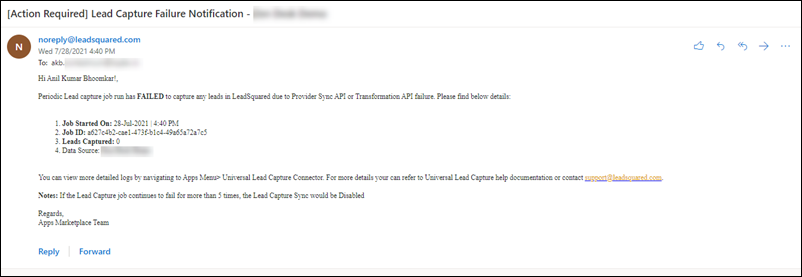
Email Settings – Recipients

1. Feature Overview

This email setting allows you to CC email addresses of contacts that aren’t leads in your system. Once you send a mail to any such contact, a lead with that email address will be automatically created in your system.

Once enabled, users can add non-lead email addresses in the CC field when sending one-to-one emails, or when sending emails through automations.

Note:

  • This setting cannot be applied for email campaigns.
  • If you have the Email Opt-In feature enabled in your account, you must disable it in order to enable the Email Recipients feature.
  • For more details on Email Settings, see Email Settings – Feature Guide.


2. Prerequisite

You must be the Admin of your LeadSquared account.


3. How it Works

  1. From your LeadSquared account, navigate to My Profile>Settings>Email Settings>Email Recipients.
  2. Click Yes to enable this setting.

Add email recipients in LeadSquared

3.1 Sending One-To-One Emails

Once enabled, users will be able to include non-lead email addresses in the CC field, while sending one-to-one emails from –

Add email recipients in LeadSquared

  • Lead Details Page

Add email recipients in LeadSquared

Add email recipients in LeadSquared

3.2 Through Automation

Add email recipients in LeadSquared


Any Questions?

Did you find this article helpful? Please let us know any feedback you may have in the comments section below. We’d love to hear from you and help you out!

Email Settings – From Address Restrictions

1. Feature Overview

The Email Campaign feature allows users to send emails to leads on behalf of another user by entering a different email address in the From address section of the editor. With the From Address Restrictions setting in your LeadSquared account, you can restrict a user role from sending emails on behalf of the lead owner or any other user. This setting is different from the Restrict Email Senders setting where you can completely restrict individual users from sending emails to the leads. To know more, see Email Settings – Restrict Email Senders.

Note: For more details on Email Settings, see Email Settings – Feature Guide.


2. Prerequisite

You must be the administrator of your LeadSquared account.


3. From Address Restrictions

You can restrict a specific user role from using another user’s Email address in the From Address field of one-to-one emails, Email campaigns, Bulk Emails, etc.

3.1 Set up From Address Restrictions

  1. Navigate to My Profile>Settings>Email Settings>From Address Restrictions.
  2. Click Edit.
  3. Alongside the user role you want to restrict, click Checkbox under Restrict Lead Owner or Restrict Other Users.
    • Restrict Lead Owner – If enabled, restricts the corresponding LeadSquared user role from sending Emails on behalf of the Lead Owner.
    • Restrict Other Users – If enabled, restricts the corresponding LeadSquared user role from sending Emails on behalf of the other users in your LeadSquared CRM like Administrator, Marketing User, Sales Manager or Sales User.
  4. Click Save.
Note: To know more about the different user roles, see User Roles and Access Rights.

LeadSquared - Set up From Address Restrictions

3.2 Example Use Case

Consider a lead ‘Sam’ owned by an Admin user ‘Ethan William’. If Ethan tries to send a one-to-one Email to Sam, the From field of the Email Editor allows him to select other users in his LeadSquared system. This feature lets him send Emails on behalf of other users. The From Address Restrictions allows you restrict send Emails on behalf of the Lead Owner and other users.

LeadSquared - From Address


Any Questions?

Did you find this article helpful? Please let us know any feedback you may have in the comments section below. We’d love to hear from you and help you out!