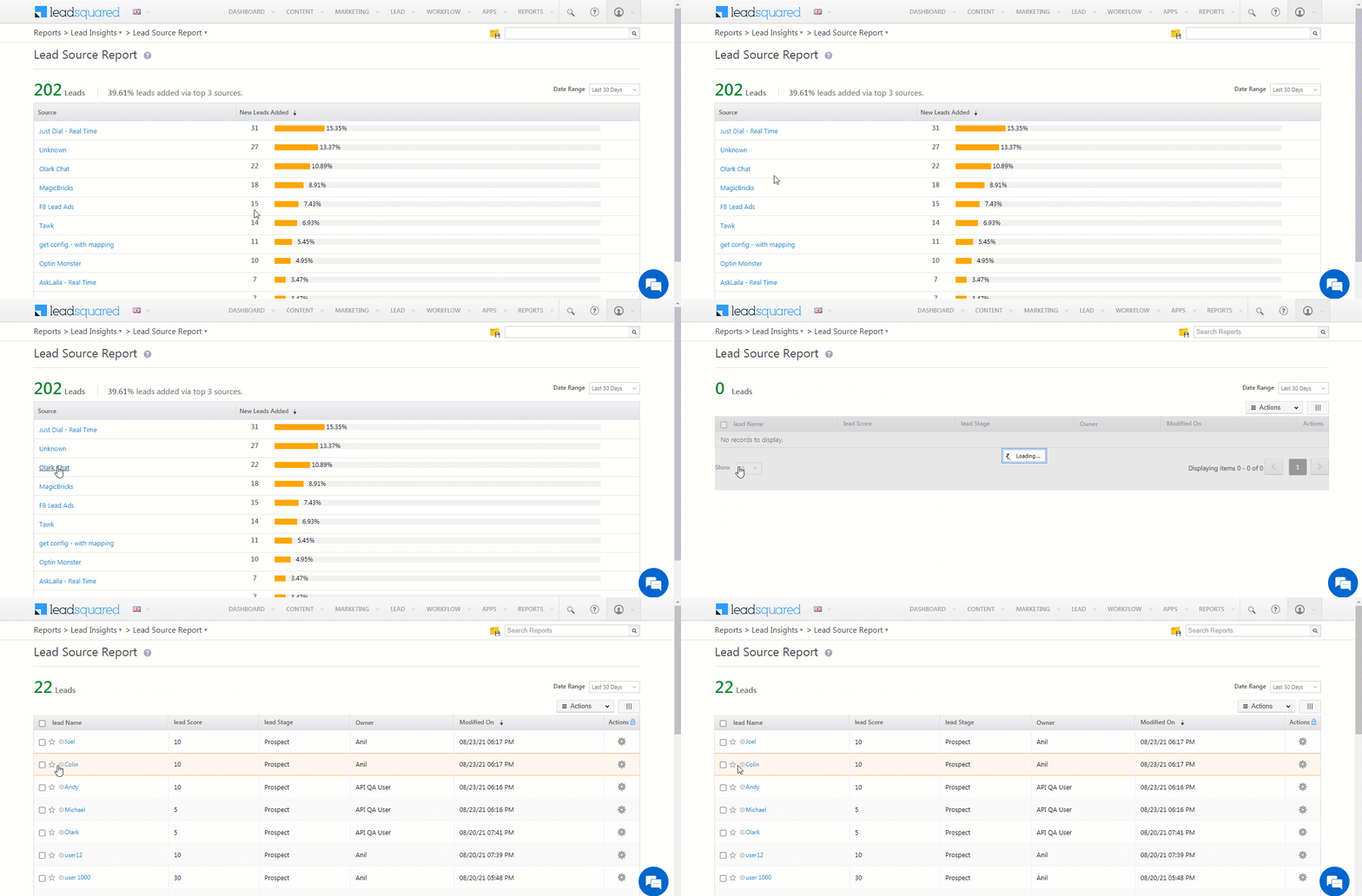
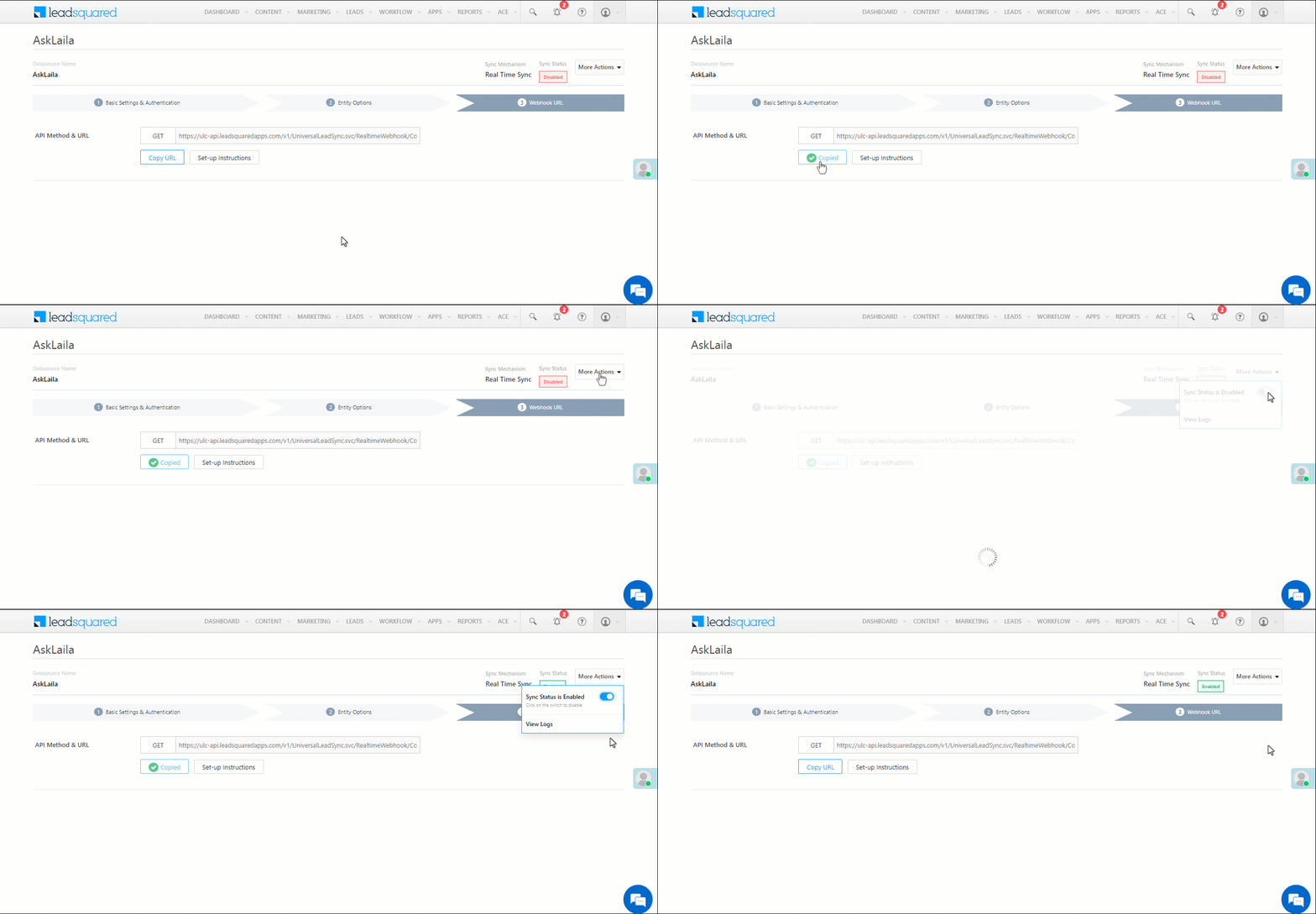
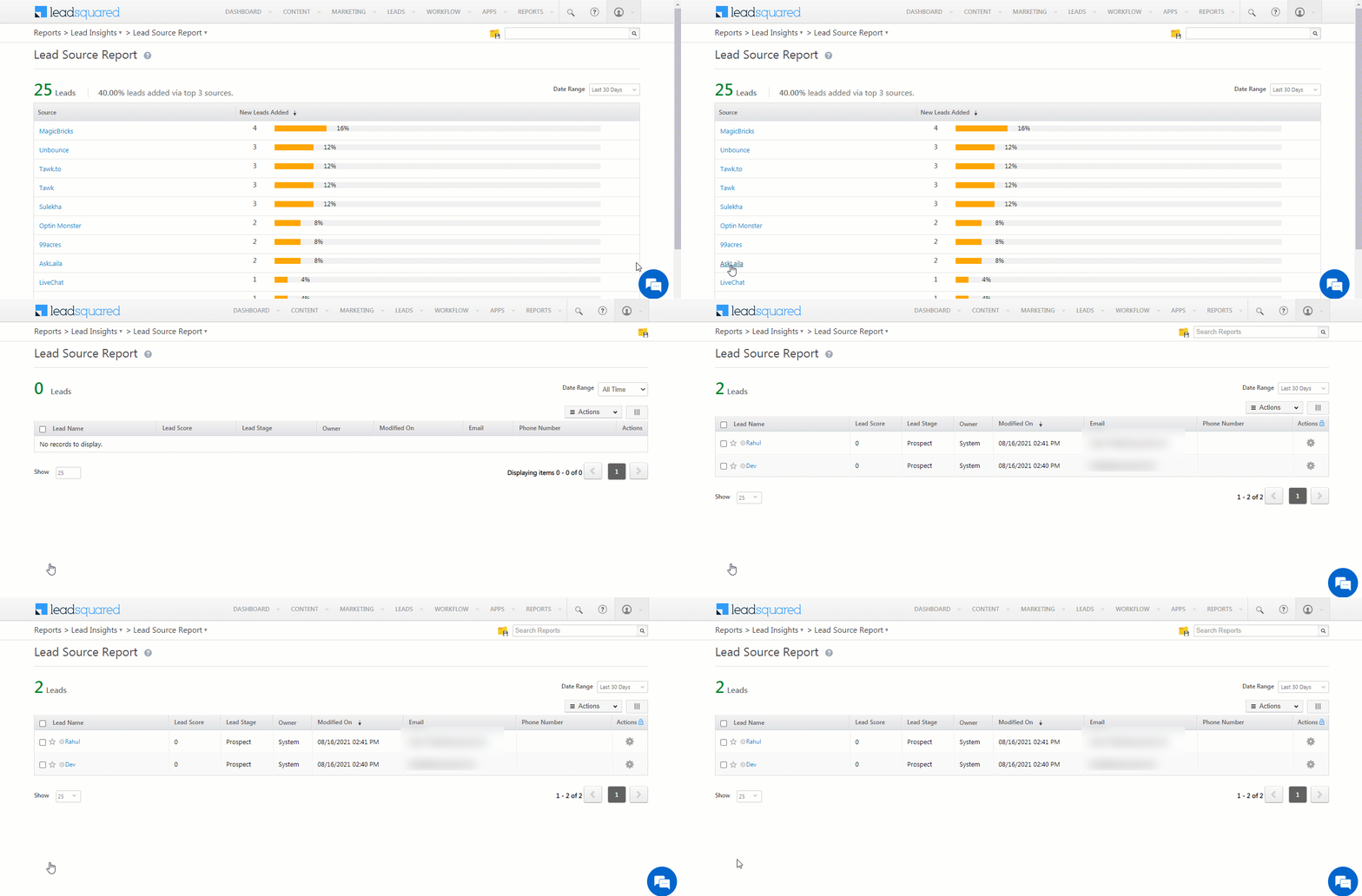
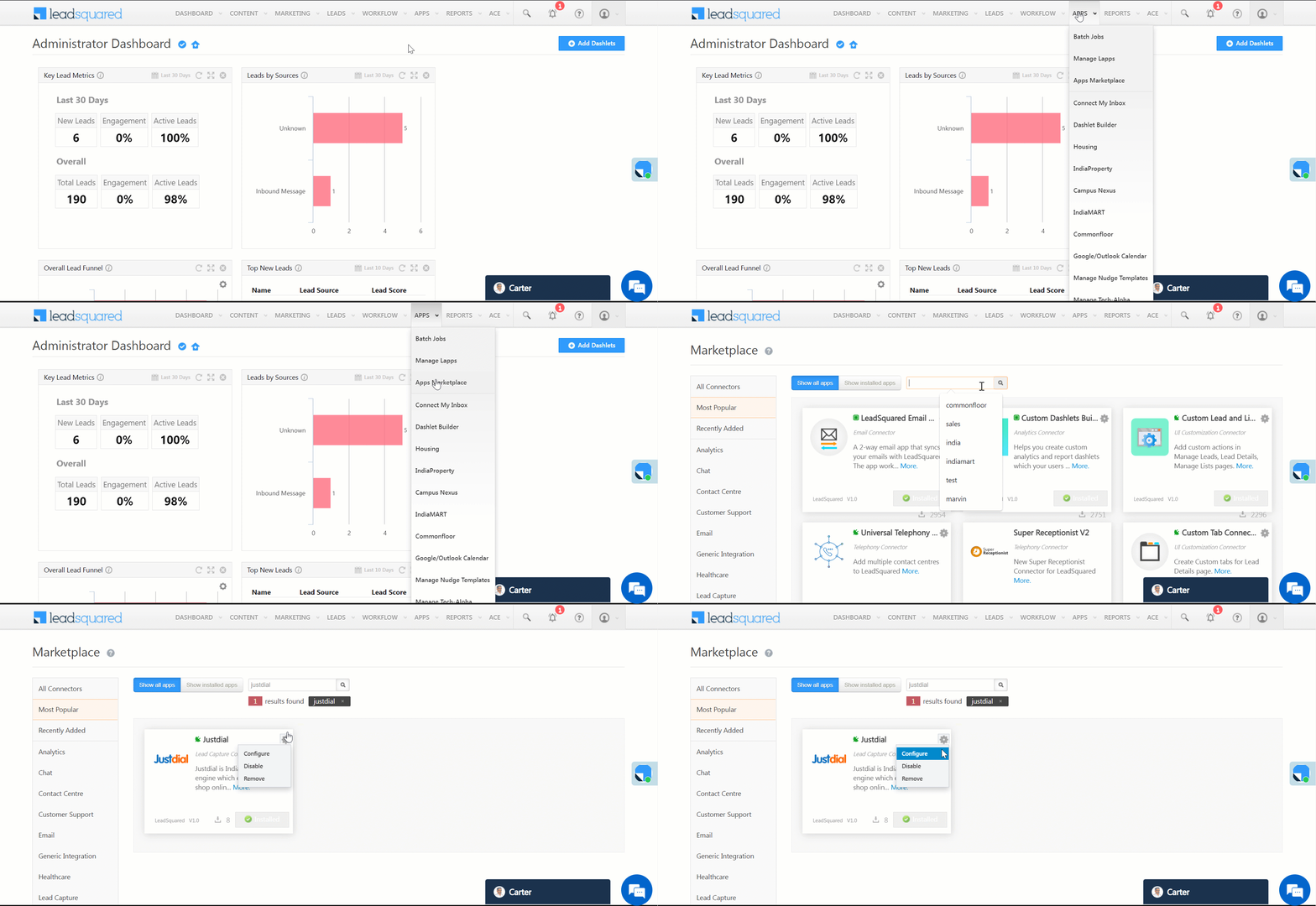
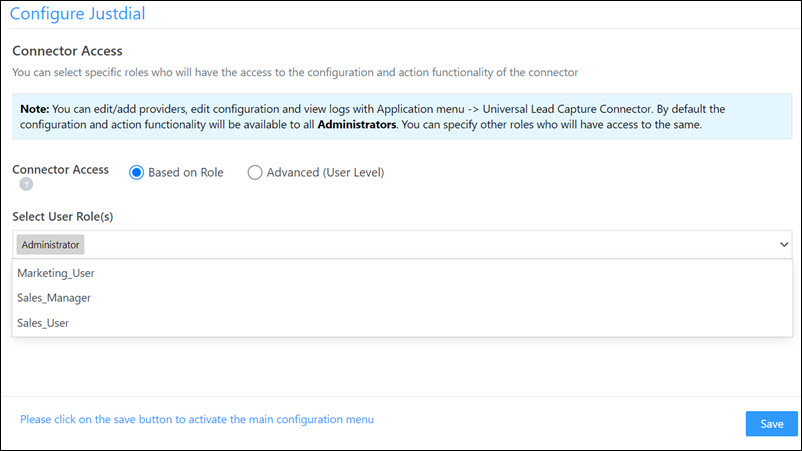
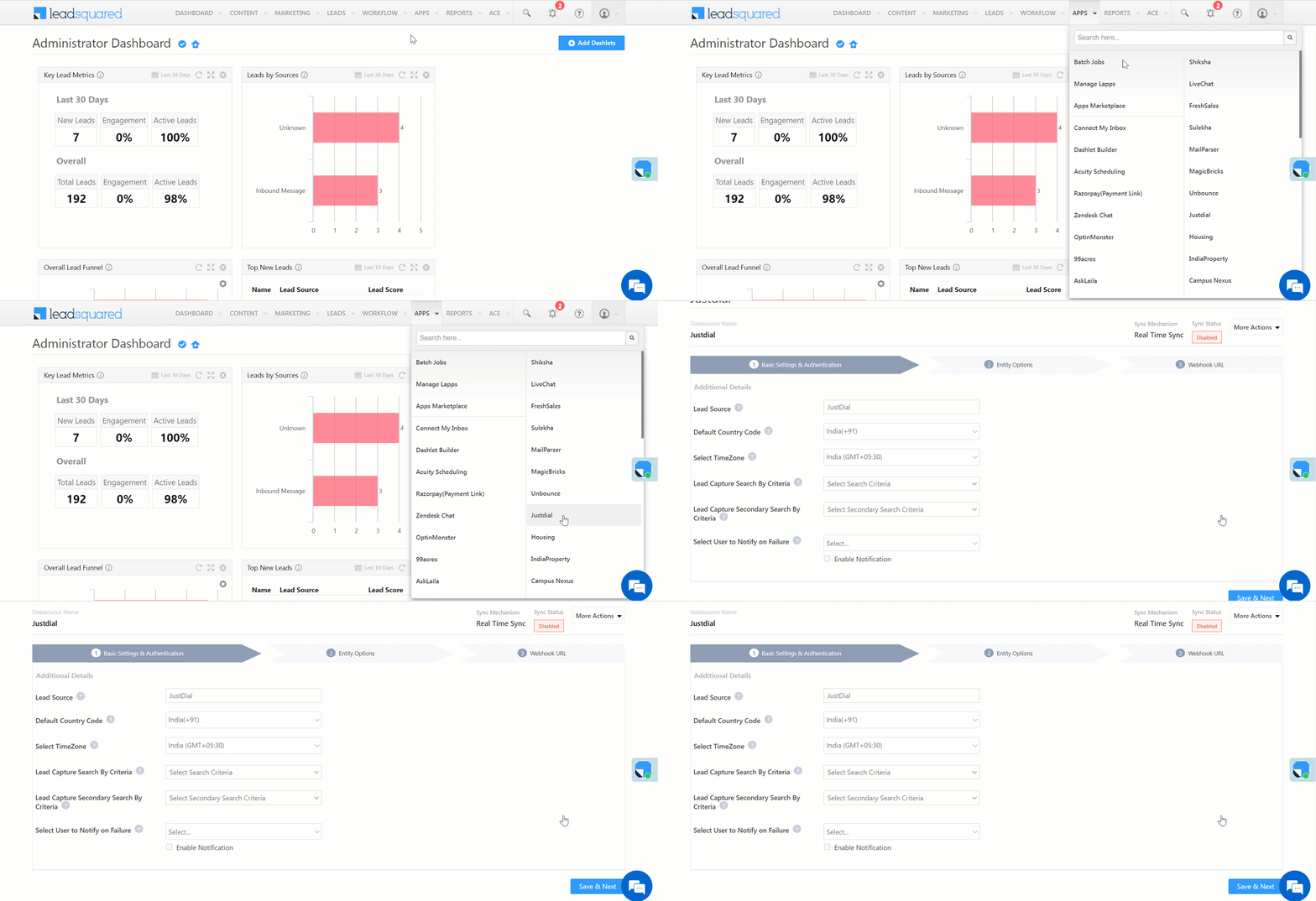
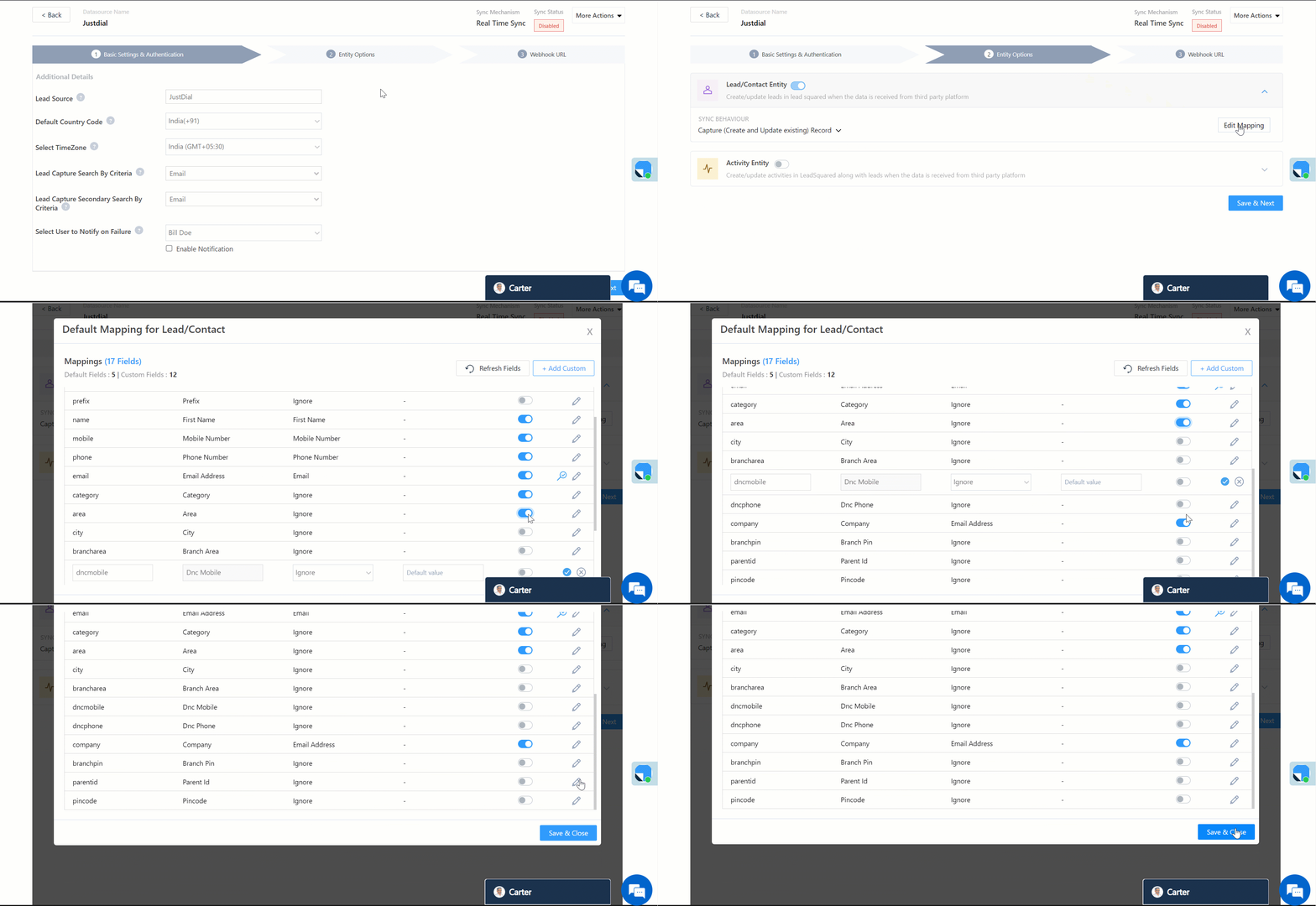
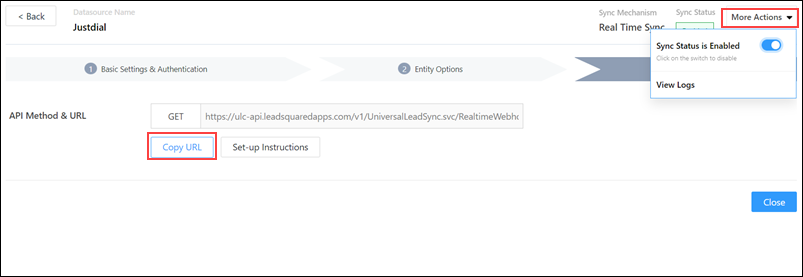
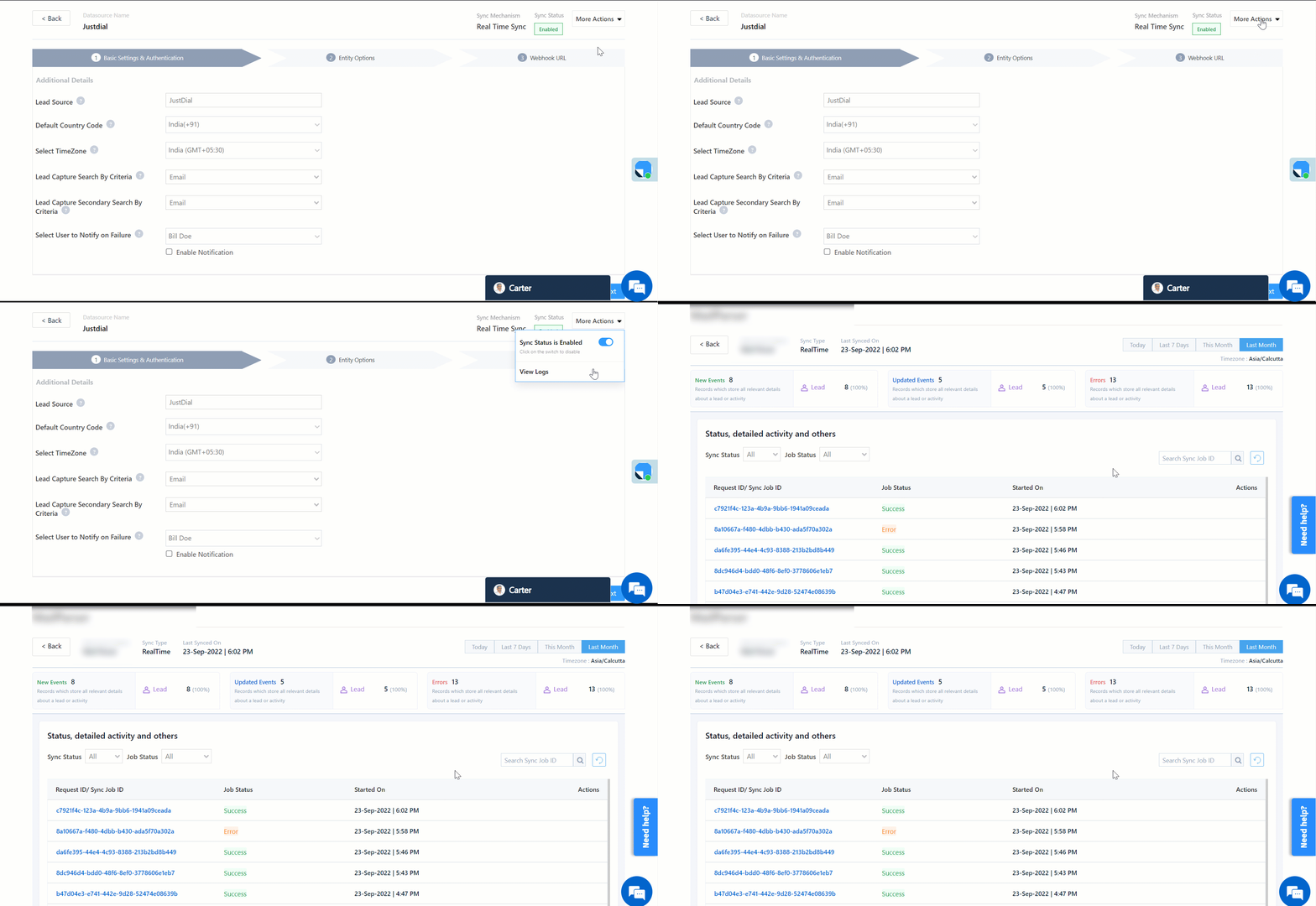
Lead Management – Feature Guide

1. Feature Overview

Leads are your potential customers. In LeadSquared, you can track your lead’s journey from creation, through marketing and sales activities, all the way to conversion.

The lead entity is highly customizable. In addition to system fields (first name, email, etc.), you can create custom lead fields (enrollment Id, passport number, etc.) to capture details specific to your business use cases.
Features like lead scoring and prioritization enable you to apply your own business logic to categorize leads based on their suitability, interest, and engagement, and push them further down the sales funnel.

Once a lead is created in your system, you can track activities (website visits, email opens, phone calls, etc.), perform tasks (schedule meetings, demos, site visits, etc.), and use a variety of other features to convert them into customers.

Unique Fields

A lead is created when at least one unique lead field is present from the list of available fields. A unique field will help prevent duplicate lead creations, and also help differentiate leads from each other. To know more about unique fields, refer to How to Make a Custom Field Unique in Your LeadSquared Application.

But in case you’ve created duplicate leads, you can merge them with existing leads, sanitize the existing data and avoid creating them in future. To know more, refer to How to Avoid Creating Duplicate Leads.


2. How to Create Leads

You can create leads in LeadSquared through multiple channels –

  • Form Widgets
    You can create and embed a LeadSquared Form Widget on your web page or landing page and start capturing leads in minutes.
  • Landing Pages
    LeadSquared’s landing pages provide existing templates that are optimized to help you capture and convert your leads.
  • Manually
    You can add leads manually to LeadSquared, from the Manage Leads page. To know more, please refer to How to Add Leads.
  • Import Leads
    If you are using another lead generation platform to capture leads, then you can import these leads to LeadSquared through CSV files. To know more, refer to How to Import Leads to LeadSquared.
  • APIs
    Capture leads programmatically through APIs.
  • Portals
    LeadSquared’s Portal feature allows you to build your own portal to capture leads, through online forms.
  • Third-Party Marketplaces
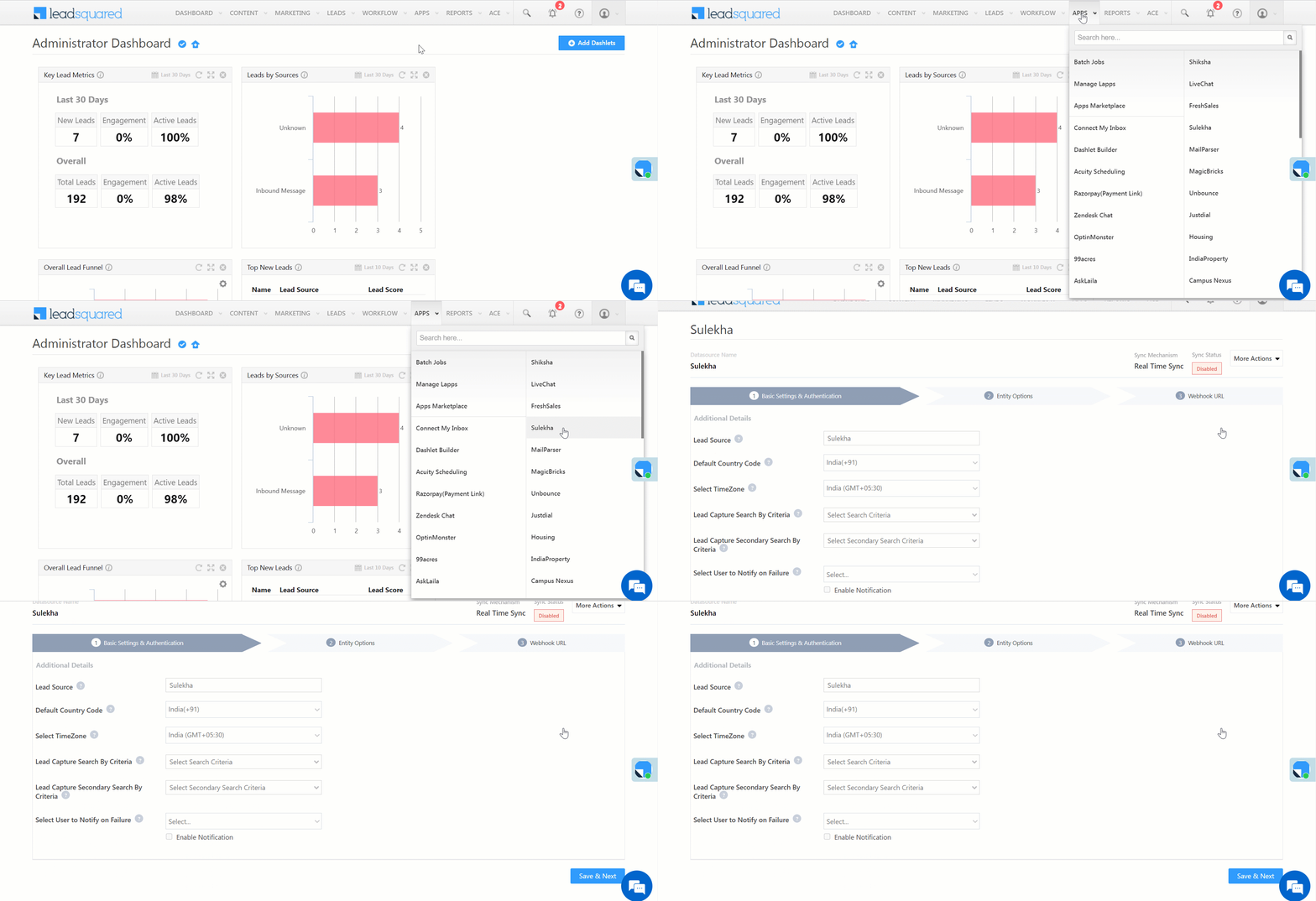
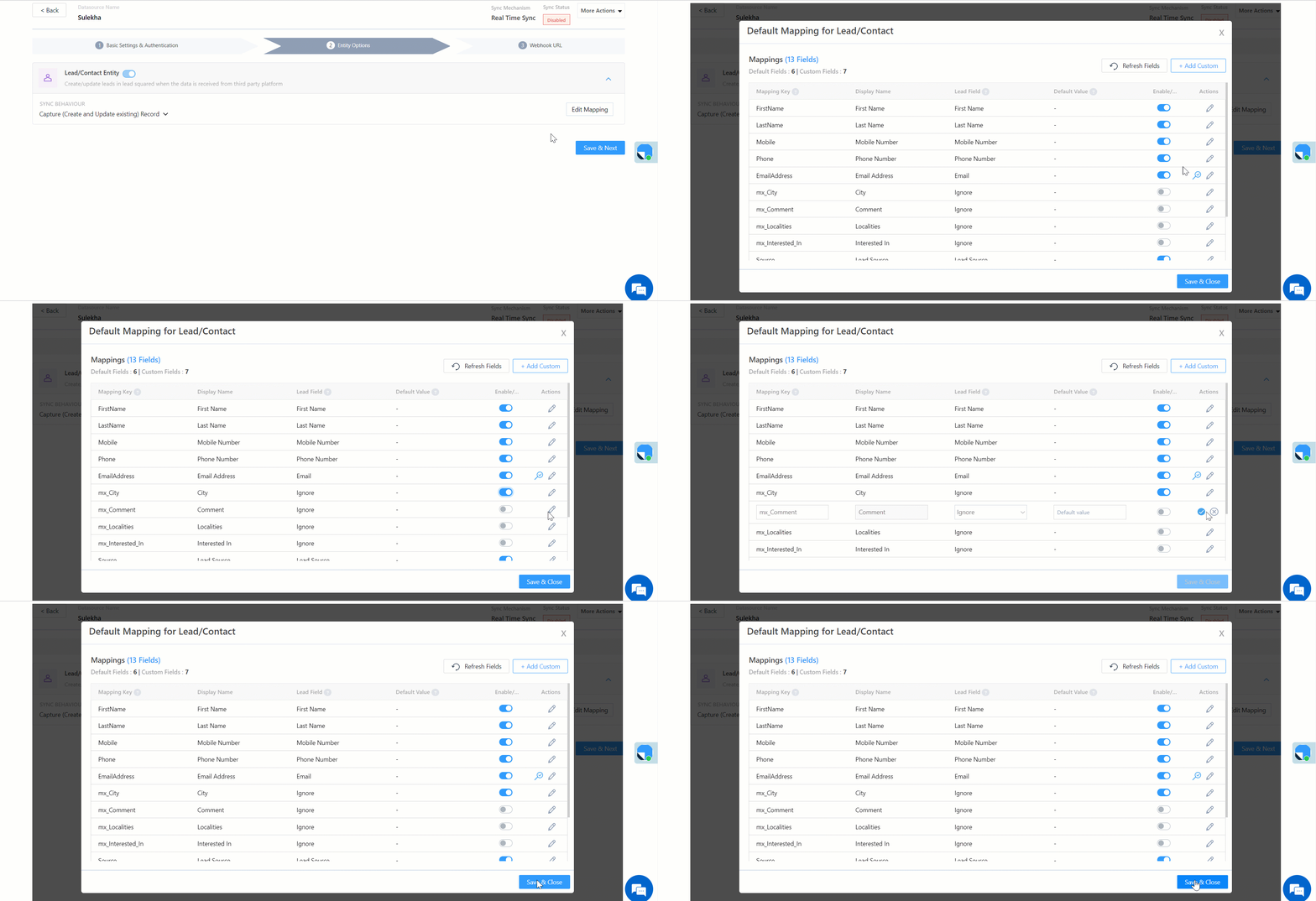
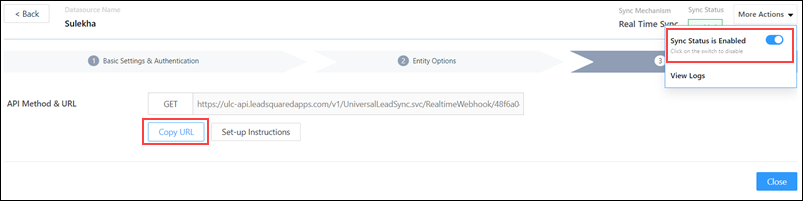
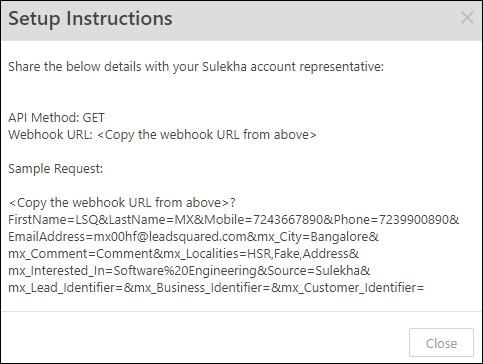
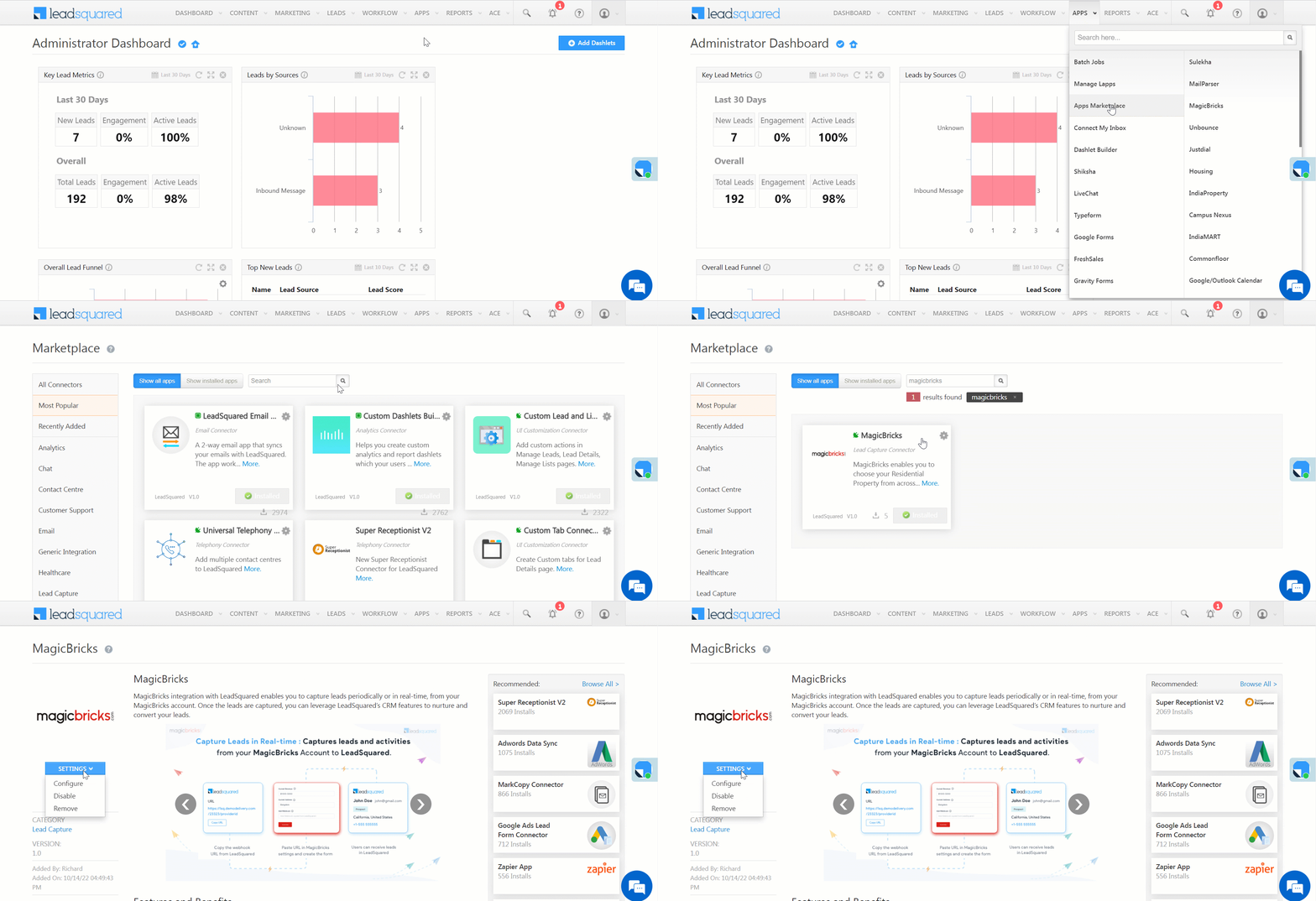
    By integrating third-party lead-capture applications (such as MagicBricks, Sulekha, Common Floor, etc.) with LeadSquared, you’ll be able to view all the leads generated and utilize LeadSquared’s functionalities on these leads.
  • Others
    You can also use different marketing channels such as email inboxes, external CRM software, chat-messaging tools, etc., to capture leads.


3. Prerequisites

You must be the administrator of your LeadSquared account to access lead settings.


4. Configuration

4.1 Lead Fields

You’ll have to set-up lead fields to collect the lead’s information. This will help you identify and differentiate a lead from other leads, and help you classify the leads as per your business requirements.

Note: Here’s a quick video to Create Custom Lead Fields.

To create a custom lead field –

  1. From the main menu, navigate to My Profile>Settings>Leads>Create Lead Field.
  2. On the Create Lead Field page, provide a Display Name for the lead field, and enter all the other details.
  3. Once you’ve entered all the details, click Save.
    • If you want to add another lead field, click Save and Add New.

Property
Description
Display Name The name of the field (first name, second name, email Id, etc.). This field is compulsory.
Include Field in Section The section in which the lead field will be visible. The options available are Lead Details, Additional Details and Hidden Fields.
Mail Merge Default Value The default value that’ll be used when the mail merge value is not provided for this field.
Data Input Type The data type of the lead field. Some of the options available are number, email Id, website, dropdown, boolean, etc.
Show As The way in which the input field will appear on the LeadSquared user interface. The options are either as a textbox or text-area.
Maximum Length The maximum number of characters which can be included in the field is 256 characters.
Lead Field Properties The additional properties which determine how the lead field behaves. Hover your cursor over each option to know more about the field.
Is Mandatory Marks the field as mandatory. Users won’t be able to create a new lead record without filling this field.
Show in Import Makes this field available for mapping during lead import through CSV.
Use in Lead Clone Makes the field available when users try to clone a lead.
Show in Quick Add Makes this field available when a user uses the Quick Add form to add a lead.
Include in Mail Merge Includes this field as a mail merge option for email personalization or automation.
Lock after Create Non-admin users won’t be able to update this field once a lead is created.

Note:

  • A comprehensive pop-up box of all dependent areas where a lead field is utilized, is displayed when a user tries to delete the field.
  • Lead Lists or Quick Filters containing the lead field for inactive users must be deleted by the admins before deleting the lead field itself.


4.2 Lead Stages

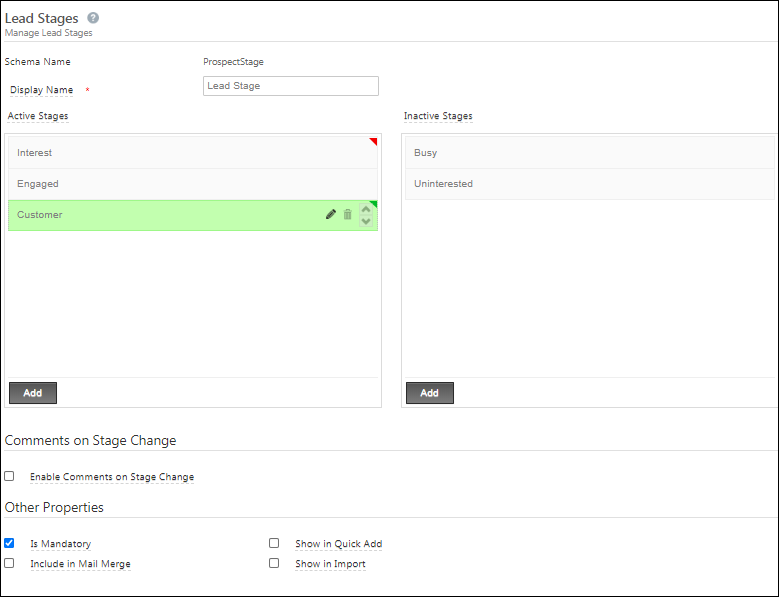
Lead Stage represents the current position of your lead in the sales funnel. Leads may be at different levels of engagement with your offers depending upon their awareness, need, interest and budget. The position of a lead in sales funnel based on its level of engagement is called Lead Stage. For more details see, Managing Lead Stages.

By default, LeadSquared is configured with three default Lead Stages –

  • Prospect
  • Opportunity
  • Customer

Lead Stages may vary from company to company and industry to industry. Keeping this variation in mind, LeadSquared allows you to customize and add Lead Stages. To add lead stages –

  1. From the main menu, navigate to My Profile>Settings>Leads>Lead Stages.
  2. Enter the Display Name for the custom lead field.
  3. Under Active Stages, click the Add button to add lead stages.
  4. Under Inactive Stages, click the Add button to add lead stages.
  5. To edit an existing lead stage, hover your cursor on the right side of the lead stage, and click the Edit icon.
  6. To delete an existing lead stage, hover your cursor on the right side of the lead stage, and click the delete icon.
  7. Click the Checkbox checkbox against Enable Comments on Stage Change if you want to enable user comments when updating a lead field.
  8. Under Other Properties, click the Checkbox checkbox against the properties that you want to enable. Hover your cursor over each option to know more about that property.

Lead

Properties Description
Is Mandatory Marks the field as mandatory. Users won’t be able to create a new lead record without filling this field.
Show in Quick Add Includes the field in the quick add lead option to create a new lead.
Include in Mail Merge Includes this field as a mail merge option for email personalization.
Show in Import Enables the field for mapping during lead import through CSV.


4.3 Lead Sources

Lead sources are the avenues through which you acquire leads. Common lead sources include social media, organic search, trade shows, inbound calls, etc. By default, you’ll find the following lead sources in your account –

  • Organic Search
  • Referral Sites
  • Direct Traffic
  • Social Media
  • Inbound Email
  • Inbound Phone Call
  • Outbound Phone Call
  • Email Marketing
  • Pay per click Ads

These lead sources are relevant to most businesses, and you cannot delete them from your account. However, you can add your own lead sources that suit your business. To know how to add lead sources, and perform other actions, refer to Settings: Managing Lead Sources.


4.4 Lead Forms

Lead forms can be customized to capture lead fields relevant for your business. While creating lead forms, you’ll be able to –

  • Create, edit and delete sections in a lead form
  • Manage the sequence of different sections
  • Manage the position of different fields in a section
  • Move a field from one section to another section
  • Manage the length of a field  displayed in the form
  • Hide unused custom fields

By default, LeadSquared is configured with three basic sections – Lead DetailsAdditional Details and Hidden Details. To create your own sections, rename or delete an existing, refer to Lead Form Customization.

Note: The forms mentioned in this section are basic lead ‘create’ and ‘edit’ forms. To create advanced dynamic forms with custom rules, see How to Create a Form.


5. Lead Tracking

Lead tracking allows you to track a lead’s activities (views, clicks, etc) on your websites. This section also includes information on landing page domains, tracking URLs (using UTM parameters) and more.

Leads


5.1 Tracking Script

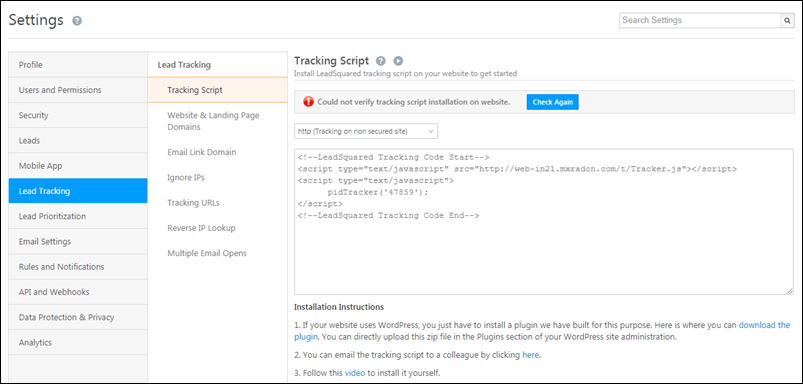
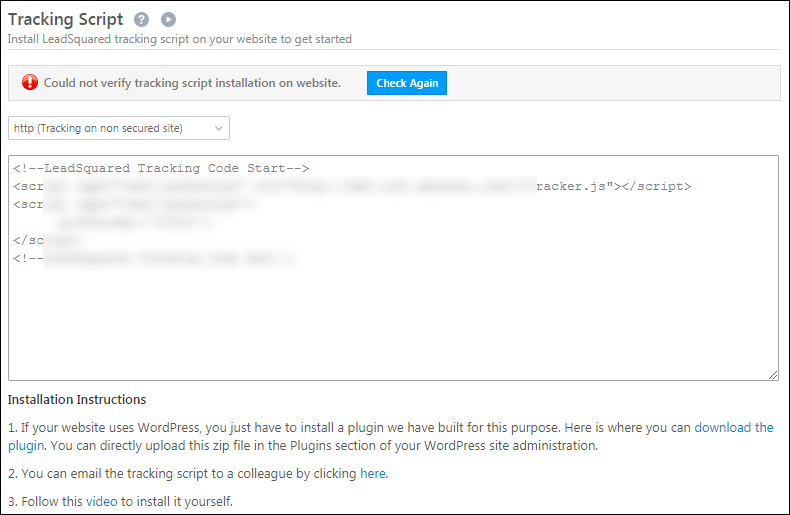
Once you install the LeadSquared tracking script on your website, you can track the different sources (such as online ads, social media, organic searches, etc.) through which your leads are visiting your website. You can also track other events that leads perform on your website, such as link clicks, page views, etc. To know how to install a tracking script on your website, refer to How to Deploy the LeadSquared Tracking Script on Your Website?

Leads


5.2 Website & Landing Page Domains

You can track website visits on multiple domains (and sub-domains under each domain) in LeadSquared. You can also customize landing page URLs in your own domain and associate multiple sub-domains for your landing pages. To know more, refer to Configuring Multiple Domains in LeadSquared.


5.3 Email Link Domain

LeadSquared encodes the links to webpages are included in the emails you send to your leads, to track who clicked on your emails and the links. After they click the links and visit your website or landing pages, we further track their visits on your web pages. To know more, refer to Domain Settings for Email Links.


5.4 Ignore IPs

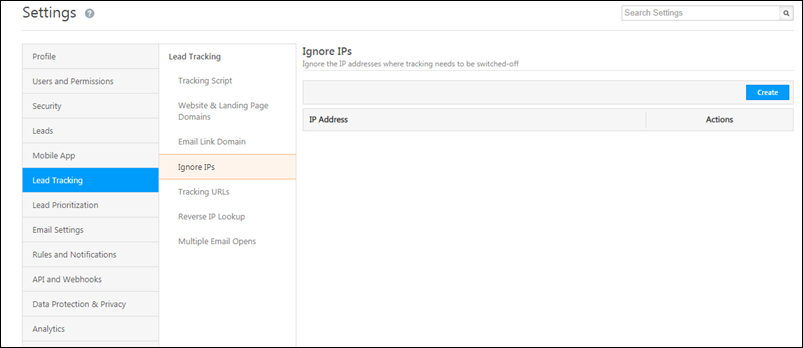
You can ignore IP addresses for various use cases, such as not wanting to track internal users, product-specific visitors, etc. To do this, enter the IP addresses on which you want tracking to be disabled, and click Create once you’re done.

Leads


5.5 Tracking URLs

Create tracking URLs for your landing pages with UTM codes to enable multi-dimensional tracking across your campaigns, social media pages and other sources. To know more, refer to How to Use Tracking URL Feature.


5.6 Reverse IP Lookup

By enabling Reverse IP Lookup, you can identify the location details of a lead (such as city, state and country) when they submit on LeadSquared landing pages. For more information, please refer to Reverse IP Lookup.


5.7 Multiple Email Opens

By enabling Multiple Email Opens, you can track multiple email opens for the same lead. To know more, refer to Multiple Email Opens.


6. Lead Prioritization

Through lead prioritization, you can segregate quality leads from dis-engaged leads,and reach out to leads that you can easily convert into customers. To know more, refer to Lead Prioritization.

Leads


6.1 Lead Scoring

Lead Score is the measure of Lead activity in response to your marketing offers. An engaged Lead interacts with you online or offline. These interactions are essentially Lead activities with varied level of importance. To know more, please refer to How does Lead Scoring work?


6.2 Lead Quality Criteria

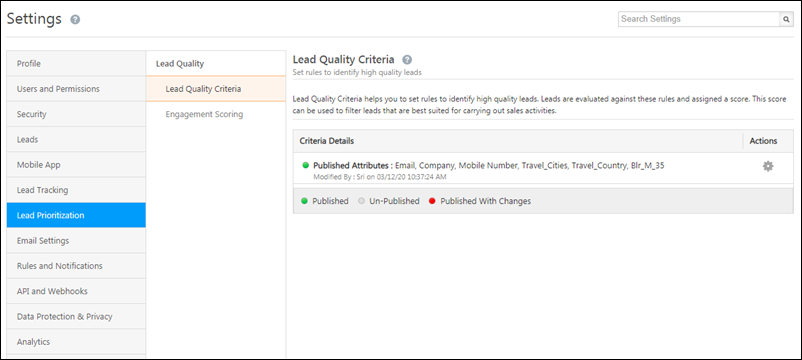
Lead Quality Criteria helps you set rules that would identify leads closest to your ideal customer persona. Leads are evaluated against these rules and assigned a score. This score can be used to filter leads that are best suited for carrying out sales activities. To know more, refer to Lead Quality Criteria – Setup.


6.2 Engagement Scoring

Engagement Score is calculated based on the recent activities of leads. By determining the engagement level of a lead with these activities, you can set rules to determine the score. The score helps you separate engaged from dis-engaged leads. To know more, refer to Setup Criteria of Lead Engagement Scoring.


7. Lead Actions

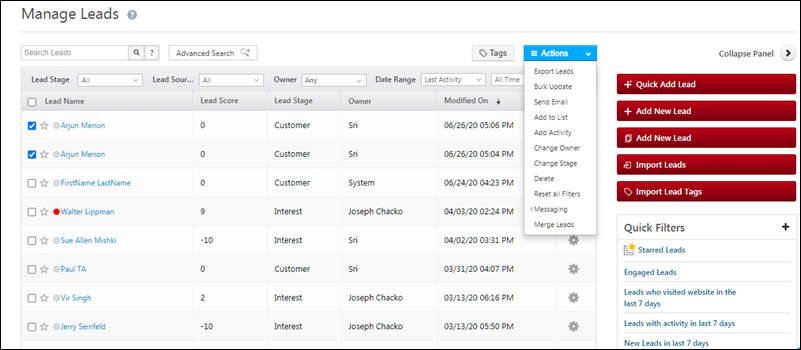
The Manage Leads page is where you can perform all actions on the leads, such as import leads, bulk updates, add to list, add activity, among others. You can use the filtering options, quick search and advanced search to filter leads according to your requirements. You can save quick filters, and also create lists on leads, where you can perform dedicated actions. To know more, refer to

Note: To prevent your sales users from copying and printing sensitive lead information (like Name, Email, Phone number, etc.) from the Lead Details page and Manage Leads grid. This is to prevent the misuse and leakage of your confidential lead data. To enable this feature, contact your account manager, or write to support@leadsquared.com.

Leads

7.1 Import Leads

You can import external leads that you’ve captured, to LeadSquared, through a CSV file. To use this feature, navigate to the Manage Leads page and click the Import Leads button. To know more, refer to How to Import Leads to LeadSquared.


7.2 Export Leads

You can export your leads that are available in LeadSquared, from the Manage Leads page or the Smart Views page. The exported leads are sent to your registered email Id in a CSV file. To know more, refer to How to Export Your Leads/Lead Details.


7.3 Merge Leads

If you have created duplicate leads in your account, you can merge them into a single lead. This helps you eliminate multiple leads present with the same details, in your account. To know more, refer to How to Merge Leads in your LeadSquared Account.


8. Customize Lead Details View

Admins can fully customize the Lead Details page to match each team’s unique requirements. This ensures that different teams see the information and actions most relevant to them. You can configure the following:

  • Tabs – Choose which System Tabs (e.g., Activity History, Tasks) and Custom Tabs (e.g., KYC Documents, Support Tickets) are visible to your users.
  • Actions – Define which actions are available from the Lead Actions dropdown (e.g., Send Email, Call Lead).
  • Quick Action Buttons – Add frequently used actions as one-click buttons for easy access.
  • Lead vCard – Select the specific lead fields you want displayed in the vCard for a quick snapshot of key details.


9. Object Types

Leads are your potential customers, but businesses often need to capture entities with various personas (students, parents, or school representatives). The Object Type feature facilitates this by allowing you to categorize these entities as distinct objects, each with its own set of fields and forms. This ensures that only relevant information is gathered for each type of entity. Additionally, it provides the flexibility to manage unique stages, workflows, and pipelines for each object type. Reach out to support@leadsquared.com to get this enabled on your account. For those accounts with this feature enabled, the term Lead will be renamed as Object across your LeadSquared iOS application.


Next Steps

You can add activities (such as link clicks, email opens, etc.) on your leads. This will help you track the lead’s journey, and help you take the necessary steps to lead conversion. To know more, refer to Manage Activities.

You can schedule tasks and reminders (such as appointments, phone calls, etc.) on your leads, for your sales users. This will help you keep track of the progress made by your users to take your leads to conversion. To know more, refer to How to Create Tasks and Schedule Reminders.


Any Questions?

Did you find this article helpful? Please let us know any feedback you may have in the comments section below. We’d love to hear from you and help you out!

Languages Available in LeadSquared

1. Feature Overview

You can change the language used in your LeadSquared account. Keep in mind that the entire user interface does not get translated into the language you have chosen. Some words and buttons would still be displayed in English.

Note: The localization feature isn’t available by default for the LeadSquared Platform and for ACE. To enable this feature, contact your account manager or write to support@leadsquared.com. It is available by default for Marvin and the LeadSquared Mobile App.


2. Languages Available in LeadSquared

2.1 LeadSquared Platform

The regular LeadSquared platform supports the following languages –

  • English.
  • Hindi.
  • Indonesian.
  • Portuguese Brazilian.
  • Spanish Latin America.
  • Vietnamese.

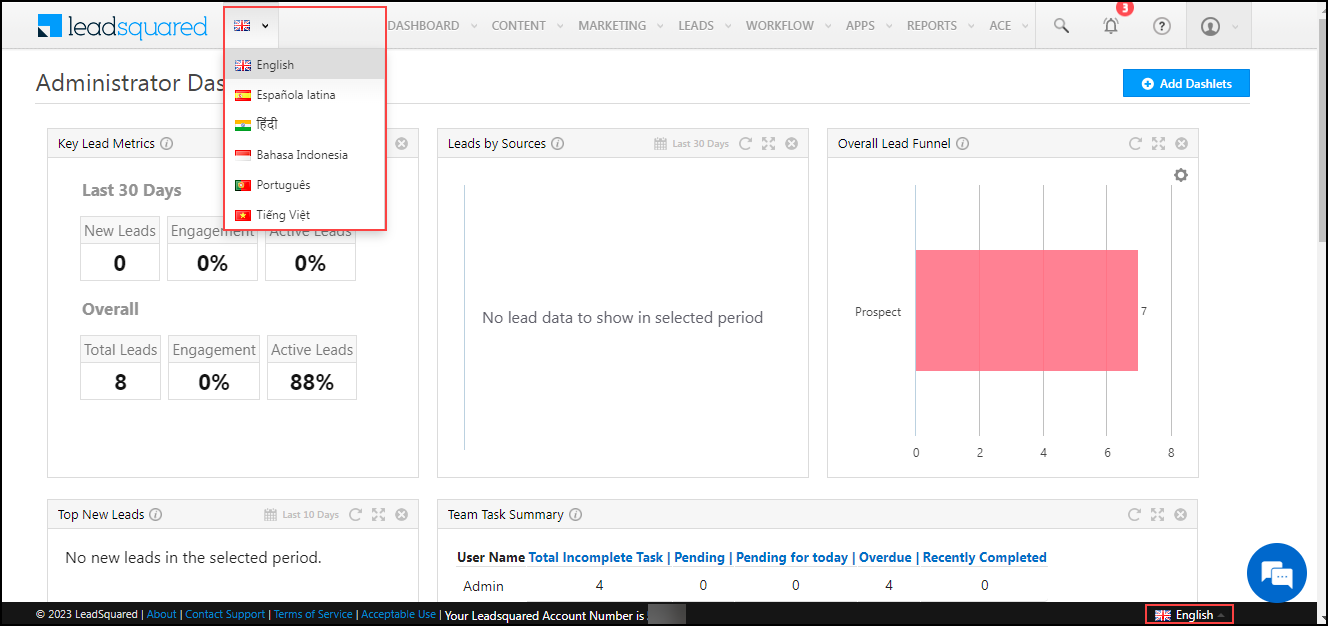
You can change the language displayed in your LeadSquared account on the top left side of your account, next to your logo or on the bottom part of the page.

Note: leadsquared.com supports Indonesian in some features on the following pages –

    • Products.
    • Solutions.
    • Industries.
    • Pricing.
    • Demo pages.

LeadSquared - Change Language on regular platform

2.2 Ace

Ace supports the following languages –

  • English.
  • Hindi.
  • Indonesian.
  • Portuguese Brazilian.
  • Spanish Latin America.
  • Vietnamese.

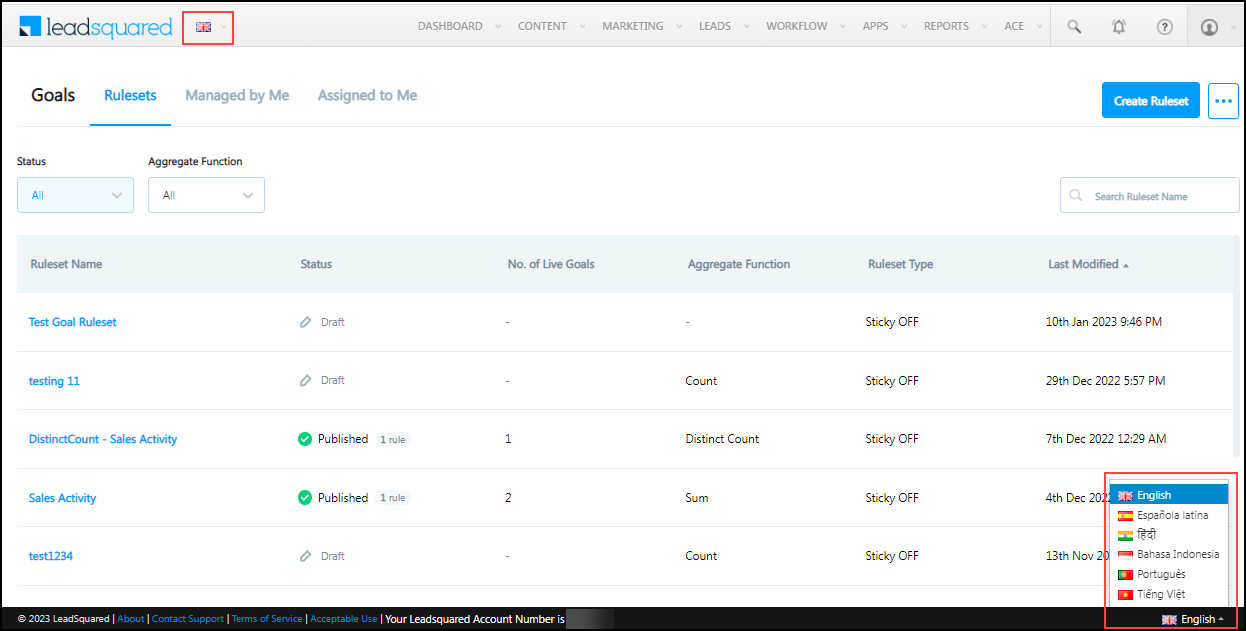
You can change the language displayed in your Ace account on the top right side of your account, next to your logo or on the bottom part of the page as shown in the image below –

LeadSquared - Change language on ACE

2.3 Marvin

Marvin supports the following languages –

  • English.
  • Hindi.
  • Indonesian.
  • Portuguese Brazilian.
  • Spanish Latin America.
  • Vietnamese.
  • Arabic.

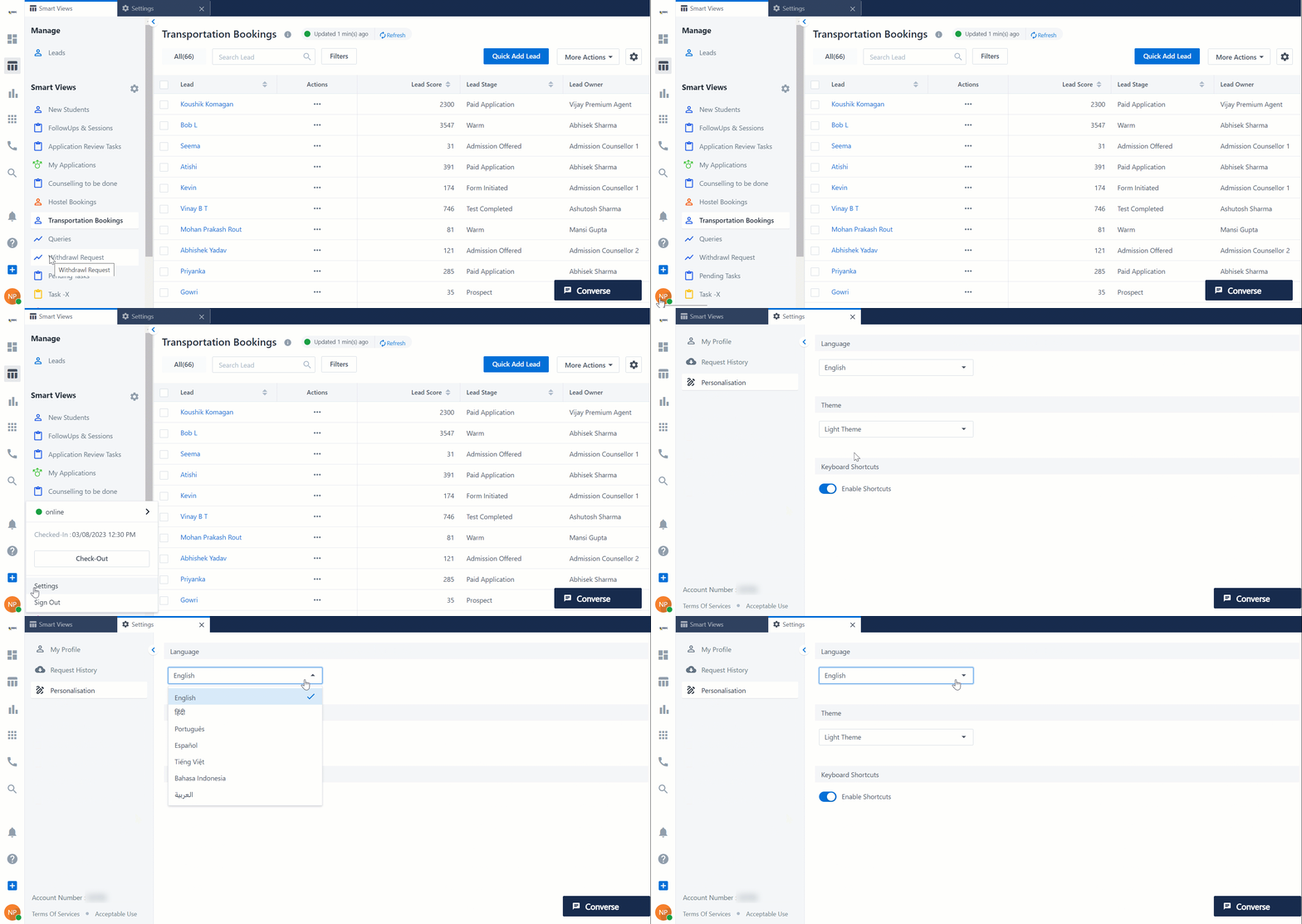
To change the language displayed in your Marvin account –

  1. On the bottom left of your screen, click My Profile.
  2. Click Settings.
  3. Under Personalisation tab, click the dropdown under Language and select the relevant option.

LeadSquared - change language in marvin

2.4  Mobile App

The LeadSquared mobile app supports the following languages –

  • English.
  • Hindi.
  • Indonesian.
  • Portuguese Brazilian.
  • Spanish Latin America.
  • Vietnamese.
  • Tamil.
  • Gujarati.
  • Kannada.
  • Telugu.
  • French.
  • Dutch.

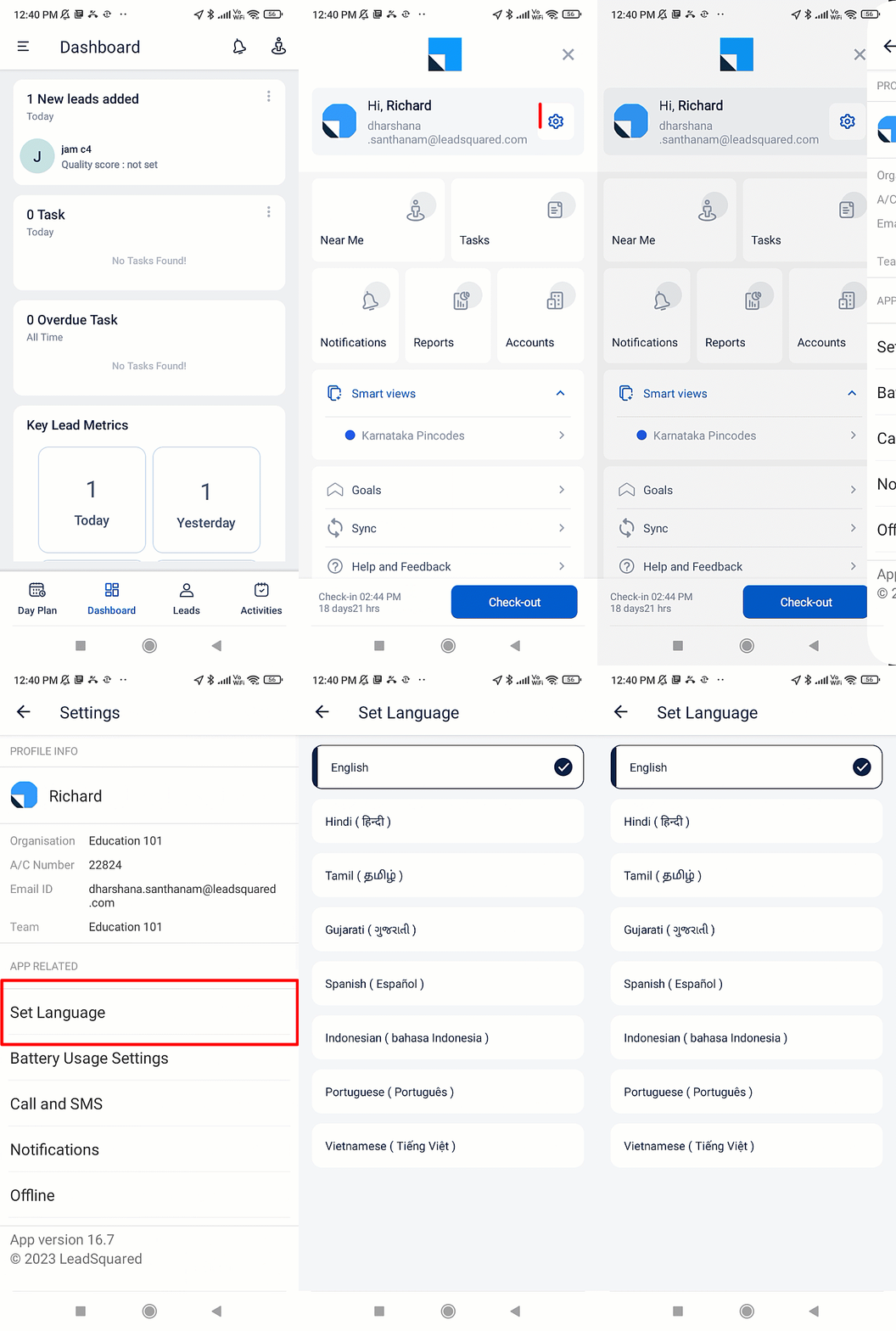
To change the language displayed in your mobile app –

  1. Click LeadSquared - Mobile app menu.
  2. Click Setting icon.
  3. Select Set Language and choose the relevant language.

LeadSquared - Change language in mobile app


Any Questions?

Did you find this article helpful? Please let us know any feedback you may have in the comments section below. We’d love to hear from you and help you out!

Integrate Indiaproperty.com with LeadSquared

1. Feature Overview

This connector captures leads periodically from your Indiaproperty.com account to LeadSquared. Once the leads are synced, you can leverage LeadSquared’s CRM features to nurture and convert your leads.


2. Prerequisites

  • You must be the Administrator of your LeadSquared account.
  • You must have an active Indiaproperty.com account.
  • This is a paid feature. To enable it, reach out to your account manager, or write to support@leadsquared.com.


3. How it Works

To push lead data from Indiaproperty.com to your LeadSquared account, configure the Indiaproperty.com connector instance. Once configured, enable the connector sync.

During configuration, a webhook URL is generated in LeadSquared. Copy this URL and set it up in your Indiaproperty.com account. Once it’s set up, the lead capture process is initiated.


4. Installation

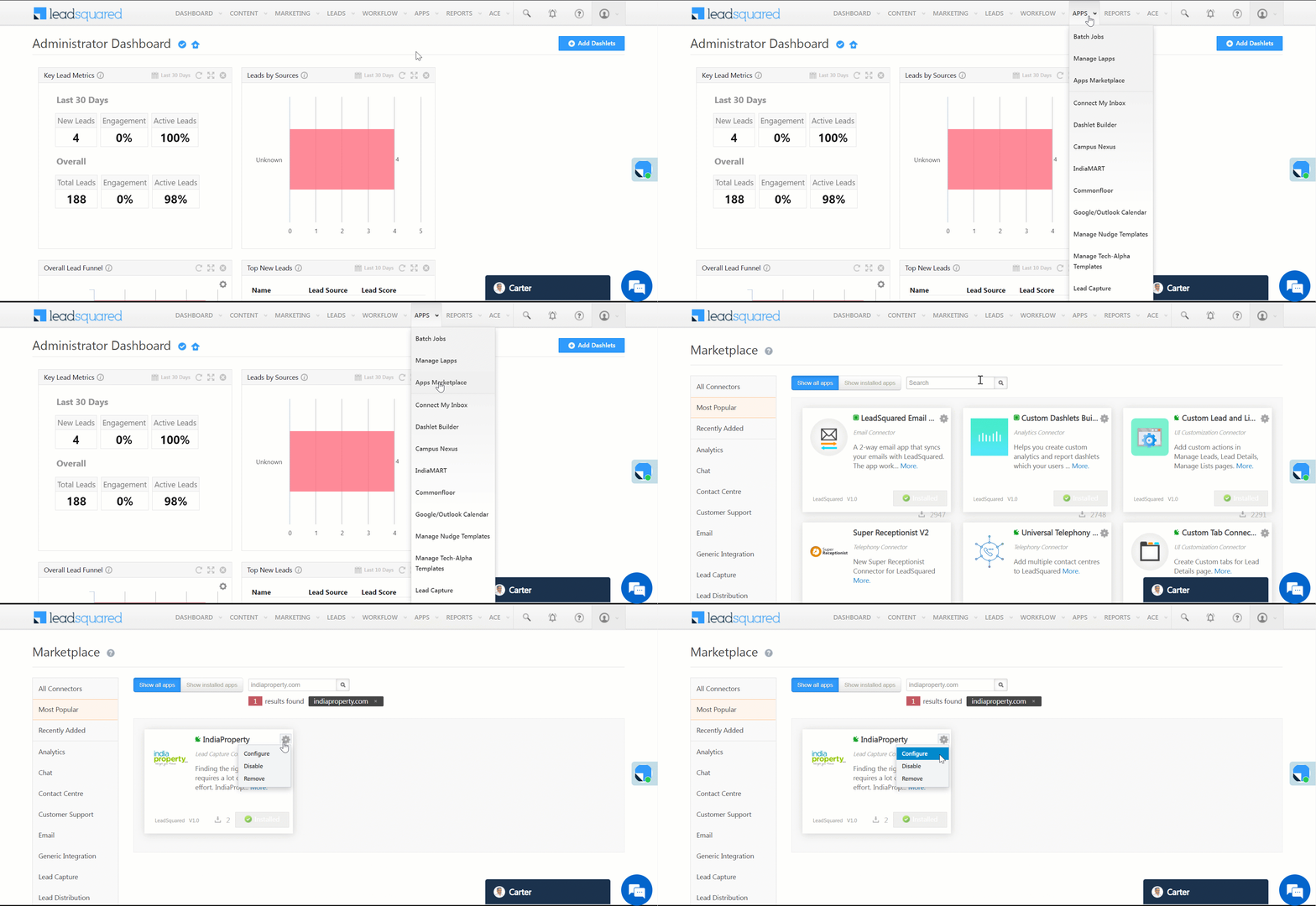
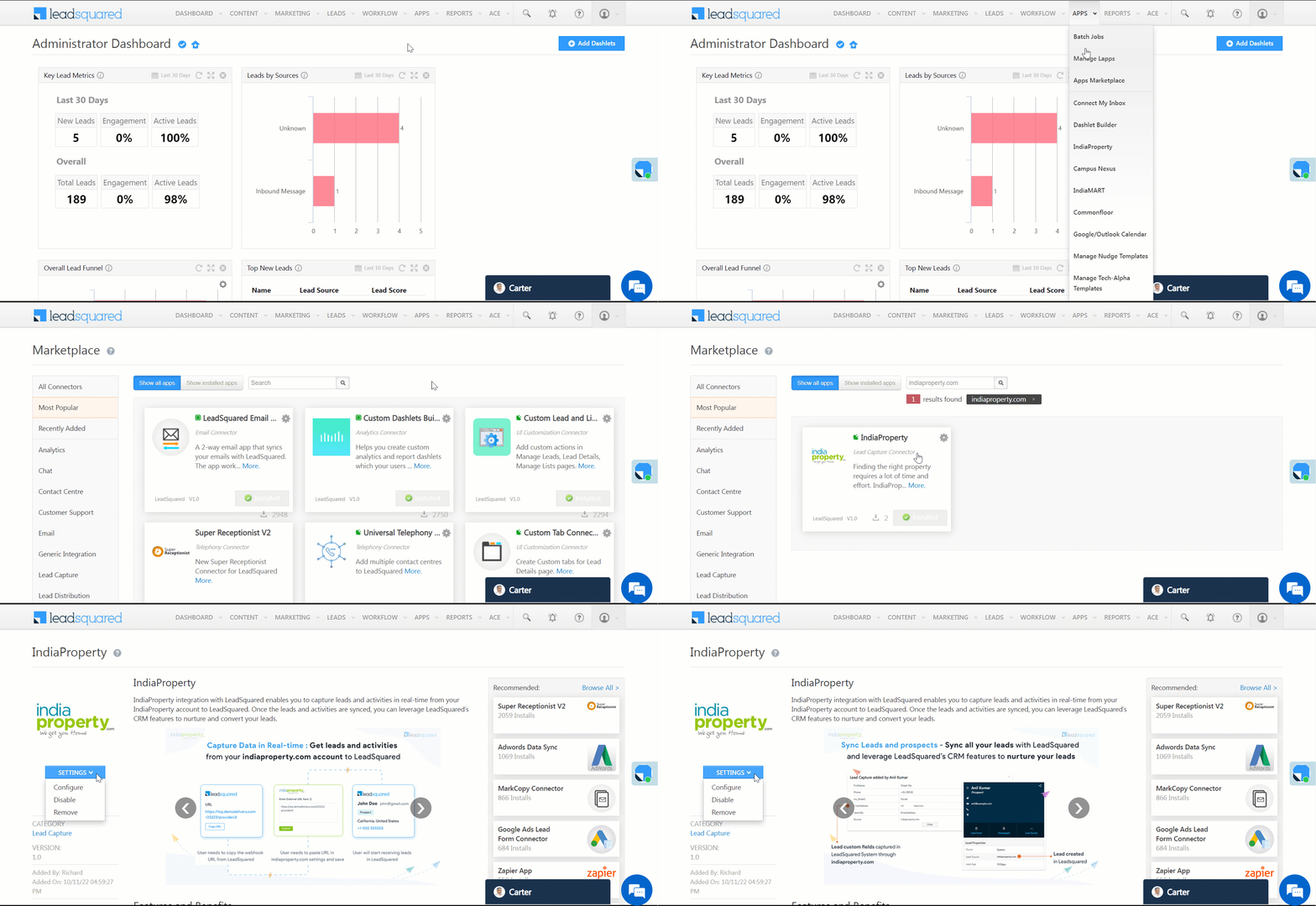
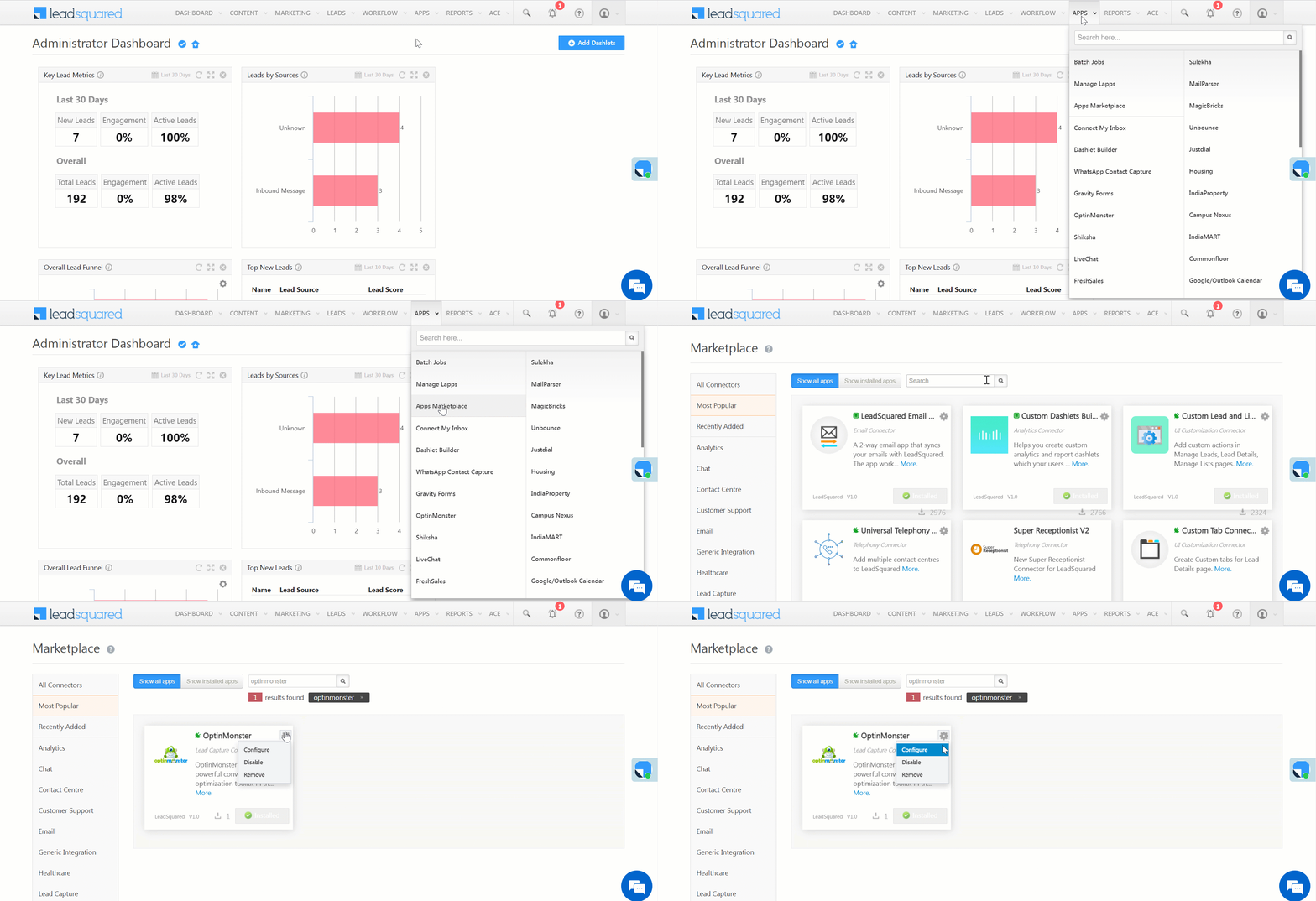
  1. Navigate to Apps>Apps Marketplace.
  2. Search for Indiaproperty.com, and click Install.
    • Alternatively, you can find the connector on the left panel, under Lead Capture.
  3. Once installed, hover your cursor over , and click Configure.

LeadSquared - Indiaproperty installation


5. Configure the Connector

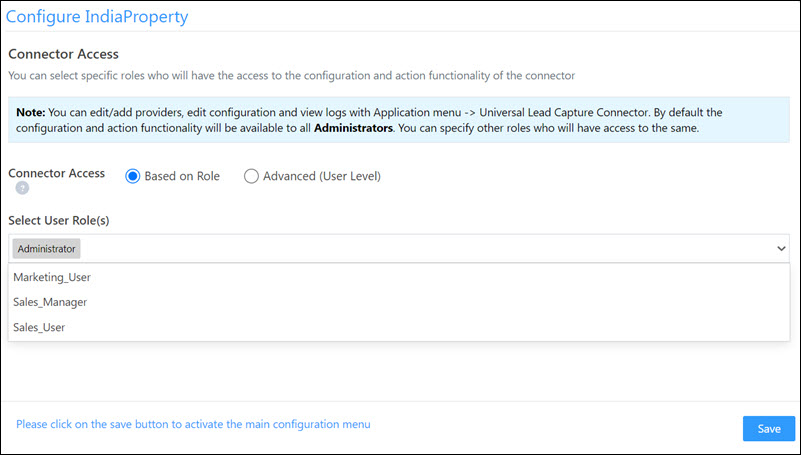
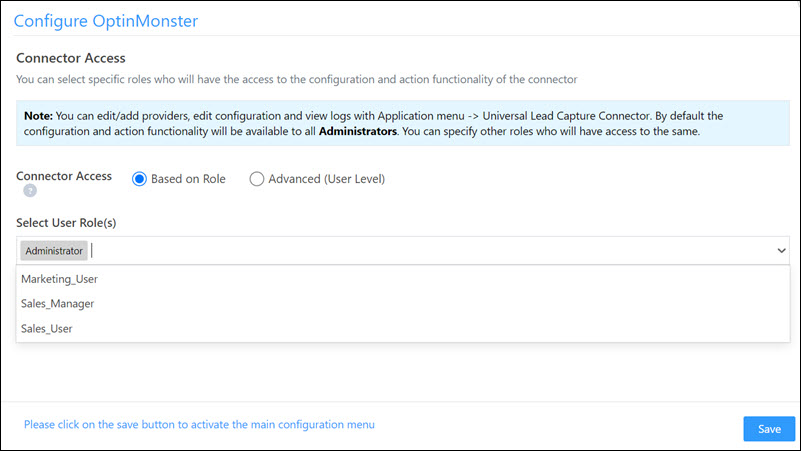
Once you’ve installed the connector, on the Configure Indiaproperty pop-up, configure the connector access for the non-Admin users in your account. Only those users for whom access is granted can view and access the connector (under the Apps main menu).

  1. Select if you want to grant Connector Access that’s Based on Role or Advanced (User Level).
    • Based on Role – From the Specify Roles dropdown, select the LeadSquared user roles that can use the connector.
    • Advanced (User Level) – From the Advanced (User Level) dropdown, select a user boolean field. Based on the value entered in the selected boolean field, the user can access the connector (e.g., for the user Sam, if the “Is Employee” boolean user field contains the value “Yes”, then this user can access the connector).
  2. Once you’re done, click Save Details. To continue the configuration, refer to the below sections.
Note: By default, all Admin users will have access to the connector.

LeadSquared - Indiaproperty initial configurations


6. Admin Configurations

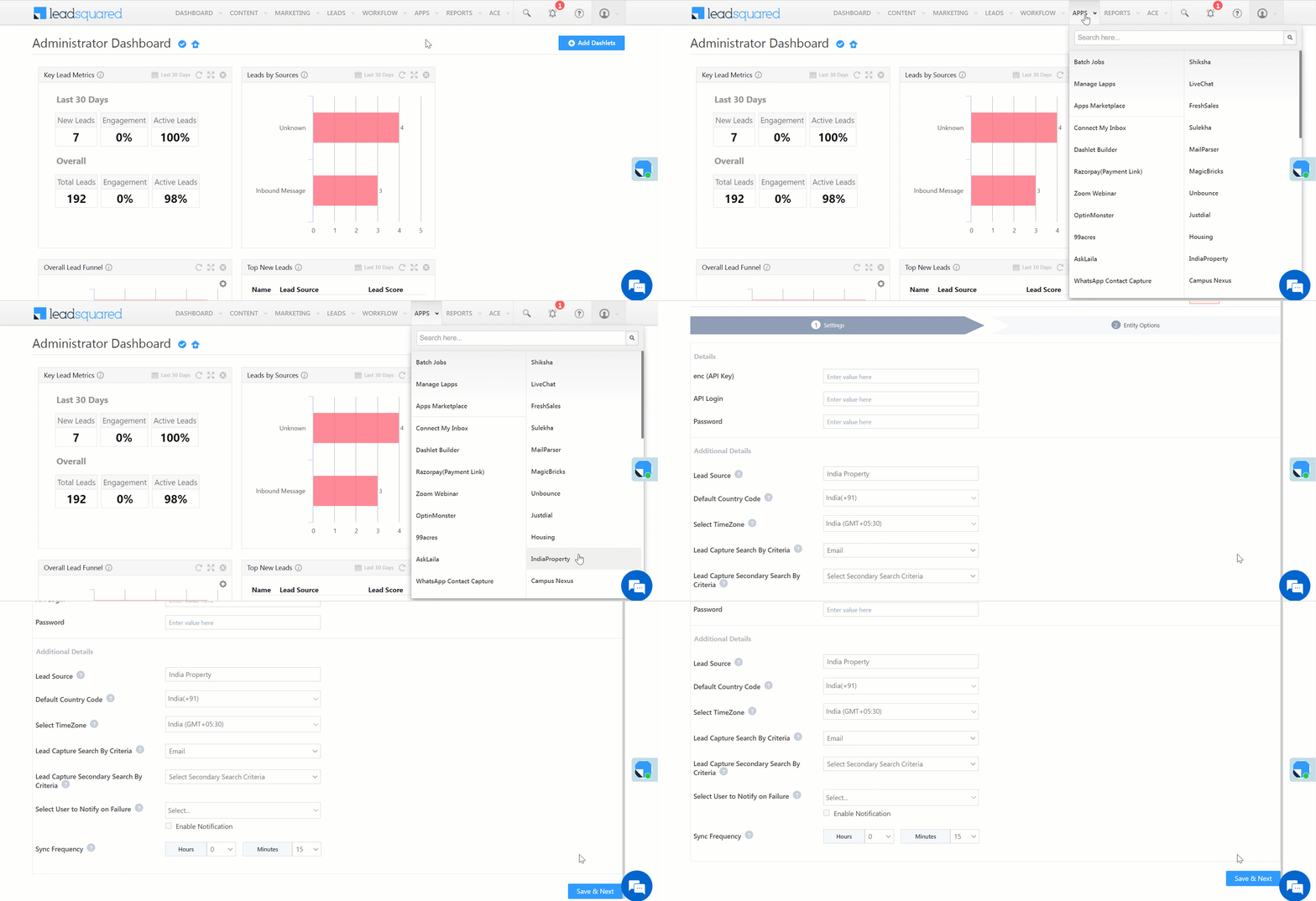
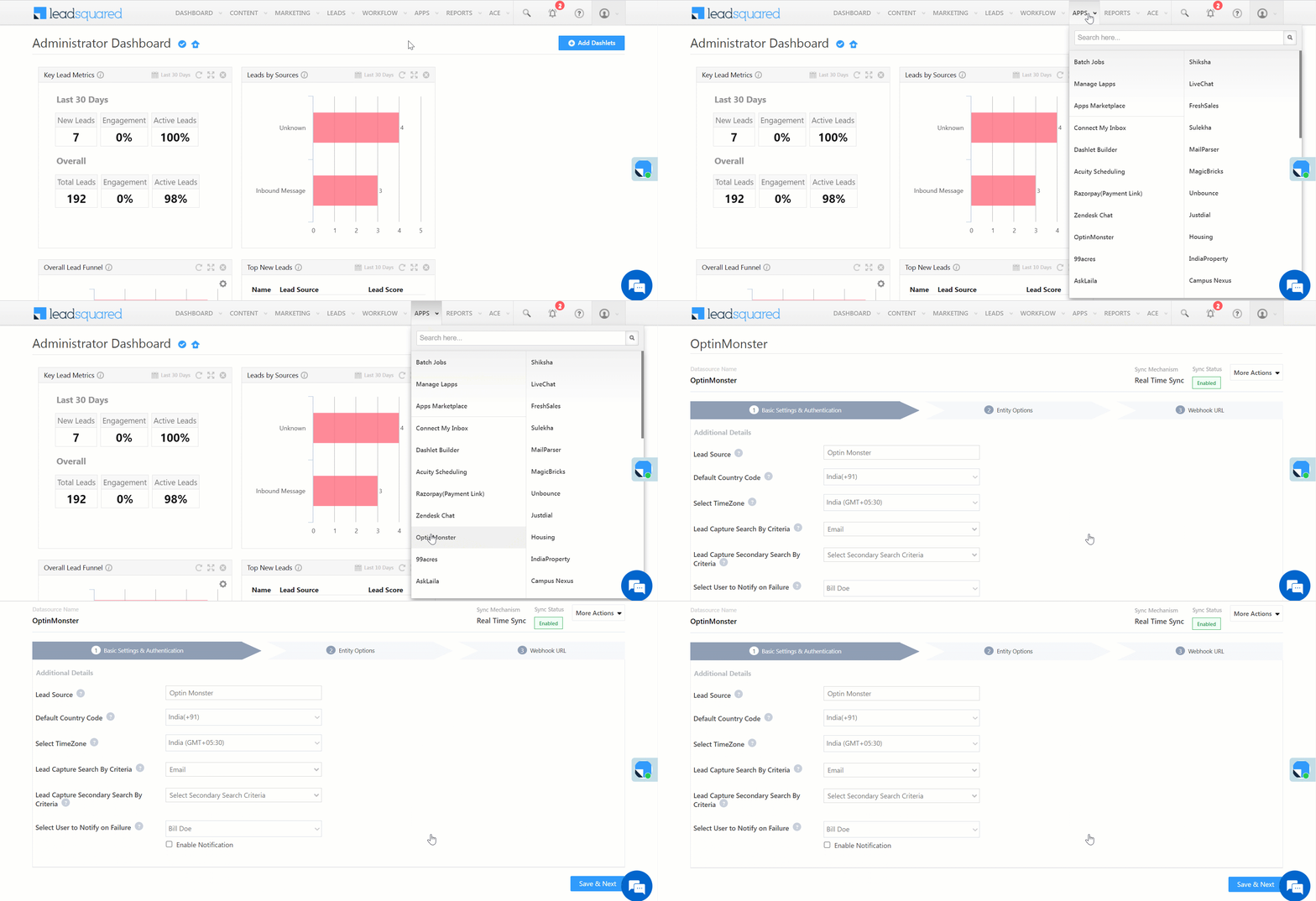
After installation, navigate to Apps>Indiaproperty and configure the connector settings to pull data from Indiaproperty.com –

6.1 Settings

On the Settings screen, enter the following details –

LeadSquared - Indiaproperty settings

Property Description
enc (API Key) Enter your Indiaproperty.com account key.
API Login Enter your Indiaproperty.com API login key.
Password Enter your Indiaproperty.com account password.
Lead Source Enter the lead source through which leads were captured (e.g., Indiaproperty.com, email campaign, etc.). This detail will be displayed on the Lead Details page, under Lead Source.
Default Country Code If the lead’s mobile number is captured without a country code, then the default country code that’s selected from the dropdown will be added to the lead’s mobile number.
Select Time Zone The time zone of your Indiaproperty.com account.
Lead Capture Search By Criteria To avoid duplicate leads, you must select one unique lead field (e.g., email Id, mobile number, PAN number, etc.) as the search key. This will be used to identify and pull leads from Indiaproperty.com.

To know how to mark a LeadSquared lead field as unique, please refer to How to Make a Custom Field Unique.

Select User to Notify on Failure If there is an error in fetching leads, the selected user will receive a failure message via email. You can select a user from the list of all the users available in your LeadSquared account.

To know more about the type of errors, please refer to Error Notifications.

Sync Frequency By default, we’ve selected a 15-minutes frequency to pull data from Indiaproperty.com. You can use the ‘Hours’ and ‘Minutes’ dropdowns to select a custom interval, based on which lead data will be pulled.

Once you’re done entering all the details, click Save & Next.


6.2 Mapping & Manage Sync

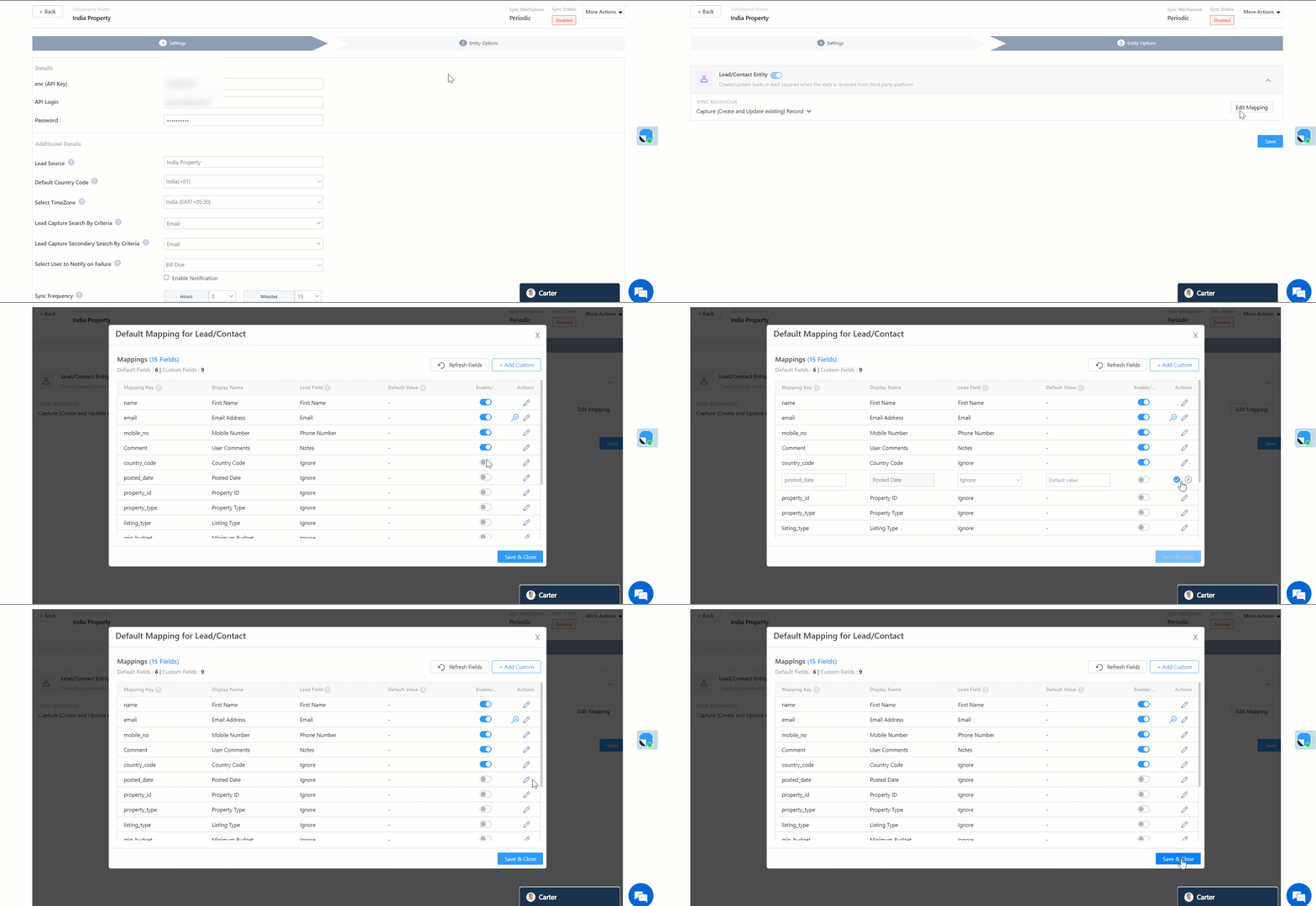
On the Entity Options screen, click Edit Mapping. The Indiaproperty.com system fields mapped to the corresponding LeadSquared lead fields are visible. This mapping is carried out by default. If required, you can change or update the default field mapping.

  • To provide a default value for any field, enter the value under Default Value.
    • If the data provider doesn’t send data for any lead field, then the default value will get assigned to that specific field. But if the field already has an existing value, then the default value will be ignored.
  • To disable lead data capture for any field, disable the Zoom slider.
  • You can also mark and update a unique lead field as the search key from this screen, by clicking unique icon.
  • To create a custom Indiaproperty.com field, click the Add Custom button.
    1. Once this field is created, you must map it to the relevant LeadSquared lead field.
    2. After the field is mapped, to save the custom field, click Google.
    3. To delete a custom field, click .

LeadSquared - Indiaproperty mapping


Enable Sync

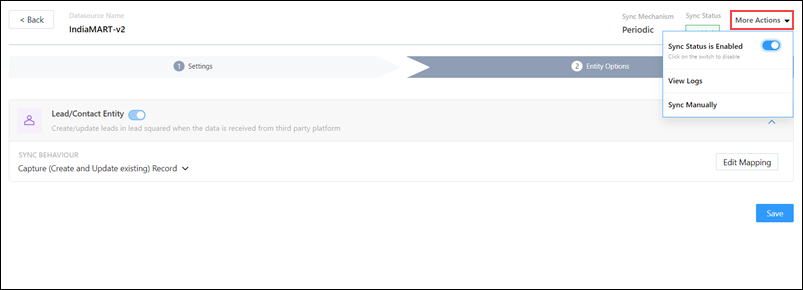
After mapping the Indiaproperty.com fields to the corresponding LeadSquared lead fields, enable lead sync. To do this, from the More Actions dropdown, click the Slider slider, and then click Save & Close. Once the sync is enabled, LeadSquared will pull leads from Indiaproperty.com every 15-minutes (or depending on the Sync Frequency configured).

LeadSquared - Indiamart Sync

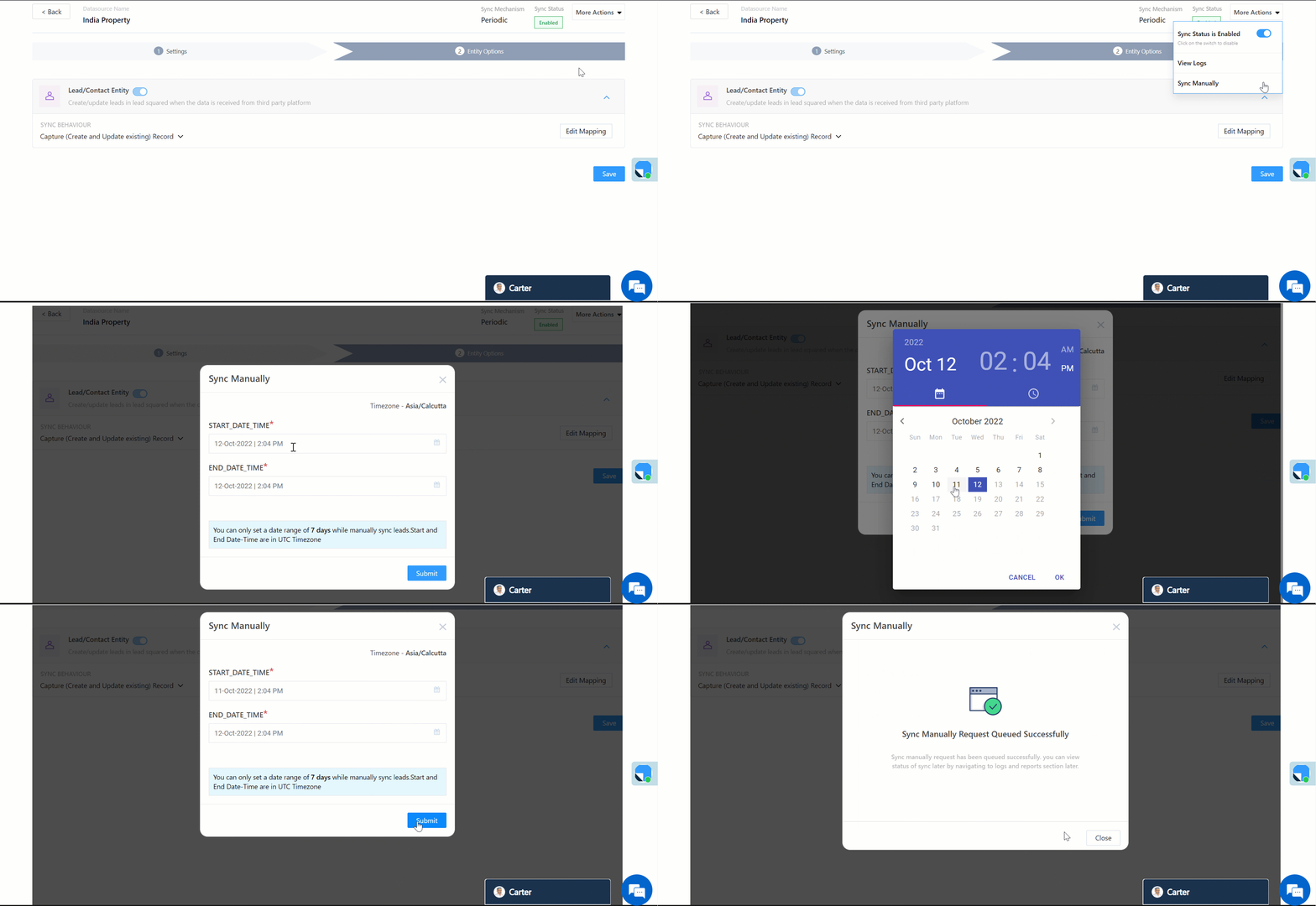
You can also manually sync leads, outside of the Sync Frequency that’s configured. This is especially useful if you have old/legacy lead data in your Indiaproperty.com account.

  1. From the More Actions dropdown, click Sync Manually.
  2. On the Sync Manually pop-up, enter Start Date, End Date, and Time during which the lead data was captured in your Indiaproperty.com account.
  3. Once you’re done, click Submit. The leads that were captured during the selected time frame will be synced to LeadSquared.

Note:

  • It is recommended you run a manual sync job right after you configure the connector. This will ensure all the historic lead data available on your Indiaproperty.com account will be synced to LeadSquared.
  • The Sync Start Time & End Time must be within a date range of seven days (e.g., from 20th July to 26th July).
  • You can sync up to 4,000 leads at once.

LeadSquared - Indiaproperty sync manually


7. View Logs

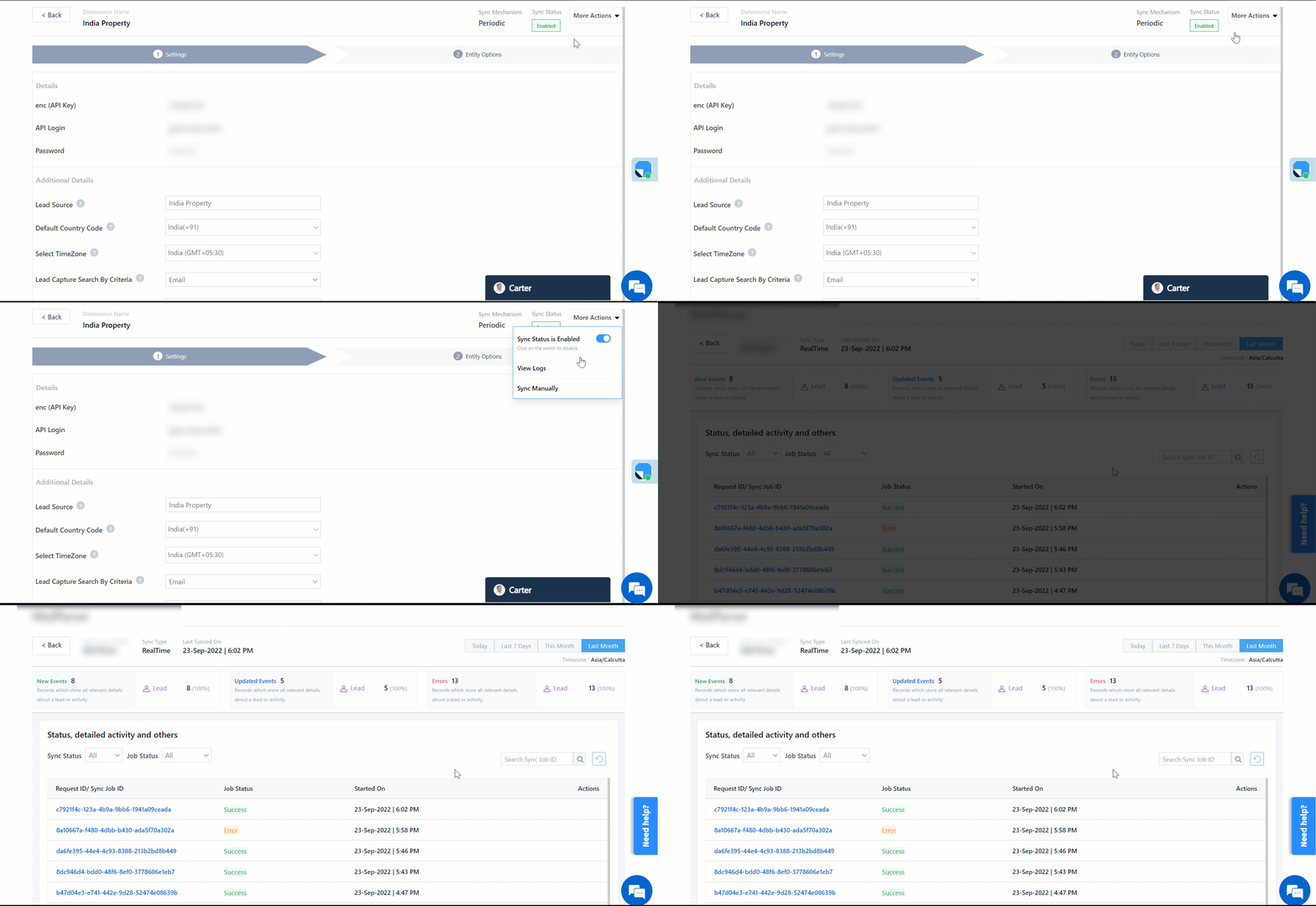
Here, you can view logs of all the sync jobs that have taken place. View new leads, updated leads, lead capture errors and total lead capture events. You can also view the lead sync response and lead capture job status.

  1. Navigate to Apps>Indiaproperty.com.
  2. Click the More Actions dropdown and select View Logs.
  3. You can filter the logs by selecting a date range, and by selecting a Job Status (“All”, “Success” and “Failure”).
    • The maximum date range you can select is the last 60 days.
  4. You can view the sync status of the leads captured across the following tiles –
    • New Leads – List of all the new leads that have been pulled by LeadSquared during the selected date range.
    • Updated Leads – A list of all the –
      • Duplicate leads that were created with the same Search by Criteria value (e.g., with the same Email Id, Mobile Number, etc.).
      • Leads that previously contained errors, which were fixed and synced successfully.
    • Errors – The list of leads that have not been captured due to mapping errors (e.g., when a boolean field is mapped to an integer field, etc.).
    • Total Events – A list of all the lead capture events that have taken place.
  5. To view the Sync Response details, under Sync API Response, click the response.
    • Here, you can view the response status, the API URL, the request and the response.
    • The responses that are successful will contain the details of the leads that have been pulled from Indiaproperty.com.
    • You can also view the lead capture response under Created, Updated and Errors, by clicking Information.
Note: For a response that contains an error, the reason for the error is listed in the response. Once you fix it, you can click the Retry button to perform the sync again.

LeadSquared - Indiaproperty view logs


8. Other Actions

You can edit or delete the CampusNexus connector instance that you created. To do this –

  1. Navigate to Apps>Apps Marketplace and click the Indiaproperty.com connector.
  2. On the Indiaproperty.com connector page, click Settings.
  3. From the list of options, you can perform the following actions –
    • Add or edit Configurations
    • Disable the connector
    • Remove the connector

LeadSquared - Indiaproperty other actions


9. View Reports

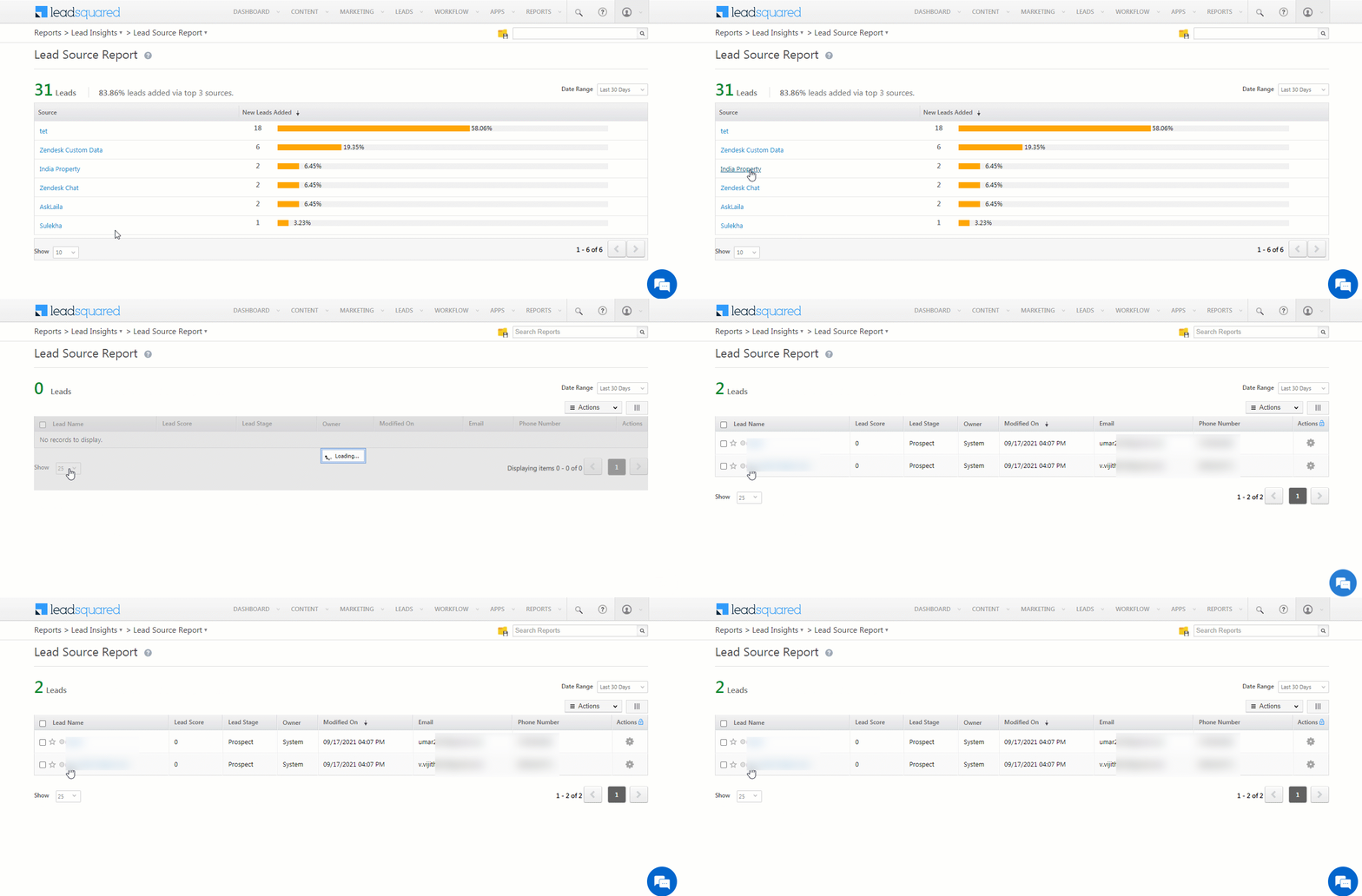
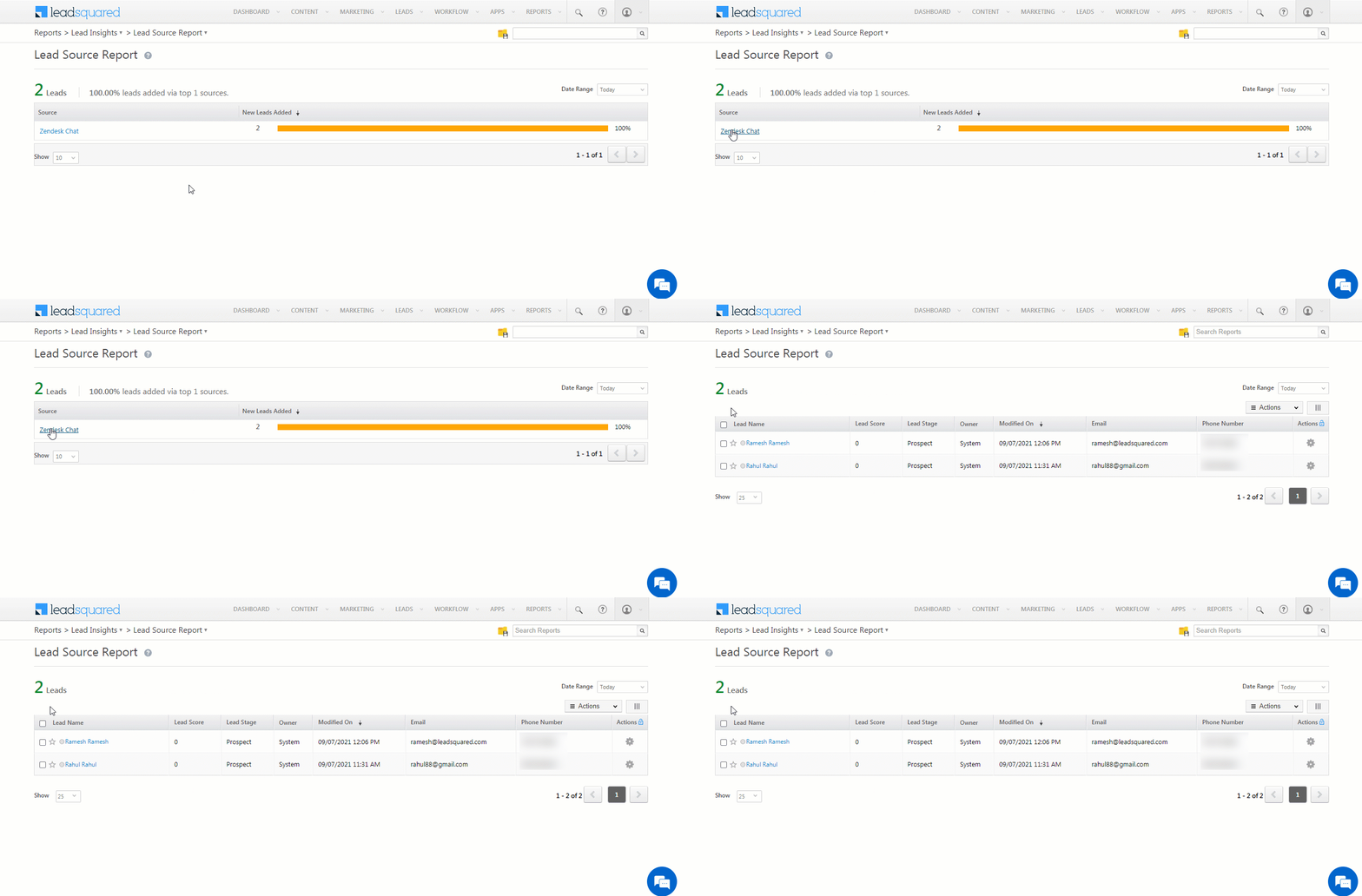
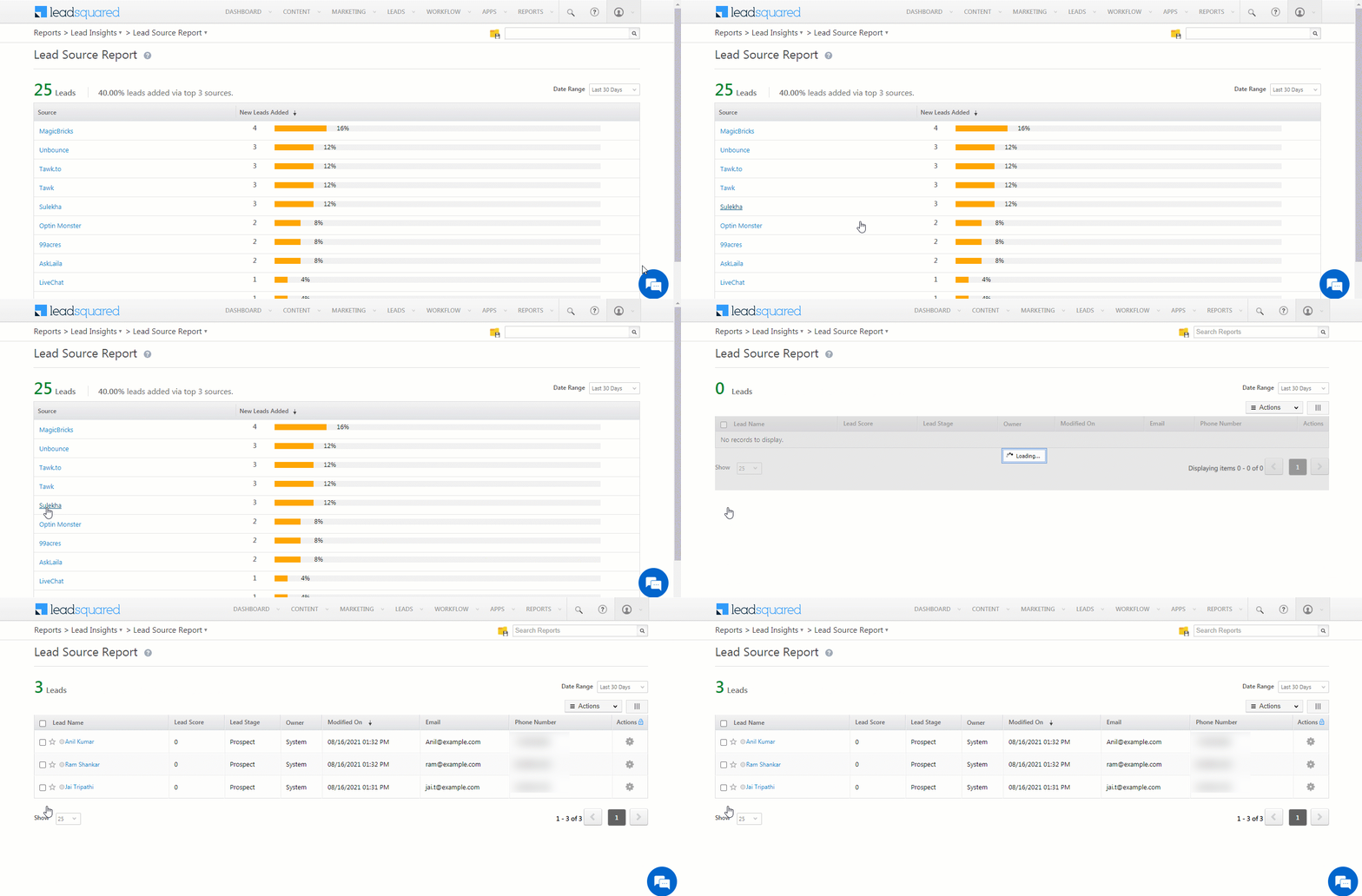
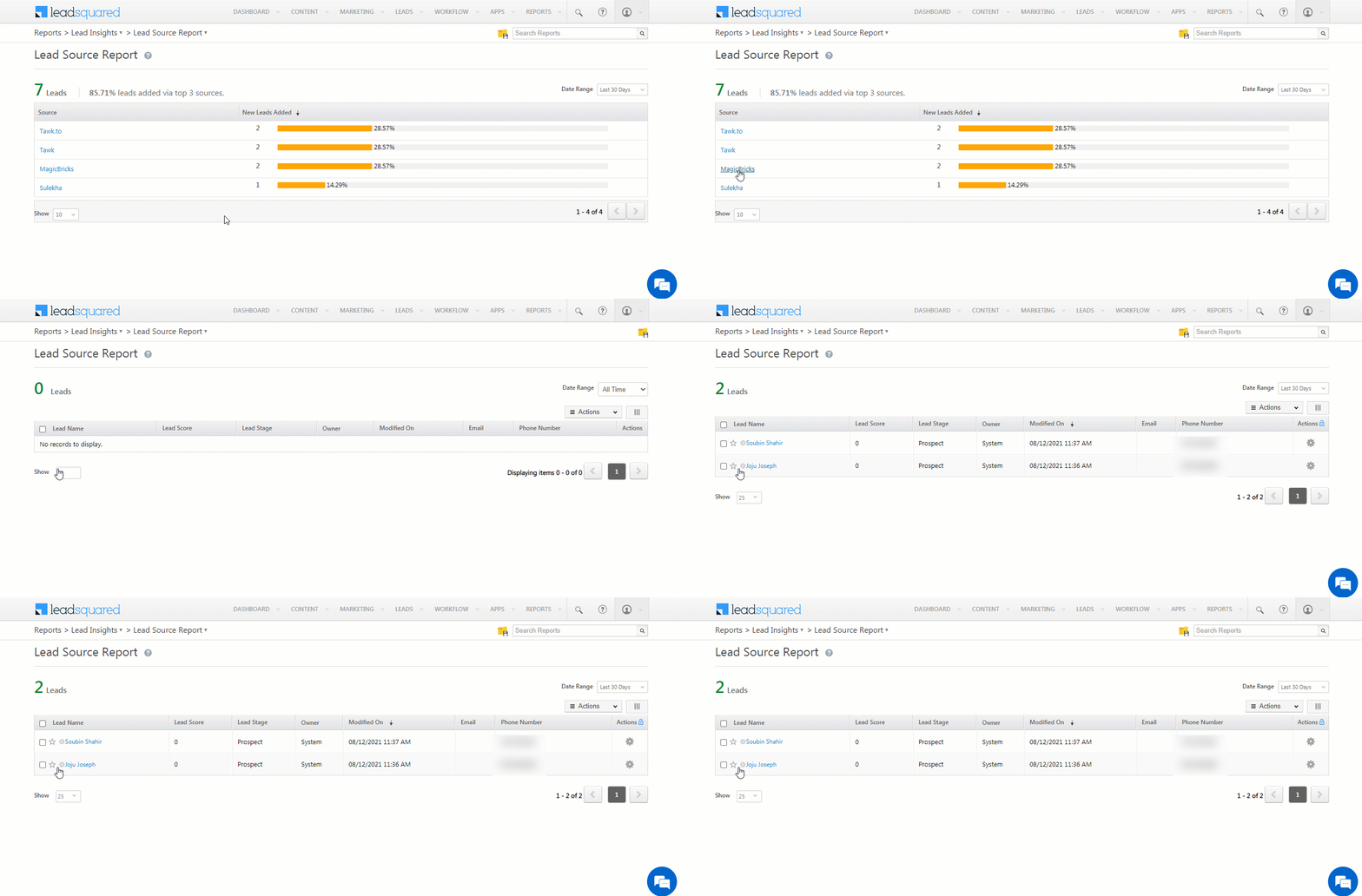
You can view the total number of leads that have been pulled from Indiaproperty.com by referring to the Lead Source report. To know more, please refer to How to track the source of your Leads using Lead Source Report?

Integrate LeadSquared with Indiaproperty.com


Any Questions?

Did you find this article helpful? Please let us know any feedback you may have in the comments section below. We’d love to hear from you and help you out!

Integrate Zendesk Chat with LeadSquared

1. Feature Overview

This connector captures leads and activities (such as chat data, etc.) in real-time from your Zendesk Chat account to LeadSquared. Once the leads and activities are synced, you can leverage LeadSquared’s CRM features to nurture and convert your leads.


2. Prerequisites

  • You must be the Administrator of your LeadSquared account.
  • You must have an active Zendesk and Zendesk Chat account.
  • This is a paid feature. To enable it, reach out to your account manager, or write to support@leadsquared.com.


3. How it Works

To push lead and activity data from your Zendesk Chat account to your LeadSquared account, configure and enable the Zendesk Chat connector instance. Once you set it up, a webhook URL is generated.

Copy this webhook URL and configure it in your Zendesk Chat account.  Then, add a Zendesk chat trigger, and pass the sample payload listed below. Post that, enable automatic ticket creation, and configure the Zendesk pre-chat form.  Once all these steps are completed, the lead and activity capture process is initiated.

For e.g., when an End User initiates a chat conversation in your Zendesk Chat account, this user is captured as a lead in LeadSquared based on the Lead Capture Search by Criteria you setup (e.g., Email, Phone Number, etc.). When tickets are added to this user in your Zendesk Chat account, you can configure multiple activities to be created against the corresponding lead in LeadSquared (based on the Ticket Id).


4. Installation

You must first install and configure the Zendesk Chat connector.

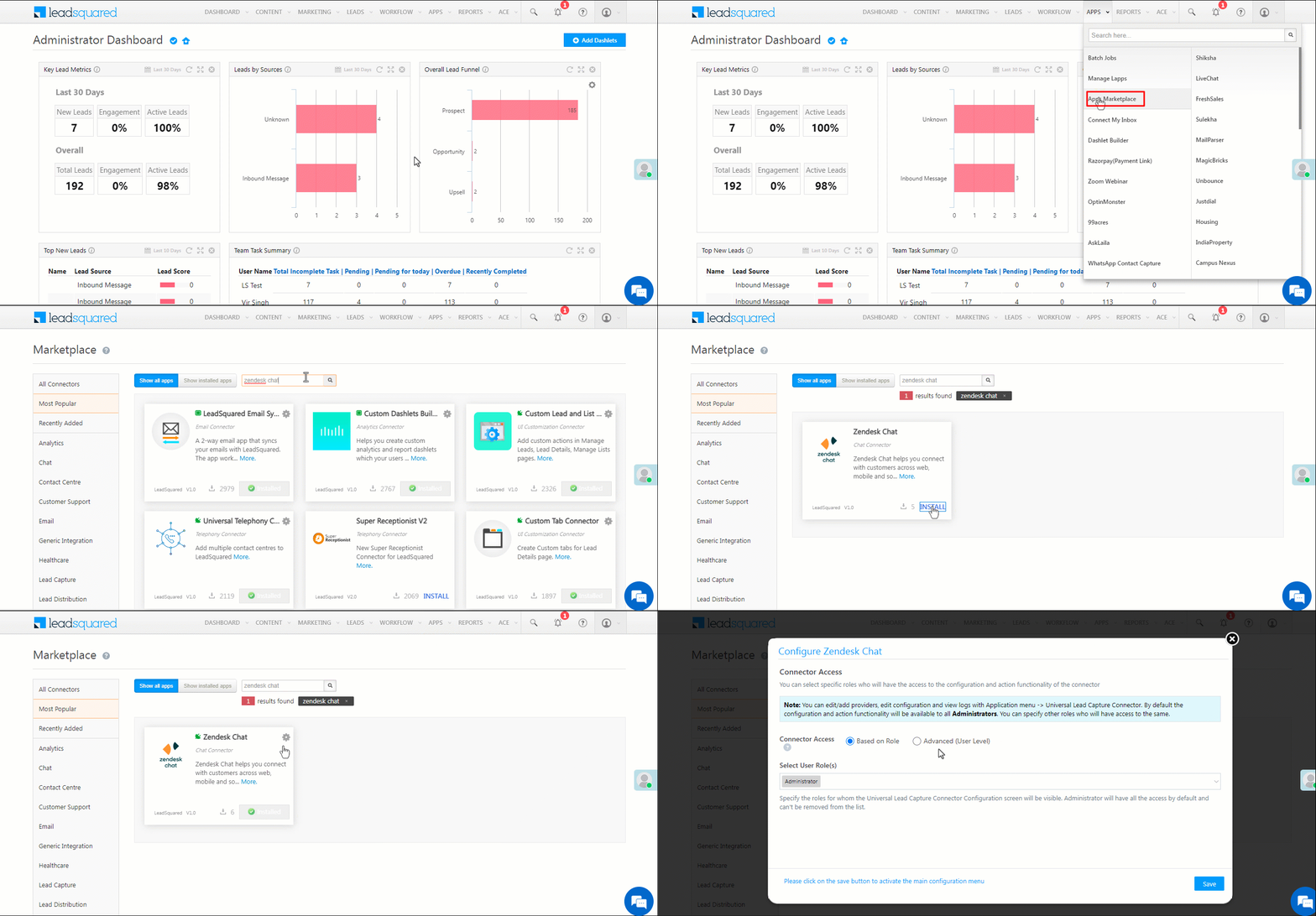
  1. Navigate to Apps>Apps Marketplace.
  2. Search for Zendesk Chat, and click Install.
    • Alternatively, you can find the connector on the left panel, under Chat.
  3. Once installed, hover your cursor over , and click Configure.

Zendesk chat install

4.1 Configure the connector

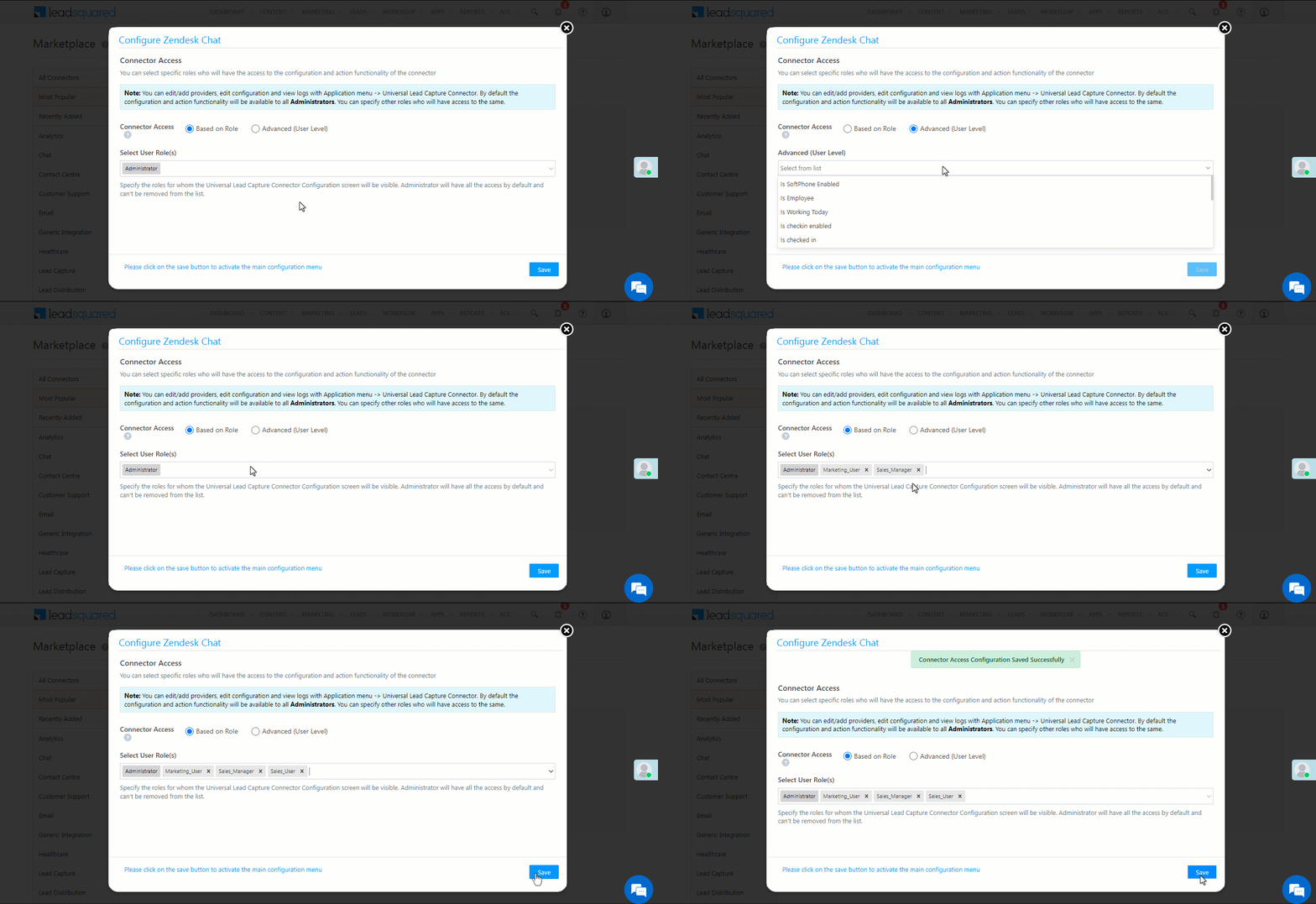
Once you’ve installed the connector, on the Configure Zendesk Chat pop-up, configure the connector access for the non-Admin users in your account. Only those users for whom access is granted can view and access the connector (under the Apps main menu).

  1. Select if you want to grant Connector Access that’s Based on Role or Advanced (User Level).
    • Based on Role – From the Specify Roles dropdown, select the LeadSquared user roles that can use the connector.
    • Advanced (User Level) – From the Advanced (User Level) dropdown, select a user boolean field. Based on the value entered in the selected boolean field, the user can access the connector (e.g., for the user Sam, if the “Is Employee” boolean user field contains the value “Yes”, then this user can access the connector).
  2. Once you’re done, click Save Details. To continue the configuration, refer to the below sections.
Note: By default, all Admin users will have access to the connector.
Zendesk chat config


5. Admin Configuration

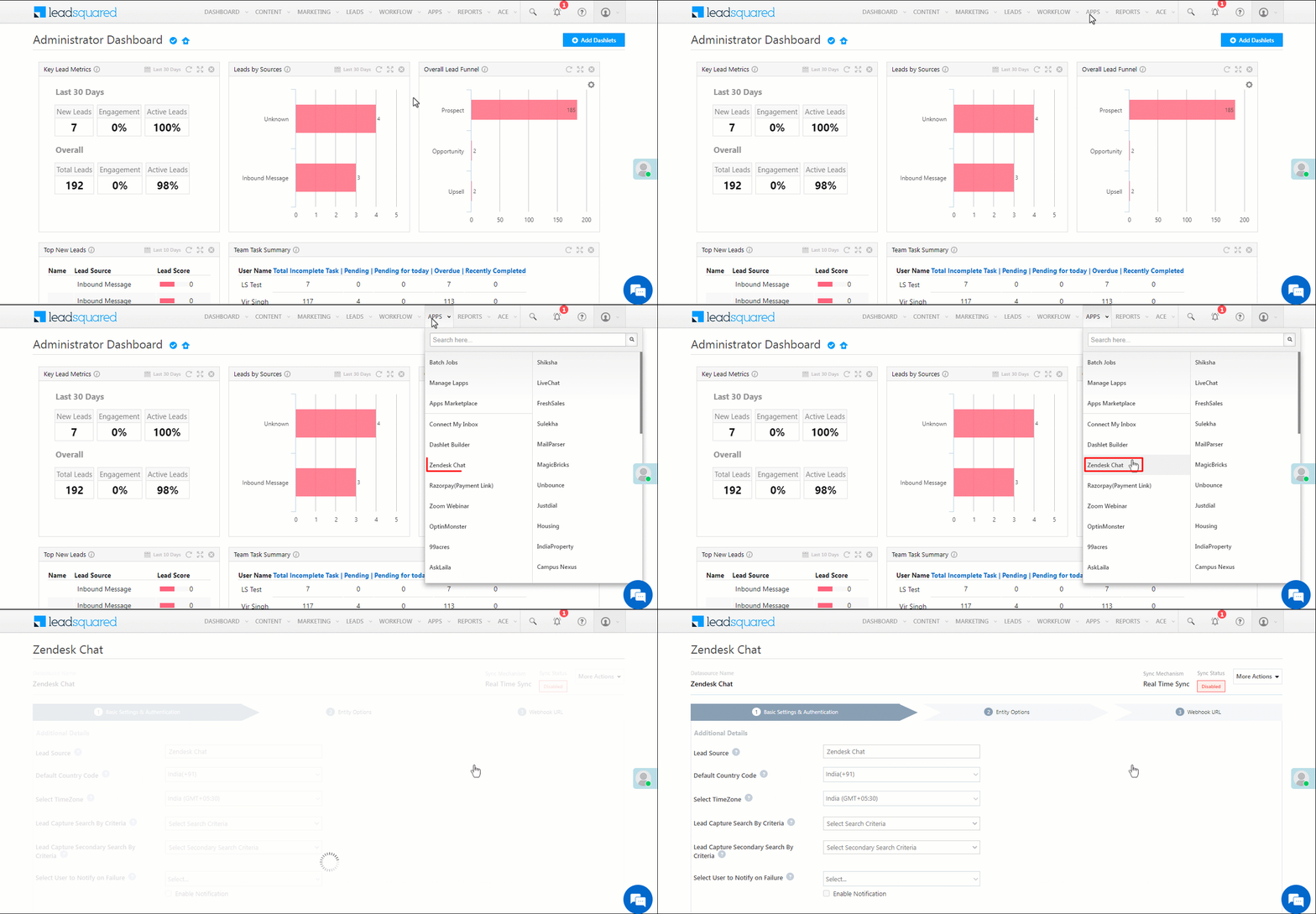
To continue the connector configuration, navigate to Apps>Zendesk Chat.

Zendesk chat admin config

5.1 Basic Settings

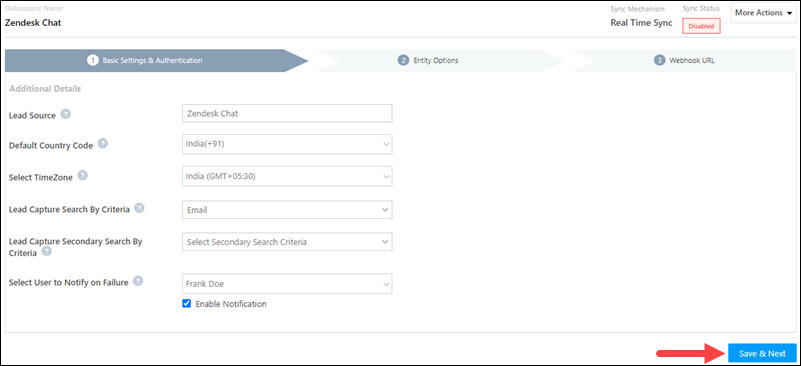
Enter the following details –

Property Description
Lead Source Enter the lead source through which the leads were captured (e.g., Zendesk Chat, email campaign, etc.). This detail will be displayed on the Lead Details page, under Lead Source.
Default Country Code If the lead’s mobile number is captured without a country code, then the default country code that’s selected from the dropdown will be added to the lead’s mobile number.
Select Time Zone The time zone of your Zendesk Chat account.
Lead Capture Search By Criteria To avoid duplicate leads, you must select one unique lead field (e.g., email Id, mobile number, PAN number, etc.) as the search key. This will be used to identify the leads pushed from Zendesk Chat.

To know how to mark a LeadSquared lead field as unique, please refer to How to Make a Custom Field Unique.

Select User to Notify on Failure If there is an error in fetching leads, the selected user will receive a failure message via email. You can select a user from the list of all the users available in your LeadSquared account.

To know more about the type of errors, please refer to Error Notifications.

Enable Notification Enable the Checkbox checkbox to ensure notification emails are sent to the selected user when there’s a failed query.

Once you’re done entering all the details, click Save & Next.

Zendesk chat basic settings save

5.2 Entity Options

Through the Zendesk Chat connector instance, you can create leads and activities in your LeadSquared account. Define the sync behavior of the connector when leads and activities are captured.

5.2.1 Lead/Contact Entity

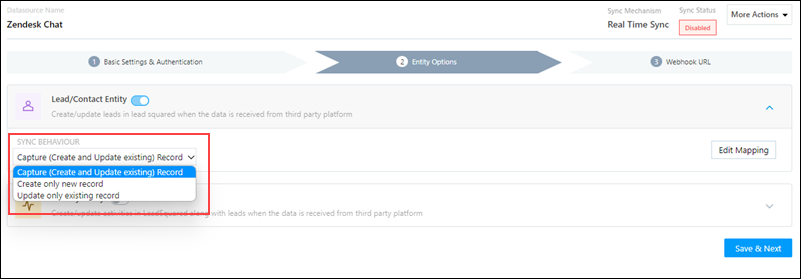
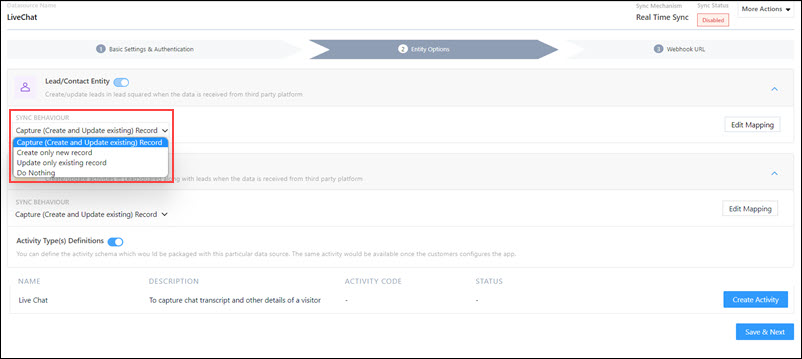
Based on the Lead Capture Search By criteria (email Id, phone number, etc.), LeadSquared identifies and captures leads from your Zendesk Chat account. Lead capture is enabled by default, and it cannot be disabled.  The following options are available to configure the connector’s Sync Behaviour –

  • Capture (Create and Update existing) Record – Leads that only exist in your Zendesk Chat account (but not in your LeadSquared account) will get created in LeadSquared. Leads that exist in both your Zendesk Chat account and LeadSquared accounts will get updated.
  • Create only new record – Leads that only exist in your Zendesk Chat account (but not in your LeadSquared account) will get created in LeadSquared.
  • Update only existing record – Leads that exist in both your Zendesk Chat account and LeadSquared accounts will get updated in LeadSquared.
Note: A lead is classified as a new lead or an existing lead based on the Lead Capture Search By Criteria you’ve selected in the previous section.

Zendesk chat lead or contact sync

5.2.2 Mapping

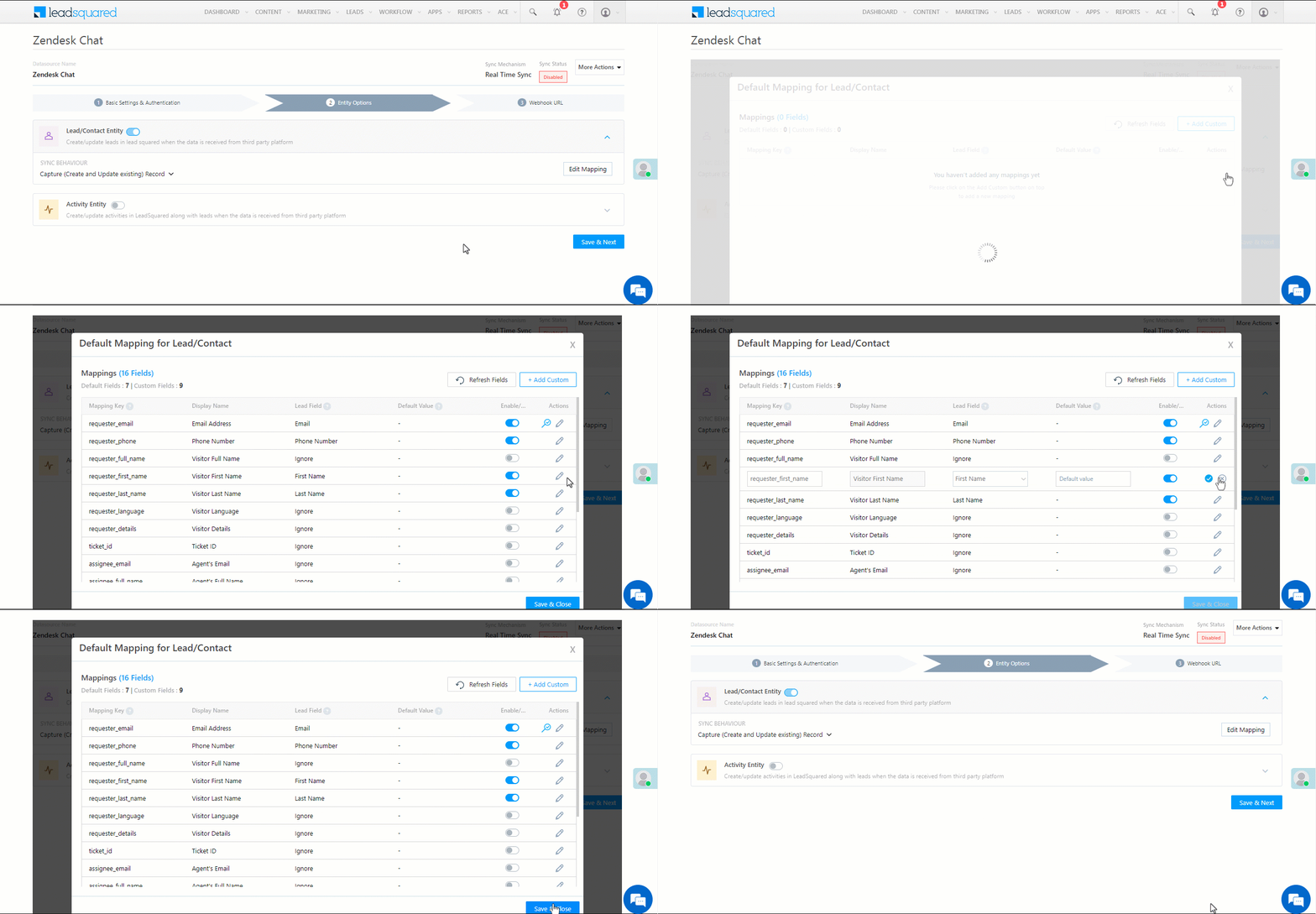
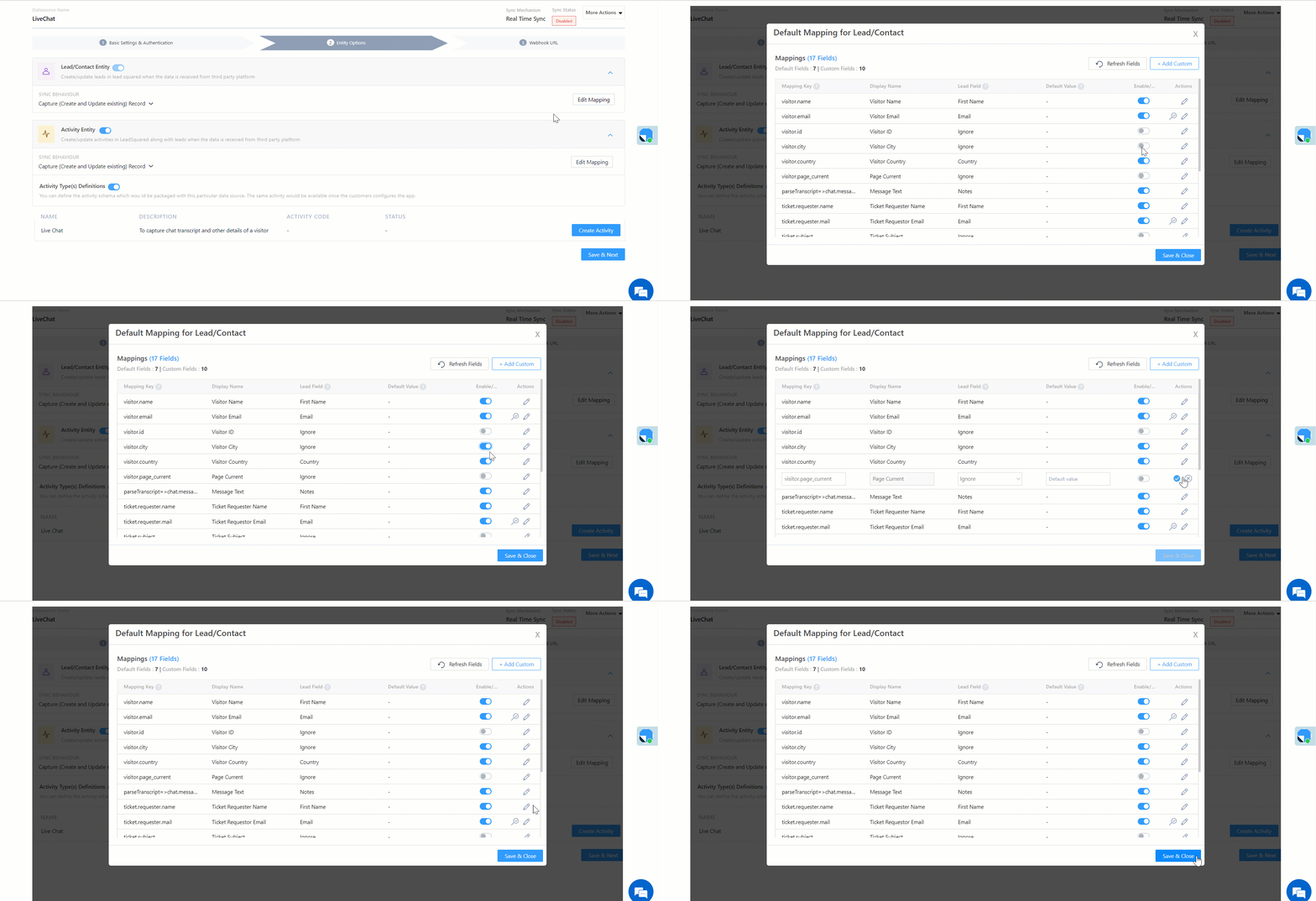
On the Mapping screen, the Zendesk Chat system fields mapped to the corresponding LeadSquared lead/activity fields are visible. This mapping is carried out by default. If required, you can change or update the default field mapping.

  • To provide a default value for any field, click  , enter the value under Default Value, and click Google.
    • If the data provider doesn’t send data for any lead/activity field, then the default value will get assigned to that specific field. But if the field already has an existing value, then the default value will be ignored.
  • To disable lead data capture for any field, disable the Zoom slider.
  • You can also mark and update a unique lead field as the search key from this screen, by clicking unique icon.
  • To create a custom Zendesk Chat field, click the Add Custom button.
    1. Once this field is created, you must map it to the relevant LeadSquared lead field.
    2. After the field is mapped, to save the custom field, click Google.
    3. To delete a custom field, click .

Zendesk chat lead mapping

5.2.3 Activity Entity

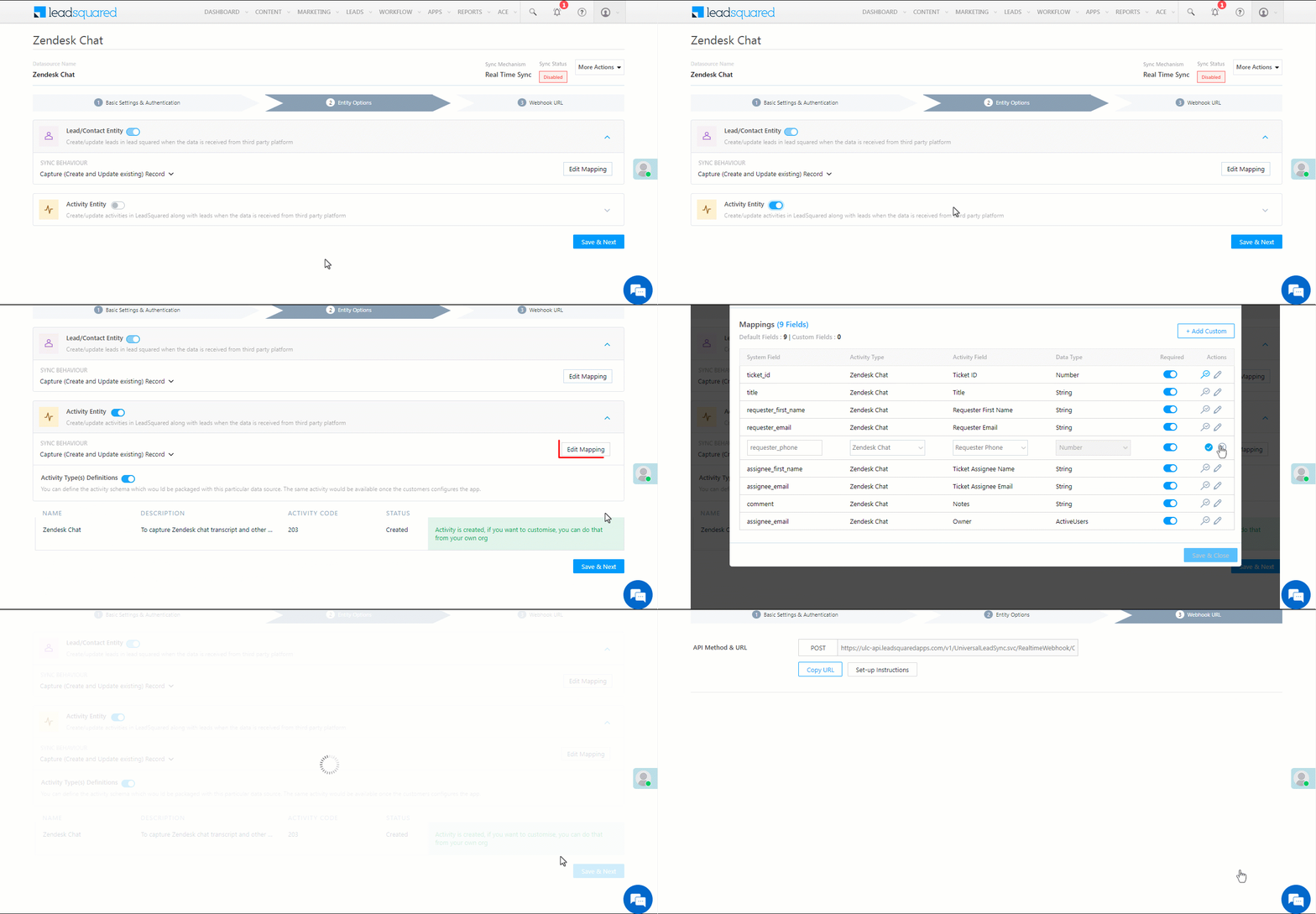
Once leads are captured to LeadSquared, you can post custom activities to these leads (e.g., Ticket Creation, Chat Transcript, etc.). These activities will help users keep track of the lead’s journey to conversion.

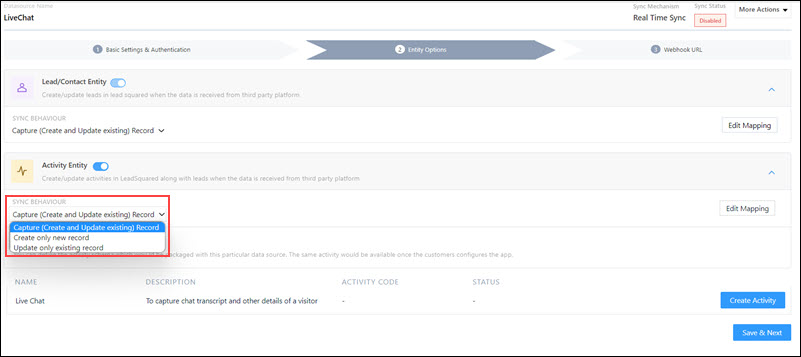
To post activities to the leads captured from Zendesk Chat, against Activity Entity, enable the Slider slider. The following options are available to configure the connector’s Sync Behaviour when activities are synced to LeadSquared –

  • Capture (Create and Update existing) Record – New activities will get posted to the lead in LeadSquared while existing activities will get updated.
  • Create only new record – Only new activities will get posted to leads in LeadSquared.
  • Update only existing record – Only existing activities on the leads captured will get updated in LeadSquared.

By default, your chat data is mapped to the Zendesk Chat activity. If you want to map this data to a different activity type, reach out to your account manager, or write to support@leadsquared.com.

Note: An activity is classified as a new activity or an existing activity based on the Lead Capture Search By Criteria you’ve selected in the previous section.
Once you’re done, click Save & Next.

Zendesk chat activity merge

5.3 Generate the Webhook URL

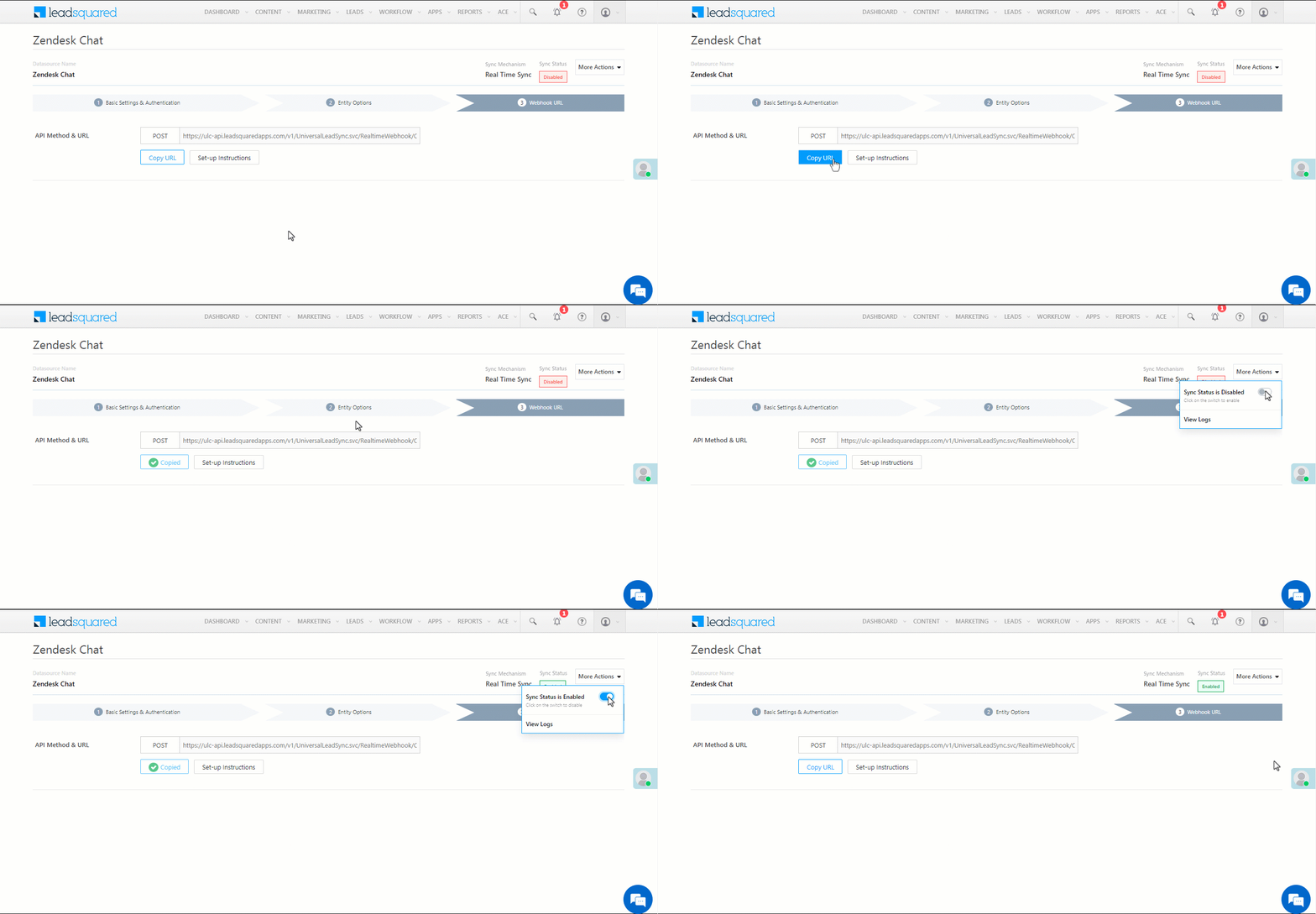
After you provide basic details and finish field mapping, a custom webhook URL is generated. To automate lead capture, copy this URL and configure it in your Zendesk Chat account. To know more, refer to Creating webhooks in Admin Center.

After you’ve configured the URL, click More Actions, and enable the sync job. This ensures the data will be pushed to LeadSquared using the webhook configured in Zendesk Chat.

Zendesk chat webhook url

Note:

  • The API must be configured in Zendesk Chat using the POST method.
  • From the More Actions dropdown, click View Logs to view the logs of all sync jobs that have taken place.

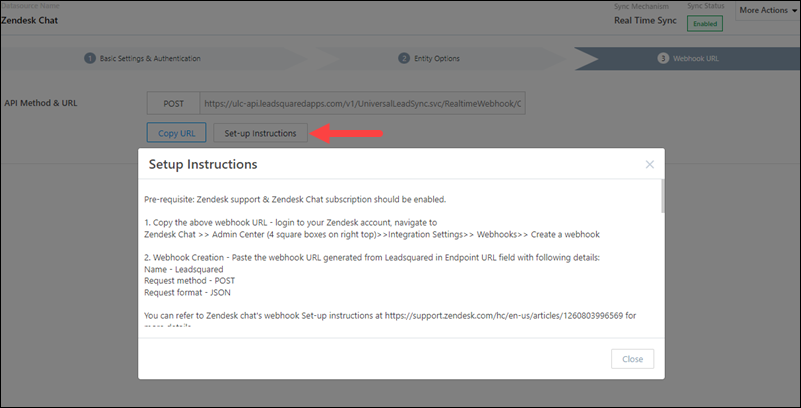
To configure the webhook URL, and enable other settings required to push leads from your Zendesk Chat account to LeadSquared, refer to the Setup Instructions –

Zendesk chat setup


6. Setup in Zendesk Chat

Once the webhook URL is generated in LeadSquared, set it up in your Zendesk Chat account.

6.1 Create a Webhook

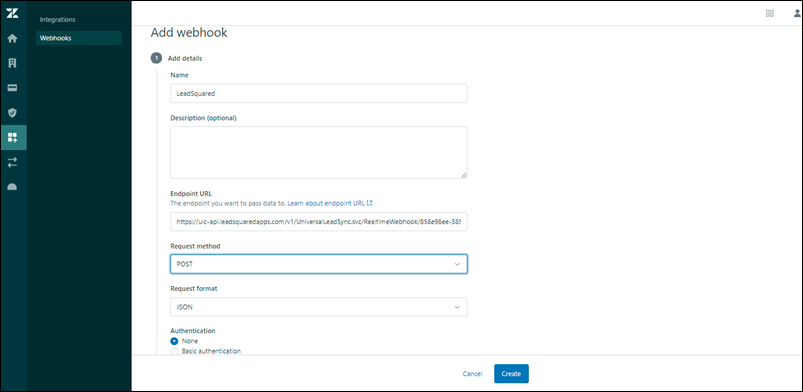
Paste the webhook URL under Endpoint URL. Create the webhook with the following details –

  • Name the webhook as ‘LeadSquared’.
  • Set the Request method to POST.
  • Set the Request format to JSON.

To know more, refer to Creating a webhook in Zendesk.

Integrate LeadSquared with Zendesk Chat

6.2 Add Triggers

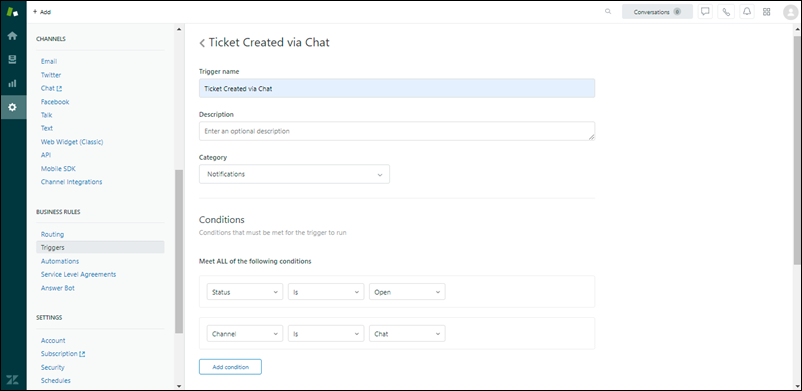
Once you create the webhook, create a trigger that meets ALL the following conditions –

  1. Status is set to Open.
  2. Channel is set to Chat.
  3. Under Actions, select Notify Active webhook.
  4. Then, select the LeadSquared webhook created in the previous section, and pass the following sample payload –

{
"title":"{{ticket.title}}",
"comment":"{{ticket.comments_formatted}}",
"ticket_id":"{{ticket.id}}",
"account":"{{ticket.account}}",
"url":"{{ticket.url}}",
"assignee_email":"{{ticket.assignee.email}}",
"assignee_full_name":"{{ticket.assignee.name}}",
"assignee_first_name":"{{ticket.assignee.first_name}}",
"requester_full_name":"{{ticket.requester.name}}",
"requester_first_name":"{{ticket.requester.first_name}}",
"requester_last_name":"{{ticket.requester.last_name}}",
"requester_email":"{{ticket.requester.email}}",
"requester_language":"{{ticket.requester.language}}",
"requester_phone":"{{ticket.requester.phone}}",
"requester_details":"{{ticket.requester.details}}"
}

To know more, refer to Creating triggers for automatic ticket updates and notifications.

Integrate LeadSquared with Zendesk Chat

6.3 Enable Automatic Ticket Creation

After a trigger is added, enable automatic ticket creation. To do this –

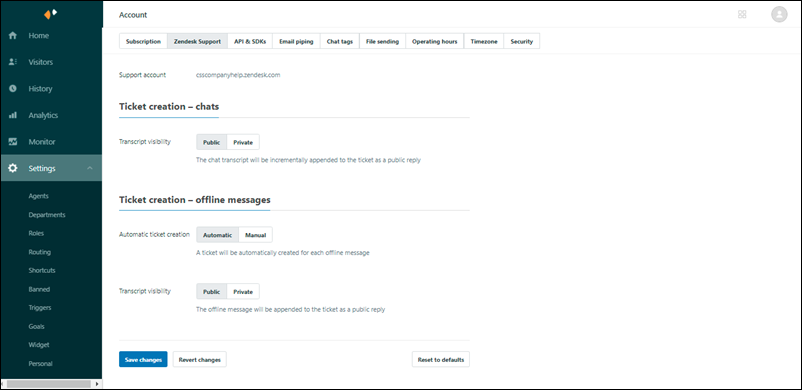
  1. Navigate to Settings>Account>Zendesk Support>Ticket Creation – chats.
  2. Set Automatic ticket creation to Automatic.
  3. Set Transcript Visibility to Public.
  4. Once you’re done, click Save Changes.

Integrate LeadSquared with Zendesk Chat

6.4 Pre-chat Form

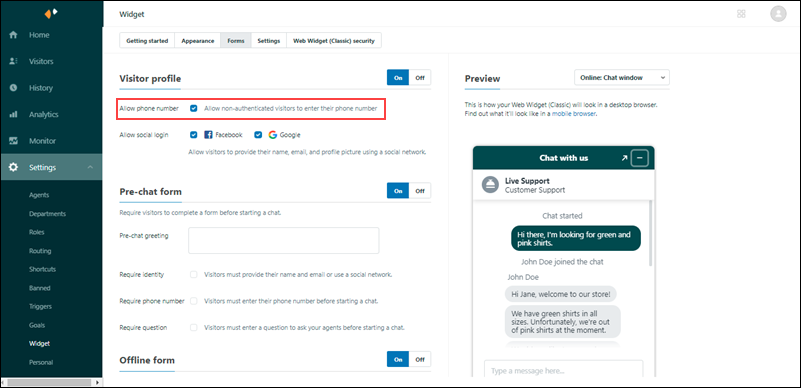
Lastly, you must enable the Pre-chat form in Zendesk. When setting up the form, enable Require phone number. This will ensure that visitor’s phone numbers are captured. To know more, refer to Enabling the pre-chat form on the Chat widget.

Integrate LeadSquared with Zendesk Chat


7. View Logs

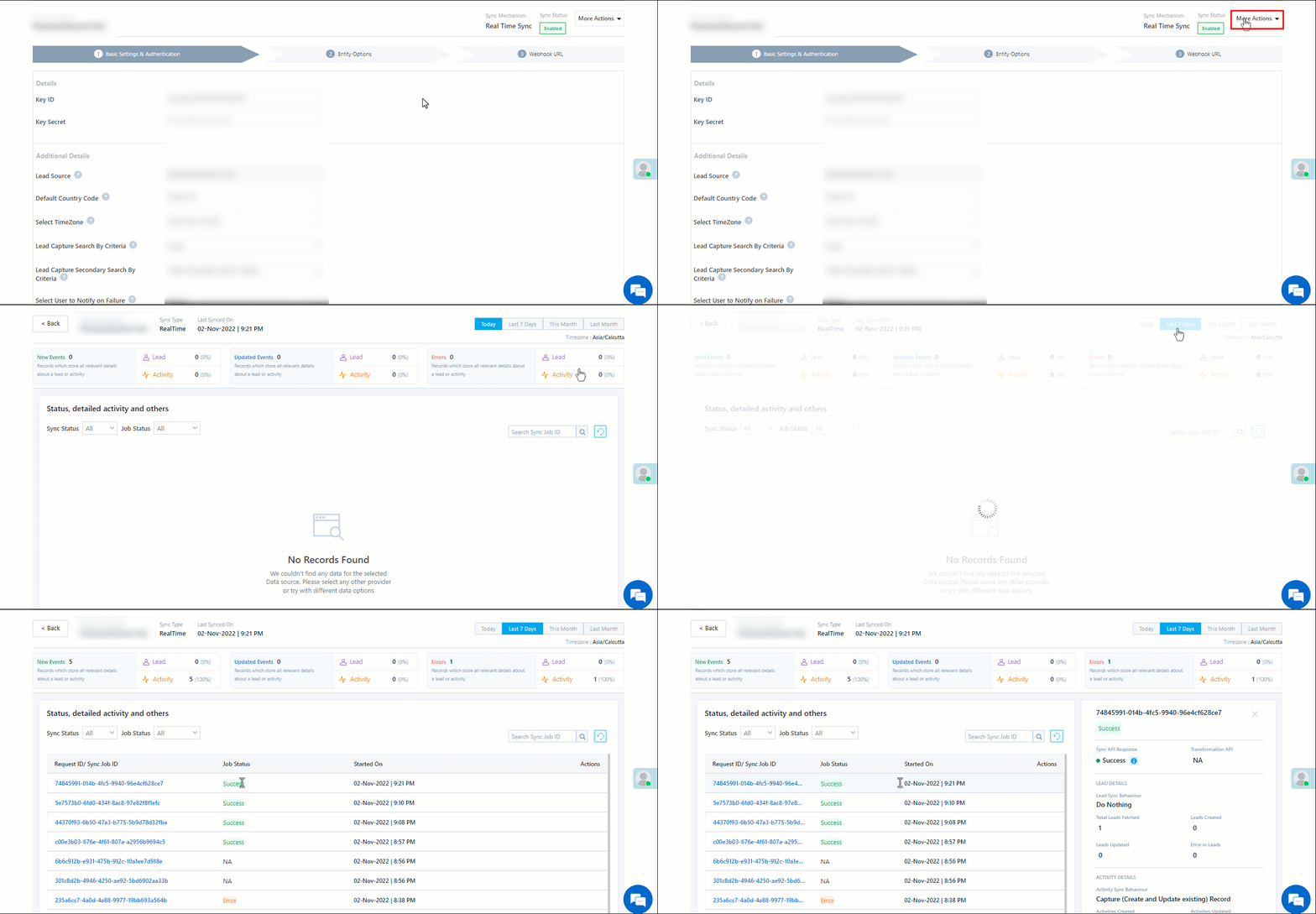
Here, you can view logs of all the sync jobs that have taken place. View New Events (New Leads and Activities), Updated Events (Updated Leads and Activities), and Errors (when capturing leads and activities).

  1. Navigate to Apps>Zendesk Chat.
  2. From the More Actions dropdown, click View Logs.
  3. You can filter the logs by selecting a date range (Today, Last 7 Days, This Month, and Last Month), by selecting the Job Status (“All”, “Success” and “Failure”), and by selecting the Sync Status (All, Error, and Success).
  4. You can view the sync status of the following events –
    • New Events – List of all the new leads and activities that have been created in LeadSquared during the selected date range.
    • Updated Events – A list of all the –
      • Duplicate leads that were created with the same Search by Criteria value (e.g., with the same Email Id, Mobile Number, etc.).
      • Duplicate activities (such as Ticket Creation, etc.) posted on the same lead, using the same Search by Criteria value (e.g., with the same Email Id using the same Ticket Creation Id, etc.).
      • Leads and activities that previously contained errors, which were fixed and synced successfully.
    • Errors – The list of leads and activities that have not been captured due to mapping errors (e.g., when a boolean field is mapped to an integer field, etc.).
  5. To view the Sync Response details, under Request ID/Sync Job ID, click the Id.
    • Under the right panel, you can view the response status, the API URL, the request, and the response.
    • The responses that are successful will contain the details of the leads that have been pushed by Zendesk Chat.
    • To view the lead capture response under Sync API Response, Leads Updated and Errors in Leads, click Information.

Note:

  • For a response that contains an error, the reason for the error is listed in the response. Once you fix it, you can click the Retry button to perform the sync again.
  • The current Lead/Activity Sync Behaviour will reflect in the Logs screen. This will help identify the sync that’s used (Capture or Update) for the selected Request/Sync Job Id.

Zendesk Chat view logs


8. Other Actions

You can edit or delete the Zendesk Chat connector instance that you created. To do this –

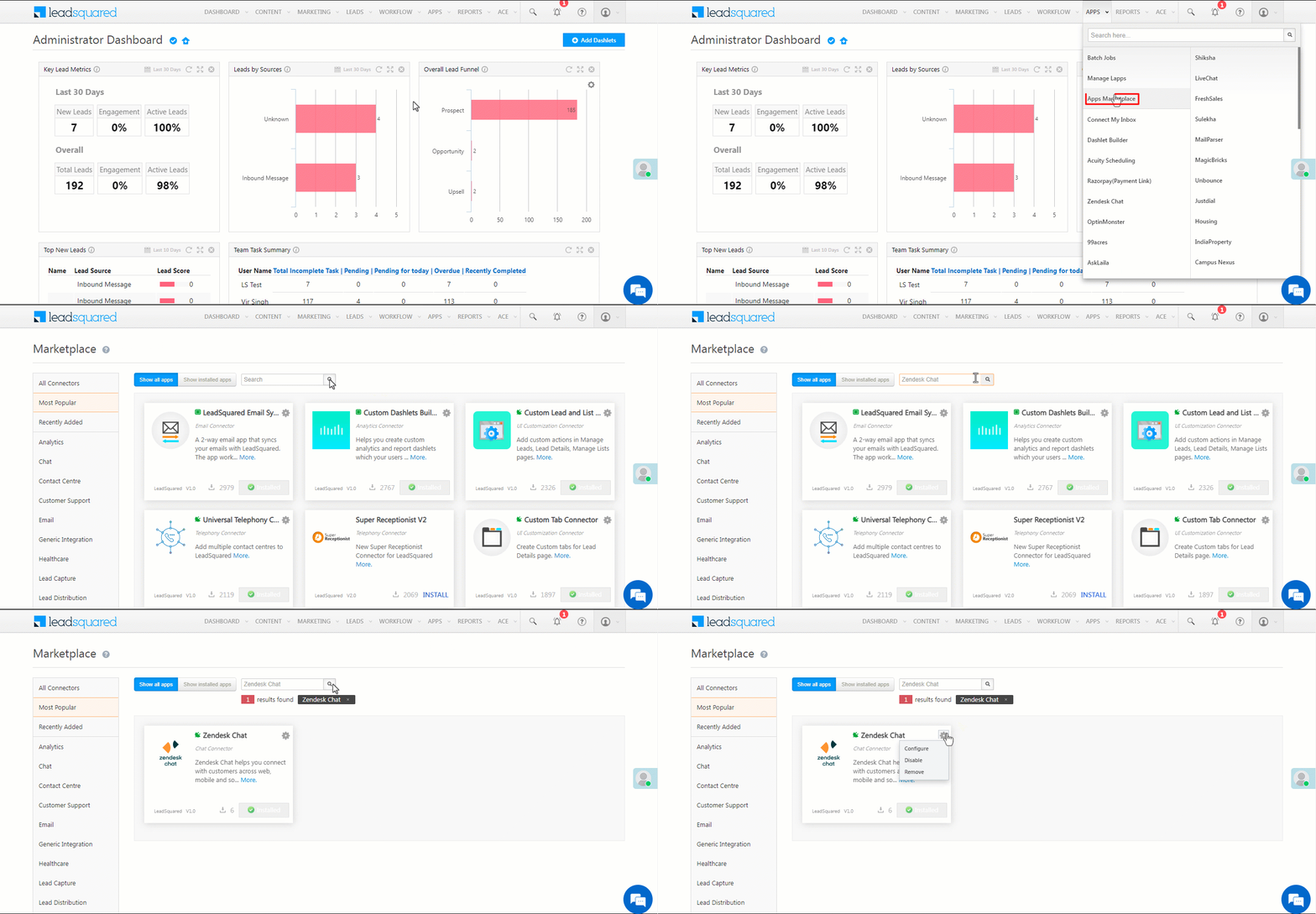
  1. Navigate to Apps>App Marketplace.
  2. Search for Zendesk Chat.
  3. Alongside the Zendesk Chat connector, hover your cursor over .
  4. From the list of options, you can perform the following actions –
    • Edit Configuration
    • Disable Configuration
    • Remove Configuration

Zendesk chat other actions


9. View Reports

You can view the total number of leads that have been pushed by Zendesk Chat, by referring to the Lead Source report. To know more, please refer to How to track the source of your Leads using Lead Source Report?

Integrate LeadSquared with Zendesk Chat


Any Questions?

Did you find this article helpful? Please let us know any feedback you may have in the comments section below. We’d love to hear from you and help you out!

How to Bulk Update Multiple Opportunity Fields?

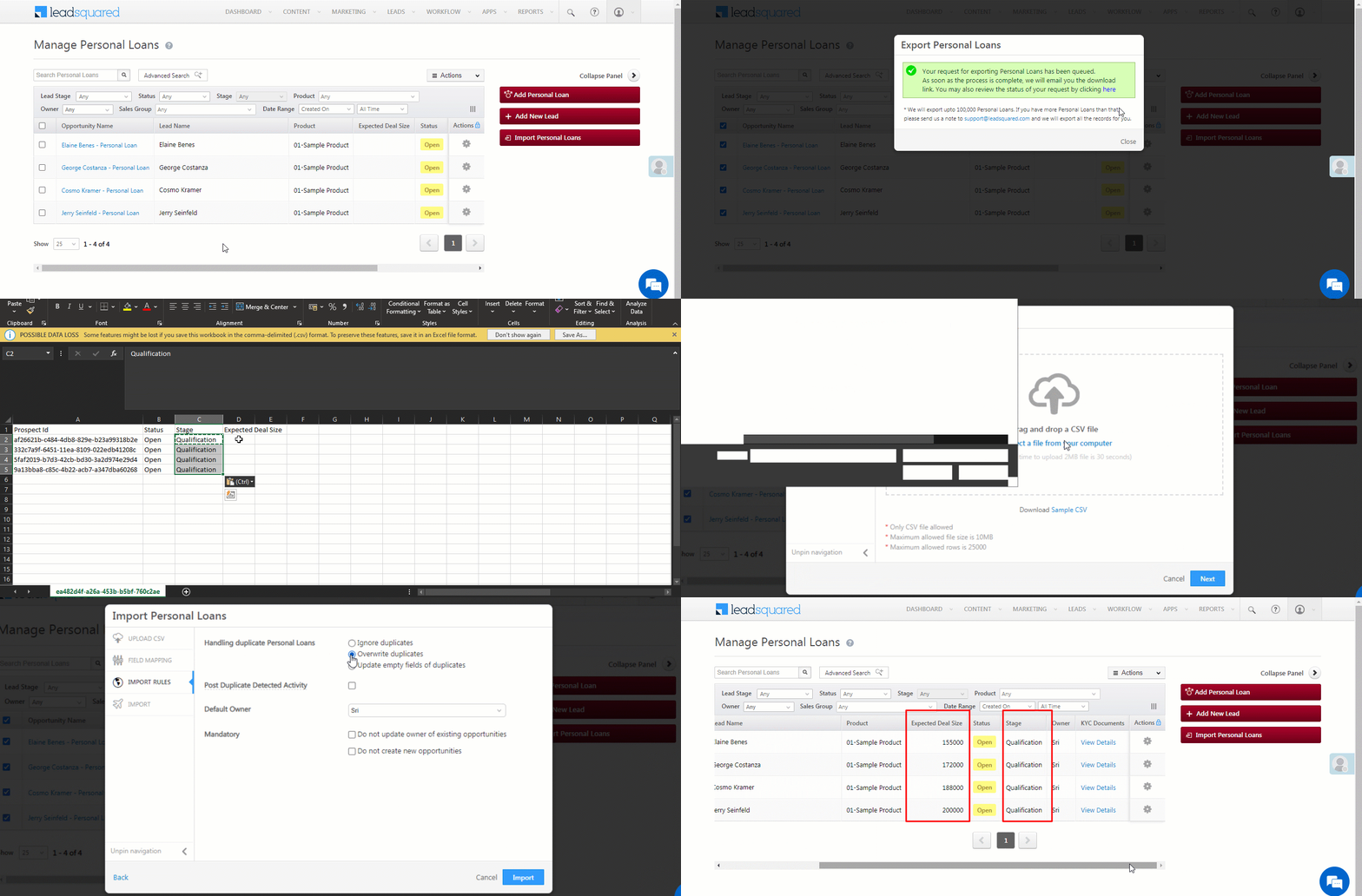
You can bulk update multiple opportunity fields through Opportunity Import. Before you get started, you must ensure at least one Opportunity Duplicate Detection rule is in place. Begin by exporting the opportunities you want to update. In the exported CSV file, update the relevant opportunity fields. Once you’re done, import this CSV file back into LeadSquared. The multiple opportunity fields you’ve changed in the CSV will then get updated.

Note:

  1. First, select and export the opportunities you want to update from your LeadSquared account. To know more, refer to Export Opportunities.
  2. In the CSV file that contains the opportunities, update the values of the opportunity fields (e.g., Deal Value, Stage, Documents, etc.) you want to change.
  3. Delete all opportunity and lead fields in the CSV file except –
    1. The Prospect ID lead field.
    2. The opportunity fields you want to update the values for.
    3. The opportunity field(s) based on which the duplicate detection rule(s) has been set up.
  4. Once you’re done, save the CSV file, and import it back into the LeadSquared (refer to Import Opportunities).
  5. On the Import Rules tab, against Handling duplicate Personal Loans, enable Overwrite duplicates.
  6. Alongside Mandatory, enable the Checkbox against Do not create new opportunities. This will ensure duplicate opportunities are not created on import.
    • If you don’t want to change the opportunity owner during import, enable the Checkbox against Do not update owner of existing opportunities.
  7. Once you’re done, click Import. This will bulk update all the selected opportunity fields.

In the below example, we’ve set up the duplicate detection rule on the “Opportunity Status” field, and we’re looking to bulk update the “Opportunity Stage” and the “Expected Deal Size” fields –

Bulk Update Multiple Opportunity Fields

Request History

1. Feature Overview

The Request History page allows you to view the asynchronous requests you’ve made from your LeadSquared account (e.eg, Delete Leads, Lead Export, etc.). Admin users can view all the request logs of different users, while other users can only view their own logs.

Note: API request logs can only be accessed from the API logs page.


2. Request History Setting

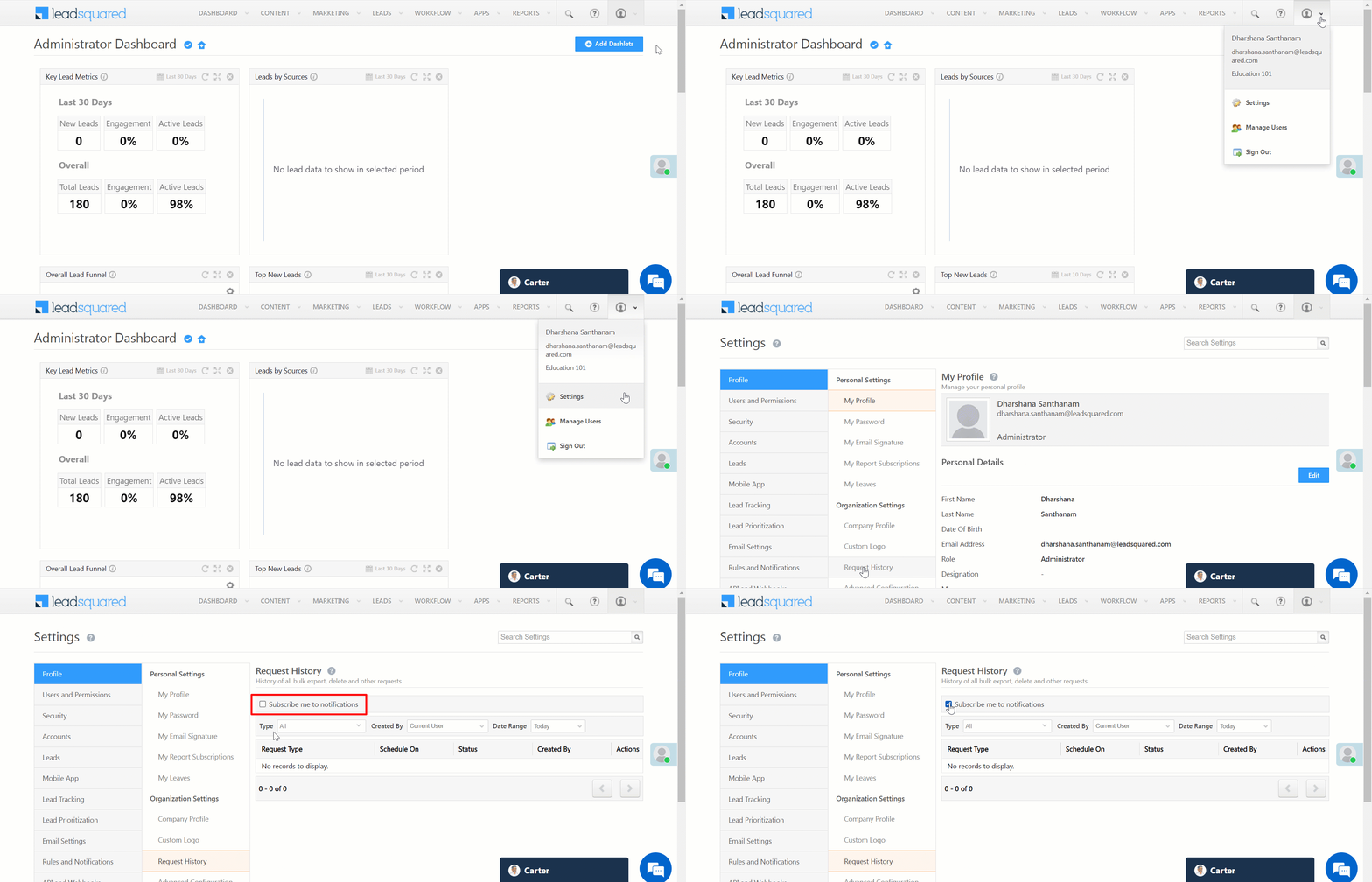
  • To view the logs of your requests, navigate to Settings>Profile>Request History.
  • Once you complete a request, you will receive an email notification.
    • If you’re an Admin user, you can opt to receive emails for requests raised by other users. To do so, select the Subscribe me to notifications checkbox.

LeadSquared - Subscribe to notifications

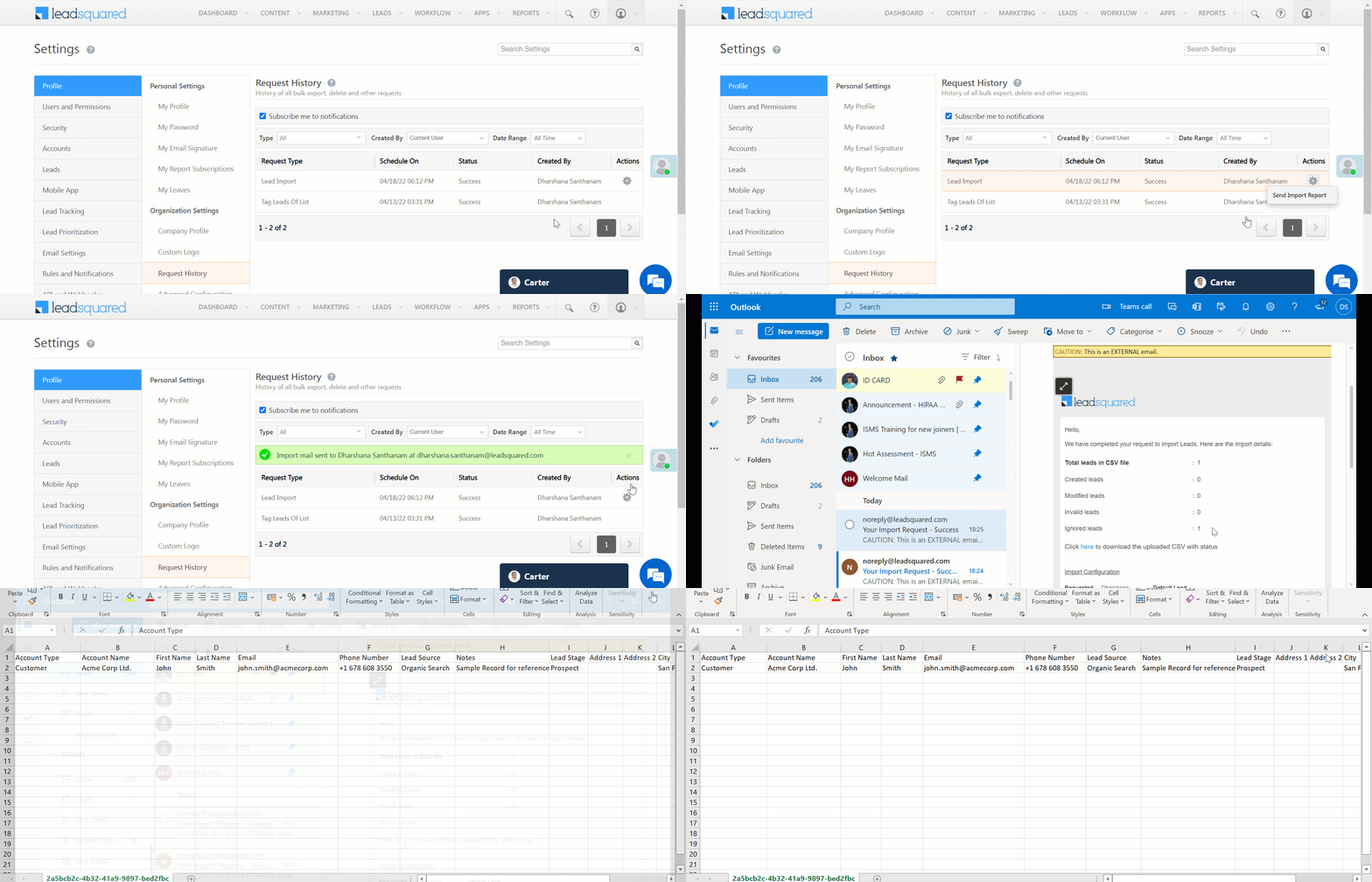
  • You can download the CSV file of all the Lead Imports from the Request History page. To do this –
    1. Hover your cursor over and select Send Import Report.
    2. You will then receive an email with the link from where you can download the CSV file.
Note: You can download a CSV file of Lead Exports by following the same steps.

LeadSquared - Download lead import


Any Questions?

Did you find this article helpful? Please let us know any feedback you may have in the comments section below. We’d love to hear from you and help you out!

Tech Alpha SMS Connector

1. Feature Overview

The Tech Alpha SMS connector lets you send texts to leads directly from your LeadSquared account. In addition, you’ll be able to –

  • Set up automated SMS campaigns with notifications and reminders.
  • Eliminate the need to switch between multiple applications to manage your SMS activities.
  • Send bulk SMS to multiple leads.
Note: Through this connector, you can only send SMS to leads in India.


2. Prerequisites

  • You must be an administrator user of your Leadsquared account.
  • Your account plan must support SMS integration.
  • Async APIs must be enabled on your LeadSquared account.
  • You must have an active account with Tech Alpha.
  • The SMS sender Id, as well as the SMS templates you use, must be DLT approved. To know more, refer to Mandatory DLT Registration for SMS Services in India.


3. How it Works

  1. To send SMS to your leads using this connector, you must set up the connector by providing your Tech Alpha account details (username, password, and DLT approved Sender ID) in LeadSquared.
  2. Once you set up the connector, create and configure SMS templates you’ll be using to message your leads. These templates must be DLT approved.
  3. After these templates are configured, you can send one-to-one SMS, as well as bulk SMS to your leads.
    • Additionally, you can also create automations to send SMS to your leads.


4. Install the Connector

To install the Tech Alpha SMS Connector on your account –

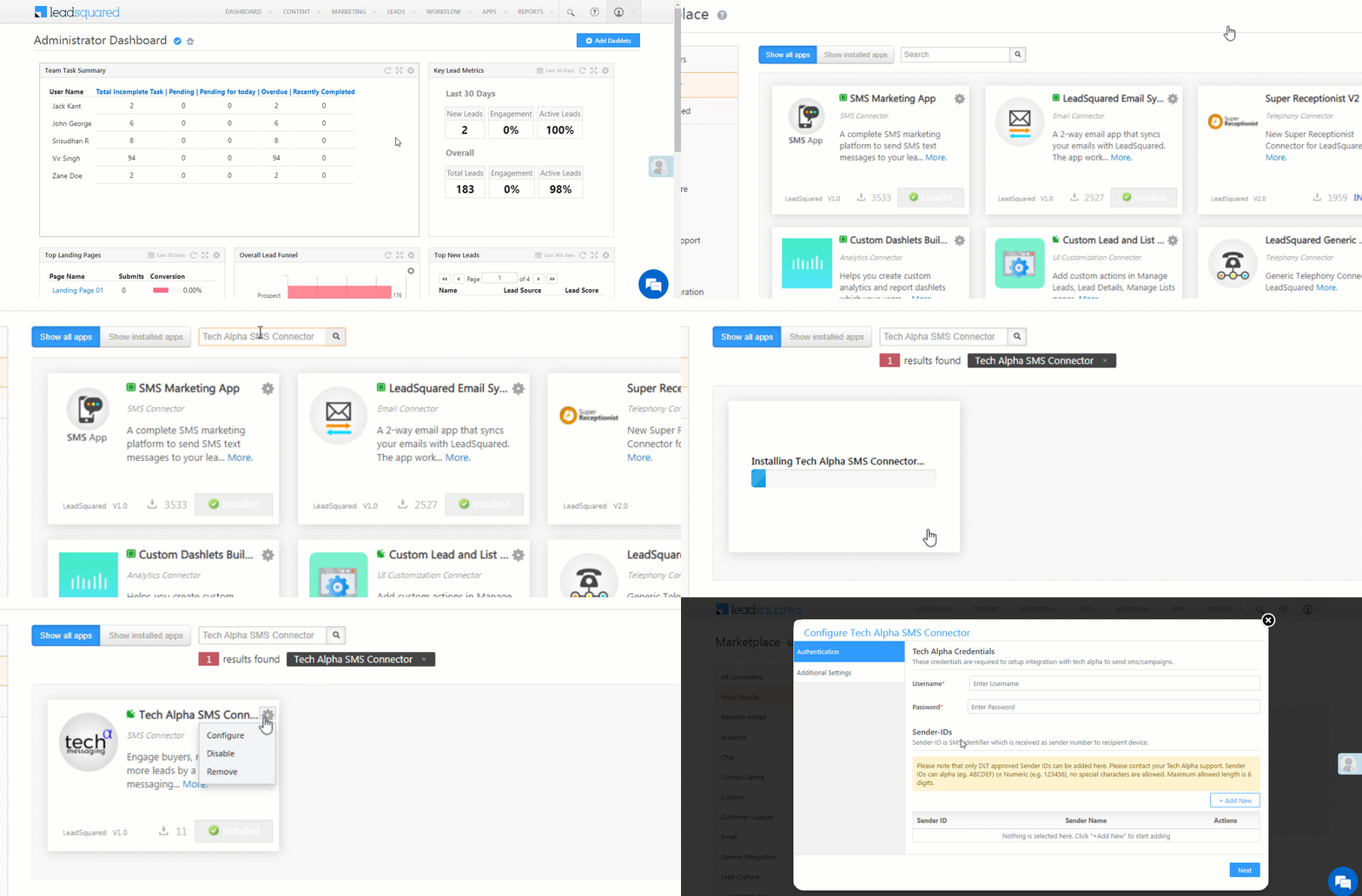
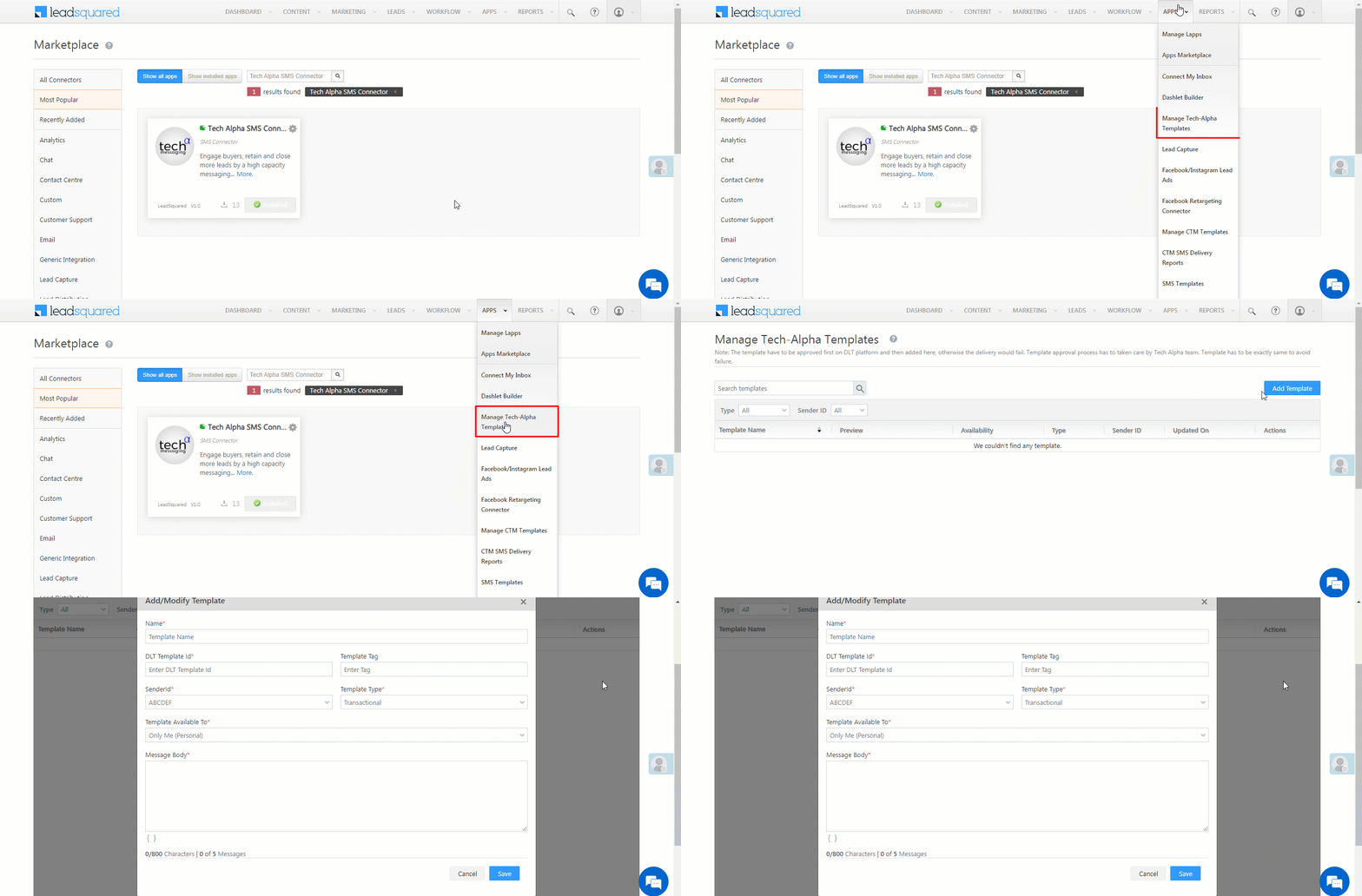
  1. From the main menu, navigate to Apps>Apps Marketplace.
  2. Search for Tech Alpha SMS Connector, and click Install.
    • Alternatively, you can find the connector on the left panel, under SMS.
  3. Once the connector is installed, hover your cursor over settings, and click Configure.

LeadSquared Tech Alpha Connector


5. Configure the Connector

5.1 Authentication

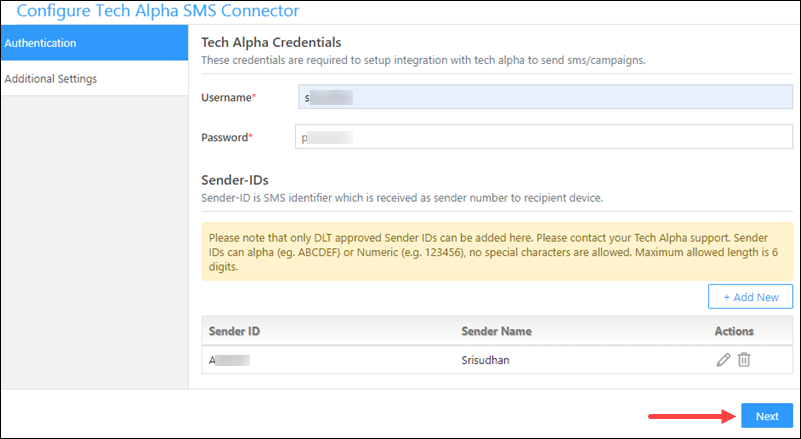
Once the connector is installed, connect and integrate your Tech Alpha account with LeadSquared.

  1. Enter the following Tech Alpha credentials –
    • Username – Your Tech Alpha account username.
    • Password – Your Tech Alpha account password.
  2. Then, add Sender-IDs. To do this, click the Add New button, and enter the –
    • Sender ID – Your Tech Alpha sender Id. To get your sender Id, please reach out to your Tech Alpha account manager.
    • Sender Name – The name of the SMS sender.
  3. Once you’re done, click Google. To add more Sender-IDs, click Add New.
  4. After adding the authentication details, click Next.

Note:

  • The Sender-ID must be DLT approved.
  • To edit an existing Id, click .
  • To delete an existing Id, click .

LeadSquared Tech Alpha Connector


5.2 Additional Settings

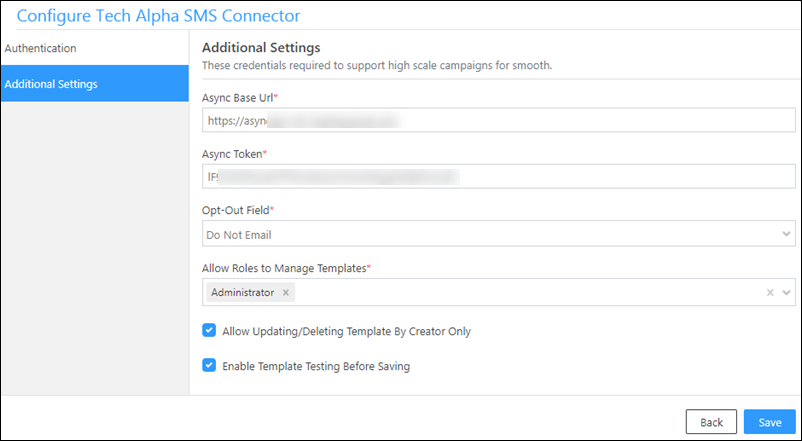
Enter the following additional details –

LeadSquared Tech Alpha Connector

Property Description
Async Base URL Enter your LeadSquared account’s Async API URL and API Key. To obtain both these values, navigate to My Profile>Settings>API and Webhooks>Async API.

The Async URL is listed against Your API host, and the API key is listed under API Key.

Async Token
Opt-Out Field From the list of boolean fields available in your account, select an opt-out field. Leads for which the value of the opt-out field is set to ‘True’ will not receive any SMS.
Allow Roles to Manage Templates Select the user roles to whom you want to grant template access. These user roles will be able to create, edit and delete templates. By default, “Administrator” is selected.
Allow Updating/Deleting Template By Creator Only Check the Checkbox checkbox to restrict template edit or delete access to users who didn’t create the template.
Enable Template Testing Before Saving Check the Checkbox checkbox to send a test SMS before saving a template.

Once you’re done, click Save.


6. Configure SMS Templates

Once the app is installed, configure the SMS templates.

  1. Navigate to Apps>Manage Tech-Alpha Templates.
  2. Click Add Template.
  3. On the Add/Modify Template pop-up, enter the following details –
    • Name – A name for the template.
    • DLT Template Id – The DLT approved template Id. To get your template approved, and to obtain this Id, please reach out to your Tech Alpha account manager.
    • Template Tag – A tag to identify your template. This field is optional.
    • SenderId – The DLT approved Sender Id.
    • Template Type – Choose if the template is Transactional (order confirmation, account creation confirmation, etc.) or Promotional (ongoing offers, product launches, etc.).
    • Template Available To – Choose who you want the template to be available to – Only Me (Personal), Everyone, or Specific Roles.
      • If you choose Specific Roles, from the Select Role dropdown, select the user roles for which you want to make the template available.
    • Message Body – Enter the DLT approved Template content/message here. To add mail merge fields, click mail merge code icon. If the approved template contains a mail merge field “{#var#}”, then the LeadSquared mail merge value can only replace “{#var#}”, without changing anything else in the template. For e.g., “Hi {#var#}, hope you’re doing well!” can only be replaced by, “Hi @{Lead:FirstName,}, hope you’re doing well!”.
  4. Once you’re done, click Save.

LeadSquared Tech Alpha Connector

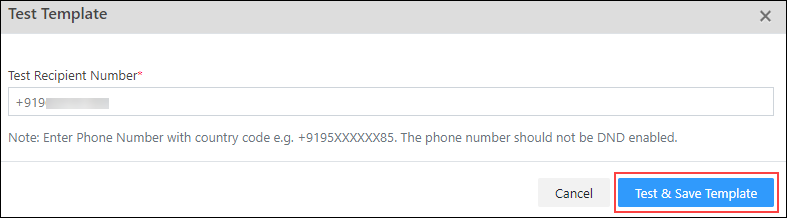
If Enable Template Testing Before Saving is enabled, then in the Test Template pop-up, enter the Test Recipient Number, and click Test & Save Template.

Activity History Tab Connector


7. Send SMS

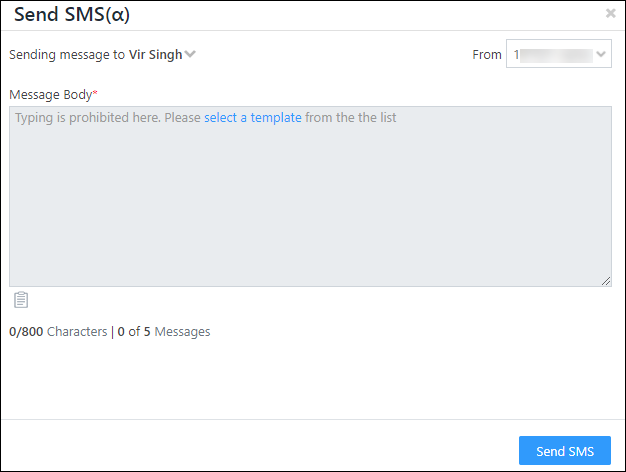
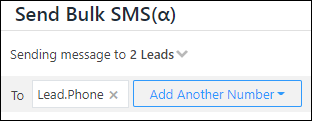
You can send one-to-one as well as bulk SMS to your leads. When you initiate the send text action, you’ll see the following pop-up –

LeadSquared Tech Alpha Connector

Field Description
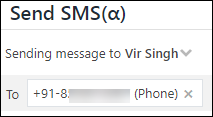
Sending Message to You can send messages to multiple numbers saved under the lead.

LeadSquared Tech Alpha Connector

Multiple leads will show up while sending Bulk SMS.

LeadSquared Tech Alpha Connector

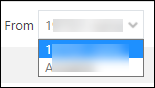
From You can select from the list of DLT approved Sender-IDs that was provided when configuring the connector.

LeadSquared Tech Alpha Connector

Campaign Name This option appears while sending bulk SMS. Enter a campaign name to identify different SMS campaigns.
Message Body Select the message you want to send, from the list of DLT approved templates. You cannot type your own message.
Templates select template icon The list of DLT approved templates available in your account.


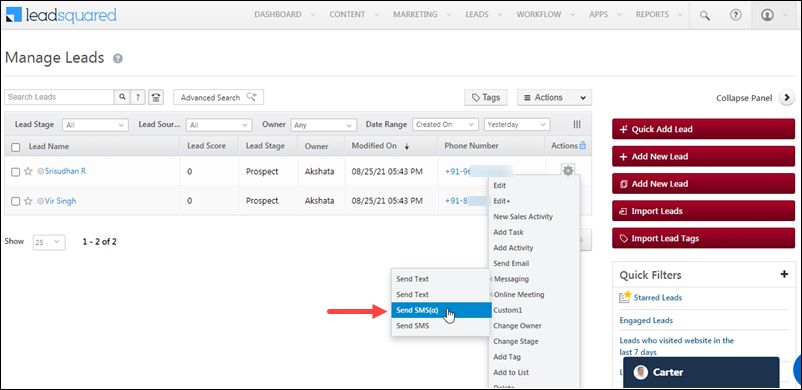
7.1 One to One SMS from Manage Leads Page

  1. Navigate to Leads>Manage Leads.
  2. Against an existing lead, under Actions, hover your cursor overSettings icon.
  3. Then, hover your cursor over Messaging, and click Send SMS(α).
  4. After entering the required details and selecting a template, click Send SMS.

LeadSquared Tech Alpha Connector


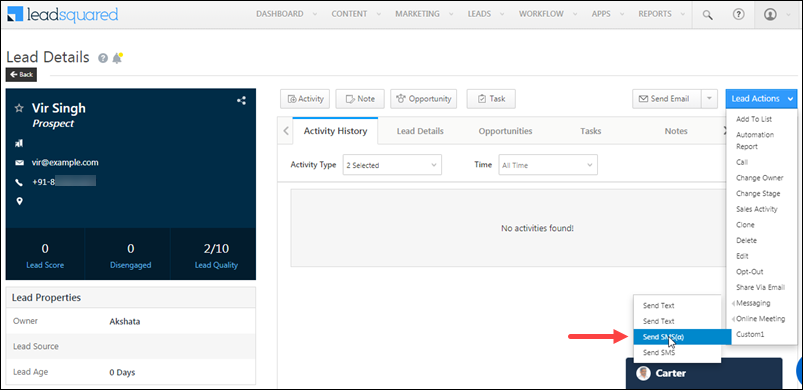
7.2 One to One SMS from the Lead Details Page

On the Lead Details page –

  1. Hover your cursor over the Lead Actions button.
  2. Then, hover your cursor over Messaging, and click Send SMS(α).
  3. After entering the required details and selecting a template, click Send SMS.

LeadSquared Tech Alpha Connector


7.3 SMS via Automation

You can also send SMS to leads through automation.

  1. Navigate to Workflow>Automation.
  2. Create a new automation, or edit an existing one.
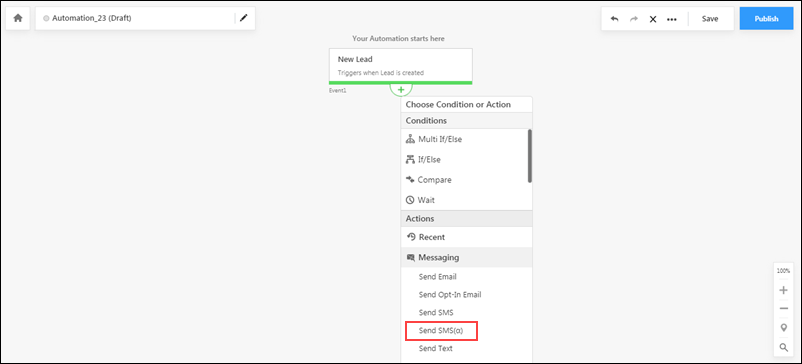
  3. After selecting the type of automation and the trigger, click the add expand icon, click Messaging, and then click Send SMS(α).
  4. After entering the required details and selecting a template, click Send SMS.

For more information, see How to Send SMS through Automation.

Note: You can send SMS via automation through the Tech Alpha connector only for automations created using a Lead, Activity, Task, or User trigger.

LeadSquared Tech Alpha Connector


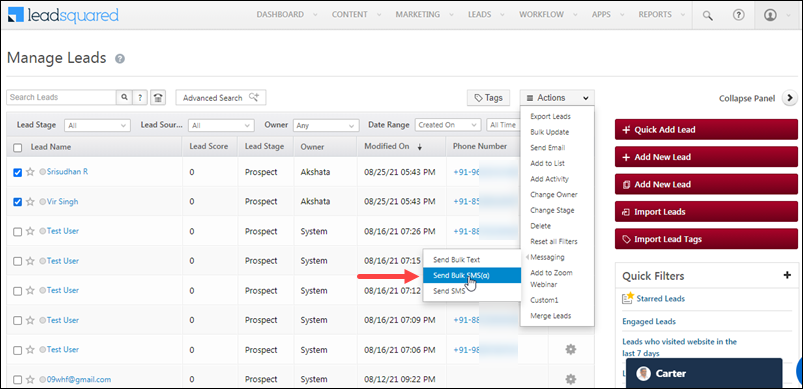
7.4 Bulk SMS from Manage Leads Page

  1. Navigate to Leads>Manage Leads.
  2. Select the Checkbox checkboxes alongside the leads you want to send the SMS to.
  3. Hover your cursor over the Actions button, then hover it over Messaging, and click Send SMS(α).
Note: You can also use filters or the Advanced Search feature to find the leads you want to message.

LeadSquared Tech Alpha Connector


7.5 Manage Lists

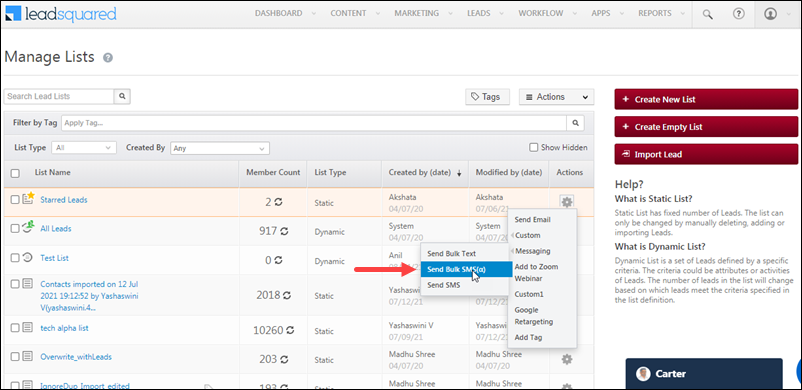
You can send bulk SMS to your lead lists from the Manage Lists page.

  1. Navigate to Leads>Manage Lists.
  2. Alongside the list you want to send the SMS to, hover your cursor over Settings icon.
  3. From the options available, hover your cursor over Messaging, and click Send SMS(α).

LeadSquared Tech Alpha Connector


8. SMS Activities

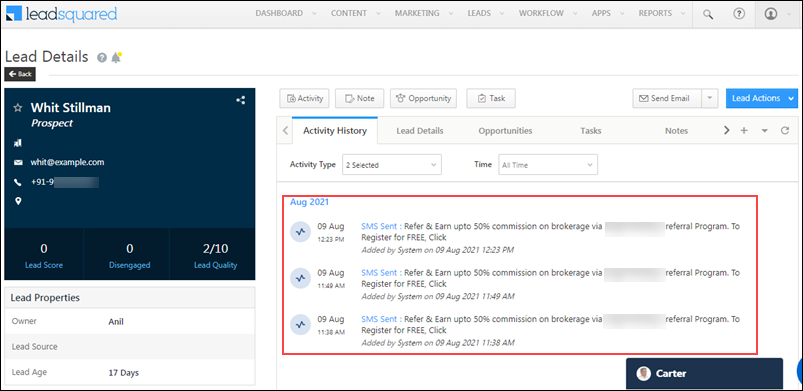
You can track the SMS sent, from the Lead Details and Manage Activities pages. We automatically post SMS Sent activities in real-time.

8.1 Lead Details

To view more details, click the SMS Sent link for each activity.

LeadSquared Tech Alpha Connector


8.2 Manage Activities

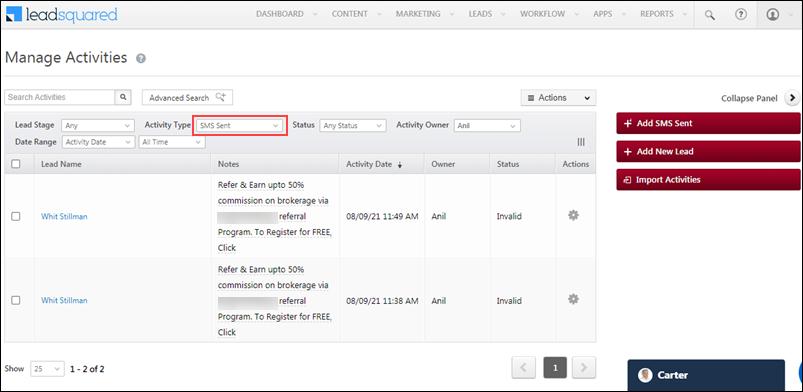
You can also view the list of leads with SMS activities. Be sure to select SMS Sent from the Activity Type drop.

LeadSquared Tech Alpha Connector

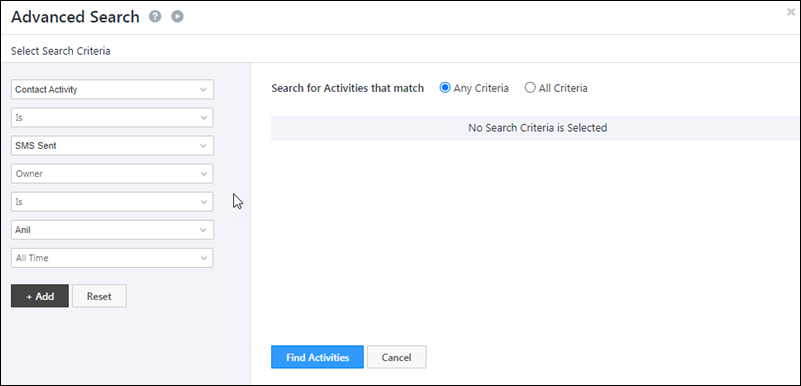
You can use the Advanced Search feature to filter SMS based on different fields, such as campaigns, date-time fields, etc.

LeadSquared Tech Alpha Connector


Any Questions?

Did you find this article helpful? Please let us know any feedback you may have in the comments section below. We’d love to hear from you and help you out!

Integrate Olark with LeadSquared

1. Feature Overview

This connector captures leads and activities (such as chat data, etc.) in real time from your Olark account to LeadSquared. Once the leads and activities are synced, you can leverage LeadSquared’s CRM features to nurture and convert your leads.


2. Prerequisites

  • You must be the Administrator of your LeadSquared account.
  • You must have an active Olark account.
  • This is a paid feature. To enable it, reach out to your account manager, or write to support@leadsquared.com.


3. How it Works

To push lead and activity data from your Olark account to your LeadSquared account, configure the Olark connector instance. Once you set it up, a webhook URL is generated. Configure this URL in your Olark account, and enable the sync for the connector instance in LeadSquared. This will begin the lead and activity capture process.

For e.g., when a lead initiates a chat conversation in your Olark account, they are captured as a lead in LeadSquared based on the Lead Capture Search by Criteria you set up (e.g., Email, Phone Number, etc.). When tickets are added to this lead in your Olark account, you can configure multiple activities to be created against the corresponding lead in LeadSquared (based on the Ticket Id).


4. Installation

You must first install and configure the Olark connector.

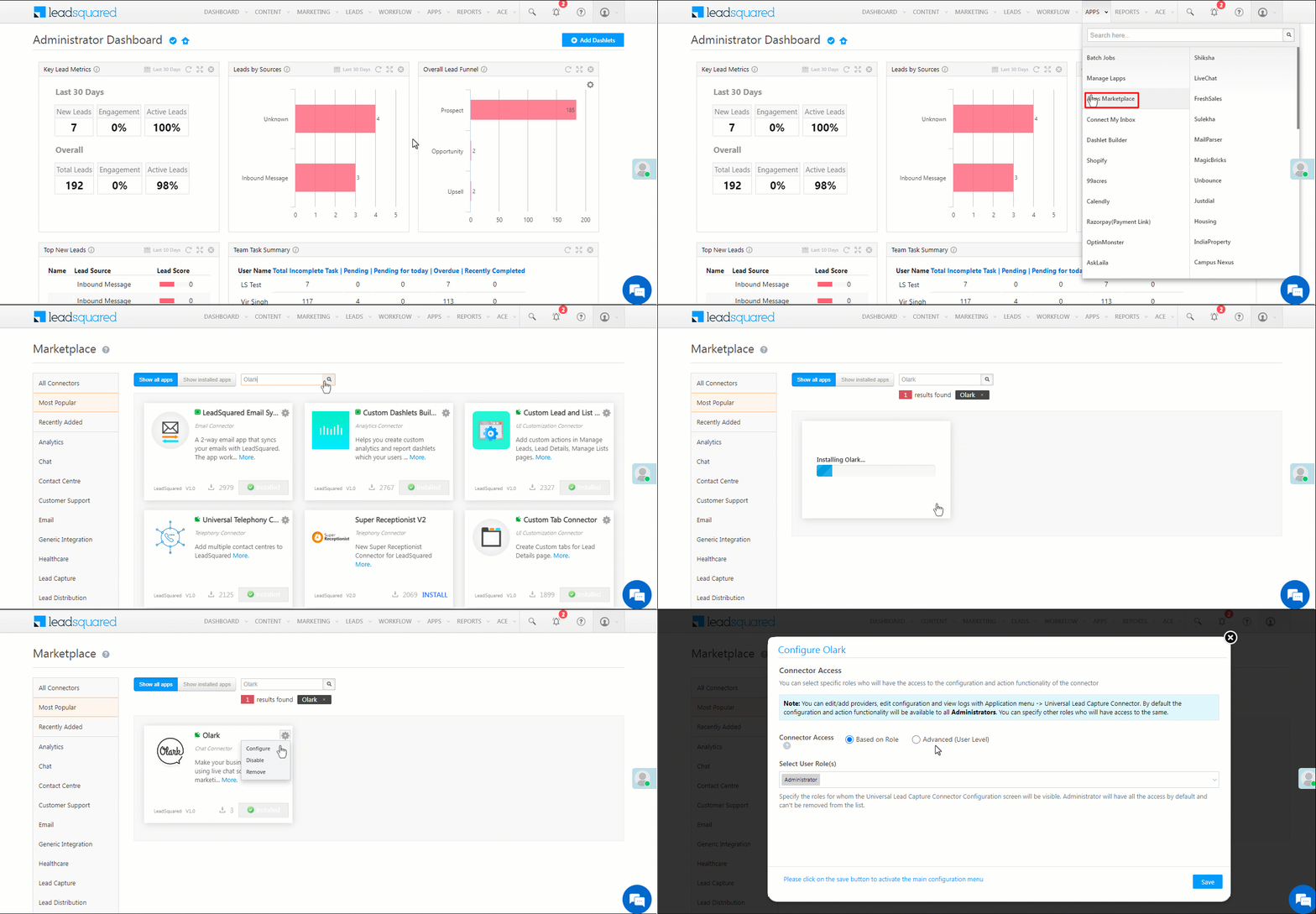
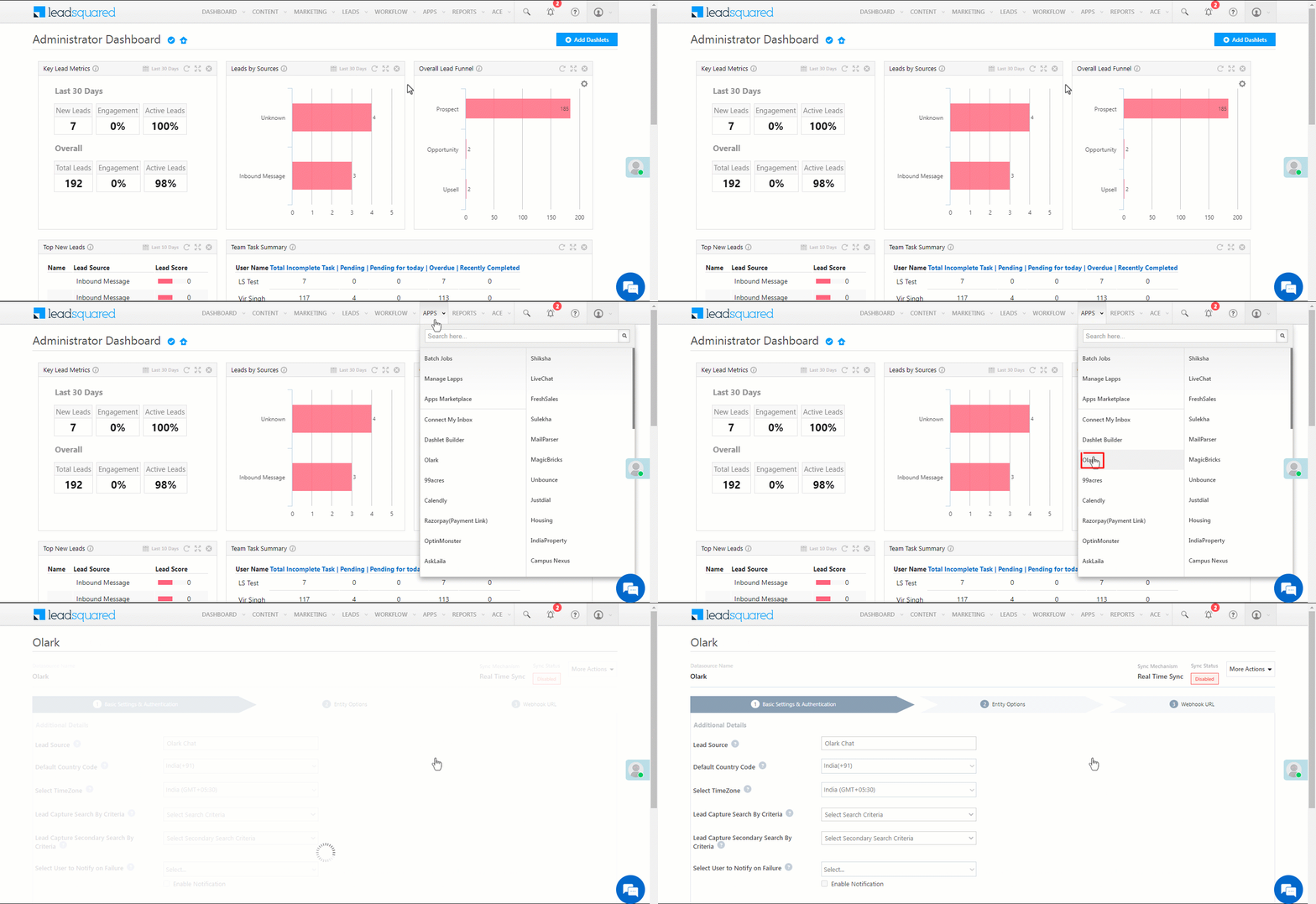
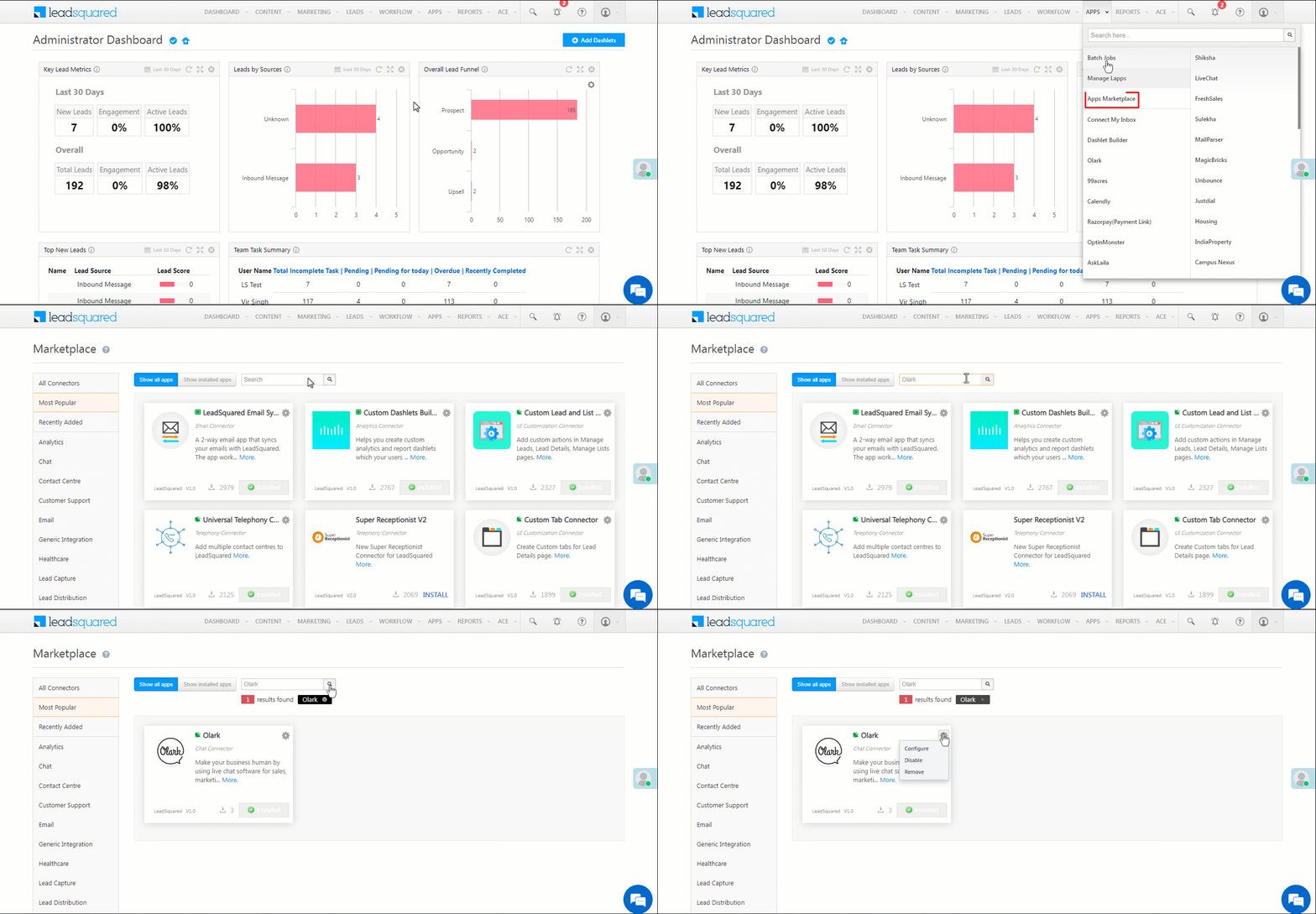
  1. Navigate to Apps>Apps Marketplace.
  2. Search for Olark, and click Install.
    • Alternatively, you can find the connector on the left panel, under Chat.
  3. Once installed, hover your cursor over , and click Configure.

Olark install

4.1 Configure the connector

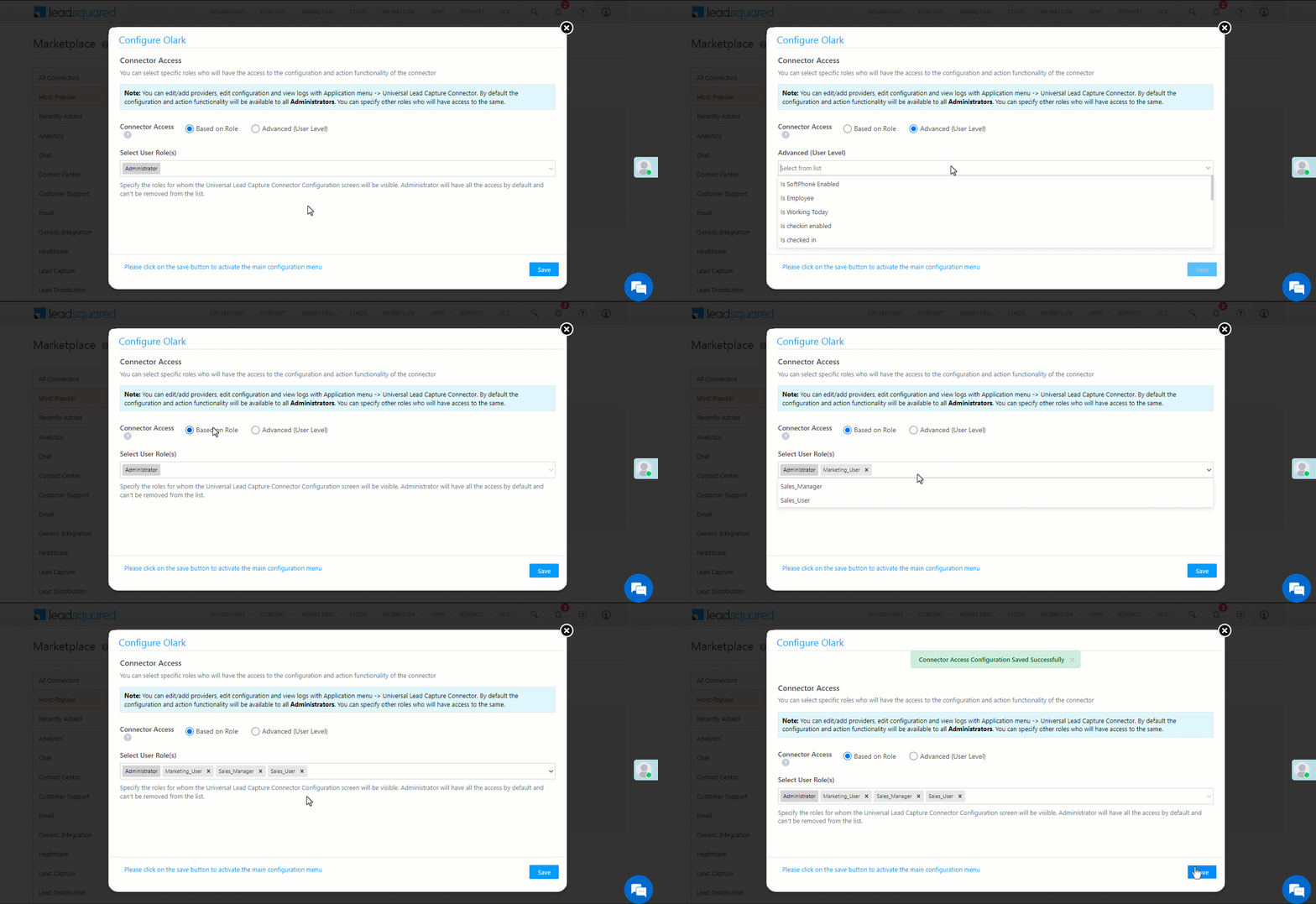
Once you’ve installed the connector, on the Configure Olark pop-up, configure the connector access for the non-Admin users in your account. Only those users for whom access is granted can view and access the connector (under the Apps main menu).

  1. Select if you want to grant Connector Access that’s Based on Role or Advanced (User Level).
    • Based on Role – From the Specify Roles dropdown, select the LeadSquared user roles that can use the connector.
    • Advanced (User Level) – From the Advanced (User Level) dropdown, select a user boolean field. Based on the value entered in the selected boolean field, the user can access the connector (e.g., for the user Sam, if the “Is Employee” boolean user field contains the value “Yes”, then this user can access the connector).
  2. Once you’re done, click Save Details. To continue the configuration, refer to the below sections.
Note: By default, all Admin users will have access to the connector.

Olark config


5. Admin Configuration

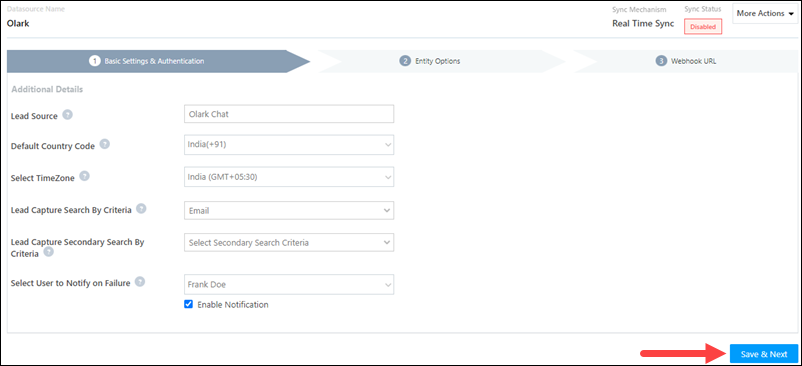
To continue the connector configuration, navigate to Apps>Olark.

Olark admin config

5.1 Basic Settings

Enter the following details –

Property Description
Lead Source Enter the lead source through which the leads were captured (e.g., Olark, email campaign, etc.). This detail will be displayed on the Lead Details page, under Lead Source.
Default Country Code If the lead’s mobile number is captured without a country code, then the default country code that’s selected from the dropdown will be added to the lead’s mobile number.
Select Time Zone The time zone of your Olark account.
Lead Capture Search By Criteria To avoid duplicate leads, you must select one unique lead field (e.g., email Id, mobile number, PAN number, etc.) as the search key. This will be used to identify the leads pushed from Olark.

To know how to mark a LeadSquared lead field as unique, please refer to How to Make a Custom Field Unique.

Select User to Notify on Failure If there is an error in fetching leads, the selected user will receive a failure message via email. You can select a user from the list of all the users available in your LeadSquared account.

To know more about the type of errors, please refer to Error Notifications.

Enable Notification Enable the Checkbox checkbox to ensure notification emails are sent to the selected user when there’s a failed query.

Once you’re done entering all the details, click Save & Next.

Olark basic settings save

5.2 Entity Options

Define the sync behavior of the connector when leads and activities are captured.

5.2.1 Lead/Contact Entity

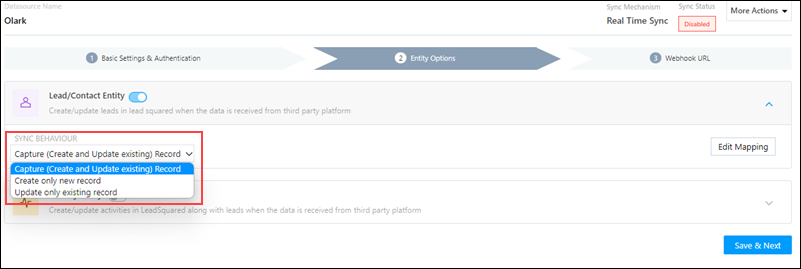
Based on the Lead Capture Search By criteria selected (email Id, phone number, etc.), LeadSquared identifies and captures leads from your Olark account. Lead capture is enabled by default, and it cannot be disabled.  The following options are available to configure the connector’s Sync Behaviour –

  • Capture (Create and Update existing) Record – Leads that only exist in your Olark account (but not in your LeadSquared account) will get created in LeadSquared. Leads that exist in both your Olark and LeadSquared accounts will get updated.
  • Create only new record – Leads that only exist in your Olark account (but not in your LeadSquared account) will get created in LeadSquared.
  • Update only existing record – Leads that exist in both your Olark and LeadSquared accounts will get updated in LeadSquared.

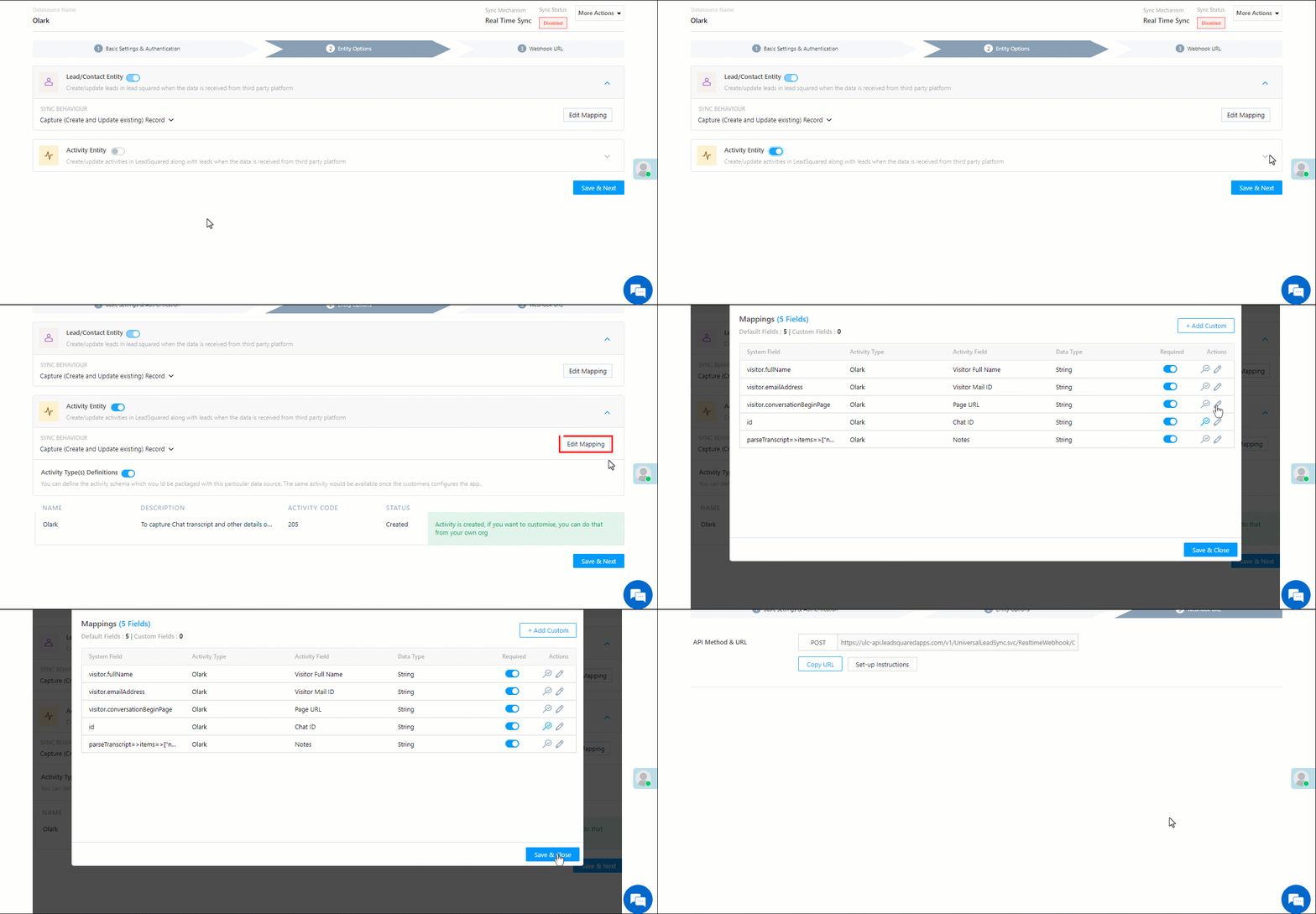
Olark lead or contact sync

5.2.2 Mapping

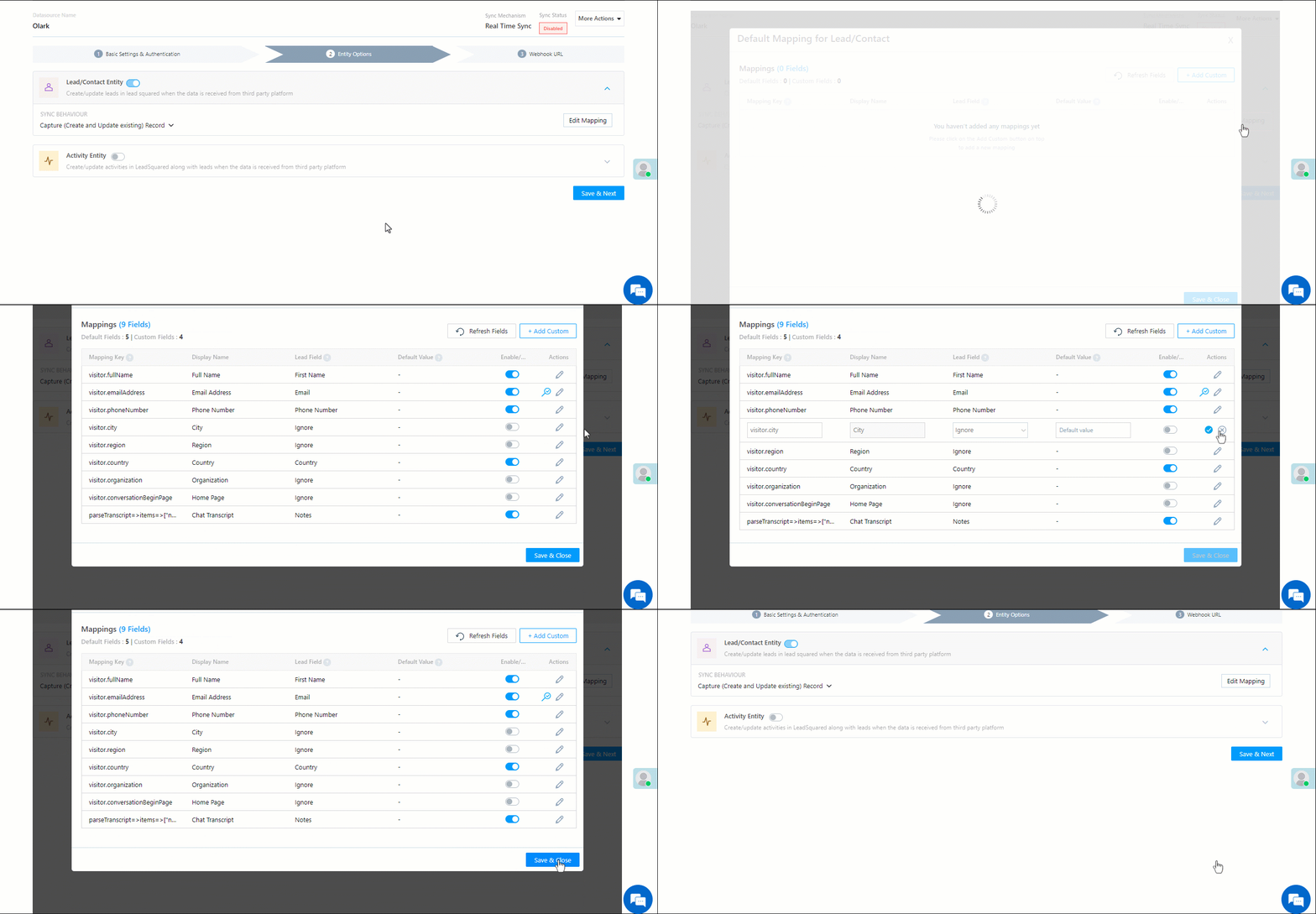
On the Mapping screen, the Olark system fields mapped to the corresponding LeadSquared lead/activity fields are visible. This mapping is carried out by default. If required, you can change or update the default field mapping.

  • To provide a default value for any field, click  , enter the value under Default Value, and click Google.
    • If the data provider doesn’t send data for any lead/activity field, then the default value will get assigned to that specific field. But if the field already has an existing value, then the default value will be ignored.
  • To disable lead data capture for any field, disable the Zoom slider.
  • You can also mark and update a unique lead/activity field as the search key from this screen, by clicking unique icon.
  • To create a custom Olark field, click the Add Custom button.
    1. Once this field is created, you must map it to the relevant LeadSquared lead/activity field.
    2. After the field is mapped, to save the custom field, click Google.
    3. To delete a custom field, click .

Olark lead mapping

5.2.3 Activity Entity

Once leads are captured in LeadSquared, you can post custom activities to these leads (e.g., Ticket Creation, Chat Transcript, etc.). These activities will help users keep track of the lead’s journey to conversion.

To post activities to the leads captured from Olark, against Activity Entity, enable the Slider slider. The following options are available to configure the connector’s Sync Behaviour when activities are synced to LeadSquared –

  • Capture (Create and Update existing) Record – New activities will get posted to the lead in LeadSquared, while existing activities will get updated.
  • Create only new record – Only new activities will get posted to leads in LeadSquared.
  • Update only existing record – Only existing activities on the leads captured will get updated in LeadSquared.

By default, your chat data is mapped to the Olark activity. If you want to map this data to a different activity type, reach out to your account manager, or write to support@leadsquared.com.

Note: An activity is classified as a new activity or an existing activity based on the Lead Capture Search By Criteria you’ve selected in the previous section.

Once you’re done, click Save & Next.

Olak activity mapping

5.4 Webhook URL

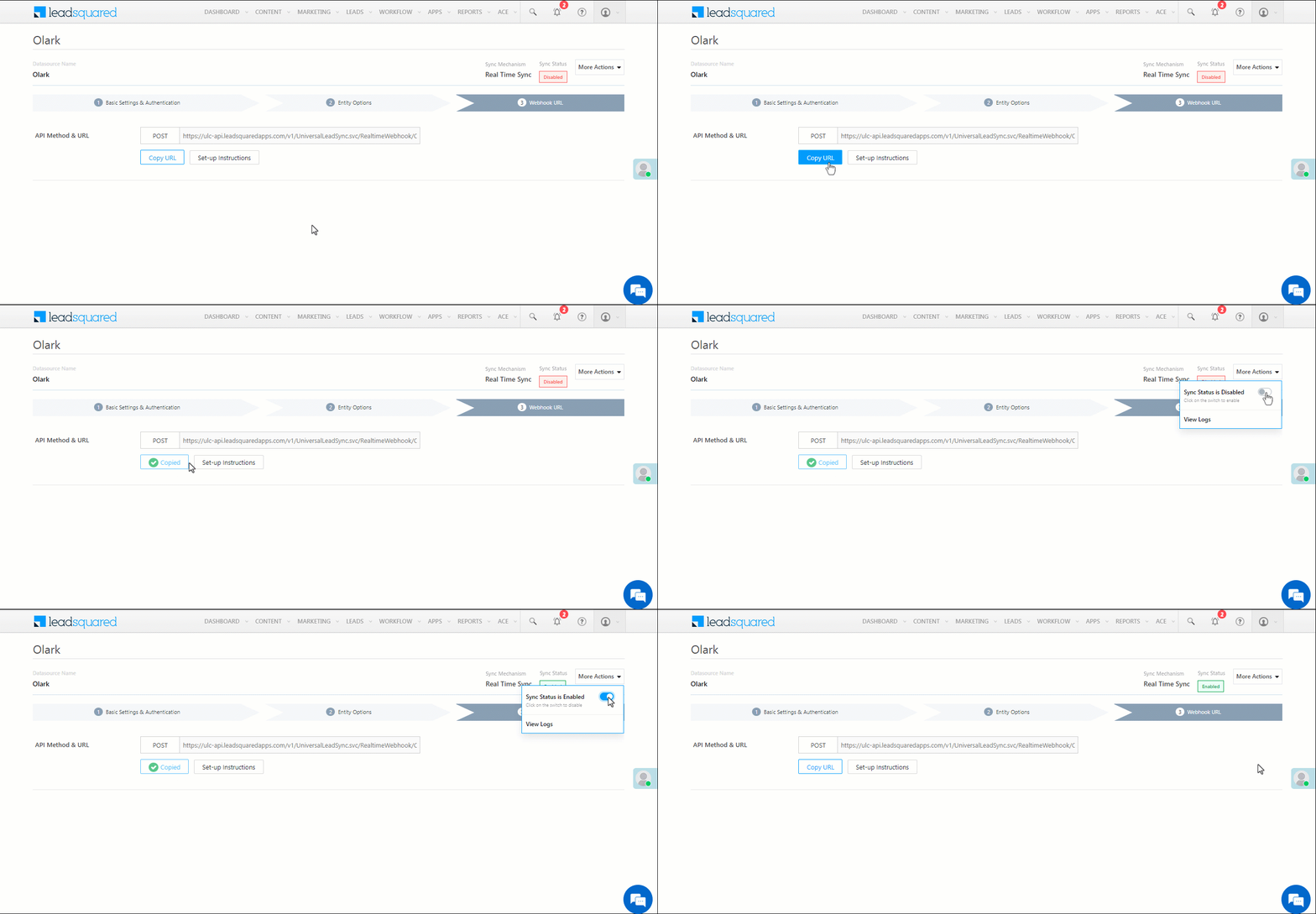
After you provide basic details and finish field mapping, a custom webhook URL is generated. To automate lead capture, copy this URL and configure it in your Olark account (reach out to your account manager from Olark). For more instructions, refer to Olark Webhooks integration guide and Creating Webhooks Integrations for Olark.

After you’ve configured the URL, click More Actions, and enable the sync job. This ensures the data will be pushed to LeadSquared using the webhook configured in Olark.

Olark webhook url

Note:

  • To know how to configure this Webhook URL in your Olark account, please get in touch with your account manager from Olark.
  • The API must be configured in Olark using the POST method.
  • From the More Actions dropdown, click View Logs to view the logs of all sync jobs that have taken place.

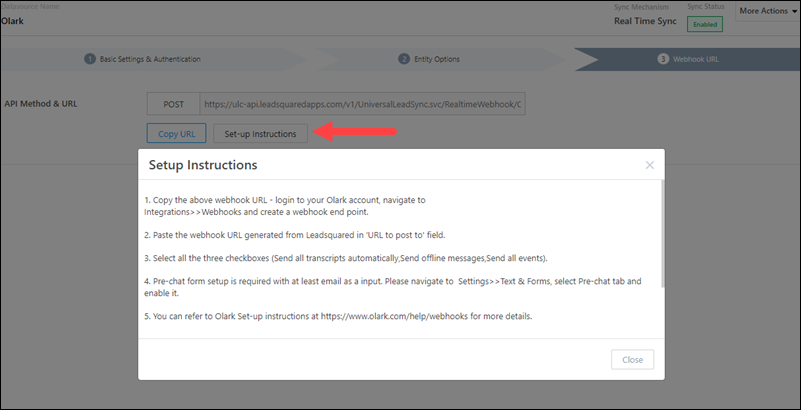
To know more, refer to the setup instructions –


6. View Logs

Here, you can view logs of all the sync jobs that have taken place. View New Events (New Leads and Activities), Updated Events (Updated Leads and Activities), and Errors (when capturing leads and activities).

  1. Navigate to Apps>Olark.
  2. From the More Actions dropdown, click View Logs.
  3. You can filter the logs by selecting a date range (Today, Last 7 Days, This Month, and Last Month), by selecting the Job Status (“All”, “Success” and “Failure”), and by selecting the Sync Status (All, Error, and Success).
  4. You can view the sync status of the following events –
    • New Events – List of all the new leads and activities that have been created in LeadSquared during the selected date range.
    • Updated Events – A list of all the –
      • Duplicate leads that were created with the same Search by Criteria value (e.g., with the same Email Id, Mobile Number, etc.).
      • Duplicate activities (such as Ticket Creation, etc.) posted on the same lead, using the same Search by Criteria value (e.g., with the same Email Id using the same Ticket Creation Id, etc.).
      • Leads and activities that previously contained errors, which were fixed and synced successfully.
    • Errors – The list of leads and activities that have not been captured due to mapping errors (e.g., when a boolean field is mapped to an integer field, etc.).
  5. To view the Sync Response details, under Request ID/Sync Job ID, click the Id.
    • Under the right panel, you can view the response status, the API URL, the request, and the response.
    • The responses that are successful will contain the details of the leads that have been pushed by Olark.
    • To view the lead capture response under Sync API Response, Leads Updated and Errors in Leads, click Information.

Note:

  • For a response that contains an error, the reason for the error is listed in the response. Once you fix it, you can click the Retry button to perform the sync again.
  • The current Lead/Activity Sync Behaviour will reflect in the Logs screen. This will help identify the sync that’s used (Capture or Update) for the selected Request/Sync Job Id.

Olark view logs


7. Other Actions

You can edit or delete the Olark connector instance that you created. To do this –

  1. Navigate to Apps>App Marketplace.
  2. Search for Olark.
  3. Alongside the Olark connector, hover your cursor over .
  4. From the list of options, you can perform the following actions –
    • Edit Configuration
    • Disable Configuration
    • Remove Configuration

Olark other actions


8. View Reports

You can view the total number of leads that have been pushed by Olark, by referring to the Lead Source report. To know more, please refer to How to track the source of your Leads using Lead Source Report?

Integrate LeadSquared with Olark


Any Questions?

Did you find this article helpful? Please let us know any feedback you may have in the comments section below. We’d love to hear from you and help you out!

Why Is the Agent Pop-up Not Showing/Visible for Phone Calls?

If the Agent pop-up is not showing up when receiving calls, there are a few settings you may need to check –

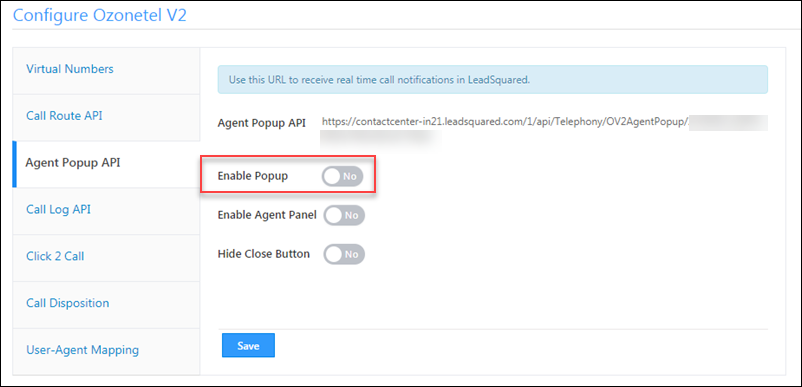
1. Verify if the agent popup is enabled on the connector configuration page.
This will vary depending on the telephony provider (CallTrackingMetrics, Ozonetel, RingCentral, Super Receptionist, etc.) configured in your account. Ensure that the Agent Pop-up API is correctly configured and the pop-up is enabled. The following example is for the Ozonetel telephony connector.

agent pop up configuration

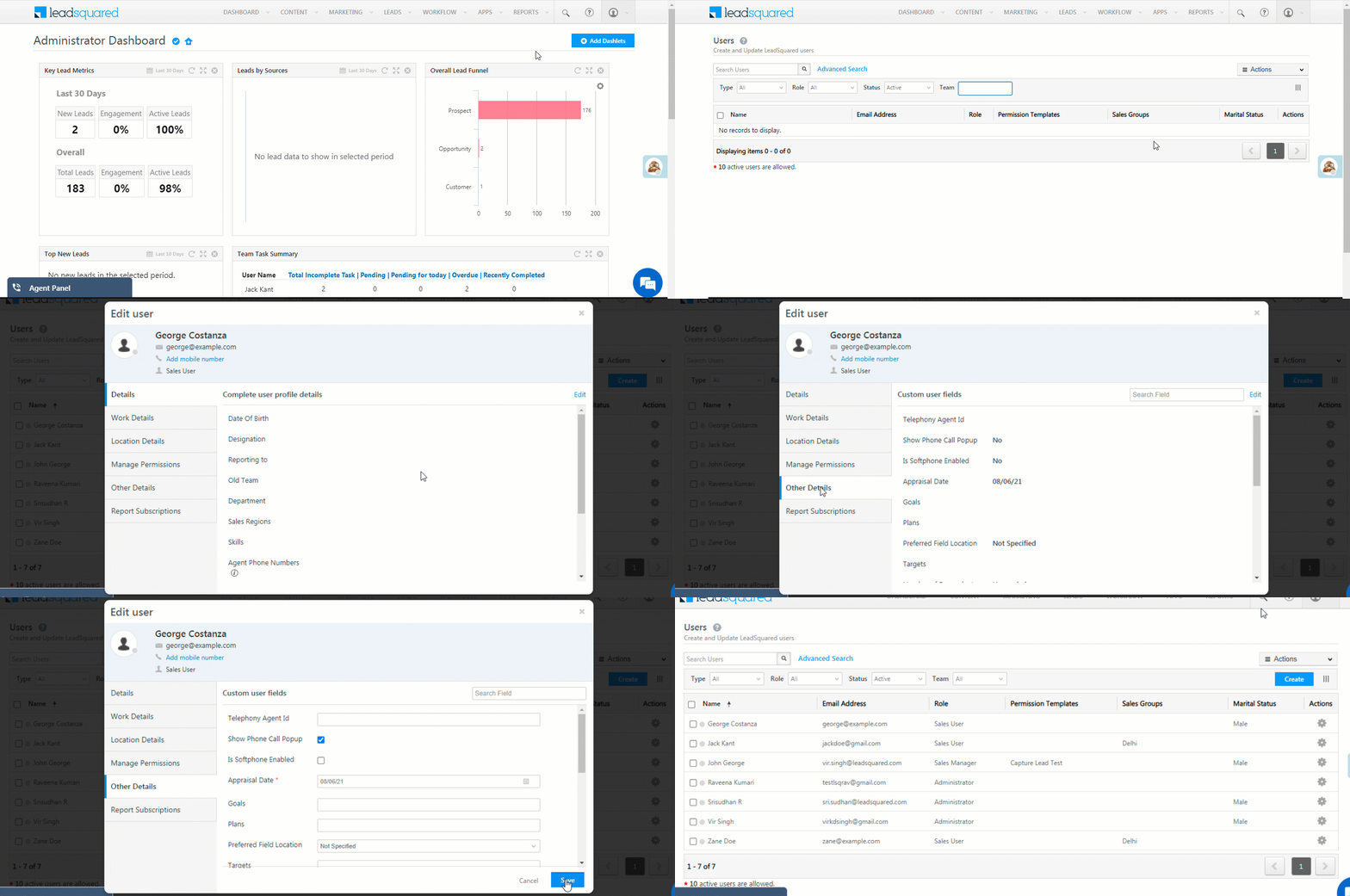
2. Check in the user’s profile that the “Show Phone Call Popup” setting is enabled. After enabling it, log out and log back into your account.
Navigate to My Profile>Manage Users and edit the user’s profile. On the Edit User pop-up, navigate to the Other Details tab and click Edit. Enable the Show Phone Call Popup Checkbox setting.

Enable Show Phone Call Popup

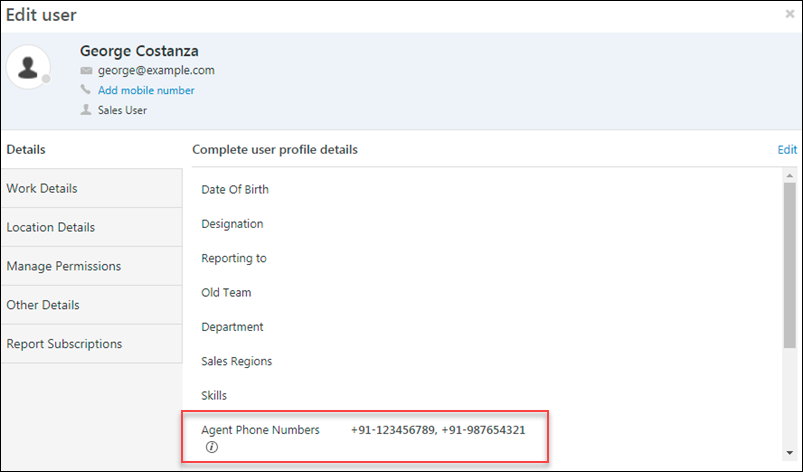
3. Check if the agent phone numbers are added.
Check to see if the agent phone numbers are added correctly in the user profile. Ensure the phone number is entered in the correct format +CC-PhoneNo.

troubleshooting agent popup

4. Check the browser console to see if the call is established.
Check the Browser Console>Network tab>check websocket(WS) to see if the call is established and the phone number in the call is the same as the number added in “Agent Phone Numbers” in the user profile.

agent popup console log

If you’re still facing issues, contact your account manager or write to us at support@leadsquared.com.

Integrate tawk.to with LeadSquared

1. Feature Overview

This connector captures leads in real-time from your tawk.to account to LeadSquared. Once the leads are synced, you can leverage LeadSquared’s CRM features to nurture and convert your leads.


2. Prerequisites

  • You must be the Administrator of your LeadSquared account.
  • You must have an active tawk.to account.
  • This is a paid feature. To enable it, reach out to your account manager, or write to support@leadsquared.com.


3. How it Works

To push lead data from your tawk.to account to your LeadSquared account, configure the tawk.to connector instance. Once you set it up, a webhook URL is generated. Configure this URL in your tawk.to account, and enable the sync for the connector instance in LeadSquared. This will begin the lead capture process.


4. Installation

You must first install and configure the tawk.to connector.

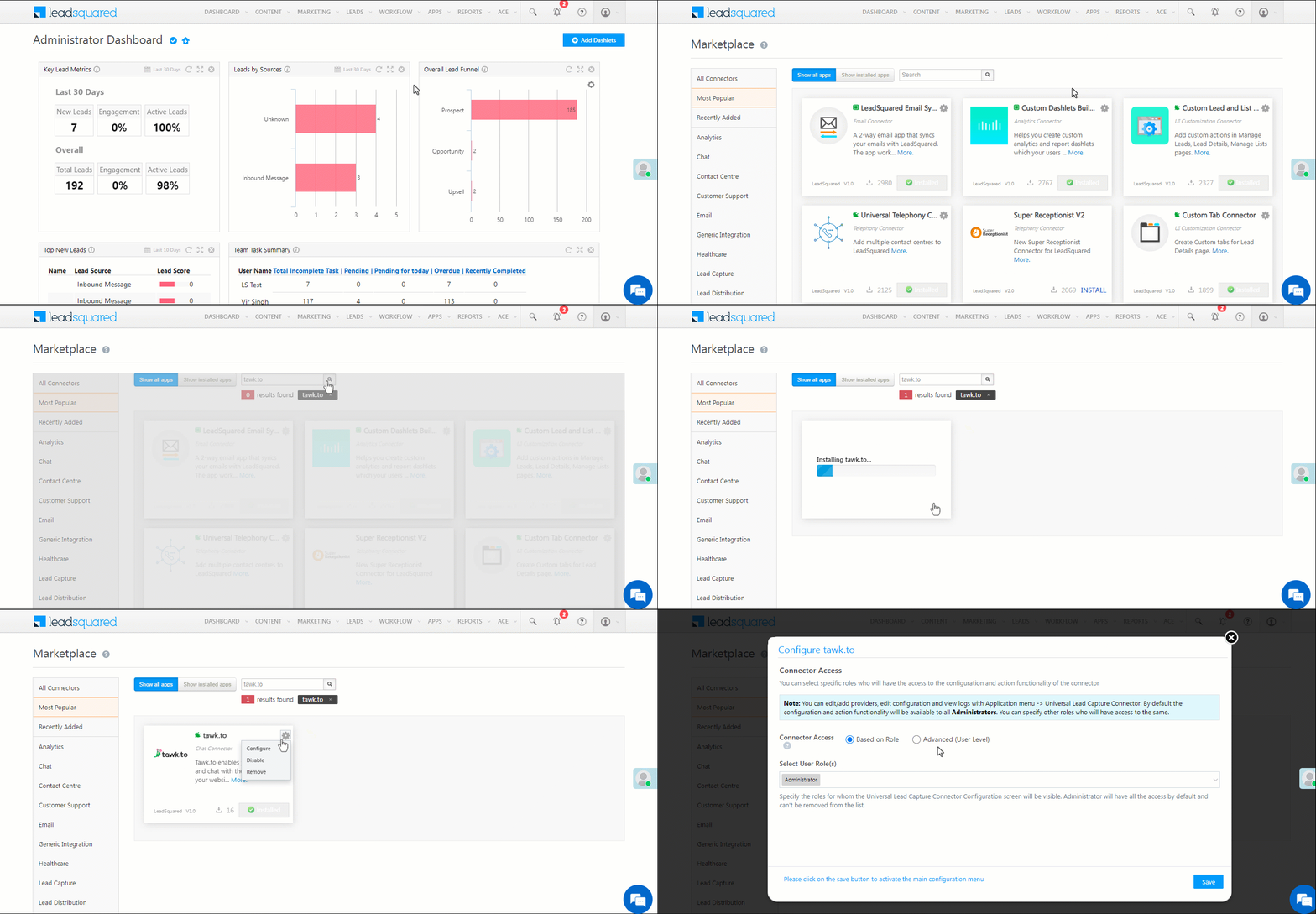
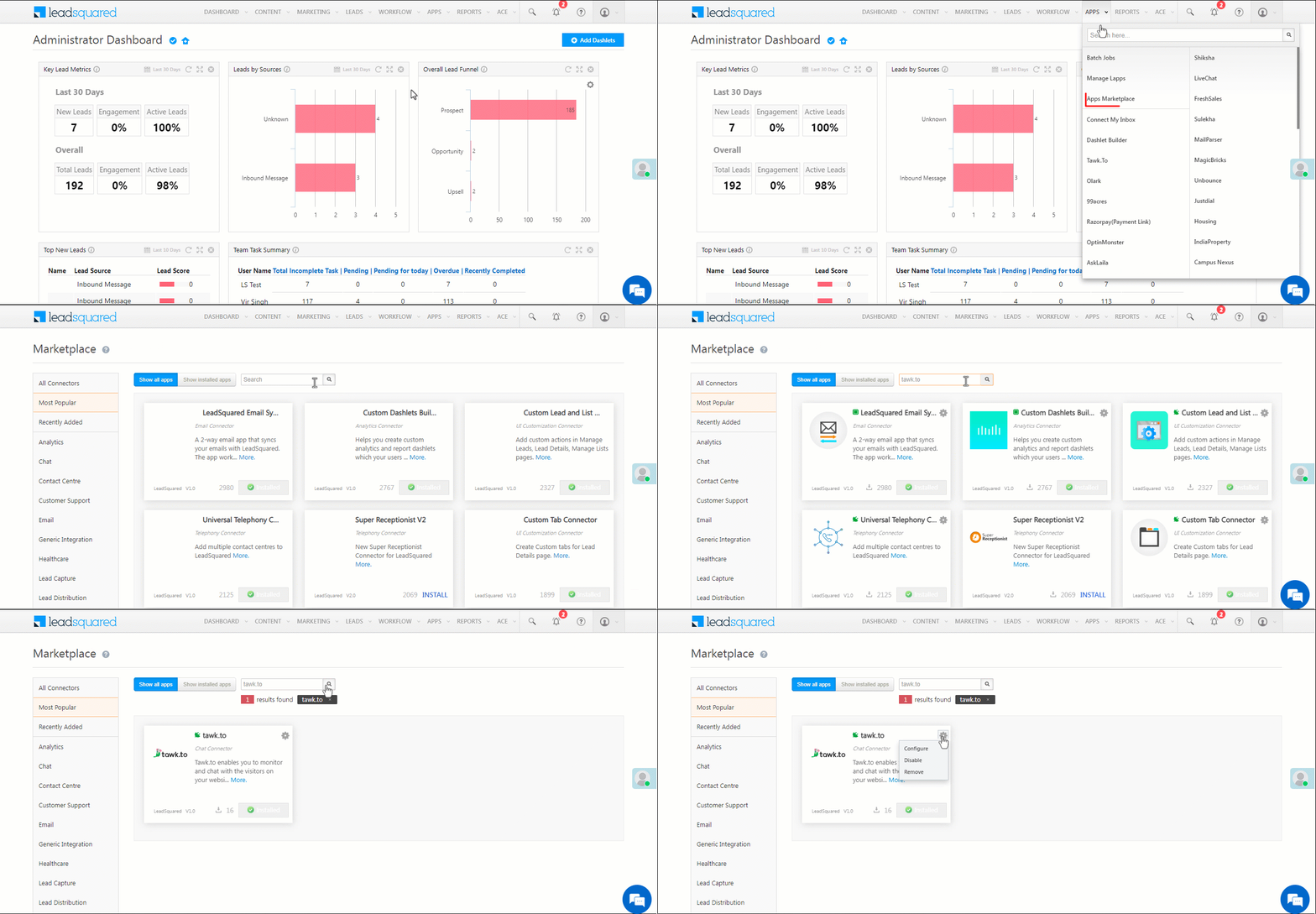
  1. Navigate to Apps>Apps Marketplace.
  2. Search for tawk.to, and click Install.
    • Alternatively, you can find the connector on the left panel, under Chat.
  3. Once installed, hover your cursor over , and click Configure.

tawk install

4.1 Configure the connector

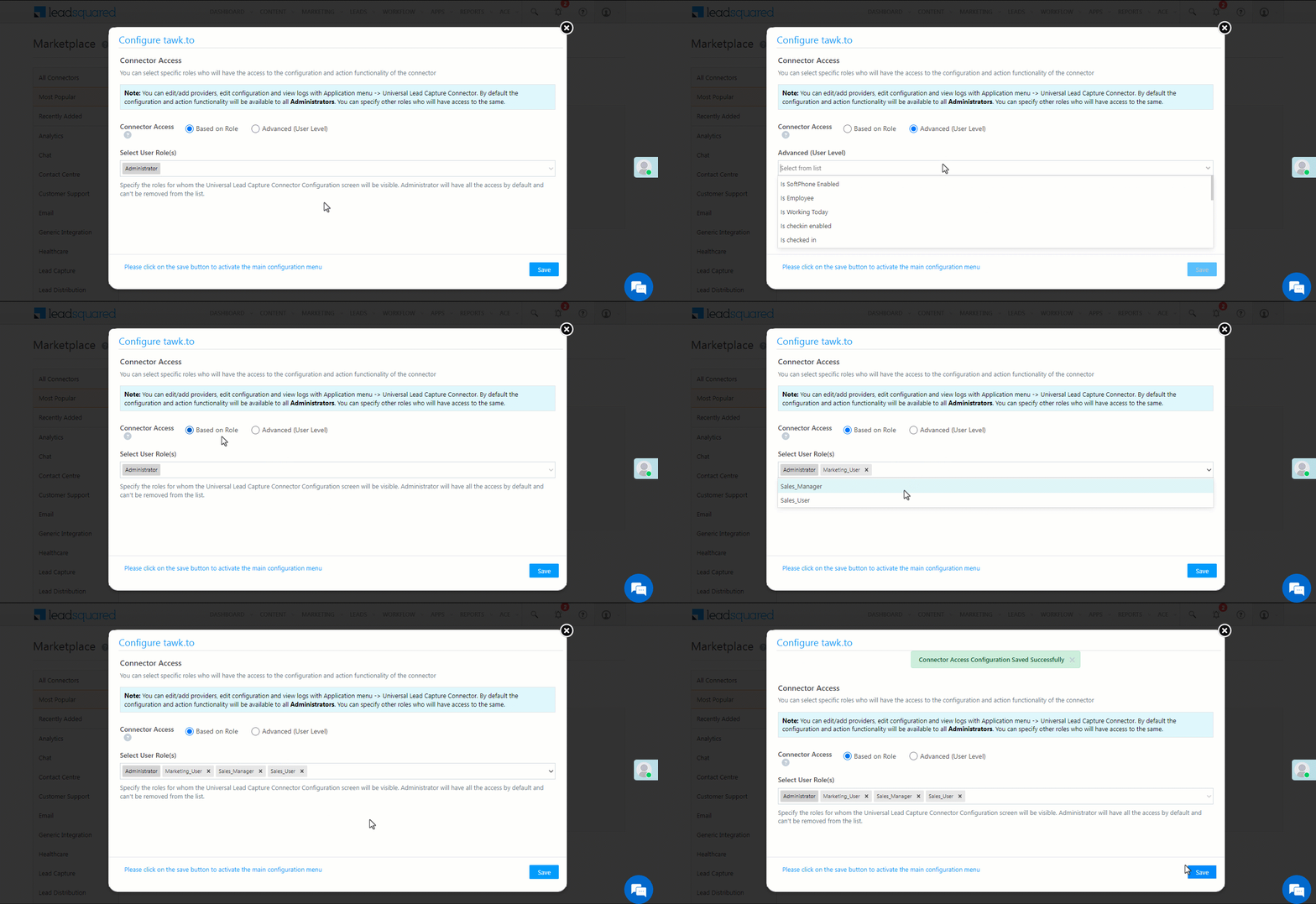
Once you’ve installed the connector, on the Configure tawk.to pop-up, configure the connector access for the non-Admin users in your account. Only those users for whom access is granted can view and access the connector (under the Apps main menu).

  1. Select if you want to grant Connector Access that’s Based on Role or Advanced (User Level).
    • Based on Role – From the Specify Roles dropdown, select the LeadSquared user roles that can use the connector.
    • Advanced (User Level) – From the Advanced (User Level) dropdown, select a user boolean field. Based on the value entered in the selected boolean field, the user can access the connector (e.g., for the user Sam, if the “Is Employee” boolean user field contains the value “Yes”, then this user can access the connector).
  2. Once you’re done, click Save Details. To continue the configuration, refer to the below sections.
Note: By default, all Admin users will have access to the connector.


5. Admin Configuration

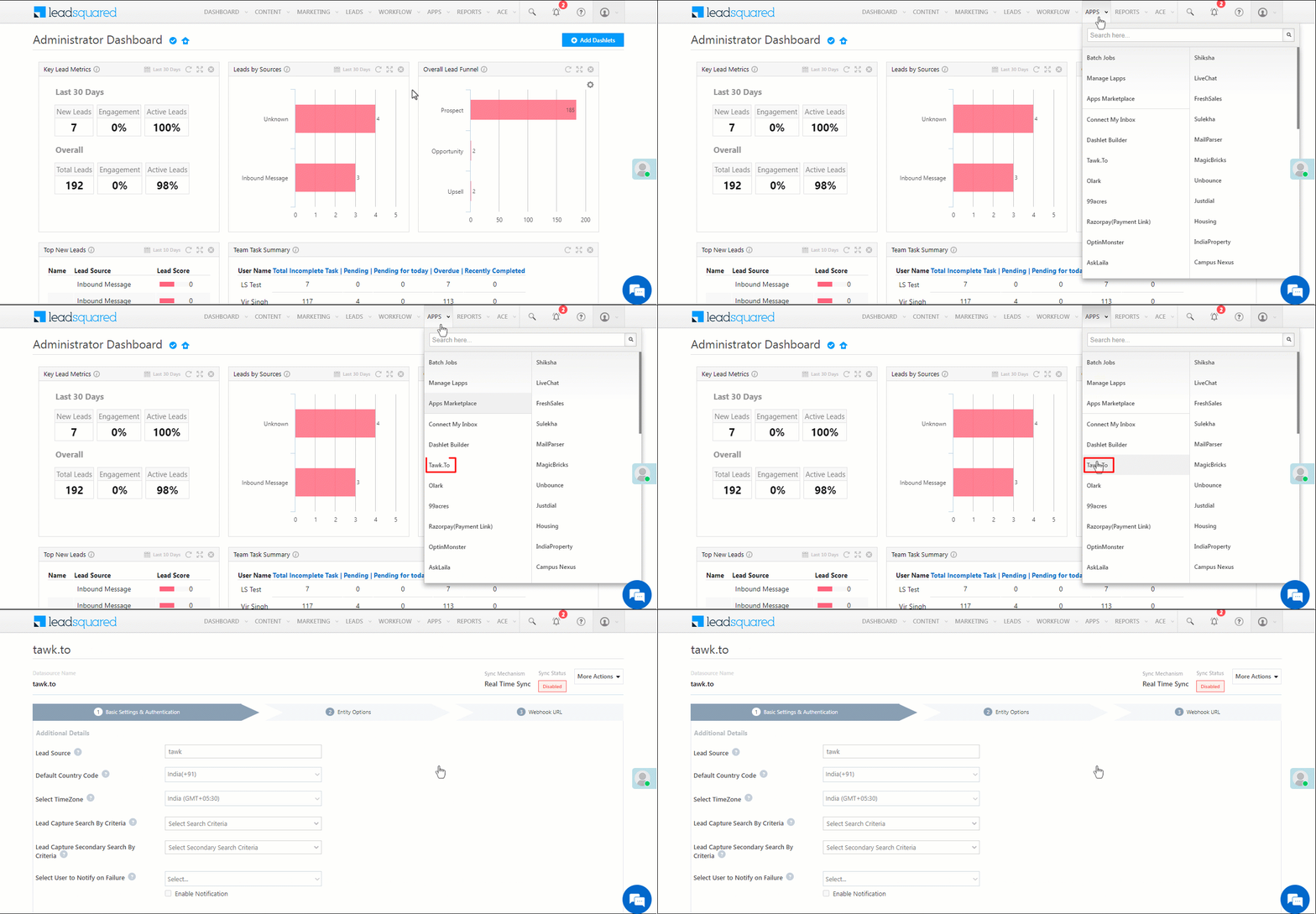
To continue the connector configuration, navigate to Apps>tawk.to.

tawk admin config

5.1 Basic Settings

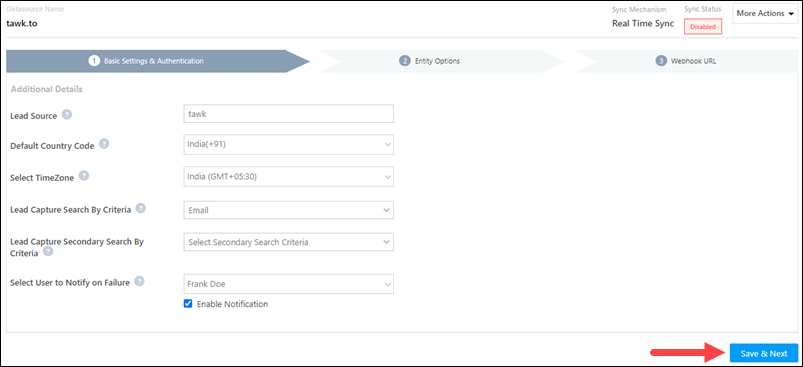
Enter the following details –

Property Description
Lead Source Enter the lead source through which the leads were captured (e.g., tawk.to, email campaign, etc.). This detail will be displayed on the Lead Details page, under Lead Source.
Default Country Code If the lead’s mobile number is captured without a country code, then the default country code that’s selected from the dropdown will be added to the lead’s mobile number.
Select Time Zone The time zone of your tawk.to account.
Lead Capture Search By Criteria To avoid duplicate leads, you must select one unique lead field (e.g., email Id, mobile number, PAN number, etc.) as the search key. This will be used to identify the leads pushed from tawk.to.

To know how to mark a LeadSquared lead field as unique, please refer to How to Make a Custom Field Unique.

Select User to Notify on Failure If there is an error in fetching leads, the selected user will receive a failure message via email. You can select a user from the list of all the users available in your LeadSquared account.

To know more about the type of errors, please refer to Error Notifications.

Once you’re done entering all the details, click Save & Next.

tawk basic settings save

5.2 Entity Options

Define the sync behavior of the connector when leads and activities are captured.

5.2.1 Lead/Contact Entity

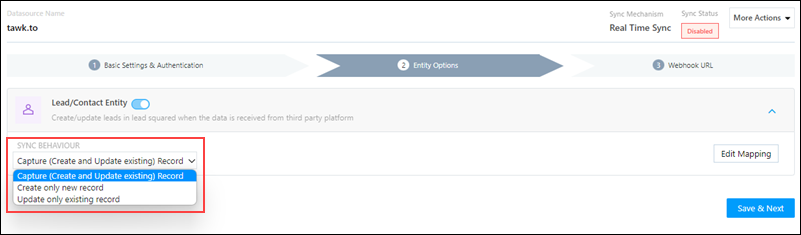
Based on the Lead Capture Search By criteria selected (email Id, phone number, etc.), LeadSquared identifies and captures leads from your tawk.to account. Lead capture is enabled by default, and it cannot be disabled.  The following options are available to configure the connector’s Sync Behaviour –

  • Capture (Create and Update existing) Record – Leads that only exist in your Olark account (but not in your LeadSquared account) will get created in LeadSquared. Leads that exist in both your Olark and LeadSquared accounts will get updated.
  • Create only new record – Leads that only exist in your Olark account (but not in your LeadSquared account) will get created in LeadSquared.
  • Update only existing record – Leads that exist in both your Olark and LeadSquared accounts will get updated in LeadSquared.

tawk lead or contact sync

5.2.2 Mapping

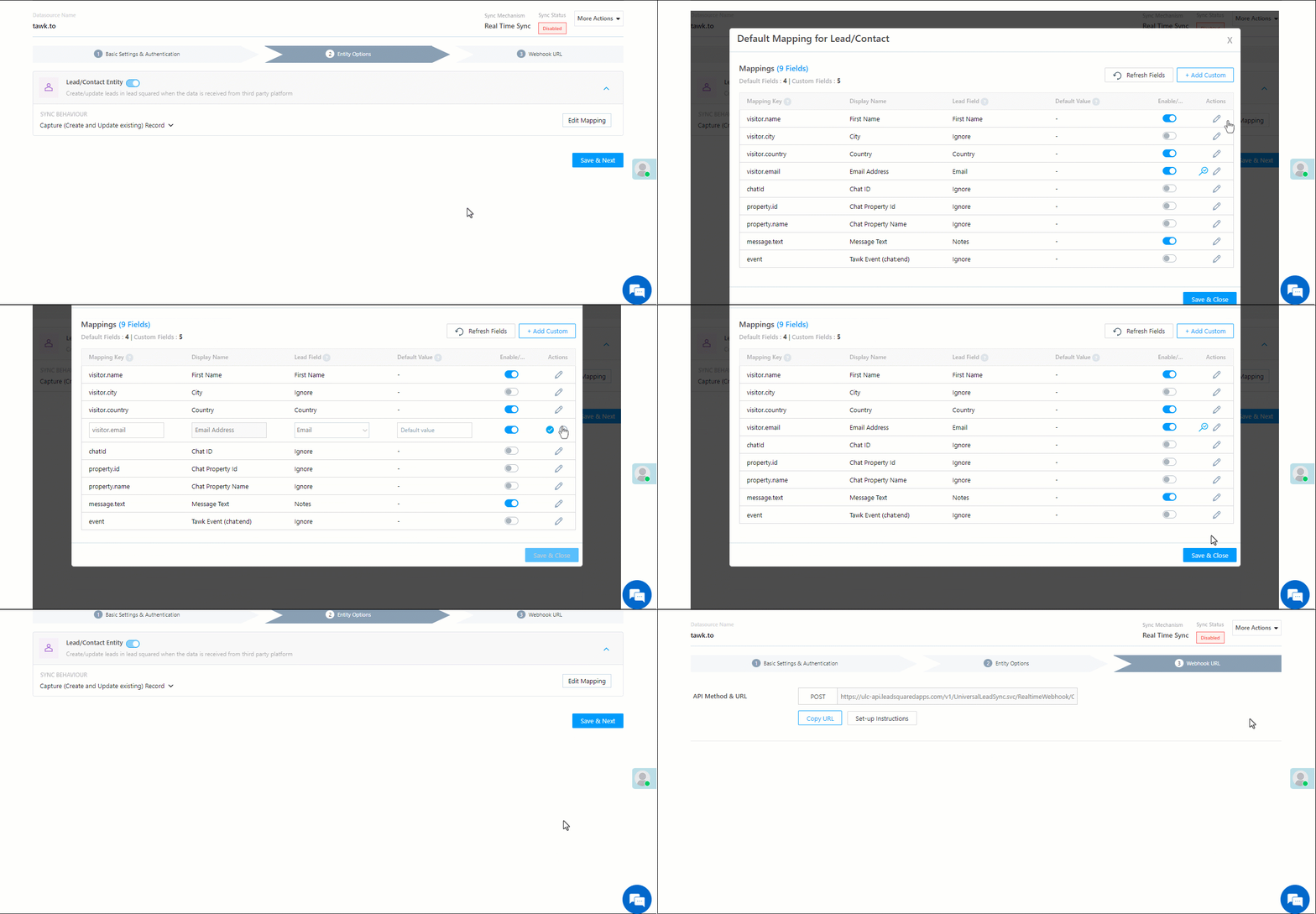
On the Mapping screen, the tawk.to system fields mapped to the corresponding LeadSquared lead fields are visible. This mapping is carried out by default. If required, you can change or update the default field mapping.

  • To provide a default value for any field, click  , enter the value under Default Value, and click Google.
    • If the data provider doesn’t send data for any lead field, then the default value will get assigned to that specific field. But if the field already has an existing value, then the default value will be ignored.
  • To disable lead data capture for any field, disable the Zoom slider.
  • You can also mark and update a unique lead field as the search key from this screen, by clicking unique icon.
  • To create a custom tawk.to field, click the Add Custom button.
    1. Once this field is created, you must map it to the relevant LeadSquared lead field.
    2. After the field is mapped, to save the custom field, click Google.
    3. To delete a custom field, click .

Once you’re done mapping, click Save & Next.

tawk lead mapping

5.3 Webhook URL

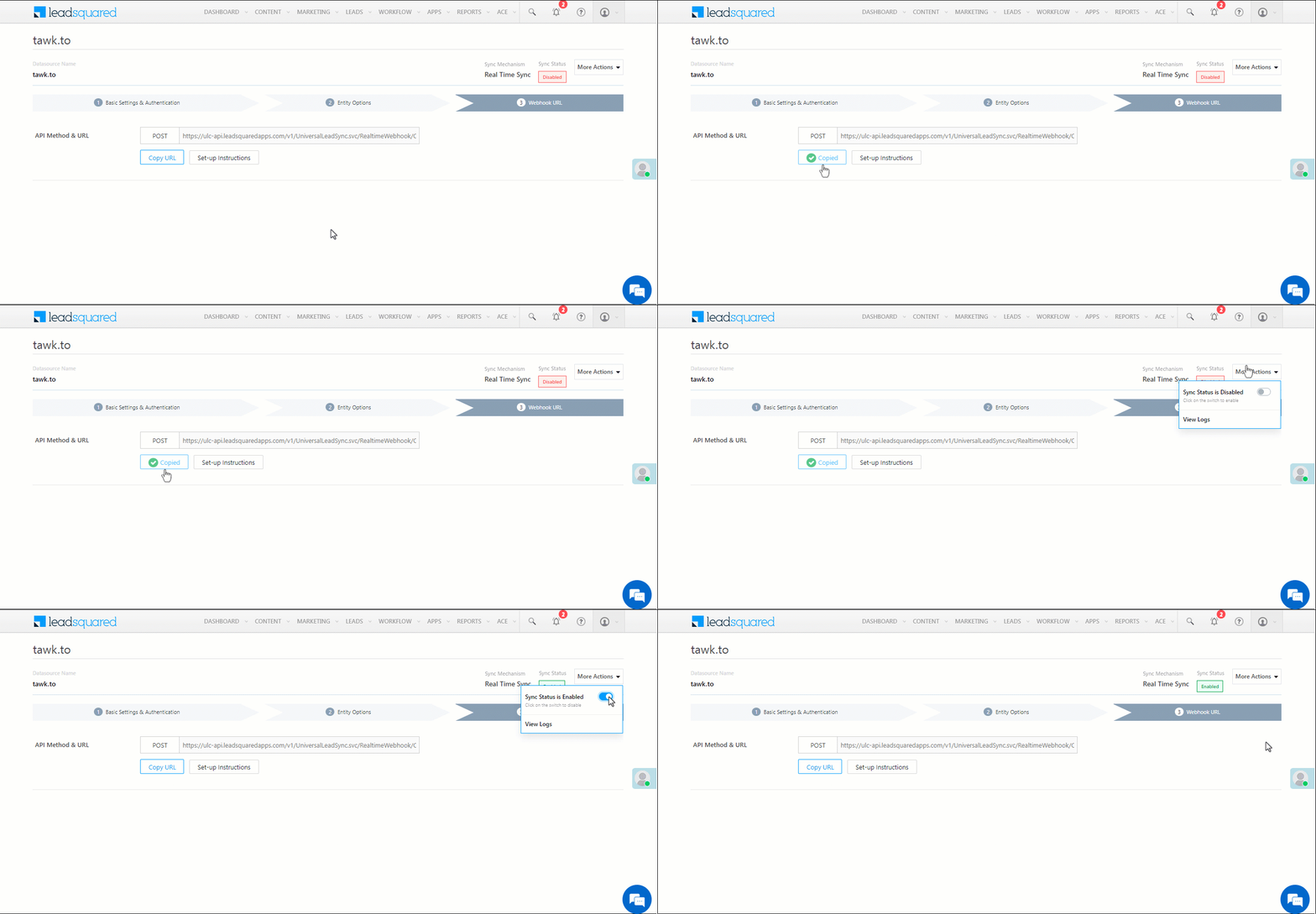
After you provide basic details and finish field mapping, a custom webhook URL is generated. To automate lead capture, copy this URL and configure it in your tawk.to account (reach out to your account manager from tawk.to). For more information, refer to Creating and managing Webhooks and tawk.to Webhooks.

After you’ve configured the URL, click More Actions, and enable the sync job. This ensures the data will be pushed to LeadSquared using the webhook configured in tawk.to.

tawk webhook url

Note:

  • To know how to configure this Webhook URL in your tawk.to account, please get in touch with your account manager from tawk.to.
  • The API must be configured in tawk.to using the POST method.
  • From the More Actions dropdown, click View Logs to view the logs of all sync jobs that have taken place.

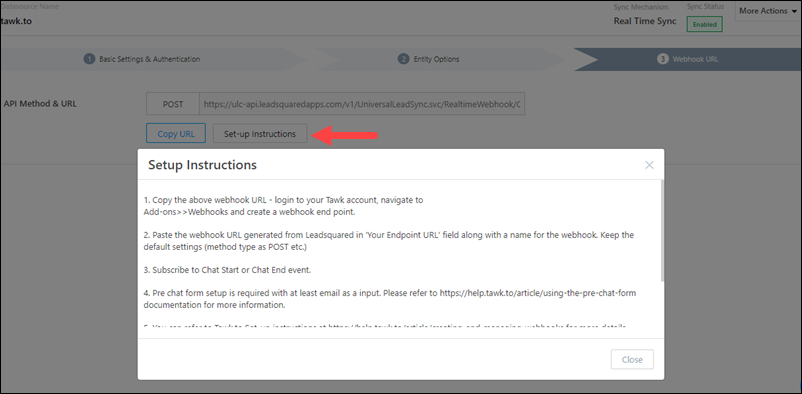
To know more, refer to the setup instructions –

tawk setup


6. View Logs

Here, you can view logs of all the sync jobs that have taken place. View new leads, updated leads, lead capture errors, and total lead capture events. You can also view the lead sync response and lead capture job status.

  1. Navigate to Apps>tawk.to.
  2. From the More Actions dropdown, click View Logs.
  3. You can filter the logs by selecting a date range, and by selecting a Job Status (“All”, “Success” and “Failure”).
    • The maximum date range you can select is the last 60 days.
  4. You can view the sync status of the leads captured across the following tiles –
    • New Leads – List of all the new leads that have been pushed to LeadSquared during the selected date range.
    • Updated Leads – A list of all the –
      • Duplicate leads that were created with the same Search by Criteria value (e.g., with the same Email Id, Mobile Number, etc.).
      • Leads that previously contained errors, which were fixed and synced successfully.
    • Errors – The list of leads that have not been captured due to mapping errors (e.g., when a boolean field is mapped to an integer field, etc.).
    • Total Events – A list of all the lead capture events that have taken place.
  5. To view the Sync Response details, under Sync API Response, click the response.
    • Here, you can view the response status, the API URL, the request and the response.
    • The responses that are successful will contain the details of the leads that have been pushed by tawk.to.
    • You can also view the lead capture response under CreatedUpdated and Errors, by clicking Information.
Note: For a response that contains an error, the reason for the error is listed in the response. Once you fix it, you can click the Retry button to perform the sync again.

tawk.to view logs


7. Other Actions

You can edit or delete the tawk.to connector instance that you created. To do this –

  1. Navigate to Apps>App Marketplace.
  2. Search for tawk.to.
  3. Alongside the tawk.to connector, hover your cursor over .
  4. From the list of options, you can perform the following actions –
    • Edit Configuration
    • Disable Configuration
    • Remove Configuration

tawk other actions


8. View Reports

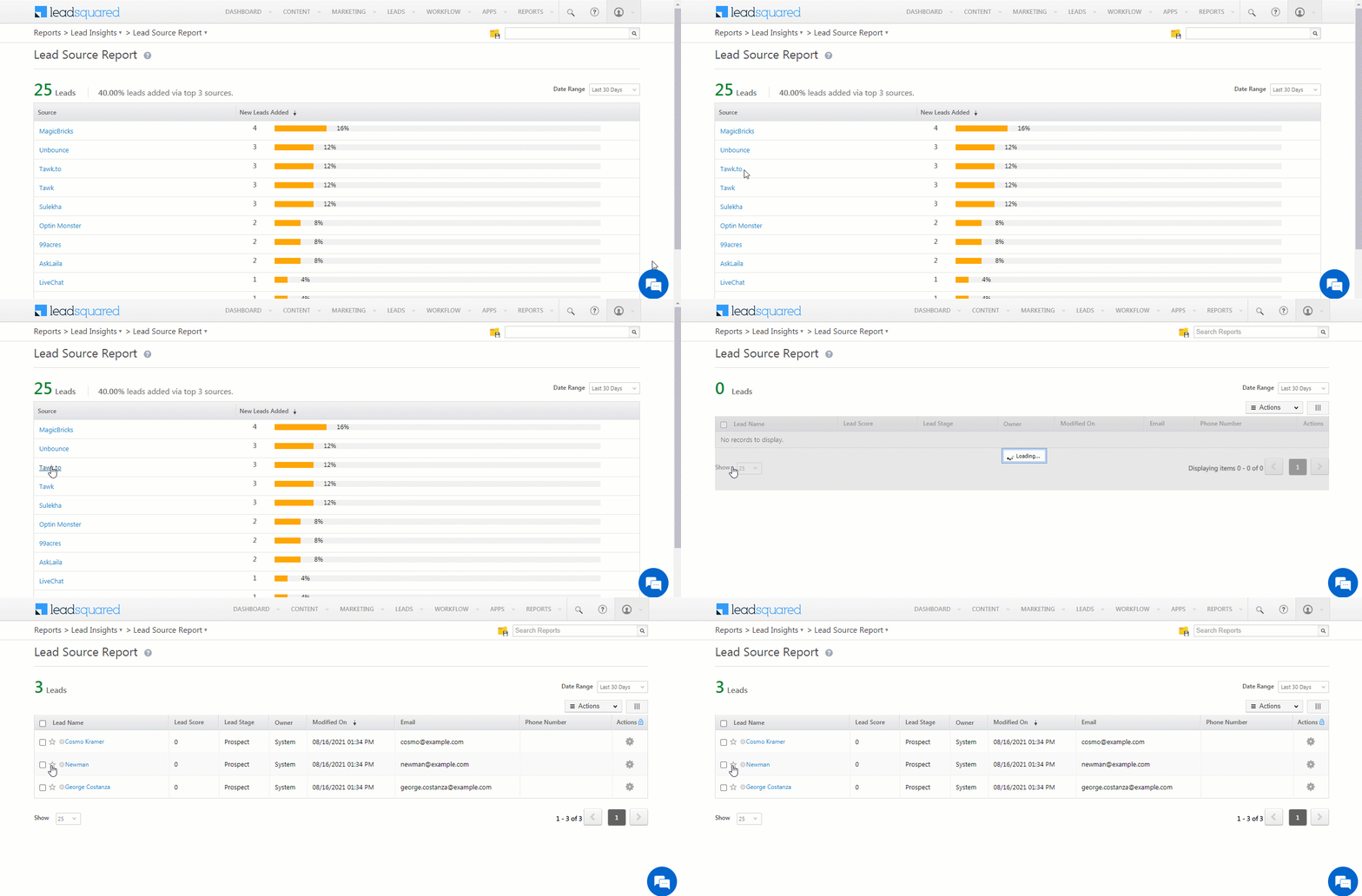
You can view the total number of leads that have been pushed by tawk.to, by referring to the Lead Source report. To know more, please refer to How to track the source of your Leads using Lead Source Report?

Integrate LeadSquared with tawk.to


Any Questions?

Did you find this article helpful? Please let us know any feedback you may have in the comments section below. We’d love to hear from you and help you out!

Integrate AskLaila with LeadSquared

1. Feature Overview

This connector captures leads in real time from your AskLaila account to LeadSquared. Once the leads are synced, you can leverage LeadSquared’s CRM features to nurture and convert your leads.


2. Prerequisites

  • You must be the Administrator of your LeadSquared account.
  • You must have an active AskLaila account.
  • This is a paid feature. To enable it, reach out to your account manager, or write to support@leadsquared.com.


3. How it Works

To push lead data from your AskLaila account to your LeadSquared account, configure the AskLaila connector instance. Once you set it up, a webhook URL is generated. Configure this URL in your AskLaila account, and enable the sync for the connector instance in LeadSquared. This will begin the lead capture process.


4. Installation

You must first install and configure the AskLaila connector.

  1. Navigate to Apps>Apps Marketplace.
  2. Search for AskLaila, and click Install.
    • Alternatively, you can find the connector on the left panel, under Lead Capture.
  3. Once installed, hover your cursor over , and click Configure.

Asklaila install

4.1 Configure the connector

Once you’ve installed the connector, on the Configure AskLaila pop-up, configure the connector access for the non-Admin users in your account. Only those users for whom access is granted can view and access the connector (under the Apps main menu).

  1. Select if you want to grant Connector Access that’s Based on Role or Advanced (User Level).
    • Based on Role – From the Specify Roles dropdown, select the LeadSquared user roles that can use the connector.
    • Advanced (User Level) – From the Advanced (User Level) dropdown, select a user boolean field. Based on the value entered in the selected boolean field, the user can access the connector (e.g., for the user Sam, if the “Is Employee” boolean user field contains the value “Yes”, then this user can access the connector).
  2. Once you’re done, click Save Details. To continue the configuration, refer to the below sections.
Note: By default, all Admin users will have access to the connector.

Asklaila config


5. Admin Configuration

To continue the connector configuration, navigate to Apps>AskLaila.

Asklaila admin config

5.1 Basic Settings

Enter the following details –

Property Description
Lead Source Enter the lead source through which the leads were captured (e.g., AskLaila, email campaign, etc.). This detail will be displayed on the Lead Details page, under Lead Source.
Default Country Code If the lead’s mobile number is captured without a country code, then the default country code that’s selected from the dropdown will be added to the lead’s mobile number.
Select Time Zone The time zone of your AskLaila account.
Lead Capture Search By Criteria To avoid duplicate leads, you must select one unique lead field (e.g., email Id, mobile number, PAN number, etc.) as the search key. This will be used to identify the leads pushed from AskLaila.

To know how to mark a LeadSquared lead field as unique, please refer to How to Make a Custom Field Unique.

Select User to Notify on Failure If there is an error in fetching leads, the selected user will receive a failure message via email. You can select a user from the list of all the users available in your LeadSquared account.

To know more about the type of errors, please refer to Error Notifications.

Once you’re done entering all the details, click Save & Next.

Asklaila basic settings save

5.2 Entity Options

Define the sync behavior of the connector when leads are captured.

5.2.1 Lead/Contact Entity

Based on the Lead Capture Search By criteria (email Id, phone number, etc.), LeadSquared identifies and captures leads from your AskLaila account. Lead capture is enabled by default, and it cannot be disabled. The following options are available to configure the connector’s Sync Behaviour –

  • Capture (Create and Update existing) Record – Leads that only exist in your AskLaila account (but not in your LeadSquared account) will get created in LeadSquared. Leads that exist in both your data provider and LeadSquared accounts will get updated.
  • Create only new record – Leads that only exist in your AskLaila account (but not in your LeadSquared account) will get created in LeadSquared.
  • Update only existing record – Leads that exist in both your AskLaila account and LeadSquared accounts will get updated in LeadSquared.

Asklaila lead or contact sync

5.2.2 Mapping

On the Mapping screen, the AskLaila system fields mapped to the corresponding LeadSquared lead fields are visible. This mapping is carried out by default. If required, you can change or update the default field mapping.

  • To provide a default value for any field, click  , enter the value under Default Value, and click Google.
    • If the data provider doesn’t send data for any lead field, then the default value will get assigned to that specific field. But if the field already has an existing value, then the default value will be ignored.
  • To disable lead data capture for any field, disable the Zoom slider.
  • You can also mark and update a unique lead field as the search key from this screen, by clicking unique icon.
  • To create a custom AskLaila field, click the Add Custom button.
    1. Once this field is created, you must map it to the relevant LeadSquared lead field.
    2. After the field is mapped, to save the custom field, click Google.
    3. To delete a custom field, click .

Once you’re done mapping, click Save & Next.

Asklaila lead mapping

5.3 Webhook URL

After you provide basic details and finish field mapping, a custom webhook URL is generated. To automate lead capture, copy this URL and configure it in your AskLaila account (reach out to your account manager from AskLaila).

After you’ve configured the URL, click More Actions, and enable the sync job. This ensures the data will be pushed to LeadSquared using the webhook configured in AskLaila.

To know more, please refer to the Set-up Instructions.

Asklaila webhook url

Note:

  • To know how to configure this Webhook URL in your AskLaila account, please get in touch with your account manager from AskLaila.
  • The API must be configured in AskLaila using the GET method.
  • From the More Actions dropdown, click View Logs to view the logs of all sync jobs that have taken place.


6. View Logs

Here, you can view logs of all the sync jobs that have taken place. View new leads, updated leads, lead capture errors and total lead capture events. You can also view the lead sync response and lead capture job status.

  1. Navigate to Apps>AskLaila.
  2. From the More Actions dropdown, click View Logs.
  3. You can filter the logs by selecting a date range, and by selecting a Job Status (“All”, “Success” and “Failure”).
    • The maximum date range you can select is the last 60 days.
  4. You can view the sync status of the leads captured across the following tiles –
    • New Leads – List of all the new leads that have been pushed to LeadSquared during the selected date range.
    • Updated Leads – A list of all the –
      • Duplicate leads that were created with the same Search by Criteria value (e.g., with the same Email Id, Mobile Number, etc.).
      • Leads that previously contained errors, which were fixed and synced successfully.
    • Errors – The list of leads that have not been captured due to mapping errors (e.g., when a boolean field is mapped to an integer field, etc.).
    • Total Events – A list of all the lead capture events that have taken place.
  5. To view the Sync Response details, under Sync API Response, click the response.
    • Here, you can view the response status, the API URL, the request and the response.
    • The responses that are successful will contain the details of the leads that have been pushed by AskLaila.
    • You can also view the lead capture response under CreatedUpdated and Errors, by clicking Information.
Note: For a response that contains an error, the reason for the error is listed in the response. Once you fix it, you can click the Retry button to perform the sync again.

Asklaila View logs


7. Other Actions

You can edit or delete the AskLaila connector instance that you created.

  1. Navigate to Apps>App Marketplace.
  2. Search for AskLaila.
  3. Alongside the AskLaila connector, hover your cursor over .
  4. From the list of options, you can perform the following actions –
    • Edit Configuration
    • Disable Configuration
    • Remove Configuration

Asklaila other actions


8. View Reports

You can view the total number of leads that have been pushed by AskLaila, by referring to the Lead Source report. To know more, please refer to How to track the source of your Leads using Lead Source Report?

Integrate LeadSquared with tawk.to


Any Questions?

Did you find this article helpful? Please let us know any feedback you may have in the comments section below. We’d love to hear from you and help you out!

Integrate Justdial with LeadSquared

1. Feature Overview

This connector captures leads in real-time from your Justdial account to LeadSquared. Once the leads are synced, you can leverage LeadSquared’s CRM features to nurture and convert your leads.


2. Prerequisites

  • You must be the Administrator of your LeadSquared account.
  • You must have an active Justdial account.
  • This is a paid feature. To enable it, reach out to your account manager, or write to support@leadsquared.com.


3. How it Works

To push lead data from Justdial to your LeadSquared account, configure the Justdial connector instance. Once configured, enable the connector sync.

During configuration, a webhook URL is generated in LeadSquared. Copy this URL and set it up in your Justdial account. Once it’s set up, the lead capture process is initiated.


4. Installation

  1. Navigate to Apps>Apps Marketplace.
  2. Search for Justdial, and click Install.
    • Alternatively, you can find the connector on the left panel, under Lead Capture.
  3. Once installed, hover your cursor over , and click Configure.

LeadSquared - Justdial installation


5. Configure the Connector

Once you’ve installed the connector, on the Configure Justdial pop-up, configure the connector access for the non-Admin users in your account. Only those users for whom access is granted can view and access the connector (under the Apps main menu).

  1. Select if you want to grant Connector Access that’s Based on Role or Advanced (User Level).
    • Based on Role – From the Specify Roles dropdown, select the LeadSquared user roles that can use the connector.
    • Advanced (User Level) – From the Advanced (User Level) dropdown, select a user boolean field. Based on the value entered in the selected boolean field, the user can access the connector (e.g., for the user Sam, if the “Is Employee” boolean user field contains the value “Yes”, then this user can access the connector).
  2. Once you’re done, click Save Details. To continue the configuration, refer to the below sections.
Note: By default, all Admin users will have access to the connector.
LeadSquared - Justdial initial configurations


6. Configuration

After installation, navigate to Apps>Justdial and configure the connector settings in order to pull data from Housing.com.

6.1 Basic Details

Enter the following details –

LeadSquared - Justdial settings

Property Description
Lead Source Enter the lead source through which the leads were captured (e.g., Justdial, email campaign, etc.). This detail will be displayed on the Lead Details page, under Lead Source.
Default Country Code If the lead’s mobile number is captured without a country code, then the default country code that’s selected from the dropdown will be added to the lead’s mobile number.
Select Time Zone The time zone of your Justdial account.
Lead Capture Search By Criteria To avoid duplicate leads, you must select one unique lead field (e.g., email Id, mobile number, PAN number, etc.) as the search key. This will be used to identify the leads pushed from Justdial.

To know how to mark a LeadSquared lead field as unique, please refer to How to Make a Custom Field Unique.

Lead Capture Secondary Search By Criteria If lead identification and capture through the primary Search By criteria fails, it will be re-attempted using the secondary Search By criteria.
Select User to Notify on Failure If there is an error in fetching leads, the selected user will receive a failure message via email. You can select a user from the list of all the users available in your LeadSquared account.

To know more about the type of errors, please refer to Error Notifications.

Once you’re done entering all the details, click Save & Next.


6.2 Mapping

Once you’re done with the basic settings, click Entity Options. On this screen, the Justdial system fields mapped to the corresponding LeadSquared lead fields are visible. This mapping is carried out by default. If required, you can change or update the default field mapping.

  • To provide a default value for any field, click  , enter the value under Default Value, and click Google.
    • If the data provider doesn’t send data for any lead field, then the default value will get assigned to that specific field. But if the field already has an existing value, then the default value will be ignored.
  • To disable lead data capture for any field, disable the Zoom slider.
  • You can also mark and update a unique lead field as the search key from this screen, by clicking unique icon.
  • To create a custom Justdial field, click the Add Custom button.
    1. Once this field is created, you must map it to the relevant LeadSquared lead field.
    2. After the field is mapped, to save the custom field, click Google.
    3. To delete a custom field, click .

Once you’re done mapping, click Save & Next.

LeadSquared - Justdial mapping


6.3 Webhook URL

After you provide basic details and finish field mapping, a custom webhook URL is generated. To automate lead capture, copy this URL and configure it in your Justdial account (reach out to your account manager from Justdial).

After you’ve configured the URL, click More Actions, and enable the sync job. This ensures the data will be pushed to LeadSquared using the webhook configured in Justdial.

To know more, please refer to the Set-up Instructions.

LeadSquared - Justdial sync

Note:

  • To know how to configure this Webhook URL in your Justdial account, please get in touch with your account manager from Justdial.
  • The API must be configured in Justdial using the GET method.


7. View Logs

Here, you can view logs of all the sync jobs that have taken place. View new leads, updated leads, lead capture errors and total lead capture events. You can also view the lead sync response and lead capture job status.

  1. Navigate to Apps>Justdial.
  2. Click the More Actions dropdown and select View Logs.
  3. You can filter the logs by selecting a date range, and by selecting a Job Status (“All”, “Success” and “Failure”).
    • The maximum date range you can select is the last 60 days.
  4. You can view the sync status of the leads captured across the following tiles –
    • New Leads – List of all the new leads that have been pushed to LeadSquared during the selected date range.
    • Updated Leads – A list of all the –
      • Duplicate leads that were created with the same Search by Criteria value (e.g., with the same Email Id, Mobile Number, etc.).
      • Leads that previously contained errors, which were fixed and synced successfully.
    • Errors – The list of leads that have not been captured due to mapping errors (e.g., when a boolean field is mapped to an integer field, etc.).
    • Total Events – A list of all the lead capture events that have taken place.
  5. To view the Sync Response details, under Sync API Response, click the response.
    • Here, you can view the response status, the API URL, the request and the response.
    • The responses that are successful will contain the details of the leads that have been pushed by Justdial.
    • You can also view the lead capture response under Created, Updated and Errors, by clicking Information.
Note: For a response that contains an error, the reason for the error is listed in the response. Once you fix it, you can click the Retry button to perform the sync again.

LeadSquared - Justdial view logs


8. Other Actions

You can edit or delete the Justdial connector instance that you created. To do this –

  1. Navigate to Apps>Apps Marketplace and click the Justdial connector.
  2. On the Justdial connector page, click Settings.
  3. From the list of options, you can perform the following actions –
    • Add or edit Configurations
    • Disable the connector
    • Remove the connector

LeadSquared - Justdial other actions


9. View Reports

You can view the total number of leads that have been pushed by Justdial, by referring to the Lead Source report. To know more, please refer to How to track the source of your Leads using Lead Source Report?

Integrate LeadSquared with Justdial


Any Questions?

Did you find this article helpful? Please let us know any feedback you may have in the comments section below. We’d love to hear from you and help you out!

Integrate Unbounce with LeadSquared

1. Feature Overview

This connector captures leads in real-time from your Unbounce account to LeadSquared. Once the leads are synced, you can leverage LeadSquared’s CRM features to nurture and convert your leads.


2. Prerequisites

  • You must be the Administrator of your LeadSquared account.
  • You must have an active Unbounce account.
  • This is a paid feature. To enable it, reach out to your account manager, or write to support@leadsquared.com.


3. How it Works

To push lead data from Unbounce to your LeadSquared account, configure the Unbounce connector instance. Once configured, enable the connector sync.

During configuration, a webhook URL is generated in LeadSquared. Copy this URL and set it up in your Unbounce account. Once it’s set up, the lead capture process is initiated.


4. Installation

  1. Navigate to Apps>Apps Marketplace.
  2. Search for Unbounce, and click Install.
    • Alternatively, you can find the connector on the left panel, under Lead Capture.
  3. Once installed, hover your cursor over , and click Configure.

LeadSquared - Unbounce installation


5. Configure the Connector

Once you’ve installed the connector, on the Configure Unbounce pop-up, configure the connector access for the non-Admin users in your account. Only those users for whom access is granted can view and access the connector (under the Apps main menu).

  1. Select if you want to grant Connector Access that’s Based on Role or Advanced (User Level).
    • Based on Role – From the Specify Roles dropdown, select the LeadSquared user roles that can use the connector.
    • Advanced (User Level) – From the Advanced (User Level) dropdown, select a user boolean field. Based on the value entered in the selected boolean field, the user can access the connector (e.g., for the user Sam, if the “Is Employee” boolean user field contains the value “Yes”, then this user can access the connector).
  2. Once you’re done, click Save Details. To continue the configuration, refer to the below sections.
Note: By default, all Admin users will have access to the connector.
LeadSquared - Unbounce initial configurations


6. Admins Configurations

After installation, navigate to Apps>Unbounce and configure the connector settings in order to pull data from Unbounce.

6.1 Basic Details

Enter the following details –

LeadSquared - Unbounce settings

Property Description
Lead Source Enter the lead source through which the leads were captured (e.g., Unbounce, email campaign, etc.). This detail will be displayed on the Lead Details page, under Lead Source.
Default Country Code If the lead’s mobile number is captured without a country code, then the default country code that’s selected from the dropdown will be added to the lead’s mobile number.
Select Time Zone The time zone of your Unbounce account.
Lead Capture Search By Criteria To avoid duplicate leads, you must select one unique lead field (e.g., email Id, mobile number, PAN number, etc.) as the search key. This will be used to identify the leads pushed from Unbounce.

To know how to mark a LeadSquared lead field as unique, please refer to How to Make a Custom Field Unique.

Lead Capture Secondary Search By Criteria If lead identification and capture through the primary Search By criteria fails, it will be re-attempted using the secondary Search By criteria.
Select User to Notify on Failure If there is an error in fetching leads, the selected user will receive a failure message via email. You can select a user from the list of all the users available in your LeadSquared account.

To know more about the type of errors, please refer to Error Notifications.

Once you’re done entering all the details, click Save & Next.


6.2 Mapping

Once you’re done with the basic settings, click Entity Options. On this screen, the Unbounce system fields mapped to the corresponding LeadSquared lead fields are visible. This mapping is carried out by default. If required, you can change or update the default field mapping.

  • To provide a default value for any field, click  , enter the value under Default Value, and click Google.
    • If the data provider doesn’t send data for any lead field, then the default value will get assigned to that specific field. But if the field already has an existing value, then the default value will be ignored.
  • To disable lead data capture for any field, disable the Zoom slider.
  • You can also mark and update a unique lead field as the search key from this screen, by clicking unique icon.
  • To create a custom Unbounce field, click the Add Custom button.
    1. Once this field is created, you must map it to the relevant LeadSquared lead field.
    2. After the field is mapped, to save the custom field, click Google.
    3. To delete a custom field, click .

Once you’re done mapping, click Save & Next.

LeadSquared - Unbounce mapping


6.3 Webhook URL

After you provide basic details and finish field mapping, a custom webhook URL is generated. To automate lead capture, copy this URL and configure it in your Unbounce account (reach out to your account manager from Unbounce). For more instructions, refer to Integrating Your Service with Unbounce and Using a Webhook in Unbounce.

After you’ve configured the URL, click More Actions, and enable the sync job. This ensures the data will be pushed to LeadSquared using the webhook configured in Unbounce.

Note:

  • To know how to configure this Webhook URL in your Unbounce account, please get in touch with your account manager from Unbounce.
  • The API must be configured in Unbounce using the POST method.
  • From the More Actions dropdown, click View Logs to view the logs of all sync jobs that have taken place.

LeadSquared - Unbounce sync


7. View Logs

Here, you can view logs of all the sync jobs that have taken place. View new leads, updated leads, lead capture errors and total lead capture events. You can also view the lead sync response and lead capture job status.

  1. Navigate to Apps>Unbounce.
  2. Click the More Actions dropdown and select View Logs.
  3. You can filter the logs by selecting a date range, and by selecting a Job Status (“All”, “Success” and “Failure”).
    • The maximum date range you can select is the last 60 days.
  4. You can view the sync status of the leads captured across the following tiles –
    • New Leads – List of all the new leads that have been pushed to LeadSquared during the selected date range.
    • Updated Leads – A list of all the –
      • Duplicate leads that were created with the same Search by Criteria value (e.g., with the same Email Id, Mobile Number, etc.).
      • Leads that previously contained errors, which were fixed and synced successfully.
    • Errors – The list of leads that have not been captured due to mapping errors (e.g., when a boolean field is mapped to an integer field, etc.).
    • Total Events – A list of all the lead capture events that have taken place.
  5. To view the Sync Response details, under Sync API Response, click the response.
    • Here, you can view the response status, the API URL, the request and the response.
    • The responses that are successful will contain the details of the leads that have been pushed by Unbounce.
    • You can also view the lead capture response under Created, Updated and Errors, by clicking Information.
Note: For a response that contains an error, the reason for the error is listed in the response. Once you fix it, you can click the Retry button to perform the sync again.

LeadSquared - Unbounce view logs


8. Other Actions

You can edit or delete the Unbounce connector instance that you created. To do this –

  1. Navigate to Apps>Apps Marketplace and click the Unbounce connector.
  2. On the Unbounce connector page, click Settings.
  3. From the list of options, you can perform the following actions –
    • Add or edit Configurations
    • Disable the connector
    • Remove the connector

LeadSquared - Unbounce other actions


9. View Reports

You can view the total number of leads that have been pushed by Unbounce, by referring to the Lead Source report. To know more, please refer to How to track the source of your Leads using Lead Source Report?

Integrate LeadSquared with Unbounce


Any Questions?

Did you find this article helpful? Please let us know any feedback you may have in the comments section below. We’d love to hear from you and help you out!

Integrate Sulekha with LeadSquared

1. Feature Overview

This connector captures leads in real-time from your Sulekha account to LeadSquared. Once the leads are synced, you can leverage LeadSquared’s CRM features to nurture and convert your leads.


2. Prerequisites

  • You must be the Administrator of your LeadSquared account.
  • You must have an active Sulekha account.
  • This is a paid feature. To enable it, reach out to your account manager, or write to support@leadsquared.com.


3. How it Works

To push lead data from Sulekha to your LeadSquared account, configure the Sulekha connector instance. Once configured, enable the connector sync.

During configuration, a webhook URL is generated in LeadSquared. Copy this URL and set it up in your Sulekha account. Once it’s set up, the lead capture process is initiated.


4. Installation

  1. Navigate to Apps>Apps Marketplace.
  2. Search for Sulekha, and click Install.
    • Alternatively, you can find the connector on the left panel, under Lead Capture.
  3. Once installed, hover your cursor over , and click Configure.

LeadSquared - Sulekha installation


5. Configure the Connector

Once you’ve installed the connector, on the Configure Sulekha pop-up, configure the connector access for the non-Admin users in your account. Only those users for whom access is granted can view and access the connector (under the Apps main menu).

  1. Select if you want to grant Connector Access that’s Based on Role or Advanced (User Level).
    • Based on Role – From the Specify Roles dropdown, select the LeadSquared user roles that can use the connector.
    • Advanced (User Level) – From the Advanced (User Level) dropdown, select a user boolean field. Based on the value entered in the selected boolean field, the user can access the connector (e.g., for the user Sam, if the “Is Employee” boolean user field contains the value “Yes”, then this user can access the connector).
  2. Once you’re done, click Save Details. To continue the configuration, refer to the below sections.
Note: By default, all Admin users will have access to the connector.

LeadSquared - Sulekha installation


6. Admin Configurations

After installation, navigate to Apps>Sulekha and configure the connector settings in order to push data from Sulekha.

6.1 Basic Details

Enter the following details –

LeadSquared - Sulekha settings

Property Description
Lead Source Enter the lead source through which the leads were captured (e.g., Sulekha, email campaign, etc.). This detail will be displayed on the Lead Details page, under Lead Source.
Default Country Code If the lead’s mobile number is captured without a country code, then the default country code that’s selected from the dropdown will be added to the lead’s mobile number.
Select Time Zone The time zone of your Sulekha account.
Lead Capture Search By Criteria To avoid duplicate leads, you must select one unique lead field (e.g., email Id, mobile number, PAN number, etc.) as the search key. This will be used to identify the leads pushed from Sulekha.

To know how to mark a LeadSquared lead field as unique, please refer to How to Make a Custom Field Unique.

Lead Capture Secondary Search By Criteria If lead identification and capture through the primary Search By criteria fails, it will be re-attempted using the secondary Search By criteria.
Select User to Notify on Failure If there is an error in fetching leads, the selected user will receive a failure message via email. You can select a user from the list of all the users available in your LeadSquared account.

To know more about the type of errors, please refer to Error Notifications.

Once you’re done entering all the details, click Save & Next.


6.2 Mapping

Once you’re done with the basic settings, click Entity Options. On this screen, the Sulekha system fields mapped to the corresponding LeadSquared lead fields are visible. This mapping is carried out by default. If required, you can change or update the default field mapping.

  • To provide a default value for any field, click  , enter the value under Default Value, and click Google.
    • If the data provider doesn’t send data for any lead field, then the default value will get assigned to that specific field. But if the field already has an existing value, then the default value will be ignored.
  • To disable lead data capture for any field, disable the Zoom slider.
  • You can also mark and update a unique lead field as the search key from this screen, by clicking unique icon.
  • To create a custom Sulekha field, click the Add Custom button.
    1. Once this field is created, you must map it to the relevant LeadSquared lead field.
    2. After the field is mapped, to save the custom field, click Google.
    3. To delete a custom field, click .

Once you’re done mapping, click Save & Next.

LeadSquared - Sulekha mapping


6.3 Webhook URL

After you provide basic details and finish field mapping, a custom webhook URL is generated. To automate lead capture, copy this URL and configure it in your Sulekha account (reach out to your account manager from Sulekha).

After you’ve configured the URL, click More Actions, and enable the sync job. This ensures the data will be pushed to LeadSquared using the webhook configured in Sulekha.

LeadSquared - Sulekha sync

Note: To know how to configure this Webhook URL in your Sulekha account, please get in touch with your account manager from Sulekha.

To know more, refer to the setup instructions –

Integrate LeadSquared with Sulekha


7. View Logs

Here, you can view logs of all the sync jobs that have taken place. View new leads, updated leads, lead capture errors and total lead capture events. You can also view the lead sync response and lead capture job status.

  1. Navigate to Apps>Sulekha.
  2. Click the More Actions dropdown and select View Logs.
  3. You can filter the logs by selecting a date range, and by selecting a Job Status (“All”, “Success” and “Failure”).
    • The maximum date range you can select is the last 60 days.
  4. You can view the sync status of the leads captured across the following tiles –
    • New Leads – List of all the new leads that have been pushed to LeadSquared during the selected date range.
    • Updated Leads – A list of all the –
      • Duplicate leads that were created with the same Search by Criteria value (e.g., with the same Email Id, Mobile Number, etc.).
      • Leads that previously contained errors, which were fixed and synced successfully.
    • Errors – The list of leads that have not been captured due to mapping errors (e.g., when a boolean field is mapped to an integer field, etc.).
    • Total Events – A list of all the lead capture events that have taken place.
  5. To view the Sync Response details, under Sync API Response, click the response.
    • Here, you can view the response status, the API URL, the request and the response.
    • The responses that are successful will contain the details of the leads that have been pushed by Sulekha.
    • You can also view the lead capture response under Created, Updated and Errors, by clicking Information.
Note: For a response that contains an error, the reason for the error is listed in the response. Once you fix it, you can click the Retry button to perform the sync again.

LeadSquared - Sulekha view logs


8. Other Actions

You can edit or delete the Sulekha connector instance that you created. To do this –

  1. Navigate to Apps>Apps Marketplace and click the Sulekha connector.
  2. On the Sulekha connector page, click Settings.
  3. From the list of options, you can perform the following actions –
    • Add or edit Configurations
    • Disable the connector
    • Remove the connector

LeadSquared - Sulekha view logs


9. View Reports

You can view the total number of leads that have been pushed by Sulekha, by referring to the Lead Source report. To know more, please refer to How to track the source of your Leads using Lead Source Report?

Integrate LeadSquared with Sulekha


Any Questions?

Did you find this article helpful? Please let us know any feedback you may have in the comments section below. We’d love to hear from you and help you out!

Integrate OptinMonster with LeadSquared

1. Feature Overview

This connector captures leads in real-time from your OptinMonster account to LeadSquared. Once the leads are synced, you can leverage LeadSquared’s CRM features to nurture and convert your leads.


2. Prerequisites

  • You must be the Administrator of your LeadSquared account.
  • You must have an active OptinMonster account.
  • This is a paid feature. To enable it, reach out to your account manager, or write to support@leadsquared.com.


3. How it Works

To push lead data from OptinMonster to your LeadSquared account, configure the OptinMonster connector instance. Once configured, enable the connector sync.

During configuration, a webhook URL is generated in LeadSquared. Copy this URL and set it up in your OptinMonster account. Once it’s set up, the lead capture process is initiated.


4. Installation

  1. Navigate to Apps>Apps Marketplace.
  2. Search for OptinMonster, and click Install.
    • Alternatively, you can find the connector on the left panel, under Lead Capture.
  3. Once installed, hover your cursor over , and click Configure.

LeadSquared - Optinmonster installation


5. Configure the Connector

Once you’ve installed the connector, on the Configure OptinMonster pop-up, configure the connector access for the non-Admin users in your account. Only those users for whom access is granted can view and access the connector (under the Apps main menu).

  1. Select if you want to grant Connector Access that’s Based on Role or Advanced (User Level).
    • Based on Role – From the Specify Roles dropdown, select the LeadSquared user roles that can use the connector.
    • Advanced (User Level) – From the Advanced (User Level) dropdown, select a user boolean field. Based on the value entered in the selected boolean field, the user can access the connector (e.g., for the user Sam, if the “Is Employee” boolean user field contains the value “Yes”, then this user can access the connector).
  2. Once you’re done, click Save Details. To continue the configuration, refer to the below sections.
Note: By default, all Admin users will have access to the connector.
LeadSquared - OptinMonster initial configurations


6. Admin Configurations

After installation, navigate to Apps>OptinMonster and configure the connector settings in order to push data from OptinMonster.

6.1 Basic Details

Enter the following details –

LeadSquared - Optinmonster settings

Property Description
Lead Source Enter the lead source through which the leads were captured (e.g., OptinMonster, email campaign, etc.). This detail will be displayed on the Lead Details page, under Lead Source.
Default Country Code If the lead’s mobile number is captured without a country code, then the default country code that’s selected from the dropdown will be added to the lead’s mobile number.
Select Time Zone The time zone of your OptinMonster account.
Lead Capture Search By Criteria To avoid duplicate leads, you must select one unique lead field (e.g., email Id, mobile number, PAN number, etc.) as the search key. This will be used to identify the leads pushed from OptinMonster.

To know how to mark a LeadSquared lead field as unique, please refer to How to Make a Custom Field Unique.

Lead Capture Secondary Search By Criteria If lead identification and capture through the primary Search By criteria fails, it will be re-attempted using the secondary Search By criteria.
Select User to Notify on Failure If there is an error in fetching leads, the selected user will receive a failure message via email. You can select a user from the list of all the users available in your LeadSquared account.

To know more about the type of errors, please refer to Error Notifications.

Once you’re done entering all the details, click Save & Next.


6.2 Mapping

Once you’re done with the basic settings, click Entity Options. On this screen, the OptinMonster system fields mapped to the corresponding LeadSquared lead fields are visible. This mapping is carried out by default. If required, you can change or update the default field mapping.

  • To provide a default value for any field, click  , enter the value under Default Value, and click Google.
    • If the data provider doesn’t send data for any lead field, then the default value will get assigned to that specific field. But if the field already has an existing value, then the default value will be ignored.
  • To disable lead data capture for any field, disable the Zoom slider.
  • You can also mark and update a unique lead field as the search key from this screen, by clicking unique icon.
  • To create a custom OptinMonster field, click the Add Custom button.
    1. Once this field is created, you must map it to the relevant LeadSquared lead field.
    2. After the field is mapped, to save the custom field, click Google.
    3. To delete a custom field, click .

Once you’re done mapping, click Save & Next.

LeadSquared - Optinmonster mapping


6.3 Webhook URL

After you provide basic details and finish field mapping, a custom webhook URL is generated. To automate lead capture, copy this URL and configure it in your OptinMonster account (reach out to your account manager from OptinMonster). For more instructions, refer to How to Connect OptinMonster with a Webhook.

After you’ve configured the URL, click More Actions, and enable the sync job. This ensures the data will be pushed to LeadSquared using the webhook configured in OptinMonster.

Note: To know how to configure this Webhook URL in your OptinMonster account, please get in touch with your account manager from OptinMonster.

LeadSquared - Optinmonster sync


7. View Logs

Here, you can view logs of all the sync jobs that have taken place. View new leads, updated leads, lead capture errors and total lead capture events. You can also view the lead sync response and lead capture job status.

  1. Navigate to Apps>OptinMonster.
  2. Click the More Actions dropdown and select View Logs.
  3. You can filter the logs by selecting a date range, and by selecting a Job Status (“All”, “Success” and “Failure”).
    • The maximum date range you can select is the last 60 days.
  4. You can view the sync status of the leads captured across the following tiles –
    • New Leads – List of all the new leads that have been pushed to LeadSquared during the selected date range.
    • Updated Leads – A list of all the –
      • Duplicate leads that were created with the same Search by Criteria value (e.g., with the same Email Id, Mobile Number, etc.).
      • Leads that previously contained errors, which were fixed and synced successfully.
    • Errors – The list of leads that have not been captured due to mapping errors (e.g., when a boolean field is mapped to an integer field, etc.).
    • Total Events – A list of all the lead capture events that have taken place.
  5. To view the Sync Response details, under Sync API Response, click the response.
    • Here, you can view the response status, the API URL, the request and the response.
    • The responses that are successful will contain the details of the leads that have been pushed by OptinMonster.
    • You can also view the lead capture response under Created, Updated and Errors, by clicking Information.
Note: For a response that contains an error, the reason for the error is listed in the response. Once you fix it, you can click the Retry button to perform the sync again.

LeadSquared - Optinmonster view logs


8. Other Actions

You can edit or delete the OptinMonster connector instance that you created. To do this –

  1. Navigate to Apps>Apps Marketplace and click the OptinMonster connector.
  2. On the OptinMonster connector page, click Settings.
  3. From the list of options, you can perform the following actions –
    • Add or edit Configurations
    • Disable the connector
    • Remove the connector

LeadSquared - Optinmonster other actions


9. View Reports

You can view the total number of leads that have been pushed by OptinMonster, by referring to the Lead Source report. To know more, please refer to How to track the source of your Leads using Lead Source Report?

Integrate LeadSquared with OptinMonster


Any Questions?

Did you find this article helpful? Please let us know any feedback you may have in the comments section below. We’d love to hear from you and help you out!

Integrate Shiksha.com with LeadSquared

1. Feature Overview

This connector captures leads in real-time from your Shiksha.com account to LeadSquared. Once the leads are synced, you can leverage LeadSquared’s CRM features to nurture and convert your leads.


2. Prerequisites

  • You must be the Administrator of your LeadSquared account.
  • You must have an active Shiksha.com account.
  • This is a paid feature. To enable it, reach out to your account manager, or write to support@leadsquared.com.


3. How it Works

To push lead data from Shiksha.com to your LeadSquared account, configure the Shiksha.com connector instance. Once configured, enable the connector sync.

During configuration, a webhook URL is generated in LeadSquared. Copy this URL and set it up in your Shiksha.com account. Once it’s set up, the lead capture process is initiated.


4. Installation

  1. Navigate to Apps>Apps Marketplace.
  2. Search for Shiksha.com, and click Install.
    • Alternatively, you can find the connector on the left panel, under Lead Capture.
  3. Once installed, hover your cursor over , and click Configure.

LeadSquared - Shiksha installation


5. Configure the Connector

Once you’ve installed the connector, on the Configure Shiksha pop-up, configure the connector access for the non-Admin users in your account. Only those users for whom access is granted can view and access the connector (under the Apps main menu).

  1. Select if you want to grant Connector Access that’s Based on Role or Advanced (User Level).
    • Based on Role – From the Specify Roles dropdown, select the LeadSquared user roles that can use the connector.
    • Advanced (User Level) – From the Advanced (User Level) dropdown, select a user boolean field. Based on the value entered in the selected boolean field, the user can access the connector (e.g., for the user Sam, if the “Is Employee” boolean user field contains the value “Yes”, then this user can access the connector).
  2. Once you’re done, click Save Details. To continue the configuration, refer to the below sections.
Note: By default, all Admin users will have access to the connector.
LeadSquared - Shiksha initial configurations


6. Admin Configurations

After installation, navigate to Apps>Shiksha and configure the connector settings in order to push data from Shiksha.com.

6.1 Basic Details

Enter the following details –

LeadSquared - Shiksha settings

Property Description
Lead Source Enter the lead source through which the leads were captured (e.g., Shiksha.com, email campaign, etc.). This detail will be displayed on the Lead Details page, under Lead Source.
Default Country Code If the lead’s mobile number is captured without a country code, then the default country code that’s selected from the dropdown will be added to the lead’s mobile number.
Select Time Zone The time zone of your Shiksha.com account.
Lead Capture Search By Criteria To avoid duplicate leads, you must select one unique lead field (e.g., email Id, mobile number, PAN number, etc.) as the search key. This will be used to identify the leads pushed from Shiksha.com.

To know how to mark a LeadSquared lead field as unique, please refer to How to Make a Custom Field Unique.

Lead Capture Secondary Search By Criteria If lead identification and capture through the primary Search By criteria fails, it will be re-attempted using the secondary Search By criteria.
Select User to Notify on Failure If there is an error in fetching leads, the selected user will receive a failure message via email. You can select a user from the list of all the users available in your LeadSquared account.

To know more about the type of errors, please refer to Error Notifications.

Once you’re done entering all the details, click Save & Next.


6.2 Mapping

Once you’re done with the basic settings, click Entity Options. On this screen, the Shiksha.com system fields mapped to the corresponding LeadSquared lead fields are visible. This mapping is carried out by default. If required, you can change or update the default field mapping.

  • To provide a default value for any field, click  , enter the value under Default Value, and click Google.
    • If the data provider doesn’t send data for any lead field, then the default value will get assigned to that specific field. But if the field already has an existing value, then the default value will be ignored.
  • To disable lead data capture for any field, disable the Zoom slider.
  • You can also mark and update a unique lead field as the search key from this screen, by clicking unique icon.
  • To create a custom Shiksha.com field, click the Add Custom button.
    1. Once this field is created, you must map it to the relevant LeadSquared lead field.
    2. After the field is mapped, to save the custom field, click Google.
    3. To delete a custom field, click .

Once you’re done mapping, click Save & Next.

LeadSquared - Shiksha mapping


6.3 Webhook URL

After you provide basic details and finish field mapping, a custom webhook URL is generated. To automate lead capture, copy this URL and configure it in your Shiksha.com account (reach out to your account manager from Shiksha.com).

After you’ve configured the URL, click More Actions, and enable the sync job. This ensures the data will be pushed to LeadSquared using the webhook configured in Shiksha.com.

LeadSquared - Shiksha sync

Note:

  • To know how to configure this Webhook URL in your Shiksha.com account, please get in touch with your account manager from Shiksha.com.
  • The API must be configured in Shiksha.com using the POST method.
  • From the More Actions dropdown, click View Logs to view the logs of all sync jobs that have taken place.

To know more, refer to the setup instructions –

Integrate LeadSquared with Shiksha.com


7. View Logs

Here, you can view logs of all the sync jobs that have taken place. View new leads, updated leads, lead capture errors and total lead capture events. You can also view the lead sync response and lead capture job status.

  1. Navigate to Apps>Shiksha.
  2. Click the More Actions dropdown and select View Logs.
  3. You can filter the logs by selecting a date range, and by selecting a Job Status (“All”, “Success” and “Failure”).
    • The maximum date range you can select is the last 60 days.
  4. You can view the sync status of the leads captured across the following tiles –
    • New Leads – List of all the new leads that have been pushed to LeadSquared during the selected date range.
    • Updated Leads – A list of all the –
      • Duplicate leads that were created with the same Search by Criteria value (e.g., with the same Email Id, Mobile Number, etc.).
      • Leads that previously contained errors, which were fixed and synced successfully.
    • Errors – The list of leads that have not been captured due to mapping errors (e.g., when a boolean field is mapped to an integer field, etc.).
    • Total Events – A list of all the lead capture events that have taken place.
  5. To view the Sync Response details, under Sync API Response, click the response.
    • Here, you can view the response status, the API URL, the request and the response.
    • The responses that are successful will contain the details of the leads that have been pushed by Shiksha.com.
    • You can also view the lead capture response under Created, Updated and Errors, by clicking Information.
Note: For a response that contains an error, the reason for the error is listed in the response. Once you fix it, you can click the Retry button to perform the sync again.

LeadSquared - Shiksha view logs


8. Other Actions

You can edit or delete the Shiksha.com connector instance that you created. To do this –

  1. Navigate to Apps>Apps Marketplace and click the Shiksha connector.
  2. On the Shiksha connector page, click Settings.
  3. From the list of options, you can perform the following actions –
    • Add or edit Configurations
    • Disable the connector
    • Remove the connector

LeadSquared - Shiksha other actions


9. View Reports

You can view the total number of leads that have been pushed by Shiksha.com, by referring to the Lead Source report. To know more, please refer to How to track the source of your Leads using Lead Source Report?

Integrate LeadSquared with Shiksha


Any Questions?

Did you find this article helpful? Please let us know any feedback you may have in the comments section below. We’d love to hear from you and help you out!

Integrate LiveChat with LeadSquared

1. Feature Overview

This connector captures leads and activities in real-time from your LiveChat account to LeadSquared. Once the leads and activities are synced, you can leverage LeadSquared’s CRM features to nurture and convert your leads.


2. Prerequisites

  • You must be the Administrator of your LeadSquared account.
  • You must have an active LiveChat account.
  • This is a paid feature. To enable it, reach out to your account manager, or write to support@leadsquared.com.


3. How it Works

To push lead and activity data from your LiveChat account to your LeadSquared account, configure the LiveChat connector instance. Once you set it up, a webhook URL is generated. Configure this URL in your LiveChat account, and enable the sync for the connector instance in LeadSquared. This will begin the lead and activity capture process.

For e.g., when a lead initiates a chat conversation in your LiveChat account, they are captured as a lead in LeadSquared based on the Lead Capture Search by Criteria you setup (e.g., Email, Phone Number, etc.). When tickets are added to this lead in your LiveChat account, you can configure multiple activities to be created against the corresponding lead in LeadSquared (based on the Ticket Id).


4. Installation

  1. Navigate to Apps>Apps Marketplace.
  2. Search for LiveChat, and click Install.
    • Alternatively, you can find the connector on the left panel, under Chat.
  3. Once installed, hover your cursor over , and click Configure.

LeadSquared - livechat installation


5. Configure the Connector

Once you’ve installed the connector, on the Configure LiveChat pop-up, configure the connector access for the non-Admin users in your account. Only those users for whom access is granted can view and access the connector (under the Apps main menu).

  1. Select if you want to grant Connector Access that’s Based on Role or Advanced (User Level).
    • Based on Role – From the Specify Roles dropdown, select the LeadSquared user roles that can use the connector.
    • Advanced (User Level) – From the Advanced (User Level) dropdown, select a user boolean field. Based on the value entered in the selected boolean field, the user can access the connector (e.g., for the user Sam, if the “Is Employee” boolean user field contains the value “Yes”, then this user can access the connector).
  2. Once you’re done, click Save Details. To continue the configuration, refer to the below sections.
Note: By default, all Admin users will have access to the connector.
LeadSquared - Livechat initial configurations


6. Admin Configurations

After installation, navigate to Apps>LiveChat and configure the connector settings in order to push data from LiveChat.

6.1 Basic Details

Enter the following details –

LeadSquared - Livechat settings

Property Description
Lead Source Enter the lead source through which the leads were captured (e.g., LiveChat, email campaign, etc.). This detail will be displayed on the Lead Details page, under Lead Source.
Default Country Code If the lead’s mobile number is captured without a country code, then the default country code that’s selected from the dropdown will be added to the lead’s mobile number.
Select Time Zone The time zone of your LiveChat account.
Lead Capture Search By Criteria To avoid duplicate leads, you must select one unique lead field (e.g., email Id, mobile number, PAN number, etc.) as the search key. This will be used to identify the leads pushed from LiveChat.

To know how to mark a LeadSquared lead field as unique, please refer to How to Make a Custom Field Unique.

Lead Capture Secondary Search By Criteria If lead identification and capture through the primary Search By criteria fails, it will be re-attempted using the secondary Search By criteria.
Select User to Notify on Failure If there is an error in fetching leads, the selected user will receive a failure message via email. You can select a user from the list of all the users available in your LeadSquared account.

To know more about the type of errors, please refer to Error Notifications.

Enable Notification Enable the Checkbox checkbox to ensure notification emails are sent to the selected user when there’s a failed query.

Once you’re done entering all the details, click Save & Next.


6.2 Entity Options

Through the LiveChat connector instance, you can create leads and activities in your LeadSquared account. Define the sync behavior of the connector when leads and activities are captured.

Lead/Contact Entity

Based on the Lead Capture Search By criteria selected (email Id, phone number, etc.), LeadSquared identifies and captures leads from your LiveChat account. Lead capture is enabled by default, and it cannot be disabled.  The following options are available to configure the connector’s Sync Behaviour

  • Capture (Create and Update existing) Record – Leads that only exist in your LiveChat account (but not in your LeadSquared account) will get created in LeadSquared. Leads that exist in both your LiveChat and LeadSquared accounts will get updated.
  • Create only new record – Leads that only exist in your LiveChat account (but not in your LeadSquared account) will get created in LeadSquared.
  • Update only existing record – Leads that exist in both your LiveChat and LeadSquared accounts will get updated in LeadSquared.
  • Do Nothing – When this option is selected, no action will be performed when a lead is created or updated in your LiveChat account.

LeadSquared - Livechat entity options

Activity Entity

Once leads are captured to LeadSquared, you can post custom activities to these leads (e.g., Ticket Creation, Chat Transcript, etc.). These activities will help users keep track of the lead’s journey to conversion.

To post activities to the leads captured from LiveChat, against Activity Entity, enable the Slider slider. The following options are available to configure the connector’s Sync Behaviour when activities are synced to LeadSquared –

  • Capture (Create and Update existing) Record – New activities will get posted to the lead in LeadSquared, while existing activities will get updated.
  • Create only new record – Only new activities will get posted to leads in LeadSquared.
  • Update only existing record – Only existing activities on the leads captured will get updated in LeadSquared.

LeadSquared - Livechat Activity options

By default, your chat data is mapped to the LiveChat activity. If you want to map this data to a different activity type, reach out to your account manager, or write to support@leadsquared.com.

Note: An activity is classified as a new activity or an existing activity based on the Lead Capture Search By Criteria you’ve selected in the previous section.

Once you’re done, click Save & Next.


6.3 Mapping

Once you’re done with the basic settings, click Entity Options. On this screen, the LiveChat system fields mapped to the corresponding LeadSquared lead fields are visible. This mapping is carried out by default. If required, you can change or update the default field mapping.

  • To provide a default value for any field, click  , enter the value under Default Value, and click Google.
    • If the data provider doesn’t send data for any lead field, then the default value will get assigned to that specific field. But if the field already has an existing value, then the default value will be ignored.
  • To disable lead data capture for any field, disable the Zoom slider.
  • You can also mark and update a unique lead field as the search key from this screen, by clicking unique icon.
  • To create a custom LiveChat field, click the Add Custom button.
    1. Once this field is created, you must map it to the relevant LeadSquared lead field.
    2. After the field is mapped, to save the custom field, click Google.
    3. To delete a custom field, click .

Once you’re done mapping, click Save & Next.

LeadSquared - Livechat mapping


6.4 Webhook URL

After you provide basic details and finish field mapping, a custom webhook URL is generated. To automate lead capture, copy this URL and configure it in your LiveChat account (reach out to your account manager from LiveChat). To know more, please refer to Building webhook apps in LiveChat.

After you’ve configured the URL, click More Actions, and enable the sync job. This ensures the data will be pushed to LeadSquared using the webhook configured in LiveChat.

LeadSquared - Livechat sync

Note: To know how to configure this Webhook URL in your LiveChat account, please get in touch with your account manager from LiveChat.

To know more, refer to the setup instructions –

Integrate LeadSquared with LiveChat


7. View Logs

Here, view logs of all the sync jobs that have taken place. View New Events (New Leads and Activities), Updated Events (Updated Leads and Activities), and Errors (when capturing leads and activities).

  1. Navigate to Apps>LiveChat.
  2. Click the More Actions dropdown and select View Logs.
  3. You can filter the logs by selecting a date range (Today, Last 7 Days, This Month, and Last Month), by selecting the Job Status (“All”, “Success” and “Failure”), and by selecting the Sync Status (All, Error, and Success).
  4. You can view the sync status of the following events –
    • New Events – List of all the new leads and activities that have been created in LeadSquared during the selected date range.
    • Updated Events – A list of all the –
      • Duplicate leads that were created with the same Search by Criteria value (e.g., with the same Email Id, Mobile Number, etc.).
      • Duplicate activities (such as Ticket Creation, etc.) posted on the same lead, using the same Search by Criteria value (e.g., with the same Email Id using the same Ticket Creation Id, etc.).
      • Leads and activities that previously contained errors, which were fixed and synced successfully.
    • Errors – The list of leads and activities that have not been captured due to mapping errors (e.g., when a boolean field is mapped to an integer field, etc.).
  5. To view the Sync Response details, under Request ID/Sync Job ID, click the Id.
    • Under the right panel, you can view the response status, the API URL, the request, and the response.
    • The responses that are successful will contain the details of the leads that have been pushed by LiveChat.
    • To view the lead capture response under Sync API Response, Leads Updated and Errors in Leads, click Information.

Note:

  • For a response that contains an error, the reason for the error is listed in the response. Once you fix it, you can click the Retry button to perform the sync again.
  • The current Lead/Activity Sync Behaviour will reflect in the Logs screen. This will help identify the sync that’s used (Capture or Update) for the selected Request/Sync Job Id.

LeadSquared - Livechat view logs


8. Other Actions

You can edit or delete the LiveChat connector instance that you created. To do this –

  1. Navigate to Apps>Apps Marketplace and search for ‘LiveChat’.
  2. Against the LiveChat connector, click Options.
  3. From the list of options, you can perform the following actions –
    • Edit Configurations
    • View Logs
    • Remove Configurations

LeadSquared - Livechat other actions


9. View Reports

You can view the total number of leads that have been pushed by LiveChat, by referring to the Lead Source report. To know more, please refer to How to track the source of your Leads using Lead Source Report?

Integrate LeadSquared with LiveChat


Any Questions?

Did you find this article helpful? Please let us know any feedback you may have in the comments section below. We’d love to hear from you and help you out!

Integrate MagicBricks with LeadSquared

1. Feature Overview

This connector captures leads in real-time from your MagicBricks account to LeadSquared. Once the leads are synced, you can leverage LeadSquared’s CRM features to nurture and convert your leads.


2. Prerequisites

  • You must be the Administrator of your LeadSquared account.
  • You must have an active MagicBricks account.
  • This is a paid feature. To enable it, reach out to your account manager, or write to support@leadsquared.com.


3. How it Works

To push lead data from MagicBricks to your LeadSquared account, configure the MagicBricks connector instance. Once configured, enable the connector sync.

During configuration, a webhook URL is generated in LeadSquared. Copy this URL and set it up in your MagicBricks account. Once it’s set up, the lead capture process is initiated.


4. Installation

  1. Navigate to Apps>Apps Marketplace.
  2. Search for MagicBricks, and click Install.
    • Alternatively, you can find the connector on the left panel, under Lead Capture.
  3. Once installed, hover your cursor over , and click Configure.

LeadSquared - Magicbricks installation


5. Configure the Connector

Once you’ve installed the connector, on the Configure MagicBricks pop-up, configure the connector access for the non-Admin users in your account. Only those users for whom access is granted can view and access the connector (under the Apps main menu).

  1. Select if you want to grant Connector Access that’s Based on Role or Advanced (User Level).
    • Based on Role – From the Specify Roles dropdown, select the LeadSquared user roles that can use the connector.
    • Advanced (User Level) – From the Advanced (User Level) dropdown, select a user boolean field. Based on the value entered in the selected boolean field, the user can access the connector (e.g., for the user Sam, if the “Is Employee” boolean user field contains the value “Yes”, then this user can access the connector).
  2. Once you’re done, click Save Details. To continue the configuration, refer to the below sections.
Note: By default, all Admin users will have access to the connector.
LeadSquared - Magicbricks initial configurations


6. Admin Configurations

After installation, navigate to Apps>MagicBricks and configure the connector settings in order to push data from MagicBricks.

6.1 Basic Details

Enter the following details –

LeadSquared - Magicbricks basic settings

Property Description
Lead Source Enter the lead source through which the leads were captured (e.g., MagicBricks, email campaign, etc.). This detail will be displayed on the Lead Details page, under Lead Source.
Default Country Code If the lead’s mobile number is captured without a country code, then the default country code that’s selected from the dropdown will be added to the lead’s mobile number.
Select Time Zone The time zone of your MagicBricks account.
Lead Capture Search By Criteria To avoid duplicate leads, you must select one unique lead field (e.g., email Id, mobile number, PAN number, etc.) as the search key. This will be used to identify the leads pushed from MagicBricks.

To know how to mark a LeadSquared lead field as unique, please refer to How to Make a Custom Field Unique.

Lead Capture Secondary Search By Criteria If lead identification and capture through the primary Search By criteria fails, it will be re-attempted using the secondary Search By criteria.
Select User to Notify on Failure If there is an error in fetching leads, the selected user will receive a failure message via email. You can select a user from the list of all the users available in your LeadSquared account.

To know more about the type of errors, please refer to Error Notifications.

Once you’re done entering all the details, click Save & Next.


6.2 Mapping

Once you’re done with the basic settings, click Entity Options. On this screen, the MagicBricks system fields mapped to the corresponding LeadSquared lead fields are visible. This mapping is carried out by default. If required, you can change or update the default field mapping.

  • To provide a default value for any field, click  , enter the value under Default Value, and click Google.
    • If the data provider doesn’t send data for any lead field, then the default value will get assigned to that specific field. But if the field already has an existing value, then the default value will be ignored.
  • To disable lead data capture for any field, disable the Zoom slider.
  • You can also mark and update a unique lead field as the search key from this screen, by clicking unique icon.
  • To create a custom MagicBricks field, click the Add Custom button.
    1. Once this field is created, you must map it to the relevant LeadSquared lead field.
    2. After the field is mapped, to save the custom field, click Google.
    3. To delete a custom field, click .

Once you’re done mapping, click Save & Next.

LeadSquared - Magicbricks mapping


6.3 Webhook URL

After you provide basic details and finish field mapping, a custom webhook URL is generated. To automate lead capture, copy this URL and configure it in your MagicBricks account (reach out to your account manager from MagicBricks).

After you’ve configured the URL, click More Actions, and enable the sync job. This ensures the data will be pushed to LeadSquared using the webhook configured in MagicBricks.

LeadSquared - Magicbricks sync

Note:

  • To know how to configure this Webhook URL in your MagicBricks account, please get in touch with your account manager from MagicBricks.

To know more, refer to the setup instructions –

Integrate LeadSquared with MagicBricks


7. View Logs

Here, you can view logs of all the sync jobs that have taken place. View new leads, updated leads, lead capture errors and total lead capture events. You can also view the lead sync response and lead capture job status.

  1. Navigate to Apps>MagicBricks.
  2. Click the More Actions dropdown and select View Logs.
  3. You can filter the logs by selecting a date range, and by selecting a Job Status (“All”, “Success” and “Failure”).
    • The maximum date range you can select is the last 60 days.
  4. You can view the sync status of the leads captured across the following tiles –
    • New Leads – List of all the new leads that have been pushed to LeadSquared during the selected date range.
    • Updated Leads – A list of all the –
      • Duplicate leads that were created with the same Search by Criteria value (e.g., with the same Email Id, Mobile Number, etc.).
      • Leads that previously contained errors, which were fixed and synced successfully.
    • Errors – The list of leads that have not been captured due to mapping errors (e.g., when a boolean field is mapped to an integer field, etc.).
    • Total Events – A list of all the lead capture events that have taken place.
  5. To view the Sync Response details, under Sync API Response, click the response.
    • Here, you can view the response status, the API URL, the request and the response.
    • The responses that are successful will contain the details of the leads that have been pushed by MagicBricks.
    • You can also view the lead capture response under Created, Updated and Errors, by clicking Information.
Note: For a response that contains an error, the reason for the error is listed in the response. Once you fix it, you can click the Retry button to perform the sync again.
LeadSquared - Magicbricks view logs


8. Other Actions

You can edit or delete the MagicBricks connector instance that you created. To do this –

  1. Navigate to Apps>Apps Marketplace and click the MagicBricks connector.
  2. On the MagicBricks connector page, click Settings.
  3. From the list of options, you can perform the following actions –
    • Add or edit Configurations
    • Disable the connector
    • Remove the connector

LeadSquared - Magicbricks other actions


9. View Reports

You can view the total number of leads that have been pushed by MagicBricks, by referring to the Lead Source report. To know more, please refer to How to track the source of your Leads using Lead Source Report?

Integrate LeadSquared with MagicBricks


Any Questions?

Did you find this article helpful? Please let us know any feedback you may have in the comments section below. We’d love to hear from you and help you out!

What to Do If You Forgot Password?

If you forgot your LeadSquared password, you can easily reset it, and log in back to your account. Before you begin the Reset Password process, ensure you have access to the email address registered with LeadSquared.


Web App

Navigate to https://login.leadsquared.com/, and click Forgot Password.

LeadSquared Login

Then, open the email sent to your registered email address, and click Reset Password.

LeadSquared Forgot Password

On the reset password screen, enter the new password, and click Reset Password. Use the new password to log in to your LeadSquared account.

LeadSquared Forgot Password


Mobile App

Open the Android/iOS mobile app, enter your registered email address and tap Continue.

LeadSquared Forgot Password

On the Welcome back screen, tap Forgot Password.

LeadSquared Forgot Password

Ensure your registered email address is reflected correctly, and tap Continue.

LeadSquared Forgot Password

Enter the OTP sent to your email address, and tap Continue.

LeadSquared Forgot Password

Then, enter the new password, and tap LeadSquared Mobile Tick.

LeadSquared Forgot Password

Once you do this, your password is successfully reset. Use the new password to log in to your LeadSquared account.

Integrate Your Custom Data Source with LeadSquared via the Universal Data Sync Connector (UDS)

1. Feature Overview

In addition to the default lead capture connectors (99acres, Zendesk Chat, Google Forms, Zoom Webinars, etc.) listed on your account, you can also build your own custom connectors to capture leads and activities from other data sources (e.g., HubSpot, Zohodesk, etc.) through the Universal Lead Capture Connector (ULC).

You can use the custom connector to make inbound and outbound requests. Once the leads are synced, you can leverage LeadSquared’s CRM features to nurture and convert your leads.

Note:

  • This article lists down steps to build a custom real-time and periodic sync connector. To configure the connector once it’s built, we recommend you refer to this article for –
  • You must install and configure the the Universal Lead Capture Connector (ULC). This is a paid feature. To enable it on your account, contact your account manager, or write to support@leadsquared.com.
  • To learn how to map the entity options for lead capture, click here.


2. Prerequisites

  • You must be the Administrator of your LeadSquared account.
  • You must install and configure the Universal Lead Capture Connector. This is a paid feature. To enable it on your account, contact your account manager, or write to support@leadsquared.com.
  • You must have developer experience. The custom connector requires API integration.
  • API to facilitate periodic lead sync from the third-party application to LeadSquared. The API must allow leads to be fetched by date range. The API must satisfy the following conditions –
    • Only REST APIs are supported.
    • Only GET, POST and HEAD methods are supported.
    • The connector also allows you to configure a transformation API to normalize the data (convert it to a flat JSON format).
    • Authentication must be passed through the API (using the header or query string). Complex authentication methods such as OAuth are not supported.


3. How it Works

Note: To demonstrate the following steps, we’ve built a Calendly custom connector, using Calendly Public APIs. This is purely done for instructional purposes and can be substituted with the data source of your choice.

Real-time Sync

First, build, configure and test your custom data connector. To do this –

  • Configure the webhook format, configure the authentication variables (which is optional) and map the API response data to the corresponding lead, activity or any other LeadSquared entity. To map the API response data to other LeadSquared entities (such as task fields, opportunity fields, etc.), enable Call Custom Actions, and use a relevant LeadSquared API to build and configure the custom action.
  • Once you map the connector fields in LeadSquared, a webhook URL is generated.
  • Configure this URL in your data provider’s account. To do this, you can either –
    • Copy this webhook and manually configure it in your data provider’s account.
    • Automatically pass the webhook from your LeadSquared account to your data provider’s account. To do this, you must develop a webpage that’ll perform this action, and configure this webpage inside the connector.

Periodic Sync

Create, configure and test your Sync API to capture leads and activities from your custom data source to LeadSquared.

  • In this step, configure the authentication variables, map the API response data to the corresponding lead, activity or any other LeadSquared entities, define the accepted formats for date/time data, and determine the sync frequency.
  • Then map the API response data to the corresponding lead, activity and other entity fields in LeadSquared.

In the steps below, we’ve configured the connector using the following example API, where leads will be fetched when the created-on date is after the start time of the sync operation…is the API fine? –

GET https://{{BaseURL}}/api/v2/users/search?query=created>{{START_DATE_TIME}}+role:end-user
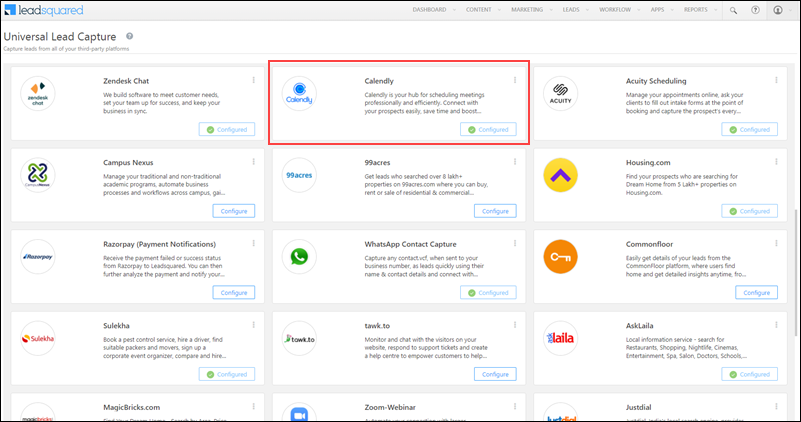
LeadSquared Custom Universal Lead Capture


4. Install the Connector

To install the Universal Lead Capture app –

  1. From the main menu, navigate to Apps>Apps Marketplace,
  2. Search for Universal Lead Capture, and click Install.
    • Alternatively, you’ll find the app listed under the Lead Capture tab.
  3. Once the connector is installed, hover your cursor over settings, and click Configure.
  4. On the Configure Universal Lead Capture pop-up, from the Select Role dropdown, choose the user roles for which you want to give connector configuration and actions permission.
    • If you choose to not give permissions to other user roles, then skip this step, and directly click Save.
  5. Once you’re done, click Save. The connector is successfully installed.

No further configuration is required. To access and configure each individual connector, navigate to Apps>Universal Lead Capture.
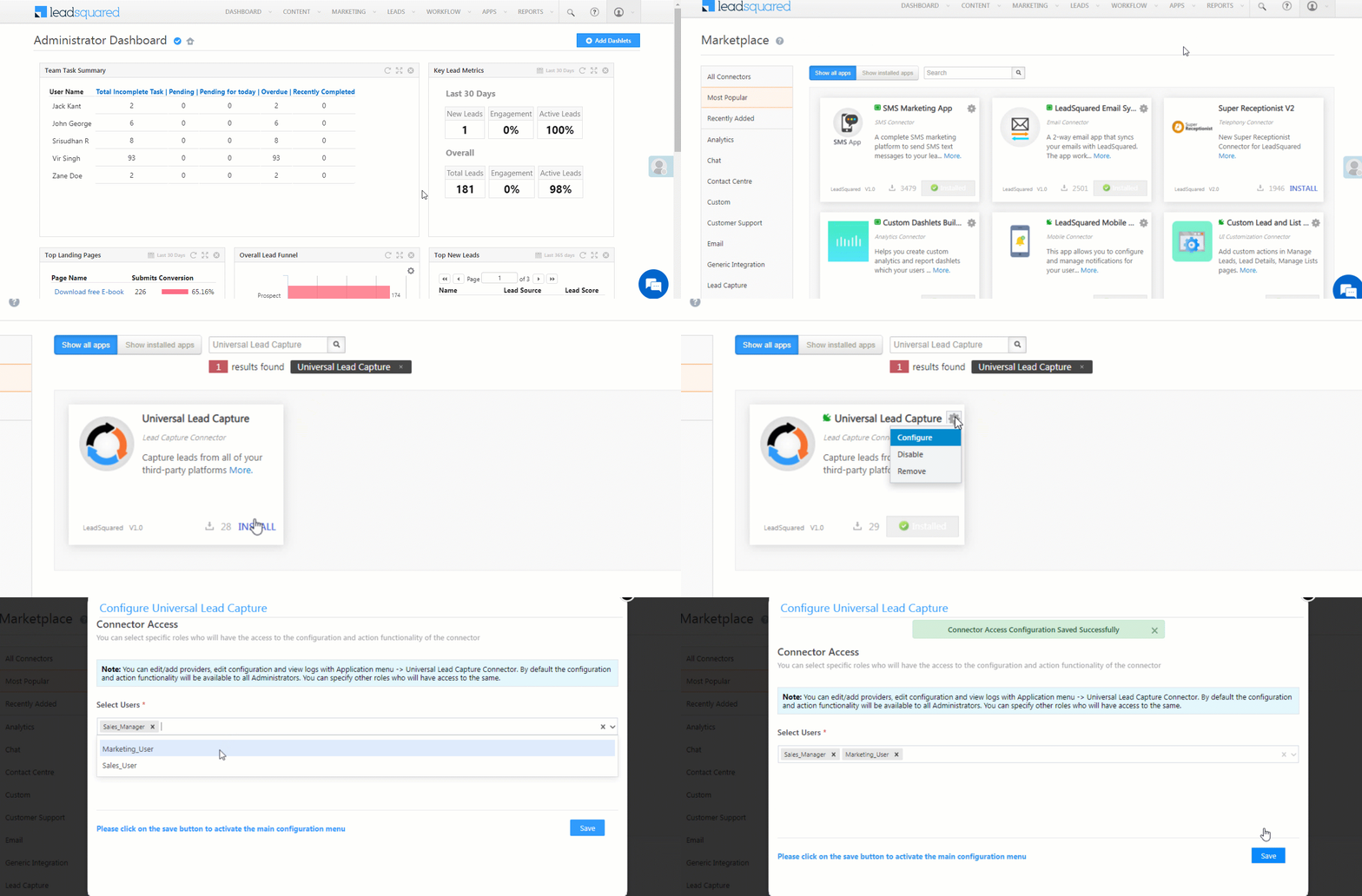
LeadSquared Lead Capture App


5. Configure Custom Lead Providers

Once the Lead Capture connector is installed, create and configure your custom data source.

  1. On your LeadSquared account, navigate to Apps>Lead Capture.
  2. Click Add Custom, and pass the following details on the Enter Basic Information pop-up –
    • Data Source Name – The name of the data source from where leads will be pulled.
    • Help – The help article URL that covers installation and configuration.
    • Description – A short description of the connector instance.
    • Logo – You can either drag and drop the data source logo, or you can use the Choose File button.
  3. Once you’re done, click Save & Next.

LeadSquared Universal Lead Capture


6. Set-up – Real Time Sync

On the Universal Lead Capture screen, click Real-time Sync.
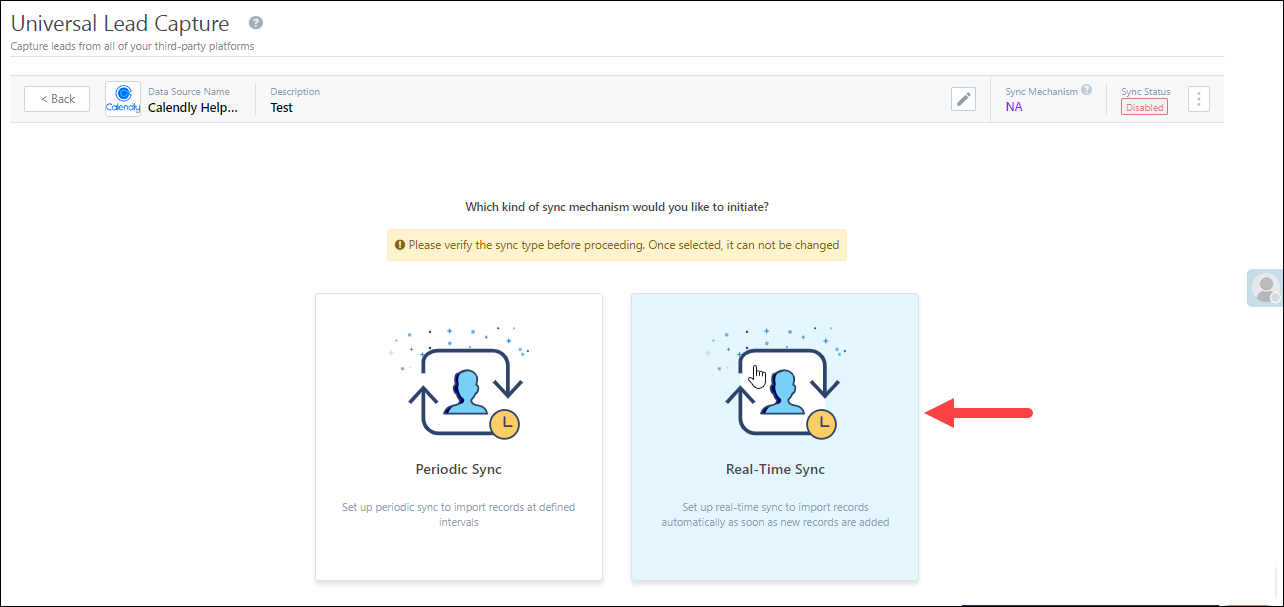
LeadSquared Universal Lead Capture

6.1 Basic Settings

On the Basic Settings screen, enter the following details –
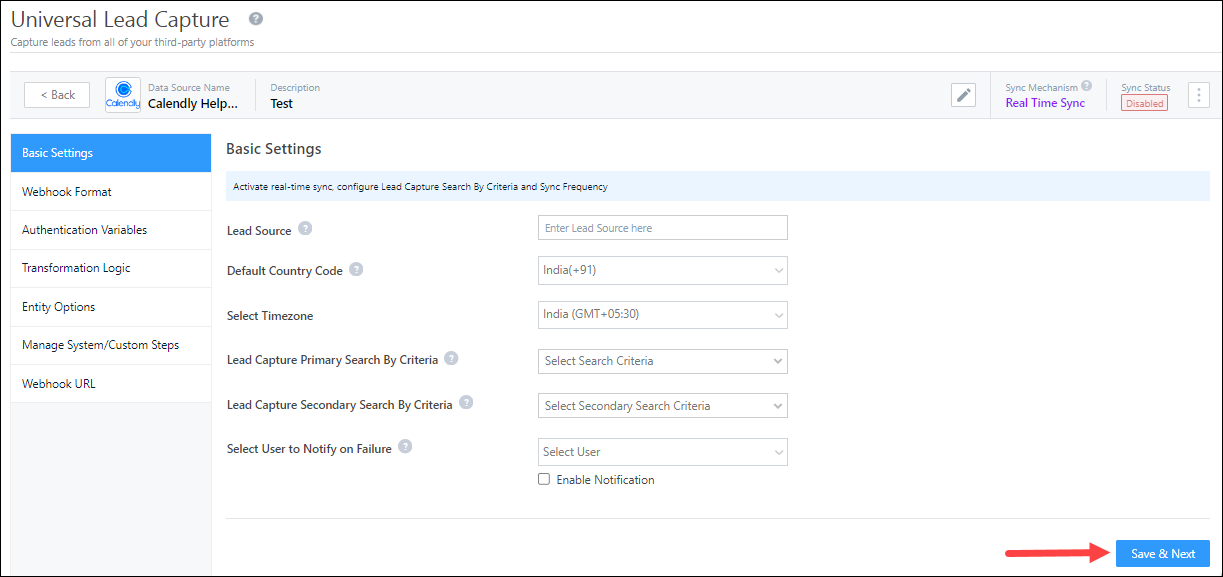
LeadSquared Universal Lead Capture

Property Description
Lead Source Enter the lead source through which the leads were captured (e.g., Zendesk, QuikrHomes, email campaign, etc.). This detail will be displayed on the Lead Details page, under Lead Source.

To make the lead source Editable, click the Checkbox checkbox.

Default Country Code If the lead’s mobile number is captured without a country code, the system will automatically append the default country code selected from the dropdown to the lead’s mobile number.
Select Timezone The timezone followed in your custom data source’s account.
Lead Capture Search By Criteria To avoid capturing duplicate leads, select one unique lead field (e.g., email Id, mobile number, PAN number, etc.) as the search key. This will be used to identify and pull leads from your data provider’s account.
To know how to mark a LeadSquared lead field as unique, please refer to How to Make a Custom Field Unique.
Lead Capture Secondary Search By Criteria If lead identification and capture fail through the primary Search By criteria, a re-attempt will be made using the secondary Search By criteria.
Select User to Notify on Failure If there’s an error in fetching leads, the chosen user will receive a failure message via email. Select a user from the list of available users in your LeadSquared account.To know more about the type of errors, please refer to Error Notifications.
Enable Notification To ensure notification emails are sent to the selected user when there’s a failed query, enable the Checkbox checkbox.

Once you’ve entered the details, click Save & Next.

6.2 Webhook Format

Enter the following webhook details –
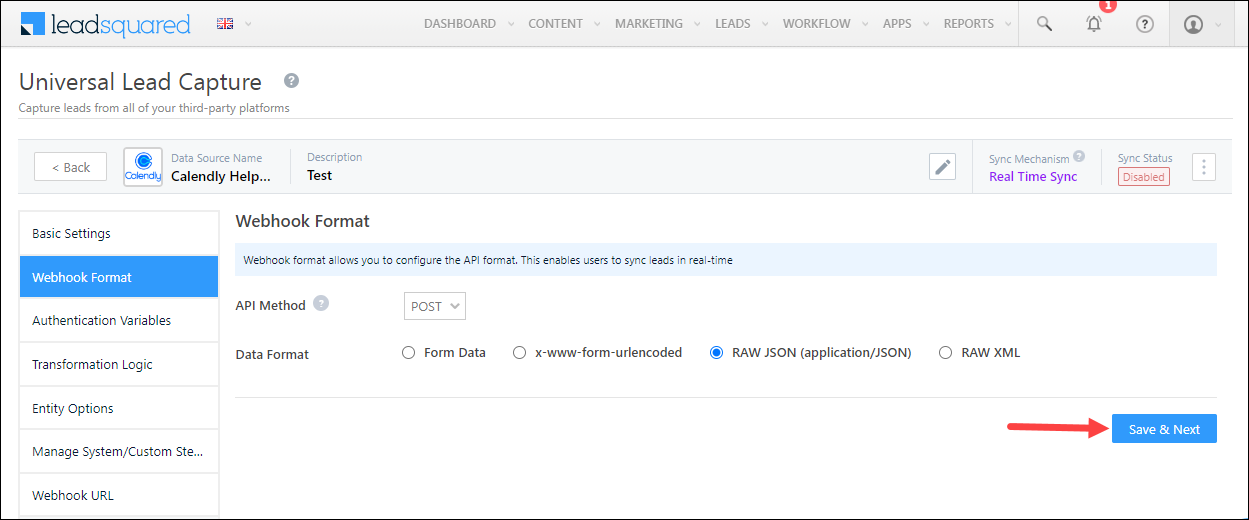
LeadSquared Universal Lead Capture

Property Description
API Method The format in which you receive data from your data provider. You can choose between GET, POST and HEAD. POST is selected by default.
Data Format The data format of the webhook you’re creating. This option will show up only if you select the API Method as POST. You can select one of the following –

  • Form Data
  • x-www-form-urlencoded
  • RAW JSON (application/JSON)
  • RAW XML
Set-up Instructions If required, you can add set-up and configuration instructions for your users.

Once you’re done, click Save & Next.

6.3 Authentication Variables

System Variables

A set of system variables are generated by default, which can be used to configure the API. These variables can be used to define the Transformation Logic, Lead Mapping, Custom Action Parameters, Activity Mapping, and custom configuration URLs.
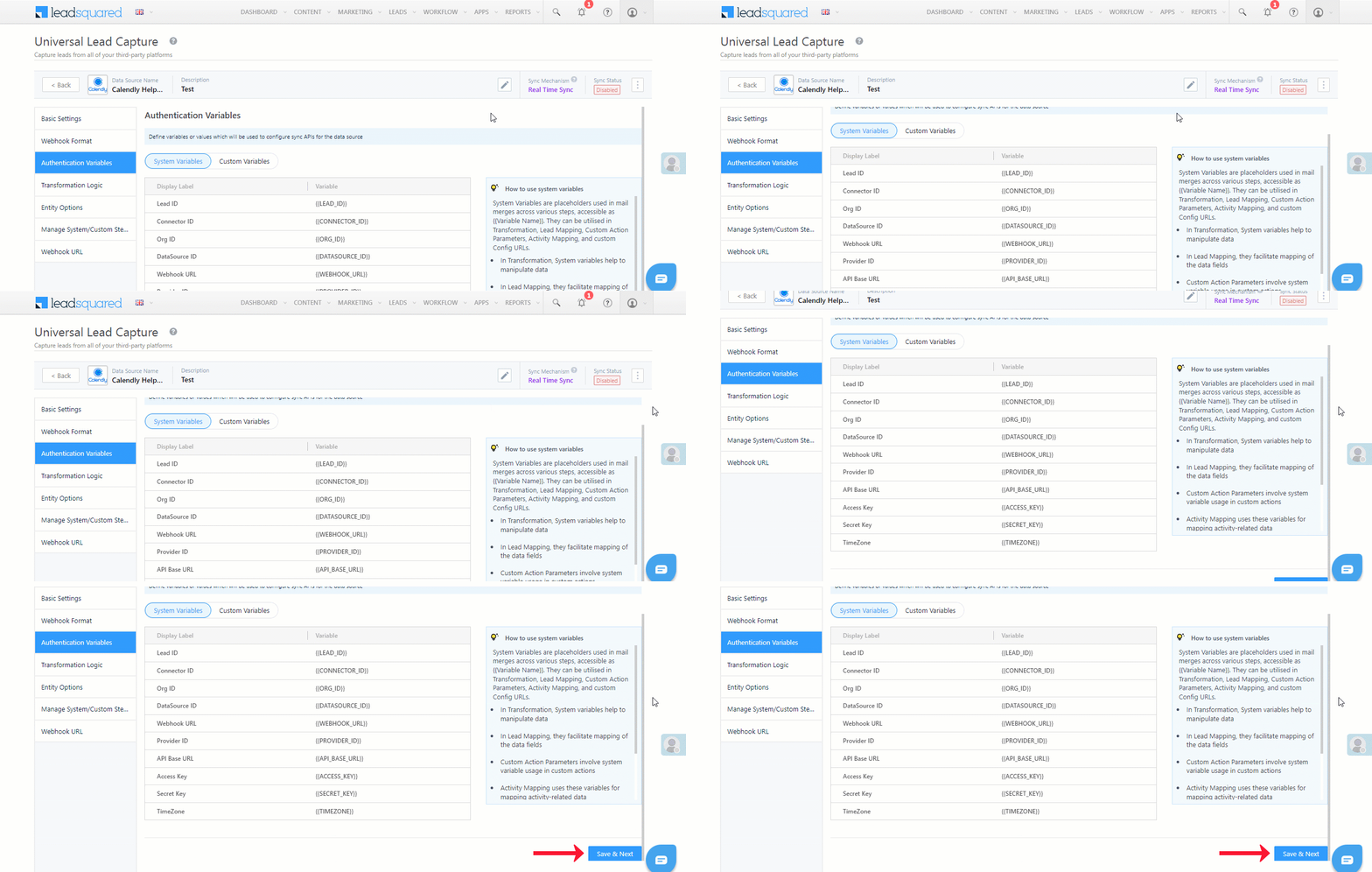
LeadSquared Universal Lead Capture

Custom Variables

Depending on the data source you’re working with, define your own set of authentication variables (e.g., Base URL, Token, API Keys, etc.).

  1. Navigate to the Custom Variables tab, click the Add New button, and enter the following details –
    • Display Label – The display name of the variable (e.g., Secret Key, Token, etc.).
    • Variable – The variable name that’s passed (e.g., {{secretKey}}, {{token}}, etc.). This variable should be written within curly brackets “{{example}}”.
    • Value – The value of the variable that’s passed. Based on your requirements, you can choose to –
      • Call API/Lapps – The value will be fetched from an API or Lapps. This can be used to fetch the authentication value from a different API. You can do this by calling the API/Lapp in the API Builder pop-up, and map its response as the value.
      • Custom Values – Select this option to pass a custom value. In the pop-up, enter the custom value, and click Save & Close.
    • Type – Select the data type of the variable from the following options –
      • Text
      • Password
      • Boolean
      • Number
    • Sensitive Info – When this checkbox is enabled, the variable is marked as sensitive, and it will not be displayed on the interface. A log of this variable will not be maintained either.
  2. Once you’re done entering all the details, click Google to save the variable.
    • To add more variables, click the Add New button.
  3. Once you’re done adding variables, click Save & Next.,

Note: 

  • To edit an existing variable, click .
  • To delete an existing variable, click .

LeadSquared Universal Lead Capture

6.4 Transformation Logic

If the data received via Sync API is complex in structure and needs to be further transformed into a flat JSON structure, you can configure an External API here to parse the data. To do this, enable Slider, and configure the transformation API. The steps to configure the API are similar to the section below – Define API Schema.
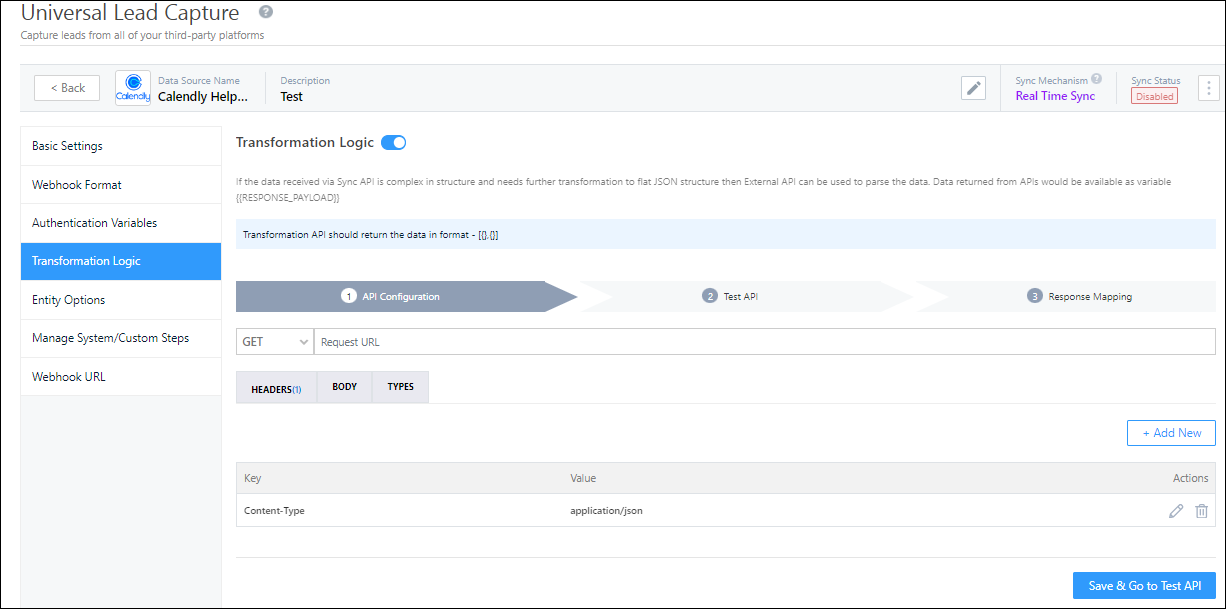
LeadSquared Universal Lead Capture

6.5 Entity Options

Note: To learn how to map the entity options for lead capture, click here.

Here, define the sync behaviour of the connector when leads, activities and other entities are captured.
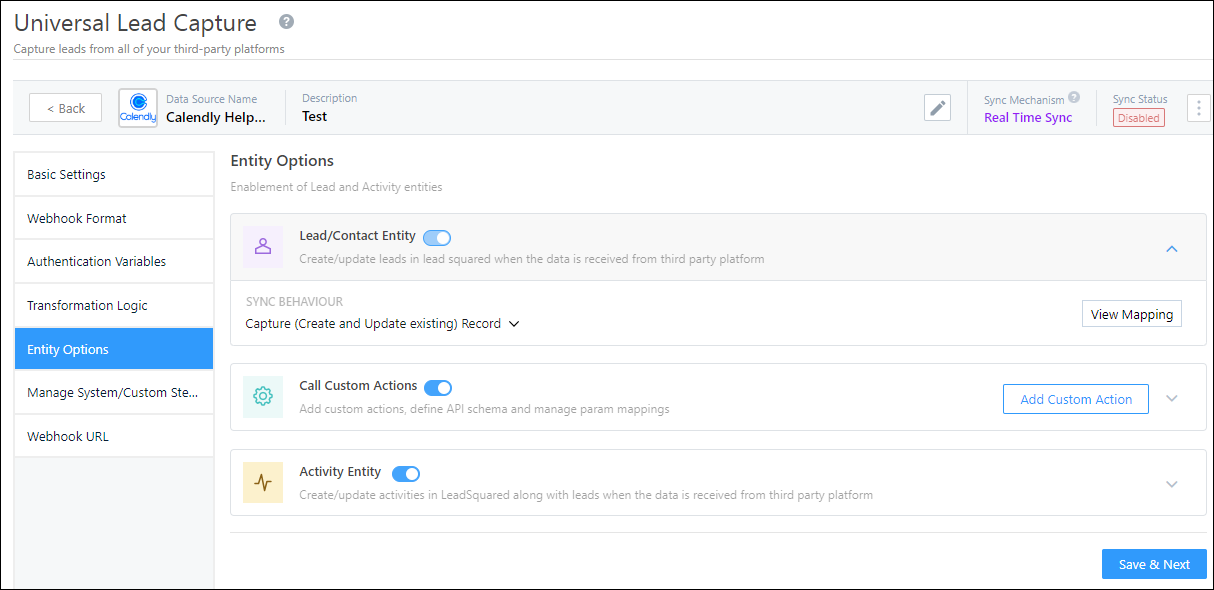
LeadSquared Universal Lead Capture

Lead/Contact Entity

Based on the Lead Capture Search By criteria (email Id, phone number, etc.), LeadSquared identifies and captures leads from your data provider. Lead capture is enabled by default, and it cannot be disabled. The following options are available to configure the connector’s Sync Behaviour –

  • Capture (Create and Update existing) Record – Leads that only exist in your data provider’s account (but not in your LeadSquared account) will get created in LeadSquared. Leads that exist in both your data provider and LeadSquared accounts will get updated.
  • Create only new record – Leads that only exist in your data provider’s account (but not in your LeadSquared account) will get created in LeadSquared.
  • Update only existing record – Leads that exist in both your data provider’s account and LeadSquared accounts will get updated in LeadSquared.
  • Do Nothing – When a lead is created or updated in your data provider’s account, no action will be performed in your LeadSquared account.
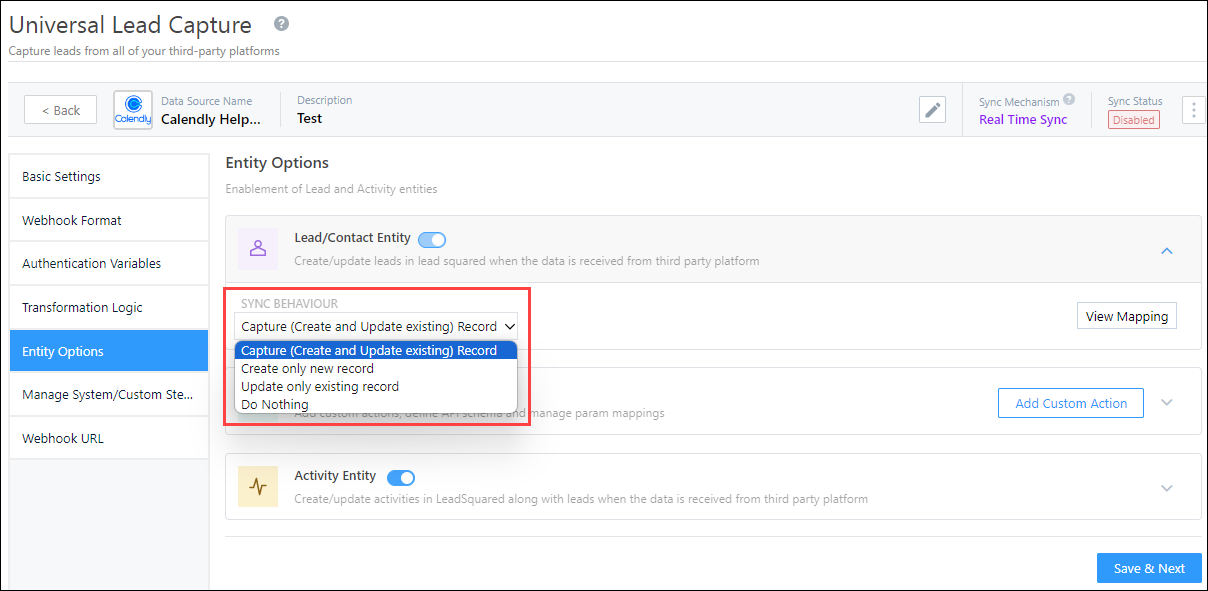
LeadSquared Universal Lead Capture

Edit Mapping

Once you configure the Sync Behaviour, you’ll have to ensure the field mapping is accurate. To do this, click Edit Mapping.

On the Default Mapping screen, map the API response to the corresponding LeadSquared lead and activity fields. To help you understand how to map your responses, we’ve listed down a few examples –

i) A straightforward, key-value pair response would be –

{

"page_name": "Final Lender Landing Page",

"page_id": "Summer-Campaign-1364",

"page_url": "http://aroundtheworldin80ways.com/Ladakh"

}

For such a response, you can map the keys to the corresponding LeadSquared lead fields (e.g., page_id to Related Landing Page ID, etc.).


ii) Nested key-value pairs –

{

"campaign":{

"id":"Zendesk-1364",

"title":"Zendesk_Leads"
},

"lead":{

"Name":"Paul Adams",

"email":"paul@example.com",

"phone":"9999999999"

}

}

Here, there’s a key-value pair (“title”) nested within an object (“campaign”). To map the parameters within the object to the corresponding LeadSquared lead fields, map it as a dot notation response (e.g., campaign.title to Source Campaign, etc.).


iii) A key containing a dotted notation –

{

"page_name":"Visit Ladakh",

"page_id":"Summer-Campaign-1364",

"data.json":{

"email":"paul@example.com",

"mobile_number":"9999999999",

"date_submitted":"2021-04-24"

}

}

Here, the key (“data.json”) that contains different parameters (“email”, mobile”, “date_submitted”), is rendered as a dotted notation. To map this key to the corresponding lead field, map it as follows – data*json.email to Email, data*json.mobile_number to Mobile Number, etc.).


iv) An encoded value –

{

"FirstName":"Paul+MX",

"Phone":"9999999999",

"Source":"Zendesk",

"EmailAddress":"mx%example.com"

}

Here, the response value (“EmailAddress”) is encoded (“mx%example.com”). To get the masked value, decode it when mapping the response (e.g., decode=>EmailAddress).


v) When you only want to capture data from certain fields –

{

"items":[

{
"nickname":"Paul",
"body":"From visitor",
"visitor_nickname":"Paul_1364",
"kind":"MessageToOperator",
"timestamp":"1629476535.249866"
},
{
"nickname":"Jai",
"body":"Hi from agent",
"operatorId":"5763330742157312",
"kind":"MessageToVisitor",
"timestamp":"1629476545.909106"
},
{
"nickname":"Jai",
"body":"how agent can help?",
"operatorId":"5763330742157312",
"kind":"MessageToVisitor",
"timestamp":"1629476556.704914"
}

]

}

To capture certain of the fields of the JSON object (“nickname”, “body”) use the parseTranscript key, followed by the JSON section (items in our case), and then give the fields you want to capture (parseTranscript=>items=>[“nickname”,”body”]).

To map your fields to LeadSquared –

  • Pass the –
    • Mapping Key 
    • Display Name
    • Lead Field in which you want to store the field value.
    • Data Type of the data present in this field.
  • Click the Update if Empty checkbox if you don’t want to update the value of a field every time the sync takes place.
    • This is helpful to prevent re-updating important/sensitive identification-related fields like Social Security Numbers, PAN Card numbers, etc.
  • To provide a default value for any field, click  , enter the value under Default Value, and click Google.
    • If the data provider doesn’t send data for any lead/activity field, then the default value will get assigned to that specific field. But if the field already has an existing value, then the default value will be ignored.
  • To disable lead data capture for any field, disable the Zoom slider.
  • To create a custom Calendly lead/activity field, click the Add Custom button.
    1. Once this field is created, you must map it to the relevant LeadSquared lead/activity field.
    2. After the field is mapped, to save the custom field, click Google.
    3. To delete a custom field, click .

Note:

  • You can’t enable ‘Update if Empty’ on a unique field (primary/secondary search key, and searchable key in the activity entity).
  • You can enable ‘Update if Empty’ on a maximum of 10 fields.
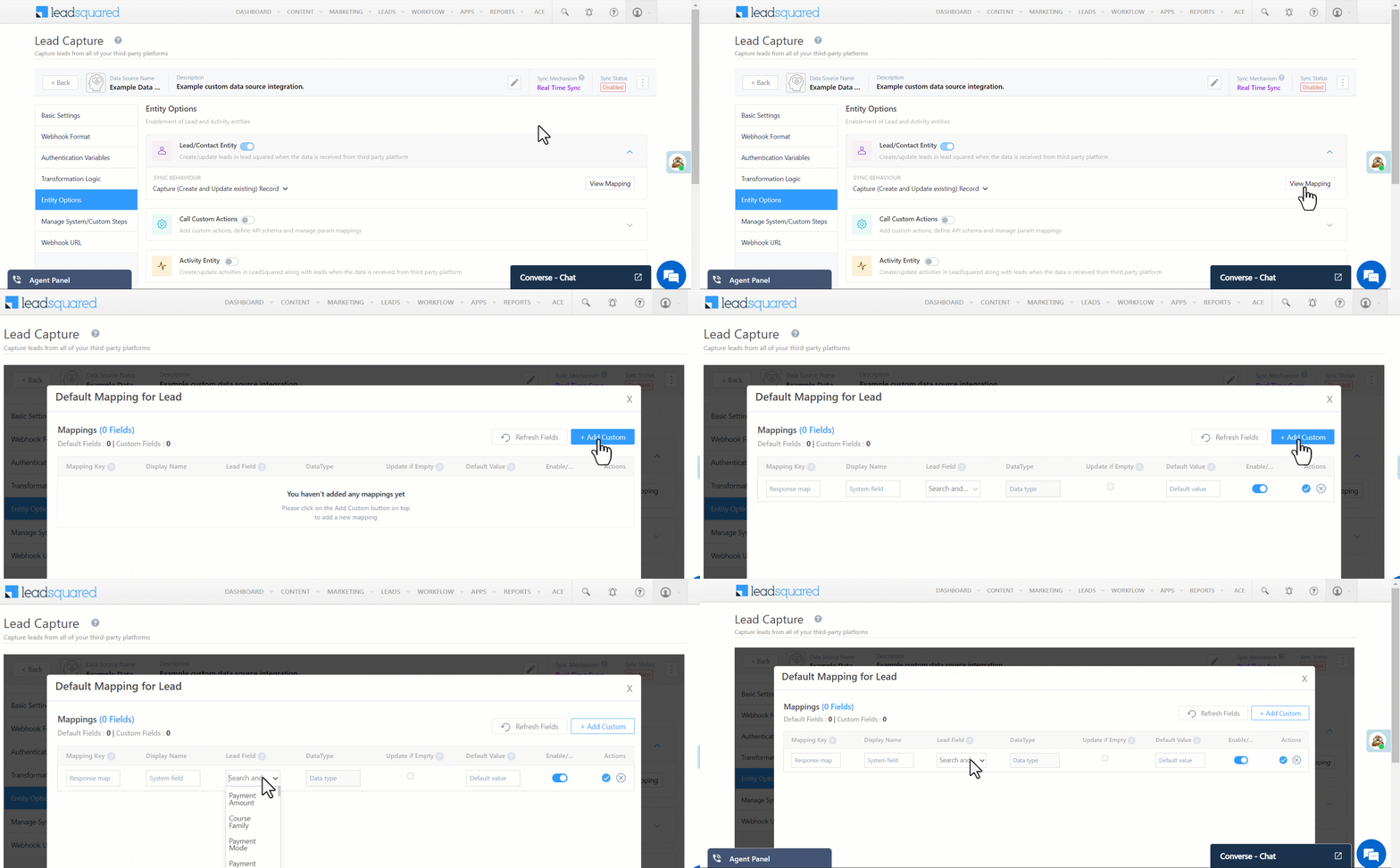
Mapping for custom data source integration with LeadSquared

Call Custom Actions

If required, you can configure the connector instance to perform other actions such as Create Task, Update Task, Create Opportunity, etc. This can be achieved by adding and configuring the relevant LeadSquared API for the action you want to perform. To configure the action –

Note: In the below steps, we’re configuring a Create an Appointment action using the Create an Appointment LeadSquared API.
  1. Alongside Call Custom Actions, enable Slider, and click Add Custom Action.
  2. On the Define Param Mapping pop-up, enter the following details –
    • Basic Details – Enter the Name and Description of the action (e.g., Create an Appointment). Once you’re done, click Save & Next.
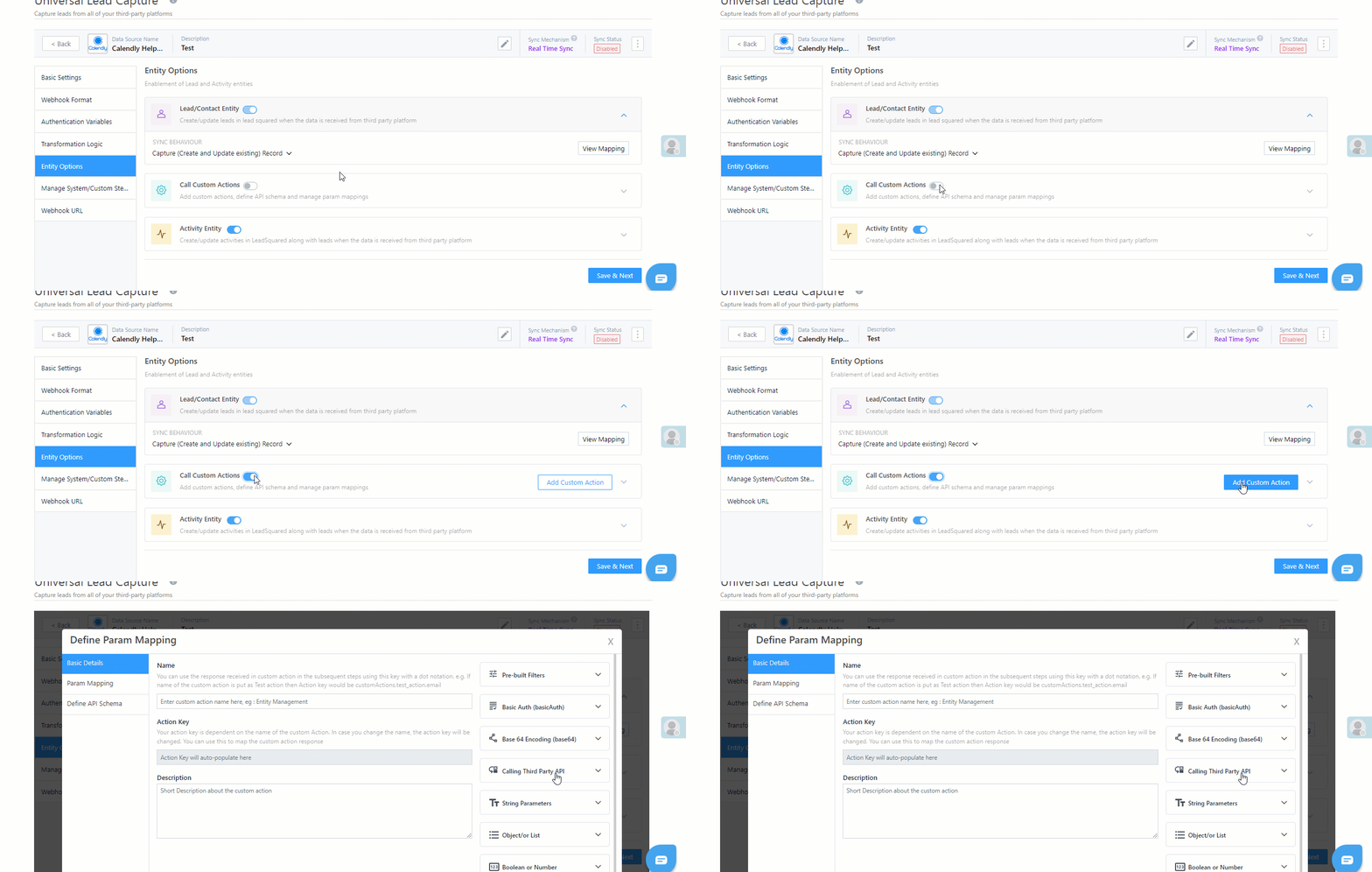
LeadSquared Universal Lead Capture

    • Param Mapping – Here you’ll have to map the API parameters to capture details from your LeadSquared account and from the data provider’s account.  
  • Click Add Custom, and enter the following details –
    1. API Params – The parameters present in the API you’re passing.
    2. Default Mapping Key – The default value for the corresponding parameter.
    3. Description – The description for the parameter and key you’ve added.
  • In our example, we’ve added all the mandatory parameters listed under the Create an Appointment API.
  • The values for the first four parameters your see (“TaskType“, “RelatedEntity“, “Reminder“, “NotifyBy“) are present within LeadSquared. This allows us to hardcode the Default Mapping Key for these values.
  • The Default Mapping Key values for the other parameters are dynamic, since the values are being pulled from the data source provider’s account (Calendly in our example). To ensure there’s no format mismatch between LeadSquared and the data provider’s account, we recommend you pass the Default Mapping Key in the LiquidJS format.
  • We’ve passed two additional parameters that are not present in the Create an Appointment API – “event” and “eventId“. These are differentiator parameters. These parameters allow us to perform two different actions (e.g. Create and Update/Create and Delete, etc.) using the same API webhook we’re creating.
    • In our example, if we only pass “event“, a new Appointment task will get created. But if we only pass “eventId“, then an existing Appointment task will get updated.
    • If you’re looking to create a single API that allows you to perform two different actions, we recommend that you add similar differentiator parameters.
  • To add more parameters, click Add Custom.
  • Once you’re done, click Save & Next.
  • Once the API is working as expected, click Save & Close.
Note: You can configure custom actions only using LeadSquared APIs. Configuration using third-party APIs is not supported.
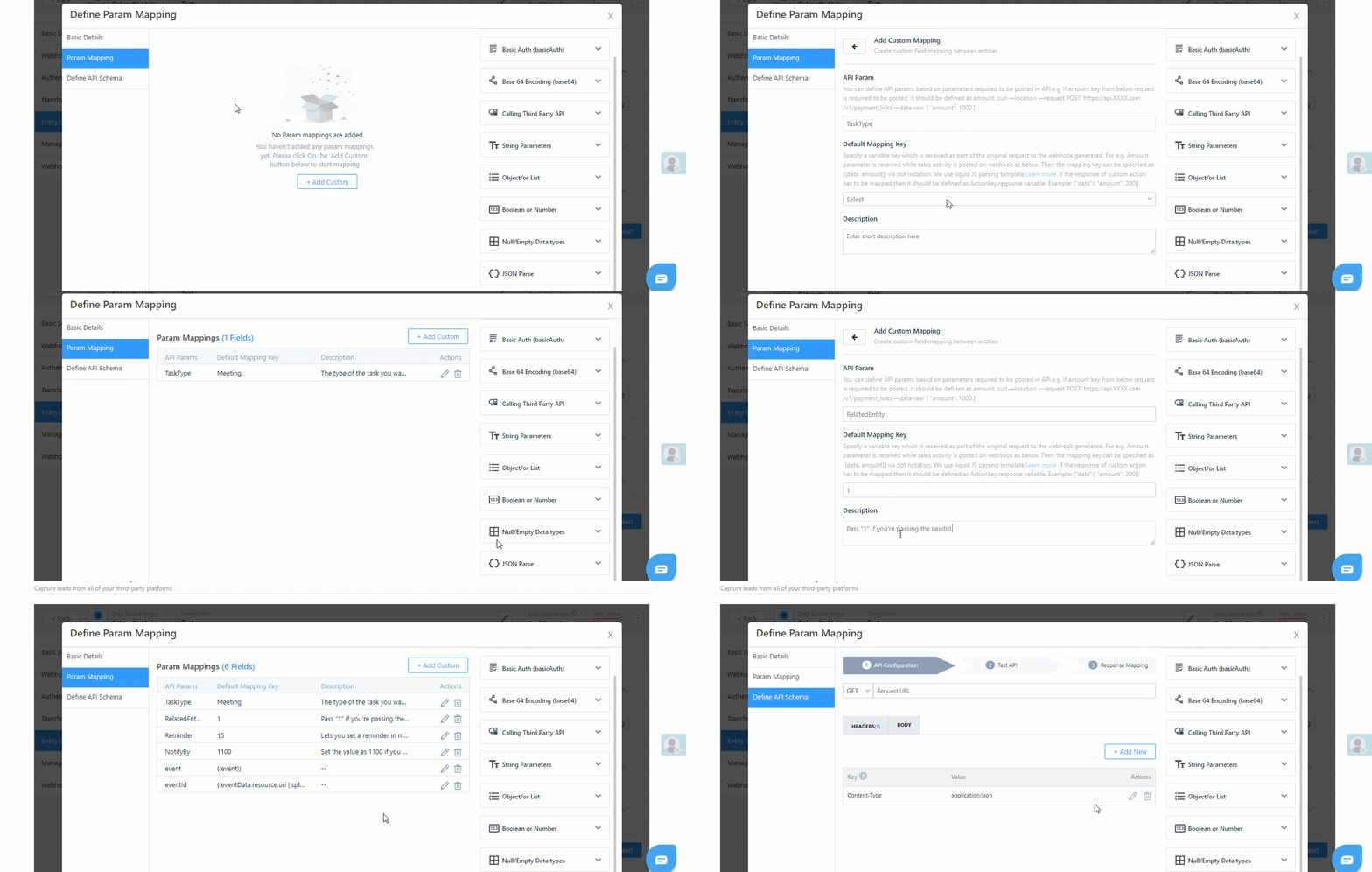
LeadSquared Universal Lead Capture

    • Define API Schema – Add and configure the API through which the custom actions will be performed in LeadSquared.
      • API Configurations – Add and configure the API URL, the Header and the Body.
        1. In the Request URL box, enter the base URL and the other parameters you want to pass in the API.
        2. Click the Add New button to enter the API headers (accessKey, secretKey, etc.).
          • You can configure the content type format from the available options (Form Data, Raw JSON and x-www-form-urlencoded).
          • You can configure the API language from the available options (JSON or XML).
          • Parameters for which the values that are hardcoded are automatically added to the Body.
          • The “orgID” parameter is optional. You can include it in the Body when testing the API, and you can remove it once the API works as expected. The “orgID” is automatically picked up from your account.
        3. Once you’re done, click Save & Go to Test API.
      • Test API – Once the API details are added, pass values to test the API. Once you’ve added the values, click Send Test.
        • If the API works as expected, click Go to Response Mapping.
        • If the API doesn’t work as expected, identify the errors by viewing the logs. Once they’re fixed, click Go to Response Mapping.
      • Response Mapping – To help LeadSquared make sense of the API response, map the response parameters as success, failure or error
        1. Under the Key and Value fields, map relevant key-value responses.
        2. From the Mapping dropdown, select the correct outcome for that particular response.
        3. Under Message, enter the message you want to display in the response.
        4. After mapping a response, click Google. To map additional responses, click the Add Mapping button.
        5. Once you’re done, click Save & Close. The custom action you’ve configured will now fire as expected.
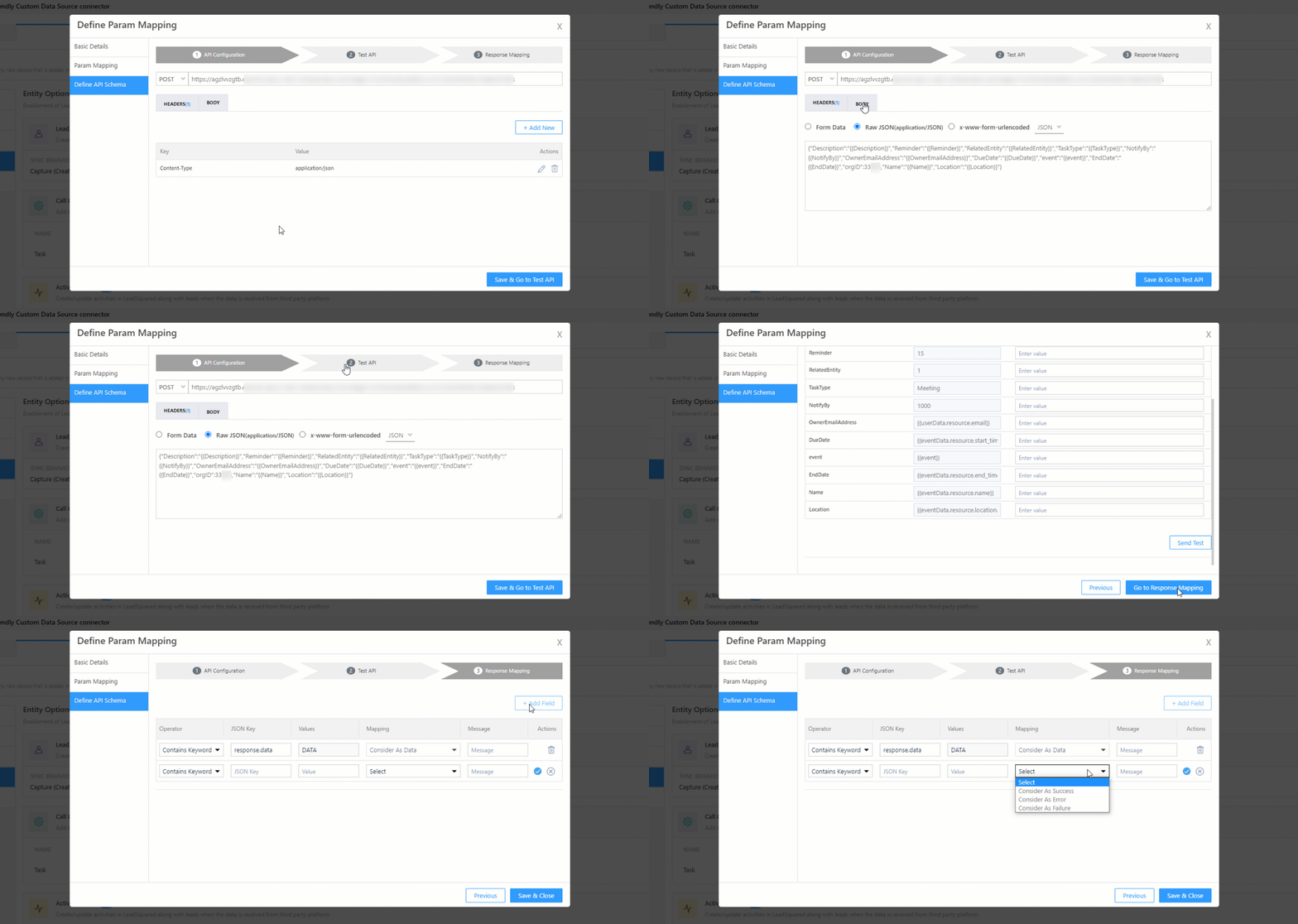
LeadSquared Custom Universal Lead Capture

Activity Entity

Once leads are captured to LeadSquared, you can post custom activities to these leads (e.g., Ticket Creation, Chat Transcript, etc.). These activities will help users keep track of the lead’s journey to conversion. To post activities to the leads captured, alongside Activity Entity, enable the Slider slider. The following options are available to configure the connector’s Sync Behaviour when activities are synced to LeadSquared –

  • Capture (Create and Update existing) Record – New activities will get posted to the lead in LeadSquared, while existing activities will get updated.
  • Create only new record – Only new activities will get posted to leads in LeadSquared.
  • Update only existing record – Only existing activities on the leads captured will get updated in LeadSquared.

The steps to configure mapping is the same as the steps listed above, under Edit Mapping (for leads).
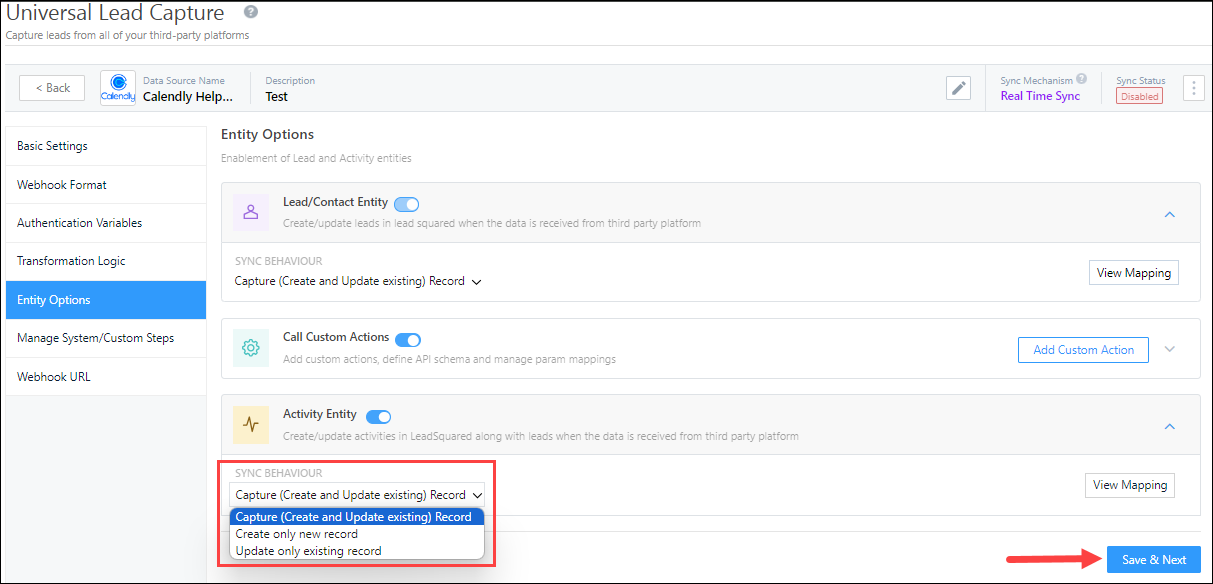
LeadSquared Universal Lead Capture

Note: You can view and configure the Activity Type when editing the mapping.
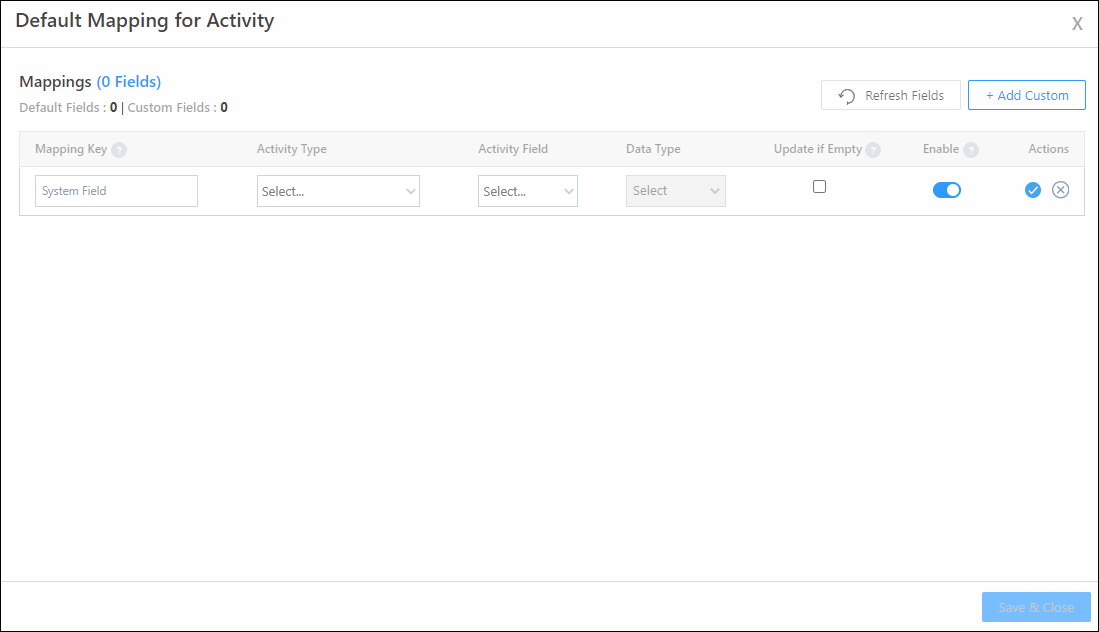
LeadSquared Universal Lead Capture

6.6 Manage System/Custom Steps

Identify the pages you want to display to your users when they’re configuring the connector. By default, the Webhook URL page is displayed to your users.
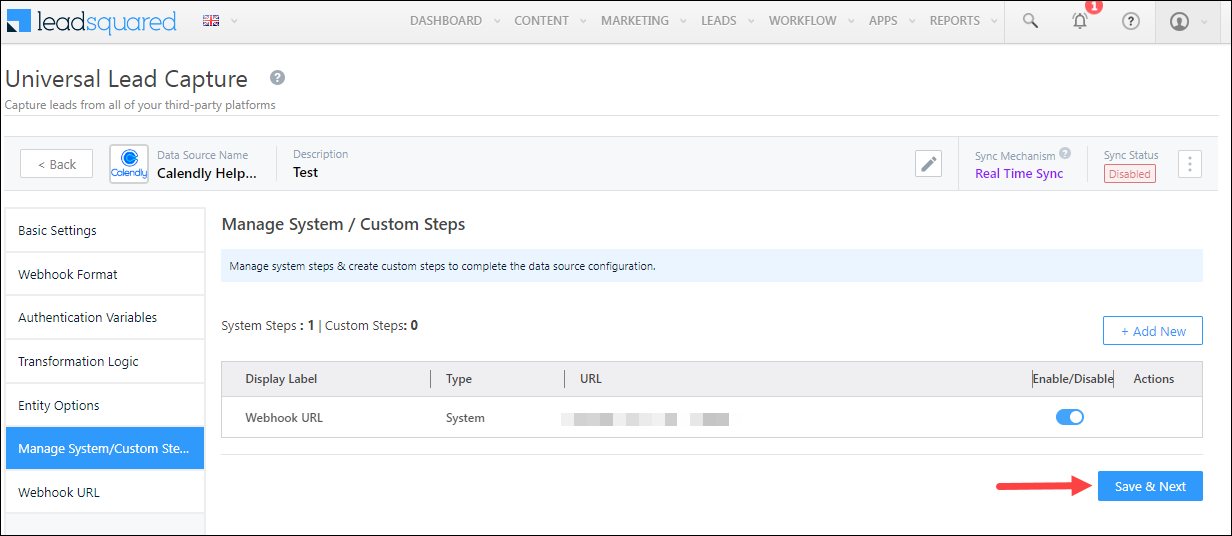
LeadSquared Universal Lead Capture

Once the connector configuration is completed, a webhook URL is generated. Use this URL to integrate your data source with LeadSquared.

You have the option to allow your users to access or not access the Webhook URL that’s generated for the connector. To revoke access, disable the Zoom slider. By revoking access, you can prevent manual errors from occurring when your users copy and paste the URL in your data provider’s account.

Additionally, when you disable access, you have the option to develop and add a webpage in the connector, which automatically configures the webhook URL in your data provider’s account. Once you build this webpage, to include it in your connector and display the page to your users –

  1. Alongside Webhook URL, disable the Zoom slider.
  2. Click Add New.
  3. Enter the following details –
    • Display Label – The display name of the page you’re displaying to your users.
    • Description – A description for the page you’re adding.
    • URL – The URL of the webpage you’ve developed.
    • Enable – To revoke page access to your users, disable the Zoom slider.
  4. Once you’re done, click Google.
    • To add additional pages, click Add New, and repeat the steps listed above.

Once you’re done identifying the pages you want to display to your users, click Save & Close. Once the webhook URL is configured
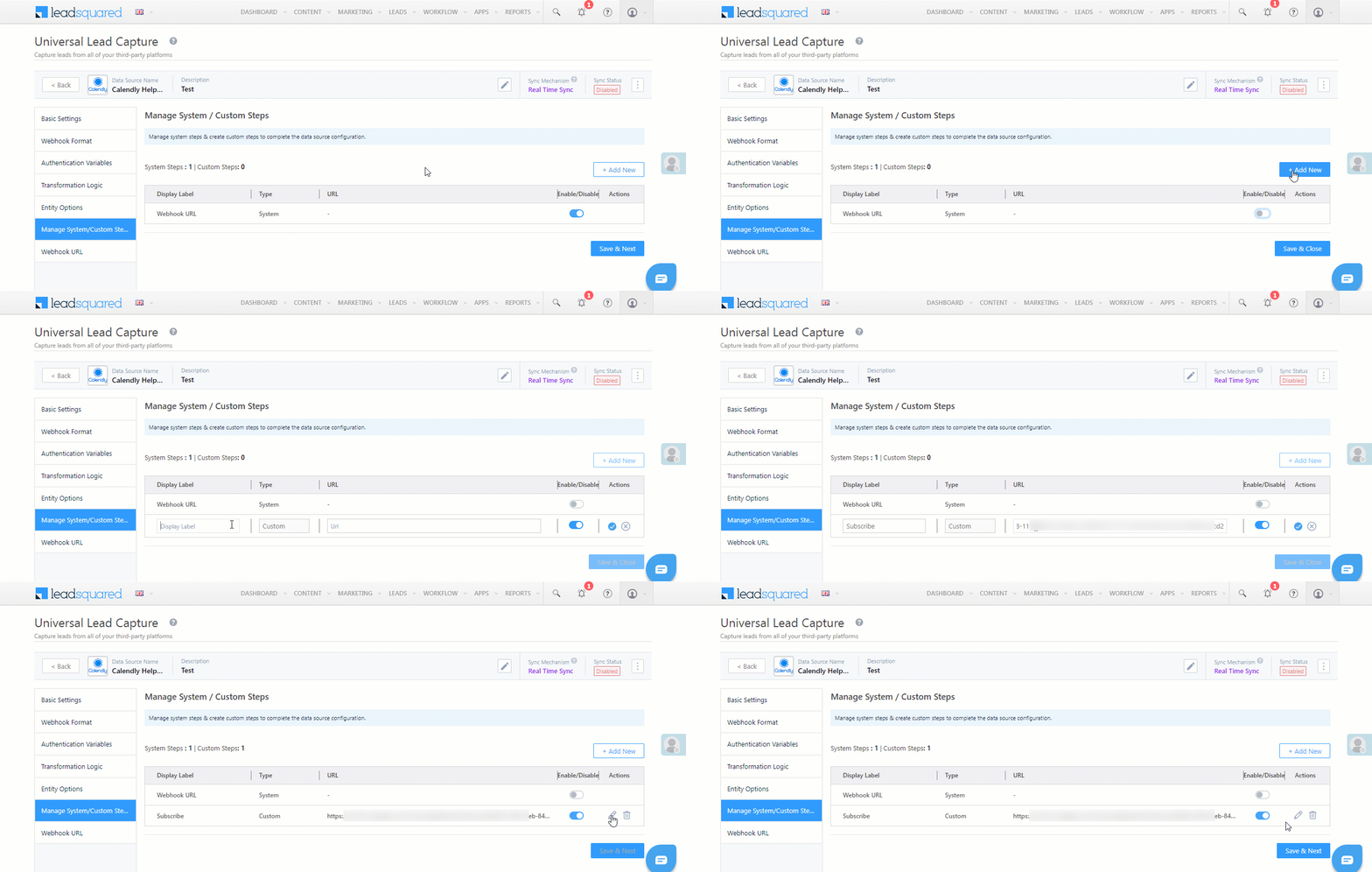
LeadSquared Universal Lead Capture

6.7 Webhook URL

After you provide basic details and finish field mapping, a custom webhook URL is generated. To automate lead capture, copy this URL and use it to configure a webhook, or build an automation in your LeadSquared account.

After you’ve set up the webhook, click More Actions, and enable the sync job. This ensures that through the webhook, lead data from your custom data provider’s account is pushed to LeadSquared.
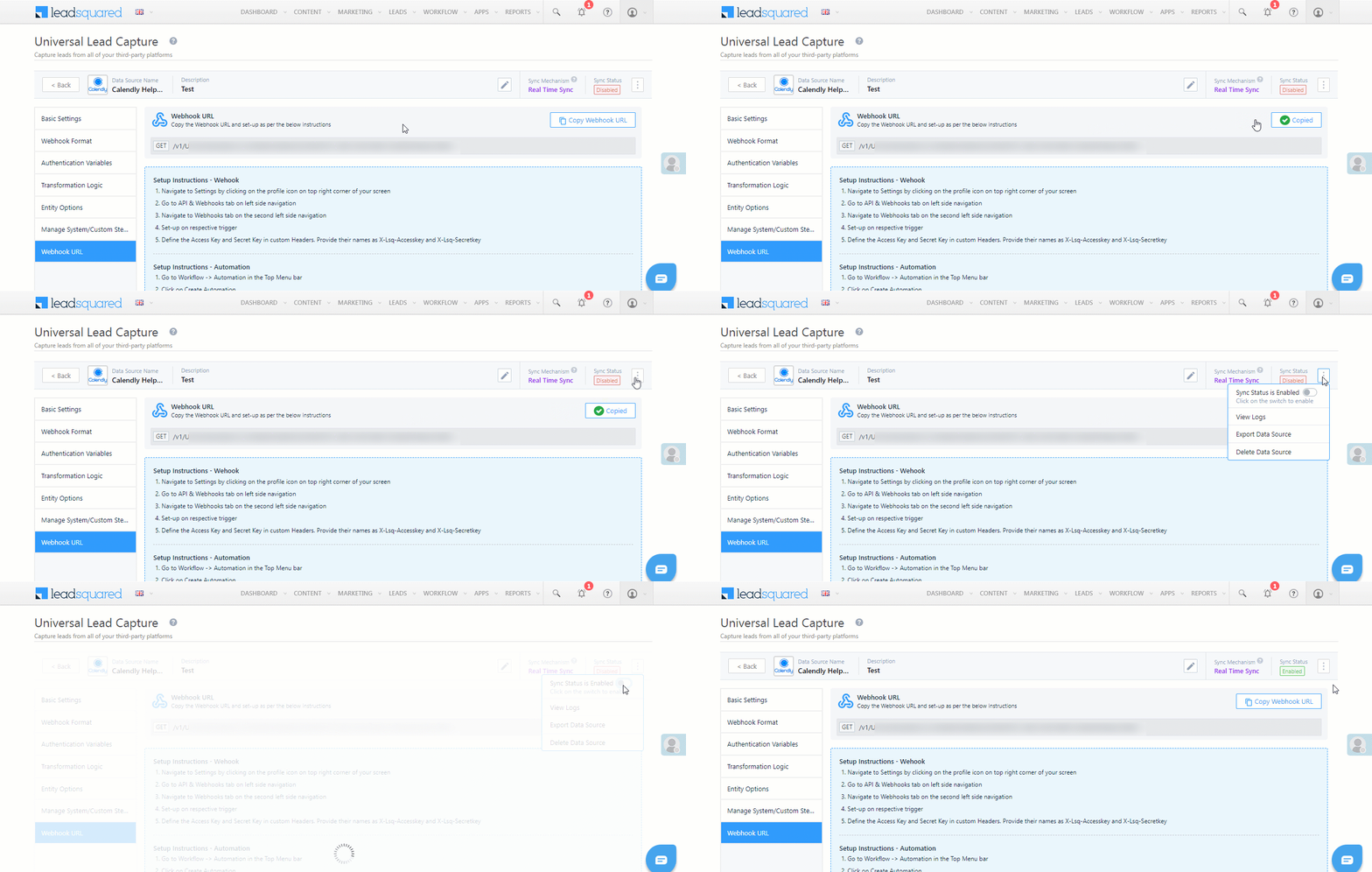
Note: To know more about the Webhook action, refer to User Automation Actions – Webhook.

LeadSquared Universal Lead Capture


7. Set-up Periodic Sync

On the Universal Lead Capture screen, click Periodic Sync.
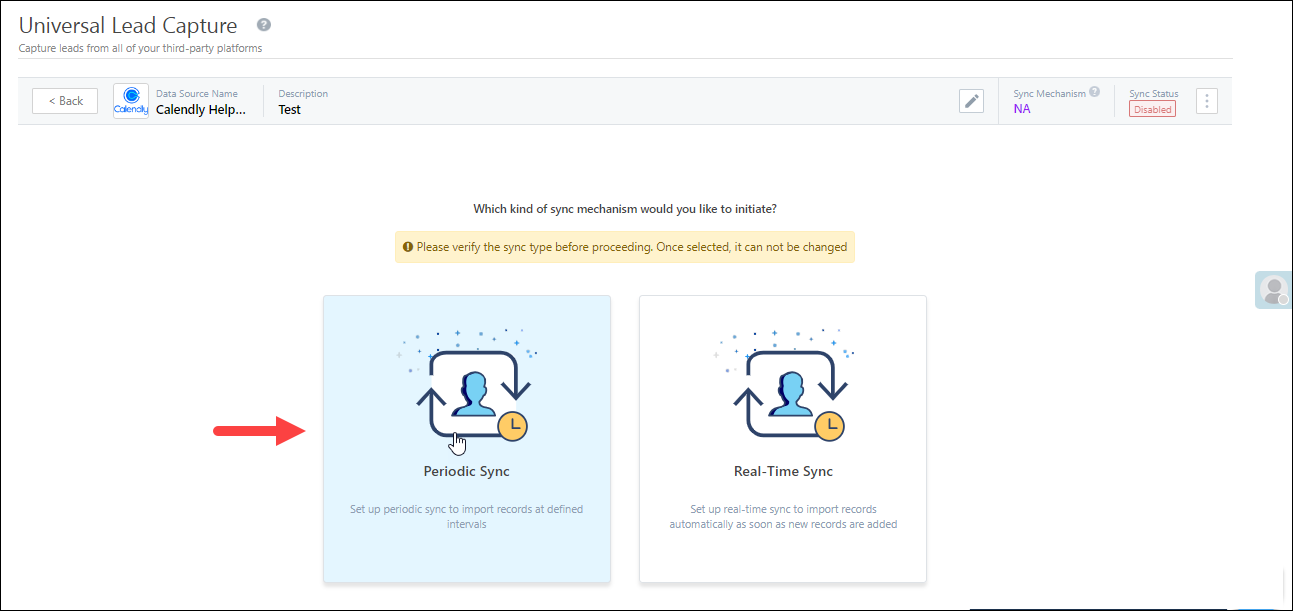
LeadSquared Universal Lead Capture

7.1 Basic Settings

On the Basic Settings screen, enter the following details –
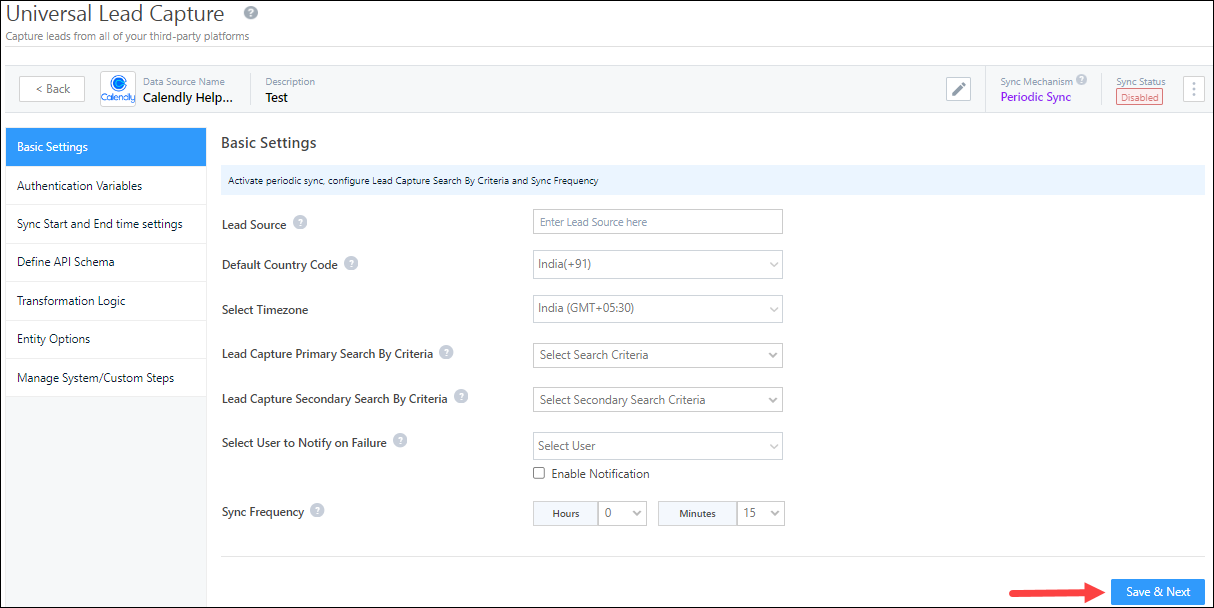
LeadSquared Universal Lead Capture

Property Description
Lead Source Enter the lead source through which the leads were captured (e.g., Zendesk, QuikrHomes, email campaign, etc.). This detail will be displayed on the Lead Details page, under Lead Source.

To make the lead source Editable, click the Checkbox checkbox.

Default Country Code If the lead’s mobile number is captured without a country code, the system will automatically append the default country code selected from the dropdown to the lead’s mobile number.
Select Timezone The timezone followed in your custom data source’s account.
Lead Capture Search By Criteria To avoid capturing duplicate leads, select one unique lead field (e.g., email Id, mobile number, PAN number, etc.) as the search key. This will be used to identify and pull leads from your data provider’s account.
To know how to mark a LeadSquared lead field as unique, please refer to How to Make a Custom Field Unique.
Lead Capture Secondary Search By Criteria If lead identification and capture fail through the primary Search By criteria, a re-attempt will be made using the secondary Search By criteria.
Select User to Notify on Failure If there’s an error in fetching leads, the chosen user will receive a failure message via email. Select a user from the list of available users in your LeadSquared account.To know more about the type of errors, please refer to Error Notifications.
Enable Notification To ensure notification emails are sent to the selected user when there’s a failed query, enable the Checkbox checkbox.
Sync Frequency Using the ‘Hours’ and ‘Minutes’ dropdowns, define the time intervals in which data is pulled.

Once you’ve entered the details, click Save & Next.

7.2 Authentication Variables

System Variables

A set of system variables are generated by default, which can be used to configure the API. These variables can be used to define the Transformation Logic, Lead Mapping, Custom Action Parameters, Activity Mapping, and custom configuration URLs.

LeadSquared Universal Lead Capture

Custom Variables

Depending on the data source you’re working with, define your own set of authentication variables (e.g., Base URL, Token, API Keys, etc.).

  1. Navigate to the Custom Variables tab, click the Add New button, and enter the following details –
    • Display Label – The display name of the variable (e.g., Secret Key, Token, etc.).
    • Variable – The variable name that’s passed (e.g., {{secretKey}}, {{token}}, etc.). This variable should be written within curly brackets “{{example}}”.
    • Value – The value of the variable that’s passed. Based on your requirements, you can choose to –
      • Call API/Lapps – The value will be fetched from an API or Lapps. This can be used to fetch the authentication value from a different API. You can do this by calling the API/Lapp in the API Builder pop-up, and map its response as the value.
      • Custom Values – Select this option to pass a custom value. In the pop-up, enter the custom value, and click Save & Close.
    • Type – Select the data type of the variable from the following options –
      • Text
      • Password
      • Boolean
      • Number
    • Sensitive Info – When this checkbox is enabled, the variable is marked as sensitive, and it will not be displayed on the interface. A log of this variable will not be maintained either.
  2. Once you’re done entering all the details, click Google to save the variable.
    • To add more variables, click the Add New button.
  3. Once you’re done adding variables, click Save & Next.,

Note: 

  • To edit an existing variable, click .
  • To delete an existing variable, click .

LeadSquared Universal Lead Capture

7.3 Sync Start and End Time Settings

Each data provider follows a specific date-time format (Unix TimeStamp Format, MM-dd-yyyy HH:mm:ss, etc.). Here, you can define the date-time format followed by your data provider.

  1. Define Format by either choosing Unix TimeStamp Format or Date Time Format.
    • If you chose Date Time Format, from the Enter Date Time Format dropdown, specify the format your data provider follows.
  2. From the Selected Time Zone dropdown, select the timezone your data source provider follows.
  3. Once you’re done, click Save & Next.

LeadSquared Universal Lead Capture

Note: You can also add your own custom Date Time format, by pasting it (e.g., YYYY-MM-DDTHH:mm:ssZ, etc.) in the Enter Date Time Format box.
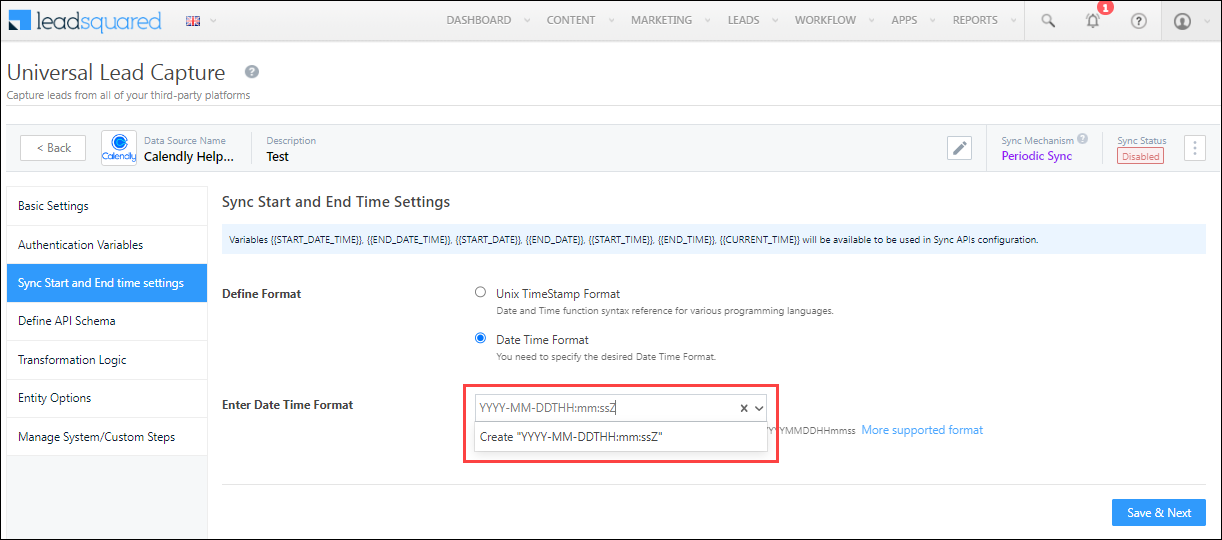
LeadSquared Universal Lead Capture

7.4 Define API Schema

Add and configure the API through which leads will be pulled from the custom data source.

API Configuration
First, configure the API.

  1. Select the API request method from the options available (GET or POST).
  2. In the Request URL box, enter the base URL and the other parameters you want to pass in the API.
  3. Click the Add New button to enter the API headers (accessKey, secretKey, etc.).
  4. Click Body, and then click the Add New button to enter the other parameters (startTime, etc.).
    • To edit a parameter, click .
    • To delete a parameter, click .
  5. Then, from the available options (Form Data, Raw JSON and x-www-form-urlencoded), select the content type.
  6. Once you’re done, click Go to Test API.
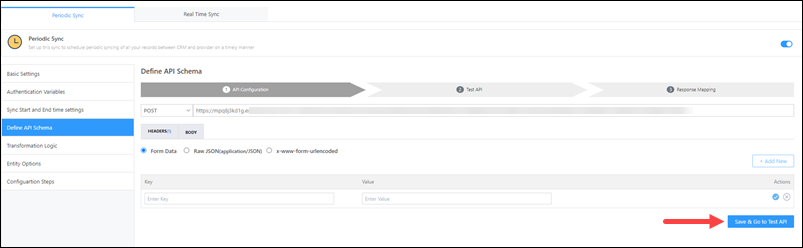
LeadSquared Custom Universal Lead Capture

Test API
After the API is configured, test it to ensure leads are being pulled as expected.

  1. Against the corresponding boxes, enter the values for each parameter.
  2. After you’ve entered the values, click Send Test.
  3. Once a Success response is returned, in the response, you can view the lead data that’s being pulled.
  4. Then, click Go to Response Mapping.

LeadSquared Custom Universal Lead Capture

Response Mapping
To help LeadSquared make sense of the API response, map the response parameters as data, success or failure.

For example, if your response looks like this –

{
"users":[
{
"id":35436,
"name":"Robert Jones",
"email":"robert@gmail.com"
},
{
"id":9873843,
"name":"Terry Gilliam"
}]}

For the mapping, response.data.users will be ‘Considered as Data’. This will consider the entire ‘Users’ object as data. You can then map the parameters within the object to the corresponding LeadSquared lead fields – e.g., name to First Name, email to Email, etc.

To map the API response –

  1. Click the Add Mapping button.
  2. Under the Key and Value fields, map relevant key-value responses.
    • To delete an existing key-value pair, under Actions, click .
  3. From the Mapping dropdown, select the correct outcome for that particular response. You can choose Consider as SuccessConsider as Error or Consider as Data.
  4. After mapping a response, click Google.
  5. To map additional responses, click the Add Mapping button.
  6. Once you’re done, click Save & Next.

LeadSquared Custom Universal Lead Capture

7.5 Transformation Logic

If the data received via Sync API is complex in structure and needs further transformation to a flat JSON structure, you can configure an External API here to parse the data.

To do this, enable Slider, and configure the transformation API. The steps to configure the API are similar to the previous section, Define API Schema.

Note: This step is optional. If required, you can transform the Sync API response.
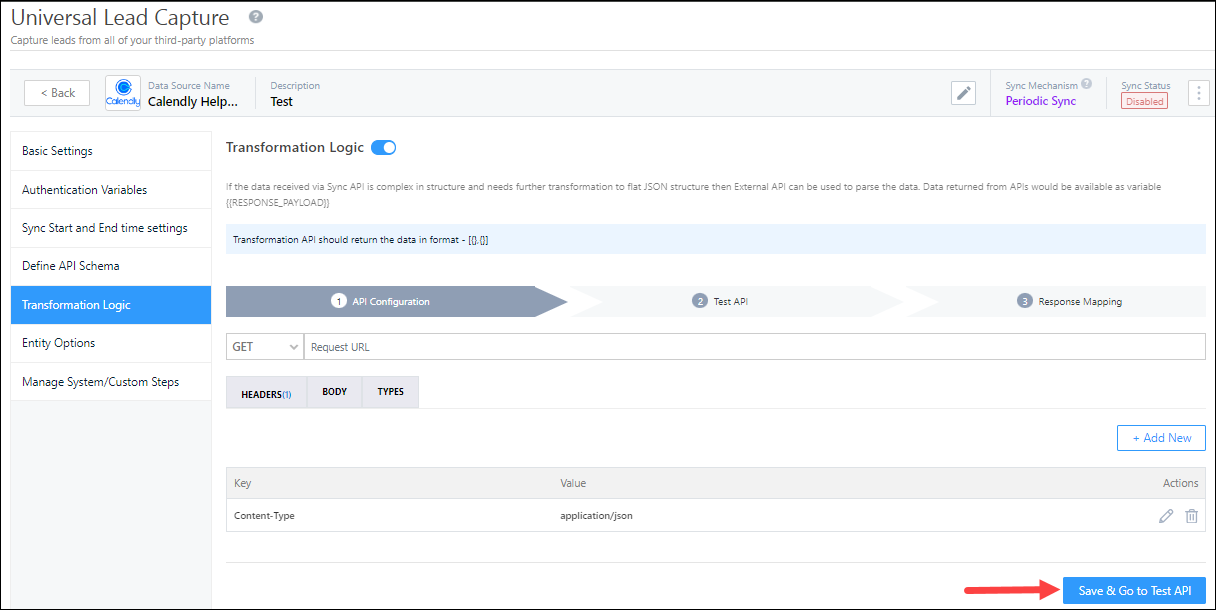
LeadSquared Universal Lead Capture

7.6 Entity Option

Note: To learn how to map the entity options for lead capture, click here.

Here, define the sync behaviour of the connector when leads, activities and other entities are captured.
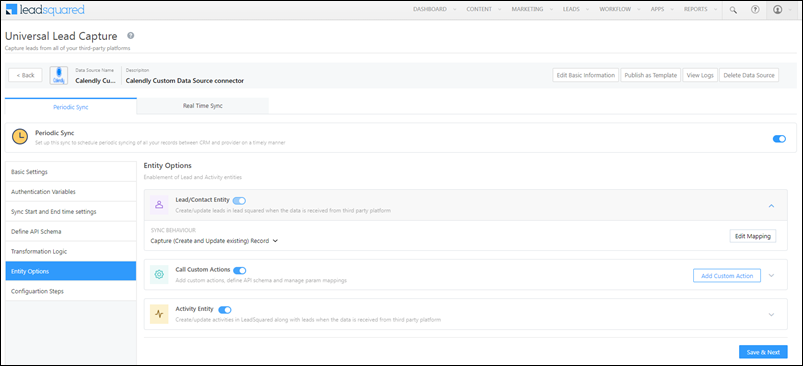
LeadSquared Custom Universal Lead Capture

Lead/Contact Entity

Based on the Lead Capture Search By criteria (email Id, phone number, etc.), LeadSquared identifies and captures leads from your data provider. Lead capture is enabled by default, and it cannot be disabled. The following options are available to configure the connector’s Sync Behaviour –

  • Capture (Create and Update existing) Record – Leads that only exist in your data provider’s account (but not in your LeadSquared account) will get created in LeadSquared. Leads that exist in both your data provider and LeadSquared accounts will get updated.
  • Create only new record – Leads that only exist in your data provider’s account (but not in your LeadSquared account) will get created in LeadSquared.
  • Update only existing record – Leads that exist in both your data provider’s account and LeadSquared accounts will get updated in LeadSquared.
  • Do Nothing – When a lead is created or updated in your data provider’s account, no action will be performed in your LeadSquared account.
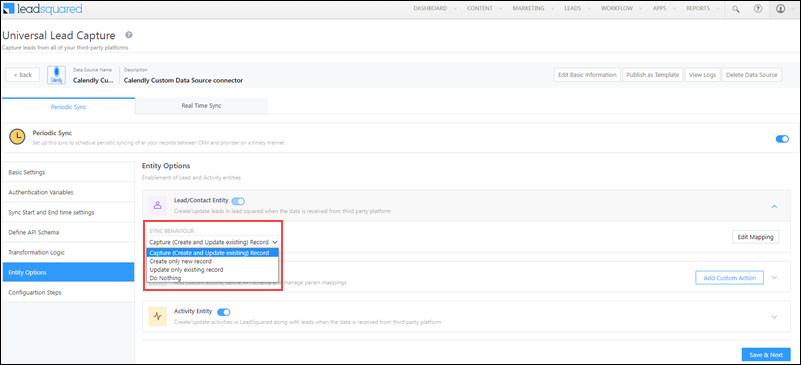
LeadSquared Custom Universal Lead Capture

Edit Mapping

Once you configure the Sync Behaviour, you’ll have to ensure the field mapping is accurate. To do this, click Edit Mapping.

On the Default Mapping screen, map the API response to the corresponding LeadSquared lead and activity fields. To help you understand how to map your responses, we’ve listed down a few examples –

i) A straightforward, key-value pair response –

{

"page_name": "Final Lender Landing Page",

"page_id": "Summer-Campaign-1364",

"page_url": "http://aroundtheworldin80ways.com/Ladakh"

}

For such a response, you can map the keys to the corresponding LeadSquared lead fields (e.g., page_id to Related Landing Page ID, etc.).


ii) Nested key-value pairs –

{

"campaign":{

"id":"Zendesk-1364",

"title":"Zendesk_Leads"
},

"lead":{

"Name":"Paul Adams",

"email":"paul@example.com",

"phone":"9999999999"

}

}

Here, there’s a key-value pair (“title”) nested within an object (“campaign”). To map the parameters within the object to the corresponding LeadSquared lead fields, map it as a dot notation response (e.g., campaign.title to Source Campaign, etc.).


iii) A key containing a dotted notation –

{

"page_name":"Visit Ladakh",

"page_id":"Summer-Campaign-1364",

"data.json":{

"email":"paul@example.com",

"mobile_number":"9999999999",

"date_submitted":"2021-04-24"

}

}

Here, the key (“data.json”) that contains different parameters (“email”, mobile”, “date_submitted”), is rendered as a dotted notation. To map this key to the corresponding lead field, map it as follows – data*json.email to Email, data*json.mobile_number to Mobile Number, etc.).


iv) An encoded value –

{

"FirstName":"Paul+MX",

"Phone":"9999999999",

"Source":"Zendesk",

"EmailAddress":"mx%example.com"

}

Here, the response value (“EmailAddress”) is encoded (“mx%example.com”). To get the masked value, decode it when mapping the response (e.g., decode=>EmailAddress).


v) When you only want to capture data from certain fields –

{

"items":[

{
"nickname":"Paul",
"body":"From visitor",
"visitor_nickname":"Paul_1364",
"kind":"MessageToOperator",
"timestamp":"1629476535.249866"
},
{
"nickname":"Jai",
"body":"Hi from agent",
"operatorId":"5763330742157312",
"kind":"MessageToVisitor",
"timestamp":"1629476545.909106"
},
{
"nickname":"Jai",
"body":"how agent can help?",
"operatorId":"5763330742157312",
"kind":"MessageToVisitor",
"timestamp":"1629476556.704914"
}

]

}

To capture certain of the fields of the JSON object (“nickname”, “body”) use the parseTranscript key, followed by the JSON section (items in our case), and then give the fields you want to capture (parseTranscript=>items=>[“nickname”,”body”]).

To map your fields to LeadSquared –

  • Pass the –
    • Mapping Key 
    • Display Name
    • Lead Field in which you want to store the field value.
    • Data Type of the data present in this field.
  • Click the Update if Empty checkbox if you don’t want to update the value of a field every time the sync takes place.
    • This is helpful to prevent re-updating important/sensitive identification-related fields like Social Security Numbers, PAN Card numbers, etc.
    • Note:
      • You can’t enable ‘Update if Empty’ on a unique field (primary/secondary search key, and searchable key in the activity entity).
      • You can enable ‘Update if Empty’ on a maximum of 10 fields.
  • To provide a default value for any field, click  , enter the value under Default Value, and click Google.
    • If the data provider doesn’t send data for any lead/activity field, then the default value will get assigned to that specific field. But if the field already has an existing value, then the default value will be ignored.
  • To disable lead data capture for any field, disable the Zoom slider.
  • To mark a unique lead/activity field as the search key, click Mark Unique.
  • To create a custom Calendly lead/activity field, click the Add Custom button.
    1. Once this field is created, you must map it to the relevant LeadSquared lead/activity field.
    2. After the field is mapped, to save the custom field, click Google.
    3. To delete a custom field, click .

Integrate Custom Data Source with LeadSquared

Call Custom Actions

If required, you can configure the connector instance to perform other actions such as Create Task, Update Task, Create Opportunity, etc. This can be achieved by adding and configuring the relevant LeadSquared API for the action you want to perform. To configure the action –

Note: In the below steps, we’re configuring a Create an Appointment action using the Create an Appointment LeadSquared API.
  1. Alongside Call Custom Actions, enable Slider, and click Add Custom Action.
  2. On the Define Param Mapping pop-up, enter the following details –
    • Basic Details – Enter the Name and Description of the action (e.g., Create an Appointment). Once you’re done, click Save & Next.
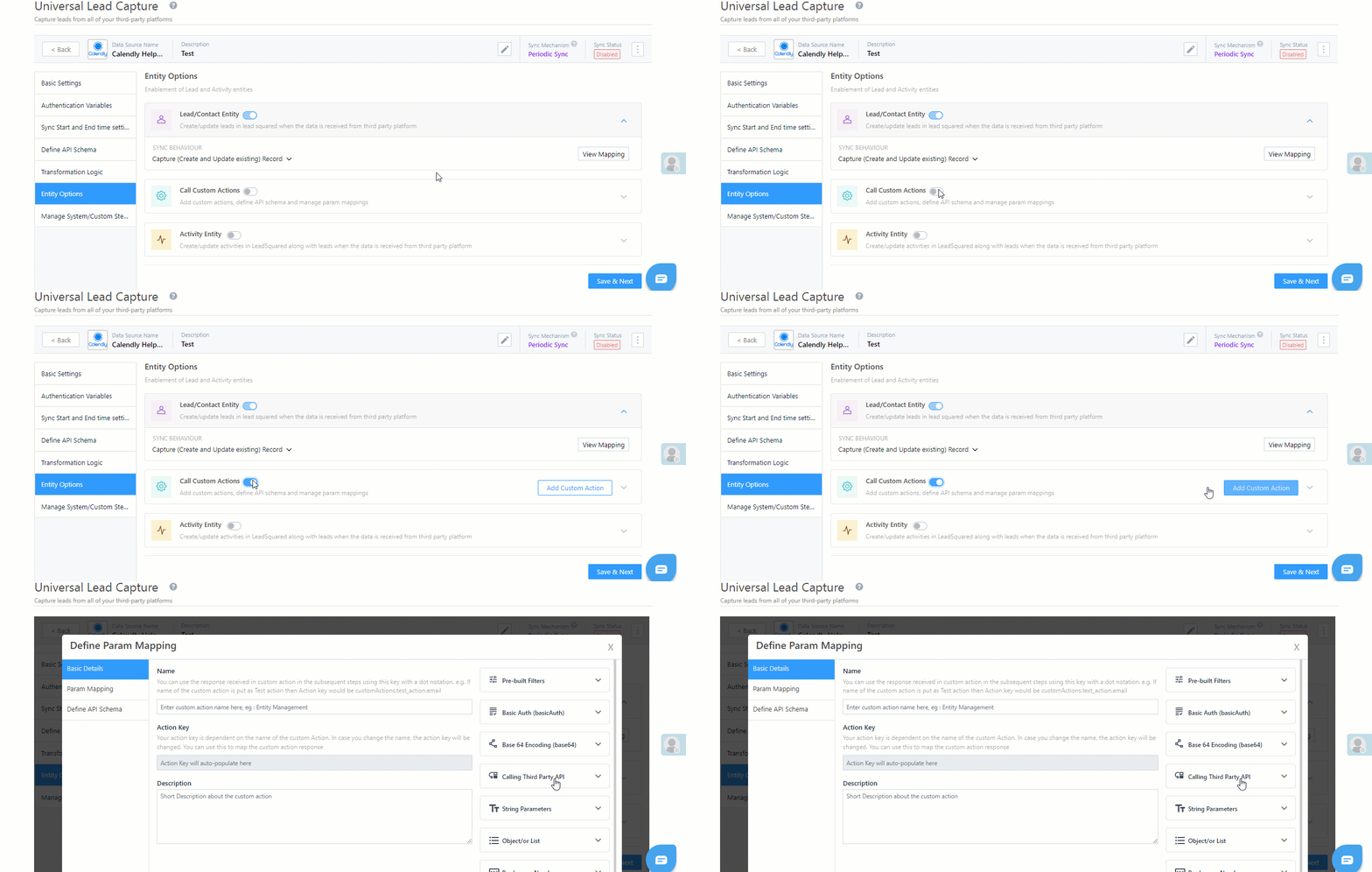
LeadSquared Universal Lead Capture

    • Param Mapping – Here you’ll have to map the API parameters to capture details from your LeadSquared account and from the data provider’s account.  
  • Click Add Custom, and enter the following details –
    1. API Params – The parameters present in the API you’re passing.
    2. Default Mapping Key – The default value for the corresponding parameter.
    3. Description – The description for the parameter and key you’ve added.
  • In our example, we’ve added all the mandatory parameters listed under the Create an Appointment API.
  • The values for the first four parameters your see (“TaskType“, “RelatedEntity“, “Reminder“, “NotifyBy“) are present within LeadSquared. This allows us to hardcode the Default Mapping Key for these values.
  • The Default Mapping Key values for the other parameters are dynamic, since the values are being pulled from the data source provider’s account (Calendly in our example). To ensure there’s no format mismatch between LeadSquared and the data provider’s account, we recommend you pass the Default Mapping Key in the LiquidJS format.
  • We’ve passed two additional parameters that are not present in the Create an Appointment API – “event” and “eventId“. These are differentiator parameters. These parameters allow us to perform two different actions (e.g. Create and Update/Create and Delete, etc.) using the same API webhook we’re creating.
    • In our example, if we only pass “event“, a new Appointment task will get created. But if we only pass “eventId“, then an existing Appointment task will get updated.
    • If you’re looking to create a single API that allows you to perform two different actions, we recommend that you add similar differentiator parameters.
  • To add more parameters, click Add Custom.
  • Once you’re done, click Save & Next.
  • Once the API is working as expected, click Save & Close.
Note: You can configure custom actions only using LeadSquared APIs. Configuration using third-party APIs is not supported.

LeadSquared Universal Lead Capture

    • Define API Schema – Add and configure the API through which the custom actions will be performed in LeadSquared.
      • API Configurations – Add and configure the API URL, the Header and the Body.
        1. In the Request URL box, enter the base URL and the other parameters you want to pass in the API.
        2. Click the Add New button to enter the API headers (accessKey, secretKey, etc.).
          • You can configure the content type format from the available options (Form Data, Raw JSON and x-www-form-urlencoded).
          • You can configure the API language from the available options (JSON or XML).
          • Parameters for which the values that are hardcoded are automatically added to the Body.
          • The “orgID” parameter is optional. You can include it in the Body when testing the API, and you can remove it once the API works as expected. The “orgID” is automatically picked up from your account.
        3. Once you’re done, click Save & Go to Test API.
      • Test API – Once the API details are added, pass values to test the API. Once you’ve added the values, click Send Test.
        • If the API works as expected, click Go to Response Mapping.
        • If the API doesn’t work as expected, identify the errors by viewing the logs. Once they’re fixed, click Go to Response Mapping.
      • Response Mapping – To help LeadSquared make sense of the API response, map the response parameters as success, failure or error
        1. Under the Key and Value fields, map relevant key-value responses.
        2. From the Mapping dropdown, select the correct outcome for that particular response.
        3. Under Message, enter the message you want to display in the response.
        4. After mapping a response, click Google. To map additional responses, click the Add Mapping button.
        5. Once you’re done, click Save & Close. The custom action you’ve configured will now fire as expected.

LeadSquared Custom Universal Lead Capture

Activity Entity

Once leads are captured to LeadSquared, you can post custom activities to these leads (e.g., Ticket Creation, Chat Transcript, etc.). These activities will help users keep track of the lead’s journey to conversion. To post activities to the leads captured, alongside Activity Entity, enable the Slider slider. The following options are available to configure the connector’s Sync Behaviour when activities are synced to LeadSquared –

  • Capture (Create and Update existing) Record – New activities will get posted to the lead in LeadSquared, while existing activities will get updated.
  • Create only new record – Only new activities will get posted to leads in LeadSquared.
  • Update only existing record – Only existing activities on the leads captured will get updated in LeadSquared.

The steps to configure mapping is the same as the steps listed above, under Edit Mapping.

Note: You can view and configure the Activity Type when editing the mapping.
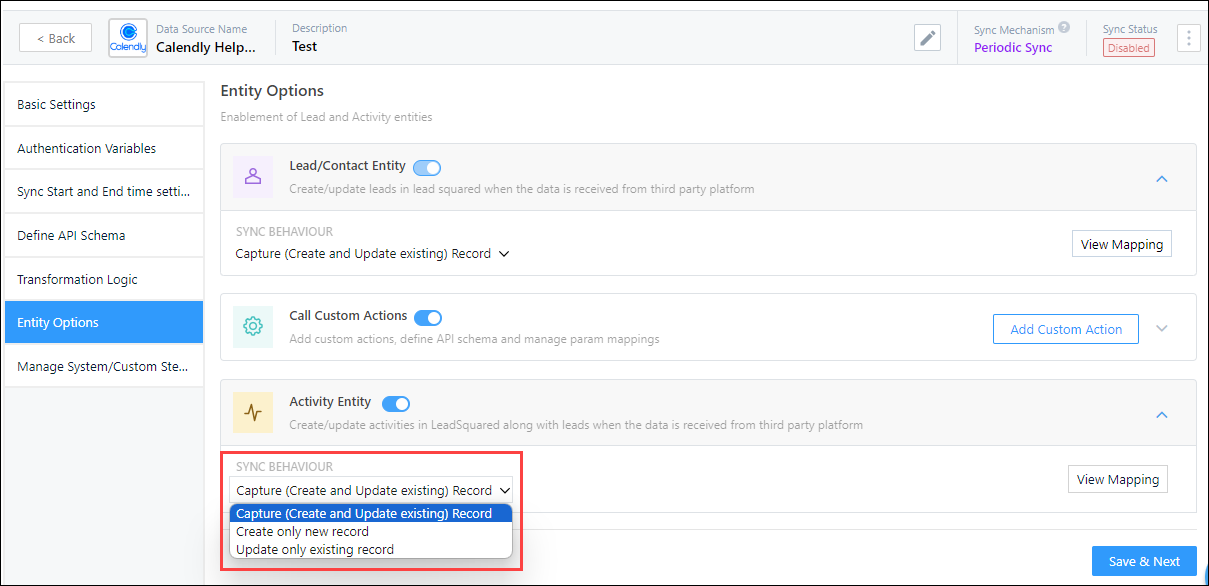
LeadSquared Universal Lead Capture

7.7 Manage System/Custom Steps

Click Add New to add the connector pages you want to display or hide from your users when they’re configuring the connector. Once you’re done, click Save & Close.
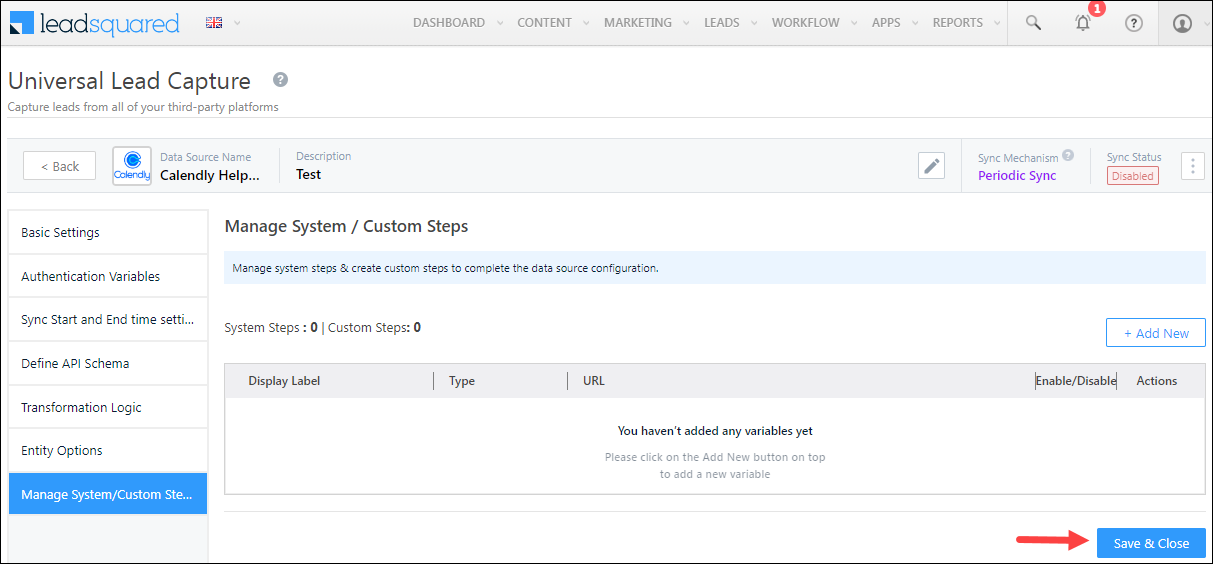
LeadSquared Universal Lead Capture

7.8 Enable Sync

After mapping the data source fields to the corresponding LeadSquared lead fields, enable status sync. To do this, from the SIERA dropdown, click the Slider slider, and then click Save & Close. Once the sync is enabled, LeadSquared will pull leads from your data source at regular intervals, depending on the Sync Frequency configured.
LeadSquared Universal Lead Capture

You can also manually sync leads, outside of the Sync Frequency that’s configured. This is especially useful if you have old/legacy lead data in your data source provider’s account.

  1. From the SIERA dropdown, click Sync Manually.
  2. On the Sync Manually pop-up, enter Start Date, End Date, and Time during which the lead data was captured in your TradeIndia account.
  3. Once you’re done, click Submit. The leads that were captured during the selected time frame will be synced to LeadSquared.

Note:

  • It is recommended you run a manual sync job right after you configure the connector. This will ensure all the historic lead data available on your data provider’s account will be synced to LeadSquared.
  • The Sync Start Time & End Time must be within a date range of seven days (e.g., from 20th July to 26th July).
  • You can sync up to 4,000 leads at once.
LeadSquared Universal Lead Capture


8. Other Actions

You can perform the following actions on your custom integration –

  • Edit Basic Information – Change and edit the basic details (data source name, logo, etc.).
  • View Logs – View logs of all the sync jobs that have taken place.
  • Delete Data Source – Delete the entire data source, including all the settings.
LeadSquared Custom Universal Lead Capture


Any Questions?

Did you find this article helpful? Please let us know any feedback you may have in the comments section below. We’d love to hear from you and help you out!

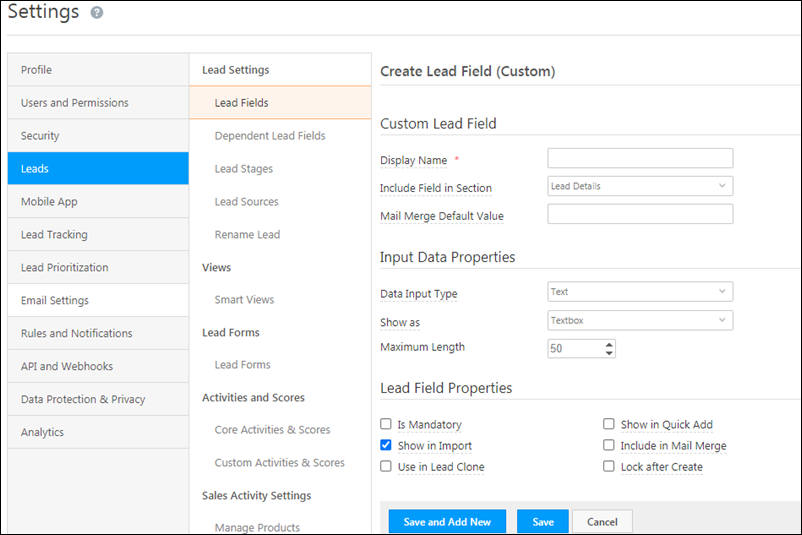
How to Freeze the Action Column?

You can freeze (lock) the Actions columns to ensure it’s are visible at all times, when scrolling horizontally and viewing other lead details on the page.

On the Manage Leads or Smart Views pages, the Freeze Action Column LeadSquared Freeze icon is present on the Lead Grid, next to Actions.

LeadSquared Platform Updates

Activity History Tab Connector

1. Feature Overview

If you have common leads across multiple LeadSquared accounts, use the Activity History Tab Connector to view their activity history in the same account in real-time (without switching between different accounts).
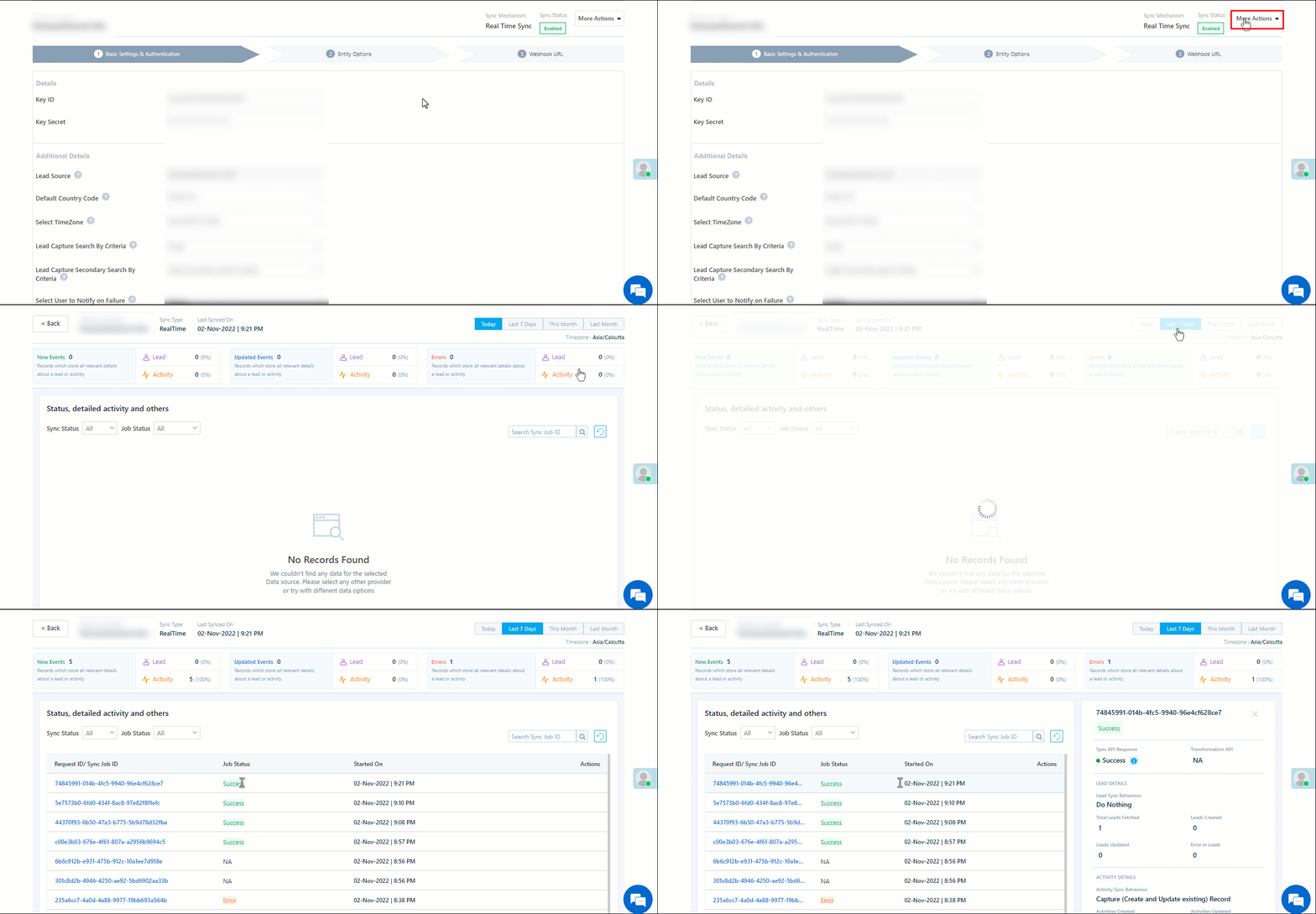
The connector fetches and displays Phone Call activities and Custom Activities posted on common leads across your LeadSquared accounts. You can also display these activities on third-party mobile or web applications.
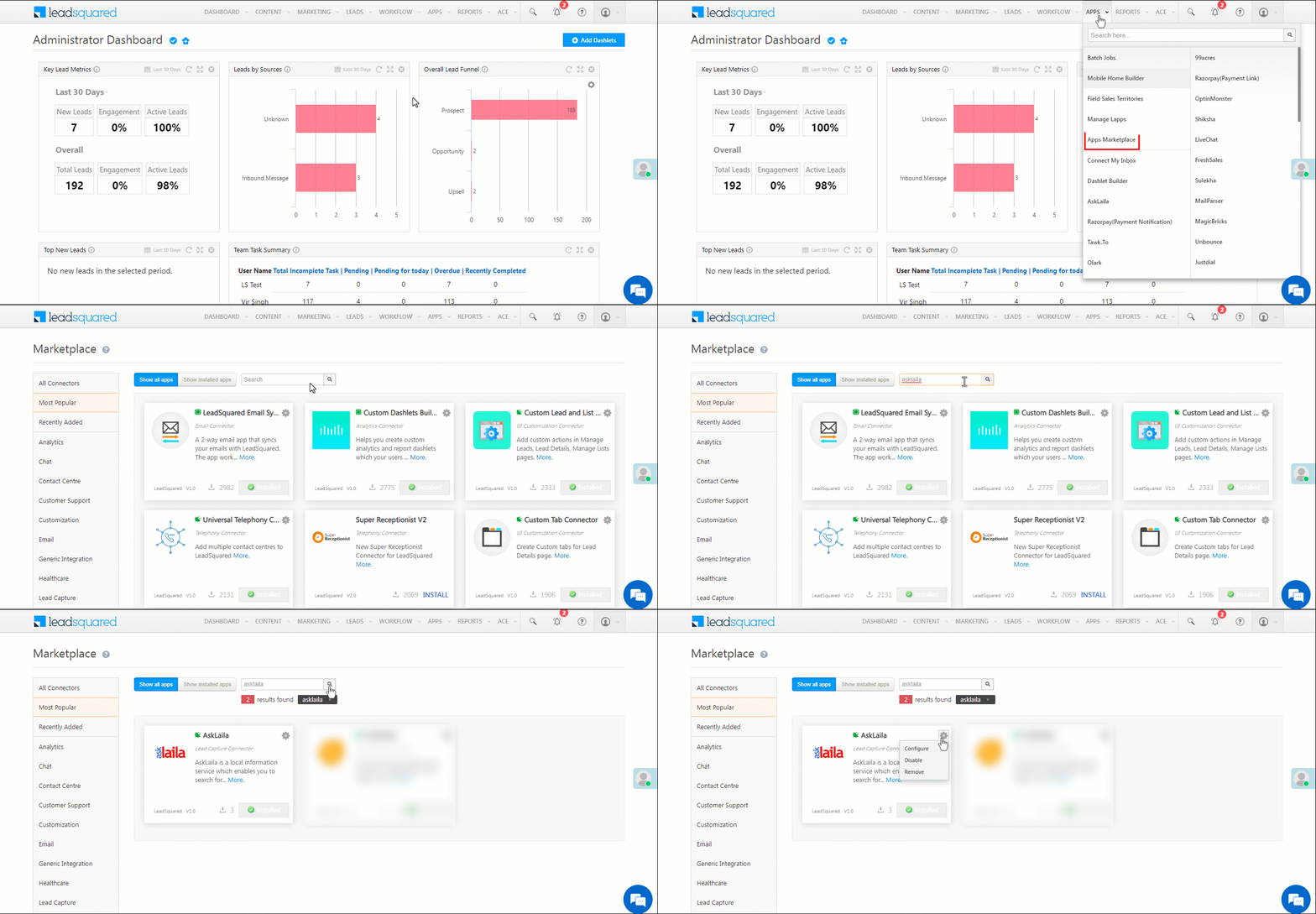
To know more about the connector, please refer to Activity History datasheet.

LeadSquared Activity History Tab Connector


2. Prerequisites

  • You must be the administrator of your LeadSquared account to install and configure this connector.
  • This is a paid feature. To enable it, please reach out to your account manager, or write to support@leadsquared.com.
  • If you want to display activities between two LeadSquared accounts, the Custom Tab Connector must be installed and configured on the account in which you want to display the activities.


3. How it Works

Once this connector is installed and configured, an app URL is generated. This URL must be configured using the Custom Tab Connector in the account you want to display the activity history in. You can also use the URL to render the activity history page in a third-party application.

On the LeadSquared account where you want to display the activities –

  1. Install and configure the Activity History Tab Connector.
    1. Add the API Access Key and Secret Key of the second account, from where you want to fetch activities.
    2. Select the activities you want to display, along with the unique lead field (the search key), and Save the details. The app URL is generated.
  2. On the Custom Tab Connector, create a new tab and add the app URL. To know how to create a custom tab, please refer to Custom Tab Connector.
  3. Navigate to the Lead Details page. You can view the list of activities that are fetched for all the common leads.

To display these activities outside LeadSquared, you can similarly embed the Activity History Connector app URL on any third-party application.


4. Install the Connector

On the LeadSquared account in which you want to display the activities –

  1. From the main menu, navigate to Apps>Apps Marketplace.
  2. Search for Activity History Tab Connector, and click Install.
    • Alternatively, you can find the connector on the left panel, under UI Customization.
  3. Once installed, hover your cursor over settings, and click Configure.

LeadSquared Activity History Tab Connector


5. Configure the Connector

After the connector is installed, add the API Access Key and Secret Key of the second account, from where you want to fetch the activities.

  1. On the Configure Activity History Tab Connector pop-up, click Create Activity History Tab.
  2. On the Activity History Tab on Lead Details screen, provide the following details –
    1. Tab Name – A display name for the tab.
    2. Access Key & Secret Key – The API Access Key and Secret Key of the second account. To obtain these keys, navigate to My Profile>Settings>API and Webhooks>API Access Keys.
    3. Select Unique Field – Select the unique lead field which will be used to identify common leads between both accounts. You can choose between Email Address and Phone.
    4. Select Activity Types – Select the activity type you want to display on the custom tab. You can select both activity types.
  3. Once you’re done, click Save. You’ll get a message stating the “App URL Created Successfully”. Copy and save this URL.

LeadSquared Activity History Tab Connector


6. Create Custom Tab

In order to display the activities added to common leads, create a custom tab.

Note: This step assumes that you’ve already enabled and installed the Custom Tab Connector on the account in which you want to display the activities.
  1. Navigate to Apps>Apps Marketplace, and search for the Custom Tab Connector.
  2. Hover your cursor over Settings icon, and click Configure.
  3. On the Configure Custom Tab Connector pop-up –
    1. Title – Enter the display title for the custom tab.
    2. URL – Paste the app URL you copied in the previous step.
  4. From Show Tab In, choose where you want to display this tab.
  5. Once you’re done, click Save.

Activity History Tab Connector


7. View Activities

  1. Navigate to the Manage Leads page, and click on any common lead present in both accounts.
  2. On the Lead Details page, click the custom tab you created in the previous step.
  3. Here, you can view the list of activities that were posted on this lead in the second account.

LeadSquared Activity History Tab Connector


Any Questions?

Did you find this article helpful? Please let us know any feedback you may have in the comments section below. We’d love to hear from you and help you out!