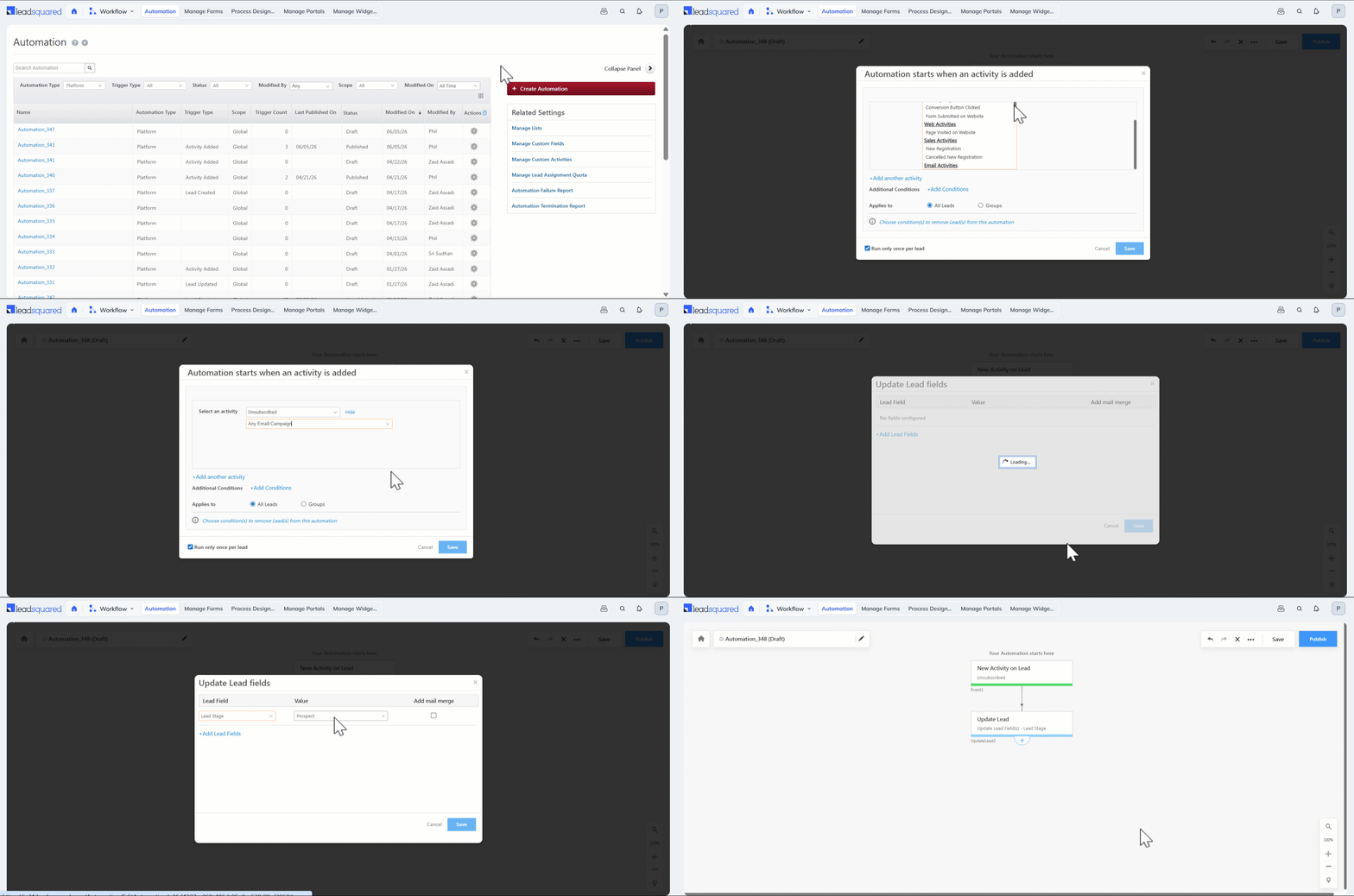
LeadSquared WhatsApp Integration with Zoko

1. Feature Overview

Zoko’s WhatsApp self-serve solution helps you engage your customers in a simple, secure and reliable way. Zoko facilitates customer support and other marketing efforts through WhatsApp.

LeadSquared offers WhatsApp integration to help users communicate with their leads. Our WhatsApp functionality supports integrations through other solution providers like InfobipKaleyra, and Gupshup. This article helps you set up WhatsApp messaging through LeadSquared using Zoko as your service provider.


2. Prerequisites

If you’re not familiar with LeadSquared’s WhatsApp integration, see WhatsApp Business Messaging Connector. For frequently asked questions, see WhatsApp Business FAQs.

  1. Reach out to us at support@leadsquared.com regarding Zoko WhatsApp integration.
  2. Get an approved WhatsApp Business Number and Account.
  3. Submit Message Templates for Approval. To know how to do this, refer to Add WhatsApp Templates to LeadSquared.


3. Installation

To know how to install the WhatsApp Business connector, refer to WhatsApp Business Messaging Connector.


4. Configuration

Once the connector is installed, add and configure your WhatsApp phone numbers to the connector.

4.1 Basic Details
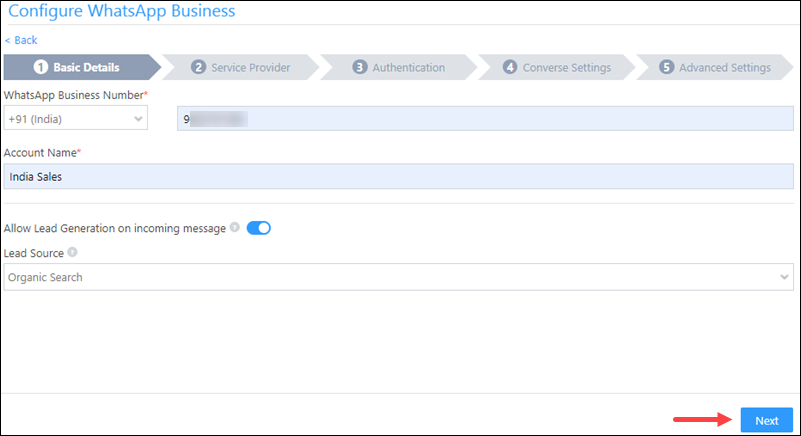
WhatsApp Zoko LeadSquared Integration

Field Description
WhatsApp Business Number Select the country code, and provide your WhatsApp business number. This field is mandatory.
To get your WhatsApp business number, contact your Zoko account representative.
Account Name Provide a relevant name for your connector. This field is mandatory.
Allow Lead Generation on incoming message EnableSlider to allow automatic lead creation when you receive messages from unknown mobile numbers.
Lead Source From the dropdown, select a lead source for your leads.

Once you’re done, click Next.

4.2 Service Provider

From the available options, select Zoko and click Next.
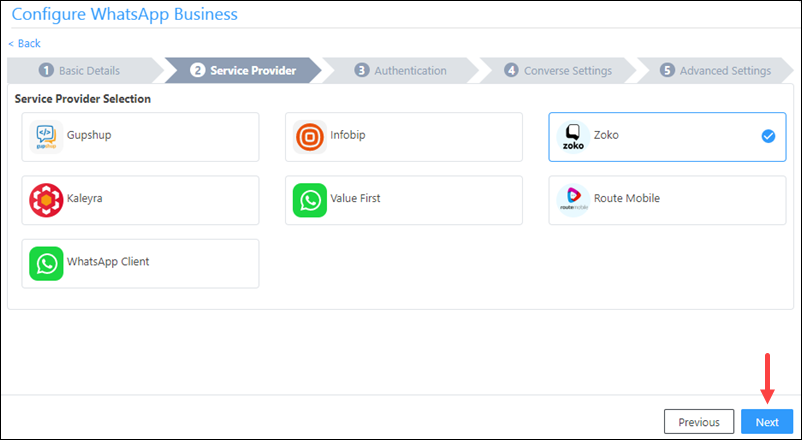
WhatsApp Zoko LeadSquared Integration

4.3 Authentication Set-up

On this screen, enter –
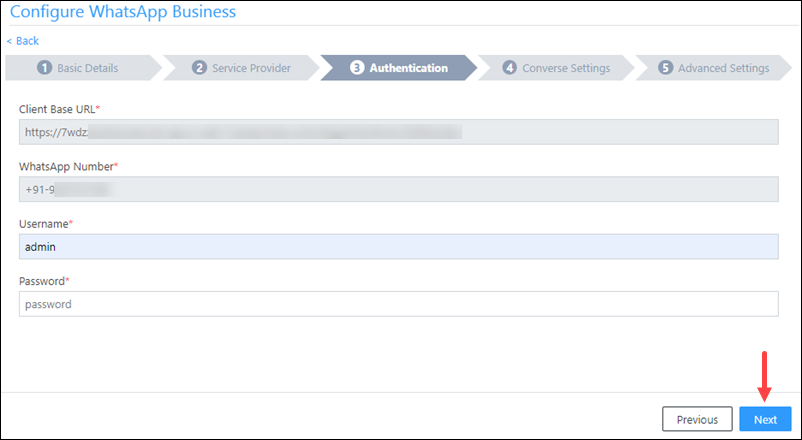
WhatsApp Zoko LeadSquared Integration

Field Description
Client Base URL The base URL is listed here. This is a non-editable field.
WhatsApp Number The WhatsApp business number you provided in the Basic Details screen. This is a non-editable screen. To change the number, navigate back to the Basic Details screen, and change the number there.
Username Pass the following username – chat.zoko.io
Password Your Zoko account’s API key. To obtain the key, from your Zoko account, navigate to Settings>API Keys, hover your cursor over the key, and select Click here to Copy.

To know more, refer to How to Find the Zoko API Key.

Once you’re done entering all the details, click Next.

4.4 Converse Settings

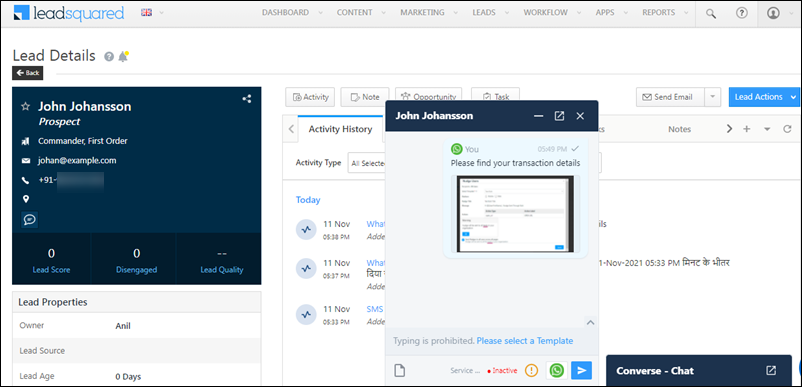
LeadSquared Converse is an instant messaging feature that allows you to have real-time conversations with your leads via WhatsApp.
LeadSquared WhatsApp Integration

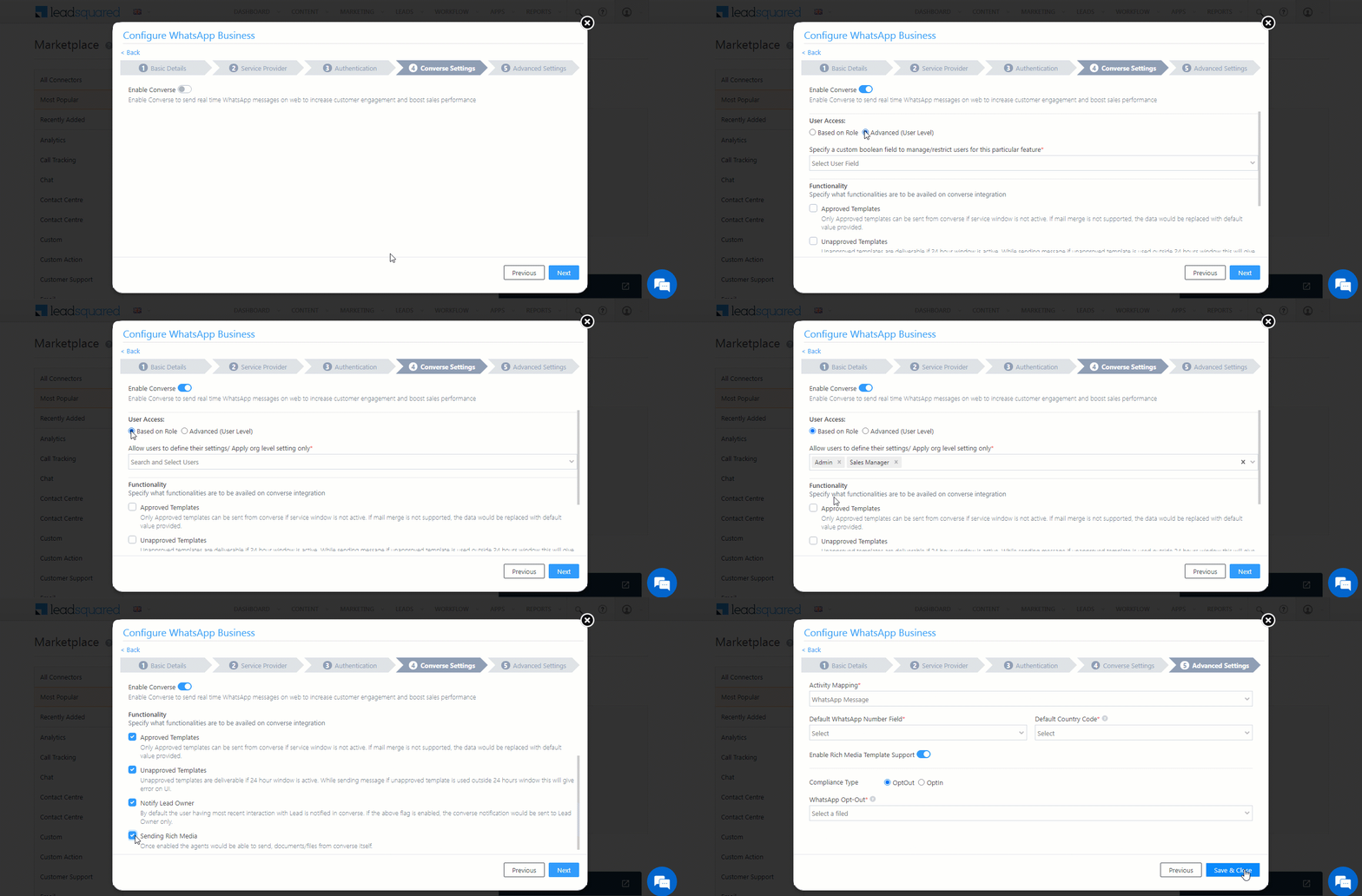
To integrate LeadSquared Converse with WhatsApp, complete the following steps –

  1. On the Converse Settings tab, toggle the Enable Converse Slider slider.
  2. Under User Access, grant permissions to users who can communicate with leads through the LeadSquared Converse.
    • Based on Role – From the Search and Select Users dropdown, select the LeadSquared user roles that can send messages through LeadSquared Converse.
    • Advanced (User Level) – Based on the value entered in the selected user boolean field (e.g., for the user Sam, the “Is Employee” user field contains the value “Yes”), the user will be able to send messages through LeadSquared Converse. From the Select User Field dropdown, select a relevant boolean field.
  3. Functionality – The following additional settings must be configured –
    • Approved Templates – Enable this functionality to allow your users to send approved WhatsApp templates to your leads.
    • Unapproved Templates – Enable this functionality to allow your users to send unapproved WhatsApp templates to your leads. These can only be sent if the 24-hours service window is active.
    • Notify Lead Owner* – When enabled, only lead owners will get notifications of the WhatsApp messages a lead sends. When disabled, all logged-in users will receive notifications of these WhatsApp messages.
    • Sending Rich Media – Enable this functionality to allow your users to send media files in the WhatsApp messages.

Note:

  • *Message notifications are only sent to one user, i.e., either the Lead Owner or to the user (other than the Lead Owner) that sent the WhatsApp message to the lead. When the Notify Lead Owner setting is enabled, only the Lead Owner will get notified, while the user who sent the message will not get a notification.
  • If you enable the Send Rich Media option, you must also enable the Approved Templates option. This ensures that you can add your media files to a template when messaging your leads.
LeadSquared Gupshup Integration

4.5 Advanced Settings

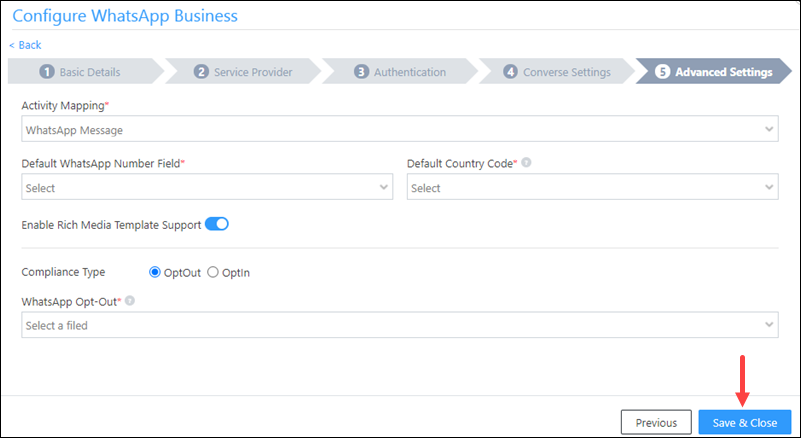
On this screen, provide the following details –

  • Activity Mapping – A LeadSquared activity field to your WhatsApp messages. This is the activity that will be posted every time a WhatsApp message is sent or received.
  • Default WhatsApp Number Fields – The number you set as the default phone number will be automatically selected when you’re sending a WhatsApp message to a lead. You can also select other numbers that are available from the Add Another Number dropdown.
  • Default Country Code – The default country code will be used to send messages to a phone number that’s stored in a custom field, if no country code is listed.
  • Enable Rich Media Template Support – If you want to include media files in your WhatsApp message, you must enable the Slider slider.
  • Compliance Type – Here, you can select the compliance type for the WhatsApp template, by choosing either WhatsApp Opt-out or Opt-in.
  • WhatsApp Opt-out – Your leads can opt-in or out of receiving WhatsApp messages on the basis of this field. From the dropdown, select a LeadSquared lead field for the WhatsApp opt-in/opt-out functionality.
Gupshup WhatsApp Integration

Note: You must create a custom lead field of boolean type to map to the WhatsApp opt-out functionality. For example, you may create a custom lead field called “WhatsApp Opt Out”. Leads for whom the field is selected/checked won’t receive WhatsApp messages.

Click Save & Close when you’re done.

  • If your credentials are correct, you’ll see the success message highlighted below.
  • If they were incorrect, the integration will fail.


5. Webhook Configuration

To receive incoming messages from your leads, as well as to get the delivery status (Sent, Delivered, Read, or Failed) of your outbound messages, configure the LeadSquared webhook in your Zoko account.

In LeadSquared

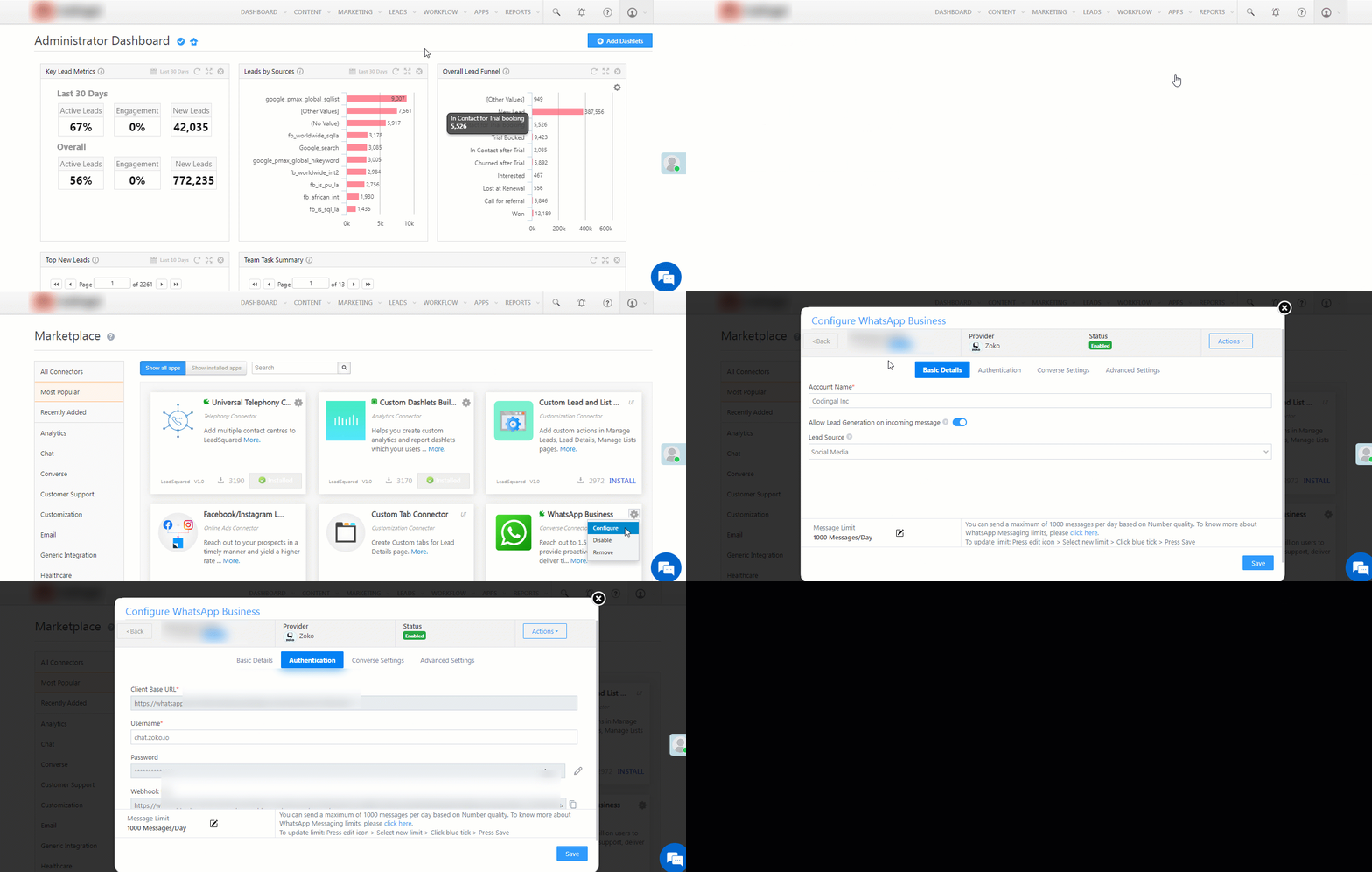
  1. Once the configuration is completed and saved in your LeadSquared account, a webhook is generated.
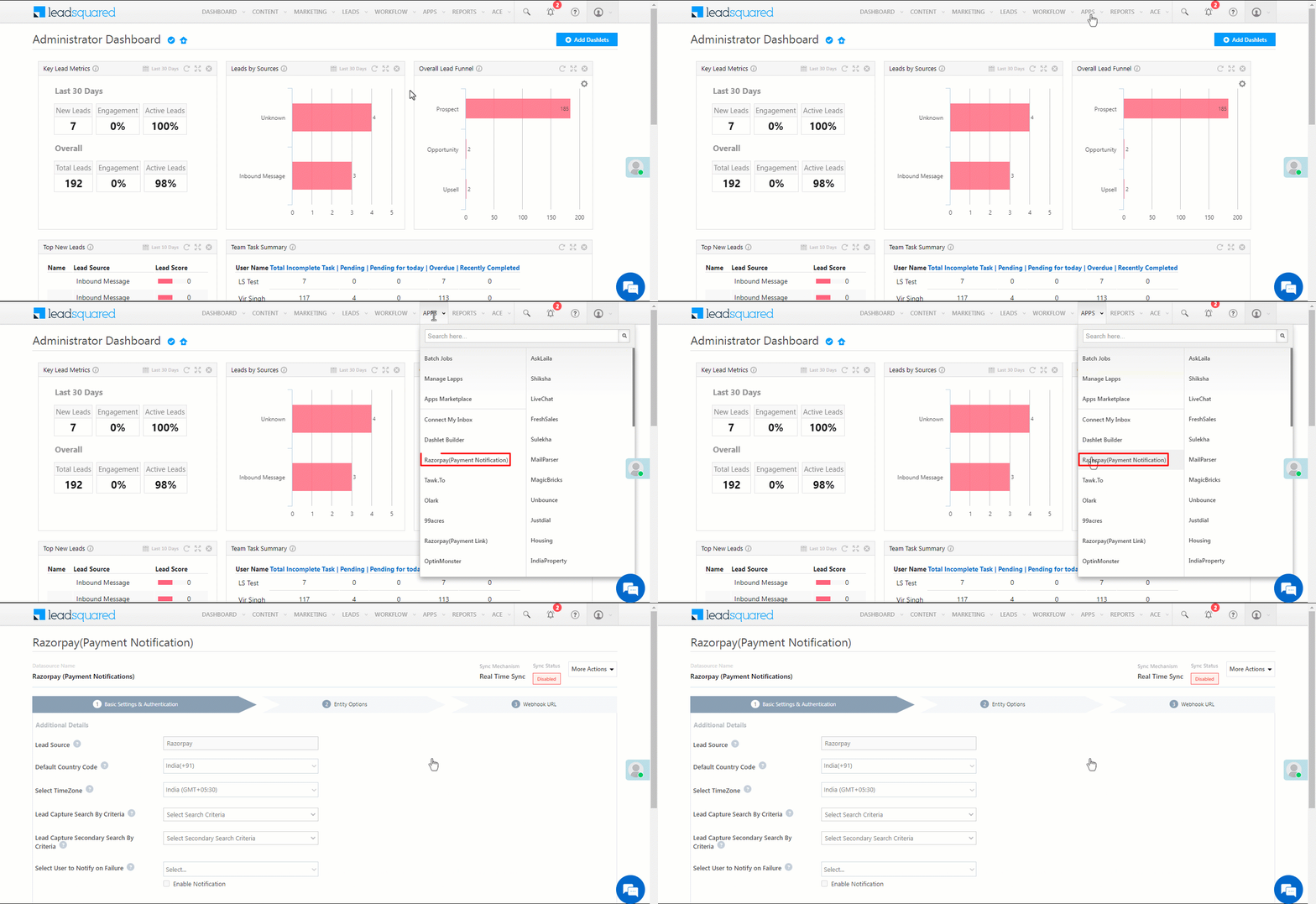
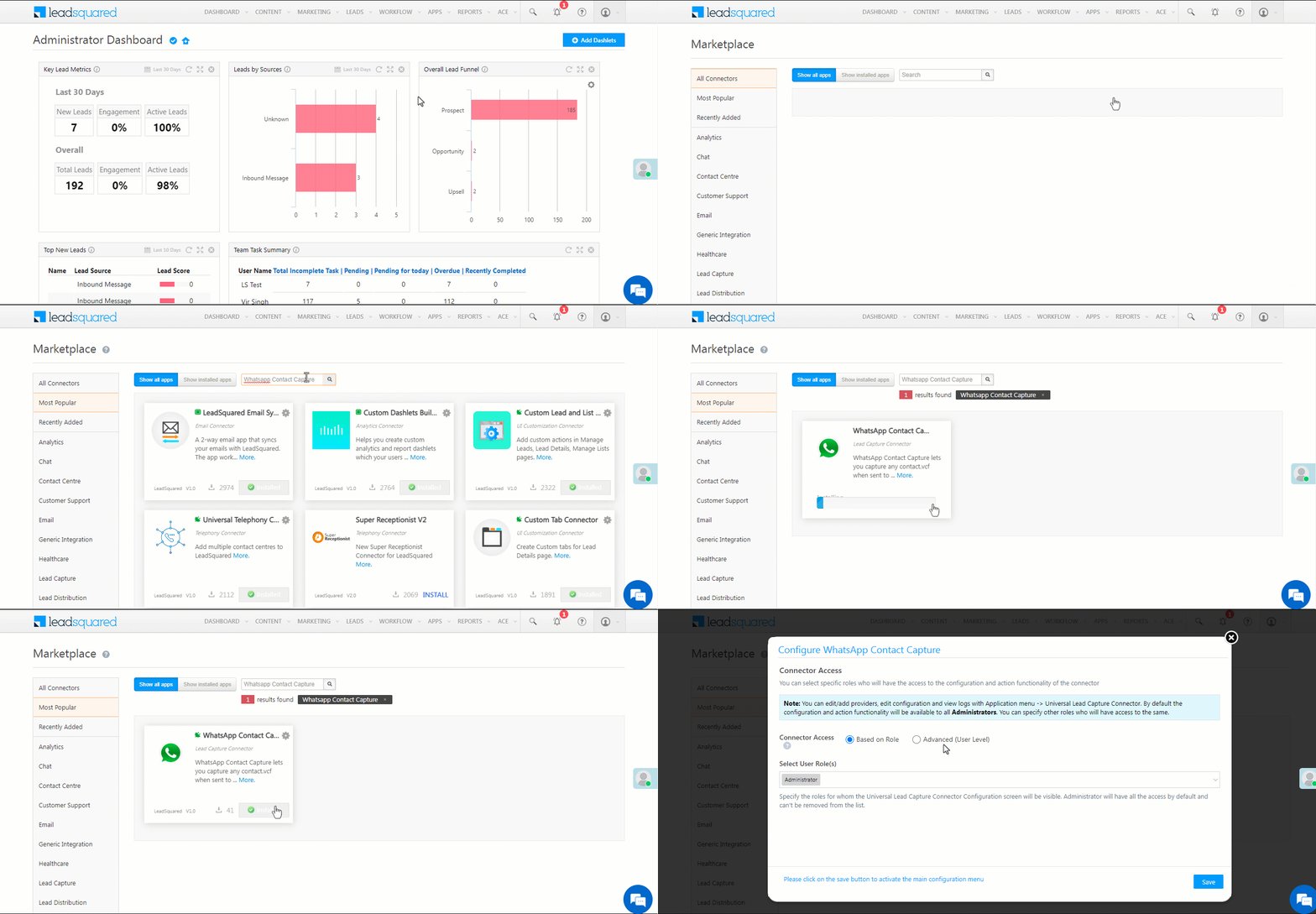
  2. To access the webhook, navigate to Apps>Apps Marketplace, search for the WhatsApp Business Connector, and click Configure.
  3. On the Configure WhatsApp Business pop-up, select the Zoko integration.
  4. On the Authentication tab, you’ll find the webhook alongside Notifications Webhook URL. Copy this webhook.
LeadSquared Zoko

In Zoko

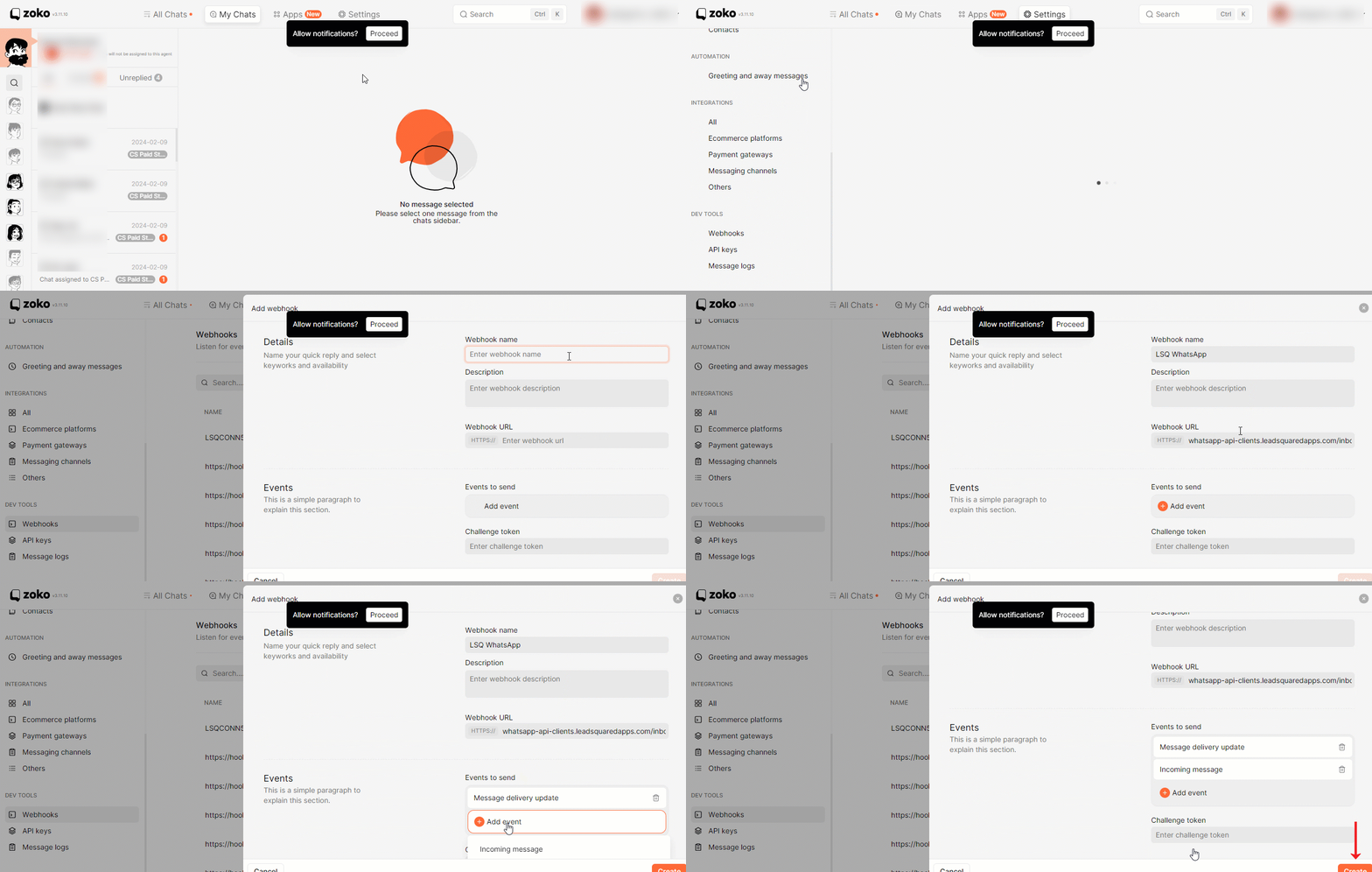
  1. Login to your Zoko account, and click Settings.
  2. Then, under Dev Tools, click Webhooks.
  3. Enter the webhook URL you copied from LeadSquared.
  4. Under Events to send, select Message Delivery Update and Incoming Message.
  5. Once you’re done, click Create.

LeadSquared Zoko


6. Conversing with Leads via WhatsApp

Integrating Converse with LeadSquared’s WhatsApp connector will enable your users to have real-time conversations with your leads through WhatsApp. Using templatised messages, you’ll be able to attach and send media files (such as images, documents, etc.) in your conversations. To know more, refer to LeadSquared Converse.

LeadSquared WhatsApp Integration


5. Next Steps

Once the connector is successfully installed, you can proceed to add WhatsApp templates and finally message your leads. For details, see Adding WhatsApp Templates to LeadSquared.


FAQs

What namespace should I use for WhatsApp message templates with buttons when using Zoko as the provider?
If you’re using Zoko as your WhatsApp provider, make sure to set the namespace to template_type_button for templates that include buttons. This is a Zoko-specific requirement, and using the wrong namespace may cause your template to fail.


Any Questions?

Did you find this article helpful? Please let us know any feedback you may have in the comments section below. We’d love to hear from you and help you out!
Actions in Lead Automation

This article takes you through the various actions available in the automation feature.
Once set up, these actions will execute based on the conditions you define. You can easily automate your entire business use case from the conditions and actions available.

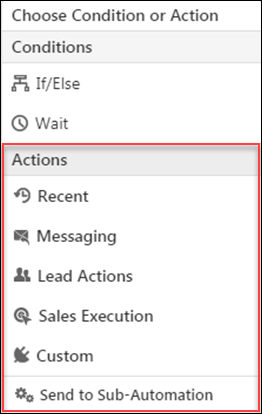
Actions in Automation


Messaging

To learn how to send email/SMS to leads, see Automation Actions – Messaging.


Lead Actions

To learn how to add activities to leads, add leads to lists, remove leads from lists, star/unstar leads, tag/untag leads, update leads and update activities (for activity based triggers), see Automation Actions – Lead Actions.


Sales Execution

To learn how to notify sales users, create tasks and distribute leads among them, see Automation Actions – Sales Execution.


Custom

To learn how to post activities through webhooks, see Automation Actions – Custom


Send to Sub-Automation

To learn how to use the sub-automation action, see Automation Actions – Sub Automation.

Lead Automation Conditions – If/Else

1. Feature Overview

The If/Else condition lets you setup Yes/No criteria. It allows you to set up alternative courses of action based on whether your criteria is met or not. You can set up If/Else conditions on lead, activity and task fields.

A few of the many applications of this condition are mentioned here –

Leads

  • If a lead is from Bangalore, add to the ‘Bangalore Leads’ list. Else, add to the ‘Other Leads’ list.
  • If a lead is from an online source, send a welcome email. Else set up a follow-up call.
  • If a lead is interested in ‘Product A’ send ‘Email A’. Else send ‘Email B’.

Opportunities

  • If an opportunity has a monthly income of 50,000, the Opportunity Status is ‘Relevant’. Else, the status is ‘Not Relevant’.
  • If an opportunity clicks on an email sent, then the Opportunity Stage is ‘Open’. Else, the stage is ‘Lost’.

Activities

  • If an activity is posted, say ‘Email Link Clicked’, then send an email to the lead.
  • If an ‘Unsubscribed’ activity is posted, then add the lead to a ‘Not Interested list’.

Tasks

  • After creating a task, say ‘Meeting’, wait till 4 hours. If the task status is pending, notify the user. Else, post an activity, ‘Meeting Completed’ for example.

Accounts

  • After an account is updated, if the account stage changes to ‘Customer’, send a welcome email. If the account stage changes to ‘Opportunity’, send nurturing emails instead.


2. Single If/Else Condition

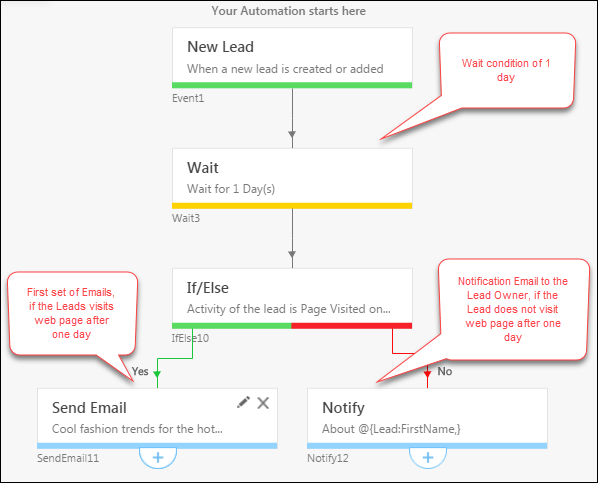
Consider, if you give an If condition ” Lead visited on webpage” after the Wait condition of ”One day”.

condition set

Here If/Else conditions act as a Yes/No criteria for the Wait condition. After the wait condition of 1 day, if the Lead visits the web page, an Email is sent to the Lead. If the Lead does not visit the web page after 1 day, a notification Email is sent to the Lead Owner to follow-up with the Lead.

Setting Conditions on Activity and Task Triggers

Conditions on triggered activities and added activities

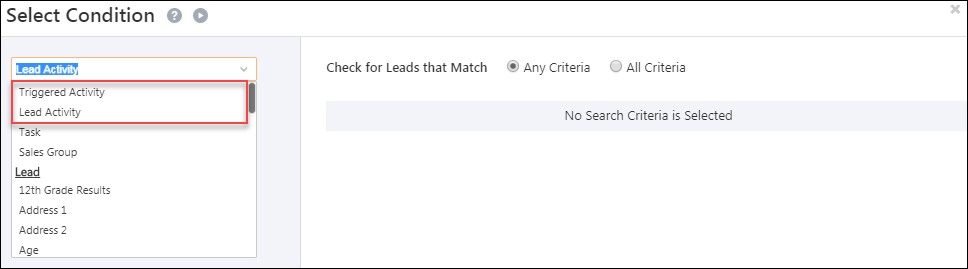
  • For activity based automations, where the trigger is new activity on a lead, activity update on a lead, if you choose the ‘Triggered Activity’ option in the in the If/Else condition then it will relate only to the triggered event.
  • If you select ‘Lead Activity’, it will relate to all corresponding events on the lead including past activities.

conditions on triggered activities

Conditions on triggered tasks and added tasks

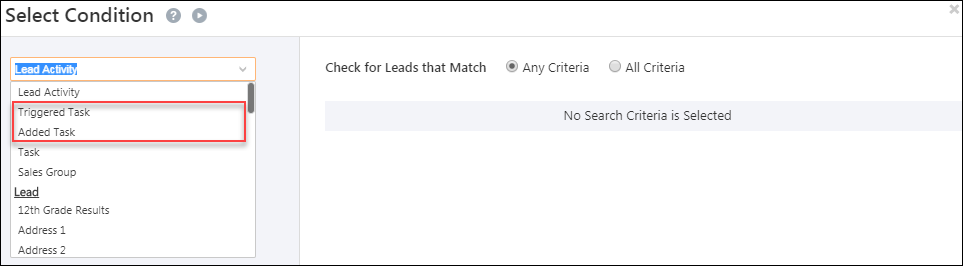
  • If you set up task-based automations, where the trigger is Task Create, Task Reminder or Task Complete, you can then set up conditions on the triggered task in the If/Else action card.
  • If you add a task at some point in your automation using the ‘Create Task’ card, you can set conditions on it in a subsequent If/Else card.

task conditions in If/Else automation


3. Multi If/Else Condition

Use the Multi If/Else condition when you have a large number of outcomes to automate. The If/Else cards here will be aligned at the same horizontal level and the performance will be faster than using many single If/Else cards.

Example Use Case

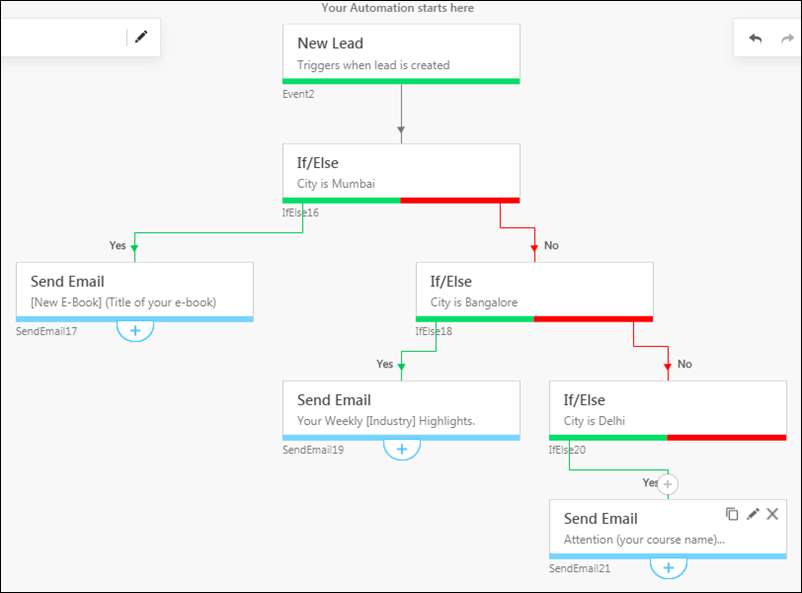
Let’s say you want to send certain email campaigns to your leads based on their location. One way you could do it would be to set up multiple if/else cards as follows –

when to use multi if/else

Apart from being more tedious to set up, the configuration above will also run slower due to the multiple levels a lead will pass through.
Alternatively, a multi if/else card for the same use case would not only be easier to set up but would also execute faster –

multi if else example

Set Up the Multi If/Else Condition

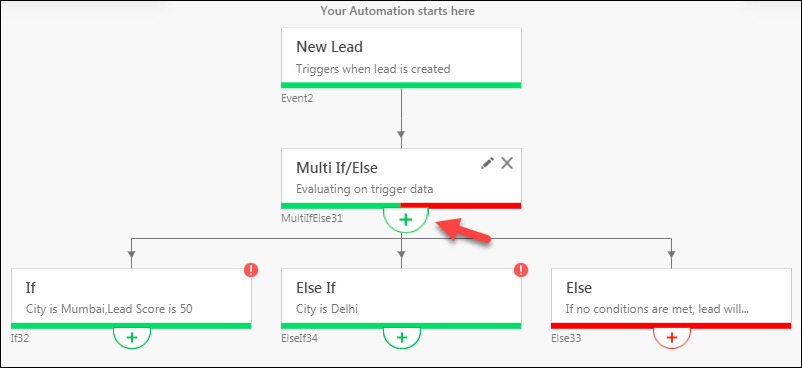
Scroll down under Conditions, then click Multi If/Else.

multi if else condition

After adding the conditions you require, click Set Conditions.

setting new conditions

Continue to click the add expand icon to add more If/Else cards.

multi if else cards

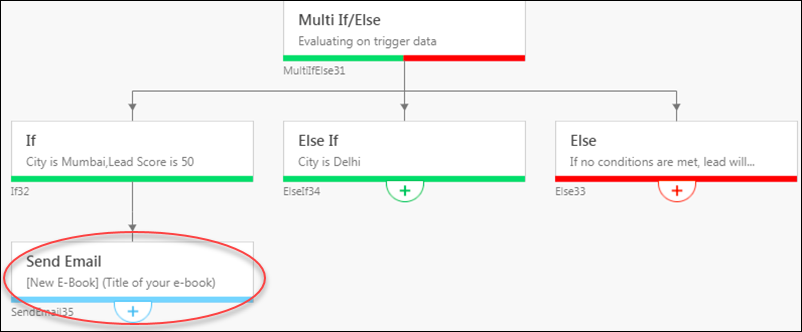
Now add actions under each Else If card and the Else card as required.

add actions


4. FAQs

1. Does the “Between” operator in LeadSquared Automations (If/Else card) include the boundary ranges?

Yes, the “Between” operator in LeadSquared Automations includes the boundary ranges. For example, if the condition is set as Between 6 and 10, the condition will evaluate to True when the value is any of the following: 6, 7, 8, 9, or 10.

LeadSquared Automation FAQs


2. Multi If-Else Execution Behavior in Automation

  • Query: I’ve set up multiple If/Else cards in my automation. Why is only one If/Else condition being executed, even when multiple If/Else card conditions are being satisfied and are true?
  • Explanation: In LeadSquared automation, If/Else cards are evaluated sequentially from left to right. When a condition in an If/Else card is true, the corresponding action is executed, and the flow stops evaluating the remaining If/Else cards. If multiple If/Else conditions are true, the first true If/Else card from the left is executed, and the automation does not proceed to the subsequent cards.
  • Best Practice: To ensure accurate execution, place high-priority If/Else conditions on the left when creating the automation.


Any Questions?

Did this article answer your question? If not, write your question out in the comments section below and we’ll get back to you as soon as possible.

How to Share Opportunities for a Limited Duration

1. Feature Overview

The Opportunity Share feature lets you share an opportunity with a sales user for a configurable period. It also lets you control whether the user can perform read or edit actions on the opportunity.

Note:


2. Example Use Cases

Here is an example of a use case you can achieve using the opportunity share feature –

Sharing opportunities between teams or departments
Let’s look at the example of a bank that offers different products (Home Loan, Personal Loan, etc.). The Home Loans team contacts John, a lead, and sets up an appointment with him. After speaking to him, the Home Loans team gets a new personal loan requirement from John. Here, the Home Loans team can share John’s details with the Personal Loans team.


3. Prerequisites

  • The Opportunities feature must be enabled on your account.
  • Before sharing opportunities, from the advanced configuration settings, you must the Enable Opportunity Sharing.
  • You must enable the opportunity share automation card by contacting your account manager or support@leadsquared.com.
  • You must be an administrator user to create opportunity share automations.


4. Set up Opportunity Share

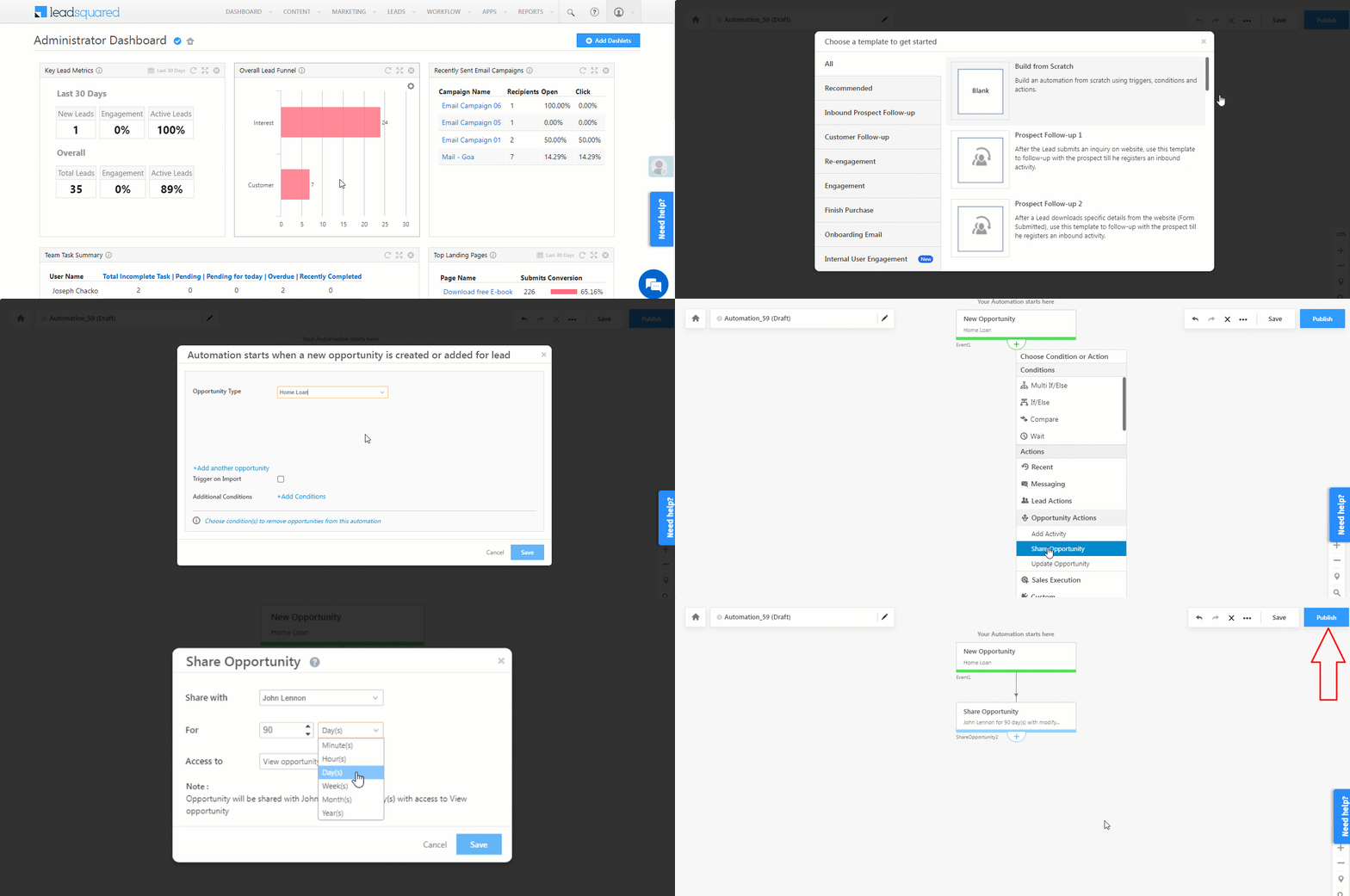
  1. Navigate to Workflow>Automation, and click Create Automation.
  2. Select any of the following triggers –
    • New Opportunity
    • Opportunity Update
    • New Activity on Opportunity
    • Activity Update on Opportunity
    • Task Created on Opportunity
    • Task Completed on Opportunity
    • Task Reminder for Opportunity
  3. After the trigger is selected, click expand, and under Opportunity Actions, click Share Opportunity.
  4. On the Share Opportunity pop-up, configure –
    • Share With – The sales user you want to share the opportunity with.
    • For – Select the duration for which you want to share the opportunity.
    • Access to – Select if you want to provide view-only access or view and modify the opportunity access.
  5. Once you’re done, click Save, and then click Publish. The automation is now live.

LeadSquared Opportunity Share API


5. View Opportunity Share History Tab

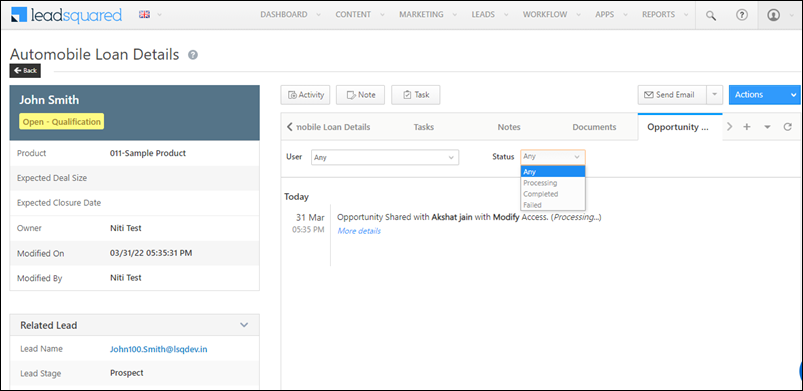
From the Manage Opportunities page, you can view the opportunity share history for any opportunity, including details such as the duration the opportunity was shared for and the source (API or Automation). The page can be filtered by users the entity was shared with and the share status (Processing, Completed, Failed).

Lead and Opportunity Share


6. Stop Sharing Opportunity Automation Card

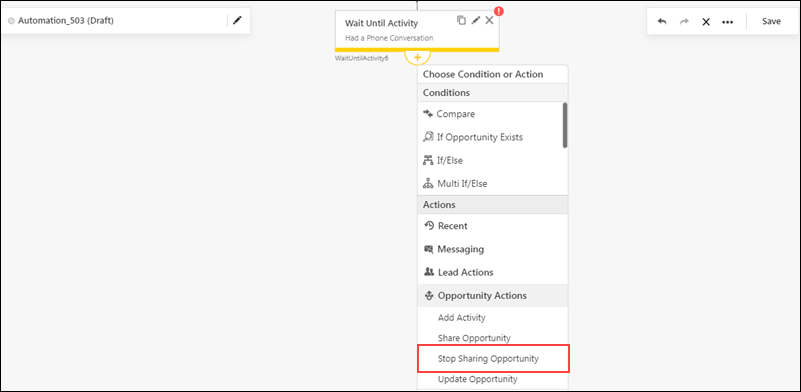
Use the Stop Sharing Opportunity card to stop sharing opportunities when users complete their required activities. For example, you can revoke access once a user completes a document verification process and posts a ‘Document Collection’ activity. To know more, refer to Opportunity Automation Actions.

LeadSquared Automation Opportunity Share


Any Questions?

Do you have questions or issues with the content in this article? Let us know in the comments section below. We’ll get back to you asap!

Integrate CampusNexus with LeadSquared

1. Feature Overview

This connector periodically captures leads and activities from your CampusNexus account to LeadSquared. Once the leads and activities are synced, you can leverage LeadSquared’s CRM features to nurture and convert your leads.


2. Prerequisites

  • You must be the Administrator of your LeadSquared account.
  • You must have an active CampusNexus account.
  • This is a paid feature. To enable it, reach out to your account manager, or write to support@leadsquared.com.


3. How it Works

To pull lead and activity data from your CampusNexus account to your LeadSquared account, configure the CampusNexus connector instance, and add your CampusNexus account credentials. Once this is done, enable sync for the connector instance in LeadSquared. This will begin the lead and activity capture process.


4. Installation

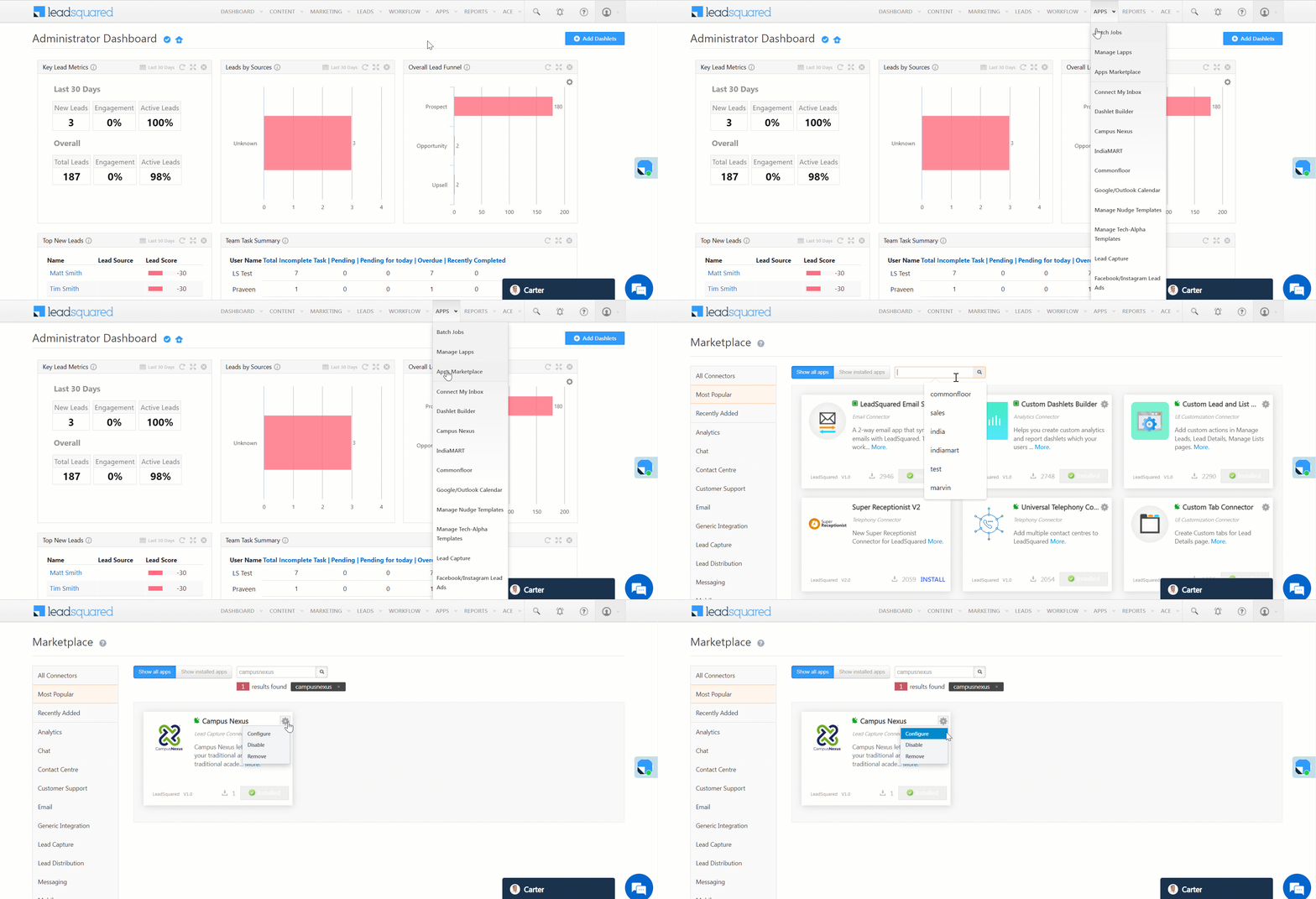
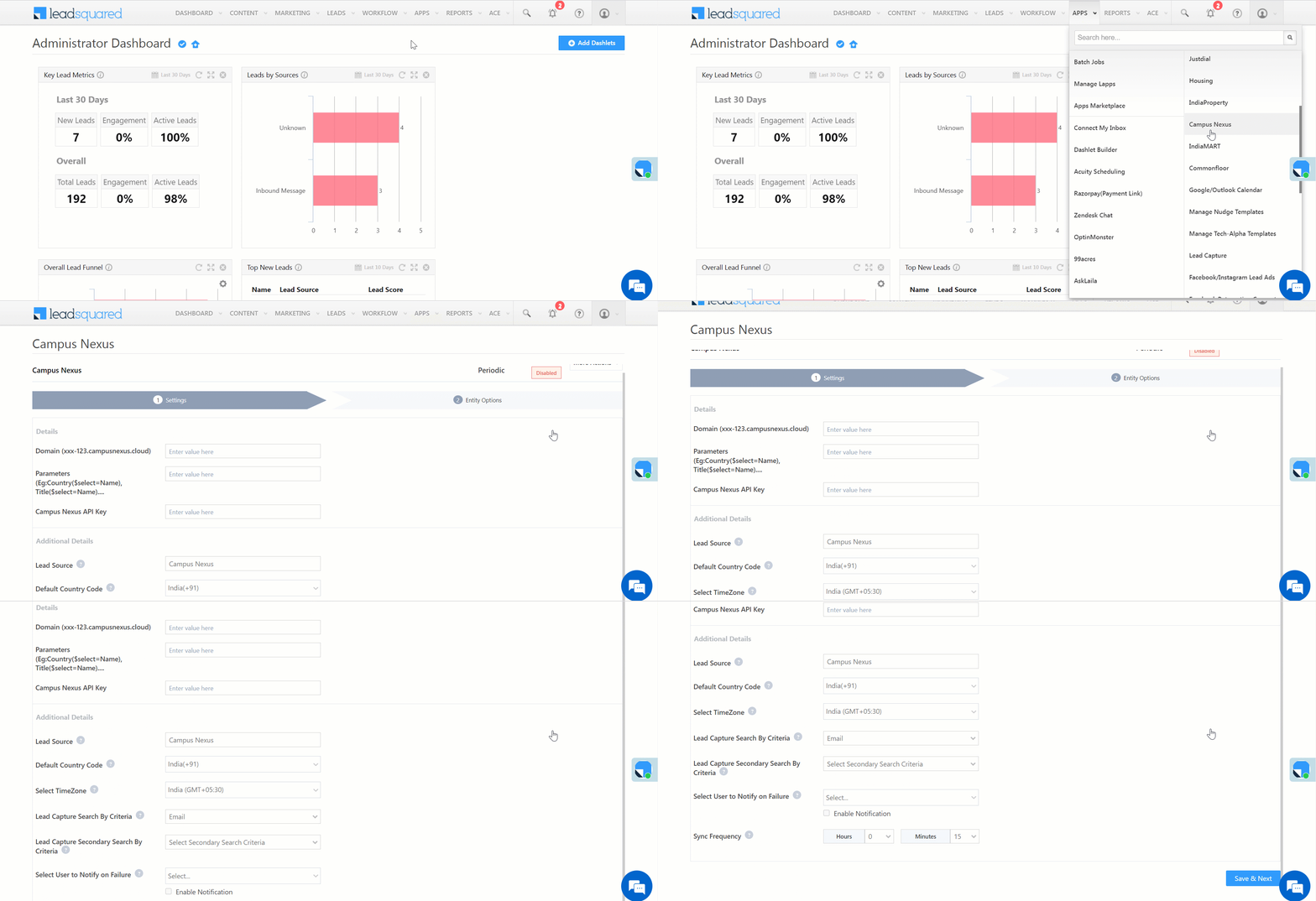
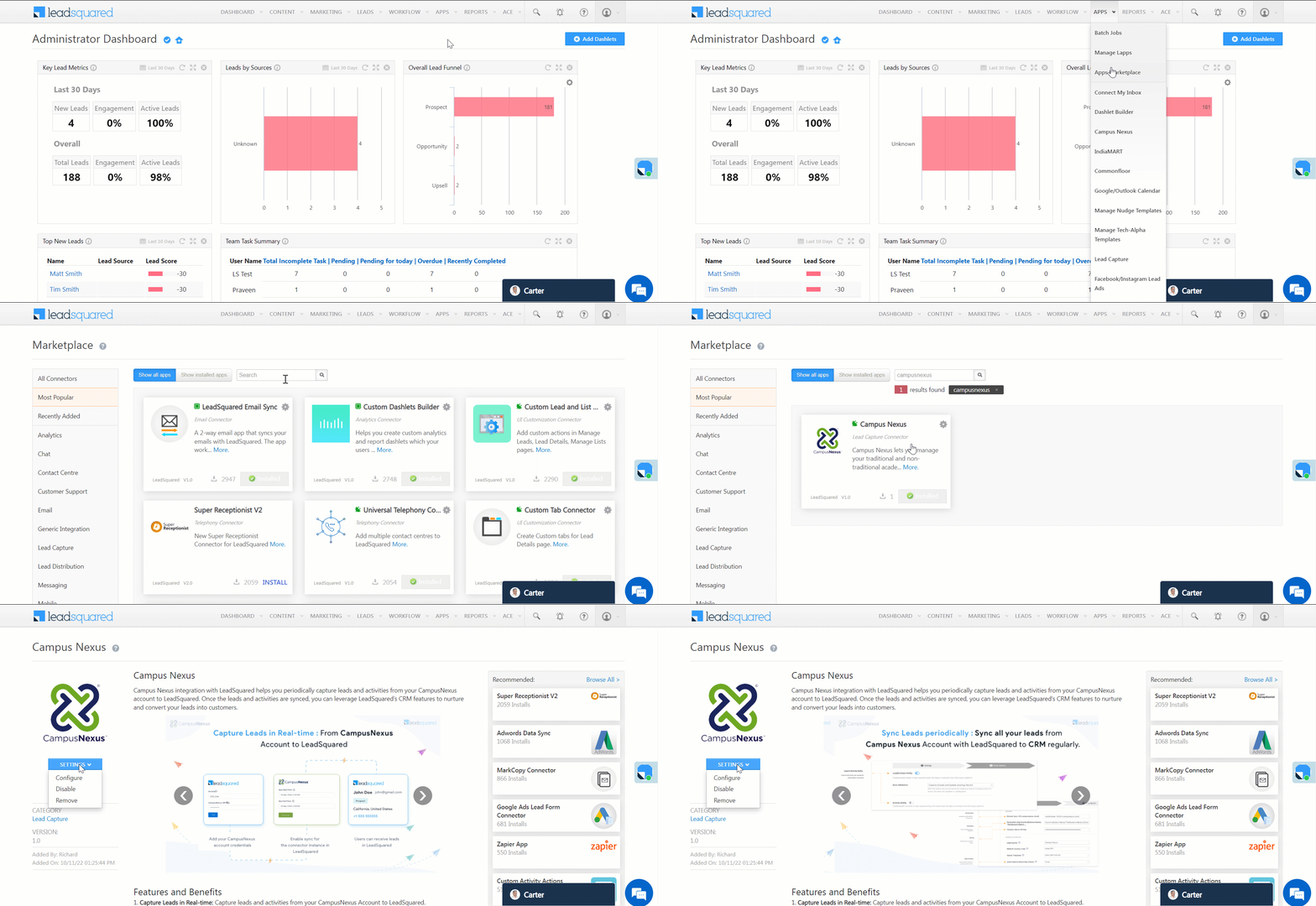
  1. Navigate to Apps>Apps Marketplace.
  2. Search for CampusNexus, and click Install.
    • Alternatively, you can find the connector on the left panel, under Lead Capture.
  3. Once installed, hover your cursor over , and click Configure.

LeadSquared - Campusnexus installation


5. Configure the Connector

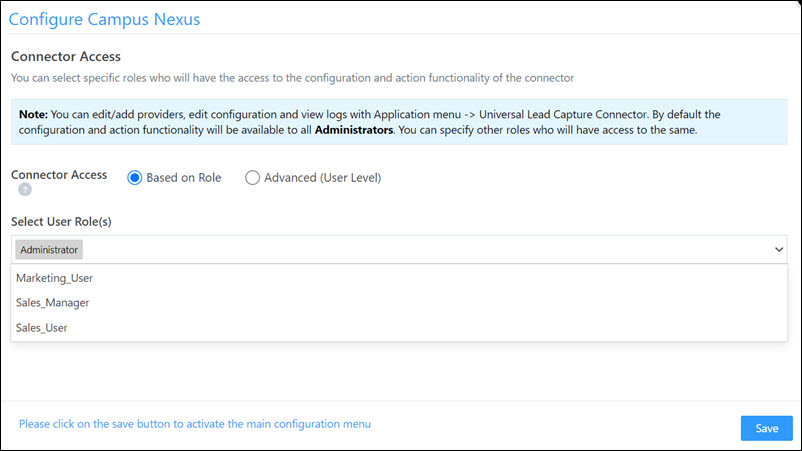
Once you’ve installed the connector, on the Configure CampusNexus pop-up, configure the connector access for the non-Admin users in your account. Only those users for whom access is granted can view and access the connector (under the Apps main menu).

  1. Select if you want to grant Connector Access that’s Based on Role or Advanced (User Level).
    • Based on Role – From the Specify Roles dropdown, select the LeadSquared user roles that can use the connector.
    • Advanced (User Level) – From the Advanced (User Level) dropdown, select a user boolean field. Based on the value entered in the selected boolean field, the user can access the connector (e.g., for the user Sam, if the “Is Employee” boolean user field contains the value “Yes”, then this user can access the connector).
  2. Once you’re done, click Save Details. To continue the configuration, refer to the below sections.
Note: By default, all Admin users will have access to the connector.
LeadSquared - Campusnexus initial configurations


6. Admin Configurations

After installation, navigate to Apps>CampusNexus and configure the connector settings in order to pull data from CampusNexus.

6.1 Basic Details

Enter the following details –

LeadSquared - Campusnexus settings

Property Description
Domain Enter your CampusNexus domain here.
Parameters Enter your CampusNexus API parameters here. E.g. -Country($select=Name), Campus($select=Name ,Program($select=Name).
CampusNexus API Key Enter your CampusNexus API Key here.
Lead Source Enter the lead source through which the leads were captured (e.g., CampusNexus, email campaign, etc.). This detail will be displayed on the Lead Details page, under Lead Source.
Default Country Code If the lead’s mobile number is captured without a country code, then the default country code that’s selected from the dropdown will be added to the lead’s mobile number.
Select Time Zone The time zone of your CampusNexus account.
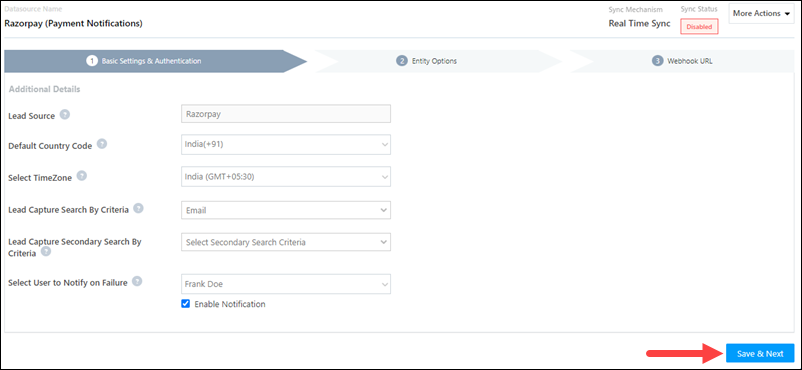
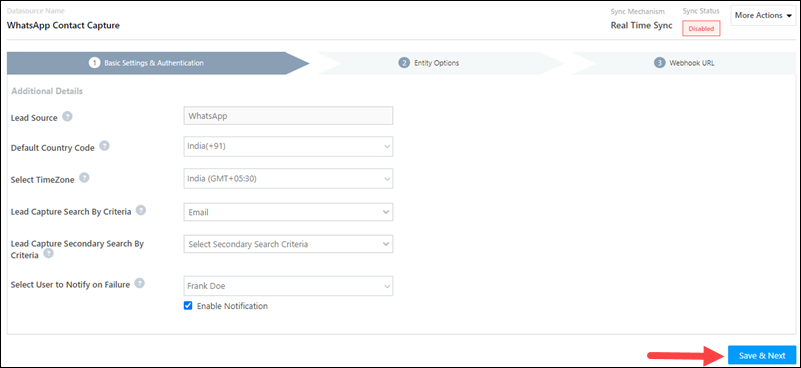
Lead Capture Search By Criteria To avoid duplicate leads, you must select one unique lead field (e.g., email Id, mobile number, PAN number, etc.) as the search key. This will be used to identify the leads pulled from CampusNexus.

To know how to mark a LeadSquared lead field as unique, please refer to How to Make a Custom Field Unique.

Lead Capture Secondary Search By Criteria If lead identification and capture through the primary Search By criteria fails, it will be re-attempted using the secondary Search By criteria.
Select User to Notify on Failure If there is an error in fetching leads, the selected user will receive a failure message via email. You can select a user from the list of all the users available in your LeadSquared account.

To know more about the type of errors, please refer to Error Notifications.

Enable Notification Enable the Checkbox checkbox to ensure notification emails are sent to the selected user when there’s a failed query.
Sync Frequency By default, we’ve selected a 15-minute frequency to pull data from CampusNexus. You can use the ‘Hours’ and ‘Minutes’ dropdowns to select a custom interval, based on which lead data will be pulled.

Once you’re done entering all the details, click Save.

6.2 Mapping & Manage Sync

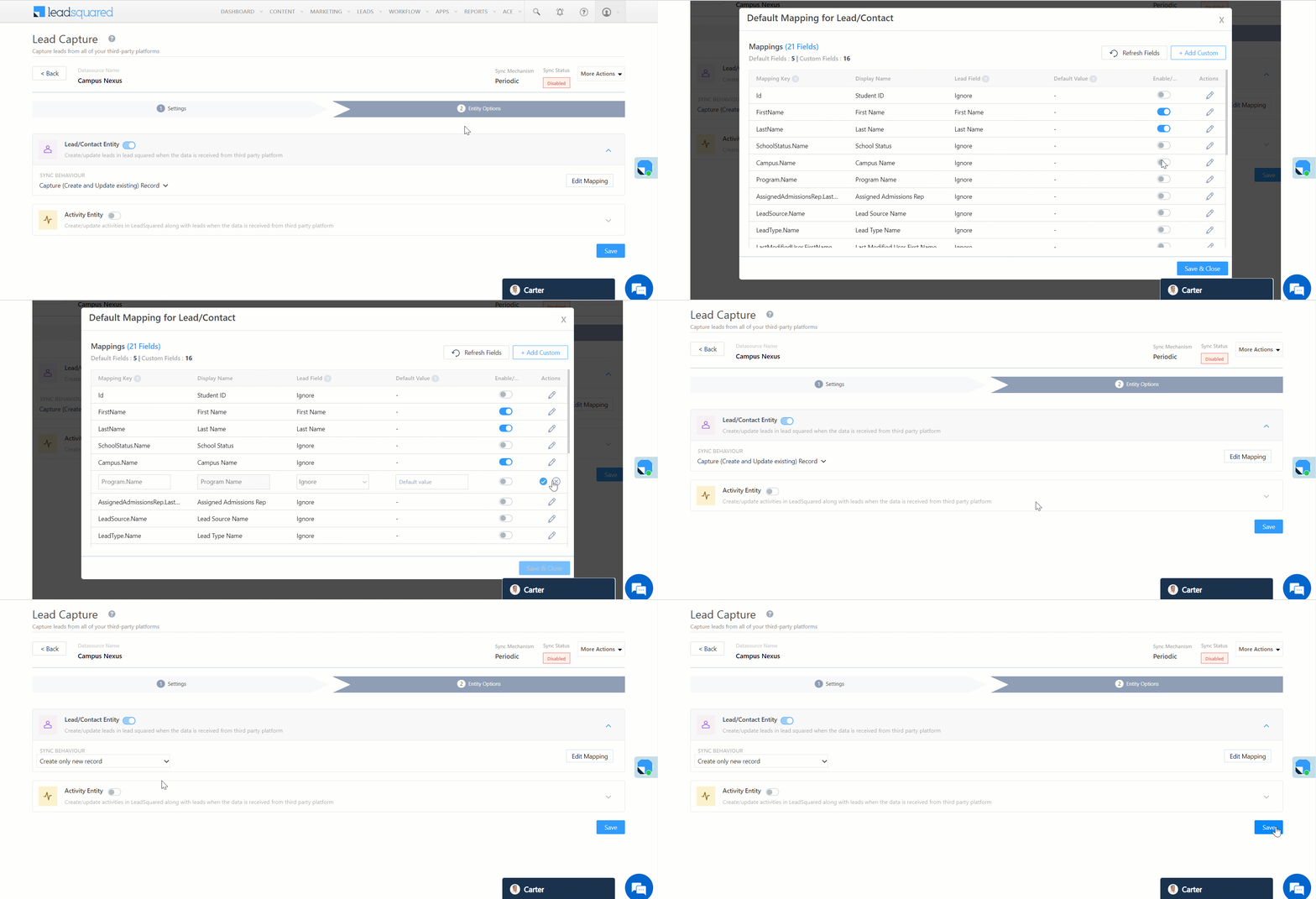
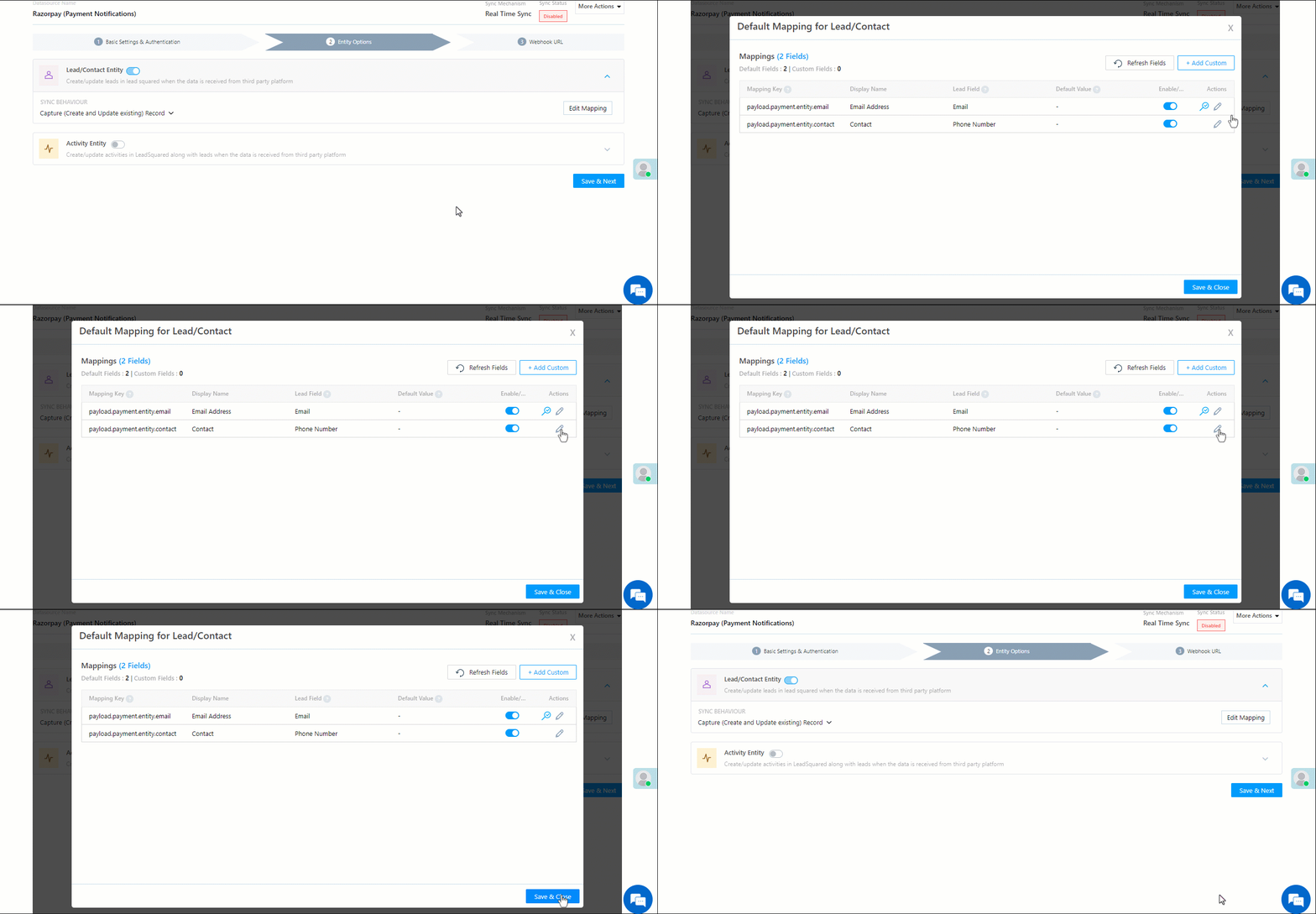
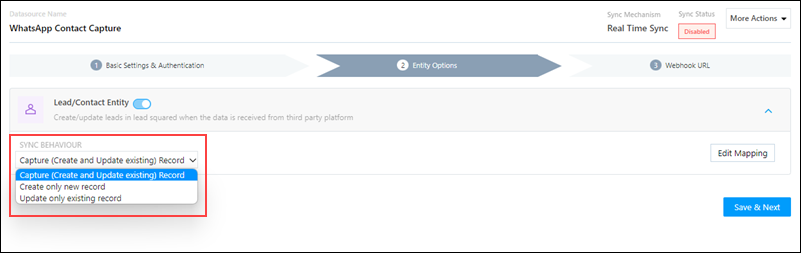
On the Entity Options screen, click Edit Mapping. The CampusNexus system fields mapped to the corresponding LeadSquared lead fields are visible. This mapping is carried out by default. If required, you can change or update the default field mapping.

  • To provide a default value for any field, enter the value under Default Value.
    • If the data provider doesn’t send data for any lead field, then the default value will get assigned to that specific field. But if the field already has an existing value, then the default value will be ignored.
  • To disable lead data capture for any field, disable the Zoom slider.
  • You can also mark and update a unique lead field as the search key from this screen, by clicking unique icon.
  • To create a custom CampusNexus field, click the Add Custom button.
    1. Once this field is created, you must map it to the relevant LeadSquared lead field.
    2. After the field is mapped, to save the custom field, click Google.
    3. To delete a custom field, click .

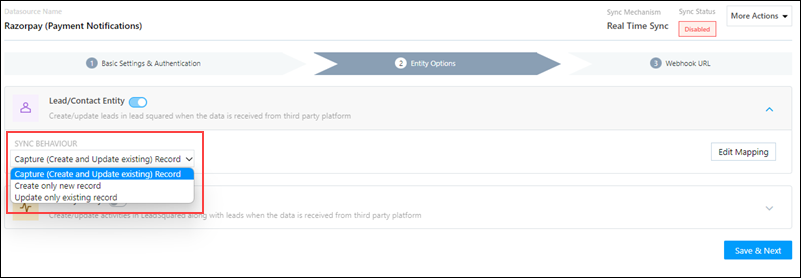
On this page, define the Sync Behaviour of the connector when leads and activities are captured –

  • Capture (Create and Update existing) Record – Leads that only exist in your CampusNexus account (but not in your LeadSquared account) will get created in LeadSquared. Leads that exist in both your CampusNexus and LeadSquared accounts will get updated.
  • Create only new record – Leads that only exist in your CampusNexus account (but not in your LeadSquared account) will get created in LeadSquared.
  • Update only existing record – Leads that exist in both your CampusNexus and LeadSquared accounts will get updated in LeadSquared.

LeadSquared - Campusnexus configuration


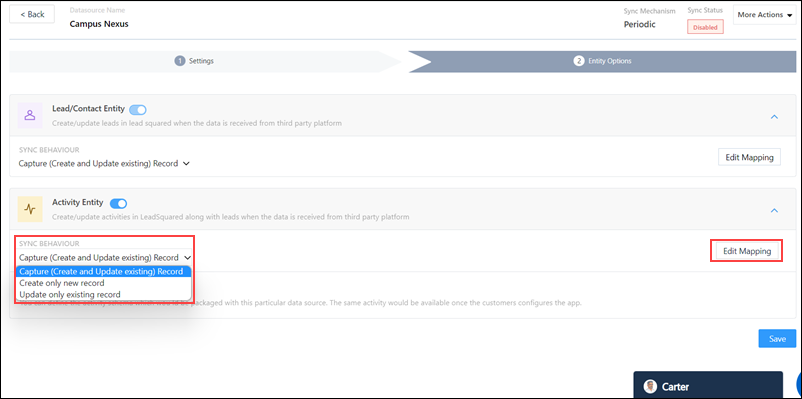
Activity Entity

Once leads are captured in LeadSquared, you can post custom activities to these leads. These activities will help users keep track of the lead’s journey to conversion.

To post activities to the leads captured from CampusNexus, against Activity Entity, enable the Slider slider. The following options are available to configure the connector’s Sync Behaviour when activities are synced to LeadSquared –

  • Capture (Create and Update existing) Record – New activities will get posted to the lead in LeadSquared, while existing activities will get updated.
  • Create only new record – Only new activities will get posted to leads in LeadSquared.
  • Update only existing record – Only existing activities on the leads captured will get updated in LeadSquared.

You can also map these activities to leads. Follow the steps mentioned under Mapping & Manage Sync (Section 5.2).

Once you’re done, click Save.

Note:

  • To define which LeadSquared activity type you want to map and capture data to, contact your account manager or support@leadsquared.com.
  • An activity is classified as a new activity or an existing activity based on the Lead Capture Search By Criteria you’ve selected in the previous section.

LeadSquared - Campusnexus activity entities


7. View Logs

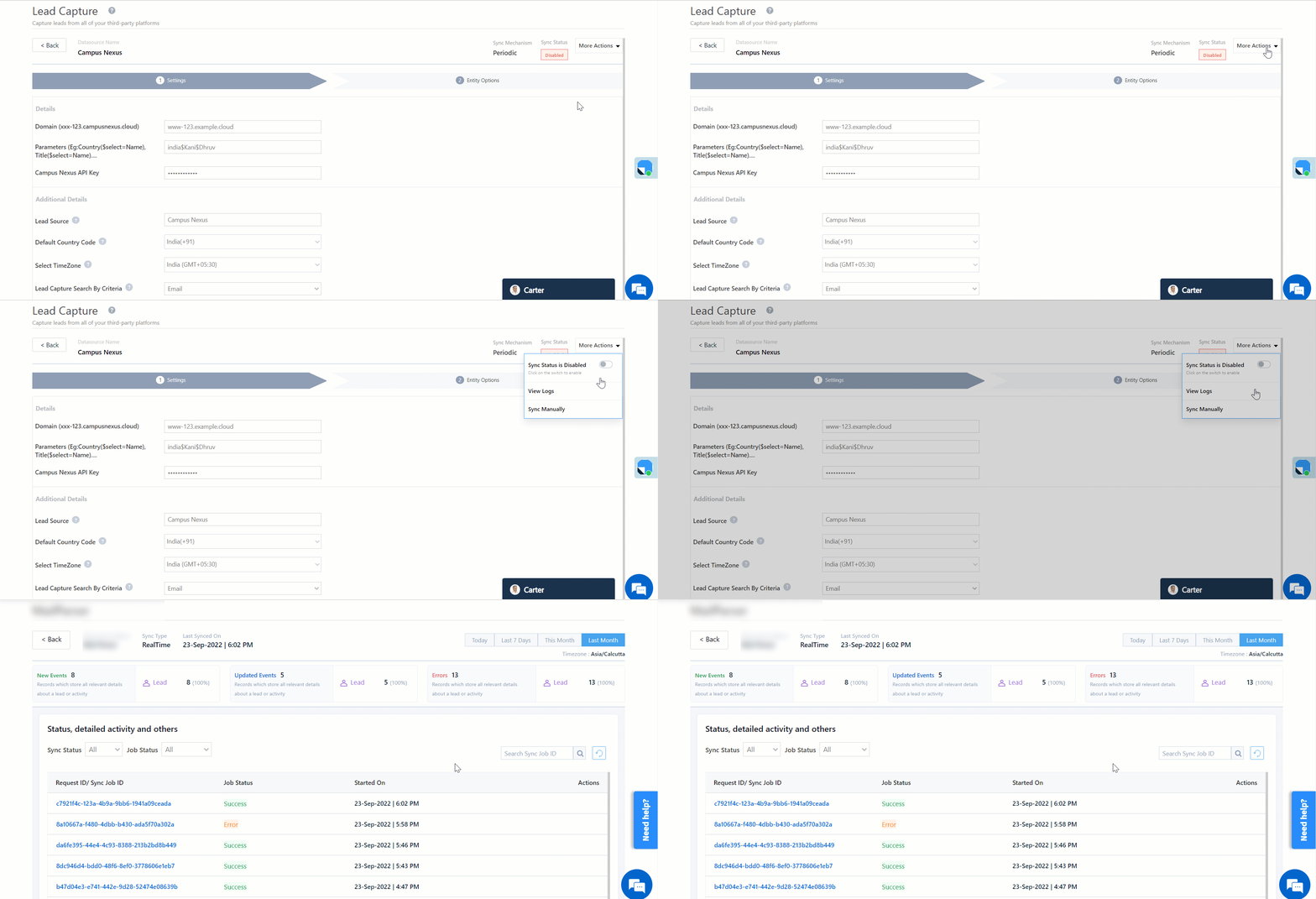
Here, you can view logs of all the sync jobs that have taken place. View New Events (New Leads and Activities), Updated Events (Updated Leads and Activities), and Errors (when capturing leads and activities).

  1. Navigate to Apps>CampusNexus.
  2. Click the More Actions dropdown and select View Logs.
  3. You can filter the logs by selecting a date range (Today, Last 7 Days, This Month, and Last Month), by selecting the Job Status (“All”, “Success” and “Failure”), and by selecting the Sync Status (All, Error, and Success).
  4. You can view the sync status of the following events –
    • New Events – List of all the new leads and activities that have been created in LeadSquared during the selected date range.
    • Updated Events – A list of all the –
      • Duplicate leads that were created with the same Search by Criteria value (e.g., with the same Email Id, Mobile Number, etc.).
      • Duplicate activities (such as Ticket Creation, etc.) posted on the same lead, using the same Search by Criteria value (e.g., with the same Email Id using the same Ticket Creation Id, etc.).
      • Leads and activities that previously contained errors, which were fixed and synced successfully.
    • Failed – The list of leads and activities that have not been captured due to mapping errors (e.g., when a boolean field is mapped to an integer field, etc.).
  5. To view the Sync Response details, under Request ID/Sync Job ID, click the Id.
    • Under the right panel, you can view the response status, the API URL, the request, and the response.
    • The responses that are successful will contain the details of the leads that have been pulled from CampusNexus.
    • To view the lead capture response under Sync API Response, Leads Updated and Errors in Leads, click Information.

Note:

  • For a response that contains an error, the reason for the error is listed in the response. Once you fix it, you can click the Retry button to perform the sync again.
  • The current Lead/Activity Sync Behaviour will reflect in the Logs screen. This will help identify the sync that’s used (Capture or Update) for the selected Request/Sync Job Id.

LeadSquared - Campusnexus view logs


8. Other Actions

You can edit or delete the CampusNexus connector instance that you created. To do this –

  1. Navigate to Apps>Apps Marketplace and click the CampusNexus connector.
  2. On the CampusNexus connector page, click Settings.
  3. From the list of options, you can perform the following actions –
    • Add or edit Configurations
    • Disable the connector
    • Remove the connector

LeadSquared - Campusnexus other actions


9. View Reports

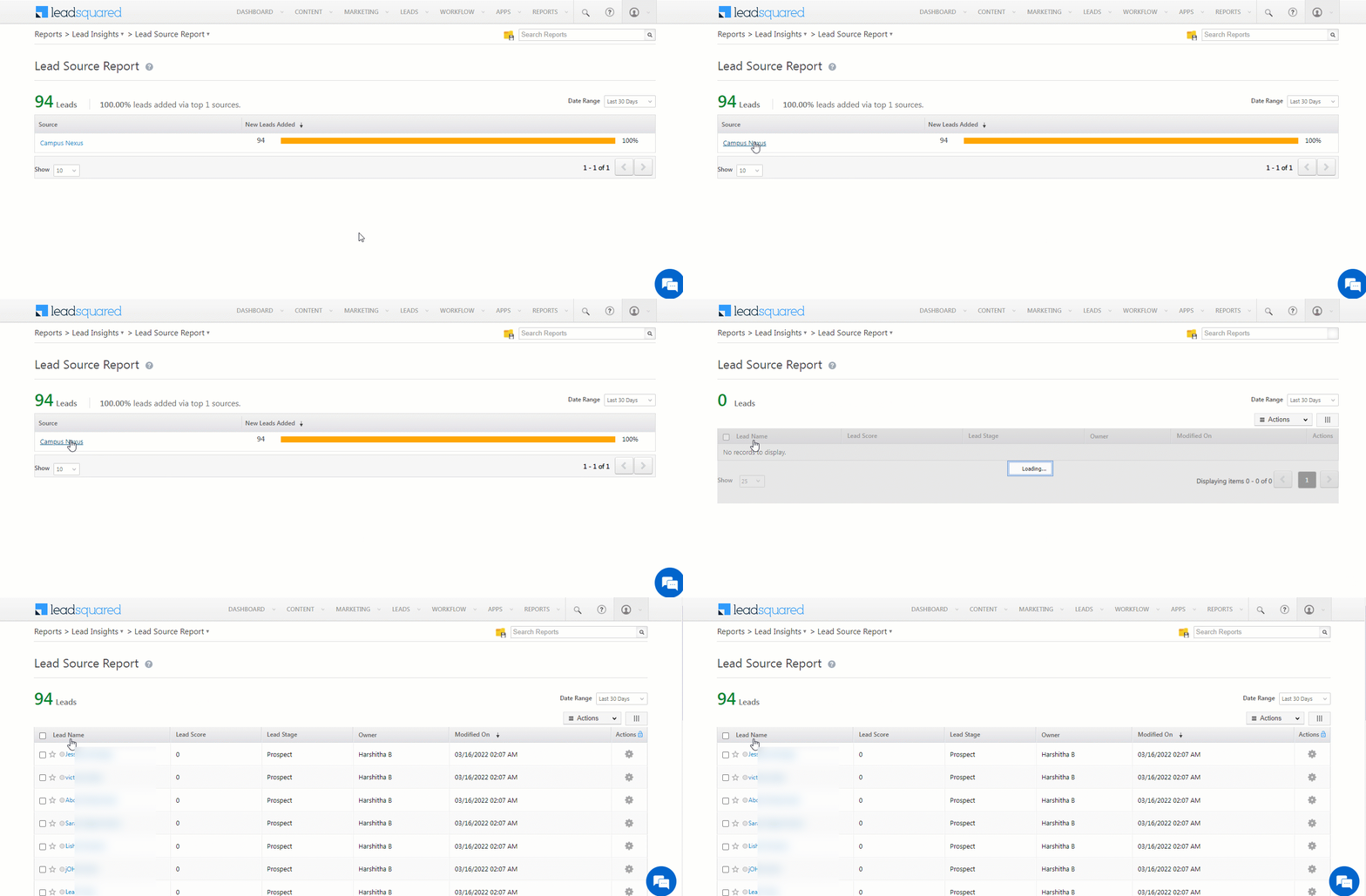
You can view the total number of leads that have been pulled from CampusNexus, by referring to the Lead Source report. To know more, please refer to How to track the source of your Leads using Lead Source Report?

Integrate LeadSquared with CampusNexus


Any Questions?

Did you find this article helpful? Please let us know any feedback you may have in the comments section below. We’d love to hear from you and help you out!
Can Sales Users Share Lists?

Sales Users cannot share lists. When a Sales user creates a list, it can only be viewed by that individual user. No other users (including other Sales users, Admins, Marketing users, and Sales Managers) will be able to view these lists.

When Admins, Marketing users, and Sales Managers create a list, it can be viewed by these three user types but not by Sales Users.

LeadSquared Goals – Feature Guide

1. Feature Overview

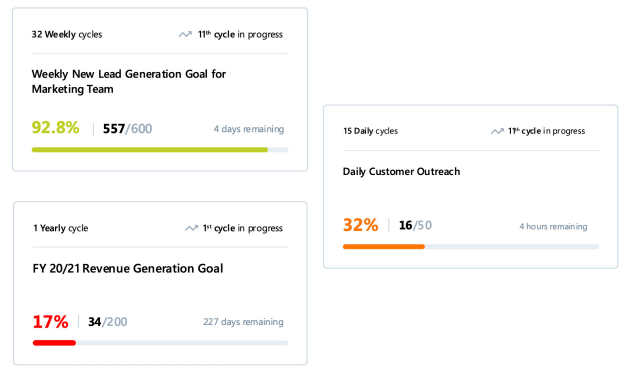
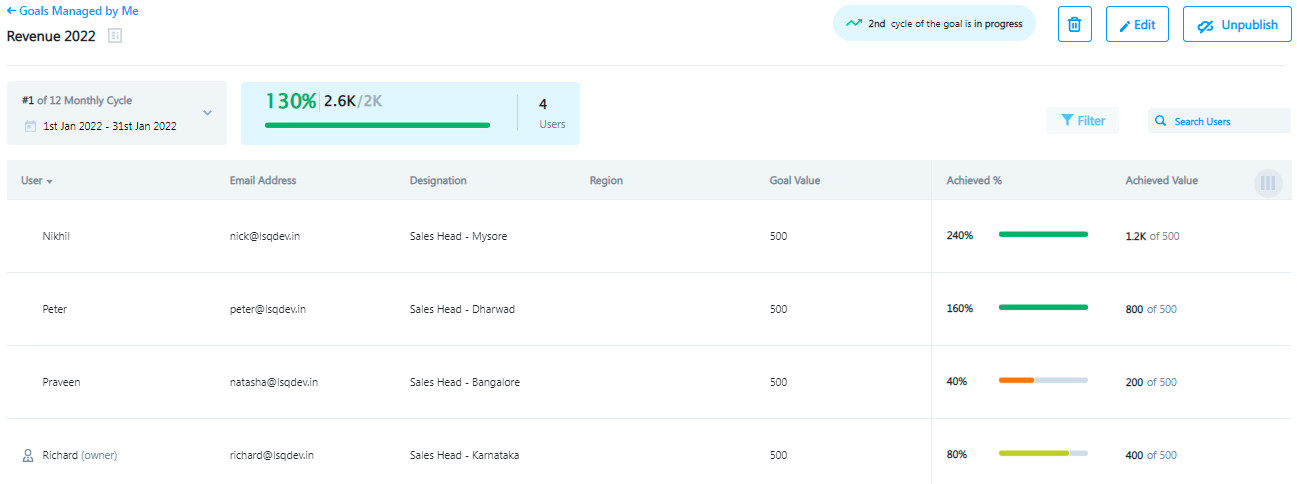
Goals is LeadSquared’s sales performance tracking tool, designed to measure and improve business outcomes across your organization. It empowers teams to set, track and achieve their targets, and provides managers with insights into collective and individual performance.

LeadSquared Goals Documentation

With Goals, you can create company-wide objectives that trickle down your organization’s hierarchy into team-level goals. This gives everyone in your organization clarity on the company’s priorities and their individual contributions.

Goals Documentation

Achievements are tracked in near real-time* so managers and teams can directly see the impact their work has on each goal. In addition to motivating team members, it helps managers appreciate accomplishments and address the challenges their teams face.

Goals Documentation

*Note:

  • Daily Cycles are updated within 30-60 minutes. Weekly and monthly cycles are updated every 2-4 hours.
  • LeadSquared Goals is a paid feature. For more information, or to enable it on your account, please reach out to your account manager or support@leadsquared.com.


2. Example Use Cases

Here are some examples of metrics you can measure and improve using Goals –

Revenue Targets Calling Targets Lead Funnel Targets Demo Targets
Leads converted to customers Number of dialled calls Number of new leads Total demos scheduled
Total sales value Number of converted calls Number of contacted leads Total demos completed
Conversion percentage Phone call duration Number of leads not contacted
Completed follow-up tasks Number of disqualified leads


3. Glossary

Term Definition
Goals Refers to

  1. The Goals product as a whole.
  2. Goals created by managers for their teams.
Goal Cycle The cyclical duration within which the goal achievement is calculated and refreshed – Daily, Weekly, and Monthly.
Organization Hierarchy LeadSquared’s organization hierarchy feature that enables you to capture the reporting structure of your organization in your LeadSquared account.
Ruleset A set of rules and conditions defined by administrators, that can be later used by managers to create Goals at the company or team level.
Goal Rules Building blocks of a Ruleset. A Ruleset consists of one or more Goal Rules. Goal rules define how the metric is measured and how achievements toward the metric are calculated.
LeadSquared Entity LeadSquared entities include Leads, Activities, Opportunities, and Tasks.
Achievement An accomplishment towards a goal. Achievements are attributed to users when they satisfy the set of rules and conditions defined by the Goal. Achievements reflect in the user’s progress bar on the Goals viewing page.


4. How It Works

  1. Set up Organization Hierarchy
    LeadSquared Administrators first set up the reporting hierarchy for the organization.
  2. Create a Ruleset
    Based on the manager’s requirements, administrators then create Rulesets, where the calculation logic and rules are defined.
  3. Create and Assign Goals to a Team
    Next, managers and team leads use the Rulesets to create Goals (they add targets, distribution percentages, etc.) and assign them to their teams.
  4. View and Manage Goals
    Finally, managers and sales reps monitor and analyze their performance through visual dashboards and reports, as they work towards achieving their targets.


FAQs

  1. Can I set daily goals for my team?
    Yes, you can set goals daily, weekly, monthly, biweekly, quarterly, and yearly goals.
  2. Can I track my team’s performance in real-time?
    Performance tracking is near real-time. Daily Cycles are updated within 30-60 minutes. Weekly and monthly cycles are updated every 2-4 hours.
  3. My goals change frequently. Does Goals allow me to change the team targets?
    Yes. You can edit/delete any yet-to-start or in-progress goal, at any given time.
  4. Does Goals support all Leadsquared entities such as Lead, Activity, Opportunity, Task, User, and Account?
    Goals currently support only Lead, Opportunity, and Activity entities. However, we plan to support other entities in the near future.
  5. Is the Goals feature only accessible and useful to managers and admins?
    No. Goals is a sales performance management tool that benefits everyone in the team. An agent can also access Goals under ‘Reports>Goals’ and can keep track of his/her performance using the ‘Assigned to me’ tab.
  6. Does Goals support the Sales groups and Teams features in LeadSquared?
    No, Goals works only on the basis of the LeadSquared Organization Hierarchy feature.
  7. Can I integrate Goals with my existing CRM (outside Leadsquared)?
    No. Currently, Goals is only supported within LeadSquared.
  8. Can I connect Goals with external data sources?
    No, we do not currently support integrations with external data.
  9. Can I create retrospective (back-dated) Goals?
    No, you can only create goals for future dates.
  10. Will goal achievements roll-up the organization hierarchy?
    Yes, achievements will roll-up from the individual level to the team and organization level.

LeadSquared Security Settings – Authentication Profiles

1. Feature Overview

If you want to enable or disable 2FA feature for users, it can be done by configuring Authentication Profiles. To learn more about 2FA, see LeadSquared Security Settings – Two Factor Authentication.

If you have Marvin enabled in your account, you can also redirect Marvin Users from the regular platform to Marvin. To know more about Marvin, refer to Marvin – Feature Guide.


2. Prerequisite


3. How it Works

Two Factor Authentication – Create a Profile (group) that contains all the users for whom you want to enable/disable Two Factor Authentication. Then, enable/disable Mandate Two Factor Authentication for that Profile.

User Redirection – Create a Profile (group) that contains all the users for whom you want to enable/disable User Redirection. Then, enable/disable User Redirection for that Profile.


4. Two Factor Authentication

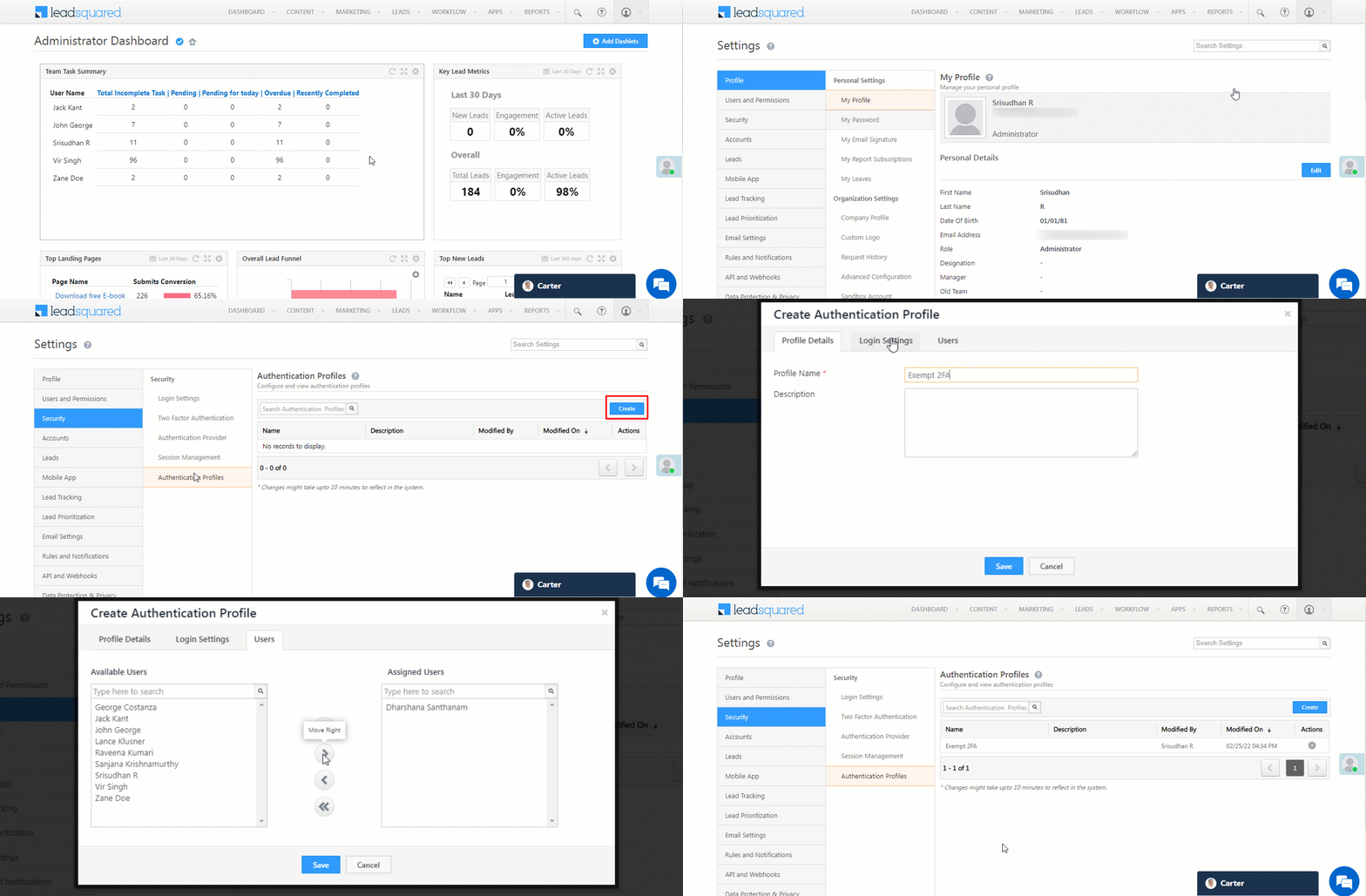
  1. From the main menu, navigate to My Profile>Settings>Security>Authentication Profiles.
  2. Under Authentication Profiles, click Create.
  3. On the Create Authentication Profile pop-up, enter the following details –
    1. Profile Details – Enter a relevant Profile Name and Description.
    2. Login Settings – Depending on your requirement, alongside Mandate Two Factor Authentication, enable or disable the enable icon slider.
    3. Users – From the list of Available Users, select the users for whom you want to enable/disable 2FA, and click Right Arrow.
  4. Once you’re done, click Save. Mandate Two Factor Authentication is now enabled/disabled for the users in this Profile.

LeadSquared Authentication Profiles


5. Redirect Users to Marvin

When a user with Marvin enabled in their account logs into the regular platform, you can immediately redirect them to Marvin by enabling the user redirection setting –

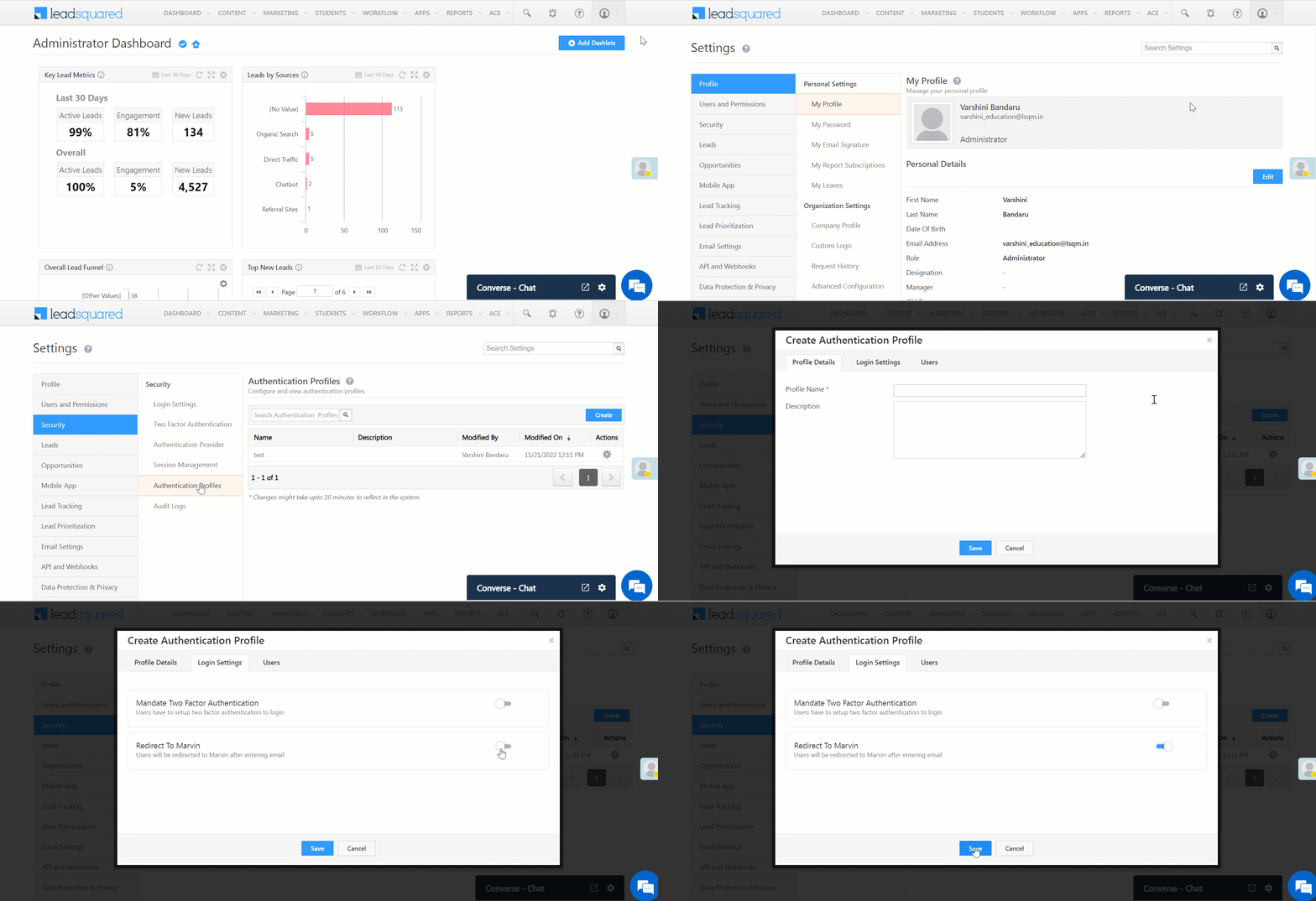
  1. Navigate to My Profile>Settings>Security>Authentication Profiles.
  2. Click Create.
  3. Click Login Settings.
  4. Enable Redirect To Marvin.

LeadSquared - Enable user redirection (Marvin)


6. Other Actions

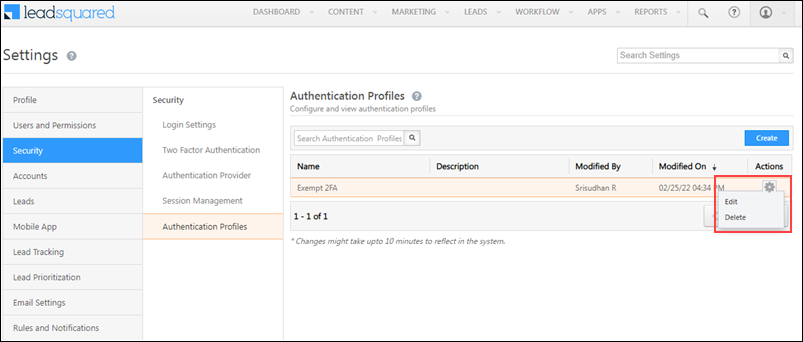
  • To edit the Profile Details, Login Settings, and the list of Users in the Profile, hover your cursor over , and click Edit.
  • To delete an existing Profile, click hover your cursor over , and click Delete.

LeadSquared Authentication Profiles


Troubleshooting

Marvin Users Logged Out When Opening Leads from Dashlet

  • Issue Description: When Marvin users click on a lead from a dashlet, they are unexpectedly logged out and redirected to the standard LeadSquared login page instead of remaining within Marvin.
  • Cause: This issue occurs when the “Redirect to Marvin” setting is not enabled in the authentication profile for Marvin users. Without this setting, users are redirected to the default LeadSquared login page upon accessing leads.
  • Solution: To resolve this issue, ensure that Marvin users have the correct authentication settings by following these steps:
    1. Go to: SettingsSecurityAuthentication Profile
    2. Check the login settings for Marvin users. Ensure that:
      • “Redirect to Marvin” is enabled.
      • “Mandate Two-Factor Authentication (2FA)” is enabled.
    3. Create separate authentication profiles:
      • Marvin Users: Enable both “Redirect to Marvin” and “Mandate Two-Factor Authentication.”
      • Normal Users: Enable only “Mandate Two-Factor Authentication.”

By configuring separate authentication profiles with the correct settings, Marvin users will stay logged in when opening leads from dashlets.


Any Questions?

Did you find this article helpful? Please let us know any feedback you may have in the comments section below. We’d love to hear from you and help you out!
CallTrackingMetrics Telephony Connector (v2)

1. Feature Overview

The LeadSquared CallTrackingMetrics Telephony connector integrates your CallTrackingMetrics (CTM) application with LeadSquared.

Through this connector, you can avail the following benefits –

  • Ability to make outbound calls (click to call) and automatically track the calls in Lead Activity History.
  • You can manage users in your CTM account directly from LeadSquared.
  • Prevents lead leakage by tracking outbound and inbound phone call logs as activities.
  • Access call recordings of inbound and outbound calls.
  • Display lead information pop-up to LeadSquared users when an incoming call is received or an outgoing call is placed.


2. Prerequisites

  • You must be an Administrator User of your LeadSquared account to access the app settings.
  • You need an active CallTracking Metrics account with at least one tracking number.
  • The ‘Agents’ in CTM should have the same email addresses as the LeadSquared users you’re looking to sync –
    • If john@example.com is a user in LeadSquared, with associated phone number ‘XXX-XXXXX’, a user with the same email address (john@example.com) associated with that ‘Inbound Phone Number’ should be available in CTM.
  • Before you install the CTM Telephony connector, we recommend you download and set up the CTM dialer desktop application.

Note:

  • The agent phone number for this connector is not fetched from the Agent Phone Number field in LeadSquared. Instead, you must configure a phone number when setting up the connector.
    • If you’re migrating from the CTM Telephony v1 connector, then you must delete existing phone numbers in the Agent Phone Number field before you set up the CTM Telephony v2 connector.
  • You can also embed your entire call tracking metrics dashboard in LeadSquared and access it directly from your LeadSquared account. For more information, see Embed Your Call Tracking Metrics Dashboard in LeadSquared.


3. How it Works

Using the CTM connector, you can create users in your CTM account directly from LeadSquared. You can also update their phone numbers from LeadSquared, and ensure that data between LeadSquared and CTM users and agents are synced.

After the connector is configured, you’ll be able to –

  1. Make and receive phone calls from the following pages –
    • Lead Details
    • Manage Leads
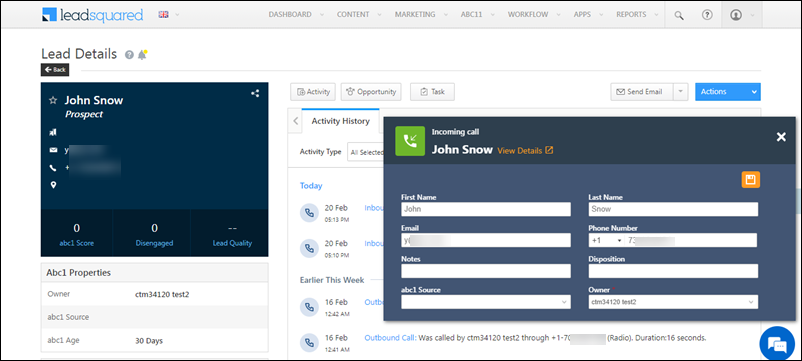
  2. Leverage the agent pop-up to capture lead details.
  3. View and manage phone call activities, complete with call details like duration, status, recordings, etc.
  4. Use other LeadSquared features like automation to automate workflows based on call disposition.


4. Install the Connector

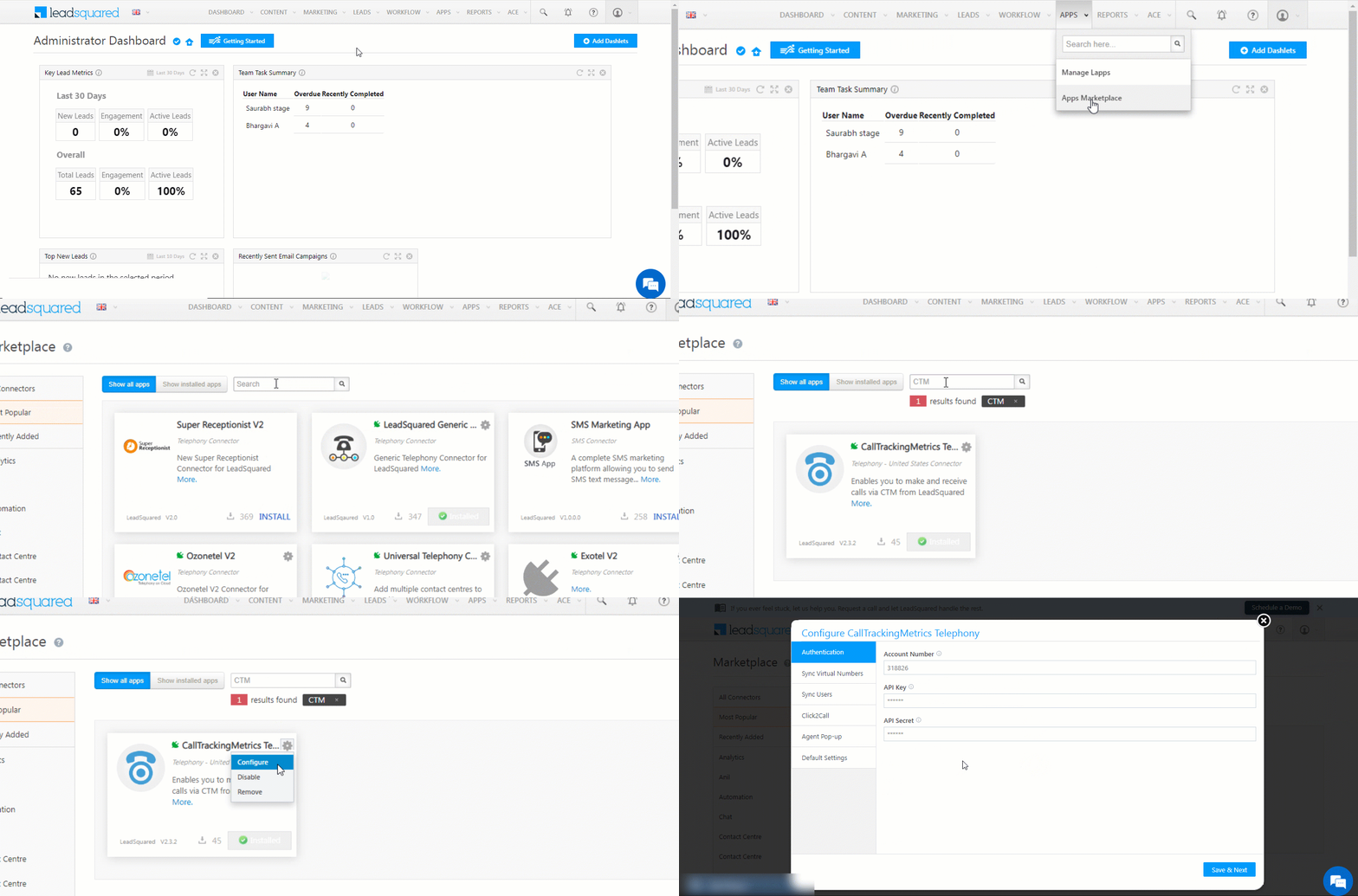
  1. From the main menu, navigate to Apps>Apps Marketplace.
  2. Search for CTM Telephony, and click Install.
    • Alternatively, you can find the connector on the left panel, under Telephony – United States.
  3. Once the connector is installed, hover your cursor over the settings icon, and click Configure.

LeadSquared Telephony Integrations


5. Authentication

Once installed, configure the connector to sync your CTM account with LeadSquared.

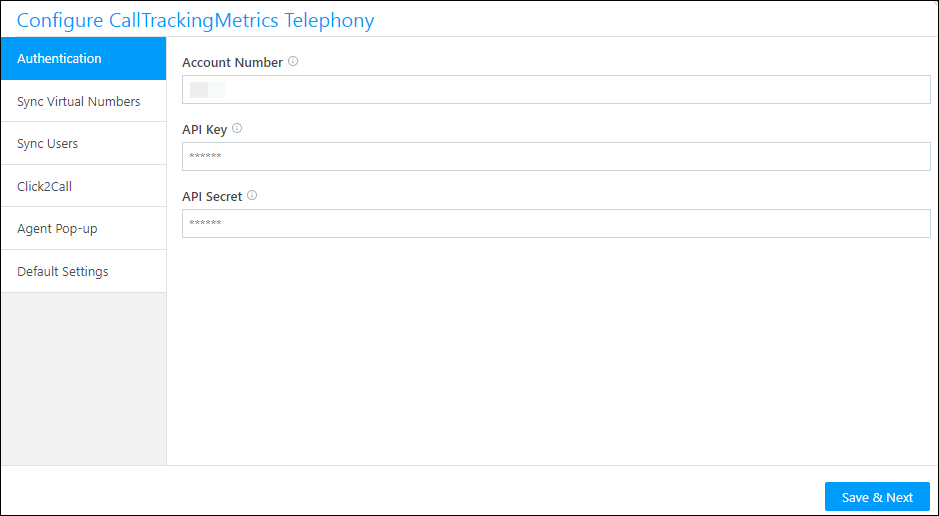
  1. Enter the following details to authenticate your CTM account –
    • Account Number – Enter your CTM account number here.
    • API Key – Enter your API Key here.
    • API Secret – Enter your API Secret Key here.
  2. Once you’re done, click Save & Next
Note: To obtain your CallTrackingMetrics Account Number, API key, and API secret key, refer to CTM API Keys, or on your CallTrackingMetrics account navigate, to Settings>Account Settings (under Account Management).

LeadSquared Telephony Integrations


6. Sync Virtual Numbers

6.2.1 Example Use Case

Give your agents the option to choose from a list of virtual numbers while calling a lead from LeadSquared.

For example, if an educational institution wants to call a lead for admissions to a New York campus, agents can select a local New York virtual number, for Texas, they can select a local Texas virtual number, and so on.

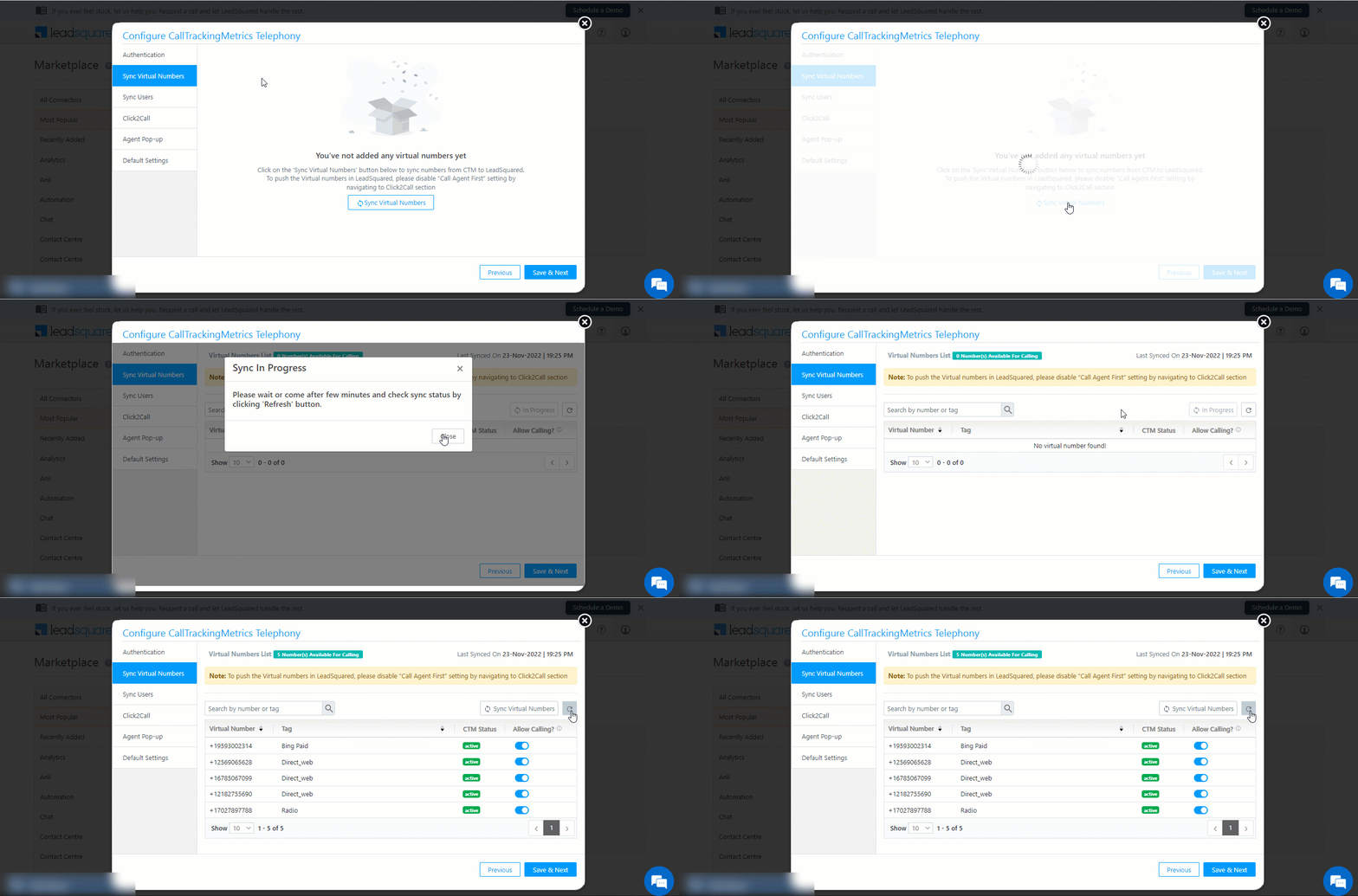
6.2.2 Procedure

Click Sync Virtual Numbers to auto-sync numbers from your CTM account to LeadSquared. The sync may take a few minutes to complete (click to refresh the grid). You can allow/disallow calling from specific virtual numbers by clickingZoom under the Allow Calling column. This controls whether that virtual number will be shown as an option to the agent while placing the call to the lead from the agent pop-up.

Note: Virtual numbers can be synced only once every 2 hours.

LeadSquared Telephony Integrations

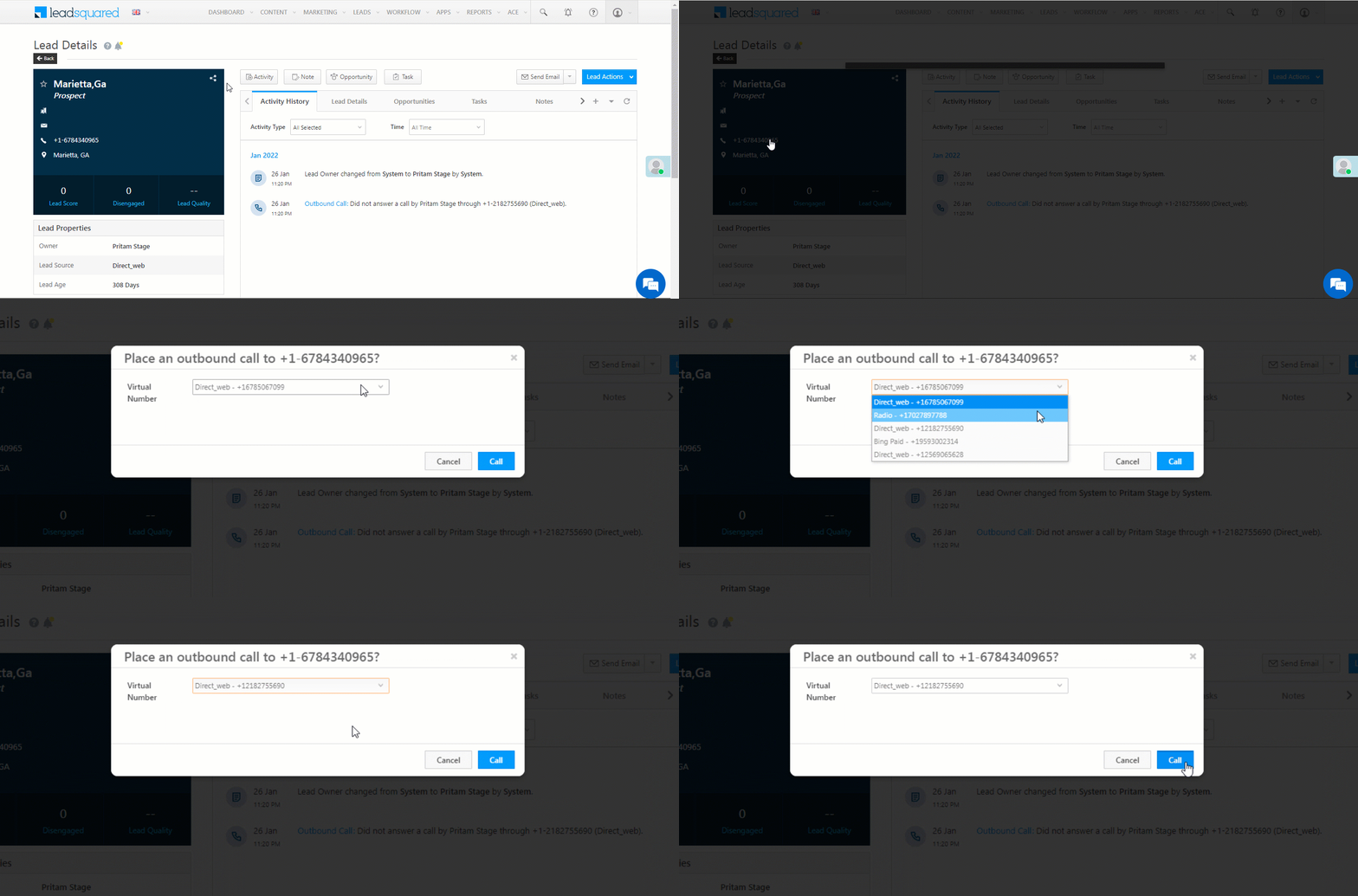
At the time of dial-out, agents can choose the appropriate virtual number from the drop-down –

Note: If a user has an outbound number assigned to them (refer to Section 7, User Sync), calls will be placed through the outbound number; the selected virtual number from the dropdown will not be used. The virtual number will only be applicable when the user does not have an outbound number assigned.

LeadSquared Telephony Integrations


7. User Sync

Sync users between your CTM and LeadSquared accounts.

7.1 For New Accounts

If you are setting up a new CTM account (with no existing users) with LeadSquared, you can directly migrate existing users from your LeadSquared account. These users will get created inside your CTM account.

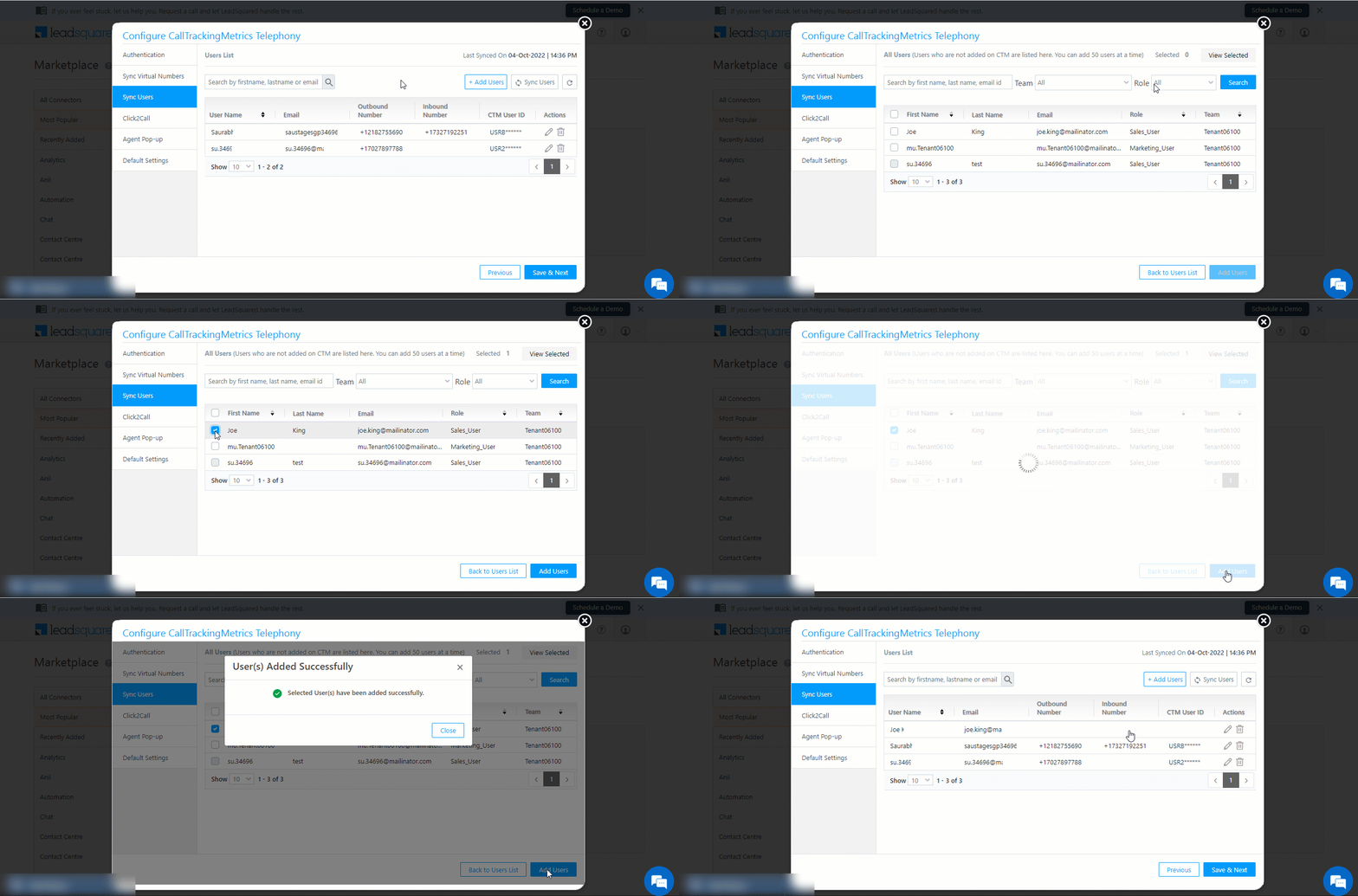
  1. On the User Sync tab, click Add Users.
  2. Alongside the users you want to migrate to CTM, click the Checkbox checkbox.
  3. Once you’re done, click Add Users. These users will now get created in your CTM account.
Note: Users can be synced only once every 2 hours.

7.2 For Existing Accounts

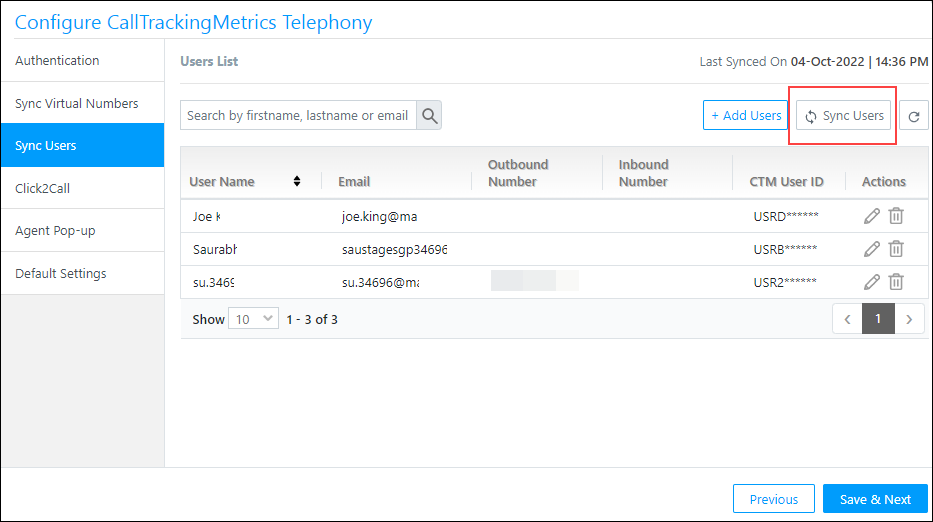
If you are syncing a CTM account that contains existing users with LeadSquared, ensure the users have been created with the same email Id in both CTM and LeadSquared. To sync these users, on the User Sync tab, click Sync Users.

The other actions you can perform are –

  • To delete an existing user from the CTM Connector, click .
  • To change the Outbound or Inbound numbers of an existing user, click , and select the new number from the dropdown.
    • By default, all the Outbound numbers present in your CTM account will be displayed here. To add more Outbound numbers, refer to Buy CTM Tracking Numbers.
    • For Inbound numbers, enter the 10-digit number along with the country code (e.g., +1-6557828771, etc.).

Once you’re done, click Save & Next.

Note: You can only migrate existing users from your LeadSquared account to your CTM account. To know how to create users, refer to Manage Users.

LeadSquared Telephony Integrations


8. Click2Call

Configure the following settings –

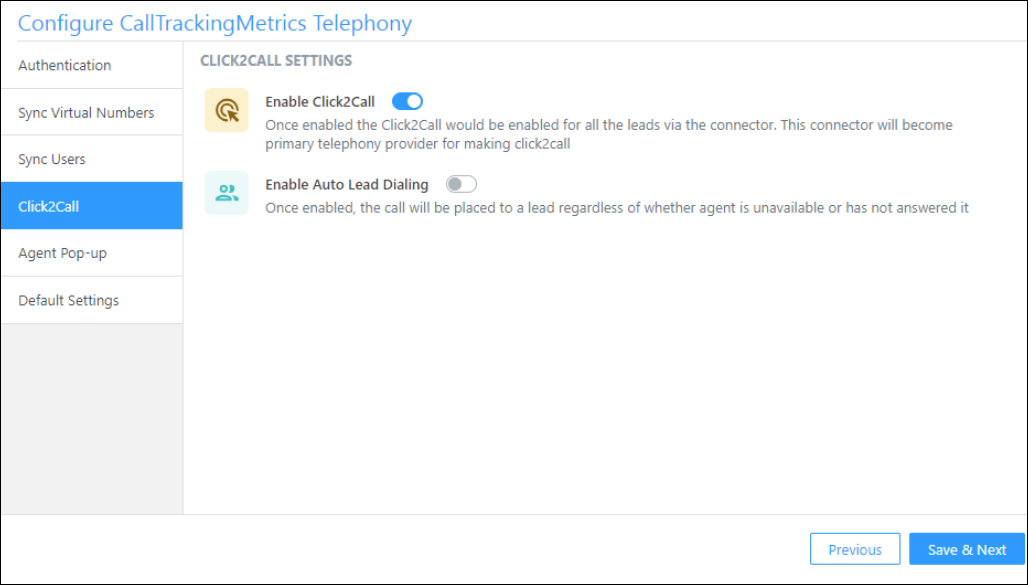
Call Tracking Metrics click 2 call

  • Enable Click2Call – When enabled, users can call the lead by clicking the lead’s phone number. The CTM Connector will become the primary telephony provider when placing a call.

LeadSquared Telephony Integrations

  • Enable Auto Lead Dialing – When enabled, the call is placed to the lead regardless of whether the agent answers the call or is unavailable. This guarantees faster throughput for calls because –
    • The agent doesn’t have to answer the call before it’s placed to the lead.
    • The call is still made to the lead even if the agent’s status accidentally changes to unavailable.

Click Save & Next to proceed.


9. Agent Pop-up

CTM Agent popup

  • Enable Agent Pop-up – When enabled, the agent pop-up form is displayed to your users during the call.*
    • Agent Pop-up Configuration – From the list of options, select which types of calls you want to display the agent pop-up for –
      • Outbound
      • Inbound
      • Inbound and Outbound
  • Enabled Call End Status (only for Marvin) – When enabled, it notifies the Marvin app when a call has ended, and the calling panel (the panel on the bottom of your screen) will close automatically.
  • Enable Softphone – When enabled, you’ll be able to access the softphone pop-up inside LeadSquared.**
  • Enable New CTM Softphone – This is the recommended softphone to set up when using the CTM connector. The CTM softphone has improved performance and lets you stay connected to the call when switching between browser tabs.***

Note:

  • *To configure the field you’d like displayed in the agent pop-up form, navigate to My Profile>Settings>Leads>Lead Forms, and select the Agent Pop-up Form. Alternatively, you can also configure a more advanced, dynamic form using the Forms feature and then use the Process Designer to embed the form in the agent pop-up work area.
  • **If both this softphone and the CTM softphone are enabled, the system will prioritize the new CTM softphone for use. However, it will fall back to the old softphone if there are any issues with the CTM softphone. That said, it is strongly recommended to use only the new CTM softphone for the best experience.
  • ***To use the new softphone, the user must be a CTM user and should be synced in the CTM connector. But unlike the old softphone, the new softphone does not require the user to log in to the CTM portal.

9.1 Launching the New CTM Softphone

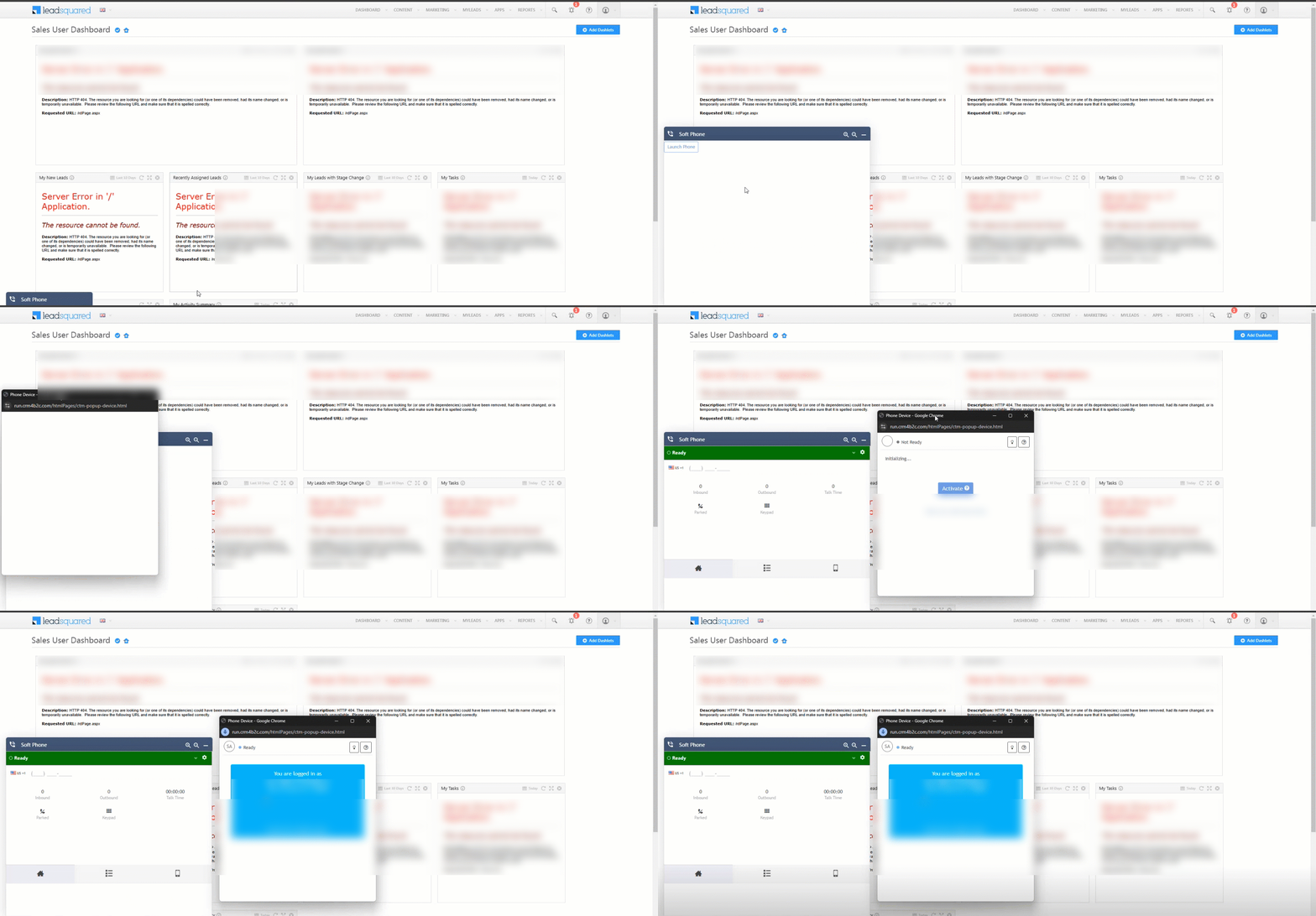
To launch the new CTM softphone: Click on the Soft Phone panel and click Launch Phone.

new ctm launch phone agent panel

Note: When using the new CTM softphone, if you close the window shown below, the call will disconnect.

new ctm connector softphone


10. Default Settings

LeadSquared Telephony Integrations

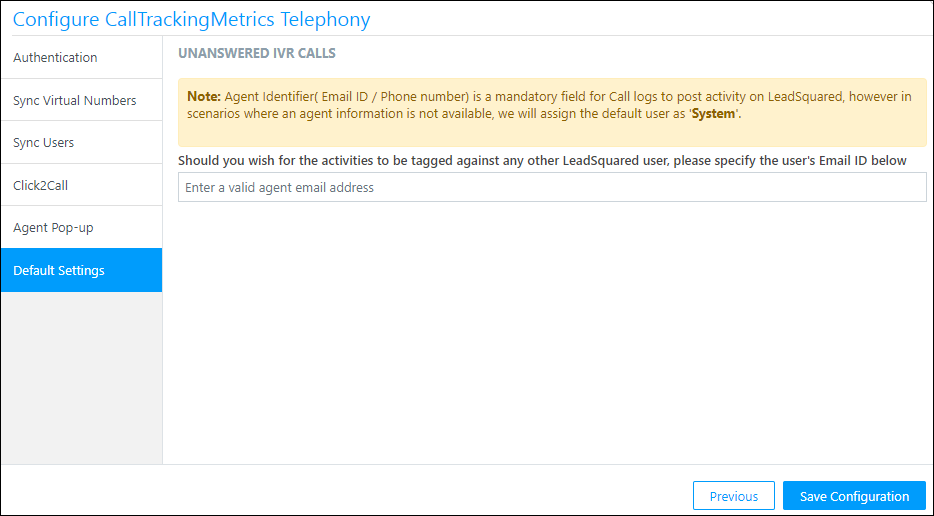
Sometimes leads call an IVR number and then disconnect the call while waiting in queue to talk to an agent. In these instances, LeadSquared creates a new lead and posts the incoming call activity to the default ‘system user’ in your account. You can enter an email id here to assign all such leads to a particular agent in your account. This way, the agent can track unanswered IVR calls and call the leads back.


11. Actions

Once your CTM account is successfully integrated with LeadSquared, you can start making calls to leads directly from your LeadSquared account. You can also receive calls and access the call logs for your leads.

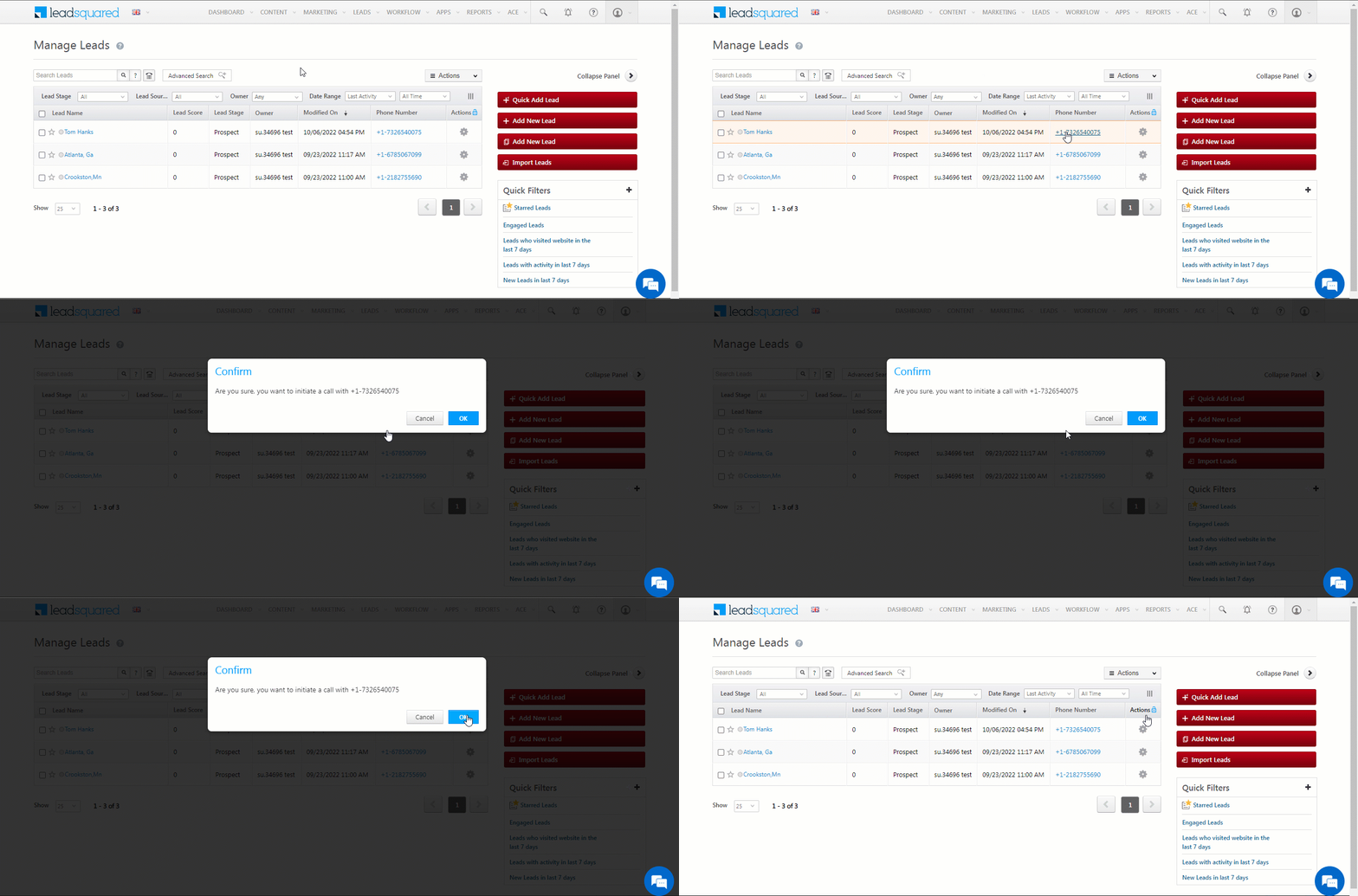
11.1 Place Outbound Calls

  1. Navigate to the Manage Leads page, and click on the lead you want to call.
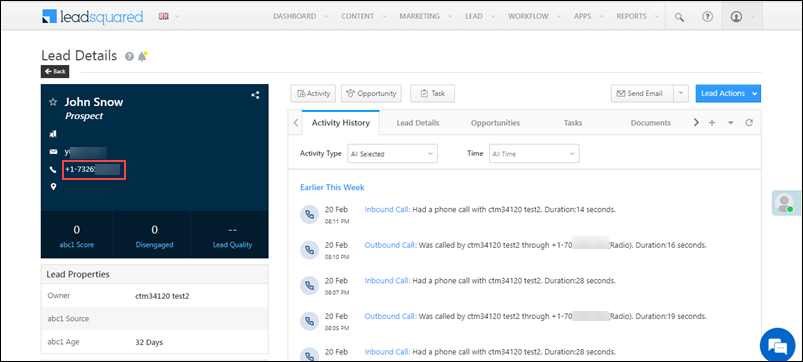
  2. On the Lead Details page, from the Lead vCard, click the lead’s number to place the call.
  3. On the Confirm pop-up, click Ok. Your call is placed to the lead.

LeadSquared CTM Telephony

11.2 Receive Inbound Calls

You can receive the inbound calls from your leads on any page in the LeadSquared platform.

For New Leads – If you receive a call from a new number that does not correspond to any lead in your LeadSquared account, a new lead will automatically get created and the call details will get logged.
For Existing Leads – Calls received from numbers that already exist in your LeadSquared account will reflect on the Lead Details page, under the Activity History tab for the given lead.

Note: When you receive calls from a number that doesn’t correspond to existing leads, by default a new lead is created in LeadSquared. To disable this –

LeadSquared CTM Telephony

11.3 Access Call Logs

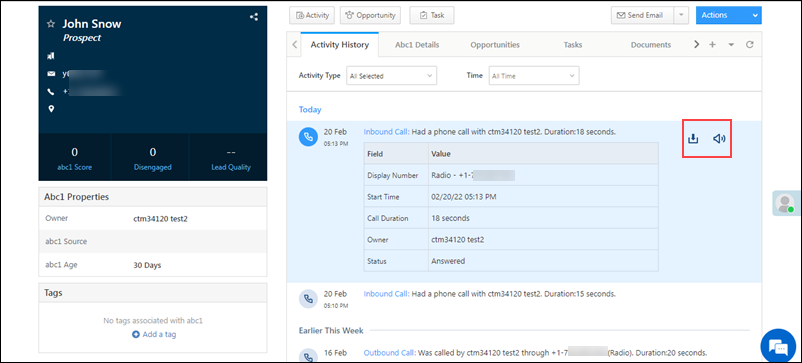
Once the call (Inbound and Outbound) is completed, a call recording is posted against the lead on the Lead Details page, under the Activity History tab.

  • To listen to the recording, click LeadSquared CTM Telephony.
  • To download the recording, click Cloud Calling.

LeadSquared CTM Telephony


12. Reports

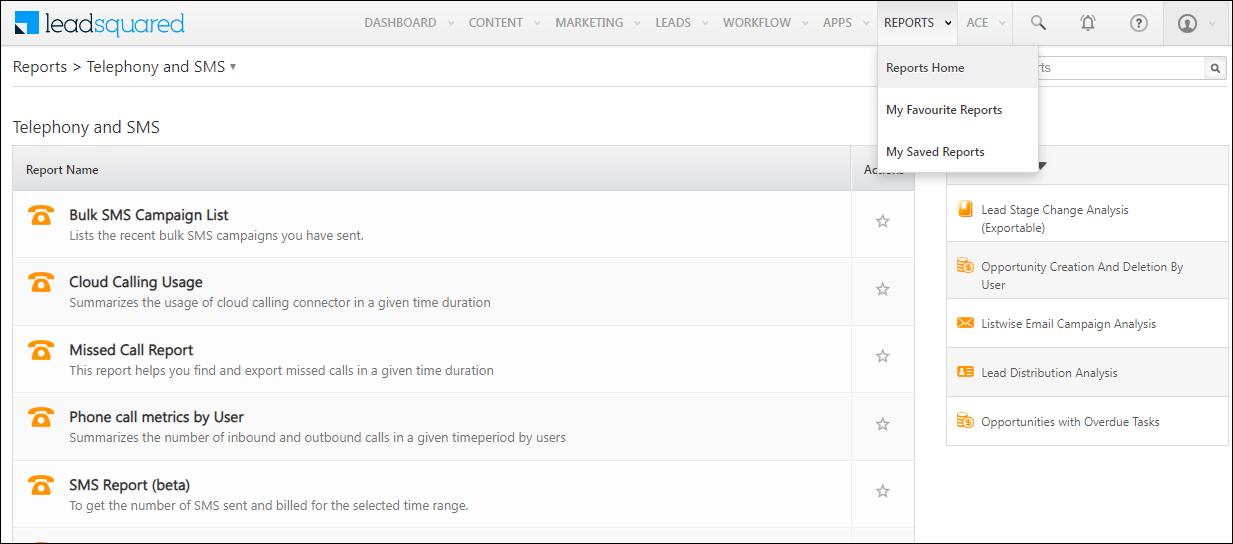
You can track key phone call metrics using the default reports available in your account, by navigating to Reports>Reports Home>Telephony and SMS.

LeadSquared Reports

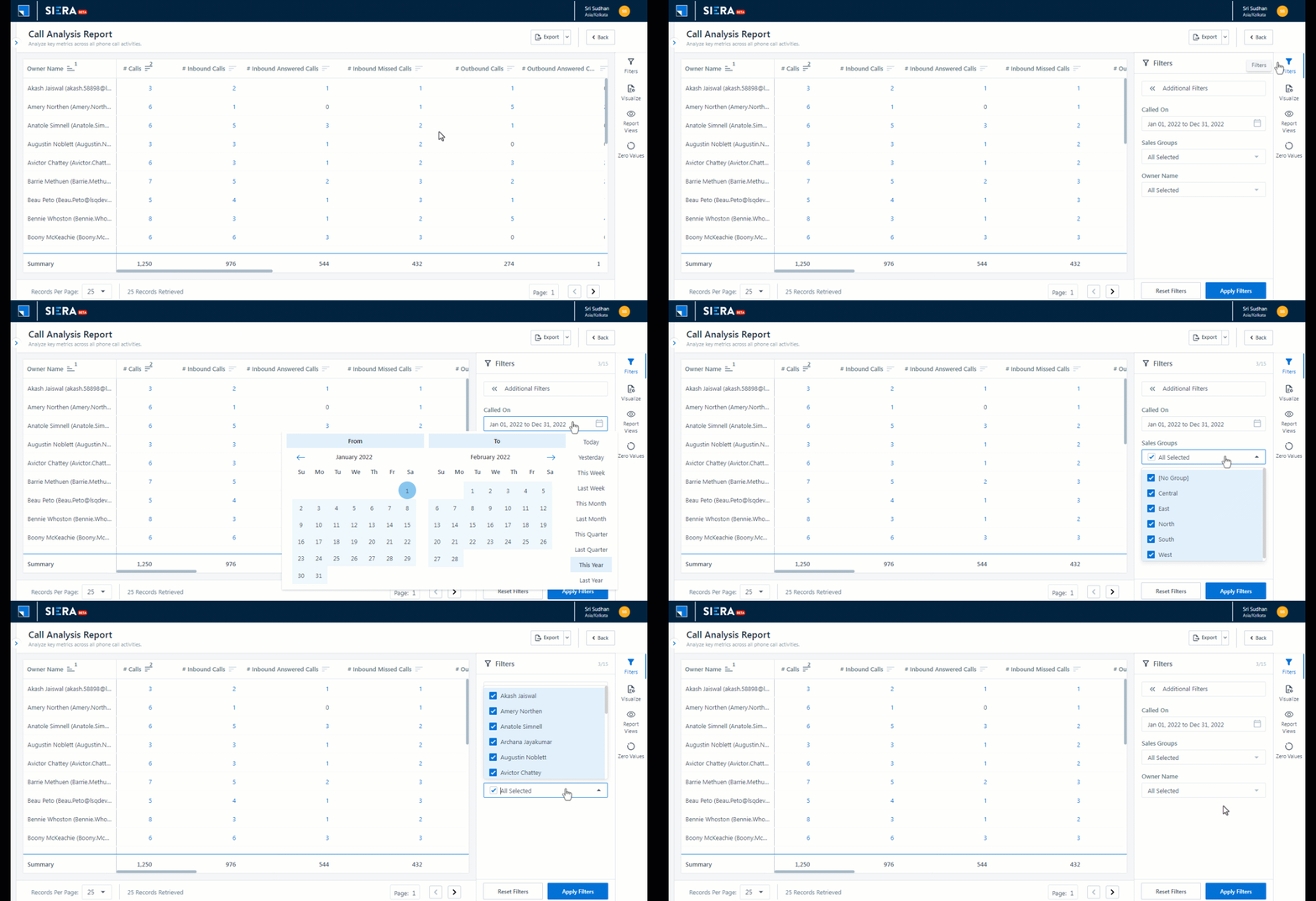
However, we recommend upgrading to our new reporting infrastructure SIERA, and using the more advanced, highly customizable Call Analysis Report.

Siera filters


Troubleshooting

Call Recording Not Playing in Activity History (CTM Telephony) – 401 Unauthorized Error

  • Issue: Call recordings in the Activity History tab for CTM Telephony are not playing, showing a 401 Unauthorized error.
  • Cause: This happens when 2FA (Two-Factor Authentication) is enabled for the Agency account in CTM Telephony and password protection for recordings is turned on.
  • Solution” To resolve this, update the security settings in your CTM account:
    1. Go to Account > Settings > Security.
    2. Enable and then disable the Override the Agency Security Settings option.
    3. Under Password Protected Recordings, ensure “Require a user login to access call recordings” is turned OFF.

After making these changes, you should be able to play call recordings without any issues.


Any Questions?

Did you find this article helpful? Please let us know any feedback you may have in the comments section below. We’d love to hear from you and help you out!
Create Rulesets

1. Feature Overview

Rulesets are the fundamental building blocks of the LeadSquared Ace feature. They enable organizations to define and measure a variety of sales performance metrics for Goals, Incentives, and Leaderboards.

Before you create a Ruleset, identify –

  • What you want to measure (the performance metric – sales revenue, new leads added, etc.)
  • How you want to measure it (by aggregating lead data, activity data, opportunity data, etc.)
  • When you want to measure it (when a new lead is created and the lead stage is ‘Customer’, when a sales activity is posted and its status is ‘Won’, etc.)
  • Against whom do you want to measure it (the user working on, and achieving the goal)

Identifying this information at a high level makes it easy to navigate the more granular configurations required when creating a Ruleset.

Note: Only LeadSquared Admins can create Rulesets. Once created by the admin, managers across the organization can use the Rulesets to create and track goals, incentives, and leaderboards specific to their own teams.

Achievement Breakdown rulesets


2. Example Use Cases

Rulesets give you the flexibility to set and track various sales performance metrics –

Achievement Example Ruleset Configuration
Revenue – Track revenue targets and achievements across teams, over daily, weekly and monthly cycles. Goal Template Documentation
Lead/Customer Acquisition – Monitor lead generation and customer acquisition metrics, or track customized achievements for stage transitions across your sales pipelines. Goal Template Documentation
Call Centre Performance – Stay on top of your telephony performance by tracking key call center metrics and KPIs (talk-time, call volume, etc.). Goal Template Documentation


3. Prerequisites

  • LeadSquared Goals, Incentives, and Leaderboards are a paid feature. To enable it on your LeadSquared account, contact your account manager or support@leadsquared.com.
  • You must enable the audit log feature for your account. Please contact your account manager or write to us at support@leadsquared.com to get it enabled for your account.
  • You must set up your organizational structure using LeadSquared’s Organization Hierarchy feature.
  • You must be an Administrator user to create Rulesets.
  • If you’re using any Custom Activity or Sales Activity to calculate, ensure Log Activity Changes is enabled.


4. Components of a Ruleset

4.1 Ruleset Type

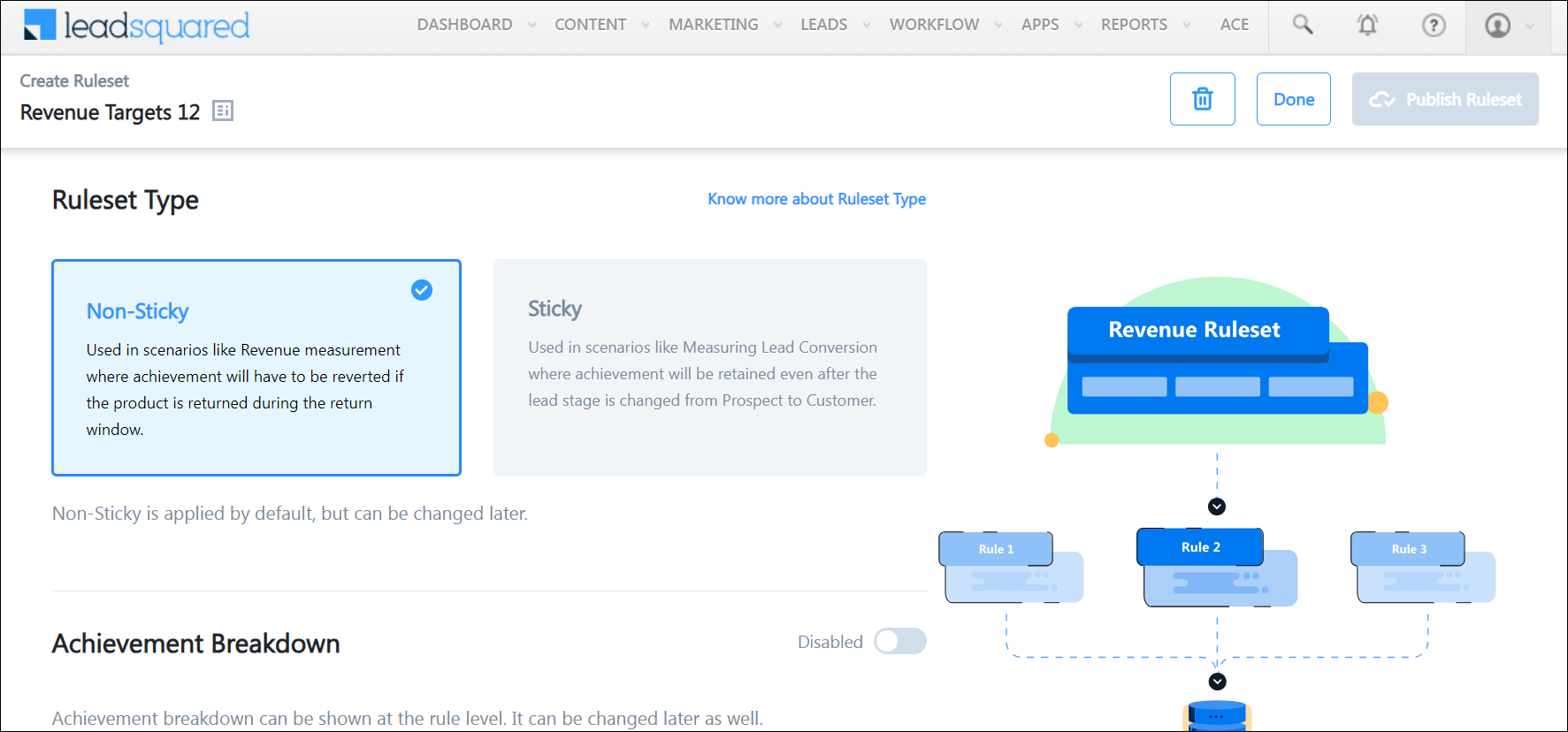
You can create 2 types of Rulesets – Sticky or Non-Sticky. Each caters to a specific type of use case. To learn how to choose the ruleset type adequate to your use case, see Sticky vs. Non-Sticky Rulesets.

4.2 Achievement Breakdown

The Achievement Breakdown lets you drill down and visualize the contributing data points that lead to the achievement of a Goal or an Incentive program.

4.3 Rules

Rulesets are comprised of Rules. You can add one or more rules to a Ruleset.

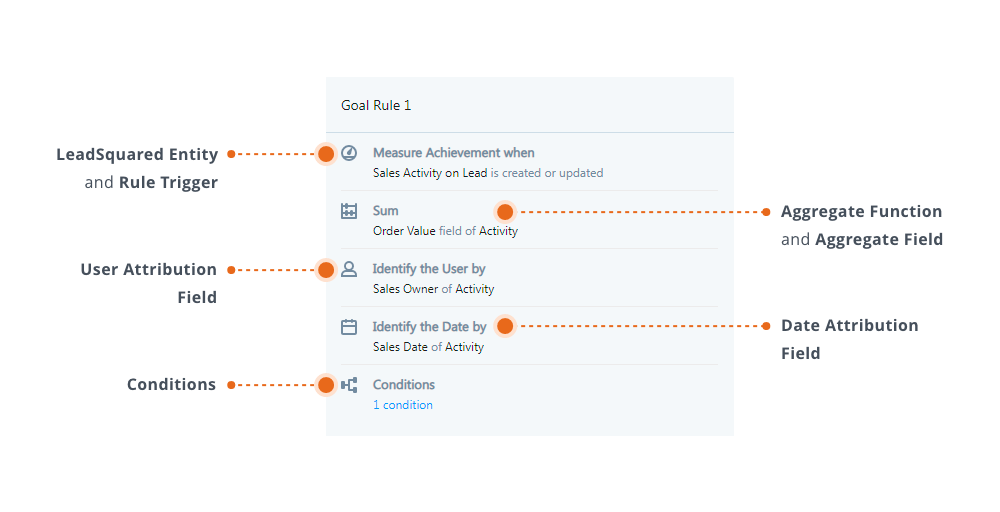
A rule consists of –

  1. The LeadSquared Entity (e.g., lead, activity, opportunity, etc.) and the Rule Trigger (lead created, activity updated, etc.).
  2. The Aggregate Function (e.g., Count, Distinct Count, Sum) and Aggregate Field (e.g., Prospect Id field of Lead, Order Value field of Sales Activity, Deal Size field of Opportunity).
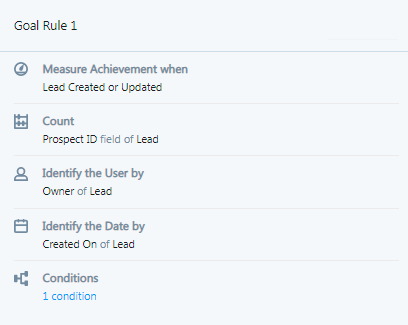
    This determines how the achievement will be calculated. For example, to measure sales revenue, you can sum the order value field of all sales activities. To measure new leads added, you can count the prospect Id field for all new leads (prospects).
  3. The User Attribution Field. This field determines which LeadSquared user the achievement is attributed to (e.g, lead owner, lead created by, sales owner, opportunity owner, etc.).
  4. The Date Attribution Field. This field determines the date on which the achievement is attributed to the user (created on, modified on, sales date, etc.).
  5. The Conditions
    • Additional rules for attributing the achievement to a user (lead stage is customer, lead city is Bangalore, etc.).

Throughout this article, we use the example of a ‘Revenue Targets’ Ruleset, where we sum (add) the ‘order value’ field of all sales activities and obtain the revenue contribution of each user –

Goal Template Documentation


5. Create a Ruleset

  1. From the main menu, navigate to ACE.
  2. Click LeadSquared ACE.
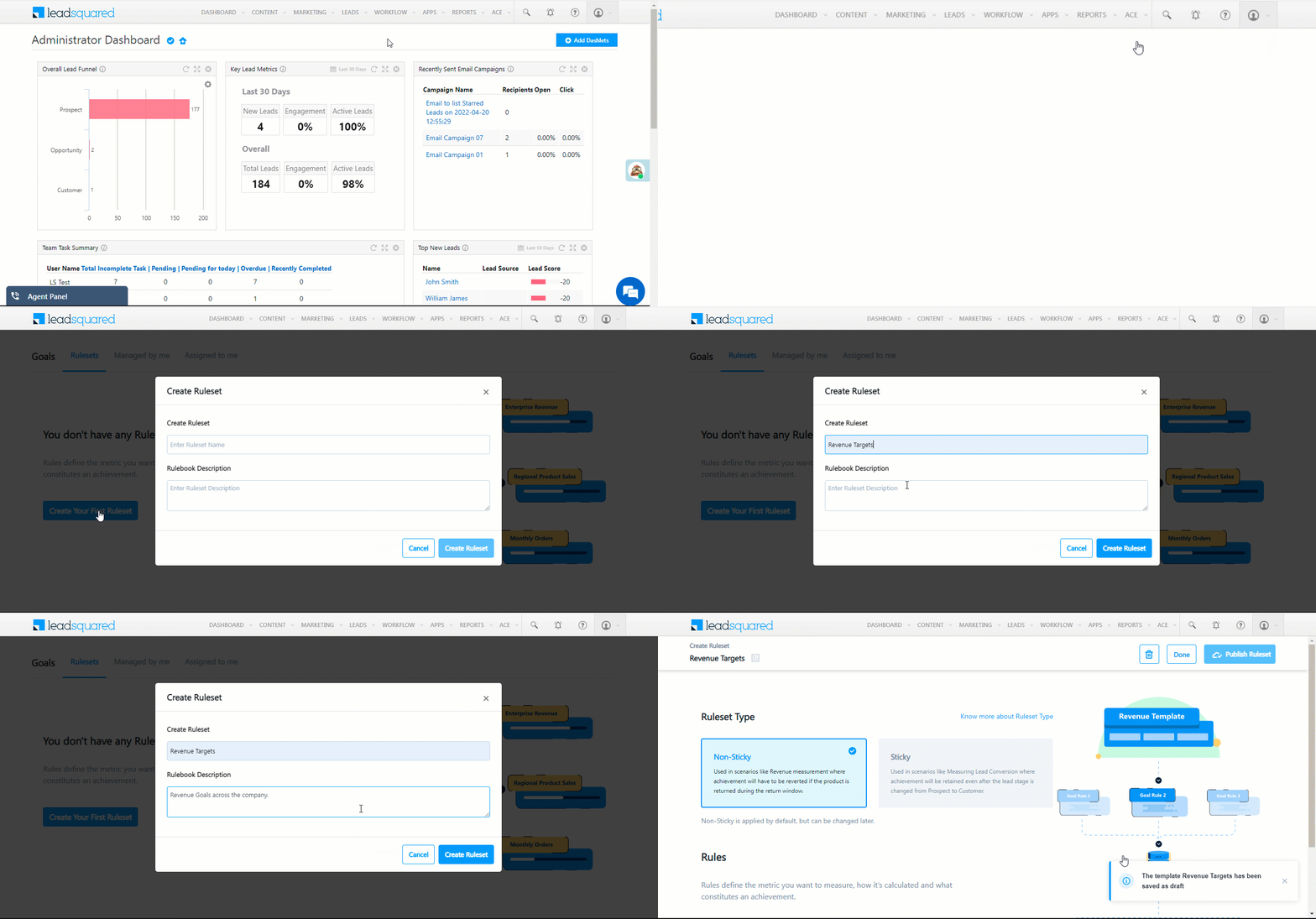
  3. Enter a name and description, then click Create.

LeadSquared Goals


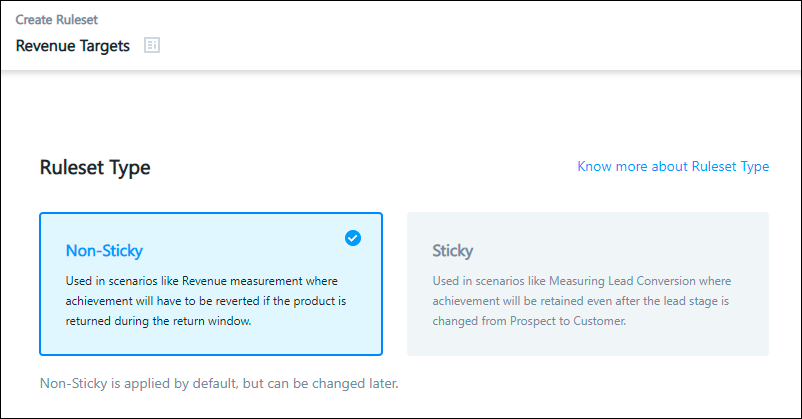
6. Choose the Ruleset Type

Sticky On and Sticky Off determine how achievements are attributed to your users. To learn more see, Sticky vs. Non-Sticky Rulesets.

LeadSquared ACE


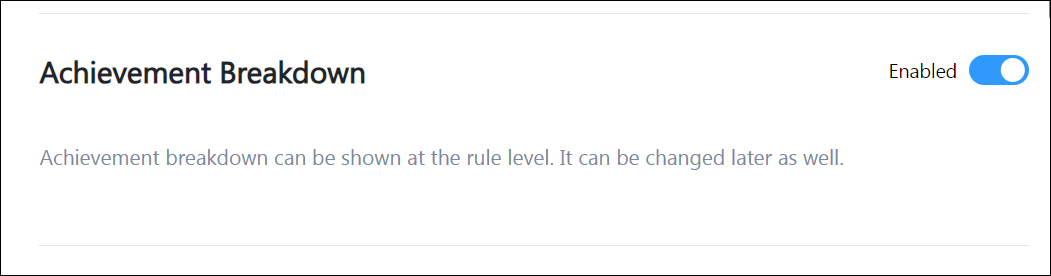
7. Achievement Breakdown

To enable Achievement Breakdown, click on the toggle achievement breakdown enable. This functionality will let you drill down and visualize the contributing data points that lead to the achievement.

achievement breakdown enable


8. Set Rules

8.1 Select the Entity and the Rule Trigger-

  1. Click add first rule.
  2. On the Add Rule pop-up, enter a Rule Name.
  3. Select the entity (Lead or Activity)
  4. Select the trigger
    • For Lead, you can trigger the rule when
      • A lead is created or updated
    • For Activity, you can trigger the rule when
      • An activity is posted on a lead
      • An activity is posted on an opportunity
      • An activity is posted on an existing activity (for more info, see Post Activities on Activities)
    • If you select Activity, choose the Activity Type.
  5. Click Next.

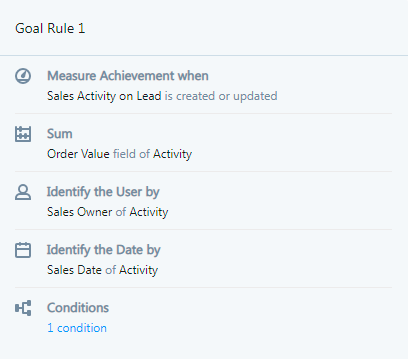
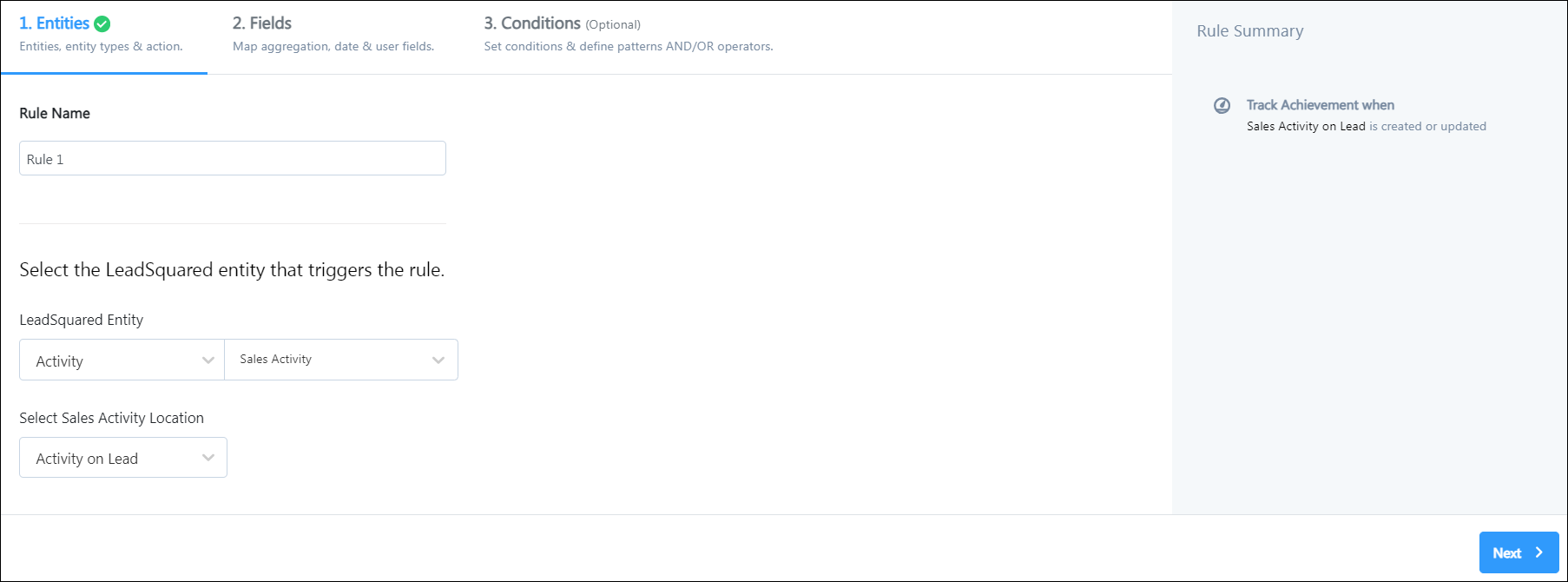
We selected the Activity entity, the Activity on Lead action or rule trigger, and we specified the activity type as Sales Activity. Our rule will trigger whenever a user posts a sales activity on a lead.

add rule entity


8.2 Select the Aggregate Function and Field

Select either Count, Distinct Count or Sum.
In the next step, you’ll specify an Aggregate field (Prospect Id, Opportunity Id, Deal Value, etc.). The aggregate function will be performed on this field to calculate the achievement.

Function Description Supported Data Types Examples 
Count
Counts the number of aggregation fields (of the lead/activity/opportunity), to calculate the achieved  value.
All Data Types
  • Count of leads
  • Count of phone calls
  • Count of meetings
  • Count of product demos
Distinct Count
Counts only distinct aggregate field values.
All Data Types
  • Count of unique leads called
  • Number of unique sales activities created on a lead
Sum
Adds all the values of the summable aggregation field.
Number
  • Sum of order value
  • Sum of invoice amount
  • Sum of gross income

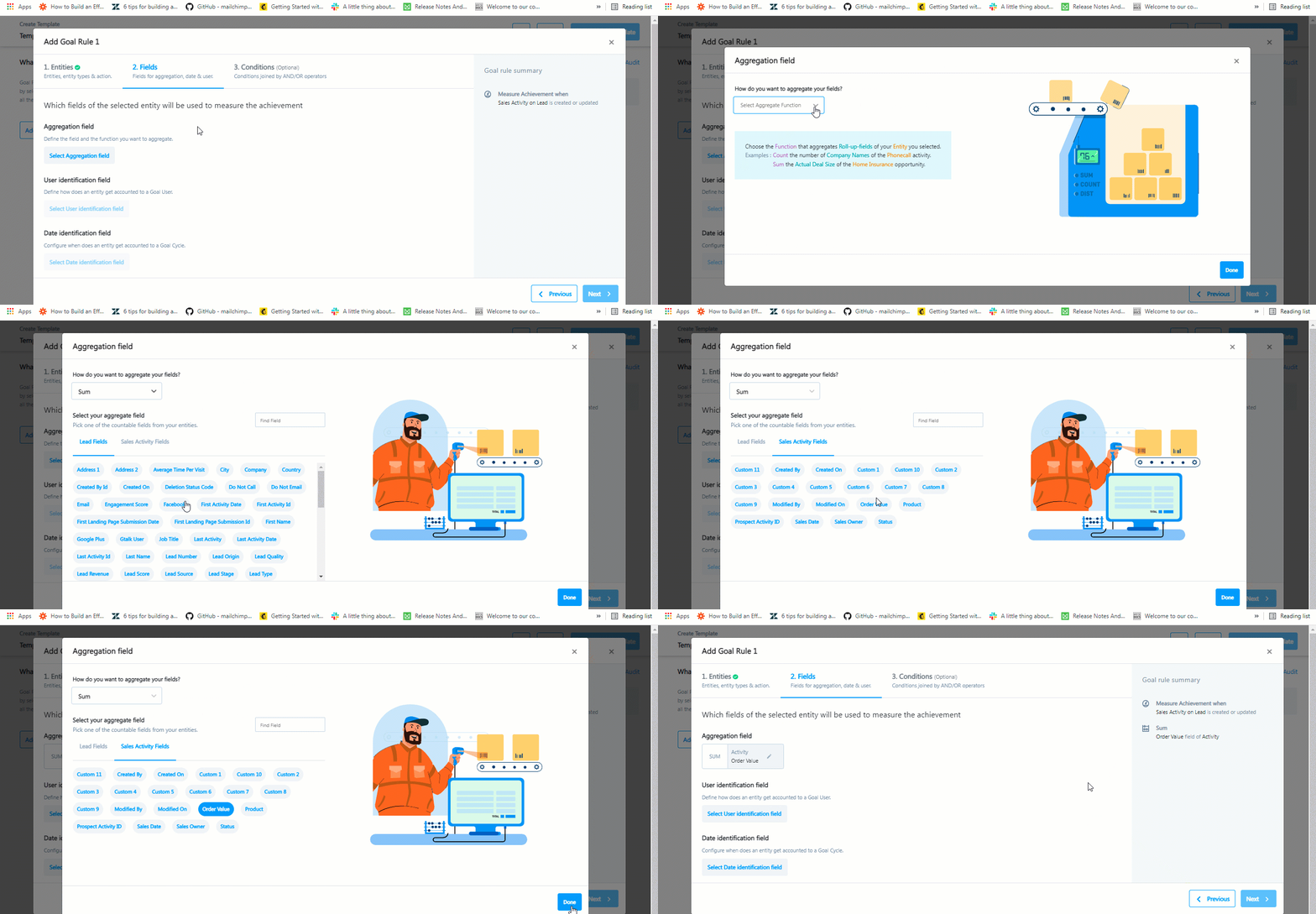
Next, search for, and select the Aggregation Field. This is the field on which the aggregation function (count or sum) will be performed.

  • The Count and Distinct Count functions work on fields of any data type.
  • The Sum function works only on number-type fields.

Continuing our ‘Revenue Targets’ example, we chose the SUM function and the Order Value field of the sales activity.

Goal Template Documentation

Note: Ensure you choose the appropriate aggregate function and field. Depending on your account setup, you may store the value of product/service sales in multiple fields (order estimated value, order value, total invoice amount, etc.). Selecting the appropriate field here ensures that the revenue is calculated correctly.


8.3 Select the User Field

Specify the user the achievement will be attributed to.

  1. Click Select User Identification field.
  2. Select the user type field.

LeadSquared goals templates

Note: Ensure you select the appropriate user field. Depending on your account setup, you may have different lead owners, activity owners, sales owners, opportunity owners, etc. You want to attribute the achievements to the user who deserves the credit.


8.4 Select the Date Field

Specify the date on which the achievement will be attributed to the user.

  1. Click Select Date Identification field.
  2. Select the date field.
  3. Click Continue.

LeadSquared goals templates

Note: Ensure you select the appropriate date field. For instance, depending on your process, users might create a sales activity on a certain date (activity ‘Created On’ field, e.g., 10th Jan) but actually make the sale on a different date (‘Sales Date’ field, e.g., 12th Feb). Selecting the correct date ensures the achievement is attributed to the user in the correct cycle.

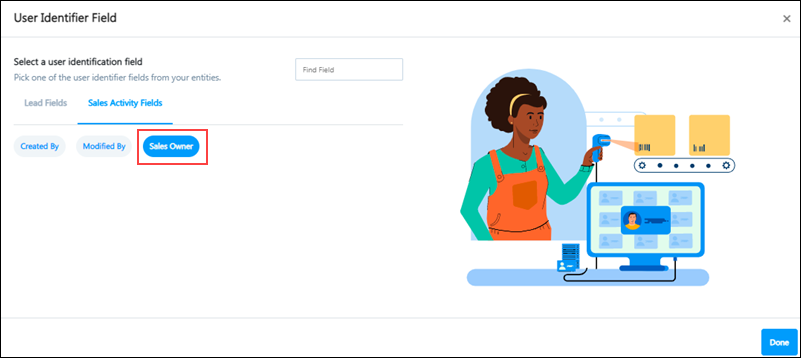
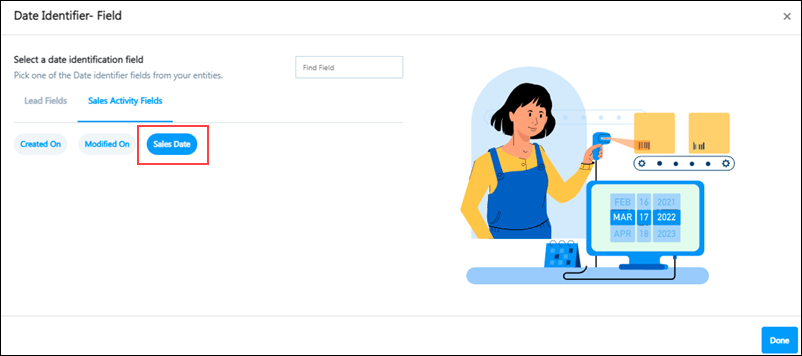
In our  ‘Revenue Targets’ example, for the Aggregation field, we chose Order Value under Sales Activity. For the User field, we selected Sales Owner under Sales Activity, and, for the Date field we picked Sales Date.


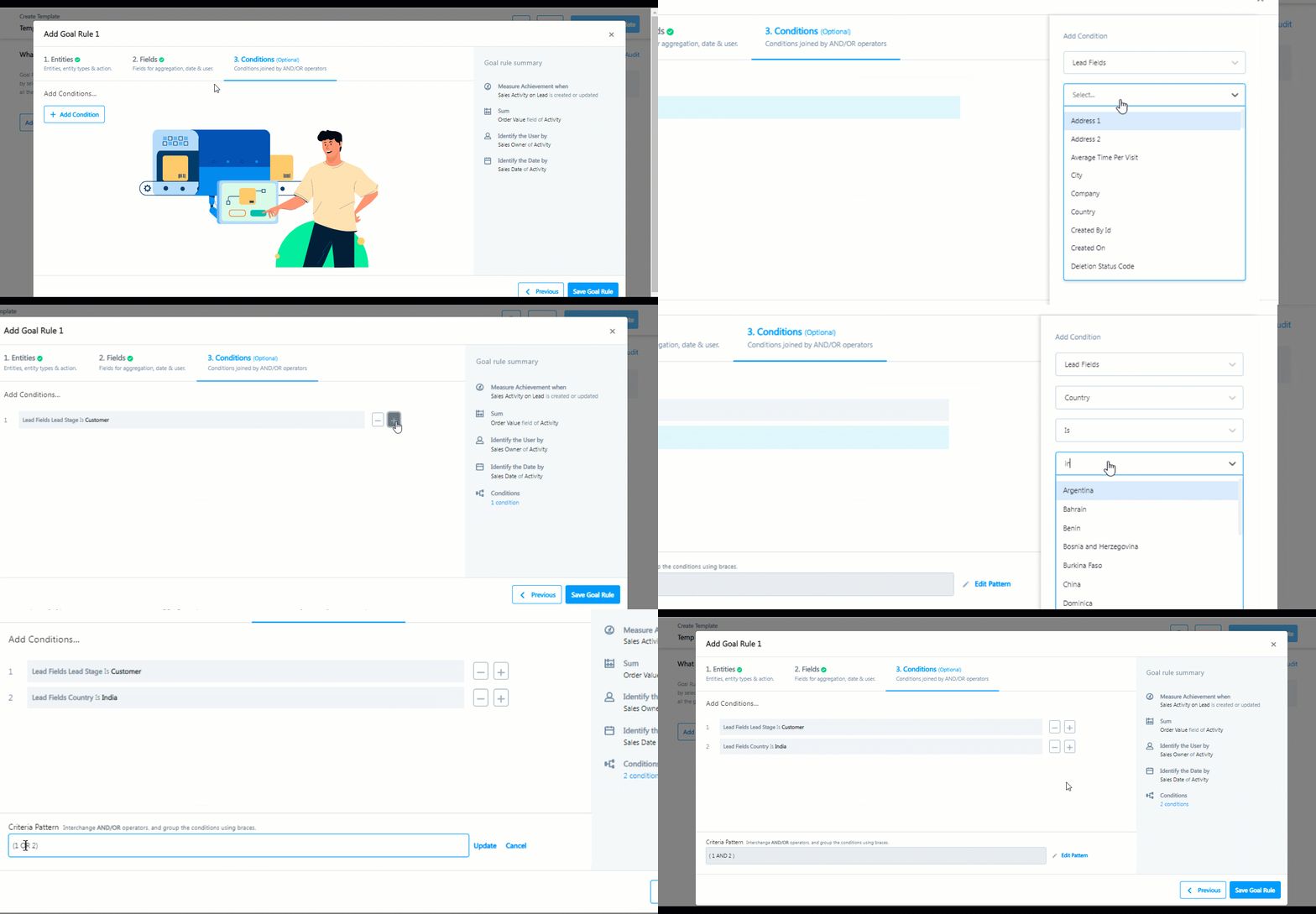
8.5 Set Conditions –

Set conditions that have to be fulfilled for the rule to trigger. This step is optional. To publish the Ruleset without adding conditions, click Publish.

  1. Click Add Condition.
  2. From the right panel, use the dropdowns to set a condition.
  3. After the condition is configured, click Add.
  4. To add multiple conditions, click LeadSquared Goals.
  5. In the criteria pattern box below, click Edit Pattern to change the logical operator (And/Or) between the conditions.
    • Type in the new pattern and click Update.
    • You can also create condition groups using parenthesis (). For example, (1 AND 2) OR (3 AND 4).
  6. Once you’re done, click Save Rule.

Here, we’re setting a condition to ensure that achievements are only attributed to users when –

  • The lead stage is ‘Customer’
    AND
  • The country is ‘India’

Goal Template Documentation

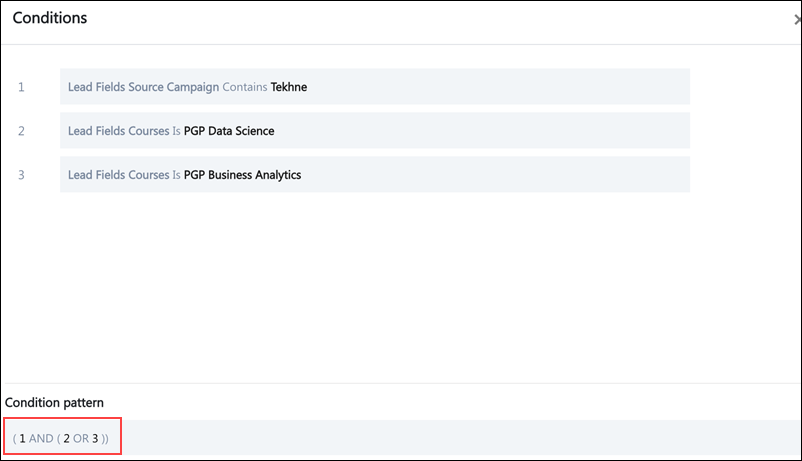
You can set up more complex conditions using combinations of both AND and OR operators. For example, let’s say you want to apply the following conditions to your rule –

  • The lead must come through a specific marketing channel/campaign
    AND

    • The lead must be interested in a Data Science course
      OR
    • The lead must be interested in a Business Analytics course

The rule can be set up as (1 AND (2 OR 3)).

Note: While editing a condition pattern, the only permitted characters are curly braces (), numbers 1,2,3,4 etc., and AND, OR operators. You can’t re-use a number twice, for example, (1 AND (1 OR 2)) is incorrect and triggers an error.

Goal Template Documentation


8.6 Add Multiple Rules

You can add multiple rules to a Ruleset.

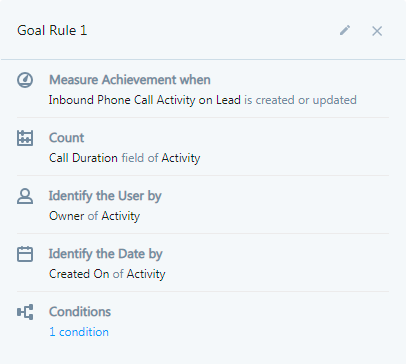
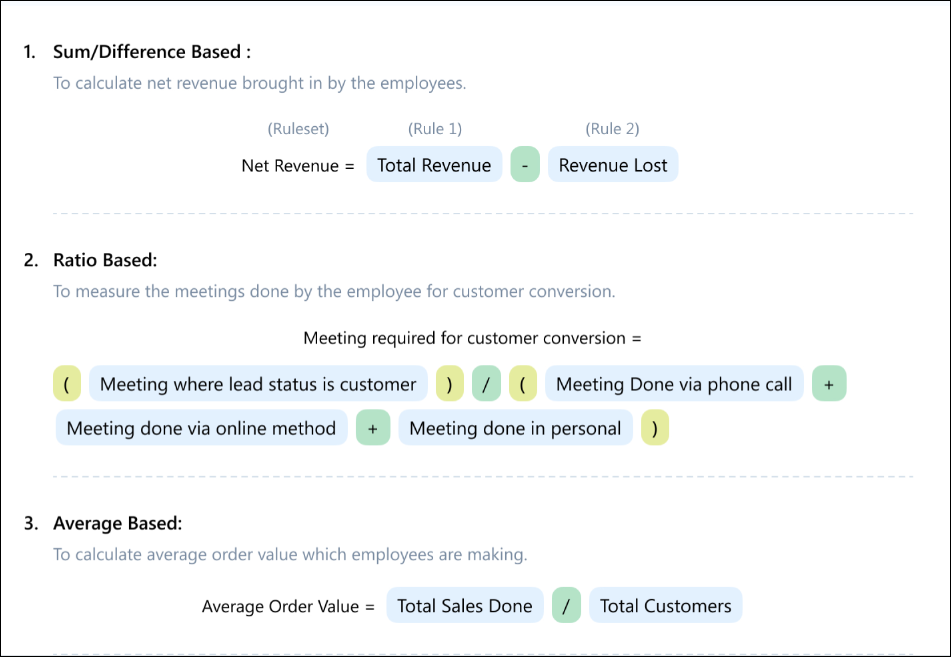
For instance, if you’re creating a Ruleset to measure total phone call duration, you can create one rule to measure duration for inbound phone call activities and another for outbound phone call activities. Both rules will be added together to calculate the achievement (duration of inbound phone calls + duration of outbound phone calls).

To add more rules, click Add more rules.

Note:

  • The aggregate function applies to all Rules within a Ruleset. You can’t create one rule using the Count function and another rule using the Sum function, in the same Ruleset.
  • Rules are always added together to calculate the total achievement. In the example below, if there are 5 inbound call activities and 5 outbound call activities for a particular user, the total achievement will be 10 phone calls (5 inbound + 5 outbound).

add more rules full

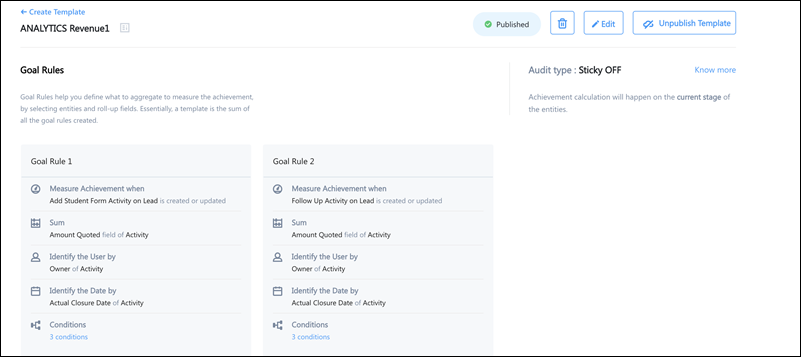
Here’s an example of multiple rules for a revenue calculation Ruleset. The first rule triggers when an activity form is submitted, and the second when a follow-up activity is posted on a lead –

Goal Template Documentation


9. Custom Ruleset

With Custom Rulesets, you have the flexibility to create tailored Rulesets that address complex use cases, meeting the specific needs of an enterprise.

usecase

Example Usecase

let’s consider the following use case –

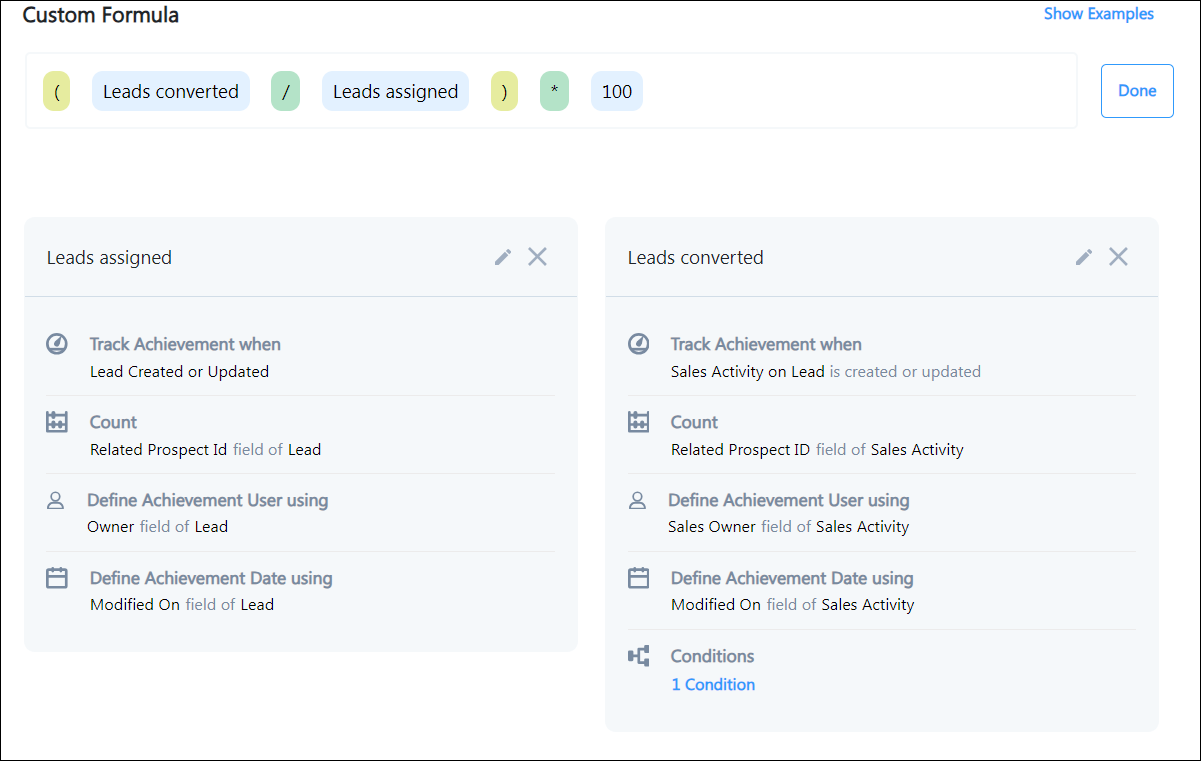
An enterprise needs to calculate the lead conversion % of its users based on the leads that have been assigned to them.

(Leads converted / Leads assigned) * 100

The steps below will demonstrate how to achieve this calculation through custom Rulesets.

Creating Custom Rulesets

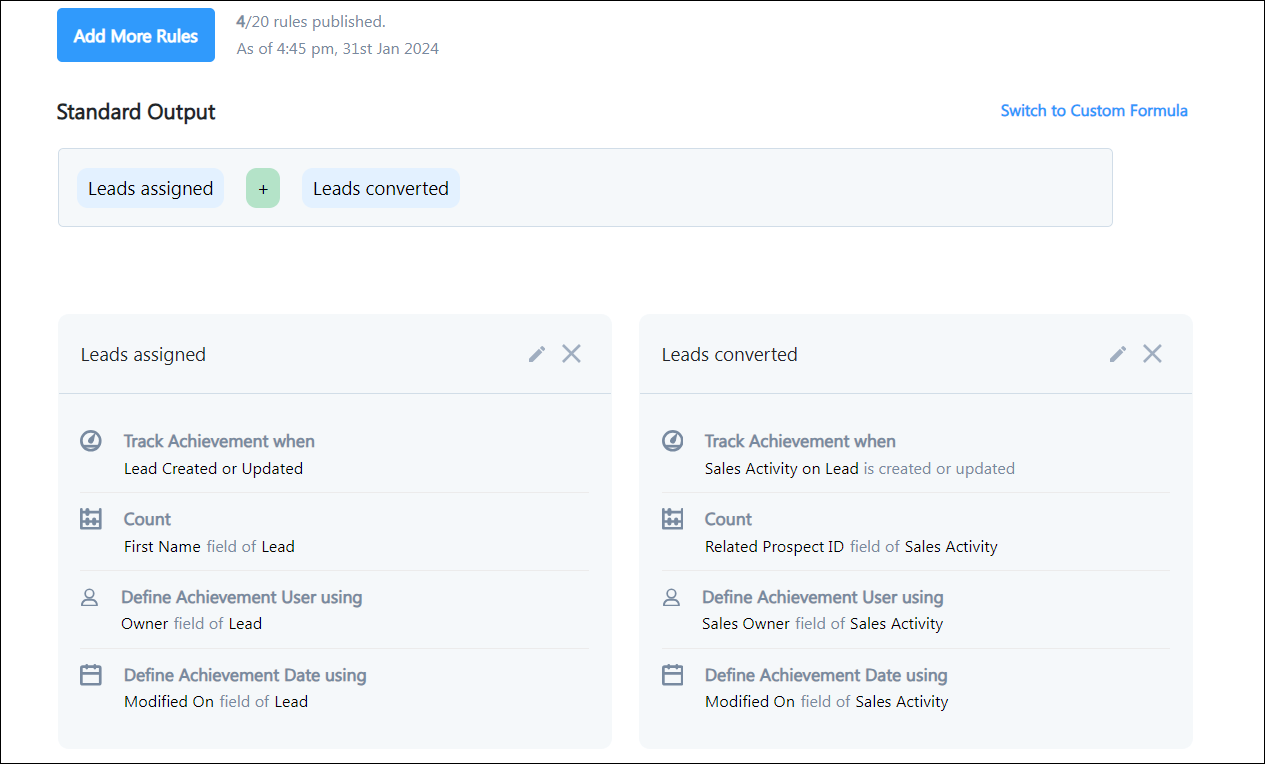
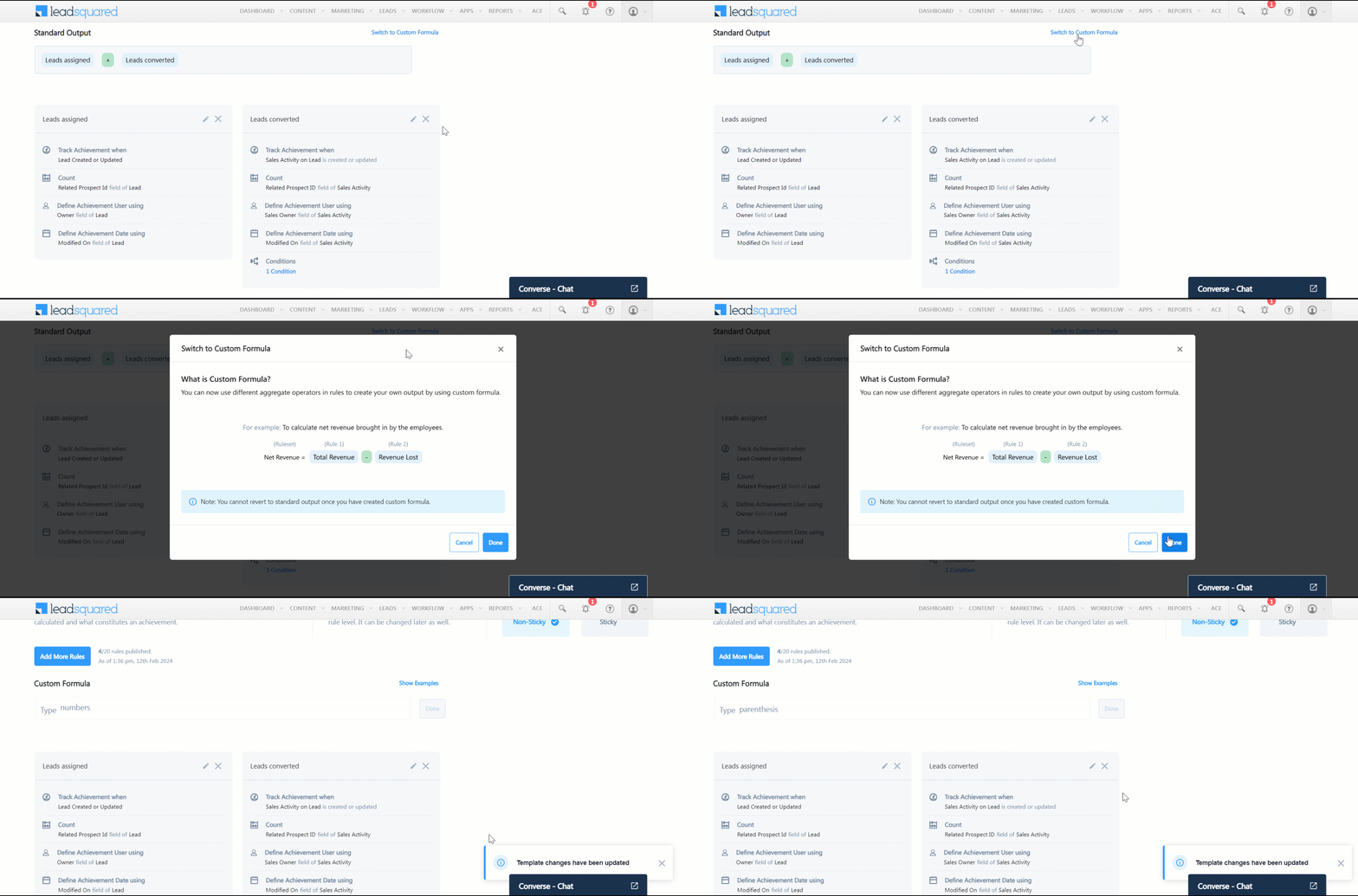
Start by creating two rules –

Leads Assigned – Calculates leads created and assigned to a user.

Leads Converted – Calculates the number of sales made by a user. There is an additional condition in this formula where once a sale is made, the lead’s stage must change to Customer.

2 rules

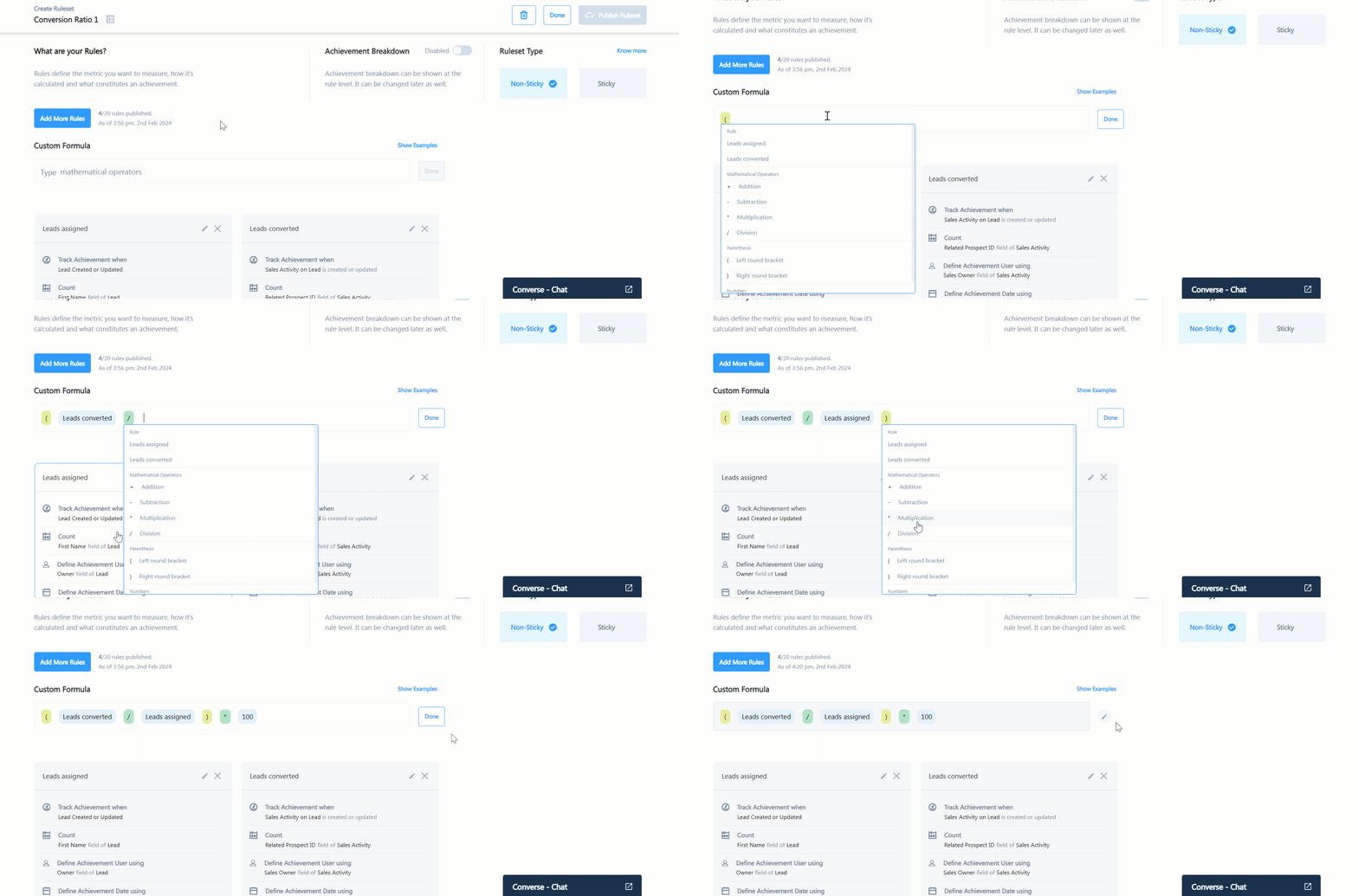
Click the Switch to Custom Formula button.

switch to custom

On the Formula Builder, you have the option to create a custom formula using Rules, numbers, mathematical operators, and parenthesis.

For our example, we will create the following formula –

(Leads converted / Leads assigned) * 100

Then, click Done and Publish Ruleset.

custom ruleset


10. Publish, Unpublish, and Delete a Ruleset

Rulesets can be in one of four statuses – Draft, Published, Unpublished, and Deleted.

Note: Only published Rulesets can be used by sales managers and representatives to create goals, incentives, and leaderboards.


10.1 Publish a Ruleset

When you publish a Ruleset, it appears in the create goals, incentives, and leaderboards form, and managers can use the Ruleset to create and assign them to their teams.
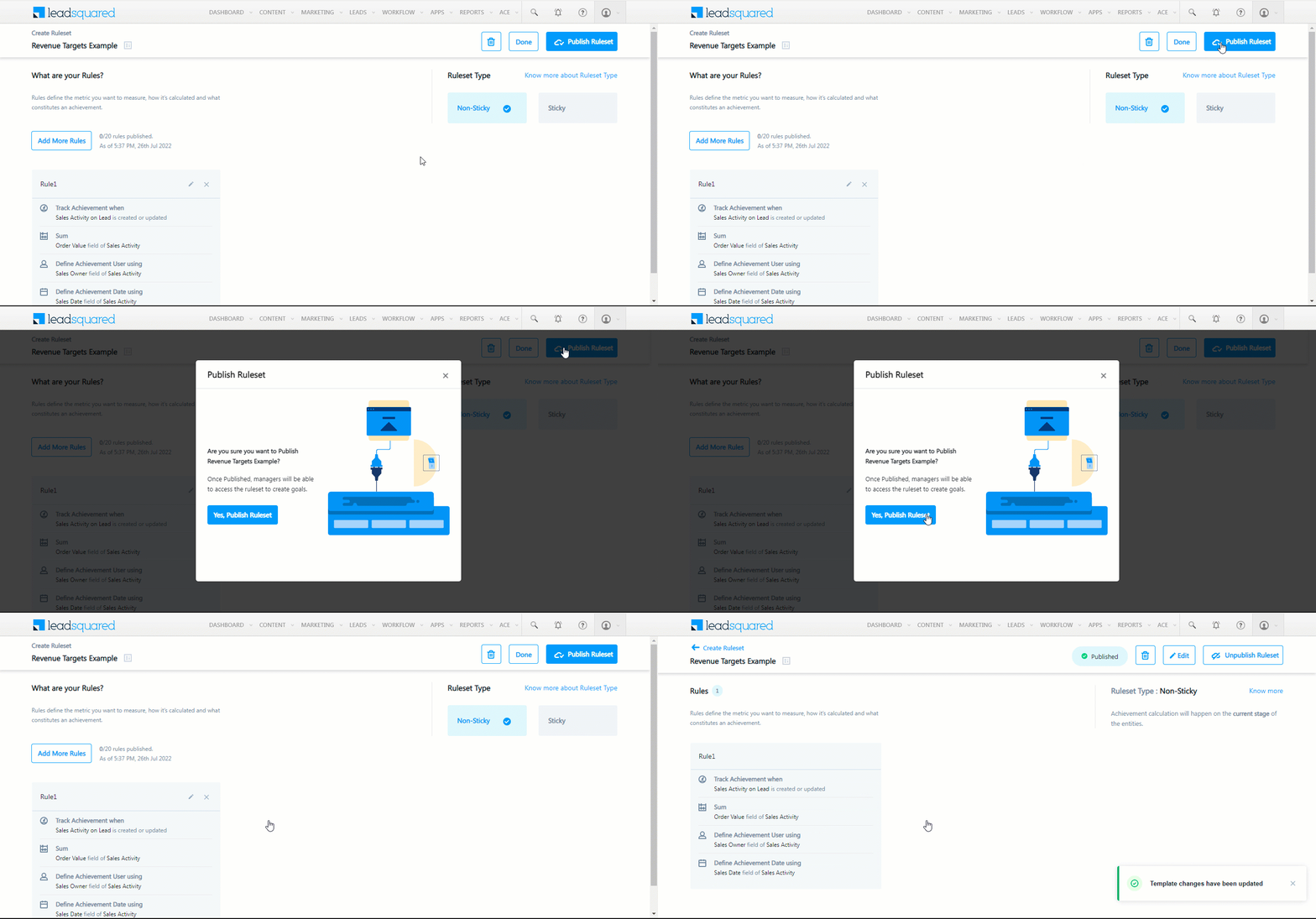
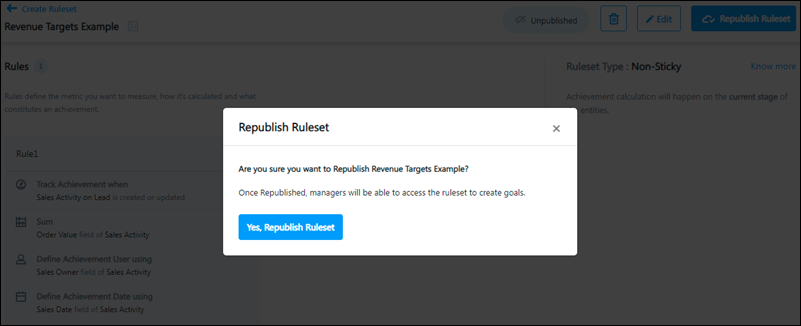
Click Publish RuleSet. On the confirmation pop-up, click Yes.

LeadSquared ACE


10.2 Edit a Ruleset

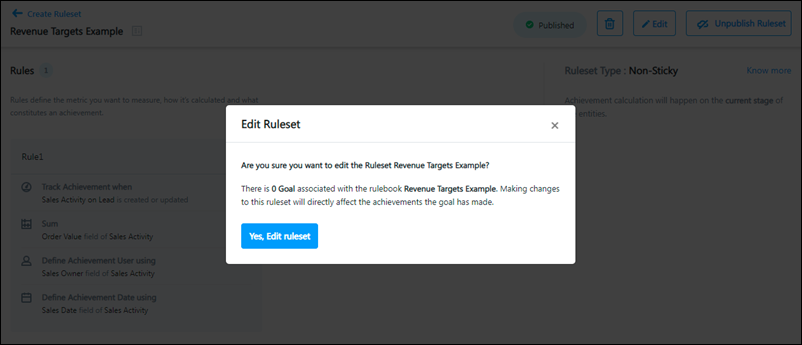
You can edit a Ruleset and change the rules at any time (draft, published, or unpublished).

When you edit and update a published Ruleset with Live Goals, Incentive Program, and Leaderboards* associated with it, they will be automatically updated –

  • All previous data will be updated based on your changes.
  • The achievement calculation for the upcoming cycles will also reflect your changes.
  • You can’t roll back or revert to a previous version of the Ruleset.

*Any status other than draft and unpublished (i.e., Yet to Start, In Progress, Completed).

LeadSquared ACE


10.3 Unpublish a Ruleset

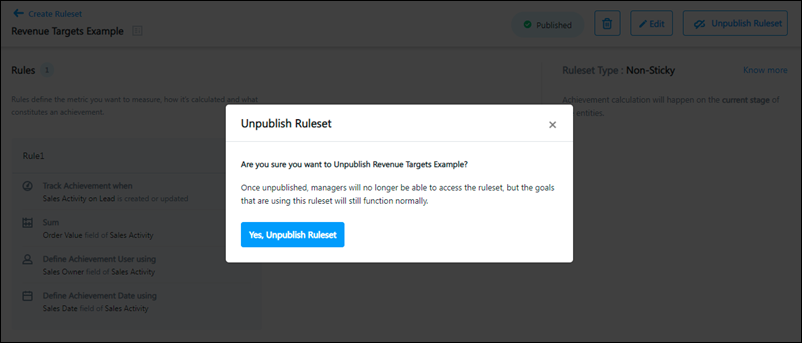
Unpublish a Ruleset when you don’t want managers to use it to create future Goals, Incentives, and Leaderboards. When a Ruleset is unpublished it no longer appears in the create Goals, Incentives, and Leaderboard form.

The Goals, Incentive Program, and Leaderboards that are already using the Ruleset will freeze –

  • The achievement calculation for them will stop – achievements for subsequent cycles won’t be calculated.
  • Previous data will still be visible.

LeadSquared ACE


10.4 Re-publish a Ruleset

An unpublished Ruleset can be published again. If you change any Rules or settings before re-publishing the Ruleset –

  • All previous data for the Goal, Incentive Program, and Leaderboards will be updated based on your changes.
  • The achievement calculation for the upcoming cycles will also reflect your changes.
  • You can’t roll back or revert to a previous version of the Ruleset.

LeadSquared ACE


10.5 Delete a Ruleset

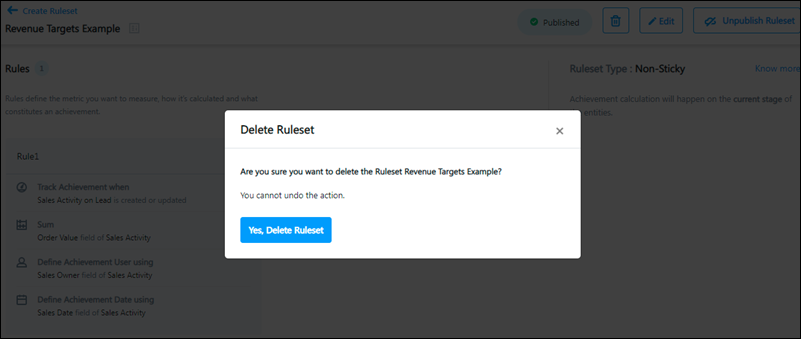
To delete a Ruleset, on the top right corner of the page,  click Goals Templates.

Note that only Rulesets that have draft goals associated with them can be deleted. If even a single goal associated with the Ruleset is not in the draft status (published, unpublished, completed, etc.), you can’t delete the Ruleset.

LeadSquared ACE


11. Manage Rulesets

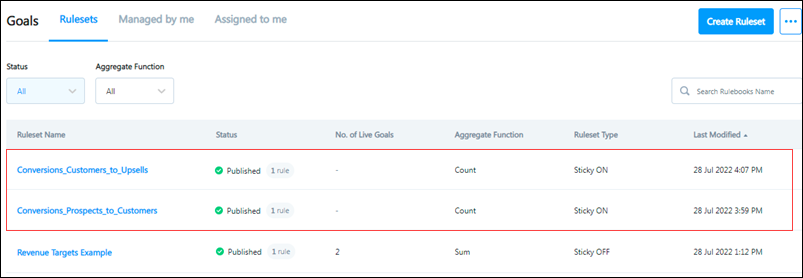
All Rulesets are visible to admins on the Rulesets tab of the Ace page. Click a Ruleset name to view and edit the Ruleset configurations or create a new Ruleset.
Use the Status and Aggregate Function filters to Rulesets or use the search bar on the right side of the page. The number of live goals associated with a Ruleset is also visible on the grid.

Goal Template Documentation


Next Steps

Once you’ve published Rulesets, create and assign Goals to your teams.

Sticky vs. Non-Sticky Rulesets

What are Sticky and Non-Sticky Rulesets?

Sticky and Non-Sticky are two distinct types of Rulesets you can create to configure Goals. They determine how the goal achievements are calculated and attributed to your sales reps/users. Each type of Ruleset caters to a specific kind of use case.

As a general rule of thumb, Non-Sticky Rulesets are helpful when achievements must be reverted, such as in the case of almost all revenue goals (that include returns and refunds).

Sticky Rulesets are helpful when achievements have to be retained, such as in the cases of lead/opportunity stage and owner changes, where regardless of the future lead stage of the lead/opportunity or the future owner, you still want to credit the sales reps responsible for previous stage transitions.


When to Use a Sticky and Non-Sticky Ruleset?

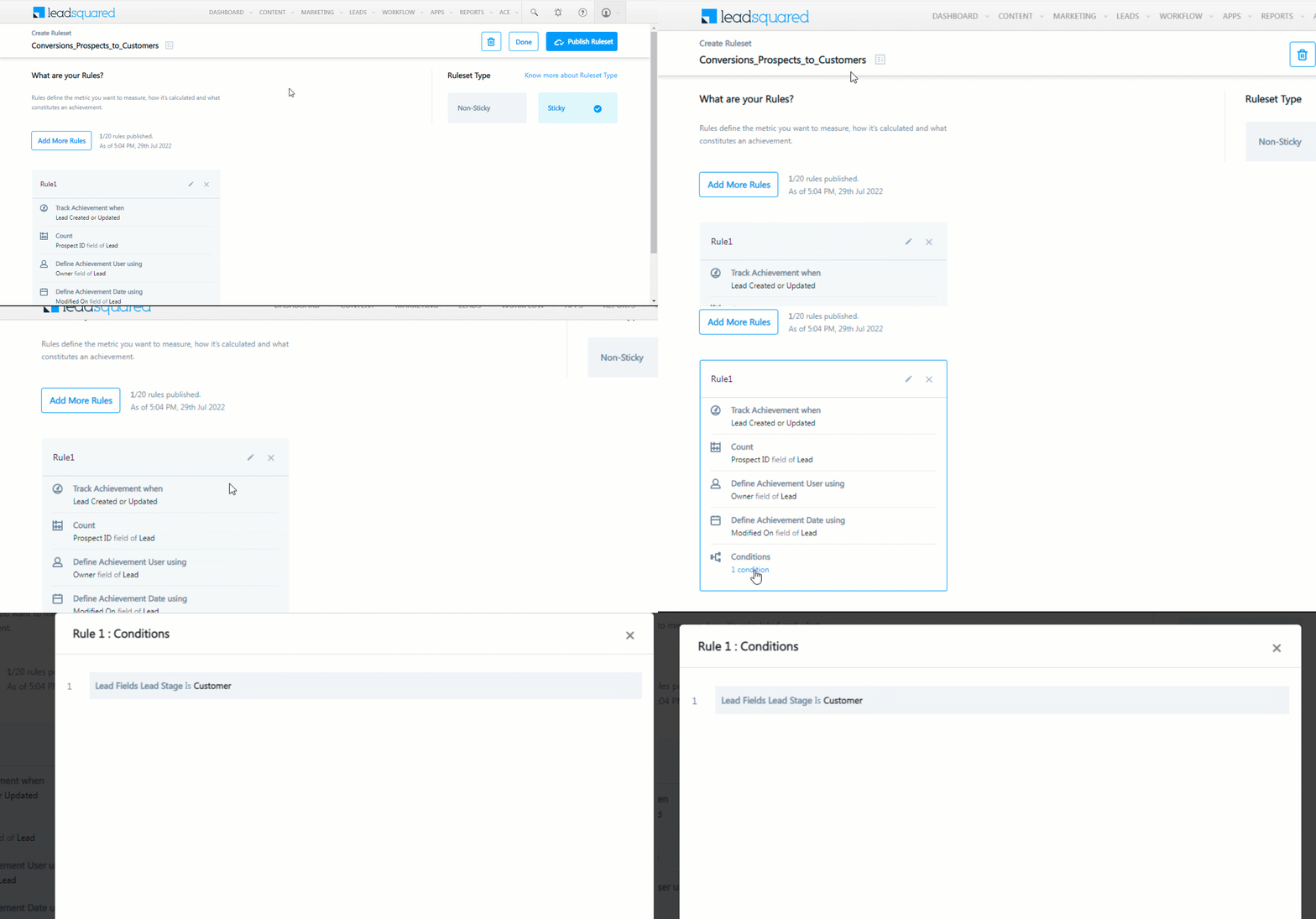
Let’s say you want to track the number of leads your users convert into customers. You define a goal rule (count of leads) and add the condition – lead stage is ‘Customer’.
Your users start changing lead stages to ‘Customer’ and racking up their achievements.

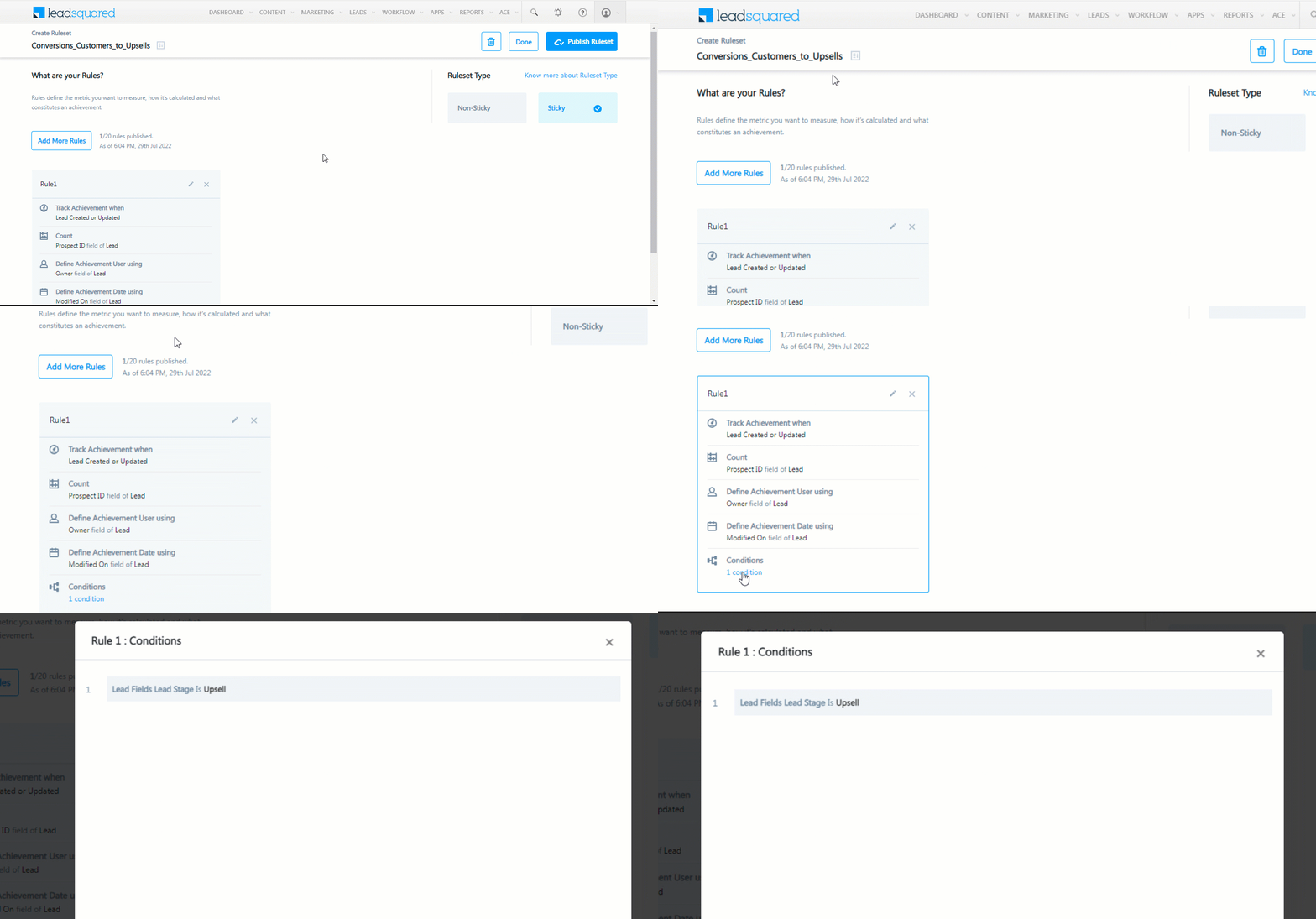
Now, let’s assume you have a different set of users working on changing the lead’s stage from ‘Customer’ to ‘Upsell’. When these users change a lead’s stage to ‘Upsell’, the condition of your goal rule (lead stage is ‘Customer’) is no longer satisfied. The achievements attributed to your users will now be removed (Non-Sticky Ruleset) because the lead stage is no longer ‘Customer’. However, your users still deserve the credit for converting those leads into customers.

Enter Sticky and Non-Sticky! With Sticky Rulesets, the system ensures that the achievement isn’t removed from the user, even when the stage is changed to ‘Upsell’ by the next team. The system maintains an audit trail of all changes, and ensures that achievements stick (or are retained), even if the current state of the record has changed.


Example – Lead Stage Conversion

Let’s assume you have two teams, Team Customer and Team Upsell. You want to define 2 sets of lead conversion Goals where,

  • Team Customer must convert X number of prospects into customers
  • Team Upsell must convert X number of customers to upsells


Configurations

You set up these Goals using 2 different Rulesets –

LeadSquared ACE

The first Ruleset attributes achievements to ‘Team Customers’, based on the count of leads in stage ‘Customer’.

LeadSquared ACE

The next Ruleset attributes achievements to ‘Team Upsells’, based on the count of leads in stage ‘Upsell’.

LeadSquared ACE


Achievements

On the 1st of August, 1 new lead enters the system (the lead’s stage is Prospect).

Your sales rep from ‘Team Customer’, Ari, starts converting the lead from a prospect to a customer –

By the 2nd of August, thanks to Ari, the lead is now a customer.

Modified On Date Leads Converted  Leads in Stage ‘Customer’ Expected Achievement
2nd August 1 1 1

On the 3rd of August, your rep from ‘Team Upsell’, Bob, converts the lead from a customers to an upsell –

Modified On Date Leads Converted  Lead in Stage ‘Upsell’ Expected Achievement
3rd August 1 1 1


Why Non-Sticky Rulesets won’t work here

On the 3rd of August, with a Non-Sticky Ruleset, here’s what Ari’s achievements look like –

Modified On Date Leads Converted  Leads in Stage – Customer Actual Achievement
2nd August 1 0 0

Why is Ari’s total achievement 0?
Because the condition ‘Lead Stage is Customer’ is no longer met (Bob changed the lead stage to upsell).


Enter Sticky Rulesets

Here’s where Sticky Rulesets come in. When you make the Ruleset Sticky, on the 3rd of August, even though the current lead stage is upsell, Ari’s previous achievements will ‘stick’. His achievements will still look like this –

Modified On Date Leads Converted  Leads in Stage – Customer Actual Achievement
2nd August 1 0 1


Create and Assign Goals

1. Feature Overview

Once Goal Rulesets are published, Admins and Sales Managers can use them to create and assign Goals to users.

If you’re new to the Goals feature, see LeadSquared Goals.

Creating a goal involves –

  1. Selecting a ruleset
  2. Defining the goal cycle (weekly, monthly, etc.)
  3. Select users to assign the goal to (according to the Organization Hierarchy)*
  4. Configure the goal targets for each cycle ($10k for Jan, $10k for Feb, etc.) and the distribution percentage among users (50% or 5k to Jenny, 50% or 5k to Smita)

Once set up, achievements are automatically attributed to users. Managers can track the progress of their teams and individual sales users can track their own contributions.

*Admins and Managers can assign goals to any users reporting to them within their Organization Hierarchy.

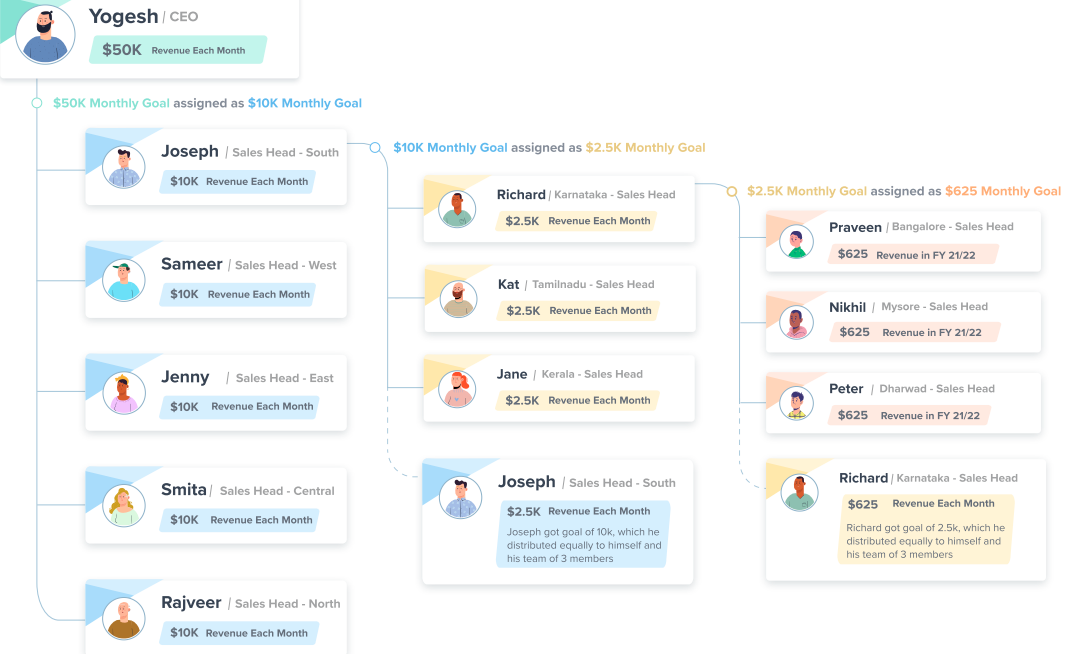
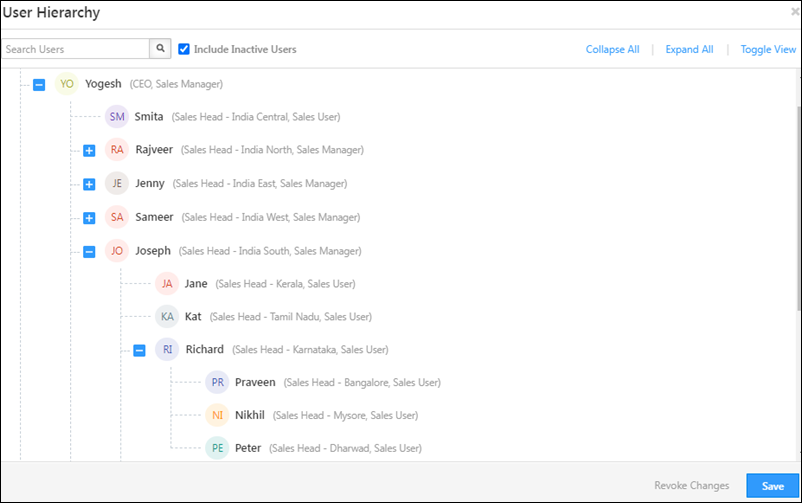
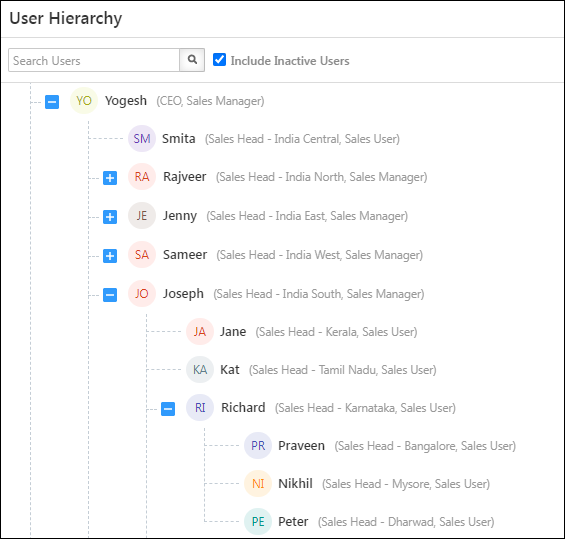
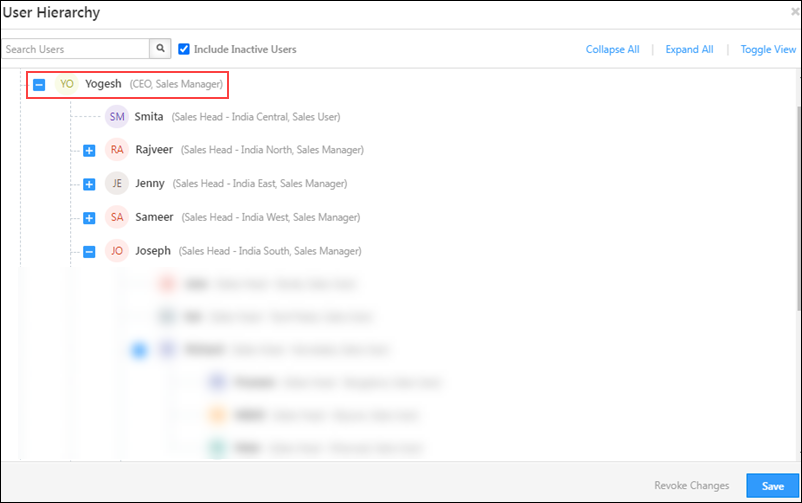
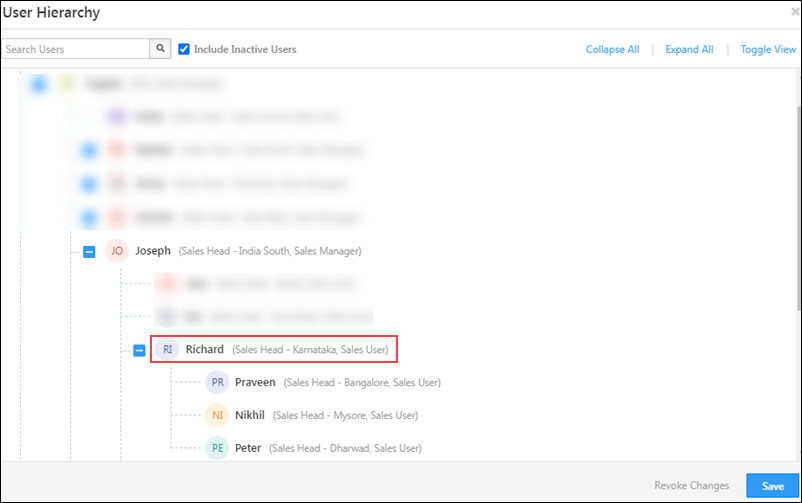
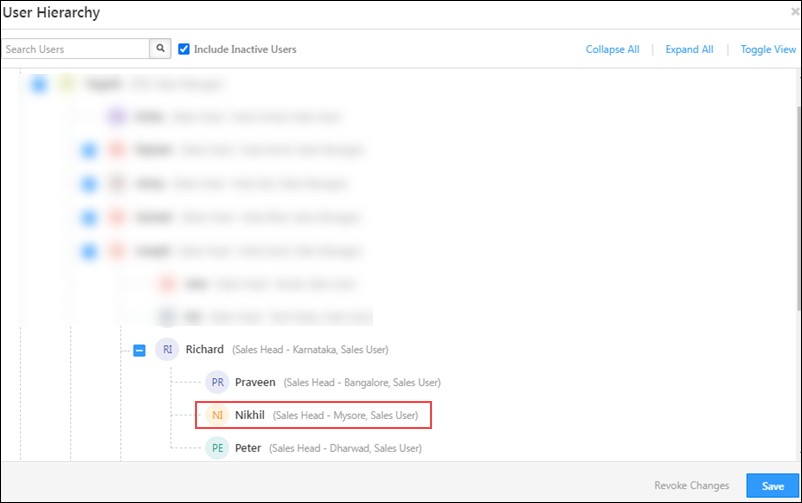
For e.g., in the image below, Yogesh is the Admin User and CEO, who has four Sales Managers (Rajveer, Jenny, Sameer, and Joseph) and one Sales User (Smita) reporting to him. Yogesh creates a Goal and assigns it to his reportees. While Yogesh can assign Goals to his reportees, he can also assign one to Kat.

Similarly, when Joseph creates a Goal and assigns it to his reportees, he can also assign a Goal to Peter.

LeadSquared ACE


2. Prerequisites

  • Only Admins, and users who have reportees under them, can create and assign Goals.
  • Before you create and assign Goals, you must ensure there are Published Goal Rulesets.
  • Ensure that the Organization Hierarchy for your organization is set up.


3. Create Goals

Across this article, we’ll show how Yogesh creates and assigns Revenue Target Goals for his team.
After you’ve created a Goal Ruleset –

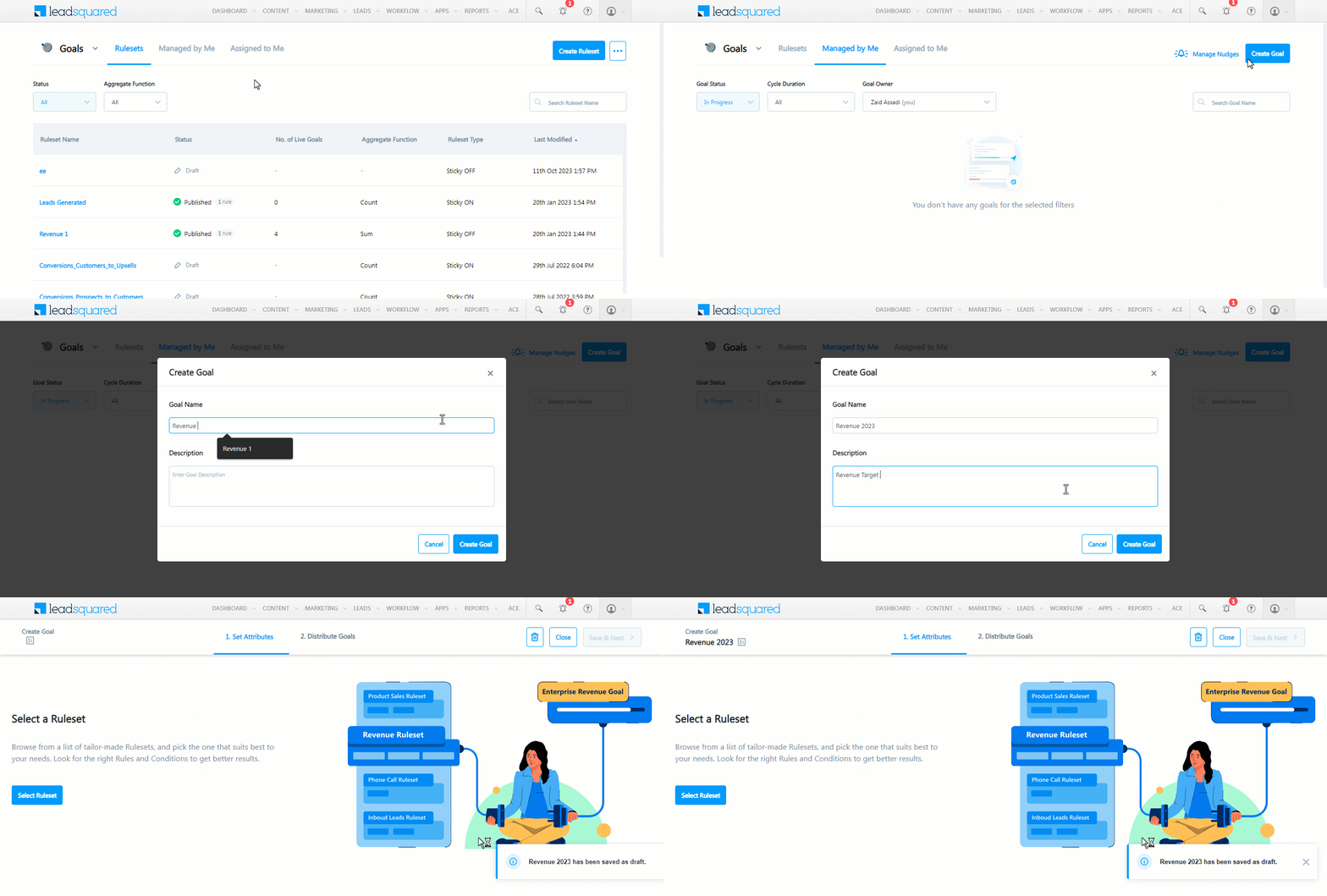
  1. Navigate to the Managed By Me screen.
  2. Click Create your First Goal.
    • If you have existing goals in your account, click Create (present on the top-right corner).
  3. On the Create Goal pop-up –
    • Enter the Goal Name and Description.
  4. Once you’re done, click Create Goal.
Note: Your Goal Name must be different from past Goals (both existing as well as deleted Goals).

Create goals


3.1 Set Attributes

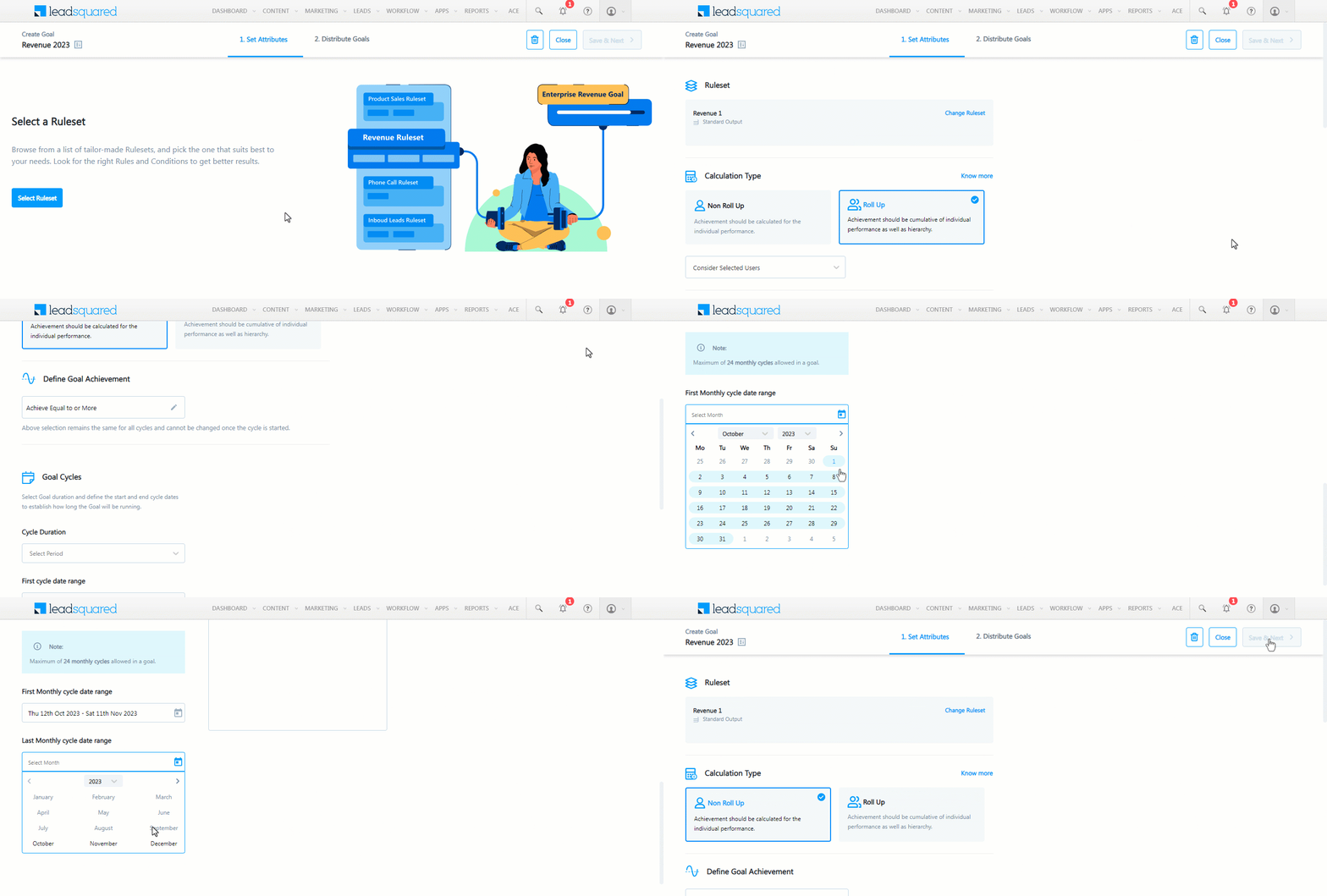
Here, select a Ruleset for the Goal. We’re using a ruleset that was created to calculate revenue.

  1. Click Select Ruleset.
  2. On the Select a Ruleset  pop-up, select the ruleset you want to use and click Use this ruleset
  3. Next, select the Calculation Type –
    •  Roll Up – In a Roll Up calculation, the result will be the summation of the achievements of the entire team in the hierarchy. For example, the goal is achieved if the target revenue is generated by the entire team.
      • Consider Selected Users – Only the cumulative achievements of selected users (in section 3.2) will be considered towards the Goal.
      • Consider All Users – Achievements of all users in the hierarchy will be considered for the achievement of the Goal (even if they are not selected for the Goal program).
    • Non Roll Up – In a Non Roll Up calculation, the result will depend only on the individual achievements of the users. For example, each user will have a revenue goal individually.
  4. Define the Goal Achievement criteria
    • Achieve Equal to or More – The users should hit or exceed their targets.
    • Maintain Greater than or equal to – The user should maintain or exceed their targets. This option is used when the average value tends to fluctuate. For example, if the weekly target is ₹30k deal size, the user could hit ₹30k in the first week, but ₹20k in the next week.
    • Maintain Less Than or equal to – The user should maintain or hit a number lower than the prescribed target. For example, the user has to maintain an average call time of 3 minutes or less.
  5. Goal Redistribution Access – When you select the Calculation Type as Roll Up, you will have the option to enable this setting. Here, admins can allow their direct reportees to redistribute assigned goals within their hierarchy. This provides more flexibility in managing team goals while ensuring accountability remains within the reporting structure.
    • Adding modifiers – With modifier access, users can modify both their individual and team targets within their respective hierarchy. You can select specific users to grant them modifier access.
  6. Roll Up Target – This setting determines whether a user’s target contributions should roll up to their manager. If enabled, the target will be aggregated at the manager’s level. If disabled, only the user’s achievements will be included, but their target will remain independent. If the Goal Redistribution Access is enabled, the target will have to be rolled up and this cannot be disabled.
  7. Then, select the Goal cycle duration –
    • Duration of each cycle – Each cycle can run for a Daily, Weekly, Biweekly, Monthly, Quarterly, Yearly, or Custom duration. In our example, we want revenue to be calculated on a Monthly basis, so we chose Monthly.
    • First cycle date range – The starting date of the first cycle. We want to run this cycle for the entire year of 2022, so we chose 1st Jan 2022.
    • Last monthly cycle date range – The month in which you want the cycle to end. We’ve chosen Dec, 2022.
  8. Once you’re done, click Save & Next.

Note:

  • If you select Weekly as your Goal Cycle duration –
    • By default the starting day of the week is Monday. This cannot be changed to a different day.
    • You can set the Cycle Start Date to Monday for the present week, even if your current day is Wednesday.
  • If you select Monthly as your Goal Cycle duration, you can set the Cycle Start Date to any day in the current month only. For example, if the current date is 10th February, you can set the Cycle Start Date to 1st February (but not 25th January).
  • The maximum Goal Cycle duration for –
    • Daily is 700 Goal Cycles.
    • Weekly is 104 Goal Cycles.
    • Biweekly is 52 Goal Cycles.
    • Monthly is 24 Goal Cycles.
    • Quarterly is 10 Goal Cycles.
    • Yearly is 16 Goal Cycles.

set attributes

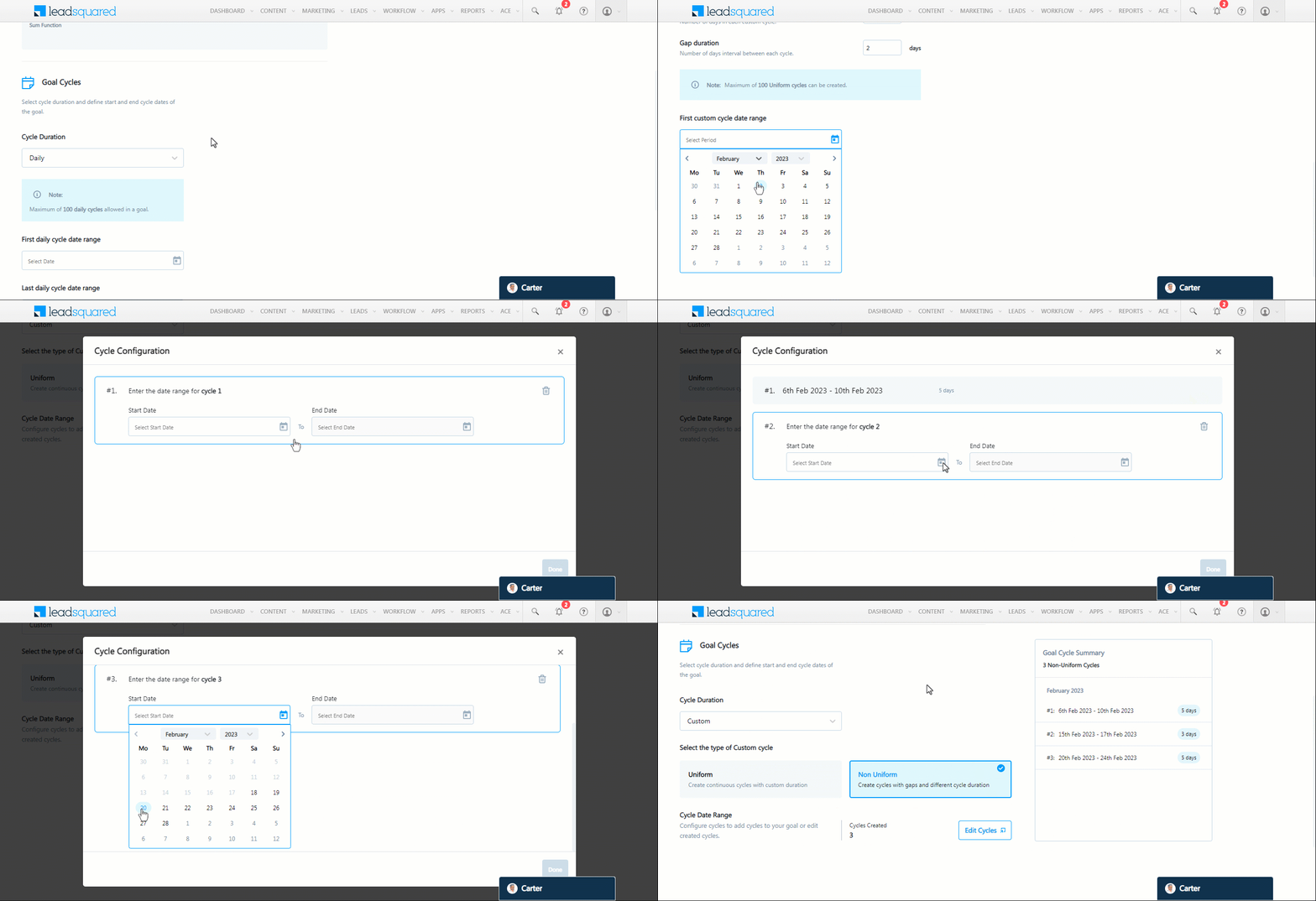
Custom Cycle Duration

To choose your own Cycle Duration, Select a Custom cycle. Under the Custom cycle, select either a Uniform cycle or a Non Uniform cycle.

  • Uniform cycle – You can select the number of days in each custom cycle, and define a uniform gap between them.
    • For example, we can set 5 continuous days in a custom cycle with a gap of 2 days in between.
  • Non Uniform cycle – You can select the Start Date and End Date of each cycle with a non-uniform gap in between them.
    • For example, the gap between the first and second cycles can be 4 days, while the gap between the second and third cycles can be 2 days.

The maximum Goal Cycle duration for the Custom cycle is 700 days.

Goal custom cycle


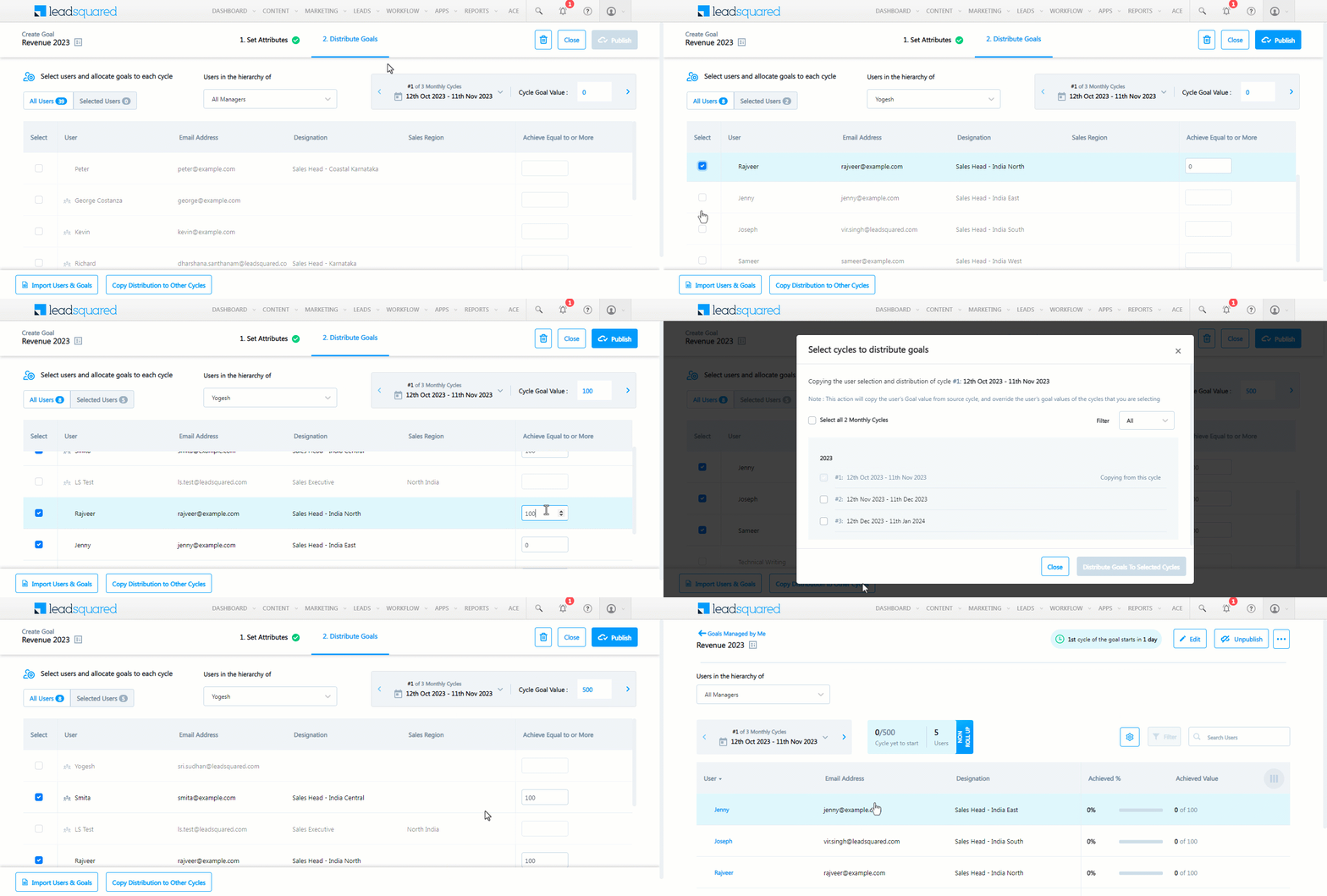
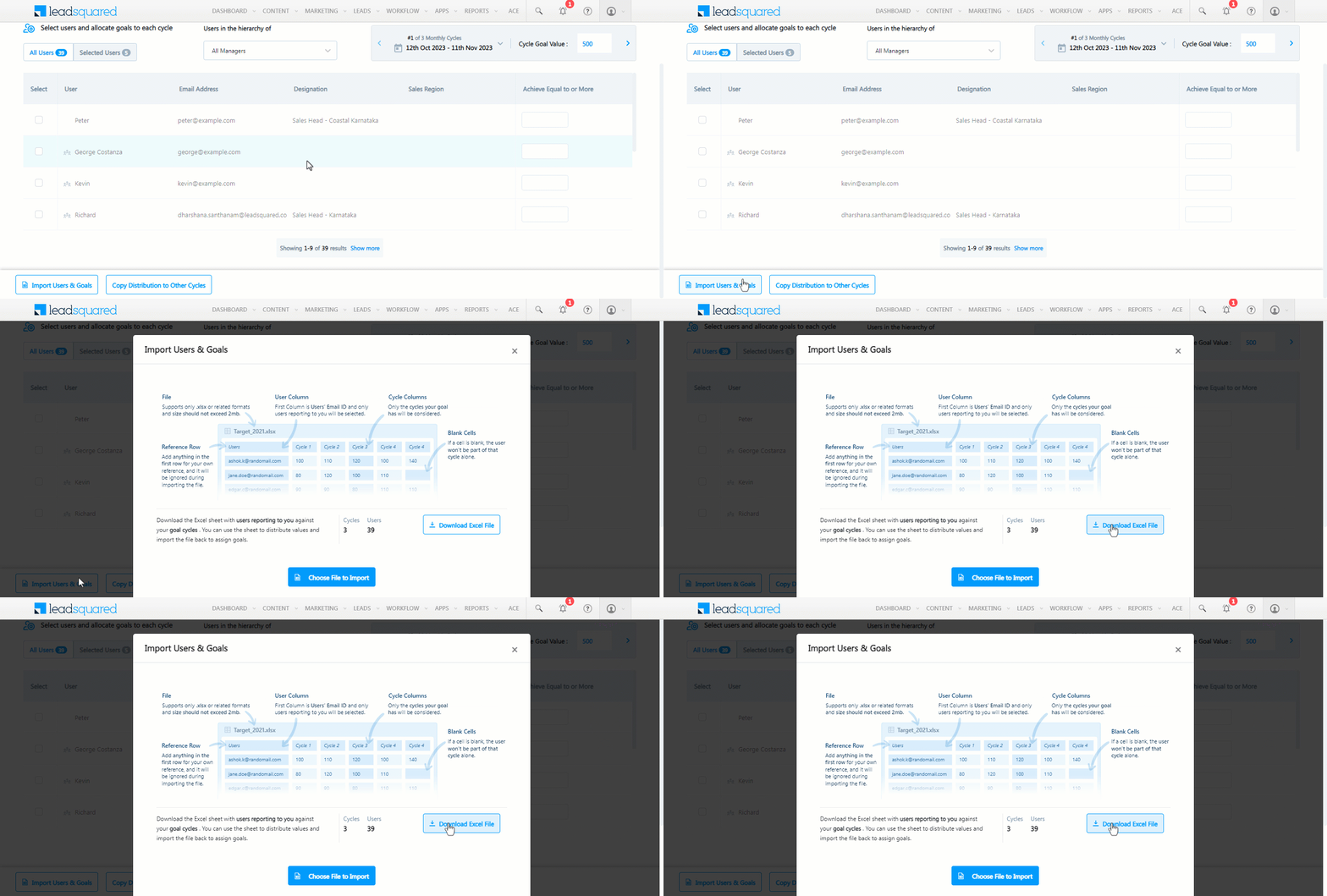
4. Distribute Goals

Distribution can be done in two ways, with and without a Target Ruleset.

  • When you distribute without a Target Rule Set, targets remain fixed. You’ll need to manually assign or upload values for each user.
  • When you use a Target Rule Set, targets are auto-distributed based on another metric (e.g., Leads Assigned), ensuring that each user’s goal is proportional to their workload.

This flexibility allows you to align targets either dynamically (data-driven) or statically (predefined), depending on your business process.

4.1 Distrubite Goals without a Target Ruleset

Select the users you want to assign the Goal to. Then, distribute the goal to the selected users, by allocating a percentage of the total goal value to each user. Enter the Goal value for each cycle, and divide this value among all users the Goal is assigned to.

  1. Select the users you want to assign the Goal to. We’re selecting all the users who directly report to Yogesh.
  2. Against each user, under Goal Achievement, enter their individual target for the selected cycle. This sum total of the Goal value assigned to each user is added, and automatically populated alongside Cycle Goal Value.
  3. Click on the cycle instance (12th Oct 2023 to 11th Nov 2023) to select a different cycle period. If you want to allocate the same value for all the cycles, click Copy Distribution to Other Cycles. In our example, the $500 monthly revenue target is allocated to all five users (in the 20% equal split we configured) for the rest of the year.
  4. Once you’re done, click Publish, and on the Publish Goal pop-up, click Yes, Publish Goal. The Goal is now live.

Note:

  • Along with assigning Goals to other users, Goal Owners can also assign the Goal to themselves.
  • Goal owners can assign the Goal only to those users that directly report to them.
  • The total Allocated Goal Value you assign to each user does not have to tally with the Cycle Goal Value. It can be equal to, more than, or less than the total cycle value. For e.g., if your Cycle Goal Value is $1,000, and you have five users, you can assign $300 as the Allocated Goal Value to each individual user.
  • If you’ve enabled Goal Redistribution Access with Modifiers, only your direct reportees will be available for selection. You can assign them a goal value, and they can further redistribute it within their hierarchy. Additionally, you can choose which users should have modifier access.

publish goal

4.2 Distrubite Goals with a Target Ruleset

Instead of entering static targets, you can now select a Target Rule Set.

The target for each user is automatically calculated based on the chosen rule set’s logic (e.g., leads assigned). Targets update dynamically as underlying data changes (e.g., new leads assigned during the goal period).

For Example:

Achievement Rule Set: Revenue

Target Rule Set: Leads Assigned

If User A has 50 leads assigned and User B has 100, their revenue targets are automatically set in proportion (User A’s target is based on 50 leads, User B’s on 100 leads).

ace goals assign target ruleset

4.3 Suggested Goal Value

Suggested Goal Value to help motivate users beyond their assigned targets.

  • Target Value: The minimum goal users need to achieve.
  • Suggested Goal Value: An admin-defined stretch value that highlights the user’s potential.

For example, if a user’s the target is to generate 100 leads, admins can set a suggested goal of 150—encouraging users to go beyond their baseline performance.

To enable this feature, navigate to Settings>Goal Settings and enable Suggested Goal Value.

enable and configure suggested goal value

4.4 Import Goals & Users

You can also import Goals and users through an Excel file. To do this, click Add Users & Goals using Excel. You can use the Sample File to add the Goals.

import


5. View and Track Goals

Depending on the Organization Hierarchy set up in your account, different users will have different Goal Views.

LeadSquared ACE Goals

Under the Managed By Me tab, Goal Owners (like Yogesh from our example) can track all the goals they’ve created and assigned to their reportees.

Leadsquared ACE Goals

Goal Owners can also use the following filters to track Goals –

  • Goal Status
    • In Progress

LeadSquared Goals

    • Yet to start

LeadSquared Goals

    • Completed

LeadSquared Goals

    • Draft

LeadSquared Goals

    • Unpublished

LeadSquared Goals

    • All
  • Cycle Duration
    • All
    • Daily
    • Weekly
    • Monthly
  • Goal Owner – Users who’ve created Goals

LeadSquared ACE Goals

Certain Goal Owners (like Richard) don’t have access to create rulesets. These users can use existing rulesets to create and assign Goals to their reportees (like Praveen, Nikhil, and Peter), and track progress from the Managed by Me tab.

Leadsquared ACE Goals

If these Goal Owners (like Richard) have Goals assigned to them by their Managers (like Joseph), they can view the goals assigned to them from the Assigned to Me tab.

LeadSquared ACE Goals

Certain users (like Nikhil) don’t have access to either create or assign Goals.

Leadsquared ACE Goals

These users can only track Goals assigned to them by their Managers (like Richard), from the Assigned to Me tab.

LeadSquared ACE Goals

A user’s progress towards achieving the Goal is tracked through the Progress Bar. The user can achieve the exact value, under-achieve or over-achieve. Each colour in the bar indicates the percentage of the goal achieved –

Percentage Split Colour
0-24.9 Red
25-49.9 Orange
50-74.9 Yellow
75-99.9 Light Green
100 & above Dark Green


6. Goals Drill Down

All Goal Owners can drill down and track the progress made by users working under them, across multiple organization levels. Contributions made by users in the lower levels of the organization hierarchy are automatically aggregated to the managers’ goals. This gives the Goal Owner clarity on each team’s progress, as well as each individual’s progress towards achieving the Goal.

Note: You must enable the Achievement Breakdown option in the Ruleset to view Achievement Breakdowns.
  • To view the Achievement Breakdown of a Goal, click on the achievement breakdown icon icon.
  • To view a specific user’s Achievement Breakdown, click the view more button achievement breakdown button next to the user’s achievement.
  • You can also download drill-down records of a goal as a CSV file. Simply open the drill-down view and click Download as CSV to export the records for external analysis or sharing.
  • To view a specific team’s achievements, click on the LeadSquared Goals icon next to the team’s manager.
    • A Rollup Goal with the Consider Selected Users option will only show users who are part of the Goal.
    • A Rollup Goal with the Consider All Users option will show all users – even if they are not part of the Goal. However, the users who are not part of the Goal will have a Not part of the goal description tag.

Ace goals drill down overview


7. Actions

On the Goals Managed by Me screen, Goal Owners can perform the following actions –

7.1 Rename Goal

To rename the Goal and update Goal details –

  1. On the top-left side of your screen, against the Goal name, click LeadSquared ACE Goals.
  2. Click Change Goal Name & Description, and on the Update Goal pop-up, update the details.
  3. Once you’re done, click Update.

LeadSquared ACE Goals


7.2 Column Customization

You can customize the column to display other user fields –

  1. On the right side of your screen, click  LeadSquared ACE Goals.
  2. From the Configure Columns pop-up, select the columns you want to display and click Done.

LeadSquared ACE Goals


7.3 Edit Goals

Based on the Goal status, you can edit the following Goal details –

LeadSquared ACE Goals

Note: When editing a Goal, you cannot use the Copy Distribution to all cycles logic to automatically Allocate Goal Value to all your users. Instead, you’ll have to manually Allocate Goal Value to each user, for each Goal Cycle.
Status Goal Cycle Start Date Goal Cycle End Date User Goal Value
Yet to Start green tick icon green tick icon green tick icon
In Progress red cross green tick icon green tick icon
Completed red cross red cross green tick icon
Draft green tick icon green tick icon green tick icon
Unpublished – Yet to Start green tick icon green tick icon green tick icon
Unpublished – In Progress red cross green tick icon green tick icon


7.4 Other Actions

  • To delete a Goal, click LeadSquared ACE Goals.
  • To unpublish a goal, click Unpublish.
Note: You cannot delete a Completed Goal.

LeadSquared Goals


8. Access to Goals Features

Based on your role, you can view the following Goal tabs when creating and assigning Goals and Goal Rulesets.

Note:

  • Admin users can view and track all the Goals in their account, including all the Goals created by other users.
  • When users have 0 reportees but 1 or more Goals they’ve created, this can mean Goals that were created in the past, when they had reportees under them.
User Type Number of Reportees reporting to the User Number of Goals Created by the User Goal Ruleset Goal Managed by Me Goal Assigned to Me
Admin 0 0 green tick icon green tick icon green tick icon
1 or more 0 green tick icon green tick icon green tick icon
0 1 or more green tick icon green tick icon green tick icon
1 or more 1 or more green tick icon green tick icon green tick icon
Non-admin 0 0 red cross red cross green tick icon
1 or more 0 red cross green tick icon green tick icon
0 1 or more red cross green tick icon green tick icon
1 or more 1 or more red cross green tick icon green tick icon


9. LeadSquared Mobile App – Goals

You can also track the progress of your LeadSquared Goals through the LeadSquared Mobile App. The Mobile App will have three different views: Admin user view, Sales Manager view, and Sales User view.

Note: You cannot edit or create Goals through the LeadSquared Mobile App.

Goals Admin View

Navigate to LeadSquared Goals tab by clicking on the Ace icon icon.

Ace Goals nav

On the Managed by Me tab you can view all the Goals assigned to a Goal Owner. You can select a specific Goal Owner through the dropdown.

Ace Goals managed by me

You can click on the goals filter icon to filter the Goals.

Goals filter

You can select a particular Goal for a detailed view. You can view different cycles and the performance of the users under this Goal.

Goals check users

Click on the download icon to download the data in an Excel format.

goals download data

As an Admin, you can also navigate to the Rulesets tab by clicking on the ace rulesets nav icon.

Goals rulesets

Goals Manager View

If you log in as a Sales Manager, you can view the progress of your goals through the Managed by Me (Goals where you are the Goal Owner) and Assigned to Me (Goals that have been assigned to you) tabs.

Goals Manager View

Goals Sales User View

If you log in as a Sales User, you view the progression of all your Goals through the Assigned to Me tab.

Goals user view


10. Custom Notifications

Apart form the default system nudges, ACE Notifications helps you send custom notifications that keep users and managers engaged by sending timely nudges about their progress.

To configure custom notifications, refer to Create Custom Notifications on ACE.

example custom notification


Any Questions?

Did you find this article helpful? Please let us know any feedback you may have in the comments section below. We’d love to hear from you and help you out!
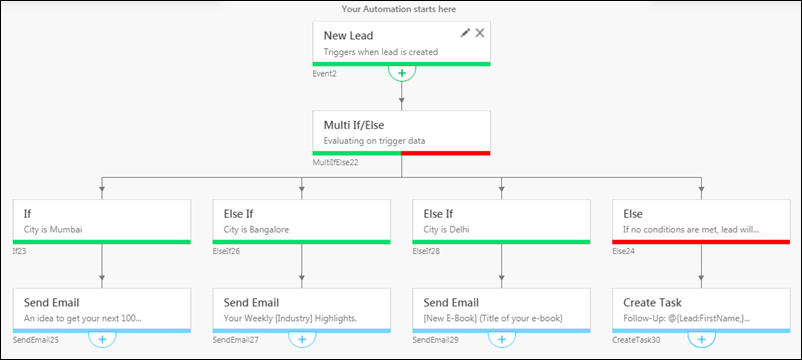
Create Custom Notifications on ACE

1. Feature Overview

ACE Notifications help keep users and managers engaged by sending timely nudges about their progress. Notifications can be configured as time-based (pre-defined time intervals or cycle completion based) or progress-based (triggered when a percentage of the goal is achieved).


2. Prerequisites

  • Only Admins and Super Admins can manage notifications and create custom notifications.
  • At present, custom notifications are only available for Goals.


3. Types of Custom Notifications

1. Time-Based Notifications

Triggered on specific intervals during the goal cycle.

Example:

  • Send a reminder every week-day (Monday–Friday) in the morning.
  • Send nudges at 10%, 30%, or 75% of the goal cycle duration.

2. Progress-Based Notifications

Triggered when a user’s achievement crosses a percentage of their target.

Example: Send a nudge when a user reaches 25%, 50%, or 100% of their target.


4. Notification Settings

Notification settings provide centralized control over how goal-related updates are sent. They include General Settings, which act as the high-level switch to enable or disable notifications across the account, and the Notifications Library, which stores all saved custom notification templates (both automatic and manual).

4.1 General Settings

Navigate to Settings>Notifications>General Settings.

This is the high-level control for notifications. From here, you can enable or disable notifications for the entire account. If notifications are disabled at this level, no automatic or manual notifications will be sent, even if they are configured in individual goals. To start using goal-based notifications, ensure that general notifications are enabled first.

Note:

  • These settings apply to all users (admins, managers, and sales users).
  • Only Admins and Super Admins can configure these settings.

navigate to ace notification settings

4.2 Notification Library

Navigate to Settings>Notifications>Notification Library. The library lists all custom notification templates.

navigate to ace notification library


5. Creating a Notification

Navigate to Settings>Notifications>Notification Library and click Create Custom Notification.

Enter a name and description for the custom notification.

ace create custom notifications step 1


6. Configuring Time Based Notifications

Follow these steps to configure time-based notifications –

6.1 Set Attributes

  1. Choose the notification category (refer to section 3): Time-based.
  2. Communication Preferences: Select the relevant module to define the focus of the notification, then choose your preferred delivery channels to ensure updates reach users in the most effective way.
    1. Module: Goals, Incentives, and Leaderboard (At present, only Goals as a module is available).
    2. Select Channel(s): Email, App, or both.
  3. Choose Trigger:
    1. Automatic – Sent based on configured frequency.
    2. Manual – Template saved for on-demand use.
  4. Configure Notification Details: Select the frequency and delivery time for the notification.
    1. Notification Frequency:
      • Daily.
      • Weekdays (Mon–Fri).
      • Cycle-based intervals (e.g., 10%, 30%, 75% of the cycle).
    2. Notification Time:
      • Morning (time close to 10:00 A.M).
      • Evening (time close to 9:00 PM).
  5. Optionally, you can assign this notification to specific goals (by frequency type: monthly, weekly, etc.).

ace create custom notification step 2

6.2 Compose Notification

  1. Create Separate Content for Managers and Users – By default, the messages will be auto-generated. But you can edit these messages and draft tailored messages for each audience on Email and Push-App. For example, managers may need consolidated team performance updates, while users should receive individual progress updates.
  2. Insert Dynamic Values – Personalize notifications by adding placeholders such as:
    • Achievement Percentage – Show how much of the goal has been achieved.
    • Reporting Manager – Reference the user’s reporting manager.
    • On-Track/Off-Track Status – Provide a quick performance indicator to keep recipients aware of their standing.
  3. Supporting Details – Add key information to make the notification more useful. This includes audience-specific content for managers and users, dynamic values like required vs. actual run rate, and actionable links that redirect recipients to goal details for quick follow-up.
  4. Preview Before Finalizing – Verify that dynamic fields and links render correctly for both users and managers before saving the notification.

ace create custom notifications step 3


7. Configuring Progress Based Notifications

Follow these steps to configure progress-based notifications –

7.1 Set Attributes

  1. Choose the notification category (refer to section 3): Progress-Based.
  2. Communication Preferences: Select the relevant module to define the focus of the notification, then choose your preferred delivery channels to ensure updates reach users in the most effective way.
    1. Module: Goals, Incentives, and Leaderboard (At present, only Goals as a module is available).
    2. Select Channel(s): Email, App, or both.
  3. Choose Trigger:
    1. Automatic – Sent based on configured frequency. In progress-based notification, you can only select an automatic trigger.
  4. Configure Notification Details: Select the frequency and delivery time for the notification.
    1. Notification Frequency:
      • Select a predefined or custom percentage of achievement.
    2. Notification Time:
      • Morning (time close to 10:00 A.M).
      • Evening (time close to 9:00 PM).
  5. Optionally, you can assign this notification to specific goals (by frequency type: monthly, weekly, etc.).

set attributes for progress based notifications on ace

7.2 Compose Notification

  1. On-Track/Off-Track Messages For Managers and Users – For each achievement percentage configured in the notification frequency, the system sends an on-track or off-track message. Default messages are provided, but you can edit the content for both Email and App notifications.
  2. Insert Dynamic Values – Personalize notifications by adding placeholders such as:
    • Achievement Percentage – Show how much of the goal has been achieved.
    • Reporting Manager – Reference the user’s reporting manager.
    • On-Track/Off-Track Status – Provide a quick performance indicator to keep recipients aware of their standing.
  3. Supporting Details – Add key information to make the notification more useful. This includes audience-specific content for managers and users, dynamic values like required vs. actual run rate, and actionable links that redirect recipients to goal details for quick follow-up.
  4. Preview Before Finalizing – Verify that dynamic fields and links render correctly for both users and managers before saving the notification.

compose message for progress based notifications on ace


8. Sending Manual Notifications

Note: Manual notifications are only available for Time-Based Notifications.

If you selected a manual trigger while creating a notification, you’ll need to send it manually from the Manage Goals page. You can also choose to send automated notifications manually, provided they are already assigned to that goal.

  1. Go to Manage Goals – Navigate to the Manage Goals page and locate a goal that is currently in progress.
  2. Open Goal View – Click on the goal to open its detailed view.
  3. Select Users – Choose one, multiple, or all users assigned to the goal.
  4. Click Send Notification – Once users are selected, a Send Notification button will appear at the top.
  5. Compose Notification – In the Compose Notification window:
    1. Pick a manual notification or an automation-based notification already linked to the goal.
    2. Select delivery channels (Email, Push-App, or both).
    3. Edit manager content, user content, and add supporting details like required vs. actual run rate.
  6. Preview & Send – Review the notification and click Send Notification to deliver it immediately.

ace send custom manual notifications


Any Questions?

Did you find this article helpful? Please let us know any feedback you may have in the comments section below. We’d love to hear from you and help you out!
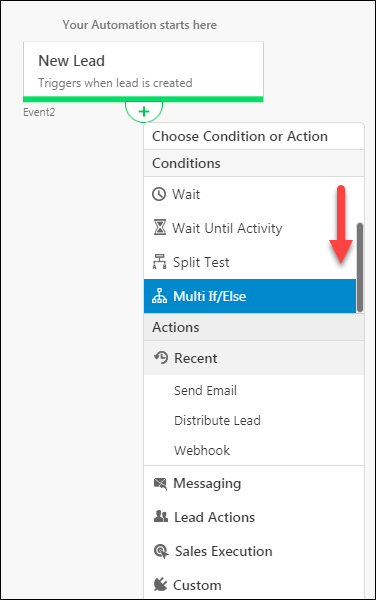
Send Nudges on Your Goals

1. Feature Overview

A Nudge sends a timely reminder to Sales Managers and Sales Users on the performance and progress of their Goals. It’s a great way to motivate users to complete their Goals.

If you’re new to the Goals feature, see LeadSquared Goals.

Note:

  • This article will show you how to configure a Progress Nudge.
  • For now, you can only send Nudges to users through emails. Stay tuned, the option to send a Nudge to Mobiles and Carter will be released soon!


2. Prerequisites

  • Only Admins, and users who have reportees under them, can configure a Nudge. For more information, see How to Configure User Hierarchy.
  • You must have a Goal that has been published.


3. How it Works

  1. Navigate to the Manage Nudges page.
  2. Filter the Goals you have published.
  3. Now, you have the option to enable or disable the Nudge, edit its frequency, and preview the messaging.


4. Configuring a Nudge

Navigate to Ace>Goals>Managed by Me>Manage Nudges>Progress Nudge.

Nudges goals navigation

Filter down the Goals that have been published. You can only create nudges for published goals –

Filter Description
Cycle Type Select the Cycle Type of the Goal you are configuring the Nudge for.
Goal Status You can choose to view all Goals, Published Goals that are in progress, or Goals that have been published but are yet to start.
Goal Owner Select a user who is the Goal Owner. Or, choose to see all Goal Owners.
Templates Select the appropriate Goal Ruleset for the Goal. Or, choose to see all Rulesets.
Note: Only Admins have access to the Goal Owner and Templates filter.

Nudges goal filter

Once you have filtered the Goal you want to configure, click on nudge goal edit Edit.

Nudges goals edit

Note: You can also choose to configure similar Goal Cycle Nudges in bulk.

Nudges goal bulk edit

You can enable or disable a Nudge for the Goal by toggling nudge switch toggle ON/OFF – Progress Nudge. Once enabled, the Goal owner and all users that have been assigned this particular Goal will receive the Nudge.

nudge switch on or off

The Select Platform options let you choose the medium through which a Nudge will be sent. For now, only the Email option is available to use – Mobile and Carter will be released soon.

Nudge select platforms

The Set Nudge Time and Send Nudge On options let you choose the frequency of your nudge.

Nudges goals frequency

Note:

  • You can choose to send a Nudge 7 days a week.
  • You can only choose to send Nudges through pre-set nudge timings. Refer to the table below for Nudge timings on different cycles.

Nudge Timings

Once you have configured your Nudge, click Apply Changes & Close.

Nudge goals save

Click on Preview to preview the Nudge. You can toggle between the Nudge preview for the Sales Manager and Sales User.

Note: At present, the nudge’s message content cannot be changed.

Nudge goals preview


Any Questions?

Did you find this article helpful? Please let us know any feedback you may have in the comments section below. We’d love to hear from you and help you out

Integrate Razorpay with LeadSquared

1. Feature Overview

This connector captures leads and activities (such as payment data, payment status, etc.) in real time from your Razorpay account to LeadSquared. Once the leads and activities are synced, you can leverage LeadSquared’s CRM features to nurture and convert your leads.

Note: This connector only captures leads and activities from your Razorpay account in your LeadSquared account. If you want to generate Razorpay payment links directly from your LeadSquared account, refer to Razorpay Payment Link Generation in LeadSquared.


2. Prerequisites

  • You must be the Administrator of your LeadSquared account.
  • You must have an active Razorpay account.
  • This is a paid feature. To enable it, reach out to your account manager, or write to support@leadsquared.com.


3. How it Works

To push lead and activity data from Razorpay to your LeadSquared account, configure the Razorpay connector instance. Once configured, enable the connector sync.

During configuration, a webhook URL is generated in LeadSquared. Copy this URL and set it up in your Razorpay account. Once it’s set up, the activity and lead capture process are initiated.

For e.g., let’s look at two use cases –

  • New Lead – John does not exist as a lead in LeadSquared. On a third-party portal, he makes a payment through Razorpay. Once the payment is completed, John is captured as a new lead in your LeadSquared account, and an activity is posted with the payment details.
  • Existing Lead – Paul is an existing lead in LeadSquared. On a third-party portal, he makes a payment through Razorpay. Once the payment is completed, a payment activity is posted against Paul in LeadSquared.


4. Installation

You must first install and configure the Razorpay connector.

  1. Navigate to Apps>Apps Marketplace.
  2. Search for Razorpay (Payment Notifications), and click Install.
    • Alternatively, you can find the connector on the left panel, under Payment Gateway.
  3. Once installed, hover your cursor over , and click Configure.

Razorpay install

4.1 Configure the connector

Once you’ve installed the connector, on the Configure Razorpay (Payment Notifications) pop-up, configure the connector access for the non-Admin users in your account. Only those users for whom access is granted can view and access the connector (under the Apps main menu).

  1. Select if you want to grant Connector Access that’s Based on Role or Advanced (User Level).
    • Based on Role – From the Specify Roles dropdown, select the LeadSquared user roles that can use the connector.
    • Advanced (User Level) – From the Advanced (User Level) dropdown, select a user boolean field. Based on the value entered in the selected boolean field, the user can access the connector (e.g., for the user Sam, if the “Is Employee” boolean user field contains the value “Yes”, then this user can access the connector).
  2. Once you’re done, click Save Details. To continue the configuration, refer to the below sections.
Note: By default, all Admin users will have access to the connector.
Razorpay config


5. Admin Configuration

To continue the connector configuration, navigate to Apps>Razorpay (Payment Notifications).

Razorpay admin config

5.1 Basic Settings

Enter the following details –

Property Description
Lead Source Enter the lead source through which the leads were captured (e.g., Razorpay, email campaign, etc.). This detail will be displayed on the Lead Details page, under Lead Source.
Default Country Code If the lead’s mobile number is captured without a country code, then the default country code that’s selected from the dropdown will be added to the lead’s mobile number.
Select Time Zone The time zone followed in your Razorpay account.
Lead Capture Search By Criteria This is used to identify existing leads who made the payment using Razorpay.

This is also used to avoid creating duplicate leads. You must select one unique lead field (e.g., email Id, mobile number, PAN number, etc.) as the search key. This will be used to identify the leads pushed from Razorpay.

Lead Capture Secondary Search By Criteria If lead identification and capture through the primary Search By criteria fails, it will be re-attempted using the secondary Search By criteria.
Select User to Notify on Failure If there is an error identifying and capturing leads who made the payment, the selected user will receive a failure message via email. You can select a user from the list of all the users available in your LeadSquared account.

To know more about the type of errors, please refer to Error Notifications.

Enable Notification Enable the Checkbox checkbox to ensure notification emails are sent to the selected user when there’s a failed query.

Once you’re done entering all the details, click Save & Next.

Razorpay Basic Settings save

5.2 Entity Options

Define the sync behavior of the connector when payment activities and leads are captured.

5.2.1 Lead/Contact Entity

Based on the Lead Capture Search By criteria (email Id, phone number, etc.), LeadSquared identifies and captures leads from your Razorpay account. Lead capture is enabled by default, and it cannot be disabled.  The following options are available to configure the connector’s Sync Behaviour –

  • Capture (Create and Update existing) Record – Leads that do not exist in your LeadSquared account will get created. Leads that currently exist in your LeadSquared account will get updated.
  • Create only new record – Leads that do not exist in your LeadSquared account will get created.
  • Update only existing record – Leads that currently exist in your LeadSquared account will get updated.

Note:

  • A lead is classified as a new lead or an existing lead based on the Lead Capture Search By Criteria you’ve selected in the previous section.

5.2.2 Mapping

On the Mapping screen, the Razorpay system fields mapped to the corresponding LeadSquared lead/activity fields are visible. This mapping is carried out by default. If required, you can change or update the default field mapping.

  • To provide a default value for any field, click  , enter the value under Default Value, and click Google.
    • If the data provider doesn’t send data for any lead/activity field, then the default value will get assigned to that specific field. But if the field already has an existing value, then the default value will be ignored.
  • To disable lead data capture for any field, disable the Zoom slider.
  • You can also mark and update a unique lead field as the search key from this screen, by clicking unique icon.
  • To create a custom Razorpay field, click the Add Custom button.
    1. Once this field is created, you must map it to the relevant LeadSquared lead field.
    2. After the field is mapped, to save the custom field, click Google.
    3. To delete a custom field, click .
Note: To map the payment data to a custom activity, select the activity type from the Activity Field Mapping screen.
Razorpay lead mapping


5.2.3 Activity Entity

To post payment activities on leads, against Activity Entity, enable the Slider slider. The following options are available to configure the connector’s Sync Behaviour when activities are posted in LeadSquared –

  • Capture (Create and Update existing) Record – New activities will get posted to the lead in LeadSquared, while existing activities will get updated.
  • Create only new record – Only new activities will get posted to leads in LeadSquared.
  • Update only existing record – Only existing activities on the leads captured will get updated in LeadSquared.

By default, your payment data is mapped to the “Razorpay” activity.

Note: An activity is classified as a new activity or an existing activity based on the Lead Capture Search By Criteria you’ve selected in the previous section.
Once you’re done, click Save & Next.

Razorpay activity mapping

5.3 Generate the Webhook URL

After you provide basic details and finish field mapping, a custom webhook URL is generated. To automate lead and activity capture, copy this URL and set it up on your Razorpay account. To know more, refer to Set Up and Edit Razorpay Payments Webhooks.

After you’ve set up the webhook, click More Actions, and enable the sync job. This ensures payment data from Razorpay will be pushed to LeadSquared using the webhook.

Razorpay webhook url

Note: To view logs of all the sync jobs that have taken place, from the More Actions dropdown, click View Logs.

To configure the webhook URL, and enable other settings required to push leads from your Razorpay account to LeadSquared, refer to the Setup Instructions –

Razorpay setup


6. View Logs

Here, you can view logs of all the sync jobs that have taken place. View New Events (New Leads and Activities), Updated Events (Updated Leads and Activities), and Errors (when capturing leads and activities).

  1. Navigate to Apps>Razorpay (Payment Notifications).
  2. From the More Actions dropdown, click View Logs.
  3. You can filter the logs by selecting a date range (Today, Last 7 Days, This Month, and Last Month), by selecting the Job Status (“All”, “Success” and “Failure”), and by selecting the Sync Status (All, Error, and Success).
  4. You can view the sync status of the following events –
    • New Events – List of all the new leads and activities that have been created in LeadSquared during the selected date range.
    • Updated Events – A list of all the –
      • Duplicate leads that were created with the same Search by Criteria value (e.g., with the same Email Id, Mobile Number, etc.).
      • Duplicate payment activities posted on the same lead, using the same Search by Criteria value (e.g., with the same Email Id and the same Payment Id, etc.).
      • Leads and activities that previously contained errors, which were fixed and synced successfully.
    • Errors – The list of leads and activities that have not been captured due to mapping errors (e.g., when a boolean field is mapped to an integer field, etc.).
  5. To view the Sync Response details, under Request ID/Sync Job ID, click the Id.
    • Under the right panel, you can view the response status, the API URL, the request, and the response.
    • The responses that are successful will contain the details of the leads that have been pushed by Razorpay.
    • To view the lead capture response under Sync API Response, Leads Updated and Errors in Leads, click Information.

Note:

  • For a response that contains an error, the reason for the error is listed in the response. Once you fix it, you can click the Retry button to perform the sync again.
  • The current Lead/Activity Sync Behaviour will reflect in the Logs screen. This will help identify the sync that’s used (Capture or Update) for the selected Request/Sync Job Id.

Razorpay view logs


8. Other Actions

You can edit or delete the Razorpay connector instance that you created. To do this –

  1. Navigate to Apps>App Marketplace.
  2. Search for Razorpay (Payment Notifications).
  3. Alongside the Razorpay connector, hover your cursor over .
  4. From the list of options, you can perform the following actions –
    • Edit Configuration
    • Disable Configuration
    • Remove Configuration

Razorpay other actions


9. View Reports

You can view the total number of leads that have been pushed by Razorpay, by referring to the Lead Source report. To know more, please refer to How to track the source of your Leads using Lead Source Report?

Integrate LeadSquared with Razorpay


Any Questions?

Did you find this article helpful? Please let us know any feedback you may have in the comments section below. We’d love to hear from you and help you out!
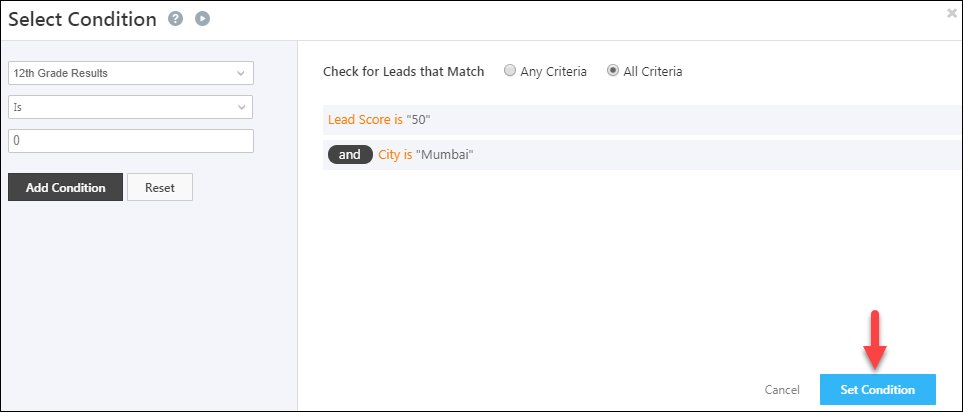
Customize the Lead Details Page/View (LDVC)

1. Feature Overview

Lead Details View Customization allows LeadSquared admins to tailor the Lead Details Page based on their workflows and business requirements. You can configure the tabs, actions, quick action buttons, and lead vCard fields displayed to users, ensuring the team only sees the information and tools relevant to their work.

You can customize the following components on the Lead Details page:

  • Lead vCard – Configure the lead fields displayed in the summary section.
  • Tabs – Choose which system tabs and custom tabs users can access.
  • Action Buttons – Add frequently-used actions as quick-access buttons on the Lead Details Page.
  • Lead Actions Dropdown – Configure additional actions users can perform, such as sending emails, logging activities, or calling leads.
Note:

  • This article deals with Lead Details customization on the web app. To know more about Lead Details customization on the mobile app, click here.
  • You can also customize the Lead vCard when setting it up (from the lead form customization options), but you won’t be able to assign different vCards for different teams there. That can only be done through the Lead Details Customization feature described in this article.


2. Prerequisites

  • You must be the Administrator of your LeadSquared account.
  • This feature is available by default if your LeadSquared account is created after 20th September 2022.
    • If your account was created before this date, contact your account manager or write to support@leadsquared.com to enable it on your account.


3. How It Works

  • Admins can create customized Lead Details Views from the web app settings. Each view can include specific:
    • Lead vCard fields
    • System tabs and custom tabs
    • Action buttons
  • Once configured, the view can be assigned to selected teams.
  • Users belonging to those teams will see the customized Lead Details page when they open a lead record.


4. Customize the Lead Details Page

  1. Navigate to Settings>Leads>Lead Details View.
  2. Click Create.
    • Alternatively, we’ve provided a Sample View. If you wish to customize this view, you can do so by hovering your cursor over the Actions icon, and clicking Edit. The steps listed below will remain the same.

Leadsquared - Customize Lead Details View

4.1 Details

Under the Details tab, on the Create Lead Details View pop-up, enter primary details –

  • Name – A name for the view you’re creating. This is mandatory.
  • Description – A description for the view you’re creating.

Once you’re done, click Next.

Leadsquared - Lead Details View Customization

4.2 vCard

Configure the Lead vCard that appears on the left panel of the Lead Details Page. This panel will give you a quick glimpse of the lead.

Leadsquared - Lead Details View Customization

From the Available Fields, drag and drop* lead fields to the relevant vCard section –

  • Metric Section – The lead fields that are denoted by a number (e.g., Age, Weight, etc.). You can add up to four fields here.
  • Lead Properties – The custom and system lead fields that are available in your account.

Once you’re done, click Next.

Leadsquared - Lead Details View Customization

4.3 Tabs

Select the tabs you want to display to your users on the Lead Details Page.

Leadsquared - Lead Details View Customization

To add a tab –

  • From the list of Available Tabs, drag and drop the tab under Selected Tabs.
    • Alternatively, alongside the tab you want to add, click the plus icon.
  • To reorder the tabs, drag and drop the tab to the desired location.
  • To reset the list of selected tabs, click Reset.
  • To add a new custom tab, click Add New, and –
    1. Type – Select if it’s an Activity or a Custom tab.
    2. Tab Name – Enter a relevant name for the tab.
    3. Notable Activities – If you selected the type as Activity, choose the activity types you want to display under the tab.
    4. URL – If you selected the type as Custom, paste the URL of the page you want to display within the tab.
    5. Once you’re done, click Save.
  • To set a default tab for your users to see when they open the Lead Details page, alongside the tab’s name, click Default.

Once you’re done, click Next.

Note:

  • All system tabs are denoted in orange.
  • All custom tabs are denoted in blue.
  • All user-created tabs are denoted in grey.

Leadsquared - Lead Deatils View Customization

4.4 Actions

Configure the actions you want your users to take on the lead.

Leadsquared - Lead Details View Customization

From the Available Actions, drag and drop* the desired action to –

  • Action Buttons – The button actions present on the left panel on the Lead Details page. You can add up to five actions here.
  • Lead Actions Drop-down – The actions users can perform through the Lead Actions dropdown.

Once you’re done, click Save, and on the Confirm pop-up, click Save.

Leadsquared - Lead Details View Customization


5. Notes Panel

You can add notes related to the lead from the Notes panel on the right side of the Lead Details Page. On the Notes panel, click the Add button. You can also add attachments here and save it for reference.

Leadsquared - Lead Details View Customization


6. Assign Lead Details View to teams

Once a view is created, to assign it to the relevant teams –

  1. On the Lead Details View settings page, alongside the view you want to assign, hover over the Actions icon and click Apply to Teams. You will be redirected to the Teams page.
  2. On the Teams page, alongside the team for which you want to assign the view, hover over the Actions icon and click Apply Lead Details View.
  3. On the Apply Lead Details View popup, from the Lead Details View dropdown, select the view you want to assign.
  4. If you want to replace your User View Tabs (tabs created by individual sales users) with the Lead Details View tab, alongside Replace Lead Details View, enable the checkbox.
  5. Once you’re done, click Save.

Leadsquared - Lead Details View Customization


7. Other Actions

On the Lead Details View page, alongside a published view, hover over the Actions icon to perform the following actions –

  • Edit – Edit the view. The steps to edit are the same as the Customise Lead Details Page.
  • Clone – Click Clone to duplicate the view.
  • Delete – Click Delete to delete the view.

Leadsquared - Lead Details View Customization


8. FAQs

Why is the Process button for the Activity form not visible for any users?
If you can’t see the Process button for activity forms, it may be hidden in the Lead Details View layout. To fix this, move the Activity option from the Available Actions section to the Action Buttons section, then save the layout.


Any Questions?

Do you have questions or issues with the content in this article? Let us know in the comments section below. We’ll get back to you asap!

Zendesk Connector

1. Feature Overview

The Zendesk Connector syncs tickets between your Zendesk and LeadSquared accounts. It lets you manage your tickets and interactions with the leads (End Users) directly from LeadSquared, and also allows you to create tickets in Zendesk from your LeadSquared account.

Additionally, if a ticket is added to a Zendesk End User that does not exist as a lead in LeadSquared, a new lead gets created in your account. To know more, refer to Zendesk Connector.


2. Prerequisites

  • You must be the Administrator of your LeadSquared account.
  • This is a paid feature. To enable it on your account, please reach out to your account manager, or write to support@leadsquared.com.
  • Unique fields in your LeadSquared account must include Email Id, Phone Number, and Mobile Number.
  • Lead share via API must be enabled on your LeadSquared account. To enable it, please reach out to your account manager, or write to support@leadsquared.com.
  • This connector is only supported on LeadSquared accounts that have more than 30 custom Activity fields.
  • For any Zendesk custom ticket field, we only sync up to 200 characters in LeadSquared.
Note: For tickets to be automatically assigned to the correct user in LeadSquared, the same email Id must be used for the LeadSquared Sales User and the Zendesk Support Agent. If the agent doesn’t exist (as a user) in LeadSquared, the incoming ticket will be assigned to the LeadSquared System User.


3. How it Works

Once the connector is installed and configured, tickets from your Zendesk account are automatically mapped as activities against leads in LeadSquared. A new activity type, along with a new tab on the Lead Details page, called “Support Tickets”, is created by default. From this tab, you can perform various actions on your tickets like updating them, replying to your leads, and notifying your users.

When you create new tickets from LeadSquared (from the Smart Views, Manage Leads, and Lead Details pages) they are automatically mapped to existing End Users in your Zendesk account.


4. Install the Connector

  1. From the main menu, navigate to Apps>Apps Marketplace.
  2. Search for Zendesk Connector, and click Install.
    • Alternatively, you can find the connector on the left panel, under Customer Support.
  3. Once the connector is installed, hover your cursor over , and click Configure.

LeadSquared Zendesk Integration


5. Configure the Connector

Once the connector is installed, on the Configure Zendesk Connector pop-up, provide the following details –

5.1 Authentication

Enter the following details to authenticate your Zendesk account –

  1. Zendesk Domain – Enter your Zendesk domain name here.
  2. Zendesk Email – Enter your Zendesk email Id here.
  3. Zendesk API Key – Enter your Zendesk API key here. To know more, refer to Generating a New API token in Zendesk.
  4. Once you’re done, click Save & Next.

LeadSquared Zendesk Integration


5.2 Configuration

  • Create Lead if not exist – When enabled, if a ticket is added to a lead that does not exist in your LeadSquared account, a new lead is automatically created.
  • Enable reply to customer – When enabled, you’ll be able to chat and reply to your customers (leads) in real-time, from LeadSquared.
  • Activity Name – The name of the activity. This field is not editable.
  • Activity Description – The activity description, which will help your users understand what the activity does.
  • Activity Score – The default score for the activity. Every time this activity is posted, this score will get added to the overall lead score.
  • Show in Activity Grid – To make this activity visible on the Activity Grid on the Manage Activities and Smart Views page, enable the checkbox.
Note: To edit the score associated with the ‘Support Ticket’ activity, navigate to My Profile>Settings>Leads>Custom Activities & Scores, and edit the support ticket activity.

LeadSquared Zendesk Integration


5.3 Form Configuration

Select the ticket fields you want to display to your LeadSquared users when they Create and Update Tickets. The data in these fields will automatically get mapped to the corresponding fields in Zendesk. Additionally, configure the actions your users can perform when they work on a ticket (form) –

  • Hide/Visible – To display the field to your users, enable the Slider slider.
  • Editable – To allow your users to edit this field, enable the Slider slider. This will only show up when a user updates an existing ticket.
  • Required – To make a field mandatory for your users, enable the Slider slider.
  • Bulk Update – To allow bulk update for this field, enable the Slider slider. This will only show up when a user updates an existing ticket.

Zendesk LeadSquared Connector


5.4 Default Mapping

By default, the Zendesk Ticket and Contact system fields are mapped to the corresponding LeadSquared Activity and Lead fields. If required, you can also add custom activity and lead fields.

Note: You cannot edit or update any of the default field mappings.

To add a custom field –

  1. Click Add Custom.
  2. Under Zendesk Ticket/Contact Fields, from the dropdown, select the custom Zendesk field.
  3. Under Map to Leadsquared Field, select the corresponding LeadSquared field.
  4. Under Enable/Disable, click Slider to enable data capture to the selected field.
  5. Once you’re done, click  Integrate LeadSquared with Freshdesk.
  6. After adding all the custom fields, click Save & Next.

Note:

  • To edit a custom field, click Integrate LeadSquared with Freshdesk.
  • To delete a custom field, click Integrate LeadSquared with Freshdesk.

LeadSquared Zendesk Integration


5.4 Webhooks

The webhooks are automatically created and configured in your Zendesk and LeadSquared accounts. No further action is required from your end. To view the webhook, click Webhook Details.

LeadSquared Zendesk Integration


5.5 Sync Settings

To improve the overall performance of the connector, we recommend you Enable caching.

  1. Alongside Enable caching, enable the Slider slider.
  2. Under App Token, enter your LeadSquared account’s Cache Service App Token.
  3. From the Cache duration dropdown, select the maximum duration for which you want to store cache data.
  4. Once you’re done, click Save. The connector is successfully installed and configured in your account.
Note: To obtain your Cache Service App Token, contact your account representative, or write to support@leadsquared.com.

Zendesk LeadSquared Connector

Additionally, you can manually sync existing Zendesk tickets with LeadSquared. Tickets that were created in the past 15 days (from the date of the manual sync) can be synced.

  1. Alongside Allow Manual Sync, enable the Slider slider.
  2. From the Sync Time Period dropdown, select the date range within which you want to carry out the sync. You can select Last 7 Days or Custom Date Range.
  3. If you’ve selected Custom Date Range, enter the Start Date and End Date.
  4. Once you’re done, click Trigger Now. The tickets in the selected date range will get synced with LeadSquared.
  5. Lastly, click Save & Next. The connector is successfully installed and configured in your account.

Zendesk LeadSquared Connector


6. Individual Ticket Actions

Once your accounts are synced, support tickets from Zendesk become visible under the Activity History tab on the Lead Details page. Additionally, a separate tab called Support Tickets is created on the Lead Details page, where these tickets are mapped as activities to your leads. You can filter these tickets by –

  • Status – Open, Pending, Resolved, and Closed.
  • Priority – Low, Medium, High, and Urgent.
  • Owner – The ticket owner in LeadSquared.
  • Date – Today, Last 7 Days, Last 15 Days, or Last 30 Days.

Note:

  • You can send and receive attachments (images, documents, PDFs, videos, etc.) from your lead when replying to a ticket. You can also add attachments when creating and updating a note.
  • You can search for a ticket using the Ticket ID or the ticket’s subject line.

LeadSquared Zendesk Integration

On the Support Tickets tab, you can perform the following actions –

6.1 Reply to a Ticket

  1. Alongside the ticket you want to reply to, click Comments, and then click the Reply button.
  2. You can choose the sender email Id from which your leads will receive the reply, through the From dropdown.
  3. In the text box, type your reply.
  4. To add an attachment to your reply, click Attachment, and then drag and drop the file you want to send to your lead.
  5. If required, you can add other LeadSquared users to the mail thread, by adding them to the CC or BCC tab.
  6. Once you’re done, click Send Reply. The lead will receive your reply.

Note:

  • You can add multiple attachments to the reply, but the combined file size of all the attachments must be less than 6MB.
  • After typing out a reply, if you want to save it as a draft, click Save Changes.

LeadSquared Zendesk Integration


6.2 Update a Ticket

To edit and update the details of a ticket (such as the Subject, Status, Description, Priority, etc.) –

  1. Alongside the ticket you want to update, click Comments.
  2. Then, click the Edit Ticket button.
  3. On the Edit Ticket screen, enter the new values for the fields you want to update.
  4. Once you’re done, click Save Changes. The ticket will get updated in your LeadSquared and Zendesk accounts.

LeadSquared Zendesk Integration

To assign the ticket to a different user, from the Agent dropdown, select the user you want to reassign the ticket to.

LeadSquared Zendesk Integration

You can also update the ticket by hovering your cursor over Three dots, and clicking Edit Ticket.

LeadSquared Zendesk Integration


6.3 Add a Note

  1. Alongside the ticket you want to add a note to, click Comments, and then click the Add a Note button.
  2. From the Notify To dropdown, select the LeadSquared user you want to notify with the note.
  3. In the text box, type the contents of your note.
  4. To add an attachment to your note, click Attachment, and then drag and drop the file you want to add to the note.
  5. Once you’re done, click Add Note.

LeadSquared Zendesk Integration


6.4 View Conversations

You can view ticket-related conversations with your leads from the following screens –

Lead Details Screen

On the Lead Details screen, from the Support Ticket tab, click Comments to view the conversations with your lead.

Note: Every time you receive a response from your leads, you’ll get a Customer Response notification (marked in red), tagged against the lead.

Zendesk LeadSquared Connector

Manage Activites Screen

To view the conversation from the Manage Activities screen –

  1. Navigate to Leads>Manage Activities.
  2. From the Activity Type dropdown, select Support Ticket Activity.
  3. Alongside the lead you want to view the conversations for, hover your cursor over .
  4. From the options, hover your cursor over Custom Actions, and click View Details.
  5. You can view the conversation on the View Details pop-up.

Integrate LeadSquared with Freshdesk

Note: You can also perform the following actions on the Manage Activities page, from the View Details pop-up –

  • Reply to your Lead
  • Add a Note
  • Assign the ticket to a different user
  • Update Status and Priority of the ticket


7. Bulk Ticket Actions

In addition to the actions listed above, you can perform the following actions from the Manage Activities and Smart Views pages –

7.1 Update Multiple Tickets

To update multiple tickets in bulk –

  1. Navigate to any one of the pages listed above, and alongside the leads for whom you want to update tickets, click Checkbox.
  2. Hover your cursor over the Leads menu, then hover your cursor over Custom Actions, and click Bulk Ticket Update.
  3. On the Bulk Ticket Update pop-up, for the desired fields, enter the new values.
  4. Once you’re done, click Save Changes. The selected tickets are updated. To view the ticket update status, see Ticket Logs.
Note: You can only bulk update the form (ticket) fields for which you’ve enabled Bulk Update.

Freshdesk LeadSquared Connector


7.2 Merge Tickets

If you’ve created multiple tickets on the same lead, or if you have multiple tickets created for the same issue, you can merge all these tickets into a single ticket. This will help your users focus on a single ticket, and take the issue to resolution.

Note: When you merge tickets –

  • Only conversations with your leads present in the selected secondary tickets are merged with the primary ticket. All the other ticket details (such as Ticket Status, lead details, etc.) remain unchanged in the primary ticket.
  • Once merged, the status of the secondary tickets is changed to Closed.
  1. Navigate to any one of the pages listed above, and alongside the leads for whom you want to merge tickets, click Checkbox.
  2. Hover your cursor over the Leads menu, then hover your cursor over Custom Actions, and click Merge Ticket.
  3. On the Merge Ticket pop-up –
    • By default, the first ticket you’ve selected is marked as Primary. To mark a different ticket as Primary, alongside the ticket, click Freshdesk LeadSquared Connector.
    • To find a specific ticket among the list of selected tickets, use the Search By field. You can Search By Email or Ticket ID.
    • To remove a ticket you no longer want to merge, alongside the ticket, click Freshdesk LeadSquared Connector.
  4. Once you’ve selected the Primary ticket, click Continue.
  5. On this screen, a default note is added to the Primary as well as Secondary tickets, to help your users keep track of the tickets that have been merged.
    • If required, you can edit this default note on any of the tickets. To do so, alongside the note you want to edit, click Freshdesk LeadSquared Connector.
    • If you want to send this note via email to the Secondary ticket owners, enable Checkbox Add secondary recipients to CC.
    • To make this note visible to your lead (contact), click on Private, and from the dropdown, select Public.
  6. Once you’re done, click Merge. The selected tickets are now merged, and you can find all the conversation details under the Primary ticket.

Freshdesk LeadSquared Connector


8. Create Tickets in LeadSquared

When you add tickets to leads in LeadSquared, they are automatically added to existing End Users in Zendesk. If a ticket is added to a lead that does not exist in your Zendesk account, then a new End Users is created. You can add and update tickets to your leads from the following screens –

Note: Before you create tickets, ensure the ticket creation form is configured when setting up the connector.

8.1 Smart Views

Here, you can create tickets on leads, and update existing tickets. To create a ticket –

  1. From the main menu, navigate to Leads>Smart Views.
  2. On the Leads Smart Views tab, alongside the lead you want to add a ticket to, hover your cursor over .
  3. Under Custom Actions, click Create Ticket.
  4. On the Create Ticket pop-up, enter all the necessary details.
  5. Once you’re done, click Create Ticket.

LeadSquared Freshdesk Integration

To update an existing ticket –

  1. From the main menu, navigate to Leads>Smart Views.
  2. On the Tickets Smart Views tab, alongside the ticket you want to update, hover your cursor over .
  3. Under Custom Actions, click Update Ticket.
  4. On the Update Ticket pop-up, enter all the necessary details.
  5. Once you’re done, click Save Changes.
Note: To know how to create a custom Smart Views tab for tickets, refer to Smart Views.

LeadSquared Freshdesk Integration


8.2 Manage Leads

To create a ticket from the Manage Leads screen –

  1. From the main menu, navigate to Leads>Manage Leads.
  2. Alongside the lead you want to add the ticket to, hover your cursor over .
  3. Under Custom Actions, click Create Ticket.
  4. On the Create Ticket pop-up, enter all the necessary details.
  5. Once you’re done, click Create Ticket. The ticket is automatically mapped to the corresponding lead in your Zendesk account.

LeadSquared Freshdesk Integration


8.3 Lead Details

To create a ticket from the Lead Details page –

  1. Hover your cursor over the Lead Actions menu.
  2. Under Custom Actions, click Create Ticket.
  3. On the Create Ticket pop-up, enter all the necessary details.
  4. Once you’re done, click Create Ticket.

LeadSquared Freshdesk Integration


8.4 Manage Activities

From the Manage Activities screen, you can update existing tickets.

  1. From the main menu, navigate to Leads>Manage Activities.
  2. From the Activity Type dropdown, select Support Ticket Activity.
  3. Alongside the ticket you want to update, hover your cursor over .
  4. Under Custom Actions, click Update Ticket.
  5. On the Update Ticket pop-up, enter all the necessary details.
  6. Once you’re done, click Save Changes.

LeadSquared Freshdesk Integration


9. View New Lead

In Zendesk, if you add a ticket to an End User that does not exist in LeadSquared, a new lead is automatically created, with the lead’s Name, Email Id, and Phone Number. The Create Lead if not exist setting must be enabled for this feature to work.Integrate LeadSquared with Freshdesk


10. View Logs

A detailed log of all the Bulk Update requests made is maintained in your account. To view this log, navigate to Apps>Support Ticket Logs.

  • You can filter logs by the following statuses –
    • Error
    • Failure
    • Partial
    • Success
    • All
  • To view the API details of a Request, under Actions, click Freshdesk LeadSquared Connector.
  • You can filter the logs by –
    • Today
    • Yesterday
    • Last 7 days
    • Custom Date

Freshdesk LeadSquared Connector


Any Questions?

Did you find this article helpful? Please let us know any feedback you may have in the comments section below. We’d love to hear from you and help you out!

LeadSquared Outlook Integration

1. Feature Overview

Through this integration, you can directly create new leads, update existing leads, post activities, create and update tasks on LeadSquared from your Microsoft Outlook account.

Note:

  • This integration is supported on the mobile and desktop Outlook app, as well as the Outlook web version.
  • This integration only supports the Lead Details view and Actions on incoming emails to your users.

LeadSquared Outlook Integration


2. Prerequisites

  • You must have an active Microsoft Outlook account.
  • You must have an active LeadSquared account.


3. Installation

You can install the LeadSquared app to your Outlook account through any of the following options –

Note: Once you install the LeadSquared app from the web browser or the desktop app, the installation will be visible across the Outlook web browser, desktop app as well as mobile app.

From the Outlook desktop app

  1. Open your Outlook desktop app, and on the app banner, click LeadSquared Outlook Integration.
  2. In the search box, enter LeadSquared.
  3. On the LeadSquared for Outlook screen, click Add.
  4. Once the app is added, click Get Started. The app is now installed on your Outlook account.
Note: To know more, refer to Installing Office Add-ins to your mailbox.

LeadSquared Outlook Integration

From your web browser

  1. If you’re signed in to your Outlook account on your web browser, click Outlook Web Browser and then click Add Ins.
  2. In the Search box, search for LeadSquared.
  3. On the LeadSquared for Outlook page, click Get it now.
  4. On the One more thing pop-up, enable the permissions LeadSquared Outlook Integration_2 checkbox.
  5. Once you’re done, click Continue.
  6. Once the app is successfully added to your account, click Open in Outlook Web. The app is installed.

LeadSquared Outlook Integration


4. Log in to LeadSquared

Once you’ve installed the app on your Outlook account, you must link your LeadSquared account to the app.

From the desktop app

  1. On your Outlook home screen, from the app banner, click LeadSquared for Outlook.
  2. On the Welcome screen, enter your LeadSquared account’s Access Key and Secret Key. To obtain these keys, refer to How do I obtain API Access keys in LeadSquared?
  3. Once you’ve entered the keys, click Log in to LeadSquared. Your LeadSquared account is successfully linked with your Outlook account.

LeadSquared Outlook Integration

From the web browser

  1. On the Outlook web browser screen, click on any lead from whom you’ve received an email.
  2. On the email, click the More actions Outlook More Actions icon, and from the available options, click LeadSquared for Outlook.
  3. On the Welcome screen, enter your LeadSquared account’s Access Key and Secret Key. To obtain these keys, refer to How do I obtain API Access keys in LeadSquared?
  4. Once you’ve entered the keys, click Log in to LeadSquared. Your LeadSquared account is successfully linked with your Outlook account.

LeadSquared Outlook Integration

From the mobile app

  1. On the Outlook mobile app home screen, tap on any lead you’ve received an email from.
  2. On the email, tap the Outlook Mobile options icon, and from the available options, tap Outlook Mobile LeadSquared logo.
  3. On the Welcome screen, enter your LeadSquared account’s Access Key and Secret Key. To obtain these keys, refer to How do I obtain API Access keys in LeadSquared?
  4. Once you’ve entered the keys, click Log in to LeadSquared. Your LeadSquared account is successfully linked with your Outlook account.

LeadSquared Outlook Integration


5. Add Leads from Outlook

Once your LeadSquared account is integrated with Outlook, you can start adding leads.

  1. On your Outlook account, open the email that you’ve received from your lead, and from the inbox banner, click LeadSquared for Outlook.
  2. On the LeadSquared for Outlook screen, click Create Lead in LeadSquared.
  3. Under Create New Lead, in the default lead fields, enter the relevant lead details.
    • The email field is pre-populated with the lead’s email Id, and this value cannot be edited.
  4. Once you’re done, click Save in LeadSquared.
  5. To view this lead on the LeadSquared Manage Leads page, click LeadSquared Outlook Integration.
Note: Only lead fields configured in the Lead vCard will show up on the LeadSquared for Outlook screen in Outlook.

LeadSquared Outlook Integration

Note: If you’ve set up a Lead Distribution Automation on your account, pass the Lead Origin Is Not EmailPlugin condition to ensure the lead is getting assigned to the correct owner.

Outlook Lead Distribution Condition


6. Update Lead Details & Lead Stage

6.1 Lead Details

To update an existing lead’s details –

  1. On your Outlook account, open the email that you’ve received from your lead, and from the inbox banner, click LeadSquared for Outlook.
  2. Alongside Lead Details, click LeadSquared Outlook Integration.
  3. Enter the updated value in the relevant lead fields, and click Update. The lead details are updated in LeadSquared.

Note:

  • You cannot update a lead’s email Id from your Outlook account.
  • Only lead fields configured in the Lead vCard can be updated from the LeadSquared for Outlook screen.

LeadSquared Outlook Integration


6.2 Lead Stage

To update the lead stage of a lead from Outlook –

  1. On your Outlook account, open the email that you’ve received from your lead, and from the inbox banner, click LeadSquared for Outlook.
  2. Alongside the lead stage, click LeadSquared Outlook Integration.
  3. On the LeadSquared for Outlook screen, alongside the lead stage, click LeadSquared Outlook Integration.
  4. On the Update Lead Stage screen, from the New Lead Stage dropdown, select a lead stage.
  5. Once you’re done, click Update. The lead stage is updated.

LeadSquared Outlook Integration

Note: By default, users will not be able to view leads for which they’re not the lead owner. To change this, apply the View Leads Permission Template.

LeadSquared Outlook Integration


7. Add Activities from Outlook

You can post the following email activities to the leads in your account –

  • Negative Response to Email
  • Neutral Response to Email
  • Inbound Lead through Email
  • Positive Response to Email
  • Unsubscribed

To post an activity to a lead –

  1. On your Outlook account, open the email that you’ve received from your lead, and from the inbox banner, click LeadSquared for Outlook.
  2. On the LeadSquared for Outlook screen, click Post Activity.
  3. On the Post Activity screen, from the Select Activity dropdown, select the email activity you want to post.
  4. Once you’re done, click Post Activity. The activity is posted to your lead.

LeadSquared Outlook Integration

You can also view the activities added to the lead on the LeadSquared for Outlook screen.

LeadSquared Smart Views


8. Add & Update Tasks from Outlook

8.1 Add Tasks

You can add the following default task types to the leads in your account –

  • To-Do
    • Follow-up
    • Phone call
  • Appointment
    • Meeting

To assign a task –

  1. On your Outlook account, open the email that you’ve received from your lead, and from the inbox banner, click LeadSquared for Outlook.
  2. On the LeadSquared for Outlook screen, click Create Task.
  3. On the Create Task screen, from the Task Type dropdown, select the task type you want to create.
  4. Assign the task to your user, and enter other details that are required to create the task.
  5. Once you’re done, click Create Task. The task is successfully created and assigned to your user.
Note: To change the task owner from your Outlook account, reach out to your account manager, or write to support@leadsquared.com.

LeadSquared Smart Views

You can also view the tasks created from the LeadSquared for Outlook screen.

LeadSquared Smart Views


8.2 Update Tasks

To update a task through your Outlook account –

  1. Open the email that you’ve received from your lead, and from the inbox banner, click LeadSquared for Outlook.
  2. Under Recent Task, click on the task you want to update.
  3. On the Task Details screen, you can –
    • Mark the task as complete. To do this, against Mark as completed, toggle LeadSquared Outlook Integration.
    • Edit and update the task fields. To do this, click the Edit button.
  4. Once you edit the fields, click Update Task. The task is successfully updated.

LeadSquared Smart Views


Any Questions?

Did you find this article helpful? Please let us know any feedback you may have in the comments section below. We’d love to hear from you and help you out!

Integrate WhatsApp Contact Capture with LeadSquared

1. Feature Overview

When your users share contact details of leads (as VCF files) to your WhatsApp Business chat number, this connector captures the contact data in real time and maps it to your LeadSquared account. Once the leads are synced, you can leverage LeadSquared’s CRM features to nurture and convert your leads.


2. Prerequisites

  • You must be the Administrator of your LeadSquared account.
  • You must have an active WhatsApp Business account.
  • This is a paid feature. To enable it, reach out to your account manager, or write to support@leadsquared.com.


3. How it Works

To push contact (lead) data from your WhatsApp Business account to your LeadSquared account, configure the WhatsApp Chat connector instance. Once you set it up, a webhook URL is generated. Configure this URL in your WhatsApp service provider account (e.g., Gupshup, Kaleyra, etc.), and enable the sync for the connector instance in LeadSquared. This will begin the lead capture process.


4. Installation

You must first install and configure the WhatsApp Contact Capture connector.

  1. Navigate to Apps>Apps Marketplace.
  2. Search for WhatsApp Contact Capture, and click Install.
    • Alternatively, you can find the connector on the left panel, under Lead Capture.
  3. Once installed, hover your cursor over , and click Configure.

Whatsapp Contact Capture install

4.1 Configure the connector

Once you’ve installed the connector, on the Configure WhatsApp Contact Capture pop-up, configure the connector access for the non-Admin users in your account. Only those users for whom access is granted can view and access the connector (under the Apps main menu).

  1. Select if you want to grant Connector Access that’s Based on Role or Advanced (User Level).
    • Based on Role – From the Specify Roles dropdown, select the LeadSquared user roles that can use the connector.
    • Advanced (User Level) – From the Advanced (User Level) dropdown, select a user boolean field. Based on the value entered in the selected boolean field, the user can access the connector (e.g., for the user Sam, if the “Is Employee” boolean user field contains the value “Yes”, then this user can access the connector).
  2. Once you’re done, click Save Details. To continue the configuration, refer to the below sections.
Note: By default, all Admin users will have access to the connector.

whatsapp contact capture config


5. Admin Configuration

To continue the connector configuration, navigate to Apps>WhatsApp Contact Capture.

whatsapp contact capture admin config

5.1 Basic Settings

Enter the following details –

Property Description
Lead Source Enter the lead source through which the leads were captured (e.g., WhatsApp Contact Capture, email campaign, etc.). This detail will be displayed on the Lead Details page, under Lead Source.
Default Country Code If the lead’s mobile number is captured without a country code, then the default country code that’s selected from the dropdown will be added to the lead’s mobile number.
Select Time Zone The time zone of your WhatsApp Business account.
Lead Capture Search By Criteria To avoid duplicate leads, you must select one unique lead field (e.g., email Id, mobile number, PAN number, etc.) as the search key. This will be used to identify the leads pushed from WhatsApp.

To know how to mark a LeadSquared lead field as unique, please refer to How to Make a Custom Field Unique.

Lead Capture Secondary Search By Criteria If lead capture through the primary Search By criteria fails, it will be re-attempted using the secondary Search By criteria.
Select User to Notify on Failure If there is an error in fetching leads, the selected user will receive a failure message via email. You can select a user from the list of all the users available in your LeadSquared account.

To know more about the type of errors, please refer to Error Notifications.

Enable Notification Enable the Checkbox checkbox to ensure notification emails are sent to the selected user when there’s a failed query.

Once you’re done entering all the details, click Save & Next.

whatsapp contact capture basic settings save

5.2 Entity Options

Define the sync behavior of the connector when leads are captured.

5.2.1 Lead/Contact Entity

Based on the Lead Capture Search By criteria selected (email Id, phone number, etc.), LeadSquared identifies and captures leads from your WhatsApp Business account. Lead capture is enabled by default, and it cannot be disabled.  The following options are available to configure the connector’s Sync Behaviour –

  • Capture (Create and Update existing) Record – Leads that only exist in your WhatsApp Business account (but not in your LeadSquared account) will get created in LeadSquared. Leads that exist in both your WhatsApp Business and LeadSquared accounts will get updated.
  • Create only new record – Leads that only exist in your WhatsApp Business account (but not in your LeadSquared account) will get created in LeadSquared.
  • Update only existing record – Leads that exist in both your WhatsApp Business and LeadSquared accounts will get updated in LeadSquared.

whatsapp contact capture lead or contact sync

5.2.2 Mapping

On the Mapping screen, the WhatsApp Contact Capture system fields mapped to the corresponding LeadSquared lead fields are visible. This mapping is carried out by default. If required, you can change or update the default field mapping.

  • To provide a default value for any field, click  , enter the value under Default Value, and click Google.
    • If the data provider doesn’t send data for any lead field, then the default value will get assigned to that specific field. But if the field already has an existing value, then the default value will be ignored.
  • To disable lead data capture for any field, disable the Zoom slider.
  • You can also mark and update a unique lead field as the search key from this screen, by clicking unique icon.
  • To create a custom WhatsApp Contact Capture field, click the Add Custom button.
    1. Once this field is created, you must map it to the relevant LeadSquared lead field.
    2. After the field is mapped, to save the custom field, click Google.
    3. To delete a custom field, click .

Once you’re done mapping, click Save & Next.

whatsapp contact capture entity options

5.3 Webhook URL

After you provide basic details and finish field mapping, a custom webhook URL is generated. To automate lead capture, copy this URL and configure it in your WhatsApp service provider’s account (reach out to the account manager from your service provider’s end).

After you’ve configured the URL, click More Actions, and enable the sync job. This ensures the data will be pushed to LeadSquared using the webhook configured in your WhatsApp service provider’s account.

whatsapp contact capture webhook

Note:

  • To know how to configure this Webhook URL in your WhatsApp Business account, please get in touch with your WhatsApp service provider’s account manager.
  • From the More Actions dropdown, click View Logs to view the logs of all sync jobs that have taken place.

To know more, refer to the setup instructions –

whatsapp contact capture set-up

Note: Paste and pass the following parameters at the end of the webhook –

(?wanumber={wnum}&mobile={from}&message={body})


6. View Logs

Here, view logs of all the sync jobs that have taken place. View New Events (New Leads) Updated Events (Updated Leads), and Errors (when capturing leads).

  1. Navigate to Apps>Whatsapp Contact Capture.
  2. From the More Actions dropdown, click View Logs.
  3. You can filter the logs by selecting a date range (Today, Last 7 Days, This Month, and Last Month), by selecting the Job Status (“All”, “Success” and “Failure”), and by selecting the Sync Status (All, Error, and Success).
  4. You can view the sync status of the following events –
    • New Events – List of all the new leads that have been created in LeadSquared during the selected date range.
    • Updated Events – A list of all the –
      • Duplicate leads that were created with the same Search by Criteria value (e.g., with the same Email Id, Mobile Number, etc.).
      • Leads that previously contained errors, which were fixed and synced successfully.
    • Errors – The list of leads that have not been captured due to mapping errors (e.g., when a boolean field is mapped to an integer field, etc.).
  5. To view the Sync Response details, under Request ID/Sync Job ID, click the Id.
    • Under the right panel, you can view the response status, the API URL, the request, and the response.
    • The responses that are successful will contain the details of the leads that have been pushed by WhatsApp.
    • You can also view the lead capture response under Sync API Response, Leads Updated and Errors in Leads, by clicking Information.
Note: For a response that contains an error, the reason for the error is listed in the response. Once you fix it, you can click the Retry button to perform the sync again.

whatsapp view logs


7. Other Actions

You can edit or delete the WhatsApp Contact Capture connector instance that you created. To do this –

  1. Navigate to Apps>App Marketplace.
  2. Search for WhatsApp Contact Capture.
  3. Alongside the WhatsApp Contact Capture connector, hover your cursor over .
  4. From the list of options, you can perform the following actions –
    • Edit Configuration
    • Disable Configuration
    • Remove Configuration

whatsapp contact capture extra


8. View Reports

You can view the total number of leads that have been pushed by WhatsApp, by referring to the Lead Source report. To know more, please refer to How to track the source of your Leads using Lead Source Report?

Note: Since the leads are captured from your user’s WhatsApp chat, the Lead Source of these leads will be the user’s mobile number.

Integrate LeadSquared with WhatsApp


Any Questions?

Did you find this article helpful? Please let us know any feedback you may have in the comments section below. We’d love to hear from you and help you out!

Mobile App Additional Settings

Feature Overview

You can configure the mobile app at a granular level for your sales users through the Mobile App Additional Settings. To access the settings, from the LeadSquared web app, navigate to My Profile>Settings>Mobile App>Additional Settings.

LeadSquared - Mobile App - Additional Settings


App Related

Setting  Description
App Screenshot Enable the Slider slider to allow screenshot and video capture of the mobile app. If this setting is disabled, screen recording is restricted, and any attempt to capture the screen results in blurred content.
Check In and Out Entity Level Pass a JSON here to enable check-in and check-out at the entity level. To know more, refer to Lead/Opportunity Level Check-in and Check-out.
Check-in/Check-Out location and time restrictions. Pass a JSON here to restrict users from checking in/checking out on the mobile app based on the time and location preferences.
Default Dashboard You can switch between the Casa and Analytics dashboards on the mobile app homepage. Through this setting, select which dashboard should open first on the screen.
Enforce Secure Lock This will lock the LeadSquared mobile app, and whenever the app is launched, it can be unlocked only from the device level (e.g., through fingerprint unlock, mobile pin code unlock, face recognition, etc.). This will add an additional layer of security to the mobile app, by ensuring only the mobile device owner can view data inside LeadSquared. Additionally, a secure screen is introduced that prevents sensitive app content from being visible while using multiple apps simultaneously.

Once enabled, if the app is unlocked but it remains in the background for 15-minutes, the app is automatically locked.

Note: The app lock depends on the device’s security settings. If device-level authentication (e.g., PIN, fingerprint, or face ID) is not enabled, the app cannot enforce this lock. Both device-level and app-level settings must be enabled for this feature to work properly.

Enforce Strict Address Look-up Enable the Slider slider to remove Google Plus codes in retrieved lead location. This is an android specific setting.
Hide Menu Options Enter the menu options to be hidden from the Settings menu.
Image linked Check-in/out Enable this setting to make it mandatory for users to capture a photo of themselves during the check-in/out process. You can choose to enable this setting for –

  • Check-in only
  • Check-out only or
  • Both Check-in and Check-out

Set the Location Tracking Accuracy as V2-High for this feature to work.

Location accuracy level Select the accuracy level (low, medium, or high) of the location fetched. By default, this level will be set to low. With higher accuracy levels, battery consumption also increases.
Minimum Version(s) Supported From the dropdown, configure the LeadSquared mobile app update frequency for your users –

  • 0 Latest Only – To ensure your users are always using the latest app version, select this option. Once selected, and if a new app version is available on the Playstore/Appstore, users will not be able to access the app until they update it to the latest version.
  • Past 2 – If a user’s app version is older than the latest app on the Playstore/Appstore by 2 versions, they will not be able to access the app. For example, if a user’s app version is v14.5, but the latest app version is v14.8, the user won’t be able to access the app until they update it.
  • Past 4 – If a user’s app version is older than the latest app on the Playstore/Appstore by 4 versions, they will not be able to access the app. For example, if a user’s app version is v14.3, but the latest app version is v14.8, the user won’t be able to access the app until they update it.
Nudge Connector If the Nudges Connector is installed and configured in your account, this slider will be enabled by default. The slider cannot be enabled or disabled from this screen. To enable the Nudges Connector, reach out to your account manager, or write to support@leadsquared.com.
SFDC SSO Configuration Pass a JSON in a defined format here to configure SFDC SSO within mobile.
Side Menu – View All Items Enable the Slider slider to view the items on the bottom navigation bar on the side menu as well.

LeadSquared - App Related Mobile app additional settings


Attachments

Setting  Description
Images Compression By default, the image compression setting is set to “High”. You can change this using the following –

  • High – The images uploaded will be of high compression, low-quality resolution, and small file size.
  • Medium – The images uploaded will be of medium compression, medium-quality resolution, and medium file size.
  • Low – The images uploaded will be of low compression, high-quality resolution, and large file size.
  • Disabled – The images uploaded will not be compressed, will be of very high-quality resolution, and be a very large file.
Restrict file upload Restrict your users from attaching files through the “Attach/Browse file” options present under the Attachment and File type fields. For e.g., during a lead’s KYC verification, this setting ensures your field users capture the lead’s photo, rather than attaching and uploading photos shared with them by the lead.

The following options can be set –

  • Disable – The setting is disabled. Users can continue to attach files across the mobile app.
  • Across app* – Users are restricted from using the “Attach/Browse file” options across the mobile app.
  • Across app expect Notes – Users are restricted from using the “Attach/Browse file” options across the app, except when attaching files to the Notes field.
  • Across app including webview  – Users are restricted from using the “Attach/Browse file” options across the app including WebView forms and attachment fields

*If the Restrict file upload Mobile App Setting is set to Across App, you can override this setting for specific CFS fields, and allow your users to upload files to this CFS. This will ensure your users can’t upload files to any location inside the LeadSquared application, except for the CFS field for which this setting is enabled. To do this, when creating or editing a Custom Field Set, enable the Override ‘Restrict file upload’ mobile setting.

LeadSquared - Attachments


Forms

Setting  Description
Activity Audio Recording Pass a JSON here to record the audio of face-to-face meetings through the LeadSquared mobile app. To know more, please refer to Audio Recording for F2F Meetings.
Allow only current location in Lead’s Address This is a form level setting. When enabled, the user can fetch their current location and populate the lead’s Address. Users will not be able to manually edit any of these Address fields. To enable this feature, enter the relevant comma-separated Form IDs.
Bulk Contacts Import Enable the Slider slider to allow users to bulk import contacts from their mobile device. This feature is only available for iOS devices. You can bulk import a maximum of 20 contacts. All the validations set at the lead field level will be verified while importing contacts. Users will be prompted with errors if any of these validations fail. When you import contacts, leads will be created with the following details –

  • First name
  • Last name
  • Email id
  • Phone
  • Company
  • Website
  • Notes
Forms: Open i-frame link From your LeadSquared app, you can open i-Frame links –

  • Within the mobile app. This action happens by default.
  • In your mobile device’s browser. To know more about forms and processes, please refer to Forms and Processes on Mobile.
Forms: OTP re-verification Enable multiple OTP verifications in the Email and Phone fields of a form. This will be required every time a user submits a form.
Geofencing To ensure your field sales users can post custom activities only when they are in the lead’s vicinity, refer to LeadSquared Geofencing.
Import Contact Enable the Slider slider to allow user to import contacts while adding leads.
Mavis search preference Admins can define the search preference for Mavis dropdown fields within the dynamic form. Contains setting retrieves all options that contain the entered text. Starts With setting retrieves all options that begin with the entered text.
Prefetch location in Lead’s address When enabled, the Address 1 Lead Field in a form will be auto-populated with the user’s current location. To enable this feature, enter the relevant comma-separated Form IDs.
Save As Draft When enabled, the incomplete forms will be saved as drafts in the app. A maximum of 25 drafts can be saved at a time.
Set current location in lead address This is a tenant level setting. When enabled, the user’s current location is fetched and auto-populated as the lead’s Address. Users will not be able to manually edit any of these Address fields. This is to ensure users physically visit leads while adding them to LeadSquared.
Text Recognition By default, you can use the mobile app to capture text from images. To disable this feature across the mobile app, enable Text Recognition.
Work Area Validation By passing a JSON, you can restrict your users from performing all actions (such as Add Leads, Update Tasks, etc.) on the LeadSquared mobile app. For e.g., you can restrict your users from performing actions until they have completed their training, until their background verification check is complete, etc.
Access will be restricted based on the value of a Custom User Field. For e.g., you can enable access only when the value of the ‘Training Status’ custom field is ‘Completed’. To enable this feature on your account, reach out to your account manager, or write to support@leadsquared.com.By passing a JSON, you can customize the message that is displayed on the Mandatory Check-in popup in the mobile app.Sample JSON

{
“workAreaValidationMethods”: [
{
“method”: “Checkin”,
“forceCheckin” : “true”,
“forceCheckinMessage” : “”
}
]
}

Leadsquared - Mobile App Additional Settings


Gesture Actions

Setting  Description
Lead Card – Left Swipe Configure the Lead Card to perform any one of the following actions when the card is swiped left –

  • Disable – The setting is disabled, and the default action (Message Lead on Android devices and Add Task/Call/Message on iOS devices) is performed.
  • Call – A phone call is placed to the lead.
  • Message – A text message is sent to the lead.
  • Add activity – Allows you to select the activity type you want to add to the lead.
  • Converse – Allows you to message the lead using Converse.
  • Add task – Allows you to select the task type you want to add to the lead.
Lead Card – Right Swipe Configure the Lead Card to perform any one of the following actions when the card is swiped right –

  • Disable – The setting is disabled, and the default action (Call Lead on Android devices and no action on iOS devices) is performed.
  • Call – A phone call is placed to the lead.
  • Message – A text message is sent to the lead.
  • Add activity – Allows you to select the activity type you want to add to the lead.
  • Add task – Allows you to select the task type you want to add to the lead.
Opportunity Card – Left Swipe Configure the Opportunity Card to perform any one of the following actions when the card is swiped left –

  • Disable – The setting is disabled, and the default action (Add Task/Add Activity on Android and iOS devices) is performed.
  • Call – A phone call is placed to the opportunity.
  • Message – A text message is sent to the opportunity.
  • Add activity – Allows you to select the activity type you want to add to the opportunity.
  • Add task – Allows you to select the task type you want to add to the opportunity.
Opportunity Card – Right Swipe Configure the Opportunity Card to perform any one of the following actions when the card is swiped right –

  • Disable – The setting is disabled, and the default action (no action on Android devices and Call Opportunity on iOS devices) is performed.
  • Call – A phone call is placed to the opportunity.
  • Message – A text message is sent to the opportunity.
  • Add activity – Allows you to select the activity type you want to add to the opportunity.
  • Add task – Allows you to select the task type you want to add to the opportunity.

Gesture Actions


Lead

Setting Description
Hide Lead Age Enable this setting to hide the lead’s age on the Lead Card.

Lead


Location

Setting Description
Location Tracking Accuracy Configure this setting to set the accuracy of the location tracking feature on Mobile App. Keep in mind that as you increase the location tracking accuracy, the users’ battery consumption will also increase.

LeadSquared - Location tracking accuracy setting


Near Me

Setting Description
Explore – Google Key Enter your Google Map API Key to fetch and display businesses near you when using the Explore – Near Me feature.
Explore – Keywords Enter keywords denoting businesses (e.g., Supermarkets, Hospitals, Gyms, etc.) you want to show by default when using the Explore – Near Me feature.
Explore – Suggestive Search Enable this setting to display suggestions when using the Explore – Near Me search bar. For e.g., when users type “Hos”, the search results will show a list of all the places that contain the words “Hos” in their title, like Hosmat Hospital, Manipal Hospital, etc.
Geo Alerts Enable this setting to receive notifications about leads located near the user. Each notification will provide users with relevant details about nearby leads, such as the lead’s name and location. They can also take actions like calling the lead or navigating to their location using Google Maps directly from the notification. To use this feature,

  1. Enable the Geo Alerts feature under the Notifications settings on the mobile app.
  2. Ensure the location and notification permissions in the LeadSquared mobile app are turned on.

Once enabled,

  • Users will receive notifications when they mark a task complete or when they’ve been in the same location for over 30 minutes without completing a task or posting an activity.
  • Notifications will include the three nearest leads within a 3-kilometer radius, sorted by distance from their current location. If there are more leads available, those with no recent activities will be prioritized.
  • Users will receive a maximum of two notifications per day, with at least a two-hour gap between them.
  • If users haven’t received any notifications for two consecutive days, the radius for lead notifications will be broadened to 5 kilometers.
Lead – Custom Filter Once enabled, filter leads on ‘Near Me’ based on any system or custom dropdown field, including searchable dropdowns, large option sets, multi-select dropdowns, dropdowns with others.

You can select a maximum of 5 options.

Lead – Switch to V2 Before you enable the Lead – Custom Filter setting, enable Lead – Switch to V2.
Near Me – Measurement Units From the dropdown, select the relevant option to display the Near Me radius either in Kilometers, Meters or Miles, Yards.

Leadsquared - Near Me


Opportunity

Setting Description
Opportunity Custom Filter Admins can define exactly which fields should be shown in the opportunity list filter for each opportunity type. 4 custom fields can be added alongside 6 default ones (Owner, Status, Stage, Product, Date Range, Lead Stage). Filters within the Opportunity Tab in the Lead Details page will also reflect based on the opportunity type. If no type is selected, the default filter options will continue to apply. Filters will remain applied until you logout of the app.
Opportunity Call Tracking When enabled, outbound calls placed from the following pages will be tracked as activities on the opportunity instead of the lead –

  • Opportunity List.
  • Opportunity Details.
  • Opportunity Smart Views list.
  • Opportunity Smart Views.

For inbound calls, users will be given an option to track the activity on the lead or opportunity.

Leadsquared - Custom Opportunity Filters


Search

Setting Description
Lead Partial Search When enabled, on the On Lead Lists and Lead Smart Views, you can search for leads using partial keywords. For example, if you search for “Mar”, leads with the names “Marcus”, “Mark”, “Marianne”, etc., will show up in the search results.
Search Preference Use the following options to define the Lead and Account search behaviour across the mobile app –

  • Default – Enter the lead’s full name (e.g., John Smith) when searching for a lead. All the leads that contain the keywords entered (e.g, John Wayne, Alan Smith, etc.) will show up in the search results.
  • Partial – Enter the lead’s partial name (e.g., if you enter “Mar”, leads with the names “Marcus”, “Mark”, “Marianne”, etc., will show up) when searching for a lead.
  • Strict Search – Enter the lead’s/account’s exact name (e.g., John Smith, Bangalore Finance) when searching for a lead/account. Only the lead/account that contains both the keywords entered will show up in the search results.

Search

Once you’re done, click Save.

Note:

  • If the swipe action is customized for one side only (left or right), it will be disabled for the other side (the default actions will not be displayed on the other side).
  • Enable the Location Tracking on LeadSquared Mobile feature is enabled on your account before you pass the Geofencing JSON.
  • Users will not be able to post Geofenced activities on a lead that does not have a location.
  • Your users must have an active internet connection for the Geofencing feature to work.


Tasks

Setting Description
Task Completion Enter the relevant JSON to complete tasks on the LeadSquared Mobile App even when your users are not connected to the internet. They can mark tasks as Completed in offline mode, fill out associated completion forms, and continue working without interruption.

Leadsquared - Mobile App Additional Settings


Any Questions?

Did you find this article helpful? Please let us know any feedback you may have in the comments section below. We’d love to hear from you and help you out!

My Trips on LeadSquared Mobile

Important: You must have access to your Google Maps API Key to use this feature.

1. Feature Overview

My Trips is the LeadSquared mobile app’s day planning feature designed to boost users’ productivity by displaying the most efficient route and ensuring the completion of the maximum number of tasks per day. The feature allows the end user to configure their Start time, Start Location, End Time and End Location. My Trips will then intelligently plan your daily location-based tasks (Appointments & To-Dos) by considering the distance (proximity) and time (fixed appointments etc.) constraints.

Note: On the mobile app, the My Trips option will be displayed on the bottom bar or the side menu based on the Admin configurations made.

LeadSquared - My Trips

LeadSquared - My Trips - map view


2. Prerequisite

  • Your users must have the LeadSquared app installed on their mobile devices, and location permission access must be enabled. To know more, refer to Location Tracking on LeadSquared Mobile.
  • You must have an active Google Cloud Platform Account, and you must have access to your Google Maps API Key.
  • You must enable Distance Matrix API
  • To-do and appointment task types must be created with actual addresses, and not placeholder values (such as XYZ, etc.).
  • All tasks assigned to the user must be located within the same country. If tasks are due on the same day across different countries, then My Trips won’t work as intended.
  • The scheduled duration of the tasks must be less than a day, for it to show up in the plan.
  • Task forms must contain the ‘Location’ field, along with their respective values.

LeadSquared - Include location


3. Admin Configuration

Before the sales users can start using My Trips, the Administrator must perform the following configuration –

  1. Navigate to My Profile>Settings>Mobile App>Additional Settings.
  2. Under Near Me, alongside My Trips – Google Key, enter your Google API key.

To add My Trips to the bottom navigation bar or the side menu on the LeadSquared Mobile App, refer to Configure Mobile App Settings from the Web Platform.

LeadSquared - My Trips Google Key


4. My Trips Setting

On the mobile app, you can view My Trips on the bottom navigation bar or the side menu depending on your customisation. When you tap on My Trips, a One Time Setup pop-up will be displayed. This pop-up will only be displayed the first time a user opens My Trips. On this pop-up, you can configure the Start Time, Start Location, End Time, and End Location of your trips. The trips will be generated based on the details entered in the One Time Setup. For example, if the end time selected is 5 pm, the trip generated will end at the end location by 5 pm.

To edit these details later on, on the top right side of the screen, tap mobile settings icon. On the My Trips Settings page, you can also add up to 5 locations by tapping on Manage Locations. These locations can be selected while editing your Start and End location.

LeadSquared - My Trips One Time Setting


5. Using My Trips

Once you navigate to the My Trips page, you can view your generated trip for the day in one of two views – Agenda or Map view. The Agenda view displays a list of your tasks for the day as task cards arranged in order of proximity. The Map view displays a map with location tags of your tasks for the day along with the task cards. These cards also show the distance between the location of each task and the approximate time it will take for you to reach your destination. You can also view your previous and upcoming trips by selecting the relevant date on the calendar.

  • To add tasks to your trip apart from the ones displayed, on the bottom of your screen, tap Add task icon.
  • On the task card –
    • To view the directions to the task location, tap Location icon.
    • To call the lead, tap Call icon.
    • To cancel or reschedule a task, tap More options icon, then select your option.
  • You can tap on the card to view the task details. On the task details, you can also send WhatsApp messages or SMS to your lead using the available templates  –
    • To send a WhatsApp message to your lead, tap  whatsapp icon.
    • To send an SMS to your lead, tap SMS icon.
  • To start your trip for the day, on the bottom of your screen, tap Start Trip. This action is not supported when you view previous or upcoming trips.
  • Once you reach the task location, on the relevant task card, tap Start. A timer will immediately start to keep track of the time taken to perform each task.
  • If new tasks were added after your trip started or if you’ve deviated from the generated path, you can regenerate the trip to optimize your route based on the current time and location. To regenerate the tasks for the day, on the top right corner of the screen, tap regenerate icon.
  • When the task is completed, on the relevant task card, tap Mark Complete.
  • When you’re done with the tasks for the day, on the bottom of the screen, tap End Trip. You can end the trip even if you have pending tasks.

Note:

  • Geo-Tagged To-Dos that can’t be completed within the configured Start and End Times are ignored during trip generation. For example, when one task is in Bangalore and the next is in Delhi, they will not be included in the trip. However, appointments will still be shown with red dot on the task card suggesting that the user won’t be able to complete the task on time. 
  • My Trips can accommodate up to 8 geo-tagged tasks. The Trip generation engine will give priority to fixed appointments over to-dos while generating the tasks for the day.
  • In case of conflicting tasks (when two or more tasks are scheduled at the same time), the user will not be allowed to start the trip until the conflicting tasks are either re-scheduled or cancelled.
  • Only Scheduled Tasks (Appointments) that fall within the Start Time and End Time provided by the user will be considered for the trip.

LeadSquared - Using My Trips


Any Questions?

We’d love to hear your feedback to help improve this article. Feel free to enter your questions or grievances in the comments section below.

How to Log Out of LeadSquared

To log out from the LeadSquared web app –

  1. Hover your cursor over the LeadSquared Profile icon.
  2. From the dropdown, click Sign Out.

LeadSquared Log Out

To log out from the mobile app –

  1. From the mobile app, tap Mobile App Menu, and then tap Mobile App Menu.
  2. On the Settings screen, scroll down, and tap Logout.

LeadSquared Logout

Freshdesk Connector

1. Feature Overview

The Freshdesk Connector syncs tickets between your Freshdesk and LeadSquared accounts. It lets you manage your tickets and interactions with the leads (Contacts) directly from LeadSquared, and also allows you to create tickets in Freshdesk from your LeadSquared account.

Additionally, if a ticket is added to a Freshdesk Contact that does not exist as a lead in LeadSquared, a new lead gets created in your account. To know more, refer to Freshdesk Connector.


2. Prerequisites

  • You must be the Administrator of your LeadSquared account.
  • This is a paid feature. To enable it on your account, please reach out to your account manager, or write to support@leadsquared.com.
  • Your Freshdesk Account must have an active Pro Plan or above subscription, to avail better support when generating your Freshdesk reports.
  • Unique fields in your LeadSquared account must include Email Id, Phone Number, and Mobile Number.
  • Lead share via API must be enabled on your LeadSquared account. To enable it, please reach out to your account manager, or write to support@leadsquared.com.
  • For any Freshdesk custom ticket field, we only sync up to 200 characters in LeadSquared.
  • This connector is only supported on LeadSquared accounts that have more than 30 custom Activity fields.
  • In your Freshdesk account, you must enable the following setting-
    1. On the My Dashboard page, from the left-panel, click Integrate LeadSquared with Freshdesk.
    2. Under Workflows, click Automations.
    3. Under Ticket Creation, click Executing all matching rules.
    4. On the Rule execution type pop-up, click Execute all matching rules, and click Save.

Integrate LeadSquared with Freshdesk

Note: For tickets to be automatically assigned to the correct user in LeadSquared, the same email Id must be used for the LeadSquared Sales User and the Freshdesk Support Agent. If the user doesn’t exist in LeadSquared, the incoming ticket will be assigned to the LeadSquared System User.


3. How it Works

Before you install the connector in LeadSquared, you must enable Execute all matching rules in your Freshdesk account. This ensures all the automations work as expected.

Once the connector is installed and configured, tickets from your Freshdesk account are automatically mapped as activities against leads in LeadSquared. A new activity type, along with a new tab on the Lead Details page called Support Tickets, is created by default. From this tab, you can perform various actions on your tickets like updating them, replying to your leads, and notifying your users.

When you create new tickets from LeadSquared (from the Smart Views, Manage Leads, and Lead Details pages), they are automatically mapped to existing Contacts in your Freshdesk account.


4. Install the Connector

  1. From the main menu, navigate to Apps>Apps Marketplace.
  2. Search for Freshdesk Connector, and click Install.
    • Alternatively, you can find the connector on the left panel, under Customer Support.
  3. Once the connector is installed, hover your cursor over , and click Configure.

LeadSquared Freshdesk Integration


5. Configure the Connector

Once the connector is installed, on the Configure Freshdesk Connector V2.0 pop-up, provide the following details –

5.1 Authentication

Enter the following details to authenticate your Freshdesk account –

  1. FreshDesk Domain – Enter your Freshdesk domain name here.
  2. FreshDesk API Key – Enter your Freshdesk API key here. To know more, refer to How to find your Freshdesk API key.
  3. Once you’re done, click Save & Next.

LeadSquared Freshdesk Integration


5.2 Configuration

  • Create Lead if not exist – When enabled, if a ticket is added to a lead that does not exist in your LeadSquared account, a new lead is automatically created.
  • Enable reply to customer – When enabled, you’ll be able to chat and reply to your customers (leads) in real-time, from LeadSquared.
  • Activity Name – The name of the activity. This field is not editable.
  • Activity Description – The activity description, which will help your users understand what the activity does.
  • Activity Score – The default score for the activity. Every time this activity is posted, this score will get added to the overall lead score.
  • Show in Activity Grid – To make this activity visible on the Activity Grid on the Manage Activities and Smart Views page, enable the checkbox.
Note: To edit the score associated with the ‘Support Ticket’ activity, navigate to My Profile>Settings>Leads>Custom Activities & Scores, and edit the support ticket activity.

LeadSquared Freshdesk Integration


5.3 Form Configuration

Select the ticket fields you want to display to your LeadSquared users when they Create and Update Tickets. The data in these fields will automatically get mapped to the corresponding fields in Freshdesk. Additionally, configure the actions your users can perform when they work on a ticket (form) –

  • Hide/Visible – To display the field to your users, enable the Slider slider.
  • Editable – To allow your users to edit this field, enable the Slider slider. This will only show up when a user updates an existing ticket.
  • Required – To make a field mandatory for your users, enable the Slider slider.
  • Bulk Update – To allow bulk update for this field, enable the Slider slider. This will only show up when a user updates an existing ticket.

Freshdesk LeadSquared Connector


5.4 Default Mapping

By default, the Freshdesk Ticket and Contact system fields are mapped to the corresponding LeadSquared Activity and Lead fields. If required, you can also add custom activity and lead fields.

Note: You cannot edit or update any of the default field mappings.

To add a custom field –

  1. Click Add Custom.
  2. Under Freshdesk Ticket/Contact Fields, from the dropdown, select the custom Freshdesk field.
  3. Under Map to Leadsquared Field, select the corresponding LeadSquared field.
  4. Under Enable/Disable, click Slider to enable data capture to the selected field.
  5. Once you’re done, click  Integrate LeadSquared with Freshdesk.
  6. After adding all the custom fields, click Save & Next.

Note:

  • To edit a custom field, click Integrate LeadSquared with Freshdesk.
  • To delete a custom field, click Integrate LeadSquared with Freshdesk.

LeadSquared Freshdesk Integration


5.4 Webhooks

The webhooks are automatically created and configured in your Freshdesk and LeadSquared accounts. No further action is required from your end. To view the webhook, click Webhook Details.

In LeadSquared, you can also capture and map the SLA Policy changes made on your Freshdesk account. To do this, enable the Create SLA webhooks Slider slider. Once you’re done, click Save & Next.

LeadSquared Freshdesk Integration


5.5 Sync Settings

To improve the overall performance of the connector, we recommend you Enable caching.

  1. Alongside Enable caching, enable the Slider slider.
  2. Under App Token, enter your LeadSquared account’s Cache Service App Token.
  3. From the Cache duration dropdown, select the maximum duration for which you want to store cache data.
  4. Once you’re done, click Save. The connector is successfully installed and configured in your account.
Note: To obtain your Cache Service App Token, contact your account representative, or write to support@leadsquared.com.

Freshdesk LeadSquared Connector

Additionally, you can manually sync existing Freshdesk tickets with LeadSquared. Tickets that were created in the past 15 days (from the date of the manual sync) can be synced.

  1. Alongside Allow Manual Sync, enable the Slider slider.
  2. From the Sync Time Period dropdown, select the date range within which you want to carry out the sync. You can either select Last 7 Days or Custom Date Range.
    • If you’ve selected Custom Date Range, select the Start Date and End Date.
  3. Once you’re done, click Trigger Now. The tickets in the selected date range will get synced with LeadSquared.
  4. Then, click Save. The connector is successfully installed and configured in your account.

Freshdesk LeadSquared Connector


6. Individual Ticket Actions

Once your accounts are synced, support tickets from Freshdesk become visible under the Activity History tab on the Lead Details page. Additionally, a separate tab called Support Tickets is created on the Lead Details page, where these tickets are mapped as activities to your leads. You can filter these tickets by –

  • Status – Open, Pending, Resolved, and Closed.
  • Priority – Low, Medium, High, and Urgent.
  • Owner – The ticket owner in LeadSquared.
  • Date – Today, Last 7 Days, Last 15 Days, or Last 30 Days.

Note:

  • You can send and receive attachments (images, documents, PDFs, videos, etc.) from your lead when replying to a ticket. You can also add attachments when creating and updating a note.
  • You can search for a ticket using the Ticket ID or the ticket’s subject line.

LeadSquared Freshdesk Integration

On the Support Tickets tab, you can perform the following actions –

6.1 Reply to a Ticket

  1. Alongside the ticket you want to reply to, click Comments, and then click the Reply button.
  2. You can choose the sender email Id from which your leads will receive the reply, through the From dropdown.
  3. In the text box, type your reply.
  4. To add an attachment to your reply, click Attachment, and then drag and drop the file you want to send to your lead.
  5. If required, you can add other LeadSquared users to the mail thread, by adding them to the CC or BCC tab.
  6. Once you’re done, click Send Reply. The lead will receive your reply.

Note:

  • You can add multiple attachments to the reply, but the combined file size of all the attachments must be less than 6MB.
  • After typing out a reply, if you want to save it as a draft, click Save Changes.

LeadSquared Freshdesk Integration


6.2 Update a Single Ticket

To edit and update the details of a ticket (such as the Subject, Status, Description, Priority, etc.) –

  1. Alongside the ticket you want to update, click Comments.
  2. Then, click the Edit Ticket button.
  3. On the Edit Ticket screen, enter the new values for the fields you want to update.
  4. Once you’re done, click Save Changes. The ticket will get updated in your LeadSquared and Freshdesk accounts.

LeadSquared Freshdesk Integration

To assign the ticket to a different user, from the Agent dropdown, select the user you want to reassign the ticket to.

LeadSquared Freshdesk Integration

You can also update the ticket by hovering your cursor over Three dots, and clicking Edit Ticket.

LeadSquared Freshdesk Integration


6.3 Add a Note

  1. Alongside the ticket you want to add a note to, click Comments, and then click the Add a Note button.
  2. By default, your note is marked as Private. To make it visible to your lead, select Visible to Contact.
  3. From the Notify To dropdown, select the LeadSquared user you want to notify with the note.
  4. In the text box, type the contents of your note.
  5. To add an attachment to your note, click Attachment, and then drag and drop the file you want to send to your lead.
  6. Once you’re done, click Add Note. The selected user/lead will be notified.

Integrate LeadSquared with Freshdesk


6.4 View Conversations

You can view ticket-related conversations with your leads from the following screens –

Lead Details Screen

On the Lead Details screen, from the Support Ticket tab, click Comments to view the conversations with your lead.

Note: Every time you receive a response from your leads, you’ll get a Customer Response notification (marked in red), tagged against the lead.

LeadSquared Freshdesk Integration

Manage Activites Screen

To view the conversation from the Manage Activities screen –

  1. Navigate to Leads>Manage Activities.
  2. From the Activity Type dropdown, select Support Ticket Activity.
  3. Alongside the lead you want to view the conversations for, hover your cursor over .
  4. From the options, hover your cursor over Custom Actions, and click View Details.
  5. You can view the conversation on the View Details pop-up.

Note: You can also perform the following actions on the Manage Activities page, from the View Details pop-up –

  • Reply to your Lead
  • Add a Note
  • Assign the ticket to a different user
  • Update Status and Priority of the ticket

Integrate LeadSquared with Freshdesk


7. Bulk Ticket Actions

In addition to the actions listed above, you can perform the following actions from the Manage Activities and Smart Views pages –

7.1 Update Multiple Tickets

To update multiple tickets in bulk –

  1. Navigate to any one of the pages listed above, and alongside the leads for whom you want to update tickets, click Checkbox.
  2. Hover your cursor over the Leads menu, then hover your cursor over Custom Actions, and click Bulk Ticket Update.
  3. On the Bulk Ticket Update pop-up, for the desired fields, enter the new values.
  4. Once you’re done, click Save Changes. The selected tickets are updated. To view the ticket update status, View Logs.
Note: You can only bulk update the form (ticket) fields for which you’ve enabled Bulk Update.

Freshdesk LeadSquared Connector


7.2 Merge Tickets

If you’ve created multiple tickets on the same lead, or if you have multiple tickets created for the same issue, you can merge all these tickets into a single ticket. This will help your users focus on a single ticket, and take the issue to resolution.

Note: When you merge tickets –

  • Only conversations with your leads present in the selected secondary tickets are merged with the primary ticket. All the other ticket details (such as Ticket Status, lead details, etc.) remain unchanged in the primary ticket.
  • Once merged, the status of the secondary tickets is changed to Closed.
  1. Navigate to any one of the pages listed above, and alongside the leads for whom you want to merge tickets, click Checkbox.
  2. Hover your cursor over the Leads menu, then hover your cursor over Custom Actions, and click Merge Ticket.
  3. On the Merge Ticket pop-up –
    • By default, the first ticket you’ve selected is marked as Primary. To mark a different ticket as Primary, alongside the ticket, click Freshdesk LeadSquared Connector.
    • To find a specific ticket among the list of selected tickets, use the Search By field. You can Search By Email or Ticket ID.
    • To remove a ticket you no longer want to merge, alongside the ticket, click Freshdesk LeadSquared Connector.
  4. Once you’ve selected the Primary ticket, click Continue.
  5. On this screen, a default note is added to the Primary as well as Secondary tickets, to help your users keep track of the tickets that have been merged.
    • If required, you can edit this default note on any of the tickets. To do so, alongside the note you want to edit, click Freshdesk LeadSquared Connector.
    • If you want to send this note via email to the Secondary ticket owners, enable Checkbox Add secondary recipients to CC.
    • To make this note visible to your lead (contact), click on Private, and from the dropdown, select Public.
  6. Once you’re done, click Merge. The selected tickets are now merged, and you can find all the conversation details under the Primary ticket.

Freshdesk LeadSquared Connector


8. Create Tickets in LeadSquared

When you add tickets to leads in LeadSquared, they are automatically added to existing Contacts in Freshdesk. If a ticket is added to a lead that does not exist in your Freshdesk account, then a new Contact is created. You can add and update tickets to your leads from the following screens –

Note: Before you create tickets, ensure the ticket creation form is configured when setting up the connector.

8.1 Smart Views

Here, you can create tickets on leads, and update existing tickets. To create a ticket –

  1. From the main menu, navigate to Leads>Smart Views.
  2. On the Leads Smart Views tab, alongside the lead you want to add a ticket to, hover your cursor over .
  3. Under Custom Actions, click Create Ticket.
  4. On the Create Ticket pop-up, enter all the necessary details.
  5. Once you’re done, click Create Ticket.

LeadSquared Freshdesk Integration

To update an existing ticket –

  1. From the main menu, navigate to Leads>Smart Views.
  2. On the Tickets Smart Views tab, alongside the ticket you want to update, hover your cursor over .
  3. Under Custom Actions, click Update Ticket.
  4. On the Update Ticket pop-up, enter all the necessary details.
  5. Once you’re done, click Save Changes.
Note: To know how to create a custom Smart Views tab for tickets, refer to Smart Views.

LeadSquared Freshdesk Integration


8.2 Manage Leads

To create a ticket from the Manage Leads screen –

  1. From the main menu, navigate to Leads>Manage Leads.
  2. Alongside the lead you want to add the ticket to, hover your cursor over .
  3. Under Custom Actions, click Create Ticket.
  4. On the Create Ticket pop-up, enter all the necessary details.
  5. Once you’re done, click Create Ticket. The ticket is automatically mapped to the corresponding lead in your Freshdesk account.

LeadSquared Freshdesk Integration


8.3 Lead Details

To create a ticket from the Lead Details page –

  1. Hover your cursor over the Lead Actions menu.
  2. Under Custom Actions, click Create Ticket.
  3. On the Create Ticket pop-up, enter all the necessary details.
  4. Once you’re done, click Create Ticket.

LeadSquared Freshdesk Integration


8.4 Manage Activities

From the Manage Activities screen, you can update existing tickets.

  1. From the main menu, navigate to Leads>Manage Activities.
  2. From the Activity Type dropdown, select Support Ticket Activity.
  3. Alongside the ticket you want to update, hover your cursor over .
  4. Under Custom Actions, click Update Ticket.
  5. On the Update Ticket pop-up, enter all the necessary details.
  6. Once you’re done, click Save Changes.

LeadSquared Freshdesk Integration


9. View New Lead

In Freshdesk, if you add a ticket to a Contact that does not exist in LeadSquared, a new lead is automatically created, with the lead’s Name, Email Id, and Phone Number. The Create Lead if not exist setting must be enabled for this feature to work.Integrate LeadSquared with Freshdesk


10. View Logs

A detailed log of all the Bulk Update requests made is maintained in your account. To view this log, navigate to Apps>Support Ticket Logs.

  • You can filter logs by the following statuses –
    • Error
    • Failure
    • Partial
    • Success
    • All
  • To view the API details of a Request, under Actions, click Freshdesk LeadSquared Connector.
  • You can filter the logs by –
    • Today
    • Yesterday
    • Last 7 days
    • Custom Date

Freshdesk LeadSquared Connector


Any Questions?

Did you find this article helpful? Please let us know any feedback you may have in the comments section below. We’d love to hear from you and help you out!

Managing and Configuring Lead Stages

1. Feature Overview

Lead Stages help you track a lead’s journey through your sales process, from initial contact to conversion. They provide sales users with visibility into a lead’s current status and help ensure the right actions are taken at each stage.

LeadSquared comes with three default Lead Stages:

  • Prospect
  • Opportunity
  • Customer

Since sales processes vary across organizations, you can create, edit, and reorder Lead Stages to match your business requirements. Once configured, Lead Stages can be used across Lead Management and Automations to streamline lead tracking and conversion workflows.

Leadsquared - Manage Lead Stages


2. Prerequisites

  • You must be the administrator of your LeadSquared account to configure the lead stages.


3. Active and Inactive Stages

Active Stages represent qualified leads that are still progressing through your sales funnel and have the potential to convert into customers. Examples include stages such as Prospect, Contacted, and Opportunity.

Inactive Stages represent disqualified leads that are no longer being pursued and are unlikely to convert. Examples include stages such as Invalid, Not Interested.

This classification helps sales teams focus on active opportunities while keeping disqualified leads separate for reporting and analysis.


4. How It Works

  1. Admins can create, edit, delete, and reorder Lead Stages to match their organization’s sales process.
  2. Every lead in LeadSquared is assigned a Lead Stage that represents its current position in the sales funnel.
  3. Sales users can update a lead’s stage manually, or stage changes can be automated using Automations.
  4. As leads progress through the sales process, they move from one stage to another (for example, Prospect>Customer>Opportunity).


5. Creating and Configuring Lead Stages

Follow the steps below to add and arrange a new Lead Stage – 

  1. Navigate to Settings>Leads>Lead Stages.
  2. Under Active Lead Stages or Inactive Lead Stages, click Add.
  3. Click the Save icon to save the newly created Lead Stage. 
  4. Under the Enable Comments on Stage Change section, click the checkbox to let your Sales Users make and read comments about the Stage change.
  5. Under Other Properties, click any of checkboxes to add the available characteristics to the Lead Stage.
    • Is Mandatory – Marks the field as mandatory. Users won’t be able to create a new lead record without filling this field
    • Show In Quick Add – Includes the field in the quick add lead option to create a new lead
    • Include in Mail Merge – Includes this field as a mail merge option for email personalization
    • Show In Import – Enables the field for mapping during lead import through CSV

Leadsquared - Manage Lead Stages


6. Other Actions

You can perform necessary actions on the created lead stages from here.

  • To edit/rename the Lead Stage, click the Edit icon.
  • To delete the Lead Stage, click the Delete icon.
  • To arrange the Lead Stages in a sequential order, click the Arrows icon as required.

Leadsquared - Manage Lead Stages


7. Next Steps

7.1 View Lead Stages

Once you are done creating and configuring Lead Stages, you can view them on your Manage Leads or Smart Views page on the Columns or by applying relevant filters.

Leadsquared - Manage Lead Stages

You can also view the Lead Stage of a specific lead on the Lead Details page.

Leadsquared - Manage Lead Stages

7.2 Create Smart View Tabs

You can create a lead Smart View tab of leads in a particular lead stage.

Leadsquared - Manage Lead Stages

7.3 Create a List

You can create a list of leads from particular lead stages from the Manage Lists page.

Leadsquared - Manage Lead Stages

7.4 Create Automation

The Automation feature helps automatically push your leads through your sales funnel based on your sales workflows. In the example below, we have created an automation to change a lead’s stage to Uninterested if they unsubscribe any of our email campaigns. To know more, see Automation – Feature Guide.

Leadsquared - Manage Lead Stages


Any Questions?

Did you find this article helpful? Please let us know any feedback you may have in the comments section below. We’d love to hear from you and help you out!