Preview and Download Forms

1. Feature Overview

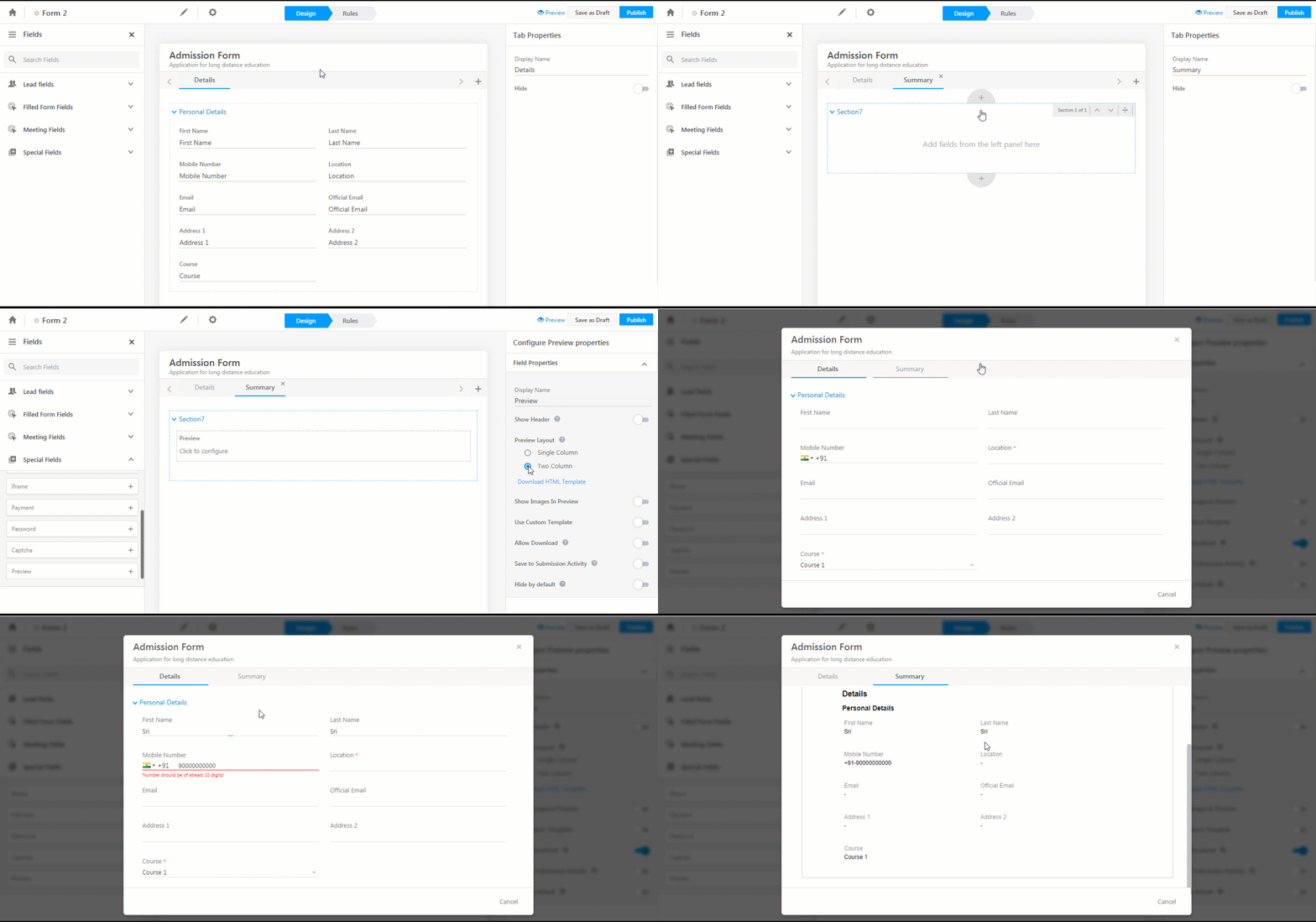
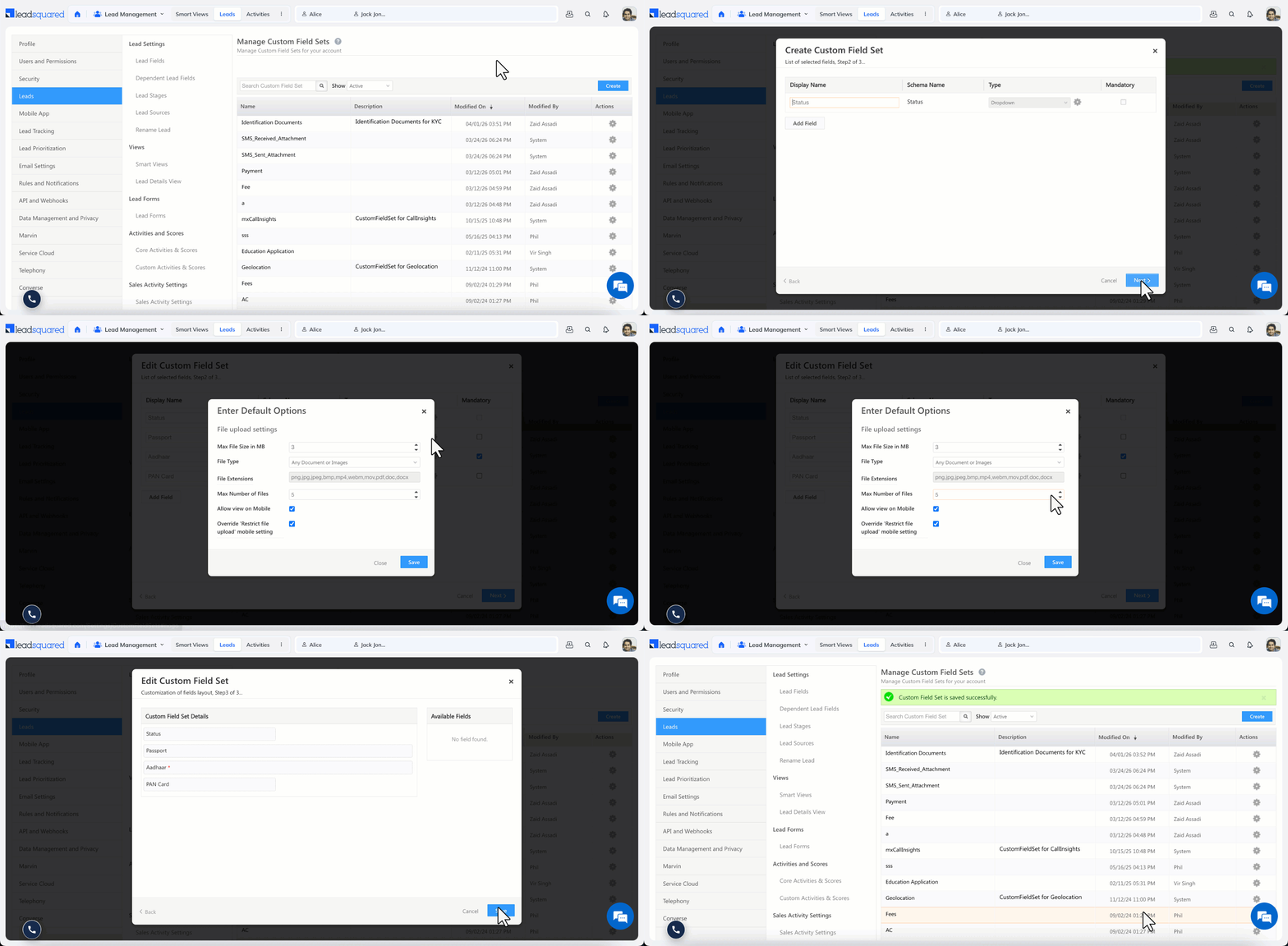
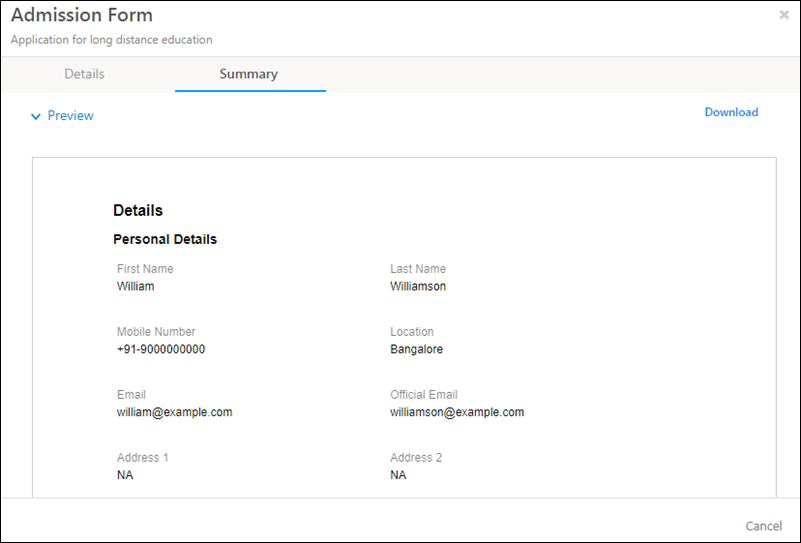
You can enable your users and leads to preview and download forms. A special ‘Preview’ field is available in the form builder, that allows them to view the information they’ve entered before form submission. It also enables them to download a PDF version of the form, to ensure all the details entered are accurate. This helps your leads avoid making errors while submitting a form, and also caters to use cases where forms need to be downloaded and physically submitted.  For example, when your leads fill college applications, when your users fill loan applications, contracts, etc.

Note:

  • You can upload your own custom HTML template to customize the look and feel of the preview form.
  • To know more about LeadSquared forms, see How to Create a Form.

Preview


2. Prerequisite

You must be an administrator of your LeadSquared account.


3. Process

To enable the preview and download option on your forms –

  1. From the main menu, navigate to Workflow>Manage Forms, and click Create Forms (for more information, refer to How to Create a Form).
  2. Once you’ve added the required fields and other details on the form, click Add Form Tab to add a new tab.
  3. Give the tab a relevant name, and from the Special Fields section on the left side, add the Preview option.
  4. Click Click to configure and configure the form through the Configure Preview properties panel.
  5. After configuring the form, click Preview, present on the top-right corner of your screen.

Note:

  • When configuring a preview and download form for the LeadSquared mobile app, enable the Use Custom Template setting.
  • Only the following settings are configurable when creating the form for the mobile app –
    • Preview Layout
    • Show Images in Preview
    • Allow Download
    • Save
    • Hide by Default

Preview

Preview Field Properties Description
Display Name Give the form preview field a relevant display name.
Show Header Toggle the enable icon slider if you choose to display the header while previewing the form.
Preview Layout Choose whether to display the form in a single-column view or two-column view while previewing a default template.
Download HTML Template If you want to customize the preview form, you can download the default HTML template and make the necessary changes.
Hide Empty Fields in Preview Toggle the enable icon slider if you want to hide empty form fields when previewing the form.
Show Images in Preview Toggle the enable icon slider if you want to display images when previewing the form.
Use Custom Template Toggle the enable icon slider if you want to use a custom HTML template. You can upload the template by clicking Upload HTML Template.
Allow Download Toggle the enable icon slider if you want to enable form download while previewing it.
Save
  • Save to Submission Activity
    When a lead submits a form, a ‘Form Submission’ activity is posted against the lead (on the lead details page). Toggle theenable icon slider to make the form available as a PDF document under the activity.
  • Save to Field
    When a lead submits a form, it is saved as a PDF file to the field that’s selected here. Only Custom Field Set Fields that accept PDF files will appear for selection here. The form will be available for download from this field.
Hide by Default Toggle the enable icon slider if you want to hide the preview form.

Once you’ve added all the necessary details, click Publish. This will make your form live.


Any Questions?

Did you find this article helpful? Please let us know any feedback you may have in the comments section below. We’d love to hear from you and help you out!

Lead Details Page

1. Feature Overview

On the Lead Details page for any lead, you can view all the interactions (including activities, tasks, opportunities and notes) you’ve had with the lead, from when the lead was created, all the way to conversion. You can track the lead through various stages, and also create and modify multiple actions on the lead (such as adding custom activities, tasks, opportunities, and so on). This will ensure that all the stakeholders are on the same page when viewing your lead’s details.

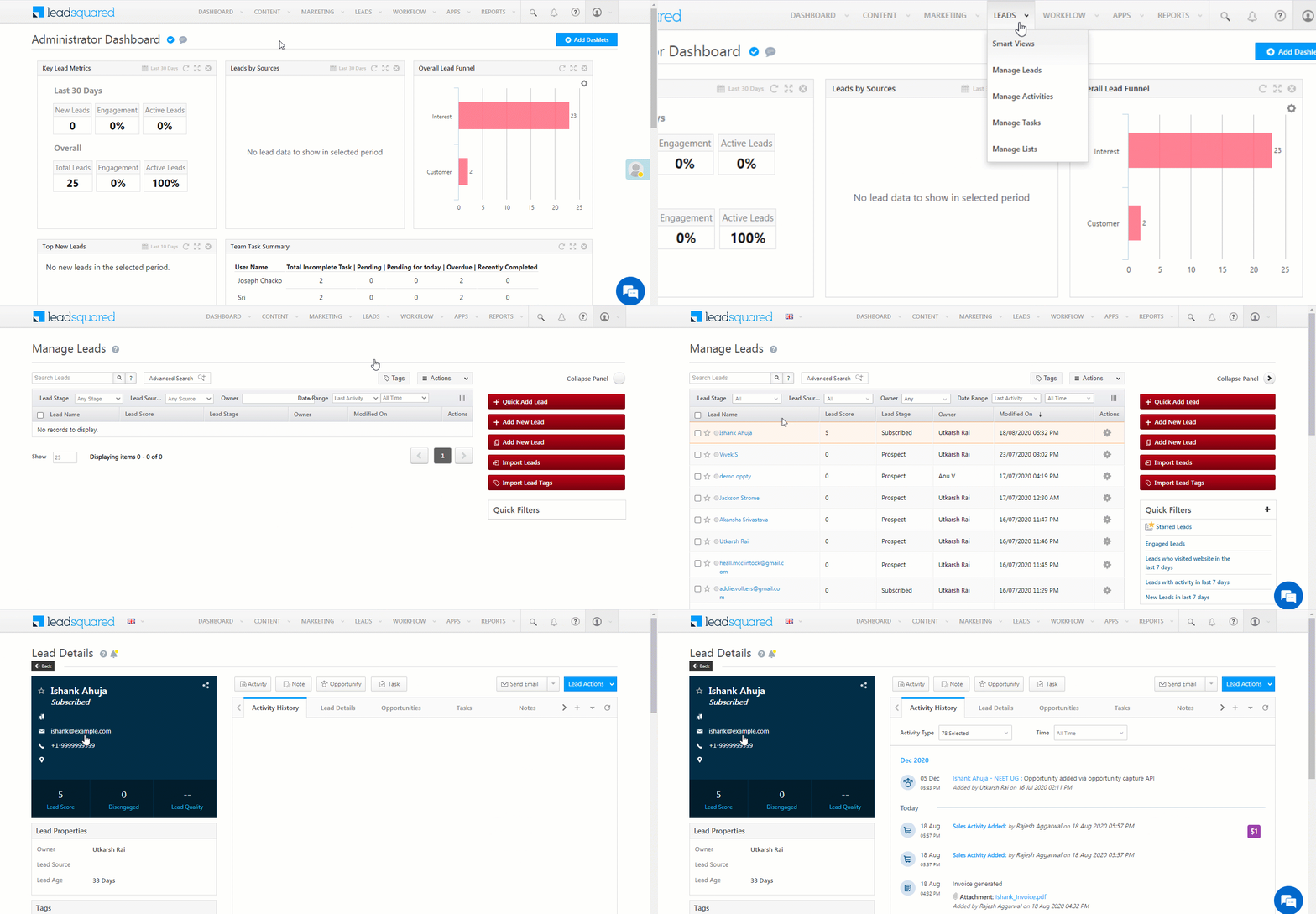
To access the Lead Details page, from the main menu, navigate to Leads>Manage Leads, and click on an existing lead.

Note:

  • Restrict sales users from copying and pasting, and printing sensitive lead information from the Lead Details page and Manage Leads grid. This is to prevent the misuse and leakage of your confidential lead data. To enable this feature, contact your account manager, or write to support@leadsquared.com.
  • To customise the Lead Details page, see Lead Details Customisation.
Lead Details


2. Prerequisites


3. How it Works

From the Lead Details page, you can –

  • View and modify lead details, lead properties and lead tags to the lead.
  • View, add and modify activities, tasks, opportunities and notes to the lead.
  • Perform other lead actions such as sending emails, adding sales activity, deleting the lead, and so on.
Lead Details


4. Left Panel

4.1 Lead Details vCard

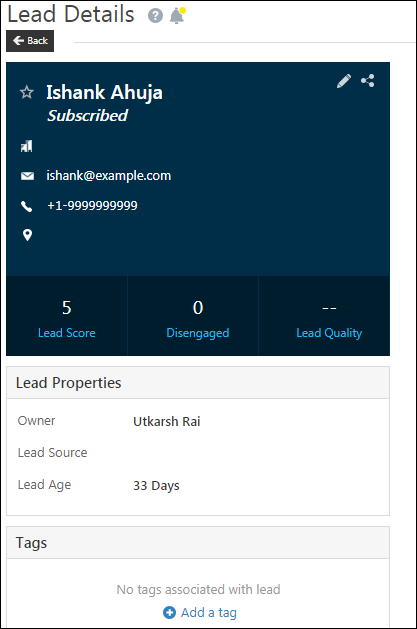
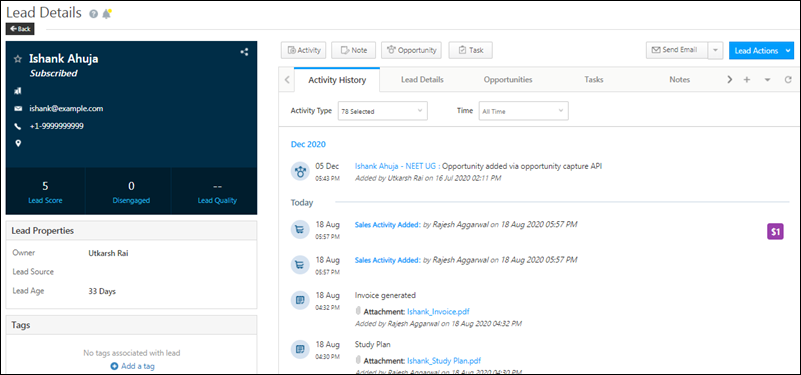
The vCard, available on the left side of the Lead Details page, allows you to view, edit and share the lead’s information.

  • To edit the lead’s details from the vCard, hover your cursor on the vCard, and click the Edit icon. After updating the details, click the icon.
  • To share the lead’s details via email, click the share-button icon. On the Share Lead Info Via Email pop-up –
    1. In the Email to field, enter the email address of the LeadSquared user with whom you want to share the lead details.
    2. In the Notes field, enter relevant information you want to share with the user.
    3. Once you’re done, click Email.

Notes:

4.2 Lead Properties

The Lead Properties view is available below the Lead vCard. Here, you can view the –

  • Lead Owner
  • Lead Source
  • Lead Age

To edit the Lead Properties, hover your cursor on this section, and click the Edit icon. Once you’ve updated the details, click the icon.

4.3 Tags

You can add tags to your leads. To add tags, this setting will have to be enabled. To enable it, navigate to My Profile>Leads>Manage Leads>Manage Tags>Lead Tag Manager.

To add tags –

  1. Click Add a tag.
  2. Once you’re done, hit Enter.

Lead Details


5. Lead Details Tabs

The tabs on the Lead Details page allows you to add and modify details across the following categories –

5.1 Activity History

In addition to default activities, you can also create custom activities to accommodate your unique requirements. To know more, refer to How to Add a Custom Activity.

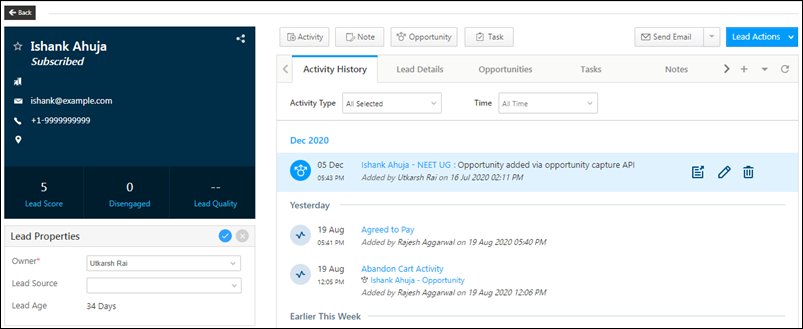
The Activity History tab enables you to view the activity details on the lead and on the opportunity, and the timeline of the lead’s interaction with you, consolidated under one tab. It also allows you to filter the activities within a specific time range.

Example – A tab to view all your email activities (like Emails Opened, Emails Clicked, Emails Bounced etc.), all in one place.

Note: Owner changes that happen through automations will be displayed under Activity History along with the “Automation Name” and “Action Name” details.

You can perform the following actions –

  • Edit – To edit an existing activity, hover your cursor over the activity entry, and click the icon.
  • Delete – To delete an existing activity, hover your cursor over the activity entry, and click the Delete icon.

You can also view the lead score, added or subtracted due to the actions that your lead has taken.
Note:

  • Activities added to leads are denoted by the Activities_Leads symbol.
  • Activities added to opportunities are denoted by the Activities_Opportunity symbol.
  • To navigate to the Opportunity Details page directly from the Lead Details page, against the activity entry, hover your cursor on the right side, and click the Activities_Opportunity Details icon.

Lead Details_20

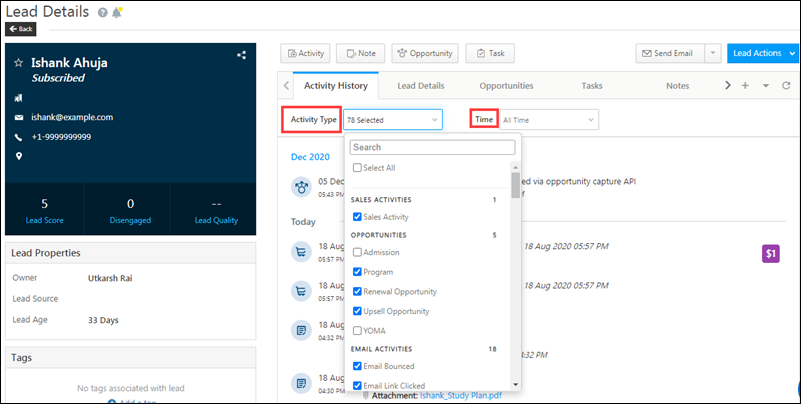
Select an Activity Type
This drop-down allows you to select the specific activity types you want to display under Activity History. Select the required activity type from the drop-down list and the display pane is filtered based on the selected activity type. You can also select the time frame for the select activity type from the Time drop-down list.
Lead Details

5.2 Lead Details

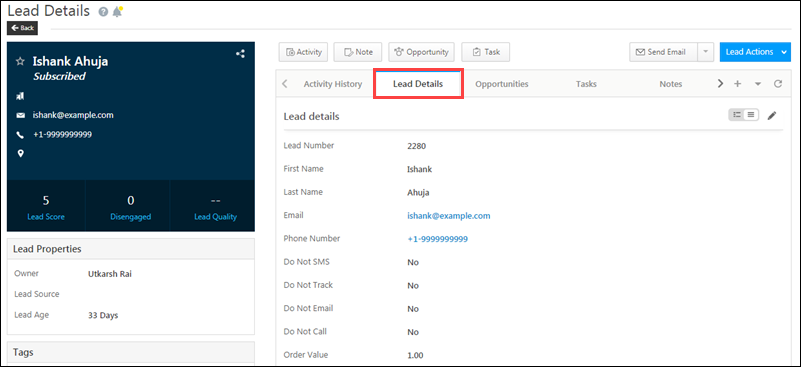
Lead details

You can view the lead’s information, such as the lead’s first name, last name job title, phone number, email and so on. To edit the Lead details, click the Edit icon. Once you’re done, click Save.

Note: The Lead Create Form configuration reflects here in the Lead Details tab. The fields, their order, and visibility in the Create Lead Form will appear the same under the Lead Details Tab, allowing users to view and edit lead details directly from here. To know more, see Configure Create Lead Form.
Lead Details

Additional Information

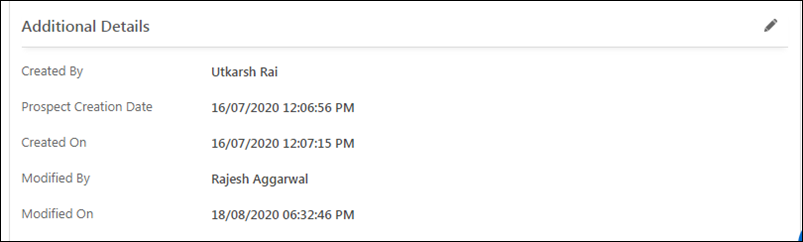
You can view the details of –

  • Who created the lead
  • The prospect creation and lead creation date
  • Who modified the lead details
  • The date on which the lead details were modified

To edit the Additional Information, click the Edit icon. Once you’re done, click Save.

Lead Details

5.3 Opportunities

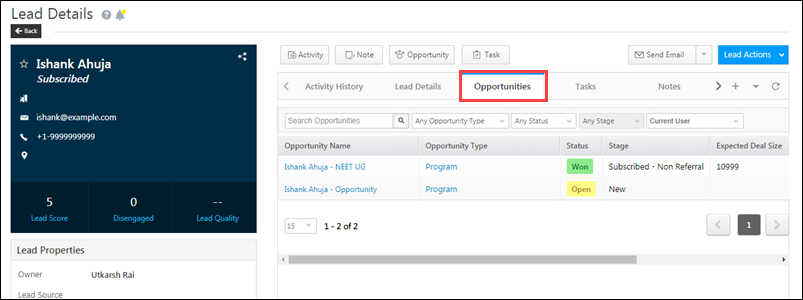
From the Opportunities tab, you can view the opportunity details of the product or service the lead has shown interest in. If a lead has multiple opportunities (inquires, applications, etc.) you can also view them here. You can view the –

  • Opportunity Name
  • Opportunity Type
  • Opportunity Status
  • Opportunity Stage
  • Expected Deal Size

Lead Details

To view additional opportunity fields under the Opportunities tab –

  1. Click the Leadsquared - Lead Details Page icon on the right in the Opportunities tab.
  2. On the popup, click Show:All.
  3. From the list, check the boxes alongside the relevant fields and click Show Selected.

Leadsquared - Lead Details Page

To know more about Opportunities in LeadSquared, please refer to Opportunity Management – Feature Guide.

5.4 Tasks

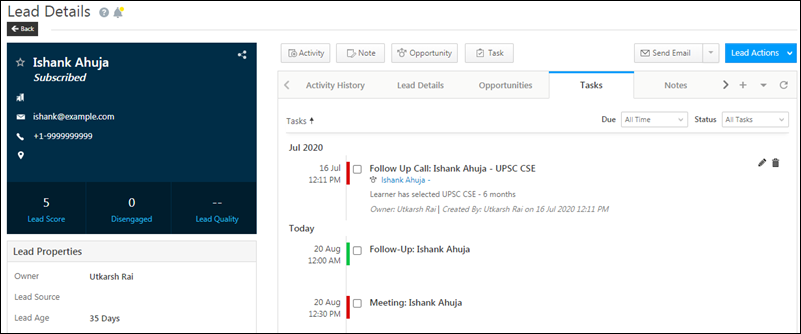
Under this tab, you can view and modify the tasks related to the lead as well as to an opportunity. You can view who created the task, the lead owner, opportunity owner, and the task details. You can filter tasks by –

  • Due – The date on which the task was due (yesterday, last 7 days, custom date, etc.).
  • Status – The current status of the task (Completed, Overdue, Pending and All Tasks).

You can perform the following actions –

  • Edit – To edit a task, hover your cursor over the task, and click the Edit icon. Once you’re done, click Save.
  • Delete – To delete a task, hover your cursor over the task, and click the delete icon. On the pop-up, click Confirm.
Note: Tasks added to opportunities are denoted by the Tasks_Opportunity symbol.

Lead Details_21

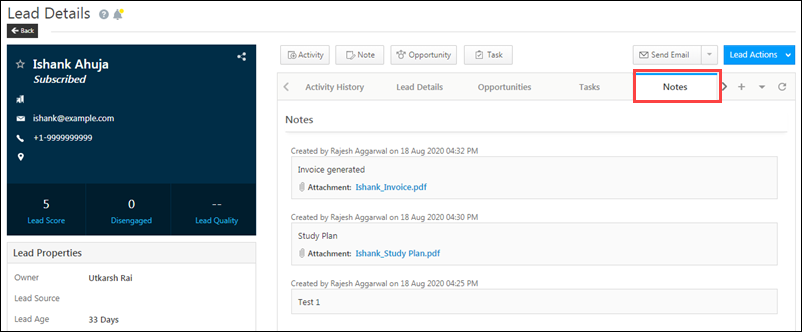
5.5 Notes

You can view and modify notes related to the lead. You can perform the following actions –

  • Edit – To edit a note, hover your cursor over the note, and click the Edit icon. Once you’re done, click Save.
  • Delete – To delete a note, hover your cursor over the note, and click the delete icon. On the pop-up, click Confirm.

Lead Details

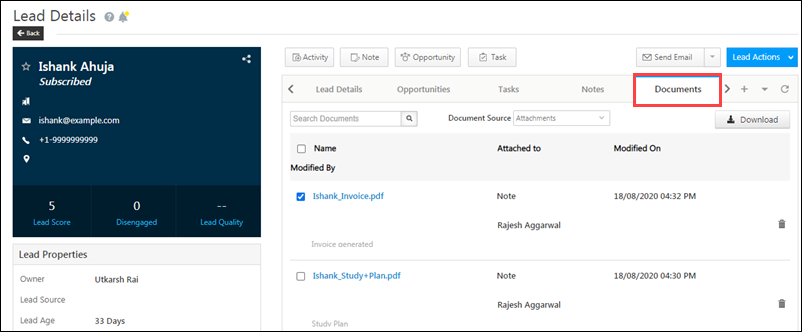
5.6 Documents

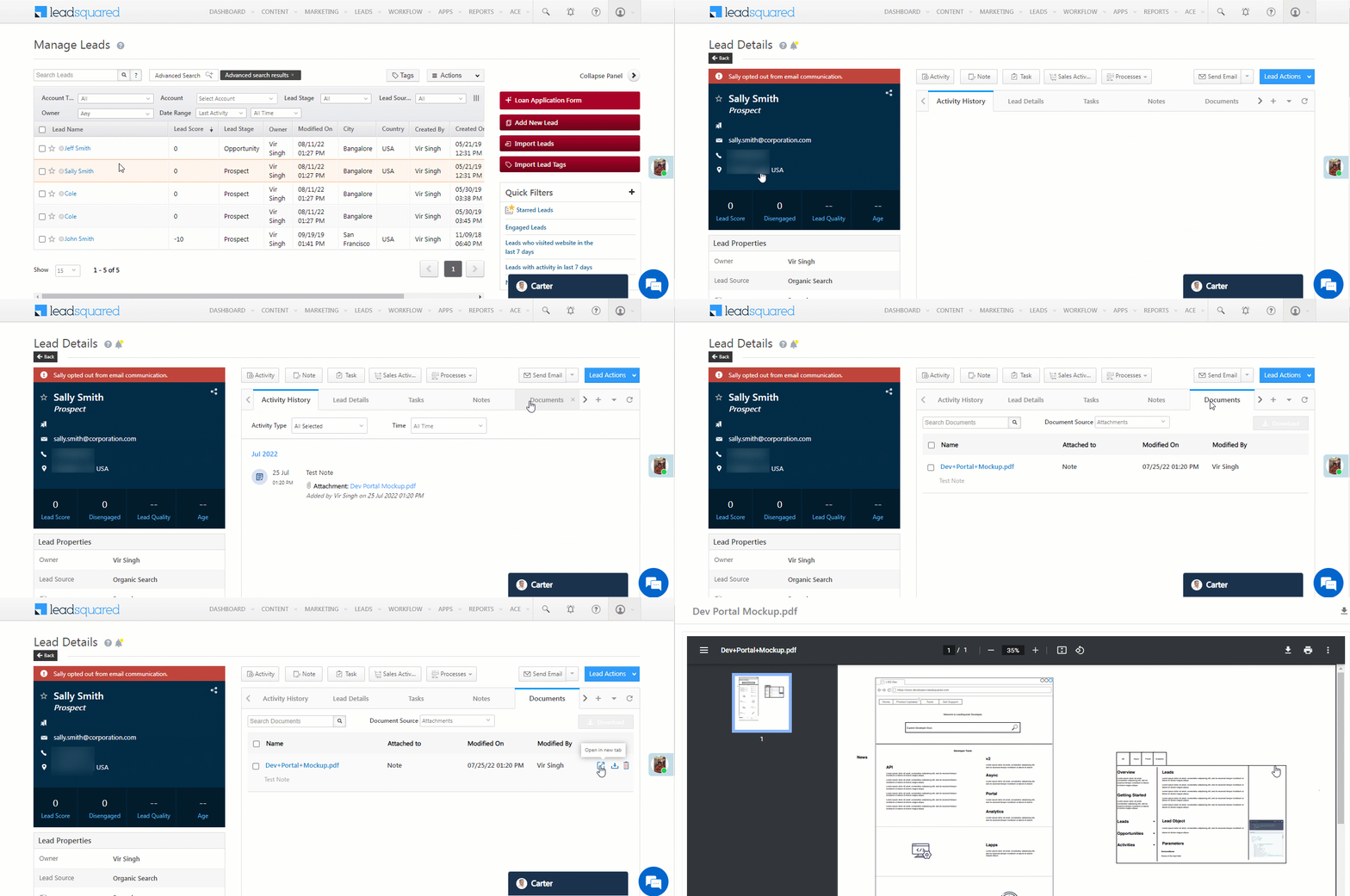
You can view all the documents that were uploaded to the lead. You can also perform the following actions –

  • Download – Click the Checkbox checkbox against the documents you want to download, and then click Download.
  • Delete – To delete a document that’s uploaded to a lead, against the document you want to delete, click the delete icon.

Lead Details

You can open the documents in a new browser tab for quicker verification against the lead’s details. This helps in improving the efficiency of Sales Users who verify large numbers of documents received from leads. This feature is now available by default on the Lead Details page.

Note: Supported files include images, videos, and PDFs.
5.7 Member of Lists

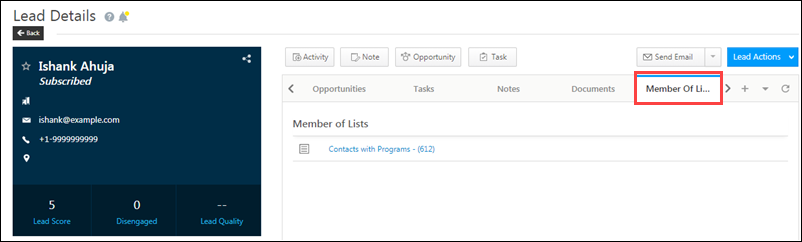
View all the lists the lead is part of. Clicking on any list redirects you to the List Details window.
Lead Details

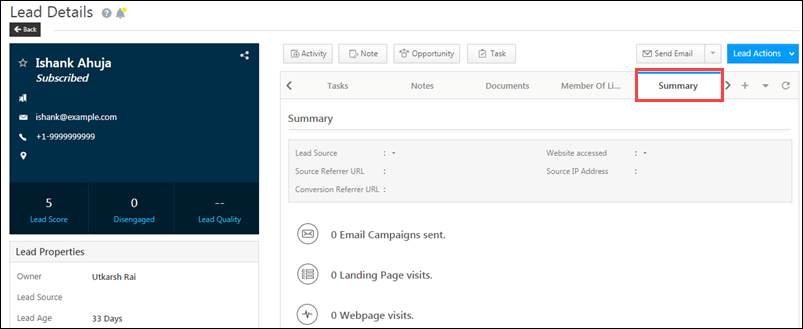
5.8 Summary

This tab provides an overview of the Lead Details page. Here, you can view the following details, all in one place –

  • Lead Source
  • Source Referrer URL
  • Conversion Referrer URL
  • Website accessed
  • Source IP Address

Lead Details

5.9 Lead Share History

Under the Lead Share History tab, you can view the lead share history for any particular lead, including details such as the activity and duration the lead was shared for, as well as the lead share source (API or Automation). To enable this feature on your account, please write to support@leadsquared.com
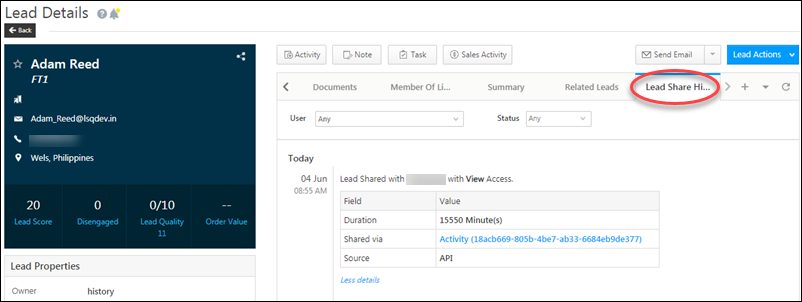
lead share history

5.10 Custom Tabs Connector

Along with the default LeadSquared tabs, you can also create and add your own custom tabs on the Lead Details page. Custom tabs allow you to fetch and display data from external sources and third-party vendors (such as Zendesk, Freshdesk, etc.). To know how to create custom tabs, please refer to Custom Tab Connector.


6. Actions

On the Lead Details page, you can perform the following actions –

6.1 Add Activities

From the Lead Details page, you can add an activity to a lead as well as to an opportunity. To illustrate this, let’s take the example of an insurance seller. The activities that can be added on the lead are “Received Health Insurance Premium – First Installment”, “Sent Health Insurance Scheme Documents”, and so on. The activities that can be added to the opportunity are “Set Up Phone Call for Vehicle Insurance”, and so on.

To add an activity –

  1. Click the Activity Details button. This will open the Add Notable Activity pop-up.
  2. Select the desired activity from the Activity Type drop-down list.
  3. Enter the Activity Date and Notes if required.
  4. If required, you can also add opportunities and tasks to the lead.
  5. Once you’re done entering the details, click Add. You will get a confirmation once the activity is successfully added.

For more information, refer to How to add Activity to Lead(s), and the Activities section on Opportunity Details.
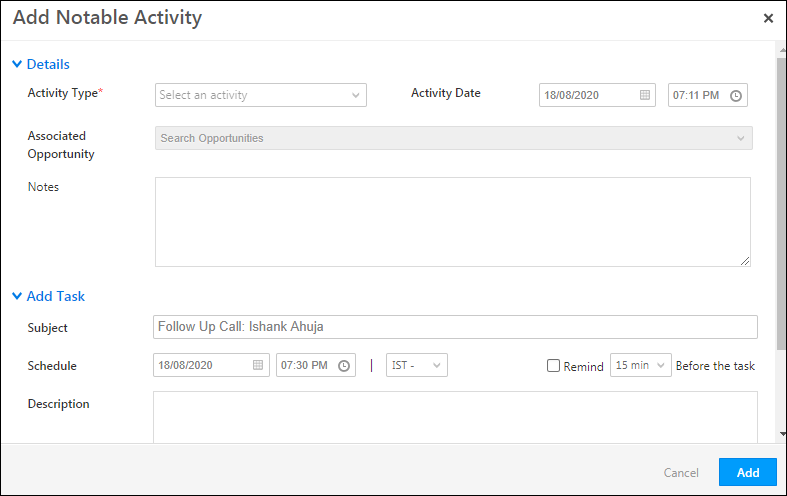
Lead Details_14

6.2 Add Notes

Adding notes to your lead will ensure that all the stakeholders are always up-to-date on the lead’s life-cycle. To add notes –

  1. Click the button.
  2. On the pop-up, under Description, you can add notes.
  3. To attach documents to your notes, click Attach File. The maximum file size that can be uploaded is 10 MB.
  4. Once you’re done, click Add. You will get a confirmation once the note is successfully added.
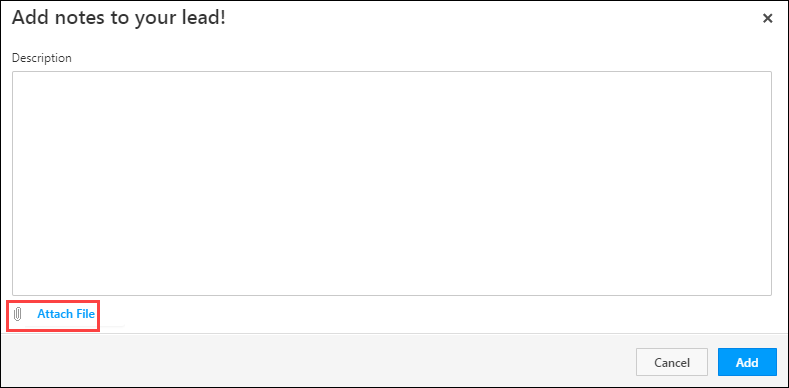
Lead Details_15

6.3 Add Opportunities

Opportunities in LeadSquared represent potential future deals from existing leads. To add an opportunity –

  1. Click the Opportunity button.
  2. On the Add Opportunity pop-up, select the Opportunity Type you want to add.
  3. Enter all the required details on the Add Opportunity form.
  4. Once you’re done, click Add. You will get a confirmation once the opportunity is successfully added.
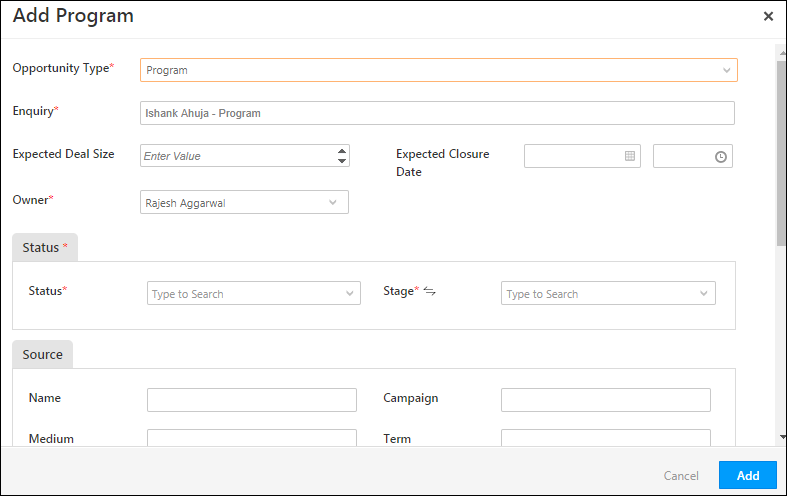
Lead Details_16

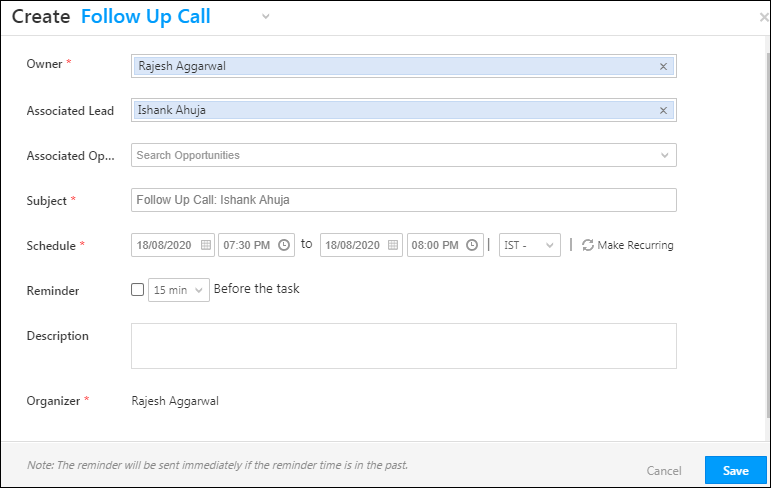
6.4 Add Tasks

Create different tasks, specific to your business requirements, to take your lead’s journey to completion. From the Lead Details page, you can add a task to a lead as well as to an opportunity. To illustrate this, let’s take the example of an insurance seller. The tasks that can be added on the lead are “Mail Health Insurance Policy Documents”, “Visit Lead to Conduct Health Check-Up”, and so on. The tasks that can be added to the opportunity are “Inspect Lead’s Vehicle for Motor Insurance”, and so on.

  1. Hover your cursor over the Activity Details button.
  2. From the list of tasks, select the task you want to create.
  3. On the Create Task pop-up, enter the required details.
  4. Once you’re done, click Add. You will get a confirmation once the task is successfully added.

For more information on this, refer to How to create Tasks and schedule Reminders?
Lead Details_17

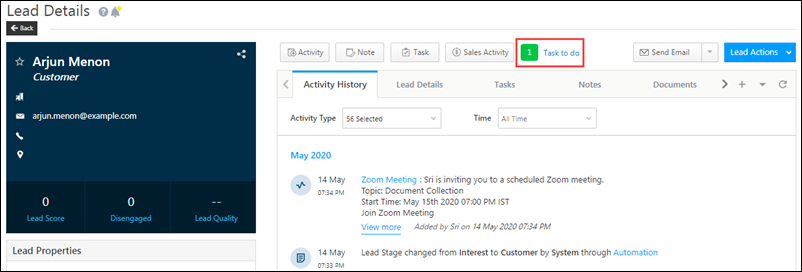
6.5 Tasks to do

You can view the pending tasks on this lead, in the Tasks to-do bubble. To enable this feature, please write to support@leadsquared.com.
Leads

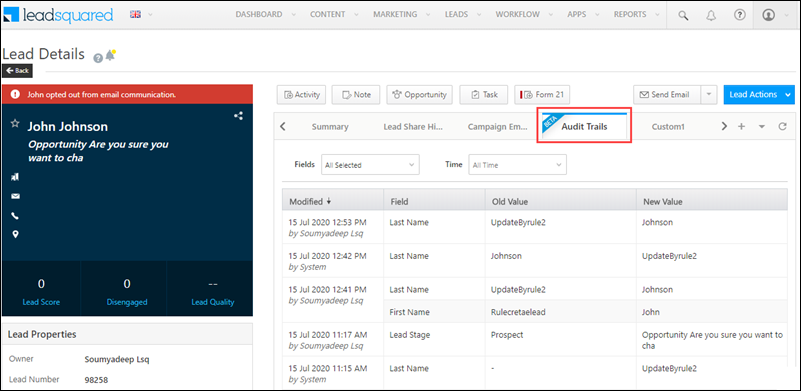
6.6 Audit Trail

The Lead Field Audit helps you keep track of all the changes that have been made to your lead, by your users or by the system (Automation, Rules, etc.). When enabled, you can view an Audit Trails tab on the lead details page where you can view the particular lead fields that have been changed along with the time stamp and user/system that made the change. To know more, refer to Lead Field Audit. To enable this feature on your account, please write to support@leadsquared.com
Audit

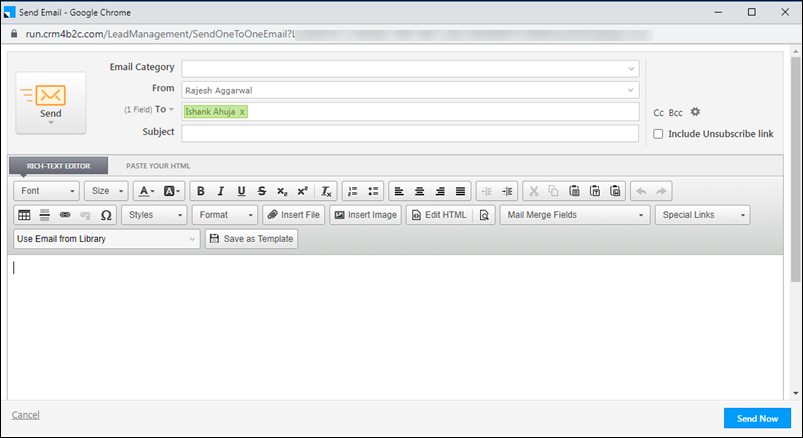
6.7 Send Email

The Send Email button allows you to send one-to-one emails to your lead. Click the button, and the email editor pop-up box appears. Once you’re done creating the email, click Send Now.
Lead Details_18

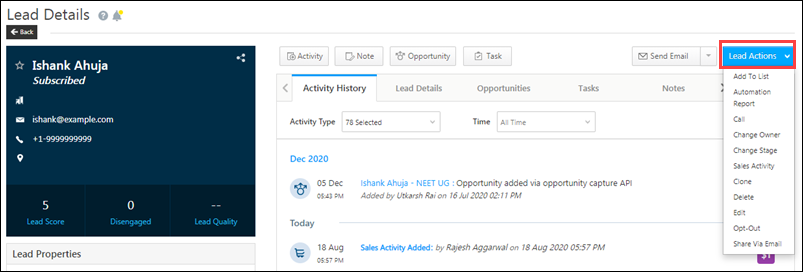
6.8 Lead Actions

You can hover on the lead actions button and choose any of the actions you can perform on the lead. The actions include Add to List, Automation Report, Change Owner, Change Stage, Clone, Delete, Edit, Opt-Out, Send Email, Share and Send SMS. For information, refer to Leads – Manage Leads.
Lead Details_19


FAQs

Character Limit Error in Lead Notes or Lead Activity Stream

  • Issue –  A Character Limit Exceeded error appears even when the character count is within the allowed limit.
  • Cause – Pasting text from Word (.docx) or .aspx files may include hidden HTML formatting (fonts, styles) that inflates the actual character count beyond what is displayed.
  • Solution –
    • Method 1: Paste as Plain Text. If using Chrome, accept the popup to remove formatting when pasting.
    • Method 2: Clear Formatting Manually. Right-click the text inside the Notes field and select “Clear Formatting” before saving.

Why do activity times appear differently in the Activity History?

Activity History displays two different timestamps because we maintain two separate fields for Activities:

  1. Created On Time – This is the system-generated timestamp recorded when the activity is created. It always reflects the current time at the moment of creation. This is the time displayed on the left side of the activity entry.
  2. Activity Date Time – This is a user-defined timestamp available in the activity form and can be populated while creating activities. It appears below the activity in the history and can reflect either the current time or a past time, depending on how it was recorded.

This distinction helps differentiate when an activity was logged versus when it actually took place.


Any Questions?

Did you find this article helpful? Please let us know any feedback you may have in the comments section below. We’d love to hear from you and help you out!

Adding Custom Field Sets to Opportunities

1. Feature Overview

This article assumes that you’ve already created one or more custom field sets and are now looking to integrate them with opportunities.


2. Prerequisites

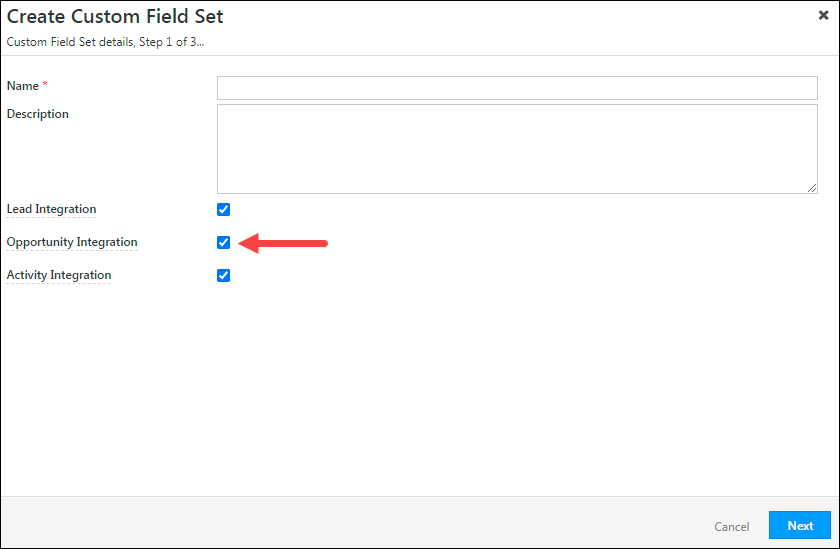
While creating a custom field set, you must select the Opportunity Integration checkbox. This will make the custom field set available for opportunity integration –

LeadSquared Custom Field Sets


3. Associate Custom Field Sets with Opportunities

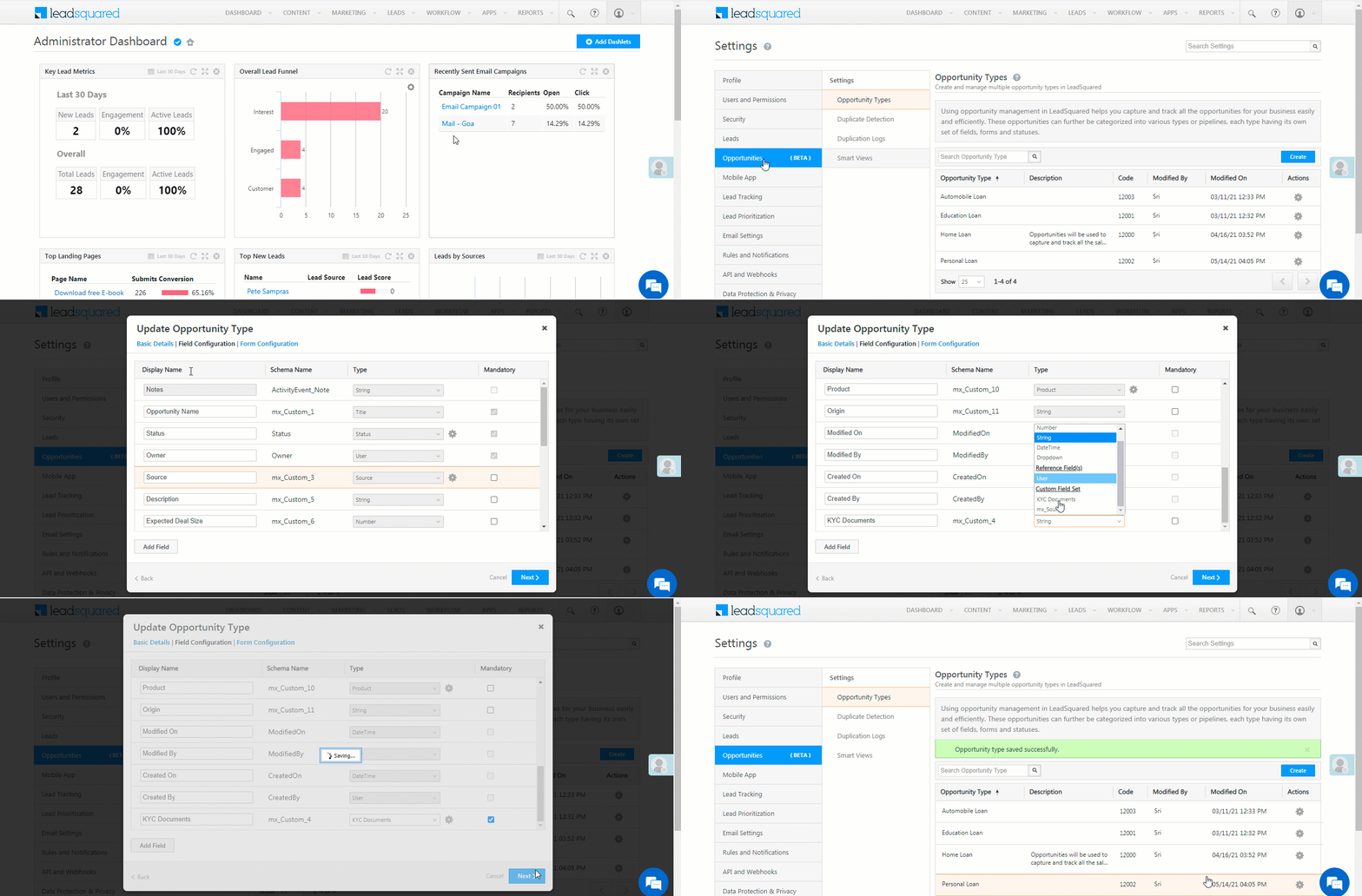
After creating a custom field set, you can associate it with a new custom opportunity field. Note that you cannot associate a custom field set with an existing opportunity field. You must create a new one.

  1. Navigate to My Profile>Settings>Opportunities>Opportunity Types.
  2. Against an opportunity type, hover your cursor over the icon, and click Edit.
    • The following steps will remain the same if you are looking to associate a custom field set to a custom opportunity field in a new opportunity type that you’re creating.
  3. On the Update Opportunity Type pop-up, navigate to the Field Configuration tab, and click the Add Field button.
  4. After entering the custom opportunity field details, from the Type dropdown, select the CFS you want to associate with the field.
  5. To mark the field as mandatory, enable the Checkbox checkbox.
  6. Once you’re done, click Next, and then click Save.
Note: On the Form Configuration pop-up screen, you can customize where you want the CFS field to show up in the form.

LeadSquared Custom Field Sets


4. View Custom Field Sets

Custom fields sets will appear in all places where opportunity fields are available, such as –

4.1 Manage Opportunities and Smart Views

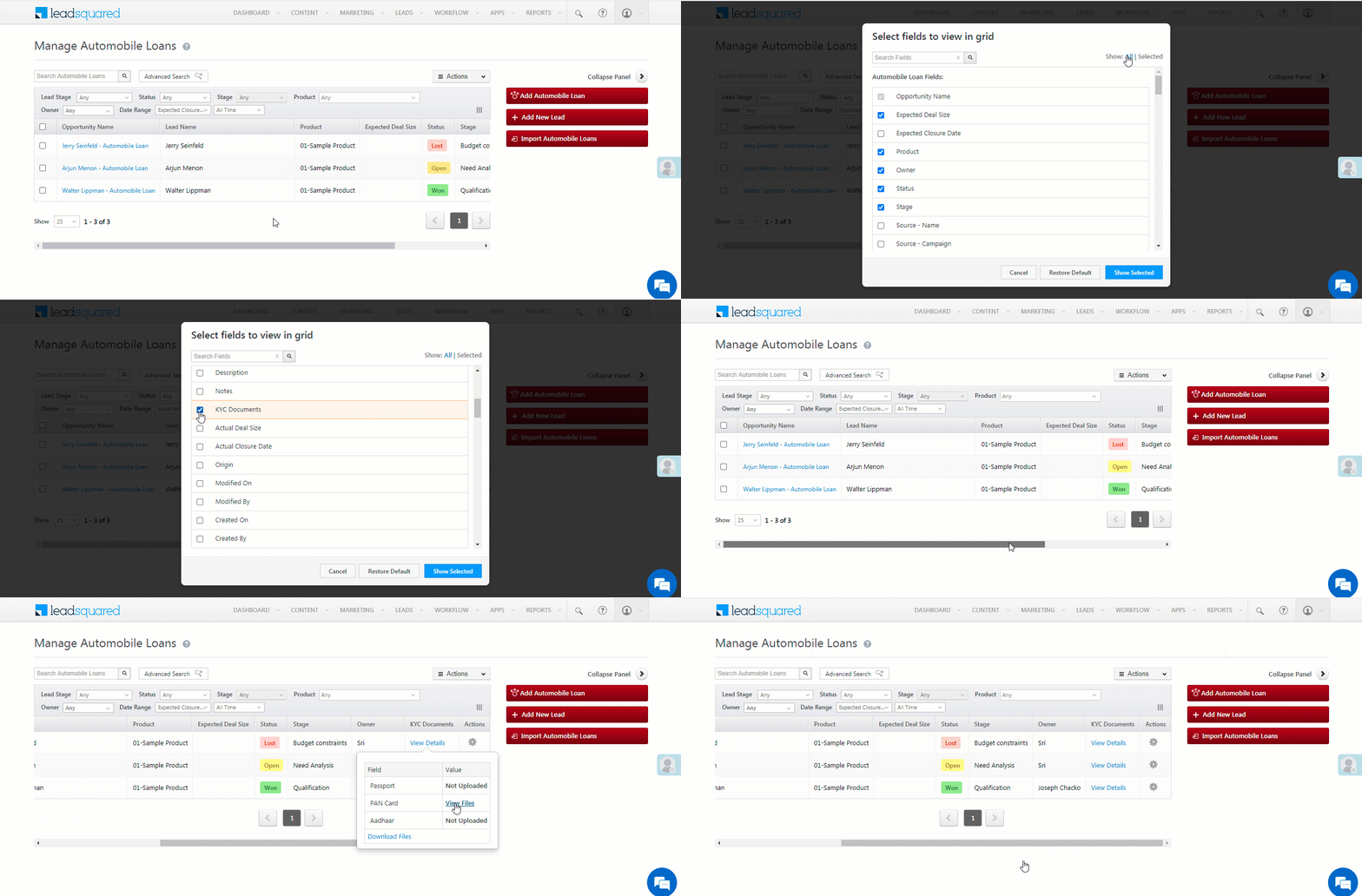
You can use column customization to display custom field sets on the Manage Opportunity and Smart Views pages. To do this –

  1. On the Opportunity grid, click the column customization select column icon icon.
  2. On the Select fields to view in grid pop-up, click the Checkbox checkbox alongside the custom field set you want to display, and then click Save.
  3. The selected field will now show up on the grid.

LeadSquared Custom Field Sets

4.2 Advanced Search

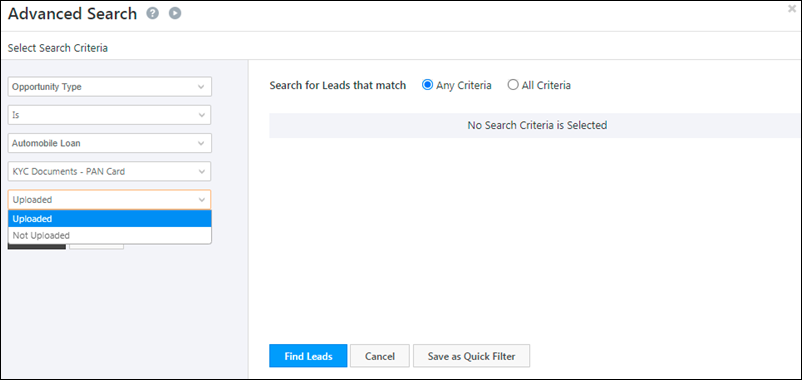
You can view custom field sets associated with opportunity fields from any advanced search within LeadSquared.

LeadSquared Custom Field Sets

4.3 Opportunity Details Page

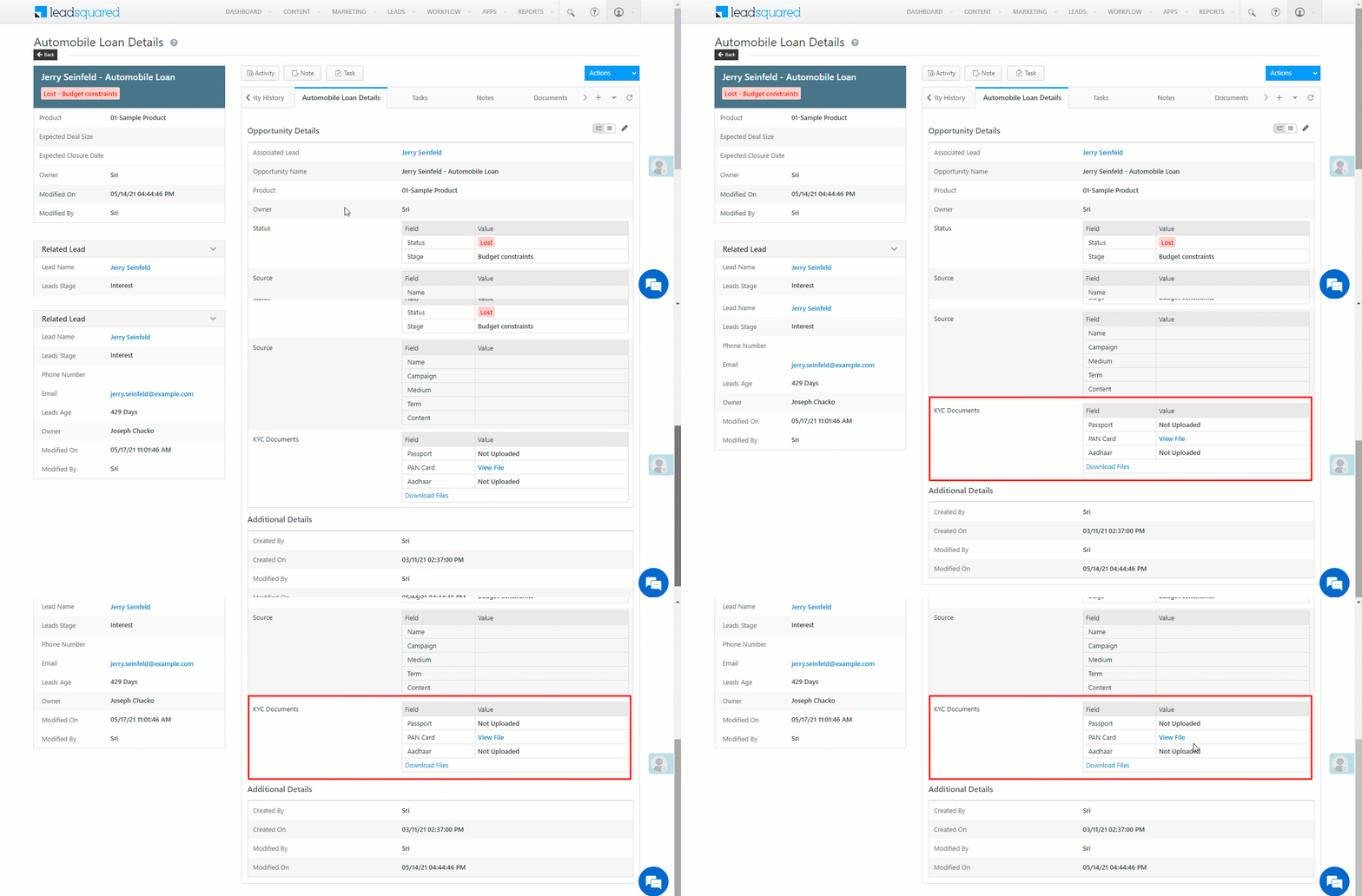
You can view and edit custom fields sets from the Opportunity Details page –

LeadSquared Custom Field Sets


5. Other Actions

  • Bulk Update – You can bulk update custom field sets from the Manage Opportunity page. For more information, see the Bulk Updates section under Opportunity Management.
  • Import Custom Field Sets – You can import custom field sets through regular Opportunity Import.
  • Export Custom Field Sets – You can export custom field sets along with other lead fields from the Manage Opportunity page. For more information, see the Export Opportunity section under Opportunity Management.


Any Questions?

Did you find this article helpful? Please let us know any feedback you may have in the comments section below. We’d love to hear from you and help you out!

Smart Views – Feature Guide

1. Feature Overview

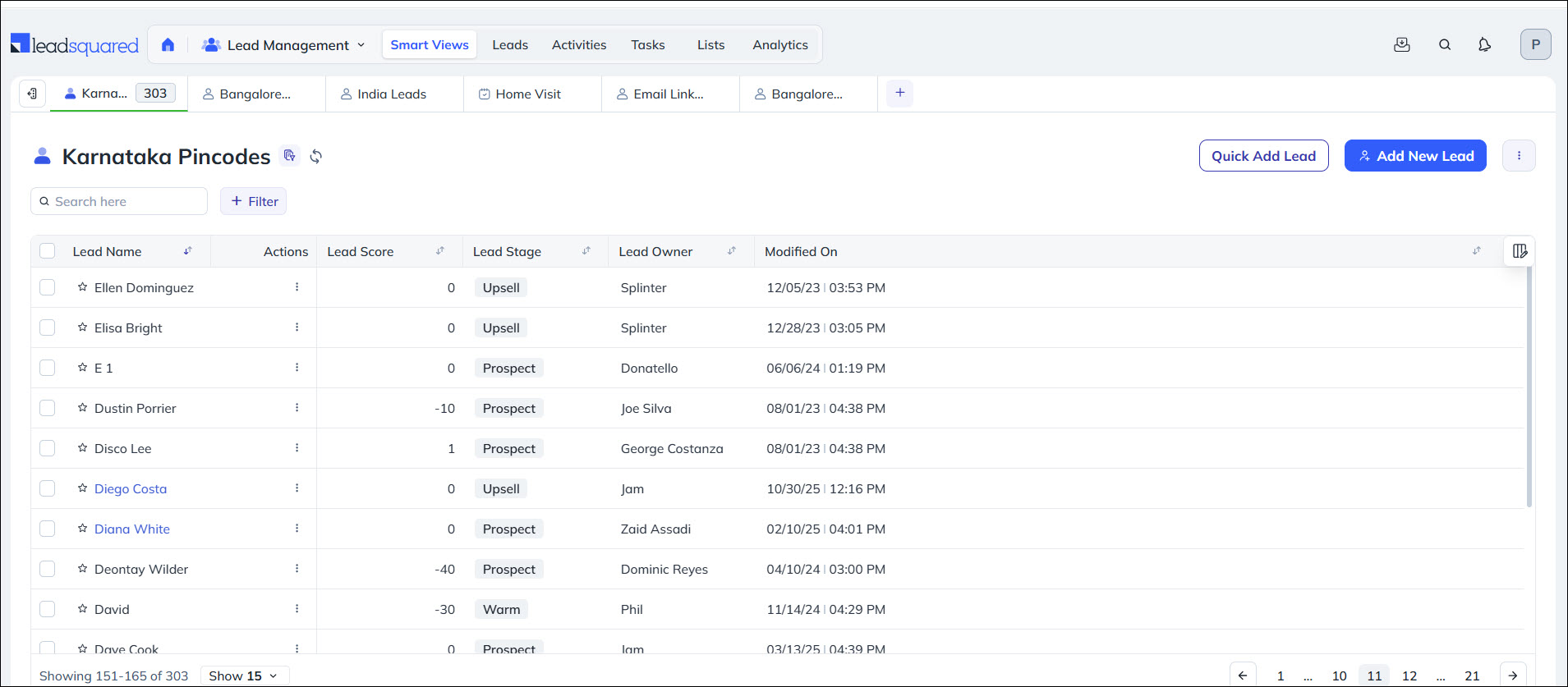
Smart Views on LeadSquared provides a centralized workspace where users can access and manage Accounts, Leads, Opportunities, Activities, and Tasks in one place. Users can create customized tabs using filters and conditions to view only the records relevant to their work upfront. Smart Views help sales teams organize records using filters, tab-based views, and sortable grids, making it easier to track tasks, monitor engagement, and prioritize actions.

Some benefits of Smart Views:

  • The feature provides a better alternative to quick filters, as you can view your saved filters as tabs and apply filters and sort the leads.
  • It automatically refreshes so your tabs are always updated.
  • It shows you the count of leads on each tab.

Users can also subscribe to Smart Views reports to receive daily summaries of records that match their configured views. For more details, see Subscribe to Smart Views Reports.

Leadsquared - Smart Views

For more details on Smart Views, refer to the following articles –

Link Description
Smart Views for Administrators For Admins to create Smart Views and assign them to teams/users
Integrate Mavis DB With Smart Views To create Mavis Smart View tabs to display data stored in Mavis DB
Marvin Smart Views Configure Smart Views in Marvin


2. How It Works

  1. Create a Smart View Tab for accounts, leads, opportunities, activities, or tasks.
  2. Use filters and search conditions to specify which records should appear in the tab.
  3. The tab displays matching records in a grid where you can view, sort and take actions.
  4. Smart Views automatically refresh to ensure the latest records appear in your tabs.


3. Permissions and Visibility

Non-admin users can create Smart View tabs from the Smart Views page for their own use. These tabs are visible only to the user who created them.

Admins, on the other hand, can create Smart View tabs from the Smart Views Settings page and assign them to specific teams, making them visible to all users within those teams. To learn more, see Smart Views for Administrators.


4. Default Tabs

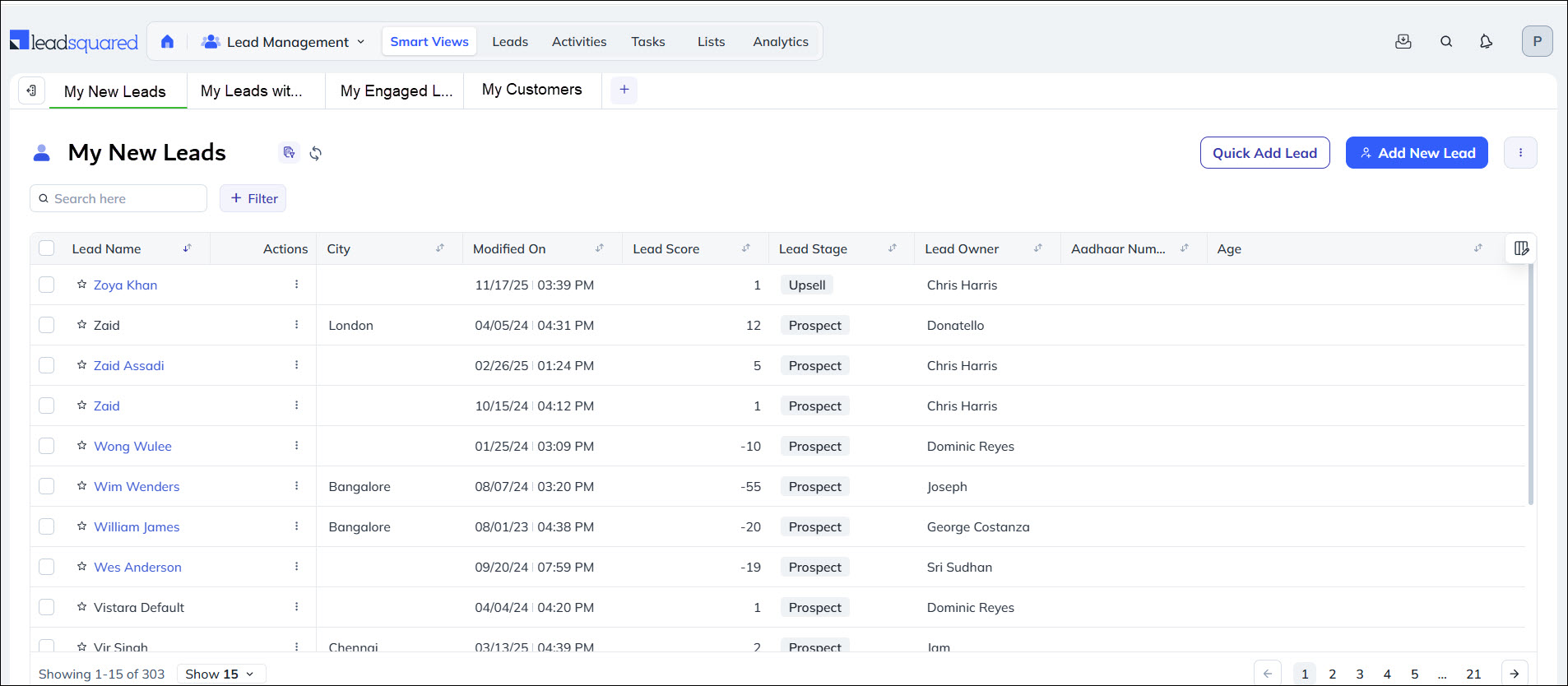
You’ll see the following tabs on the Smart Views page by default – My New Leads, My Leads with Pending Tasks, My Engaged Leads and My Customers. You can search for leads and apply filters within each tab, edit the search conditions and also hide or delete the tabs you don’t want to see.

Leadsquared - Smart Views


5. Create a New Tab

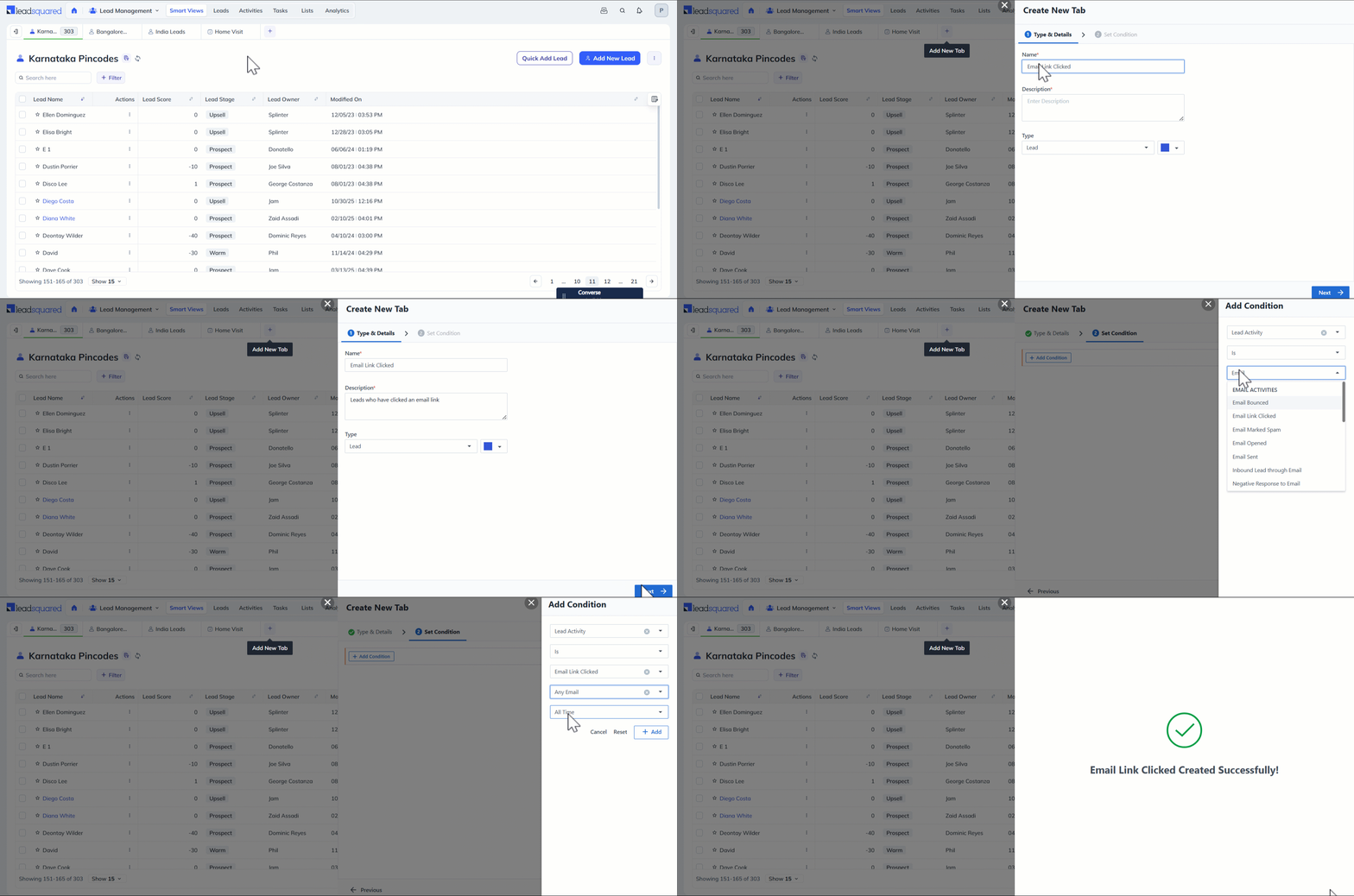
Create custom Smart View tabs to organize and view records based on specific filters, conditions, and business needs. This allows you to focus on relevant data, segment records effectively, and streamline your daily workflows.

  1. Navigate to Lead Management>Smart Views.
  2. Click the plus icon on the top right corner of the Smart Views page, alongside the Smart View tab headers.
  3. In the Add New Tab popup enter –
    • Name – Enter a name for the tab.
    • Description – Describe what the tab displays.
    • Type – Set the tab up to display accounts, leads, opportunities, activities, or tasks. Select the colour of the tab.
    • Condition – Set up conditions according to your use case (E.g., leads who opened a particular email campaign, leads who visited a particular webpage, etc.).
  4. Click Add. You can set multiple conditions if required.
  5. Click Create Tab.

This example shows you how to set up a lead tab where the ‘Lead Activity’ is ‘Email Link Clicked’ –

Leadsquared - Smart Views


6. Edit or Delete Smart Views Tab

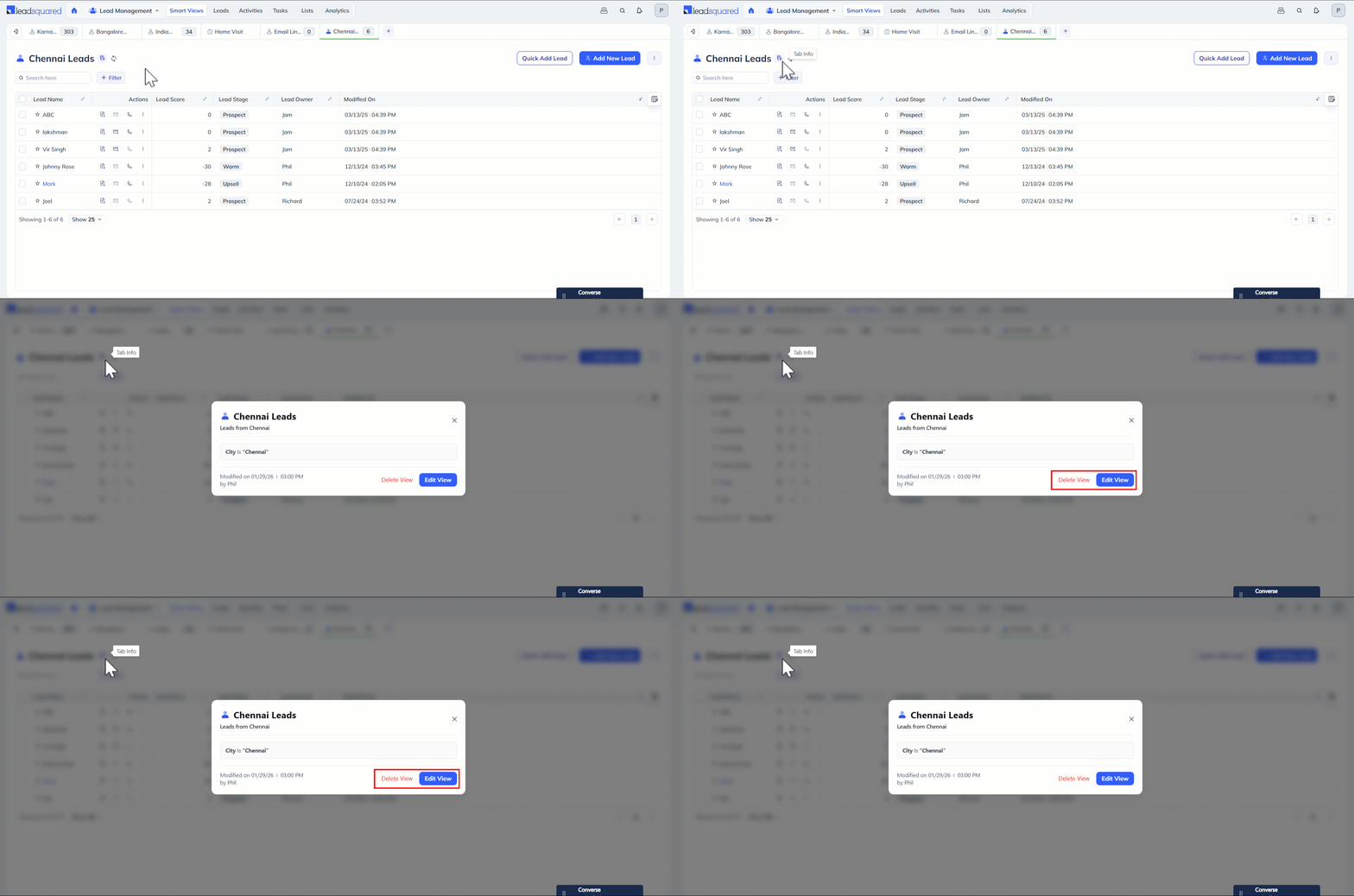
Additionally, to Edit or Delete your Smart Views tab, alongside the relevant tab name heading, click the Tab Info icon.

Leadsquared - Smart Views


7. Select Columns

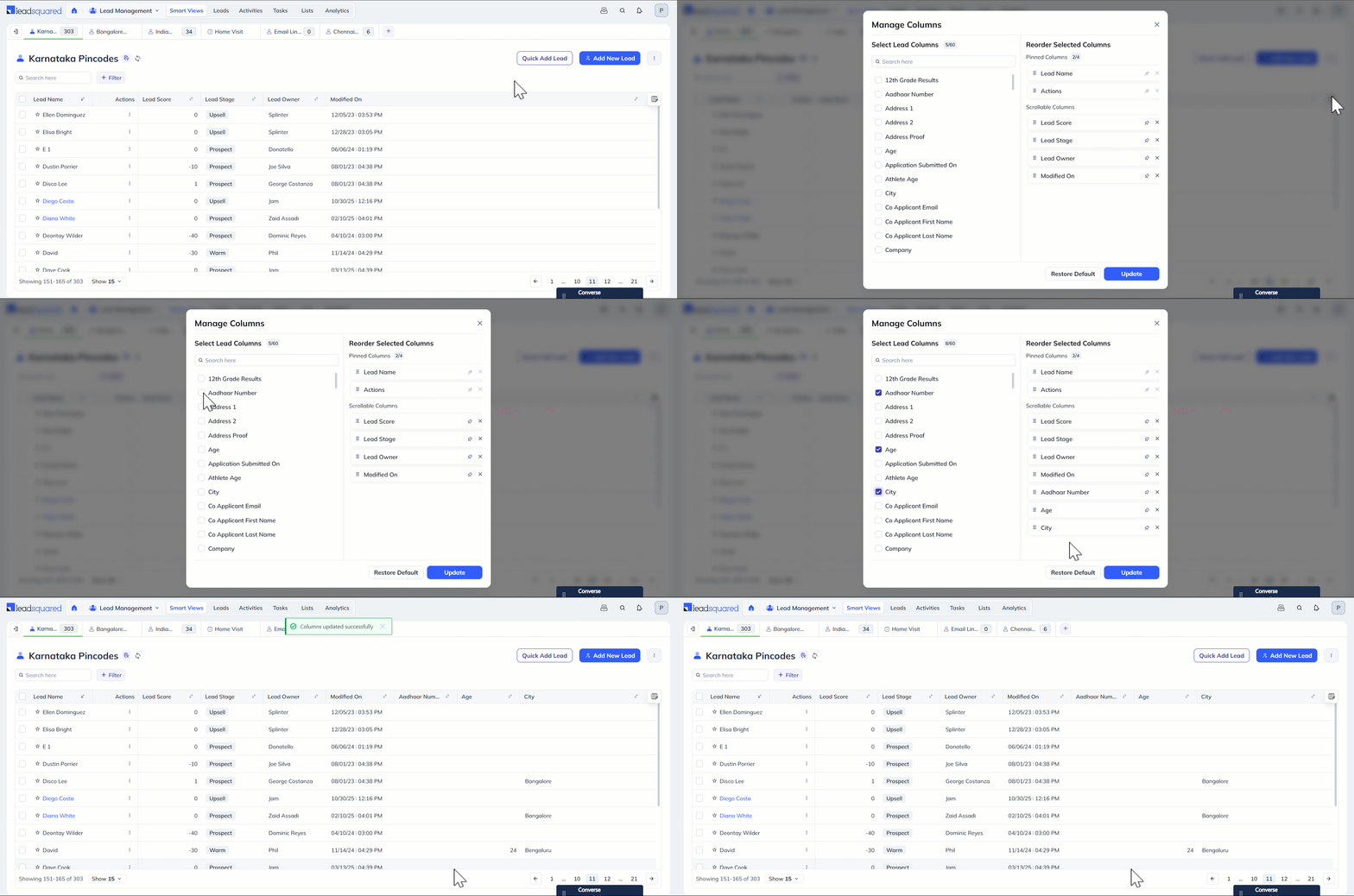
You can customize the Smart Views grid to display relevant columns in the lead grid.

  1. On the Smart Views page, click the Manage Columns icon on the top-right corner of the lead grid.
  2. On the Select Columns pop-up, click the checkboxes alongside the relevant fields in Available Columns.
  3. The selected fields will be displayed on the Selected Columns section of the pop-up.
  4. Click Save.
  5. The selected field will now show up on the grid.

Leadsquared - Smart Views

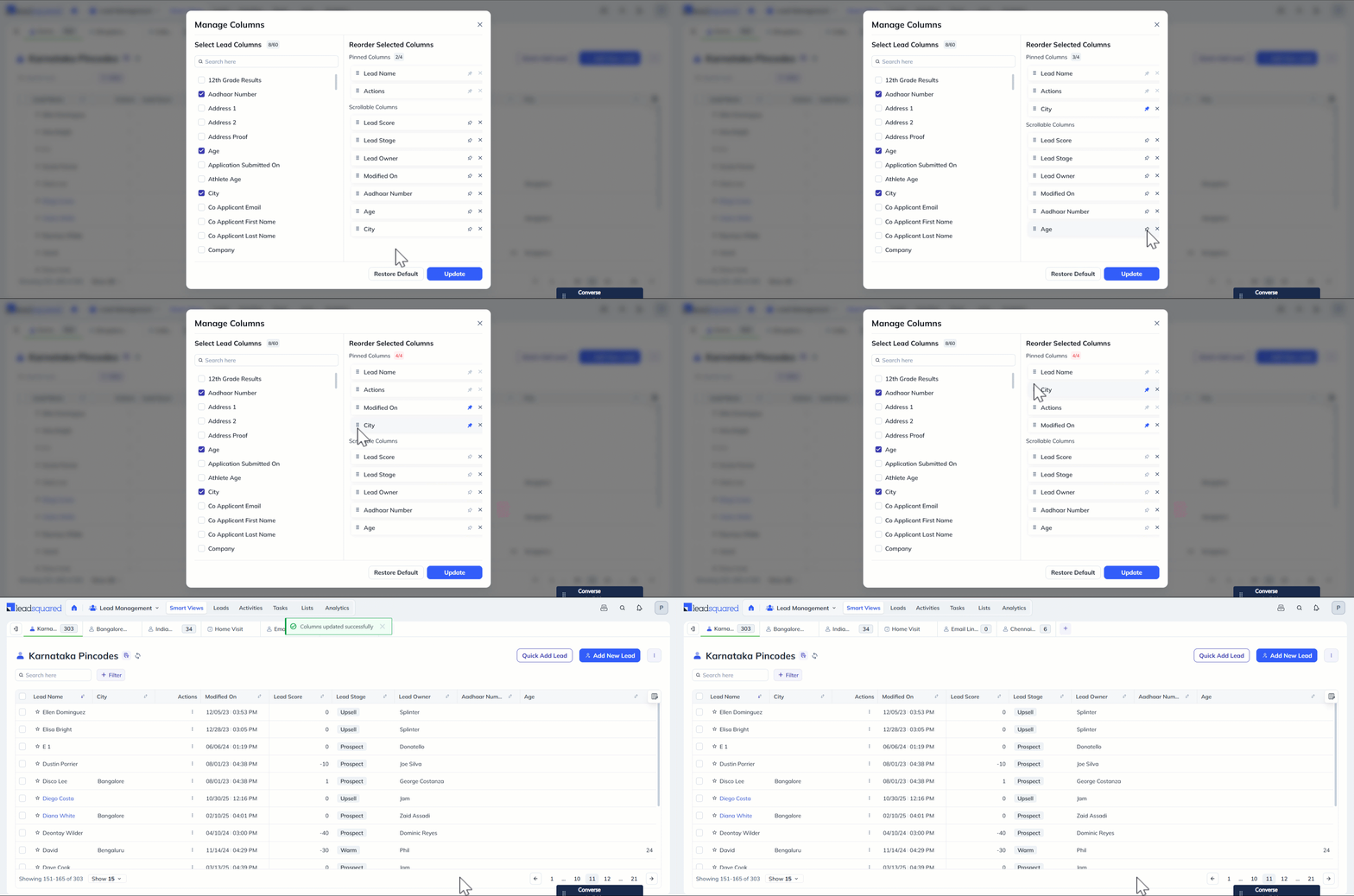
You can pin columns to move them to the front of the grid and freeze them in place. Pinned columns remain visible and do not move or get hidden when scrolling through the grid. You can pin up to four columns, with two primary columns pinned by default.

  1. Click the Pin icon alongside the relevant selected column to pin it. The field will move under the Pinned Columns section.
  2. Click and hold the Move icon to reposition the field within the column as per your preference. This can also be done in the Scrollable Columns section to rearrange the fields in the grid.
  3. Once you’ve selected and pinned the columns, click Update.

Click Restore Default if you want to bring back the default view.

Leadsquared - Smart Views


8. Manage Filters

You can also add your own filters to any Smart Views tab. Note that only dropdown type fields can be used as filters. Dependent dropdown fields are also supported.

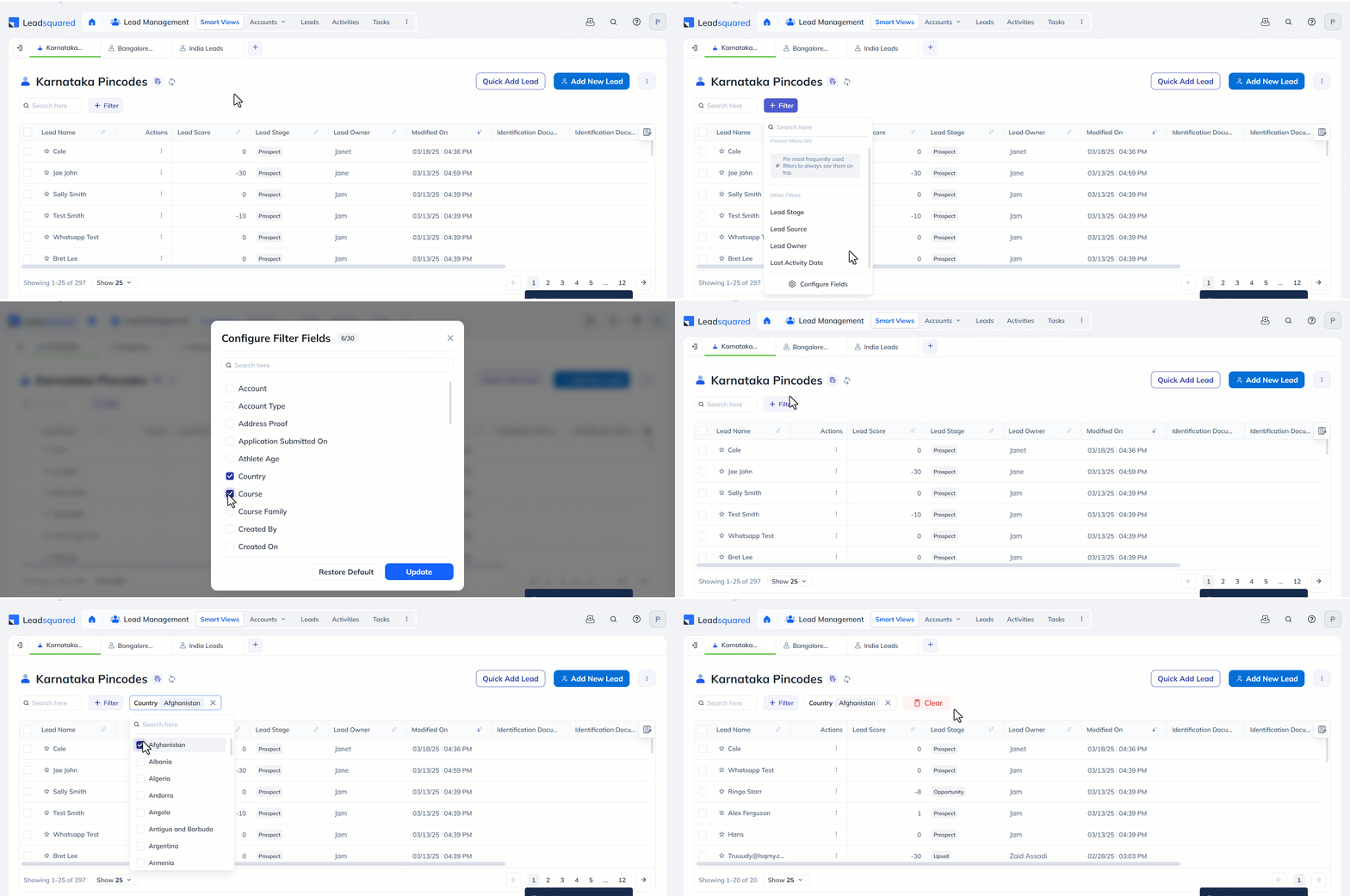
  1. On the Smart Views page, click the Filter button above the lead grid.
  2. Select the relevant default filter or click Configure Fields to add more filters to the list. Click Update to add the fields as filters.
  3. To search for entities based on the filter, click the Filter icon and select the relevant filter.
  4. Then select the value from the dropdown. Once the value is selected, click anywhere outside the dropdown to retrieve the results.

Leadsquared - NextGen UI

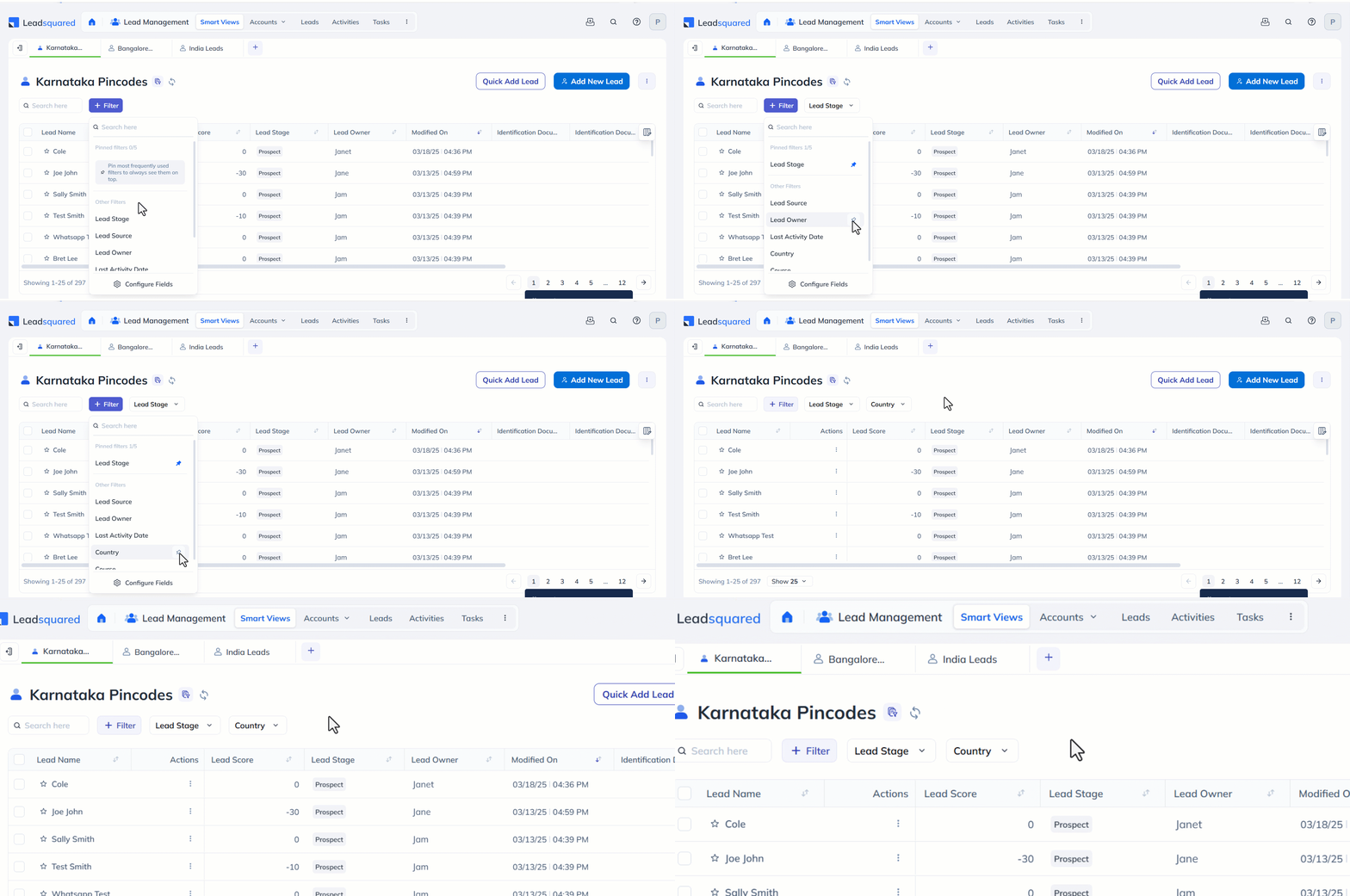
You can also pin your frequently used filters. Pinned filters appear next to the Filter icon. You can pin upto five filters by clicking the Pin icon alongside the relevant filter. Search for entities with this filter any time.

Leadsquared - NextGen UI


9. Subscribe to Smart Views Reports

You can subscribe to the Smart Views Daily Report that summarizes the latest accounts, leads, activities and tasks added to your smart views filters.

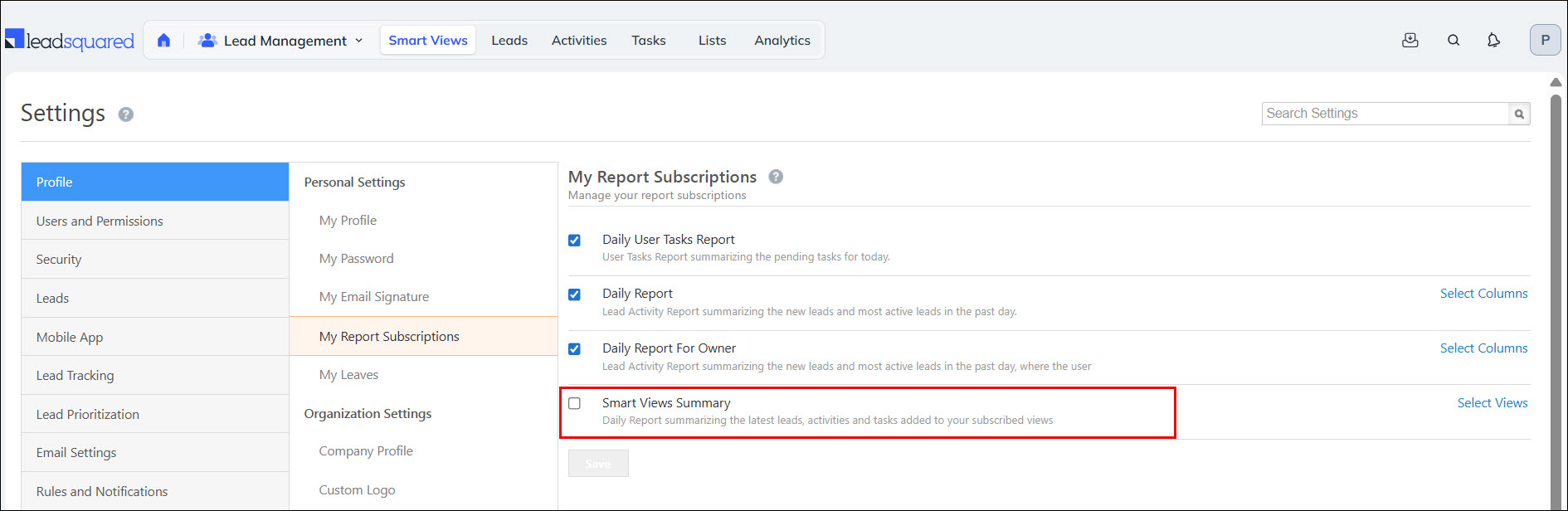
  1. Navigate to My Profile>Settings>Profile>My Report Subscriptions and click the checkbox alongside Smart Views Summary.
  2. Click the Select Views link to choose which smart views filters you want to be displayed in your report.

Leadsquared - Smart Views


Any Questions?

Did you find this article helpful? Let us know your thoughts in the comments section below.

How to Quickly Add Leads

1. Feature Overview

In LeadSquared, you can add leads manually or capture them automatically from external sources. You can add leads manually using the following methods:

  • Quick Add Lead: Add a lead instantly with minimal information.
  • Add New Lead: Capture complete lead details, including documents and additional fields.
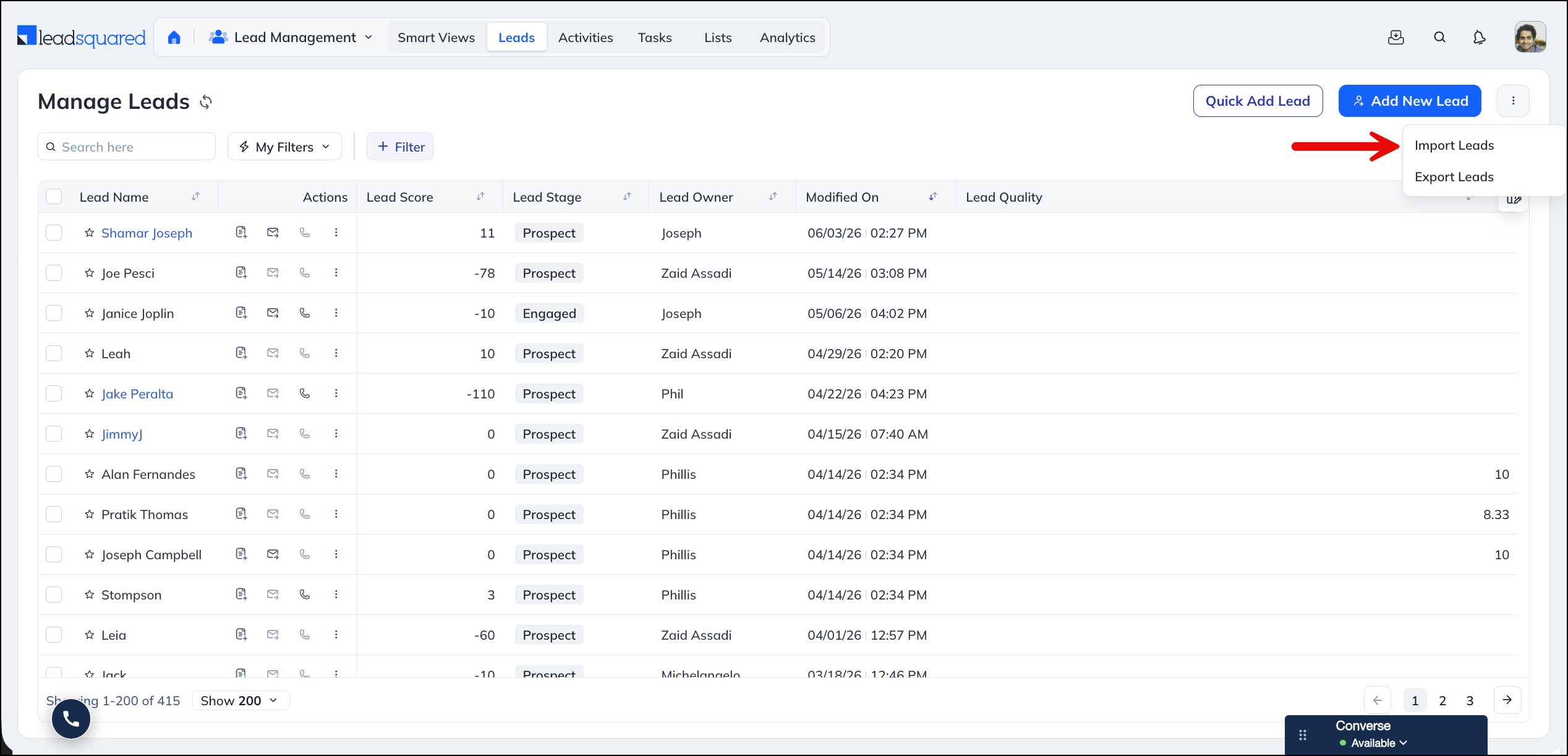
  • Import Leads: Upload multiple leads in bulk using a CSV file.

You can create leads manually from several pages, including:

Note: In Service CRM, If the customer doesn’t exist as a lead, you can create one from the Ticket Views page. Both Service Users and Hybrid Users can create a lead.

In addition to manual entry, LeadSquared can capture leads automatically from sources such as:

For more information, see Lead Management – Feature Guide.


2. Prerequisites

  • Before you add leads manually, configure the Lead Forms used by the Quick Add Lead and Add New Lead options. These forms define which fields appear when users create a lead (For the steps, see section 4. Configure Lead Forms).
  • You must be an administrator to configure lead forms.


3. How It Works

Manual lead creation follows the same basic workflow, regardless of the page you start from:

  1. Configure the lead forms – Set up the fields that appear in the Quick Add Lead and Add New Lead forms. This is a one-time setup (see section 4. Configure Lead Forms).
  2. Open a page that supports manual lead creation – such as Manage Leads, Manage Opportunities, Manage Activities, or Smart Views.
  3. Choose a method – Use Quick Add Lead for minimal details, Add New Lead for complete details, or Import Leads for bulk import.
    • Manage Leads and Smart Views support Quick Add, Add New Lead, and Import Leads methods.
    • List Details supports Quick Add and Add New Lead.
    • Manage Opportunities and Manage Activities support only the Add New Lead method.
  4. Enter the lead details, and save.

The steps are the same across all these pages. Only the available methods differ.

For advanced data capture, such as dynamic forms with conditional logic for leads, activities, and opportunities, use the Forms and Process Designer.


4. Configure Lead Forms

Before you use Quick Add Lead or Add New Lead, configure the fields that appear in each form. Both options use the same Lead Forms page, and the steps are the same. Only the form you select differs.

To configure a lead form

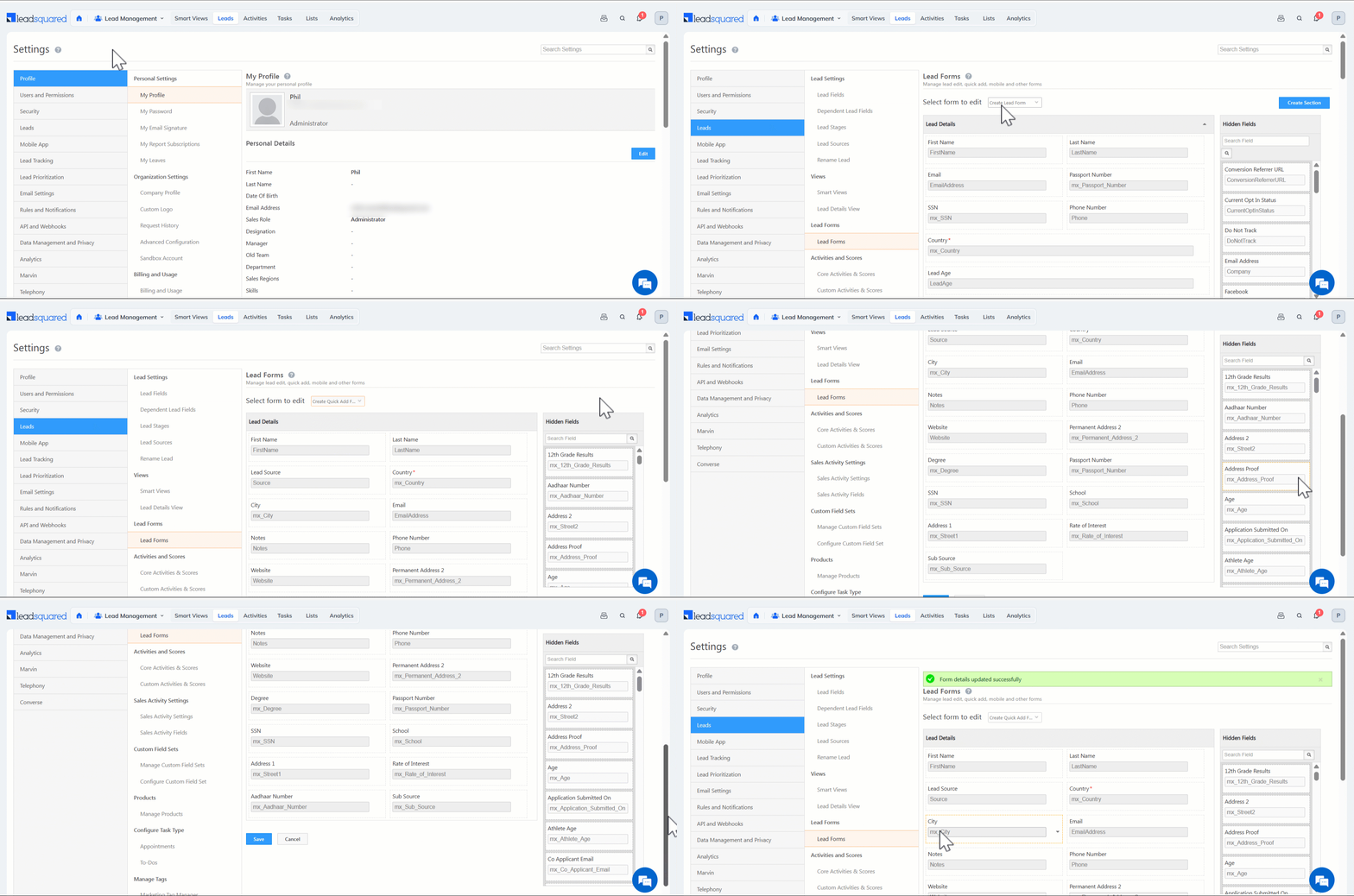
  1. Navigate to My Profile>Settings>Leads>Lead Forms.
  2. From the Select form to edit dropdown, select one of the following:
    • Create Quick Add Form: Configures the form for the Quick Add Lead button.
    • Create Lead Form: Configures the form for the Add New Lead option.
  3. From the available lead fields, drag and drop the fields you want to include in the form. To remove a field, drag it back to the available fields list.
  4. Click Save.

For more information related to Lead Forms, refer to: Lead Form Customization.

Leadsquared - Quick Add Leads


5. Add Leads Manually

After you configure the forms, you can add leads manually from any page that supports lead creation. The process is the same on each page. Only the starting page and the available methods differ.

  • Quick Add Lead lets you add leads quickly with minimal information. This is useful when you capture leads during phone calls, store visits, or events.
  • Add New Lead lets you capture detailed information, including documents and additional fields.

5.1 Add Leads from the Manage Leads Page

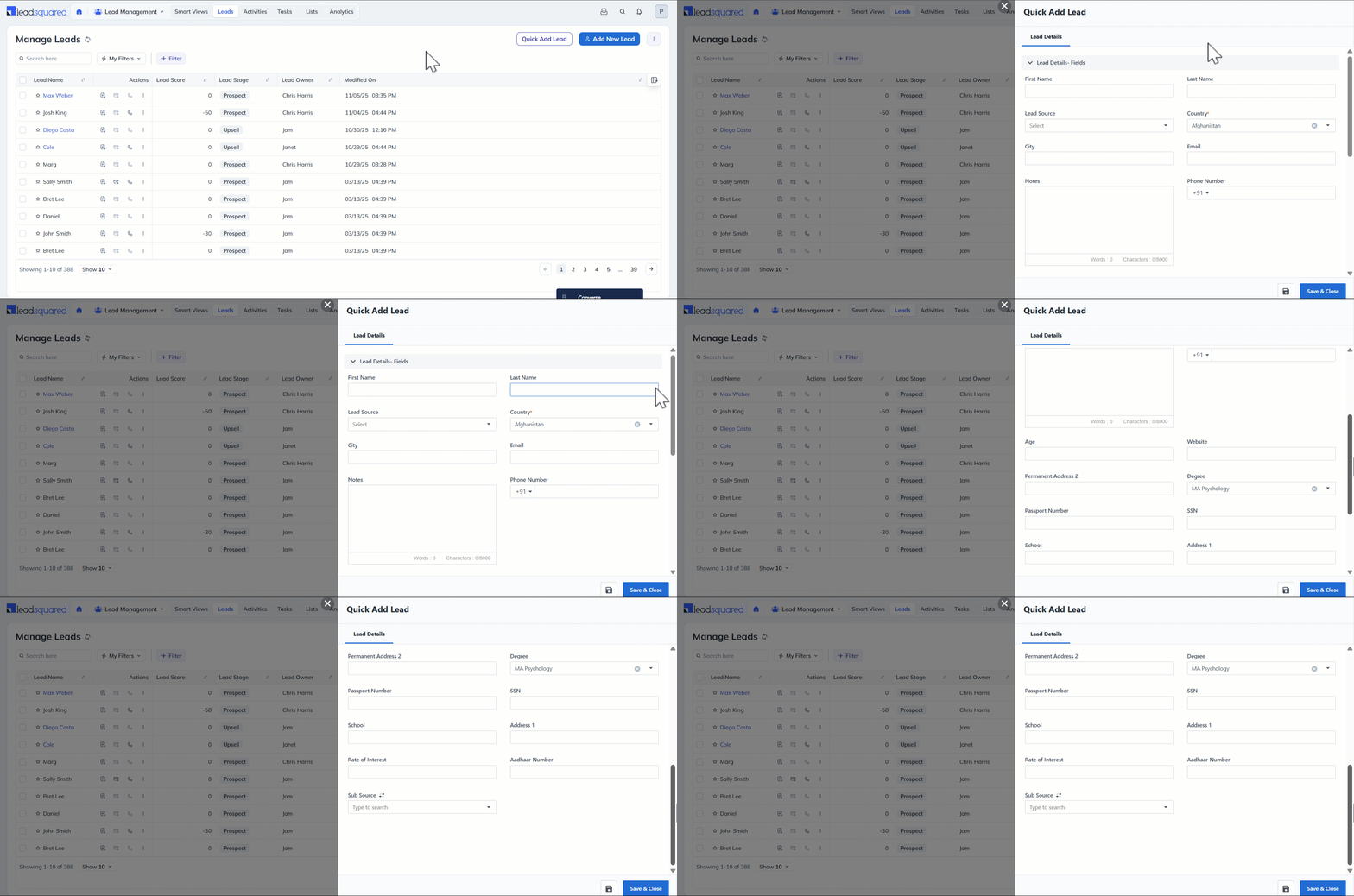
  1. Navigate to Lead Management>Leads.
  2. Click Quick Add Lead or Add New Lead.
    • For Import Leads method, see section 6. Import Leads.
  3. Enter the required lead details.
  4. Click Save & Close.

If you select Add New Lead, you can also use the following tabs:

  • Lead Details: Enter personal or organizational details.
  • Documents: Upload supporting documents, such as a PAN card or passport.
  • Additional Details: Enter additional or custom lead information.

Leadsquared - Quick Add Leads

5.2 Add Leads from the Manage Opportunities Page

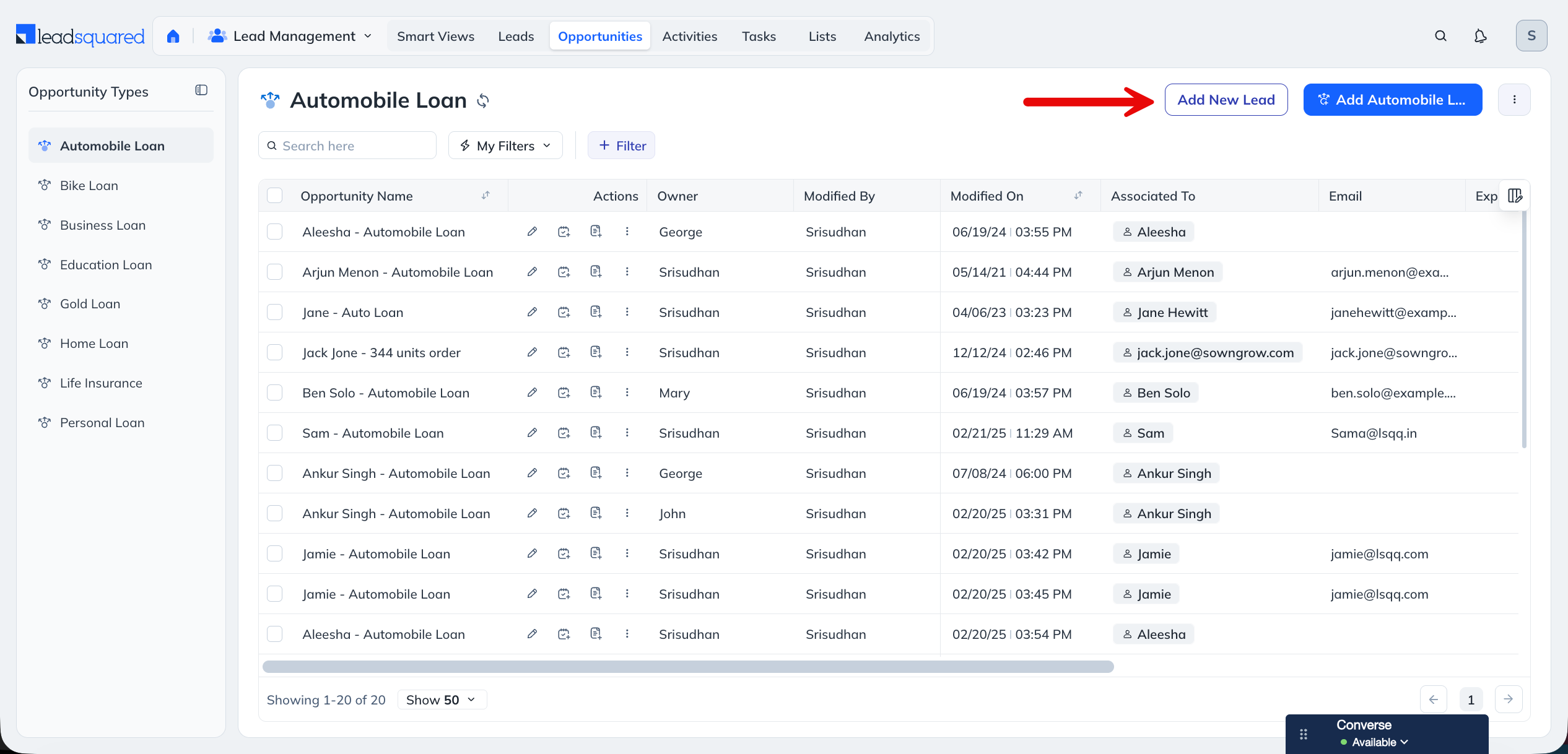
On the Manage Opportunities page, you can add leads using Add New Lead. The steps are the same as on the Manage Leads page (see section 5.1).

Add New Lead from Opportunities page

5.3 Add Leads from the Manage Activities Page

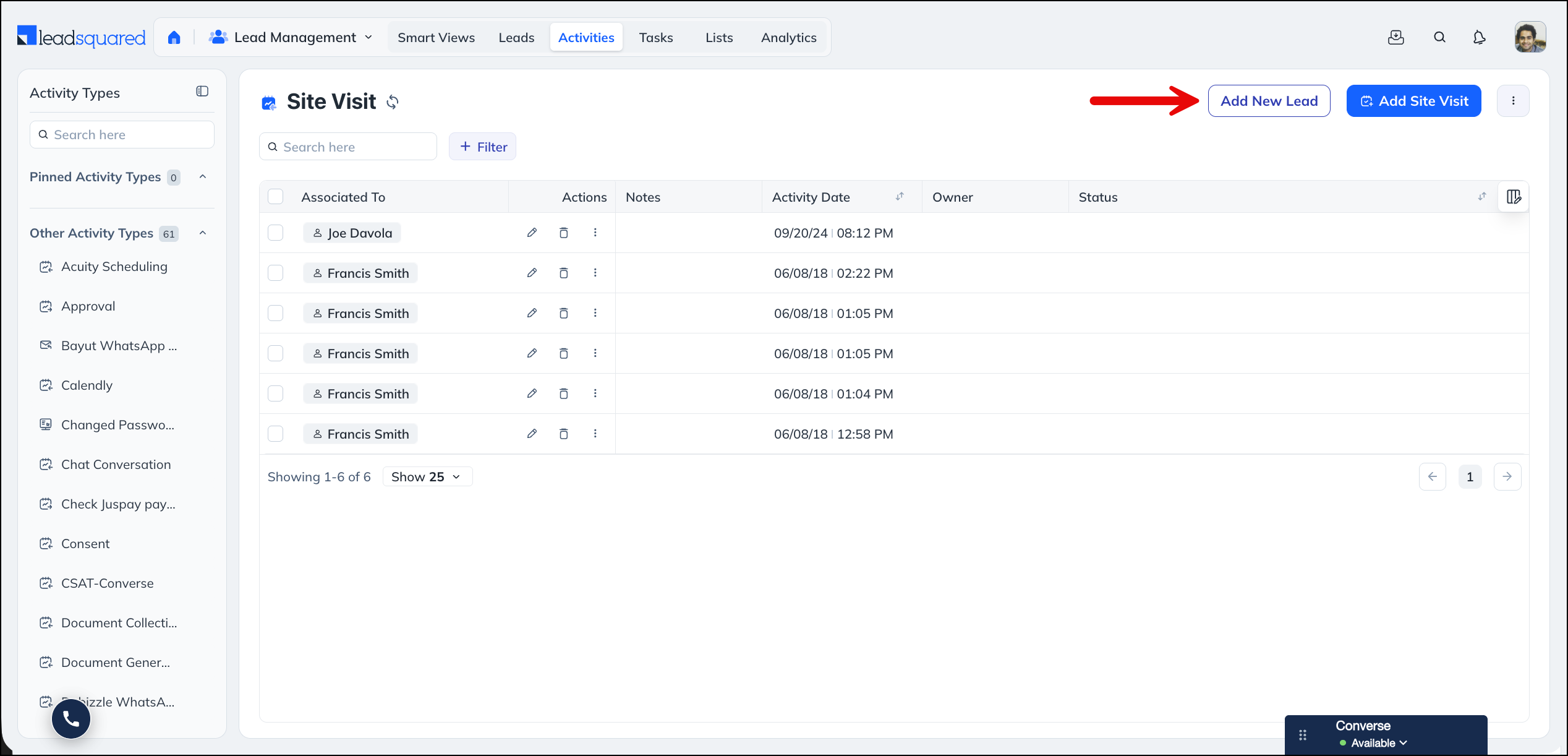
On the Manage Activities, you can add leads using Add New Lead. The steps are the same as on the Manage Leads page (see section 5.1).

Add New Lead from Activities page

5.4 Add Leads from Smart Views

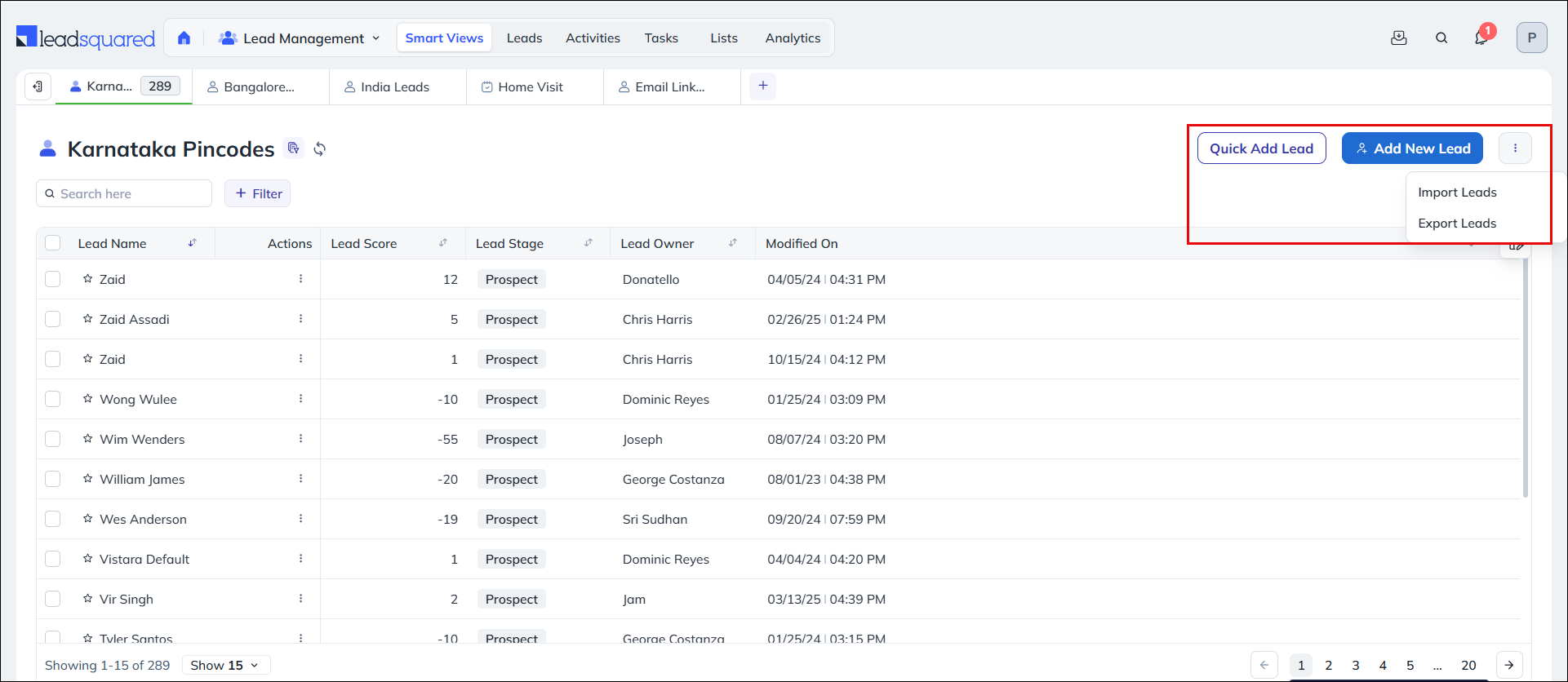
Within a Smart Views tab, you can add leads using Quick Add Lead, Add New Lead, or Import Leads. These options let you create or import leads while you work in a specific filtered view. The steps for Quick Add Lead and Add New Lead are the same as on the Manage Leads page. For instructions on how to import leads, see section 6. Import Leads.

Leadsquared - Quick Add Leads

5.5 Add Leads from the List Details Page

On the List Details page, you can add leads using Quick Add Lead or Add New Lead. This immediately associates the new lead with the selected list.

Leadsquared - Quick Add Leads

5.6 Add Leads from Service CRM

In Service CRM, If the customer doesn’t exist as a lead, you can create one from the Ticket Views page. Both Service Users and Hybrid Users can create a lead.


6. Import Leads

You can upload leads in bulk using a CSV file. This is useful when you import leads collected from offline campaigns, third-party platforms, or external databases. For step-by-step instructions, see How to Import Leads to LeadSquared.

Import Leads from manage leads


7. FAQs

7.1 Why is the Add New Lead or Quick Add Lead button not visible?

The Actions Panel configuration controls whether these buttons appear. To enable them:

  1. Navigate to Settings>Organization Settings>Advanced Configuration.
  2. Click Configure next to Actions Panel in Manage Leads/Activities/Opportunities/Smart Views Page.
  3. Enable Quick Add Lead and Add New Lead.

For more information, see Configure Actions Panel.

7.2 Why does the lead’s email ID appear in the Lead Name field?

If you create a lead without a lead name, LeadSquared populates the Lead Name field with the lead’s email ID or phone number.


Any Questions?

Did you find this article helpful? Please let us know any feedback you may have in the comments section below. We’d love to hear from you and help you out!

Google Ads Lead Form Connector

1. Feature Overview

The Google Ads Lead Forms connector allows you to collect leads directly from your Google Ads. Attach a form to your campaigns and generate leads for your business in real-time on LeadSquared, by setting up webhooks and field mapping for each form. View detailed analytics and reports to measure the effectiveness of your campaigns. Some of the benefits are –

  • Receive Leads in Real-Time: Set-up web-hooks for each form to receive leads in real-time from your Google Ads campaigns.
  • Analytics and Reports: Analyse and measure the effectiveness of each campaign with detailed reports and analytics.
  • Field Mapping: Gather more information from your leads with advanced field mapping for both standard and custom fields.
  • View Logs: Detailed logs for each transaction and API request to avoid Lead Leakage.


2. Prerequisites

  • You must be an Administrator of LeadSquared.
  • You must have an active Google Ads account.


3. Installation

Install the Google Ads Lead Form Connector from the LeadSquared App Marketplace.

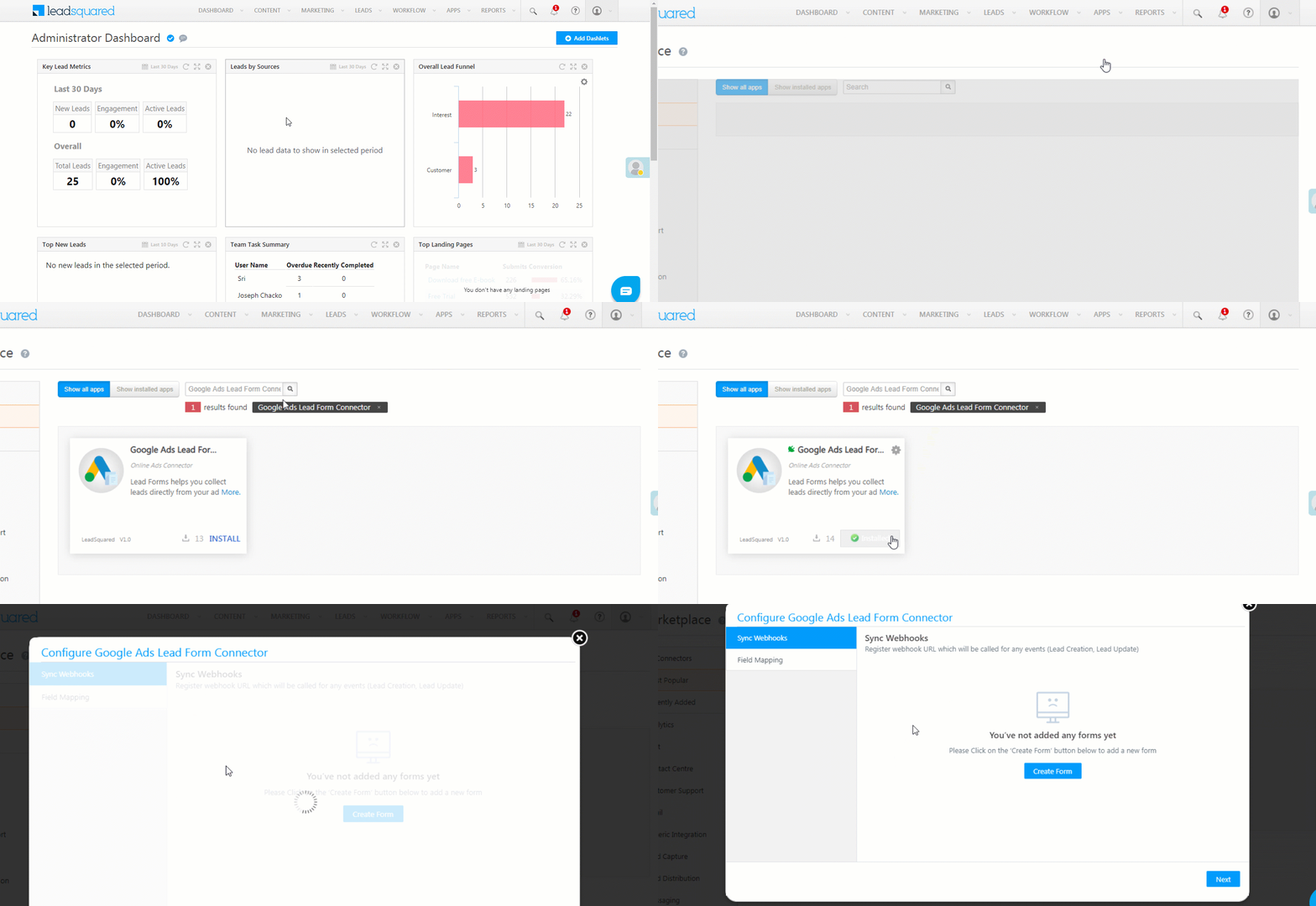
  1. On the main menu, navigate to Apps>Apps Marketplace and search for Google Ads Lead Form Connector. You’ll also find the connector on the left panel, under Online Ads.
  2. Click Install.
  3. Once installed, hover your cursor over the settings icon, then click Configure.


4. Configuration

Configure webhooks on Google Ads to push the lead data to LeadSquared, on events such as lead creation, lead updates, etc.

4.1 Sync Webhooks on LeadSquared

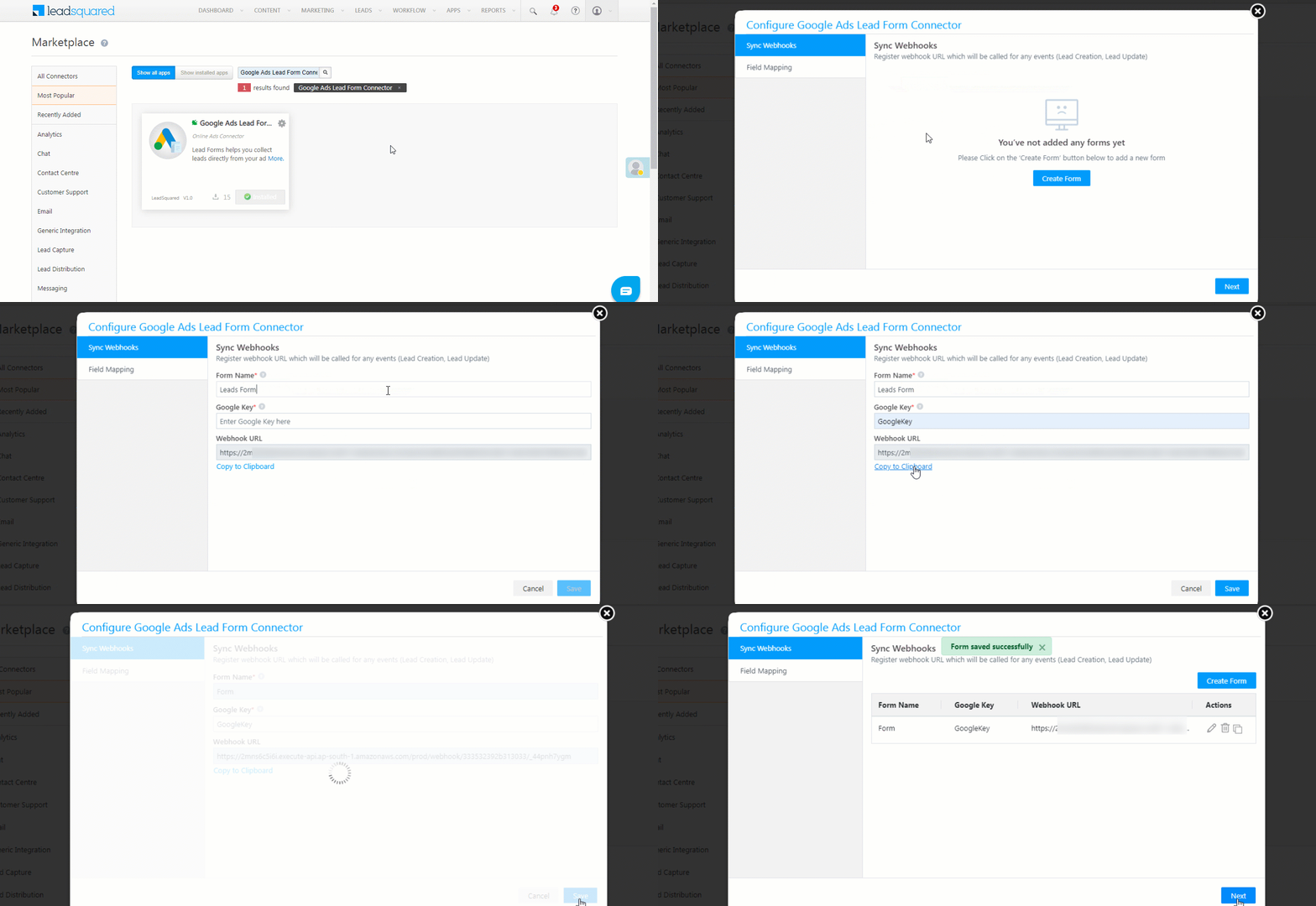
  1. On the Configure Google Ads Lead Form Connector pop-up, click the Create Form button.
  2. Under Form Name, provide a relevant name for your form.
  3. Create a custom Google Key. You can create a key with any type of characters, within the limit of 50 characters.
  4. Under Webhook URL, click Copy to Clipboard.
  5. Once you’re done, click Save.
  6. To edit the Google Key, click the icon.
  7. To delete an existing webhook, click the icon.
  8. To copy an existing webhook, click the Google icon.

Google_E_6


4.2 Field Mapping

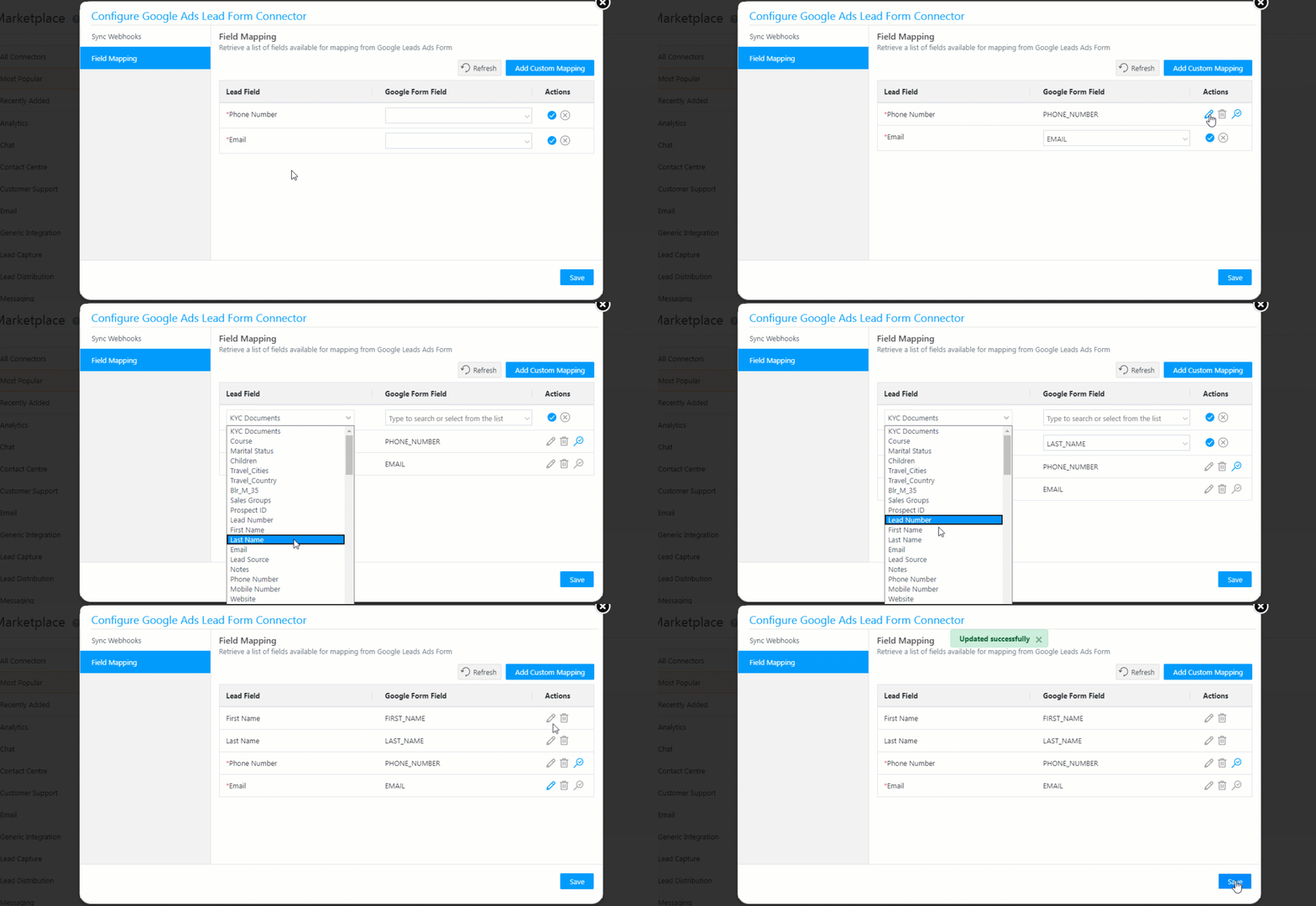
  • Phone Number and Email fields are present by default.
  • Click Add Custom Mapping to add more lead fields.
  • Under Google Form Field, from the drop-down, select the corresponding field for each of the Lead Field.
  • Click the Google icon to save your lead field.
  • To make a field searchable (the first field that is searched for, which will mark the lead unique), click the Google icon, and ensure the Google icon is selected.
  • To remove the searchable feature from a field, follow the previous step, and un-check the Google icon.
  • To edit and change a Google Form Field, click the icon.
  • To delete a field, click the icon.
  • Once you’re done, click Save.

Google Ads_4

Note:

  • If required, you can create your own custom field (if you have selected Custom Question in Google Ads) under Google Form Field by manually entering the values. To know more, refer to Google Lead Form Webhook – Implementation.
  • We suggest you make the same field searchable that you have marked unique in your LeadSquared account. This helps prevent duplicate leads.
  • To know more about how the search key functionality works, refer to Capture Leads.


4.3 Sync Webhooks on Google Ads

  1. To create a Lead Form Asset on a new campaign or an existing campaign, refer to About lead form assets.
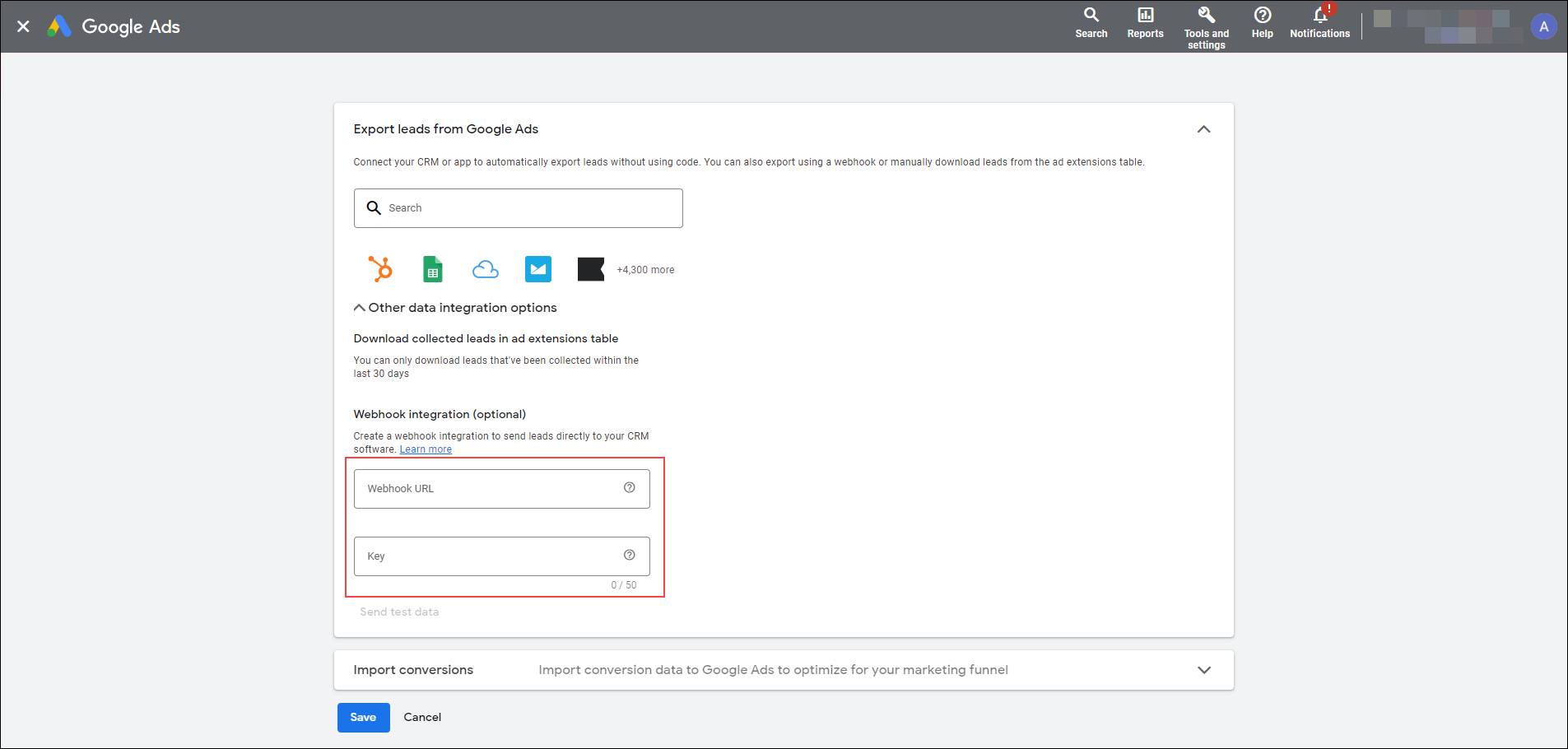
  2. Once you’ve created a form, ensure you pass the LeadSquared Webhook URL and Secret Key in the relevant fields. To know more, refer to the Set up a webhook integration for a lead form section in the About lead form assets article.
  3. Once the form is ready, Send Test Data to LeadSquared, and then Test and Publish the form.

Google Lead Ads Form integration with LeadSquared


5. Test and Publish Form

Once you’ve completed the above steps, you can test the webhook to see if it’s capturing data accurately.

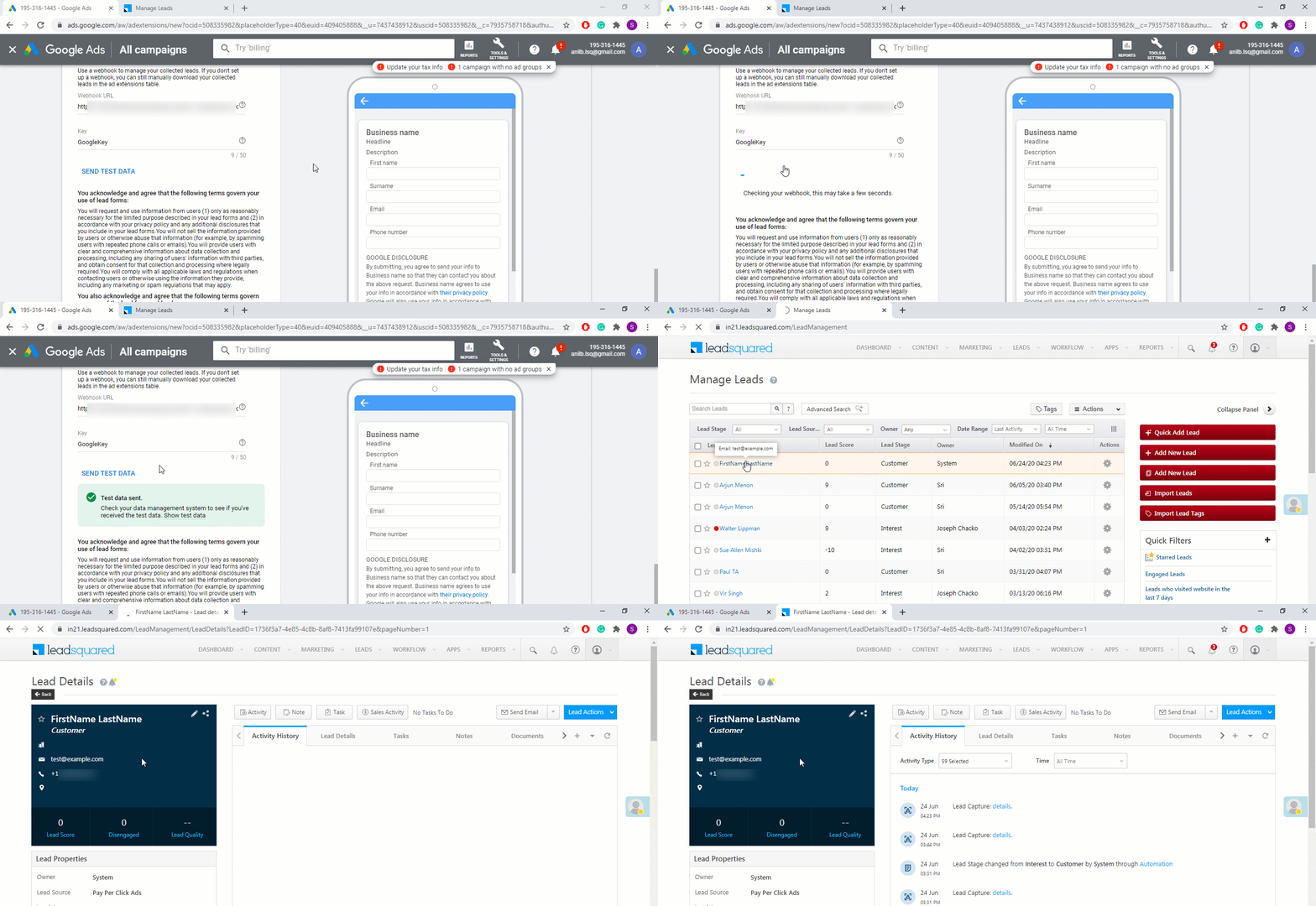
  1. Click Send Test Data.
  2. You should get a confirmation once the data is successfully sent to LeadSquared.
  3. On the Manage Leads page, check if a lead with the test information has been created.
  4. If a lead is successfully created, you can go back to the Google Ads page and click the Save button present at the bottom of the page.
  5. Your Google Ads Lead Form Connector is now live.

Google Ads_5


6. Lead Form Report

Once the connector is live, you can view the logs and analytics of all the submissions you’ve received.

6.1 View Logs

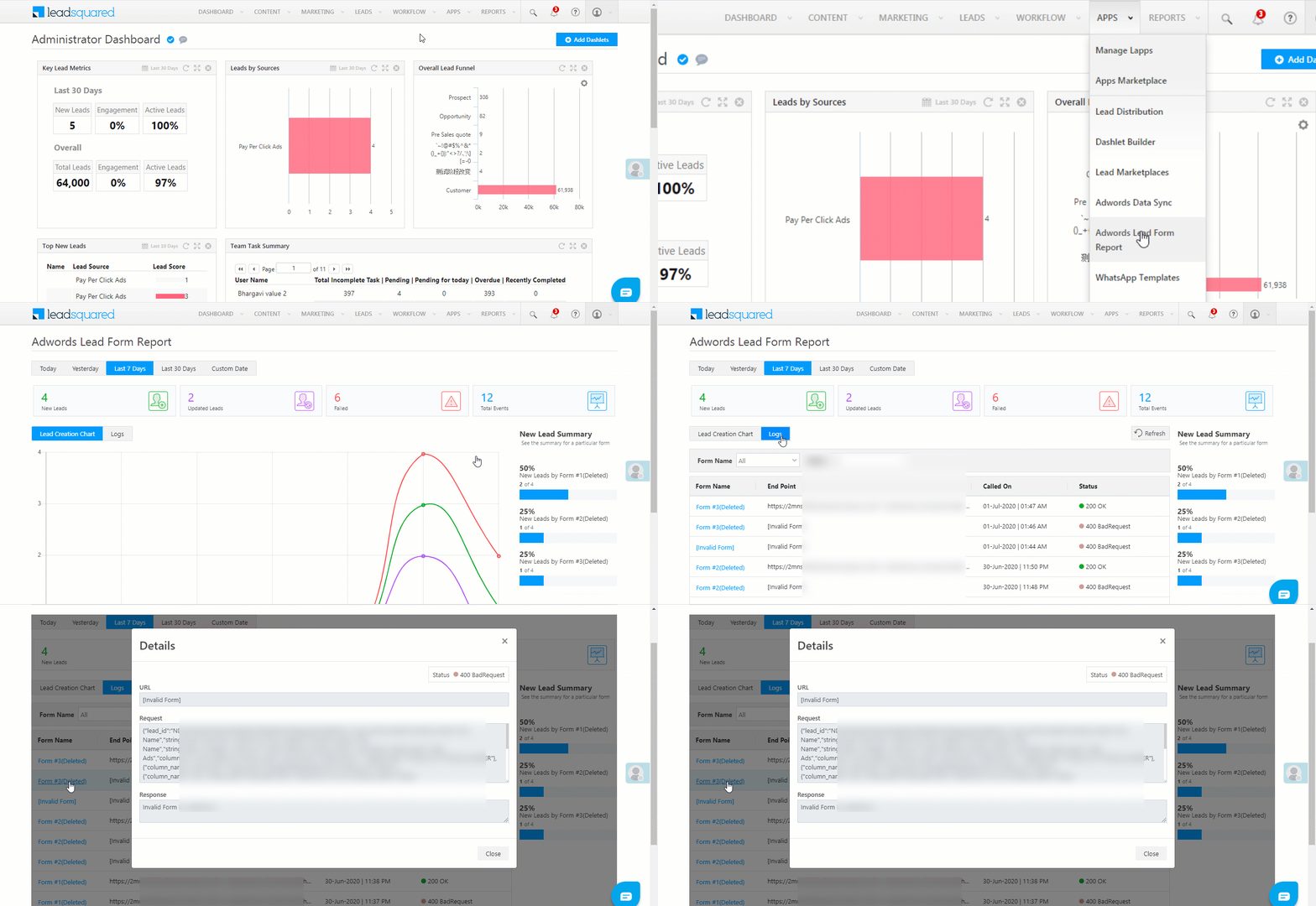
  1. From the LeadSquared main menu, navigate to Apps>Adwords Lead Form Report, and select Logs.
  2. You can view the logs for different timeframes (such as for a day, week, month, custom dates, etc.).
  3. You can view the Form Name, End Point, Called On date, and Request Status.
  4. Click on a Lead Form to view its request and response.

Google


6.2 View Analytics

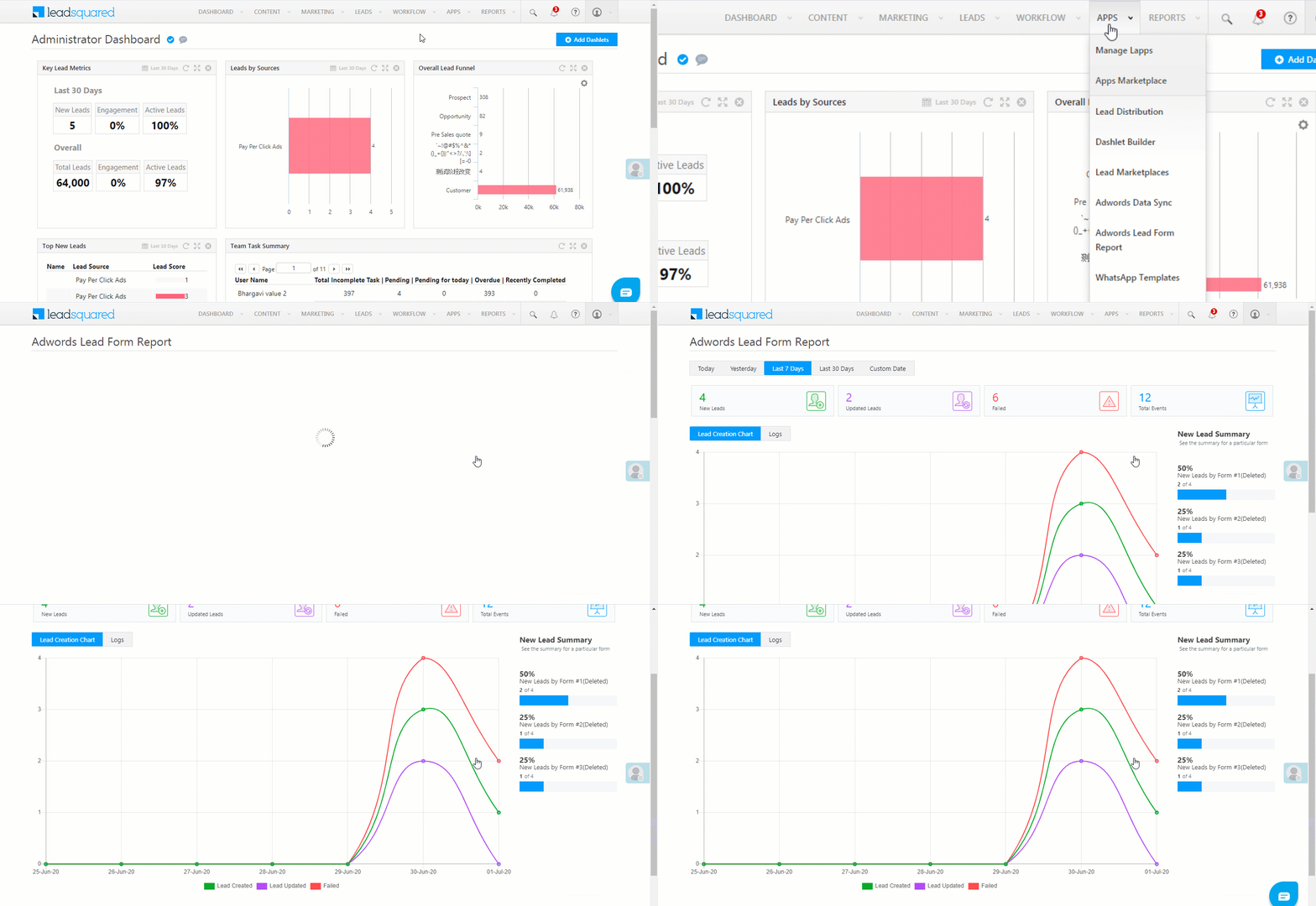
  1. From the LeadSquared main menu, navigate to Apps>Adwords Lead Form Report, and select Lead Creation Chart.
  2. You can view the analytics for different timeframes (such as for a day, week, month, custom dates, etc.).
  3. For the selected time-frame, you can view the number of
    • New Leads – New lead who’s been created in the system through the form.
    • Updated Leads – If there’s an existing lead in your system, that contains the same information (such as phone number, email address, etc.), then the lead fields in which data was captured for the first time will get updated.
    • Failed – If there’s an instance when the field mapping is not correct between LeadSquared and Google (such as incorrect Key, webhook, etc.) or when there’s a server error (such as 404 error, 500 error, etc.), then the lead details get captured on the Google form, but won’t be successfully mapped to your LeadSquared account. Such instances would show up as Failed.
    • Total Events – The total of all the above events is reflected under Total Events.

Google

Note: Custom dates can be obtained only for up to two months in the past.

New Lead Summary
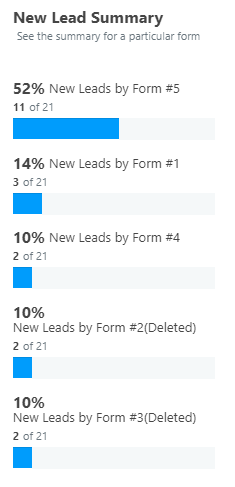
This section provides information about the new leads created by individual forms. Only the top-five forms, in terms of performance, which created maximum leads, gets displayed here. In this summary, you can only view New Leads details, and not Updated Leads or Failed leads details.

Google


7. Reinstallation

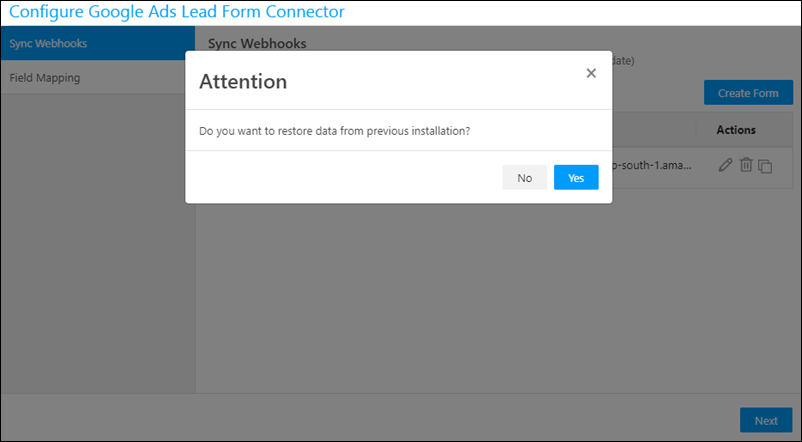
After you uninstall the connector and then decide to reinstall it, you can retrieve the data that was previously captured. This option appears after you install and configure the connector, on the Sync Webhooks pop-up.

Google


8. Troubleshooting

1. Data for a particular field is not being captured from my Google Lead Ads form to LeadSquared.

This may happen when the field in your Google form is not mapped to the corresponding field in LeadSquared. Check the ‘Field Mapping’ section of the connector configuration. If the field is not mapped, click Add Custom Mapping, and add the schema against the appropriate lead field. If this doesn’t fix the issue or if the field is mapped correctly but data still isn’t captured, contact support@leadsquared.com.


Any Questions?

Did you find this article helpful? Please let us know any feedback you may have in the comments section below. We’d love to hear from you and help you out!

LeadSquared WhatsApp Integration with Gupshup

1. Feature Overview

Gupshup’s WhatsApp self-serve solutions help you engage your customers in a simple, secure, and reliable way. Gupshup facilitates customer support and other marketing efforts through WhatsApp. To know more, visit Gupshup.

LeadSquared offers WhatsApp integration to help users communicate with their leads. Our WhatsApp functionality supports integrations through different solution providers like InfobipKaleyra, WATI, Zoko and Gupshup. This article helps you set up WhatsApp messaging through your LeadSquared account using Gupshup as your service provider.


2. Prerequisites

If you’re not familiar with LeadSquared’s WhatsApp integration, see WhatsApp Business Messaging Connector. For frequently asked questions, see WhatsApp Business FAQs.

  1. Reach out to us at support@leadsquared.com regarding Gupshup WhatsApp integration.
  2. Get an Approved WhatsApp Business Number and Account.
  3. Submit Message Templates for Approval.


3. Installation

To know how to install the WhatsApp Business connector, refer to WhatsApp Business Messaging Connector.


4. Configuration

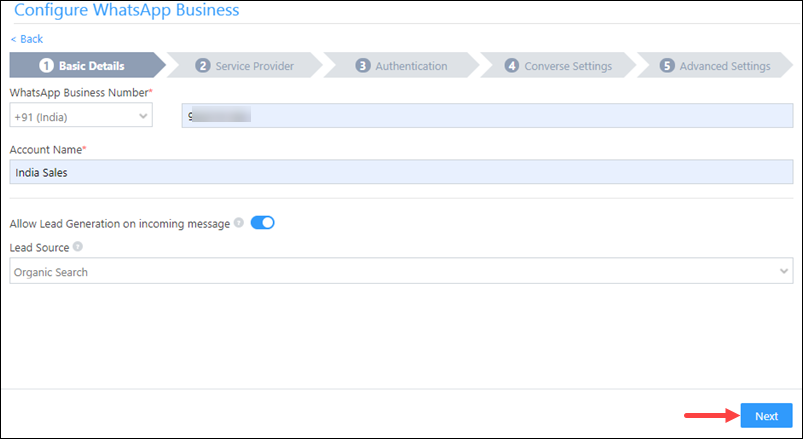
Once the connector is installed, add and configure your WhatsApp phone numbers to the connector. To do this, enter –

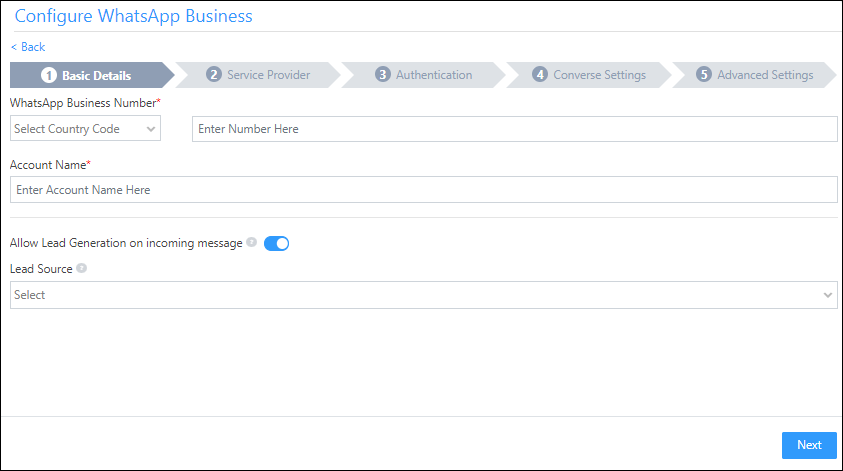
4.1 Basic Details

LeadSquared Gupshup integration

Field Description
WhatsApp Business Number Select the country code, and provide your WhatsApp business number. This field is mandatory.
Account Name Provide a relevant name for your connector. This field is mandatory.
Allow Lead Generation on incoming message Click Slider to allow automatic lead creation when you receive messages from unknown mobile numbers.
Lead Source From the dropdown, select a lead source for your leads.

Once you’re done, click Next.

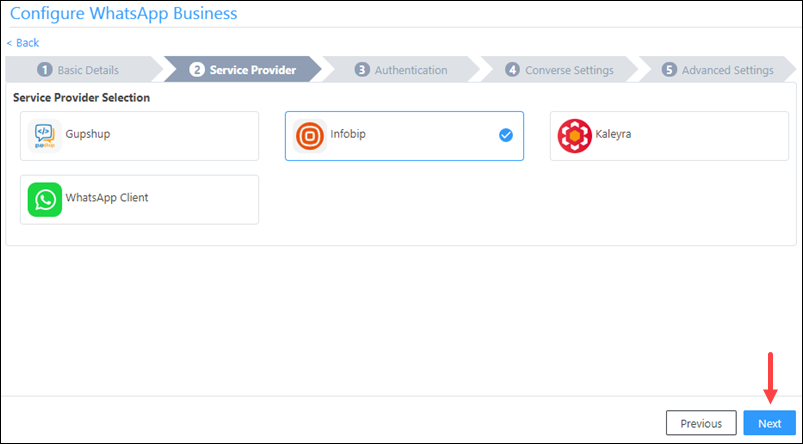
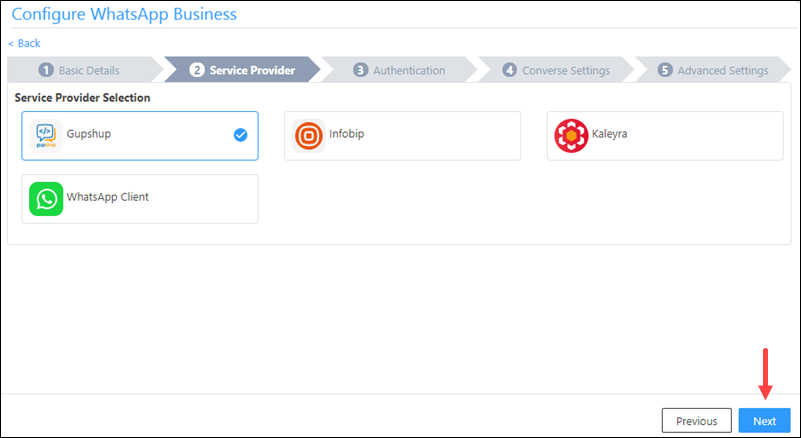
4.2 Service Provider

Then, from the available options, select Gupshup, and click Next.

Gupshup WhatsApp Integration

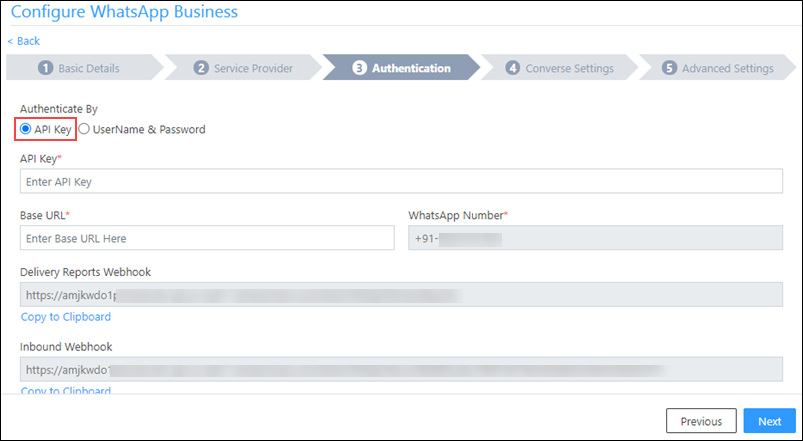
4.3 Authentication Set-up

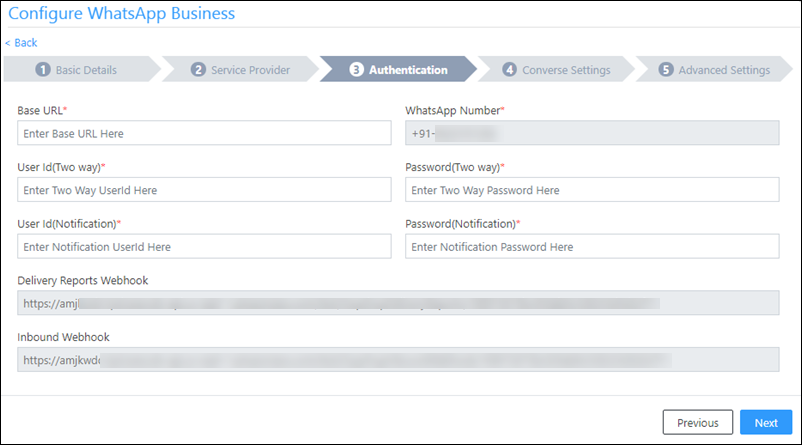
On this screen, enter the following details –

Gupshup WhatsApp Integration

Field Description
Base URL Paste the base URL in this field. Use the following – https://mediaapi.smsgupshup.com/GatewayAPI/rest
WhatsApp Number Paste your WhatsApp business number in this field, without including any special characters such as ‘+’, etc. You will have to include the country code of the number though. An example of a number would be “9199010XXXXX”, where 91 is the country code.

Contact your Account Manager from Gupshup to get your WhatsApp business number.

User Id(Two way) Paste your Gupshup user Id which was generated for two-way communication. Through two-way communication, you’ll be able to send customized messages to your customers. Contact your Account Manager from Gupshup to get your two-way user Id.
Password(Two way) Paste your Gupshup password to facilitate two-way communication. Contact your Account Manager from Gupshup to get your two-way password.
User Id(Notification) Paste your Gupshup user Id which was generated for one-way communication. Through one-way communication, you’ll be able to send templatized messages to your customers. Contact your Account Manager from Gupshup to get your user Id.
Password(Notification) Paste your Gupshup password to facilitate one-way communication. Contact your Account Manager from Gupshup to get your password.
Delivery Reports Webhook When a message is sent to your lead, three major events take place – the message getting sent (single tick on WhatsApp), the message getting delivered (double tick on WhatsApp), and the message being read (blue tick on WhatsApp). The webhook URL captures all these events, and helps you understand the current status.

The delivery reports webhook needs to be configured for the integration to be successful. To paste your LeadSquared delivery reports webhook on Gupshup, you’ll have to mail the URL to your Account Manager from Gupshup, and they’ll do the needful.

To know how to configure this webhook, refer to Delivery Reports.

Note: The webhook accepts only POST method.

Inbound Webhook The inbound webhook needs to be configured for the integration to be successful. To paste your LeadSquared inbound webhook on Gupshup, you’ll have to mail the URL to your Account Manager from Gupshup, and they’ll do the needful.

Notes:

  • The webhook accepts only POST method.
  • Only JSON format is accepted as an inbound webhook.

Once you’re done entering all the details, click Next.

4.4 Converse Settings

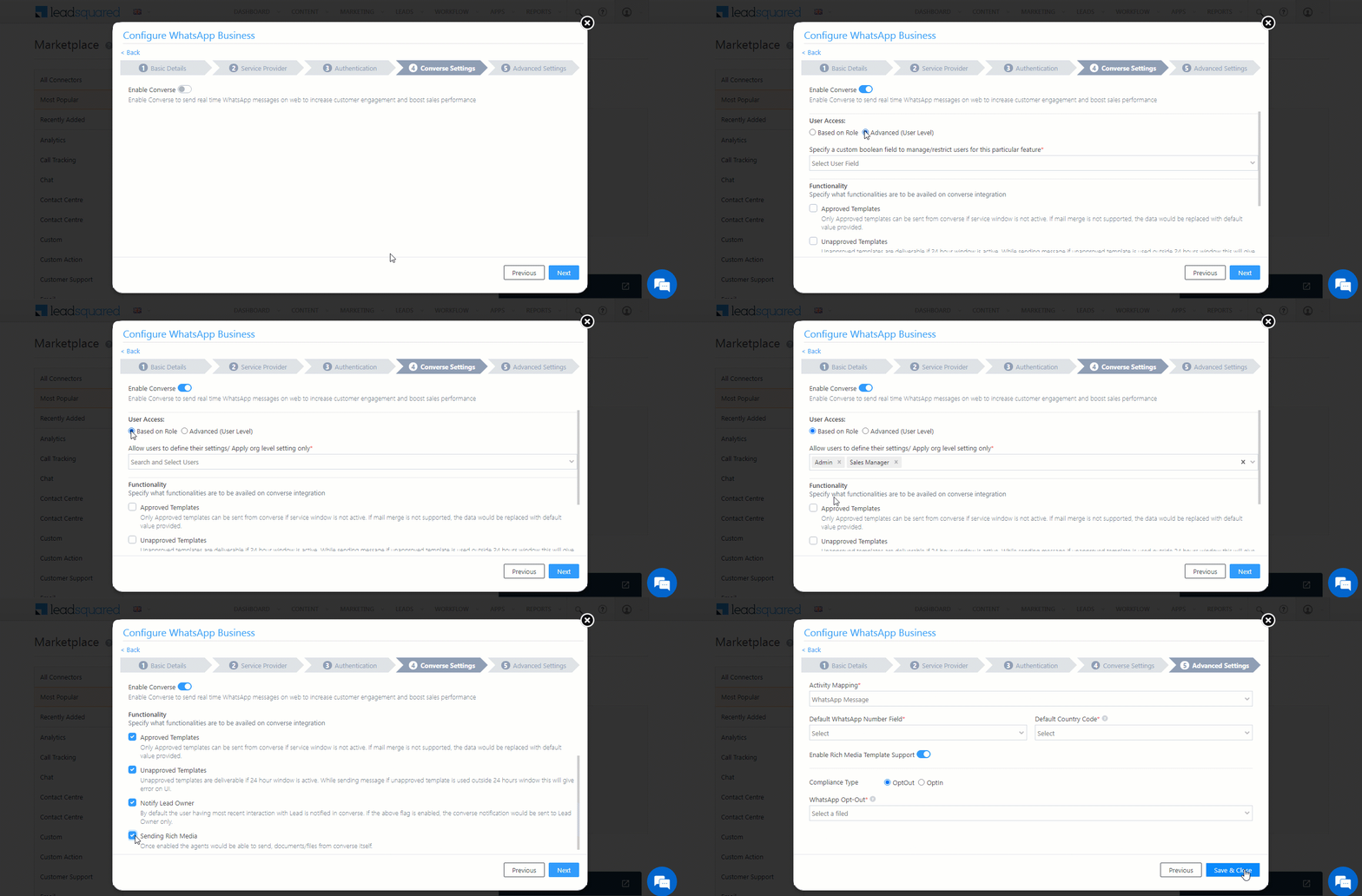
LeadSquared Converse is an instant messaging feature that allows you to have real-time conversations with your leads via WhatsApp.

LeadSquared WhatsApp Integration

To integrate LeadSquared Converse with WhatsApp, complete the following steps –

  1. On the Converse Settings tab, toggle the Enable Converse Slider slider.
  2. Under User Access, grant permissions to users who can communicate with leads through the LeadSquared Converse.
    • Based on Role – From the Search and Select Users dropdown, select the LeadSquared user roles that can send messages through LeadSquared Converse.
    • Advanced (User Level) – Based on the value present in the selected user boolean field (e.g., For user Sam, the “Is Employee” field contains “Yes”), the user will be able to send messages through LeadSquared Converse. From the Select User Field dropdown, select a relevant boolean field.
  3. Functionality – The following additional settings must be configured –
    • Approved Templates – Enable this functionality to allow your users to send approved WhatsApp templates to your leads.
    • Unapproved Templates – Enable this functionality to allow your users to send unapproved WhatsApp templates to your leads. These can only be sent if the 24-hours service window is active.
    • Notify Lead Owner* – When enabled, only lead owners will get notifications of the WhatsApp messages a lead sends. When disabled, all logged-in users will receive notifications of these WhatsApp messages.
    • Sending Rich Media – Enable this functionality to allow your users to send media files in the WhatsApp messages.

Note:

  • *Message notifications are only sent to one user, i.e., either the Lead Owner or to the user (other than the Lead Owner) that sent the WhatsApp message to the lead. When the Notify Lead Owner setting is enabled, only the Lead Owner will get notified, while the user who sent the message will not get a notification.
  • If you enable the Send Rich Media option, you must also enable the Approved Templates option. This ensures that you can add your media files to a template when messaging your leads.

LeadSquared Gupshup Integration

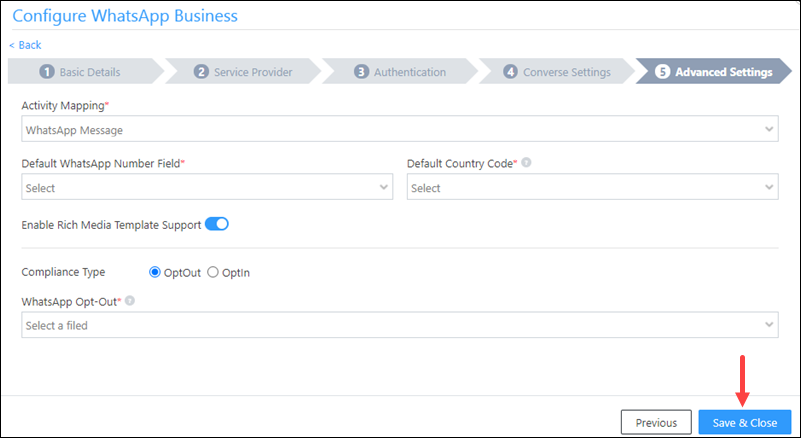
4.5 Advanced Settings

In this screen, you must map –

  • Activity Mapping – A LeadSquared activity field to your WhatsApp messages. This is the activity that will be posted every time a WhatsApp message is sent or received.
  • WhatsApp Opt-Out – A LeadSquared lead field to the WhatsApp opt-out functionality. Your leads can opt-in or out of receiving WhatsApp messages on the basis of this field.
  • Default WhatsApp Number Fields – The number you set as the default phone number will be automatically selected when you’re sending a WhatsApp message to a lead. You can also select other numbers that are available from the Add Another Number dropdown.
  • Default Country Code – The default country code will be used to send messages to a phone number that’s stored in a custom field, if no country code is listed.
  • Enable Rich Media Template Support – If you want to include media files in your WhatsApp message, you must enable the Slider slider.
  • Compliance Type – Here, you can select the compliance type for the WhatsApp template, by choosing either WhatsApp Opt-out or Opt-in.
  • WhatsApp Opt-out – From the dropdown, select a lead field for the WhatsApp opt-in/opt-out functionality. Your leads can opt-in or out of receiving WhatsApp messages on the basis of this field.

Click Save & Close when you’re done.

  • If your credentials are correct, you’ll see the success message highlighted below.
  • If they were incorrect, the integration will fail.

Note: You must create a custom lead field of boolean type to map to the WhatsApp opt-out functionality. For example, you may create a custom lead field called “WhatsApp Opt Out”. Leads for whom the field is selected/checked won’t receive WhatsApp messages.

Gupshup WhatsApp Integration

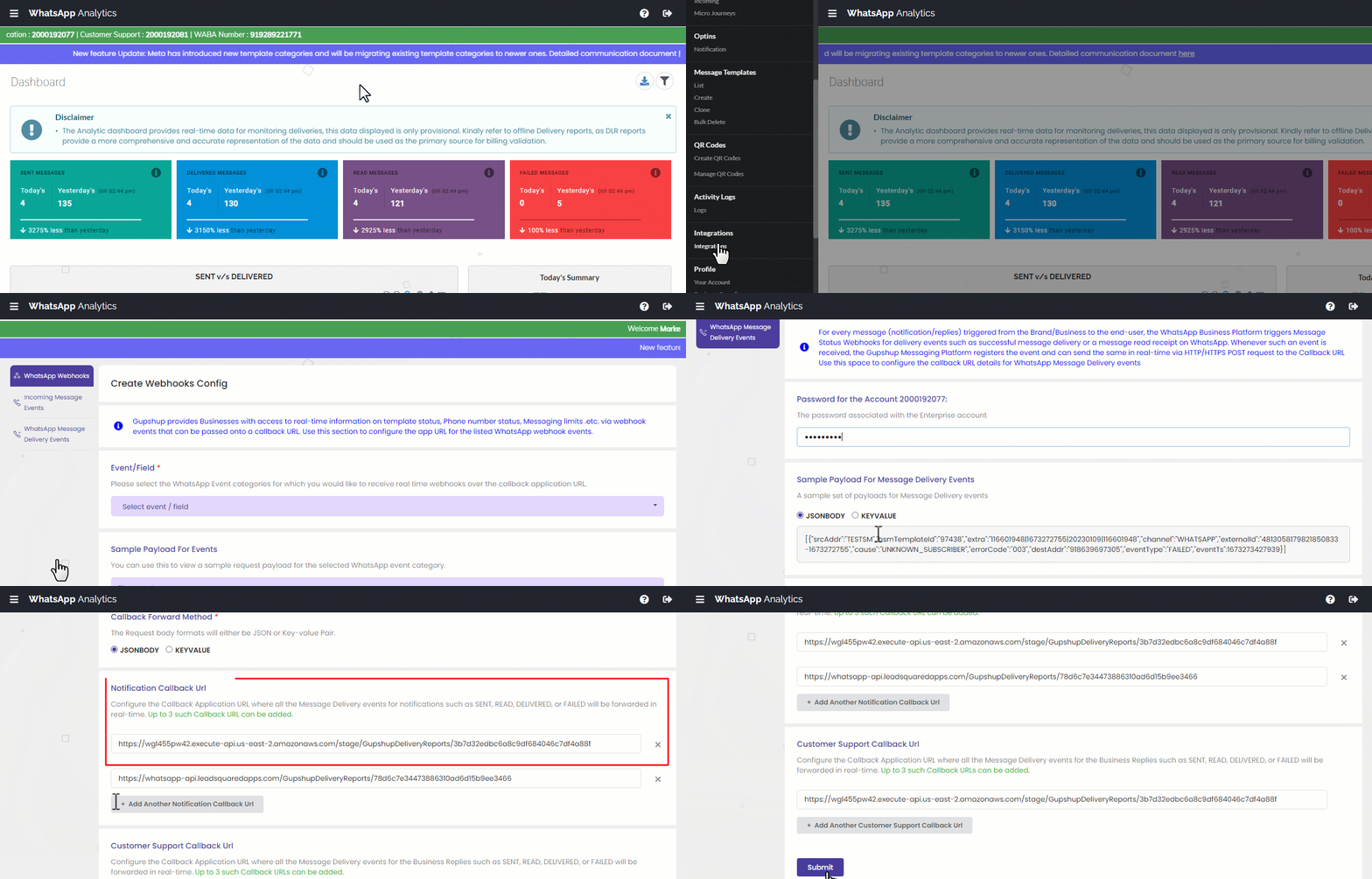
4.6 Delivery Reports

Once the Delivery Reports Webhook is generated, copy it and configure it in your Gupshup account –

  1. On your Gupshup account, navigate to WhatsApp Analytics>Integrations.
  2. On the Integrations page, under Webhooks, click Your Config, and then click WhatsApp Message Delivery Events.
  3. Under Callback Forward Method, select JSONBODY.
  4. Under Notification Callback URL, paste the webhook you’ve copied in LeadSquared.
  5. Then, under Password for Account, enter the password associated with the Gupshup account
  6. Once you’re done, click Submit. You’ll now be able to view the delivery reports in Gupshup.

LeadSquared Gupshup Integration


5. Conversing with Leads via WhatsApp

Integrating Converse with LeadSquared’s WhatsApp connector will enable your users to have real-time conversations with your leads through WhatsApp. Using templatised messages, you’ll be able to attach and send media files (such as images, documents, etc.) in your conversations. To know more, refer to LeadSquared Converse.
LeadSquared WhatsApp Integration


6. Error Codes

If your message delivery fails, you’ll receive one of the following error codes along with the reason for the failure –

Error code (id)  Error message (details)
100 An unknown exception has occurred. Please retry the request after some time
101 The parameter X is required. Please resend request.
102 Authentication failed due to invalid userId or password.
103 Authentication Failed as userid X does not exist.
104 This user with number is currently disabled. Please contact support for further details.
105 The phone number is not a valid phone number.
106 The method X is not supported.
112 The phone number field cannot be null.
123 Your account does not have sufficient credits to post this message.
124 Validity of your WhatsApp pack has expired on. You are not allowed to send messages now.
171 You are not allowed to perform this action.
175 The “INTERNATIONAL_PHONE” service is disabled for you. Kindly get the service enabled before using this action.
315 The phone number XXX is not opted in
318 Message does not match WhatsApp HSM template.
328 Invalid Media Content Type
329 HSM not supported for this msg_type
332 Interactive button template not supported for non HSM requests
333 Interactive button template mismatch
334  Message length exceeded. Max limit for type X is Y


7. Next Steps

Once the connector is successfully installed, you can proceed to add WhatsApp templates and finally message your leads. For details, see Adding WhatsApp Templates to LeadSquared.

Note: To enable link tracking for messages that contain URLs, refer to WhatsApp Link Tracking in LeadSquared.


Any Questions?

Did you find this article helpful? Please let us know any feedback you may have in the comments section below. We’d love to hear from you and help you out!

Lead Automation Actions – Custom

1. Feature Overview

This article takes you through custom actions in automation.


2. Webhooks

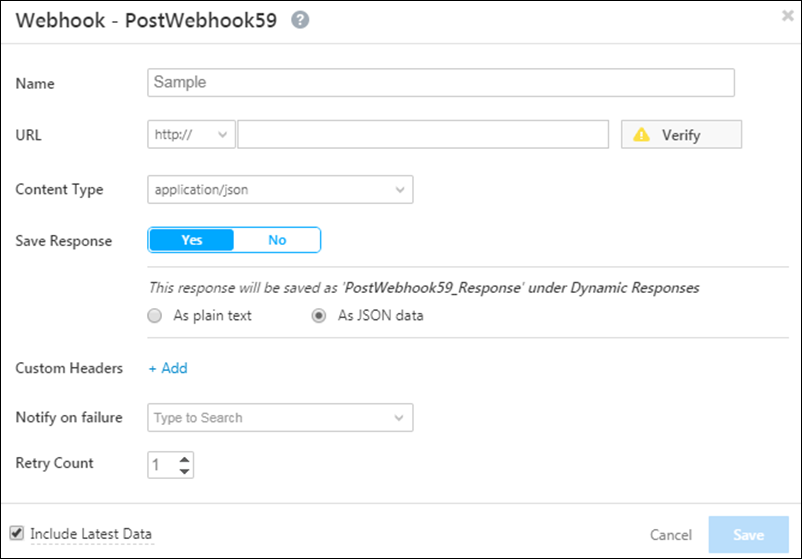
Use webhooks to automatically post activities to a URL of your choosing. They can be used to push data to third-party applications directly from an automation.

Click Webhook and the Webhook Properties pop-up box will appear.

Webhook update

Attribute Description
Name Enter any name for the webhook.
URL Enter the URL you want to post the data to.
Content Type Choose the format you want the data to be posted in.
Save Response Allows you to save the response from a webhook and use it to send dynamic email content or in other automation actions.
Custom Headers For security purposes, you can choose to enter a custom name-value pair in the webhook header and then reject all webhook calls where this header isn’t present.
Notify on Failure Get notified everytime a webhook fails.
Retry Count The number of times you want to retry on failure.
Note: The latest data generated using the webhook is the data retrieved just before the execution of the action you specify in the automation.

For more information on Webhooks, see Webhooks.


Call Lapp

If you’ve created a Lapp, you can call it in your automation. For more information, see Calling a Lapp from Automation.

Custom User and List Action

1. Feature Overview

The LeadSquared Custom User and List Action connector allows you to create and enable Custom Actions (apart from the default actions enabled by LeadSquared) on a user or group of users. It allows you to extend LeadSquared’s featured actions to support a variety of use-cases, such as –

  • Fetch user data from or push user data to other applications
  • Send SMS to users
  • Add an action to send a custom notification to a user, etc.


2. Prerequisites

You must be an Administrator of LeadSquared.


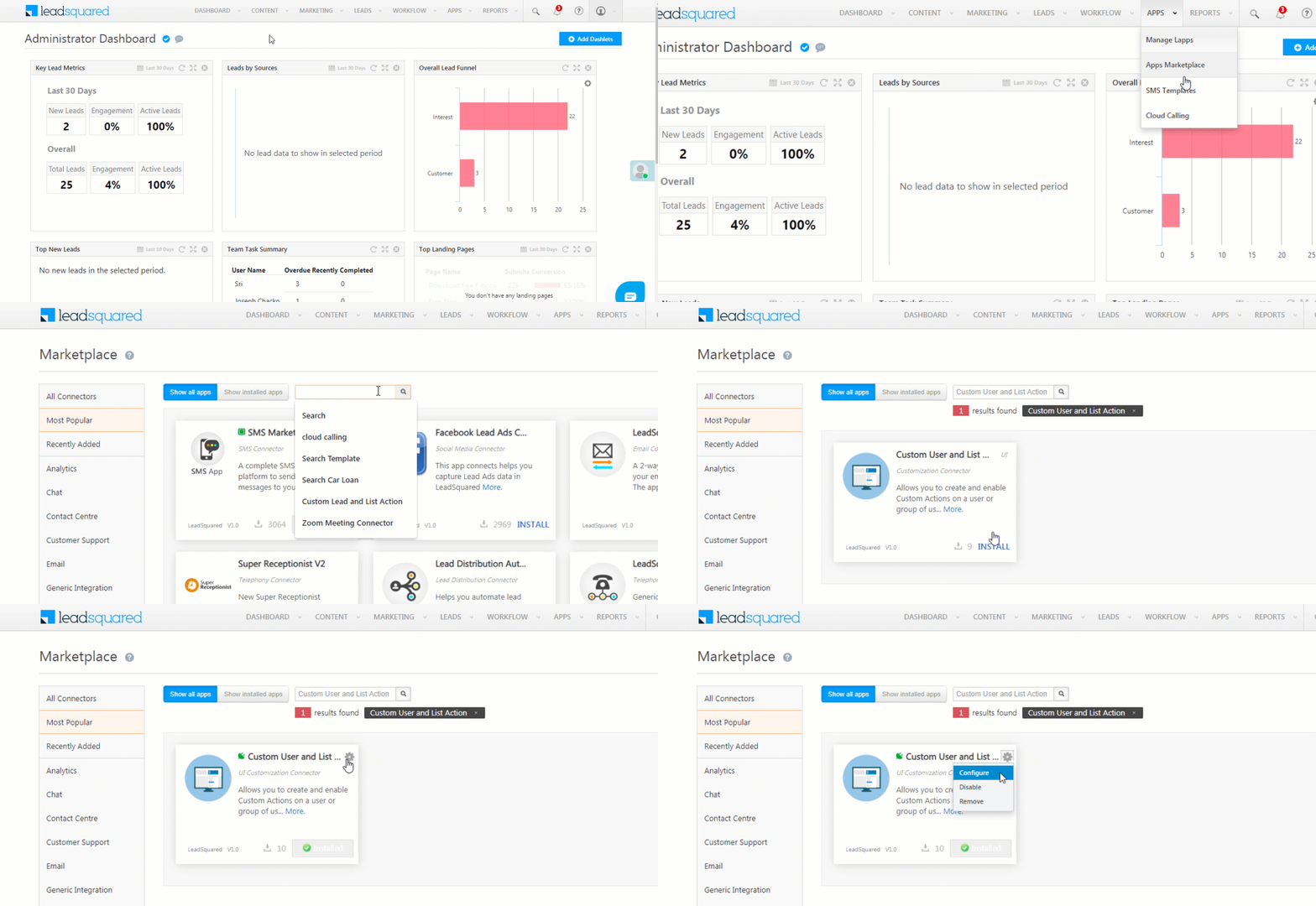
3. Installation

Install the Custom User and List Action connector from the LeadSquared App Marketplace.

  1. On the main menu, navigate to Apps>Apps Marketplace and search for Custom User and List Action connector.
  2. Click Install.
  3. Once installed, hover your cursor over the settings icon, then click Configure.

User Actions


4. Configuration

You can create user actions in two areas –

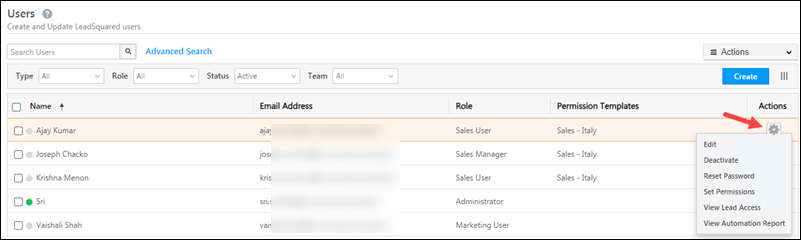
1. The tasks grid row action menu on the Manage Users page (and smart views). To access this, click the Settings icon icon.

User Actions

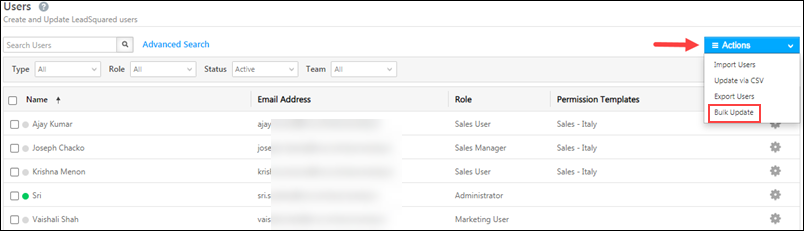
2. The bulk actions menu on the Manage Users page (and smart views). To access this, click Actions.

User Actions

To configure the connector –

  1. On the installed connector, hover your cursor over the settings icon, and click Configure.
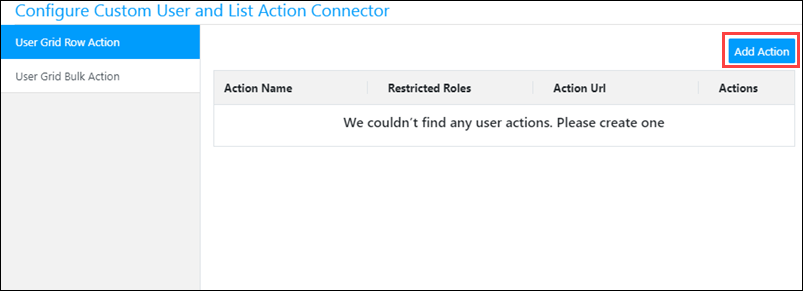
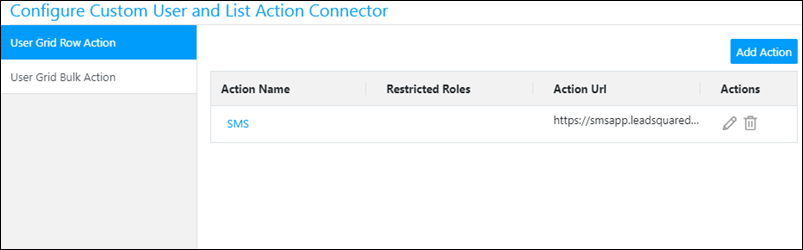
  2. On the Configure Custom User and List Action Connector pop-up, select the area you want the action to appear from the left panel – User Grid Row Action or User Grid Bulk Action.
  3. Click Add Action.

User Actions

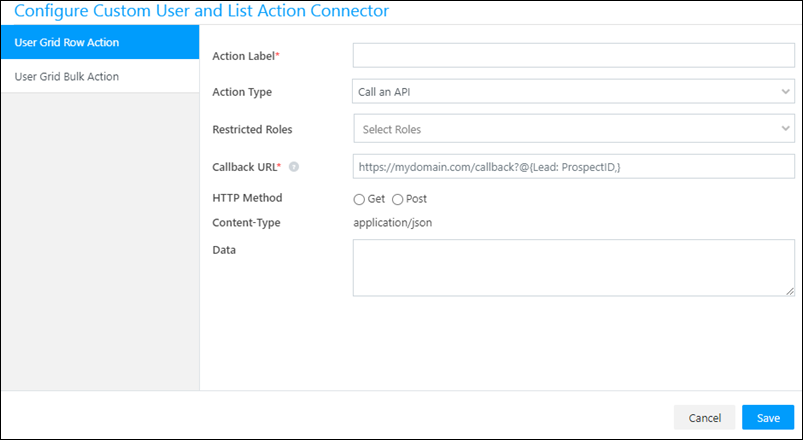
Enter the details of the custom action, then scroll to the bottom of the pop-up and click Save.

User Actions

Attribute Description
Action Label The display name of the action. This attribute is mandatory.
Action Type Three action types are available –

  • Show as Popup
  • Call an API
  • Open in New Window
Restricted Roles Select the internal users for whom you want to restrict the custom actions.
Callback URL Enter the HTTPs URL which will be rendered as a custom action. The URL should be of an action that accepts LeadSquared mail merge fields as parameters and passes them to an external application (e.g., a support system, another CRM or marketing system, another LeadSquared account, etc.) to get the data. Hover your cursor over the question markquestion mark iconicon to view the available mail merge fields. This attribute is mandatory.
HTTP Method GET and POST methods are supported.
Content-Type application/json is the only supported content type.
Data You can pass any data here in JSON format.

Once you’ve created a custom action it will appear as shown below.

  • Click the delete icon to delete the custom action.
  • Click the expand icon to edit the custom action.

Click the Add Action button to create more custom actions.

User Actions

Your custom user actions will now appear as configured on the Manage Users and Smart Views grid rows or bulk action menu for the chosen user.


Any Questions?

Did you find this article helpful? Please let us know any feedback you may have in the comments section below. We’d love to hear from you and help you out!

LeadSquared Zoom Connector

1. Feature Overview

From your LeadSquared account, you can directly make Zoom calls to your leads, using the LeadSquared Zoom Connector. The connector integrates your Zoom account with your LeadSquared account, and once integrated, you’ll be able to –

  • Make Zoom calls directly from your LeadSquared account.
  • Access call recordings, which are posted to leads as activities.
  • Manage your Zoom meetings and webinars through LeadSquared tasks.
  • Join meetings from anywhere, through any device such as laptops, desktops and mobile phones.


2. Prerequisites

  • You must be the Administrator of your LeadSquared account and your Zoom account.
    • All the necessary permissions must be enabled for your Zoom user.
  • Call recording on Zoom is a paid feature. You can record calls through LeadSquared only if this feature is enabled on Zoom. To enable it, please get in touch with your sales representative from Zoom.
  • To sync your Zoom webinar details with your LeadSquared account, you must first get the Webinar Settings screen enabled on your account. To do this, contact your account manager, or write to marketplaceteam@leadsquared.com.


3. How it Works

You can create and schedule Zoom meetings with your leads, and include your users, directly from LeadSquared. You can do this either manually, or through automation.

For Zoom Meetings –

  1. Install the connector – Begin by first installing the LeadSquared Zoom Connector on your LeadSquared account.
  2. Configure the connector on LeadSquared – Post installation, you’ll have to configure the connector with your LeadSquared account.
  3. Schedule meetings – After configuration, you can schedule Zoom meetings and webinars with individual leads, multiple leads as well as leads in a list.
  4. View Activities – After the Zoom meeting/webinar is completed, you can view the call details and access call recordings of the meeting on the Lead Details page.

For Zoom Webinars –

  1. Install the connector – Begin by first installing the LeadSquared Zoom Connector on your LeadSquared account.
  2. Configure the connector on LeadSquared – Post installation, you’ll have to configure the connector with your LeadSquared account.
  3. Create webinars – From your Zoom account, create webinars for your leads to join.
  4. Add Leads – Once a webinar is created, you can then add leads to that webinar from your LeadSquared account. You can choose to add individual leads, multiple leads and/or leads in a list to a webinar.
  5. View Activities – Once a lead registers and joins a webinar, you’ll be able to view this as an activity, along with details of the webinar, on the Lead Details page.


4. Installation

Install the Zoom Meeting ConnectorM from the LeadSquared App Marketplace.

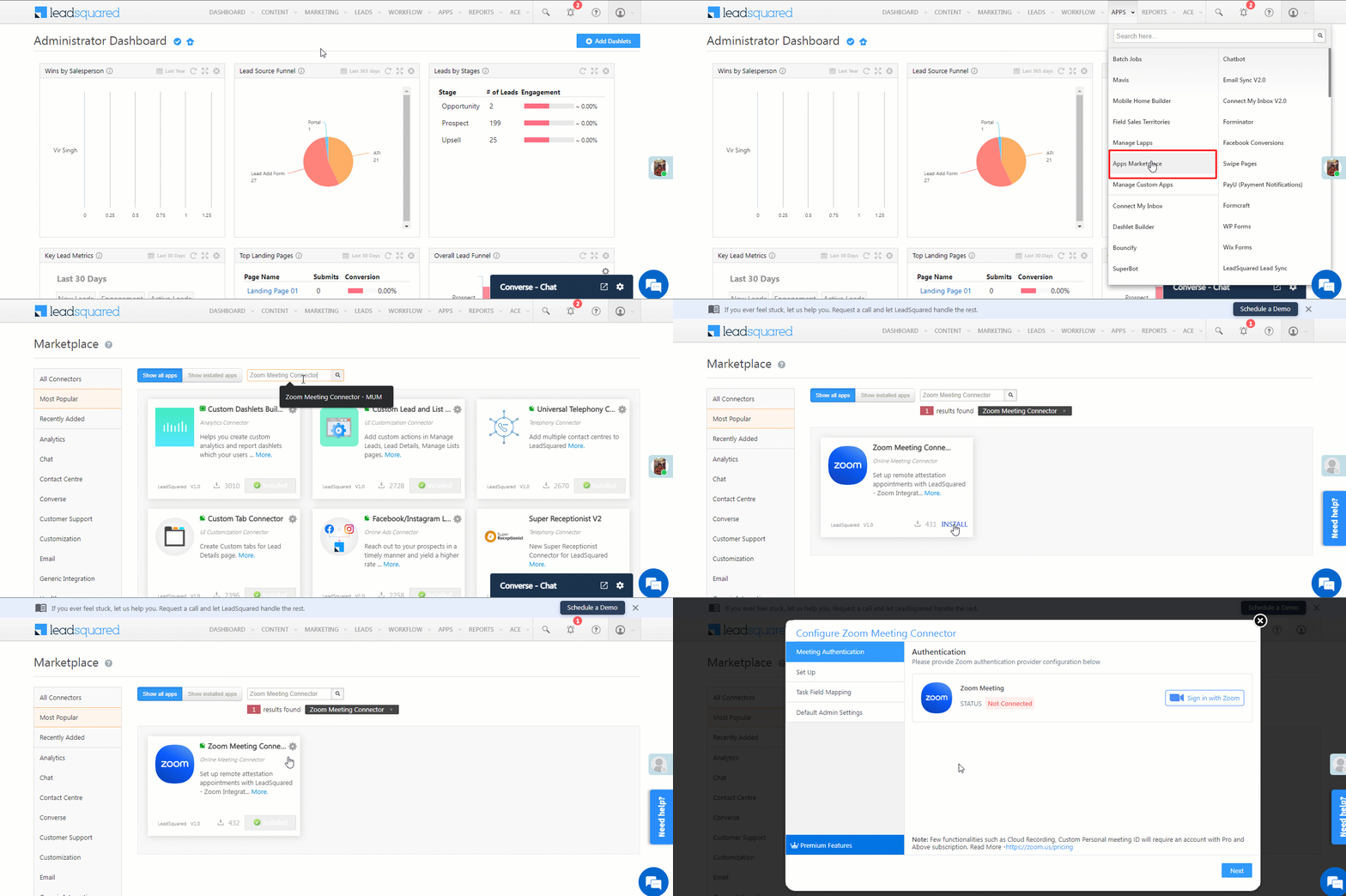
  1. On the main menu, navigate to Apps>Apps Marketplace and search for Configure Zoom Meeting Connector.
  2. Click Install.
  3. Once installed, hover your cursor over the settings icon, then click Configure.

Zoom LeadSquared Integration


5. Configuration

To integrate Zoom with LeadSquared –

  1. Sign in to the connector using your Zoom account credentials.
  2. Set Up the Zoom Connector in LeadSquared
  3. Map Fields in the Zoom Connector in LeadSquared
  4. Configure Default Admin Settings in LeadSquared
  5. Enable Webinar Settings, and sign in to Zoom to use the webinars feature

5.1 Sign in to the Connector

Once installed, sign in to the Zoom Meeting Connector using your Zoom account credentials. To do this –

  1. On the Zoom Meeting Connector, hover your cursor over the settings icon, and click Configure.
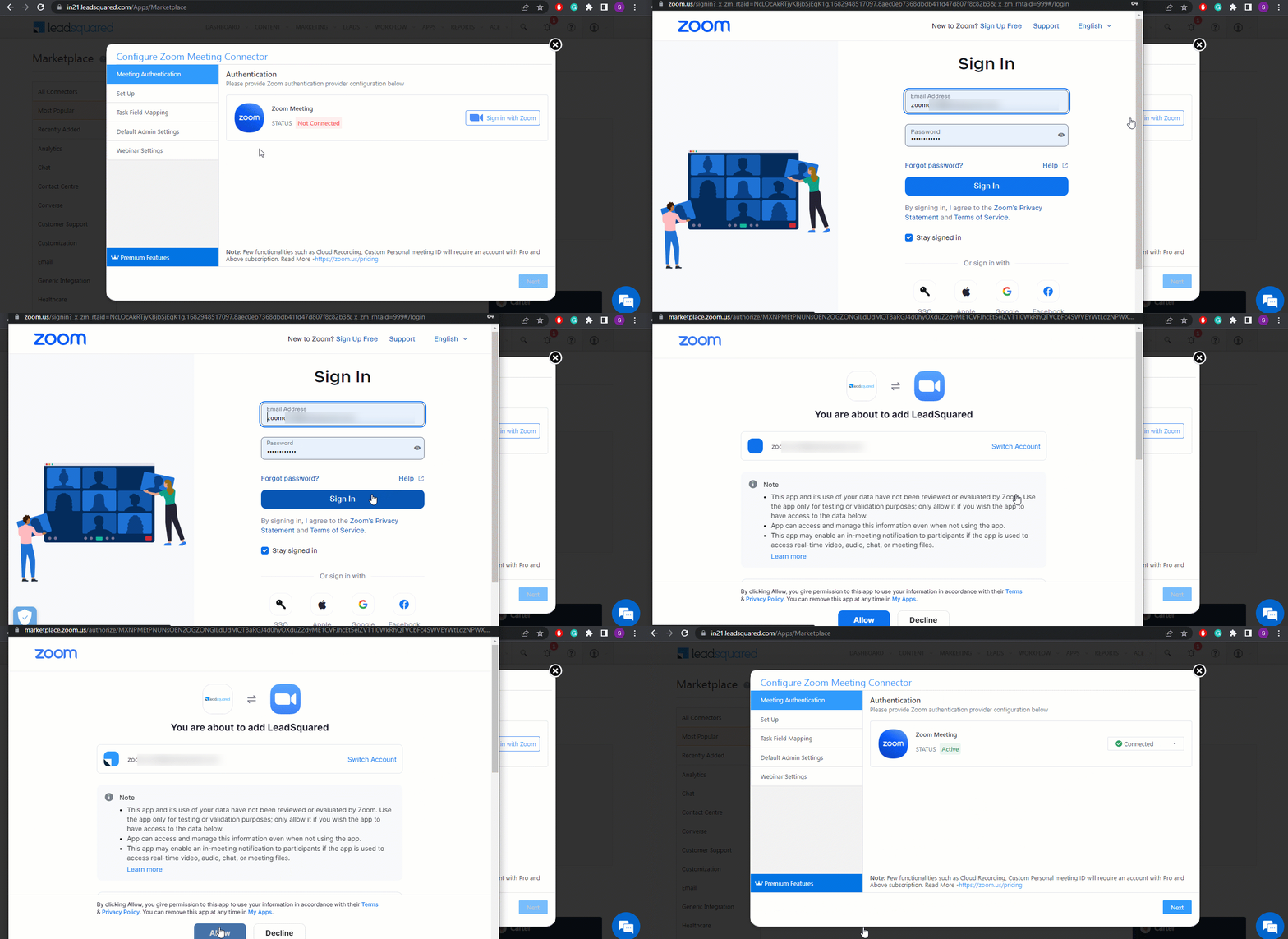
  2. On the Authentication tab, click the Sign in with Zoom button.
  3. On the Sign In browser window, enter your Zoom account credentials, and click Sign In.
  4. On the “You are about to add LeadSquared” screen, click Allow. This completes the sign in process.
  5. Once you’ve successfully signed into your Zoom account, the LeadSquared App will be automatically installed in your Zoom account.

Zoom LeadSquared Integration


5.2 Set Up your Zoom Connector in LeadSquared

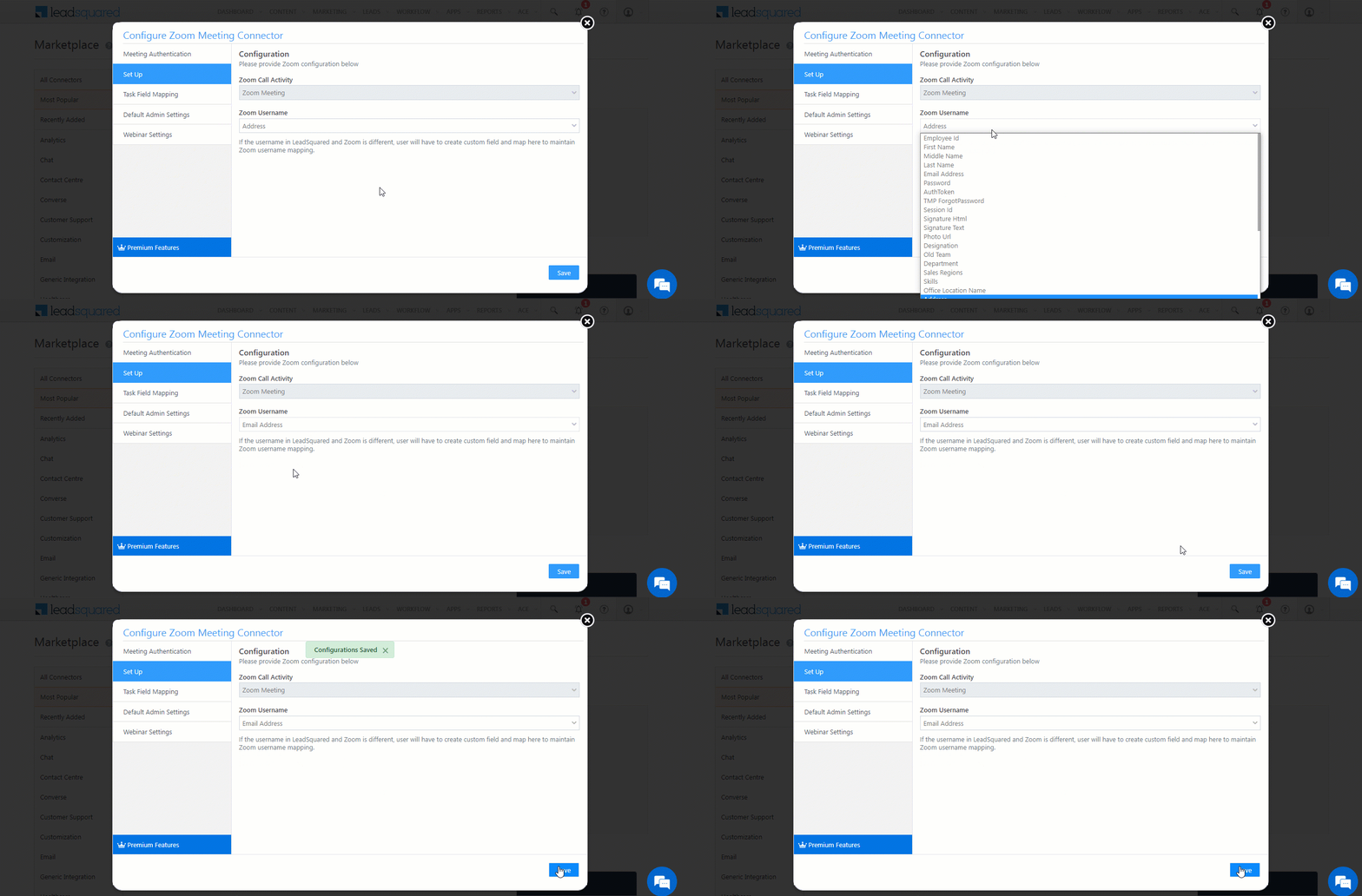
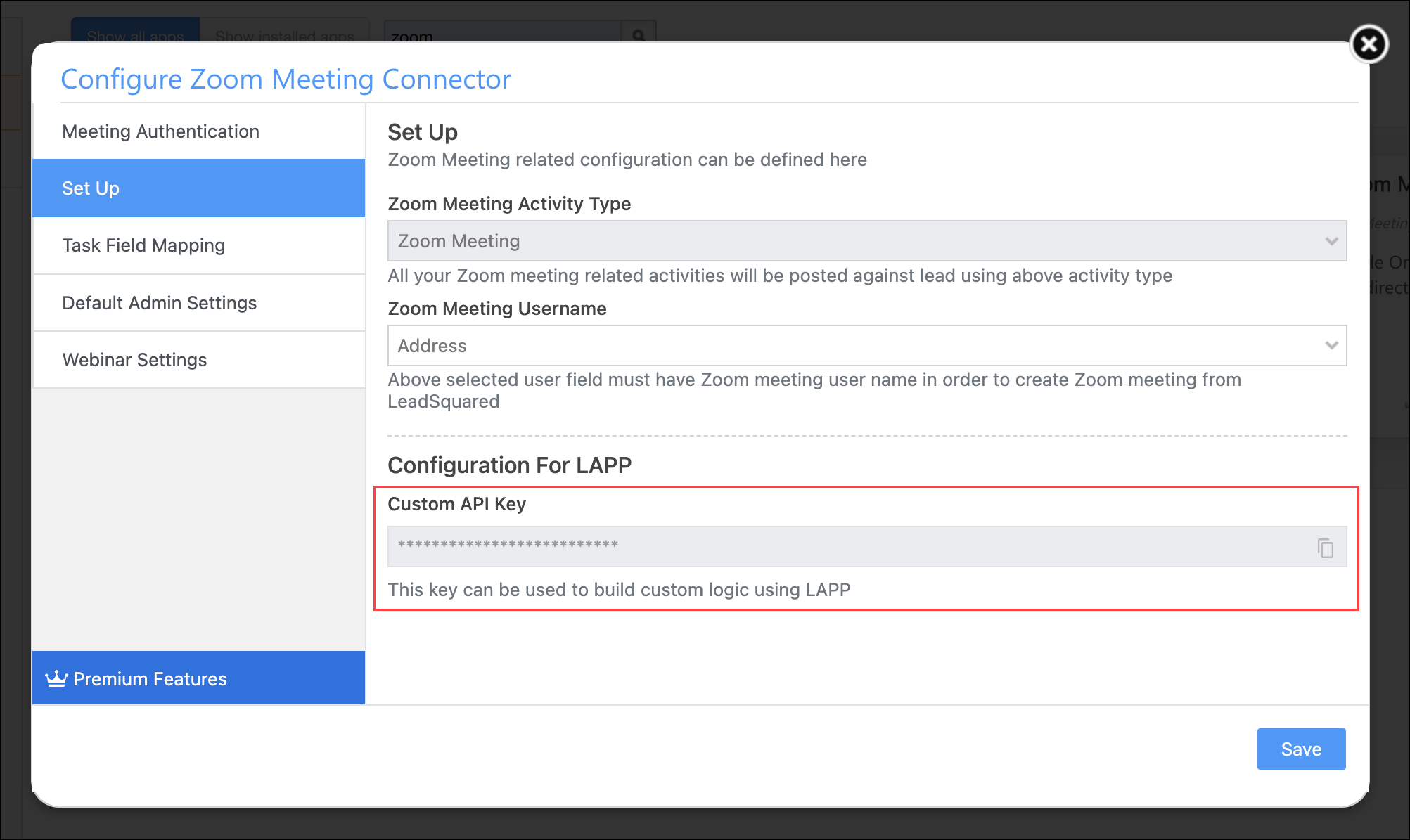
  1. The Zoom Call Activity is set to Zoom Meeting by default. This is a custom activity created by LeadSquared for Zoom calls, and it cannot be edited.
  2. For Zoom Username, if you have used the same email Id in your LeadSquared and Zoom account, you can choose Email Address as your option.
  3. Click Save.
Note: If the email Id you’ve used in Zoom is different from the one used in your LeadSquared account, you’ll have to use a custom user field (which are the custom user fields “mx_Custom_1”, “mx_Custom_2”, up to “mx_Custom_10”, that are available by default in your account) and enter the Zoom email Id in that field. To know how to access a custom user field, refer to Manage User Custom Fields.

Zoom LeadSquared Integration

If you’re looking to create Lapps on the Zoom Connector, contact marketplaceteam@leadsquared.com. They’ll enable the setting which will display the custom API key, which you’ll need when creating the Lapp.

LeadSquared Google Reviews Connector


5.3 Map Fields in your Zoom Connector in LeadSquared

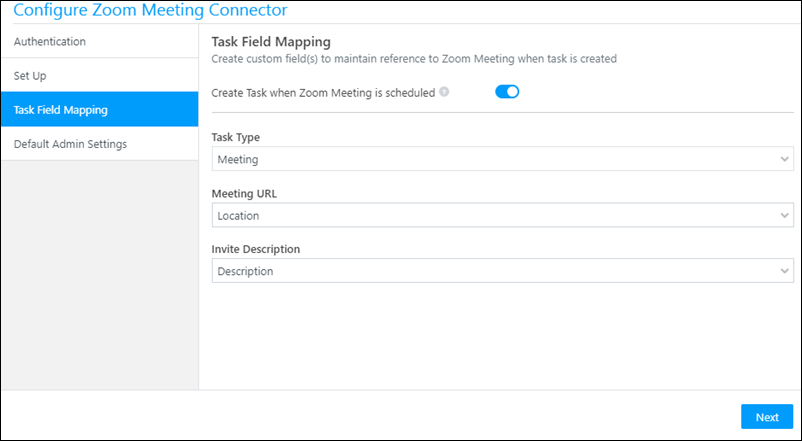
Once you sign in to your Zoom account, you must automate task creations in LeadSquared for every Zoom meeting you schedule. In this section, you can map the meeting details to the corresponding task fields in LeadSquared. Once this is done, you can view these tasks and details on the Lead Details and Manage Tasks page, and track them to completion.

  1. On the Configure Zoom Meeting Connector tab in your LeadSquared account, ensure the Zoom slider at the top of the page is active.
  2. Under Task Type, select the desired task type (we recommend Meeting). This ensures that when you schedule a Zoom meeting, a Meeting task type is created in LeadSquared.
  3. Under Meeting URL, select Location. Every time you schedule a meeting, your meeting URL gets published directly to LeadSquared.
  4. Under Invite Description, select Description. This ensures your meeting description gets published to LeadSquared.
  5. Click Next.

Zoom


5.4 Configure Default Admin Settings in LeadSquared

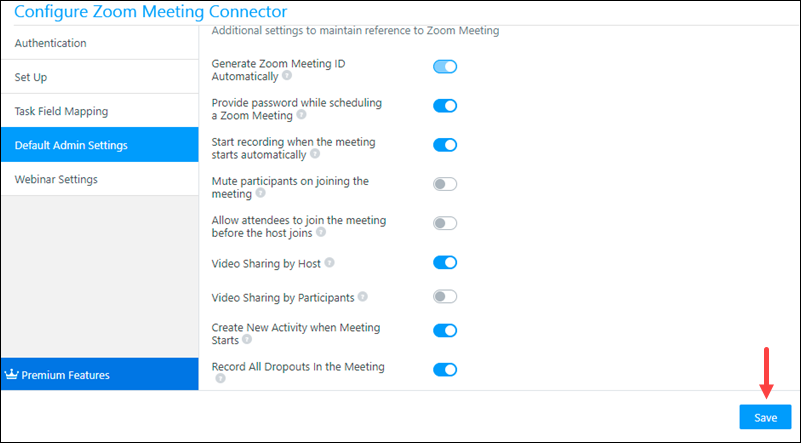
  1. These are additional settings that are available to you. “Generate Zoom Meeting ID Automatically” is enabled by default, and you can’t disable it.
  2. Enable Start recording when the meeting starts automatically to ensure that all your calls get recorded. The other options can be turned on or off, depending on your requirement.
  3. Once you’re done, click Save.
  4. You’ll get a “Configurations Saved” notification on top of your screen.

Note:

  • If call recording is configured on your account, and the meeting host ends the call, the call recording stops, and subsequent calls that are placed using the same meeting link will not be recorded.
    But if you want to record multiple calls that take place on the same Zoom link, you must enable Record All Dropouts In the Meeting. This will ensure that if the host ends a call (say, at 4:05 PM), and uses the same meeting link to start another call (at 4:20 PM), then both the calls will be recorded and posted as a single activity.
  • To create and post a new meeting activity when a call starts, please enable Create New Activity when Meeting Starts.

LeadSquared Zoom Connector


5.5 Enable Webinar Settings

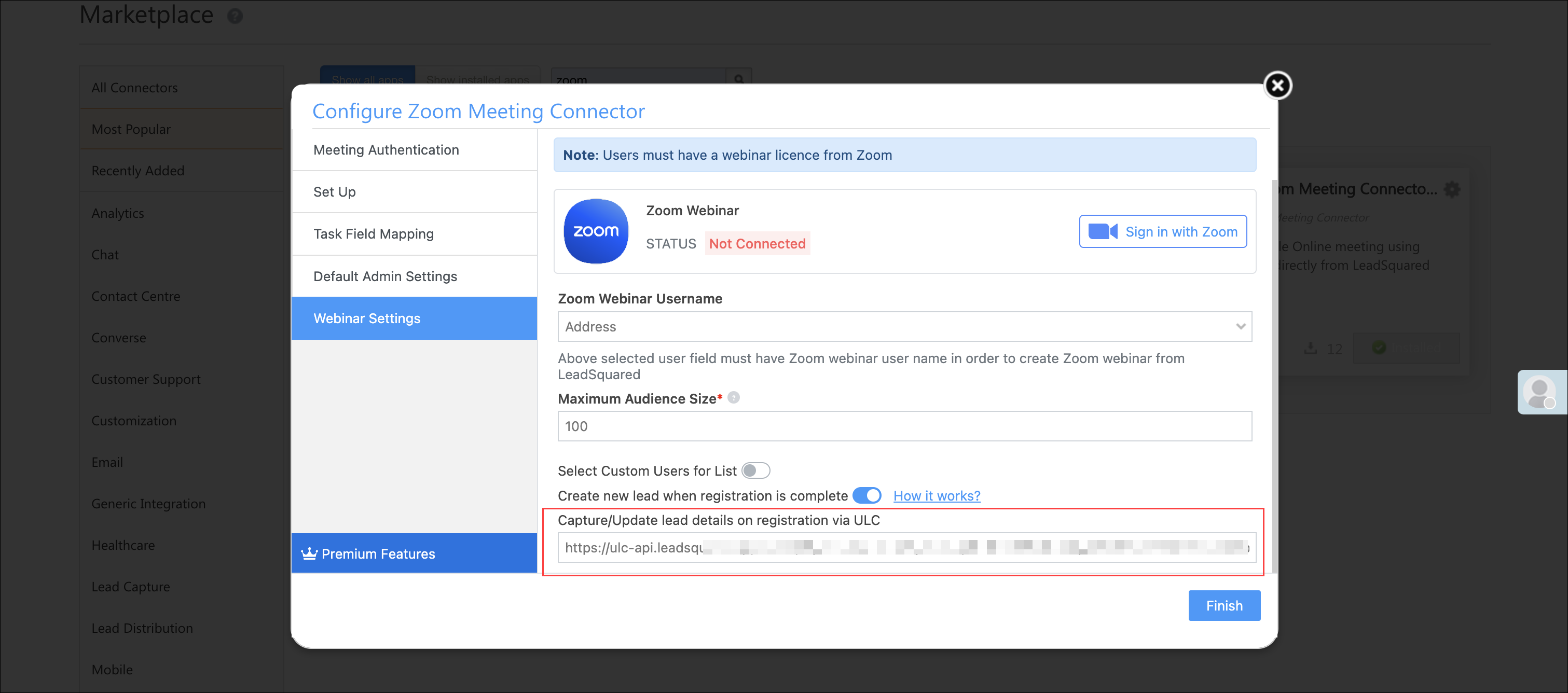
You must have a webinar licence from Zoom to enable these settings on your account. To enable it, toggle the Slider slider.

  • Sign-in with Zoom – On the Authentication tab, click the Sign in with Zoom button. Then, on the Sign In browser window, enter your Zoom account credentials, and click Sign In. This completes the sign-in process.
  • Maximum Audience Size – The maximum number of participants in a webinar. The limit is determined by your Zoom webinar license subscription plan.
  • Select Custom Users for List – You can restrict the number of LeadSquared users who can access the webinar feature. To do this, toggle the Slider slider, and from the Select Users dropdown list, select the users for whom you want to provide access.
  • Create new lead when registration is complete – To create a new lead in LeadSquared when a participant registers for the webinar, toggle the Slider slider. When leads are captured from your Zoom Webinar registrations, we’ll capture leads with the following webinar registration fields –
LeadSquared Lead Field Schema Name Zoom Webinar Registration Field Name
FirstName first_name
LastName last_name
EmailAddress email
mx_City city
mx_Street1 address
mx_Country country
mx_Zip zip
mx_State state
Phone phone

Note: The Webinar Registration form fields will be captured against lead fields only if the schema names in your LeadSquared account are exactly as listed above. If you’ve made any changes to the schema name, or if a schema filed is disabled on your account, the data capture won’t work as intended.

Zoom LeadSquared Integration

You can obtain an additional webhook URL for the webinars section, which can be used to build a new Universal Lead Capture (ULC) connector. This webhook can be used to create a connector to receive lead registration data regarding Zoom webinars. Along with this data, you can also add other relevant lead data to the leads captured through this webhook URL. To enable this feature on your account, contact your account manager, or mail support@leadsquared.com.

Zoom Connector


6. Schedule Zoom Meeting

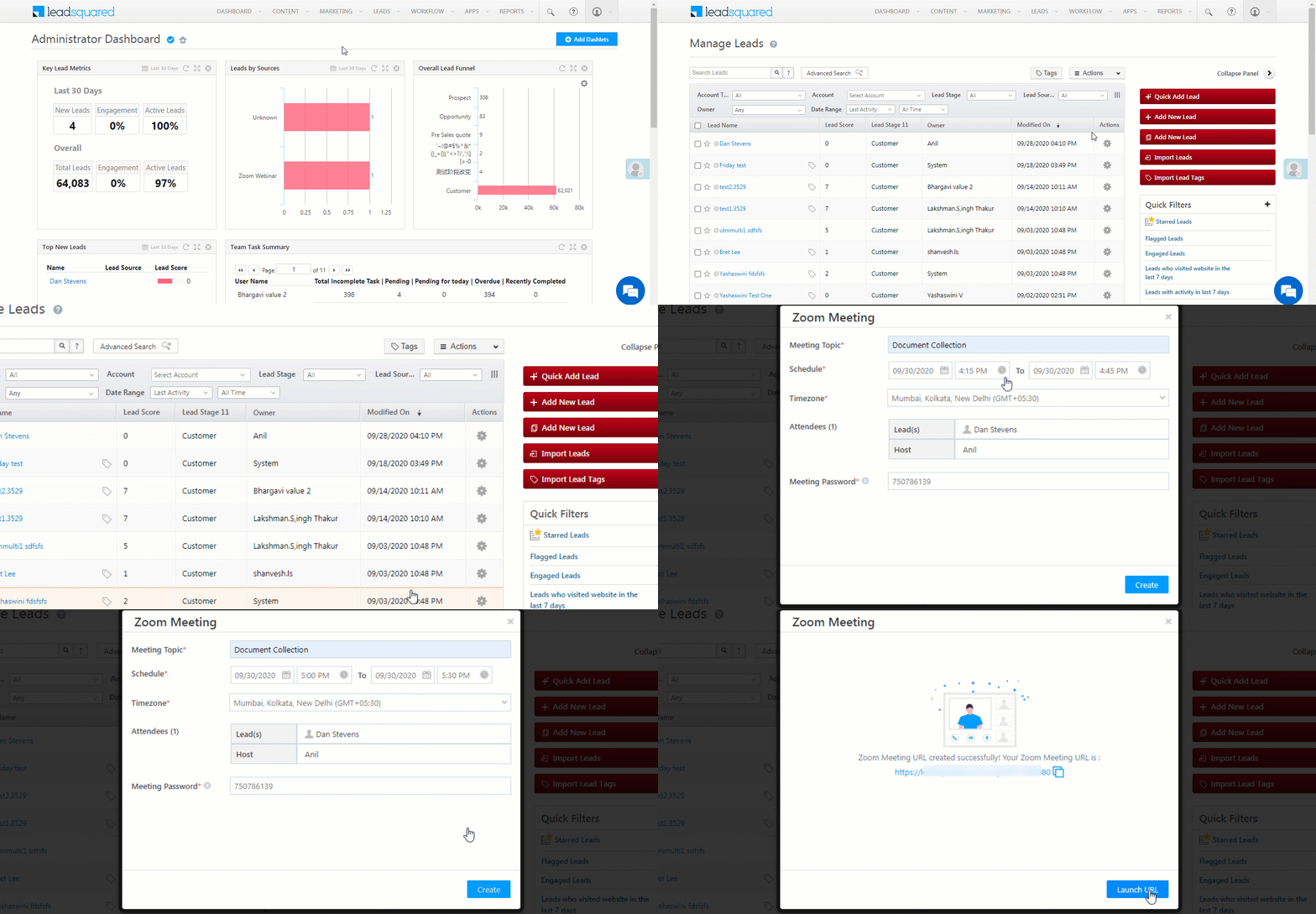
6.1 For Individual Leads

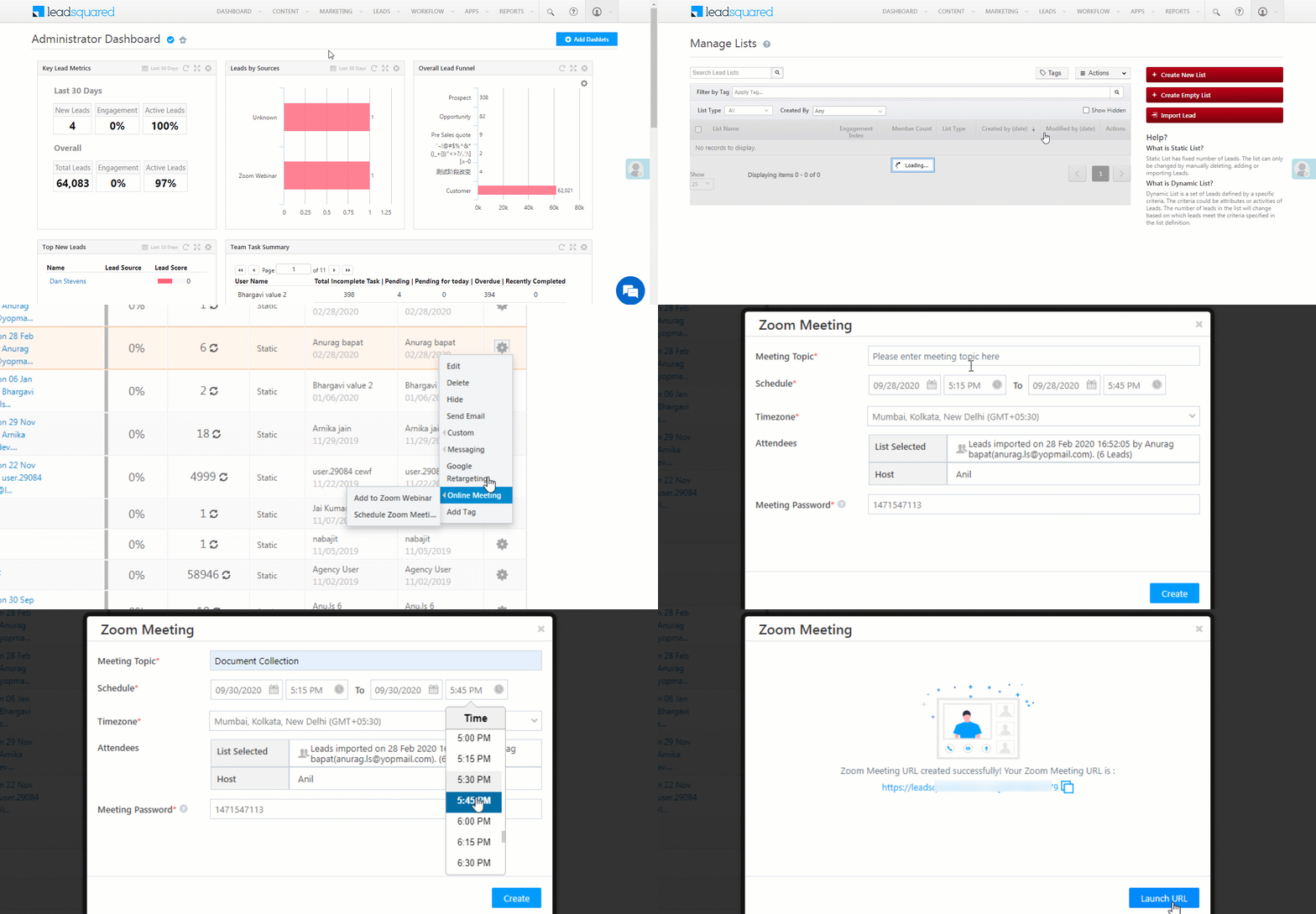
To schedule a Zoom meeting for an individual lead –

  1. From the LeadSquared main menu, navigate to Leads>Manage Leads.
  2. On a lead, hover your cursor over the Action Icon icon. From the dropdown list, hover your cursor over Online Meeting, and then click Schedule Zoom Meeting.
  3. On the Zoom Meeting pop-up, enter the following details –
    • In the Meeting Topic field, enter a relevant name for the meeting.
    • Against Schedule, pick a date and time for the meeting.
    • Against Timezone, select the timezone in which you want to schedule the meeting.
    • You can either retain the default password generated, or change it if necessary.
  4. Once you’ve entered all the details, click Create.
  5. Your Zoom meeting URL is generated. You can share this URL with your leads and other external participants.

Zoom Meeting_1


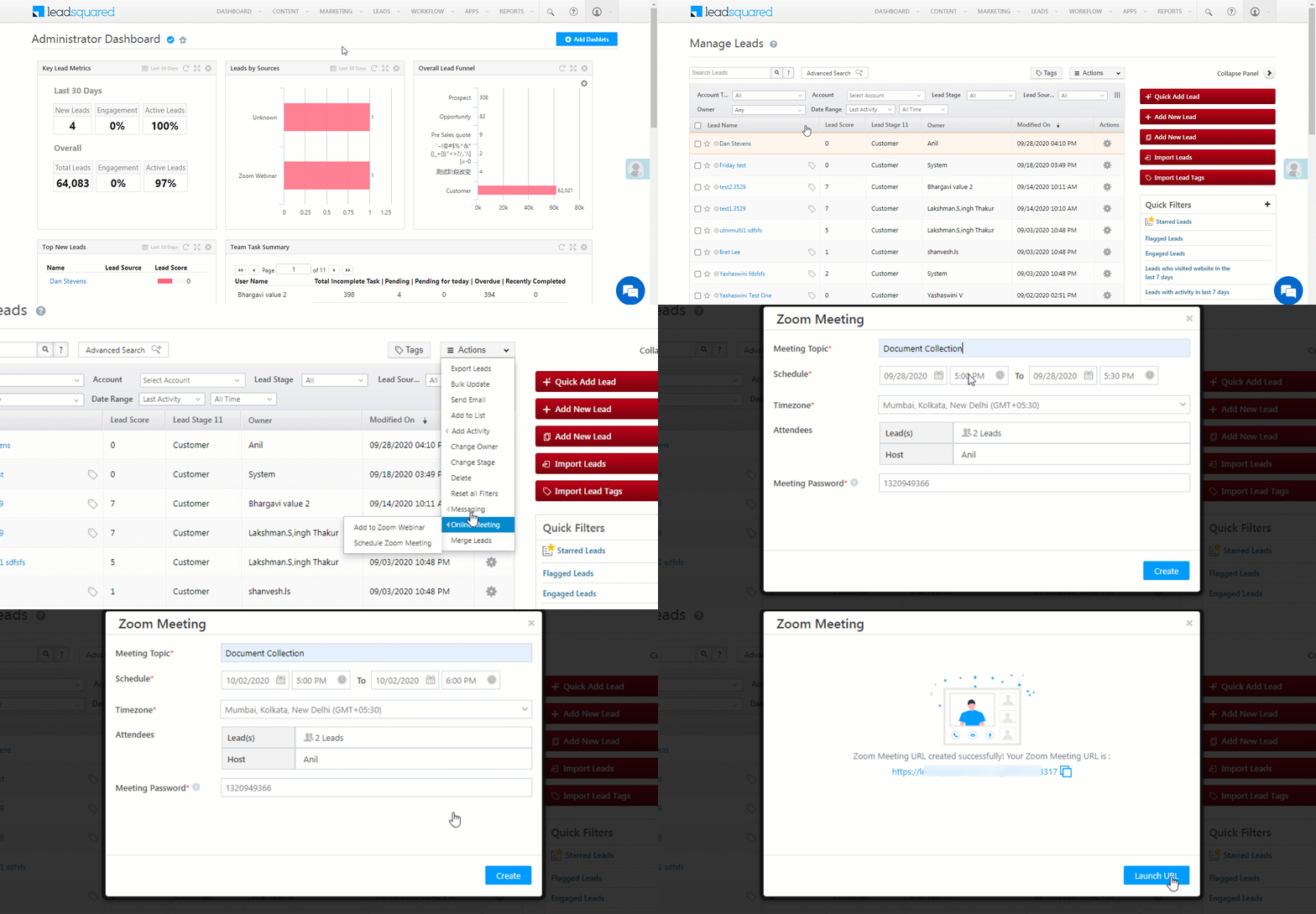
6.2 For Multiple Leads

To schedule a Zoom meeting for multiple leads –

  1. From the LeadSquared main menu, navigate to Leads>Manage Leads.
  2. On the Manage Leads page, select the leads you want to add to the meeting by checking the Checkbox box against their names.
  3. After selecting the leads, hover your cursor over the Leads button.
  4. From the dropdown list, click Online Meeting, and then click Schedule Zoom Meeting.
  5. On the Zoom Meeting pop-up, enter the following details –
    • In the Meeting Topic field, enter a relevant name for the meeting.
    • Against Schedule, pick a date and time for the meeting.
    • Against Timezone, select the timezone in which you want to schedule the meeting.
    • You can either retain the default password generated, or change it if necessary.
  6. Once you’ve entered all the details, click Create.
  7. Your Zoom meeting URL is generated. You can share this URL with your leads and other external participants.

Zoom Meeting_2


6.3 For Leads in a List

To schedule a Zoom meeting for all the leads present in a list

  1. From the LeadSquared main menu, navigate to Leads>Manage Lists.
  2. On the Manage Lists page, against an existing list, hover your cursor over the Action Icon icon. From the dropdown list, click Online Meeting, and then click Schedule Zoom Meeting.
  3. On the Zoom Meeting pop-up, enter the following details –
    • In the Meeting Topic field, enter a relevant name for the meeting.
    • Against Schedule, pick a date and time for the meeting.
    • Against Timezone, select the timezone in which you want to schedule the meeting.
    • You can either retain the default password generated, or change it if necessary.
  4. Once you’ve entered all the details, click Create.
  5. Your Zoom meeting URL is generated. You can share this URL with your leads and other external participants.

Zoom Meeting_3


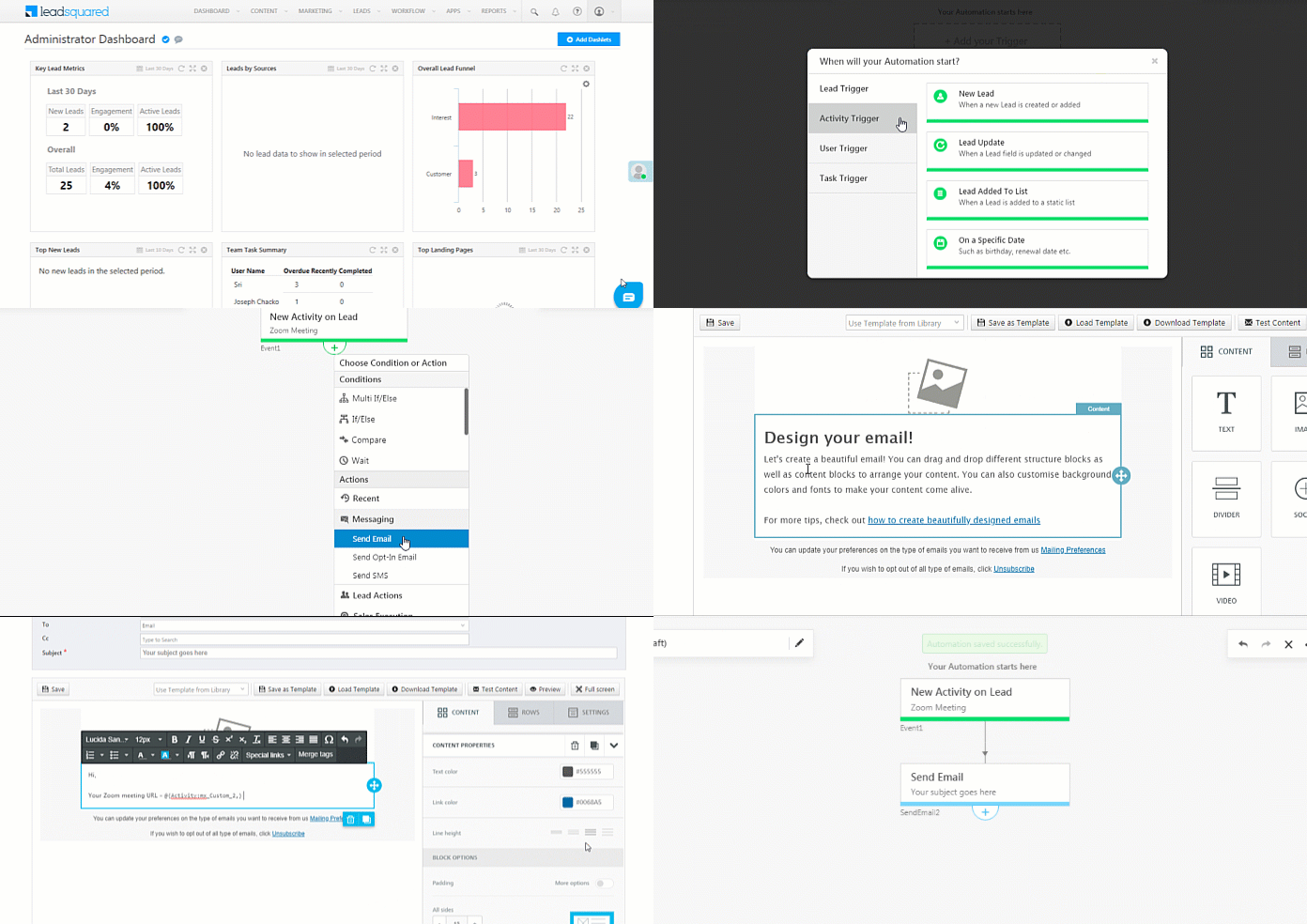
6.4 Sending Invites to Leads through Automation

You can send the Zoom meeting details to your leads by setting up an automation that sends them an email containing the details. For this to work, the leads in your system should have a valid email Id and phone number. If you set up the automation with Activity as a trigger, every time a Zoom meeting activity is posted, an email is sent to the lead. To send the Zoom meeting URL and other details via email –

  1. From the main menu, navigate to Workflow>Automation, and click Create Automation.
  2. Set up an automation with Activity as the trigger. To know more, refer to Send Emails through Automation.
  3. From the Select Activity list, choose “Zoom Meeting”.
  4. Click Save once you’re done.
  5. Click the Yes expand path icon under the automation, click Messaging, and then click Send Email.
  6. Select a template or opt for a blank template, as per your requirement.
  7. After selecting a template, click Edit & Use.
  8. On the email editor, you can select mail merge fields to display the details of the upcoming meeting. To understand this better, you can refer to the below example –
    Status: @{Activity:Status,}
    Zoom Topic: @{Activity:mx_Custom_1,}
    Zoom Meeting URL: @{Activity:mx_Custom_2,}
    Schedule: @{Activity:mx_Custom_3,}
    Host: @{Activity:mx_Custom_4,}
    Number of Attendees: @{Activity:mx_Custom_5,}
    Meeting Duration (in Minutes)@{Activity:mx_Custom_6,}
    Recording Share URL: @{Activity:mx_Custom_7,}
  9. Fill in the other details on the template, such as Subject, Email Category, etc. Customize the template as per your preference.
  10. Click Save, and then click Done.
  11. Your automation is saved successfully. Every time you create a Zoom meeting invite on a Lead, an email containing the meeting details is sent to the lead.

Zoom


7. View Zoom Meeting Details

 7.1 Zoom Meeting Activities and Tasks

After you have scheduled a Zoom meeting, you can view the meeting details in the Lead Details or Manage Tasks page.

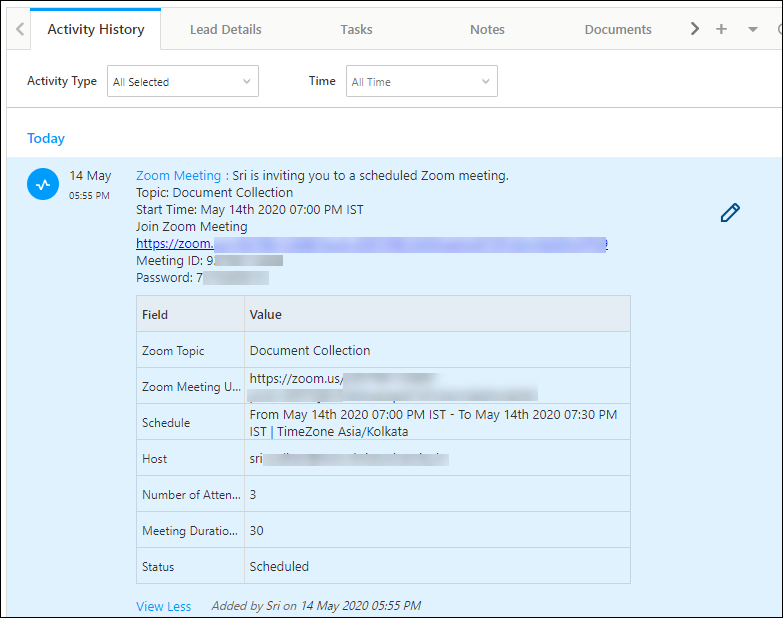
Zoom Meeting Activities

  1. From the LeadSquared main menu, navigate to Leads>Manage Leads.
  2. Click on the lead whose meeting is scheduled.
  3. In the Lead Details page, under the Activity History tab, you can view the meeting details.
  4. You can edit the meeting details by clicking the icon.

Zoom


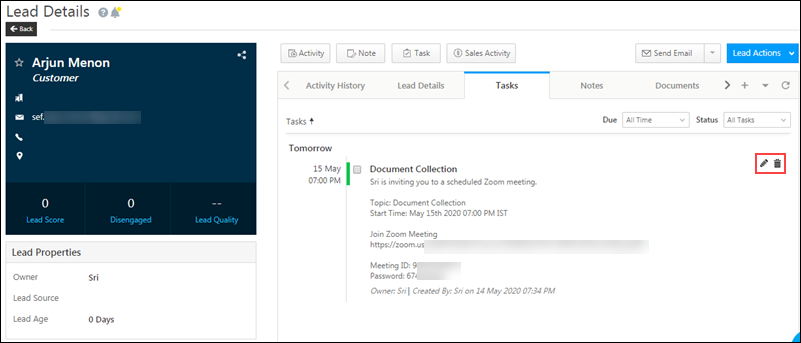
Zoom Meeting Tasks

  1. From the LeadSquared main menu, navigate to Leads>Manage Leads.
  2. Click on the lead whose meeting is scheduled.
  3. On the Lead Details page, click the Tasks tab. You can view the meeting details here.
  4. You can edit the meeting details by clicking the Edit icon.
  5. You can delete the meeting by clicking the delete icon.

Zoom

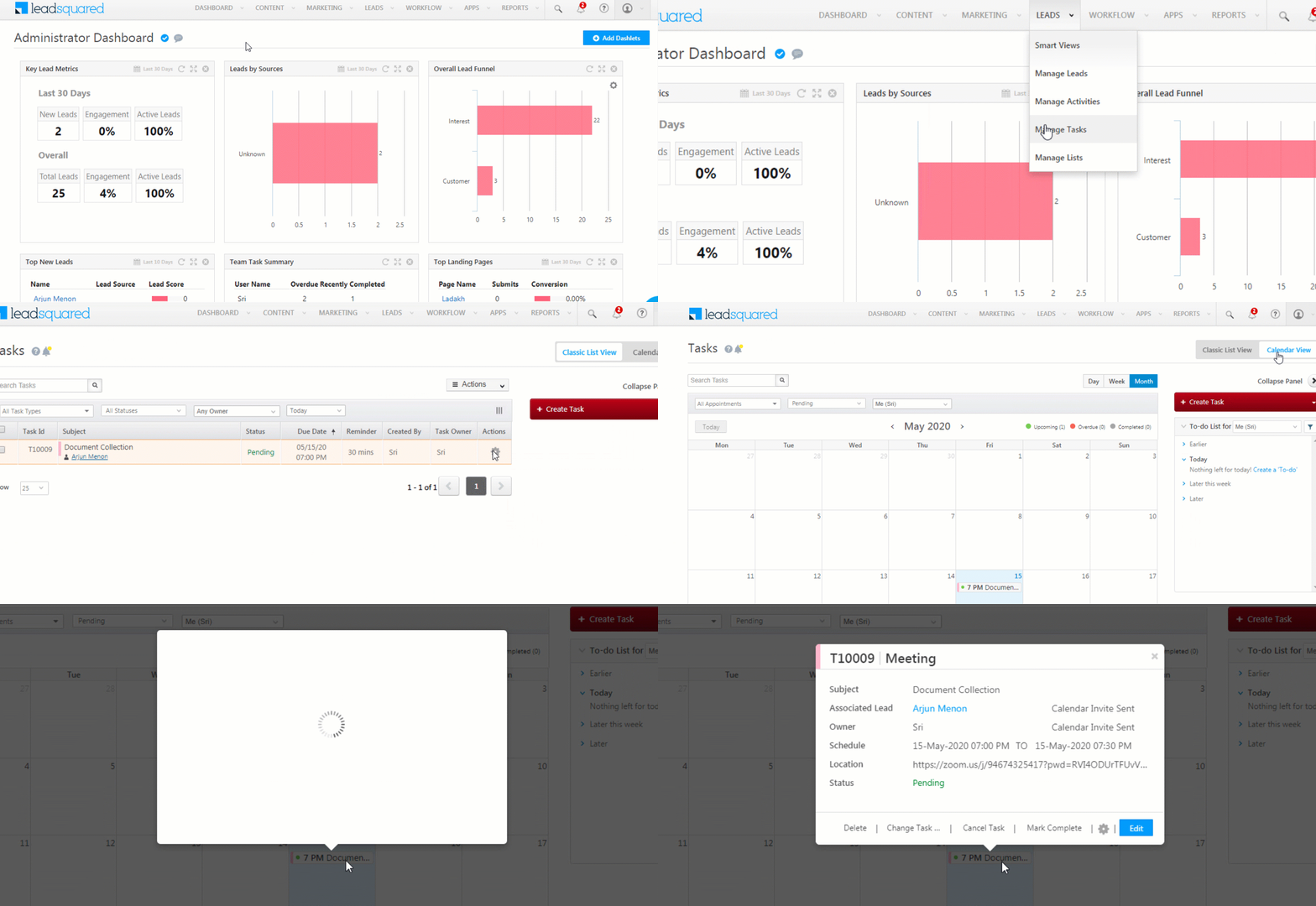
You can also view the meeting details on the Manage Tasks page

  • From the LeadSquared main menu, navigate to Leads>Manage Tasks.
  • You can view the task in both Classic List View and Calendar View.
  • In both the views, you can hover over theAction Icon icon to –
    • Delete the task
    • Change the task owner
    • Cancel the task
    • Mark the task as complete
    • Edit the task
  • In List View, you’ll have to click on View Details to view the meeting details
  • In Calendar View, you can view the meeting details on the pop-up itself

Zoom


7.2 Meeting Reminder

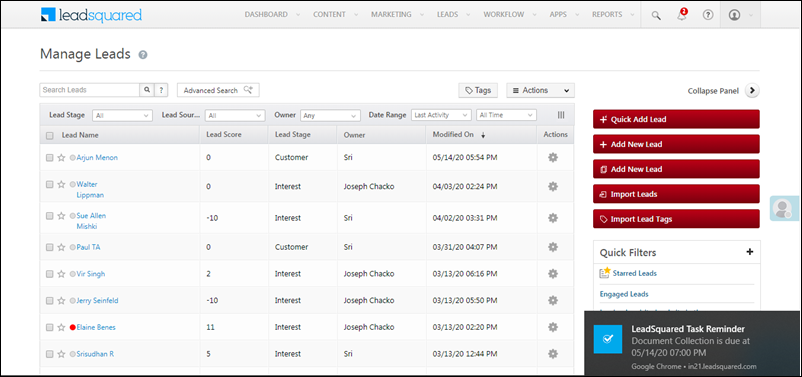
  • A reminder notification is sent to the LeadSquared user who set up the meeting, 30 minutes prior to the meeting.

Zoom

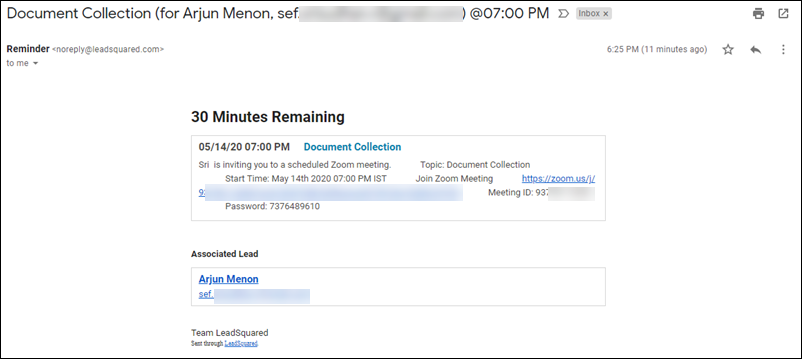
  • An email reminder is sent to all the internal participants from your organization 30 minutes prior to the meeting.

Zoom


8. Completed Meetings

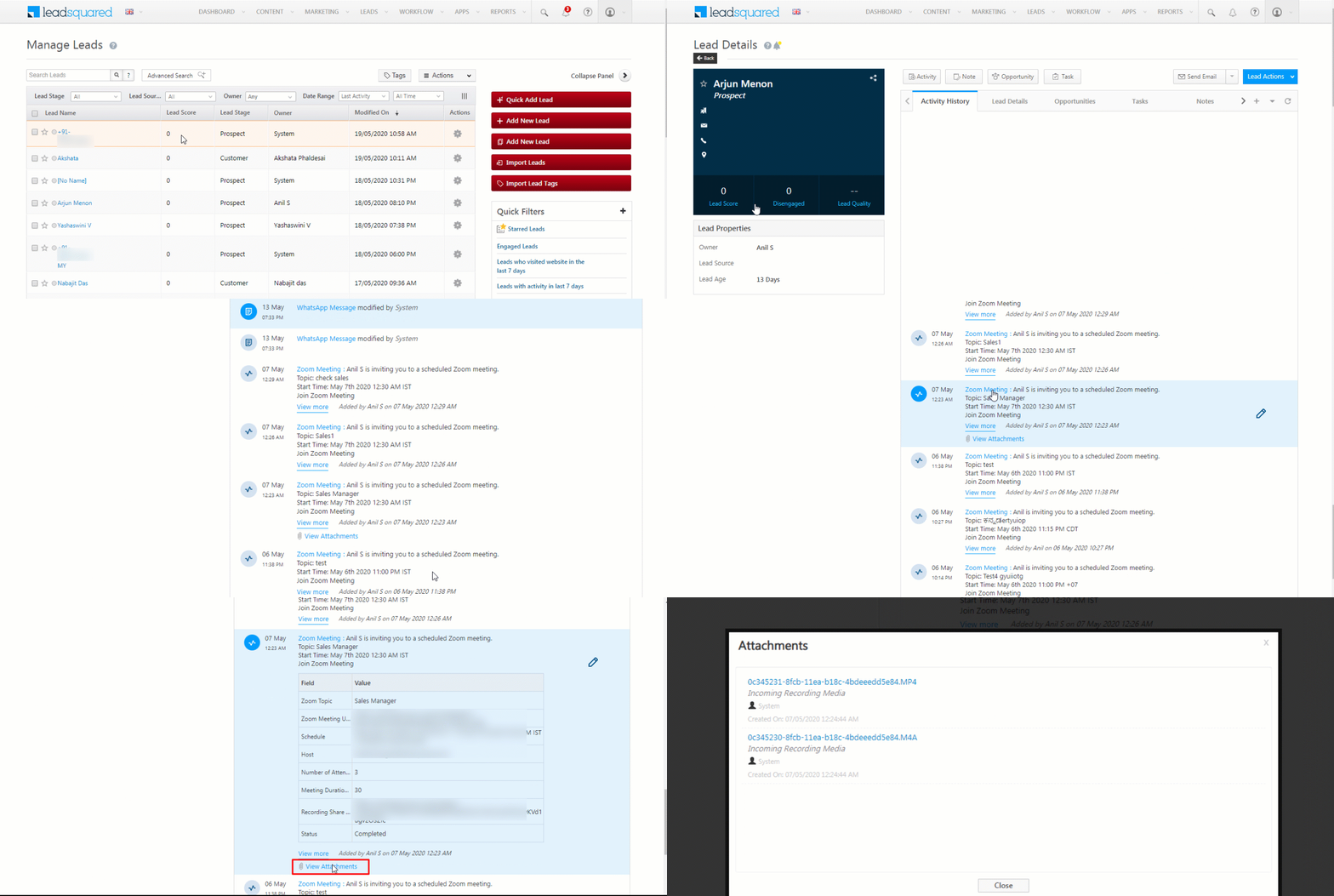
After the Zoom meeting is completed, you can view the call details and access call recordings.

  • From the LeadSquared main menu, navigate to Leads>Manage Leads.
  • Click on the lead whose call was completed.
  • In the Lead Details page, under the Activity History tab, you can view the recording attachments along with the updated meeting details.
  • To access the recording, click the Zoom icon. This will open a new pop up, where you can access the recording files.
  • You can see the meeting status has changed from “Scheduled” to “Completed”.
  • Under the Task tab, you can see the task has been auto-completed.

Zoom


9. Zoom Meeting Automations

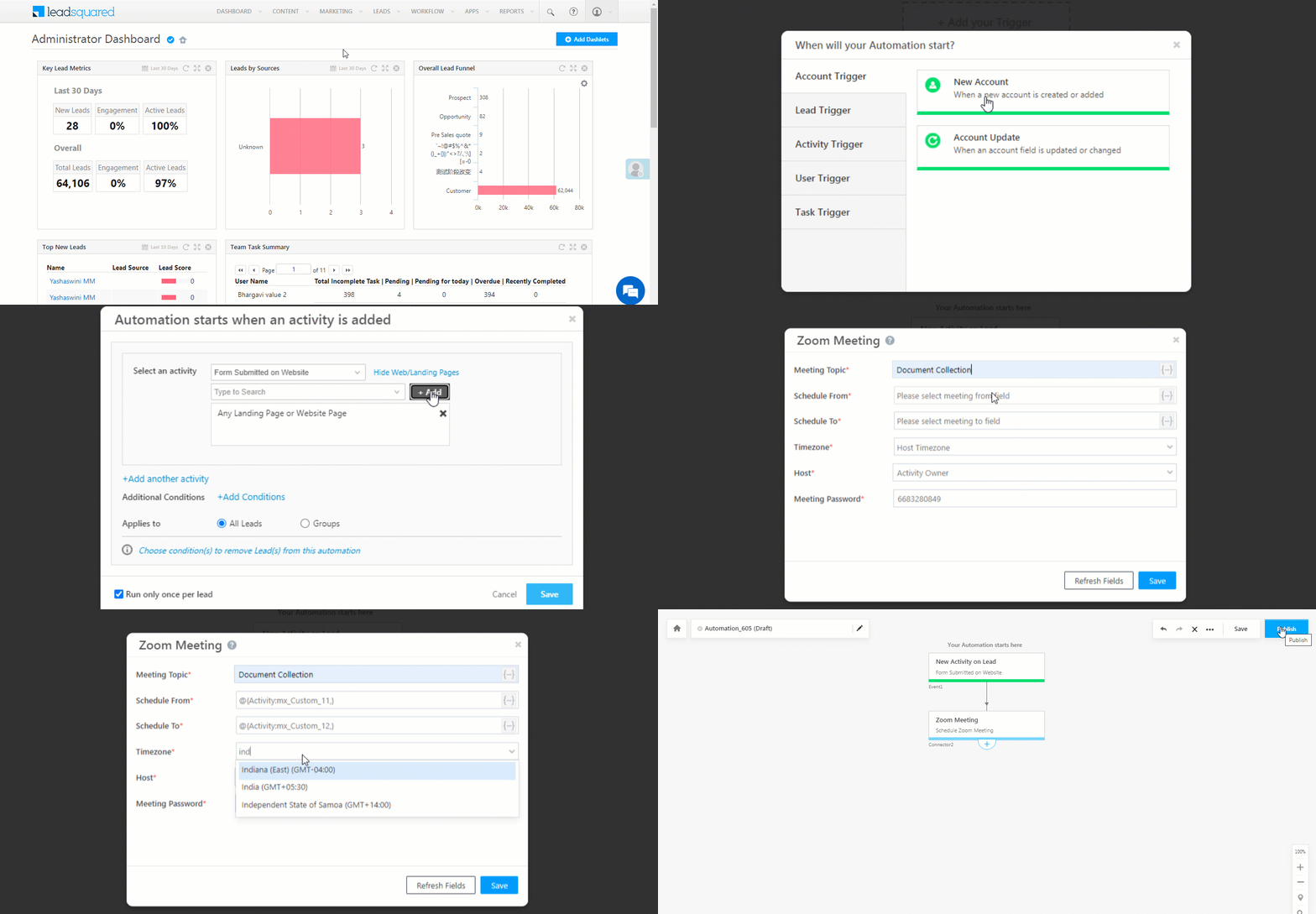
You can automatically create Zoom meetings for leads using automations. For example, whenever a new lead is created in your account, you can automatically create a Zoom meeting (to demo your products, onboard the lead, etc.) for that lead and assign the concerned user as the host. A task will be automatically created for the user and you can also track the lead’s behavior through Zoom meeting activities.
To know more about automations, please refer to Automation Home. Some examples of where you can automate Zoom meetings are –
  • Automated demo scheduling based on website form submission.
  • Automated scheduling of video meetings based on triggers such as lead triggers, activity triggers, task triggers, etc.
To create Zoom meetings –
  1. From the main menu, navigate to Worklow>Automation.
  2. On the automation page, you can either edit an existing automation, or to create a new automation, click on Create Automation.
  3. After creating a trigger, click the icon, then click Online Meeting, and then click Zoom Meeting.
  4. On the Zoom Meeting pop-up, enter the following details –
    1. Meeting Topic – The name for the Zoom meeting.
      • To include lead’s name as part of the meeting topic, click the Merge icon, then select the Lead trigger, and select the relevant lead name field.
    2. Schedule From – The meeting date and time from which the meeting is scheduled, as selected by the lead.
      • To use a merge field from the form the lead has filled, click the Merge icon, and then select the field from which the date and time can be mapped.
    3. Schedule To – The meeting date and time to which the meeting is scheduled, as selected by the lead.
      • To use a merge field from the form the lead has filled, click the Merge icon, and then select the field from which the date and time can be mapped.
    4. Timezone – The timezone in which the meeting is to be scheduled in.
    5. Host – The user from .
    6. Meeting Password – The meeting password that’s been generated for the Zoom meeting.
  5. Once you’ve entered the details, click Save.
    • To reset the fields to their default values, click Refresh Fields.
  6. Click Publish once you’re done.

ZoomM_Automations_1


10. Uninstall the Connector in LeadSquared

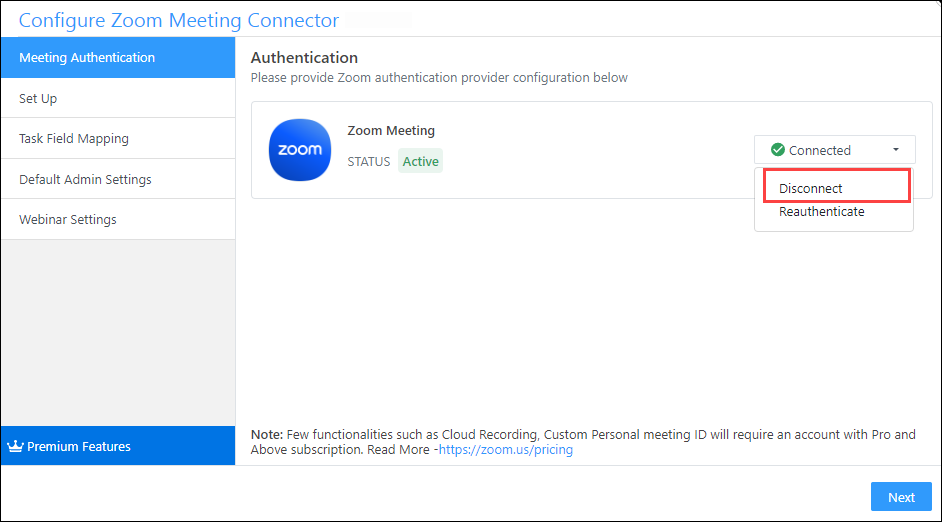
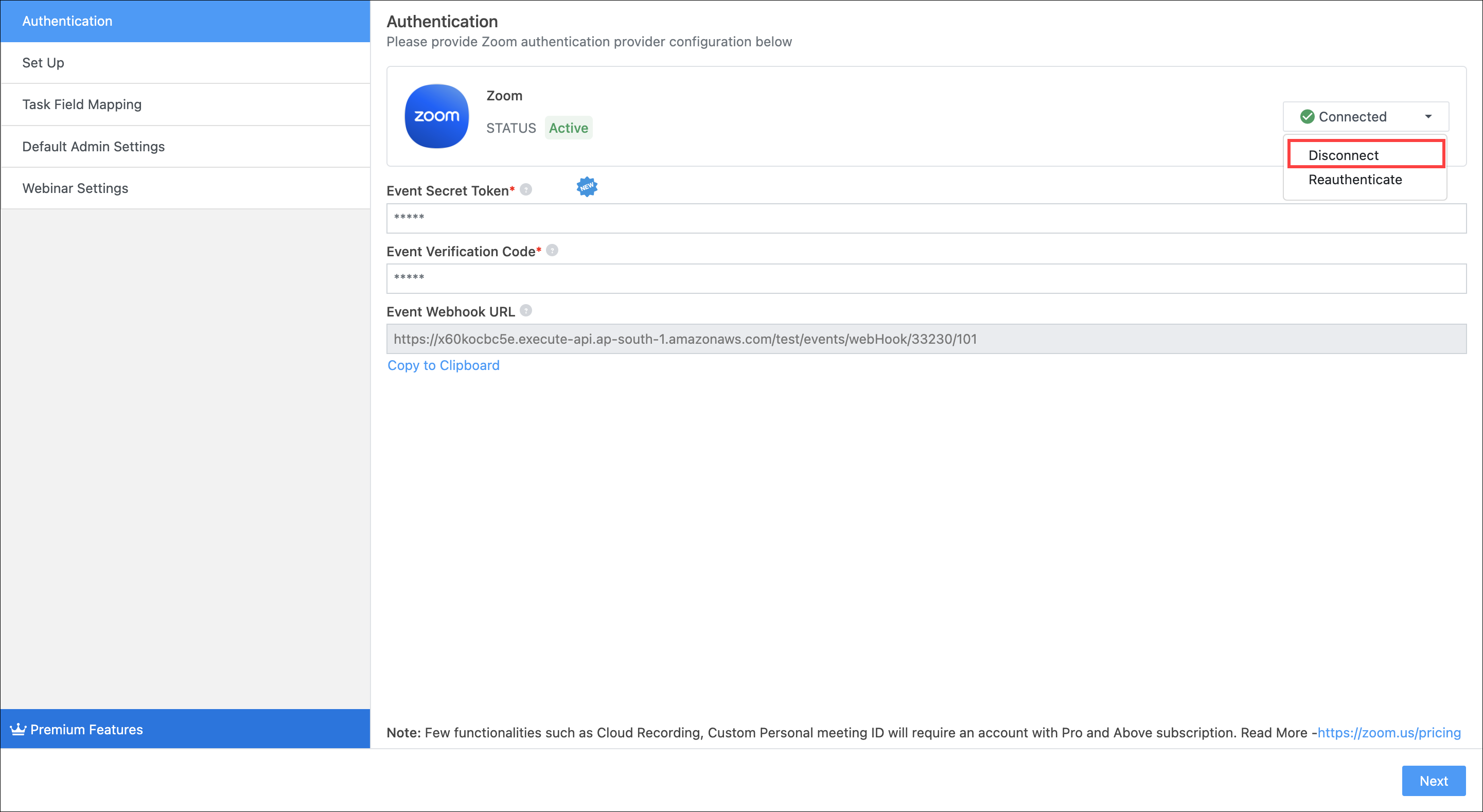
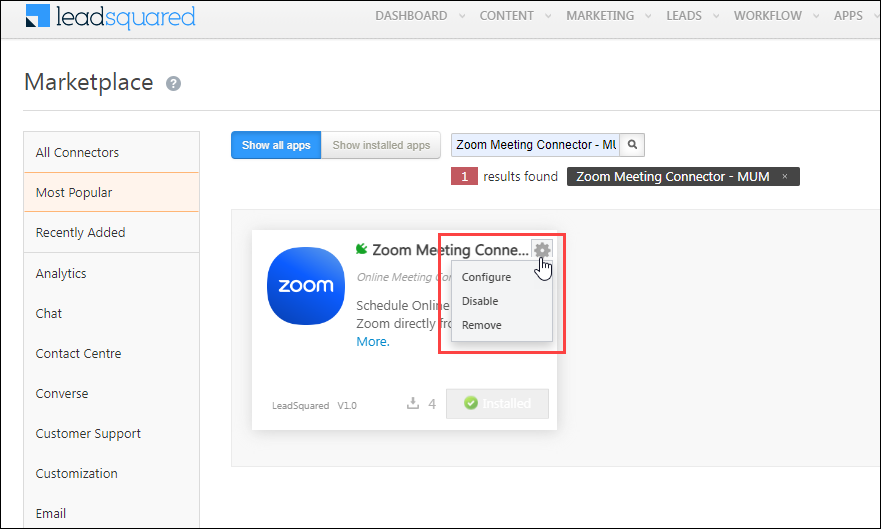
To disconnect your Zoom account from the Zoom connector –

  1. On the main menu, navigate to Apps>Apps Marketplace and search for Configure Zoom Meeting Connector.
  2. On the connector, hover your cursor over the settings icon, and click Configure.
  3. Click the Connected button, and from the list of options, click Disconnect.

Zoom Connector

Once the account is disconnected, you can uninstall the connector. To do this –

  1. On the main menu, navigate to Apps>Apps Marketplace and search for Configure Zoom Meeting Connector.
  2. On the connector, hover your cursor over the settings icon, click Disable, and then click Remove. This uninstalls the connector from your LeadSquared account.

Zoom Connector


11. Remove the App from Zoom’s Marketplace

Removing the LeadSquared app from the Zoom marketplace will result in account disconnection in the Zoom connector in LeadSquared. Once disconnected, the meeting and webinars will not be synced between Zoom and LeadSquared. We will also delete the user id data that’s stored in LeadSquared. 

To remove the LeadSquared App from the Zoom Marketplace –

  1. Login to your Zoom Account, and navigate to the Zoom App Marketplace.
  2. Click Manage, and from the left-menu, click Added Apps.
    • Alternatively, you can search for the “LeadSquared” app.
  3. Alongside the LeadSquared app, click Remove.

Zoom Connector


12. How to Raise a Support Ticket

If you’re facing any issue when using the Zoom Connector, contact your account manager, or register a ticket by writing to support@leadsquared.com. To know the support SLA, refer to LeadSquared Support Processes and SLA.

Zoom Connector


Any Questions?

Did you find this article helpful? Please let us know any feedback you may have in the comments section below. We’d love to hear from you and help you out!

How to Create a Custom Dashboard

1. Feature Overview

Dashboards present important marketing and sales metrics related to your account.
Your dashboard is the first page you see when you log in to your LeadSquared account. Each dashboard is customizable and comprises –

  • A number of dashlets (default and custom) or,
  • A custom report (configured using an external URL)

All users can create dashboards, while Admins can also share the dashboards they create with other teams.

LeadSquared Custom Dashboards

Note: To gain analytics and insights into your entire sales pipeline, learn about SIERA’s Sales User Dashboard.


2. Create Your Own Dashboard

All users can create their own dashboards –

  1. On the main menu, click Dashboard>Create New Dashboard
  2. Name your dashboard, then click Create

Dashboards you create will be displayed under the My Dashboards sections –

LeadSquared Dashboards

2.1 Add Dashlets

  1. Click the Add Dashlets button
    • Use the Select Category drop-down to filter dashlets by category or just scroll down and select the dashlets you want. Click Add when you’re done
    • To build custom lead distribution dashlets, click the Dashlet Builder button (for more information, see Custom Dashlet Builder App). If you want to display your own dashlets or reports, see the ‘Add Your Own Report’ section below.
  2. Each dashlet has options for time frame customization, refresh, expand and delete.

LeadSquared Custom Dashboards


2.2 Organize and Align Dashlets

You can drag and drop dashlets to rearrange them.

LeadSquared Dashlet

Note: Different dashlets have different default dimensions. You cannot resize dashlets.


3. Add Your Own Report

Here’s an example of an external report displayed on your LeadSquared dashboard –

LeadSquared Custom Report

Click the your own report link.

LeadSquared Custom Dashboards

Enter the following details in the pop-up and click Save when you’re done. –

  • Report URL – The URL where your report will be retrieved from.
  • Report Height – Lets you configure the display size of the report.

Note: You can even add the SIERA Dashboard to Your LeadSquared Dashboard  –

  1. Navigate to Reports>SIERA>Dashboards>All Dashboards.
  2. Click on the siera sales dashboard copy link icon icon againt the SIERA Dashboard and click Copy Embed URL.
  3. Paste the link in the Report URL field.

LeadSquared Custom Dashboards


4. Mark a Dashboard as Default

Click the following icon to set a dashboard as default –

LeadSquared Custom Dashboards


Any Questions?

If you have questions, let us know in the comments section. We’ll get back to you as soon as we can.

Lead Automation Actions – Send to Sub-Automation

1. Feature Overview

This article explores the ‘Send to Sub-Automation’ action. Use it to –

  • Keep your main automation brief and simple by sending additional steps to a sub-automation.
  • Re-use a standard sequence of steps across different automations.
  • Build a large network of automations without running out of automation cards/nodes (Only 50 nodes are allowed in a single automation).

It is available in the Marketing>Automation section as a new action in the automation condition and action card.

Note: Sub-automations created with Lead-type triggers can only be used in other automations that also have Lead-type triggers. They cannot be used in automations that are based on different trigger types, such as Activity-type triggers.

Send to Sub-Automation action

Example Use Case

Let’s take a simple example –

You’re sending out an email to all new leads.

You want to follow one long course of action (Flow A) for leads that open your email and another (Flow B) for those that don’t.
Before you branch out into Flow A or B, your automation may look something like the screenshot on your left.

The green + icon under the If/Else automation card will branch out into Flow A, your positive flow for the leads who opened your email.

The red + icon will branch out into Flow B, the negative flow for leads who didn’t open the email.

The sub-automation feature now lets you send both flows (A and B) to separate sub-automations and keep your parent automation clean. What’s more, you can re-use Flow A and B across any new automations you create.

Automation Example


2. Using Sub-Automations

To access the sub-automation option –

  1. Click the + icon under an automation card. (the green icon or the red + icon in our example).
  2. Under Actions, click Send to Sub-Automation.
  3. The Send to Sub-Automation pop-up will appear. Any sub-automation you save will be displayed here. For now, click the Create a New Sub-Automation link.
  4. A new tab will open. Click the icon (+) under the Sub-Automation node to create a sub-automation. From this point in, the process for creating the sub-automation is exactly the same as creating the main automation.
    If you’re unfamiliar with creating automations, see How to Create an Automation.
  5. Use the pencil icon in the top left corner to change the name and description of the sub-automation (Flows A and B in our example).
  6. Once you’ve laid out the steps in your sub-automation Save it if you’re going to edit it later. If you want to use it right away then Publish it. Once published, you’ll be directed back to your main automation.

Sub Automation Feature


Points to Remember

  • Only published sub-automations will show up in the Send to Sub-Automation pop-up. You can send your main automation to any sub-automation you published previously.
  • You can create sub-automations to a maximum of three levels (Main Automation>Sub 1>Sub 2>Sub 3).
  • You can create up to 500 sub-automations.

LeadSquared Sandbox

1. Feature Overview

LeadSquared Sandbox enables you to create a test environment from scratch or duplicate your existing Live Production account, to test and evaluate LeadSquared features before subscribing to them. Once the Sandbox is created, you can continue to sync your Production Account with it, to copy over the latest configurations.

Changes made in the Sandbox account will not impact the customizations and configurations, as well as the data that’s stored in your Live account. This ensures that evaluating and deploying a new feature will not affect the day-to-day work of your users. By enabling this feature, you can create a Sandbox to carry out –

  • Product testing
  • Employee training
  • Feature evaluation

LeadSquared Sandbox

The following features can be enabled for Sandbox –

Feature Limitations
Account Fields All the existing account types, along with the fields (metadata) are copied to Sandbox (both system and custom fields).
Activity Fields All the existing activity types, along with the fields (metadata) are copied to Sandbox (both system and custom fields).
Task Fields All the existing task types, along with the fields (metadata) are copied to Sandbox (both system and custom fields).
Form Fields Only fields (metadata) are copied to Sandbox (both system and custom fields). Data for these entities is not copied to Sandbox.
Lead Fields
User Fields
Automations All the Automations, regardless of their status (Draft, Published, or Unpublished), will get created as drafts in Sandbox.
Batch Jobs All the Batch Jobs created in your Production Account, regardless of their status (Draft, Published, or Unpublished), will get created as drafts in Sandbox.
Email Campaigns All the email campaigns, regardless of their status (Sent, Scheduled, Draft, etc.), will get created as drafts in Sandbox.
Email Templates All the email templates created in your Production Account, regardless of their status (Draft or Published), will get created as drafts in the Sandbox.
Feature Licenses All the features enabled in the Production Account, along with the feature limits, will be available in Sandbox.
Images All the images uploaded to the Production Account will be available in Sandbox.
Landing Pages All landing pages created in your Production Account, regardless of their status (Draft or Published), will get created as drafts in Sandbox.
Lapps All the Lapps created in your Production Account, regardless of their status (Draft, Published, or Unpublished), will get created as drafts in Sandbox.
Permission Templates All Permission Templates created in the Production Account will be available in Sandbox. You’ll have to re-assign these templates to your users in Sandbox.
Portals All Portals created in the Production Account, regardless of their status (Draft or Published), will get created as drafts in Sandbox.
Process Designers All the Processes created in the Production Account, regardless of their status (Draft, Published, or Unpublished), will get created as drafts in Sandbox.
Shared Dashboards All the Dashboards created in the Production Account will be available. You’ll have to re-assign these dashboards to relevant teams in Sandbox.
Smart Views All the Smart View created in the Production Account will be available in Sandbox. The tabs within these Smart Views will not be copied.
UI Connectors All the connectors enabled in the Production Account, will be available in Sandbox.


2. Prerequisites

  • You must be the Administrator of your LeadSquared account in order to create Sandbox accounts.
  • You can’t use an existing LeadSquared user’s email address to create a Sandbox account. You must use an alternative email address for users in Sandbox.
  • Existing lead data will not get copied to the Sandbox account. If you want to test a feature with lead data, we suggest you use dummy data. Alternatively, you can export existing lead data from your Live account and import it into your Sandbox account.

To enable this feature on your account, reach out to your account manager, or write to support@leadsquared.com.


3. Installation and Configuration

  1. From the main menu, navigate to My Profile>Settings>Profile>Organization Settings>Sandbox Account.
  2. Click Create Sandbox Account.
  3. On the Create Sandbox Account pop-up, enter the following details –
    • User Details
      • First Name – The user’s first name.
      • Last Name – The user’s last name.
      • Email Address – The user’s email address (must be different from the production account).
    • Account Features – From the Features dropdown, select the features you want to enable on the Sandbox account.
  4. Once you’re done, click Create. Your users will receive a “Welcome to LeadSquared” email once the Sandbox account is created. Follow the instructions listed in the mail to get started.

LeadSquared Sandbox


4. Sync with Sandbox

You can sync your Production account with Sandbox to copy the latest configurations from Production. This will ensure all the features you’ve selected in the previous step are enabled in Sandbox. To sync your accounts –

  1. From the main menu, navigate to My Profile>Settings>Profile>Organization Settings>Sandbox Account.
  2. Under Sandbox Account Details, click Sync Now.
  3. On the Sync Sandbox Account pop-up, from the Features dropdown, select the features you want to sync.
  4. Once you’re done, click Sync.
  5. On the confirmation pop-up, click Yes. The selected features will get synced with the Sandbox.
Note: Once synced, all existing configurations on Sandbox will be overwritten.

LeadSquared Sandbox


5. Troubleshooting

When creating the Sandbox account, you might encounter the following errors –

Error Resolution
Access denied Append Sandbox URL with ?cc=1, and refresh the page.

For e.g., pass the following URL as  https://run.leadsquared.com/Settings/ManageSandboxAccount2?cc=1.

Cannot create Sandbox account with user’s email Id. Use an alternate email Id (one that is not present in the LeadSquared system) to create the account.


Any Questions?

Did you find this article helpful? Please let us know any feedback you may have in the comments section below. We’d love to hear from you and help you out!

LeadSquared Custom Apps

1. Feature Overview

Custom Apps will now enable you to build, release and host UI apps inside LeadSquared. You can use any UI framework to build a single page/static website (the default page is index.html). The key benefits are –

  • Efficiently manage all your customizations.
  • Easily add your apps without having to depend on external help.


2. Prerequisites

  • You must be the administrator of your LeadSquared account.
  • You must have access to the Custom Apps license.

Note – If you want to access your Custom Apps license, reach out to support@leadsquared.com, or speak to your Customer Success Executive, and they will help you out.


3. Process

3.1 Create the Custom App

  1. From the LeadSquared dashboard, navigate to Apps>Manage Custom Apps.
  2. Click the Create Custom App button.
  3. Give a relevant name for the app, and add a description if required. Once you are done, click Create.

Custom Apps


3.2 Test the Custom App

You can test the custom app on the Test Environment to see if it has been deployed correctly. Once the test is successful, you can make it live.

  1. On the Custom App homepage, under Test Environment, click on Upload Code. Name the version of the zip file you are uploading.
  2. You can drag and drop the code file, or upload it by clicking Select File. You will have to keep the following points in mind while uploading a zip file –
    1. Custom Apps can be deployed to Test Environments by uploading a Custom App Build File, as a compressed zip file.
    2. The Custom App Build File can be any build file of a static website which can be hosted and deployed within Leadsquared. While React is recommended, Custom Apps support other web frameworks as well. The maximum allowed upload size for the zip file is 10 MB. If you have complex use cases which requires a larger zip file size, you can reach out to support@leadsquared.com, or your customer success manager.
    3. Leadsquared checks for the index.html file in the root of the uploaded zip file to understand the structure, runtime logic and other information about your website. Besides requiring the index.html file to be in the root of the Custom App Build File, Leadsquared puts no other restrictions on the directory structure of your website.
  3. Once you have successfully uploaded the file, under Notes, mention points that might be important to you or your team.
  4. Once you have completed all the above steps, click Deploy to Test. The file will automatically get uploaded to the Test Environment.
  5. For a couple of minutes, the Test Environment status will stay Red red.
  6. The status will automatically turn Green green. If it doesn’t, click on the Refresh refresh icon.
  7. If your Custom App is enabled in the live environment, you can click Publish to Live.

Custom Apps


3.3 Domain Settings

To host your app on the LeadSquared domain, navigate to Overview>Finishing Up>Settings, or click the Settings tab.

  1. In the Domain Settings column, enter a subdomain name for the app you’ve created.
  2. The URL for the default LeadSquared domain is “lsqcustomapps.com
  3. Once you have added the subdomain name, click Confirm.
  4. You can choose to delete the app by clicking the Delete Custom App button.

Custom Apps


4. Version History

You can view the various versions of the code that was uploaded on this app.

  • Under Actions, click the Actions icon against any version of the code.
  • To test a previous version of the code, click Publish to Test.
  • To download a previous version of the code, click Download Zip.

Custom Apps


5. Releases

  • You can check all the versions that have been uploaded to the app under the Releases tab.
  • The default selection is All Releases, but you can also filter by Test Releases and Live Releases.

Custom Apps


6. Mange Custom Apps

Existing and newly created apps will show up under Manage Custom Apps. You can use filters to search for apps on the basis of various parameters, such as when they were created, the current status and so on. You can also edit and delete apps on this page.

Custom Apps


Any Questions?

Did you find this article helpful? Please let us know any feedback you may have in the comments section below. We’d love to hear from you and help you out!

Google reCAPTCHA on Landing Pages

1. Feature Overview

On your Landing Page, for form submission, you can now use Google reCAPTCHA instead of a number-based captcha. This will reduce spam submissions on your website.


2. Prerequisites


3. Process

3.1 Generate reCAPTCHA Keys

If you have an existing API key pair from Google for your website, you can skip this section and move to the next step.

To create an API key pair, Site Key and Secret Key, for your website –

  1. Log in to your Google account.
  2. Navigate to the Google reCAPTCHA page.
  3. Click on the Admin console button on the right-top corner.
  4. Click the + icon to register your site.
  5. Give a relevant label.
  6. Select the reCAPTCHA type (v2 or v3). If you selected reCAPTCHA v2, you can further select –
    1. The I am not a robot tickbox or
    2. The Invisible reCAPTCHA badge
  7. Under domain – register all landing page domains registered in your LeadSquared account.
  8. Accept the terms and services checkbox, then click Submit.
  9. Copy the Site Key and Secret Key that have been generated.
Note – You don’t have to register your subdomains. Register your main domains, along with the main domain of your default landing pages.

3.2 Add the Keys to LeadSquared

  1. Once you’ve successfully created the API key pair for your website, navigate to Marketing>Landing Pages and click Google reCaptcha.
  2. Depending on the reCAPTCHA type you selected, choose from the options listed on the Google reCaptcha pop-up.
  3. Paste the Site Key and Secret Key in the pop-up window, and click Save.

Google reCaptcha

3.3 Link the Keys to your Landing Page

Once you have added the keys, you will have to make reCAPTCHA live on your landing page. To do this –

  1. For an existing Landing Page, hover over the icon and click on Edit from the dropdown.
    or
    For a new landing page, complete the following on Step 02, once you have added a submission form. To know more, refer to How to Create and Publish a Landing Page?
  2. Double click on your submission form.
  3. Under Special Fields, click the Add icon against Google reCaptcha.
  4. Click on Save.
  5. For an existing landing page, scroll down to the bottom of the page, click on Save and Republish.
    or
    For a new page, click on Save and Next.
  6. You will get a report stating if your page has been successfully republished.
  7. Please wait for 10 minutes, for reCAPTCHA to become live on your landing page.

Google reCaptcha

3.4 Preview reCAPTCHA

After the 10-minute window has ended, refresh your landing page. You can now view reCAPTCHA.


Troubleshooting

Why is Captcha not working on Landing Pages?
If Captcha isn’t working, check the following:

  • Ensure all Landing Page and website domains are added in the Captcha console (If you’re using an Iframe, ensure the domain for that Iframe is also added in the Captcha console).
  • After adding the domains, update the Captcha key, re-add the Captcha field in the form, save, and republish the Landing Page.


Any Questions?

Did you find this article helpful? Please let us know any feedback you may have in the comments section below. We’d love to hear from you and help you out!

Custom Opportunity Actions Connector

1. Feature Overview

The Custom Opportunities Actions connector allows you to create and add custom actions (actions apart from the default ones provided by LeadSquared) on a single opportunity or on multiple opportunities. It allows you to extend LeadSquared’s featured actions to support a variety of use-cases, such as –

  • Add an action to call on a number stored in a custom field (For e.g., “Call Parent” where parent’s number is stored in a custom field)
  • Add an action to send all the phone numbers of the opportunities in a list to a call center application for automated calling.
  • Add an action to trigger a data post on a custom Webhook.
  • Add an action to send a custom notification to opportunity owner.
  • Show all support tickets stored in external systems (like Zendesk, FreshDesk and so on) associated with the opportunity and display it as a separate window or pop-up.
Note: Custom actions will reflect on the LeadSquared mobile app as well.

Leadsquared - Custom Opportunity Actions Connector Mobile


2. Prerequisites

  • You must be the administrator of your LeadSquared account.
  • The opportunities feature must be enabled on your account. To enable it, please write to support@leadsquared.com.


3. How it Works

The connector enables you to create a custom action using a callback URL with mailmerge parameters (such as @{Opportunity:Status, }, @{Opportunity:Owner, }, etc.). You can also configure Iframe attributes to define how your action will be displayed on the Manage Opportunity and Opportunity Details page. You can use this to create single as well as bulk actions. To use the Custom Opportunity Actions connector on your account –

  • Install the connector
  • Configure the connector
  • Use the new custom action

Opportunities Action_9


4. Install the Connector

To install the Custom Opportunities Action Connector on your account –

  1. From the main menu, navigate to Apps>Apps Marketplace.
  2. In the search box, type “Custom Opportunity Actions”, and click the Search icon.
    • Alternatively, from the left panel, click UI Customization. The Custom Opportunity Actions connector is listed on this page as well.
  3. On the Custom Opportunity Actions connector, click Install.

Opportunities Action_1


5. Configure the Connector

You must configure the connector to add custom actions. To do this –

  1. Once the Custom Opportunity Actions connector is installed, hover your cursor over the icon, and click Configure.
  2. On the Configure Custom Opportunity Actions pop-up, select the area you want the action to appear from the left panel – Opportunity Grid Row Action or Opportunity Grid Bulk Action.
  3. Click Add Action.

Opportunities Action_4

Enter the details of the custom action.

Attribute Description
Action Label The display name of the action. This attribute is mandatory.
Opportunity Type The opportunity type for which you want this action to appear.
Action Type Three action types are available –

  • Show as Popup
  • Call an API
  • Open in New Window
Show Tab In To make the tab visible on your Web App and/or Mobile App, click the Checkbox checkbox.
Callback URL Enter the HTTPs URL which will be rendered as a custom action. The URL should be of an action that accepts LeadSquared mail merge fields as parameters and passes them to an external application (e.g., a support system, another CRM or marketing system, another LeadSquared account, etc.) to get the data. Click the question markquestion mark iconicon to view the available mail merge fields. This attribute is mandatory.
Iframe Attributes Pass Iframe attributes you want to render on the pop-up. Applicable only for the Show as Popup action type.
HTTP Method GET and POST methods are supported.
Content-Type application/json is the only supported content type.
Data You can pass any data here in the JSON format.

Once you’re done, scroll to the bottom and click Save.

Notes:

  • To delete an existing custom action, click the delete icon against the action’s name.
  • To edit an existing custom action, on the Configure Custom Opportunity Actions pop-up, click the Down Arrow icon and makes changes, and click then Save.

Custom Opportunity Actions_E_1


6. Use the Custom Row Action

To view the custom row action –

  1. From the LeadSquared main menu, navigate to Leads>Manage Opportunities>Opportunity Type.
  2. Against an existing opportunity, hover your cursor over the icon, and select the custom action from the dropdown list.

Opportunities Action_7


7. Use the Custom Bulk Action

To view the custom bulk action –

  1. From the LeadSquared main menu, navigate to Leads>Manage Opportunities>Opportunity Type.
  2. Select the opportunities you want to view the bulk action for, by clicking the Checkbox checkbox.
  3. Hover your cursor over the Leads button, and select the custom action from the dropdown list.


Opportunities Action_9

Note: It will take up to 30 minutes for the custom action to appear on the Manage Opportunities page.


Any Questions?

Did you find this article helpful? Please let us know any feedback you may have in the comments section below. We’d love to hear from you and help you out!

Call Tracking Metrics Texting Connector

1. Feature Overview

The CallTrackingMetrics texting connector lets you send texts to leads directly from your LeadSquared account. In addition, you’ll be able to –

  • Set up automated SMS campaigns with notifications and reminders.
  • Track incoming and outgoing SMS logs as activities.
  • Eliminate the need to switch between multiple applications to manage SMS activities.
  • Analyze the performance of your all campaigns sent through LeadSquared.

For the CallTrackingMetrics telephony integration, see LeadSquared CallTrackingMetrics Connector.

Note: MMS messages are supported.


2. Prerequisites

  • You must be an administrator user of your Leadsquared account.
  • Your account plan must support SMS integration.
  • You must have an active account with CallTrackingMetrics.


3. Installation

  1. On the main menu, navigate to Apps>Apps Marketplace and search for “Call Tracking Metrics”.*
  2. Click Install.
  3. Once installed, hover your cursor over the settings settings wheel, then click Configure.

* You can also find it under the SMS category on the left pane.

CTM Texting Installation


4. Configuration

The configuration wizard will take you through four steps – Authentication, Phone Numbers, Permissions, and Compliance.

4.1 Authentication

CallTrackingMetrics Authentication

Field Where you can find it 
Account Number In your CTM account, under Settings.

CTM account ID

Access Token In your CTM account, under Settings>Account Settings>API Integration, click show basic authentication token.

auth token CTM

Next,

  1. Copy the Incoming Message Webhook URL.
  2. In your CTM account, navigate to Settings>API Integration, then click Webhooks.
  3. Click New Webhook.
    1. Enter a name and a description.
    2. Select the Trigger as After a text message has been received.
    3. Click Save Changes.
  4. Under Callback URL paste the paste Incoming Message Webhook URL you copied from the LeadSquared configuration wizard.
  5. Click Save Changes.

Leave the remaining settings as they are.

Inbound webhook settings CTM

4.2 Phone Numbers

Phone numbers in your CTM account will be displayed here. First set a Default Company Number. This number will be used for outgoing SMS when no agent number is available.

Ctm phone number config

Ensure that the numbers shown above are added under the Agent Phone Numbers field for your users (My Profile>Manage Users>Edit User).

agent phone numbers manage users.

Click Save and proceed to the Permissions tab.

4.3 Permissions

In this step, you can assign SMS permissions at the user role level. Under Other Configurations, you may select alternate activities to assign to message and opt-out events, however, we recommend that you keep the default options. You can also use the checkbox at the bottom to prevent the system from sending messages to phone numbers without country codes.

CTM SMS Permissions

When you’re done, click Save and proceed to the Compliance step.

4.4 Compliance

Use the slider enable icon to enable or disable the compliance settings. You can use the default keywords and messages for opt-out and opt-in, or click Edit to create your own.
When leads send you a message with the specified keyword, they will be opted-out or in, and the message set here will be automatically delivered to them. Click Save when you’re done.

CTM compliance settings


5. Configure SMS Templates

Once the app is installed, you can configure SMS templates –

  1. From the main menu, navigate to Apps>Manage CTM Templates. You can create and manage all your templates on this page.
  2. Click AddTemplate.
  3. Enter the template details, then click Save.

Note: Click the mail merge code icon icon to add mail merge fields to your message.

Create CTM SMS Templates


6. Send SMS

You can now send either one-to-one or bulk SMS campaigns to your leads. When you initiate the send text action, you’ll see the following pop-up.

Send text CTM popup

Field Description
Sending Message to You can send messages to multiple numbers saved under the lead.

Send Message To Send Text popup

Multiple leads will show up while sending Bulk SMS.

bulk SMS CTM connector

From You can send the message from the main virtual number configured in the connector, or from other numbers saved under the agent. To add more numbers to an agent, navigate to My Profile>Settings>Users and Permissions and edit the user’s agent number details.

Send Text pop-up From field description

Campaign Name This option appears while sending bulk SMS. Enter a campaign name to identify different SMS campaigns.

Note: Your campaigns can be analyzed using the CTM Reports feature.

Message Body You can type your own custom message in the body and make use of templates.
Templates select template icon See section 5 above to configure SMS templates.
Mail Merge mail merge code icon Lets you select lead and user mail merge parameters.
Attachments attachment icon You can send MMS messages with attachments.

Note:

  • File names should not contain any special characters. Only period (.), dash (-) and underscore (_) are allowed.
  • Supported filetypes include – image/jpeg, image/png, image/jpg, image/gif, text/vcard, text/directory, text/x-vcard.
  • Max file size is 4 MB.

6.1 One to One SMS

You can send one to one SMS to leads from the Manage Leads and Lead Details pages.

6.1.1 Manage Leads

  1. On the main menu, navigate to Leads>Manage Leads.
  2. Under Actions, click the settingsSettings iconicon.
  3. Hover your cursor over Messaging, then click Send Text.

Send SMS from Manage Leads

6.1.2 Lead Details

On the lead details page,

  1. Hover your cursor over Lead Actions.
  2. Under Messaging, click Send Text.

Send SMS Lead Details

6.1.3 Automation

You can also send SMS to leads through automation.

  1. Navigate to Workflow>Automation.
  2. Create a new automation or edit an existing one.
  3. After selecting the type of automation and the trigger, click the add expand icon, click Messaging, then click Send Text.

For more information, see How to Send SMS through Automation.

send SMS through Automation

6.2 Bulk SMS Campaigns

Send bulk SMS to your leads from the Manage Leads or Manage Lists pages.

6.2.1 Manage Leads

  1. On the main menu, navigate to Leads>Manage Leads.
  2. Select the checkboxes alongside the leads you want to send SMS to.
  3. Under the Actions menu, hover your cursor over Messaging, then click Send Bulk Text.

Note: Use filters or the advanced search feature to find the leads you want to message.

send bulk text

6.2.2 Manage Lists

You can send bulk SMS to your lead lists from the Manage Lists page.

  1. Navigate to Leads>Manage Lists.
  2. Under Actions, click the settingsSettings iconicon.
  3. Hover your cursor over Messaging, then click Send Bulk Text.

CTM Manage Lists


7. SMS Activities

You can track your sent and received SMS from the Lead Details or Manage Activities pages. We automatically post either SMS Sent or SMS Received activities in real-time.

7.1 Lead Details

You can also click on the SMS Sent link for each activity to view more details.

CTM SMS activities

7.2 Manage Activities

You can also view the list of leads with SMS activities. Be sure to select either SMS Sent or SMS Received activities from the Activity Type drop.

Manage Activities SMS activities


8. Delivery Reports

Delivery statistics are available for both one to one and bulk SMS campaigns.

  1. On the main menu, navigate to Apps>CTM Delivery Reports.
  2. Use the tab options to view data on single or bulk SMS campaigns.

SMS CTM Delivery Reports


9. Troubleshooting

  • Issue: Inbound texts are not being pushed to LeadSquared from CallTrackingMetrics (CTM).
  • Possible Causes:
    • Incorrect webhook added on CTM.
    • Webhook trigger not configured correctly.
  • Solutions:
    • Incorrect Webhook: Verify the correct webhook in the authentication tab of the CallTrackingMetrics Texting connector.

LeadSquared Call Tracking Metrics Telephony Integration

    • Incorrect Trigger Configuration: Review the current trigger settings for the webhook and adjust them as needed.

LeadSquared Call Tracking Metrics Telephony Integration


Any Questions?

Was this article helpful? Leave us a comment and let us know.

How To Find the Root Cause of Performance Issues

1. Overview

Performance issues may have any number of underlying causes. These may be at the level of the entire LeadSquared application or a specific feature or service. When reporting an issue, it’s important to be clear on whether the issue is the result of genuine slowness, or the result of an error.
This article will help you understand the different types of performance issues you may encounter and the best way to troubleshoot each of them.

Note: Before attempting to diagnose or troubleshoot any issue, first check our status page for ongoing issues.


2. Network Issues

First, try and identify if the issue is user-specific or occurring for every user.

Ask Your Colleagues 

  • Are other sites being affected or just LeadSquared?
  • Is your entire team experiencing slowness?
  • Is the issue occurring for users on different connections? For example, if you’re using a wired connection, is the issues occurring for users on Wi-Fi as well?
  • If you have employees in other offices or working remotely, are they also experiencing the same level of performance?

If you answered ‘No’ to the questions above, you’re likely to be facing a network issue and not a LeadSquared specific problem. Many user-specific issues can be resolved by troubleshooting your internet connection, network and browser.


2.1 Troubleshooting Network & Browser Issues

  1. Ensure that your internet connection is working fine
    1. Open other websites/applications on your browser. Are other sites slow as well or is it just LeadSquared?
    2. Perform a speed test on your internet connection. Go to https://www.speedtest.net/ to check the ping, download and upload speed of your connection
  2. Check your browser
    1. Can you reproduce the issue on another web browser?
      1. LeadSquared works best with Google Chrome and Mozilla Firefox. We recommend downloading these browsers and updating them regularly.
    2. Clear your cache and cookies. This is not only a key troubleshooting tip; it may also resolve your issue altogether. Browsers retain a lot of information to help save your preferences and load faster. Due to constant updates to LeadSquared, your browser may try to load older versions of the application. This may result in slowness and other problems. Here’s how you can clear your cache and cookies –
      1. Google Chrome
      2. Mozilla Firefox
      3. Internet Explorer
      4. Safari
    3. Certain browser extensions, add-ons, and plug-ins may cause issues while rendering pages in LeadSquared. One such plug-in is “Dark Mode Extension” which causes issues with LeadSquared.
      Try to avoid such plug-ins and/or try private browsing mode and see if the issue persists.
      If disabling all extensions worked (private browsing), try adding the extensions back one by one. Once you’ve identified the extension causing the issue, report it to us at support@leadsquared.com”.
  3. Check your network and firewall configurations
    1. It’s possible that your firewall may be blocking certain LeadSquared services. Check to see if you have any network ports that are locked down.
    2. Check if any network ports are blocked.
    3. Do you have anti-virus software installed? Temporarily disable your anti-virus and see if the issue persists.
    4. Do you have another network available? Check to see if you can reproduce the issue on the other network.
  4. Flush DNS
    The DNS cache stores the IP address of each website you visit. This helps your browser find addresses quickly, enabling faster connections. However, there are good reasons to flush your DNS, such as protecting your browsing history and helping resolve certain errors. This may solve the issue you’re currently facing in LeadSquared

    1. On Windows
      1. Press the Windows key and R to open the command line.
      2. On the Run window, type CMD and press Enter.
      3. Right click on Command Prompt and click Run as administrator.
      4. In the console, type the following command: ipconfig /flushdns
      5. If the command was successful, you will see the message “Successfully flushed the DNS Resolver Cache”.
    2. On Mac, the commands to flush DNS differ depending on the version you’re running. First open Terminal, then enter the command corresponding to your OS version
      1. OS X 12 (Sierra) and later
        macbook$ sudo killall -HUP mDNSResponder;sudo killall mDNSResponderHelper;sudo dscacheutil -flushcache
      2. OS X 11 (El Capitan) and OS X 12 (Sierra)
        macbook$ sudo killall -HUP mDNSResponder
      3. OS X 10.10 (Yosemite) | Versions 10.10.4+
        macbook$ sudo dscacheutil -flushcache;sudo killall -HUP mDNSResponder
      4. OS X 10.10 (Yosemite) | Versions 10.10.1, 10.10.2, 10.10.3
        macbook$ sudo discoveryutil udnsflushcaches
      5. OS X 10.9 (Mavericks)
        macbook$ dscacheutil -flushcache; sudo killall -HUP mDNSResponder
      6. OS X 10.7 (Lion) and 10.8 (Mountain Lion)
        macbook$ sudo killall -HUP mDNSResponder
      7. OS X 10.5 (Leopard) and 10.6 (Snow Leopard)
        macbook$ dscacheutil -flushcache
      8. OS X 10.4 (Tiger)
        macbook$ lookupd -flushcache
    3. On Linux,
      1. Most current Linux distributions do not use a DNS resolver cache in the same way that Windows and Mac OS X use. To confirm which particular daemon is installed for your Linux distribution, check the website or its forum pages.


2.2 Generating a Traceroute for Troubleshooting

When troubleshooting slowness, our support team may need additional information about the path your browser takes to get to your LeadSquared instance (https://subdomain.leadsquared.com). You need to generate a traceroute to your LeadSquared instance, as well as to https://www.google.com/ to help us analyze the performance issue.

Windows

  1. Press the Windows key and R to open the command line.
  2. On the Run window, type CMD and press Enter.
  3. In the Dos window, type “tracert <subdomain>.leadsquared.com”, then press Enter.
  4. Copy the results of the traceroute.
  5. Repeat the steps with “tracert google.com”, then press Enter.
  6. Copy the results of the traceroute.
  7. Email us (support@leadsquared.com) the results of both traceroutes labeled appropriately.

Mac

  1. Open the Network Utility app (you can search for it using Spotlight).
  2. Click the Traceroute
  3. Type “https://<subdomain>.leadsquared.com”, then click Trace.
  4. Copy the results of the traceroute.
  5. Repeat the steps for “google.com”.
  6. Copy the results of the traceroute.
  7. Email us (support@leadsquared.com) the results of both traceroutes labeled appropriately.


2.3 Unresolved Issues

  • If the issue is still unresolved and can’t be reproduced on other machines, contact your IT team and reference this article.
  • If the issue is specific to one machine, it is most likely caused by a group policy setting, antivirus, or other software interfering with LeadSquared.
  • If the issue still persists, please feel free to reach out to us at support@leadsquared.com. Let us know what browsers you’ve tried, which users are experiencing the problem, detailed replication steps, and screenshots (if any).


3. Errors on the LeadSquared Platform

You may receive certain errors while using LeadSquared. These shouldn’t be confused with slowness issues. Here are some examples of errors –

Area Error Possible Cause
Entire Platform Error Processing Your Request Database issues on our side
500 Oops!
APIs 504 Database issues on our side
500 Code Issues
429 API Rate Limits. Check our API Rate Limits article to learn about your plan and steps to manage rate limits.


3.1 Troubleshooting Errors

  1. Wait for a few minutes and then re-try. Our database may be facing heavy loads. If you wait and try again your request may get processed successfully.
  2. If you’re still receiving an error, contact us at support@leadsquared.com and report the specific error(s) you’re receiving.


4. Slowness on the LeadSquared Platform

If you’ve followed all the steps above and are confident that the issue is not caused due to a problem on your side, use this guide to determine the best course of action for each issue.

  1. Is everything slow, or is it just one LeadSquared page (e.g., dashboard, manage leads, manage activities, etc.) that is experiencing issues?
  2. Is there a specific action that you’re unable to take? (For example, search is taking too long, page filters are not loading, bulk updates are not working, etc.)

Use the categories below to narrow down the issue –

4.1 Overall Platform Slowness

Pages such as Manage Leads, Manage Activities, Manage Tasks, Smart Views, Lead Details, etc. are slow.

  1. Navigation from one page to another is slow.
  2. Create, update and delete operations on leads, activities, tasks, etc. are slow.

Troubleshooting

Contact us at support@leadsquared.com

Console Information 

  1. Mention the issue type as ‘Pages Not Loading’ and include the name of the page(s)
  2. Let us know which browsers you’ve tried, which users are experiencing the problem, detailed replication steps, and any screenshots (if any).
  3. You can give us more details on the issue by sharing a screenshot of any console errors.
    1. On your browser, right-click on the page that is slow, then click Inspect. (Alternatively, you can enter Ctrl+Shift+I).
    2. Now navigate to the Console tab and take a screenshot. This will help us identify the element(s) that may be causing the issue.

console errors

Capture .har file

  1. On your browser, right-click on the page that is slow, then click Inspect. (Alternatively, you can enter Ctrl+Shift+I).
  2. Select the Network tab, then enable the Preserve log checkbox.
  3. The small red circle in the top-left of the console indicates that it is recording. If the circle is black, click on it to begin recording.
  4. Navigate the scenario or reproduce the issue. You will observe that data is being collected.
  5. Click the red circle to stop recording after the error is observed.
  6. Right-click in the list of entries loaded and select Save as HAR with Content to download the .har output file.

Note: Please select the Network Issue Troubleshooting icon on the top right corner under Sources to avoid a pause message or debugger tool message.


4.2 Automation

4.2.1 Trigger Delay

Sometimes the automation trigger may take time to fire. In these cases, leads may not immediately enter your automation based on the triggered action (new lead, lead update, activity update, etc.).

Causes
Database issues on our side.

Troubleshooting 

  1. Check if a bulk trigger is used in the automation. For example, if you have enabled the trigger on import option and import 25000 leads, it might take longer to trigger the automation for all 25000 leads. Please check the request history page to ensure that the import action is successful. 
  2. If you’re still receiving an error, contact us at support@leadsquared.com
    1. Report the issue as ‘Automation Trigger Delay’
    2. Provide details of the automation (name, link), sample leads and support access to your account.


4.2.2 Card to Card Delay

Leads in your automation may be taking time to move from one card to another.

Causes
Delays due to queuing, database issues, automation not set up optimally, etc.

Troubleshooting 

  1. Automations use a staggered re-try logic where the re-try takes place every 5 minutes up to 3 times. If you wait about 20-30 minutes, the lead may enter your automation successfully.
  2. Ensure the automation is set up optimally. One major reason for card to card slowness is too many If/Else evaluation cards stacked one below the other. A great feature to help you address this issue and optimize your automation is the Multi If/Else condition.
  3. If the issue still persists after you’ve optimized the automation, contact us at support@leadsquared.com, report the issue as ‘Automation Card to Card Delay’ and provide the automation name.


4.2.3 Delay in Wait Condition

The wait condition may sometimes execute with a delay. For example, you may have set a wait condition for 5 mins, but the wait card may execute after 10 mins, causing a delay in the automation chain. 

Causes
Delays due to queueing, database issues, etc.

Troubleshooting 
Contact us at support@leadsquared.com, report the issue as ‘Delay in Wait Condition’ and provide the automation name.


4.2.4 CRON Delay

The CRON job may sometimes execute after the configured scheduled time. 

Causes
Delays due to queueing, database issues, etc.

Troubleshooting 
Contact us at support@leadsquared.com, report the issue as ‘CRON Delay’ and provide the automation name.


4.3 Bulk Actions

You may face slowness while performing the following bulk actions –

  1. Import
  2. Export
  3. Update
  4. Delete

Causes
Your bulk action request gets queued and then executed by LeadSquared. When large numbers of records are involved, this may take some time.

Troubleshooting

  1. Each request you make gets queued. Avoid making multiple requests for the same actions.
  2. Navigate to the Request History page and check the status of the bulk update operation. Refresh the page to see the latest, updated status.
  3. Bulk delete requests are processed overnight, so you can only expect to see the refreshed data the next morning.
  4. If you still haven’t received your data, contact us at support@leadsquared.com and report the issue with –
    1. Details of import/export action + screenshots.
    2. Support access to your account.


4.4 Email Campaigns

You may face one of the following slowness issues with emails campaigns –

  1. Bulk emails (emails sent to a large number of leads)
  2. Scheduled emails
  3. Tracking

Causes

  1. If you send a large number of emails, they may take time to get delivered to all recipients.
  2. Scheduled emails may also sometimes get delayed due to database issues.
  3. LeadSquared tracks email opens, clicks and other metrics in the Email Campaign Report. This data may sometimes take time to reflect in the report.

Troubleshooting 
Contact us at support@leadsquared.com and report the exact email campaign issue. Be sure to provide the email campaign name and support access to your account.


4.5 Connectors and Telephony

Apps and connectors in the Apps Marketplace help integrate your LeadSquared account with other third-party services like SMS, cloud telephony, social media services, etc. These connectors may be slow for a number of reasons.

Causes
Many of our connectors use third-party APIs and web services. In these cases, a delay may be caused due to issues with third-party services.

Troubleshooting
Contact us at support@leadsquared.com, report the issue as ‘Connector Slowness’ with

  1. Details of the connector (name of the connector/connector Id).
  2. Sample leads and screenshots.
  3. Support access to your account.


4.6 Rules, Webhooks, and Lapps

4.6.1 Rules Delays

Rules may execute with a delay after the triggering event.

Causes
Delays due to queueing, database issues, etc.

Troubleshooting 

  1. Contact us at support@leadsquared.com, report the issue as Rules delay and provide the rule name.
  2. We suggest moving from rules to the newer and more powerful – Automation feature, to avoid issues of this type.


4.6.2 Webhook Delays

Webhook execution may be delayed at times.

Causes
Delays due to queueing, database issues, etc.

Troubleshooting
Contact us at support@leadsquared.com, report the issue as ‘Webhook Delay’.


4.6.3 Lapps Delay

Lapps may have code issues that cause delays and slowness.

Causes
Delays due to queueing, database issues, etc.

Troubleshooting 

  1. Check Lapps logs.
  2. Contact us at support@leadsquared.com, report the issue as Lapps delay and provide the Lapps details.


Any Questions?

Did you find this article helpful? Please let us know any feedback you may have in the comments section below. We’d love to hear from you and help you out!

Custom Field Sets (CFS)

1. Feature Overview

A Custom Field Set (CFS) is a reusable group of fields that can be added as a field type within a lead, activity, or opportunity. Instead of adding individual fields one by one, you define the group once and attach it wherever needed.

Common examples include:

  • KYC Documents — Passport, PAN Card, Aadhaar Card, Address Proof
  • Education Qualifications — College, Degree, Year, Grade
  • Business Address — House Number, Street, City, Zip, State, Country

This article covers how to create, configure, enable, and disable custom field sets. Once created, see the following articles to attach a CFS to your records:


2. Prerequisites

You must be an administrator to create and configure custom field sets.


3. How It Works

You create a CFS by defining a name, selecting which record types it applies to (leads, activities, or opportunities), and configuring the fields it contains. Once saved, the CFS appears as a selectable field type when you add fields to a lead, activity, or opportunity form.

For example, a field sales team collecting KYC documents could use a CFS as follows:

  1. Create a CFS called “KYC Documents” with file-type fields for Passport, PAN Card, Aadhaar Card, and Address Proof.
  2. Create an activity called “KYC Document Collection”.
  3. Add a field to that activity and select the “KYC Documents” CFS as the field type.

Field agents can then upload documents directly within the activity each time they collect KYC from a lead.


4. Create a Custom Field Set

  1. Go to My Profile>Settings>Leads>Manage Custom Field Set and click Create.
  2. Enter a Name and an optional Description.
  3. Select the record types this CFS should be available for:
    • Lead Integration — available as a lead field type.
    • Activity Integration — available as an activity field type.
    • Opportunity Integration — available as an opportunity field type.
  4. Click Next.
  5. Configure the fields for the CFS. For each field, select a Field Type from the dropdown. Supported types are Number, String, Date, DateTime, Dropdown, User, File, and Lead.
    • To make a field mandatory, select the checkbox alongside it.
    • For File or Dropdown type fields, click the settings icon to configure additional options (see Field Type Options below).
    • To capture location data, add a Geolocation CFS field. This includes Address, City, State, Country, Pin, Latitude, and Longitude by default, and supports capturing the current location via the LeadSquared mobile app.
  6. Click Save.
  7. Design the layout of the CFS by dragging and dropping fields to reorder or hide them.
  8. Click Next to finish.

The CFS will now appear in the grid. To edit it later, click the settings icon alongside it and select Edit.

Notes:

  • You can create a maximum of 30 fields per CFS.
  • You can create dependent dropdown fields within a CFS. The process is the same as creating Dependent Activity Fields. When you associate the CFS with an activity or opportunity, you can overwrite the dropdown values defined here.
  • Files uploaded through a CFS are private to the lead they are associated with. If a lead is deleted, all attached files are also deleted. Do not attach the same file to multiple leads without re-uploading it, as the file will become inaccessible if any associated lead is deleted.

how to create CFS

Field Type Options

File fields

Option Description
Max File Size Maximum file size in MB.
File Types Images, Videos, PDF, Documents, Any Documents or Images, or Custom.
Max Number of Files Up to 10 files per field.
Allow View on Mobile When enabled, users can view the CFS on the mobile app.
Override ‘Restrict File Upload’ Setting When enabled, users can upload files to this CFS even if file uploads are restricted elsewhere in the app.

Supported file types by category:

Category Formats
Images png, jpg, jpeg, bmp
PDF pdf
Videos mp4, webm
Documents doc, docx
Any Documents or Images png, jpg, jpeg, bmp, pdf, doc, docx
Custom All formats permitted except: ade, adp, bat, chm, cmd, com, cpl, exe, hta, ins, isp, jse, lib, mde, msc, msp, mst, pif, scr, sct, shb, sys, vb, vbe, vbs, vxd, wsc, wsf, wsh

Dropdown fields

Click the settings icon to configure the available dropdown values.

Note (accounts created after 17 June 2021): For CFS added to Activities and Opportunities, the following additional limits apply:

  • String fields: configurable to a max of 50 or 1,000 characters. At the 1,000-character limit, up to 10 text area fields are supported.
  • String-Content fields (rich-text editor with HTML support): up to 5 per CFS.
  • Dropdown fields: configurable to a max of 50 or 200 characters. At the 200-character limit, up to 20 fields are supported.
  • File-type fields: up to 10 per CFS.

Associate CFS with Activities


5. Enable or Disable a Custom Field Set

  • To disable a CFS: Click the settings icon alongside the CFS and select Disable.
  • To enable a disabled CFS: Filter the grid to show Inactive field sets, then click Enable alongside the CFS.
Note: Disabling a CFS does not affect records where it is already in use. It will continue to function for those leads and activities, but will no longer be available for new fields.

enable or disable cfs


6. Configure File Storage

By default, files uploaded through a CFS are stored securely in LeadSquared’s Amazon S3 account and are not publicly accessible. If you want to store files in your own Amazon S3 or Alibaba Cloud OSS account, you can configure this separately.

  1. Go to My Profile>Settings>Leads>Configure Custom Field Sets.
  2. Use the dropdown to select where files should be stored.

To connect your AWS account, see How to Store CFS Files on Your Own S3 Bucket.

configure custom field setrs


Any Questions?

Did you find this article helpful? Please let us know any feedback you may have in the comments section below. We’d love to hear from you and help you out!

API Logs

You can view the logs of all your API calls in the LeadSquared web application. This includes successful responses, as well as errors (provided the access key and secret key are correct).

  1. Navigate to My Profile>Settings>API and Webhooks>API logs.
  2. Use the search bar, or filter by API type, status, and date range.
  3. To view data that was retrieved or posted, under the Actions columns, hover your cursor over the settings Action Icon icon, then click View Data.

API logs page

Note: 

  • We only display 1000 logs at a time. Use appropriate filters to get a smaller set of results.
  • ​We only keep logs of the previous 30 days.
  • While searching, you can set a time range of a maximum of 7 days.

You can also export the logs to a CSV file – hover your cursor over the Actions menu, and click Export Logs. You can only export up to 1000 results.

export API logs

For more information visit our API Documentation.

Assign Custom Dashboards to Teams

1. Feature Overview

Admins can create customized dashboards to track and analyze key performance metrics across teams within the organization. Dashboards can be configured to display data from external analytics and BI tools (Tableau, PowerBI, Logi, etc.) to LeadSquared users.

Note: Only admins can share dashboards with other teams. However, all user roles (marketing users, sales managers, sales users) can create dashboards for themselves. Dashboards created and shared by admins are listed under ‘Shared Dashboards’, while ‘My Dashboards’ lists the ones created by other non-admin users.

LeadSquared Analytics


2. Prerequisites

  • You must be the Admin of your LeadSquared account.
  • You must create Teams in your account.


3. Create the Dashboard

Admins can create shared dashboards from the Analytics section of their Account Settings.

  1. From the main menu, navigate to Settings>Analytics>Dashboards and click the Create button.
  2. On the popup window, enter the
    1. Name for your dashboard
    2. External webpage’s URL link from where you want to pull the report. The access key and secret key are mail merge fields supported.
    3. Height for the display size of the report.
  3. On the popup window, against the View Type dropdown, you can choose Web, Mobile, or Web & Mobile.
    • If you opt for the Web & Mobile or the Mobile view, ensure the webpage for the URL is responsive. This will maintain a uniform view across platforms.
  4. Once you’ve entered all the details, click Create.


4. Assign the Dashboard to a Team

After you’ve created the dashboard, assign it to specific teams within your organization.

  1. Navigate to the Users and Permissions>Teams.
  2. Alongside the team you want to assign the dashboard to, click , then click Apply Dashboard.
    • The “Inherit from team” option will apply the dashboard assigned to the parent team.
    • Click the icon to make this the default dashboard for the team.
  3. Select the dashboard you want to assign from the dropdown.
Note: The following GIF assumes you’re using the new Teams V2 UI, which makes it easier to assign features (dashboards, workday templates, smart views, etc.,) to teams. You can enable it from Profile>Organziation Settings>Advanced Configuration. Search for Teams and enable Switch to teams UI V2.

LeadSquared Dashboards


5. Viewing the Dashboard

When your users log in to LeadSquared, they can view all the Dashboards assigned to them. Click Lea to mark a dashboard as favourite. Starred dashboards remain at the top of the list for easier access (this is especially helpful when a large number of dashboards are available to choose from).

LeadSquared Analytics


Any Questions?

Did you find this article helpful? Please let us know any feedback you may have in the comments section below. We’d love to hear from you and help you out!

LeadSquared WhatsApp Integration with Infobip

1. Feature Overview

Today, businesses communicate with customers through many different channels (SMS, Voice, Email, Mobile Messaging, Chat, etc.). Infobip offers scalable, fast and flexible solutions to help customers build and manage a single contact center platform. To learn more about Infobip, visit https://www.infobip.com
LeadSquared offers WhatsApp integration to help users communicate with their leads. Our WhatsApp functionality supports integrations through different solution providers like Infobip. This article helps you set up WhatsApp messaging through your LeadSquared account using Infobip as your service provider.


2. Prerequisites

If you’re not familiar with LeadSquared’s WhatsApp integration, see WhatsApp Business Messaging Connector. For frequently asked questions, see WhatsApp Business FAQs.

  1. Reach out to us at support@leadsquared.com regarding Infobip WhatsApp integration.
  2. Get an Approved WhatsApp Business Number and Account.
  3. Submit Message Templates for Approval.


3. Installation

To know how to install the WhatsApp Business connector, refer to WhatsApp Business Messaging Connector.


4. Configuration

Once the connector is installed, add and configure your WhatsApp phone numbers to the connector. To do this, enter –

4.1 Basic Details

LeadSquared WhatsApp Integration

Field Description
WhatsApp Business Number Select the country code, and provide your WhatsApp business number. This field is mandatory.
Account Name Provide a relevant name for your connector. This field is mandatory.
Allow Lead Generation on incoming message Click Slider to allow automatic lead creation when you receive messages from unknown mobile numbers.
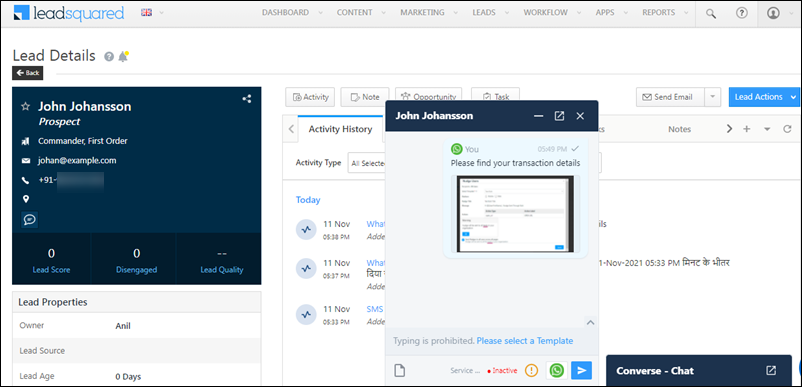
Lead Source From the dropdown, select a lead source for your leads.

Once you’re done, click Next.


4.2 Service Provider

Then, from the available options, select Infobip, and click Next.

LeadSquared WhatsApp Integration


4.3 Authentication

You can authenticate your Infobip integration through an API key or through UserName and Password.

Authentication through API Key

Infobip WhatsApp Integration

  1. Generate your Infobip API Key.
    Visit Infobip help documentation and follow the instructions to generate the API Key. Enter the key you generated in the API Key (publicAPIKey) field.
  2. Visit Infobip help documentation to get your Base URL, and paste it in the Base URL field.

Note: We recommend that you generate the Infobip API Key for a period of 1 year or longer.

To ensure the WhatsApp messaging data is posted to LeadSquared, you must now configure the Inbound Webhook in your Infobip account.

  1. Copy the Inbound Webhook URL from the Configure WhatsApp pop-up.
  2. Go to  https://portal.infobip.com/ and log in.
  3. Navigate to CHANNELS AND NUMBERS > Channels > WhatsApp > Senders tab.
  4. Select the number and from ellipsis menu, select “Edit configuration”
  5. Under Inbound Configuration , click edit icon next to Default Configuration.
  6. Paste the Inbound Webhook URL (copied in Step 1) in the URL textbox. Ensure that ‘Forwarding action’ is set to ‘Forward to HTTP’.
  7. Click Configure.

LeadSquared WhatsApp Integrations


Authentication through UserName & Password

Infobip WhatsApp Integration

Alternatively, you can authenticate using your Infobip UserName and Password.

  • Enter your Infobip account number in the Phone field.
  • Visit Infobip help documentation to get your Base URL, and paste it in the Base URL field.
  • Follow the process listed above to configure the Inbound Webhook in your Infobip account.

Click Next, when you’re done.


4.4 Converse Settings

LeadSquared Converse is an instant messaging feature that allows you to have real-time conversations with your leads via WhatsApp.

LeadSquared WhatsApp Integration

To integrate LeadSquared Converse with WhatsApp, complete the following steps –

  1. On the Converse Settings tab, toggle the Enable Converse Slider slider.
  2. Under User Access, grant permissions to users who can communicate with leads through the LeadSquared Converse.
    • Based on Role – From the Search and Select Users dropdown, select the LeadSquared user roles that can send messages through LeadSquared Converse.
    • Advanced (User Level) – Based on the value present in the selected user boolean field (e.g., For user Sam, the “Is Employee” field contains “Yes”), the user will be able to send messages through LeadSquared Converse. From the Select User Field dropdown, select a relevant boolean field. To create a new user field, see Manage User Custom Fields.
  3. Functionality – The following additional settings must be configured –
    • Approved Templates – Enable this functionality to allow your users to send approved WhatsApp templates to your leads.
    • Unapproved Templates – Enable this functionality to allow your users to send unapproved WhatsApp templates to your leads. These can only be sent if the 24-hours service window is active.
    • Notify Lead Owners* – When enabled, only lead owners will get notifications of the WhatsApp messages a lead sends. When disabled, all logged-in users will receive notifications of these WhatsApp messages.
    • Sending Rich Media – Enable this functionality to allow your users to send media files in the WhatsApp message.

Note:

  • *Message notifications are only sent to one user, i.e., either the Lead Owner or to the user (other than the Lead Owner) that sent the WhatsApp message to the lead. When the Notify Lead Owner setting is enabled, only the Lead Owner will get notified, while the user who sent the message will not get a notification.
  • If you enable the Send Rich Media option, you must also enable the Approved Templates option. This ensures that you can add your media files to a template when messaging your leads.

LeadSquared Gupshup Integration


4.5 Advanced Settings

In this screen, you must map –

  • Activity Mapping – A LeadSquared activity field to your WhatsApp messages. This is the activity that will be posted every time a WhatsApp message is sent or received.
  • WhatsApp Opt-Out – A LeadSquared lead field to the WhatsApp opt-out functionality. Your leads can opt-in or out of receiving WhatsApp messages on the basis of this field.
  • Default WhatsApp Number Fields – The number you set as the default phone number will be automatically selected when you’re sending a WhatsApp message to a lead. You can also select other numbers that are available from the Add Another Number dropdown.
  • Default Country Code – The default country code will be used to send messages to a phone number that’s stored in a custom field, if no country code is listed.
  • Enable Rich Media Template Support – If you want to include media files in your WhatsApp message, you must enable the Slider slider.
  • Compliance Type – Here, you can select the compliance type for the WhatsApp template, by choosing either WhatsApp Opt-out or Opt-in.
  • WhatsApp Opt-out – From the dropdown, select a lead field for the WhatsApp opt-in/opt-out functionality. Your leads can opt-in or out of receiving WhatsApp messages on the basis of this field.

Gupshup WhatsApp Integration

Note: You must create a custom lead field of boolean type to map to the WhatsApp opt-out functionality. For example, you may create a custom lead field called “WhatsApp Opt Out”. Leads for whom the field is selected/checked won’t receive WhatsApp messages.

Click Save & Close when you’re done.

  • If your credentials are correct, you’ll see the success message highlighted below.
  • If they were incorrect, the integration will fail.


4. Conversing with Leads via WhatsApp

Integrating Converse with LeadSquared’s WhatsApp connector will enable your users to have real-time conversations with your leads through WhatsApp. Using templatised messages, you’ll be able to attach and send media files (such as images, documents, etc.) in your conversations. To know more, refer to LeadSquared Converse.

LeadSquared WhatsApp Integration


5. Next Steps

Once the connector is successfully installed, you can proceed to add WhatsApp templates and finally message your leads. For details, see Adding WhatsApp Templates to LeadSquared.


Any Questions?

Did you find this article helpful? Please let us know any feedback you may have in the comments section below. We’d love to hear from you and help you out!

How to Customize the Lead Card on Mobile?

1. Feature Overview

You can customize the lead card on the mobile app to show the lead details you want to see. Here’s what the default lead card looks like –

lead Card

It can be customized to include the fields and identifiers your users need to see.


2. Customize the Lead Card

To customize the lead card on your mobile app –

  1. Login to the LeadSquared web application
  2. Navigate to My Profile>Settings>Mobile App>Customize Lead Card.
  3. Alongside the Customize Lead Card setting, click yes no toggle.
  4. Drag and drop the fields from the hidden field column into the appropriate sections.
  5. Click Save.

lead card customization settings


2.1 Lead Identifiers

lead card lead identifier

The default lead identifiers include –

  1. Lead Name: First Name + Last Name
  2. Email Id
  3. Phone Number
  4. Default text option.

These identifiers are displayed as 4 different options. If the first option field values are blank, the second option will be displayed. For example –

lead identifiers

With the configurations in the screenshot above,

  1. If first name + last name are blank fields then option 2 – Mobile Number will be displayed as the identifier.
  2. If Mobile Number is also blank, then option 3 – Secondary Email will be displayed as the identifier.
  3. If Secondary Email is also blank, then option 4 – a static text message will be shown.

Note:

  1. All field types can be added
  2. Two fields can be added to each option. Both fields will be displayed with a space in between them.


2.2 Lead Fields

card customisation Lead Fields

You can add only one lead field here. It is also not mandatory to add a field here, you can leave the section blank.

lead fields


2.3 Lead Parameters

lead card customisation lead parameters

The lead parameters are displayed at the bottom of the lead card. It is mandatory to add at least 1 field to this section, and a maximum of 3 fields can be added.

lead parameters

Note: Only the following field types can be added to this section –

  • Single select dropdowns
    • Maximum 3 fields can be added
  • Numbers
    • Maximum 3 fields can be added
  • Email
    • Maximum 1 field can be added
    • Email Icon will be shown on the Mobile App
  • Phone number
    • Maximum 1 field can be added


3. Lead Card on Android vs. iOS

Once you’ve customized the lead card, it will reflect instantly on the mobile app for all users.

Note:

  • Clicking on the email icon will redirect the user to an email platform of his choice with the email field value auto-populated in the ‘Send to’ section of the email.
  • Clicking on the phone icon will redirect the user to the phone dialler with the field value auto-populated in the dialler.
  • If the field value is blank, then it will be displayed as a greyed out icon.

Here’s what a customized lead card looks like on Android –

lead card customization on android

iOS –

iOS lead card customization


4. Reset the Lead Card to Default

To revert back to the default lead card –

  1. Navigate to My Profile>Settings>Mobile App>Customize Lead Card.
  2. Alongside the Customize Lead Card setting, click no yes toggle.
  3. On the confirmation dialog box, click Reset Lead Card.

reset lead card dialog


Any Questions?

Was this helpful? Leave us a comment below and let us know!