Email Settings – Feature Guide

1. Feature Overview

LeadSquared’s Email Settings feature allows you to –

  • Manage subscriptions to your email campaigns
  • Set restrictions on which users can send emails
  • Set restrictions on recipients by blocking email addresses or domains

Note:


2. Manage Email Subscription Preferences

To enable your leads to configure their subscription and manage subscription preferences, see Email Settings – Manage Email Subscription Preferences (Email Categories).


3. CC Prospects

To CC email addresses of contacts that aren’t leads in your system, see Email Settings – Recipients.


4. Block Email Addresses

To block specific email addresses from receiving your emails and view a list of these, see Email Settings – Blocked Email Address List.


5. Block Email Domains

To block certain domains from receiving your emails, see Email Settings – Blocked Email Address Domains.


6. Restrict Email Senders

To restrict your users from sending emails to leads, see Email Settings – Restrict Email Senders.


7. From Address Restrictions

To restrict a user role from sending emails on behalf of the lead owner or any other user, see Email Settings – From Address Restrictions.


FAQs

Why are emails not being sent even after DKIM and SPF settings are configured?
This could be happening for a number of reasons –

  • Ensure the sender domain is whitelisted – contact us at support@leadsquared.com.
  • You email credits may have run out. Contact the billing user in your account and ask them to replenish your email credits.
  • Check if someone in your team removed or updated DKIM/SPF settings after they were added.

Why are email open activities not being tracked?
The CNAME mapping for the email link domain may not be configured correctly, see Domain Settings for Email Links. If you need more help, contact us at support@leadsquared.com.


Any Questions?

We’d love to answer your questions or hear your own unique use cases. Feel free to share your experiences in the comments section below.

Use Custom Domains For Landing Pages Pro

1. Feature Overview

By default, landing pages created using Landing Pages Pro are hosted on a LeadSquared subdomain. To maintain brand consistency, you can instead publish landing pages on your own custom domain (e.g., pages.yourcompany.com).

This article explains how to configure a custom domain and map it to your Landing Pages Pro environment.


2. Prerequisites

  • You are an Admin user in your LeadSquared account.
  • You have access to the Landing Pages Pro feature (contact your account manager if not enabled).
  • Access to your Domain Name Service (DNS) provider’s account (GoDaddy, Hostgator, Bluehost, etc.).


3. How It Works

To publish landing pages on your custom domain securely (over HTTPS), you’ll need to configure two CNAME records in your DNS provider:

  • One CNAME record sets up an HTTPS certificate using LeadSquared’s certificate manager.
  • The second CNAME record maps your custom domain (e.g., pages.mybusiness.com) to LeadSquared’s CDN endpoint for content delivery.

You’ll switch between the Landing Pages Pro domain settings in LeadSquared and your DNS provider’s dashboard during the setup.

Here’s a quick overview of the steps involved. The following sections explain each in detail:

1. Configure the subdomain in Landing Pages Pro.

LeadSquared will generate a Name and Value pair for the first CNAME record.
This record sets up HTTPS to secure your landing pages.

2. Add and verify the first CNAME record in your DNS provider’s dashboard.

Use the values provided by LeadSquared on your DNS’s provierds dashboard and then verify. This confirms that the HTTPS certificate has been issued and is active.

3. After verification, add the CDN URL from LeadSquared on your provider’s dashboard.

This is used to serve your landing pages efficiently. Add the second CNAME record in your DNS provider. Use your custom domain as the host and the CDN URL as the value.

Once this is complete, your landing pages will be securely accessible via your custom domain.


4. Configure the Subdomain in Landing Pages Pro

To configure your subdomain on Landing Pages Pro –

  1. Navigate to Marketing>Landing Pages Pro.
  2. Click More Actions, and then select Manage Subdomains.
  3. Click + Add Subdomain.
  4. In the Domain dropdown, select + Add Domain to add a new domain.
    • Once the domain is added, it will appear in the dropdown list and can be selected.
  5. Enter the required subdomain.
  6. Click Continue.

LeadSquared will generate the CNAME Name and CNAME Value. Copy these details and configure them in your domain provider’s DNS settings (refer to the next section).

nav to create custom sub domain

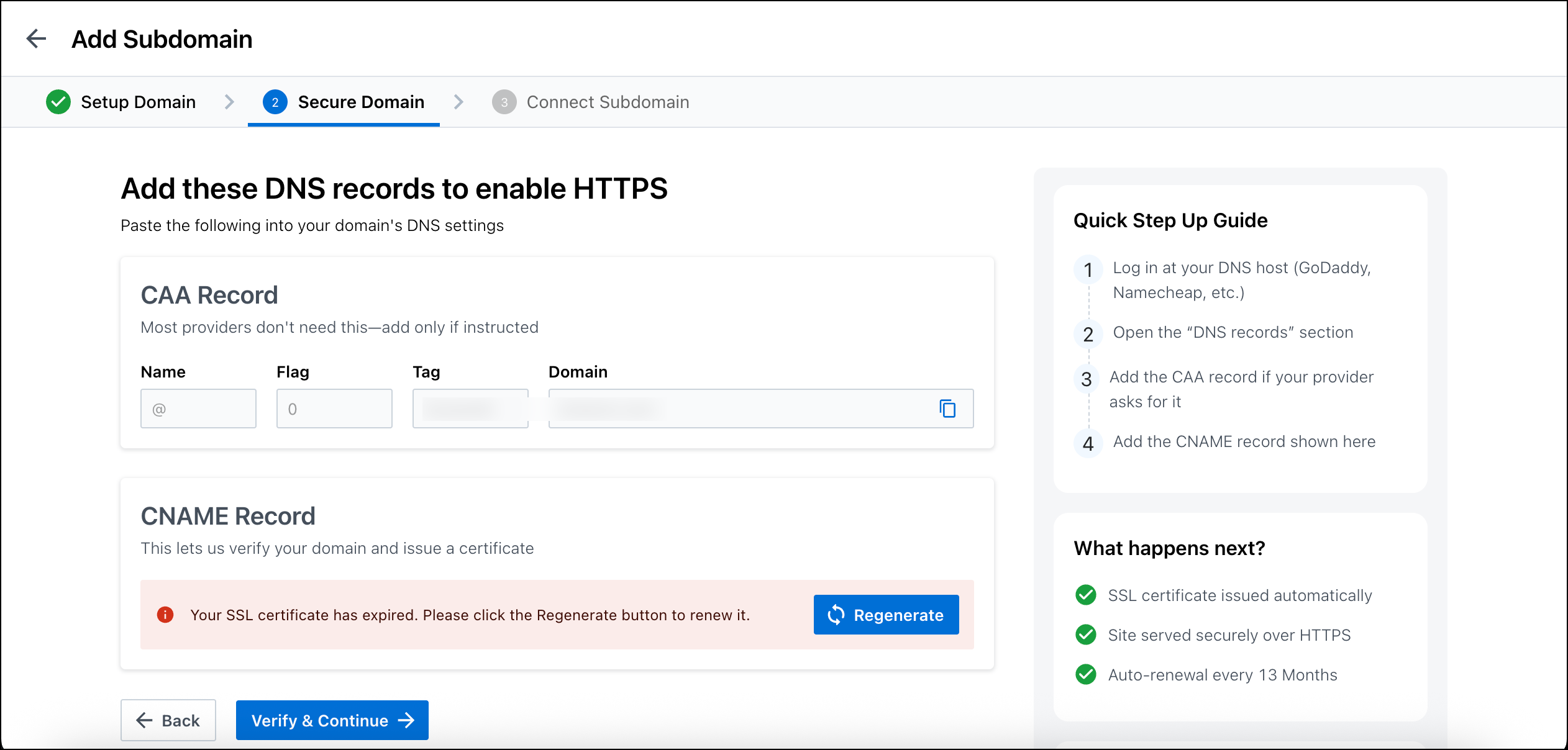
Note: The request for CNAME record entries is valid for only 72 hours. You must complete the steps below within the window. If you miss it, click Regenerate, and copy the new Name and Value.

regenerate SSL certificate


5. Create and Verify CNAME Record for HTTPS Certificate

In this step, you’ll create a CNAME record in your DNS that connects your domain to a Certificate Manager and sets up an SSL certificate. This ensures your landing pages are secure and served over HTTPS.

Here is some documentation for popular DNS providers –

  1. GoDaddy: Add a CNAME record
  2. Namecheap: How to Create a CNAME Record For Your Domain
  3. Dreamhost: Adding a Custom DNS record
  4. Bluehost: DNS Management: How to Add, Edit, or Delete DNS Entries

Log in to your Domain Name Service provider’s account (GoDaddy, Hostgator, Bluehost, etc.).

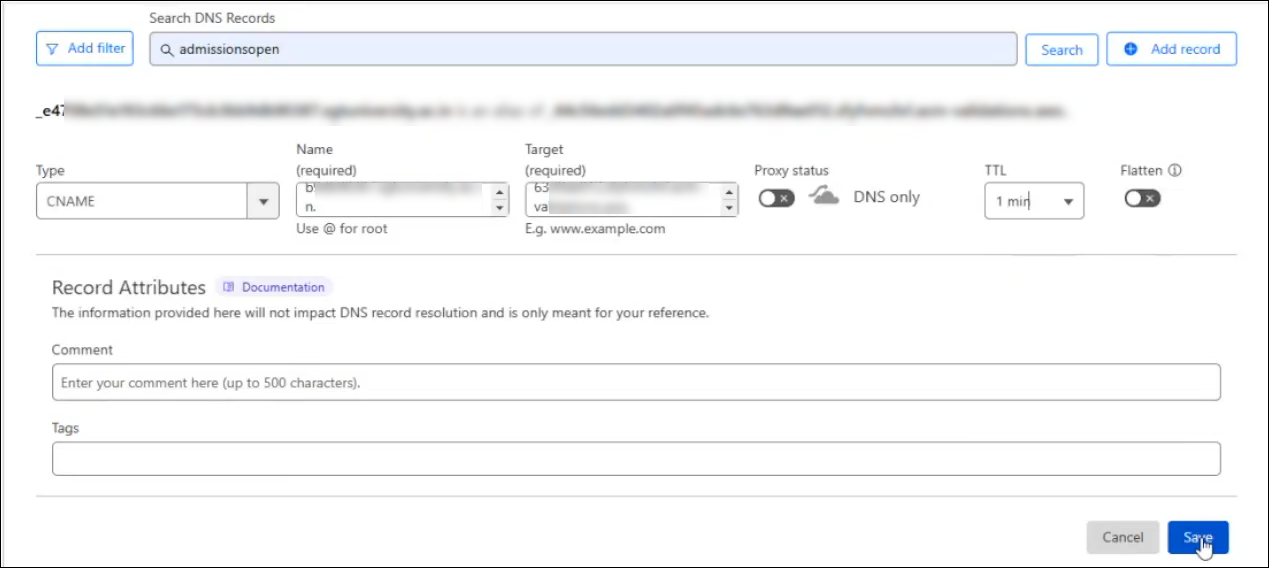
  1. Click on the DNS settings for the selected URL and create a new CNAME record entry. Paste the above values in the Name (or host) and Value (or Target) fields, respectively.
  2. Select the minimum TTL value available.
  3. Save the record.
  4. Successful configurations may take some time to reflect.

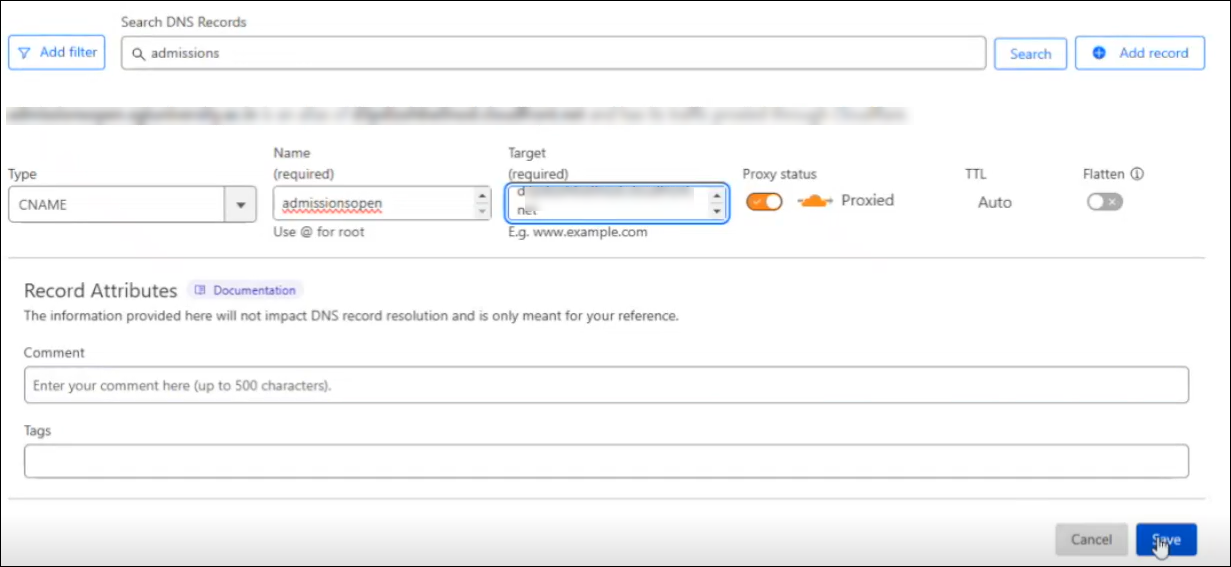
Here’s an example from a Cloudflare account –

Add CNAME name and value on host

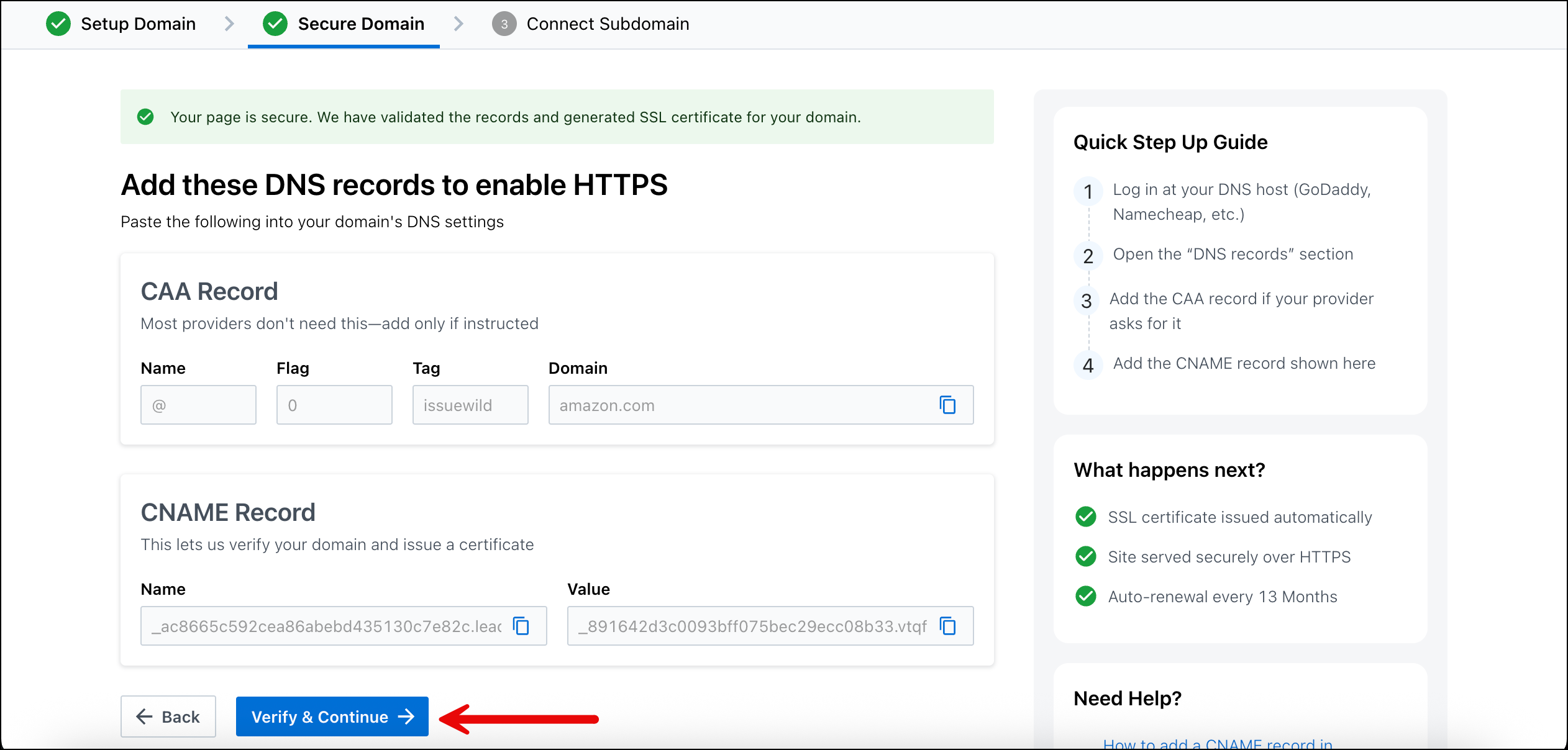
Navigate back to your LeadSquared account and on the Landing Page Pro Secure Domain page, click Verify & Continue.

Note: Always turn off proxy status on your DNS provider when verifying CNAME.

lpp subdomain verify and continue cname

Note: If you’re experiencing issues while validating your SSL certificate, review the following troubleshooting steps –

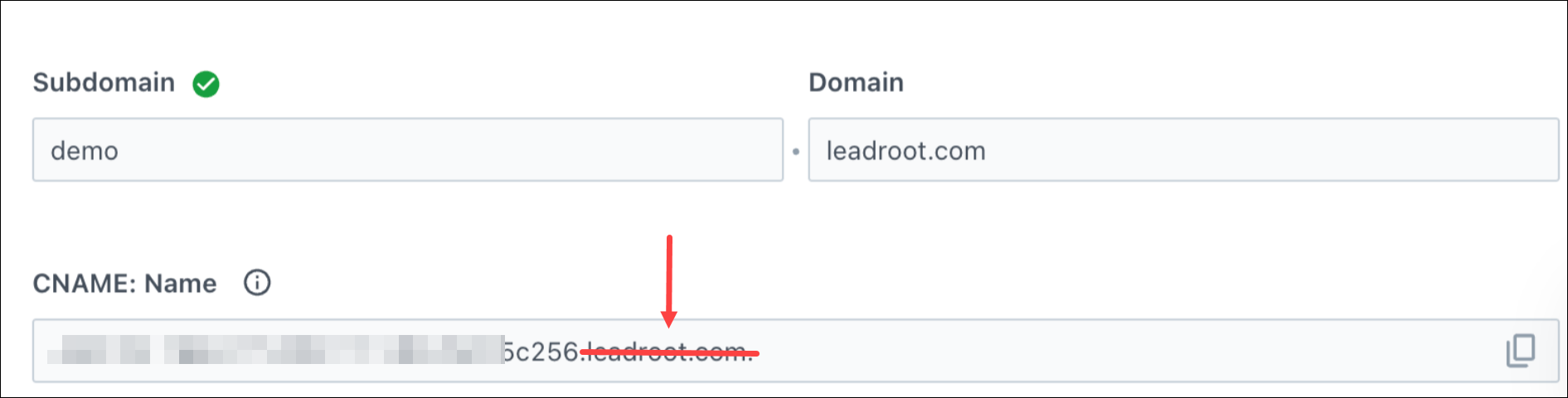
  • Domain mapped to .leadroot.com – If you’re using GoDaddy or Hostinger, ensure that the domain is not mapped to .leadroot.com. Remove any such CNAME entries, as they can interfere with SSL verification. For example, in the image below, remove .leadroot.com from the CNAME:Name field. 
    • troubleshooting leadroot lpp
  • CAA records blocking certificate issuance – Check your domain’s CAA (Certification Authority Authorization) records using a tool like nslookup.io:
    • If no CAA records are found, you can proceed with the SSL setup.
    • If CAA records exist, verify that a record allowing amazon.com is present. Specifically, the CAA record should include the issuewild tag for amazon.com. For details, refer to the AWS documentation: Set up CAA records.


6. Create and Verify CNAME record for the Sub-Domain

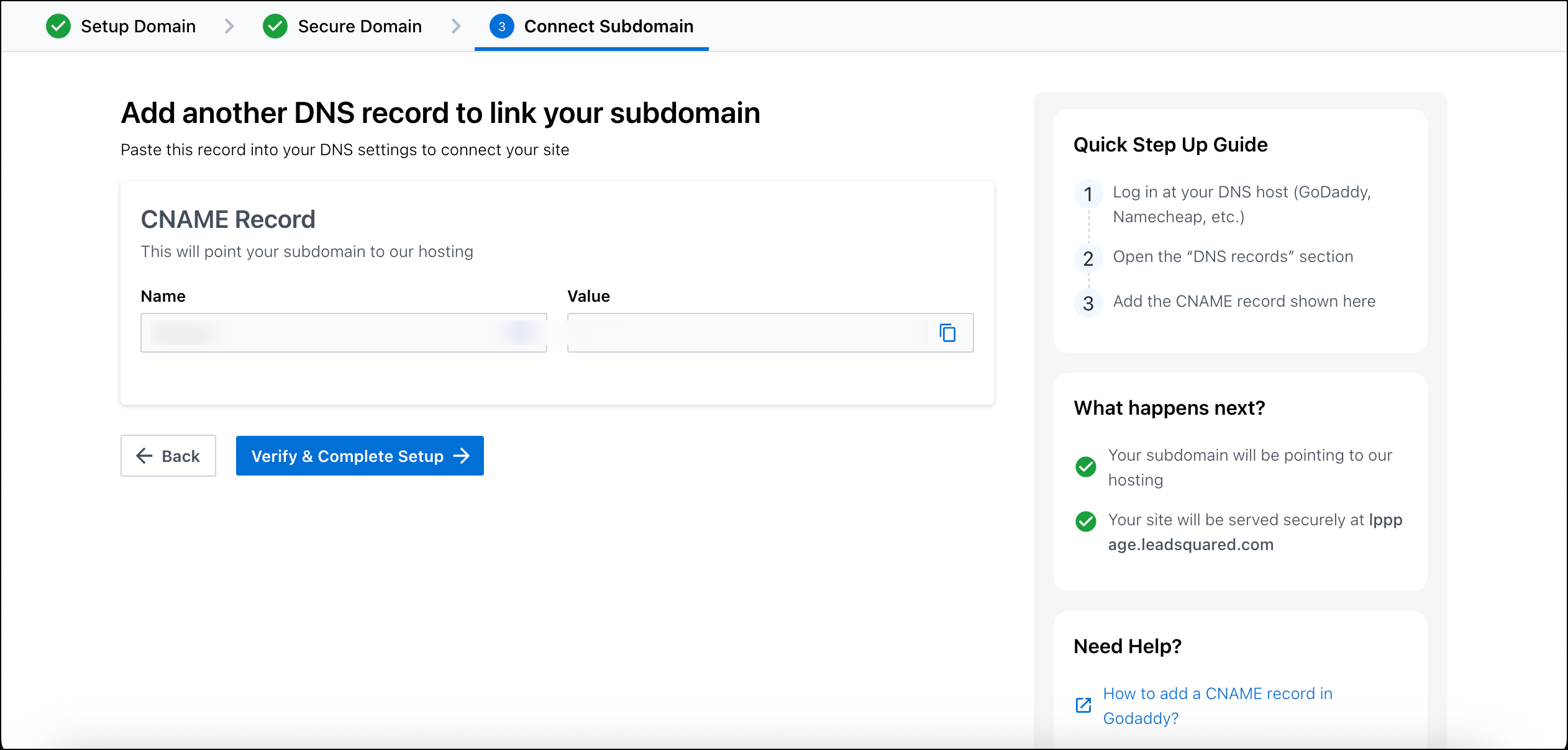
After successful verification of CNAME Name and Value, you’ll receive a CDN URL in the Connect Subdomain page. Copy this Value and use it to create a CNAME record for the subdomain.
  1. In your DNS provider’s account, click the DNS settings for the selected URL and create a new
    CNAME record entry.
  2. Paste the sub-domain name (e.g. ‘applications’ from applications.mybusiness.com) the Name (or Host) and CDN URL in the Value (or Target) fields, respectively.
  3. Select the minimum TTL value available and save the record.

add cdn on host

Navigate back to your LeadSquared account and on the Landing Page Pro Connect Domain page, click Verify & Complete Setup.

verify and complete setup custom domain step


7. FAQs

1. Should I enable auto-renewal for my SSL certificate?

Yes. We strongly recommend enabling auto-renewal for your SSL certificate through your hosting service provider during the CNAME setup process. If auto-renewal is not enabled by your hosting provider, the SSL certificate will expire, and your URL will become inaccessible. You will then need to manually complete the setup process again to restore access.

2. What should I do if I change my DNS provider?
If you switch to a new DNS provider, you must reconfigure the entire setup process. Delete the existing DNS records from your previous service provider and create the required records again with the new provider to ensure proper domain validation and SSL functionality.


Any Questions?

Leave us a comment below. We’d love to help you out!

Electronic Health Record (EHR-HL7) Connector

1. Feature Overview

An Electronic Health Record (EHR) is a digital way to store and keep track of a patient’s medical health records. The EHR-HL7 Connector follows HL7 standards to retrieve patient information from EHR systems, and populate this in corresponding lead and activity fields in LeadSquared. The connector also transfers existing lead data from your LeadSquared account to EHR systems. This connector facilitates patient registration (lead creation) and appointment management through your LeadSquared account.

Note:

  • This connector is currently available only for customers in the US.
  • This connector is only for customers who work in the healthcare domain.


2. Prerequisites

  • Before you install and configure this connector, contact your account manager or write to support@leadsquared.com to build a channel for this connector to transfer information between LeadSquared and your EHR system.
  • You must be the Administrator of your LeadSquared account to install and configure this connector.
  • This is a paid feature. To enable it, reach out to your account manager, or write to support@leadsquared.com.


3. How it Works

Before you install this connector, ensure the necessary channels are created for this connector to function as intended. Once the channels are created, install the connector to transfer lead and activity data between your EHR system and LeadSquared.

Once the connector is installed, build connector flows. This connector flow transfers patient health records and appointment activities from your EHR system to LeadSquared, and lead and activity data from your LeadSquared account to your EHR system.

  • Each connector flow can be built only for a specific event type (e.g., ADT – A08 “Update Patient”, SIU – S15 “Notification on Appointment Cancellation”, etc.).
  • You can build multiple such flows. Note that each flow only allows data to be transferred uni-directionally (one-way). Add a Message Template for each event type, in order for your EHR system to communicate with LeadSquared, and vice versa.

Once the Message Template is added, map HL7 fields in the message template to the corresponding LeadSquared lead/activity fields. This will begin the data transfer process between the two systems.


4. Install the Connector

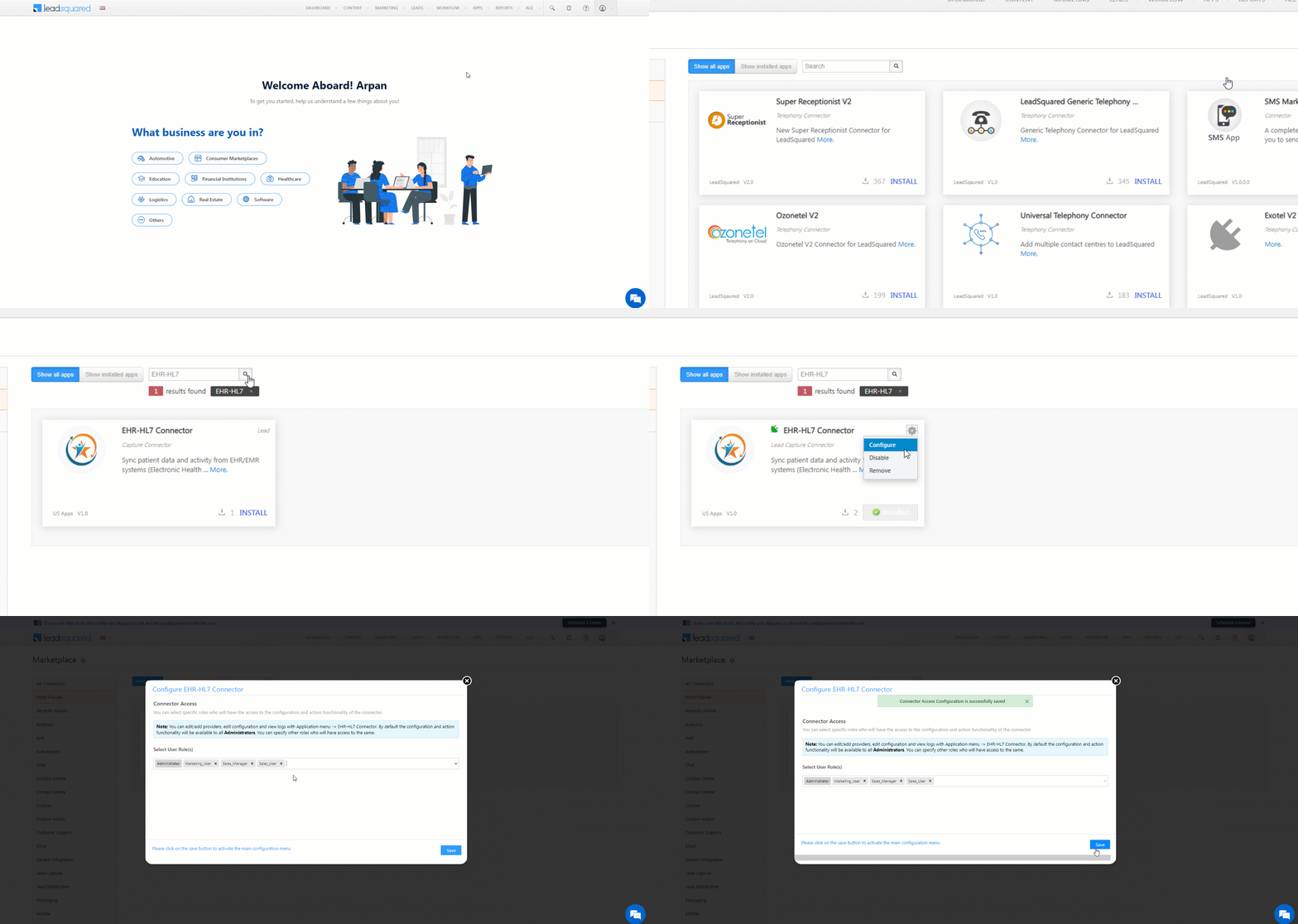
  1. Navigate to Apps>Apps Marketplace.
  2. Search for the EHR-HL7 Connector, and click Install.
    • Alternatively, you can find the connector on the left panel, under Lead Capture.
  3. Once installed, hover your cursor over , and click Configure.
  4. On the Configure EHR-HL7 Connector pop-up, from the Select User Role(s) dropdown, select the LeadSquared user roles to whom you want to grant connector access
  5. Once you’re done, click Save.
Note: By default, all Admin users will have access to the connector.

LeadSquared EHR Connector


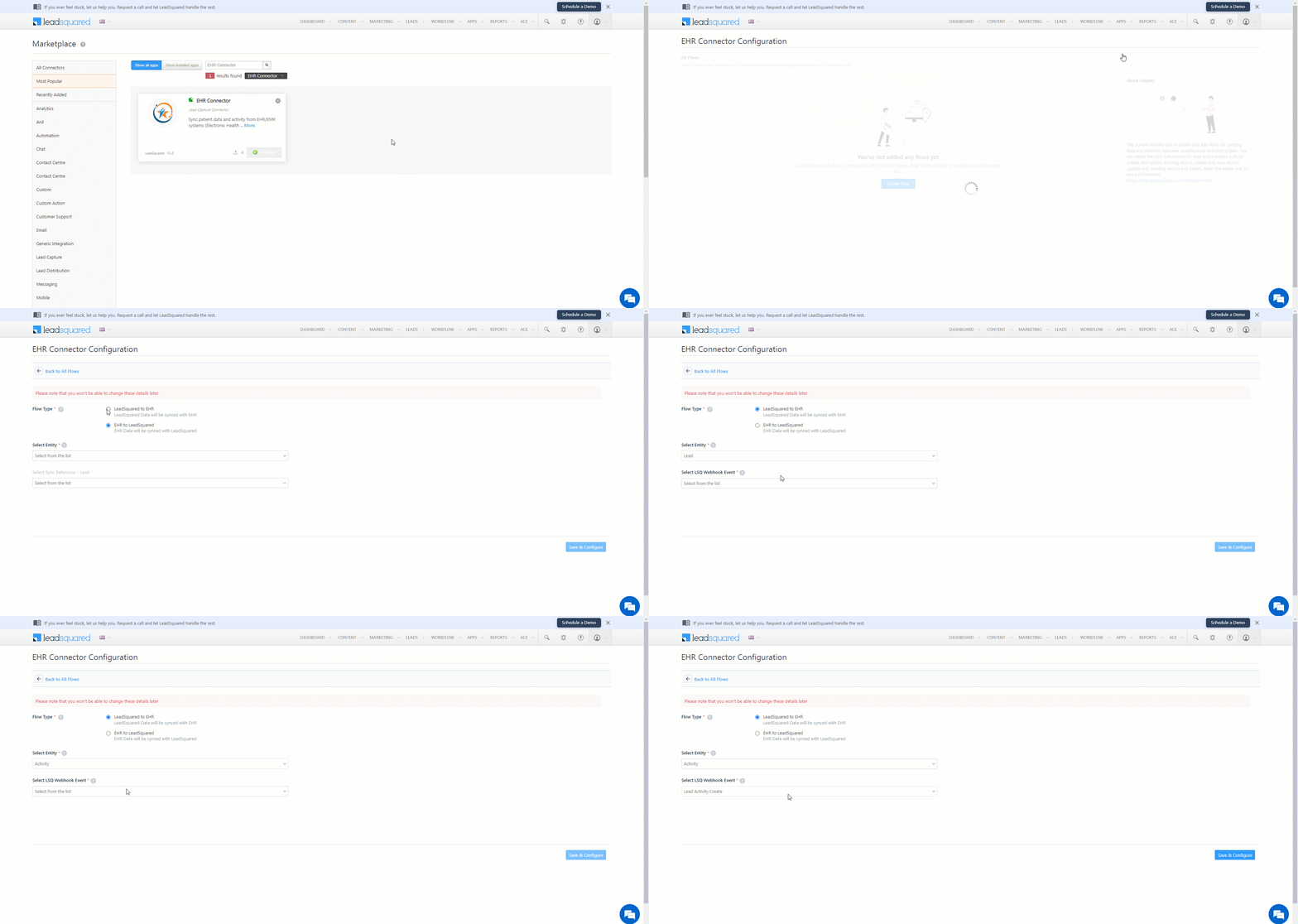
5. Create EHR System to LeadSquared Connector Flow

Once you’ve installed the connector, create flows to determine the data flow direction between your EHR system and LeadSquared. Each flow will only support one operation (e.g., Lead Create in LeadSquared, Update Activity in LeadSquared, etc.). To create flows –

Note: To perform multiple operations, you must create multiple flows, where each flow performs the desired action.
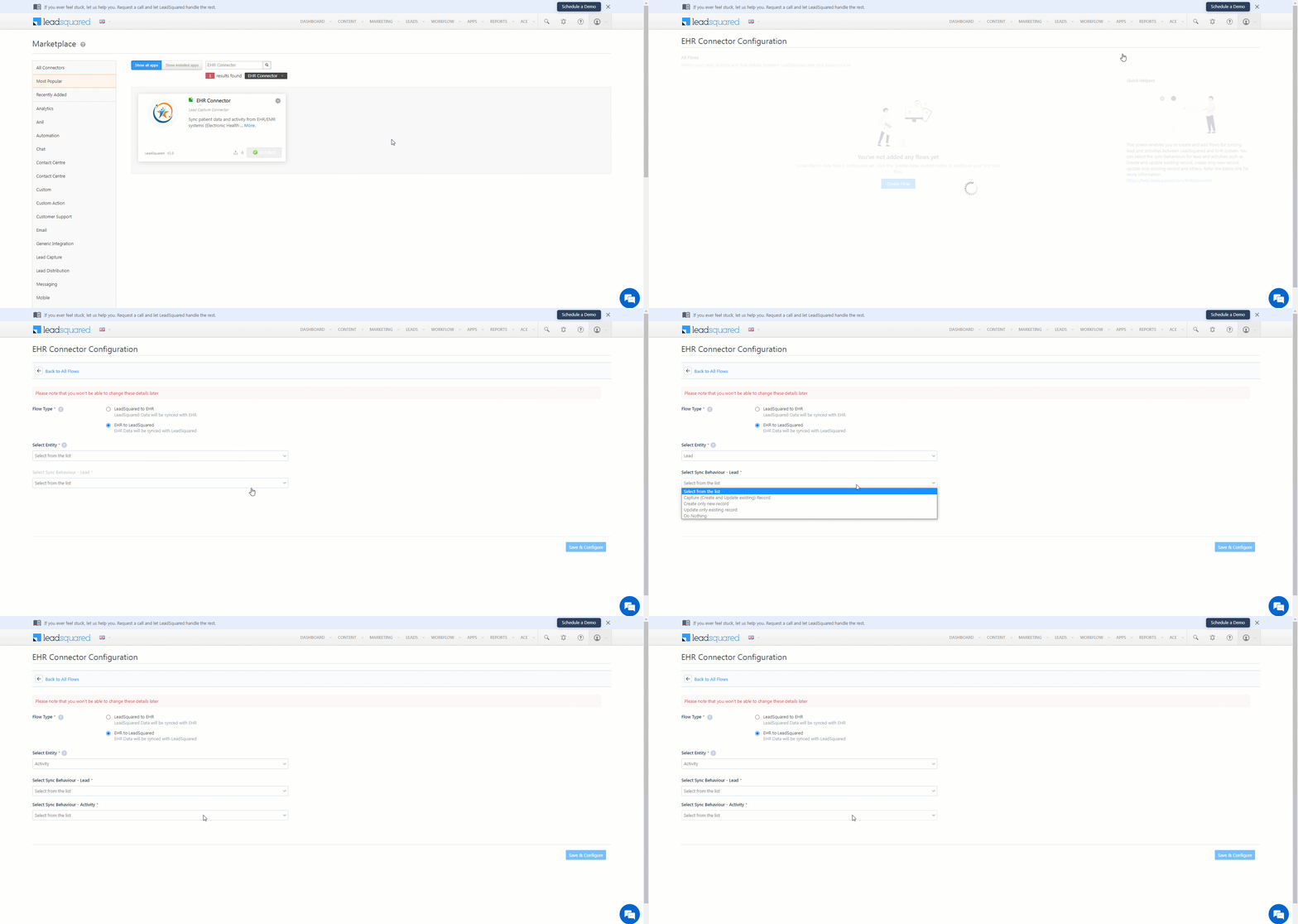
  1. Navigate to Apps>EHR-HL7 Connector Configuration.
  2. Click the Create Flow button.
  3. Alongside Flow Type, select EHR to LeadSquared. Existing patient/appointment data from your EHR system gets captured and synced with your LeadSquared account.
  4. From the Select Entity dropdown, select the LeadSquared entity type you want to sync between your EHR system and LeadSquared. The available options are Lead or Activity.
  5. Depending on the Flow Type selected, the following options are displayed –
    • Select Sync Behaviour – Lead – This option shows up if you’ve selected Lead as the entity type. Configure the connector to perform the following actions when data is transferred from your EHR system to LeadSquared –
      • Capture (Create and Update existing) Record – Patients (leads) that only exist in your EHR system (but don’t exist as leads in your LeadSquared account) will get created in LeadSquared. Leads that exist in both your EHR system and LeadSquared accounts will get updated.
      • Create only new record – Patients (leads) that only exist in your EHR system (but don’t exist as leads in your LeadSquared account) will get created in LeadSquared.
      • Update only existing record – Leads that exist in both your EHR system and LeadSquared accounts will get updated.
      • Do Nothing – When this option is selected, no action will be performed when a lead is created or updated in your EHR system.
    • Select Sync Behaviour – Activity – This option shows up if you’ve selected Activity as the entity type. Along with configuring the sync behaviour for Leads (for which you can refer to the options listed above), configure the connector to perform the following actions when data is transferred from your EHR system to LeadSquared –
      • Capture (Create and Update existing) Record – Activities (e.g., appointments, etc.) that only exist in your EHR system (but don’t exist as activities in your LeadSquared account) will get created in LeadSquared. Activities that exist in both your EHR system and LeadSquared accounts will get updated.
      • Create only new record – Activities (e.g., appointments, etc.) that only exist in your EHR system (but don’t exist as activities in your LeadSquared account) will get created in LeadSquared.
      • Update only existing record – Activities that exist in both your EHR system and LeadSquared accounts will get updated.
      • Do Nothing – When this option is selected, no action will be performed when an activity is created or updated in your EHR system.
  6. Once you’re done, click Save & Configure.

LeadSquared's EHR Connector


5. Create LeadSquared to EHR System Connector Flow

Once you’ve installed the connector, create flows to determine the data flow direction between your LeadSquared account and EHR system. Each flow will only support one operation (e.g., Patient Creation in EHR system, Update Appointment in EHR system, etc.). To create flows –

Note: To perform multiple operations, you must create multiple flows, where each flow performs the desired action.
  1. Navigate to Apps>EHR-HL7 Connector Configuration.
  2. Click the Create Flow button.
  3. Alongside Flow Type, select LeadSquared to EHR – Existing lead/activity data from your LeadSquared account gets synced with your EHR system.
  4. From the Select Entity dropdown, select the LeadSquared entity type you want to sync between your EHR system and LeadSquared. The available options are Lead or Activity.
  5. Depending on the Flow Type selected, Select the LSQ Webhook Event. Configure the LeadSquared webhook to perform either of the following actions –
    • Lead/Lead Activity Create – When selected, the webhook transfers the details of a new lead or an activity from your LeadSquared account to your EHR account, where a new lead (patient) or a new activity (e.g., appointment) is created in the EHR system.
    • Lead/Lead Activity Update – When selected, the webhook transfers the details of any lead or activity from your LeadSquared account to your EHR account, and the lead’s (patient) or activity’s (e.g., appointment) details are updated in the EHR system.
  6. Once you’re done, click Save & Configure.
Note: If you’re configuring the Select Sync Behaviour – Activity option, you must also configure what happens to the leads (patients) that are tagged to this activity type (e.g., appointments, etc.) in your EHR system.

LeadSquared's EHR Connector


6. Configure the Connector

After the connector flow is set up, configure the Flow to transfer data between the EHR system and LeadSquared.

Note: The steps below are common to both EHR System to LeadSquared and LeadSquared to EHR System connector flows.

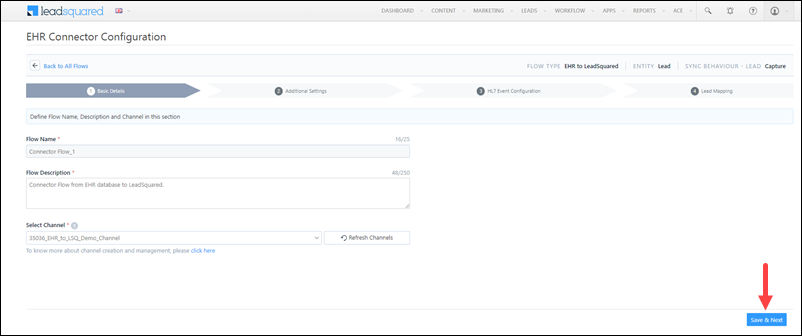
6.1 Basic Details

Enter the following details for the Flow –

  • Flow Name – A display name for the Flow Type created.
  • Flow Description – A description of the Flow Type created.
  • Select Channel – From the list of channels created for your LeadSquared account, select a channel type. To create a channel, contact your account manager, or write to support@leadsquared.com.

Once you’re done, click Save & Next.

LeadSquared's EHR Connector


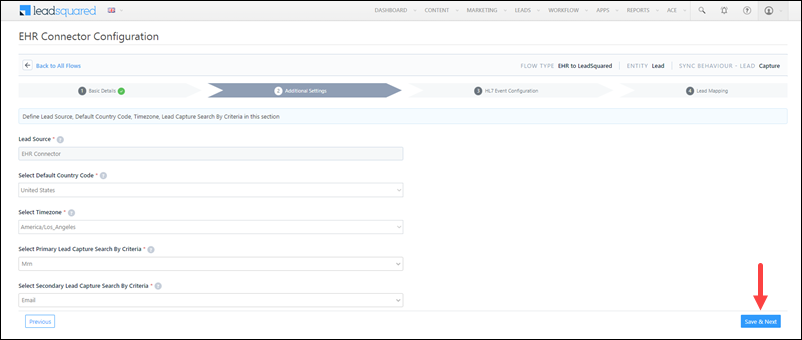
6.2 Additional Details

Enter the following additional details –

Note: All the options listed below will show up if the Flow Type is EHR to LeadSquared. But if you’ve selected LeadSquared to EHR, only Select Default Country Code and Select Time Zone will show up.
  • Lead Source – Enter the lead source through which the leads are captured (e.g., EHR connector, etc.). This detail will be displayed on the Lead Details page, under Lead Source.
  • Select Default Country Code – If the lead’s mobile number is captured without a country code, then the default country code that’s selected from the dropdown will be added to the lead’s mobile number.
  • Select Time Zone – Select a preferred timezone you want our backend system to follow when transferring data.
  • Select Primary Lead Capture Search By Criteria* – To avoid duplicate leads, you must select one unique lead field (e.g., Mrn, Patient Id, email Id, mobile number, PAN number, etc.) as the search key. This will be used to identify the leads pulled from your EHR system. To know how to mark a LeadSquared lead field as unique, please refer to How to Make a Custom Field Unique.
  • Lead Capture Secondary Search By Criteria – If lead identification and capture through the primary Search By criteria fails, it will be re-attempted using the secondary Search By criteria.

Once you’re done, click Save & Next.

Note: *The Mrn field (or a patient identifier field) should be mandatorily selected as either the Primary or Secondary Search Key.

LeadSquared's EHR Connector


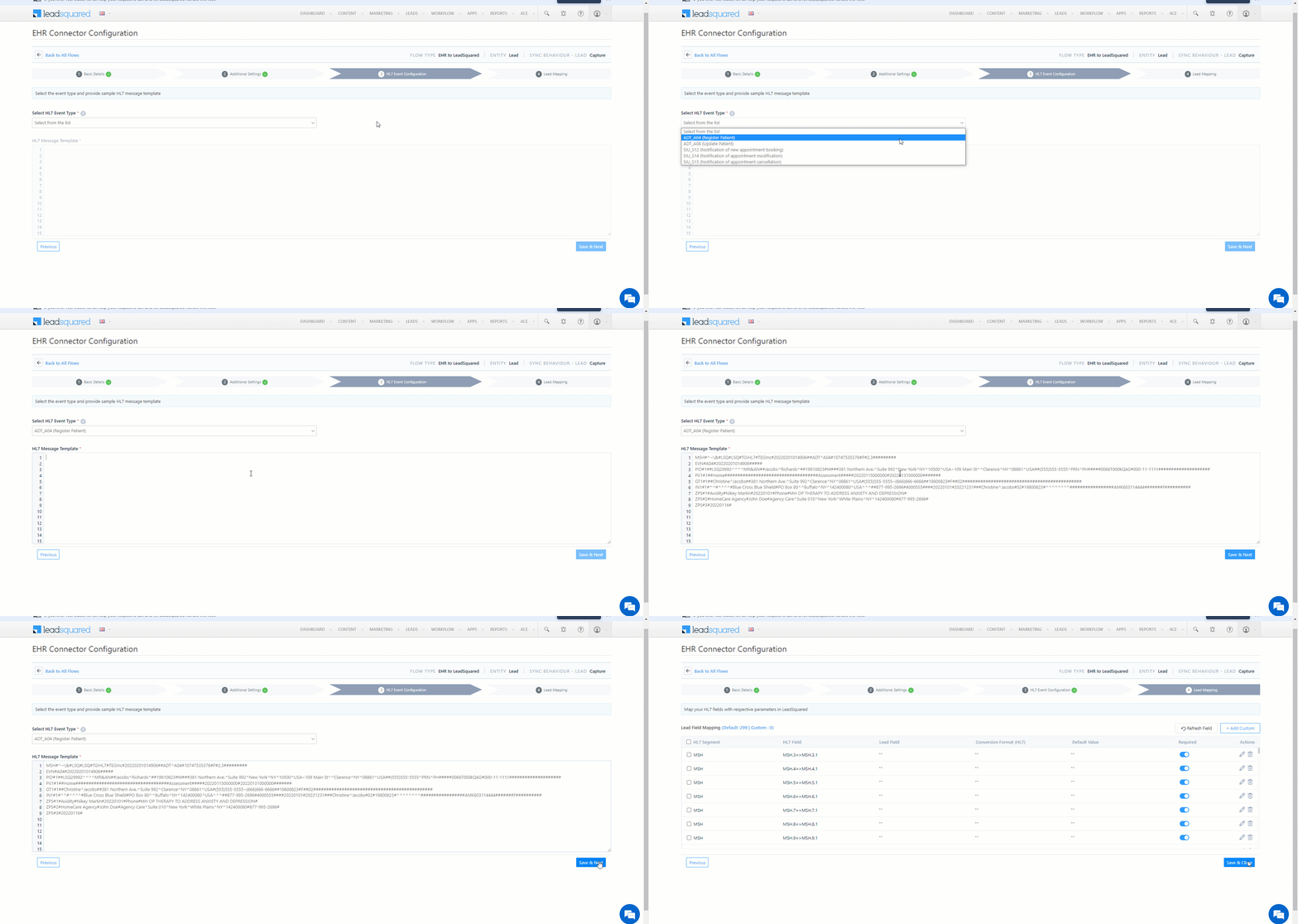
6.3 HL7 Event Configuration

Select the event type (e.g., ADT – A04 “Register Patient”, SIU – S12 “Notification of New Appointment Booking”, etc.) for the flow you’re building.

Note: Contact your provider to obtain a valid HL7 Message Template.
  1. Here, from the HL7 Event Type dropdown, select the event type for which you’re building the Flow Type.
  2. Once the event type is selected, add the corresponding HL7 Message Template, which is used to transfer data between your EHR system and LeadSquared. This template will also be used to map the corresponding lead and activity fields in LeadSquared. To know more about these templates, refer to HL7-Definition V2.

LeadSquared's EHR Connector


6.4 Lead/Activity Mapping

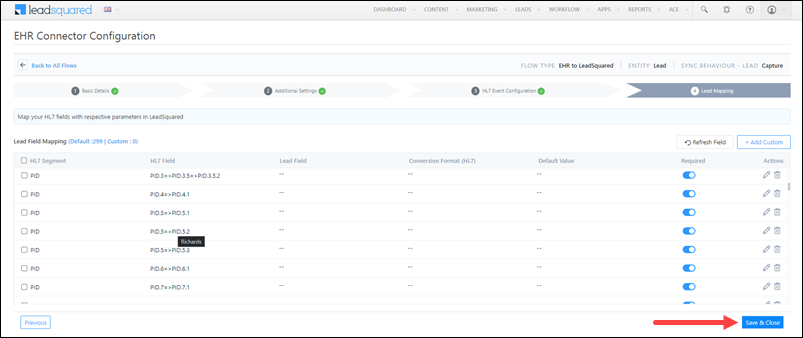
On the Lead/Activity Mapping screen, based on the event selected and the Message Template that is passed, map the HL7 fields present in the template to the corresponding LeadSquared lead/activity fields. To know how to transform data present in the Message Template, refer to Message Delimiters.

Once you’re done mapping the fields, click Save & Close. The connector will now transfer patient and lead information between your LeadSquared account and EHR system.

Note:

  • A Custom Field should be created to capture and map the Mrn field (or any other patient identifier field) that was selected as a Search Key. To create a custom field, click the Add Custom button.
  • To view the existing value of a specific field in an HL7 Message Template, under HL7 Field, hover your cursor over the field.

LeadSquared's EHR Connector


Any Questions?

Did you find this article helpful? Please let us know any feedback you may have in the comments section below. We’d love to hear from you and help you out!

How to Use Iframes or Custom Code on Portals and Landing Pages Pro

1. Overview

Iframes let you embed custom designs or external tools inside Portals or Landing Pages Pro without affecting the main layout. To ensure your embedded content works smoothly, follow the guidelines listed on this page.


2. Guidelines For Iframe or Custom Code

1. When using AI tools to generate custom designs or widgets

If you’re using AI to generate HTML, CSS, or JavaScript:

  • Clearly specify that the code will run inside an iframe.
  • Prompt the AI not to use external JavaScript libraries—stick to basic HTML, CSS, and JS to avoid slow load times and reduced conversions.
  • Request the design in small sections, and embed each section in its own iframe instead of placing everything inside one large block.
  • Ensure all buttons, scrolling, and interactions work even within the confines of the iframe.

2. Do not use AI-generated code for forms

If you need a form next to your custom design, use the built-in drag-and-drop form builder. Place your LSQ form beside a custom code block to create a hybrid layout—this ensures proper tracking, reliable submissions, and consistent behavior across portals and landing pages.

3. Adjust spacing, width, and styling for a seamless embed

To make the iframe full width, remove padding, and align it neatly with your layout, refer to the platform’s instructional video (shown below) for spacing and container setup.

If the embedded content looks cut off or doesn’t extend fully at the bottom, add this CSS:

body, iframe {
    height: 1000px;
}

This helps the iframe appear smooth and continuous, without borders or unwanted scrolling.

adding iframe in lp and portals ai

Using Scripts in Portals and Landing Pages Pro for Google Analytics, FB Pixel, Chatbots and Other Custom Behaviour

1. Feature Overview

Portals and Landing Pages Pro are modular and can be altered, extended, or enhanced using JavaScript. They can be extended to accommodate additional functionality like –

  • Integrating analytics services to capture page views, engagement events, conversion events –
    • Portals and Landing Pages Pro broadcast specific engagement activities during the lead journey which can be subscribed to and posted to the respective analytics service.
  • Integrating third-party chatbot services.
  • Fetching/Updating data from external databases or apps using JavaScript.
  • Overriding the style of a specific component inside the designer using your own custom scripts.


2. Integrating Google Analytics and Facebook Pixel on Portals

On integration, both Google Analytics and Facebook Pixel track pageviews, visitor count, and other basic events. However, in order to track custom engagement or conversion activities, you must write custom push events specific to the analytics service.

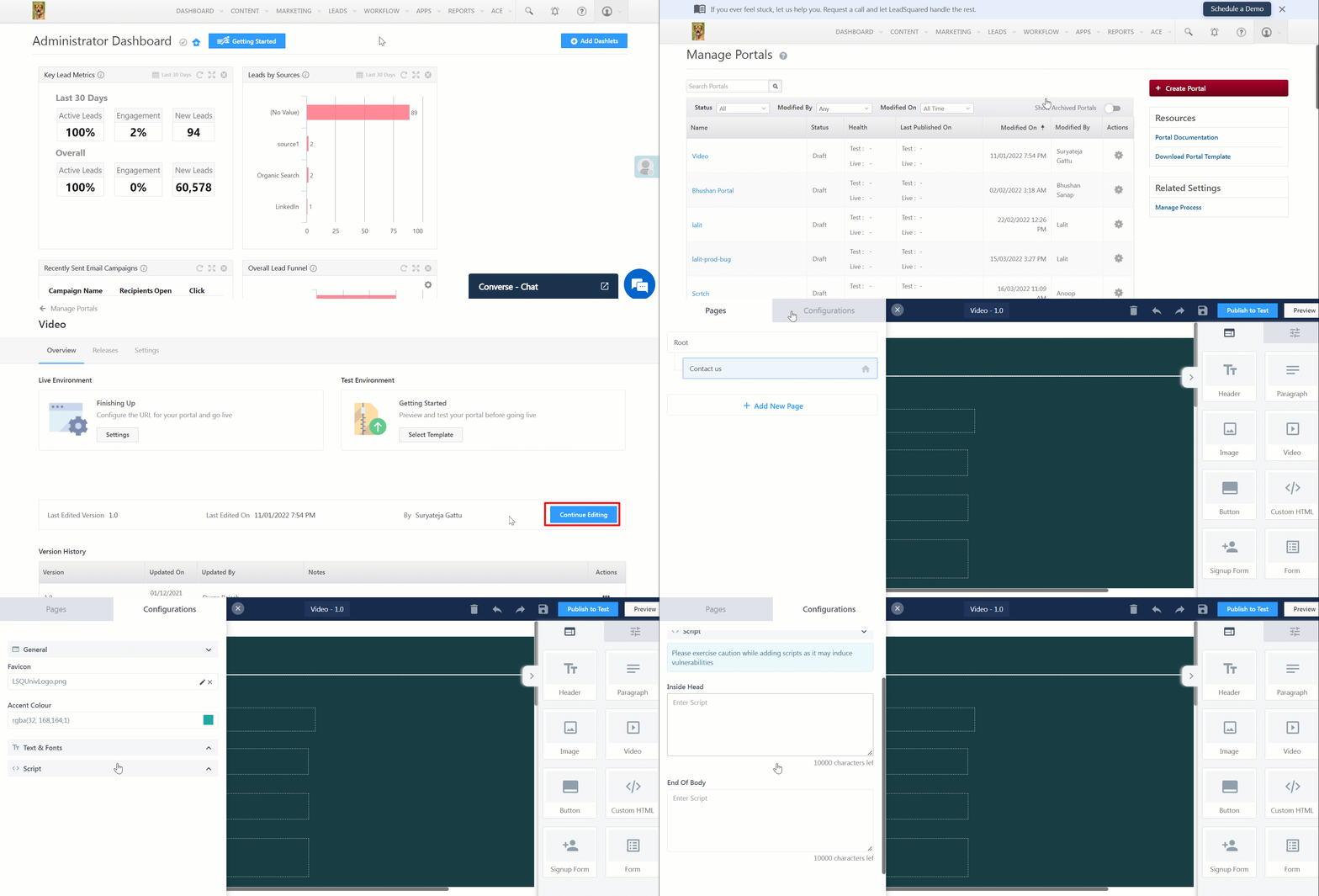
  1. Navigate to Workflow>Manage Portals.
  2. Select the Portal you need to view and click Continue Editing.
  3. Click Mobile App Menu  and then Configurations.
  4. Click the Script dropdown.
  5. Paste the script obtained in the Inside Head and End of Body sections as per the specifications.

LeadSquared - Integrating scripts for third party tools


3. Integrating Google Analytics and Facebook Pixel on Landing Pages Pro

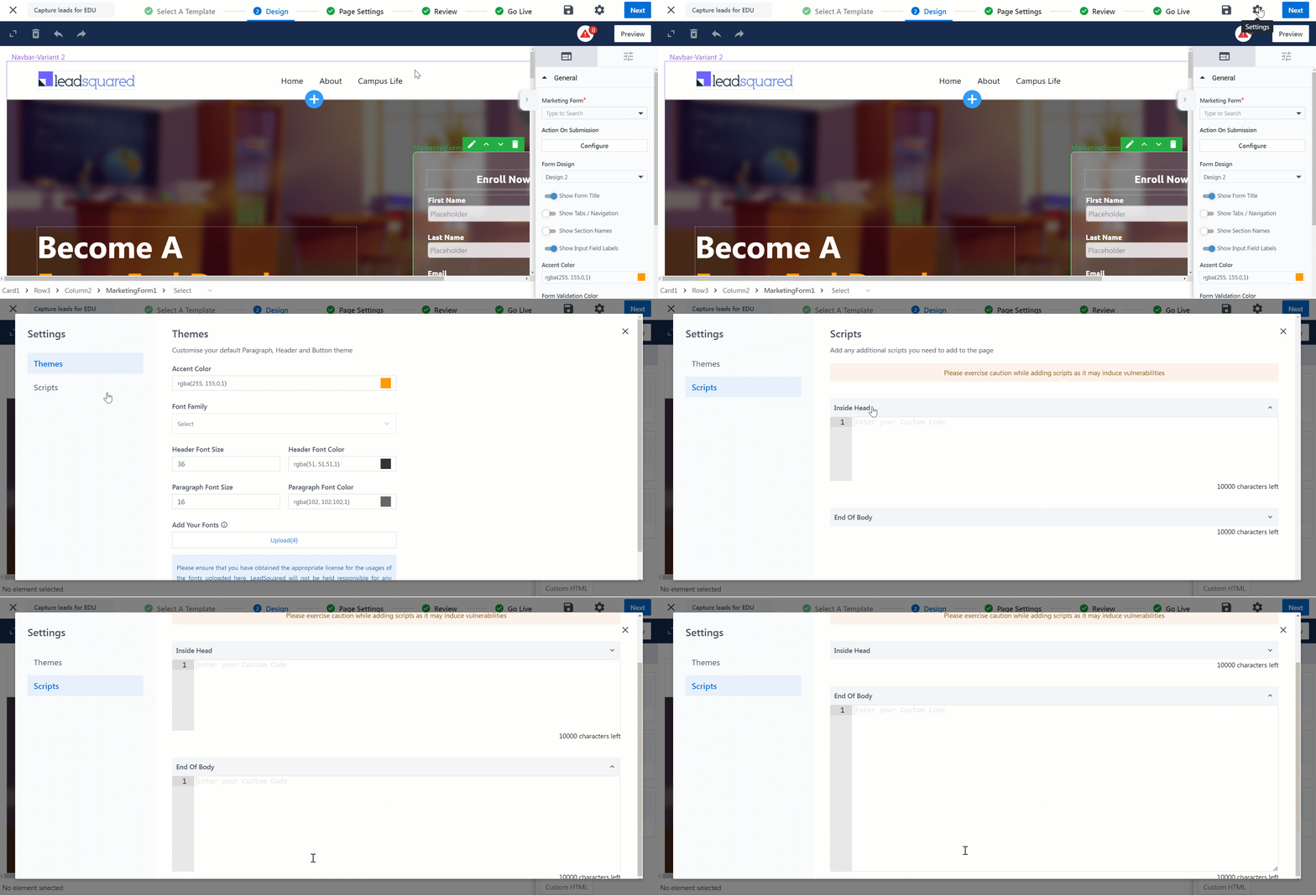
  1. Navigate to Marketing>Landing Pages Pro.
  2. Select a Landing Page.
  3. Click on the Settings icon lpp settings icon.
  4. Select Scripts.
  5. Paste the script obtained in the Inside Head and End of Body sections as per the specifications.


4. Troubleshooting

4.1  Frequent Issues Encountered

  • Wrong trigger configuration: The conditions you have targeted must be present for the expected trigger behaviour.
  • Extra specific triggers: Triggers must not be too specific. Example: A URL trigger that is set to fire on http://www.example.com will not fire if the URL is https://www.example.com . Use a common fragment for the trigger criteria, such as “example.com”.

4.2 Issues Encountered with Facebook Pixel

Refer to the following checklist to ensure that Pixel is firing properly.

  1. Check whether your raw pixel fires match. If you’re using Facebook pixel, you can check how many times your specific standard events were triggered in your pixel dashboard.
  2. If your raw pixel fires match but there’s a discrepancy in conversion values, check your currency, decimal places, and other variables in your purchase event codes.
  3. Do not use a combination of conditional and unconditional firing with your tags. Also, expect minor discrepancies while using conditional firing.
  4. If Facebook is reporting more conversions than your other analytics tools, use the Pixel Helper tool to check for duplicate pixel fires, which can sometimes be caused by redirects.
  5. If Facebook is reporting fewer conversions, check if the pixel piggybacking on existing tag managers has been implemented correctly.

4.3 Debugging Google Analytics and Facebook Pixel

The tools mentioned below can be used to debug Google Analytics and Facebook Pixel.

  1. Facebook Pixel Helper – Works in the background to look for conversions or Facebook pixels and provides real-time feedback on the implementation.
  2. Google Tag Assistant Recordings – Validates, diagnoses, and troubleshoots issues with your Google Analytics implementation in real-time. You can record typical user flows through your website and get an immediate analysis of your setup. Google Tag Assistant Recordings can help you find missing or mangled tags, invalid events, filters, and much more.


5. Overriding the Style of Portal and Landing Page Pro Components with Custom Scripts

You can use custom JavaScript to override a style property of a component that is not available in configurations. To override the CSS properties of a component, use its class name. The properties will be applied to all components with the class name. If you want to isolate this to a specific component, set a custom class name to the component and use this class with JavaScript to style it.

Select a portal component and tag it with a custom CSS class name –

  • Click the Advanced dropdown and enter a value in the Custom class name field.
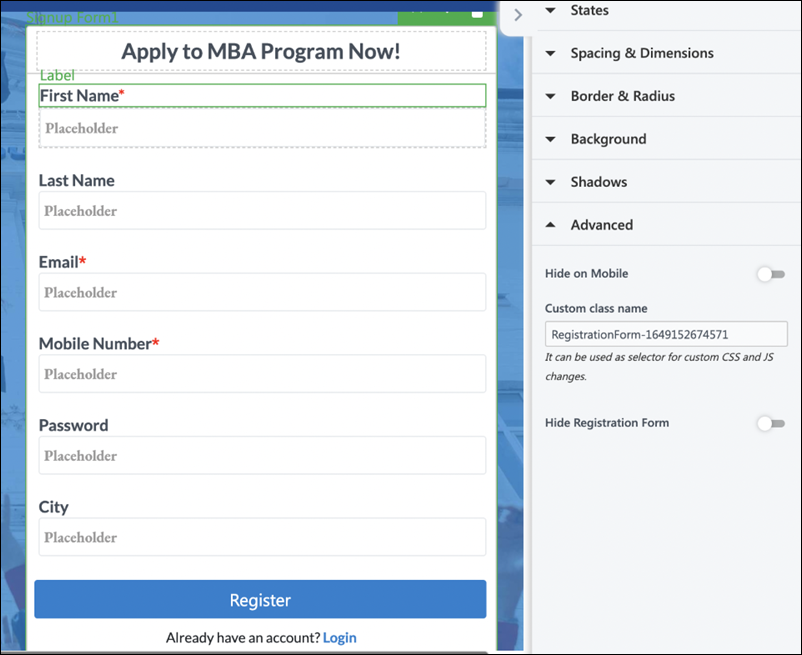
  • Use this class name in your custom scripts to isolate and override its style and behavior without affecting any other components in the portal.

LeadSquared - Scripts in Form


6. Extending Portals with Custom Behaviour

Portals track various engagement events performed by leads. You can consume these events via custom scripts and –

  • Post them to –
    • Analytics services like Google Analytics
    • Advertisement services like Facebook Ads
  • Display a pop-up message on the portal, etc.
Trigger Event Name Event Payload 
When a user logs in to the portal successfully LSQ_FORM_LOGIN_SUCCESS Login method – otp, password
When a user initiates portal login LSQ_FORM_LOGIN_INITIATED Login method – otp, password
When a user fails portal login LSQ_FORM_LOGIN_FAILURE Login method – otp, password
When a user verifies email or phone number through OTP on the portal during registration LSQ_OTP_VERIFIED Verification type – signup, login
When a user initiates portal registration LSQ_FORM_SIGNUP_INITIATED Sign up method – otp, password
When a user registers on the portal successfully LSQ_FORM_SIGNUP_SUCCESS Sign up method – otp, password
When a user fails to register on the portal LSQ_FORM_SIGNUP_FAILURE Sign up method – otp, password
When a user raises forgot password request through the portals successfully LSQ_FORM_FORGOTPASSWORD_SUCCESS
When a user fails to raise forgot password request through the portals LSQ_FORM_FORGOTPASSWORD_FAILURE
When a user resets the portal password successfully LSQ_FORM_RESETPASSWORD_SUCCESS
When a user fails to reset the portal password LSQ_FORM_RESETPASSWORD_FAILED
When a form is loaded on the portal LSQ_FORM_LOAD_COMPLETE form name
When a form is saved on the portal, use the lsqformsubmissionsuccessateachstep event on .lsq-external-form-container, like this:

document.querySelector(".lsq-external-form-container").addEventListener('lsqformsubmissionsuccessateachstep', () => {
    console.log("Form saved on the portal.");
});

There will be no event payload.

When a form is submitted on the portal LSQ_FORM_SUBMITTED form name
When a form is saved as a draft on the portal LSQ_FORM_SAVE_AS_DRAFT_COMPLETE formName, portalId, TabId, FormId
When a user initiates payment via a payment gateway through forms on the portal LSQ_PAYMENT_INITIATED form name, product name, payment gateway, currency
When a user fails to complete payment via a payment gateway through forms on the portal LSQ_PAYMENT_FAILED form name, product name, payment gateway, currency
When a user completes a payment via a payment gateway through forms on the portal LSQ_PAYMENT_COMPLETED form name, product name, payment gateway, currency

When a form is saved on the portal, use the lsqformsubmissionsuccessateachstep event on .lsq-external-form-container, like this:

document.querySelector(".lsq-external-form-container").addEventListener('lsqformsubmissionsuccessateachstep', () => {
    console.log("Form saved on the portal.");
});

The event payload will be:

Common event payloads to be used in all triggers –

  • lead id – Prospect Id of the lead performing the action
  • portal id – Id of the portal on which the action was performed
  • timestamp – The time stamp at which the action was performed
  • page title – Name or title of the portal page on which the action was performed
  • page path – Absolute path or URL of the portal page on which the action was performed
  • origin – default value of the portal

These events can be consumed via custom scripts written at the Portal Designer > Configurations > Script: a) Inside Head <head> b) End of body <body>

window.addEventListener("LSQ_FORM_SIGNUP_SUCCESS", (event) => { 
    console.log("Printed when user has registered.", event.detail);
    // Your logic goes here. Push Google Analytics / Facebook Pixel events here or any other custom behaviour you intend to achieve.
    // Example: Track a Google Analytics Event
    //gtag('event', 'portal_sign_up', {'event_category' : 'admission_portal', 'event_label' : '2022_admission'});
    // Example: Track a Facebook Pixel Event
    //fbq('track', 'ViewContent', {content_name: 'Sign Up Form'});
});


Any Questions?

Did you find this article helpful? Please let us know any feedback you may have in the comments section below. We’d love to hear from you and help you out!

How to Pre-Populate and Capture Data (UTM) in Portals, Landing Pages Pro, and Widgets

1. Feature Overview

You can pre-populate Forms or Sign-Up Forms so the user can directly submit them and skip filling in different fields. This can be achieved by passing relevant data via query parameters. To know more about Portals, see Portal Management.


2. Query parameters

API Query parameters can be defined as the optional key-value pairs that appear after the question mark in the URL. They are extensions of the URL that are utilized to help determine specific content or action based on the data being delivered. Query parameters are appended to the end of the URL using a ‘?’. The question mark sign is used to separate path and query parameters.

If you want to add multiple query parameters, an ‘&’ sign is placed in between them to form what is known as a query string. It can feature various object types with distinct lengths such as arrays, strings, and numbers.

LeadSquared - Query parameters


3. Pre-populate data in Forms

Important: This feature only works on pages that do not require a login from the user.

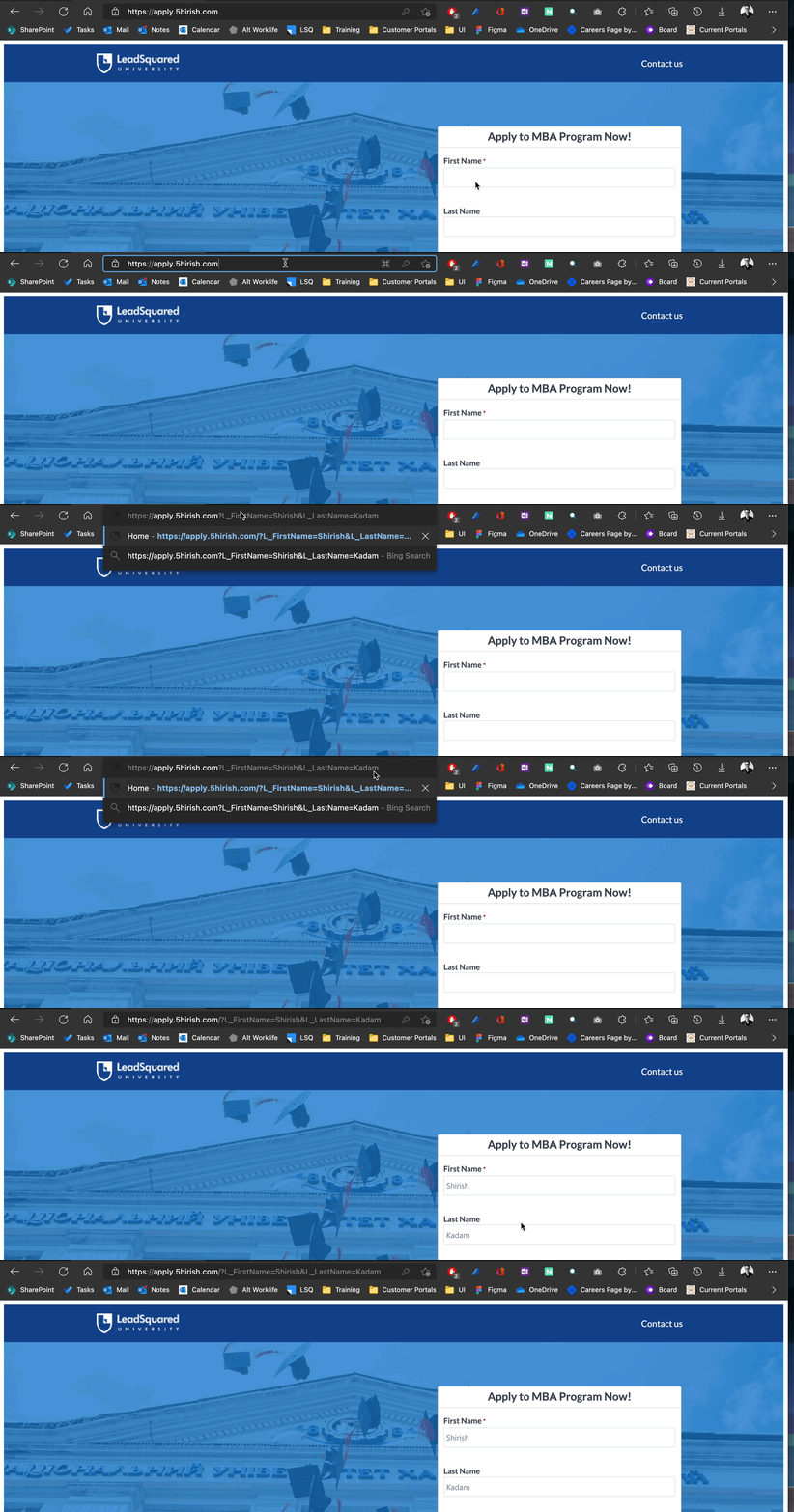
To pass data to the Forms for the respective fields, we need to send the data in query parameters as key-value pairs. Here, the value is the actual value that must be populated in the Form field and the Key is the identifier of the field where the value must be populated. This key must adhere to a specific format –

This format has three components to it –

  1. Entity Prefix: A single letter representing the type of the entity.
    1. For Lead field – L
    2. For Activity field – A
    3. For Opportunity field – O
  2. Activity or Opportunity code if any (not applicable for lead field)
  3. ​​​​​​​​​​​​​​Schema Name: the schema name of the field you are trying to pre-fill

Some examples are –

  • For Lead fields: L_FirstName
  • For Activity fields: A_200_mx_Custom_1
Note: You can also have fields hidden that capture the query parameters and save.
LeadSquared - Pre-populating data in Forms


4. Capturing UTM Data

Portals, Landing Pages Pro, and Widgets can capture UTM parameter values from URLs.

To enable this, append any of the following UTM parameters to your Portals, LPP, or Widgets link:

  • utm_source
  • utm_medium
  • utm_campaign
  • utm_term
  • utm_content

Example:
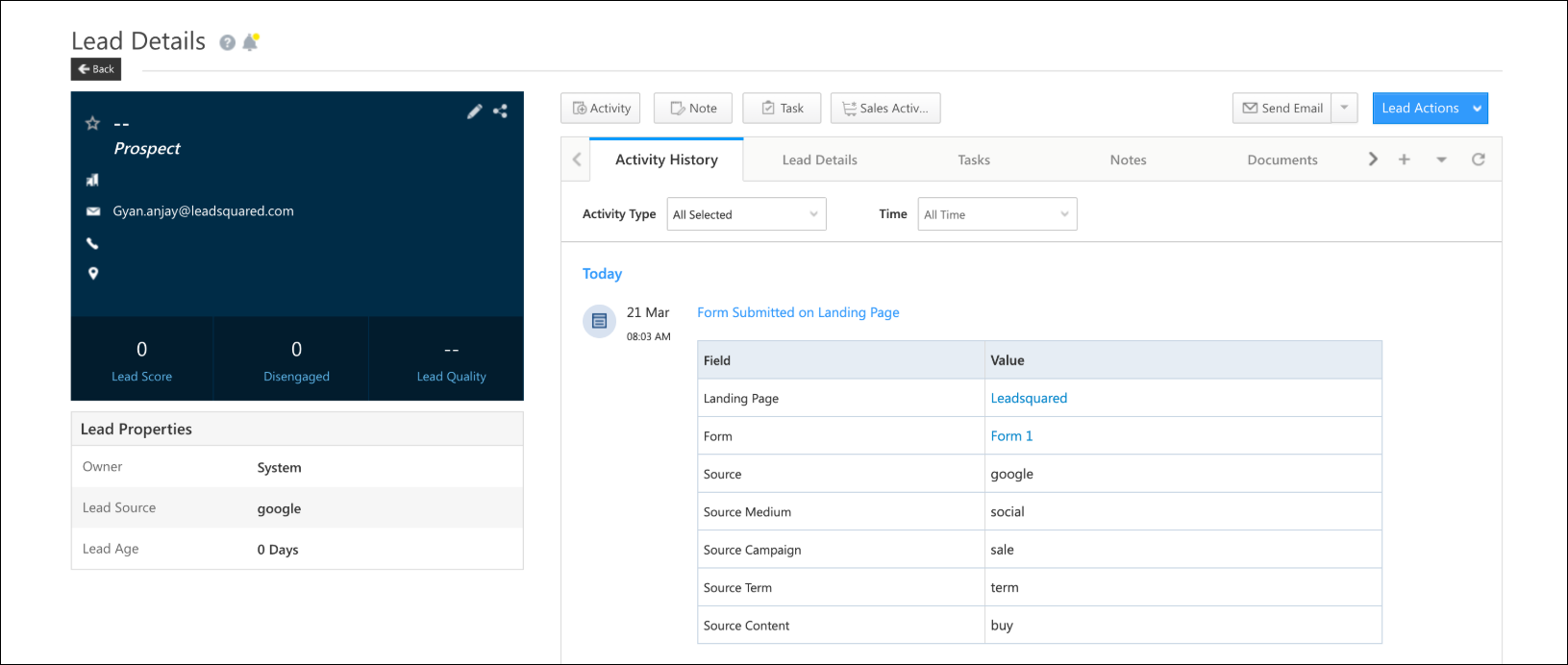
https://leadsquared.com/?utm_source=google&utm_medium=social&utm_campaign=sale&utm_term=term&utm_content=buy

When a lead submits the form, the captured UTM values are available in the respective activity, such as the Form Submitted on Portals, Landing Pages, and Widgets activity on the lead details page.

utm data source portals lpp widgets


Any Questions?

Did you find this article helpful? Please let us know any feedback you may have in the comments section below. We’d love to hear from you and help you out!

Portals Smart Links

1. Feature Overview

Smart Links on Portals allow you to guide customers to resume progress from where they left off.

For example, if a student begins filling out an application for an online course but leaves before completing the payment process, you can send a follow-up email with a customized link for them to continue. Clicking the Smart Link will take them directly to the predefined page in the portal (e.g., the payment page).

Additionally, Portal admins can generate and trigger Smart Links for users to view or edit a student’s application, assisting them in completing their application process or course enrollment journey if needed.


2. Prerequisite

  • You must be an Admin user.
  • You will need to enable Portals on your account.
  • The Portal must be published in the live environment to set up Smart Links.
  • You must set up an Automation to trigger emails to leads.
  • You must install and configure the Custom Lead and List Actions Connector to make Smart Links accessible for your users.


3. Navigate to Smart Links on Portals

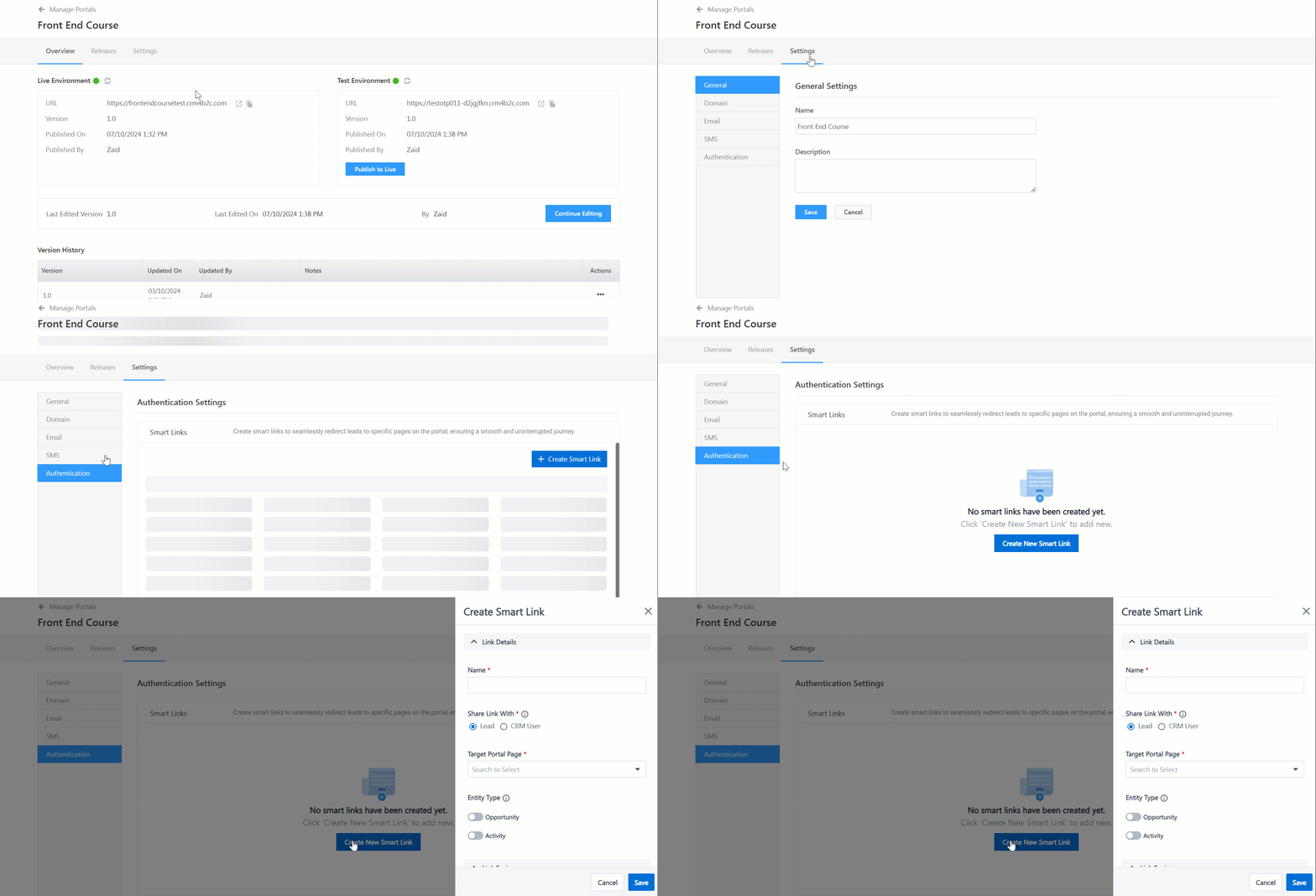
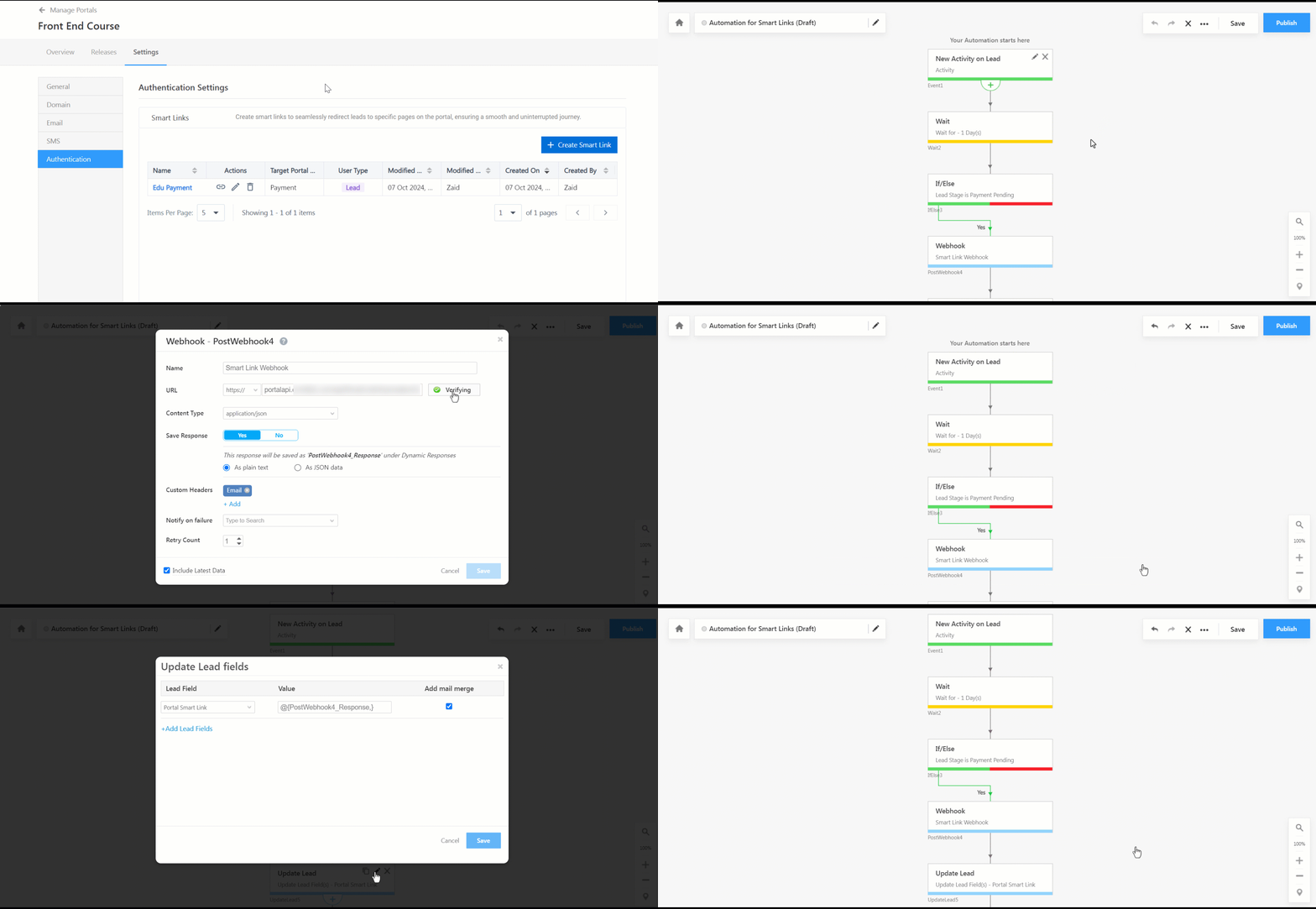
On the Portal Edit page, navigate to Settings>Authentication and click + Create Smart Link.

Note: The Portal must be published in the live environment to create Smart Links.

Portal smart links navigation


4. Configure Smart Link

Configuring the Smart Link involves the following steps –

Note: A maximum of 10 smart links can be configured per portal as default. To increase the limit you could reach out to billingops@leadsquared.com.
  • Name: Enter a name for the Smart Link.
  • Target Portal Page: Select the page the lead or the CRM user will be redirected to through the smart link. You can only select pages that require a login to the portal.
  • Share Link With: Select who’s allowed to access this link –
    • Lead: This option will allow the leads to access the Smart Link.
      • Entity Type: Select the relevant entity type to help users resume their progress on the portal page. You can choose either an Opportunity or an Activity. When the lead opens the Smart Link, the opportunity details or activities related to the lead will be retrieved.
        • Note: Entity details can be passed either in this configuration or while defining the trigger in the automation (refer to section 5.1). In either case, the entity details passed in the automation will take precedence.
      • Generate Short Link: You can create short links for easy sharing by selecting the Generate Short URL option.
        • Note: If you generate short, shareable links for smart links, the maximum expiry period that can be set is 6 months.
      • Set Link Expiry: Set an expiry date for the Smart Link by defining the month(s) and/or day(s). After the expiration date, the link will be inaccessible.
      • Set End Date: Set an end date for your smart link. Post the end date, the configured Smart Link will deactivate. The end date cannot be before the expiry date.
      • Maximum Usage Limit: Set the number of times the lead can access the link.
    • CRM User: This option will allow the CRM User to access the Smart Link.
      • Allow CRM user to edit: If enabled, the user will have access to edit the customer’s journey.
  • Auto Register Leads: By enabling this, Smart Links allow leads to bypass the login step and directly access specific portal pages.
    • For example, a student submits a lead form on your website, and their record is created in the CRM. With Auto Register Leads enabled, the student is automatically registered on the portal and receives a Smart Link. Clicking the link takes them directly to the student dashboard without requiring manual registration or login.

Smart links creation with Auto-Reg


5. Set Up Automation to Email Smart Links to Leads

Follow these steps to share the Smart Link with leads. As an example, let’s consider that automation will trigger and send an email to the lead to remind them to complete the payment on the portal.

This section covers three steps: Automation Trigger, Custom Webhook, and Send Email Action.

5.1 Automation Trigger

  • The automation will be triggered when an activity or opportunity is posted on the lead.
  • Optionally, you can add a Wait card to pause the automation for a few days.
  • Use an If/Else card to check if the lead has made the payment. For example, add a condition that checks if the payment status is Pending through the Lead Stage field.
    • If true, add a custom Webhook (refer to the next section).
Note: If the opportunity or activity trigger defined in the automation differs from the one described in the Entity Type (Section 4), it will be overwritten by the opportunity or activity specified in the automation trigger.

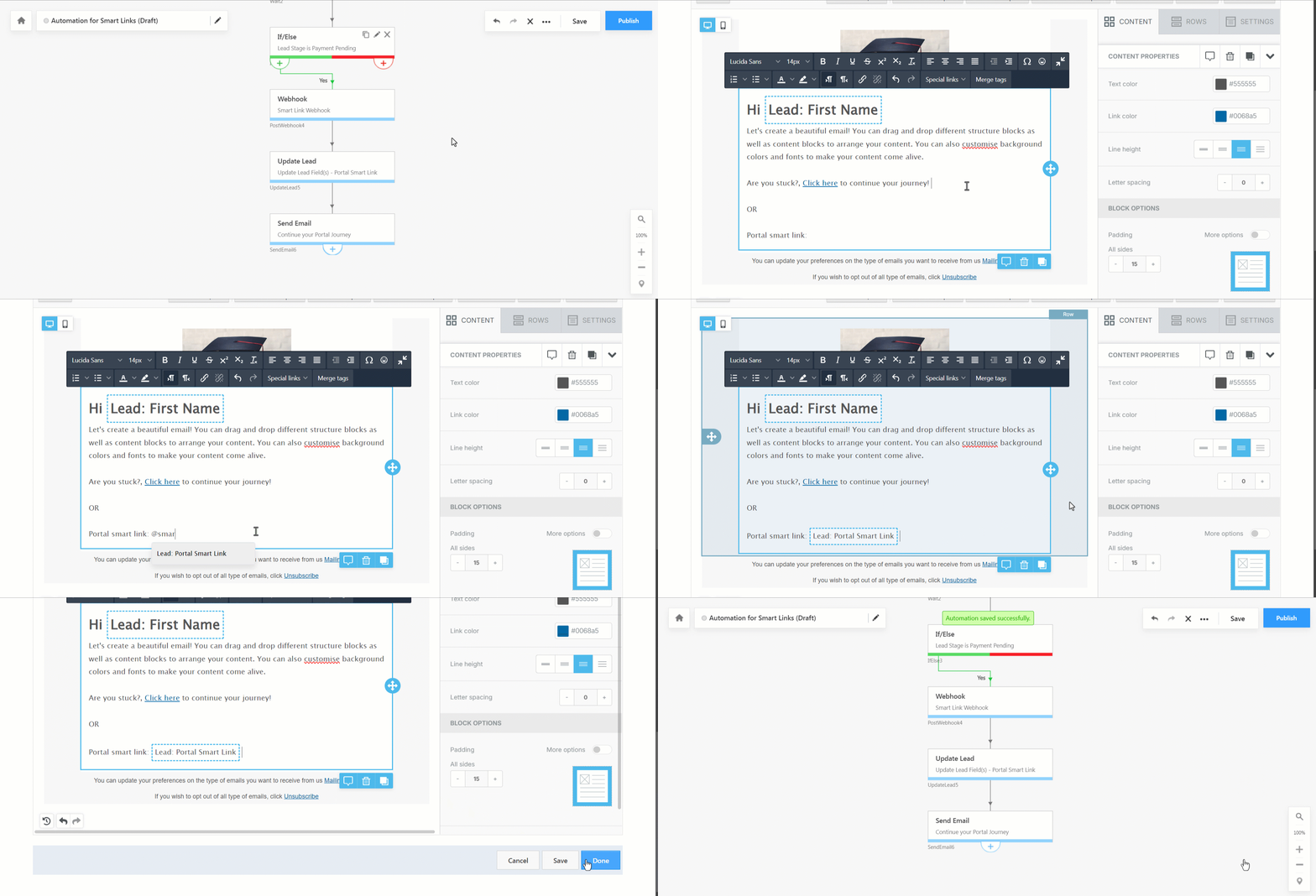
smart links send email to leads automation first step

5.2 Custom Webhook

  • If the payment is pending, configure a Custom Webhook to call the Smart Links Webhook URL. You can find the Webhook option under Custom action.
  • Copy and paste the Smart Link from the Portal’s Authentication Settings page into the Custom Webhook. Make sure to use https.
  • Save the response (Smart Link) in a temporary field by selecting Yes against Save Response.
  • Click Save.
Note: If you want to store the response permanently: create a custom lead field of type Website. Next, use an Update Lead card to update the custom lead field with the webhook response by mail-merging the value from the temporary field (in the example below, it’s PostWebhook4_Response).

portals smart links automation send email to lead step 2

5.3 Send Email Action

  • Add a Send Email action to the flow. You can find the Send Email option under the Messaging action.
  • Draft your email and mail-merge (or, hyperlink) the webhook response (Smart Link) into the email.
  • Once finalized, click Done.

Note: You can mail-merge either the temporary field or the custom lead field.

Once complete, you can publish the automation.

portals smart links automation send email to lead step 3


6. Configure Smart Links Access for CRM Users

Note: You must enable and install the Custom Lead and List Actions Connector.
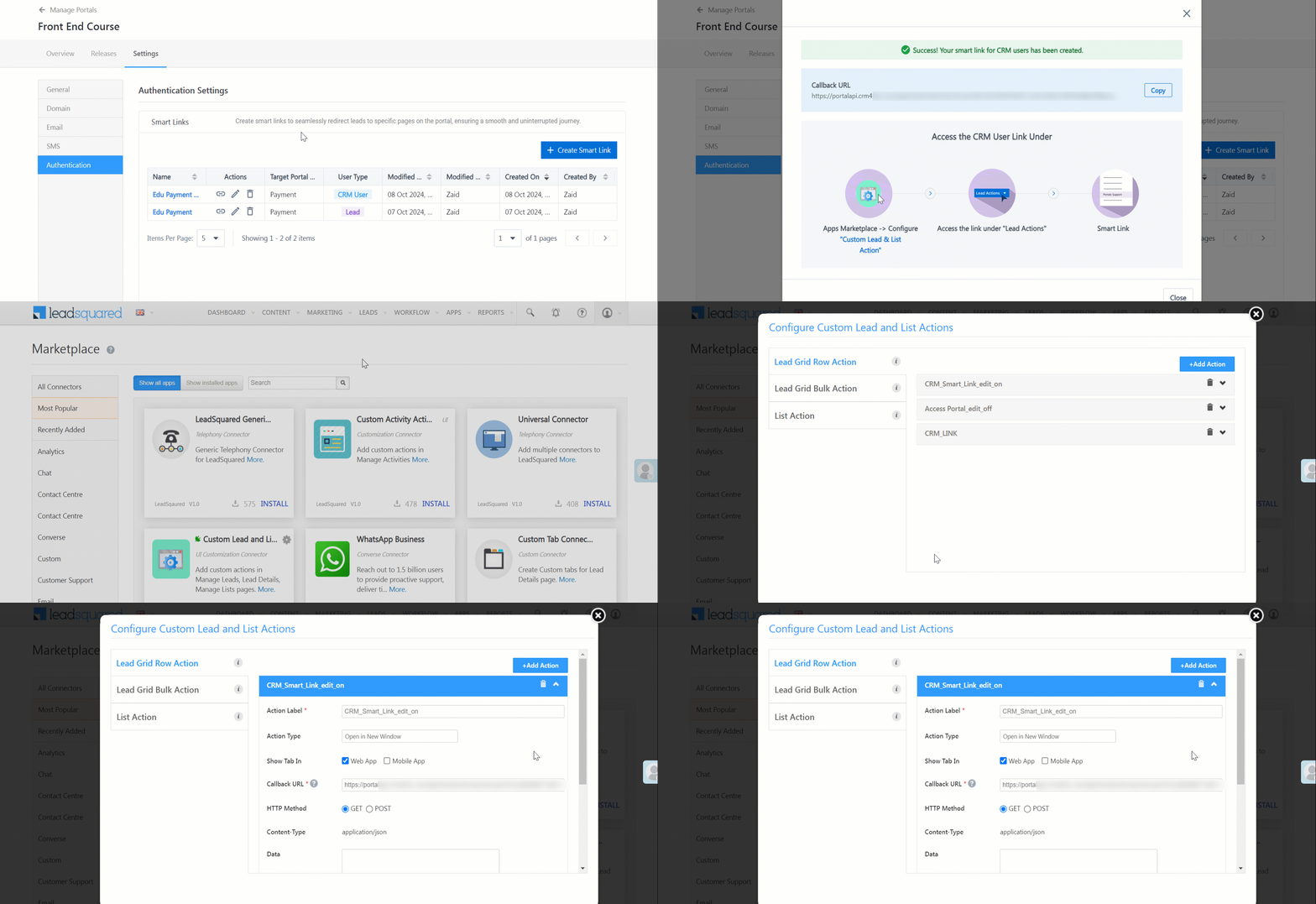
  1. First, copy the Smart Link from the Portal Authentication Settings page.
  2. Next, configure the Smart Link in the Custom Lead and List Actions Connector by adding an action.

portals smart links configuration for crm users

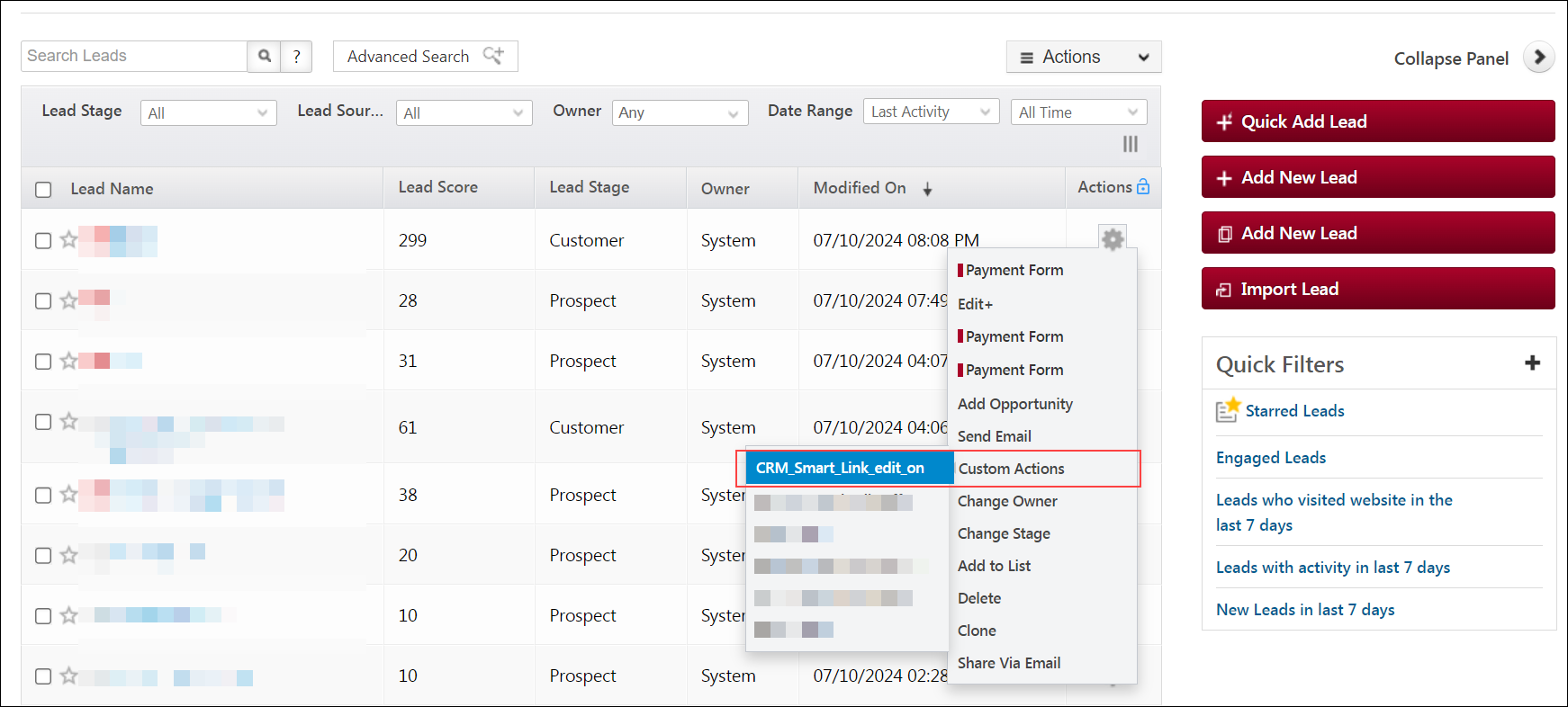
Once configured, the users will be able to view the link posted against the lead through the Action button on the Manage Leads page. If permissions have been granted, the user can also edit the lead’s journey or application.

Portals smart links action on manage leads

For more details on how to configure the Custom Lead and List Actions Connector, refer to this article.


Any Questions?

Did you find this article helpful? Please let us know any feedback you may have in the comments section below. We’d love to hear from you and help you out!

How to Add a Payment Gateway to a Form (Paytm, Stripe, Razorpay, etc.)

1. Feature Overview

You can integrate a payment gateway directly into your forms to process transactions from leads. We currently support the following payment gateways –

If you’re new to the forms feature, see How to Create a Form.


2. Prerequisites

  • You must be an administrator user of your LeadSquared account to access the forms feature.
  • You must have an account with a supported payment gateway provider.
  • Your form must contain First Name and Email Address fields. It is good practice to make these fields mandatory.


3. Adding a Payment Field to a Form

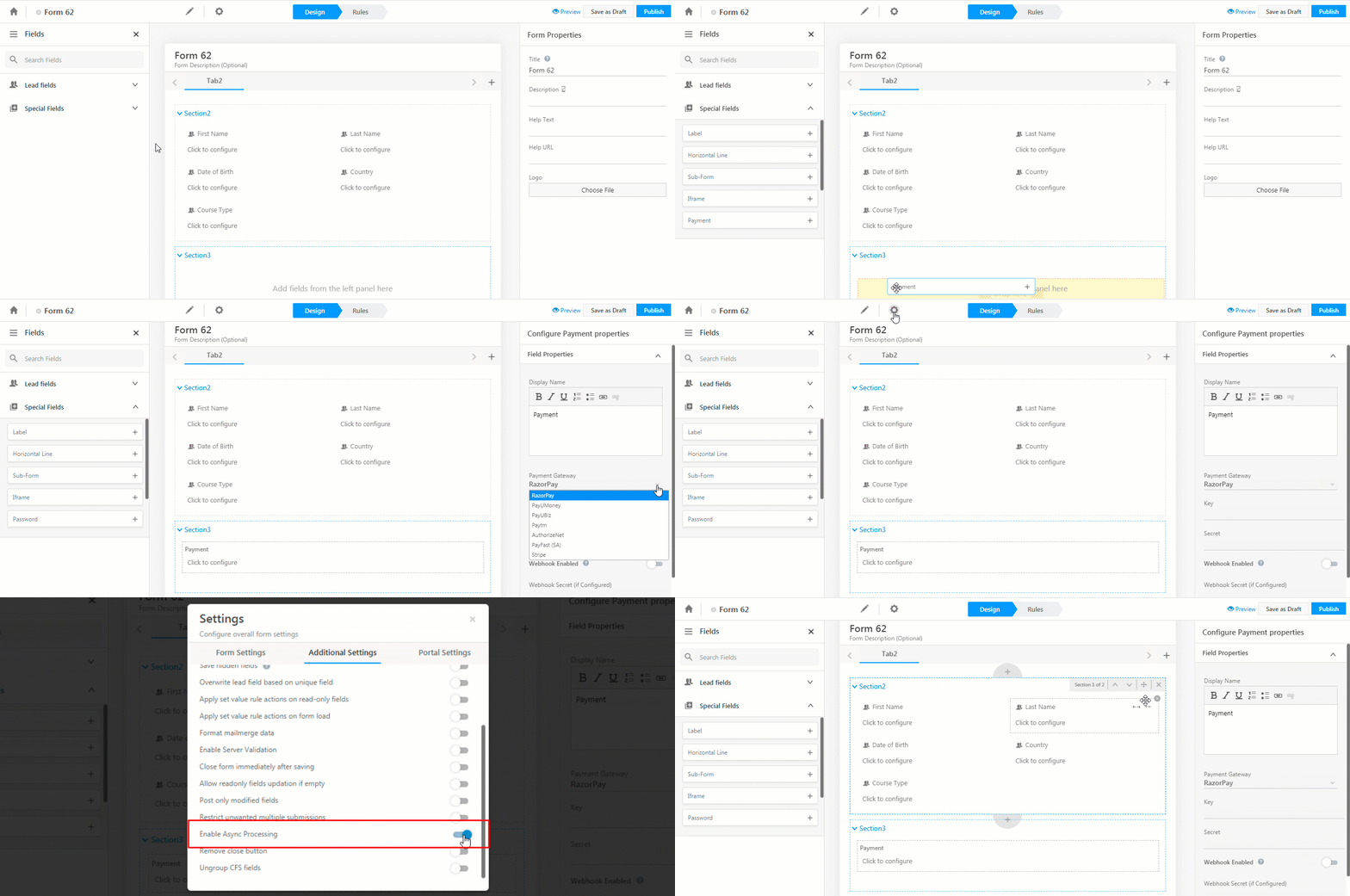
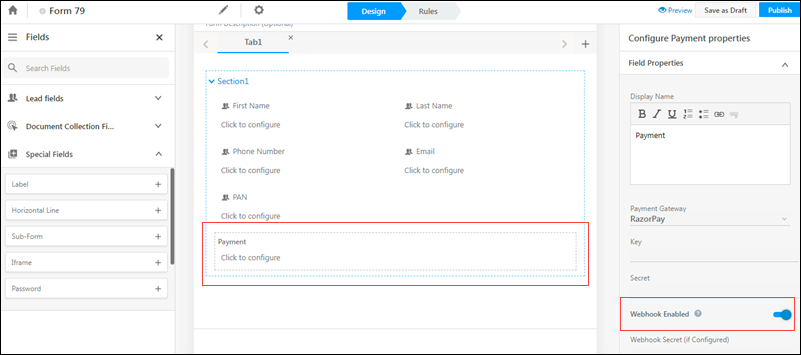
While creating a form, on the left pane click Special Fields, then drag and drop the Payment field into your form.

adding a payment field

3.1 Setting Field Properties

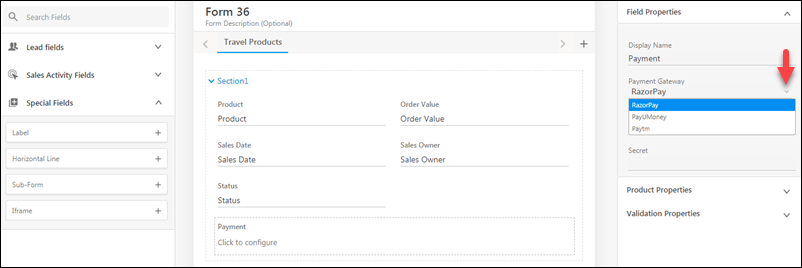
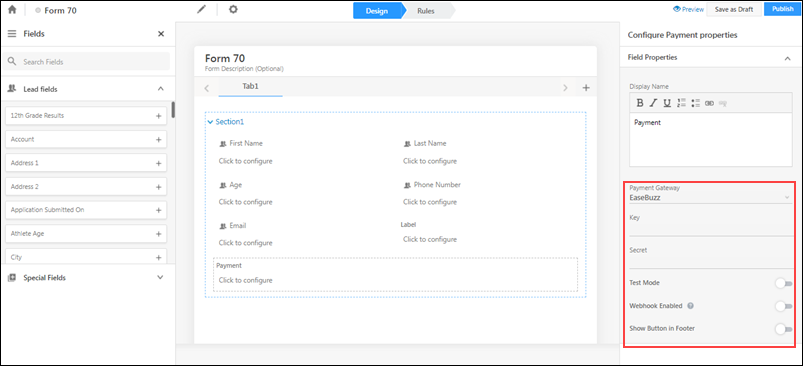
Now click the Payment field in your form and choose a provider from the drop-down.

payment fields in forms

Based on the payment provider you select, you’ll have to enter the corresponding field properties that appear.

Note:

  • Users can pass custom parameters to send additional data to all payment providers. An example of this would be to pass additional information, to enable your finance team to carry our reconciliation easily.
  • When a payment field is used in a Form, a webhook must be enabled (on payment gateways that support webhooks) to publish that Form.
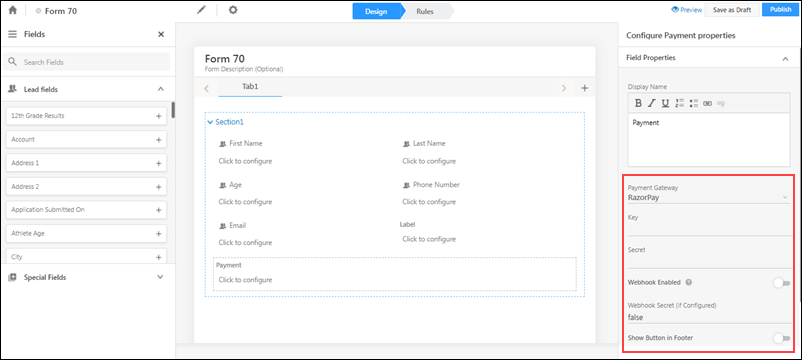
3.1.1 RazorPay

RazorPay LeadSquared Integration

Field Property Description
Key The API keys associated with your payment provider account.
Secret
Webhook Enabled It is mandatory to configure a webhook in your RazorPay account to improve the payment experience for your customers. Configuring a webhook ensures payment status updates are posted back to LeadSquared more reliably (in case of session timeouts,  network issues, etc.). To learn more, contact your account manager.
Once you configure the webhook in your RazorPay account, toggle this setting to activate the webhook.
Webhook Secret Enter your RazorPay account webhook secret key.
Show Button in Footer When enabled, the Pay button will show up on the bottom right side of the form.

When the Pay button is placed in any form step beside the last step, leads tend to make the payment and close the form immediately. When the setting is enabled, leads will automatically be taken to the next step after they’ve made the payment, which ensures they’ll complete the rest of the steps before submitting it.

In cases when the Pay button is placed in the form’s last step, it ensures leads can complete the payment and submit the form in one go. To know more, reach out to your account manager.

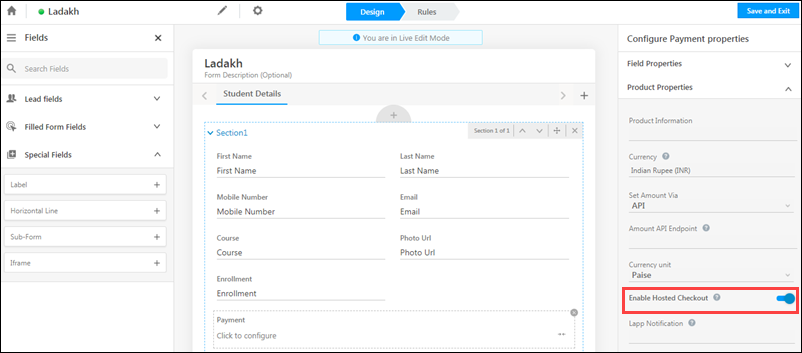
We support hosted check-out for Razorpay. So instead of using the default LeadSquared pop-up, you can redirect users to a checkout process in a new tab.

RazorPay

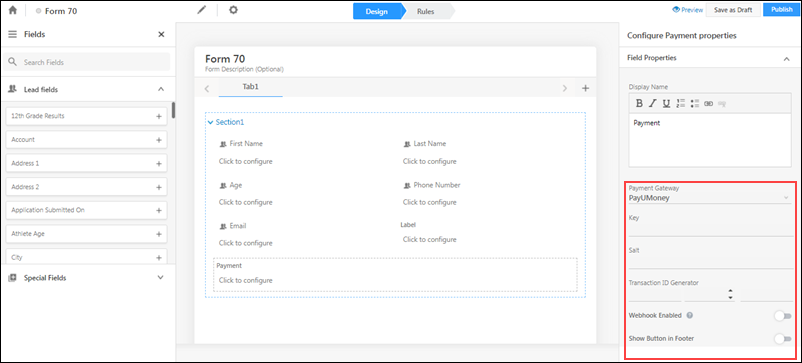
3.1.2 PayUMoney

PayU LeadSquared Integration

Field Property Description
Key The API keys associated with your payment provider account.
Salt
Transaction ID Generator Let’s you generate a transaction ID using a particular convention.
Webhook Enabled It is mandatory to configure a webhook in your PayUMoney account to improve the payment experience for your customers. Configuring a webhook ensures payment status updates are posted back to LeadSquared more reliably (in case of session timeouts,  network issues, etc.). To learn more, contact your account manager.
Once you configure the webhook in your PayUMoney account, toggle this setting to activate the webhook.
Show Button in Footer When enabled, the Pay button will show up on the bottom right side of the form.

When the Pay button is placed in any form step besides the last step, leads tend to make the payment and close the form immediately. When the setting is enabled, leads will automatically be taken to the next step after they’ve made the payment, which ensures they’ll complete the rest of the steps before submitting it.

In cases when the Pay button is placed in the form’s last step, it ensures leads can complete the payment and submit the form in one go. To know more, reach out to your account manager.

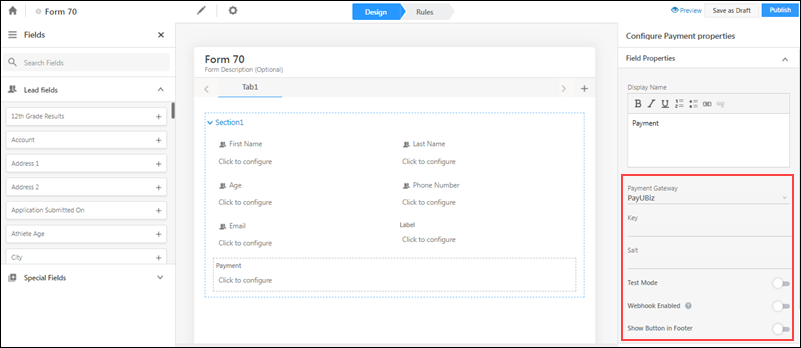
3.1.3 PayUBiz

PayUBiz LeadSquared Integration

Field Property Description
Key The API keys associated with your payment provider account.
Salt
Test Mode
Allows you to test payments on a staging environment.
Webhook Enabled  It is mandatory to configure a webhook in your PayUBiz account to improve the payment experience for your customers. Configuring a webhook ensures payment status updates are posted back to LeadSquared more reliably (in case of session timeouts,  network issues, etc.). To learn more, contact your account manager.
Once you configure the webhook in your PayUBiz account, toggle this setting to activate the webhook.
Show Button in Footer When enabled, the Pay button will show up on the bottom right side of the form.

When the Pay button is placed in any form step beside the last step, leads tend to make the payment and close the form immediately. When the setting is enabled, leads will automatically be taken to the next step after they’ve made the payment, which ensures they’ll complete the rest of the steps before submitting it.

In cases when the Pay button is placed in the form’s last step, it ensures leads can complete the payment and submit the form in one go. To know more, reach out to your account manager.

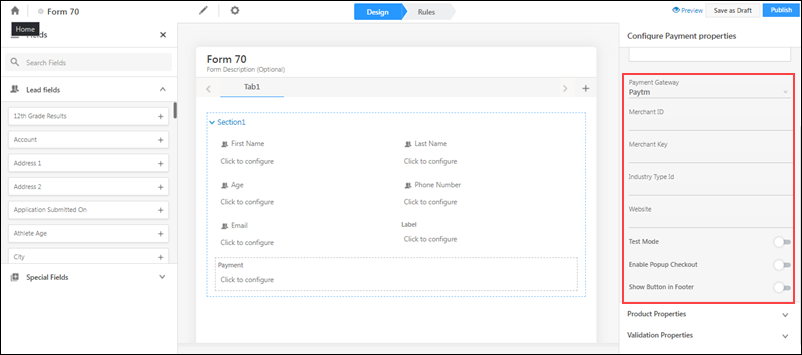
3.1.4 PayTM

Paytm LeadSquared Integration

Field Property Description
Merchant ID The Merchant Id associated with your PayTM account.
Merchant Key The Merchant Key associated with your PayTM account.
Industry Type Id
Industry ID (MCC) which the Tenant has registered with Paytm
Website URL of the tenant registered with PayTM.
Test Mode
Allows you to test payments on a staging environment.
Show Button in Footer When enabled, the Pay button will show up on the bottom right side of the form.

When the Pay button is placed in any form step beside the last step, leads tend to make the payment and close the form immediately. When the setting is enabled, leads will automatically be taken to the next step after they’ve made the payment, which ensures they’ll complete the rest of the steps before submitting it.

In cases when the Pay button is placed in the form’s last step, it ensures leads can complete the payment and submit the form in one go. To know more, reach out to your account manager.

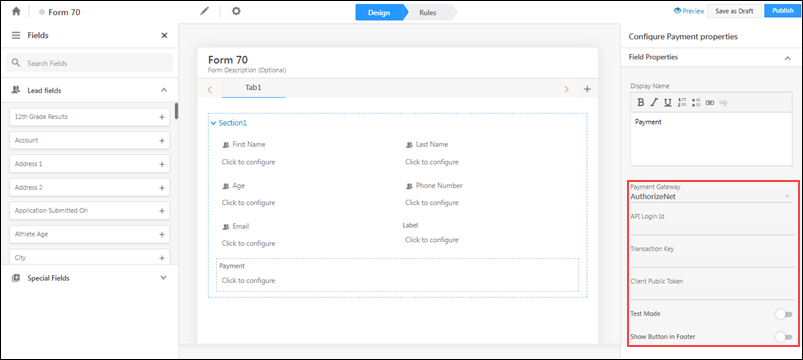
3.1.5 Authorize.Net

Authorize.Net LeadSquared Integration

Field Property Description
API Login Id The API Login Id and Transaction Key associated with your Authorize.Net account. Login to your Authorize.Net merchant account and check under ‘Settings’.
Transaction Key
Public Client Token The public client token generated for the transaction. For more information, see Authorize.Net API Docs.
Test Mode Allows you to test payments on a staging environment.
Show Button in Footer When enabled, the Pay button will show up on the bottom right side of the form.

When the Pay button is placed in any form step beside the last step, leads tend to make the payment and close the form immediately. When the setting is enabled, leads will automatically be taken to the next step after they’ve made the payment, which ensures they’ll complete the rest of the steps before submitting it.

In cases when the Pay button is placed in the form’s last step, it ensures leads can complete the payment and submit the form in one go. To know more, reach out to your account manager.

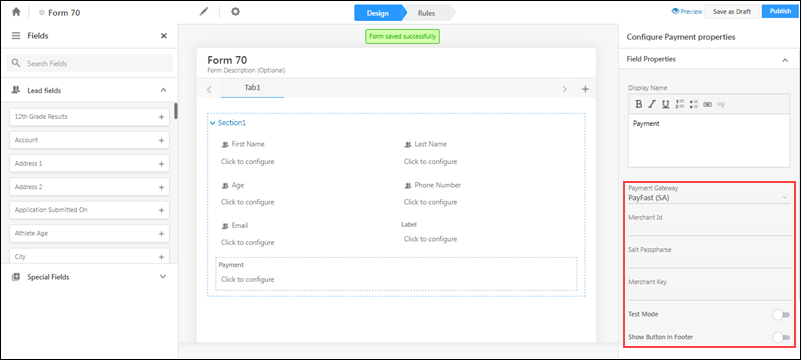
3.1.6 PayFast

Payfast LeadSquared Integration

Field Property Description
Merchant Id The Merchant Id, Salt Passphrase and Merchant Key associated with your PayFast account are available on your PayFast Dashboard.
Salt Passphrase
Merchant Key
Test Mode Allows you to test payments on a staging environment.
Show Button in Footer When enabled, the Pay button will show up on the bottom right side of the form.

When the Pay button is placed in any form step beside the last step, leads tend to make the payment and close the form immediately. When the setting is enabled, leads will automatically be taken to the next step after they’ve made the payment, which ensures they’ll complete the rest of the steps before submitting it.

In cases when the Pay button is placed in the form’s last step, it ensures leads can complete the payment and submit the form in one go. To know more, reach out to your account manager.

3.1.7 Easebuzz

Easebuzz LeadSquared Integration

Field Property Description
Key The API keys associated with your Easebuzz account.
Secret
Test Mode Allows you to test payments on a staging environment.
Webhook Enabled  It is mandatory to configure a webhook in your EaseBuzz account to improve the payment experience for your customers. Configuring a webhook ensures payment status updates are posted back to LeadSquared more reliably (in case of session timeouts,  network issues, etc.). To learn more, contact your account manager.
Once you configure the webhook in your Easebuzz account, toggle this setting to activate the webhook.
Show Button in Footer When enabled, the Pay button will show up on the bottom right side of the form.

When the Pay button is placed in any form step beside the last step, leads tend to make the payment and close the form immediately. When the setting is enabled, leads will automatically be taken to the next step after they’ve made the payment, which ensures they’ll complete the rest of the steps before submitting it.

In cases when the Pay button is placed in the form’s last step, it ensures leads can complete the payment and submit the form in one go. To know more, reach out to your account manager.

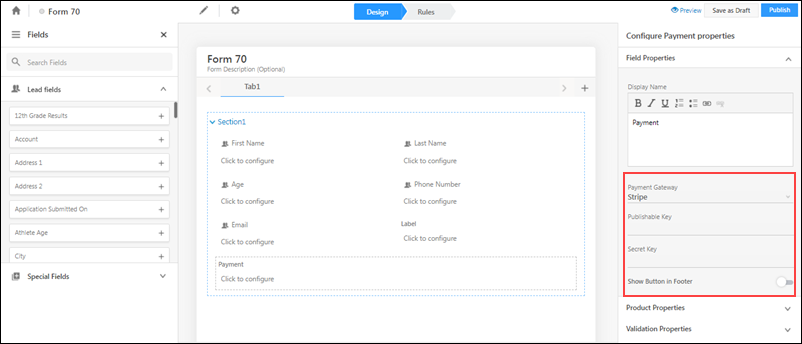
3.1.8 Stripe

Stripe LeadSquared Integration.1

Field Property Description
Publishable Key The API and Secret Key associated with your Stripe account. To know how to obtain it, please refer to Locate API keys in the Stripe Dashboard.
Secret Key
Show Button in Footer When enabled, the Pay button will show up on the bottom right side of the form.

When the Pay button is placed in any form step beside the last step, leads tend to make the payment and close the form immediately. When the setting is enabled, leads will automatically be taken to the next step after they’ve made the payment, which ensures they’ll complete the rest of the steps before submitting it.

In cases when the Pay button is placed in the form’s last step, it ensures leads can complete the payment and submit the form in one go. To know more, reach out to your account manager.

3.2 Setting Product Properties

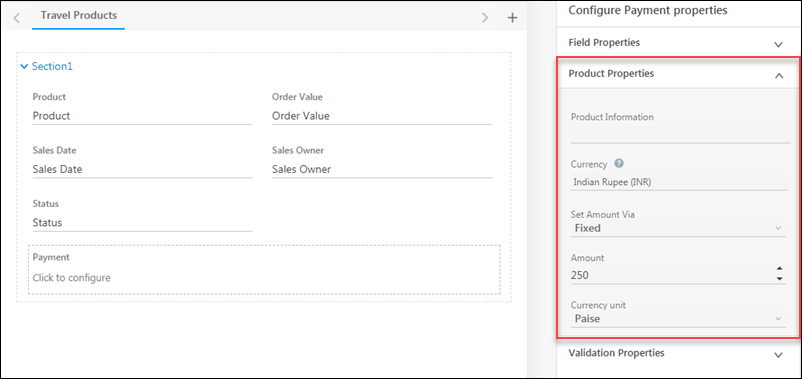
After setting the field properties, click Product Properties on the right pane.

product properties

Field Property Description
Product Information Details on the product.
Currency Choose between Indian Rupee (INR), US Dollar (USD), European Euro (EUR) and Singapore Dollar (SGD).
Set Amount Via You may either enter an exact amount or set the amount via API.

  • If you select Fixed, you must enter the amount in the field below.
  • If you select API, you must enter the API URL.
Currency Unit The currency unit you’d like to utilize. For example, Rupee or Paise, Dollars or Cents, etc.

In addition to the field and product properties, you can use the validation properties to make the payment field mandatory and/or hide the field by default (the field will only appear if there is an explicit ‘Show’ form rule associated with it).

3.3 Setting the Payment Value and Currency Dynamically via Rules

You can set the value of the payment and *currency dynamically using form rules. As a prerequisite, you must write a LeadSquared Lapp, or use Mavis DB or API, from where you can fetch the payment and currency values.

*Note: Only Razorpay and Stripe currently support dynamically setting the currency.

Here’s an example of a simple JSON you can use to dynamically set payment and currency values –

{
"Amount": 500,
"Currency": "GBP"
}
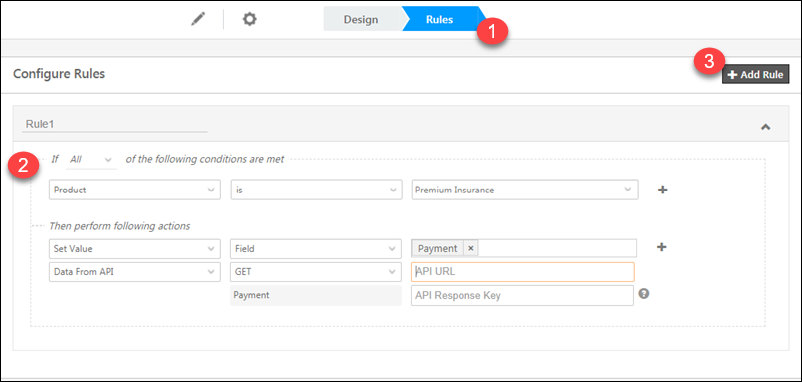
  1. After adding the payment field to your form, navigate to the Rules tab.
  2. Create a rule with the conditions and actions as per your requirements.

In this example, we’re setting the value of the payment through API depending on the insurance product being purchased. Be sure to enter the API URL and enter the correct response key to map the payment (and/or currency) parameters, to set the value of the chosen field.

setting payment value dynamically

Once you’re done you can Save and Exit. For more information on forms, see How to Create a Form.


4. Demo

Once you’ve published your form and created a process, you’ll be ready to receive payments through your selected payment provider.

Show Button in Footer is Disabled

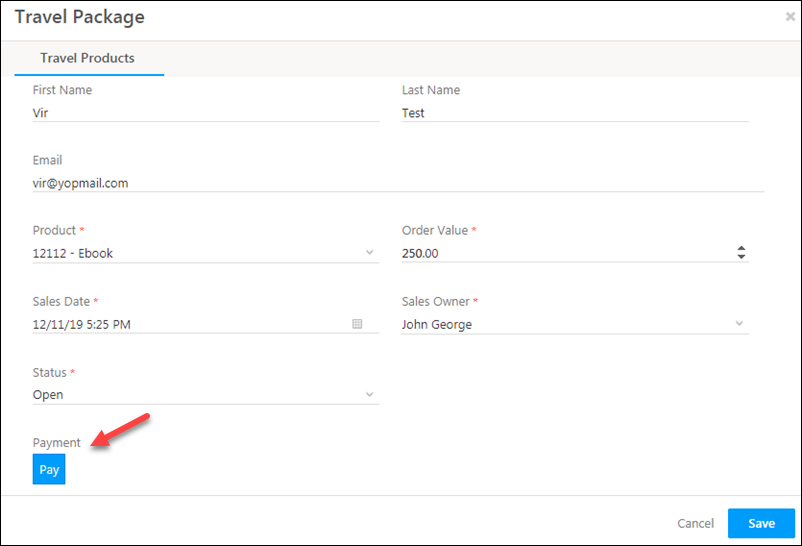
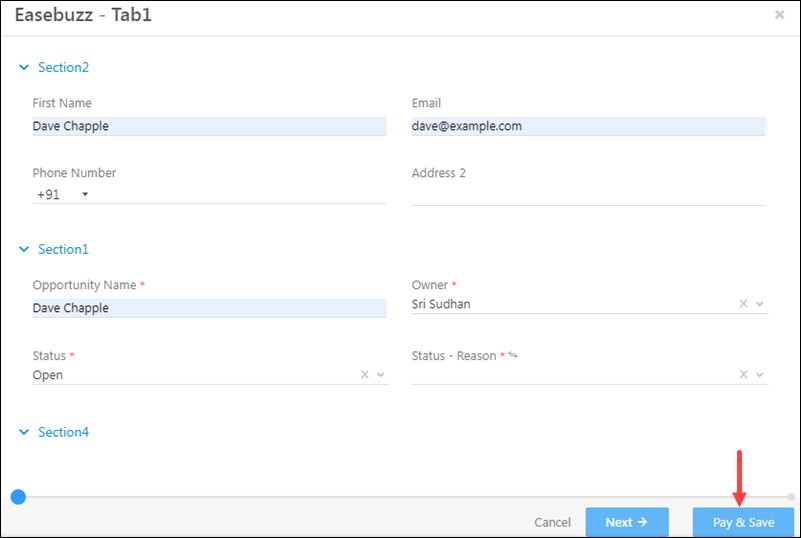
Paytm payment in forms

Show Button in Footer is Enabled

Payment Preview

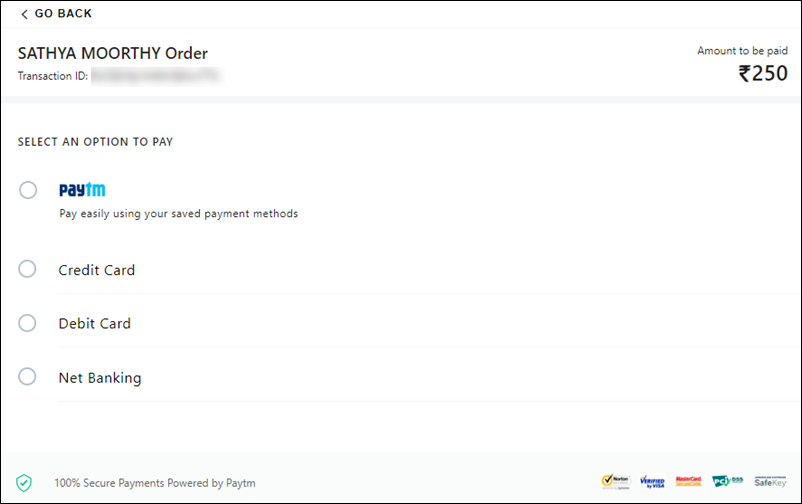
Payment Page

Paytm payment page


5. Async Payment Processing

You can process payments asynchronously to ensure that payment activities are posted to LeadSquared even if end-users are experiencing internet issues.

Note: This feature is currently supported only for RazorPay.
  1. Navigate to Settings>Additional Settings.
  2. Click Slider to Enable Async Processing.

 Async Payment Processing Form Settings

Enabling Webhooks

It is mandatory to generate a webhook and configure it in the payment provider’s account (if it supports webhooks) to ensure that payment events are more reliably delivered to LeadSquared. This helps avoid issues where the payment provider doesn’t pass on the event data to the LeadSquared endpoint due to internet issues, end-user intervention, etc.

Webhooks can be configured for the following providers –

  • RazorPay
  • PayUBiz
  • PayUMoney
  • EaseBuzz
  • Paytm

To set up a webhook for any of the listed payment providers, contact your account manager or support@leadsquared.com. Alternatively, you may set it up using this guide for Async API Webhook URL Generation Method.

Once the webhook is configured in the payment provider’s account, ensure that the enabled webhook is enabled in the LeadSquared payment form –

LeadSquared Forms


Any Questions?

If you have any doubts related to this article, please contact us at support@leadsquared.com or leave us a comment below.

LeadSquared SMS Connectors – India

1. Feature Overview

LeadSquared SMS Connectors facilitates customer support and other marketing efforts through simple, secure and reliable text messages. This connector lets you integrate popular SMS providers with your LeadSquared account to send automated, one-to-one and bulk SMSes to leads and opportunities in India, directly from LeadSquared.

The following SMS providers are currently supported –

Important Note: In this article, we’ve used Gupshup as an example to demonstrate the installation and set-up process. The steps remain the same for all the other SMS providers, unless stated otherwise.


2. Prerequisites

  • To enable an SMS provider’s connector on your account, contact your account manager or write to support@leadsquared.com.
  • You must be an administrator user of your Leadsquared account.
  • Your account plan must support SMS integration.
  • The SMS sender Id, as well as the SMS templates you use, must be DLT approved. To know more, refer to Mandatory DLT Registration for SMS Services in India.


3. How it Works

Set up the connector by providing your SMS provider’s account details (Transactional and Promotional usernames, API Keys and Tokens, passwords, Principal Entity ID, DLT-approved Sender ID, etc.). Once it’s set up, create and configure the DLT-approved SMS templates you’ll be using to message your leads. After these templates are configured, send SMSes to your leads.


4. Install the Connector

To install the SMS connector on your account –

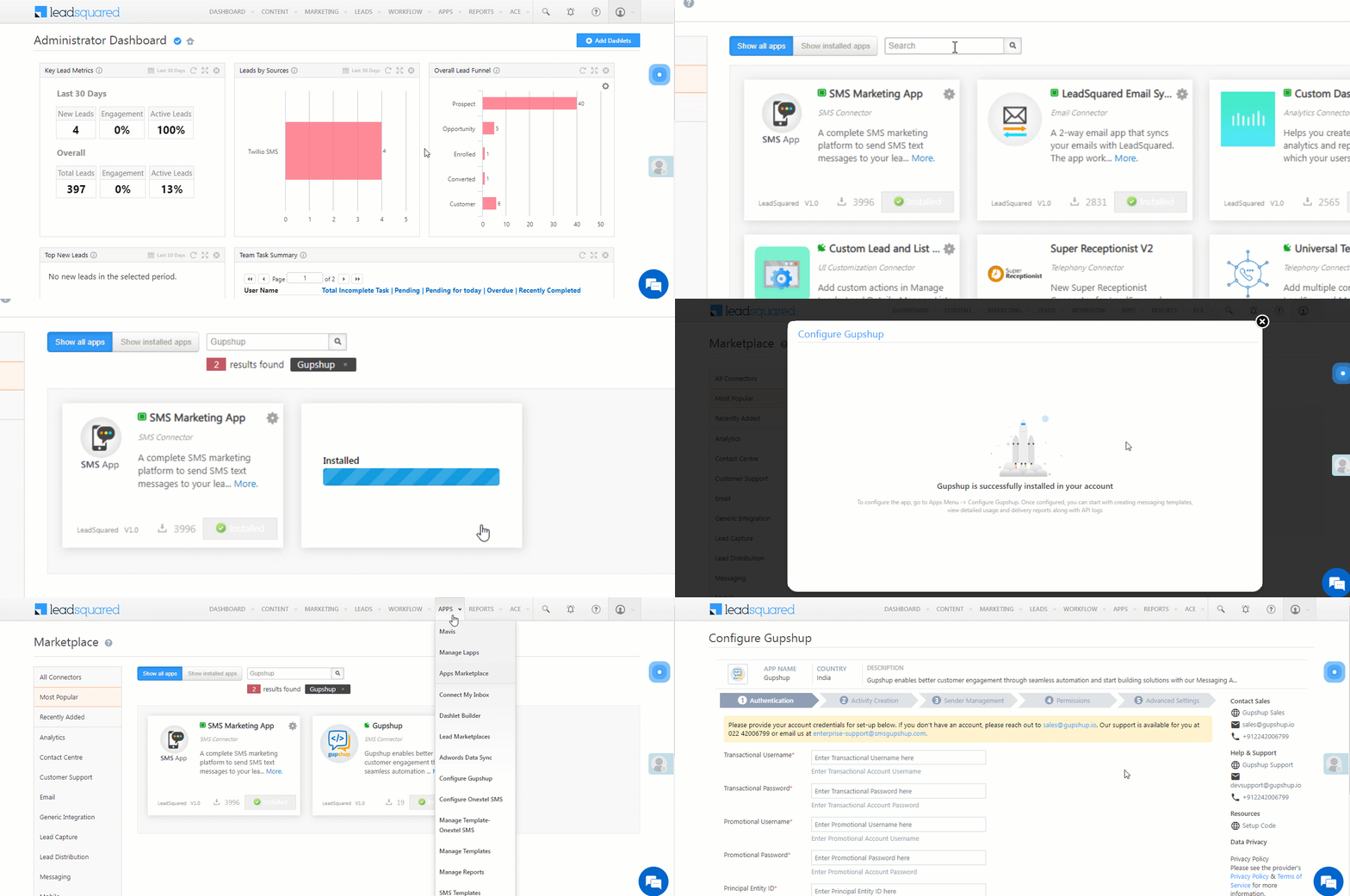
  1. From the main menu, navigate to Apps>Apps Marketplace.
  2. Search for the SMS connector you want to install*, and click Install.
    • Alternatively, you can find the connector on the left panel, under SMS.
  3. Then, click Configure.
  4. On the Configure SMS Connector pop-up, no further action is required on this page. To configure the connector, navigate to Apps>Configure SMS Connector.

LeadSquared Gupshup Integration


5. Configure the Connector

Once the connector is installed, navigate to Apps>Configure SMS Connector, and provide the following details for the SMS provider you’re looking to configure –

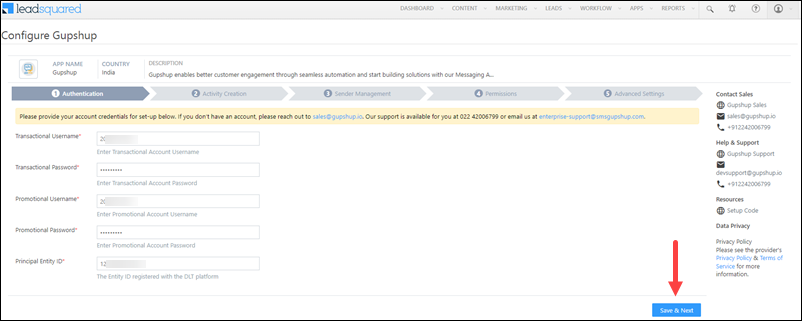
5.1 Authentication


Once you’re done, click Save & Next.

Gupshup LeadSquared Integration


5.2 Activity Creation

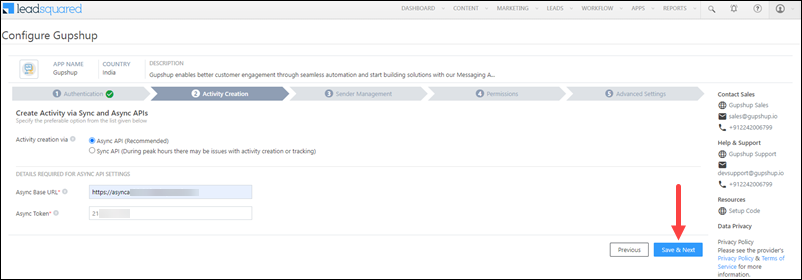
When SMSes are sent to your lead, an activity is posted automatically against that lead. Here, configure the activity creation method for the SMS activity.

  • Async API – This is the recommended method. If you’ve selected this method, enter your LeadSquared account’s Async API URL and API Key. To obtain both these values, navigate to My Profile>Settings>API and Webhooks>Async API.
  • Sync API – This method is selected by default. To post limited SMS activities against your lead, select Sync API.

Note:

  • Through the Sync API method, the activity creation process happens without any delays. But activity creation or tracking may fail during peak hours and when there’s high traffic to our servers. To work around this potential issue, we recommend you use the Async API method.
  • Async APIs must be enabled on your LeadSquared account for the Async method to work.

Gupshup LeadSquared Integration


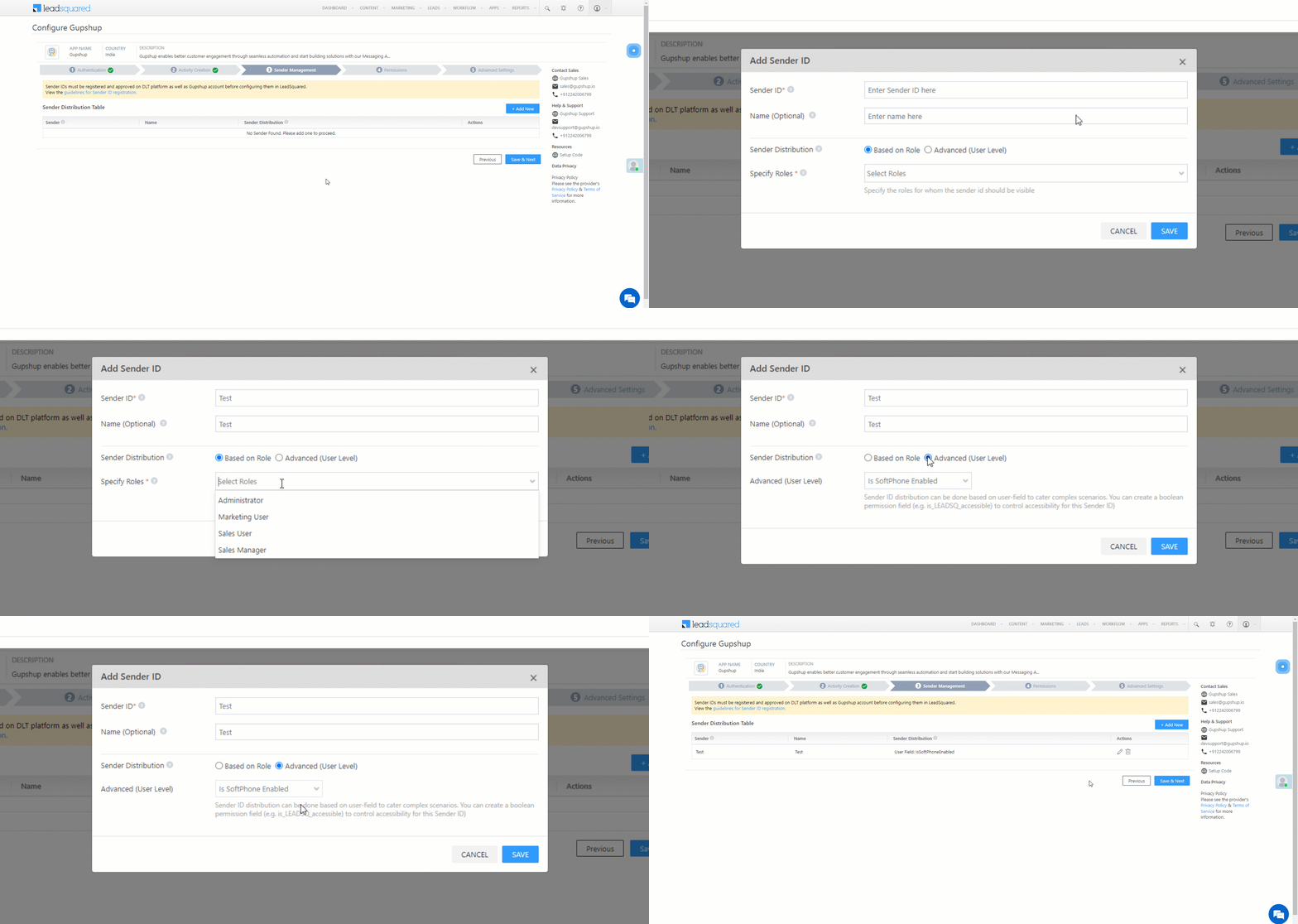
5.3 Sender Management

To add your SMS account’s Sender IDs, click Add New, and on the Add Sender ID pop-up, enter the following details –

  • Sender ID – Your SMS account’s DLT approved sender Id. To obtain this Id, contact your account manager.
  • Name – A name to identify the Sender ID (e.g., Promotional, Transactional, etc.). This is primarily for internal references. This is optional.
  • Sender Distribution – Select the users to whom the Sender ID will be assigned –
    • Based on Role – Select the LeadSquared user roles (e.g., Administrator, Marketing User, etc.) to whom you want to assign the Sender ID.
    • Advanced (User Level) – Select a boolean user field that’s configured in your account. If the selected user field contains the value “True” for any user, the Sender ID will be assigned to them.

To add multiple Sender IDs, repeat the steps mentioned above. Once you’re done, click Save, and click Save & Next.

Gupshup LeadSquared Integration


5.4 Permissions

Configure the permissions you want to grant users for the Send SMS action (Single and Bulk). This action will be configured on the following pages –

  • Manage Leads page grid
  • Manage Opportunities page grid
  • Lead List
  • Automation Page

You can also configure permission you want to grant users for managing templates and reports. This action will be configured on the following pages –

  • Manage Templates (the SMS template creation screen)
  • Manage Reports (the SMS Reports screen)
  1. Under Functionality, click on the page for which you want to configure the permissions.
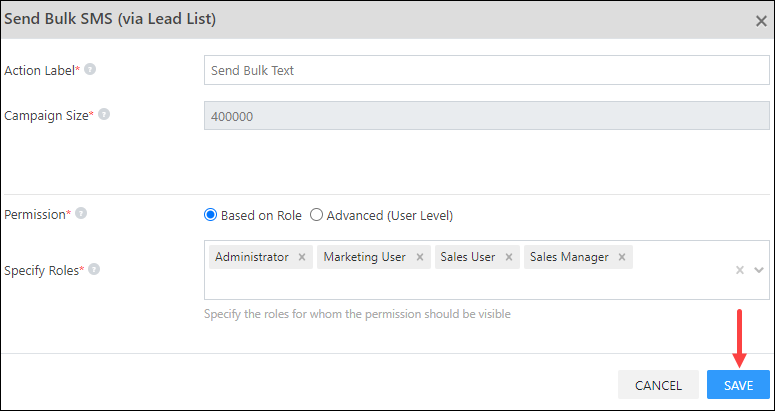
  2. On the Send SMS pop-up, provide the following details –
    • Action Label – Enter the display name of the SMS action (e.g., Send Text – Gupshup, Send Bulk Text – Karix, etc.). The limit on the number of characters you can add is 25.
    • Campaign Size – This is applicable only when sending bulk SMSes. You can send SMSes to up to 200 leads through the Lead Grid, and up to to 4 lakh (400,000) bulk SMSes through the Manage Lists page in one go.
    • Permission – Select if you want to enable users to Send SMS based on their user role or based on the values entered in a user boolean field.
      • Based on Role – Select the LeadSquared user roles based on which you want to grant Send SMS permissions.
      • Advanced (User Level) – Select a boolean user field that’s configured in your account. If the selected user field contains the value “True” for any user, they’ll be able to access the Send SMS action.
  3. To disable the action for your users on any page, under Enable/Disable, disable the Zoom slider. The action cannot be disabled for the Manage Templates and Manage Reports screens.
Note: To configure the send SMS action on the Manage Opportunities grid, copy the Configurable Action Url, and use it to create a new Custom Opportunity Actions. To know more, contact your account manager or write to suport@leadsquared.com.

LeadSquared Gupshup Integration


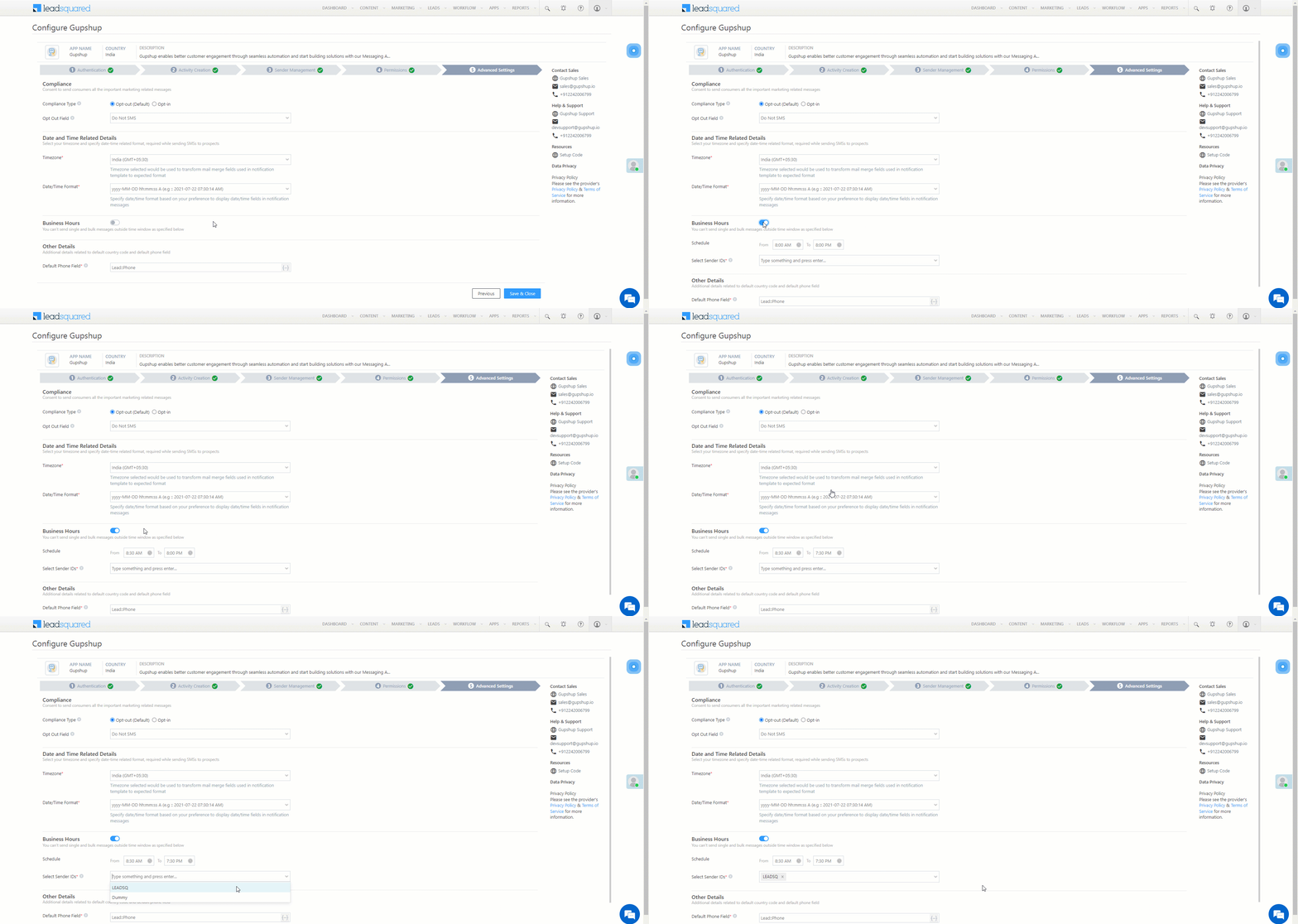
5.5 Advanced Settings

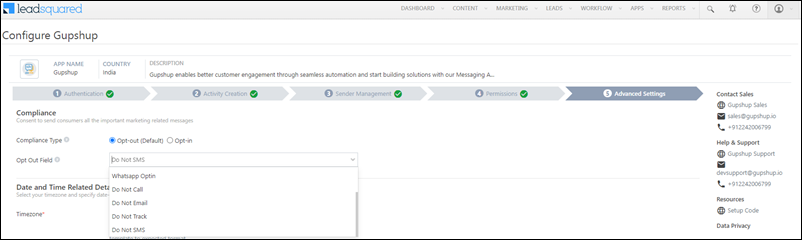
Compliance

The SMSes you send to your leads must meet regulatory compliance standards set by TRAI. You can either choose Opt-out or Opt-in as the compliance type. Once you select the type, from the list of boolean lead fields (e.g., ‘Do Not SMS’) available in your account, select an opt-out/opt-in field.
Leads for whom the value of the Opt-out field is set to ‘True’ will not receive any SMS. Alternatively, leads for whom the value of the Opt-in field is set to ‘True’ will receive SMSes.

Gupshup LeadSquared Integration

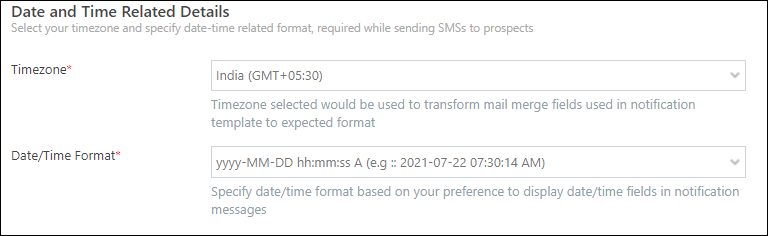
Date and Time Related Details

  • Timezone – Select the timezone your LeadSquared account should follow when sending SMSes to leads.
  • Date/Time Format – Select the date and time format your LeadSquared account should follow when sending SMSes to leads.

Gupshup LeadSquared Integration

You can define business hours during which SMSes can be sent to your leads. This step is optional.

  1. Alongside Business Hours, enable the Slider slider.
  2. From the Schedule dropdowns, define the business hours.
  3. From the Select Sender IDs dropdown, select the senders to whom this business hour definition will be applied.
Note: If Business Hours are defined, your users will not be able to send any messages outside these defined hours.

Gupshup LeadSquared Integration

Other Details

From the Other Phone Field dropdown, select the default phone field in which the lead’s phone number is stored in your account. Once you’re done, click Save & Close.

Note: To ensure a higher deliverability rate for your SMS campaigns, ensure phone control validations are enabled for this phone number field. To learn more, see Control Phone Number Format.

Gupshup LeadSquared Integration


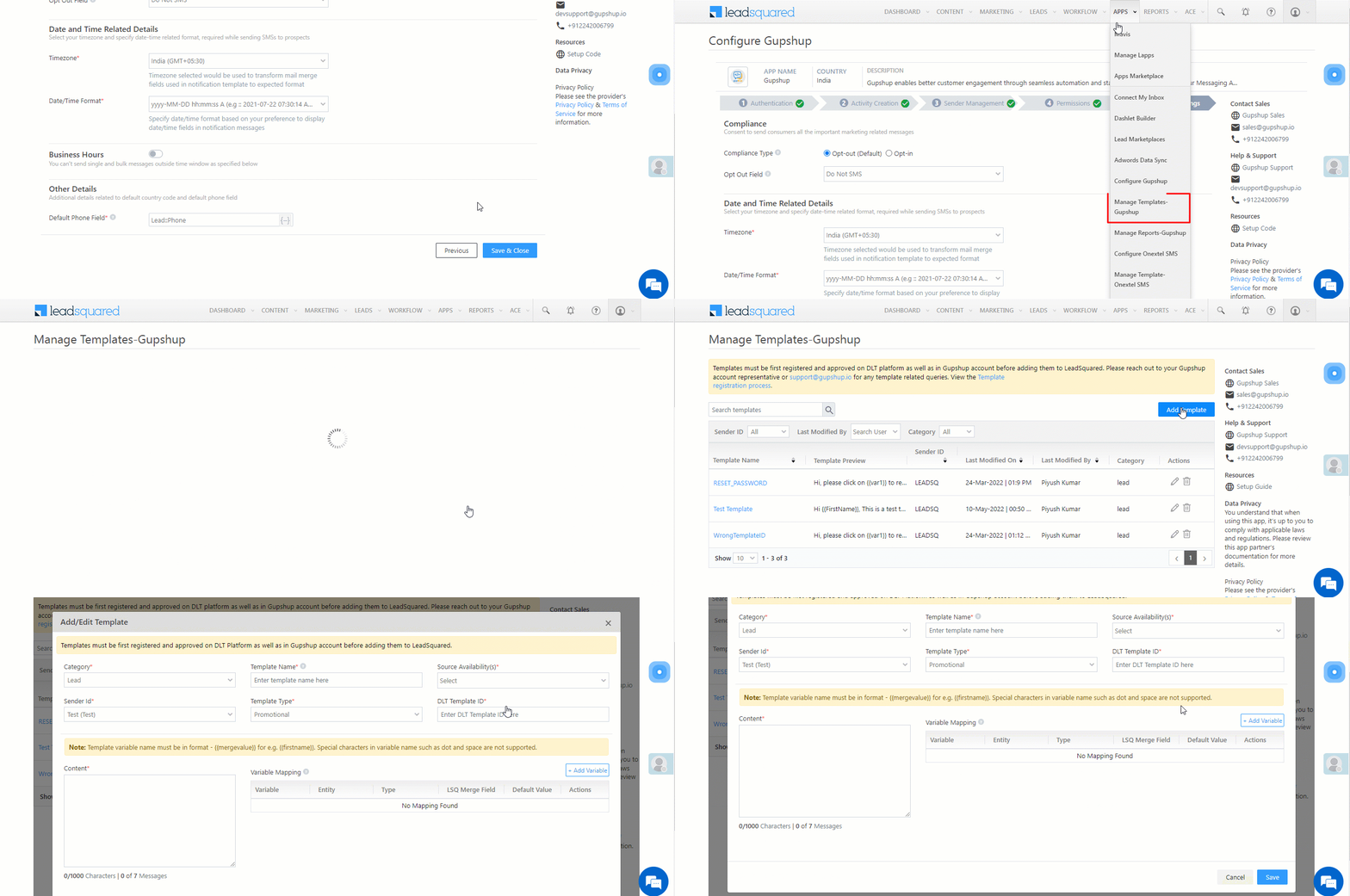
6. Manage Templates

After the SMS connector is set up, add DLT Approved SMS templates which you’ll be using to message your leads.

Note:

  1. Navigate to Apps>Manage Templates. This is the action label name you’ve configured for the Manage Templates screen (e.g., Manage Templates – Gupshup, etc.).
  2. On the Manage Templates screen, click Add Template.
  3. On the Add/Edit Template pop-up, enter the following details –
    • Category – Select the LeadSquared category type for the SMS template.
      • Lead – Select this if you’re using this template to send messages to leads (e.g., offers, promotions, etc.).
      • Opportunity – Select this if you’re using this template to send messages to opportunities (e.g., offers, promotions, etc.).
      • Activity – Select this if you’re using this template to send notifications about an activity (e.g., Payments, Document Collections, etc.).
      • Task – Select this if you’re using this template to send notifications about a task (e.g., Appointment Reminders, Follow Ups, etc.).
      • User – Select this if you’re using this template to send messages to users (e.g., Reminders, Company Wide Announcements, etc.).
    • Template Name – Provide a name for the template.
    • Source Availability – Select if the template should be available to send Single SMS, Bulk SMSes and SMS through Automations. You can select all three sources if required. It is mandatory to select at least one source.
    • SenderId – Your DLT approved Sender Id.
    • Template Type – Choose if the template is –
      • Transactional – Order confirmation, account creation confirmation, etc.
      • Promotional – Ongoing offers, product launches, etc.
      • Service Implicit – OTPs, informational messages, bookings, etc. These messages are not intended for marketing purposes.
      • Service Explicit – Discounts, updates, etc. These messages are for marketing purposes.
    • DLT Template Id – The DLT approved template Id. To get your template approved, and to obtain this Id, please reach out to your SMS provider’s account manager.
    • Content – Enter the DLT approved Template content/message here.
      • Add Variable – To add mail merge fields, click Add Variable. Variables in LeadSquared are defined as {{var}} i.e, the variable name is enclosed within two curly brackets.  If the approved template contains a mail merge field “{#var#}”, then the LeadSquared mail merge value can only replace “{#var#}”, without changing anything else in the template. For e.g., “Hi {#var#}, hope you’re doing well!” can only be replaced by, “Hi @{Lead:FirstName,}, hope you’re doing well!”. We also support Custom Variables. You can use this to mail merge custom variables like the Company Name, website URLs, etc.
  4. Once you’re done entering all the details, click Save.
Note: The maximum character limit for the DLT variables is 30 (as mandated by DLT). This is including spaces.

LeadSquared Gupshup Integration

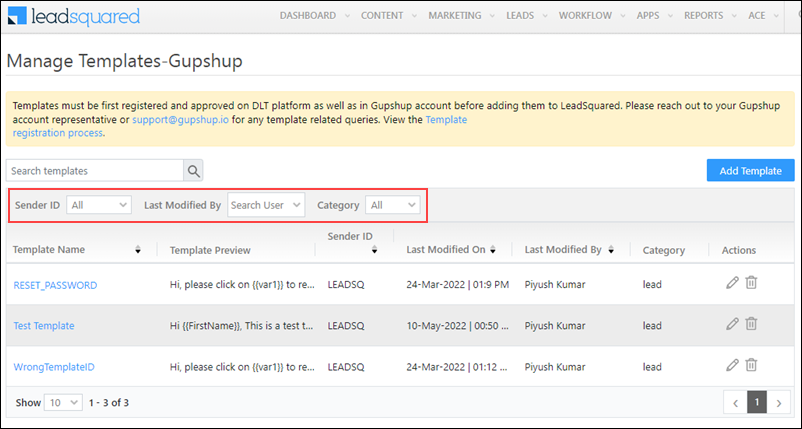
On the Manage Templates screen –

  • To edit an existing template, alongside the template, click .
  • To delete an existing template, alongside the template, click .
  • You can sort and filter existing templates by –
    • Sender ID
    • Last Modified By user
    • Category

LeadSquared Gupshup Integration


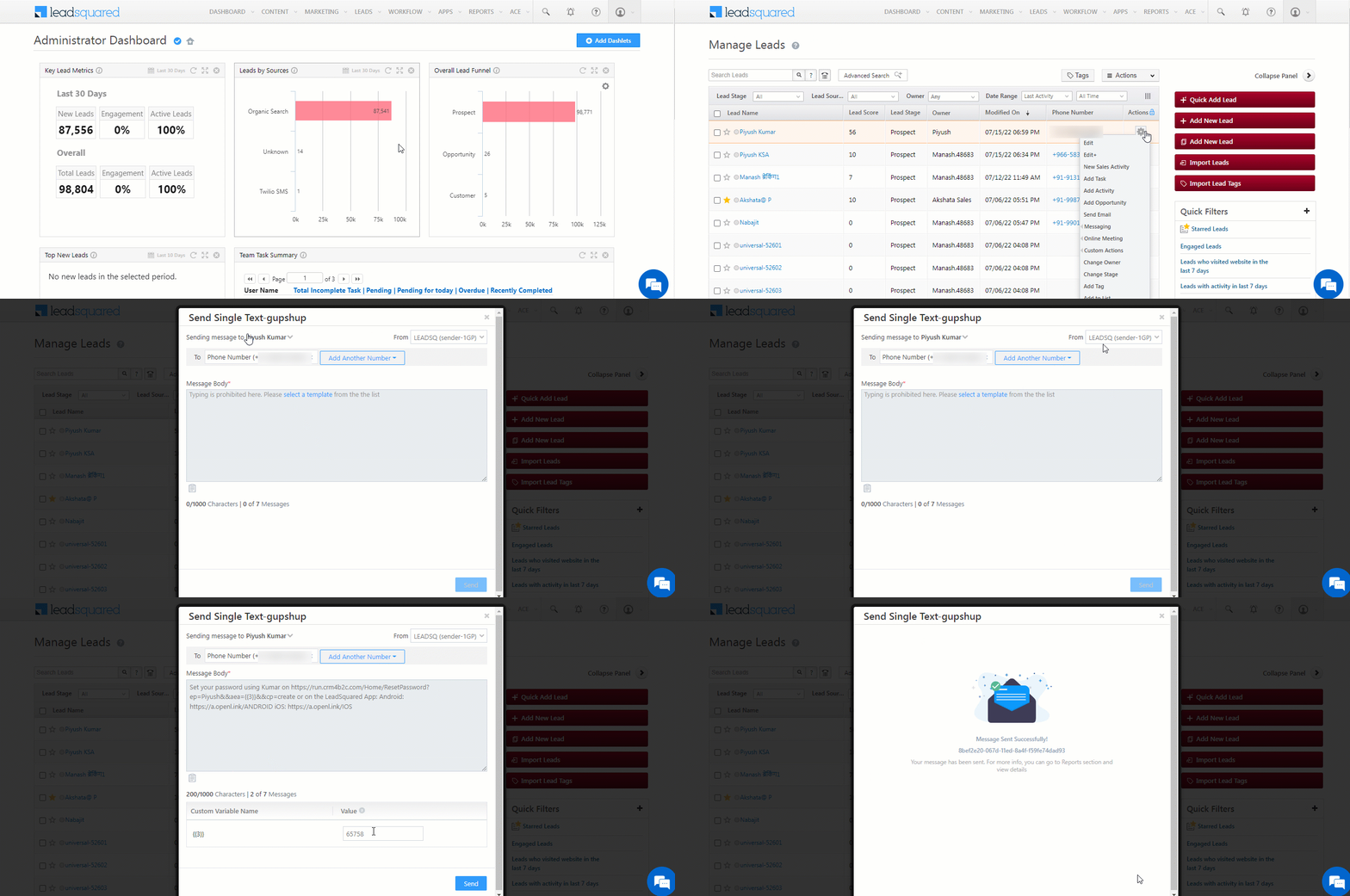
7. Send Single SMS

To send a one-to-one SMS to your leads –

  1. Navigate to Leads>Manage Leads.
  2. Alongside the lead you want to message, hover your cursor over . From the available options, under Messaging, click the messaging action label you’ve configured (e.g., Send Text – Gupshup, etc.).
  3. On the Send Text pop-up –
    • Select the Sender Id through the From dropdown.
    • Under Message Body, click Select a Template, and from the list of available templates, select the one you want to use.
    • If there are custom variables available, check if the relevant values are mapped to each variable.
  4. Once you’re done, click Send.
Note: The steps to send one-to-one SMS to your opportunities are the same as the ones listed above. To message your opportunities, navigate to Leads>Manage Opportunities.

LeadSquared Gupshup Integration

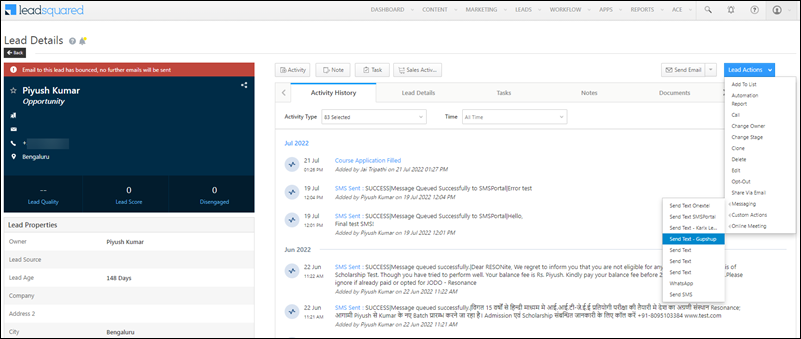
Alternatively, you can also send one-to-one SMSes from the Lead Details page. To do this, hover your cursor over the Lead Actions button, and under the Messaging option, click the messaging action label you’ve configured (e.g., Send Text – Gupshup, etc.).

LeadSquared Gupshup Integration


8. Send Bulk SMS

You can send bulk SMSes to your leads from the Manage Leads page and the Manage Lists page.

Note: At present, you can send bulk SMSes only through the following SMS connectors –

  • Karix
  • Gupshup
  • Mtalkz
  • TextNation
  • 100Coins
  • Airtel
  • ValueFirst
  • Twilio
  • Infobip
  • Exotel
  • MSG91
  • Soft-Tech

8.1 Manage Leads Page

  1. Navigate to Leads>Manage Leads.
  2. Alongside the leads you want to send the SMS to, select the Checkbox checkboxes..
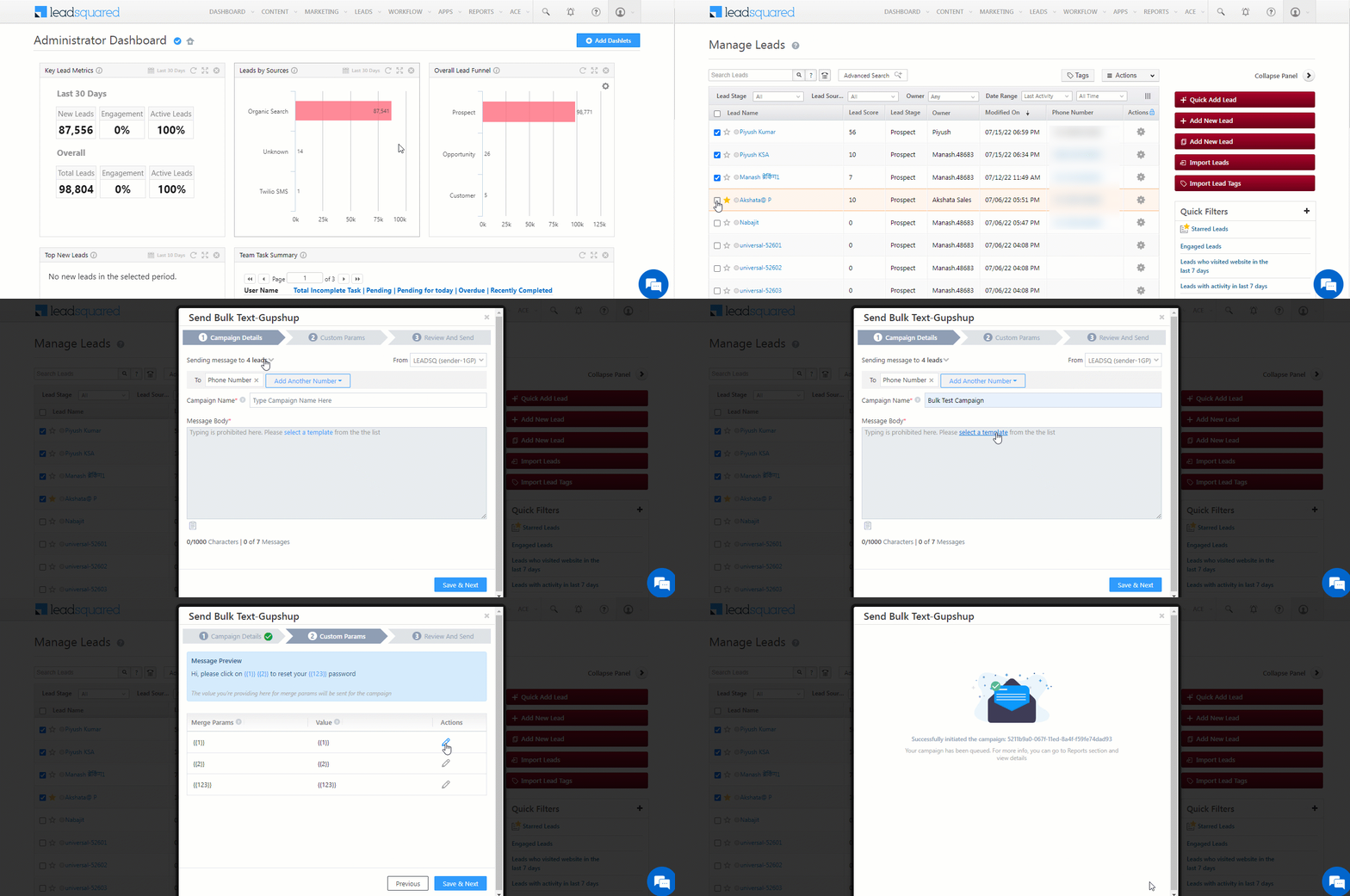
  3. Hover your cursor over the Actions menu. From the available options, under Messaging, click the messaging action label you’ve configured (e.g., Send Bulk Texts – Gupshup, etc.).
  4. On the Send Bulk Text pop-up, enter the following details –
    • Campaign Details
      • Alongside Sending messages to…, check if the correct number field has been selected. You can select multiple number lead fields.
      • From the From dropdown, select the Sender Id.
      • Alongside Campaign Name, provide a relevant name for the SMS campaign.
      • Under Message Body, click Select a Template, and from the list of available templates, select the one you want to use.
        • Alternatively, to select a template, click select template icon.
      • Once you’re done, click Save & Next.
    • Custom Params
      • If there are custom variables available in the template, check if the relevant values are mapped to each variable.
      • To edit the value for a variable, click .
      • Once you’re done, click Save & Next.
    • Review and Send – On this tab, review if all the SMS details are correct.
  5. Once all the details are verified, click Send.
  6. On the send SMS confirmation screen, click Yes. The SMS is sent to all the selected leads.

LeadSquared Gupshup Integration


8.2 Manage Lists Page

  1. Navigate to Leads>Manage Lists.
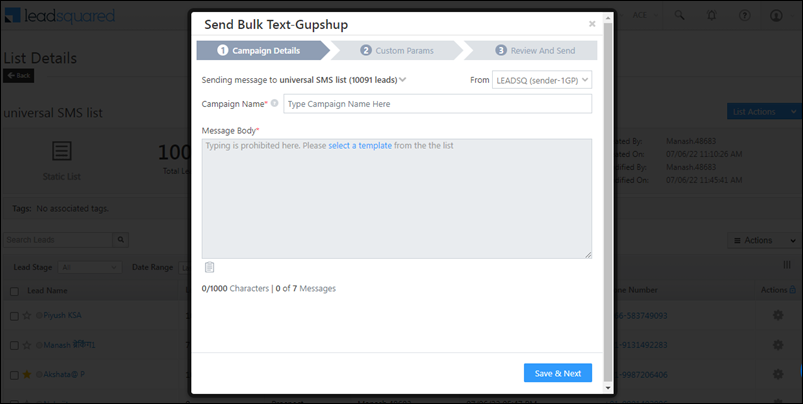
  2. Alongside the list you want to send the SMS to, hover your cursor over Settings icon. From the available options, under Messaging, click the messaging action label you’ve configured (e.g., Send Bulk Texts – Gupshup, etc.).
    • Alternatively, open a list and from the List Actions menu, click Messaging, and click the action label you’ve configured.
  3. On the Send Bulk Text pop-up, enter the following details –
    • Campaign Details
      • Alongside Sending messages to…, check if the correct number field has been selected. You can select multiple number lead fields.
      • From the From dropdown, select the Sender Id.
      • Alongside Campaign Name, provide a relevant name for the SMS campaign.
      • Under Message Body, click Select a Template, and from the list of available templates, select the one you want to use.
        • Alternatively, to select a template, click select template icon.
      • Once you’re done, click Save & Next.
    • Custom Params
      • If there are custom variables available in the template, check if the relevant values are mapped to each variable.
      • To edit the value for a variable, click .
      • Once you’re done, click Save & Next.
    • Review and Send – On this tab, review if all the SMS details are correct.
  4. Once all the details are verified, click Send.
  5. On the send SMS confirmation screen, click Yes. The SMS is sent to all the selected leads.

LeadSquared Gupshup Integration


9. SMS via Automation

To send SMS via Automations

  1. Navigate to Workflow>Automation.
  2. Create a new automation, or edit an existing one.
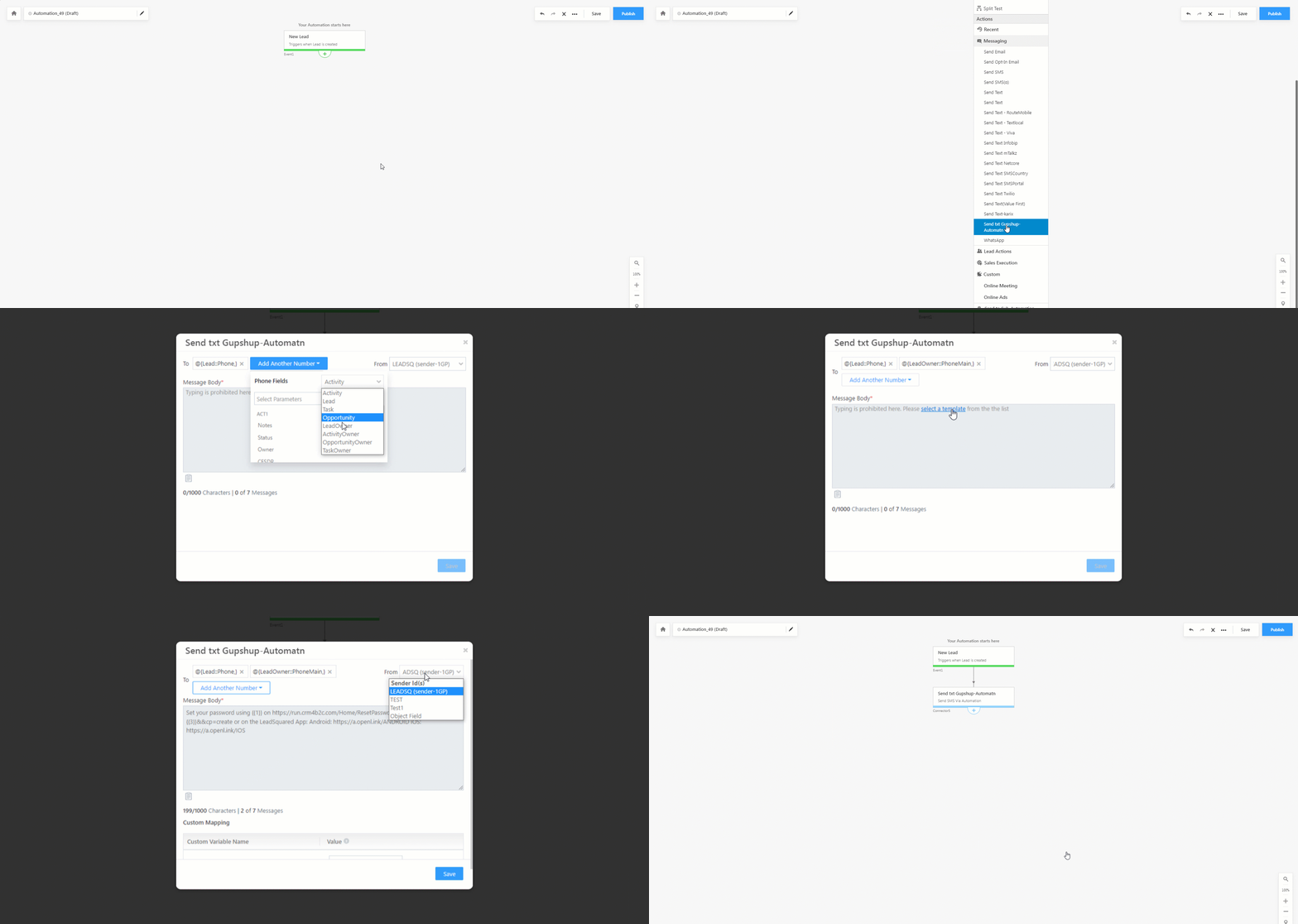
  3. After selecting the type of automation and the trigger, click the add expand icon, click Messaging, and click the messaging action label you’ve configured (e.g., Send Automation Texts – Gupshup, etc.).
  4. After entering the required details and selecting a template, click Send SMS.
    • To mail merge multiple LeadSquared phone fields, click the Add Another Number button. Filter by the entity type under which the phone field is present, and use the search box to find and add the field. In the example below, we’ve mail merged the Lead Owner phone field to the automation.
  5. Publish the automation.

For more information, see How to Send SMS through Automation.

Note: You can send SMS via automation through this connector only for automations created using a Lead, Opportunity, Activity, Task, or User triggers.

LeadSquared SMS Connectors


10. View Reports

To view the reports and logs of all the SMSes sent through the SMS connector –

  1. Navigate to Apps>Manage Reports – SMS Connector.
  2. You can sort the report by the following filters –
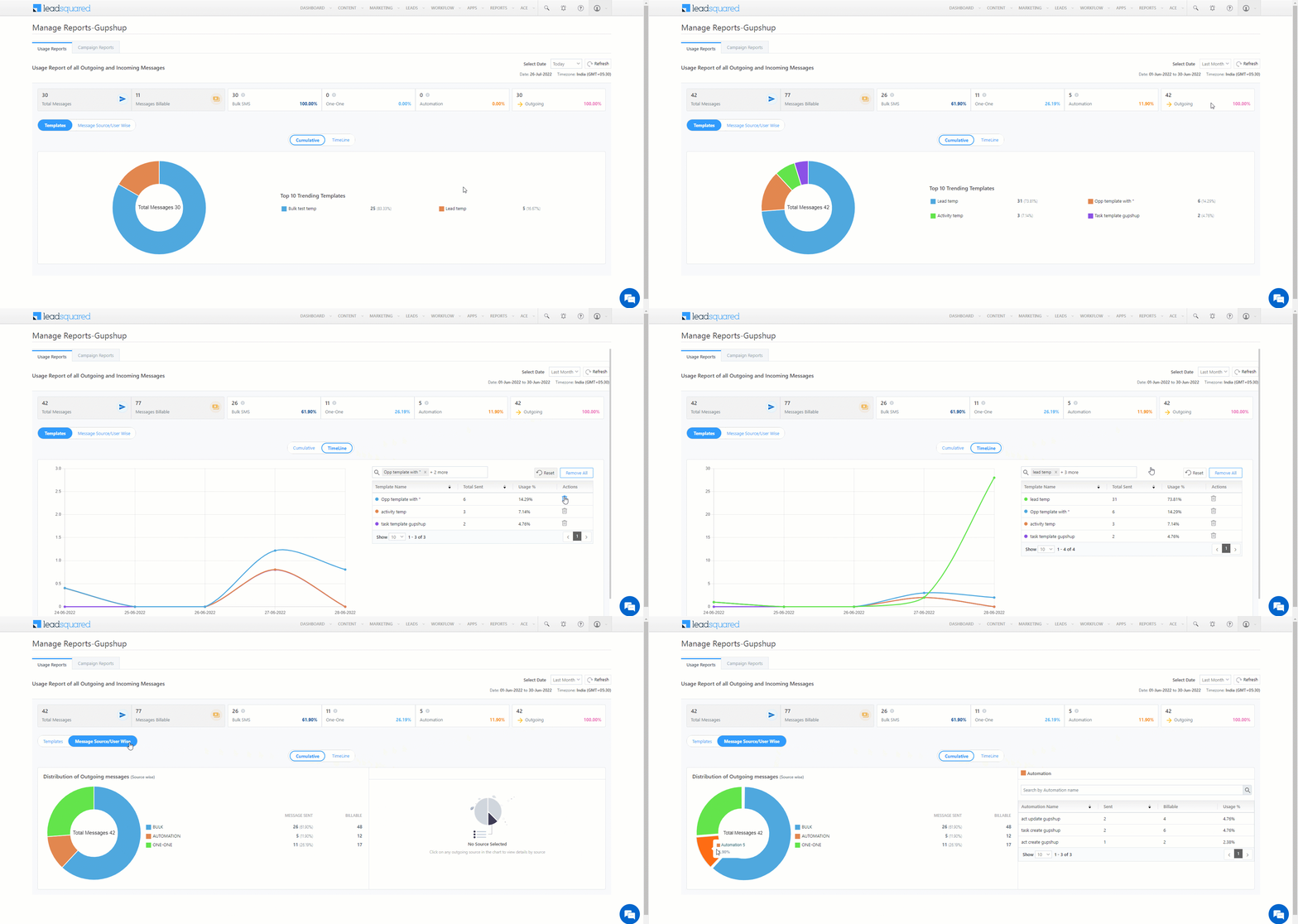
    • Usage Reports – The logs of the total one-to-one as well as bulk messages sent through the connector.
      • Templates – Filter the reports on the basis of the templates used when sending the messages.
      • Message Source/User Wise – Filter the reports on the basis of the message source (Automation, Bulk and One-to-one messages).
      • Select Date – Select the time interval for which you want to view the SMS logs data. You can select a maximum date range of up to 90-days in the past.
      • Cumulative – This will render the report as a pie chart.
      • Timeline – This will render the report as a bar graph.
      • For pie charts, to populate the details section, click any part of the chart.
      • For bar graphs, if you delete any element, the display of the graph gets updated accordingly.

LeadSquared Gupshup Integration

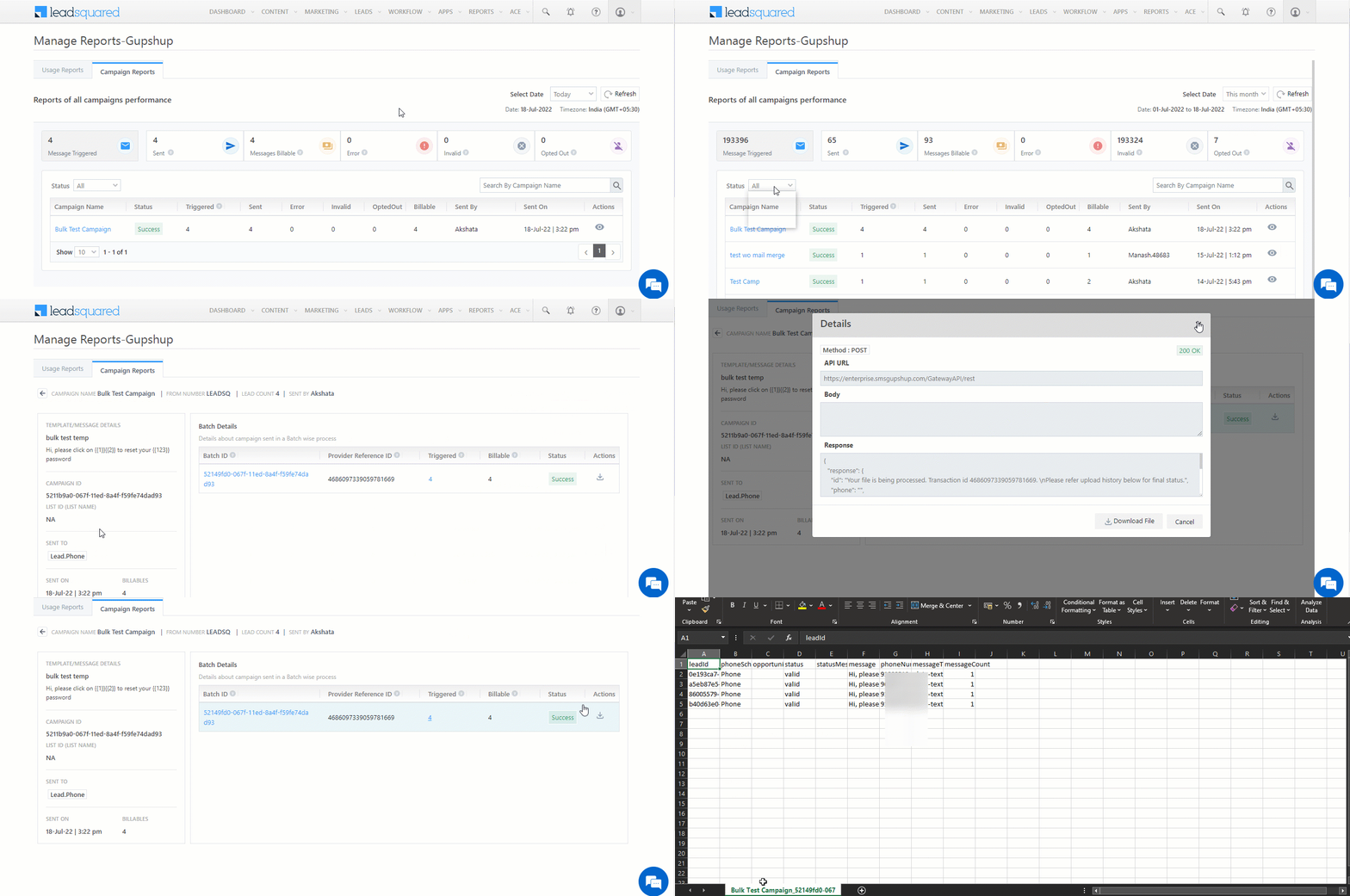
    • Campaign Reports – The logs of all the bulk messages sent through the connector. This option will only show up if the connector supports bulk messaging.
      • Select Date – Select the time interval for which you want to view the SMS logs data. You can select a maximum date range of up to 90-days in the past.
      • Status – Filter by the campaign status (All, Success, Error, and Partial Error).
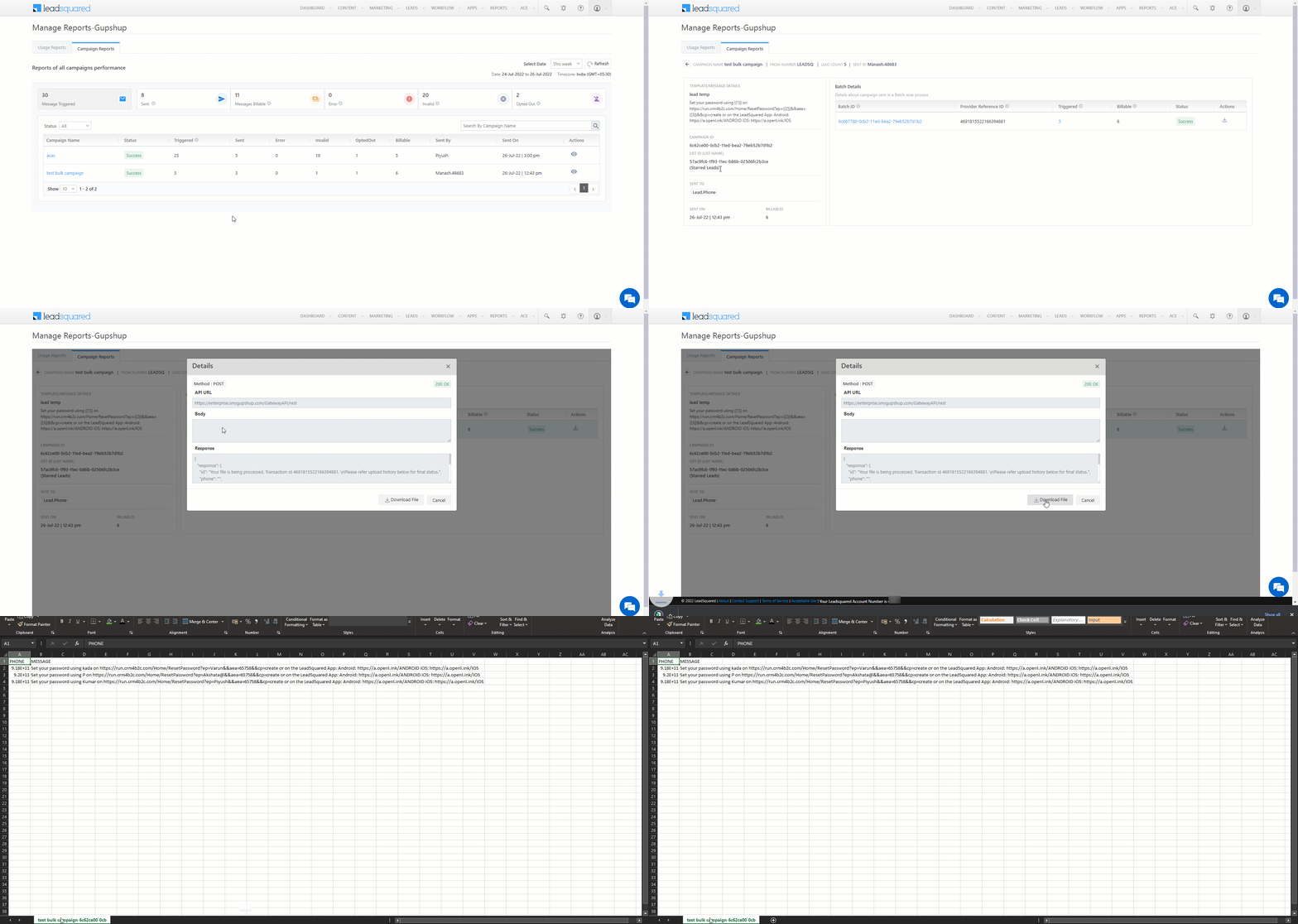
      • To view detailed logs of a campaign, click on the campaign. Alternatively, click the View icon. On the Batch Details screen, you can perform the following actions –
        • To view the API details, under Batch ID (the List Id), click the entry.
        • To view the status of the messages triggered, under Triggered, alongside the Batch Id you want to view the details for, click the number.
      • Message Triggered – The total number of leads to whom the messages were triggered.
      • Sent – The total number of successful messages sent to the SMS provider.
      • Messages Billable – Every block of 160 characters in a SMS is considered as a one SMS. For e.g., if you send one SMS that contains 340 characters, it is considered as 3 messages (160+160+20) under the Messages Billable header.
      • Error – Any internal LeadSquared errors (e.g., server errors, etc.) that cause the Send SMS action to fail will get logged under the Errors column.
      • Invalid – The following scenarios when sending SMSes will get logged under the Invalid column –
        • Formatting issues with the lead’s phone numbers
        • Empty or missing lead phone numbers
        • Sending SMS outside the configured Business Hours
        • If the DLT variable lenght exceeds the configured limit
      • Opted Out – The total number of messages sent to leads who have opted out of receiving messages.

Note: To download/export a report, under Actions, click download icon. The report contains the Lead Id, Phone Numbers, Opportunity Id, Message Content, Status Message, Message Type and Message Count of all the leads to whom the message was sent.

LeadSquared Gupshup Integration

Alternatively, click on the Batch Id to download a report that contains the Lead Phone Number and Message content of the SMS sent to leads.

LeadSquared Gupshup Integration


11. SMS Activities

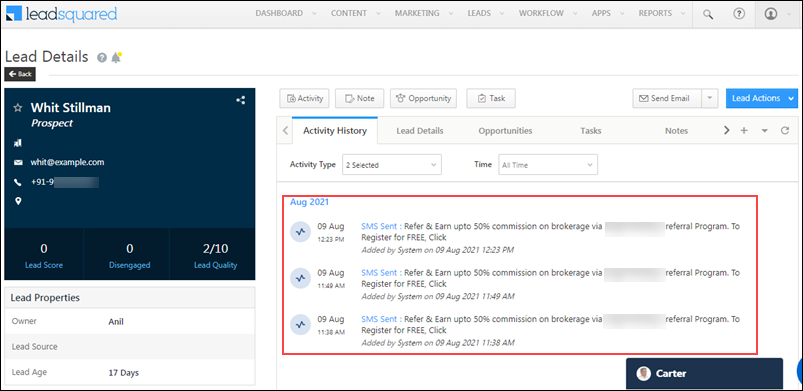
You can track the SMS sent, from the Lead Details and Manage Activities pages. We automatically post SMS Sent activities in real-time.

11.1 Lead Details

To view more details, click the SMS Sent link for each activity.

LeadSquared Tech Alpha Connector


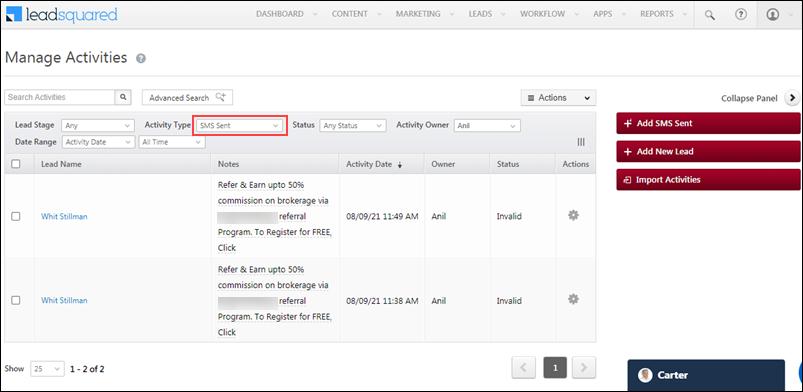
11.2 Manage Activities

You can also view the list of leads with SMS activities. Be sure to select SMS Sent from the Activity Type drop.

LeadSquared Tech Alpha Connector

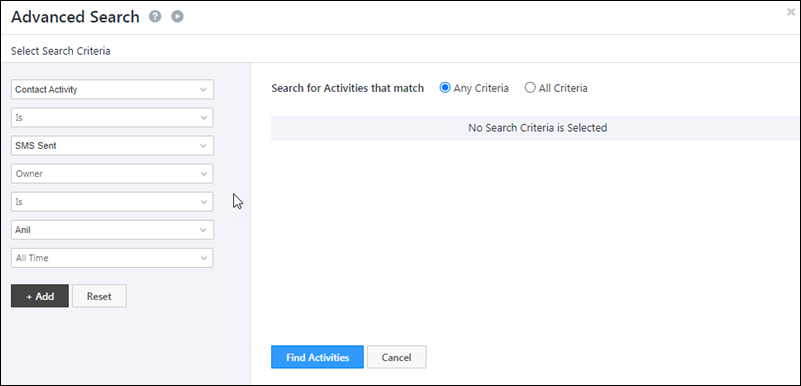
You can use the Advanced Search feature to filter SMS based on different fields, such as campaigns, date-time fields, etc.

LeadSquared Tech Alpha Connector


Any Questions?

Did you find this article helpful? Please let us know any feedback you may have in the comments section below. We’d love to hear from you and help you out!

How to Add Custom Activity Types

1. Feature Overview

LeadSquared comes pre-built with a number of core or system activities like email bounced, email link clicked, website page visited, lead captured, etc. We automatically post these activities against your Leads or Opportunities, whenever they are performed. The activities then appear in the Manage Activites page or on the lead’s detail page. Example of an activity posted against a lead is “Had a Phone Conversation”, while an example of an activity posted against an opportunity is “Home Loan Proposal Email Open”.

In addition to core activities, you can also create custom activities to accommodate your own unique use cases. You can also add fields within each custom activity to capture relevant data. Here are some examples –

Industry Custom Activity
Real Estate Site Visit
Education Attended Fair
Healthcare Clinic Visit
Finance KYC Document Collection
Travel Itinerary Shared
Generic Attended Webinar, Downloaded Document, Had a Phone Call
Note:

  • If opportunities are enabled on your account, you can post activities directly on the opportunity. To know how to add activities to opportunities, refer to Opportunity Details.
  • This article shows you how to create activity types. Once you’ve created an activity type, you can add activities of that type to your leads from the Manage Activities page.


2. Create a Custom Activity Type

  1. Navigate to My Profile>Settings>Leads>Custom Activities & Scores and click Add.
  2. On the Add Custom Activity Type pop-up, enter the relevant activity details, then click Next. See the table below for more details.
  3. Now add custom fields related to the activity. Notes, Status and Owner fields are available by default. Click Add Field to add more custom fields. Select the data Type of the field (String, Number, DateTime, DropDown, etc.). You can also mark fields as mandatory. Click Next to go to the final step.
  4. Customize how you want your add/edit activity forms to appear. Drag and drop the fields you want displayed on the form from Available Fields to Activity Details. Click Add Section to add another section to the form.
  5. Click Save.

Custom Activity

Fields on the Add Custom Activity Type form (step 1 of 3) –

 Field Description
Name Name the activity here.
Description Describe the activity here.
Score Associate a lead score with the activity. See How does Lead Scoring work?
Direction Inbound or Outbound.
Enable Details View Users can add activities and tasks on an existing activity, and track them on the Activity Details page.
Delete Activity Allow users to delete the activity. If you want to select CRUD permissions for specific users, see Permission Templates.
Track Location Track the location the activity was created from (for mobile users).
Log Activity Changes Log updates to the activity. See How to Log Activity Updates.
Allow pre-dated Activities Enable to allow users to add activities with earlier dates.
Show in Activity List Shows in the activity list on the Manage Activities page.
Allow Attachments Allow users to attach files to the activity.
Quick Add Quick add the activity on the lead details page without opening the add activity form. Use this feature if the activity is very common and you need to add it to a large number of leads. See the image below.
Lock Activity Once your users post a Custom Activity, you can lock that activity to prevent anyone from making changes to it. To know more, refer to Lock Activity after Creation.

Quick Add activity on the Lead Details page –

Custom Activity_2

Note:


FAQs

  • What is the Character Limit for an Activity String Field in LeadSquared?
    The Activity String field in LeadSquared has a character limit of 200.
  • What if I need to store more than 200 characters?
    If your data exceeds the 200-character limit, you can use a String field in a Custom Field Sets (CFS), which supports up to 1000 characters.


Next Steps

Once you’ve created a custom activity type, you can start posting activities on leads and opportunities. See Manage Activities for more details.

Connect Your Google/Outlook Calendar with LeadSquared

1. Feature Overview

Sync your LeadSquared account with your Google/Outlook Calendar to –

  • Sync meetings/tasks between Gmail/Outlook and LeadSquared.
  • Sync internal meetings scheduled with your colleagues in your Gmail/Outlook calendar as tasks in LeadSquared.
  • View LeadSquared tasks assigned to you by your manager in your Gmail/Outlook calendar.
  • Sync recurring meetings with your LeadSquared account.
  • View rescheduled, cancelled, and deleted meetings in real-time on your Gmail/Outlook and LeadSquared calendar

Note:

  • This article is to help Sales Users sync their email accounts with LeadSquared. The steps listed below can be followed by Admin Users as well to sync their own email accounts with LeadSquared.
  • Only appointment task types can be synced.


2. Prerequisites


3. Sync Your Email Account with LeadSquared

Once the admin configurations are completed, connect your Outlook/Gmail accounts to LeadSquared. To do this –

  1. From the main menu, navigate to Apps>Google/Outlook Connector.
  2. Click Get Started.

Google Outlook Calendar Sync Connector


3.1 Authorization

  1. Next to the email provider’s name, click the Sign in button.
  2. Enter your login details, and Accept the necessary permissions. Your email provider is synced to the connector.
  3. Click Next.

Google Outlook Calendar Sync Connector

If you’re signing in using Outlook, you will have to reauthenticate the sign-in every 15-days. Reauthentication requires you to perform the Authorization steps listed above.

Note: Reauthentication is not required if you’ve signed in using Gmail.

Google Outlook Calendar Sync Connector


3.2 Sync Options

If required, you can change the Sync Direction and Allow internal meeting sync setting. Once you’re done, click Next.

Note: You won’t be able to make any changes on this screen if the Do not allow your users to set calendar configuration setting is enabled by your LeadSquared Admin.

Google Outlook Calendar Sync Connector


3.3 Calendar & Task Mapping

If required, you can change the Calendar & Task Mapping configurations.

Note: You won’t be able to make any changes on this screen if the Do not allow your users to set calendar configuration setting is enabled by your LeadSquared Admin.

Google Outlook Calendar Sync Connector


3.4 Schedule Online Meeting

For online meetings, meeting links (Google Meet/Teams Meeting) are automatically generated.
If required, you can add or remove keywords that’ll determine if a meeting should be considered an online meeting. You can also enable or disable the Consider the task as Online Meeting if no “Location” is specified setting. Once you’re done, click Next.

Note: You won’t be able to make any changes on this screen if the Do not allow your users to set calendar configuration setting is enabled by your LeadSquared Admin.

Google Outlook Calendar Sync Connector


3.5 Activate Sync

Once all the settings are configured, to sync your LeadSquared and email provider’s task calendars, click Activate Sync.

Google Outlook Calendar Sync Connector


3.6 Other Actions

Once your account is connected, you can view logs of all the tasks that have been synced between LeadSquared and your email provider’s accounts.

  • Date Range Filter – You can filter the logs by Today, Yesterday, Last 7 Days, Last 30 Days and Custom Date. If you select Custom Date, you can select up to a maximum of 60 days in the past.
  • Sync Direction – If you’ve enabled two-way sync, you can filter the sync direction by All, Inbound or Outbound.
  • To Disable Sync between your LeadSquared account and email provider, click , and click Disable Sync. This will stop the flow of tasks between both accounts.
  • To delete your synced account within the connector, click , and click Delete Account.

Google Outlook Calendar Sync Connector


4. Create and View Tasks

Once your email provider’s account is connected to LeadSquared, depending on the connector configurations, you can view Appointment and meeting tasks in your Gmail/Outlook and LeadSquared accounts.

4.1 View Meetings in Outlook

Once you create an Appointment task type in LeadSquared, you can view it in your Outlook Calendar.

Google Outlook Calendar Sync Connector


4.2 View Meetings in Gmail

LeadSquared Connectors


4.3 View Meetings in LeadSquared

Once you create a meeting from your Outlook/Gmail Calendar, you can view it as a task in your LeadSquared account.

Google Outlook Calendar Sync Connector


5. FAQs

Will this connector also capture new leads?
No, this connector only syncs meetings between LeadSquared and your email provider.

I have multiple Outlook/Gmail calendars. Will I be able to sync all of them with LeadSquared?
Calendar sync will only sync with a user’s primary calendar. If a user has multiple calendars in their Outlook or Gmail account, LeadSquared will only sync with the primary or default calendar.

Can I connect both my Outlook and Gmail accounts to LeadSquared?
No, you can either connect your Gmail or Outlook account. Both the accounts cannot be synced at the same time.

Can I sync past meetings (created before the connector was installed) from my Outlook/Gmail accounts?
Historical calendar event sync is NOT supportedAny events created prior to the connector integration will not be synced to LeadSquared.

Will new meetings be created if the lead doesn’t exist in my LeadSquared account?
When an appointment meeting is created from your email calendar, the meeting will only show up on the Lead Details page of leads that exist in LeadSquared. Meetings with leads that don’t exist in LeadSquared are categorized as internal meetings, and they are created with a task owner but no lead. LeadSquared will not create new leads if the meeting attendees do not exist in your LeadSquared account.

My lead has multiple email Ids, which one should I use to create meetings?
For the meeting to appear in your lead’s timeline, the lead must be using the same email address as the one stored in LeadSquared.

Are all-day events also supported?
All-day events will not be synced to LeadSquared.

Are my private calendar events also synced to LeadSquared?
Calendar sync does not sync private calendar events to your account. If a public event is later changed to private, the engagement will remain in your LeadSquared account, but changes to the event will no longer sync.


Any Questions?

Did you find this article helpful? Please let us know any feedback you may have in the comments section below. We’d love to hear from you and help you out!

Google/Outlook Calendar Sync Connector Set-up for Admin Users

1. Feature Overview

This connector syncs LeadSquared Tasks with your Google and Outlook calendars. It also lets you sync your Google and Outlook meetings with your LeadSquared Tasks calendar. This ensures you can view all appointments in one place, without having to navigate between different apps.

Additionally, from LeadSquared, you can view the meetings and tasks of all your users whose email accounts are synced with the connector. To know more about the benefits of installing this connector, refer to Google Outlook Calendar Sync Connector.

Note:

  • This article is to help Admin Users install and configure the Google Outlook Calendar Sync Connector. If you’re a Sales User who’s looking to sync your Gmail/Outlook account with LeadSquared, refer to Connecting your Google/Outlook Calendar with LeadSquared.
  • This connector only captures tasks, and does not create new leads.
  • You can only sync Appointment task types with your Google and Outlook calendars.
  • Once an Appointment task is created in LeadSquared, the task is automatically synced to a user’s calendar based on the task owner specified in LeadSquared.

LeadSquared Connectors


2. Prerequisites

  • You must be the Administrator of your LeadSquared account to install and configure this connector.
  • You must have an existing Microsoft Outlook or Gmail account.
  • This is a paid feature. To enable it, reach out to your account manager, or write to support@leadsquared.com.


3. How it Works

You can configure the connector to sync meetings in one direction or in both directions between Google/Outlook and LeadSquared.

First, the Admin user must configure the following steps

  1. Install the connector.
  2. Select the list of users that can access the connector, and grant permissions to these users.
  3. Select the email provider you want to sync with the connector, and determine the task flow direction (Two-way, Inbound, or Outbound).
  4. Select the list of LeadSquared Appointment task types you want to sync with your email provider.

Once configured by the admin, each user in the account must

  1. Connect their email account with the connector.
  2. Activate the Sync. Depending on the task flow direction, you can now view tasks in your LeadSquared and email provider’s calendars.


4. Install the Connector

  1. Navigate to Apps>Apps Marketplace.
  2. Search for Google/Outlook Calendar, and click Install.
    • Alternatively, you can find the connector on the left panel, under Email.
  3. Once installed, hover your cursor over , and click Configure.

Google Outlook Calendar Sync Connector


5. Configure the Connector

Once you’ve installed the connector, on the Configure Google/Outlook Calendar pop-up, configure the connector access for the non-Admin users in your account. Only those users for whom access is granted can view and access the connector (under the Apps main menu).

  1. Select if you want to grant Connector Access that’s Based on Role or Advanced (User Level).
    • Based on Role – From the Specify Roles dropdown, select the LeadSquared user roles that can use the connector.
    • Advanced (User Level) – From the Advanced (User Level) dropdown, select a user boolean field. Based on the value entered in the selected boolean field, the user can access the connector (e.g., for the user Sam, if the “Is Employee” boolean user field contains the value “Yes”, then this user can access the connector).
  2. Once you’re done, click Save Details. To continue the configuration, refer to the below sections.
Note: By default, all Admin users will have access to the connector.

Google Outlook Calendar Sync Connector


6. Admin Configuration

To continue the connector configuration, navigate to Apps>Google/Outlook Calendar.

Note: We’ve configured the connector by choosing Outlook as the email provider. The steps to configure the connector using Gmail are the same as the steps listed below.

Google Outlook Calendar Sync Connector


6.1 Provider Selection

Select, sync and configure the email provider your organization uses.

Note: You can only select and configure one email provider.
  1. From the options listed under Choose Email Provider, select your preferred provider.
  2. Once you’re done, click Next.

Google Outlook Calendar Sync Connector


6.2 Sync Options

Configure the direction of the task data sync between your email provider’s account and LeadSquared.

  • Email Provider to LeadSquared – All the meetings created in your email provider’s calendar will get synced to your LeadSquared account.
  • Two way Sync – All the meetings created in your email provider’s calendar will get synced to your LeadSquared account, and all the Appointment task types created in your LeadSquared account will get synced with your email provider’s account.
  • LeadSquared to Email Provider – All the Appointment task types created in your LeadSquared account will get synced with your email provider’s account.

Once you’re done, click Next.

Google Outlook Calendar Sync Connector


6.3 Calendar & Task Mapping

Select the LeadSquared task types to sync with your email provider.

Email Provider to LeadSquared

All the meetings from your email provider’s calendar are selected by default. Select the corresponding LeadSquared task to which this meeting task should be mapped. This LeadSquared task will get created every time there’s a new meeting scheduled in your email provider’s account.

Note:

  • For leads that don’t exist in your LeadSquared account, no lead is tagged to the Appointment task.
  • You can sync the meetings to only one LeadSquared task type.
  • You can select any Appointment task type (system and custom) present in your account. To know how to create a custom task, refer to How to Create Tasks and Schedule Reminders?

Google Outlook Calendar Sync Connector

LeadSquared to Email Provider

Every time the selected LeadSquared task types are created in LeadSquared, it will automatically get created as a meeting in your email provider’s account. Once you’re done, click Next.

Note: You can select multiple LeadSquared task types that you want to sync with your email provider’s account.

Google Outlook Calendar Sync Connector


6.4 Advanced Settings

Configure the following connector settings on this tab –

  • Organization Domains – List your organization’s email domain(s) (e.g., if a user’s official email Id is sri@example.com, the email domain is “example.com”.), and hit ENTER. The domains entered here are used to identify internal users in your organization. You can add multiple organization domains, to cover employees, contractors, third-party vendors, etc.
  • Allow internal meeting sync – By default, only external meetings are synced across the calendars.
    If a meeting is created between different users whose email domains are listed under Organization Domains, it is considered an internal meeting. To allow your LeadSquared and email provider calendars to sync and display these meetings to your internal users, enable this setting.
  • Schedule Online Meeting – When creating Appointments in LeadSquared, if any of the keywords entered here (e.g., online, remote, etc.) are entered in the Location task field, that Appointment is considered an online meeting. As a result of this, an online meeting is created in your email provider’s calendar, and an online meeting link is generated. You can add multiple keywords. These keywords are case insensitive.
  • Consider the task as Online Meeting if no “Location” is specified – When enabled, if an Appointment is created in LeadSquared, and the Location task field is empty, then the task is considered as an online meeting, and an online meeting link is generated and added to your email provider’s calendar.
  • Do not allow your users to set calendar configuration – When enabled, Admin and non-Admin users will not be able to change the connector configurations. Note that if users have existing settings configured, it is overwritten by the settings configured by the Admin. We recommend you enable this setting.

Once you’re done, click Save Details. The connector is successfully configured.

Note: To change existing Admin Configurations, click Edit Admin Configuration.

Google Outlook Calendar Sync Connector


7. My Dashboard

Note: To sync your email account calendar with your LeadSquared calendar, see Connecting your Google/Outlook Calendar with LeadSquared.

If you’ve synced your email account with LeadSquared, you’ll be able to view the logs of all the tasks tagged to you from the My Dashboard screen.

  • Date Range Filter – You can filter the logs by Today, Yesterday, Last 7 Days, Last 30 Days and Custom Date. If you select Custom Date, you can select up to a maximum of 60 days in the past.
  • Sync Direction – If you’ve enabled two-way sync, you can filter the sync direction by All, Inbound or Outbound.
  • To Disable Sync between your LeadSquared account and email provider, click , and click Disable Sync. This will stop the flow of tasks between both accounts.
  • To delete your synced account within the connector, click , and click Delete Account.
  • To refresh the list of tasks synced, alongside Last Event Received, click Refresh.
  • To retry a task with an error, under actions, click  Refresh.

Google Outlook Calendar Sync Connector


8. User Management

View the list of Active and Inactive users in your LeadSquared account. Filter them on the basis of the email provider they’ve used to sync with the connector. Click to perform the following actions –

  • View Dashboard – View your user’s connector Dashboard, where the list of tasks and task logs are present.
  • Disable Sync – Disables connector sync for the selected user.
  • Remove Account – Deletes the selected user’s account from the connector.

Google Outlook Calendar Sync Connector


9. FAQs

Will this connector also capture new leads?
No, this connector only syncs meetings between LeadSquared and your email provider.

I have multiple Outlook/Gmail calendars. Will I be able to sync all of them with LeadSquared?
Calendar sync will only sync with a user’s primary calendar. If a user has multiple calendars in their Outlook or Gmail account, LeadSquared will only sync with the primary or default calendar.

Can I connect both my Outlook and Gmail accounts to LeadSquared?
No, you can either connect your Gmail or Outlook account. Both the accounts cannot be synced at the same time.

Can I sync past meetings (created before the connector was installed) from my Outlook/Gmail accounts?
Historical calendar event sync is NOT supportedAny events created prior to the connector integration will not be synced to LeadSquared.

Will new meetings be created if the lead doesn’t exist in my LeadSquared account?
When an appointment meeting is created from your email calendar, the meeting will only show up on the Lead Details page of leads that exist in LeadSquared. Meetings with leads that don’t exist in LeadSquared are categorized as internal meetings, and they are created with a task owner but no lead. LeadSquared will not create new leads if the meeting attendees do not exist in your LeadSquared account.

My lead has multiple email Ids, which one should I use to create meetings?
For the meeting to appear in your lead’s timeline, the lead must be using the same email address as the one stored in LeadSquared.

Are all-day events also supported?
All-day events will not be synced to LeadSquared.

Are my private calendar events also synced to LeadSquared?
Calendar sync does not sync private calendar events to your account. If a public event is later changed to private, the engagement will remain in your LeadSquared account, but changes to the event will no longer sync.


Any Questions?

Did you find this article helpful? Please let us know any feedback you may have in the comments section below. We’d love to hear from you and help you out!

Export Opportunities

1. Feature Overview

Opportunities represent potential deals. You can add opportunities for leads who’ve shown interest in different products (such as different loans, insurances, etc.) that your business offers. These opportunities within LeadSquared can be exported and sent to you via email. This article will help you understand how you can export these opportunities.

For example, if your sales team creates opportunities for leads interested in different insurance plans, you can export all opportunities at the end of the week and share the report with your management team to review pipeline value and track which deals are likely to close.

To know more about Opportunities, refer to Manage Opportunities.


2. Export Opportunity

To export opportunities in a CSV file –

  1. From the top-bar menu, navigate to Lead Management>Opportunities.
  2. On the left-menu, navigate to the Opportunity Type you want to export.
  3. On the Manage Opportunities page, alongside the opportunities you want to export, select the checkbox.
    • You can also select all opportunities on the page by clicking the checkbox alongside Opportunity Name.
  4. Hover your cursor on the three dots menu on the top-right, and click Export opportunity type (e.g., Export Home Loans).
  5. On the Export Opportunity pop-up, choose whether you want to export All Fields or Selected Fields.
    • All Fields will export all the opportunity fields, along with a few lead fields.
    • Selected Fields lets you select the opportunity and lead fields you want to export.
  6. Once you finish, click Export. You’ll soon receive an email with a link to download the .csv file.
    • Alternatively, you can navigate to the Request History page, from where you can download a copy of the .csv file.

Note:

LeadSquared Opportunity Management


Any Questions?

Did you find this article helpful? Please let us know any feedback you may have in the comments section below. We’d love to hear from you and help you out!

Telephony Logs

Feature Overview

All events related to your telephony integration are logged and stored in the Telephony Logs section of your account settings.

For more details on Telephony integrations, see –


1. Search and Filter Logs

To navigate to the telephony logs section, from the main menu, go to My Profile>Settings>API & Webhooks>Telephony Logs.

You can filter based on

  • Events (Agent Popup, Click 2 Call, Call Log, Call Disposition, etc.)
  • Status (Success, Failure, etc.)
  • Caller (Universal Telephony Connector, Ozonetel, RingCentral, etc.)
  • Date Range (Today, Yesterday, Last 7 Days, Custom Range – can be set to any 7 day period)

Note:

  • Customers on the new ESS version (v2) can search the API payloads for data (email, phone numbers, etc.).
  • Logs are maintained for the past 60 days.

LeadSquared Telephony


2. View Data

To view the data received for any event, hover your cursor over the settings icon, and click View Data.

LeadSquared Telephony


Any Questions?

Leave a comment below if you have more questions. We’ll be happy to answer them.

Integrate Shopify with LeadSquared

1. Feature Overview

This connector captures leads and tasks in real time from your Shopify account to LeadSquared. Once the leads are synced, you can leverage LeadSquared’s CRM features to nurture and convert your leads.


2. Prerequisites

  • You must be the Administrator of your LeadSquared and Shopify accounts.
  • This is a paid feature. To enable it, reach out to your account manager, or write to support@leadsquared.com.


3. How it Works

Note: Before completing the following steps, you must create the following accounts on Shopify –

To push lead data from Shopify to your LeadSquared account, configure the Shopify connector instance. Once configured, enable the connector sync.

During configuration, a webhook URL is generated in LeadSquared. Copy this URL and set it up in your Shopify account. To know how to do this, refer to Webhooks Configuration Overview in Shopify. Once it’s set up, the lead capture process is initiated.


4. Installation

You must first install and configure the Shopify connector.

  1. Navigate to Apps>Apps Marketplace.
  2. Search for Shopify, and click Install.
    • Alternatively, you can find the connector on the left panel, under Lead Capture.
  3. Once installed, hover your cursor over , and click Configure.

Shopify install

4.1 Configure the connector

Once you’ve installed the connector, on the Configure Shopify pop-up, configure the connector access for the non-Admin users in your account. Only those users for whom access is granted can view and access the connector (under the Apps main menu).

  1. Select if you want to grant Connector Access that’s Based on Role or Advanced (User Level).
    • Based on Role – From the Specify Roles dropdown, select the LeadSquared user roles that can use the connector.
    • Advanced (User Level) – From the Advanced (User Level) dropdown, select a user boolean field. Based on the value entered in the selected boolean field, the user can access the connector (e.g., for the user Sam, if the “Is Employee” boolean user field contains the value “Yes”, then this user can access the connector).
  2. Once you’re done, click Save Details. To continue the configuration, refer to the below sections.
Note: By default, all Admin users will have access to the connector.

Shopify config


5. Admin Configuration

To continue the connector configuration, navigate to Apps>Shopify.

Shopify admin config

5.1 Basic Settings

Enter the following details –

Property Description
Lead Source Enter the lead source through which the leads were captured (e.g., Shopify, email campaign, etc.). This detail will be displayed on the Lead Details page, under Lead Source.
Default Country Code If the lead’s mobile number is captured without a country code, then the default country code that’s selected from the dropdown will be added to the lead’s mobile number.
Select Time Zone The time zone followed in your Shopify account.
Lead Capture Search By Criteria To avoid duplicate leads, you must select one unique lead field (e.g., email Id, mobile number, PAN number, etc.) as the search key. This will be used to identify the leads pushed from Shopify.

To know how to mark a LeadSquared lead field as unique, please refer to How to Make a Custom Field Unique.

Lead Capture Secondary Search By Criteria If lead identification and capture through the primary Search By criteria fails, it will be re-attempted using the secondary Search By criteria.
Select User to Notify on Failure If there is an error in fetching leads, the selected user will receive a failure message via email. You can select a user from the list of all the users available in your LeadSquared account.

To know more about the type of errors, please refer to Error Notifications.

Enable Notification To ensure notification emails are sent to the selected user when there’s a failed query, enable the Checkbox checkbox.

Once you’ve entered all the details, click Save & Next.

Shopify basic settings save

5.2 Entity Options

Define the sync behavior of the connector when leads are captured.

5.2.1 Lead/Contact Entity

Based on the Lead Capture Search By criteria selected (email Id, phone number, etc.), LeadSquared identifies and captures leads from your Shopify account. Lead capture is enabled by default, and it cannot be disabled.

Select one of the following options to configure the connector’s Sync Behaviour 

  • Capture (Create and Update existing) Record – Leads that only exist in your Shopify account (but not in your LeadSquared account) will get created in LeadSquared. Leads that exist in both your Calendly and LeadSquared accounts will get updated.
  • Create only new record – Leads that only exist in your Shopify account (but not in your LeadSquared account) will get created in LeadSquared.
  • Update only existing record – Leads that exist in both your Shopify and LeadSquared accounts will get updated in LeadSquared.

shopify lead or contact sync

5.2.2 Edit Mapping

Once you configure the Sync Behaviour, you’ll have to ensure the field mapping is accurate. To do this, click Edit Mapping. On the Default/Edit Mapping screen, the Shopify system fields mapped by default to the corresponding LeadSquared lead fields are visible. If required, you can change or update the default field mapping.

  • To provide a default value for any field, click  , enter the value under Default Value, and click Google.
    • If the data provider doesn’t send data for any lead field, then the default value will get assigned to that specific field. But if the field already has an existing value, then the default value will be ignored.
  • To disable lead data capture for any field, disable the Zoom slider.
  • To mark a unique lead field as the search key, click Mark Unique.
  • To create a custom Shopify lead field, click the Add Custom button.
    1. Once this field is created, you must map it to the relevant LeadSquared lead field.
    2. After the field is mapped, to save the custom field, click Google.
    3. To delete a custom field, click .

Shopify lead mapping

5.2.3 Activity Entity

Once leads are captured in LeadSquared, you can post custom activities to these leads. These activities will help users keep track of the lead’s journey to conversion.

To post activities to the leads captured from Shopify, against Activity Entity, enable the Slider slider. The following options are available to configure the connector’s Sync Behaviour when activities are synced to LeadSquared –

  • Capture (Create and Update existing) Record – New activities will get posted to the lead in LeadSquared while existing activities will get updated.
  • Create only new record – Only new activities will get posted to leads in LeadSquared.
  • Update only existing record – Only existing activities on the leads captured will get updated in LeadSquared.

Once you’re done, click Save & Next.

Note:

  • To configure activity mapping, refer to Edit Mapping.
  • To define which LeadSquared activity type you want to map and capture data to, contact your account manager or support@leadsquared.com.
  • An activity is classified as a new activity or an existing activity based on the Lead Capture Search By Criteria you’ve selected in the previous section.

Shopify activity mapping

5.3 Generate the Webhook URL

After you provide basic details and finish field mapping, a custom webhook URL is generated. To automate lead capture, copy this URL and set it up on your Shopify account. To know more, refer to Shopify Webhooks.

After you’ve set up the webhook, click More Actions, and enable the sync job. This ensures lead data from Shopify will be pushed to LeadSquared using the webhook.

Note: To view logs of all the sync jobs that have taken place, from the More Actions dropdown, click View Logs.

Shopify webhook url


6. View Logs

Here, you can view logs of all the sync jobs that have taken place. View New Events (New Leads), Updated Events (Updated Leads), and Errors (when capturing leads).

  1. Navigate to Apps>Shopify.
  2. From the More Actions dropdown, click View Logs.
  3. You can filter the logs by selecting a date range (Today, Last 7 Days, This Month, and Last Month), by selecting the Job Status (“All”, “Success” and “Failure”), and by selecting the Sync Status (All, Error, and Success).
  4. You can view the sync status of the following events –
    • New Events – List of all the new leads that have been created in LeadSquared during the selected date range.
    • Updated Events – A list of all the –
      • Duplicate leads that were created with the same Search by Criteria value (e.g., with the same Email Id, Mobile Number, etc.).
      • Leads that previously contained errors, which were fixed and synced successfully.
    • Failed – The list of leads that have not been captured due to mapping errors (e.g., when a boolean field is mapped to an integer field, etc.).
  5. To view the Sync Response details, under Request ID/Sync Job ID, click the Id.
    • Under the right panel, you can view the response status, the API URL, the request, and the response.
    • The responses that are successful will contain the details of the leads that have been pushed from Shopify.
    • To view the lead capture response under Sync API Response, Leads Updated and Errors in Leads, click Information.

Note:

  • For a response that contains an error, the reason for the error is listed in the response. Once you fix it, you can click the Retry button to perform the sync again.
  • The current Lead Sync Behaviour will reflect in the Logs screen. This will help identify the sync that’s used (Capture or Update) for the selected Request/Sync Job Id.

Shopify view logs


7. Other Actions

You can edit or delete the Shopify connector instance that you created. To do this –

  1. Navigate to Apps>App Marketplace.
  2. Search for Shopify.
  3. Alongside the Shopify connector, hover your cursor over .
  4. From the list of options, you can perform the following actions –
    • Edit Configuration
    • Disable Configuration
    • Remove Configuration

Shopify other actions


8. View Reports

You can view the total number of leads that have been pushed by Shopify, by referring to the Lead Source report. To know more, please refer to How to track the source of your Leads using Lead Source Report?

Integrate Shopify with LeadSquared


Any Questions?

Did you find this article helpful? Please let us know any feedback you may have in the comments section below. We’d love to hear from you and help you out!

How to Set Up User/Organization Hierarchy

1. Feature Overview

You can configure your LeadSquared account to reflect the hierarchy/reporting structure of your organization. Once set up, you can use the hierarchy to leverage features like LeadSquared Goals, Reporting, and Automation (for automated escalations).

LSQ Organization Hierarchy feature


2. Prerequisites

LeadSquared Organization Settings


3. How It Works

The user hierarchy is automatically created based on the ‘Reporting To’ field specified when a user is created. For information on how to create users, see Manage Users.

LeadSquared organization hierarchy


3. Set Up User Hierarchy

The user hierarchy drag and drop interface lets you set up your organization structure in minutes.

Even if you didn’t specify the reporting manager while creating the user, you can still use the drag and drop interface on the User Hierarchy screen to set up or change the reporting structure –

  1. Navigate to My Profile>Manage Users.
  2. Hover your cursor over the Actions menu, then click View User Hierarchy.
  3. Drag and drop users above or below each other to create your desired reporting structure.

LeadSquared User Hierarchy


4. Next Steps

Once your user/organization hierarchy is set up, you can –


5. Any Questions?

Still have questions? Leave us a comment below and we’ll get back to you ASAP.

Export Activities

1. Feature Overview

LeadSquared comes pre-built with a number of core or system activities (like Email Bounced, Website Page Visited, Lead Captured, etc.). You can also create custom activities to accommodate your own unique use cases (like Site Visit, Attended Webinar, etc.). These activities can be exported from LeadSquared into a CSV file.

For example, alongside tracking standard activities like “Website Page Visited”, you can create a custom activity like “Product Demo Completed” to capture when a sales rep finishes a demo with a prospect, and then export this data to analyse conversion rates across different demo sessions.

To know more, refer to Activity Management – Feature Guide.


2. Export Activities

To export your activities in a CSV file –

  1. From the top-bar menu, navigate to Lead Management>Activities.
  2. On the left-menu, navigate to the Activity Type you want to export.
  3. On the Activities page, alongside the activities you want to export, select the checkbox.
    • You can also select all activities on the page by clicking the checkbox alongside Associated To.
  4. Hover your cursor on the three dots menu on the top-right, and click Export activity type (e.g., Export Home Visit).
  5. On the Export Activity pop-up, choose whether you want to export All Fields or Selected Fields.
    • All Fields will export all the activity fields, along with a few lead fields.
    • Selected Fields lets you select the activity and lead fields you want to export.
  6. Once you finish, click Export. You’ll soon receive an email with a link to download the .csv file.
    • Alternatively, you can navigate to the Request History page, from where you can download a copy of the .csv file.

Notes:

  • You can export up to 5-lakh (500,000) activity records in a single request. To set the activity export limit on your account, contact your account manager, or write to support@leadsquared.com.
  • All date-time fields you export will be displayed in the time zone configured in your LeadSquared account. You can edit the time zone and other profile settings from Your Profile.
  • You can also export CFS fields. However, file type fields cannot be exported.

LeadSquared Sales CRM


Any Questions?

Did you find this article helpful? Please let us know any feedback you may have in the comments section below. We’d love to hear from you and help you out!

LeadSquared’s Geofencing

1. Feature Overview

Geofencing ensures your field sales users can post custom activities only when they’re physically present in the lead’s vicinity. Geofencing can be enabled for critical custom activities like posting Activity Audio Recordings, Collecting Documents, KYC Verification, etc.

Additionally, you can also Geofence Appointment and To-do task types, and define the radius within which your users can post the task.

Note: For the Geofencing feature to work, the Address lead field must contain valid data.

LeadSquared Android App Updates


2. Prerequisites

  • You must be the Administrator User to configure this feature.
  • Ensure location tracking is enabled on your user’s mobile device. To know more, refer to Location Tracking on LeadSquared Mobile.
  • In order to access this feature, you must run the following versions of the mobile app –


3. Enable Geofencing for Activities

Note: Activity geofencing is applicable for lead and opportunity activities.

From the LeadSquared web app –

  1. Navigate to My Profile>Settings>Mobile App>Additional Settings.
  2. Alongside Geofencing, pass the following JSON to geofence posting a custom activity –
[
{
"EntityType":"Activity",
"RestrictedEvents":[
{
"EventCode":"Activity code1",
"RestrictedActions":[
{
"Action":"Create",
"Geofence":"radius in metres"
}
]
},
{
"EventCode":"Activity code2",
"RestrictedActions":[
{
"Action":"Create",
"Geofence":200
}
]
}
]
}
]
Parameter
Description
Entity Type The LeadSquared entity type (“Activity” in this case) for which you want to enable Geofencing.
Restricted Events The custom activity types for which you want to enable Geofencing.
Event Code The activity event code of the activity types for which you want to enable Geofencing.

To obtain the code, navigate to My Profile>Settings>Leads>Custom Activities & Scores, and alongside the corresponding activity type, you’ll find the Code.

RestrictedActions The action you want to restrict your users from performing.
Action The action type (“Create” in this case) you want to restrict your users from performing.
Geofence Pass the Geofencing radius in meters. Your users will be able to post the activity only if they’re within this radius from the lead’s location.

3. Once you’re done, click Save. Your users can now post these custom activity types only when they’re in the lead’s vicinity.

LeadSquared Geofencing


You can manage activities of leads with multiple locations. Configure geofencing to work with any location associated with a lead, through the Geolocation CFS (Custom Field Set) fields.

  1. Navigate to My Profile>Settings>Mobile App>Additional Settings.
  2. Alongside Geofencing, pass the following JSON –
[
{
“EntityType”: “Activity”,
“EntityLocationSchemas”: [
“mx_Street1”,
“mx_Alternate_Location”
],
“RestrictedEvents”: [
{
“EventCode”: ” 200 “,
“RestrictedActions”: [
{
“Action”: “Create”,
“Geofence”: “200”
}
]
}
]
}
]
Note: “EntityLocationSchemas” parameter should be added in the existing JSON with the schema names of the Address CFS Fields to enable geofencing on the required fields. If this parameter is not passed in the JSON, then the activity geofencing will be validated against lead’s Address 1 fields (same as before).

Additionally, you can also manage activities of opportunities with multiple locations. Configure geofencing to work with any location associated with an opportunity.

  1. Navigate to My Profile>Settings>Mobile App>Additional Settings.
  2. Alongside Geofencing, pass the following JSON –

[
{
“EntityType”: “Activity”,
“EntityLocationSchemas”: [
“mx_Geolocation_CFS”,
“mx_Billing_Address”
],
“OpportunityLocationSchemas”: [
“mx_Custom_4”
],
“ShouldOnlyUseOppoLocation”: true,
“RestrictedEvents”: [
{
“EventCode”: “219”,
“RestrictedActions”: [
{
“Action”: “Create”,
“Geofence”: 500
}
]
},
{
“EventCode”: “204”,
“RestrictedActions”: [
{
“Action”: “Create”,
“Geofence”: 500
}
]
}
]
}
]

4. Enable Geofencing for Tasks

You can enable Geofencing for Appointment task types (My Profile>Settings>Leads>Appointments) when creating the task. To know how to do this, refer to Managing Task Types.

LeadSquared Geofencing


Any Questions?

Did you find this article helpful? Please let us know any feedback you may have in the comments section below. We’d love to hear from you and help you out!

Integrate Acuity Scheduling with LeadSquared

1. Feature Overview

When you create meetings with leads from your Acuity Scheduling account, this connector periodically captures and creates these leads, activities, and tasks (meetings) in your LeadSquared. Once the leads, activities, and tasks are synced, you can leverage LeadSquared’s CRM features to nurture and convert your leads.


2. Prerequisites

  • You must be the Administrator of your LeadSquared account.
  • You must have a paid Acuity account subscription.
  • This is a paid feature. To enable it, reach out to your account manager, or write to support@leadsquared.com.
Note: If you’ve previously subscribed to the Acuity connector and want to change the Acuity account integrated with LeadSquared, you’ll first need to unsubscribe from the old account. During Configuration, on the Basic Settings screen, enter the new account’s details. Then, in the last step, Subscribe to the new account.


3. How it Works

To pull leads, activities, and tasks from Acuity to LeadSquared, configure the Acuity connector instance, and add your Acuity account credentials. Once this is done, enable sync for the connector instance in LeadSquared. This will begin the lead, activity, and task capture process.


4. Installation

You must first install and configure the Acuity Scheduling connector.

  1. Navigate to Apps>Apps Marketplace.
  2. Search for Acuity Scheduling, and click Install.
    • Alternatively, you can find the connector on the left panel, under Scheduling.
  3. Once installed, hover your cursor over , and click Configure.

Acuity Scheduling install

4.1 Configure the connector

Once you’ve installed the connector, on the Configure Acuity Scheduling pop-up, configure the connector access for the non-Admin users in your account. Only those users for whom access is granted can view and access the connector (under the Apps main menu).

  1. Select if you want to grant Connector Access that’s Based on Role or Advanced (User Level).
    • Based on Role – From the Specify Roles dropdown, select the LeadSquared user roles that can use the connector.
    • Advanced (User Level) – From the Advanced (User Level) dropdown, select a user boolean field. Based on the value entered in the selected boolean field, the user can access the connector (e.g., for the user Sam, if the “Is Employee” boolean user field contains the value “Yes”, then this user can access the connector).
  2. Once you’re done, click Save Details. To continue the configuration, refer to the below sections.
Note: By default, all Admin users will have access to the connector.
Acuity scheduling config


5. Admin Configuration

To continue the connector configuration, navigate to Apps>Acuity Scheduling.

Acuity scheduling admin config

5.1 Basic Settings

Enter the following details –

Property Description
User ID Once you create an event type on Acuity, a User ID and API Key are generated. Paste the User ID here.
API Key Pass your Acuity account’s API Key here.
Lead Source Enter the lead source through which the leads were captured (e.g., Acuity, email campaign, etc.). This detail will be displayed on the Lead Details page, under Lead Source.
Default Country Code If the lead’s mobile number is captured without a country code, then the default country code that’s selected from the dropdown will be added to the lead’s mobile number.
Select Time Zone The time zone of your Acuity account.
Lead Capture Search By Criteria To avoid duplicate leads, you must select one unique lead field (e.g., email Id, mobile number, PAN number, etc.) as the search key. This will be used to identify the leads pulled from Acuity.

To know how to mark a LeadSquared lead field as unique, please refer to How to Make a Custom Field Unique.

Lead Capture Secondary Search By Criteria If lead identification and capture through the primary Search By criteria fails, it will be re-attempted using the secondary Search By criteria.
Select User to Notify on Failure If there is an error in fetching leads, the selected user will receive a failure message via email. You can select a user from the list of all the users available in your LeadSquared account.

To know more about the type of errors, please refer to Error Notifications.

Enable Notification Enable the Checkbox checkbox to ensure notification emails are sent to the selected user when there’s a failed query.

Once you’re done entering all the details, click Save & Next.

acuity scheduling basic settings save

5.2 Entity Options

Define the sync behavior of the connector when leads, activities, and tasks are captured.

5.2.1 Lead/Contact Entity

Based on the Lead Capture Search By criteria selected (email Id, phone number, etc.), LeadSquared identifies and captures leads from your Acuity account. Lead capture is enabled by default, and it cannot be disabled.

Select one of the following options to configure the connector’s Sync Behaviour 

  • Capture (Create and Update existing) Record – Leads that only exist in your Acuity account (but not in your LeadSquared account) will get created in LeadSquared. Leads that exist in both your Acuity and LeadSquared accounts will get updated.
  • Create only new record – Leads that only exist in your Acuity account (but not in your LeadSquared account) will get created in LeadSquared.
  • Update only existing record – Leads that exist in both your Acuity and LeadSquared accounts will get updated in LeadSquared.

acuity scheduling lead or contact sync

5.2.2 Edit Mapping

Once you configure the Sync Behaviour, you’ll have to ensure the field mapping is accurate. To do this, click Edit Mapping. On the Default/Edit Mapping screen, the Acuity system fields mapped by default to the corresponding LeadSquared lead/activity fields are visible. If required, you can change or update the default field mapping.

  • To provide a default value for any field, click  , enter the value under Default Value, and click Google.
    • If the data provider doesn’t send data for any lead/activity field, then the default value will get assigned to that specific field. But if the field already has an existing value, then the default value will be ignored.
  • To disable lead data capture for any field, disable the Zoom slider.
  • To mark a unique lead/activity field as the search key, click Mark Unique.
  • To create a custom Acuity lead/activity field, click the Add Custom button.
    1. Once this field is created, you must map it to the relevant LeadSquared lead/activity field.
    2. After the field is mapped, to save the custom field, click Google.
    3. To delete a custom field, click .

Acuity shceduling lead mapping

5.2.3 Task Entity

Once the meeting is created in your Acuity account, enable this setting to automatically create it as a task in your LeadSquared account. Once the task is created, it’ll be assigned to the lead owner. To configure the task type and edit other settings, click .

  • TaskType – You can rename the API Parameter, edit the description, and select the task type you want to map it to from the dropdown. All the tasks (system and custom) present in your account will show up in the dropdown.
    • Create a new task type dynamically if you don’t have an existing task type in LeadSquared corresponding to the data received in the webhook payload –
      • Alongside the TaskType parameter, click .
      • From the Default Mapping Key dropdown, select Custom.
      • Click , and enter the key in JSON payload that contains the task type data.
        • Add double braces on both sides of the key, e.g., {{Event.Task.Type}}
        • Permitted/allowed characters include alphanumeric, period ., and braces {}
      • A new task type will now be created dynamically based on the data received in the payload.

Integrate Calendly with LeadSquared

  • RelatedEntity – To create the task on the lead that’s captured, enter 1. Else, enter 0.
  • Reminder – To set a reminder for your users, enter the value in minutes. An email will be sent to the task owner before the due time based on this setting.
  • NotifyBy – If you want the task owner to receive the email reminder by email, enter 1100. Else, if you don’t want your users to receive an email reminder, enter 1000.

Acuity scheduling task mapping

5.2.4 Activity Entity

Once leads are captured in LeadSquared, you can post custom activities to these leads. These activities will help users keep track of the lead’s journey to conversion.

To post activities to the leads captured from Acuity, against Activity Entity, enable the Slider slider. The following options are available to configure the connector’s Sync Behaviour when activities are synced to LeadSquared –

  • Capture (Create and Update existing) Record – New activities will get posted to the lead in LeadSquared, while existing activities will get updated.
  • Create only new record – Only new activities will get posted to leads in LeadSquared.
  • Update only existing record – Only existing activities on the leads captured will get updated in LeadSquared.

Once you’re done, click Save & Next.

Note:

  • To configure activity mapping, refer to Edit Mapping.
  • To define which LeadSquared activity type you want to map and capture data to, contact your account manager or support@leadsquared.com.
  • An activity is classified as a new activity or as an existing activity based on the Lead Capture Search By Criteria you’ve selected in the previous section.

Acuity Scheduling activity mapping

5.3 Subscribe

Once you’re satisfied with the mapping details, enable the sync job. To do this –

  1. Click More Actions, and alongside Sync Status is Disabled, enable the Slider slider.
  2. Then, click Subscribe. This ensures that lead data is pushed from your Acuity account to LeadSquared.
Note: If you’ve previously subscribed to the Acuity connector and want to change the Acuity account integrated with LeadSquared, you’ll first need to unsubscribe from the old account. During Configuration, on the Basic Settings screen, enter the new account’s details. Then, in this step, Subscribe to the new account.

Acuity subscribe


6. View Logs

Here, you can view logs of all the sync jobs that have taken place. View New Events (New Leads and Activities), Updated Events (Updated Leads and Activities), and Errors (when capturing leads and activities).

  1. Navigate to Apps>Acuity Scheduling.
  2. From the More Actions dropdown, click View Logs.
  3. You can filter the logs by selecting a date range (Today, Last 7 Days, This Month, and Last Month), by selecting the Job Status (“All”, “Success” and “Failure”), and by selecting the Sync Status (All, Error, and Success).
  4. You can view the sync status of the following events –
    • New Events – List of all the new leads and activities that have been created in LeadSquared during the selected date range.
    • Updated Events – A list of all the –
      • Duplicate leads that were created with the same Search by Criteria value (e.g., with the same Email Id, Mobile Number, etc.).
      • Duplicate activities (such as Ticket Creation, etc.) posted on the same lead, using the same Search by Criteria value (e.g., with the same Email Id using the same Ticket Creation Id, etc.).
      • Leads and activities that previously contained errors, which were fixed and synced successfully.
    • Failed – The list of leads and activities that have not been captured due to mapping errors (e.g., when a boolean field is mapped to an integer field, etc.).
  5. To view the Sync Response details, under Request ID/Sync Job ID, click the Id.
    • Under the right panel, you can view the response status, the API URL, the request, and the response.
    • The responses that are successful will contain the details of the leads that have been pulled from Acuity.
    • To view the lead capture response under Sync API Response, Leads Updated and Errors in Leads, click Information.

Note:

  • For a response that contains an error, the reason for the error is listed in the response. Once you fix it, you can click the Retry button to perform the sync again.
  • The current Lead/Activity Sync Behaviour will reflect in the Logs screen. This will help identify the sync that’s used (Capture or Update) for the selected Request/Sync Job Id.

Acuity view logs


7. Other Actions

You can edit or delete the Acuity connector instance that you created. To do this –

  1. Navigate to Apps>App Marketplace.
  2. Search for Acuity Scheduling.
  3. Alongside the Acuity Scheduling connector, hover your cursor over .
  4. From the list of options, you can perform the following actions –
    • Edit Configuration
    • Disable Configuration
    • Remove Configuration

Acuity scheduling other actions


8. View Reports

You can view the total number of leads that have been pulled from Acuity, by referring to the Lead Source report. To know more, please refer to How to track the source of your Leads using Lead Source Report?

Integrate Acuity with LeadSquared


Any Questions?

Did you find this article helpful? Please let us know any feedback you may have in the comments section below. We’d love to hear from you and help you out!

Integrate Calendly with LeadSquared

1. Feature Overview

When you create meetings with leads from your Calendly account, this connector periodically captures and creates these leads, activities, and tasks (meetings) in your LeadSquared. Once the leads, activities, and tasks are synced, you can leverage LeadSquared’s CRM features to nurture and convert your leads.


2. Prerequisites

  • You must be the Administrator of your LeadSquared account.
  • You must have a paid Calendly account subscription.
  • This is a paid feature. To enable it, reach out to your account manager, or write to support@leadsquared.com.
Note: If you’ve previously subscribed to the Calendly connector and want to change the Calendly account integrated with LeadSquared, you’ll first need to unsubscribe from the old account. During Configuration, on the Basic Settings screen, enter the new account’s details. Then, in the last step, Subscribe to the new account.


3. How it Works

To pull leads, activities, and tasks from Calendly to LeadSquared, configure the Calendly connector instance, and add your Calendly account credentials. Once this is done, enable sync for the connector instance in LeadSquared. This will begin the lead, activity, and task capture process.


4. Installation

You must first install and configure the Calendly connector.

  1. Navigate to Apps>Apps Marketplace.
  2. Search for Calendly, and click Install.
    • Alternatively, you can find the connector on the left panel, under Scheduling.
  3. Once installed, hover your cursor over , and click Configure.

Calendly install

4.1 Configure the connector

Once you’ve installed the connector, on the Configure Calendly pop-up, configure the connector access for the non-Admin users in your account. Only those users for whom access is granted can view and access the connector (under the Apps main menu).

  1. Select if you want to grant Connector Access that’s Based on Role or Advanced (User Level).
    • Based on Role – From the Specify Roles dropdown, select the LeadSquared user roles that can use the connector.
    • Advanced (User Level) – From the Advanced (User Level) dropdown, select a user boolean field. Based on the value entered in the selected boolean field, the user can access the connector (e.g., for the user Sam, if the “Is Employee” boolean user field contains the value “Yes”, then this user can access the connector).
  2. Once you’re done, click Save Details. To continue the configuration, refer to the below sections.
Note: By default, all Admin users will have access to the connector.


5. Admin Configuration

To continue the connector configuration, navigate to Apps>Calendly.


5.1 Basic Settings

Enter the following details –

Property Description
Personal Access Token Once you create an event type on Calendly, an access token is generated. Paste that Personal Access Token here.
Lead Source Enter the lead source through which the leads were captured (e.g., Calendly, email campaign, etc.). This detail will be displayed on the Lead Details page, under Lead Source.
Default Country Code If the lead’s mobile number is captured without a country code, then the default country code that’s selected from the dropdown will be added to the lead’s mobile number.
Select Time Zone The time zone of your Calendly account.
Lead Capture Search By Criteria To avoid duplicate leads, you must select one unique lead field (e.g., email Id, mobile number, PAN number, etc.) as the search key. This will be used to identify the leads pulled from Calendly.

To know how to mark a LeadSquared lead field as unique, please refer to How to Make a Custom Field Unique.

Lead Capture Secondary Search By Criteria If lead identification and capture through the primary Search By criteria fails, it will be re-attempted using the secondary Search By criteria.
Select User to Notify on Failure If there is an error in fetching leads, the selected user will receive a failure message via email. You can select a user from the list of all the users available in your LeadSquared account.

To know more about the type of errors, please refer to Error Notifications.

Enable Notification Enable the Checkbox checkbox to ensure notification emails are sent to the selected user when there’s a failed query.

Once you’re done entering all the details, click Save & Next.

Calendly basic settings save

5.2 Entity Options

Define the sync behavior of the connector when leads, activities, and tasks are captured.

5.2.1 Lead/Contact Entity

Based on the Lead Capture Search By criteria selected (email Id, phone number, etc.), LeadSquared identifies and captures leads from your Calendly account. Lead capture is enabled by default, and it cannot be disabled.

Select one of the following options to configure the connector’s Sync Behaviour 

  • Capture (Create and Update existing) Record – Leads that only exist in your Calendly account (but not in your LeadSquared account) will get created in LeadSquared. Leads that exist in both your Calendly and LeadSquared accounts will get updated.
  • Create only new record – Leads that only exist in your Calendly account (but not in your LeadSquared account) will get created in LeadSquared.
  • Update only existing record – Leads that exist in both your Calendly and LeadSquared accounts will get updated in LeadSquared.

Calendly lead or contact sync

5.2.2 Edit Mapping

Once you configure the Sync Behaviour, you’ll have to ensure the field mapping is accurate. To do this, click Edit Mapping. On the Default/Edit Mapping screen, the Calendly system fields mapped by default to the corresponding LeadSquared lead/activity fields are visible. If required, you can change or update the default field mapping.

  • To provide a default value for any field, click  , enter the value under Default Value, and click Google.
    • If the data provider doesn’t send data for any lead/activity field, then the default value will get assigned to that specific field. But if the field already has an existing value, then the default value will be ignored.
  • To disable lead data capture for any field, disable the Zoom slider.
  • To mark a unique lead/activity field as the search key, click Mark Unique.
  • To create a custom Calendly lead/activity field, click the Add Custom button.
    1. Once this field is created, you must map it to the relevant LeadSquared lead/activity field.
    2. After the field is mapped, to save the custom field, click Google.
    3. To delete a custom field, click .

Calendly lead mapping

5.2.3 Task Entity

Once the meeting is created in your Calendly account, enable this setting to automatically create it as a task in your LeadSquared account. Once the task is created, it’ll be assigned to the lead owner. To configure the task type and edit other settings, click .

  • TaskType – You can rename the API Parameter, edit the description, and select the task type you want to map it to from the dropdown. All the task types present in your account will show up in the dropdown.
    • Create a new task type dynamically if you don’t have an existing task type in LeadSquared corresponding to the data received in the webhook payload –
      • Alongside the TaskType parameter, click .
      • From the Default Mapping Key dropdown, select Custom.
      • Click , and enter the key in JSON payload that contains the task type data.
        • Add double braces on both sides of the key, e.g., {{Event.Task.Type}}
        • Permitted/allowed characters include alphanumeric, period ., and braces {}
      • A new task type will now be created dynamically based on the data received in the payload.

Integrate Calendly with LeadSquared

  • RelatedEntity – To create the task on the lead that’s captured, enter 1. Else, enter 0.
  • Reminder – To set a reminder for your users, enter the value in minutes. An email will be sent to the task owner before the due time based on this setting.
  • NotifyBy – If you want the task owner to receive the email reminder by email, enter 1100. Else, if you don’t want your users to receive an email reminder, enter 1000.

Calendly task mapping

5.2.4 Activity Entity

Once leads are captured in LeadSquared, you can post custom activities to these leads. These activities will help users keep track of the lead’s journey to conversion.

To post activities to the leads captured from Calendly, against Activity Entity, enable the Slider slider. The following options are available to configure the connector’s Sync Behaviour when activities are synced to LeadSquared –

  • Capture (Create and Update existing) Record – New activities will get posted to the lead in LeadSquared, while existing activities will get updated.
  • Create only new record – Only new activities will get posted to leads in LeadSquared.
  • Update only existing record – Only existing activities on the leads captured will get updated in LeadSquared.

Once you’re done, click Save & Next.

Note:

  • To configure activity mapping, refer to Edit Mapping.
  • To define which LeadSquared activity type you want to map and capture data to, contact your account manager or support@leadsquared.com.
  • An activity is classified as a new activity or an existing activity based on the Lead Capture Search By Criteria you’ve selected in the previous section.

Calendly activity mapping

5.3 Subscribe

Once you’re satisfied with the mapping details, enable the sync job. To do this –

  1. Click More Actions, and alongside Sync Status is Disabled, enable the Slider slider.
  2. Then, click Subscribe. This ensures that lead data is pushed from your Calendly account to LeadSquared.
Note: If you’ve previously subscribed to the Calendly connector and want to change the Calendly account integrated with LeadSquared, you’ll first need to unsubscribe from the old account. During Configuration, on the Basic Settings screen, enter the new account’s details. Then, in this step, Subscribe to the new account.

Calendly subscribe


6. View Logs

Here, you can view logs of all the sync jobs that have taken place. View New Events (New Leads and Activities), Updated Events (Updated Leads and Activities), and Errors (when capturing leads and activities).

  1. Navigate to Apps>Calendly.
  2. From the More Actions dropdown, click View Logs.
  3. You can filter the logs by selecting a date range (Today, Last 7 Days, This Month, and Last Month), by selecting the Job Status (“All”, “Success” and “Failure”), and by selecting the Sync Status (All, Error, and Success).
  4. You can view the sync status of the following events –
    • New Events – List of all the new leads and activities that have been created in LeadSquared during the selected date range.
    • Updated Events – A list of all the –
      • Duplicate leads that were created with the same Search by Criteria value (e.g., with the same Email Id, Mobile Number, etc.).
      • Duplicate activities (such as Ticket Creation, etc.) posted on the same lead, using the same Search by Criteria value (e.g., with the same Email Id using the same Ticket Creation Id, etc.).
      • Leads and activities that previously contained errors, which were fixed and synced successfully.
    • Failed – The list of leads and activities that have not been captured due to mapping errors (e.g., when a boolean field is mapped to an integer field, etc.).
  5. To view the Sync Response details, under Request ID/Sync Job ID, click the Id.
    • Under the right panel, you can view the response status, the API URL, the request, and the response.
    • The responses that are successful will contain the details of the leads that have been pulled from Calendly.
    • To view the lead capture response under Sync API Response, Leads Updated and Errors in Leads, click Information.

Note:

  • For a response that contains an error, the reason for the error is listed in the response. Once you fix it, you can click the Retry button to perform the sync again.
  • The current Lead/Activity Sync Behaviour will reflect in the Logs screen. This will help identify the sync that’s used (Capture or Update) for the selected Request/Sync Job Id.

Calendly view logs


7. Other Actions

You can edit or delete the Calendly connector instance that you created. To do this –

  1. Navigate to Apps>App Marketplace.
  2. Search for Calendly.
  3. Alongside the Calendly connector, hover your cursor over .
  4. From the list of options, you can perform the following actions –
    • Edit Configuration
    • Disable Configuration
    • Remove Configuration

Calendly other actions


8. View Reports

You can view the total number of leads that have been pulled from Calendly, by referring to the Lead Source report. To know more, please refer to How to track the source of your Leads using Lead Source Report?

Integrate Calendly with LeadSquared


Any Questions?

Did you find this article helpful? Please let us know any feedback you may have in the comments section below. We’d love to hear from you and help you out!

Audio Recording for F2F Meetings

1. Feature Overview

Record the audio of face-to-face meetings through the LeadSquared mobile app. These recordings are automatically posted as attachments to activities, against your leads. This will help managers review client meetings, and provide feedback to sales users on the quality of the meetings/interactions.

Note:

  • To obtain the Activity Code for an activity, on the web app, navigate to My Profile>Settings>Leads>Custom Activities & Scores. You’ll find it under the Code.
  • To ensure your field sales users can post the Activity Audio Recordings only when they are physically present in the lead’s vicinity, enable LeadSquared Geofencing.
  • This feature can be enabled on both default and dynamic forms.
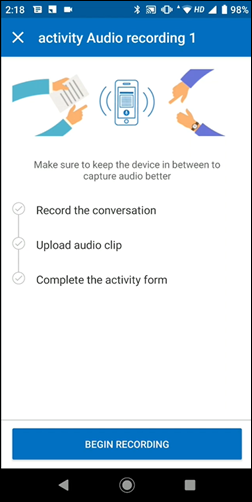
Audio Recording

This feature is available in 2 modes, Single Activity Mode or Dual Activity Mode.

Under the Dual Activity Mode, two activities are posted to the lead for each audio recording. The first activity (Start Activity) is posted when the audio recording activity is started by the user, and the second activity (End Activity) is posted when the audio recording activity is completed. This option can be used when managers want to informed/notified when the audio recording began, as well as when the audio recording was completed.

Note: This feature can be set-up only for default activity forms. It cannot be set up for dynamic forms used to capture activities.


2. Single Activity Mode JSON Set-Up

Under the Single Activity Mode, after the audio recording is completed, only an end activity is posted against the lead. This option can be used when managers don’t want to be informed/notified about when the meeting/recording has started, and are only interested in reviewing the recordings post-meeting.

2.1 Prerequisites

Within the custom activity type for which you want to capture audio recordings (e.g., F2F meeting), you must create three fields against which the following data will be mapped (to learn more, see How to Add Custom Activities Types) –

  • RecordingStartTimeField – You must create any DateTime field against which the start time of the audio recording can be stored.
  • RecordingEndTimeField – You must create any DateTime field against which the end time of the audio recording can be stored.
  • RecordingDurationField – You must create any text or number field against which the duration of the audio recording can be stored. The duration is always posted in minutes.


2.2. Enable Single Activity Mode

To enable the single activity mode,

  1. Login to the LeadSquared web application.
  2. Navigate to My Profile>Settings>Mobile App>Additional Settings.
  3. Against Activity Audio Recording, copy and paste the following JSON. Once you’ve added it, click Save.
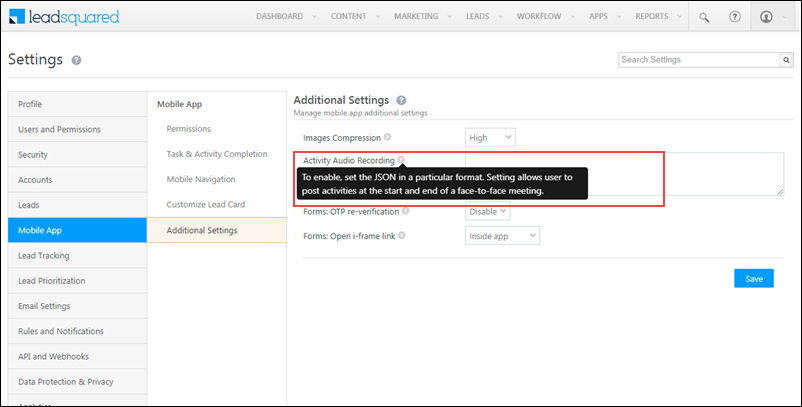
LeadSquared Mobile app

{
"RecordingEnabled":true,
"Message":"Make sure to keep the device in between to capture audio better changed",
"Mode":"SingleActivity",
"Data":[
{
"MeetingStartEventCode":158,
"RecordingStartTimeField":"mx_Custom_1",
"RecordingEndTimeField":"mx_Custom_2",
"RecordingDurationField":"mx_Custom_3",
"Validations":{
"ActivityCreationLimitValidation":{
"TimeIntervalInDays":30,
"ActivityCount":1,
"RestrictedActivity":209,
"DisplayMessage":"Activity Creation validation Failed"
}
}
},
{
"MeetingStartEventCode":205,
"RecordingStartTimeField":"mx_Custom_1",
"RecordingEndTimeField":"mx_Custom_2",
"RecordingDurationField":"mx_Custom_3",
"Validations":{
"OTPValidation":{
"PhoneNumberFieldsSchema":[
"Phone",
"Mobile"
]
},
"ActivityCreationLimitValidation":{
"TimeIntervalInDays":2,
"ActivityCount":5,
"RestrictedActivity":167,
"DisplayMessage":"Activity Creation validation Failed"
},
"ActivityPostedCountValidations":[
{
"TimeIntervalInDays":1,
"MinimumActivityCount":1,
"Activity":154,
"DisplayMessage":"CFS activity has been created"
}
]
}
}
]
}

Field Description
RecordingEnabled To enable the audio recording feature on your account, pass true.
Message The message you want to display to your users, before the recording begins. Add the message within quotes.
Mode The activity mode type. Since this is a Single Activity Mode recording, pass “Single Activity”.
MeetingEndEventCode The activity code of the End Meeting activity. The activity form linked to this activity type will open once the meeting has ended. All the recordings and other fields will be posted on this activity.
DisplayName (Optional) The display name for the End Meeting activity. If this field is blank, then the End Meeting activity name will be displayed.
RecordingStartTimeField You must add the schema name of a relevant DateTime field to which the activity start time will be posted. This is posted on the End Meeting activity. This field will be disabled in the Add/Edit mode of the activity default form.
RecordingEndTimeField You must add the schema name of a relevant DateTime field to which the activity end time will be posted. This is posted on the End Meeting activity. This field will be disabled in the Add/Edit mode of the activity default form.
RecordingDurationField You must add the schema name of a relevant number field to which the activity duration time will be posted. This value will always be displayed in minutes. This is posted on the End Meeting activity. This field will be disabled in the Add/Edit mode of the activity default form.
Validations
  • OTP Validation – To prevent your users from posting unwanted recordings against a lead, pass this field. When this field is passed, your lead will receive an OTP before the recording starts. Once this OTP is entered by your user, the recording will begin. This field is optional.
  • Activity Creation Limit Validation – To limit the number of recording activities your users can post against a lead, pass this field. This field is optional.
    • Time Interval – The number of days across which the user can post the activities (e.g., 5 days).
    • Activity Count – The number of activities the user can post across the selected time interval (e.g., 3 activities).
  • Activity Posted Count Validations – This restricts your users from posting the activity audio recording unless they first post activity on the lead, within the past ‘N’ days. For e.g., you can configure the JSON to allow your users to post the activity audio recording only after they’ve posted the Phone Call activity on the lead in the past 7 days. This is optional.
    • Time Interval – The number of days in the past within which the user should have posted the additional activity (e.g., 7 days).
    • Minimum Activity Count – The minimum number of times the user should have posted the selected activity within the given time interval (e.g., 1).
    • Activity – The activity code of the additional activity the user must complete in order to post the audio recording.


3. Dual Activity Mode JSON Set-Up

Under the Dual Activity Mode, when the audio recording is started, a start activity is posted against the lead, and when the audio recording is completed, an end activity is posted against the lead. This option can be used when managers want to be informed/notified about when the meeting/recording has started, as well as when the meeting/recording has ended.

3.1 Prerequisites

You must create an activity that’ll be posted when the audio recording is started. This activity must not contain any mandatory fields, because it’s posted automatically in the background, from your mobile app. In the JSON, this activity is passed as “MeetingStartEventCode”.

Within the custom activity type for which you want to capture audio recordings (e.g., F2F meeting), you must create three fields against which the following data will be mapped (to learn more, see How to Add Custom Activities Types) –

  • RecordingStartTimeField – You must create any DateTime field against which the start time of the audio recording can be stored.
  • RecordingEndTimeField – You must create any DateTime field against which the end time of the audio recording can be stored.
  • RecordingDurationField – You must create any text or number field against which the duration of the audio recording can be stored. The duration is always posted in minutes.


3.2. Enable Dual Activity Mode

To enable the dual activity mode,

  1. Login to the LeadSquared web application.
  2. Navigate to My Profile>Settings>Mobile App>Additional Settings.
  3. Against Activity Audio Recording, copy and paste the following JSON. Once you’ve added it, click Save.

LeadSquared Mobile app

You must pass the following API to enable the Dual Activity Audio Recording feature. To add the API, from your LeadSquared main menu (on the desktop app), navigate to My Profile>Settings>Mobile App>Additional Settings, and add the below API against Activity Audio Recording. Once you’ve added it, click Save.

{
"RecordingEnabled":true,
"Message":"Make sure to keep the device in between to capture audio better changed",
"Mode":"DualActivity",
"Data":[
{
"MeetingStartEventCode":209,
"MeetingEndEventCode":210,
"DisplayName":"Meeting name",
"MeetingEndFormErrorMessage":"This activity cannot be added. Please add 'Appointment Start' activity",
"RecordingStartTimeField":"mx_Custom_1",
"RecordingEndTimeField":"mx_Custom_2",
"RecordingDurationField":"mx_Custom_3",
"Validations":{
"ActivityCreationLimitValidation":{
"TimeIntervalInDays":30,
"ActivityCount":1,
"RestrictedActivity":209,
"DisplayMessage":"Activity Creation validation Failed"
}
}
},
{
"MeetingStartEventCode":221,
"MeetingEndEventCode":222,
"DisplayName":"Meeting name",
"MeetingEndFormErrorMessage":"This activity cannot be added. Please add 'Appointment Start 2' activity",
"RecordingStartTimeField":"mx_Custom_1",
"RecordingEndTimeField":"mx_Custom_2",
"RecordingDurationField":"mx_Custom_3",
"Validations":{
"OTPValidation":{
"PhoneNumberFieldsSchema":[
"Phone",
"Mobile"
]
},
"ActivityCreationLimitValidation":{
"TimeIntervalInDays":2,
"ActivityCount":5,
"RestrictedActivity":167,
"DisplayMessage":"Activity Creation validation Failed"
},
"ActivityPostedCountValidations":[
{
"TimeIntervalInDays":1,
"MinimumActivityCount":1,
"Activity":154,
"DisplayMessage":"CFS activity has been created"
}
]
}
}
]
}


Field Description
Recording Enabled To enable the audio recording feature on your account, pass true.
Message The message you want to display to your users, before the recording begins. Add the message under quotes.
Mode The activity mode type. Since this is a Dual Activity Mode recording, pass “Dual Activity”.
MeetingStartEventCode The activity code of the Start Meeting activity to be posted before the audio recording begins. This activity must not contain any mandatory fields, because it’s being posted automatically in the background, from the mobile app. This activity cannot be edited.
MeetingEndEventCode The activity code of the End Meeting activity. The activity form linked to this activity type will open once the meeting has ended. All the recordings and other fields will be posted on this activity.
DisplayName (we need this in the JSON) The display name for the End Meeting activity. If this field is blank, then the End Meeting activity name will be displayed.
MeetingEndFormErrorMessage The error message to be displayed if the End Meeting activity is posted without posting the Start Meeting activity. Add the message under quotes.
RecordingStartTimeField You must add the schema name of a relevant DateTime field to which the activity start time will be posted. This is posted on the End Meeting activity. This field will be disabled in the Add/Edit mode of the activity default form.
RecordingEndTimeField You must add the schema name of a relevant DateTime field to which the activity end time will be posted. This is posted on the End Meeting activity. This field will be disabled in the Add/Edit mode of the activity default form.
RecordingDurationField You must add the schema name of a relevant number field to which the activity duration time will be posted. This value will always be displayed in minutes. This is posted on the End Meeting activity. This field will be disabled in the Add/Edit mode of the activity default form.
Validations
  • OTP Validation – To prevent your users from posting unwanted recordings against a lead, pass this field. When this field is passed, your lead will receive an OTP before the recording starts. Once this OTP is entered by your user, the recording will begin. This field is optional.
  • Activity Creation Limit Validation – To limit the number of recording activities your users can post against a lead, pass this field. This field is optional.
    • Time Interval – The number of days across which the user can post the activities (e.g., 5 days).
    • Activity Count – The number of activities the user can post across the selected time interval (e.g., 3 activities).
  • Activity Posted Count Validations – This restricts your users from posting the activity audio recording unless they post an additional activity on the lead, within the past ‘N’ days. For e.g., you can configure the JSON to allow your users to post the activity audio recording only after they’ve posted the Phone Call activity on the lead in the past 7 days. This is optional.
    • Time Interval – The number of days in the past within which the user should have posted the additional activity (e.g., 7 days).
    • Minimum Activity Count – The minimum number of times the user should have posted the selected activity within the given time interval (e.g., 1).
    • Activity – The activity code of the additional activity the user must complete in order to post the audio recording.

Note: The below points are common for both the activity modes –

  • Multiple recordings, up to 20 recordings, can be added.
  • The maximum file size must not exceed 10MB (approximately: Android ~ 90 mins, and iOS ~ 40 mins). If you require larger recordings, reach out to your account manager or contact us at support@leadsquared.com.


4. Add Activity Audio Recording to Dynamic Forms

For face-to-face meetings, users can now record the details they gather from the client while filling out the dynamic form. Recorded files will be associated with the activity present in the form which is defined in the JSON. To add activity audio recording to your dynamic forms, on the Mobile App Additional Settings page, enter the relevant JSON (single or dual activity mode) and include the form ID in it.

Sample JSON – 

{
  "RecordingEnabled": true,
  "Data": [
    {
      "FormId": "1bf1xxxx-xxxx-xxxx-xxx-0a9xxxxc4542",
      "RecordingStartTimeField": "mx_Custom_3",
      "RecordingEndTimeField": "mx_Custom_4",
      "RecordingDurationField": "mx_Custom_5",

"PauseOngoingRecording": false,
"StopOngoingRecording": false

    }
  ]
}

Note: 

  • If "PauseOngoingRecording" is false, the pause recording button will be hidden in the UI.
  • If "StopOngoingRecording" is false, the stop recording button will be hidden in the UI.
  • Users can upload multiple recordings (up to 20 and size 10mb/file) by tapping Add. You also have an option view and listen to the previously recorded files by tapping Recordings.
  • On form submission, all the recordings will be uploaded and associated with the relevant Activity (which is defined in the JSON).
  • If a user tries to exit the form without saving the details, then the recording will be displayed in the Pending recording section of the app’s menu. You can perform any action on the form directly from this section.
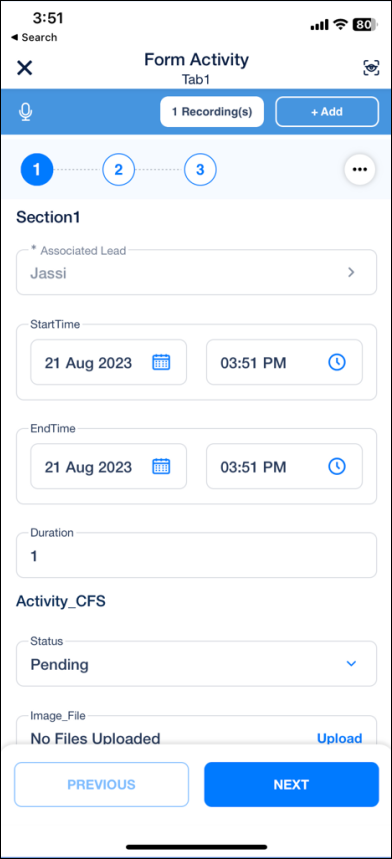
LeadSquared - Activity recording in dynamic form


Conditions for Adding Activities to Dynamic Forms

  • This feature is supported specifically within the following work areas –
    • Lead/Opportunity details>Add Activity
    • Lead/Opportunity>single selection>Add Activity
    • Lead/ Opportunity>card swipe > Add Activity.
  • If there are multiple activity types in the form, the described flow is applicable only for the activity type in the main form.
  • If main form does not contain any activity, then the first subform activity will be considered.
  • Flow is not applicable for subform added via the Add more setting.
  • If Save at each step form is being used, the recording will continue uninterrupted until the form is submitted, regardless of the current step the user is on. If the user decides to dismiss the form after saving a few steps, the recording will be stored in the ‘Pending recording’ section. Start time, end time and duration fields will also be updated only on form submission if the form type is Save at each step.
  • If there is no activity in the form configured in Json, then the flow is not applicable (Incorrect configuration).
  • In multi-level forms, the flow is applicable only for the first form in the process
  • If the activity in the main form has Create restrictions, then the recording flow will not function.


Limitations

  • If the user relaunches the app or restarts his device while a meeting is in progress, the data filled in the form will be lost. However, the recording will still be intact in the “Pending Recording” section.
  • If Save at each step is enabled in the form and user decides to dismiss the form after saving a few steps, the form submission will not have any recordings associated with it, unless the user submits the form again along with the audio from the pending recording section.


5. Send OTP via Lapps

To send OTP via Lapps, pass the SendOTPViaLapp parameter in the Validations object.

"Validations":{
"OTPValidation":{
"PhoneNumberFieldsSchema":[
"Phone",
"Mobile"
],
"SendOTPViaLapp":{
"LappId":"da_46224_a63081b7_1",
"LappEnv":"Live"}
}}

You can pass additional parameters within the Lapp to control –

  • The number of times users can attempt to resend OTPs.
  • The time between attempts the resend OTP button gets activated (to avoid sending multiple OTPs).
  • The custom message displayed to the user triggering the OTP.

Parameters to pass in the Lapp Configuration –

{"RemainingRetryCount":n,
"RetryTimeInterval":n,
"DisplayMessage":"enter custom message"}

If these parameters are not passed, the default configuration (system message, no counter, no timer) will apply.

Note: To enable OTP verification on a lead’s masked phone number, contact your account manager, or write to support@leadsquared.com.


6. Process – Dual Activity Mode

6.1 Android

  1. On the mobile app, tap on a lead, open the Activity History tab and tap the Call Recording Add Activity button.
  2. From the list, select the default activity form you want to add. Once selected, the recording confirmation screen with the custom message will show up. This feature is only available for default forms, and not dynamic forms.
  3. When you click Begin Recording, you’ll be redirected to a screen where the recording starts.
    • You can pause, stop, and restart the recording anytime on this screen.
    • You cannot navigate to other screens on the LeadSquared mobile app when the conversation is being recorded.
  4. If the permission popup appears, tap Allow.
  5. When you stop the recording, tap Upload. Once the activity form is filled up and submitted, the recording gets posted to the server.
  6. The Activity audio recording can be applied to Activities that need to be posted on Task completion as well. If the task is marked incomplete and the recording is complete, but the activity has not been posted, then the recording is saved under Pending Recording, and the task will remain open.
  7. Once the Activity is created, you can listen to or download the recording from the app.
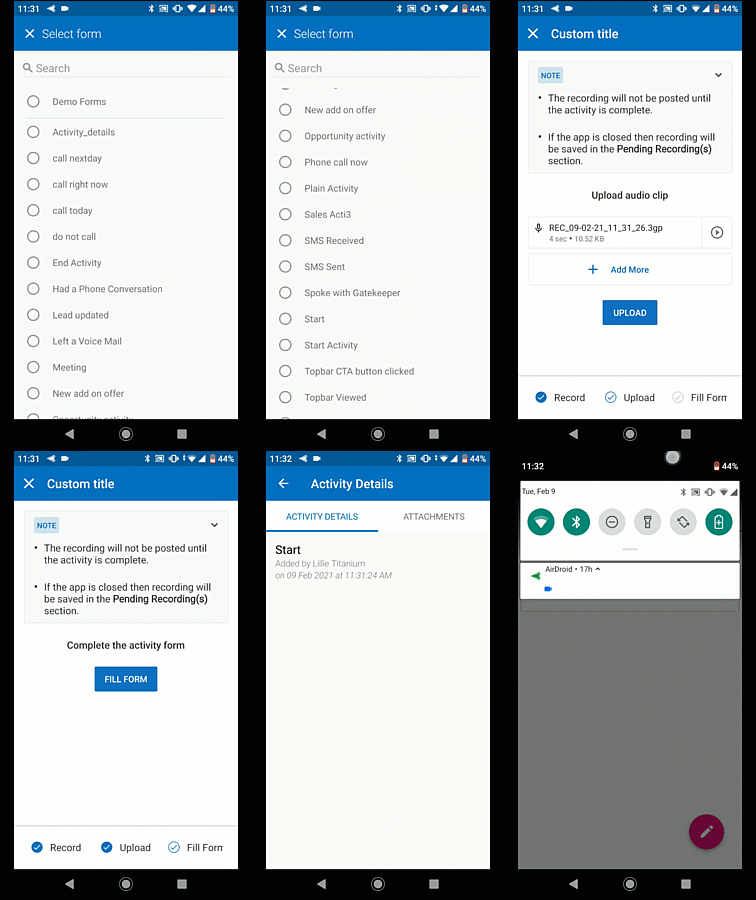
LeadSquared's Audio Recording feature

Note: The above GIF is for the Dual Activity Mode. Except for the Begin Meeting activity being posted, the other steps remain the same for the Single Activity Mode as well.


Edge Cases

  • You can record the conversation even if your device is offline (not connected to the internet). The conversation is saved under Pending Recording.
  • If you exit this app and leave it running in the background, the recording will continue, and it will show up as a notification on your device.
  • While the recording is in progress, if the app is –
    • in the background, then the recording will continue, and it will be saved in the Pending Recordings section.
    • if the app is killed or the device is switched off, then the recording will be discarded.
  • When recording has stopped, then in all cases the recording is saved in the Pending Recordings section.
  • When a phone call is received and attended to during the recording in progress, then that recording will stop. But the user can continue recording the audio by adding another file.
Audio Recording


6.2 iOS

The steps on an iOS device are similar to those on Android.

The only point of difference is if you kill the app, switch off your device or log out of the app while the conversation is being recorded, whatever has been recorded up to then is saved in the Pending Recordings section.
LeadSquared's Audio Recording feature

Note: The above GIF is for the Dual Activity Mode. Except for the Begin Meeting activity being posted, the other steps remain the same for the Single Activity Mode as well.


Edge Cases – 

  • You can record the conversation even if your device is offline (not connected to the internet). The conversation is saved under Pending Recording.
  • If you exit this app and leave it running in the background, the recording will continue, and it will show up as a notification on your device.
  • While the recording is in progress, if the app is in the background, then the recording will continue, and it will be saved in the Pending Recordings section.
  • When recording has stopped, then in all cases the recording is saved in the Pending Recordings section.
  • When a phone call is received and attended to during the recording in progress, then that recording will stop. But the user can continue recording the audio by adding another file.
Audio Recording


Any Questions?

Did you find this article helpful? Please let us know any feedback you may have in the comments section below. We’d love to hear from you and help you out.

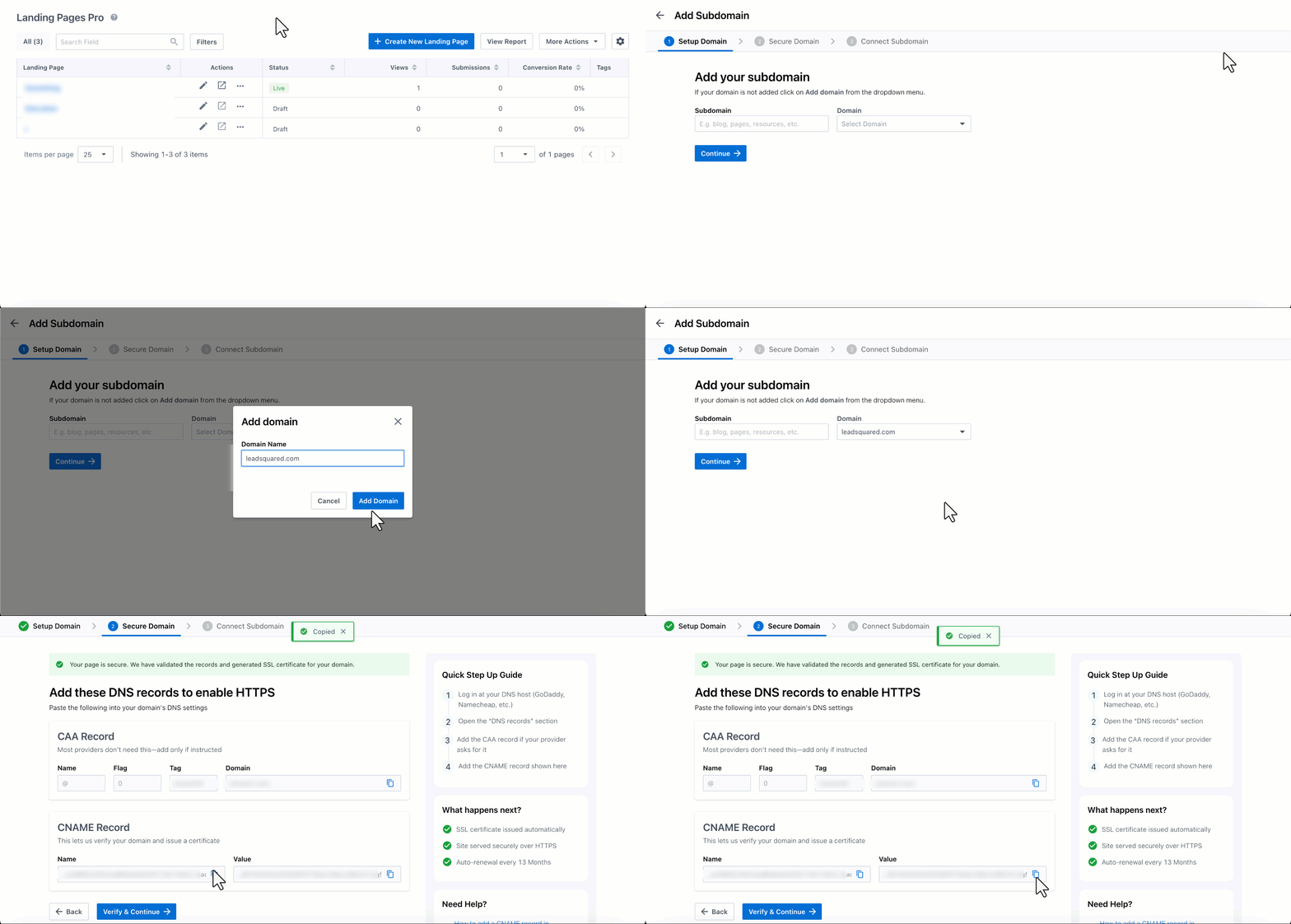
Integrate Google Forms with LeadSquared

1. Feature Overview

When your leads submit a Google Form, this connector captures their details in LeadSquared in real-time. Once the leads are synced, you can leverage LeadSquared’s CRM features to nurture and convert your leads.


2. Prerequisites

  • You must be the Administrator of your LeadSquared account.
  • You must have an active Google Forms account.
  • This is a paid feature. To enable it, reach out to your account manager, or write to support@leadsquared.com.


3. How it Works

To push lead data from Google Forms to your LeadSquared account, configure the Google Forms connector instance. Once configured, enable the connector sync.

During configuration, a webhook URL is generated in LeadSquared. Copy this URL and configure it in your Google Forms account. Once configured, the lead capture process is initiated.


4. Installation

You must first install and configure the Google Forms connector.

  1. Navigate to Apps>Apps Marketplace.
  2. Search for Google Forms, and click Install.
    • Alternatively, you can find the connector on the left panel, under Lead Capture.
  3. Once installed, hover your cursor over , and click Configure.

connector google form install

4.1 Configure the connector

Once you’ve installed the connector, on the Configure Google Forms pop-up, configure the connector access for the non-Admin users in your account. Only those users for whom access is granted can view and access the connector (under the Apps main menu).

  1. Select if you want to grant Connector Access that’s Based on Role or Advanced (User Level).
    • Based on Role – From the Specify Roles dropdown, select the LeadSquared user roles that can use the connector.
    • Advanced (User Level) – From the Advanced (User Level) dropdown, select a user boolean field. Based on the value entered in the selected boolean field, the user can access the connector (e.g., for the user Sam, if the “Is Employee” boolean user field contains the value “Yes”, then this user can access the connector).
  2. Once you’re done, click Save Details. To continue the configuration, refer to the below sections.
Note: By default, all Admin users will have access to the connector.
connector google forms configure


5. Admin Configuration

To continue the connector configuration, navigate to Apps>Google Forms.

connectors google form Admin configuration

5.1 Basic Settings

Enter the following details –

Property Description
Lead Source Enter the lead source through which the leads were captured (e.g., Google Forms, email campaign, etc.). This detail will be displayed on the Lead Details page, under Lead Source.
Default Country Code If the lead’s mobile number is captured without a country code, the default country code that’s selected from the dropdown will be added to the lead’s mobile number.
Select Time Zone The time zone followed in your Google Forms account.
Lead Capture Search By Criteria To avoid duplicate leads, you must select one unique lead field (e.g., email Id, mobile number, PAN number, etc.) as the search key. This is used to identify the leads pushed from Google Forms.

To know how to mark a LeadSquared lead field as unique, please refer to How to Make a Custom Field Unique.

Lead Capture Secondary Search By Criteria If lead identification and capture through the primary Search By criteria fails, it will be re-attempted using the secondary Search By criteria.
Select User to Notify on Failure If there is an error in fetching leads, the selected user will receive a failure message via email. You can select a user from the list of all the users available in your LeadSquared account.

To know more about the type of errors, please refer to Error Notifications.

Enable Notification To ensure notification emails are sent to the selected user when there’s a failed query, enable the Checkbox checkbox.

Once you’ve entered all the details, click Save & Next.

Connectors admin configuration basic settings

5.2 Entity Options

Define the sync behavior of the connector when leads are captured.

5.2.1 Lead/Contact Entity

Based on the Lead Capture Search By criteria (email Id, phone number, etc.), LeadSquared identifies and captures leads from your Google Forms account. Lead capture is enabled by default, and it cannot be disabled. The following options are available to configure the connector’s Sync Behaviour –

  • Capture (Create and Update existing) Record – Leads that only exist in your Google Forms account (but not in your LeadSquared account) will get created in LeadSquared. Leads that exist in both your data provider and LeadSquared accounts will get updated.
  • Create only new record – Leads that only exist in your Google Forms account (but not in your LeadSquared account) will get created in LeadSquared.
  • Update only existing record – Leads that exist in both your Google Forms account and LeadSquared accounts will get updated in LeadSquared.
  • Do Nothing – When a lead is created or updated in your Google Forms account, no action will be performed in your LeadSquared account.

lead or contact entity sync

5.2.2 Activity Entity

Once leads are captured to LeadSquared, you can post custom activities to these leads (e.g., Ticket Creation, Chat Transcript, etc.). These activities will help users keep track of the lead’s journey to conversion. To post activities to the leads captured, alongside Activity Entity, enable the Slider slider. The following options are available to configure the connector’s Sync Behaviour when activities are synced to LeadSquared –

  • Capture (Create and Update existing) Record – New activities will get posted to the lead in LeadSquared, while existing activities will get updated.
  • Create only new record – Only new activities will get posted to leads in LeadSquared.
  • Update only existing record – Only existing activities on the leads captured will get updated in LeadSquared.


Note: Activity Type Definitions is disabled by default.

google forms activity entity sync

5.2.3 Mapping

On the Mapping screen, the Google Forms system fields mapped to the corresponding LeadSquared lead fields are visible. This mapping is carried out by default. If required, you can change or update the default field mapping.

  • To provide a default value for any field, click  , enter the value under Default Value, and click Google.
    • If the data provider doesn’t send data for any lead field, then the default value will get assigned to that specific field. But if the field already has an existing value, then the default value will be ignored.
  • To disable lead data capture for any field, disable the Zoom slider.
  • You can also mark and update a unique lead field as the search key from this screen, by clicking unique icon.
  • To create a custom Google Forms field, click the Add Custom button.
    1. Once this field is created, you must map it to the relevant LeadSquared lead field.
    2. After the field is mapped, to save the custom field, click Google.
    3. To delete a custom field, click .

Once you’re done, click Save & Next.

Note: Based on the lead fields configured in your Google Forms, add or update the lead fields in LeadSquared.

google forms connector mapping

5.3 Generate Webhook URL

After you provide basic details and finish field mapping, a custom webhook URL is generated. To automate lead capture, copy this URL and configure it on your Google Forms account. To know how to do this, refer to the next section.

After you’ve set up the webhook, click More Actions, and enable the sync job. This ensures that through the webhook, lead data from Google Forms is pushed to LeadSquared.

Note: To view logs of all the sync jobs that have taken place, from the More Actions dropdown, click View Logs.

google forms webhook url


6. Add Webhook to Google Forms

Once the LeadSquared webhook is generated, add and configure this webhook on your Google Form.

Note: The steps documented in this section will have to be carried out on every new lead capture Google Form you create.

6.1 Add Script

  1. Copy the LeadSquared webhook URL, and navigate to the Google Form through which you’re capturing leads.
  2. On the top-right corner, click Integrate LeadSquared with Google Forms, and from the list of options, click Script editor.
  3. On the Apps Script screen, paste the following code –
    var webhook = "enter your URL here";
    function onSubmit(event) {
        const form = FormApp.getActiveForm();
        const allResponses = form.getResponses();
        const latestResponse = allResponses[allResponses.length - 1];
        var res = latestResponse.getItemResponses();
        var data = {};
        for (var i = 0; i < res.length; i++) {
            const qTitle = res[i].getItem().getTitle();
            var qAnswer = res[i].getResponse();
            data[qTitle] = qAnswer;
        }
    UrlFetchApp.fetch(webhook, {
            "method": "post",
            "contentType": "application/json",
            "payload": JSON.stringify(data)
        });
    };
  4. In the “enter your URL here” field, paste the LeadSquared webhook URL.
  5. Once you’re done, to save the code, click Integrate LeadSquared with Google Forms.

Integrate LeadSquared with Google Forms

6.2 Add Trigger

Once the code is saved –

  1. On the Apps Script screen, hover your cursor over Integrate LeadSquared with Google Forms, and click Triggers.
  2. On the Triggers screen, click Add Trigger.
  3. On the Add Triggers pop-up, select the following options from the corresponding dropdowns –
    • Choose which function to run – onSubmit
    • Choose which deployment should run – Head
    • Select event source – From form
    • Select event type – On form submit
  4. From the Failure notification settings dropdown, set the frequency in which you’d like to receive failure notifications from Google.
  5. Once you’re done, click Save. The leads who submit the form are now captured in your LeadSquared account.

Integrate LeadSquared with Google Forms


7. View Logs

Here, you can view logs of all the sync jobs that have taken place. View New Events (New Leads), Updated Events (Updated Leads), and Errors (when capturing leads).

  1. Navigate to Apps>Google Forms.
  2. From the More Actions dropdown, click View Logs.
  3. You can filter the logs by selecting a date range (Today, Last 7 Days, This Month, and Last Month), by selecting the Job Status (“All”, “Success” and “Failure”), and by selecting the Sync Status (All, Error, and Success).
  4. You can view the sync status of the following events –
    • New Events – List of all the new leads that have been created in LeadSquared during the selected date range.
    • Updated Events – A list of all the –
      • Duplicate leads that were created with the same Search by Criteria value (e.g., with the same Email Id, Mobile Number, etc.).
      • Leads that previously contained errors, which were fixed and synced successfully.
    • Failed – The list of leads that have not been captured due to mapping errors (e.g., when a boolean field is mapped to an integer field, etc.).
  5. To view the Sync Response details, under Request ID/Sync Job ID, click the Id.
    • Under the right panel, you can view the response status, the API URL, the request, and the response.
    • The responses that are successful will contain the details of the leads that have been pushed from Google Forms.
    • To view the lead capture response under Sync API Response, Leads Updated and Errors in Leads, click Information.

Note:

  • For a response that contains an error, the reason for the error is listed in the response. Once you fix it, you can click the Retry button to perform the sync again.
  • The current Lead Sync Behaviour will reflect in the Logs screen. This will help identify the sync that’s used (Capture or Update) for the selected Request/Sync Job Id.

google forms view logs


8. Other Actions

You can edit or delete the Google Forms connector instance that you created. To do this –

  1. Navigate to Apps>App Marketplace.
  2. Search for Google Forms.
  3. Alongside the Google Forms connector, hover your cursor over .
  4. From the list of options, you can perform the following actions –
    • Edit Configuration
    • Disable Configuration
    • Remove Configuration

google forms other actions


9. View Reports

You can view the total number of leads that have been pushed by Google Forms, by referring to the Lead Source report. To know more, please refer to How to track the source of your Leads using Lead Source Report?

Integrate LeadSquared with Google Forms


Any Questions?

Did you find this article helpful? Please let us know any feedback you may have in the comments section below. We’d love to hear from you and help you out!

Integrate Typeform with LeadSquared

1. Feature Overview

When your lead submits a form through Typeform, this connector captures them as leads in LeadSquared in real-time. Once the leads are synced, you can leverage LeadSquared’s CRM features to nurture and convert your leads.


2. Prerequisites

  • You must be the Administrator of your LeadSquared account.
  • You must have an active Typeform account, through which you’re using paid forms. To know more, speak to your Typeform account representative.
  • This is a paid feature. To enable it, reach out to your account manager, or write to support@leadsquared.com.


3. How it Works

To push lead data from Typeform to your LeadSquared account, configure the Typeform connector instance. Once configured, enable the connector sync.

During configuration, a webhook URL is generated in LeadSquared. Copy this URL and set it up in your Typeform account. Once it’s set up, the lead capture process is initiated.


4. Installation

You must first install and configure the Typeform connector.

  1. Navigate to Apps>Apps Marketplace.
  2. Search for Typeform, and click Install.
    • Alternatively, you can find the connector on the left panel, under Lead Capture.
  3. Once installed, hover your cursor over , and click Configure.

Typeform install

4.1 Configure the connector

Once you’ve installed the connector, on the Configure Typeform pop-up, configure the connector access for the non-Admin users in your account. Only those users for whom access is granted can view and access the connector (under the Apps main menu).

  1. Select if you want to grant Connector Access that’s Based on Role or Advanced (User Level).
    • Based on Role – From the Specify Roles dropdown, select the LeadSquared user roles that can use the connector.
    • Advanced (User Level) – From the Advanced (User Level) dropdown, select a user boolean field. Based on the value entered in the selected boolean field, the user can access the connector (e.g., for the user Sam, if the “Is Employee” boolean user field contains the value “Yes”, then this user can access the connector).
  2. Once you’re done, click Save Details. To continue the configuration, refer to the below sections.
Note: By default, all Admin users will have access to the connector.
typeform configure


5. Admin Configuration

To continue the connector configuration, navigate to Apps>Typeform.

open typeform

5.1 Basic Setting

Enter the following details –

Property Description
Lead Source Enter the lead source through which the leads were captured (e.g., Typeform, email campaign, etc.). This detail will be displayed on the Lead Details page, under Lead Source.
Default Country Code If the lead’s mobile number is captured without a country code, then the default country code that’s selected from the dropdown will be added to the lead’s mobile number.
Select Time Zone The time zone of your Typeform account.
Lead Capture Search By Criteria To avoid duplicate leads, you must select one unique lead field (e.g., email Id, mobile number, PAN number, etc.) as the search key. This will be used to identify the leads pushed from Typeform.

To know how to mark a LeadSquared lead field as unique, please refer to How to Make a Custom Field Unique.

Lead Capture Secondary Search By Criteria If lead identification and capture through the primary Search By criteria fails, it will be re-attempted using the secondary Search By criteria.
Select User to Notify on Failure If there is an error in fetching leads, the selected user will receive a failure message via email. You can select a user from the list of all the users available in your LeadSquared account.

To know more about the type of errors, please refer to Error Notifications.

Enable Notification To ensure notification emails are sent to the selected user when there’s a failed query, enable the Checkbox checkbox.

Once you’ve entered all the details, click Save & Next.

typeform basic settings save

5.2 Entity Options

Define the sync behaviour of the connector when leads are captured.

5.2.1 Lead/Contact Entity

Based on the Lead Capture Search By criteria selected (email Id, phone number, etc.), LeadSquared identifies and captures leads from your Typeform account. Lead capture is enabled by default, and it cannot be disabled.  The following options are available to configure the connector’s Sync Behaviour –

  • Capture (Create and Update existing) Record – Leads that only exist in your Typeform account (but not in your LeadSquared account) will get created in LeadSquared. Leads that exist in both your Typeform and LeadSquared accounts will get updated.
  • Create only new record – Leads that only exist in your Typeform account (but not in your LeadSquared account) will get created in LeadSquared.
  • Update only existing record – Leads that exist in both your Typeform and LeadSquared accounts will get updated in LeadSquared.

Once you’re done, click Save & Next.

typeform lead or contact entity

5.2.2 Activity Entity

Once leads are captured to LeadSquared, you can post custom activities to these leads (e.g., Ticket Creation, Chat Transcript, etc.). These activities will help users keep track of the lead’s journey to conversion. To post activities to the leads captured, alongside Activity Entity, enable the Slider slider. The following options are available to configure the connector’s Sync Behaviour when activities are synced to LeadSquared –

  • Capture (Create and Update existing) Record – New activities will get posted to the lead in LeadSquared, while existing activities will get updated.
  • Create only new record – Only new activities will get posted to leads in LeadSquared.
  • Update only existing record – Only existing activities on the leads captured will get updated in LeadSquared.

Note: Activity Type Definitions is disabled by default.

typeform activity entity

5.2.3 Mapping

On the Mapping screen, the Typeform system fields mapped to the corresponding LeadSquared lead fields are visible. This mapping is carried out by default. If required, you can change or update the default field mapping.

  • To provide a default value for any field, click  , enter the value under Default Value, and click Google.
    • If the data provider doesn’t send data for any lead field, then the default value will get assigned to that specific field. But if the field already has an existing value, then the default value will be ignored.
  • To disable lead data capture for any field, disable the Zoom slider.
  • You can also mark and update a unique lead field as the search key from this screen, by clicking unique icon.
  • To create a custom Typeform field, click the Add Custom button.
    1. Once this field is created, you must map it to the relevant LeadSquared lead field.
    2. After the field is mapped, to save the custom field, click Google.
    3. To delete a custom field, click .
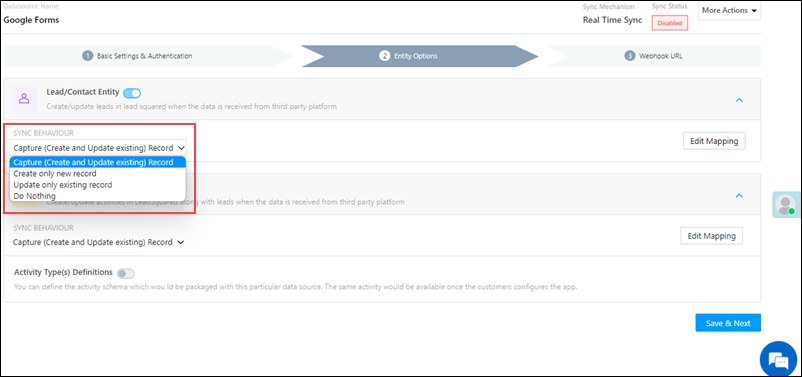
Once you’re done mapping, click Save & Next.
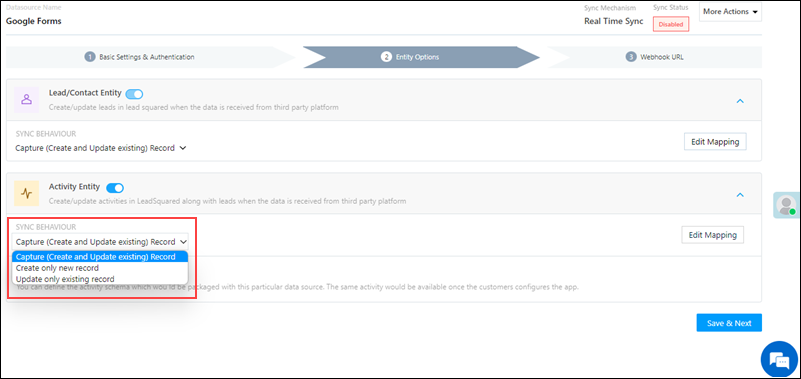
Note: Based on the lead fields configured in your Typeform, add or update the lead fields in LeadSquared.

typeform mapping

5.3 Generate the Webhook URL

After you provide basic details and finish field mapping, a custom webhook URL is generated. To automate lead capture, copy this URL and set it up on your Typeform account. To know more, refer to Typeform Webhooks.

After you’ve set up the webhook, click More Actions, and enable the sync job. This ensures lead data from Typeform will be pushed to LeadSquared using the webhook.

Note: To view logs of all the sync jobs that have taken place, from the More Actions dropdown, click View Logs.

Webhook url typeform

To configure the webhook URL, and to enable other settings required to push leads from your Typeform account to LeadSquared, refer to the Setup Instructions –

Set-up instructions typeform


6. View Logs

Here, you can view logs of all the sync jobs that have taken place. View New Events (New Leads), Updated Events (Updated Leads), and Errors (when capturing leads).

  1. Navigate to Apps>Type Forms.
  2. From the More Actions dropdown, click View Logs.
  3. You can filter the logs by selecting a date range (Today, Last 7 Days, This Month, and Last Month), by selecting the Job Status (“All”, “Success” and “Failure”), and by selecting the Sync Status (All, Error, and Success).
  4. You can view the sync status of the following events –
    • New Events – List of all the new leads that have been created in LeadSquared during the selected date range.
    • Updated Events – A list of all the –
      • Duplicate leads that were created with the same Search by Criteria value (e.g., with the same Email Id, Mobile Number, etc.).
      • Leads that previously contained errors, which were fixed and synced successfully.
    • Failed – The list of leads that have not been captured due to mapping errors (e.g., when a boolean field is mapped to an integer field, etc.).
  5. To view the Sync Response details, under Request ID/Sync Job ID, click the Id.
    • Under the right panel, you can view the response status, the API URL, the request, and the response.
    • The responses that are successful will contain the details of the leads that have been pushed from Typeform.
    • To view the lead capture response under Sync API Response, Leads Updated and Errors in Leads, click Information.

Note:

  • For a response that contains an error, the reason for the error is listed in the response. Once you fix it, you can click the Retry button to perform the sync again.
  • The current Lead Sync Behaviour will reflect in the Logs screen. This will help identify the sync that’s used (Capture or Update) for the selected Request/Sync Job Id.

typeforms view logs


7. Other Actions

You can edit or delete the Typeform connector instance that you created. To do this –

  1. Navigate to Apps>App Marketplace.
  2. Search for Typeform.
  3. Alongside the Typeform connector, hover your cursor over .
  4. From the list of options, you can perform the following actions –
    • Edit Configuration
    • Disable Configuration
    • Remove Configurations

typeform other actions


8. View Reports

You can view the total number of leads that have been pushed by Typeform, by referring to the Lead Source report. To know more, please refer to How to track the source of your Leads using Lead Source Report?

Integrate LeadSquared with Typeforms


Any Questions?

Did you find this article helpful? Please let us know any feedback you may have in the comments section below. We’d love to hear from you and help you out!

Integrate Gravity Forms with LeadSquared

1. Feature Overview

When your lead submits a form through Gravity Forms, this connector captures them as leads in LeadSquared in real time. Once the leads are synced, you can leverage LeadSquared’s CRM features to nurture and convert your leads.


2. Prerequisites

  • You must be the Administrator of your LeadSquared account.
  • This is a paid feature. To enable it, reach out to your account manager, or write to support@leadsquared.com.
  • You must have an active Gravity Forms account, through which you’re using paid forms. To know more, speak to your Gravity Forms account representative.
  • You must download and install the Gravity Forms add-on. To know more, refer to Installing a Gravity Forms Add-On.


3. How it Works

To push lead data from Gravity Forms to your LeadSquared account, configure the Gravity Forms connector instance. Once configured, enable the connector sync.

During configuration, a webhook URL is generated in LeadSquared. Copy this URL and set it up in your Gravity Forms account. Once it’s set up, the lead capture process is initiated.


4. Installation

You must first install and configure the Gravity Forms connector.

  1. Navigate to Apps>Apps Marketplace.
  2. Search for Gravity Forms, and click Install.
    • Alternatively, you can find the connector on the left panel, under Lead Capture.
  3. Once installed, hover your cursor over , and click Configure.

gravity forms install

4.1 Configure the connector

Once you’ve installed the connector, on the Configure Gravity Forms pop-up, configure the connector access for the non-Admin users in your account. Only those users for whom access is granted can view and access the connector (under the Apps main menu).

  1. Select if you want to grant Connector Access that’s Based on Role or Advanced (User Level).
    • Based on Role – From the Specify Roles dropdown, select the LeadSquared user roles that can use the connector.
    • Advanced (User Level) – From the Advanced (User Level) dropdown, select a user boolean field. Based on the value entered in the selected boolean field, the user can access the connector (e.g., for the user Sam, if the “Is Employee” boolean user field contains the value “Yes”, then this user can access the connector).
  2. Once you’re done, click Save Details. To continue the configuration, refer to the below sections.
Note: By default, all Admin users will have access to the connector.
gravity forms config


5. Admin Configuration

To continue the connector configuration, navigate to Apps>Gravity Forms.

gravity forms admin config

5.1 Basic Settings

Enter the following details –

Property Description
Lead Source Enter the lead source through which the leads were captured (e.g., Gravity Forms, email campaign, etc.). This detail will be displayed on the Lead Details page, under Lead Source.
Default Country Code If the lead’s mobile number is captured without a country code, then the default country code that’s selected from the dropdown will be added to the lead’s mobile number.
Select Time Zone The time zone of your Gravity Forms account.
Lead Capture Search By Criteria To avoid duplicate leads, you must select one unique lead field (e.g., email Id, mobile number, PAN number, etc.) as the search key. This will be used to identify the leads pushed from Gravity Forms.

To know how to mark a LeadSquared lead field as unique, please refer to How to Make a Custom Field Unique.

Lead Capture Secondary Search By Criteria If lead identification and capture through the primary Search By criteria fails, it will be re-attempted using the secondary Search By criteria.
Select User to Notify on Failure If there is an error in fetching leads, the selected user will receive a failure message via email. You can select a user from the list of all the users available in your LeadSquared account.

To know more about the type of errors, please refer to Error Notifications.

Enable Notification To ensure notification emails are sent to the selected user when there’s a failed query, enable the Checkbox checkbox. Once you’ve entered all the details, click Save & Next.

Once you’ve entered all the details, click Save & Next.

gravity forms basic settings save

5.2 Entity Options

Define the sync behavior of the connector when leads are captured.

5.2.1 Lead/Contact Entity

Based on the Lead Capture Search By criteria (email Id, phone number, etc.), LeadSquared identifies and captures leads from your Gravity Forms account. Lead capture is enabled by default, and it cannot be disabled. The following options are available to configure the connector’s Sync Behaviour –

  • Capture (Create and Update existing) Record – Leads that only exist in your Gravity Forms account (but not in your LeadSquared account) will get created in LeadSquared. Leads that exist in both your data provider and LeadSquared accounts will get updated.
  • Create only new record – Leads that only exist in your Gravity Forms account (but not in your LeadSquared account) will get created in LeadSquared.
  • Update only existing record – Leads that exist in both your Gravity Forms account and LeadSquared accounts will get updated in LeadSquared.

gravity forms lead or contact entity

5.2.2 Mapping

On the Mapping screen, the Gravity Forms system fields mapped to the corresponding LeadSquared lead/activity fields are visible. This mapping is carried out by default. If required, you can change or update the default field mapping.

  • To provide a default value for any field, click  , enter the value under Default Value, and click Google.
    • If the data provider doesn’t send data for any lead/activity field, then the default value will get assigned to that specific field. But if the field already has an existing value, then the default value will be ignored.
  • To disable lead data capture for any field, disable the Zoom slider.
  • You can also mark and update a unique lead field as the search key from this screen, by clicking unique icon.
  • To create a custom Gravity Forms field, click the Add Custom button.
    1. Once this field is created, you must map it to the relevant LeadSquared lead field.
    2. After the field is mapped, to save the custom field, click Google.
    3. To delete a custom field, click .
Note: To map the payment data to a custom activity, select the activity type from the Activity Field Mapping screen.

gravity forms mapping

5.2.3 Activity Entity

To post payment activities on leads, against Activity Entity, enable the Slider slider. The following options are available to configure the connector’s Sync Behaviour when activities are posted in LeadSquared –

  • Capture (Create and Update existing) Record – New activities will get posted to the lead in LeadSquared, while existing activities will get updated.
  • Create only new record – Only new activities will get posted to leads in LeadSquared.
  • Update only existing record – Only existing activities on the leads captured will get updated in LeadSquared.

By default, your payment data is mapped to the “Gravity Forms” activity.

Note: An activity is classified as a new activity or an existing activity based on the Lead Capture Search By Criteria you’ve selected in the previous section.
Once you’re done, click Save & Next.

5.3 Generate the Webhook URL

After you provide basic details and finish field mapping, a custom webhook URL is generated. To automate lead capture, copy this URL and set it up on your Gravity Forms account. To know more, refer to Triggering Webhooks on Form Submissions.

After you’ve set up the webhook, click More Actions, and enable the sync job. This ensures lead data from Gravity Forms will be pushed to LeadSquared using the webhook.

Note: To view logs of all the sync jobs that have taken place, from the More Actions dropdown, click View Logs.

gravity forms webhook url


6. View Logs

Here, you can view logs of all the sync jobs that have taken place. View New Events (New Leads), Updated Events (Updated Leads), and Errors (when capturing leads).

  1. Navigate to Apps>Gravity Forms.
  2. From the More Actions dropdown, click View Logs.
  3. You can filter the logs by selecting a date range (Today, Last 7 Days, This Month, and Last Month), by selecting the Job Status (“All”, “Success” and “Failure”), and by selecting the Sync Status (All, Error, and Success).
  4. You can view the sync status of the following events –
    • New Events – List of all the new leads that have been created in LeadSquared during the selected date range.
    • Updated Events – A list of all the –
      • Duplicate leads that were created with the same Search by Criteria value (e.g., with the same Email Id, Mobile Number, etc.).
      • Leads that previously contained errors, which were fixed and synced successfully.
    • Failed – The list of leads that have not been captured due to mapping errors (e.g., when a boolean field is mapped to an integer field, etc.).
  5. To view the Sync Response details, under Request ID/Sync Job ID, click the Id.
    • Under the right panel, you can view the response status, the API URL, the request, and the response.
    • The responses that are successful will contain the details of the leads that have been pushed from Gravity Forms.
    • To view the lead capture response under Sync API Response, Leads Updated and Errors in Leads, click Information.

Note:

  • For a response that contains an error, the reason for the error is listed in the response. Once you fix it, you can click the Retry button to perform the sync again.
  • The current Lead Sync Behaviour will reflect in the Logs screen. This will help identify the sync that’s used (Capture or Update) for the selected Request/Sync Job Id.

Gravity forms view logs


7. Other Actions

You can edit or delete the Google Forms connector instance that you created. To do this –

  1. Navigate to Apps>App Marketplace.
  2. Search for Gravity Forms.
  3. Alongside the Gravity Forms connector, hover your cursor over .
  4. From the list of options, you can perform the following actions –
    • Edit Configuration
    • Disable Configuration
    • Remove Configuration

gravity forms more actions


8. View Reports

You can view the total number of leads that have been pushed by Gravity Forms, by referring to the Lead Source report. To know more, please refer to How to track the source of your Leads using Lead Source Report?

Integrate LeadSquared with Gravity Forms


Any Questions?

Did you find this article helpful? Please let us know any feedback you may have in the comments section below. We’d love to hear from you and help you out!