Integrate CleverTap with LeadSquared

1. Feature Overview

This connector captures leads from your CleverTap account to LeadSquared. You can configure the connector to capture leads in real-time from your CleverTap account. Once the leads are captured, you can leverage LeadSquared’s CRM features to nurture and convert your leads.


2. Prerequisites

  • You must be the Administrator of your LeadSquared account.
  • You must have an active CleverTap account.
  • This is a paid feature. To enable it, reach out to your account manager, or write to support@leadsquared.com.


3. How it Works

To push lead data from CleverTap to your LeadSquared account, configure the CleverTap connector instance. Once configured, enable the connector sync.

During configuration, a webhook URL is generated in LeadSquared. Copy this URL and configure it in your CleverTap account. Once configured, the lead capture process is initiated.


4. Installation

You must first install and configure the CleverTap connector.

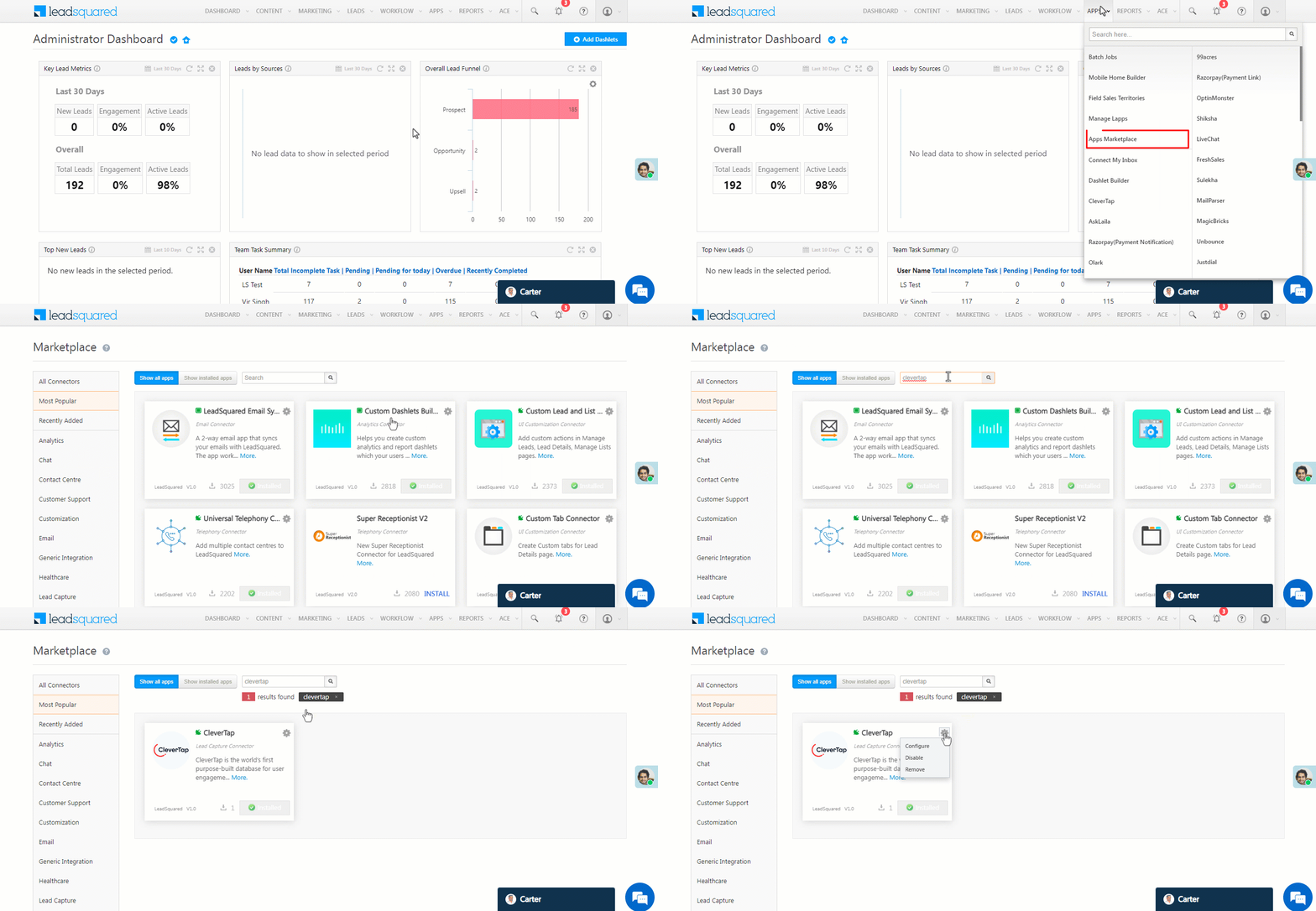
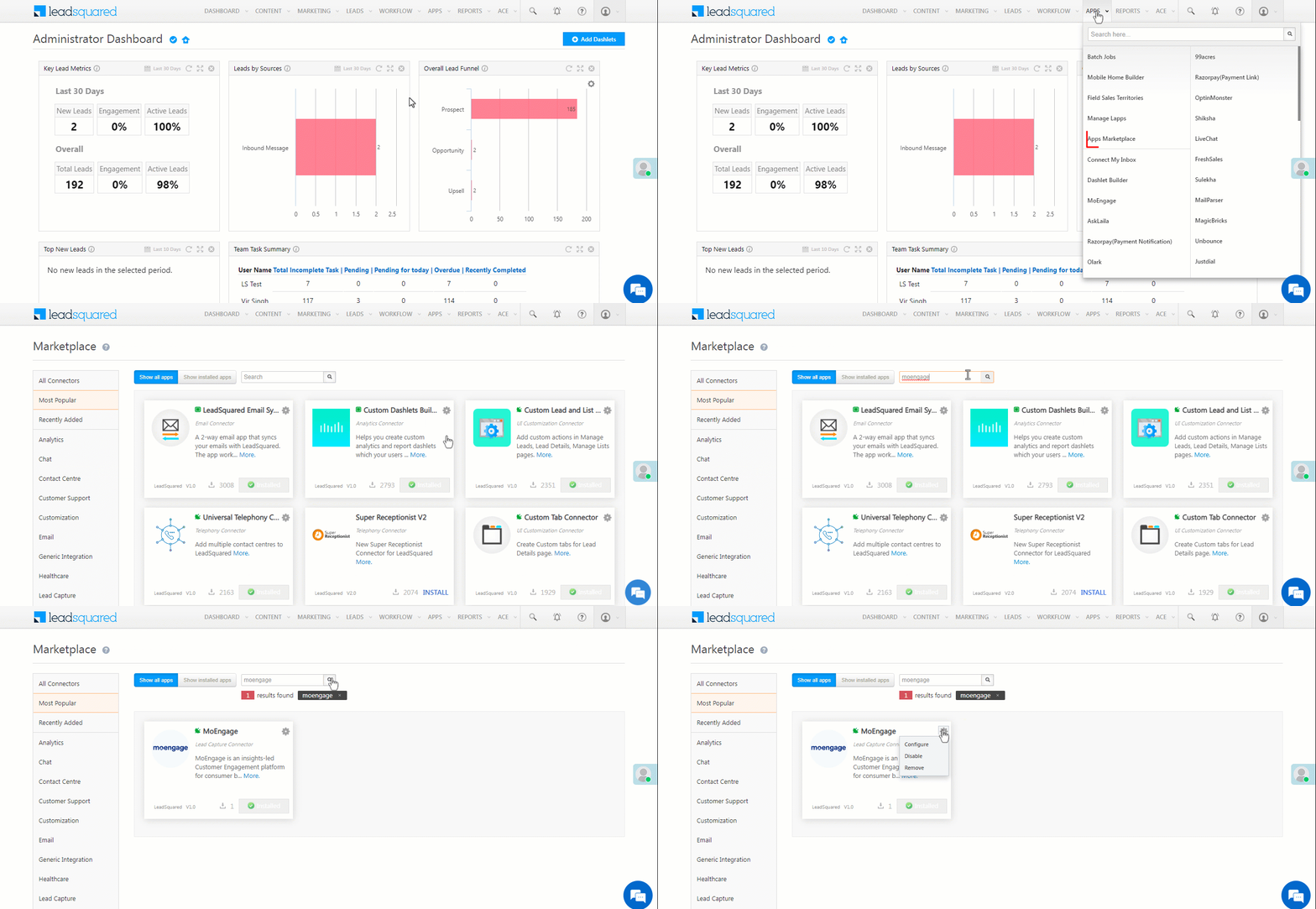
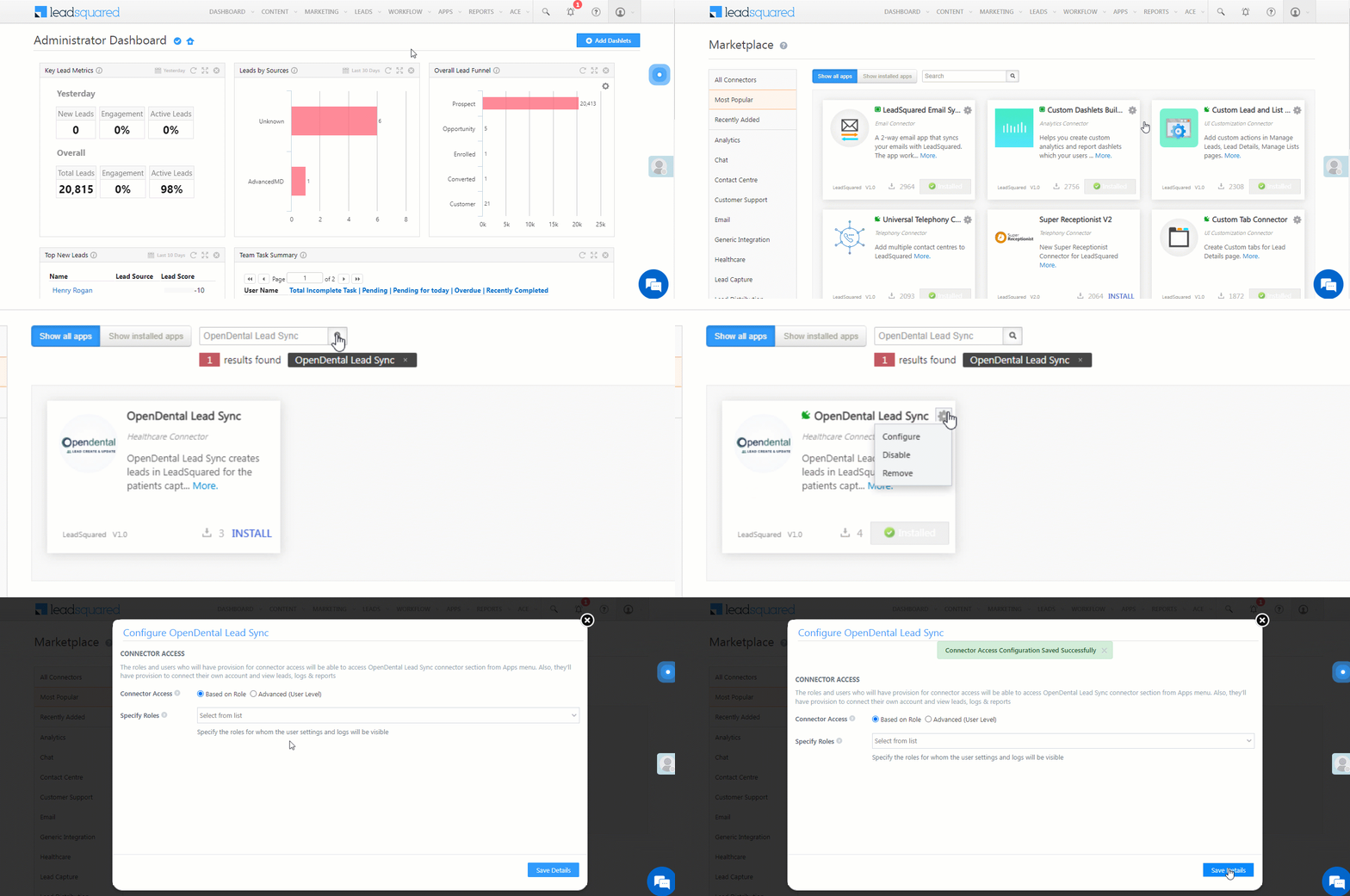
  1. Navigate to Apps>Apps Marketplace.
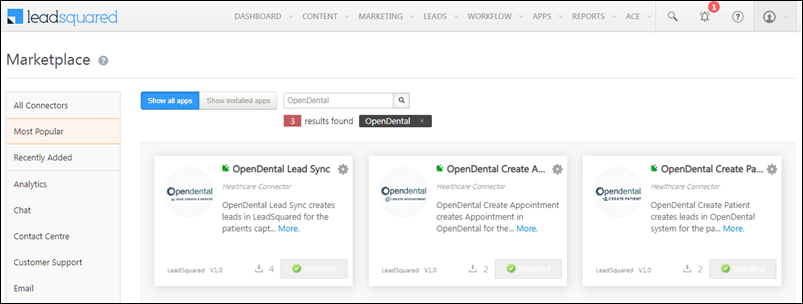
  2. Search for CleverTap, and click Install.
    • Alternatively, you can find the connector on the left panel, under Lead Capture.
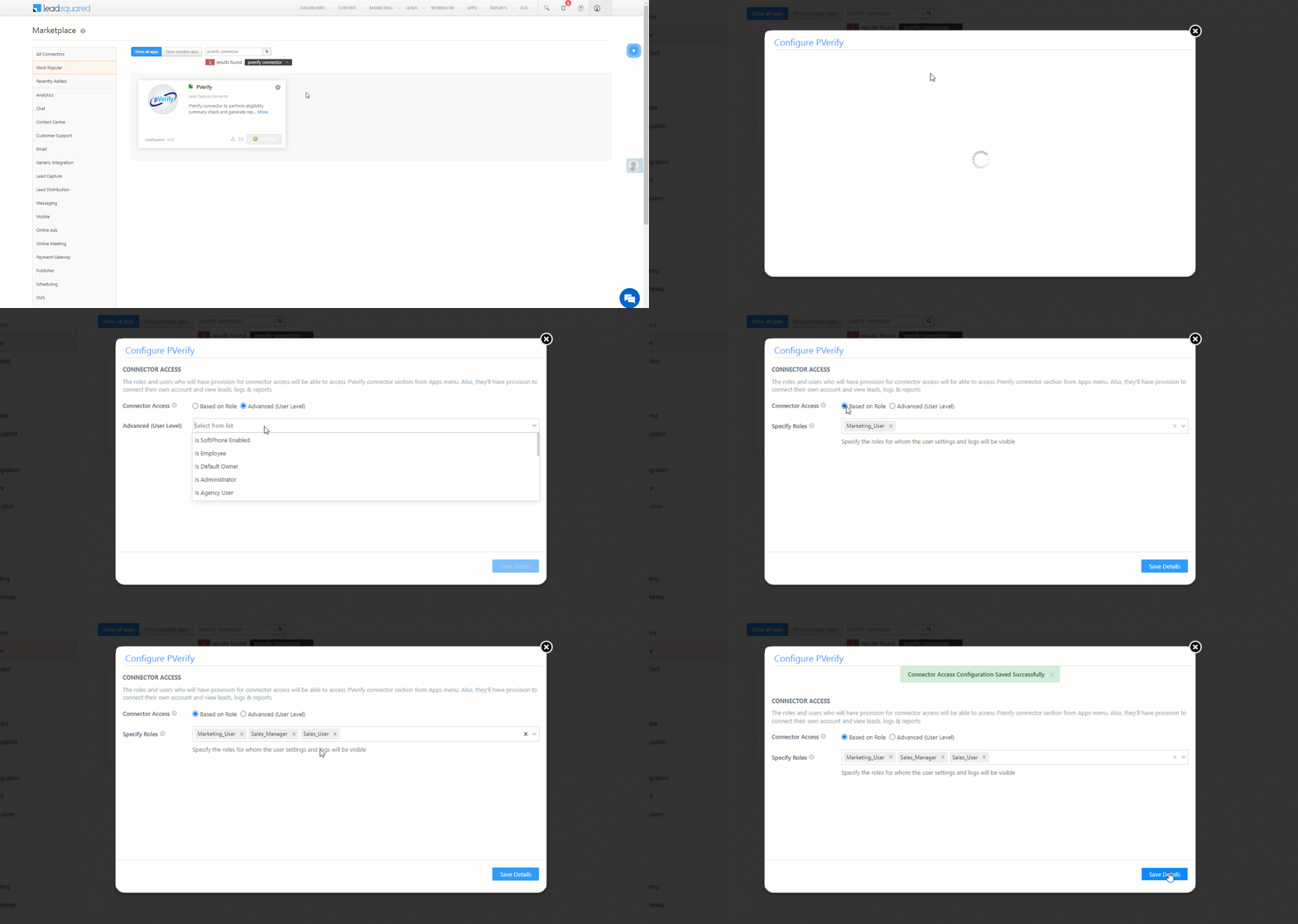
  3. Once installed, hover your cursor over , and click Configure.

clevertap install

4.1 Configure the connector

Once you’ve installed the connector, on the Configure CleverTap pop-up, configure the connector access for the non-Admin users in your account. Only those users for whom access is granted can view and access the connector (under the Apps main menu).

  1. Select if you want to grant Connector Access that’s Based on Role or Advanced (User Level).
    • Based on Role – From the Specify Roles dropdown, select the LeadSquared user roles that can use the connector.
    • Advanced (User Level) – From the Advanced (User Level) dropdown, select a user boolean field. Based on the value entered in the selected boolean field, the user can access the connector (e.g., for the user Sam, if the “Is Employee” boolean user field contains the value “Yes”, then this user can access the connector).
  2. Once you’re done, click Save Details. To continue the configuration, refer to the below sections.
Note: By default, all Admin users will have access to the connector.
clevertap config


5. Admin Configuration

To continue the connector configuration, navigate to Apps>CleverTap.

clevertap admin config

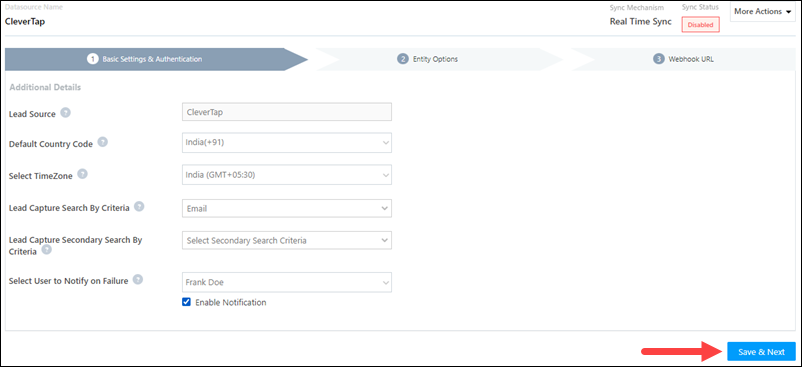
5.1 Basic Settings

Enter the following details –

Property Description
Lead Source Enter the lead source through which the leads were captured (e.g., CleverTap, email campaign, etc.). This detail will be displayed on the Lead Details page, under Lead Source.
Default Country Code If the lead’s mobile number is captured without a country code, the default country code that’s selected from the dropdown will be added to the lead’s mobile number.
Select Time Zone The time zone followed in your CleverTap account.
Lead Capture Search By Criteria To avoid duplicate leads, you must select one unique lead field (e.g., email Id, mobile number, PAN number, etc.) as the search key. This is used to identify the leads pushed from CleverTap.

To know how to mark a LeadSquared lead field as unique, please refer to How to Make a Custom Field Unique.

Lead Capture Secondary Search By Criteria If lead identification and capture through the primary Search By criteria fails, it will be re-attempted using the secondary Search By criteria.
Select User to Notify on Failure If there is an error in fetching leads, the selected user will receive a failure message via email. You can select a user from the list of all the users available in your LeadSquared account.

To know more about the type of errors, please refer to Error Notifications.

Enable Notification To ensure notification emails are sent to the selected user when there’s a failed query, enable the Checkbox checkbox.

Once you’ve entered all the details, click Save & Next.

clevertap basic settings save

5.2 Entity Options

Define the sync behavior of the connector when leads are captured.

5.2.1 Lead/Contact Entity

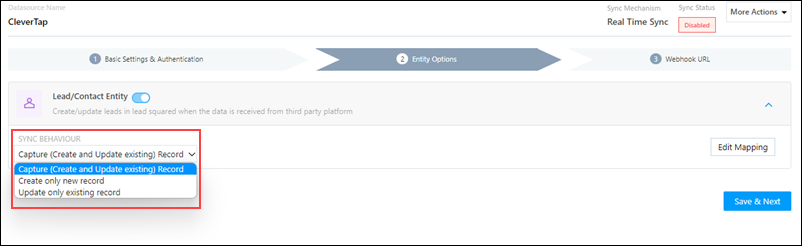
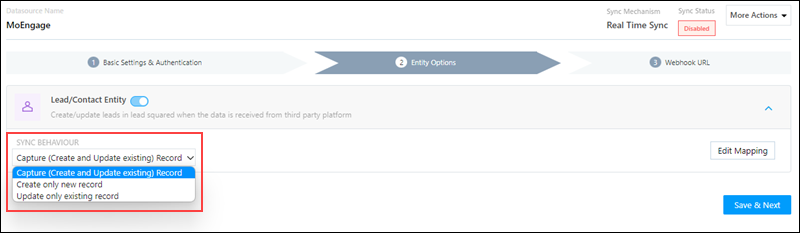
Based on the Lead Capture Search By criteria (email Id, phone number, etc.), LeadSquared identifies and captures leads from your CleverTap account. Lead capture is enabled by default, and it cannot be disabled. The following options are available to configure the connector’s Sync Behaviour –

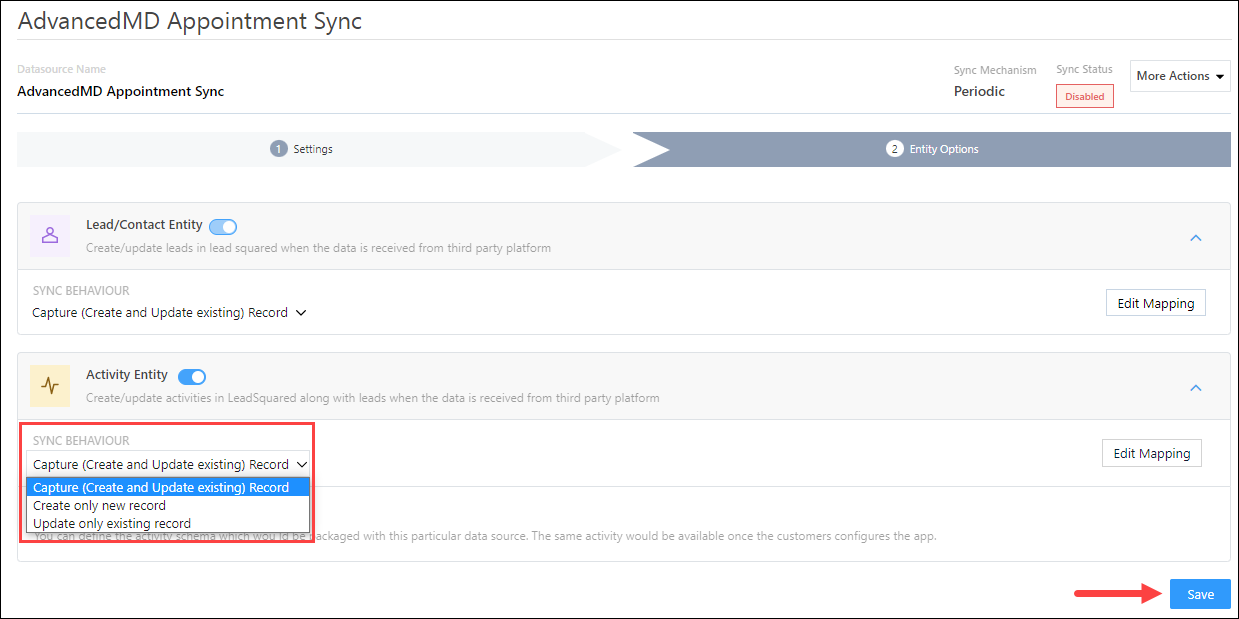
  • Capture (Create and Update existing) Record – Leads that only exist in your CleverTap account (but not in your LeadSquared account) will get created in LeadSquared. Leads that exist in both your data provider and LeadSquared accounts will get updated.
  • Create only new record – Leads that only exist in your CleverTap account (but not in your LeadSquared account) will get created in LeadSquared.
  • Update only existing record – Leads that exist in both your CleverTap account and LeadSquared accounts will get updated in LeadSquared.

clevertap lead sync

5.2.2 Mapping

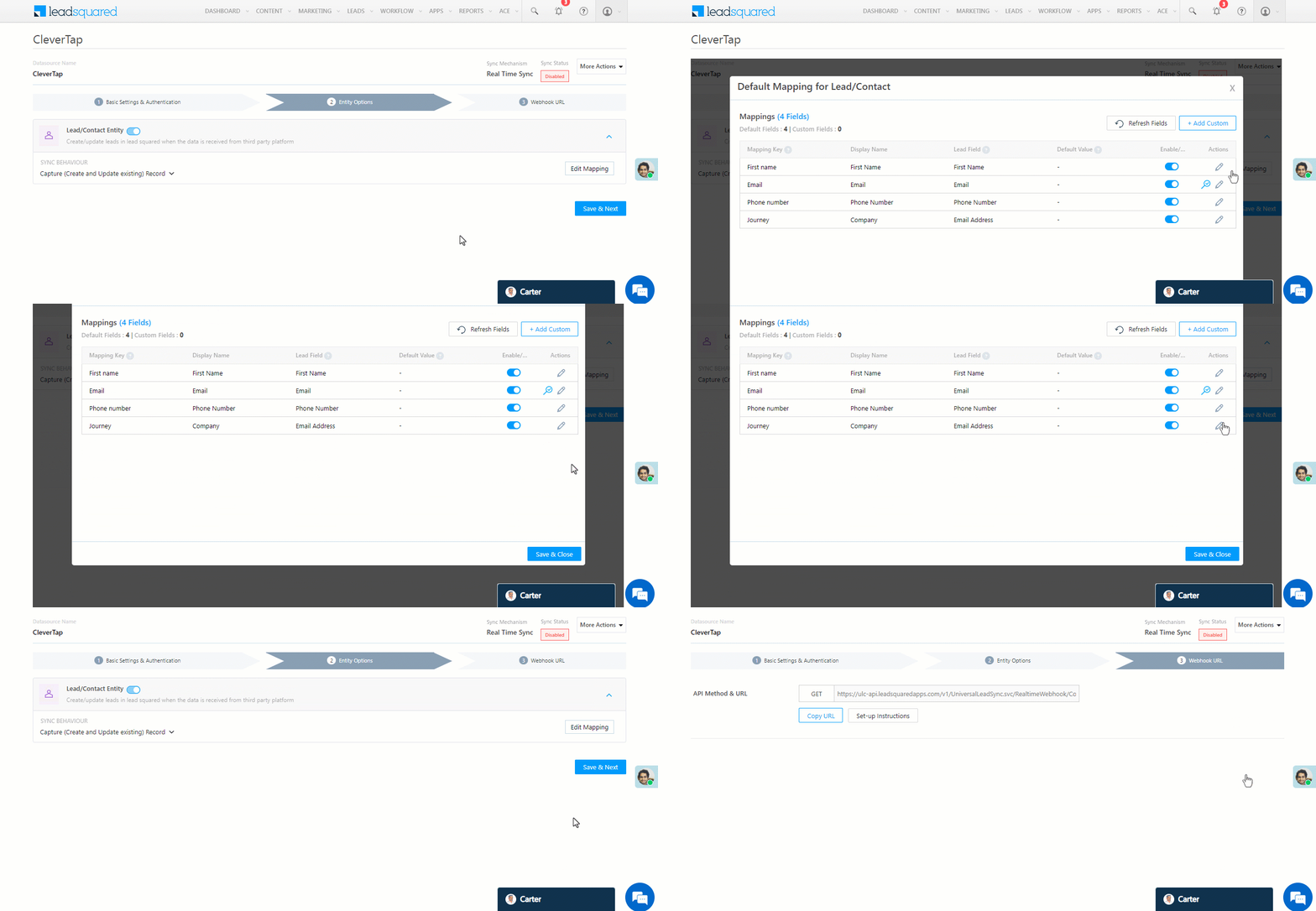
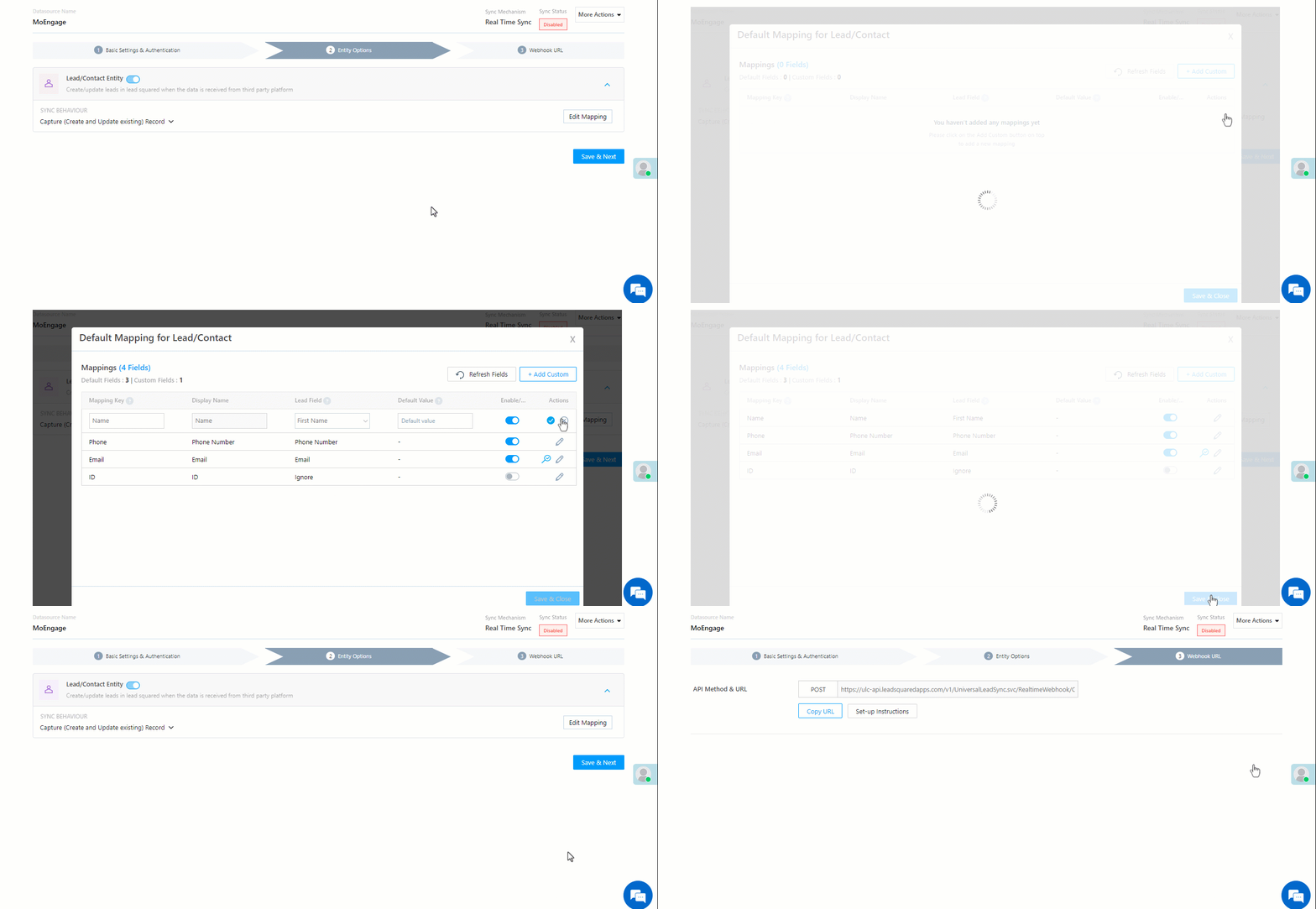
On the Mapping screen, the CleverTap system fields mapped to the corresponding LeadSquared lead fields are visible. This mapping is carried out by default. If required, you can change or update the default field mapping.

  • To provide a default value for any field, click  , enter the value under Default Value, and click Google.
    • If the data provider doesn’t send data for any lead field, then the default value will get assigned to that specific field. But if the field already has an existing value, then the default value will be ignored.
  • To disable lead data capture for any field, disable the Zoom slider.
  • You can also mark and update a unique lead field as the search key from this screen, by clicking unique icon.
  • To create a custom CleverTap field, click the Add Custom button.
    1. Once this field is created, you must map it to the relevant LeadSquared lead field.
    2. After the field is mapped, to save the custom field, click Google.
    3. To delete a custom field, click .

Once you’re done, click Save & Next.

Note: Based on the lead fields configured in your CleverTap account, add or update the lead fields in LeadSquared.

clevertap lead mapping

5.3 Generate Webhook URL

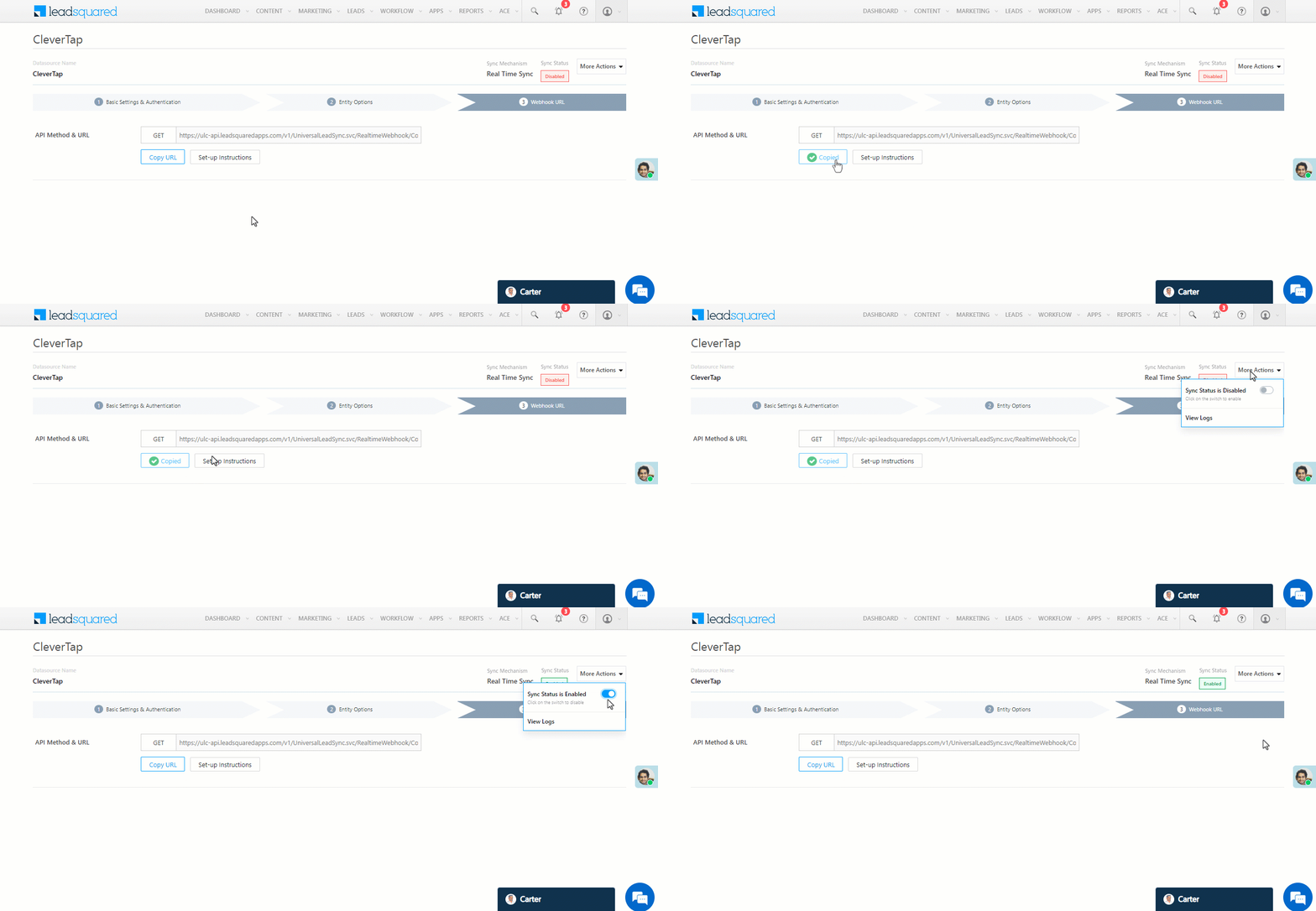
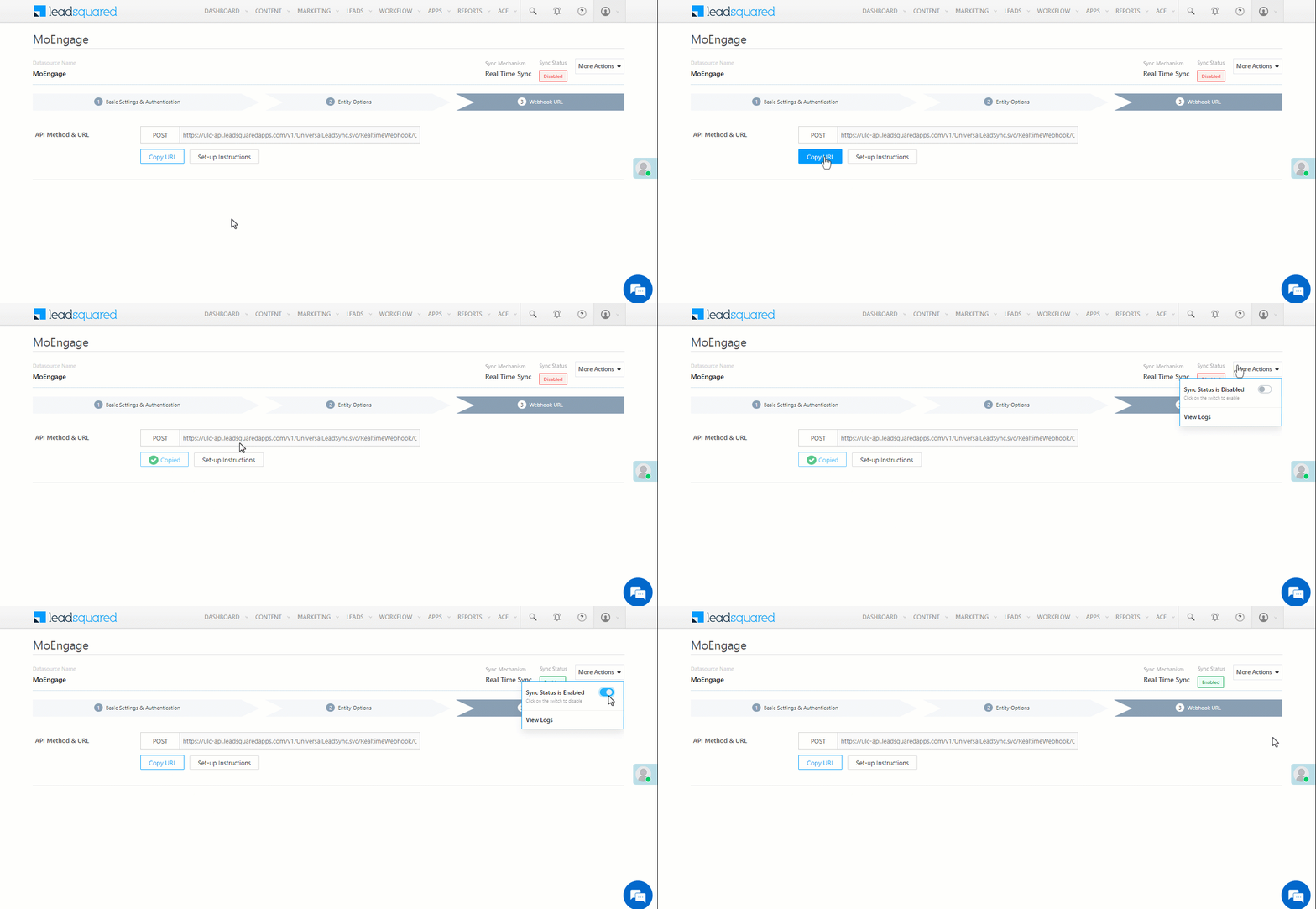
After you provide basic details and finish field mapping, a custom webhook URL is generated. To automate lead capture, copy this URL and configure it on your CleverTap account.

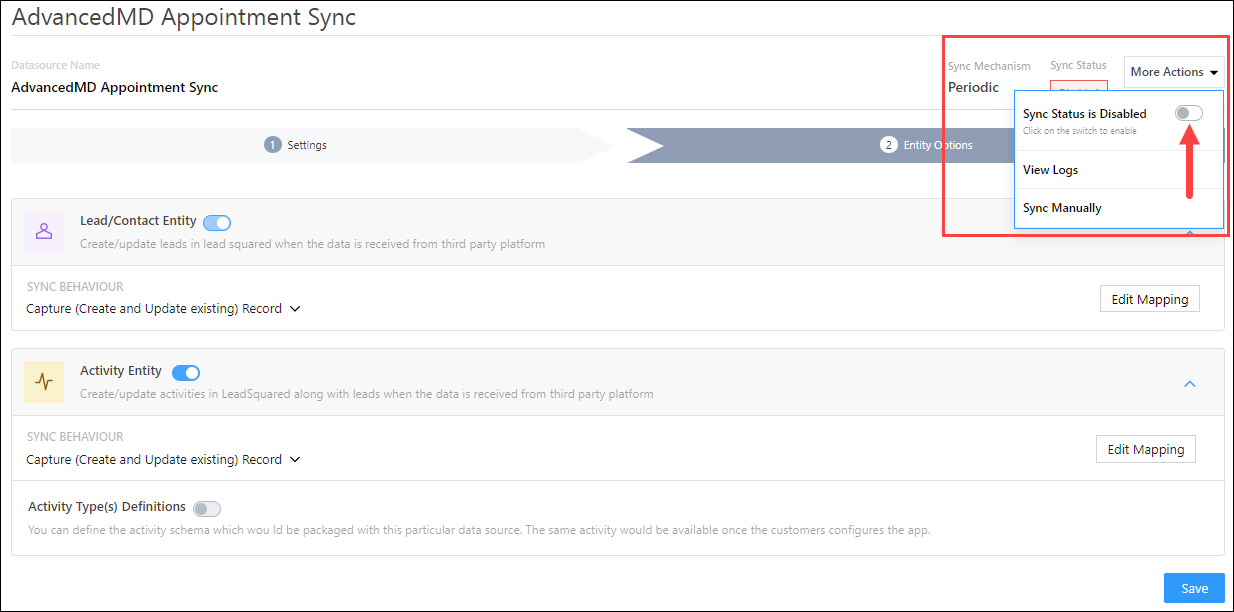
After you’ve set up the webhook, click More Actions, and enable the sync job. This ensures that through the webhook, lead data from CleverTap is pushed to LeadSquared.

Note: To view logs of all the sync jobs that have taken place, from the More Actions dropdown, click View Logs.

clevertap webhook


6. View Logs

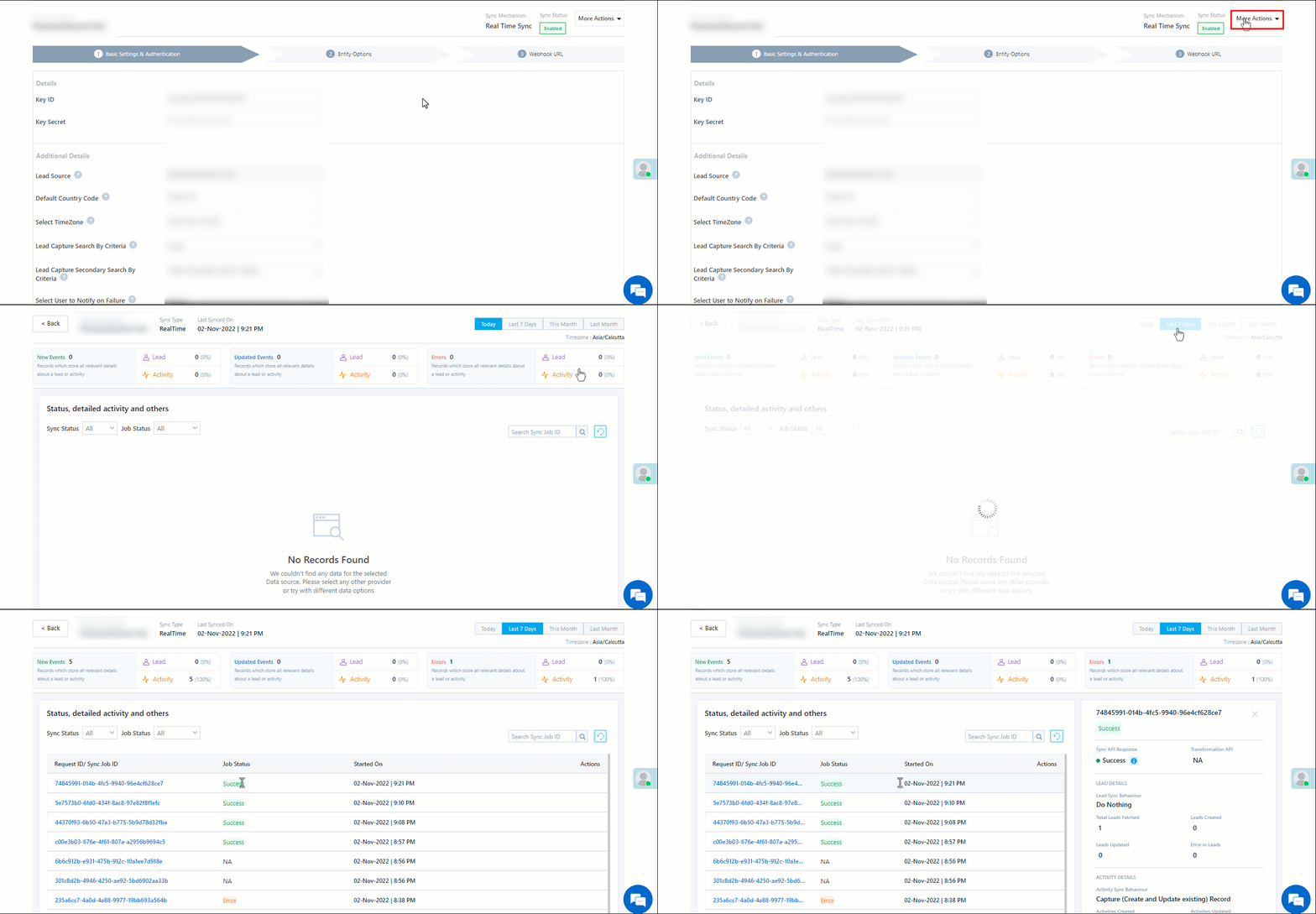
Here, you can view logs of all the sync jobs that have taken place. View New Events (New Leads), Updated Events (Updated Leads), and Errors (when capturing leads).

  1. Navigate to Apps>CleverTap.
  2. From the More Actions dropdown, click View Logs.
  3. You can filter the logs by selecting a date range (Today, Last 7 Days, This Month, and Last Month), by selecting the Job Status (“All”, “Success” and “Failure”), and by selecting the Sync Status (All, Error, and Success).
  4. You can view the sync status of the following events –
    • New Events – List of all the new leads that have been created in LeadSquared during the selected date range.
    • Updated Events – A list of all the –
      • Duplicate leads that were created with the same Search by Criteria value (e.g., with the same Email Id, Mobile Number, etc.).
      • Leads that previously contained errors, which were fixed and synced successfully.
    • Failed – The list of leads that have not been captured due to mapping errors (e.g., when a boolean field is mapped to an integer field, etc.).
  5. To view the Sync Response details, under Request ID/Sync Job ID, click the Id.
    • Under the right panel, you can view the response status, the API URL, the request, and the response.
    • The responses that are successful will contain the details of the leads that have been pushed from CleverTap.
    • To view the lead capture response under Sync API Response, Leads Updated and Errors in Leads, click Information.

Note:

  • For a response that contains an error, the reason for the error is listed in the response. Once you fix it, you can click the Retry button to perform the sync again.
  • The current Lead Sync Behaviour will reflect in the Logs screen. This will help identify the sync that’s used (Capture or Update) for the selected Request/Sync Job Id.

google forms view logs


7. Other Actions

You can edit or delete the Clevertap connector instance that you created. To do this –

  1. Navigate to Apps>App Marketplace.
  2. Search for CleverTap.
  3. Alongside the CleverTap connector, hover your cursor over .
  4. From the list of options, you can perform the following actions –
    • Edit Configuration
    • Disable Configuration
    • Remove Configuration

clevertap other actions


8. View Reports

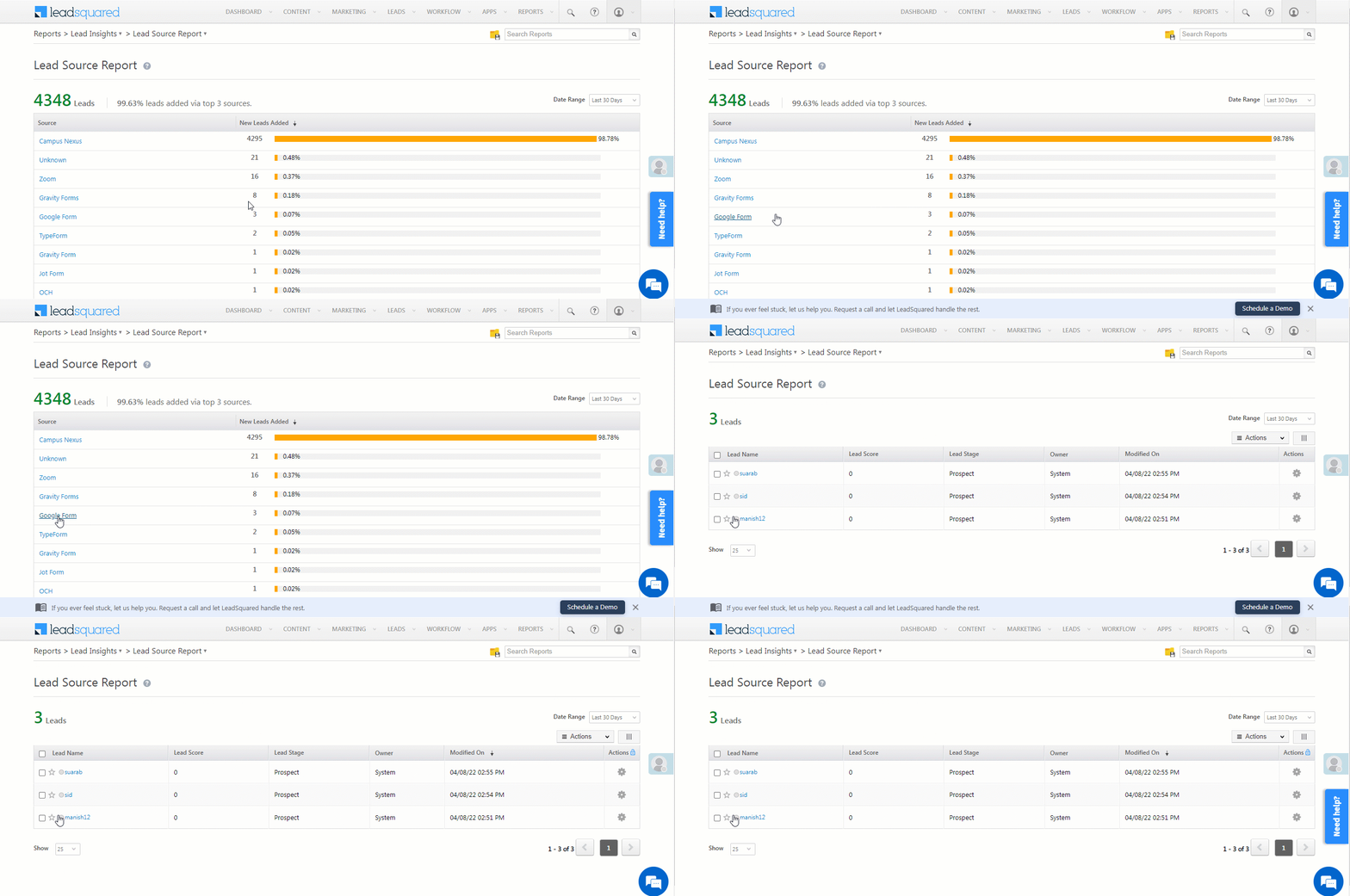
You can view the total number of leads that have been pushed by CleverTap, by referring to the Lead Source report. To know more, please refer to How to track the source of your Leads using Lead Source Report?

Integrate LeadSquared with Google Forms


Any Questions?

Did you find this article helpful? Please let us know any feedback you may have in the comments section below. We’d love to hear from you and help you out!

Customise Lead Details View on Mobile

1. Feature Overview

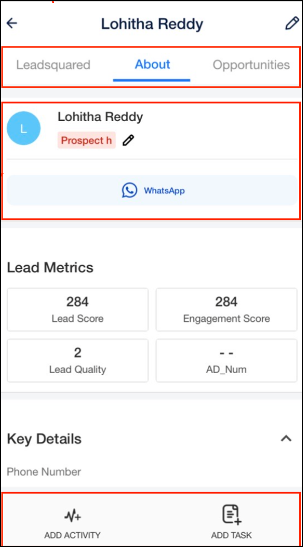
Based on each Team’s requirements, Admin users can customise the Tabs, Actions, and Contact Cards displayed on the mobile app’s Lead Details page. To display different Lead Details page views for different teams, you can select the –

  • System tabs (Activity History, Tasks, etc.) and Custom Tabs (KYC Documents Collected, Support Tickets, etc.) you want to display to your users
  • Actions your users can perform (Send Email, Call Lead, etc.) from the Lead Actions dropdown
  • Quick Action Buttons
  • Lead fields you want to display on the Lead vCard
Note: This article deals with Lead Details customization on the mobile app. To know more about Lead Details customization on the web app, click here.

LeadSquared - lead-details-customisation-mobile-app


2. Prerequisite

You must have the latest version of the LeadSquared mobile app enabled in your account.


3. Lead Details Customisation on Mobile App

To customise the lead details view on the mobile app –

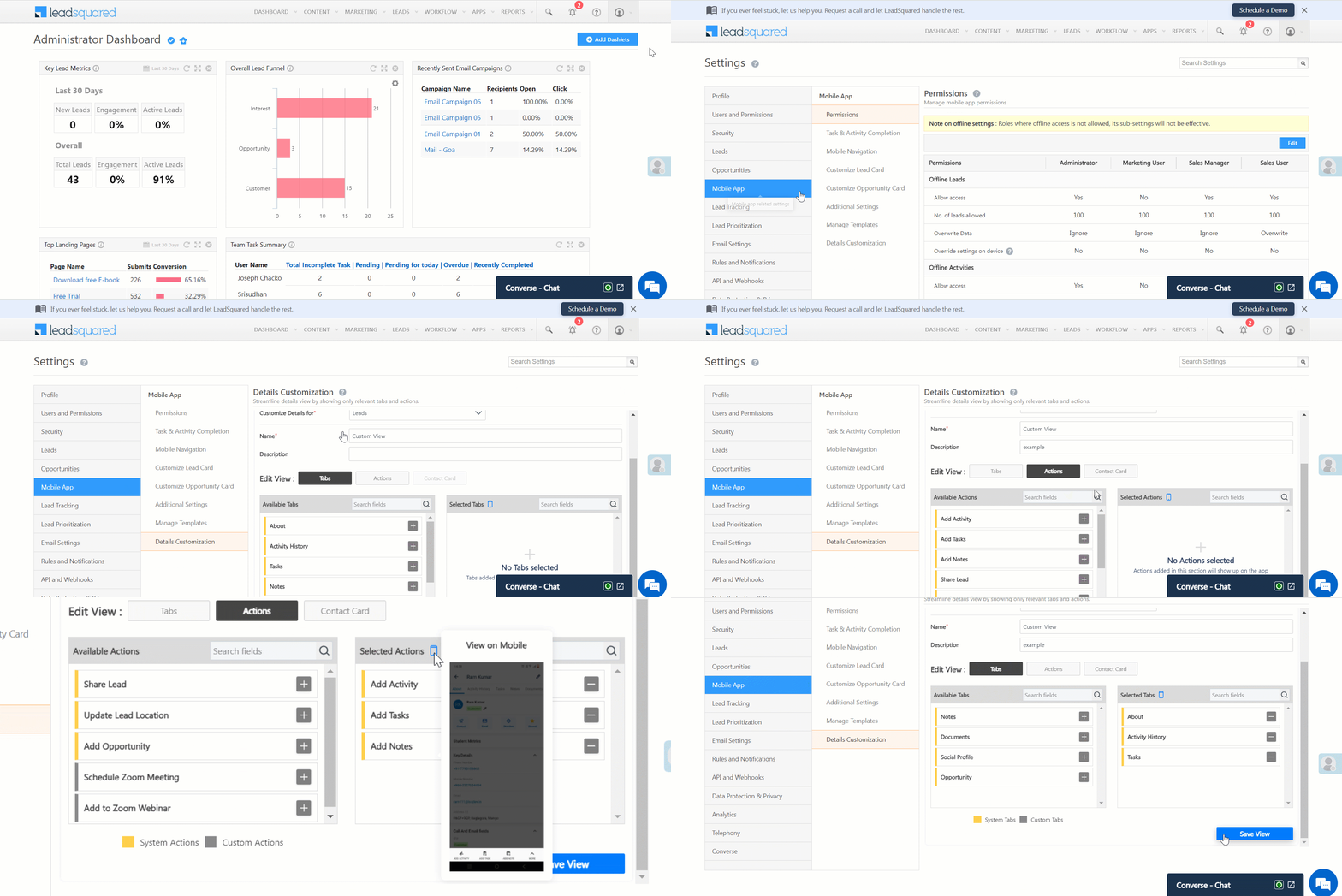
  1. Navigate to My Account>Settings>Mobile App>Details Customization and click Enable.
  2. Enter the name and description of your view.
  3. Select the view to be customized – TabsActions, or Contact Card.
  4. Under Available Tabs/Actions, alongside the field you wish to add, click add icon. You can add both system and custom fields. To search for any field, enter the field name under Search Fields.
  5. To preview the customised fields, alongside Selected Tabs, hover your cursor over view on mobile.
  6. Click Save View.
Note: The customized view will be applied on the accounts of all users under the tenant.

LeadSquared - Lead Details Customisation on Mobile app


Any Questions?

Do you have questions or issues with the content in this article? Let us know in the comments section below. We’ll get back to you asap!

Integrate Jotform with LeadSquared

1. Feature Overview

This connector captures leads from your Jotform account to LeadSquared. You can configure the connector to capture leads in real-time from your Jotform account. Once the leads are captured, you can leverage LeadSquared’s CRM features to nurture and convert your leads.


2. Prerequisites

  • You must be the Administrator of your LeadSquared account.
  • You must have an active Jotform account.
  • This is a paid feature. To enable it, reach out to your account manager, or write to support@leadsquared.com.


3. How it Works

To push lead data from Jotform to your LeadSquared account, configure the Jotform connector instance. Once configured, enable the connector sync.

During configuration, a webhook URL is generated in LeadSquared. Copy this URL and configure it in your Jotform account. Once configured, the lead capture process is initiated.


4. Installation

You must first install and configure the Jotform connector.

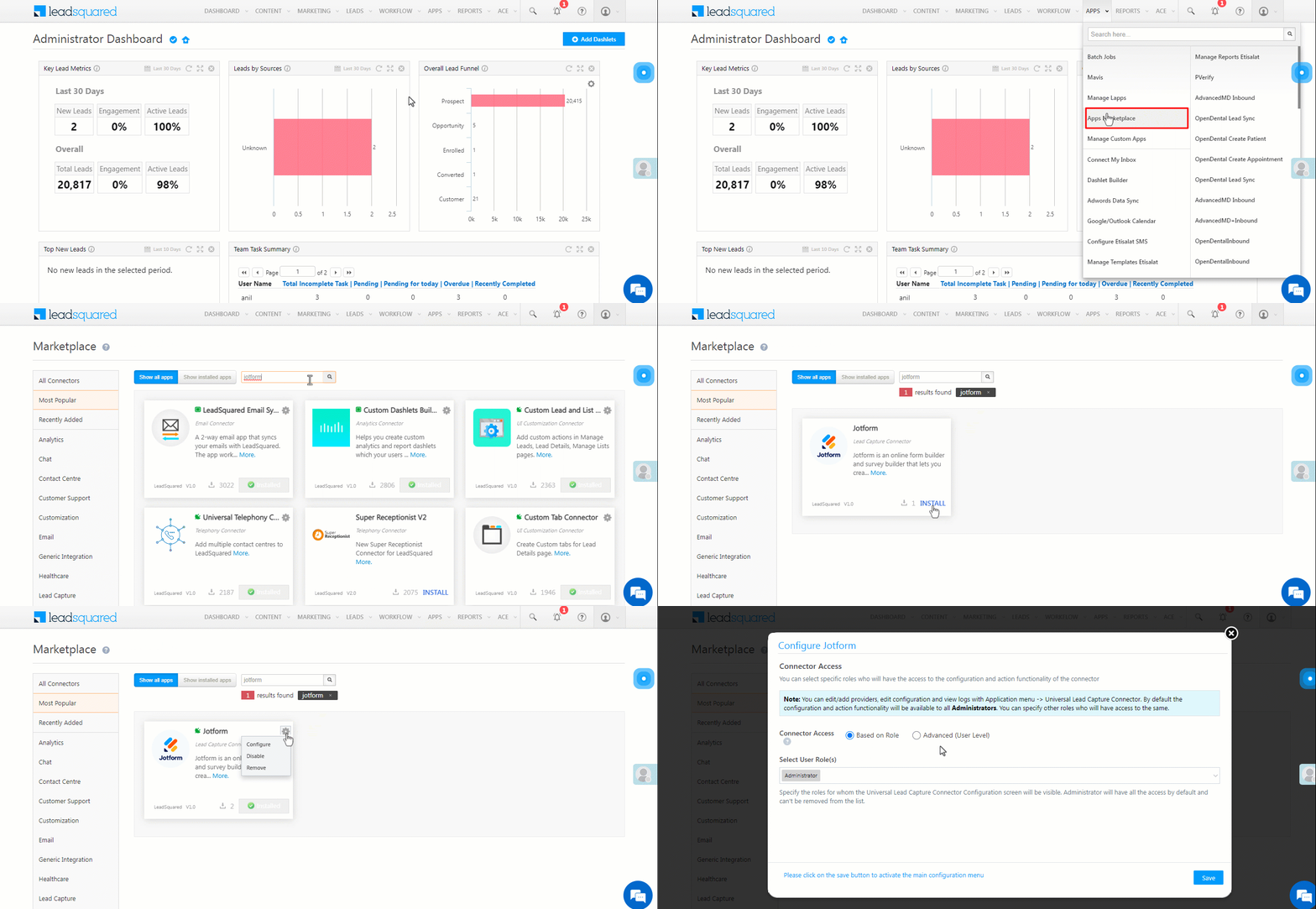
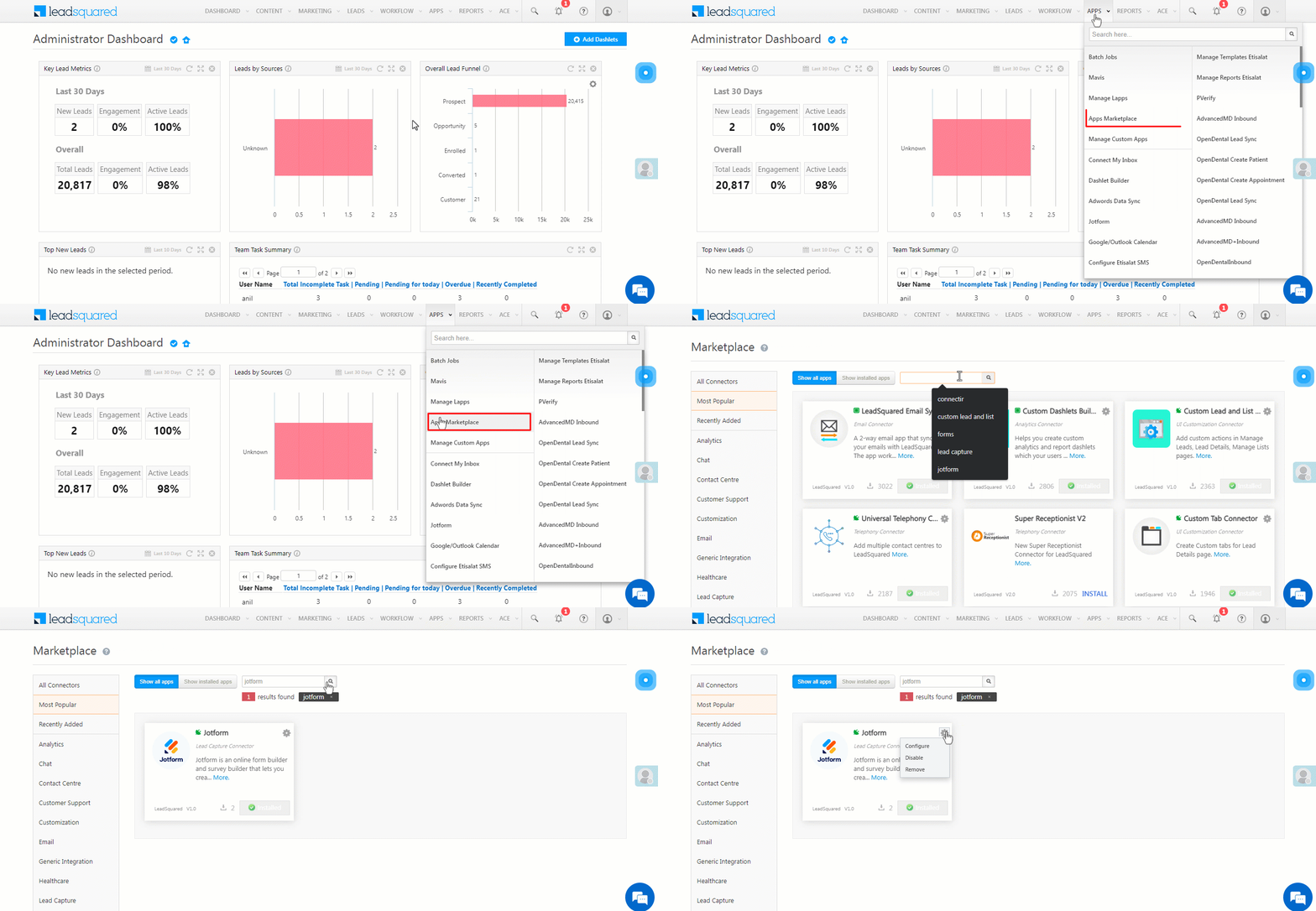
  1. Navigate to Apps>Apps Marketplace.
  2. Search for Jotform, and click Install.
    • Alternatively, you can find the connector on the left panel, under Lead Capture.
  3. Once installed, hover your cursor over , and click Configure.

Jotform install

4.1 Configure the connector

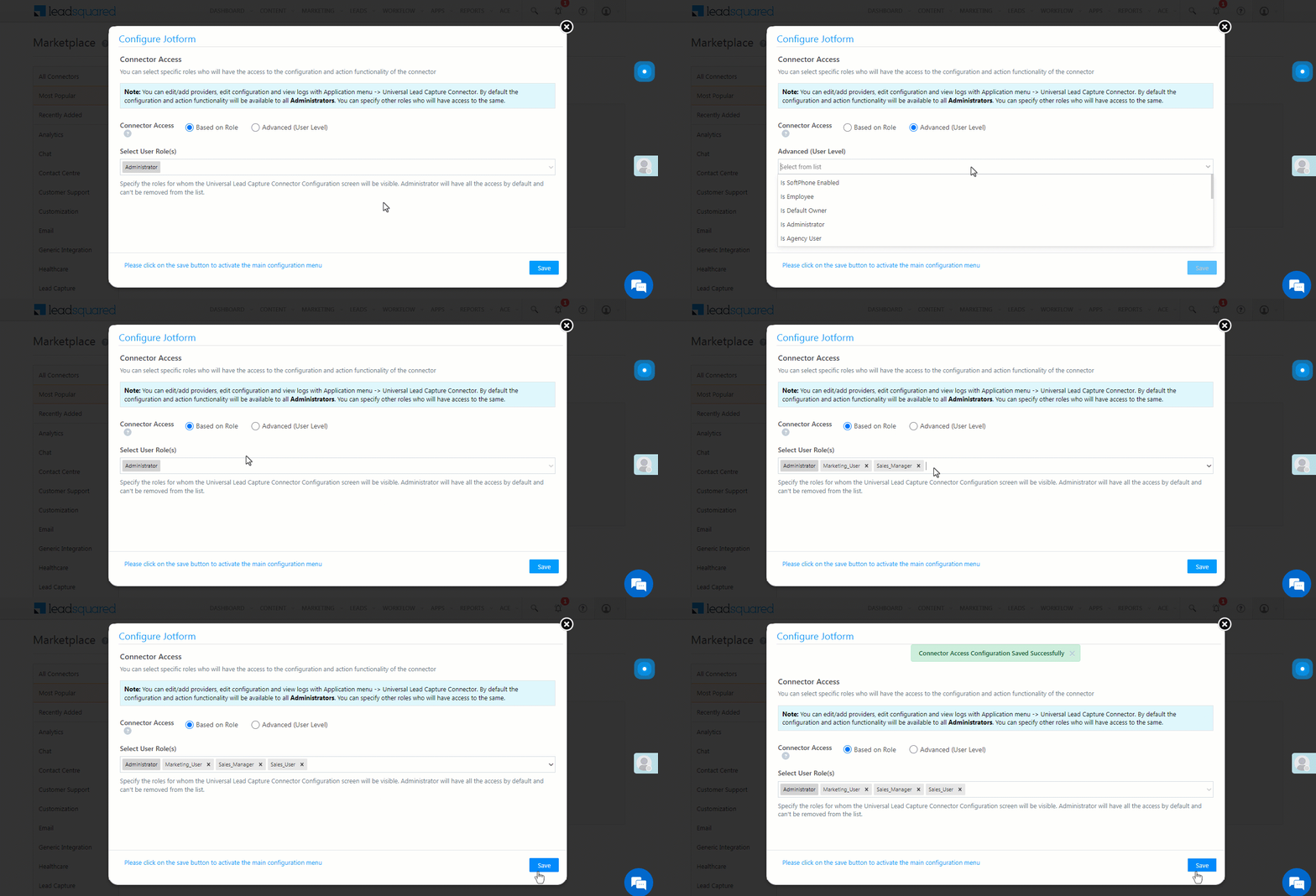
Once you’ve installed the connector, on the Configure Jotform pop-up, configure the connector access for the non-Admin users in your account. Only those users for whom access is granted can view and access the connector (under the Apps main menu).

  1. Select if you want to grant Connector Access that’s Based on Role or Advanced (User Level).
    • Based on Role – From the Specify Roles dropdown, select the LeadSquared user roles that can use the connector.
    • Advanced (User Level) – From the Advanced (User Level) dropdown, select a user boolean field. Based on the value entered in the selected boolean field, the user can access the connector (e.g., for the user Sam, if the “Is Employee” boolean user field contains the value “Yes”, then this user can access the connector).
  2. Once you’re done, click Save Details. To continue the configuration, refer to the below sections.
Note: By default, all Admin users will have access to the connector.
Jotform config


5. Admin Configuration

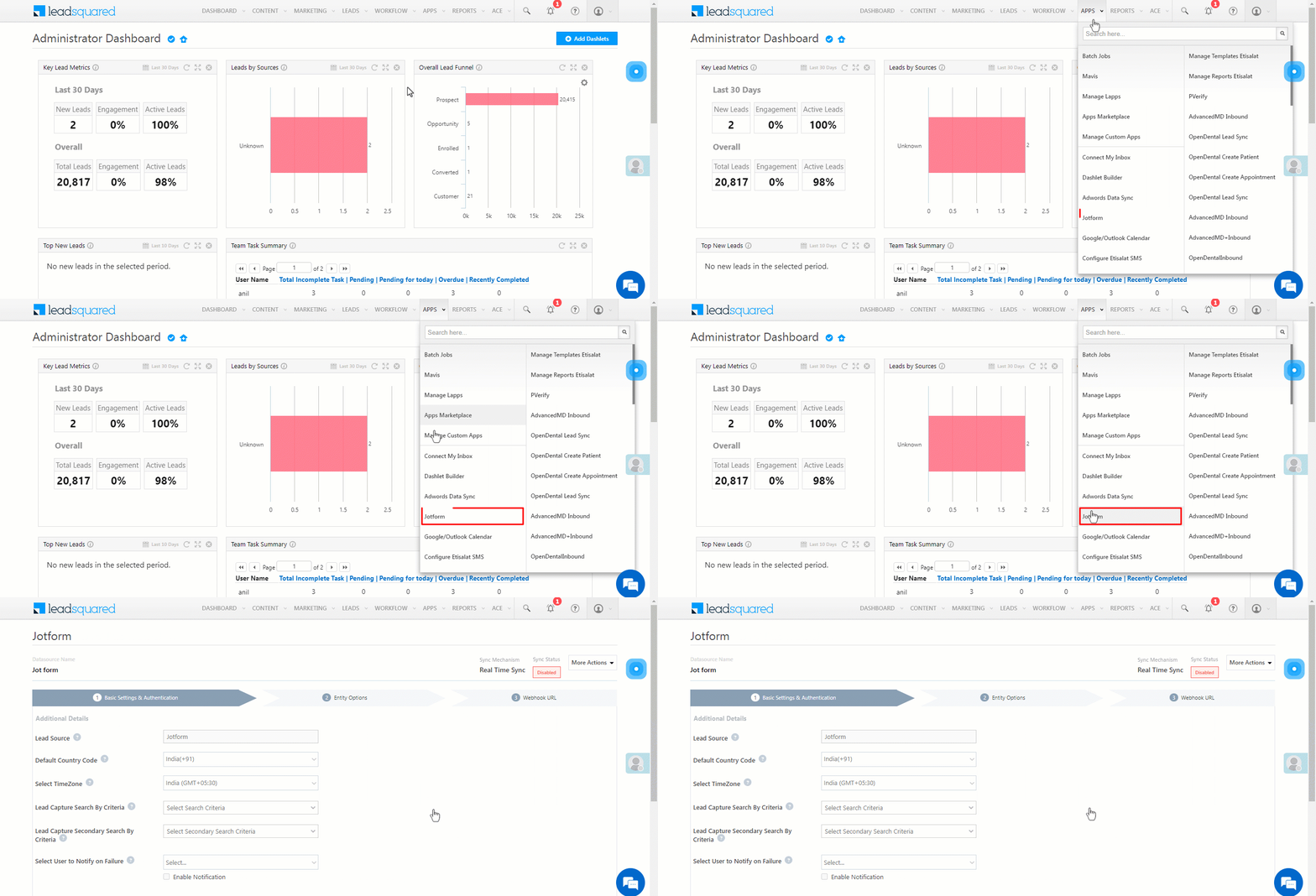
To continue the connector configuration, navigate to Apps>Jotform.

Jotform admin config

5.1 Basic Settings

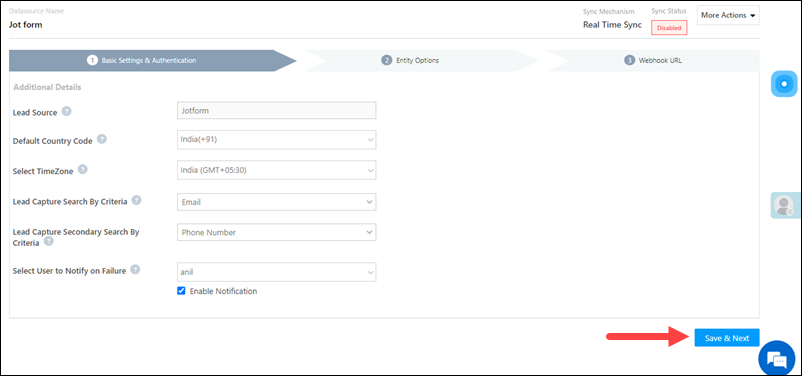
Enter the following details –

Property Description
Lead Source Enter the lead source through which the leads were captured (e.g., Jotform, email campaign, etc.). This detail will be displayed on the Lead Details page, under Lead Source.
Default Country Code If the lead’s mobile number is captured without a country code, the default country code that’s selected from the dropdown will be added to the lead’s mobile number.
Select Time Zone The time zone followed in your Jotform account.
Lead Capture Search By Criteria To avoid duplicate leads, you must select one unique lead field (e.g., email Id, mobile number, PAN number, etc.) as the search key. This is used to identify the leads pushed from Jotform.

To know how to mark a LeadSquared lead field as unique, please refer to How to Make a Custom Field Unique.

Lead Capture Secondary Search By Criteria If lead identification and capture through the primary Search By criteria fails, it will be re-attempted using the secondary Search By criteria.
Select User to Notify on Failure If there is an error in fetching leads, the selected user will receive a failure message via email. You can select a user from the list of all the users available in your LeadSquared account.

To know more about the type of errors, please refer to Error Notifications.

Enable Notification To ensure notification emails are sent to the selected user when there’s a failed query, enable the Checkbox checkbox.

Once you’ve entered all the details, click Save & Next.

Jotform basic settings save

5.2 Entity Options

Define the sync behavior of the connector when leads are captured.

5.2.1 Lead/Contact Entity

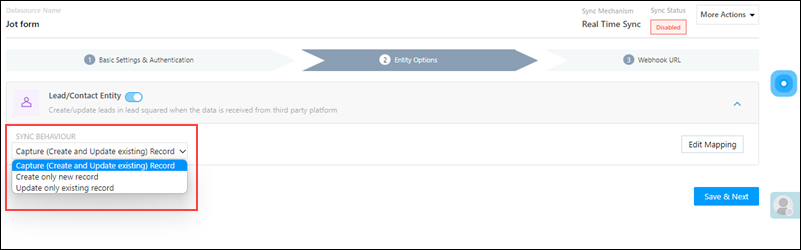
Based on the Lead Capture Search By criteria (email Id, phone number, etc.), LeadSquared identifies and captures leads from your Jotform account. Lead capture is enabled by default, and it cannot be disabled. The following options are available to configure the connector’s Sync Behaviour –

  • Capture (Create and Update existing) Record – Leads that only exist in your Jotform account (but not in your LeadSquared account) will get created in LeadSquared. Leads that exist in both your data provider and LeadSquared accounts will get updated.
  • Create only new record – Leads that only exist in your Jotform account (but not in your LeadSquared account) will get created in LeadSquared.
  • Update only existing record – Leads that exist in both your Jotform account and LeadSquared accounts will get updated in LeadSquared.

Jotform lead sync

5.2.2 Mapping

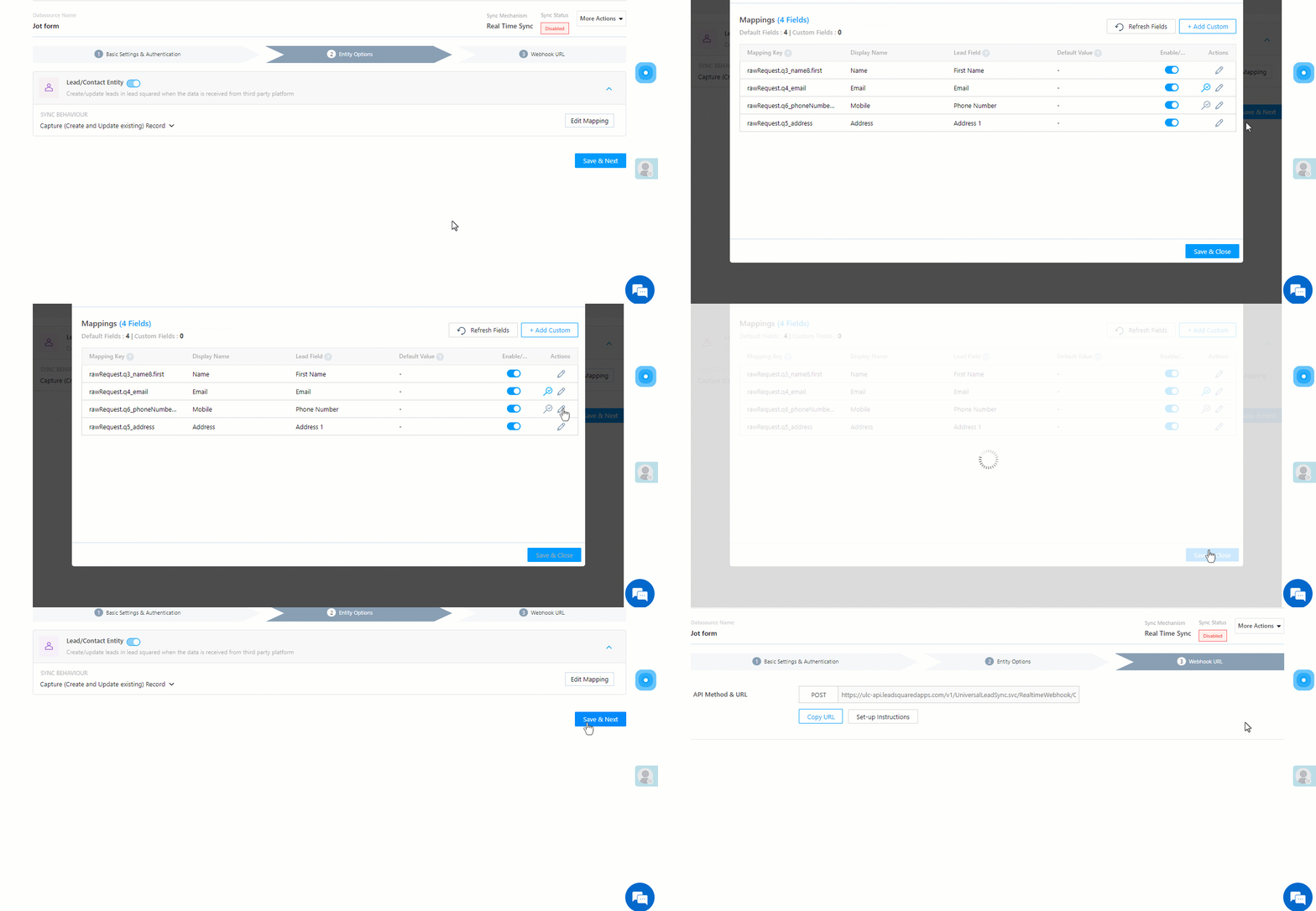
On the Mapping screen, the Jotform system fields mapped to the corresponding LeadSquared lead fields are visible. This mapping is carried out by default. If required, you can change or update the default field mapping.

  • To provide a default value for any field, click  , enter the value under Default Value, and click Google.
    • If the data provider doesn’t send data for any lead field, then the default value will get assigned to that specific field. But if the field already has an existing value, then the default value will be ignored.
  • To disable lead data capture for any field, disable the Zoom slider.
  • You can also mark and update a unique lead field as the search key from this screen, by clicking unique icon.
  • To create a custom Jotform field, click the Add Custom button.
    1. Once this field is created, you must map it to the relevant LeadSquared lead field.
    2. After the field is mapped, to save the custom field, click Google.
    3. To delete a custom field, click .

Once you’re done, click Save & Next.

Note: Based on the lead fields configured in your Jotform account, add or update the lead fields in LeadSquared.

Jotform lead mapping

5.3 Generate Webhook URL

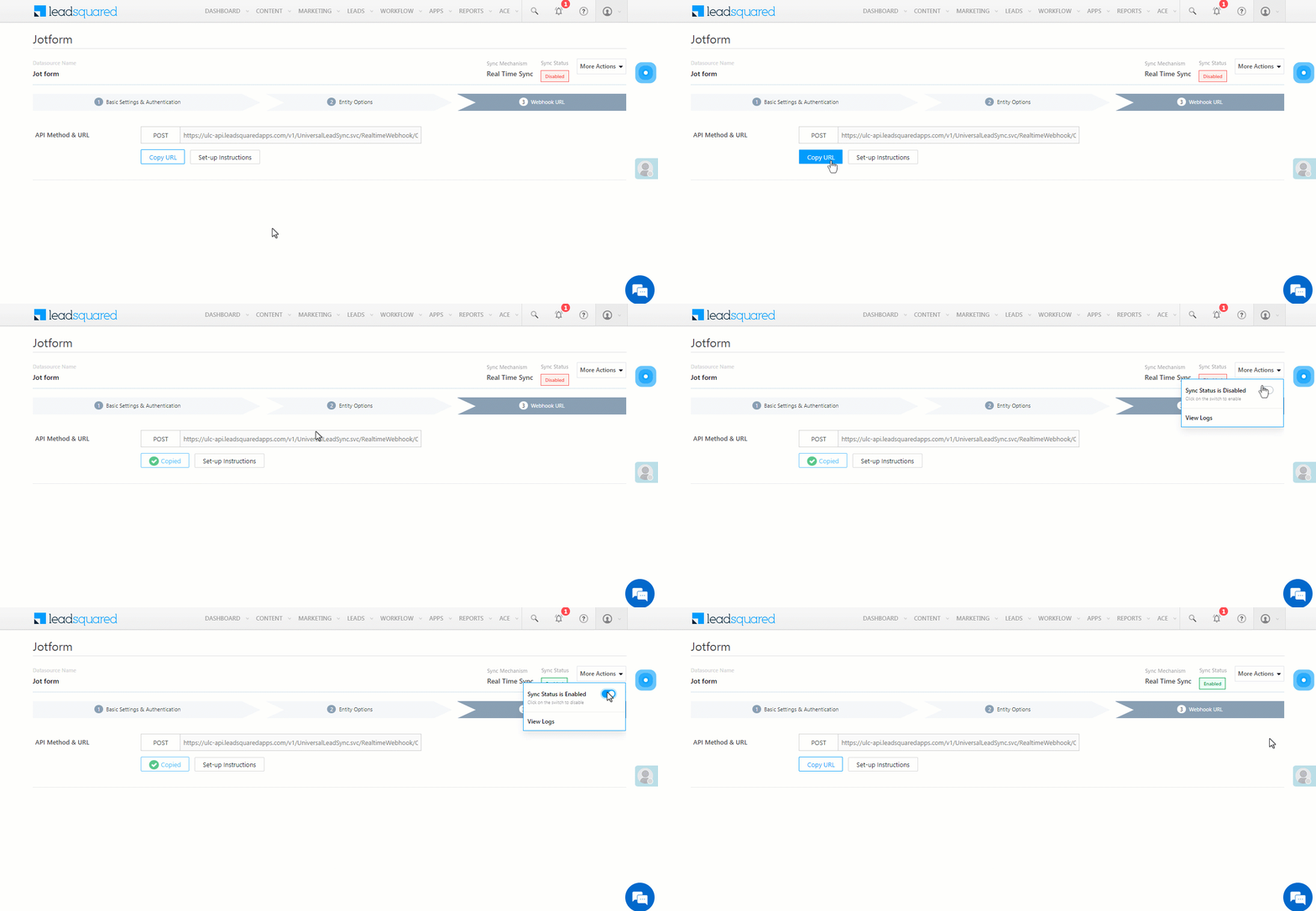
After you provide basic details and finish field mapping, a custom webhook URL is generated. To automate lead capture, copy this URL and configure it on your Jotform account.

After you’ve set up the webhook, click More Actions, and enable the sync job. This ensures that through the webhook, lead data from Jotform is pushed to LeadSquared.

Note: To view logs of all the sync jobs that have taken place, from the More Actions dropdown, click View Logs.

Jotform webhook url


6. View Logs

Here, you can view logs of all the sync jobs that have taken place. View New Events (New Leads), Updated Events (Updated Leads), and Errors (when capturing leads).

  1. Navigate to Apps>Jotform.
  2. From the More Actions dropdown, click View Logs.
  3. You can filter the logs by selecting a date range (Today, Last 7 Days, This Month, and Last Month), by selecting the Job Status (“All”, “Success” and “Failure”), and by selecting the Sync Status (All, Error, and Success).
  4. You can view the sync status of the following events –
    • New Events – List of all the new leads that have been created in LeadSquared during the selected date range.
    • Updated Events – A list of all the –
      • Duplicate leads that were created with the same Search by Criteria value (e.g., with the same Email Id, Mobile Number, etc.).
      • Leads that previously contained errors, which were fixed and synced successfully.
    • Failed – The list of leads that have not been captured due to mapping errors (e.g., when a boolean field is mapped to an integer field, etc.).
  5. To view the Sync Response details, under Request ID/Sync Job ID, click the Id.
    • Under the right panel, you can view the response status, the API URL, the request, and the response.
    • The responses that are successful will contain the details of the leads that have been pushed from Jotform.
    • To view the lead capture response under Sync API Response, Leads Updated and Errors in Leads, click Information.

Note:

  • For a response that contains an error, the reason for the error is listed in the response. Once you fix it, you can click the Retry button to perform the sync again.
  • The current Lead Sync Behaviour will reflect in the Logs screen. This will help identify the sync that’s used (Capture or Update) for the selected Request/Sync Job Id.

google forms view logs


7. Other Actions

You can edit or delete the Jotform connector instance that you created. To do this –

  1. Navigate to Apps>App Marketplace.
  2. Search for Jotform.
  3. Alongside the Jotform connector, hover your cursor over .
  4. From the list of options, you can perform the following actions –
    • Edit Configuration
    • Disable Configuration
    • Remove Configuration

Jotform other actions


8. View Reports

You can view the total number of leads that have been pushed by Jotform, by referring to the Lead Source report. To know more, please refer to How to track the source of your Leads using Lead Source Report?

Integrate LeadSquared with Google Forms


Any Questions?

Did you find this article helpful? Please let us know any feedback you may have in the comments section below. We’d love to hear from you and help you out!

Lead Location Updater

Note: The Lead Location Updater App has been deprecated and replaced by the Lead Location Update setting documented here.

1. Feature Overview

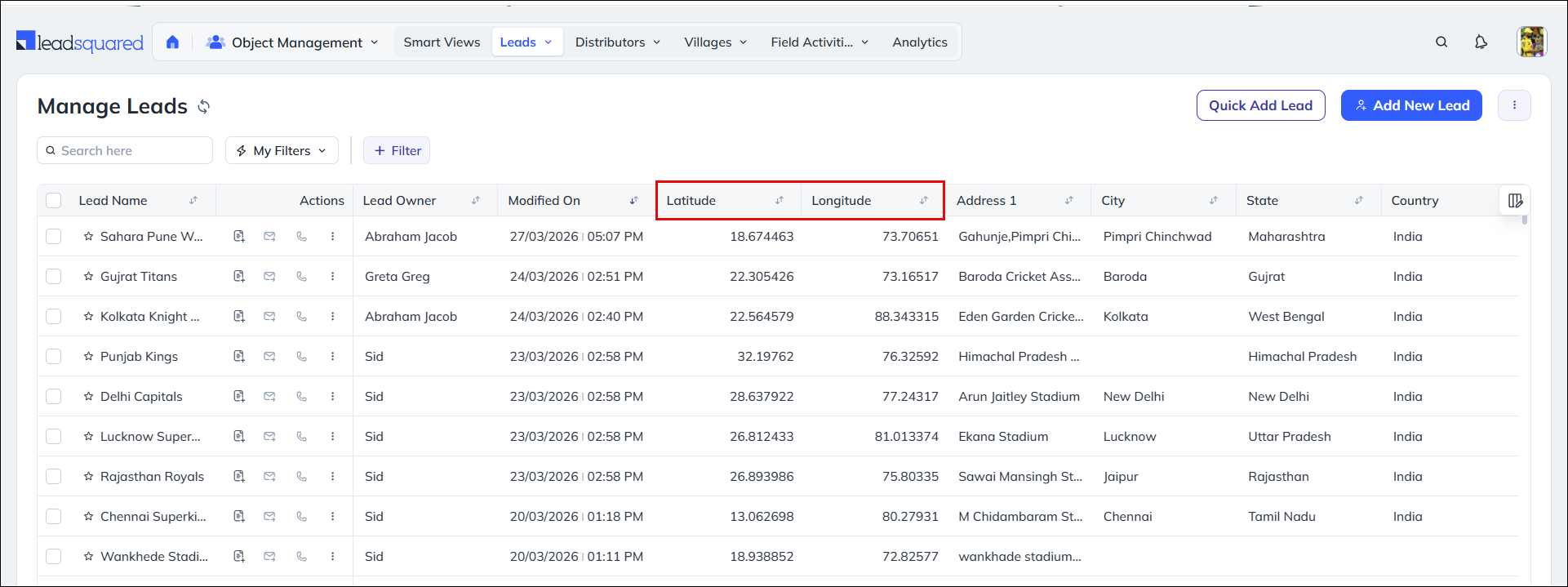
The Lead Location Updater updates the location coordinates (Latitude and Longitude) of a lead based on the data present in the following address fields:

  • mx_Street1
  • mx_Street2
  • mx_City
  • mx_State
  • mx_Country
  • mx_Zip

Every time new leads (without latitude or longitude coordinates) are added or bulk imported to Leadsquared, the locations from the combination of the above address fields are identified and converted into coordinates using the Google Geocoding API. This article details how to set up the Lead Location Updater in your account.

Leadsquared - Lead Location Updater


2. Prerequisites


3. Set Up Lead Location Updater

Once you procure the Google API Key –

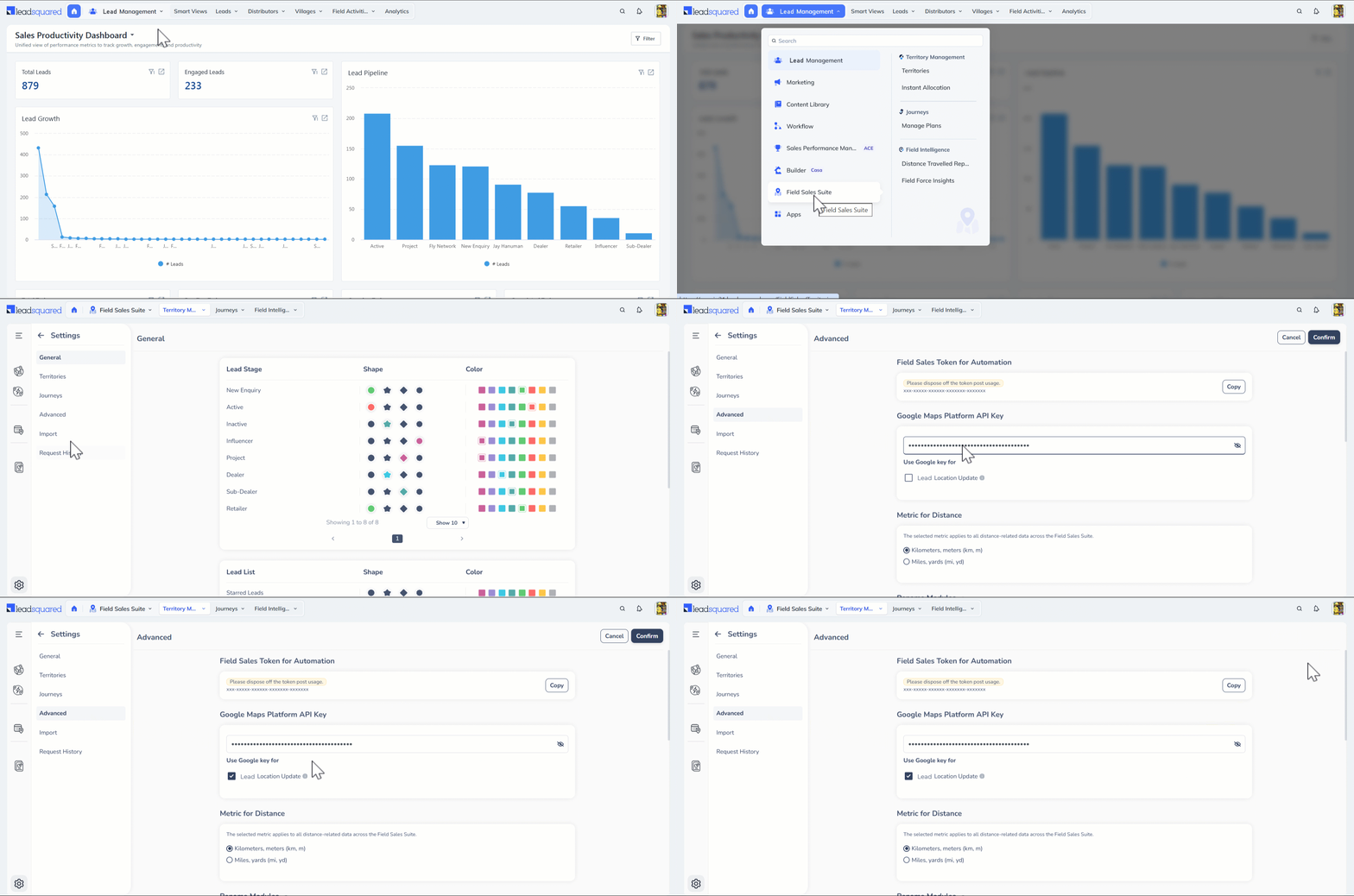
  1. Navigate to Field Sales Suite>Settings>Advanced.
  2. Under Google Maps Platform API Key, enter your procured API Key and enable the Lead Location Update checkbox.
  3.  Click Confirm to save the changes you’ve made.

Note:

  • To verify if your API Key is working properly, test it using this on PostMan.
  • mx_Street1 field is mandatory for the Lead Location Updater to update the Latitude and Longitude fields. mx_Zip is not mandatory but is recommended for better accuracy.
  • If the value of mx_Street1 field is updated but the lead already has some data in the Latitude and Longitude fields, such leads will not be updated with new coordinates.
  • The time to update the latitude and longitude fields of a lead may vary based on the total number of leads to be updated. Higher number of leads require more time for the update process.
  • To test this feature after set up, go to Manage Leads and add one lead with a random address without the location coordinates. In approximately 15 minutes, the latitude and longitude fields of the lead will be updated automatically.
  • For any audit reports to be made available on SIERA for this feature, reach out to your account manager or drop a mail to support@leadsquared.com.

Leadsquared - Lead Location Updater


Any Questions?

Did you find this article helpful? Please let us know any feedback you may have in the comments section below. We’d love to hear from you and help you out!

Field Sales Territories for Admins and Sales Managers

1. Feature Overview

Auto-distribute leads that are in close proximity to your users using Field Sales Territories. Create territories within a geography and assign sales users/teams/groups to them. All leads inside or near this territory will be evenly distributed among the assigned users. With the Territories feature, you can –

  • Carve out territories within a city using a pin code or draw the territories on the map.
  • Create sub-territories within the main one.
  • Auto-distribute leads within the relevant territories among sales users.
  • Reallocate leads within a territory to other users.
  • View leads in different locations on the map.
  • Assign Sales Managers to monitor different territories.
  • Allow/restrict sales users from adding new leads beyond their assigned territories.
  • Track the progress of the sales users within the territory.

Note:


2. Prerequisites

  • You must be an Administrator or a Sales Manager to manage territories.
  • This is a paid feature. To enable this feature on your account, contact your account manager, or write to support@leadsquared.com.
  • Before you get started, enable Lead – Switch to v2 on Mobile App Additional Settings.


3. How it Works

  1. Create an Activity – Create a custom activity FieldSales-Lead Distribution with the details given in this article. This activity will be posted on the Lead Details page whenever a new lead gets distributed by Territories.
  2. Create an Automation – Create an automation for lead distribution. Add a webhook action to this automation with the details mentioned in this article. This automation is used to distribute leads among users in a particular territory. You can configure the automation to distribute all leads or only system owned leads.
  3. Add Territories – Create new territories by drawing or selecting a region on the map. Then, assign users/sales groups/sales teams to these territories. You can also create parent-child territories or sub-territories. Now, configure the Territories settings.
  4. Distribute Leads – Once you’re done creating territories, the leads will automatically be distributed among the assigned users based on their proximity. If multiple users are assigned to a territory, the leads are distributed in a round-robin manner. You can reallocate leads to different lead owners after they’re distributed.


4. Create an Activity

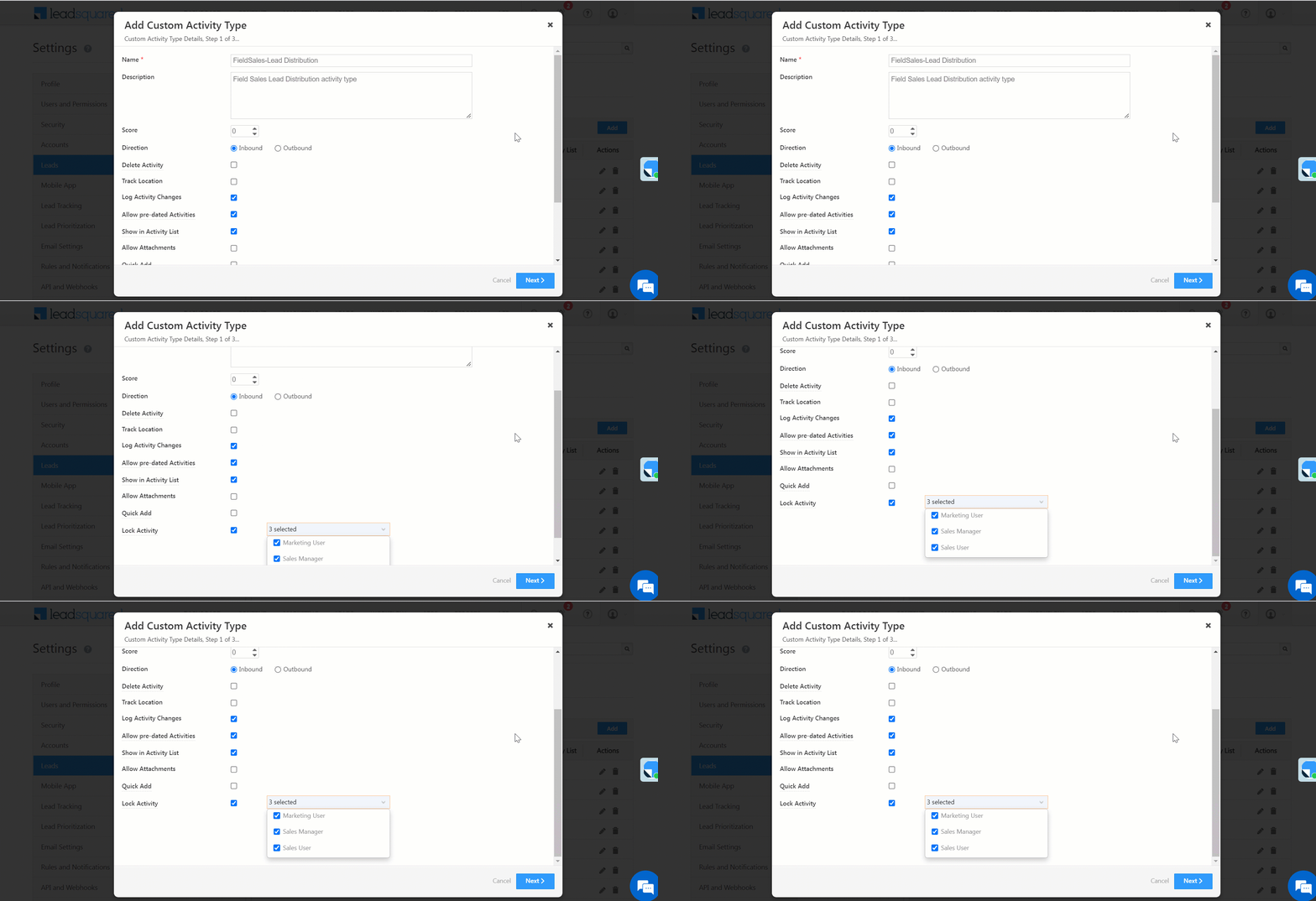
Create a custom activity with the following details –

Field  Details
Name FieldSales-Lead Distribution 
Description Field Sales Lead Distribution activity type
Score 0
Direction Inbound
Delete Activity Uncheck 
Track Location Uncheck 
Log Activity Changes Checked 
Allow pre-dated Activities Checked 
Show in Activity List Checked 
Allow Attachments Uncheck 
Quick Add Uncheck 
Lock Activity Checked. Select Marketing User, Sales Manager, Sales User 
Note: To know more about how to create a custom activity, refer to How to Add Custom Activity Types.

LeadSquared - Add custom activity - Lead distribution


5. Create an Automation

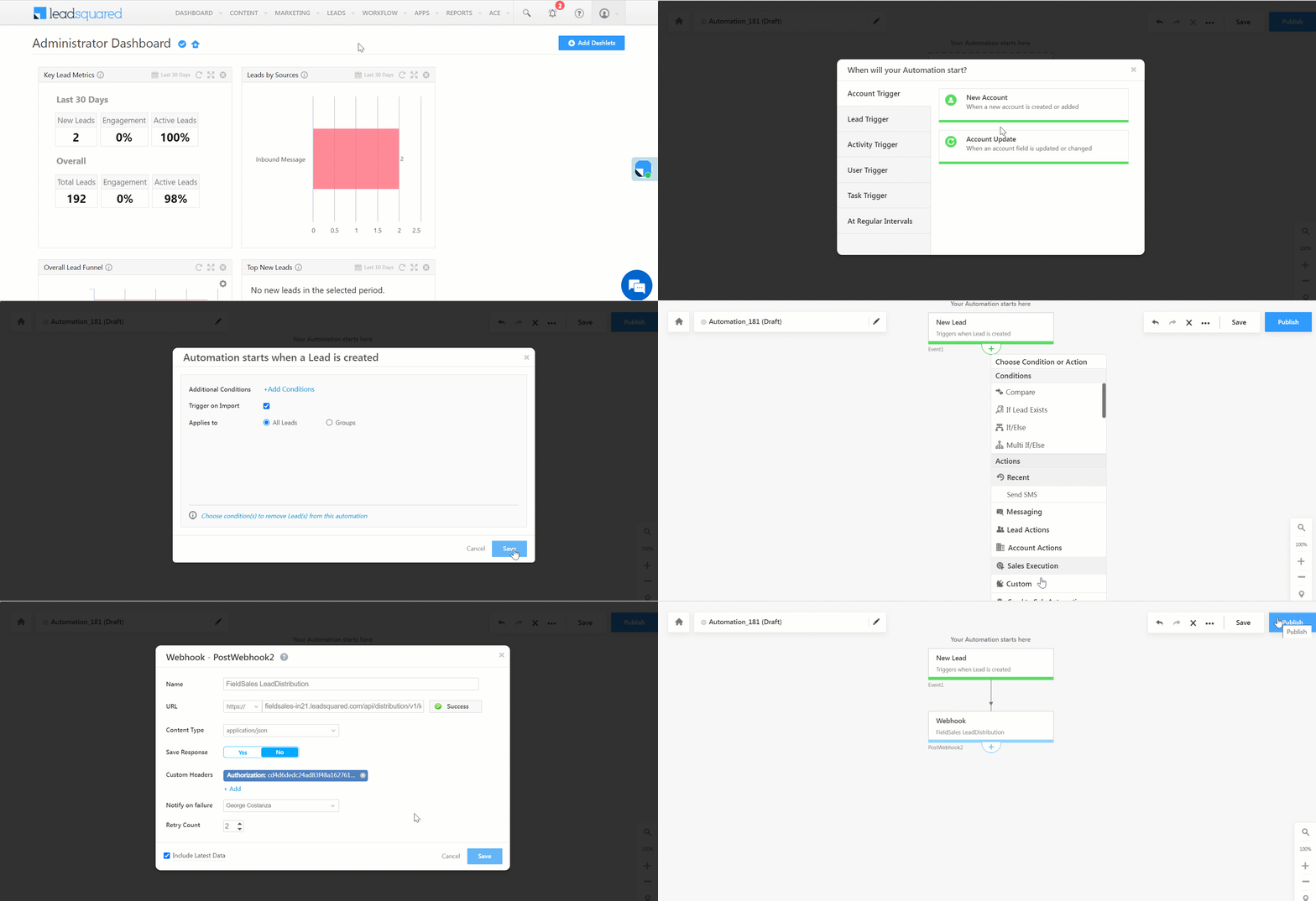
  1. Navigate to Workflow>Automation and click Create Automation.
  2. On the pop-up window, click Build from Scratch. Then, under Lead Trigger, click New Lead.
  3. On the next window, check Trigger on Import and click Save.
  4. Once you can view the Automation screen, click .
  5. Click Custom and select Webhook. On the webhook form, fill the following details –
    • Name – FieldSales LeadDistribution. 
    • URL – https://fieldsales-in21.leadsquared.com/api/distribution/v1/orgid/lead. Click on Verify icon beside the URL and wait for a Success message. 
    • Custom Header Name – Authorization.
    • Custom Header Value – You can find this value on the bottom of the General Settings page.
    • Notify on failure Add the user to be notified if the automation fails.
    • Retry Count – 2 (Optional).
  6. Click Save.
  7. On the automation page, click Publish.

Note:

  • In the place of orgid, enter your organization ID.
  • While adding a webhook, you must create a https URL. Your content type must be application/json.
  • To know more about creating an automation, refer to Automation – Feature Guide.
  • For more information on Webhooks, see Webhooks.

LeadSquared - Add an automation


6. Add Territories

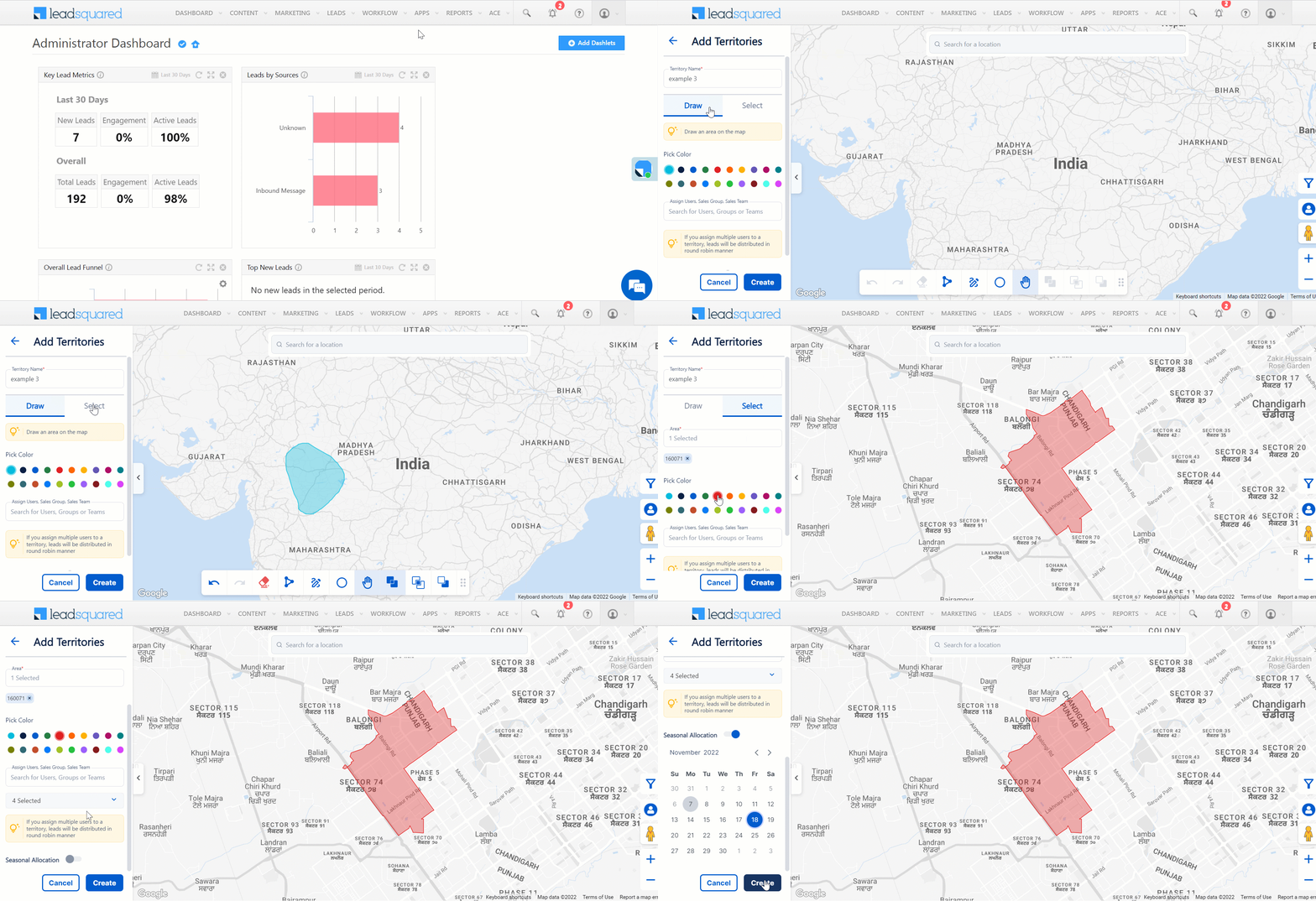
To draw or select territories –

  1. Navigate to Apps>Field Sales Territories and click Add.
  2. Enter the Territory Name.
  3. To draw a territory on the map yourself, click Draw. To select an entire area or pin code as your territory, click Select.
    • If you click Draw, you can draw your territories using the icons at the bottom of the map.
    • If you click Select,  you can enter a pin code under Area to select your territory.
  4. Pick a colour to represent the territory.
  5. Under Assign Users, Sales Groups, and Sales Team, select and assign users, teams, sales managers or sales groups to the territories. Click Reset to remove the assignment.
  6. To assign a time limit to the territories, enable Seasonal Allocation and enter the expiry date.
  7. The toolbar on the map allows you to perform the following actions –

LeadSquared - Toolbar

Icon Action
LeadSquared - pan mode Lets you drag the map and view different locations.
LeadSquared - circle Lets you draw a circle on the map.
LeadSquared - Free hand draw Lets you freehand draw your territories.
LeadSquared - draw straight Lets you draw a territory with straight lines.
LeadSquared - Erase Lets you erase all your unsaved territories.
LeadSquared - Merge Lets you merge two overlapping territories.
LeadSquared - remove overlap Lets you save the overlapping portion of two territories and erase the other parts.
LeadSquared - remove new Lets you erase the new territory drawn on top of the old one and the overlapping portion.
LeadSquared - Undo Undo button.
LeadSquared - Redo Redo button.
LeadSquared - Move icon bar Lets you drag and move the icon bar anywhere on the map.

Note: 

  • The search bar on the map only presents a location pin on the map. The Area bar under the Select section outlines the location you searched for on the map.
  • If you assign multiple users to a territory, leads will be distributed among them in a round-robin manner.
  • Only Administrators and Sales Managers can view the colours of the territories they created. The territories displayed to Sales Users are uniform in colour.

LeadSquared - Add New Territories


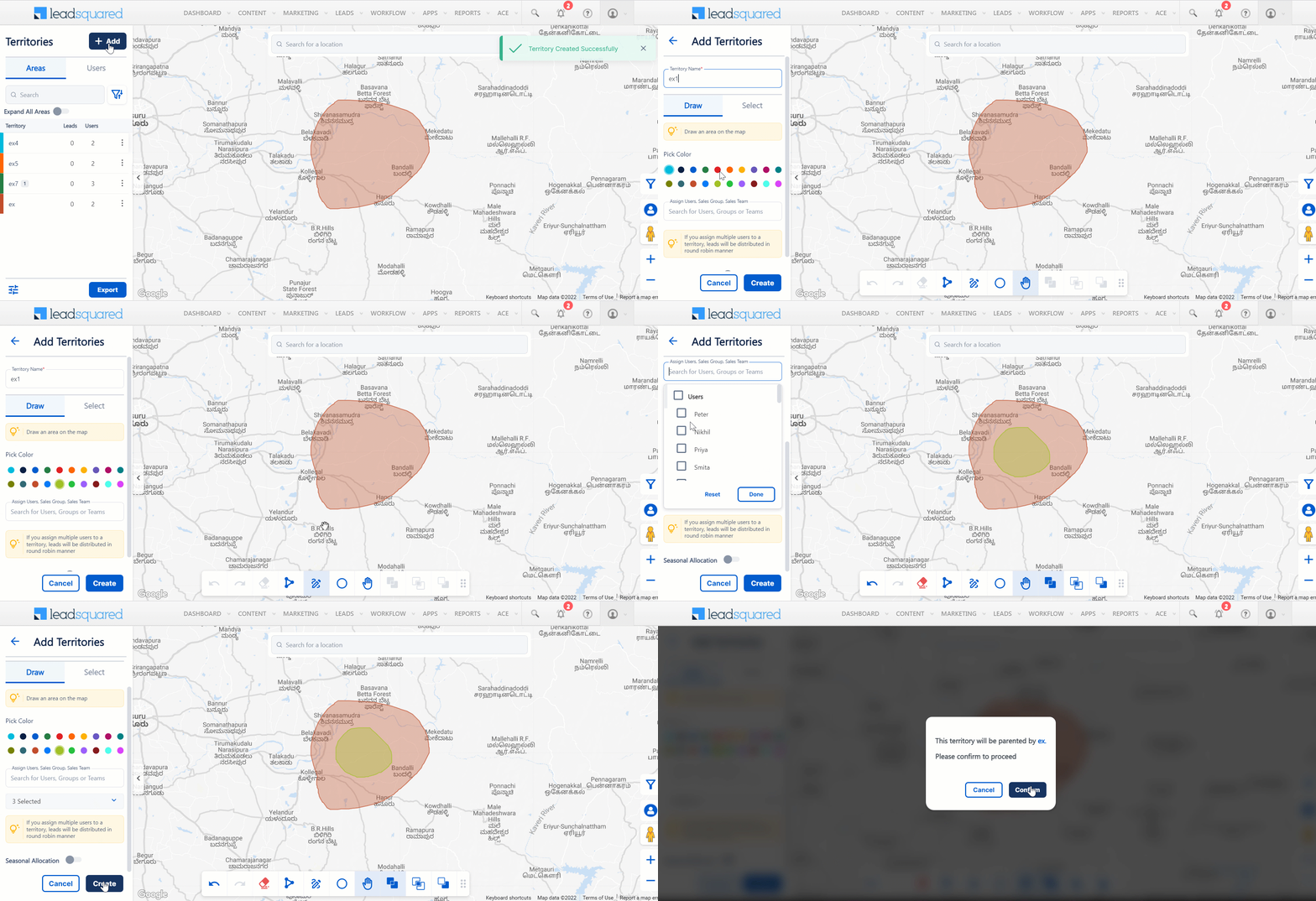
7. Create Sub-Territories

You can create parent-child territories (or sub-territories) by drawing them within/over another territory. There can be a total of 5 sub-territories for every territory. Users can be assigned to the sub-territory even after it is created. If no user is assigned to the leads inside a sub-territory, the leads will be distributed to the users assigned to the parent territory.

Note: When created, leads are first tagged to the smallest sub-territory.

LeadSquared - Create sub territories


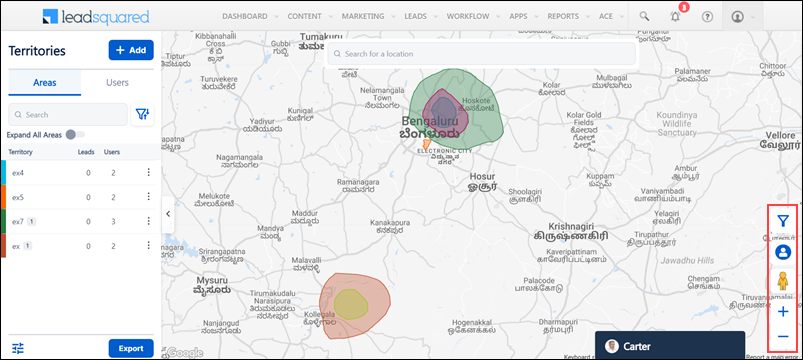
8. Map Actions

You can perform these actions using the icons displayed on the right side of the map –

Icon Action
LeadSquared - Zoom in Zoom in.
LeadSquared - Zoom out Zoom out.
LeadSquared - pegman Drag and drop the icon on the map to open street view. You can view the images of the location from various angles using this feature.
Leadsquared - Hide leads Lets you hide leads. Click the same button again to view the hidden leads.
LeadSquared - Lead filter You can filter leads based on the lead list, stage, and date range.

LeadSquared - Map actions


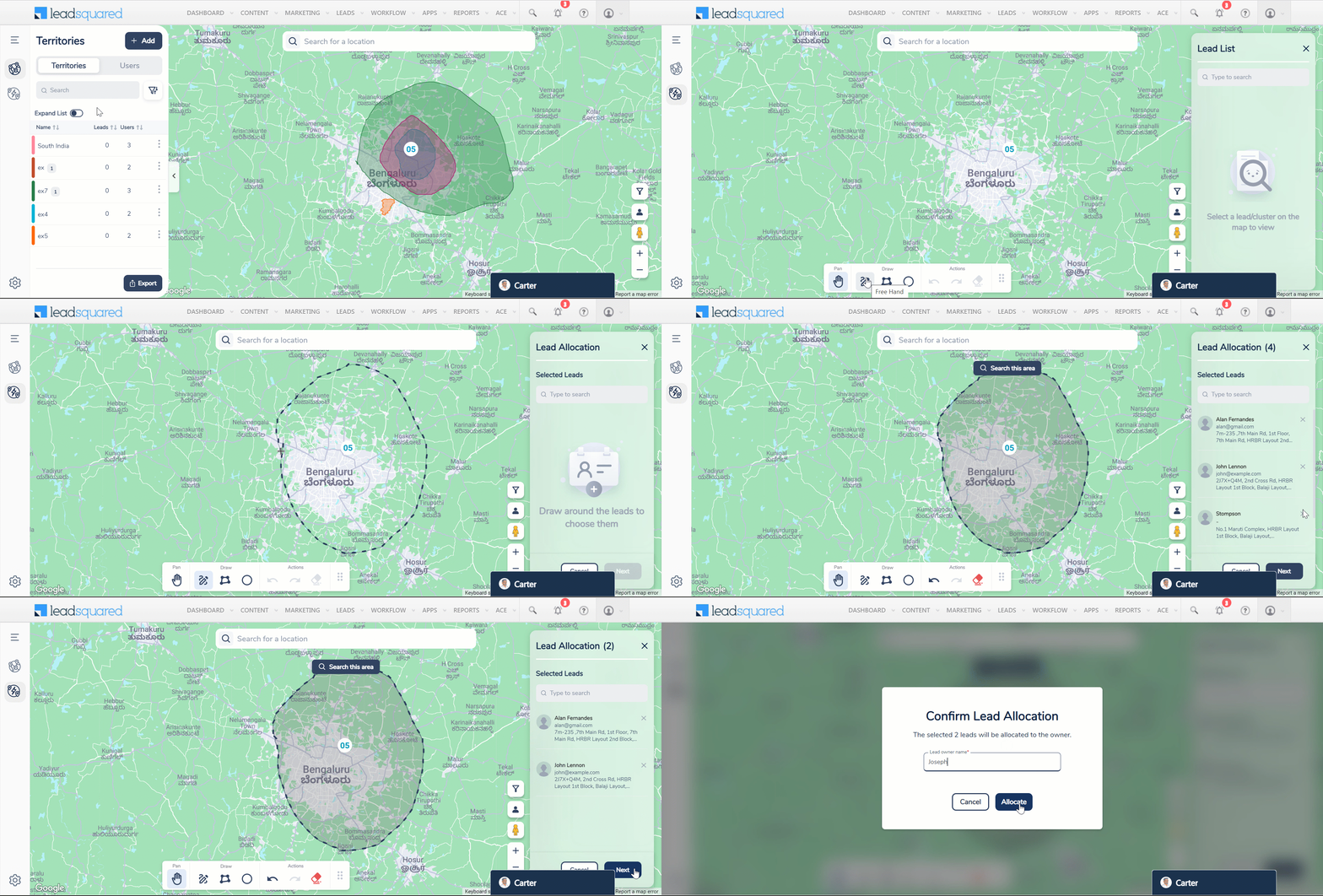
9. Instant Lead Allocation

For leads whose location coordinates are stored in LeadSquared, Admins and Sales Managers can draw a territory and then allocate leads within that territory to a specific user.

This feature is helpful to change the lead owner when a user is deactivated (leaves an organization).

  1. On the Field Sales Territories page, click Instant Allocation icon.
  2. Draw a territory on the map. All the leads within the territory you’ve drawn will be displayed on the right side of the screen.
  3. Next to the leads you don’t want to reallocate, click close icon.
  4. Click Next.
  5. In the Lead Owner Name box, enter the name of the new lead owner.
  6. Click Allocate.

Note:

  • Changing lead owners is also possible through bulk updates. However, the Instant Lead Allocation feature allows you to change the owenr directly on the map.
  • Only 50 leads can be reallocated at once.
  • You can only perform one reallocation at a time.

LeadSquared - Territories - instant allocation


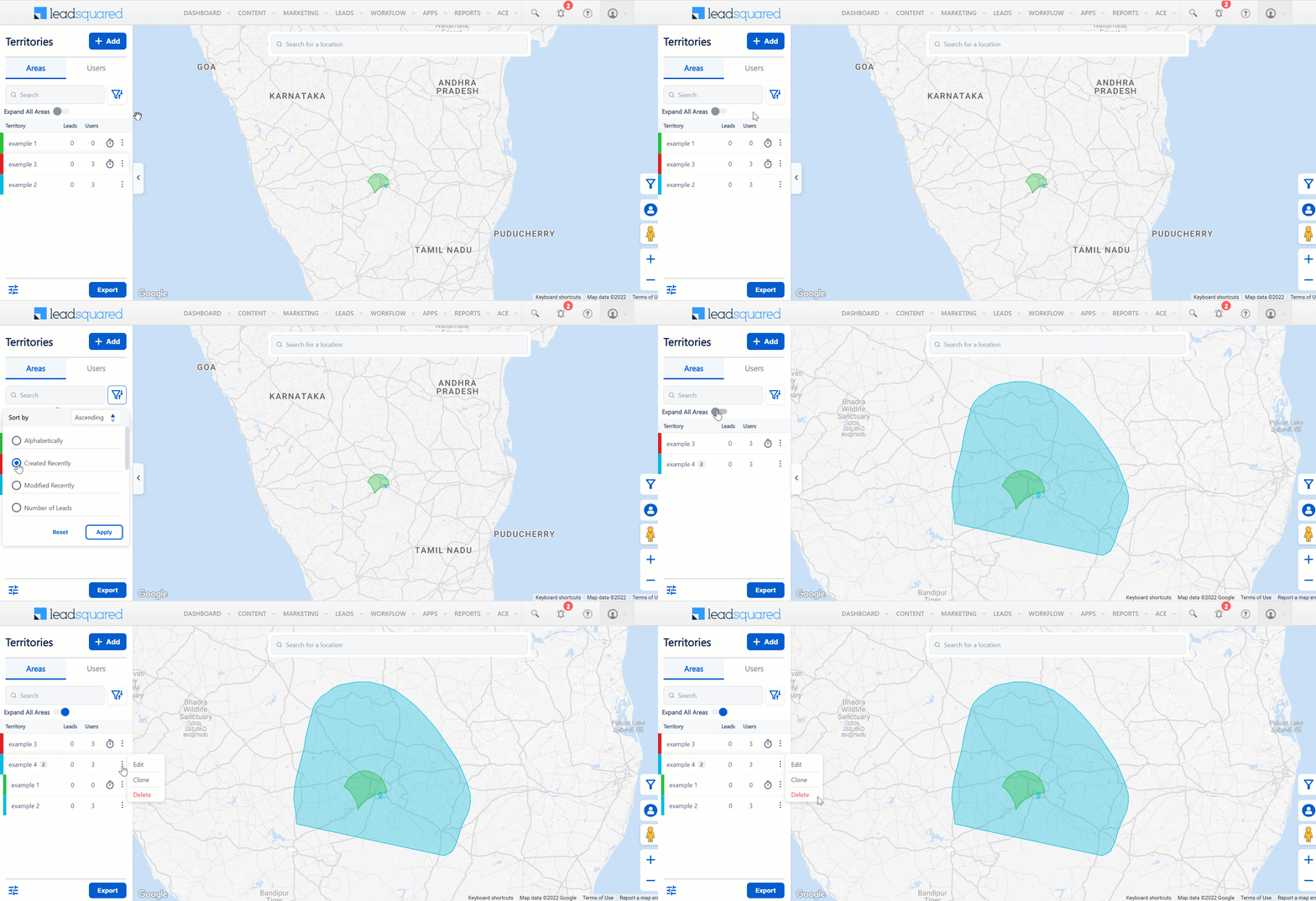
10. Manage Areas

Once you’ve added your territories, you can view them on the left side of your screen under Areas.

  • To search for specific territories, use the Search bar.
  • To filter/sort your territories, click LeadSquared - Filter areas.
  • To get a detailed view of your territories and their hierarchy (parent-child territories), enable Expand All Areas.
  • Alongside the relevant territory, click Three dots.
    • To edit your territory, click Edit.
    • To clone your territory, click Clone. You can reuse territories by cloning and customising them according to your requirements.
    • To permanently delete your territory, click Delete.

LeadSquared - Manage Areas


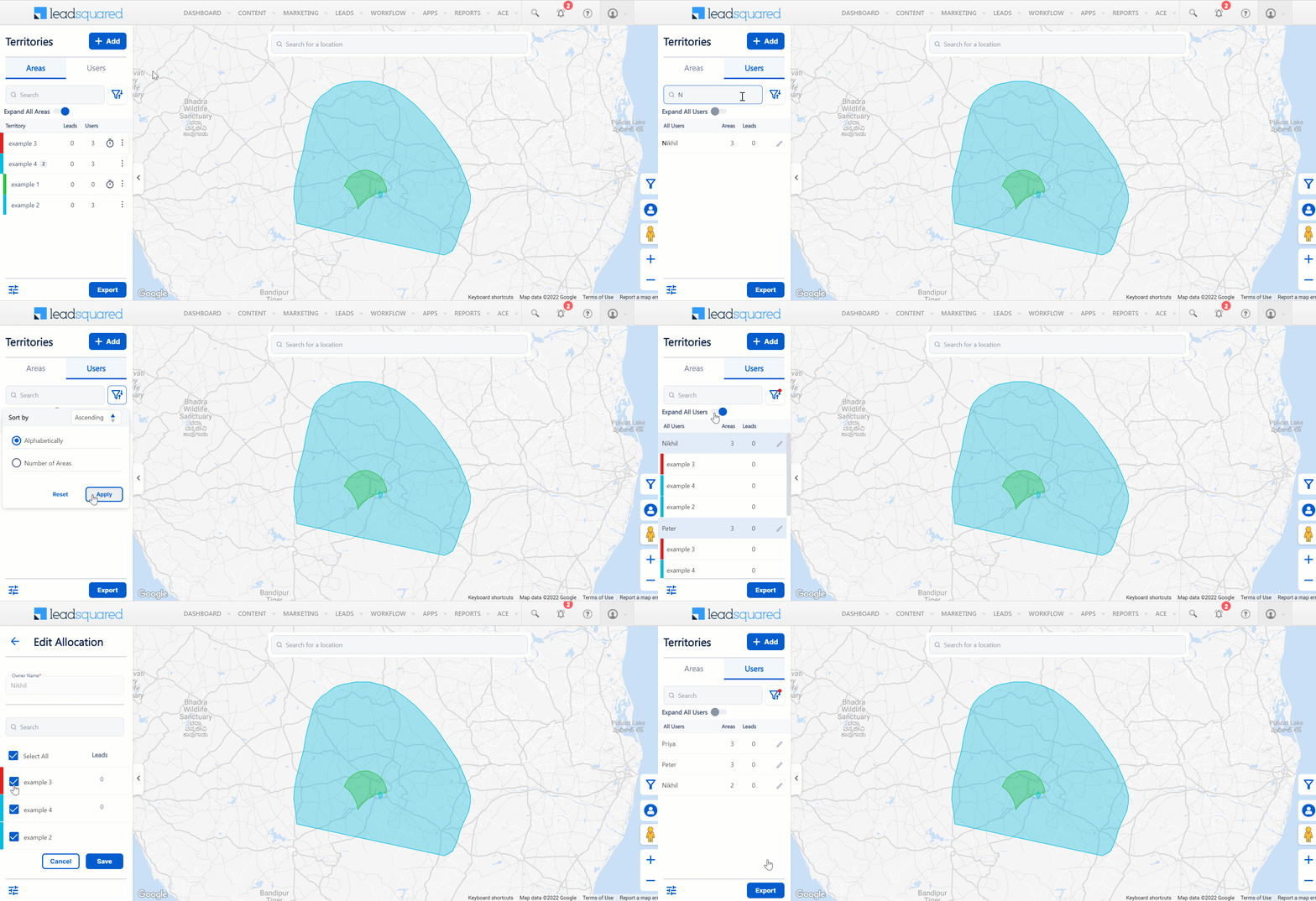
11. Manage Users

Once you’ve allocated users to your territories, you can view them on the left side of your screen under Users.

  • To search for specific a user, use the Search bar.
  • To filter/sort your users, click LeadSquared - Filter areas.
  • To get a detailed view of the territories and leads assigned to the users, enable Expand All Users.
  • To edit the allocation of territories to users, click LeadSquared - edit territory allocation.

LeadSquared - Manage Users


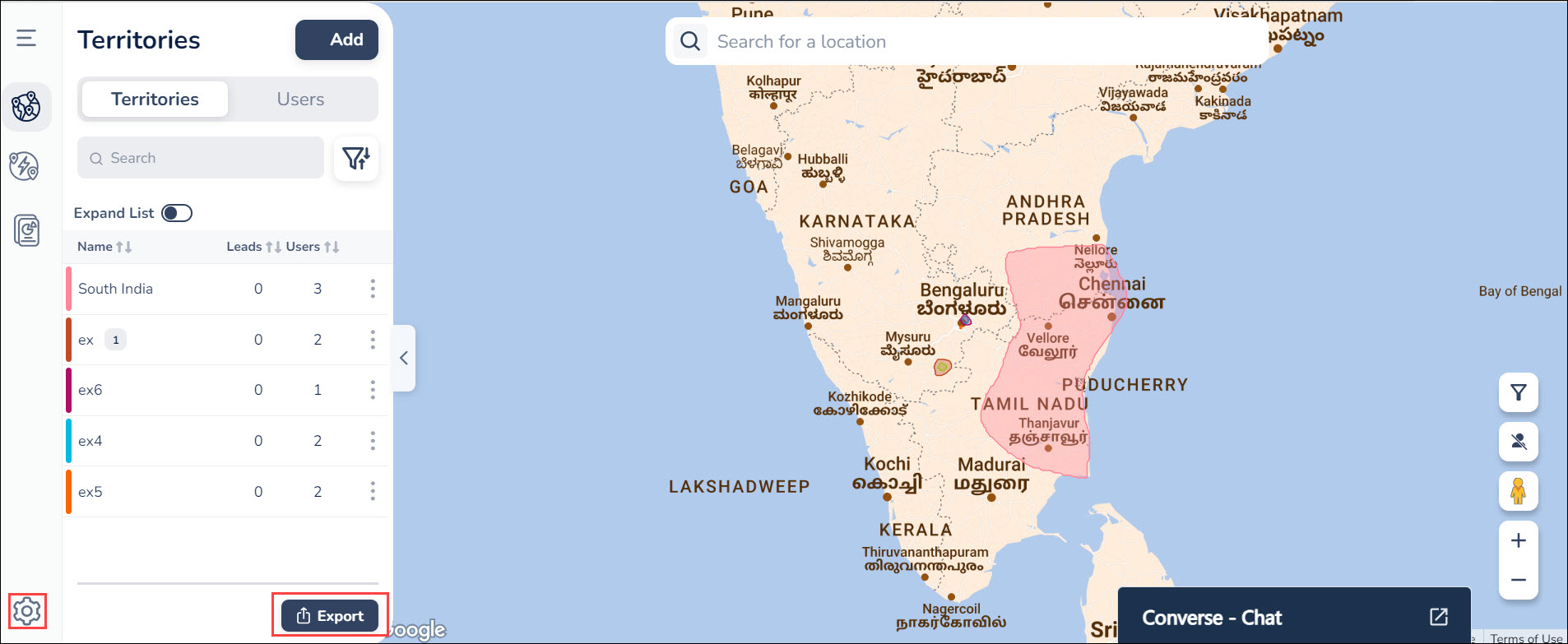
12. Settings

Navigate to the bottom left corner of the screen. To export the details of all your territories, assigned users, and leads, click Export.  To view the settings, click LeadSquared - Settings.

LeadSquared - Territories

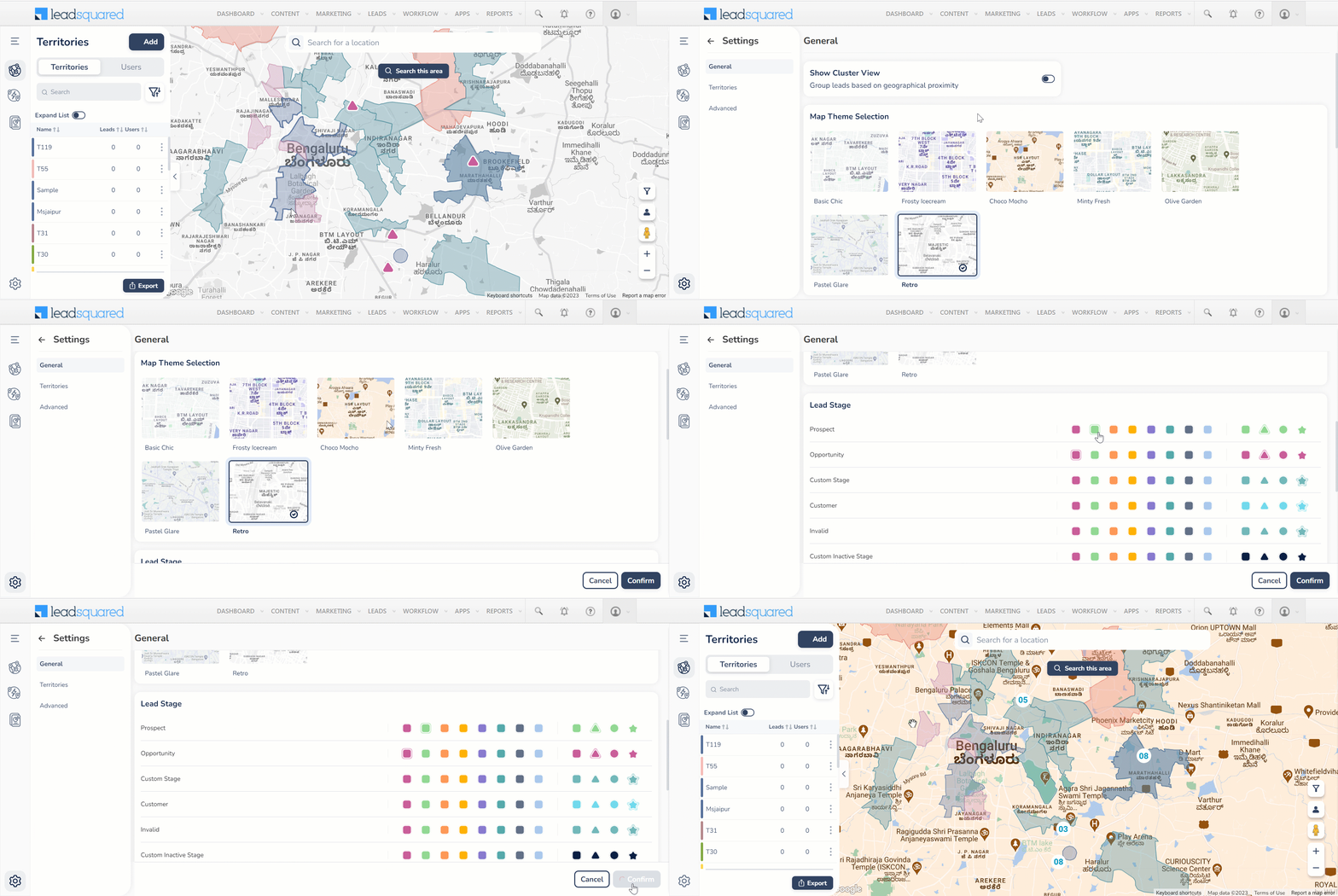
12.1 General Settings

In General settings –

  • To group leads based on their geographical properties, enable Show Cluster View.
  • To change your map’s theme, select any theme under Map Theme Selection.
  • You can also customise the colours and pins to indicate different lead stages and lead lists.
Note: The customised pins will only be visible to the Admins and Sales Managers on the web app.

LeadSquared - Territories - general settings

12.2 Territories Settings

Click Territories to view the territory settings.

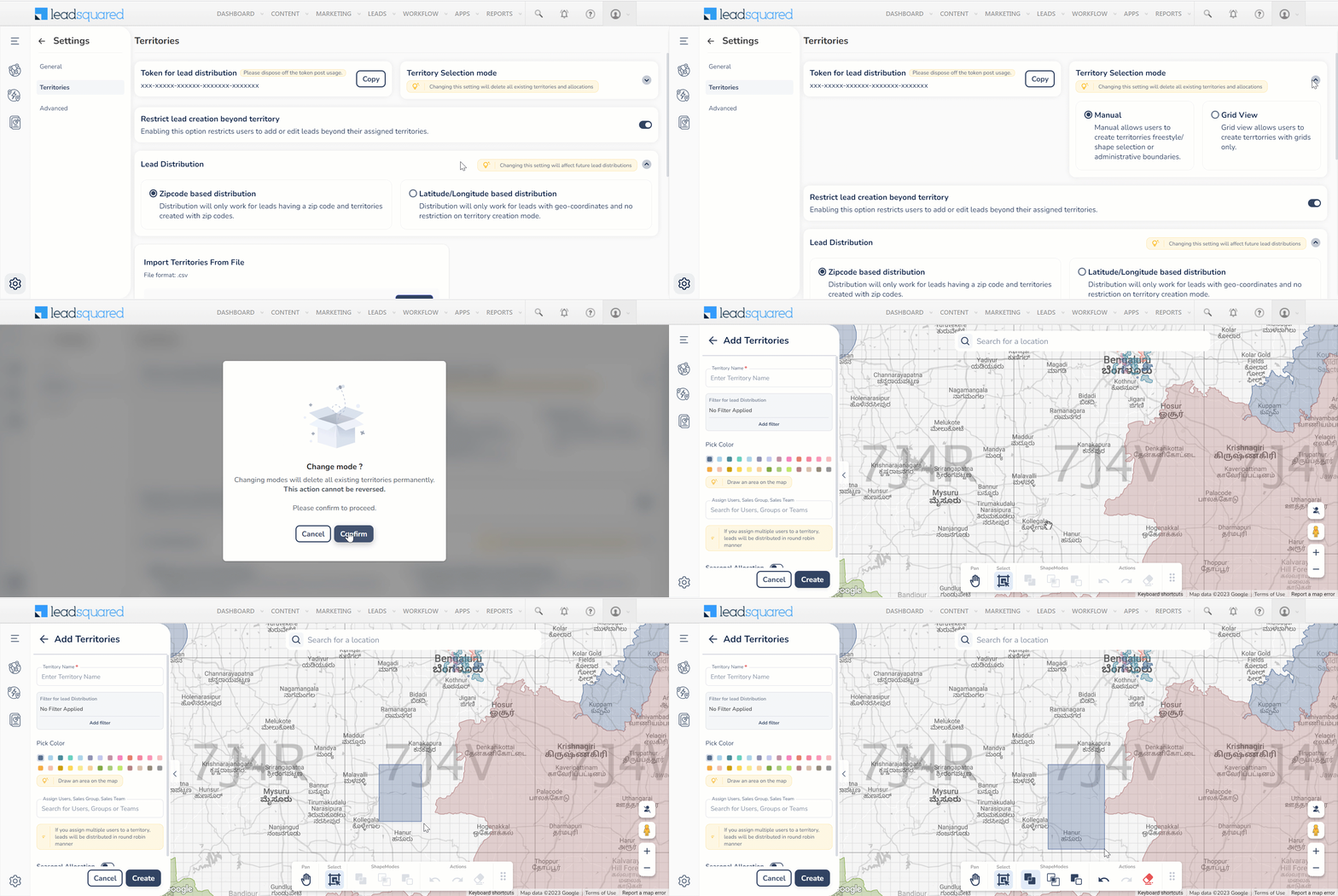
  • To copy the lead distribution token, alongside Token for lead distribution, click Copy. This token must be used as the Custom Header Value when you create an automation for lead distribution.
  • Under Territory Selection Mode, you can enable/disable grid view on the territories page. This setting lets you create territories in grids. Once you enable it, you can use the toolbar shown below to draw territories. To draw a territory in grid view, click draw in grid view.

LeadSquared - Grid mode toolbar

  • You can allow/restrict your sales users and sales managers from creating, editing or deleting leads beyond their assigned territories by enabling/disabling Restrict lead creation beyond territory.
  • Under Lead Distribution, you can choose to distribute leads based on their zipcode or lat/long.
    • Zipcode based lead distribution – Distribution will only work for leads having a zip code and for territories created with zip codes.
    • Latitude/Longitude based lead distribution – Distribution will only work for leads with geo-coordinates. There are no restriction on territory creation mode.

Note:

  • Enabling/disabling grid view will delete all the territories and allocations already created.
  • You can only create territories as grids after enabling grid view.

LeadSquared - Territories - grid view

12.2.1 Bulk Import Territories

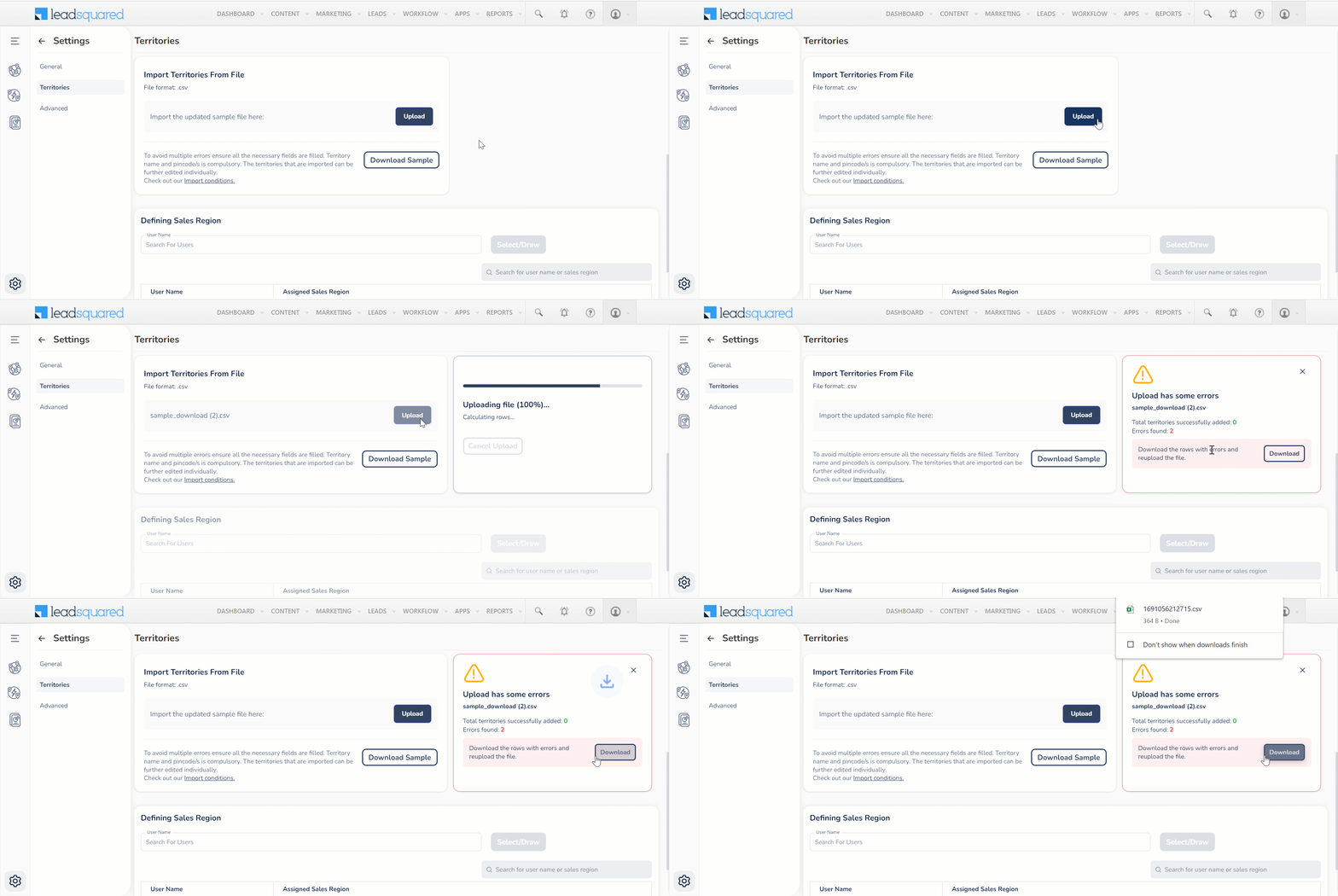
To import territories as a .csv file in your LeadSquared account –

  1. On the Field Sales Territories page, click Settings.
  2. Under Territories, you can view the Import Territories from File section.
  3. Click Download Sample and ensure that your file has the same format as the sample .csv file.
  4. Click Upload.
  5. If you get an error notification, click Download to view the territories with errors.

Note:

  • Only Admins can import territories.
  • 75 territories can be imported at one go.
  • All territories must have unique names. You cannot add new territories with names identical to the old territories. You will have the option to either change the territory’s name or replace the older territory with the new one.

LeadSquared - Territories - bulk import

12.2.2 Define a Sales Region

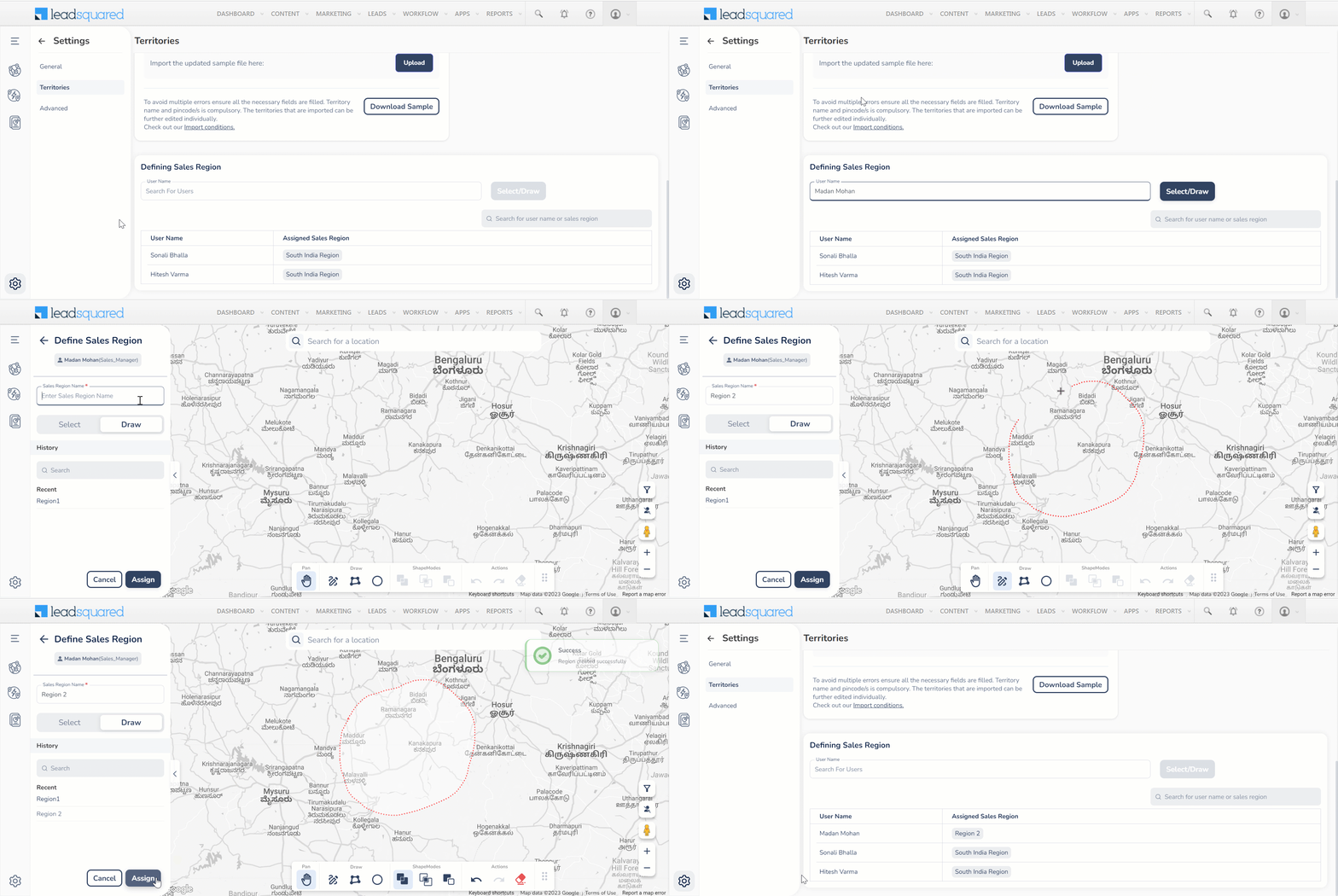
You can also define a Sales Region for Sales Managers to add territories in –

  1. Enter the Sales Manager’s name under Defining Sales Region and click Select/Draw.
  2. Enter the Sales Region name.
  3. To draw a Sales Region on the map yourself, click Draw. To select an entire area or pin code as your Sales Region, click Select.
    • If you click Draw, you can draw your regions using the icons at the bottom of the map.
    • If you click Select,  you can enter a pin code under Area to select your regions.
    • To find previously created Sales Regions, enter the Sales Region Name under History.
  4. Click Assign.
Note: The Sales Managers can only add territories within the defined Sales Region.

LeadSquared - Territories - Sales Region

12.3 Advanced Settings

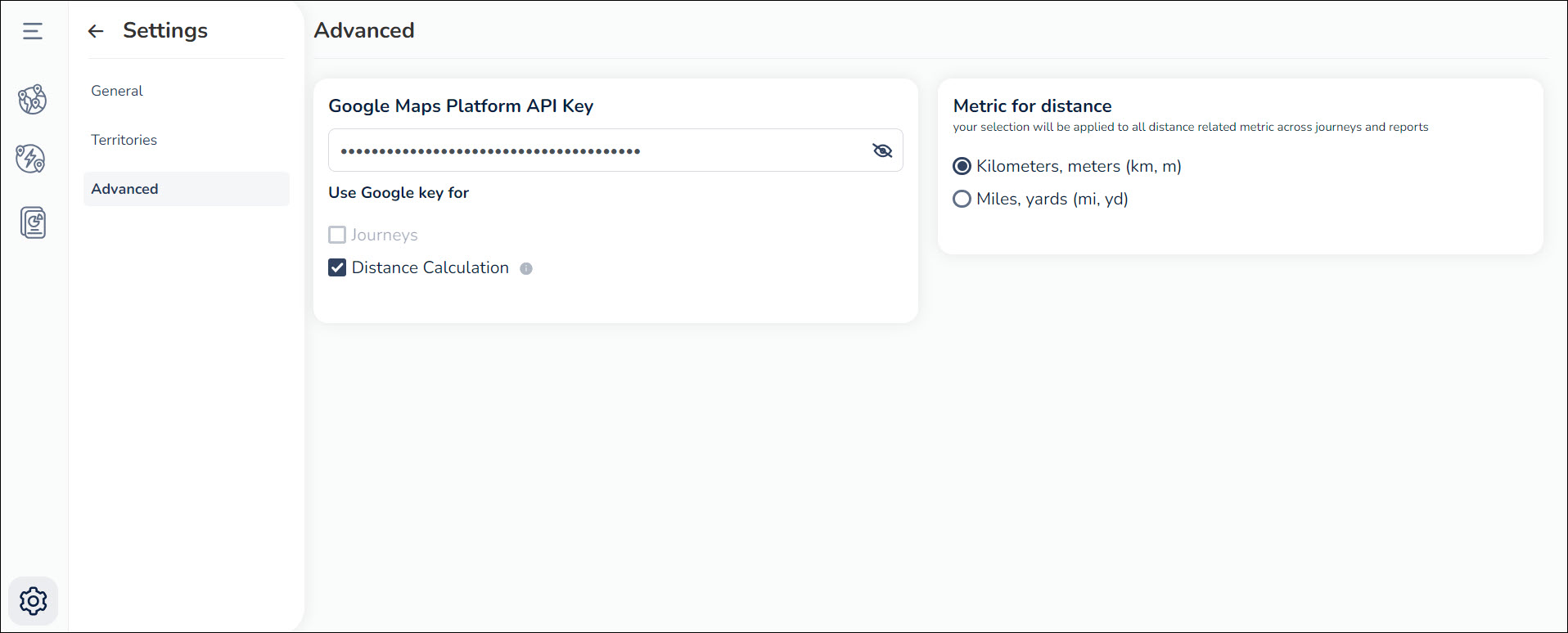
On this page, you can configure the following advanced settings –

12.3.1 Google Maps Platform API Key

Enter your Google Maps Platform API Key here. You can choose to use this key for Distance Calculation and/or Journeys

12.3.2 Metric for distance

You can see the metric for distance as Kilometers and meters (km, m) or Miles and yards (mi, yd). Your selection will be applied to all distance related metric across journeys and reports.

LeadSquared - Territories - advanced settings

12.3.3 Rename Territories

  1. On the Territories page, click Leadsquared - Settings.
  2. On the Settings page, click Advanced.
  3. Under Rename Modules, alongside Territories, click LeadSquared edit.
  4. Enter the relevant display name and the plural term for it.
  5. Once you’re done, click Check icon.
  6. To save changes, on the top right corner of the page, click Confirm.

Leadsquared - Rename Modules


Any Questions?

We’d love to answer your questions or hear your unique use cases. Feel free to share your experiences in the comments section below.

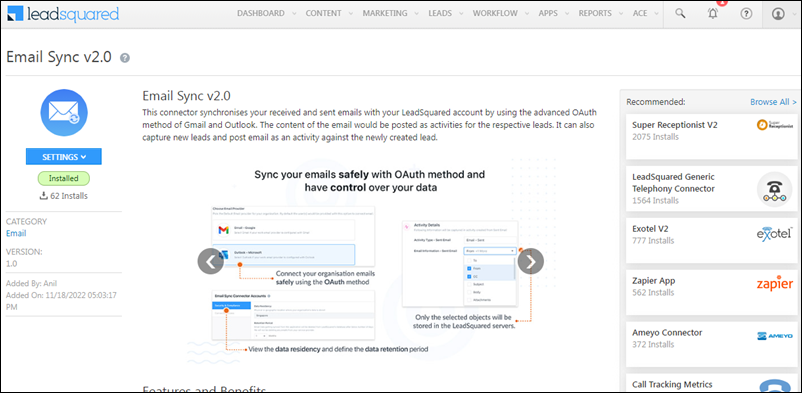
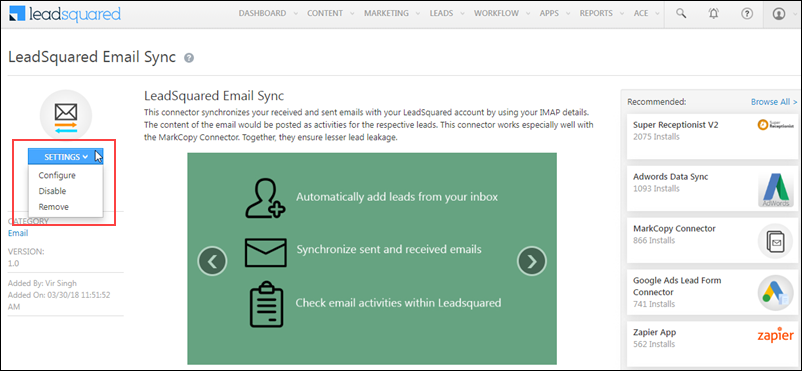
How to Migrate to the New Email Sync connector?

1. Feature Overview

This article lists down steps to help you migrate from the old LeadSquared Email Sync connector to the new Email Sync connector. We recommend you migrate to the new Email Sync connector because of the following reasons –

  • Security Enhancement – The new Email Sync connector is built using OAuth (and not the IMAP method) to authorize user credentials. This ensures LeadSquared doesn’t store your email credentials on our servers, and instead, your account gets authorised directly by Google/Microsoft.
  • Deprecation of the IMAP method – The IMAP method is an obsolete way to access emails, because of which Outlook has deprecated this method from their end. There’s a possibility that Google will also do the same.
  • Region-specific Compliance – The new connector is published in each of LeadSquared’s servers across different regions (see Mandatory IPs to Whitelist). The user data is stored in the region in which you have opted to host your organisation’s data. This ensures you meet local compliance mandated by your region.

Email Sync Connector


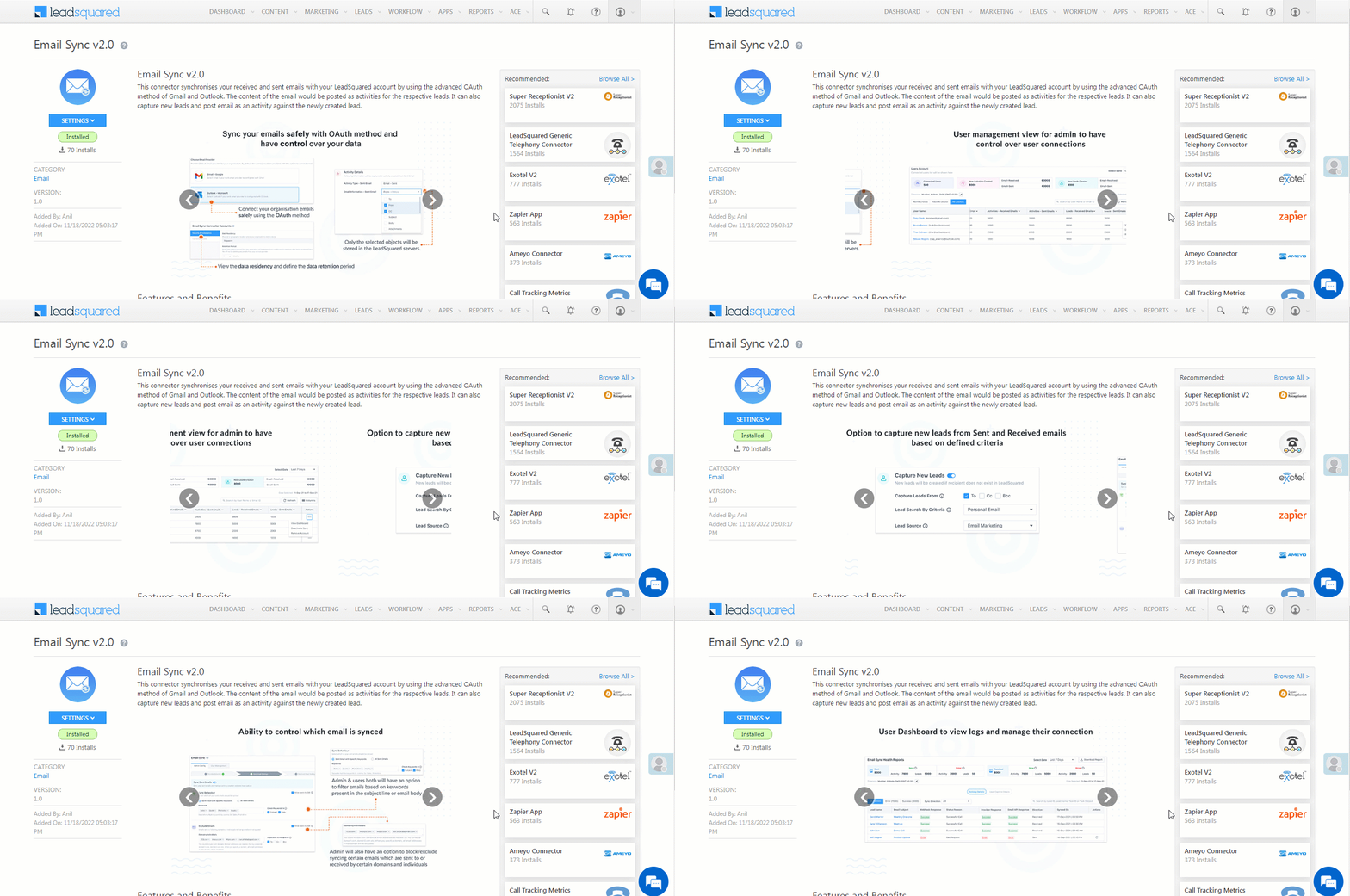
2. What’s New

  • A secure and seamless way to sync your email account with LeadSquared.
  • An improved Admin dashboard to help you view the user dashboard, user connection status, organization-level sync data, and user-level sync data.
  • An upgraded User dashboard that displays the lead capture data, logs, and activities.
  • Complete control over the sync directions, with the added ability to temporarily pause sync at the organization as well as user level.
  • Capture and sync historical emails that were sent within the last 60 days.
  • Flexibility around configuration to sync only relevant emails.

Email Sync Connector


3. Prerequisites

  • Only Admins can install the Email Sync connector and uninstall the old Email Sync connector.
  • You must have an existing Microsoft Outlook or Gmail account to connect using the OAuth method.
  • You must be an existing user of the LeadSquared Email Sync connector.
  • Before you begin the migration process, get the Email Sync connector enabled on your account. To do this, contact your account manager, or write to support@leadsquared.com.


4. Migration Steps

  1. Install and configure the Email Sync connector on your account.
  2. Once the connector is configured, you can either sync your own email account with the connector, or get a few of your Sales Users to sync their accounts with the Email Sync connector.
    • It’s highly recommended you connect only a few email accounts initially, before rolling it out to all the users in your organization. This is to ensure you’re familiar with the email sync process, and to test out if the emails are getting synced with LeadSquared.
  3. Once emails are getting synced as expected, Disable and Remove the old LeadSquared Email Sync connector from your account.
    Email Sync Connector
  4. After the old connector is uninstalled, get the remaining Sales Users in your organization to sync their email accounts with the Email Sync connector. If you’re facing any issues when syncing your email accounts with LeadSquared, contact your account manager, or write to support@leadsquared.com.


5. FAQs

  • Which email providers are supported in the Email Sync connector?
    Outlook and Gmail are the two email providers that are currently supported. If we add more providers in the future, we’ll let you know.


  • What happens if I do not migrate to the Email Sync connector, and instead choose to use the old connector?
    In this instance, all the emails you receive after 31st March 2023 will NOT get synced with your LeadSquared account.


  • What happens if I install the Email Sync connector and sync email accounts with it, but I do not uninstall the old connector?
    It is mandatory to uninstall the old Email Sync connector as soon as you sync a couple of email accounts to the Email Sync connector. If you do not uninstall the old connector, emails will be synced through both connectors, and duplicate records will get created in your LeadSquared account.


  • Will I lose existing email activities when I migrate to the Email Sync v2.0 connector?
    No, all your existing email activities, captured across the old and new connectors, will be visible on the Lead Details page for the respective leads.


  • Will I be able to sync emails received or sent during the migration process?
    Yes, users will be able to sync emails sent and received during the last 7 days, after they activate the connector sync.

How to Get the Slug for MSG91 Templates

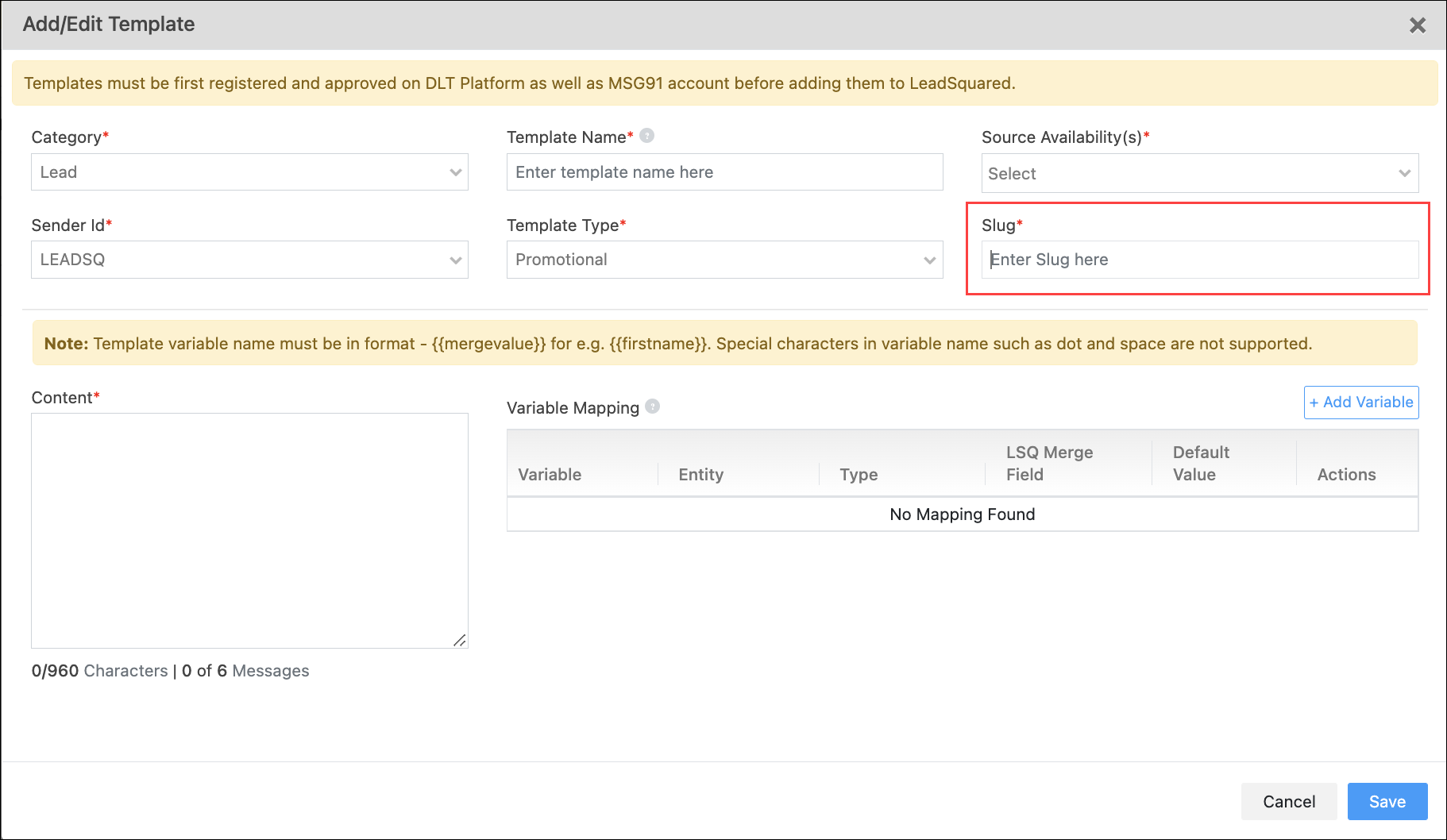
If you’re using MSG91 as the service provider when setting up the LeadSquared SMS Connector, we require the slug that’s generated on your MSG91 account to create a template in LeadSquared. To obtain this slug from your MSG91 account, follow the below steps –

  1. Create an SMS Template*
  2. Create an SMS Campaign

Once the campaign is created, use the Campaign Name as the slug when creating the template in LeadSquared.

Note:

  • *When creating an SMS Template in LeadSquared, provide the exact Variable Names, as they’re configured when creating an SMS Template (flow) in your MSG91 account.
  • It is mandatory to use only one MSG91 template (flow) when creating an MSG91 Campaign.

LeadSquared SMS Connector

Integrate MoEngage with LeadSquared

1. Feature Overview

This connector captures leads from your MoEngage account to LeadSquared. You can configure the connector to capture leads in real-time from your MoEngage account. Once the leads are captured, you can leverage LeadSquared’s CRM features to nurture and convert your leads.


2. Prerequisites

  • You must be the Administrator of your LeadSquared account.
  • You must have an active MoEngage account.
  • This is a paid feature. To enable it, reach out to your account manager, or write to support@leadsquared.com.


3. How it Works

To push lead data from MoEngage to your LeadSquared account, configure the MoEngage connector instance. Once configured, enable the connector sync.

During configuration, a webhook URL is generated in LeadSquared. Copy this URL and configure it in your MoEngage account. Once configured, the lead capture process is initiated.


4. Installation

You must first install and configure the MoEngage connector.

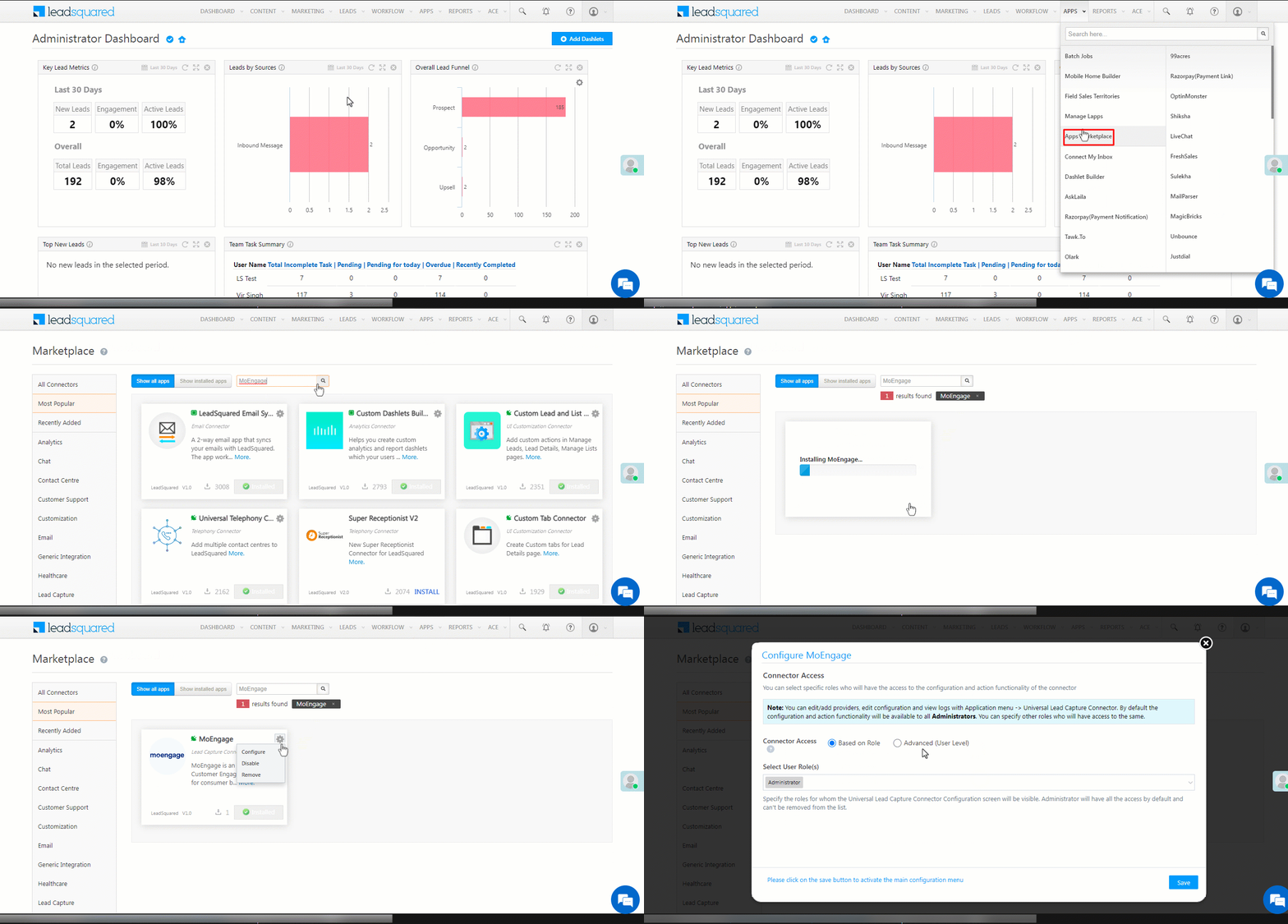
  1. Navigate to Apps>Apps Marketplace.
  2. Search for MoEngage, and click Install.
    • Alternatively, you can find the connector on the left panel, under Lead Capture.
  3. Once installed, hover your cursor over , and click Configure.

MoEngage install1

4.1 Configure the connector

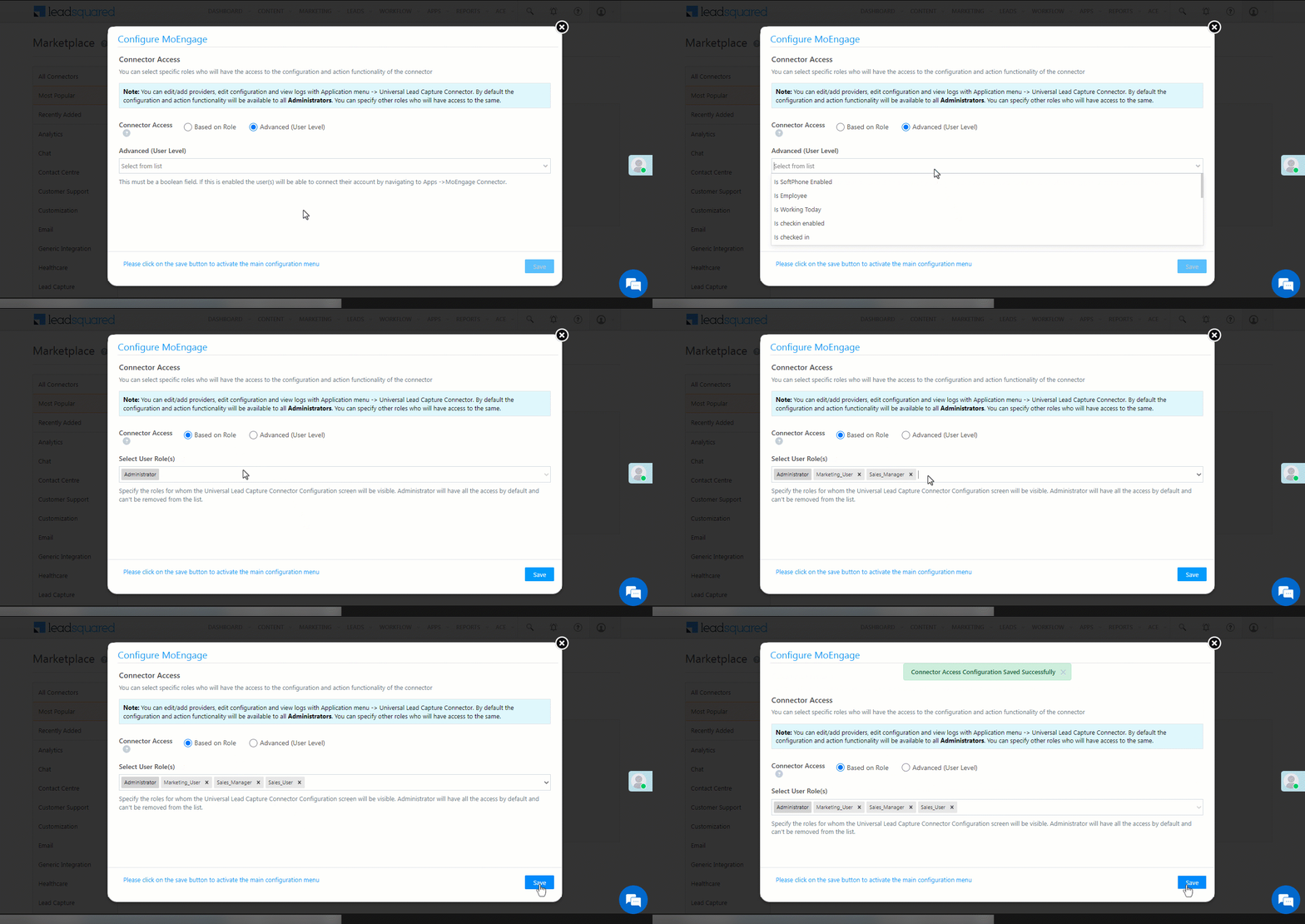
Once you’ve installed the connector, on the Configure MoEngage pop-up, configure the connector access for the non-Admin users in your account. Only those users for whom access is granted can view and access the connector (under the Apps main menu).

  1. Select if you want to grant Connector Access that’s Based on Role or Advanced (User Level).
    • Based on Role – From the Specify Roles dropdown, select the LeadSquared user roles that can use the connector.
    • Advanced (User Level) – From the Advanced (User Level) dropdown, select a user boolean field. Based on the value entered in the selected boolean field, the user can access the connector (e.g., for the user Sam, if the “Is Employee” boolean user field contains the value “Yes”, then this user can access the connector).
  2. Once you’re done, click Save Details. To continue the configuration, refer to the below sections.
Note: By default, all Admin users will have access to the connector.
MoEngage config 1


5. Admin Configuration

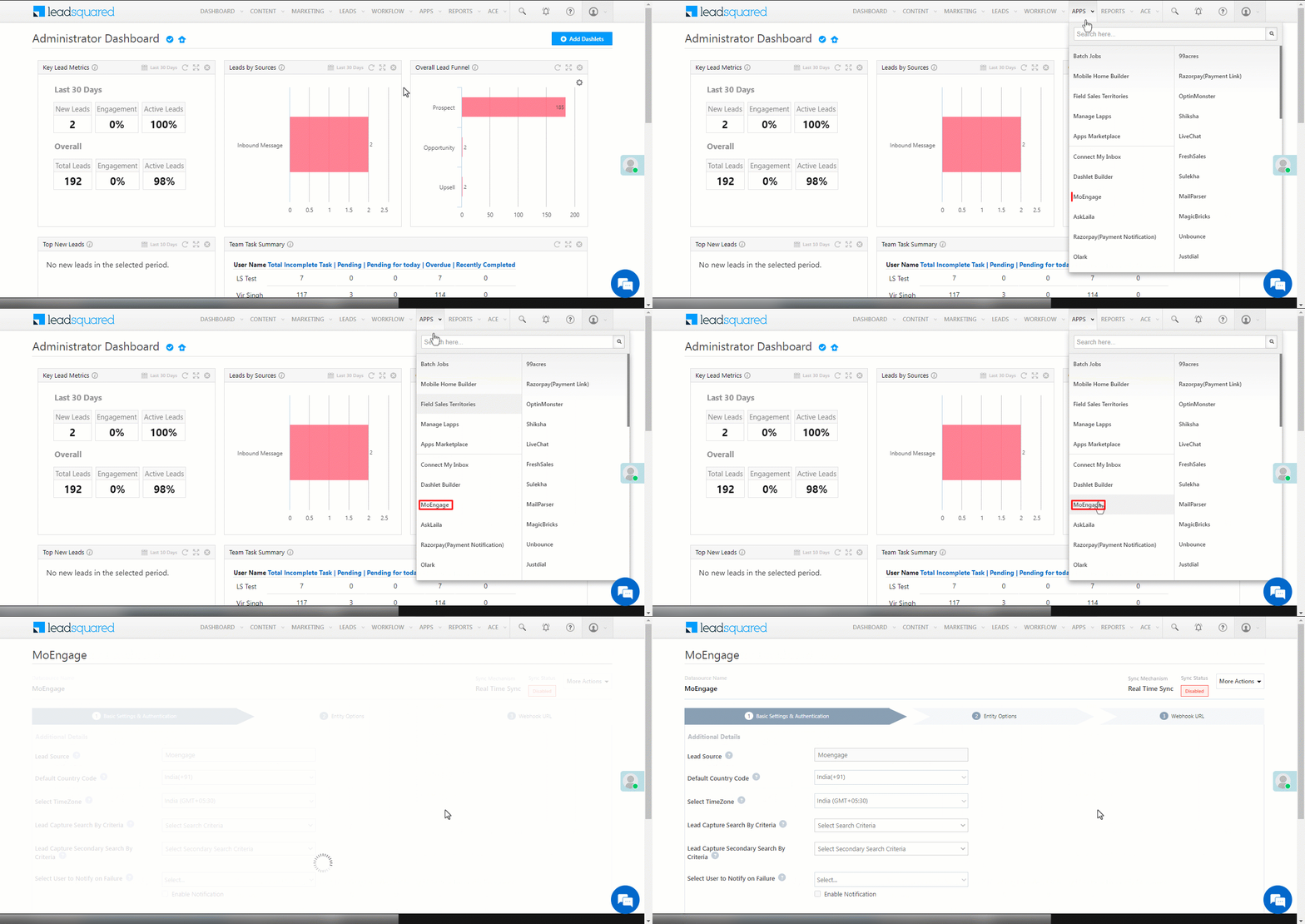
To continue the connector configuration, navigate to Apps>MoEngage.

MoEngage admin config1

5.1 Basic Settings

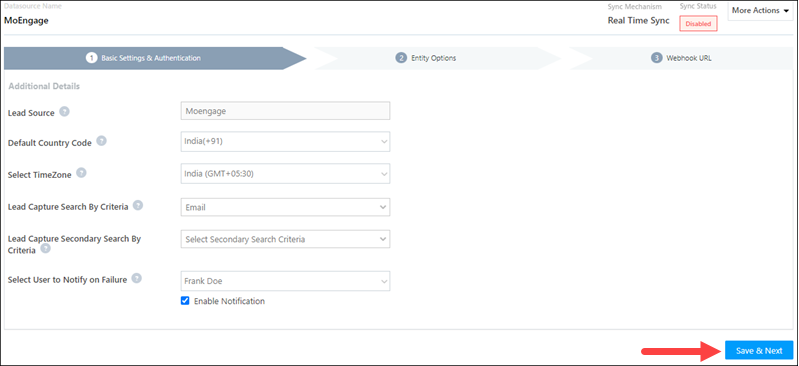
Enter the following details –

Property Description
Lead Source Enter the lead source through which the leads were captured (e.g., MoEngage, email campaign, etc.). This detail will be displayed on the Lead Details page, under Lead Source.
Default Country Code If the lead’s mobile number is captured without a country code, the default country code that’s selected from the dropdown will be added to the lead’s mobile number.
Select Time Zone The time zone followed in your MoEngage account.
Lead Capture Search By Criteria To avoid duplicate leads, you must select one unique lead field (e.g., email Id, mobile number, PAN number, etc.) as the search key. This is used to identify the leads pushed from MoEngage.

To know how to mark a LeadSquared lead field as unique, please refer to How to Make a Custom Field Unique.

Lead Capture Secondary Search By Criteria If lead identification and capture through the primary Search By criteria fails, it will be re-attempted using the secondary Search By criteria.
Select User to Notify on Failure If there is an error in fetching leads, the selected user will receive a failure message via email. You can select a user from the list of all the users available in your LeadSquared account.

To know more about the type of errors, please refer to Error Notifications.

Enable Notification To ensure notification emails are sent to the selected user when there’s a failed query, enable the Checkbox checkbox.

Once you’ve entered all the details, click Save & Next.

MoEngage basic settings save

5.2 Entity Options

Define the sync behavior of the connector when leads are captured.

5.2.1 Lead/Contact Entity

Based on the Lead Capture Search By criteria (email Id, phone number, etc.), LeadSquared identifies and captures leads from your MoEngage account. Lead capture is enabled by default, and it cannot be disabled. The following options are available to configure the connector’s Sync Behaviour –

  • Capture (Create and Update existing) Record – Leads that only exist in your MoEngage account (but not in your LeadSquared account) will get created in LeadSquared. Leads that exist in both your data provider and LeadSquared accounts will get updated.
  • Create only new record – Leads that only exist in your MoEngage account (but not in your LeadSquared account) will get created in LeadSquared.
  • Update only existing record – Leads that exist in both your MoEngage account and LeadSquared accounts will get updated in LeadSquared.

MoEngage sync behaviour

5.2.2 Mapping

On the Mapping screen, the MoEngage system fields mapped to the corresponding LeadSquared lead fields are visible. This mapping is carried out by default. If required, you can change or update the default field mapping.

  • To provide a default value for any field, click  , enter the value under Default Value, and click Google.
    • If the data provider doesn’t send data for any lead field, then the default value will get assigned to that specific field. But if the field already has an existing value, then the default value will be ignored.
  • To disable lead data capture for any field, disable the Zoom slider.
  • You can also mark and update a unique lead field as the search key from this screen, by clicking unique icon.
  • To create a custom MoEngage field, click the Add Custom button.
    1. Once this field is created, you must map it to the relevant LeadSquared lead field.
    2. After the field is mapped, to save the custom field, click Google.
    3. To delete a custom field, click .

Once you’re done, click Save & Next.

Note: Based on the lead fields configured in your MoEngage account, add or update the lead fields in LeadSquared.

MoEngage lead mapping

5.3 Generate Webhook URL

After you provide basic details and finish field mapping, a custom webhook URL is generated. To automate lead capture, copy this URL and configure it on your MoEngage account.

After you’ve set up the webhook, click More Actions, and enable the sync job. This ensures that through the webhook, lead data from MoEngage is pushed to LeadSquared.

Note: To view logs of all the sync jobs that have taken place, from the More Actions dropdown, click View Logs.

MoEngage webhook


6. View Logs

Here, you can view logs of all the sync jobs that have taken place. View New Events (New Leads), Updated Events (Updated Leads), and Errors (when capturing leads).

  1. Navigate to Apps>MoEngage.
  2. From the More Actions dropdown, click View Logs.
  3. You can filter the logs by selecting a date range (Today, Last 7 Days, This Month, and Last Month), by selecting the Job Status (“All”, “Success” and “Failure”), and by selecting the Sync Status (All, Error, and Success).
  4. You can view the sync status of the following events –
    • New Events – List of all the new leads that have been created in LeadSquared during the selected date range.
    • Updated Events – A list of all the –
      • Duplicate leads that were created with the same Search by Criteria value (e.g., with the same Email Id, Mobile Number, etc.).
      • Leads that previously contained errors, which were fixed and synced successfully.
    • Failed – The list of leads that have not been captured due to mapping errors (e.g., when a boolean field is mapped to an integer field, etc.).
  5. To view the Sync Response details, under Request ID/Sync Job ID, click the Id.
    • Under the right panel, you can view the response status, the API URL, the request, and the response.
    • The responses that are successful will contain the details of the leads that have been pushed from MoEngage.
    • To view the lead capture response under Sync API Response, Leads Updated and Errors in Leads, click Information.

Note:

  • For a response that contains an error, the reason for the error is listed in the response. Once you fix it, you can click the Retry button to perform the sync again.
  • The current Lead Sync Behaviour will reflect in the Logs screen. This will help identify the sync that’s used (Capture or Update) for the selected Request/Sync Job Id.

google forms view logs


7. Other Actions

You can edit or delete the MoEngage connector instance that you created. To do this –

  1. Navigate to Apps>App Marketplace.
  2. Search for MoEngage.
  3. Alongside the MoEngage connector, hover your cursor over .
  4. From the list of options, you can perform the following actions –
    • Edit Configuration
    • Disable Configuration
    • Remove Configuration

MoEngage other actions


8. View Reports

You can view the total number of leads that have been pushed by MoEngage, by referring to the Lead Source report. To know more, please refer to How to track the source of your Leads using Lead Source Report?

Integrate LeadSquared with Google Forms


Any Questions?

Did you find this article helpful? Please let us know any feedback you may have in the comments section below. We’d love to hear from you and help you out!

Scheduling Reports on SIERA

1. Feature Overview

Schedule the delivery of your SIERA report to your LeadSquared email address. Admins can schedule reports for themselves or other users, while non-admin users can schedule reports for themselves.


2. Prerequisites


3. Scheduling SIERA Reports

On an SIERA report, click on the siera 3 dotted icon icon and select Schedule Report.

Navigate to schedule a report on siera

Set up your Schedule Configuration for SIERA report delivery:

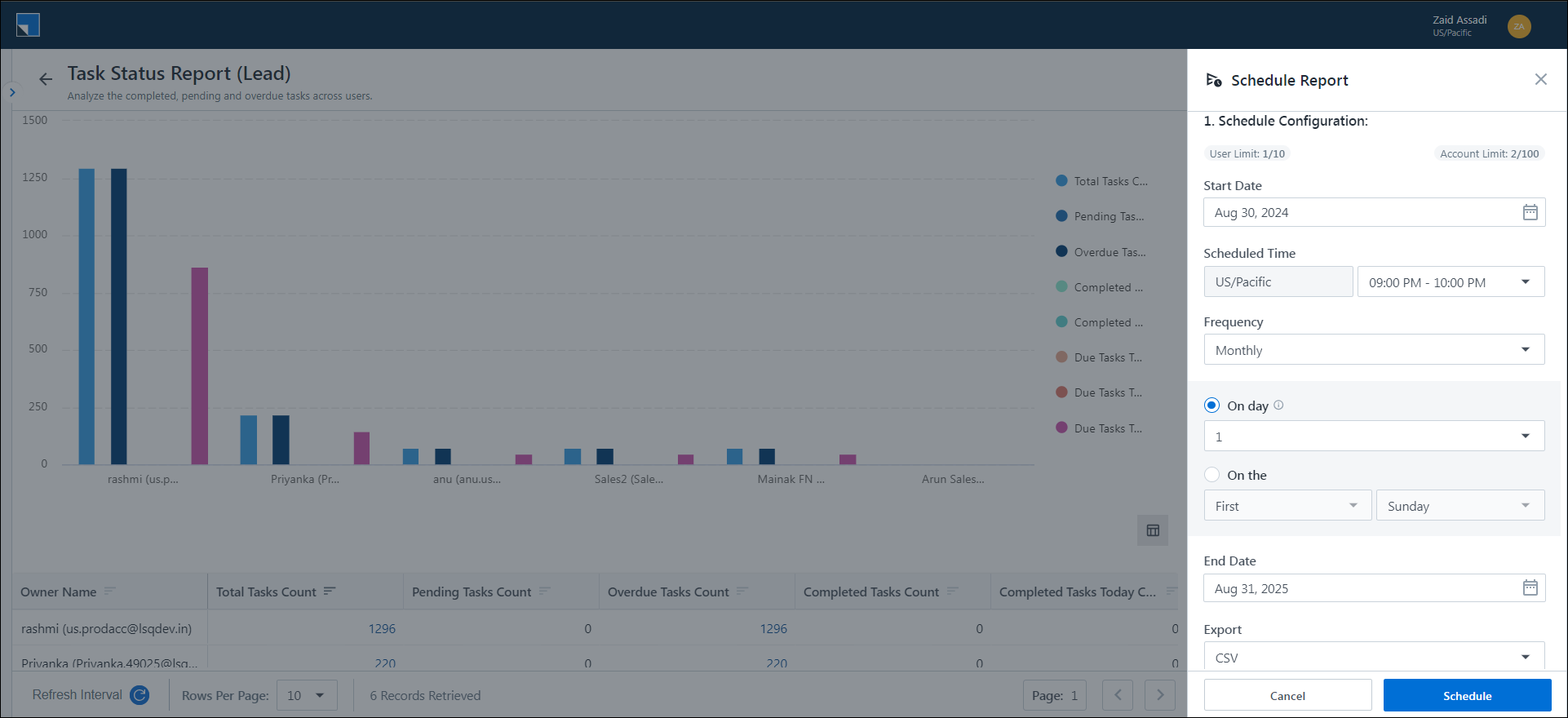
  • Start Date: Choose the date when SIERA should begin sending scheduled reports.
  • Scheduled Time: Select a time slot from the drop-down; the report will be sent within that time frame. The timezone used will be as configured on your LeadSquared account.
  • Frequency: Specify how often you’d like to receive the reports.
    • Daily: Receive reports on each selected day.
    • Weekly: Reports are sent on a weekly basis starting from the specified Start Date and as defined in –
      • Repeat Every: Choose how often to receive the report (e.g., every week, every 2, 3, or 4 weeks).
    • Monthly: Reports are sent every month based on –
      • On Day: Choose a date for the report to be sent monthly. If you’ve chosen 31: some months have fewer than 31 days, for these months, the occurrence will fall on the last day of the month.
      • On The: Select a specific day (e.g., “First Monday” of the month).
  • End Date: Define when the scheduling will stop. The respective report will not be sent after this date.
  • Export Format: Currently, only CSV format is supported for exports.

configurations for scheduling siera reports

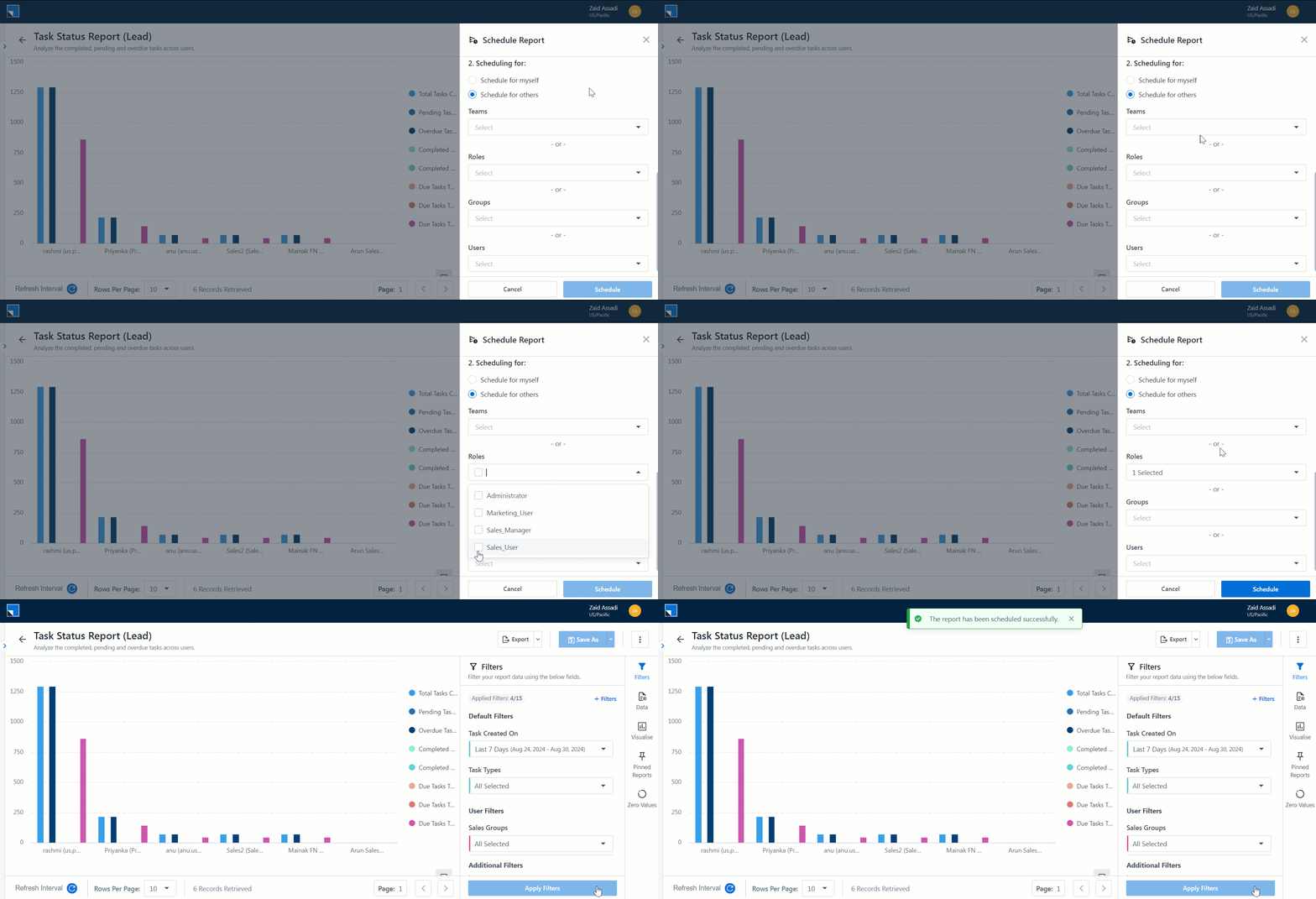
You can schedule reports either for yourself or, if you’re an admin, you can schedule them for others. When scheduling for others, you have the flexibility to choose recipients based on Teams, Roles, Groups, or Users.

Once done, click Schedule.

Note:

  • If you’re a sales user, when you schedule your report, you will only receive your data.
  • When admins schedule reports for others, all users included in the schedule will have access to the report as displayed to the admin, including data on all users within the report. To restrict certain data visibility, admins can apply filters to the report before scheduling it.

siera schedule for others

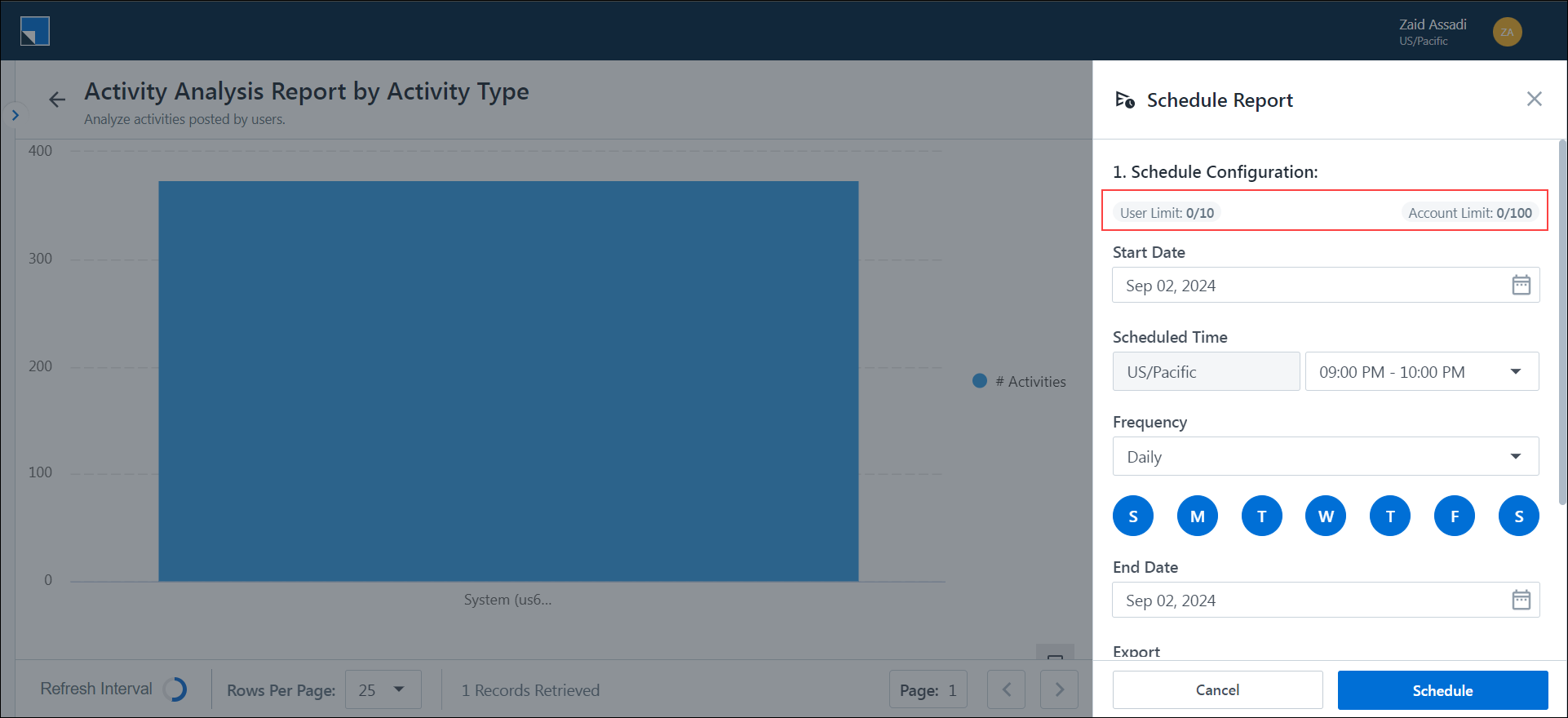
The schedule limit for yourself and the account as a whole is mentioned under Schedule Configuration –

User Limit – The number of active reports you can schedule for yourself or others.

Account Limit – The total number of active reports users and admins can schedule.

To understand the report schedule limitations on your account, contact support@leadsquared.com.

report schedule limit


4. Manage Scheduled Reports

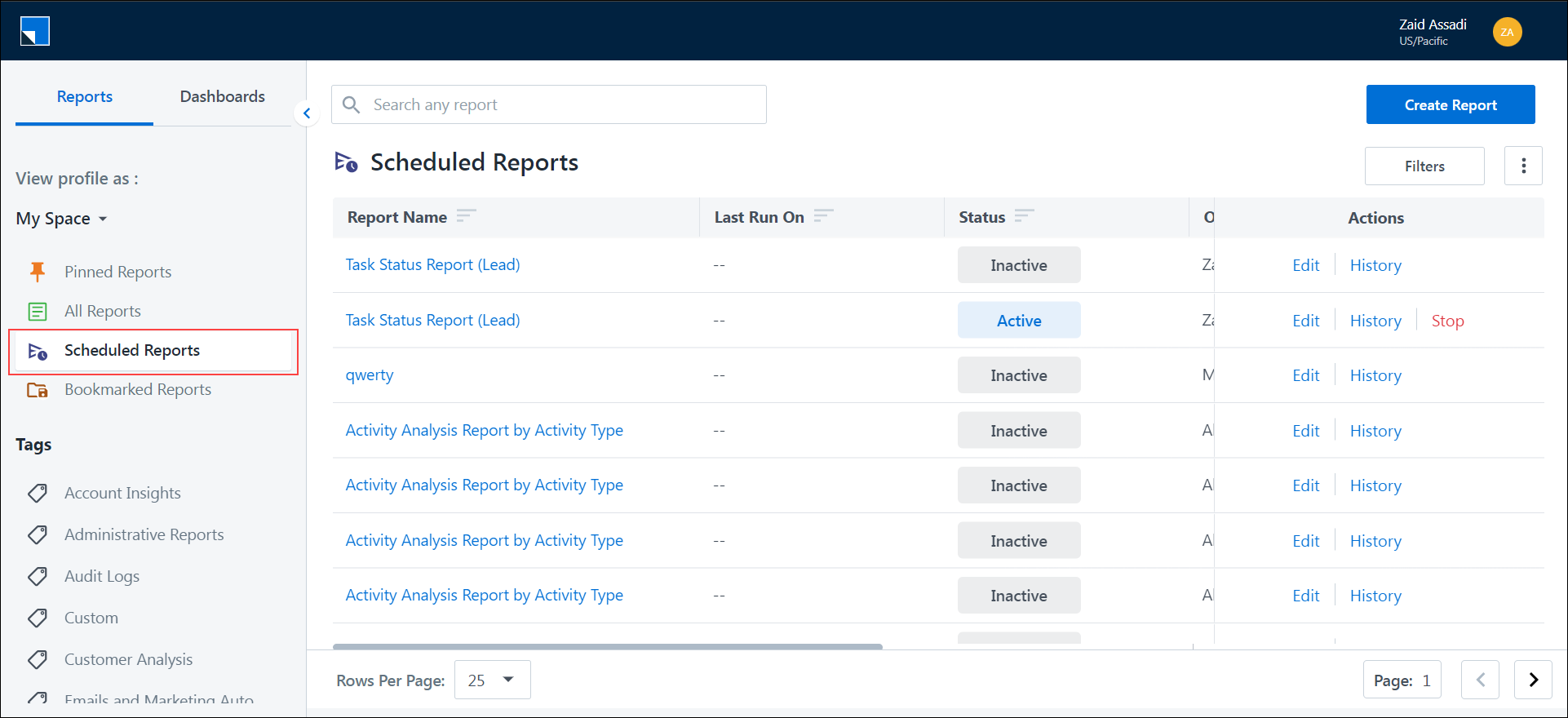
Once a report is scheduled, it will appear under the Scheduled Reports section on SIERA.

Note: A scheduled report will become inactive in the following scenarios:

  • The Owner of the scheduled report is deactivated.
  • The report itself is deleted.
  • A user/admin stops the report.
  • The schedule reaches its End Date.
  • If the report is scheduled for multiple users, and all users are deactivated.

scheduled reports section siera

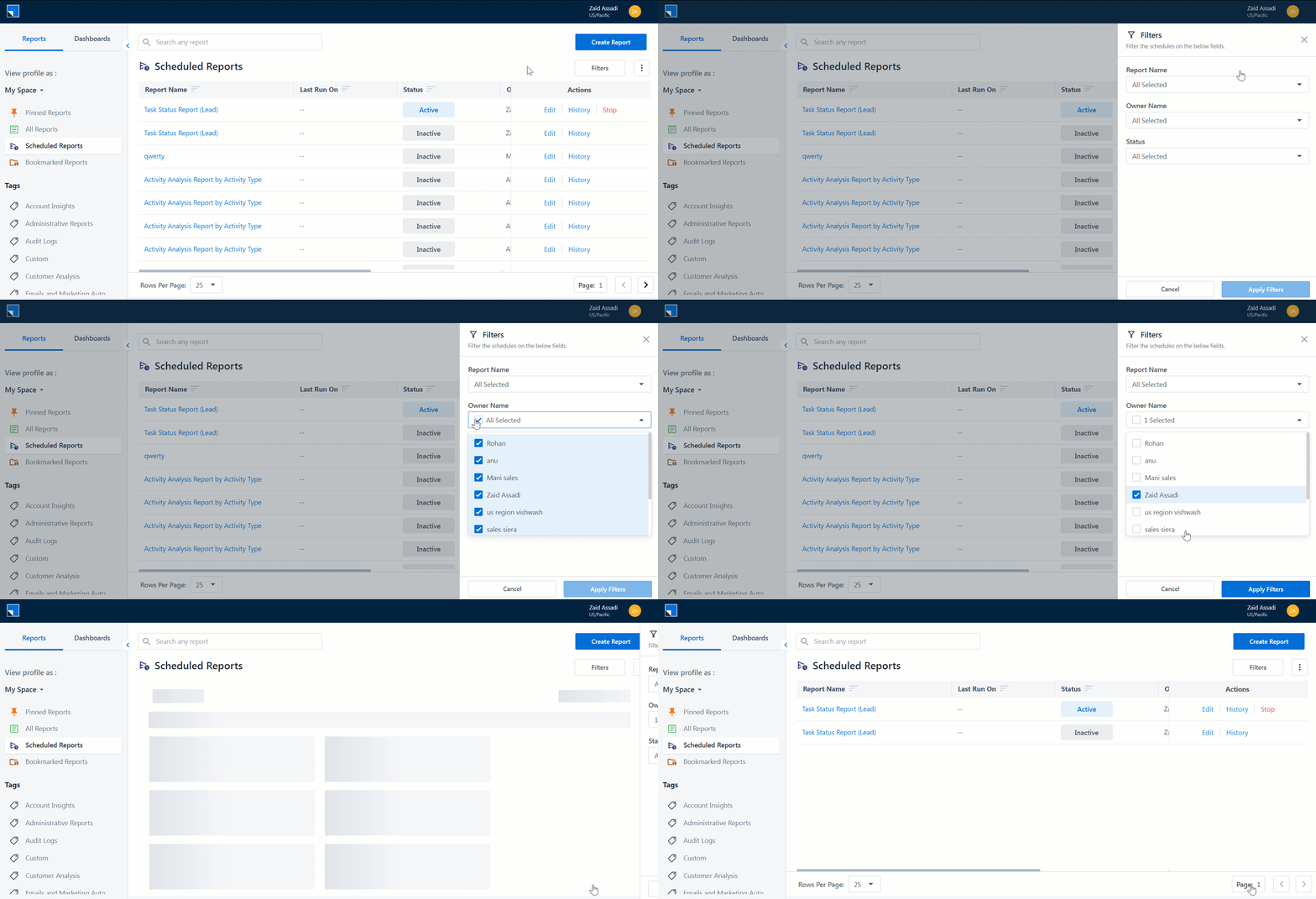
You can filter the scheduled reports by clicking Filters.

filter scheduled reports on SIERA

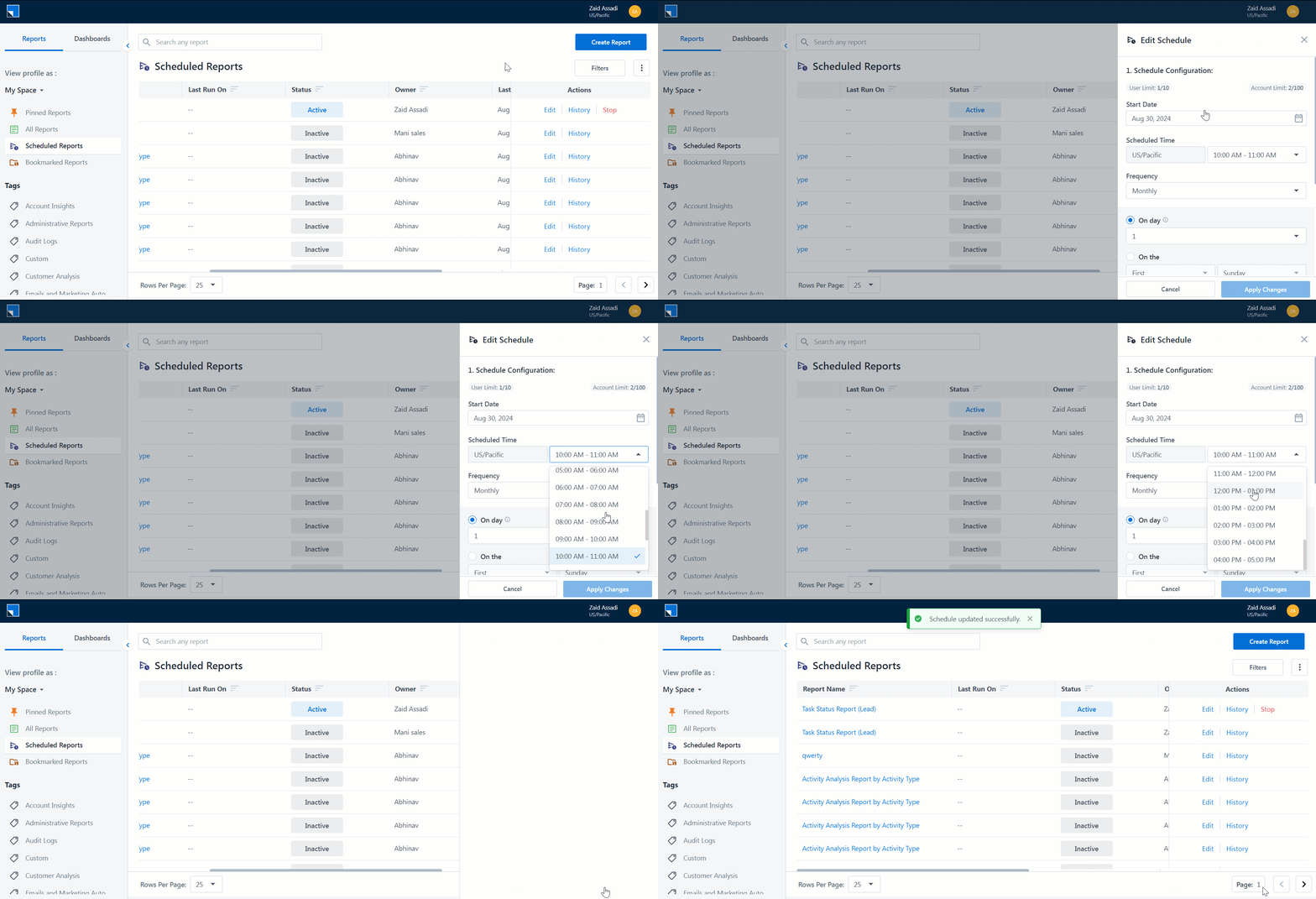
You can edit an active or inactive report by clicking the Edit button.

Note: The last user to edit a scheduled report will automatically become the new owner of that report.

Edit a scheduled report on SIERA

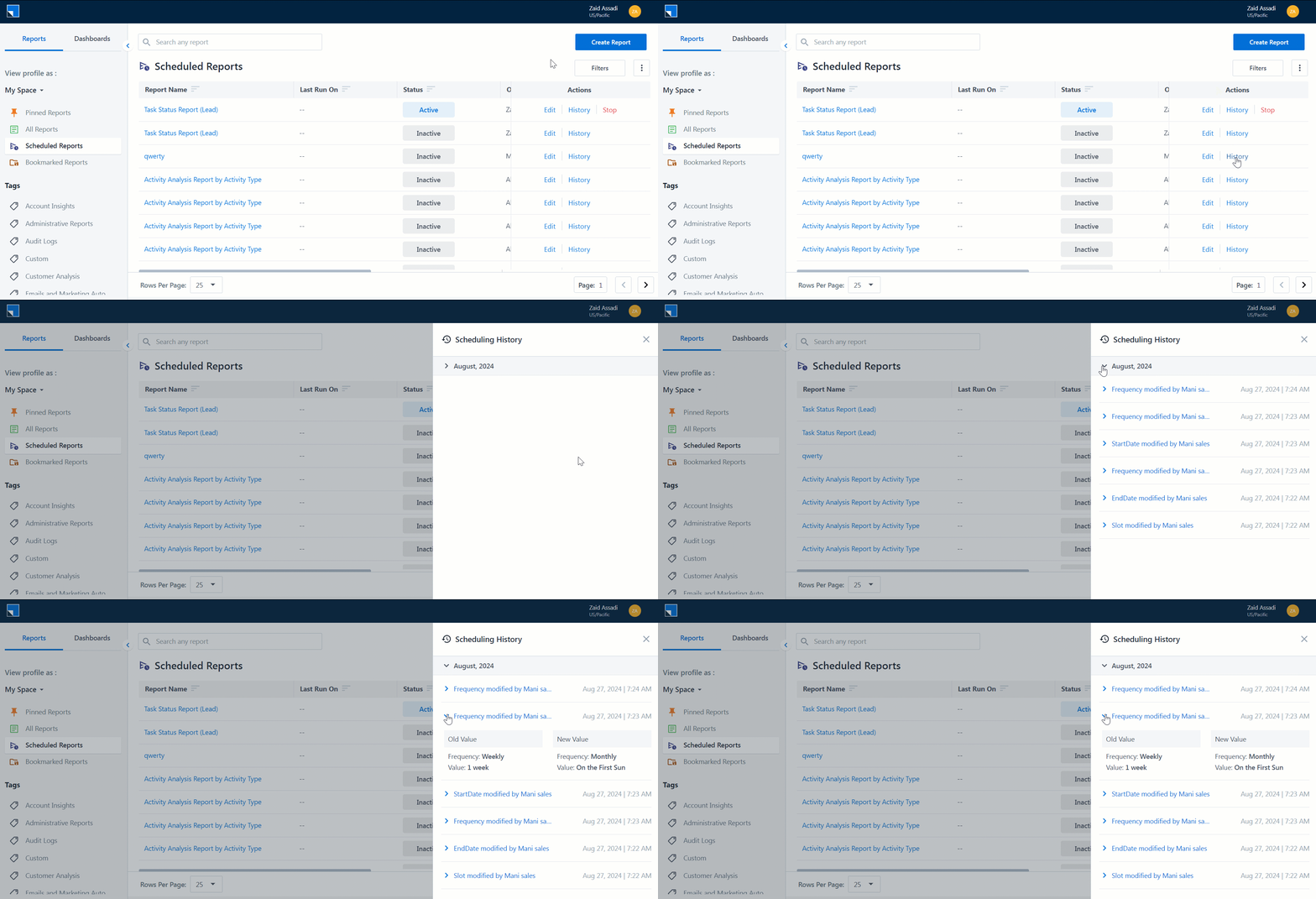
To view the edit log, click History.

scheduled report history on SIERA

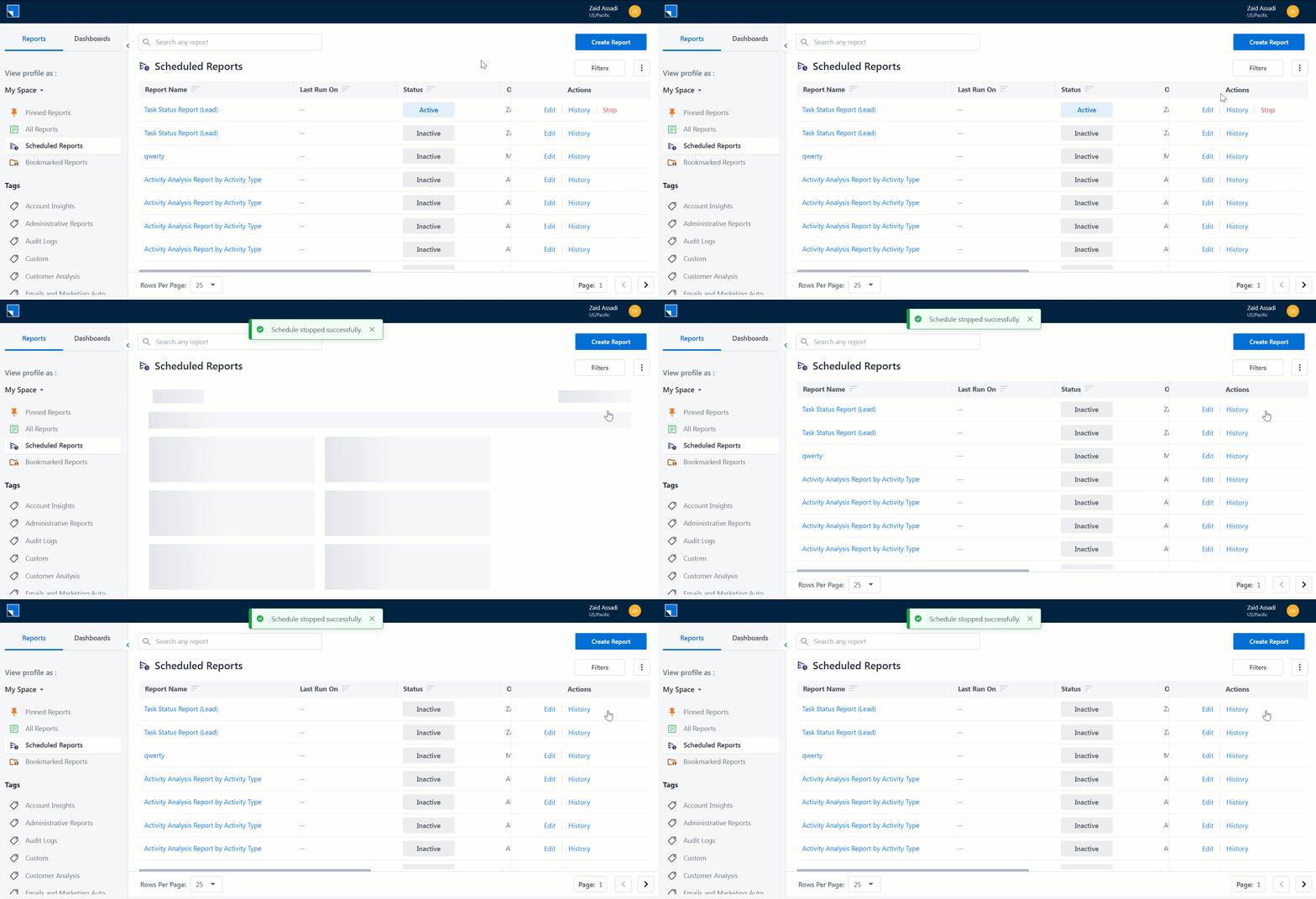
To stop a scheduled report, click Stop.

stop a scheduled report on siera


Any Questions?

Did you find this article helpful? Please let us know if you have questions or feedback in the comments section below. We’d love to hear from you and help you out!

Integrate MailParser with LeadSquared

1. Feature Overview

This connector captures leads in real-time from your MailParser account to LeadSquared. Once the leads are synced, you can leverage LeadSquared’s CRM features to nurture and convert your leads.


2. Prerequisites

  • You must be the Administrator of your LeadSquared account.
  • You must have an active MailParser account.


3. How it Works

To push lead data from MailParser to your LeadSquared account, configure the MailParser connector instance. Once configured, enable the connector.

During configuration, a webhook URL is generated in LeadSquared. Copy this URL and set it up in your MailParser account. To know how to do this, refer to What is a MailParser Webhook? Once it’s set up, the lead capture process is initiated.


4. Installation

  1. Navigate to Apps>Apps Marketplace.
  2. Search for MailParser, and click Install.
    • Alternatively, you can find the connector on the left panel, under Lead Capture.
  3. Once installed, hover your cursor over , and click Configure.

LeadSquared - Mailparser installation


5. Configure the Connector

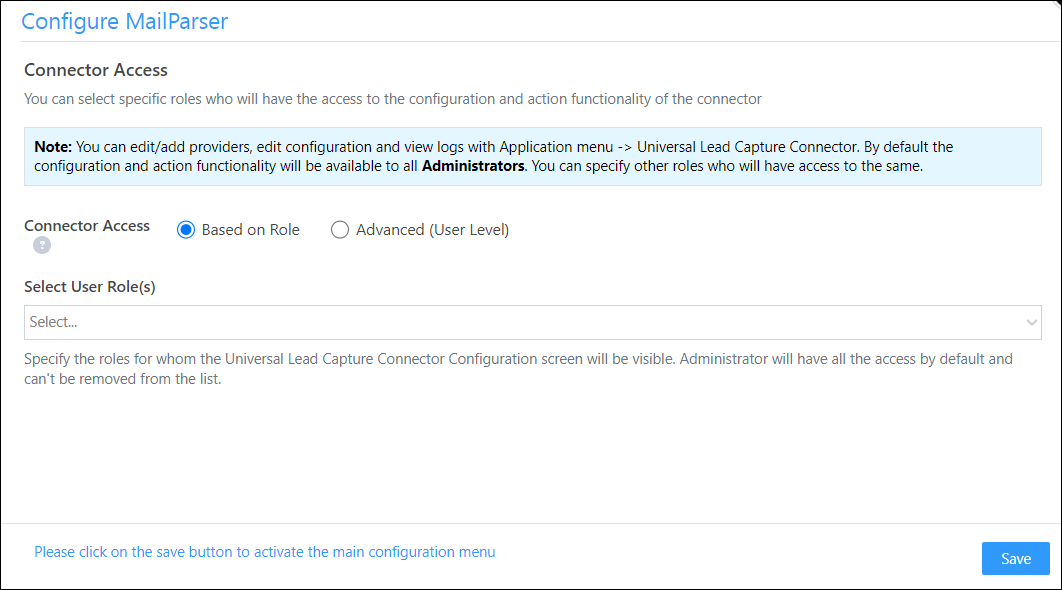
Once you’ve installed the connector, on the Configure MailParser pop-up, configure the connector access for the non-Admin users in your account. Only those users for whom access is granted can view and access the connector (under the Apps main menu).

  1. Select if you want to grant Connector Access that’s Based on Role or Advanced (User Level).
    • Based on Role – From the Specify Roles dropdown, select the LeadSquared user roles that can use the connector.
    • Advanced (User Level) – From the Advanced (User Level) dropdown, select a user boolean field. Based on the value entered in the selected boolean field, the user can access the connector (e.g., for the user Sam, if the “Is Employee” boolean user field contains the value “Yes”, then this user can access the connector).
  2. Once you’re done, click Save Details. To continue the configuration, refer to the below sections.
Note: By default, all Admin users will have access to the connector.
LeadSquared - MailParser initial configurations


5. Admin Configurations

After installation, navigate to Apps>MailParser and configure the connector settings in order to pull data from MailParser.

5.1 Basic Details

Enter the following details –

LeadSquared - Mailparser settings

Property Description
Lead Source Enter the lead source through which the leads were captured (e.g., MailParser, email campaign, etc.). This detail will be displayed on the Lead Details page, under Lead Source.
Default Country Code If the lead’s mobile number is captured without a country code, then the default country code that’s selected from the dropdown will be added to the lead’s mobile number.
Select Time Zone The time zone of your MailParser account.
Lead Capture Search By Criteria To avoid duplicate leads, you must select one unique lead field (e.g., email Id, mobile number, PAN number, etc.) as the search key. This will be used to identify the leads pushed from MailParser.

To know how to mark a LeadSquared lead field as unique, please refer to How to Make a Custom Field Unique.

Lead Capture Secondary Search By Criteria If lead identification and capture through the primary Search By criteria fails, it will be re-attempted using the secondary Search By criteria.
Select User to Notify on Failure If there is an error in fetching leads, the selected user will receive a failure message via email. You can select a user from the list of all the users available in your LeadSquared account.

To know more about the type of errors, please refer to Error Notifications.

Once you’re done entering all the details, click Save & Next.


5.2 Mapping

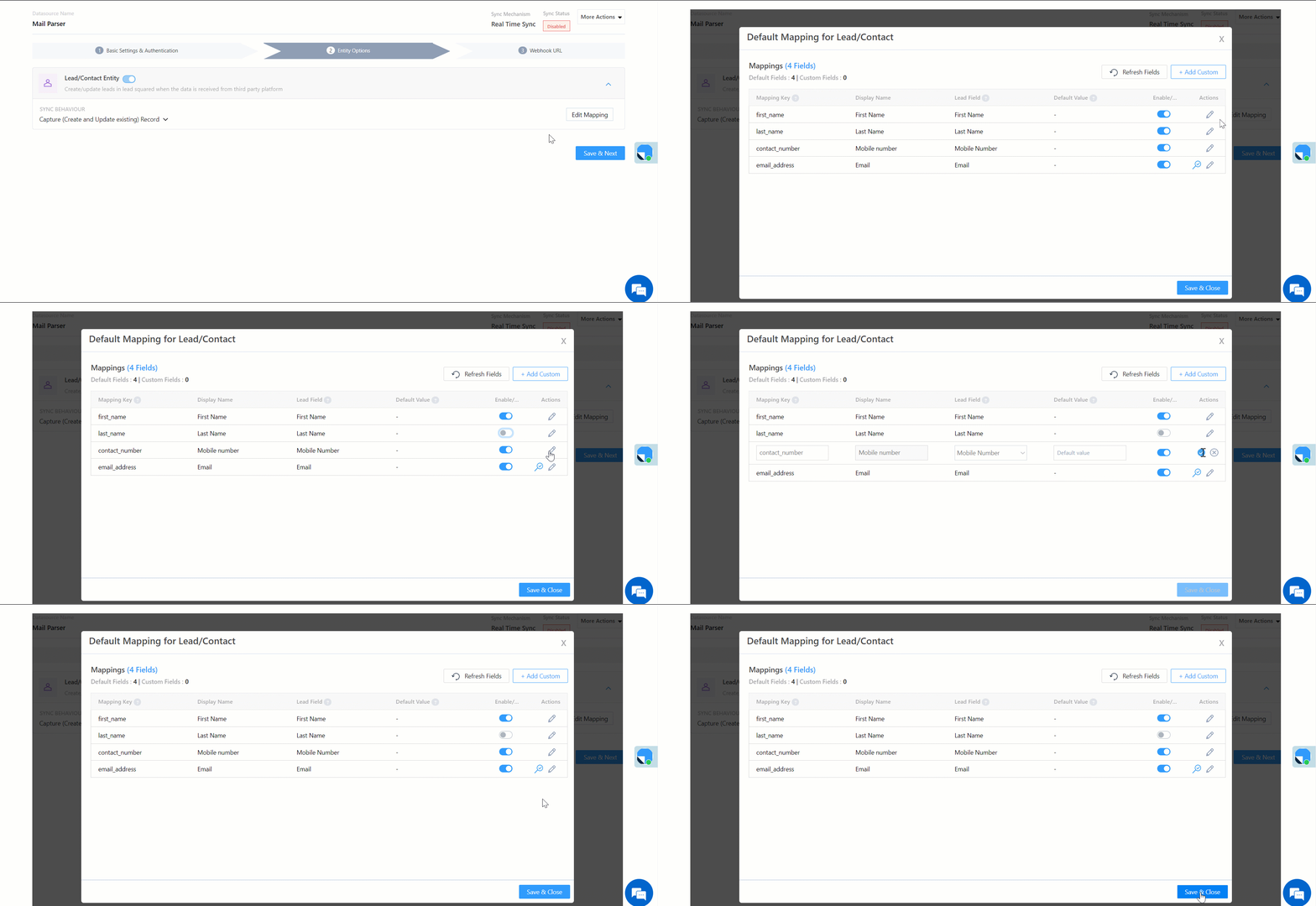
Once you’re done with the basic settings, click Entity Options. On this screen, the MailParser system fields mapped to the corresponding LeadSquared lead fields are visible. This mapping is carried out by default. If required, you can change or update the default field mapping.

  • To provide a default value for any field, click  , enter the value under Default Value, and click Google.
    • If the data provider doesn’t send data for any lead field, then the default value will get assigned to that specific field. But if the field already has an existing value, then the default value will be ignored.
  • To disable lead data capture for any field, disable the Zoom slider.
  • You can also mark and update a unique lead field as the search key from this screen, by clicking unique icon.
  • To create a custom MailParser field, click the Add Custom button.
    1. Once this field is created, you must map it to the relevant LeadSquared lead field.
    2. After the field is mapped, to save the custom field, click Google.
    3. To delete a custom field, click .

Once you’re done mapping, click Save & Next.

LeadSquared - MailParser mapping


5.3 Webhook URL

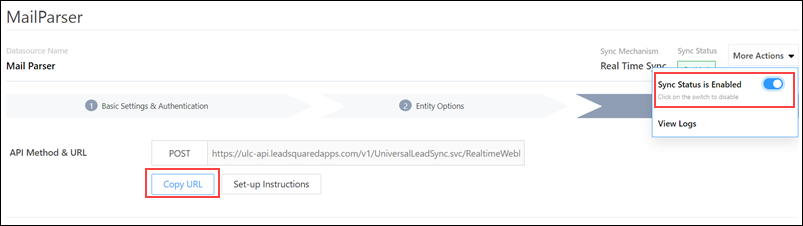
After you provide basic details and finish field mapping, a custom webhook URL is generated. To automate lead capture, copy this URL and configure it in your MailParser account (reach out to your account manager from MailParser). For more instructions, refer to What is a MailParser Webhook?

After you’ve configured the URL, click More Actions, and enable the sync job. This ensures the data will be pushed to LeadSquared using the webhook configured in MailParser.

Note: To know how to configure this Webhook URL in your MailParser account, please get in touch with your account manager from MailParser.

LeadSquared - Mailparser sync


6. View Logs

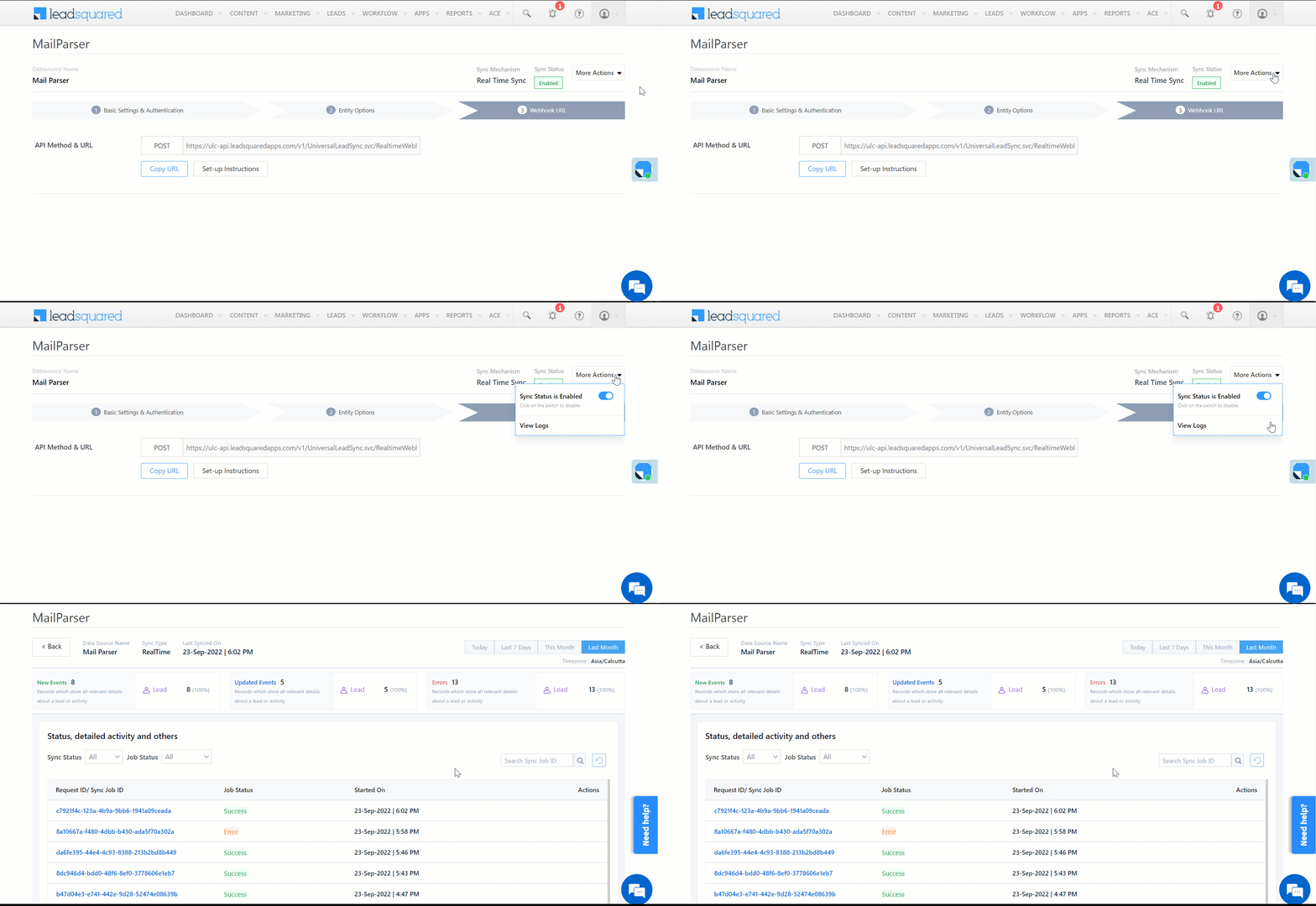
Here, you can view logs of all the sync jobs that have taken place. View new leads, updated leads, lead capture errors and total lead capture events. You can also view the lead sync response and lead capture job status.

  1. Navigate to Apps>MailParser.
  2. Click the More Actions dropdown and select View Logs.
  3. You can filter the logs by selecting a date range, and by selecting a Job Status (“All”, “Success” and “Failure”).
    • The maximum date range you can select is the last 60 days.
  4. You can view the sync status of the leads captured across the following tiles –
    • New Leads – List of all the new leads that have been pushed to LeadSquared during the selected date range.
    • Updated Leads – A list of all the –
      • Duplicate leads that were created with the same Search by Criteria value (e.g., with the same Email Id, Mobile Number, etc.).
      • Leads that previously contained errors, which were fixed and synced successfully.
    • Errors – The list of leads that have not been captured due to mapping errors (e.g., when a boolean field is mapped to an integer field, etc.).
    • Total Events – A list of all the lead capture events that have taken place.
  5. To view the Sync Response details, under Sync API Response, click the response.
    • Here, you can view the response status, the API URL, the request and the response.
    • The responses that are successful will contain the details of the leads that have been pushed by MailParser.
    • You can also view the lead capture response under Created, Updated and Errors, by clicking Information.
Note: For a response that contains an error, the reason for the error is listed in the response. Once you fix it, you can click the Retry button to perform the sync again.

LeadSquared - Mailparser view logs


7. Other Actions

You can edit or delete the MailParser connector instance that you created. To do this –

  1. Navigate to Apps>Apps Marketplace and click the MailParser connector.
  2. On the MailParser connector page, click Settings.
  3. From the list of options, you can perform the following actions –
    • Add or edit Configurations
    • Disable the connector
    • Remove the connector

LeadSquared - Mailparser other actions


8. View Reports

You can view the total number of leads that have been pushed by MailParser, by referring to the Lead Source report. To know more, please refer to How to track the source of your Leads using Lead Source Report?


Any Questions?

Did you find this article helpful? Please let us know any feedback you may have in the comments section below. We’d love to hear from you and help you out!

Integrate FreshSales with LeadSquared

1. Feature Overview

This connector captures leads and tasks in real-time from your FreshSales account to LeadSquared. Once the leads are synced, you can leverage LeadSquared’s CRM features to nurture and convert your leads.


2. Prerequisite

  • You must be the Administrator of your LeadSquared account.
  • You must have an active FreshSales account.
  • This is a paid feature. To enable it, reach out to your account manager, or write to support@leadsquared.com.


3. How it Works

To push lead data from FreshSales to your LeadSquared account, configure the FreshSales connector instance. Once configured, enable the connector.

During configuration, a webhook URL is generated in LeadSquared. Copy this URL and set it up in your FreshSales account. To know how to do this, refer to Workflows. Once it’s set up, the lead capture process is initiated.


4. Installation

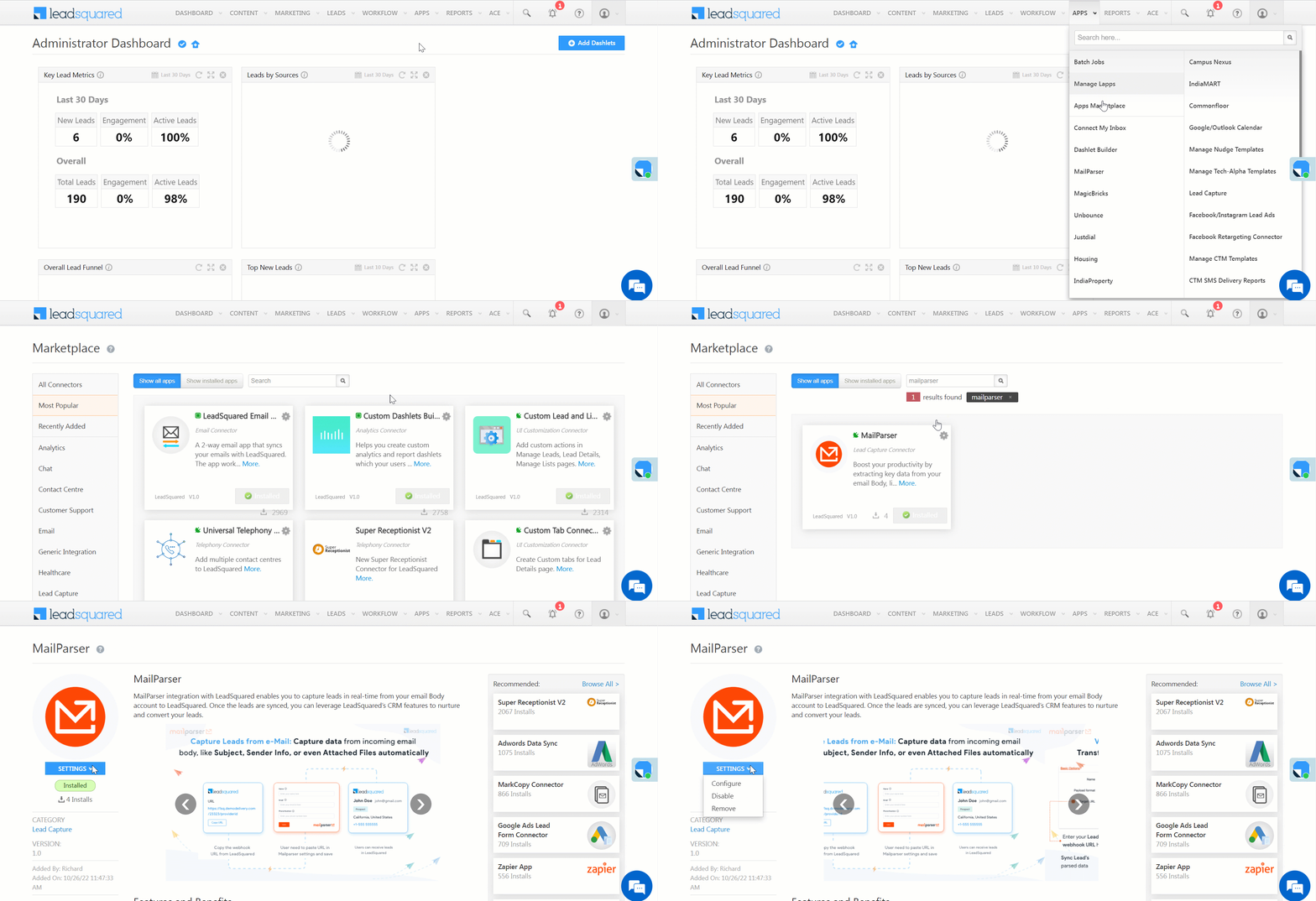
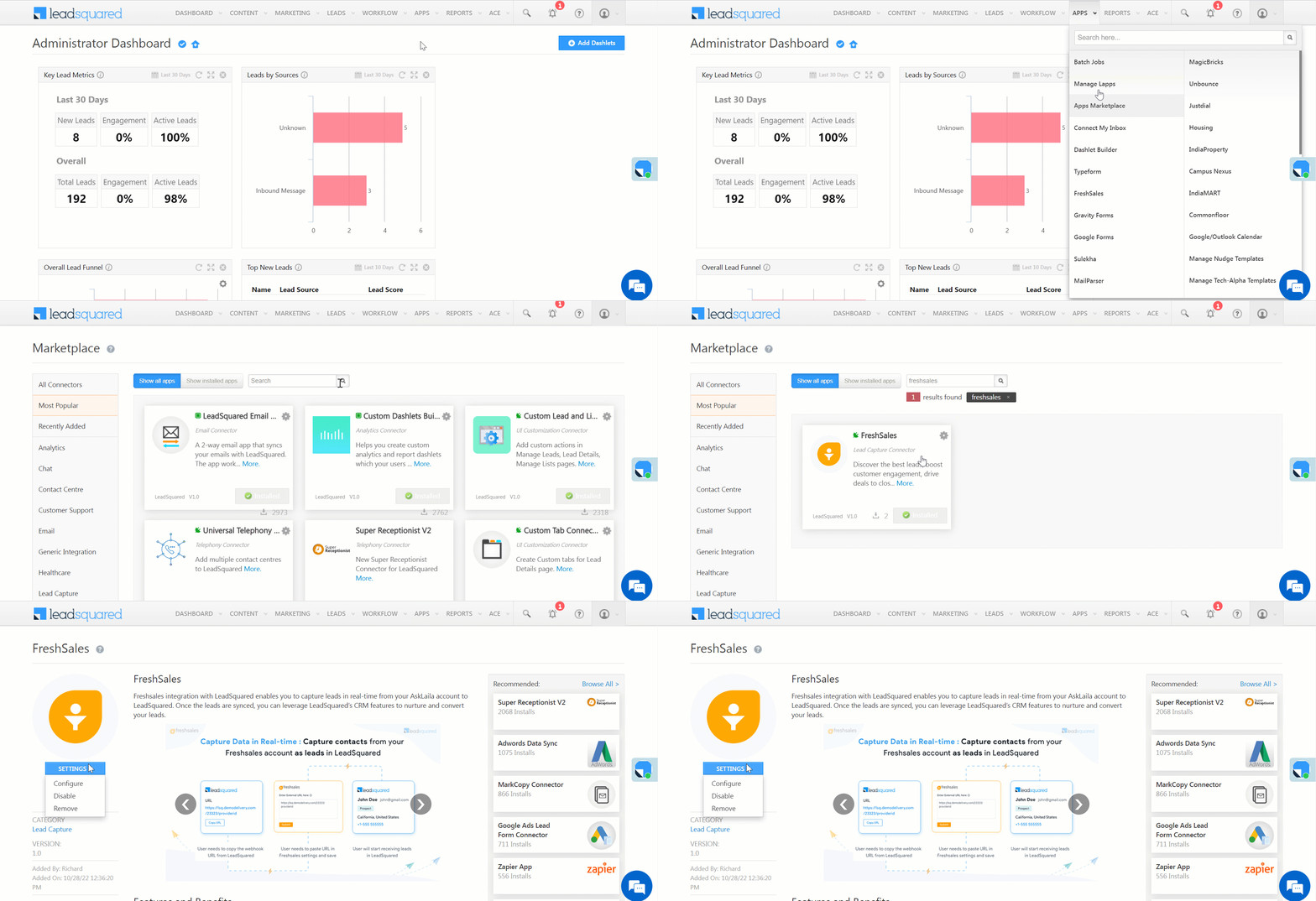
  1. Navigate to Apps>Apps Marketplace.
  2. Search for FreshSales, and click Install.
    • Alternatively, you can find the connector on the left panel, under Lead Capture.
  3. Once installed, hover your cursor over , and click Configure.

LeadSquared - Freshsales installation


5. Configure the Connector

Once you’ve installed the connector, on the Configure FreshSales pop-up, configure the connector access for the non-Admin users in your account. Only those users for whom access is granted can view and access the connector (under the Apps main menu).

  1. Select if you want to grant Connector Access that’s Based on Role or Advanced (User Level).
    • Based on Role – From the Specify Roles dropdown, select the LeadSquared user roles that can use the connector.
    • Advanced (User Level) – From the Advanced (User Level) dropdown, select a user boolean field. Based on the value entered in the selected boolean field, the user can access the connector (e.g., for the user Sam, if the “Is Employee” boolean user field contains the value “Yes”, then this user can access the connector).
  2. Once you’re done, click Save Details. To continue the configuration, refer to the below sections.
Note: By default, all Admin users will have access to the connector.

LeadSquared - Freshsales configurations

6. Admin Configuration

After installation, navigate to Apps>FreshSales and configure the connector settings in order to pull data from FreshSales.

6.1 Basic Details

Enter the following details –

LeadSquared - Freshsales settings

Property Description
Lead Source Enter the lead source through which the leads were captured (e.g., FreshSales, email campaign, etc.). This detail will be displayed on the Lead Details page, under Lead Source.
Default Country Code If the lead’s mobile number is captured without a country code, then the default country code that’s selected from the dropdown will be added to the lead’s mobile number.
Select Time Zone The time zone followed in your FreshSales account.
Lead Capture Search By Criteria To avoid duplicate leads, you must select one unique lead field (e.g., email Id, mobile number, PAN number, etc.) as the search key. This will be used to identify the leads pushed from FreshSales .

To know how to mark a LeadSquared lead field as unique, please refer to How to Make a Custom Field Unique.

Lead Capture Secondary Search By Criteria If lead identification and capture through the primary Search By criteria fails, it will be re-attempted using the secondary Search By criteria.
Select User to Notify on Failure If there is an error in fetching leads, the selected user will receive a failure message via email. You can select a user from the list of all the users available in your LeadSquared account.

To know more about the type of errors, please refer to Error Notifications.

Enable Notification To ensure notification emails are sent to the selected user when there’s a failed query, enable the Checkbox checkbox.

Once you’ve entered all the details, click Save & Next.


6.2 Entity Options

Define the sync behaviour of the connector when leads are captured.

Lead/Contact Entity

Based on the Lead Capture Search By criteria selected (email Id, phone number, etc.), LeadSquared identifies and captures leads from your FreshSales account. Lead capture is enabled by default, and it cannot be disabled.

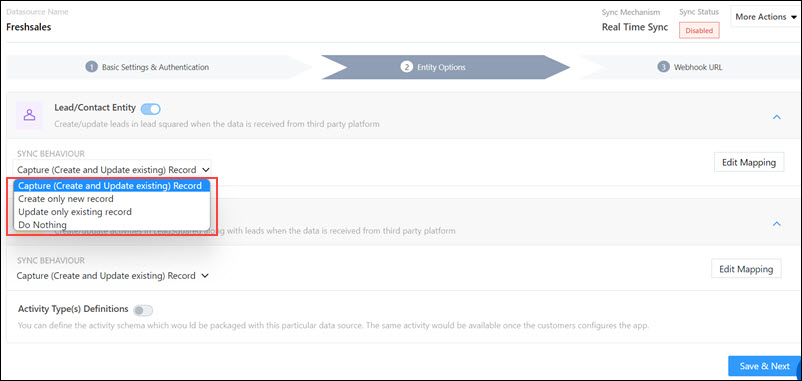
Select one of the following options to configure the connector’s Sync Behaviour

  • Capture (Create and Update existing) Record – Leads that only exist in your FreshSales account (but not in your LeadSquared account) will get created in LeadSquared. Leads that exist in both your FreshSales and LeadSquared accounts will get updated.
  • Create only new record – Leads that only exist in your FreshSales account (but not in your LeadSquared account) will get created in LeadSquared.
  • Update only existing record – Leads that exist in both your FreshSales and LeadSquared accounts will get updated in LeadSquared.
  • Do nothing – Leads do not get created or updated by syncing.

LeadSquared - Lead or contact entity

Edit Mapping

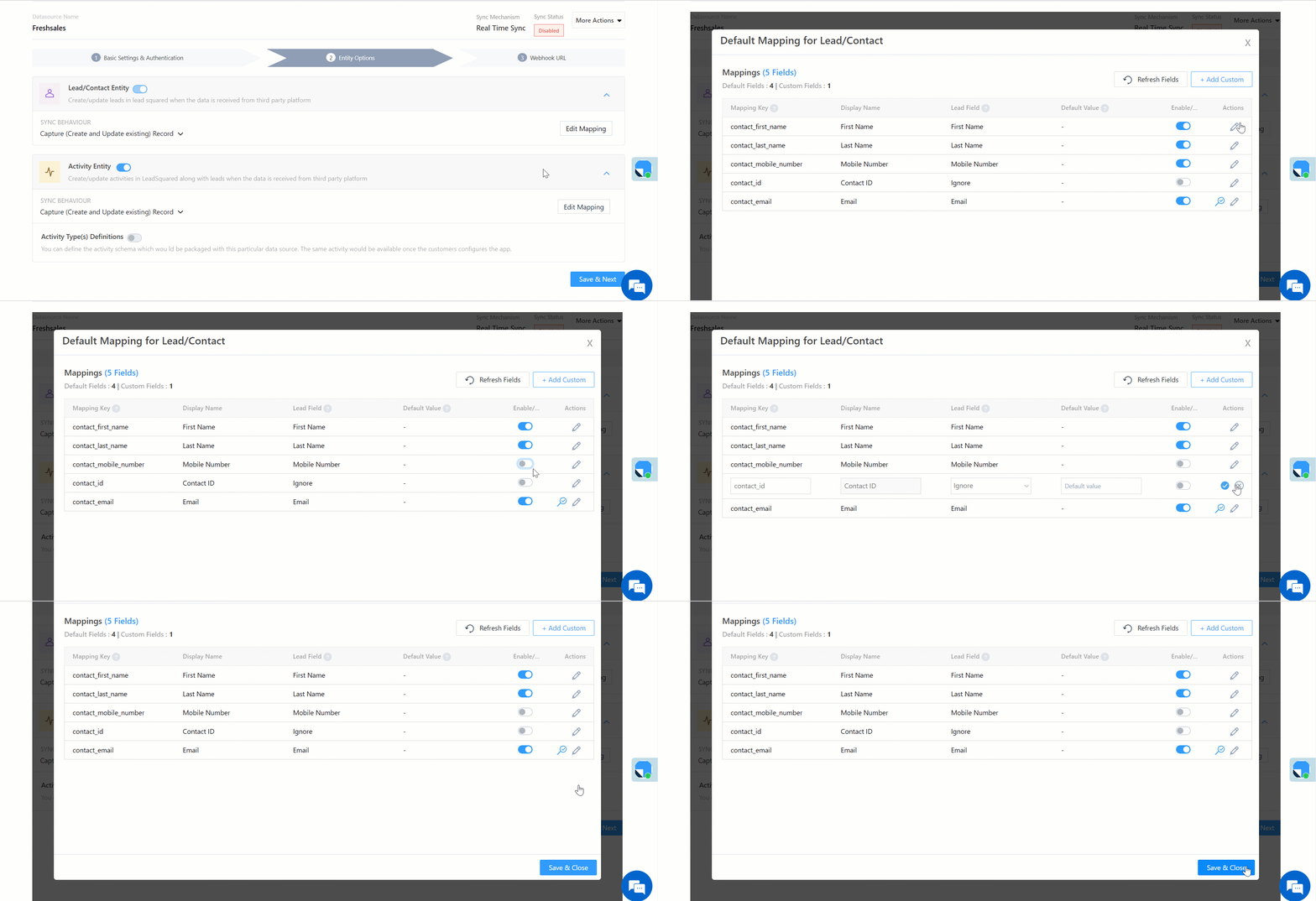
Once you configure the Sync Behaviour, you’ll have to ensure the field mapping is accurate. To do this, click Edit Mapping. On the Default/Edit Mapping screen, the FreshSales system fields mapped by default to the corresponding LeadSquared lead fields are visible. If required, you can change or update the default field mapping.

  • To provide a default value for any field, click  , enter the value under Default Value, and click Google.
    • If the data provider doesn’t send data for any lead field, then the default value will get assigned to that specific field. But if the field already has an existing value, then the default value will be ignored.
  • To disable lead data capture for any field, disable the Zoom slider.
  • To mark a unique lead field as the search key, click Mark Unique.
  • To create a custom FreshSales lead field, click the Add Custom button.
    1. Once this field is created, you must map it to the relevant LeadSquared lead field.
    2. After the field is mapped, to save the custom field, click Google.
    3. To delete a custom field, click .

LeadSquared - FreshSales mapping


6.3 Generate the Webhook URL

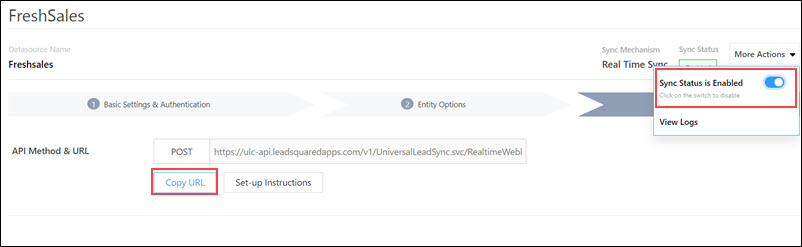
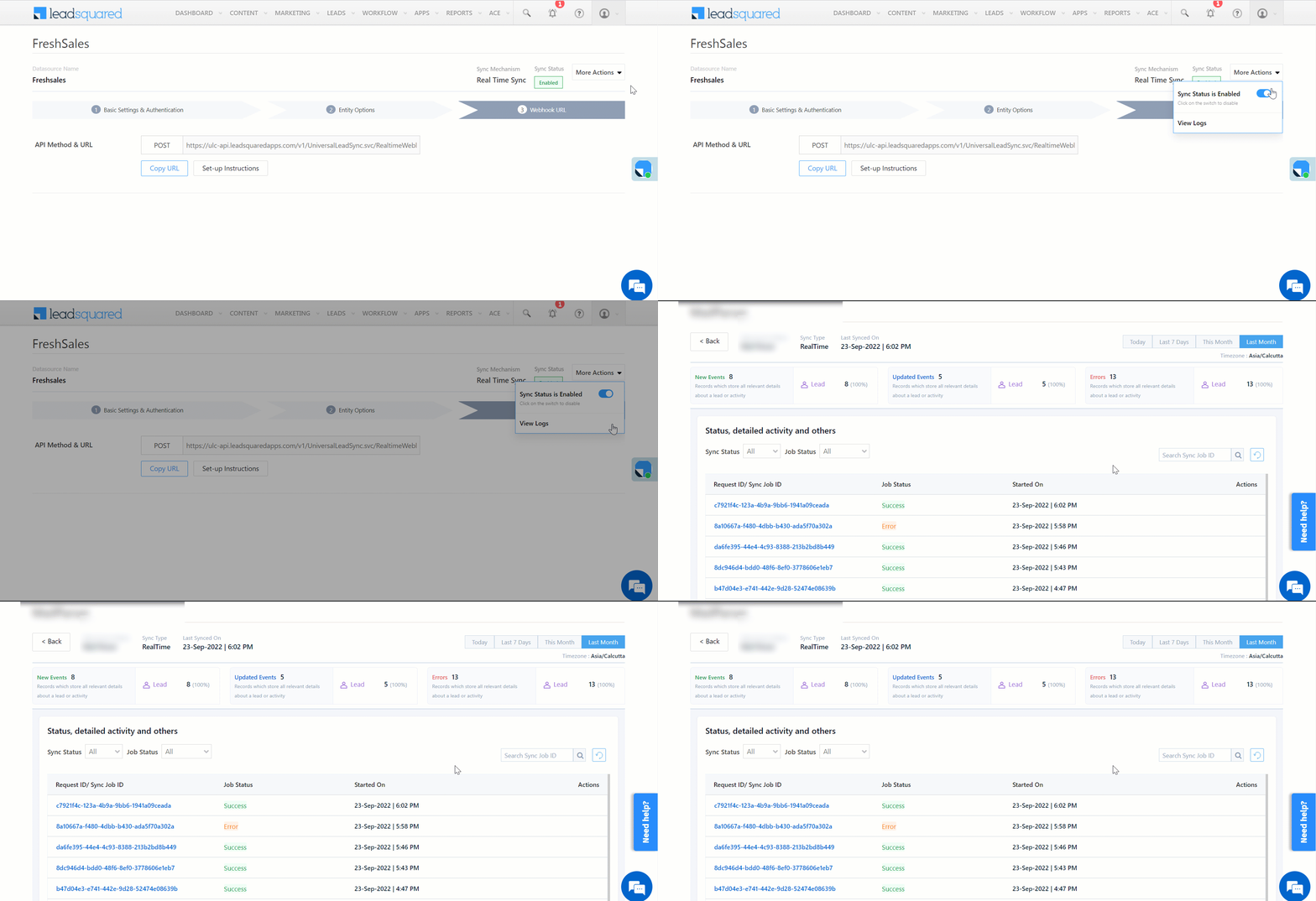
After you provide basic details and finish field mapping, a custom webhook URL is generated. To automate lead capture, copy this URL and set it up on your FreshSales account. To know more, refer to  Workflows.

After you’ve set up the webhook, click More Actions, and enable the sync job. This ensures lead data from FreshSales will be pushed to LeadSquared using the webhook.

LeadSquared - Freshsales sync


7. View Logs

Here, you can view logs of all the sync jobs that have taken place. View New Events (New Leads), Updated Events (Updated Leads), and Errors (when capturing leads).

  1. Navigate to Apps>FreshSales.
  2. Click the More Actions dropdown and select View Logs.
  3. You can filter the logs by selecting a date range (Today, Last 7 Days, This Month, and Last Month), by selecting the Job Status (“All”, “Success” and “Failure”), and by selecting the Sync Status (All, Error, and Success).
  4. You can view the sync status of the following events –
    • New Events – List of all the new leads that have been created in LeadSquared during the selected date range.
    • Updated Events – A list of all the –
      • Duplicate leads that were created with the same Search by Criteria value (e.g., with the same Email Id, Mobile Number, etc.).
      • Leads that previously contained errors, which were fixed and synced successfully.
    • Failed – The list of leads that have not been captured due to mapping errors (e.g., when a boolean field is mapped to an integer field, etc.).
  5. To view the Sync Response details, under Request ID/Sync Job ID, click the Id.
    • Under the right panel, you can view the response status, the API URL, the request, and the response.
    • The responses that are successful will contain the details of the leads that have been pushed from FreshSales.
    • To view the lead capture response under Sync API Response, Leads Updated and Errors in Leads, click Information.

Note:

  • For a response that contains an error, the reason for the error is listed in the response. Once you fix it, you can click the Retry button to perform the sync again.
  • The current Lead Sync Behaviour will reflect in the Logs screen. This will help identify the sync that’s used (Capture or Update) for the selected Request/Sync Job Id.

LeadSquared - FreshSales view logs


8. Other Actions

You can edit or delete the FreshSales connector instance that you created. To do this –

  1. Navigate to Apps>Apps Marketplace and click the FreshSales connector.
  2. On the FreshSales connector page, click Settings.
  3. From the list of options, you can perform the following actions –
    • Add or edit Configurations
    • Disable the connector
    • Remove the connector

LeadSquared - FreshSales other actions


9. View Reports

You can view the total number of leads that have been pushed by FreshSales, by referring to the Lead Source report. To know more, please refer to How to track the source of your Leads using Lead Source Report?


Any Questions?

Did you find this article helpful? Please let us know any feedback you may have in the comments section below. We’d love to hear from you and help you out!

Razorpay Payment Link Generation in LeadSquared

1. Feature Overview

This connector generates Razorpay payment links directly from your LeadSquared account. Your leads can use these links to make payments (e.g., for registrations, purchases, etc.). This payment is posted as an activity against the lead in LeadSquared.

Note:

Razorpay Payment Link generation


2. Prerequisites

  • You must be the Administrator of your LeadSquared account.
  • You must have an active Razorpay account.


3. How it Works

  1. Install and configure the Razorpay(Payment link) connector
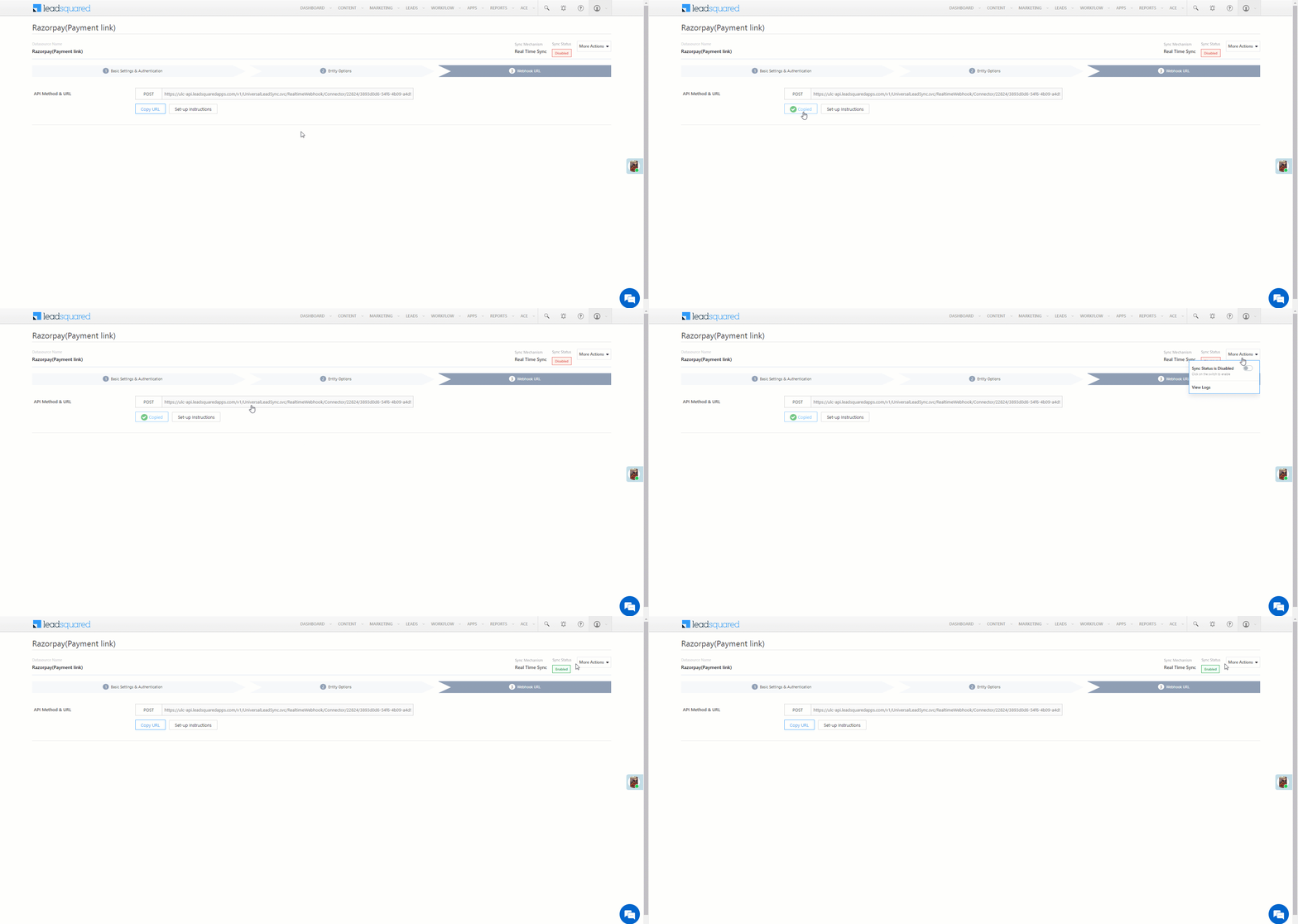
    As part of the connector configuration, two custom activities are automatically created – Razorpay Payment Link Request (sends the payment activity details to your Razorpay account) and Razorpay Payment Link (generates the payment link). When the connector is enabled, a webhook URL is generated. Copy this URL.
  2. Create an automation
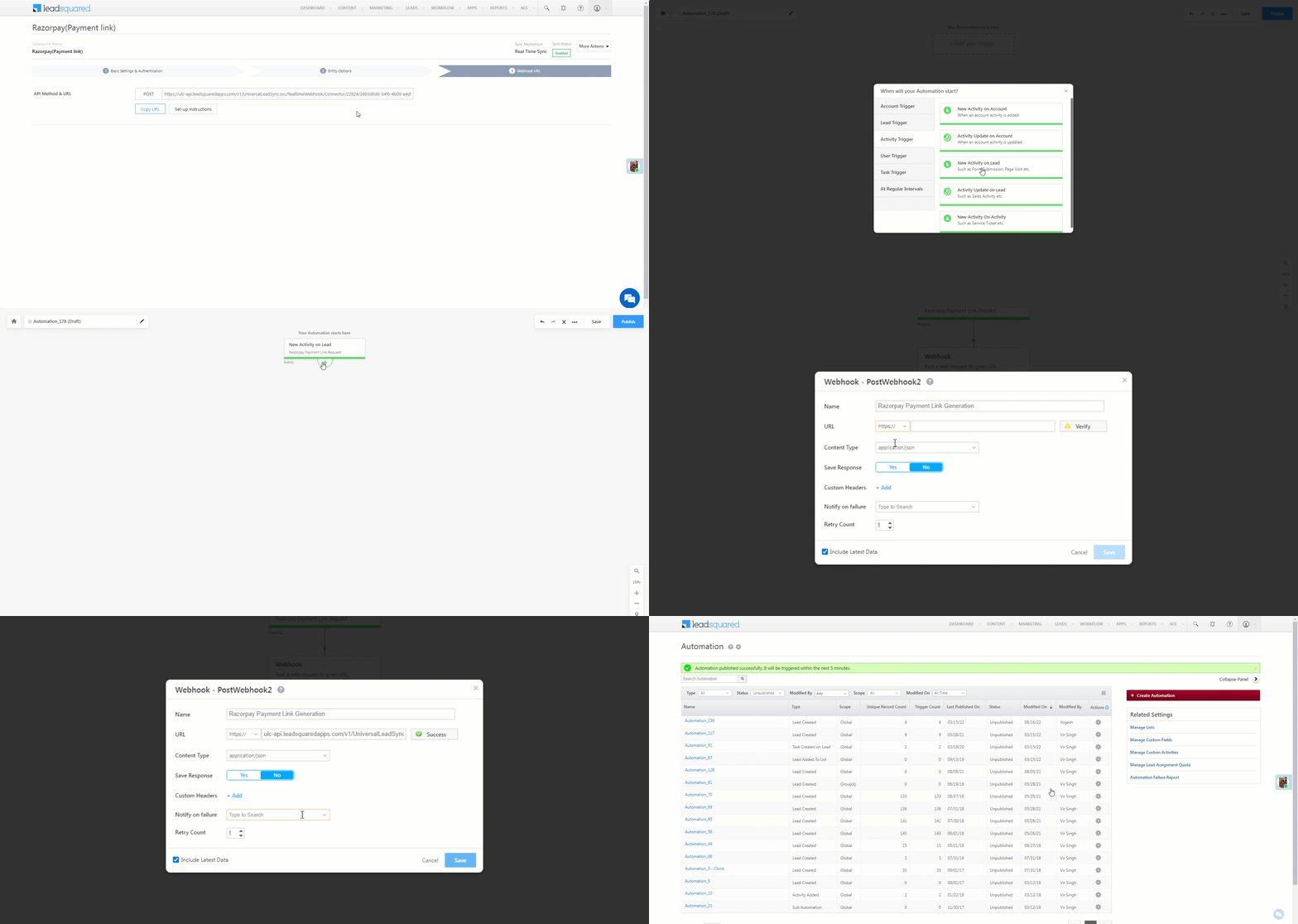
    Use any activity trigger, and select the Razorpay Payment Link Request activity as the automation event trigger. Add a Webhook action to this automation, paste the connector’s webhook URL to this automation action, and publish the automation. This automation is used to generate the Razorpay payment link.
  3. Post the activity
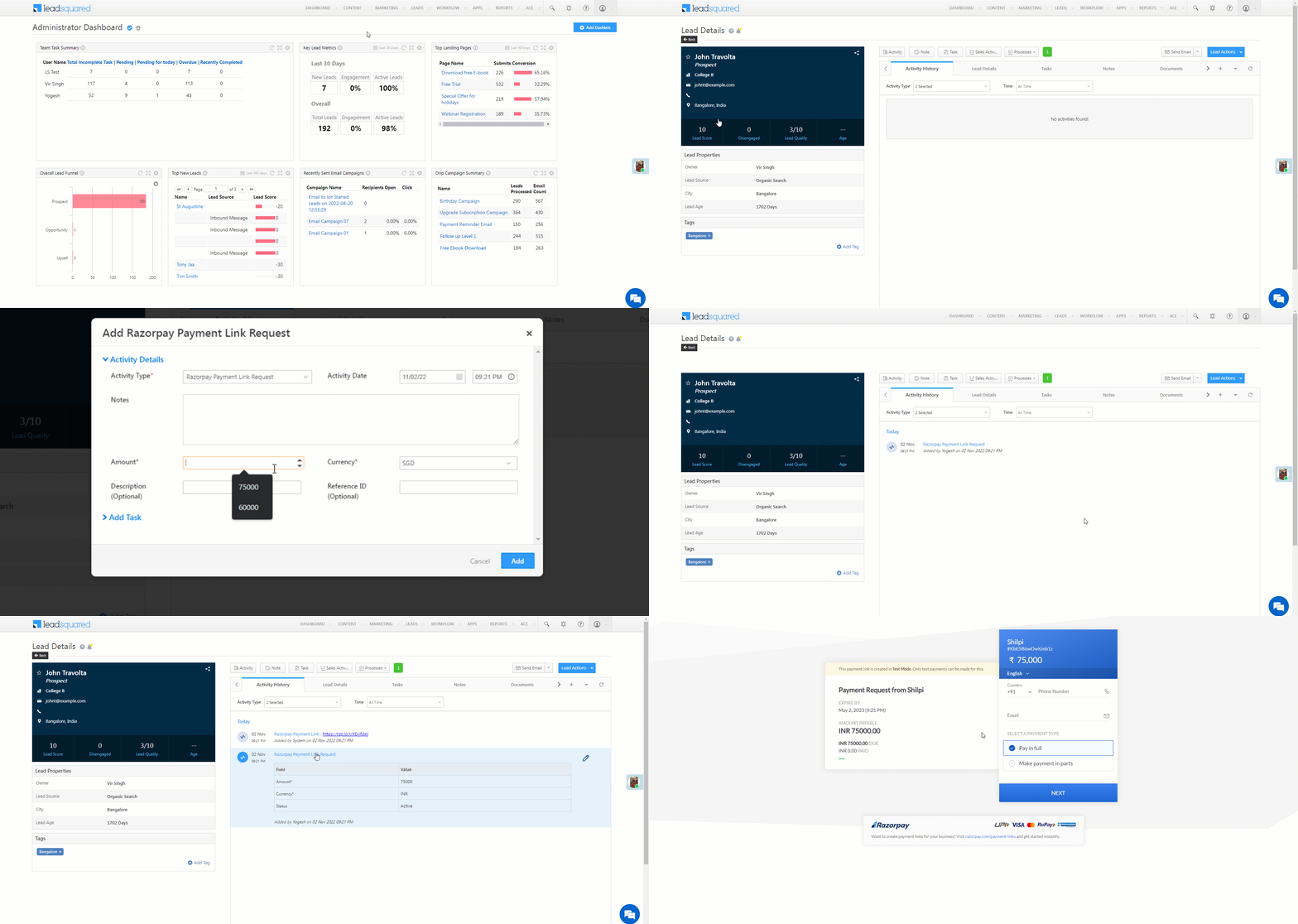
    Once the automation is published, post the Razorpay Payment Link Request activity on the lead. The Razorpay Payment Link Request activity is similar to a sales activity, and it can be used when the lead is about to make a payment for the services or products you offer.

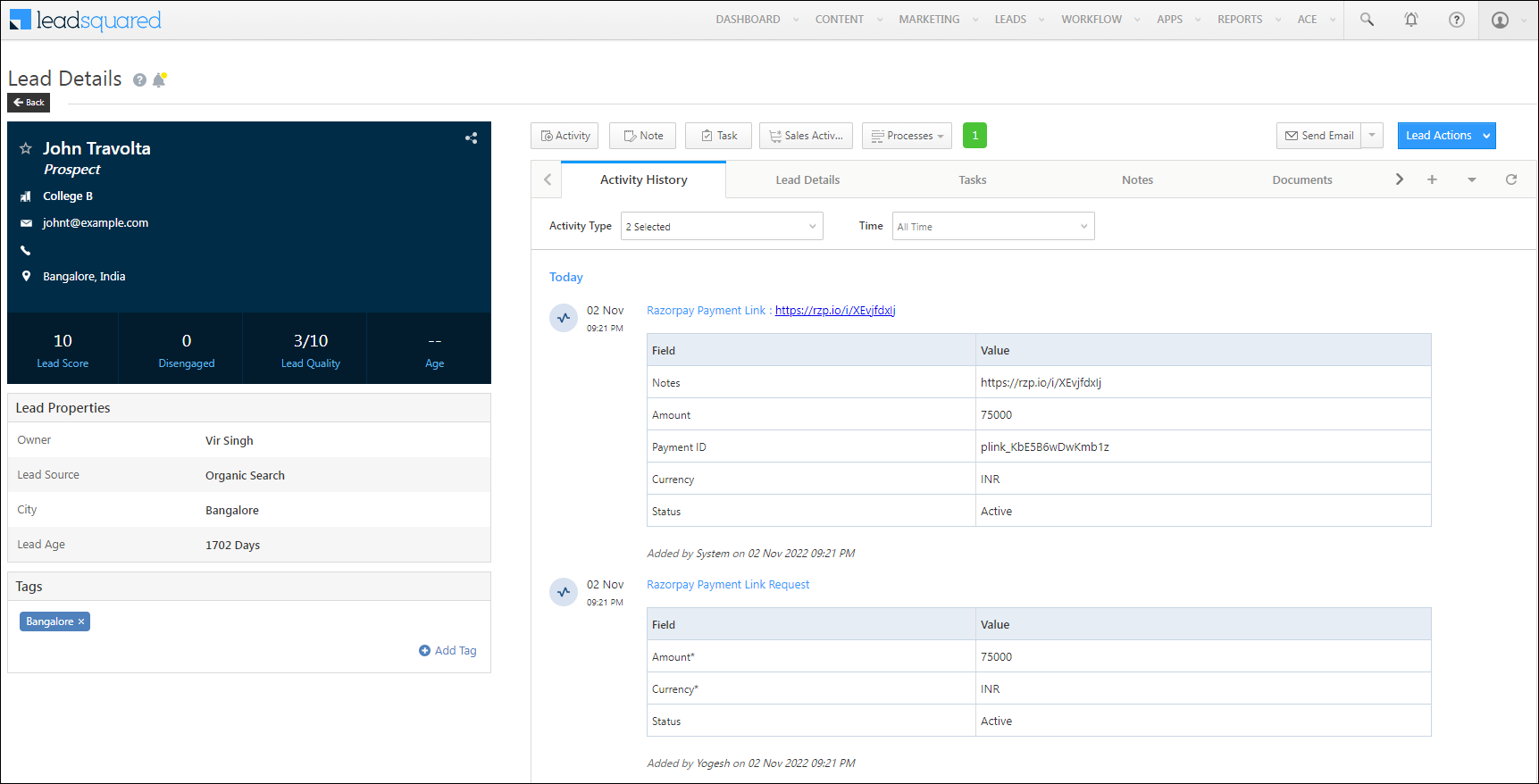
Once the Razorpay Payment Link Request activity is posted, based on the automation you’ve set up, the Razorpay Payment Link activity is automatically posted on the lead. This activity contains the payment link URL which the lead can use to make the payment. Share this link with your lead, which they’ll use to complete the payment for the services or products you offer.

Note: To reduce manual intervention, set up additional automations to share the payment link with the lead. For example, when the Razorpay Payment Link activity is posted, send the lead an email or WhatsApp message with the payment link.


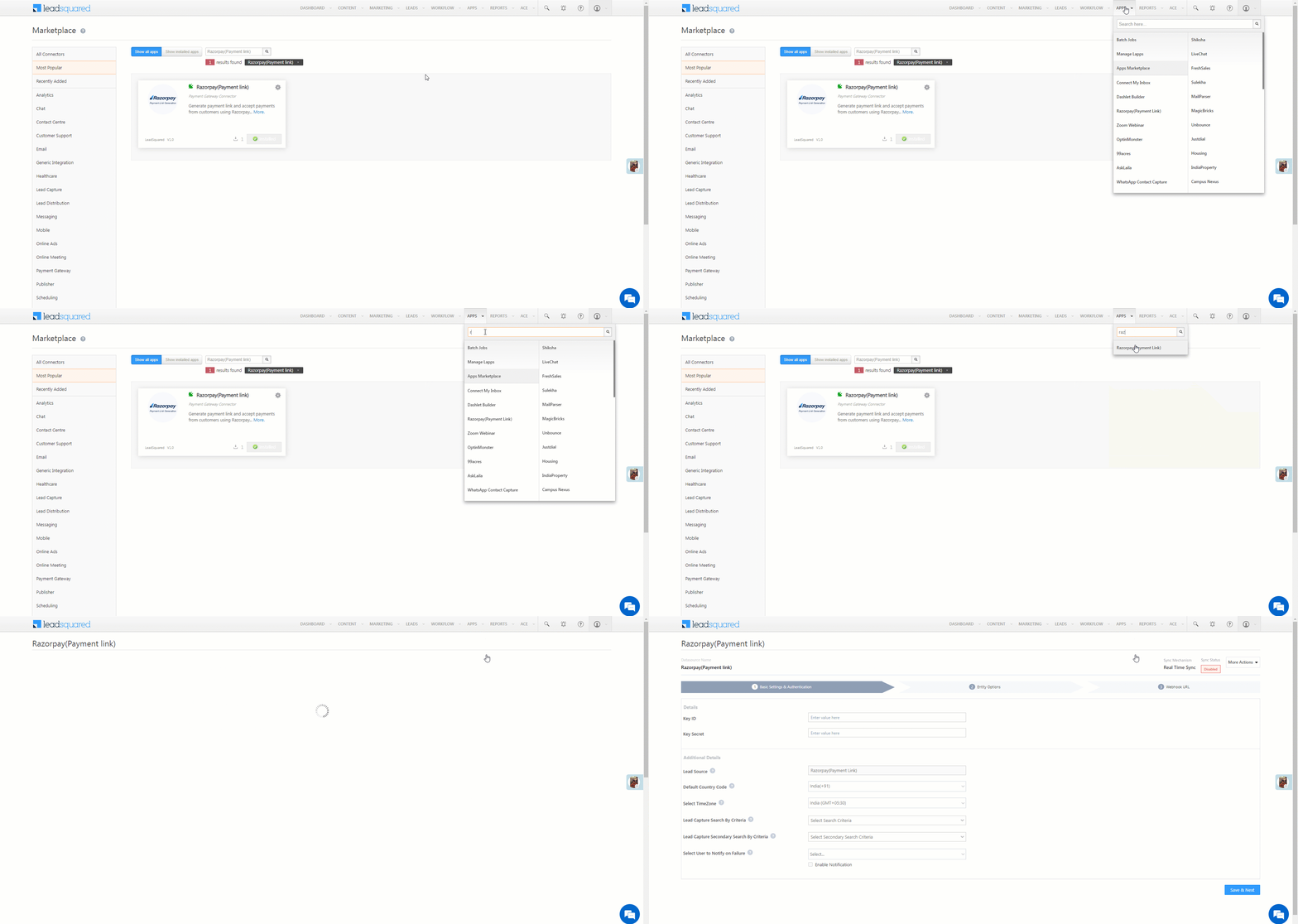
4. Install the Connector

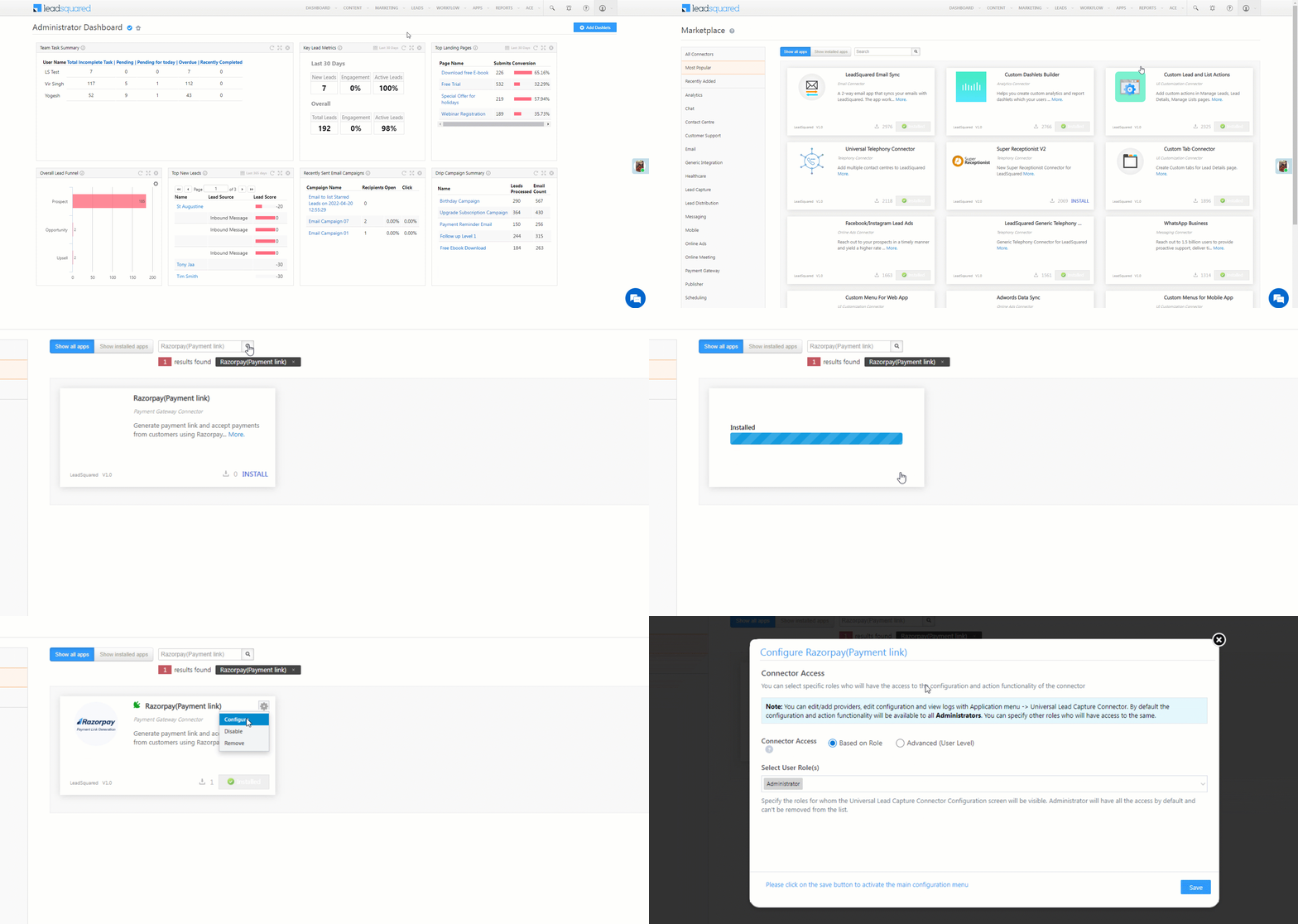
  1. Navigate to Apps>Apps Marketplace.
  2. Search for Razorpay(Payment link), and click Install.
    • Alternatively, you can find the connector on the left panel, under Payment Gateway.
  3. Once installed, hover your cursor over , and click Configure.

Razorpay Payment Link generation


5. Configure the Connector

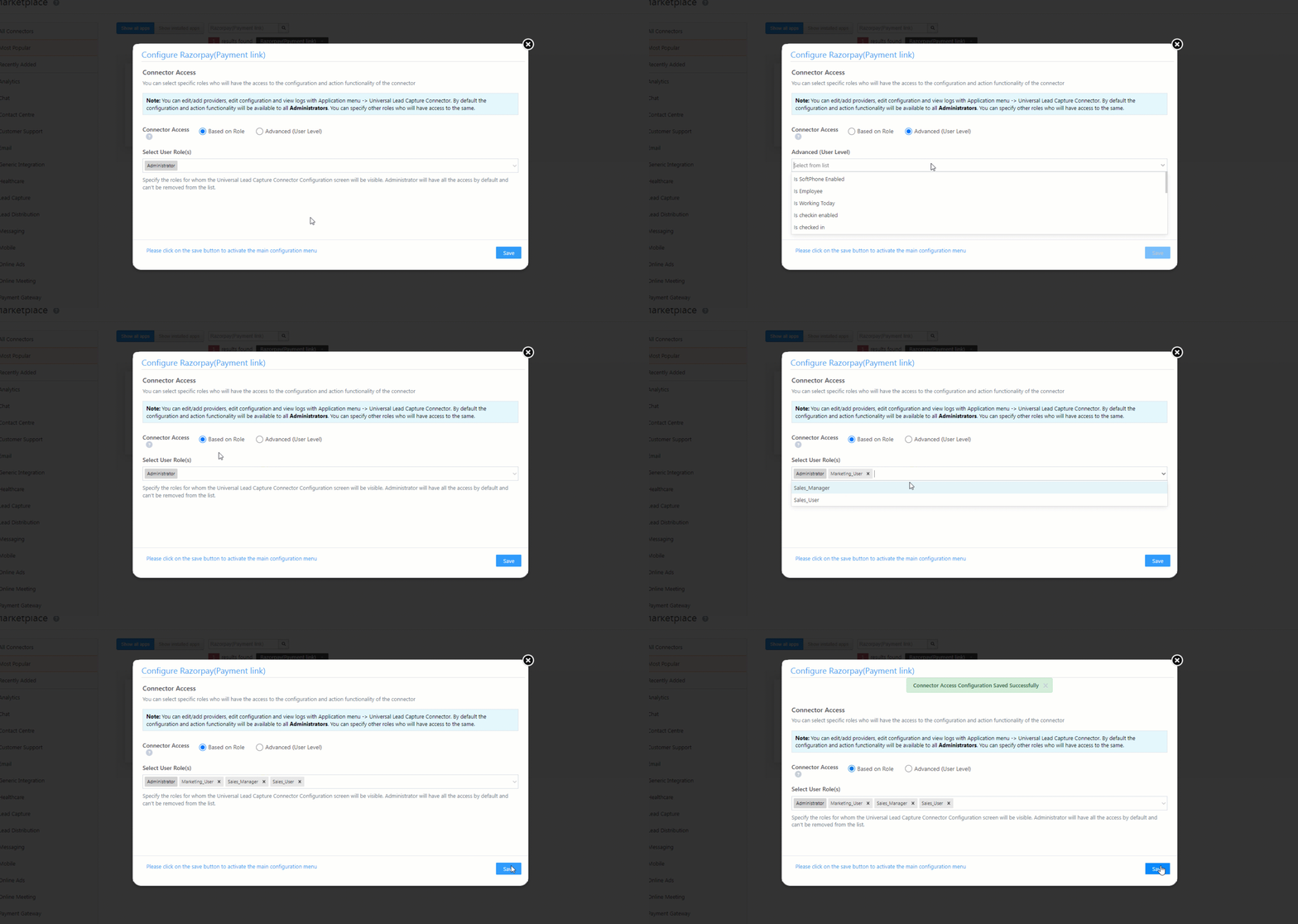
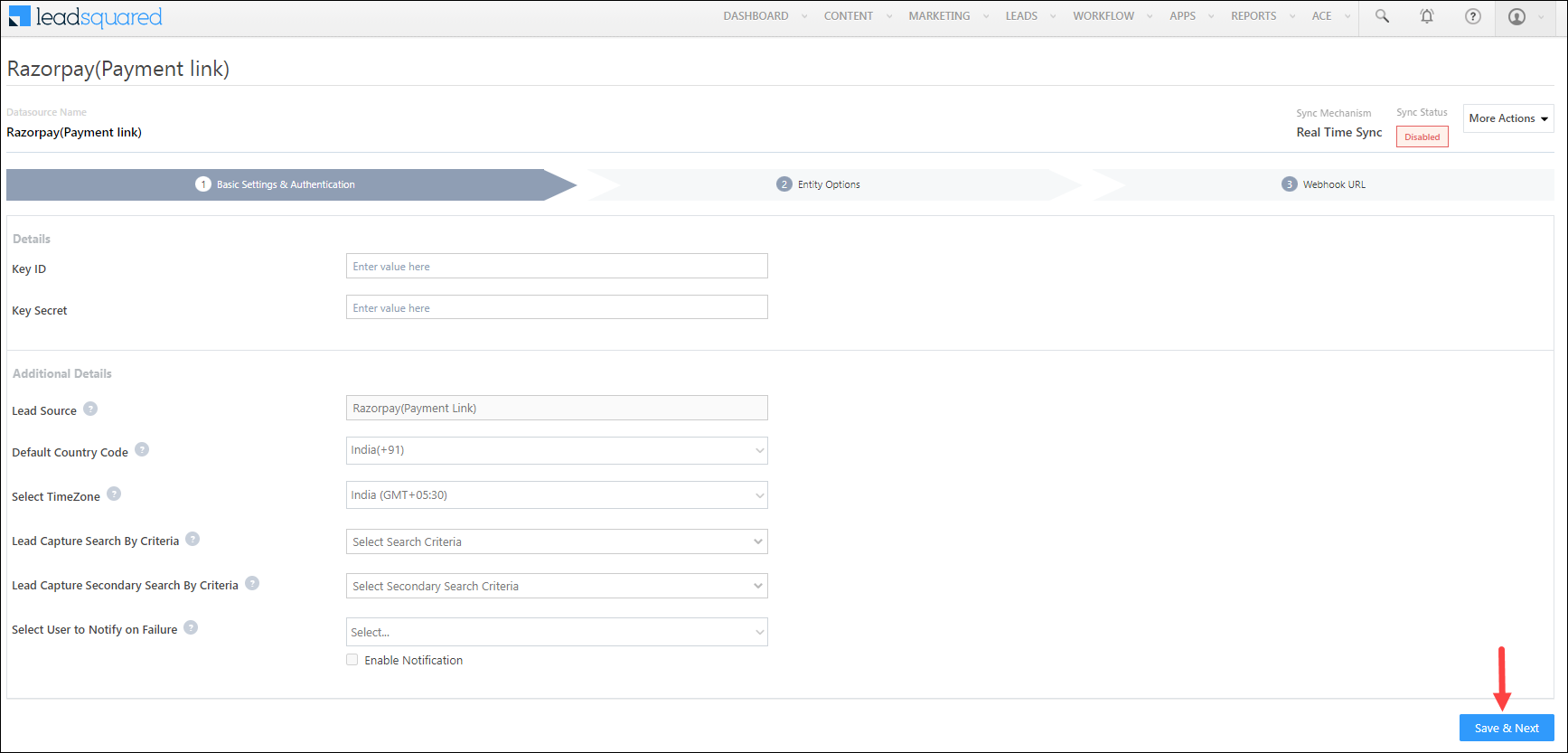
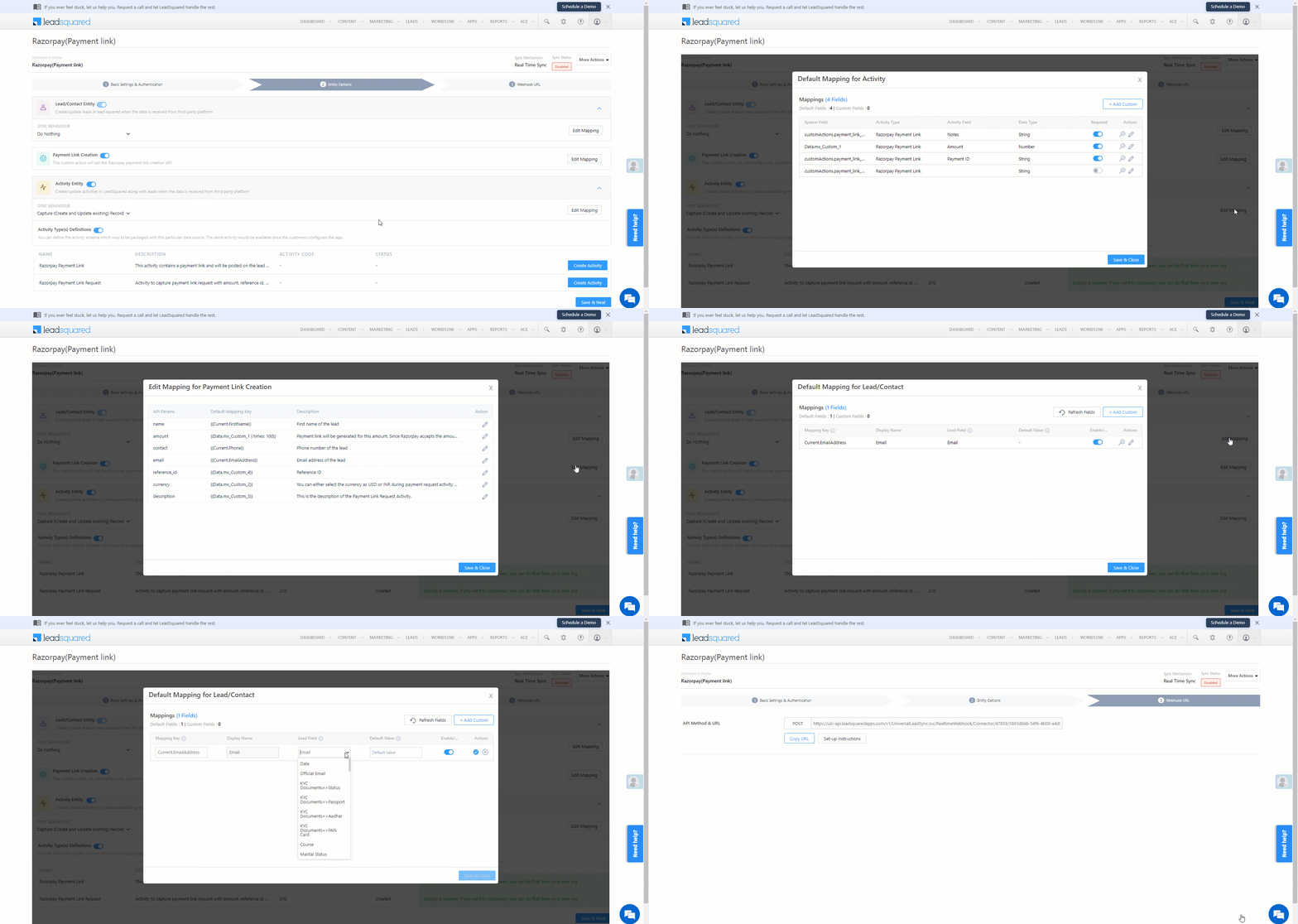
Once you’ve installed the connector, on the Configure Razorpay (Payment link) pop-up, configure the connector access for the non-Admin users in your account. Only those users for whom access is granted can view and access the connector (under the Apps main menu).

  1. Select if you want to grant Connector Access that’s Based on Role or Advanced (User Level).
    • Based on Role – From the Specify Roles dropdown, select the LeadSquared user roles that can use the connector.
    • Advanced (User Level) – From the Advanced (User Level) dropdown, select a user boolean field. Based on the value entered in the selected boolean field, the user can access the connector (e.g., for the user Sam, if the “Is Employee” boolean user field contains the value “Yes”, then this user can access the connector).
  2. Once you’re done, click Save Details. To continue the configuration, refer to the below sections.
Note: By default, all Admin users will have access to the connector.

Razorpay Payment Link generation


6. Admin Configurations

To continue the connector configuration, navigate to Apps>Razorpay (Payment link).

Razorpay Payment Link generation

6.1 Basic Details

Enter the following details –

Razorpay Payment Link generation

Property Description
Key ID Your Razorpay account’s API keys. To know how to obtain them, refer to Razorpay API Keys.
Key Secret
Lead Source Enter the lead source through which the leads were captured (e.g., Razorpay, email campaign, etc.). This detail will be displayed on the Lead Details page, under Lead Source.
Default Country Code If the lead’s mobile number is captured without a country code, then the default country code that’s selected from the dropdown will be added to the lead’s mobile number.
Select Time Zone The time zone of your Razorpay account.
Lead Capture Search By Criteria To avoid creating duplicate leads, you must select one unique lead field (e.g., email Id, mobile number, PAN number, etc.) as the search key.

To know how to mark a LeadSquared lead field as unique, please refer to How to Make a Custom Field Unique.

Lead Capture Secondary Search By Criteria If lead identification and capture through the primary Search By Criteria fails, it will be re-attempted using the secondary Search By Criteria.
Select User to Notify on Failure If there is an error in fetching leads, the selected user will receive a failure message via email. You can select a user from the list of all the users available in your LeadSquared account.

To know more about the type of errors, please refer to Error Notifications.

Enable Notification To ensure notification emails are sent to the selected user when there’s a failed query, enable the Checkbox checkbox.

Once you’re done entering all the details, click Save & Next.


6.2 Mapping

Once you’re done with the basic settings, click Entity Options. By default, all the Razorpay fields are mapped to the corresponding LeadSquared lead fields. You’ll have to complete two steps here –

  1. Enable Activity Creation* – Alongside Razorpay Payment Link and Razorpay Payment Link Request, click the Create Activity button.
  2. Edit Mapping – Alongside each action (Activity Entity, Payment Link Creation, and Lead/Contact Entity) click the Edit Mapping button to verify if the field mapping is accurate. Once verified, click Save & Close. This step is mandatory.
    If required, on the Edit Mapping pop-up, you can edit the field mapping –
  • To edit the Razorpay mapping field name, click  , and under Mapping Key, edit the field name.
  • To change the LeadSquared lead field to which the Razorpay field is mapped, click  , and from the Lead Field dropdown, select the new lead field.
  • To mark a unique lead field as the search key, click unique icon.
  • To disable an existing field mapping, alongside the field, disable the slider Zoom.
  • To map an additional field, click the Add Custom button, and add the new mapping field details.
  • To edit the Payment Link Creation API details, click  , and make the required changes.
  • If you want to capture any additional API response as part of the activity that’s posted on the lead, alongside Activity Entity, click Edit Mapping, and add the response on the Default Mapping for Activity pop-up.

Once you’re done, click Save & Next.

Note:

  • *Ensure you complete the Enable Activity Creation steps first, and only then complete the Edit Mapping steps.
  • You must mandatorily verify the mapping for Lead/Contact Entity, Payment Link Creation and Activity Entity, and click Save & Close for each action type, in order to complete the Mapping.
  • Since this connector is capturing the payment details as an activity, the Sync Behaviour is by default set to Do Nothing. It is recommended you don’t change this to any other setting.

Razorpay Payment Link generation


6.3 Webhook URL

After you provide basic details and finish field mapping, a custom webhook URL is generated. Copy this webhook URL, and use it to create an automation that will generate the payment links.

Razorpay Payment Link generation


7. Create an Automation

Use the Webhook URL from the previous step to create an automation that generates the Razorpay payment links.

  1. Navigate to Workflow>Automation, and click Create Automation, and select any Activity trigger. We’ve selected the New Activity on Lead trigger.
  2. On the Automation starts when an activity is added pop-up –
    • From the Select an activity dropdown, select Razorpay Payment Link Request/Custom activity (the custom activity you might have created for this connector).
    • Disable the checkbox alongside Run only once per lead. This is to ensure that if required, multiple payment links can be generated for the same lead.
    • Once you’re done, click Save.
  3. Click Add Automation, and under Custom, click Webhook.
  4. On the Webhook pop-up, enter the following details –
    • Name – Enter a relevant name for the webhook. We’re calling it “Razorpay Payment Link Generation”.
    • URL – Select the method as https://, and paste the connector’s webhook URL that was generated in the previous step. Before you paste the URL, ensure you remove “https://” from the URL.
    • Content Type – Select application/json.
    • Save Response – You can select either Yes or No.
    • Custom Headers – You can skip this step.
    • Notify on Failure – Select which user you want to notify if the webhook fails.
    • Retry Count – The number of times you want to retry when the webhook fails.
  5. Once you’re done, click Save, and then click Publish.
Note: To know more about the Webhook action, refer to User Automation Actions – Webhook.

Razorpay Payment Link generation


8. Post an Activity

Once the webhook is configured in an automation, you can start posting the Razorpay Payment Link Request activity on leads, which will in turn automatically post the Razorpay Payment Link activity. This activity contains the  –

  • Payment link
  • Payment amount (in INR/USD/Euro/SGD)
  • Payment status
  • Payment ID
Note: This section is to help Sales Users generate the payment link for their leads.
  1. Navigate to Leads>Manage Leads, and click on any lead.
  2. On the Lead Details page, click the Activity button. On the Add Notable Activity pop-up, enter the following mandatory details –
    • Activity Type – From the dropdown, select Razorpay Payment Link Request.
    • Activity Date – Select a date and time for the activity.
    • Amount – Enter the value of the transaction (e.g., 75,000).
    • Currency – Only INR, USD, Euro and SGD are supported. Select either of these options.
    • The Description and Reference ID fields are optional.
  3. Once you’re done, click Add. The Razorpay Payment Link Request is posted on the lead.
  4. You’ll see the Razorpay Payment Link activity has been posted on the lead (by the automation you set up). If you don’t see this, please refresh your page. This activity contains the Payment Link, along with the other details mentioned above. You can share this payment link with your leads.
Note: To reduce manual intervention, set up additional automations to share the payment link with the lead. For example, when the Razorpay Payment Link activity is posted, send the lead an email or WhatsApp message with the payment link.

Razorpay Payment Link generation


9. View Logs

Here, you can view logs of all the sync jobs that have taken place.

  1. Navigate to Apps>Razorpay (Payment link), and click More Options, and then click View Logs.
  2. You can filter the logs by selecting a date range (Today, Last 7 Days, This Month, and Last Month), by selecting the Job Status (“All”, “Success” and “Failure”), and by selecting the Sync Status (All, Error, and Success).
  3. You can view the sync status of the following events –
    • New Events – List of all the new payment activities posted in your account.
    • Errors – The list of unsuccessful payment activities that have not been captured due to mapping errors (e.g., when a boolean field is mapped to an integer field, etc.).
  4. To view the Sync Response details, under Request ID/Sync Job ID, click the Id.
    • Under the right panel, you can view the response status, the API URL, the request, and the response.
    • The responses that are successful will contain the details of the leads that have been pushed by Razorpay.
    • To view the lead capture response under Sync API Response, Leads Updated and Errors in Leads, click Information.

Note:

  • For a response that contains an error, the reason for the error is listed in the response. Once you fix it, you can click the Retry button to perform the sync again.
  • The current Lead/Activity Sync Behaviour will reflect in the Logs screen. This will help identify the sync that’s used (Capture or Update) for the selected Request/Sync Job Id.

Razorpay Payment Link generation


10. How to Disable Partial Payments

Razorpay allows customers to make partial payments. If required, you can do this to disable partial payments for your leads –

Note: By default, the PartialPayment value is set to True, and this automatically enables partial payment when generating the link.
  1. Navigate to Apps>Razorpay(Payment link).
  2. On the Entity Options tab, alongside Payment Link Creation, click Edit Mapping.
  3. On the Edit Mapping for Payment Link Creation pop-up, alongside PartialPayment, click , and set the value to false.
  4. In addition to this, edit the first_min_partial_amount value to 0.
  5. Once you’re done, click Save & Close. If you’ve set the value to “false”, partial payment links will not get generated for your leads.

RazorPay LeadSquared

You can also disable partial payment link generation only for certain purchases. To do this –

  1. Navigate to My Profile>Settings>Leads>Custom Activities, and add search for the Razorpay Payment Link Request activity.
  2. Edit this activity, and add a Dropdown field containing the options “true” and “false”. Give this field a relevant name (like “Partial Payment Link”). To know how to add fields to a custom activity, refer to How to Add Custom Activity Types.
  3. On the Edit Mapping for Payment Link Creation pop-up, alongside PartialPayment, enter the schema name as the value. This ensures the partial payment links will not be generated when “false” is selected.
  4. Once you’re done, click Save & Close.

RazorPay LeadSquared


Any Questions?

Did you find this article helpful? Please let us know any feedback you may have in the comments section below. We’d love to hear from you and help you out!

AdvancedMD Connector

1. Feature Overview

AdvancedMD is a comprehensive medical office management software. LeadSquared’s no-code AdvancedMD connectors sync leads between your AdvancedMD and LeadSquared accounts.

Note:

  • This connector is currently only available for healthcare domain customers in the US.
  • Depending on your use case, install and configure any or both of the following AdvancedMD connectors –
    • AdvancedMD Lead Sync – Uses patients in your AdvancedMD account to periodically create and update leads in your LeadSquared account.
    • AdvancedMD Create Patient – Uses leads in your LeadSquared account to create and update patients in real-time in your Appointment Sync connector.

AdvancedMD LeadSquared


2. Prerequisites

  • You must be the Administrator of your LeadSquared account to install and configure this connector.
  • This is a paid connector. To enable it, reach out to your account manager, or write to support@leadsquared.com.


3. How it Works

This is a simple, out-of-the-box connector that doesn’t require an elaborate setup process. Once the connector access is enabled on your account, install the connector. Then, configure the connector with the relevant AdvancedMD details, and ensure the field mappings are accurate. This completes the connector set-up and leads/patients will be synced between AdvancedMD and LeadSquared.


4. Install the AdvancedMD Connector(s)

Note: The steps listed below are the same for the following connectors –

  • AdvancedMD Lead Sync
  • AdvancedMD Create Patient

We’ve used the AdvancedMD Lead Sync connector to demonstrate the installation process.

  1. Navigate to Apps>Apps Marketplace.
  2. Search for AdvancedMD Lead Sync, and click Install.
    • Alternatively, you can find the connector on the left panel, under Lead Capture.
  3. Once installed, hover your cursor over , and click Configure. On the Configure AdvancedMD screen, you can ignore the Connector Access tab, and directly click Save Details. This completes the connector set-up process.

Note:

  • Only Admin users can install the connector.
  • You do not have to provide Connector Access for any of your users. Once installed, by default, all your users will be able to create and view leads through this connector.

AdvancedMD LeadSquared


5. Admin Configuration

To continue the connector configuration, navigate to Apps>AdvancedMD Appointment Sync.

AdvancedMD Integration with LeadSquared

5.1 Basic Settings

Enter the following details –

Property Description
Username The username provided by your AdvancedMD team.
Officecode The unique office code shared by the AdvancedMD team.
App Name Enter the name of the application created in your AdvancedMD account.
authURL To obtain these, reach out to your AdvancedMD account manager.
Password
baseURL
forView
columnId
Lead Source Enter the lead source through which the leads were captured (e.g., AdvancedMD, email campaign, etc.). This detail will be displayed on the Lead Details page, under Lead Source.
Default Country Code If the lead’s mobile number is captured without a country code, then the default country code that’s selected from the dropdown will be added to the lead’s mobile number.
Select Time Zone The time zone that’s followed in your AdvancedMD account.
Lead Capture Search By Criteria This is used to identify existing leads who made the payment using AdvancedMD.

This is also used to avoid creating duplicate leads. You must select one unique lead field (e.g., email Id, mobile number, etc.) as the search key. This will be used to identify the leads pushed from AdvancedMD.

Lead Capture Secondary Search By Criteria If lead identification and capture through the primary Search By criteria fails, it will be re-attempted using the secondary Search By criteria.
Select User to Notify on Failure If there is an error identifying and capturing leads who made the payment, the selected user will receive a failure message via email. You can select a user from the list of all the users available in your LeadSquared account.

To know more about the type of errors, please refer to Error Notifications.

Enable Notification Enable the Checkbox checkbox to ensure notification emails are sent to the selected user when there’s a failed query.

Once you’re done entering all the details, click Save & Next.

AdvancedMD Integration with LeadSquared


5.2 Entity Options

Define the sync behaviour of the connector when payment activities and leads are captured.

5.2.1 Lead/Contact Entity

Based on the Lead Capture Search By criteria (email Id, phone number, etc.), LeadSquared identifies and captures leads from your AdvancedMD account. Lead capture is enabled by default, and it cannot be disabled.  The following options are available to configure the connector’s Sync Behaviour –

  • Capture (Create and Update existing) Record – Leads not existing in your LeadSquared account will be created. Leads that currently exist in your LeadSquared account will get updated.
  • Create only new record – Leads not existing in your LeadSquared account will be created.
  • Update only existing record – Leads that currently exist in your LeadSquared account will get updated.
  • Do nothing – Leads do not get created or updated by syncing.

Note: A lead is classified as a new lead or an existing lead based on the Lead Capture Search By Criteria you’ve selected in the previous section.

AdvancedMD Integration with LeadSquared


5.2.2 Mapping

When you click Edit Mapping, on the Mapping pop-up, the AdvancedMD system fields mapped to the corresponding LeadSquared lead/activity fields are visible. This mapping is carried out by default. If required, you can change or update the default field mapping.

  • To provide a default value for any field, click  , enter the value under Default Value, and click Google.
    • If the data provider doesn’t send data for any lead/activity field, then the default value will get assigned to that specific field. But if the field already has an existing value, then the default value will be ignored.
  • To disable lead data capture for any field, disable the Zoom slider.
  • You can also mark and update a unique lead field as the search key from this screen, by clicking unique icon.
  • To create a custom AdvancedMD field, click the Add Custom button.
    1. Once this field is created, you must map it to the relevant LeadSquared lead field.
    2. After the field is mapped, to save the custom field, click Google.
    3. To delete a custom field, click .
Note: To map the payment data to a custom activity, select the activity type from the Activity Field Mapping screen.
AdvancedMD Integration with LeadSquared


5.2.3 Activity Entity

Once leads are captured to LeadSquared, you can post custom activities to these leads (e.g., Appointment Created, etc.). These activities will help users keep track of the lead’s journey to conversion.

To post activities to the leads captured from AdvancedMD, against Activity Entity, enable the Slider slider. The following options are available to configure the connector’s Sync Behaviour when activities are synced to LeadSquared –

  • Capture (Create and Update existing) Record – New activities will get posted to the lead in LeadSquared, while existing activities will get updated.
  • Create only new record – Only new activities will get posted to leads in LeadSquared.
  • Update only existing record – Only existing activities on the leads captured will get updated in LeadSquared.
Note: An activity is classified as a new activity or an existing activity based on the Lead Capture Search By Criteria you’ve selected in the previous section.
Once you’re done, click Save.
AdvancedMD Integration with LeadSquared
Then, click More Actions, and enable the sync job. This ensures patient data from AdvancedMD will be pushed to LeadSquared.
AdvancedMD Integration with LeadSquared


6. Create Leads

If you’ve installed the AdvancedMD Create Patient connector, the leads you create in LeadSquared are created as patients in your AdvancedMD account. To know how to create leads, refer to How to Create Leads.


7. View Leads

If you’ve installed the AdvancedMD Lead Sync connector, to view the leads captured in your LeadSquared account –

  1. Navigate to Leads>Manage Leads.
  2. Click on a lead that’s been captured/updated from your AdvancedMD account.
  3. On the Lead Details page, you can view the lead’s information.
Note: To configure the lead source for the leads captured through this connector (e.g., AdvancedMD, Healthcare leads, etc.), contact your account manager, or write to support@leadsquared.com.


Any Questions?

Did you find this article helpful? Please let us know any feedback you may have in the comments section below. We’d love to hear from you and help you out!

Open Dental Connector

1. Feature Overview

Open Dental is a comprehensive dental practice management software. LeadSquared’s no-code Open Dental connectors syncs leads and activities (appointments) between your Open Dental and LeadSquared accounts.

Note:

  • This connector is currently only available for healthcare domain customers in the US.
  • Depending on your use case, install and configure any or all of the following Open Dental connectors –
    • OpenDental Lead Sync – Uses patients in your Open Dental account to periodically create and update leads in your LeadSquared account.
    • OpenDental Create Patient – Uses leads in your LeadSquared account to create and update patients in real-time in your Open Dental account.
    • OpenDental Create Appointment – When you post a Docs Appointment activity on a lead in your LeadSquared account, then these activity details are automatically captured and created as an appointment in real-time in your Open Dental account.

OpenDental LeadSquared


2. Prerequisites

  • You must be the Administrator of your LeadSquared account to install and configure this connector.
  • This is a paid connector. To enable it, reach out to your account manager, or write to support@leadsquared.com.


3. How it Works

This is a simple, out-of-the-box connector that doesn’t require an elaborate setup process. Once the connector access is enabled on your account, install the connector. Then, configure the connector with the relevant Open Dental details, and ensure the field mappings are accurate.

For the OpenDental Create Patient and OpenDental Create Appointment connectors, a webhook URL is generated. Use this URL to set up a webhook in your LeadSquared account to push lead data to your Open Dental account.

This completes the connector set-up and leads/patients will be synced between Open Dental and LeadSquared.


4. Install the OpenDental Connector(s)

Note: The steps listed below are the same for the following connectors –

  • OpenDental Lead Sync
  • OpenDental Create Patient
  • OpenDental Create Appointment

We’ve used the OpenDental Lead Sync connector to demonstrate the installation process.

  1. Navigate to Apps>Apps Marketplace.
  2. Search for OpenDental Lead Sync, and click Install.
    • Alternatively, you can find the connector on the left panel, under Lead Capture.
  3. Once installed, hover your cursor over , and click Configure. On the Configure Open Dental screen, you can ignore the Connector Access tab, and directly click Save Details. This completes the connector set-up process.

Note:

  • Only Admin users can install the connector.
  • You do not have to provide Connector Access for any of your users. Once installed, by default, all your users will be able to create and view leads and activities through this connector.

OpenDental LeadSquared


5. Admin Configuration – Open Dental Create Patient and Create Appointment

Depending on the connector you’re configuring, navigate to Apps>OpenDental Create Patient or Apps>OpenDental Create Appointment. The steps used to configure both connectors are mostly common, unless specified otherwise.

OpenDental integration with LeadSquared

5.1 Basic Settings

Enter the following details –

Note: The details required for the Open Dental Create Patient and Open Dental Create Appointments connectors are the same.

Property Description
DeveloperKey Your Open Dental account’s developer key, customer key and API URL. To know more, refer to Open Dental API set-up.
CustomerKey
HostURL
LSQAPIURL Enter your LeadSquared account’s Host URL, Access Key and Secret Key. To obtain these, refer to Where can I find my LeadSquared API Host URL, Access Key and Secret Key?
x-LSQ-AccessKey
x-LSQ-SecretKey
Lead Source Enter the lead source through which the leads were captured (e.g., Open Dental, email campaign, etc.).
Default Country Code If the lead’s mobile number is captured without a country code, then the default country code that’s selected from the dropdown will be added to the lead’s mobile number.
Select Time Zone The time zone that’s followed in your Open Dental account.
Lead Capture Search By Criteria The identifier used to push leads to your Open Dental account.
Lead Capture Secondary Search By Criteria If lead identification and transfer through the primary Search By criteria fails, it will be re-attempted using the secondary Search By criteria.
Select User to Notify on Failure If there is an error identifying and pushing leads, the selected user will receive a failure message via email. You can select a user from the list of all the users available in your LeadSquared account.

To know more about the type of errors, please refer to Error Notifications.

Enable Notification Enable the Checkbox checkbox to ensure notification emails are sent to the selected user when there’s a failed query.

Once you’re done entering all the details, click Save & Next.

OpenDental integration with LeadSquared


5.2 Entity Options

Define the sync behaviour of the connector when activities and leads are transferred to your Open Dental account.

Lead/Contact Entity

Based on the Lead Capture Search By criteria (email Id, phone number, etc.), LeadSquared identifies and pushes leads to your Open Dental account. Lead capture is enabled by default, and it cannot be disabled.  The following options are available to configure the connector’s Sync Behaviour –

  • Capture (Create and Update existing) Record – Patients (leads) not existing in your Open Dental account will be created. Patients that currently exist in your Open Dental account will get updated.
  • Create only new record –Patients (leads) not existing in your Open Dental account will be created.
  • Update only existing record – Patients (leads) that currently exist in your Open Dental account will get updated.
  • Do nothing – Leads do not get created or updated in your Open Dental account.

Note: A lead is transferred using the Lead Capture Search By criteria you set up in the previous step. An existing lead in your Open Dental account will also be identified using this criteria.

OpenDental integration with LeadSquared

Actions

Configure the actions performed when the connector is configured.

  • Createpatient – When enabled, patient details are transferred to your Open Dental account.
  • updatePatNum – This should be enabled to update the patient number in the relevant LeadSquared lead field.

OpenDental integration with LeadSquared

  • createappointment – When enabled, the activities from your LeadSquared account is captured as an appointment in your Open Dental account.

OpenDental integration with LeadSquared


Mapping

When you click Edit Mapping, on the Mapping pop-up, the Open Dental system fields mapped to the corresponding LeadSquared lead/activity fields are visible. This mapping is carried out by default. If required, you can change or update the default field mapping.

  • To provide a default value for any field, click  , enter the value under Default Value, and click Google.
  • To disable lead data transfer for any field, disable the Zoom slider.
  • You can also mark and update a unique lead field as the search key from this screen, by clicking unique icon.
  • To transfer lead data to a custom Open Dental field –
    1. Click the Add Custom button, and create a new field.
    2. Then, must map it to a relevant LeadSquared lead field.
    3. Once the field is mapped, click Google.
      • To delete a custom field, click .

Once you’re done, click Save & Next.
OpenDental integration with LeadSquared

5.3 Generate Webhook URL

After you provide basic details and finish field mapping, a custom webhook URL is generated. To automate lead transfer, copy this URL and use it to create a webhook in your LeadSquared account.

After you’ve set up the webhook, click More Actions, and enable the sync job. This ensures that through the webhook, patient data from LeadSquared is pushed to Open Dental.

Note: To view logs of all the sync jobs that have taken place, from the More Actions dropdown, click View Logs.

OpenDental integration with LeadSquared


5.4 Create a Webhook

Once the URL is generated, use it to create a webhook in your LeadSquared account. To do this –

  1. Copy the webhook URL.
  2. Navigate to  My Account>Settings>API and Webhooks>Webhooks.
  3. Click Create, and enter the following details –
    • Type – Select Webhook.
    • Event – Depending on the use case you’re looking to solve, select Lead Creation or Lead Update.
      • Notify on Failure – Select if you want to be notified if the webhook fails.
    • Webhook URL – Select the method as https://, and paste the connector’s webhook URL that was generated in the previous step. Before you paste the URL, ensure you remove “https://” from the URL.
    • Content Type – Select application/json.
    • Execution Delays – If required, set a delay (in seconds) between the time the event occurs and the data is pushed to your Open Dental account.
    • Custom Headers – You can skip this step.
    • Description – If required, enter a description for the webhook.
  4. Once you’re done, click Save. The webhook will now push lead data from your LeadSquared account to your Open Dental account.

OpenDental integration with LeadSquared


6. Admin Configuration – Open Dental Lead Sync

To capture lead data from your Open Dental account to your LeadSquared account, navigate to Apps>OpenDental Lead Sync.

OpenDental integration with LeadSquared

6.1 Basic Details

Property Description
DeveloperKey Your Open Dental account’s developer key and customer key. To know more, refer to Open Dental API set-up.
CustomerKey
Lead Source Enter the lead source through which the leads were captured (e.g., Open Dental, email campaign, etc.). This detail will be displayed on the Lead Details page, under Lead Source.
Default Country Code If the lead’s mobile number is captured without a country code, then the default country code that’s selected from the dropdown will be added to the lead’s mobile number.
Select Time Zone The time zone that’s followed in your Open Dental account.
Lead Capture Search By Criteria This is used to identify existing leads captured using Open Dental.

This is also used to avoid creating duplicate leads. You must select one unique lead field (e.g., email Id, mobile number, etc.) as the search key. This will be used to identify the leads pushed from Open Dental.

Lead Capture Secondary Search By Criteria If lead identification and capture through the primary Search By criteria fails, it will be re-attempted using the secondary Search By criteria.
Select User to Notify on Failure If there is an error identifying and capturing leads, the selected user will receive a failure message via email. You can select a user from the list of all the users available in your LeadSquared account.

To know more about the type of errors, please refer to Error Notifications.

Enable Notification Enable the Checkbox checkbox to ensure notification emails are sent to the selected user when there’s a failed query.
Sync Frequency By default, we’ve selected a 15-minute frequency to push lead data to Open Dental. You can use the ‘Hours’ and ‘Minutes’ dropdowns to select a custom interval, based on which lead data will be pushed.

OpenDental integration with LeadSquared


6.2 Entity Options

Define the sync behaviour of the connector when leads (patients) are from your Open Dental account are captured in your LeadSquared account.

Lead/Contact Entity

Based on the Lead Capture Search By criteria (email Id, phone number, etc.), LeadSquared captures data from your Open Dental account. Lead capture is enabled by default, and it cannot be disabled.  The following options are available to configure the connector’s Sync Behaviour –

  • Capture (Create and Update existing) Record – Leads not existing in your LeadSquared account will be created. Leads that currently exist in your LeadSquared and Open Dental accounts will get updated.
  • Create only new record – Leads that do not exist in your LeadSquared account will be created.
  • Update only existing record – Leads that currently exist in your LeadSquared account will get updated.

Once you’re done, click Save. Then, click More Actions, and enable the connector sync. This will begin transferring lead data to your LeadSquared account.

Note: A lead is classified as a new lead or an existing lead based on the Lead Capture Search By Criteria you’ve selected in the previous section.

OpenDental integration with LeadSquared


7. Create Leads

If you’ve installed the OpenDental Create Patient connector, the leads you create in LeadSquared are created as patients in your Open Dental account. To know how to create leads, refer to How to Create Leads.


8. View Leads

If you’ve installed the OpenDental Lead Sync connector, to view the leads captured in your LeadSquared account –

  1. Navigate to Leads>Manage Leads.
  2. Click on a lead that’s been captured/updated from your Open Dental account.
  3. On the Lead Details page, you can view the lead’s information.
Note: To configure the lead source for the leads captured through this connector (e.g., Open Dental, Healthcare leads, etc.), contact your account manager, or write to support@leadsquared.com.

OpenDental LeadSquared


9. Post an Activity

If you’ve installed the OpenDental Create Appointment connector, you can sync the appointment activity from LeadSquared to your Open Dental account. To do this, you must post a Docs Appointment activity on the lead. To know how to add an activity, refer to Add Activities.

OpenDental LeadSquared


Any Questions?

Did you find this article helpful? Please let us know any feedback you may have in the comments section below. We’d love to hear from you and help you out!

Connect Your Outlook/Gmail Inbox with LeadSquared

Important: Through this connector, you can only sync emails from GSuite (under Gmail) and Office 365 (under Outlook) with your LeadSquared account. You CANNOT connect your personal Gmail and Outlook accounts.

1. Feature Overview

This connector captures sent and received emails from your Outlook/Gmail accounts and posts them as activities in LeadSquared. It also creates new leads for emails sent to/received from contacts not present in your LeadSquared account. This ensures you can view important emails in your LeadSquared account, without having to navigate between different apps.

Note:

  • Only the emails in the “Inbox” and “Sent” folders will be synced. No other email folder will be considered for synchronization.
  • This article is to help any user sync their email account with the Email Sync Connector. If you’re an Admin User looking to install and configure this connector, refer to Outlook/Gmail Email Sync Connector Set-up for Admin Users.

Email Sync Connector


2. Prerequisites


3. Sync Your Email Account with LeadSquared

To connect your Outlook/Gmail account to LeadSquared –

  1. From the main menu, navigate to Apps>Connect My Inbox v2.0.
  2. Click Get Started.

Email Sync Connector


4. Authorisation

Authorize your email provider to connect with LeadSquared.

  1. Next to the email provider’s name, click the Sign in button.
  2. Enter your login details, and Accept the necessary permissions. Your email provider is synced to the connector.
  3. Click Next.

Email Sync Connector

If you’re signing in using Outlook, you will have to reauthenticate the sign-in when you change your Outlook account’s password.

Note: Reauthentication is not required if you’ve signed in using Gmail.

Email Sync Connector


5. Outbound Email Settings

Select which outbound (sent) emails should be captured and synced with your LeadSquared account.

Note:

  • For Activity Details, the activity will get posted as Email Sent.
  • The Activity Details and Capture New Leads are read-only settings, and users (including Admins) will NOT be able to make any changes there.

5.1 Sync Behaviour

As a Sales User, you will not be able to edit any of the Admin settings under this section. For e.g., if your Admin has selected Outbound Email with Specific keywords, then you (the Sales User) cannot change it to All Outbound Emails.

But if Outbound Email with Specific keywords is selected, while you cannot edit the Admin Defined Keywords, you can add your own keywords under User Defined Keywords. This is applicable only to you, and NOT to any other user in your account.

  • Admin Defined Keywords – Only those sent emails that contain at least one of the keywords entered here (e.g., Offer, Marketing, etc.) by your Admin, will get synced to your LeadSquared account. If you’re an Admin looking to define keywords, refer to Admin Sync Behaviour. As a Sales User, you will NOT be able to add, remove or edit these keywords.
  • User Defined Keywords* – In addition to the Admin Defined Keywords, Sales Users can add their own set of keywords which will be used to sync mails. If an email contains any one Admin or User Defined keyword, we’ll sync it with your LeadSquared account. After you enter the keywords, hit ENTER. You can enter a single (Festival), or multiple keywords (Diwali Festival). In case of multiple keywords, separate each keyword by hitting the ENTER or TAB key.
    • Check Keywords In – Choose in which part of the email (Subject or Body) the keyword should be present for the email to get synced. It’s mandatory to select at least one of the options listed below. If required, select both options –
      • Subject – When selected, only if at least one keyword is present in the email’s subject line, the email is synced to LeadSquared.
      • Body – When selected, only if at least one keyword is present in the email’s content body, the email is synced to LeadSquared.
    • All Outbound Emails – All the emails sent from your account will get automatically synced to your LeadSquared account, without having any dependency on keywords.

Note:

  • *You’ll be able to add keywords only if your Admin has configured the connector using the Outbound Email with Specific Keywords setting.
  • If you enter a statement as a keyword (“Festive Offer 2022” in the example below), then all the words in that statement should be present in the email in order for it to get synced with LeadSquared. The statement is considered as case-insensitive (e.g., festive offer 2022 would also be considered), but the words, order and spaces in the statement must be an exact match. In case you want individual words in the statement to be considered when syncing emails, we recommend you enter each word in the statement as a separate keyword (e.g., “Festive”, “Offer”, “2022”, etc.)
  • You can add special characters when entering your Keywords.

Email Sync Connector


5.2 Exclude Emails

You can exclude syncing emails sent to certain domains (such as service request emails to domains like LeadSquared.com, Zoho.com, etc.) and individuals (such as emails to internal employees, senior management, employees from other teams, etc.). This is to ensure that only relevant emails are captured and synced in your LeadSquared account.

As a Sales User, you will not be able to add or edit the list of domains under Admin Excluded Domains/Individuals, or the corresponding settings. However, you can add your own list of domains under User Excluded Domains/Individuals. This is applicable only to you, and NOT to any other user in your account.

  • User Exclude Domains/Individuals – To exclude emails sent to individuals, enter their email Id (e.g., CEO@example.com, etc.), and to exclude emails sent to certain domains, enter only the domain name (e.g., leadsquared.com, etc.). Add multiple email Ids and domain names. Once you’ve entered them, hit the ENTER key.
  • Applicable to Recipients* – Select if the email Ids and/or domains you’ve entered should be in the “To”, “Cc” or “Bcc” fields for the email to get excluded. For e.g., if you’ve entered CEO@example.com and selected “Cc” as the Applicable to Recipients option, then every time you add CEO@example.com in a mail’s Cc field, that mail will NOT get synced to your LeadSquared account. If you’re choosing to Exclude Emails, then it’s mandatory to select at least one Applicable to Recipients option.

Note:

  • You’ll be able to add domains under User Exclude Domains/Individuals only if your Admin User has enabled the User Excluded Domains/Individuals setting.
  • *Note that if you choose to exclude emails sent to CEO@example.com, and under Applicable to Recipients, you chose “Cc”, then in instances when you include the CEO@example.com email Id in the “To” or “Bcc” fields, these emails WILL get synced to your LeadSquared account. If you want the Exclude Emails option to apply to all the emails sent to the email Id/domains entered, select all three options available – “To”, “Cc” and “Bcc”.

Email Sync Connector


5.3 Activity Details

This is a read-only setting. This setting can only be configured by your Admin. To know more about this setting, refer to Activity Details. To change these settings, contact your Admin.


5.4 Capture New Leads

This is a read-only setting. This setting can only be configured by your Admin. To know more about this setting, refer to Capture New Leads. To change these settings, contact your Admin. To continue with the set-up, click Next.

Email Sync Connector


6. Inbound Email Settings

These settings govern the connector’s behaviour when you get inbound (receive) emails. The steps to configure the Inbound Email Settings are the same as the previous section. To know more, refer to Outbound Email Settings. Once you’re done, click Next.

Note:

  • For Activity Details, the activity will get posted as Email Received.
  • For Applicable to Recipients, Email Information – Inbound Email and Capture Leads From, the “Bcc” option won’t be applicable.

Email Sync Connector


7. Activate Sync

Once all the settings are configured, to sync your LeadSquared and email provider account, click Activate Sync, and to complete the set-up, click Save & Close.

Note: To sync emails received in the last 7 days, before you configured the connector, click Sync Last 7 Days Emails.

Email Sync Connector


8. Email Logs

Once your connector is synced, you can view logs of all the emails that have been synced between LeadSquared and your email provider’s accounts. You can filter these logs by Activity Details or Lead Capture Details.

  • Date Range Filter – You can filter the logs by Today, Yesterday, Last 7 Days, Last 30 Days and Custom Date. If you select Custom Date, you can select up to a maximum of 60 days in the past.
  • Use the search bar to find a lead or activity using the Lead Id, Lead Name or email Subject.
  • To delete your synced account within the connector, click , and click Delete Account.
  • To disable sync for your account, under SYNC STATUS, disable the Zoom slider. This ensures that while the sync is disabled, your email account is still connected to LeadSquared.
  • To edit your account’s sync settings, click the Settings button.

Email Sync Connector


9. View Synced Emails

To view the email sync activities, navigate to Leads>Manage Leads, and click on an existing lead on which the activity is posted. On the Lead Details page, you can view the activity under the Activity History tab.

Email Sync Connector

9.1 Activity Details

To view the Activity Details that are posted on a lead, under Email Subject, click on the email’s name for which you want to view the details. To know how to capture the details on the mail as an activity, refer to Activity Details.

Email Sync Connector


9.2 Lead Details

To view a lead (either an existing one or a new one), under Lead Name, click the lead you want to view. This will redirect you to the Lead Details page, where you can view the Email Sent/Email Received activity that’s posted on the lead.

Email Sync Connector


9.3 Manage Activities Page

You can also view the activities from the Manage Activities page. To do this, navigate to Leads>Manage Activities, and filter the Activity Type by Email Sent or Email Received.

Email Sync Connector


Any Questions?

Did you find this article helpful? Please let us know any feedback you may have in the comments section below. We’d love to hear from you and help you out!

Email Sync Connector Set-up for Admin Users

Important: Through this connector, you can only sync emails from GSuite (under Gmail) and Office 365 (under Outlook) with your LeadSquared account. You CANNOT connect your personal Gmail and Outlook accounts.

1. Feature Overview

This connector syncs emails (sent and received) in your Outlook/Gmail with your LeadSquared account. It posts emails between your users (sales reps) and leads as activities against existing leads. When you send or receive an email from a contact that doesn’t exist in LeadSquared, the connector creates them as new leads in your account. All of this ensures you can view important emails in your LeadSquared account, without having to navigate between different apps. This connector –

  • Sync Emails with Leads – Capture and sync emails with leads, capture email attachments, and view them as activities on the Lead Details page.
  • Capture New Leads – Creates new leads for emails sent to/received from contacts not present in your LeadSquared account.
  • Selective Sync – Ability to configure filters (such as recipient and sender address, email domain, subject line, etc.) based on which sent and received emails are synced with LeadSquared. For e.g., you choose to not sync emails received from a “linkedin.com” domain.
  • User Management – Ability to view, disable sync and view the logs of all the users who’ve synced their email accounts with LeadSquared.
  • View Logs – View detailed logs for each lead & mail sent.

Note:

  • Only the emails in the “Inbox” and “Sent” folders will be synced. No other email folder will be considered for synchronization.
  • This article is to help Admin Users install and configure the Email Sync Connector. If you’re a Sales User who’s looking to sync your Gmail/Outlook account with LeadSquared, refer to Connect your Outlook/Gmail Account with LeadSquared.
Email Sync Connector


2. Prerequisites

  • You must be the Administrator of your LeadSquared account to install and configure this connector.
  • You must have an existing Microsoft Outlook or Gmail account.
  • This is a paid feature. To enable it, reach out to your account manager, or write to support@leadsquared.com.


3. How it Works

This connector syncs emails sent and received from your email provider’s account (either Outlook or Gmail) with your LeadSquared account. These emails are posted as activities on your leads. For e.g., when you send an email to the lead John Smith, this email is posted as an Email Sent activity on John’s Lead Details page. And similarly, when John sends an email to you, this email is posted as an Email Received activity on John’s Lead Details page.

The Admin user must complete the following steps –

  1. Install the connector.
  2. Select the list of users that can access the connector settings, and grant permissions to these users.
  3. Select the email provider you want to sync emails from.
  4. Configure the actions the connector performs when emails are sent (outbound) and received (inbound) by your users.
  5. Configure additional connector settings, and grant access to users who can sync and connect their email accounts with LeadSquared

Once configured by the admin, each user in the account must –

  1. Connect their email account with the connector.
  2. Activate the Sync.


4. Install the Connector

  1. Navigate to Apps>Apps Marketplace.
  2. Search for Email Sync, and click Install.
    • Alternatively, you can find the connector on the left panel, under Email.
  3. Once installed, hover your cursor over , and click Configure.

Email Sync LeadSquared


5. Configure the Connector

5.1 Security & Compliance

This is a read-only screen, and you won’t be able to change any of the details displayed here. This screen displays the region in which your LeadSquared account is hosted and the email Retention Period for which the synced emails are stored in LeadSquared. Once you’ve verified the details, click Next.

Note: The Retention Period only affects the emails synced and stored in LeadSquared. This does NOT affect the emails present in your email account.
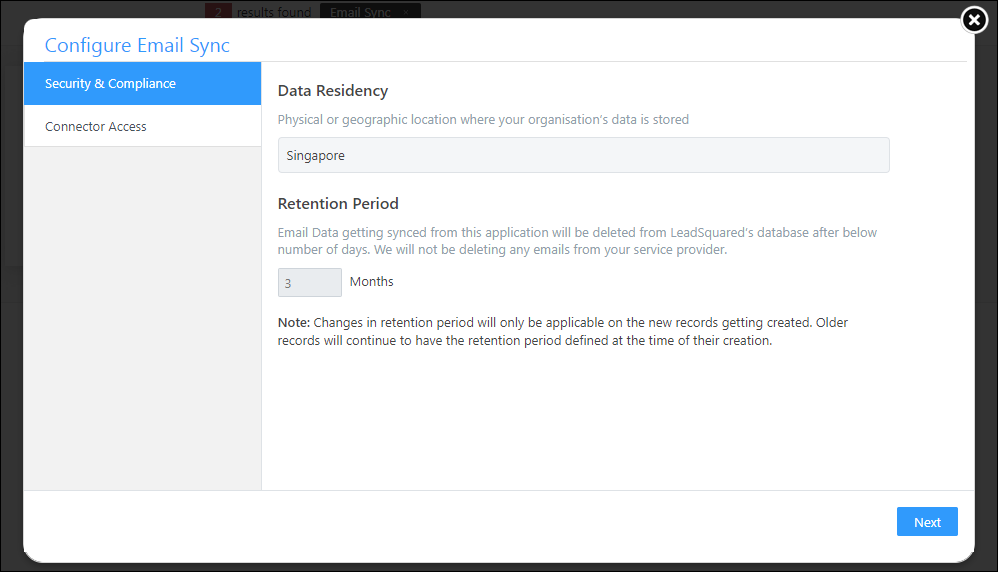
Email Sync Connector


5.2 Connector Access

Once you’ve installed the connector, on the Connector Access tab, configure the connector settings access for the non-Admin users in your account.
Users (e.g., sales managers) you grant access to can select the list of other users (e.g., sales reps/agents) that can sync their email accounts with LeadSquared.

  1. Select if you want to grant Connector Access that’s Based on Role or Advanced (User Level).
    • Based on Role – From the Specify Roles dropdown, select the LeadSquared user roles that can access the connector settings.
    • Advanced (User Level) – From the Advanced (User Level) dropdown, select a user boolean field. Based on the value entered in the selected boolean field, the user can access the connector (e.g., for the user Sam, if the “Is Employee” boolean user field contains the value “Yes”, then this user can access the connector).
  2. Once you’re done, click Save & Next. To continue the configuration, refer to the below sections.

Note:

  • By default, all Admin users will have access to configure the connector settings.
  • Connector Access does NOT have to be granted to Sales Users who want to sync their email accounts with LeadSquared. Instead, to select the list of users that can sync their email account, see Connect My Inbox access.
Email Sync Connector


6. Admin Configuration

To continue the connector configuration, navigate to Apps>Email Sync v2.0.

Note: We’ve configured the connector by choosing Outlook as the email provider. The steps to configure the connector using Gmail are the same as the steps listed below, unless noted otherwise.
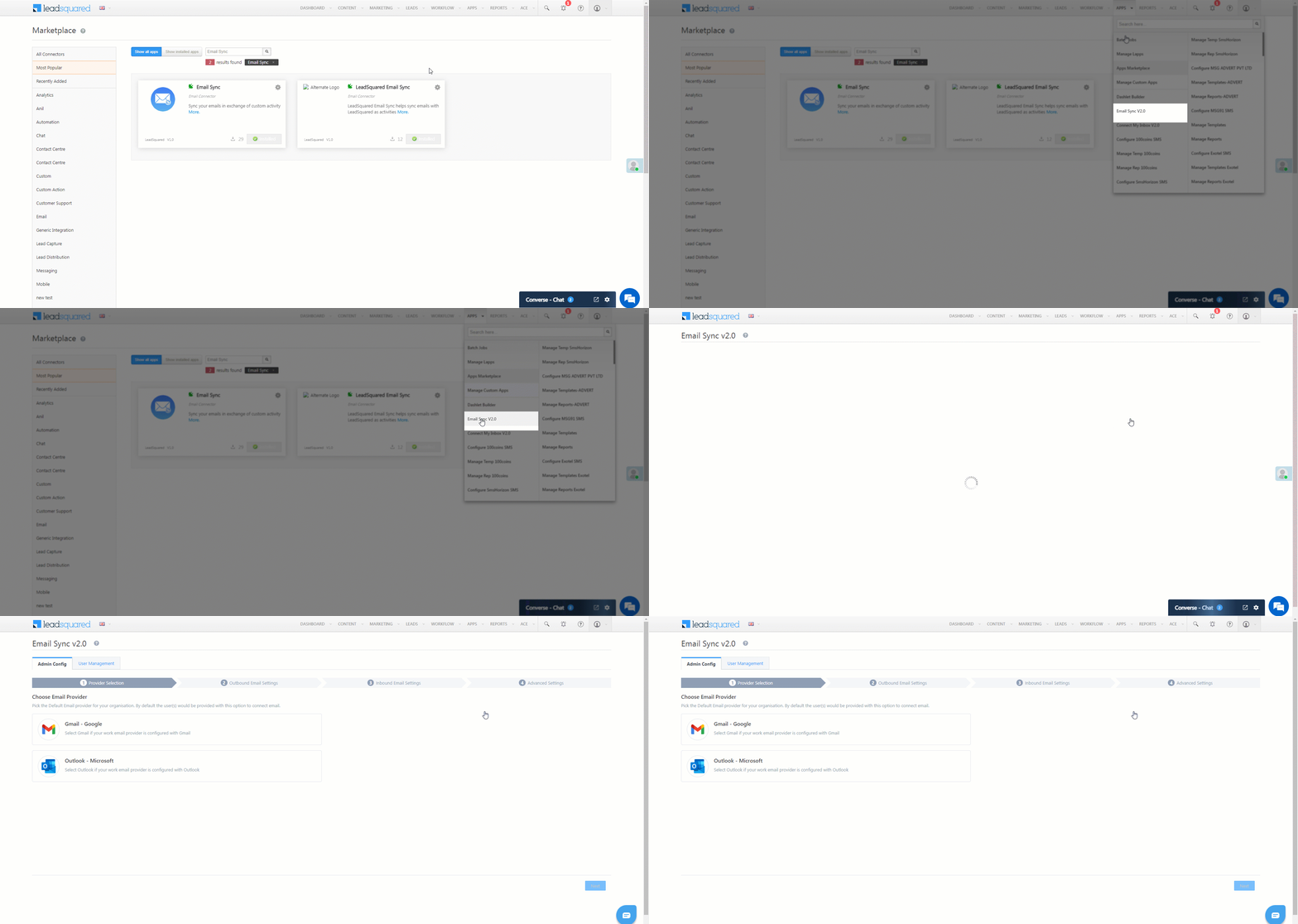
Email Sync Connector


7. Provider Selection

Select, sync and configure your email provider.

Note: You can only select and configure one email provider.
  1. From the options listed under Choose Email Provider, select your preferred provider.
  2. Once you’re done, click Next.

Email Sync Connector

If you’ve selected Gmail, then ensure you mark the LeadSquared Email Sync connector as a trusted application in your organization’s Google Workspace. To know how to do this, refer to Control which third-party & internal apps access Google Workspace data. Once the connector is authorized, in your LeadSquared account, click Mark as Complete, and then click Next.
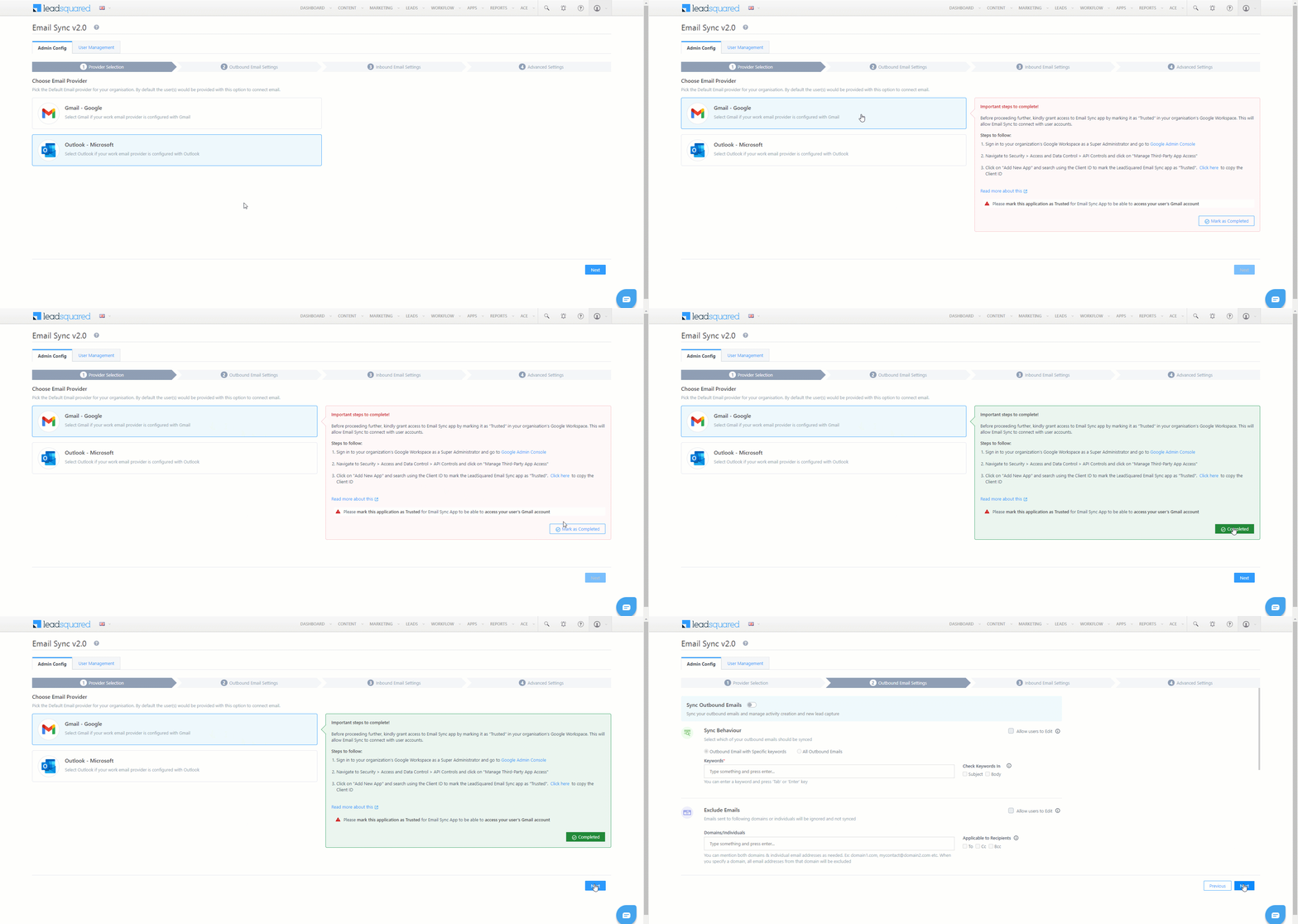
Email Sync Connector


8. Outbound Email Settings

These settings govern the connector’s behaviour when users send emails (outbound) from their Gmail/Outlook accounts.

Note:

  • Sales Users in your organization cannot edit the Outbound and Inbound Email settings. Keep in mind the settings configured here are final for all your Sales Users, and only Admin users can edit existing settings.
  • You can choose to disable the Sync Outbound Emails setting. To do this, disable the sliderSlider, and on the Warning pop-up, click Yes. This will NOT sync any of the sent emails to your LeadSquared account.

8.1 Sync Behaviour

Select which emails your users send should be captured and synced with your LeadSquared account.

  • Outbound Email with Specific keywords – Only those sent emails that contain at least one of the keywords entered here (e.g., Offer, Marketing, etc.) will get synced to your LeadSquared account.
    • Admin Defined Keywords – After you enter the keywords, hit ENTER. You can enter a single, or multiple keywords. In case of multiple keywords, separate each keyword by hitting the ENTER or TAB key. Your users will NOT be able to edit the Admin Defined Keywords, and these keywords will be applied to all your users. If you’ve selected this option, by default your users can view the User Defined Keywords tab when they’re syncing their email accounts with LeadSquared. This enables your users to add their own list of keywords.
    • Check Keywords In – Choose in which part of the email (Subject or Body) the keyword should be present for the email to get synced. It’s mandatory to select at least one of the options listed below. If required, select both options –
      • Subject – When selected, only if at least one keyword is present in the email’s subject line, the email is synced to LeadSquared.
      • Body – When selected, only if at least one keyword is present in the email’s content body, the email is synced to LeadSquared.
    • All Outbound Emails – All the emails sent from your user’s account will get automatically synced to your LeadSquared account, without having any dependency on keywords.

Note:

  • If you enter a statement as a keyword (“Festive Offer 2022” in the example below), then all the words in that statement should be present in the email in order for it to get synced with LeadSquared. The statement is considered as case-insensitive (e.g., festive offer 2022 would also be considered), but the words, order and spaces in the statement must be an exact match. In case you want individual words in the statement to be considered when syncing emails, we recommend you enter each word in the statement as a separate keyword (e.g., “Festive”, “Offer”, “2022”, etc.)
  • You can add special characters when entering your Keywords.
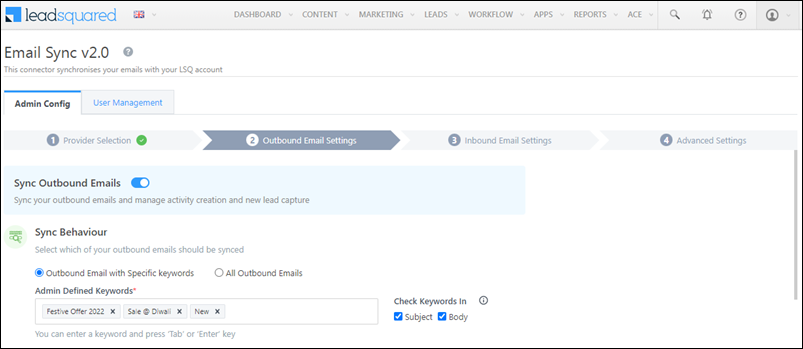
Email Sync Connector


8.2 Exclude Emails

You can exclude syncing emails sent to certain domains (such as service request emails to domains like LeadSquared.com, Zoho.com, etc.) and individuals (such as emails to internal employees, senior management, employees from other teams, etc.). This is to ensure only relevant emails are captured and synced in your LeadSquared account.

  • Admin Excluded Domains/Individuals – To exclude emails sent to certain domains, enter only the domain name (e.g., leadsquared.com, etc.). To exclude emails sent to individuals, enter their email Id (e.g., CEO@example.com, etc.). Add multiple email Ids and domain names. Once you’ve entered them, hit the ENTER key.
  • Applicable to Recipients* – Select if the email Ids and/or domains you’ve entered should be in the “To”, “Cc” or “Bcc” fields for the email to get excluded. For e.g., if you’ve entered CEO@example.com and selected “Cc” as the Applicable to Recipients option, then every time you add CEO@example.com in a mail’s Cc field, that mail will NOT get synced to your LeadSquared account. If you’re choosing to Exclude Emails, then it’s mandatory to select at least one Applicable to Recipients option.
  • User Excluded Domains/Individuals – When enabled, your Sales Users will be able to add their own set of domains for which they wish to exclude email sync.
*Note: If you exclude emails sent to CEO@example.com, and under Applicable to Recipients, you chose “Cc”, then in instances when you include the CEO@example.com email Id in the “To” or “Bcc” fields, these emails WILL get synced to your LeadSquared account. If you want the Exclude Emails option to apply to all the emails sent to the email Id/domains entered, select all three options available – “To”, “Cc” and “Bcc”.
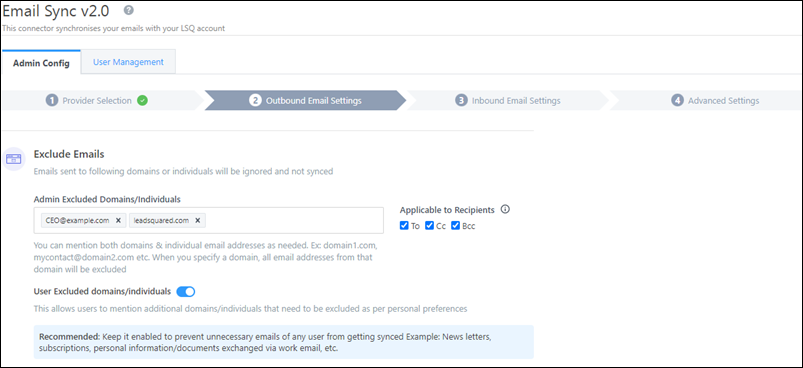
Email Sync Connector


8.3 Activity Details

Each outbound email is posted as an Email Sent activity against the lead (on the Lead Details page) in your LeadSquared account. You can view the details of the email in this activity. By default, the From (sender) and To (receiver) details are posted under the Email Sent activity. In addition to these two fields, you can choose to capture details and email content from the following email elements –

  • Cc – Recipients in the Cc field.
  • Bcc – Recipients in the Bcc field.
  • Subject – The subject line of the email.
  • Body – The email body’s content.
  • Attachment – If the email contains an attachment file, then this file is posted under the Email Sent activity. The following file types are supported –
    • Inline
    • PDF
    • Word
    • JPG
    • PNG
    • HTML
    • Excel
    • Zip
    • JSON
    • MKV
    • MPG
    • MP3
    • MP4
    • Rich Text Format
    • AVI
Note: You will NOT be able to rename the Activity Type. It’ll be Email Sent by default.
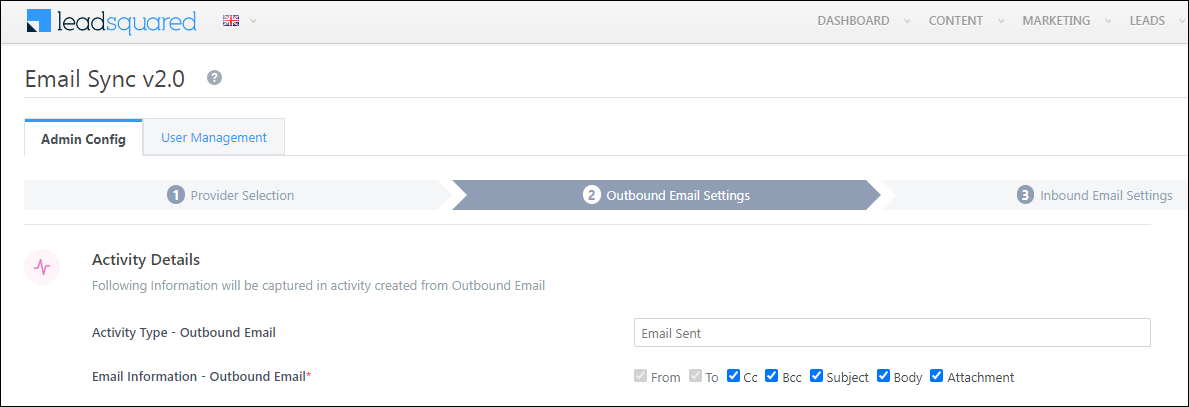
Email Sync Connector


8.4 Capture New Leads

Emails sent to addresses that don’t exist in your LeadSquared account are captured and created as new leads. To capture new leads, enable the Slider slider, and configure the following settings –

  • Capture Leads From* – If the email Id present in any of the selected options – “To”, “Cc” and “Bcc”, does not exist in LeadSquared, then a new lead gets created. If the Capture New Leads option is enabled, then it’s mandatory to select at least one option here.
  • Lead Search By Criteria – By default, Email is selected as the search key. If necessary, you can update the search criteria to an email-type custom lead field created in your account. Note that only one search criteria can be configured in your account at any given time.
  • Lead Source – From the list of default and custom lead sources available in your account, select the lead source through which the leads were captured (e.g., Inbound Email, Email Sent, etc.). This detail will be used to identify the source on the Lead Details page, under Lead Source. To create a new lead source, enter the name of the new lead source, and hit ENTER. This lead source will start reflecting once an email sync activity is posted against a lead.
*Note: If you choose to capture new leads, and under Capture Leads From, you chose “To”, then in instances when you include an email Id in the “Cc” or “BCC” fields, a new lead will NOT get created in your LeadSquared account. If you want the Capture New Leads functionality to apply to all the emails sent to the contact’s email Id, select all three options available – “To”, “Cc” and “Bcc”.
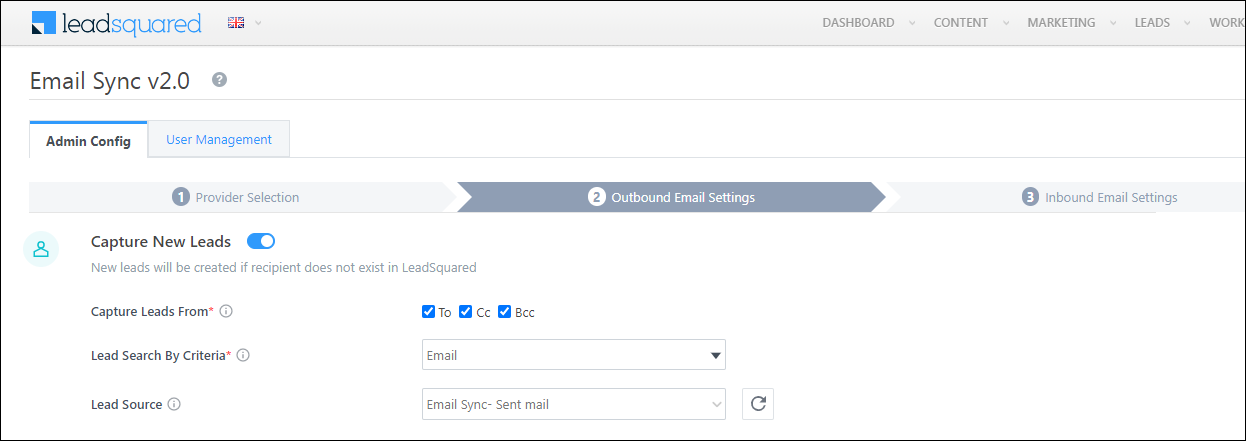
Email Sync Connector

Once you’re done, click Next.

Email Sync Connector


9. Inbound Email Settings

These settings govern the connector’s behaviour when users receive emails (inbound) in their Gmail/Outlook accounts.

The steps to configure the Inbound Email Settings are the same as the previous section. To know more, refer to Outbound Email Settings. Once you’re done, click Next.

Note:

  • You can choose to disable the Sync Inbound Emails setting. To do this, disable the sliderSlider, and on the Warning pop-up, click Yes. This will NOT sync any received emails to your LeadSquared account.
  • For Activity Details, the activity will get posted as Email Received.
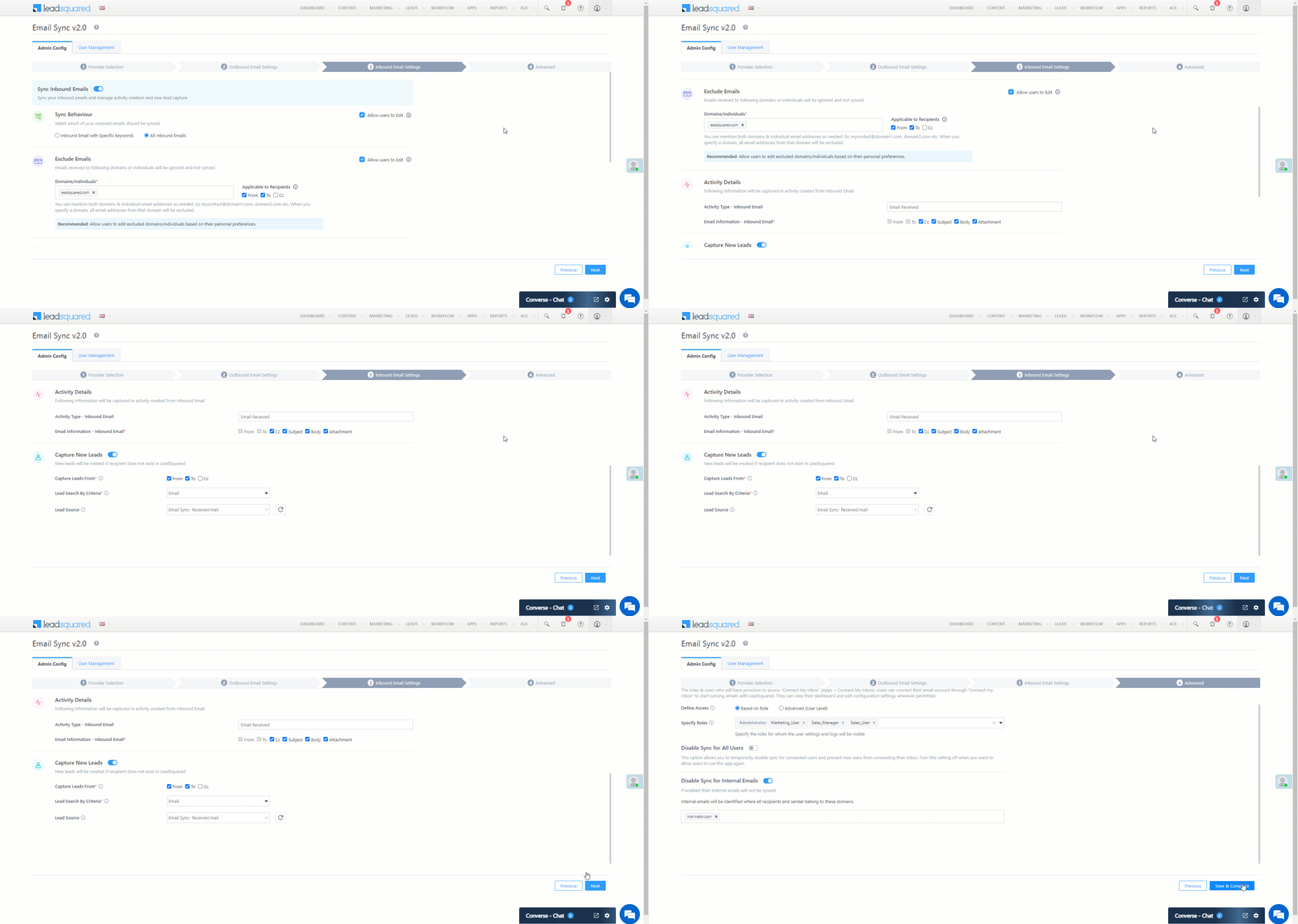
Email Sync Connector

10. Advanced Settings

Configure the following settings before you start using the connector –

10.1 Connect My Inbox access

Grant access to users to connect and sync their email accounts with LeadSquared. Only users for whom access is granted can view and access the connector (under the Apps main menu).

  • Based on Role – From the Specify Roles dropdown, select the LeadSquared user roles that can connect their email accounts to LeadSquared. By default, all the Sales and Marketing users are selected here. If required, the Admin user can remove the user type to whom they don’t want to give Connect My Inbox access.
  • Advanced (User Level) – From the Advanced (User Level) dropdown, select a user boolean field. Based on the value entered in the selected boolean field, the user can connect their email accounts to LeadSquared (e.g., for the user Sam, if the “Is Employee” boolean user field contains the value “Yes”, then this user can access the connector).
Note: By default, all Admin users will have access to connect their email accounts using this connector.
Email Sync Connector


10.2 Disable Sync for All Users

When enabled, email sync will be disabled for all the users who have connected their email accounts to LeadSquared, and no new users will be able to connect and sync their email accounts either. To enable this setting, enable the Slider slider, and on the Warning pop-up, click Yes. This setting can be used in instances where the Admin is testing the connector, if there’s a security breach, etc.

Note: Disabling sync will be applied to all users, including Admins.
Email Sync Connector


10.3 Disable Sync for Internal Emails

When enabled, emails sent and received internally within your organization will not be synced with the connector. Your organization is identified based on the email domain you enter. This is to ensure only lead-related emails are synced with your LeadSquared account. Once enabled, enter your organization’s email domain (e.g., leadquared.com, etc.), and hit ENTER. You can add multiple domains.
Email Sync Connector

Note: To capture internal mails sent between your users, click How it Works, and enable the checkbox alongside Capture Email communication between internal users.
LeadSquared Email Sync


10.4 Complete Set-up

Once you’re done, click Save & Complete. This complete’s the Admin set-up and configuration process, and your users can now sync their email accounts with LeadSquared.
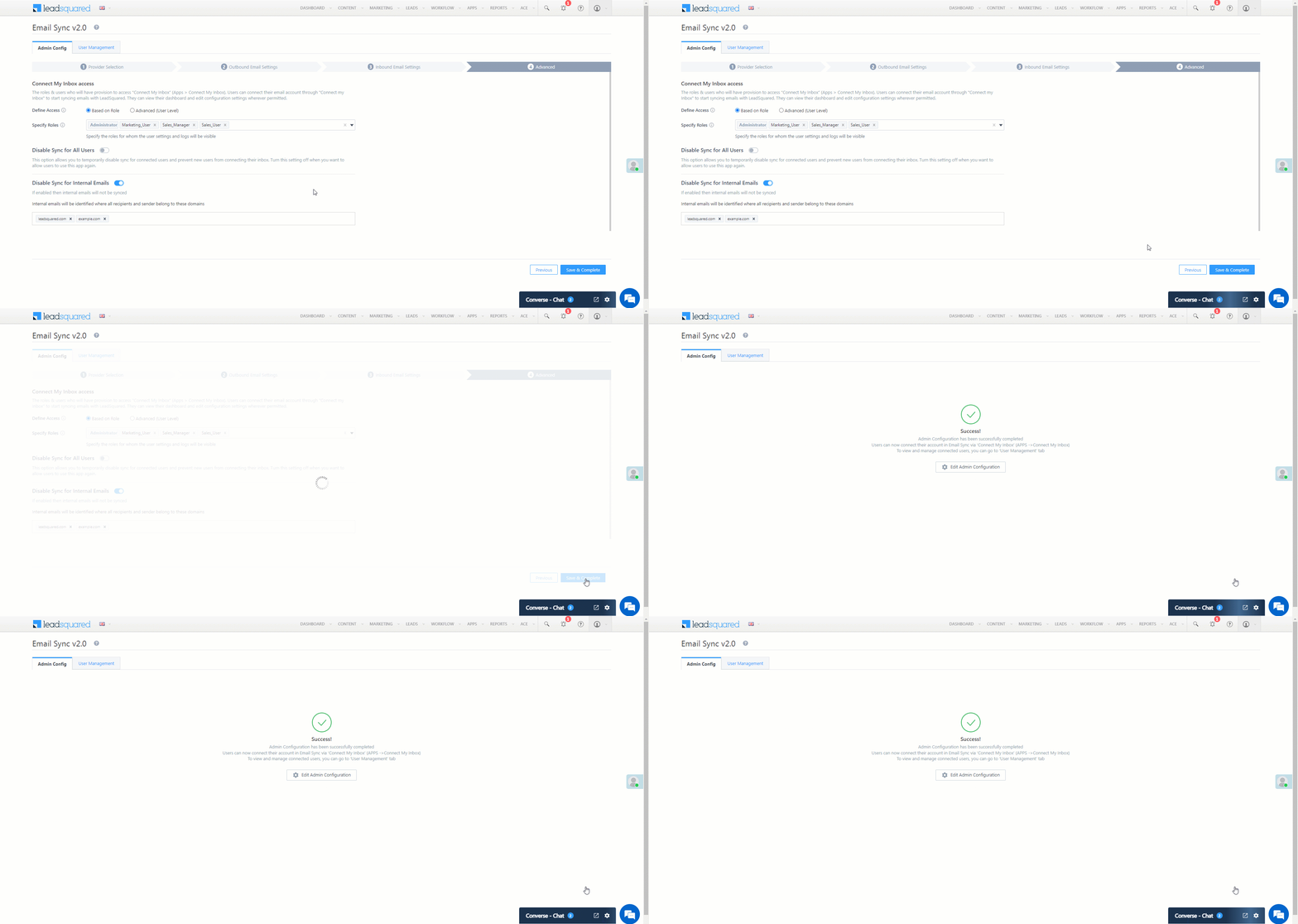
Email Sync Connector


11. User Management

Once your users have synced their email accounts to LeadSquared, alongside a user, click theicon to perform the following actions –
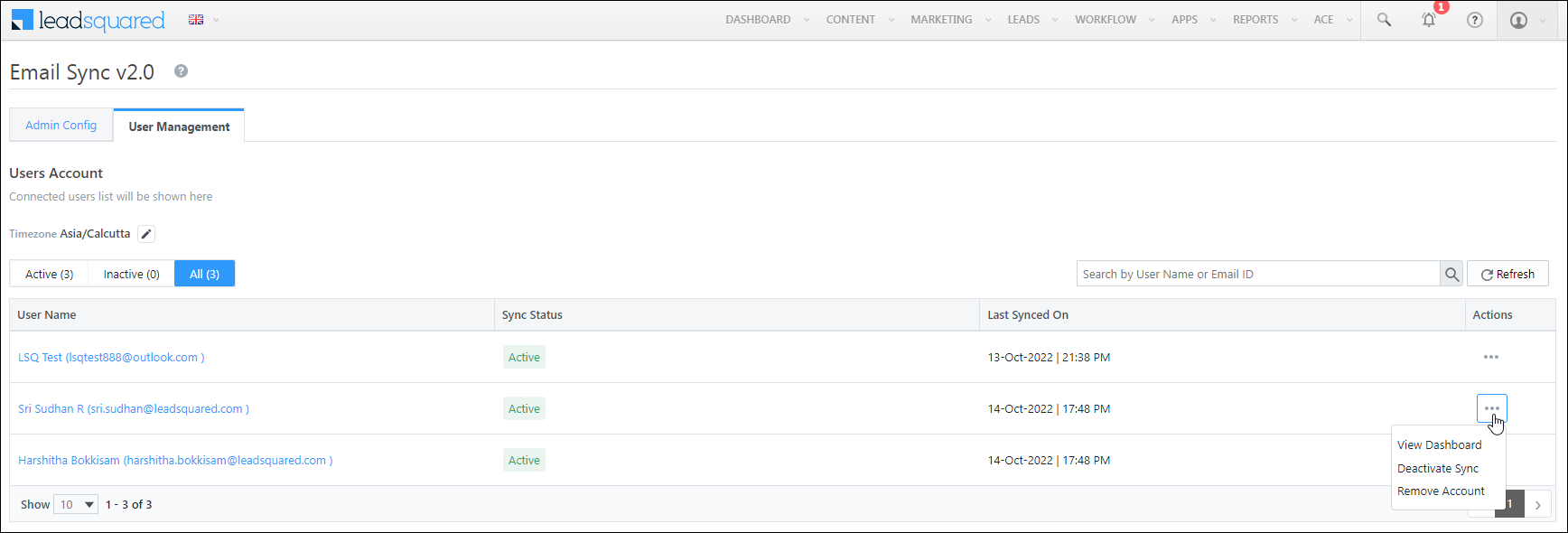
Email Sync Connector

11.1 View Dashboard

The dashboard contains the logs of all the user emails that have been synced between LeadSquared and your user’s email account. You can filter these logs by Activity Details or Lead Capture Details.

  • Date Range Filter – You can filter the logs by Today, Yesterday, Last 7 Days, Last 30 Days and Custom Date. If you select Custom Date, you can select up to a maximum of 60 days in the past.
  • Use the search bar to find a lead or activity using the Lead Id, Lead Name or email Subject.
  • To delete your synced account within the connector, click , and click Delete Account.
  • To disable sync for your account, under SYNC STATUS, disable the Zoom slider. This ensures that while the sync is disabled, your email account is still connected to LeadSquared.
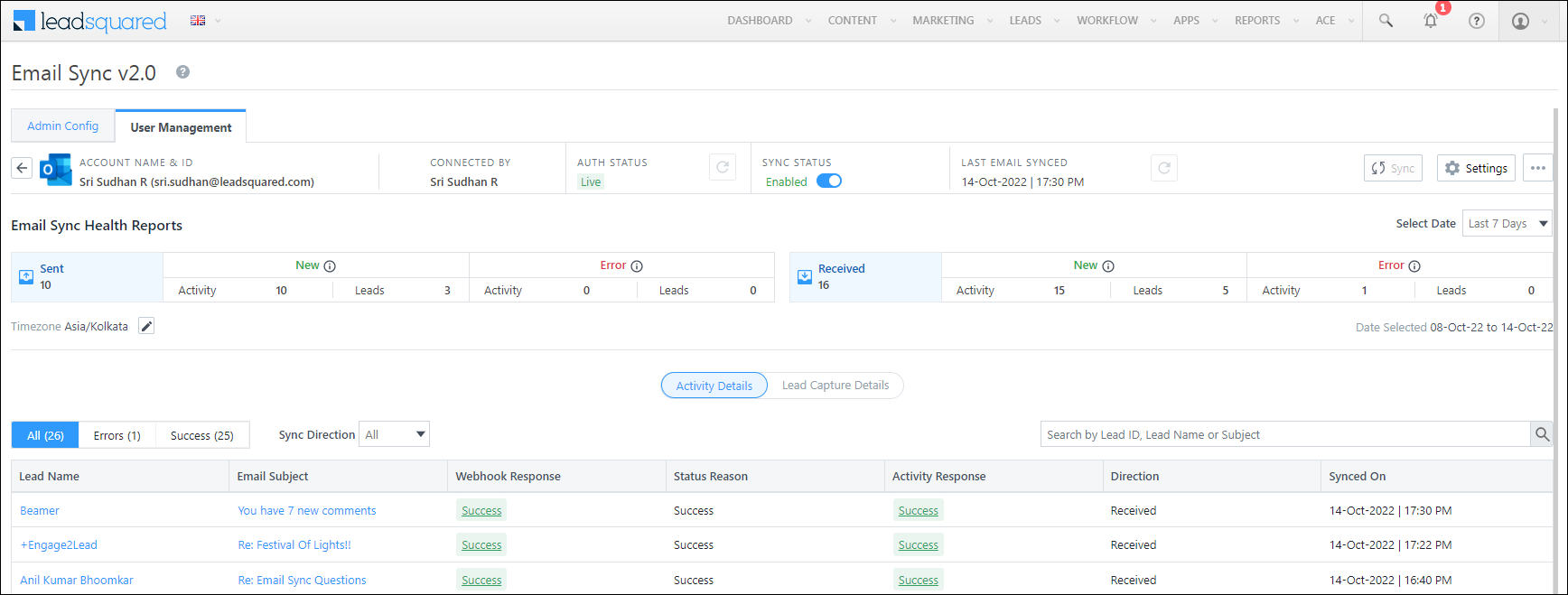
Email Sync Connector


11.2 Deactivate Sync

To deactivate email sync between your user’s email account and LeadSquared, click Deactivate Sync, and on the confirmation pop-up, click Yes, Continue. This will only temporarily deactivate the user’s account, and they can activate the sync (Sync Staus) whenever they choose to.
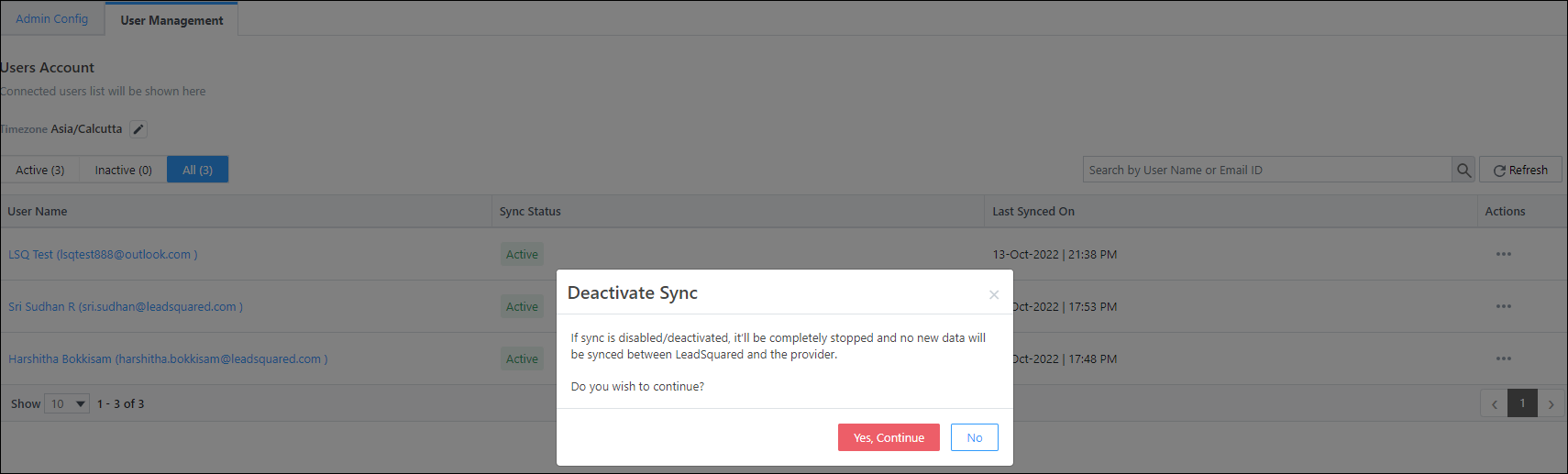
Email Sync Connector


11.3 Remove Account

This action deletes a user’s email account from the connector. Click Remove Account, and on the confirmation pop-up, click Yes, Continue.
Email Sync Connector


FAQs

I’m currently using the legacy Email Sync App. Should I migrate to this connector?
Yes, it is highly recommended you migrate to this connector, for an enhanced user experience. Note that Outlook support is soon to be discontinued on the legacy connector, and if you’re looking to sync your Outlook account with LeadSquared, then it’s mandatory that you migrate to the new connector. To know more, refer to Outlook’s Basic Authentication Deprecation in Exchange Online – September 2022 Update.

What happens if I send or receive an email from someone that doesn’t exist as a lead in my LeadSquared account?
If the Capture New Leads setting is enabled, this contact gets created as a new lead in your account.

Does this connector support bi-directional email sync between my email provider and LeadSquared accounts?
No. Currently, the connector only supports email sync from your email account to your LeadSquared account. Emails sent from your LeadSquared account will NOT get synced with your email provider’s account. If this changes in the future, we’ll update the article accordingly.

Is email sync supported for other email providers (such as Yahoo, ProtonMail, iCloud Mail, etc.)?
No. Email sync is currently only supported for Gmail and Outlook.

How will my lead be identified by the LeadSquared system?
We’ll use the Lead Search By Criteria (and in extension, the lead’s Email Address) to identify and capture leads.

How do I control which users can connect their email account’s to LeadSquared?
Let’s look at the following example –

  • Bob is an Admin user.
  • John and Paul are Sales Managers, and George and Ringo are Marketing Users.
  • Frodo, Samwise, Aragorn and Legolas are Sales Users reporting to John.
    • When configuring Connector Access, Bob grants access to only Sales Managers. This means that only the selected users (the Sales Managers in this example, John and Paul) can carry out the connector’s Admin Configuration and subsequent steps.
    • When carrying out the configuration, on the Connect My Inbox access screen, John can select the users who can sync their email accounts with LeadSquared. Here, he selects Sales Users. This allows Frodo, Samwise, Aragorn and Legolas to now sync their email accounts with LeadSquared. Similarly, Paul (Sales Manager) can also carry out this configuration for his team.

Will internal emails get captured?
Yes, internal emails will get captured, as long as the Disable Sync for Internal Emails setting is disabled.

Can sales users edit the Activity Details and Capture New Leads settings?
No. Sales users cannot edit any of the Inbound and Outbound Email settings.


Troubleshooting

  • Issue: I want to enable the “Allow non-lead email address(es) in the CC field” setting, but I don’t want junk or unwanted leads to be created in my LeadSquared account.
    The screenshot shows the “Allow non-lead email address(es) in the CC field” setting under Settings>Email Settings>Email Recipients.
LeadSquared Email Settings

  • Solution: To prevent this, make sure the “Cc and Bcc” options are unchecked under the “Capture New Lead” setting for both outbound and inbound emails in the Email Sync configuration.
LeadSquared Email Sync for Google and Outlook


Any Questions?

Did you find this article helpful? Please let us know any feedback you may have in the comments section below. We’d love to hear from you and help you out!

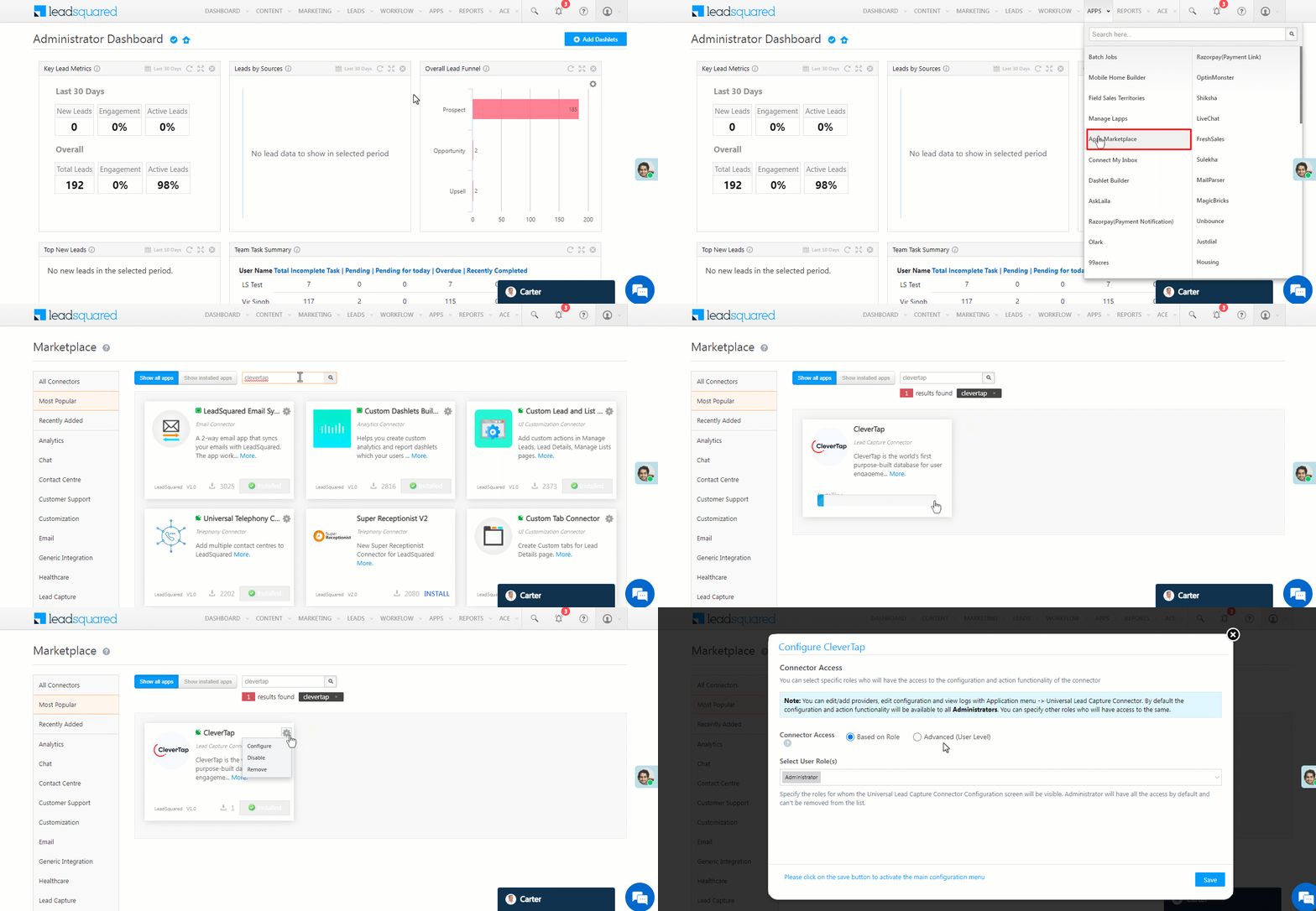
pVerify Healthcare Insurance Verification Connector Set-up for Sales Users

1. Feature Overview

Once the pVerify Connector is installed in your account, you can –

  • View Comprehensive Reports – Containing all the necessary details like copay amounts, insurance plan details, active or inactive status, network status, etc.
  • Download Reports – Navigate to the Lead Details page to download the insurance eligibility report as a PDF file.
  • Reduces Turnaround Time – Capture copay details and co-insurance details for multiple services (in-office visits, physical therapy, doctor’s lab services, etc.) in a single verification request.
Note: This article is to help Sales Users view insurance eligibility reports directly in their LeadSquared accounts. Admin Users can also follow the steps listed below to view these reports.

LeadSquared pVerify Integration


2. Prerequisite

Admin Users must install and configure the pVerify Healthcare Insurance Verification Connector in your LeadSquared account.


3. View Insurance Eligibility Reports

Activity History Tab

  1. Navigate to Leads>Manage Leads, and click on a lead you want to generate the report for.
  2. On the Lead Details page, hover your cursor over the Lead Actions menu, and under Custom Actions, click on the report view action created in your account (e.g., Generate Reports).
  3. Refresh the page after a couple of minutes. Filter by the Insurance Eligibility Report custom activity type, which is posted as an activity under the Activity History tab.
  4. To view the report, click View Files.
  5. To download the report, click Download.

pVerify LeadSquared Connector

Documents Tab

Alternatively, on the Lead Details page, you can view the Insurance Eligibility Report from the Documents tab. To download the selected report, hover your cursor on the report, and click Download.

pVerify LeadSquared Connector


Any Questions?

Did you find this article helpful? Please let us know any feedback you may have in the comments section below. We’d love to hear from you and help you out!
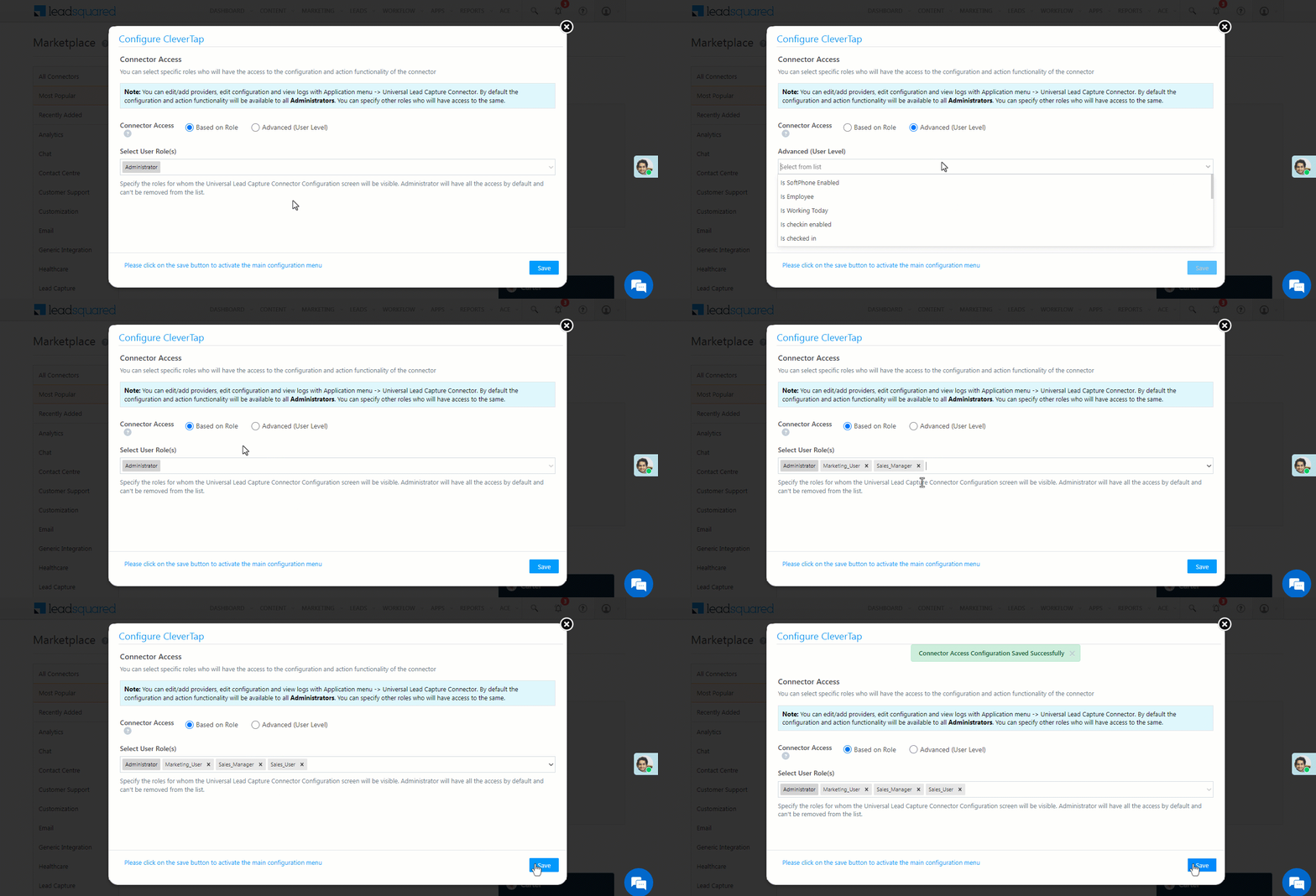
pVerify Healthcare Insurance Verification Connector Set-up for Admin Users

1. Feature Overview

pVerify is a real-time medical insurance eligibility verification service provider. Through this connector, once you’ve synced your LeadSquared and pVerify accounts, you can view and download a lead’s insurance eligibility report directly from LeadSquared. Once installed, this connector enables you to –

  • View Comprehensive Reports – Containing all the necessary details like copay amounts, insurance plan details, active or inactive status, network status, etc.
  • Download Reports – From the Lead Details page, download the insurance eligibility report as a PDF file.
  • Reduces Turnaround Time – Capture copay details and co-insurance details for multiple services (in-office visits, physical therapy, doctor’s lab services, etc.) in a single verification request.

Note:

LeadSquared pVerify Integration


2. Prerequisites

  • You must be the Administrator of your LeadSquared account to install and configure this connector.
  • This is a paid connector. To enable it, reach out to your account manager, or write to support@leadsquared.com.
  • Create two Custom Lead Fields, and label them as MemberID and NPI. Ensure both these fields are created as number data type fields.


3. How it Works

  1. Once the connector access is enabled on your account, install the connector and configure connector access for your users.
  2. Once configured, a webhook URL is generated internally. To obtain the webhook, contact your account manager or write to support@leadsquared.com.
  3. Next, call the webhook URL from the Custom Lead Action Connector to capture the insurance eligibility details from pVerify, and post it against a lead in your LeadSquared account.


4. Install the Connector

  1. Navigate to Apps>Apps Marketplace.
  2. Search for the pVerify Connector, and click Install.
    • Alternatively, you can find the connector on the left panel, under Lead Capture.
  3. Once installed, hover your cursor over , and click Configure.

pVerify LeadSquared Connector


5. Configure the Connector

Once you’ve installed the connector, on the Configure pVerify pop-up, configure the connector access for the non-Admin users in your account. Only users for whom access is granted can view and access the connector (from the Apps main menu).

  1. Select if you want to grant Connector Access that’s based on the User Role or the values entered in a User Field.
    • Based on Role – From the Specify Roles dropdown, select the LeadSquared user roles that can use the connector.
    • Advanced (User Level) – From the Advanced (User Level) dropdown, select a user boolean field. Based on the value entered in the selected boolean field, the user can access the connector (e.g., for the user Sam, if the “Is Employee” boolean user field contains the value “Yes”, then this user can access the connector).
  2. Once you’re done, click Save Details.
Note: By default, all Admin users will have access to the connector.

pVerify LeadSquared Connector


6. Create Custom Actions

Once the connector is configured, a webhook URL is generated. Call this webhook URL using the Custom Lead and List Actions Connector, and create a lead action to fetch and display the eligibility report on the Lead Details page.

Note:

  • To obtain the connector’s webhook URL, contact your account manager, or write to support@leadsquared.com.
  • Before you carry out the steps listed below, create two Custom Lead Fields, and label them as MemberID and NPI. Ensure both these fields are created as number data type fields.
  1. Navigate to Apps>Apps Marketplace, and search for Custom Lead and List Actions.
    • To learn how to install the connector, refer to Installation.
  2. Alongside the connector, hover your cursor over , and click Configure.
  3. On the Configure Custom Lead and List Actions pop-up, click the Add Action button. Enter the following details –
    • Action Label – Enter a display name for the custom action (e.g., Generate Report).
    • Action Type – Select Call an API. We’ll be using the webhook URL to get the report details from your pVerify account.
    • Show in Tab – Select Web App.
    • Callback URL – Enter the connector’s webhook URL. To obtain this URL, contact your account manager, or write to support@leadsquared.com.
    • HTTP Method – Select Post.
    • Data* – Pass the parameters listed below to generate the report –

{
"name": "@{Lead:FirstName,}",
"email": "@{Lead:EmailAddress,}",
"phone": "@{Lead:Phone,}",
"leadId": "@{Lead:ProspectAutoId,}",
"dob": "@{Lead:mx_Date_of_Birth,}",
"lastName": "@{Lead:LastName,}",
"npi": "@{Lead:mx_npi,}",
"memberId": "@{Lead:mx_MemberId,}"
}

Once you’re done, click Save. This completes the connector installation and configuration.

Note: For the parameters passed under Data, ensure you’re passing the correct schema name for the NPI and MemberID lead fields. We’ve passed example values for these two fields in the example above.

pVerify LeadSquared Connector


Next Steps

Once the connector is installed and configured, to view the insurance eligibility reports, refer to pVerify Healthcare Insurance Verification Connector Set-up for Sales Users.


Any Questions?

Did you find this article helpful? Please let us know any feedback you may have in the comments section below. We’d love to hear from you and help you out!
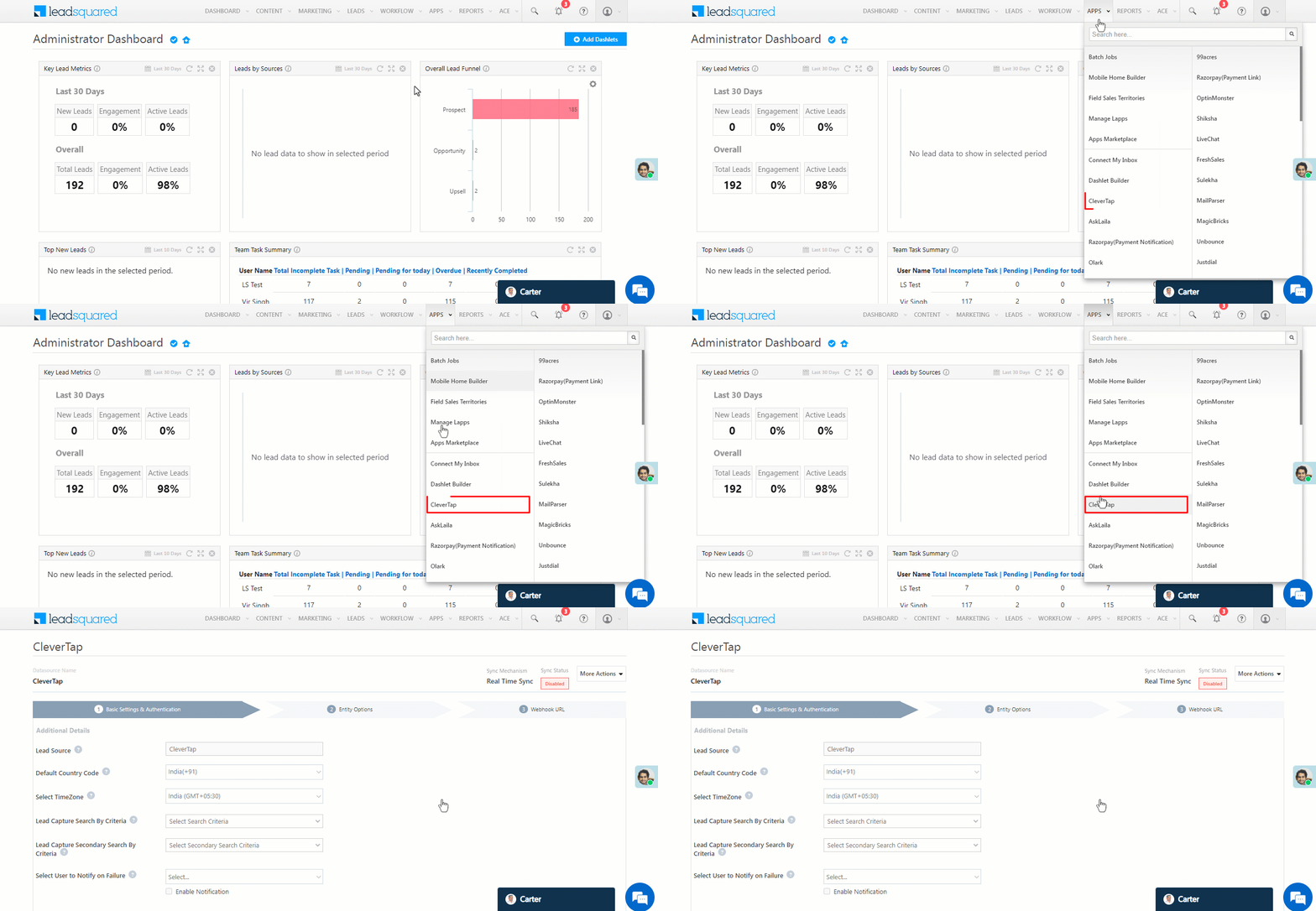
Capture Leads from Any Website with LeadSquared Form Widgets

1. Feature Overview

An LSQ Form widget acts as a “lead magnet”. An example of a lead magnet is a special deal offered to customers in exchange for their contact details. It can be a discount code, webinar, white paper, ebook, template, inquiry form, or another resource.

With LeadSquared, you can create and embed an LSQ Form Widget on your web page or landing page and start capturing leads in minutes.

Once the leads are captured, you can push them further down your sales funnel. For example, you can redirect the leads to a LeadSquared Application Portal, email them a welcome kit, or schedule a sales call.

LSQ Widget example


2. Example Use Cases

These examples illustrate different functionalities you can use, and outcomes you can achieve using the LSQ Widget.

Industry Use Case
Education
  • College University Admission – Capture course inquiries from a course landing page and redirect the lead to a college admissions portal page.
  • Career Training School/Technical School – Capture course inquiries from a website page and schedule a counselor call-back.
BFSI
  • Health Insurance – Capture enquires for an insurance premium amount and download a policy brochure.
  • Credit Card Application – Capture credit card eligibility inquiry and redirect it to a credit card application portal.
Health (ERM)
  • Book a consultation – Capture a consultation slot and register on the Hospital portal.
Real-Estate
  • Book visit – Capture a property visit request and download the estate plan.


3. Prerequisites

  • You must be an Administrator User to create and edit LeadSquared Widgets.
  • To create an Enquiry Widget –
    • You must have a Dynamic Form that is published.
    • LeadSquared Portal license is not required.
  • To create a Registration Widget –


4. How It Works

The process to install an LSQ Widget is as follows –

  1. Create and configure your LSQ Widget by navigating to Manage Widgets in LeadSquared.
  2. Customize the look and feel of your LSQ Widget through the various properties at your disposal.
  3. First, publish your LSQ Widget to the test environment, and then to the live environment.
  4. Place the downloaded JavaScript snippet into your website.
  5. The widget is now live on your website.


5. Manage Widgets

  1. Navigate to Workflow>Manage Widgets.
  2. Click Create Widget.
  3. Give your widget a name and click Create.

Create LSQ Widget

5.1 Enquiry Widget or Registration Widget

LSQ Widget Type Description
Enquiry Widget In an Enquiry Widget, OTP verification of lead details is not mandatory.
Registration Widget In a Registration Widget, your leads will need an OTP verification and will be registered on the LeadSquared Portal. You must have a LeadSquared Portal that has been published and a LeadSquared Portal Registration Form with OTP authentication enabled.

If you would like to create a Registration Widget, under the General tab, toggle Enable Portal Registration.

LSQ Widgets Enable Portal Registration

5.1.1 Configure OTP Messages for Registration Widget

On a Registration Widget, users receive a default OTP for verification. You can customize this OTP message after selecting a registration form.

  1. Click the icon in the General Tab.
  2. You can edit both the Email and SMS (Phone) content.
  3. Click the Custom button to edit the content.
    • Email – For email, you can edit the following fields:
      • From – Select a user as a sender.
      • Subject – Enter the subject of the email.
      • Select Email Template – Optionally, you can select an email template.
      • Content – Enter the content for the OTP email.
    • Phone – for SMS, you can edit the following field:
      • Select SMS Template – Optionally, you can select an email template.
      • Content – Select the editable field to enter your SMS content.

Configure otp messages

Note: You can test the OTP message while previewing the widget.

verify otp in preview

5.2 LSQ Form

Select a LeadSquared Portal Registration Form with OTP authentication enabled. The selected form will capture leads and register them on the LeadSquared Portal.

LSQ Widget Form

5.3 Register on Portal

Select a LeadSquared Portal to register the captured Leads. You must also define the Action on Successful submission of the form –

  • Open Portal Page – Select the portal page you want the lead to be redirected to on successful submission.
    • Page – From the dropdown, select the page or section you want your lead to be redirected to within the portal when the form is submitted.
  • Open External Link – Add an external link, and configure if it opens in the same tab or a new tab.
    • Link – If you choose Open External Link as the Action on Successful submission, then add the URL of the website you want your lead to be redirected to when the form is submitted.
  • Download File – Enable your leads to download a file (like prospectus, etc.) on submission by uploading it here.
    • Upload File – If you choose Download File as the Action on Successful submission, then under Upload File, click Choose File, to choose a file from your Document Library.
    • Use Mail Merge Values – Alternatively, you can mail merge a custom field set (CFS) that contains a file, by selecting the CFS from the dropdown.
  • Based On Rules – This option allows you to set-up rules based on the choices a lead makes. For example, if the lead chooses “City” as “New Delhi”, you can set-up a condition that redirects the lead to the portal page for leads in New Delhi. Similarly, if the lead chooses “Course” as “B.Tech”, you can set-up a condition to download the prospectus form for B.Tech applicants. To set-up rules –
    1. From the Actions on Successful submission dropdown, select Based on Rules.
    2. Click Configure Rules, and on the Configure Rules pop-up, rename the rule.
    3. From the any dropdown, choose if you want the condition to be any or all, and set-up the base rule.
    4. From the Then dropdown, select the action you want to be carried out when the condition is satisfied.
  • None – No action will be taken on successful submission.

LSQ Widget Portal


6. Customize Widget

The following video tutorial shows you how to customize the design of your widget using the options available in the widget designer –

The LSQ Widget can be customized using the following properties –

6.1 General

  • Form Design – There are three default form designs available in the Widget Designer. You can select a relevant design from the Form Design dropdown.
  • Show Form Title – To show the title of the form on your Form, toggle the slider.
  • Show Tabs/Navigation – To show the tabs that hold the sections in a form, and to show navigations between different tabs in the form, toggle the slider.
  • Show Section Names – To show the names of each section within the form, toggle the slider.
  • Show Input Field Labels – To show the input field labels on the placeholder, toggle the slider.
  • Accent Color – Select the font colour for section headers and buttons from the gradient screen or enter the hex code for a specific colour.
  • Form Validation Color – Select the colour that will indicate a field as mandatory.
  • Font – From the dropdown, select the font you want to display on the form.
  • Query String – You can send the value of a particular field (First Name, Mobile field, etc.), by adding a mail merge parameter here. This will ensure that the field value is carried forward to the subsequent pages that have been configured.
  • Open in New Tab – This is applicable only for Open External Link and Open Portal Page. To open the new page in a new browser tab, on successful submission of the form, toggle the Zoom slider.
  • Header Text – Enter the form’s title here.
  • Button Text – Enter the submission button’s display text here.

LSQ Widget Form Design


6.2 Spacing & Dimensions

You can customize the space and dimensions of the entire form, as well as each individual section within the form. To customize a section, click on the outer border of that section.

  • Padding – Set the padding for the form. If you want the padding dimensions to be applicable on all sides of the layout, against All Sides, toggle the slider.
  • Margin – Set the margin width for the form. If you want the margin to be applicable on all sides of the layout, against All Sides, toggle the Zoom slider.
  • Min Height – Set a minimum height for the form. If you want the height to be applicable on all sides of the layout, against All Sides, toggle the Zoom slider.
  • Max Width – Set the maximum width for the form. If you want the width to be applicable on all sides of the layout, against All Sides, toggle the Zoom slider.

LeadSquared Portals Signup Form


6.3 Border & Radius

  • Border – Set the size, style, and colour for the border around the form. If you want the border to be applicable on all sides of the selected layout, against All Sides, toggle the Zoom slider.
  • Color – Set a colour for the form’s border. You can select a colour either from the gradient screen or enter the hex code for a specific colour.
  • Border Radius – Set the radius for the border around the form. If you want the border radius to be applicable on all sides of the layout, against All Sides, toggle the  Zoom slider.

LeadSquared Portals Signup Form


6.4 Background

You can either choose to leave the form’s background blank or set an image or background colour.

  • To add an image, from the dropdown, select Image. Then, click Choose Image to choose an image from your Image Library.
  • To set the background colour, from the dropdown, select Color. Then, choose a colour from the gradient screen, or enter the hex code for a specific colour.
  • Select Slide Show to extend the idea of a hero image, allowing you to present multiple images in a sequence. Click Manage Slides to add more slides.
  • To leave the background blank, from the dropdown, select None.

Portals background

You also have the option to add a Background Overlay. It enhances the readability of the text and reduces visual stress for viewers. You can enable Background Overlay by toggling enable icon the slider. It has 2 options –

  • Color Overlay – A color filter that puts a tint on the selected element to make the text more readable.
  • Blur Overlay – Customize the intensity of the blur to be added to the background.

bg overlay


6.5 Shadows

Set a shadow for the form.

PDesigner_8


6.6 Advanced

Use this class name in your custom scripts to isolate and override its style and behavior without affecting any other components in the Widget.

LSQ Widget custom class name


6.7 Typography

Click on any section within the form to access the typography setting.

  • Font – Select the font you want to display in that section.
  • Font Size – Enter the preferred font size for the font in that section.
  • Font Weight – From the dropdown, select how thick or thin you want the font to look.
  • Color – Select the colour for the font.

LeadSquared Portals Signup Form


6.8 Configurations

To set a custom font or a custom script for the LSQ Widget, click on Settings.

LSQ Widget Settings


7. Install LSQ Widget

7.1 Publish the Widget

  1. Once the Widget is designed click on Publish to Test to validate its functionality.
  2. Type in Change Notes and click Yes.
  3. To publish the LSQ Widget to a live environment, click Publish to Live.
  4. Once published to a live environment, click Download Widget

Installing LSQ Widget


7.2 Embed the Widget on your Website

The file contains a JavaScript snippet that can be pasted into your website.

iframe LSQ Widget

Note: A widget installed on your website can be updated right from the LSQ Widget Designer and published live. Further action or reinstallation is not required.

FAQs

1. Can I remove the LeadSquared logo from the Widget?

The Widget can be white-labeled. Please get in touch with your account manager for more information or contact support@leadsquared.com.

2. Can I display the Widget inside an iframe?

The Widget is already loaded inside an iframe by default. Pasting the widget code inside another iframe will create nested iframes. It’s important to note that using nested iframes can result in slower page load times, increased memory usage, and potential conflicts between different iframe styles and scripts. Due to these considerations, it is not recommended to use the widget inside an iframe.

3. Do widgets capture UTM parameters?

If the URL contains UTM parameters, the widget will capture five standard UTM parameters –

  • utm_source
  • utm_medium
  • utm_campaign
  • utm_term
  • utm_content

These parameters will be recorded in the activity data. To view the captured parameters, please navigate to the Manage Activities page where you can access and analyze the captured UTM parameter data.

4. How can we test new enhancements on a widget that is currently live?

This is the suggested way to test new enhancements –

  1. Let’s assume you have a live widget called Home Loan.
  2. You can clone the Home Loan widget to get a cloned version called Home Loan Clone (You can clone a widget by selecting the Clone option under Actions on the Manage Widgets page).
  3. Make enhancements or changes to Home Loan Clone and publish it to the test environment.
  4. If you’re satisfied with the changes in the test environment, then publish it to live.
  5. If the cloned version did not provide satisfactory results, then the original Home Loan version is still available. You can choose to delete the cloned version and create a fresh clone of the original Home Loan version.


Any Questions?

Did you find this article helpful? Please let us know any feedback you may have in the comments section below. We’d love to hear from you and help you out!

Email Campaign Editor (BEE Editor)

1. Feature Overview

We’ve integrated Bee Editor with our Email Campaign editor. This editor helps you create responsive emails in minutes, using a feature-rich, drag-and-drop interface. To create personalised, custom email campaigns –

  1. Navigate to Marketing>Email Campaign and click Create Email Campaign.
  2. Select an available template or create your own template from scratch.
Note: To know more about creating email campaigns, see Create and Schedule Email Campaigns.

LeadSquared - Bee editor navigation


2. Prerequisite

You must be the Administrator or the Marketing User of your account.


3. Settings

On the right side of the page, you can access the general Settings of the Bee Editor. Change the background colour, default font, content area width, and more by customising setting fields. Here are a few links to guide you through this feature –

Action Link
Configure the entire design of the email (align content structures, set the background colour, etc.).  Configuring message settings
Understand how the Content, Rows, and Settings fields work. Settings, Rows, and Content: How do they work?
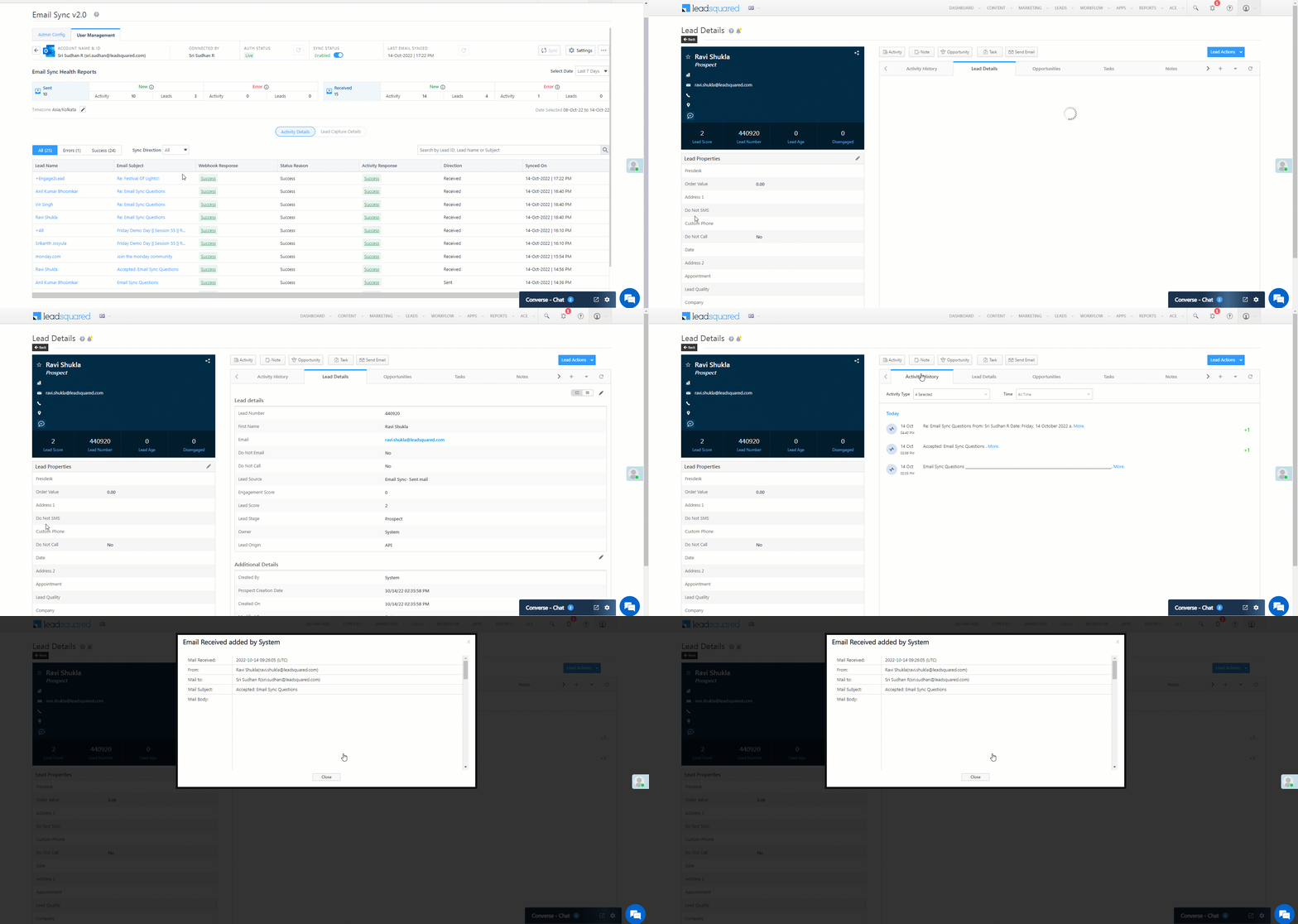
Make changes to the alignment of the email in mobile and desktop view. Mobile Optimization Options
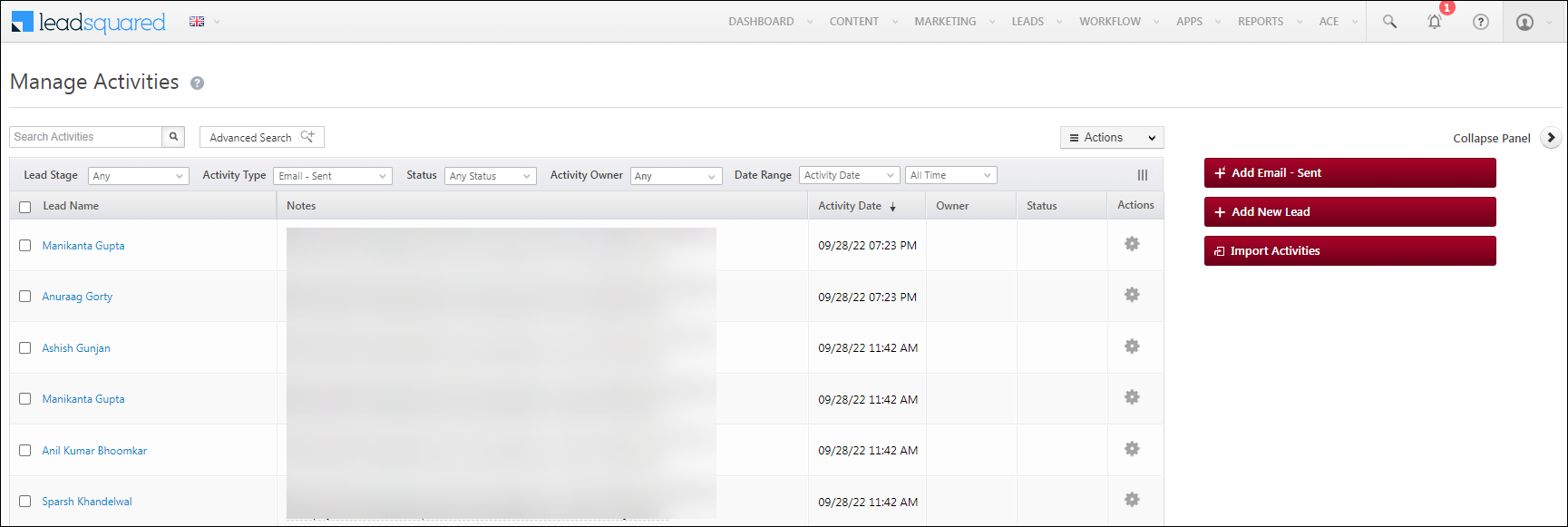
Change the border settings (the border style, width and colour) of rows, columns and other content structures. Working with borders

LeadSquared - Bee editor settings


4. Rows and Columns

Navigate to the right side of the page to customize the Row properties of the Bee Editor.

  • Customise your emails by dragging and dropping content structures, adding background images, etc.
  • To delete your rows, click .
  • To duplicate/clone your rows, click .

Here are a few links to give you more details –

Action Link
Understand and customise the row properties setting (i.e., row background colour, image, etc.). How do I change the properties of a row?
Understand how to select rows and content inside rows. How do I select a row vs. content?

LeadSquared - Bee editor rows


5. Adding Content

From the right side of your screen, click Content to add rich content to your email (text, image, icons, etc). Here are a few links to guide you through this feature –

Action Link
Adjusts the letter and paragraph spacing. Letter spacing
Add GIFs or stickers in your email. Adding GIF animations & animated stickers with GIPHY
Add video content in your email. Adding video to your email
Correct mistakes while editing your email by using the undo, redo and history actions. Undo, redo & history
Set padding around a row, column or content blocks. Working with padding
Use various available and custom web fonts in your email. Using web fonts in the BEE editor
Add a custom HTML block and customise a section of your email template. Working with custom HTML
Browse and add images and documents in your email. Using the File Manager

LeadSquared - bee editor content


6. Working with Images

Add static images (background images, logos, etc.) and dynamic images (countdown timers, product recommendations, etc.) in your email. You can edit these images by cropping, resizing, adding filters and more. Here are a few links to guide you through this feature –

Action Link
Edit an image (i.e., crop, resize, add stickers, etc). Using the image editor
Add dynamic images in your email and personalise them using mail merge. Using dynamic images for countdown timers and personalized content
Add background images in your email. Adding a background image to your emails
Edit images by configuring Content Properties. (add filters, change the alignment, etc.). Editing image properties

LeadSquared - Bee editor images


7. Adding Special Links

To add links for mailing preferences, unsubscribe, view in browser, etc., click on any section/component of the email content, and from the toolbar, click Special Links.

LeadSquared Email Campaign


8. Other Actions

Apart from the actions mentioned above, you can also add comments in your email, manage and configure columns, save your email template, and do a lot more through this editor. Here are a few links to give you more details –

Action Link
Add comments on each element of your email content to notify another user about the changes to be made. Commenting
Manage columns in your email (i.e., add columns, change the alignment, etc.). Column management
Save your design as a template. Saving a message on beefree.io

LeadSquared - bee editor other actions


Any Questions?

We’d love to answer your questions or hear your own unique use cases. Feel free to share your experiences in the comments section below.

Custom Menus for Mobile App

1. Feature Overview

The Custom Menus app for the LeadSquared mobile application lets you create a customized menu to display information from third-party websites on the app. These menus appear in the navigation tab of your app from where allows you can access external URLs or the third-party data straight from the app itself.


2. Example Use Case

Consider that you want to schedule a GoTo meeting with your lead. Using the Custom Menu App, you can create a custom menu tab called “GoTo Meeting”. This tab will give you a browser view of the GoTo meeting URL. This allows you to access your meeting straight from the mobile app.
This is just one of the many industry-specific use cases this app can be used for.


3. Prerequisites

  • You must be an administrator of your LeadSquared account.
  • You must run the latest version of the LeadSquared Android or iOS app.


4. Installation

1. From the default dashboard of your LeadSquared web application, go to Apps>Apps MarketplaceThe Marketplace window appears –

2. From the left pane, go to UI Customization>Custom Menus for Mobile AppThe Custom Menus for Mobile App pop-up will appear –

3. Click Add Connector. Once the connector is installed, the Settings menu appears –


5. Configuration

1. Click Configure. The Configure Custom Menus for Mobile App pop-up box appears –

2. Select Click to Add Custom MenuThe area to create a custom menu appears on the right pane –

3. Complete the following details:

  • Title – Enter the title for the custom menu which appears in the LeadSquared mobile app.
  • URL – This is the web URL you need to pass. This field accepts mail-merge fields as well.
  • Visible for – This drop-down menu allows you to select which LeadSquared user types are able to view the custom menu in their respective mobile app. The drop-down can have the user types shown in the image below:

4. Once the settings are completed, click SaveThe custom menu is created. As an example, a custom menu tab for the GoTo meeting is created.

Once logged to the LeadSquared mobile app, a new tab called Custom Apps appears under which the GoTo meeting appears. Clicking on this opens the GoTo meeting login page from where you can log on to your GoTo meeting to schedule your meetings –

Similar to this, you can create multiple custom action tabs in your LeadSquared mobile app for other web URLs.


Any Questions?

Was this helpful? If you have questions, please leave us a comment below.

Karza Connector for KYC

1. Feature Overview

Karza Technologies offers Know Your Client (KYC) verification solutions for commercial, retail, financial, and banking services. Integrate LeadSquared with Karza to leverage their KYC verification services directly from your LeadSquared account.

Once integrated, you can use LeadSquared Forms and LeadSquared Portals to seamlessly verify KYC details like PAN, Aadhar, GST, Address, Mobile, Vehicle Registration Certificate, etc.

Services we currently support
Category Service Name  Description Use Cases
Asset & Vehicle Authentication Vehicle RC Authentication API to Authenticate Vehicle Registration in India Vehicle RC authentication & owner check-in used car loan journeys
Commercial Verifications GST Authentication API to authenticate 15 Digit GSTIN issued by the Goods and Service Tax Network in India. POI & POA in Commercial KYC verification
KYC OCR PAN OCR API to extract data from PAN card Auto-filling of PAN data to reduce manual data entry during onboarding
Aadhar OCR API to extract data from Aadhar card Auto-filling of Aadhar data to reduce manual data entry during onboarding
OCR Services Cheque OCR API to extract data from a cheque leaf Auto-filling of Bank account data to reduce manual data entry during onboarding
Driving License OCR API to extract data from Driving License Auto-filling of DL data to reduce manual data entry during onboarding
Retail Verifications PAN Authentication API to authenticate Permanent Account Number (PAN) issued by the Income Tax Department of India. PAN Authentication as Proof of Identity (POI) in Digital KYC
PAN Status Check API to authenticate the status and details of a given PAN. PAN status check in customer-facing journeys
PAN Profile (Detailed) API to share the demographic/profile details of an Individual/Entity using a PAN Auto-filling of verified PAN data to reduce manual data entry during onboarding
Aadhaar Number Verification API to authenticate the 12-digit Aadhaar Number of a user. Basic Aadhar Number verification in customer-facing journeys
Aadhaar Offline KYC (XML Verification) API to validate the XML file of an Aadhaar card Offline KYC during Full KYC
Utility Bills Authentication Mobile Authentication API to authenticate current status of a Mobile Number and the connection type [Prepaid / Postpaid] Non-OTP-based mobile authentication in customer-facing journeys
Electricity Bill Authentication API to authenticate Electricity Bills / Customer ID issued by various Electricity Distribution Companies across India. Proof of Address in Retail KYC (where Aadhar is not available) and commercial KYC
Services we plan to support in the near future
Category Service Name Description
Banking Authentication Bank AC Verification API to verify bank account holder name basis IFSC and account number
Commercial Verifications GSP GST Return Filing The API provides the filing history of the particular GSTIN with the GST Network. Delay and Default fields in the API response are calculated for the following – GSTR 1, GSTR 3B, and CMP 08. The due date and number of days of delay for filing returns can also be fetched using an optional request parameter
MCA Signatories API to authenticate directors/partners of company/LLP
Company and LLP Master Data API to authenticate Company, LLP, FCRN and Foreign LLP Identification Numbers issued by the Ministry of Corporate Affairs (MCA)
Shop & Establishment API to authenticate Shop & Establishment Certificates issued by Municipal Authorities in selective parts of India (list of supported areas attached below in notes)
Digital Essentials – Contactability Email Authentication API to authenticate email ID provided by the customers as part of the registration process
Employment & Income Authentication EPF Authentication API to authenticate Universal Account Number (UAN) issued by Employees Provident Fund Office (EPFO) in India, via OTP based Consent of the Account Holder
Miscellaneous CKYC Search API to search basic details of individual from CERSAI portal
CKYC Download API to download individual details that are uploaded at CERSAI portal
OCR Services ITR-V OCR API to extract data from Income Tax Return Acknowledgement Form (ITR-V) issued by the Income Tax Department of India
Retail Verifications Aadhaar XML Download (Aadhar eKYC) API to download the XML file on successful OTP validation (parsed XML O/P is shared in response)
Driver’s License Authentication API to authenticate Driver’s License issued by the Road Transport Offices of the States of India.
Voter ID (EPIC) Authentication API to authenticate Voters’ ID issued by the Election Commission of India.
Passport Verification API to verify passports issued by Passport Seva Kendra basis File Number and Date of Birth
DigiLocker Account Status API to check if the DigiLocker account exists for the given mobile number
DigiLocker Document List API to get the list of all documents from the user’s DigiLocker Account
DigiLocker Document Download API to download the documents linked with user’s DigiLocker account


2. Prerequisites

  • You must be the Administrator of your LeadSquared account to install and configure this connector.
  • You must have a Karza Account with access to their API collection for the required services.
  • This is a paid feature. To enable it, reach out to your account manager, or write to support@leadsquared.com.


3. How it Works

First, install, configure and test the Karza connector. Next, create a dynamic form to facilitate the actual KYC verification for the end user. Using form rules, call the relevant connector service, and map the response from Karza to display the KYC verification results and data to the end user. You can map the response to an additional field in the form such as ‘Is PAN Verified’, ‘Verification Status’, etc.

The Karza integration requires the following steps –

  1. Install and configure the Karza connector.
    1. Choose the required services (Retail Verification, Commercial Verification, Asset and Vehicle Verification, etc.).
    2. Map system/custom fields in LeadSquared (e.g., lead/opportunity/activity fields) to the attributes required by Karza for the chosen services.
  2. Use the Karza dashboard to test the connection for each service.
    The Karza dashboard provides a convenient tool to test the connection between LeadSquared and Karza, and access success/failure responses for each service.

    1. An API URL is generated for each service.
    2. Choose a lead to test the API and obtain a response.
    3. Note the attributes in the response payload.
  3. Create a dynamic form to facilitate the KYC process for the end user.
    1. Add the lead/opportunity details to the form (PAN number, Aadhaar number, GSTIN, etc.).
    2. Add an additional field to show the result of the KYC verification to the end-user.
      • For example, you can use fields like ‘Is PAN Verified’, ‘Is Aadhaar Verified’, etc.
      • Use additional fields to capture other data points returned by Karza.
    3. Use form rules to call the relevant API (available in the Karza dashboard for each service) and populate the additional field (that’s shown to the end-user, e.g., the ‘Is PAN Verfied’ field) with the verification response from Karza.*
    4. Publish the form
      • Embed the form in a work area within the LeadSquared application using the Process Designer.
      • Embed the form in a self-serve portal using the Portals Designer.

* Each service returns a user-friendly success (e.g., “Authentication Successful”) or error message (e.g., “Number to be authenticated seems invalid”) in the status.message response parameter.


4. Install and Configure the Connector

  1. From your LeadSquared account, navigate to Apps>Apps Marketplace.
  2. Search for Karza, and click Install.
    • Alternatively, you can find the connector on the left panel, under Verifications.
  3. Once installed, hover your cursor over , and click Configure.

LeadSquared KYC Integrations

4.1 API Authentication

Category Environment Base URL
All Authentication APIs (excluding GST) User Acceptance Testing (UAT) https://testapi.karza.in
Production (Live) https://api.karza.in
GST Authentication APIs User Acceptance Testing (UAT) https://gst.karza.in/uat
Production (Live) https://gst.karza.in/prod

Enter the following –

  1. Base URL (For all Authentication API(s) except GST).
    The base URL provided by Karza for KYC, Utility Bill, Asset and Vehicle, Employment and Income, Bank and Payments Authentication APIs.
  2. Base URL (For GST Authentication API(s)).
    The base URL provided by Karza for GST Authentication APIs.
  3. API Key
    The API provided by Karza for the Authentication APIs.

Click Save & Next when you’re done.

LeadSquared Karza Integration


4.2 Manage Services

Available services are listed under each category. Select a category (Retails Verification, Commercial Verification, etc.), then select the services you want to enable (PAN Authentication, Aadhar Number Verification, etc.).

Note: You can also enable multiple instances for each service. This allows you to create a separate instance (and field mapping) for the same service to cater to use cases like verifications of co-applicant, co-insurer, dependent, parental details, etc.
  1. Click Zoomto Enable multiple instances.
  2. The primary instance is created by default. Click Add Instance.
  3. Enter a name for the new instance – e.g., ‘Co-Applicant’.
    • To remove an instance, alongside the instance name, click .

LeadSquared Karza Integration


4.3 Request Mapping

For each service, map the attributes required by Karza with the corresponding LeadSquared fields. If you’ve enabled multiple instances of a service, be sure to map the required fields for each instance. For each service the following statuses are displayed – Not Mapped, Partially Mapped, Fully Mapped.

  1. Alongside each attribute, click Icons to view the attribute name.
  2. The input requirements for each field are specified.*
  3. Select the LeadSquared entity (lead/activity/opportunity) and the entity field (e.g., PAN Number) to map to the attribute.
  4. For services with multiple instances, you can use the Same as Primary Checkbox to inherit the mapping configured in the primary instance.
  5. Your mapping configurations are not autosaved. Click Save Mapping to save your configurations at each step, or after mapping all attributes. Close the configuration pop-up when you’re done.
Note: *For some attributes, the Regular Expression (Regex) is specified.  You can copy Icons the expression and use it directly in the Regex capability present at the field-level validation properties section while creating a dynamic form in LeadSquared.
LeadSquared Karza Integration


5. Test the Services

After installation and configuration, navigate to the Karza Verification Dashboard and test each service to ensure the connection is established and working as expected. After you test each service, the Icons tag will change to Icons.

Note: For all tested services, the API details, including the URL, attribute mapping, request body, and response, is available in the Karza Verification dashboard.
  1. On the main menu, navigate to Apps>Karza Verification.
  2. Alongside the service you want to test, click Icons.
  3. The basic details are pre-populated. Enter setup instructions, and then click Next.
  4. Alongside the API Request URL, click View Details.
    • This is the API URL you’ll call to test the service. It’s also the URL you’ll use to call service from your dynamic form.
    • Here, you can change the attribute-field mapping pre-configured at the connector level. Note that any changes made here will update the mapping of that attribute across all services where it’s used. If you made any changes, click Save and close the pop-up.
    • Click Next to proceed to the Test API step.
  5. Search for a lead using the lead’s complete email address. Click Search, then select the lead from the search results.
    The request attributes being passed in the request to Karza will be displayed (this is helpful for testing in UAT accounts, to ensure the data being passed in the request is valid).
    Also, you can select an activity type/opportunity type and the activity/opportunity instance to test the service.
Note: After you test a service, expand the API Details and API Response sections. Here you’ll find all the information (API URL, attribute mapping, post data, response) you require to configure the dynamic form rules and call the Karza service.

LeadSquared KYC Integrations


6.  Create a Dynamic Form for the KYC Process

Note: If you’re new to the Forms and Processes feature, see How to Create a Form. This section assumes you have some familiarity with setting up forms and form rules.

After testing the enabled Karza services, set up a seamless KYC process for the end-user using dynamic forms –

  1. Create a new form or edit an existing one. For more details, see How to Create a Form.
  2. Add the lead/activity/opportunity fields required for KYC to the form.
    • Ensure these fields were mapped correctly during the connector configuration and testing.
    • Add the Regex to the field-level validation properties.
  3. Add the relevant rules.

Example – PAN OCR and PAN Verification Services

In this example, we set up a dynamic form where –

  1. We use Karza’s PAN OCR service to extract information from an uploaded PAN card document
  2. We use Karza’s PAN Authentication service to verify the PAN card details

We’re using a multi-step form for this example. In the first step, we capture the customer’s mobile number, consent, and PAN document (using a custom field set).

LeadSquared Karza Integration

In the second step of the form, we use a boolean field, ‘Trigger PAN OCR’, to trigger the call to Karza’s OCR service, and populate the Name, PAN Number, and Date of Birth fields with the response.

LeadSquared Karza Integration

This is set up using the following example rule –

If ‘Trigger PAN OCR’ is true,
Then Set Value of Field ‘Name as per PAN’, ‘PAN Number’, and ‘Date of Birth’ using Data From API – POST <API URL, post data obtained from Karza verification dashboard> and map the specific response parameters to set the field values.

LeadSquared Karza Integration

All the details of the service (API URLs, Post Data, Mappings, Responses, etc) to enter in the form rule are available on the Karza Verification Dashboard.

LeadSquared Karza Integration

In the third step of the form, we call Karza’s PAN Authentication service to verify the PAN card details. We use a boolean field, ‘Trigger PAN Auth’, to trigger the call to Karza’s service, and populate the response in the ‘PAN Authentication Status’ field.

LeadSquared Karza Integration

Here’s the sample form rule used to set this up –

If ‘Trigger PAN Auth’ is true,
Then Set Value of Field ‘PAN Authentication Status’ using Data From API – POST <API URL, post data obtained from Karza verification dashboard> and map the specific response parameters to set the ‘PAN Authentication Status’ field values.

Note: All the details of the service (API URLs, Post Data, Mappings, Responses, etc) to enter in the form rule are available on the Karza Verification Dashboard.

LeadSquared Karza Integration


Next Steps

When you’re done, Publish the form. Next –


Any Questions?

Did you find this article helpful? Please let us know any feedback you may have in the comments section below. We’d love to hear from you and help you out!

Email Library – Adding Templates to Email Library

1. Feature Overview

Create reusable email templates for one-to-one emails and email campaigns on the Email Library page. You can view and edit these templates on the same page. You can also import any sample email templates you already have. The flow of the email template editor is the same as the email campaign editor.

Note:


2. Prerequisite

You must be the Administrator or the Marketing User of your account.


3. Add Email Templates

Navigate to Content>Email Library and click Add Email Template.  You can select the type of Email Template you want to add on the Add Email Template pop-up window.

  • Use Visual Designer – You can design your email template from scratch through this option. To know more about designing templates, see How to Design Emails in LeadSquared and Email Campaign Editor (BEE Editor).
  • Use Rich-Text Editor – You can create a template using LeadSquared’s standard rich-text editor. You can select this option to send simple messages with attached images and files.
  • Paste your HTML – You can use your own HTML template by pasting it in this section. To know more, see HTML Editor and Use your own Custom HTML to design Email Template.
  • Use Plain-Text Editor – You can draft simple messages with high deliverability through this option. However, you cannot add images or text formatting in this template.

Once you’re done designing your email template, you can save it as a draft by clicking on Save or publish it immediately by clicking on Save and Publish.

Note: 

  • Only published templates can be used in one-to-one emails and email campaigns.
  • The templates available in the editor you choose will depend on the editor you used to design your template. For example, HTML editor will only display the templates you created using the same editor.
  • You must upload the required images in Images and Documents to add them to your Email Templates.
  • You can personalize emails by including certain fields in the text like Lead First Name, Job Title, etc. To know more, see How to Personalize your Emails by Using Mail Merge Tags.
  • You can send test emails to different email addresses for review. To do so –
    • If you’ve chosen Use Visual Designer, click Test Content.
    • If you’ve chosen any of the other three options, enter the email addresses in the text box under Send Test Emails.
  • You can add unsubscribe, mailing preference, and view in browser link by adding the following code snippet before the end of the body tag –
    Action Code Snippet
    Unsubscribe <a href=”MXVAR[{unsubscribeurl}]”>Unsubscribe</a>
    Mailing Preference <a href=”MXVAR[{managesubscriptionurl}]”>Mailing Preferences</a>
    View in Browser <a href=”MXVAR[{viewinbrowserurl}]”>View in browser</a>

LeadSquared - Add email templates

4. Other Actions

  • To import sample templates to the Email Library page, under LeadSquared Templates, click Import Sample Templates.
  • To edit your HTML or text signature, under Related Settings, click Signature.
  • Alongside the email template name, if you hover your cursor over tags icon, you can view all the tags associated with the template. You can also add new tags or delete tags here. The Manage Tags action can also be used to perform the same.
  • To view these row actions, alongside the template, click LeadSquared
    • Publish – Publish the email templates in draft status.
    • Unpublish – Unpublish email templates.
    • Edit – Edit email templates.
    • Delete – Delete email templates.
    • Clone – Clone the selected email template.
    • Hide – Hide email templates with private information instead of deleting them.
    • Preview – Preview email templates

LeadSquared - email library

4.1 View Hidden Email Templates

Hide email templates that contain business records or private information instead of deleting them. By doing so, you can navigate, search and sort templates much faster without irrelevant templates cluttering the page. Once hidden, you can also choose to unhide these templates and show them on the Email Library.

  • To hide an email template, alongside the template, clickLeadSquared. Then, click Hide.
  • To view the hidden templates in your account, alongside Show Only Hidden, click SIERA Checkbox. You can now view all your hidden templates.
  • To unhide any template, alongside the template, clickLeadSquared. Then, click Unhide.
Note: Hidden email templates will only be displayed when you select Show Only Hidden.

LeadSquared - Hide email template

4.2 Add Tags to Email Templates

You can add tags to email templates while creating or editing them. This feature is now available by default to all users.

  • You can create new tags or select an existing one while drafting your email.

LeadSquared - email tags

  • You can retrieve email templates from the Email Library by filtering these templates based on their tags.

LeadSquared - email tags

  • In the email templates grid, alongside the email template name, if you hover your cursor over tags icon, you can view all the tags associated with the template. You can also add new tags or delete tags here.

LeadSquared - Email tags

  • On the Email Library, to manage (view, add, or delete) your tags, hover your cursor over LeadSquared - Settings icon and select Manage Tags.

LeadSquared - tags 3

  • Use email templates while drafting an email by clicking on Use Template. On the Use Template pop-up, you can filter the templates by their tags. You can also add or remove tags while saving the template.

LeadSquared - Manage tags

4.3 Clone & Edit Email Templates

  1. On your LeadSquared Dashboard, navigate to Content>Email Library.
  2. Alongside the relevant email template, click seria sales user dashboard actions.
  3. From the dropdown, select Clone.
  4. On the Clone Email Template popup, you can rename the cloned template. The name cannot be blank, must be unique among existing templates, and must not exceed 100 characters.
  5. The Include Tags toggle –
  • Will be enabled by default for email templates with tags. If cloned with these tags, a (tag icon) will be visible alongside the Email Template in the Email library.
  • Can be disabled if you do not want the tags to be cloned.
  • Will not be visible for email templates that do not have tags.
  1. To edit a cloned template, click seria sales user dashboard actions alongside the relevant cloned email template and select Edit from the dropdown.
Note: Sales users can only clone the templates created by them.

Leadsquared - Email Library


5. Send One to One Emails Using Templates

Send one-to-one emails using the templates available in the Email Library –

  1. Navigate to Leads>Manage Leads.
  2. Click LeadSquared and select Send Email.
  3. Click the Use Email from Library dropdown and select a template. Alternatively, you can enter the name of the template in the dropdown box.
  4. Make relevant changes and click Send.
LeadSquared - Send one to one emails using template


6. Send Email Campaigns Using Templates

  1. Navigate to Marketing>Email Campaigns and click Create Email Campaign.
  2. Enter the Email Campaign name and select how you would like to create the email – using email templates (visual designer) or using the Html Editor.

6.1 Using Visual Designer

  1. On step 1 of creating an email campaign, select Use Email Template.
  2. You can now view all the published visual designer templates. Select one and click Next.
  3. On the visual designer, you can customize your template and send it to your leads.
  4. To use another template, click the Use Template from Library dropdown and select a template.
  5. To save the customized email as a template, click Save as Template.
  6. To download the template, click Download Template.
  7. To upload a template from your device, click upload template.

LeadSquared - Visual designer email campaign using template

6.2 Using HTML Editor

  1. On step 1 of creating an email campaign, select Use HTML.
  2. Select an HTML Editor and click Next.
    • If you want to write your own HTML code and add rich text content (like coloured text, bold text, headings, etc.), select Use Rich-Text editor.
    • If you have a pre-written or third-party HTML code for the email, you can directly paste it into the editor by selecting the Paste your HTML option. This option is chosen in the gif shown below.
    • If you want to create a simple text email campaign without images and attachments, select Use Plain-Text editor.
  3. Once you can view the editor, click the Use Email from Library dropdown.
  4. Customise the template and send it to your leads.
LeadSquared - Html editor email campaign using template


FAQs

How do I move an email template from one LeadSquared account to another?
If you have multiple LeadSquared accounts and need to transfer an email template, follow these steps based on the template type:

  • For Visual Editor Templates:
    1. Log in to the account where the template is created.
    2. Go to the Email Library and locate the template.
    3. Edit the template and click Download Template to export it.
    4. Log in to the target account.
    5. Navigate to Email Library > Add Template > Visual Designer > Load Template > Save and Publish.
  • For Rich Text Editor Templates:
    1. Log in to the source account.
    2. Go to the Email Library and locate the template.
    3. Edit the template and click Edit HTML, then copy the HTML code.
    4. Log in to the target account.
    5. Navigate to Email Library > Add Template > Rich Text Editor > Edit HTML > Paste the copied HTML > Save and Publish.

The same process applies to Plain Text email templates.


Any Questions?

Did you find this article helpful? Please let us know any feedback you may have in the comments section below. We’d love to hear from you and help you out!

Image and File Manager

1. Feature Overview

You can manage your images and documents in LeadSquared’s Content Library. This content will be available in landing page designer and email composer.


2. Procedure

  1. To access the library navigate to Content>Images & Documents
  2. You can manage your images in the Image Library.
  3. You can manage your documents in Document Library.
  4. Use Manage Folders to organize images into a folder. You can also add new folders, rename an existing folder or delete a folder.

Images and Documents

1. Upload Images

  1. Under Manage Folders, create a new folder or select an existing folder.
  2. Select the folder in which you want to upload the images, and click the Upload Images button
  3. You can also drag and drop the image files inside the dotted area.

Note: You can upload up to 10 files in one go. Each file size should be 1 MB or less.

2. Browse Images

  1. You can select All Folders if you want to see all the images. Select Root Folder if you want to view the images in their default folder.
  2. Search for file based on image file name
  3. Use the Sort By and Thumbnail Size on the right to narrow down your search.

3. Image URL

Select the image and click the Copy URL button to get the URL on your clipboard.

Upload Images

4. Upload Documents

  1. Under Manage Folders, create a new folder or select an existing folder.
  2. Select the folder in which you want to upload the images, and click the Upload Images button
  3. You can also drag and drop the image files inside the dotted area.

5. Browsing Documents

  1. You can select All Folders if you want to see all the documents. Select Root Folder if you want to view the documents in their default folder.
  2. Search for files based on the document file name.
  3. Use the Sort By and Thumbnail Size on the right to narrow down your search.

6. Document URL

Select the image and click the Copy URL button to get the URL on your clipboard.

Upload Documents


3. Configure Access to Image and Document Library

Admins can configure and restrict user access to the Image and Document Library files through Permission Templates for View, Upload, and Delete actions. 

permission access content

A user without View, Upload, or Delete permission will get the following message when trying to perform the action –

content permission template


Troubleshooting

Why am I seeing an ‘Internal Server Error’ while uploading an image in Email Campaigns or the Library?

  • This error usually occurs when the image file name contains special characters (e.g., colons, commas, ampersands, etc.). Special characters can break the upload process.
  • How to fix it –
    • Rename the image file to remove any special characters.
    • Save the file and re-upload it.


Any Questions?

Did you find this article helpful? Please let us know any feedback you may have in the comments section below. We’d love to hear from you and help you out!