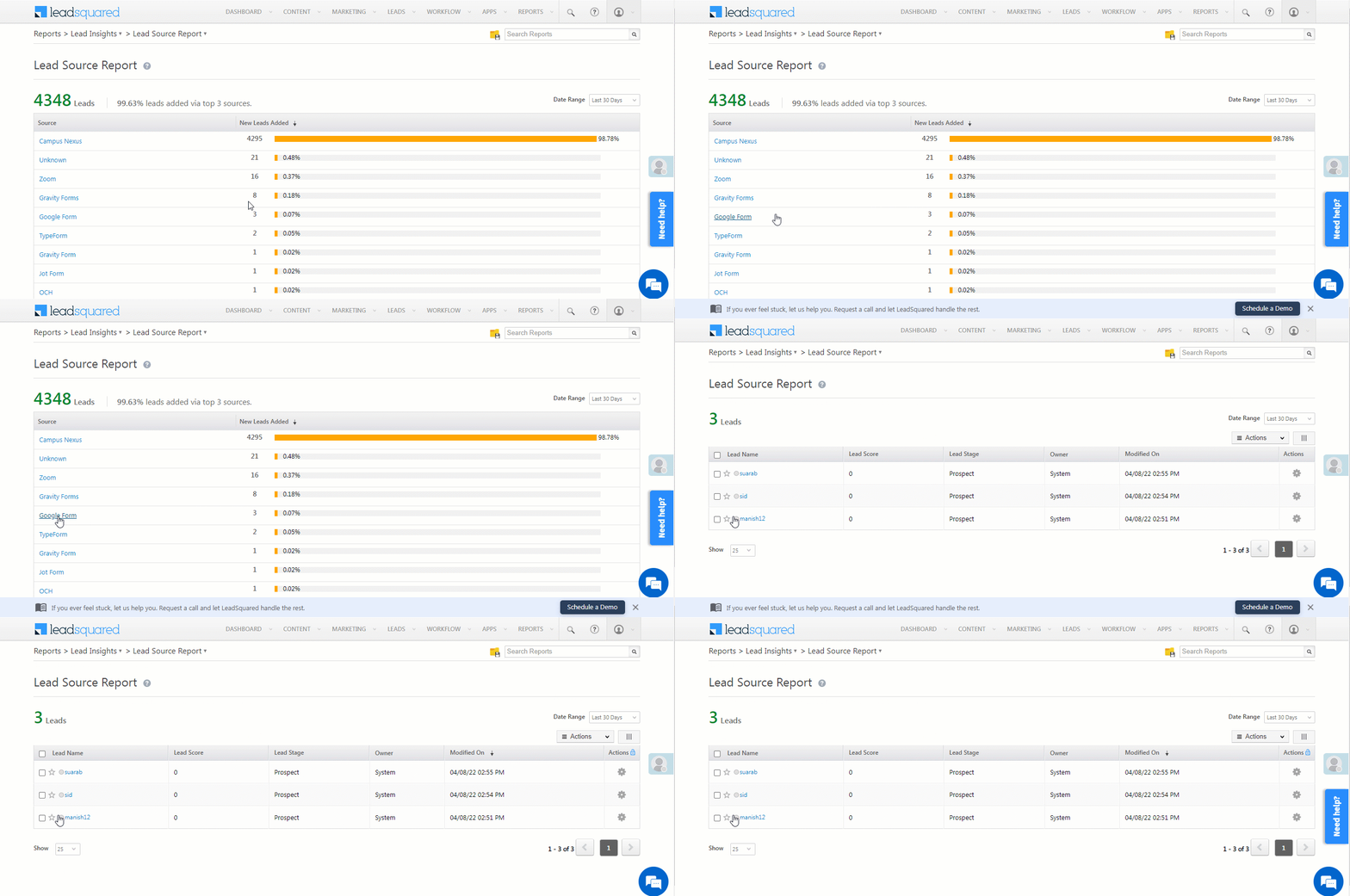
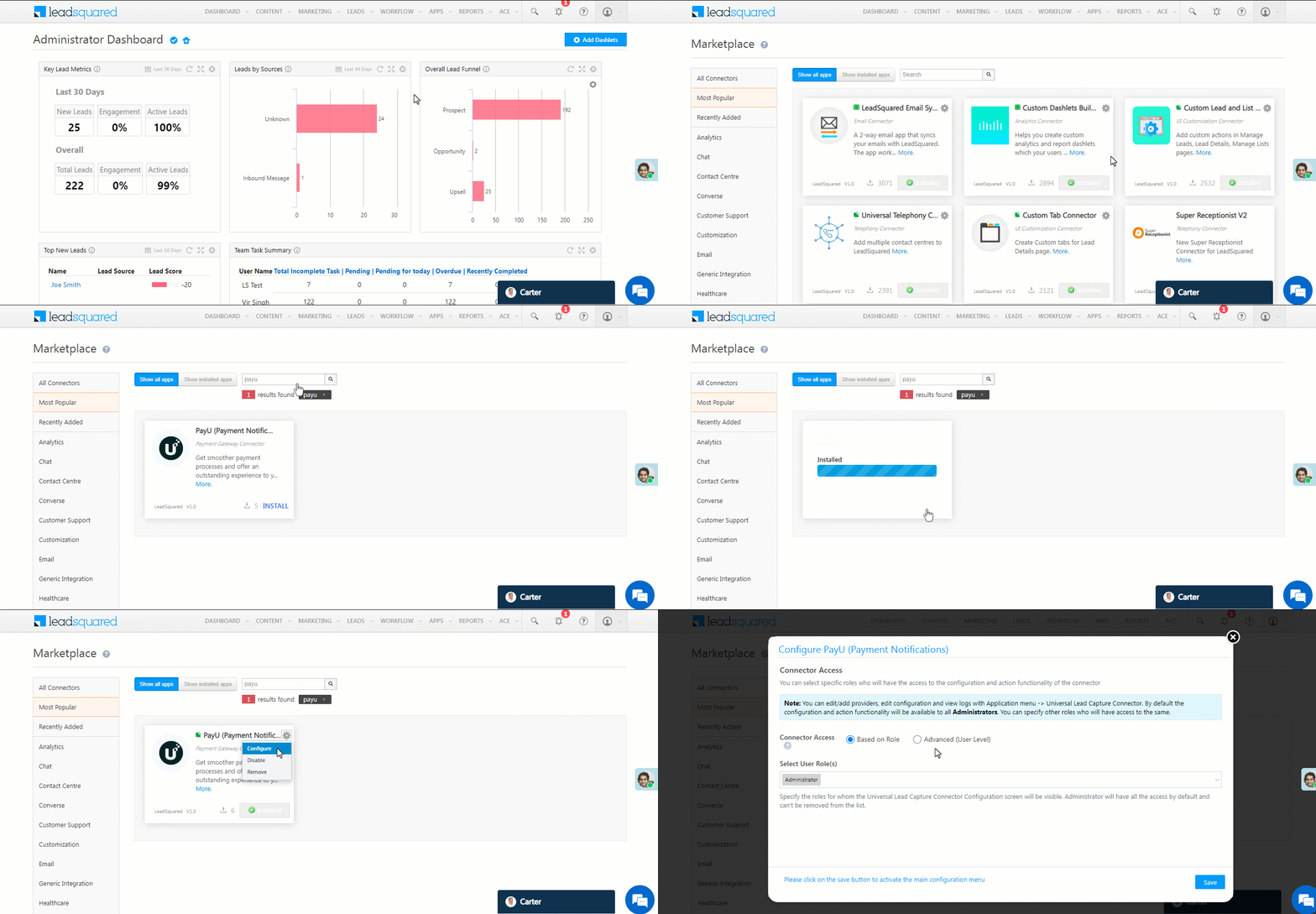
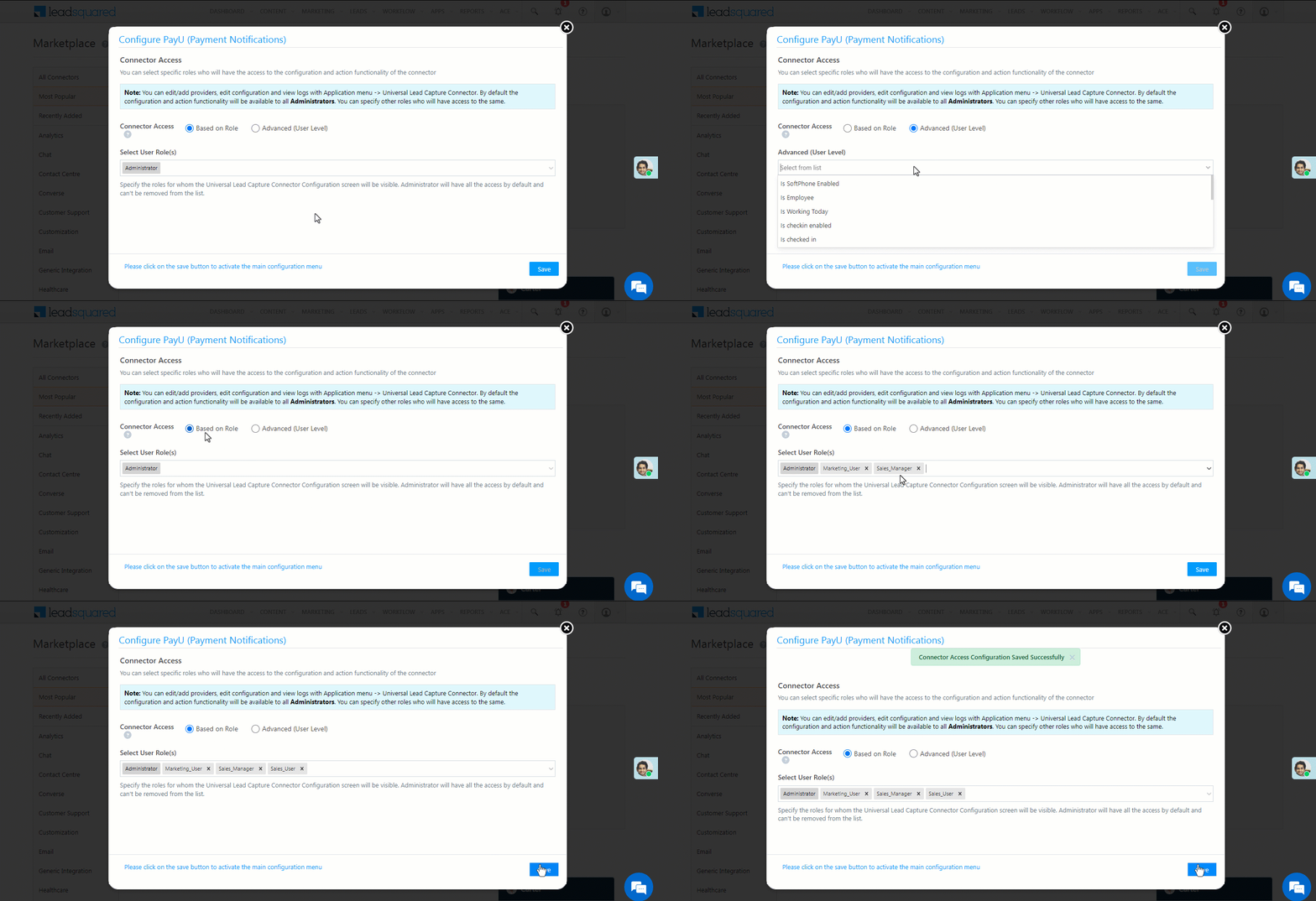
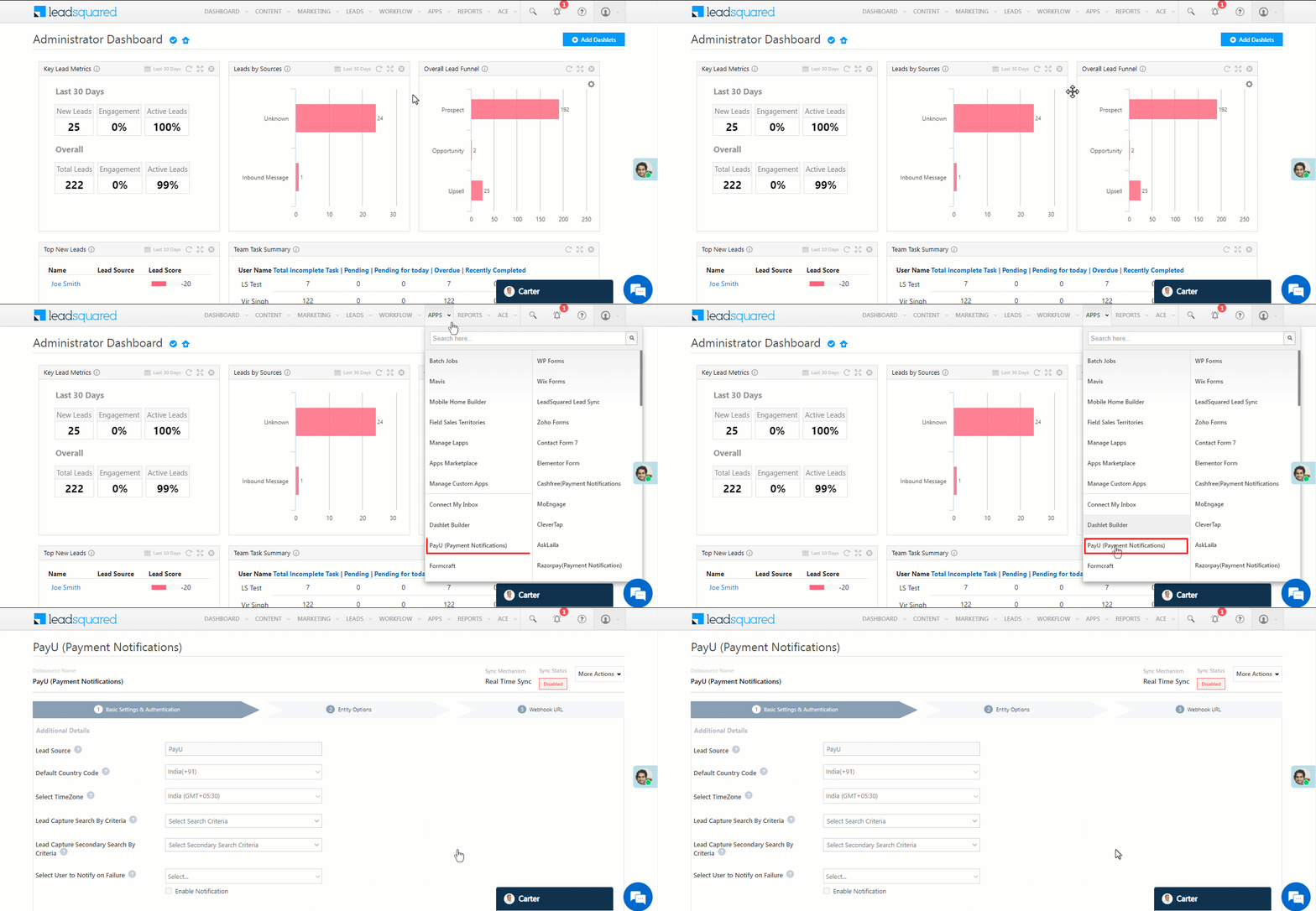
Integrate Facebook Conversions with LeadSquared

1. Feature Overview

This connector uses the Facebook Conversion API to transfer lead data (for leads captured through the Facebook Lead Ads Connector) from your LeadSquared account back to your Meta Business Suite. This connector also syncs custom events that happen during a lead’s journey (such as changes in the lead stage, etc.) with your Meta account. All of this helps optimise targeted ads, decreases the cost per action for each lead, and measures outcomes and performance across Meta technologies.

To know how this connector helps you optimize your Meta campaigns, refer to the Benefits of using the Conversions API to send website events.

Note: This connector syncs lead data for leads that were captured only through the Facebook Lead Ads Connector.


2. Prerequisites

  • You must be the Administrator of your LeadSquared account.
  • You must have an active Facebook Ads account.
  • You must install and configure the Facebook Lead Ads Connector. After the connector is installed, you must map the relevant Facebook fields to LeadSquared. Refer to the next section to know more.
  • This is a paid feature. To enable it, reach out to your account manager, or write to support@leadsquared.com.


3. Steps to be Completed on the Facebook Lead Ads Connector

Before you install and configure the Facebook Conversions Connector, you must complete the following steps when configuring the Facebook Lead Ads Connector.

  • For this connector to work as intended, you’ll need the Lead Gen ID for all the leads you want to sync with your Meta business account.
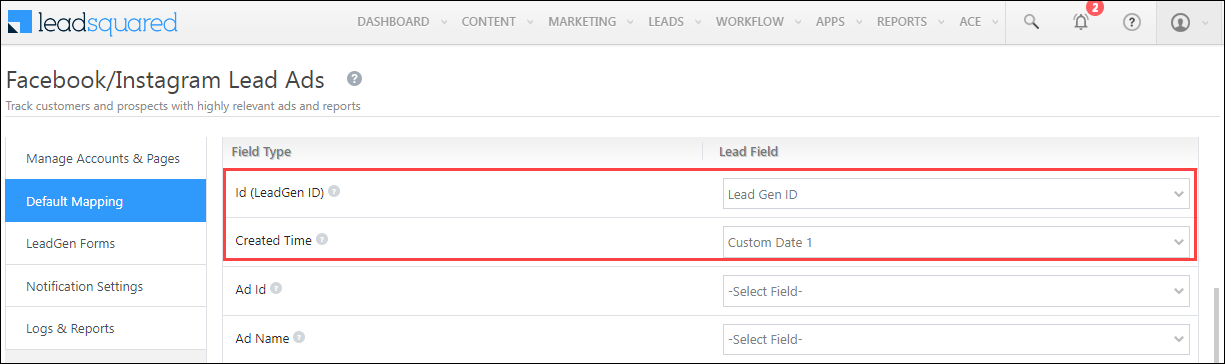
  • When configuring the connector, on the Default Mapping screen, map the Lead Gen ID field to a text (string) type lead field, and map the Created Time field to a DateTime lead field. To know how to create a string and DateTime lead field, refer to How to Create Custom Lead Fields.
Facebook Conversions Connector

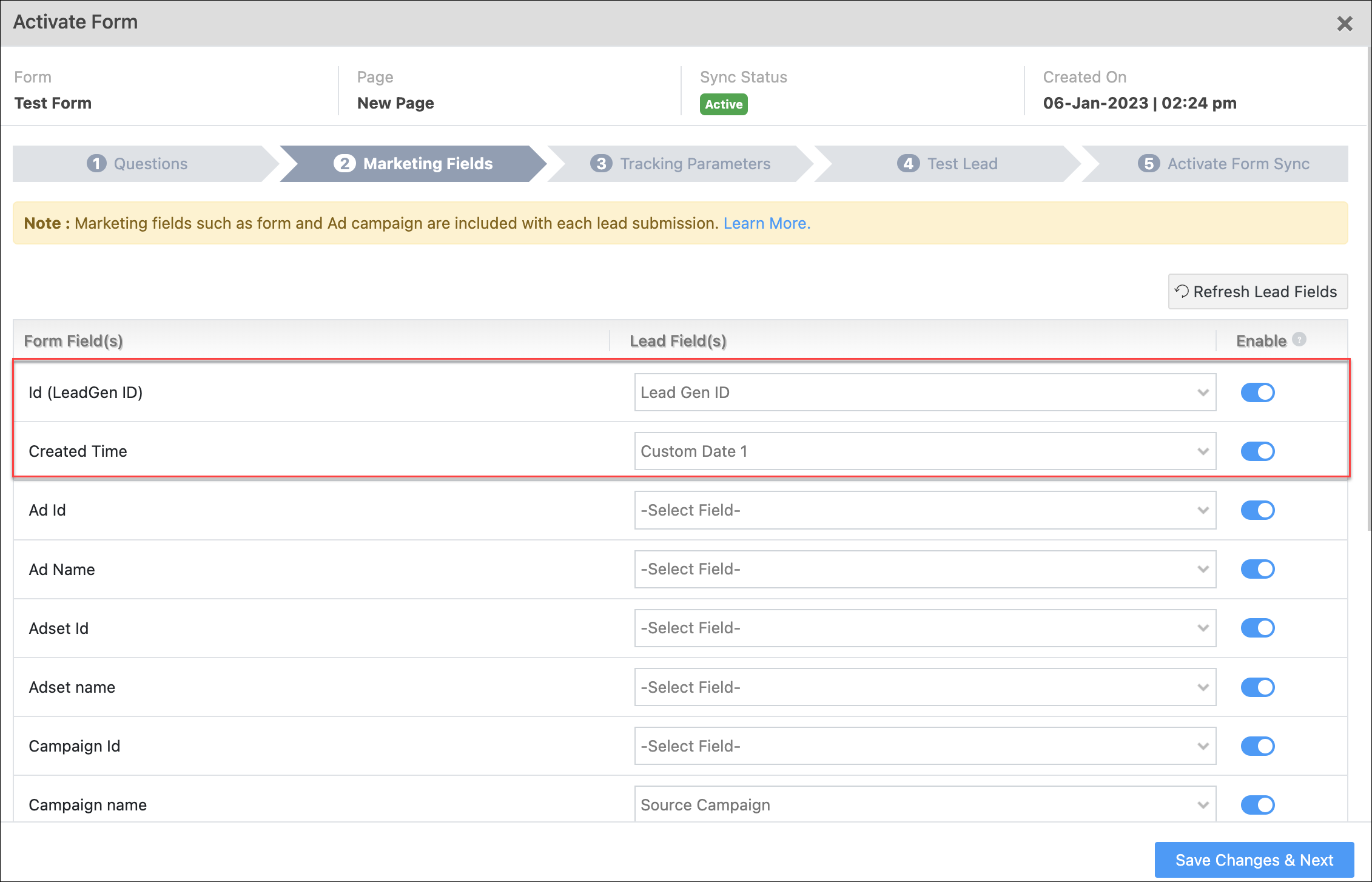
  • When configuring the connector, on the LeadGen Forms screen, click the Connect LeadGen Forms button to verify if the Lead Gen ID and Created Time are mapped to the correct fields.
LeadSquared Facebook Integration


4. How it Works

Before you complete any of the steps listed below, ensure the Facebook Lead Ads Connector is installed and configured in your account. After the connector is installed, you must map the relevant Facebook fields to LeadSquared. Refer to Steps to be Completed on the Facebook Lead Ads Connector.

  1. Install and configure the Facebook Conversions connector
    As part of the connector configuration, a custom activity is automatically created – Facebook Conversion API. This activity is used to send lead data to the Facebook Conversion API.
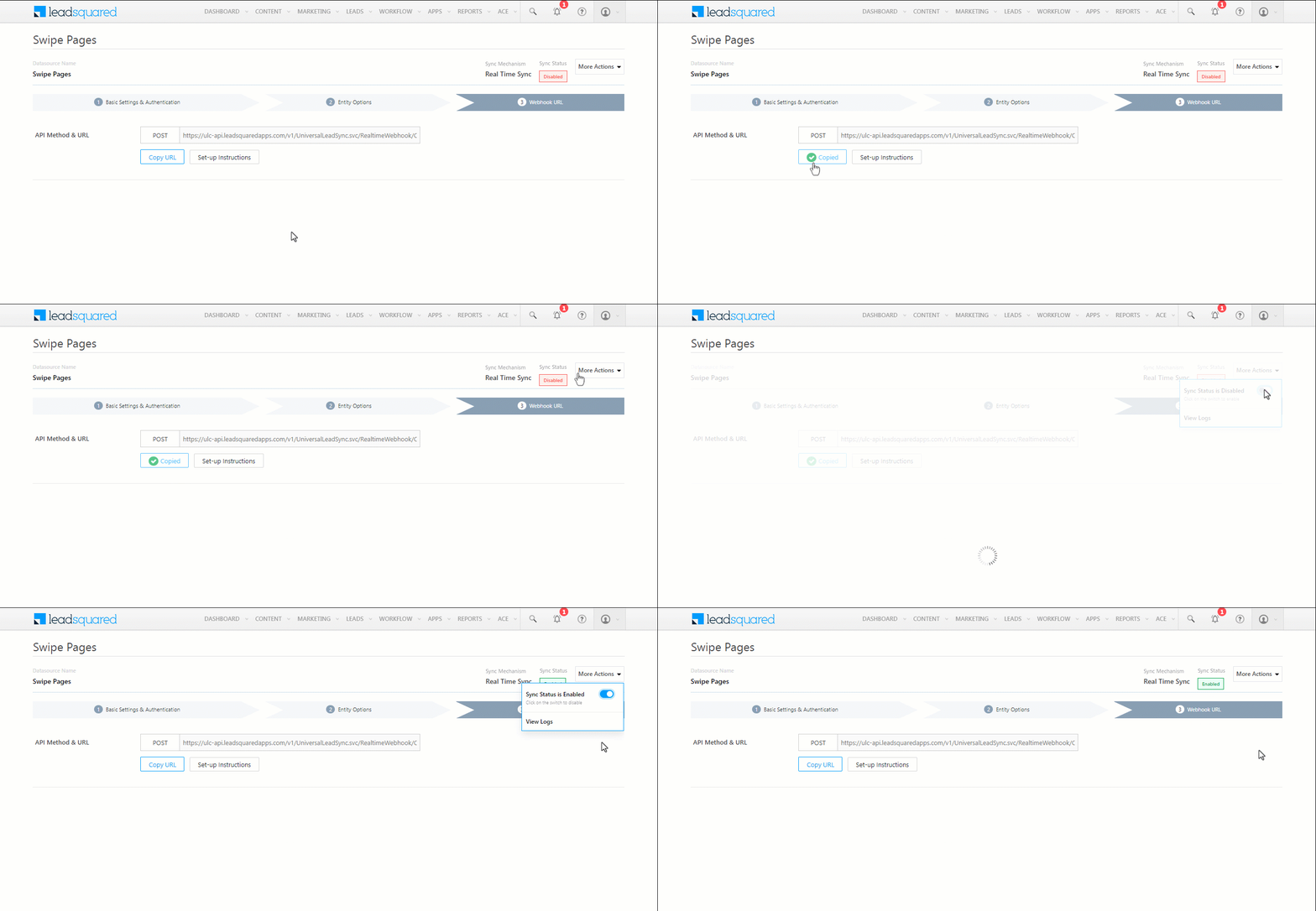
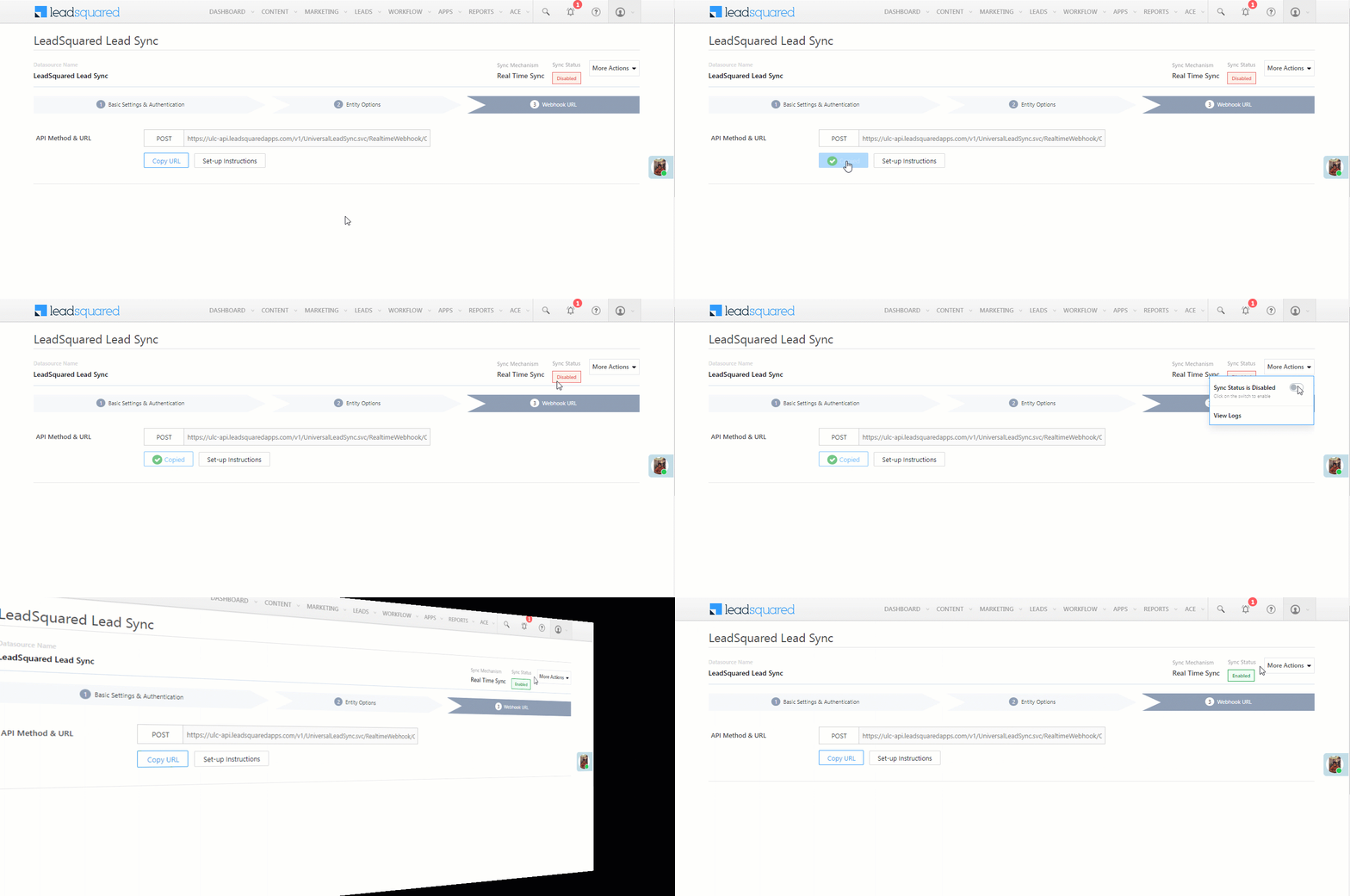
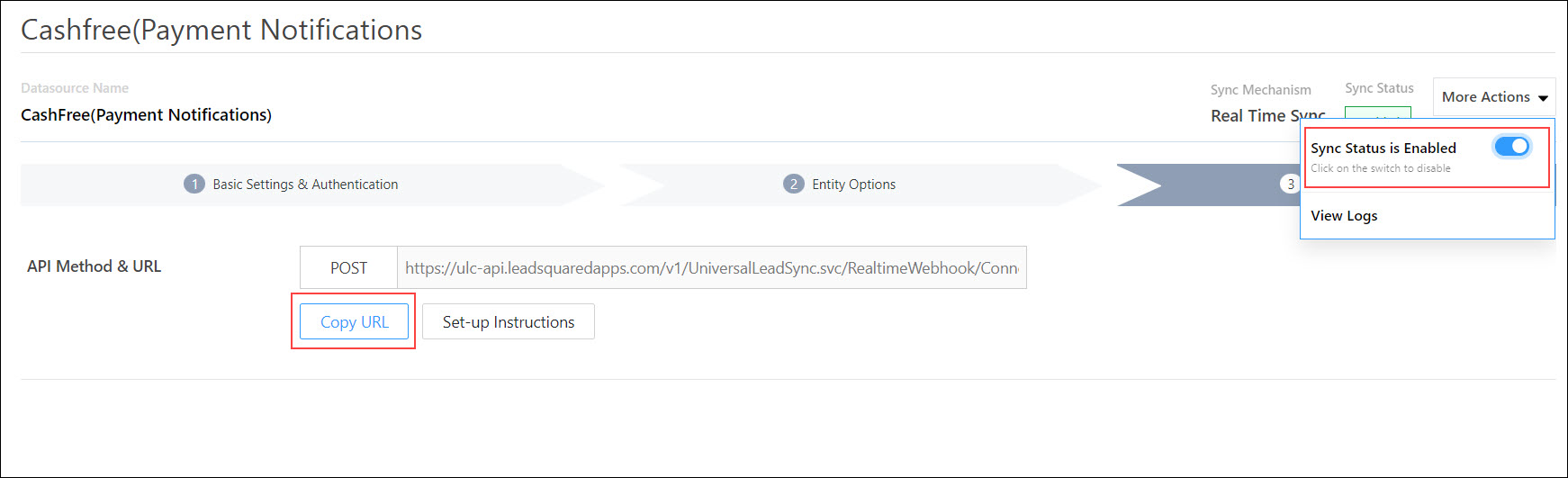
    Once the connector is enabled, a webhook URL is generated. Copy this URL (you’ll use this while setting up Automation 2).
  2. Create three automations – Create the following automations to identify and push lead data to your Meta account.
    1. Automation 1 – This automation is used to identify the leads captured through the Facebook Lead Ads connector. Use the Lead Create/Lead Update trigger, and add the condition Lead Gen ID contains Data. Then, add an Add Activity card to this automation, and select Facebook Conversion API as the activity. This ensures every time a lead is captured through the Facebook Lead Ads Connector (which is identified by the Lead Gen ID), the Facebook Conversion API activity is posted on the lead.
      To set up the automation, refer to the First Automation.
    2. Automation 2 – This automation is used to transfer lead data to your Meta account. Use the New Activity on Lead trigger, and select the Facebook Conversion API activity. Then, add a webhook card to this automation, and pass the webhook URL that was generated when the connector was configured in your account. This ensures that every time the Facebook Conversion API activity is posted on a lead, the webhook is triggered, which sends the lead data back to your Meta account.
      To set up the automation, refer to the Second Automation.
    3. Automation 3 – This automation is used to identify custom event changes that happen during your lead’s journey in the sales funnel. This automation trigger will depend on the use case you’re trying to solve. We’re using the example of sending data to our Meta account when there’s a Lead Stage change in LeadSquared. We’ll use the Lead Update trigger, with the condition Lead Stage changes from Prospect to Customer. Then, we’ll add an Add Activity card to this automation, and select Facebook Conversion API as the activity. This ensures every time the Lead Stage changes, the activity is posted on the lead, and the lead stage change data is sent to your Meta account (through the webhook configured in your second automation). You can choose to send similar custom event data that’s generated during a lead’s journey in the sales funnel.
      To set up the automation, refer to the Third Automation.

Other example use cases for automation 3 (for the lead behavior data we can send back to Meta) –

  • Opportunity stage change
  • Pricing page visit
  • Payment activity tha’s posted and so on.


5. Installation

To install the Facebook Conversions connector –

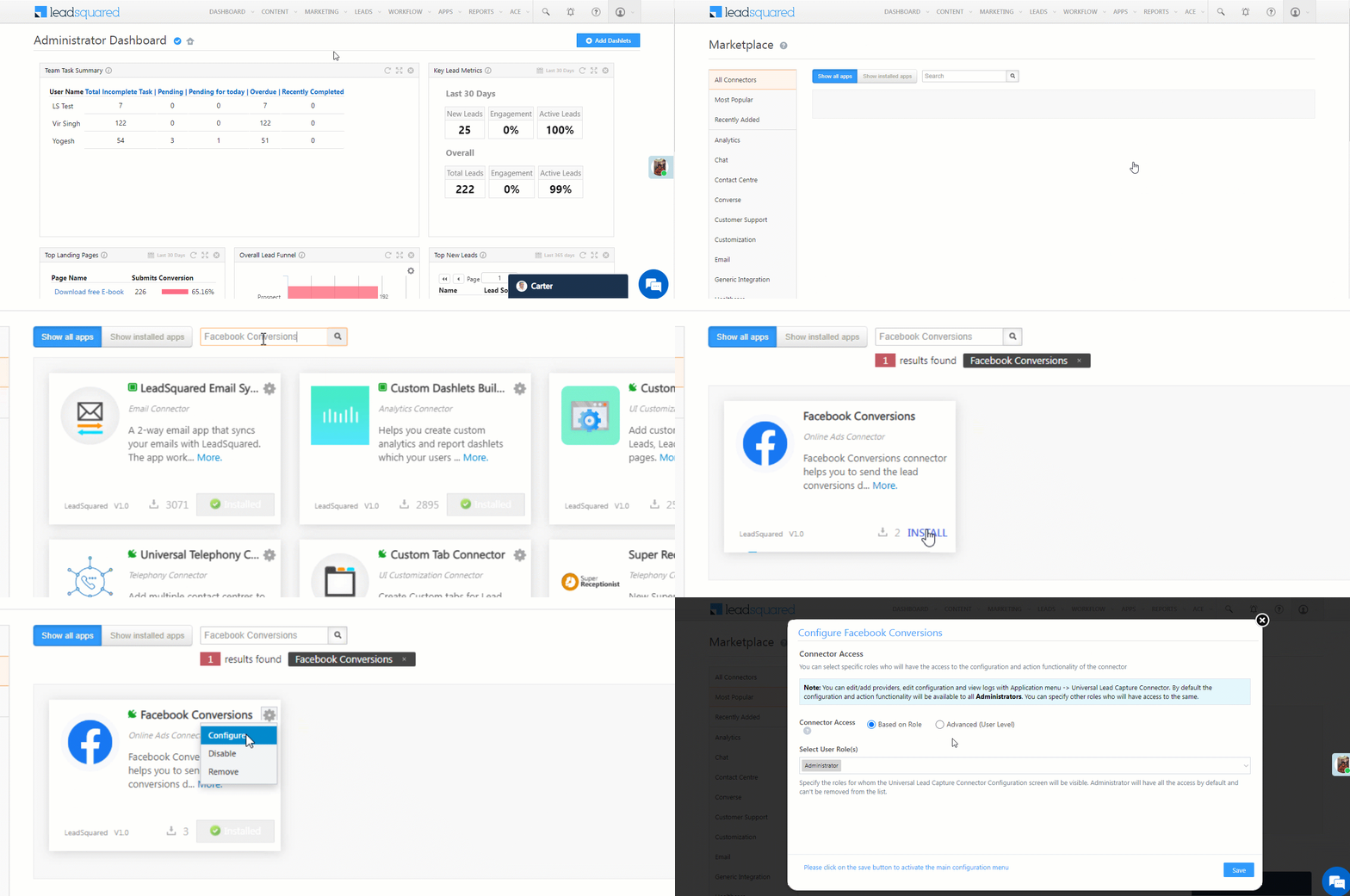
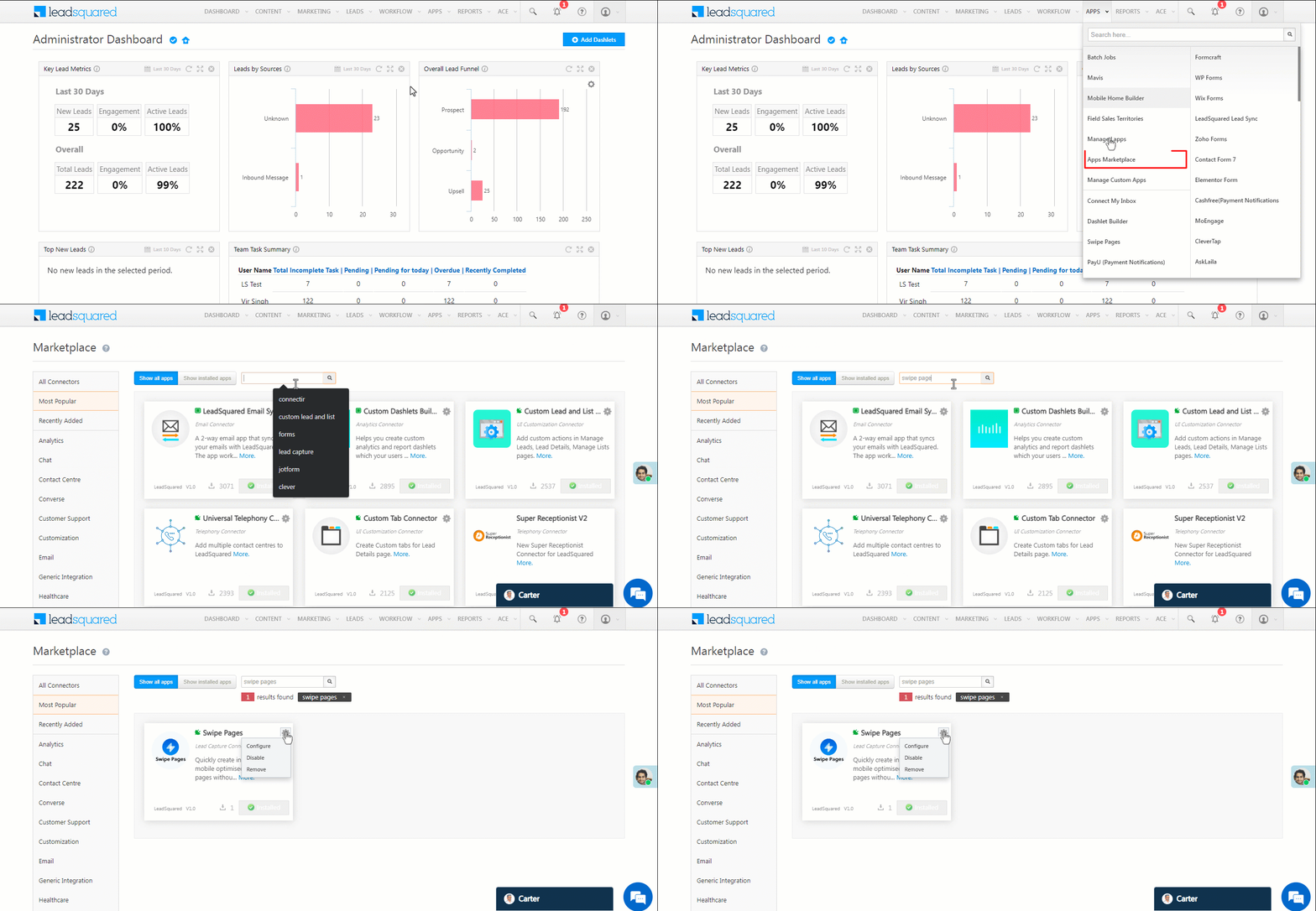
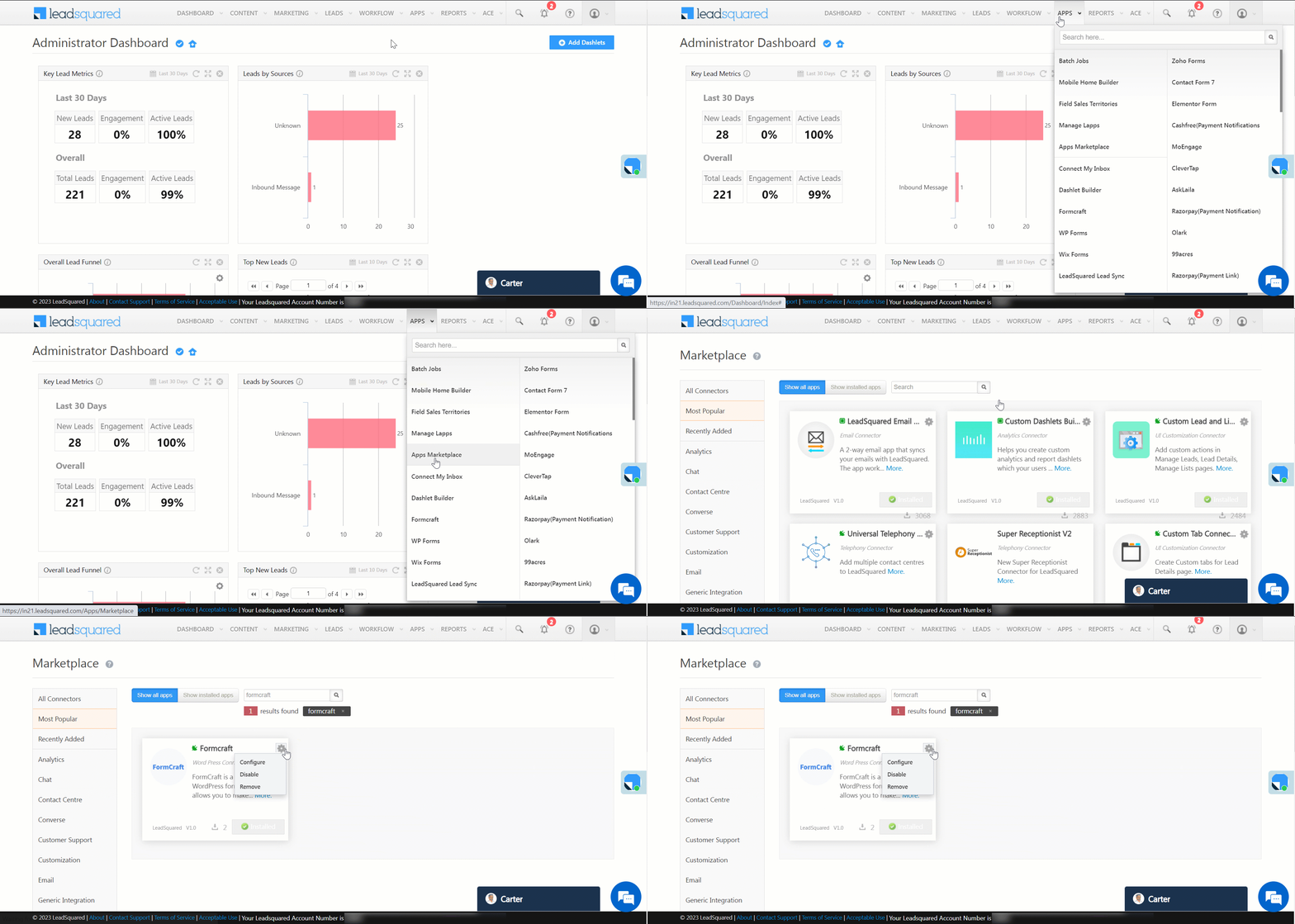
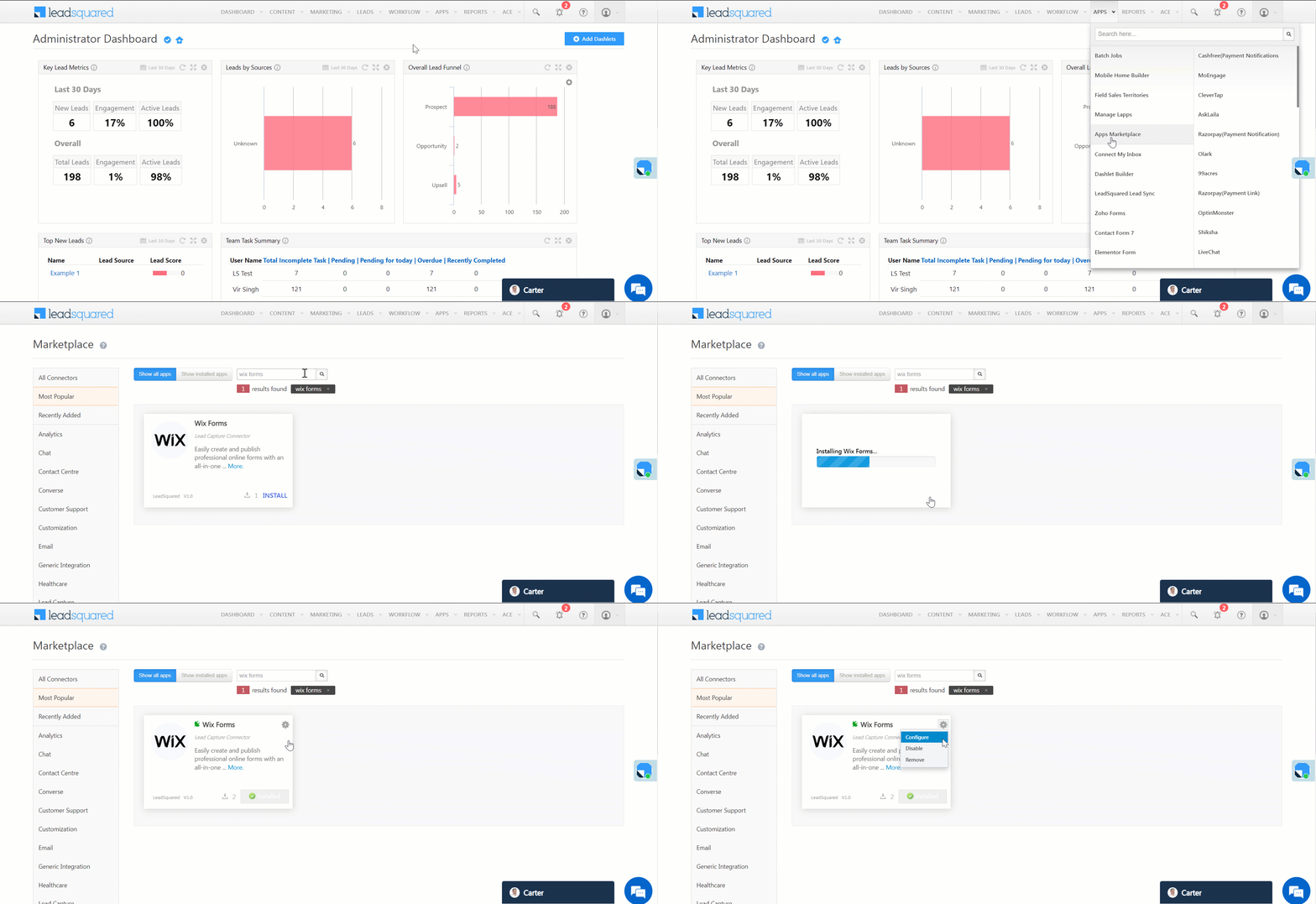
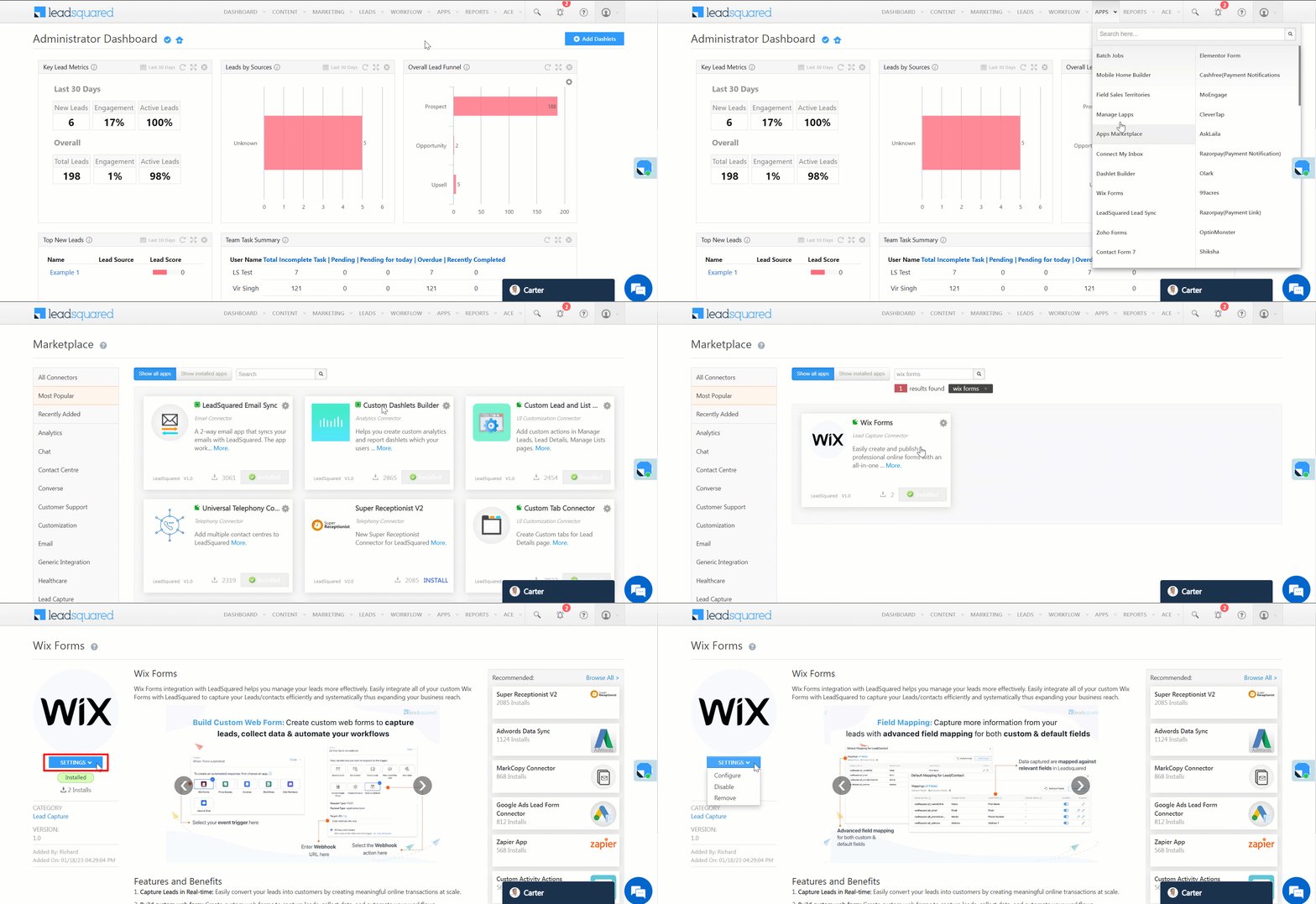
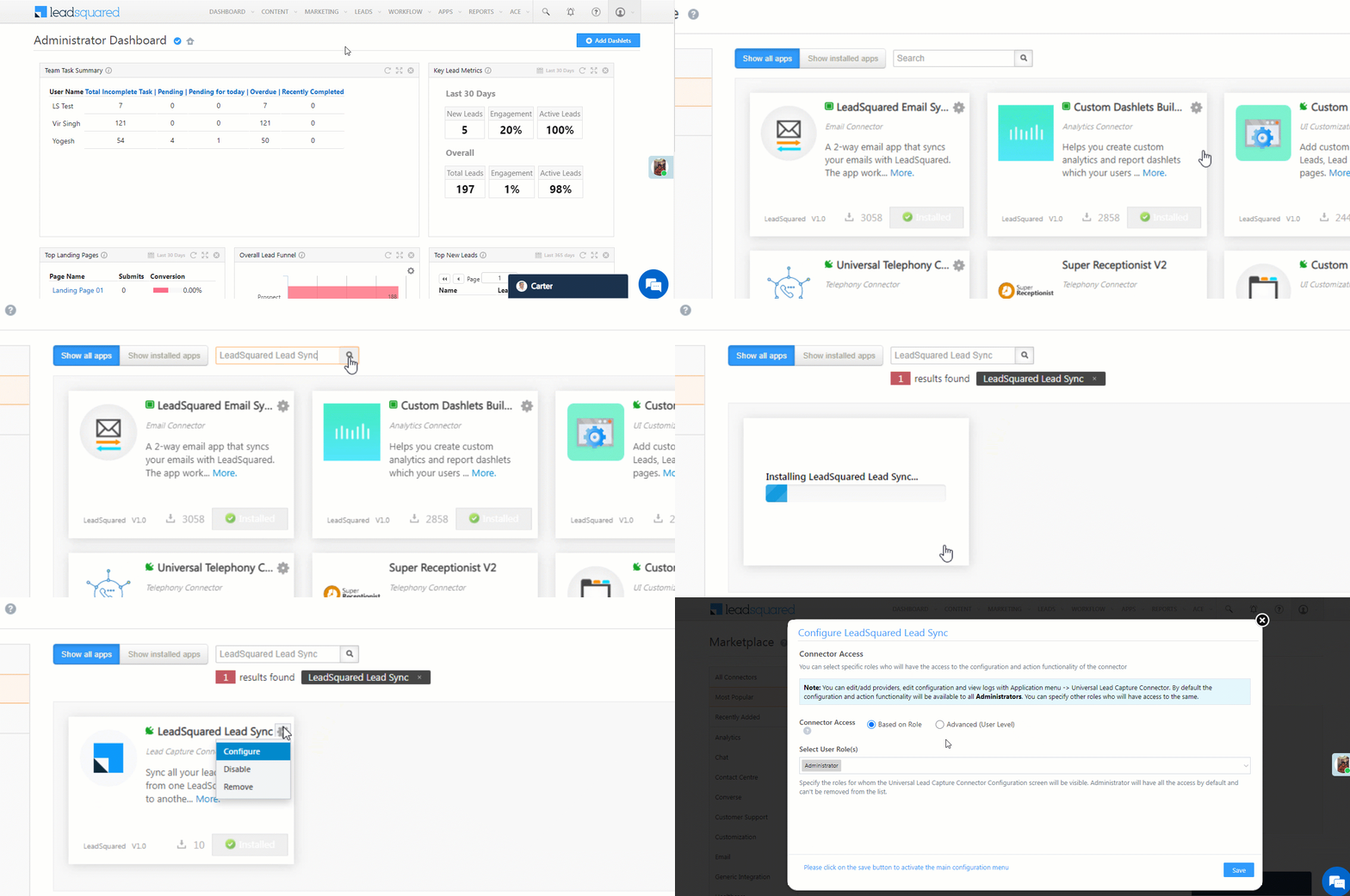
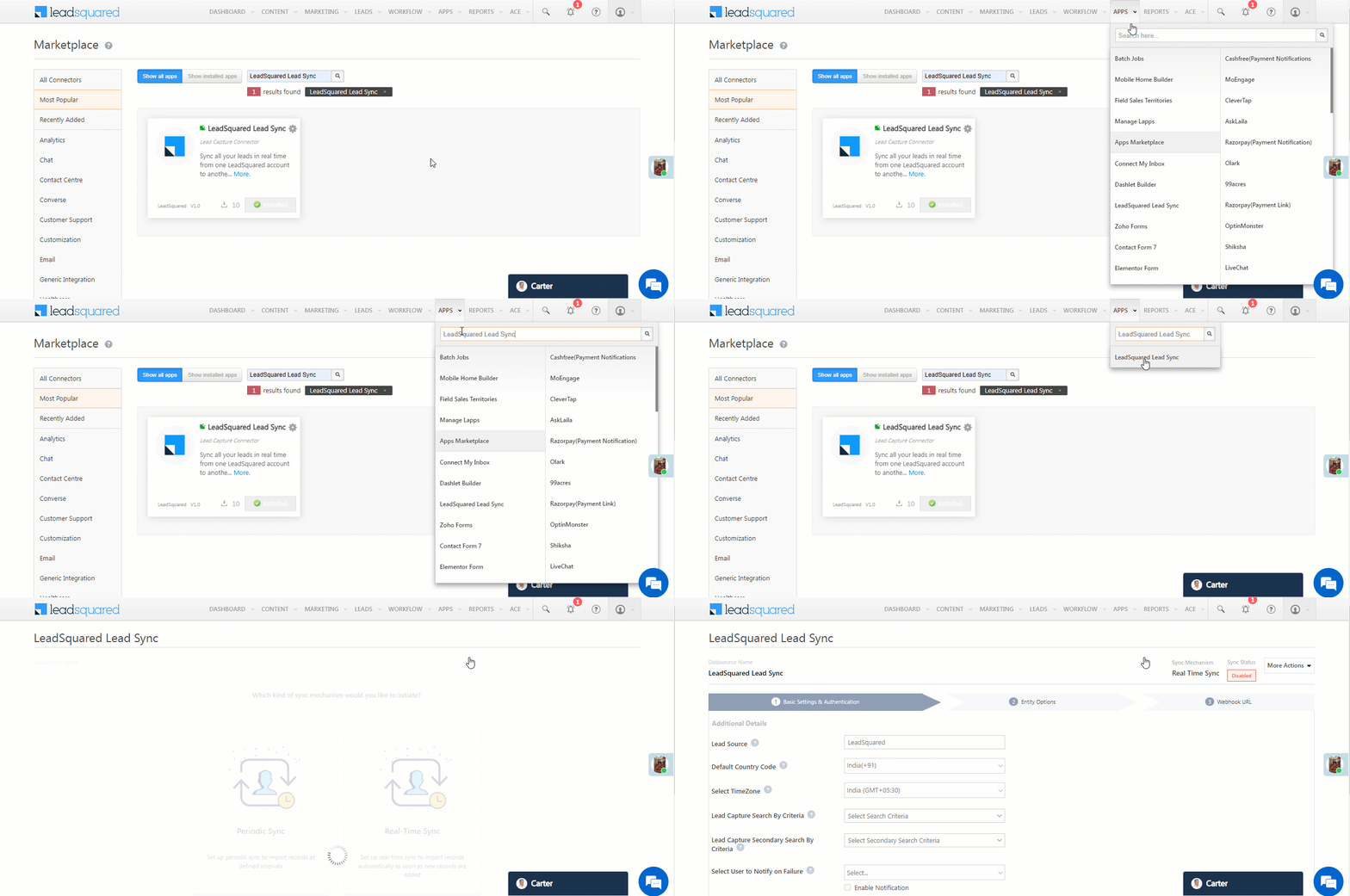
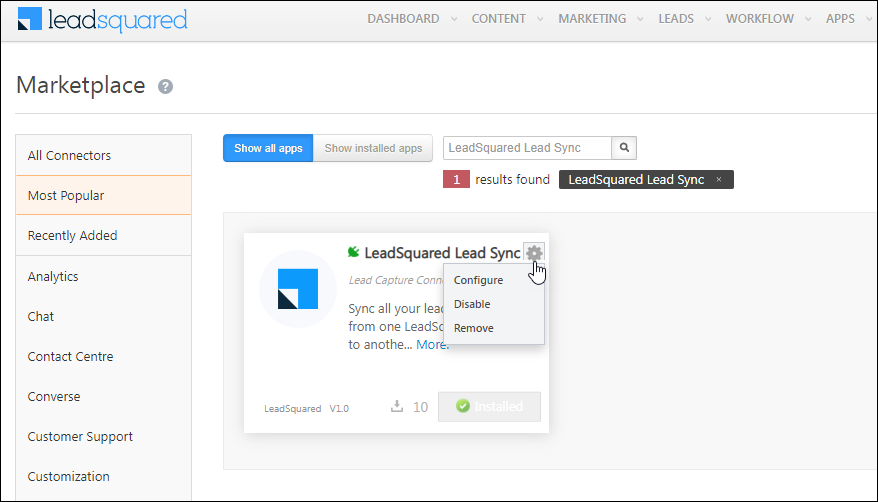
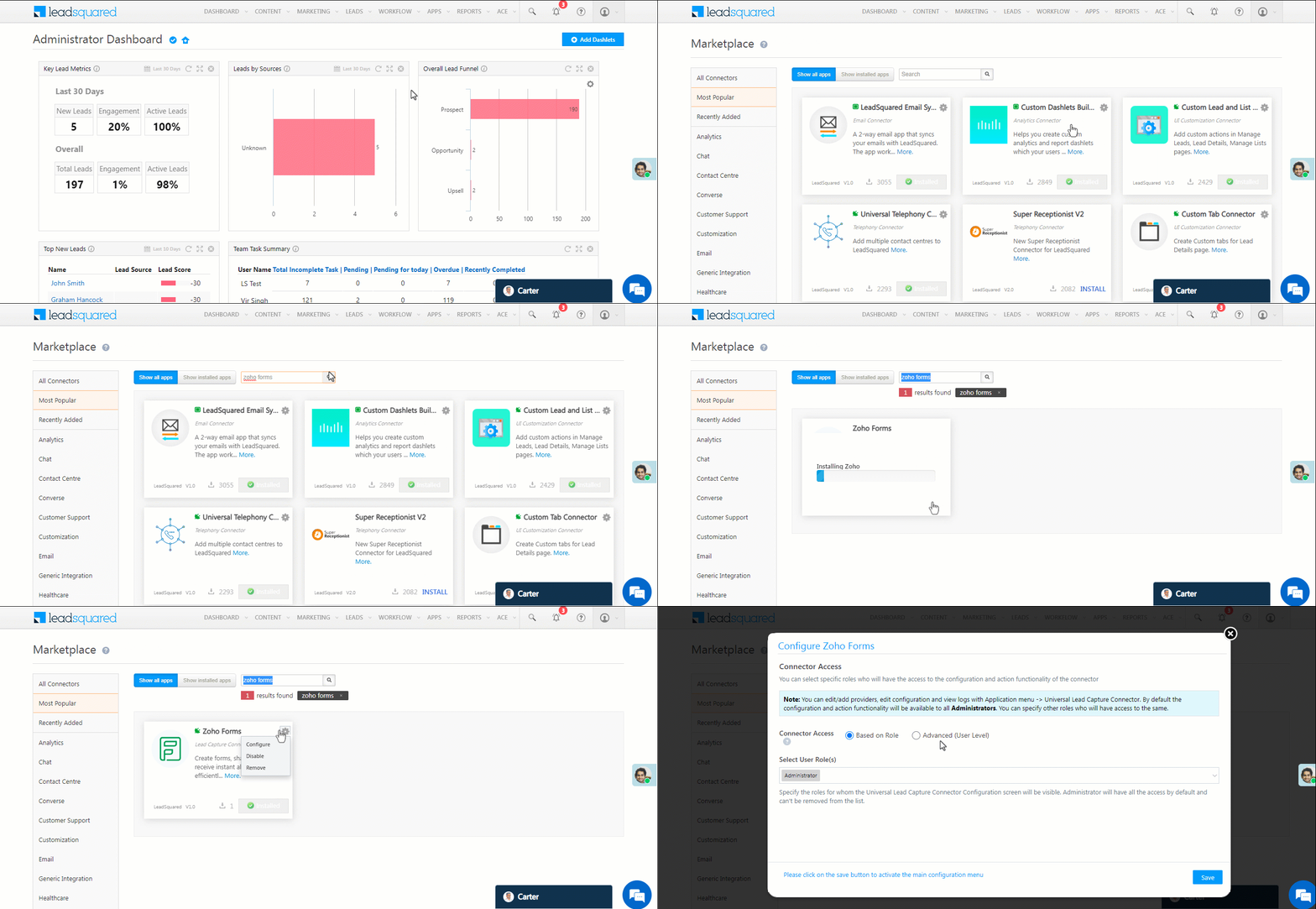
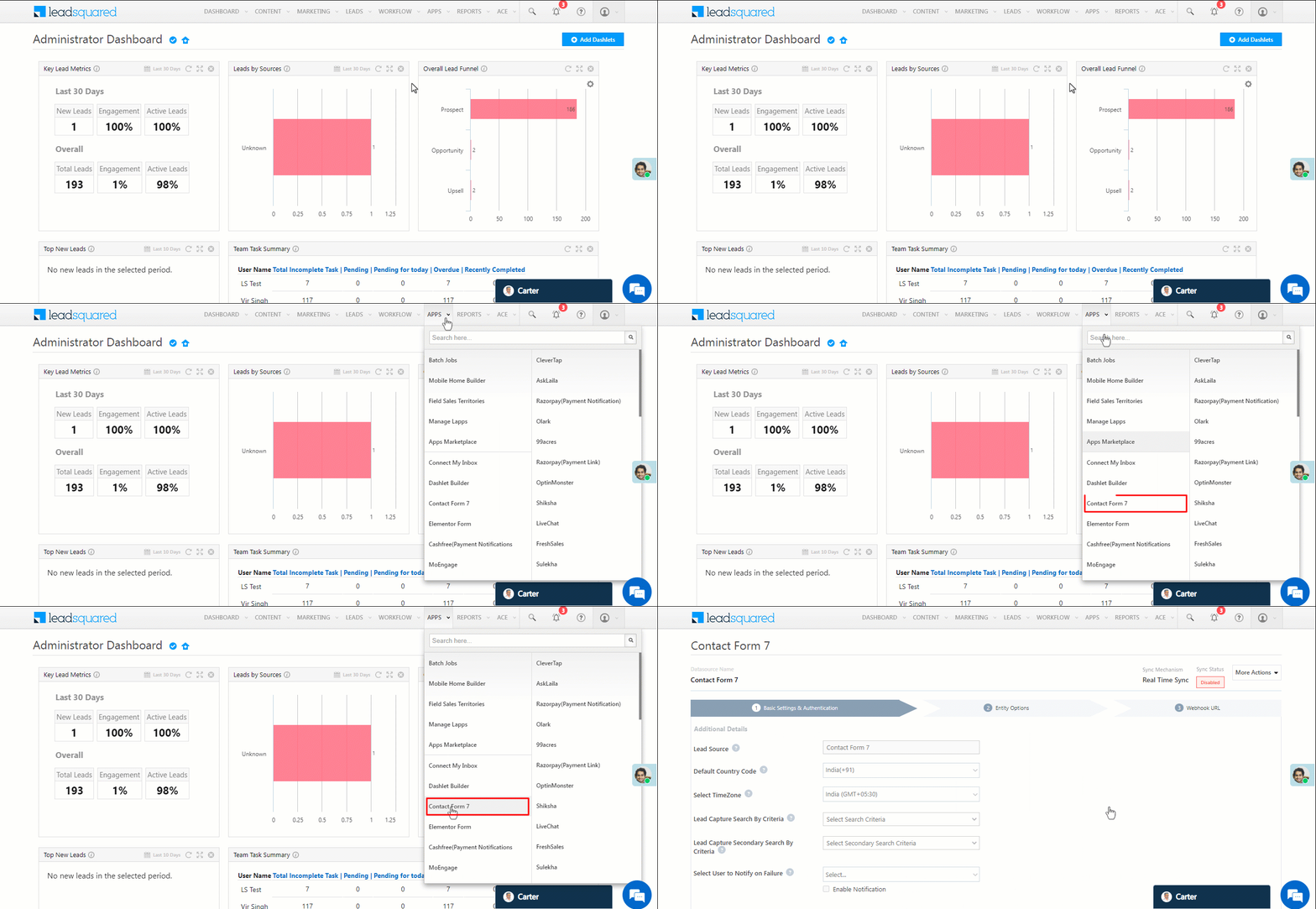
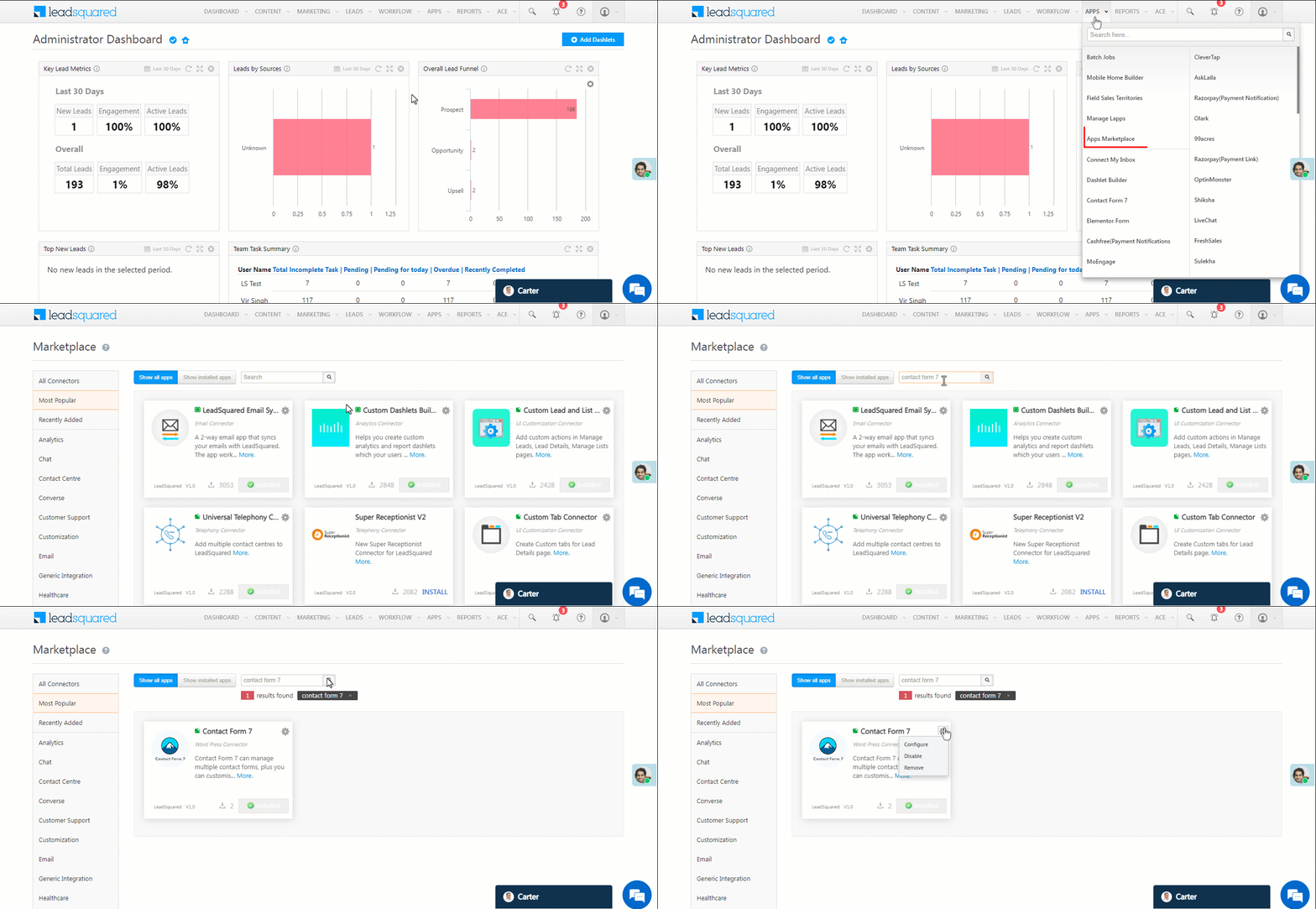
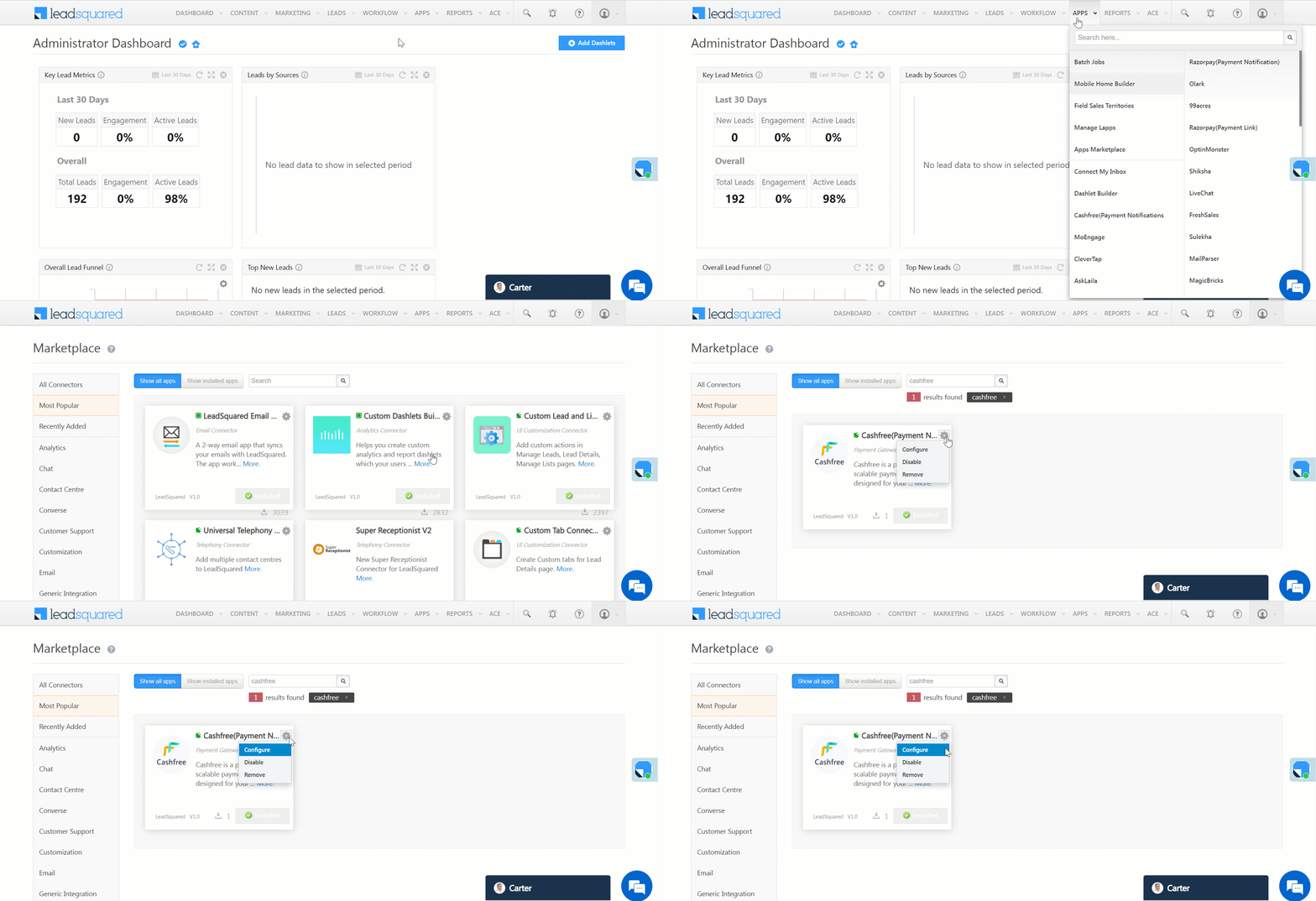
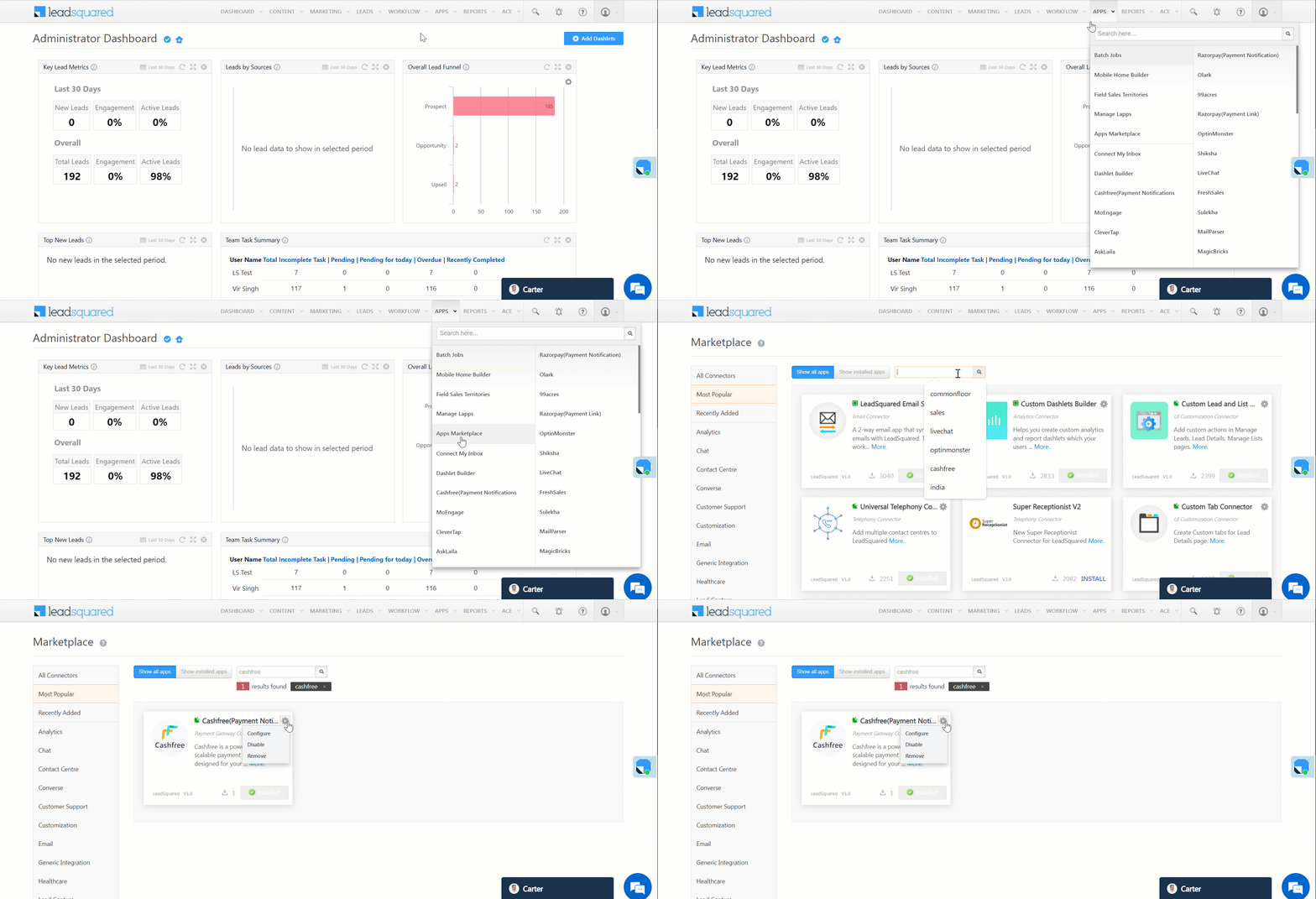
  1. Navigate to Apps>Apps Marketplace.
  2. Search for Facebook Conversions, and click Install.
    • Alternatively, you can find the connector on the left panel, under Online Ads.
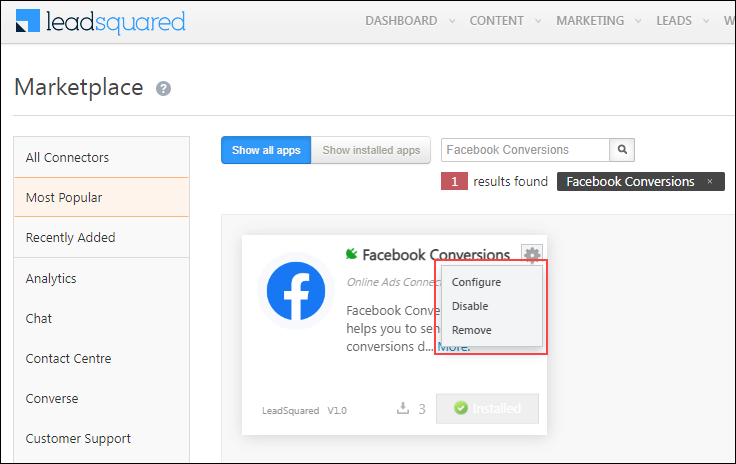
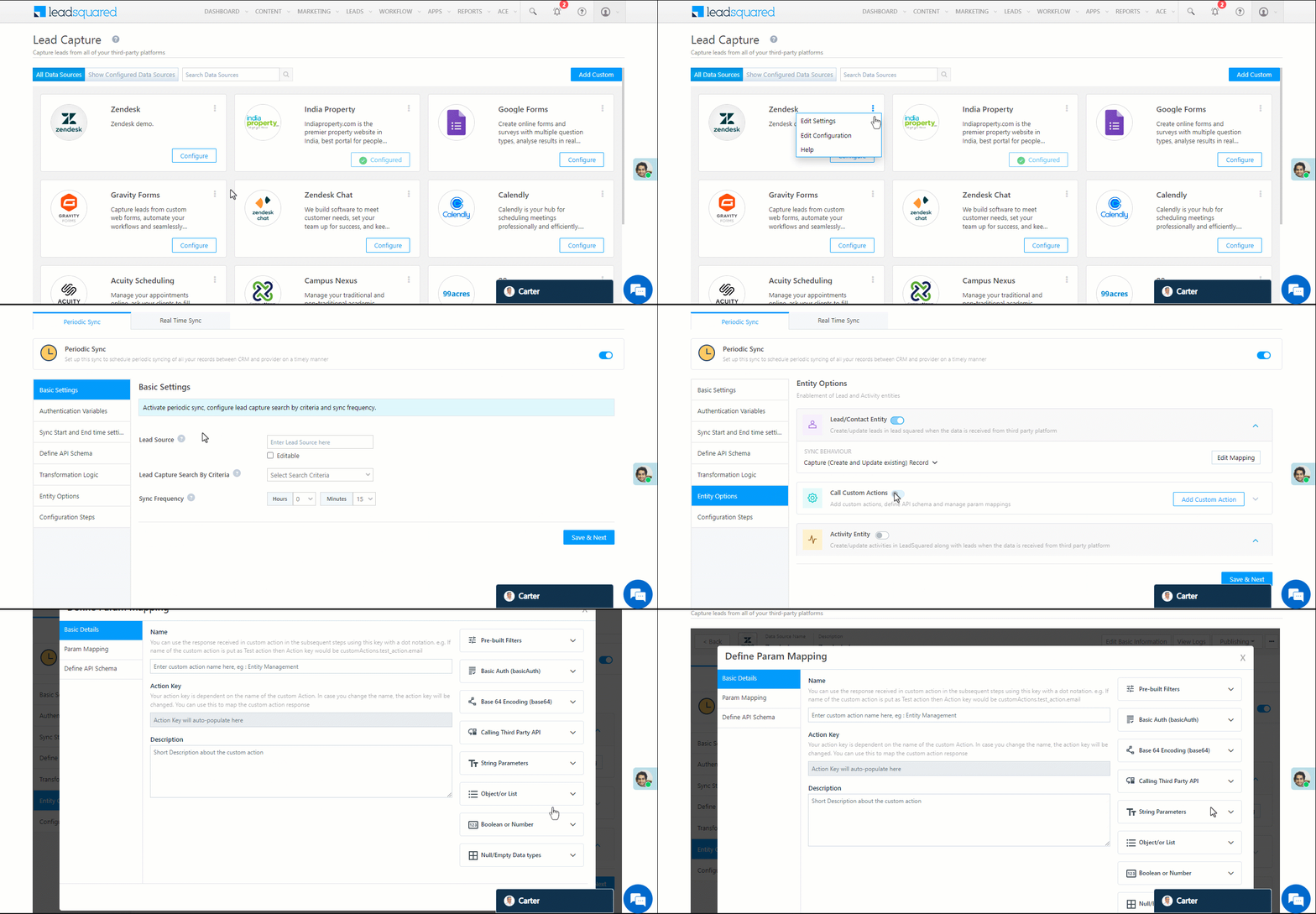
  3. Once installed, hover your cursor over , and click Configure.

Facebook Conversions Connector


6. Configure the connector

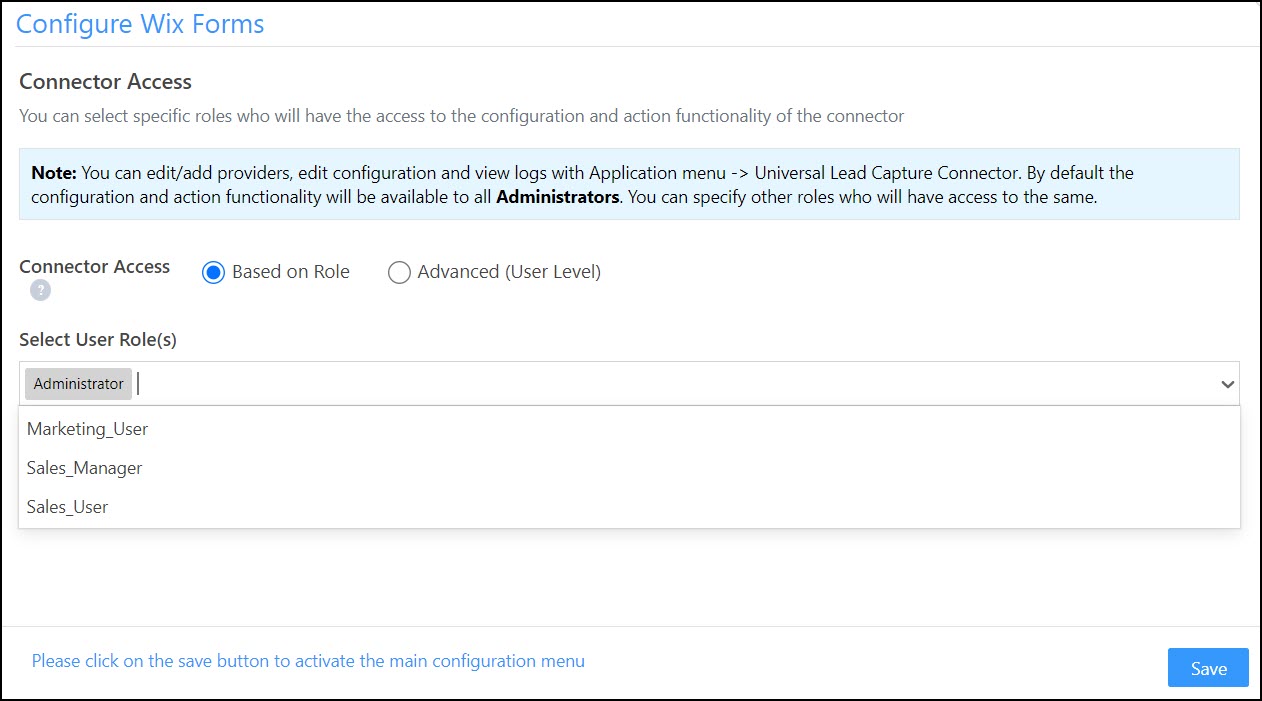
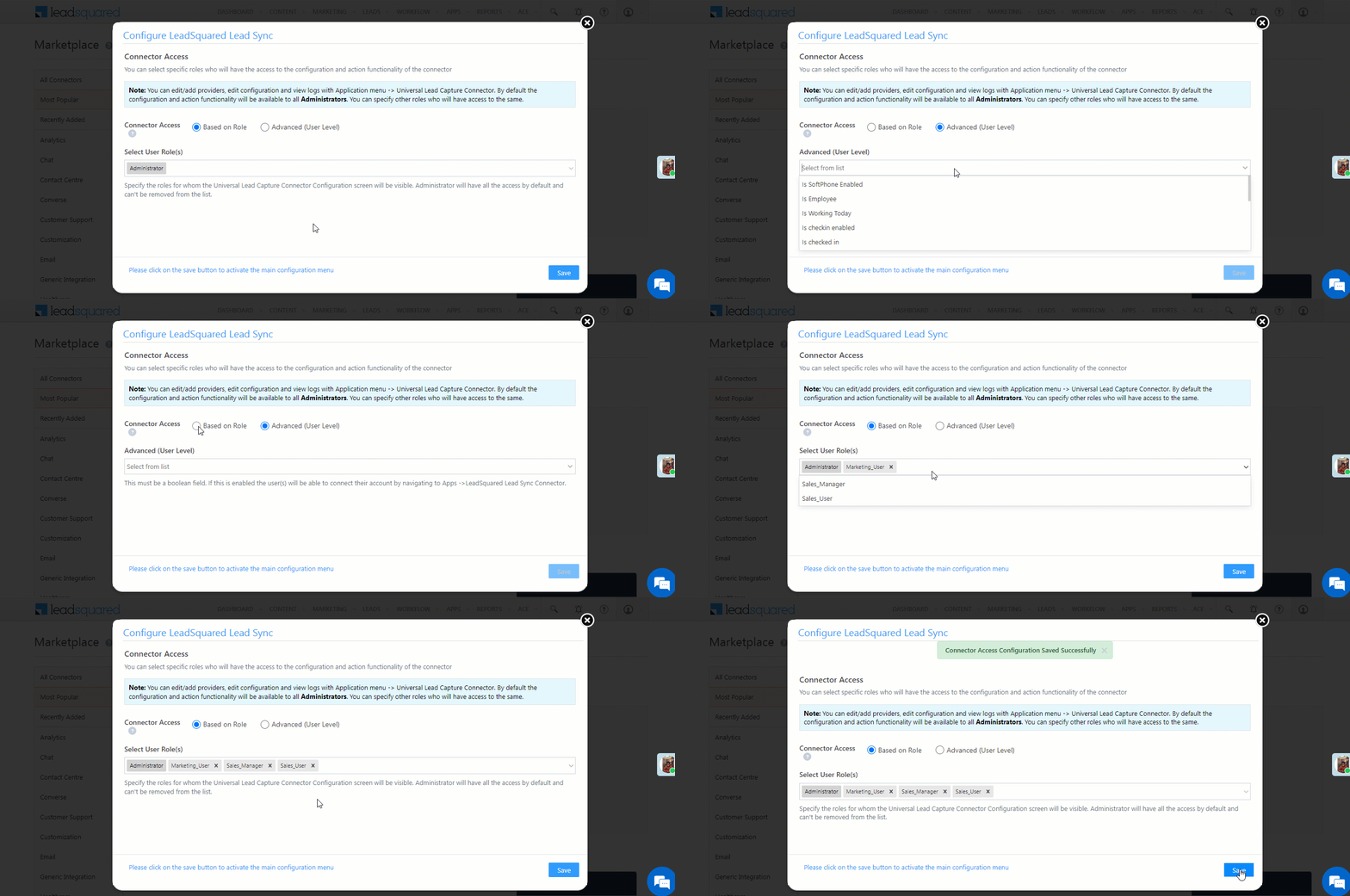
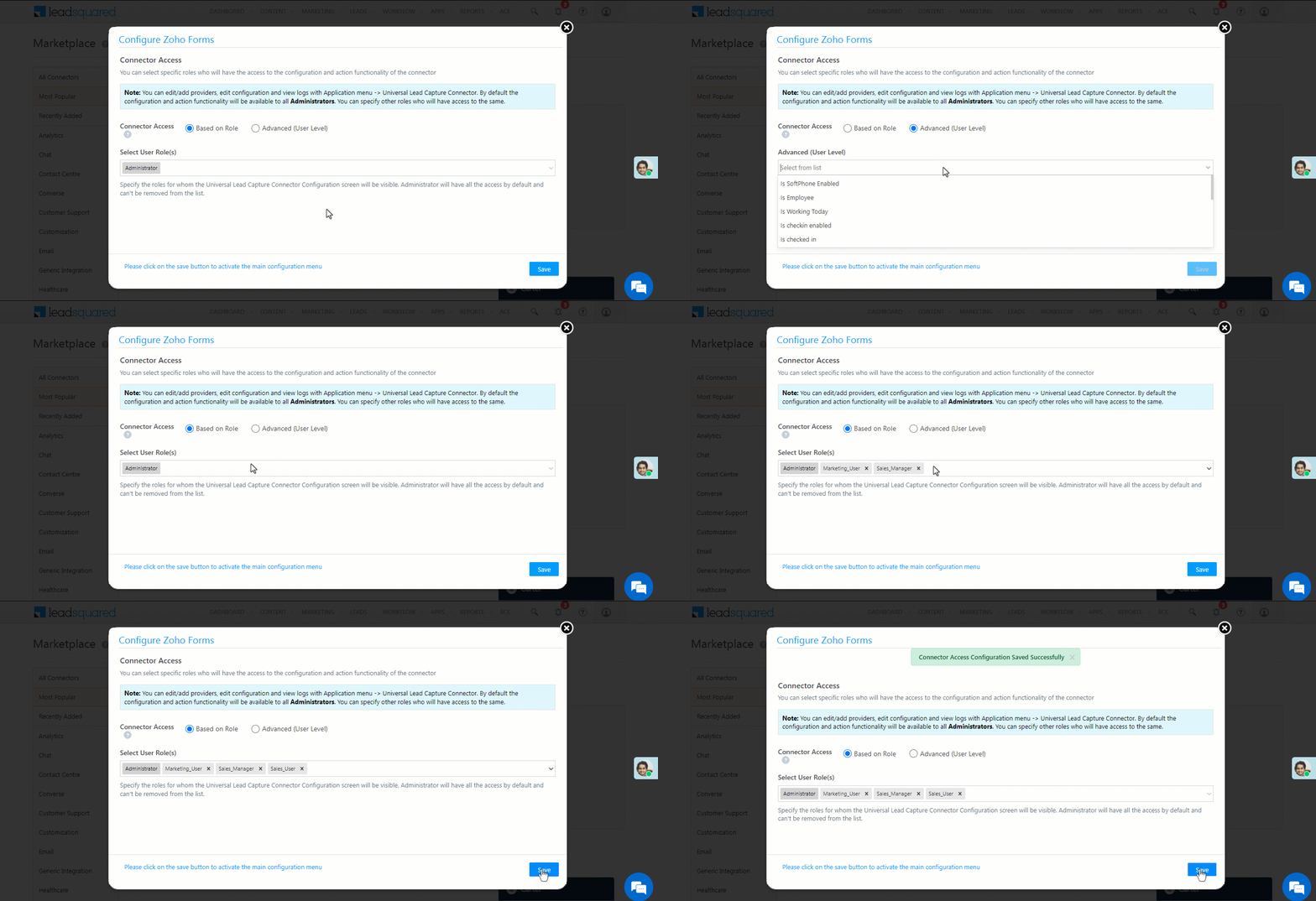
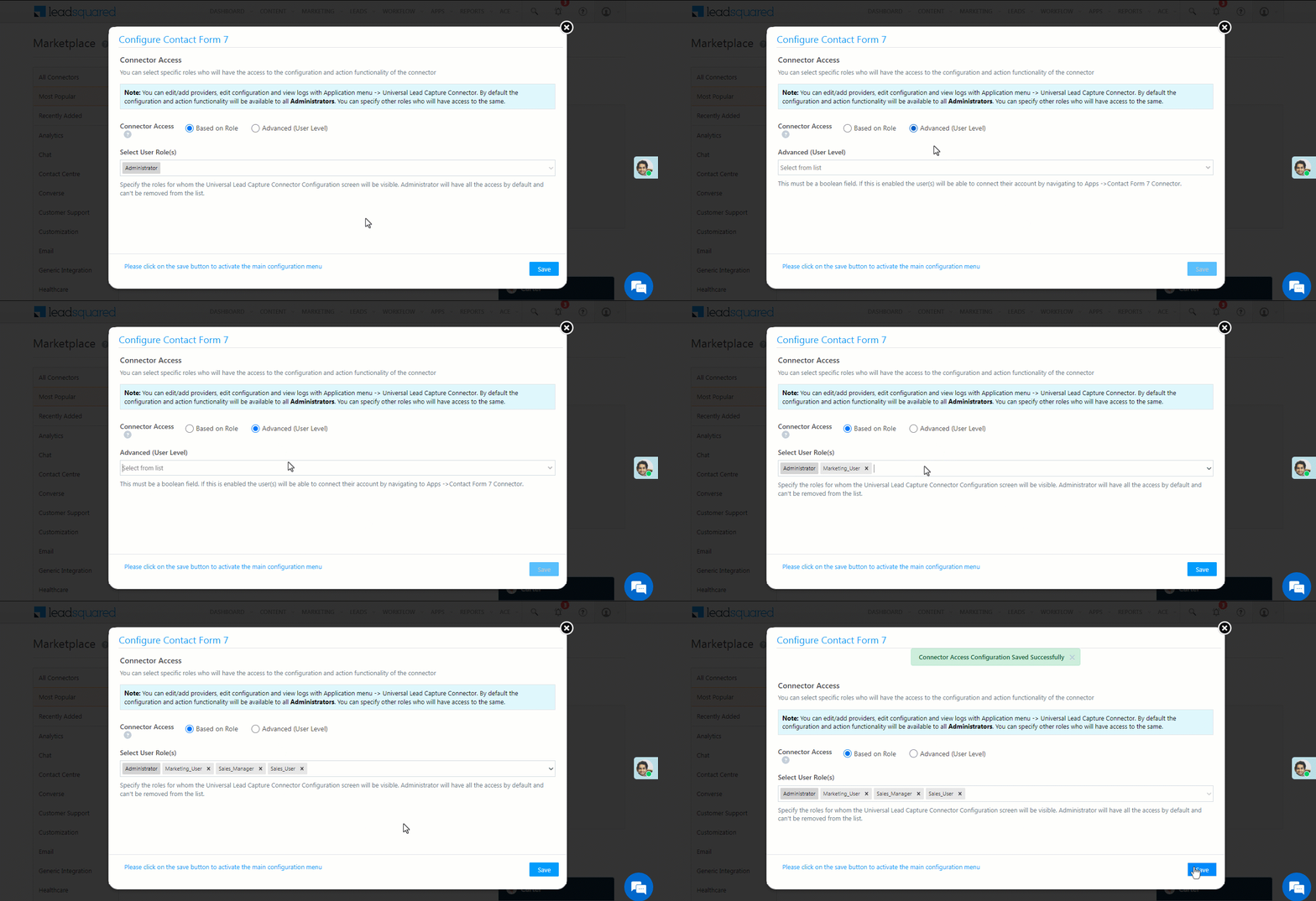
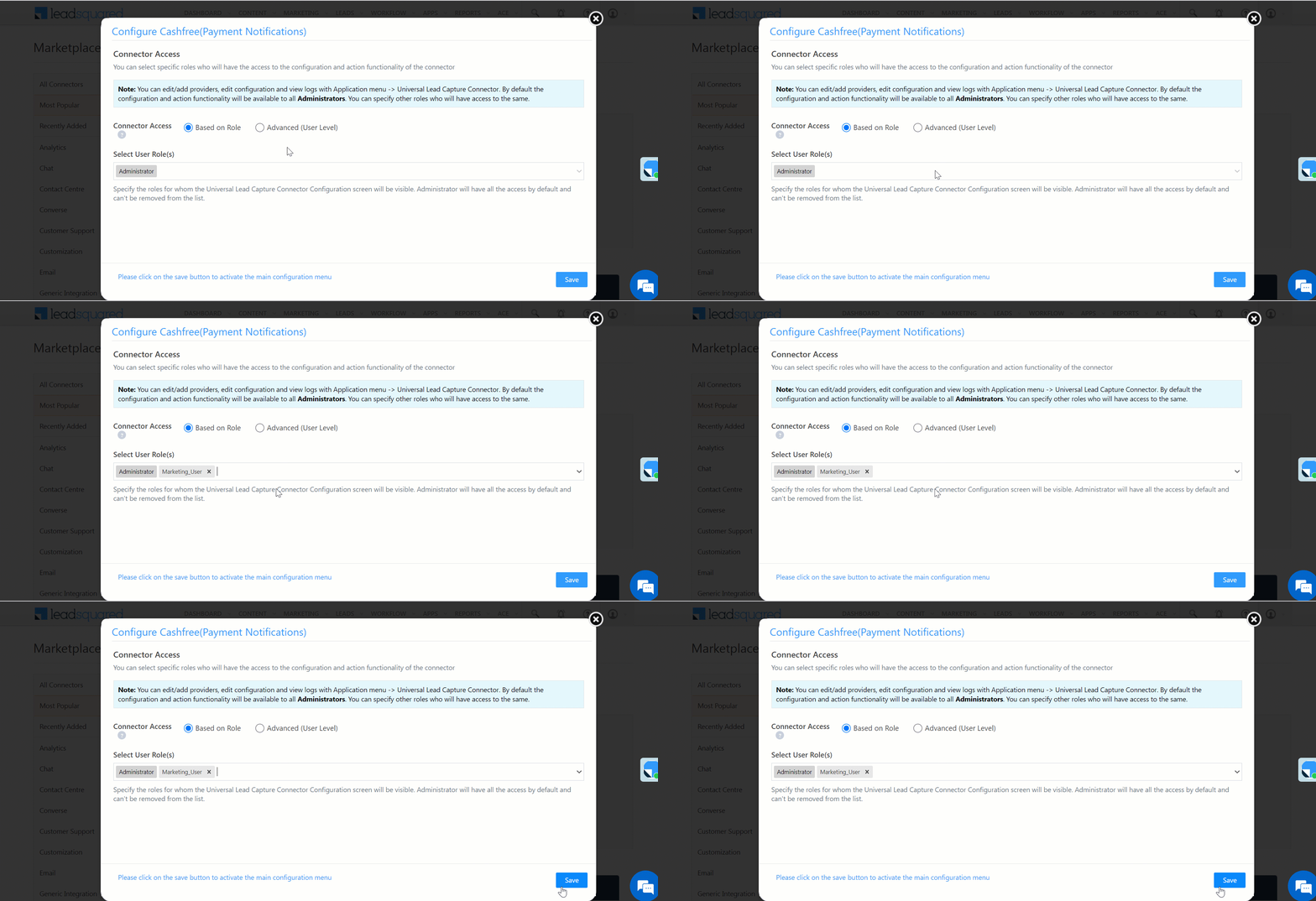
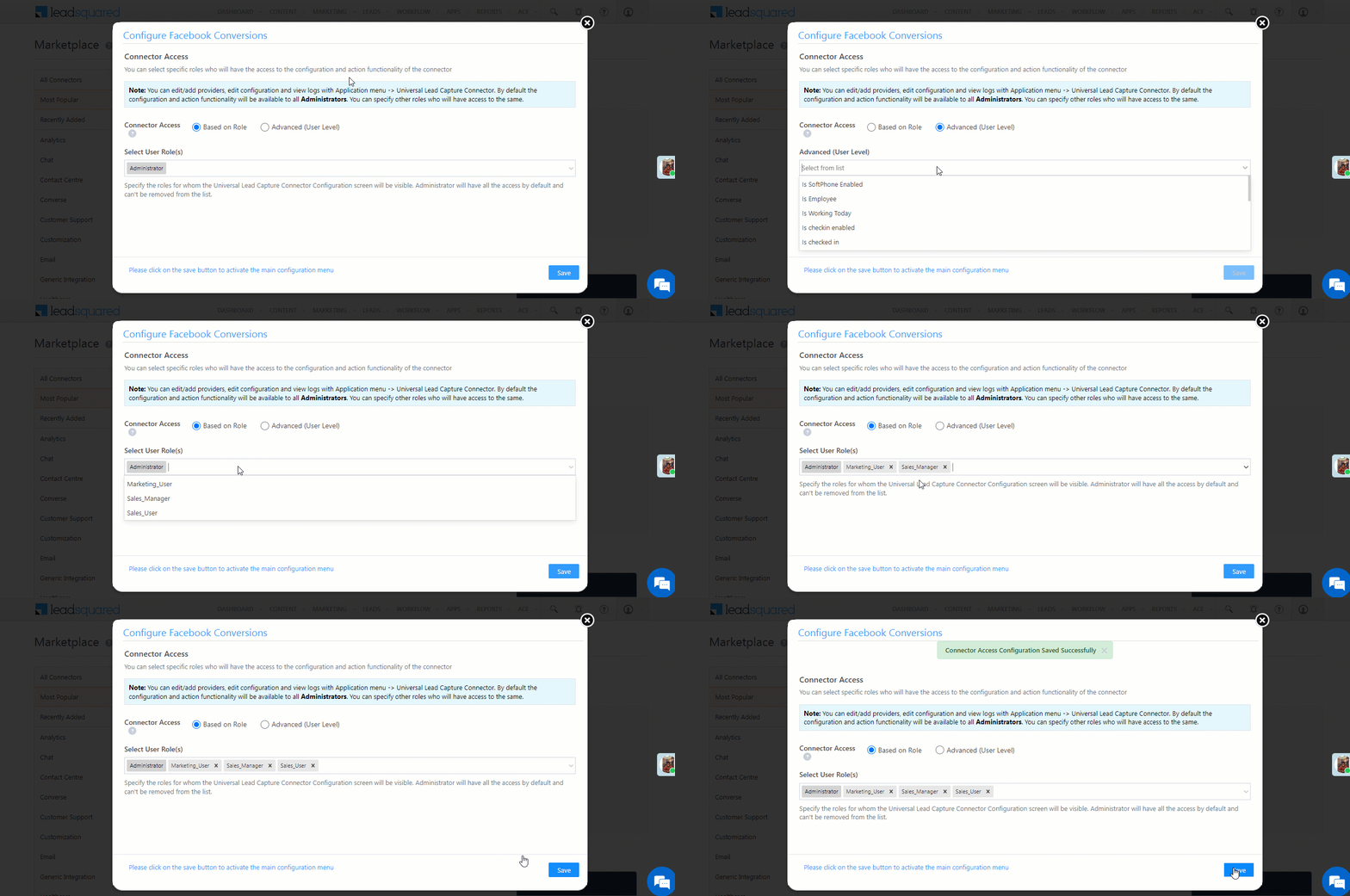
Once you’ve installed the connector, on the Configure Facebook Conversions pop-up, configure the connector access for the non-Admin users in your account. Only those users for whom access is granted can view and access the connector (under the topbar Apps menu).

  1. Select if you want to grant Connector Access that’s Based on Role or Advanced (User Level).
    • Based on Role – From the Specify Roles dropdown, select the LeadSquared user roles that can use the connector.
    • Advanced (User Level) – From the Advanced (User Level) dropdown, select a user boolean field. Based on the value entered in the selected boolean field, the user can access the connector (e.g., for the user Sam, if the Is Employee boolean user field contains the value “Yes”, then this user can access the connector).
  2. Once you’re done, click Save Details. To continue the configuration, refer to the below sections.
Note: By default, all Admin users will have access to the connector.

Facebook Conversions Connector


7. Admin Configuration

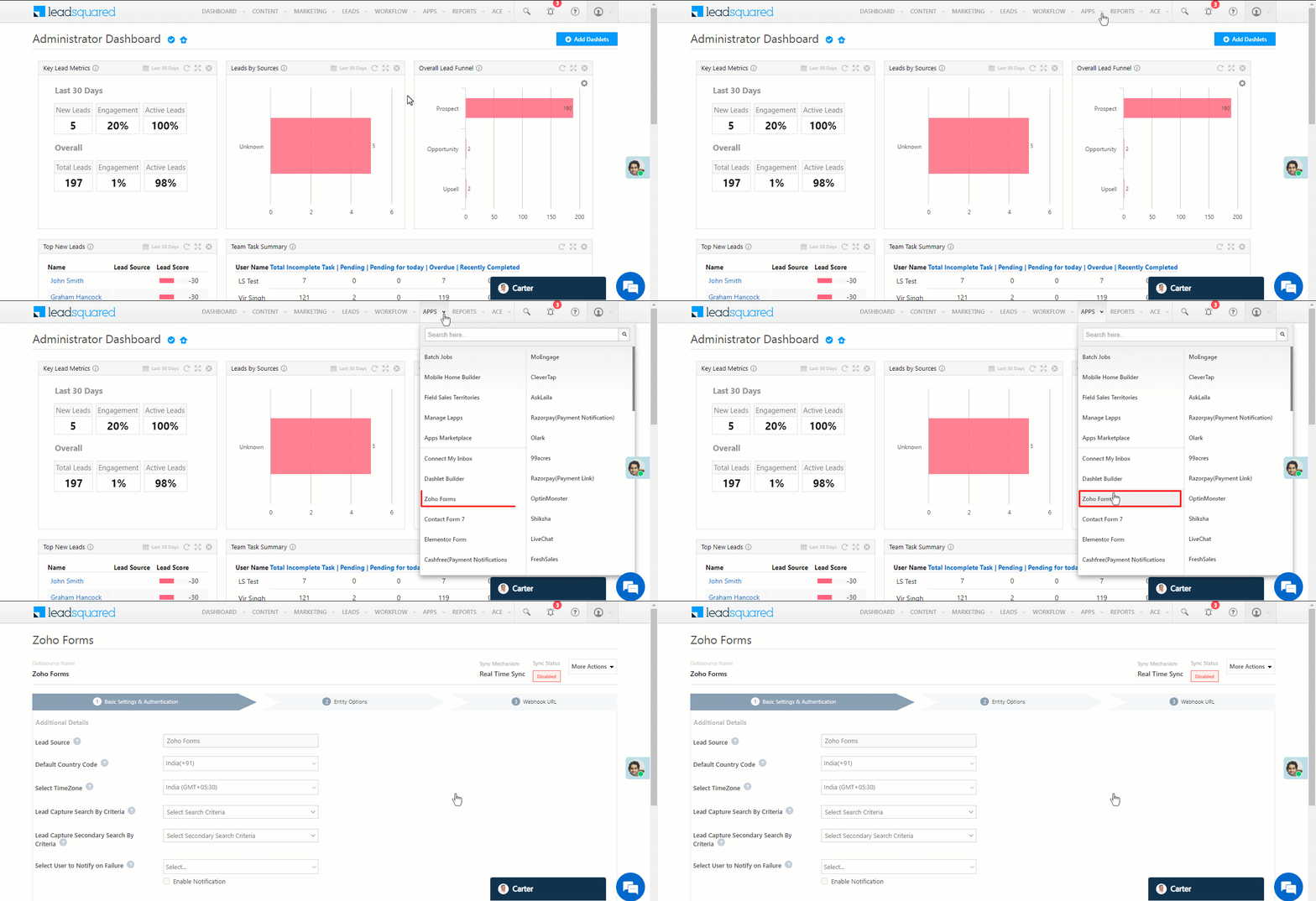
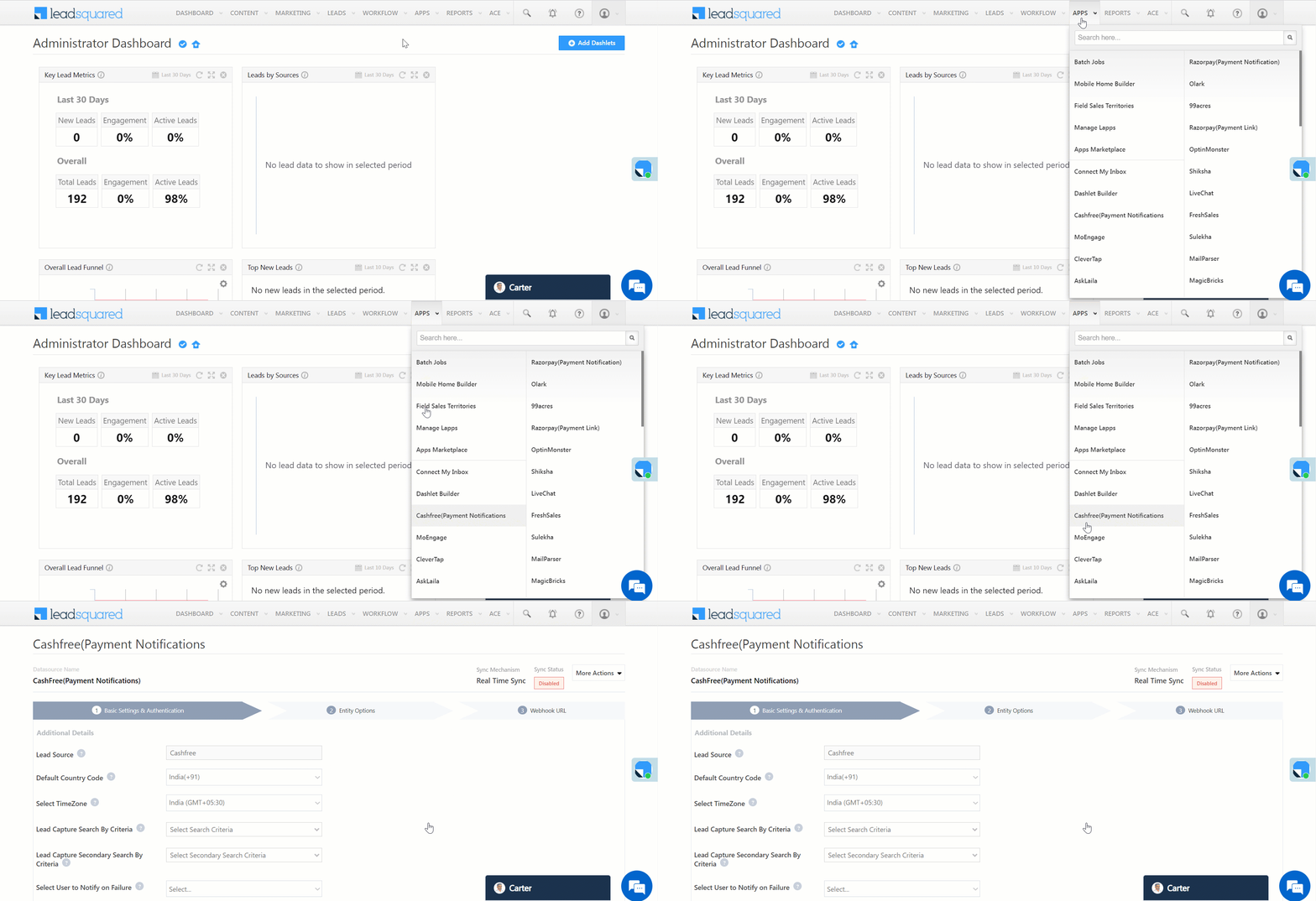
To continue the connector configuration, navigate to Apps>Facebook Conversions.
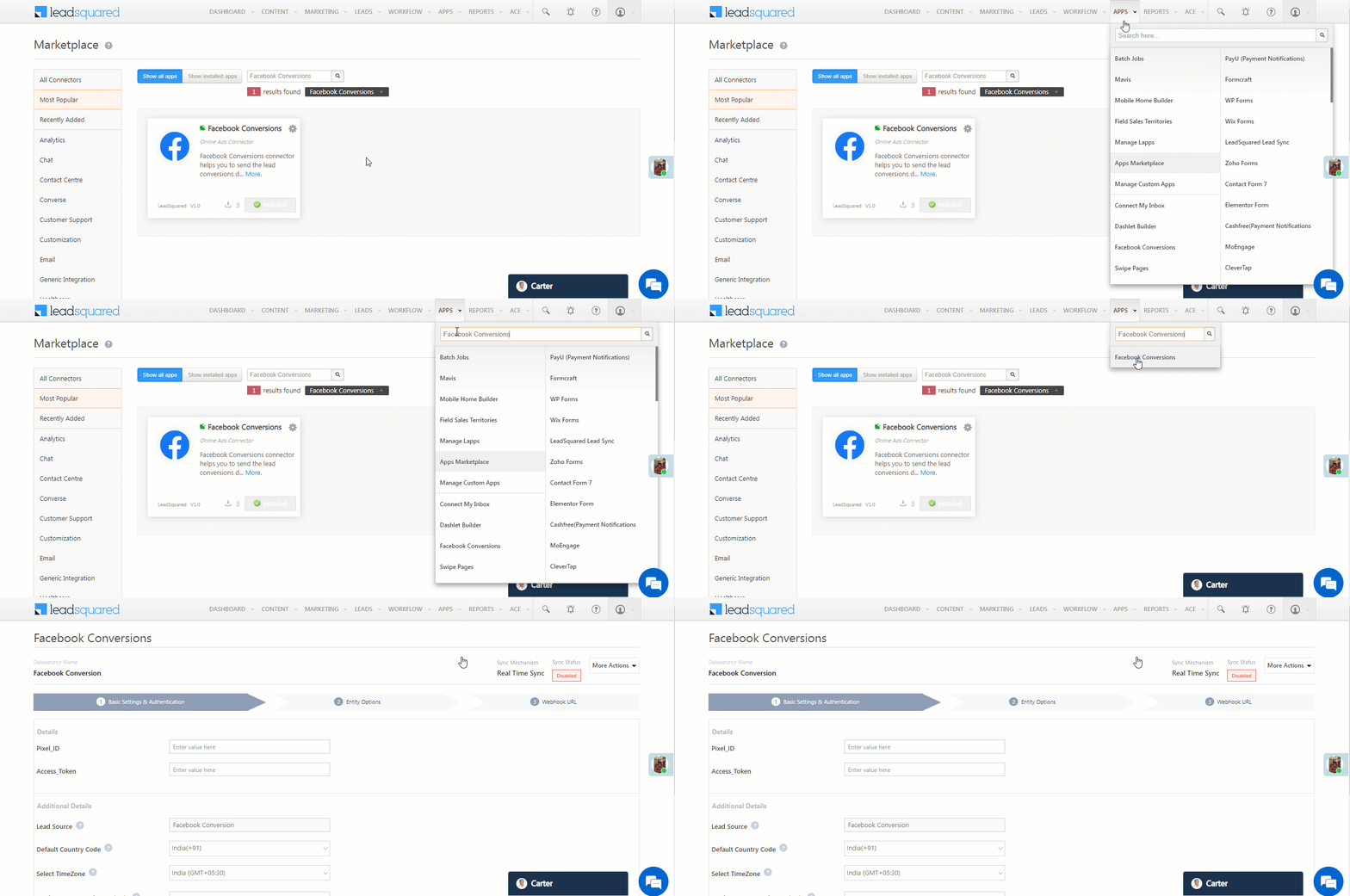
Facebook Conversions Connector

7.1 Basic Settings

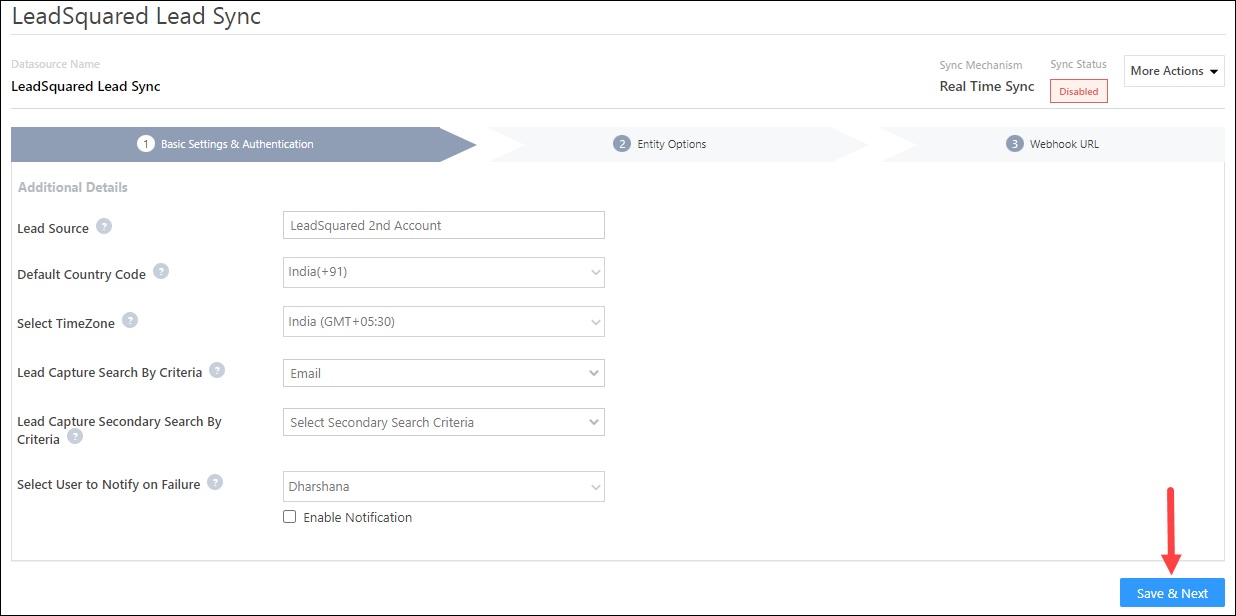
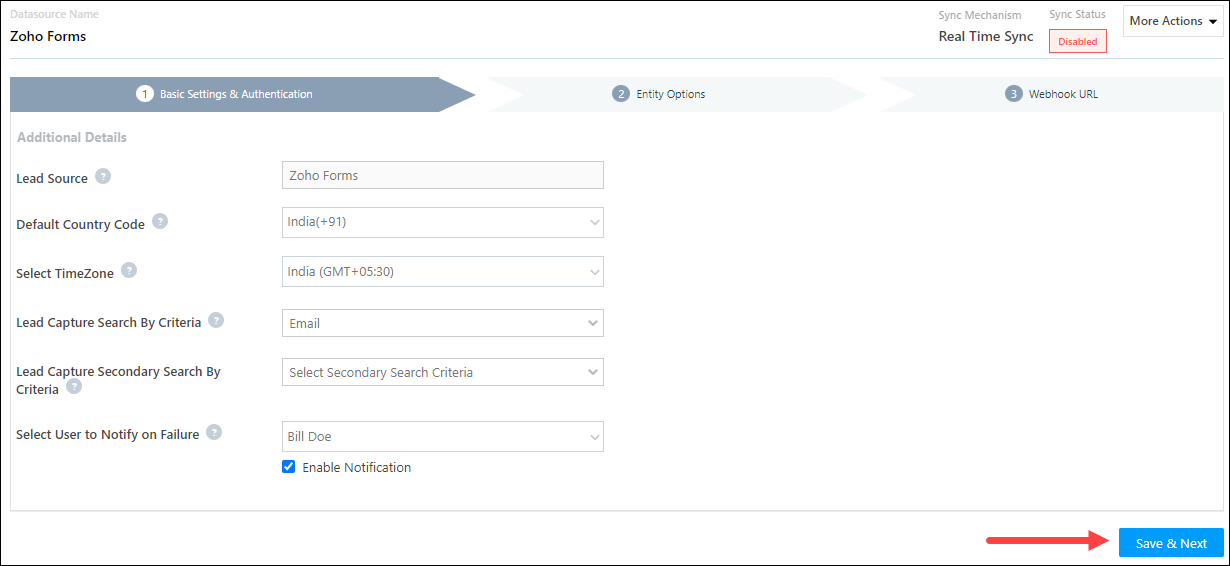
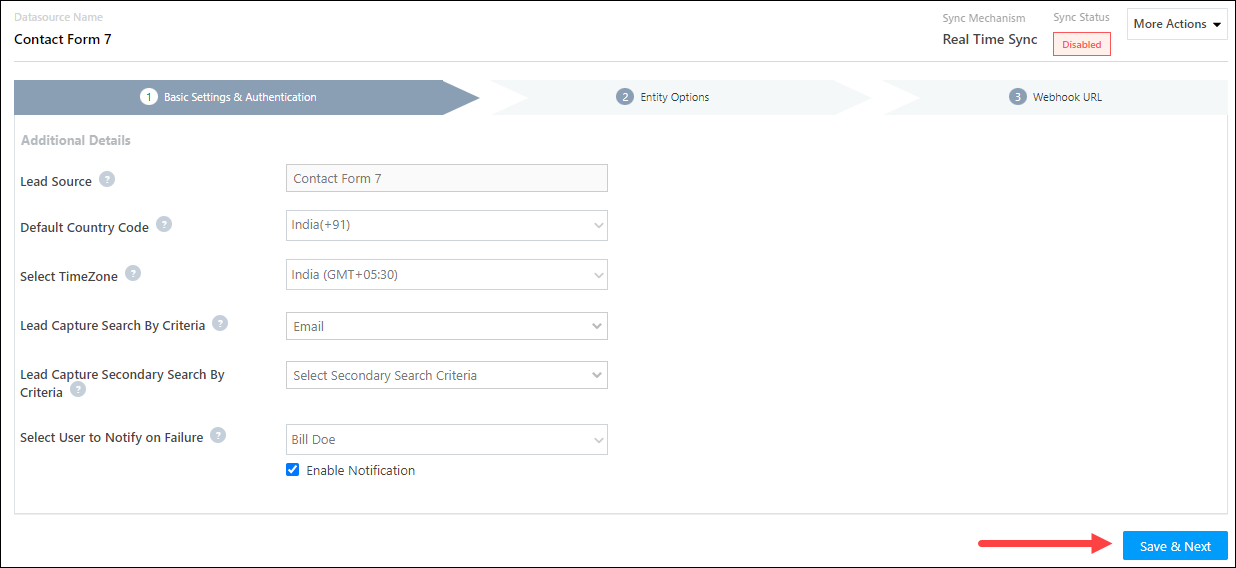
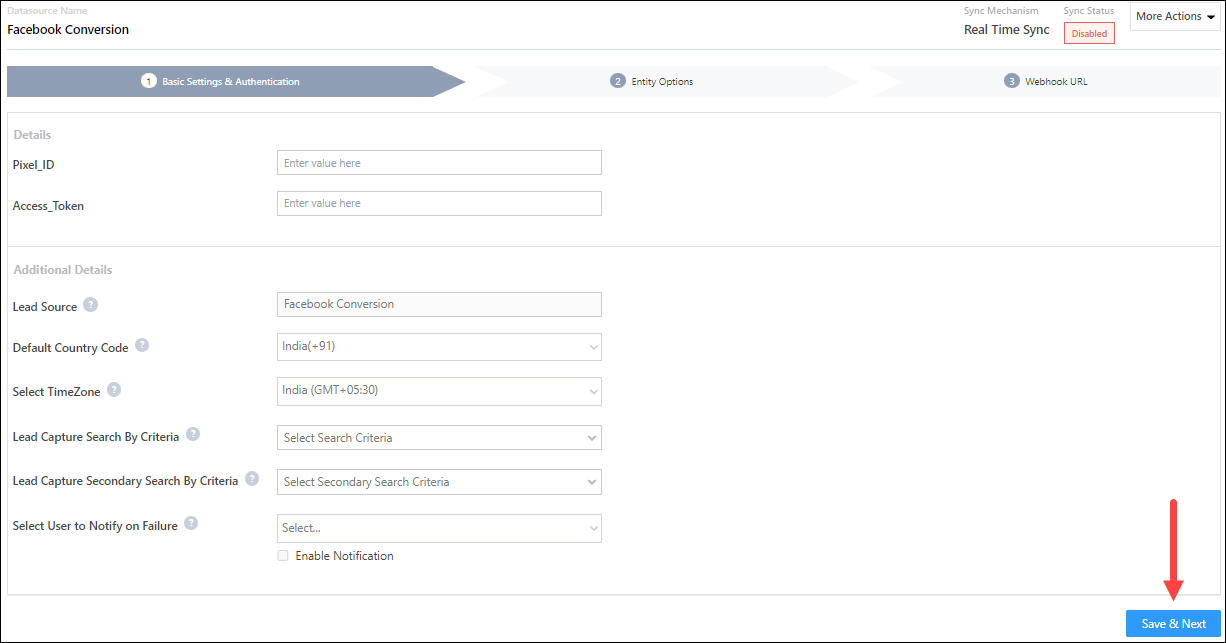
Enter the following details –

Property Description
Pixel_ID Enter your Meta Business Suite’s Pixel ID.
Access_Token Enter your Meta Business Suite’s Access Token.
Lead Source Enter the lead source through which the leads were captured (e.g., Facebook, email campaign, etc.).
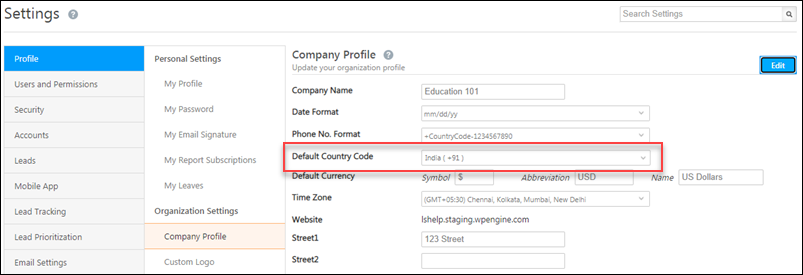
Default Country Code If the lead’s mobile number is captured without a country code, then the default country code that’s selected from the dropdown will be added to the lead’s mobile number.
Select Time Zone The time zone that’s followed in your Meta account.
Lead Capture Search By Criteria To avoid transferring duplicate leads, you must select one unique lead field (e.g., email Id, mobile number, etc.) as the search key.

To know how to mark a LeadSquared lead field as unique, please refer to How to Make a Custom Field Unique.

Lead Capture Secondary Search By Criteria If lead identification through the primary Search By criteria fails, it will be re-attempted using the secondary Search By criteria.
Select User to Notify on Failure If there is an error identifying and transferring leads, the selected user will receive a failure message via email. You can select a user from the list of all the users available in your LeadSquared account.

To know more about the type of errors, please refer to Error Notifications.

Enable Notification Enable the Checkbox checkbox to ensure notification emails are sent to the selected user when there’s a failed query.

Once you’re done entering all the details, click Save & Next.
Facebook Conversions Connector

7.2 Mapping

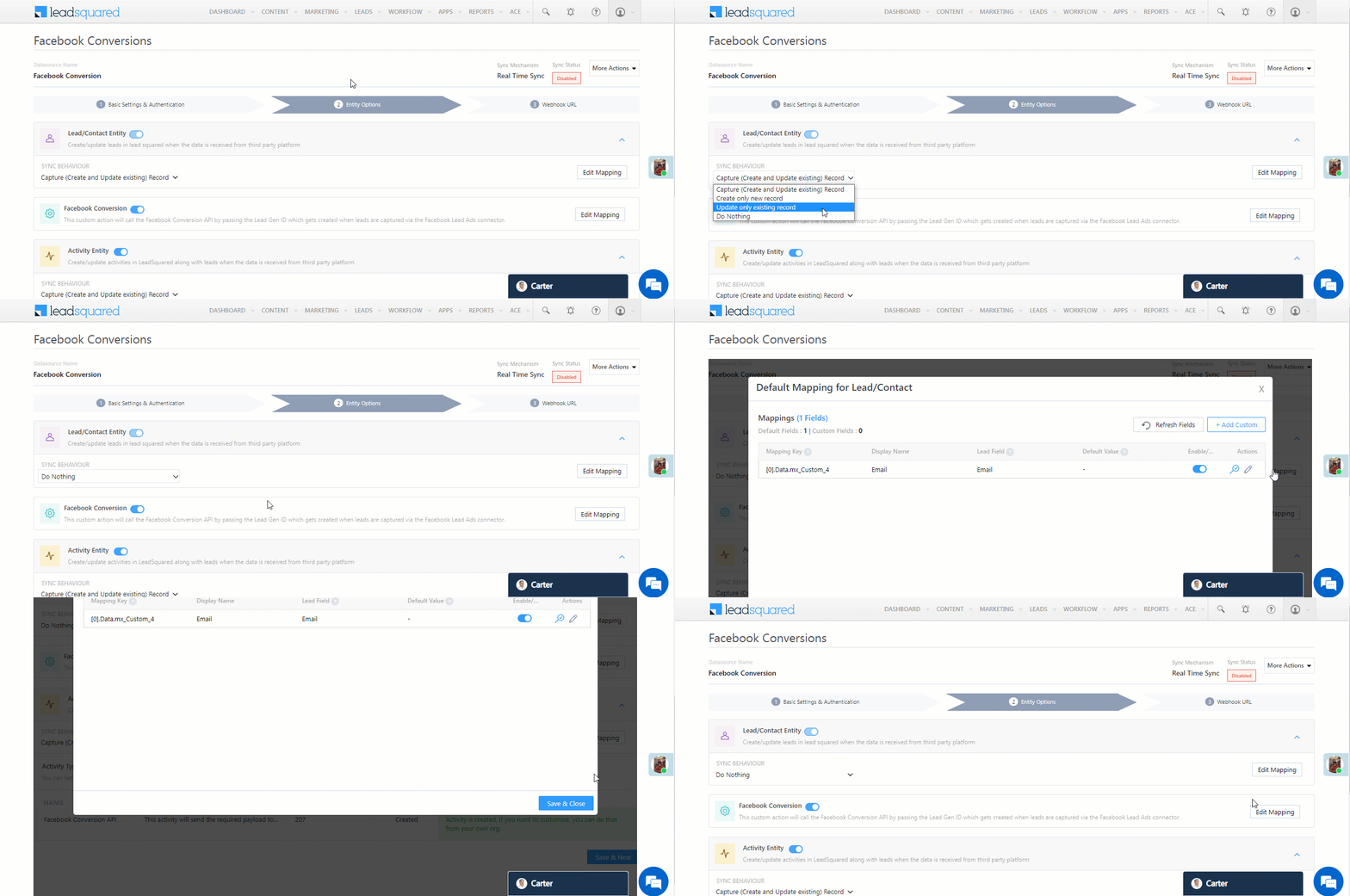
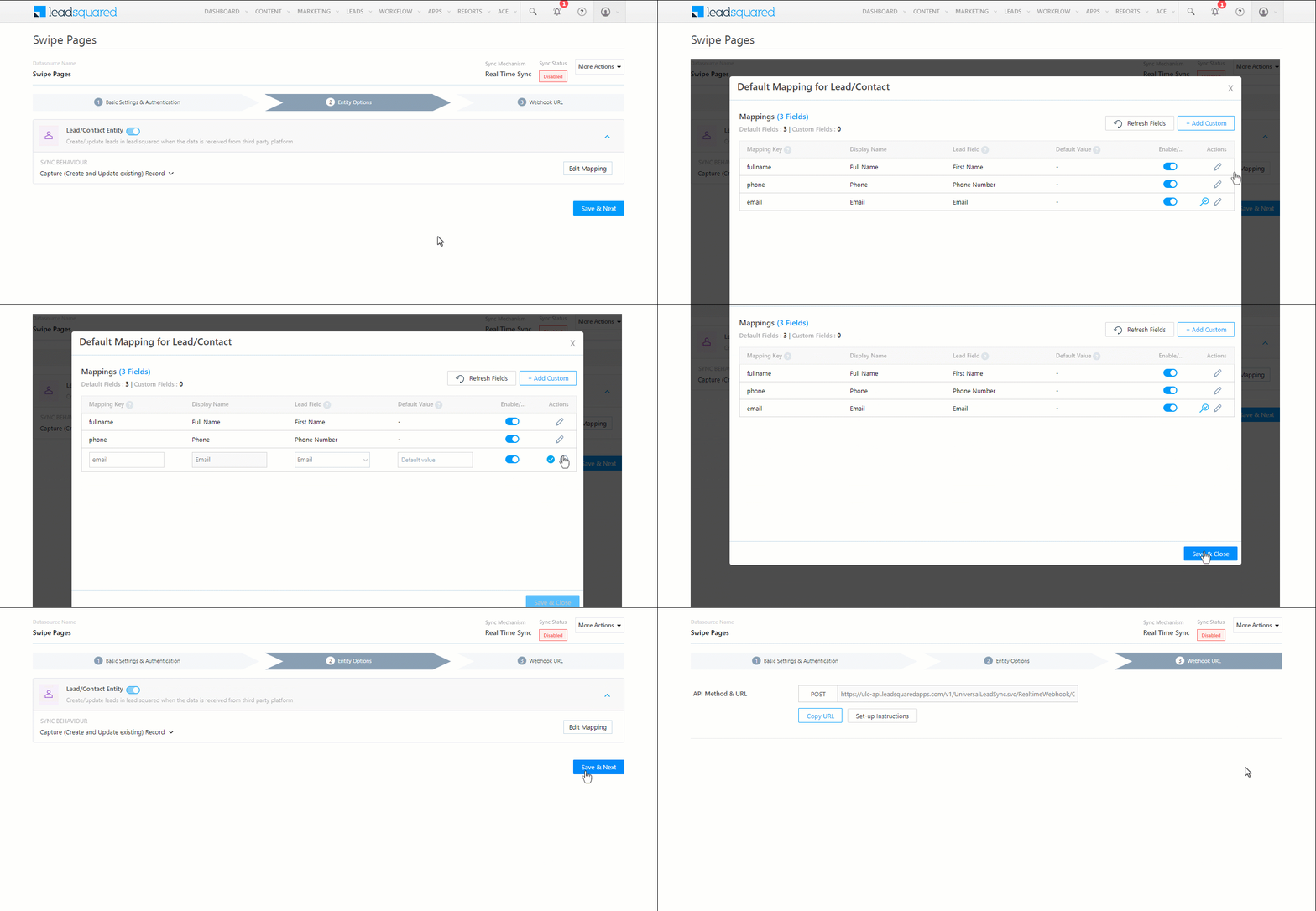
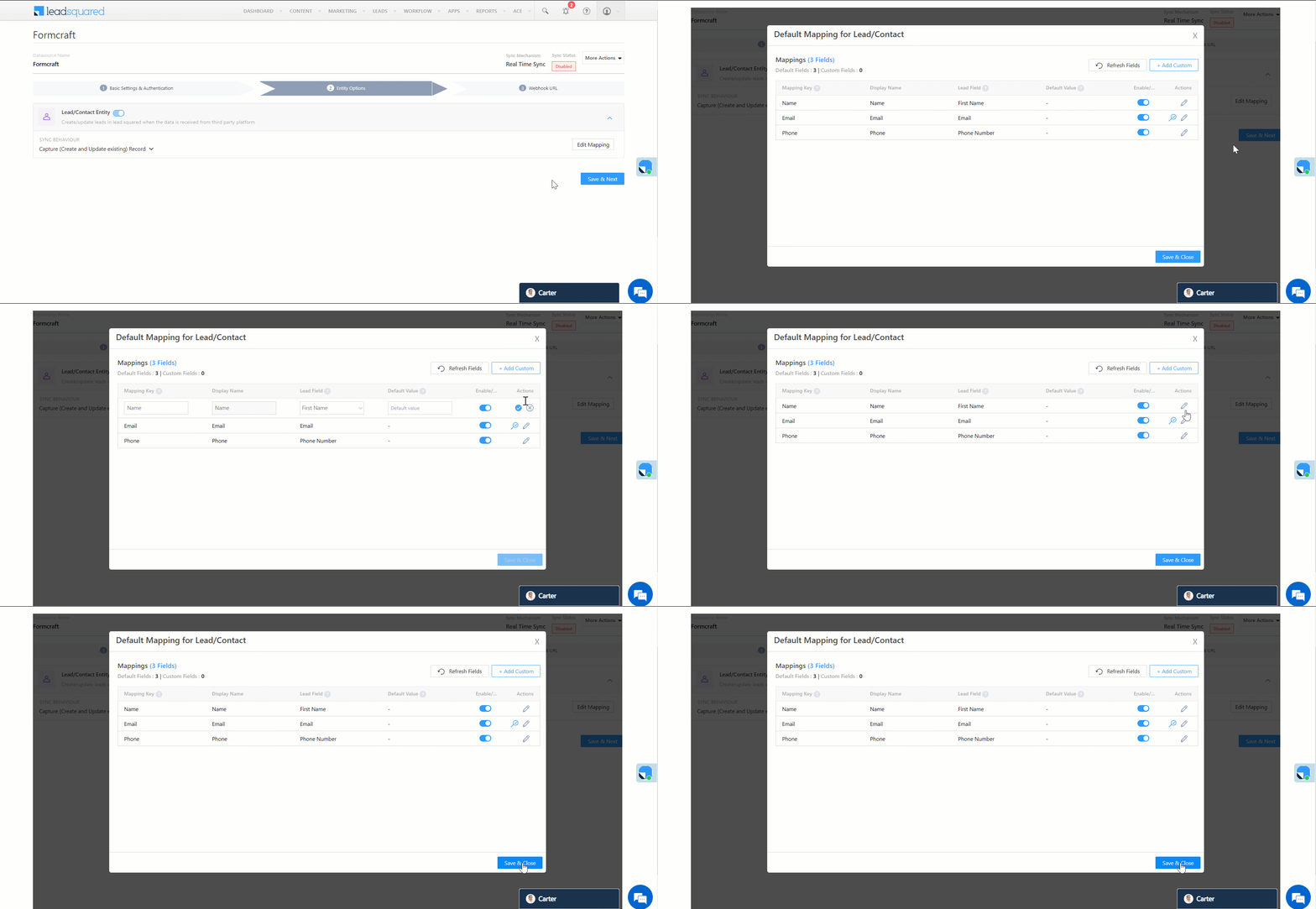
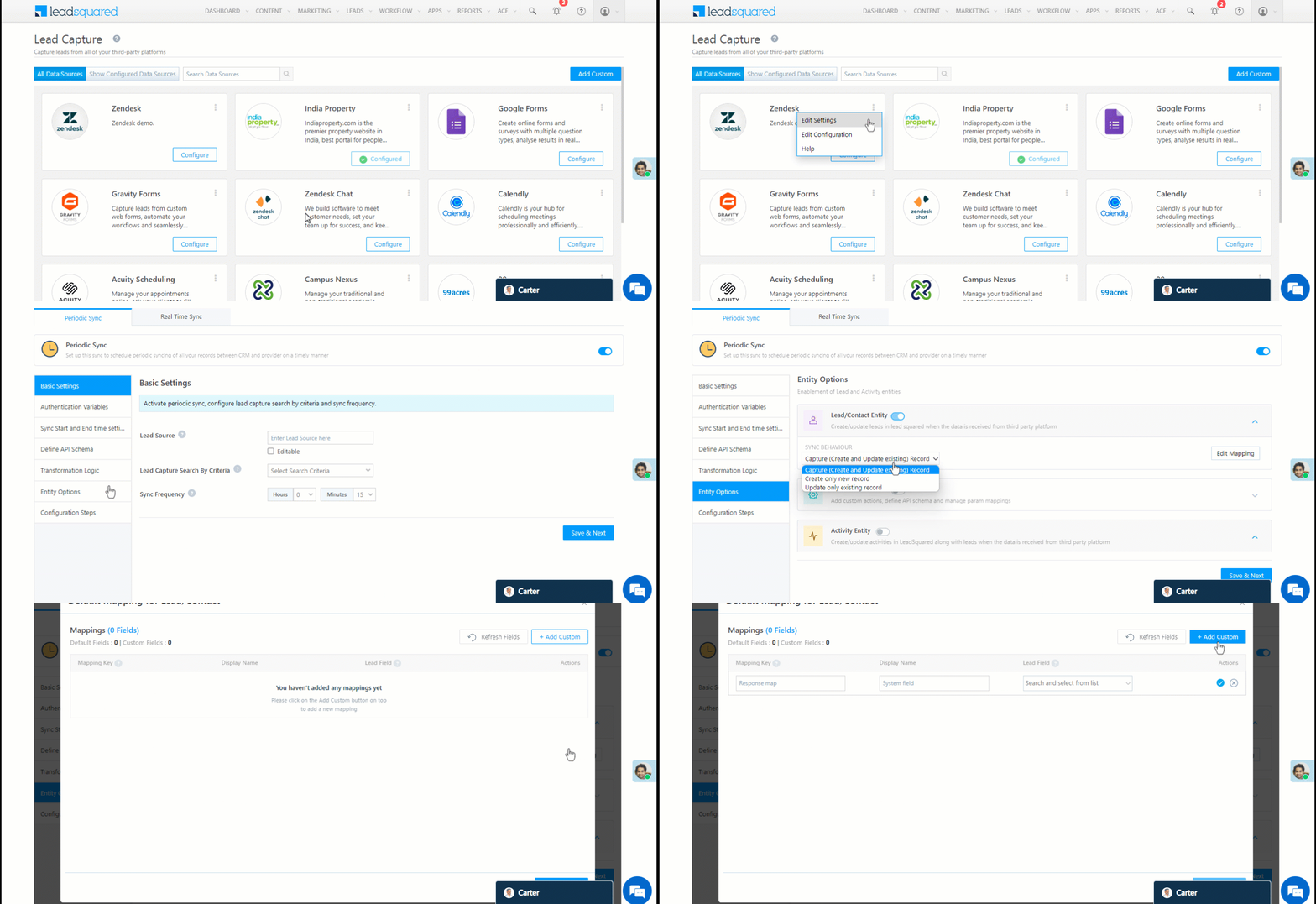
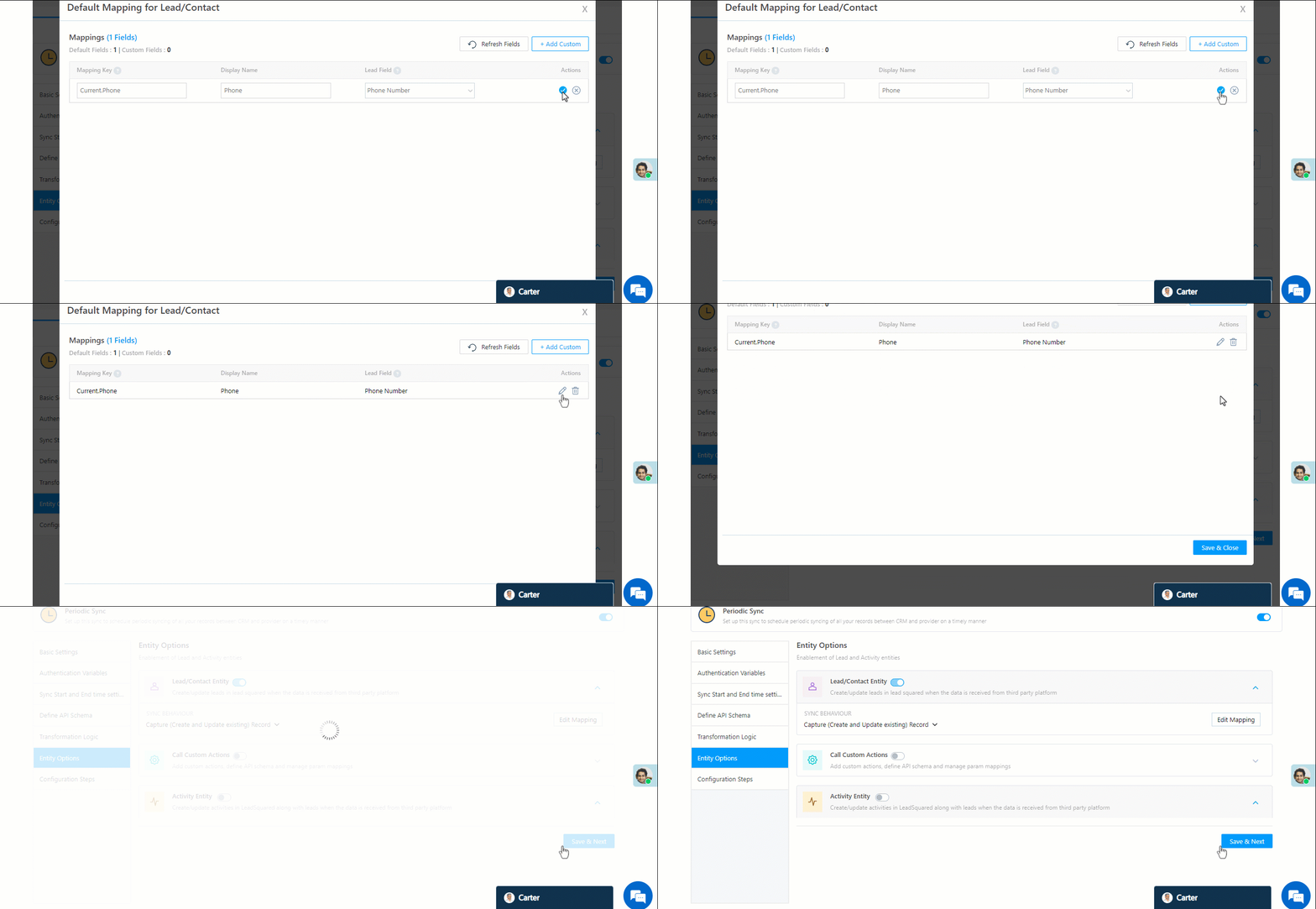
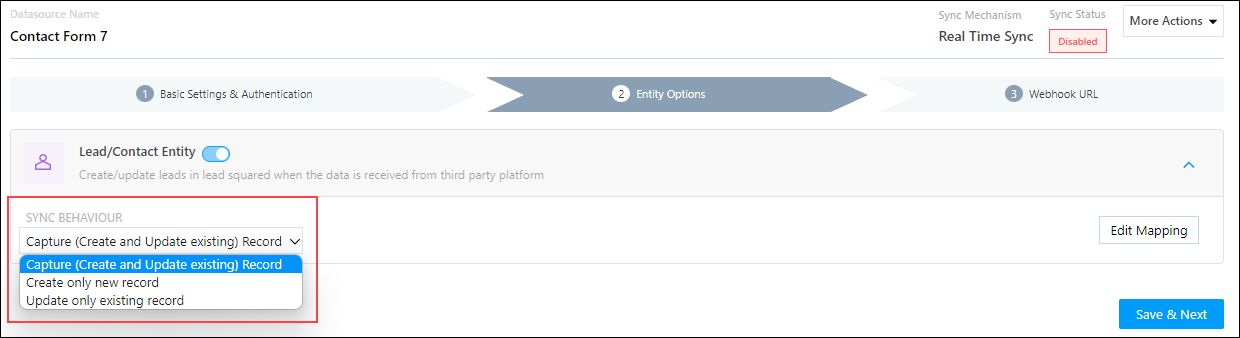
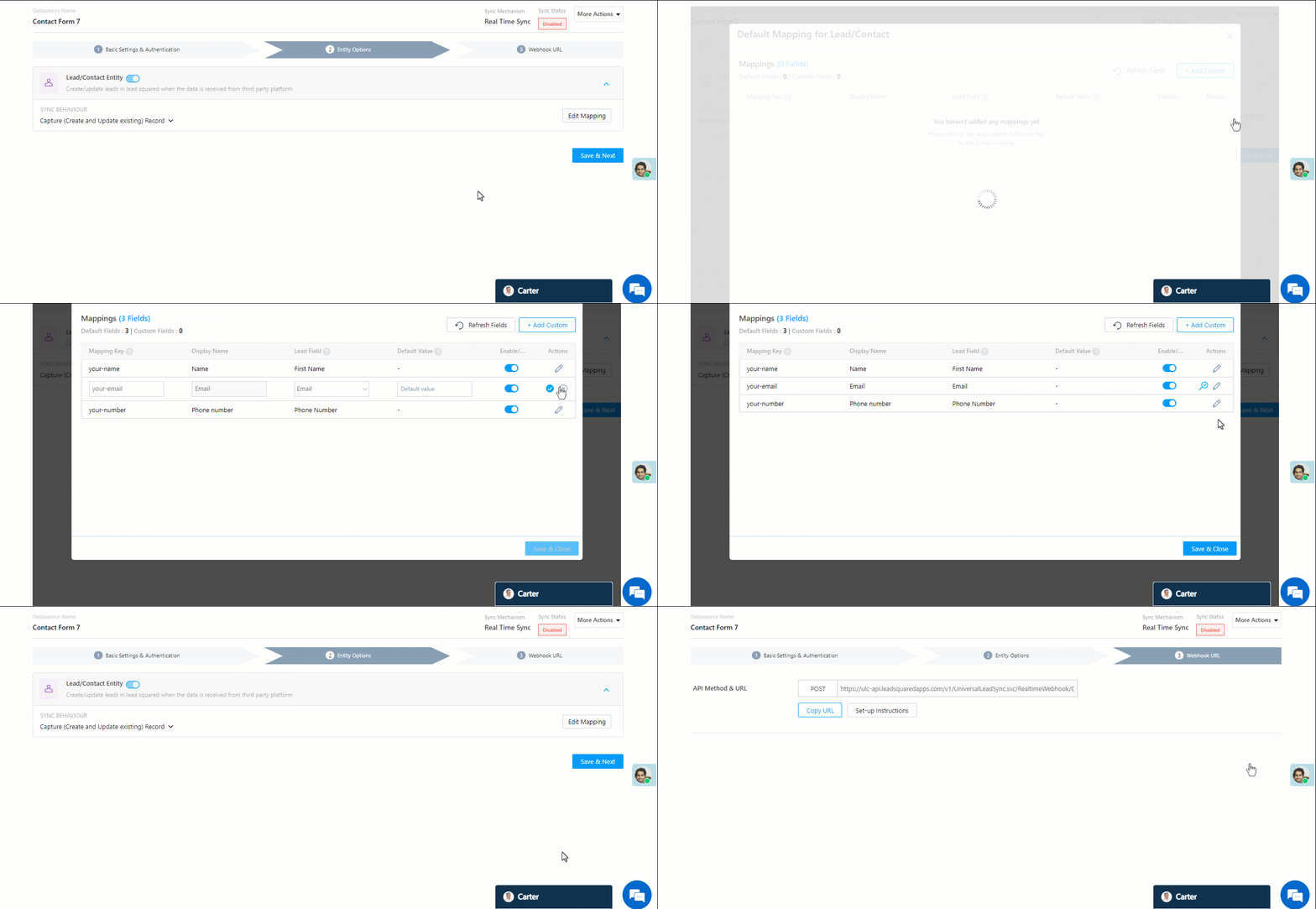
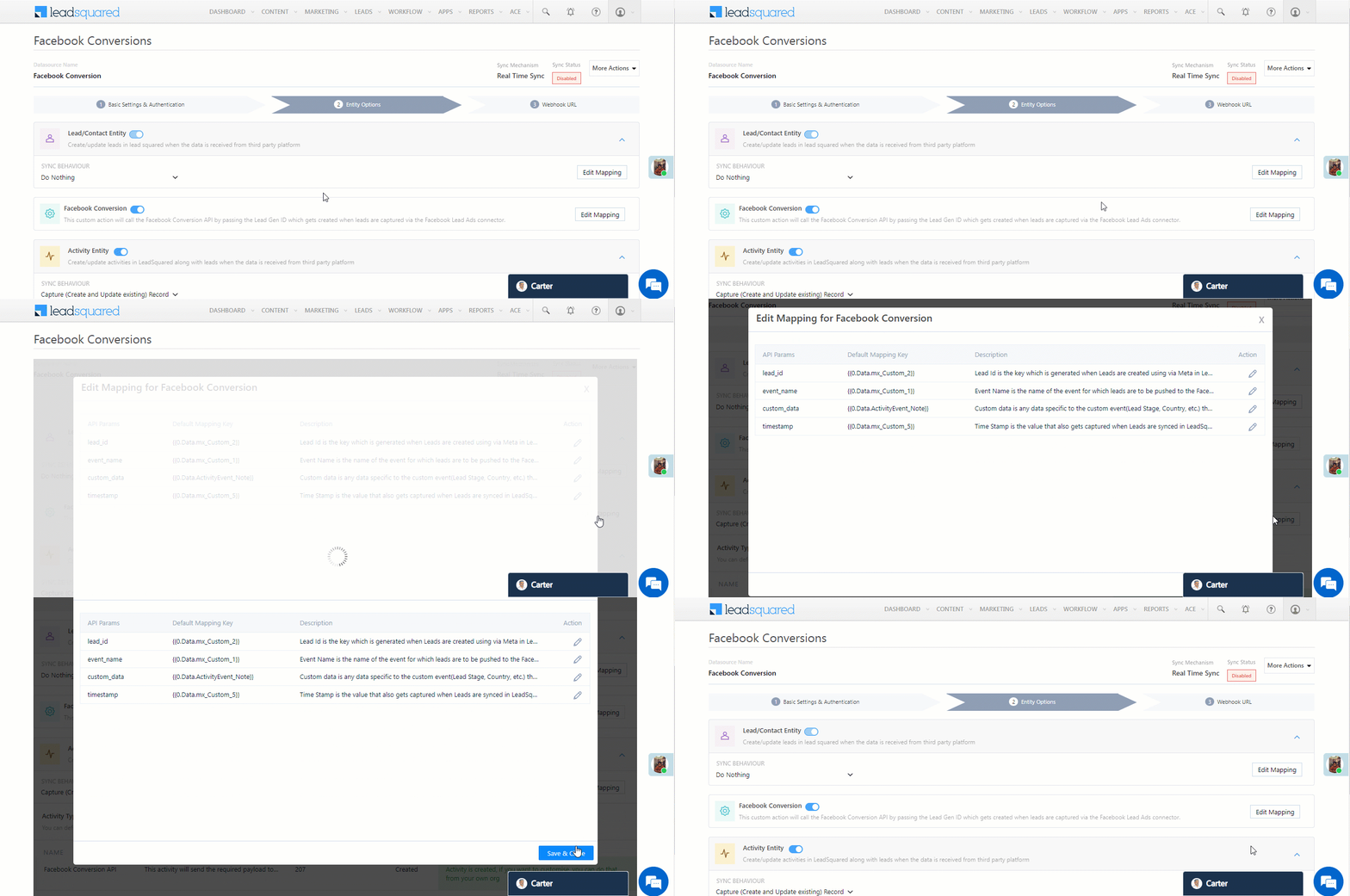
Once you’ve entered the Basic Settings, click Entity Options. By default, all the Facebook Conversion API fields are mapped to the relevant LeadSquared lead fields.

Note: In this step, you’ll have to click all three Edit Mapping buttons, and on the Edit Mapping pop-ups, even if you don’t make any changes, you’ll have to click Save & Close. This step is mandatory.

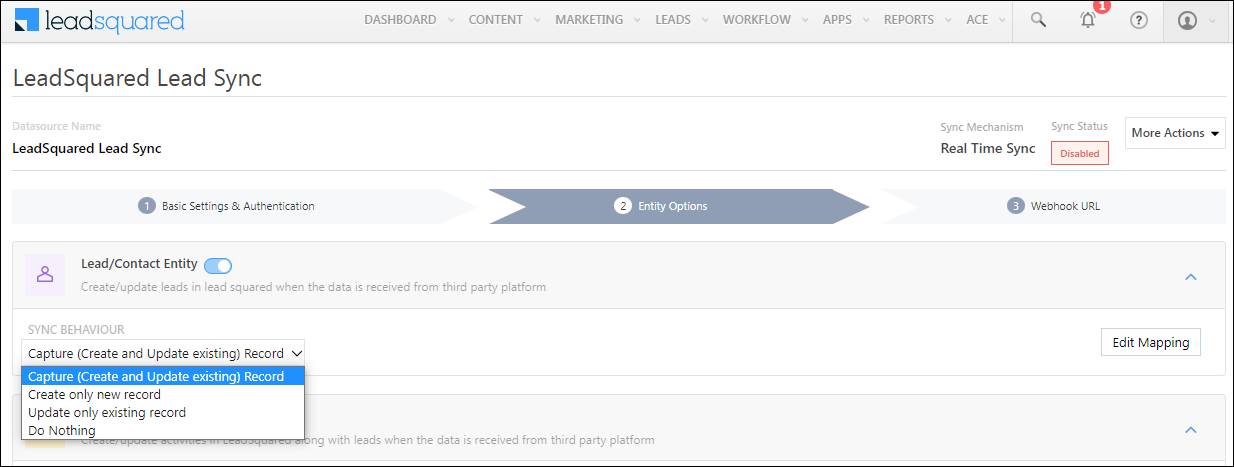
i. Lead/Contact Entity – Since this connector is transferring lead details from LeadSquared to your Meta account, the Sync Behaviour should be set to Do Nothing. It is recommended you don’t change this to any other setting.
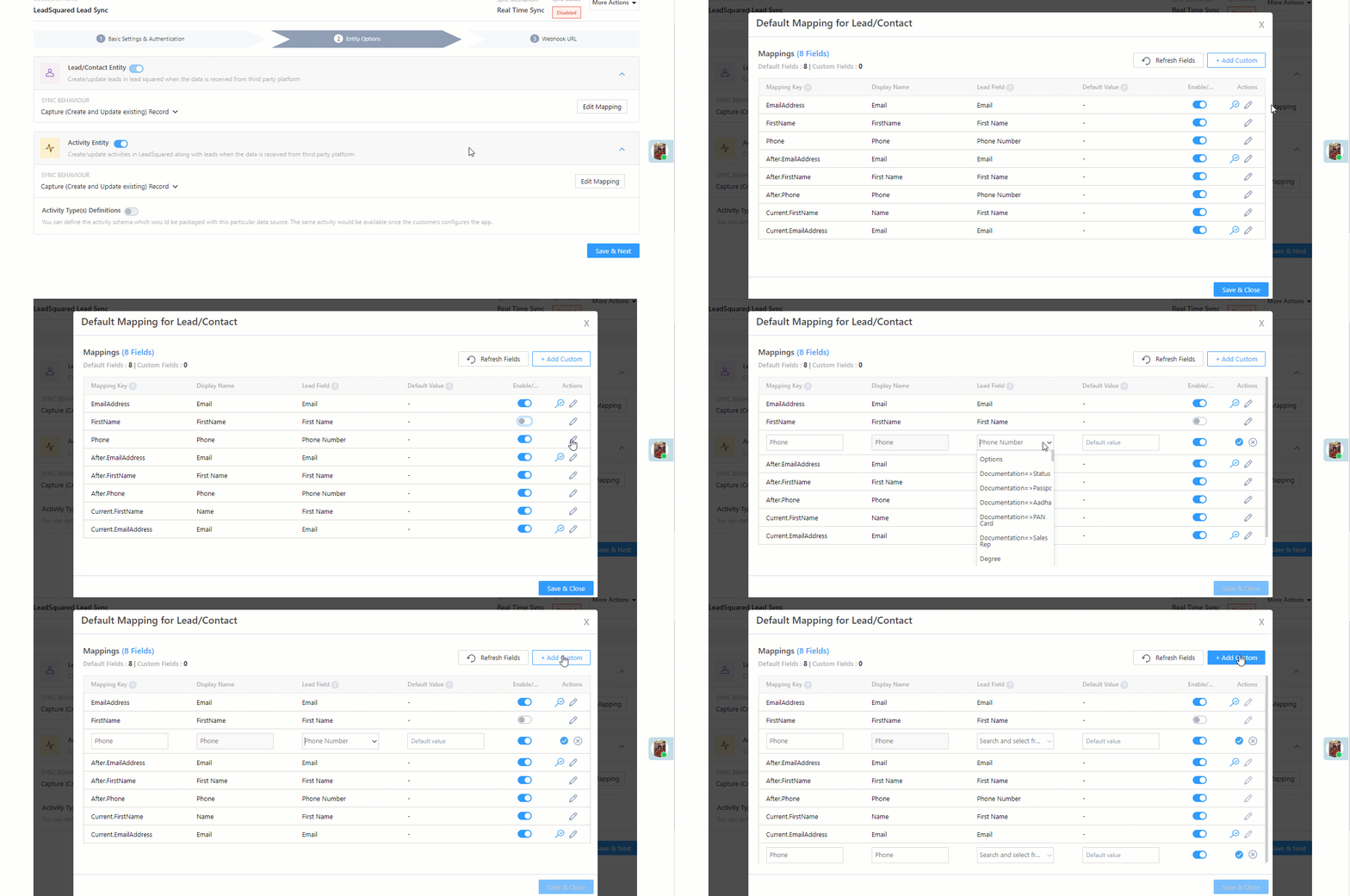
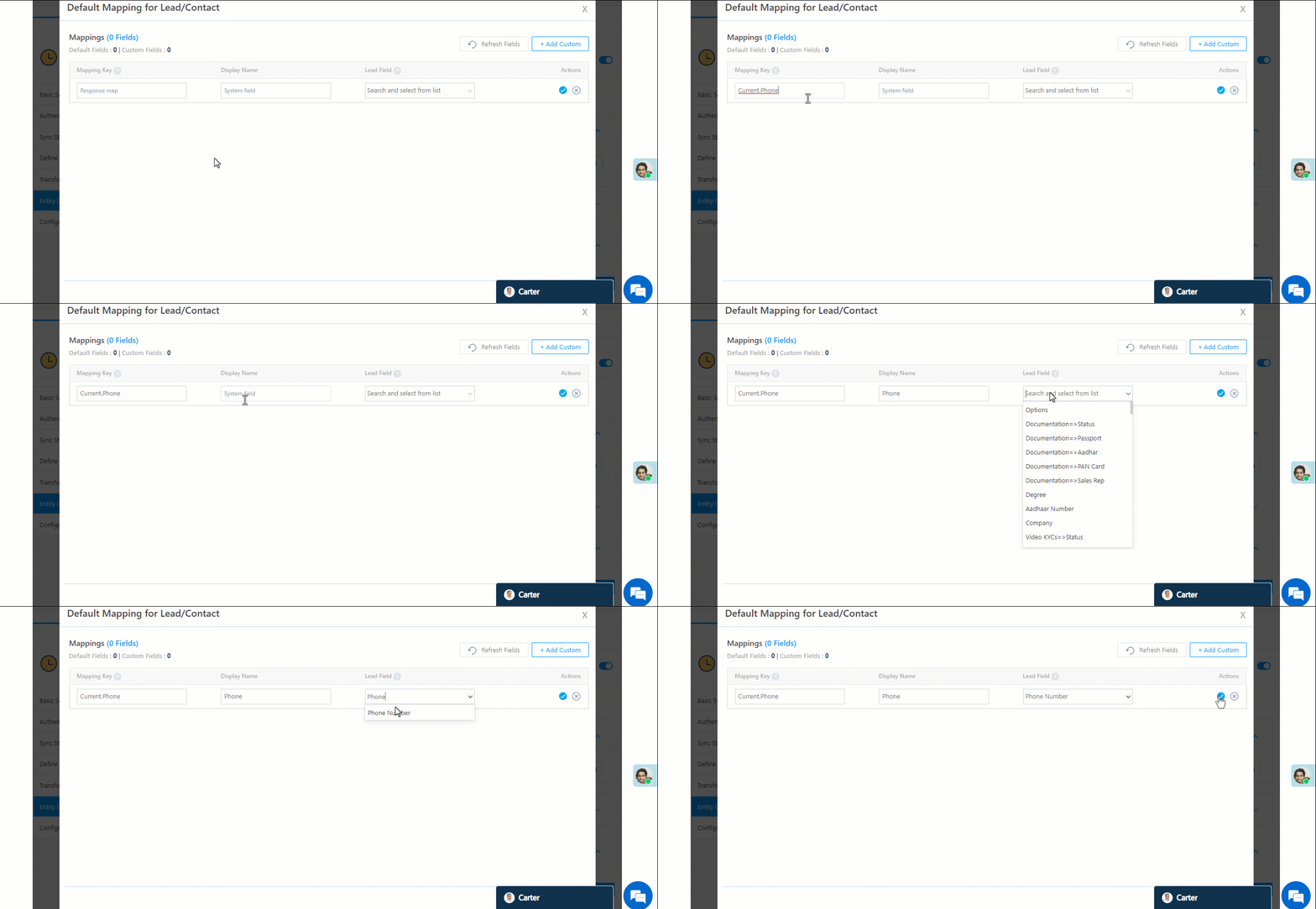
The lead field mapping is carried out by default. To view/edit the mapping, click Edit Mapping. On the Default Mapping for Lead/Contact pop-up –

      • To edit the Facebook mapping for lead fields name, click  , and under Mapping Key, edit the field name.
      • To change the LeadSquared lead field to which the Facebook field is mapped, click  , and from the Lead Field dropdown, select the new lead field.
      • To mark a unique lead field as the search key, click unique icon.
      • To disable an existing field mapping, alongside the field, disable the slider Zoom.
      • To map an additional field, click the Add Custom button, and add the new mapping field details.
      • Once you’re done editing the mapping, click Save & Close.
        • If you didn’t make any changes, you can skip the instructions above, and directly click Save & Close.

LeadSquared Facebook Integration

ii. Facebook Conversions – This action is set up to trigger the Facebook Conversions API. The API mapping is carried out by default. To view/edit the mapping, click Edit Mapping. On the Edit Mapping for Facebook Conversion pop-up –

    • To edit the default mapping, alongside the field you want to edit, click  .
    • Once you’re done editing the mapping, click Save & Close.
      • If you didn’t make any changes, you can directly click Save & Close.
Note: When mapping values, append the default Liquid expression (e.g., {{ Data.mx_Custom_2 | default: " " }}) after the appropriate schema key. For example:
"Data.mx_Custom_2":{{ Data.mx_Custom_2 | default:" "}}
 This is mandatory.
LeadSquared Facebook Integration

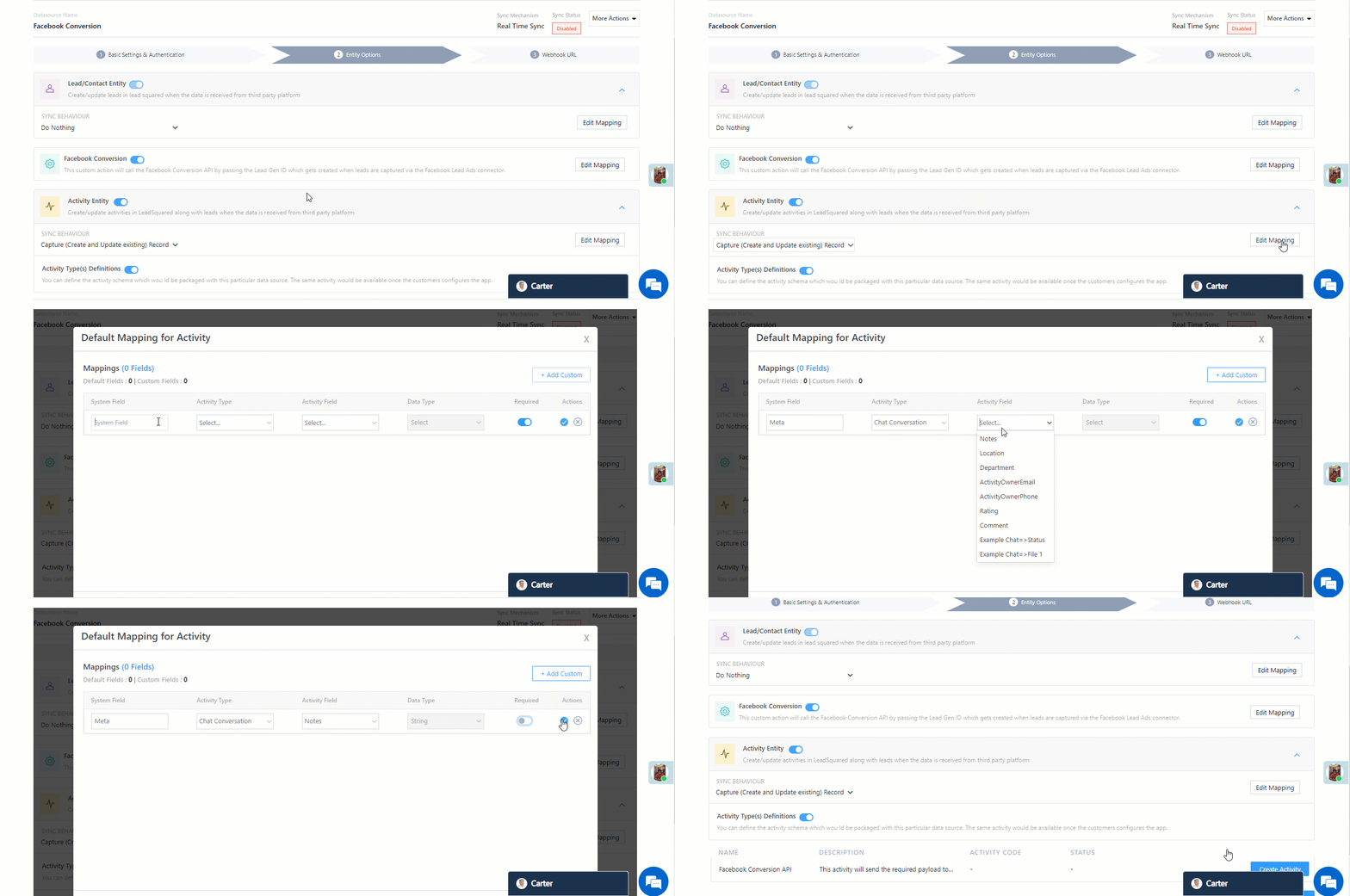
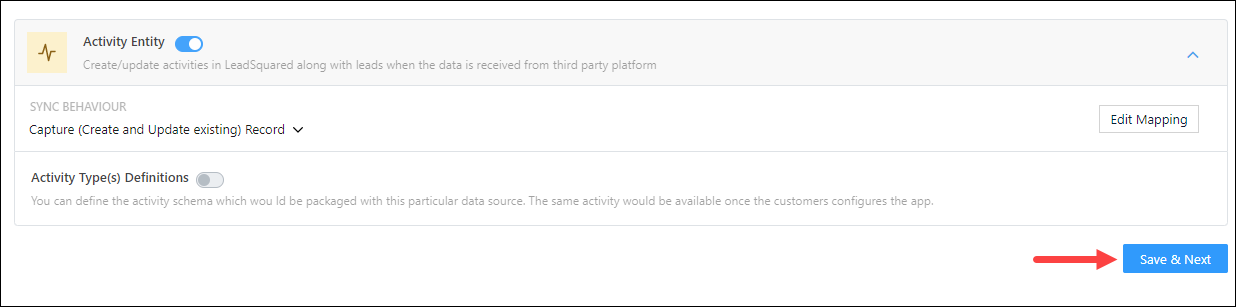
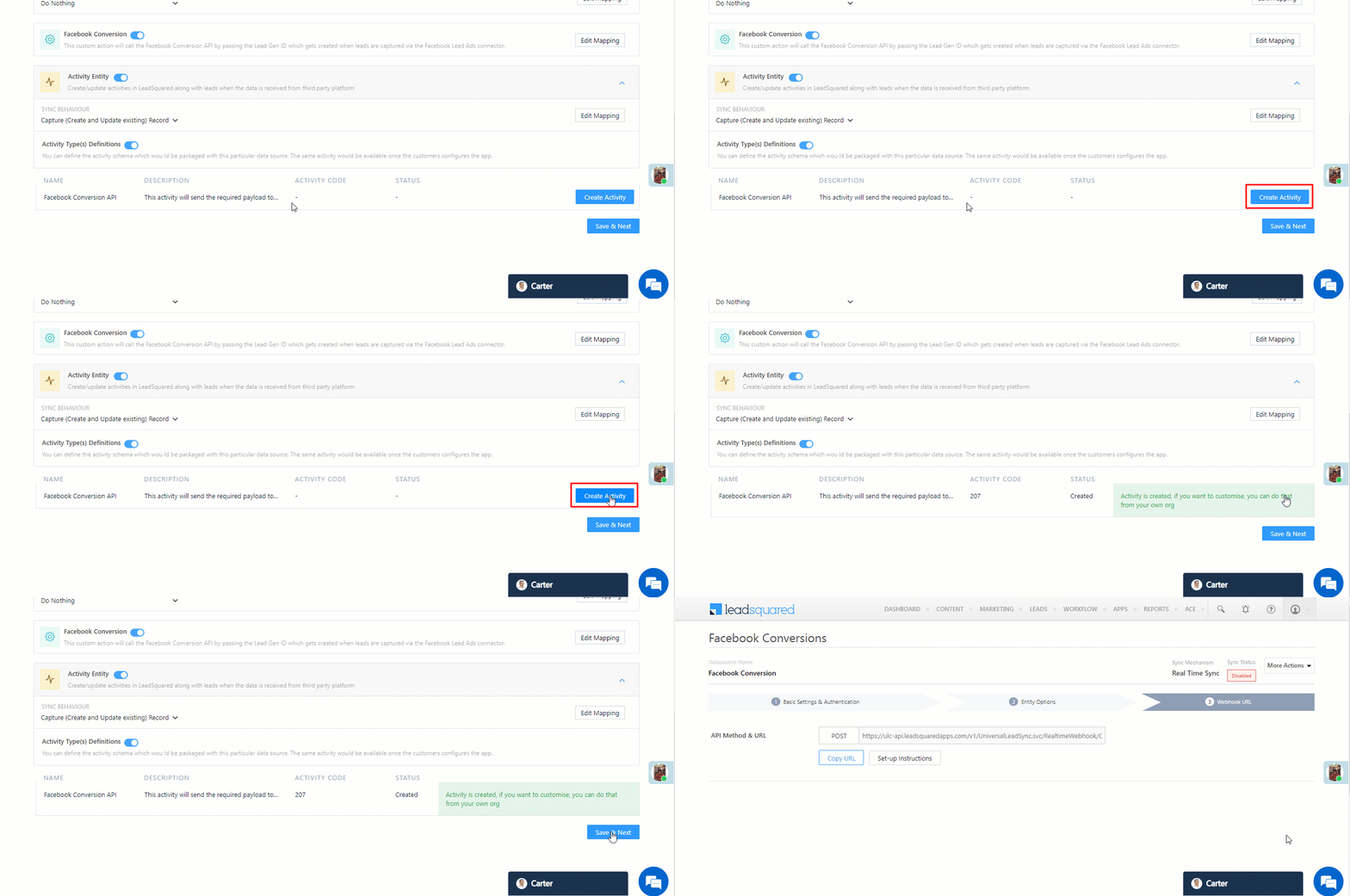
iii. Activity Entity – In this step, we add a dummy activity (any activity will do) and click the Save & Close button (we’re adding the Meta Activity as an example in this step).
While the configurations on this step will not impact the connector behavior (since we’ll disable the slider), it is still mandatory to complete the actions listed to proceed.
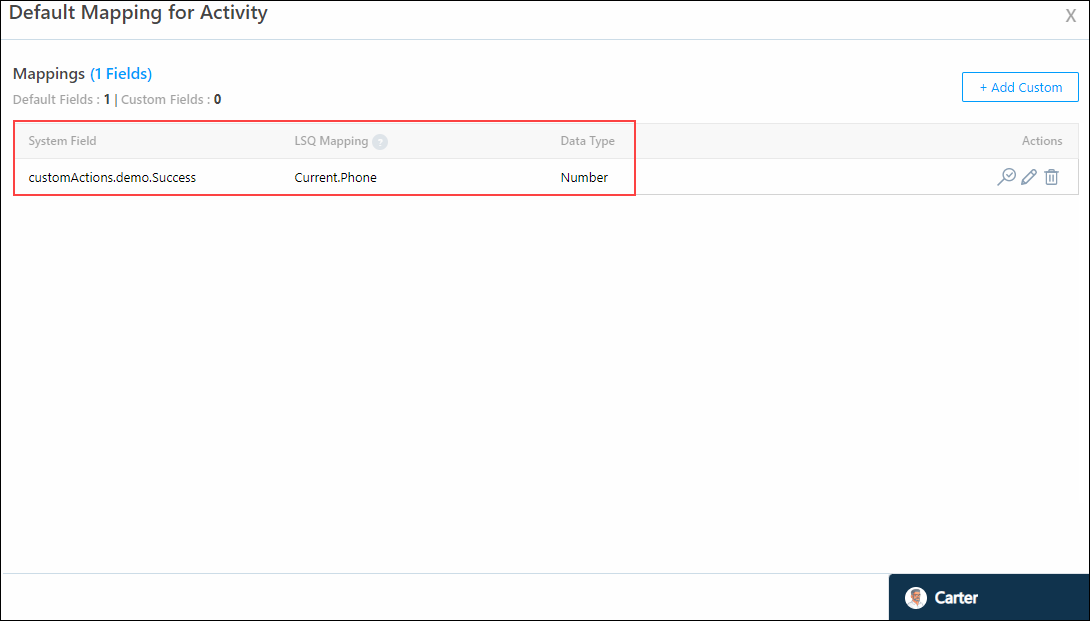
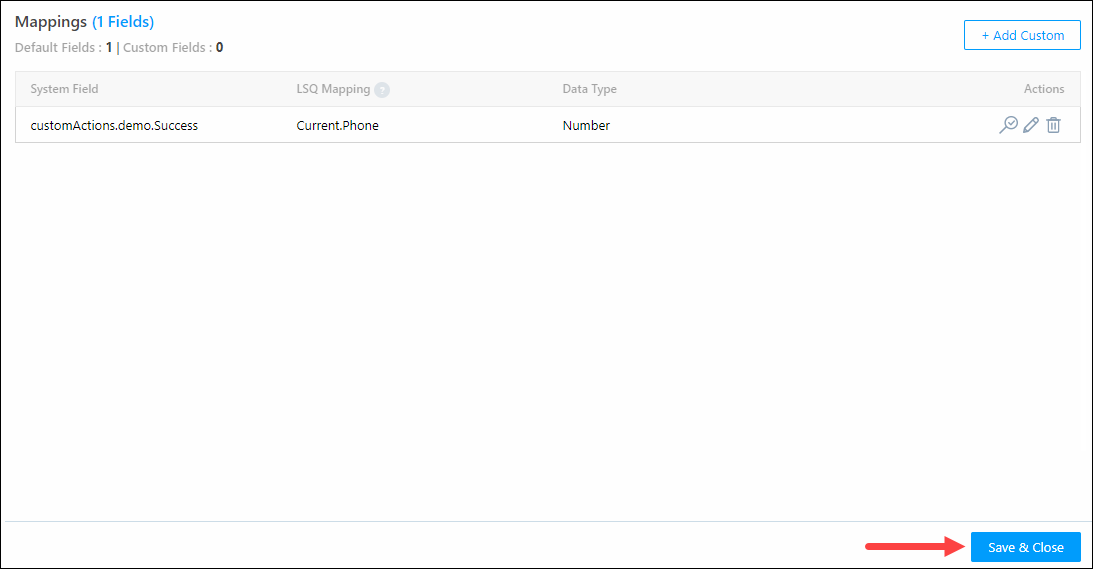
Set the Sync Behaviour to Capture, and click Edit Mapping. On the Default Mapping for Activity pop-up –

    1. Click the Add Custom button, and under the fields listed below, enter the following details –
      • System Field – Meta Activity.
      • Activity Type – Chat conversation.
      • Activity Fields – Note.
      • RequiredDisable the Required field. The slider should look like this Slider once disabled.
      • Under Actions, click Google.
    2. Then, click Save & Close.

Facebook Conversions Connector

iv. Activity Type(s) Definitions – This creates the custom activity type based on which you’ll set up an automation to transfer lead data to your Meta account. Click Create Activity. The custom activity called Facebook Conversion API is created.
v. Once all the steps listed above are completed, click Save & Next.
Facebook Conversions Connector

7.3 Webhook URL

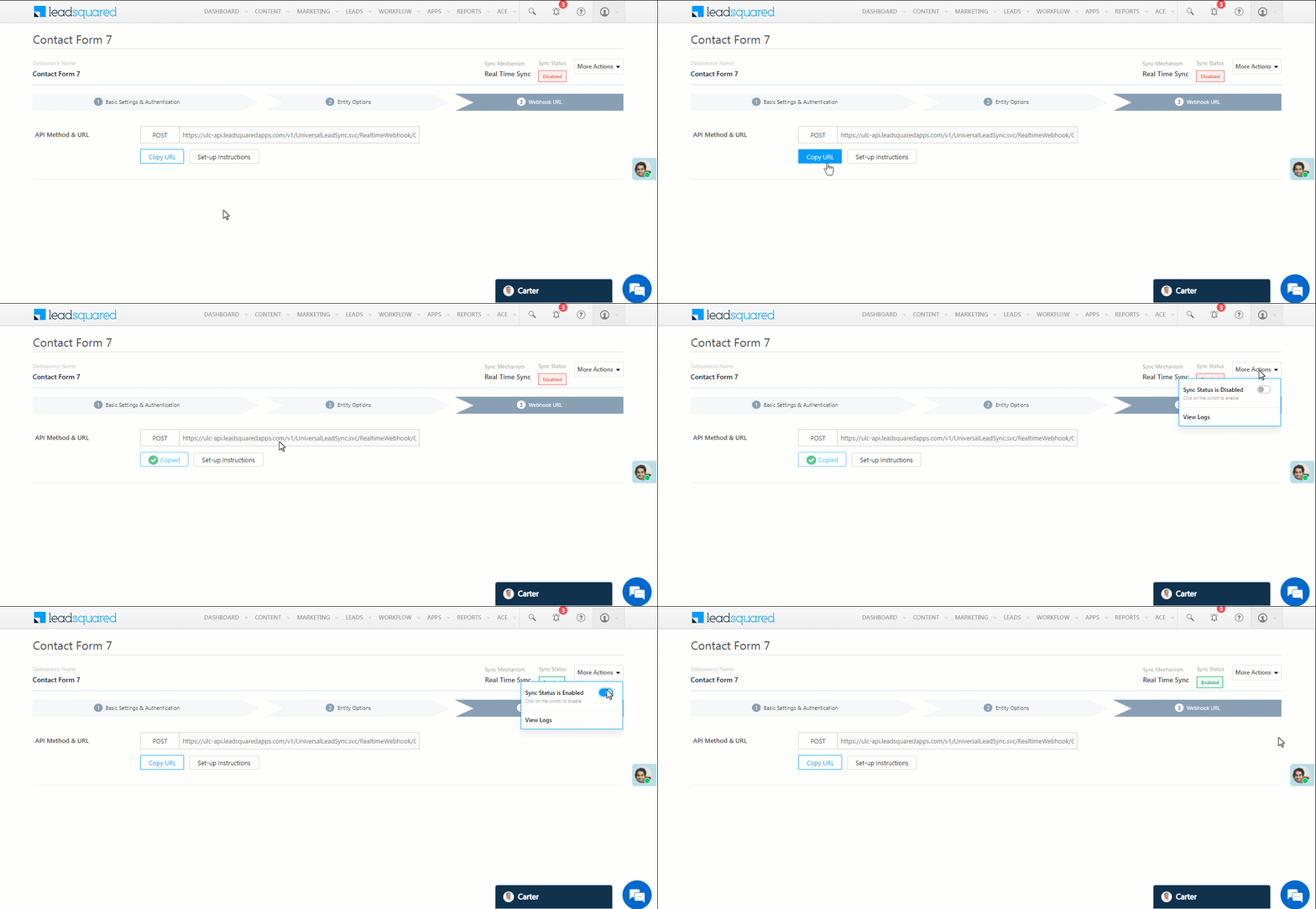
After you provide basic details and finish field mapping, a custom webhook URL is generated. Copy this webhook URL, and use it to create an automation that will push the lead conversion data to your Meta account.
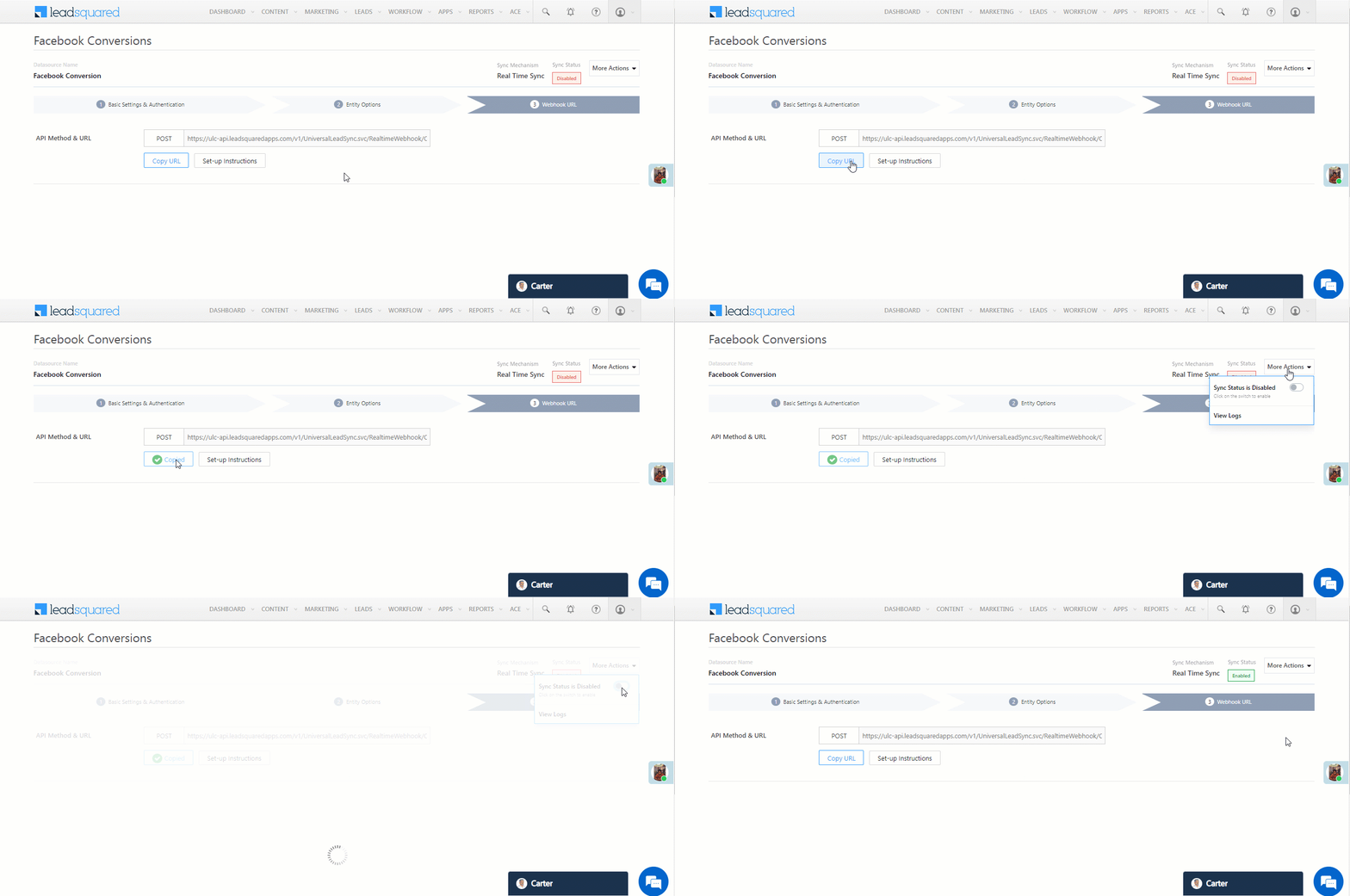
Facebook Conversions Connector


8. Create Automations

Set up three automations –

  • The first automation is used to identify the leads captured through the Facebook Lead Ads Connector.
  • The second automation is used to send lead data to your Meta account.
  • The third automation is used to identify custom event data (like Lead Stage change, etc.) that occurs during a lead’s journey.

8.1 First Automation

This automation is used to identify leads captured through the Facebook Lead Ads Connector, based on  Lead Gen ID. Once the leads are identified, set the automation to post the Facebook Conversion API activity on these leads.

  1. Navigate to Workflow>Automation, and click Create Automation, and select the trigger as Lead Create/Lead Update.
  2. On the Automation starts when a Lead is created pop-up –
    1. Click Add Condition.
    2.  On the Select Criteria pop-up, set Lead Gen ID Contains Data, and click Add Condition.
  3. Once you’re done, click Set Criteria, and click Save.
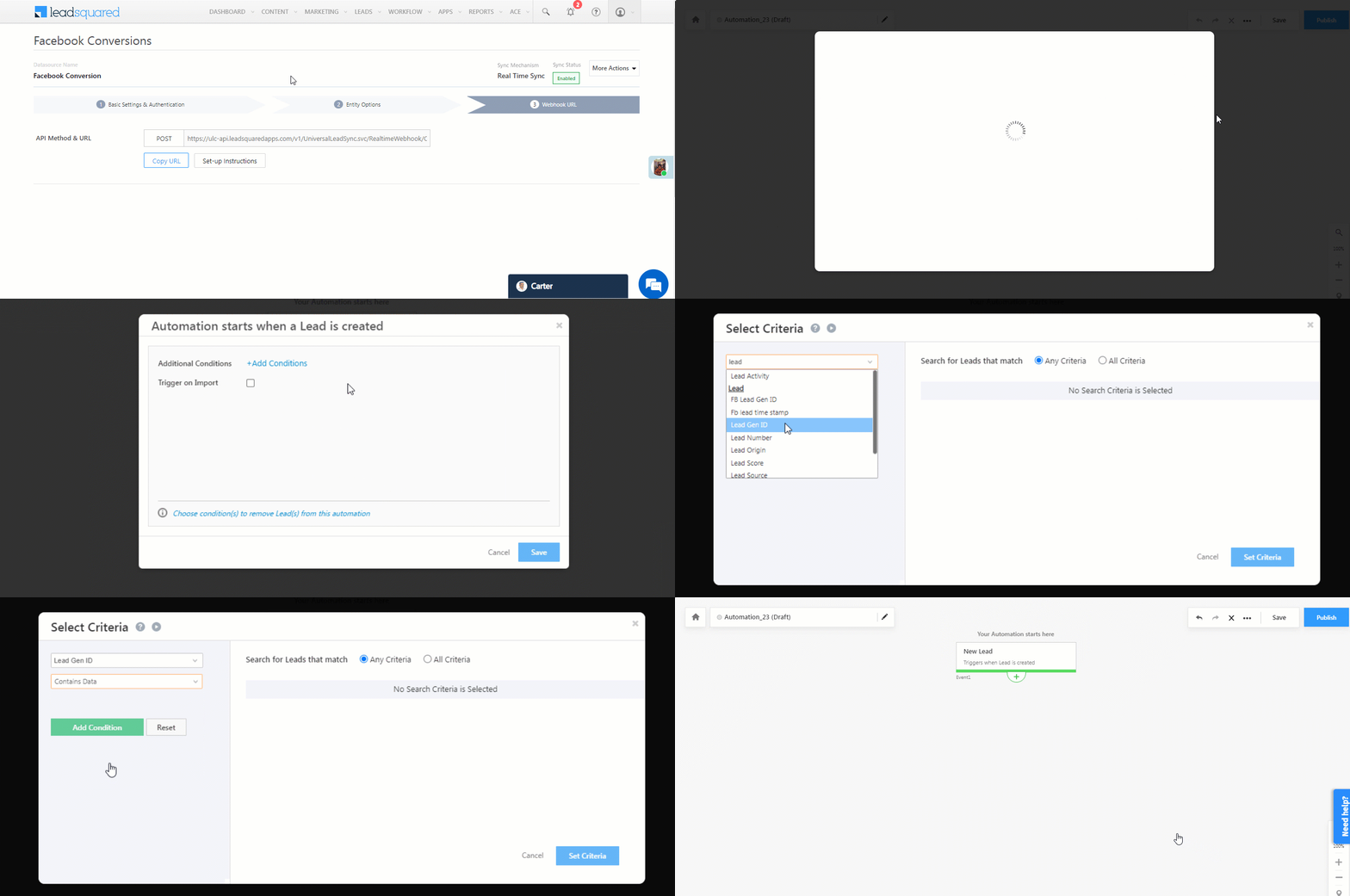
Facebook Conversions Connector

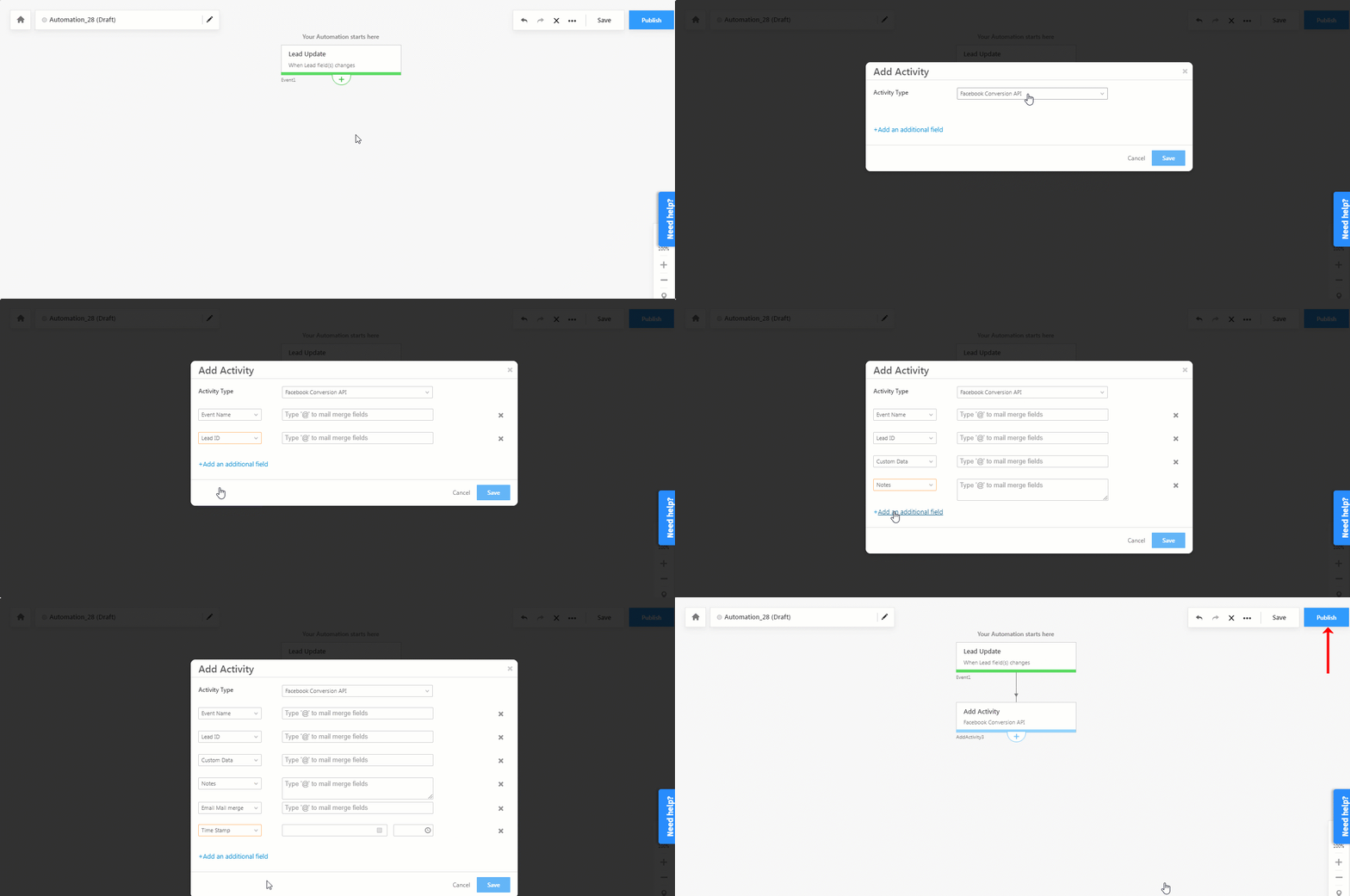
iv. Then, click Add Automation, and under Lead Actions, click Add Activity. From the Activity Type dropdown, select Facebook Conversion API. On the Add Activity pop-up, click Add an additional field to add the following fields –

    • Event Name – It is mandatory to pass the event name as Raw Fb Lead Event.
    • Lead ID – Mail merge the Lead Gen ID @{Lead:mx_Lead_Gen_ID,} to identify the leads captured through the Facebook Lead Ads Connector.
    • Custom Data – In this field, pass the following –
      {"event_source":"crm","lead_event_source":"LeadSquared"}
    • Note – In this field, pass the following –
      {"event_source":"crm","lead_event_source":"LeadSquared"}
    • Email Mail merge – Mail merge this to the email lead field. We’ve gone with @{Lead:EmailAddress,}. If the lead’s email is stored in a different lead field in your account, mail merge that field here.
    • Time Stamp – You can mail merge this to any date field available in your account.

v. Once you’re done, click Save, and then click Publish.
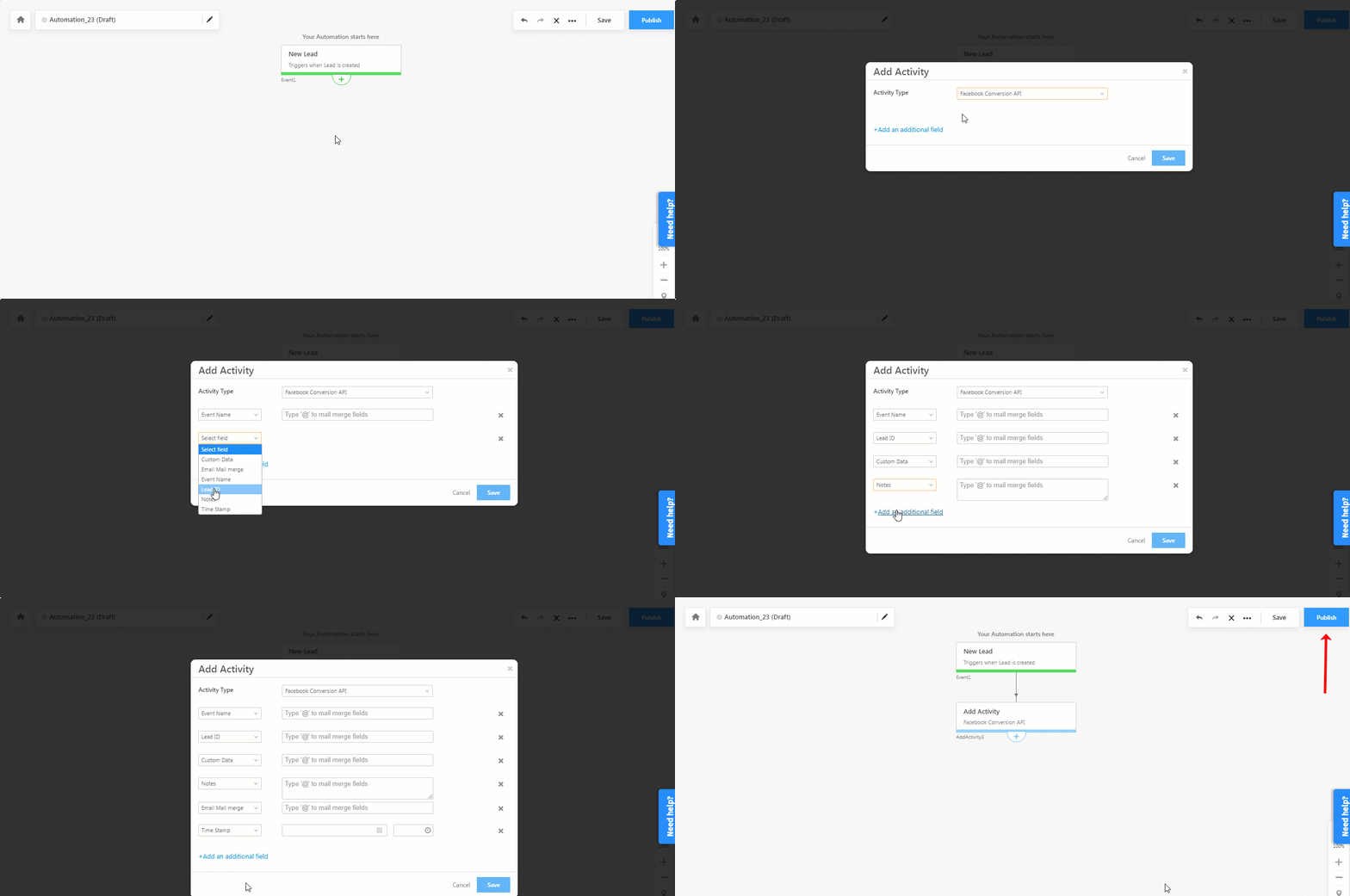
Facebook Conversions Connector

8.2 Second Automation

This automation is used to ensure every time the Facebook Conversion API activity is posted on the lead, the webhook URL (which was generated when the connector was configured) transfers lead data to your Meta account.

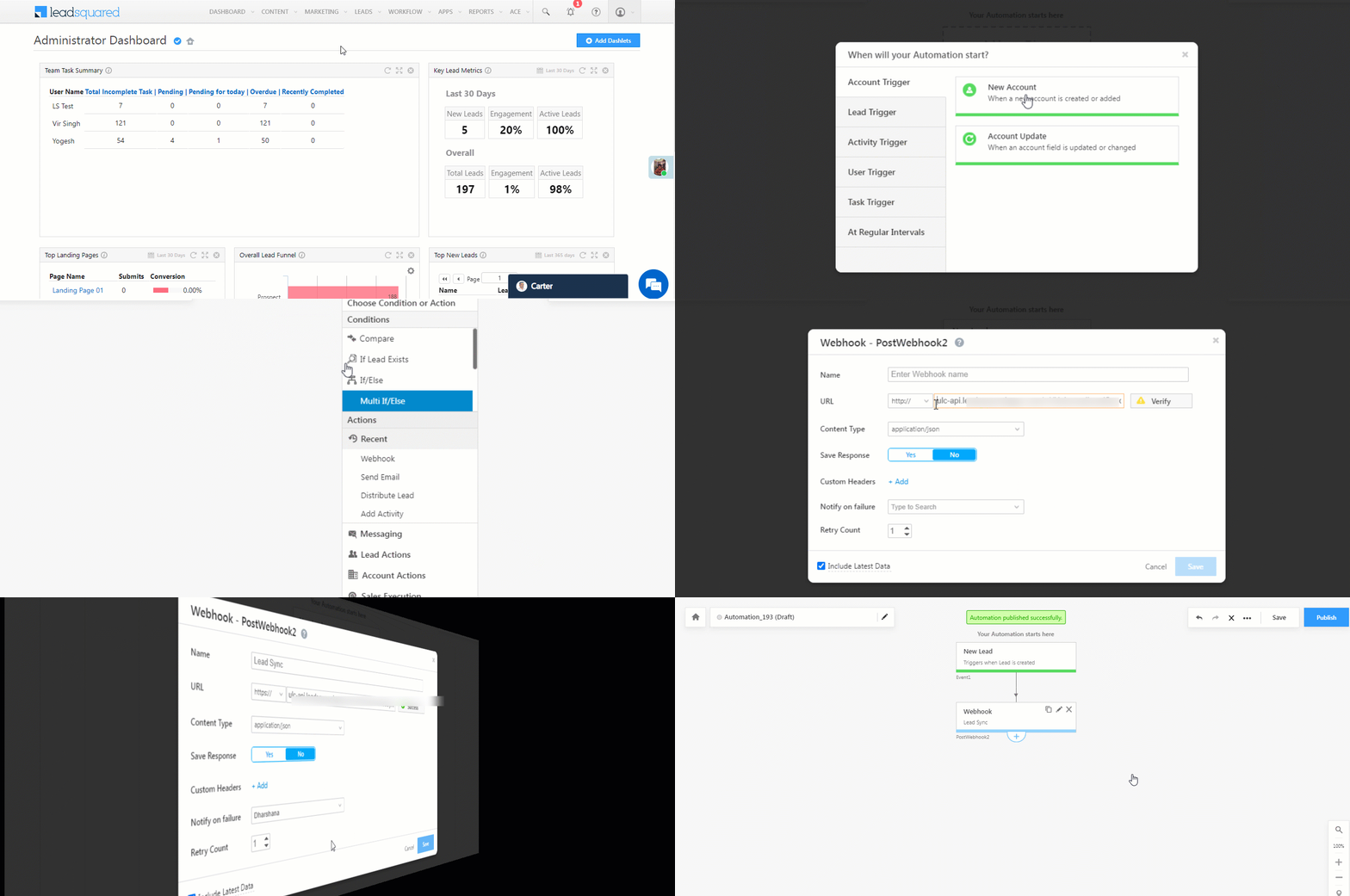
  1. Navigate to Workflow>Automation, click Create Automation, select New Activity on Lead as the trigger.
  2. From the Select an activity dropdown, choose Facebook Conversion API and click Save.
  3. Click Add Automation, and under Custom, click Webhook.
  4. On the Webhook pop-up, enter the following details –
    • Name – Enter a relevant name for the webhook. We’re calling it Facebook Conversion.
    • URL – Select the method as https://, and paste the connector’s webhook URL that was generated. Before you paste the URL, ensure you remove https:// from the URL.
    • Content Type – Select application/json.
    • Save Response – You can select either Yes or No.
    • Custom Headers – You can skip this step.
    • Notify on Failure – Select which user you want to notify if the webhook fails.
    • Retry Count – The number of times you want to retry when the webhook fails.
  5. Once you’re done, click Save, and then click Publish.

Every time the automation is triggered, this webhook will push lead data to your Meta account.
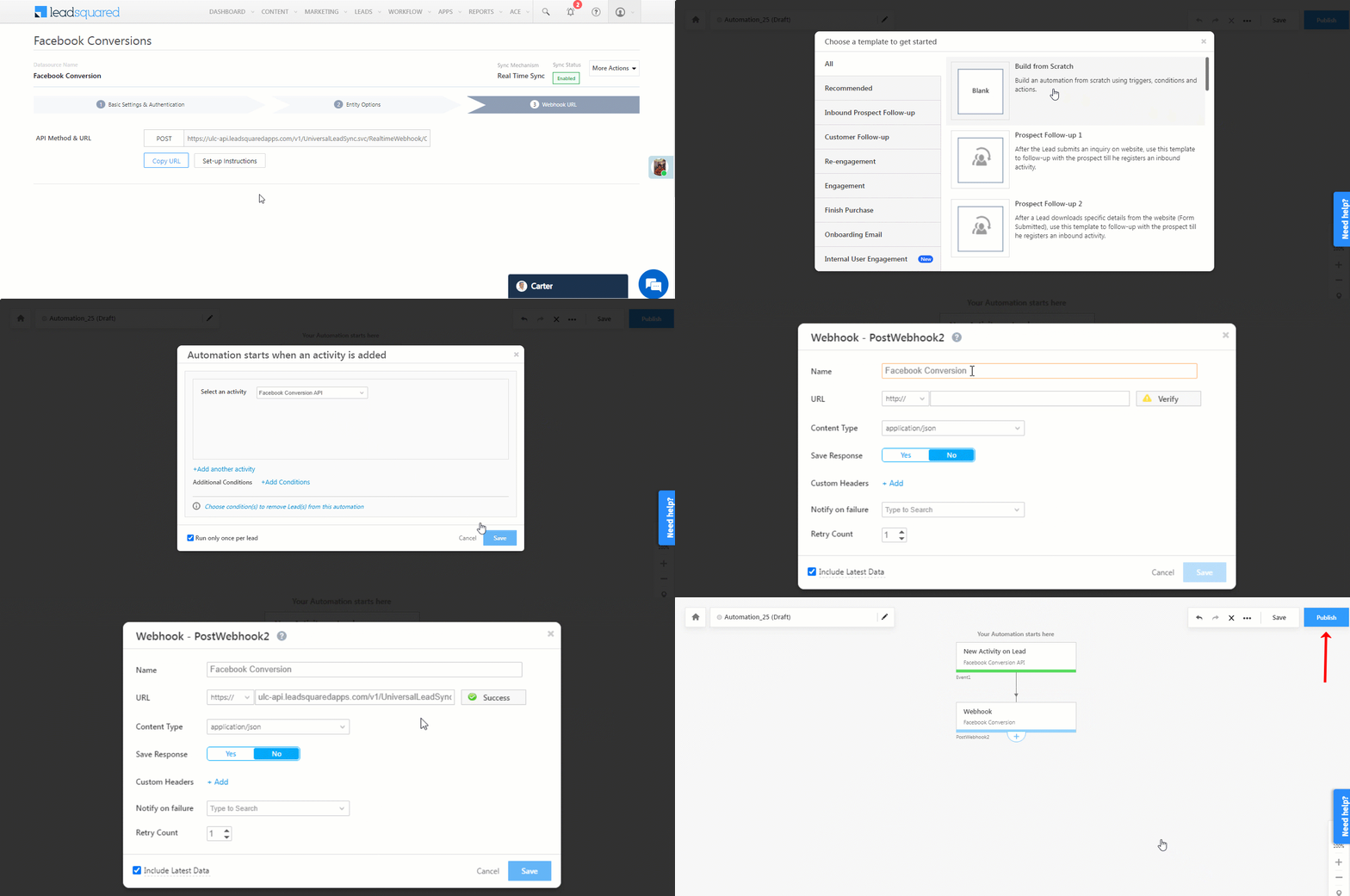
Note: To know more about the Webhook action, refer to User Automation Actions – Webhook.

Facebook Conversions Connector

8.3 Third Automation

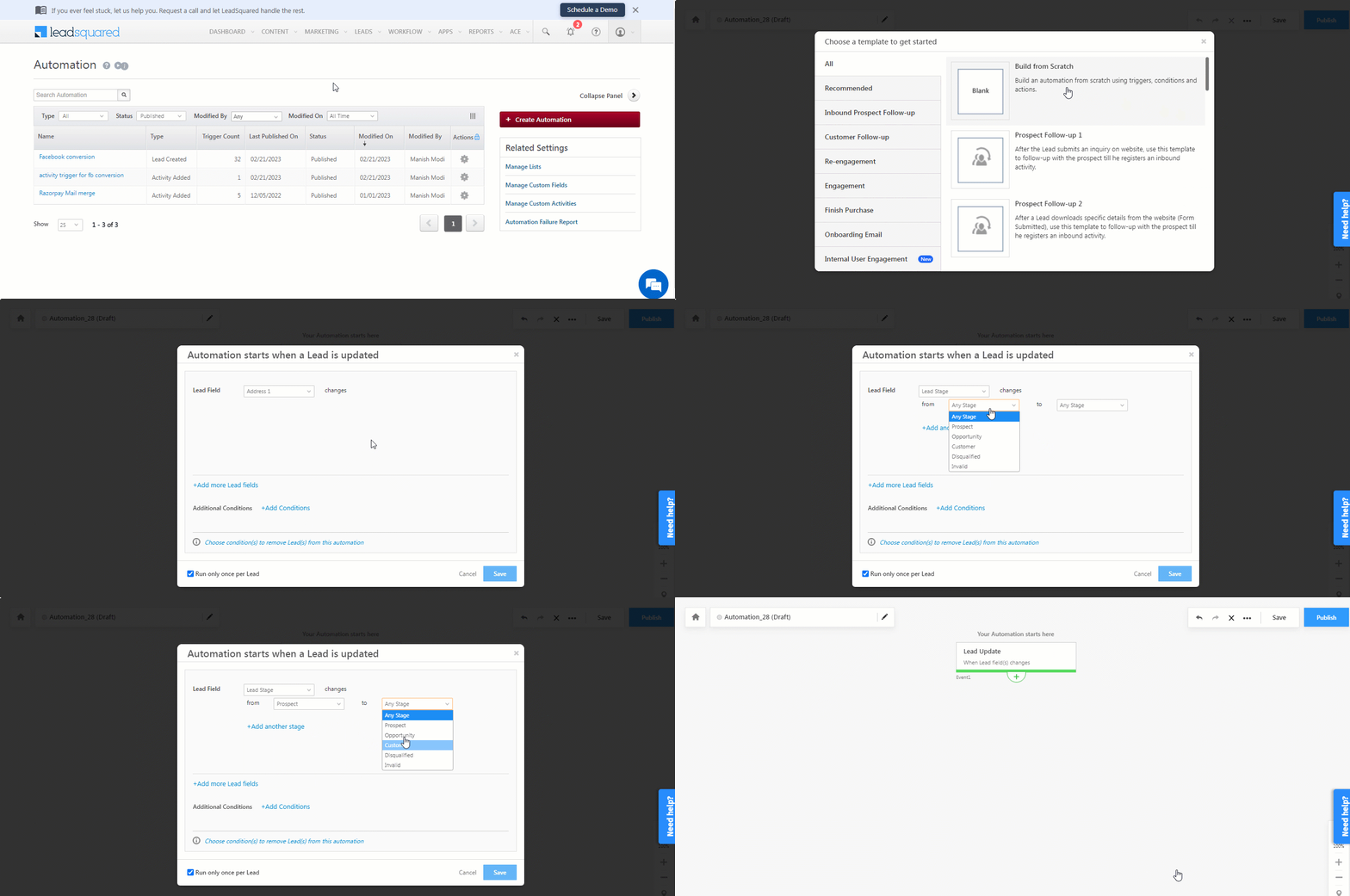
This automation is used to identify custom events that occur during your lead’s journey in the sales funnel. Examples of custom events are Lead Stage change, Payment activity posted, etc. You can set up the automation trigger to identify the event for which you want to send data. We’re setting up the automation to trigger when the Lead Stage changes from Prospect to Customer. This lead conversion (change) data for the selected lead is transferred to your Meta account.

Note: If the third automation is lead-dependent, the event trigger should include the additional condition Lead Gen ID Contains Data. This is to ensure the automation triggers only for leads captured through the Facebook Lead Ads connector (and NOT from any other lead source).

  • Navigate to Workflow>Automation, and click Create Automation, and select a relevant trigger.
    1. We’ve selected Lead Update.
  • On the Automation starts when a Lead is Updated pop-up –
    1. From the Lead Field dropdown, select Lead Stage.
    2.  We’re setting the stages as Prospect (From) to Customer (To).
  • Once you’re done, click Save.
Note: Select any trigger/condition here depending on your use case and the lead journey/event data you want to send to your Meta account.

Facebook Conversions Connector

iv. Then, click Add Automation, and under Lead Actions, click Add Activity. From the Activity Type dropdown, select Facebook Conversion API. On the Add Activity pop-up, click Add an additional field to add the following fields –

    • Event Name – It is mandatory to pass the event name as Second Event – Custom Sales Event.
      • Note – If you need to pass a dynamic event name, you can use a mail merge here, just like any other field. For e.g., to send the Lead Stage as the event name, please pass the following mail merge value –
        @{Lead:ProspectStage,}
    • Lead ID – Mail merge the Lead Gen ID @{Lead:mx_Lead_Gen_ID,} to identify the leads captured through the Facebook Lead Ads Connector.
    • Custom Data – In this field, pass the following –
      {"event_source":"crm","lead_event_source":"LeadSquared","Lead_stage":"Customer"}

      The event_source must remain as crm, but the other key-value pairs can change depending on the use case you’re trying to solve.

    • Note – In this field, pass the following –
      {"event_source":"crm","lead_event_source":"LeadSquared","Lead_stage":"Customer"}

      The event_source must remain as crm, but the other key-value pairs can change depending on the use case you’re trying to solve.

    • Email Mail merge – Mail merge this to the email lead field. We’ve gone with @{Lead:EmailAddress,}. If the lead’s email is stored in a different lead field in your account, mail merge that field here.
    • Time Stamp – You can mail merge this to any date field available in your account.

v. Once you’re done, click Save, and then click Publish.
Facebook Conversions Connector


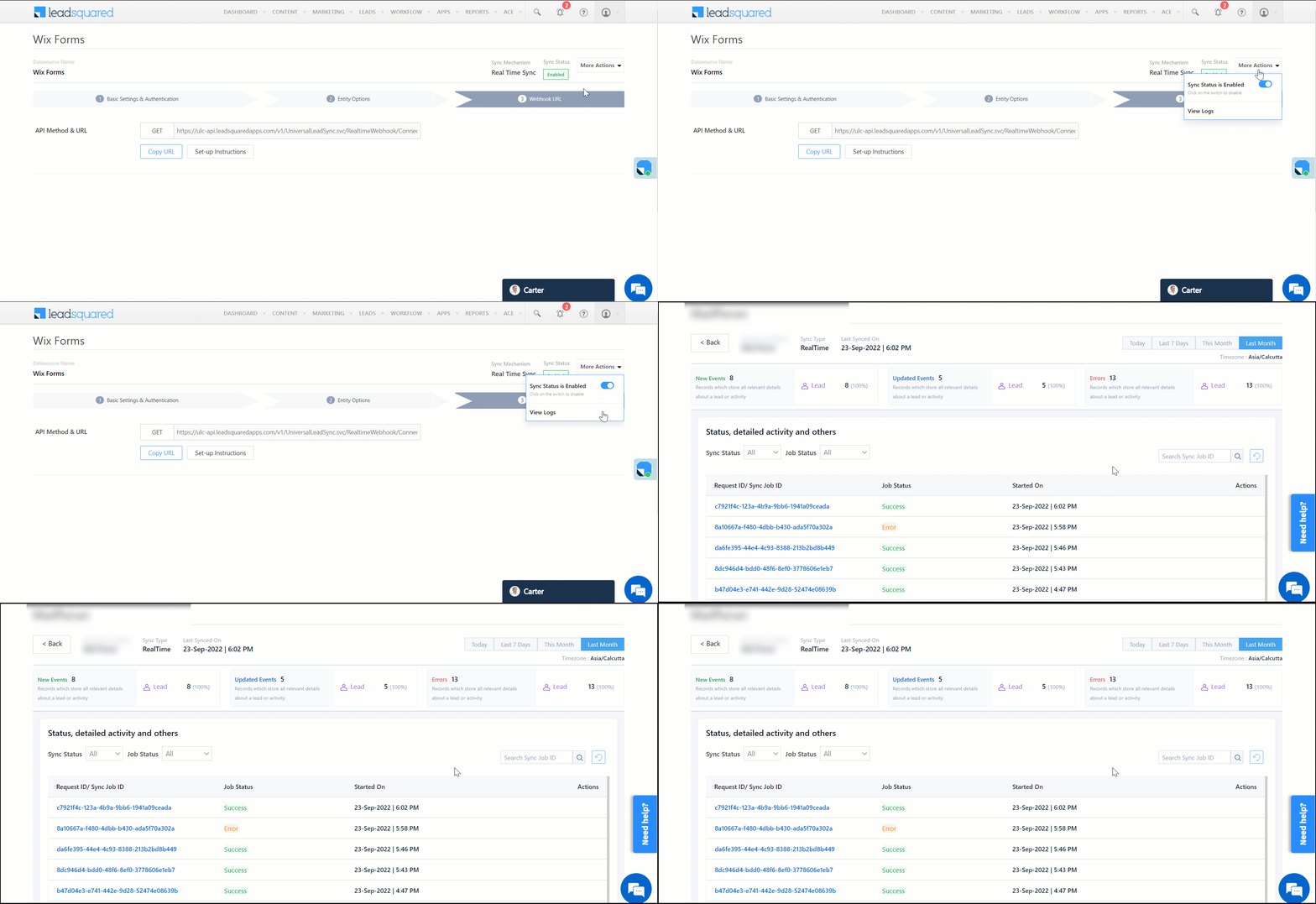
9. View Logs

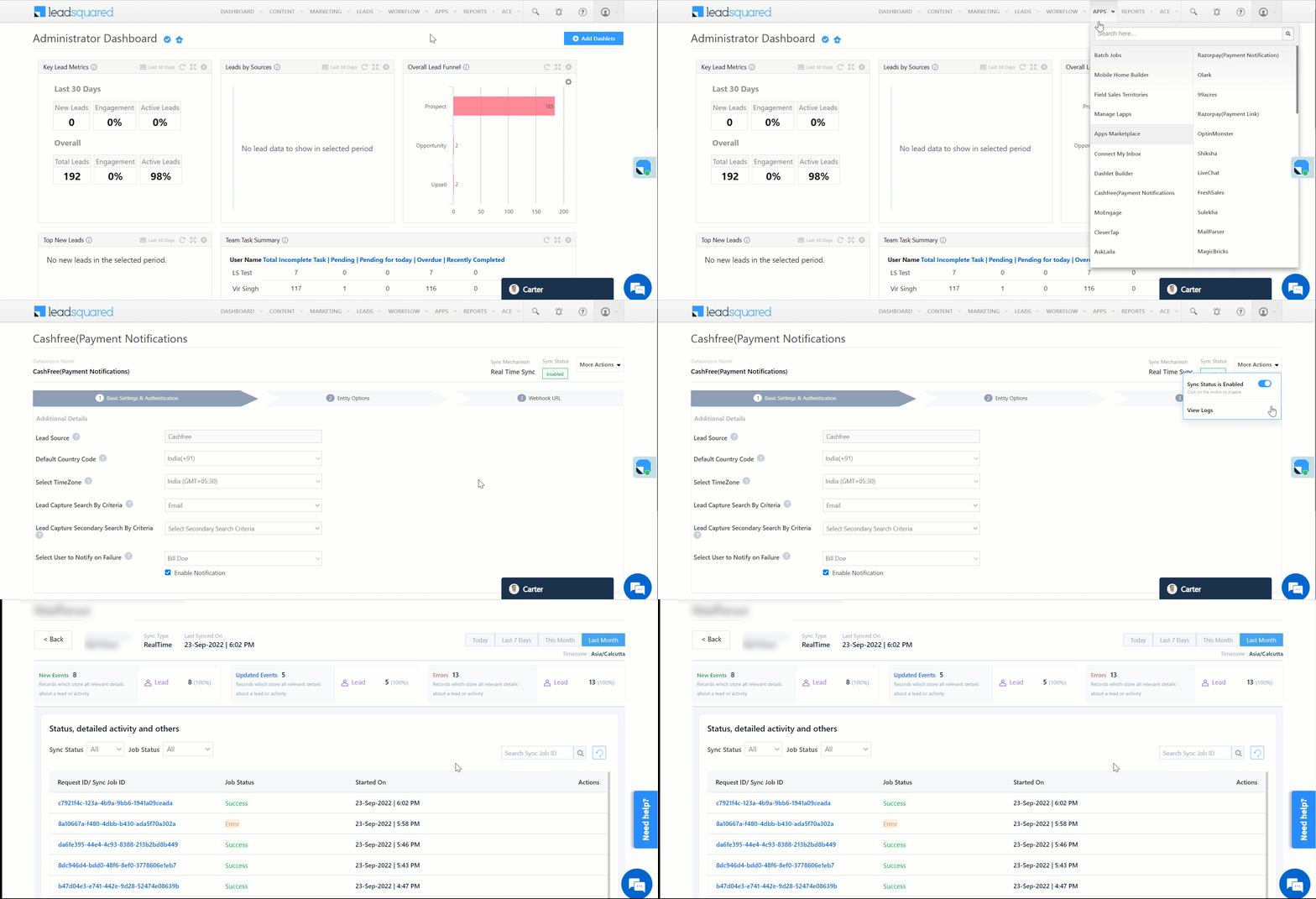
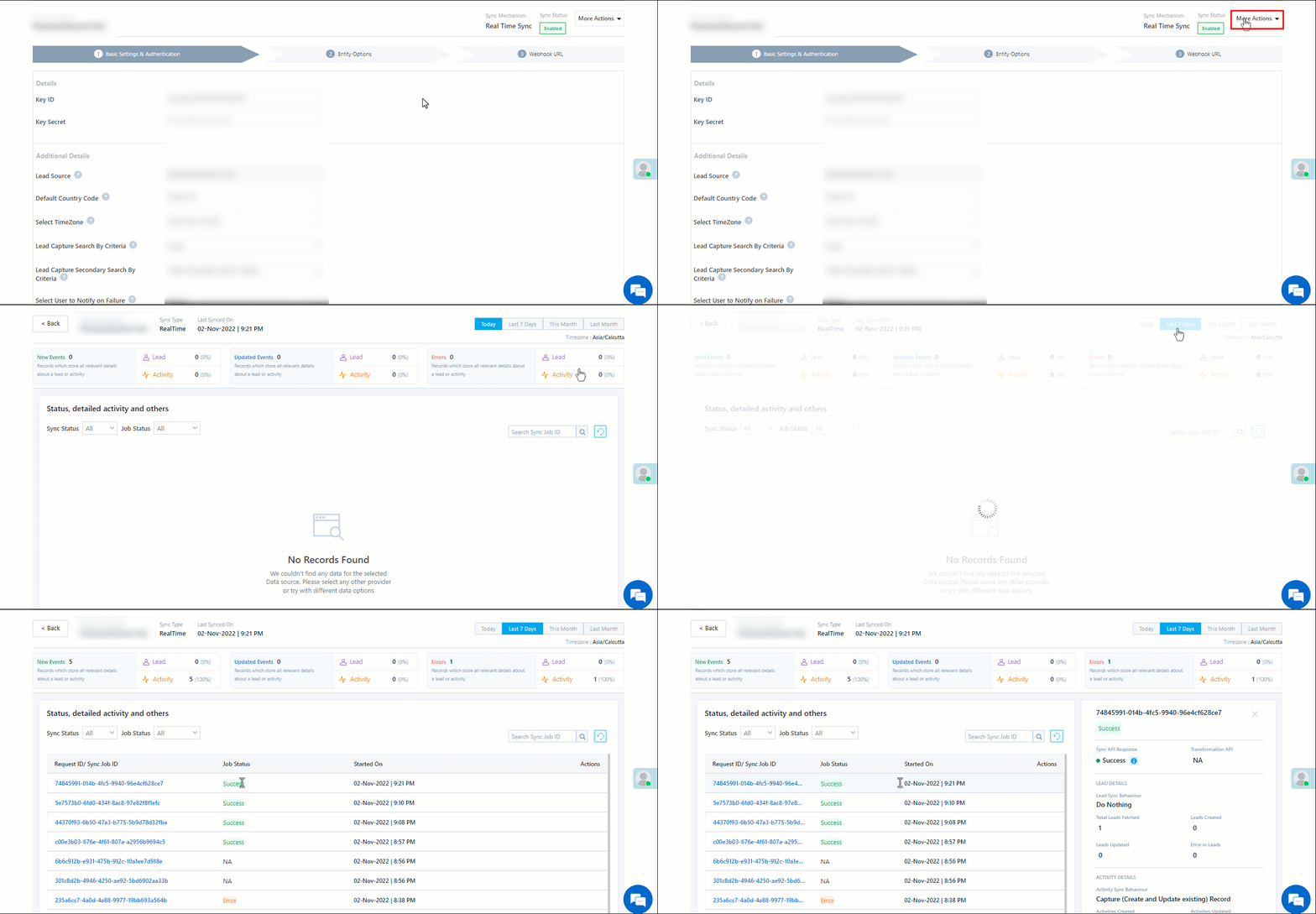
Here, you can view logs of all the sync jobs that have taken place. View New Events (New Leads), Updated Events (Updated Leads), and Errors (when capturing leads).

  1. Navigate to Apps>Facebook Conversions.
  2. From the More Actions dropdown, click View Logs.
  3. You can filter the logs by selecting a date range (Today, Last 7 Days, This Month, and Last Month), by selecting the Job Status (“All”, “Success” and “Failure”), and by selecting the Sync Status (All, Error, and Success).
  4. You can view the sync status of the following events –
    • New Events – List of all the new leads that have been created in LeadSquared during the selected date range.
    • Updated Events – A list of all the –
      • Duplicate leads that were created with the same Search by Criteria value (e.g., with the same Email Id, Mobile Number, etc.).
      • Leads that previously contained errors, which were fixed and synced successfully.
    • Failed – The list of leads that have not been captured due to mapping errors (e.g., when a boolean field is mapped to an integer field, etc.).
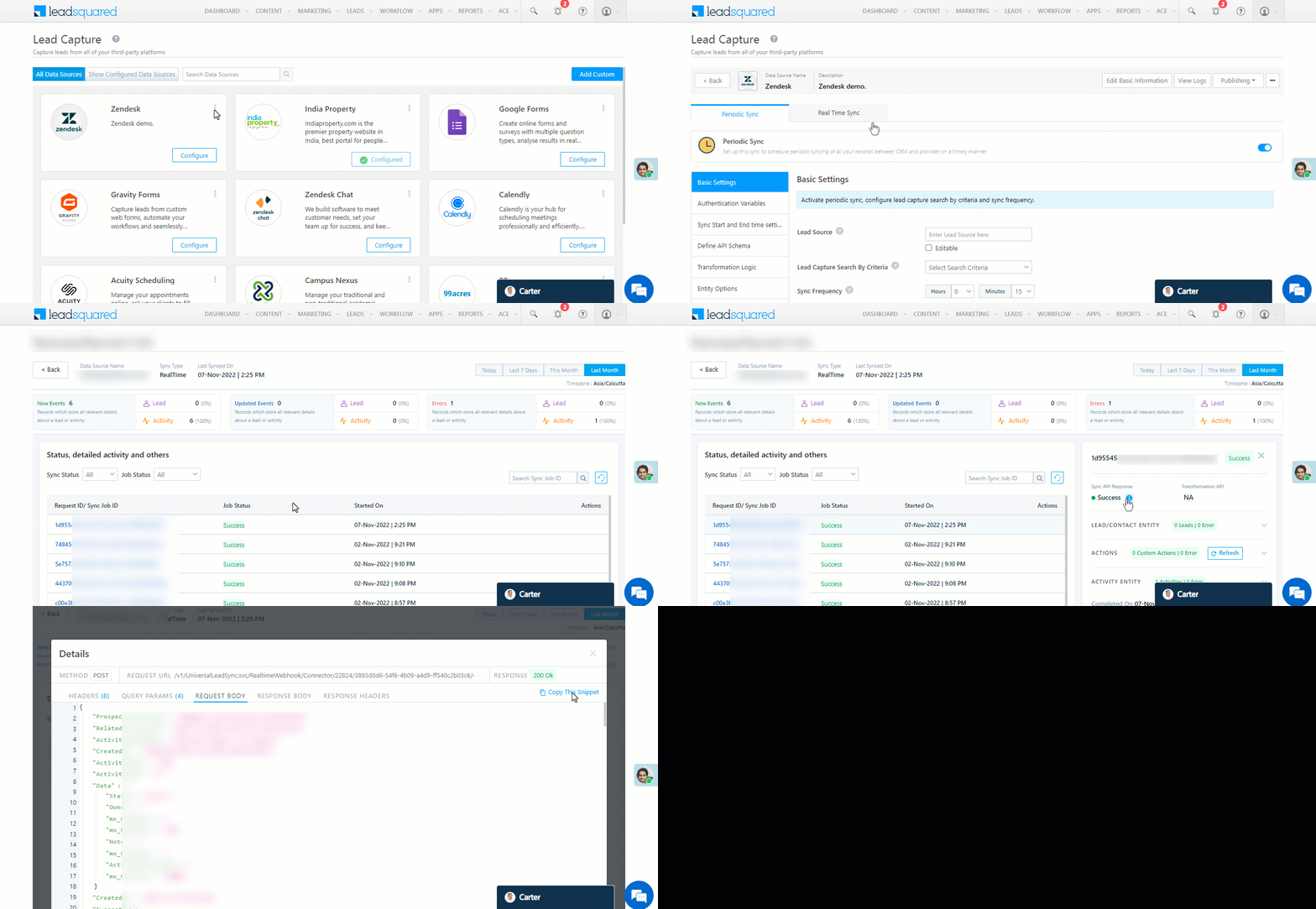
  5. To view the Sync Response details, under Request ID/Sync Job ID, click the Id.
    • Under the right panel, you can view the response status, the API URL, the request, and the response.
    • The responses that are successful will contain the details of the leads that have been pushed from Swipe Pages.
    • To view the lead capture response under Sync API Response, Leads Updated and Errors in Leads, click Information.

Note:

  • For a response that contains an error, the reason for the error is listed in the response. Once you fix it, you can click the Retry button to perform the sync again.
  • The current Lead Sync Behaviour will reflect in the Logs screen. This will help identify the sync that’s used (Capture or Update) for the selected Request/Sync Job Id.
google forms view logs


10. Other Actions

You can edit or delete the Swipe Pages connector instance that you created. To do this –

  1. Navigate to Apps>App Marketplace.
  2. Search for Facebook Conversions Connector.
  3. Alongside the connector, hover your cursor over .
  4. From the list of options, you can perform the following actions –
    • Edit Configuration
    • Disable Configuration
    • Remove Configuration

Facebook Conversions Connector


Any Questions?

Did you find this article helpful? Please let us know any feedback you may have in the comments section below. We’d love to hear from you and help you out!
Integrate Swipe Pages with LeadSquared

1. Feature Overview

This connector captures leads from your Swipe Pages account to LeadSquared. You can configure the connector to capture leads in real-time from your Swipe Pages account. Once the leads are captured, you can leverage LeadSquared’s CRM features to nurture and convert your leads.


2. Prerequisites

  • You must be the Administrator of your LeadSquared account.
  • You must have an active Swipe Pages account with a Startup plan or above.
  • This is a paid feature. To enable it, reach out to your account manager, or write to support@leadsquared.com.


3. How it Works

To push lead data from Swipe Pages to your LeadSquared account, configure the Swipe Pages connector instance. Once configured, enable the connector sync.

During configuration, a webhook URL is generated in LeadSquared. Copy this URL and configure it in your Swipe Pages account. Once configured, the lead capture process is initiated.


4. Installation

You must first install and configure the Swipe Pages connector.

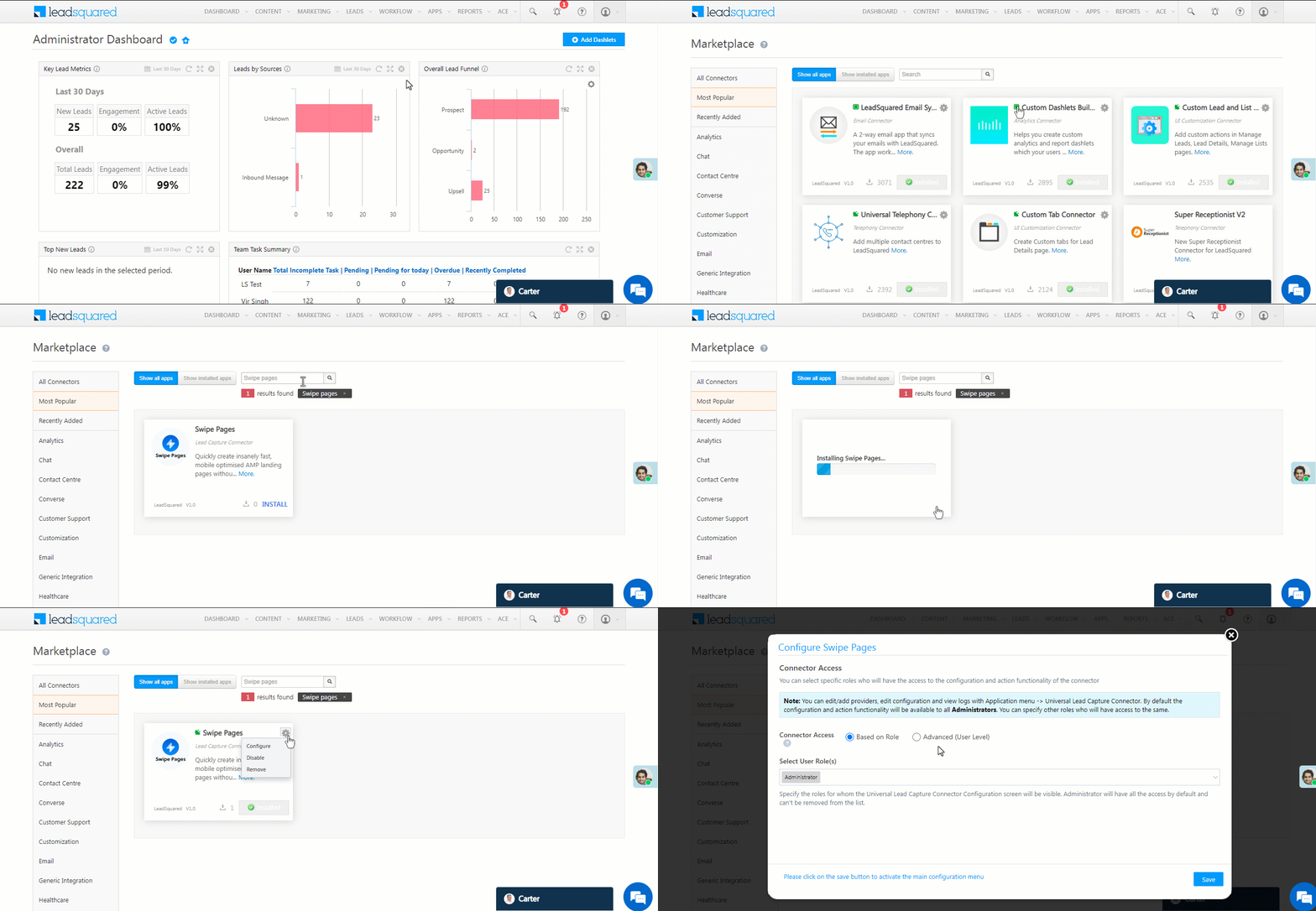
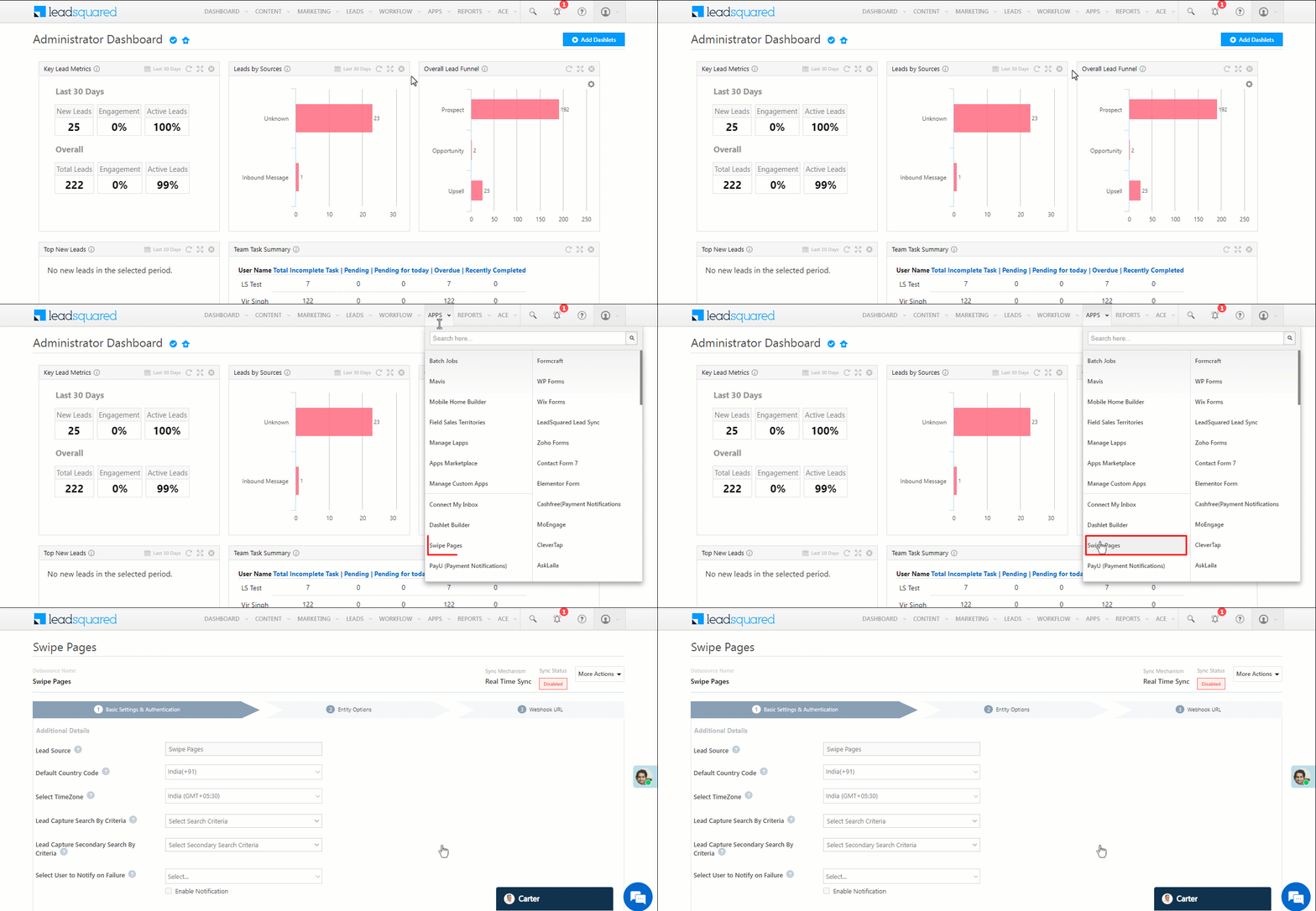
  1. Navigate to Apps>Apps Marketplace.
  2. Search for Swipe Pages, and click Install.
    • Alternatively, you can find the connector on the left panel, under Lead Capture.
  3. Once installed, hover your cursor over , and click Configure.

swipe pages install

4.1 Configure the connector

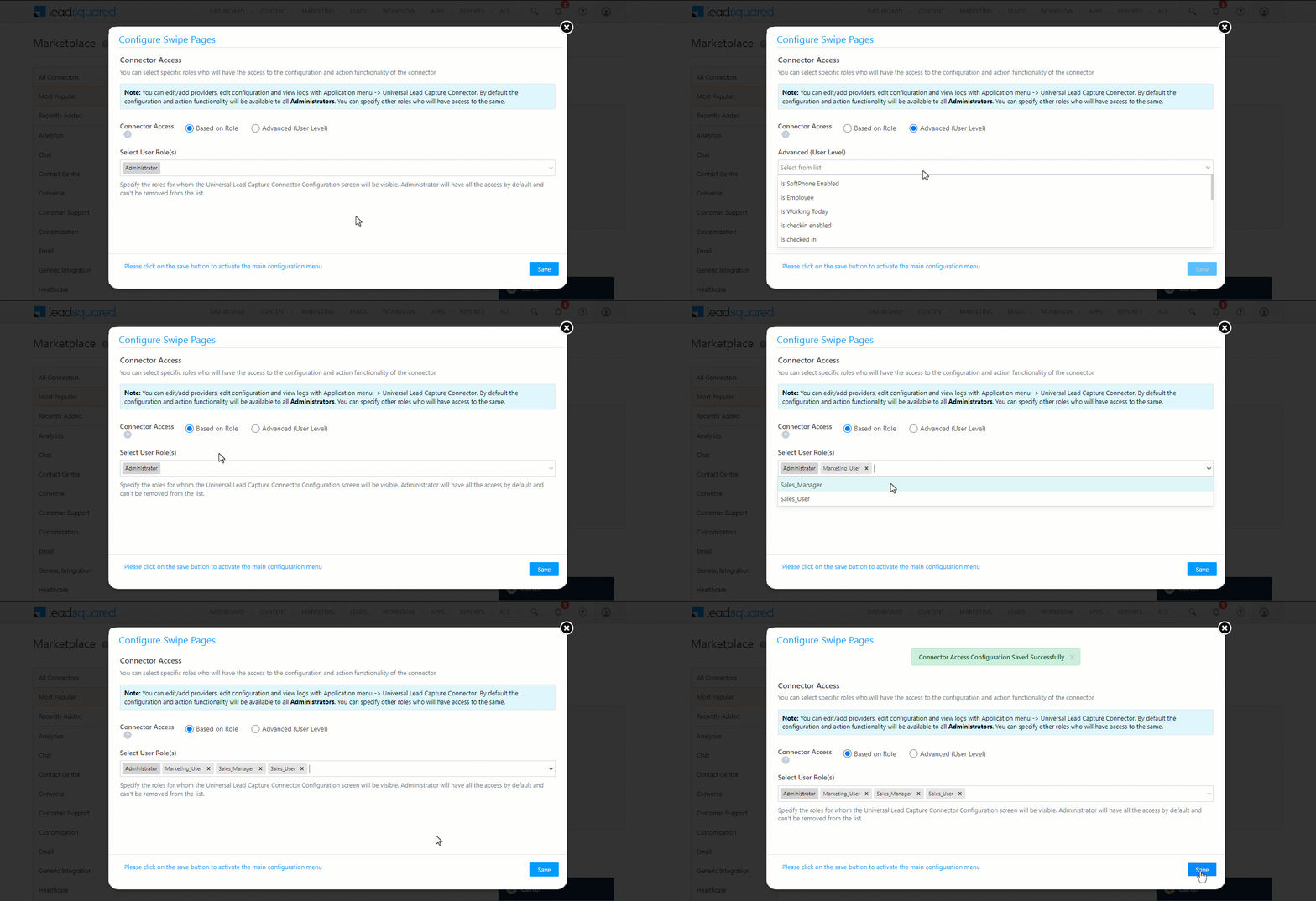
Once you’ve installed the connector, on the Configure Swipe Pages pop-up, configure the connector access for the non-Admin users in your account. Only those users for whom access is granted can view and access the connector (under the Apps main menu).

  1. Select if you want to grant Connector Access that’s Based on Role or Advanced (User Level).
    • Based on Role – From the Specify Roles dropdown, select the LeadSquared user roles that can use the connector.
    • Advanced (User Level) – From the Advanced (User Level) dropdown, select a user boolean field. Based on the value entered in the selected boolean field, the user can access the connector (e.g., for the user Sam, if the “Is Employee” boolean user field contains the value “Yes”, then this user can access the connector).
  2. Once you’re done, click Save Details. To continue the configuration, refer to the below sections.
Note: By default, all Admin users will have access to the connector.
swipe pages config


5. Admin Configuration

To continue the connector configuration, navigate to Apps>Swipe Pages.

swipe pages admin config

5.1 Basic Settings

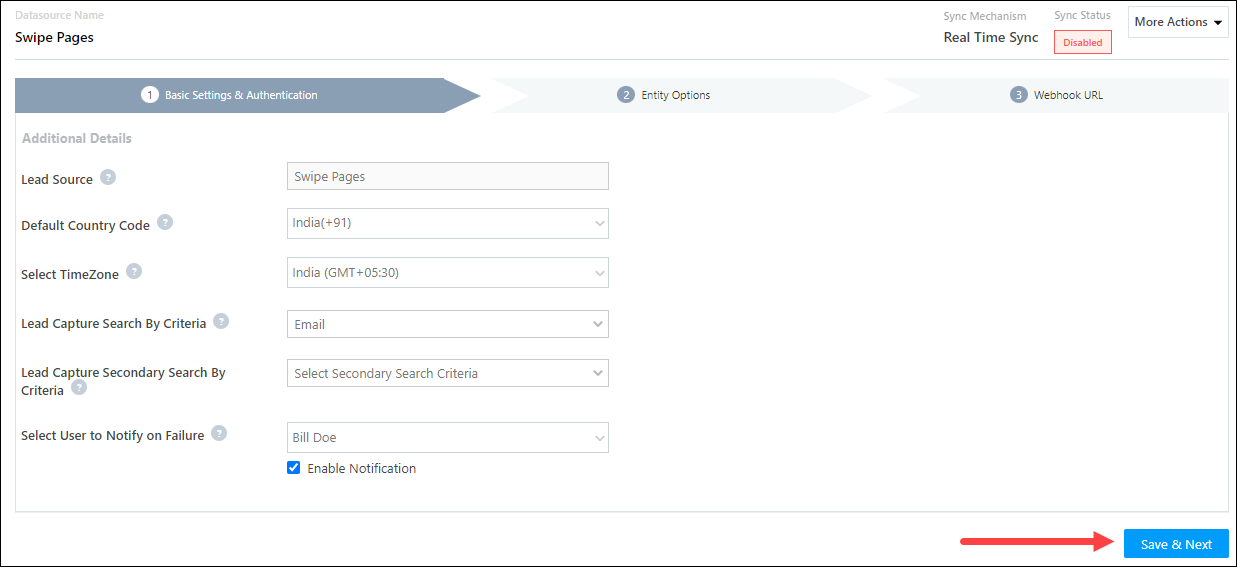
Enter the following details –

Property Description
Lead Source Enter the lead source through which the leads were captured (e.g., Swipe Pages, email campaign, etc.). This detail will be displayed on the Lead Details page, under Lead Source.
Default Country Code If the lead’s mobile number is captured without a country code, the default country code that’s selected from the dropdown will be added to the lead’s mobile number.
Select Time Zone The time zone followed in your Swipe Pages account.
Lead Capture Search By Criteria To avoid duplicate leads, you must select one unique lead field (e.g., email Id, mobile number, PAN number, etc.) as the search key. This is used to identify the leads pushed from Swipe Pages.

To know how to mark a LeadSquared lead field as unique, please refer to How to Make a Custom Field Unique.

Lead Capture Secondary Search By Criteria If lead identification and capture through the primary Search By criteria fails, it will be re-attempted using the secondary Search By criteria.
Select User to Notify on Failure If there is an error in fetching leads, the selected user will receive a failure message via email. You can select a user from the list of all the users available in your LeadSquared account.

To know more about the type of errors, please refer to Error Notifications.

Enable Notification To ensure notification emails are sent to the selected user when there’s a failed query, enable the Checkbox checkbox.

Once you’ve entered all the details, click Save & Next.

swipe pages basic settings save


5.2 Entity Options

Define the sync behavior of the connector when leads are captured.

5.2.1 Lead/Contact Entity

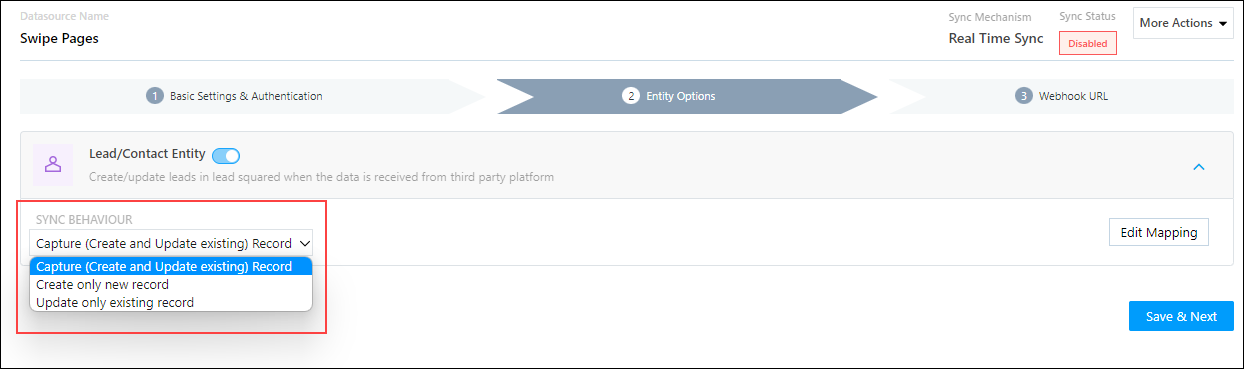
Based on the Lead Capture Search By criteria (email Id, phone number, etc.), LeadSquared identifies and captures leads from your Swipe Pages account. Lead capture is enabled by default, and it cannot be disabled. The following options are available to configure the connector’s Sync Behaviour –

  • Capture (Create and Update existing) Record – Leads that only exist in your Swipe Pages account (but not in your LeadSquared account) will get created in LeadSquared. Leads that exist in both your data provider and LeadSquared accounts will get updated.
  • Create only new record – Leads that only exist in your Swipe Pages account (but not in your LeadSquared account) will get created in LeadSquared.
  • Update only existing record – Leads that exist in both your Swipe Pages account and LeadSquared accounts will get updated in LeadSquared.

swipe pages lead sync

5.2.2 Mapping

On the Mapping screen, the Swipe Pages system fields mapped to the corresponding LeadSquared lead fields are visible. This mapping is carried out by default. If required, you can change or update the default field mapping.

  • To provide a default value for any field, click  , enter the value under Default Value, and click Google.
    • If the data provider doesn’t send data for any lead field, then the default value will get assigned to that specific field. But if the field already has an existing value, then the default value will be ignored.
  • To disable lead data capture for any field, disable the Zoom slider.
  • You can also mark and update a unique lead field as the search key from this screen, by clicking unique icon.
  • To create a custom Swipe Pages field, click the Add Custom button.
    1. Once this field is created, you must map it to the relevant LeadSquared lead field.
    2. After the field is mapped, to save the custom field, click Google.
    3. To delete a custom field, click .

Once you’re done, click Save & Next.

Note: Based on the lead fields configured in your Swipe Pages account, add or update the lead fields in LeadSquared.

swipe pages lead mapping


5.3 Generate Webhook URL

After you provide basic details and finish field mapping, a custom webhook URL is generated. To automate lead capture, copy this URL and configure it on your Swipe Pages account.

After you’ve set up the webhook, click More Actions, and enable the sync job. This ensures that through the webhook, lead data from Swipe Pages is pushed to LeadSquared.

Note: To view logs of all the sync jobs that have taken place, from the More Actions dropdown, click View Logs.

swipe pages webhook


6. View Logs

Here, you can view logs of all the sync jobs that have taken place. View New Events (New Leads), Updated Events (Updated Leads), and Errors (when capturing leads).

  1. Navigate to Apps>Swipe Pages.
  2. From the More Actions dropdown, click View Logs.
  3. You can filter the logs by selecting a date range (Today, Last 7 Days, This Month, and Last Month), by selecting the Job Status (“All”, “Success” and “Failure”), and by selecting the Sync Status (All, Error, and Success).
  4. You can view the sync status of the following events –
    • New Events – List of all the new leads that have been created in LeadSquared during the selected date range.
    • Updated Events – A list of all the –
      • Duplicate leads that were created with the same Search by Criteria value (e.g., with the same Email Id, Mobile Number, etc.).
      • Leads that previously contained errors, which were fixed and synced successfully.
    • Failed – The list of leads that have not been captured due to mapping errors (e.g., when a boolean field is mapped to an integer field, etc.).
  5. To view the Sync Response details, under Request ID/Sync Job ID, click the Id.
    • Under the right panel, you can view the response status, the API URL, the request, and the response.
    • The responses that are successful will contain the details of the leads that have been pushed from Swipe Pages.
    • To view the lead capture response under Sync API Response, Leads Updated and Errors in Leads, click Information.

Note:

  • For a response that contains an error, the reason for the error is listed in the response. Once you fix it, you can click the Retry button to perform the sync again.
  • The current Lead Sync Behaviour will reflect in the Logs screen. This will help identify the sync that’s used (Capture or Update) for the selected Request/Sync Job Id.

google forms view logs


7. Other Actions

You can edit or delete the Swipe Pages connector instance that you created. To do this –

  1. Navigate to Apps>App Marketplace.
  2. Search for Swipe Pages.
  3. Alongside the Swipe Pages connector, hover your cursor over .
  4. From the list of options, you can perform the following actions –
    • Edit Configuration
    • Disable Configuration
    • Remove Configuration

swipe pages other actions


8. View Reports

You can view the total number of leads that have been pushed by Swipe Pages, by referring to the Lead Source report. To know more, please refer to How to track the source of your Leads using Lead Source Report?

Integrate LeadSquared with Google Forms


Any Questions?

Did you find this article helpful? Please let us know any feedback you may have in the comments section below. We’d love to hear from you and help you out!
Integrate PayU with LeadSquared

1. Feature Overview

This connector captures leads and activities (such as payment data, payment status, etc.) in real time from your PayU account to LeadSquared. Once the leads and activities are synced, you can leverage LeadSquared’s CRM features to nurture and convert your leads.


2. Prerequisites

  • You must be the Administrator of your LeadSquared account.
  • You must have an active PayU account.
  • This is a paid feature. To enable it, reach out to your account manager, or write to support@leadsquared.com.


3. How it Works

To push lead and activity data from PayU to your LeadSquared account, configure the PayU connector instance. Once configured, enable the connector sync.

During configuration, a webhook URL is generated in LeadSquared. Copy this URL and set it up in your PayU account. Once it’s set up, the activity and lead capture process are initiated.

For e.g., let’s look at two use cases –

  • New Lead – John does not exist as a lead in LeadSquared. On a third-party portal, he makes a payment through PayU. Once the payment is completed, John is captured as a new lead in your LeadSquared account, and an activity is posted with the payment details.
  • Existing Lead – Paul is an existing lead in LeadSquared. On a third-party portal, he makes a payment through PayU. Once the payment is completed, a payment activity is posted against Paul in LeadSquared.


4. Installation

You must first install and configure the PayU connector.

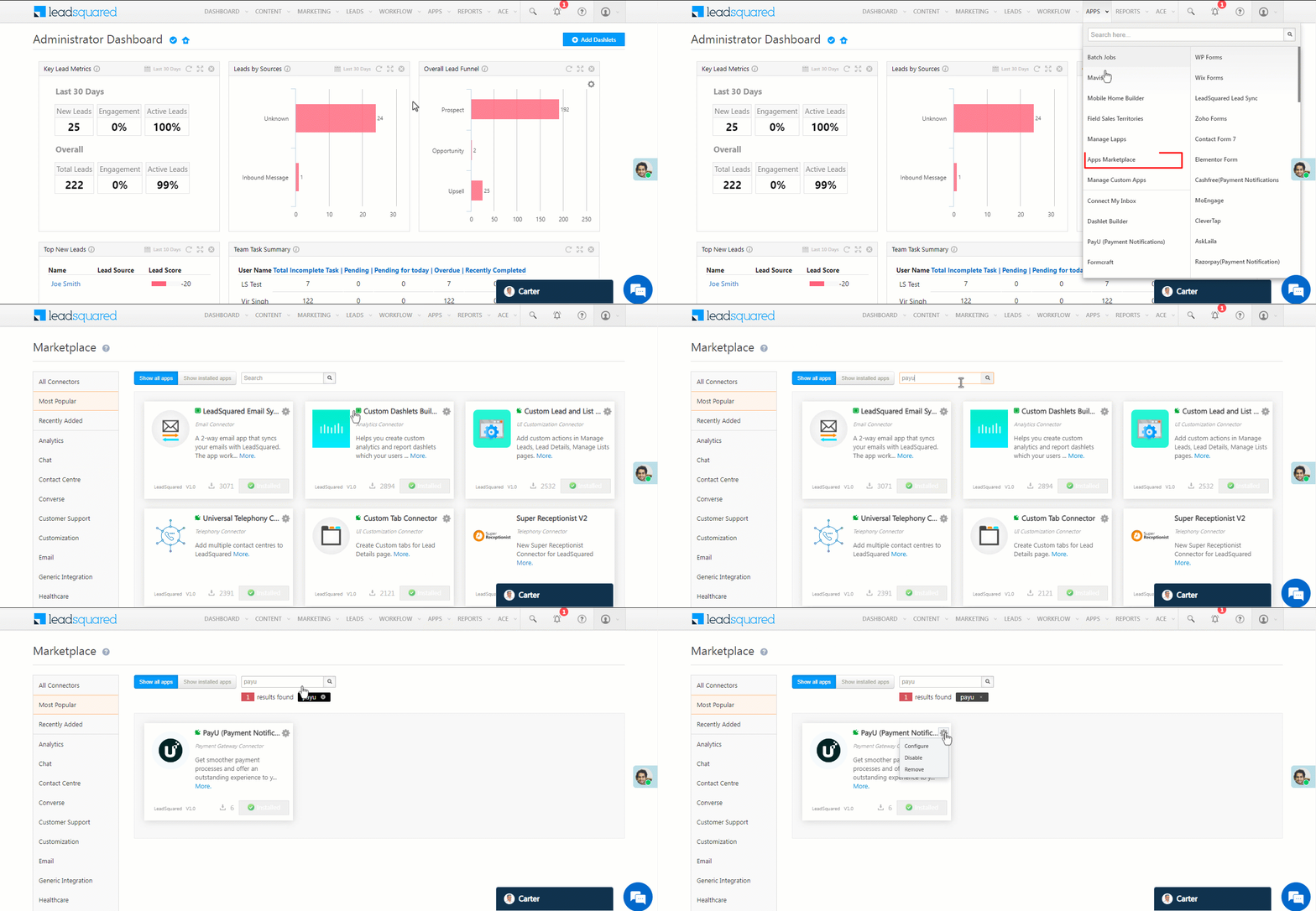
  1. Navigate to Apps>Apps Marketplace.
  2. Search for PayU (Payment Notifications), and click Install.
    • Alternatively, you can find the connector on the left panel, under Payment Gateway.
  3. Once installed, hover your cursor over , and click Configure.

payu install

4.1 Configure the connector

Once you’ve installed the connector, on the Configure PayU (Payment Notifications) pop-up, configure the connector access for the non-Admin users in your account. Only those users for whom access is granted can view and access the connector (under the Apps main menu).

  1. Select if you want to grant Connector Access that’s Based on Role or Advanced (User Level).
    • Based on Role – From the Specify Roles dropdown, select the LeadSquared user roles that can use the connector.
    • Advanced (User Level) – From the Advanced (User Level) dropdown, select a user boolean field. Based on the value entered in the selected boolean field, the user can access the connector (e.g., for the user Sam, if the “Is Employee” boolean user field contains the value “Yes”, then this user can access the connector).
  2. Once you’re done, click Save Details. To continue the configuration, refer to the below sections.
Note: By default, all Admin users will have access to the connector.
payu config


5. Admin Configuration

To continue the connector configuration, navigate to Apps>PayU (Payment Notifications).

payu admin config

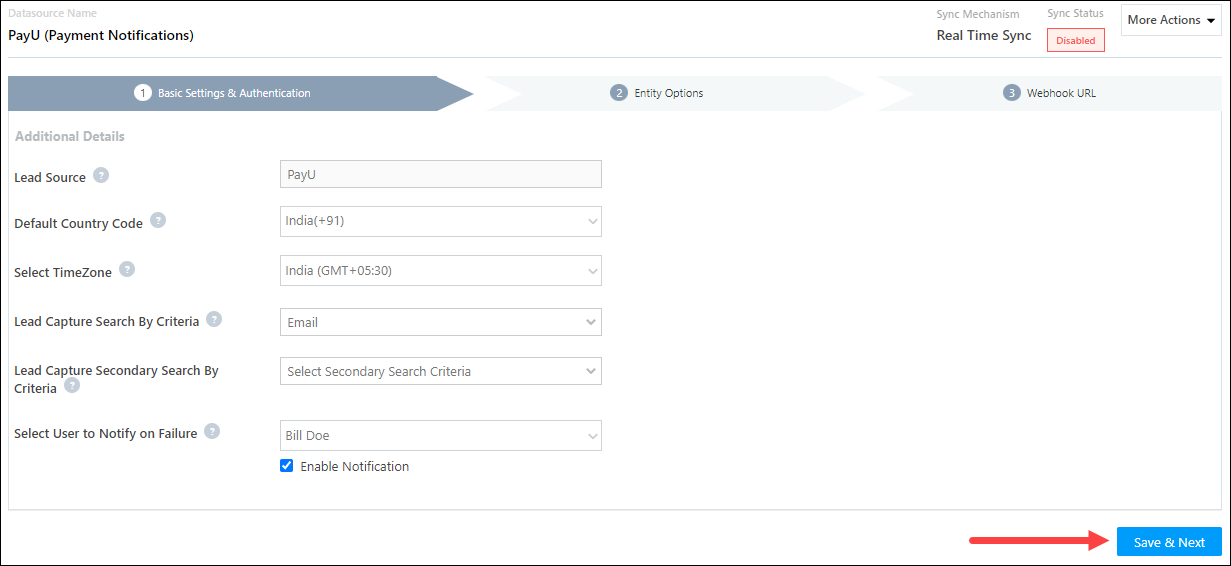
5.1 Basic Settings

Enter the following details –

Property Description
Lead Source Enter the lead source through which the leads were captured (e.g., PayU, email campaign, etc.). This detail will be displayed on the Lead Details page, under Lead Source.
Default Country Code If the lead’s mobile number is captured without a country code, then the default country code that’s selected from the dropdown will be added to the lead’s mobile number.
Select Time Zone The time zone followed in your PayU account.
Lead Capture Search By Criteria This is used to identify existing leads who made the payment using PayU.

This is also used to avoid creating duplicate leads. You must select one unique lead field (e.g., email Id, mobile number, PAN number, etc.) as the search key. This will be used to identify the leads pushed from PayU.

Lead Capture Secondary Search By Criteria If lead identification and capture through the primary Search By criteria fails, it will be re-attempted using the secondary Search By criteria.
Select User to Notify on Failure If there is an error identifying and capturing leads who made the payment, the selected user will receive a failure message via email. You can select a user from the list of all the users available in your LeadSquared account.

To know more about the type of errors, please refer to Error Notifications.

Enable Notification Enable the Checkbox checkbox to ensure notification emails are sent to the selected user when there’s a failed query.

Once you’re done entering all the details, click Save & Next.

payu basic settings save


5.2 Entity Options

Define the sync behavior of the connector when payment activities and leads are captured.

5.2.1 Lead/Contact Entity

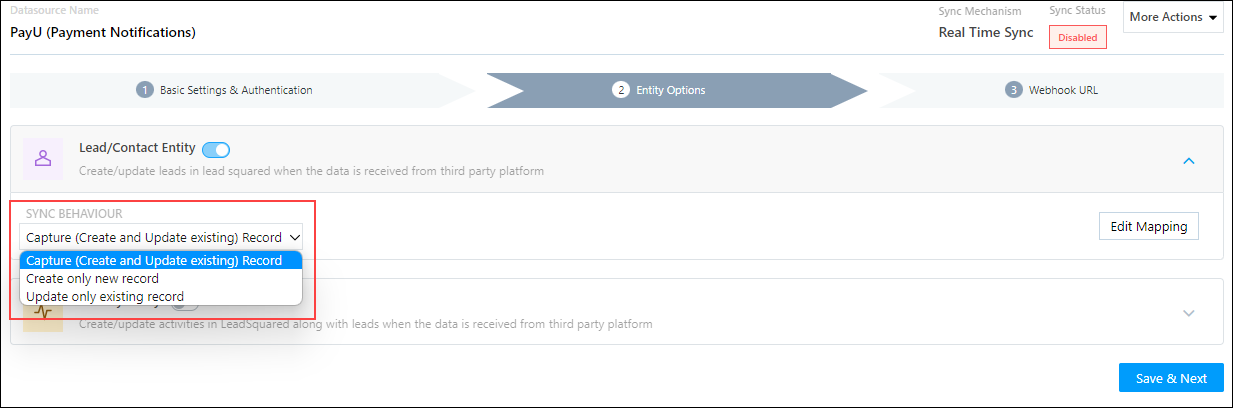
Based on the Lead Capture Search By criteria (email Id, phone number, etc.), LeadSquared identifies and captures leads from your PayU account. Lead capture is enabled by default, and it cannot be disabled.  The following options are available to configure the connector’s Sync Behaviour –

  • Capture (Create and Update existing) Record – Leads that do not exist in your LeadSquared account will get created. Leads that currently exist in your LeadSquared account will get updated.
  • Create only new record – Leads that do not exist in your LeadSquared account will get created.
  • Update only existing record – Leads that currently exist in your LeadSquared account will get updated.

Note:

  • A lead is classified as a new lead or an existing lead based on the Lead Capture Search By Criteria you’ve selected in the previous section.

payu lead sync

5.2.2 Mapping

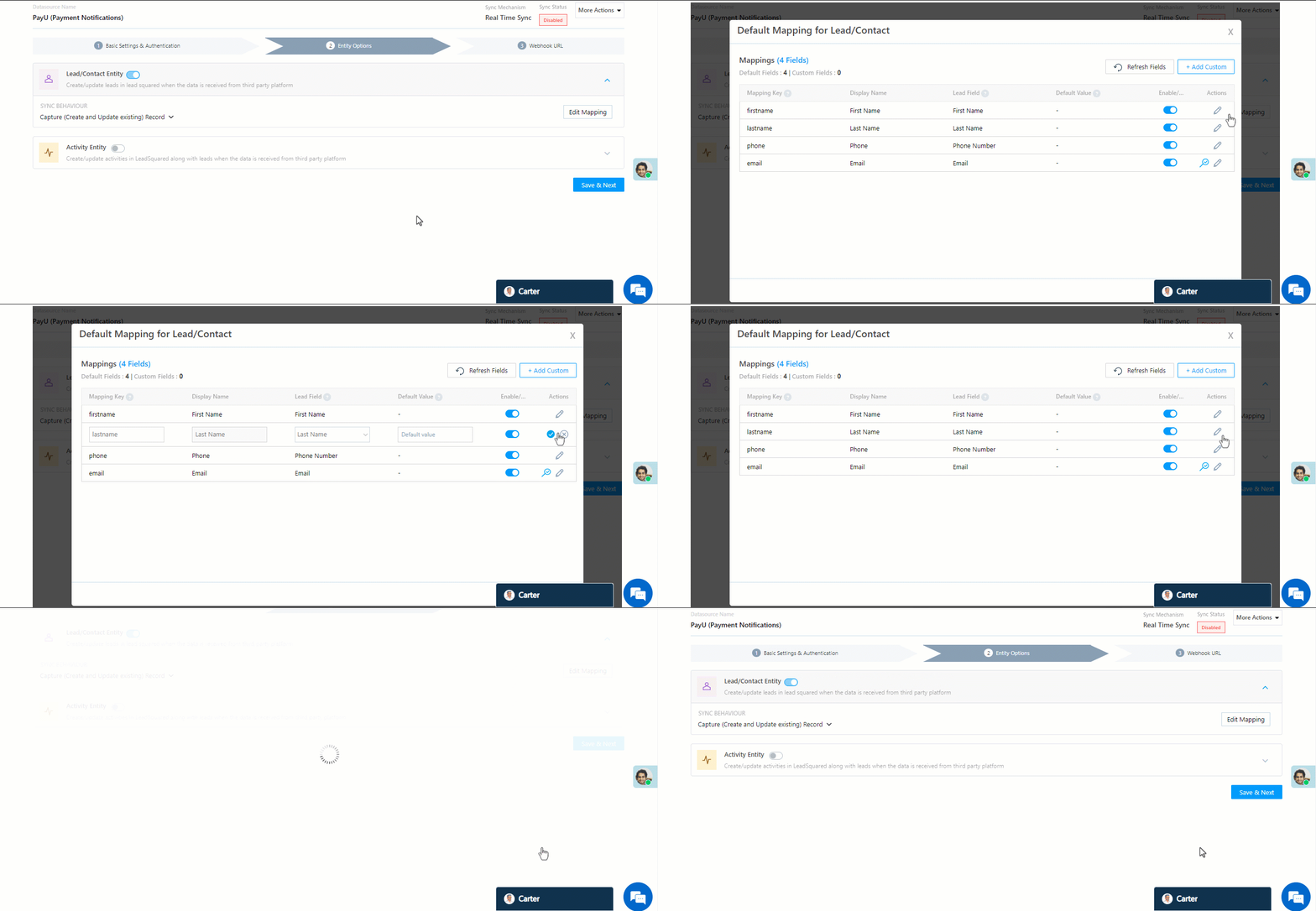
On the Mapping screen, the PayU system fields mapped to the corresponding LeadSquared lead/activity fields are visible. This mapping is carried out by default. If required, you can change or update the default field mapping.

  • To provide a default value for any field, click  , enter the value under Default Value, and click Google.
    • If the data provider doesn’t send data for any lead/activity field, then the default value will get assigned to that specific field. But if the field already has an existing value, then the default value will be ignored.
  • To disable lead data capture for any field, disable the Zoom slider.
  • You can also mark and update a unique lead field as the search key from this screen, by clicking unique icon.
  • To create a custom PayU field, click the Add Custom button.
    1. Once this field is created, you must map it to the relevant LeadSquared lead field.
    2. After the field is mapped, to save the custom field, click Google.
    3. To delete a custom field, click .
Note: To map the payment data to a custom activity, select the activity type from the Activity Field Mapping screen.

payu lead mapping

5.2.3 Activity Entity

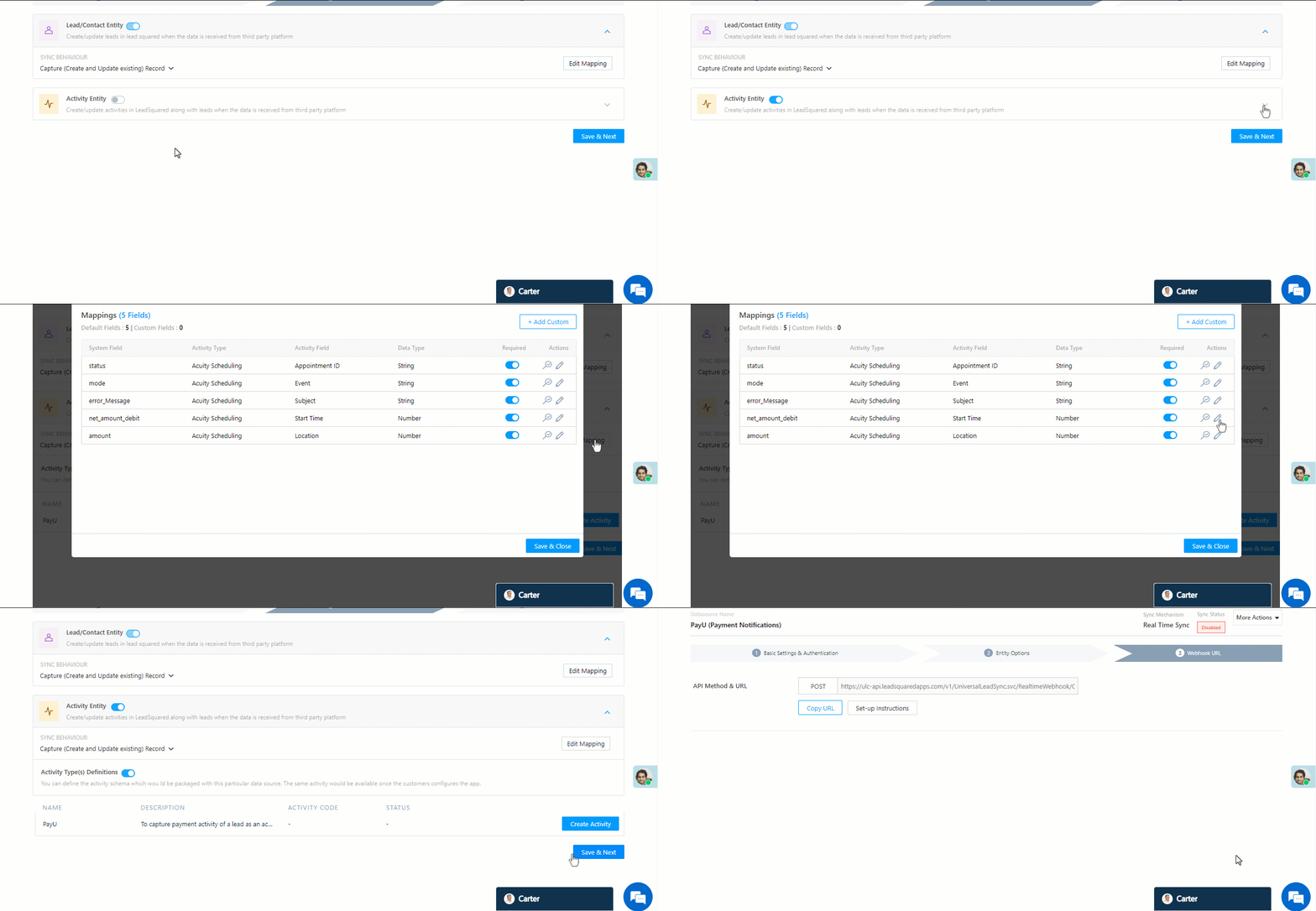
To post payment activities on leads, against Activity Entity, enable the Slider slider. The following options are available to configure the connector’s Sync Behaviour when activities are posted in LeadSquared –

  • Capture (Create and Update existing) Record – New activities will get posted to the lead in LeadSquared, while existing activities will get updated.
  • Create only new record – Only new activities will get posted to leads in LeadSquared.
  • Update only existing record – Only existing activities on the leads captured will get updated in LeadSquared.

By default, your payment data is mapped to the “PayU” activity.

Note: An activity is classified as a new activity or an existing activity based on the Lead Capture Search By Criteria you’ve selected in the previous section.
Once you’re done, click Save & Next.

payu activity mapping


5.3 Generate the Webhook URL

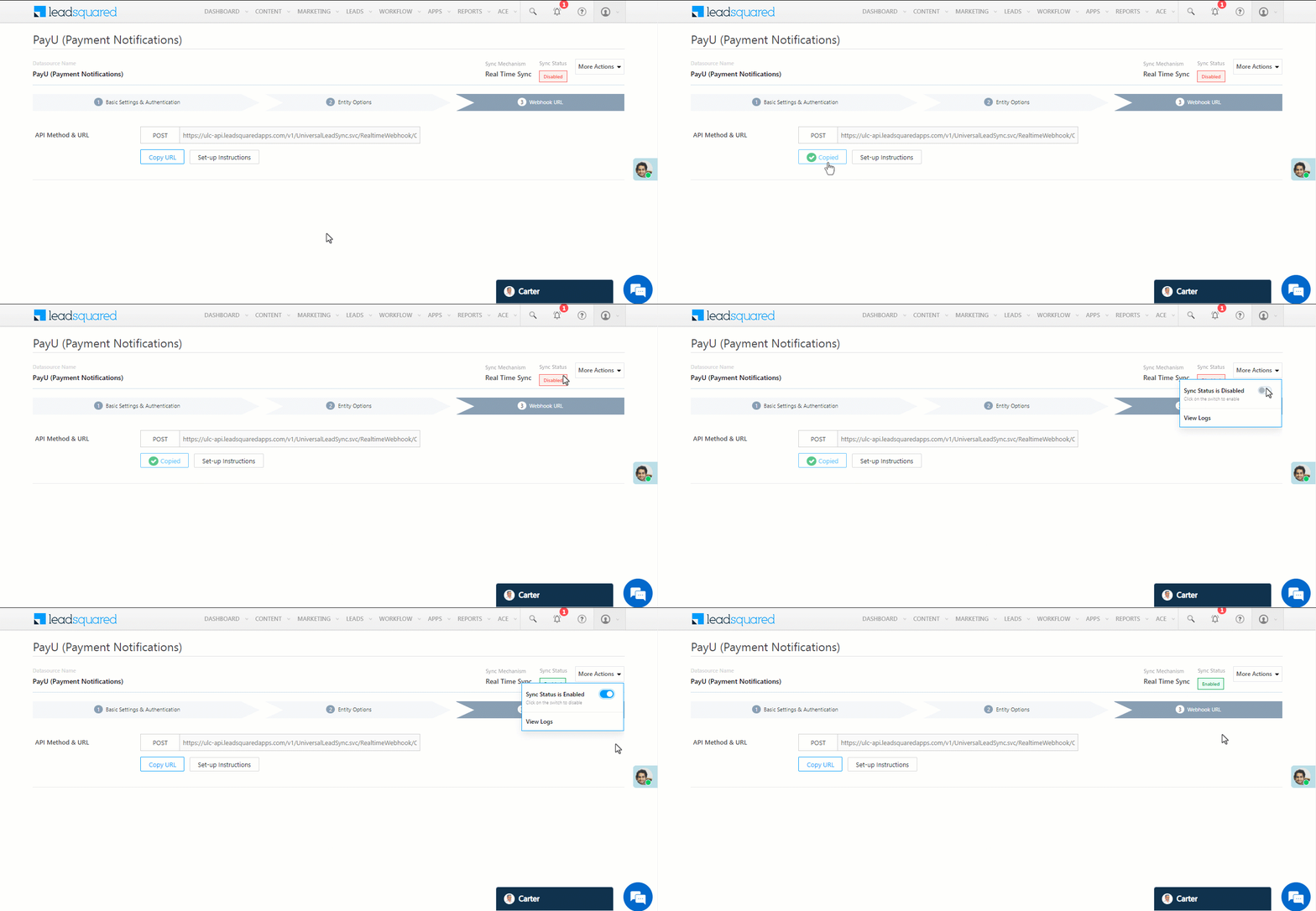
After you provide basic details and finish field mapping, a custom webhook URL is generated. To automate lead and activity capture, copy this URL and set it up on your PayU account.

After you’ve set up the webhook, click More Actions, and enable the sync job. This ensures payment data from PayU will be pushed to LeadSquared using the webhook.

payu webhook

Note: To view logs of all the sync jobs that have taken place, from the More Actions dropdown, click View Logs.


6. View Logs

Here, you can view logs of all the sync jobs that have taken place. View New Events (New Leads and Activities), Updated Events (Updated Leads and Activities), and Errors (when capturing leads and activities).

  1. Navigate to Apps>PayU (Payment Notifications).
  2. From the More Actions dropdown, click View Logs.
  3. You can filter the logs by selecting a date range (Today, Last 7 Days, This Month, and Last Month), by selecting the Job Status (“All”, “Success” and “Failure”), and by selecting the Sync Status (All, Error, and Success).
  4. You can view the sync status of the following events –
    • New Events – List of all the new leads and activities that have been created in LeadSquared during the selected date range.
    • Updated Events – A list of all the –
      • Duplicate leads that were created with the same Search by Criteria value (e.g., with the same Email Id, Mobile Number, etc.).
      • Duplicate payment activities posted on the same lead, using the same Search by Criteria value (e.g., with the same Email Id and the same Payment Id, etc.).
      • Leads and activities that previously contained errors, which were fixed and synced successfully.
    • Errors – The list of leads and activities that have not been captured due to mapping errors (e.g., when a boolean field is mapped to an integer field, etc.).
  5. To view the Sync Response details, under Request ID/Sync Job ID, click the Id.
    • Under the right panel, you can view the response status, the API URL, the request, and the response.
    • The responses that are successful will contain the details of the leads that have been pushed by PayU.
    • To view the lead capture response under Sync API Response, Leads Updated and Errors in Leads, click Information.

Note:

  • For a response that contains an error, the reason for the error is listed in the response. Once you fix it, you can click the Retry button to perform the sync again.
  • The current Lead/Activity Sync Behaviour will reflect in the Logs screen. This will help identify the sync that’s used (Capture or Update) for the selected Request/Sync Job Id.

Razorpay view logs


8. Other Actions

You can edit or delete the PayU connector instance that you created. To do this –

  1. Navigate to Apps>App Marketplace.
  2. Search for PayU (Payment Notifications).
  3. Alongside the PayU connector, hover your cursor over .
  4. From the list of options, you can perform the following actions –
    • Edit Configuration
    • Disable Configuration
    • Remove Configuration

payu other actions


9. View Reports

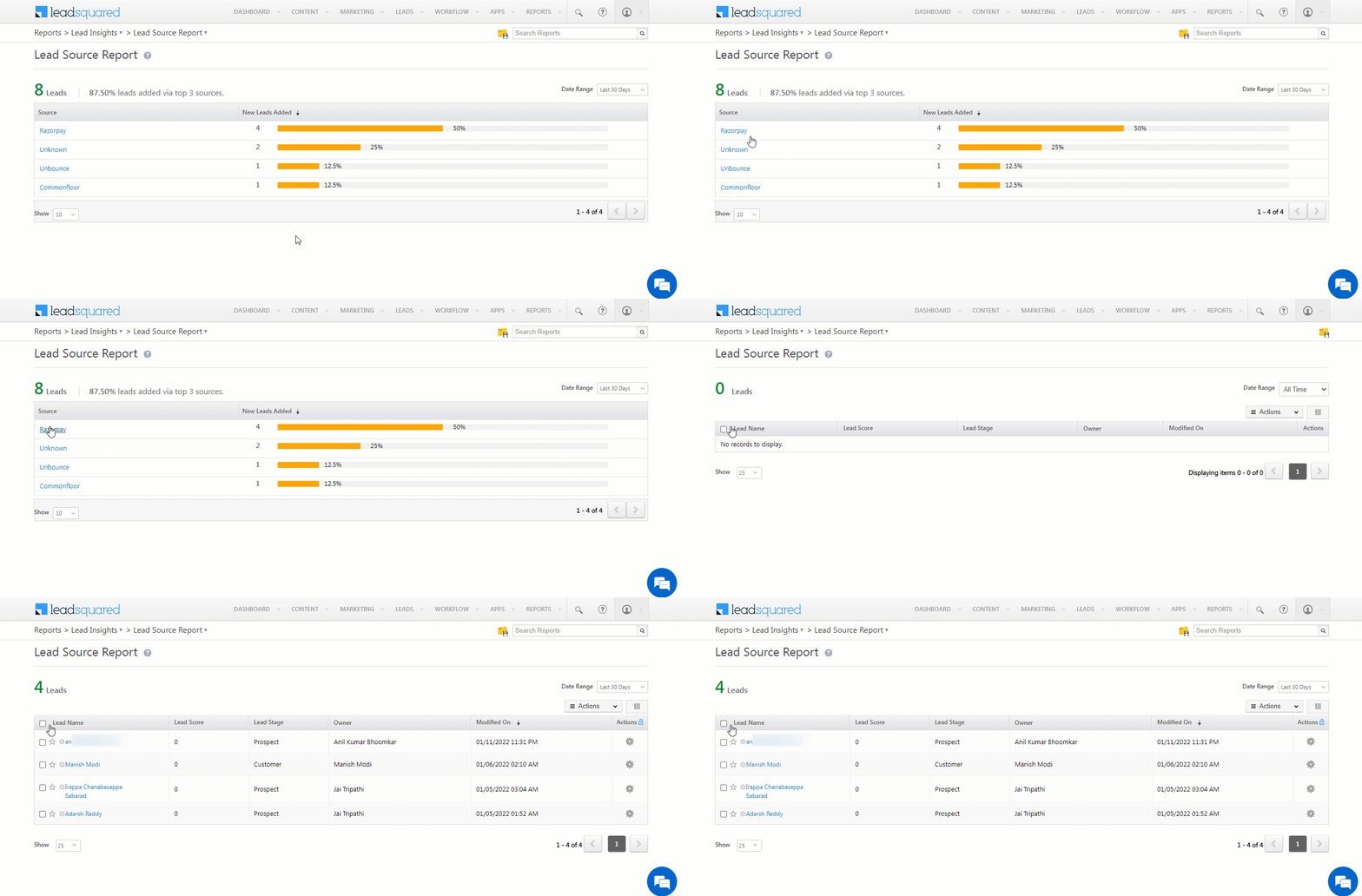
You can view the total number of leads that have been pushed by PayU, by referring to the Lead Source report. To know more, please refer to How to track the source of your Leads using Lead Source Report?

Integrate LeadSquared with Razorpay


Any Questions?

Did you find this article helpful? Please let us know any feedback you may have in the comments section below. We’d love to hear from you and help you out!
Payment Logs

1. Feature Overview

This article will show you how to access the logs for payment transactions through a Form in the LeadSquared web application.


2. Prerequisites

You must be the Administrator of your LeadSquared account.


3. Access Payment Logs

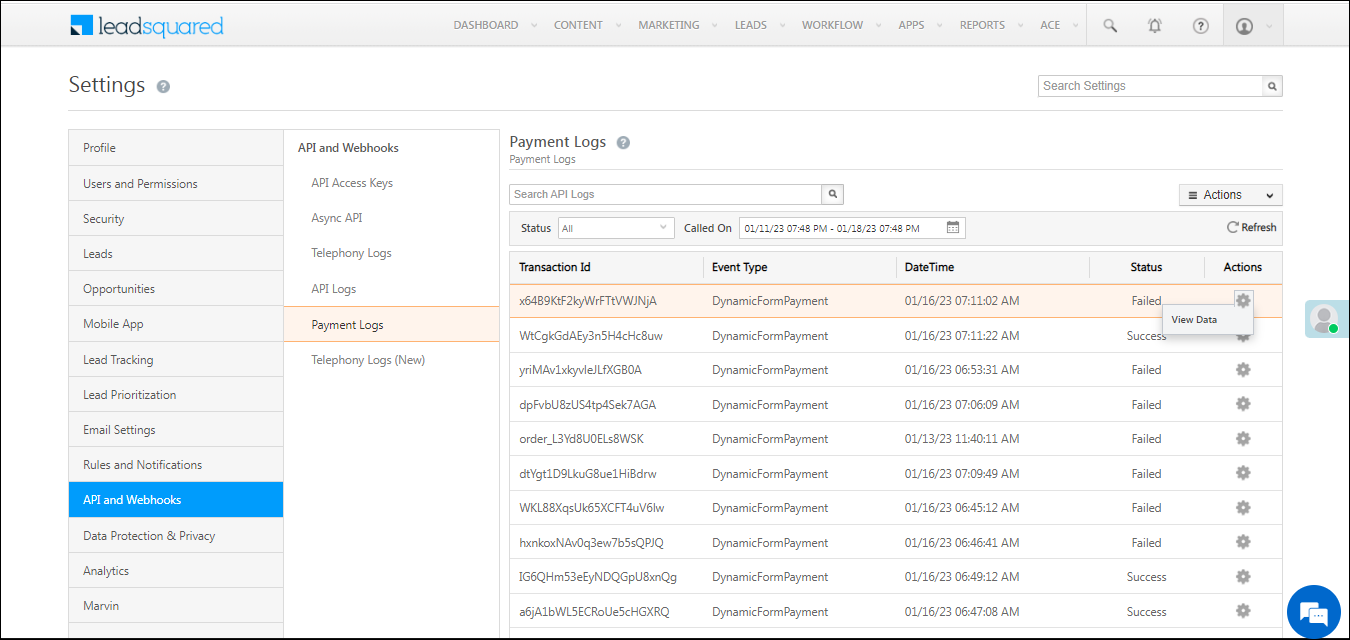
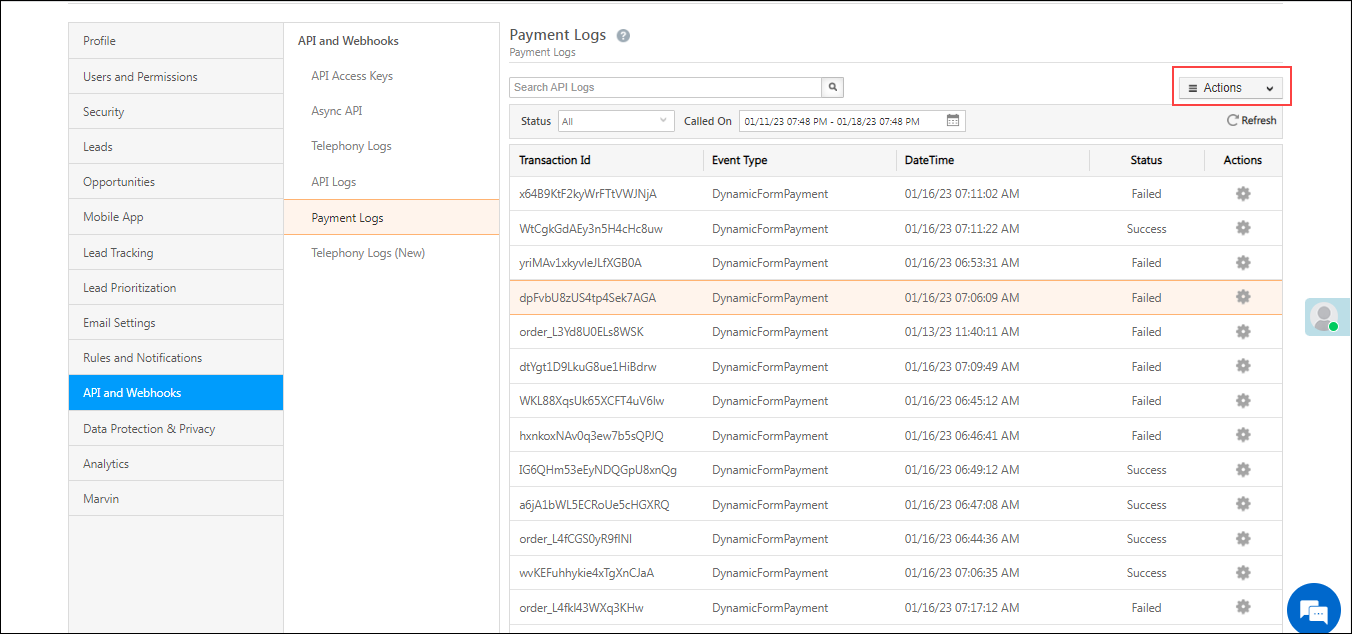
  1. Navigate to My Profile>Settings>API and Webhooks>Payment Logs.
  2. The logs will be displayed with a Transaction Id, Event Type, DateTime, and Status in a list view.
  3. Under Actions, click on View Data to view the response given by the Payment Gateway to validate the success or failure status.

payment logs nav

Note: 

  • We only display 1000 logs at a time. Use appropriate filters to get a smaller set of results.
  • ​We only keep logs of the previous 30 days.
  • While searching, you can set a time range of a maximum of 7 days.

You can also export the logs to a CSV file – hover your cursor over the Actions menu and click Export Logs. You can only export up to 1000 results.

payment logs actions

For more information visit our API Documentation.


Any Questions?

Did you find this article helpful? Please let us know any feedback you may have in the comments section below. We’d love to hear from you and help you out!
Integrate WP Forms with LeadSquared

1. Feature Overview

This connector captures leads from your WP Forms on your WordPress account to LeadSquared. You can configure the connector to capture leads in real-time from your WordPress WP Forms. Once the leads are captured, you can leverage LeadSquared’s CRM features to nurture and convert your leads.


2. Prerequisites

  • You must be the Administrator of your LeadSquared account.
  • You must have an active Elite Plan in your WP Forms account,
  • You must have the WP Forms plugin installed in your WordPress account.
  • Once the WP Forms plugin is installed (and you’ve added your license key, under settings), you must install the Webhooks Add-on.
  • This is a paid feature. To enable it, reach out to your account manager, or write to support@leadsquared.com.


3. How it Works

To push lead data from your WordPress WP Form to your LeadSquared account, install and configure the WP Forms connector from LeadSquared Apps Marketplace. Once configured, enable the connector sync.

During configuration, a webhook URL is generated in LeadSquared. Copy this URL. Later, you’ll configure this webhook URL in the WP Form (on your WordPress account).

On your WordPress account –

  1. Install the WP Forms plugin.
  2. Navigate to the Settings tab and enter your license key.
  3. Enable the Webhook Add-on, under Add-ons.

Finally, configure the LeadSquared Webhook URL (you obtained from the WPForms connector on LeadSquared) in the desired WP Forms, using the webhooks add-on. Once set up, leads will be captured to LeadSquared from all forms where the webhooks are configured.


4. Installation

You must first install and configure the WP Forms connector.

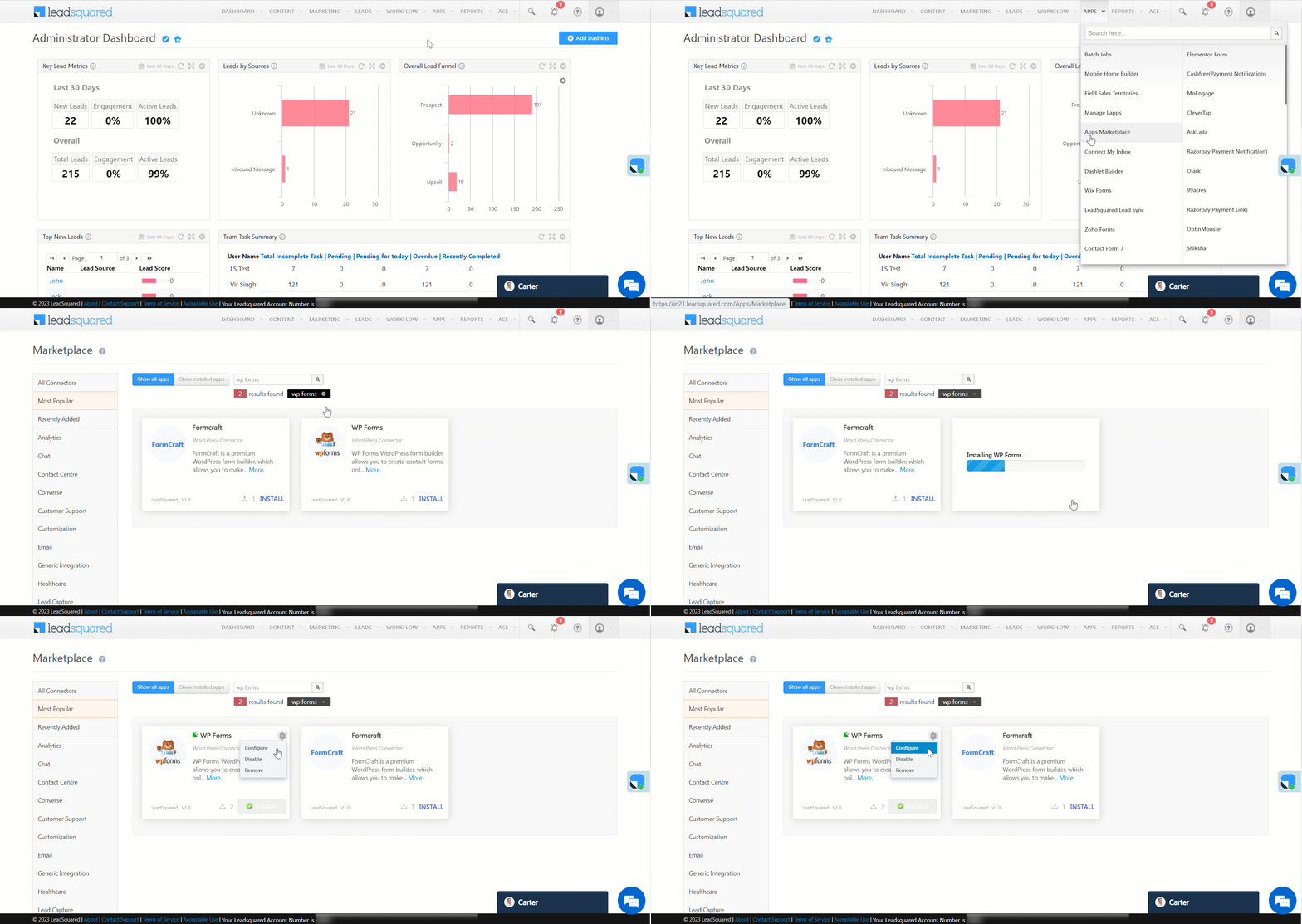
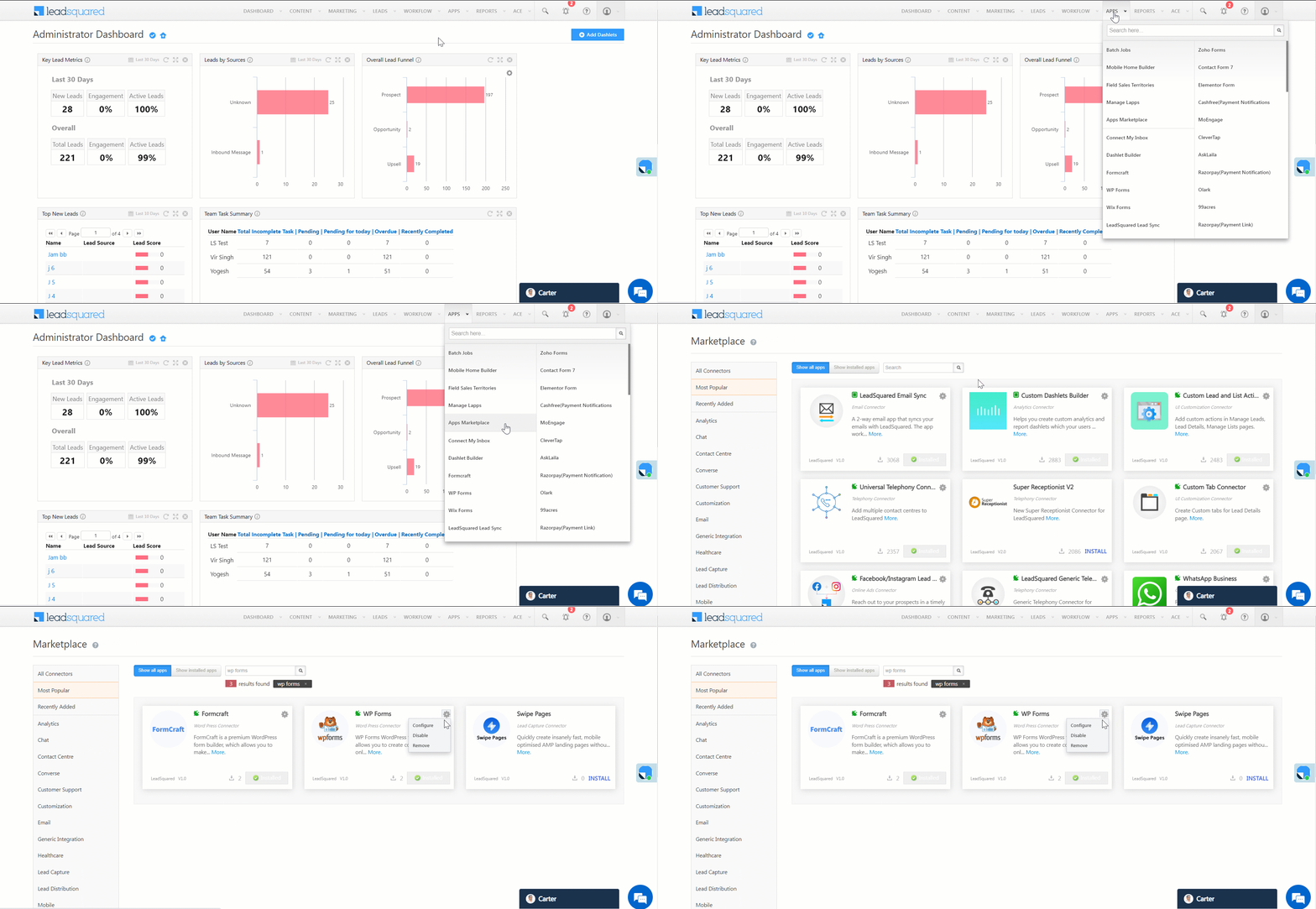
  1. Navigate to Apps>Apps Marketplace.
  2. Search for WP Forms, and click Install.
    • Alternatively, you can find the connector on the left panel, under Lead Capture.
  3. Once installed, hover your cursor over , and click Configure.

LeadSquared - wp forms installation

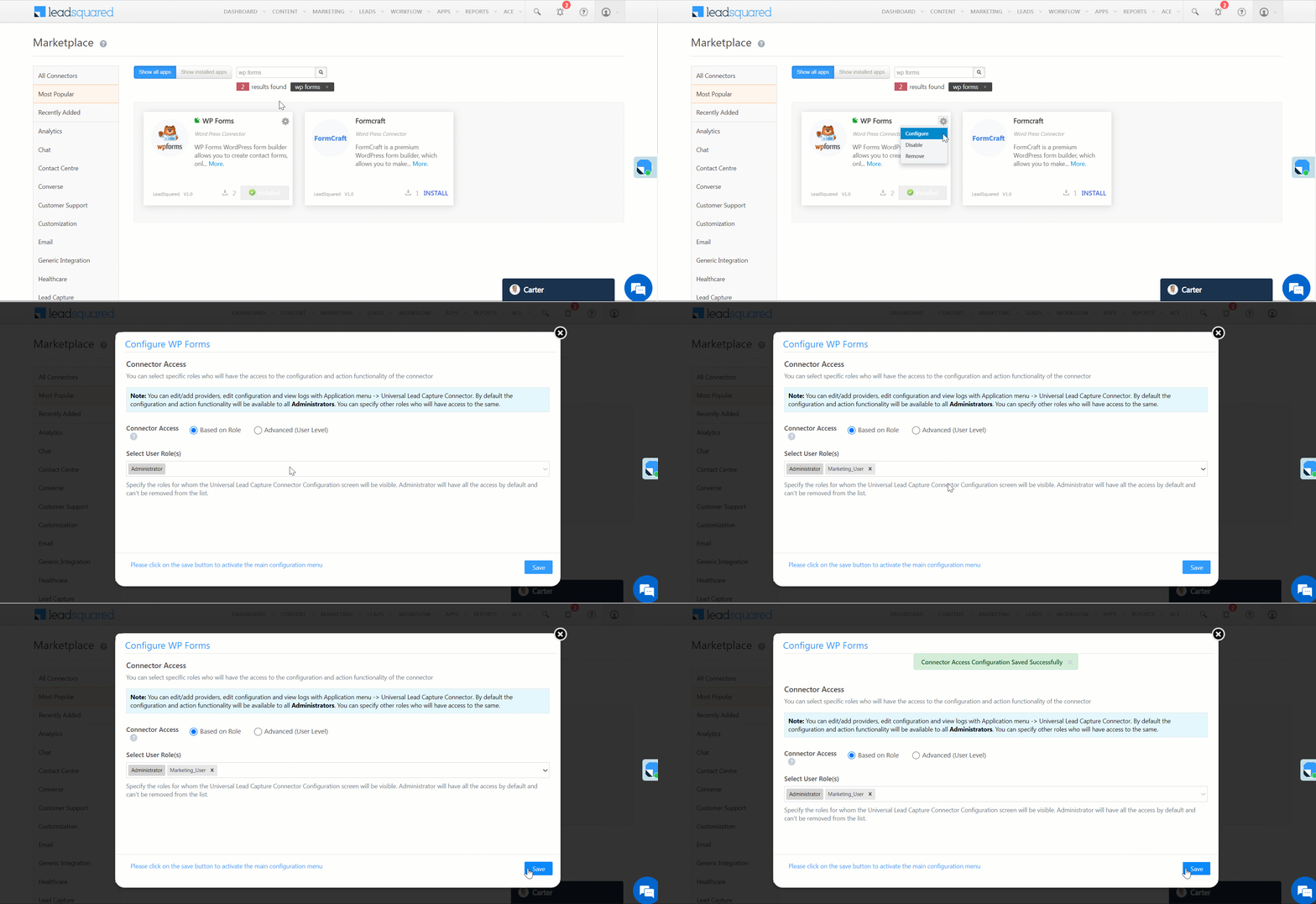
4.1 Configure the connector

Once you’ve installed the connector, on the Configure WP Forms pop-up, configure the connector access for the non-Admin users in your account. Only those users for whom access is granted can view and access the connector (under the Apps main menu).

  1. Select if you want to grant Connector Access that’s Based on Role or Advanced (User Level).
    • Based on Role – From the Specify Roles dropdown, select the LeadSquared user roles that can use the connector.
    • Advanced (User Level) – From the Advanced (User Level) dropdown, select a user boolean field. Based on the value entered in the selected boolean field, the user can access the connector (e.g., for the user Sam, if the “Is Employee” boolean user field contains the value “Yes”, then this user can access the connector).
  2. Once you’re done, click Save Details. To continue the configuration, refer to the below sections.
Note: By default, all Admin users will have access to the connector.
LeadSquared - wp forms initial configurations


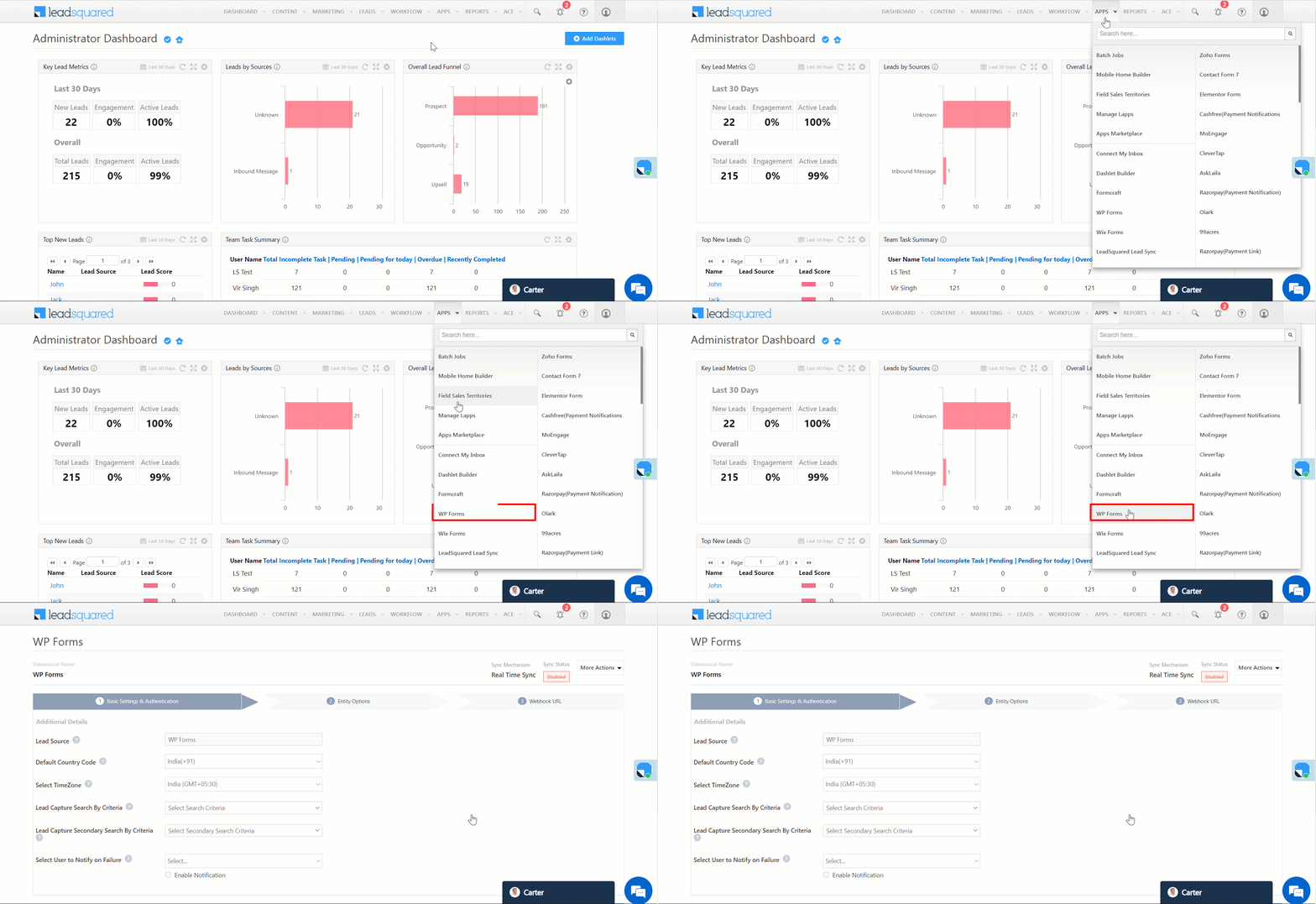
5. Admin Configuration

To continue the connector configuration, navigate to Apps>WP Forms.

LeadSquared - wp forms navigation

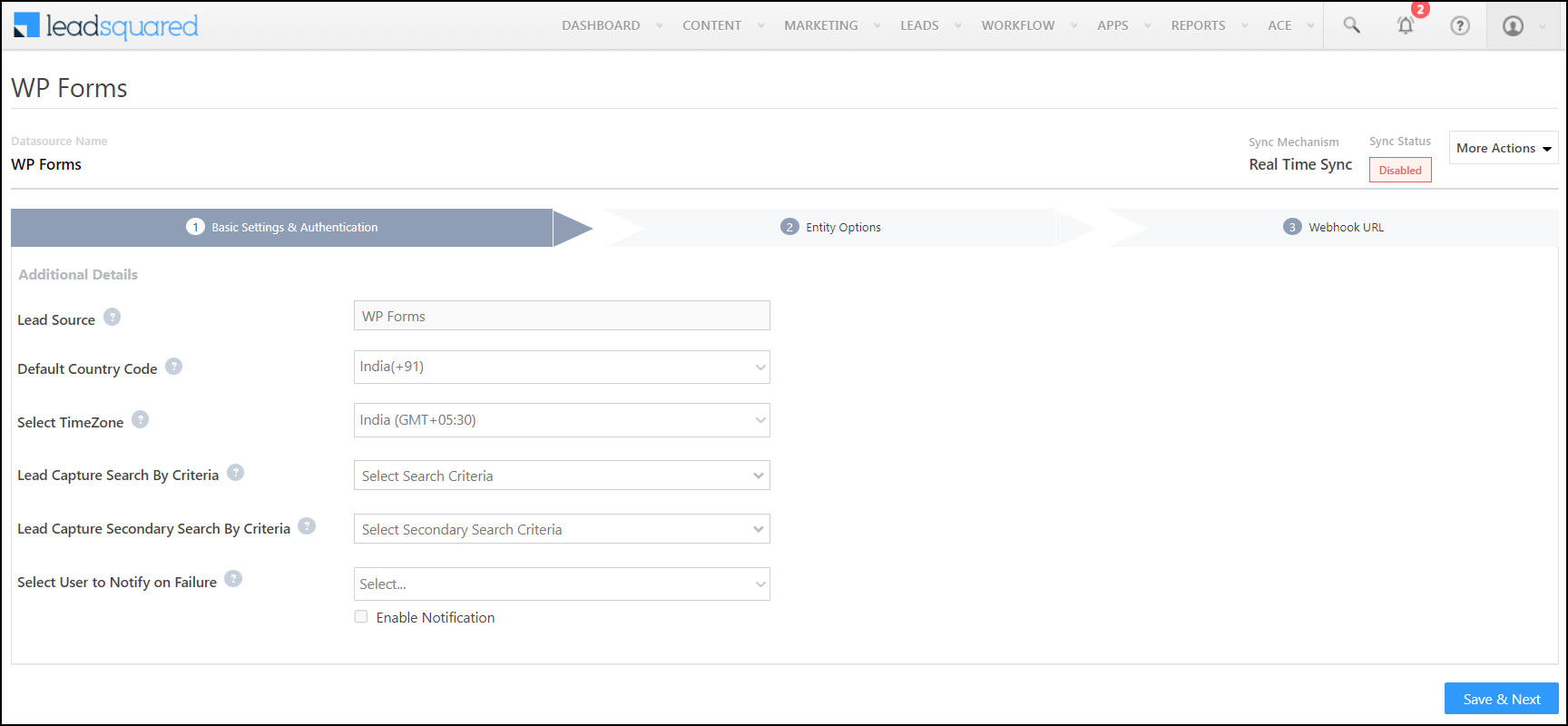
5.1 Basic Settings

Enter the following details –

Property Description
Lead Source Enter the lead source through which the leads were captured (e.g., WP Forms, email campaign, etc.). This detail will be displayed on the Lead Details page, under Lead Source.
Default Country Code If the lead’s mobile number is captured without a country code, the default country code that’s selected from the dropdown will be added to the lead’s mobile number.
Select Time Zone The time zone followed in your WP Forms account.
Lead Capture Search By Criteria To avoid duplicate leads, you must select one unique lead field (e.g., email Id, mobile number, PAN number, etc.) as the search key. This is used to identify the leads pushed from WP Forms.

To know how to mark a LeadSquared lead field as unique, please refer to How to Make a Custom Field Unique.

Lead Capture Secondary Search By Criteria If lead identification and capture through the primary Search By criteria fails, it will be re-attempted using the secondary Search By criteria.
Select User to Notify on Failure If there is an error in fetching leads, the selected user will receive a failure message via email. You can select a user from the list of all the users available in your LeadSquared account.

To know more about the type of errors, please refer to Error Notifications.

Enable Notification To ensure notification emails are sent to the selected user when there’s a failed query, enable the Checkbox checkbox.

Once you’ve entered all the details, click Save & Next.

LeadSquared - wp forms basic settings


5.2 Entity Options

Define the sync behavior of the connector when leads are captured.

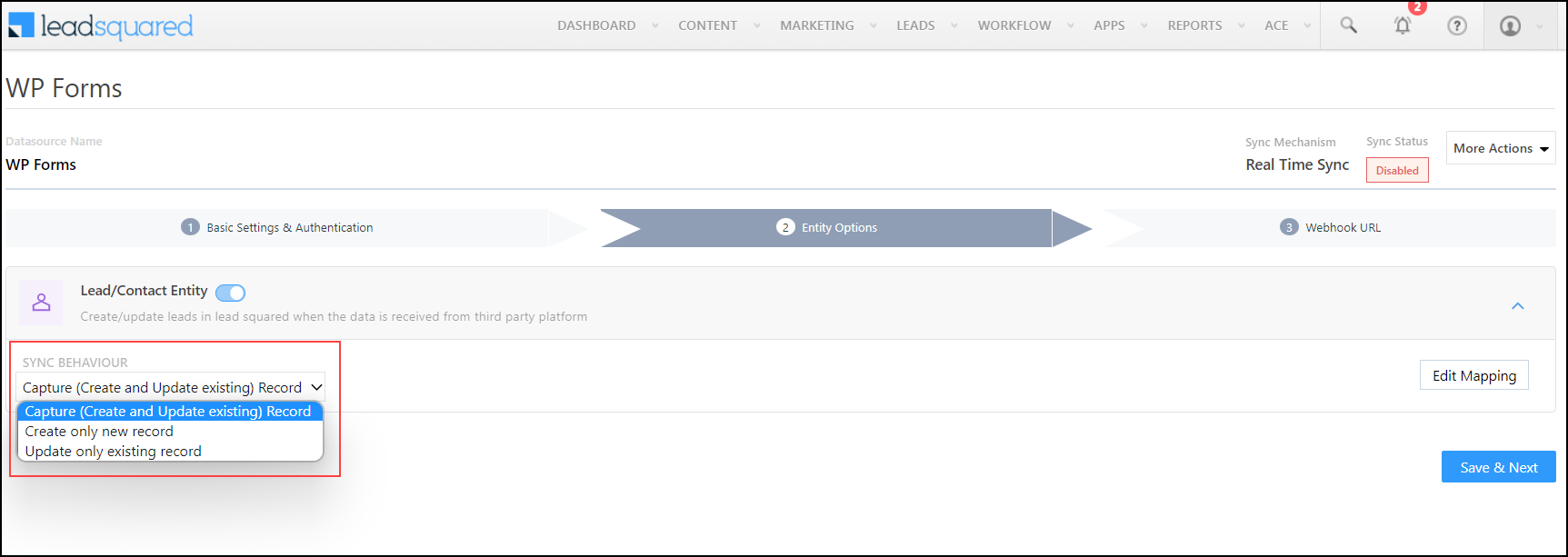
5.2.1 Lead/Contact Entity

Based on the Lead Capture Search By criteria (email Id, phone number, etc.), LeadSquared identifies and captures leads from your WP Forms account. Lead capture is enabled by default, and it cannot be disabled. The following options are available to configure the connector’s Sync Behaviour –

  • Capture (Create and Update existing) Record – Leads that only exist in your WP Forms account (but not in your LeadSquared account) will get created in LeadSquared. Leads that exist in both your data provider and LeadSquared accounts will get updated.
  • Create only new record – Leads that only exist in your WP Forms account (but not in your LeadSquared account) will get created in LeadSquared.
  • Update only existing record – Leads that exist in both your WP Forms account and LeadSquared accounts will get updated in LeadSquared.

LeadSquared - wp forms sync behaviour


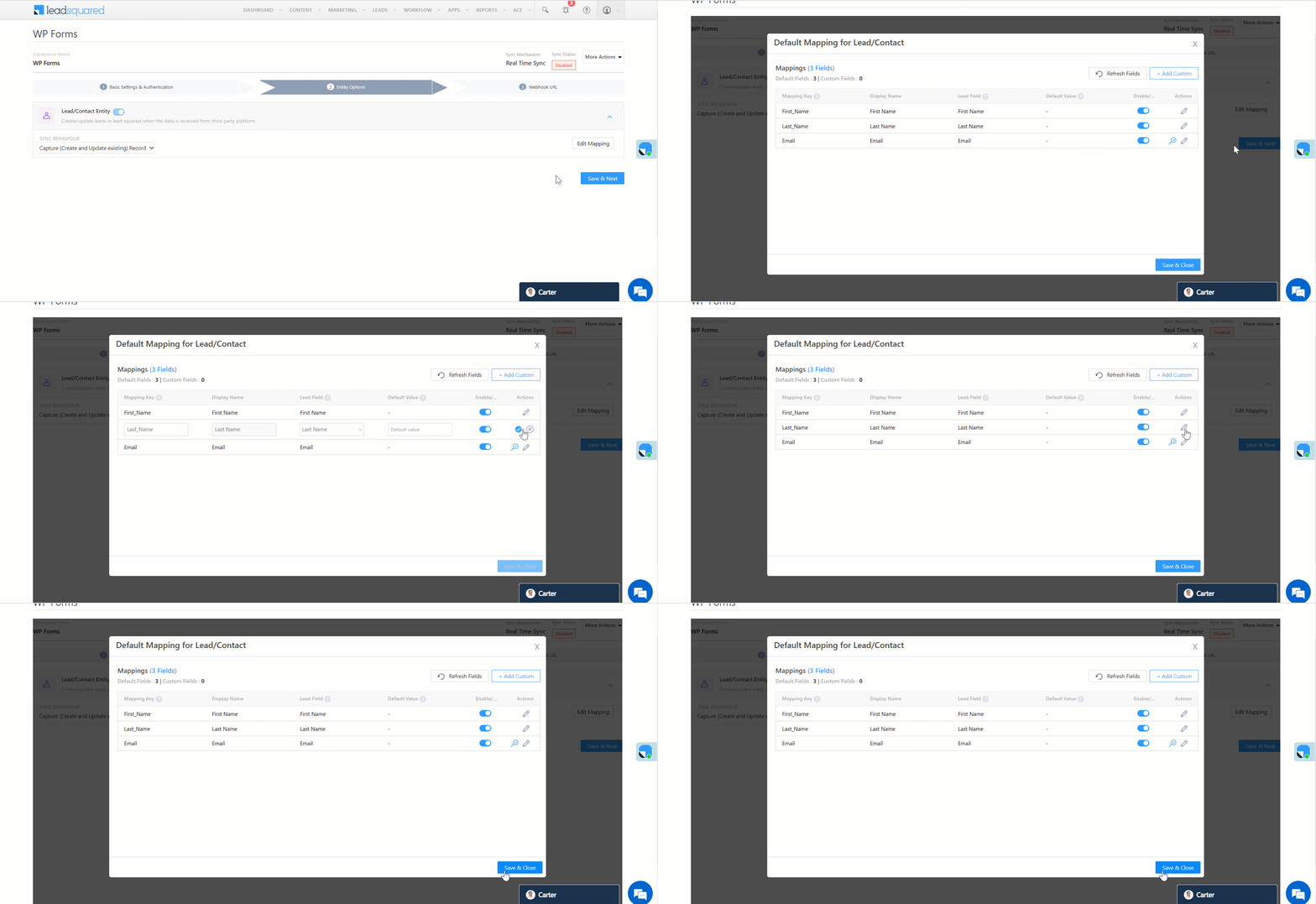
5.2.2 Mapping

On the Mapping screen, the WP Forms system fields mapped to the corresponding LeadSquared lead fields are visible. This mapping is carried out by default. If required, you can change or update the default field mapping.

  • To provide a default value for any field, click  , enter the value under Default Value, and click Google.
    • If the data provider doesn’t send data for any lead field, then the default value will get assigned to that specific field. But if the field already has an existing value, then the default value will be ignored.
  • To disable lead data capture for any field, disable the Zoom slider.
  • You can also mark and update a unique lead field as the search key from this screen, by clicking unique icon.
  • To create a custom WP Form field, click the Add Custom button.
    1. Once this field is created, you must map it to the relevant LeadSquared lead field.
    2. After the field is mapped, to save the custom field, click Google.
    3. To delete a custom field, click .

Once you’re done, click Save & Next.

Note:

  • Based on the lead fields configured in your Contact Form 7, and the use case you’re trying to solve, add or update the lead fields mapped in LeadSquared.
  • If you face an error when carrying out the field mapping, refer to How to Map Entity Options for Lead Capture.

LeadSquared - wp forms edit mapping


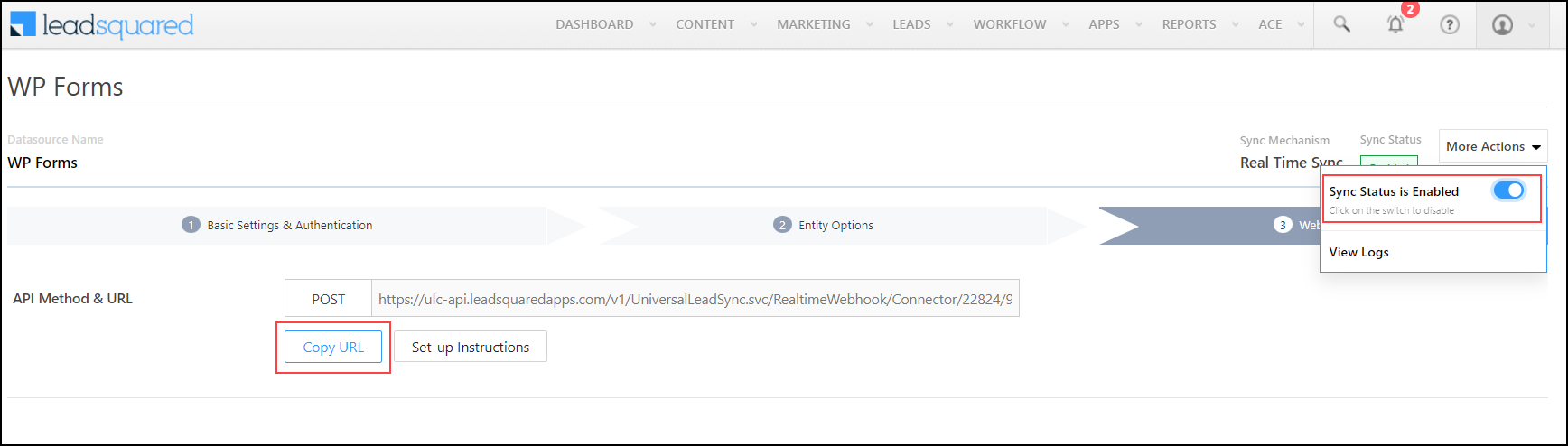
5.3 Generate Webhook URL

After you provide basic details and finish field mapping, a custom webhook URL is generated. To automate lead capture, copy this URL and configure it on your WordPress account. To know how to do this, refer to the next section…

After you’ve set up the webhook, click More Actions, and enable the sync job. This ensures that through the webhook, lead data from WP Forms is pushed to LeadSquared.

Note: You must have an elite plan to perform webhook integration. To know more, refer to Pricing.

LeadSquared - wp forms sync


6. Add Webhook to WordPress WP Forms Plugin

Once the LeadSquared webhook is generated, add and configure this webhook on your WordPress WP Form plugin.

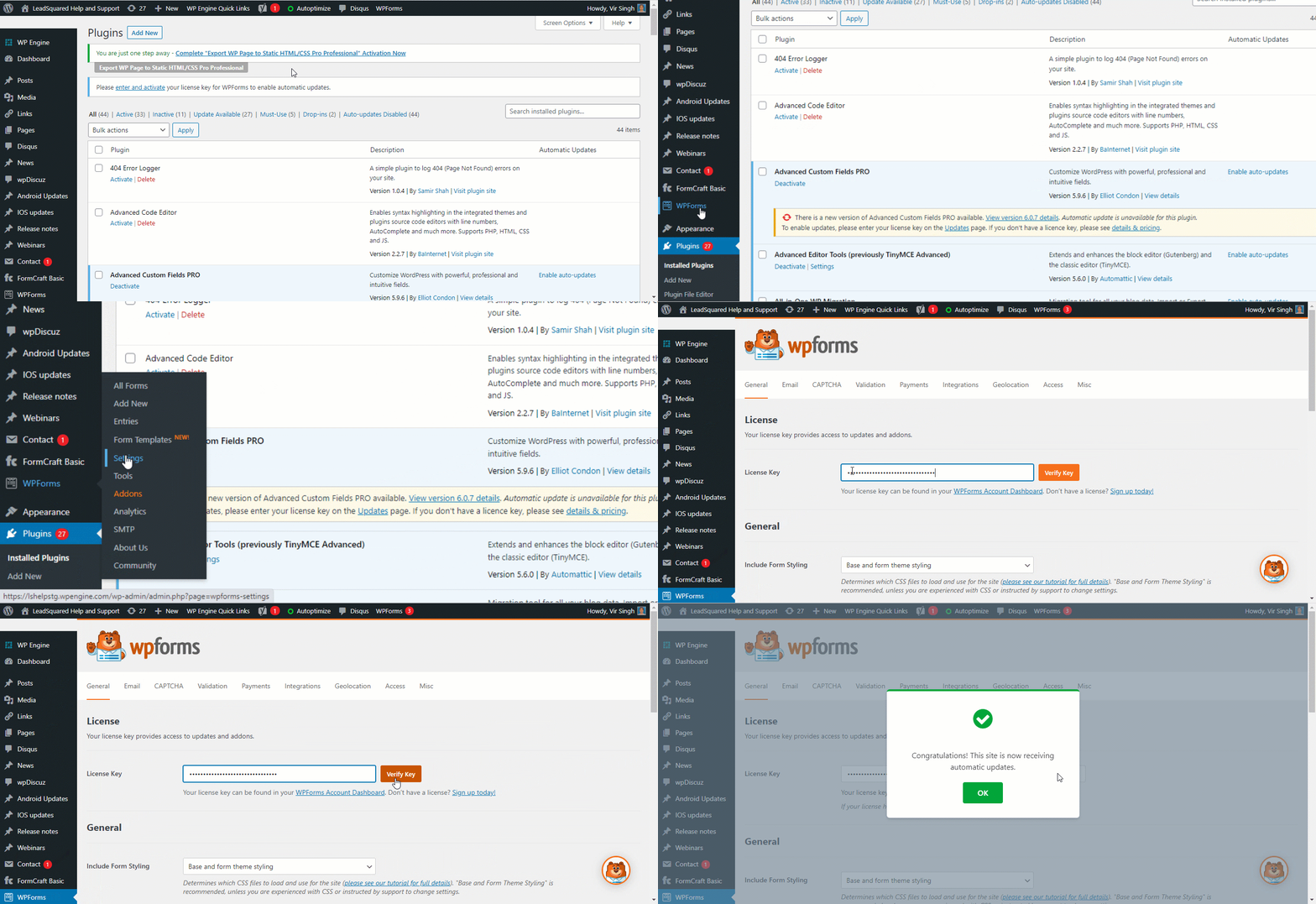
6.1 Install WP Forms Plugin

First, download the WP Forms plugin zip file from your WP Forms account. Next, upload and activate the WP Forms plugin –

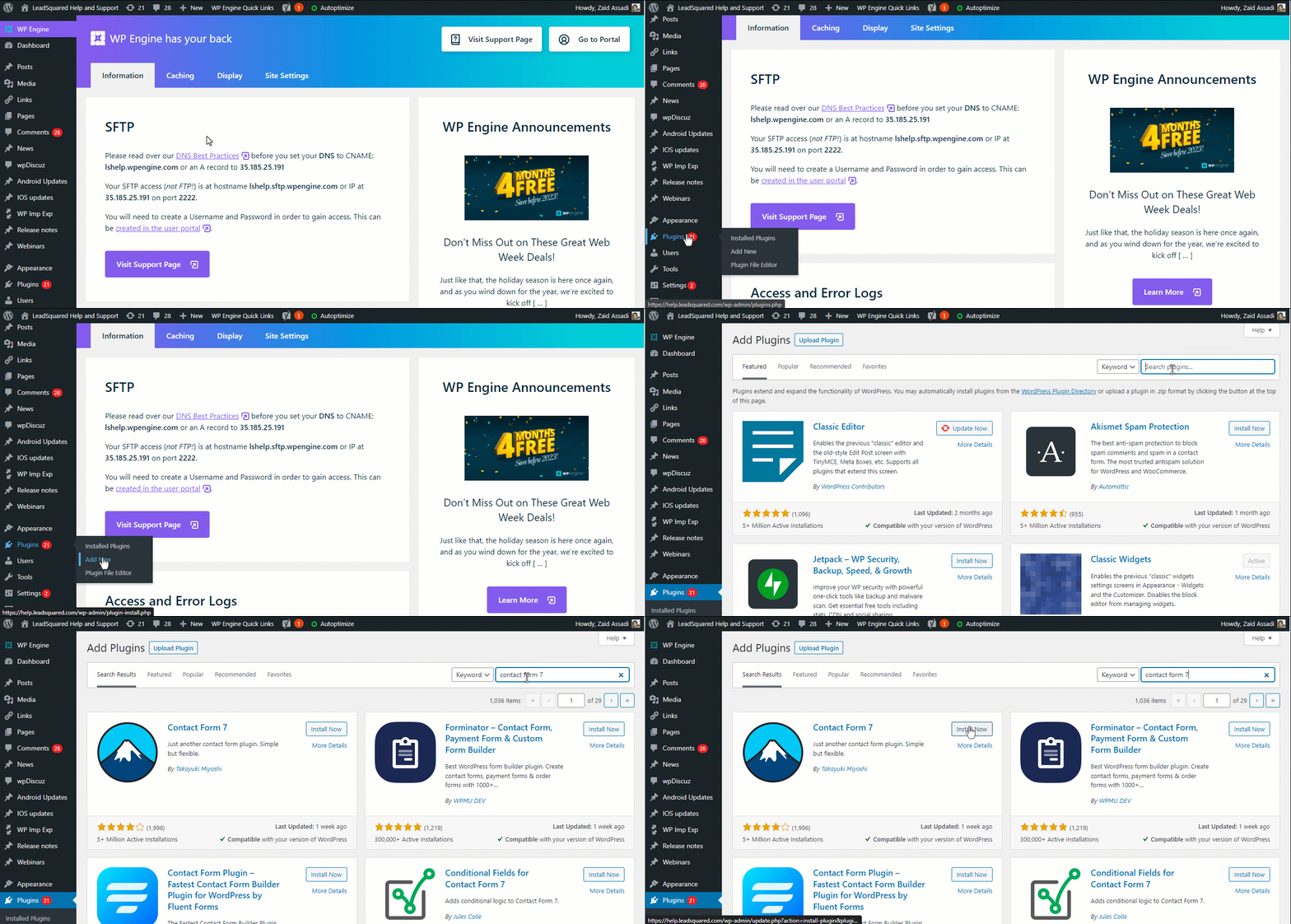
  1. In your WordPress account, hover your mouse over the Plugins option and click on Add New.
  2. At the top of the page, click the Upload Plugin button. Upload the zip file you downloaded from your Wp Forms account.
  3. Click Install Now. Then click Activate.
Note: For more details, see Install and Activate WP Forms Plugin.
LeadSquared Integrations


6.2 Add Your License Key

  1. Once you install the plugin, on the left tab, click WP Forms, then click Settings.
  2. Enter your license key and click Verify Key.
LeadSquared Integrations


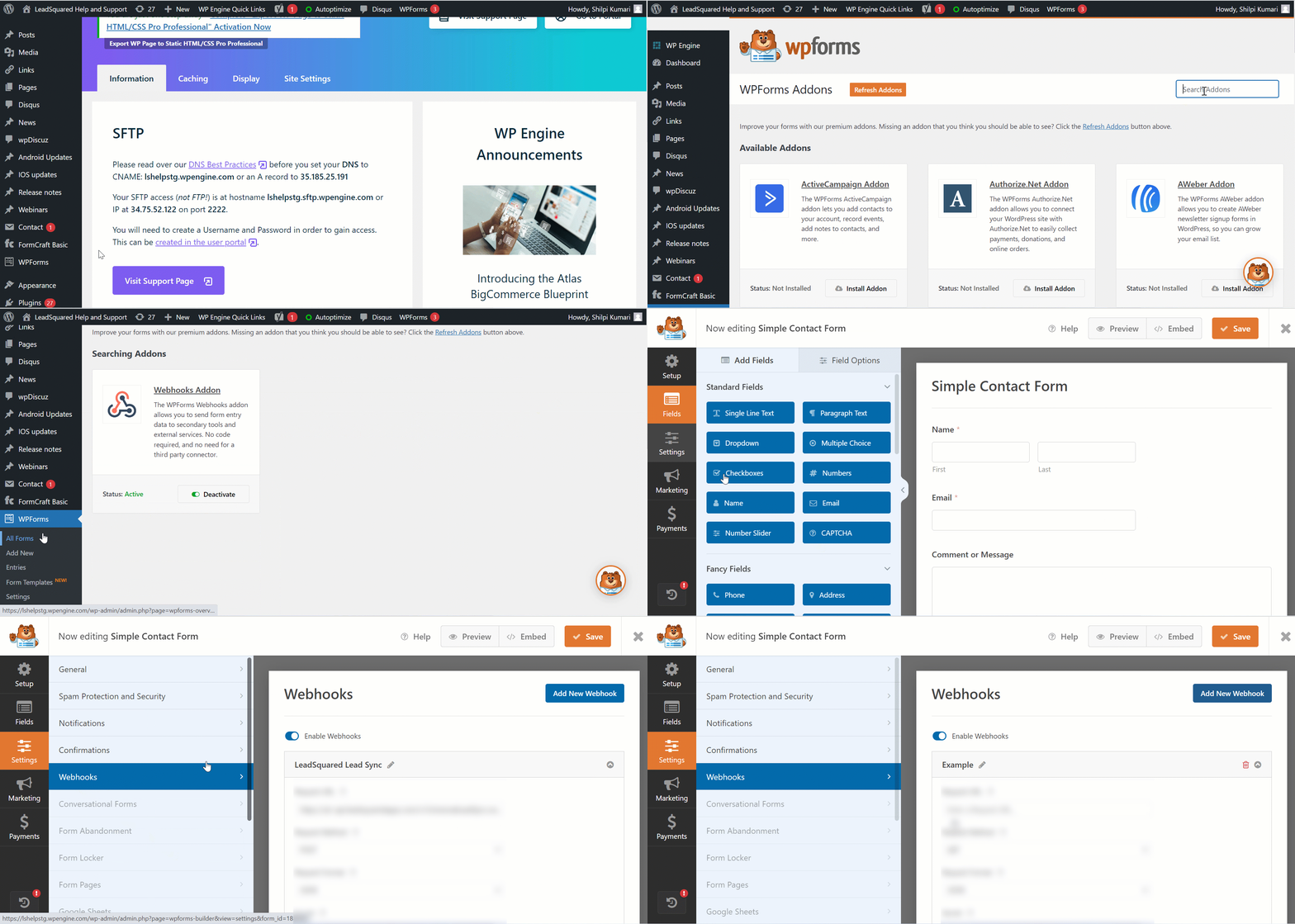
6.3 Install Webhooks Add-on and Configure the Webhook

Note: You must first enter your license key under the WP Forms settings, before you can enable the webhook add-on.
  1. Hover your cursor over WP Forms and select Addons.
  2. Search for Webhooks Addon and click Install Addon.
  3. Click Activate.
  4. Under WP Forms, click All Forms.
  5. Select a form and click Settings.
  6. Select Webhooks and click Add New Webhook.
  7. Enter the relevant details and click Save.
LeadSquared - wp forms Configure Webhook


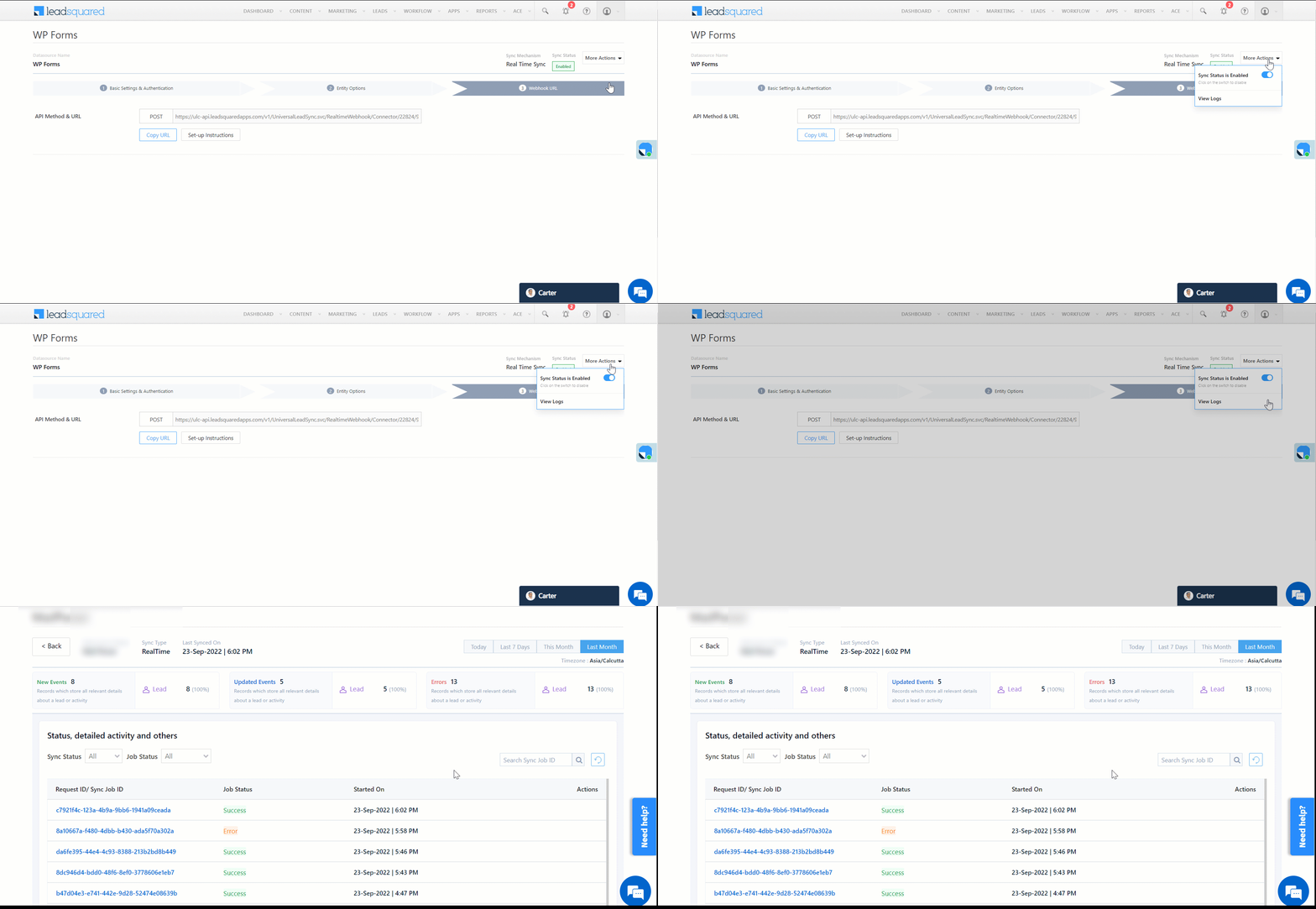
7. View Logs

Here, you can view logs of all the sync jobs that have taken place. View New Events (New Leads), Updated Events (Updated Leads), and Errors (when capturing leads).

  1. Navigate to Apps>WP Forms.
  2. From the More Actions dropdown, click View Logs.
  3. You can filter the logs by selecting a date range (Today, Last 7 Days, This Month, and Last Month), by selecting the Job Status (“All”, “Success” and “Failure”), and by selecting the Sync Status (All, Error, and Success).
  4. You can view the sync status of the following events –
    • New Events – List of all the new leads that have been created in LeadSquared during the selected date range.
    • Updated Events – A list of all the –
      • Duplicate leads that were created with the same Search by Criteria value (e.g., with the same Email Id, Mobile Number, etc.).
      • Leads that previously contained errors, which were fixed and synced successfully.
    • Failed – The list of leads that have not been captured due to mapping errors (e.g., when a boolean field is mapped to an integer field, etc.).
  5. To view the Sync Response details, under Request ID/Sync Job ID, click the Id.
    • Under the right panel, you can view the response status, the API URL, the request, and the response.
    • The responses that are successful will contain the details of the leads that have been pushed from WP Forms.
    • To view the lead capture response under Sync API Response, Leads Updated and Errors in Leads, click Information.

Note:

  • For a response that contains an error, the reason for the error is listed in the response. Once you fix it, you can click the Retry button to perform the sync again.
  • The current Lead Sync Behaviour will reflect in the Logs screen. This will help identify the sync that’s used (Capture or Update) for the selected Request/Sync Job Id.

LeadSquared - wp forms view logs


8. Other Actions

You can edit or delete the WP Forms connector instance that you created. To do this –

  1. Navigate to Apps>App Marketplace.
  2. Search for WP Forms.
  3. Alongside the WP Forms connector, hover your cursor over .
  4. From the list of options, you can perform the following actions –
    • Edit Configuration
    • Disable Configuration
    • Remove Configuration

LeadSquared - wp forms other actions


9. View Reports

You can view the total number of leads that have been pushed by WP Forms, by referring to the Lead Source report. To know more, please refer to How to track the source of your Leads using Lead Source Report?


Any Questions?

Did you find this article helpful? Please let us know any feedback you may have in the comments section below. We’d love to hear from you and help you out!

Integrate Formcraft with LeadSquared

1. Feature Overview

This connector captures leads from Formcraft on your WordPress account to LeadSquared. You can configure the connector to capture leads in real-time from your WordPress Formcraft account. Once the leads are captured, you can leverage LeadSquared’s CRM features to nurture and convert your leads.


2. Prerequisites

  • You must be the Administrator of your LeadSquared account.
  • You must have the Formcraft plugin installed in your WordPress account.
  • This is a paid feature. To enable it, reach out to your account manager, or write to support@leadsquared.com.


3. How it Works

To push lead data from your WordPress Formcraft to your LeadSquared account, configure the Formcraft connector instance. Once configured, enable the connector sync.

During configuration, a webhook URL is generated in LeadSquared. Once you install the Formcraft to Webhook plugin on WordPress, you can copy the LeadSquared Webhook URL and configure it in your WordPress account. Once configured, the lead capture process is initiated.


4. Installation

You must first install and configure the Formcraft connector.

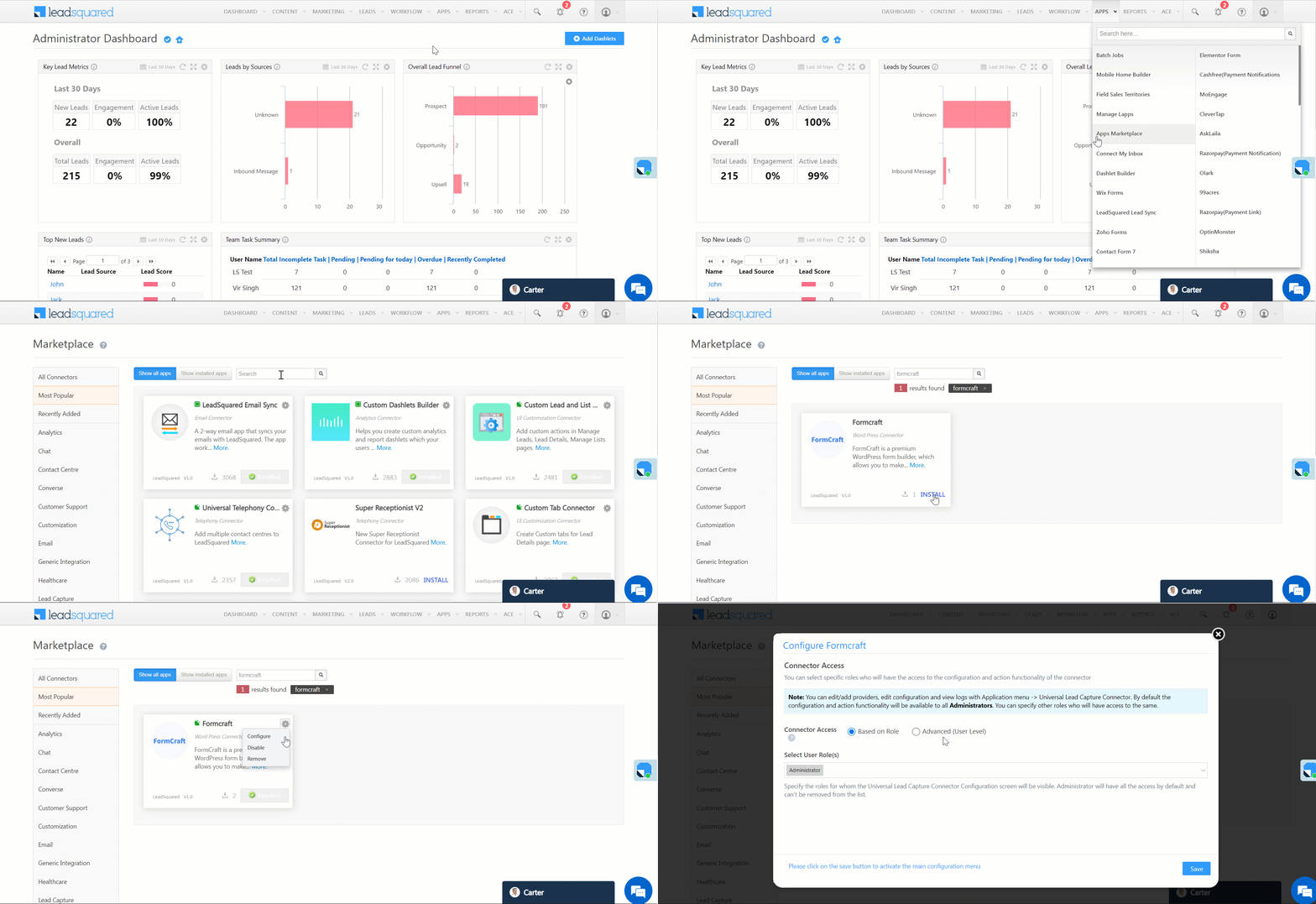
  1. Navigate to Apps>Apps Marketplace.
  2. Search for Formcraft, and click Install.
    • Alternatively, you can find the connector on the left panel, under Word Press.
  3. Once installed, hover your cursor over , and click Configure.

LeadSquared - Formcraft installation


4.1 Configure the connector

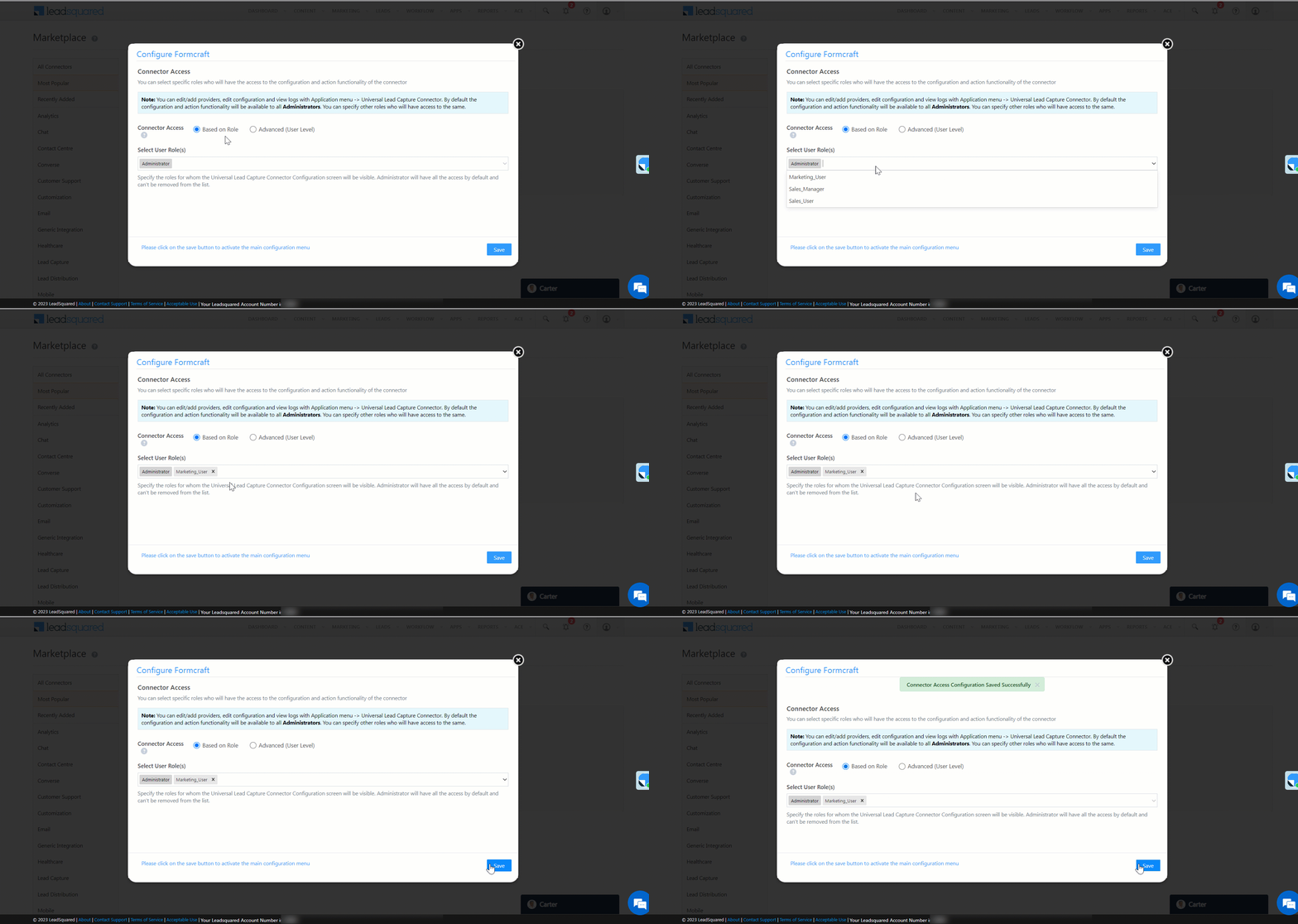
Once you’ve installed the connector, on the Configure Formcraft pop-up, configure the connector access for the non-Admin users in your account. Only those users for whom access is granted can view and access the connector (under the Apps main menu).

  1. Select if you want to grant Connector Access that’s Based on Role or Advanced (User Level).
    • Based on Role – From the Specify Roles dropdown, select the LeadSquared user roles that can use the connector.
    • Advanced (User Level) – From the Advanced (User Level) dropdown, select a user boolean field. Based on the value entered in the selected boolean field, the user can access the connector (e.g., for the user Sam, if the “Is Employee” boolean user field contains the value “Yes”, then this user can access the connector).
  2. Once you’re done, click Save Details. To continue the configuration, refer to the below sections.
Note: By default, all Admin users will have access to the connector.
LeadSquared - Formcraft initial configurations


5. Admin Configuration

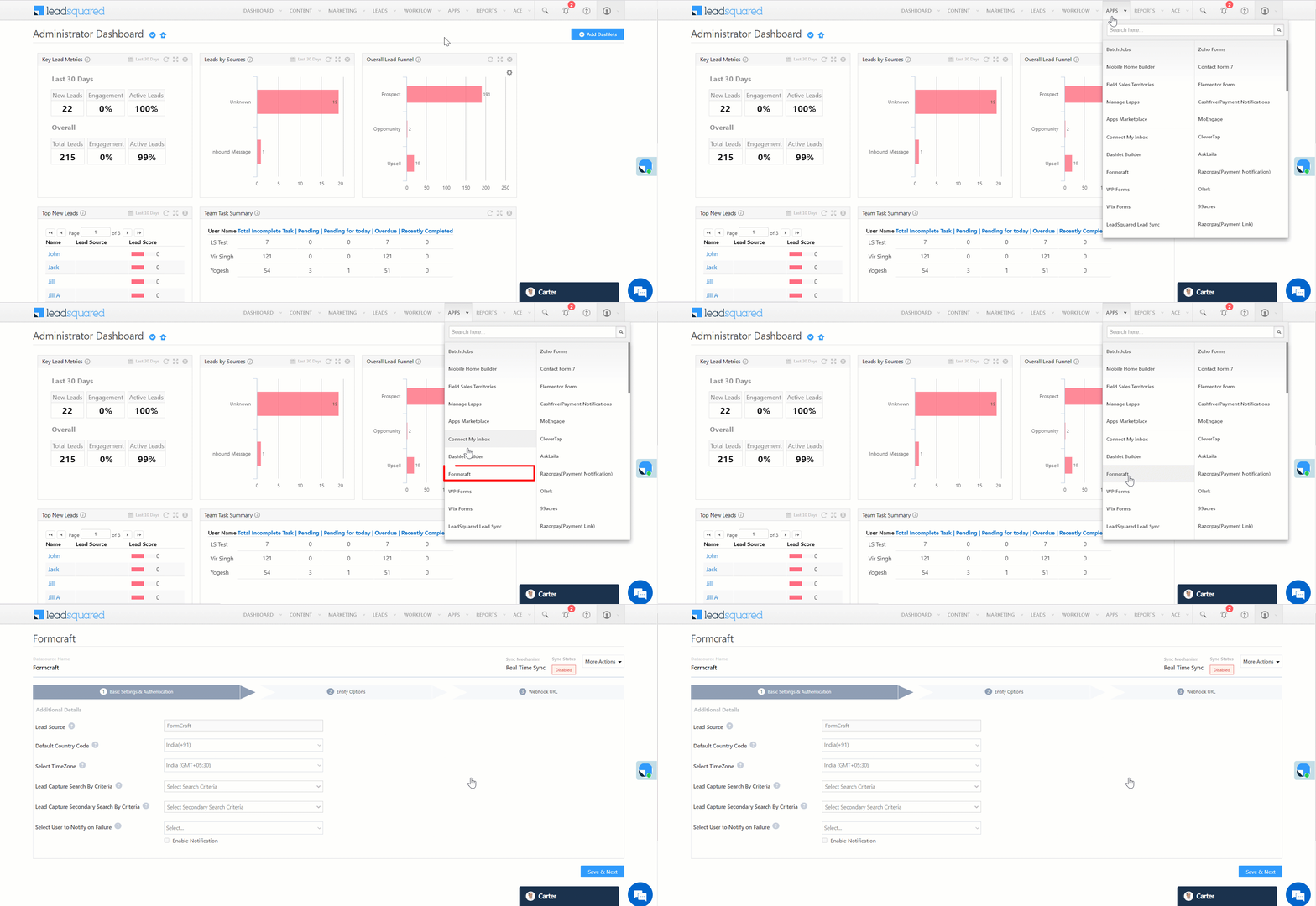
To continue the connector configuration, navigate to Apps>Formcraft.

5.1 Basic Settings

Enter the following details –

Property Description
Lead Source Enter the lead source through which the leads were captured (e.g., Formcraft, email campaign, etc.). This detail will be displayed on the Lead Details page, under Lead Source.
Default Country Code If the lead’s mobile number is captured without a country code, the default country code that’s selected from the dropdown will be added to the lead’s mobile number.
Select Time Zone The time zone followed in your WordPress account.
Lead Capture Search By Criteria To avoid duplicate leads, you must select one unique lead field (e.g., email Id, mobile number, PAN number, etc.) as the search key. This is used to identify the leads pushed from Formcraft.

To know how to mark a LeadSquared lead field as unique, please refer to How to Make a Custom Field Unique.

Lead Capture Secondary Search By Criteria If lead identification and capture through the primary Search By criteria fails, it will be re-attempted using the secondary Search By criteria.
Select User to Notify on Failure If there is an error in fetching leads, the selected user will receive a failure message via email. You can select a user from the list of all the users available in your LeadSquared account.

To know more about the type of errors, please refer to Error Notifications.

Enable Notification To ensure notification emails are sent to the selected user when there’s a failed query, enable the Checkbox checkbox.

Once you’ve entered all the details, click Save & Next.

LeadSquared - Formcraft basic settings


5.2 Entity Options

Define the sync behavior of the connector when leads are captured.


5.2.1 Lead/Contact Entity

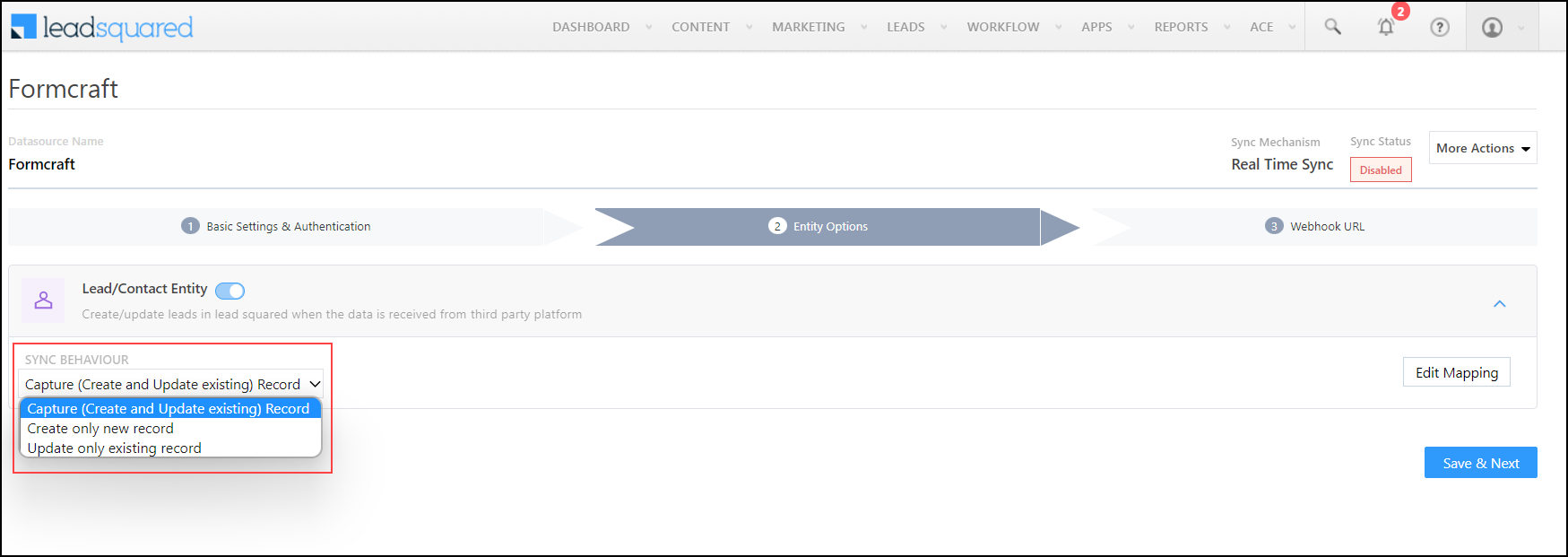
Based on the Lead Capture Search By criteria (email Id, phone number, etc.), LeadSquared identifies and captures leads from Formcraft. Lead capture is enabled by default, and it cannot be disabled. The following options are available to configure the connector’s Sync Behaviour –

  • Capture (Create and Update existing) Record – Leads that only exist in your WordPress account (but not in your LeadSquared account) will get created in LeadSquared. Leads that exist in both your data provider and LeadSquared accounts will get updated.
  • Create only new record – Leads that only exist in your WordPress account (but not in your LeadSquared account) will get created in LeadSquared.
  • Update only existing record – Leads that exist in both your WordPress account and LeadSquared accounts will get updated in LeadSquared.

LeadSquared - formcraft sync behaviour


5.2.2 Mapping

On the Mapping screen, the Formcraft system fields mapped to the corresponding LeadSquared lead fields are visible. This mapping is carried out by default. If required, you can change or update the default field mapping.

  • To provide a default value for any field, click  , enter the value under Default Value, and click Google.
    • If the data provider doesn’t send data for any lead field, then the default value will get assigned to that specific field. But if the field already has an existing value, then the default value will be ignored.
  • To disable lead data capture for any field, disable the Zoom slider.
  • You can also mark and update a unique lead field as the search key from this screen, by clicking unique icon.
  • To create a custom Formcraft field, click the Add Custom button.
    1. Once this field is created, you must map it to the relevant LeadSquared lead field.
    2. After the field is mapped, to save the custom field, click Google.
    3. To delete a custom field, click .
Once you’re done, click Save & Next.
Note:

  • Based on the lead fields configured in your Formcraft form, and the use case you’re trying to solve, add or update the lead fields mapped in LeadSquared.
  • If you face an error when carrying out the field mapping, refer to How to Map Entity Options for Lead Capture.

LeadSquared - formcraft edit mapping


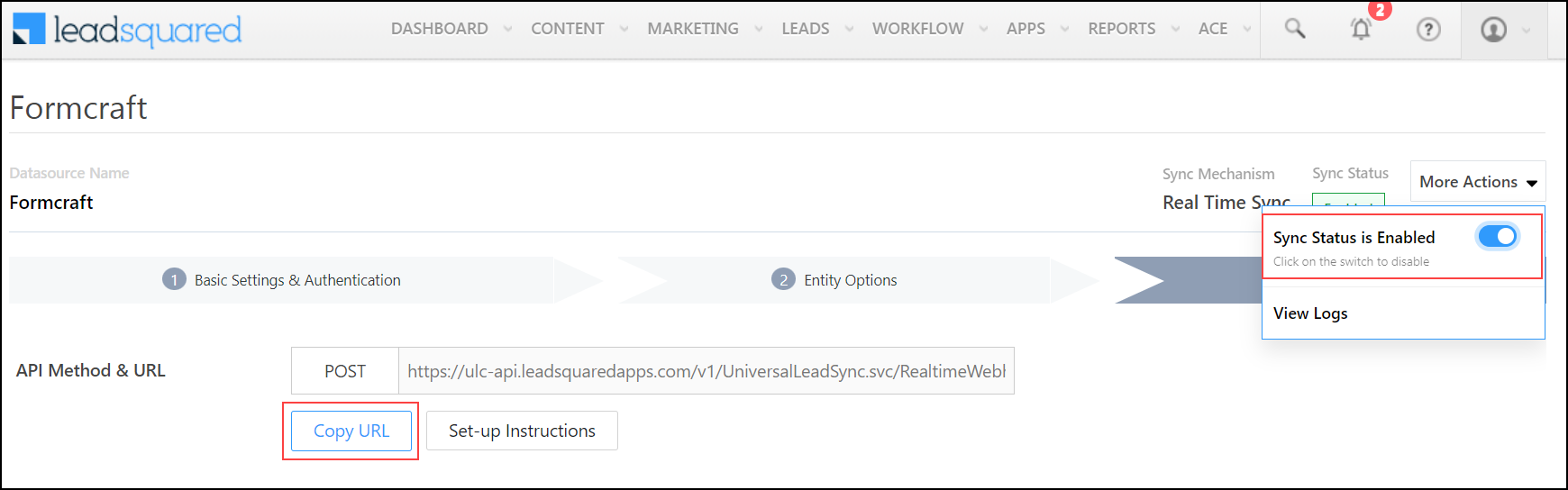
5.3 Generate Webhook URL

After you provide basic details and finish field mapping, a custom webhook URL is generated. To automate lead capture, copy this URL and configure it on your WordPress account. To know how to do this, refer to the next section…

After you’ve set up the webhook, click More Actions, and enable the sync job. This ensures that through the webhook, lead data from Formcraft is pushed to LeadSquared.

Note: To view logs of all the sync jobs that have taken place, from the More Actions dropdown, click View Logs.

LeadSquared - formcraft copy url


6. Add Webhook to WordPress Formcraft Plugin

Once the LeadSquared webhook is generated, add and configure this webhook on your WordPress Formcraft plugin.

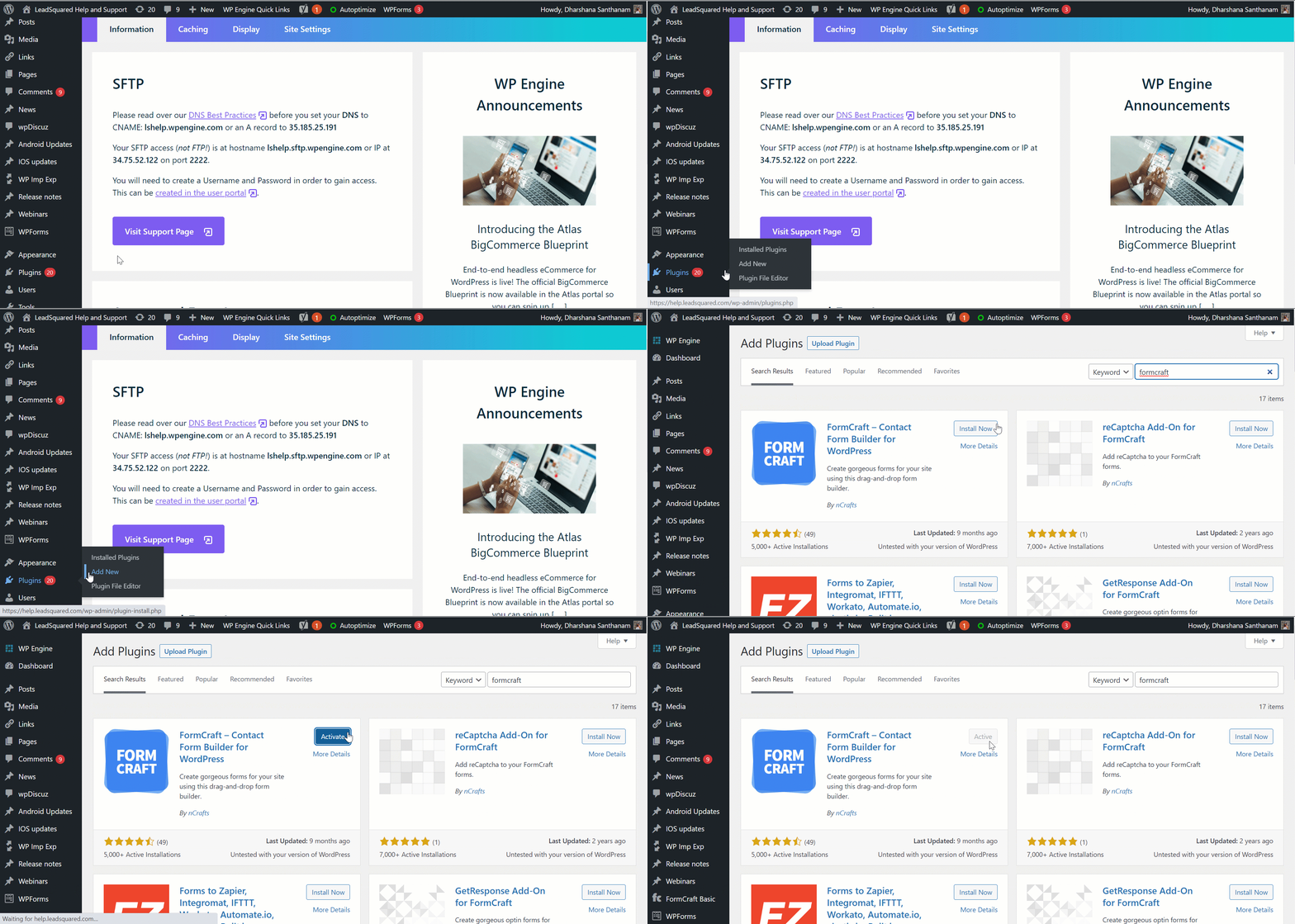
6.1 Install Formcraft Plugin

  1. In your WordPress account, hover your mouse over the Plugins option and click on Add New.
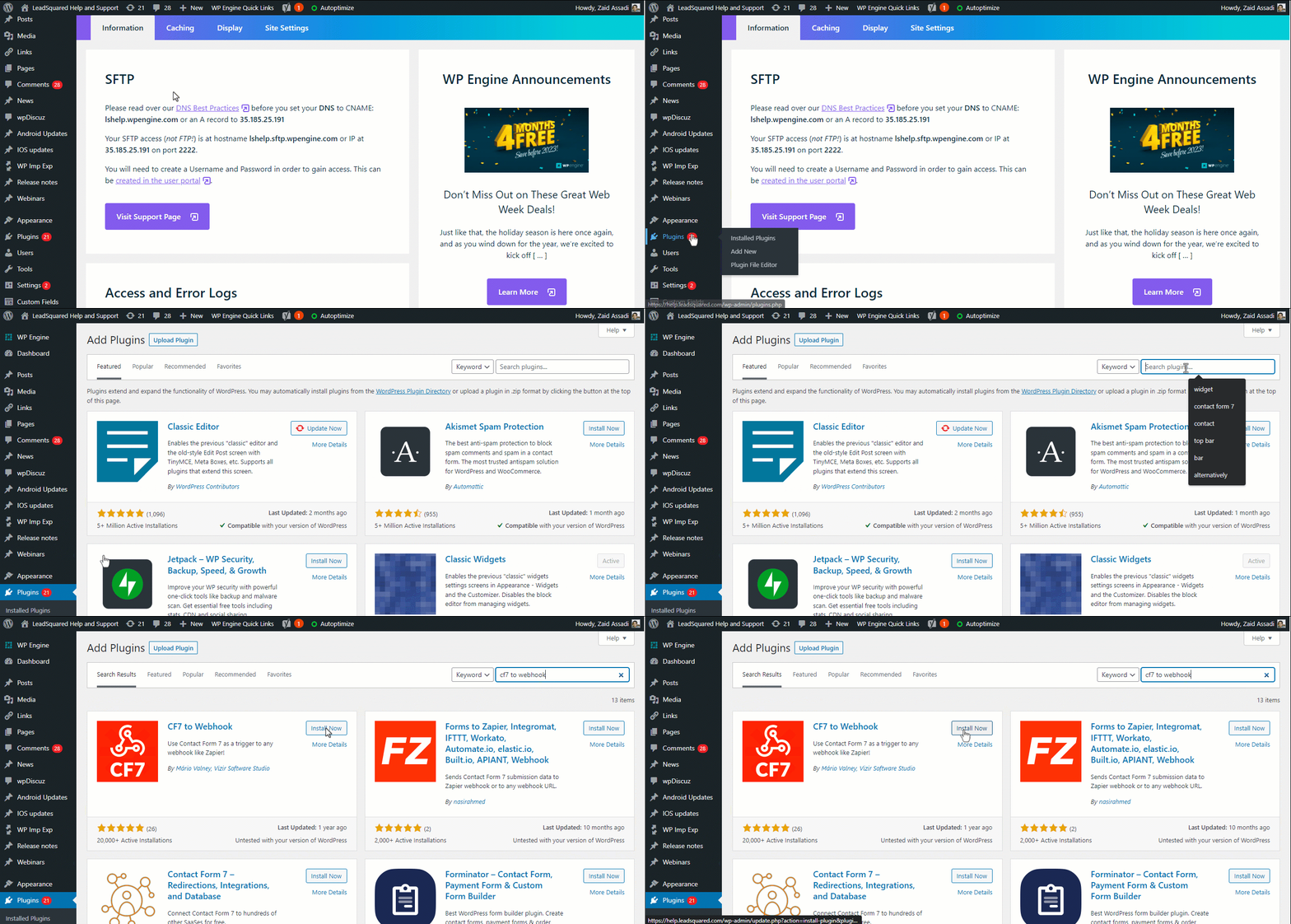
  2. Type Formcraft in the search box.
  3. Click Install Now.
  4. Click Activate.
Note: For more details on how to install the Formcraft plugin in your WordPress, see How to Register Your Plugin.

LeadSquared - formcraft Install Plugin


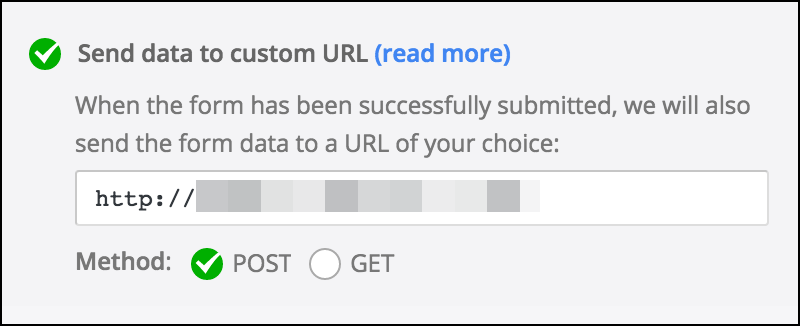
6.2 Configure the Webhook

  1. On the left side of the screen, click Formcraft and create a new form.
  2. Open the custom form you created and click Settings.
  3. Scroll to the bottom.
  4. Under Send data to Custom URL, enter the webhook URL and method.
Note: For more details, refer to Send Data to Custom URL.

LeadSquared Integrations


7. View Logs

Here, you can view logs of all the sync jobs that have taken place. View New Events (New Leads), Updated Events (Updated Leads), and Errors (when capturing leads).

  1. Navigate to Apps>Formcraft.
  2. From the More Actions dropdown, click View Logs.
  3. You can filter the logs by selecting a date range (Today, Last 7 Days, This Month, and Last Month), by selecting the Job Status (“All”, “Success” and “Failure”), and by selecting the Sync Status (All, Error, and Success).
  4. You can view the sync status of the following events –
    • New Events – List of all the new leads that have been created in LeadSquared during the selected date range.
    • Updated Events – A list of all the –
      • Duplicate leads that were created with the same Search by Criteria value (e.g., with the same Email Id, Mobile Number, etc.).
      • Leads that previously contained errors, which were fixed and synced successfully.
    • Failed – The list of leads that have not been captured due to mapping errors (e.g., when a boolean field is mapped to an integer field, etc.).
  5. To view the Sync Response details, under Request ID/Sync Job ID, click the Id.
    • Under the right panel, you can view the response status, the API URL, the request, and the response.
    • The responses that are successful will contain the details of the leads that have been pushed from Formcraft.
    • To view the lead capture response under Sync API Response, Leads Updated and Errors in Leads, click Information.

Note:

  • For a response that contains an error, the reason for the error is listed in the response. Once you fix it, you can click the Retry button to perform the sync again.
  • The current Lead Sync Behaviour will reflect in the Logs screen. This will help identify the sync that’s used (Capture or Update) for the selected Request/Sync Job Id.

google forms view logs


8. Other Actions

You can edit or delete the Formcraft connector instance that you created. To do this –

  1. Navigate to Apps>App Marketplace.
  2. Search for Formcraft.
  3. Alongside the Formcraft connector, hover your cursor over .
  4. From the list of options, you can perform the following actions –
    • Edit Configuration
    • Disable Configuration
    • Remove Configuration

LeadSquared - Formcraft other atcions


9. View Reports

You can view the total number of leads that have been pushed by Formcraft, by referring to the Lead Source report. To know more, please refer to How to track the source of your Leads using Lead Source Report?


Any Questions?

Did you find this article helpful? Please let us know any feedback you may have in the comments section below. We’d love to hear from you and help you out!

Incentives Formula Builder

1. Feature Overview

With the Incentives Formula Builder, you can create tailored calculations that address complex use cases, meeting the specific needs of an enterprise. For example, you can create a program to adjust the commission through additional rewards or penalties based on the targets achieved by the users.

formula builder


2. Prerequisites

You must know how to configure Goals and Incentives.


3. Example Use Case

Suppose a user has earned a commission of Rs. 6000 from the initial incentive program (Home Loan Sales).

Referring to the table below, if the user has achieved less than 70% of their target (as per the Goal), a -10% penalty will be applied to the commission. Consequently, their final commission would total Rs. 5,400.

However, if they’ve attained a target between 116% and 200%, they receive a reward of 10% on their commission. In this scenario, their final commission would amount to Rs. 6,600.

Target Achieved Reward or Penalty
Less than 70% -10%
Between 70% and 100% 0%
Between 101% and 115% +10%
Between 116% and 200% +15%
Greater than 200% +20%


Configure Formula Builder

Follow the steps below to recreate the above use case –

Note: 

  • You must have an Incentive program that’s been configured to calculate commission.
  • You must have a Goal configured to calculate the sales targets achieved by the users.

Create a new incentive program, and add the Goal used to calculate the targets achieved by the users.

Add goals

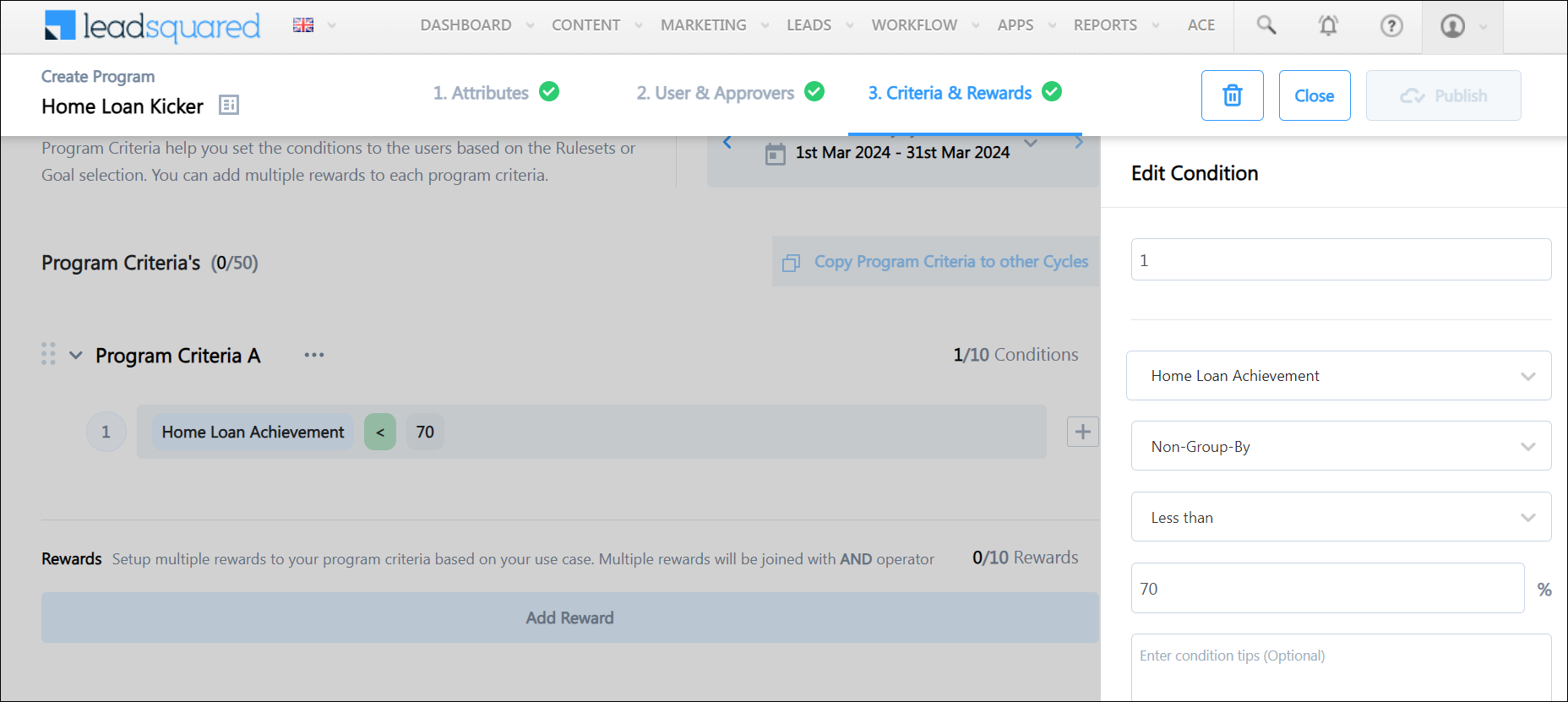
In the Criteria & Rewards Section, click on + Add Program Criteria, and add a condition stating Home Loan Achicement (Target) is less than 70%.

condition 1

Next, let’s add the penalty to the above condition –

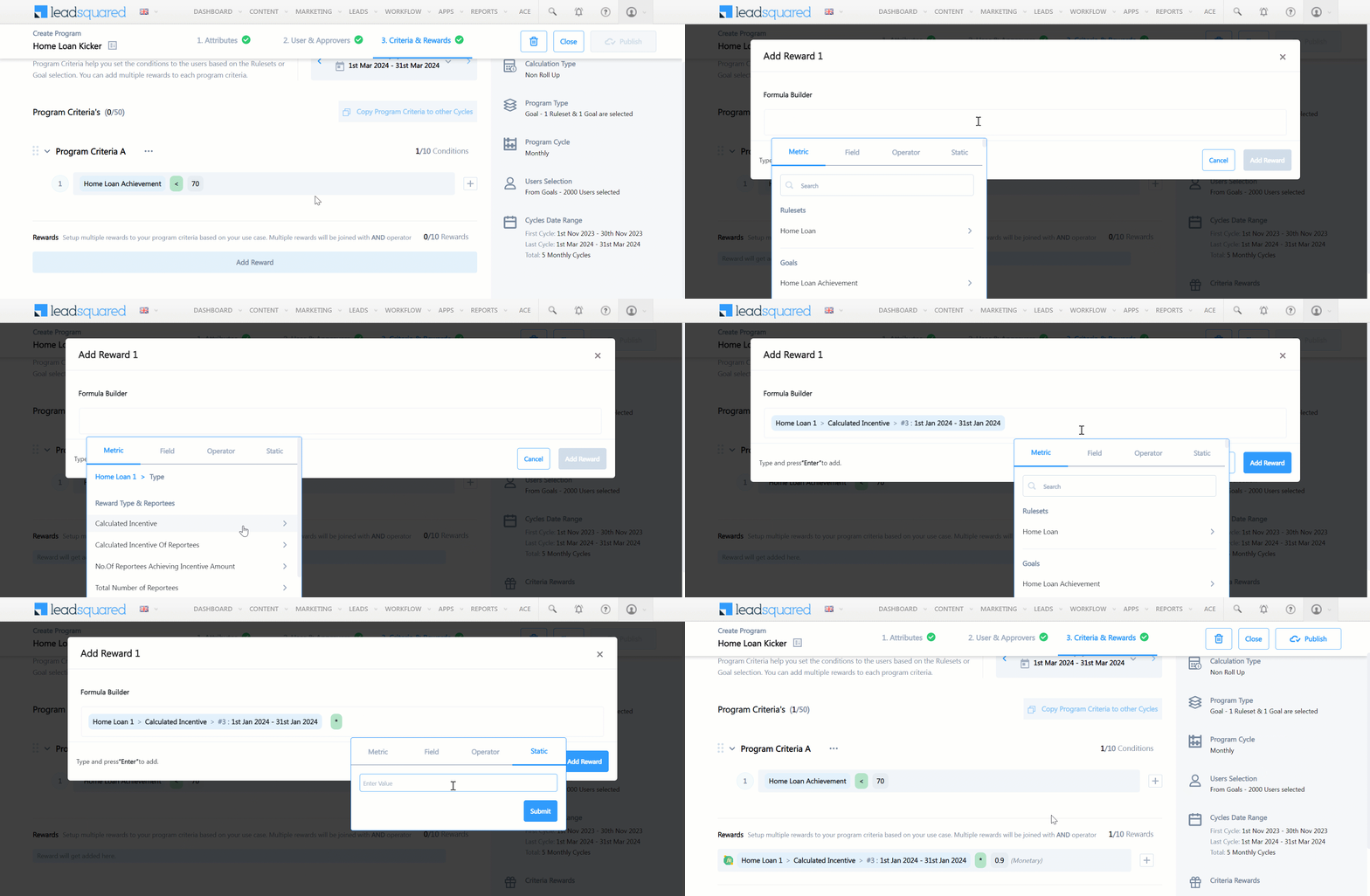
  1. Click Add Reward.
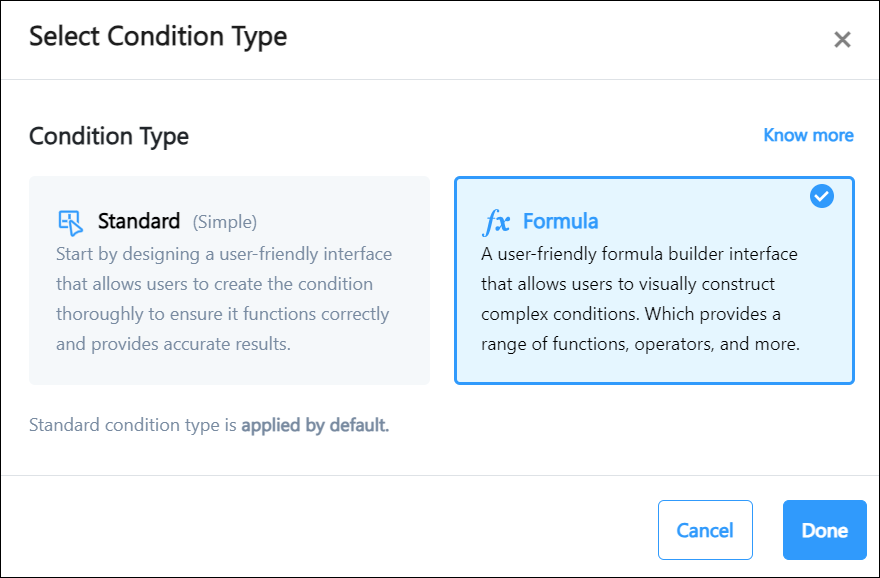
  2. Select Formula Builder and click Done.
  3. On the Formula Builder, under Metric, search for the Incentive program that calculated the commissions.
  4. Select the Calculated Incentive rewards.
  5. Select a particular Cycle.
  6. Under the Operator tab select the multiplication Operation.
  7. Under the static tab select 0.9 as the value (similar to -10%).
  8. Click Add Reward.

From the above steps, the reward formula should look similar to this – Home Loan 1>Calculated Incentive>#3 :1st Jan 2024 - 31st Jan 2024 * 0.9

Similarly, you can add other conditions, and their respective rewards and penalties.

For example,

  • Reward Formula when Target is between 70% and 100% (0% penalty)- Home Loan 1>Calculated Incentive>#3 :1st Jan 2024 - 31st Jan 2024
  • Reward Formula when Target is between 101% and 115% (+10% reward) – Home Loan 1>Calculated Incentive>#3 :1st Jan 2024 - 31st Jan 2024 / 1.1


add reward


Any Questions?

If you have questions, you can start a discussion in the comments section below. We’ll get back to you ASAP!

Organization Settings – Advanced Configuration

1. Feature Overview

The advanced configuration page enables you to manage settings related to key features for your organization. Once enabled, settings are applied globally (for all users) across your LeadSquared account. This article explains each of these settings in detail.


2. Prerequisites

  • Settings on this page are only accessible by LeadSquared Admin users.
  • Certain settings are available only if the associated feature is enabled on your account. Contact us at support@leadsquared.com if you want to enable new features on your account.


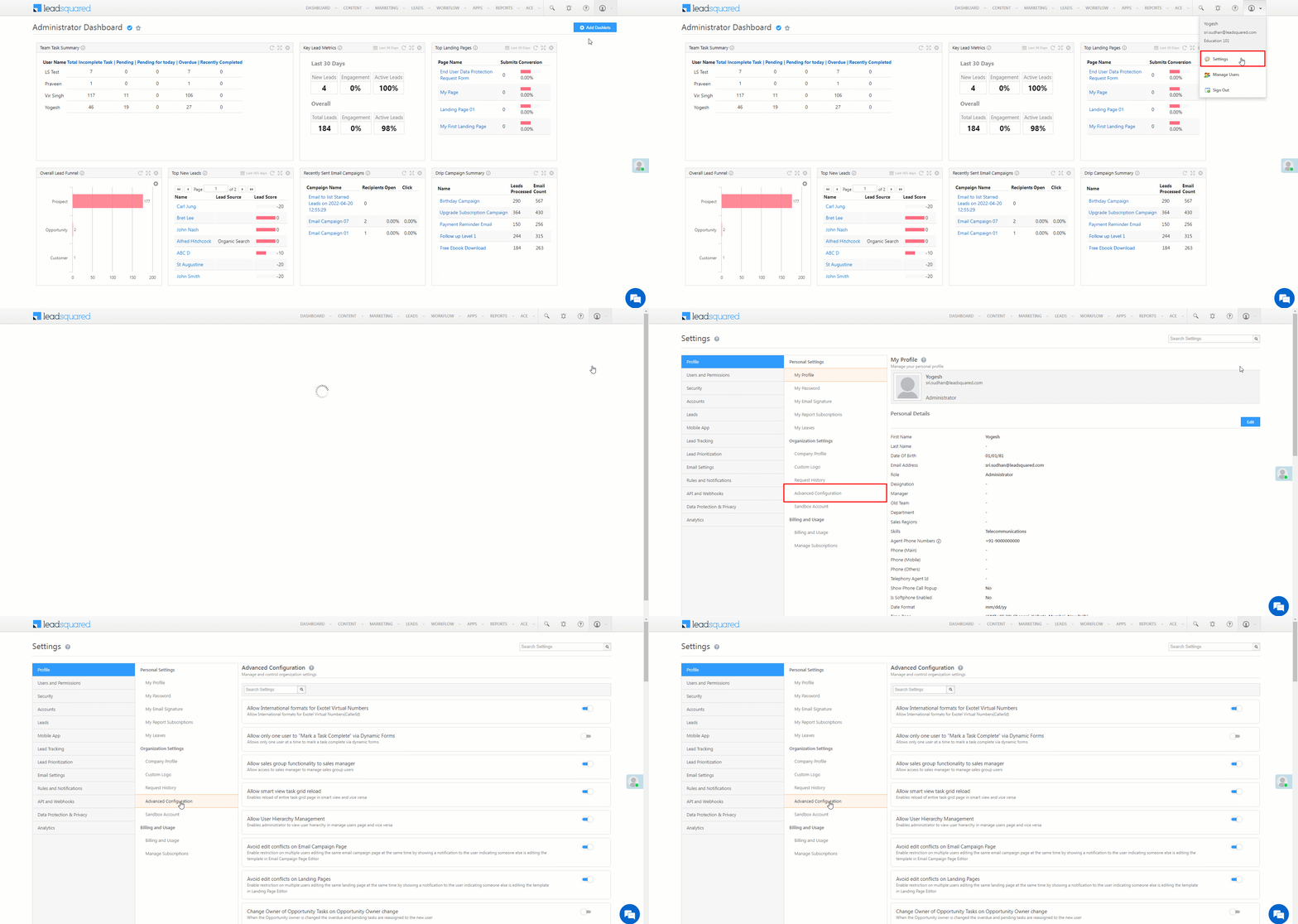
The Advanced Configuration page is available under Settings>Profile>Organization Settings>Advanced Configuration.

LeadSquared Product Updates


4. Settings

  • Allow Date Field in CFS

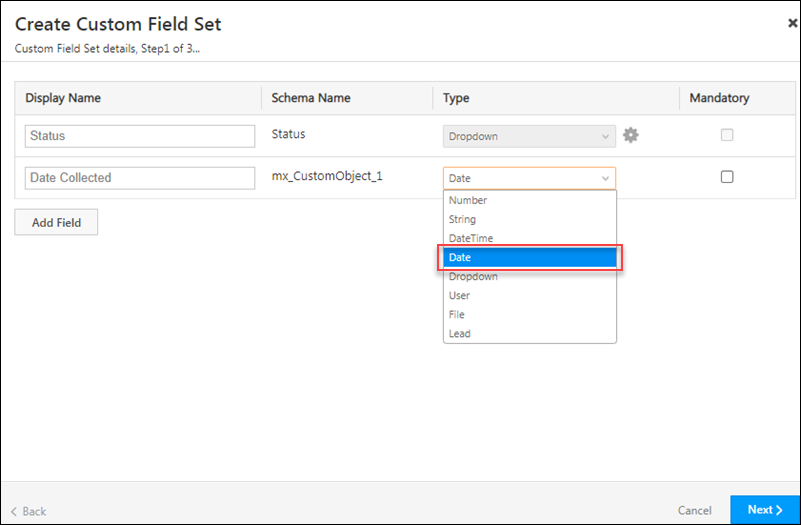
When enabled, admin users can create date type fields within Custom Field Sets. One of the primary use cases for Custom Field Sets is to upload files and documents (for KYC, loan approvals, education assessments, etc.). This setting will help users capture dates associated with these document collection activities.

CFS Date type fields

  • Allow International formats for Exotel Virtual Numbers

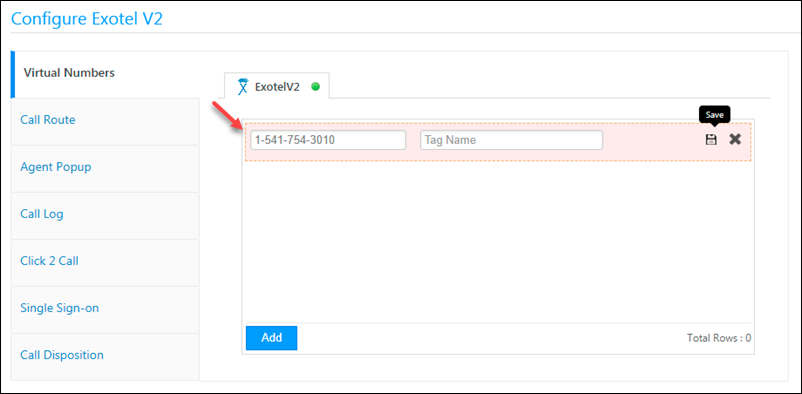
Enables you to configure international phone numbers in the Virtual Numbers (Caller Id) field of the Exotel V2 connector.

product updates sept 2021

  • Allow LOS in CFS

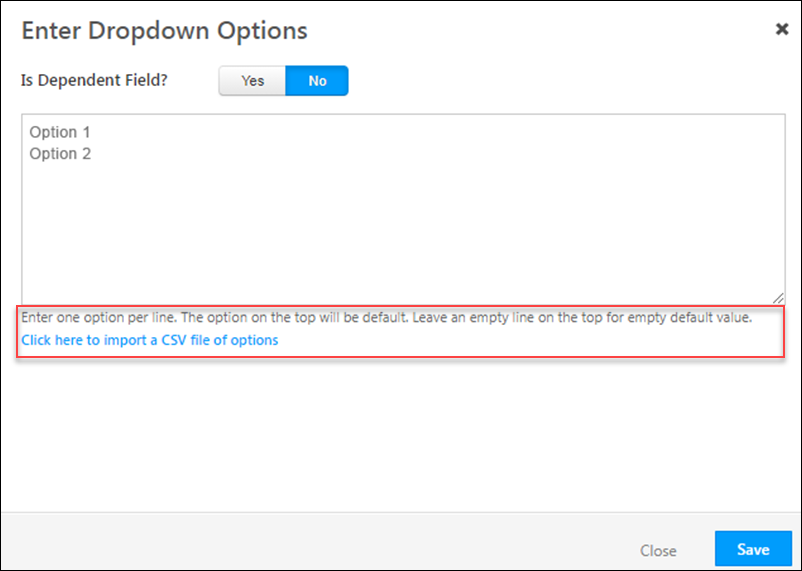
When enabled, admin users can add a large number of values (see Large Options Set) to drop-down type fields within Custom Field Sets. This is helpful if you want to create drop-downs with a large number of values like a list of schools/colleges, a list of doctors/hospitals, multiple locations/cities, etc. Once enabled, while associating the CFS with a lead or activity, you can upload a CSV file with the list of options instead of creating them manually.

CFS LOS

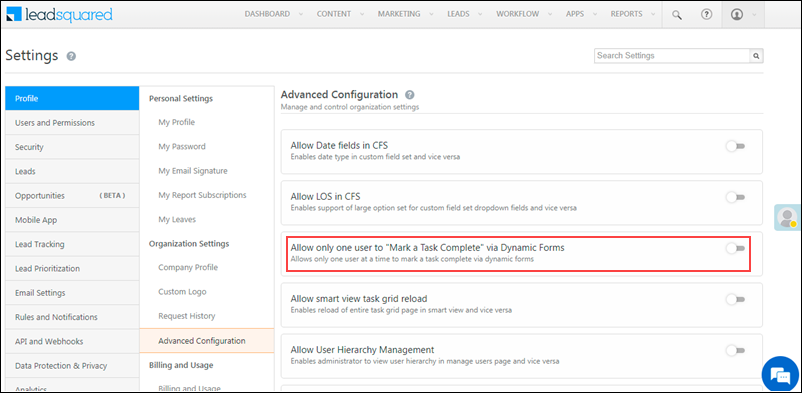
  • Allow only one user to “Mark a Task Complete” via Dynamic Forms

When enabled, two users will not be able to mark a task as complete from a dynamic form at the same time. Only a single user can mark a task as complete.

LeadSquared Platform Updates

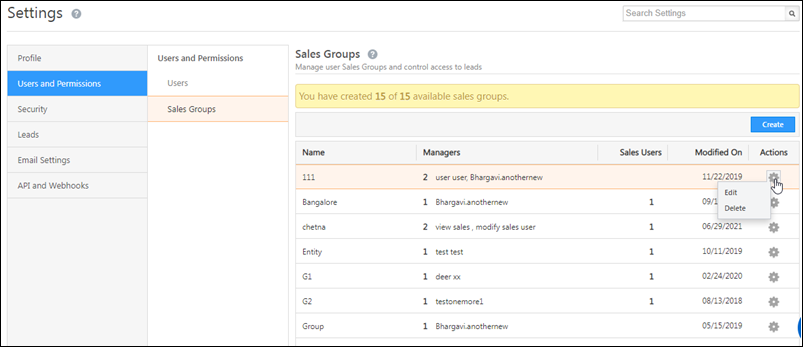
  • Allow sales group functionality to sales manager
    When enabled, Sales Manager user roles will be able to access the Sales Groups Settings page to create, manage and delete sales groups.

LeadSquared Product Updates

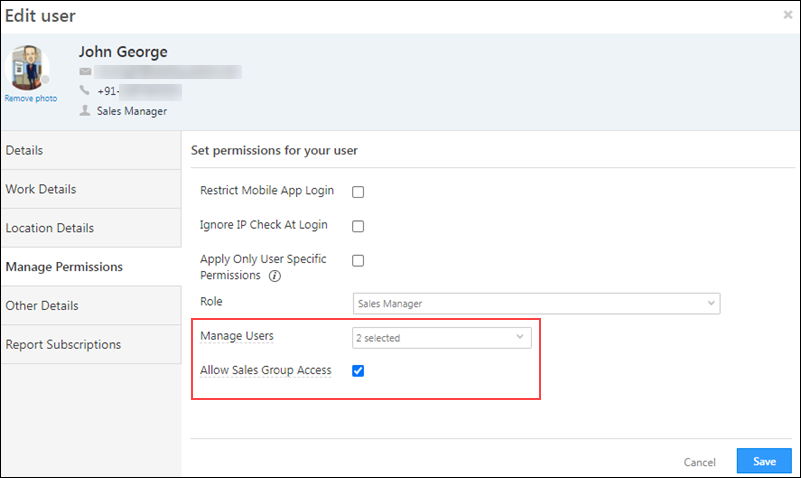
Once you enable this setting, ensure the following permissions are given to your Sales Managers –

  1. Navigate to the My Profile>Settings>Users and Permissions>Users, and create or edit a user.
  2. Click Manage Permissions, click Edit, and from the Manage Users dropdown, select Sales Manager.
  3. Alongside Allow Sales Group Access, enable the Checkbox checkbox.
  4. Once you’re done, click Save.

LeadSquared Product Updates

  • Allow smart view task grid reload

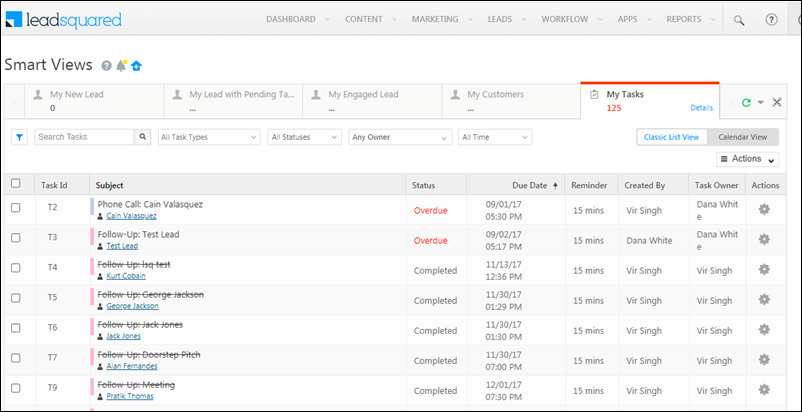
When enabled, the Smart Views task grid automatically reloads once a task is marked as complete.

Advanced Settings_3

  • Allow User Hierarchy Management

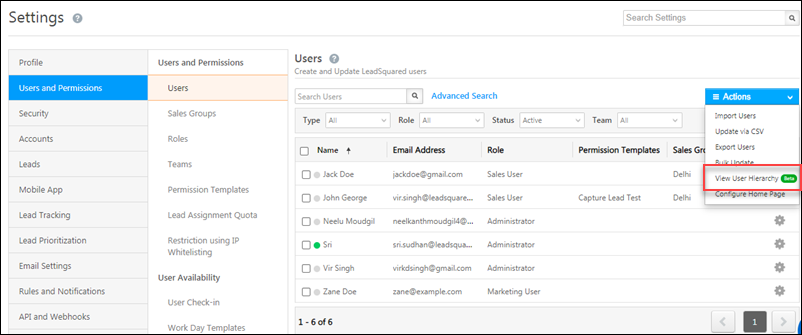
Once enabled, admin users can create and update user hierarchies from the Manage Users page. The user hierarchy UI gives users a simple drag and drop interface to organize users according to their reporting managers (based on the ‘Reporting To’ user field). For more details see Manage Users.

Note: To enable this feature on your account, reach out to your account manager, or write to support@leadsquared.com.

user hierarchy

  • Allow users to save dynamic forms as Drafts

Enable this setting to access the Save as Drafts feature which enables users to save their progress while filling out Dynamic Forms, allowing them to pause and return later to complete and submit the form. To know more, see Save a Dynamic Form as a Draft.

Note: This is available only on NextGen.
  • Allow Users without lead access to create opportunities

When the ‘Allow Sales User to Create Opportunity on Inaccessible Leads’ setting is enabled, users will be able to view all leads in the associated field search results, ensuring no relevant lead is missed during opportunity creation. Additionally, even when both ‘Allow Sales User to Create Opportunity on Inaccessible Leads’ and ‘Allow Sales User to Update or Overwrite Lead Fields of Inaccessible Leads’ settings are enabled, the system will allow users to search for leads but will restrict them from modifying lead fields.

  • Avoid edit conflicts on Email Campaign Page
    When enabled, multiple users will not be able to edit an Email Campaign at the same time. An error notification will be displayed to subsequent users who try to edit the campaign.
  • Avoid edit conflicts on Landing Pages
    When enabled, multiple users will not be able to edit a Landing Page at the same time. An error notification will be displayed to subsequent users who try to edit the page.
  • Change Owner of Opportunity Tasks on Opportunity Owner change
    Once enabled, every time there’s a change in the opportunity owner, pending and overdue tasks on that opportunity will be automatically assigned to the new owner.
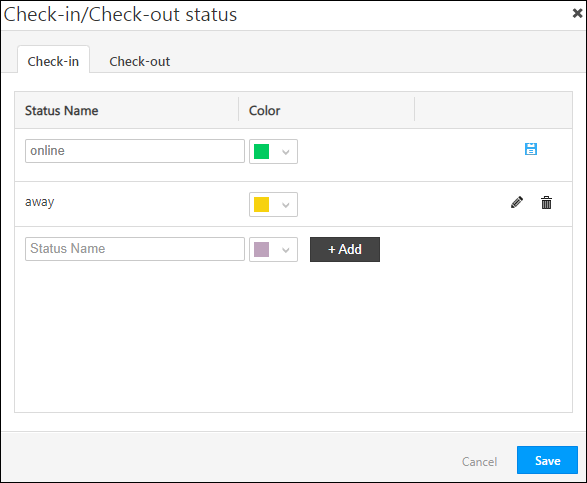
  • Check-in/Check-out status configuration
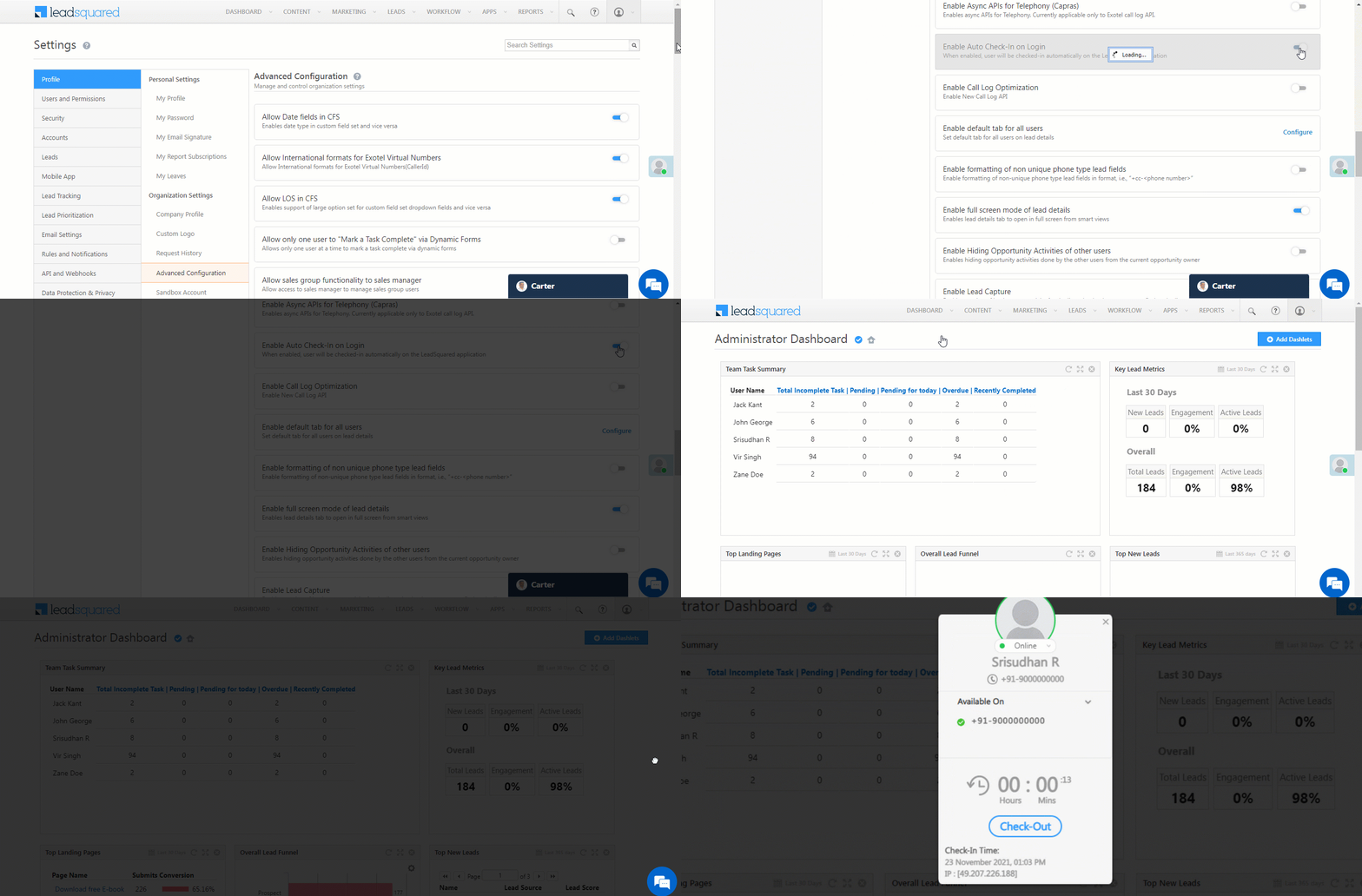
    Allows you to configure status names and status colours for user check-in and check-out. To know more, please refer to User Management Features: Check-In and Check-Out.

Advanced settings configurations

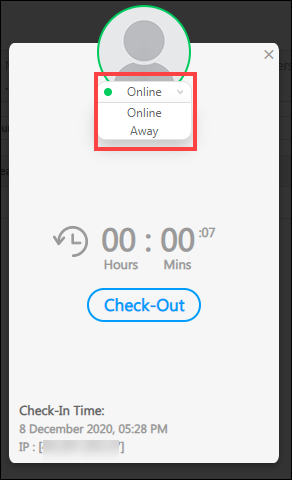
The statues configured here will reflect on the Check-In/Check-Out widget.

Check-in and check-out

    • Configure Actions Panel in Manage Leads/Activities/Opportunities/Smart Views Page

Configure the Action Panel to hide the following Quick Add action buttons –

    • On the Manage Leads page – Quick Add Lead, Add New Lead and Add New Lead (in a new tab)
    • On the Manage Activities page – Add Activity and Add New Lead
    • On the Manage Opportunities page – Add Opportunity and Add New Lead
    • On the Smart Views page – Across all the Add Activity, Add Lead and Add Opportunity buttons.

To hide these buttons –

  1. Click Configure.
  2. On the Configure Actions Panel pop-up, from the respective entity tabs, uncheck the Checkbox checkboxes for the buttons you want to hide.
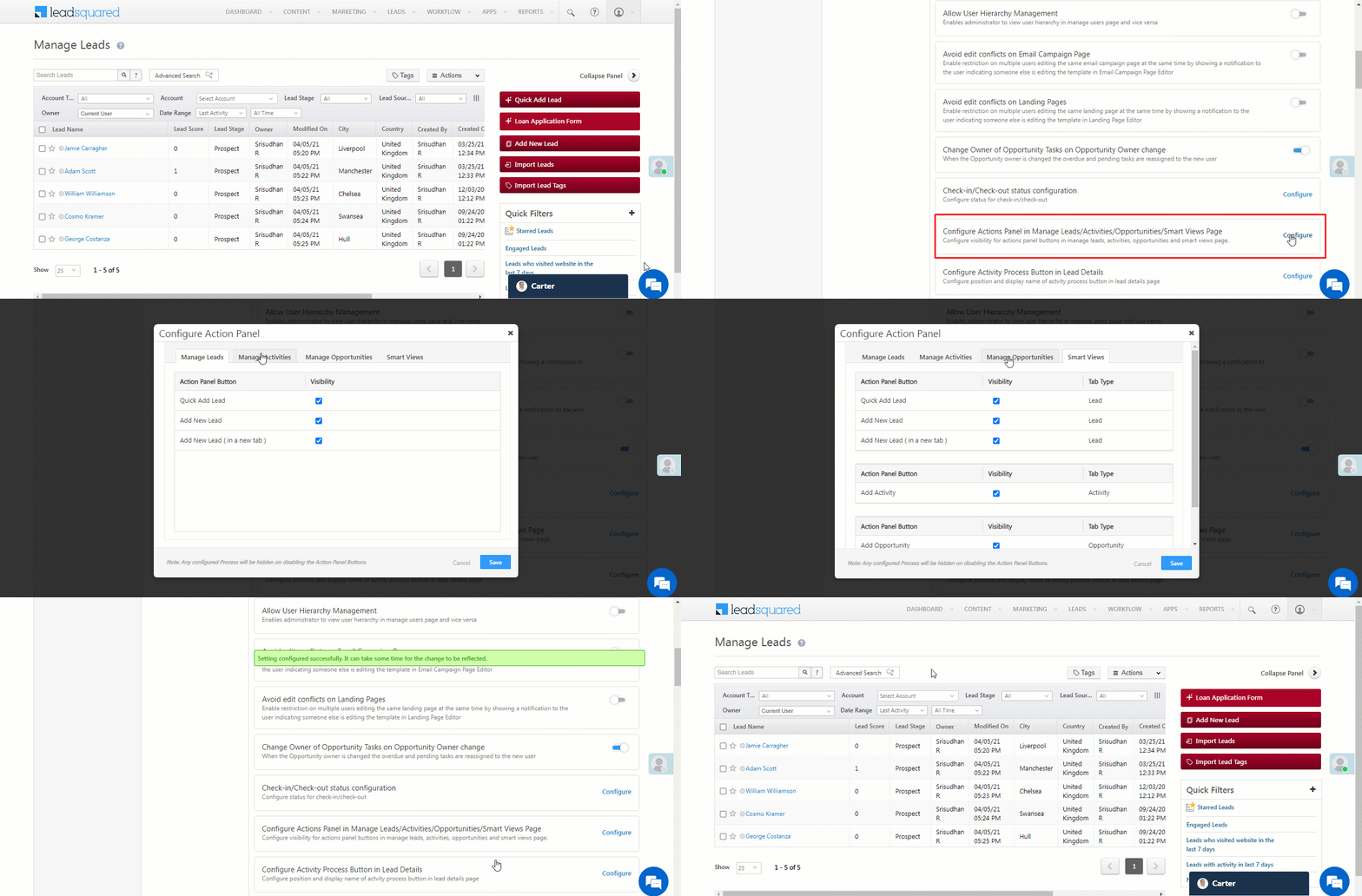
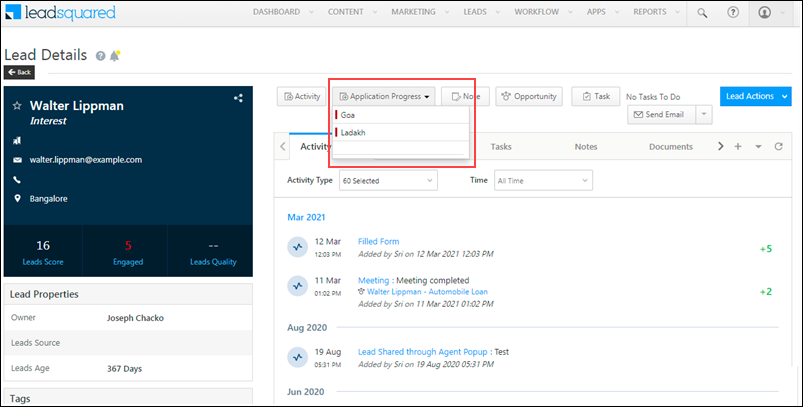
  3. Once you’re done, click Save.

In the below example, we’ve configured the Action Panel to hide the Quick Add Lead button on the Manage Leads page.

LeadSquared Platform Updates

  • Configure Activity Process Button in Lead Details

Configure the display name of the Processes button, present on the Add Activity process on the Lead Details page. If you’ve configured a process to show different forms on the Lead Details page, this setting will allow you to change the display name of the button that triggers the process.  To know how to add a process, please refer to How to Create a Process.

LeadSquared Advanced Configuration

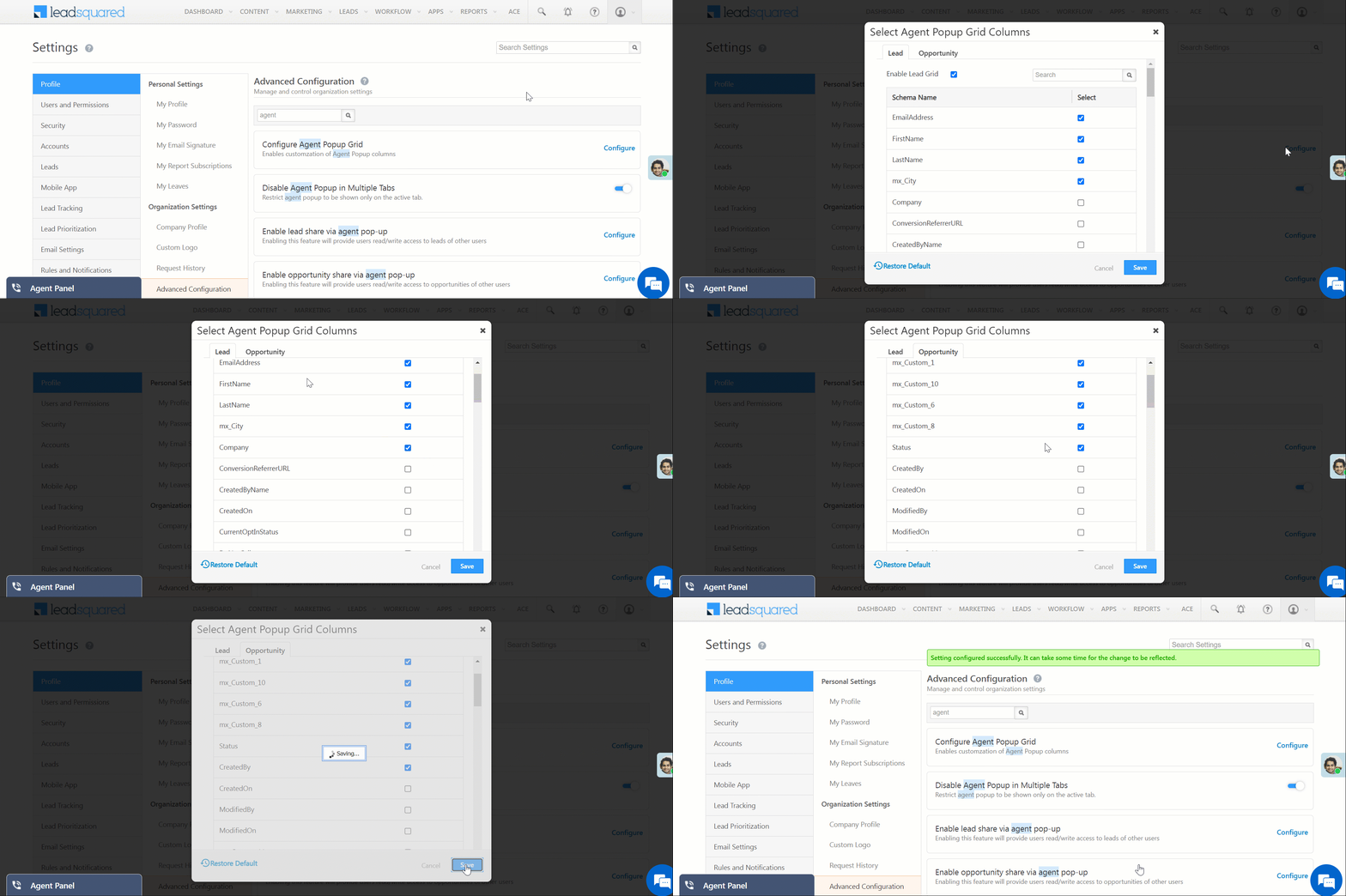
  • Configure Agent Popup Grid

Admins can customize the columns in both Lead and Opportunity grids within the Agent Popup to align with their business requirements. Additionally, they can choose to disable the grids if needed.

  1. Click Configure.
  2. Select Enable Lead/Opportunity Grid in the Lead or Opportunity Tab.
  3. Select the Columns under their respective Schema Name.
Note: The ordering of the columns in the Agent Popup is based on the order of clicking in the Configure Agent Popup Grid settings. Make sure to click on the columns in the desired sequence to arrange them accordingly.

agent pop up grid customization

  • Configure Custom Fields for User On-Boarding in Mobile App

When enabled, users who don’t have access to email inboxes can still sign-up for their LeadSquared account. This setting can help you onboard external vendors, delivery partners, or third-party service providers. To know more, please refer to Sign-up Users Without Access to Email Inboxes.

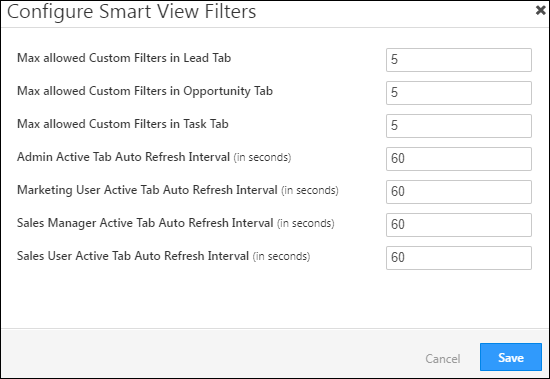
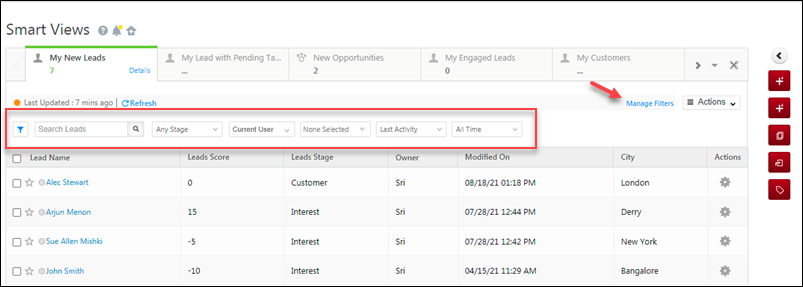
  • Configure Smart Views

Allows you to configure the number of custom filters you can set on a Smart Views tab, along with the auto refresh rate (intervals) for these Smart Views tabs.

LeadSquared Product Updates

Note that you can set a maximum of 15 filters per tab.

product updates sept 2021

  • Configure telephony ignore rules

When enabled, this setting will ignore calls from unknown numbers. This works across all telephony providers. Logs of ignored calls will still be posted in your account. To view telephony logs,  navigate to My Profile>Settings>API and Webhooks>Telephony Logs.

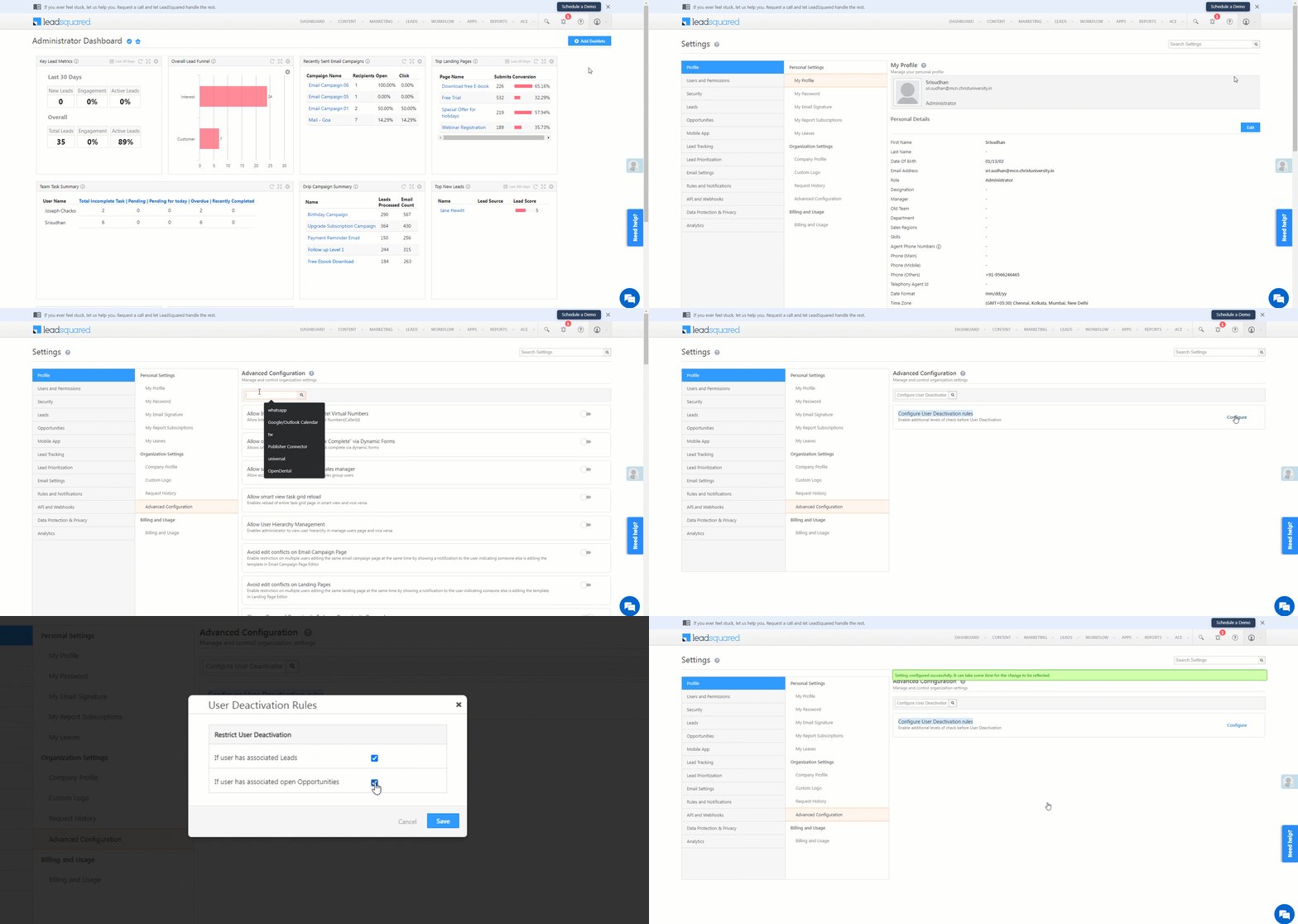
  • Configure User Deactivation rules

Let’s you restrict your Admins from deactivating users with associated leads/opportunities. To do this –

  1. Search for Configure User Deactivation rules, and click Configure.
  2. On the User Deactivation Rules pop-up, enable the checkbox Checkbox to restrict deactivation –
    • If user has associated Leads
    • If user has associated open Opportunities
  3. Once you’re done, click Save.

Deactivate Users

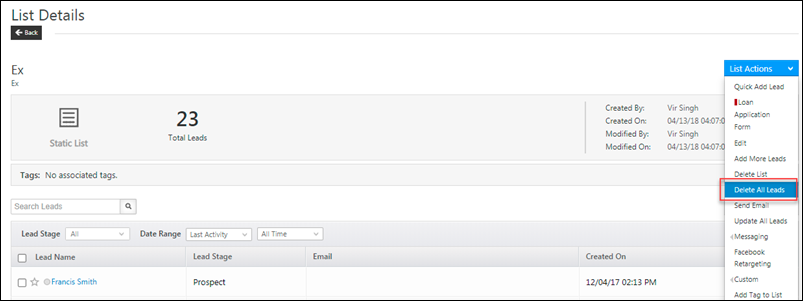
  • Disable ‘Delete all Leads’ static List Action

This setting hides the Delete all Leads action on the List Details page. It helps prevent accidental lead deletion.

delete all leads list details page

  • Disable Access of LSQ app in Iframe

This is a security setting that disables clickjacking in your LeadSquared account. When enabled, LeadSquared won’t work in an Iframe.

  • Disable Agent Popup in Multiple Tabs

When enabled, the Agent pop-up will only be displayed on the active browser tab (when LeadSquared is open on multiple tabs).

  • Disable Lead Notes Feature

When enabled, users won’t be able to add notes to a lead -the Add Note button and Notes tab on the Lead Details page won’t be visible. This setting is helpful to prevent users from adding notes to leads and encouraging them to adhere to a defined business process (adding details in activities, forms, etc.). However, notes created via API will still be posted against leads.

Add Notes Disabled

  • Disable Opening of Entity Details in Marvin

By default, the Lead or Opportunity details page opens automatically for incoming calls in Marvin. Turn this on if you prefer not to open the details page automatically.

  • Enable Async APIs for Telephony (Capras)

For customers using the Exotel Telephony connector, once you enable this setting, you can use LeadSquared’s Async API framework to ensure more reliable call logs posting for outbound calls. To know more, refer to Exotel Connector.

  • Enable Auto Check-In on Login
    When enabled, users logging in to their LeadSquared accounts will be automatically checked in. This setting can be enabled only if user check-in is configured on your account. To know how to configure it, refer to User Management Features: Check-In and Check-Out.
Note: The Auto Check-in on Login feature only works if the user has checked out the previous day. If a user remains checked in overnight without checking out, the system will not register an automatic check-in the next day.

LeadSquared Platform Updates

  • Enable Auto Check-out on Sign-out

Users can now automatically check-out of LeadSquared while logging out. When this setting is enabled, users will only get the option to ‘Check-out and Log-out’ while signing out of LeadSquared. This allows Admins and Managers to view an accurate report of the users’ Check-in and Check-out history.

  • Enable Automation Mail Merge as per ‘From’ User’s Time Zone in Email Cards
    When a user is in a different timezone, and the LeadSquared account is configured in a different timezone, and a mail merge date/time field is included in the Send Email automation card, the account’s timezone is automatically applied to the date/time value of the field.
    For example, a user’s timezone is configured to Pacific Time (PT) and the LeadSquared account is configured to Eastern Time (ET). When a date/time mail merge field is added in the Send Email automation card like an application interview date field, the value of the field is automatically set to the account timezone (ET) instead of the user’s timezone (PT). This may result in the lead receiving an unintended application interview date/time in the email.
    Once enabled this setting applies the user’s timezone to the mail sent through the automation card.
  • Enable change of Opportunity owner on Lead owner change
    When enabled, the new lead owner will automatically become the opportunity owner for all child opportunities under the lead.
  • Enable Call Log Optimization
    The Call Log API for telephony integrations can now be optimized for better performance.
  • Disable Report Subscriptions
    Disables the Daily Reports subscription for all users in your account.

LeadSquared Advanced Configurations

  • Disable Sales Activity
    Click Configure to –

    • Restrict users from adding a new Sales Activity – When selected, users in your account will not be able to add any new Sales Activities. They can continue to view and edit existing Sales Activities.
    • Remove complete access to Sales Activity – When selected, users in your account will not be able to add new Sales Activities. Additionally, they will also not be able to view and edit existing Sales Activities.

To know more, refer to Disable Sales Activity Access.

Disable Sales Activity

  • Disable Task Type configuration for non-admin roles
    Restricts Marketing Users and Sales Manager roles from viewing, creating and configuring task types.

LeadSquared Product Updates

  • Enable anchor tag for lead name
    When enabled, the lead name link that redirects to the Lead Details page in the Manage Opportunities grid will be available. You can disable this to reduce clutter, if users are working specifically on opportunities.

Settings_3

  • Enable Default Status And Stage
    This setting allows you to set a default status and stage for new opportunities. To configure statuses and stages, please refer to Opportunity Configurations.

LeadSquared Platform Updates

  • Enable default tab for all users
    This setting allows you to set a default tab (such as Activity History, Tasks, etc.) for all users on the Lead Details page. To do this, against the setting, click Configure, and select the default tab you want to display.

LeadSquared's Advanced Configuration

  • Enable Email Notification on Automation Failure

Select the list of users who’ll receive an automation failure email notification. To do this, click Configure, and on the Notify Users on Automation Failure pop-up –

  1. Under Notify, on automation failure, if you want to notify the
    • User who created the automation, enable the checkbox.
    • User who modified the automation, enable the checkbox.
  2. To view the list of users in your account by user role type, from the Filter by Role dropdown, select the role type.
  3. From the list of Available Users, select the users you want to notify, and click Right Arrow.
  4. Once you’re done, click Save. The selected users will receive a notification of automation failure.

LeadSquared Product Updates

  • Enable Enhanced Data Type For Opportunity

Enable this setting to Configure Opportunity Fields using the following data types –

    • Phone
    • Email
    • Date
    • Geolocation
    • Auto ID


  • Enable formatting of non-unique phone type lead fields

When enabled, phone type lead fields that are not marked unique, will be processed and formatted as follows –

+cc-<phone number>

For this to work, the default country code must be defined from the Company Profile settings (Settings>Profile>Organization Settings>Company Profile and define ‘Default Country Code’ field).

define default country code

  • Enable full screen mode of lead details

When enabled, if a user clicks on a lead from a Smart Views tab, the Lead Details page will open in full-screen mode.

Lead details full page view

  • Enable Hiding Opportunity Activities of other users
    When enabled, the opportunity owner will not be able to view the activities posted on the opportunity by other users, under the Activity History tab on the Opportunity Details and Lead Details pages. For e.g., when there is a change in opportunity owners, this setting can be used to hide past activities from the new owner.
  • Enable Lead Capture
    When enabled, lead capture activities (captured by the Lead Capture API) posted for duplicate leads, are visible on the Lead Details page, under Activity History.

lead capture duplicate activities

  • Enable leading zeros in phone type lead fields

When enabled, users can create phone numbers with zero as the first digits. This is helpful for phone numbers in certain countries that support zeros as the first digit of the phone number.

  • Enable new phone number format setting

Once enabled, international phone numbers will be formatted in the cc+phonenumber format. 

  • Enable Opportunity – Telephony

When enabled, opportunities are integrated with telephony connectors. This allows users to perform telephony events on opportunities. To know more, please refer to Opportunity Integrations in Telephony.

  • Enable Permission Templates for Account Management

Once enabled, Admin users can set Permission Templates to restrict your users from Viewing, Creating, Editing, Deleting, Exporting and Importing individual Accounts.

LeadSquared Product Updates

  • Enable Opportunity Sharing
    When enabled, you can share opportunities with your users for a defined duration, using the Opportunity Share feature and Share an Opportunity API.
  • Enable quick filters on manage opportunities page
    When enabled, on the Manage Opportunities page, you can create and save quick filters using the Advanced Search feature.

LeadSquared Product Updates

  • Enable Sending Emails Via Opportunity
    When enabled, you can send emails to your leads from the Opportunity Details page.

LeadSquared Product Updates

  • Enable Virtual Number Randomization

In telephony connectors, where multiple virtual numbers are configured, the setting randomizes the virtual number with every call placed by an agent.

Virtual Number Randomization

  • Restrict Operations on Closed Opportunities (Won/Lost)

This setting restricts users from performing any updates, or posting any activities/tasks on a closed opportunity. Once enabled, you can configure individual opportunities to restrict user operations. To know more, please refer to Opportunity Configurations.

Note: This is also applicable on the LeadSquared Mobile App.

LeadSquared Platform Updates

  • Entity Access through Opportunity ownership
    When enabled, users can view 2,000 or more opportunities that have been assigned to them.

  • Ignore Inbound Calls

When enabled, all incoming calls from unknown numbers received through any configured telephony connector (through the call log or agent pop-up) will be ignored. This ensures that users can focus only on calls with existing leads.

  • Infinite scroll in Activity History

When enabled, the Show More button gets disabled and infinite scrolling is enabled under Activity History tab on the Lead Details page.

Settings_1

  • Load inactive tabs in Smart Views

When you navigate between Smart Views tabs, they sometimes take a moment to load. This setting saves you time, by pre-loading data for inactive Smart Views tabs in the background.

load inactive smart views tabs in background

  • Redirect to lead details page

Enables you to redirect to the Lead Details page, instead of seeing the agent popup, while making or receiving calls from a lead.

  • Remove Quick Add Activity Button

When enabled, the Quick Add Activity Button (on the Lead Details page) won’t appear if processes are configured to show dynamic forms in Lead Details>Add Activity. This helps eliminate clutter and ensures that users adhere to processes where dynamic forms have been configured.

add activity button

  • Restrict all mobile users as email senders
    When enabled, LeadSquared Mobile App users will not appear as the sender in the “From” email dropdowns, across email campaigns, one-to-one emails, automation emails, and landing page auto-response emails. However, mobile users can continue to send emails even after this setting is enabled.
  • Restrict request history to owners
    Users will only be able to view their own requests (lead delete, lead export, etc.), and not requests made by other users, under Request History.

Notes:

  • For customers with Super Admin enabled –
    • Only Super Admins will be able to toggle the setting
    • Only Super Admins will be able to see everyone’s records
  • In non-Super Admin accounts –
    • Only admins will be able to toggle the setting
    • Only admins will be able to see everyone’s records
  • Restrict sales user to view email template
    When enabled, sales users sending emails will only be able to see their own email templates, and not email templates of other users.

Settings_2

  • Restrict update of associated phone number
    When enabled, only admin users will be able to update to the ‘Agent Phone Numbers’ associated with a user. If disabled, all other user roles will be able to update the ‘Agent Phone Numbers’ associated with their own user profiles.

edit associate agent phone numbers

  • Restrict users from creating email templates
    This allows you to restrict specific users from creating email templates.
  • Restrict users to download activity attachments
    Restricts your users from downloading audio files that are added as activity attachments. When enabled, your users will still be able to access and listen to the audio files. To enable this setting, click Configure, and select the audio file types for which you want to restrict user downloads.

LeadSquared Advanced Configuration

  • Show all groups filter in Smart Views
    For lead tabs in Smart Views, Admin, Marketing and Sales Manager roles can see leads belonging to all sales groups, using the sales group filter. By default, sales users can only see leads belonging to his/her own group.

sales group dropdown in smart views

This setting allows sales users to view all sales groups (even the ones that they’re not a part of) in the sales group filter.

Show all groups filter in Smart Views

  • Show Only Opportunity Related Forms In Agent Popup
    When your users (agents) receive inbound calls, if only a single LeadSquared Form is configured to capture opportunity details and linked to an opportunity to agent pop-up (using the Process Designer), this form is automatically displayed to them. Enabling this setting ensures your users don’t have to manually select this form through the Agent Popup.
    Note that if more than one form is linked to the agent pop-up, even after this setting is enabled, your users will have to manually select a form through the Agent Popup.
  • Show Only Relevant Opportunities Under a Lead to Sales User
    When enabled, sales users will only be able to view opportunities for which they are the opportunity owner, on the Lead Details page.


  • Show Sales Group Filter for Opportunity Grid in Smart Views
    When enabled, on the Opportunities Smart Views tab, sales users can filter opportunities by the sales groups they are a part of. To allow sales users to view the opportunities of sales groups they are not a part of, enable the Show all groups filter in Smart Views setting.

sales group filter for smart views opp type tabs

  • Show Sales Group Filter for Task Grid in Smart Views
    Once enabled, you can filter tasks by sales groups, on task tabs of Smart Views. If you want your sales users to view the tasks of other groups, first enable the Show all groups filter in Smart Views settings.

LeadSquared Product Updates

  • Switch to teams UI V2
    We’ve enhanced the user interface for the Teams settings page. The new interface will remove the Bulk Actions button present on the top-right corner of your screen, and will instead allow you to perform actions on an individual level for each team. This makes it easier and quicker to perform actions like Apply Holiday Calender, Workday Templates, Smart Views, etc.

LeadSquared Advanced Configuration

  • Enable Webhooks for Opportunity
    Once enabled, Admin users can now configure webhooks for opportunity events and keep track of the triggered webhooks.

LeadSquared - opportunity webhook

  • Enable ‘Reply To’ header in One to One Send Email
    When enabled, users can direct replies to one-on-one and bulk emails to a specific user by adding them to the Reply To header during email composition.

LeadSquared - Reply to in platform


Any Questions?

Did you find this article helpful? Please let us know any feedback you may have in the comments section below. We’d love to hear from you and help you out!

LeadSquared SMS Connectors – USA

1. Feature Overview

LeadSquared SMS Connectors facilitates customer support and other marketing efforts through simple, secure and reliable text messages. This connector lets you integrate popular SMS providers with your LeadSquared account to send automated, one-to-one and bulk SMSes to leads and opportunities in the USA, directly from LeadSquared.

Note: In this article, we’ve used Twilio as an example to demonstrate the installation and set-up process.


2. Prerequisites

  • To enable an SMS provider’s connector on your account, contact your account manager or write to support@leadsquared.com.
  • You must be an administrator user of your Leadsquared account.
  • Your account plan must support SMS integration.


3. How it Works

Set up the connector by providing your SMS provider’s account details (Transactional and Promotional usernames, API Keys and Tokens, passwords, etc.). Once it’s set up, create and configure the SMS templates you’ll be using to message your leads. After these templates are configured, send SMSes to your leads.


4. Install the Connector

To install the Twilio connector on your account –

  1. From the main menu, navigate to Apps>Apps Marketplace.
  2. Search for Twilio Texting (Outbound), and click Install.
    • Alternatively, you can find the connector on the left panel, under SMS.
  3. Then, click Configure.
  4. On the Configure Twilio Texting (Outbound)  pop-up, no further action is required on this page. To configure the connector, navigate to Apps>Configure Twilio Texting (Outbound).

Twilio LeadSquared Integration


5. Configure the Connector

Once the connector is installed, navigate to Apps>Configure Twilio Texting (Outbound), and provide the following details –

5.1 Authentication

Enter your Twilio account credentials –

  • Username – Your Twilio account username.
  • Password – Your Twilio account API key.

Once you’re done, click Save & Next.

Twilio LeadSquared Integration


5.2 Activity Creation

When SMSes are sent to your lead, an activity is posted automatically against that lead. Here, configure the activity creation method for the SMS activity.

  • Async API – This is the recommended method. If you’ve selected this method, enter your LeadSquared account’s Async API URL and API Key. To obtain both these values, navigate to My Profile>Settings>API and Webhooks>Async API.
  • Sync API – This method is selected by default. To post limited SMS activities against your lead, select Sync API.

Note:

  • Through the Sync API method, the activity creation process happens without any delays. But activity creation or tracking may fail during peak hours and when there’s high traffic to our servers. To work around this potential issue, we recommend you use the Async API method.
  • Async APIs must be enabled on your LeadSquared account for the Async method to work.

Twilio LeadSquared Integration


5.3 Sender Management

To add your Twilio account’s Sender IDs, click Add New, and on the Add Sender ID pop-up, enter the following details –

  • Sender ID – Enter your Twilio phone number from which you’ll send messages to your leads. To know how to obtain a number, refer to Twilio Phone Numbers.
  • Name – A name to identify the Sender ID (e.g., Promotional, Transactional, etc.). This is primarily for internal reference. This is optional.
  • Sender Distribution – Select the users to whom the Sender ID will be assigned –
    • Based on Role – Select the LeadSquared user roles (e.g., Administrator, Marketing User, etc.) to whom you want to assign the Sender ID.
    • Advanced (User Level) – Select a boolean user field that’s configured in your account. If the selected user field contains the value “True” for any user, the Sender ID will be assigned to them.
  • Advanced Sender ID Distribution options – In instances where individual Twilio phone numbers are assigned to each of your users (agents), enable this setting to send messages from the phone numbers mapped to your users. Once enabled, select the LeadSquared user field in which the phone numbers are stored.

To add multiple Sender IDs, repeat the steps mentioned above. Once you’re done, click Save, and click Save & Next.

Twilio LeadSquared Integration


5.4 Permissions

Grant users permissions to perform the following actions:

  • Send single and bulk SMS
  • Manage reports (viewing reports)
  • Send MMS
  • Converse

These actions will be configured and available on the following pages –

  • Manage Leads page grid
  • Manage Opportunities page grid
  • Lead List
  • Automation Page
Note: We used the Send SMS Bulk action as an example to demonstrate this section. Configure the other actions following the same steps, unless stated otherwise.

You can also configure permission you want to grant users for managing templates and reports. This action will be configured on the following pages –

  • Manage Templates (the Twilio template creation screen)
  • Manage Reports (the Twilio SMS Reports screen)
  1. Under Functionality, click on the page for which you want to configure the permissions.
  2. On the Send SMS pop-up, provide the following details –
    • Action Label – Enter the display name of the SMS action (e.g., Send Text – Twilio, Send Bulk Text – Twilio, etc.). The limit on the number of characters you can add is 25.
    • Campaign Size – This is applicable only when sending bulk SMSes. You can send SMSes to up to 200 leads through the Lead Grid, and up to 400,000 bulk SMSes through the Manage Lists page in one go.
    • Permission – Select if you want to enable users to Send SMS based on their user role or based on the values entered in a user boolean field.
      • Based on Role – Select the LeadSquared user roles based on which you want to grant Send SMS permissions.
      • Advanced (User Level) – Select a boolean user field that’s configured in your account. If the selected user field contains the value “True” for any user, they’ll be able to access the Send SMS action.
  3. To disable the action for your users on any page, under Enable/Disable, disable the Zoom slider. The action cannot be disabled for the Manage Templates and Manage Reports screens.
Note: To configure the send SMS action on the Manage Opportunities grid, copy the Configurable Action Url, and use it to create a new Custom Opportunity Actions. To know more, contact your account manager or write to suport@leadsquared.com.

LeadSquared Twilio Integration


5.5 Advanced Settings

Compliance

The SMSes you send to your leads must meet regulatory compliances mandated in the US. You can either choose Opt-out or Opt-in as the compliance type. Once you select the type, from the list of boolean lead fields (e.g., ‘Do Not SMS’) available in your account, select an opt-out/opt-in field.
Leads for whom the value of the Opt-out field is set to ‘True’ will not receive any SMS. Alternatively, leads for whom the value of the Opt-in field is set to ‘True’ will receive SMSes.

Twilio LeadSquared Integration

Date and Time Related Details

  • Timezone – Select the timezone your LeadSquared account should follow when sending SMSes to leads.
  • Date/Time Format – Select the date and time format your LeadSquared account should follow when sending SMSes to leads.

Twilio LeadSquared Integration

You can define business hours during which SMSes can be sent to your leads. This step is optional.

  1. Alongside Business Hours, enable the Slider slider.
  2. From the Schedule dropdowns, define the business hours.
  3. From the Select Sender IDs dropdown, select the senders to whom this business hour definition will be applied.
Note: If Business Hours are defined, your users will not be able to send any messages outside these defined hours.

Twilio LeadSquared Integration

Other Details

From the Other Phone Field dropdown, select the default phone field in which the lead’s phone number is stored in your account. Once you’re done, click Save & Close.

Note: To ensure a higher deliverability rate for your SMS campaigns, ensure phone control validations are enabled for this phone number field. To learn more, see Control Phone Number Format.

Twilio LeadSquared Integration


6. Manage Templates

After the Twilio connector is set up, add SMS templates which you’ll be using to message your leads.

  1. Navigate to Apps>Manage Templates. This is the action label name you’ve configured for the Manage Templates screen (e.g., Manage Templates – Twilio, etc.).
  2. On the Manage Templates – Twilio screen, click Add Template.
  3. On the Add/Edit Template pop-up, enter the following details –
    • Category – Select the LeadSquared category type for the SMS template.
      • Lead – Select this if you’re using this template to send messages to leads (e.g., offers, promotions, etc.).
      • Opportunity – Select this if you’re using this template to send messages to opportunities (e.g., offers, promotions, etc.).
      • Activity – Select this if you’re using this template to send notifications about an activity (e.g., Payments, Document Collections, etc.).
      • Task – Select this if you’re using this template to send notifications about a task (e.g., Appointment Reminders, Follow Ups, etc.).
      • User – Select this if you’re using this template to send messages to users (e.g., Reminders, Company Wide Announcements, etc.).
    • Template Name – Provide a name for the template.
    • Source Availability – Select if the template should be available to send Single SMS, Bulk SMSes and SMS through Automations. You can select all three sources if required. It is mandatory to select at least one source.
    • Content – Enter the content of the message you want to send to your lead here.
      • Add Variable – To add mail merge fields, click Add Variable. Variables in LeadSquared are defined as {{var}} i.e, the variable name is enclosed within two curly brackets.  If the approved template contains a mail merge field “{#var#}”, then the LeadSquared mail merge value can only replace “{#var#}”, without changing anything else in the template. For e.g., “Hi {#var#}, hope you’re doing well!” can only be replaced by, “Hi @{Lead:FirstName,}, hope you’re doing well!”. We also support Custom Variables. You can use this to mail merge custom variables like the Company Name, website URLs, etc.
  4. Once you’re done entering all the details, click Save.

Twilio LeadSquared Integration

On the Manage Templates screen –

  • To edit an existing template, alongside the template, click .
  • To delete an existing template, alongside the template, click .
  • You can sort and filter existing templates by –
    • Sender ID
    • Last Modified By user
    • Category

Twilio LeadSquared Integration


7. Send Single SMS

To send a one-to-one SMS to your leads –

  1. Navigate to Leads>Manage Leads.
  2. Alongside the lead you want to message, hover your cursor over . From the available options, under Messaging, click the messaging action label you’ve configured (e.g., Send Text – Twilio, etc.).
  3. On the Send Text pop-up –
    • Select the Sender Id through the From dropdown.
    • Under Message Body, either
      • Click Select a Template, and from the list of available templates, select the one you want to use,
        OR
      • Type out the message you want to send to your leads.
    • If there are custom variables available, check if the relevant values are mapped to each variable.
  4. Once you’re done, click Send.
Note: The steps to send one-to-one SMS to your opportunities are the same as the ones listed above. To message your opportunities, navigate to Leads>Manage Opportunities.

LeadSquared Gupshup Integration

Alternatively, you can also send one-to-one SMSes from the Lead Details page. To do this, hover your cursor over the Lead Actions button, and under the Messaging option, click the messaging action label you’ve configured (e.g., Send Text – Twilio, etc.).

LeadSquared Gupshup Integration

You can convert the message into an MMS by sending an image or GIF file. To send an MMS, on the Send Text pop-up, click attachment icon,  and you can –

  • Upload File – Attach a file to the message. The maximum supported file size is 4MB.
  • Enter URL – Paste the image or GIF URL.
  • From Lead Field – Mailmerge a lead field that contains the image file you want to attach to the message.
  • From User Field – Mailmerge a user field that contains the image file you want to attach to the message.
Note: Currently, only image and GIF files are supported.

LeadSquared Twilio Integration


8. Send Bulk SMS

You can send bulk SMSes to your leads from the Manage Leads page and the Manage Lists page.

8.1 Manage Leads Page

  1. Navigate to Leads>Manage Leads.
  2. Alongside the leads you want to send the SMS to, select the Checkbox checkboxes..
  3. Hover your cursor over the Actions menu. From the available options, under Messaging, click the messaging action label you’ve configured (e.g., Send Bulk Texts – Twilio, etc.).
  4. On the Send Bulk Text pop-up, enter the following details –
    • Campaign Details
      • Alongside Sending messages to…, check if the correct number field has been selected. You can select multiple number lead fields.
      • From the From dropdown, select the Sender Id.
      • Alongside Campaign Name, provide a relevant name for the SMS campaign.
      • Under Message Body, either
        • Click Select a Template, and from the list of available templates, select the one you want to use. Alternatively, to select a template, click select template icon.
          OR
        • Type out the message you want to send to your leads.
      • Once you’re done, click Save & Next.
    • Custom Params
      • If there are custom variables available in the template, check if the relevant values are mapped to each variable.
      • To edit the value for a variable, click .
      • Once you’re done, click Save & Next.
    • Review and Send – On this tab, review if all the SMS details are correct.
  5. Once all the details are verified, click Send.
  6. On the send SMS confirmation screen, click Yes. The SMS is sent to all the selected leads.

LeadSquared Gupshup Integration


8.2 Manage Lists Page

  1. Navigate to Leads>Manage Lists.
  2. Alongside the list you want to send the SMS to, hover your cursor over Settings icon. From the available options, under Messaging, click the messaging action label you’ve configured (e.g., Send Bulk Texts – Twilio, etc.).
    • Alternatively, open a list and from the List Actions menu, click Messaging, and click the action label you’ve configured.
  3. On the Send Bulk Text pop-up, enter the following details –
    • Campaign Details
      • Alongside Sending messages to…, check if the correct number field has been selected. You can select multiple number lead fields.
      • From the From dropdown, select the Sender Id.
      • Alongside Campaign Name, provide a relevant name for the SMS campaign.
      • Under Message Body, either
        • Click Select a Template, and from the list of available templates, select the one you want to use. Alternatively, to select a template, click select template icon.
          OR
        • Type out the message you want to send to your leads
      • Once you’re done, click Save & Next.
    • Custom Params
      • If there are custom variables available in the template, check if the relevant values are mapped to each variable.
      • To edit the value for a variable, click .
      • Once you’re done, click Save & Next.
    • Review and Send – On this tab, review if all the SMS details are correct.
  4. Once all the details are verified, click Send.
  5. On the send SMS confirmation screen, click Yes. The SMS is sent to all the selected leads.

LeadSquared Gupshup Integration


9. SMS via Automation

To send SMS via Automations

  1. Navigate to Workflow>Automation.
  2. Create a new automation, or edit an existing one.
  3. After selecting the type of automation and the trigger, click the add expand icon, click Messaging, and click the messaging action label you’ve configured (e.g., Send Automation Texts – Twilio, etc.).
  4. After entering the required details and selecting a template or typing the message content, click Send SMS.
    • To mail merge multiple LeadSquared phone fields, click the Add Another Number button. Filter by the entity type under which the phone field is present, and use the search box to find and add the field. In the example below, we’ve mail merged the Lead Owner phone field to the automation.
  5. Publish the automation.

For more information, see How to Send SMS through Automation.

Note: You can send SMS via automation through this connector only for automations created using a Lead, Opportunity, Activity, Task, or User triggers.

LeadSquared SMS Connectors


10. Message via Converse

When this permission is enabled, send SMSes to your leads via LeadSquared Converse.

  1. Navigate to Leads>Manage Leads.
  2. Alongside the lead you want to message, hover your cursor over . From the available options, click Converse.
  3. To enable the Service Window, Select a Template.
  4. From the list of approved templates, select a relevant template, and click .
  5. Once the lead replies, you’ll be able to converse with them in real time.

LeadSquared Twilio Integration


11. View Reports

To view the reports and logs of all the SMSes sent through the Twilio connector –

  1. Navigate to Apps>Manage Reports – Twilio.
  2. You can sort the report by the following filters –
    • Usage Reports – The logs of the total one-to-one as well as bulk messages sent through the connector.
      • Templates – Filter the reports on the basis of the templates used when sending the messages.
      • Message Source/User Wise – Filter the reports on the basis of the message source (Automation, Bulk and One-to-one messages).
      • Select Date – Select the time interval for which you want to view the SMS logs data. You can select a maximum date range of up to 90-days in the past.
      • Cumulative – This will render the report as a pie chart.
      • Timeline – This will render the report as a bar graph.
      • For pie charts, to populate the details section, click any part of the chart.
      • For bar graphs, if you delete any element, the display of the graph gets updated accordingly.

LeadSquared Gupshup Integration

    • Campaign Reports – The logs of all the bulk messages sent through the connector. This option will only show up if the connector supports bulk messaging.
      • Select Date – Select the time interval for which you want to view the SMS logs data. You can select a maximum date range of up to 90-days in the past.
      • Status – Filter by the campaign status (All, Success, Error, and Partial Error).
      • To view detailed logs of a campaign, click on the campaign. Alternatively, click the View icon. On the Batch Details screen, you can perform the following actions –
        • To view the API details, under Batch ID (the List Id), click the entry.
        • To view the status of the messages triggered, under Triggered, alongside the Batch Id you want to view the details for, click the number.
      • Message Triggered – The total number of leads to whom the messages were triggered.
      • Sent – The total number of successful messages sent to the SMS provider.
      • Messages Billable – Every block of 160 characters in a SMS is considered as a one SMS. For e.g., if you send one SMS that contains 340 characters, it is considered as 3 messages (160+160+20) under the Messages Billable header.
      • Error – Any internal LeadSquared errors (e.g., server errors, etc.) that cause the Send SMS action to fail will get logged under the Errors column.
      • Invalid – The following scenarios when sending SMSes will get logged under the Invalid column –
        • Formatting issues with the lead’s phone numbers
        • Empty or missing lead phone numbers
        • Sending SMS outside the configured Business Hours
      • Opted Out – The total number of messages sent to leads who have opted out of receiving messages.

Note: To download/export a report, under Actions, click download icon. The report contains the Lead Id, Phone Numbers, Opportunity Id, Message Content, Status Message, Message Type and Message Count of all the leads to whom the message was sent.
LeadSquared Gupshup Integration

Alternatively, click on the Batch Id to download a report that contains the Lead Phone Number and Message content of the SMS sent to leads.

LeadSquared Gupshup Integration


12. SMS Activities

You can track the SMS sent, from the Lead Details and Manage Activities pages. We automatically post SMS Sent activities in real-time.

12.1 Lead Details

To view more details, click the SMS Sent link for each activity.

LeadSquared Tech Alpha Connector


12.2 Manage Activities

You can also view the list of leads with SMS activities. Be sure to select SMS Sent from the Activity Type drop.

LeadSquared Tech Alpha Connector

You can use the Advanced Search feature to filter SMS based on different fields, such as campaigns, date-time fields, etc.

LeadSquared Tech Alpha Connector


Any Questions?

Did you find this article helpful? Please let us know any feedback you may have in the comments section below. We’d love to hear from you and help you out!

Integrate Wix Forms with LeadSquared

1. Feature Overview

This connector captures leads and tasks in real-time from your Wix Forms account to LeadSquared. Once the leads are synced, you can leverage LeadSquared’s CRM features to nurture and convert your leads.


2. Prerequisites

  • You must be the Administrator of your LeadSquared account.
  • You must have an active Wix Forms account.
  • This is a paid feature. To enable it, reach out to your account manager, or write to support@leadsquared.com.


3. How it Works

To push lead data from Wix Forms to your LeadSquared account, configure the Wix Forms connector instance. Once configured, enable the connector.

During configuration, a webhook URL is generated in LeadSquared. Copy this URL and set it up in your Wix Forms account. To know how to do this, refer to Wix Automations. Once it’s set up, the lead capture process is initiated. You can also initiate data transfer by including a piece of code in the console displayed while publishing the website.


4. Installation

  1. Navigate to Apps>Apps Marketplace.
  2. Search for Wix Forms, and click Install.
    • Alternatively, you can find the connector on the left panel, under Lead Capture.
  3. Once installed, hover your cursor over , and click Configure.

LeadSquared - Wix forms installation


5. Configure the Connector

Once you’ve installed the connector, on the Configure Wix Forms pop-up, configure the connector access for the non-Admin users in your account. Only those users for whom access is granted can view and access the connector (under the Apps main menu).

  1. Select if you want to grant Connector Access that’s Based on Role or Advanced (User Level).
    • Based on Role – From the Specify Roles dropdown, select the LeadSquared user roles that can use the connector.
    • Advanced (User Level) – From the Advanced (User Level) dropdown, select a user boolean field. Based on the value entered in the selected boolean field, the user can access the connector (e.g., for the user Sam, if the “Is Employee” boolean user field contains the value “Yes”, then this user can access the connector).
  2. Once you’re done, click Save Details. To continue the configuration, refer to the below sections.
Note: By default, all Admin users will have access to the connector.

LeadSquared - Wix forms initial configuration


6. Admin Configuration

After installation, navigate to Apps>Wix Forms and configure the connector settings in order to pull data from Wix Forms.

6.1 Basic Details

Enter the following details –

LeadSquared - Wix forms basic details

Property Description
Lead Source Enter the lead source through which the leads were captured (e.g., Wix Forms, email campaign, etc.). This detail will be displayed on the Lead Details page, under Lead Source.
Default Country Code If the lead’s mobile number is captured without a country code, then the default country code that’s selected from the dropdown will be added to the lead’s mobile number.
Select Time Zone The time zone followed in your Wix Forms account.
Lead Capture Search By Criteria To avoid duplicate leads, you must select one unique lead field (e.g., email Id, mobile number, PAN number, etc.) as the search key. This will be used to identify the leads pushed from Wix Forms.

To know how to mark a LeadSquared lead field as unique, please refer to How to Make a Custom Field Unique.

Lead Capture Secondary Search By Criteria If lead identification and capture through the primary Search By criteria fails, it will be re-attempted using the secondary Search By criteria.
Select User to Notify on Failure If there is an error in fetching leads, the selected user will receive a failure message via email. You can select a user from the list of all the users available in your LeadSquared account.

To know more about the type of errors, please refer to Error Notifications.

Enable Notification To ensure notification emails are sent to the selected user when there’s a failed query, enable the Checkbox checkbox.

Once you’ve entered all the details, click Save & Next.


6.2 Entity Options

Once you’re done entering the Basic Details, click Entity Options. Define the sync behaviour of the connector when leads are captured.

Lead/Contact Entity

Based on the Lead Capture Search By criteria selected (email Id, phone number, etc.), LeadSquared identifies and captures leads from your Wix Forms account. Lead capture is enabled by default, and it cannot be disabled.

Select one of the following options to configure the connector’s Sync Behaviour

  • Capture (Create and Update existing) Record – Leads that only exist in your Wix Forms account (but not in your LeadSquared account) will get created in LeadSquared. Leads that exist in both your Wix Forms and LeadSquared accounts will get updated.
  • Create only new record – Leads that only exist in your Wix Forms account (but not in your LeadSquared account) will get created in LeadSquared.
  • Update only existing record – Leads that exist in both your Wix Forms and LeadSquared accounts will get updated in LeadSquared.

LeadSquared - Wix forms entity options

Edit Mapping

Once you configure the Sync Behaviour, you’ll have to ensure the field mapping is accurate. To do this, click Edit Mapping. On the Default/Edit Mapping screen, the Wix Forms system fields mapped by default to the corresponding LeadSquared lead fields are visible. If required, you can change or update the default field mapping.

  • To provide a default value for any field, click  , enter the value under Default Value, and click Google.
    • If the data provider doesn’t send data for any lead field, then the default value will get assigned to that specific field. But if the field already has an existing value, then the default value will be ignored.
  • To disable lead data capture for any field, disable the Zoom slider.
  • To mark a unique lead field as the search key, click Mark Unique.
  • To create a custom Wix Forms lead field, click the Add Custom button.
    1. Once this field is created, you must map it to the relevant LeadSquared lead field.
    2. After the field is mapped, to save the custom field, click Google.
    3. To delete a custom field, click .
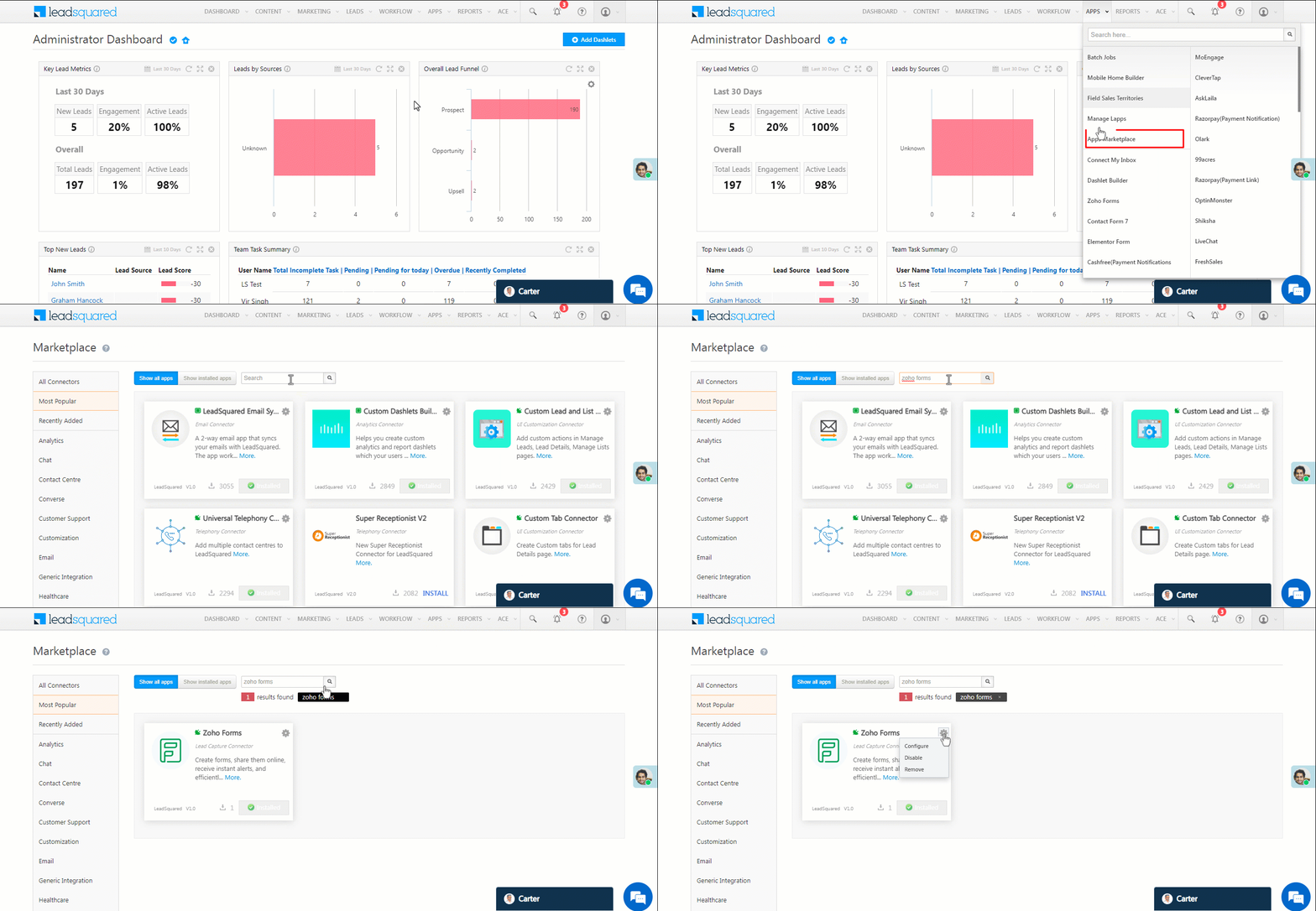
Note:

  • Based on the lead fields configured in your Wix form, and the use case you’re trying to solve, add or update the lead fields mapped in LeadSquared.

  • If you face an error when carrying out the field mapping, refer to How to Map Entity Options for Lead Capture.

LeadSquared - Wix forms edit mapping


6.3 Generate Lead Transfer

You can push data from Wix Forms to LeadSquared by either one of the following –

  • Generating a webhook URL to automate data transfer.
  • Including a piece of code in your website to initiate data transfer.

Generate Webhook URL 

After you provide basic details and finish field mapping, a custom webhook URL is generated. To automate lead capture, copy this URL and set it up on your Wix Forms account. To know more, refer to Wix Automations.

After you’ve set up the webhook, click More Actions, and enable the sync job. This ensures lead data from Wix Forms will be pushed to LeadSquared using the webhook.

LeadSquared - Wix forms enable sync

Data Transfer Code 

Add this code while publishing your website to push data from Wix Forms to LeadSquared –

export function wixForms1_wixFormSubmitted(data) {

    // This function was added from the Properties & Events panel. To learn more, visit http://wix.to/UcBnC-4

    // Add your code for this event here:

    var fields = data.fields;

    var json_data= {};

    fields.forEach(field_val => {

        json_data[field_val.fieldName] = field_val.fieldValue;

    });

    console.log(data);

    var xhttp = new XMLHttpRequest();

    xhttp.onreadystatechange = function() {

         if (this.readyState == 4 && this.status == 200) {

             console.log(this.responseText);

         }

    };

    xhttp.open("POST", "https://example.com"true);

    xhttp.setRequestHeader("Content-type", "application/json");

    xhttp.send(JSON.stringify(json_data));


}

Note: The event included in the code (wixFormSubmitted in the example above) may differ depending on each form’s trigger. For more details, refer to Getting Started with Velo.


7. View Logs

Here, you can view logs of all the sync jobs that have taken place. View New Events (New Leads), Updated Events (Updated Leads), and Errors (when capturing leads).

  1. Navigate to Apps>Wix Forms.
  2. Click the More Actions dropdown and select View Logs.
  3. You can filter the logs by selecting a date range (Today, Last 7 Days, This Month, and Last Month), by selecting the Job Status (“All”, “Success” and “Failure”), and by selecting the Sync Status (All, Error, and Success).
  4. You can view the sync status of the following events –
    • New Events – List of all the new leads that have been created in LeadSquared during the selected date range.
    • Updated Events – A list of all the –
      • Duplicate leads that were created with the same Search by Criteria value (e.g., with the same Email Id, Mobile Number, etc.).
      • Leads that previously contained errors, which were fixed and synced successfully.
    • Failed – The list of leads that have not been captured due to mapping errors (e.g., when a boolean field is mapped to an integer field, etc.).
  5. To view the Sync Response details, under Request ID/Sync Job ID, click the Id.
    • Under the right panel, you can view the response status, the API URL, the request, and the response.
    • The responses that are successful will contain the details of the leads that have been pushed from Wix Forms.
    • To view the lead capture response under Sync API Response, Leads Updated and Errors in Leads, click Information.

Note:

  • For a response that contains an error, the reason for the error is listed in the response. Once you fix it, you can click the Retry button to perform the sync again.
  • The current Lead Sync Behaviour will reflect in the Logs screen. This will help identify the sync that’s used (Capture or Update) for the selected Request/Sync Job Id.

LeadSquared - Wix forms view logs


8. Other Actions

You can edit or delete the Wix Forms connector instance that you created. To do this –

  1. Navigate to Apps>Apps Marketplace and click the Wix Forms connector.
  2. On the Wix Forms connector page, click Settings.
  3. From the list of options, you can perform the following actions –
    • Add or edit Configurations
    • Disable the connector
    • Remove the connector

LeadSquared - Wix forms other actoins


9. View Reports

You can view the total number of leads that have been pushed by Wix Forms, by referring to the Lead Source report. To know more, please refer to How to track the source of your Leads using Lead Source Report?


Any Questions?

Did you find this article helpful? Please let us know any feedback you may have in the comments section below. We’d love to hear from you and help you out!

LeadSquared Lead Sync Connector

1. Feature Overview

This connector syncs leads and activities between two LeadSquared accounts. In instances where your business uses two LeadSquared accounts to store leads, this connector will sync leads from account 1 to account 2, and vice versa. For example –

  • In the healthcare industry, when you store lead data in one LeadSquared account, and patient data (a lead that’s converted into a paying customer) in a different LeadSquared account.
  • In the real estate industry, when you store all the available properties’ data in one account, and all the sold properties’ data in a different account.


2. Prerequisites

  • You must be the Administrator of your LeadSquared account to install and configure this connector.
  • This is a paid feature. To enable it, reach out to your account manager, or write to support@leadsquared.com.
  • Developer knowledge is required to configure this connector.
  • The Webhooks User Automation Action must be enabled on the alternate LeadSquared account from which you want to capture and sync leads.


3. How it Works

This connector requires actions on both the LeadSquared accounts. For simplicity, we’ll refer to the account to which you want to sync leads as the destination account, and the account from which you’re pushing leads as the source account.

The following actions need to be carried out on the destination account

  1. Install and configure the LeadSquared Lead Sync connector.
  2. Once configured, enable the connector sync.
  3. During configuration, a webhook URL is generated in the destination account. Copy this URL and configure it in your source account.

To enable the lead sync process in your LeadSquared source account, you must use the webhook URL generated to set up an automation using a New Lead or Lead Update trigger. Once the automation is published, every time a lead is created or updated, the automation triggers and pushes leads from the source account to the destination account.


4. Installation

These actions need to be carried out on the destination account.

  1. Navigate to Apps>Apps Marketplace.
  2. Search for LeadSquared Lead Sync, and click Install.
    • Alternatively, you can find the connector on the left panel, under Lead Capture.
  3. Once installed, hover your cursor over , and click Configure.

Lead Sync Connector


5. Configuration

These actions also need to be carried out on the destination account.

On the Configure LeadSquared Lead Sync pop-up, configure the connector access for the non-Admin users in your account. Only those users for whom access is granted can view and access the connector (under the Apps main menu).

  1. Select if you want to grant Connector Access that’s Based on Role or Advanced (User Level).
    • Based on Role – From the Specify Roles dropdown, select the LeadSquared user roles that can use the connector.
    • Advanced (User Level) – From the Advanced (User Level) dropdown, select a user boolean field. Based on the value entered in the selected boolean field, the user can access the connector (e.g., for the user Sam, if the “Is Employee” boolean user field contains the value “Yes”, then this user can access the connector).
  2. Once you’re done, click Save Details. To continue the configuration, refer to the below sections.
Note: By default, all Admin users will have access to the connector.
Lead Sync Connector


6. Admin Configuration

These actions also need to be carried out on the destination account.

To continue the connector configuration, navigate to Apps>LeadSquared Lead Sync.

Lead Sync Connector

6.1 Basic Settings

Enter the following details –

Property Description
Lead Source Enter the lead source through which the leads were captured (e.g., LeadSquared 2nd Account, etc.). This detail will be displayed on the Lead Details page, under Lead Source.
Default Country Code If the lead’s mobile number is captured without a country code, then the default country code that’s selected from the dropdown will be added to the lead’s mobile number.
Select Time Zone The time zone followed in your other LeadSquared account.
Lead Capture Search By Criteria To avoid creating duplicate leads in your account, you must select one unique lead field (e.g., email Id, mobile number, PAN number, etc.) as the search key. This is used to identify the leads pushed from the other LeadSquared account.

To know how to mark a LeadSquared lead field as unique, please refer to How to Make a Custom Field Unique.

Lead Capture Secondary Search By Criteria If lead identification and capture through the primary Search By criteria fails, it will be re-attempted using the secondary Search By criteria.
Select User to Notify on Failure If there is an error identifying and capturing leads who made the payment, the selected user will receive a failure message via email. You can select a user from the list of all the users available in your LeadSquared account.

To know more about the type of errors, please refer to Error Notifications.

Enable Notification Enable the Checkbox checkbox to ensure notification emails are sent to the selected user when there’s a failed query.

Once you’re done entering all the details, click Save & Next.

Lead Sync Connector


6.2 Entity Options

Define the sync behavior of the connector when leads and activities are captured.

6.2.1 Lead/Contact Entity

Based on the Lead Capture Search By criteria (email Id, phone number, etc.), LeadSquared identifies and captures leads from your alternative LeadSquared account. Lead capture is enabled by default, and it cannot be disabled.  The following options are available to configure the connector’s Sync Behaviour –

  • Capture (Create and Update existing) Record – Leads that do not exist in your LeadSquared account will get created. Leads that currently exist in your LeadSquared account will get updated.
  • Create only new record – Leads that do not exist in your LeadSquared account will get created.
  • Update only existing record – Leads that currently exist in your LeadSquared account will get updated.
  • Do Nothing – When a lead is created or updated in your alternative LeadSquared account, no action will be performed in this account.

Note: A lead is classified as a new lead or an existing lead based on the Lead Capture Search By Criteria you’ve selected in the previous section.

Lead Sync Connector

Edit Mapping

Once you configure the Sync Behaviour, you’ll have to ensure the field mapping is accurate. To do this, click Edit Mapping. On the Default/Edit Mapping screen, the default LeadSquared fields mapped from the alternative account to the present account are visible. If required, you can change or update the default field mapping.

  • To provide a default value for any field, click  , enter the value under Default Value, and click Google.
    • If the alternative LeadSquared account doesn’t send data for any lead field, then the default value will get assigned to that specific field. But if the field already has an existing value, then the default value will be ignored.
  • To disable lead data capture for any field, disable the Zoom slider.
  • To mark a unique lead field as the search key, click Mark Unique.
  • To create a custom lead field, click the Add Custom button.
    1. Once this field is created, you must map it to the relevant lead field.
    2. After the field is mapped, to save the custom field, click Google.
    3. To delete a custom field, click .

Lead Sync Connector


6.2.2 Activity Entity

To post activities on leads, against Activity Entity, enable the Slider slider. The following options are available to configure the connector’s Sync Behaviour when activities are posted in LeadSquared –

  • Capture (Create and Update existing) Record – New activities will get posted against the lead in your primary LeadSquared account, while existing activities will get updated.
  • Create only new record – Only new activities will get posted to the leads in the primary LeadSquared account.
  • Update only existing record – Only existing activities on the leads will get updated in the primary LeadSquared account.

Note:

  • When Activity Entity is enabled, ensure the field mapping is accurate. To know more, refer to the previous section Edit Mapping.
  • An activity is classified as a new activity or an existing activity based on the Lead Capture Search By Criteria you’ve selected in the previous section.

Once you’re done, click Save & Next.

Lead Sync Connector


6.3 Webhook URL

After you provide basic details and finish field mapping, a custom webhook URL is generated. To automate lead and activity capture, copy this URL and use it to set up an automation on your alternative LeadSquared account. To know more, refer to User Automation Actions – Webhook.

After you’ve set up the webhook, click More Actions, and enable the sync job. This ensures leads from your alternative LeadSquared account are captured in this account.

Lead Sync Connector


7. Actions to Be Completed on the Source Account

These actions need to be carried out on the LeadSquared source account.

Once the webhook URL is generated in the destination account, copy the URL, and use it to create an automation on the source account, using the User Automation Actions – Webhook.

  1. On the LeadSquared account (2), navigate to Workflow>Automation.
  2. Create a automation using a New Lead or Lead Update trigger.*
  3. Click Add Automation, and under Actions, click Webhook.
  4. On the Webhook – PostWebhook pop-up, alongside URL, paste the Webhook URL generated in the previous section. Ensure you select the method as “https://”, and remember to remove the same from the URL when you’re pasting it.
  5. Once the URL is added, click Verify. Once it’s successfully verified, enter the other details. To know more, refer to User Automation Actions – Webhook.
  6. Once all the mandatory details are entered, click Save, and then click Publish. This will begin the lead sync process, and every time a lead is created/updated in this account, the lead will get pushed to your destination account.
*Note: For example, for the real-estate use case, you can use the lead update trigger to call the webhook when the lead stage updates from ‘opportunity won’ to ‘post purchase’. The webhook will fire and sync the lead from the source account (containing available properties) to the destination account (containing sold properties).

Lead Sync Connector


8. View Logs

On the destination account, you can view logs of all the sync jobs that have taken place. View New Events (New Leads), Updated Events (Updated Leads), and Errors (when capturing leads).

  1. Navigate to Apps>LeadSquared Lead Sync.
  2. From the More Actions dropdown, click View Logs.
  3. You can filter the logs by selecting a date range (Today, Last 7 Days, This Month, and Last Month), by selecting the Job Status (“All”, “Success” and “Failure”), and by selecting the Sync Status (All, Error, and Success).
  4. You can view the sync status of the following events –
    • New Events – A list of all the new leads that have been created in LeadSquared during the selected date range.
    • Updated Events – A list of all the –
      • Duplicate leads that were created with the same Search by Criteria value (e.g., with the same Email Id, Mobile Number, etc.).
      • Leads that previously contained errors, which were fixed and synced successfully.
    • Failed – The list of leads that have not been captured due to mapping errors (e.g., when a boolean field is mapped to an integer field, etc.).
  5. To view the Sync Response details, under Request ID/Sync Job ID, click the Id.
    • Under the right panel, you can view the response status, the API URL, the request, and the response.
    • The responses that are successful will contain the details of the leads that have been pushed from MoEngage.
    • To view the lead capture response under Sync API Response, Leads Updated and Errors in Leads, click Information.

Note:

  • For a response that contains an error, the reason for the error is listed in the response. Once you fix it, you can click the Retry button to perform the sync again.
  • The current Lead Sync Behaviour will reflect in the Logs screen. This will help identify the sync that’s used (Capture or Update) for the selected Request/Sync Job Id.

google forms view logs


9. Other Actions

You can edit or delete the LeadSquared Lead Sync connector –

  1. Navigate to Apps>App Marketplace, and search for LeadSquared Lead Sync.
  2. Alongside the LeadSquared Lead Sync connector, hover your cursor over .
  3. From the list of options, you can perform the following actions –
    • Edit Configuration
    • Disable Configuration
    • Remove Configuration

Lead Sync Connector


Any Questions?

Did you find this article helpful? Please let us know any feedback you may have in the comments section below. We’d love to hear from you and help you out!

How to Map Entity Options for Lead Capture

1. Feature Overview

In addition to the default lead capture connectors (99acres, Zendesk Chat, Google Forms, Zoom Webinars, etc.) listed on your account, you can also build your own custom connectors to capture leads and activities from other data sources.

This document will show you how to map the Entity Options on Lead Capture.

Note: To learn how to build a custom real-time and periodic sync connector, click here.


2. Prerequisites

  • You must be the Administrator of your LeadSquared account.
  • You must have developer experience. The custom connector requires API integration.
  • API to facilitate periodic lead sync from the third-party application to LeadSquared. The API must allow leads to be fetched by date range. The API must satisfy the following conditions –
    • Only REST APIs are supported.
    • Only GET and POST methods are supported.
    • The API must return data in JSON and form-data formats.
    • Authentication must be passed through the API (using the header or query string). Complex authentication methods such as OAuth are not supported.


3. Mapping Lead or Contact Entity

1. In the View Logs section of your connector, click on a Job Status and then click on the Information icon under Sync API Response. Click Copy This Snippet.

ULC copy logs

2. Paste your payload into JSON Path Finder. Copy the desired mapping key from the path location. For example, if the path is x.Current.Phone, the mapping key will be Current.Phone.

ULC pathfinder

3. Once you configure the Sync Behaviour, click Edit Mapping and click on the + Add Custom button.

ULC lead sync

4. Paste the mapping key into the Response Map field. Next, type in a Display Name, and map the field with a valid LeadSquared field from the Lead Field drop-down.

ULC lead mapping

5. Click on the Google icon under Actions, and click Save & Close to save your lead mapping.

ulc lead mapping save


4. Mapping Custom Actions Entity

1. In the View Logs section of your connector, click on a Job Status and then click on the Information icon under Sync API Response. Click Copy This Snippet.

ULC copy logs

2. Paste your payload into JSON Path Finder. Copy the desired mapping key from the path location. For example, if the path is x.Current.Phone, the mapping key will be Current.Phone.

ULC pathfinder

3. On LeadSquared, Alongside Call Custom Actions, enable Slider, and click Add Custom Action.

ULC add custom

4. Enter a Name and Description for the custom action, and click Save & Next.

ulc custom actions basic

5. In Param Mapping, click on the  + Add Custom button. Define the API Param based on the payload required to be posted in API. Enter the mapping key you copied into the Default Mapping Key field. The mapping key needs to be enclosed between 2 curly braces: {{Current.Phone}}.

Note: Select the Editable option if you would like to allow your users to edit the parameter details. To enhance performance, we recommend that you only edit the Mapping Key, and let all the other details remain as is.

ulc activity mapping 2

6. In Define API Schema, you can define the Body as { "Key": "{{API Param}}" }. For example, { "phone_number": "{{phone_number}}" }.

ulc custom actions body 1


5. Mapping Activities Entity

5.1 Mapping the activity entity when you are receiving data

1. In the View Logs section of your connector, click on a Job Status and then click on the Information icon under Sync API Response. Click Copy This Snippet.

ULC copy logs

2. Paste your payload into JSON Path Finder. Copy the desired mapping key from the path location. For example, if the path is x.Current.Phone, the mapping key will be Current.Phone.

ULC pathfinder

3. Once you configure the Sync Behaviour, click Edit Mapping.

ulc activity sync

4. Click on + Add Custom button. Paste the mapping key into the System Field and map the field with a valid LeadSquared field in LSQ Mapping. Choose the Data Type and click the Google icon. Click Save & Close to save the mapping.

ulc activity mapping 1

5.2 Mapping the activity entity when you send a sample request and receive a response through Custom Actions

Consider the following sample request and sample response –

Sample Request :

{

"phone_number" : "9987675643",

"country" : "India"

}

Sample Response:

{

"Message" : "Indian Number",

"Success" : "True"

}


1. First, copy the Action Key from a Custom Action mapping.

ulc activity action key

2. Append the value of a key from the sample response to the Action Key (ActionKey.status), and paste it into the System Field in activity mapping. For example, customActions.demo.Success.

Map the field with a valid LeadSquared field in LSQ Mapping and select the Data Type from the drop-down. click the Google icon.

ulc mapping acvity new

3. Click Save & Close to save the activity mapping.

ulc mapping activity save new


6. Map Payload of form-data Type

In addition to mapping data transferred in the JSON format between LeadSquared and your data provider, you can also map data transferred in the form-data format. This can be done from the Entity Options tab, similar to how you would map fields through the Edit Mapping action.

Listed below are some examples of key-value pairs, and how to map them –

  • Single key-value pair – When there’s a single key-value pair, pass the key as the Mapping Key. In the example listed below, where the key-value pair is “submissionID”:”5819011515519341517″, use “submissionID” as the MappingKey.

LeadSquared Custom Data Source

  • Nested key-value pair – When there’s a nested key-value pair, pass the key as the Mapping Key, with a ‘rawRequest.’ prefixing the key. In the example listed below, where the key-value pair is “q22_emaillead”:”testeefd@kdfdf.cok”, pass “rawRequest.q22_emaillead” as the MappingKey.

LeadSquared Custom Lead Source

  • Double Nested key-value pair – When there are two layers of a nested key-value pair, pass both the keys as the Mapping Key, with a ‘rawRequest.’ prefixing the key. In the example listed below, where the key-value pair is “q16_mobilelead”:{“full”:”+91-984-xxx-3882″}, pass “rawRequest.q16_mobilelead.full” as the MappingKey.

LeadSquared Custom Lead Source


Any Questions?

Did you find this article helpful? Please let us know any feedback you may have in the comments section below. We’d love to hear from you and help you out!

Integrate Zoho Forms with LeadSquared

1. Feature Overview

This connector captures leads from your Zoho Forms account to LeadSquared. You can configure the connector to capture leads in real-time from your Zoho Forms account. Once the leads are captured, you can leverage LeadSquared’s CRM features to nurture and convert your leads.


2. Prerequisites

  • You must be the Administrator of your LeadSquared account.
  • You must have an active Zoho Forms account.
  • This is a paid feature. To enable it, reach out to your account manager, or write to support@leadsquared.com.


3. How it Works

To push lead data from Zoho Forms to your LeadSquared account, configure the Zoho Forms connector instance. Once configured, enable the connector sync.

During configuration, a webhook URL is generated in LeadSquared. Copy this URL and configure it in your Zoho Forms account. Once configured, the lead capture process is initiated.


4. Installation

You must first install and configure the Zoho Forms connector.

  1. Navigate to Apps>Apps Marketplace.
  2. Search for Zoho Forms, and click Install.
    • Alternatively, you can find the connector on the left panel, under Lead Capture.
  3. Once installed, hover your cursor over , and click Configure.

Zoho Forms install

4.1 Configure the connector

Once you’ve installed the connector, on the Configure Zoho Forms pop-up, configure the connector access for the non-Admin users in your account. Only those users for whom access is granted can view and access the connector (under the Apps main menu).

  1. Select if you want to grant Connector Access that’s Based on Role or Advanced (User Level).
    • Based on Role – From the Specify Roles dropdown, select the LeadSquared user roles that can use the connector.
    • Advanced (User Level) – From the Advanced (User Level) dropdown, select a user boolean field. Based on the value entered in the selected boolean field, the user can access the connector (e.g., for the user Sam, if the “Is Employee” boolean user field contains the value “Yes”, then this user can access the connector).
  2. Once you’re done, click Save Details. To continue the configuration, refer to the below sections.
Note: By default, all Admin users will have access to the connector.
Zoho forms config


5. Admin Configuration

To continue the connector configuration, navigate to Apps>Zoho Forms.

zoho forms admin config

5.1 Basic Settings

Enter the following details –

Property Description
Lead Source Enter the lead source through which the leads were captured (e.g., Zoho Forms, email campaign, etc.). This detail will be displayed on the Lead Details page, under Lead Source.
Default Country Code If the lead’s mobile number is captured without a country code, the default country code that’s selected from the dropdown will be added to the lead’s mobile number.
Select Time Zone The time zone followed in your Zoho Forms account.
Lead Capture Search By Criteria To avoid duplicate leads, you must select one unique lead field (e.g., email Id, mobile number, PAN number, etc.) as the search key. This is used to identify the leads pushed from Zoho.

To know how to mark a LeadSquared lead field as unique, please refer to How to Make a Custom Field Unique.

Lead Capture Secondary Search By Criteria If lead identification and capture through the primary Search By criteria fails, it will be re-attempted using the secondary Search By criteria.
Select User to Notify on Failure If there is an error in fetching leads, the selected user will receive a failure message via email. You can select a user from the list of all the users available in your LeadSquared account.

To know more about the type of errors, please refer to Error Notifications.

Enable Notification To ensure notification emails are sent to the selected user when there’s a failed query, enable the Checkbox checkbox.

Once you’ve entered all the details, click Save & Next.

zoho forms basic settings


5.2 Entity Options

Define the sync behavior of the connector when leads are captured.

5.2.1 Lead/Contact Entity

Based on the Lead Capture Search By criteria (email Id, phone number, etc.), LeadSquared identifies and captures leads from your Zoho Forms account. Lead capture is enabled by default, and it cannot be disabled. The following options are available to configure the connector’s Sync Behaviour –

  • Capture (Create and Update existing) Record – Leads that only exist in your Zoho Forms account (but not in your LeadSquared account) will get created in LeadSquared. Leads that exist in both your data provider and LeadSquared accounts will get updated.
  • Create only new record – Leads that only exist in your Zoho Forms account (but not in your LeadSquared account) will get created in LeadSquared.
  • Update only existing record – Leads that exist in both your Zoho Forms account and LeadSquared accounts will get updated in LeadSquared.

zoho forms lead sync

5.2.2 Mapping

On the Mapping screen, the Zoho Forms system fields mapped to the corresponding LeadSquared lead fields are visible. This mapping is carried out by default. If required, you can change or update the default field mapping.

  • To provide a default value for any field, click  , enter the value under Default Value, and click Google.
    • If the data provider doesn’t send data for any lead field, then the default value will get assigned to that specific field. But if the field already has an existing value, then the default value will be ignored.
  • To disable lead data capture for any field, disable the Zoom slider.
  • You can also mark and update a unique lead field as the search key from this screen, by clicking unique icon.
  • To create a custom Zoho Forms field, click the Add Custom button.
    1. Once this field is created, you must map it to the relevant LeadSquared lead field.
    2. After the field is mapped, to save the custom field, click Google.
    3. To delete a custom field, click .

Once you’re done, click Save & Next.

Note:

  • Based on the lead fields configured in your Zoho Form, and the use case you’re trying to solve, add or update the lead fields mapped in LeadSquared.
  • If you face an error when carrying out the field mapping, refer to How to Map Entity Options for Lead Capture.

zoho forms lead mapping


5.3 Generate Webhook URL

After you provide basic details and finish field mapping, a custom webhook URL is generated. To automate lead capture, copy this URL and configure it on your Zoho Forms account.

After you’ve set up the webhook, click More Actions, and enable the sync job. This ensures that through the webhook, lead data from Zoho Forms is pushed to LeadSquared.

Note: To view logs of all the sync jobs that have taken place, from the More Actions dropdown, click View Logs.

zoho forms webhook


6. View Logs

Here, you can view logs of all the sync jobs that have taken place. View New Events (New Leads), Updated Events (Updated Leads), and Errors (when capturing leads).

  1. Navigate to Apps>Zoho Forms.
  2. From the More Actions dropdown, click View Logs.
  3. You can filter the logs by selecting a date range (Today, Last 7 Days, This Month, and Last Month), by selecting the Job Status (“All”, “Success” and “Failure”), and by selecting the Sync Status (All, Error, and Success).
  4. You can view the sync status of the following events –
    • New Events – List of all the new leads that have been created in LeadSquared during the selected date range.
    • Updated Events – A list of all the –
      • Duplicate leads that were created with the same Search by Criteria value (e.g., with the same Email Id, Mobile Number, etc.).
      • Leads that previously contained errors, which were fixed and synced successfully.
    • Failed – The list of leads that have not been captured due to mapping errors (e.g., when a boolean field is mapped to an integer field, etc.).
  5. To view the Sync Response details, under Request ID/Sync Job ID, click the Id.
    • Under the right panel, you can view the response status, the API URL, the request, and the response.
    • The responses that are successful will contain the details of the leads that have been pushed from Zoho Forms.
    • To view the lead capture response under Sync API Response, Leads Updated and Errors in Leads, click Information.

Note:

  • For a response that contains an error, the reason for the error is listed in the response. Once you fix it, you can click the Retry button to perform the sync again.
  • The current Lead Sync Behaviour will reflect in the Logs screen. This will help identify the sync that’s used (Capture or Update) for the selected Request/Sync Job Id.

google forms view logs


7. Other Actions

You can edit or delete the Zoho Forms connector instance that you created. To do this –

  1. Navigate to Apps>App Marketplace.
  2. Search for Zoho Forms.
  3. Alongside the Zoho Forms connector, hover your cursor over .
  4. From the list of options, you can perform the following actions –
    • Edit Configuration
    • Disable Configuration
    • Remove Configuration

zoho forms other actions


8. View Reports

You can view the total number of leads that have been pushed by Zoho Forms, by referring to the Lead Source report. To know more, please refer to How to track the source of your Leads using Lead Source Report?

Integrate LeadSquared with Google Forms


Any Questions?

Did you find this article helpful? Please let us know any feedback you may have in the comments section below. We’d love to hear from you and help you out!

Features Supported on the LeadSquared Android and iOS Apps

1. Feature Overview

The majority of LeadSquared features are available across the web and mobile apps. This article lists all the features supported on the Android and iOS apps.

Note: While most of the features are supported on both platforms, there are a few exceptions (e.g., due to app/play store compliance requirements, etc.).


2. Prerequisite

You must be running the latest versions of the mobile app –


3. Login

Feature Android iOS
Log in to the LeadSquared app using the email Id and password used when signing up with LeadSquared. green tick icon green tick icon
Sign in to the app using your Google credentials.

Your Gmail Id and the email Id registered on LeadSquared must be the same to use this feature. To know more, see LeadSquared Security Settings – Authentication Provider.

green tick icon green tick icon
Sign in to the app using your Azure AD credentials. To know more, see Integrating Azure AD with LeadSquared. green tick icon green tick icon
Sign in to the app using your Okta credentials. To know more, see LeadSquared Security Settings – Authentication Provider. green tick icon green tick icon
Support for new user registration and sign-up directly from the mobile app. green tick icon red cross
Reset a forgotten password. To know more, see What to Do If You Forgot Password?. green tick icon green tick icon
Login using two-factor authentication through SMS, Email or Google Authenticator.  To know more, see LeadSquared Security Settings – Two-factor Authentication. green tick icon green tick icon
Users can set their passwords directly from the mobile app. To know more, see Configure Passwords on Mobile. green tick icon green tick icon
After user registration, when users log in to the mobile app for the first time, they’ll receive an OTP for verification. Once verified, users can set the password for their LeadSquared account. To know more, see Configure Passwords on Mobile green tick icon green tick icon


4. Logout

Feature Android iOS
Support for users to log out from the LeadSquared app. green tick icon green tick icon
Support for users to check out and log out from the app. green tick icon green tick icon
Users on static tokens will be auto logged out in case of deactivated account, deactivated user, password change, suspended account, and expired account. green tick icon green tick icon
Users on dynamic tokens will be auto logged out in case of expired session, force logout, deactivated account, deactivated user, password change, suspended account, and expired account. green tick icon green tick icon


5. Check-in and Check-out

Feature Android  iOS
Check-in/check-out without location tracking green tick icon green tick icon
Check-in/check-out with location tracking green tick icon green tick icon
Location restrictions based on –

  • Latitude, longitude and radius.
  • Zipcode.
green tick icon green tick icon
Check-in/check-out based on time –

  • After a fixed time.
  • Before a fixed time.
  • After a fixed duration.
green tick icon green tick icon
Work area check-in/check-out validation. green tick icon green tick icon
Work area field value validation. green tick icon green tick icon
Auto check-in/check-out. green tick icon green tick icon
Offline check-in/check-out. red cross red cross


6. Leads

Feature Android iOS
Access to view all leads and starred leads in your LeadSquared account. green tick icon green tick icon
Access to perform the lead search action (Partial Search, Strict Search, etc.) on the Leads screen. green tick icon green tick icon
Allows you to sort all leads based on  lead fields. green tick icon green tick icon
Allows you to filter leads based on the last update, Lead Stage, Lead Source, Lead Owner, and Activities. green tick icon green tick icon
Add New Lead button allows you to Quick Add leads in your account using default or dynamic forms green tick icon green tick icon
Support to perform default Call and Message actions when the lead card is swiped left or right. green tick icon green tick icon
Support to Add Task when the lead card is swiped left or right. red cross green tick icon
Support to perform customised left and right swipe actions. To know more about customising swipe actions, see Mobile App Additional Settings. green tick icon green tick icon
Support for lead card customization. To know more, see How to Customize the Lead Card on Mobile? green tick icon green tick icon
Support for the actions that can be performed when a single lead is selected (e.g., Call, Share, Add Activity, Post Note, Assign Owner, Send SMS, Email, Add Task, Add Tags, Delete, and Customs Actions). green tick icon green tick icon
Support for the actions that can be performed when multiple leads are selected (e.g., Assign Owner, Send SMS, Add Tag, Change Lead Stage). green tick icon green tick icon
Support for recording and tracking lead calls and SMS. green tick icon red cross
Lead details pop-up while making a lead call. green tick icon red cross
Unknown lead pop-up during calls. green tick icon red cross
Support for lead cloud call green tick icon green tick icon
Support for leads offline. green tick icon red cross


7. Lead Details

Feature Android iOS
Support to edit leads on the Lead Details page. green tick icon green tick icon
View About, Activity History, Opportunities, Social Profile, Task and Custom tabs. green tick icon green tick icon
Use the Notes tab to –

  • Add notes with/without attachments.
  • Edit notes with/without attachments.
  • Disable Lead Notes.
  • Enter voice inputs. 
  • Delete notes.
  • Download and view attachments.
green tick icon green tick icon
Use the Documents tab to –

  • Attach files to lead Activities and Notes.
  • Create and attach files to custom field set in Lead Details and Activities. 
  • Download and view attachments.
green tick icon green tick icon
On the bottom of the Lead Details page, you can –

  • Add task.
  • Add opportunity.
  • Add activities.
  • Add notes.
  • Share lead.
  • Update lead location.
  • Perform custom actions.
green tick icon green tick icon
Contact cards can be used to –

  • Update lead Stage.
  • Contact leads through Call, Cloud call, SMS, WhatsApp, WhatsApp Business.
  • Email Leads
  • Find the location of the leads.
  • Star/unstar leads.
green tick icon green tick icon
The sections in Lead Details page is used to –

  • View the lead metrics.
  • View the key lead details.
  • View the custom sections configured on the web app.
  • View the lead tags.
green tick icon green tick icon
Support for custom options in Lead List filter. green tick icon green tick icon


8. Opportunities

Feature Android iOS
View list of opportunities on the app. green tick icon green tick icon
View default cards. green tick icon green tick icon
Support to perform card customization for opportunities. green tick icon green tick icon
Perform default card swipe actions (add activity, add task). green tick icon green tick icon
Perform call action by swiping on the opportunity default card. red cross green tick icon
Perform customizable card swipe action (call, message, add acticity, add task). green tick icon green tick icon
Support for the actions that can be performed when a single opportunity is selected (call, change status, change owner, message, email) green tick icon green tick icon
Support for the actions that can be performed when multiple opportunities are selected (change status, change owner, SMS, email, custom actions configured through connectors). green tick icon green tick icon
Add Opportunities button allows you to Quick Add opportunities in your account using default or dynamic forms green tick icon green tick icon
Support to search for opportunities using their details in the Opportunities List page. green tick icon green tick icon
Allows you to sort and filter your opportunities based on

  • Owner.
  • Status.
  • Stage.
  • Product.
  • Date range.
  • Lead stage.
  • Sales group.
green tick icon green tick icon


9. Opportunity Details

Feature Android iOS
View tabs with the opportunities’ Details, Activity History, Tasks, Notes, Documents. Also view custom tabs on this page. green tick icon green tick icon
Support to edit an opportunity. green tick icon green tick icon
Perform the following actions on the bottom sheet of the page –

  • Add task.
  • Add activity.
  • Call.
  • Add notes.
  • Directions.
  • Email.
  • Message.
  • Any custom action.
green tick icon green tick icon
Edit the status of the opportunity. green tick icon green tick icon
Support to change owner and delete opportunity. green tick icon green tick icon
Support to perform long tap actions on the opportunity tab under lead details  (Edit, Add Activity, Add Task, Delete). green tick icon green tick icon
Support to perform card swipe actions on the Opportunities page (Add Task, Add Activity). red cross green tick icon
View opportunities offline red cross red cross
Record outbound call activities in opportunity cloud calling. green tick icon green tick icon
Record inbound call activities in opportunity cloud calling. green tick icon red cross


10. Accounts

Feature Android iOS
Support to view accounts type lists on the app. green tick icon green tick icon
Allow default view of account cards. green tick icon green tick icon
Perform swipe actions on the account card (Add activity, Assign lead). green tick icon green tick icon
Support for the actions that can be performed when a single account is selected (Edit, Change Owner, Change Stage, Delete). green tick icon green tick icon
Support for the actions that can be performed when multiple accounts are selected (Change Owner, Change Stage). green tick icon green tick icon
Perform default, strict and partial search on accounts. green tick icon green tick icon
Support to sort and filter accounts based on Stage, Owner and Date Range. green tick icon green tick icon
Add Account button allows you to Quick Add opportunities in your account using default forms. green tick icon green tick icon


11. Account Details

Feature Android iOS
View tabs with the account’s Details, Activity History, Leads, and Sales Activity. Also view custom tabs on this page. green tick icon green tick icon
Support to edit accounts. green tick icon green tick icon
Support to change owner and delete the account. green tick icon green tick icon
Support to perform the following actions on the bottom sheet of the page –

  • Add Task.
  • Add Activity.
  • Add Lead.
  • Assign Lead.
  • Add Sales Activity.
  • Change Stage.
green tick icon green tick icon
Support to view accounts offline. red cross red cross


12. Activities

12.1 Activity List

Feature Android iOS
Support to view My Activities and All Activities on the Activity tab. green tick icon green tick icon
Support to select specific activity types. green tick icon green tick icon
Support to view default activity cards (Lead Activity Cards, Opportunity Activity Cards). green tick icon green tick icon
Support for the actions that can be performed when a single activity card is selected (Call, Email, Send SMS, Assign Owner, Change Status, Cancel/Delete). green tick icon green tick icon
Support to perform Assign Owner and Change Status actions when multiple activity cards are selected. green tick icon green tick icon
Support to message leads when multiple activity cards are selected.  red cross green tick icon
Support to search for specific activities. green tick icon green tick icon
Support to filter activities based on –

  • Lead Stage.
  • Status.
  • Lead Owner.
  • Product (only for sales activities).
  • Date Range.
green tick icon green tick icon
Add Activity button allows you to Quick Add activities in your account using default or dynamic forms. green tick icon green tick icon


12.2 Settings for Add Activity

Feature Android  iOS
Support to hide default activity form. green tick icon green tick icon
Support to show both default and dynamic activities forms together. green tick icon green tick icon
Support to hide the default activity form if a dynamic activity form is created with the same activity type. green tick icon green tick icon


12.3 Activity Types

Feature Android  iOS
Support for the following activity types –

  • System activities.
  • Custom activities.
  • Sales activities.
  • Accounts activities (this activity is account specific).
  • Activity Audio Recording through default forms.
  • Cloud Call Activities for inbound/outbound calls.
green tick icon green tick icon
Support for the following activity types –

  • Call tracking activities (with/without recording).
  • SMS tracking activities.
  • Inbound cloud call activities.
green tick icon red cross


13. Activity Details

Feature Android  iOS
View tabs with Activity Details and Attachments. green tick icon green tick icon
Support to view cards list in the lead, account and opportunity type Activity History tab. green tick icon green tick icon
Support to perform Edit and Delete card long tap actions. green tick icon green tick icon
Filter leads by activity type. green tick icon green tick icon
Support to edit activities. green tick icon green tick icon
Support to delete or cancel activities. green tick icon red cross
Support to view Lead/Opportunity Details vCard red cross green tick icon
Support to perform Call and Email actions on the bottom sheet of the page green tick icon red cross
Support to identify and view Activity Location. green tick icon green tick icon
Support to view and add Activities offline. green tick icon red cross
Support for Call tracking activities with/without recording. green tick icon red cross
Support for SMS tracking activities. green tick icon red cross
View the following in the Lead Activity History tab –

  • List of lead cards.
  • Card long tap actions – edit and delete.
  • Activity type filter.
green tick icon green tick icon
View the following in the Opportunity Activity History tab –

  • List of lead cards.
  • Activity type filter.
green tick icon green tick icon
View the following in the Accounts Activity History tab –

  • List of lead cards.
  • Activity type filter.
green tick icon green tick icon
Perform Activity geofencing green tick icon green tick icon
Support for Hide Browsed File setting. green tick icon green tick icon


14. Tasks

Feature Android iOS
Support for Pending, Overdue, Completed and Cancelled task cards. green tick icon green tick icon
Support to use a navigator and select the range of the tasks (days, weeks, or months). green tick icon green tick icon
Show Complete and Cancelled task buttons. green tick icon green tick icon
Sort and filter tasks by –

  • Distance.
  • Due date.
  • Priority.
  • Task types.
  • Status.
green tick icon green tick icon
Show tasks in calendar view. green tick icon red cross
Add Task button allows you to Quick Add tasks in your account using default or dynamic forms. You can also –

  • Use Location field google search ability.
  • Map Lead location to task.
green tick icon green tick icon
Support to create follow up task action. red cross green tick icon
Complete task action icon on task cards. green tick icon green tick icon
Support for colour coded task cards. green tick icon green tick icon
Support for these card swipe actions on Pending Tasks –

  • Edit.
  • Delete.
  • Cancel.
  • Call.
  • SMS.
red cross green tick icon
Support for these card swipe actions on Overdue Tasks –

  • Edit.
  • Delete.
  • Call.
  • SMS.
red cross green tick icon
Support for these card swipe actions on Completed Tasks –

  • Edit.
  • Delete.
  • Open.
  • Call.
  • SMS.
red cross green tick icon
Support for these card swipe actions on Cancelled Tasks –

  • Delete.
  • Call.
  • SMS.
red cross green tick icon
Support for these card long tap actions on Pending Tasks –

  • Edit.
  • Delete.
  • Cancel.
green tick icon red cross
Support for these card long tap actions on Overdue Tasks –

  • Edit.
  • Delete.
green tick icon red cross
Support for these card long tap actions on Overdue Tasks –

  • Edit.
  • Delete.
  • Open.
green tick icon red cross
Support for Delete card long tap actions on Cancelled Tasks. green tick icon red cross


15. Task Details

Feature Android iOS
Lead or Opportunity vCard on Task Details page green tick icon green tick icon
Support to edit tasks. green tick icon green tick icon
Mark Completete button. green tick icon green tick icon
View Lead and Opportunity Details on the task tab. green tick icon green tick icon
Support for geofencing task completion. green tick icon green tick icon
Support for Task-Activity association flow. green tick icon green tick icon
View recurring tasks. green tick icon green tick icon
Add and view tasks offline. green tick icon red cross


16. Lead Smart Views

Feature Android iOS
Sort and filter your lead smart views based on –

  • Lead stage.
  • Lead source.
  • Owner.
  • Last updated.
  • Custom Options created via tenant setting.
green tick icon green tick icon
Support to search your Smart Views. green tick icon green tick icon
Add Lead button on Smart Views page to Quick Adds leads using default or dynamic forms. green tick icon green tick icon
Support to perform default Call and Message actions when the lead card is swiped left or right. green tick icon green tick icon
Support to Add Task when the lead card is swiped left or right. red cross green tick icon
Support for the actions that can be performed when a single lead is selected (Call, Share, Add Activity, Post Note, Assign Owner, Send SMS, Email, Add Task, Add Tags, Delete, and Customs Actions). green tick icon green tick icon
Support for the actions that can be performed when multiple leads are selected (Assign Owner, Send SMS, Add Tag, Change Lead Stage). green tick icon green tick icon
View lead Smart Views offline green tick icon red cross
Custom Smart Views green tick icon green tick icon


17. Opportunity Smart Views

Feature Android  iOS
Sort and filter leads based on –

  • Custom Options.
  • Owner.
  • Status.
  • Stage.
  • Product.
  • Date Range.
  • Lead Stage.
  • Sales group.
green tick icon green tick icon
Support to search your Smart Views. green tick icon green tick icon
Add Opportunity button on Smart Views page to Quick Adds opportunities using default or dynamic forms. green tick icon green tick icon
Perform default card swipe actions (add activity, add task). green tick icon green tick icon
Perform call action by swiping on the opportunity card. red cross green tick icon
Perform customizable card swipe action (call, message, add acticity, add task). green tick icon green tick icon
Support for the actions that can be performed when a single opportunity is selected (call, change status, change owner, message, email) green tick icon green tick icon
Support for the actions that can be performed when multiple opportunities are selected (change status, change owner, SMS, email, custom actions configured through connectors). green tick icon green tick icon
View opportunities Smart Views offline. red cross red cross


18. Account Smart Views

Feature Android  iOS
Filter leads based on –

  • Account stage.
  • Account owner.
  • Date range.
green tick icon green tick icon
Support to search your Smart Views. green tick icon green tick icon
Add Account button on Smart Views page to Quick Adds accounts using default or dynamic forms. green tick icon green tick icon
Perform swipe actions on the account card (Add activity, Assign lead). green tick icon green tick icon
Support for the actions that can be performed when a single account is selected (Edit, Change Owner, Change Stage, Delete). green tick icon green tick icon
Support for the actions that can be performed when multiple accounts are selected (Change Owner, Change Stage). green tick icon green tick icon
View account Smart Views offline. red cross red cross


19. Activity Smart Views

Feature Android iOS
Filter activities. red cross red cross
Support to search your Smart Views. green tick icon green tick icon
Add Activity button on Smart Views page to Quick Adds activities using default or dynamic forms. green tick icon green tick icon
Support to view default activity cards (Lead Activity Cards, Opportunity Activity Cards). green tick icon green tick icon
Support for the actions that can be performed when a single activity card is selected (Call, Email, Send SMS, Assign Owner, Change Status, Cancel/Delete). green tick icon green tick icon
Support to perform Assign Owner and Change Status actions when multiple activity cards are selected. green tick icon green tick icon
Support to message leads when multiple activity cards are selected.  red cross green tick icon
View activity Smart Views offline. green tick icon red cross


20. Task Smart Views

Feature Android  iOS
Filter your leads based on –

  • Lead stage.
  • Task owner.
  • Date range.
green tick icon green tick icon
Support to search your Smart Views. red cross red cross
Add Task button on Smart Views page to Quick Adds tasks using default or dynamic forms. green tick icon green tick icon
Support for these card swipe actions on Pending Tasks –

  • Edit.
  • Delete.
  • Cancel.
  • Call.
  • SMS.
red cross green tick icon
Support for these card swipe actions on Overdue Tasks –

  • Edit.
  • Delete.
  • Call.
  • SMS.
red cross green tick icon
Support for these card swipe actions on Completed Tasks –

  • Edit.
  • Delete.
  • Open.
  • Call.
  • SMS.
red cross green tick icon
Support for these card swipe actions on Cancelled Tasks –

  • Delete.
  • Call.
  • SMS.
red cross green tick icon
Support for these card long tap actions on Pending Tasks –

  • Edit.
  • Delete.
  • Cancel.
green tick icon red cross
Support for these card long tap actions on Overdue Tasks –

  • Edit.
  • Delete.
green tick icon red cross
Support for these card long tap actions on Overdue Tasks –

  • Edit.
  • Delete.
  • Open.
green tick icon red cross
Support for Delete card long tap actions on Cancelled Tasks. green tick icon red cross
View task Smart Views offline green tick icon red cross


21. Dashboards

Feature Android iOS
Non customizable default dashboard. green tick icon green tick icon
Support to create custom dashboards with web pages and reports. green tick icon green tick icon
Support for the following dashlets –

  • New lead added dashlet.
  • Pending task dashlet.
  • Overdue task dashlet.
green tick icon green tick icon
Customizable homepage –

  • Support for Task Counter widgets as a Speedometer, Fuel Bar or Numeric data.
  • Support for Task List widgets.
  • Support for Web views widgets.
  • Support for Launcher widgets.
  • Support for Banner widgets.
  • Support for Lead List widgets.
  • Support for Lead Shortcut widgets.
  • Support for team based homepage distribution.
green tick icon green tick icon
View Key Lead metrics or My Lead metrics. green tick icon green tick icon
Apply filters on your dashlets. green tick icon green tick icon
Support for a notification icon in the title bar. green tick icon green tick icon
Support for a Near Me icon in the title bar. green tick icon green tick icon
Offline dashboard. red cross red cross
Offline homepage. red cross red cross


22. Settings and Navigation

Feature Android  iOS
Customize side menu and bottom bar through tenant settings. green tick icon green tick icon
Add/change user profile picture. green tick icon red cross
View profile information. green tick icon green tick icon
Set app language. green tick icon green tick icon
Access battery usage settings. green tick icon green tick icon
Make calls and send SMS. green tick icon red cross
Receive notifications. green tick icon green tick icon
Use app offline. green tick icon red cross
Use SMS templates. green tick icon green tick icon
Set your homescreen green tick icon green tick icon
Sync your data. green tick icon red cross
Apply tags. green tick icon green tick icon
Apply for leaves. green tick icon green tick icon
Settings for Other Details. green tick icon red cross
Add or change the company logo. green tick icon green tick icon
Menu options for –

  • Leads.
  • Tasks.
  • Activities.
  • Accounts.
  • Opportunities.
  • Notifications.
  • Leads Near Me.
  • Reports.
  • Custom App.
  • Smart Views.
  • Dashboard.
  • Goals.
  • Pending recording.
  • Help and feedback.
green tick icon green tick icon
Menu options for –

  • Day plan.
  • Sync.
green tick icon red cross
Check-in/check-out button. green tick icon green tick icon
Mobile settings customization. green tick icon green tick icon


23. Notifications and Nudges

Feature Android iOS
Push Notifications configured via the old Notification connector. green tick icon green tick icon
Push notifications for Lead Created event with actions – Call and Add task. green tick icon green tick icon
Push notifications for Lead Assigned event with actions – Call and Add task. green tick icon green tick icon
Push notifications for Task Created event with actions – View Task. green tick icon green tick icon
Push notifications for Task Reminders with actions – Call and Add task. green tick icon green tick icon
Filter these options in push notifications screen within the app – 

  • Lead.
  • Task.
  • Show All.
green tick icon green tick icon
Filter these options in push notifications screen within the app – 

  • Shared Leads.
  • Task Summary.
green tick icon red cross
Delete option in the notification screen within the app green tick icon green tick icon
In other notifications not configured through a connector –

  • Display leads shared.
  • Auto check-in and auto check-out.
green tick icon green tick icon
Overdue task summary in local notifications. green tick icon green tick icon
Task completion reminder in local notifications. green tick icon green tick icon
Nudges connector. green tick icon green tick icon


24. Near Me

Feature Android iOS
 Leads Near Me. green tick icon green tick icon
Territory management. green tick icon green tick icon
Explore tenant settings. green tick icon green tick icon
Search. green tick icon green tick icon
Default and custom filter options. green tick icon green tick icon
Add lead. green tick icon green tick icon
Change location. green tick icon green tick icon
Pin view and cluster view. green tick icon green tick icon
‘Search this area’ option. green tick icon green tick icon
Offline Near Me features. red cross red cross


25. Reports

Feature Android iOS
View reports list. green tick icon green tick icon
Bookmark reports. green tick icon green tick icon
Remove bookmarked reports. green tick icon green tick icon
View custom built user-specific Location History Report. green tick icon green tick icon
View users’ real-time location reports. green tick icon green tick icon
View users’ location history reports. green tick icon green tick icon
View field sales activity tracker reports. green tick icon green tick icon


26. Mobile App Web Settings

Feature Android iOS 
Allow access, override settings and data on –

  • Offline Leads.
  • Offline Activities.
  • Offline Tasks.
  • Offline Smart Views.
green tick icon red cross
Track and record your calls. green tick icon red cross
Track your SMS. green tick icon red cross
Override call and SMS settings on your device. green tick icon red cross
Track your lead’s real time location. green tick icon green tick icon
Track location on lead up. green tick icon green tick icon
View navigation to the lead location on your device. green tick icon green tick icon
Customise lead and opportunity cards on your device. green tick icon green tick icon
Support for navigation on the device. green tick icon green tick icon


27. Mobile App Additional Settings

27.1 App Related

Feature Android iOS
Take screenshots while using the LeadSquared mobile app. green tick icon red cross
Enforce secure lock in your mobile app. green tick icon green tick icon
Enforce strict address look-up. green tick icon red cross
Hide the menu options on the mobile app. green tick icon green tick icon
Use Nudge connector. green tick icon green tick icon
Perform SFDC SSO Configuration. green tick icon green tick icon
View all items using an action in the side menu. green tick icon green tick icon
Apply check-in/check-out time and location restrictions green tick icon green tick icon


27.2 Attachments

Feature Android iOS
Compress your images. green tick icon green tick icon
Restrict file uploads on the mobile app. green tick icon green tick icon


27.3 Forms

Feature Android iOS
Activity Audio Recording. green tick icon green tick icon
Open i-frame link on Forms. green tick icon green tick icon
Perform OTP verification on Forms. green tick icon green tick icon
Perform geofencing. green tick icon green tick icon
Set ‘current location’ option in lead address section. green tick icon green tick icon
Perform text recognition. green tick icon green tick icon
Work area validation. green tick icon green tick icon


27.4 Gesture Actions

Feature Android iOS
Swipe left and right on lead cards. green tick icon green tick icon
Swipe left and right on opportunity cards. green tick icon green tick icon


27.5 Lead

Feature Android iOS
Hide lead age on the mobile app. green tick icon green tick icon


27.6 Near Me

Feature Android iOS
Explore Google Key. green tick icon green tick icon
Explore Keywords. green tick icon green tick icon
Explore Suggestive Search. green tick icon green tick icon
Apply custom filters on leads. green tick icon green tick icon
Switch to v2. green tick icon green tick icon


27.7 Search

Feature Android iOS
Perform partial search on leads. green tick icon green tick icon
Set your Search Preference. green tick icon green tick icon


28. Other Modules

Feature Android iOS
Access custom apps configured via connectors. green tick icon green tick icon
View Goals. green tick icon green tick icon
View Day Plans. green tick icon green tick icon
Perform manual sync or auto sync (every 4-8 hours). green tick icon green tick icon
Enfore app lock. green tick icon green tick icon
Allow optional (scheduled) or forced (immediate) app updates. green tick icon green tick icon
Set Permission Templates for –

  • Lead.
  • Activity.
  • Task.
  • Opportunity.
  • Accounts.
  • Bulk Action Restrictions.
green tick icon green tick icon
Support for default or dynamic forms in mobile app to –

  • Import contacts.
  • Perform text recognition.
green tick icon green tick icon


29. Offline Features

29.1 Lead Details

Feature Android iOS
Edit leads through default forms. green tick icon red cross
View the following tabs on the Lead Details page –

  • About.
  • Activity History (if offline activity history is enabled).
  • Tasks (if offline tasks are enabled).
green tick icon red cross
Perform the following actions on the bottom sheet –

  • Add Task (if offline tasks are enabled).
  • Add Activity Add task (if offline activitiesare enabled).
  • Update lead location.
green tick icon red cross
View the following on the Contact Card –

  • Contact.
  • Star/Unstar.
  • Directions.
  • Update lead stage option.
green tick icon red cross
View the following sections on the Lead Details page –

  • Lead metrics section.
  • Key details section.
  • Custom sections (configured in default form from web).
  • Tags section.
green tick icon red cross


29.2 Lead List

Feature Android iOS
View leads offline (limit can be customised through Tenant setting). green tick icon red cross
Star/Unstar leads. green tick icon red cross
Add and edit leads through default forms. green tick icon red cross
Support for these actions that can be performed when a single lead is selected –

  • Call.
  • Add activity through default forms.
  • Assign owner.
  • Send SMS.
  • Add tasks through default forms.
green tick icon red cross
Support for these actions that can be performed when multiple leads are selected –

  • Assign owner.
  • Change stage.
  • Send SMS.
green tick icon red cross
Search for leads(only using email, first name and last name). green tick icon red cross
Apply lead filters. green tick icon red cross


Any Questions?

Did you find this article helpful? Please let us know any feedback you may have in the comments section below. We’d love to hear from you and help you out!

Integrate Contact Form 7 with LeadSquared

1. Feature Overview

This connector captures leads from Contact Form 7 (CF7) on your WordPress account to LeadSquared. You can configure the connector to capture leads in real-time from your WordPress Contact Form. Once the leads are captured, you can leverage LeadSquared’s CRM features to nurture and convert your leads.


2. Prerequisites

  • You must be the Administrator of your LeadSquared account.
  • You must have the Contact Form 7 plugin installed in your WordPress account.
  • You must have the CF7 to Webhook plugin installed in your WordPress account.
  • This is a paid feature. To enable it, reach out to your account manager, or write to support@leadsquared.com.


3. How it Works

To push lead data from your WordPress Contact Form to your LeadSquared account, configure the Contact Form 7 connector instance. Once configured, enable the connector sync.

During configuration, a webhook URL is generated in LeadSquared. Once you install the CF7 to Webhook plugin on WordPress, you can copy the LeadSquared Webhook URL and configure it in your WordPress account. Once configured, the lead capture process is initiated.


4. Installation

You must first install and configure the Contact Form 7 connector.

  1. Navigate to Apps>Apps Marketplace.
  2. Search for Contact Form 7, and click Install.
    • Alternatively, you can find the connector on the left panel, under Word Press.
  3. Once installed, hover your cursor over , and click Configure.

contact form 7 install

4.1 Configure the connector

Once you’ve installed the connector, on the Configure Contact Form 7 pop-up, configure the connector access for the non-Admin users in your account. Only those users for whom access is granted can view and access the connector (under the Apps main menu).

  1. Select if you want to grant Connector Access that’s Based on Role or Advanced (User Level).
    • Based on Role – From the Specify Roles dropdown, select the LeadSquared user roles that can use the connector.
    • Advanced (User Level) – From the Advanced (User Level) dropdown, select a user boolean field. Based on the value entered in the selected boolean field, the user can access the connector (e.g., for the user Sam, if the “Is Employee” boolean user field contains the value “Yes”, then this user can access the connector).
  2. Once you’re done, click Save Details. To continue the configuration, refer to the below sections.
Note: By default, all Admin users will have access to the connector.
contact form 7 config


5. Admin Configuration

To continue the connector configuration, navigate to Apps>Contact Form 7.

contact form 7 admin config

5.1 Basic Settings

Enter the following details –

Property Description
Lead Source Enter the lead source through which the leads were captured (e.g., Contact Form 7, email campaign, etc.). This detail will be displayed on the Lead Details page, under Lead Source.
Default Country Code If the lead’s mobile number is captured without a country code, the default country code that’s selected from the dropdown will be added to the lead’s mobile number.
Select Time Zone The time zone followed in your WordPress account.
Lead Capture Search By Criteria To avoid duplicate leads, you must select one unique lead field (e.g., email Id, mobile number, PAN number, etc.) as the search key. This is used to identify the leads pushed from Contact Form 7.

To know how to mark a LeadSquared lead field as unique, please refer to How to Make a Custom Field Unique.

Lead Capture Secondary Search By Criteria If lead identification and capture through the primary Search By criteria fails, it will be re-attempted using the secondary Search By criteria.
Select User to Notify on Failure If there is an error in fetching leads, the selected user will receive a failure message via email. You can select a user from the list of all the users available in your LeadSquared account.

To know more about the type of errors, please refer to Error Notifications.

Enable Notification To ensure notification emails are sent to the selected user when there’s a failed query, enable the Checkbox checkbox.

Once you’ve entered all the details, click Save & Next.

contact form 7 basic settings


5.2 Entity Options

Define the sync behavior of the connector when leads are captured.

5.2.1 Lead/Contact Entity

Based on the Lead Capture Search By criteria (email Id, phone number, etc.), LeadSquared identifies and captures leads from Contact Form 7. Lead capture is enabled by default, and it cannot be disabled. The following options are available to configure the connector’s Sync Behaviour –

  • Capture (Create and Update existing) Record – Leads that only exist in your WordPress account (but not in your LeadSquared account) will get created in LeadSquared. Leads that exist in both your data provider and LeadSquared accounts will get updated.
  • Create only new record – Leads that only exist in your WordPress account (but not in your LeadSquared account) will get created in LeadSquared.
  • Update only existing record – Leads that exist in both your WordPress account and LeadSquared accounts will get updated in LeadSquared.

contact form 7 lead sync

5.2.2 Mapping

On the Mapping screen, the Contact Form 7 system fields mapped to the corresponding LeadSquared lead fields are visible. This mapping is carried out by default. If required, you can change or update the default field mapping.

  • To provide a default value for any field, click  , enter the value under Default Value, and click Google.
    • If the data provider doesn’t send data for any lead field, then the default value will get assigned to that specific field. But if the field already has an existing value, then the default value will be ignored.
  • To disable lead data capture for any field, disable the Zoom slider.
  • You can also mark and update a unique lead field as the search key from this screen, by clicking unique icon.
  • To create a custom Contact Form 7 field, click the Add Custom button.
    1. Once this field is created, you must map it to the relevant LeadSquared lead field.
    2. After the field is mapped, to save the custom field, click Google.
    3. To delete a custom field, click .

Once you’re done, click Save & Next.

Note:

  • Based on the lead fields configured in your Contact Form 7, and the use case you’re trying to solve, add or update the lead fields mapped in LeadSquared.
  • If you face an error when carrying out the field mapping, refer to How to Map Entity Options for Lead Capture.

contact form 7 lead mapping


5.3 Generate Webhook URL

After you provide basic details and finish field mapping, a custom webhook URL is generated. To automate lead capture, copy this URL and configure it on your WordPress account. To know how to do this, refer to the next section.

After you’ve set up the webhook, click More Actions, and enable the sync job. This ensures that through the webhook, lead data from Contact Form 7 is pushed to LeadSquared.

Note: To view logs of all the sync jobs that have taken place, from the More Actions dropdown, click View Logs.

contact form 7 webhook


6. Add Webhook to WordPress Contact Form

Once the LeadSquared webhook is generated, add and configure this webhook on your WordPress Contact Form.

6.1 Install Contact Form 7 Plugin

Note: Contact Form 7 supports WordPress version 6.0 and higher.
  1. In your WordPress account, hover your mouse over the Plugins option and click on Add New.
  2. Type Contact Form 7 in the search box.
  3. Click Install Now.

contact form 7 plugin


6.2 Install CF7 to Webhook plugin

Note: CF7 to Webhook supports WordPress Version 4.7 and higher.
  1. In your WordPress account, hover your mouse over the Plugins option and click on Add New.
  2. Type CF7 to Webhook in the search box.
  3. Click Install Now.

cf7 plugin


6.3 Create a Contact Form and Configure the Webhook

Note: The steps documented in this section will have to be carried out on every new lead capture Contact Form you create.
  1. Hover your mouse over the Contact plugin and create a new form by clicking the Add New option (you can edit an existing form by clicking the Contact Forms option).
  2. On the Form tab, Enter a title for the form and configure your form template.
  3. Once done, click on the Webhook tab.
  4. Select the Send to Webhook option.
  5. Paste the LeadSquared webhook URL into Webhook URL.
  6. Click Save.
Note: You must install the CF7 to Webhook plugin to enable the Webhook configuration on WordPress.
contact form 7 add webhook


6.4 Add UTM parameters to your Contact Form

The Urchin Tracking Module (UTM) parameters will help you track the source from which your leads arrived on your Contact Form.

In the Contact Forms plugin, On the Form tab, add the following UTM tags –

[hidden utm_campaign default:get]
[hidden utm_source default:get] 
[hidden utm_medium default:get]
[hidden utm_term default:get]
[hidden utm_content default:get]
[hidden gclid default:get]

contact form 7 add utm tags

Next, click on the Webhook tab. Under Data sent to Webhook, make sure the following parameters are included –

"utm_campaign": "??????",
"utm_source": "??????",
"utm_medium": "??????",
"utm_term": "??????",
"utm_content": "??????",
"gclid": "??????"

Once done, click Save.

contact form 7 utm data sent


7. View Logs

Here, you can view logs of all the sync jobs that have taken place. View New Events (New Leads), Updated Events (Updated Leads), and Errors (when capturing leads).

  1. Navigate to Apps>Contact Form 7.
  2. From the More Actions dropdown, click View Logs.
  3. You can filter the logs by selecting a date range (Today, Last 7 Days, This Month, and Last Month), by selecting the Job Status (“All”, “Success” and “Failure”), and by selecting the Sync Status (All, Error, and Success).
  4. You can view the sync status of the following events –
    • New Events – List of all the new leads that have been created in LeadSquared during the selected date range.
    • Updated Events – A list of all the –
      • Duplicate leads that were created with the same Search by Criteria value (e.g., with the same Email Id, Mobile Number, etc.).
      • Leads that previously contained errors, which were fixed and synced successfully.
    • Failed – The list of leads that have not been captured due to mapping errors (e.g., when a boolean field is mapped to an integer field, etc.).
  5. To view the Sync Response details, under Request ID/Sync Job ID, click the Id.
    • Under the right panel, you can view the response status, the API URL, the request, and the response.
    • The responses that are successful will contain the details of the leads that have been pushed from Contact Form 7.
    • To view the lead capture response under Sync API Response, Leads Updated and Errors in Leads, click Information.

Note:

  • For a response that contains an error, the reason for the error is listed in the response. Once you fix it, you can click the Retry button to perform the sync again.
  • The current Lead Sync Behaviour will reflect in the Logs screen. This will help identify the sync that’s used (Capture or Update) for the selected Request/Sync Job Id.

google forms view logs


8. Other Actions

You can edit or delete the Contact Form 7 connector instance that you created. To do this –

  1. Navigate to Apps>App Marketplace.
  2. Search for Contact Form 7.
  3. Alongside the Contact Form 7 connector, hover your cursor over .
  4. From the list of options, you can perform the following actions –
    • Edit Configuration
    • Disable Configuration
    • Remove Configuration

contact form 7 other actions


9. View Reports

You can view the total number of leads that have been pushed by Contact Form 7, by referring to the Lead Source report. To know more, please refer to How to track the source of your Leads using Lead Source Report?

Integrate LeadSquared with Google Forms


Any Questions?

Did you find this article helpful? Please let us know any feedback you may have in the comments section below. We’d love to hear from you and help you out!

SIERA Sales User Dashboard

1. Feature Overview

SIERA’s Sales User Dashboard gives you analytics and insights into your entire sales pipeline. The dashboard will give you a birds-eye view of your Call Metrics, Activity Metrics, Lead Metrics, and Task Metrics. You can filter each of these metrics to a specific date range and click on different widgets on the report for further data.

siera sales user dashboard


2. Prerequisites

SIERA is a paid feature. To enable it for your account, contact your account manager or siera.support@leadsquared.com.


3. Sales User Dashboard

Navigate to Reports>SIERA>Dashboards>All Dashboards and click Sales User Dashboard.

Siera sales nav new


4. Filter Your Sales User Dashboard

Click Filter to set a date range for metrics on your dashboard.

4.1 Called Date Range

The default date range for this filter is Today. The Called Date Range filter affects the following metrics –

Metric Description
Total Calls Total calls dialed (Inbound + Outbound) in the date range
Total Call Duration The summation of call duration of all calls dialed in the date range
Average Call Duration The average call duration dialed (Total Call Duration / Total Calls) in the date range
Calls Connected Total calls answered (Inbound + Outbound) in the date range
Inbound Missed Calls Total inbound calls missed by the agent in the date range
Outbound Unanswered Calls Total outbound calls not answered by the lead in the date range
Hourly Call Data The hour-wise calls dialed by the agent in the date range
Call Status Breakup Total calls distributed by their status in the date range. 
Leads Called Total leads where the agent attempted to call in the date range
Leads Answered Total unique leads who answered the call in the date range

siera called date range filter


4.2 Leads Added Date Range Filter

The default date range for this filter is Today. The Leads Added Date Range filter affects the following  metrics –

Metric Description
Leads Added Total new leads created and assigned to the agent

siera leads added date range filter


4.3 Day-wise Call Date Range Filter

The default date range for this filter is the Current Week. The Day-wise Call Date Range filter affects the following metrics –

Metric Description
Day-wise Call Total number of calls placed each day in the date range

siera day-wise date range filter


4.4 Lead Pipeline Date Range Filter

The default date range for this filter is the Current Year. The Lead Pipeline Date Range filter affects the following metrics –

Metric Description
Lead Pipeline Date Range Total number of leads in different stages of your lead pipeline in the date range

siera lead pipeline date range


4.5 Activity Created Date Range Filter

The default date range for this filter is Today. The Activity Created Date Range filter affects the following  metrics –

Metric Description
Activity Created Date Range Displays a distribution of all the activities done by the agent on their leads in the date range

siera activity date range filter


4.6 Task Created Date Range Filter

The default date range for this filter is the Current Year. The Task Created Date Range filter affects the following metrics –

Metric Description
Total Tasks Total tasks created and assigned to the lead in the date range
Overdue Tasks Total tasks overdue in the date range
Tasks Completed Today Total tasks completed today in the date range
Tasks Due Today Total tasks due today in the date range
Tasks Due Tomorrow Total tasks due tomorrow in the date range
Tasks Due This Week Total tasks due this week in the date range
Pending & Overdue Task Distribution Displays a distribution of tasks assigned to an agent by the different tasks type and overdue and pending status

siera task created date range filter


5. Filter Behaviour

When filtering your sales dashboard, you will come across the following filter behaviors –

  • Selecting a filter on a metric highlights the widgets it will impact. 
  • Once a filter is applied, the siera filtered icon symbol will appear on the widgets it has impacted. The symbol will be visible for 5 seconds.
  • If a filter is applied by the user, the widgets will show the siera number of filters icon icon along with the subscript of the total filters applied. Clicking on the  siera number of filters icon  icon, shows the filters applied to the widgets. 

siera sales dashboard filter behaviour


6. Dashboard Drilldown and Report Redirection

All Widgets can be drilled down at lead, task, activity, or call level to get the exact details​ or data. Clicking on the siera drill down icon redirects the user to the report from where the data is fetched. 
siera sales dashboard drill down


7. Add the Sales User Dashboard as Your Custom Report

You can add the SIERA Sales User Dashboard to Your LeadSquared Dashboard  –

  1. Navigate to Reports>SIERA>Dashboards>All Dashboards.
  2. Click on the siera sales dashboard copy link icon icon againt the Sales User Dashboard and click Copy Embed URL.
  3. Paste the link as an external report on the LeadSquared dashboard.
Note: You will need to create a custom dashboard on LeadSquared. Once done, you can add the SIERA Sales User Dashboard as your own report.

siera sales dashboard custom report


8. Add the Sales User Dashboard as a Custom Report For Your Users

You can add the SIERA Sales User Dashboard to your users’ LeadSquared Dashboard –

  1. Navigate to Reports>SIERA>Dashboards>All Dashboards.
  2. Click on the siera sales dashboard copy link icon icon againt the Sales User Dashboard and click Copy Embed URL.
  3. Navigate to Settings>Analytics>Dashboards.
  4. Create a dashboard and paste the URL from the previous step.
  5. Navigate to Settings>Users and Permissions>Teams.
  6. Under Actions, Hover your mouse over theseria sales user dashboard actions icon for a Team and click Apply Dashboard.
  7. From the Dashboards drop-down, select the Dashboard you created.
  8. Click Save.
Note: For more information on custom dashboards for Teams, you can read the help article on Assigning Custom Dashboards to Teams.

siera add dashboard for users


Any Questions?

If you have questions, let us know in the comments section. We’ll get back to you as soon as we can.

Integrate Elementor Form with LeadSquared

1. Feature Overview

This connector captures leads from your Elementor Form to LeadSquared. You can configure the connector to capture leads in real-time from your Elementor account. Once the leads are captured, you can leverage LeadSquared’s CRM features to nurture and convert your leads.


2. Prerequisites

  • You must be the Administrator of your LeadSquared account.
  • You must have an active Elementor account with the Forms feature.
  • This is a paid feature. To enable it, reach out to your account manager, or write to support@leadsquared.com.


3. How it Works

To push lead data from the Elementor Form to your LeadSquared account, configure the Elementor Form connector instance. Once configured, enable the connector sync.

During configuration, a webhook URL is generated in LeadSquared. Copy this URL and configure it in your Elementor account. Once configured, the lead capture process is initiated.


4. Installation

You must first install and configure the Elementor Form connector.

  1. Navigate to Apps>Apps Marketplace.
  2. Search for Elementor Form, and click Install.
    • Alternatively, you can find the connector on the left panel, under Lead Capture.
  3. Once installed, hover your cursor over , and click Configure.

elementor form install

4.1 Configure the connector

Once you’ve installed the connector, on the Configure Elementor Form pop-up, configure the connector access for the non-Admin users in your account. Only those users for whom access is granted can view and access the connector (under the Apps main menu).

  1. Select if you want to grant Connector Access that’s Based on Role or Advanced (User Level).
    • Based on Role – From the Specify Roles dropdown, select the LeadSquared user roles that can use the connector.
    • Advanced (User Level) – From the Advanced (User Level) dropdown, select a user boolean field. Based on the value entered in the selected boolean field, the user can access the connector (e.g., for the user Sam, if the “Is Employee” boolean user field contains the value “Yes”, then this user can access the connector).
  2. Once you’re done, click Save Details. To continue the configuration, refer to the below sections.
Note: By default, all Admin users will have access to the connector.
elementor form config


5. Admin Configuration

To continue the connector configuration, navigate to Apps>Elementor Form.

elementor form admin config

5.1 Basic Settings

Enter the following details –

Property Description
Lead Source Enter the lead source through which the leads were captured (e.g., Elementor Form, email campaign, etc.). This detail will be displayed on the Lead Details page, under Lead Source.
Default Country Code If the lead’s mobile number is captured without a country code, the default country code that’s selected from the dropdown will be added to the lead’s mobile number.
Select Time Zone The time zone followed in your Elementor account.
Lead Capture Search By Criteria To avoid duplicate leads, you must select one unique lead field (e.g., email Id, mobile number, PAN number, etc.) as the search key. This is used to identify the leads pushed from Elementor Form.

To know how to mark a LeadSquared lead field as unique, please refer to How to Make a Custom Field Unique.

Lead Capture Secondary Search By Criteria If lead identification and capture through the primary Search By criteria fails, it will be re-attempted using the secondary Search By criteria.
Select User to Notify on Failure If there is an error in fetching leads, the selected user will receive a failure message via email. You can select a user from the list of all the users available in your LeadSquared account.

To know more about the type of errors, please refer to Error Notifications.

Enable Notification To ensure notification emails are sent to the selected user when there’s a failed query, enable the Checkbox checkbox.

Once you’ve entered all the details, click Save & Next.

Elementor form basic settings save


5.2 Entity Options

Define the sync behavior of the connector when leads are captured.

5.2.1 Lead/Contact Entity

Based on the Lead Capture Search By criteria (email Id, phone number, etc.), LeadSquared identifies and captures leads from your Elementor Form account. Lead capture is enabled by default, and it cannot be disabled. The following options are available to configure the connector’s Sync Behaviour –

  • Capture (Create and Update existing) Record – Leads that only exist in your Elementor Form account (but not in your LeadSquared account) will get created in LeadSquared. Leads that exist in both your data provider and LeadSquared accounts will get updated.
  • Create only new record – Leads that only exist in your Elementor Form account (but not in your LeadSquared account) will get created in LeadSquared.
  • Update only existing record – Leads that exist in both your Elementor Form account and LeadSquared accounts will get updated in LeadSquared.

elementor form lead sync behaviour

5.2.2 Mapping

On the Mapping screen, the Elementor Form system fields mapped to the corresponding LeadSquared lead fields are visible. This mapping is carried out by default. If required, you can change or update the default field mapping.

  • To provide a default value for any field, click  , enter the value under Default Value, and click Google.
    • If the data provider doesn’t send data for any lead field, then the default value will get assigned to that specific field. But if the field already has an existing value, then the default value will be ignored.
  • To disable lead data capture for any field, disable the Zoom slider.
  • You can also mark and update a unique lead field as the search key from this screen, by clicking unique icon.
  • To create a custom Elementor Form field, click the Add Custom button.
    1. Once this field is created, you must map it to the relevant LeadSquared lead field.
    2. After the field is mapped, to save the custom field, click Google.
    3. To delete a custom field, click .

Once you’re done, click Save & Next.

Note:

  • Based on the lead fields configured in your Elementor Form, and the use case you’re trying to solve, add or update the lead fields mapped in LeadSquared.
  • If you face an error when carrying out the field mapping, refer to How to Map Entity Options for Lead Capture.

elementor form lead mapping


5.3 Generate Webhook URL

After you provide basic details and finish field mapping, a custom webhook URL is generated. To automate lead capture, copy this URL and configure it on your Elementor Form account.

After you’ve set up the webhook, click More Actions, and enable the sync job. This ensures that through the webhook, lead data from the Elementor Form is pushed to LeadSquared.

Note: To view logs of all the sync jobs that have taken place, from the More Actions dropdown, click View Logs.

Elementor form webhook


6. View Logs

Here, you can view logs of all the sync jobs that have taken place. View New Events (New Leads), Updated Events (Updated Leads), and Errors (when capturing leads).

  1. Navigate to Apps>Elementor Form.
  2. From the More Actions dropdown, click View Logs.
  3. You can filter the logs by selecting a date range (Today, Last 7 Days, This Month, and Last Month), by selecting the Job Status (“All”, “Success” and “Failure”), and by selecting the Sync Status (All, Error, and Success).
  4. You can view the sync status of the following events –
    • New Events – List of all the new leads that have been created in LeadSquared during the selected date range.
    • Updated Events – A list of all the –
      • Duplicate leads that were created with the same Search by Criteria value (e.g., with the same Email Id, Mobile Number, etc.).
      • Leads that previously contained errors, which were fixed and synced successfully.
    • Failed – The list of leads that have not been captured due to mapping errors (e.g., when a boolean field is mapped to an integer field, etc.).
  5. To view the Sync Response details, under Request ID/Sync Job ID, click the Id.
    • Under the right panel, you can view the response status, the API URL, the request, and the response.
    • The responses that are successful will contain the details of the leads that have been pushed from the Elementor Form.
    • To view the lead capture response under Sync API Response, Leads Updated and Errors in Leads, click Information.

Note:

  • For a response that contains an error, the reason for the error is listed in the response. Once you fix it, you can click the Retry button to perform the sync again.
  • The current Lead Sync Behaviour will reflect in the Logs screen. This will help identify the sync that’s used (Capture or Update) for the selected Request/Sync Job Id.

google forms view logs


7. Other Actions

You can edit or delete the Elementor Form connector instance that you created. To do this –

  1. Navigate to Apps>App Marketplace.
  2. Search for Elementor Form.
  3. Alongside the Elementor Form connector, hover your cursor over .
  4. From the list of options, you can perform the following actions –
    • Edit Configuration
    • Disable Configuration
    • Remove Configuration

elementor form other actions


8. View Reports

You can view the total number of leads that have been pushed by Elementor, by referring to the Lead Source report. To know more, please refer to How to track the source of your Leads using Lead Source Report?

Integrate LeadSquared with Google Forms


Any Questions?

Did you find this article helpful? Please let us know any feedback you may have in the comments section below. We’d love to hear from you and help you out!

LeadSquared Security Settings – Audit Logs

1. Feature Overview

View the audit history of all changes/modifications made to different feature sets in your account. The audit trail displays information related to the date/time, author/user, and modification activity.

You can view any of the following audit types –

  • App and Connectors Audit Report – Displays the audit report of all the actions made on the apps and connectors in your account (e.g., enabling/disabling a connector).
  • Lead Field Changes Audit Log – Displays all the modifications made on lead fields (e.g., modifying the schema name of lead fields).
  • Permission Template Assignment Audit Log – Displays the assignment or removal of permission templates on users.
  • Product Audit Report – Displays the modifications made to the products in your account (e.g., adding a new product).
  • Deleted Automations Audit Report – Displays information on all deleted automations.
  • Sales Group Audit Report – Displays the modifications made to sales groups in your account.
  • User Deactivation History – Displays the audit trail of deactivated users.
Note: In accordance with the updated data retention policy, Lead Field Changes Audit Logs will be retained for a maximum of three months. Older data will not be available beyond this period.


2. Prerequisite

You must be the Administrator of your LeadSquared account.


3. Audit logs

Navigate to Settings>Security>Audit Logs.

  • Under Audit Type, click the dropdown and select the audit type you wish to view.
  • Under Audit Logged In, select the time period during which the reports you’re searching for were created.
  • Under Start Date and End Date, select the dates of your search.
  • Under Products, select the products to search for the modifications made on that product.
  • To clear all the filters you’ve applied, on the top right corner of the screen, click Clear Filters.
  • To export all the reports you’ve filtered out, click Export.
Note: Under Product Audit Report, once the reports are displayed, click on one to view the modifications made in code.

LeadSquared - Audit Logs


4. FAQs

Why Does the Date/Time Differ Between Lead Properties and Lead Audit Trail?

  • Issue: The date and time displayed in the Lead Properties differ from the date and time shown in the Lead Audit Trail.
  • Explanation:
    • In the Lead Audit Trail, the date and time are shown in UTC format (Coordinated Universal Time).
    • In the Lead Properties, the date and time are rendered in the account timezone format (e.g., IST – Indian Standard Time, UTC +5:30).
    • This discrepancy occurs because the Lead Audit Trail always logs changes in UTC for consistency, while the Lead Properties display information in the account’s configured time zone for user convenience.
  • Common Scenarios Addressed:
    • Different time zones for Lead Properties vs. Audit Trail.
    • Audit Trail showing UTC time, while Lead Properties display local time (IST).
    • Clarification on date/time discrepancies in LeadSquared’s Lead details.

This behaviour is by design to maintain standardization in the Audit Trail while offering localized time visibility in the Lead Properties.


Any Questions?

Did you find this article helpful? Please let us know any feedback you may have in the comments section below. We’d love to hear from you and help you out!

Integrate Cashfree with LeadSquared

1. Feature Overview

This connector captures leads and activities (such as payment data, payment status, etc.) in real time from your Cashfree account to LeadSquared. Once the leads and activities are synced, you can leverage LeadSquared’s CRM features to nurture and convert your leads.


2. Prerequisites

  • You must be the Administrator of your LeadSquared account.
  • You must have an active Cashfree account.
  • This is a paid feature. To enable it, reach out to your account manager, or write to support@leadsquared.com.


3. How it Works

To push lead and activity data from Cashfree to your LeadSquared account, configure the Cashfree connector instance. Once configured, enable the connector sync.

During configuration, a webhook URL is generated in LeadSquared. Copy this URL and set it up in your Cashfree account. Once it’s set up, the activity and lead capture process are initiated.

For e.g., let’s look at two use cases –

  • New Lead – John does not exist as a lead in LeadSquared. He makes a payment through a third-party portal. Once the payment is completed, John is captured as a new lead in your LeadSquared account, and an activity is posted with the payment details.
  • Existing Lead – Paul is an existing lead in LeadSquared. He makes a payment through a third-party portal. Once the payment is completed, a payment activity is posted against Paul in LeadSquared.


4. Installation

You must first install and configure the Cashfree connector.

  1. Navigate to Apps>Apps Marketplace.
  2. Search for Cashfree (Payment Notifications), and click Install.
    • Alternatively, you can find the connector on the left panel, under Payment Gateway.
  3. Once installed, hover your cursor over , and click Configure.

LeadSquared - cashfree installation

4.1 Configure the connector

Once you’ve installed the connector, on the Configure Cashfree (Payment Notifications) pop-up, configure the connector access for the non-Admin users in your account. Only those users for whom access is granted can view and access the connector (under the Apps main menu).

  1. Select if you want to grant Connector Access that’s Based on Role or Advanced (User Level).
    • Based on Role – From the Specify Roles dropdown, select the LeadSquared user roles that can use the connector.
    • Advanced (User Level) – From the Advanced (User Level) dropdown, select a user boolean field. Based on the value entered in the selected boolean field, the user can access the connector (e.g., for the user Sam, if the “Is Employee” boolean user field contains the value “Yes”, then this user can access the connector).
  2. Once you’re done, click Save Details. To continue the configuration, refer to the below sections.
Note: By default, all Admin users will have access to the connector.
LeadSquared - cashfree configurations


5. Admin Configuration

To continue the connector configuration, navigate to Apps>Cashfree (Payment Notifications).

LeadSquared - cashfree admin configurations

5.1 Basic Settings

Enter the following details –

Property Description
Lead Source Enter the lead source through which the leads were captured (e.g., Cashfree, email campaign, etc.). This detail will be displayed on the Lead Details page, under Lead Source.
Default Country Code If the lead’s mobile number is captured without a country code, then the default country code that’s selected from the dropdown will be added to the lead’s mobile number.
Select Time Zone The time zone followed in your Cashfree account.
Lead Capture Search By Criteria This is used to identify existing leads who made the payment using Cashfree.

This is also used to avoid creating duplicate leads. You must select one unique lead field (e.g., email Id, mobile number, PAN number, etc.) as the search key. This will be used to identify the leads pushed from Cashfree.

Lead Capture Secondary Search By Criteria If lead identification and capture through the primary Search By criteria fails, it will be re-attempted using the secondary Search By criteria.
Select User to Notify on Failure If there is an error identifying and capturing leads who made the payment, the selected user will receive a failure message via email. You can select a user from the list of all the users available in your LeadSquared account.

To know more about the type of errors, please refer to Error Notifications.

Enable Notification Enable the Checkbox checkbox to ensure notification emails are sent to the selected user when there’s a failed query.

Once you’re done entering all the details, click Save & Next.

LeadSquared - Cashfree settings

5.2 Entity Options

Define the sync behavior of the connector when payment activities and leads are captured.

5.2.1 Lead/Contact Entity

Based on the Lead Capture Search By criteria (email Id, phone number, etc.), LeadSquared identifies and captures leads from your Cashfree account. Lead capture is enabled by default, and it cannot be disabled.  The following options are available to configure the connector’s Sync Behaviour –

  • Capture (Create and Update existing) Record – Leads that do not exist in your LeadSquared account will get created. Leads that currently exist in your LeadSquared account will get updated.
  • Create only new record – Leads that do not exist in your LeadSquared account will get created.
  • Update only existing record – Leads that currently exist in your LeadSquared account will get updated.
  • Do nothing – Leads do not get created or updated by syncing.

Note: A lead is classified as a new lead or an existing lead based on the Lead Capture Search By Criteria you’ve selected in the previous section.

LeadSquared - Cashfree Lead or contact entity

5.2.2 Mapping

On the Mapping screen, the Cashfree system fields mapped to the corresponding LeadSquared lead/activity fields are visible. This mapping is carried out by default. If required, you can change or update the default field mapping.

  • To provide a default value for any field, click  , enter the value under Default Value, and click Google.
    • If the data provider doesn’t send data for any lead/activity field, then the default value will get assigned to that specific field. But if the field already has an existing value, then the default value will be ignored.
  • To disable lead data capture for any field, disable the Zoom slider.
  • You can also mark and update a unique lead field as the search key from this screen, by clicking unique icon.
  • To create a custom Cashfree field, click the Add Custom button.
    1. Once this field is created, you must map it to the relevant LeadSquared lead field.
    2. After the field is mapped, to save the custom field, click Google.
    3. To delete a custom field, click .
Note: To map the payment data to a custom activity, select the activity type from the Activity Field Mapping screen.
LeadSquared - Cashfree mapping


5.2.3 Activity Entity

To post payment activities on leads, against Activity Entity, enable the Slider slider. The following options are available to configure the connector’s Sync Behaviour when activities are posted in LeadSquared –

  • Capture (Create and Update existing) Record – New activities will get posted to the lead in LeadSquared, while existing activities will get updated.
  • Create only new record – Only new activities will get posted to leads in LeadSquared.
  • Update only existing record – Only existing activities on the leads captured will get updated in LeadSquared.

By default, your payment data is mapped to the “Cashfree” activity.

Note: An activity is classified as a new activity or an existing activity based on the Lead Capture Search By Criteria you’ve selected in the previous section.
Once you’re done, click Save & Next.

LeadSquared - Cashfree activity entity

5.3 Generate the Webhook URL

After you provide basic details and finish field mapping, a custom webhook URL is generated. To automate lead and activity capture, copy this URL and set it up on your Cashfree account.

After you’ve set up the webhook, click More Actions, and enable the sync job. This ensures payment data from Cashfree will be pushed to LeadSquared using the webhook.

Note: To configure the webhook URL, and enable other settings required to push leads from your Cashfree account to LeadSquared, refer to the Setup Instructions.

LeadSquared - Cashfree enable sync


6. View Logs

Here, you can view logs of all the sync jobs that have taken place. View New Events (New Leads and Activities), Updated Events (Updated Leads and Activities), and Errors (when capturing leads and activities).

  1. Navigate to Apps>Cashfree (Payment Notifications).
  2. From the More Actions dropdown, click View Logs.
  3. You can filter the logs by selecting a date range (Today, Last 7 Days, This Month, and Last Month), by selecting the Job Status (“All”, “Success” and “Failure”), and by selecting the Sync Status (All, Error, and Success).
  4. You can view the sync status of the following events –
    • New Events – List of all the new leads and activities that have been created in LeadSquared during the selected date range.
    • Updated Events – A list of all the –
      • Duplicate leads that were created with the same Search by Criteria value (e.g., with the same Email Id, Mobile Number, etc.).
      • Duplicate payment activities posted on the same lead, using the same Search by Criteria value (e.g., with the same Email Id and the same Payment Id, etc.).
      • Leads and activities that previously contained errors, which were fixed and synced successfully.
    • Errors – The list of leads and activities that have not been captured due to mapping errors (e.g., when a boolean field is mapped to an integer field, etc.).
  5. To view the Sync Response details, under Request ID/Sync Job ID, click the Id.
    • Under the right panel, you can view the response status, the API URL, the request, and the response.
    • The responses that are successful will contain the details of the leads that have been pushed by Cashfree.
    • To view the lead capture response under Sync API Response, Leads Updated and Errors in Leads, click Information.

Note:

  • For a response that contains an error, the reason for the error is listed in the response. Once you fix it, you can click the Retry button to perform the sync again.
  • The current Lead/Activity Sync Behaviour will reflect in the Logs screen. This will help identify the sync that’s used (Capture or Update) for the selected Request/Sync Job Id.

LeadSquared - Cashfree view logs


8. Other Actions

You can edit or delete the Cashfree connector instance that you created. To do this –

  1. Navigate to Apps>App Marketplace.
  2. Search for Cashfree (Payment Notifications).
  3. Alongside the Cashfree connector, hover your cursor over .
  4. From the list of options, you can perform the following actions –
    • Edit Configuration
    • Disable Configuration
    • Remove Configuration

LeadSquared - Cashfree other actions


9. View Reports

You can view the total number of leads that have been pushed by Cashfree, by referring to the Lead Source report. To know more, please refer to How to track the source of your Leads using Lead Source Report?


Any Questions?

Did you find this article helpful? Please let us know any feedback you may have in the comments section below. We’d love to hear from you and help you out!

IDfy Connector for KYC

1. Feature Overview

IDfy offers Know Your Client (KYC) verification solutions for lending, financial, banking, HR, insurance and payment services. Integrate LeadSquared with IDfy to leverage their KYC verification services directly from your LeadSquared account.

Once integrated, you can use LeadSquared Forms and LeadSquared Portals to seamlessly verify KYC details like PAN, Aadhaar, Address, Mobile, etc.

Note: The intended audience for this article is the implementation team and the IDfy point of contact. Your involvement (as a LeadSquared customer) is not required for the connector setup and technical configuration. Post setup, sales users can refer to Initiate the KYC Process using the IDfy Connector.

Example Use Cases

You can carry out video KYC verifications when a lead –

  • Applies for a home loan/educational loan/personal loan/ automobile loan, etc.
  • Applies for a new credit card
  • Opens a Demat account
  • Re-authenticates their credit card

LeadSquared IDfy Integration


2. Prerequisites

  • This is a paid feature. To enable it, contact your account manager, or write to support@leadsquared.com.
  • You must be the Administrator of your LeadSquared account to install and configure this connector.
  • You must have an IDfy Account with access to their API collection for the required services.
  • In instances where 2-way KYC configurations need to be set up, the IDfy team will have to share the customer account specific Agent Portal login link.
  • In instances where you’re setting up Aadhaar/PAN document fetch via Digilocker configurations, you’ll require a Secret ID (secret key) from IDfy.


3. How it Works

First, install and configure the IDfy connector. Then, create a dynamic Form to facilitate the actual KYC verification for your users. Using Form Rules, trigger the KYC verification, and map the response from IDfy to display the KYC data to the end user. Once the form is created, set up a Process that displays the Form to your user when they perform an Edit action on the Lead Details page.

The IDfy integration requires the following steps –

  1. Install and configure the IDfy connector
    1. Select the configuration type (such as RBI Compliant 2-way Video KYC, etc.).
    2. Once the connector is configured, the Initiate KYC API Details and Webhook API Details are generated. Copy the –
      • Initiate KYC API Details, and use it to create a Form Rule in your LeadSquared account.
      • Webhook API Details, and pass it on to the IDfy account executive.
  2. Create a dynamic form to trigger the KYC
    1. Add the lead fields to the Form.
    2. Use the Initiate KYC API Details to create a Form Rule on this Form. This rule is used to trigger the Video KYC process.
    3. Publish the Form.
  3. Create a Process to display the Form to your users
    • Create the Process on a Lead Details Edit action.
Note: Once you’re done, your users can initiate the KYC Verification action from the Lead Details page. To know more, refer to Initiate the KYC Process using the IDfy Connector.

IDfy integration with LeadSquared


4. Install the Connector

  1. From your LeadSquared account, navigate to Apps>Apps Marketplace.
  2. Search for IDfy Connector, and click Install.
    • Alternatively, you can find the connector on the left panel, under Verifications.
  3. Once installed, hover your cursor over , and click Configure.

IDfy integration with LeadSquared


5. Configure the Connector

The LeadSquared implementation team will carry out the steps listed in this section. Please assist them by providing the required details.

5.1 API Authentication

Obtain the following details from your IDfy account, and pass them to your LeadSquared account manager –

  • Account ID – Your IDfy account’s ID. To obtain this, contact your IDfy account manager.
  • API Key – Your IDfy account’s API key. To obtain this, refer to IDfy’s API suite.
  • Secret ID (optional) – Secret key provided by your IDfy account. This is required only if you plan to use Digilocker services (Aadhaar/PAN document fetch via Digilocker).

Once you’re done, click Next.

LeadSquared IDfy KYC Integration


5.2 Configurations

LeadSquared has created a set of pre-defined configurations, each of which is designed to help you comply with a specific use case. Choose the configuration that’s best suited for your organization –

Note: The configurations listed below are RBI/SEBI compliant.
Configuration Type Configuration Components
RBI Compliant 2-way Video KYC Choose this when verifications have to be carried out by leads along with assistance from your users/agents.

Your leads need to complete the following verification –

  • Digilocker KYC
  • Provide consent and allow microphone, camera and location permissions

Your leads and users have to carry out the following verifications together –

  • Assisted video KYC (security questions, liveliness check and PAN screenshot capture)
  • Wet signature comparison
SEBI Compliant 1-way Video KYC Choose this when the lead needs to carry out the KYC on their own, without assistance from any user/agent from your organization. Your leads need to complete the following verification and provide the following details –

  • Capture PAN details
  • Proof of address (POA)
    • Aadhaar
    • Driving Licence
    • Passport
    • Voters ID
  • Selfie and wet signature
  • Self video KYC with review
RBI Compliant 1-way Video KYC Choose this when only the lead needs to carry out the KYC on their own, without assistance from any user in your organization. This configuration package consists of –

  • Digilocker verification
  • Self Video KYC (carried out by the lead)
RBI Compliant 2-way Video KYC with pre-verified Aadhaar Choose this when verifications have to be carried out by leads along with assistance from your users/agents.

Your leads need to complete the following verification –

  • On camera introduction
  • Provide consent and allow microphone, camera and location permissions

Your leads and users together have to carry out the assisted video KYC.

Aadhaar document fetch via Digilocker Fetches the following Aadhaar details from the lead’s Digilocker account, and populates the mapped lead fields in LeadSquared –

  • Name
  • City
  • Date of Birth
  • Gender
  • File Download URL

Once set up, your lead receives a link via email. On clicking the link they’re directed to a page to enter their Digilocker credentials. On successful authentication, the lead’s Aadhaar details are fetched and the corresponding lead fields are populated.

PAN document fetch via Digilocker Fetches the following PAN details from the lead’s Digilocker account, and populates the mapped lead fields in LeadSquared –

  • Name
  • Date of Birth
  • Gender
  • File Download URL

Once set up, your lead receives a link via email. On clicking the link they’re directed to a page to enter their Digilocker credentials. On successful authentication, the lead’s Aadhaar details are fetched and the corresponding lead fields are populated.

Once you’ve selected the configuration type best suited to solve your requirement, share the following details with your LeadSquared account manager –

  • Configuration Name – A display name for the selected configuration (e.g., RBI Compliant VKYC for Home Loan, etc.).
  • IDfy Configuration Type – The configuration type you’ve selected (e.g., RBI Compliant 2-way Video KYC). Depending on the regulatory compliance you want to opt for, choose from the RBI/SEBI options available.
  • IDfy Configuration ID – Contact your IDfy account manager to obtain the configuration ID for the configuration type (e.g., RBI Compliant 2-way Video KYC) you’ve selected.

Once all your details are entered, click Next.

Note: You can choose to build multiple configurations if required. For example, if you want to carry out RBI Compliant 2-way Video KYC and SEBI Compliant 1-way Video KYC, this can also be achieved.

IDfy integration with LeadSquared


5.3 Request Mapping

For the selected configuration type, map the attributes required by IDfy with the corresponding LeadSquared lead fields.

  1. Each IDfy Attribute is displayed using a relevant name (e.g., First Name, Date of Birth, etc.) along with the attribute’s data type (e.g., text, date, etc.).
  2. The Input* requirements for each field are specified.
  3. By default, the Entity is set to Lead**. This requires you to map the attributes to lead fields only.
  4. Under Entity Fields, map the attribute to the relevant LeadSquared custom or system lead field (e.g., First Name, Date of Birth, etc.).
  5. If you’ve selected RBI Compliant 2-way Video KYC or RBI Compliant 2-way Video KYC with pre-verified Aadhaar as the configuration type, your users will require the answers to the security questions they’re going to ask the lead (such as “What is the name of the city you are located in?”, etc.). Your user will use these answers to verify the lead. Under Security Question, map the Question to the corresponding lead field in which the correct answers are stored for each lead.
  6. Once you’re done, click Next.

Note:

  • *For all the attributes, the Regular Expression (Regex) is specified.  You can copy Copy the expression and use it in the LeadSquared form (under field properties) to validate the data present in a field.
  • **Only the Lead entity is supported. Activities, opportunities, accounts, etc. are not supported.
  • To map the Request attribute to a LeadSquared lead field, we recommend you create a Custom Lead Field that follows the same data type as the attribute field. Also, ensure all the Request attributes are mapped to a corresponding LeadSquared lead field.
  • The IDfy attributes displayed here depend on the configuration type you’ve selected. Each configuration type has a different set of attributes that need to be mapped.

IDfy integration with LeadSquared


5.4 Response Mapping

For the selected configuration type, map the response sent from IDfy to the corresponding lead fields in LeadSquared. The response is stored in the selected fields.

  1. Each IDfy Response Node is displayed using a relevant name (e.g., First Name, Date of Birth, etc.) along with the response’s data type (e.g., text, decimal, etc.). Alongside the node, hover your cursor over Icons to view the details of the response.
  2. Under Entity Fields, map the response to the relevant LeadSquared custom or system lead field (e.g., First Name, Video KYC Status, Date of Birth, etc.).
  3. Once you’re done, click Save. This completes the connector set-up process.
Note: To map the Response Node to a LeadSquared lead field, we recommend you create a Custom Lead Field that follows the same data type as the attribute field.

IDfy integration with LeadSquared


5.5 Initiate KYC API Details

Once the request and response fields are successfully mapped to your LeadSquared account, the Initiate KYC API Details are generated. This is an internally created API that’s used to trigger the video KYC process. Copy Copy this API’s details, and add use it to create a Form Rule. This is covered in more detail in the Create a Dynamic Form section.

IDfy integration with LeadSquared


5.6 Webhook API Details

Copy Copythe Webhook API Details (the URL, Method and Header), and share it with your IDfy SPOC. They’ll use these details to send the video KYC response back to your LeadSquared account.

Note: Webhook API details are not generated for Digilocker services (Aadhaar/Pan document fetch).

IDfy integration with LeadSquared


6. Create Custom Lead Fields for the Form

Before you create and configure a Form to initiate the KYC process, create the following lead fields –

Note: To know how to create lead fields, refer to How to Create Custom Lead Fields.
  • Trigger Video KYC – Set the Data Input Type to Dropdown, and add the options True and False.
    • Alternatively, this lead field can also be created as a checkbox.
  • Email Status – Set the Data Input Type to Text.

IDfy integration with LeadSquared


7.  Create a Dynamic Form for the KYC Process

Note: If you’re new to the Forms and Processes feature, see How to Create a Form. This section assumes you are familiar with setting up forms and form rules.

Once you’ve configured the connector, set up a seamless KYC process for the end-user using dynamic forms –

  1. Create a new form or edit an existing one. For more details, see How to Create a Form.
  2. Add the lead/activity/opportunity fields required for KYC to the form.
    • Ensure these fields were mapped correctly during the connector configuration and testing.
    • Add the Regex to the field-level validation properties.
  3. Add the relevant rules.

Example

In this example, we’re setting up a dynamic form using IDfy’s SEBI Compliant 1-way Video KYC configuration.

We’re using a multi-step form for this example. In the first step, we’re capturing the lead’s First and Last Name, DOB, and Email.

IDfy integration with LeadSquared

In the second step, add the Trigger Video KYC and Email Status fields to the form, and create a Form Rule using this field.

IDfy integration with LeadSquared

This rule is set up using the following example –

If ‘Trigger Video KYC’ is True,
Then Set Value of Field ‘Email Status’ using Data From API – POST <paste the API URL and Body data obtained from the Initiate KYC API Details screen> and map the message node from the response in the summary screen.

When the agent triggers the video KYC from the form, this rule ensures that a link to complete the video KKYC is generated and delivered to the lead via email. The ‘Email Status’ field is populated with the deliverability status of the email.

Alternatively, if you choose to store the ‘capture_link’ in your account (in case you want to share it with your leads manually), alongside ‘Email Status’, pass data.capture_link.

In this case, in addition to the link to complete the video KYC verification being sent to the lead via email, the ‘Email Status’ field is also populated with the KYC verification link. This link can also be shared manually by the agent with the lead if required.

IDfy integration with LeadSquared

Once you’re done, Publish the form.


8. Create a Process

Once the Form is published, use it to Create a Process. When you’re creating a Process, remember to –

  • Create the process At a Specific Work Area
  • Choose the starting point as Edit and/or Lead Details Edit under Lead Details.

Once the Process is set up, Publish it.

Note: This is to ensure the lead exists in your LeadSquared account, which allows us to map the response to the correct lead using the Lead ID.

IDfy integration with LeadSquared


9. Next Steps

Once the connector is installed, and the Forms and Processes are set up, your sales users can start initiating the KYC process for your leads. To know more, refer to Initiate the KYC Process using the IDfy Connector.


Any Questions?

Did you find this article helpful? Please let us know any feedback you may have in the comments section below. We’d love to hear from you and help you out!

Initiate the KYC Process using the IDfy Connector

1. Feature Overview

This article is to help end users initiate the KYC Process for your leads.

Note: This article is intended for the agent (LeadSquared user) initiating/performing the KYC process. It is assumed that the IDfy Connector has already been installed and configured in your LeadSquared account.


2. Prerequisites

  • The IDfy Connector must be installed and configured in your account.
  • If your end user is working on a 2-way KYC process, they must be logged in to the IDfy Agent Portal, and their Status must be set to Online.

IDfy integration with LeadSquared


3. Initiate KYC

To initiate the KYC Process for a lead –

  1. Navigate to Leads>Manage Leads, and click on the lead you want to carry out the KYC process.
  2. On the Lead Details page, hover your cursor over the Lead Actions button, and click on the initiate KYC action that was created on your account.
  3. On the KYC Form, enter the relevant details, and from the Trigger Video KYC dropdown, select True.
  4. Once you’re done, depending on how the Form was configured, you’ll be able to view the Email Status or the capture link.
Note: To know more, refer to All you must know about a Video KYC Process.

Example – SEBI Compliant 1-way Video KYC

IDfy integration with LeadSquared

An email link to complete the KYC verification is sent to your lead. If a 2-way KYC verification flow is configured the agent must login to the IDfy agent portal to perform the video KYC process.

IDfy integration with LeadSquared


Example – Aadhar Document Fetch via Digilocker

LeadSquared IDfy KYC Integration

A link to authenticate the Digilocker account is sent to the lead’s email address.

LeadSquared KYC Integration IDFy

The lead’s details will be updated with the Aadhaar information from Digilocker.

LeadSquared Idfy KYC Integration


Any Questions?

Did you find this article helpful? Please let us know any feedback you may have in the comments section below. We’d love to hear from you and help you out!

Bot Filtering of Email Engagement Activities

1. Feature Overview

Email engagement metrics like opens and clicks help measure campaign performance, and additionally trigger marketing workflows in your organization. However, some of these interactions may be generated by automated systems rather than real recipients. Bot Filtering automatically excludes suspected bot-generated email activities from your campaign reports, ensuring more accurate engagement metrics.


2. Why Use Bot Filtering

Certain privacy and security systems automatically scan incoming emails and links. This can result in artificial opens or clicks being recorded. Common sources of such automated activity include Apple Mail Privacy Protection, Mimecast and other corporate email security filters. These automated interactions can inflate open and click rates, trigger workflows unintentionally, skew campaign performance analysis and impact marketing decisions. Bot Filtering helps eliminate this by excluding suspected bot activity from your email campaign reports.


3. Prerequisites

This feature is not available by default. Reach out to support@leadsquared.com to get this enabled.


4. How It Works

Once Bot Filtering is enabled –

  1. Navigate to Marketing>Email Campaign.
  2. Click the Actions icon alongside the relevant campaign and select View Report.

A message will appear at the top of the report – Bot Filtering Enabled: This excludes bot-generated activities, allowing you to generate accurate metrics based on genuine user interactions.

All email performance metrics in the report will automatically exclude suspected bot-generated opens and clicks. Bot engagements are also filtered from all Email Reports in the Reports page, Automation Email Reports and Activity History tab on the Lead Details page.

Leadsquared - Bot Filtering


Any Questions?

Did you find this article helpful? Please let us know any feedback you may have in the comments section below. We’d love to hear from you and help you out!

Marvin – Feature Guide

1. Feature Overview

Marvin is LeadSquared’s new Inside Sales Application that features significant improvements in the user experience across the platform. Marvin is designed specifically to increase the productivity of Sales Users and Sales Managers but retains similarities to the existing platform to ensure effortless adoption.

With Marvin, your sales team can –

  • Load Smart Views 60% faster.
  • Open and Save forms 50% faster.
  • Instantly add leads, activities, opportunities, and tasks at the click of a button.
  • View more leads and tasks with the improved layout.
  • Update lead search filters based on their requirements.
  • Switch between leads on the same browser tab to access multiple lead details at once.
  • Automatically view the relevant lead details when they receive an incoming call from the lead.

Note:

  • Once enabled, your Sales Users and Sales Managers can directly log into https://marvin.leadsquared.com.
  • The language displayed in Marvin can be changed from English to any of these available options –
    • Hindi.
    • Indonesian.
    • Portuguese Brazilian.
    • Spanish Latin America.
    • Vietnamese.
    • Arabic.
  • To know more about how to change language on Marvin, see Languages Available in LeadSquared.

LeadSquared - Marvin - Smart Views


2. Prerequisite

To enable Marvin in your account, contact your account manager, or write to support@leadsquared.com.


3. Login

You can log into Marvin using your LeadSquared account credentials. Once logged in, users can check-in through the pop-up window displayed in the gif below. After checking in, the user’s availability is set to ‘Online’ by default. Users can manually mark their availability as ‘Away’.

On the bottom left of your screen, click My Profile –

  • To change your availability status, hover your cursor over your status. Then select the relevant status.
  • To check-out of Marvin, click Check-Out.
  • To sign out of Marvin, click Sign Out.
Note: Lead distribution automations can be configured to assign leads only to ‘Online’ users.

LeadSquared - Marvin - login


4. Settings

View your profile, request history and personalise your account on the Settings page.

  1. On the bottom left of your screen, click My Profile.
  2. Click Settings.
  3. To view your profile, click My Profile.
  4. To view your request history, click Request History.
  5. Under Personalisation tab,
    • To change the language used in Marvin, click the dropdown under Language and select the relevant option.
    • To change the theme, click the dropdown under Theme and select the relevant option.
  6. To enable the usage of keyboard shortcuts, slide the button next to Enable Shortcuts.
  7. The Email Signature tab lets you create your signature in HTML as well as Text formats.
  8. Under the Security tab,
    • To change your password, click Reset Password.
    • To enable Two Factor Authentication, click on the button alongside Enable Two Factor Authentication. From the popup box, choose the relevant Two Factor Authentication Provider to allow you to login with. The authentication provider can be edited anytime by clicking LeadSquared - edit alongside Authentication Provider.

LeadSquared - Marvin settings


5. Admin Configurations

5.1 User Redirection

When a user with Marvin enabled in their account logs into the regular platform, you can immediately redirect them to Marvin by enabling the user redirection setting –

  1. Navigate to My Profile>Settings>Security>Authentication Profiles.
  2. Click Create.
  3. Click Login Settings.
  4. Enable Redirect To Marvin.

LeadSquared - Enable user redirection (Marvin)


5.2 Customise Logos and Themes

Administrators can customise Marvin’s company logo and theme by navigating to Settings>Marvin>Logo & Theme.

  • To change the logo displayed in your account, under Company Logo, click Update.
  • To change your company’s icon on the main menu and browser tab, under Favicon, click Update.
  • To change the colour of the buttons, links, and other UI elements in the application, under Primary Colour, click the dropdown and select a colour.
  • To set the theme as dark mode for all the users in your organisation, click the checkbox next to Use Dark mode as default for all users.

LeadSquared's Marvin


5.3 Restriction Templates

Customise Marvin work areas and enable/disable features based on organisation workflow using Restriction Templates.

  1. Navigate to My Profile>Settings>Marvin>Restriction Templates.
  2. Click Create.
  3. Alongside the relevant feature group, click Icons.
  4. Alongside the relevant feature, click the circle to enable access.
  5. Click Save.
  6. To apply the template on users once you create it –
    1. Alongside the template, click LeadSquared - three dots ,and then click Apply Template.
    2. Select the users you wish to apply the template on and click Right Arrow.
    3. Click Save.
Note: Sensitive lead and opportunity fields that are masked through permission templates on the platform will automatically be masked on Marvin as well.

LeadSquared - Marvin restriction templates


6. Smart Views

The Smart Views tab in Marvin has been designed to load 60% faster to improve the efficiency of sales users and managers. It has been redesigned to promote easier navigation within the platform and allows 40% more row visibility. Once you’ve worked on a lead and navigate back to the Smart Views page, the colour of the row with the lead changes. The user can then identify the leads they have worked on.

Once logged in, you can access Smart Views immediately on the default landing page. All Smart Views tabs are displayed vertically to make switching between tabs easier. With this feature, you can now –

  • View your leads in any order (alphabetical, highest/lowest lead score, lead stage, etc.).
  • Add and manage filters to be added on leads.
  • Configure tabs in Smart Views.
  • Change row height (small, medium, large, or extra large) for customised display of addresses, dates and other details.
  • Navigate to a specific page of Smart View by entering the page number in the page search dropdown.

Note:

  • You can also add multiple Smart Views tabs and manage them. You can create an Opportunities tab here to view and manage your opportunities.
  • The Smart Views tabs added on Marvin will not be reflected on the regular platform. However, Smart Views tabs created on the regular platform will be reflected on Marvin as well.
  • If you have Account type Smart View tabs created in your platform account, they will reflect in Marvin as well.

LeadSquared - Marvin smart views


7. Dashboard

To view your shared dashboards, on the left side of the page, click

LeadSquared - dashboard icon. The structure of the dashlets here are similar to those in the regular platform.

LeadSquared - Marvin dashboard


8. SIERA

8.1 Reports

If you have SIERA enabled in your account, click  to view your SIERA reports.

You can organize and find your Reports through Tags. Reports can be tagged and re-tagged by Administrators –

  1. Click on the  icon.
  2. Select Edit Tag(s).
  3. Select your tag(s).
  4. Click Save.


8.2 Dashboard

SIERA’s Sales User Dashboard gives you analytics and insights into your entire sales pipeline. The dashboard will give you a bird-eye view of your Call Metrics, Activity Metrics, Lead Metrics, and Task Metrics.

LeadSquared - Marvin siera reports


9. Apps and Integrations

To view all the apps enabled in your account, click

LeadSquared - apps icon. Admins can choose to restrict this feature for all sales users by configuring restriction templates on the regular platform.

LeadSquared - Marvin apps


10. Lead Search

Lead Search has now been simplified with the new Marvin user interface. You can access a lead’s details from multiple pages across the platform. You can also use keyboard shortcuts to trigger search action.

  • To search for the leads in your account, on the left-most tab, click Search. Alternatively, press Ctrl/Cmd + k.
  • Once the search bar displays all results, hover over the relevant lead name and you can perform actions on the lead (call, quick add, or email) by clicking the relevant icons next to the lead name.
  • To view the entire list of search results, press Enter on your keyboard or click View all results.
  • You can change the arrangement of the leads displayed by –
    • Alphabetical order.
    • Highest/lowest lead score.
    • Lead stage.
    • Lead owner.
    • Last modified record.
  • Once you click on a lead, a new Lead Details tab will be created within the Marvin browser tab. Now, you can switch between different lead details tabs without exiting the current one.

LeadSquared - Marvin Lead Search


11. Advanced Search

You can perform advanced search to filter and find all leads across your account based on multiple criteria. To perform advanced search –

  1. On the Smart Views tab, click .
  2. Select Add New Tab.
  3. On the Types and Details page, enter the relevant details and click Next.
  4. On the Set Condition page, click Add Condition. You can now enter the criteria required for your lead search.
  5. Once you’re done, click Create Tab.
Note: To know more about advanced search, refer to How to Use Advanced Search?

LeadSquared - Marvin advanced search


12. Lead Details

The familiar yet redesigned Lead Details page in Marvin allows you to open multiple lead details tabs on the same Marvin browser. This simplifies navigation between multiple leads without having to exit the current page. With the new Overview tab on this page, users can get insight on –

  • Upcoming or overdue tasks.
  • Recent conversations initiated with the lead.
  • Activities posted on the lead.

To view the Lead Details page, double click a lead’s name on Smart Views or the Search page. On this page –

  • To edit the lead v-card on this page, alongside the lead name, click 99Acres.
  • To share the lead with another user, alongside the lead name, click share icon.
  • You can perform the following actions on the lead by clicking the relevant button alongside the lead name –
    • Add activities.
    • Add tasks.
    • Add notes.
    • Add sales activities.
    • Send email to lead.
    • Create processes.

LeadSquared - Marvin lead details


13. Add leads

To add new leads through your Marvin account –

  • On the Smart Views page, click Quick Add Lead and fill the form with the lead’s details.
  • On the left most tab, click LeadSquared - quick add, then select Lead. Fill the form with the lead’s details. You can also add Opportunities the same way.
LeadSquared - Marvin add new lead


14. Tasks

You can now add LeadSquared Appointments and To-do Tasks instantly on Marvin.

  • To add new tasks –
    1. On the Smart Views tab, click My Tasks.
    2. Click Create and enter the relevant details for your task.
  • Alternatively, on the left most tab, click LeadSquared - quick add. Then select Task. Fill the form with relevant details and save your task.
  • On the My Tasks page, to view task details, click the empty area in each row with the task ID.

LeadSquared - Marvin add task


15. Help

For information on how to use Marvin, on the left side of the page, click

help icon.

  • Contact Support – You will be redirected to the LeadSquared helpsite.
  • Keyboard Shortcuts – View a list of all the keyboard shortcuts supported on Marvin here.
  • Product Tour – A quick product tour will be displayed to acquaint you with Marvin’s features.
  • Help Center – You will be redirected to the Marvin help article.

LeadSquared - Marvin help


16. Make Calls

Marvin supports telephony integrations to allow sales users to seamlessly manage call centre actions. The telephony connectors supported in Marvin are –

To call a lead –

  • On the Smart Views page, alongside the lead’s name, click LeadSquared - three dots. Then, click Call.
  • On the Lead Details page, click the lead’s phone number.
  • On the search bar, enter the lead name. Once you find the relevant lead, click LeadSquared - call.

The new non-intrusive call pop-up is now placed at the bottom of the screen. You can view the lead details and other information on Marvin while on a call with a lead.

LeadSquared - Marvin call


17. Converse

Converse lets you have real-time conversations with your leads through –

  • SMS (currently available only in the United States).
  • WhatsApp.
  • Carter (LeadSquared’s internal reminder and notifications system).

You can send and receive images, view previous conversations and more using this feature.

Note: This feature is supported in both Marvin web application and mobile application.

LeadSquared - Marvin Converse


Any Questions?

We’d love to answer your questions or hear your own unique use cases. Feel free to share your experiences in the comments section below.