User Automation Actions – Webhook

Use webhooks to automatically post activities to a URL of your choosing.

Note: We have ready-made webhooks available to send notifications and enable auto check-in or check-out on the LeadSquared mobile app. For more information, see Auto Check-In/Check-Out for Mobile.

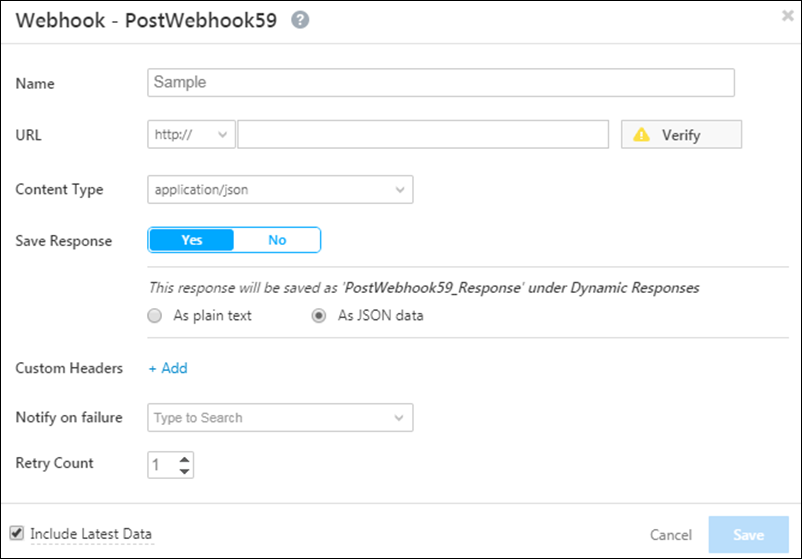
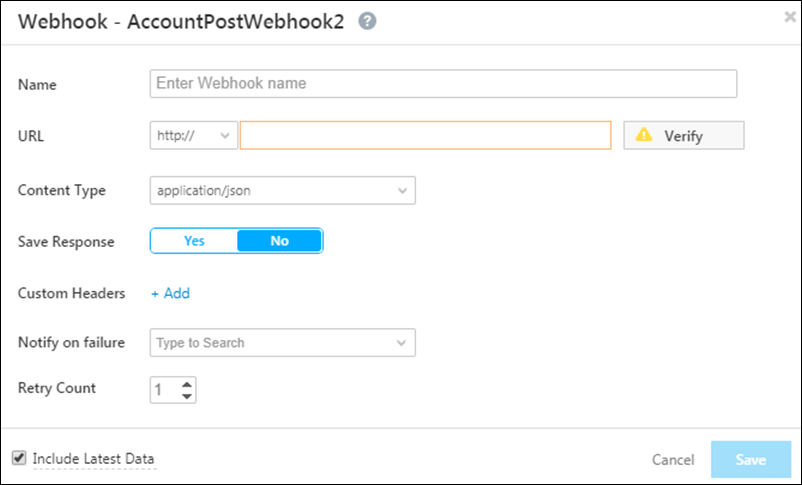
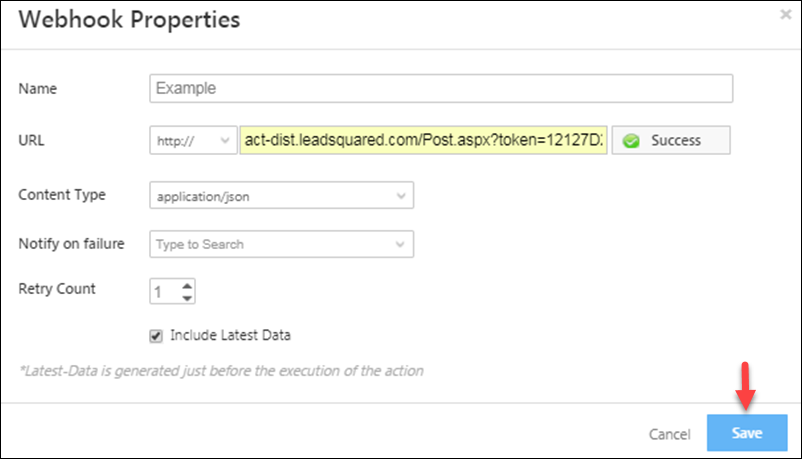
Click Webhook and the Webhook Properties pop-up box will appear.

Webhook update

Attribute Description
Name Enter any name for the webhook.
URL Enter the URL you want to post the data to.
Content Type Choose the format you want the data to be posted in.
Save Response Allows you to save the response from a webhook and use it to send dynamic email content or in other automation actions.
Custom Headers For security purposes, you can choose to enter a custom name-value pair in the webhook header and then reject all webhook calls where this header isn’t present.
Notify on Failure Get notified everytime a webhook fails.
Retry Count The number of times you want to retry on failure.

Note: The latest data generated using the webhook is the data retrieved just before the execution of the action you specify in the automation.

For more information on Webhooks, see Webhooks.

Account Automation Actions

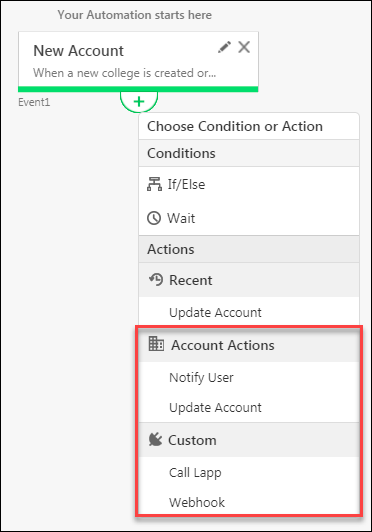
If you’ve used the New Account or Update Account triggers (see How to Create an Account Automation) in your automation, the following actions are available to you –

  • Account Actions
    • Notify Account Owner
    • Update Account
  • Custom
    • Call Lapp
    • Webhook

Note: If you’re new to the automation feature, visit Automation Home.

account automation actions

Use cases for these actions include –

  • Account Actions
    • Notifying an account owner when a new account is added.
    • Notifying an account owner to take action when the account stage changes from say ‘Prospect’ to ‘Opportunity’.
    • Updating an account field when a new account is added.
    • Updating an account field when a related account field gets updated. For example, you could update the account owner when the account stage changes.
  • Custom Actions
    • Calling a Lapp to perform calculations on account fields.
    • Creating a webhook to update an external system with data of an account.


Notify Account Owner

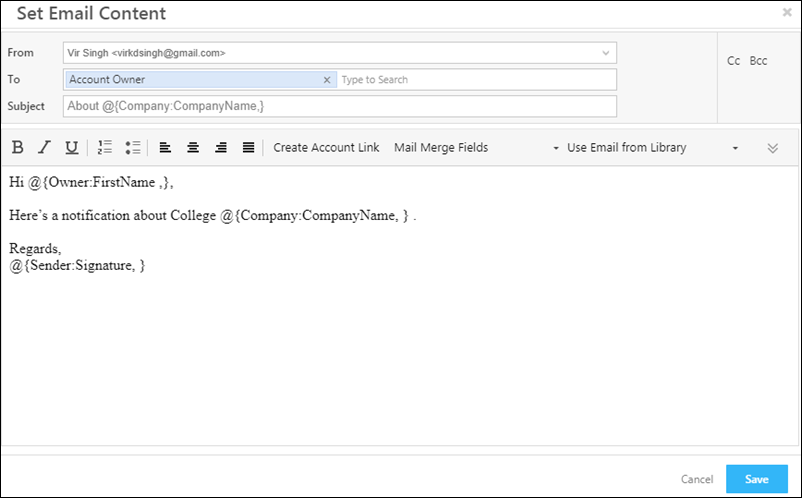
This action lets you send a notification email to the account owner.

notifying account owner

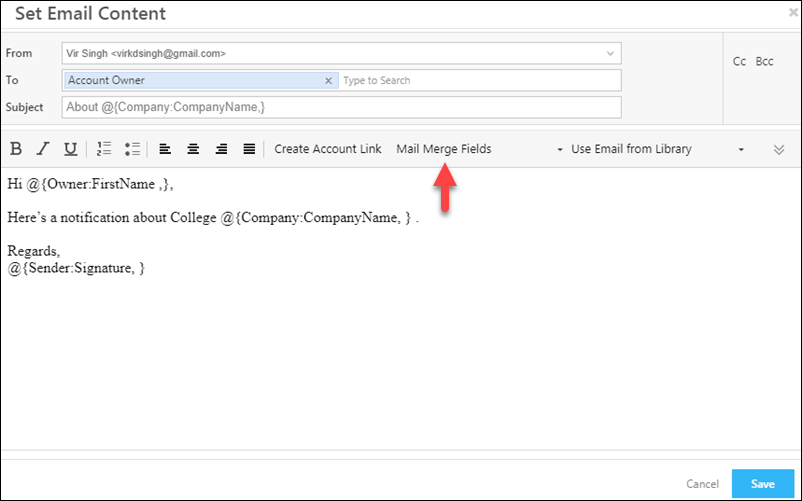
By default, the notification is directed to the account owner. You can add more LeadSquared users to the ‘To‘ field. You can also direct the notification to other users in the ‘Cc‘ or ‘Bcc‘ fields.
You can also mail merge lead fields, owner fields and sender fields into your email content using the mail merge option highlighted below.

mail merge


Update Account

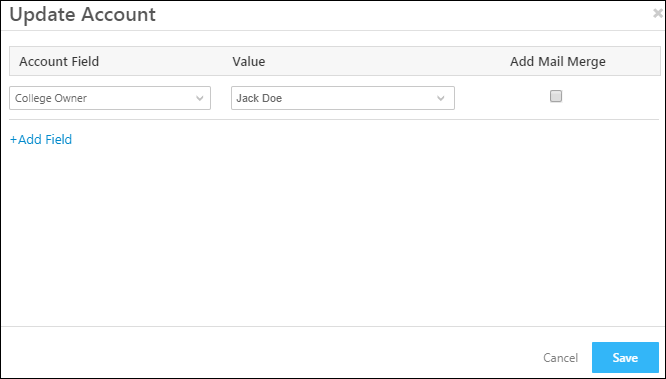
This action lets you update an account field. You can directly choose a value or use the mail merge option.

account update action


Call Lapp

If you’ve created a Lapp, you can call it in your automation. For more information, see Calling a Lapp from Automation.


Webhook

You can create a webhook and post data to a custom URL.

Under Custom, click Webhook  

webhook account automation

Enter the following details, then click Save.

Attribute Description
Name Enter any name for the webhook.
URL Enter the URL you want to post the data to.
Content Type Choose the format you want the data to be posted in.
Save Response Allows you to save the response from a webhook and use it to send dynamic email content or in other automation actions.
Custom Headers For security purposes, you can choose to enter a custom name-value pair in the webhook header and then reject all webhook calls where this header isn’t present.
Notify on Failure Get notified everytime a webhook fails.
Retry Count The number of times you want to retry on failure.


Any Questions?

Did you find what you were looking for? Leave a comment below if you still have doubts.

Opportunity Automation Actions

1. Feature Overview

Here you’ll learn to create opportunity actions through automation.
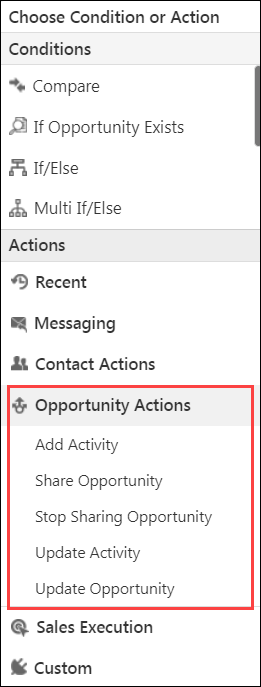
Define criteria and then set up opportunity actions to automatically execute when that criteria is met –

  • Post activities to the opportunity
  • Update an opportunities
  • Update the activity fields added to an opportunity.
  • Share an opportunity
  • Stop sharing an opportunity

LeadSquared - opportunity actions


2. Add Activity

Example Use Cases

  • When an opportunity is created, an ‘Introductory Phone Call’ activity is automatically posted on the opportunity.
  • Once the introductory phone call is completed, an ‘Email Sent’ activity is posed on the opportunity.

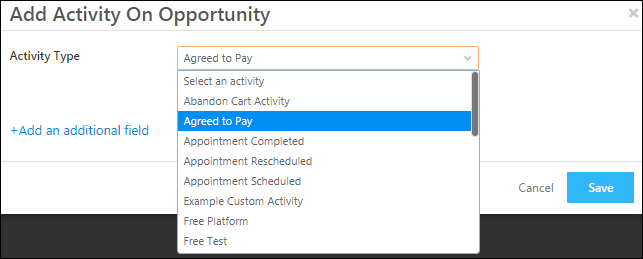
Allows you to add a custom activity to the opportunity. Click Add Activity and the Add Activity on the Opportunity pop-up box appears –

Opportunity Automation_2

Select the custom activity from the drop-down list.

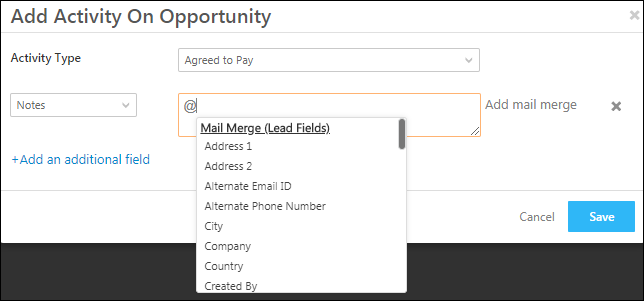
Note: If your custom activity has any associated custom field, click Add an additional field to add and select custom activity fields to associate to the activity. You can also additionally add mail merge fields to the selected activity type.

Opportunity Automation_4

Once you’re done, click Save. For more information on custom activities, please refer to How to Add a Custom Activity?


3. Update Opportunity

Example Use Cases

  • When an opportunity is created and is distributed to your users, you can update the opportunity owner automatically.
  • When a lead performs an activity (clicks on an email, visits a webpage, etc.), you can update the opportunity status automatically.

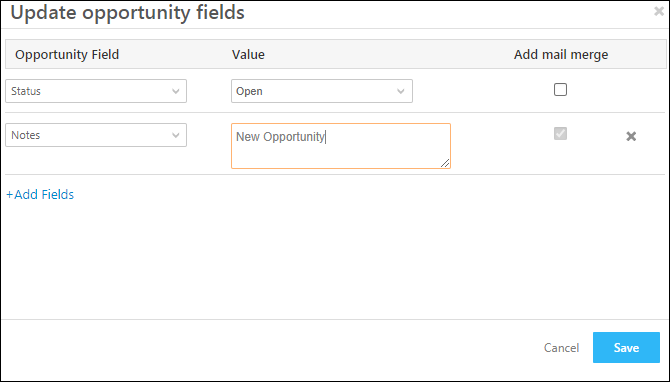
Click Update Opportunity, and the Update opportunity fields pop-up box appears. This pop-up allows you to update existing Opportunity Field values with new values, if required.

Opportunity Automation_5

In the above image, the Lead Status is ‘Open’, and the Notes field is also updated. These Opportunity fields are updated with these values if the Opportunity satisfies the criteria you’ve specified. You can add mail merge fields if required.

Note: If the Allow Auto Update option is enabled for the dropdown field during Opportunity Configuration, then you can pass a mailmerge value here, to update the dropdown options of the opportunity field with the value of the lead field.


4. Update Activity

Example Use Case

  • If the activity status is open, you can update the activity owner of an opportunity a few days after it was assigned. 
  • When a lead in unavailable for the decided appointment date, you can change appointment dates.

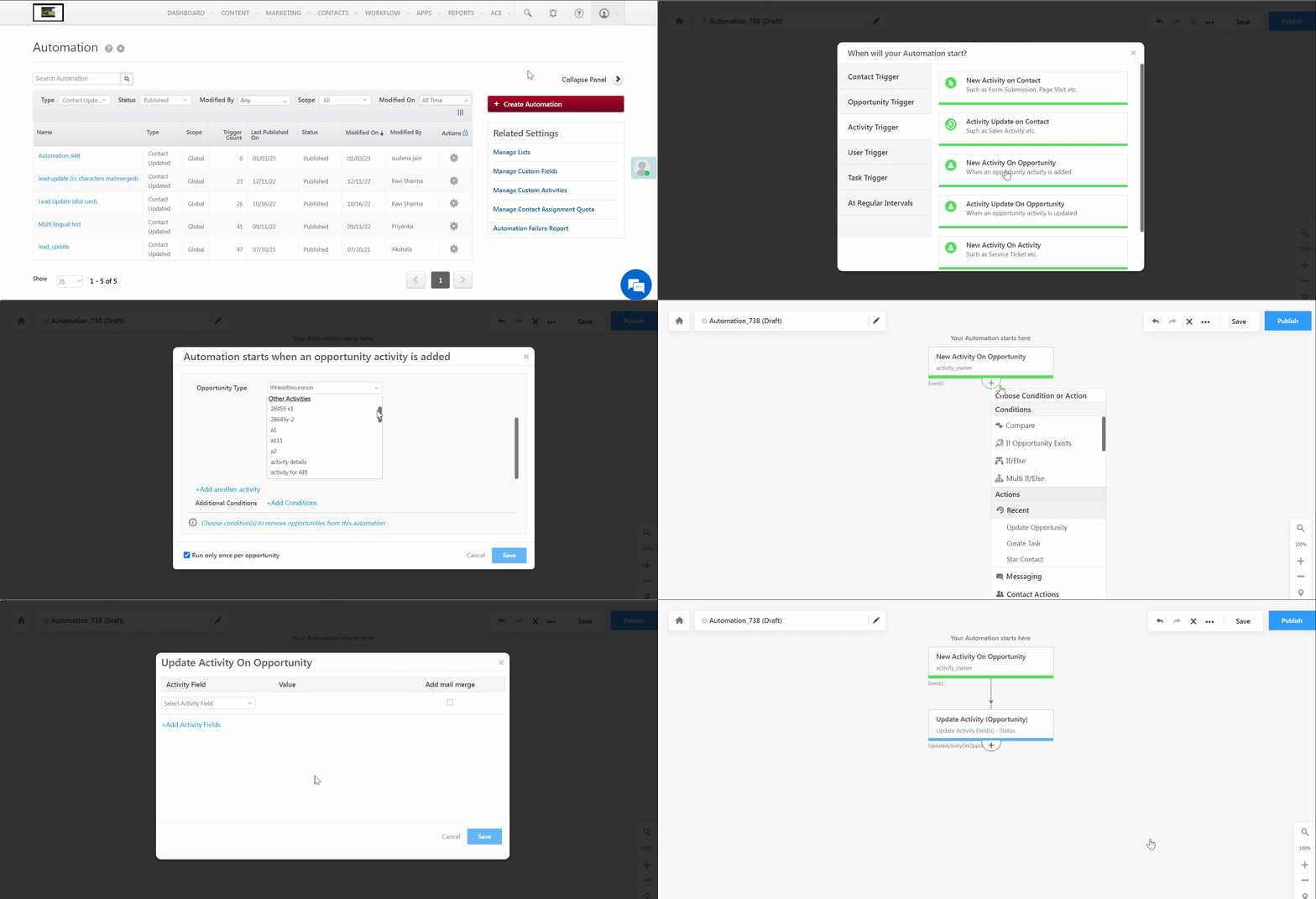
You can update the activity fields added to an opportunity using a new Update Activity action card for these triggers only

  • New Activity on Opportunity
  • Activity Update on Opportunity

Click Update Activity, and the Update Activity On Opportunity pop-up window appears. This pop-up allows you to update existing Activity Field of an Opportunity values with new values, if required. Keep in mind that the Activity field you want to update must be editable. You can also add mail merge to auto-populate the activity field. Once you’re done, click Save.

Note: To enable this card, contact your account manager or reach out to support@leadsquared.com.

LeadSquared - Update activity on opportunity


5. Share an Opportunity

Example Use Case

Sharing opportunities between teams or departments
Let’s look at the example of a bank that offers different products (Home Loan, Personal Loan, etc.). The Home Loans team contacts John, a lead, and sets up an appointment with him. After speaking to him, the Home Loans team gets a new personal loan requirement from John. Here, the Home Loans team can share John’s details with the Personal Loans team.

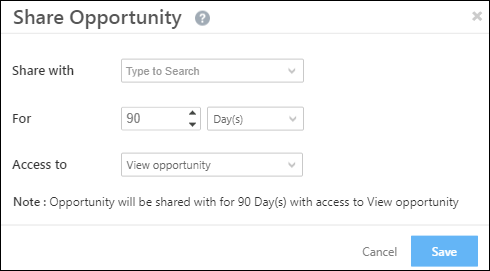
To know more about this card, refer to How to Share Opportunities for a Limited Duration.

Opportunity Actions


6. Stop Sharing Opportunity

Example Use Case

  • Revoke access once a user completes a document verification process and posts a ‘Document Collection’ activity.
  • Revoke access once a user doesn’t take an opportunity to completion within a defined time period.

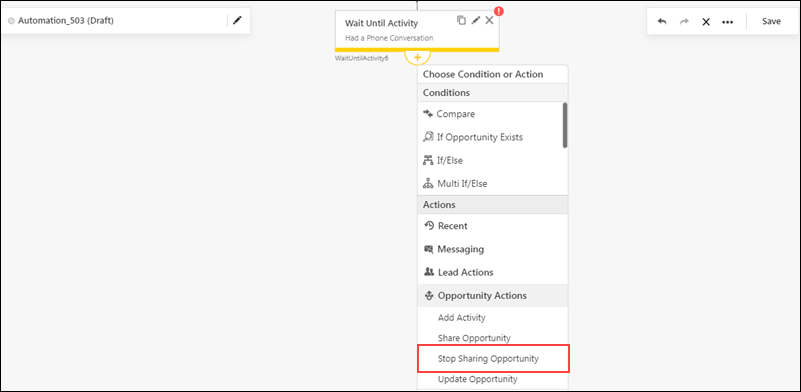
Use the Stop Sharing Opportunity card to stop sharing opportunities when users complete their required activities.

LeadSquared Automation Opportunity Share


Any Questions?

Did you find this article helpful? Please let us know any feedback you may have in the comments section below. We’d love to hear from you and help you out!

Forms and Processes on Mobile

1. Feature Overview

Forms and Processes are now available on LeadSquared mobile.
You can set up customized forms and processes on web (loan applications, education applications, KYC collection), and then push them to your mobile users. This makes it extremely easy for your on-field teams to capture the exact information required from your leads.


2. Prerequisites

  • You have to be an administrator user to create forms and processes.
  • You must be running the LeadSquared Android app v8.0 or higher, or the LeadSquared iOS app v7.1 or higher.


3. How It Works

Firstly, you need to create one or more forms. The procedure is exactly the same as it is for web.
The only difference lies in the process designer, when you choose where you want the process to be triggered.


4. Procedure

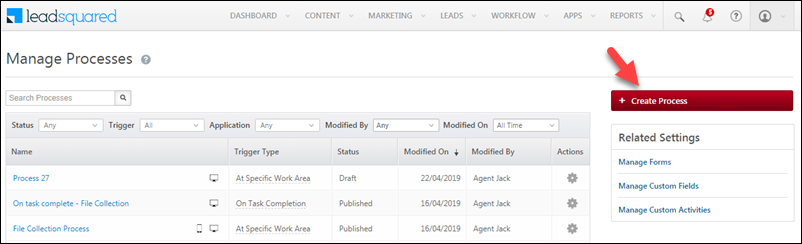
Once you’ve created your forms, navigate to the Process Designer (Workflow>Process Designer) and click Create Process.

create new process

You can trigger your process  –

  • At a Specific Work Area
    Or
  • On Task Complete


4.1 On Task Complete

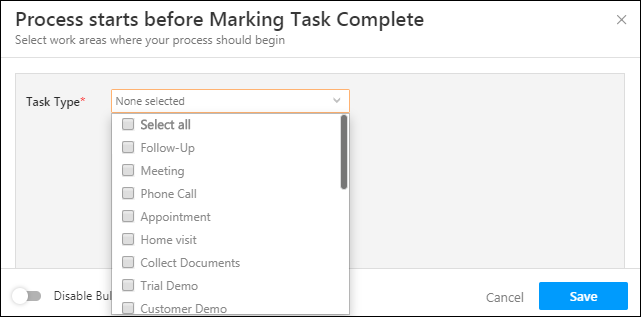
The ‘On Task Complete’ trigger allows you to choose the task types on which you want the process to be triggered.

task complete trigger

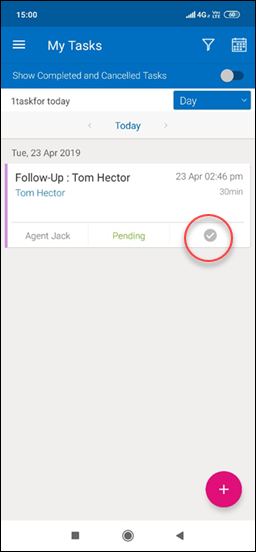
Every time a task of a selected task type is completed from the mobile app, the process will be triggered.
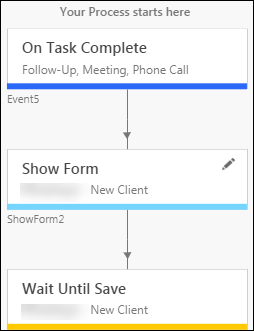
In the example below, the process is triggered to run when Follow-up, Meeting, and Phone Call tasks are marked complete. The form configured to be displayed is the ‘New Client’ form.

sample process

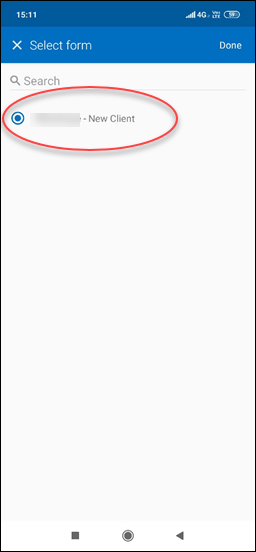
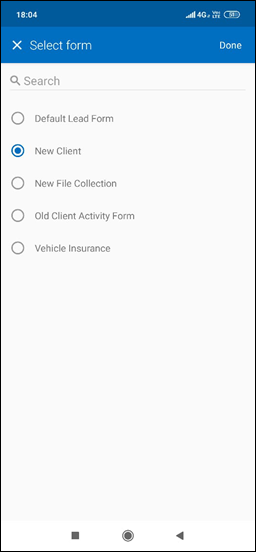
So when users complete a task (of the configured type) from the mobile app, they’ll be prompted to complete the form(s) configured in the process.

trigger process on task complete form select mobile

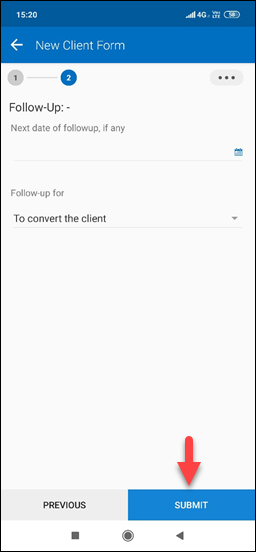
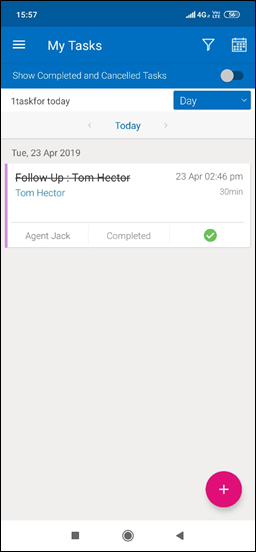
The task will then be marked complete –

process on mobile task completed after process


4.2 At a Specific Work Area

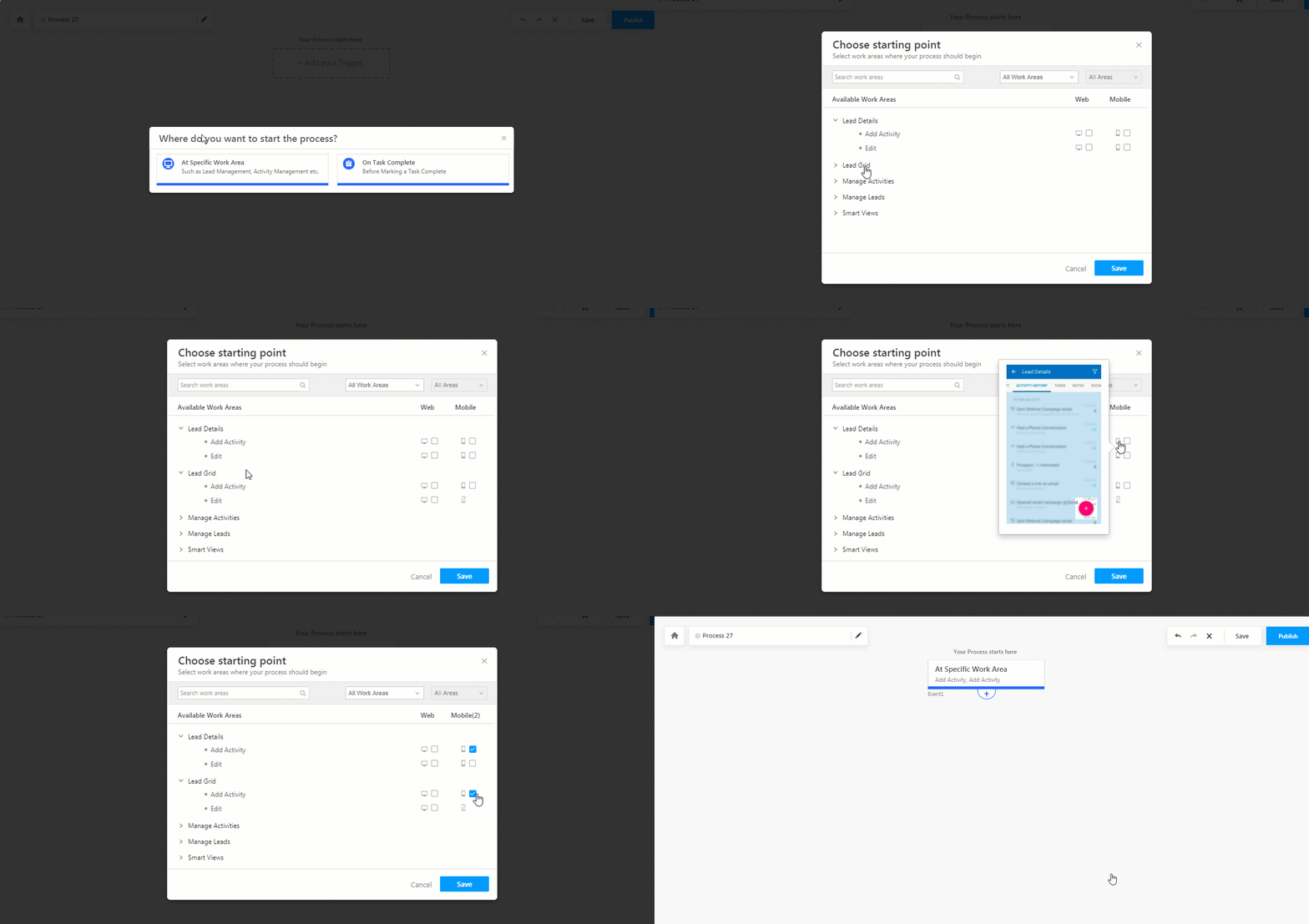
When you choose the ‘At a Specific Work Area’ trigger, you’re prompted to select the work areas where you want the process to begin.

Each work area has an icon representing its availability on web and mobile.

  • Available on Web web icon
  • Available on Mobile mobile icon
  • Not available on mobile not avilable on mobile

Use the checkboxes alongside the icons to choose the work areas on web and/or mobile, then click Save.

Note: When you hover your cursor over the icons, you’ll see an image of the screen/page where you’re process will be triggered from.

trigger processes on mobile

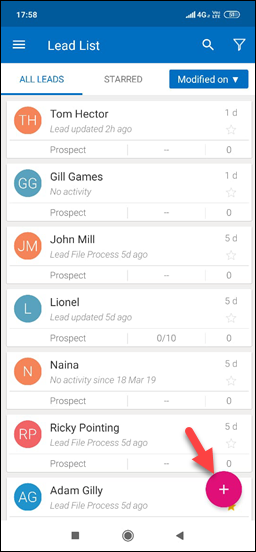
According to your configurations in the process designer, your form(s) will be available in the chosen work areas on mobile –

process work area on mobile process forms

Note: The Default Lead Form in the screenshot above is the default ‘Add New Lead’ form. It can be accessed offline. Forms added through the process designer will not be available offline.


5. Other Features

There are other features you can use in conjunction with forms and processes for a better experience.

Custom Field Sets
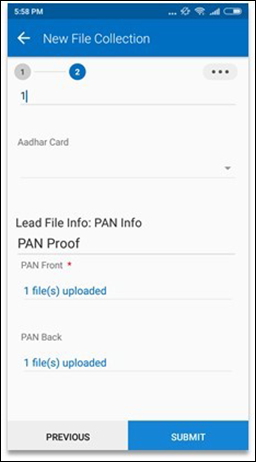
You can use custom field sets to upload documents to a form. To do this you need to create a custom field set and then add it to an activity. You must then include the activity in your form. For more information, see Custom Field Sets.

document upload through custom field sets

Activity Location
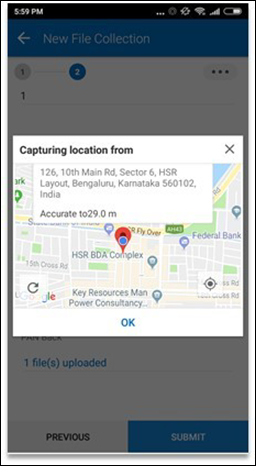
For activities that are location-enabled, the lead’s location will be automatically captured on form submission. For more information, see How to Add a Custom Activity.

activity location in custom forms

Iframes
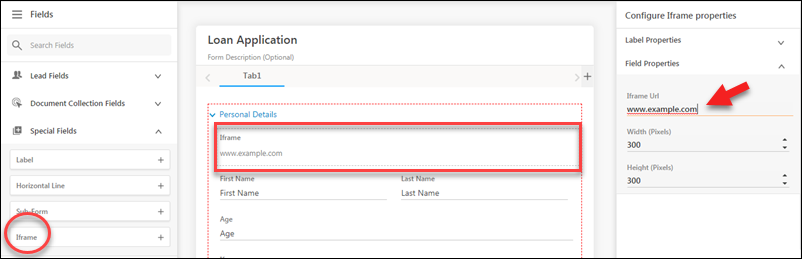
You can use Iframes to display custom content on your forms. These are available as special fields in your form designer. For more information, see How to Create a Form.

add Iframe


6. Current Limitations

  • Activity attachments are currently not supported. However, you may use custom field sets to upload documents.
  • Help texts will be visible only for fields and not for form and section descriptions.
  • Only the ‘Default form’ will work offline.
  • If you’ve set up a process on the ‘Task Complete’ trigger, it will overwrite the ‘Task-Activity Completion’ flow. For more details, read the ‘Task-Activity Completion’ section of Mobile App Permissions.
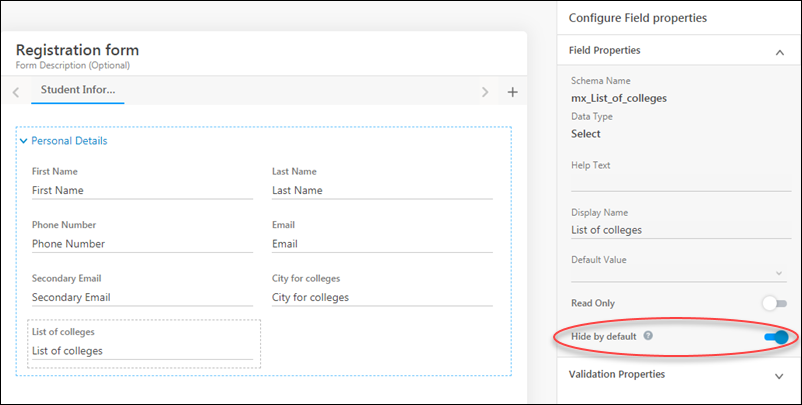
  • Be sure to keep the Tab/Section/Field hidden by default from the web (while creating a form), if you don’t want them to appear for users on the first launch on mobile –

hide fields in form designer

For more information on hiding fields, tabs, and sections, see How to Create a Form.


Any Questions?

Did you find this article helpful? Leave a comment below if you have any unanswered questions.

Leave Tracker

The Leave Tracker enables you to manage the leaves of all your users in one place. Users can create their own leaves while administrators can create leaves for all users. The following sections tell you how you can fill in your own leaves if you’re not an administrator user (or sales group manager) and how you can manage all leaves if you are.


For Non-Administrator Users

If you’re a non-admin user, you can fill in your leaves as follows –

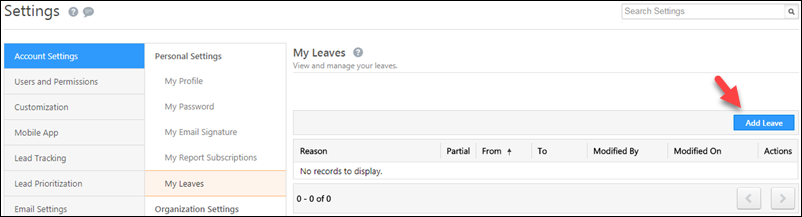
  1. Navigate to My Account>Settings>Account Settings>My Leaves and click the Add Leave button.
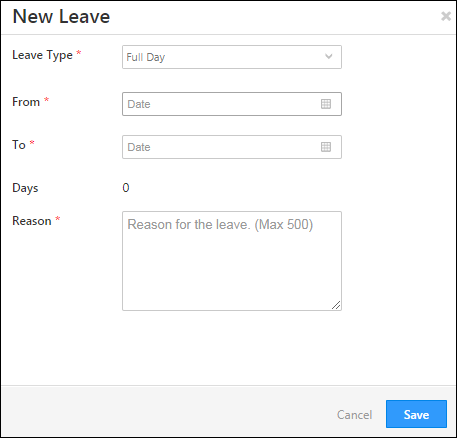
  2. In the New Leave pop-up enter the appropriate details (see table below).
  3. Click Save when you’re done.

Add leave button

new leave

Field Description
Leave Type Apply for full day or partial leaves. If you choose the full day option, you can see the number of days you’re creating leaves for.
From The day the leave starts from. You can also enter the time for partial leaves.
To The day the leave ends on. You can also enter the time for partial leaves.
Reason It is mandatory to enter a reason for each leave you create.


For Administrator Users & Sales Group Managers

Admins can view the leaves of all users as well as create leaves for users –

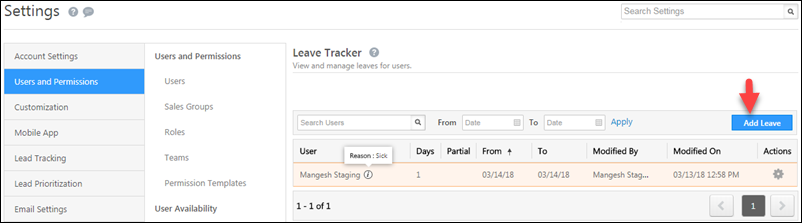
  1. Navigate to My Account>Settings>Users and Permissions>Leave Tracker.
  2. Click Add Leave to create new leaves for users. A user select drop-down will be available in the Add Leave pop-up.
  3. You can also edit or delete leaves by clicking the SettingsSettings iconicon.

Adding leaves by admin

LeadSquared pages not loading? Whitelist these domains to fix blank or half-loaded pages

If your LeadSquared pages are not loading or appear blank/half-loaded, your network or firewall is probably blocking required domains.

You might see something like this:

  • Page loads partially
  • UI looks broken or incomplete
  • Sections appear blank or never finish loading

Broken UI Troubleshooting

In most cases, this happens because some domains required by LeadSquared are blocked.

Domains that must be whitelisted

Ask your network / IT / firewall admin to whitelist (allow) the following domains:

  • *.leadsquared.com
  • *.leadsquaredcdn.com
  • *.cloudfront.net
  • *.leadsquaredcdn.com
  • *.lsqportal.com
  • *. clarity.ms
  • *.nr-data.net
  • *.s3.amazonaws.com
  • https://www.google.com/recaptcha/api.js
  • https://www.gstatic.com/recaptcha/api2/v1559543665173/recaptcha__en.js

At a minimum, these two domains are required for Lead Management to work properly:

  • *.leadsquared.com
  • *.leadsquaredcdn.com

Holiday Calendars

1. Feature Overview

The Holiday Calendar feature allows you to set up your organization’s holiday schedule in LeadSquared Sales Cloud and Service Cloud. You can apply holiday calendars to different Teams and Service Groups across regions and enable auto check-in for users based on the holiday schedule.

Note: By default, you can add only up to 50 holidays in a calendar. But if required, we can increase this number to 100 holidays. To enable this enhancement on your account, contact your account manager, or write to support@leadsquared.com.


2. Prerequisites

  • You must be the Admin of your LeadSquared Sales Cloud and/or Service Cloud accounts.
  • You must create Teams and/or Service Groups in your account.


3. Create a Holiday Calendar

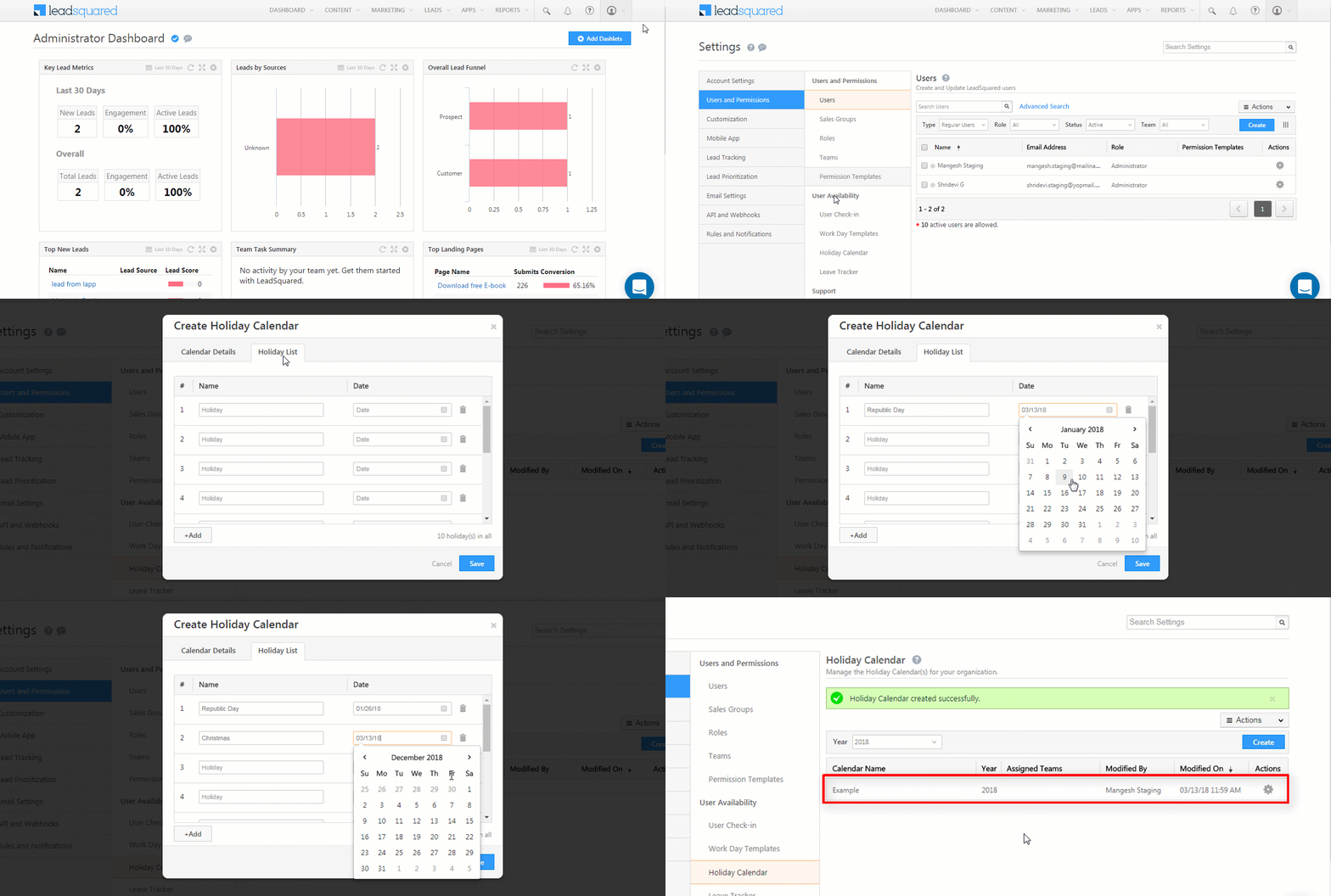
  1. Navigate to My Account>Settings>Users and Permissions>Holiday Calendar and click Create.
  2. Set your holiday calendar configurations –
    1. In the Calendar Details tab, enter the Name, Calendar Year and Description (optional).
    2. Click the Holiday List tab and enter the holiday names and dates. Click the Add button if you wish to add more holidays.
  3. Click Save.
  4. Once created, you can Edit or Delete your template by clicking the SettingsSettings iconicon.
Note: You can assign only the current year’s calendar to a Team or Group. For example, in 2025, only a calendar with dates from 2025 can be assigned.

New Holiday Calendar


4. Assign a Holiday Calendar to a Sales Team

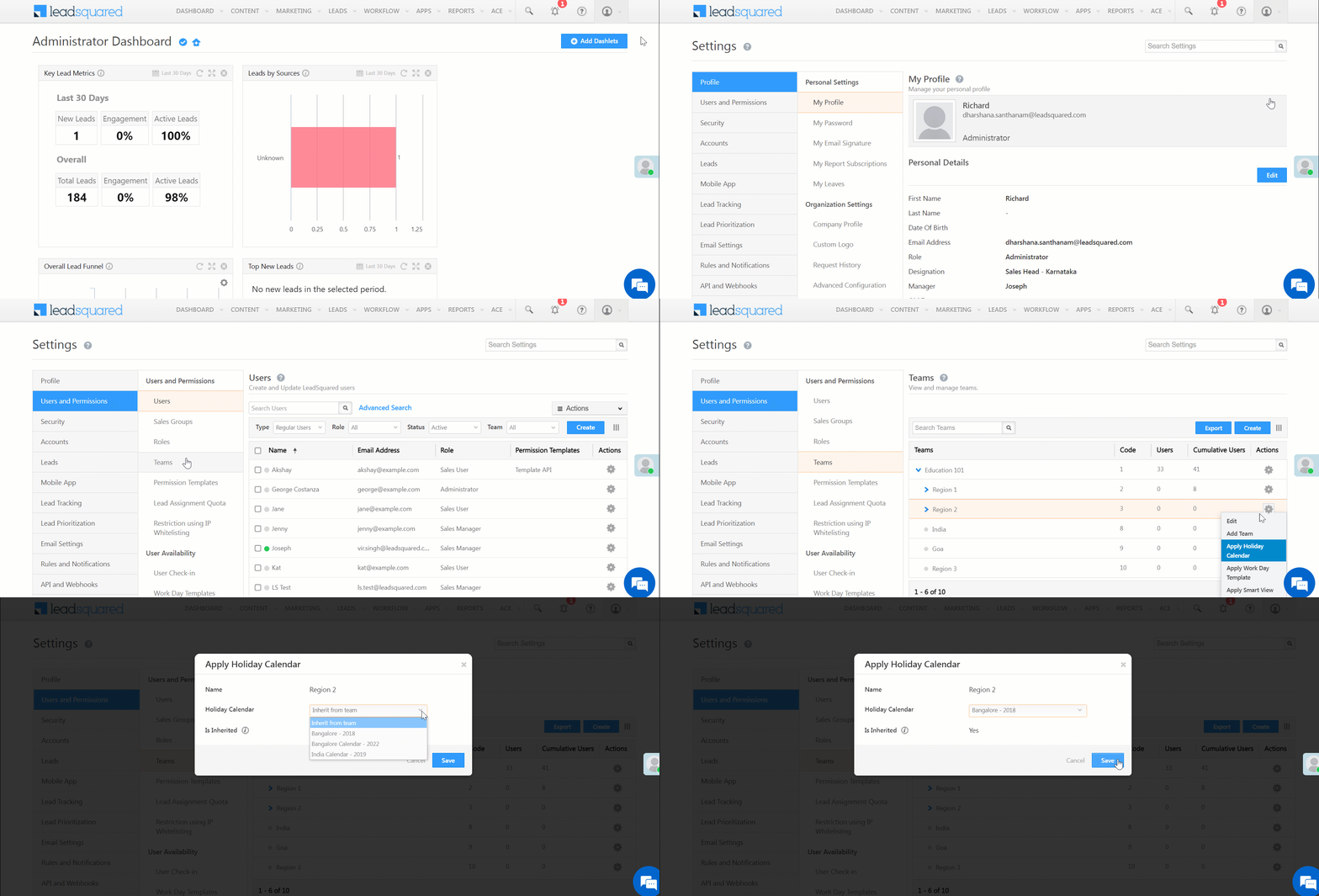
  1. Navigate to My Profile>Settings>Users and Permissions>Teams.
  2. Alongside the team you want to assign the Holiday Calendar to, click .
  3. Click Apply Holiday Calendar.
  4. In the drop-down under the Holiday Calendar column of the pop-up window, select the calendar you want to assign the team. If the team you’re applying a calendar to has a parent team, you can select the Inherit from Team option and inherit the calendar assigned to the parent team.
  5. Click Save.
Note: The following GIF assumes you’re using the new Teams V2 UI, which makes it easier to assign features (dashboards, workday templates, smart views, etc.,) to teams. You can enable it from Profile>Organziation Settings>Advanced Configuration, search for ‘Teams’ and enable Switch to teams UI V2.

LeadSquared - Assign a Holiday Calendar to a Team


5. Assign a Holiday Calendar to a Service Group

  1. Navigate to My Profile>Settings>Service Cloud.
  2. Under User Management, click Service Groups.
  3. Alongside an existing group, click lpp settings icon, and then click Edit.
  4. Under Basic Details, from the Select holiday calendar dropdown, choose a relevant calendar.
  5. Once you’re done, click Next, and then click Save. The selected calendar is now actively applied to this group.

LeadSquared Service CRM


Any Questions?

Did you find this article helpful? Let us know your thoughts in the comments section below.

Workday Templates

1. Feature Overview

Workday templates define your organization’s schedule and working hours across the Sales Cloud and Service Cloud platforms. This enables automatic user check-ins and allow you to set the timezone, working days, and office hours for your users.

Once created, you can assign the templates to Teams and Service Groups. So if you have multiple teams working different shifts in different regions, all you have to do is create the appropriate work day templates and apply them to your teams.


2. Prerequisites

  • You must be the Admin of your LeadSquared Sales Cloud and/or Service Cloud account.
  • You must create Teams in your account.


3. Create a Workday Template

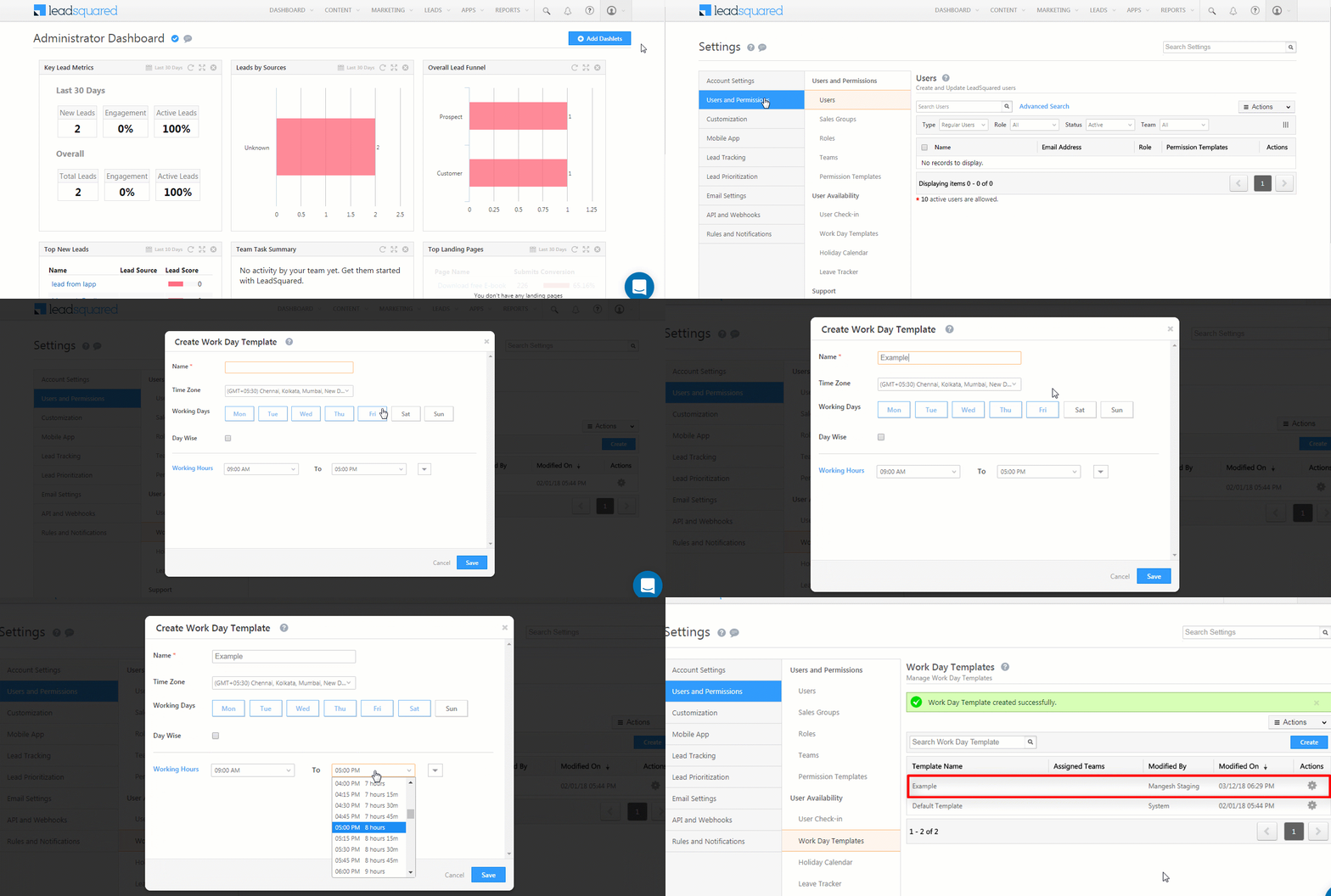
  1. Navigate to My Account>Settings>Users and Permissions>Work Day Templates and click Create.
  2. Set your work day template configurations –
    1. Enter a Name for the template.
    2. Choose a Time Zone.
    3. Select the Working Days.
    4. Set the Working Hours.
    5. Click the Day Wise checkbox if you want to set different office hours for each day of the work week.
  3. Click Save.
  4. Once created, you can Edit or Delete your template by clicking the SettingsSettings iconicon.
Note: You’ll see a default template on the Manage Work Day Templates page. This template is pre-created by the system. You can choose to edit it or create new templates from scratch.

work day templates

You can also,

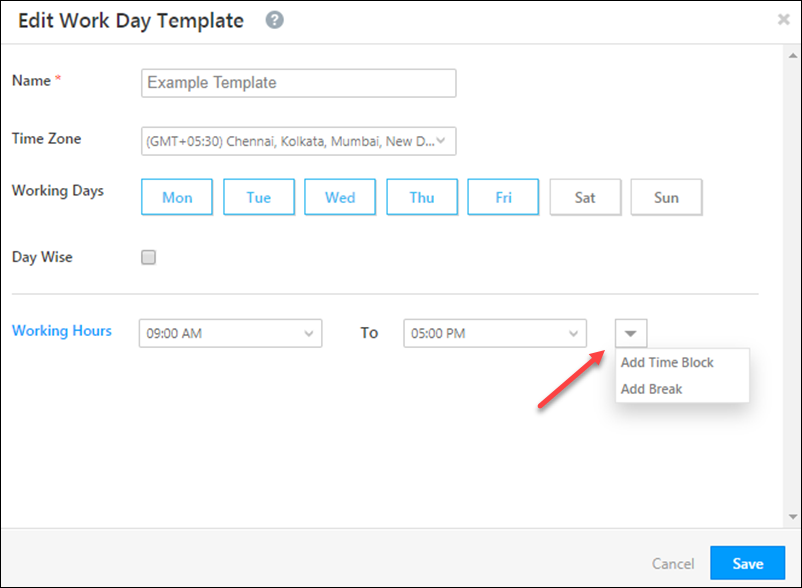
  • Add more time blocks for users who work in 2 shifts (for example, 9 a.m. – 2 p.m. and 6 p.m. – 9 p.m.)
  • Add breaks (for example, lunch break between 2 p.m. and 3 p.m.). These breaks will reflect in the user’s task calendar as well (see How to Create Tasks).

Click the arrow icon alongside the Working Hours, to access these options –

time blocks and breaks


4. Assign a Work Day Template to a Sales Team

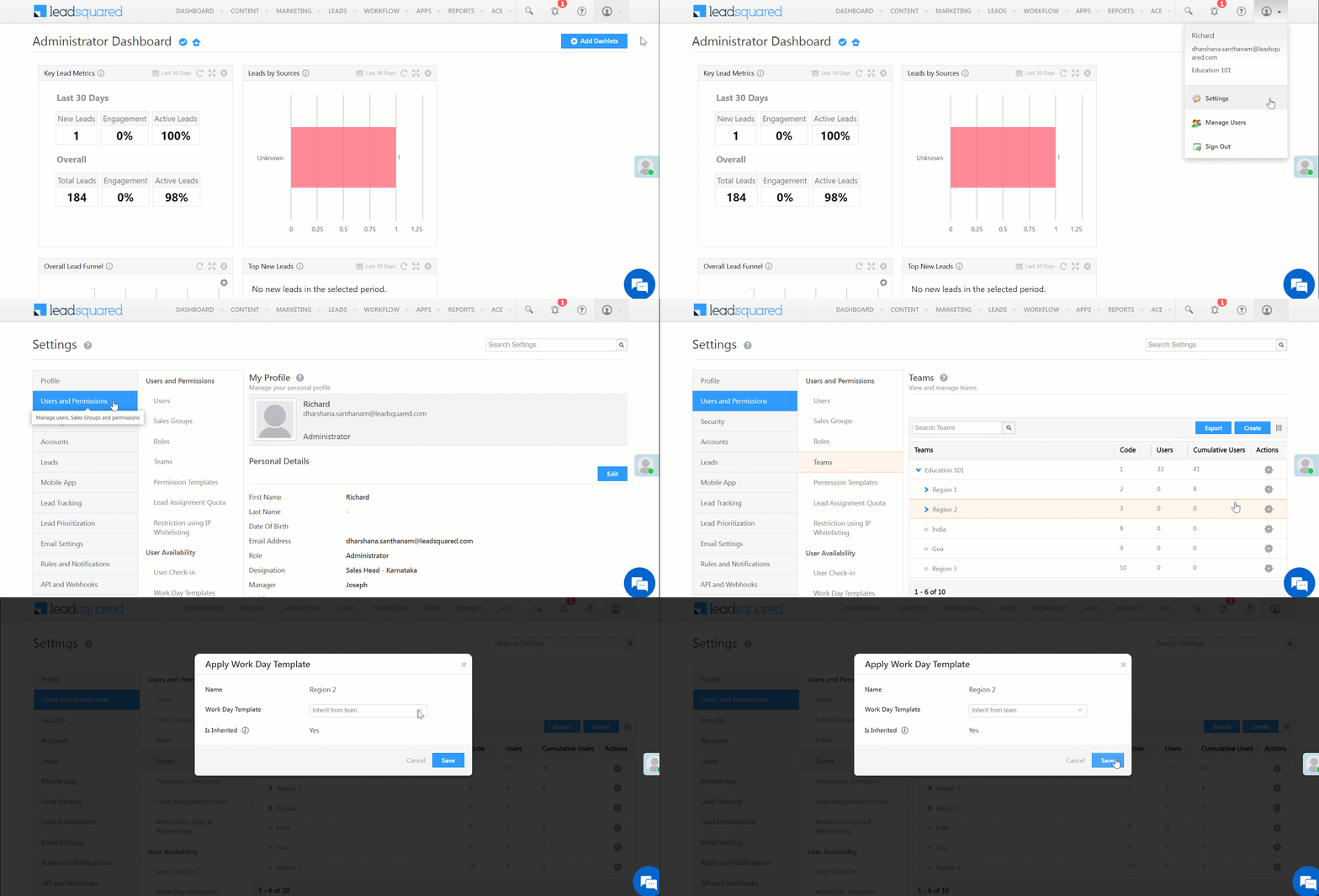
  1. Navigate to My Profile>Settings>Users and Permissions>Teams.
  2. Alongside the team you want to assign the Work Day Template to, click .
  3. Click Apply Work Day Template.
  4. In the drop-down under the Work Day Template column of the pop-up window, select the template you want to assign the team. If the team you’re applying a template to has a parent team, you can select the Inherit from Team option and inherit the template assigned to the parent team.
  5. Click Save.
Note: The following GIF assumes you’re using the new Teams V2 UI, which makes it easier to assign features (dashboards, workday templates, smart views, etc.,) to teams. You can enable it from Profile>Organziation Settings>Advanced Configuration, search for ‘Teams’ and enable Switch to teams UI V2.

LeadSquared - Assign a Work Day Template to a Team


5. Assign a Work Day Template to a Service Group

  1. Navigate to My Profile>Settings>Service Cloud.
  2. Under User Management, click Service Groups.
  3. Alongside an existing group, click lpp settings icon, and then click Edit.
  4. Under Basic Details, from the Select workday template dropdown, choose a relevant template.
  5. Once you’re done, click Next, and then click Save. The selected template is now actively applied to this group.

LeadSquared Service CRM


6. Assign a Work Day Template to a User

To assign a work day template to a user –

  1. Navigate to My Profile>Settings>Users and Permissions>Users.
  2. Alongside an existing user, hover your cursor over Settings icon and click Edit.
  3. In the Edit User popup, navigate to the Work Details tab, and click Edit.
  4. From the Work Day Template dropdown, select the template you want to apply to this user.
  5. Click Save. The selected template is now actively applied to this user.
Note: The steps to assign a Work Day template to a Sales and/or Service User are the same. To filter by user type, use the Type dropdown.

LeadSquared Service CRM


Any Questions?

Did you find this article helpful? Let us know your thoughts in the comments section below.

Bulk Update on Activities

Activities are notable events in the lead life-cycle. LeadSquared comes built in with certain activities but also lets you create custom activities according to your business requirements.
For more information on activities and how to create them, see How to add Activity to Leads and Manage Activities.

With this release, you can update activities in bulk. This feature will make life a lot easier if your users work more on activities rather than leads.
For example, a user has sold your product to 5 leads today. Now he wants to update the activity field ‘Sales Date’ to today’s date. Instead of going to each and manually changing the activity fields one at a time, he can now simply use the bulk update option and be done in a flash.

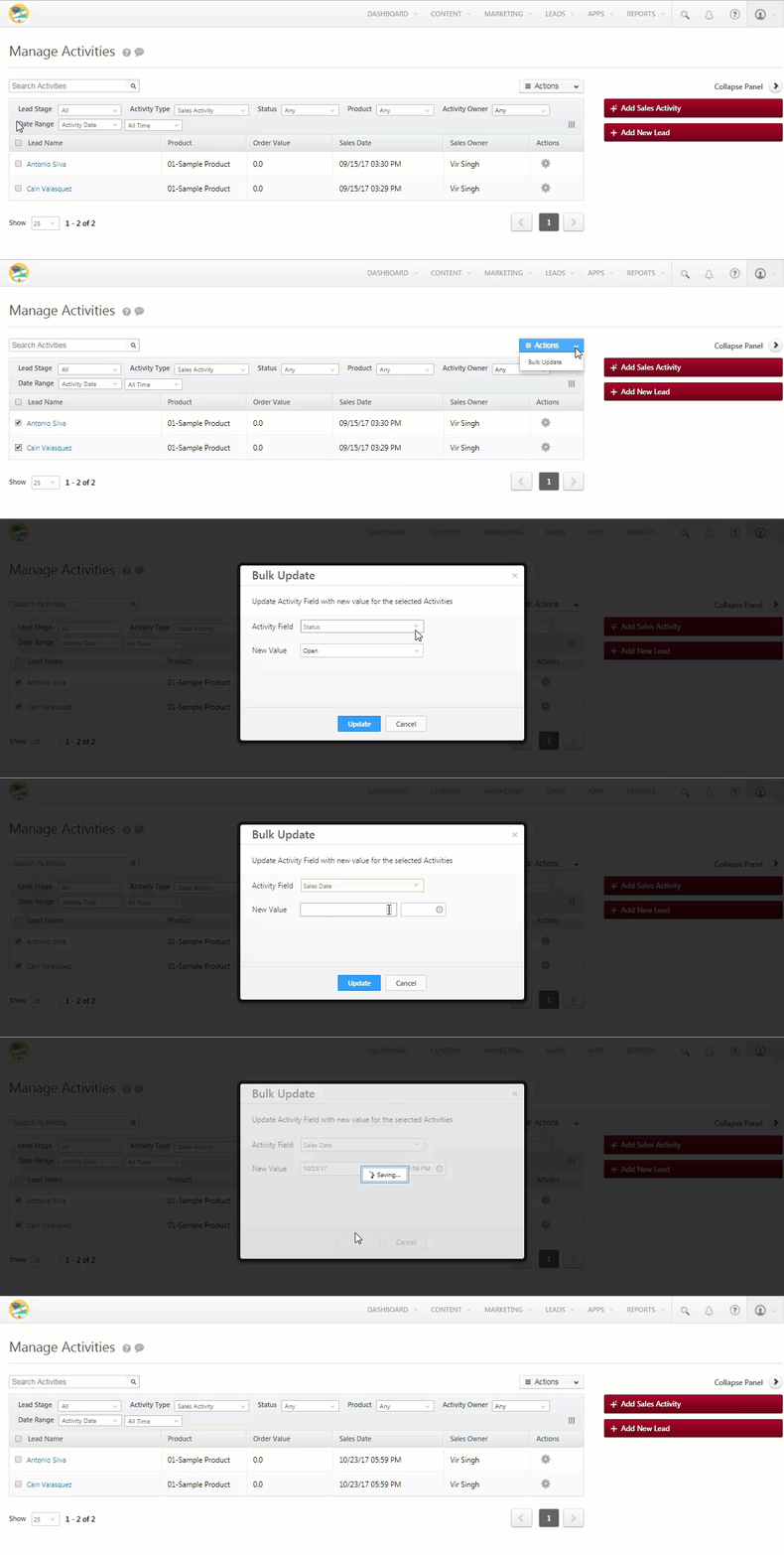
Follow these steps to perform bulk update on activities:

  1. Navigate to the Manage Activities page.
  2. Select the check-boxes alongside the leads you want to update activities for.
  3. Hover the mouse over the Actions menu, then click Bulk Update.
  4. On the Bulk Update pop-up, select the Activity Field and the New Value for this field.
  5. Click Update.

GIF demonstrating how to perform bulk update on activities

LeadSquared CallTrackingMetrics Connector

Important: There is a newer version of this connector available with additional features and benefits, see CallTrackingMetrics Telephony Connector v2.

The LeadSquared CallTrackingMetrics (CTM) connector lets you integrate your CallTrackingMetrics application with LeadSquared and avail the following benefits:

  • Prevent lead leakage by tracking phone calls as leads and activities.
  • Ability to make outbound calls (click to call) and automatically track the calls in Lead Activity History.
  • Access call recordings of inbound and outbound calls.
  • Display lead information pop-up to LeadSquared users when an incoming call is received or an outgoing call is placed.

Note: You can embed your entire call tracking metrics dashboard in LeadSquared and access it directly from your LeadSquared account. For more information, see Embed Your Call Tracking Metrics Dashboard in LeadSquared.

Also see How to Send and Receive SMS Using Call Tracking Metrics.


Prerequisites

  • You have to be a LeadSquared administrator user to access the app settings.
  • You need an active CallTracking Metrics account with at least one tracking number.
  • The ‘Agent’ in CTM should have the same email address as the user in LeadSquared who you’re connecting –
    • So if john@example.com is a user in LeadSquared with associated phone number ‘XXX-XXXXX’, a user with the same email address (john@example.com) associated with that ‘Inbound Phone Number’ should be available in CTM.
  • You need your CTM account number and API keys.

Tracking Sources in CallTrackingMetrics –
Each virtual number in your CTM account can have a Tracking Source. LeadSquared updates the Lead Source (if it is a new lead) with the value of Tracking Source. So we recommend you to maintain tracking sources accordingly.


Install the App

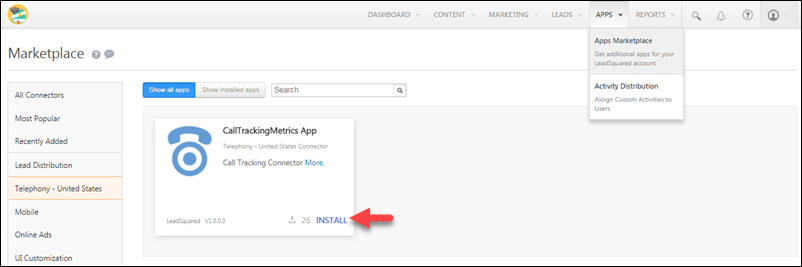
In your LeadSquared account, navigate to Apps>App Marketplace>Telephony – United States (on the left panel)>Select the CallTrackingMetrics app and click Install.


Configure the App

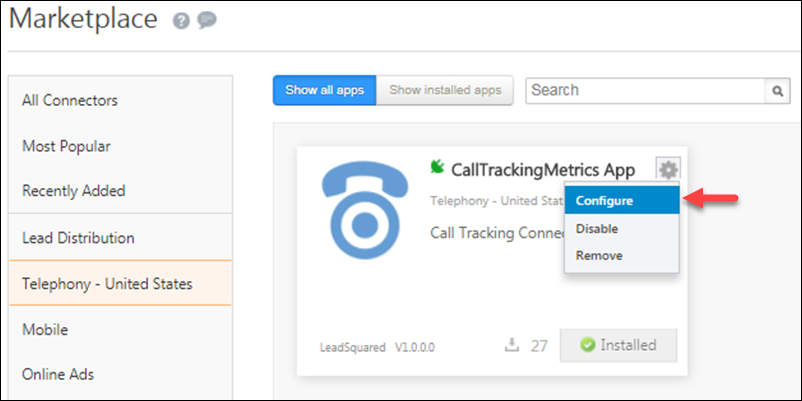
Once the app is installed, hover the mouse over the settings wheel and click Configure.

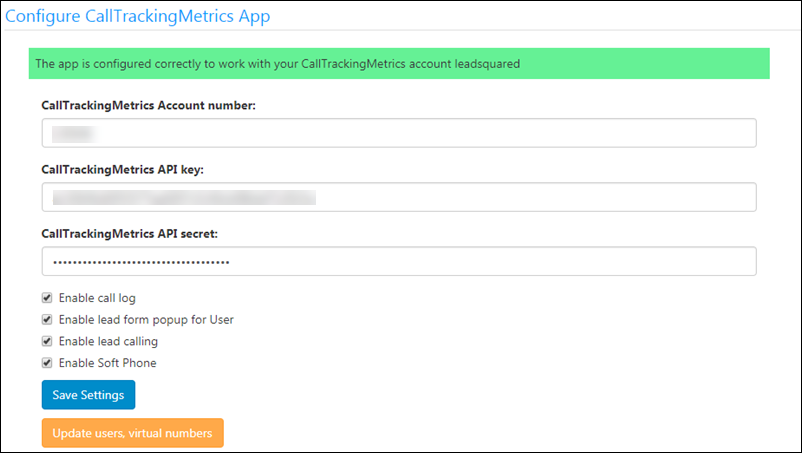
Enter the required details on the configuration pop-up, then click Save Settings. Next, click the Update users, virtual numbers button, then close the pop-up.
The connector is now configured in your LeadSquared account.

CTM pop up

Option (Checkbox) Description
Enable Call Log To track inbound/outbound phone call activities in LeadSquared. You can also view the call logs under My Account>Settings> API and Webhooks>Telephony Logs.
Enable lead form popup for User Displays the lead form during inbound/outbound phone calls within LeadSquared.
Enable lead calling Enables click 2 call for all leads.
Enable Soft Phone Displays the soft phone dialer within LeadSquared

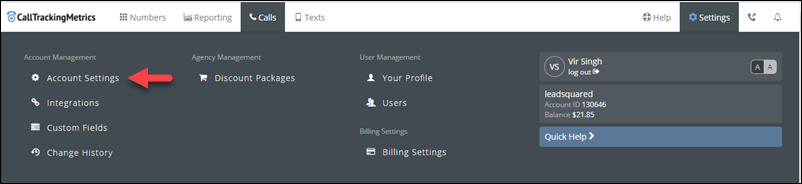
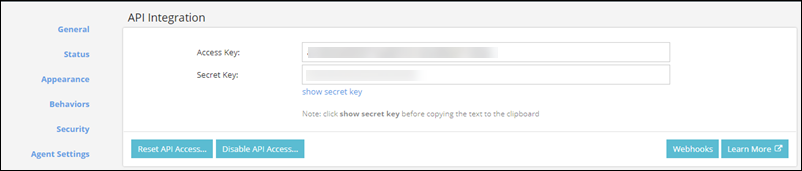
If you’re having trouble finding your CallTrackingMetrics Account Number, API key an API secret, on your CallTrackingMetrics account navigate to Settings>Account Settings (under Account Management).

Your Account Number/Id will be displayed alongside your current plan details at the top-right corner of the settings page.

Scroll down the same page to find you API key and API secret under the API integration section.


Use the App in Your Workflow

Now that the connector is successfully integrated to your LeadSquared account, you can start making calls to leads directly from your LeadSquared account. You can also receive calls and access the call logs for your leads.

Note: For the integration to work seamlessly, ensure that the phone number formats are correct in your LeadSquared account.


Make Calls to Leads

After successful integration, the click to call feature will be enabled on your LeadSquared account.
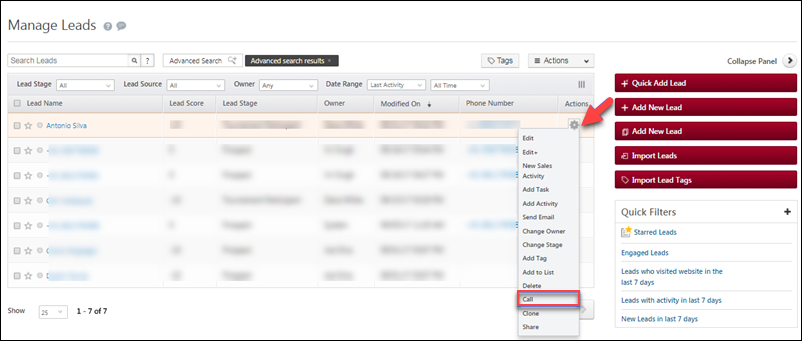
Navigate to the Manage Leads page and click the settings wheel under the actions column. You will see a new action, ‘Call’, available in the actions menu. Click Call to directly call a lead.

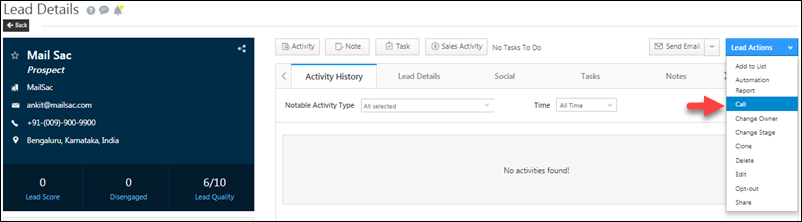
Click OK on the confirmation dialog box to place the call. You can also place calls from the lead details page –

As well as from the Lead Activity Stream page –


Receive Incoming Calls from Leads

New Leads: If you receive a call from a new number that does not correspond to any lead in your LeadSquared account, a new lead will automatically get created and the call details will get logged.
Existing Leads: Calls received from numbers that already exist in your LeadSquared account will reflect in the activity stream/history for the given lead.


Call Logs

Call logs for all incoming and outgoing calls for your leads will be available on the Lead Activity Stream page as well as the Lead Details page for respective leads. All calls will automatically be available as activities in your LeadSquared account.


Any Questions?

Have trouble setting up the CTM app? Let us know how we can help you in the comments section below.

Send Dynamic Content in Your Emails

Personalized email content fuels better engagement scores and conversion rates.

You can send the same offer to all your leads and that may work for you in the short-term. However, if you learn to use dynamic content to accommodate individual preferences and needs, you’re bound to generate higher conversions and get better results from your emails.

With the LeadSquared dynamic responses feature, we let you go beyond basic email tailoring (like mail merging name and address fields) to include dynamic content from webhooks and Lapps in your emails.


Business Use Cases

Here are just a few use cases where dynamic responses are the perfect fit for your emails –

  • Travel packages based on a lead’s interest.
  • Real estate properties based on a lead’s interest
  • Details of the right insurance plan for a lead.
  • Pricing plans catered to a specific lead’s requirements.

Using Lapps, you can also include the outcome of various calculations as dynamic responses in your emails. For example, let’s say you want to send European customers product prices in Euros. Once you’ve created a Lapp to convert your product prices from say, Rupees to Euros, you can save the response of this Lapp and send emails to European leads with the product prices in Euros.


Saving Webhook or Lapp Responses

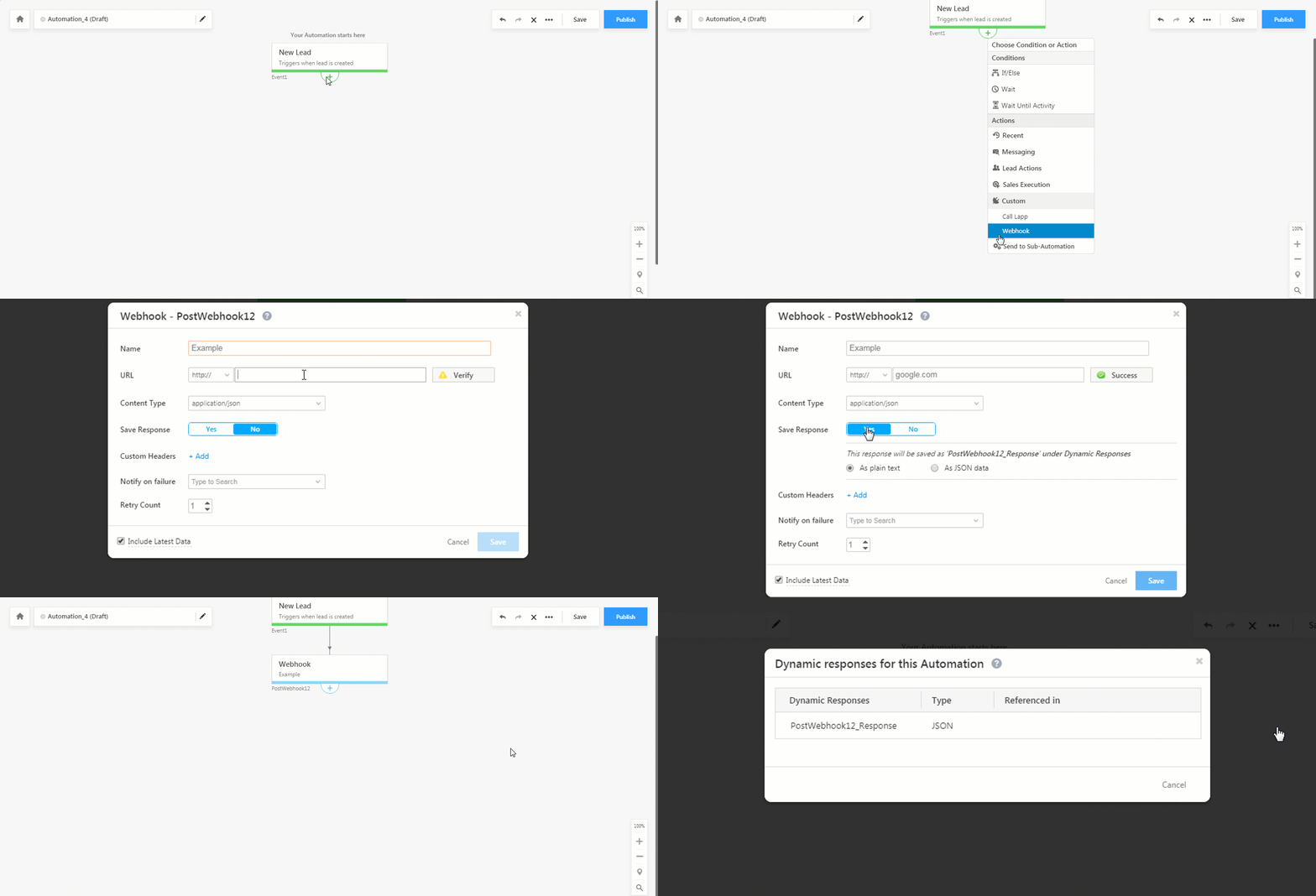
You can save responses from Lapps and Webhooks in automations and then use these responses in your emails. Here’s how you save a response –

  1. Access an existing automation or create a new one by navigating to Marketing>Automation.
  2. Add a Custom automation action card and select either the Call Lapp or Webhook option.
  3. Toggle the Save Response option to Yes and choose whether you want to save the response as
    1. Plain text – Doesn’t allow you to separate out key value pairs from the content.
    2. JSON data – Allows you to separate out key-value pairs.
  4. Click Save to add the action card to your automation.
  5. Once the automation card is saved, click the more icon () and then click View Dynamic Responses. All the dynamic responses and the places they’ve been referenced will show up here.


Using Saved Responses in Your Emails

Once you’ve saved a webhook or Lapp response, you can now insert that response in your emails.

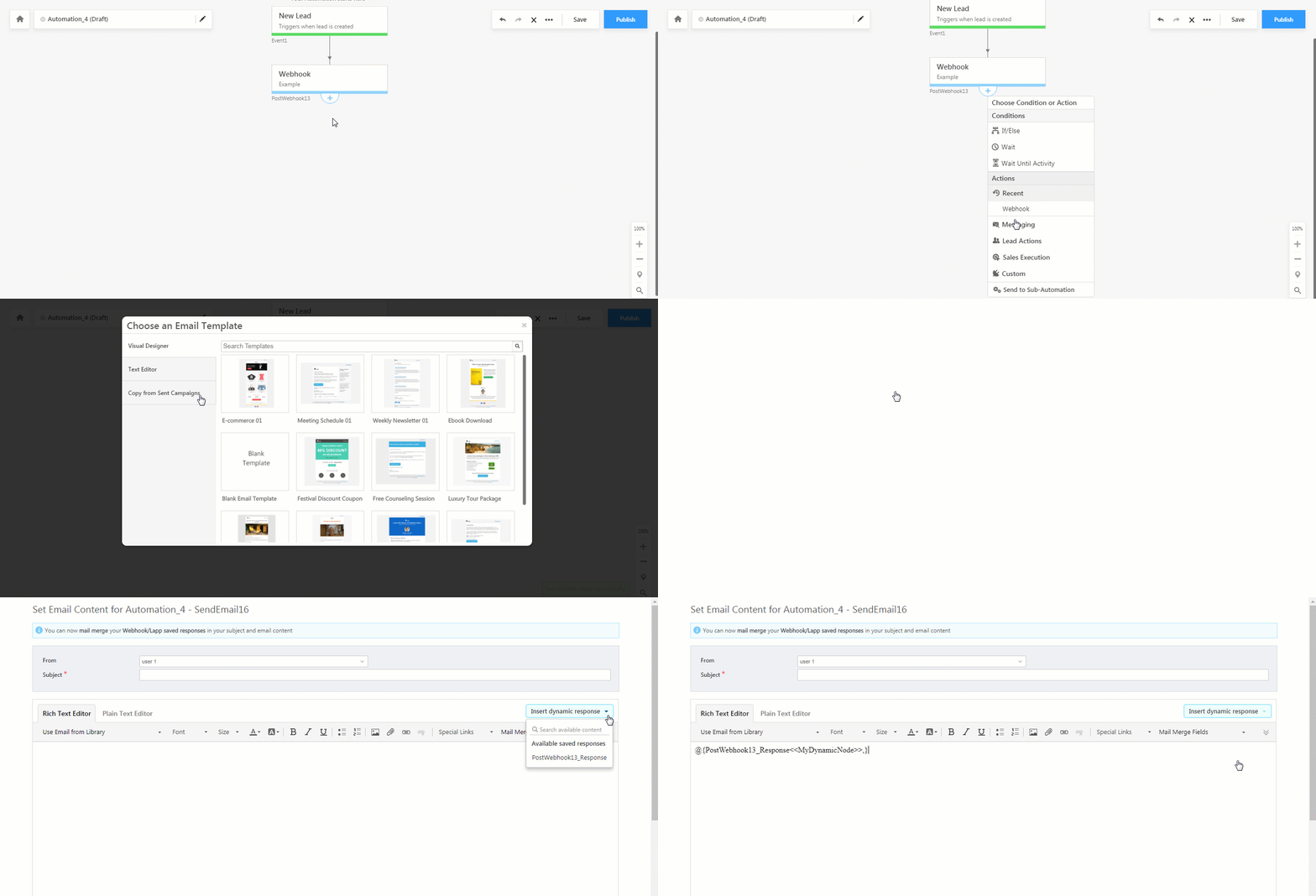
  1. Add a Send Email action card under Messaging.
  2. On the Choose an Email Template pop-up, select the Text Editor option from the left pane, then click Use Rich-Text Editor. The text editor will now open in a new window.
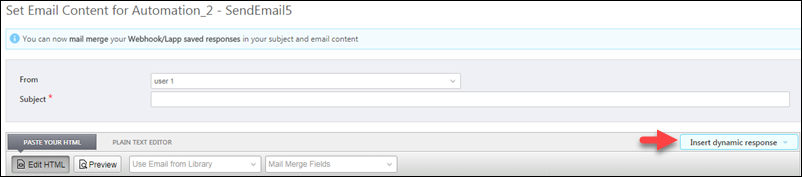
  3. You’ll see an Insert Dynamic Response button on the right side of your page. Click it to view the list of all available dynamic responses*. You can also use the search bar to find a specific dynamic response.
  4. Click the dynamic response you want to insert and use it in either the Subject or Body of your email.

Dynamic responses

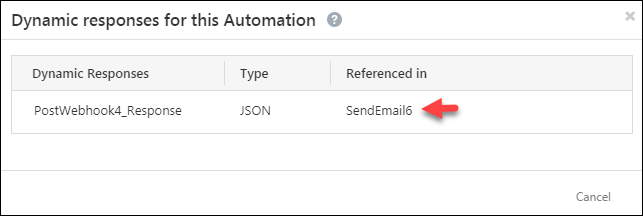
Once the email card is saved, click the more icon () and then click View Dynamic Responses. You can see all places where the dynamic response has been referenced here –

reference responses

*Dynamic responses will only be available if a webhook or Lapp action card is set up (and the Save Responses option is On)

  • Before the email action. 
  • In the same automation path.

Note: For the Rich-Text editor and the Paste your HTML editor the option to Insert Dynamic Responses shows up on the top right side of the editor –

Dynamic responses option

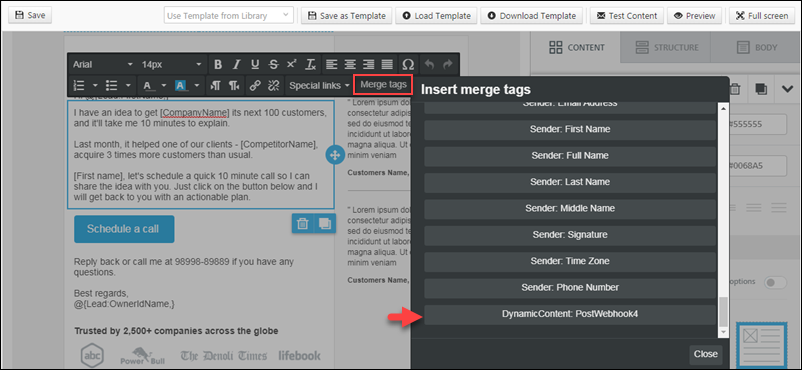
For the Visual Designer, the option to merge dynamic content shows up under Merge Tags for each content block you add –

Dynamic responses


Examples

Your saved response will look something like this –

@{PostWebhook13_Response<<MyDynamicNode>>,}

Note: The response names (PostWebhook2 here) will vary based the Id of the Lapps or webhook automation cards you create.

Here are some examples of how you can use <<MyDynamicNode>>

Example 1

If the JSON data being posted by your Lapp or Webhook looks like this –

{
“Key1”: [“Value1”, “Value2”, “Value3”],
“Key2”: {
“Key4”: “Value4”,
“Key5”: [“Value5”]
}
}

Then you can use pass <<MyDynamicNode>> as –

  • @{PostWebhook2_Response.Key1[0],} -> Value1
  • @{PostWebhook2_Response.Key2.Key4,} -> Value4
  • @{PostWebhook2_Response.Key2.Key5[0],} -> Value5

Example 2

If the JSON data being posted by your Lapp or Webhook looks like this –

[{
“Key”: “Value1”
}, {
“Key”: “Value2”
}]

Then you can use pass <<MyDynamicNode>> as –

@{PostWebhook2_Response[1].Key,} -> Value2

Example 3

Or you could just post all the data like this –

@{PostWebhook2_Response,}


Errors

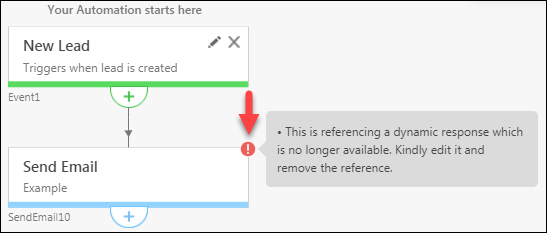
If you delete a webhook or Lapp card whose saved response was being used in an email or if you turn the Save Response option Off, you’ll see the following error notification –

dynamic response missing

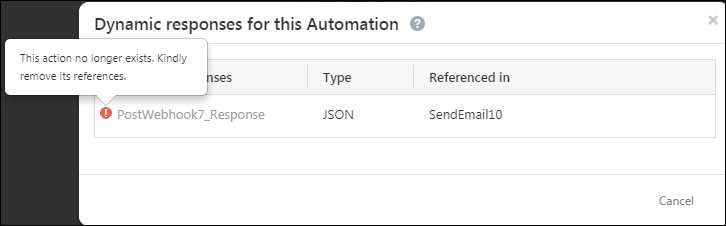
You can also locate the cause of the error by clicking the more icon () and then clicking View Dynamic Responses. You’ll be able to see which card is was deleted or had the saved response option turned off.

errors in dynamic responses

If you have questions or need more assistance, please reach out to us at support@leadsquared.com. We’re always eager to help!

Zip Based Lead Distribution

The zip based lead distribution app lets you automatically assign leads, custom activities and tasks to users based on zip code. The app comes pre-built with powerful features such as round-robin lead/task/activity distribution and radial search*.

If the mapping isn’t found for a particular user you’re trying to assign a lead to, a radial search is performed and the user within the next closest zip code will be assigned the lead. This functionality is enabled for the Indian region by default. If you want it enabled for your region, please contact support@leadsquared.com.

This article takes you through –

  • Installing and configuring the zip-based lead and activity distribution app.
  • Implementing the application in your workflow through –
    • Webhooks
    • Rules
    • Automation

Note: If you’re new to the lead distribution feature we highly recommend you first understand the best way to distribute leads to your users.


Example Use Case

Here are just a few examples of what you can achieve through zip-based distribution –

  • Automatically assign all leads from different zip codes to region-specific sales teams.
  • Assign custom activities for India leads to your field sales users across the country.
  • Distribute tasks for North India leads to your telephony agents in the northern region.

All examples assume that you’re storing zip code data in a lead/activity/task field, that you’ve correctly configured the app and uploaded a CSV file to map zip codes to users.


Requirements

  • You have to be the administrator to access the app settings.
  • You will have to upload excel files (CSV format) which maps zip codes to LeadSquared user email addresses.
  • Add relevant webhooks, rules or create an automation to implement zip distribution.

The LeadSquared Zip Based Distribution App is a licensed feature. It may not be available under your plan. Please contact support@leadsquared.com if you are unable to find it.


Setup

Setting up the app involves –

  • Installation
  • Profile Configuration*
  • Uploading a CSV
  • Copying the webhook URL to use it in rules, automation, webhooks

*You can set up zip based distribution on a lead field, activity field or task field (where you’re storing zip codes). If you want to set up distributions based on activity zip fields or task zip fields, we recommend you create a new profile for each.


Install the app

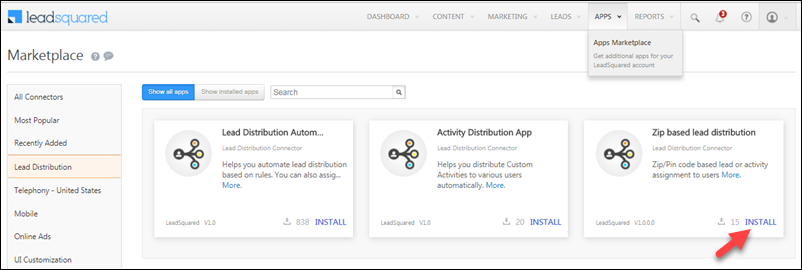
Navigate to Apps>App Marketplace>Lead Distribution (on the left panel)>Select the zip based distribution app and click Install.


Profile Configuration

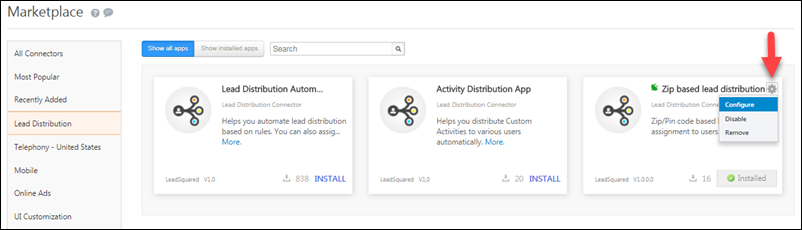
Once the app is installed, hover the mouse over the settings Settings icon wheel and click Configure.

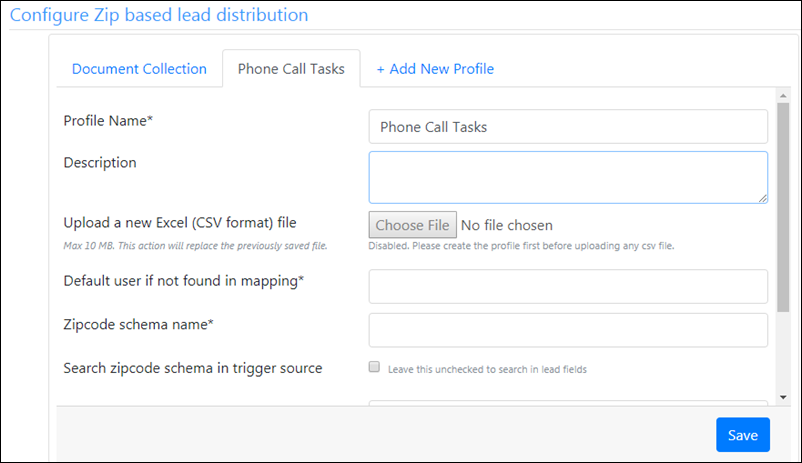
You can create multiple profiles and upload a CSV file for each profile. You may want to have separate profiles for different tasks or different activities. For example, you could create a separate profile for document collection activities where you distribute leads to on-field users, and a separate profile for phone call tasks where you distribute leads to your call centre agents.
new zip distribution profile

Enter all the mandatory (*) fields and then click Save to proceed to the next step (uploading the CSV file).

Field Description
Profile Name* Enter a name for your profile. Ensure that the name clearly describes the purpose of the profile to avoid confusion later (while setting up the trigger through automation, rules, etc.). For example, “Document Collection Tasks”, “Phone Call Tasks”, etc.
Description Elaborate on the purpose of the profile. For example “To collect documents for the KYC process”.
Upload a new Excel (CSV format) file The Choose File option will remain greyed out until you enter all mandatory fields, click Save and create the profile. Once enabled, you can browse and upload a CSV file from your computer.
Default user if not found in mapping* Enter the email address of the default user. If a user’s email address specified in your CSV file doesn’t match a user in your LeadSquared account, leads will be distributed to the default user you specify here.
Zipcode schema name* Enter the schema name of the zip code field. You can enter the schema name of a corresponding lead, activity or task field depending on whether you want to distribute leads based on the lead’s zip code, the zip code of a custom activity or the zip code of a task.
Search zipcode schema in trigger source If you want to distribute leads based on the zip code of a custom activity or a task, enable this checkbox. If you don’t enable this checkbox, the system will assume that the schema name you entered was for a lead field.

Note: We do not validate the schema_name while saving the configuration. Ensure that you input it correctly with proper casing. For example, mx_Custom_1 should not be entered as mx_custom_1.

Search radius (in km)* When a zip code in your CSV file isn’t supported, the system will search for users located in the geographically closest zip code within the radius you define here.

For example, for the zip code 110001, if you specify a 5 km radius, here are the closest zip codes in ascending order –

  • 110055 – 1.6 km
  • 110002  – 2.7 km
  • 110069  – 2.7 km
  • 110004  – 3.1 km
  • 110011 – 3.3 km
  • 110060 – 3.3 km
  • 110006 – 3.5 km

If the radius specified here is exhausted, the lead/activity/task will be assigned to the default user.

Note: Only integers are accepted and the maximum value is 30 km.

Check user availability If you check this option, leads/tasks/activities will only be distributed to users who are available. The user availability check is based on the workday template configured for the current day.


Upload a CSV file

Once you’ve entered all the mandatory fields and saved a profile, the Choose File option will be enabled. You can now upload a CSV file to map zip codes with the email addresses of users you want leads/tasks/activities distributed to –
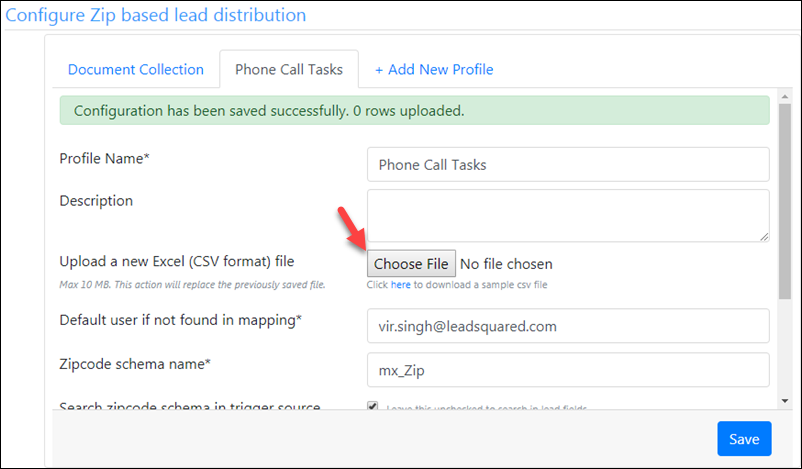
upload a zip

Note: Download the sample CSV to understand the format. Ensure that the column headings are exactly the same as shown in sample CSV.

The CSV file you upload should follow the sample format shown below. This file will be used to map zip codes with the email addresses of your LeadSquared users. Be sure to enter the correct email addresses of your users.
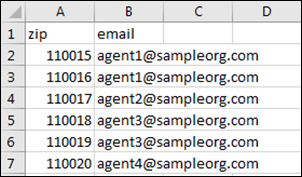
Note: If you want to assign the same zip code to multiple users, add the same zip in multiple rows with the user’s email addresses alongside. These users will be assigned the leads in round-robin fashion automatically.
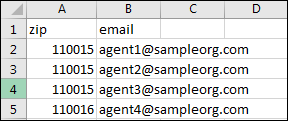
sample zip

Once you’ve uploaded the CSV file it will show up on the pop-up as highlighted below. Click Save to continue.
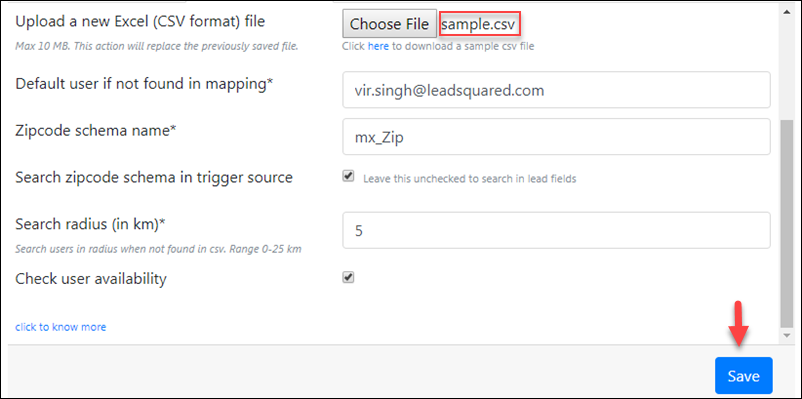
upload new CSV

Wait for a few seconds after saving your file, then click the Refresh Page button.
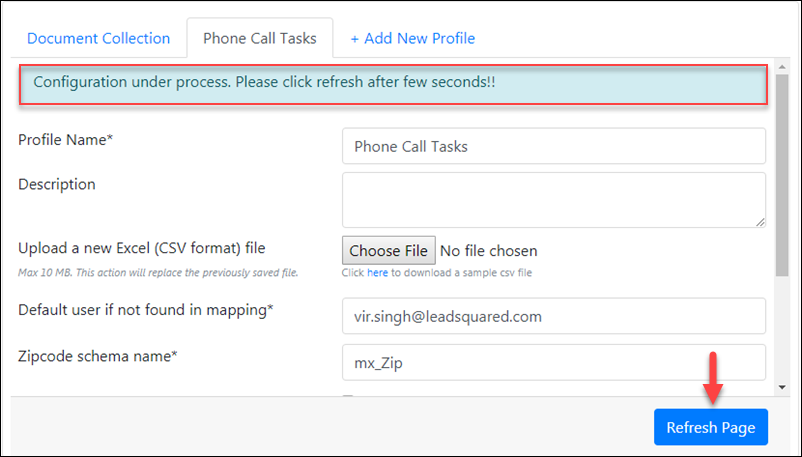
Processing configuration

Your configuration will now be successfully applied. You can click the link highlighted below to view the file you just uploaded.
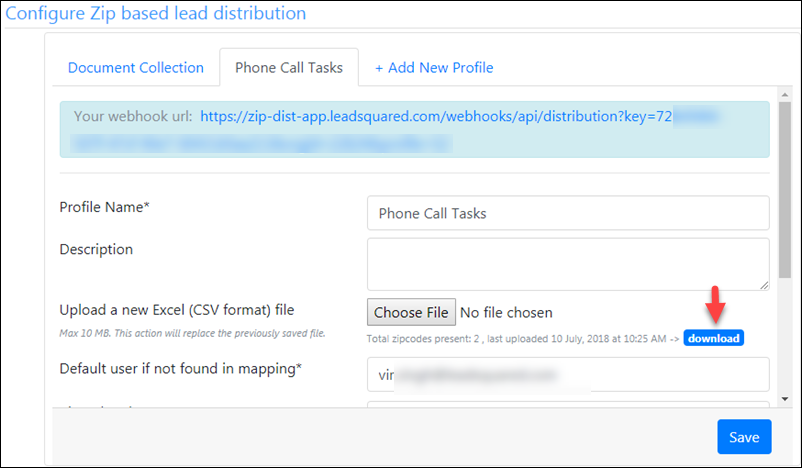
Note:

  • Every time you upload a new CSV file, the previous file gets replaced. So if you want to add more zip codes and email addresses to the CSV file we recommend that you click the link (shown above) to first download the previous CSV file, add the new zip codes and email addresses to the downloaded file and then re-upload it to avoid losing the previous data.
  • If a user in your CSV file is de-activated, the mapping for that user gets removed. If you activate the user again in future, you’ll have to re-upload the CSV file with the mapping of the de-activated user.


Copy the webhook URL

Once your file is successfully uploaded and saved, your webhook URL will become visible. Click to copy the webhook URL. You can now use it to trigger the zip code based lead or custom activity distribution in 3 different ways:
1. Setup webhooks
2. Setup rules
3. Setup an automation
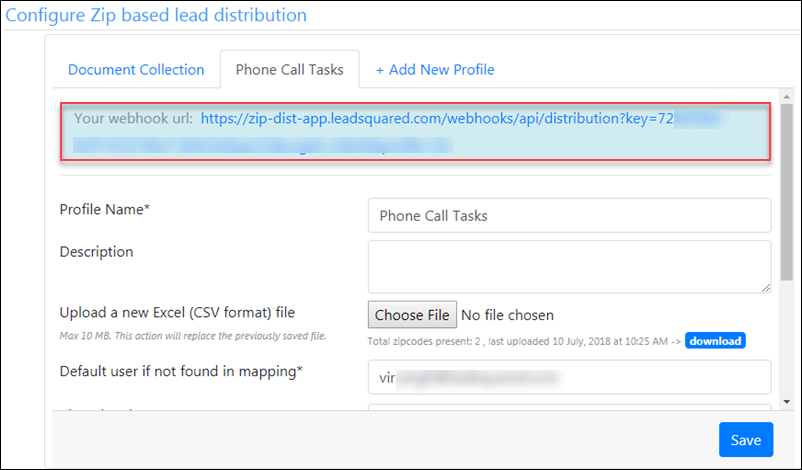
 

Use the app in your workflow

Once you’ve copied the webhook URL from the zip based distribution app, it’s time to integrate it into your workflow by setting up a trigger.


Setup Webhooks

Webhooks can be set up to trigger zip-based distribution on the following events –

  • Lead Create
  • Lead Field Value Change (Zip field)

Every time a lead creation or lead field value change (zip field) event occurs, the zip based distribution will trigger. If you want to distribute leads that already exist on your LeadSquared account, you will have to update the zip code lead field.
The following example takes you through setting up a webhook for lead creation events. For more information, see LeadSquared Webhooks.
Navigate to Settings>API and Webhooks>Webhooks, and click Create.
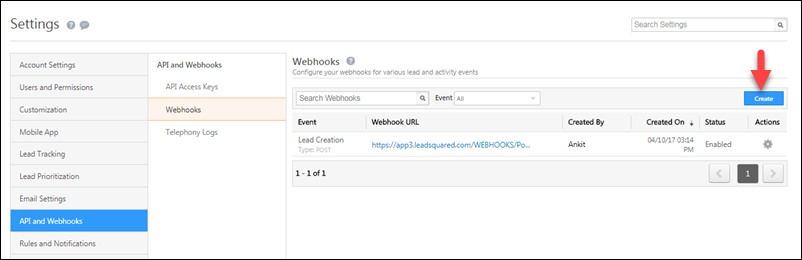
In the Add Webhook section, use the Event drop-down to select either the Lead Creation or Lead Field Value Change event. Next, paste your webhook URL, select the format you want the data posted in (optional), set an execution delay (optional) and enter a description (optional). Click Save to continue.
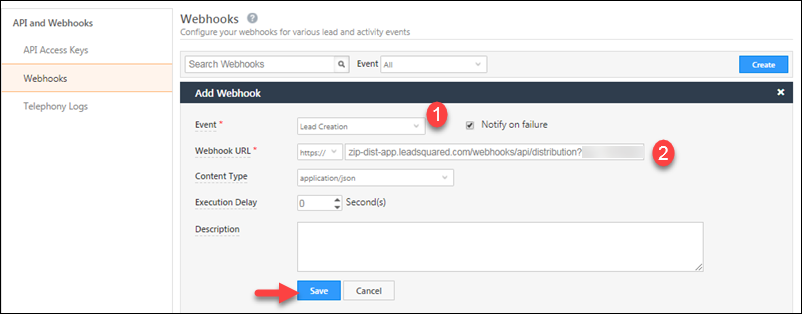
 

Setup Rules

You can configure rules to trigger zip-based distribution on the following events –

  • Lead Create
  • Lead Update
  • Activity Create
  • Activity Update
  • Task Create
  • Task Complete

This example takes you through setting up a rule for the custom activity create event. For more information on setting up rules, see LeadSquared Rules and Notifications.
Navigate to Settings>Rules and Notifications, then click Create.
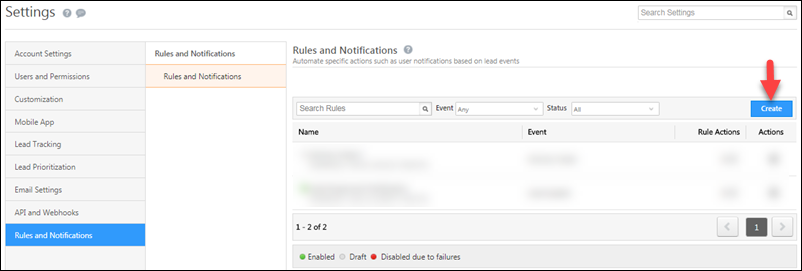
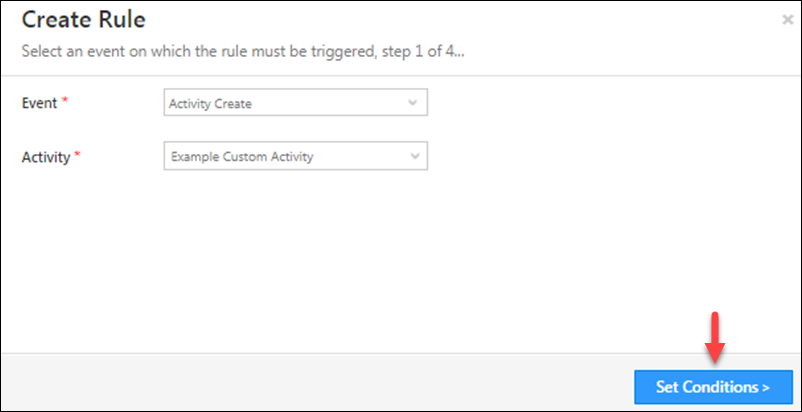
Now select the event as lead create, lead update, activity create, activity update, task create or task complete. Then select the specific lead field (in case of lead update) or specific custom activity (in case of activity creation or activity update). Click Set Conditions to continue.
Note: Even though all activities show up on the select activity drop-down, be sure to select only custom activities. The rule you setup will not work for system activities.
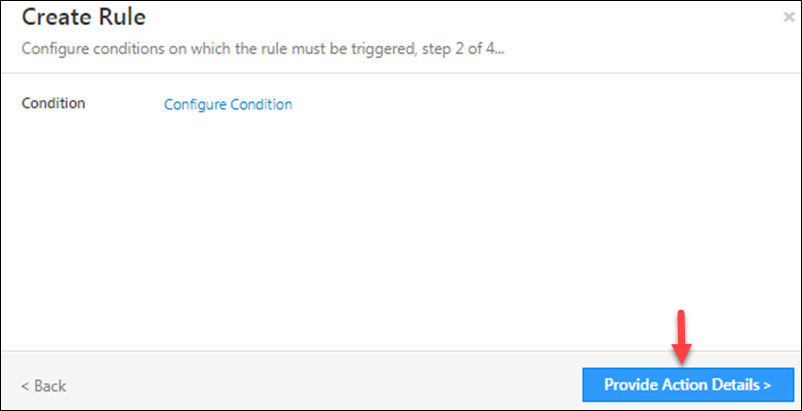
You can set up conditions if you want. Click Provide Action Details to continue.
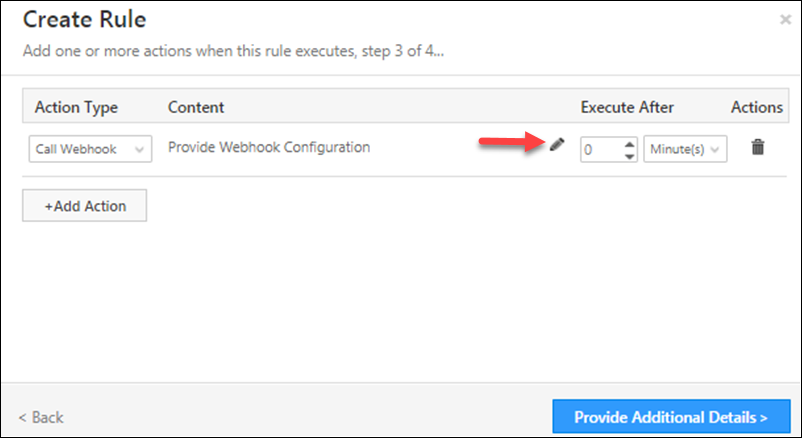
From the Action Type drop-down, select Call Webhook. Then click the pencil icon to add the webhook configurations.
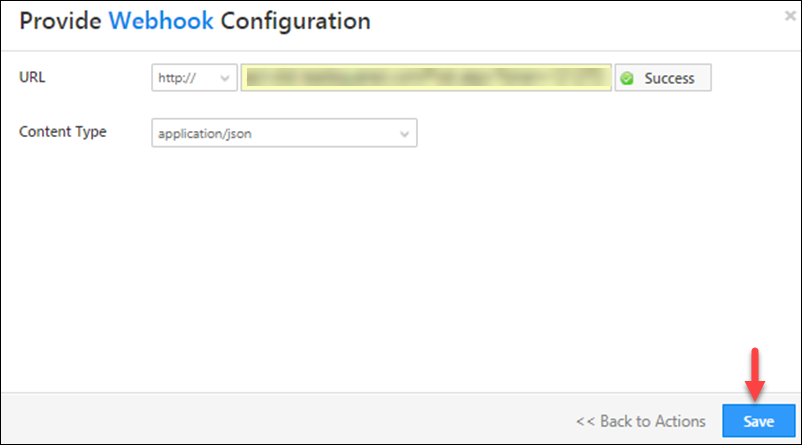
Now paste your webhook URL and click Verify. Then click Save.
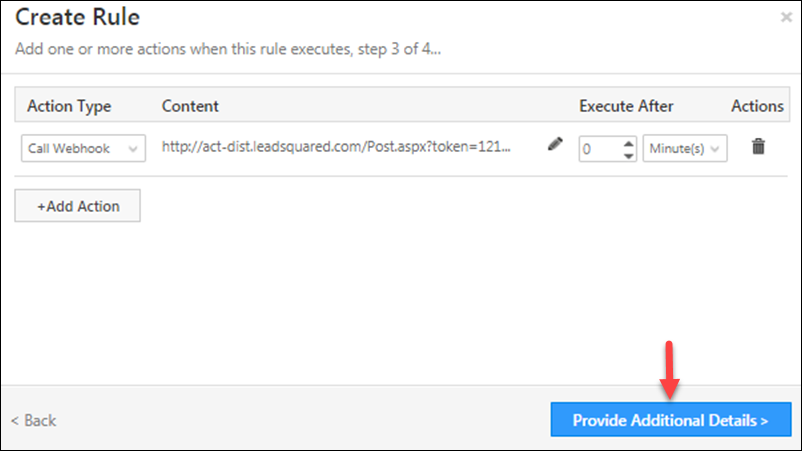
Click Provide Additional Details to continue.
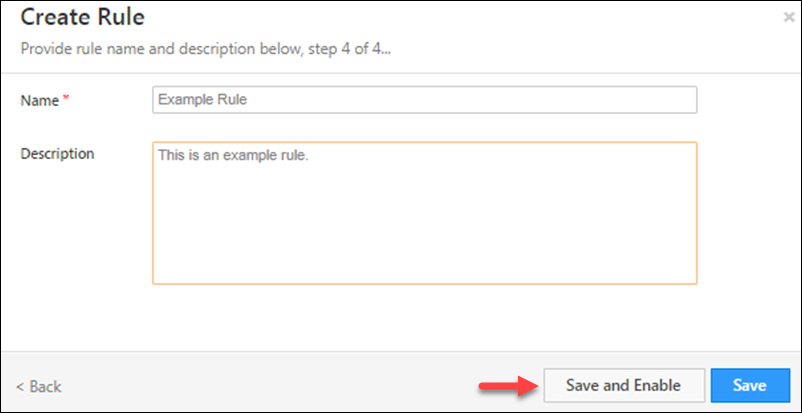
Finally, set a name and description for the rule and click Save and Enable to bring the rule into immediate effect or click Save to enable the rule sometime later.
 

Setup an Automation

You can configure automations to trigger zip-based distribution on the following events –

  • Lead Create
  • Lead Update
  • Activity Create
  • Activity Update
  • Task Create
  • Task Complete

As an alternative to setting up webhooks or rules, you can also trigger the zip based distribution through an automation. For more information automation, see Automation Feature of LeadSquared.
Navigate to Workflow>Automation, then click Create Automation.
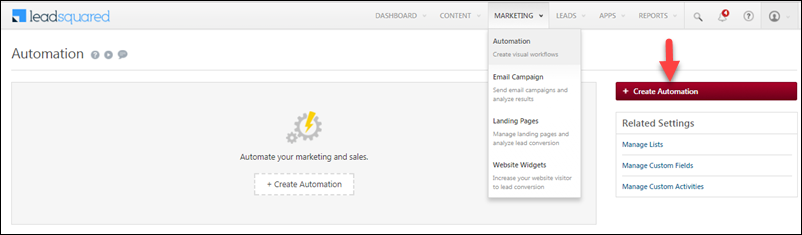
Select a template and choose the automation trigger.
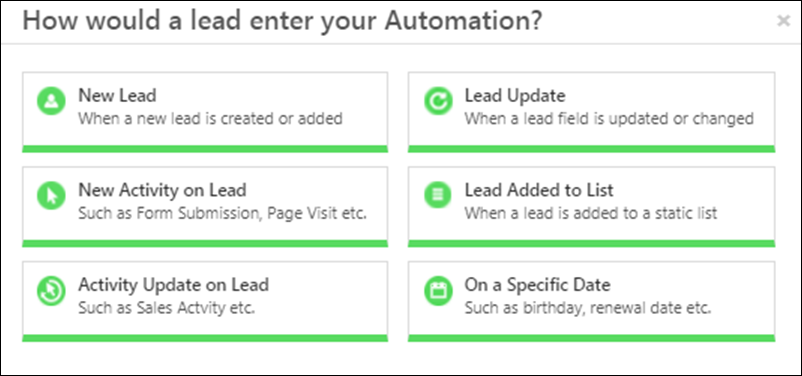
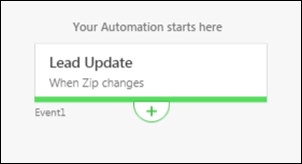
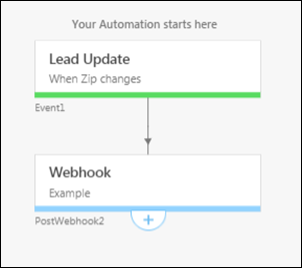
This example takes you through a simple automation where the zip based distribution will be configured every time a lead’s zip code is updated. The trigger selected is Lead Update and the lead field on which the trigger is based is Zip.
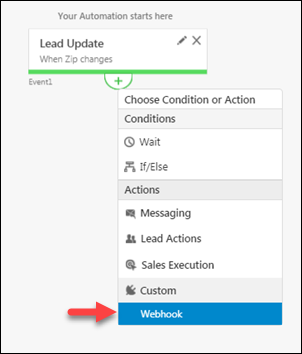
On clicking the green add button above, you will now have to choose the action that follows the trigger. Under Actions, choose Webhook.
Now enter a name for the webhook, paste the webhook URL and click Verify. Once the webhook is verified, click Save.
The automation is now set up such that every time a lead’s zip code is updated, the zip based lead distribution will be triggered.
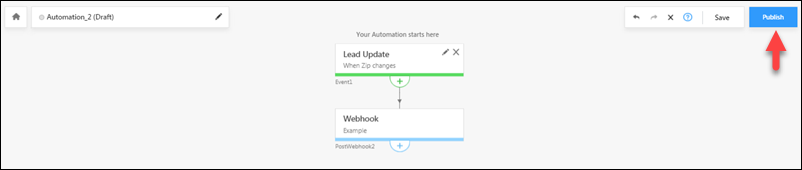
Click Publish to bring the automation into effect or click Save if you want to publish the automation later.

Capture Addresses on a Map in Forms

1. Feature overview

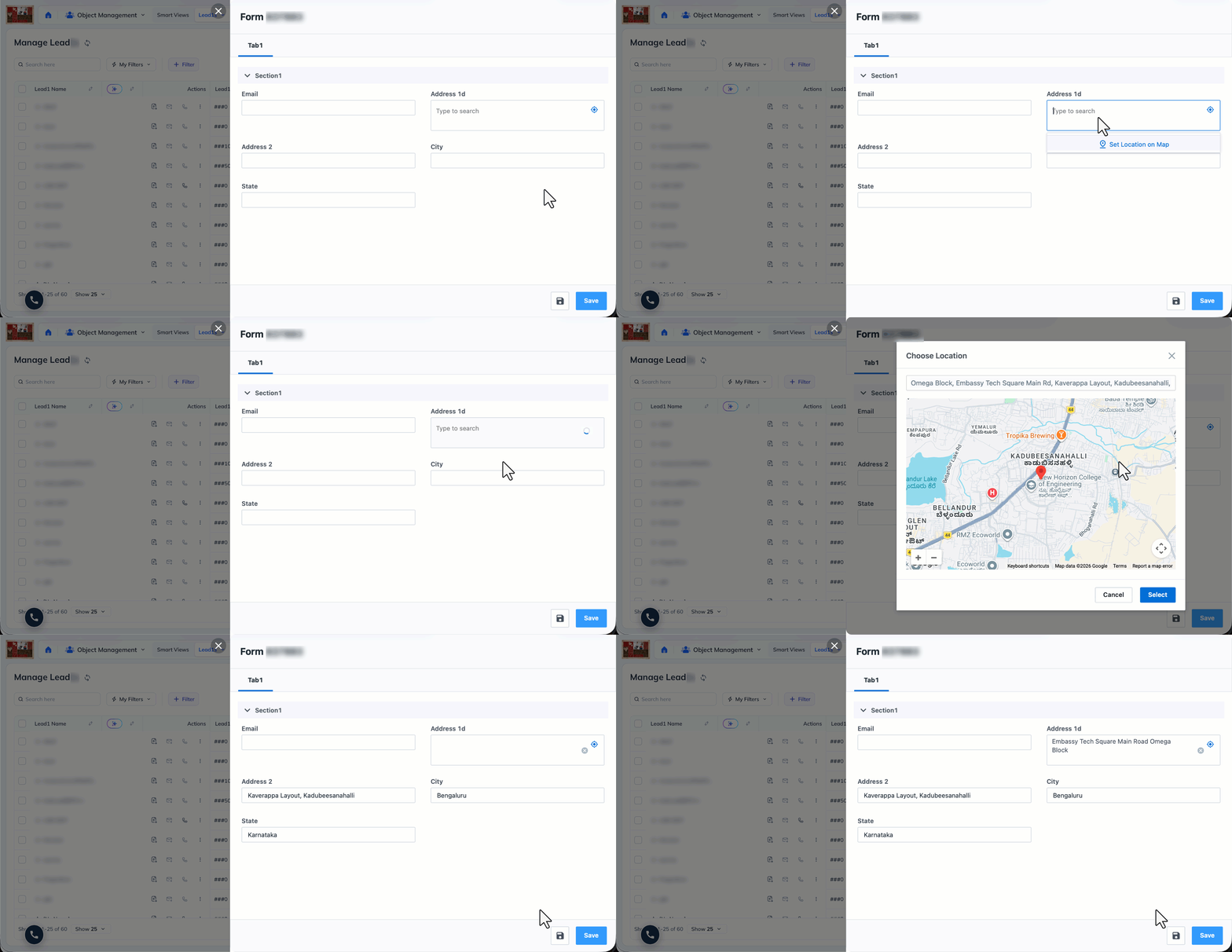
Capture addresses on a map in Forms removes manual address entry for field teams and agents, so location data is captured faster and with fewer typos. Any workflow that relies on location data benefits from the cleaner, quicker input. Users can search for an address or set a location on the interactive map, and the linked address fields (Address, City, State, Country, Zip) populate automatically from the selection.

google maps on forms


2. Prerequisites

  • NextGen must be enabled on your account.
  • At present, this feature is supported on Web App Forms.
  • A Google Maps API Key is required to enable the setting.
  • Browser location permission must be granted so the map can pick up the user’s current location.


3. How it works

Setting up this feature takes two steps. First, add your Google API Key to your account so the map can load. Then enable the map setting on the form you want to use it on. Once both are done, users filling out the form can search for an address or set a location on the interactive map, and the linked address fields (Address, City, State, Country, Zip) populate automatically from the selection.


4. Set up your Google API Key

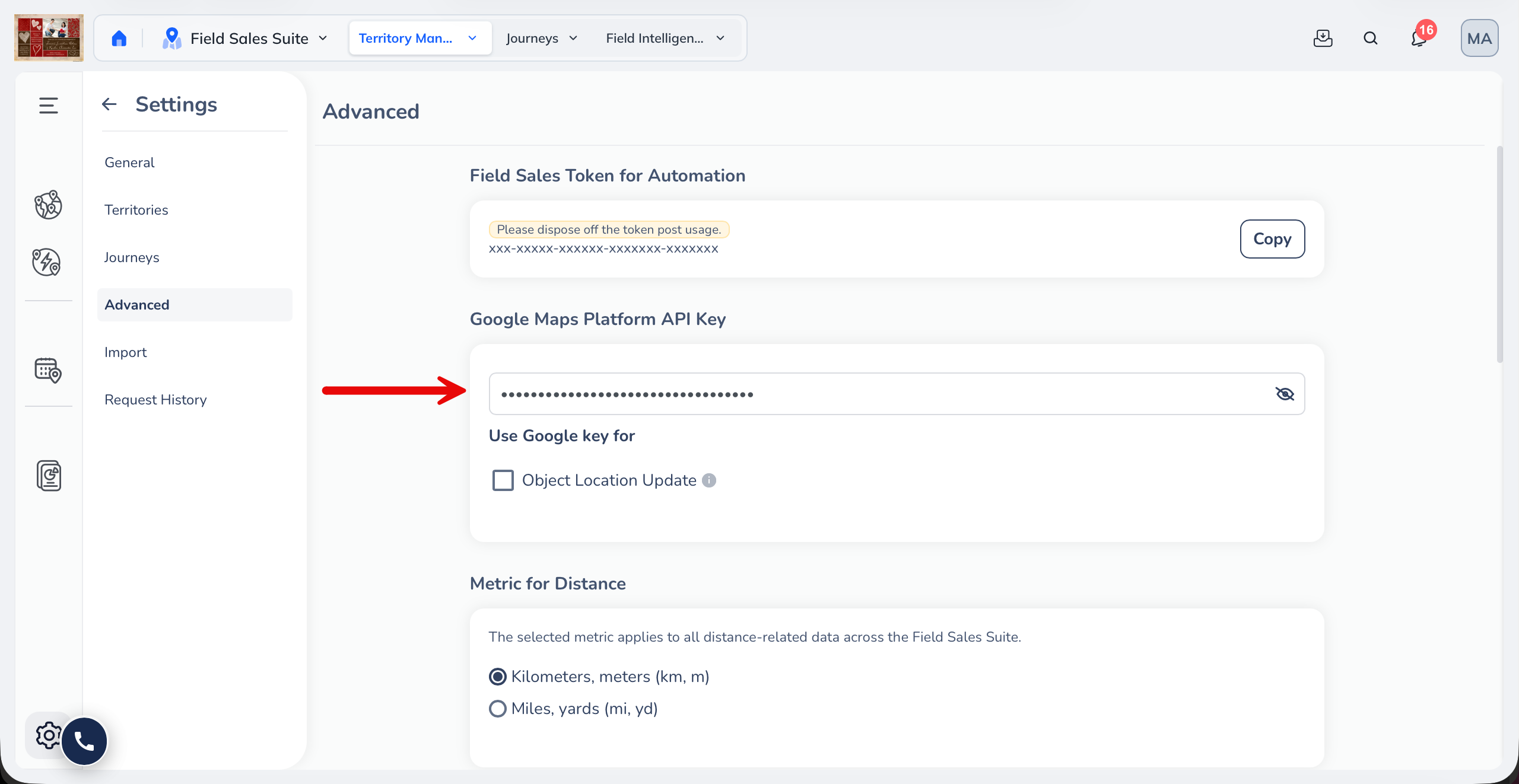
If you have Field Sales enabled on your account, add your Google Maps API Key under Advanced Settings in the Field Sales Suite.

Note: If Field Sales is not enabled, email support@leadsquared.com with your Google API Key, and the setting will be enabled for you.

enable google map forms settings


5. Enable maps on a form

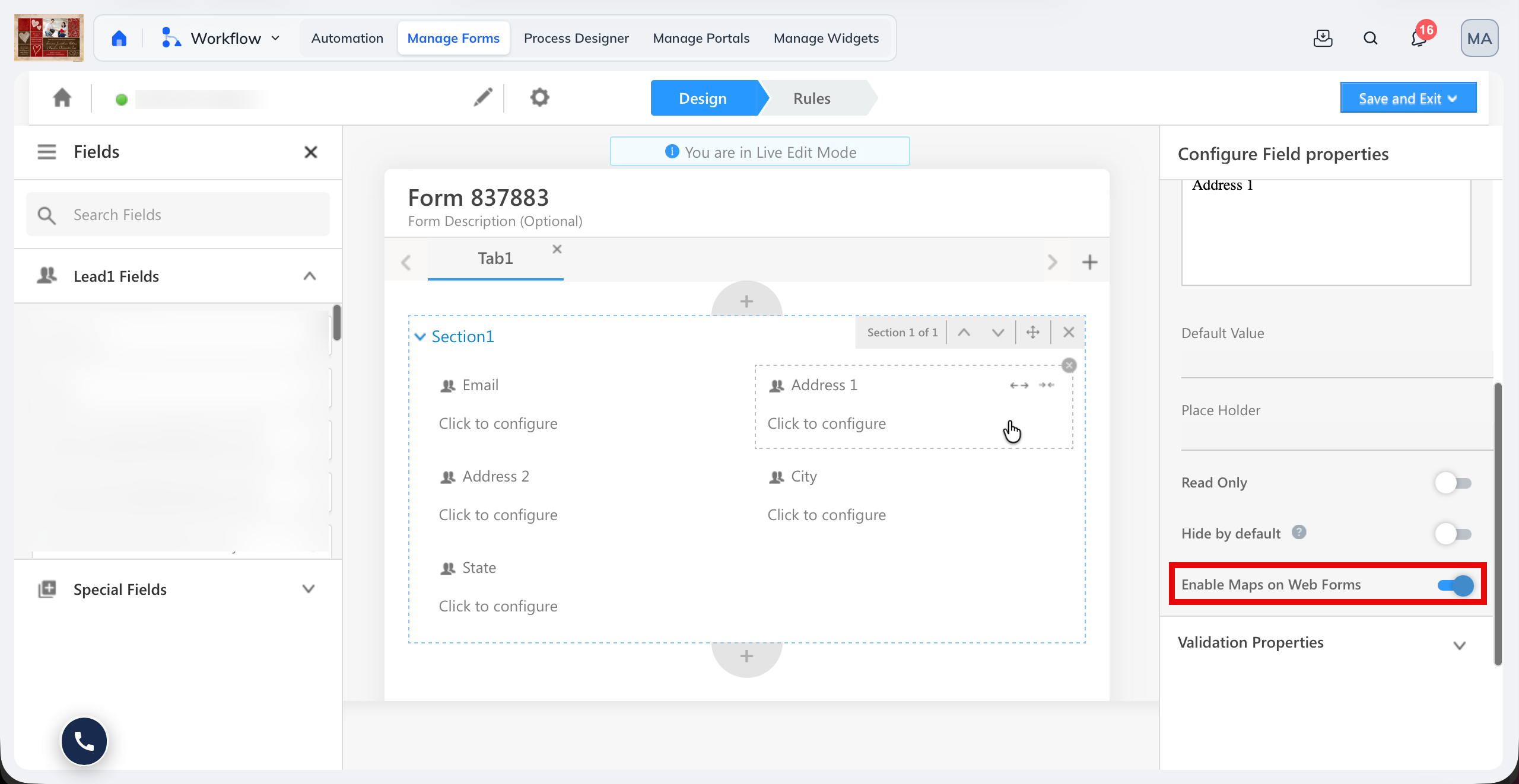
  1. Add the Address 1 system field to the form.
  2. Turn on the Enable Maps on Web Forms setting.

You can add other system fields such as State and City alongside Address 1, but the map setting itself is available only on the Address 1 system field.

enable maps on web forms


Any Questions?

We’d love to answer your questions or hear your own unique use cases. Feel free to share your experiences in the comments section below.

Field Sales Territories for Sales Users

1. Feature Overview

As a Sales User, you can view and work within the territories assigned to you (by your manager/administrator) using the LeadSquared mobile application. Leads are automatically assigned based on proximity to your location. This helps in reducing time spent on traveling and improves your efficiency.

  • Find leads near you and within your assigned territories.
  • Add new leads on the go within/outside your territory.
  • Track your lead’s location.
  • View directions to your leads along with the traffic conditions.

Note:

  • This article is to help sales users navigate the Field Sales Territories feature. For more information on how Administrators and sales managers can use this feature, see Field Sales Territories for Admins and Sales Managers.
  • If you’ve enabled both Near Me and Territories in your account, you can access both. A boundary will be displayed around the territories in Near Me.


2. Prerequisites

  • You must be an Administrator, Sales Manager, or a Sales User.
  • You must have territories created by the Administrator.
  • You must run the following versions, or later –


3. How it Works

Open the LeadSquared mobile app and tap Near Me. You will be able to view your location, your assigned territories and all leads around you at a particular radius. Adjust the search radius to filter the leads displayed. You can call or view directions to your leads on this page. You can also view the traffic condition along the route suggested to you.


4. Find Leads in Your Territory

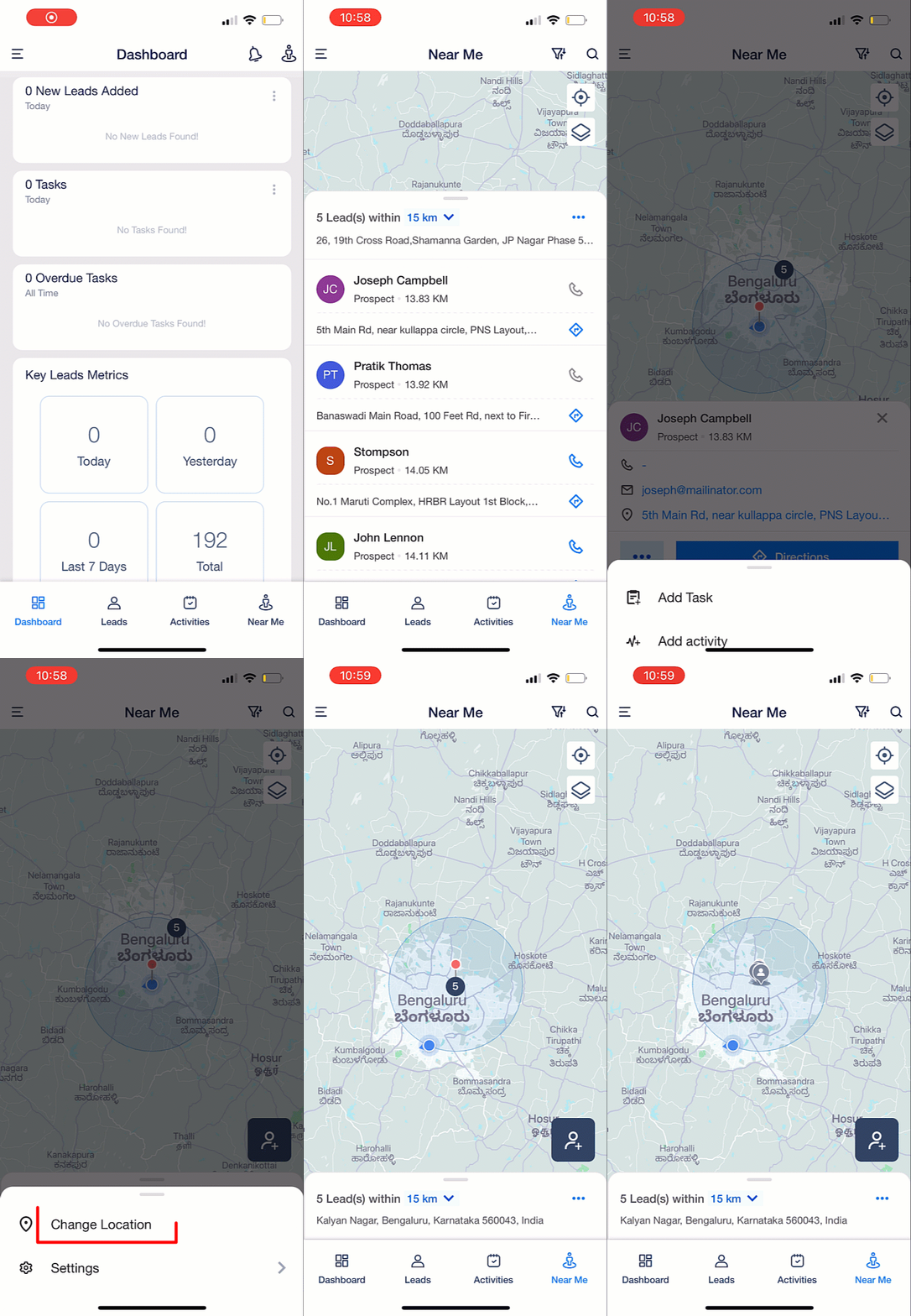
Open the latest version of the LeadSquared mobile app. On the Dashboard, tap Near Me. A red pin marks your location and all the leads present within a particular radius around you are displayed. Even if your location is outside the territories assigned to you, the leads assigned will still be displayed. You can also view the territories assigned to you and the leads within these territories on this screen.

  • To increase the radius of your search, tap the dropdown on the bottom of the screen, next to Leads within. Select the required radius. You can also pinch to zoom in and increase your radius. While doing so, you can find leads around you within any radius.
  • To view all the leads present in a particular radius around you, tap the bar on the bottom of the screen that displays your location. Tap on any one of the leads to view the lead details. You can also call or find the directions to the lead here.
  • To filter your leads, tap LeadSquared - Filter leads icon.
    • Once you apply filters, you can reset/change them by tapping on Change Filter Field.
  • To search for a particular lead, tap LeadSquared - Search leads icon
  • To find leads in other locations, move the map to the desired location and tap Find leads near me.
  • Once you can view the lead’s details, to add a task or activity, tap Three dots menu. Select Add Task or Add Activity.
  • To add new leads directly from this page, tap LeadSquared - Add new lead icon.
  • To change your location, on the bottom of the screen, tap Three dots menu. Tap Change Location.
  • To enable/disable the cluster view of leads –
    1. Tap Three dots menu.
    2. Tap Settings.
    3. Slide the Cluster View switch.
  • To change the map view (default, satellite or terrain) or to view traffic on the map, tap LeadSquared - Change map icon.

 Note:

  • The colours of the icons and territories customised by Admins on the web will not be displayed on the mobile app.
  • You can also create leads outside your territories while using the mobile app.
  • If there are parent-child territories (or sub-territories) created, only the parent territory will be displayed on the mobile app. Admins and Sales Managers can view the sub-territories on the web application.

LeadSquared - Territories mobile app


Any Questions?

We’d love to answer your questions or hear your own unique use cases. Feel free to share your experiences in the comments section below.

Manage Templates for the Mobile App

1. Feature Overview

Create reusable message templates to ensure efficient communication between sales users and leads. You can also personalize these templates by adding Mail Merge fields. The templates published on the Manage Templates page are available to all sales users on the mobile app. 5 templates are available by default on your LeadSquared account and users can add up to 50 more.

Note: 

  • Templates saved as drafts will not be available on the mobile app.
  • The SMS templates previously created by the user will be available on the mobile app. However, these templates will be removed once the user logs out of their account.
  • To know more about how to send messages on the mobile app, see Make Calls and Send SMS Using the Mobile App.
  • To know more about personalising your messages with mail merge fields, see Mail Merge.


2. Prerequisite

You must be the Administrator of your LeadSquared account.


3. Create Message Templates

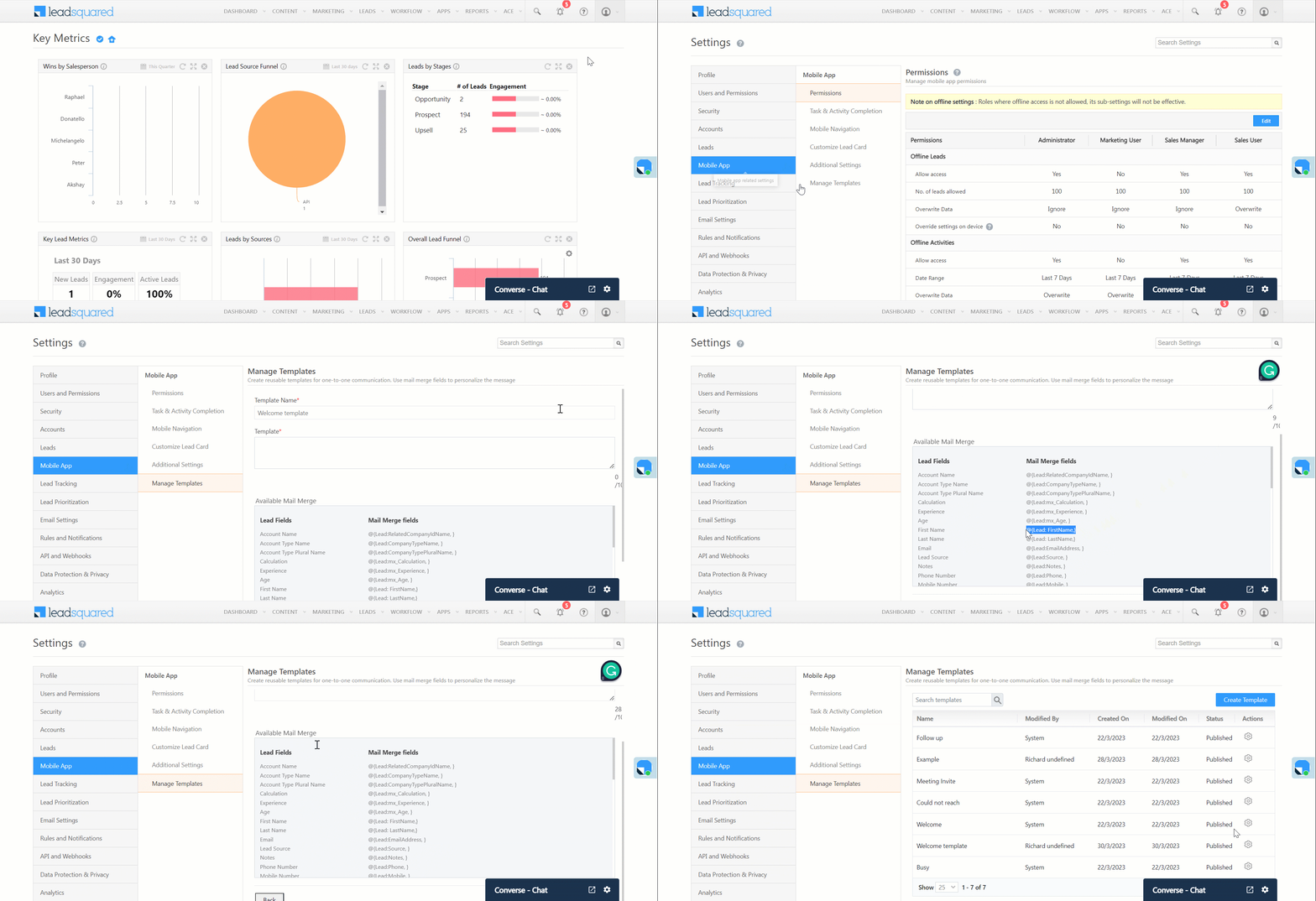
  1. Navigate to My Profile>Settings>Mobile App>Manage Templates.
  2. Click Create Template.
  3. Enter the Template Name.
  4. In the box under Template, enter your message template.
  5. To add mail merge fields on the template, under Available Mail Merge, copy the fields and paste them on the message template.
  6. Once you’re done, you can save the template as a draft or publish it.

Note: The template can contain a maximum of 1000 characters.

LeadSquared - Create Message Templates


4. Manage Message Templates

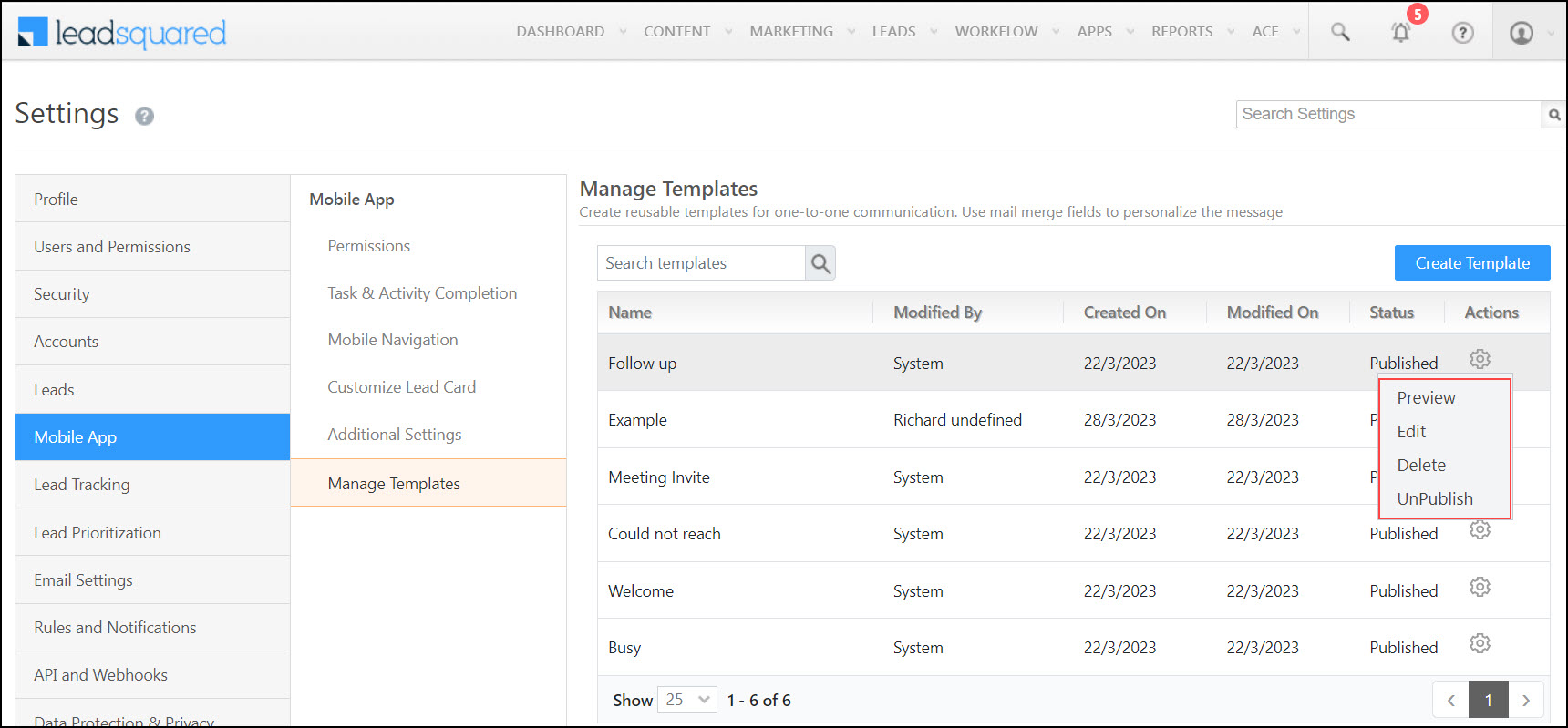
To perform actions on your template, alongside the template, click settings icon .

  • To preview the template, click Preview.
  • To edit the template, click Edit.
  • To delete the template, click Delete.
  • To publish the drafted template, click Publish.
  • To unpublish the published template, click Unpublish.

LeadSquared - Actions on manage templates


5. Use Templates on the Mobile App

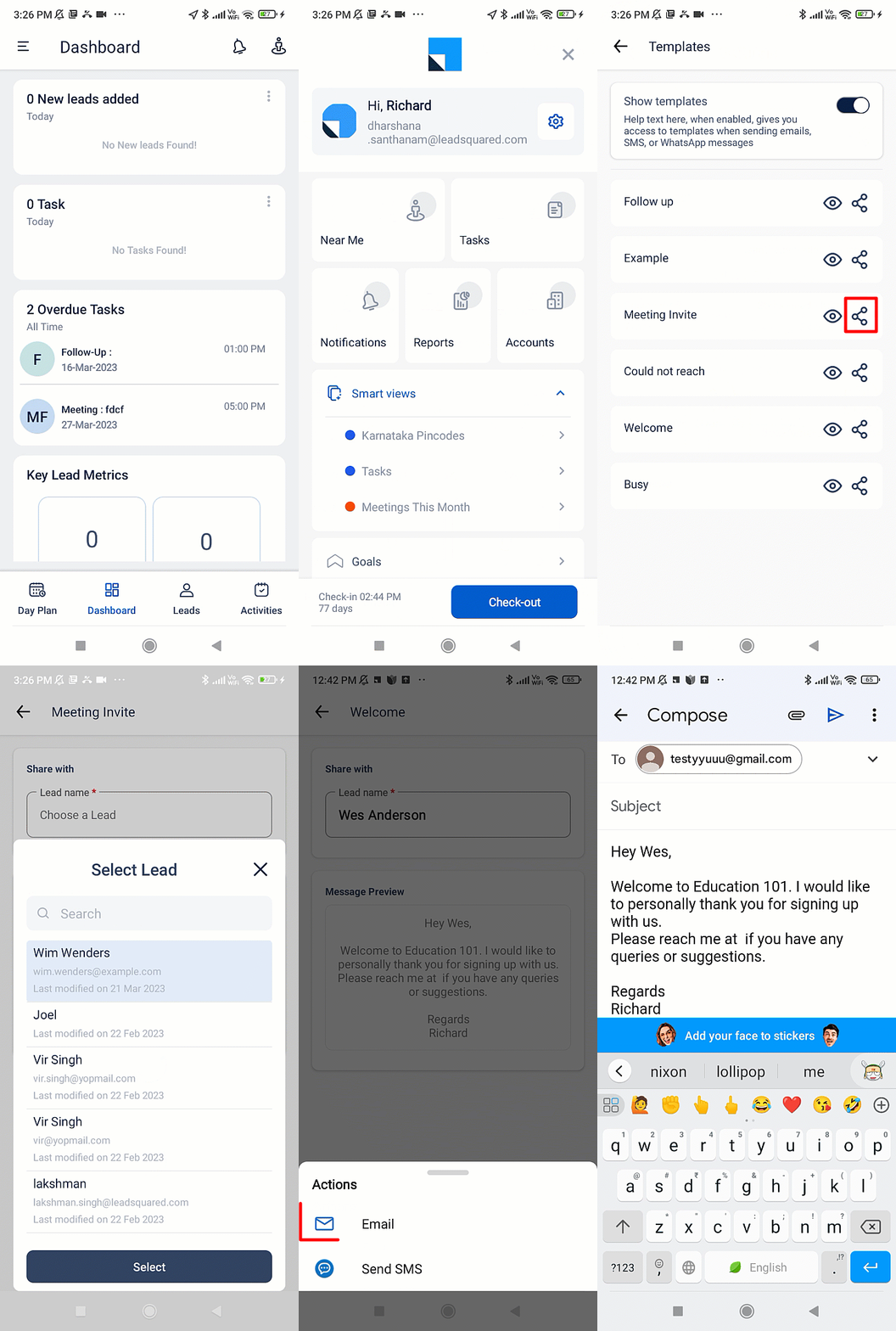
5.1 Show Templates on Mobile App

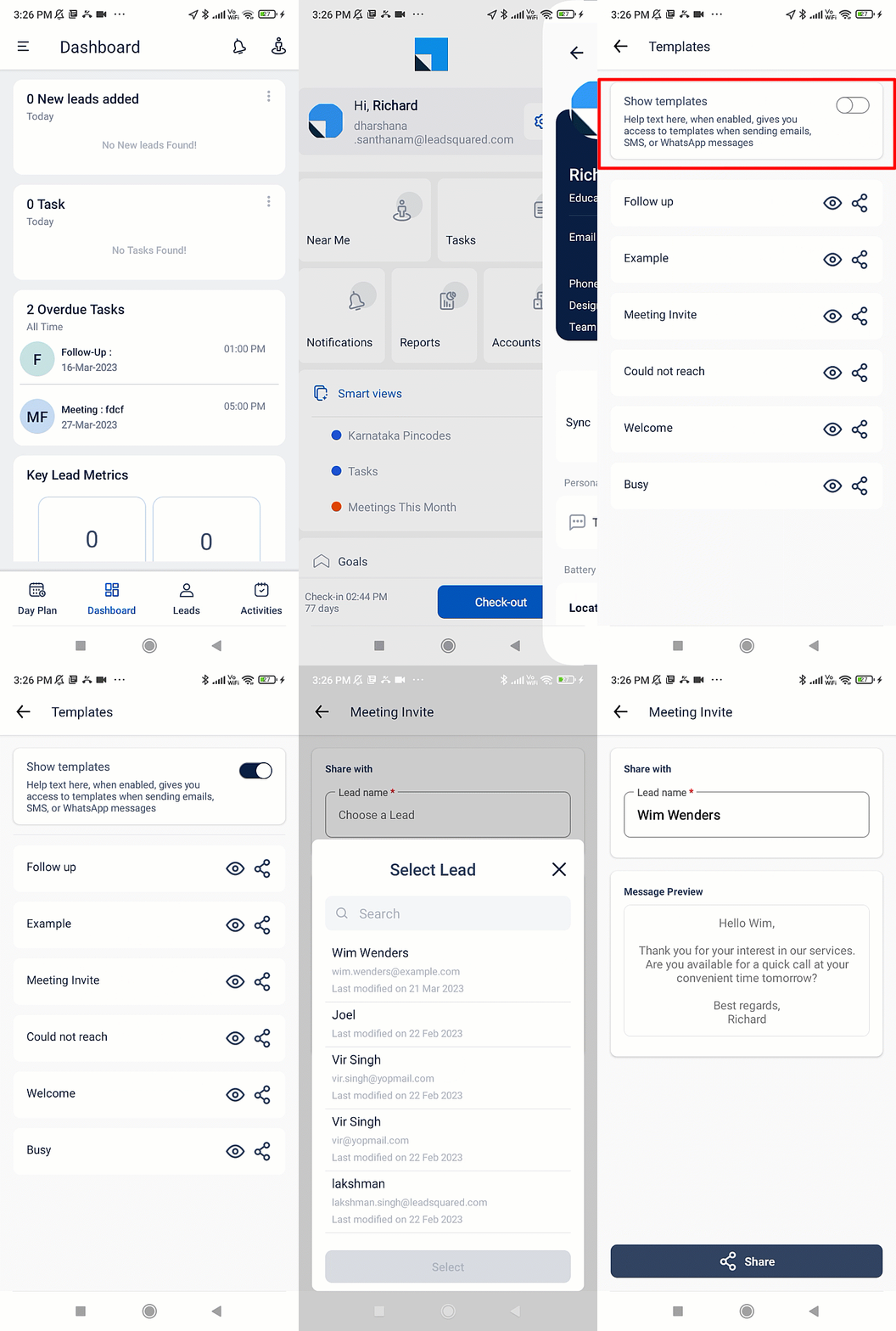
Templates are enabled on the mobile app by default. To manually enable/disable the Templates feature on your mobile app –

  1. On the Dashboard, tap LeadSquared - Mobile app menu.
  2. Tap Setting icon.
  3. Under Personalise, tap Templates.
  4. Next to Show Template, tap slider icon.

On this page, alongside the available templates –

  • To preview the template, tap view icon.
  • To send the template as a message to leads directly from this page –
    • Tap share icon.
    • Enter the lead’s name.
    • Tap Share.
Note: The Show Template toggle is enabled by default on the mobile app.

LeadSquared - Show Templates on Mobile App


5.2 Send Messages Using Templates

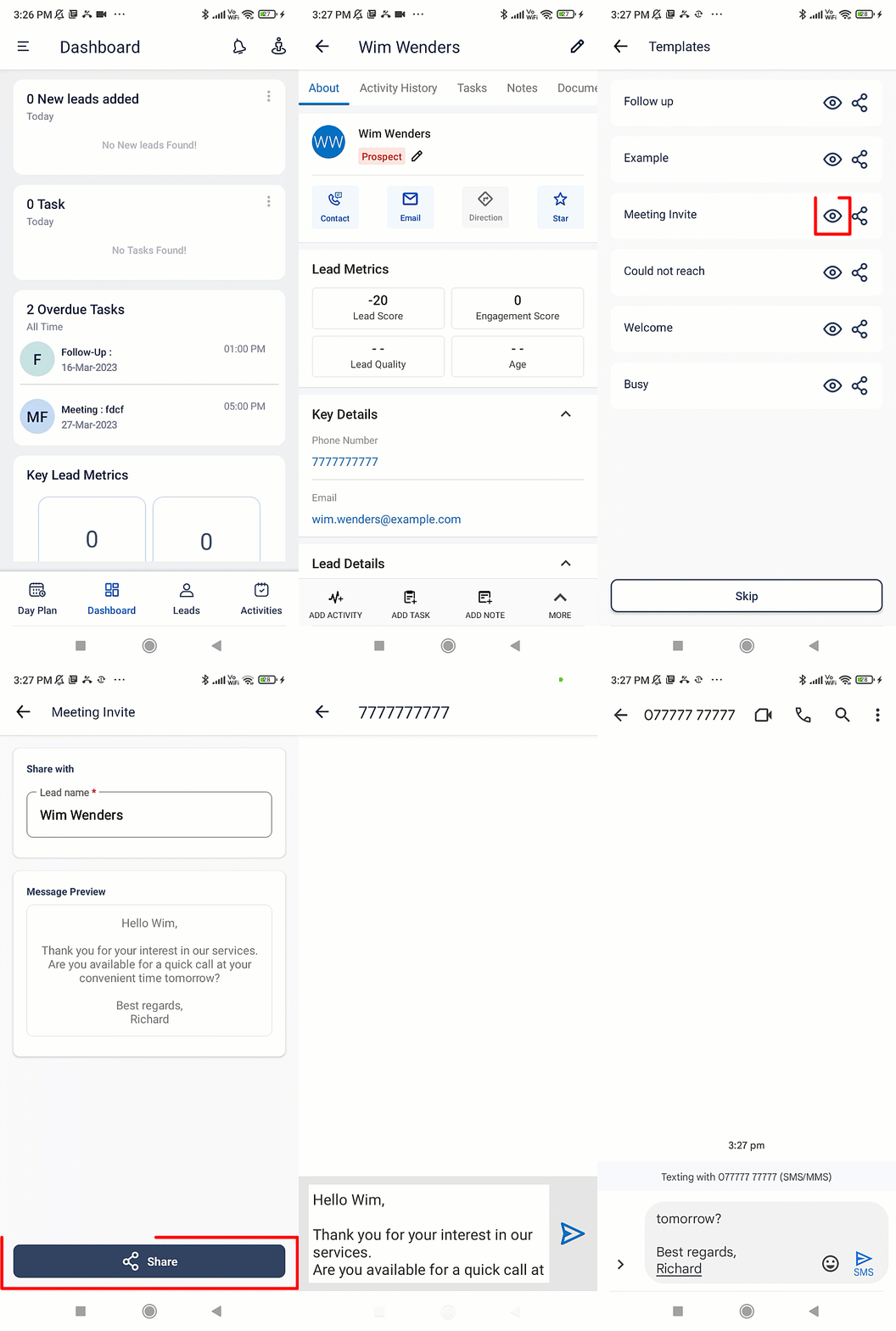
To send messages to your leads using the available templates –

  1. Tap Leads.
  2. Tap on a name card to view the Lead Details page.
  3. Tap Contact and select either Whatsapp or Message.
  4. Alongside the template you want to use, click share icon
  5. Click Share and click OK on the carrier charges notification.
  6. You will be redirected to your SMS app. Tap Enter here.
Note: To know more about how to send messages on the mobile app, see Make Calls and Send SMS Using the Mobile App.

LeadSquared - Send Messages Using Templates


5.3 Send Emails Using Templates

  1. On the Dashboard, tap LeadSquared - Mobile app menu.
  2. Tap Setting icon.
  3. Under Personalise, tap Templates.
  4. Alongside the relevant template, tap share icon.
  5. Enter the lead’s name.
  6. Tap Share and select Email.

LeadSquared - Show templates on mobile


Any Questions?

Did you find this article helpful? Please let us know any feedback you may have in the comments section below. We’d love to hear from you and help you out!

Track Calls with Opportunities on the LeadSquared Mobile App

1. Feature Overview

Phone calls activities made/received on the LeadSquared mobile app are automatically posted against the relevant leads (on the Lead Details page). With the opportunity tracking feature, you can track phone call activities against the relevant opportunities (instead of leads) in your LeadSquared account.

Note: Opportunity Call Tracking is not supported on iOS mobile phones.


2. Prerequisites

  • Install the latest version of the LeadSquared mobile app.
  • Install the latest version of the Call and SMS tracker app and enable all related permissions.
  • You must have an Android mobile device. The call recording feature is not supported on iOS devices.


3. Admin Configurations

To enable the call tracking features for opportunities –

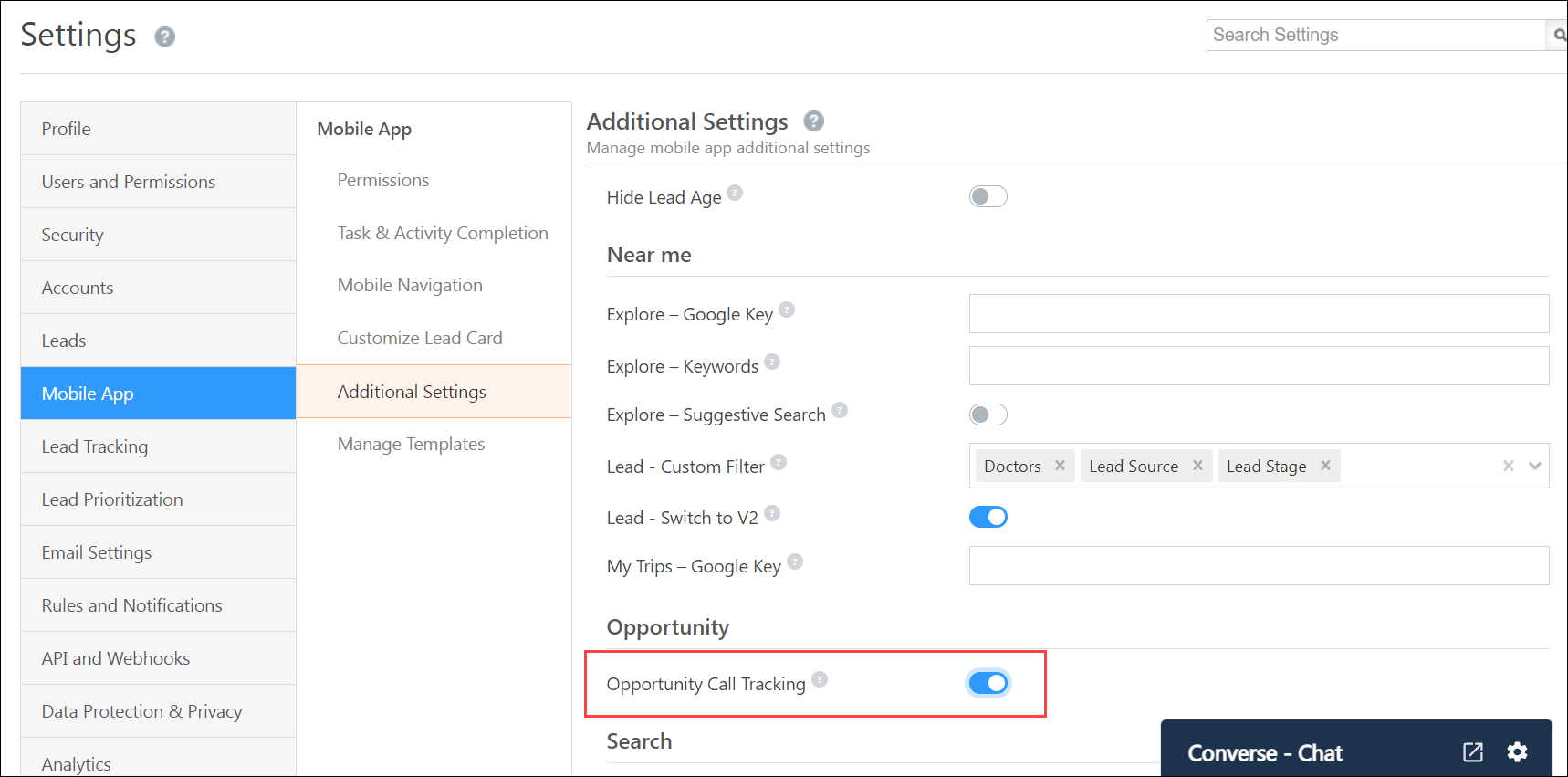
  1. Navigate to My Profile>Settings>Mobile App>Additional Settings.
  2. Under Opportunity, enable Opportunity Call Tracking.

LeadSquared - enable opportunity call tracking


4. Track Outbound Calls to Opportunities

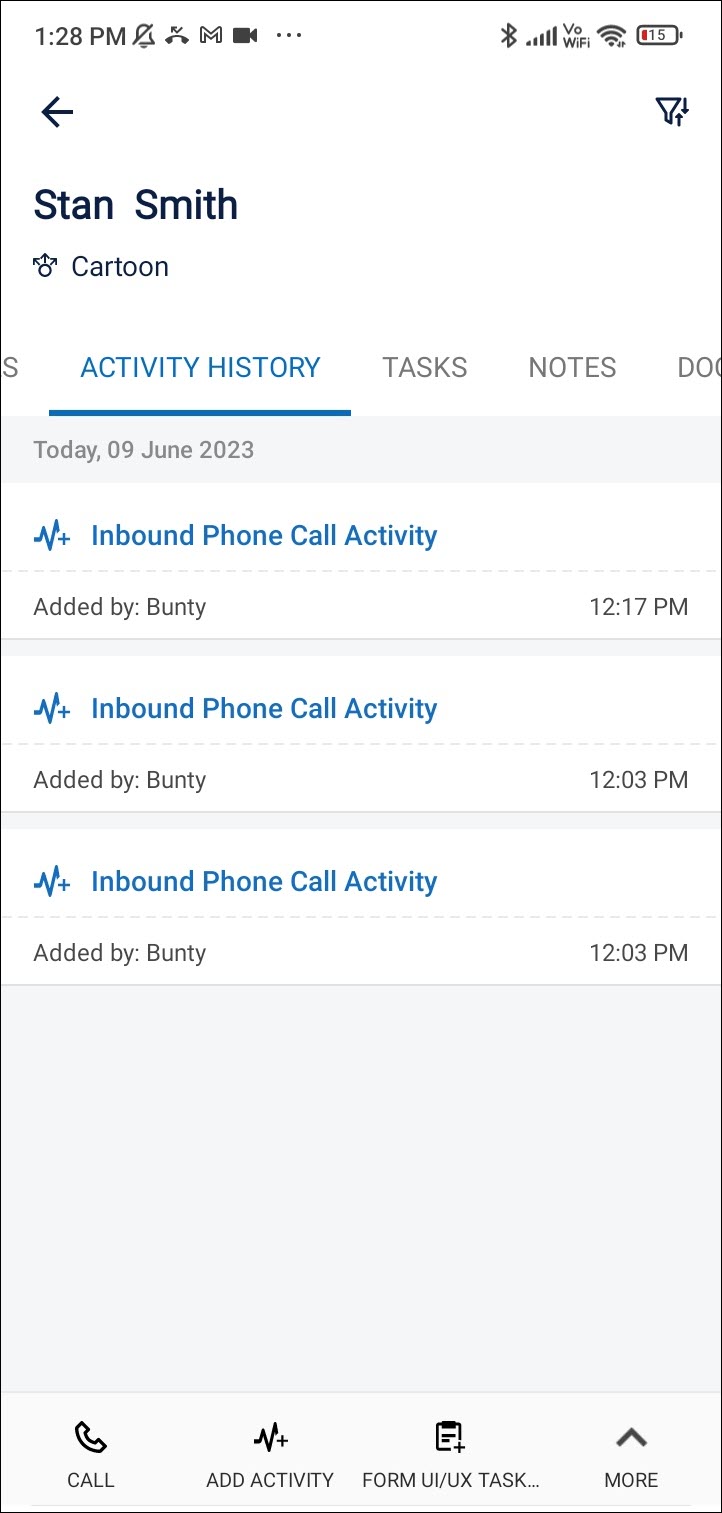
When a user makes an outbound call to an opportunity, it gets posted on the Opportunity Details page. These activities are only tracked if the calls are made from –

  • Opportunity list.
  • Opportunity details.
  • Opportunity smart view list.
  • Opportunity smart view.

LeadSquared - Opportunity activity history


5. Track Inbound Calls to Opportunities

To post an inbound call activity on the relevant opportunity –

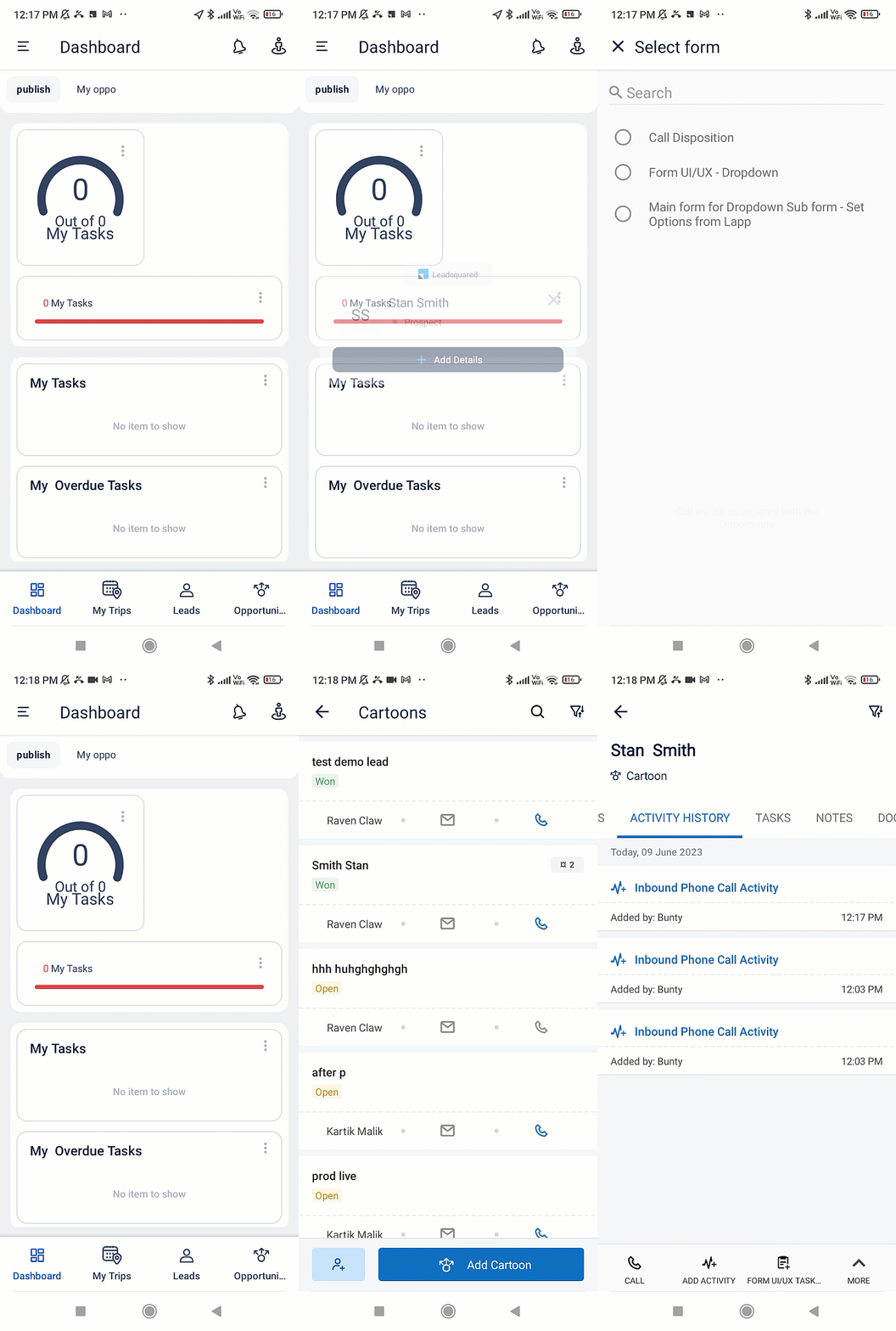
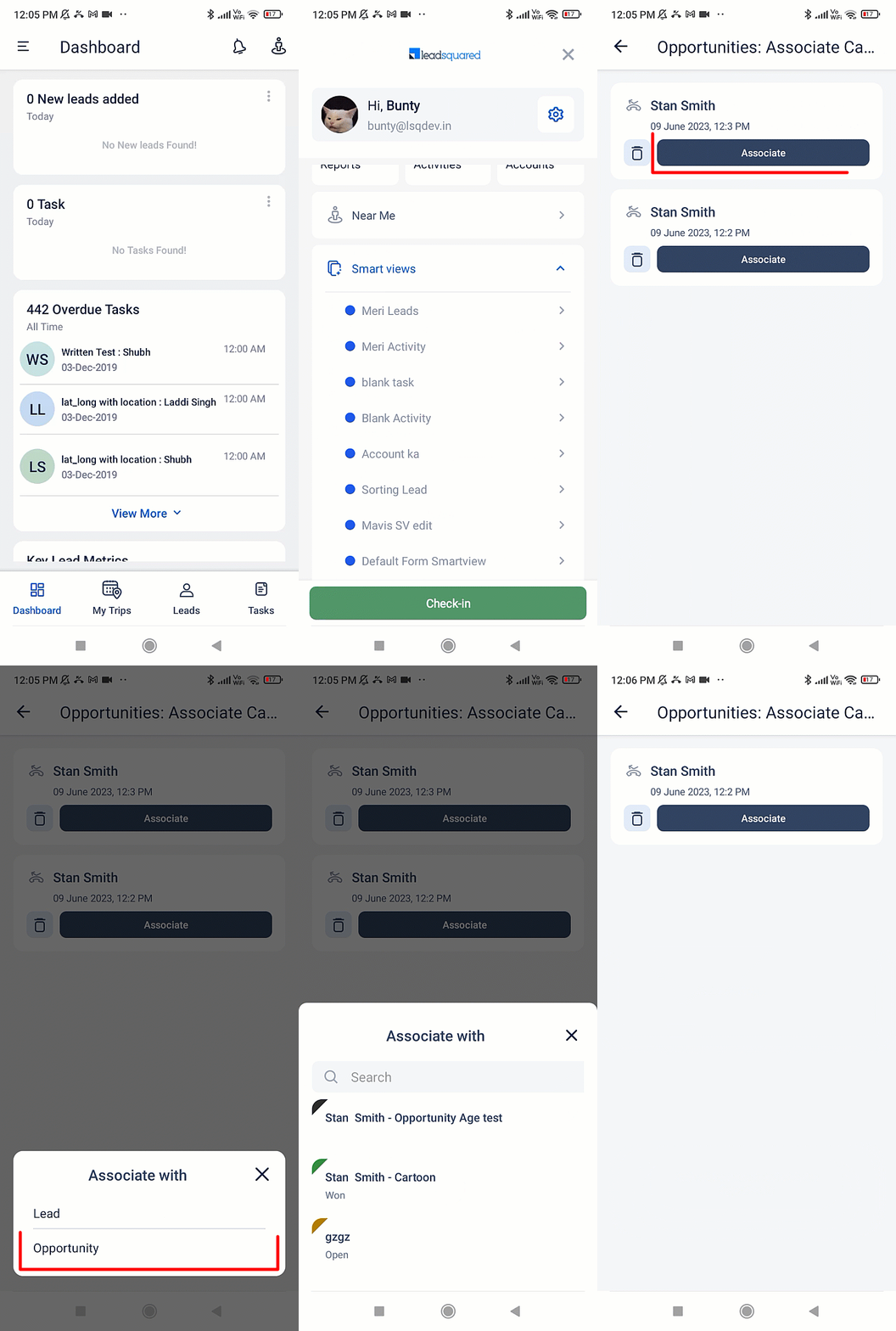
  1. When you receive an inbound call, a lead identification pop-up is displayed. On the pop-up, tap Add Details.
  2. A note titled Associate With is now displayed on the bottom of the page. On this note, select Opportunity.
  3. A list of all the opportunities posted on the lead is displayed. Select the relevant opportunity to associate the call with. You can now enter the opportunity details in the relevant form. The activity will be posted on the relevant Opportunity Details page.

LeadSquared - Opportunity call tracking for incoming call

If the activity is not posted on the Opportunity Details page –

  1. Tap LeadSquared - Mobile app menu.
  2. Tap Opportunities: Associate calls.
  3. On this page, to post the relevant call under an opportunity, tap Associate.
  4. On the Associate With pop-up, select Opportunity. Now, select the relevant opportunity you wish to associate the call with.

LeadSquared - Opportunity call tracking if it doesn't show up on opportunity details


Any Questions?

We’d love to hear your feedback to help improve this article. Feel free to enter your questions or grievances in the comments section below.

How to Avoid Creating Duplicate Leads

1. Feature Overview

There are measures you can take to avoid creating duplicate leads in your LeadSquared account. If you’ve already created duplicate leads, you can merge them, sanitize the existing data and avoid creating them in future.

Fields you mark as unique will not accept duplicate values. You have the option of marking up to 3 fields as unique, including custom fields (see How to Mark Custom Fields as Unique). It is good practice to mark the phone/mobile fields unique to avoid creating duplicate leads with the same phone number through different channels (landing pages, forms, etc.).

Note: Accounts created before 13th November 2017 have only the email address field marked as unique by default. This article is only relevant for these users. Accounts created after this date have the email, phone and mobile fields marked as unique by default.


2. Example Use Case

If the phone and mobile fields are not marked as unique in your account and an existing lead re-inquiries through a different channel, this may create a duplicate lead.


3. Best Practices

These settings will help you prevent duplicate lead creation –

  1. Setting the phone and mobile fields to ‘Phone Control’
    Helps you avoid creating duplicates due to phone format mismatches
  2. Marking the phone and mobile fields as unique.
    Prevents new duplicates from being created.


3.1 Phone Control Settings

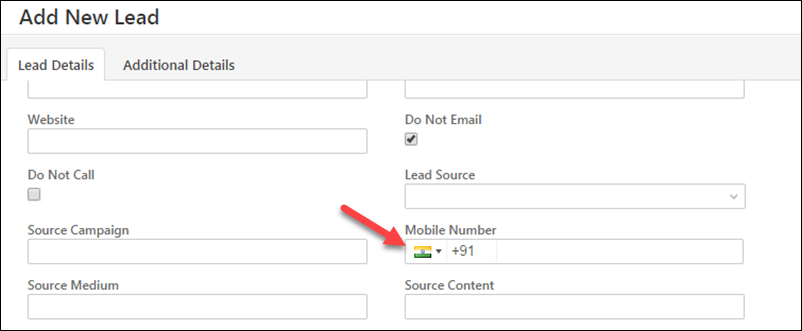
When you set the phone/mobile number field to display as ‘Phone Control’, it standardizes the mobile number format across all your lead add forms and landing pages. It makes the country code mandatory and lets users only enter a defined number of digits. Here’s what it looks like on theAdd New Lead form –

phone control on add new lead form

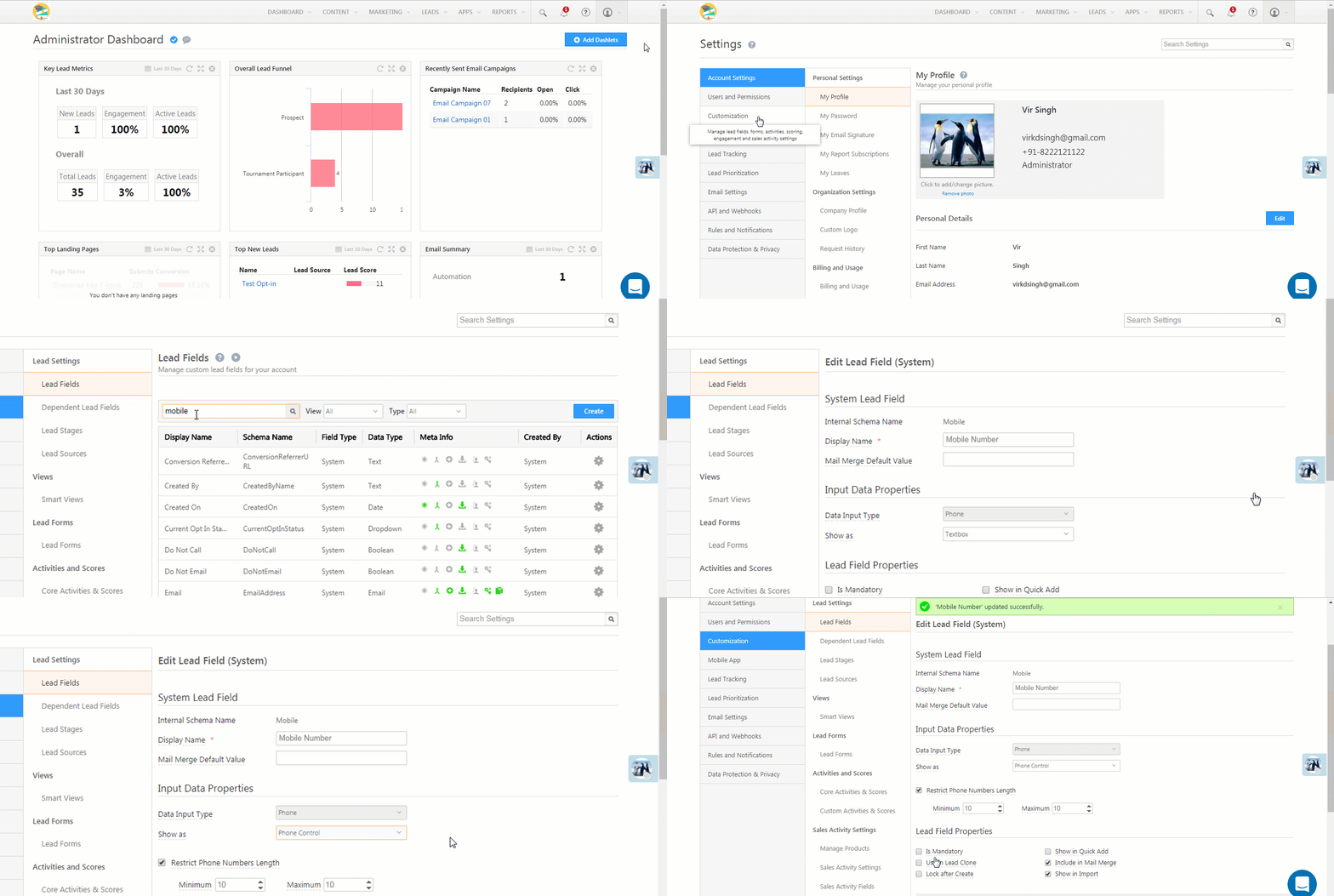
  1. Navigate to My Account>Settings>Leads>Lead Fields, search for the ‘Phone/Mobile Number’ field.
  2. Hover your cursor over the settingsSettings iconwheel alongside the phone/mobile field and click Edit.
  3. Under the Input Data Properties section, set the Show As option to Phone Control.
  4. You can set a restriction on the phone number length and enter the minimum and maximum number of digits.
  5. Click Save.

control phone format

For more information, refer to Control Phone Number Format While Capturing Leads.

3.2 Marking Uniqueness

First, check if the phone and mobile number fields are marked unique –

  1. Navigate to My Account>Settings>Leads>Lead Fields, search for the ‘Phone/Mobile Number’ field.
  2. Under the Meta Info column on the grid, check the key unique key icon.
    • If the key icon is greenunique green, it implies that the field has been marked unique.
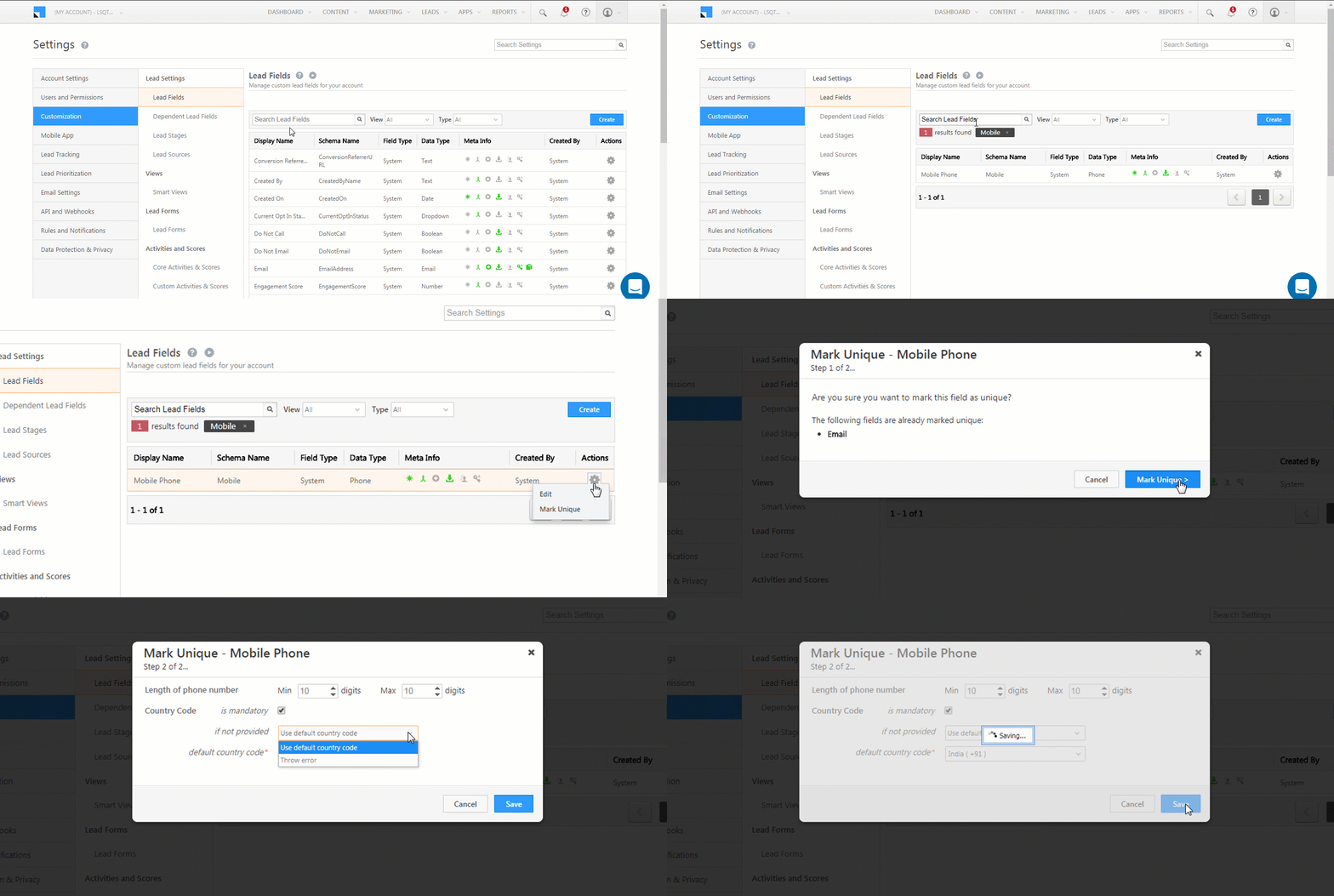
    • If the key icon is greyunique key, the field has not been marked unique.

If the phone and mobile fields have not been marked as unique, follow this process for both fields.

  1. Hover your cursor over the settingsSettings iconwheel and click Mark Unique.
  2. On the Mark Unique pop-up,
    1. Click the Mark Unique button to proceed to step 2 of 2.
    2. Select the minimum and maximum mobile number length.
    3. Ensure the Country Code Is Mandatory checkbox is ticked. If you’ve enabled phone control as instructed (first step of best practices), this checkbox will be ticked by default. Otherwise, you can tick the checkbox and the phone control setting will automatically get enabled.
    4. The If Not Provided drop-down lets you choose between throwing an error or proceeding with a default country code if a user doesn’t provide a country code.
    5. Click Save.

marking mobile as unique


4. Troubleshooting Errors

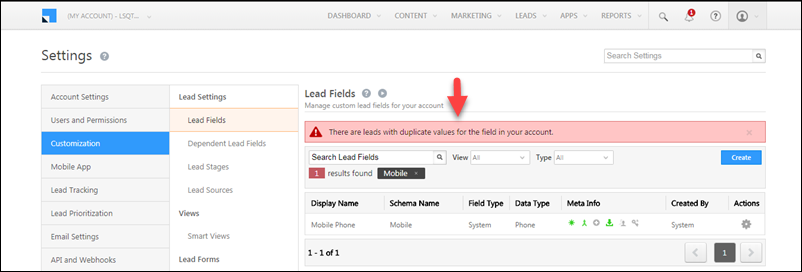
If you already have duplicate values for the mobile number field when you attempt to mark it as unique, you’ll see the following error –

error with unique field

In this case, LeadSquared can’t mark the field as unique because there are already duplicate values for the field in your account. Here’s how you can address the issue –

4.1 Merge leads

There are 3 ways you can merge duplicate leads –

A) The Duplicate Leads Report
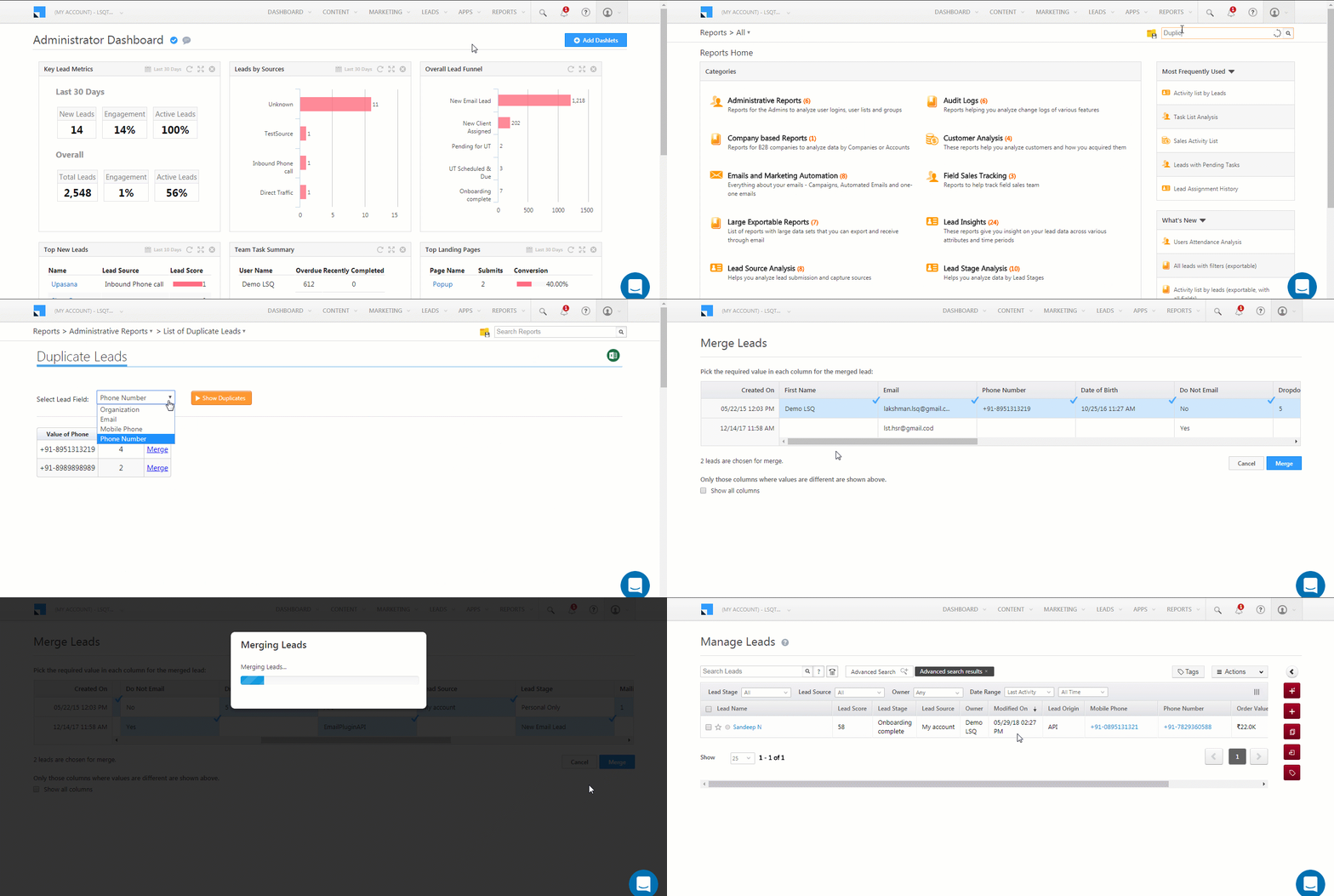
The duplicate leads report lets you filter duplicate leads based on the company, email, phone number or mobile phone fields. It also lets you merge duplicate leads by selecting the values you want to keep versus the ones you don’t.

  1. On the main menu, navigate to Reports>Reports Home and search for the List of Duplicate Leads report.
  2. Filter by the Phone/Mobile Phone field and click Show Duplicates.
  3. Beside each duplicate record, click the Merge link.
  4. Select the values you want to retain for each column and click Merge.
  5. Once the lead is merged you can choose to go to the merged lead’s details page or to the Manage Leads page.

Duplicate Leads Report

B) The Lead Merge API (Optional)
You can also merge leads programmatically using the Lead Merge API.

C) Automation
You can also use the If Lead Exists automation condition and follow it up with a Merge Leads action.

4.2 Sanitize existing data through export and re-import.

To ensure that you can mark the phone/mobile number fields unique, you must first ensure that there are no duplicate values in these fields. This requires you to export all your leads to a CSV file and then re-import that data.

1. Export Lead Data
Export your lead data from the Manage Leads page. Choose the Export Leads option under the Action column. You can choose to export all fields or selected fields. For more information, see How to Export Leads.
We recommend that you export the ‘Created On’ and ‘Modified On’ fields so you can track which lead was last created. This will help you identify leads you wish to delete (if any).

2. Identify Duplicates
Identify duplicate values in the phone/mobile fields in your CSV file. Microsoft Excel has some options that allow you to do this (for more information, see Find and Remove Duplicates in Excel). After identifying the duplicates, you could choose to remove them or you could enter different values for the duplicate mobile numbers, for example –

First Name Phone Number
John 9812345678
John 9812345678.dup1
John 9812345678.dup2

3. Standardize the format across all phone records
We recommend that you remove the country code and leave just the phone number digits. The ‘phone control’ setting will capture the country codes going forward so you won’t have to worry about format mismatches.

4. Import the data back into LeadSquared
Use the Import Leads button on the Manage Leads page to import the data back into LeadSquared (for more information, see How to Import Leads). While importing the file –

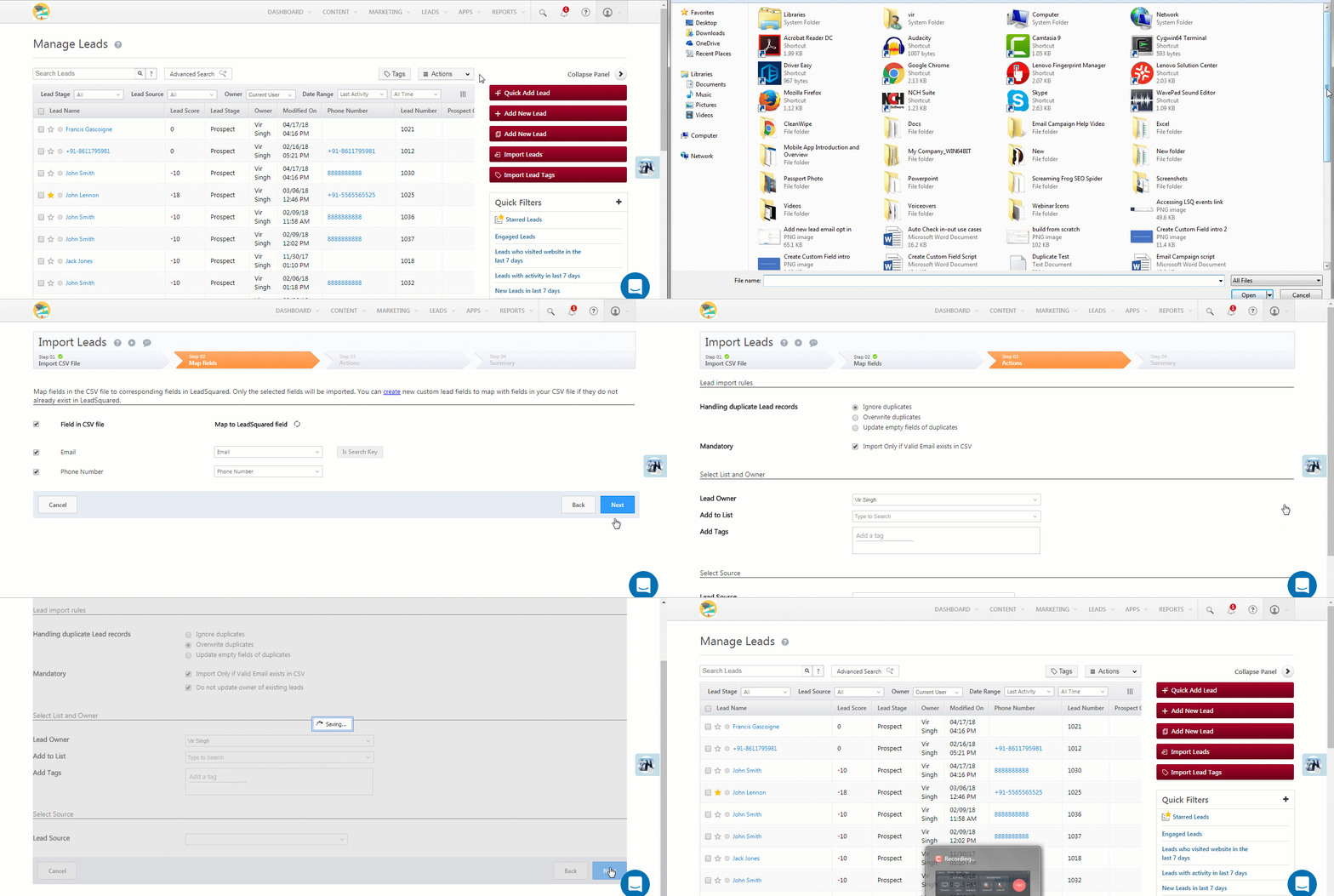
  1. Ensure that the email address is the Search Key during import (step 2 of import).
  2. Select the Overwrite duplicates option during import (Step 3).

troubleshooting duplicates

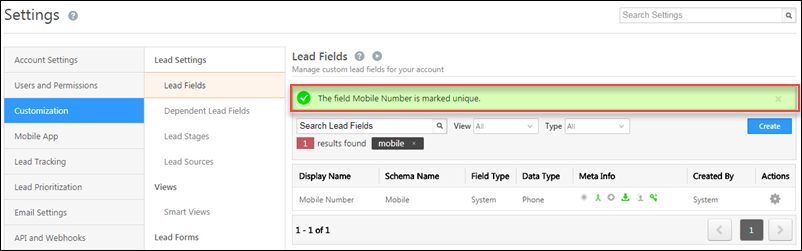
Now that all duplicates are dealt with, you’ll be able to mark the ‘Phone/Mobile Number’ fields as unique (see step 2 of Best Practices section above). You’ll now see the following success message –

success message for mark as unique


Any Questions?

Leave us a comment below if you have any questions.

Track Multiple Email Opens By The Same Lead

1. Feature Overview

When you send out an email campaign to a lead, based on how often they open the email, their lead score increases. With this lead score, you can get an idea of how well your campaign is working. If you send the campaign to an organization’s email ID, multiple people might open the email, leading to inconsistencies in the lead score.

The Multiple Email Opens setting allows you to track leads who open your emails multiple times. By tracking such leads, you can understand their interests better and target potential customers. You can also make sure that the multiple opens are not performed by different employees in the same organization to trigger a higher lead score.


2. Prerequisite

You must be the Administrator of your Leadsquared account.


3. Track Multiple Email Opens

To track leads opening your emails multiple times, you must first enable this setting –

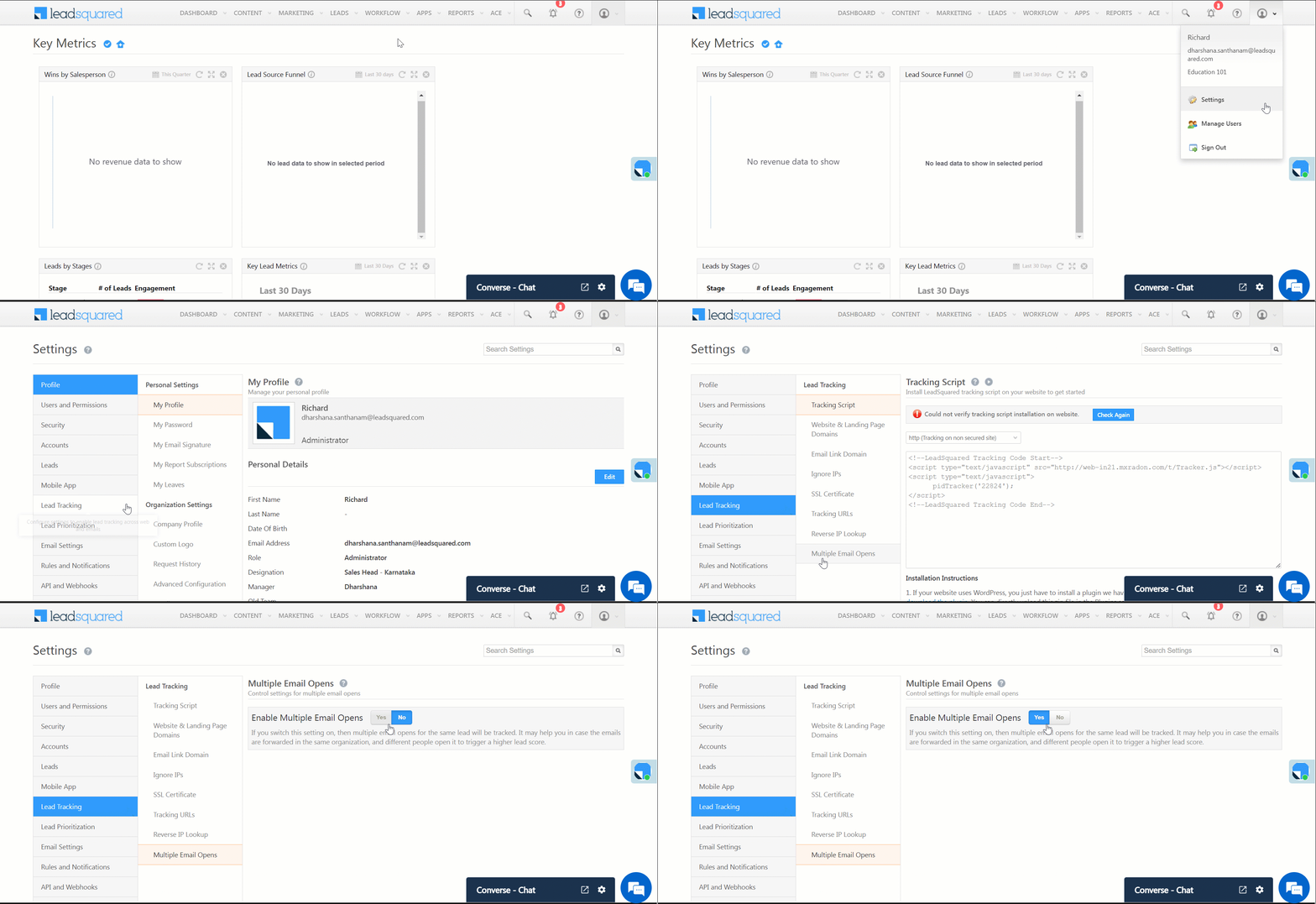
  1. Navigate to My Profile>Settings>Lead Tracking>Multiple Email Opens.
  2. Alongside Multiple Email Opens, click Yes.

LeadSquared - Multiple Email Opens


Any Questions?

We’d love to hear your feedback to help improve this article. Feel free to enter your questions or grievances in the comments section below.

How to Export Your Leads/Lead Details?

1. Feature Overview

LeadSquared gives you full control over your lead data by allowing you to export leads directly from the Manage Leads and Smart Views pages. Exported data is delivered to your registered email address in CSV format, making it easy to analyze, back up, or share lead information outside the platform.

You can choose to export:

  • All lead fields available in your account, or
  • Only selected lead fields, based on your requirements.

Lead export supports both system and custom lead fields, while maintaining safeguards to protect your data and ensure secure file handling.

Note:

  • By default, you can export up to 1 lakh (100,000) leads from your account. To increase this limit to 5 lakh (500,000) leads, contact your account manager, or write to support@leadsquared.com.
  • Even when you give us support access to your account, our representatives don’t have the ability to export your data.
  • The downloaded CSV file, when opened in excel or similar applications, should not require any special permission to view data. For example, “asking permission to run macros”. If you find such instances, please report them back to us at support@leadsquared.com or connect with your account manager.
  • If the value of a field starts with the following characters + , – , = , | , @ they will be enclosed within quotes in the exported CSV file. This is done to prevent issues that may arise in Excel (such as format issues, excel injections, etc.) as a result of special characters in the cells.


2. Prerequisites

You won’t be able to export leads if your administrator has restricted export access through permission templates. If you don’t see the export option, contact your administrator.


3. How It Works

  • Lead exports are processed in the background.
  • When you submit an export request, LeadSquared compiles the selected lead data into a CSV file.
  • The exported file is sent to your registered email address.
  • You can export:
    • All lead fields or selected lead fields
    • Leads from the Manage Leads page, Smart Views, or Static Lists
    • Standard and custom lead fields
  • You can track the status of your export request from Settings>Profile>Request History.


4. Export Your Leads from Manage Leads Page

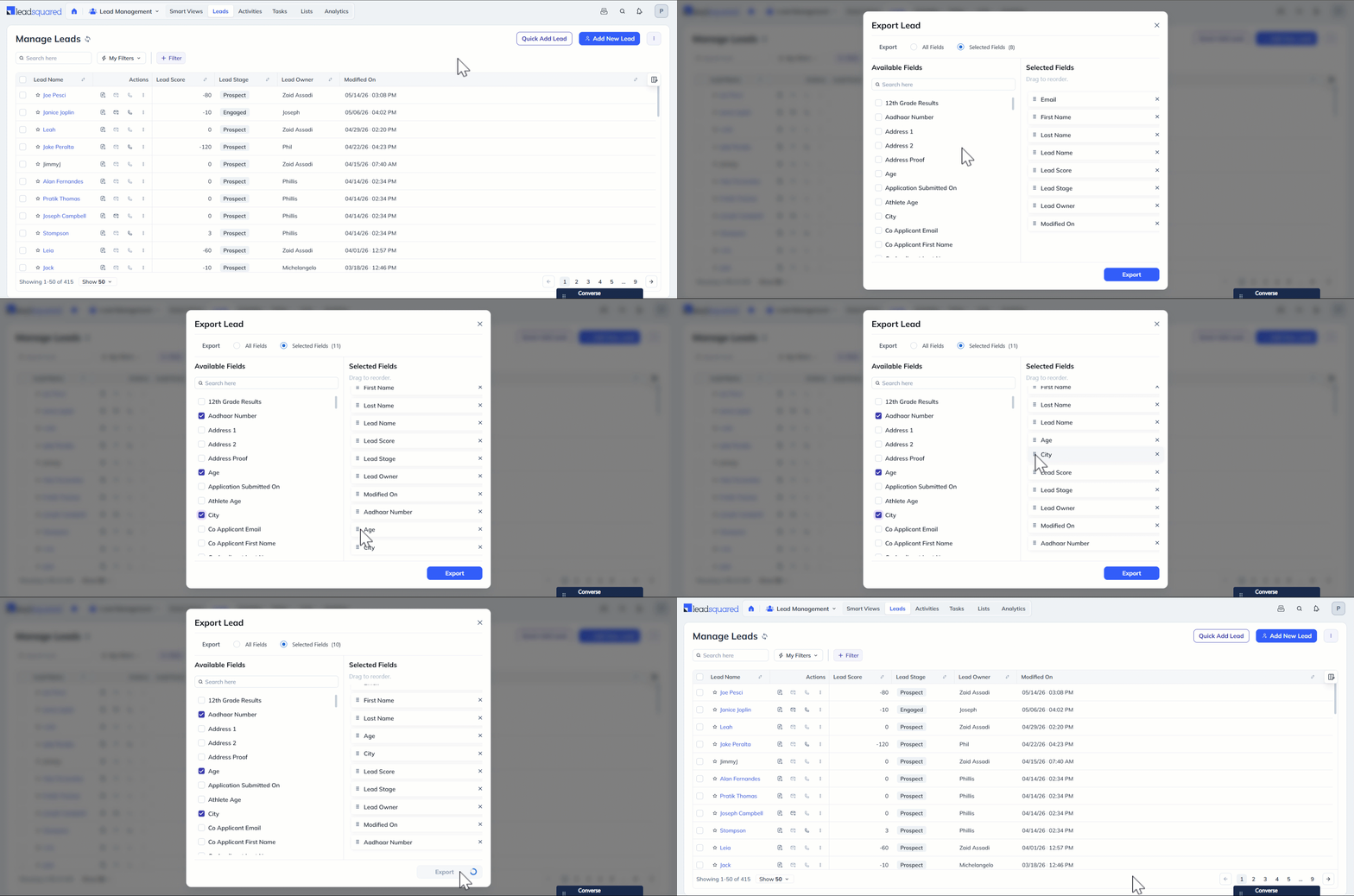
  1. From your dashboard, go to Lead Management>Leads.
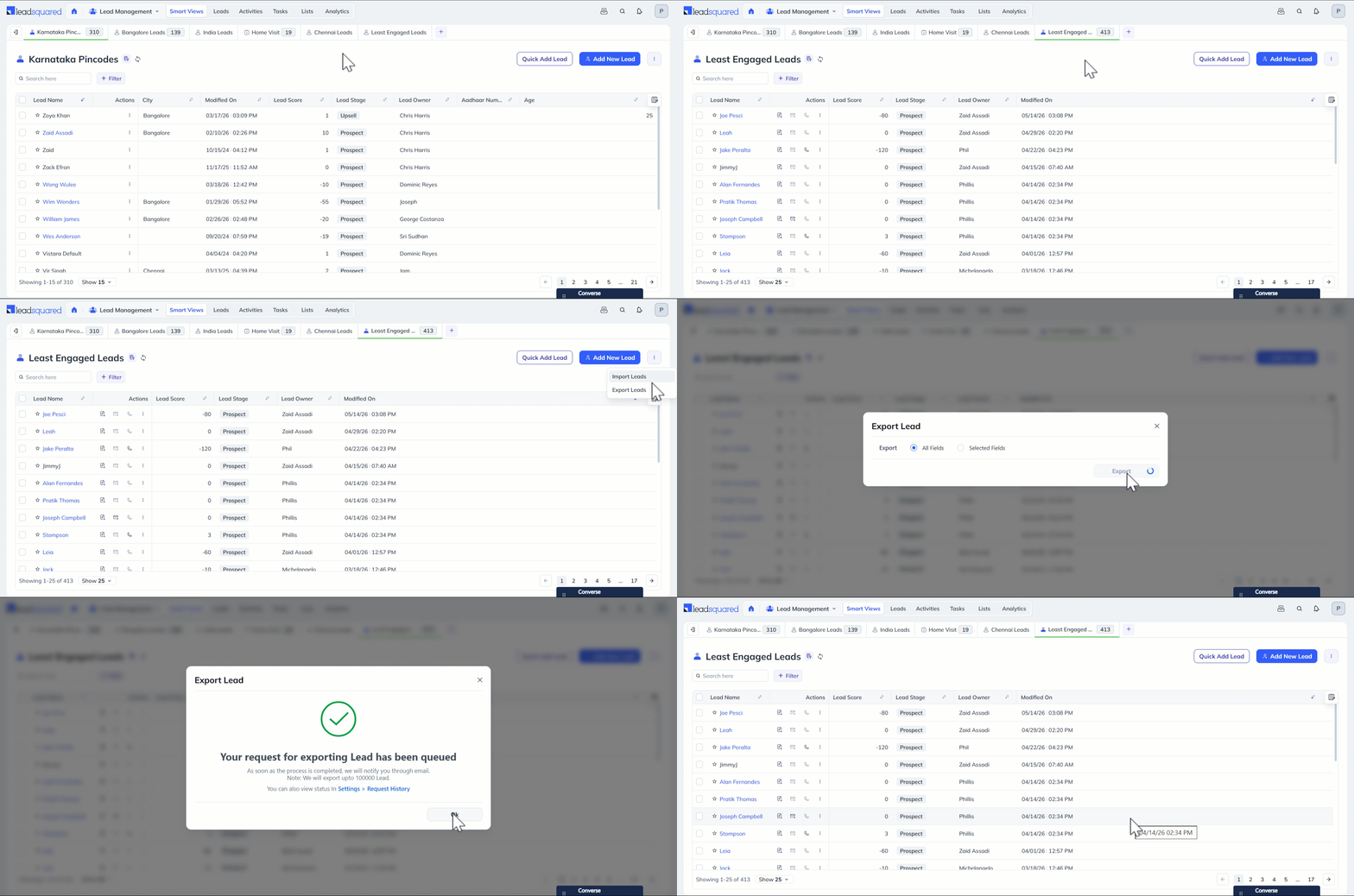
  2. Hover over the Actions icon on the top right corner of the page and select Export Leads.
  3. On the Export Leads pop-up, choose whether you want to export All fields or Selected Fields.
    • If you’ve chosen All fields, all the lead fields across all pages will be exported into the CSV file.
    • If you’ve chosen Selected Fields, only the lead fields you select will be exported into the CSV file –
      1. On the popup, click the relevant fields under Available Fields.
      2. Rearrange the chosen fields under Selected Fields.
  4. Click Export when you’re done.
  5. Your export request will be queued and you can check the status from the Request History page. On this acknowledgement popup, click Ok.
Note: All the date-time fields you export will be displayed in the time zone configured in your LeadSquared account. You can edit the time zone and other profile settings from Settings>Profile.

Leadsquared - Export Leads


5. Export Your Leads from Smart Views Page

Smart Views on LeadSquared provides a centralized workspace where users can create customized tabs using filters and conditions to view only the records relevant to their work upfront. To export leads from specific Lead Smart View tabs –

  1. Navigate to Lead Management>Smart Views.
  2. Select the relevant Lead Smart Views, hover over the Actions icon on the top right corner of the page and click Export Leads.
  3. Follow the same steps as mentioned in the previous section and your request will be processed.

Leadsquared - Export Leads


6. Export a Specific List of Leads

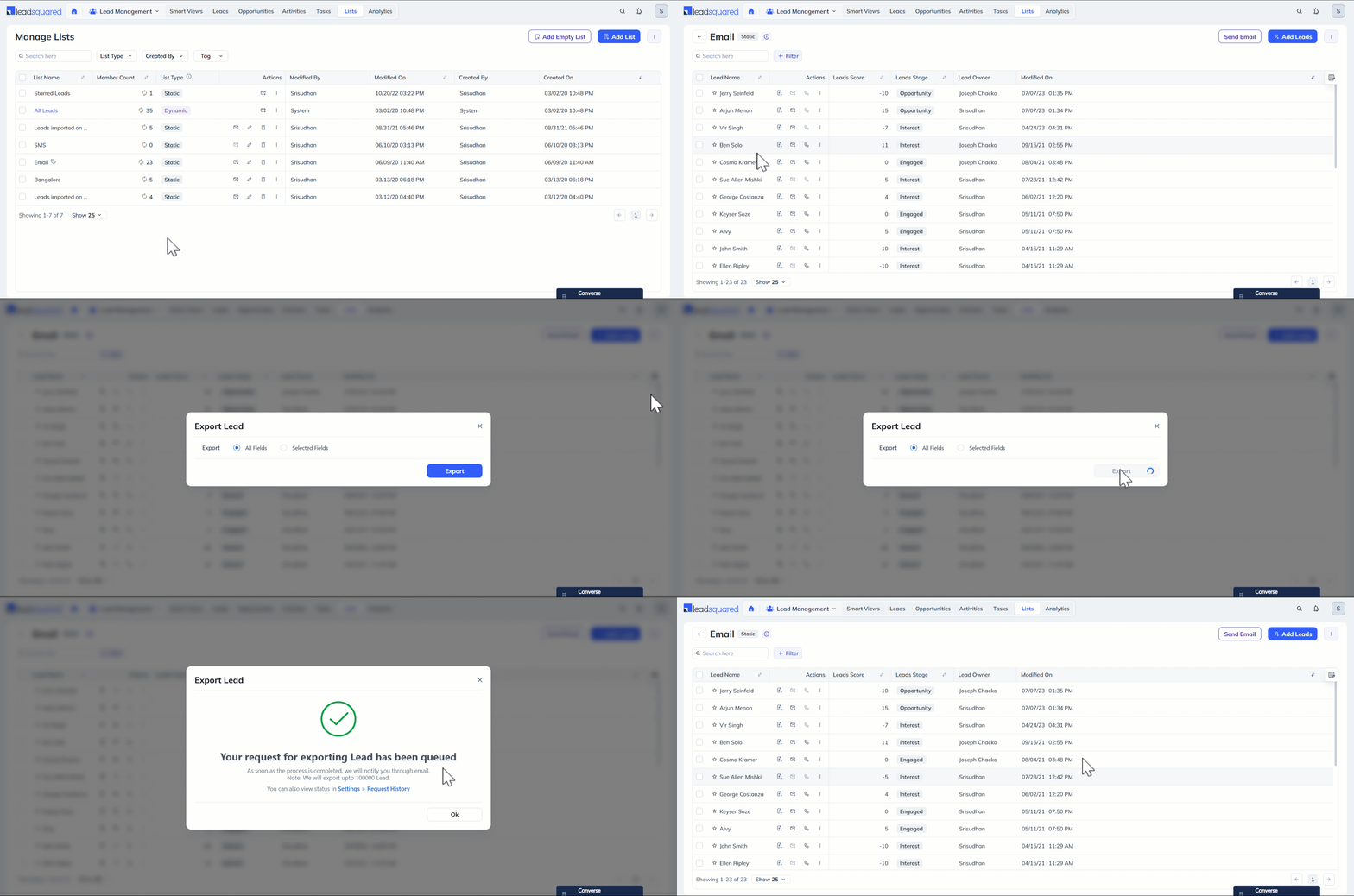
If you want to export a selected set of leads, navigate to Lead Management>Lists and create a static list with the relevant leads you want to export. Then, export them into a CSV file. For more information on Lists and List Actions, refer to Export Lists.

Leadsquared - Export Leads


7. Check the Status of Your Export Request

To view the status of your export request –

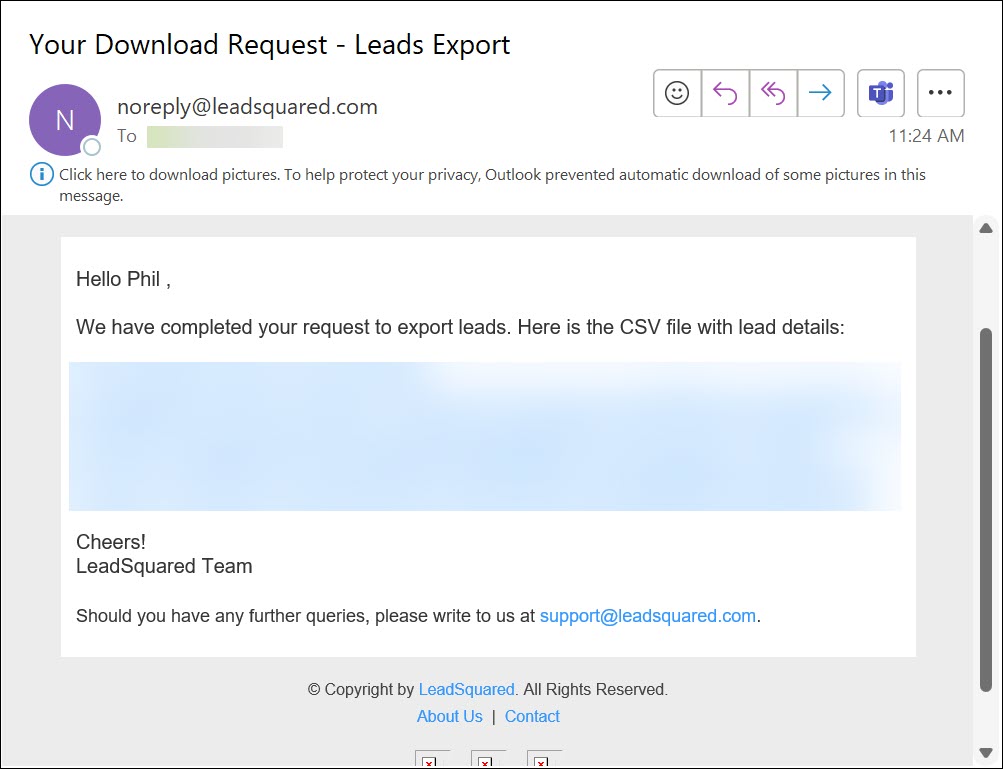
After the request completes, the CSV file will be sent to your registered email address in ZIP format.

Note: You can export up to 100,000 leads using the Export option. If you want to export more than 100,000 leads, see How to Export More than 1 lakh leads.

LeadSquared - Export Leads


8. Export Lead Fields

Lead fields store the information associated with your leads such as contact details, lead source, lead stage, custom attributes and other business-specific data. Exporting lead fields helps Admins review and document the field configuration in their account and support integrations or migration activities. To export lead fields from you account –

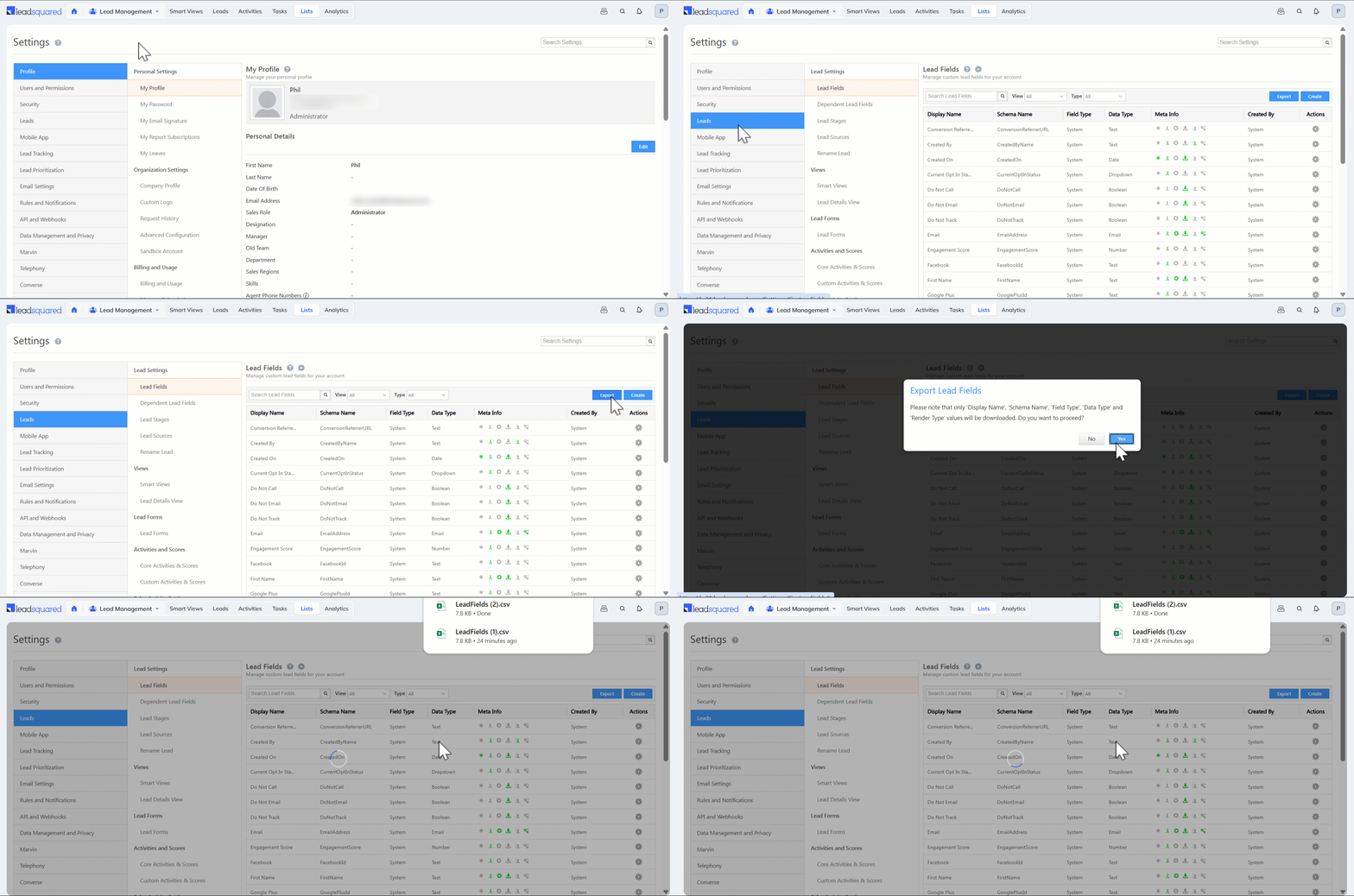
  1. Navigate to Settings>Leads>Lead Fields.
  2. Click Export. Your Lead Field data will be downloaded as a CSV file.

Note:

  • Only admins have access to Lead Fields.
  • Only the following values will be exported when you export lead fields –
    • Display Name
    • Schema Name
    • Field Type
    • Data Type
    • Render Type

Leadsquared - Export Leads


9. FAQs

1.Why is my Lead Import stuck in “In Queue” status?
Lead imports are processed in batches, and your request may be waiting behind others in the queue. This is normal and usually occurs during peak usage hours. The system prioritizes execution during off-business hours, so your import should typically complete overnight. If it remains in queue for more than 24 hours, reach out to support@leadsquared.com for assistance.

2. Why can’t I export selected/chosen leads from the Manage Leads grid?

3. How to export more than 1 lakh (100,000) leads?

4. If the Manage Leads grid has more than 1 lakh (100,000) leads, in what order or criteria will the 1 lakh leads be exported?

5. How to control lead export and delete permissions for users?


Any Questions?

Did you find this article helpful? Please let us know any feedback you may have in the comments section below. We’d love to hear from you and help you out!

User Advanced Search

The user advanced search feature is helpful if you have a large number of users and want to filter them based on multiple criteria.

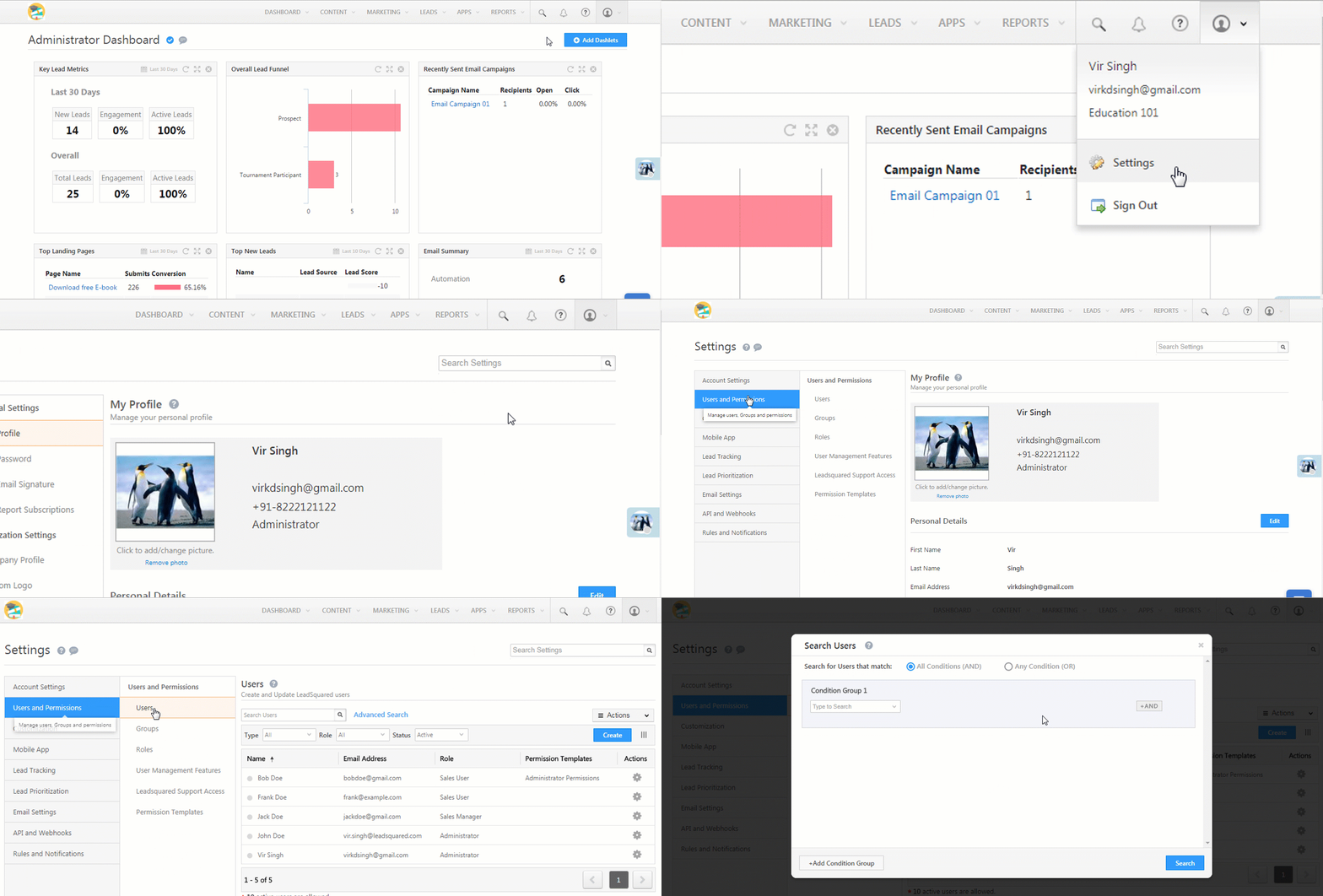
You can access this feature by navigating to My Account>Settings>Users and Permissions>Users and clicking the Advanced Search link –


Condition Groups

The feature works on the basis of ConditionsCondition Groups and AND/OR operators between them.

Search Using a Single Condition Group

  • You can set one or more conditions within a single group.
  • And then configure –
    • All conditions to be met – AND
    • Any condition to be met – OR

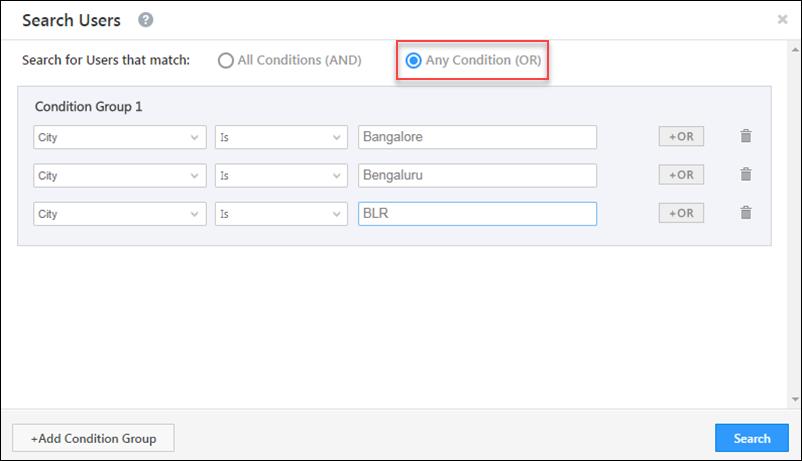
For example, let’s say you want to find users from Bangalore. You also want to accommodate alternate entries for Bangalore like ‘Bengaluru’, ‘BLR’, etc. In this case, you’ll use the Any Condition (OR) option and your condition group will look something like this –

City is Bangalore OR City is Bengaluru OR City is BLR

Or condition group

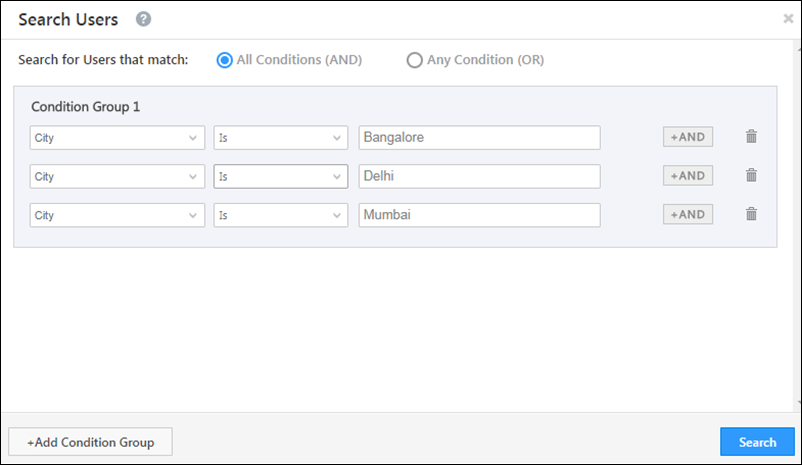
On the other hand, if you want to search for users from Bangalore, Delhi and Mumbai, then you’ll use the All Conditions (AND) operator –

City is Bangalore AND City is Delhi AND City is Mumbai

User Search Example


Search Using Multiple Condition Groups

  • You can create multiple condition groups.
  • And then configure –
    • All conditions to be met across all condition groups – AND
    • Any condition to be met across all condition groups- OR
Note: You can’t set both the And condition and Or condition within a group. You also can’t set both the And condition and Or condition across groups. You must choose one condition to use within a group and the other condition will automatically apply across groups. For example, if you set the OR condition within a group, the AND condition will automatically be applied across groups.

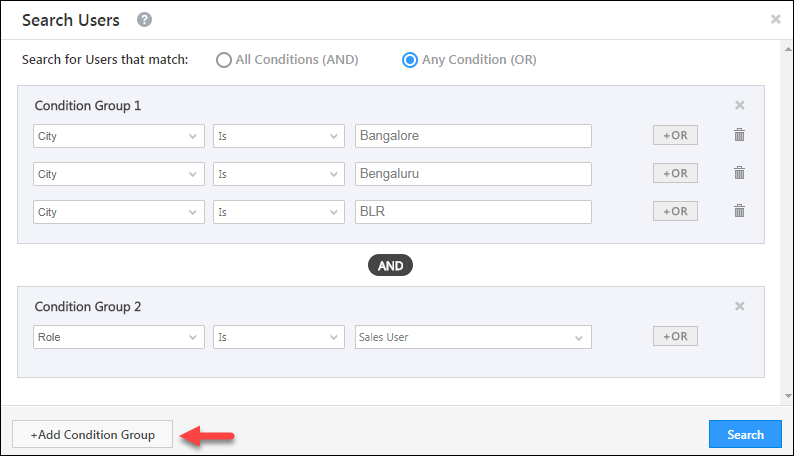
Building on the same example, let’s say you want to find sales users in Bangalore OR Bengaluru OR BLR. You’ll need to set up a new condition group using the Add Condition Group button at the bottom left side of the pop-up. Your search should look like this –

City is Bangalore OR City is Bengaluru OR City is BLR

AND

Role is Sales User

User Search Multiple Groups


Any Questions?

Did this article give you the help you needed? How do you filter your users? We’d really appreciate any feedback you’re willing to share in the comments section below.

LeadSquared Automation Wait Time Limit

1. Feature overview

This article will help you understand the Wait Time configurations on Automation Wait Cards – Wait, Wait (Advanced), Wait Until Activity, and Wait Until Workday.

Note: 

  • The contents of this article will take effect in the platform on 23rd April 2025.
  • Check your existing automation. If you have wait times longer than 400 days, update them immediately to avoid interruptions. Otherwise, leads flowing through Automations will not be processed successfully after 23rd April 2025 if they exceed the wait time limit. Contact support@leadsquared.com if you need assistance.  


2. Prerequisites

You must be an admin user to configure an Automation.


3. Automation Wait Cards

Wait cards in Automation can be set to delay the next action or end the automation after a specified time.

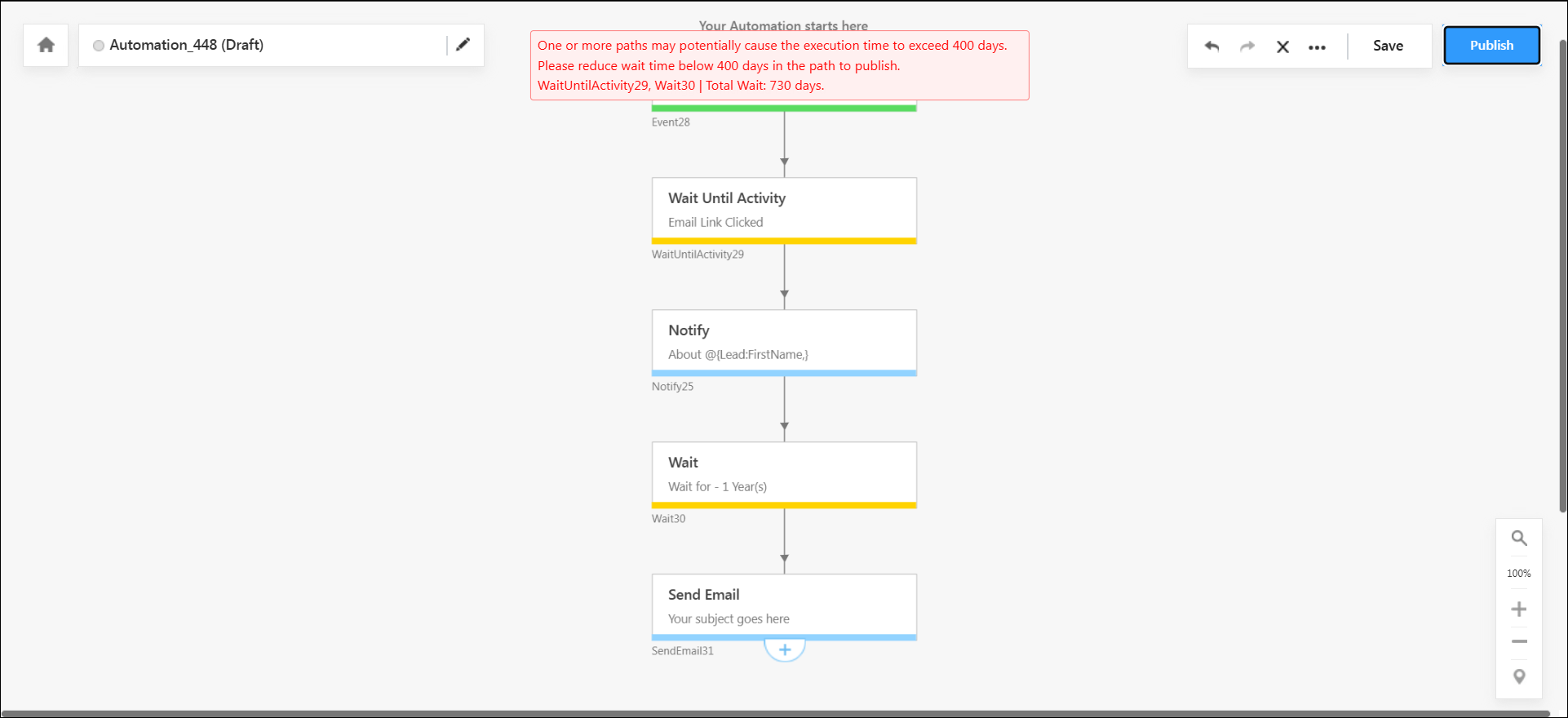
If your automation includes one or more wait cards (e.g., waiting to send an email or for an activity to be posted), the total combined wait time of a path cannot exceed 400 days.

For example, in the image below, the first Wait Until Activity card has a default wait time of 1 year, and the other wait card also has a wait time of 1 year, the total exceeds 400 days. In such cases, attempting to publish the Automation will result in an error.

automation wait cards without mail merge


4. Automation Wait Cards with Mail Merge Fields

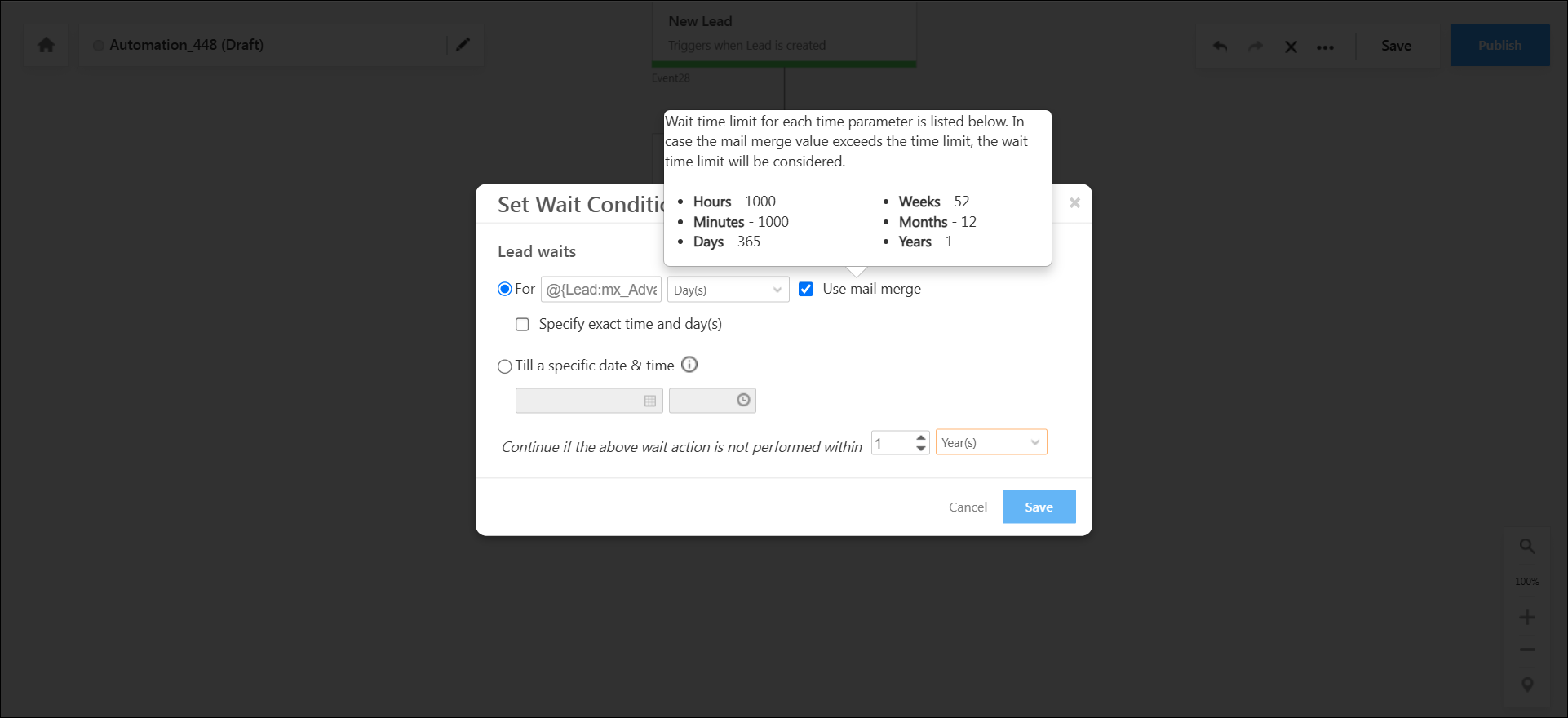
In Wait and Wait Advanced cards, the Default Wait Time option appears only when the Mail Merge option is selected. The system uses this default wait time for error checks and calculations to determine if the total wait time exceeds 400 days for wait cards using mail merge.

This is because the maximum wait time exceeded error won’t appear for wait cards that use mail merge fields because their calculations occur only at runtime (we cannot know what value will be mail-merged until runtime).

automation wait cards with mail merge

To determine whether the automation used the mail merge value or the configured max wait time, check the automation report. If the Default max wait time used value is Yes, it means the default value provided in the card has been used as the mail merge value exceeds the default value.

automation wait cards mail merge report


Any Questions?

Did you find this article helpful? Please let us know any feedback you may have in the comments section below. We’d love to hear from you and help you out!

Create Permission Templates

1. Feature Overview

This article shows you how to create and configure a permission template. If you’re new to the permission template feature, see LeadSquared Permission Templates. If you’ve already created a permission template and now want to apply it to your users, see How to Apply a Permission Template.

Note:

  • Instead of restricting export for each entity (leads, activities, tasks, opportunities, users, and accounts) through a permission template, you can now restrict all users from exporting all LeadSquared entities through a back-end setting.
  • Instead of creating a permission template to restrict access to sales activities
    • You can restrict all permissions (view, create, and edit) to all users through a backend setting.
    • You can also restrict create/add permissions and grant view and edit permissions through a backend setting.

To enable any of these settings, contact your account manager, or write to support@leadsquared.com.


2. Create a Permission Template

From the main menu, navigate to My Profile>Settings>Users and Permissions>Permission Templates, then click Create.

Note: You can create up to a maximum of 50 permission templates.

Permission Templates create

Enter the following details –

  • Name: Enter a name for the permissions template.
  • Description: Enter a suitable description for the template.
  • User Access: Controls users that are shown in all user/owner fields drop-down fields across the application. To learn more about this feature, see How to Control Users Shown in User/Owner Drop-down Fields.
    • All Users – This is the default option. All users will be shown in the user/owner drop-downs across the LeadSquared application.
    • Sales Group Users – Will allow group managers to see only the users in their own sales groups, in all user/owner drop-downs across the application. Other sales users in the group (who aren’t group managers) will only be able to see themselves in these drop-downs.
  • Restrict Access
    • Dashboard – Users the template is applied to won’t be able to view dashboards.
    • Reports – Users the template is applied to won’t be able to view reports.
    • Marketing – Users this template is applied to won’t be able to access the Email CampaignLanding Pages, and Website Widgets screens.
    • Workflow – Users this template is applied to won’t be able to access the AutomationsManage FormsProcess Designer, and Manage Portals pages.
    • Custom Apps – Users the template is applied to won’t be able to view custom apps.
    • API Access – Users the template is applied to won’t be able to make APIs calls. This can be used when you want to give marketing access to users but don’t want them to use any APIs or connectors.
    • Call Recordings – Use this option to restrict access to Call Recordings in Inbound/Outbound Phone activities.
    • Content – Users this template is applied to won’t be able to view, upload or delete content in the Email Library and Images and Documents library by default. However, admins can configure the settings to grant users partial access to these libraries as needed.
    • Leads – Users this template is applied to won’t be able to access the Manage Leads page.
    • Accounts – Users won’t be able to view any accounts.
    • Create Users – Users this template is applied to won’t be able to create new users in your LeadSquared account. This permission template can be applied to Admins (by the Super Admin), Sales Managers, and Marketing Users (by the Admins/Super Admins). It cannot be applied to Sales Users.
    • Activate Users – Users this template is applied to won’t be able to activate a user in your LeadSquared account. This permission template can only be applied to Admins (by the Super Admin), Sales Managers, and Marketing Users (by the Admin/Super Admins). It cannot be applied to Sales Users.
    • Deactivate Users – Users this template is applied to won’t be able to deactivate a user in your LeadSquared account. This permission template can only be applied to Admins (by the Super Admin), Sales Managers, and Marketing Users (by the Admin, Super Admins). It cannot be applied to Sales Users.

Note:

  • The following Permission Templates aren’t available by default in the platform. To enable them on your account, contact your account manager, or write to support@leadsquared.com –
    • Create Users
    • Activate Users
    • Deactivate Users
    • Restrict User Field Modification
  • Access to reports and custom apps will be automatically restricted when viewing permissions are configured to hide lead and opportunity fields. This happens because lead and opportunity fields that you hide from your users still show up in connected apps and reports. If you still want users to view reports and connected apps even though you have restricted view permissions for lead and opportunity fields, manually toggle the reports and custom apps sliders.


3. Clone a Permission Template

You can clone an existing Permission Template and make relevant changes to it instead of creating new templates from scratch. To clone a permission template –

  1. Navigate to My Profile>Settings>Users and Permissions>Permission Templates.
  2. Alongside the relevant Permission Template, hover your cursor over LeadSquared - Settings icon.
  3. Select Clone and enter the relevant details. Once the Permission Template is cloned, you can edit it according to your requirements.

LeadSquared - Clone Permission Templates


4. Permission Templates for Admins

Super admin users can apply permission templates on regular admins. In addition to the regular permissions, they can restrict access to

  • Edit user’s email addresses and phone numbers
  • Export users
  • Organization switch
  • Support access

For more information, see LeadSquared Super Admin Users.

Admin User Permission Templates


5. Assign Permissions

This allows you to set permissions for different entities. You can set restrictions on individual actions (e.g., update one Phone Call Task as ‘Complete’, etc.) and bulk actions (e.g., update all Phone Call Tasks as ‘Complete’, etc.). Refer to the table below for details.

Permission Type Description
View Allows you to view leads, activities, tasks, opportunities, and accounts.
Create Allows you to create leads, opportunities, activities, tasks, users, and accounts.
Edit Allows you to edit existing leads, activities, tasks, opportunities, users and accounts.
Delete Allows you to delete existing leads, activities, tasks, opportunities, and accounts.
Export Allows you to export leads, activities, tasks, opportunities, and accounts.
Import Allows you to import leads, activities, opportunities, and accounts.
Mark Complete Allows you to mark tasks as completed.

By clicking on the green circle, you can change the permission settings of each permission type –

LeadSquared - Assign Permissions

Once the template details are configured, click SaveThe Permission Template will save and then appear on the Manage Permission Templates page where you can edit, delete or apply it to users.


5.1 Configure Access Levels

You can give users complete access, partial access or no access to features and actions –

LeadSquared - Configure access


5.1.1 Full Access

Provides complete access to the permission type.
For example, if you give a user full access to delete leads, he can delete all the leads in your account.


5.1.2 Partial Access

Provides partial access. Allows you to selectively choose the fields you want to give users access to. For example, you can restrict users from viewing or editing system lead fields like Lead Age, Created On, Modified On, Last Activity, Last Activity Date, Origin, Lead Score, Engagement Score and Quality Score.

Note: The feature to restrict system lead fields is not available by default. Reach out to support@leadsquared.com to get this enabled.
  1. When you select partial access, a Configure option appears below the yellow circle which allows you to choose the fields you want to restrict access to.
  2. Click Configure and choose the fields you want to restrict on the Configure Create Permission for Leads pop-up
  3. Click Save when you’re done.

LeadSquared - Configure create permission for lead


Note:

  • The following lead fields cannot be partially restricted through permission template for view, create and update lead field access: ConversionReferrerURL, CreatedOn, EngagementScore, LeadConversionDate, ProspectAutoId, Origin, QualityScore01, Score, ModifiedOn, Revenue, SourceIPAddress, SourceReferrerURL, StageRottingFlagMessage, StageRottingFlagModifiedOn, StageRottingFlagStatus
  • The following opportunity fields cannot be partially restricted through permission template for view, create and update opportunity access: OwnerId, Owner, mx_Custom_1(Opportunity Name/Title), mx_Custom_2(Status), mx_Custom_19(Comment)


Restriction on Edit of User Fields

Users can be restricted from editing user fields like the their First Name, Employee ID, Email Address etc.

Note: This feature to restrict editing of user fields is not available by default. Reach out to support@leadsquared.com to get this enabled.To enable this restriction –
  1. Navigate to Settings>Users and Permissions>Permission Templates.
  2. Under Assign Permissions, you’ll find Users.
  3. Click on the green circle under Edit until it turns yellow.
  4. Click Configure under the yellow circle to restrict the required user fields.
  5.  In the Configure Edit Permissions for Users pop-up, click Restrict alongside the relevant fields.
  6. Once the fields are selected, click Save.

Leadsquared - Permission Templates


5.1.3 Bulk Actions

Restrict Sales Users from performing bulk actions (Create, Update and Delete) on Leads, Activities, Tasks, Opportunities and Accounts. This is to ensure your users don’t misuse the Bulk Update option, especially if incentives or payouts are tied to achieving specific targets (e.g., number of tasks completed in a week, etc.).

LeadSquared Product Updates


5.1.4 No Access

Provides no access to the selected permission type.


6. Masking/Hiding Fields

You can hide/mask fields that you don’t want certain users to see. Once masked, these fields cannot be edited by users.
For example, if you have a sensitive lead field (like a bank account number, PAN/Aadhaar card number, Social Security Number, etc.) that you don’t want other users to see, you can mask it by following the video below.

LeadSquared - Masking permission templates

Note:

  • If a field is masked for a user, that user can still update it if the value is empty. This is useful in case a phone number is masked, but the user knows the number of the prospect and wants to update it.
  • You cannot hide the lead age via permission templates. However you can use the Lead Details View Cusotmization feature to hide the lead age.

This feature also works for activities and tasks types you may want to hide from certain users, like say you don’t want marketing users to see sales activities or sales tasks. You can also mask CFS file type Activity fields to prevent users from attaching such files in emails. Just follow the same instructions in the video above but this time click the circle alongside the ActivitiesTasks, Opportunities, or Accounts section as highlighted below.

LeadSquared - Masking permission templates

If you wish to mask an Activity Field, before you navigate to the Permission Templates –

  1. Navigate to My Profile>Settings>Leads>Custom Activities & Scores.
  2. Alongside the relevant activity field, click Edit.
  3. On the Update Custom Activity Type pop-up, alongside Show As Entity, click Azure checkbox. This checkbox must be enabled to mask an Activity Field.
LeadSquared - Show as Entity

Note:

  • If you want to hide phone numbers from users, create a permission template as follows.
    • Hide the phone, mobile and other phone fields using the Hide Lead Fields functionality.
    • Hide lead capture and landing page submission activities using the Hide Activity functionality.
  • If the phone number is masked, telephony connectors will not update the phone number in the ‘FirstName’ lead field.


7. Next Steps

Once a template is created, you can apply it at the user, role or sales group level. See How to Apply Permission Templates.


Any Questions?

Did you find this article helpful? Please let us know any feedback you may have in the comments section below. We’d love to hear from you and help you out!

Apply Permission Templates to LeadSquared Users, Roles or Groups

1. Feature Overview

Configure your users’ access to different features in LeadSquared using Permission Templates. Once you create a template you can apply it at a user level, role level or group level. To know more, see How to Create a Permission Template?


2. Prerequisite

You must be the Administrator of your LeadSquared account.


3. Apply Permission Templates

  1. Navigate to My Profile>Settings>Users and Permissions>Permission Templates.
  2. Alongside the relevant template, hover your cursor over Settings and select Apply Template.
  3. Once you can view the Apply Template pop-up window, select the level you wish to apply the template on –
    • User Level – Apply the permission template on specific users.
    • Role Level – Apply the permission template on roles (Administrators, Sales managers, etc.).
    • Group Level – Apply the permission template on specific sales groups.
  4. Select the relevant user/role/group and click Right Arrow. Press Ctrl and click on multiple users/roles/groups to select them all.
    • To unselect any user/role/group, click on their names and click Left Arrow icon .
    • You can also search for a specific user or group on the search box.
    • To search for all the users in a specific sales group or user role (e.g., Sales Managers), click the Search By dropdown and select the relevant role or group.
  5. Click Save.

LeadSquared - Apply Permission Templates

You can also apply Permission templates through the Users, Sales Groups and Roles grid under the Users and Permissions setting.

  1. Navigate to the relevant grid and hover your cursor on Settings.
  2. Select Set Permissions.
  3. Alongside the template you wish to apply, click Add.
  4. Click Save.

LeadSquared - Set Permissions


4. Restrict Users from Permission Templates

If you want certain users (like group managers) to be exempt from blanket permission templates applied at the role and group level, you can use the Apply Only User Specific Permissions option. You can also create separate templates with higher permission (for example, lead export) for these users and apply them specifically at the user level (to managers for example). With this option enabled only templates applied at the level of the user will be considered.

Note: If you’ve enabled the Apply Only User Specific Permissions setting for a user, you must have a permission template applied at user level. If not, the blanket permission templates applied at role and group levels will be applied on the user as well.
  1. From the main menu, navigate to My Profile>Settings>Users and Permissions>Users.
  2. Against the specific user for whom you want to enable this feature, hover your cursor over the  icon, and click Edit.
  3. On the Edit User screen, navigate to Manage Permissions, and click Edit on the top-right corner.
  4. Against the Apply Only User Specific Permissions, click the  checkbox.
  5. Once you’re done, click Save.

LeadSquared -Restrict Permissions


5. Other Actions

  1. Navigate to My Profile>Settings>Users and Permissions>Permission Templates.
  2. Alongside the relevant template, hover your cursor over Settings.
    • To edit a permission template, click Edit.
    • To delete a permission template, click Delete.

LeadSquared - Edit or delete permission templates


Any Questions?

Did you find this article helpful? Please let us know any feedback you may have in the comments section below. We’d love to hear from you and help you out!

Permission Templates – Control Users Shown in All User/Owner Drop-down Fields

The ‘User Access’ setting in permission templates lets you control the users shown in user/owner drop-down fields across the LeadSquared application. This will help you prevent sales users from accessing the leads of other sales users.

Note: If you’re new to the permission templates feature, see LeadSquared Permission Templates.

Once you implement this feature, sales group managers will only see users in their own groups and other sales users in the group will only see their own names in all user/owner drop-downs across the platform (on the Manage Leads page ‘Owner’ field for example).

permission template user access


Example Use Cases

Let’s say you’ve created multiple partners as different sales users in LeadSquared. These sales users have their own lead data. If you don’t want these partners/sales users to see other sales users and their leads, implement the ‘User Access’ configuration as instructed in this article.


User Access in Permission Templates

Navigate to the Permission Template page (My Account>Settings>Users and Permissions>Permission Templates) and click Create or Edit.

permission templates

Next, set the User Access option to Sales Group Users. This will do 2 things –

  • Sales group managers will only see users in their own groups in all user/owner drop-downs across LeadSquared (in the ‘Owner’ field on the Manage Leads page for example).
  • Sales users in those groups (who aren’t group managers) will only see their own names in user/owner drop-downs across the application.

As a result of this configuration, sales users (who aren’t group managers) won’t be able to see other users or their leads. They won’t be able to transfer leads to other users as well.

user access control

After saving the permission template, you can now apply it at the user, user role or group level. Regardless of how you apply the template, the behaviour of the feature will remain the same. For more information, see How to Apply a Permission Template.


Group Hierarchies

If you’ve implemented a hierarchical structure between your sales groups (see Managing Lead Access Across Groups – Group Hierarchies), after setting the User Access configuration to Sales Group Users, it will work in the following way –

Sales Group A Sales Group B Values in User/Owner drop-downs for John Values in User/Owner drop-downs for Jack
John (Sales Group Manager) Jack (Sales Group Manager) John Jack
Jack Fred Jack Fred
Joe Fez Joe Fez
Jill Jill
Jane Jane
Fred
Fez


Any Questions?

If you have any questions related to this feature feel free to start a discussion in the comments section below. We’d love to help you out!