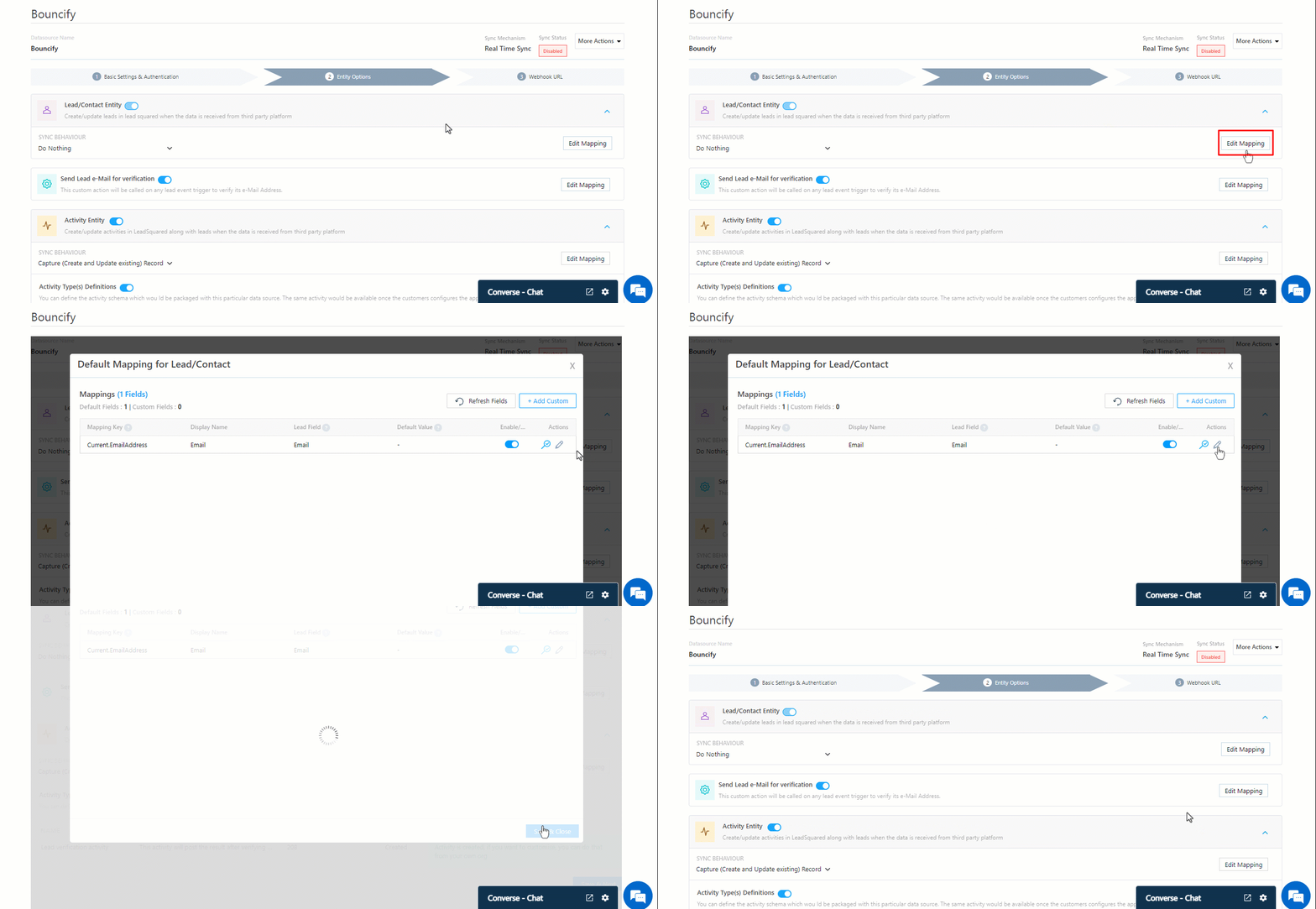
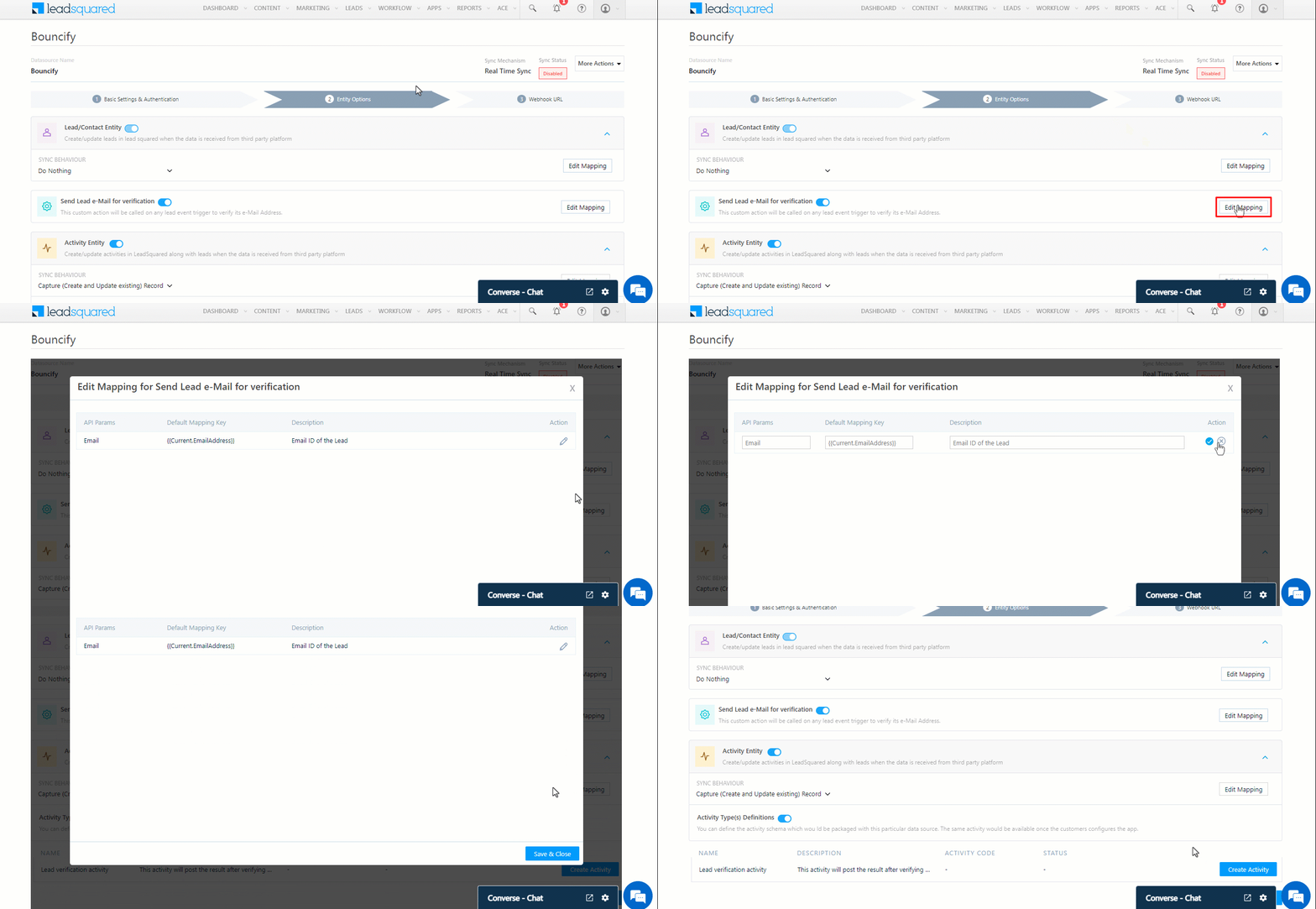
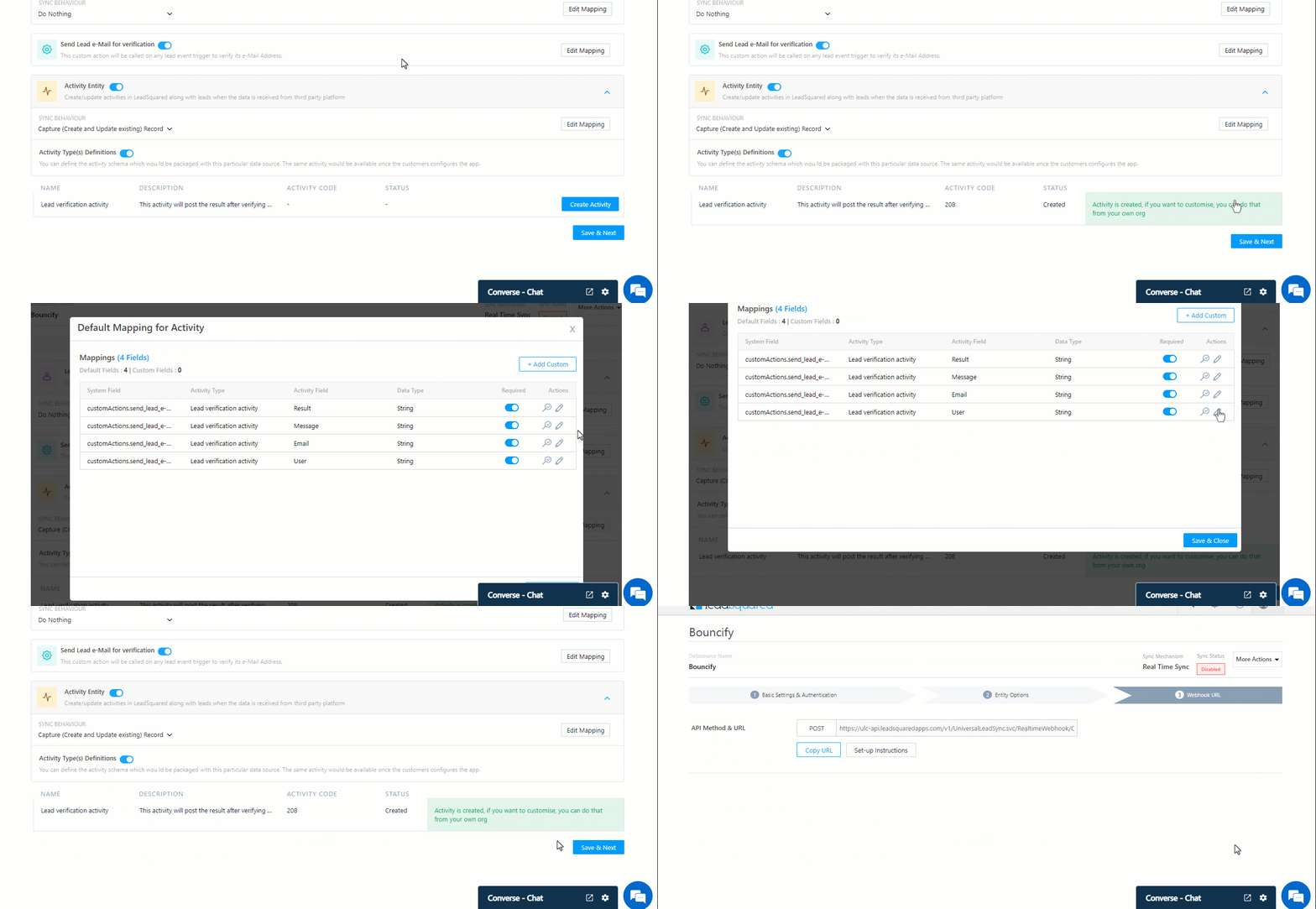
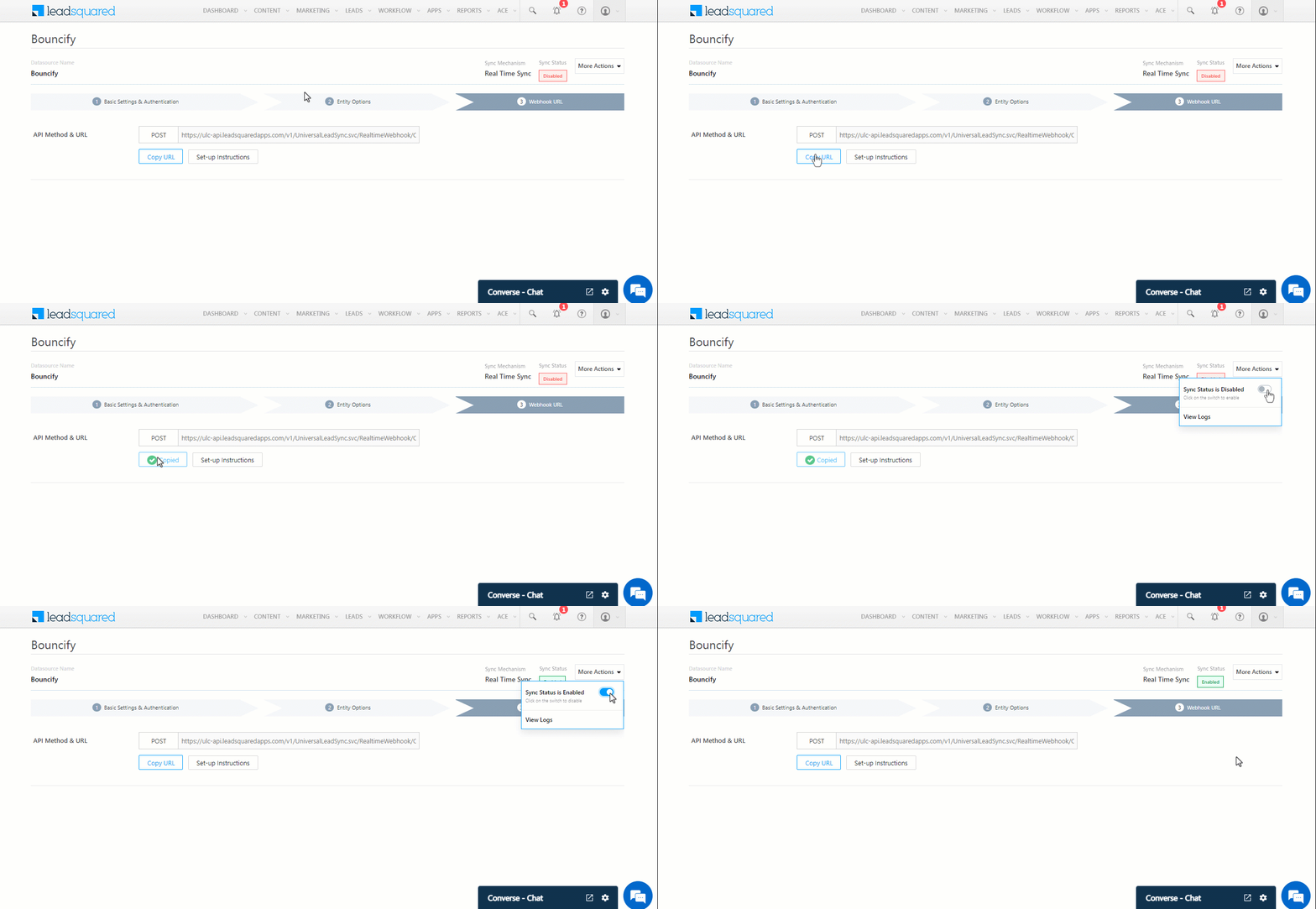
Juspay Payment Link Generation in LeadSquared

1. Feature Overview

This connector generates Juspay payment links (that support UPI, DC, CC, Net banking, Wallets, and BNPL payment methods) directly from your LeadSquared account. Your leads can use these links to make payments (e.g., for registrations, purchases, etc.). This connector also enables you to split large payments into multiple, affordable payment amounts, which leads can utilize. This payment is posted as an activity against the lead in LeadSquared.

Note:

  • This connector only generates payment links, which can be used by existing leads in your LeadSquared account. This connector DOES NOT capture and create new leads in your LeadSquared account.
  • Once a payment link is generated, you can check the payment status using the Juspay Payment Status Connector.
Juspay Payment LeadSquared connector


2. Prerequisites

  • You must be the Administrator of your LeadSquared account.
  • You must have an active Juspay account.
  • This is a paid feature. To enable it, reach out to your account manager, or write to support@leadsquared.com.


3. How it Works

  1. Install and configure the Juspay Payment link connector
    As part of the connector configuration, two custom activities are automatically created – Request Juspay Payment Link (sends the payment activity details to your Juspay account) and Juspay Payment Link (generates the payment link). When the connector is enabled, a webhook URL is generated. Copy this URL.
  2. Create an automation
    Use the New Activity on Lead Trigger, and select the Request Juspay Payment Link activity as the automation event trigger. Add a Webhook action to this automation, paste the connector’s webhook URL to this automation action, and publish the automation. This automation is used to generate the Juspay payment link.
  3. Post the activity
    Once the automation is published, post the Request Juspay Payment Link activity on the lead. The Request Juspay Payment Link activity is similar to a sales activity, and it can be used when the lead is about to make a payment for the services or products you offer.

Once the Request Juspay Payment Link activity is posted, based on the automation you’ve set up, the Juspay Payment Link activity is automatically posted on the lead. This activity contains the payment link URL which the lead can use to make the payment. Share this link with your lead, which they’ll use to complete the payment for the services or products you offer.

Note: To reduce manual intervention, set up additional automations to share the payment link with the lead. For example, when the Juspay Payment Link activity is posted, send the lead an email or WhatsApp message with the payment link.


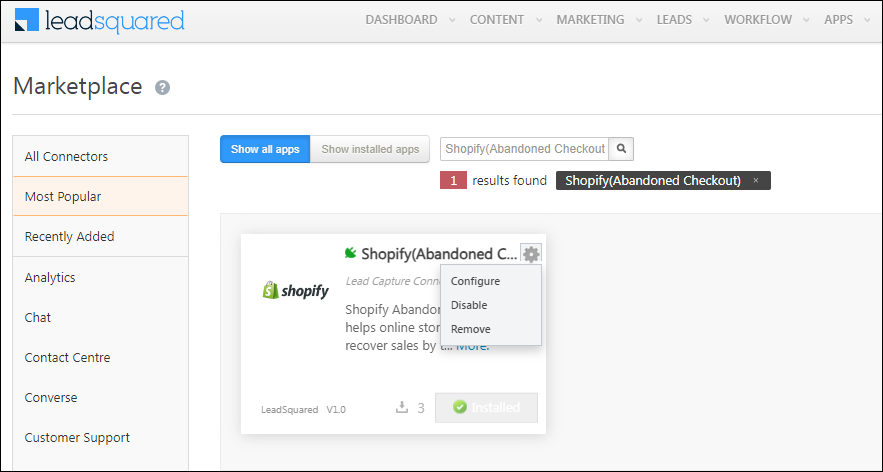
4. Install the Connector

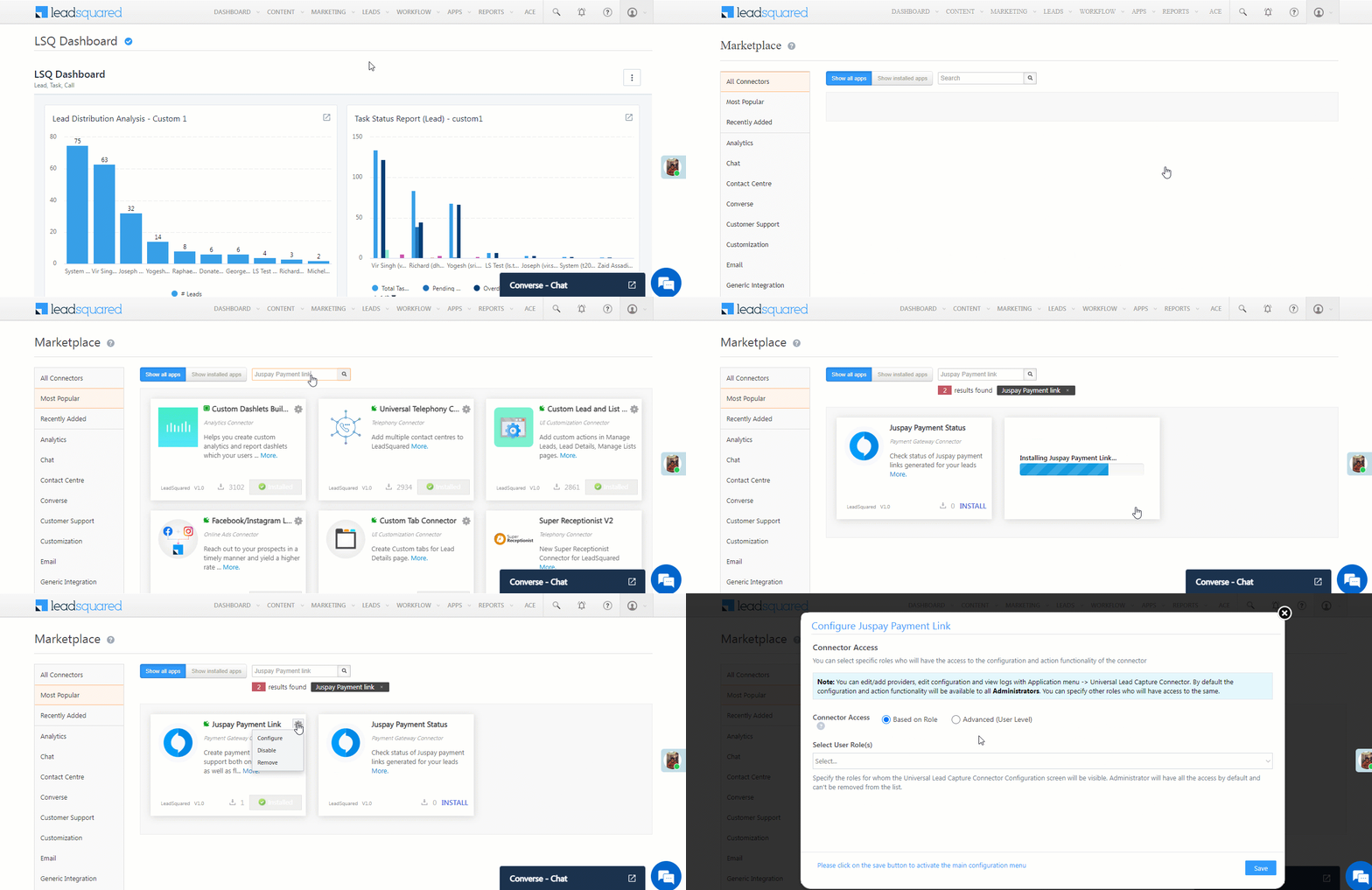
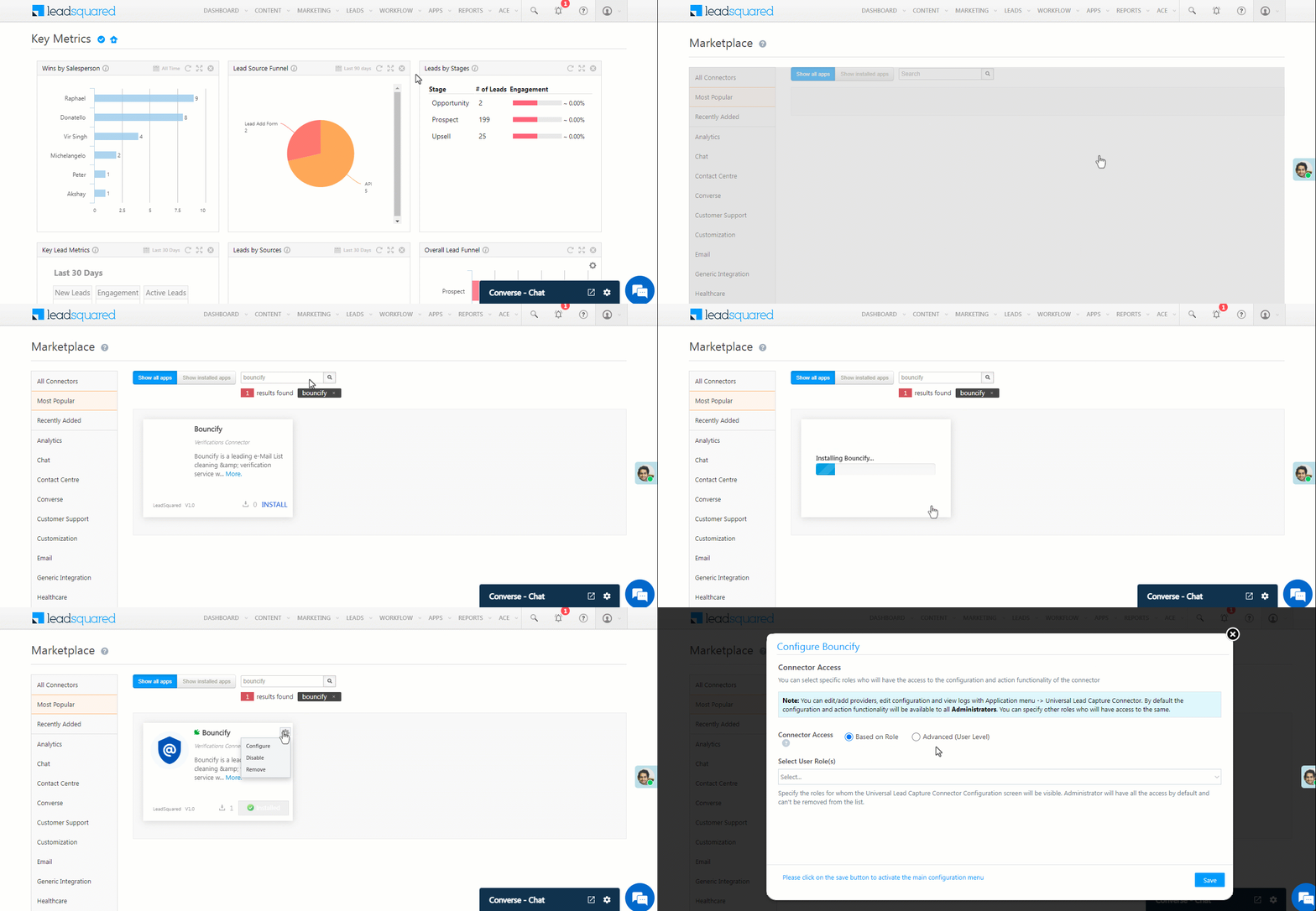
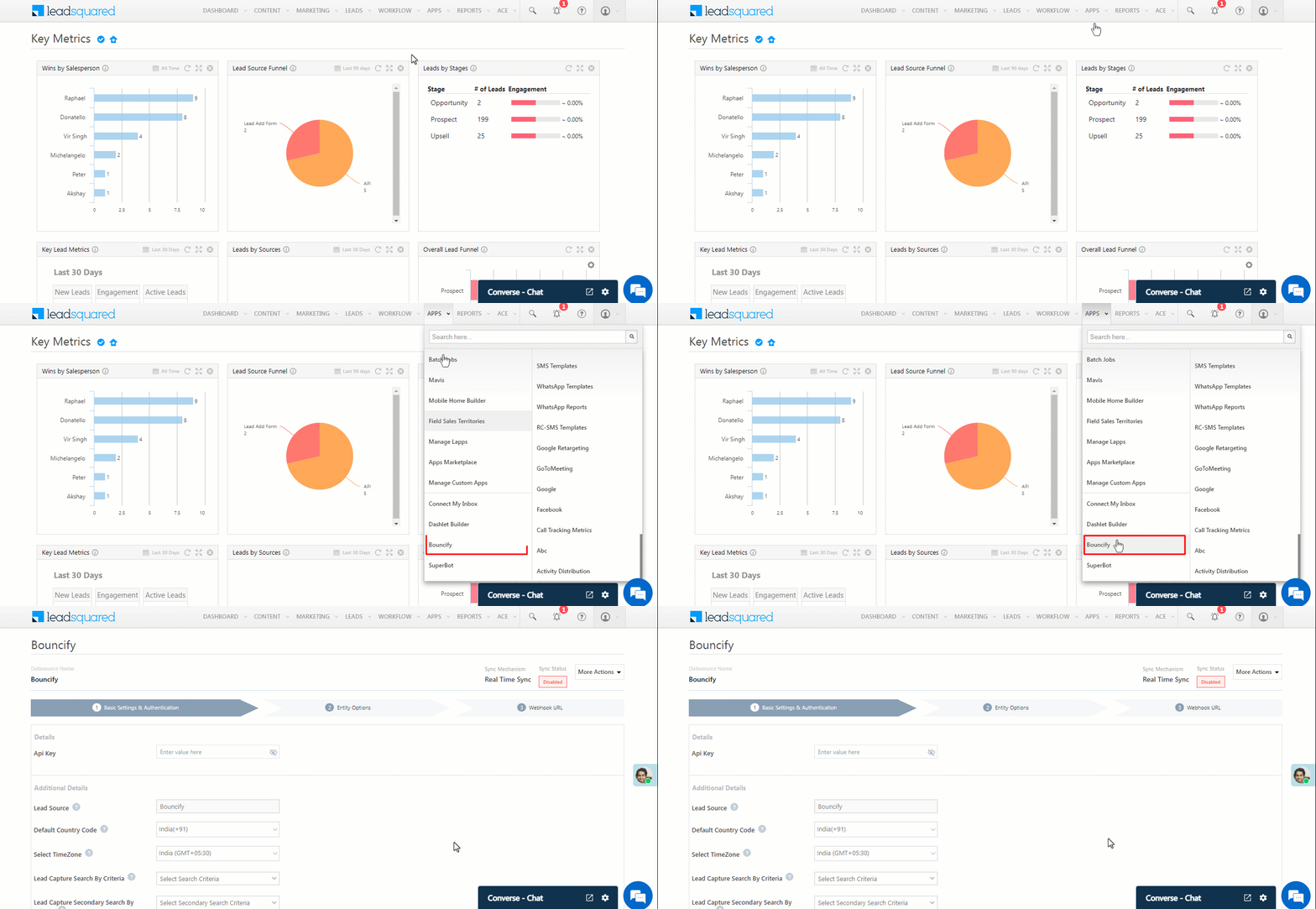
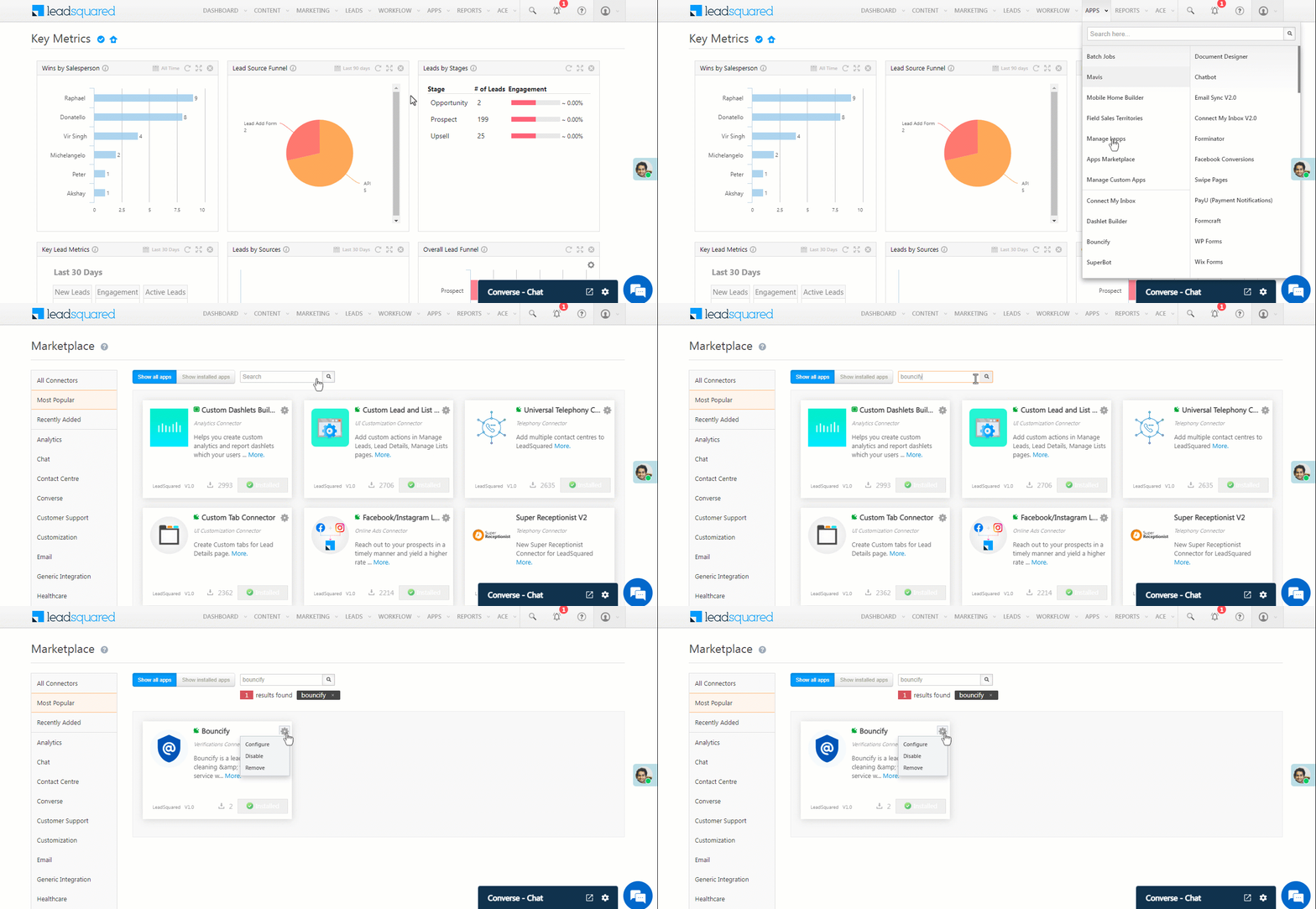
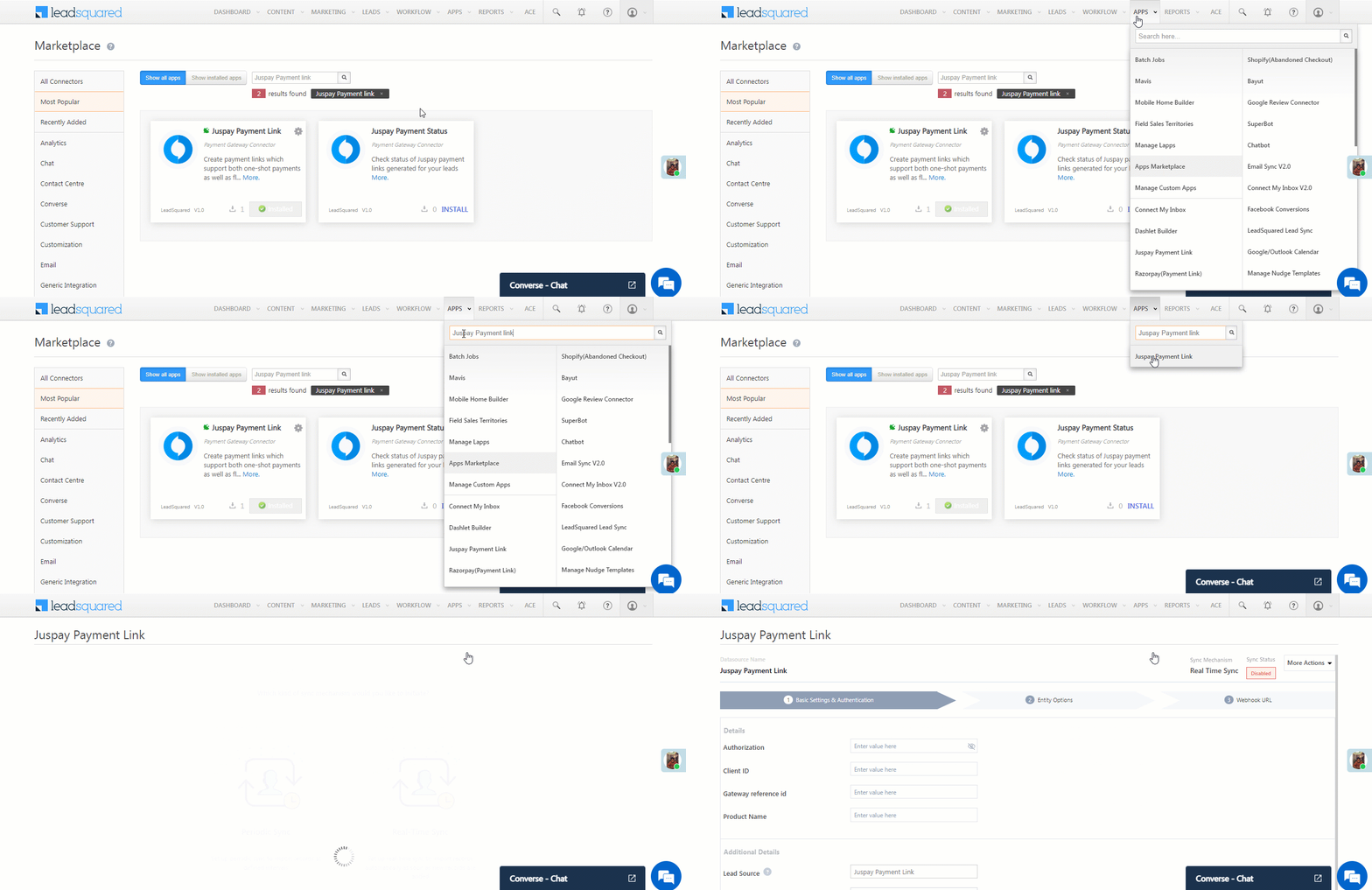
  1. Navigate to Apps>Apps Marketplace.
  2. Search for Juspay Payment Link, and click Install.
    • Alternatively, you can find the connector on the left panel, under Payment Gateway.
  3. Once installed, hover your cursor over , and click Configure.

Juspay Payment LeadSquared connector


5. Configure the Connector

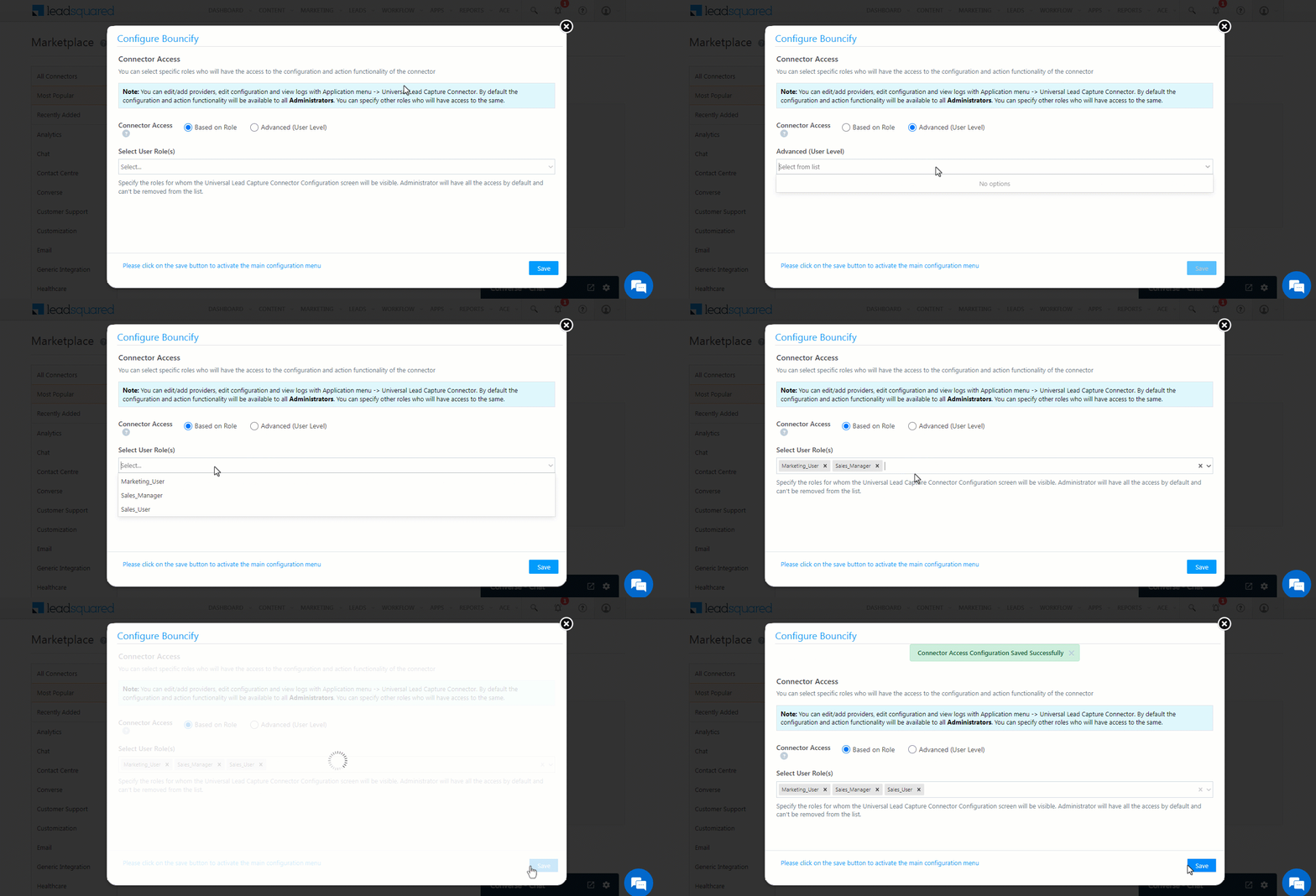
Once you’ve installed the connector, on the Configure Juspay Payment link pop-up, configure the connector access for the non-Admin users in your account. Only those users for whom access is granted can view and access the connector (under the Apps main menu).

  1. Select if you want to grant Connector Access that’s Based on Role or Advanced (User Level).
    • Based on Role – From the Specify Roles dropdown, select the LeadSquared user roles that can use the connector.
    • Advanced (User Level) – From the Advanced (User Level) dropdown, select a user boolean field. Based on the value entered in the selected boolean field, the user can access the connector (e.g., for the user Sam, if the “Is Employee” boolean user field contains the value “Yes”, then this user can access the connector).
  2. Once you’re done, click Save Details. To continue the configuration, refer to the below sections.
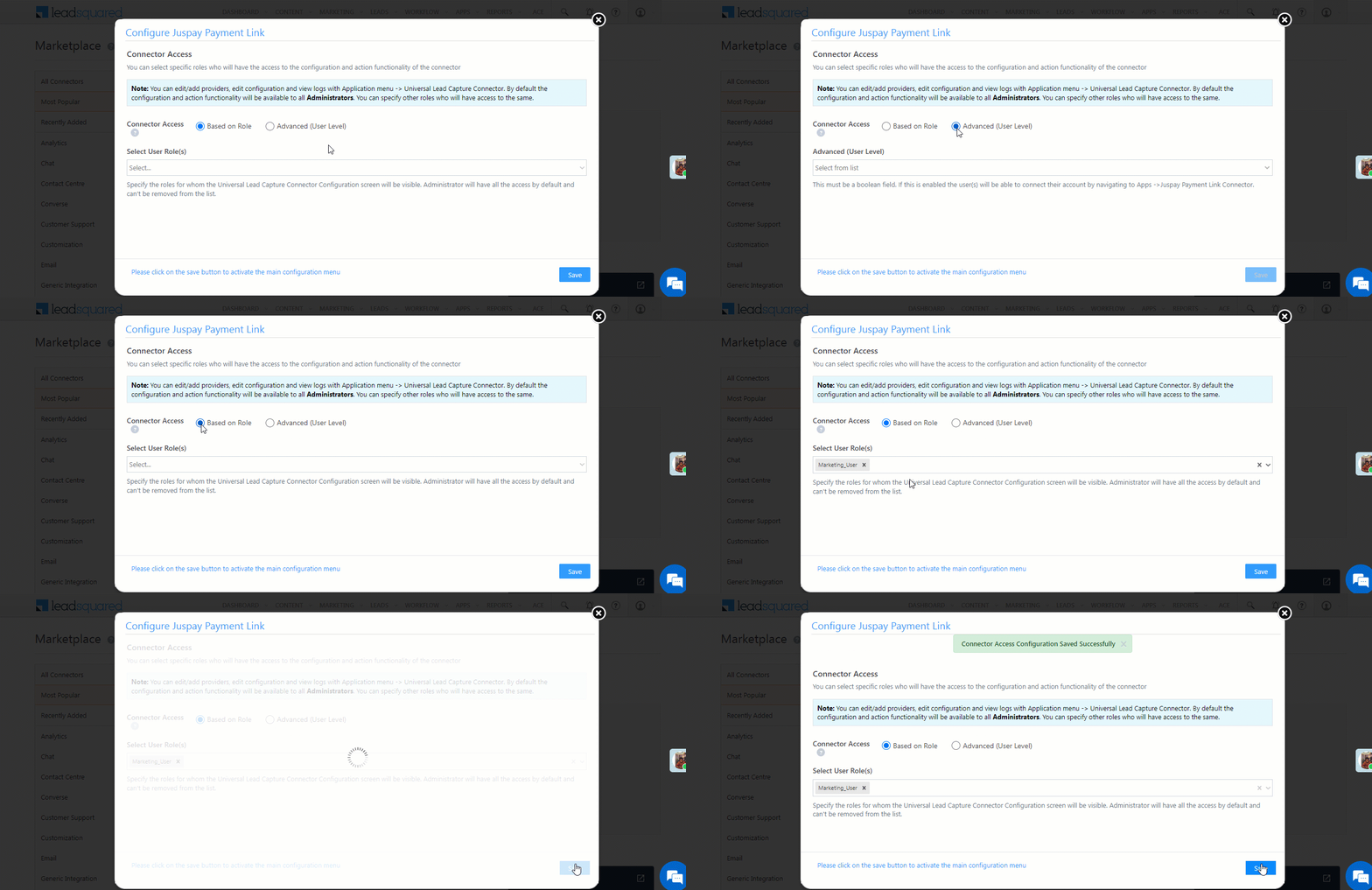
Note: By default, all Admin users will have access to the connector.

Juspay Payment LeadSquared connector


6. Admin Configurations

To continue the connector configuration, navigate to Apps>Juspay Payment link.
Juspay Payment LeadSquared connector

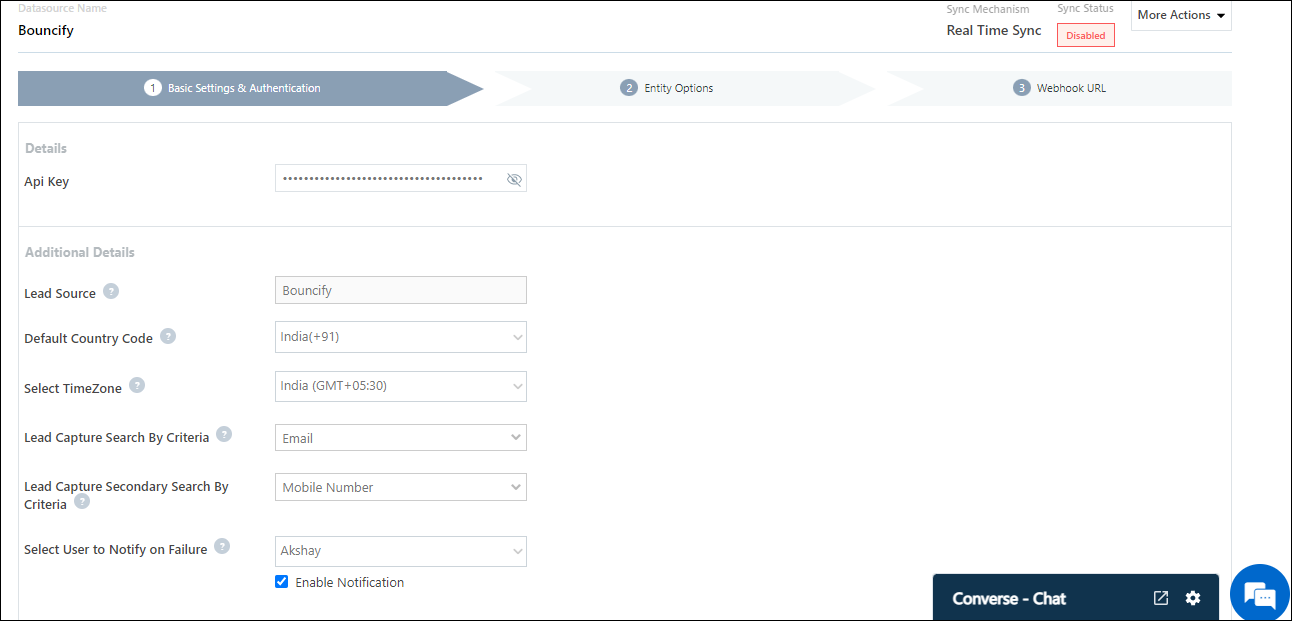
6.1 Basic Details

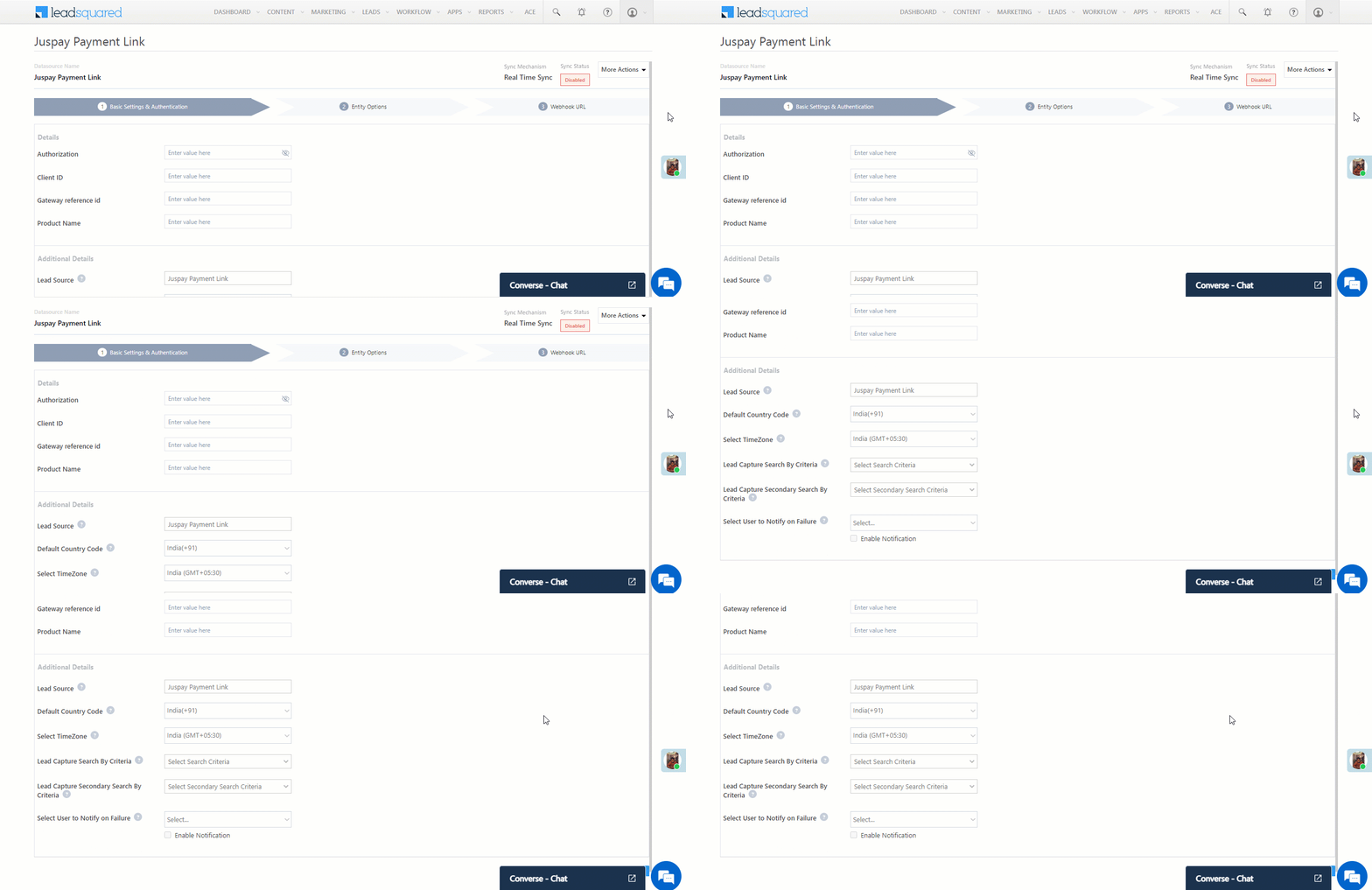
Enter the following details –
Juspay Payment LeadSquared connector

Property Description
Authorization
Your Juspay-merchant unique key. To obtain this, please contact your Juspay account manager.
Client ID
Your Juspay account’s Client ID. To obtain this, please contact your Juspay account manager.
Gateway reference id
Your Juspay gateway reference ID. To obtain this, please contact your Juspay account manager.
Product Name
The product (e.g., Aligner Kit) for which you’re generating payment links.
Lead Source Enter the lead source through which the leads were captured (e.g., Juspay, email campaign, etc.). This detail will be displayed on the Lead Details page, under Lead Source.
Default Country Code If the lead’s mobile number is captured without a country code, then the default country code that’s selected from the dropdown will be added to the lead’s mobile number.
Select Time Zone The time zone of your Juspay account.
Lead Capture Search By Criteria To avoid creating duplicate leads, you must select one unique lead field (e.g., email Id, mobile number, PAN number, etc.) as the search key.

To know how to mark a LeadSquared lead field as unique, please refer to How to Make a Custom Field Unique.

Lead Capture Secondary Search By Criteria If lead identification and capture through the primary Search By Criteria fails, it will be re-attempted using the secondary Search By Criteria.
Select User to Notify on Failure If there is an error in fetching leads, the selected user will receive a failure message via email. You can select a user from the list of all the users available in your LeadSquared account.

To know more about the type of errors, please refer to Error Notifications.

Enable Notification To ensure notification emails are sent to the selected user when there’s a failed query, enable the Checkbox checkbox.

Once you’re done entering all the details, click Save & Next.

6.2 Mapping

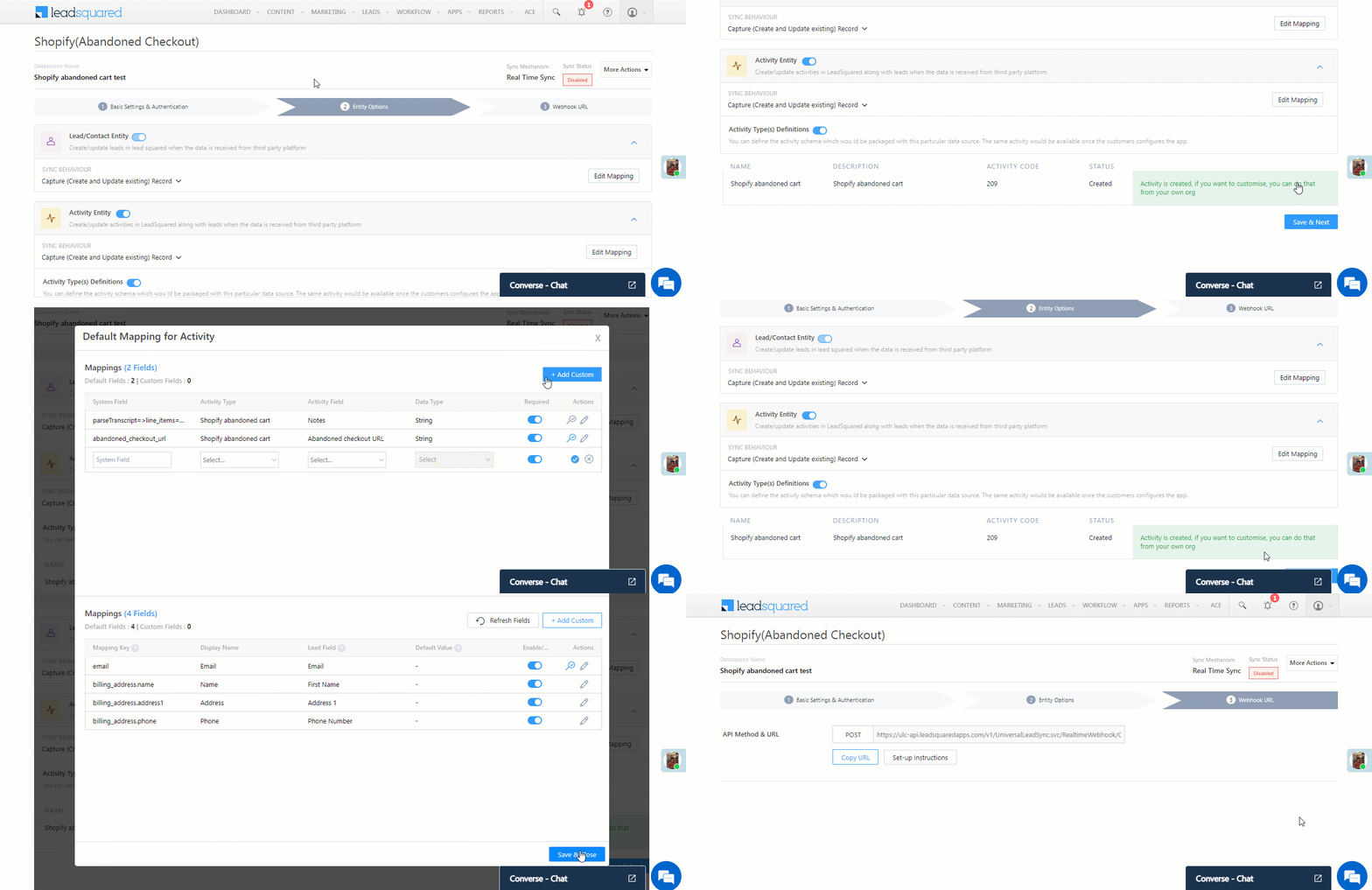
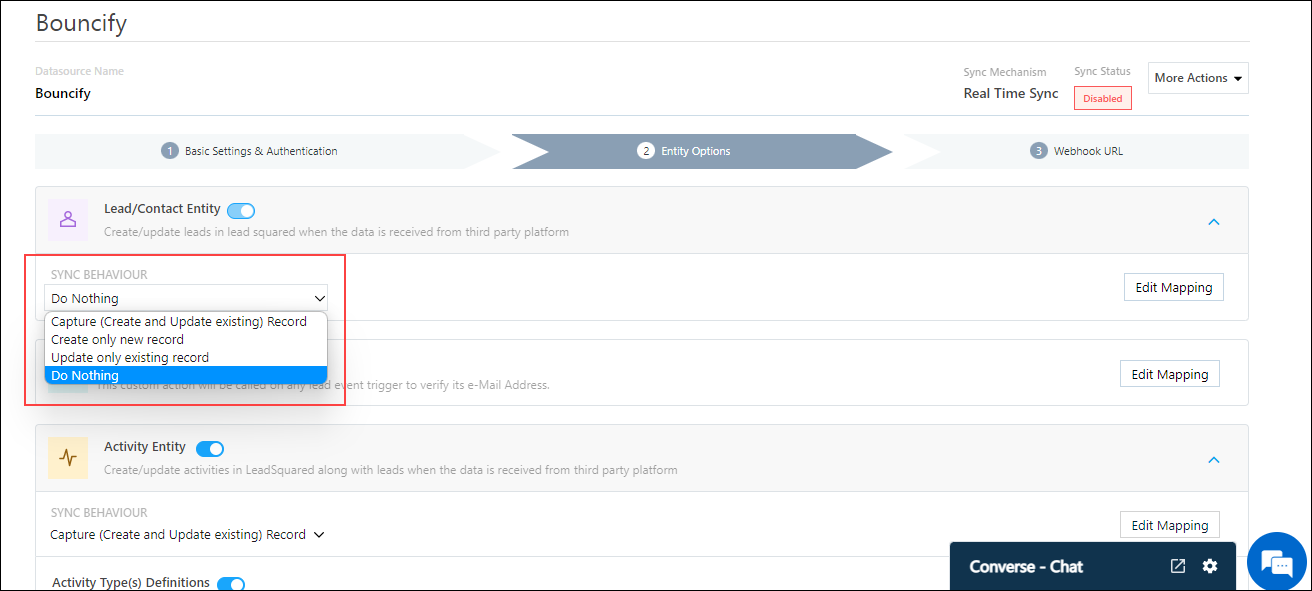
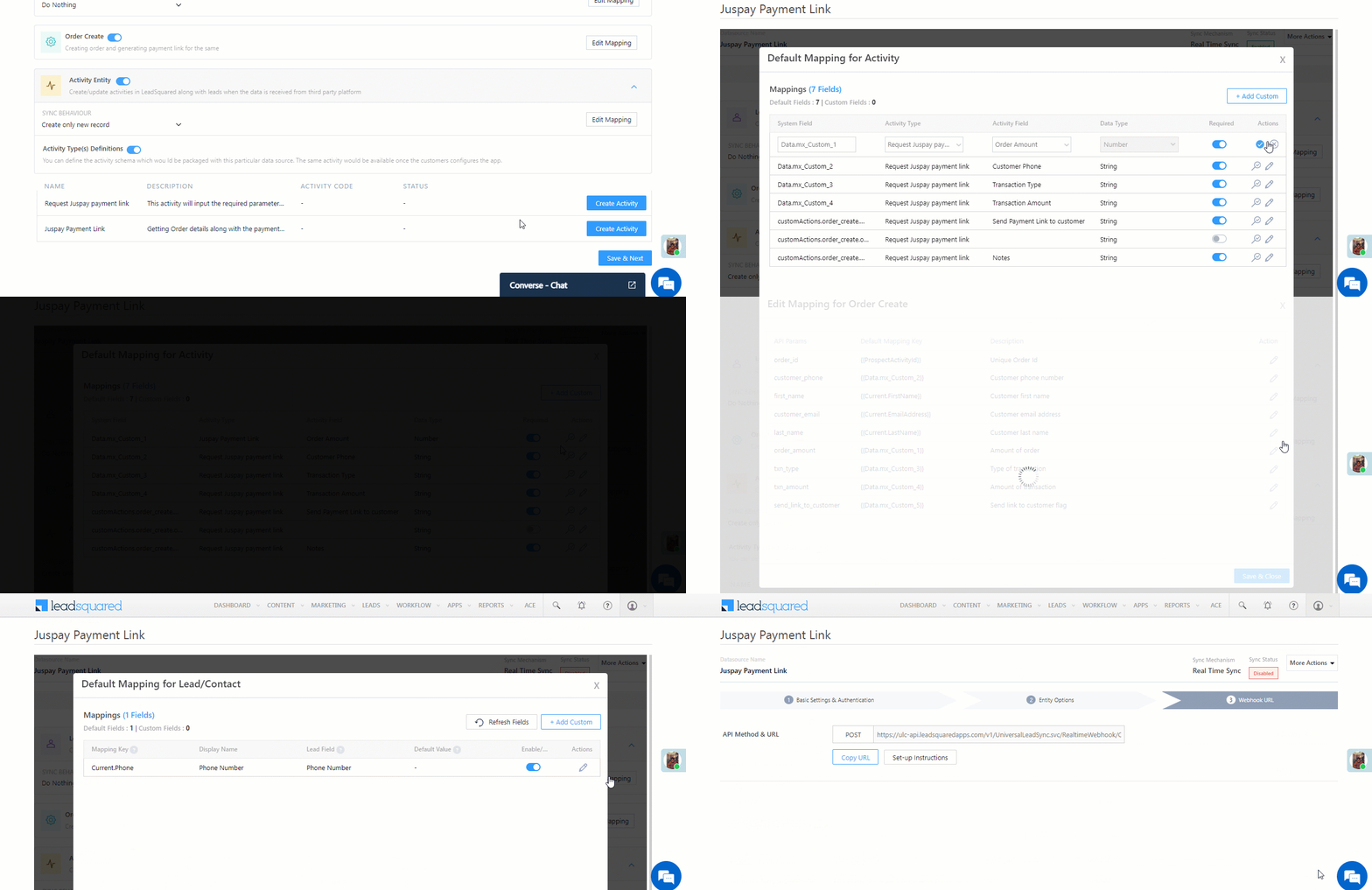
Once you’re done with the basic settings, click Entity Options. By default, all the Juspay fields are mapped to the corresponding LeadSquared lead fields. You’ll have to complete two steps here –

  1. Enable Activity Creation* – Alongside Juspay Payment Link and Request Juspay payment link, click the Create Activity button.
  2. Edit Mapping – Alongside each action (Activity Entity, Payment Link Creation, and Lead/Contact Entity) click the Edit Mapping button to verify if the field mapping is accurate. Once verified, click Save & Close. This step is mandatory.
    If required, on the Edit Mapping pop-up, you can edit the field mapping –
  • To edit the Juspay mapping field name, click  , and under Mapping Key, edit the field name.
  • To change the LeadSquared lead field to which the Juspay field is mapped, click  , and from the Lead Field dropdown, select the new lead field.
  • To mark a unique lead field as the search key, click unique icon.
  • To disable an existing field mapping, alongside the field, disable the slider Zoom.
  • To map an additional field, click the Add Custom button, and add the new mapping field details.
  • To edit the Payment Link Creation API details, click  , and make the required changes.
  • If you want to capture any additional API response as part of the activity that’s posted on the lead, alongside Activity Entity, click Edit Mapping, and add the response on the Default Mapping for Activity pop-up.

Once you’re done, click Save & Next.

Note:

  • *Ensure you complete the Enable Activity Creation steps first, and only then complete the Edit Mapping steps.
  • On the Default Mapping for Activity screen, ensure the default activity is set to Juspay Payment Link.
  • You must mandatorily verify the mapping for Lead/Contact Entity, Payment Link Creation and Activity Entity, and click Save & Close for each action type (including alongside Lead/Contact Entity), in order to complete the Mapping.
  • Since this connector is capturing the payment details as an activity, the Sync Behaviour is by default set to Do Nothing. It is recommended you don’t change this to any other setting.
Juspay Payment LeadSquared connector

6.3 Webhook URL

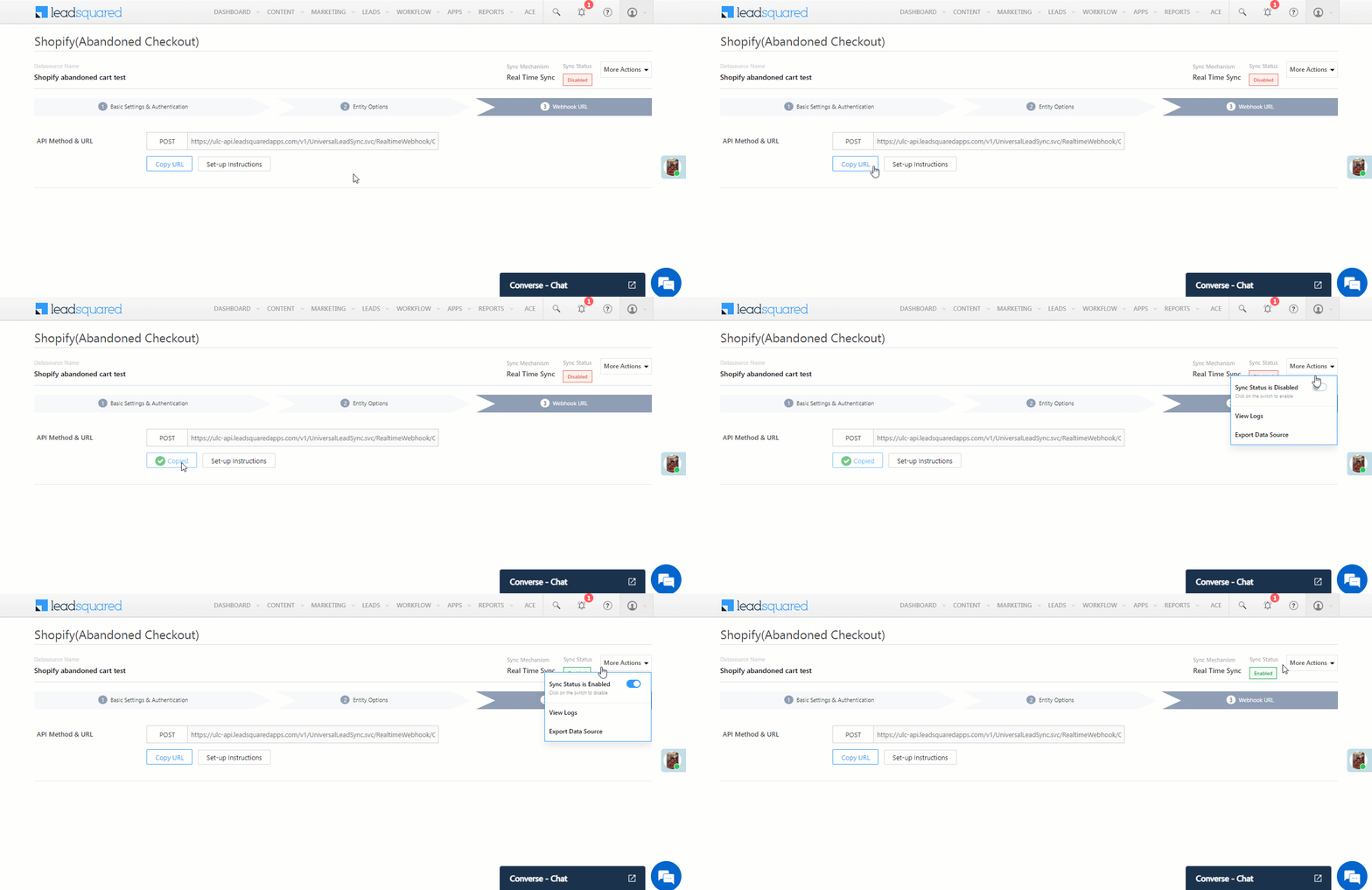
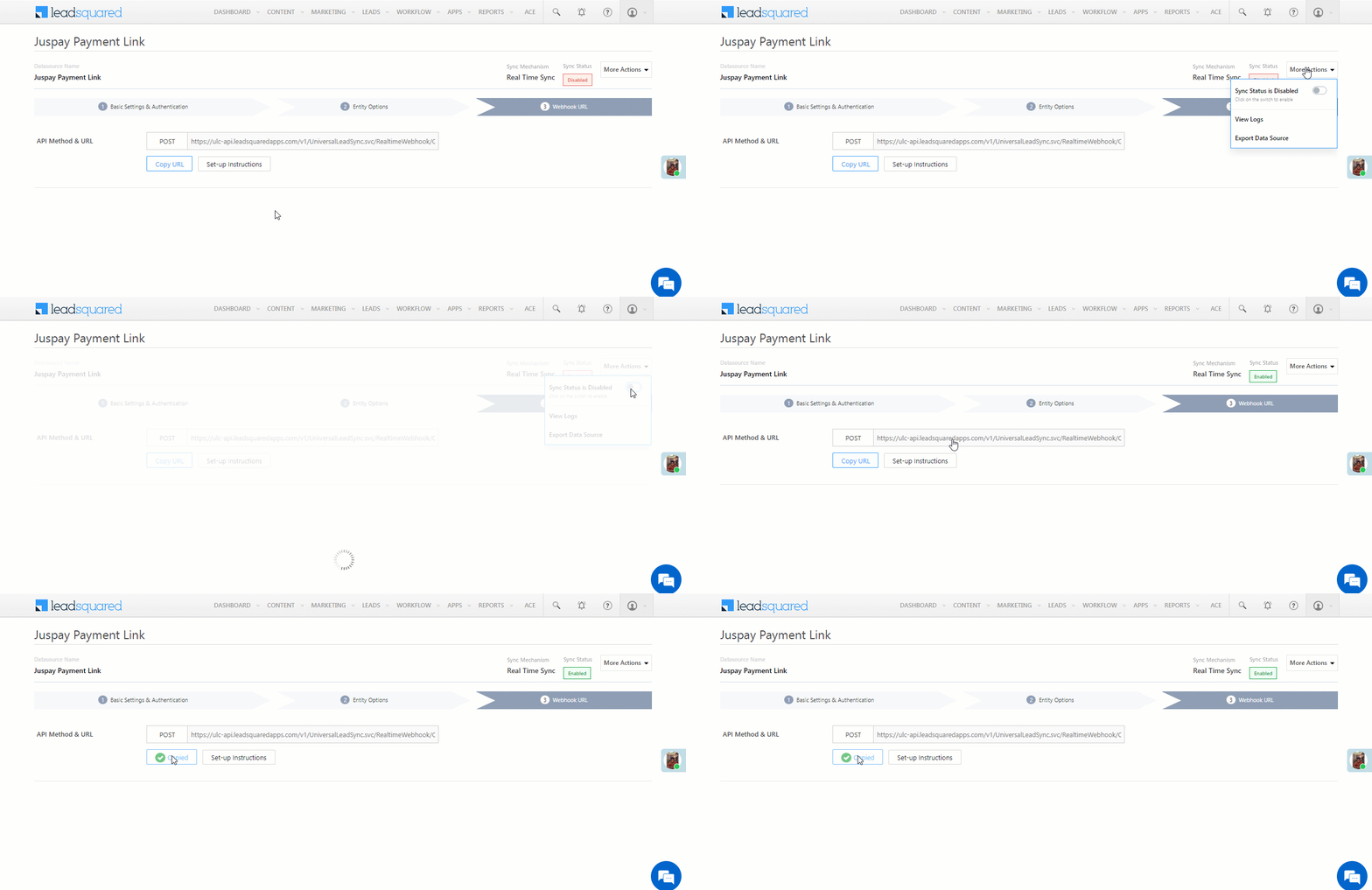
After you provide basic details and finish field mapping, a custom webhook URL is generated. Copy this webhook URL, and use it to create an automation that will generate the payment links.
Juspay Payment LeadSquared connector


7. Create an Automation

Use the Webhook URL from the previous step to create an automation that generates the Juspay payment links.

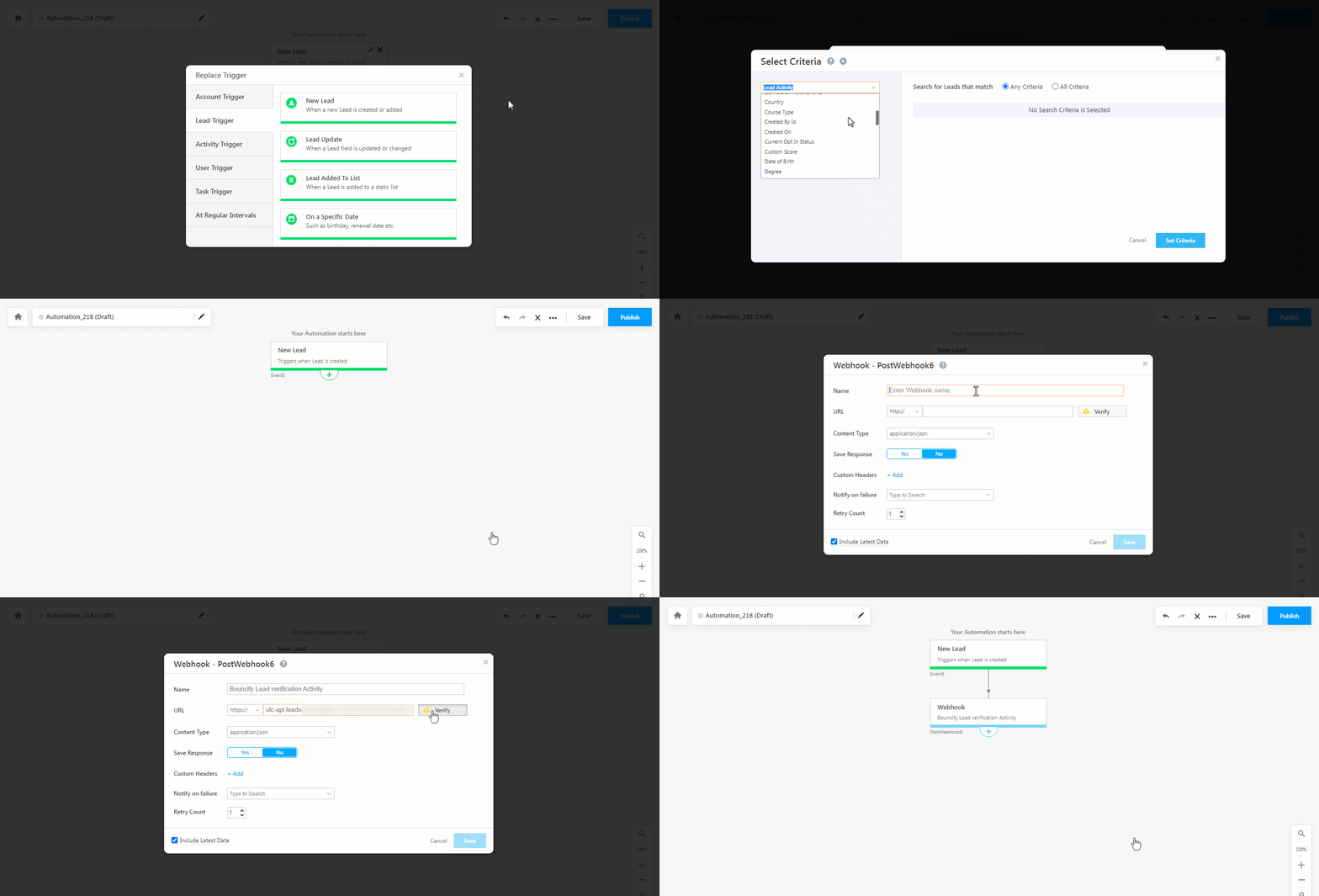
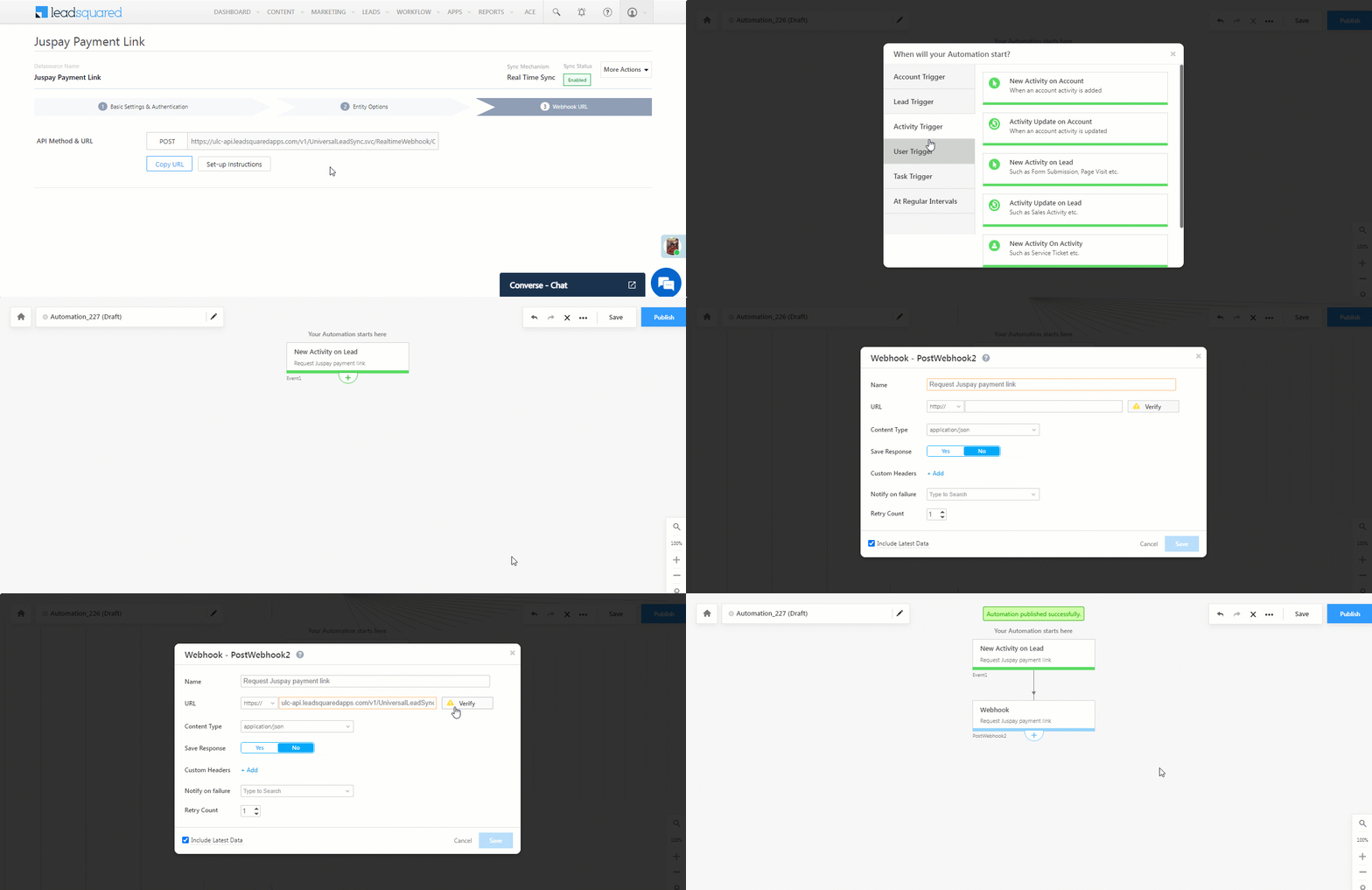
  1. Navigate to Workflow>Automation, and click Create Automation, and select any Activity trigger. We’ve selected the New Activity on Lead trigger.
  2. On the Automation starts when an activity is added pop-up –
    • From the Select an activity dropdown, select the Request Juspay payment link activity.
    • Disable the checkbox alongside Run only once per lead. This is to ensure that if required, multiple payment links can be generated for the same lead.
    • Once you’re done, click Save.
  3. Click Add Automation, and under Custom, click Webhook.
  4. On the Webhook pop-up, enter the following details –
    • Name – Enter a relevant name for the webhook. We’re calling it “Request Juspay payment link”.
    • URL – Select the method as https://, and paste the connector’s webhook URL that was generated in the previous step. Before you paste the URL, ensure you remove “https://” from the URL.
    • Content Type – Select application/json.
    • Save Response – You can select either Yes or No.
    • Custom Headers – You can skip this step.
    • Notify on Failure – Select which user you want to notify if the webhook fails.
    • Retry Count – The number of times you want to retry when the webhook fails.
  5. Once you’re done, click Save, and then click Publish.
Note: To know more about the Webhook action, refer to User Automation Actions – Webhook.

Juspay Payment LeadSquared connector


8. Post an Activity

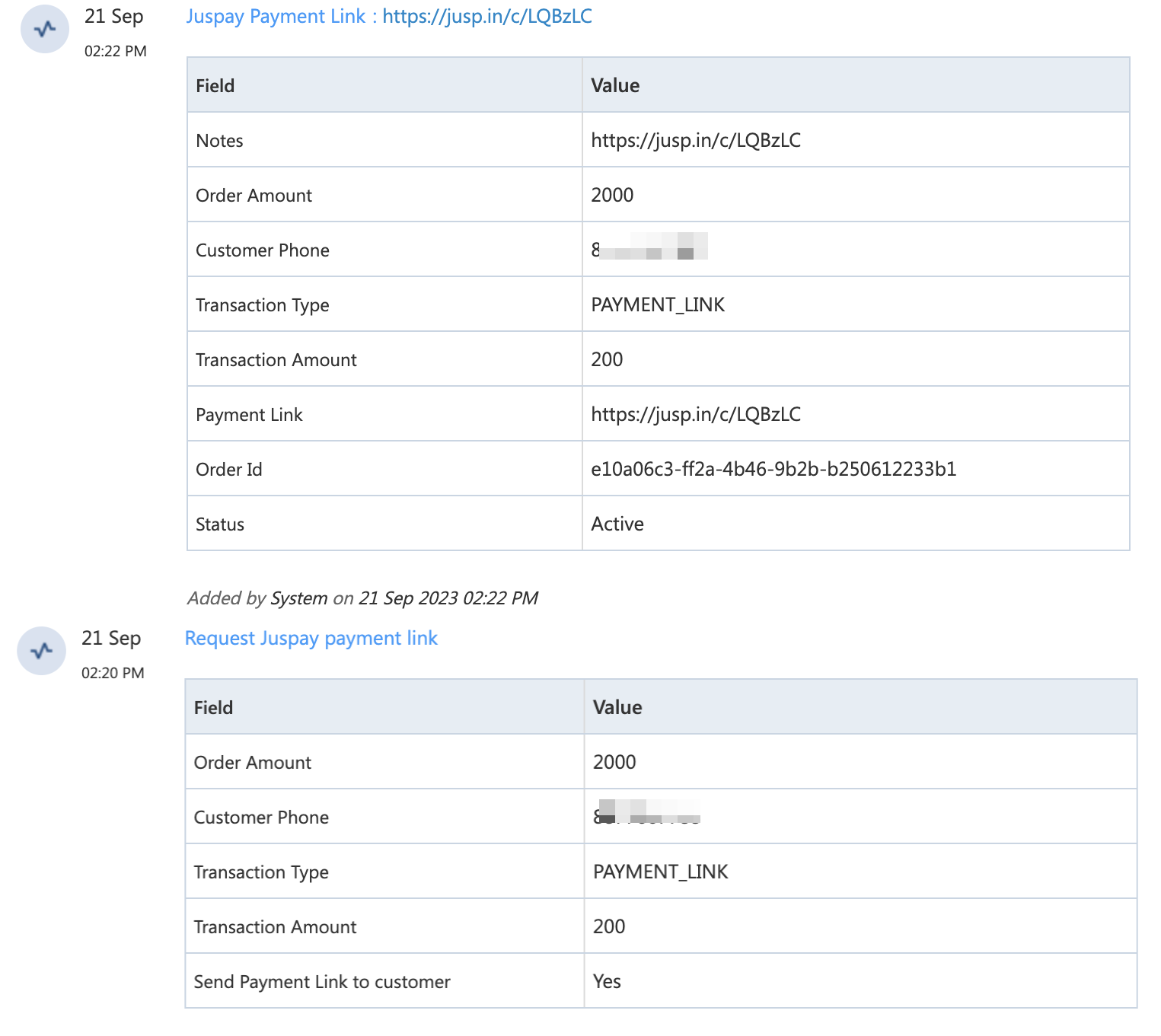
Once the webhook is configured in an automation, you can start posting the Request Juspay Payment Link activity on leads, which will in turn automatically post the Juspay Payment Link activity. This activity contains the  –

  • Order Amount
  • Customer Phone
  • Transaction Type
  • Transaction Amount
  • Send Payment Link to Customer
Note: This section is to help Sales Users generate the payment link for their leads.
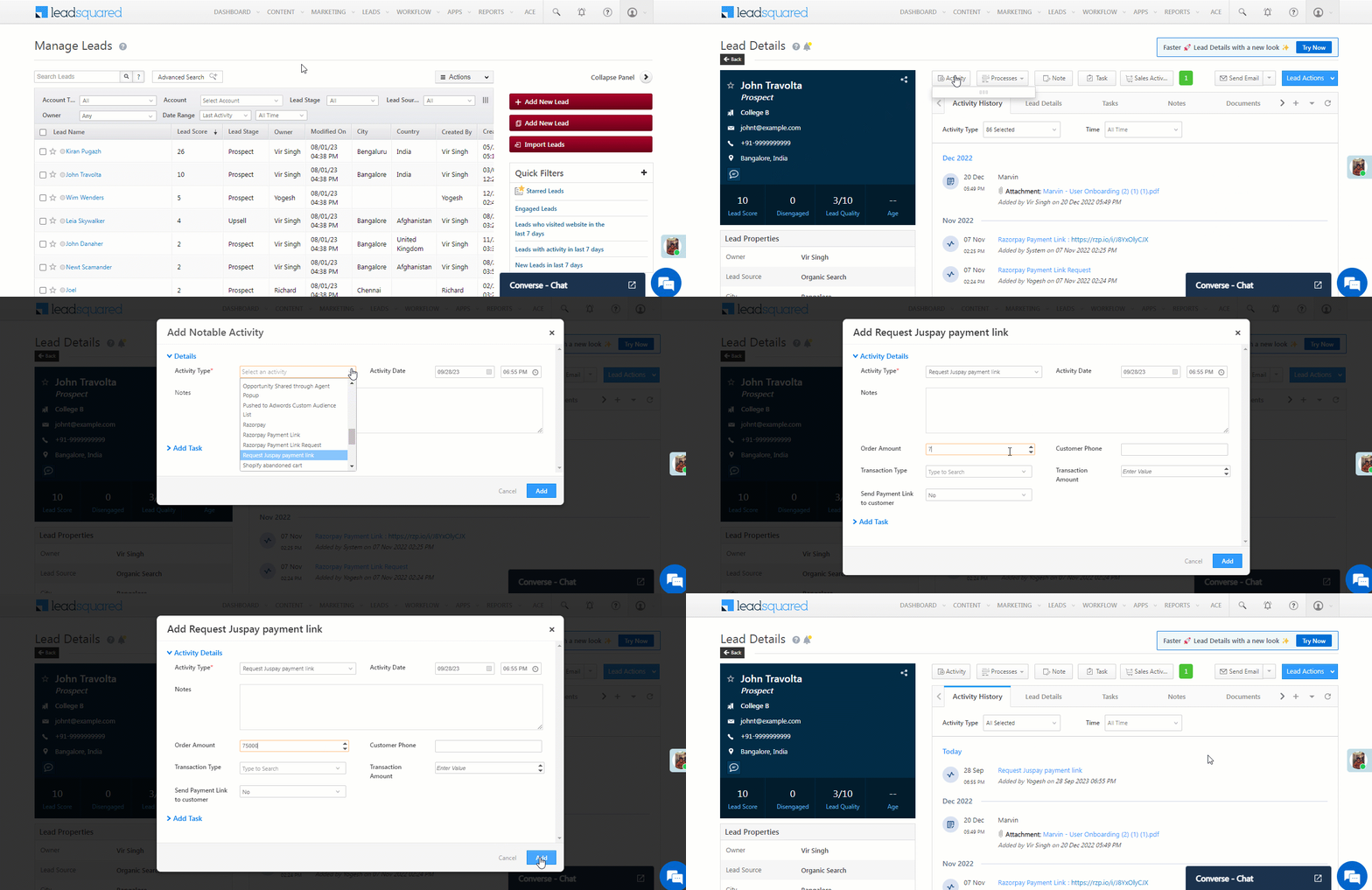
  1. Navigate to Leads>Manage Leads, and click on any lead.
  2. On the Lead Details page, click the Activity button. On the Add Notable Activity pop-up, enter the following mandatory details –
    • Activity Type – From the dropdown, select Request Juspay Payment Link.
    • Activity Date – Select a date and time for the activity.
    • Amount – Enter the value of the transaction (e.g., 75,000).
    • The other fields are optional.
  3. Once you’re done, click Add. The Juspay Payment Link Request is posted on the lead.
  4. You’ll see the Juspay Payment Link activity has been posted on the lead (by the automation you set up). If you don’t see this, please refresh your page. This activity contains the Payment Link, along with the other details mentioned above. You can share this payment link with your leads.
Note: To reduce manual intervention, set up additional automations to share the payment link with the lead. For example, when the Juspay Payment Link activity is posted, send the lead an email or WhatsApp message with the payment link.

Juspay Payment LeadSquared connector


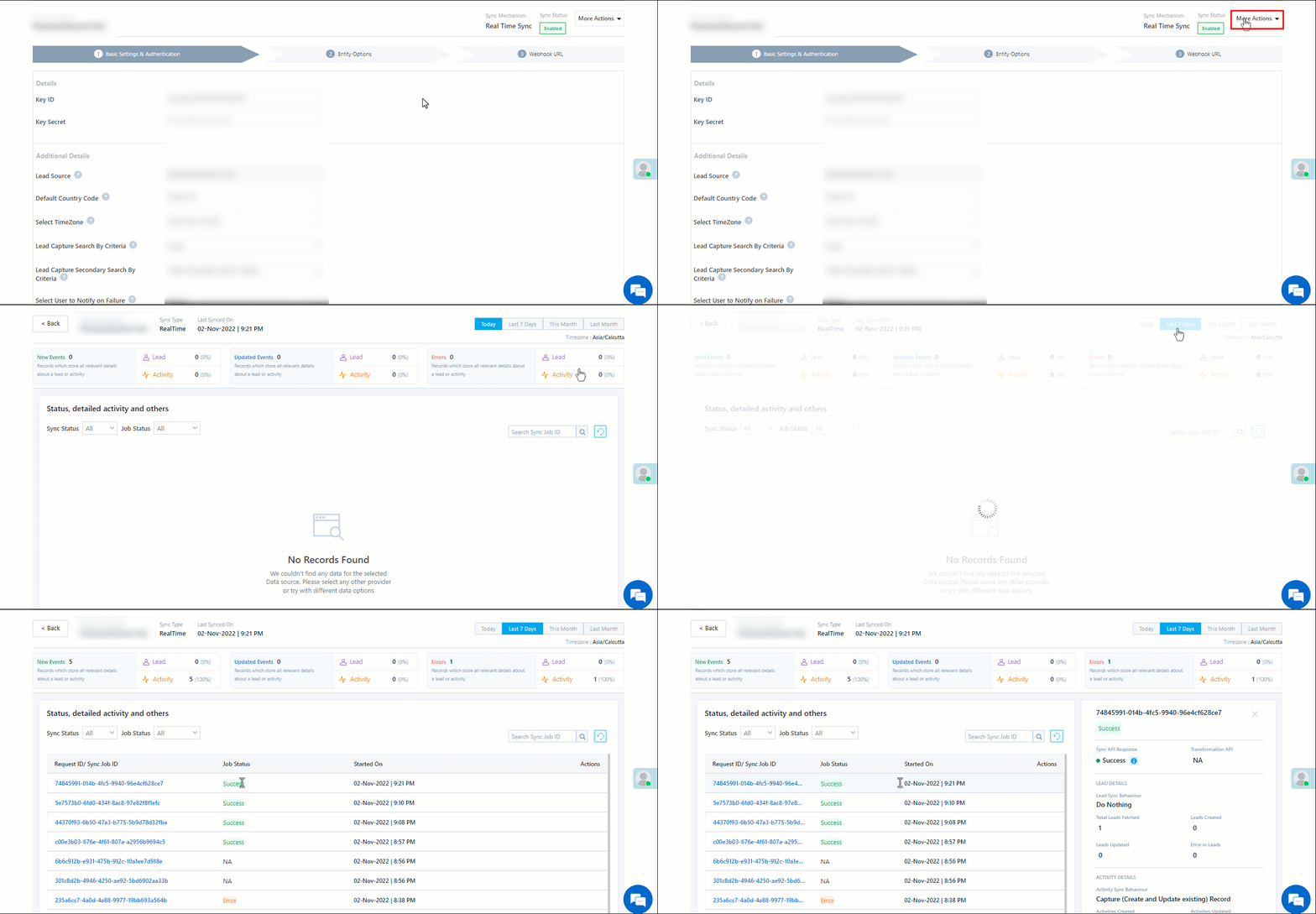
9. View Logs

Here, you can view logs of all the sync jobs that have taken place.

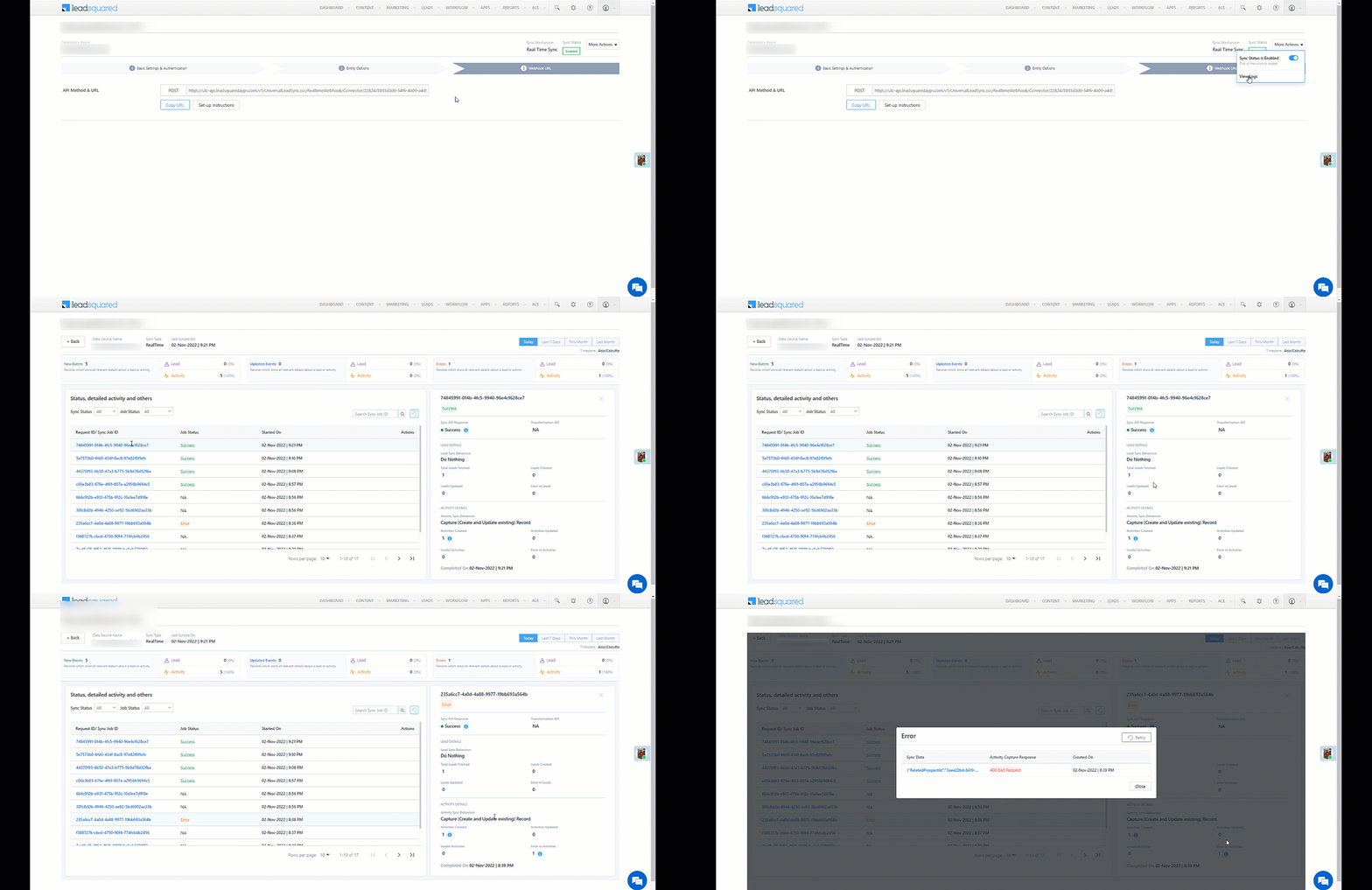
  1. Navigate to Apps>Juspay Payment link, and click More Options, and then click View Logs.
  2. You can filter the logs by selecting a date range (Today, Last 7 Days, This Month, and Last Month), by selecting the Job Status (“All”, “Success” and “Failure”), and by selecting the Sync Status (All, Error, and Success).
  3. You can view the sync status of the following events –
    • New Events – List of all the new payment activities posted in your account.
    • Errors – The list of unsuccessful payment activities that have not been captured due to mapping errors (e.g., when a boolean field is mapped to an integer field, etc.).
  4. To view the Sync Response details, under Request ID/Sync Job ID, click the Id.
    • Under the right panel, you can view the response status, the API URL, the request, and the response.
    • The responses that are successful will contain the details of the leads that have been pushed by Juspay.
    • To view the lead capture response under Sync API Response, Leads Updated and Errors in Leads, click Information.

Note:

  • For a response that contains an error, the reason for the error is listed in the response. Once you fix it, you can click the Retry button to perform the sync again.
  • The current Lead/Activity Sync Behaviour will reflect in the Logs screen. This will help identify the sync that’s used (Capture or Update) for the selected Request/Sync Job Id.
Juspay Payment LeadSquared connector


Any Questions?

Did you find this article helpful? Please let us know any feedback you may have in the comments section below. We’d love to hear from you and help you out!
Automation Audit Logs

You can track updates made to your automations through Automation Audit Logs. Not only can you see who changed what and when, you can also see visual representations of previous versions.


Navigation

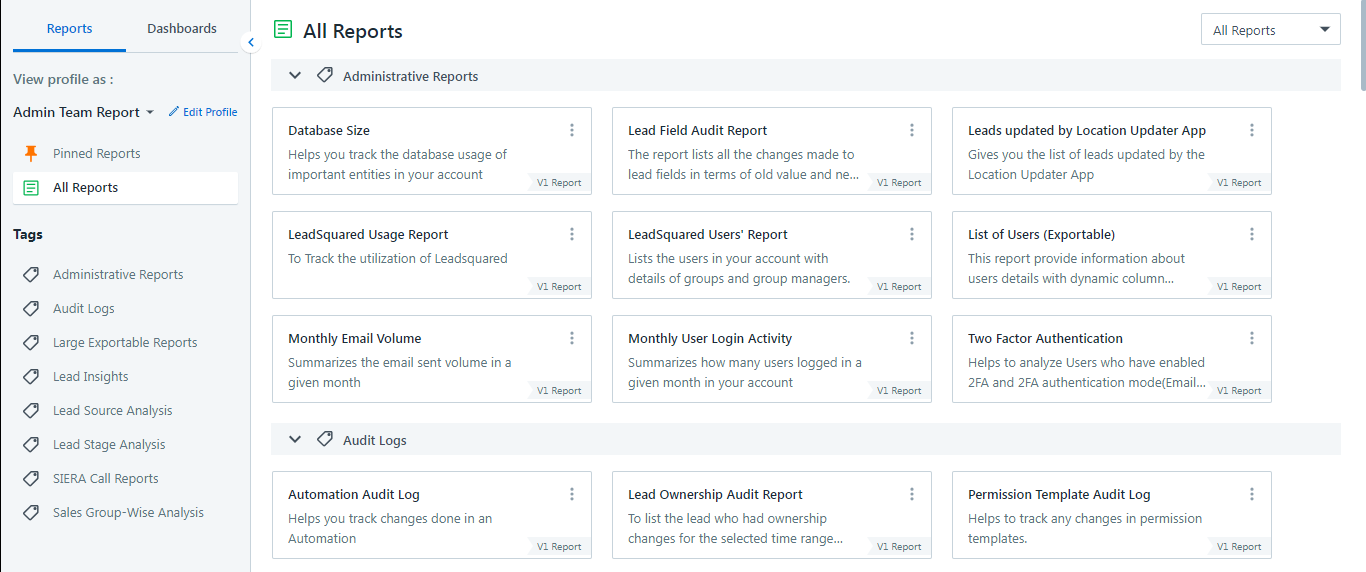
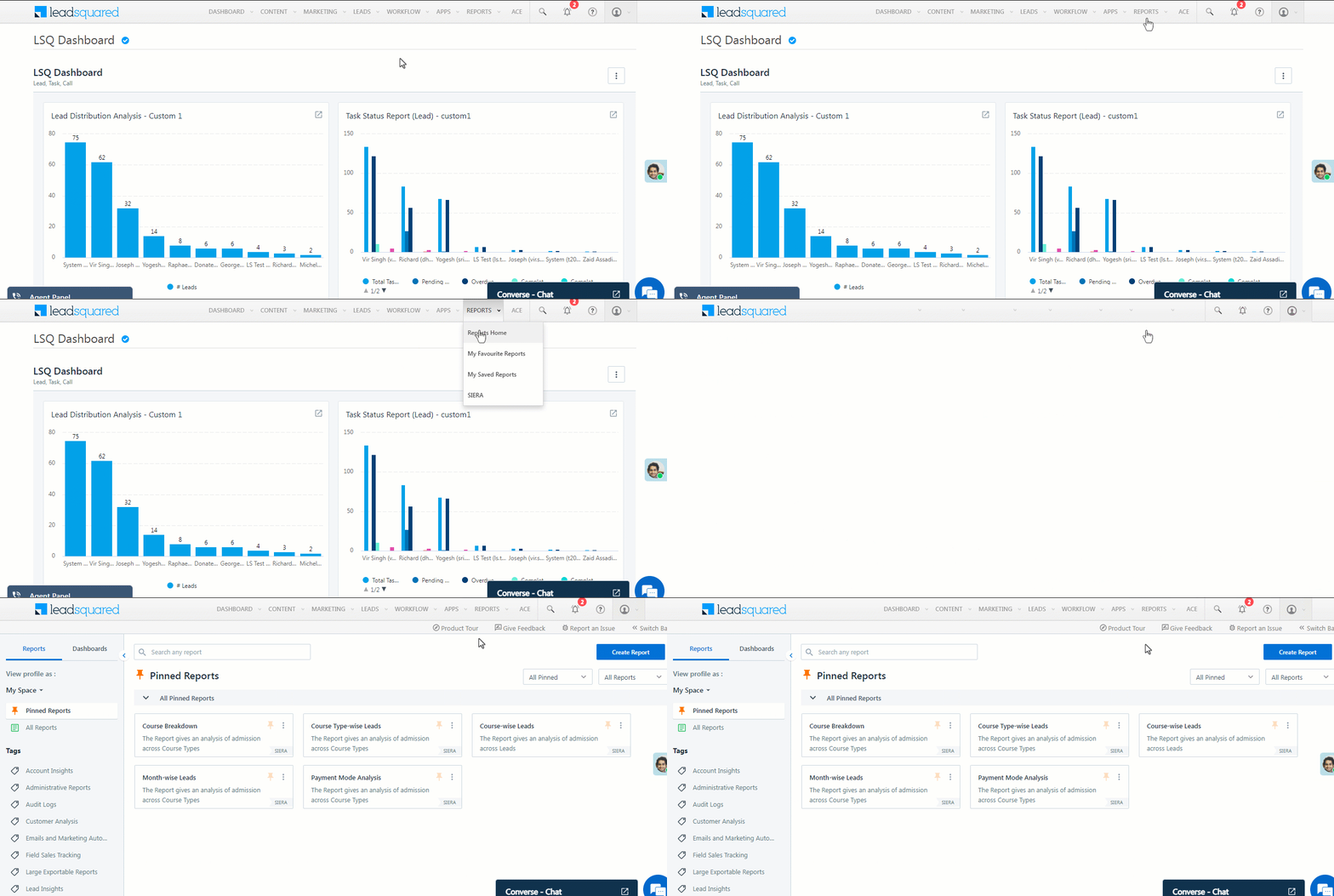
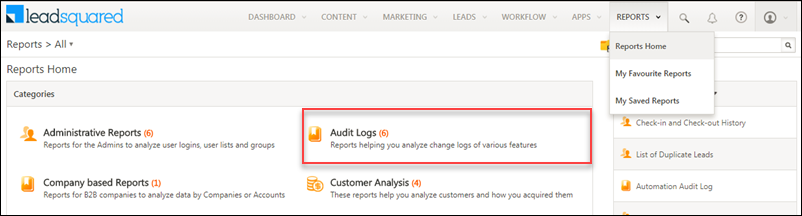
To view automation audit logs, from the main menu, navigate to Reports>Reports Home>Audit Logs.

automation audit report

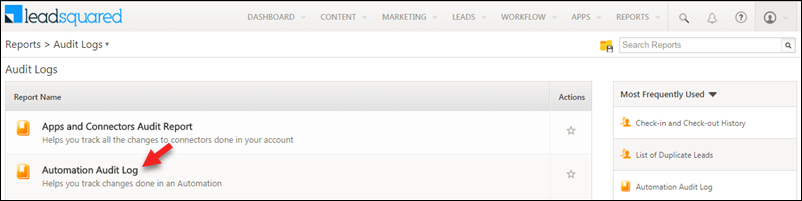
Next, select Audit Logs and then click Automation Audit Log.

automation changes log


Using the Report

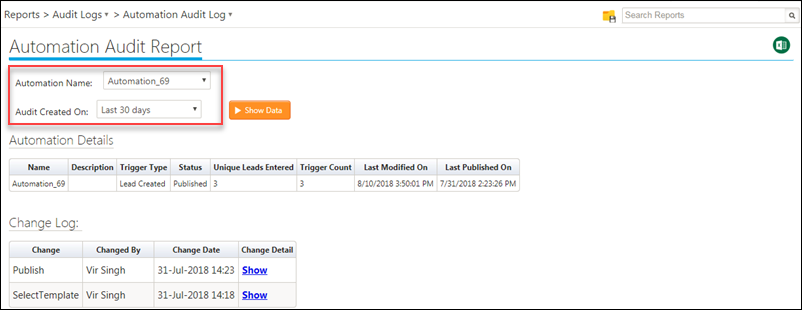
You can select which automation you want to view and the date range you want to see the change log for. Once selected, click Show Data.

select automation and range

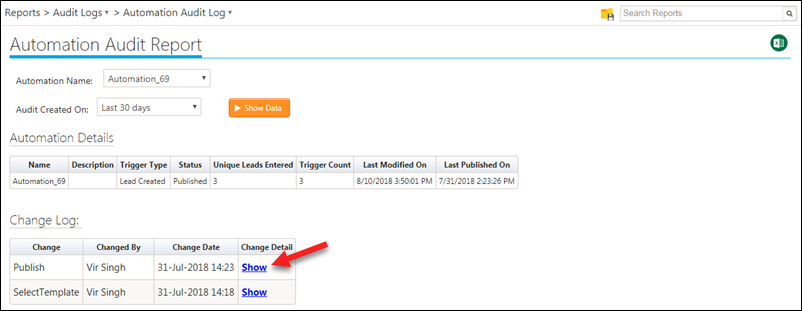
The change log also shows you a visual representation of previous versions of your automation so you can see exactly what was changed. Click Show under the Change Detail column in the Change Log table –

Automation change log

show automation changes


Any Questions

If you have any questions or concerns related to this article, we’d love to discuss them with you in the comments section below!

WhatsApp Reports

1. Feature Overview

These reports offer insights into your business’s engagement level with leads you’ve communicated with through WhatsApp. They include various data points, such as the total number of messages sent, messages sent through automations, and both incoming and outgoing messages. The following reports are available –

  • Usage Reports – This report shows logs of outgoing messages sent and incoming messages received, categorized by source (bulk, automation, one-to-one, and Converse). It also includes template-wise logs, based on the templates available in your account.
  • Delivery Reports – In this report, you can access individual message logs for both incoming and outgoing messages. For outgoing messages, it displays message status (Awaited, Sent, Delivered, Read, Failed, and Others) along with general information like transaction ID and lead ID.

To access these reports, navigate to Apps>WhatsApp Reports.

LeadSquared WhatsApp Reports


2. Usage Reports

The Usage Report contains logs of outgoing messages sent and incoming messages received. You can view and filter this report using the following data points –

  • Templates – View and filter the report based on the templates used for sending outbound messages.
  • Message Source/User Wise – Filter the reports based on the following message sources –
    • Automation – When WhatsApp message campaigns are triggered to your leads through an automation.
    • Bulk – When WhatsApp messages are sent to multiple leads either by selecting leads from the Manage Leads page or by sending messages to all leads in a list.
    • One-to-one – For individual WhatsApp messages sent to specific leads.
    • Converse – When WhatsApp messages are sent to leads through Converse.
  • Select Date – Choose the time interval for which you want to view the sent messages. The date range can be up to 60 days in the past.
  • Cumulative – This option renders the report as a pie chart.
  • Timeline – This option renders the report as a bar graph. When you select this option, the 10 most used templates will automatically be displayed in the graph.

In addition to these filters, you can also perform the following actions –

  • Refresh – Updates the report with the latest data when you refresh it.
  • Export – Provides two options for exporting the report –
    • Summary Report – Contains a brief summary of all the details present on your dashboard.
    • Detailed Report – Contains a detailed breakdown of all the details available on your dashboard.
Note: When a user exports a report, they’ll receive a download link option via email, sent to the email ID of the logged-in user.

LeadSquared WhatsApp Reports


3. Delivery Reports

The Delivery Report contains individual message logs for all Incoming and Outgoing Messages.

Under Outgoing Messages, you can filter the report by the following data points –

Message Source – Filter the report based on the following message sources –

  • Automation
  • Bulk
  • One-to-one
  • Converse

3.1 Sent Successfully

Messages appear under this category when they have been successfully sent from LeadSquared to the WhatsApp provider.

WhatsApp Delivery Report

  • Message Status – Filter each message source by the following message status –
    • Awaited – When the message is pushed successfully to the WhatsApp provider, but we are yet to receive the delivery report. In this case, the WhatsApp provider may have delivered the message to the lead but LeadSquared has not received any delivery update/report from the provider.
    • Sent – When WhatsApp servers receive the outbound message, and it is successfully sent to the lead. However, due to certain factors (like the lead’s mobile not being connected to the internet), the message is yet to be delivered to the lead.
    • Delivered – When the outbound message is successfully delivered to the lead.
    • Read – When the lead reads the received message.
    • Failed – If the outbound message remains in WhatsApp’s servers for more than 30 days without being delivered to your lead, it is considered as failed.
    • Other – Certain service providers send statuses (like error, etc.) outside of the ones listed above. You’ll be able to view those statuses under this column.
  • Once you filter by message status, click on the template name to view the following details –
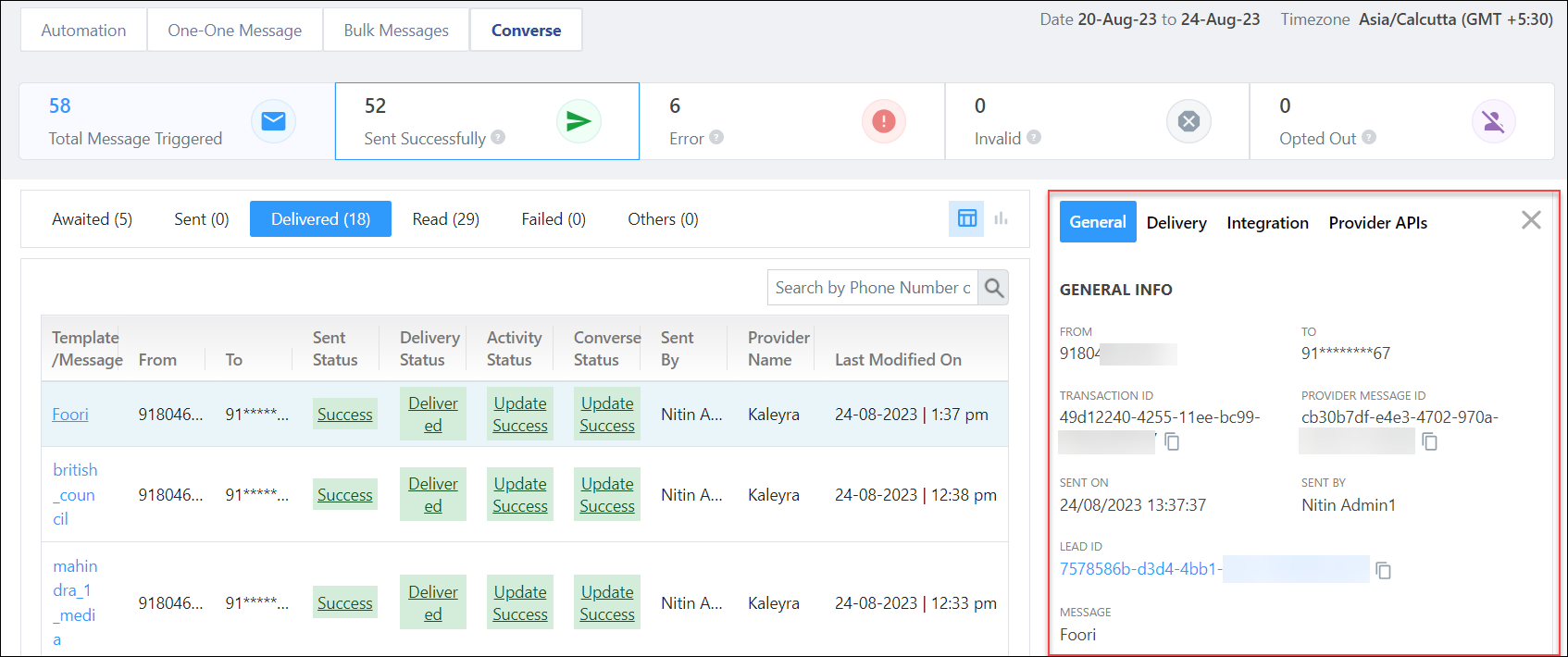
    • General Info – Displays the “From” number, transaction, lead, and sender ID, the template used for the message, and the date on which the message was sent. It also contains a masked version of the lead’s phone number.

WhatsApp Delivery Reports

    • Delivery – Shows the message delivery status and time for messages with Awaited, Sent, Delivered, and Read statuses.

LeadSquared WhatsApp Delivery Reports

    • Integration – Displays the following details for messages with Awaited, Sent, Delivered, and Read statuses –
      • Activity Status – When a WhatsApp message is sent, a LeadSquared activity is created. This section contains the activity created and updated status, status description, and the message sent activity’s ID.
      • Converse Status – If Converse is enabled on your LeadSquared account, and it’s integrated with the WhatsApp connector, you can view the Converse activity created and updated status, status description, and the message’s Converse ID.
      • Automation Details – If your message was sent using an automation, you can view the Automation ID and Automation Action ID.
    • Provider APIs – Your WhatsApp service provider integrates their APIs with LeadSquared’s WhatsApp connectors to send and receive messages. Click to view the API request sent from LeadSquared and the response received from the WhatsApp provider. You can also copy the cURL data to your clipboard.

WhatsApp Delivery Report

Here’s an example of navigating the report –

LeadSquared WhatsApp Reports

Under Incoming Messages, you can view the following details –

  • By default, you can view the –
    • Total messages received
    • Messages received successfully
    • Messages that weren’t received due to various errors
  • When you click on a message, you can view the following details –
    • General Info – Displays the “From” and “To” numbers, transaction, lead, and provider message ID, the lead who sent the message, and the date on which the message was sent. It also contains a masked version of the lead’s phone number.
    • Reception – Displays the message receipt status, and a status description.
    • Integration – Displays the following details for messages with Awaited, Sent, Delivered, and Read statuses –
      • Activity Status – Contains the activity created and updated status, status description, and the message sent activity’s ID.
      • Converse Status – If Converse is enabled on your account and integrated with the WhatsApp connector, you can view the Converse activity created and updated status, status description, and the message’s Converse ID.

LeadSquared WhatsApp Connector

3.2 Errors

Messages under this category threw errors either at the LeadSquared end or at the WhatsApp provider’s end.

WhatsApp Delivery Reports

Click the message instance under the Template/Message column or click Error under the Sent Status column to view more details –

WhatsApp Delivery Reports


FAQs

In the downloaded WhatsApp report, what’s the difference between the “Sent Status” and “Sent” columns?

LeadSquared WhatsApp Reports

When “Sent Status” = Yes, it means that the message has been successfully pushed from LeadSquared’s end to the WhatsApp Provider (for example, GupShup, Kaleyra, etc.) When “Sent” = Yes, it means that WhatsApp’s servers received the outbound message, and it is successfully sent to the lead. However, the message is yet to be delivered to the lead’s phone (e.g., the lead’s mobile might not be connected to the internet). It’s equivalent to a single tick when we send a WhatsApp message.


Any Questions?

Did you find this article helpful? Please let us know any feedback you may have in the comments section below. We’d love to hear from you and help you out!
Location History Tracker Report

1. Feature Overview

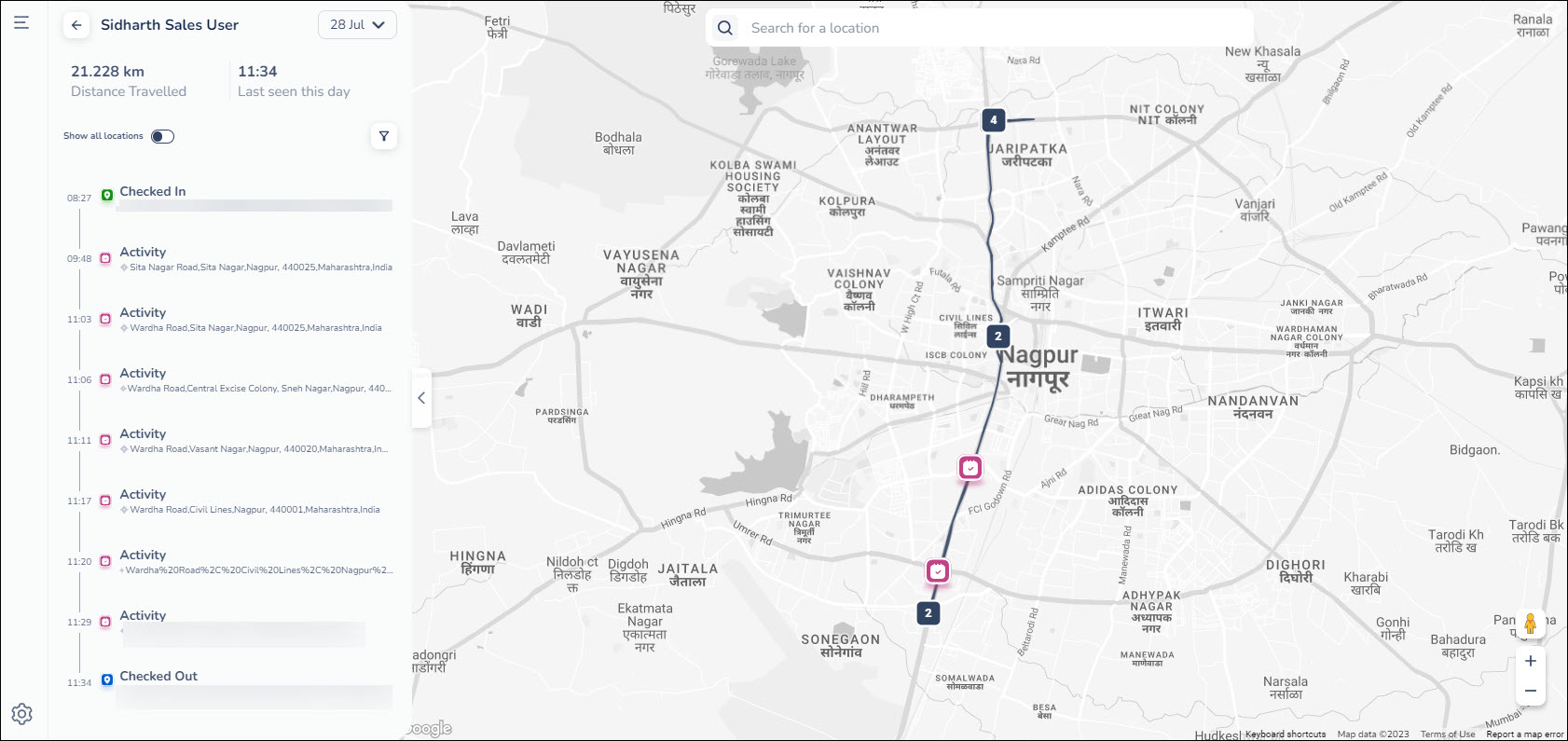
Monitor and track the daily activities performed by your field sales users using the Location History Tracker Report. In this report, you can also view a comprehensive trail of your users’ location coordinates received via the LeadSquared Mobile App throughout the day.

Based on the location coordinates received and the activities performed during the day, you can

  • View the entire route taken by the user from the moment they check-in till check-out. 
  • View the total distance travelled by the field sales user for any given date.
  • View the user’s last recorded location. This allows you to determine where the user was located and at what time they were last observed to be moving or engaged in activities before they eventually checked out for the day. This data is only visible for the present day i.e., Today. 


2. Prerequisites

  • You must have the LeadSquared Mobile app installed on your device, and location permission access must be enabled. To know more, please refer to Location Tracking on LeadSquared Mobile.
  • Enable Location Insights on your account. To do so, contact your account manager or write to us at support@leadsquared.com.
  •  Admins must enable location tracking permissions for their users. To do so, navigate to Settings>Mobile App>Permissions. Under Location Tracking, enable all the permissions.
  •  Enable user check-in in your account for location tracking and distance calculation. To do so, navigate to Settings>Users and Permissions>User Check-in and enable the Show check-in widget to web users setting.
  •  All mobile users must Check-In/Check-Out daily for the system to effectively track their location and calculate the distance travelled during the day. Distance calculation will not be initiated for the day if the mobile user has not checked in.
  • To get data with highest location accuracy, refer to Measures to Ensure Higher Distance Computation Accuracy in Mobile App.


3. Location History Tracker Report

To view the Location History Tracker Report, navigate to Reports>Reports Home>Field Sales Tracking>Location History Tracker. On this page, based on your user role and organisational hierarchy, you can view the location history of your users/teams/groups for the selected date.

  • To select a user, team or sales group, click the Filter By dropdown and select the relevant option.
  • To choose a user, team or sales group from the available options, click the Choose dropdown and select the relevant option.
  • To view a user’s detailed location history on the selected date, click on the user card.
  • To filter out the locations where the user checked-in, checked-out, or recorded activities, click filter icon.
  • The time the user was last observed to be moving or engaged in activities before they eventually checked out for the day is displayed below the date range filter. This data is only visible for the present day i.e. Today.

Note: 

  • No location data or distance will be captured for the days the user has not checked in on mobile.
  • The system will store and display only up to 90 days’ location data for a single tenant while accessing the report.

LeadSquared - Location history tracker


4. Settings

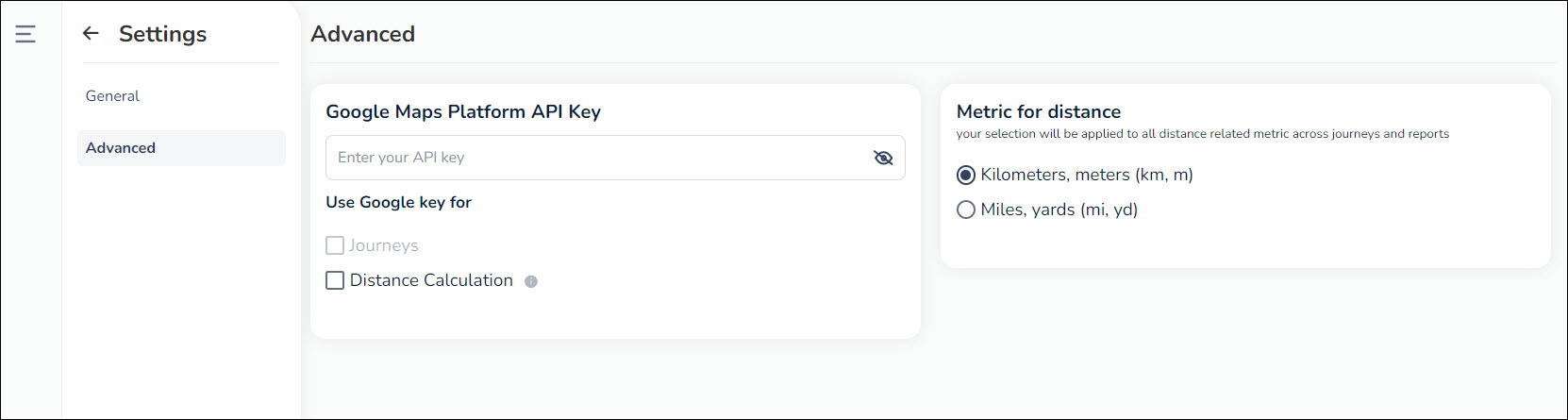
To view the settings, on the bottom left corner of the page, click mobile settings icon. On this page, you can configure the following advanced setting –

  • Metric for distance – You can set the metric for distance as Kilometres and metres (km, m) or Miles and yards (mi, yd). Your selection will be applied to all distance related metric across journeys and reports.

Note: 

  • LeadSquared’s Proprietary Distance Computation Algorithm (Recommended) utilizes location coordinates from the mobile device of a checked-in user to estimate the distance travelled fairly accurately for any given day.
  • The Google Direction Maps API records the latitude and longitude coordinates and returns the distance travelled by your users, by assuming a specific path of travel.

Leadsquared - distance travelled report advanced settings


Any Questions?

We’d love to answer your questions or hear your unique use cases. Feel free to share your experiences in the comments section below.

Import External Data from Mavis into SIERA

1. Feature Overview

You can now import external data stored in Mavis into SIERA and use it in your SIERA reports and dashboards. This enhancement allows you to combine third-party campaign data (e.g., from Facebook Ads, Google Ads) with your LeadSquared data for deeper performance insights.


2. Prerequisites


3. Use Case

Suppose you run marketing campaigns on platforms like Facebook or Google Ads and want to analyze them in SIERA alongside your lead and opportunity data.

With this feature, you can:

  • Import campaign performance data into Mavis.
  • Select the required fields to sync into SIERA.
  • Build reports or dashboards in SIERA that merge Mavis data (impressions, clicks, spend, etc.) with your CRM data (leads, opportunities, stages, etc.).


4. Prepare Data in Mavis

Note: Syncing data on Mavis with SIERA is not enabled by default. To enable it, contact support@leadsquared.com.
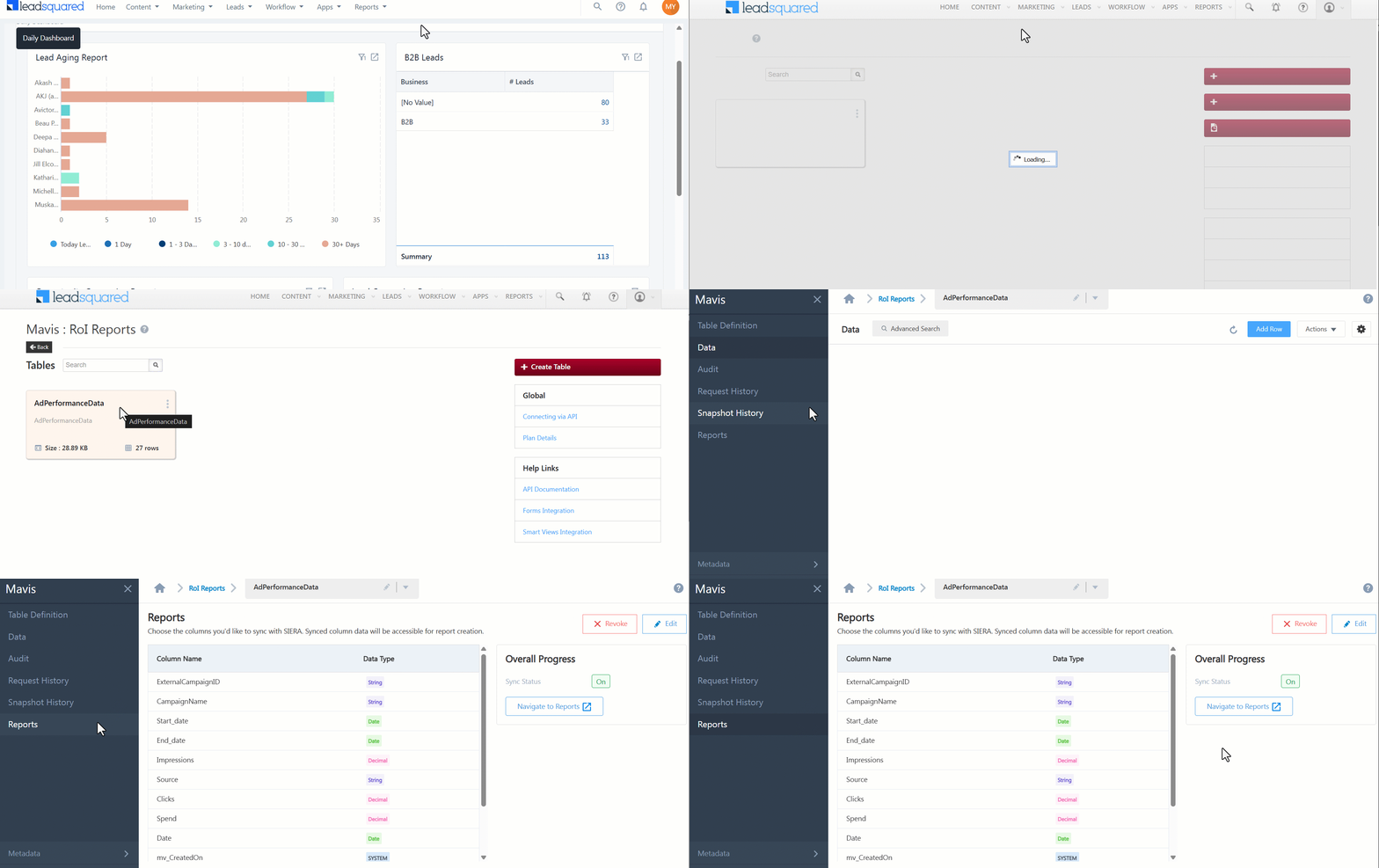
  1. In Mavis, navigate to the database and select a table.
  2. Go to the Reports section.
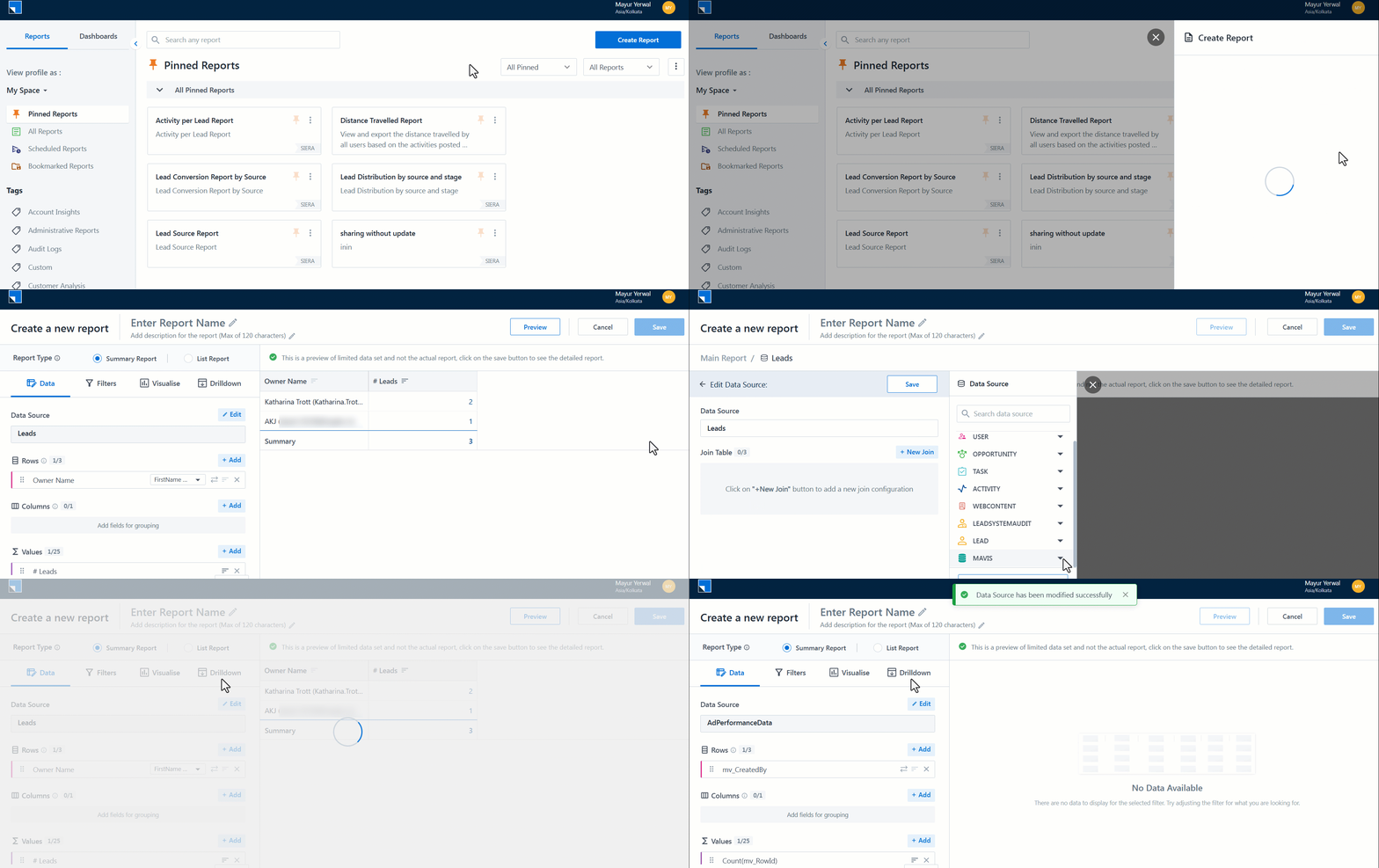
  3. Choose the columns you want to sync with SIERA (e.g., Campaign Name, Start Date, End Date, Impressions, Clicks, Spend). Synced column data will be accessible for report creation.
  4. Save your selection.

configure Mavis table for SIERA


5. Import Mavis Data into SIERA

1. Navigate to SIERA.
2. Create a new Report (or edit an existing one).
3. In the Data Source selector, locate the Mavis section.
4. Select the relevant dataset (e.g., Ad Performance Data).
5. The chosen fields from Mavis will appear as available columns for your report.

import mavis data into SIERA


6. Build the Report

Example Scenario 

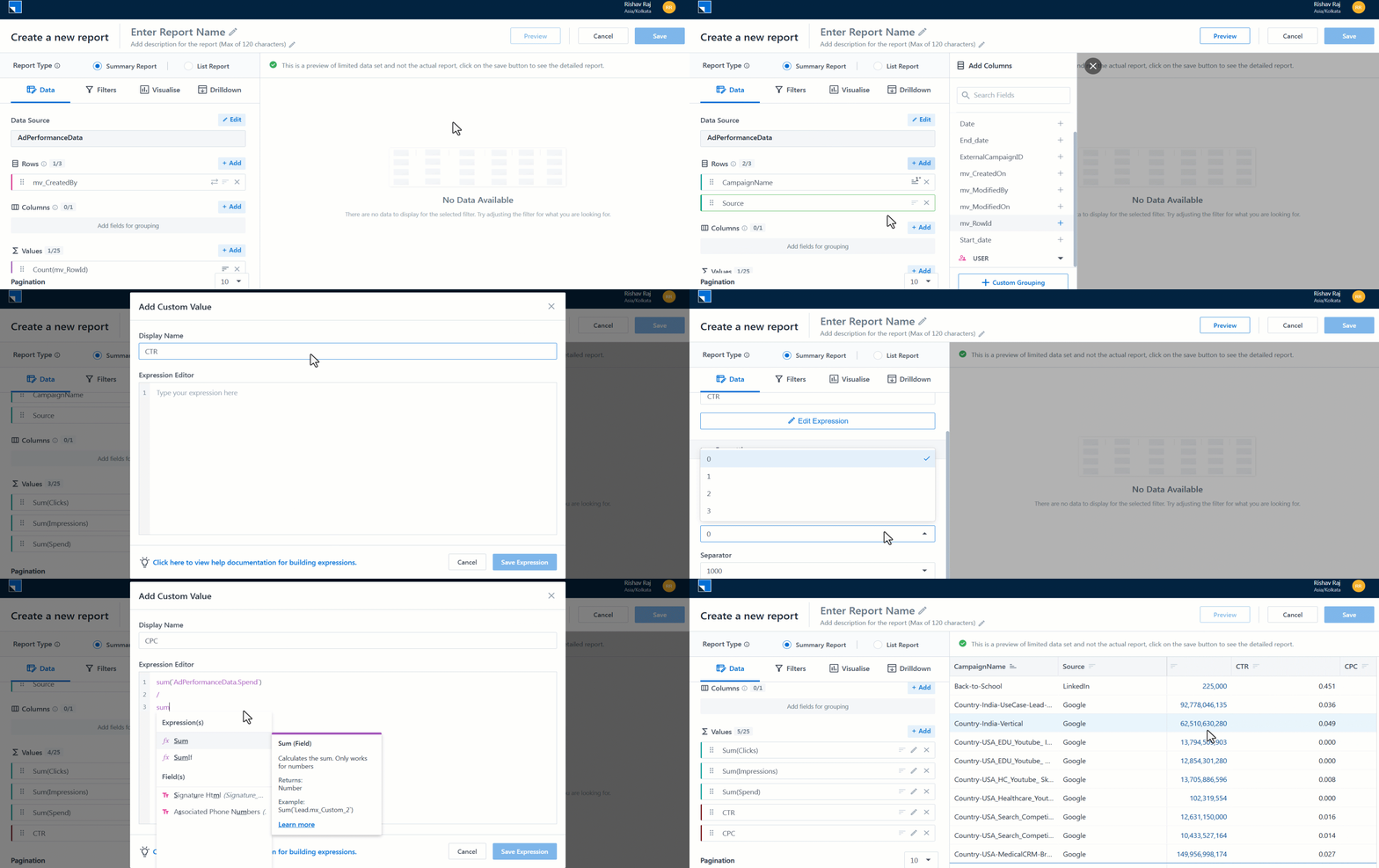
You’ve imported Facebook Ads campaign data into Mavis with fields for Campaign Name, Impressions, Clicks, and Spend. Now, you want to build a summary report to calculate CTR (click-through rate) and CPC (cost per click).

Follow these steps –

  1. Add the required rows (e.g., Campaign Name, Impressions, Clicks, Spend).
  2. Create calculated fields for KPIs, such as:
    • Click-Through Rate (CTR) = Sum of Clicks / Sum of Impressions
    • Cost Per Click (CPC) = Sum of Spend / Sum of Clicks
  3. Format numeric fields (e.g., set decimal places as needed).
  4. Preview the report.
Note: You can further enhance this report to calculate KPIs such as spend per lead, or campaign performance by lead stage or opportunity status. Use SIERA’s Join feature to combine Mavis data with other internal data sources.

build report with mavis data


7. Create Dashboards

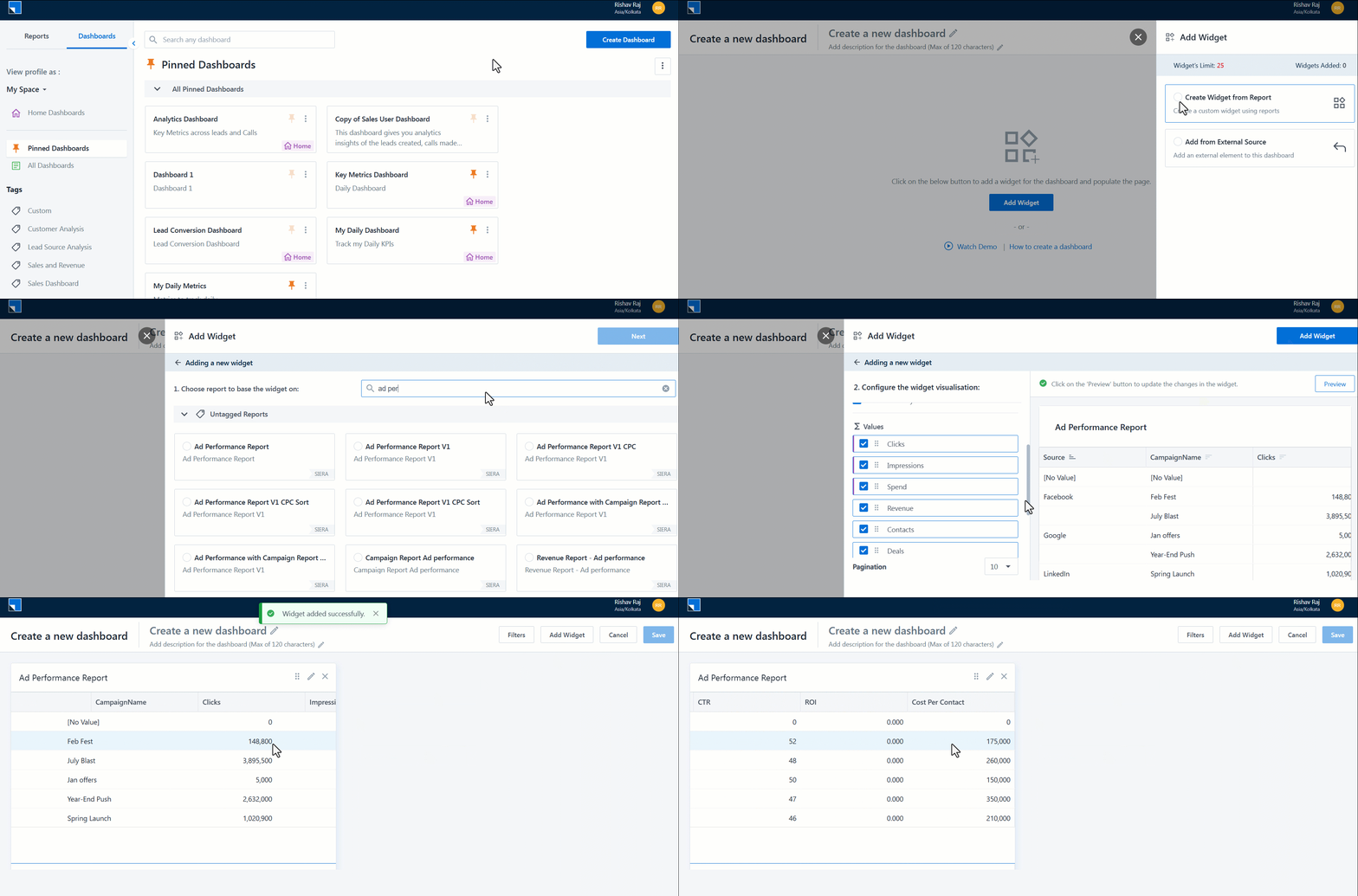
Once the report is ready and saved, you can add it to your SIERA dashboard.

add mavis data report to siera dashboard


FAQs

1. What types of external data can I bring into SIERA through Mavis?
Any data you can store in Mavis (For example, ad performance metrics from platforms like Facebook Ads, Google Ads, or other marketing tools).

2. Can I use this with both Summary and List reports?
Yes. However, KPI calculations and aggregations are available only in Summary reports.

3. How often is the data refreshed?
Data availability depends on the Mavis sync schedule for your connected sources.


Any Questions?

Did you find this article helpful? Please let us know any feedback you may have in the comments section below. We’d love to hear from you and help you out!
LeadSquared Telephony – Feature Guide

1. Feature Overview

LeadSquared’s Telephony helps you integrate your cloud telephony provider with your LeadSquared account – all the major contact centers, telephony, and IVR tools like Exotel, Ozonetel, Ameyo, CTM, and more, are supported.

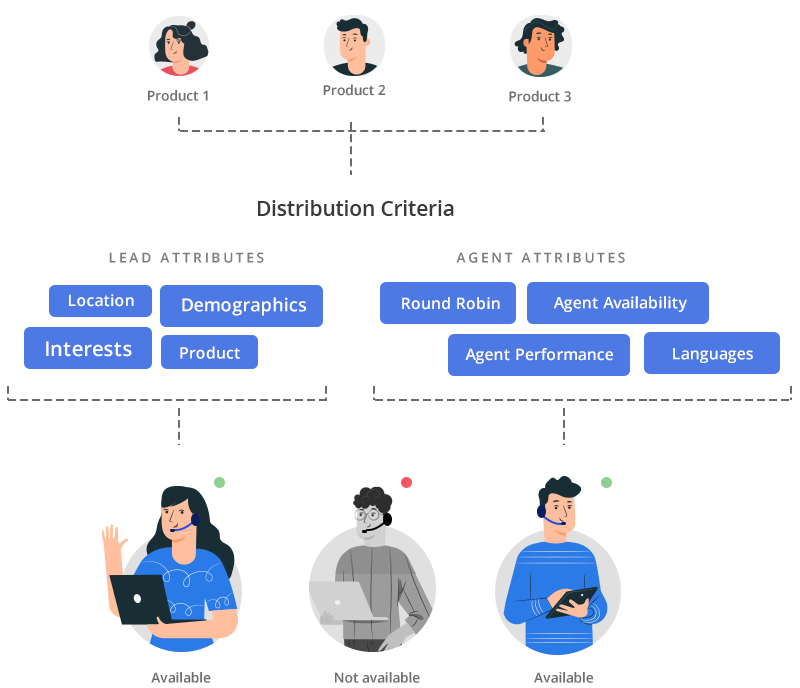
You can capture your leads, both online and offline, and route them instantly to your internal call center reps. The leads can be distributed in a round-robin manner by location, the products they are interested in, lead sources, the language they speak, agent performance, availability, and much more.

LeadSquared will also present a detailed analysis report on all the calls dialed and received by your sales reps, including their respective call recordings. This way, you will never lose track of your conversations.


Call center sales CRM - lead capture and assignment


2. Benefits of Integrating Telephony with CRM

Unlock the full potential of your CRM with a telephony integration –

1. Reach potential customers faster

A CRM with an integrated telephony system will neatly organize the available data on your leads. You will also have the option to call your leads with the click of a button. This saves the hassle for a sales rep to manually look up lead details and dial their numbers.

2. Reduce your costs

An integrated telephony system negates the need for a physical phone. A call center without an integrated telephony system will have higher expenditure on its physical infrastructure and maintenance.

3. Improve your performance through call analysis

With a telephony-integrated CRM, the performance of your sales reps will be aggregated into a report. You will know the total inbound and outbound calls made in a specific time frame, the duration of the calls,  a view of where your leads are in your pipeline, etc.

And, you will have the option to record your sales calls. Listening to these calls is a great way to identify gaps in your sales process.

4. Build a distributed team

A telephony-integrated CRM system makes it possible to build a globally distributed team. The system will be intelligent enough to recognize and route the calls to the correct sales rep based on their skill sets. The system will also be capable of scaling quickly to handle large call volumes.


3. LeadSquared Telephony Features

Take a look at what is possible with LeadSquared Telephony –

Call leads with a single click

With Click 2 Call, you can save time and call your leads straight from LeadSquared. You can place an outbound phone call just by clicking the lead’s phone number on the Manage Leads or Lead Details pages.

click 2 call

Connect the lead with the right sales rep with real-time notification

With Call Route, incoming calls from existing leads are automatically routed to the respective lead owner. The sales rep will also receive a real-time notification through the Agent Popup. The pop-up will display the lead’s details if the lead exists in your account, or displays an empty form that sales reps can use to capture the new lead.

telephony incoming call

Specify an action after the call

Call Disposition allows a sales rep to take a specific action once the call ends. For example, the sales rep can set up a task for a follow-up call, or push the lead to the billing team.

telephony call disposition

Connect with customers for upsell/cross-sell opportunities

Leadsquared’s Opportunities feature can be used to manage potential deals. This will enable you to track phone call interactions with your leads, and the sales rep can enter details for each opportunity or potential deal. Once the call is completed, a call activity, with all the call details, is posted on the Opportunity Details page.

Opporunity routing


4. Reporting

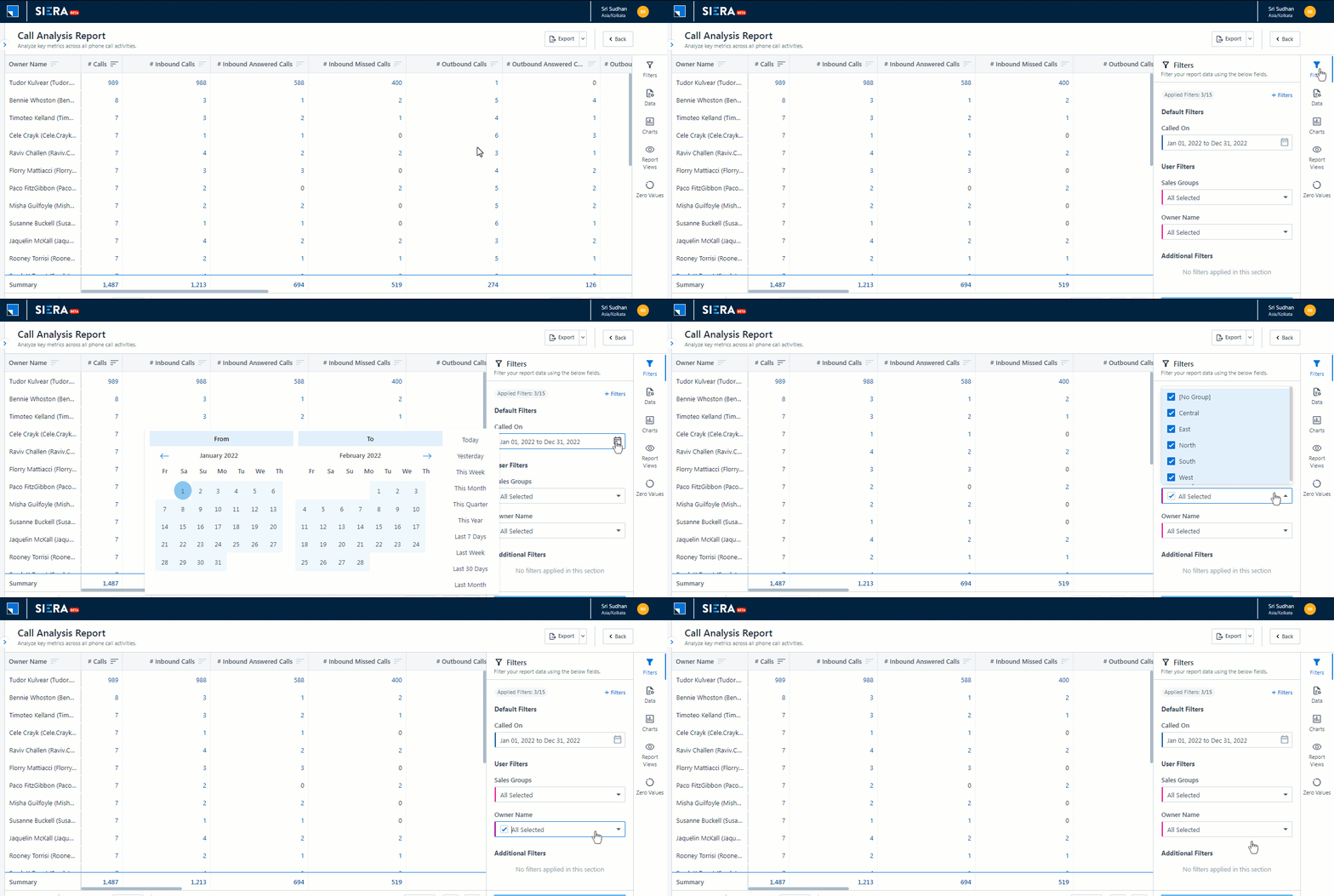
The SIERA Call Analysis Report helps Sales Managers monitor call center metrics and agent productivity within their teams. Sales users can use the report to track their total calls (inbound, outbound, connected, unanswered, missed) and talk time. You can also listen to the call recordings through the report.

Siera filters


5. How it Works

1. Integrate Your Telephony Provider with UTC

The Universal Telephony Connector (UTC) lets you integrate your cloud telephony service provider(s) with LeadSquared.

2. Configure Opportunity Integrations in Telephony

The Opportunities feature on LeadSquared Telephony can be used to manage your potential deals (upsell/cross-sell).

3. Configure Advanced Configurations for Telephony

This article will help you configure advanced settings for your Telephony account.

4. Analyze Your Calls with SIERA’s Call Analysis Report

The Call Analysis Report in SIERA helps Sales Managers monitor call center metrics and agent productivity within their teams.

5. Telephony Troubleshooting

Diagnose and resolve common telephony configuration issues from within the LeadSquared Application.


Any Questions?

Did you find this article helpful? Please let us know any feedback you may have in the comments section below. We’d love to hear from you and help you out!
Integrate Shopify Abandoned Checkout with LeadSquared

1. Feature Overview

This connector captures real-time lead information about e-commerce customers who add items to their carts on Shopify but do not complete the purchase on the check-out page due to various reasons. The data captured includes cart details such as abandoned checkout URL, product ID, product name, and price. This information is then mapped in real-time to your LeadSquared account. Once the leads are synced, you can utilize LeadSquared’s CRM features to nurture and convert these leads effectively.


2. Prerequisites

  • You must be the Administrator of your LeadSquared account.
  • You must have an active Shopify account.


3. How it Works

Capture lead data from your Shopify account in LeadSquared by configuring the Shopify connector. Once configured, enable the connector sync.

During configuration, a webhook URL is generated in LeadSquared. Copy this URL and configure it in your Shopify account.


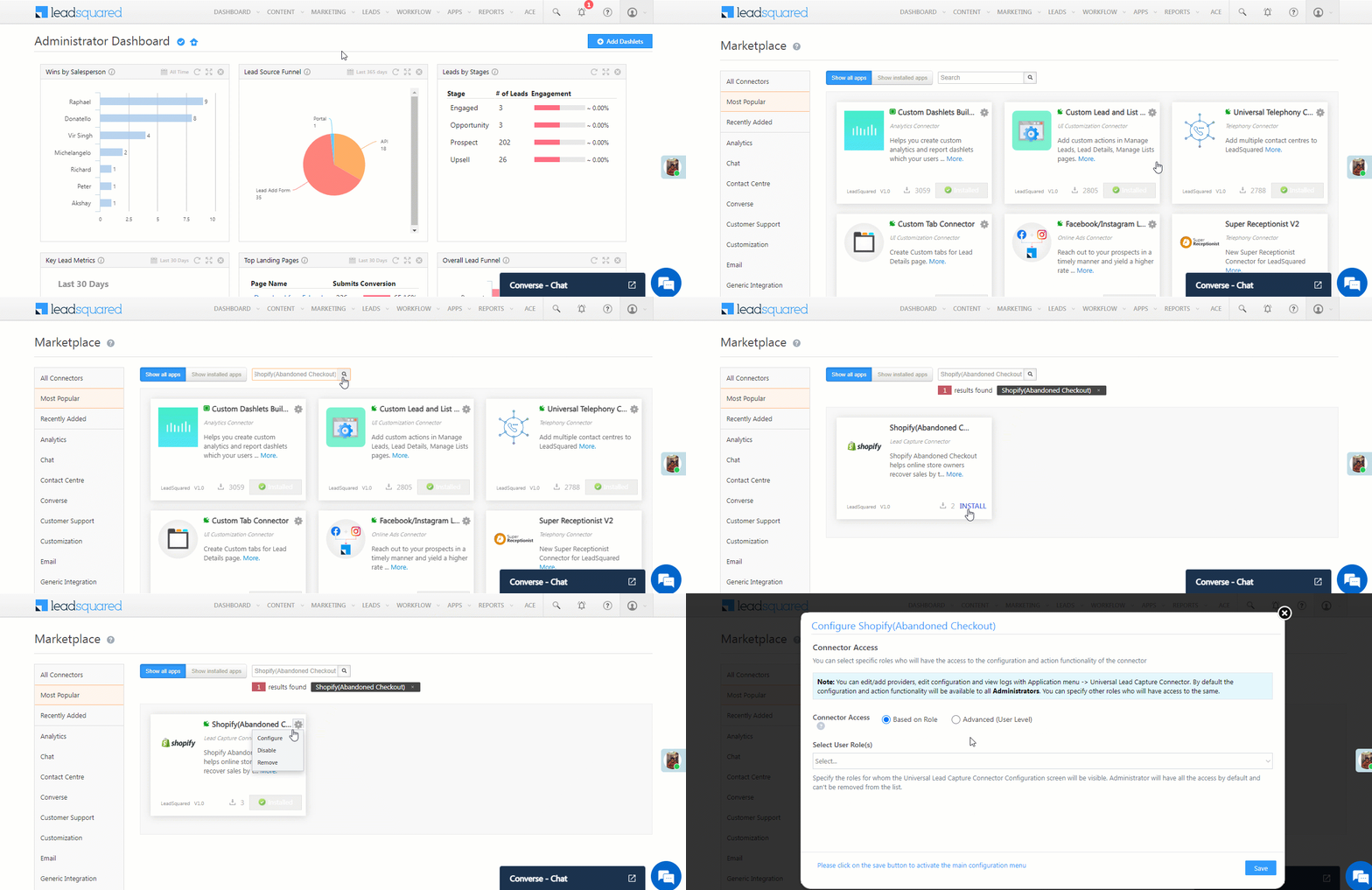
4. Install the Connector

  1. Navigate to Apps>Apps Marketplace.
  2. Search for Shopify(Abandoned Checkout), and click Install.
    • Alternatively, you can find the connector on the left panel, under Lead Capture.
  3. Once installed, hover your cursor over , and click Configure.

Shopify LeadSquared Integration


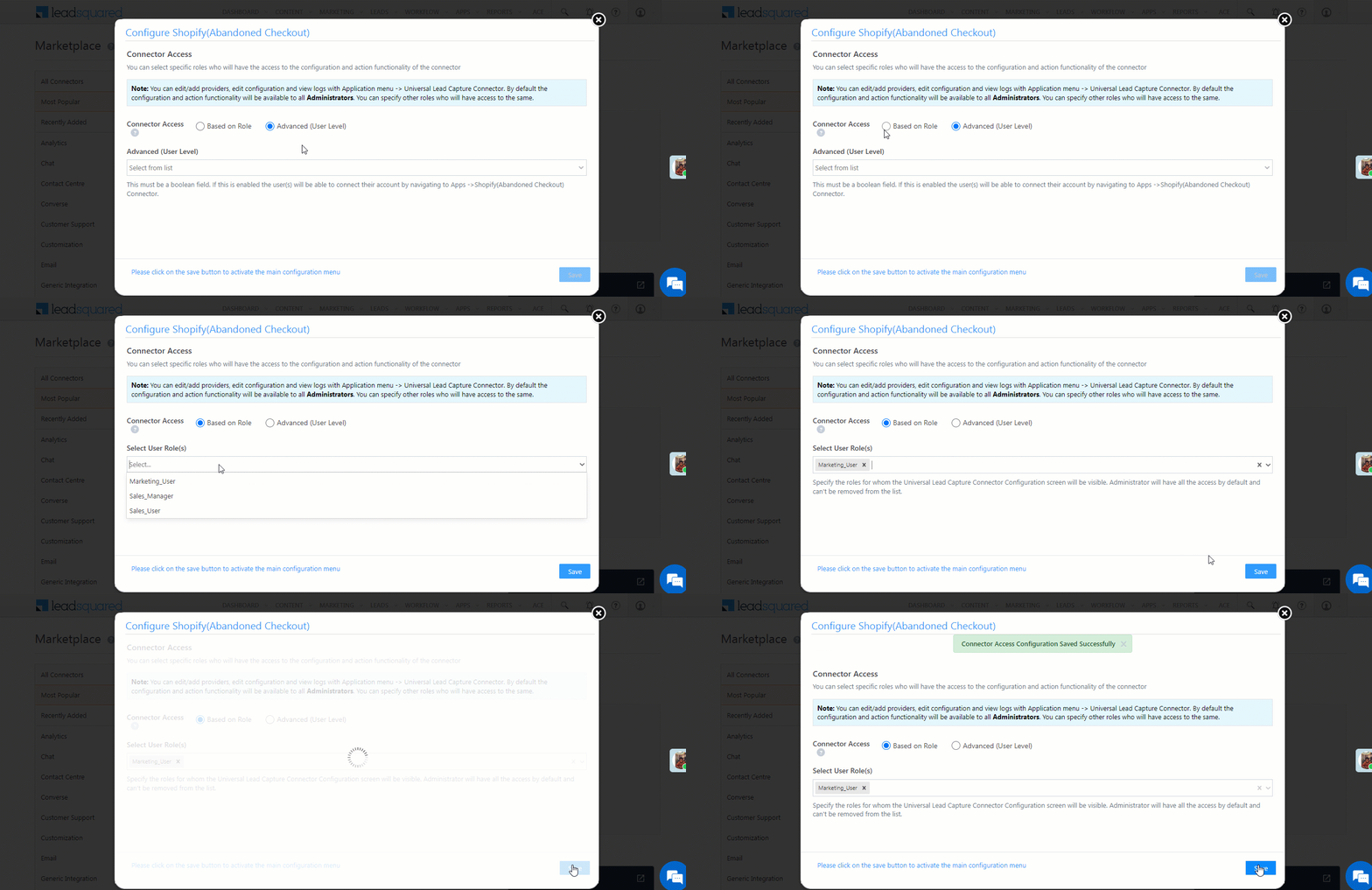
5. Configure the Connector

Once you’ve installed the connector, on the Configure Shopify(Abandoned Checkout) pop-up, configure the connector access for the non-Admin users in your account. Only those users for whom access is granted can view and access the connector (under the Apps main menu).

  1. Select if you want to grant Connector Access that’s Based on Role or Advanced (User Level).
    • Based on Role – From the Specify Roles dropdown, select the LeadSquared user roles that can use the connector.
    • Advanced (User Level) – From the Advanced (User Level) dropdown, select a user boolean field. Based on the value entered in the selected boolean field, the user can access the connector (e.g., for the user Sam, if the “Is Employee” boolean user field contains the value “Yes”, then this user can access the connector).
  2. Once you’re done, click Save Details. To continue the configuration, refer to the below sections.
Note: By default, all Admin users will have access to the connector.

Shopify LeadSquared Integration


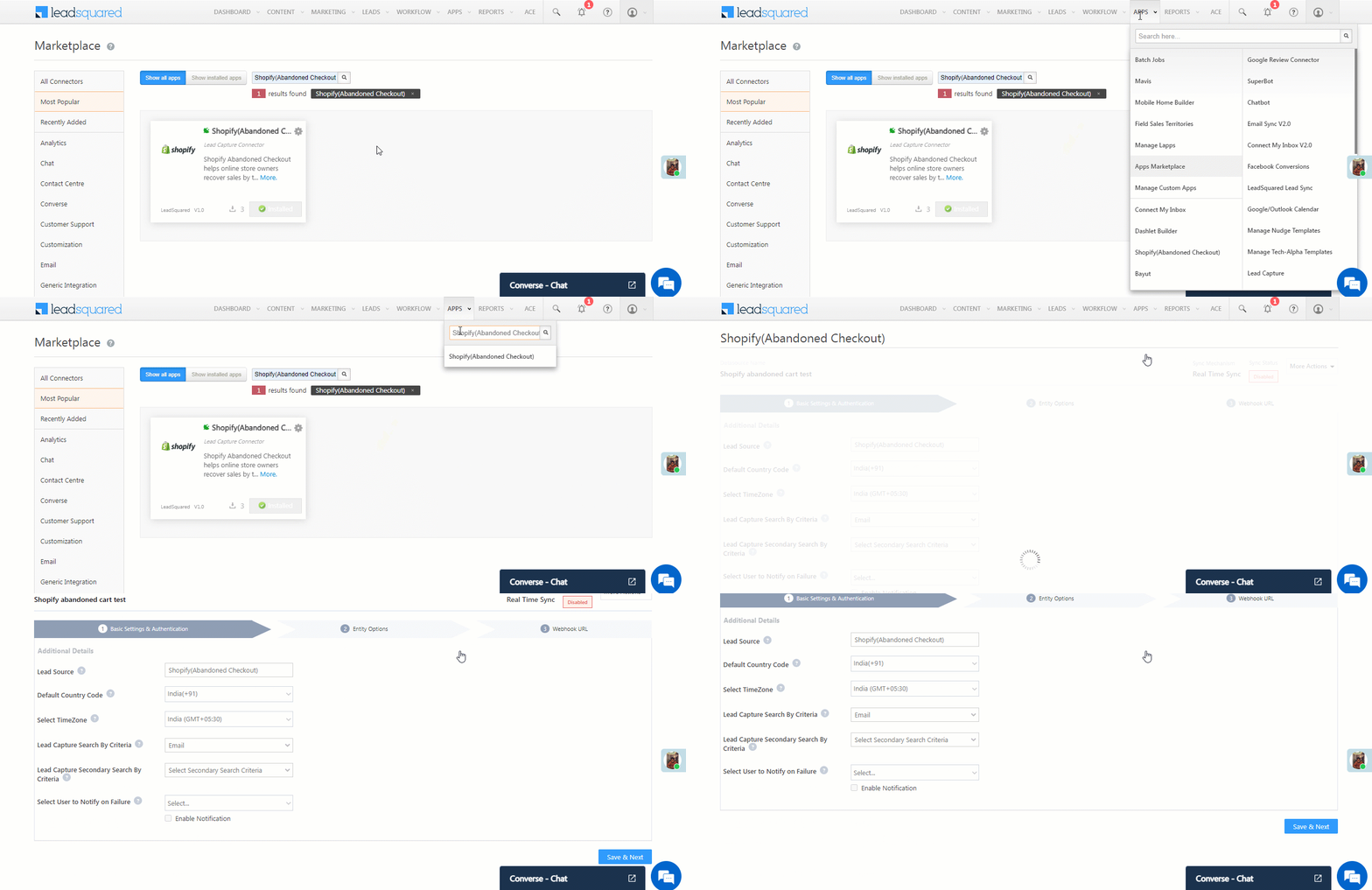
6. Admin Configurations

To continue the connector configuration, navigate to Apps>Shopify(Abandoned Checkout).

Shopify LeadSquared Integration

6.1 Basic Details

Enter the following details –

Property Description
Lead Source Enter the lead source through which the leads were captured (e.g., Shopify, email campaign, etc.). This detail will be displayed on the Lead Details page, under Lead Source.
Default Country Code If the lead’s mobile number is captured without a country code, then the default country code that’s selected from the dropdown will be added to the lead’s mobile number.
Select Time Zone The time zone followed in your Shopify account.
Lead Capture Search By Criteria To avoid creating duplicate leads, you must select one unique lead field (e.g., email Id, mobile number, PAN number, etc.) as the search key.

To know how to mark a LeadSquared lead field as unique, please refer to How to Make a Custom Field Unique.

Lead Capture Secondary Search By Criteria If lead identification and capture through the primary Search By Criteria fails, it will be re-attempted using the secondary Search By Criteria.
Select User to Notify on Failure If there is an error in fetching leads, the selected user will receive a failure message via email. You can select a user from the list of all the users available in your LeadSquared account.

To know more about the type of errors, please refer to Error Notifications.

Enable Notification To ensure notification emails are sent to the selected user when there’s a failed query, enable the Checkbox checkbox.

Once you’re done entering all the details, click Save & Next.


6.2 Mapping

Once you’re done with the basic settings, click Entity Options. By default, all the Shopify fields are mapped to the corresponding LeadSquared lead fields. You’ll have to complete two steps here –

  1. Enable Activity Creation* – Alongside Shopify abandoned cart, click the Create Activity button.
  2. Edit Mapping – Alongside each action (Activity Entity and Lead/Contact Entity) click the Edit Mapping button to verify if the field mapping is accurate. Once verified, click Save & Close. This step is mandatory.
    If required, on the Edit Mapping pop-up, you can edit the field mapping –

    • To edit the Shopify mapping field name, click  , and under Mapping Key, edit the field name.
    • To change the LeadSquared lead field to which the Shopify field is mapped, click  , and from the Lead Field dropdown, select the new lead field.
    • To mark a unique lead field as the search key, click unique icon.
    • To disable an existing field mapping, alongside the field, disable the slider Zoom.
    • To map an additional field, click the Add Custom button, and add the new mapping field details.
    • If you want to capture any additional responses as part of the activity that’s posted on the lead, alongside Activity Entity, click Edit Mapping, and add the response on the Default Mapping for Activity pop-up.

Once you’re done, click Save & Next.

Note:

  • *Ensure you complete the Enable Activity Creation steps first, and only then complete the Edit Mapping steps.
  • You must mandatorily verify the mapping for Lead/Contact Entity, and Activity Entity, and click Save & Close for each action type, in order to complete the Mapping.
  • Since this connector is capturing the payment details as an activity, the Sync Behaviour is by default set to Do Nothing. It is recommended you don’t change this to any other setting.

Shopify LeadSquared Integration


6.3 Webhook URL

After you provide basic details and finish field mapping, a custom webhook URL is generated. Copy this webhook URL, and use it to create a webhook in your Shopify account.

Shopify LeadSquared Integration


7. View Logs

Here, you can view logs of all the sync jobs that have taken place.

  1. Navigate to Apps>Shopify(Abandoned Checkout), and click More Options, and then click View Logs.
  2. You can filter the logs by selecting a date range (Today, Last 7 Days, This Month, and Last Month), by selecting the Job Status (“All”, “Success” and “Failure”), and by selecting the Sync Status (All, Error, and Success).
  3. You can view the sync status of the following events –
    • New Events – List of all the new payment activities posted in your account.
    • Errors – The list of unsuccessful payment activities that have not been captured due to mapping errors (e.g., when a boolean field is mapped to an integer field, etc.).
  4. To view the Sync Response details, under Request ID/Sync Job ID, click the Id.
    • Under the right panel, you can view the response status, the API URL, the request, and the response.
    • The responses that are successful will contain the details of the leads that have been pushed by Razorpay.
    • To view the lead capture response under Sync API Response, Leads Updated and Errors in Leads, click Information.

Note:

  • For a response that contains an error, the reason for the error is listed in the response. Once you fix it, you can click the Retry button to perform the sync again.
  • The current Lead/Activity Sync Behaviour will reflect in the Logs screen. This will help identify the sync that’s used (Capture or Update) for the selected Request/Sync Job Id.

google forms view logs


8. Other Actions

You can edit or delete the Shopify(Abandoned Checkout) connector that you created. To do this –

  1. Navigate to Apps>Apps Marketplace and search for the Shopify(Abandoned Checkout) connector.
  2. On the Shopify connector, click Settings.
  3. From the list of options, you can perform the following actions –
    • Edit Configurations
    • Disable the connector
    • Remove the connector

Shopify LeadSquared Integration


9. View Reports

You can view the total number of leads that have been pulled from Shopify, by referring to the Lead Source report. To know more, please refer to How to track the source of your Leads using Lead Source Report?


Any Questions?

Did you find this article helpful? Please let us know any feedback you may have in the comments section below. We’d love to hear from you and help you out!
Integrate SuperReceptionist (Knowlarity) with LeadSquared Telephony

1. Feature Overview

SuperReceptionist by Knowlarity is a cloud-based VoIP (Voice over Internet Protocol) phone system. Once you integrate your Knowlarity account with LeadSquared through the Universal Telephony Connector Generic Instance, you can –

  • Make calls and automatically track the calls in Lead Activity History.
  • Utilize the Agent Popup to store or view lead information during phone calls.
  • Automatically create new leads through incoming phone calls from unknown numbers.
  • View your call logs as LeadSquared activities together with downloadable recordings.
  • Manage your potential deals (upsells/cross-sells) through the Opportunities feature.


2. Prerequisites

  • You must be an administrator user of your LeadSquared account.
  • Your account plan must support Telephony integration.
  • You must have an active admin account with Knowlarity.
  • You must have a calling plan with Knowlarity.
  • You must purchase an SR number (virtual number) through Knowlarity.
  • Your Knowlarity account must be KYC verified (On SuperReceptionist, navigate to Account>Settings>KYC).


3. Configure SuperReceptionist

3.1 Add Agents on SuperReceptionist

Add Agent(s) to your SuperRecpetionist account who will receive and make calls –

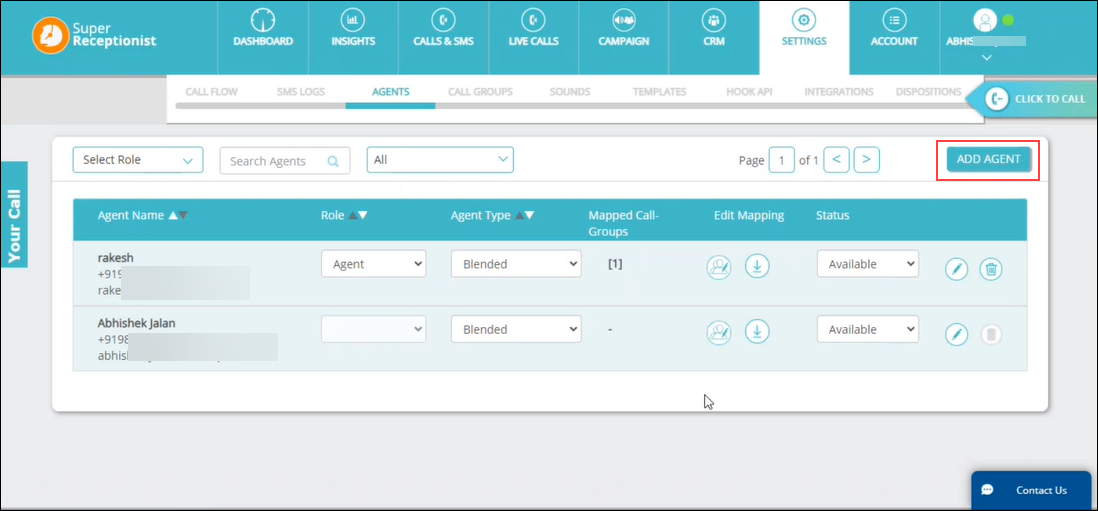
  1. Navigate to Settings>Agents.
  2. Click on Add Agent.

knowlarity create agent

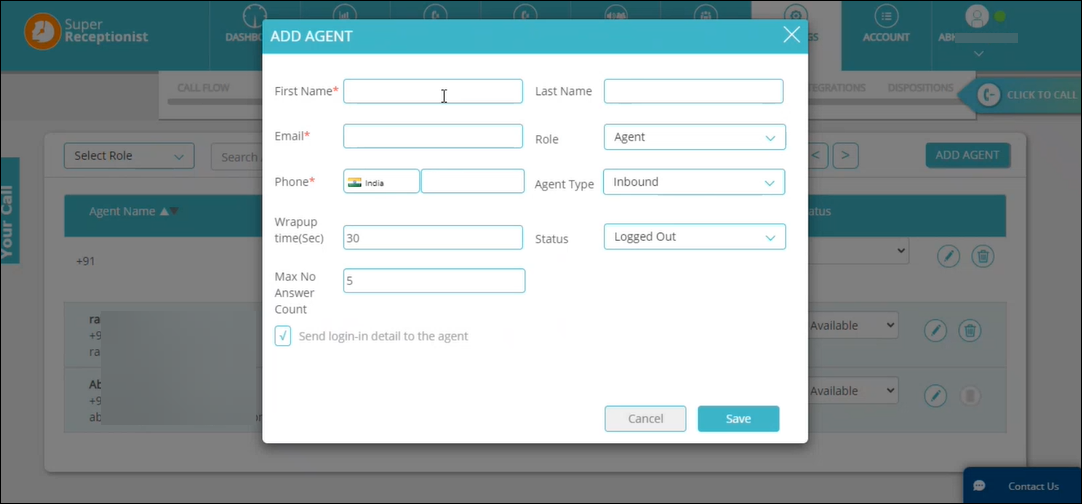
Fill in details about your Agent. Fields marked (*) are mandatory. Once done, click Save.

knowlarity add agent

3.2 Create a Call Group.

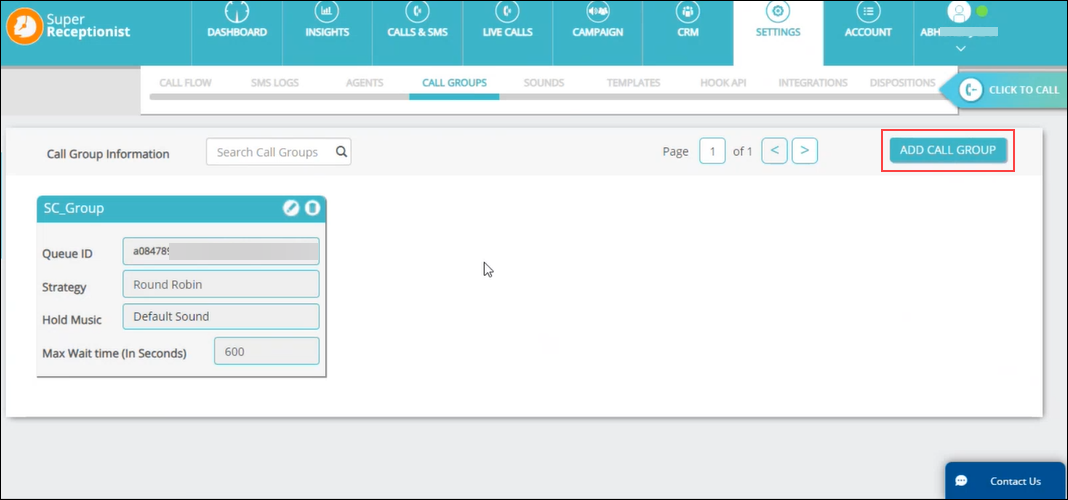
Navigate to Settings>Call Groups and click Add Call Group.

If an Agent does not pick up an incoming call, then the call will be redirected to the available agents in the call group you have created –

knowlarity call group


4. Enable and Configure LeadSquared on SuperReceptionist

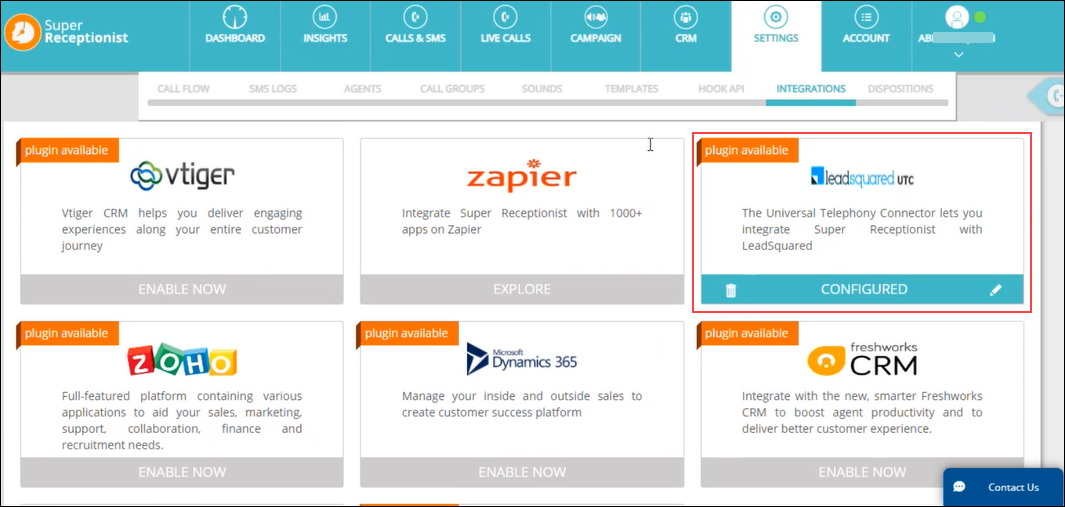
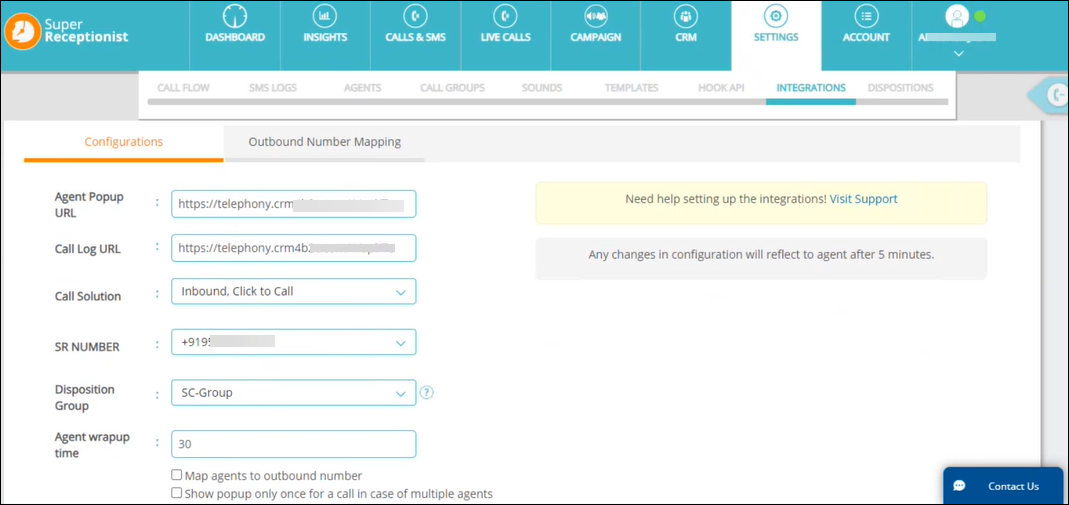
Navigate to Settings>Integrations on SuperReceptionist and enable LeadSquared UTC. Next, Click on the knowlarity plugin edit icon on the plugin to configure LeadSquared.

knowlarity lsq plugin

Here, you will need to enter LeadSquared’s Agent Popup URL and Call Log URL. Follow the steps in the next section of this article to find the URLs.

Note: You can fill in the rest of the fields as required. Please contact Knowlarity for information on the fields and features on this page.

knowlarity lsq config


5. Install and Configure UTC

This section will show you how to install UTC and configure its features for SuperReceptionist.

5.1 Install UTC

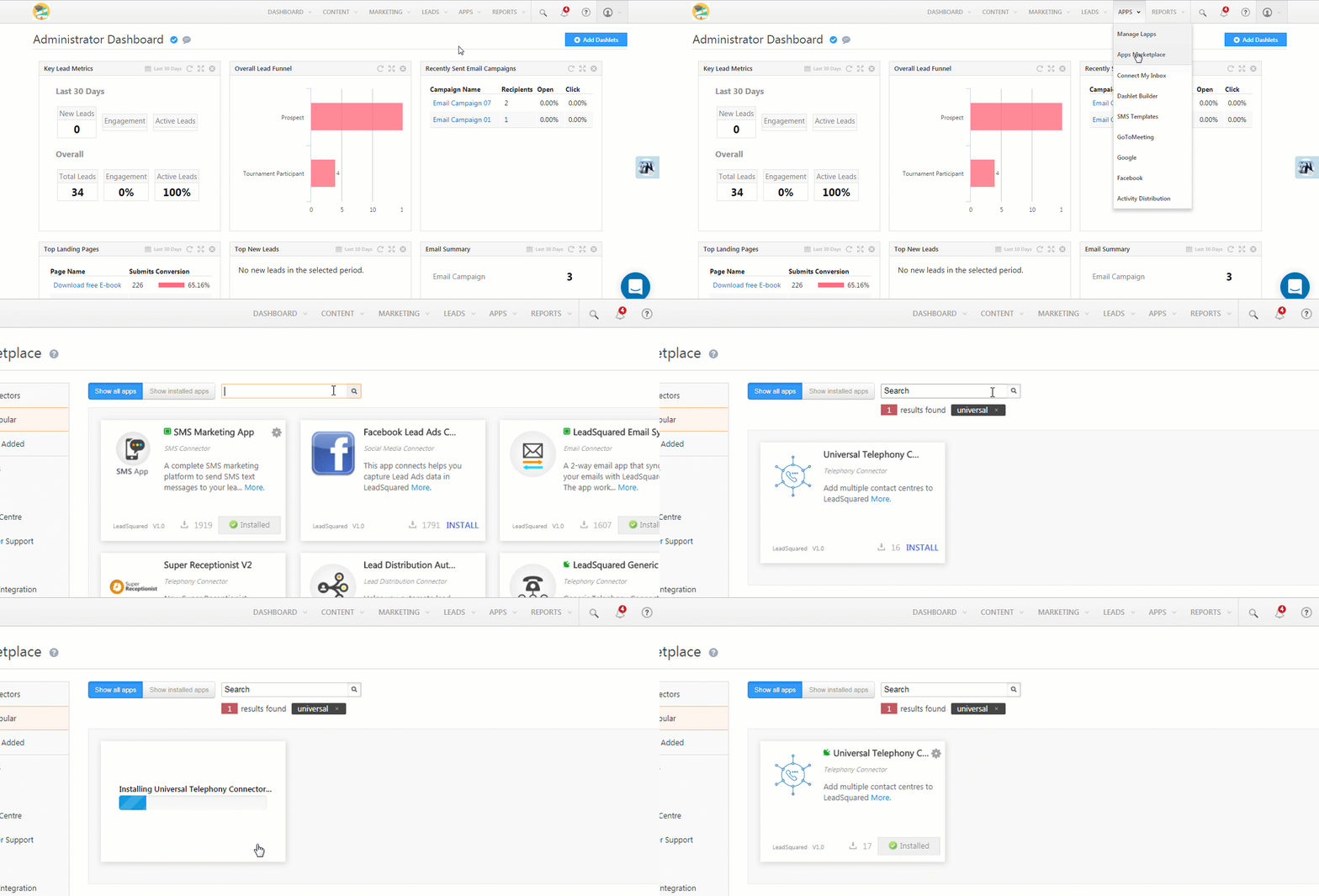
On LeadSquared, navigate to Apps>Apps Marketplace, search for the Universal Telephony Connector, and click Install.

Installing the connector

Next –

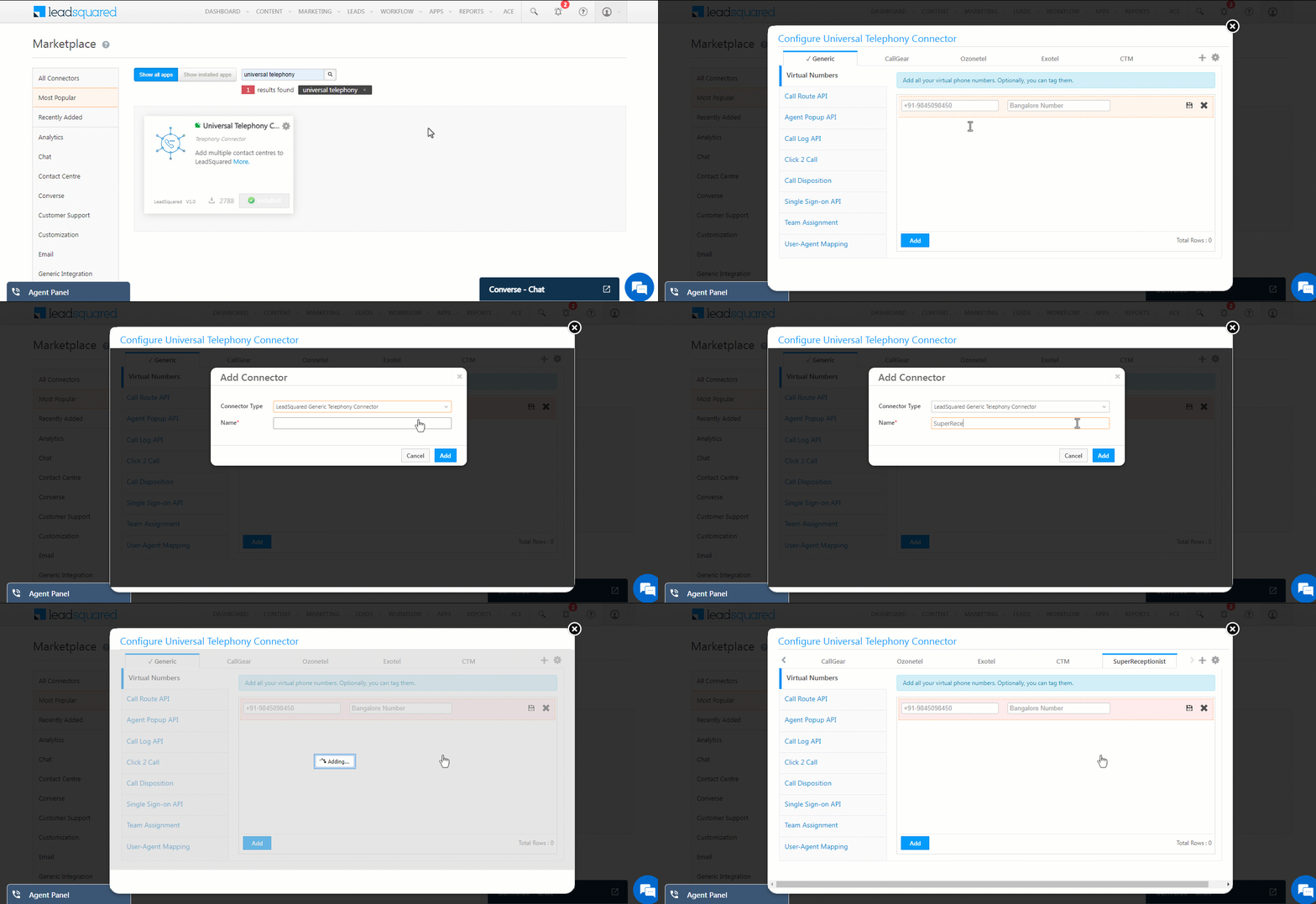
  1. Hover the cursor over the settings Settings icon icon and click Configure.
  2. Click the3cx add new connector icon to add a new connector.
  3. Select LeadSquared Generic Telephony Connector as the Connector Type.
  4. Name the connector and click Add.

5.2 Agent Popup API  and Call Log API URL

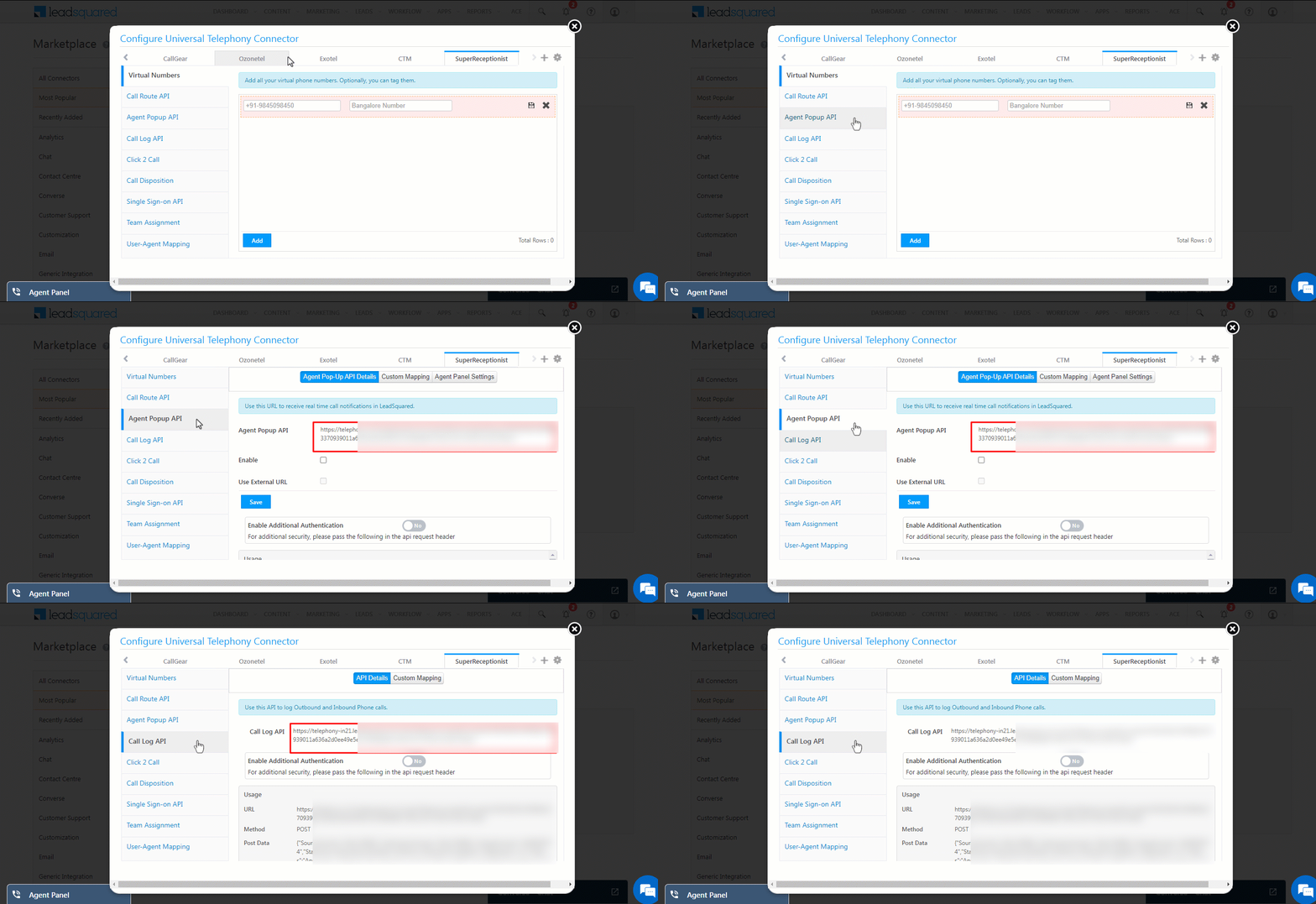
Now, you can navigate to the Agent Popup API and Call Log API tab to copy the URLs. Paste these URLs into the LeadSquared configuration page on SuperReceptionist.

knowlarity agent and call log

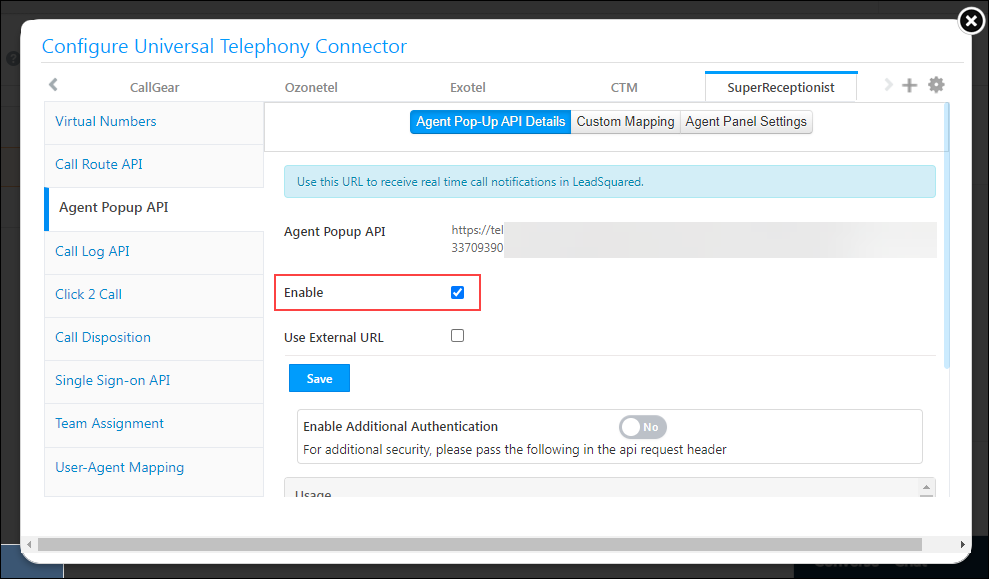
Note: make sure you enable Agent Popup as well.

knowlarity enable agent pop up

5.3 Configure Virtual Numbers

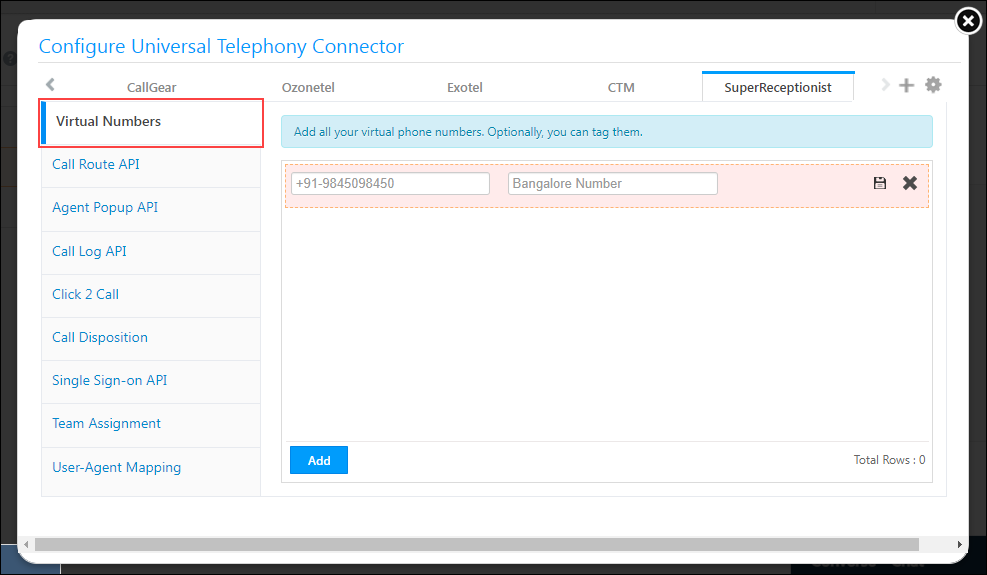
Navigate to the Virtual Numbers tab to add one or more virtual numbers (or SR numbers). You will need to purchase these numbers from Knowlarity.

Once done, click on the callgear virtual number save icon to save the numbers.

knowlarity sr numbers

5.4 Configure Call Route API

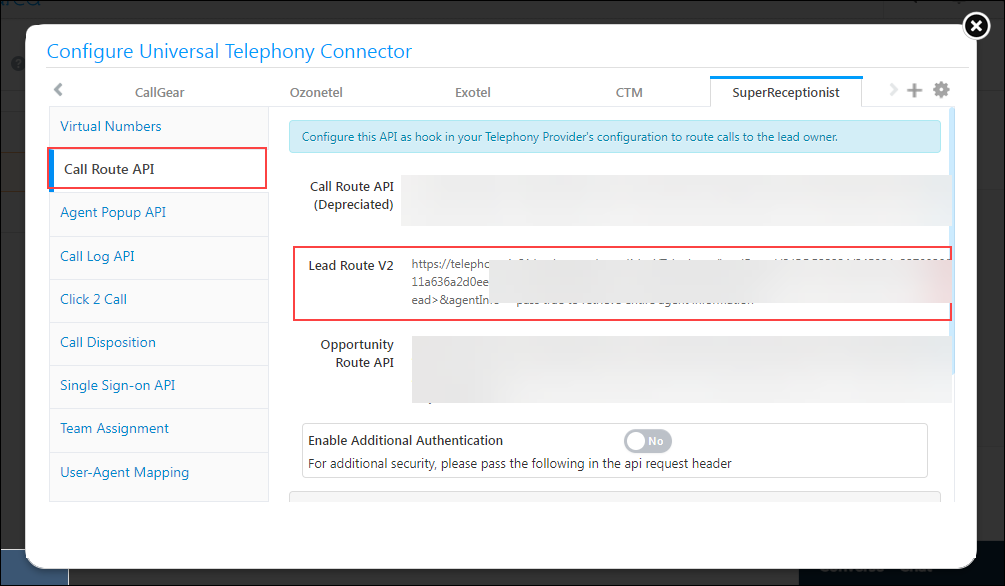
The Call Route API automatically routes incoming calls from existing leads to the respective Lead Owner in your LeadSquared account. The API (Lead Route V2) must be configured as a hook on SuperReceptionist.

Note: Please get in touch with Knowlarity to configure this API.
knowlarity call route

5.5 Configure Click 2 Call

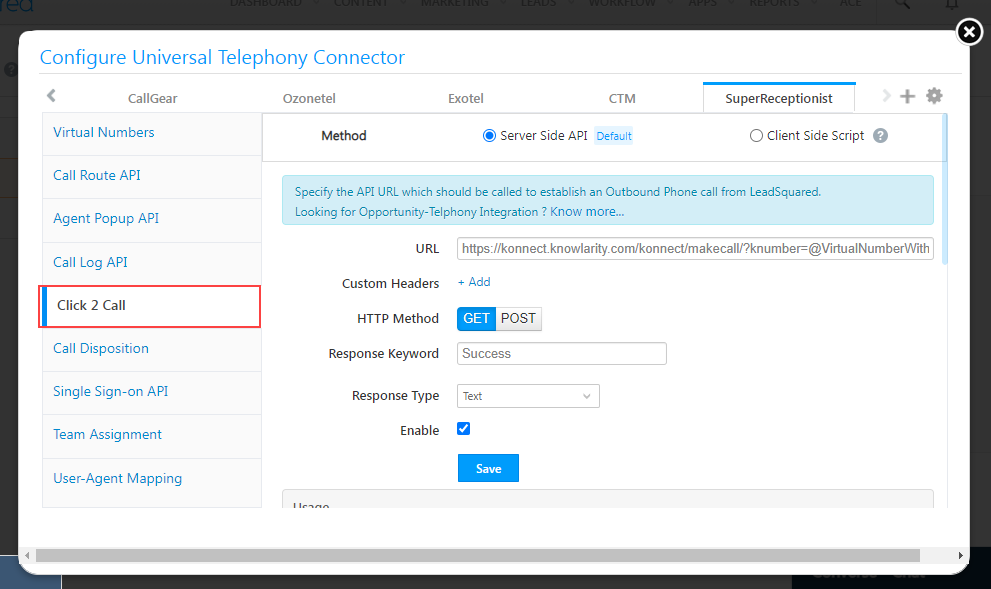
Navigate to the Click 2 Call tab and configure the following settings –

Parameter Value
Method Server Side API
URL https://konnect.knowlarity.com/konnect/makecall/?knumber=@VirtualNumberWithCC&api_key={api_key}&customer=@PhoneNumberWithCountryCode&agent=@AgentNumberWithCC&integration=leadsquaredV2

Note:

  • This URL is a sample template. Some parameters included in the URL could change. Contact Knowlarity for more information.
  • Replace the api_key value with your SuperReceptionist API key. For example, api_key=6666.
HTTP Method GET
Response Keyword Success
Response Type Text
Enable Select this value to enable Click 2 Call

Once done, click Save.

knowlarity c2c


Any Questions?

Did you find this article helpful? Let us know your thoughts in the comments section below.

How to Deploy the LeadSquared Tracking Script on Your Website?

Here’s a short tutorial on installing the LeadSquared Tracking Script –

Note:


Assigning a Lead Score for Visits to a Specific Webpage or Landing Page

To track and assign a specific lead score when a lead visits a particular webpage or landing page on your website, follow these steps:

Step 1: Locate Your Website Tracking Script

By default, the LeadSquared website tracking script looks like this:

<!--LeadSquared Tracking Code Start--> 
<script type="text/javascript" src="http://web.mxradon.com/t/Tracker.js"></script> 
<script type="text/javascript"> 
 pidTracker('3894'); 
</script> 
<!--LeadSquared Tracking Code End-->

Step 2: Insert the Score Assignment Line

To assign a specific score (e.g., 20) when a lead visits this page, add the following line within the tracking script:

Asc = 20;

Step 3: Update the Tracking Script

After inserting the score assignment, your updated script should look like this:

<!--LeadSquared Tracking Code Start-->
<script type="text/javascript" src="http://web.mxradon.com/t/Tracker.js"></script>
<script type="text/javascript">
Asc = 20;
pidTracker('3094');
</script>
<!--LeadSquared Tracking Code End-->

Now, whenever a lead visits this page, their score will increase by 20.


Any Questions

If you have any questions about the LeadSquared Tracking Script, leave us a comment below. We’ll get back to you asap!

Integrate Bayut with LeadSquared

1. Feature Overview

This connector periodically captures leads from your Bayut account to LeadSquared. Once the leads are synced, you can leverage LeadSquared’s CRM features to nurture and convert your leads.


2. Prerequisites

  • You must be the Administrator of your LeadSquared account.
  • You must have an active Bayut account.
  • This is a paid feature. To enable it, reach out to your account manager, or write to support@leadsquared.com.


3. How it Works

To pull lead data from your Bayut account to your LeadSquared account, configure the Bayut connector instance, and add your Bayut account credentials. Once this is done, enable sync for the connector instance in LeadSquared. This will begin the lead capture process.


4. Installation

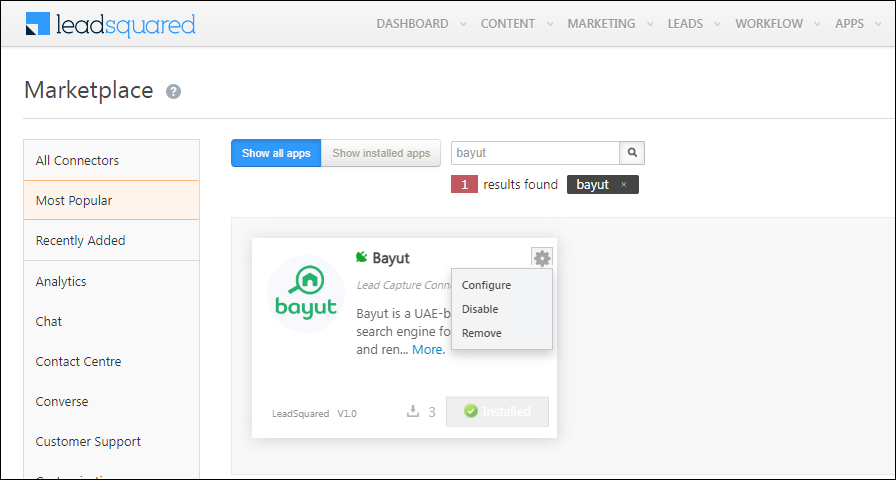
  1. Navigate to Apps>Apps Marketplace.
  2. Search for Bayut, and click Install.
    • Alternatively, you can find the connector on the left panel, under Lead Capture.
  3. Once installed, hover your cursor over , and click Configure.

Bayut LeadSquared Connector


5. Configure the Connector

Once you’ve installed the connector, on the Configure Bayut pop-up, configure the connector access for the non-Admin users in your account. Only those users for whom access is granted can view and access the connector (under the Apps main menu).

  1. Select if you want to grant Connector Access that’s Based on Role or Advanced (User Level).
    • Based on Role – From the Specify Roles dropdown, select the LeadSquared user roles that can use the connector.
    • Advanced (User Level) – From the Advanced (User Level) dropdown, select a user boolean field. Based on the value entered in the selected boolean field, the user can access the connector (e.g., for the user Sam, if the “Is Employee” boolean user field contains the value “Yes”, then this user can access the connector).
  2. Once you’re done, click Save Details. To continue the configuration, refer to the below sections.
Note: By default, all Admin users will have access to the connector.

Bayut LeadSquared Connector


6. Admin Configuration

After installation, navigate to Apps>Bayut and configure the connector settings in order to pull data from Bayut.

6.1 Basic Details

Enter the following details –

Bayut LeadSquared Connector

Property Description
API Key Enter your Bayut API Key here.
Lead Source Enter the lead source through which the leads were captured (e.g., Bayut , email campaign, etc.). This detail will be displayed on the Lead Details page, under Lead Source.
Default Country Code If the lead’s mobile number is captured without a country code, then the default country code that’s selected from the dropdown will be added to the lead’s mobile number.
Select Time Zone The time zone of your Bayut account.
Lead Capture Search By Criteria To avoid duplicate leads, you must select one unique lead field (e.g., email Id, mobile number, PAN number, etc.) as the search key. This will be used to identify the leads pulled from Bayut.

To know how to mark a LeadSquared lead field as unique, please refer to How to Make a Custom Field Unique.

Lead Capture Secondary Search By Criteria If lead identification and capture through the primary Search By criteria fails, it will be re-attempted using the secondary Search By criteria.
Select User to Notify on Failure If there is an error in fetching leads, the selected user will receive a failure message via email. You can select a user from the list of all the users available in your LeadSquared account.

To know more about the type of errors, please refer to Error Notifications.

Enable Notification Enable the Checkbox checkbox to ensure notification emails are sent to the selected user when there’s a failed query.
Sync Frequency By default, we’ve selected a 15-minute frequency to pull data from Bayut. You can use the ‘Hours’ and ‘Minutes’ dropdowns to select a custom interval, based on which lead data will be pulled.

Once you’re done entering all the details, click Save.

6.2 Mapping & Manage Sync

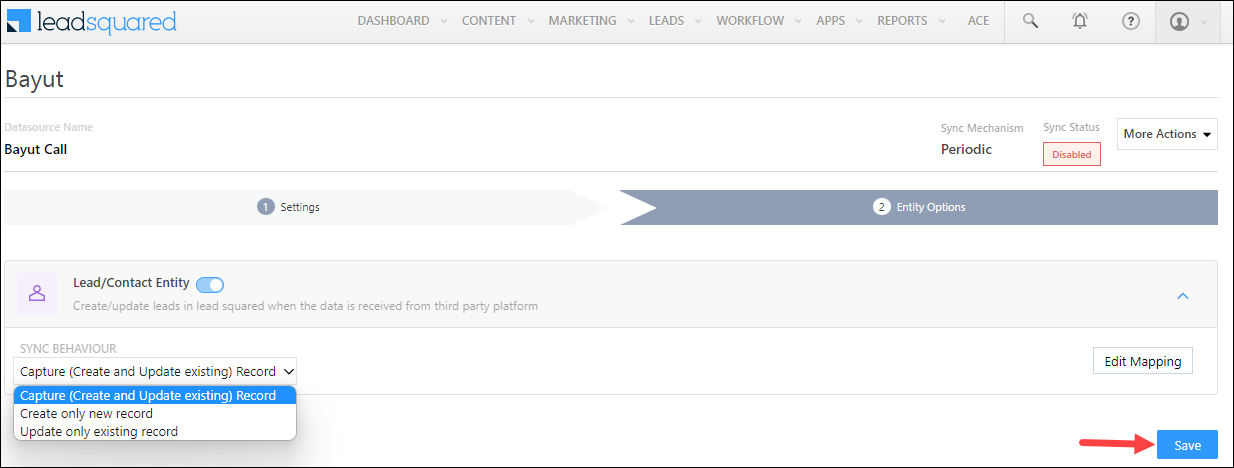
On the Entity Options screen, click Edit Mapping. The Bayut system fields mapped to the corresponding LeadSquared lead fields are visible. This mapping is carried out by default. If required, you can change or update the default field mapping.

  • To provide a default value for any field, enter the value under Default Value.
    • If the data provider doesn’t send data for any lead field, then the default value will get assigned to that specific field. But if the field already has an existing value, then the default value will be ignored.
  • To disable lead data capture for any field, disable the Zoom slider.
  • You can also mark and update a unique lead field as the search key from this screen, by clicking unique icon.
  • To create a custom Bayut field, click the Add Custom button.
    1. Once this field is created, you must map it to the relevant LeadSquared lead field.
    2. After the field is mapped, to save the custom field, click Google.
    3. To delete a custom field, click .

On this page, define the Sync Behaviour of the connector when leads are captured –

  • Capture (Create and Update existing) Record – Leads that only exist in your Bayut account (but not in your LeadSquared account) will get created in LeadSquared. Leads that exist in both your Bayut and LeadSquared accounts will get updated.
  • Create only new record – Leads that only exist in your Bayut account (but not in your LeadSquared account) will get created in LeadSquared.
  • Update only existing record – Leads that exist in both your Bayut and LeadSquared accounts will get updated in LeadSquared.

Once you’re done, click Save.

Bayut LeadSquared Connector


7. View Logs

Here, you can view logs of all the sync jobs that have taken place. View New Events (New Leads), Updated Events (Updated Leads), and Errors (when capturing leads).

  1. Navigate to Apps>Bayut.
  2. Click the More Actions dropdown and select View Logs.
  3. You can filter the logs by selecting a date range (Today, Last 7 Days, This Month, and Last Month), by selecting the Job Status (“All”, “Success” and “Failure”), and by selecting the Sync Status (All, Error, and Success).
  4. You can view the sync status of the following events –
    • New Events – List of all the new leads created in LeadSquared during the selected date range.
    • Updated Events – A list of all the –
      • Duplicate leads that were created with the same Search by Criteria value (e.g., with the same Email Id, Mobile Number, etc.).
      • Leads that previously contained errors, which were fixed and synced successfully.
    • Failed – The list of leads that have not been captured due to mapping errors (e.g., when a boolean field is mapped to an integer field, etc.).
  5. To view the Sync Response details, under Request ID/Sync Job ID, click the Id.
    • Under the right panel, you can view the response status, the API URL, the request, and the response.
    • The responses that are successful will contain the details of the leads that have been pulled from Bayut.
    • To view the lead capture response under Sync API Response, Leads Updated and Errors in Leads, click Information.

Note:

  • For a response that contains an error, the reason for the error is listed in the response. Once you fix it, you can click the Retry button to perform the sync again.
  • The current Lead Sync Behaviour will reflect in the Logs screen. This will help identify the sync that’s used (Capture or Update) for the selected Request/Sync Job Id.

google forms view logs


8. Other Actions

You can edit or delete the Bayut connector that you created. To do this –

  1. Navigate to Apps>Apps Marketplace and search for the Bayut  connector.
  2. On the Bayut connector, click Settings.
  3. From the list of options, you can perform the following actions –
    • Edit Configurations
    • Disable the connector
    • Remove the connector

Bayut LeadSquared Integration


9. View Reports

You can view the total number of leads that have been pulled from Bayut, by referring to the Lead Source report. To know more, please refer to How to track the source of your Leads using Lead Source Report?


Any Questions?

Did you find this article helpful? Please let us know any feedback you may have in the comments section below. We’d love to hear from you and help you out!
SIERA Lead Distribution Reports

1. Feature Overview

Use SIERA to create views that help users perform lead flow analysis, and track users, leads, opportunities, etc. To know more, refer to SIERA Feature Guide.

This article details on how sales managers and marketing users can use lead distribution reports in SIERA –

  • Lead Assignment Status Analysis.
  • Lead Conversion Analysis.
  • Lead Flow Analysis by Source.


2. Prerequisite

SIERA is a paid feature. To enable it for your account, contact your account manager or support@leadsquared.com.


3. Lead Report Use Cases

3.1 Lead Assignment Status Analysis

Analyse the lead assignment status of your users based on dates, lead stages, and other filters of your choice. You can use this report to find the answers to these questions –

  • How are leads assigned to you based on certain filters?
  • Are there any agents who have unusually high/low leads assigned?
  • Are there any agents who have no leads assigned at all?

Take a look at the current lead assignment status of your team. View the lead assignment by different dates, stages or other filters of your choice.

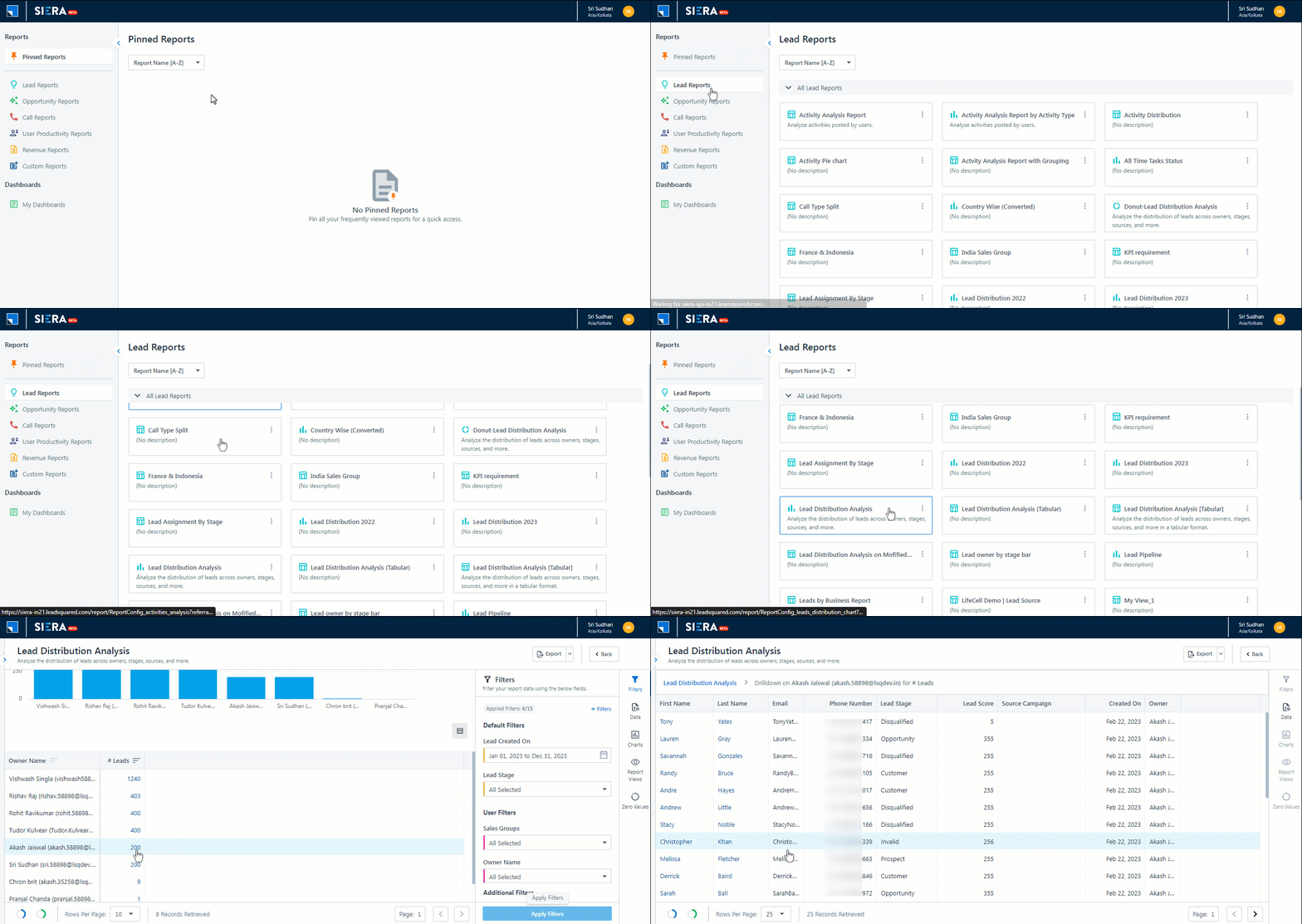
  1. From the SIERA homepage, navigate to Lead Reports>Lead Distribution Analysis.
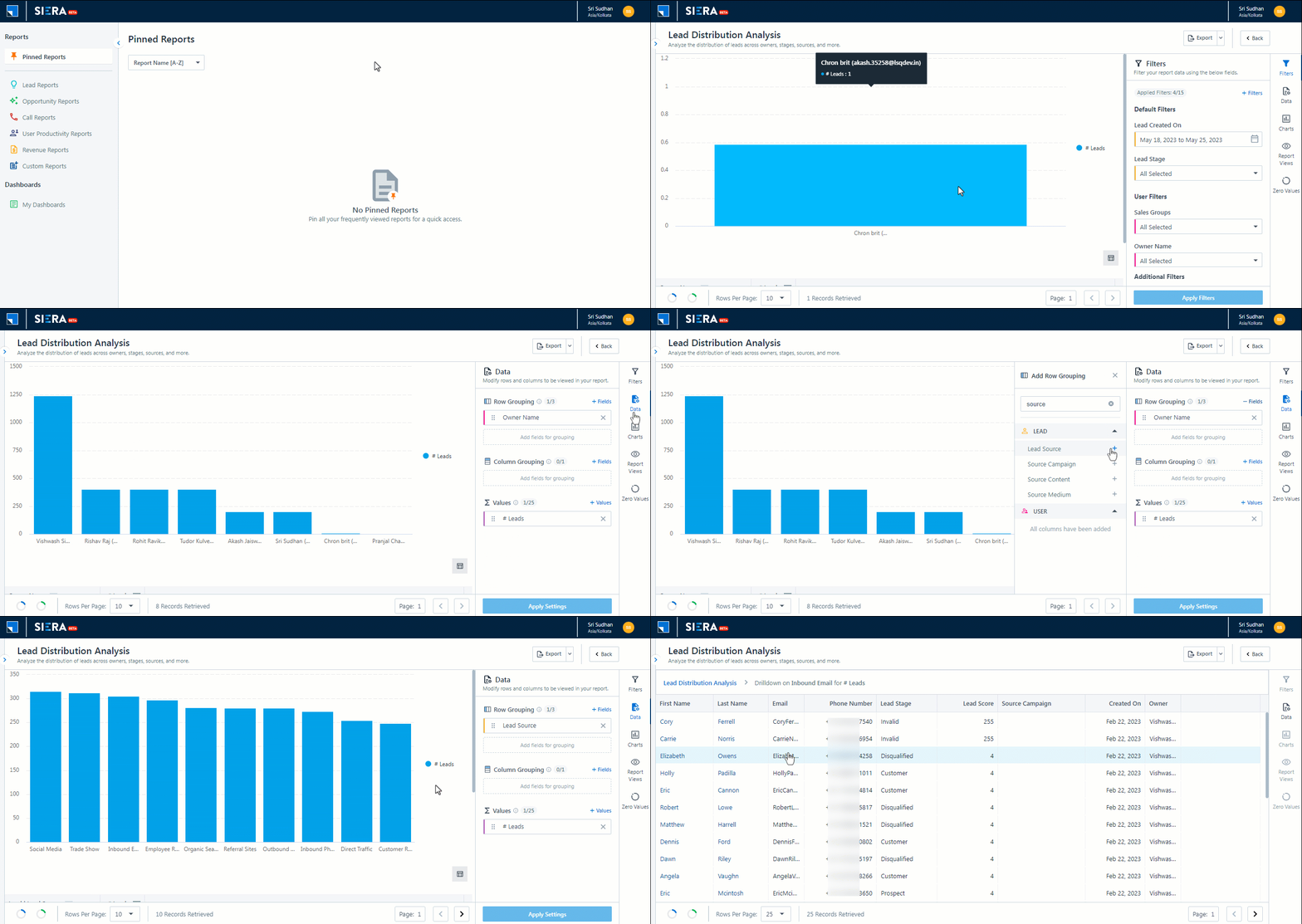
  2. In the Filters section, click +Filters to apply any filter of your choosing. In the gif below, no filters were applied to view the total lead assignment status.

lead assisgnment status

3.2 Lead Conversion Analysis

Analyse the leads assigned to your users based on lead stage. You can use this report to find the answers to these questions –

  • What is the present pipeline of your leads?
  • Which user has the most lead conversion?

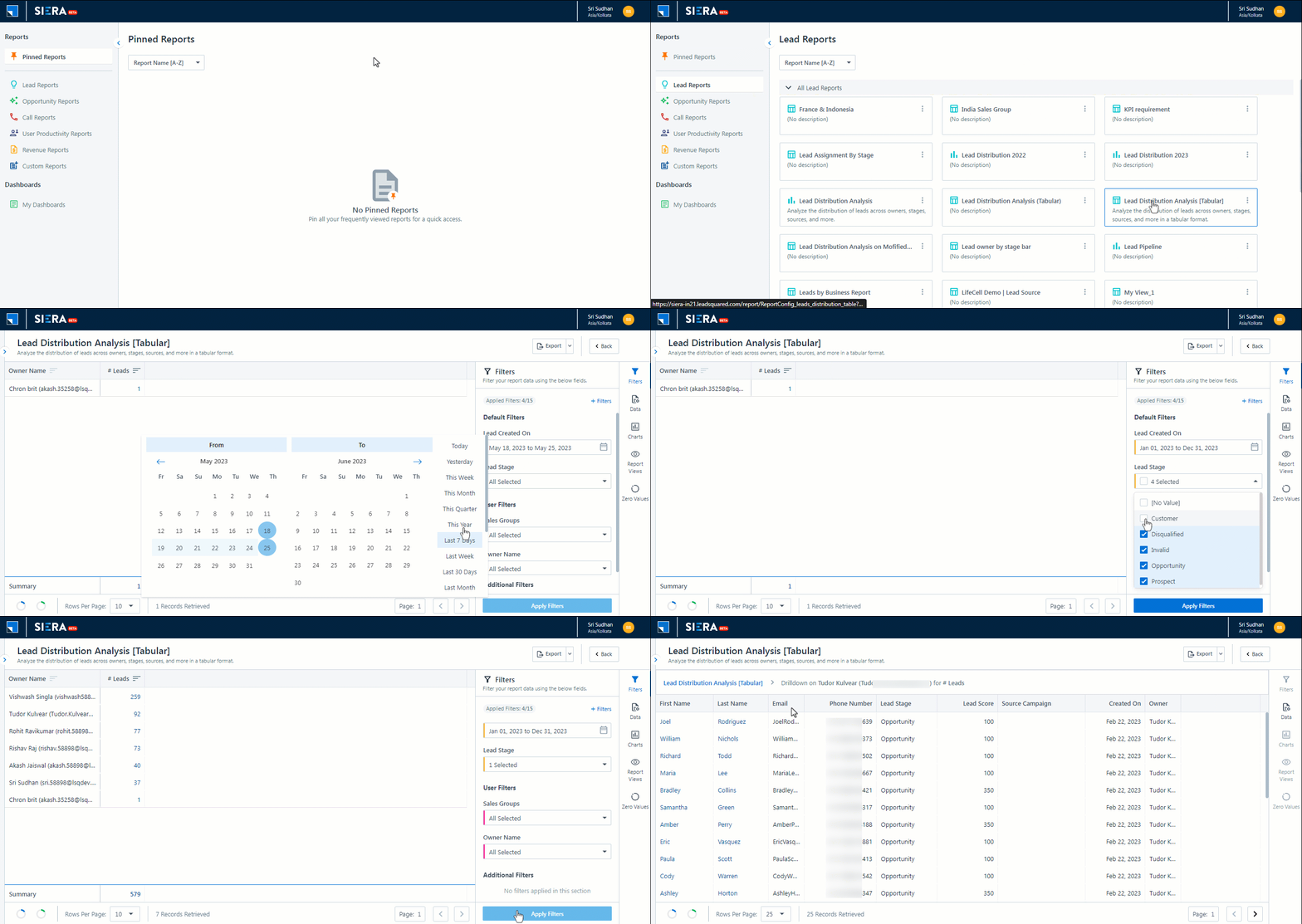
With the customization features offered in SIERA reports, users can add Stage fields as a filter. In this case, users can add leads at a specific lead stage as a filter in the report. With the filter value of Opportunity, we can view the reports of all opportunities.

  1. From the SIERA homepage, navigate to Lead reports>Lead Distribution Analysis (Tabular).
  2. In the Filters section, under Lead Stage, select only Opportunity. Deselect all other stages.
  3. Click Apply Filters.
  4. You can now view all the opportunities under each owner. To view the report of opportunities under a specific owner, click the number beside the Owner Name.

lead conversion analysis

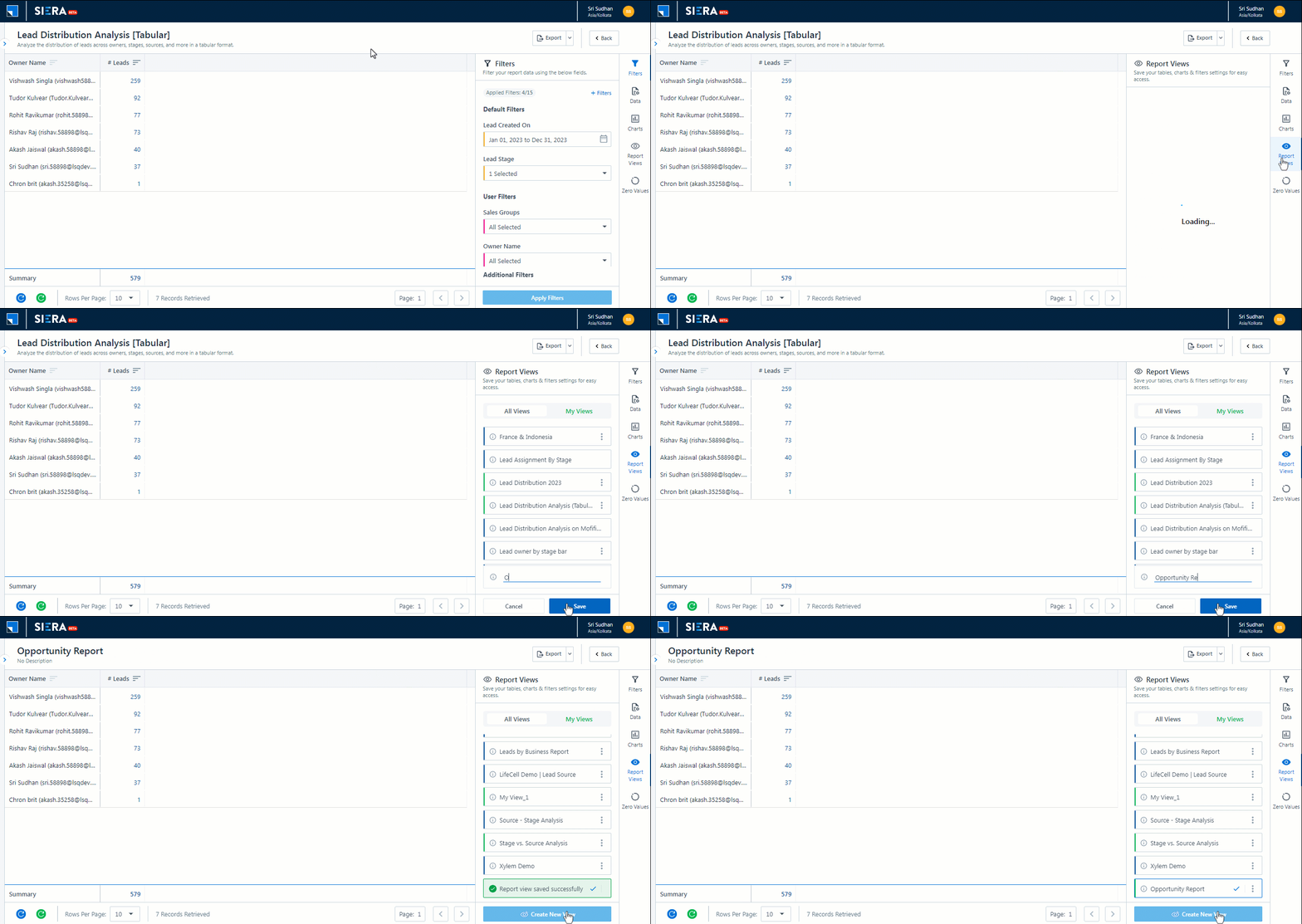
To save this report –

  1. Click Back.
  2. On the left side of the screen, click Report Views.
  3. Click Create New View and enter the name of your report.
  4. Click Save.

save opp report


3.3 Lead Flow Analysis by Source

Users can analyse the lead flow into the system from different sources. The report can be used to analyse trends in the system and prepare for such cases in the future. You can use this report to find the answers to these questions –

  • How many leads are your sources providing?
  • What are the worst and best performing leads as per conversion?
  1. From the SIERA homepage, navigate to Lead Reports>Lead Distribution Analysis.
  2. On the left side of your screen, click Visualise.
  3. Under Row Grouping, click +Fields.
  4. Under Lead, click + add siera  next to Lead Source. Remove any other Row field already added.
  5. Click Apply Settings.
  6. Scroll down and click the data to view a summary of all the leads created.

Note: SIERA also supports date fields in reports. With this feature, users can add any date field into a report and select the date format – Hour, Day, Date, Week, Month, Quarter or Year. You can discover trends in your weekly lead flow reports and prepare for such cases in the future.

lead source report


Any Questions?

Did you find this article helpful? Please let us know any feedback you may have in the comments section below. We’d love to hear from you and help you out!
How to Add Tasks to a Form

1. Feature Overview

You can create leads, opportunities, activities, and tasks all through the same dynamic form. Including tasks in your forms will help you create a task on the go while simultaneously creating a lead and/or activity.

  • Create both to-do and appointment type tasks through forms
  • View the task calendars of users while creating tasks. This helps you see the availability of your users and schedule tasks accordingly.
  • Set maximum/minimum dates, and use regex to set custom logic (e.g., date is after 7 days, etc.)


2. Prerequisites

  • You must be an administrator user in your LeadSquared account
  • See How to Create Tasks to configure tasks that match your requirements
  • If you’re new to Forms and Processes, see How to Create a Form


3. Adding Tasks to a Form

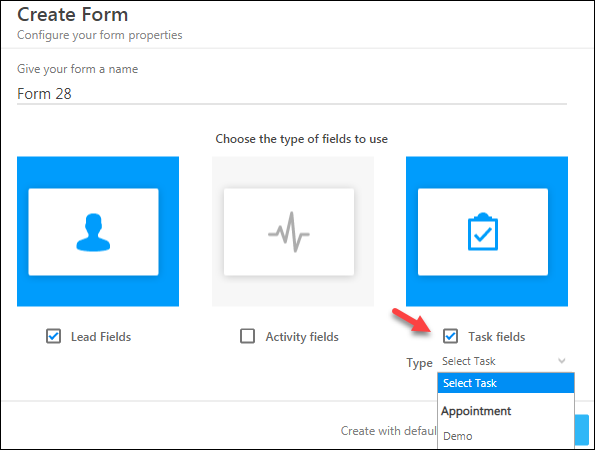
While creating a form from the Manage Forms page (Workflow>Manage Forms), on the Create Form pop-up, click Task Fields and select the task type. Follow the remaining steps as mentioned in How to Create a Form.

Create form pop-up

3.1 Displaying the Task Calendar (Optional)

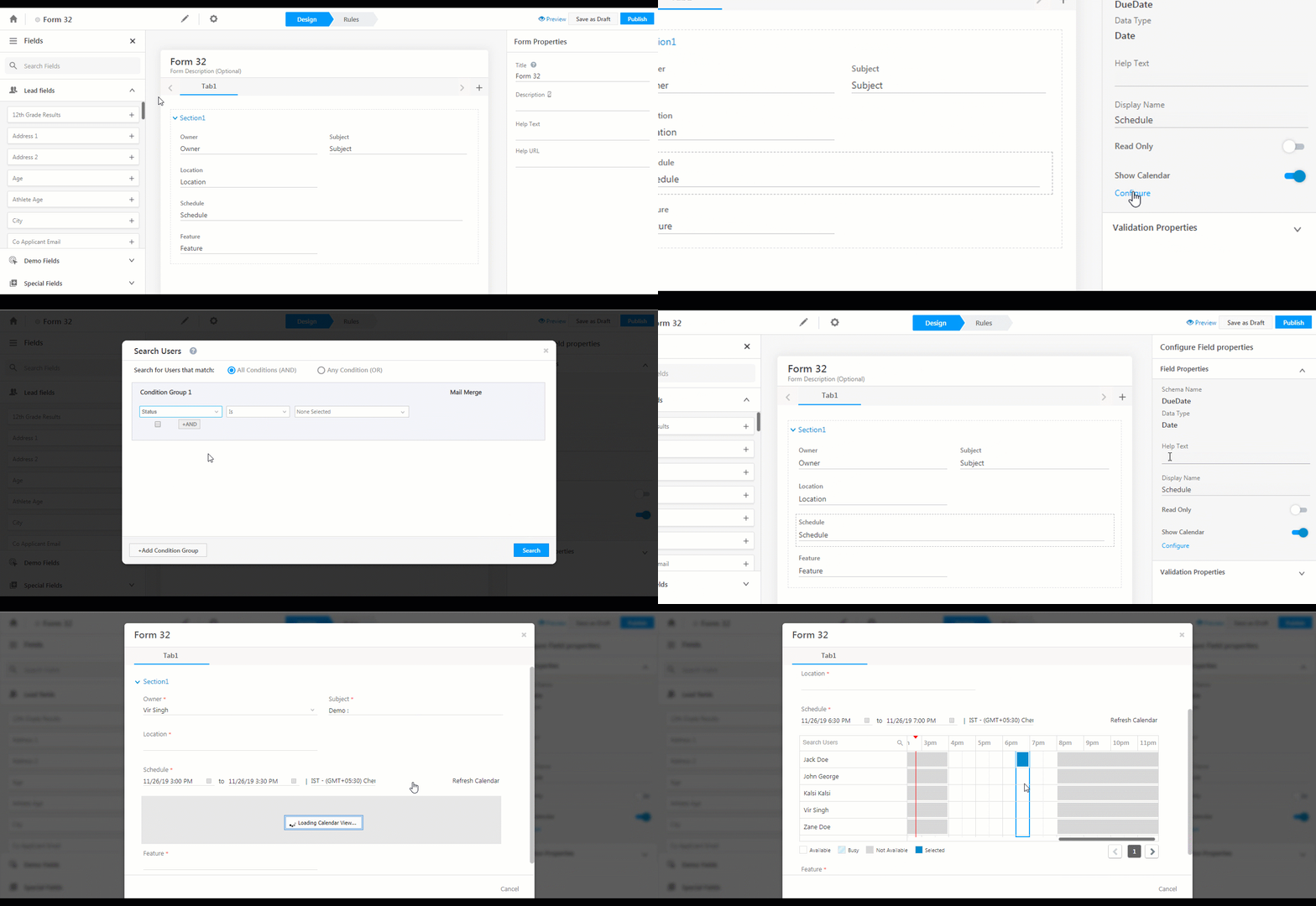
The most powerful feature you get with adding tasks to your forms is the ‘Check Availability’ calendar. Using it, you can simultaneously see the calendars of all selected users and schedule tasks at the appropriate time.

  1. Click the Schedule field.
  2. On the right pane, select Field Properties, click Show Calendar, then click Configure.
  3. Use advanced search to select the users you want to view in the calendar. Click Search when you’re done.*
  4. Now click Preview at the top of the form.
  5. Alongside the Schedule field, click Check Availability.

* While configuring the calendar view, you can also mail merge values of fields included in the form to help filter your users. For example, if you’re filtering users by city, you can mail merge the value of the lead’s city to show only those users that are available in the lead’s city.

You can now schedule tasks based on the availability of your users. Please note, the availability will be shown in accordance with the configured workday template.

display task calendar on forms

Note: When submitting the form, it is mandatory to fill the Owner, Subject, Location and Schedule fields. If no lead fields are included in the form, it is also mandatory to pass the Associated Lead field.

3.2 Setting a Custom Date Range (Optional)

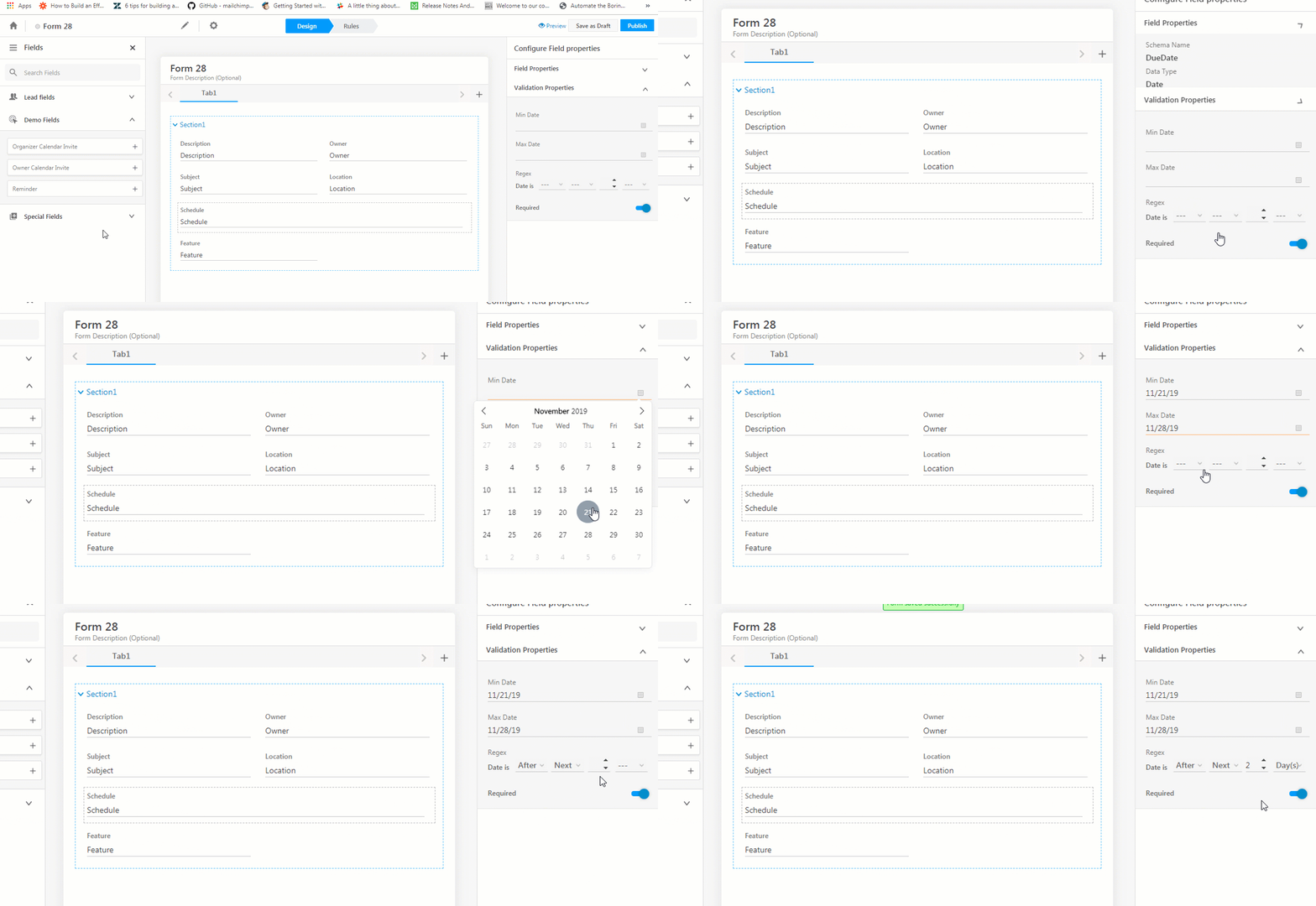
You can customize the schedule field to accept values

  1. Click the Schedule field.
  2. On the right pane, click the Validation Properties.
  3. Set a minimum and maximum date and/or set your own regex logic.

Adding Tasks to Forms


4. Adding the Form to a Process

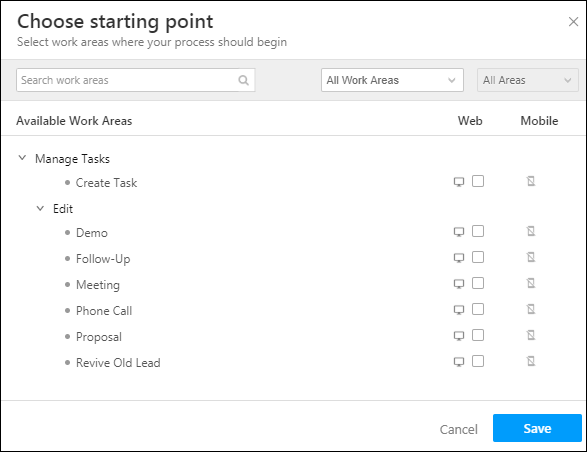
Once you’ve published the form, you can add it to a process and display it in the appropriate work area. There are a number of task-related work areas available in the process designer. You can find them under Manage Tasks

Manage Tasks in Process Designer

For more information on the process designer, see How to Create a Process.


Any Questions?

Please leave a comment below and we’ll get back you

LeadSquared’s Near Me Feature

1. Feature Overview

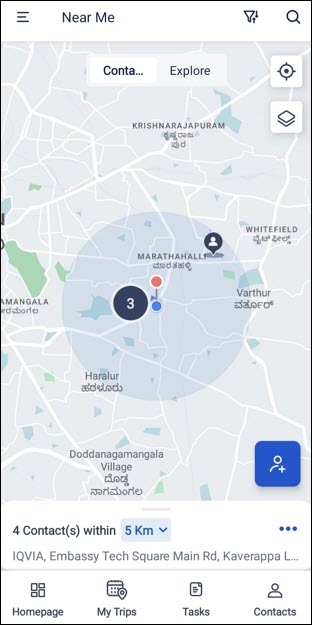
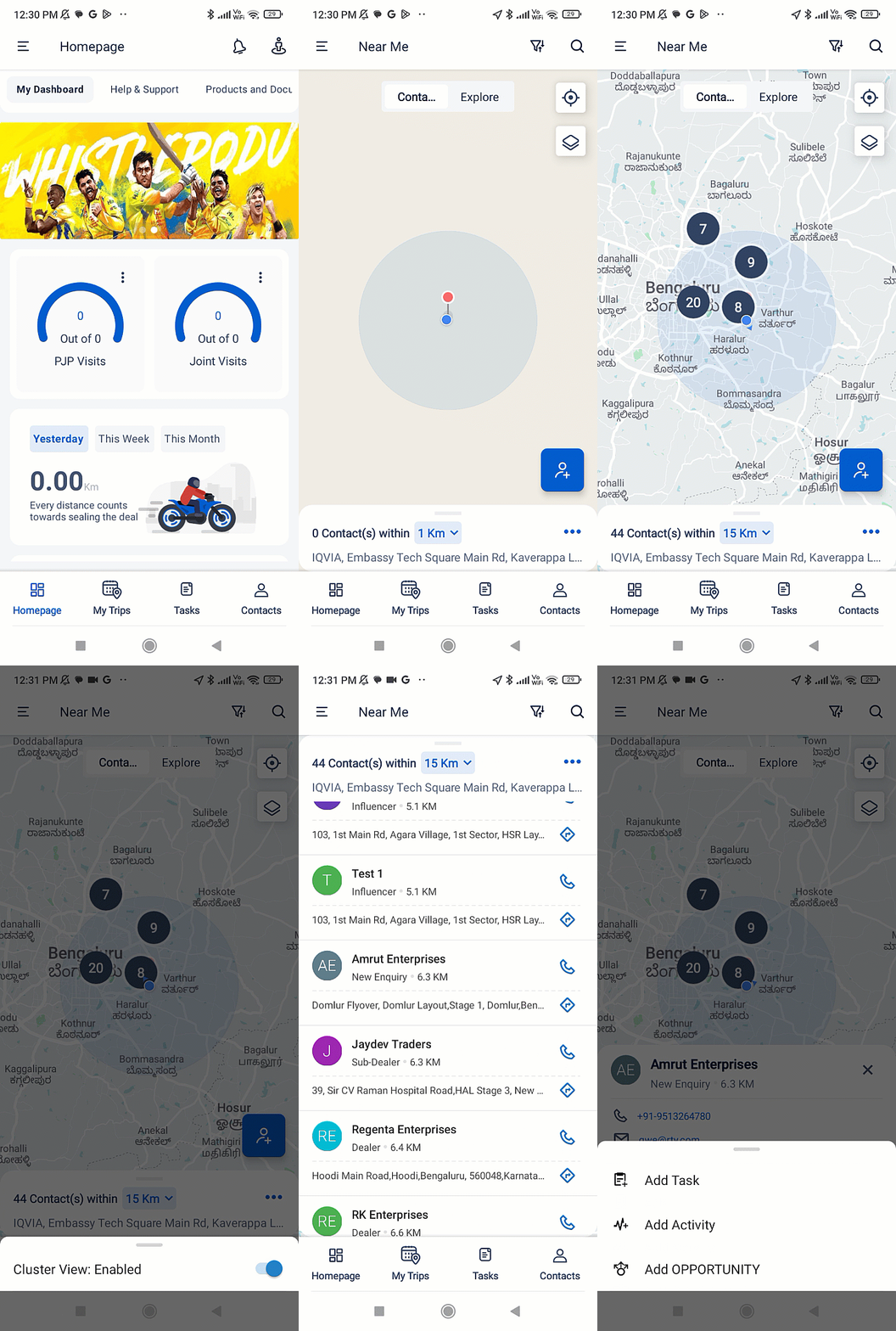
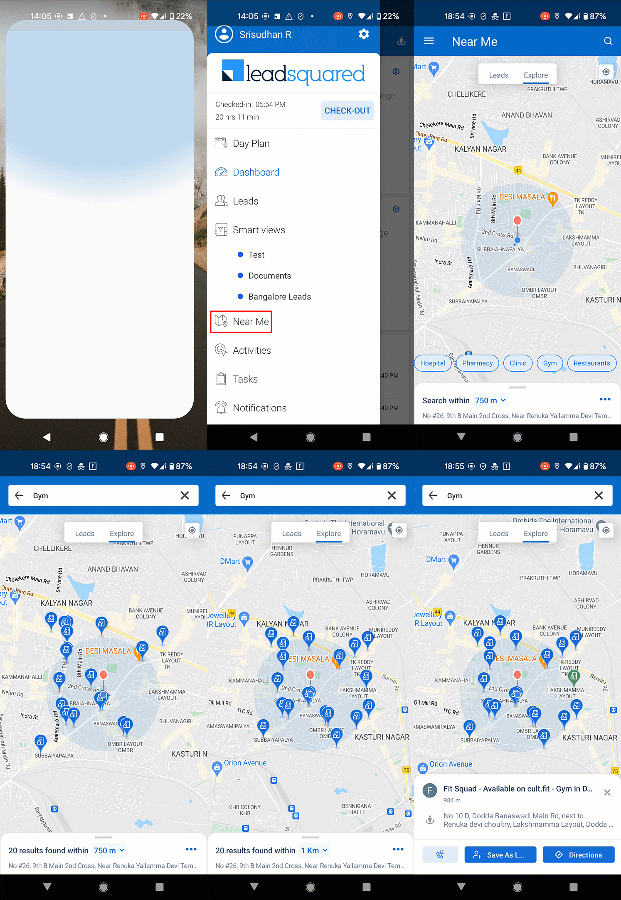
From the LeadSquared mobile app, through Leads – Near Me, you can view all the leads present within a 15-kilometre radius from your location. This helps you plan your journey for the days when you have to meet leads to complete various tasks (Meetings, KYC Verifications, etc.) and activities (Sales Activities, Home Visits, etc.).

Leadsquared - Leads Near Me

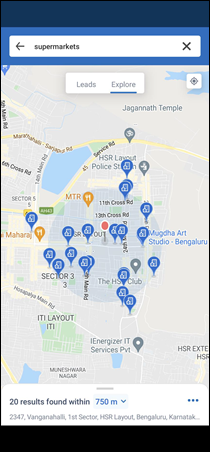
Additionally, through Explore – Near Me, you can also view businesses located within a 5-kilometre radius. This helps you save time when identifying and reaching out to potential customers. For e.g., a salesperson can use this feature to identify all the supermarkets present in HSR Layout, Bangalore. You can also save this business as a lead.

Leadsquared - Explore Near Me


2. Prerequisites

  • You must be an Administrator User in order to configure this feature.
  • To accurately display leads near you, leads must contain valid data in the Address field.
  • Users must have the LeadSquared app installed on their mobile devices, and location permission access must be enabled. To know more, please refer to Location Tracking on LeadSquared Mobile.
  • In order to use the Explore – Near Me feature, you must –


3. Leads – Near Me

3.1 View Leads

To view the leads near you –

  1. Open the LeadSquared mobile app, tap the Leadsquared - Near Me hamburger icon, and then tap Near Me.
    • Alternatively, from the top-right corner of the homepage, tap the Leadsquared - Near Me Near Me icon.
  2. On the Near Me screen, the Leads view is displayed by default.
  3. Under Leads, you can view the list of leads near you.
    •  To view the following options, tap Three dots menu –
      • Change Location – Tap to change the location in which you’re searching for leads.
      • Settings – Tap to enable/disable the Cluster View for leads.
    • To increase the search radius, tap the default value of 1km, and select the new radius from the available options.
    • To add new leads, tap the Leadsquared - Near Me add leads icon, enter the relevant details and submit.
  4. To view the lead’s details, tap the relevant lead icon. Additionally, tap Leads Menu to perform the following actions on the lead –
    • Add Activity
    • Add Task
    • Add Opportunity

3.2 Customize Lead Icons

You can customize lead icons displayed on the Leads Near Me page on the LeadSquared Mobile App.

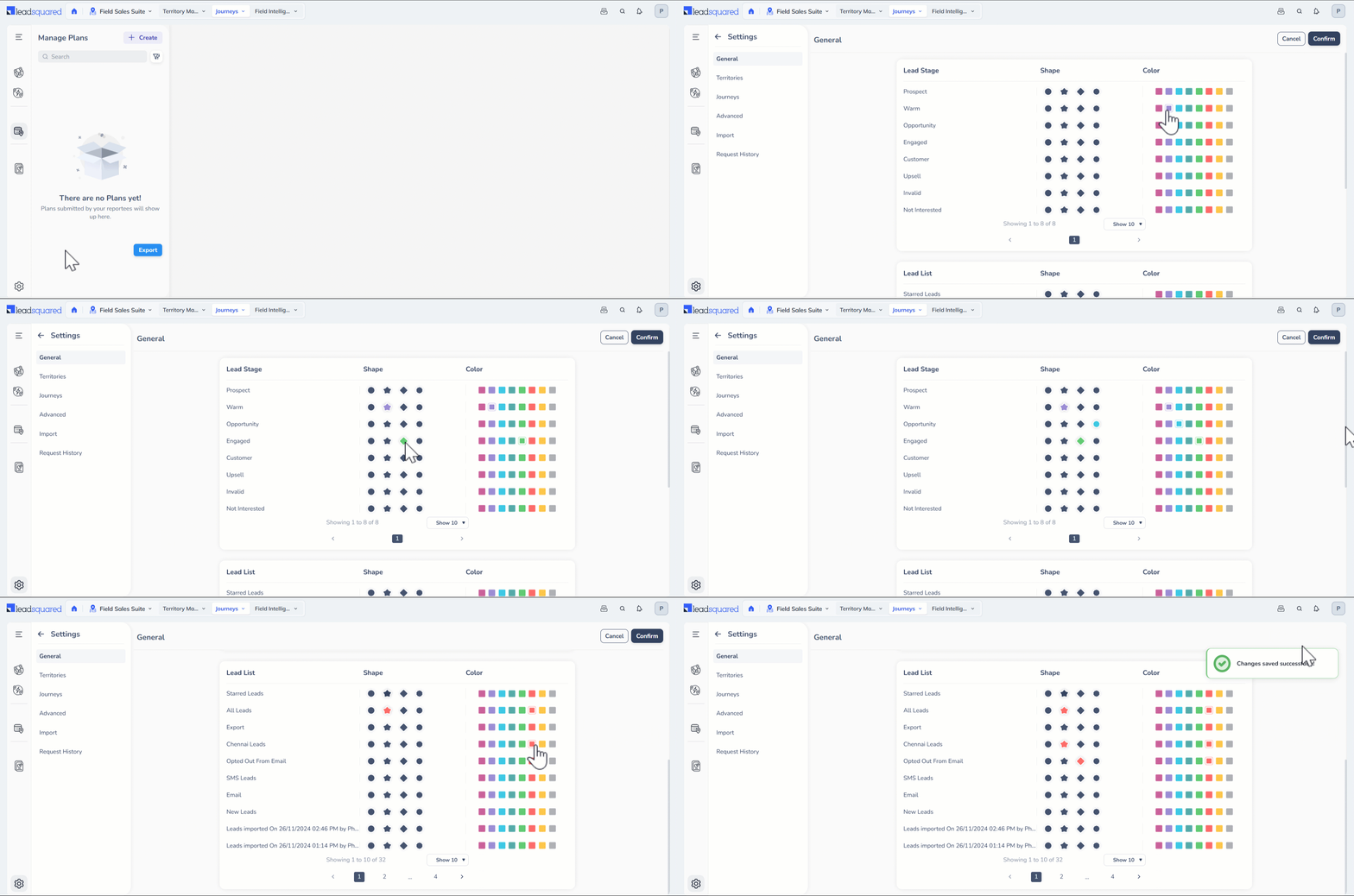
  1. On your LeadSquared Web App, navigate to Field Sales Suite>Journeys.
  2. Click the LeadSquared - journeys settings icon Settings icon.
  3. Set up unique shapes and colours for different Lead Stages or Lead Lists to recognize leads within their assigned territories.
  4. Click Confirm to save the changes.

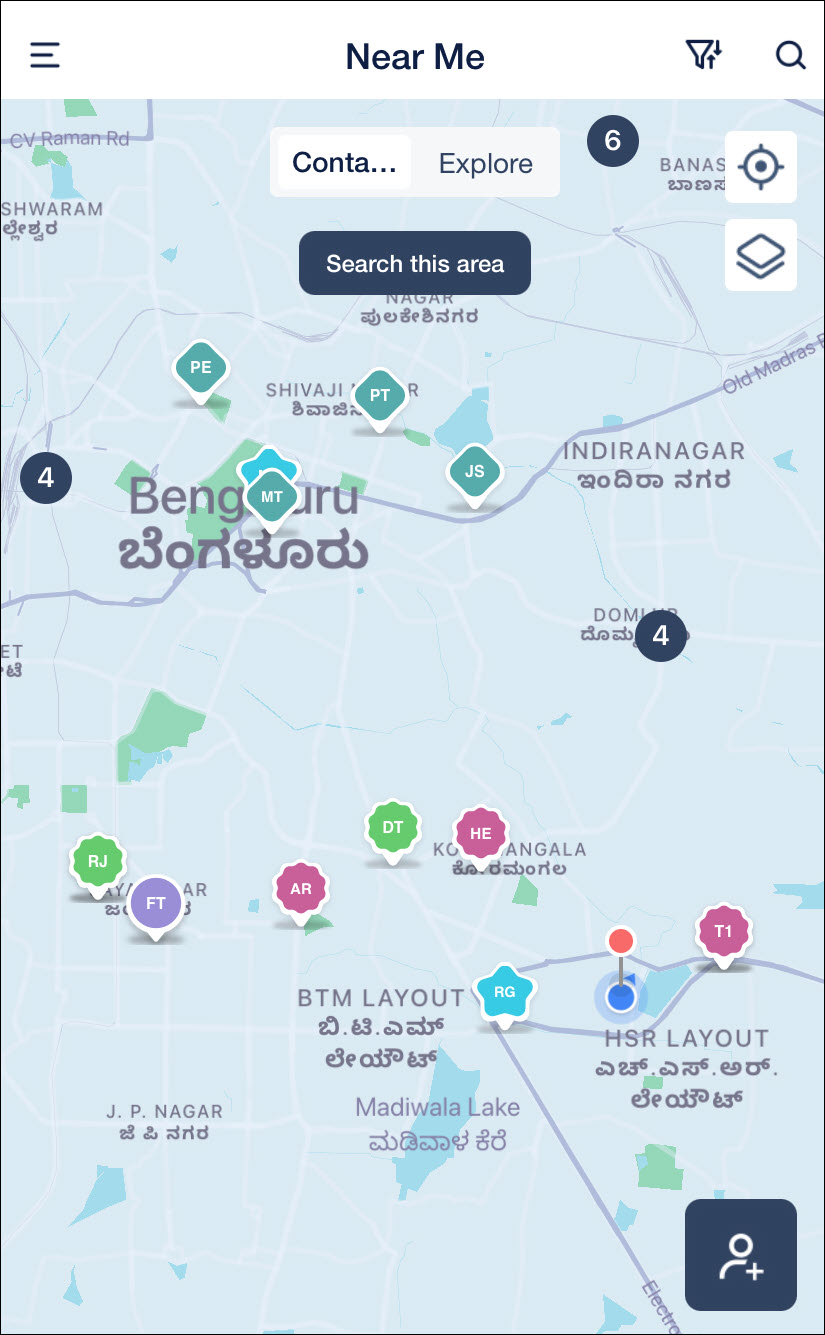
Leadsquared - Near Me

These unique lead icons will be visible on your Mobile App.

Leadsquared - Leads Near Me


4. Explore – Near Me

Important: You must have access to your Google Map API Key to use this feature.

To view businesses near you –

  1. Open the LeadSquared mobile app, tap the Leadsquared - Near Me hamburger icon and then tap Near Me.
    • Alternatively, from the top-right corner of the homepage, tap Leadsquared - Near Me.
  2. On the Near Me screen, tap Explore.
  3. If you’ve already saved Explore Keywords (Schools, Pharmacies, etc.), tap an existing word.
  4. Else, from the top-right corner, tap the Leadsquared - Near Me search icon, and search for the business type you’re looking for.
  5. Tap Explore Near Me on the relevant business type to perform the following actions –
    • Tap Phone Call Explore Near Me to call the business. This will work only if they’ve updated their number on Google.
    • Save as Lead – Tap to save this business as a lead.
    • Directions – Tap to view directions to the business location through Google Maps.
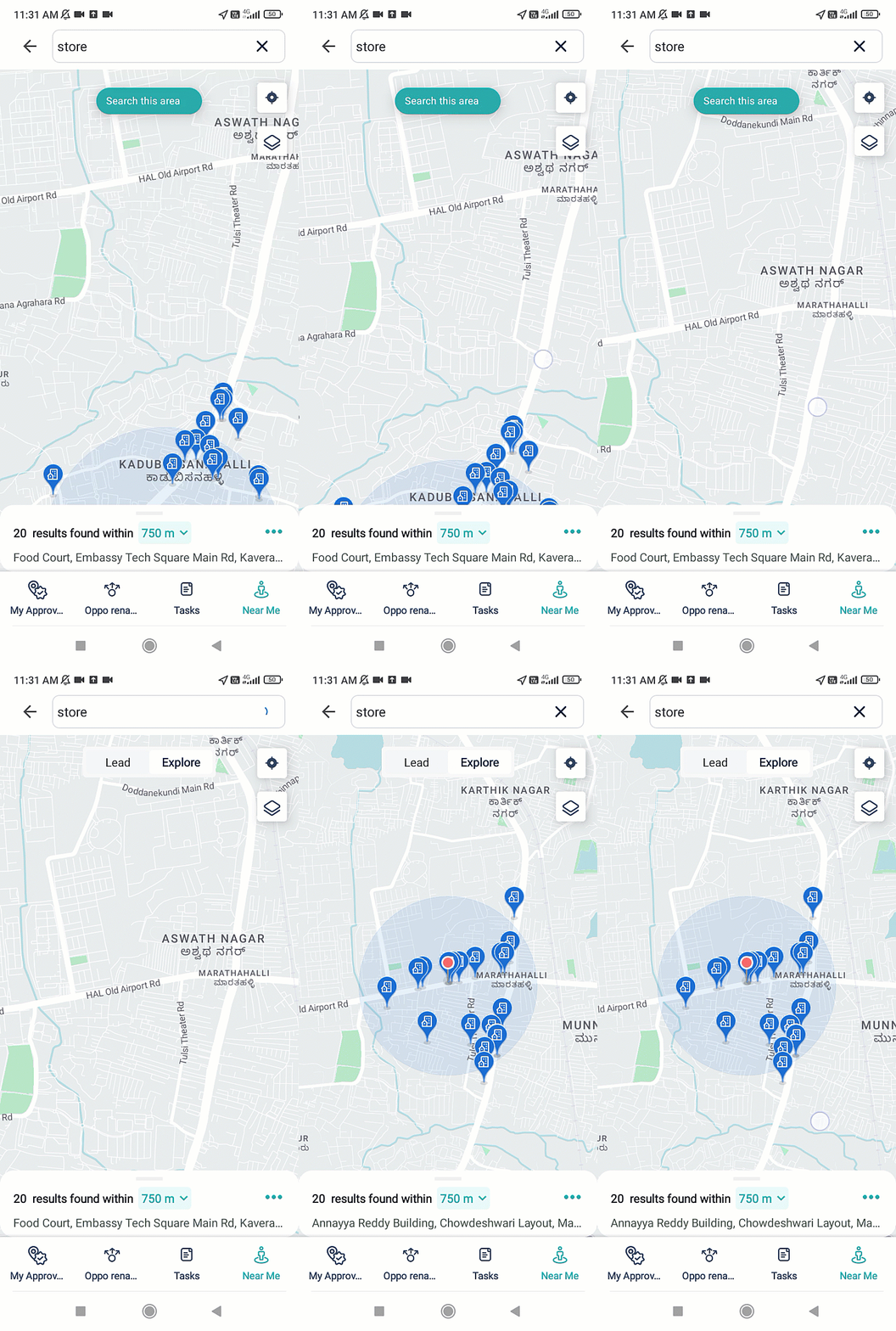
  6. To increase the search radius, tap the default value of 750m, and select the new radius from the available options.
Note: To show search suggestions to your users (e.g., when they type “Hos”, the search results will show a list of all the places that contain the words “Hos” in their title, like Hosmat Hospital, Manipal Hospital, etc.), enable the Explore – Suggestive Search Additional Setting.

Leadsquared - Near Me

You can also search for businesses outside of the radius defined. To do this, move the screen outside the blue circle, and tap Search this area.

Leadsquared - Near Me


5. FAQs

How does the near me feature in the mobile app fetch the location of leads?

The ‘Near Me’ feature uses the Latitude and Longitude fields on the lead’s record to determine its location. To ensure this feature works correctly, both fields must contain valid coordinate values.


Any Questions?

Did you find this article helpful? Please let us know any feedback you may have in the comments section below. We’d love to hear from you and help you out!
Add Signature Fields to Forms

1. Feature Overview

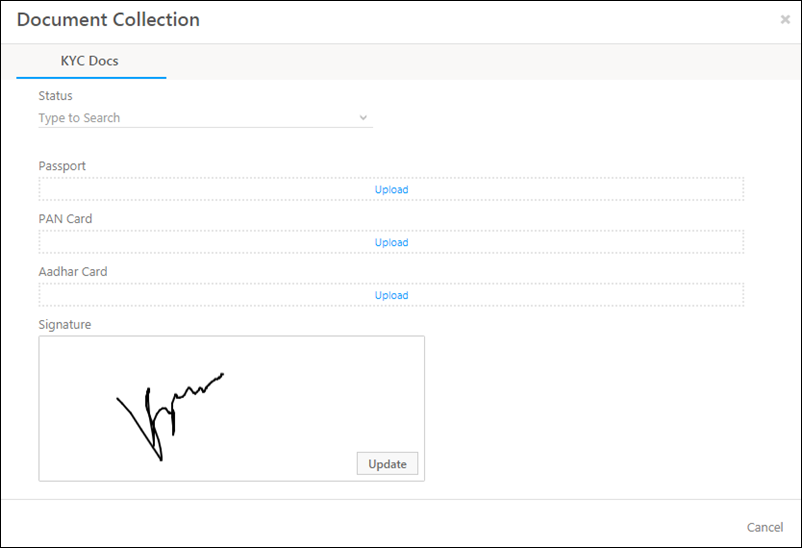
This feature enables you to add a signature field to your form and collect online signatures from your users. It can be used to collect signatures on forms for applications, registrations, terms of service agreements, etc.

signature in forms

To know more about LeadSquared forms, see How to Create a Form.


2. Prerequisite

You must be an Administrator user of your LeadSquared account.


3. How It Works

Fields where the data type is file/image, can be used as signature fields in the form builder.

  1. First, create a custom field set with an image type field.
  2. Next, associate the custom field set with an activity or lead.
  3. Add the custom field set to your form, and configure the image type field as a signature field.


3.1 Create a Custom Field Set with an Image Type Field

Create a custom fieldset with at least one field of type file/image. For details, see Custom Field Set.


3.2 Associate the Custom Field Set with a Lead or Activity

For more information, see


3.3 Add the Custom Field Set to Your Form and Configure the Image Field

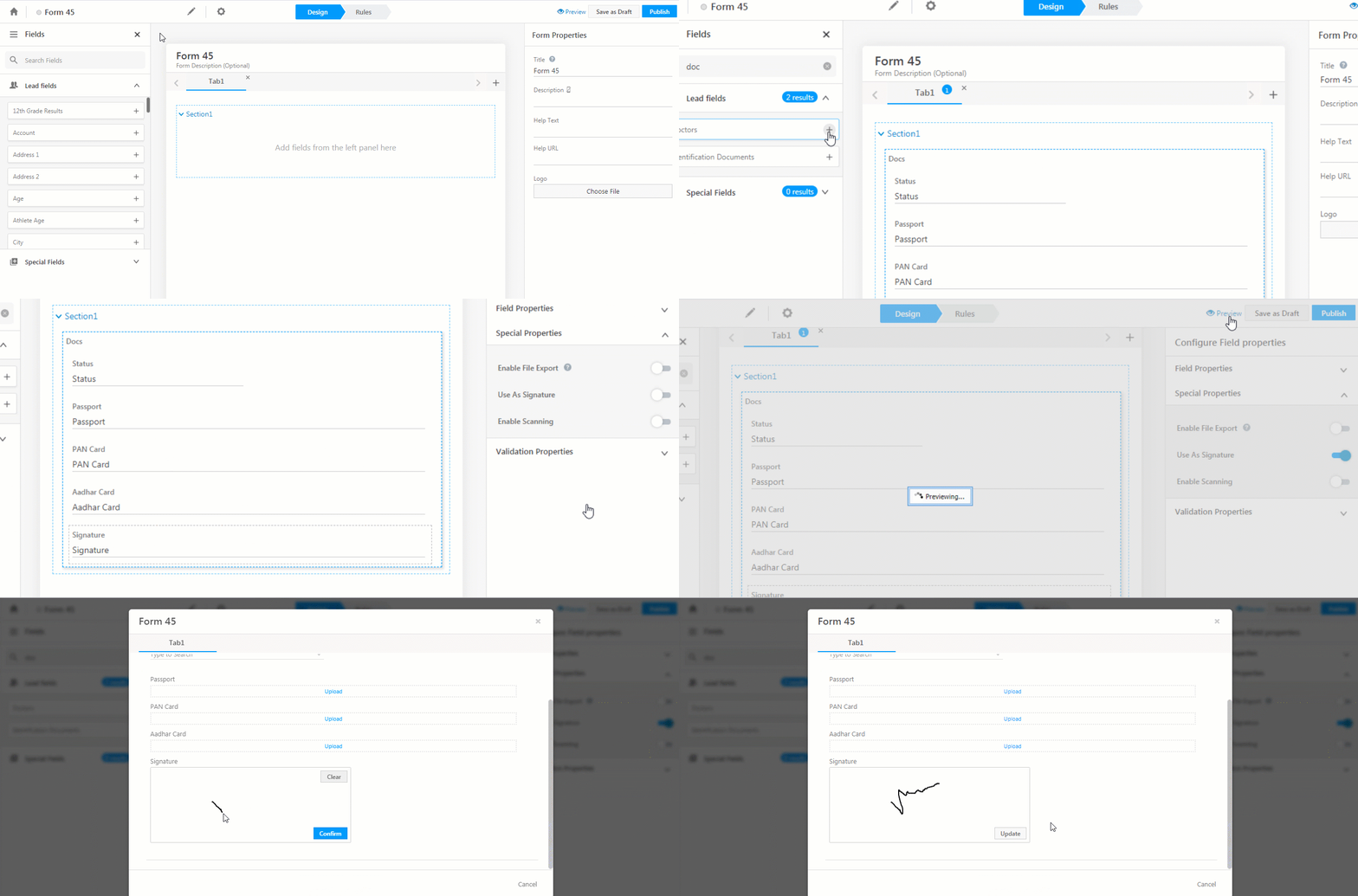
  1. Create a new form or edit an existing one (for more information, see How to Create a Form). If you associated the custom field set to an activity, be sure to include the relevant activity type in your form.
  2. Add the custom field set to your form.
  3. Select the field (image type) you want to use to collect signatures. On the Configure Field properties pane on the right, click Special Properties.
  4. Click enable icon to enable Use As Signature.
  5. On the top right of the page, click Preview. Click the signature field to input a signature. End users can –
    • Click Clear to erase the signature.
    • Click Confirm to save the signature.
    • Click Update to sign again.
  6. Click Publish when you’re done.

Signature on Forms


Any Questions?

If you have any questions related to this feature, please leave a comment below. We’ll be happy to help.

Account Details

The Account Details page is where you’ll find all information related to a specific account. You can perform actions on the account, see all associated leads, create tasks, add activities and lots more…

If you’re new to the accounts feature, these articles will help –


Account Vcard and Properties

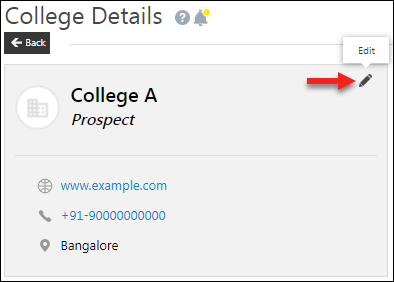
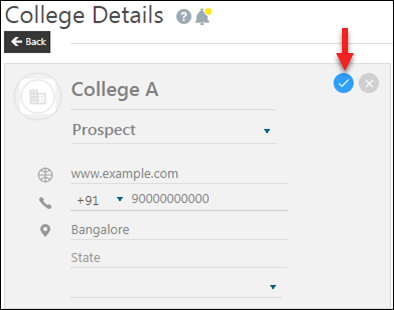
The account Vcard shows you the account stage and contact information. To edit the Vcard hover your cursor over it and clicking the editpencil iconicon.

edit vcard

change vcard

Note: If you’re using a telephony connector and have click2call enabled, you can just click the phone number on the Vcard to initiate a phone call.

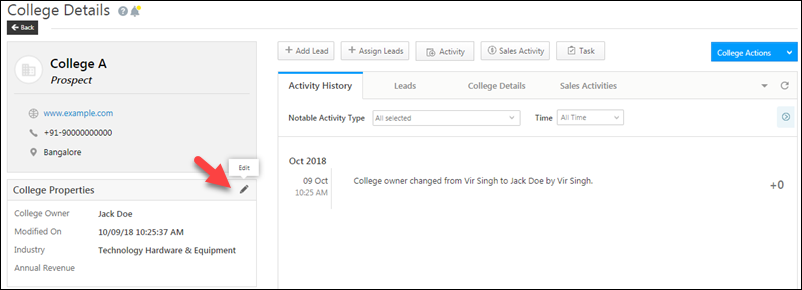
You can also edit the Account Properties section shown below –

account properties

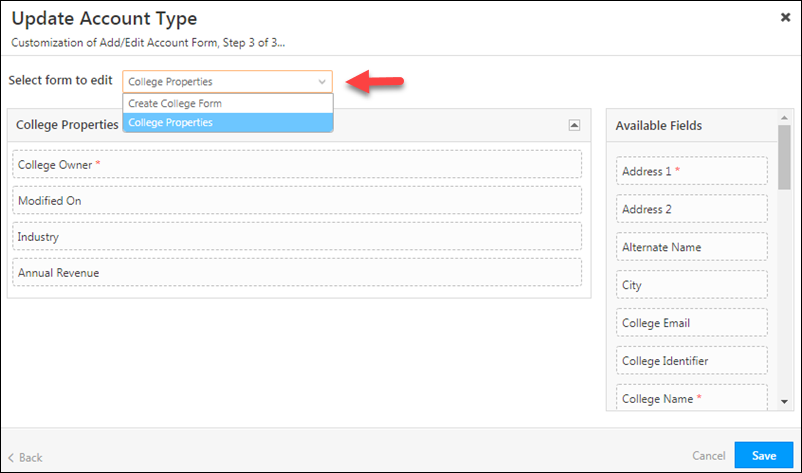
And configure the fields you want to see in the Account Properties tab. To do this –

  1. Navigate to My Account>Settings>Accounts Customization>Account Settings.
  2. Alongside the account type you want to configure, hover your cursor over the settingsSettings iconwheel, then click Edit.
  3. Click Next to navigate to step 3 of 3. Use the dropdown to select the Account Properties option.
  4. Drag and drop the fields you want from the available fields section to the account properties section.
  5. Click Save.

configure account properties


Account Actions

You can perform the following actions on an account –

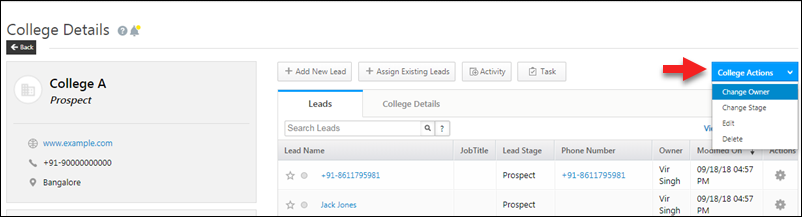
  • Change Owner
  • Change Stage
  • Edit
  • Delete

Hover your cursor over the <Account Name> Actions menu, then choose the action.

Actions on an account

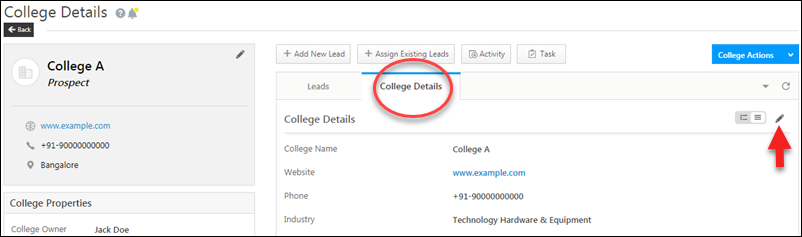
You can also navigate to the <Account Name> Details tab and edit the account details from there.

edit account info


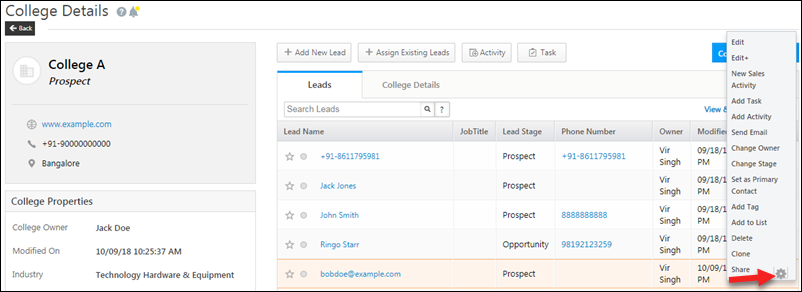
Lead Actions

To perform actions on leads, hover your cursor over the settingsSettings iconwheel alongside a lead and choose an action.

actions on leads in account

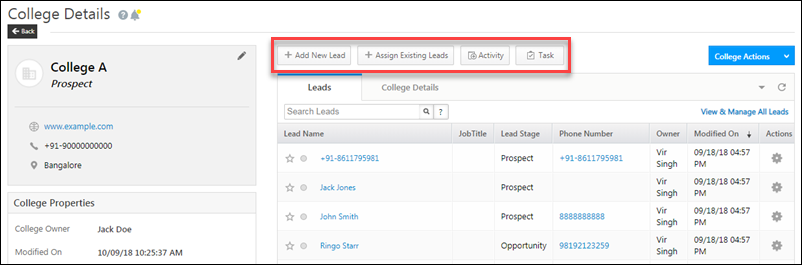
To add a new lead to the account, add an existing lead, post an activity on a lead or create a task, just click the corresponding quick add buttons.

account details action buttons

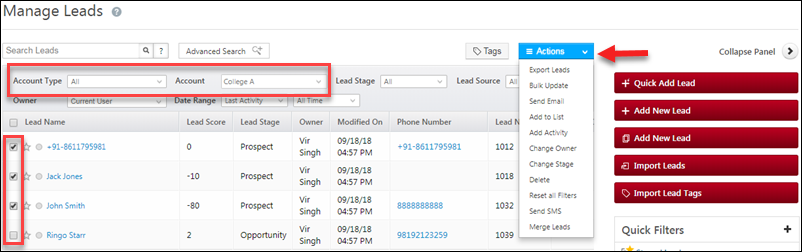
If you want to perform bulk actions on all leads in an account, click the View & Manage All Leads link. This will direct you to the Manage Leads page where the account filters will be set to the current account by default. You can select leads in bulk, then choose an action.

bulk updates from account details


Available Tabs

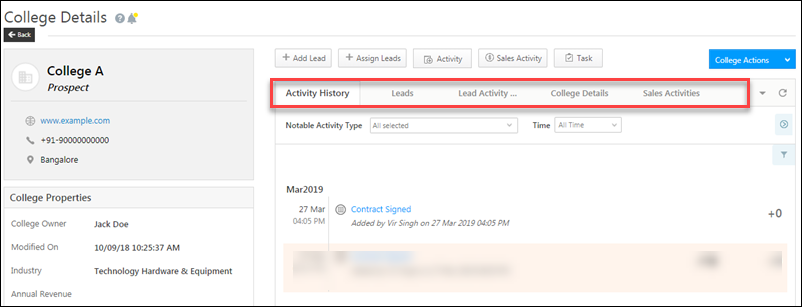
You can navigate between the different tabs on the account details page. Each tab gives you a specific category of information related to the account.

account details page tabs

Activity History
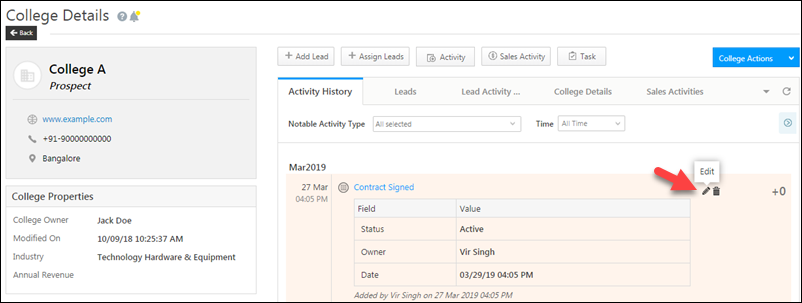
This tab displays the list of all activities posted on the account along with the corresponding account score. You can click on an activity to see more details. You can also click the pencilpencil iconicon that appears alongside an activity to edit it.

account activity history

Leads
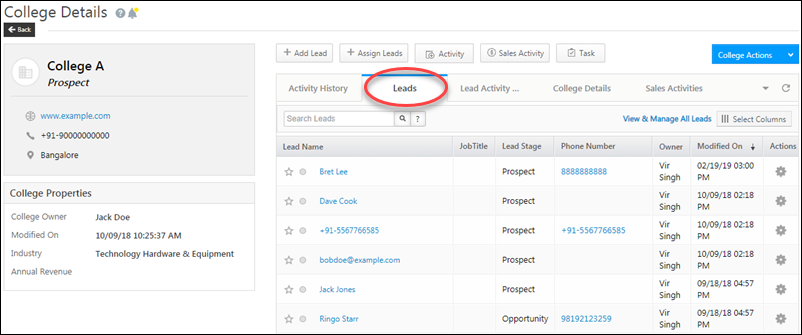
The leads tab shows you the list of leads in the account.

  • Use the quick search box to quickly find a particular lead
  • click the View and Manage Leads link to go to the Manage Leads page with the account filters applied
  • Click on Select Columns to configure the columns you want to view
  • Click on a particular lead’s name to go to the Lead Details page
  • Click the gearSettings iconicon under the Actions column to perform actions on a lead

leads tab in account details

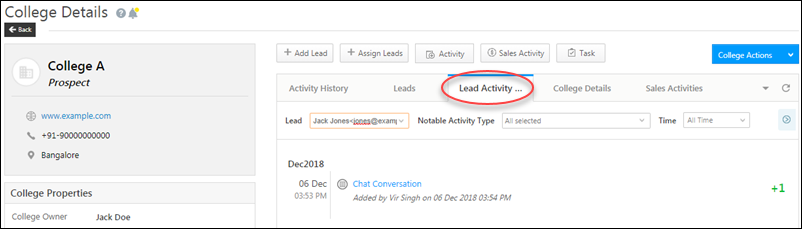
Lead Activity History
Use this tab to view the activity history of a particular lead in the account. Select a lead from the dropdown and filter the lead’s activities by activity type and time.

activity history

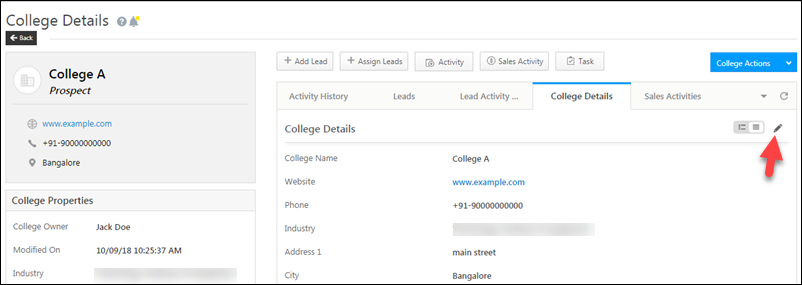
<Account Name> Details
You can edit all details of the account type here.

edit account details tab

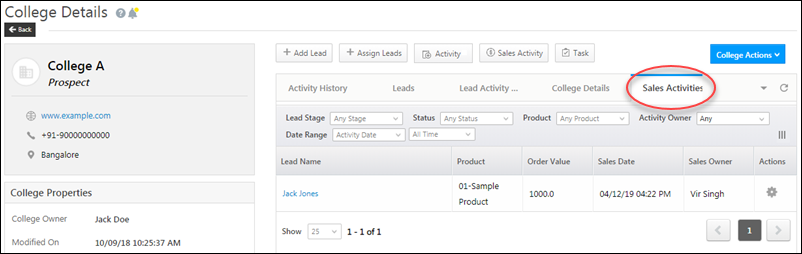
Sales Activities
View all the sales activities posted on leads in the account here.

sales activity tab in account details

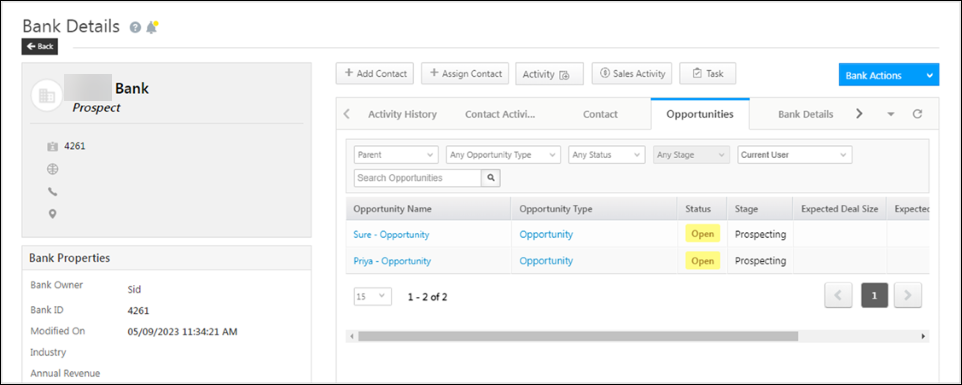
Opportunities

If you have enabled both Account and Opportunity management in your LeadSquared account, you will be able to view the opportunities associated with that account in the Opportunities tab. However, if you do not have access to a lead associated with that account, you will not be able to see the opportunities associated with that lead.

LeadSquared - Opportunities tab in Account Details


Any Questions?

If you have any questions related to this article or the accounts feature in general, don’t hesitate to type them in to the comments section below. We’re here to help!

Import Activities

1. Feature Overview

In addition to activities posted on leads when they perform an action, activities manually added by your users, and activities added through automations, you can also import activities into LeadSquared using a CSV file and post them on any lead and opportunity. This is useful when you want to post bulk activities, such as adding the Webinar Attended activity to 1,000 leads.


2. How it Works

  1. On a CSV file, add activity fields with data, along with lead or opportunity identifiers.
  2. Upload it to your LeadSquared account and map the file to the relevant activity fields.
  3. A Validation Report displays whether the import was successful.
  4. After a successful import, the activities are posted to the lead/opportunity.


3. Upload the CSV File

  1. Navigate to Lead Management>Activities.
  2. Hover your cursor on the three dots menu on the top-right corner, and click Import Activities.
  3. On the Import Activities via CSV pop-up, under the Upload File tab, select whether you want to Import to Lead or Import to Opportunity.
  4. Then, download the sample CSV file, and populate it with the relevant activity fields data*.
    • Alternatively, you can use a blank file and populate it with relevant data in the format available on the sample file.
  5. Once done, upload the file to LeadSquared and click Next.

Note:

  • *The CSV file you upload must include one mandatory lead or opportunity identifier.
    • For leads, the lead identifier field should be a unique lead field from your account (such as Lead Number, Prospect Id, etc.).
    • For opportunities, the unique identifier can be the –
    • For Sales Activities  –
      • Sales Owner is mandatory. Pass the User ID or the user’s email address.
      • Product is mandatory. Obtain the Product ID from the Get Products API or the product SKU from the UI under the ID column.
      • Order is mandatory.
  • Only CSV file type files are supported.
  • The maximum file size is 30MB, and the maximum number of rows allowed in the file is 25,000.
  • You can add multiple activity fields in the same file, exceeding the three fields available in the sample file.

Activity Import


4. Map Fields

On the Map Fields tab –

  1. Select the activity type to which you want to import activities.
  2. Map the CSV fields (under the Field in CSV file column) to the LeadSquared activity fields (under Mapped With).
    • The first row, marked in grey, is the lead or opportunity identifier. Choose the CSV field that matches the identifiers in the activity type fields (Lead Number, OpportunityId, etc.).
  3. Once you’re done, click Next.

Note:

  • To map your CSV file rows to CFS fields, pass the data as <Activity Field Name> – <CFS Field Name>.
    • For example, if the activity display name is “KYC Collection” and the CFS name is “Street Address Line 1”, name the CSV field as “KYC Collection – Street Address Line 1”.
  • Ensure you choose the correct date format. If the date format does not match, the import fails.

LeadSquared Activity Import


5. Validation Report

A Validation Report is generated, and it displays the status of your field mapping.

  1. If there are errors, fix them in the file and re-upload it.
  2. Under Activity Import Rules, select the system’s behaviour when duplicate activities are identified.
    • Ignore Duplicates – The system ignores duplicates in the file, and no new duplicate activities are created.
    • Overwrite Duplicates – The system overwrites existing duplicates with data from the new activities.
    • Update empty fields of duplicates – The system ignores existing duplicate fields that contain data and updates only empty fields with data from the new activities.
  3. From the List & Owner dropdown, select a LeadSquared user as the default Activity Owner. If your CSV does not contain an Activity Owner, the system marks this user as the owner by default.
  4. Once you’re done, click Import.
  5. Then, you receive an email confirmation, and the system posts the activities on your lead or opportunity.
Note: *If your CSV file contains an Activity Owner field, the system considers it the owner and ignores the default option you select from the List & Owner dropdown.

LeadSquared Activity Import


Any Questions?

Did you find this article helpful? Please let us know any feedback you may have in the comments section below. We’d love to hear from you and help you out!
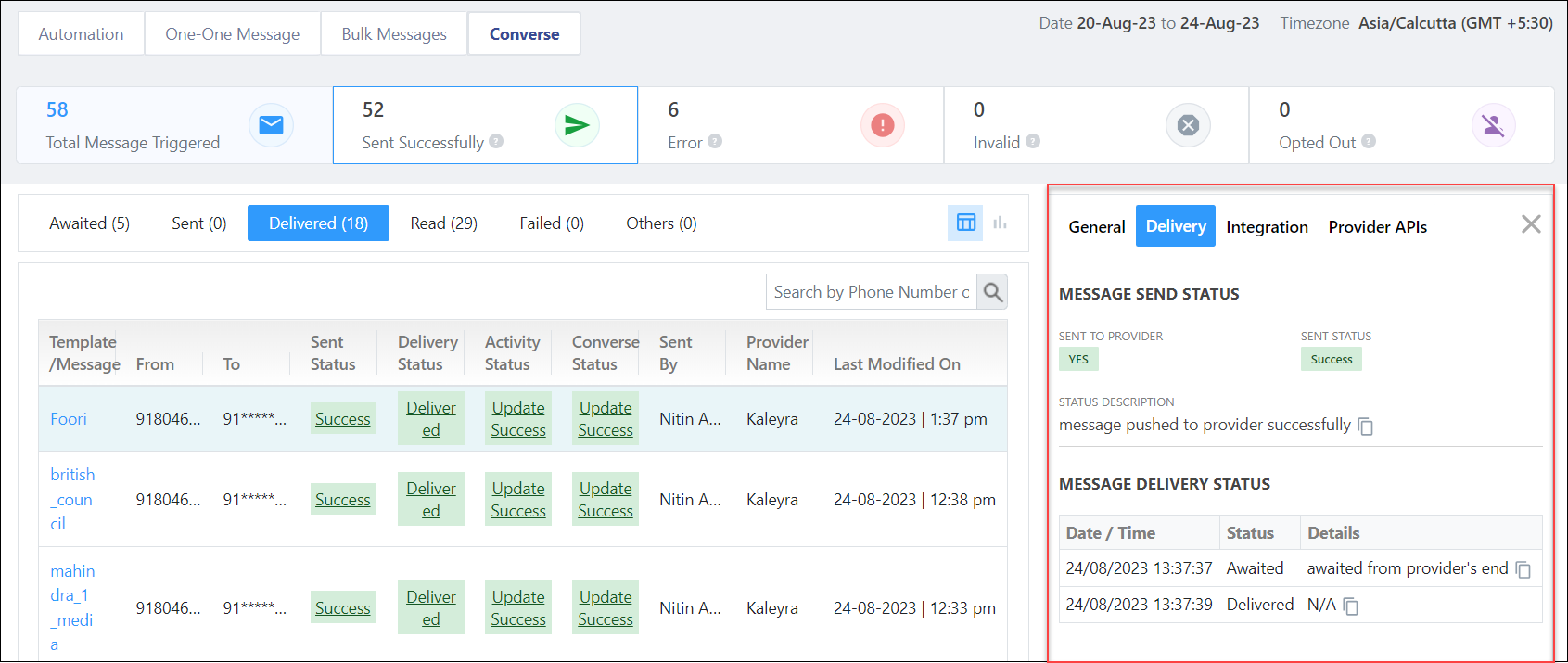
Opportunity Details Page

1. Feature Overview

Opportunities in LeadSquared represent potential deals. On the Opportunity Details page, you can add details pertaining to the opportunity, add activities, tasks and notes to the opportunity, and track the opportunity to completion. This will also enable all the stakeholders to be up-to-date on the current status of the opportunity.

Note:


2. Prerequisites

  • You must be the Administrator of your LeadSquared account.
  • You must have the opportunities feature enabled on your account. To enable it, please write to support@leadsquared.com


3. Activities

You can add and track activities on your opportunities from the Opportunity Details page. You can add activities from the list of activities you’ve created. An example of this is –

  • Enquiry phone call
  • Opened email
  • Clicked on advertisement

To know how to create custom activities, refer to How to Add a Custom Activity.

3.1 Add Activities

  1. From the LeadSquared main menu, navigate to Leads>Manage Opportunities>Opportunity Type.
  2. Under Enquiry, click any existing opportunity.
  3. On the Opportunity Details page, click the Activity Details button.
  4. On the Add Notable Activity pop-up, from the Activity Type dropdown, select an activity.
  5. You can add an activity date and additional activity details in the pop-up.
  6. Once you’re done, click Add. You’ll get a notification once the activity is successfully added.

Opportunity Details_E

3.2 Activity History

Under Activity History, you can see the list of changes that have been made. The changes are recorded for the following –

Audit History

  • Change in status – Every time there’s a change in the opportunity status.
  • Change in source – Every time there’s a change in the opportunity’s source.
  • Change in owner – Every time there’s a change in the opportunity’s owner.
  • Notes – Every time a note is added.
  • To edit an existing activity, hover your cursor on the right side of an entry, and click the  icon.
  • To delete an existing activity, hover your cursor on the right side of an entry, and click the Delete icon.

3.3 Activity Actions

You can use the Actions dropdown available on the top right corner to make changes to the activity.

Property Description 
Edit To make edits to the activities that have been posted on the opportunity.
Change Owner To change the current owner the opportunity is tagged to.
Change Status To update the current status of the opportunity, along with stating a reason and adding comments as to why the status has changed.

3.4 Opportunity Details

The opportunity fields can be updated under the Opportunity Details tab. These are the fields that were included when the opportunity was created. To know how to add or remove fields from the opportunity form, refer to Opportunity Configurations.

Once you’ve updated the opportunity fields, click Save.


4. Tasks

You can add and track tasks on your opportunities from the Opportunities Details page. You can add tasks from the list of tasks you’ve created. Examples of tasks are –

  • To-do lists
  • Set-up meeting
  • Collect documents

To know how to set up custom tasks, refer to How to Create Tasks and Schedule Reminders.

4.1 Add Tasks

  1. From the LeadSquared main menu, navigate to Leads>Manage Opportunities>Opportunity Type.
  2. Under Enquiry, click any existing opportunity.
  3. On the Opportunity Details page, hover your cursor over the Activity Details button.
  4. From the list of available tasks, choose a task.
  5. In the Create Task pop-up, enter all the required details.
  6. Once you’re done, click Save. You’ll get a notification once the task is successfully added.

Opportunity

4.2 View Tasks

Under the Tasks tab, the logs of all the completed and pending tasks are available.

  • To edit an existing note, hover your cursor on the right side of an entry, and click the Edit icon.
  • To delete an existing note, hover your cursor on the right side of an entry, and click the delete icon.


5. Notes

Add notes to the opportunity to ensure all the stakeholders are on the same page at any given time.

5.1 Add Notes

  1. From the LeadSquared main menu, navigate to Leads>Manage Opportunities>Opportunity Type.
  2. Under Enquiry, click any existing opportunity.
  3. On the Opportunity Details page, click the button.
  4. In the Add Note pop-up, add relevant notes.
  5. Click Attach File to upload relevant files to the opportunity. The maximum file size you can upload is 10 MB.
  6. Once you’re done, click Save. You’ll get a notification once the note is successfully added.

Opportunity

5.2 View Notes

Under the Notes tab, a record of all the notes that were added is available.

  • To edit an existing note, hover your cursor on the right side of an entry, and click the Edit icon.
  • To delete an existing note, hover your cursor on the right side of an entry, and click the delete icon.


6. Documents

On the Documents tab, view all the documents that were uploaded to the opportunity. To download a document –

  1. Click the Checkbox checkbox against a document.
  2. Click the Download icon against the document name, to download the file.
    • Alternatively, you can click the Download button on the top-right corner of the page.

Opportunity Details_U_1

You can open the documents in a new browser tab for quicker verification against the opportunity’s details. This helps in improving the efficiency of Sales Users who verify large numbers of documents received from opportunities. This feature is now available by default on the Opportunity Details page.

Note: Supported files include images, videos, and PDFs.

LeadSquared - Open doc in new tab - Opportunity details


7. Send Emails

From the Opportunity Details page, you can send one-to-one emails to your leads, as well as view scheduled emails. To do this, click the Send Email Button button.

You can also view all the activities related to the email (incoming emails, sent emails, bounced emails, and emails marked as spam), as well as reply to emails, from the Activity History tab.

Note: To enable this feature, please reach out to your account manager, or write to support@leadsquared.com.

LeadSquared Opportunity Management


8. View Support Tickets

View Service CRM support tickets tagged to opportunities directly from the Opportunity Details page. This provides full context at a glance and eliminates the need to switch between tabs. To enable this feature –

  1. Install and configure the Custom Opportunity Tab Connector in your account.
  2. During configuration, contact your account manager to get the URL to add to the connector to display tickets.
  3. Once the connector is configured, tickets tagged to the opportunity will automatically be displayed on the Opportunity Details page.

LeadSquared Service CRM


9. Troubleshooting

Why can’t I see the Opportunity Details tab on the lead details page?

If you can’t see the Opportunity Details tab on the lead details page, it may be that your admin has either removed or not added the Opportunity Details tab through the Lead Details View Customization (LDVC) feature. Request your admin to navigate to the Lead Details View feature and add ‘Opportunity Details’ under the ‘Tabs’ section.


Any Questions?

Did you find this article helpful? Please let us know any feedback you may have in the comments section below. We’d love to hear from you and help you out!
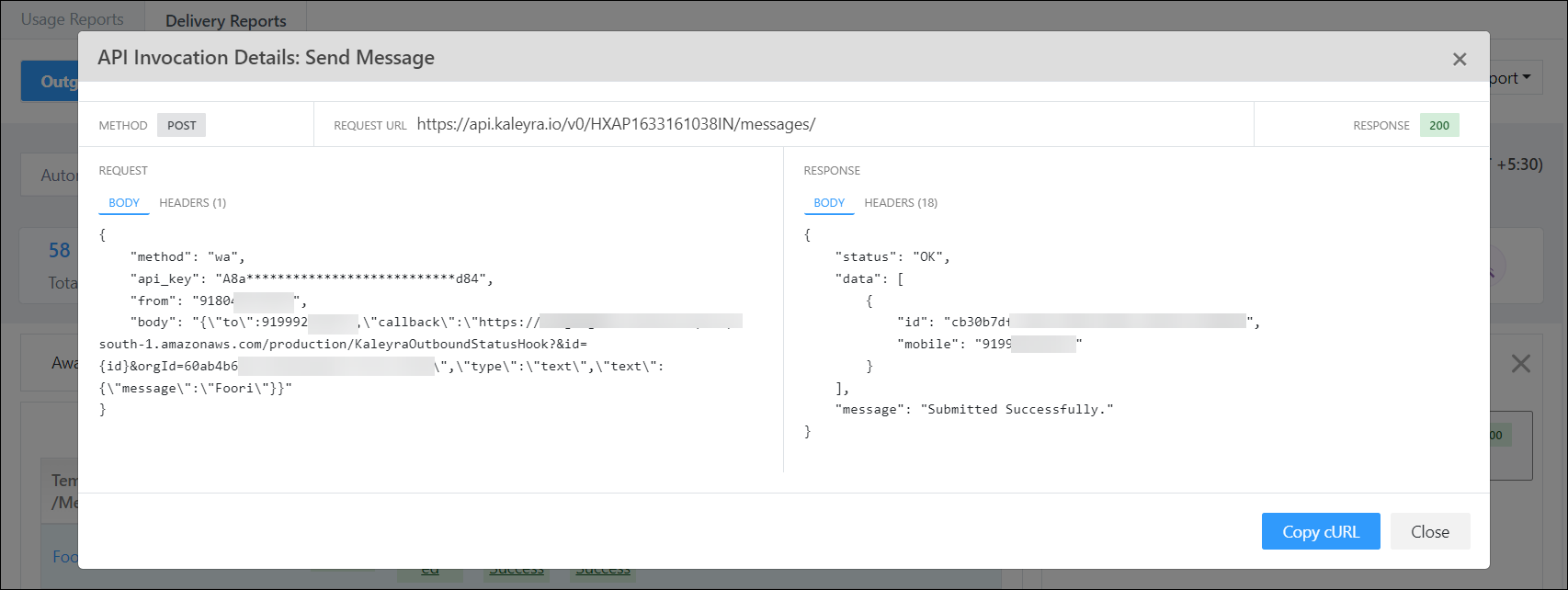
Report Management

1. Feature Overview

LeadSquared’s Report Management is aimed to help admins configure appropriate reports for their users. Each team/group/individual has their own requirements, goals, and KPIs to track. This creates a need for their own set of reports and dashboards for analysis and insights. While some reports may be common and may be needed by all users, certain reports will need to be accessed by a select few. 

Report Management home 1


2. Prerequisites

You will need to be an Administrator to configure Report Management.


3. LeadSquared Reports

Navigate to Reports>Reports Home.

report management nav


4. LeadSquared Report Profiles

LeadSquared Report Profiles lets you manage report and dashboard access for your users. Using Profiles, you will be able to design the report listing page for all your users.

Every user gets a reporting workspace called My Space. This is where all the reports available for the user will be listed. The report list will show only the available reports as per the profiles. If a user is assigned multiple profiles, the My Space will contain reports from all the profiles the user has been assigned.

Report Management my space 1

Profiles act as a layer between reports and users. It has four parameters –

Parameter Description
Sharing criteria An admin can define the sharing criteria for a profile. This can be set to Everyone, None, or User list/Teams/Groups/Roles.
Reports/Dashboards List An admin can define the list of reports and dashboards for a profile. Any user with access to the profile will see the reports and dashboards from this list.
Pin Reports/Dashboards for a profile Admins can also pin reports and dashboards to a profile. If a report or a dashboard is pinned for a profile, the user will find these reports and dashboards in the pinned section. Users can pin more reports and dashboards for their use, however, they will not be able to unpin a report or a dashboard that has been pinned in the profile.
Set Dashboards as home Admins can also set dashboards as home. When a user moves to the dashboard section, by default the Home Dashboard will open. Multiple Dashboards can be added as home dashboards and users can navigate among them.


5. Report Management Use Cases

Consider the organization structure below. Each team will require its own reports, including reports that can be accessed by the whole org.

report management hierarchy

For example, let us consider the organization requires the following reports –

  • Common Reports for all users
  • Admin Reports
  • Sales Team Reports
    • Central Team Reports
    • Regional Team Reports
  • Marketing Team Reports
    • Central Marketing Reports
    • Regional Marketing Reports

To handle this, LeadSquared Profiles give users access to restrict reports at User Role, Team, Groups, and User Levels. We can create the following profiles –

  • Common Profile – This profile will contain reports that will be needed for all users irrespective of their roles, teams, or department
  • Sales Profile – This profile will contain reports that will be needed for all Sales Users or the Sales Team
    • Central Sales Profile – This profile will contain reports that will be needed for all Sales Users of the Central Sales Team
    • Regional Sales Profile – This profile will contain reports that will be needed for all Sales Users of the Regional Sales Team
  • Marketing Profile – This profile will contain reports that will be needed for all Marketing Users or the Marketing Team
  • Admin Profile – This profile will contain reports that will be needed for all Admin Users or the Admin Team

report management reports structure

5.1 Advantages of Report Management With Profiles

  • Makes it easy to share reports – A new report can be easily shared by adding it to the respective profiles. For example, if a new report is needed for all users, you can add the report to the Common Profile.
  • Makes it easy to investigate reporting access – Admins can view any profile and identify the reports under them as well as the sharing criteria.
  • Remove report clutter – Reports that are not required can be removed from the profiles. This will reduce report clutter on the listing page.
  • Restore system reports – System reports that have been removed from the profiles can always be restored. This is available in the Default Profile.
  • Accommodate new report types – If a new report is needed to be shared with Central Sales Team and Mumbai Regional Sales Team, the reports can be added to a new profile, and sharing criteria can be set as Sales Group 1

report management sales group 1

  • Report Archival – If a  report is not required by users, but needs to be archived for the future, we can create a new Profile, add the reports there and set the sharing criteria to None. This profile can work as an archive for future use.

report management archive profile


6. Creating Profiles

This section will show you how to create and configure Profiles on Report Management

6.1 Creating a Profile for Everyone

The reports added to this Profile will be shared with all users –

  1. Click the drop-down under View profile as.
  2. Click on the report management new profileicon.
  3.  Enter a name for the Profile.
  4. Under the Profile will be shared to option, select Everyone.
  5. Select the reports you would like to share with all users.
  6. Once done, click Apply & Save Profile.
  7. You will now find this profile in the drop-down under View profile as.

report management creating public profile 1

6.2 Creating Profiles for a Specific Team

The reports added to this Profile will be shared with specific teams –

  1. Click the drop-down under View profile as.
  2. Click on the report management new profileicon.
  3.  Enter a name for the Profile.
  4. Under the Profile will be shared to option, select Only specific teams, roles, groups, or users.
  5. Under the Share the profile with option, select who you would like to share the reports with.
  6. Select the reports you would like to share.
  7. Once done, click Apply & Save Profile.
  8. You will now find this profile in the drop-down under View profile as.

report management team profile 1

Note: You can also add reports to profiles from tags in bulk.

report management add reports in bulk 1

6.3 Adding Dashboards to a Profile

You can add dashboards to new or existing profiles –

  1. Either create a new profile by clicking the report management new profileicon or edit an existing profile by clicking the report management edit profile icon.
  2. Under Select the reports or dashboards to add to the profile click the Dashboards tab.
  3. Select the dashboards you would like to add to the profile.
  4. Click Apply & Save Profile.

report management adding dashboard to profile 1

6.4 Pinning Reports and Dashboards in a Profile

Once you pin a report or dashboard, it will show up in the Pinned Reports or Pinned Dashboards tab –

  1. Either create a new profile by clicking the report management new profileicon or edit an existing profile by clicking the report management edit profile icon.
  2. On a report or dashboard, click on the report management pin icon to pin it.
  3. Click Apply & Save Profile.

report management pin report dash 1

Note: You can also click thereport management home dashboard icon on a dashboard to set it as a Home dashboard. These dashboards appear in the Home Dashboards tab in Analytics, and are also available as options in the home page selector when you log in to LeadSquared. You can set multiple dashboards as Home and they will show up on Home Dashboards.

report management home dash 1

6.5 Creating Archive Profiles

If any non-system report is not needed by users but needs to be archived for the future, we can create a new Profile, add the reports there and set the sharing criteria to None. This profile can work as an archive for any future use.

report management archive profile 1


FAQs

1. Who can create and assign profiles?

Only admins can create, edit, delete, and assign profiles.

2. What happens when a user has no profile assigned to them?

In the absence of a profile, users will see all the reports in the system, provided they have access to reports through permission templates.

3. What reports can admins view?

Admins also get to see reports that are assigned to them on the report listing page. This will be available to them under the My Space tab. Admins also have the privilege of viewing –

  • Default Profile – The default report is a store of all reports that LeadSquared provides. Any user with access to reports but without a profile will be able to see reports from this list.
  • Profile List – List of profiles created in the system. Admin can view any profile to check the sharing criteria and list of available reports inside them.


Any Questions?

If you have any questions related to Report Management that weren’t answered here, please leave comments below. We’ll be happy to help!

Integrate CallGear with LeadSquared Telephony

1. Feature Overview

CallGear is a cloud-based VoIP (Voice over Internet Protocol) phone system. Once you integrate your CallGear account with LeadSquared through the Universal Telephony Connector, you can –

  • Make calls and automatically track the calls in Lead Activity History.
  • Utilize the Agent Popup to store or view lead information during phone calls.
  • Automatically create new leads through incoming phone calls from unknown numbers.
  • View your call logs as LeadSquared activities together with downloadable recordings.


2. Prerequisites

  • You must be an administrator user of your LeadSquared account.
  • Your account plan must support Telephony integration.
  • You must have an active admin account with CallGear.
  • You must have the integrations package available with your CallGear account; for more information, contact CallGear.


3. Enable LeadSquared on CallGear

  1. Log in to CallGear through an admin account.
  2. Open the developer console on your browser and enter the following code –  localStorage.setItem('e1fc9436f005a0221435075f8bbdddca', '*')

callgear console

Next,

  1. Refresh the page on your browser.
  2. Navigate to Settings>Marketplace, under the LeadSquared logo press Enable.
  3. Now press Add.

You will now see the following fields –

callgear enable lsq

To find your LeadSquared API Access Key, Secret Key, and Host URL: navigate to Settings>API and Webhooks>API Access Keys on LeadSquared. For help, read Where can I find my LeadSquared API Host URL, Access Key, and Secret Key?

You can find the Call Log URL and Agent Popup URL by following the steps in the next section.


4. Install and Configure UTC

On LeadSquared, navigate to Apps>Apps Marketplace, search for the Universal Telephony Connector, and click Install.

Installing the connector

Next –

  1. Hover the cursor over the settings Settings icon icon and click Configure.
  2. Click the3cx add new connector icon to add a new connector.
  3. Select LeadSquared Generic Telephony Connector as the Connector Type.
  4. Name the connector as CallGear and click Add.

callgear utc config

4.1 Agent Popup API  and Call Log API URL

Now, you can navigate to the Agent Popup API and Call Log API tab to copy the URLs. Paste these URLs into the LeadSquared configuration page on CallGear.

callgear agent and call url

Note: make sure you enable Agent Popup as well.

callgear enable agent popup

4.2 Configure Virtual Numbers

Navigate to the Virtual Numbers tab to add one or more virtual numbers (these numbers will be provided by CallGear). If the agent (employee) in CallGear doesn’t have a SIP line connected (navigate to, CallGear account>Employees>your agent’s name>sip line with the outbound number) then Click 2 Call will be made from this number.

Once done, click on the callgear virtual number save to save the numbers.

callgear virtual numbers

4.3 Configure Call Route API

The Call Route API automatically routes incoming calls from existing leads to the respective Lead Owner in your LeadSquared account. The API (Lead Route V2) must be configured as a hook on CallGear.

Note: Please get in touch with CallGear to configure this API.

callgear call route api

4.4 Configure Click 2 Call

Navigate to the Click 2 Call tab and configure the following settings –

Parameter Value
Method Server Side API
URL https://leadsquared.callgear.com/click2call
HTTP Method POST
Response Keyword EVENT_RECEIVED
Request Type JSON
Data Template {"agent_email": "@agentEmail", "customer_number": "@PhoneNumberWithCountryCode", "app_id": xxxx}

Note: Replace the app_id value with your CallGear app id. For example, "app_id": 6666.
Response Type Text
Enable Select this value to enable Click 2 Call

Once done, click Save.

callgear click2call

4.5 Configure User-Agent Mapping

Navigate to the User-Agent Mapping tab, click + Add, and map your users with their respective CallGear email addresses or extension numbers. Once you do, users will be able to Click 2 Call and see the Agent Popup widget for inbound and outbound calls. Once done, click Save.

callgear user-agent mapping


Any Questions?

Did you find this article helpful? Please let us know any feedback you may have in the comments section below. We’d love to hear from you and help you out!
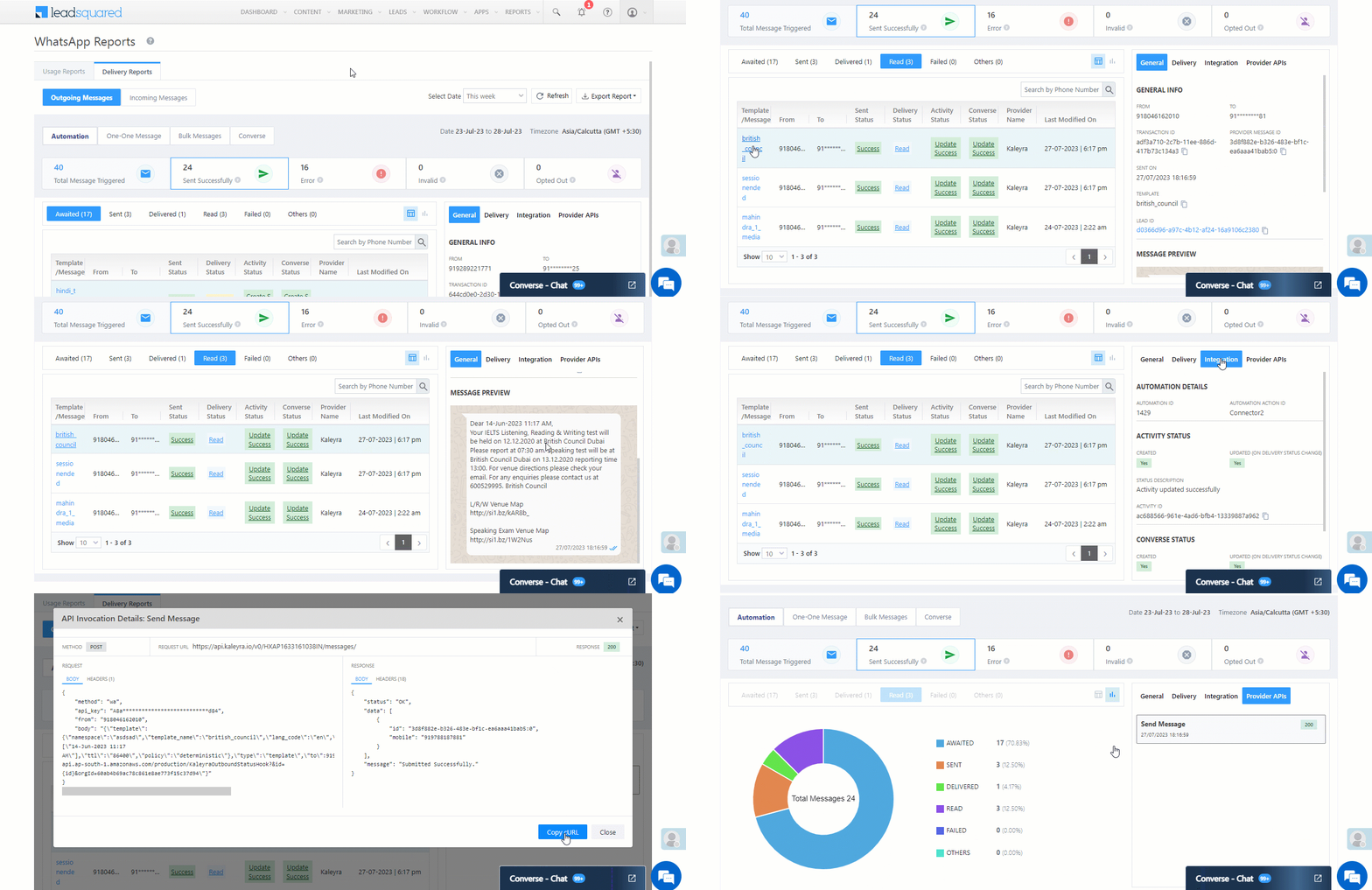
LeadSquared WhatsApp Integration with Airtel

1. Feature Overview

Airtel’s WhatsApp self-serve solution helps you engage your customers simply, securely and reliably. Airtel facilitates customer support and other marketing efforts through WhatsApp.

LeadSquared offers WhatsApp integration to help users communicate with their leads. Our WhatsApp functionality supports integrations through other solution providers like InfobipKaleyra, and Gupshup. This article helps you set up WhatsApp messaging through LeadSquared using Airtel as your service provider.


2. Prerequisites

If you’re not familiar with LeadSquared’s WhatsApp integration, see WhatsApp Business Messaging Connector. For frequently asked questions, see WhatsApp Business FAQs.

  1. Reach out to us at support@leadsquared.com regarding Airtel WhatsApp integration.
  2. Get an approved WhatsApp Business Number and Account.
  3. Submit Message Templates for Approval. To know how to do this, refer to Add WhatsApp Templates to LeadSquared.


3. Installation

To know how to install the WhatsApp Business connector, refer to WhatsApp Business Messaging Connector.


4. Configuration

Once the connector is installed, add and configure your WhatsApp phone numbers to the connector.

4.1 Basic Details

WhatsApp Zoko LeadSquared Integration

Field Description
WhatsApp Business Number Select the country code, and provide your WhatsApp business number. This field is mandatory.
To get your WhatsApp business number, contact your Airtel account representative.
Account Name Provide a relevant name for your connector. This field is mandatory.
Allow Lead Generation on incoming message EnableSlider to allow automatic lead creation when you receive messages from unknown mobile numbers.
Lead Source From the dropdown, select a lead source for your leads.

Once you’re done, click Next.


4.2 Service Provider

From the available options, select Airtel and click Next.

WhatsApp Airtel integration


4.3 Authentication Set-up

On this screen, enter –

LeadSquared WhatsApp Airtel Connector

Field Description
Client Base URL The base URL is listed here. This is a non-editable field.
WhatsApp Number The WhatsApp business number you provided in the Basic Details screen. This is a non-editable screen. To change the number, navigate back to the Basic Details screen, and change the number there.
Customer ID Enter your customer ID. To obtain it, contact your Airtel customer support executive.
Username The value you’ll have to enter here is a combination of your Airtel account username, along with the WhatsApp Business phone number linked to your WhatsApp business account (with the country code included).

For e.g., if your WhatsApp account username is “LeadSquared”, your country code is +91 (for India) and the WhatsApp Business phone number associated with your account is 9999999999, then the username you enter here would be LeadSquared-#-919999999999.
Make sure you enter the hyphen (-) and the hashtag (#) when passing the username.

Password Enter the API Key provided by Airtel.

Once you’re done entering all the details, click Next.


4.4 Converse Settings

LeadSquared Converse is an instant messaging feature that allows you to have real-time conversations with your leads via WhatsApp.

LeadSquared WhatsApp Integration

To integrate LeadSquared Converse with WhatsApp, complete the following steps –

  1. On the Converse Settings tab, toggle the Enable Converse Slider slider.
  2. Under User Access, grant permissions to users who can communicate with leads through the LeadSquared Converse.
    • Based on Role – From the Search and Select Users dropdown, select the LeadSquared user roles that can send messages through LeadSquared Converse.
    • Advanced (User Level) – Based on the value entered in the selected user boolean field (e.g., for the user Sam, the “Is Employee” user field contains the value “Yes”), the user will be able to send messages through LeadSquared Converse. From the Select User Field dropdown, select a relevant boolean field.
  3. Functionality – The following additional settings must be configured –
    • Approved Templates – Enable this functionality to allow your users to send approved WhatsApp templates to your leads.
    • Unapproved Templates – Enable this functionality to allow your users to send unapproved WhatsApp templates to your leads. These can only be sent if the 24-hours service window is active.
    • Notify Lead Owner* – When enabled, only lead owners will get notifications of the WhatsApp messages a lead sends. When disabled, all logged-in users will receive notifications of these WhatsApp messages.
    • Sending Rich Media – Enable this functionality to allow your users to send media files in the WhatsApp messages.

Note:

  • *Message notifications are only sent to one user, i.e., either the Lead Owner or to the user (other than the Lead Owner) that sent the WhatsApp message to the lead. When the Notify Lead Owner setting is enabled, only the Lead Owner will get notified, while the user who sent the message will not get a notification.
  • If you enable the Send Rich Media option, you must also enable the Approved Templates option. This ensures that you can add your media files to a template when messaging your leads.

LeadSquared Gupshup Integration


4.5 Advanced Settings

On this screen, provide the following details –

  • Activity Mapping – A LeadSquared activity field to your WhatsApp messages. This is the activity that will be posted every time a WhatsApp message is sent or received.
  • Default WhatsApp Number Fields – The number you set as the default phone number will be automatically selected when you’re sending a WhatsApp message to a lead. You can also select other numbers that are available from the Add Another Number dropdown.
  • Default Country Code – The default country code will be used to send messages to a phone number that’s stored in a custom field, if no country code is listed.
  • Enable Rich Media Template Support – If you want to include media files in your WhatsApp message, you must enable the Slider slider.
  • Enable HSM – Disable the Slider slider.
  • Compliance Type – Here, you can select the compliance type for the WhatsApp template, by choosing either WhatsApp Opt-out or Opt-in.
  • WhatsApp Opt-out – Your leads can opt-in or out of receiving WhatsApp messages on the basis of this field. From the dropdown, select a LeadSquared lead field for the WhatsApp opt-in/opt-out functionality.

LeadSquared - Ivosights Advanced Settings

Note: You must create a custom lead field of boolean type to map to the WhatsApp opt-out functionality. For example, you may create a custom lead field called “WhatsApp Opt Out”. Leads for whom the field is selected/checked won’t receive WhatsApp messages.

Click Save & Close when you’re done.

  • If your credentials are correct, you’ll see the success message highlighted below.
  • If they were incorrect, the integration will fail.


5. Conversing with Leads via WhatsApp

Integrating Converse with LeadSquared’s WhatsApp connector will enable your users to have real-time conversations with your leads through WhatsApp. Using templatised messages, you’ll be able to attach and send media files (such as images, documents, etc.) in your conversations. To know more, refer to LeadSquared Converse.
LeadSquared WhatsApp Integration


6. WhatsApp Templates

To configure WhatsApp templates, refer to Adding WhatsApp Templates to LeadSquared. While configuring templates in the LeadSquared portal , the Template ID has to be copied from the Airtel portal and pasted in the “Namespace” field.

Airtel portal

WhatsApp Airtel integration

LeadSquared portal – 

LeadSquared - ivosights modify template


Any Questions?

Did you find this article helpful? Please let us know any feedback you may have in the comments section below. We’d love to hear from you and help you out!
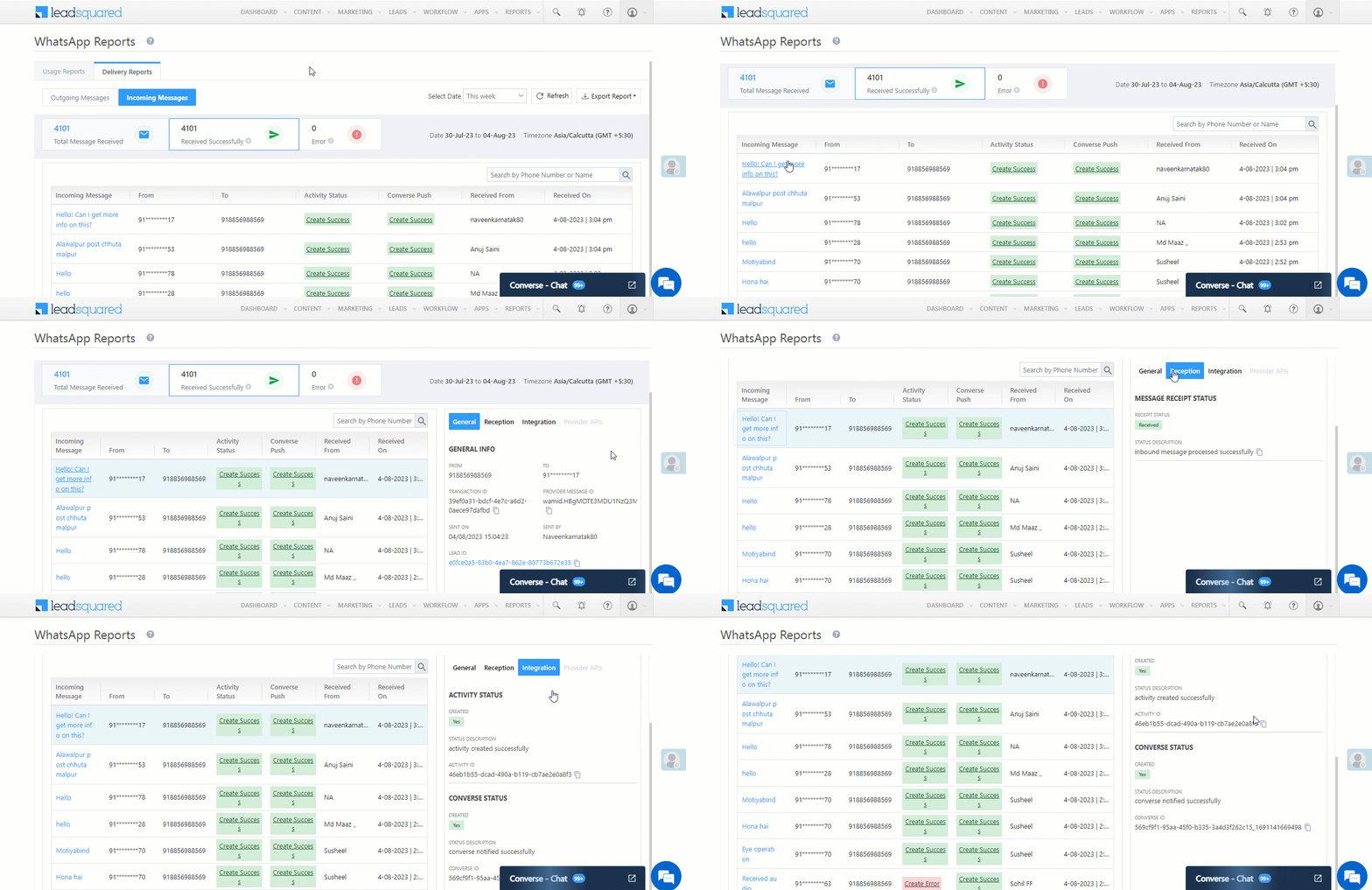
Integrate 3CX with LeadSquared Telephony

1. Feature Overview

3CX is an open-platform, VoIP (Voice over Internet Protocol) phone system that works on-premise or in the cloud. Once you integrate your 3CX account with LeadSquared, you can –

  • Make calls and automatically track the calls in Lead Activity History.
  • Open lead details automatically when an inbound call is received.
  • Automatically create new leads through incoming phone calls from unknown numbers.
  • View your call logs as LeadSquared activities.


Note: 

  • Since 3CX only supports GET requests for contact lookup, the Agent Popup functionality will be limited. Once a call connects, the user will not see a screen pop-up; instead, the user will be redirected to LeadSquared’s Lead Details page on a separate tab if they are logged in.
  • The Click2Call functionality for 3CX is available through their web softphone or desktop softphone. You will need to install the 3CX Click2Call extension – currently, the extension is only supported on the Google Chrome web browser.
  • Opportunity integration is currently not supported due to limitations with 3CX.
  • Call recordings are not supported out of the box on 3CX—this is a limitation on the provider’s end. Enabling this feature will require a custom workaround; please contact support@leadsquared.com.
  • In the latest version of 3CX, there aren’t separate portals for admin and web client, there’s a single common portal.


2. Prerequisites

  • You must be an administrator user of your LeadSquared account.
  • Your account plan must support Telephony integration.
  • You must have an active admin account with 3CX.
  • You will need to install the 3CX Click2Call extension on the Chrome Webstore for Click2Call functionality.


3. Install and Configure UTC

On LeadSquared, navigate to Apps>Apps Marketplace, search for the Universal Telephony Connector, and click Install.

Installing the connector

Next –

  1. Hover the cursor over the settings Settings icon icon and click Configure.
  2. Click the3cx add new connector icon to add a new connector.
  3. Select LeadSquared Generic Telephony Connector as the Connector Type.
  4. Name the connector as 3CX and click Add.

3cx telephony config


4. Configure User-Agent Mapping

Once you get the phone extensions from 3CX for the sales users (agents), map each user against their respective extensions in the User-Agent Mapping section of UTC. Once done, click Save.

3cx telephony user agent mapping


5. Configure Click2Call

The Click2Call feature lets your sales reps/agents place an outbound phone call by clicking the lead’s phone number on the Manage Leads or Lead Details pages. Currently, the 3CX Click2Call extension is only supported on Google Chrome.

Install the 3CX Click2Call extension from the Chrome Webstore.

3cx c2c install

Select an option for Which 3CX App to launch

  • The Desktop App option will open any clickable phone number on the 3CX Desktop App for dialing.

3cx c2c desktop app

  • The Web Client option will open any clickable phone number on the 3CX web client for dialing. You will need to enter your web client URL – for example, https://example.pbx:5001/webclient.

3cx webclient


6. Configure Call Log

All inbound and outbound calls made through your Telephony account can be logged in LeadSquared by setting up Call Logs. These logs will be posted to LeadSquared as incoming/outgoing phone call activities.

You must configure settings at both LeadSquared and 3CX for this functionality to work –

6.1 Upload LeadSquared Template on 3CX

You must also upload the LeadSquared template on your 3CX account to configure the Call Log functionalities –

  1. Download this template.
  2. Unzip the template.
  3. On your 3CX admin console, navigate to Settings>CRM.
  4. Upload the LeadSquared_3CX_UTC XML file.


6.2 Call Log Configuration for 3CX

Enter the following parameters on 3CX –

Parameter Description
Access Key, Secret Key, and API host Your Access Key, Secret Key, and API host will allow you to use LeadSquared’s API. For help, read Where can I find my LeadSquared API Host URL, Access Key, and Secret Key?
Web host Enter your LeadSquared web host URL. For example, https://ir31.leadsquared.com/


7. FAQs

1. How can I troubleshoot integration issues in 3CX?

  •  In LeadSquared – For contact lookup, you can look up the V2 API logs and look for Retrieve leads by phone number (Click on View Data for RetrieveLeadByPhoneNumber).
  • API logs page
  • In 3CX – On the 3CX admin console, navigate to Dashboard>Activity Log>Settings and turn on Verbose Logging.
  • 3cx console activity logs
  • 3cx enable verbose
    • Additionally, to download the logs, click on the email icon next to Support Info, and select 3cxSystemService.log
      3cx console support info

2. Why isn’t my 3CX web client placing a call?

One common reason might be when the phone number includes a “+” or “-” (for example, +91-9876543210). This could be a problem with the 3CX settings, and you will need to get in touch with the 3CX support team.

3. Why is the contact URL (lead redirect) not working?

You can try one or all of the following resolutions –

  • If you have a popup blocker on your browser, try disabling it –
  • 3CX switch off pop up blocker
  • On the 3CX admin console, navigate to Advanced>Contacts>Options. In the Match at least X number of characters option, reduce the value by 1. For example, if the value is 7, reduce it to 6 –
  • 3cx admin config
  • On the 3CX web client, navigate to Settings>Integration, Under CRM Integration select Open Contact URL using Server Side CRM Integration – 
  • 3cx open contact url


Any Questions?

Did you find this article helpful? Please let us know any feedback you may have in the comments section below. We’d love to hear from you and help you out!
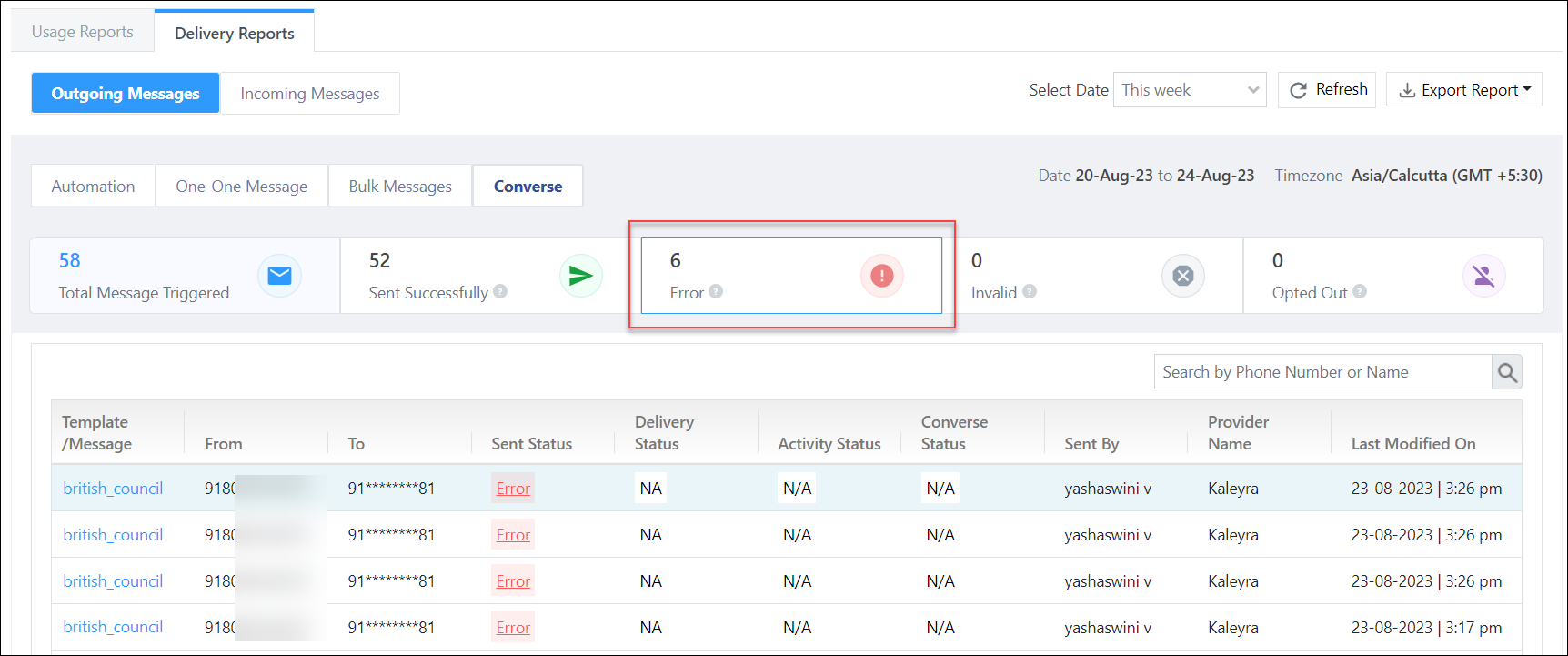
Google Reviews Connector

1. Feature Overview

The Google Reviews Connector captures and syncs customer reviews from your business’s Google page to your LeadSquared account. From LeadSquared, send personalized responses to customers based on their review sentiment (Positive and Negative) using predefined templates or Chat GPT. Additionally, you can invite leads to share their reviews, boosting your business’s visibility and online ratings. All of this allows you to view and manage your reviews from one place. Other advantages of this connector include –

  • Sync and Manage Reviews – Sync all your Google My Business (GMB) reviews, along with the business locations in which these reviews were posted.
  • Reply to Customers – Easily reply to reviews from LeadSquared, either manually, or by using predefined reply templates or Chat GPT. This ensures a reply from the business owner is sent to your customers as soon as they post a review.
  • Leverage ChatGPT – Generate contextual replies using Chat GPT for tailored responses to each review.
  • Invites for Reviews –  Send review invitation links to leads, encouraging more feedback about your business.
  • Analyze Your Reviews – Identify common words across all reviews to gauge overall customer sentiment.


2. Prerequisites

  • You must be the Administrator of your LeadSquared account to install and configure this connector.
  • This is a paid feature. To activate it, contact your account manager or email support@leadsquared.com.
    • There are additional costs involved if you’re looking to integrate Chat GPT with the connector. To know more, contact your account manager or email support@leadsquared.com.


3. How it Works

This connector sync all the reviews posted on your Google My Business account with your LeadSquared account. You can access and respond to these reviews from the connector’s dashboard.

  1. First, install and configure the connector. When completing the configuration –
    1. Link your GMB account with the connector, and if you have multiple businesses across different locations, select the businesses you want to sync.
    2. Verify if a review link URL is generated, which can be shared with your leads for posting reviews about your business.
    3. Choose a communication channel to post an auto-response to your customers. This can be done by setting up a default review template for Positive and Negative reviews, or by using Chat GPT to generate contextual replies.
  2. Once the connector is configured, navigate to the Google Review Connector screen to –
    1. Create and configure review templates by adding relevant content for each template type. While this step is optional, it is highly recommended you add review templates as they simplify the task of responding to customer reviews.
    2. Monitor and respond to customer reviews promptly to address any grievances and provide timely resolutions.

If needed, you can also share review link URLs directly with your leads via email from the Lead Details page.


4. Installation

  1. Navigate to Apps>Apps Marketplace.
  2. Search for Google Reviews Connector, and click Install.
    • Alternatively, you can find the connector on the left panel, under Analytics.
  3. Once installed, hover your cursor over , and click Configure.

LeadSquared Google Reviews Connector


5. Configure the Connector

5.1 Configure Business API

Here, link your Google My Business (GMB) account with the connector.

  1. On the Google Reviews Connector pop-up, go to the Configure Business API tab and click Connect Account.
  2. On the Sign in with Google pop-up, choose the Google account linked to your GMB account. Ensure all required permissions are granted, and click Continue.
  3. Once you’re redirected back to LeadSquared’s Google Reviews Connector pop-up, click Save & Next.
Note: Once you’ve signed in, you’ll see the associated GMB is checked by default on the Google Reviews Connector pop-up. You’re NOT required to check the box alongside the user profile linked to the GMB account (“Sri Sudhan R” in the below GIF).

LeadSquared Google Reviews Connector


5.2 Configure Locations

Here, select the businesses linked to your GMB account you want to sync with the Google Reviews Connector. You will only be able to view reviews posted on the synced business locations. Alongside a business location you want to sync, enable the LeadSquared Google Reviews Connector slider.

  • To refresh the location list that’s visible, alongside Google Locations, click .
  • If you have multiple locations, use the search bar to enter keywords (such as the locality name) to find a specific business.
  • If you have multiple GMB accounts linked to the connector, use the dropdown menu to select other GMB accounts. All businesses listed under the selected accounts will be visible here.

Once you’re done, click Save & Next.

LeadSquared Google Reviews Connector

5.3 Configure Review Invites

The connector automatically generates review links for each business, which you can share with your leads. If you prefer to share a shortened URL (using tools such as Bitly, TinyURL, etc.), click on LeadSquared Google Reviews Connector edit to add the URL. When your leads receive these links, they can post reviews about your business.

Once you’re done reviewing the link/adding a new link, click Save & Next.

LeadSquared Google Reviews Connector


5.4 Configure Auto Reply

To automate replies to your customers, alongside Configure Auto Reply, enable the Slider slider. You can choose to send replies through pre-defined templates, or through Chat GPT.

  • If you select Templates, refer to Configure Templates to add and configure your Templates.
  • If you select Chat GPT, no further configuration steps are required from your end. Contextual responses will be auto-generated using Chat GPT.

Once you’ve selected the channel, you can choose up to 10 users from the Notify Users on Auto Reply dropdown to receive email notifications whenever an automated reply is sent to a customer. Once you’re done, click Save & Next. This completes the connector configuration process.

Note: 

  • You’ll be charged for each individual response that’s generated through Chat GPT, and the total number of responses generated will be totalled and billed every month.
    • Note that you will be charged for a generated response even if you don’t end up using it as a reply to your customer.
  • This entire section is optional. You can choose to skip it, and click Save & Close. However, this means you’ll need to manually type out replies whenever you want to respond to a customer’s review.
  • Selecting users to notify when an automated reply is posted is also optional. You can choose to skip it, and click Save & Close.

LeadSquared Google Reviews Connector


6. Connector Dashboard

Once the connector is installed and configured, navigate to Apps>Google Review Connector. On the Google Review Connector page, to view all the reviews posted on your business –

  1. On the top-right corner of your screen, click LeadSquared Google Reviews Connector.
  2. From the options available, click Sync Now.
  3. Refresh the page after a couple of minutes, and you’ll be able to view all the reviews posted on the businesses synced with the connector.

LeadSquared Google Reviews Connector


6.1 Configure Templates

If you’ve chosen to configure auto replies using Templates, you’ll have to follow the steps listed below to configure these templates –

  1. On the top-right corner of your screen, click LeadSquared Google Reviews Connector.
  2. From the options available, click Configure Templates.
  3. The steps to configure a Positive Template and a Negative Template are the same.
    • If a customer rates your business 4 or 5 stars, the Positive Template will be sent as the response.
    • If a customer rates your business 3, 2 or 1 star, the Negative Template will be sent as the response.
  4. Enter the response text in the textbox. To mail merge a customer’s name, click LeadSquared Google Reviews Connector. This will pick up the customer’s name stored in their Google account.
  5. Once you’re done, click Save Changes.
  6. You can add multiple templates, and set one template each (under Positive and Negative) as the primary template. To do this, alongside the template, click LeadSquared Google Reviews Connector, and then click Save Changes.
Note: You can add up to 3 templates under each sentiment (which amounts to 6 templates in total).

LeadSquared Google Reviews Connector


6.2 Filters

You can apply the following filters to your reviews –

  • Review Rating – Filter reviews based on their ratings.
  • Select Date – Filter reviews by when they were posted. The options available are Last 24 Hours, Last 7 Days, Last Month and All.
  • Location – Filter reviews specific to each business location synced with the connector.
  • Reply Status – Filter by reviews that have not received a response yet.
  • Sentiment – Filter reviews based on their associated sentiment. Our advanced metrics determine whether a review is Positive or Negative.

Once you’ve applied filters, click Search.

LeadSquared Google Reviews Connector


6.3 Graphs

You can view the following graphs about your reviews –

  • Tag Cloud – Shows a list of the most frequently used words across all reviews synced with the connector.
  • Ratings – Presents a bar graph representing reviews categorized by their assigned ratings. Hover your cursor over each bar to view the number of reviews posted for each specific star rating.
  • Sentiment – Displays a pie chart illustrating reviews categorized by their associated sentiment. Hover your cursor over each section to see the number of reviews posted for each specific sentiment.

LeadSquared Google Reviews Connector


6.4 Send a Reply

From the dashboard screen, here’s how you can send replies to your customers –

  1. Under a customer’s review, click Add Reply.
  2. You’ll see two options to post a Response from the Admin
    • Use Template – The textbox will be auto-populated with the primary review template you’ve configured. You can edit this response if necessary. If you have multiple templates saved for the sentiment associated with the review, you can choose a preferred template from the dropdown.
    • Generate GPT Reply – Chat GPT will generate an appropriate response, which will get auto-populated in the textbox. You can edit this response if required.
  3. Once you’re satisfied with the response, to post the reply to your customer’s review, click Save. The Leadsquared users you selected when Configuring the Auto Reply will get a notification once the response is posted.

LeadSquared Google Reviews Connector


6.5 Other Actions

  • To find reviews containing specific keywords, enter these keywords in the search box.
  • After sending a response to a customer, you have the option to either Delete or Edit the sent response.

LeadSquared Google Reviews Connector


7. Share Review Link with Leads

To share review links (you added when Configuring Review Invites) with your leads by email, follow these steps –

  1. Navigate to Leads>Manage Leads, and click on the lead you want to share the invite link with.
  2. From the Lead Actions menu, hover your cursor over Custom Actions, and click Ask Reviews.
  3. On the Ask Reviews pop-up, provide the following details –
    • Location – From the dropdown, select the business location for which you’re requesting the review.
    • Review URL – The URL link for the review. This field is auto-populated and cannot be edited from this screen.
    • Email – The lead’s email address. This field is auto-populated and cannot be edited from this screen.
    • Subject – Enter the subject line for the email (e.g., “Please Review Our Business”, etc.).
    • Description – Enter the email body (e.g., “Please post a review using this link…”, etc.).
  4. Once you’re done, click Send Email. The review link will be sent to your lead.

LeadSquared Google Reviews Connector

Note:

  • To edit the lead’s email address, close the Ask Reviews pop-up and make changes to the email ID on the Lead Details page.
  • To edit the review link, navigate to Apps>Apps Marketplace, and on the Google Reviews Connector, click Configure, and on the Configure Review Invites tab, edit LeadSquared Google Reviews Connector the email ID.

LeadSquared Google Reviews Connector


8. FAQs

  • Is Chat GPT available as part of the connector’s basic offering?
    No, Chat GPT is not available as part of the connector’s basic offering. The basic offering allows you to connect your GMB account with your LeadSquared account and create reply templates. However, if you want to use Chat GPT, there will be additional charges for each generated response. Integrating Chat GPT with the connector does not require any additional steps.


  • When will I be charged for using Chat GPT?
    You will incur charges for every response generated through Chat GPT. Even if your user generates three responses but only uses one as a reply to your customer, you will still be billed for all three responses generated. The total number of responses generated in each calendar month will be calculated, and you will be billed accordingly. You can monitor your monthly Chat GPT usage on the dashboard to track your usage.

LeadSquared Google Reviews Connector


Any Questions?

Did you find this article helpful? Please let us know any feedback you may have in the comments section below. We’d love to hear from you and help you out!
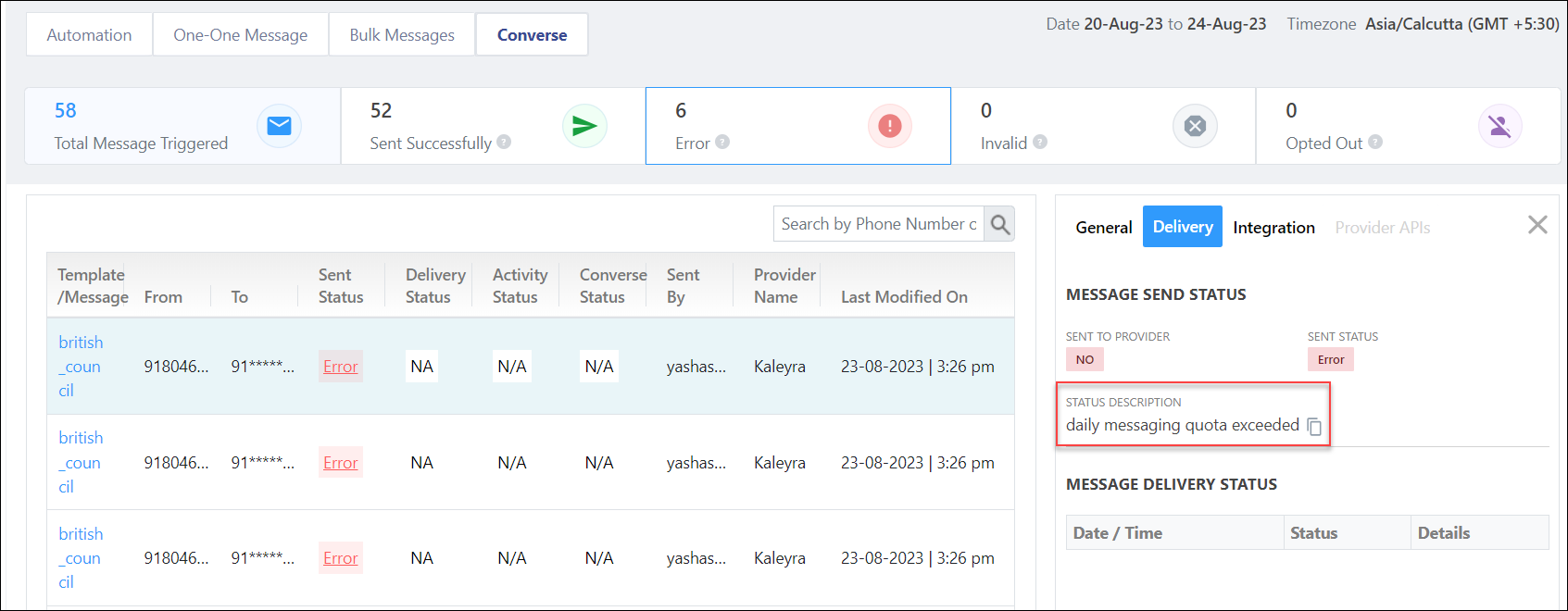
How to Migrate to the Zoom OAuth App

Important:

  • This article covers steps to migrate from Zoom’s JWT app to Zoom’s OAuth app. Only the Zoom authentication method has changed in the LeadSquared Zoom connector, while everything else remains the same.
  • If your LeadSquared account has any custom logic implemented for Zoom Meetings or Zoom Webinars, do not migrate before reaching out to your account manager. They’ll review your connector, and make necessary changes for you to migrate to the new app.
  • Zoom plans to deprecate the JWT App feature on 1st September, 2023. Post that, the JWT App you used to integrate with the LeadSquared Zoom Meeting Connector will not function, and your Zoom meeting and webinars will not get synced with LeadSquared.

Zoom LeadSquared Integration

1. Feature Overview

This article lists down steps to help you migrate from the Zoom JWT App to the Zoom OAuth App. This is mandated by Zoom. We recommend you migrate to the Zoom OAuth app because of the following reasons –

  • Security Enhancement – The new OAuth app is built using OAuth to authorize user credentials.
  • Deprecation of the JWT method – Zoom is deprecating the JWT method. To know more, refer to JWT App Type Deprecation FAQs.
Note: This article is applicable only to accounts where the LeadSquared Zoom Meeting Connector was installed and configured before 1st June, 2023.

What happens if the JWT app stops working and you haven’t migrated to the new OAuth connector?

  • LeadSquared won’t receive updates from Zoom for any future dated meeting created from LeadSquared. The meeting start and end activities won’tt be posted once the JWT app is deprecated.
  • You won’t be able to schedule new Zoom meetings from LeadSquared.
  • In case of webinars, lead registrations won’t be captured in LeadSquared.
  • Sales Users won’t be able to add leads to Webinars.
  • Webinar participants joined/left activities won’t be posted in LeadSquared. Task creation won’t work.
  • Also, any custom implementation setup on top of Zoom Meetings/Webinars might get affected.


2. Migration Steps in LeadSquared

  1. On your LeadSquared account, navigate to Apps>Apps Marketplace, and search for the Zoom Meeting Connector.
  2. Hover your cursor over the settings icon, and click Configure.
  3. On the Configure Zoom Meeting Connector pop-up, click the Sign in with Zoom button, and use your Zoom account credentials to sign in to the connector.
  4. Once you successfully sign in, your Zoom account will get connected to the Leadsquared Zoom Meeting Connector.
    1. If you’re using the Zoom Webinar feature, then navigate to the Webinar Settings tab, and repeat the steps listed above in this section.

Note:

  • Signing in through the Authentication tab will only capture your Zoom Meeting details, and this WILL NOT automatically capture Zoom Webinar details. If you want to capture Webinar details, it is mandatory to navigate to the Webinar Settings tab and sign in using your Zoom credentials.
  • If you use two different Zoom accounts for Meetings and Webinars, you can sync both these accounts with the Zoom Meeting Connector, by signing in with the relevant Zoom credentials on the Authentication and Webinar Settings tabs.
  • You can use the same Zoom account credentials to sign in on the Authentication tab and the Webinar Settings tab.
  • If you’re the owner of multiple LeadSquared accounts, and if the Zoom Meeting Connector is installed in more than one account, ensure you authenticate each Zoom Meeting Connector using different Zoom account credentials.
    • If you use the same Zoom account credentials to authenticate all the connectors, then you’ll automatically be logged out of all the connectors, except for the last connector you authenticated with your Zoom account details.

LeadSquared Zoom Connector


3. Migration Steps in Zoom

Once you’ve signed in to the LeadSquared Zoom Meeting Connector using your Zoom account credentials, navigate to the Zoom Marketplace.

3.1 View the LeadSquared Apps

On the Zoom Marketplace, search and view the LeadSquared Apps –

  • LeadSquared –  This app is to manage your Zoom Meetings in LeadSquared. Once you sign in to Zoom from the LeadSquared Zoom Meeting Connector, this app will automatically get connected to your Zoom account.  You can read more about this in the Zoom marketplace.
  • Webinar for LeadSquared – This app is to manage your Zoom Webinars in LeadSquared. Once you sign in to Zoom from the Zoom Webinars tab on the Zoom Meeting Connector, this app will automatically get connected to your Zoom account.

LeadSquared Zoom Connector


3.2 Action required in Zoom Marketplace

  • With the introduction of the OAuth app, you don’t need to manually add event triggers and webhooks for Meetings/Webinars (like it was previously required in the Zoom JWT app). Now, the meeting/webinar app automatically gets installed in your Zoom account, as soon as you sign in to the LeadSquared Zoom Meeting Connector.
  • Event notification triggers are pre-subscribed, and no action is required from your end for either of the apps (LeadSquared and Webinar for LeadSquared).


3.3 Deactivating the JWT app from Zoom’s Marketplace

  1. After you’ve successfully connected your Zoom account with the LeadSquared Zoom Meeting connector, test the integration by creating a test meeting/webinar from your Zoom account. This is to ensure the connection is stable and working as expected
  2. Once you’re satisfied with the test results, navigate to the Zoom Marketplace.
  3. Under the Manage section, alongside the Zoom LeadSquared JWT app you’d previously created, click remove.
    • To identify the JWT app, on the Created Apps section, under the Type column, search for JWT.
  4. Then, navigate to the Activation tab, and alongside the JWT app, click Deactivate Your App.
Note: If you don’t deactivate the JWT app, duplicate leads will be captured in your LeadSquared account, and duplicate Zoom meeting and webinar activities will be posted.

LeadSquared Zoom Connector


4. FAQs

  • In your Zoom connector, who can sign in to integrate the LeadSquared connector with your Zoom account?
    Only a Zoom Admin user, with all required permissions, can sign in to the Zoom Meeting connector. If you face any issues (such as the one listed in the below image), please contact your Zoom account manager, and they’ll help you out.

Zoom LeadSquared Integration


  • How much time will it take to migrate to the upgraded OAuth app?
    It should only take a few minutes to migrate, since the only action required from your end is to Sign in to the LeadSquared app using your Zoom credentials.


  • Is it mandatory to deactivate the JWT app that you had previously created in Zoom?
    Yes, Zoom have announced that they’ll deprecate the JWT app on 30th May, 2023. If the JWT app is not deactivated, it may cause issues with your integration. Using both integrations in parallel will result in duplicate leads and activities getting created.


  • What are the names of the new Zoom OAuth apps created by LeadSquared?
    There are two new apps created by LeadSquared are –

    • LeadSquared – This is to integrate Zoom Meetings with LeadSquared.
    • Webinar for LeadSquared – This is to integrate Zoom Webinars with Webinars.


  • Do you have to install the new LeadSquared apps on my Zoom Developer account?
    No, these apps are automatically installed when you sign in to the Zoom Meeting Connector (in your LeadSquared account) using your Zoom account credentials.


  • Are any actions required from your end once the LeadSquared apps are installed on your Zoom account?
    No, no further action is required from your end.


  • Can I sign in using two use Zoom accounts in the Zoom Meeting Connector?
    It is mandatory to sign in using at least one Zoom account with LeadSquared. But you can use two different accounts to sign in on the Authentication tab and Webinar Settings tab. Please ensure the user licenses are available and valid for each account.


  • Your organization has multiple LeadSquared accounts (tenants), and you use Zoom in more than one account. What should you do?
    • You can install the Zoom Meeting Connector on all your LeadSquared accounts. But you need to ensure you sign in on the Webinar Settings tab for each connector using different Zoom user accounts. For e.g., if you’ve signed in to the Webinar Settings tab in your LeadSquared account 1 using the Zoom credentials for john@example.com, then you cannot use the same account when signing in on the Webinar Settings tab in your LeadSquared account 2. You’ll have to use different Zoom credentials here (e.g., smith@example.com).
    • If you’ve used the same Zoom credentials (john@example.com in our example) when signing in to different LeadSquared accounts, then the last account on which you’ve signed in will remain connected (LeadSquared account 2 in our example), while the previous accounts (LeadSquared account 1 in our example) will get disconnected from Zoom Webinars.


Any Questions?

Did you find this article helpful? Please let us know any feedback you may have in the comments section below. We’d love to hear from you and help you out!

Integrate Bouncify with LeadSquared

1. Feature Overview

This connector sends leads from your LeadSquared account to your Bouncify account. The connector will verify a lead’s email address and then from the response, LeadSquared will post an activity against the lead. 


2. Prerequisites

  • You must be the Administrator of your LeadSquared account.
  • You must have an active Bouncify account.
  • This is a paid feature. To enable it, reach out to your account manager, or write to support@leadsquared.com.


3. How it Works

To push leads from LeadSquared to your Bouncify account, configure the Bouncify connector. Once configured, enable the connector sync.

During configuration, a webhook URL is generated in LeadSquared. Copy this URL and configure it in your Bouncify account.


4. Installation

You must first install and configure the Bouncify connector.

  1. Navigate to Apps>Apps Marketplace.
  2. Search for Bouncify, and click Install.
    • Alternatively, you can find the connector on the left panel, under Verifications.
  3. Once installed, hover your cursor over , and click Configure.

bouncify install

4.1 Configure the connector

Once you’ve installed the connector, on the Configure Bouncify pop-up, configure the connector access for the non-Admin users in your account. Only those users for whom access is granted can view and access the connector (under the Apps main menu).

  1. Select if you want to grant Connector Access that’s Based on Role or Advanced (User Level).
    • Based on Role – From the Specify Roles dropdown, select the LeadSquared user roles that can use the connector.
    • Advanced (User Level) – From the Advanced (User Level) dropdown, select a user boolean field. Based on the value entered in the selected boolean field, the user can access the connector (e.g., for the user Sam, if the “Is Employee” boolean user field contains the value “Yes”, then this user can access the connector).
  2. Once you’re done, click Save Details. To continue the configuration, refer to the below sections.
Note: By default, all Admin users will have access to the connector.
bouncify config


5. Admin Configuration

To continue the connector configuration, navigate to Apps>Bouncify.

bouncify admin config

5.1 Basic Settings

Enter the following details –

Property Description
API Key Pass your Bouncify account’s API Key here.
Lead Source Enter the lead source through which the leads were captured (e.g., Bouncify, email campaign, etc.). This detail will be displayed on the Lead Details page, under Lead Source.
Default Country Code If the lead’s mobile number is captured without a country code, the default country code that’s selected from the dropdown will be added to the lead’s mobile number.
Select Time Zone The time zone followed in your Bouncify account.
Lead Capture Search By Criteria To avoid duplicate leads, you must select one unique lead field (e.g., email Id, mobile number, PAN number, etc.) as the search key. This is used to identify the leads pushed from Bouncify.

To know how to mark a LeadSquared lead field as unique, please refer to How to Make a Custom Field Unique.

Lead Capture Secondary Search By Criteria If lead identification and capture through the primary Search By criteria fails, it will be re-attempted using the secondary Search By criteria.
Select User to Notify on Failure If there is an error in fetching leads, the selected user will receive a failure message via email. You can select a user from the list of all the users available in your LeadSquared account.

To know more about the type of errors, please refer to Error Notifications.

Enable Notification To ensure notification emails are sent to the selected user when there’s a failed query, enable the Checkbox checkbox.

Once you’ve entered all the details, click Save & Next.

bouncify basic settings save


5.2 Entity Options

Define the sync behavior of the connector when leads are captured.

5.2.1 Lead/Contact Entity

Based on the Lead Capture Search By criteria (email Id, phone number, etc.), LeadSquared identifies and captures leads from your Bouncify account. Lead capture is enabled by default, and it cannot be disabled. The following options are available to configure the connector’s Sync Behaviour –

  • Capture (Create and Update existing) Record – Leads that only exist in your Bouncify account (but not in your LeadSquared account) will get created in LeadSquared. Leads that exist in both your data provider and LeadSquared accounts will get updated.
  • Create only new record – Leads that only exist in your Bouncify account (but not in your LeadSquared account) will get created in LeadSquared.
  • Update only existing record – Leads that exist in both your Bouncify account and LeadSquared accounts will get updated in LeadSquared.
  • Do nothing – Leads do not get created or updated by syncing.
Note: This connector takes your lead details and verifies them. After which, LeadSquared will use that data to post an Activity against the lead. So, the Sync Behaviour is by default set to Do Nothing. It is recommended you don’t change this to any other setting.

bouncify lead sync

5.2.2 Mapping

On the Mapping screen, the Bouncify system fields mapped to the corresponding LeadSquared lead fields are visible. This mapping is carried out by default. If required, you can change or update the default field mapping.

  • To provide a default value for any field, click  , enter the value under Default Value, and click Google.
    • If the data provider doesn’t send data for any lead field, then the default value will get assigned to that specific field. But if the field already has an existing value, then the default value will be ignored.
  • To disable lead data capture for any field, disable the Zoom slider.
  • You can also mark and update a unique lead field as the search key from this screen, by clicking unique icon.
  • To create a custom Bouncify field, click the Add Custom button.
    1. Once this field is created, you must map it to the relevant LeadSquared lead field.
    2. After the field is mapped, to save the custom field, click Google.
    3. To delete a custom field, click .

Once you’re done, click Save & Next.

Note: Based on the lead fields configured in your Bouncify account, add or update the lead fields in LeadSquared.

bouncify lead mapping


5.2.3 Send Lead e-Mail for verification

You can use this action to send the lead’s email address for verification.

  1. On the Mapping screen, click    if you need to edit the API Params, Default Mapping Key, and Description.
  2. click Save & Close.

bouncify send email mapping


5.2.4 Activity Entity

Once leads are captured to LeadSquared, you can post custom activities to these leads (e.g., Ticket Creation, Chat Transcript, etc.). These activities will help users keep track of the lead’s journey to conversion.

Note: Ensure you complete the Enable Activity Creation steps first, and only then complete Edit Mapping. Alongside Lead verification activity click the Create Activity button. Ensure that in the activity entity, the activity type is Lead verification activity

To post activities to the leads captured from Bouncify, against Activity Entity, enable the Slider slider. The following options are available to configure the connector’s Sync Behaviour when activities are synced to LeadSquared –

  • Capture (Create and Update existing) Record – New activities will get posted to the lead in LeadSquared while existing activities will get updated.
  • Create only new record – Only new activities will get posted to leads in LeadSquared.
  • Update only existing record – Only existing activities on the leads captured will get updated in LeadSquared.

Once done, click Save & Next.

bouncify activity mapping

5.3 Generate Webhook URL

After you provide basic details and finish field mapping, a custom webhook URL is generated. To automate lead capture, copy this URL and configure it on your Bouncify account.

After you’ve set up the webhook, click More Actions, and enable the sync job. This ensures that through the webhook, lead data from Bouncify is pushed to LeadSquared.

Note: To view logs of all the sync jobs that have taken place, from the More Actions dropdown, click View Logs.

bouncify webhook url


6. Create an Automation

Use the Webhook URL to create an automation that sends a lead’s email address to Bouncify for verification.

  1. Navigate to Workflow>Automation, click Create Automation, and select the New Lead trigger.
  2. On the Automation starts when a lead is added pop-up –
    • Click +Add Conditions.
    • The Automation should run for new leads that have an email address, so, add a criteria that checks the email lead field contains data.
    • Once you’re done, click Save.
  3. Click Add Automation, and under Custom, click Webhook.
  4. On the Webhook pop-up, enter the following details –
    • Name – Enter a relevant name for the webhook. We’re calling it “Bouncify Lead verification Activity”.
    • URL – Select the method as https://, and paste the connector’s webhook URL that was generated in the previous step. Ensure you remove “https://” from the URL.
    • Content Type – Select application/json.
    • Save Response – You can select either Yes or No.
    • Custom Headers – You can skip this step.
    • Notify on Failure – Select which user you want to notify if the webhook fails.
    • Retry Count – The number of times you want to retry when the webhook fails.
  5. Once you’re done, click Save, and then click Publish.
Note: To know more about the Webhook action, refer to User Automation Actions – Webhook.

bouncify automation


7. View Logs

Here, you can view logs of all the sync jobs that have taken place. View New Events (New Leads), Updated Events (Updated Leads), and Errors (when capturing leads).

  1. Navigate to Apps>Bouncify.
  2. From the More Actions dropdown, click View Logs.
  3. You can filter the logs by selecting a date range (Today, Last 7 Days, This Month, and Last Month), by selecting the Job Status (“All”, “Success” and “Failure”), and by selecting the Sync Status (All, Error, and Success).
  4. You can view the sync status of the following events –
    • New Events – List of all the new leads that have been created in LeadSquared during the selected date range.
    • Updated Events – A list of all the –
      • Duplicate leads that were created with the same Search by Criteria value (e.g., with the same Email Id, Mobile Number, etc.).
      • Leads that previously contained errors, which were fixed and synced successfully.
    • Failed – The list of leads that have not been captured due to mapping errors (e.g., when a boolean field is mapped to an integer field, etc.).
  5. To view the Sync Response details, under Request ID/Sync Job ID, click the Id.
    • Under the right panel, you can view the response status, the API URL, the request, and the response.
    • The responses that are successful will contain the details of the leads that have been pushed from Bouncify.
    • To view the lead capture response under Sync API Response, Leads Updated and Errors in Leads, click Information.

Note:

  • For a response that contains an error, the reason for the error is listed in the response. Once you fix it, you can click the Retry button to perform the sync again.
  • The current Lead Sync Behaviour will reflect in the Logs screen. This will help identify the sync that’s used (Capture or Update) for the selected Request/Sync Job Id.

google forms view logs


8. Other Actions

You can edit or delete the Bouncify connector instance that you created. To do this –

  1. Navigate to Apps>App Marketplace.
  2. Search for Bouncify.
  3. Alongside the Bouncify connector, hover your cursor over .
  4. From the list of options, you can perform the following actions –
    • Edit Configuration
    • Disable Configuration
    • Remove Configuration

bouncify more actions


9. View Reports

You can view the total number of leads that have been pushed by Bouncify, by referring to the Lead Source report. To know more, please refer to How to track the source of your Leads using Lead Source Report?

Integrate LeadSquared with Google Forms


Any Questions?

Did you find this article helpful? Please let us know any feedback you may have in the comments section below. We’d love to hear from you and help you out!