Send Quick Email to a List of Leads

1. Feature Overview

This article describes how to send bulk Emails to any List in your LeadSquared account. Some other ways of sending emails include –

You can either draft your own Emails or use the Email templates available on your LeadSquared account. You can learn more about List in this feature guide.

LeasSquared email template


2. Process

  1. Navigate to Leads>Manage List. Select the list you want to send the email to.
  2. Hover your cursor over “settings” and click Send Email.
  3. A window opens up where you can fill in details like Email Category, From, To, and Subject.
  4. Compose your email and select Test your email.
  5. After you successfully send the test email you will get an option to either Send Now or Schedule for later.

LeadSquared Email List


Alternatively you can also open the List Details page by clicking on the list name. Under List Actions dropdown select Send Email.

LeadSquared Email List


Note: It is mandatory to send a Test Email to preview your email. You can either send the email immediately or schedule it for later.


3. Send Now

To send the email immediately select Send Now from the Send option.

LeadSquared


4. Schedule for Later

To schedule the email for later-

  1. Under Send options select Schedule for Later.
  2. Enter details like the date and time you want to schedule the email for.
  3. Click Schedule.

You will be able to view the email scheduled on the List Details page.

Note: The email goes out immediately after you click send and it cannot be undone. You can view email delivery in respective leads in the list. The leads who have opted “Do Not Email” field will not receive the email.

You cannot track individual delivery, open/click report for this type of email. If you want to track such type of metric use the Email Campaign feature.

Clone a Lead

1. Feature Overview

The Lead Clone feature allows you to clone specific lead fields. This is useful when you have multiple leads that share common lead details (such as city, organization, etc.).

For e.g., if you have multiple leads in the same company, they are likely to have a few of the same details (company name, lead source, etc). With the Lead Clone feature, you can duplicate these details while entering a new lead in the database. You can then enter the specific lead details (Name, Address, Phone Number, etc) and save it as a new lead.

Note: Lead cloning is currently not supported in NextGen.


2. Prerequisite

For the lead fields you want to clone, enable the Use in Lead Clone setting.


3. Manage Leads page

To clone a lead from the Manage Leads page –

  1. Navigate to Leads>Manage Leads.
  2. Against the lead you want to clone, hover your cursor over, and click Clone.
  3. The lead fields for which lead clone is enabled, are automatically pre-populated with the cloned values.
  4. Enter the other lead details, and once you’re done, click Save or Save and Exit. The new lead is now created.

LeadSquared - Cloning leads from Manage Leads


4. Manage Lists page

To clone a lead from the Manage Lists page –

  1. Navigate to Leads>Manage Lists.
  2. Open the list that contains the lead you want to clone.
  3. Against the lead you want to clone, hover your cursor over, and click Clone.
  4. The lead fields for which lead clone is enabled, are automatically pre-populated with the cloned values.
  5. Enter the other lead details, and once you’re done, click Save or Save and Exit. The new lead is now created.

LeadSquared - Cloning leads from Manage Lists


Any Questions?

Do you have questions or issues with the content in this article? Let us know in the comments section below. We’ll get back to you asap!

Landing Page Style Editor

LeadSquared’s responsive landing page designer lets you control the formatting of the page using your custom stylesheet information. You can do it through the Style Editor in landing page designer:

Style Editor Link

You will see the default style information displayed. That cannot be edited. You can copy the default style using the clone icon.

Clone the default style

Give your style a name and save:

Style Name

Update the style information:

1) You can control style of each type of block in landing page that have pre-defined styles and templates:  Image Block, Feature block, CTA block, Testimonial Block, Media Block and Form Block.

2) The style templates can be edited and removed. New style templates cannot be created.

Style Editing

Save the style after editing. Saving does not apply the style immediately.

Save Style

Apply the style to see it in action landing page:

Apply Style

Configuring Multiple Domains in LeadSquared

1. Feature Overview

The Website and Landing Page Domain settings allow you to associate your business/brand domains (and sub-domains) with your LeadSquared account. We track website visits on these domains and post them as activities against your leads. In addition, you can also host Portals and Landing Pages built with LeadSquared on sub-domains created under your main domains.

Note:


2. Prerequisites


3. Your Default Domain

When you sign-up for a LeadSquared account, you provide a website domain for your business. That becomes your default domain. Once the LeadSquared tracking script is installed on all web pages of your main domain (e.g., www.mydomain.com) and any subdomain (e.g., sales.mydomain.com, offers.mydomain.com), your lead’s website visits get tracked in your LeadSquared account.

To view your default domain, navigate to My Profile>Settings>Lead Tracking>Website & Landing Page Domains.

default domain


4. Adding Website Domains

You can add more domains (subject to limits in your subscription plan) to track website visits of leads.

  1. Navigate to My Profile>Settings>Lead Tracking>Website & Landing Page Domains.
  2. Click Create.
  3. Select the purpose as Website Tracking.
  4. Enter the domain name. Don’t add ‘www.’ or any other prefix while entering the domain name.
  5. Click Save.

Add New Website Domains

Setting a Primary Domain
The primary domain is set up to track website visits that result from leads clicking links in your email campaigns. The email campaign links are encoded using the primary domain (for details, see Domain Setting for Email Link). You can set only one domain as primary –

Alongside the domain, hover your cursor over the settings icon, then click Set as Primary. You can also delete domains here.

set domain as primary

Note: Ensure that the LeadSquared tracking script is installed on all website tracking domains. When the tracking script is installed on a domain, you’ll see this icon green tick alongside the domain name.


5. Adding Landing Page Sub-Domains

The default domain to host LeadSquared landing pages is <yourdomainname>.viewpage.co.
viewpage.co is a domain name owned by LeadSquared.

Alternatively, you can host landing pages created using LeadSquared on your own sub-domain. For example, page.yourdomainname.com

5.1 Add a CNAME Record in Your DNS

First, add a CNAME record in the Domain Name System (DNS) server where your website is hosted (GoDaddy, Hostgator, Bluehost, etc.).
The CNAME record must point your landing page sub-domain (e.g., page.yourdomainname.com) to cloud.viewpage.co. Your service provider will have documentation available on this. Here are some docs of popular hosting providers

Note: The settings in your DNS may take up to 48 hours to reflect.

5.2 Configure the new sub-domain on LeadSquared

Once the DNS settings take effect, go to your LeadSquared account and –

  1. Add a new website domain as described in the previous section.
  2. Next, click Create to add a new domain.
  3. Under purpose, click Landing Page Hosting.
  4. From the drop-down, select the domain added in step 1.
  5. Enter the sub-domain name.
  6. Click Save.

add new landing page domain

Your landing page is now live. You’ll see a green tick green tick alongside the sub-domain.

landing page verification

You can add multiple landing page sub-domains across your primary domains. To mark a sub-domain as primary, hover your cursor over the settings icon, then click Set as Primary.

LeadSquared SSL Certificate


Any Questions

Leave us a comment below. We’d love to help you out!

How to send form data from Landing Page to an external URL?

You can send the lead data captured by the form (after a visitor submits on a landing page) to an external URL.

This URL can be another landing page or your company’s website or any URL you prefer.

Pre-requisites:

  1. You have logged in to LeadSquared.
  2. You have completed selecting the landing page template and created a landing page using the landing page editor. (Step 1 and Step2).


For a complete overview on how to create and publish a landing page refer to the following article below.

How to Create and Publish a Landing Page?

Procedure to send form data from Landing Page to an external URL:

In Step 3 – Actions Step of creating a Landing Page, under the section “What happens after the visitor submits the landing page?” you can choose to redirect the Lead to another URL .

The option “Is redirected to a URL” allows you to redirect the lead to a URL after submitting on the landing page.

You can select the landing page of your choice in the drop down menu (You can see landing pages in the drop down if you have created one earlier). Or you may choose to “Provide an External URL”

You can send the form data to the “redirected URL” i.e., a Destination Page by selecting “Include From Data“.

GET method of data inclusion

Now to send the form data to the “redirect URL”. Both POST & GET methods can be used based on what is required.

You can use this feature to integrate with your automated user sign-ups, your own apps which require visitor data or even integrate with payment processing gateways like Paypal.

When you include form data via Get, the data entered in the form will be sent to the URL and you can see the URL with additional parameters on the redirect page. (Refer to the figure below).

TY page with added parameters

Note: When Form data is included via Post the destination page  has to process by reading from the HTTP post.

How to show a pre-filled default value to a field in landing page form?

For an overview on how to create Landing Pages please refer to the following article.

How to Create and Publish a Landing Page?

And to know how to create a lead capture form refer to article; How to Create Lead Capture Forms?


You can show/have Pre-filled default values in the fields of lead capture forms.

For an instance, while targeting a group of leads from a specific city/state, you can have the city-name pre-filled by default in the field.

Similarly it should be useful in many such situations where fields can be pre-filled with some value.

How to show pre-filled default value to a field in landing page form:

Prerequisites:

  1. You have logged in to LeadSquared.
  2. You have navigated to Dashboard > Marketing > Landing Pages > Create Landing Page.
  3. Reached Step 2 of building Landing page and added form block.


You can see the form on landing page builder with empty fields as shown below.

Form with empty fields

Procedure:

1. You may double click or Select the Form block and click on Edit Content of the form block to see the Form Designer.

Edit content

2. Here is the Form Designer to Edit the Form Block on the Landing Page.

Click the field on the Form Designer to see the Lead Field Properties on the right side.

 Enter the required Text against Value field in Lead Field Properties Section and click on Save.

City by default

3. Proceed with building the Landing Page Steps and Publish/Republish the Landing Page.

Once published, you will see the landing page with the Pre-filled fields. (As shown below).

City by defaul previewt

How to Create a Dropdown Type Lead Field

1. Feature Overview

For lead fields that require a predefined set of options (such as course, product type, or salary range), LeadSquared lets you create dropdown type lead fields. LeadSquared supports three dropdown variants:

Type Description
Dropdown Displays all available options in a standard list.
Searchable Dropdown Filters options as the user types, useful for large option sets.
Dropdown with Others Includes a built-in “Others” option alongside your defined values.


2. Prerequisites

You must be an administrator of your LeadSquared account.


3. How It Works

Dropdown fields are a type of custom lead field. When you create one, you select the dropdown variant, then define the options users can choose from. The options can be entered manually or imported via CSV for larger sets.

Once saved, the field becomes available to add to your lead forms. The variant you choose determines how options are presented to users and how many options the field supports:

  • Dropdown and Dropdown with Others support up to 1,000 options entered manually.
  • Searchable Dropdown supports up to 1,000 options entered manually, or up to 100,000 options via CSV import.
  • Dependent dropdowns support up to 1,000 parent options and 5,000 child options across all parent fields.


4. Create a Dropdown Field

The steps below apply to all three dropdown variants. The only difference is the option you select in the Show As dropdown in step 3.

  1. Go to Settings>Leads>Lead Fields and click Create.
  2. From the Data Input Type dropdown, select Dropdown.
  3. From the Show As dropdown, select the variant you want to create: Dropdown, Searchable Dropdown, or Dropdown with Others.
  4. Enter your options under Select Options.
    • For Searchable Dropdown, enter options in comma-separated format or click Click here to import a CSV file of options.
    • To set a default option, click the default icon alongside it.
    • To reorder options, use the up and down arrows.
    • To remove an option, click the remove icon.
  5. To add more options, click Add.
  6. Click Save.
Note: For Searchable Dropdown fields with more than 100,000 options, see Large Options Set.

create a dropdown type lead field


Related Articles


Any Questions?

Did you find this article helpful? Please let us know any feedback you may have in the comments section below. We’d love to hear from you and help you out!

How to control lead export and lead delete permissions for users?

You can control all user permissions (including view, create, edit, export, delete, etc.) through the Permission Templates feature.

  1. First, you need to learn how to create a permission template. You can grant no access or full access for lead export and delete.
  2. Once you’ve created a permission template learn how to apply permission templates at the user, role or group levels.

How to embed Google Analytics Script in Landing Pages

LeadSquared offers you to track the visitor trend on the Landing Pages by using Google Analytics.

Prerequisites:

Obtain the tracking Script from your Google Analytics account (click here for help).

You have completed Step 1 , Step 2  , Step 3 of creating a landing page in LeadSquared.

Procedure to add Google Analytics Script to a Landing Page:

1. In Step 4 of the Landing Page builder (as shown in the figure below);

Step-4

scroll down to the bottom to reach ‘Embed JavaScript’ in ‘Other Actions‘ section.  Paste the Google Analytics Tracking Script in Inside Head tab. And click on ‘Next’ to proceed with further steps of creating landing page.

Google-analytics-script

Proceed until the last step (Step 5- Summary) of Landing Page builder.

Step-4

Scroll down to the bottom and click on Publish button to publish the landing page.

Publish LP

Now you can track the visits in Google Analytics.

Note: If Google Analytics Script was not added to an already published Landing Page, you can edit the Landing Page and add the script in Step 3 of the Landing Page Builder(as explained above). Then proceed to step 5 to republish the landing page.

Click on Republish button for tracking on the landing page to be effective.

click to republish

Merge Leads

1. Feature Overview

Merge duplicate leads in your account into a single lead. This feature enables you to choose the lead details you want to retain versus those you want to overwrite.

Note: You can also set up automations to merge leads programmatically. For details, see How to Merge Leads through Automation.

Merge


2. Prerequisite

You must be the administrator of your LeadSquared account.


3. Merging Leads

3.1 Using the Duplicate Leads Report

  1. Navigate to Reports>Reports Home, and search for the List of Duplicate Leads report.
  2. Once you open the report, from the Select Lead Field dropdown, select the unique lead field based on which you want to identify duplicate leads, and click Show Duplicates.
  3. Alongside the unique lead field value you want to merge, click Merge.
  4. On the Merge Leads page, click Merge. This will merge all the selected leads.

LeadSquared Leads Merge


3.2 From the Manage Leads Page

  1. From the main menu, navigate to Leads>Manage Leads.
  2. Use the Checkbox checkbox against the leads you want to merge. You can also use the Search Leads bar to select the leads.
  3. Hover your cursor on the Actions button, available on the top-right corner of your screen, and click on Merge Leads.
  4. On the Merge Leads page, you can filter by Only Lead Fields with Different Values or All Lead Fields.
  5. Once you make your selection, from the list of lead fields, click the lead fields you want to retain as the primary lead field. You will get a Tick tick against the fields you choose.
  6. Once you’re done selecting the fields, scroll to the bottom of the page and click Merge.
  7. On the Merge Lead confirmation pop-up, click Merge.
  8. Once the leads are merged successfully, you’ll get a notification stating the same. You can view the merged lead by clicking on Merged Lead.

Note: You can merge only up to 20 leads at a time.

Merge Leads


4. Merge Lead Activities

The details of the lead fields that have been merged are recorded as activities against the retained lead. You can view them in the Activity History tab on the Lead Details page.

  1. Navigate to Leads>Manage Leads, and click the merged lead.
  2. On the Lead Details page, under the Activity History tab, the entry for the lead merge is visible.
  3. Against the lead merge entry, click Details.
  4. On the pop-up, you can view the details of all the lead fields that have been retained.

Merge


Troubleshooting

Issue: Permissions and Restrictions on Merging Leads

  • Issue Description: Some sales users can merge leads without any restrictions, while others receive an “unauthorized” error despite having all permissions enabled.
  • Cause: If a user has partial access to specific Lead Fields in the Permission Template Settings (i.e., restrictions on editing fields), they will be unable to merge leads.
  • Solution:
    1. Check the Permission Template assigned to the affected user.
    2. If the template has “Edit” restrictions on Lead Fields (partial access), the user will be unable to merge leads.
    3. To allow merging, grant full edit access to the required Lead Fields in the Permission Template.
    4. If restrictions are intentional, the expected error message will appear: “Error in Merging Leads. You do not have permission to update these fields.”


Any Questions?

Did you find this article helpful? Please let us know any feedback you may have in the comments section below. We’d love to hear from you and help you out!

Logging Custom Website Activities

The LeadSquared Web Tracking feature by default tracks web activities such as website visits and form submissions through its tracking script. You can also track custom web events such as button clicks, image clicks or video views. This will enable you to track your prospect action beyond page views and submissions, since there may be more important activities that help you learn more about your prospects.


Prerequisites

  1. To use this feature, you need to have basic JavaScript skills.
  2. Please ensure that LeadSquared tracking script is installed on all the pages where you need to use this feature.
  3. You’ll need two additional pieces of information- Your Account Number and the Activity Code for the activity.


Procedure

Once you have the Account number and Event Code, you just have to add the following JavaScript code on the respective event you would like to capture.

logMXWebEvent('Account Number','Activity Code','Description','score');

‘Description’ and ‘Score’ are optional parameters, you can pass them only if required.

  • In our example above, assuming account number is 1, we would call:
    logMXWebEvent(1, 154,'Home Page Main CTA', 5);
  • If I don’t need to pass description and custom score, I would call:
    logMXWebEvent(1, 154);

This function would be called inside the event handler you want to capture. You would see the leads’ events in the activity history when logged:

Logging custom activities


Any Questions?

If you encountered any errors while following the procedure listed here, or if you have any other related questions, go ahead and enter them in the comments section below.

How to embed Google maps in a landing page

You use this procedure to embed lead capture forms on your website.

Prerequisites
• You have logged into LeadSquared.
• You have searched for your desired location in Google maps

You can embed a basic map or driving directions to your landing page from google maps. When your visitors are signed in to Google, they can also see their home and work, saved places, and more in your embedded map.

• Open the Google map you’d like to embed.
• Click the settings gear icon in the bottom right.
• Click ‘Share and embed map’.
Embed Google maps in landing page

• In the box that appears, make sure the ‘Embed map’ tab is selected.
• Copy the embed code (You can also choose the embed size if you want)

google maps 2

• Login to LeadSquared, navigate to landing page designer
• Add HTML block > Double click on the block to open > Click ‘Source’
• Paste the embed code > Save.

google maps 3

google maps 4

Publish the landing page to view the embedded Google map on your landing page.
Keep in mind that traffic information and some other Maps features may not be available in the embedded map.

Configuring LeadSquared CallRail Connector

CallRail provides trackable phone numbers for your marketing campaigns. LeadSquared connects with CallRail and allows you to capture your phone calls with prospects inside LeadSquared.

Note: Below procedure is for CallRail configuration as part of LeadSquared Telephony Connector App.

To setup CallRail app, navigate to Apps -> Apps Market place > and select CallRail and click on Install button.

install call rail

To configure the CallRail app, hover the mouse over Settings and click on Configure.

configure call rail

If you are looking for the new CallRail Connector Setup the Article will be available soon.

Procedure:

Add the LeadSquared Telephony Connector to your account, and click on Configure.

Select “CallRail” as the telephony provider.  It will show the webhook URLs that you need to configure in CallRail.

To configure the LeadSquared CallRail connector, you need to copy these URLs and add them to respective pre and post call Webhooks in CallRail :

1. Navigate to the Company data which you want to integrate with LeadSquared.

CallRail - Select Company

2. Click on Integrations -> Webhooks

CallRail - Webhooks

3. Add the pre-call and post-call webhooks respectively to the webhook fields in CallRail, and Save. CallRail connector is ready to capture your phone calls in your account.

CallRail - Update Webhooks

How to Edit DNS Settings in Web Hosting Services

cPanel

1. Log in to the cPanel administrative console. Click on the Simple DNS Zone Editor under the Domains section.

2. Fill in the name for your new CNAME sub-domain(sub-domain that you have specified in LeadSquared) in the Name field and cloud.viewpage.co in the CNAME field.

3. Click the Add CNAME Record button.

4. If you have completed specifying the sub-domain name and adding the CNAME record, you will see a success message in LeadSquared.


GoDaddy.com

  1. Log in to your Account Manager at www.godaddy.com.
  2. Next to Domains, click Launch.
  3. From the DNS menu, select DNS Manager, and then click Edit Zone for the domain name you want to update.
  4. Go to the Zone File Editor for the domain name you want to update. Click Add New Record. The Add DNS Record window displays.
  5. From the Record type list, select CNAME (Alias).
  6. In the CNAME (Alias) section, click Quick Add. If you’ve already created a CNAME record for the address, you can click anywhere in the existing CNAME record’s row to edit.
  7. In the new row that appears, enter the following information:Host: Enter the sub-domain name (which you have specified in LeadSquared); Points to: Enter cloud.viewpage.co.
  8. TTL: Leave the TTL value to the default selection.
  9. At the top or the bottom of the page, click the Save Zone File button.
  10. Click OK in the pop-up.


ix web hosting

  1. Log in to your account at ix web hosting.
  2. Click Manage below the Hosting Account section.
  3. On the left side, click the domain you’d like to use with your landing pages.
  4. Next to DNS Configuration, click EDIT.
  5. Click Add DNS CNAME Record.
  6. In the Name field, enter only the subdomain you want to use. For example, if you picked landingpages.mydomain.com as your landing page address, just enter landingpages.
  7. In the Data field, enter cloud.viewpage.co.
  8. Click Submit.


1and1

  1. Log in to your account at https://admin.1and1.com
  2. If it’s not already selected, click the Administration tab.
  3. Click Domains. The Domain Overview page appears.
  4. From the New drop-down menu, select Create Subdomain. (If you’ve already created a subdomain for your landing pages, skip to step six.)
  5. Enter only the subdomain you want to use, and click OK. For example, if you chose landingpages.mydomain.com for your landing pages, you should enter landingpages here.
  6. Select the checkbox next to the subdomain that you will be using. (Example: landingpages.mydomain.com)
  7. From the DNS menu, select Edit DNS Settings.
  8. Click the radio button next to CNAME.
  9. Enter cloud.viewpage.co next to Alias.
  10. Click OK.


Yahoo!SmallBusiness

  1. Log in to your account at smallbusiness.yahoo.com.
  2. Click Domain Control Panel below the domain you’d like to use with your landing pages.
  3. Click Manage Advanced DNS Settings.
  4. Click Add Record.
  5. In the Source field, enter only the subdomain you want to use. For example, if you designated landingpages.mydomain.com as the address of your landing pages, enter landingpages in the Source field.
  6. Enter cloud.viewpage.co in the Destination field.
  7. Click Submit.


No-IP

  1. Log in to your account at No-IP.
  2. On the left side, click Host/Redirects.
  3. Click Manage underneath Host/Redirects.
  4. Click Add for a new entry, or click Modify and skip to step six for an existing entry.
  5. Enter the host name (example: landingpages from landingpages.mydomain.com), and select your domain name.
  6. Select DNS alias CNAME at the host type.
  7. Enter cloud.viewpage.co as the Target Host and click Modify.


DNS Park

  1. Log in to your account at DNS Park.
  2. On the left side, click DNS Hosting.
  3. Click the domain you’d like to use with your landing pages.
  4. Since DNS Park is your hosting service, and not your domain registrar, be sure that your domain points to DNS Park’s nameservers. This will allow your MX record configuration to take effect.
  5. Click Alias Records.
  6. Under Host Name, enter only the subdomain you selected in LeadSquared. If you have chosen landingpages.mydomain.com to host your landing pages, enter landingpages.
  7. Under Destination Nameenter cloud.viewpage.co.
  8. Click Add Alias.


Big Rock

  1. Login to your Control Panel of Big Rock.
  2. Click Manage Orders > List/Search Orders.
  3. Search for the Order for which you have activated the DNS Service.
  4. On the next page, you would see a list of all your Product/Service Orders bought through BigRock. Click any domain name to reach its Overview.
  5. Click the DNS Management tab. This will bring up the DNS Service interface.
  6. Click the Manage DNS link. The DNS Management Console will pop-up through which you may add the DNS records.
  7. There you would find 3 fields:
  • Host Name: Here the domain name, for which you are adding the Record for, would be pre-filled (e.g. yourdomainname.com). Now, if you wish to add a new Record for my.yourdomainname.com, then you would have to put in my the text box. If you wish to add a Record for just yourdomainname.com, then you can leave this box blank.
  • Destination IPv4 Address: Here you would have to enter the IPv4 IP Address of the Web Server, where you wish to host this domain name.
  • TTL: This is the Time To Live for this Record, in seconds. Any Server which once queries this Record will query it again after this time interval. The ideal TTL is 86400, which is 1 day. It can not be set to less than 14400, i.e., 4 hours.

Click the Add Record button to submit your Record.


BlueHost

  1. Login to your Bluehost Control Panel.
  2. Select the DNS Zone Editor icon in the Domains section.
  3. Select the domain you’re modifying from the drop-down box.
  4. Scroll down to the heading named Add DNS Record.
  5. In the Host Record field, enter the desired record name. If you wish to add a new Record for my.yourdomainname.com, then you would have to put my in the text box.
  6. Leave the TTL field at it’s default setting.
  7. In the Points To field, enter the address that the record should resolve to. Enter cloud.viewpage.co.
  8. Other fields may appear depending on the type of record you are creating.
  9. Click on the Add Record button to create the record.

Creating Landing Page from external HTML, CSS, Scripts and Images

The External Landing Page feature allows you to create and host landing pages in LeadSquared if you have your own HTML of the landing page, or have purchased a template from marketplaces such as ThemeForest (www.themeforest.net).

Please note that this feature is targeted at HTML developers. You need to have basic HTML/JavaScript development skills to be able to use this feature.

After you click on “Create Landing Page”, select the third option “Use your own Template/HTML” option and click “Next”.

That will take you to Step 2/Build Landing Page. There are two steps to setting up the landing page design/content:

External-Landing-Page-Content

Step 1 – Paste your HTML. Copy the entire HTML of your landing page, which you have built, or purchased from a third party.

The key thing here is to ensure that the path of your images, JavaScript (js) and CSS files is correct. You need to make sure they point to the URL where they are hosted. A good place to host them would be your website. You can also upload and host them in LeadSquared at Content-> Images & Documents.

An illustration of how the URLs of your images/js/css files should be changed:

Suppose your website is http://www.mydomain.com . Assuming that your CSS files are stored in /css location under your website home, JavaScript files are stored in /js location and images are stored in /img location respectively:

If your JavaScript includes look like

<script type=“text/javascript” src=“js/myjsfile.js”></script>

In the HTML you paste in LeadSquared editor, it should change to following if you host it on your website:

<script type=“text/javascript” scr=http://www.mydomain.com/js/myjsfile.js></script>

Or similar to following if you host in LeadSquared Content -> Image & Documents :

<script type=“text/javascript” scr=http://leadsquaredsns.wowpages.co.s3.amazonaws.com/content/documentss/myjsfile.js></script>

Similarly you would have to change the URLs of your CSS (stylesheet) includes and all the images.

Once your HTML is all set, you need to setup the form.

Step 2 – Setup the Form.

Map-Form-Fields

We have made it easy to modify the form in your landing page to make sure it can capture leads in LeadSquared. If there is a form in your HTML, the form editor will be able to pick all the input elements and try to match them with corresponding fields in LeadSquared. The idea here is that each field in your HTML form should correspond to a lead field in LeadSquared.

You can mark fields as mandatory if needed. Important Note – If your current HTML page has any JavaScript code written on form submission, you must remove it, else form won’t get submitted.

This form mapping makes sure that:

1. The fields are mapped to LeadSquared lead fields, so all data is captured.
2. We add necessary scripts required to make sure this page behaves as a landing page and the leads/visitors are tracked for analytics.

Once you setup the form, you can go to Step 3 and setup your actions.

Capture Email Sender and Recipients as Leads using Markcopy Connector

Important: This connector is deprecated, and we no longer support it. If you’re still using this connector, it is mandatory to migrate to the Mark Copy v2.0 Connector. To migrate, contact your account manager, or write to support@leadsquared.com.
1. Feature Overview

In the normal course of a business, you would be interacting with leads using emails outside LeadSquared. You might be using your email client like Gmail, Outlook, Apple email client etc.  You can capture the sender and recipient of these emails as Leads in LeadSquared through our Markcopy Connector.

You just need to generate a unique email Id in this format –  XYZ@markcopy.com


2. Procedure

2.1 Capturing Inbound Email as Leads

  1. In your email client, set up an auto-forward rule to forward a copy of email to your MarkCopy email Id.
  2. The sender will be captured as Leads and email will be captured as a Lead Activity.

2.2 Capturing Outbound Email as Leads

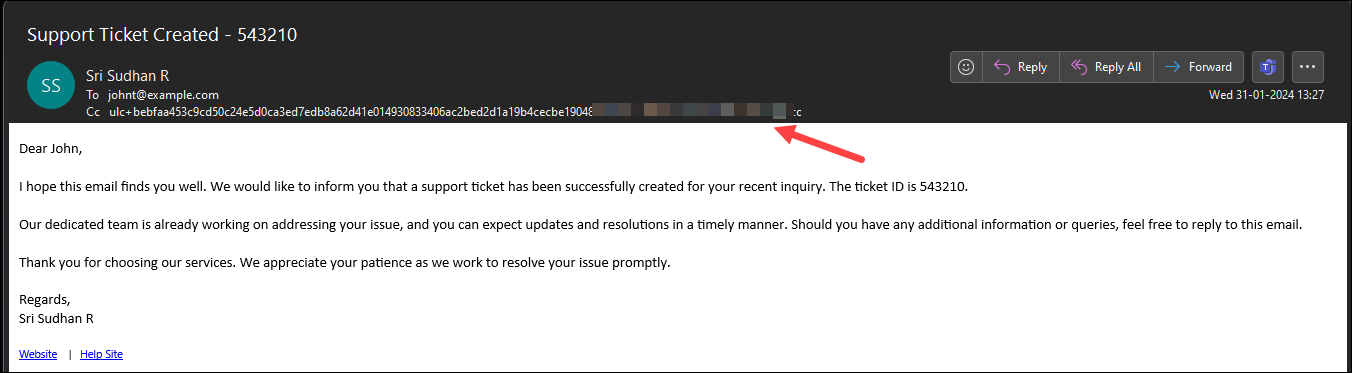
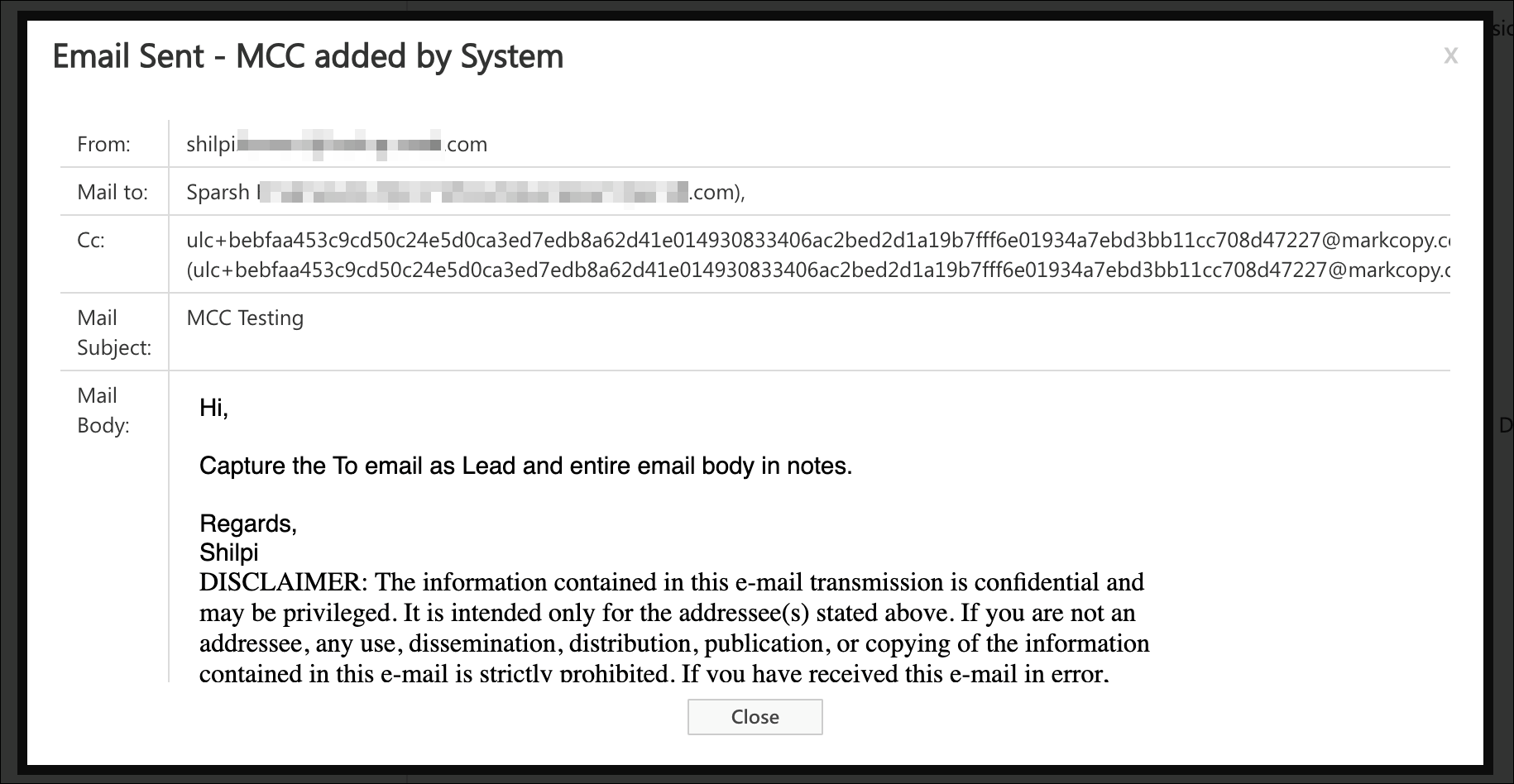
  1. Copy the outbound emails (CC or BCC)  to your MarkCopy email id.
  2. The recipients in “To” will be captured as Leads and email will be captured as a Lead Activity.
  3. Note that the Addresses in CC or BCC will not be considered for lead creation.
  4. The Emails sent using MarkCopy are not trackable  – which means open click event on such emails will not be captured.
  5. If a recipient reply is copied to the MarkCopy email Id then the reply will also be captured as Lead Activity in LeadSquared.


3. Configuring MarkCopy Connector

  • To configure the MarkCopy connector, Navigate to Apps>App Marketplace>MarkCopy Connector and click on the Install button.

Email sync

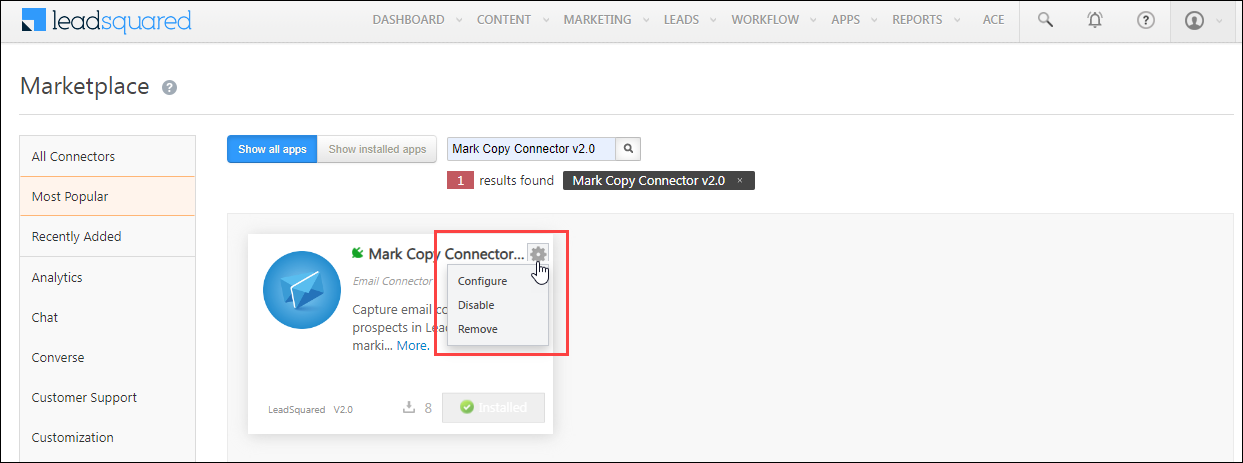
  • Clicking on Markcopy Connector it will be redirected to the details page, hover the mouse over settings button to configure the app.

configure markcopy

  • Or, on Installing the app, you’ll spot the Markcopy app in Show Installed apps tab. Hover the mouse over the Action Icon icon to configure the app.

config markcopy

  • Select the values for Source and Activities (which are created by default, if not already present) and Save the settings.

Markcopy - Settings

  • Once you save the settings, you will receive an email address like  xyzNNN@markcopy.com on the Configure page.
  • Just copy (CC or BCC) this email address which is unique to your account, and all the conversations with your leads will be automatically tracked in LeadSquared. If a lead is not present, then it is automatically created.

Markcopy Email id


Any Questions?

Did you find this article helpful? Please let us know any feedback you may have in the comments section below. We’d love to hear from you and help you out!

How to get LeadSquared Mobile App?

LeadSquared mobile app is available on iOS and Android. Click on the app store image to access it.

LeadSquared CRM

Google PlayStore

LeadSquared app for mobile helps marketers and sales people to manage their sales leads, find leads which are more likely to close, manage their sales follow-ups, analyze the lead data and view results of various marketing campaigns.


LeadSquared-Mobile

Features on Mobile

Leads

View your own lead list, corresponding lead details, activities and tasks. If you are a Marketer, Administrator or Sales Manager, you can view all the leads of the system too.

Actions on Leads

Edit leads and post activities on the leads

Tasks

View your pending tasks, create tasks for yourself and mark them complete.

Reports

Learn how your recent email campaigns and most active landing pages are performing. Look at your marketing funnel. Get a list of most engaged leads. See how your users are using LeadSquared.

You will need a valid LeadSquared Account to login into the app.  If you are new to LeadSquared, you can sign-up on our website.

Opportunity Assignment Quotas

1. Feature Overview

You can set daily, weekly and monthly limits on the number of opportunities that can be assigned to users through opportunity distribution automations.

Once set up, you’ll have to configure the Distribute Opportunity card of an Automation to execute the opportunity assignment quotas defined here. To know how to do this, please refer to Opportunity Distribution Automation.

Note: You can also define lead distribution quotas to limit the number of leads assigned to your users through the distribution engine. To know more, please refer to Limit the Number of Leads Assigned to a User – Lead Assignment Quotas.

Distribute LeadSquared Opportunities


2. Prerequisites

To enable this feature, please reach out to your account manager, or write to support@leadsquared.com.


3. How It Works

  1. Create a custom user field (or use an existing one) of number type.
  2. Update this field with the maximum number of opportunities you want to assign for each of your users.
  3. Enable and configure the Opportunity Assignment Quota setting under Users and Permissions.
    1. During configuration, specify the custom user field you created in step 1.
  4. While creating an automation, in the distribute opportunity action card, apply the assignment quotas you configure here. To know more, see Automation Actions – Sales Execution.

When your automation runs, opportunities will be distributed according to the quotas defined for each user (based on the value of the specified custom field). If the custom field value is empty, the default value defined during quota configuration will be used.


4. Create a Custom User Field

While configuring the rules, you’ll need to use a custom user field (see Manage User Custom Fields) under Configuration Value (for example, a custom user field called “Opportunity Assignment Daily Limit”). This field should contain the opportunity assignment quota for each user. This field will then be used to configure the opportunity assignment quota as shown below.

Note: You can configure up to five custom user fields to set limits.


5. Configure Opportunity Assignment Quota

Once set up, you’ll be able to set quotas to assign opportunities to individual users in your account. As an example, let’s look at a vehicle insurance disbursal company that has five sales users (Joe, Ed, Paul, Leo, and Rex), and wants to assign 10 opportunities each to three users (Joe, Ed, and Paul) and 15 opportunities each to the remaining two users (Leo and Rex). In order to do this, the organization will have to configure user-specific opportunity assignment quotas. The organization can further define quotas for different durations  (daily, weekly, monthly) for each individual user.

To enable this feature –

  1. Navigate My Account>Settings>Users and Permissions>Opportunity Assignment Quota.
  2. Click the Enable Opportunity Assignment Quota slider.

LeadSquared Opportunity Assignment

Enter the following details –

LeadSquared Opportunity Assignment

Configuration Description
Configuration Key The name of the configuration that you set. This will help you distinguish the configurations on the Distribute Opportunity card automation.
Configuration Value The custom user field based on which opportunities get distributed to your users.
Default Value The default field value you want to assign to the selected custom user field. If the custom user field is blank for a particular user, then the default value will get assigned to the user. But if the field already has an existing value, then the default value will be ignored.
Add To add additional configurations, click Add.

The assignment quota limit for a user will apply across all automations. So for example, if a user’s quota is defined as 10, and multiple automations are set up, opportunities assigned from either automation will increase the assignment quota counter. Once the quota is exceeded, more opportunities won’t be assigned to the user from any of the automations.

Once you’re done, click Save.

Notes: If an existing non-number custom field (such as a DateTime or Text field) with existing non-number values (such as ‘Dec’, ‘BLR lead’, etc.), is edited and converted into a Number field, then the default value will be assigned in place of the non-number values.


Next Steps

Once you’ve configured the opportunity assignment quota, you can set up an opportunity distribution automation where it can be applied. The settings configured here can be used to configure your automation. To proceed, please refer to Opportunity Distribution Automation.


Any Questions?

Did you find this article helpful? Please let us know any feedback you may have in the comments section below. We’d love to hear from you and help you out!
Sales Activity Management

1. Feature Overview

Sales Activity Management in LeadSquared lets you configure, capture, and manage revenue-related transactions against leads. Depending on your business, each sales activity records the information your organization needs to track a sale, such as the product sold, order value, sales owner, or transaction date.

Sales activities aggregate into total revenue figures, which can be tracked and analyzed using LeadSquared’s Analytics and LeadSquared’s Goals feature.

Note: This article covers both admin configuration of sales activities and how users can log them against leads. For admin-only configuration, see sections 4 through 6. For logging activities as a sales user, see sections 7 through 9.


2. Prerequisites

  • Only administrators can configure sales activity settings, add products, and customize the activity form.
  • Once configured, all users (administrators, sales managers, and sales users) can log sales activities against leads.


3. How It Works

Sales Activity Management is built around three layers of admin configuration. Complete these in order before sales users begin logging transactions.

  1. Configure activity settings — Set a display name, default currency, and behavioral options such as allowing pre-dated entries or triggering automatic lead stage changes.
  2. Configure the activity form — Choose which fields appear when a user logs an activity. LeadSquared provides four default system fields and eleven configurable custom fields; only enabled fields appear on the form.
  3. Add products — Create the products users can select when recording a transaction. Products must exist in the system before they can be referenced in an activity.

Once all three steps are complete, sales users can log activities from the following locations:


4. Configure Sales Activity

Admin users can configure Sales Activity settings like the display name, default currency, etc.

  1. Navigate to Settings>Leads>Sales Activity Settings.
  2. Enter the Display Name for your sales activity (e.g., New Registration).
  3. Enable or disable the settings below based on your organization’s requirements.
  4. Click Save.
Note: Default currency can be changed in your Company Profile settings.
Setting Description
Log Activity Changes When enabled, edits or changes to the sales activity will appear in the Activity History tab on the Lead Details page. To know more, see How to Log Activity Changes.
Allow Pre Dated Activities When enabled, users can create activities for past dates.
Change lead stage of a lead to ‘X’ when sales activity is added When enabled, adding a sales activity automatically moves the lead to the final lead stage configured in your account.

Leadsquared - Sales Activity Management


5. Configure Sales Activity Form Fields

You can customize the Sales Activity form by configuring the fields that users will fill in while posting a sales activity. LeadSquared provides 4 default system fields and 11 configurable custom fields. To configure form –

  1. Navigate to Settings>Leads>Sales Activity Fields.
  2. Click Edit.
  3. Enter Display Names for the required fields.
  4. Click the Type dropdown and customize the activity field type.
  5. Select the checkbox alongside a field to include it in the form.
  6. Click Save.
Note: If you require additional fields apart from those available in your account, contact us at support@leadsquared.com.

Leadsquared - Sales Activity Management


6. Add Your Products

Products must be created so users can select them when recording a sales activity. You must be the Administrator of your account to add products.

  1. Navigate to Settings>Leads>Manage Products.
  2. Click Create.
  3. Enter the Product ID, Product Name, and Product Description.
  4. Click Save.

Leadsquared - Sales Activity Management


7. Capture Sales Activity for a Lead

Sales Activities can be added by Administrators, Sales Managers and Sales Users.

7.1 From Manage Leads Page

  1. Navigate to Lead Management>Leads.
  2. Hover over the Actions icon alongside the relevant lead and select New Sales Activity.
  3. Fill in the activity details in the pop-up. The fields displayed depend on how your administrator has configured the activity form. Default system fields include Status, Product, Order Value, Sales Date, and Sales Owner.
  4. To attach a file (for example, an invoice), click the Attachments tab, click Upload, and select the file.
  5. Click Save. Once saved, the activity appears in the Activity History panel on the Lead Details page.

Leadsquared - Sales Activity Management

7.2 From Lead Details page

  1. Navigate to Lead Management>Leads.
  2. Click the name of the relevant lead to open the Lead Details page.
  3. Click Sales Activity and enter the relevant details.
  4. Click Save.
Note: Sales Activities can also be added through Smart ViewsManage Lists, and List Details page.

Leadsquared - Sales Activity Management


8. Edit or Cancel a Sales Activity

The sales activity of your leads will be displayed in the respective Lead Details pages. You can edit or cancel an existing sales activity here –

  1. Navigate to Lead Management>Leads.
  2. To view the Lead Details page, click the name of the relevant lead.
  3. To edit the details of the sales activity, click the Edit icon.
  4. To cancel the sales activity, click the Delete icon.

Leadsquared - Sales Activity Management


9. Search for Leads by Sales Activity

You can use Advanced Search to find leads based on data in sales activity fields.

  1. Go to Lead Management>Leads.
  2. Select Filter, and then select Advanced Filter.
  3. Enter your search criteria using the relevant activity and sales fields.
  4. Click + Add to apply each criterion.
  5. Click Show Results.

search lead by sales acitivity


Any Questions?

Did you find this article helpful? Please let us know any feedback you may have in the comments section below. We’d love to hear from you and help you out!
Lead Form Customization

1. Feature Overview

LeadSquared provides five built-in lead forms to help sales and marketing users capture and manage lead data without navigating across multiple pages. Each form is designed for a specific context, from detailed desktop entry to quick mobile capture and agent call pop-ups.

Note: For more advanced form functionality, the Forms and Process Designer features let you create intelligent forms to capture lead, activity, and opportunity data. See How to Create a Form for details.


2. Prerequisites

  • You must be an administrator of your LeadSquared account to configure lead forms.
  • Identify the lead fields you want to capture before customizing a form. To create custom fields for your business data, see How to Create Custom Fields.


3. How It Works

When a user triggers a lead-related action, such as adding a new lead or receiving a call, LeadSquared presents the appropriate form based on the context. Each form pulls from the same pool of lead fields defined in your account, but displays only the fields you have configured to show for that form type.

Administrators configure each form independently through Settings>Leads>Lead Forms. Fields can be shown, hidden, or reordered by dragging them between sections. Fields moved to the Hidden Fields panel are not deleted; they are simply excluded from display in that form. This means the same field can appear in one form type and be hidden in another.

Sections within a form can be created, renamed, reordered, and deleted, giving administrators control over how lead data is grouped and presented to users.


4. Form Types

Form Description
Lead Form A detailed form for entering comprehensive lead information.
Quick Add Form A short form for capturing only key lead details for faster data entry.
Lead Form on Mobile A form in the LeadSquared mobile app for adding leads on the go.
Lead VCard A card on the Lead Details page displaying minimal but important lead information.
Agent Pop-up Form A pop-up form that appears during inbound or outbound calls, allowing agents to log or view lead details.


5. Configuring a Lead Form

The steps below apply to all five form types. Where a form type requires additional context, it is noted in the relevant section.

  1. Go to Settings>Leads>Lead Forms.
  2. In the Select Form to Edit dropdown, select the form type you want to configure.
  3. Manage fields and sections as needed using the options below, then click Save.

Fields

  • Drag a field to the Hidden Fields panel on the right to remove it from the form.
  • Drag a field from the Hidden Fields panel back into a section to restore it.
  • Drag a field within a section to reorder it.

Sections

  • Click Create Section, enter a name, and click Save to add a new section.
  • Hover over a section title and click the Edit icon to rename it.
  • Hover over a section title and click the Delete icon to delete it. All fields must be removed from a section before it can be deleted.
  • Drag a section to a new position to reorder it.

Leadsquared - Lead Form Customization


6. Lead Form

Entering Lead Details

  1. Go to Lead Management>Manage Leads or Lead Management>Smart Views.
  2. Click Add New Lead to open the form.
  3. Fill in the lead details across the relevant sections.
  4. Click Save & Close.

Leadsquared - Lead Form Customization


7. Quick Add Form

The Quick Add Form is designed for fast lead entry using only essential fields.

Entering Lead Details

  1. Go to Lead Management>Leads or Lead Management>Smart Views.
  2. Click Quick Add Lead.
  3. Fill in the lead details and click Save & Close.

Leadsquared - Lead Form Customization


8. Lead Form on Mobile

The mobile lead form allows field users to capture lead data from the LeadSquared mobile app.

Entering Lead Details

  1. Open the LeadSquared app and log in.
  2. Tap Leads to view your lead list.
  3. Tap the Add Lead icon in the bottom-right corner.
  4. Fill in the lead details and tap Submit.

Add-Lead-on-Mobile


9. Lead VCard

The Lead VCard displays key lead details, quality metrics, and lead properties on the Lead Details page. Users can edit the VCard directly from that page.

Note: Changes made to the Lead VCard in Lead Form settings may not reflect on the Lead Details page until the corresponding section is also updated in the Lead Details View Customization (LDVC) feature. LDVC provides greater flexibility for customizing the VCard and the full Lead Details page.

Editing Lead Details in the VCard

  1. Go to Lead Management>Manage Leads.
  2. Click a lead name to open the Lead Details page.
  3. In the left panel, click More and select Edit VCard.
  4. Update the details and click Save & Close.

Leadsquared - Lead Form Customization


10. Agent Pop-up Form

The Agent Pop-up Form appears automatically when a sales user handles an inbound or outbound call. The user can enter details for a new lead or view an existing lead’s information directly from the pop-up.

For information on setting up telephony integrations, see Universal Telephony Connector.

Leadsquared - Lead Form Customization


Any Questions?

Did you find this article helpful? Please let us know any feedback you may have in the comments section below. We’d love to hear from you and help you out.

LeadSquared Getting Started Guide for Marketing Users

Welcome to LeadSquared. The purpose of this document is to provide you step by step guidance on the setting up and using of LeadSquared as a Marketing User.


1. Log in to LeadSquared

Log on to LeadSquared using your username and password at run.leadsquared.com. If you do not have your login credentials, please check with your LeadSquared Administrator.


2. Update your Personal Settings

Update your Profile Manage your personal details Help
Update your Password Update your LeadSquared password Help
Update Email Signature My Email Signature Help
Manage Report Subscriptions Allows you to manage which reports you want to subscribe Help
View Request History Allows you to view history of all bulk export, delete and other requests Help


3. Customize Lead Stages and Sources

Update Lead Stages Capture the stage that define your sales – from new lead to closure. Help
Update Lead Sources Populate the sources from which you get or expect to get the leads. Help


4. Customize Lead Activities and Scores

Update Score of Core Activities Customize lead score of core activities like Email open/click, website visit and so on to know how active is the lead with your business. Help
Create Custom Activities Use this to create your own Lead Activities that sales or inside sales employees can associate with the leads. Help


5. Customize Sales Activity Settings

Manage products Create the list of products/services that you sell. Help
Sales Activity Settings Configure basic details about your sales activities Help
Sales Activity Fields Customize the fields you want to see on sales activity Help


6. Manage Task Types

Manage Task Type Allows you to manage multiple Task Types and configure their properties Help


7. Manage Tags

Manage Tags Allows you to manage marketing tags Help


8. Install Tracking Script

Website Tracking Script for WordPress Sites Use this option if your website is hosted on WordPress. We have a plugin to install our tracking script.  Help
Website Tracking Script for other Sites*  You will need to copy/paste our tracking script on all our pages for non-WordPress websites.  Help

*Available in Standard and higher plans.


9. Manage Website and Landing page domains

You need to add website domains that can be tracked.  For each website domain you add multiple landing page sub-domains.

Website Domains Allows to connect websites to LeadSquared for tracking. Help
Landing Page Domains Allows to connect landing pages to LeadSquared for tracking. Help
Multi-domain setup* Allows to track website visits on multiple domains. Help

*Available in Standard and higher plans.


10. Manage Email Link tracking domain

Email Link Tracking domain Allows tracking of website visits after leads open email through LeadSquared. Help


11. Setup Lead Quality Criteria

Lead Quality Criteria Allows to measure lead quality using custom quality rules. It helps to identify the leads that are close to your ‘Ideal customer profile‘. Help


12. Setup Lead Engagement Scoring

Engagement Score * Allows to capture the engagement level of leads with your business. You can create your own custom rules of engagement scoring. Help

*Available in Standard and higher plans


13. Email Settings

Email Categories Allows leads to selectively subscribe/unsubscribe from specific types of emails rather than completely Unsubscribing from all emails. Help
Landing Page Auto response You can create a custom email template for automated email that can be sent when landing page submission happens. Help


14. Rules & Notifications

Rules and Notifications * This feature allows you to automate user notifications based on lead events. For example, you can notify your sales reps whenever any lead visits pricing page of your website. Help

*Available in Standard and higher plans


15. Manage the Content in LeadSquared

Email Library Allows you to create templates for Email communication. Help
Images and Documents Allows you to manage the images and documents which is used in LeadSquared. These are used in the landing page designer and email composer. Help


16. Manage the Marketing Features of LeadSquared

Email Campaign Allows you to design and create feature rich Email Campaigns which can be scheduled, tracked and analyzed. Help
Automation Powerful Workflow Automation Help
Landing Pages Allows you to create Landing Pages and analyze lead conversions Help
Website Widgets Allows you to create various website widgets for lead capture. Help


17. Manage the Leads in LeadSquared

Manage Leads Allows you to create and manage leads at one place. It also allows you to manage lead activities. Help
Manage Tasks Allows you to create tasks and reminders for your leads. Help
Manage Lists Allows you to categorize your leads into various lists based on your preference. Help


18. Manage Reports & Dashboards

Dashboards Allows you to capture the important marketing and sales indicators in a chosen time-frame. Help
Reports Provides analytics around marketing and sales to help you fine tune your business processes using various reports. Help


19. Attend Training and Start Using

Our customer success team will organize a usage training for you. Attend and get started.


Any Questions?

Check help.leadsquared.com or write to support@leadsquared.com for any queries.

You can also download this document in PDF format from below:

leadsquared-getting-started-guide-for-marketing-users

Transactional vs Promotional SMS

Note: All SMS templates must be approved on the DLT platform.


Transactional SMS

These are SMS messages you send to leads to inform them about details necessary to use your products/services. For example –

  • A message sent by a college to a student about a joining date.
  • A message sent to a lead as confirmation of their online submission.
  • A message sent to a caller acknowledging their call to your sales/support number.

Examples of Transactional SMS Templates:

  • Your order no %d% has been shipped. You will receive this order by %s%. Thanks for using our services.
  • Thanks for your interest in our product. Your enquiry number is %s%.
  • Thank you signing up for LeadSquared. We will contact you shortly.

Note:

  • %s% is used to substitute the text which is unique to your contact/prospect.
  • To send SMS within Indian territory, refer to TRAI Notification.

LeadSquared - Transactional SMS


 Promotional SMS

These are SMS messages you send to leads with the objective of promoting your product/service. This category includes any sales and marketing messages which may or may not be required for the recipient.

Examples of Promotional SMS Templates:

  • Dear <name>, Get Flat 10% Off on all our products. Buy now on our website!
  • Dear <name>, Our team wishes you a very Happy <event>. We’ve sent you a gift voucher to your email address.  Hurry! Last date to avail the voucher is <date>.

Note: 

  • In India, promotional SMS can only be sent from 9AM to 9PM and only to phone numbers that are not on the NDNC registry (DND number).
  • All SMS messages that have offers, coupons, etc., can be considered as promotional content.

LeadSquared - Promotional SMS


Note:

How to embed Flash (.swf) file in landing pages

Flash files can be embedded in LeadSquared landing pages.

Note that the flash (.swf) file should be hosted in a server, which means it should have a URL. Please contact support@leadsquared.com if you need any assistance with the flash file URLs.

Prerequisites:  

You have logged in to LeadSquared.

You have hosted the flash file and have the URL ready.

Procedure

Add a HTML block in the landing page where you need the flash file to be appeared.
Double click the block and open the editor, click on “Source” to go to the HTML source view of the html block. Paste this code there:

Code

The above code is available as text file at: Code to Embed Flash Objects.

Replace your flash file URL with the URL of your flash file in above code.

You can change the dimensions of the file by changing height and width in the code.

Click on ‘Save’ in the HTML block once the changes are done.

Publish the landing page.

Flash file in the landing page should work.

Managing Lead and Account Access for Sales Users – Sales Groups

1. Feature Overview

You can organize your sales users into different groups based on location, business unit or any other categorization of your choice. This makes it easier for you to manage your users and leads in keeping with your business use case.

Let’s say you have a business that operates in two regions – north and south. The ‘Group’ feature will help you –

  • Segregate your sales team into region-specific groups.
  • Configure lead view and modify permissions within the groups.


2. Prerequisites

  • It is available only on certain plans. Please contact support@leadsquared.com for more information.
  • This feature can be configured by Administrator users by default. However, you can also grant sales managers access so they can create new own groups or add/remove users from existing ones. For more details, see Grant Access to Sales Group Managers.


3. Group Manager Permissions

You can set permissions for group managers to –

  • View all leads in the group
  • Modify all leads in the group
  • Add users to the group
  • Create Automations for users in the group (View and Modify permissions must be set as prerequisites). For more information, see Group Level Automation.

In addition, group managers can also –

Note: If Opportunities are enabled on your account, whenever you create a sales group, the following permissions are applied –

  • Sales users will be able to view –
    • all opportunities owned by them
    • all opportunities associated with the leads owned by them
  • Group managers will be able to view –
    • all opportunities viewable by their sales reps
    • all opportunities owned by them
    • all opportunities associated with the leads owned by them
  • Admin, Marketing User & Sales Manager user role will be able to view all the opportunities.


4. Creating Hierarchies between Groups

If you want to control lead access rights for users across groups, see Managing Lead Access Across Groups – Group Hierarchies. 


5. Access to Accounts

If you’ve enabled the accounts feature (see Account Settings), you can set permissions for sales groups at the account level.

With account-level permissions you can give your group managers the ability to

  • View all accounts owned by their group members.
  • Modify all accounts
  • View all leads in the accounts.
  • Modify all leads in the accounts.

Note:

  • Lead share will not work when account based access is enabled.
  • Group managers can view/modify all accounts and leads owned by the users in their sales groups.
  • Users that own leads in an account automatically get access to the account details page and can also post activities on the account.
  • To know the behaviour when Accounts and Opportunities are enabled on the same account, refer to Leads, Opportunities and Accounts.

If you want to set permissions at the account level, you’ll be able to control which accounts are accessible to a sales group. To do so –

  1. Navigate to My Account>Settings>Users and Permissions>Sales Groups.
  2. Alongside Group Settings, click Account Based Access.
  3. On the confirmation pop-up, click Yes.

account based settings

When you create or edit a sales group, while setting permissions for the group manager you’ll now see account level permissions. Select the appropriate permissions, then click Save.

group manager permissions

Note: Sales users in the group will have access (to view and modify leads) in only to the accounts they own. However, you can give the group manager permission to view and modify leads in all accounts owned by all the sales users in the group.


6. Grant Sales Group Configuration Access to Sales Managers

To ease the work of admins, you can also grant sales managers access to the Manage Sales Group UI (from where they can add/delete users from groups or create new sales groups)  –

Note: You must enable the Allow sales group functionality to sales manager setting before you complete the following steps. To know more, refer to Organization Settings – Advanced Configuration.
  1. Navigate to My Profile>Settings>Users and Permissions>Users.
  2. Alongside the user you want to grant access to (the user must have the sales manager user role) click the settings icon, then click Edit.
  3. Navigate to the Manage Permissions tab, click Edit, and alongside Allow Sales Group Access, enable the checkbox Checkbox.
  4. From the Manage Users dropdown, ensure permission is also granted for Checkbox Sales Users and/or Checkbox Sales Managers.

Sales Manager Permission for Sales Groups

The Sales Manager will now have access to the Manage Sales Groups page (My Profile>Settings>Users and Permissions>Sales Groups).

sales groups UI


FAQs and Troubleshooting

Sales Group Manager Unable to View Subordinate Leads
If a Sales Group Manager cannot see their subordinates’ leads, one possible reason is that the Reporting Manager Hierarchy feature may be enabled for your account. To confirm this, go to the Manage Users page and check the Actions menu—if you see the User Hierarchy option, then the Reporting Manager Hierarchy is active. In this case, lead access is controlled by reporting relationships instead of sales groups.


Any Questions?

Did this article solve your sales group-related doubts? Let us know if you have any feedback or suggestions in the comments section below. We’ll immediately join in the discussion!

Casa for Web

1. Feature Overview

Casa is LeadSquared’s powerful homepage builder that lets you create a Single Page CRM—a centralized, customizable workspace where users can view and act on everything that matters, all from one place.

With Casa, you can design a personalized homepage that brings together key insights, quick actions, and team-specific tools in a clean, intuitive layout. It reduces the need to navigate between modules and makes your CRM experience faster, smarter, and more focused.

Here’s what you can do with Casa:

  • Design unique homepages for different teams based on their roles, goals, and workflows.
  • Display everything in one place—upcoming tasks, reports, lead lists, and more.
  • Add one-click actions like opening the Lead List or creating a task, so users can jump straight into work.
  • Personalize the look and feel by adding a branded cover image to reflect your company’s identity.
  • Embed external web pages (like help centers, dashboards, or internal tools) right within the homepage.
  • Add quick-launch icons to open high-use pages and features instantly.

Casa turns your LeadSquared homepage into a single source of truth and action, improving visibility, speed, and productivity across your teams.

Note: To know more about Teams, see Teams.

Leadsquared - Casa for Web


2. Prerequisite

  • You must be an Administrator user to access this feature.
  • Casa for Web is available only on NextGen UI. Reach out to support@leadsquared.com to get this enabled.
  • To assign the homepage and launch bar to particular teams, ensure that you’ve configured the teams.


3. How It Works

  1. On Casa, admins can create homepages and launch bars, and configure relevant widgets that they want the users to see.
  2. The homepages and launch bars can be published and set as default or be assigned to different teams.
  3. The published homepage and launcher will be visible to the user to whom they are assigned.


4. Build Your Web App Homepage

To create the homepage for your web app –

  1. Navigate to Apps>Casa from your LeadSquared dashboard.
  2. On the side panel, click the Leadsquared - Casa for Web Web icon. Here, you’ll see a table with three columns – Teams, Homepages and Launchers.
  3. On the top-right corner of the page, click Recently Modified and select All from the dropdown. All your Teams will be displayed under the Teams column.
  4. Under Homepages, alongside Default or the relevant team, click Add Page.
  5. On the home builder page, add the required widgets and configure them.
  6. You can enable the Preview Mode to get a look at the homepage you’ve created. Once you’re done customizing your homepage, click Publish.

Note: The widgets in the homepage builder show a sample preview, even after configuration. The actual values will only be visible once the homepage is published.

Leadsquared - Casa for Web

4.1 Set As Default or Select Teams

  1. To set this homepage as default, enable Set as default.
  2. To assign the homepage to specific teams, click Select Teams and then click on the relevant team. Click Publish.

Leadsquared - Casa for Web

4.2 View All Your Homepages

To view all the Launch Bars you’ve created –

  1. On the Team Management page, click the Leadsquared - Casa for Web homepage icon.
  2.  You can see all your Homepages (Published, Unpublished and Draft) here. You can create a homepage from here by clicking Create New.
  3. You can select multiple homepages and delete them by clicking the Leadsquared - Casa for Web Multi-select icon and clicking the delete icon.

Leadsquared - Casa for Web


5. Add Heading, Description & Cover Image

Customize the LeadSquared Web App to reflect your organization’s branding. On the Homepage Builder screen, start by adding a heading, description, and cover image to the first section. Choose an appropriate heading and description to display on your homepage. For example, you could set the heading as “Welcome!”. In the description, you can mail merge user fields for a personalized experience. For instance, the description could be “Hi Phil! Gear up for today, check your KPIs” if you’ve added the user’s first name mail merge field.

Note: The description is limited to 50 characters maximum.

Leadsquared - Casa for Web

When setting up the cover image, you have two options: upload an image from your organization or select a solid color from the six available options. Before uploading an image, review the Image Recommendations to ensure optimal display.

Leadsquared - Casa for Web


6. Progress Bar Widget

The Progress Bar widget can give the user an overview of all your completed tasks for a specific time period in a bar format. To configure the progress bar widget –

  1. Enter the relevant task name that you want to track and select an icon.
  2. From the Task Filters, select the Task Type and Date Range for which you want to view the progress bar for.
  3. By enabling Set Thresholds, you can set minimum and maximum values to be displayed in the progress bar and define colour-coded ranges (e.g,  0-25% in red, 26-50% in yellow and 51-100% in green) using the slider. However, this is optional.
  4. Once you’ve configured the widget, click Save.

Leadsquared - Casa for Web


7. Single Counter Widget

This widget can display the user’s tasks or the data count present in the smart views which can include accounts, leads, opportunities, activities, and tasks. Based on the team you’re assigning this homepage to, you can assign the relevant smart views tab. To configure this widget –

  1. Enter the relevant widget name and select an icon.
  2. Select the relevant entity.

If you’ve selected Tasks –

  1. Choose the Task Type and the Status (either completed, pending or overdue).
  2. Select the date range for which you want the counter to be displayed and click Save.
Note: You will be able to set a threshold for tasks if you select the Completed status.

Leadsquared - Casa for Web

If you’ve selected Smart views-

  1. Choose the relevant teams.
  2. Under the Select Smart View section, you will only be shown the smart views that are relevant to that particular team. Select a Smart View and the corresponding Smart View Tab.
  3. You can enable Set Threshold to set minimum and maximum values to be displayed in the single counter and define colour-coded ranges (e.g,  0-25 in red, 26-50 in yellow and 51-100 in green) using the slider. However, this is optional.
Note: A maximum of 2 Smart View tabs can be added to the homepage.

Leadsquared - Casa for Web


8. Speedometer Widget

The Speedometer Widget gives you a overview of all your completed tasks for a specific time period in the speedometer format. To configure this –

  1. Under the Widget Name, enter the relevant task name that you want to track and select an icon.
  2. From the Task Filters, select the Task Type and Date Range for which you want to view the speedometer for.
  3. By enabling Set Thresholds, you can set minimum and maximum values to be displayed in the speedometer and define colour-coded ranges (e.g,  0-22% in red, 23-78% in yellow and 78-100% in green) using the slider. However, this is optional.
  4. Once you’ve configured the widget, click Save.

Leadsquared - Casa for Web


9. Calendar View Widget

This widget displays your tasks – either complete, pending, overdue or pending and overdue in the Calendar view. You can either choose to view your tasks for a particular date on a timeline by switching to the Timeline view or as a list by selecting the Agenda view. To configure this –

  1. Under the Widget Name, enter the relevant task name that you want to view and select an icon.
  2. From the Task Filters, select the Task Type and Task Status.
  3. Once you’ve configured the widget, click Save.

Leadsquared - Casa for Web


10. Web View Widget

The Web View widget displays a web view of the target URL within the section. You can resize the widget as required. To configure this –

  1. Enter the relevant name to the widget.
  2. Under Navigate To, enter the relevant Custom URL you want the user to be directed to.

Leadsquared - Casa for Web


11. Icon Launcher Widget

Display a maximum of 10 icons that quick launch items from the homepage. The icons and the destination they lead to can be configured. There are numerous ways you can configure these icons. For example, you can configureLeadSquared - Leads icon to direct users to the Lead List page. You can also configure an icon to navigate to a different website (like a help site). To configure this –

  1. Enter the relevant name for the widget and click Add Launch Item.
  2. Select an appropriate icon and add a label.
  3. From the Navigate To dropdown, select the internal or external destination you want to open when the icon is clicked.
  4. Click Add. To add another icon, click Add Launch Item and repeat the process.
  5. Click the Leadsquared - Casa for Web edit icon alongside the added icon to edit it, or Leadsquared - Casa for Web to delete it.

Leadsquared - Casa for Web


12. Banner Widget

Add banners (a carousel view of images) on the homepage to display company announcements or navigate users to internal or external destinations. You can choose the adjust the size of your banner image by zooming. To configure this –

  1. Enter a name for the banner.
  2. The Show Frame toggle is enabled by default. If you do not want the frame to be visible, you can disable the toggle.
  3. Click Upload to upload the banner image. Ensure that you’ve gone through the Image recommendations before you upload an image.
  4. Under Navigate To, select the relevant destination you want to direct the user to. This can either be an internal destination like a form or an external link.
  5. Click the Leadsquared - Casa for Web edit icon if you want to replace the banner image, or the Leadsquared - Casa for Web delete icon to delete the banner image.
Note: The default forms of Lead, Task, Opportunity and Accounts are supported in the Banner widget.

Leadsquared - Casa for Web


13. Resize & Remove Widgets

13.1 Resize Widgets

Once you’ve added the widgets to the homepage, you can resize and rearrange them as required.

  1. Hover over the relevant widget. You will see a blue border around it.
  2. Hold the Leadsquared - Casa for Web drag and drop icon and move the mouse to change the position of the widget.
  3. Hover over one of the blue dots and move the mouse to resize the widget.

Leadsquared - Casa for Web

13.2 Remove Widgets

If you want to remove a widget, click the relevant widget and select the Leadsquared - Casa for Web delete icon. On the Delete Widget popup, click Delete.

Leadsquared - Casa for Web


14. Build Your Launch Bar

The Launch Bar is a movable quick-access toolbar that appears on the homepage. It can be dragged and dropped anywhere on the screen as needed. A maximum of 10 items can be configured here. The icons on the Launch Bar can be customized to quickly open internal or external destinations. The default forms of Lead, Task, Opportunity and Accounts are supported in this widget. To configure this –

  1. Navigate to Apps>Casa from your LeadSquared dashboard.
  2. On the side panel, click the Leadsquared - Casa for Web Web icon. Here, you’ll see a table with three columns – Teams, Homepages and Launchers.
  3. On the top-right corner of the page, click Recently Modified and select All from the dropdown. All your Teams will be displayed under the Teams column.

Leadsquared - Casa for Web

14.1 Add Launcher

  1. Under Launchers, click Add Launcher.
  2. On the Launcher page, click Add Launch Item.
  3. Select an appropriate icon and add a label.
  4. From the Navigate To dropdown, select the internal or external destination you want to open when the icon is clicked.
  5. Click Add. To add another icon, click Add Launch Item and repeat the process.
  6. Click Leadsquared - Casa for Web alongside the added icon to edit it, or Leadsquared - Casa for Web to delete it.
Note: If more than five launch items are configured, only their icons will be displayed by default. The labels will appear when you hover your cursor over the icons.

Leadsquared - Casa for Web

14.2 View All Your Launch Bars

To view all the Launch Bars you’ve created –

  1. On the Team Management page, click the Leadsquared - Casa for Web Launch Bar icon.
  2. You can see all your Launch bars (Published, Unpublished and Draft) here. You can create a launch bar from here by clicking Create New.
  3. Click the Leadsquared - Casa for Web edit icon to edit a launch bar, or click Leadsquared - Casa for Web to delete or unpublish it.

Leadsquared - Casa for Web


15. Unassign Homepage & Launch Bar

Once you’ve published your homepage and launch bar for a team, you can unassign it from the Team Management page or from the builder.

  1. Hover over the relevant homepage or launch bar.
  2. From the dropdown that appears, select Unassign.
  3. On the Unassign popup, click Unassign.
Note: Once you unassign homepages and launch bars, they will not be visible alongside the team.

Leadsquared - Casa for Web


16. Unpublish Homepage & Launch Bar

The difference between unassigning and unpublishing is that if a homepage is assigned for multiple teams and you unassign a homepage for one particular team, then the homepage will not be visible for that particular team. But when a homepage is unpublished, then it will go to the Unpublished section of the Web Homepage page and will not be visible for any team. You can unpublish it from the Team Management page or from the Web Homepages page.

16.1 Unpublish from Team Management Page

To unpublish a homepage or launch bar from the Team Management page –

  1. Hover over the relevant homepage or launch bar and click .
  2. From the dropdown that appears, select Unpublish.
  3. On the Unpublish popup, click Unpublish.

Leadsquared - Casa for Web

16.2 Unpublish Homepage from the Web Homepages Page

If you want to unpublish a homepage from the Web Homepages page –

  1. Click Leadsquared - Casa for Web alongside the relevant homepage.
  2. From the dropdown that appears, select Unpublish.
  3. On the Confirm Unpublish popup, click Unpublish.

Leadsquared - Casa for Web

16.3 Unpublish Launch Bar from the Launchbars Page

If you want to unpublish a homepage from the Launchbars page –

  1. Click Leadsquared - Casa for Web alongside the relevant launch bar.
  2. From the dropdown that appears, select Unpublish.
  3. On the Confirm Unpublish Launcher popup, click Unpublish.

Leadsquared - Casa for Web


Any Questions?

Did you find the content in this article helpful? Feel free to leave doubts/questions in the comment section below. We’ll get back to you as soon as possible.

Setup Criteria of Lead Engagement Scoring

1. Feature Overview

LeadSquared provides 3 core lead qualification metrics – the lead quality score, the lead score, and the engagement score.

While the quality score helps you identify your ideal customer persona, the lead score and engagement score indicate the level of interest your leads demonstrate in buying your product/service.

The lead score and engagement score are both calculated by assigning points to your lead’s actions/activities (e.g., responding to your email campaigns, visiting your website/landing pages, etc.). The lead score is the sum of all the activity points throughout the lead’s history, while the engagement score is the sum of a select few activities within a short period.

The engagement score tells your sales team which leads are the most likely to buy your product or service right now. You can customize the engagement score by defining the time period, the activities you declare most valuable, and the lead stages you want to include.

LeadSquared Lead Score


2. Criteria for Engagement Scoring

The engagement score is computed based on –

  • Activity Period (in days): The number of days you want to include in the calculation of the engagement score. The default value is 30 days.
  • Lead Stages to include: The lead stages to include in the calculation of the engagement score.
    The default value is set as all the active lead stages in your account excluding the final stage (since the last active stage is usually a Customer/Client/Sign-up etc).
  • Lead Activities to include: The activities to include in the computation of the engagement score. For example, website visits, email opens, email link clicks, inbound phone calls, etc. To customize the score/points attributed to each activity, see How to Edit an Activity Score.

LeadSquared Lead Criteria


3. Set Up Engagement Scoring

  1. Navigate to My Profile>Settings>Lead Prioritization>Engagement Scoring.
  2. On the Engagement Scoring page –
    1. Enter the Activity period (number of days) for which you want to calculate the engagement score.
    2. The maximum limit is 366 days. Select the check box for Lead Stages to include in the calculation for engagement score.
    3. Now select the Lead Activities to include to calculate the engagement score.
  3. Click Save to save changes.

LeadSquared Lead Engagement Score


4. Next Steps

You can make use of Engagement Scoring in the following ways –

  • Advanced Search to find the leads that are most/least engaged.
  • Create lists of engaged/disengaged using Manage Lists. You can send out email campaigns, run automation, perform tasks based on these lists.
  • Use Smart Views to target leads based on Engagement Scores.


5. FAQs

Why is the Engagement Score not updated correctly in the Lead VCard?
Engagement Scores are not updated in real-time. They are calculated once every hour, so recent lead activity may not reflect immediately. Check back after some time to see the updated score.


Any Questions?

Do you have questions or issues with the content in this article? Let us know in the comments section.

What errors can I encounter when importing leads?

Your leads may be present in a spreadsheet, or  a database application such as MS Access, or in any other software application. You will have to first export the lead details to a CSV (Comma Separated Value) file. Or if you have leads in an Excel file, you can save it as a CSV file. You can upload the CSV file in LeadSquared to import the leads to LeadSquared. For more information, see How can I import leads to LeadSquared?

You may encounter few error messages during importing leads. These may be due to possible  errors in the CSV file. Below is the list of scenarios, which may be the reason of an erroneous import. If you encounter an error during import, it may be due to one of the following reasons.

(i) Your CSV file content should not have comma (,) semicolon (;), pipe (|), tilde (~), back quote (`), caret (^) in the header. Header is the first column (column name) in your CSV file. It is mandatory to include column names for successful import. Typical examples of column names would be First Name, Last Name, Email, and so on. Ensure that there are no special characters in the header.

Header

Special Character in Header

(ii) When your CSV files contain Date fields, such as, Contacted OnFollowed Up on, Birthday, and so on, you should ensure that you have created a custom field for that. For more information, see How to Create a Custom Field. The dates in your CSV file can be in one of the below formats:

  • dd/mm/yy
  • dd/mm/yyyy
  • mm/dd/yy
  • mm/dd/yyyy

If the date is in any other format, or in different formats, you will encounter an error. In the below screen shot, you can see that there are different formats in the CSV. You will not be able to import such files.

Date

(iii) In some cases, you might have deleted the contents of a particular column, and not the column itself. In this case also you will encounter an error during import. When you see the CSV file, you will see that the column is empty, but open it as a Text (.txt) file and you can see the below error (Two commas at the end).

Column not deleted

To avoid this, select the particular column completely and delete it, so that the column is absent from the CSV file.

(iv) The column header or the column name may be empty in your CSV. Ensure that there is a column name/column header for each and every column. Do not leave it blank.

Empty Header


(v) your CSV file should not contain Backslash (/). You may encounter an error if it contains this symbol. Ensure that Backslash is not present in the CSV file.

(vi) Some times you might encounter a problem with unwanted special symbols in your Lead Details page and Lead Grid page, for eg:

UTF-8-Encoding

To avoid this, Export that respective list. Open that CSV as text (.txt) file and Click on ‘Save as’ and select Encoding as UTF-8
and Click Save. You will get a dialogue box asking whether to Replace the existing file or not, Click on Yes.

Now Import the new list to Leadsquared and make sure you select ‘Overwrite Duplicates’ in Actions (step 03).

How to Publish Landing Pages within your Domain Name?

The landing pages that you publish through LeadSquared, by default, will show the following address on the address bar of browser when anyone views them:  <companyname>.viewpage.co/<landing-page-name>. 

“viewpage.co” is a domain name owned by LeadSquared.

But you can publish the landing page in your own domain name. Note that it is not mandatory to publish the landing page in your own domain name.  The landing pages will always be available in viewpage.co domain even if you don’t provide your own custom domain.

PrerequisiteYou are Admin user of LeadSquared

Landing pages can be published within your domain name in just 3 steps.

  1. Choose a subdomain name to host the landing pages
  2. Create a CNAME record in your DNS (Domain Name Server) of the chosen name
  3. Specify landing page sub-domain in LeadSquared

1. Choose sub-domain Name

Lets say your domain name is practicalfunnel.com.  Your default landing page hosting domain will be  practicalfunnel.viewpage.co .

You can change it to

pages.practicalfunnel.com or info.practicalfunnel.com or marketing.practicalfunnel.com or anything.practicalfunnel.com.   It’s up to you to choose the prefix like “pages”, “info”, “marketing”.

Lets say you choose “pages”.  Then your landing page base URL will become pages.practicalfunnel.com. And your landing page URLs will be like http://pages.practicalfunnel.com/landingpagename.

2. Create CNAME record in your DNS

Login to your DNS and create a cName record like the example shown below:

pages.practicalfunnel.com  points to cloud.viewpage.co

or in generic terms:

<your chosen sub domain name>.<your domain name> points to cloud.viewpage.co

Here is an article on doing cName setting in control panels of popular hosting providers: How to Edit DNS Settings in Web Hosting Services.

Note that DNS settings may take upto 48 hours to propagate.

3. Specify the sub-domain name in LeadSquared

Navigate to My Account->Settings->Domain Settings->Website and Landing Page Domains

You will notice your default landing pages domain <yourdomainname>.viewpage.co.

LP default domain

Click Add Domain.

Add Domain Button

  1. Select Landing Page Hosting tab
  2. Select the domain in which you want to specify a sub-domain. You may see multiple domains  if your subscription plan supports it. To know more about multi-domain setup, check: Configuring multiple domains in LeadSquared
  3. Specify the sub-domain name
  4. Save

LP - create domain

If your cName setting is not completed or propagated, you will see a red icon next to the added sub-domain.

LP - Set Primary

One your cName setting reflects, the red icon will turn to green:

LP cName connected

Green icon signals that you can use the new landing page domain.  Note that the landing page will still be accessible with the viewpage.co URL.  Landing pages are available in all sub-domains that are configured in your domain.

Verify the new Landing Page Domain

Once you have created and published a landing page, you can use “Get Landing page URL” option in landing page list:

LP Get URL

Select a sub-domain to get the corresponding URL.

Get URL Popup

The URL will be displayed:

LP Published URL

How to use Tracking URL feature?

Tracking URL feature in LeadSquared allows you to use landing page in multiple marketing campaigns, such as Facebook, Google Pay Per Click ads and so on. You should use tracking URLs when you’re directing traffic to a landing page from somewhere other than a call-to-action on your own site, like an email blast, PPC campaign, banner ad, and so forth. By using tracking URL feature, you can accurately track the lead source. For example, you might want to know how many users come to a landing page from a particular Facebook ad, or Google Search ad, or how many users signed up on your newsletter landing page on a particular website page.

A landing page with tracking URL looks like this (Token is bold): http://pages.leadsquared.com/Webinar-How-to-Get-Started-With-Website-SEO?utm_source=Pay%20per%20Click%20Ads&utm_medium=Google%20PPC%20Ads&utm_campaign=How%20to%20get%20started%20with%20SEO

To create a Tracking URL

1. Navigate to Dashboard > My Account > Settings. Click on Tracking URLs. In the Manage Tracking URL page, click on Create Tracking URL.

Tracking url

2. Enter the tracking URL information in the box.

  • Page URL: Select the Landing Page for which you want to create the tracking URL. If you choose any website URL, you must make sure that page has LeadSquared tracking script installed. Ideally, it should be a page on your website.
  • Campaign Source: Select a relevant Campaign Source. Specify where this URL is being used. This is critical for assigning these URLs to a segment in your landing page report. For example, if you’re using the tracking URL in an email campaign, select Email Marketing. This way, this traffic will appear as Email in the landing page report.
  • Campaign Medium: Enter the medium, that should, show up as the source of your landing page visits.
  • Campaign Name: This is visible to your website visitors in your URL. This is mainly used in the keyword analysis. Hence, give a relevant campaign name.

Click on Save.

Tracking URL Info

3. Copy the Tracking URL that appears, and use that as the hyperlink in your Email, Google Adwords, Facebook ad, etc. In this way, you can accurately track the lead source and the source medium.

Tracking URL

EXAMPLE: In the landing page report, navigate to Lead Sources, and click on the relevant source. You will see the leads coming from that particular source.

LP Report

For more information on how to check the lead sources, see How can I track where my Leads have come from using Lead Source Report?

How to redirect the host page after lead submits on embedded form?

LeadSquared Landing Pages can be used to create forms and these forms can be embedded as iFrame in your website. Here is an article describing the process. 

On submission of the form, you may want to redirect the lead to a thank-you page or any other web page. By default the redirected page will open within the iFrame in which form is embedded.  If you want the host page (the web page in which form is embedded) to redirect to the new URL, follow these steps:

Create a new landing page having size same as the form size.  Add a simple HTML block with text “Redirecting…”   (you can put any text you want). In the Page Settings step 4 of building landing page, towards the bottom of the page you will see  “Embed JavaScript” section.

Insert the following script  in “Embed JavaScript” section “Inside Head”:

<pre><script>window.top.location.href = "http://www.yourwebsite.com/desired-url";</script></pre>

Example: If the redirect URL is www.google.com then the script will be:

<pre><script>window.top.location.href = "http://www.google.com";</script></pre>

Publish this landing page and get the URL. In your form only landing page which you intend to embed on your web page, add an option to redirect to this URL.

Please note that if your landing page is accessed through “http”, you can only direct to a page through http. The redirect will fail if you try to redirect to a page with “https” URL.

How to Deactivate Users

1. Feature Overview

In order to preserve the integrity of your LeadSquared account history, we don’t allow you to delete users. Instead, you can deactivate them. Users who’ve been deactivated won’t be able to log into LeadSquared.

Note:

  • You cannot deactivate
    • A billing user
    • A user who is part of a live automation (for example, part of lead distribution actions, notify user actions, etc.)
  • Before deactivating a user you should ensure that all leads, opportunities and tasks under the user are assigned to an active user. This way you won’t miss out on critical tasks you have to perform. This can be done via Bulk Update.


2. Configure User Deactivation Rules

To restrict your Admins from deactivating users with associated leads/opportunities, enable the following Advanced Configuration setting –

  1. Navigate to My Profile>Settings>Profile>Advanced Configurations.
  2. Search for Configure User Deactivation rules, and click Configure.
  3. On the User Deactivation Rules pop-up, enable the checkbox Checkbox to restrict deactivation –
    • If user has associated Leads
    • If user has associated open Opportunities
    • If user is a Reporting Manager
  4. Once you’re done, click Save.

When these rules are enabled, deactivating a user associated with any of these rules will require replacing them with another active user.

Note: Opportunities that have their Status as Open are considered Open Opportunities.

user deactivation configure rules

Additional Rule for Opportunity Ownership

When you navigate to My Profile>Settings>Profile>Advanced Configurations, you’ll also find the Enable change of Opportunity owner on Lead Owner change configuration. When this is enabled, the opportunity owner will automatically update to match the new lead owner. However, if the admin manually selects a different user as the new opportunity owner, this will override the automatic update.

enable change of opp owner on lead owner change


3. Bulk Update the Lead/Opportunity Owners

Ensure that no leads or open opportunities are tagged to the user you’re about to Deactivate. To do this, change the owner for all the leads and open opportunities tagged to the user –

3.1 Bulk Update Lead Owner

Bulk update the lead owner of all the leads tagged to the user –

  1. Navigate to Leads>Manage Leads.
  2. Alongside the leads tagged to the user you’re about to deactivate, click the Checkbox checkbox.
  3. Then, hover your cursor over the Actions menu, and click Change Owner.
  4. On the Change Owner pop-up, from the dropdown, select the new lead owner, and click Change. This will bulk update the lead owner for the selected leads.

Deactivate Users

3.2 Bulk Update Opportunity Owner

Bulk update the opportunity owner of all the open opportunities tagged to the user –

  1. Navigate to Leads>Manage Opportunities .
  2. Alongside the opportunities tagged to the user you’re about to deactivate, click the Checkbox checkbox.
  3. Then, hover your cursor over the Actions menu, and click Bulk Update.
  4. From the Opportunity Field dropdown, select Owner, and from the New Value dropdown, select the new opportunity owner.
  5. Once you’re done, click Update. This will bulk update the opportunity owner for the selected opportunities.

Deactivate Users


4. How to Deactivate a User

When deactivating users, they will either be subject to a validation rule (Billing User, Reporting Manager, Lead Owner, Opportunity Owner, Automation) or not.

4.1 Deactivating users without a validation rule – 

  1. Navigate to My Profile>Manage Users.
  2. Alongside the user you want to deactivate, hover your cursor over LeadSquared, and click Deactivate.
  3. On the confirmation pop-up, click Deactivate. This will deactive the user from your account.

Deactivate Users

4.2 Deactivating users with a validation rule

  1. Navigate to My Profile>Manage Users.
  2. Locate the user you want to deactivate, hover over the icon, and click Deactivate.
  3. If required (*), replace the user with another active user.
  4. Click Proceed.

Note:

  • In the example below, changing the Owner for Leads is optional since the If user has associated Leads option hasn’t been mandated in the deactivation rules (refer to Section 2).
  • It is mandatory to replace a billing user, this option cannot be disabled.

User deactivation with validation rule

4.2.1 Deactivating users who are part of an Automation

If a user is part of an automation, they must be replaced with an active user before deactivation.

For users in single or multiple automations, you can:

  • Bulk Replace: Select multiple automations and click Bulk Assign to replace the user across all selected automations.
  • Replace Per Automation: Click Select User under the Assign column and choose a new user for the entire automation.
  • Replace Per Action: If the user is assigned to multiple actions within an automation, click Select User, then choose Each Automation Action to assign different users for different actions.

deactivating users part of an automation


5. How to Reuse a User’s Email Address

You cannot create a new LeadSquared user with the same email address as a deactivated user. However, you can mark a Deactivated user Obsolete, and then reuse the email address to create a new user in another LeadSquared account.

  1. After you’ve Deactivated a user, navigate to the Users page.
  2. Filter the Status by Inactive.
  3. Alongside the user who’s email address you want to use, hover your cursor over LeadSquared, and click Mark Obsolete.
  4. On the Make User Obsolete pop-up, click Yes. You can now reuse this email address, and assign it to a different user.
Note: You can identify a user marked obsolete when the word “obsolete” is appended to their email address.

Deactivate Users


6. FAQs

I need to retrieve all leads assigned to a deactivated user, but the user is not showing up in the owner dropdown list. How can I filter leads by this user?

Explanation: Once a user is deactivated, they will no longer appear in the “Owner” dropdown list, making it impossible to filter leads by that user in the “Manage Leads” section or through advanced search conditions.

Solution: To handle prevent this situation, configure User Deactivation Rules as described above. These rules prevent user deactivation if the user still has assigned leads. If deactivation is attempted, an error message will appear, informing you of the number of leads still assigned to that user. Reassign the leads to another user and then deactivate the concerned user.


7. Troubleshooting

Issue: User Creation Error for Rejoining Employees. When an admin attempts to create a new user account for an employee who previously left the organization and was marked as obsolete, an error occurs.

Scenario: An employee left the organization, and the admin deactivated the user and marked them as obsolete. Six months later, the employee rejoined the organization, but the admin encounters an error while trying to create a new user account using the same email address.

Root Cause: If a user with the same email address already exists in the tenant (even as an obsolete user), a new user account cannot be created using that email ID.

Error Message: If the admin attempts to create the user via Import Users, the success report will display the following error in the CSV file:
There is already an obsolete user in this account, please try activating it.

Solution: To resolve this issue, the admin should reactivate the existing obsolete user account and modify the user details if required.


Any Questions?

We’d love to hear your feedback to help improve this article. Feel free to enter your questions or grievances in the comments section below.

How to use Olark Connector?

LeadSquared Olark Connector will help you track Chat Activities with your current and new leads. For existing leads, it helps you to track each chat conversation as an activity under Lead Activity History. If the conversation is with a new lead, the new lead is added in LeadSquared and the conversation is tracked under Activity history of that new lead.

Prerequisites:

  1. You should be Admin user of LeadSquared to access the connector.
  2. Apart from capturing Lead data and chat transcripts, you can also capture Olark Group Data and page on which chat started. If you want to capture any of both of these, you need to create corresponding custom fields first.  You may choose “Olark Chat Group” and “Chat Start Page”  as the name of the two respective fields.

Procedure:

To Add Olark Connector, follow these steps:

Browse to Apps > Apps Marketplace, select Olark connector and click on ‘Install’ button

olark config

Configuring Olark Connector:

On Installing the app, click on Olark connector where you will be redirected to Olark chat connector details page. This is not yet ready to be used.  You need do two simple configuration steps to make it functional.

Olark_2

OR, On Installing the app, click on Show Installed Apps tab to configure Olark connector.

Olark

This will open up the Olark Connector Configuration dialog.

Connector Setup

  1. If a chat conversation happens with a new lead, the Source will be set to “Olark Chat” by default. You can again change this configuration.
  2. Each chat conversation will be tracked as an activity in LeadSquared.  By default, we create a custom activity called “Olark Chat Conversation” for your convenience.  You can use it, or if you wish to create your own activity and use that, you may do so.
  3. [optional] You can specify the custom field to capture Olark chat group info (your Olark account needs to support groups)
  4. [optional] You can specify a custom field to capture the page URL where chat started.

Once your settings are complete, click “Save Settings”.   You will see a message on the top on config windows:

Olark Config done

As the message suggests,  to start capturing Olark chat in LeadSquared, add the displayed URL in your  Olark Webhooks. Copy the displayed URL. It will be in following format:

https://olark.leadsquared.com/Capture.aspx?OrgID=<your org id>&AccessToken=<your access token>

Login to Olark and navigate to Settings->Integrations->Webhooks

Olark Settings

  1. Paste the displayed URL that you got from LeadSquared Olark connector Config windows
  2. Check “Send ALL transcripts automatically”
  3. Save

Once you Save the settings, all chat conversations will start getting tracked in LeadSquared:

Chat logged in LSQ

Can I have conditional access to my Landing Pages?

Yes. You can have conditional access to your landing pages. Conditional access means, access to a particular page, if a particular condition is satisfied. In other words, you want visitors to submit on a particular form, only after, submitting on another form.

Example: You have a landing page to capture leads, say Landing Page A. You have another landing page, in which a product video is present, say Landing Page B. Now, if visitors visit Landing Page B, you would want them to visit Landing Page A first, and then visit Landing Page B. For this to happen, all you have to do, is paste a Java Script in the Landing Page B.

Edit the required landing page in LeadSquared,  and go to Step 04 – Page Settings. Scroll down and go to section Embed JavaScript. Paste following script there:

<script type=”text/javascript”>

 var sourcePageURL = ‘URL of Landing Page A’;

if ((document.referrer != “” && document.referrer.indexOf(sourcePageURL) == -1) || document.referrer == “”) {

  location.href = sourcePageURL;

}

</script>

Republish the landing page.  Now, clear cache of your browser and visit the first landing page again. You will be redirected to the second landing page.

How to Bulk Update Lead Fields?

1. Feature Overview

The Bulk Update feature lets you update a single lead field across multiple leads at once. This is useful when you need to apply the same change to many leads, such as reassigning a Lead Owner, updating a Status, or modifying a custom field.


2. Prerequisites

You must have access permission to edit lead fields.


3. How It Works

Bulk updates work in two steps: first filter the leads you want to update, then apply the change.

Leads can be filtered and updated from the Manage Leads page or the SmartViews page. You select the field to update and the new value, and LeadSquared queues the update for processing. Once submitted, a confirmation message appears with a link to track the update status.

Note: Bulk updating Lead Stages is not supported if the Enable Comments on Stage Change setting is active in your account. To check or change this, go to My Profile>Settings>Leads>Lead Stages.


4. Perform Bulk Update

Step 1: Filter your leads

On the Manage Leads or SmartViews page, use one of the following search options to narrow down the leads you want to update:

  • Quick Search — for simple, keyword-based filtering.
  • Advanced Search — for applying detailed conditions and multiple filters.

Step 2: Select and update

  1. Select the leads you want to update:
    • Check the box alongside individual leads, or
    • Click the checkbox next to the Lead Name column header to select all leads in the list.
  2. Click Bulk Update.
  3. In the Bulk Update pop-up, select the Lead Field you want to update from the dropdown.
  4. Enter the new value in the Update To field.
  5. Click Save.

Leadsquared - Bulk Update Lead Fields


Any Questions?

Did you find this article helpful? Please let us know any feedback you may have in the comments section below. We’d love to hear from you and help you out!
How can I find leads who visited one of my landing pages or website in the past 30 days using Advanced Search?

You can easily find the leads who visited a particular website page or landing page, in the past 30 days, using our Advanced Search feature. Follow the below steps

1. Navigate to Dashboard > Leads > Manage Leads. Click on Advanced Search.

Manage Leads

2. Select the following criteria

  • Lead Activity
  • Is
  • Page Visited on Website

3. You will now have the option of selecting Any Landing Page or Website Page, Any Landing Page or Any Website Page. You can also select any of the listed Landing Page names.

Any page

4. If you want to find leads who came from a specific website page, then start typing in the box. As shown in the screen shot below, if you type “www.“, all the website pages will be displayed. You can select the required page.

Type webpage

5. If you want to select a landing page, you can start typing the landing page name in the box. All the relevant landing pages will be displayed and you can select the required landing page.

Type landing page

6. Select 30 days as the time interval.

7. Click on Add. Select the All Criteria check  box. Click on Find Leads to get the leads who visited a particular website page/landing page in the last 30 days.

8. You will be redirected to the Manage Leads page and all the leads that satisfy the criterion will be displayed.

Results

For more information on Advanced Search, see How do I use Advanced Search feature in LeadSquared?

How can I find leads who have been active in the past 1 week using Advanced Search?

To find leads that were active in the last 7 days-

  1. Navigate to Leads>Manage Leads. Click on Advanced Search.
  2. Set the Select Search Criteria to Lead Activity>Is>Any Lead Activity>In the Last 7 Days. Click +Add.
  3. Select the All Criteria checkbox and click Find Leads.

LeadSquared Advanced Search

To know more refer to the Advanced Search article.

How to configure SMS Autoresponder for my Landing Pages?

You can send an automated SMS/text-message to your leads when they submit a form on your landing pages. These text messages are transactional in nature, meaning they can be sent to phone numbers marked DND (do not disturb). But, there will be a limitation to what you can send.

Prerequisites:

1) Your SMS connector should be configured and active. Please contact your Admin user if you can’t see SMS feature in LeadSquared.

2) Sending SMS will incur extra cost. Please get in touch with support@leadsquared.com about the cost details.

NOTE: This is an add-on service and you will need to contact support@leadsquared.com to buy this additional service.

Steps to configure the SMS Autoresponder

1. Go to APP -> SMS Templates and create a transactional message template for the autoresponder SMS. You can find more about creating templates at Creating SMS Templates.

2. Use the “Setup Autoresponse SMS” option on the chosen template as shown below. Copy the webhook URL.

SMS AR Webhook URl

3. Navigate to,  My Account -> Settings -> API and Webhooks -> Webhooks and click “Create”

Webhook new

4. Click on Add Webhook button. Make the following settings in the Add Webhook section

  • Event: Landing Page Submission.
  • Trigger for all Landing Pages: Select the check box if you want the webhook to be applicable to all landing pages. Elese, uncheck the box and put paste page URLs in the “Landing page URLs” section.
  • Webhook URL: the URL you copied from SMS template page
  • Description: Enter a brief description for the webhook.

Press verify to make sure webhook is correctly captured.

Create Webhook

5. Click Save to enable the webhook. That’s all. Your Landing Page is now setup to send the SMS message as per the template you selected on every submission that has valid phone number.

Help Video – How to Perform Advanced Search

In this short video, you’ll how to segment leads based on your requirements  –

For more information, see How to Use Advanced Search.

What’s the difference between Prospect Creation Date and Lead Created On Date?

Business Use Case

LeadSquared captures two important dates related to visitors (prospects) and leads –

  1. Prospect Creation Date – The date when someone visits your website/landing page for the first time.
  2. Lead Created On date – The date a visitor (prospect) is converted into a lead by filling in a website form for example.


What New Customers Should Know

Prospect Creation Date Created On
It’s the date a prospect or visitor was created. At this stage, the prospect is just a visitor on your website and hasn’t filled any forms or given you any information for you to create a lead. This is the date a prospect was converted into a lead in your LeadSquared account.


What Existing Customers Should Know

If you’ve been a LeadSquared customer before 23rd March 2018, then here’s what you need to know –

 Before 23rd March After 23rd March
The lead Created On date would capture the date a prospect visited your website. We changed that date to the more aptly named – Prospect Creation Date.
The Conversion Date captured the date a visitor/prospect was converted into a lead in your LeadSquared account We did away with the conversion date concept and instead, simply call this date the lead Created On date.


How to View the Prospect Creation Date

You can display the Prospect Creation Date on the Manage Leads page by selecting the columns you want to view in the grid –

View prospect creation date in manage leads


How can I add a Facebook Comments button on my Landing Page?

The Comments box lets people comment on content on your site using their Facebook profile and shows this activity to their friends in news feed. And if it is present on your landing page, it gives you further reach and better visibility.

Prerequisites

Procedure

Adding a Comments button to your landing page involves, first, getting the HTML code from Facebook, and second, pasting the code in the landing page editor.

Get the code from Facebook

1. Log in to your company’s Facebook account and go to Facebook Developer page to get the HTML code for the Comments button. You will be redirected to the Comments Button page.

Comments Page

2. URL to comment on: In the space provided, enter the URL of the Facebook page, for which the Comment button is to be enabled. This could be your company’s Facebook page.

URL

3. Width: This is the width of the plugin, visible on the landing page. The default width is 550 pixels. You can change it as per your requirement.

Width

4. Number of Posts: The number of comments to show by default. The minimum value is 1. The default value is 10.

Number of Posts

5. Color Scheme: The color scheme used by the plugin. It can either be light or dark. The default value is light.

Color

6. Preview Box: This box previews how the button would like, if you choose any option.

Preview

7. Get Code: Once you have made the required settings and changes, click on this button to get the HTML code. Copy these codes in a Notepad. you must paste the code in the landing page editor.

Get Code

Code

Paste the HTML code in the landing page editor

1. Navigate to the required landing page editor.

Landing Page editor

2. Add a HTML block to your landing page where you need the Facebook Like button. double click on the HTML block. Then click on “+” button, which expands the toolbar and displays the Source button.

Editor

3. Paste  the second HTML code in the space provided. Adjust the data-width and data-height, overall block properties as per your requirements.

HTML Code

4. Next, go to Step 3 (Actions) of that landing page and paste the first JavaScript to the script block at the bottom.

Javascript

5. Complete the other required steps of the landing page. Finally go ahead and Publish the landing page. You will now be able to see the like button.

Comment Button

How can I add a Facebook Like button on my Landing Page?

The Facebook Like button is the quickest way for people to like and share content with others. And if it is present on your landing page, it gives you further reach and better visibility.

Prerequisites

Procedure

Adding a Like button to your landing page involves, first, getting the HTML code from Facebook, and second, pasting the code in the landing page editor.

Get the code from Facebook

1. Log in to your company’s Facebook account and go to Facebook Developer page to get the HTML code for the like button. You will be redirected to the Like Button page.

Like Button page

2. URL to like: In the space provided, enter the URL of the Facebook page, for which the Like button is to be enabled. This could be your company’s Facebook page.

URL

3. Width: This is the width of the plugin, visible on the landing page. The default width is 450 pixels. You can change it as per your requirement.

Width

4. Layout: You can choose any of the 3 available options in the drop down. The layouts differ in their width and height of the Like button.

  • Standard Layout: Minimum width: 225 pixels, Default width: 450 pixels and Height: 35 pixels (without photos) or 80 pixels (with photos).
  • Box_count Layout: Minimum width: 55 pixels, Default width: 55 pixels, and Height: 65 pixels.
  • Button_count Layout: Minimum width: 90 pixels, Default width: 90 pixels, and Height: 20 pixels.

Layout

5. Action Type: You can choose to display either Like or Recommend on your landing page. Choose you option from the drop down.

Action Type

6. Preview Box: This box previews how the button would like, if you choose any option.

Preview

7. Get Code: Once you have made the required settings and changes, click on this button to get the HTML code. Copy these codes in a Notepad. you must paste the code in the landing page editor.

Get Code

Code

Paste the HTML code in the landing page editor

1. Navigate to the required landing page editor.

Landing Page editor

2. Add a HTML block to your landing page where you need the Facebook Like button. double click on the HTML block. Then click on “+” button, which expands the toolbar and displays the Source button.

Editor

3. Paste  the second HTML code in the space provided. Adjust the data-width and data-height, overall block properties as per your requirements.

HTML Code

4. Next, go to Step 3 (Actions) of that landing page and paste the first JavaScript to the script block at the bottom.

JavaScript

5. Complete the other required steps of the landing page. Finally go ahead and Publish the landing page. You will now be able to see the like button.

Like Button

How do I add a hidden field to a Landing Page form?

A hidden field in your landing page form will make the field invisible to the visitor. You can use this option to set a default value for a field. By doing so, you can create a list of leads, based on the default value.

For instance, If the hidden field is Source Campaign, and the default value is Facebook Ads, all the leads who submit on the particular form will have the source campaign as Facebook Ads, in their lead records. Thus, it becomes easier for you to create lists based on a particular criteria.

To add a hidden field in a form

1. Click on the Add Form Block button in the landing page editor.

Add Form Block

2. You have to double click on the block to add form fields. The form designer window opens up once you double click on the block.

Form Designer

3. Click on the field that you want to hide from the visitors. In the Lead Field Properties box, click on Hidden Field check box. Enter the required field value.

Lead Field Properties

4. The hidden field, as stated before, will not be visible to the visitors. But the value of the field will be present in the lead record.

The number of submissions and number of leads is different for a Landing Page. What could be the reason ?

Sometimes, you might see in the landing page report, that the number of leads submitted on the landing page and number of submissions may be different.

This is because a landing page visitor becomes a lead after submission. But if the same visitor submits again, it is counted as a submission and not another lead. For instance, 1 visitor submits on a landing page. The number of leads is 1. But if the visitor submits 4 times, then the number of submissions is 4.

In the below screen shot, a particular lead has submitted on a landing page twice. Although a lead is 1, submission will be counted as 2.

Submission

How to get HTTPS URL for my landing page?

LeadSquared allows you to get ‘ https’ URL for your landing page, which ensures a secure data transfer. The https: url enables an encrypted link between server and client so that information passed from your landing page to server can’t be intercepted.

The below steps illustrates the process of getting ‘https’ URL from your LeadSquared account.

Procedure

To get https URL for your landing page, navigate to Marketing > Landing Pages. Hover the mouse over Actions icon and click on Get landing page Url from the actions list.

url
Select the Url having viewpage.co as domain from Landing page Url popup window.

page urls
Copy the Url with https:// and can be used on your website.

https

Can I stop an Email Campaign after it is sent?

No. You will not be able to stop an email campaign once it is sent. But, if you have scheduled it for a later time, then you can cancel it, and the email campaign will not be sent.

If I delete a list, will the leads in the list be deleted from LeadSquared?

No. Only the list gets deleted. The leads present in the list will be present in the Manage Leads page. Note that a list which is associated with an email campaign cannot be deleted.

Can I use my own HTML code to create an Email Campaign?

Yes. You can use HTML code of an email campaign, if you have one. To create an email campaign in LeadSquared with your HTML code, navigate to the email composer. On the toolbar, click on Source button. You can paste your HTML code now. This way, you can use your email’s  HTML code in LeadSquared.

HTML of email

Identify Your Region from the Host URL

Your Host URL, Access Key and Secret Key enable you to use LeadSquared’s API. Note that these keys are confidential and should not be shared with anyone or exposed publicly.

How to find your Host URL, Access Key and Secret Key

  1. Navigate to My Profile>Settings> API and Webhooks>API Access Keys.
  2. You’ll see your Host URL and options to generate or view your Access Key and Secret Key.
Note: Keep your keys secure. Avoid sharing them in public forums, screenshots, or with unauthorized users.

How to Identify Your Region

Your API Host URL indicates the region where your LeadSquared account is hosted. Use the table below to determine your region

Singapore https://api.leadsquared.com/v2/
United States https://api-us11.leadsquared.com/v2/
India (Mumbai) https://api-in21.leadsquared.com/v2/
India (Hyderabad) https://api-in22.leadsquared.com/v2/
Ireland https://api-ir31.leadsquared.com/v2/
Canada https://api-ca12.leadsquared.com/v2

LeadSquared - LeadSquared Access key and Secret key.

Can I import a CSV file without email address into LeadSquared?

You can import records that do not have email addresses.  Please ensure that you have a column for Email Address in the csv. The data for some or all records may be blank in this column. Map it  to Email Address field of LeadSquared while importing and in “Step 03 Actions” uncheck “Import Only if Valid Email address exists in CSV”:

Import

How can I use the Email Campaign report?

1. Feature Overview

The Email Campaign Report provides various metrics (like the percentage of leads who have clicked, opened, or unsubscribed from the email) that help you study the impact of the campaign on your leads. You can also export these leads and create a list with those who have clicked on a link, unsubscribed, marked the email as spam etc. Modified and targeted email campaigns can be sent to the leads in these lists accordingly.

Note: To know how to create an email campaign, see Create and Schedule Email Campaigns.


2. Prerequisites

  • You must be an Admin or Marketing user to view the report.
  • You must first create and send an email campaign.


3. Email Campaign Report

Navigate to Marketing>Email Campaign and click on the relevant email campaign.

  • On the top of the page, you can view the status of the email campaign, number of recipients (target and excluded), and the email delivery rate.
  • You can also view the percentage of leads that have
    • Opened the email.
    • Clicked a link in the email.
    • Not responded to the email.
    • Marked the email as spam.
    • Unsubscribed from receiving further emails.
  • Under Target Lists, you can view the lists of leads you’ve sent emails to and their response (i.e., the click rate, bounce rate, spam rate, etc.). If a particular list has a low click rate, you can make changes to the email campaign based on the interests/requirements of the leads in that list.
  • Under Top Performing Email Links, you can view the different links in the email and their click numbers. If you observe that any of your links has low clicks, you can change the position of the link or replace the link with a new one.
  • Under Leads Engaging with Email Campaign, you can filter the leads based on whether they opened the email or clicked on the attached link. To do so, click the dropdown next to Filter Engaged Leads by.
  •  You can view the leads who unsubscribed from the email,  the leads from whom the email bounced and leads who have marked your email campaign as spam. These leads will automatically be added to the Do Not Email list in your account. If you want to send a follow-up email to these leads, you have to manually edit the lead details and un-check their Do Not Email field.
  • To export the leads in a list, click and select Export Leads.
Note: To view the reports of emails sent through automation, see Automation Reports.

LeadSquared - Email Campaign Report


4. Other Actions

To perform the actions shown in the gif, alongside the leads present in the list, click LeadSquared.

LeadSquared - Other Actions in Email Campaign Report


5. FAQs

How is the Click and Open Count Calculated in the Email Campaign Report?

  • Issue: There are discrepancies in the data count representation. Specifically, the No. of Opens appear differently in the summary section (chart) and the lead-wise grid (the count is lower here).
  • Resolution: 
    • Summary Section (Chart): The summary section shows the count of all activities for the lead but only takes the first activity instance for the activity type (Open/Click/Unsubscribe/Bounce/Spam).
    • Lead-Wise Section (Grid): In the grids (‘Lead Engaging with Email Campaign’, ‘Lead with Unsubscribes’), the record for a lead is removed when the activity moves from one stage to another (for instance, from Open → Click).
    • Advanced Search: To get the count of leads for each activity, you can use Advanced Search and search for the lead for each activity type (Open, Click, Unsubscribe). Here, the same lead will appear under all activity types.
  • Example:
    • Step 01 – Lead A opens the campaign:
      • Open count in summary = 1
      • Click count in summary = 0
      • Open count in grid = 1
      • Click count in grid = 0
    • Step 02 – Lead A clicks on the “View in Browser” link:
      • Open count in summary = 1
      • Click count in summary = 1
      • Open count in grid = 0
      • Click count in grid = 1
    • Step 03 – Lead A unsubscribes from the campaign:
      • Open count in summary = 1
      • Click count in summary = 1
      • Unsubscribe count in summary = 1
      • Open count in grid = 0
      • Click count in grid = 0
      • Unsubscribe count in grid = 1

Why do email unsubscriptions or unusual link clicks appear frequently in reports?
This may be caused by aggressive spam filters in email servers. When an email is received, the server may “click” links to scan for suspicious content before delivering it to the inbox, spam folder, or quarantine.


Any Questions?

We’d love to answer your questions or hear your own unique use cases. Feel free to share your experiences in the comments section below.

Help Video – How to create and publish a landing page in LeadSquared?

This video will help you to design, publish and analyze landing pages using LeadSquared:

How Can I Use Webhooks in Leadsquared?

1. Feature Overview

Webhooks are user-defined HTTP callbacks, which are triggered when a specific event occurs. Webhooks offer simple and efficient server to server communication, without having to depend on long-running connections. When an Event occurs in the source site, webhooks makes an HTTP request to the URL configured. You can use webhooks to integrate your applications with LeadSquared.
Some of the common use cases where you might find Webhooks useful include posting form data to another application, posting lead data to another application and so on.


2. Prerequisites

  • You must be an admin user.
  • You must have a webhook URL you want to send data to.


3. Create a Webhook

  1. Navigate to  My Account>Settings>API and Webhooks>Webhooks.
  2. Fill in the webhook details. The Event (triggers the HTTP callback request) and Webhook URL (In most cases HTTP is sufficient, but HTTPS can be useful if your data is sensitive) fields are mandatory.
  3. Click Save when you’re done.
Note: Information is sent as an HTTP POST request to the URL which you specify.

Create Webhook

Field Description
Type Select ‘Webhook’ to create a regular webhook. Select ‘Lapp’ to create a new Lapp (see Lapps).
Event The LeadSquared event you want to trigger the HTTP callback request on.
Use the checkbox to ‘Notify on failure’ for failed webhook executions. If checked, all administrator users in the LeadSquared account will be notified.
Webhook URL The URL you want to post data to once the event occurs.
Content Type The format you want to post the data in. Choose from ‘application/json’ to post data in JSON format, ‘application/x-www-form-urlencoded’ for simple text/ ASCII data or ‘text/plain’ for plain text.
Execution Delay You can set a delay (in seconds) between the time the event occurs and the data is posted.
Custom Headers Add a name-value pair as a custom header. You can use custom headers for authentication or security purposes. For example, you can enter a custom name-value pair and then reject all webhook calls where the header isn’t present.
Description Describe your webhook. For example, “New Lead Data”.


4. Enable Webhooks for Opportunities

To enable webhooks for opportunity events (e.g., opportunity create, opportunity delete, etc.) –

  1. Navigate to My Profile>Settings>Profile>Advanced Configurations.
  2. Alongside Enable Webhooks for Opportunity, slide the toggle.

To create a webhook for opportunities –

  1. Alongside Event, click the dropdown and select the relevant opportunity event.
  2. Alongside Opportunity Event, select the opportunity type and create your webhook.

LeadSquared - Configure Webhooks for Opportunities


5. All Webhook Events

  • Account Activity Create
  • Account Activity Update
  • Account Create
  • Account Delete
  • Account Update
  • Landing Page Submission
  • Lead Activity Creation
  • Lead Activity Update
  • Lead Creation
  • Lead Delete
  • Lead Field Value Change
  • Lead Merge
  • Lead Ownership Change
  • Lead Score Change
  • Lead Stage Change
  • Lead Update
  • Leave Create
  • Leave Delete
  • Leave Update
  • Opportunity Create
  • Opportunity Delete
  • Opportunity Field Value Change
  • Opportunity Stage/Status Change
  • Opportunity Update
  • Product Create
  • Product Delete
  • Product Update
  • Task Cancel
  • Task Complete
  • Task Create
  • Task Reminder
  • Task Update
  • User Activate/Deactivate
  • User Availability Status Change
  • User Create
  • User Update

Notes:

  • Activities are posted in bulk on the webhook. The activity data for activities happened in one minute is grouped and posted on the webhook. So you will need to check if you receive one activity ID or more than one.
  • To see data posted for each webhook event, see Data Posted by Webhooks.


6. Webhook History

You can view the webhook execution history. Hover your cursor over the Actions button and click on View History. You can see the transmission date, its status and data transmitted.

Histroy

  • You’ll see the status as Success if the URL entered returns the HTTP code 200.
  • You’ll see the status as Failure if the URL entered returns an HTTP code other than 200. We try 3 times before marking an attempt as a failure. In addition to this, you will see the status as In Queue if the data is not yet posted to the URL.

Note: You can debug a Failure status by doing a manual HTTP post with the input data to the webhook URL.

Click on Show to view the data that is transmitted. Webhook Data window opens up. Here, you can view the data sent and received.

Webhook data


FAQs and Troubleshooting

Why is my Activity Webhook trigger delayed?
Activity webhook triggers are processed in batches, not in real-time. There may be a delay as the system collects and posts multiple activity events together. This is expected behavior. If immediate webhook triggers are required, use an automation trigger for activity creation and set up a webhook as an automation action instead.

I’m receiving the following error – Webhook has been disabled due to continuous failures. Please verify the URL and enable. 

Webhooks are automatically disabled after ten (10) consecutive failures. You can re-enable the webhook, or create a new one.

LeadSquared Webhooks

Webhook Not Getting Verified in LeadSquared

  • Issue: Your webhook is not getting verified in LeadSquared, even though it returns a 200 OK response when tested via Postman.
  • Cause:LeadSquared verifies webhooks without sending a payload and instead supports headers for verification. If your webhook is designed to return a 200 OK response only when a payload is included, the verification will fail.
  • Solution: Ensure that your webhook URL returns 200 OK even when no payload is passed. If your webhook requires a payload to respond successfully, update its configuration to allow verification without one.


Any Questions

Still have questions? Leave us a comment below and we’ll get back to you ASAP.

Manage Subscription of Daily LeadSquared Reports

1. Feature Overview

The Daily LeadSquared Reports summarize details on leads, pending tasks, and activities. You can subscribe/unsubscribe from the daily reports directly from the website. These reports will be delivered to you by email.

Note: The reports that you subscribe to will have the company’s timezone (which is set up by the Admin) since these reports will capture activities and events across users.

LeadSquared - Daily email reports


2. Manage Subscription of Daily Reports

  1. Navigate to Settings>Profile>My Report Subscriptions.
  2. Select the reports you wish to subscribe to –
    • Daily User Tasks Report – User Tasks Report summarizing the pending tasks for the day.
    • Daily Report –  Lead Activity Report summarizing the new leads and most active leads on the previous day.
    • Daily Report For Owner – Lead Activity Report summarizing the lead owner’s (user’s) new leads and most active leads on the previous day.
    • Smart Views Summary – Daily Report summarizing the latest leads, activities and tasks added to your subscribed views.
  3. Click Select Columns next to Daily Report or Daily Report For Owner and select the lead fields you want to include in the report. Click Save Selected. To restore the default selection, click Restore Default.
  4. Click Select Views next to Smart Views Summary and select the Smart Views you want to include in the report. Click Save Selected. To restore the default selection, click Restore Default.

LeadSquared - Manage daily subscription


3. Disable Daily Report Subscriptions

To disable or stop users from receiving daily emails of LeadSquared reports –

  1. Navigate to Settings>Profile>Advanced Configurations.
  2. Search for and toggle the Disable Report Subscriptions setting.

LeadSquared Reports


Any Questions?

Did you find this article helpful? Please let us know any feedback you may have in the comments section below. We’d love to hear from you and help you out!
LeadSquared Getting Started Guide for Sales Users

Hello, Sales User! Welcome to LeadSquared.

This document provides instructions on setting up and using LeadSquared as a Sales User.

Note: As a sales user, you can use this guide to familiarise yourself with the features available in your LeadSquared accounts. The set up and configuration for most of these features is controlled by the Administrator user. To modify any configurations, please contact your LeadSquared Admin.


1. Log in to your LeadSquared Account

Once a user is created on LeadSquared, an email would be sent with your login credentials. Log on to LeadSquared using your username and password at login.leadsquared.com. You will be prompted to reset your password to use your account. If you do not have your login credentials, reach out to your administrator.


2. Manage Your Profile

Personal Settings allows you to add personal details, change your password and update your email signature. The information entered here (like city, time zone, manager, etc.) can be accessed by Administrators while assigning leads to you, applying permissions to different sets of users, creating sales groups, etc.

Help Article Description
Set Up Your Personal Profile Add your personal details and set up your LeadSquared profile
Update Your Password Change or update your LeadSquared Password
Update Email Signature Add an email signature to be used in all email communications from the LeadSquared application
Manage Your Leaves Create and manage your Leaves

Leadsquared - Sales User Getting Started


3. Manage Leads

Leads are individuals or businesses interested in your product or service. In LeadSquared, you can track your lead’s journey from creation, through marketing and sales activities, all the way to conversion. As a sales user, you can create, view and manage leads. You can perform actions on leads like calling, adding tasks and activities, sending an email, etc. Additionally, you can search leads from the Manage Leads page using Quick Search or Advanced Search.

Help Article Description
Manage Leads View all your leads on a single page
Quick Add Lead Form Add leads instantly with minimal, essential information
Add New Lead Form Add leads with detailed information
Import Leads Bulk import leads into LeadSquared
Quick Search Find leads based on specific properties by entering values in the search box with specific formats
Advanced Search Search for leads that satisfy one or more conditions
Actions Add, edit and perform various actions on your leads like sending emails, calling, adding an activity, etc.
Manage Lead Details View and manage details of a lead
Note: As a sales user, by default you can only view the leads that you are the owner of. However, other users can share leads with you via email or through automation.

Leadsquared - Sales User Getting Started


4. Manage Opportunities

Opportunities are potential sales or business engagements linked to leads. Opportunities are configured by your admin. Add opportunities to leads, and perform multiple actions on these opportunities such as bulk and grid updates, export opportunities and reset filters.

Help Article Description
Manage Opportunities Track various aspects of deals in progress
Actions Take multiple actions on existing opportunities, on the Manage Opportunities page


5. Understanding Lead Prioritization & Scoring

To prioritize leads effectively in LeadSquared, you can use features such as lead prioritization, lead scoring, lead quality criteria, and lead engagement scoring. By applying these criteria, you can further refine your lead list to target those who are most likely to convert, ensuring a more efficient and successful sales process.

Help Article Description
Lead Stage Helps you create and track your sales funnel within LeadSquared
Lead Scoring Measure of Lead activity in response to your marketing offers
Lead Quality Criteria Helps you set rules that would identify leads closest to your ideal customer persona
Lead Engagement Scoring Calculated based on the recent activities of leads


6. Smart Views

Smart Views serves as a single work area for the sales users for accessing accounts, leads, opportunities, activities and tasks. It serves as a better alternative to quick filters. With Smart Views, you can configure the views based on your business requirements. Your admins can also create and share views to their users.

Help Article Description
Smart Views Access your accounts, leads, opportunities, activities, and tasks in one place

Leadsquared - Sales user getting started


7. Communicate With Your Leads

As a sales user, you have the opportunity to actively engage with your leads by reaching out through calls, personalized messages, email and WhatsApp. This direct communication allows you to build strong relationships, understand their needs, and address any concerns they may have.

Help Article Description
Telephony Call leads, connect leads with the right sales reps and take a specific actions after the call
Converse Have real-time conversations with leads
WhatsApp Business Messaging Connector Integrate your WhatsApp business account with LeadSquared
LeadSquared SMS Connector – India Send automated, one-to-one and bulk SMS to leads and opportunities in India, directly from LeadSquared (Reach out to your admin to enable this for you)
Emails Send emails to your leads immediately or schedule them to be sent at a later time


8. Manage Tasks

You can create and schedule various tasks and set up reminders in your LeadSquared account. These tasks can be linked to both Leads and Opportunities, allowing users and managers to monitor them directly on the respective Lead or Opportunity Details page.

Help Article Description
Manage Tasks Create and schedule tasks and reminders for leads

Leadsquared - Sales user getting started


9. Manage Activities

Once Leads and Opportunities are captured in your account, their progress through the sales funnel can be tracked by monitoring key interactions and events, known as Activities. Activities encompass actions such as email opens, website visits, link clicks, site visits, product demos, phone call and more.

Help Article Description
Manage Activities Create activities to monitor your lead’s progress down the sales funnel

Leadsquared - Sales user getting started


10. Manage Lists

Lists are a group or collection of leads. Lists can be created based on any criteria like leads from a particular city, leads who have performed certain activities or leads on whom certain tasks are to be performed. The Manage Lists page allows you to create, edit and view all your lists in one place. You can create lists to post activities, tasks, send email campaigns, set-up automations, make bulk updates, run exports, etc.

Help Article Description
Manage Lists Create and manage lists of leads based on different criteria
Send SMS Send SMS to leads on a list
Send Email Send Emails to leads on a list

Leadsquared - sales user getting started


11. Dashboard and Reports

Dashboards present important marketing and sales metrics related to your account. Your dashboard is the first page you see when you log in to your LeadSquared account. Each dashboard is customizable and comprises a number of dashlets or a custom report. LeadSquared’s reports help you track and manage the activities performed by the lead and your users, across all LeadSquared features. The reports available to you will depend on your user role and the permissions enabled by your Administrator.

Help Article Description
Dashboard Customization View your call metrics, activity metrics, lead metrics, and task metrics
LeadSquared Reports Analyze marketing and sales business processes

Leadsquared - Sales User getting started


12. Mobile App

LeadSquared’s Mobile App is an end-to-end field sales solution that enables you to access CRM on the go. With the app, you can track the time spent on tasks, view nearby leads, and manage your sales activities efficiently.

Help Article Description
Journeys Field sales management feature for the mobile app
Manage Plans Create a Plan on your Mobile App
Field Sales Territories View and work within the territories assigned to you by your manager or administrator
My Trips Day-planning feature designed to boost your productivity by displaying the most efficient route
Location Tracking Your admins can track real-time location of the field sales team
Distance Travelled Report Your admins can track and monitor the distance travelled by field sales users
Task Timer Track the time spent on each task to record their activities
Near Me View all the leads and businesses located within your vicinity
Lead/Opportunity Level Check-In and Check-out Track the time a user spends on a lead or opportunity
Convert Speech To Text Record and add notes on their leads, opportunities, tasks, and activities on the go
Capture Text from Images Extract text information from important documents, and store this information against relevant lead fields
Track Calls with Opportunities Track phone call activities against opportunities in your LeadSquared account
Calls and SMS Using the Mobile App Make outbound calls and send SMS to leads directly from the LeadSquared Mobile App

getting started mobile


13. Support

For assistance with your LeadSquared account, please contact your administrator. Alternatively, you can email our support team at support@leadsquared.com with a detailed description of your issue.


Any Questions?

We’d love to answer your questions or hear your own unique use cases. Feel free to share your experiences in the comments section below.


How can I track who is visiting my website and browsing which pages?

You can track your website visits through the Website Visitor Report. In this report, you can see the Internet Service Provider (ISP) name, number of visitors and leads, their source, and the time since they visited. You must ensure that you have installed LeadSquared’s website tracking script in all pages of your website. For more information, see How To Deploy Visitor Tracking Script On Your Website?

Website Visitor Report

Navigate to Dashboard > Analytics > Website Visitor Report.

Website Visitor Report

  • Company Name: The ISP name from which leads are originating.
  • Website Visitor: Statistics of the number of visitors and leads. This will indicate the conversion rate.
  • Last Notable Activity: Date on which a visitor or lead performed a notable activity.
  • Source: The source from which the visitor or lead comes through.
  • Age: Time since the first notable activity was performed.
  • Actions: you can hide the particular IP or the company all together. If you hide IP address or the company, the report does not include the results of the hidden IPs and companies.

You can sort the reports by clicking on each of the headings of the report field. Sorted fields are marked with an arrow symbol.

Website Visitor Details

If you click on the required ISP name, you will see the website visitor details page. Here you will see the how many visitors visited how many pages of your website. You can see the first visit and the last visit dates. In the Timeline tab, you will see the visitor, the notable activity performed and the lead score attained. Here you will see the email address if the visitor is already a lead in LeadSquared, else it is displayed as Visitor.

Website Visitor Details

In the Page Visits tab, you will see the pages visited and the  time visited on each page by the visitors.

Pages Visited

How can I track Landing Page visits in Google Analytics?

Apart from analyzing the Landing Page Report, you can also track visitor trend using Google Analytics. To track the landing page visits in Google Analytics, you must paste the analytics code when you are creating the landing page in LeadSquared. You use this article to learn how to track landing page visits in Google Analytics.

Prerequisites

  • You have completed Step 1 , Step 2 , and Step 3 of creating a landing page in LeadSquared.
  • You have a Google Analytics account.

Procedure

1. Log in to your Google Analytics account. Navigate to relevant website data page. Click on the Admin tab.

Admin

2. In the Analytics Administration page, click on Tracking Info.

Tracking Info

3. Copy the tracking code present in box. You have to paste this code in Step 4 of creating a landing page. In this step, space is provided to paste google analytics code. You must paste it in the Embed JavaScript box.

Google analytics script

4. Now, you can track visits in Google Analytics.

5. In the Google Analytics home page, navigate to Traffic Sources > Search > Campaigns. Here you can see the various ad campaigns in which your landing page is present. In this page, you can view the Visits, Pages/ Visits and also the New Visits.

Report

How to invoke Google conversion code after form submission?

You will need to invoke the Google Conversion Code to track the conversions from Google Ads. That is, when visitors click on your Google Ads, and submits on the landing page, a conversion takes place. By tracking these conversions, you’ll know which ads, keywords and campaigns bring you business. This helps you invest more wisely in the best ones and, likely, boost your return on investment(ROI).

Conversion Tracking works by adding a single snippet of HTML and JavaScript code to your webpage. Specifically, this snippet is placed on the page your customers see after they complete a conversion, such as a Thank you page they see after submitting on a landing page.

You use this article to obtain a Google Conversion Code of your ad and then, use the code in LeadSquared to track conversions.

1. Log in to your Google AdWords account. Navigate to Tools and Analysis > Conversions.

Conversions

2. Click on the Conversion button to obtain the code for your Google Ad.

Add Conversions

3. In the New Conversion page, enter a conversion name and select a relevant source. Save it to continue.

Conversion Name

4. Next, select the conversion category based on your requirement, and choose the markup language. Retain default values for other options. Save it again to continue.

Conversion Category

5. Select the I make changes to the code radio button. You will see the conversion code. Copy this conversion code.

Conversion Code

6. You must paste this code in the Thank you page, or the page to which the visitors are re-directed to after they submit on the landing page. In Step 3 of creating a landing page,there is an option available for you to redirect the landing page visitor to an external URL. In the same page, you can paste the above code in the Javascipt box.

step-4Click here to see some addition addition help articles from Google.

How to track the source of your Leads using Lead Source Report?

LeadSquared’s Lead Source Report allows you to view the source from which the leads are getting generated for your business. By analyzing the Lead Source Report, you can analyze which sources are working for you and which sources need better marketing.

Example: If social media is generating more leads than Email Marketing, then you can take the required steps to increase your company’s business from social media. Hence, Lead Source Reports are highly helpful in taking vital business decisions.

Lead Source Report

To access Lead Source report:

  • From the default dashboard, go to Reports -> Reports Home –> Lead Insights and click Lead Source Report. You can view the total number of leads present in LeadSquared in the specified time range. You can also view the different sources from where the leads are generated.

LeadSquared Reports

  • Click the desired lead source to view the leads coming from that source. You can see the list of leads from the respective source. In the image below, you can see the leads generated from the source LinkedIn-thank-you.html.

LeadSquared Reports

If you have leads generated from Pay Per Click ads, then you can view the leads based on the keywords that they have entered. In the image below, you can see the different key words entered by leads. Click the required keyword to get lead details.

LeadSquared Reports

Lead Source Report becomes particularly useful when you use Tracking URLs.

Tracking URL feature in LeadSquared allows you to use landing page in multiple marketing campaigns, such as on Facebook, Google Pay per click ads etc. By using tracking URL feature, you can accurately track lead source.
For more information on this, refer to How to use Tracking URL feature?

Help Video – Adding New Leads

This video demonstrates four different ways to add leads in LeadSquared.

https://leadsquared.wistia.com/medias/h59vai1xzt?embedType=iframe&ssl=true&videoWidth=640

How to Prevent Emails from Ending up in the Spam Folder

There are steps you can take to prevent your emails from ending up in your recipient’s Spam folders. We’ve listed some of the best practices you should follow –

Maintaining the Reputation

IP Address Warming

  • Spammers often create new IP addresses and send large volumes of unwanted emails. To safeguard against this, Inbox service providers (ISP) treat mail received from new or ‘cold’ IP addresses with suspicion and are also sensitive to initial email volume.
  • When you start to use LeadSquared’s email campaigns feature, the IP addresses assigned to you have never been used to send emails before. To build up a positive sender reputation, ensure better email deliverability, and prevent your emails from ending up as spam, it’s essential to warm up your IP.
  • To warm up your IP, start by slowly and methodically sending small volumes of email, and then gradually ramping up to moderate and higher volumes. The objective is to build up approximately 30 days of sending history and data to familiarize ISPs with emails coming from your new IP address.


Follow a Consistent Schedule and Email Volume

  • Email service providers (ESPs) and spam filters monitor sending behavior. Sudden spikes in email volume can trigger spam filters, especially if you haven’t been sending regularly. These spikes can be suspicious and lead to your emails being sent to spam folders or even blocked.
  • Consistent sending patterns help them identify you as a legitimate and reliable sender, ultimately improving your sender reputation. This means your emails are less likely to be flagged as spam and more likely to reach inboxes. Monitor the health of the domain and IP reputation regularly.


Purge Your Lists

  • Keep your email lists clean. Remove old and unverified email addresses.
  • Regularly purging your list helps maintain a clean and up-to-date database of active subscribers. This ensures your emails reach real people who are interested in your content.
  • While purging your list might seem counterintuitive, it’s essential for long-term success. Remember, a smaller list of engaged subscribers is far more valuable than a large one with many inactive or uninterested recipients. By regularly purging your list, you can ensure your emails reach the right people, improve deliverability, and maximize the impact of your email marketing efforts.

LeadSquared - Purge Your List


Segmentation of Lists

By segmenting your list, you can tailor your emails to specific subscriber interests and demographics. This leads to more relevant content that resonates better with recipients.

LeadSquared - Segmentation of Lists


Send Emails Only to Interested Users

  • While buying mailing lists is an obvious no-no, you should also be careful about emailing people who didn’t give you explicit permission to do so.
  • When users receive emails, they didn’t sign up for or no longer want, they are more likely to mark them as spam. This negatively impacts your sender reputation, making future emails more likely to be filtered as spam for everyone on your list, even those who want your messages.


Avoid Spam Traps and Blacklists

  • Negative Impact on Sender Reputation
    • Spam Traps – These are email addresses specifically designed to catch spammers. Sending emails to them signifies poor list hygiene and potentially unethical practices, leading to a damaged sender reputation. This can significantly lower the deliverability of your future emails, even for legitimate recipients.
    • Blacklists – These are lists of IP addresses or domains identified as sources of spam. Getting blacklisted can severely hamper your email deliverability, potentially causing emails to be blocked entirely. This can significantly disrupt your communication and marketing efforts.
  • Increased Risk of Filtering and Blocking – Both spam traps and blacklisted addresses are used by email service providers (ESPs) and spam filters to identify suspicious senders. If your emails hit even a few spam traps, it can trigger filters to flag your future emails as spam, sending them to spam folders or even blocking them altogether.


Clear Information about Unsubscribing

If someone is frustrated and can’t find an Unsubscribe button, they’re more likely to just mark your email as spam. This hurts your sender reputation with email providers like Gmail and Outlook, which can then start filtering your emails to spam folders for other recipients as well. An easy unsubscribe option gives them a clear path to opt-out, reducing the chance of a spam complaint.

LeadSquared - Unsubscribe from Email Campaign link

Always add the Mailing preference link. This lets recipients choose exactly what kind of communication they want from you and how often they receive it. Everyone appreciates control, and offering this option can keep subscribers engaged for much longer.

LeadSquared - Mailing Preference Link


Focusing on Infrastructure

Authenticating with DKIM | SPF

  • The DKIM record allows LeadSquared to digitally sign your emails for your domain. Without this record, LeadSquared’s email provider still adds this to your emails, but it’s signed for the sending party’s sending server instead of your domain. For more information on this, see Email Link Domain and DKIM/SPF Settings for LeadSquared.
  • When you add the SPF record to your domain, that allows receiving email servers like Hotmail, Gmail, Yahoo, and others, to verify the identity of your emails for the SenderID authentication. If somebody else such as LeadSquared is sending Emails on your behalf, then that SPF record explicitly gives permission to LeadSquared to send email on your behalf.


Use Double Opt-in

  • Spammers often use fake email addresses. With double opt-in, only confirmed addresses make it to your list, minimizing bounces.
  • Double opt-in confirms a subscriber’s genuine interest. People who take the extra step to verify are more likely to be engaged with your content, leading to higher open rates and click-through rates.

LeadSquared - Welcome Email


Shared versus Dedicated IP Address

  • Shared IP for Low Volume – Shared IPs are a good starting point for low-volume senders or those with a good reputation established elsewhere. They’re cost-effective and don’t require initial reputation building.
  • Dedicated IP for High Volume and Control – If you send high volumes of email or prioritize maximum control over reputation, a dedicated IP is the way to go. It allows you to build your sender reputation from scratch and avoid the risks associated with other users’ actions.

Please reach out to support@leadsquared.com for assistance in upgrading to a dedicated IP.

Content Optimization

Use Branding and Personalization

  • Branded and personalized emails are more likely to resonate with subscribers, leading to higher open rates and click-through rates. Email providers track these metrics, and consistent engagement signals that your content is relevant and wanted.
  • Please ensure that mails can be sent with Sender name like “Shibani from LeadSquared” or “Team Leadquared” instead of lead owner names for the user to identify the mail and act on it. Avoid using no-reply in the email or sender name.

LeadSquared - Change Sender Name in Email Campaign


Send Welcome Email

If someone signs up for your list but never receives a welcome email, they might forget why they subscribed and end up marking your future emails as spam. A welcome email clarifies who you are and what they can expect, reducing confusion and the likelihood of spam complaints.


Keep the subject of the email relevant

The subject line is the easiest way to get your email filtered as spam. Keep it short and simple. Avoid heavy usage of emojis. Don’t use spammy words.


Send Relevant Content

  • If your content is consistently relevant and subscriber-focused, it helps build a positive sender reputation. This good reputation translates to your emails being less likely to be filtered out by spam filters.
  • If subscribers consistently receive emails that don’t align with their interests, they’re more likely to mark them as spam. A rise in spam complaints can significantly hurt your sender reputation and deliverability.


Making Optimized Content

  • Include a text version of your email – Including a text version of your email in HTML emails is the easiest way to avoid emails ending up in the spam folder. You are greatly reducing the chances of your email being filtered as SPAM.
  • Avoid spam trigger words and phishing phrases – Some phrases like “Once in a lifetime opportunity“, “Click here“, “Make billions“ and so on would easily catch the attention of spam filters. Also avoid too many exclamation marks and using all caps.
  • Avoid large attachments and certain attachment types – Avoid executable attachments such as .exe, .zip, .swf, etc. As a general rule, you shouldn’t send attachments to people on your list that aren’t expecting them. You can instead include a link in the email to download the file/attachment.
  • Code your HTML email properly – If your HTML Email code is bad, you appear as a spammer. Broken images, missing tags, and non web-safe colors are some of the things spam filters look for.
  • Maintain a good text to image ratio – Usually spam filters cannot identify images, and so if you include more images, it is likely to end up in the Spam folder. Optimal Text to Image ratio is 60:40.

LeadSquared - Text to image ratio in Email Campaign

  • No use of shortened URL and no broken URLs.
  • Be compliant with the CAN-SPAM Act: The CAN-SPAM Act, a law that sets the rules for commercial email, establishes requirements for commercial messages, gives recipients the right to have you stop emailing them, and spells out tough penalties for violations. Here are a few points to help you stay compliant –
    • Don’t use false or misleading header information.
    • Don’t use deceptive subject lines.
    • Identify the message as an ad.
    • Tell recipients where you’re located.
    • Tell recipients how to opt-out of receiving future emails from you.
    • Honor opt-out requests promptly.
    • Monitor what others are doing on your behalf.
Note: Please reach out to Leadsquared Support team for assistance in improving your email deliverability.


Any Questions?

We’d love to answer your questions or hear your own unique use cases. Feel free to share your experiences in the comments section below.

Can I use a Landing Page in multiple types of marketing campaigns?

Yes. You can use the landing page in multiple campaigns. You would ideally do so if you want to track leads from a particular campaign. For more information, see How to use Tracking URL feature?

Domain Settings for Email Links and DKIM/SPF Settings

1. Feature Overview

When you send emails to your prospects with links to web pages, we encode them so we can track who clicked on your emails. After they click on the links if they visit your website or landing pages, we further track their visits on your web pages. However, this tracking will work only if you ensure that you modify your DNS settings as described in this article.

Note: These modifications are necessary to accommodate the security restrictions of browsers. If we embed a link of our domain in your email, leads would visit your website from a domain different from yours (LeadSquared’s domain, for example – e.gtolink.in). The browsers would then prevent us from tracking the leads.

This article also explains how you can configure the DKIM/SPF settings in your LeadSquared account.


2. Prerequisite

You must be the Administrator or a Marketing User of your LeadSquared account.


3. Add CName Records in Your DNS

To ensure we are able to track, we recommend that you add a CNAME setting in your DNS server which will essentially be:

click.yourdomain.com pointing to e.gtolink.in*

 Type  Host  Data
 CName  click.<mydomain.com>

where mydomain.com is replaced by your domain’s name (e.g., leadsquared.com).

e.gtolink.in
or
e-in21.gtolink.in
or
e-in22.gtolink.in
or
e-us11.gtolink.in
or
e-ir31.gtolink.in
or
e-ca12.gtolink.in

Once this setting is done, we will encode the links in your emails pointing to click.mydomain.com instead of e.gtolink.in.  This will not only ensure tracking but also make your emails look professional.

Note: e.gtolink.in may also be e-in21.gtolink.in, e-us11.gtolink.in or e-ir31.gtolink.in depending on your domain.


4. Confirm New Domain on LeadSquared

Once the CName records are added in your hosting account, confirm the new domain in your LeadSquared account.

  1. Navigate to My Profile>Settings>Lead Tracking>Email Link Domain. You can view your current domain for email links on this page.
  2. Once the CName is live, the connection status on the Email Link Domain page gets updated. Now, click Confirm New Domain.

LeadSquared - Email Link Domain


5. DKIM/SPF Settings

DomainKeys Identified Mail (DKIM) helps verify that the sender’s server is legitimate and authorised to send the email. Sender Policy Framework (SPF) helps verify that mails claiming to be from your organisation are sent from one of your IP addresses. These settings help in avoiding spam mails being sent in your organisation’s name.

  • For DKIM/SPF cName records, please reach out to your account manager or support@leadsquared.com
  • After you get the cName records, add them to your DNS.

Note:

  • If you have different domains for your website and emails, the Email link domain settings are updated in the website domain and DKIM/SPF settings are updated in the Email domain. We suggest using a single domain for both websites and emails.
  • If you are unable to create CName records in your Domain Service Provider, contact support@leadsquared.com.


Any Questions?

We’d love to answer your questions or hear your own unique use cases. Feel free to share your experiences in the comments section below.

Can a landing page visitor place an order (like buying a product) using LeadSquared?

Yes. We have enabled sending the form data to the “redirect URL”.  We support both POST & GET based on what is required.  So you can use this feature to integrate with your automated user sign-ups, your own apps which require visitor data or even integrate with payment processing gateways like Paypal.

You can view this feature in Step 3 of the landing page wizard. Click on Is redirected to a URL button. Enter the relevant URL in the space provided. Select the Also Include Form Data check box. You can use either the GET or POST request-response. For more information on GET and POST methods, refer to HTTP Request Methods.

GET and POST

Can I add a duplicate Lead Record in LeadSquared?

No. You will not be able to add a duplicate lead record. LeadSquared does not allow duplicate records. A lead record becomes duplicate if the same email Id (or any other field made unique in your account) is used for more than one lead. But you can add a lead with two different email id even though they have the same names. To know more, refer to How to Avoid Creating Duplicate Leads.

Can I rename a Landing Page?

Yes. You can rename a landing page. Navigate to Dashboard > Marketing > Landing Pages. Hover on the Actions button of the required landing page. Click on Rename. Enter the new name and click Rename.

Rename

Can I embed a form in an Email?

No. You will not be able to embed a form in an email. Microsoft Outlook does not allow rendering of forms in emails and hence will not support opening of forms.

Can I embed a video in an Email Campaign?

Yes, you can. Drag and drop the video block on to your canvas, and set the properties as desired.

Email

For more information, refer to How to Create Email Campaigns.

Why Is Email Tracking Not Working for My Email Campaign?

General Email Tracking

For email tracking to work correctly, you must ensure all CNAME records provided by us are added correctly in your DNS provider settings. These include the Domain Settings for Email Links and DKIM/SPF Settings.

On our end, the sender domain must be whitelisted in the email provider sub account. If you’ve checked the DNS settings on your end and you’re still facing issues, reach out to us at support@leadsquared.com

Tracking Email Opens

We track Email Open by putting a tiny invisible image at the bottom of your HTML message. When Email is opened this imaged gets downloaded and we track this download as Email Open event.

Email Tracking will work only in HTML messages because we obviously can’t embed an image in plain text message.  Also a lot of Email clients prevent downloading of images in HTML. You will see some text placeholder in place of images in such messages. This is a privacy measure that is used very widely by email applications.  If this privacy measure is in place at your email recipient’s email app, then we will not be able to track Email Open unless the recipient explicitly download the images. You obviously can’t ask your recipients to change their privacy settings.

So the Email Open measurement may not be accurate. You should instead measure Click action on links within Email.  Click is a better measurement from reliability as well as lead engagement perspective.

In HTML message you can hyperlink any text. Any click to the link will be tracked. In plain text message you should provide full URL in plaintext including the “http://”. For example if you want to hyperlink to www.yourwebsite.com then you should write the URL as http://www.yourwebsite.com .

I have changed my website hosting provider and my Landing Pages have stopped working. What could be the issue?

When you change the website hosting provider, they must do the CNAME setting again in the DNS of new hosting provider. You must follow the same procedure which you adopted to change the CNAME settings in your old service provider. For more information, see How to Publish Landing Pages within your Domain Name?

I have created a CNAME but my Landing Pages are still not showing my sub-domain. What could be the issue?

Your landing pages will be published in your domain name if you complete 2 steps. Creating a CNAME is one of the steps. First, you must specify the desirable sub-domain in LeadSquared. Next, edit your Domain Name System (DNS) settings to create a CNAME record. For more information, see How to Publish Landing Pages within your Domain Name?

I have deployed the website tracking script, but visitor visits are not being tracked. What could be the issue?

The possible reasons could be that you have not deployed the tracking script on all pages of your website. Also keep in mind that you have to paste the tracking script exactly as it is, without making any changes. If you make some changes to the script, like pasting it in a single line and so on, tracking will not happen.

I have edited my Landing Page but I can’t see the changes. What could be the Reason?

Typically if you edit your landing page, you will see the changes. But if not, Republish the landing page and try. Also clear the Cache memory and re-try. It should work.

Email Campaign HTML Editor

1. Feature Overview

The HTML Editor of the Email Campaign feature allows you to build custom email templates from scratch or make changes to pre-existing templates/drafts. To know more about how to use this editor, see Bee Editor.

Note:

  • If you’re not familiar with HTML, you can also use existing email templates, blank emails, or the ‘copy from sent’ option to send emails.
  • If you’re using HTML to send emails, you can opt to create the template from scratch using –
    • The rich text editor.
    • The ‘Paste your HTML’ option.
    • The plain text editor.
  • To know more about creating email campaigns, see Create and Schedule Email Campaigns.
  • To control email settings related to subscriptions, senders, and recipients, see Email Settings – Feature Guide.


2. Prerequisite

  • You must be the Administrator or the Marketing User of your LeadSquared account.
  • You must have developer experience using HTML and CSS.


3. Create Email Campaigns using HTML

  1. Navigate to Marketing>Email Campaign and click Create Email Campaign.
  2. In step 1, under How would you like to create Email?, click Use HTML.
  3. Select an HTML Editor.
    • If you want to write your own HTML code and add rich text content (like coloured text, bold text, headings, etc.), select Use Rich-Text editor.
    • If you have a pre-written or third-party HTML code for the email, you can directly paste it into the editor by selecting the Paste your HTML option. This option is chosen in the gif shown below.
    • If you want to create a simple text email campaign without images and attachments, select Use Plain-Text editor.
  4. Once you finish writing your HTML message, click Text Message.
  5. Click Copy from HTML Message.
  6. On the right side of your screen, under Send Test Emails, enter the relevant email address(es) and click Send. It is mandatory to send test emails before moving on to the next step.
  7. Click Save and then click Next to move on to the next step.

Note: Creating a text message along with HTML is a mandatory requirement to meet the CAN-SPAM guidelines. If the HTML message is not delivered for any reason, the text email is sent to the inbox of the recipient. To know more about the CAN-SPAM guidelines, see How to Prevent Emails from Ending up in the Spam Folder.

LeadSquared - Create Email Campaigns using HTML


4. Other Actions in HTML Editor

  • To add a link in your email, click   and enter the relevant details.
  • To add an image in your email, click Insert Image. You can upload the image from your computer or from the Image Library.
  • To add a document/file in your email, click Insert File.
  • To personalise your email, click the Mail Merge Fields dropdown and select the relevant field. For example, if you want to include the lead’s first name in the message, click the dropdown and select First Name. To know more about Mail Merge fields, see How to personalize Email Campaign using Mail Merge fields?
    • You can also add mail merge fields in your text by selecting the fields under Email Personalisation on the right side of your screen.
  • You can add special links such as Mailing Preference, Unsubscribe, and View in Browser by clicking the Special Links dropdown.
  • To use a pre-existing template, click Use Email From Library.
  • To save the campaign as an email template, click Save as Template.

Note:

  • If you use a pre-existing template after you’ve started writing the code, your work may not be saved.
  • To create email templates, navigate to Content>Email Library and click Add Email Template.  You can select the type of Email Template you want to add on the Add Email Template pop-up window. The editors you use here are the same as the ones you use while creating an email campaign.

Other Actions in HTML Editor


Troubleshooting

Error Occurs While Sending Test Mail for an HTML Template

  • Issue Description: When sending a test mail for a particular HTML template, the following error appears:“There was an error processing your request. Please try again later.” Additionally, the template cannot be published.
  • Cause: This issue occurs when the HTML content exceeds the system’s character limit. In this case, the template contains approximately 400,000 characters (including spaces), leading to a timeout error when testing the content.
  • Solution:
    • Optimize the HTML Code: Remove unnecessary spaces and reduce excessive content to stay within system limits.
    • Modify and Minify the Code: Optimize the HTML by reducing redundant tags, compressing inline styles, and minifying the code.
    • Escalation: If you’re still getting the error, reach out to us at support@leadsquared.com for assistance in optimizing the template.

Invalid Email Content Error – Unsupported Keywords in Email Templates

If you’re seeing the error: – “Invalid Email content. It should not contain any Javascript code, events, embed script, Javascript URIs or Javascript data URIs”, but there’s no visible JavaScript in your email, it might be due to certain restricted keywords or patterns in the HTML.

  • Blocked Keywords (event attributes that trigger the error):
onafterprint, onbeforeprint, onbeforeunload, onerror, onhashchange, onload, onmessage, onoffline, ononline, onpagehide, onpageshow, onpopstate, onresize, onstorage, onunload, onblur, onchange, oncontextmenu, onfocus, oninput, oninvalid, onreset, onsearch, onselect, onsubmit,onkeydown, onkeypress, onkeyup, onclick, ondblclick, onmousedown, onmousemove, onmouseout, onmouseover, onmouseup,onmousewheel, onwheel, ondrag, ondragend, ondragenter, ondragleave, ondragover, ondragstart, ondrop, onscroll,oncopy, oncut, onpaste, onabort, oncanplay, oncanplaythrough, oncuechange, ondurationchange, onemptied, onended, onloadeddata, onloadedmetadata, onloadstart, onpause, onplay, onplaying, onprogress,onratechange, onseeked, onseeking, onstalled, onsuspend, ontimeupdate, onvolumechange, onwaiting, ontoggle, onauxclick
  • Blocked URI patterns: javascript: and data: are not allowed anywhere in the content.
  • Blocked HTML tags: <script> and <embed> tags are not supported and will cause the template to fail.

What to do: Carefully review your email HTML content and remove any of the above keywords, URI patterns, or tags to resolve the error.


Any Questions?

We’d love to answer your questions or hear your own unique use cases. Feel free to share your experiences in the comments section below.

Create and Schedule Email Campaigns

1. Feature Overview

With LeadSquared’s Email Campaign feature, you can –

  • Design and send powerful Email Campaigns to your prospect base within minutes.
  • Schedule your emails to be sent at a later date and time.
  • Engage with your existing Leads and nurture them by sending updates, offers, greetings, or informational content.
  • Use Automation to send email campaigns based on lead behaviour.
  • Track the activities of your Email recipients (leads).
  • Gain useful insights from Email Campaign Reports and Analytics.
Note: If you’re new to the Email Campaigns feature, see Email Campaigns – Feature Guide.

2. Prerequisites

You must be an Administrator or Marketing User.


3. Create Email Campaign

Navigate to Marketing>Email Campaigns and click Create Email Campaign.

Note: We recommend you create email campaigns in a single tab in a single browser window. Opening and editing the same email campaign in multiple tabs can cause issues with the latest content. We also suggest you enable the advanced setting – Avoid edit conflicts on Email Campaign Page, to prevent multiple users from editing a campaign at the same time. Navigate to the Advanced Configuration page, search and enable the setting.

3.1 Select Message Template

  1. Enter the values for Email Campaign Name and Email Category.
  2. Create your Email by
  3. Click Next.

Note:

  • You can also choose a blank template from the available templates and design your email from scratch. To know more about how to use the visual designer, see Bee Editor.
  • For information on simple, plain-text emails, see Plain Text Emails.

LeadSquared - Select Message Template

3.2 Compose Message

Draft personalised messages for your leads in this section and test your email campaign. Format the text by using the standard icons on the editor panel to –

  • Add different structures and text boxes.
  • Add buttons and icons.
  • Add images.
  • Change font size.
  • Add colour to text and background.
  • Adjust the alignment of content structures.
  • Add bullets and numbers.

If you’ve chosen HTML as your base template –

  1. To write using HTML or copy/paste your content, select HTML Message.
  2. Once you finish writing your HTML message, click Text Message.
  3. Click Copy from HTML Message.

Creating a text message along with HTML is a mandatory requirement to meet the CAN-SPAM guidelines. If the HTML message is not delivered for any reason, the text email is sent to the inbox of the recipient. For more best practices to follow while drafting an email, see How to Prevent Emails from Ending up in the Spam Folder.

Note: 

LeadSquared - Compose Message

3.3 Select Recipients and Tags

You can send emails to a large number of leads by creating a list of all the recipients.

  1. To search for recipient lists, click the Type to Search dropdown and enter the list name.
  2. To add more lists, click Add.
  3. To create a new list, click Create Recipient List.
  4. To exclude any leads in your list from receiving the email, add them under Suppression Lists.
  5. Under Marketing Tags, add tags to your marketing campaign.
Note: To know more about creating these lists, see How to Create Recipient and Suppression Lists for Your Emails.
LeadSquared - Select Recipients and Tags

3.4 Review Campaign

You can review your email campaign in this step by viewing the summary of your work or by sending it to another email ID for review.

LeadSquared - Send for review

3.5 Schedule Campaign

You can send your email campaign to leads immediately or schedule it to be sent later.

  • To execute immediately –
    1. Alongside Send Email Campaign, click circle.
    2. To send immediately, click Send Now.
    3. To save the email campaign as a draft, click Save and Exit.
  • To schedule the email for later –
    1. Alongside Schedule Email Campaign, click circle.
    2. Select the date and time to send the email campaign. Specify the time zone you wish to follow as well.
    3. To send the email at the scheduled date and time, click Schedule.
    4. To save the email campaign as a draft, click Save and Exit.
Note: You can edit email campaigns saved as drafts but not those that have already been sent.

LeadSquared - Schedule Campaign


4. Troubleshooting

You may encounter the following error when opening an email campaign – “Access Denied. You don’t have permission to access <email campaign URL> on this server”.

To fix the error –

  1. Check if the user’s role was recently changed to Marketing user. It may take some time for the system to update. Check back later to see if he can view the email campaign.
  2. The issue may also be caused due to a Web Application Firewall (WAF) issue. Contact us at support@leadsquared.com and we’ll help you out.


5. FAQs

Why is my email campaign sending 2 emails? / Email received twice from email campaign.
When you send a test email from the email campaign designer, the system sends two versions to the test recipients:

  • A plain-text version (used for spam filter checks)
  • The actual email you designed

This is expected behavior during the test phase only. When the final campaign is sent to your leads, they will only receive the designed email. The plain-text version is not sent to them.

Why Does a Lead Receive Emails After Unsubscribing?

  • Issue: A lead continues to receive emails even after unsubscribing.
  • Explanation: When a lead unsubscribes from an email campaign, the behaviour depends on the email category used during the campaign setup:
    • If the lead unsubscribed from a specific category (e.g., “Newsletter” or “Promotional”), they will stop receiving emails from that category only.
    • The lead will still receive emails from other categories (e.g., “Newsletter,” or “Promotional”) if included in subsequent campaigns.
  • Solution: As a best practice for email campaigns and to ensure a lead is unsubscribed from all future emails, leave the email category field blank when running campaigns. This way, unsubscribing will apply to all email types sent to the lead.

LeadSquared Email Campaigns


Any Questions?

We’d love to answer your questions or hear your own unique use cases. Feel free to share your experiences in the comments section below.

Plain Text Emails

1. Feature Overview

Send simple messages using the plain-text editor in your email campaigns for high deliverability – plain text emails get higher click and open rates because they’re spam filter friendly and also work better for non-traditional email inboxes.

Plain-text emails do not contain any graphic elements or files in them. You can add mail merge fields in your emails to make them personalized. Plain text emails will reach the recipient without getting filtered out as junk emails. To know more about the best practices while creating LeadSquared email campaigns, see How to Prevent Emails from Ending up in the Spam Folder

Note:

  • While sending email campaigns using the HTML editor, create a text message along with the HTML. This is a mandatory requirement to meet the CAN-SPAM guidelines. If the HTML message is not delivered for any reason, the text email is sent to the inbox of the recipient. To know more, see HTML Editor.
  • To know more about creating email campaigns, see Create and Schedule Email Campaigns.
  • To know more about the email campaign editor, see BEE Editor.


2. Prerequisite

You must be the Administrator or the Marketing User of your account.


3. Send Plain Text Emails

  1. Navigate to Marketing>Email Campaigns.
  2. Click Create Email Campaign.
  3. Under How would you like to create Email?, select Use Plain-Text Editor.
  4. Click Next.
  5. Once you can view the plain-text editor, enter the relevant text message.
  6. Customise your emails by inserting the mail merge fields under Email Personalization.
  7. Before proceeding to the next step, you must first send this email for review to another email address. To do so, under Send Test Emails, enter the email ID.

Note:

  • The plain-text email editor does not support any images, links, or files in the email.
  • Sending test emails is mandatory.
  • You can also add mail merge fields in the email’s subject.

LeadSquared - Send plain text emails


Any Questions?

Leave a comment below if you have more questions. We’ll be happy to answer them.

How to find leads using Advanced Search for Leads who clicked on a particular Email campaign?

You can find the leads who clicked a link in your Email campaign using the Advanced Search feature of LeadSquared. To do this, follow the steps below:

  • From the default LeadSquared dashboard, go to Leads -> Manage Leads. The Managed Leads window appears.

LeadSquared's Advanced Search

  • Click Advanced Search. The Advanced Search pop-up box appears.

LeadSquared's Advanced Search

  • Select the following criteria
    • Lead Activity
    • Is
    • Email Link Clicked
  • If you want to find the leads who clicked on a specific Email campaign, enter the name of the Email campaign in the box as shown in the image below. If you enter ‘Lead’, all the Email campaign with this text appears. Select the required page.

LeadSquared's Advanced Search

  • Select the required time interval. Click Add and select the All Criteria check box. Click Find Leads to get the leads who clicked a link in your Email campaign.
  • You are redirected to the Manage Leads window and all the leads that satisfy the selected criterion appears.

LeadSquared's Advanced Search

For more information on Advanced Search, refer to How do I use Advanced Search feature in LeadSquared?

Network Quality Banner and Badge in LeadSquared NextGen

1. Feature Overview

In the LeadSquared NextGen Web Experience, you may sometimes see a banner at the top of your screen and a badge in the header indicating:
“⚠️ Slow connectivity detected. This may take a little while longer.”

This feature appears whenever there’s a network drop that may slow down page loads or actions in the CRM. It’s not an error or outage – the application will continue to work as expected, just slower than its full potential.

To learn more about the new web experience, see LeadSquared NextGen – New Web Experience.

LeadSquared New Web Experience


2. How it Works

LeadSquared flags network drops based on the input received from your browser, using the Network Information API (navigator.connection.downlink).

  • If your reported speed drops below 5 Mbps, the system displays a slow network banner and a network badge in the header.
  • The banner disappears automatically when your connection improves.
  • Hover on the badge to view your connection speed.
  • You can dismiss the banner, but if conditions remain poor, it will reappear.

LeadSquared New Web Experience

Why you will see this banner and badge:

  • On unstable Wi-Fi or mobile networks
  • When your device throttles bandwidth in battery saver or data saver mode
  • If there is background activity consuming bandwidth
  • When using a VPN, proxy, or corporate firewall that slows real-time traffic


3. Why Speed Tests Show Different Results

You might sometimes wonder why tools like Fast.com or Speedtest show your internet as very fast, while LeadSquared still displays a slow network banner or badge.

This happens because speed tests and your browser measure different things:

  • Speed test tools run short, controlled experiments to measure your maximum possible internet speed under ideal conditions.
  • LeadSquared relies on your browser’s real-time network estimate (via the Network Information API), which reflects what your device can actually deliver at that moment, considering all background factors.
Speed Test Tools LeadSquared Banner and Badge
Run active tests by uploading/downloading large files Use browser-reported effective downlink speed
Measure maximum throughput in ideal conditions Reflect real-world device conditions
Ignore background apps or browser throttling Factor in latency, congestion, and power-saving limits

For example, your Internet Service provider may provide 100 Mbps internet, and a Speedtest may confirm this. But your browser could still report 2-4 Mbps due to the following reasons:

  • If you have unstable connection
  • Connected through a mobile hotspot
  • On a weak Wi-Fi signal
  • Using a VPN or proxy
  • Firewall policies that might affect the bandwidth
  • Device is on low battery with battery/energy saving mode preventing consumption of bandwidth

This is why you might see different results between the speed test platforms and the speed shown on LeadSquared.


4. What You Can Do

If you see the banner or badge frequently:

  1. Refresh the page after a few seconds.
  2. Switch to a stable Wi-Fi or wired (Ethernet) connection.
  3. Close background apps or tabs that may be consuming bandwidth.
  4. Disable battery saver or data saver modes on your device or browser.
  5. If you’re on a corporate network, contact your IT team to check firewall or proxy restrictions.
Note: LeadSquared continues to function even when the banner is visible. It’s only an alert about your network quality.


FAQs

Q: Can I dismiss the banner?
Yes. You can close it, but if your connection stays unstable, it may reappear.

Q: Does this mean LeadSquared is down?
No. The CRM remains fully functional. The banner and badge only indicate that your internet conditions may affect responsiveness.

Q: Why don’t I see the banner and badge all the time?
They only appear when your browser detects a drop in network quality. On stable connections, they won’t show.

Q: Why do I see a warning even though Speedtest shows high speeds?
Because Speedtest measures raw bandwidth in ideal conditions, while LeadSquared uses your browser’s real-time effective speed (which factors in latency, congestion, and device limitations).

Integrate Mavis DB With Smart Views

1. Feature Overview

Admins can create Mavis Smart View tabs to display data stored in Mavis DB.
They can also configure permissions, to enable users to add, update and delete data from the Mavis Smart Views tabs.

For example, you can empower users to manage data on your inventories, properties, courses, etc., or, you can display any data that helps your users in their everyday operations.

LeadSquared Mavis Database

If you’re new to the Smart Views feature, see LeadSquared Smart Views, and Smart Views for Admins.


2. Example Use Cases

  • Grants users role-based access to add, update or delete data from Mavis DB tables.
  • Give inventory teams CRUD access to manage inventory tables in Mavis DB.
  • Sales managers and sales users can view/update inventory while making sales – e.g., available/blocked/booked properties within a date range, availability of doctors/rooms, inventory of courses, books, etc.


3. Prerequisites

  • You must be an administrator user.
  • You must have Mavis DB enabled on your account. For more details, contact your Account Manager or support@leadsquared.com.

4. Create a Mavis Smart View Tab

  1. Navigate to My Profile>Settings>Leads>Views>Smart Views.
  2. Click create icon.

LeadSquared Smart Views

  1. Enter a name for the Smart View, then click Create Tabs.
  2. Choose Type as Mavis and enter a Name and Description.
  3. Click the Select Condition link.
    1. Select the database.
    2. Select the table name within the database.
    3. Add filter conditions to filter the data from the table. For example, you can filter the ‘State’ field to display results within a particular state:
      • Column Name – StateName| Operator – Equals | Value – Karnataka
      • For more information on filter conditions, see filter conditions.
    4. Click Add to add more filter conditions. You can add up to 20 filter conditions by default. To increase this limit, reach out to your account manager or support@leadsquared.com.
      • For multiple filter conditions, select whether you want All Criteria (and) or Any Criteria (or) to apply.
    5. Click Save.
  4. Verify the filter conditions, then click Save.

Mavis Smart Views

To create more tabs:

  1. Click the icon.
  2. Click Add New Tab.

Note:

  • You can create tabs of different types (Lead, Activity, Mavis, etc.) in the same Smart View.
  • You can re-order columns on the table by dragging and dropping them.

Mavis Smart Views

5. Configure Tab Permissions

Admins can configure the following permissions on the Mavis Smart View tab –

  • Read Data (enabled by default)
  • Add Row
  • Update Row(s)
    • Single Row Update
    • Bulk Update
  • Delete Rows
  • Export Data
  • Import via CSV
    • Create New Record(s)
    • Update record(s)
    • Upsert record(s)

To configure permissions –

  1. Click the Configure link.
  2. On the Configure Actions Menu pop-up, enable the slider alongside the permissions you want to grant.
  3. Click Save.

LeadSquared Mavis Database


6. Select Columns

Select the columns you want users to see when accessing the Smart View.

To restrict users from viewing certain columns, enable the Restrict Columns option. When enabled, only the selected columns will be available to the user when they’re personalising the smart view tab through column customization.

Note:

  • Restricting columns in the Smart View is prohibited when any of the Add, Update, Delete, or Import actions are enabled.
  • The column restriction is only applied only at the UI level, not the API level.

LeadSquared Mavis Database


7. Assign Smart Views to Teams

Now that the Mavis Smart View tabs are created, assign them to your teams – Assign a Smart Views tab to a team.


8. Using Mavis Smart Views Tabs

Users logging in (based on the team) will now be able to work on the Mavis Smart Views tabs, based on the team assignment configured in the previous step.

8.1 Column Customization

To configure the columns you want to see on the grid:

  1. Under Actions, click Select Columns.
  2. Select the columns you want to view.
  3. Click Show Selected.
Note: You can re-order columns on the table by dragging and dropping them.

LeadSquared - Mavis smart views

8.2 Manage Filters

Users can add further filters to the existing filter conditions set by the admin:

  1. Click the LeadSquared Mavis Smart Views Integration - LeadSquared icon.
  2. Add the new filter conditions.
  3. Click Save.

LeadSquared Mavis Smart Views Integration - LeadSquared

Adding User Filters
When searching for user data within a Mavis-type Smart View tab, you can search by User Id, Email Address, First Name, and Last Name fields.*

*Note: First Name and Last Name will only appear as options to search by if you include them while configuring the user type column.

LeadSquared Mavis Smart Views

8.3 Add Row

  1. On the Smart Views page, above the table, click Add Row.
  2. Enter the row details, then click Add.

Note:

  • The maximum table size allowed is 40GB.
  • When you add a row, the data under system columns will be auto-populated.

LeadSquared - Add row in Smart Views

8.4 Update Single Row

To update a single row in the table –

  1. Select the row you want to update.
  2. Hover your cursor over the Actions menu.
  3. Click Update Row.
  4. Enter the row details, then click Update.
Note: Users cannot update the data under system fields since they are auto-populated.

LeadSquared Mavis Smart Views Integration - LeadSquared

8.5 Update Multiple Rows

To update multiple rows in the table –

  1. Select the rows you want to update.
    • To update all the rows present on the current view, on the column header, click Checkbox.
  2. Hover your cursor over the Actions menu, and click Bulk Update.
  3. On the Bulk Update pop-up, on the Select Column & Enter Value tab, from the Column to be updated dropdown, select the column you want to update.
    • If you’ve selected all the rows on the current page to be updated, alongside Bulk update with new value for the…, you’ll have the option to update rows only on the current page, or update all the rows across the entire table.
    • The Bulk update with new value for the selected … row(s) will show up if you’ve manually selected only a few rows to be updated on the current page.
  4. In the New Value box, enter the new value of the selected column.
  5. Once you’re done, click Next.
  6. On the Confirmation tab, verify if all the details are correct, and click Update. You’ll get a confirmation message stating that the update is successful.

Note:

  • Only non-unique columns can be bulk updated. To update unique columns, use the Import Rows feature.
  • Bulk update requests for more than 200 rows may take a couple of minutes to execute.

Mavis Smart Views

If you’ve applied Filters, you’ll only be able to update rows selected based on the filters applied.

Mavis Smart Views

8.6 Delete Rows

  1. Select the rows you want to delete.
  2. Above the table, click Delete.
    • To cancel deleting the rows, click Cancel.

LeadSquared - Delete in Smart Views

8.7 Export Data

  1. Select the rows you wish to export.
    • To export specific rows, alongside the row, click LeadSquared API.
    • To export all rows in that page, alongside the table header, click LeadSquared API.
  2. Hover your cursor over the Actions menu.
  3. On the Export Data pop-up –
    • If you’ve selected specific rows in the table grid, a message with the number of rows being exported will be displayed. For example, if you’ve selected 4 rows, “Number of row(s) to export: 4” will be displayed.
    • If you’ve selected all rows of the page in the table grid, you will get an option to export the selected rows or all rows across all pages.
  4. Once you’ve selected the rows to be exported, you can choose to Export All Columns or Export Selected columns.
    • If you select Export Selected columns, you will be able to choose specific columns you wish to export. Alongside the columns you want to export, click LeadSquared API.
    • If you select Export All Columns, the data in all the Smart Views columns will be exported.
    • If you want to export the Row ID, alongside Include Row ID in Export, click LeadSquared API.
  5. Click Export.

Note:

  • If you do not select specific rows while exporting data, all rows across all pages will be exported.
  • You will only be able to export up to 5GB of data.
  • When exporting data, the Row ID (mv_RowId) is automatically selected and exported.

LeadSquared - Export data in Smart Views

Note: Once the export request is successfully processed, you’ll receive an email with a link to the exported data file. This link is valid only for 6-hours.

Mavis Smart Views

8.8 Import Rows

To import data into your Mavis tab in Smart Views –

  1. First, you’ll have to upload the CSV source file.
  2. Map the columns in the CSV file to the corresponding column within the table.
  3. Then, validate the CSV file. The validations that might show up are Validation Success and Validation Failed.
  4. Once the status is Validation Success or Validation Failed (Partially), click the Import button.

Note:

  • In a single Import action, you can import up to 1-lakh (100,000) rows.
  • The only file format supported while importing is a “.csv” file in the UTF-8 format.
  • Users cannot import data under system fields.

8.8.1 Create New Record(s)

To import and create new records in your Mavis table –

Note:

  • The Create New Records option will be visible only after you enable the Import via CSV – Create New Record(s) setting.
  • You cannot perform the Create New Record(s) action for columns containing the User data type.
  • The maximum table size allowed is 40GB.

Source

  1. Navigate to the Smart Views screen, and on the right of your screen, hover your cursor over the Actions menu, and click Import Rows.
  2. On the Import via CSV screen, Select Import Behaviour –
    • Create new record(s) only – Data present in the CSV file will get created as new records in the table. Existing rows in the Mavis table will not get updated.
  3. Then, click Download Sample. The sample file is generated dynamically and it contains the schema names of all the columns created in the Table Schema.
  4. On the sample CSV file, enter relevant data in the correct data type under each column, and save the file.
    • If you are not using the sample CSV file, and are instead creating new a CSV file/uploading an existing CSV file to update the table, specify the header names (column names) in the first row, and add data across the subsequent rows.
  5. Click Upload, and add the relevant CSV file.
    • Alternatively, you can drag-and-drop the CSV file.
  6. Once you’re done, click Next.

Note:

  • The only file format supported is a “.csv” file.
  • Column with the name ‘__LSQValidationMessage’ or ‘__LSQValidationStatus’ is not allowed in the CSV file.
  • The maximum file size allowed is 10MB.

Smart Views Mavis

Column Mapping

Once you’ve imported the CSV file, you will have to map it against the corresponding column within the table.

  • If the column names in the CSV file are the same as the column names in the table column, then the columns are automatically mapped.
  • Else, from the CSV Column Name dropdowns, you must map the columns to the correct Column Name in Mavis.
  • For Mandatory Fields, map the Column Name in Mavis on the left to the corresponding CSV Column Name on the right.
    • All columns that are marked Unique or Non-Nullable are considered mandatory columns.
    • Once you’re done, click Save.
    • If there are no mandatory columns in the table, the Mandatory Fields option will be disabled, and you’ll not be able to expand or view it.
  • Once you’ve mapped and saved the mandatory columns, for Non-Mandatory Fields, map the remaining non-mandatory CSV Column Name on the left to the corresponding Column Name in Mavis on the right. Note that the order of column mapping is reversed in this step (the CSV Column Name is on the left).
    • All fields marked Is Nullable are considered as non-mandatory columns.
    • The mandatory Mavis columns mapped in the previous step will not show up in the list of options in this step.
    • This step is optional. If you choose to skip it, click Save and continue with the other steps.
    • If there are no non-mandatory columns in the table, the Non-Mandatory Fields option will be disabled, and you’ll not be able to expand or view it.
    • If all the columns under CSV Column Name are mapped, the Non-Mandatory Fields option will be disabled, and you’ll not be able to expand or view it.
  • If DateTime columns are present in the Table Schema –
    • From the Date/Time format in CSV section, select the same Date/Time/DateTime formats given in CSV File.
    • If table schema contains either of Date/DateTime/Time columns, or its combinations, but not all three columns, then in Date/Time format in CSV section, you can choose only those available column formats. Other formats will be disabled.
    • Below are the default formats –
      • Date – yyyy-MM-dd
      • DateTime – yyyy-MM-dd HH:mm:ss
      • Time – HH:mm:ss
  • If there are no Date/Time/DateTime fields in the table schema, then this section will remain greyed out and inaccessible.
  • Once you’re done, click Next.

Note:

  • CSV column names are case-sensitive.
  • Different DateTime fields in the CSV file should follow one uniform format. You cannot upload different format DateTime fields in the same CSV file.
    • For example, in your CSV file, you cannot have one column in the dd-MM-yyyy HH:mm:ss format, and another column in the MM/dd/yyyy HH:mm:ss format.
  • Date, Time and DateTime fields will be stored in the default formats in the Mavis DB.

Smart Views Mavis

Validation

The data in the CSV file will be validated on this screen.

If Validation Success –

If all the row(s) have been successfully validated, you’ll get the Validation Success message. You can choose to continue the CSV file import process by clicking Next.

Smart Views Mavis

If Validation Failed –

If one or all the rows have not been successfully validated, you’ll get the Validation Failed message. There are two types of Validation Failed messages you might receive –

  • Partially Failed – This means the validation for only a few rows in the CSV file failed, while the remaining rows’ validation was successful.

Smart Views Mavis

  • Completely Failed – This means the validation for all the rows in the CSV file failed.

Smart Views Mavis

To rectify a failed validation –

  1. You’ll get the following details about the rows that were validated –
    • Total Rows
    • Success Rows
    • Failed Rows
  2. Here, you can view the rows that failed during validation.
    • If you want to ignore the Failed Rows error and proceed with only uploading the Success Rows in the file import process, you can do so by clicking Next.
  3. To download the failure report, click Failure Report.
  4. In the Failure Report file, you’ll see two new system-generated columns have been added – “__LSQValidationMessage” and “__LSQValidationStatus”
  5. The “__LSQValidationMessage” column will state the reason as to why the validation was unsuccessful for that particular row.
  6. The “__LSQValidationStatus” will display the validation status (“Success” or “Failed”) for that particular row.
  7. Once you’ve rectified the error in the original CSV file, save the file, and re-upload it from the Source screen.
  8. If all the rows have been successfully validated, you’ll get the Validation Success message. You can choose to continue the CSV file import process by clicking Next.

Smart Views Mavis

Summary

All CSV files that are imported are usually queued within our servers. It may take a few minutes for these files to be successfully imported.

In the Summary screen, you’ll get a message stating, “You have successfully imported the file.” This means your file is currently queued for import, and it will be completed within a few minutes. Once the import is successful, the user who performed the import action will receive an email confirmation about the same.

Note: If you cancel or close the Import request midway, the request will be cancelled.

Smart Views Mavis

8.8.2 Update Rows through CSV

You can bulk update multiple rows across multiple columns by uploading a CSV file.

Note:

  • The Update Record(s) option will be visible only after you enable the Import via CSV – Update Record(s) setting.
  • The CSV file must have at least two columns – one unique column must be set as the Search Key and the other containing the data to be updated.
    • Only 1 unique column can be defined as the Search Key. Column mapping is mandatory for this column.
  • To use the system field mv_RowId as the Search Key, it must be present in the uploaded CSV file (mv_RowId can be obtained when exporting data).
  • The mv_RowId column name is case-sensitive. Ensure the syntax and case is correct.
  • Column mapping is not required for the mv_RowId.
  • You cannot perform the Update Rows action for columns containing the User data type.
  • Column mapping is required only for the columns where you want to import data.

To bulk update rows through CSV –

  1. Navigate to the Smart Views screen, and on the right of your screen, hover your cursor over the Actions menu, and click Import Rows.
  2. On the Import via CSV screen, Select Import Behaviour –
    • Update existing row(s) only – Based on the Search Key defined, existing rows found in the CSV file will get updated in the corresponding table rows. For rows that don’t exist in both the CSV file as well as the table, no new records will be created in the table.
  3. Click Next to proceed to the column mapping tab.
  4. Map the fields in your CSV file to the fields in your Mavis table, then click Save.
  5. Select the unique column to define as the search key and click Save.
  6. Click Next to proceed to the validation tab. If there’s at least one successfully validated row, you can click next to complete the import. Otherwise, you can fix the errors and re-upload the file. For more details, see Import Rows -Validation.
  7. In the Summary screen, you’ll get a message stating, “You have successfully imported the file.” This means your file is currently queued for import, and it will be completed within a few minutes. Once the import is successful, the user who performed the import action will receive an email confirmation about the same.

LeadSquared Mavis Database

8.8.3 Upsert Rows through CSV

This option allows you to update existing rows as well as add new rows to the table through the same CSV file upload action.

Note:

  • The Upsert Record(s) option will be visible only after you enable the Import via CSV – Upsert Record(s) setting.
  • The CSV file must have at least two columns – one unique column must be set as the Search Key and the other containing the data to be updated.
    • Only 1 unique column can be defined as the Search Key. Column mapping is mandatory for this column.
  • The maximum table size allowed is 40GB.
  • To use the system field mv_RowId as the Search Key, it must be present in the uploaded CSV file (mv_RowId can be obtained when exporting data).
  • If your table doesn’t contain a unique column, then the mv_RowId is used to identify if an existing row needs to be updated, or if a new record has to be created in the table.
  • The mv_RowId column name is case-sensitive. Ensure the syntax and case is correct.
  • Column mapping is not required for the mv_RowId.
  • You cannot perform the Upsert Rows action for columns containing the User data type.
  • Column mapping is required only for the columns where you want to import data.

To upsert rows through the CSV –

  1. Navigate to the Smart Views screen, and on the right of your screen, hover your cursor over the Actions menu, and click Import Rows.
  2. On the Import via CSV screen, Select Import Behaviour –
    • Upsert (Create new record(s) & update existing) – Based on the Search Key defined, existing rows found in the CSV file will get updated in the corresponding table rows. If the Search Key is empty or if it’s not found, new records will get created in the table.
  3. Click Next to proceed to the column mapping tab.
  4. Map the fields in your CSV file to the fields in your Mavis table, then click Save.
  5. Select the unique column to define as the search key and click Save.
  6. Click Next to proceed to the validation tab. If there’s at least one successfully validated row, you can click next to complete the import. Otherwise, you can fix the errors and re-upload the file. For more details, see Import Rows -Validation.
  7. In the Summary screen, you’ll get a message stating, “You have successfully imported the file.” This means your file is currently queued for import, and it will be completed within a few minutes. Once the import is successful, the user who performed the import action will receive an email confirmation about the same.

LeadSquared Mavis Database

8.9 Request History

The Request History tab keeps track of the following Ongoing Requests and Completed Requests

  • Import Data
  • Export Table
  • Add Rows
  • Update Rows
  • Delete Rows

For Completed Requests, you can filter the requests by the following Statuses

  • Table Operation Success
  • Table Operation Failed
  • Cancelled

For Ongoing and Completed Requests, you can also apply the following filters –

  • Request made by Sources
    • Smartview – Only the requests generated through the Smartview screen.
    • UI – Only the requests generated through the Mavis screen.
  • Requested By
    • All – Requests made by all users in the account.
    • Me – Request made by the logged-in user.

For requests made by you (the logged-in user), click to Three dots perform the following actions –

  • Request Details – Click to view the Request Id.
  • Cancel – Click to cancel an ongoing request.
  • Download – Click to download the Export request file.

Note: Non-admin users will be able to download the imported file of the selected Mavis tab only if the Import via CSV permissions are enabled. For e.g., if a Mavis tab only has the Import via CSV – Upsert Records permission enabled, and if a user tries to download the imported file for a Create/Update Records action, the user will be restricted from downloading this file. The same will apply when a non-admin user tries to cancel an import request.

LeadSquared Mavis Database


Any Questions?

Did you find this article helpful? Please let us know any feedback you may have in the comments section below. We’d love to hear from you and help you out!
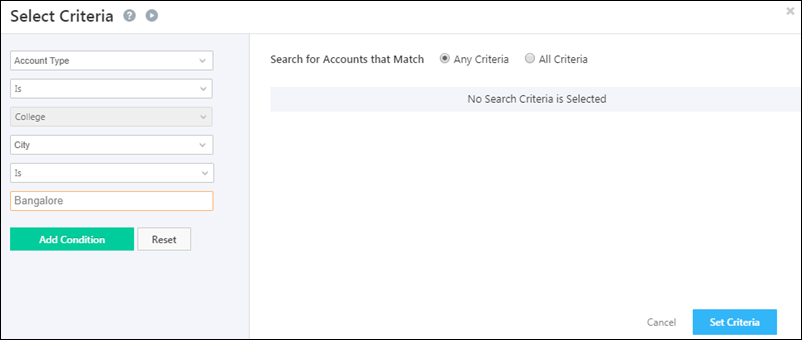
How to Redirect Visitors to my Homepage after Submission on Landing Page?

You can redirect visitors  to your company’s website after they submit on your landing page. You can make this action an automatic one during creating a landing page. You use this procedure to redirect visitors  to your company’s website after they submit on your landing page.

Prerequisites

  • You have logged in to LeadSquared.
  • You have completed Step 1 and Step 2 of creating landing page.

Procedure

1. In the Actions page, click on Is redirected to a URL button. Select Provide External URL option from the drop down menu. Enter the URL to which you want the visitors have to be redirected. Alternatively, you can also allow the visitors to be redirected to another landing page. You can view the list of landing pages in LeadSquared in the Select landing Page drop down.

Redirected to URL 2

How to Allow Download of a Document after Visitors Submits on Landing Page?

You can let a landing page visitor download any document after submission on your landing page. You can make this action an automatic one during creating a landing page. You use this procedure to let the visitor download a document after submission on your landing page.

Prerequisites

  • You have logged in to LeadSquared.
  • You have completed Step 1 and Step 2 of creating landing page.

Procedure

1. In the Actions page, click on Download a document button. Click on Select file button to upload the file which you want the visitor to download.

Download document 2

2. You can enter any required message on the download pop up. Additionally you can choose to send an additional email to the lead containing the link to download the same document. You can do so by selecting the Send Download Document Email check box.


How to send Auto-Response emails to Leads submitting on Landing pages?

This feature allows you set up to send an automated email when a visitor submits on your landing page. You use this procedure to send a confirmation email to the lead after submission on the form of the landing page.

Prerequisites

  • You have logged in to LeadSquared.
  • You have completed Step 1 and Step 2 of creating landing page.

Procedure

1. In the Actions page, select the Auto Response Email to Lead check box. This option allows you to select the email sender and customize the email notification template.

Auto Response Email 2

2. You can customize the email by inserting the desired variables such as Lead Name, Company name and so on. Once the visitor submits on your landing page, this email will be sent.

How to create a Facebook landing page?

You can create landing pages in LeadSquared and embed them on Facebook. A Facebook landing page can give you greater visibility and higher number of leads. You use this procedure to create a Facebook landing page.

You can now use LeadSquared’s Facebook App to create landing pages. It is recommended that you use LeadSquared’s own Facebook App to host a landing page in your company’s Facebook page. Note that you have to create a landing page in LeadSquared first and then host it in Facebook. For more information, see How can I use LeadSquared Facebook App to have a landing page tab?

Prerequisites

  • You have logged in to LeadSquared.
  • You have created and published a landing age in LeadSquared. For more information, see How to Create and Publish a Landing Page?
  • You have created a Facebook page for your company.

Procedure

1. Log in to your company’s Facebook page. Search for Static HTML: iframe tabs App in Facebook. Click here to view the App.

Static HTML App

2. Click on Add Static HTML to a Page button. You will be re-directed to another page where you will have to choose the Facebook page to which you want to add a Static HTML (Landing Page). Click on Add Static HTML: iframe tabs button.

Add Static HTML

3. After authorizing the App, you would see a new box added to your Facebook tabs, named ‘Welcome’. You can edit it by clicking on it.

Welcome

4. The edit app page opens up. Here you can edit the app. Click on change app (as shown in the screen shot).

Edit App

5. Select Website option in the left side. Click on Use Website app button.

Website App

6. You will be redirected to the Website App edit page. Here you can enter the URL of the landing page that you have created in LeadSquared. You can adjust the width and height of the landing page using the scroll buttons available.

Paste URL

7. Next, click on click on the Fangate tab. Select the Enable fangate check box. If you enable fangate, people will see this before they like your page. After they like your page, they’ll see the main content. You can also edit the Message for your visitors section.

Fangate

8. Click on More options button. In this page you can Add Tabs to your page, set up Google Analytics (if you have not set up LeadSquared’s own tracking script), edit the Tab Name, and also include a Custom Icon.

More Options

9. You can Preview and Publish the page now. It will be visible in your Facebook page.

10. If you want to include an image, click on the Dropdown Arrow that you see just next to your tab. Hover over your Tab, you will see an Edit option (the pencil icon on right). Click it. From the Dropdown Box, Click ‘Edit Settings’.

Edit Settings

11. On a popup, you would now see an option called Custom Tab Image. Click on Change.

Edit Pop Up

12. You will be re-directed to a new page where you can upload a custom image. Click on the Edit button present on the default image. Upload Image pop-up opens up. Here you can choose the image to upload. You can upload a JPG, GIF, or PNG file. The size of the image must be 111 x 74 pixels. File size limit 5 MB. If your upload does not work try a smaller picture.

Upload Image

13. If anyone clicks on this Icon, your Landing Page would open. You can also use this app’s URL in Facebook ads.

How can I find Leads that Submitted on a Landing Page?

You can create a list of all leads who have submitted on your Landing Page. You can make use of this list to send further campaigns or nurture the leads by, say, sending special offers. You use this procedure to find leads and create a list of leads who submitted on your landing page.

Prerequisites

  • Your leads are present in LeadSquared. Lists cannot be created without leads being present.
  • You have logged in to LeadSquared.
  • You have created and published a Landing Page.
  • When you are creating a landing page in LeadSquared, you can specify that the leads that submit on the landing page be grouped into a list. If you have specified that, then you can find the leads in the Manage Lists grid page.

Procedure

1. There are two ways find leads that submitted on your Landing Page. The first way is by navigating to the landing page report and viewing the leads. For more information, see How to Use Landing Page Reports?

2. The second way is by manually searching and creating a  list from the leads who have submitted on a Landing Page. The procedure below describes the same.

(i) Navigate to Dashboard > Leads > Manage Lists. Click on Create New List.

Manage Lists

(ii) If you select Any Criteria, then the leads will be filtered based on any one of the specified criteria. If you select All criteria, then the leads will be filtered only if all the specified criteria are met. You can specify any number of criteria to filter the leads. You can click on Add button to specify additional criteria.

Any criteria

(iii) Select the All criteria check box. Next, select Landing Page in the field drop down. Select Is as the condition. Select the  Landing Page from the drop down.Next, add another criteria by selecting Activity in the field drop down. Select Is as the condition. Select Form Submitted on Website from the last drop down.

search criteria

(iv) Click on Search Leads. You will see leads that satisfy the given criteria.

matching the criteria

(v) Click on Save as Static List or as Dynamic List to add the leads to a list. Enter a suitable List Name. You can give a description to the list. Click on Save.

Now that you have created a List of leads who submitted on your landing page, you may want to export the lead details. You can do so by navigating to Dashboard > Leads > Manage Lists. Here click on the list that you have created. In the List Details page, export the lead details using the Export Leads function.

How to Create and Publish a Landing Page?

1. Feature Overview

LeadSquared’s Landing Pages offer a powerful set of features to design and publish high-conversion landing pages. You can create responsive landing pages for different devices (web, mobile, tablet, etc.) and optimize them for search engines (SEO). Whether you’re starting from scratch or using the built-in templates, the Landing Page Editor makes customization simple. It also provides a range of post-form submission options and detailed analytics and reporting.

Note: This article refers to LeadSquared’s legacy Landing Pages. We encourage you to use the new Landing Pages Pro for an enhanced experience.

Leadsquared - Landing page


2. Prerequisites

You should be an Admin or Marketing User of your LeadSquared account.


3. Creating and Publishing a Landing Page

  1. From your LeadSquared dashboard, navigate to Marketing >Landing Pages.
  2. Click Create Landing Page. On the landing page creation wizard, you can create and publish Landing Pages in five steps.

Leadsquared - Landing Pages

  1. Select a Landing Page template – A template gives you a head-start in creating a landing page. Creation becomes easier through template. For more information on this , see Selecting a Landing Page Template.
  2. Build the Landing Page – Customize the Landing Page template using the landing page editor. You can decide and set up the look and feel of the landing page using this editor. For more information on this, refer Responsive Landing Pages.
  3. Set Actions – Create appropriate actions which should follow after a visitor submits on a landing page. This could be displaying a Thank You message, redirecting to a URL or providing a document for the visitor to download . For more information on this, see Actions that should follow when Visitors Submit on your Landing Page.
  4. Customize the Page Settings – Here you can set the Page Title, customize Landing Page URL and Search Engine Optimization (SEO) options for your landing page. SEO options are to increase the landing page’s visibility and traffic. For more information on this, see Page Settings for Landing Page.
  5. View the Summary – This step allows you to review the landing page that you have created. You can review the  key elements of Landing Page here before you publish it.

On completing all the steps, publish the landing page. Once it is published and visitors submit on it, you can view the Landing Page reports. For more information on Landing Page Reports, see How to Use Landing Page Reports?


4. Building Responsive Landing Pages

A responsive landing page is designed to render well across all devices, including desktops, laptops, tablets, and mobiles, by adapting to different screen sizes and orientations. This ensures that the page looks good on every device, improving the viewer’s experience. As the screen size decreases, the page adjusts to avoid horizontal scrolling, allowing viewers to navigate seamlessly by scrolling vertically. LeadSquared’s Landing Page Editor helps you create responsive landing pages. To start building them –

  1. Navigate to Marketing >Landing Pages>Create Landing Page.
  2. Name the landing page and add relevant marketing tags.
  3. Select Use Responsive Templates.  You can select any of the available templates or even a blank template by scrolling to the bottom of the page.

responsive landing page

The landing page editor will open up.  Landing Page Editor treats the page as a canvas on which you can add multiple sections. In each section, you can add blocks of different types to include content, image, form, etc.

LP designer

In general there are seven areas to work upon inside the editor –

  1. Section toolbar:  Adding and managing sections
  2. Block toolbar: Work with multiple types of blocks
  3. Work inside a section
  4. Work inside a block
  5. Manage layout properties of the canvas, sections and blocks
  6. Achieve advanced formatting options using custom CSS
  7. Fully control the style of page or any of it’s elements by overriding default styles

You can also (8) preview the page in web, tablet and mobile. And (9) you may choose to work in full screen mode.


5. Troubleshooting

When a lead submits a form on your landing page (legacy/older version of landing pages) and encounters the following error – “Oops something went wrong”, the issue may be caused because –

  1. You’ve run out of web events. Navigate to Billing and Usage and scroll down to the Website Tracking and check if you’ve exceeded your Max Web Events limit.
  2. Check if your landing page form contains at least one unique field.

Leadsquared - Landing Pages

Why are leads not getting captured via Landing Pages?
If leads are not being captured, check the following:

  • The landing page form must include at least one unique identifier system field (First Name, Last Name, Email, or Phone Number).
  • Ensure all field values match the required data type.
  • If fields like City, Stage, or Country are using a predefined list of values (drop downs with Large Option Sets), make sure Allow Auto-Update is enabled.
  • If Reverse IP Lookup is enabled, the system may try to auto-fill location fields. If the detected value doesn’t match the predefined list, lead capture may fail. Enable Allow Auto-Update for these fields.


Any Questions?

Did you find this article helpful? Please let us know any feedback you may have in the comments section below. We’d love to hear from you and help you out!
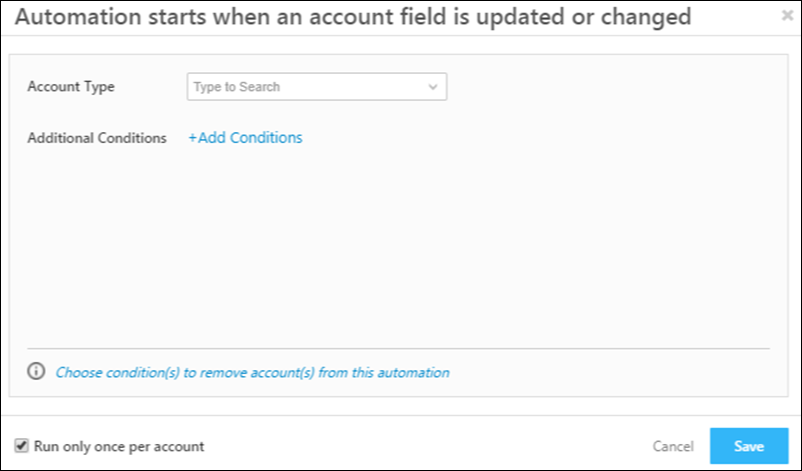
Select a Landing Page Template

1. Feature Overview

The first step of creating a landing page is to select a template. You can –

  • Select a pre-existing template.
  • Select a blank template and build your landing page from scratch.
  • Use your own HTML template.
  • Copy the template of other landing pages you’ve created.
Note: To know more about landing pages and how to create them, see How to Create Landing Pages.


2. Prerequisite

You must be an Administrator or a Marketing User of your LeadSquared account.


3. Select a Landing Page Template

  1. Navigate to Marketing>Landing Pages and click Create Landing Page.
  2. Enter the name of your Landing page on this page. You can also add a marketing tag to the landing page if you wish to.
  3. Select how you would like to create your landing page –
    • Use Responsive Templates – Select any template available on this page to create responsive landing pages that render well on desktops, laptops, tablets, or mobile phones. You can also select a blank template and create your own landing page from scratch. To know more, see Building Responsive Landing Pages.
    • Bring your HTML – Use your own HTML template to create a landing page. To know more, see  Creating Landing Page from HTML.
    • Copy from Existing – Select and copy the template of a previously created landing page.
  4. Click Next.

LeadSquared - Select Landing Page Template


Any Questions?

Did you find this article helpful? Please let us know any feedback you may have in the comments section below. We’d love to hear from you and help you out!
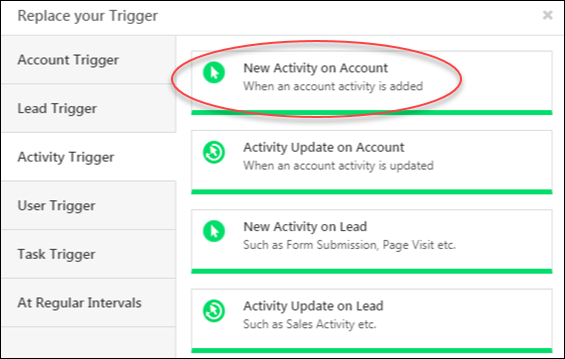
Actions that should follow when a Visitor Submits on your Landing Page

LeadSquared allows you to set up what happens after a visitor submits on your landing page. You can create a work flow for the lading page visitor as well as the marketer who is using LeadSquared. You use this procedure to set actions after publishing the landing pages.

Prerequisites

  • You have logged in to LeadSquared.
  • You are an Admin or Marketing User of your LeadSquared account.
  • You have completed Selecting the Landing page Template and Built Landing Page using the landing page editor. (Step 1 and Step2)

Procedure

  1. Actions for the visitor who submits on the landing page. Click here for more information.
  2. Actions for the marketer. Click here for more information.
  3. Other actions. Click here for information.
  4. Click Next to customize the SEO Options. Alternatively, you can click on Save or Save and Exit to customize the SEO options at a later time.

Actions for the Visitor (Lead)

You can show the visitor a Thank You message, redirect him to another URL or provide him a document to download based on your requirement.

  • Gets a Thank You Message:   This options allows you to configure a Thank You message that the visitor (Lead) will see after submitting on the Landing Page.  The thank you message can be shown either above the the form or be displayed as a pop-up.

LeadSquared Landing Pages

  • Is redirected to a URL: This allows you to enable the lead to be redirect to a URL after submitting on the landing page. This URL can include another landing page or your company’s website or any URL you prefer. You can select the landing page of your choice in the drop down menu (You can see landing pages in the drop down if you have created one earlier). You can also send the form data to the “redirect URL”. Both POST & GET methods can be used based on what is required.  So you can use this feature to integrate with your automated user sign-ups, your own apps which require visitor data or even integrate with payment processing gateways like Paypal.

LeadSquared Landing Pages

  • Downloads a document: This option allows you to upload any document for the lead to download.  You can provide the link of the document to be downloaded. You can also choose to send an additional email to the lead containing the link to download the same document. You can do so by selecting the Send Download Document Email check box.

LeadSquared Landing Pages

Auto Response Email

You can check the Auto Response Email to Lead check box to send a confirmation email to the lead after submission on the form of the landing page. This option allows you to select the email sender and customize the email notification template.

LeadSquared Landing Pages

Actions for the Marketer

You can click on the Send Notification to the Marketer check box to enable Notification to be sent to the marketers by an Email when a visitor submits on the form of the Landing Page.

Besides Users of your LeadSquared account you may also send notification emails to Additional Recipients who are not necessarily leadsquared Users.

You can also customize the email according to your requirement.

LeadSquared Landing Pages

Other Actions

  • In Assign Leads to, assign the leads obtained from the landing page to any of the users in LeadSquared. The user assigned will be the Lead Owner for the leads coming from this landing page.
  • In Add Leads to List, you can add the leads obtained to the lists that you have created in LeadSquared. Alternatively, you can create a new list for the leads obtained through the landing page. The list created here will be a static list. You can create a list if you want to nurture the leads by sending them email campaign in the future.
  • In Increase Lead score by, you can also assign lead score for the leads once they submit on the landing page.
  • In Apply Tags, add the required Lead tags, which is combined with the marketing tags which you can provide from Step 01 of creating landing pages. These tags are used to filter the landing pages in the Landing Pages window.

LeadSquared Landing Pages

Click Next to move to the next step (Page Settings).

Next to Page Settings

Page Settings for Landing Page (SEO Options)

In Page Settings step of building a landing page you can set the Page Title, Landing Page URL, SEO Options and you may embed any web analytics script that you might be using. Each of these is explained here under.

Search Engine Optimization (SEO) is a technique used to increase a website’s visibility and traffic. You use this procedure to customize your landing page’s SEO settings.

Prerequisites

  • You have logged into LeadSquared.
  • You have Admin or Marketing User access for your LeadSquared account.
  • You have completed selecting the Landing Page Template, created the Landing Page and chosen the Actions Post Submission. (Step 1, Step 2 and Step 3)

Procedure

1. Page Title: This is the title that will appear on the browser when someone is viewing the landing page. This Title is attached to your site by means of a Meta Title or Title Tag.  Page title can display the name or description of your company, product or service.

2. Landing Page URL: This URL will be used to access the published landing page. Having clean URLs and domain names can be one of the most effective ways to optimize.  When search engines search the web for keywords to make a query, the most prominent area searched is the URL.  Vague URLs slow down the search process and are easily passed over.

3. Meta Keywords: Here you can provide Meta Keywords for the page to show up in the search results when the user searches by any of the specified keywords on a search engine.

4. Meta Description: Search results often include a short description of the website’s content.  This is called the site’s meta description.  When search engines search through thousands of similar sites related to the searcher’s query, they often use the meta description as a way to categorize. The description must not exceed 200 characters.

5. SEO Behavior: This allows you to choose how you want your page to appear on search engines. Search engine indexing is the process of a search engine collecting, parsing and storing data for use by the search engine. The actual search engine index is the place where all the data the search engine has collected is stored. It is the search engine index that provides the results for search queries, and pages that are stored within the search engine index that appear on the search engine results page. It is advised to check the Allow Indexing for Search Engines check box.

Note: To make your pages Indexable and Searchable you should get sitemap of your landing pages in LeadSquared and submit it in your Google Webmaster account. For help with it please refer to the following article.  Get Sitemap of Landing Pages.

6. Embed JavaScript: You can also embed any Web-Analytics script such as Google Analytics in the landing page. Although LeadSquared’s own tracking script is present, you can embed any other analytics script if you want to additionally track the visitors. You can choose to embed the script inside the Head tag, Start of the body or End of the body.

Page Settings
Page settings 2

6. Click Next to view the summary of the landing page. You can also click on Save or Save and Exit to view the summary at a later point of time.

How to Use Landing Page Reports?

Analyzing your Landing Page Report is one of the most important aspects in the process of Lead Management. You can use the landing page report to study the success/failure of the landing page through various metrics available in the report.

This article helps you understand the various metrics and parameters of a Landing Page Report.

Prerequisites

  • You have logged into LeadSquared.
  • You are an Admin or Marketing User of your LeadSquared account
  • You have created and published the landing page of which you want to study the report.

Procedure

1. Navigate to Marketing > Landing Pages to see the list of all the landing pages you have created in your LeadSquared account.

List

2. Click on the Landing Page Name to view its Report. You will be redirected to its Report page.

Note: You can view the Report of a Landing page only if it is in Published state.

L P report

3. You can view the Status of the Landing Page, the number of Visits, Conversion rate, the number of Submissions and the number of Unique Leads at the top of the report.

Top tab

  • Conversion Rate: This is the number of visitors on your landing page who submitted their details and thereby became leads. Their information will be captured in your LeadSquared account. This gives a fair idea about the success of your landing page. If the conversion rate is too less, then you may consider improving the design, changing the content, or even replacing the landing page.
  • Unique Leads: This is the number of new leads that submitted their information on the landing page. The leads who are already in LeadSquared will not be updated again since they will result in duplication. Hence unique leads gives you an exact picture of the recent leads which have submitted on your landing page.

4. The graphs in the landing page illustrate the number of visits, submissions and unique leads. You can choose to view these trends on a daily, weekly, monthly and yearly basis. You can also view graph in any custom time span. You must click on Custom and select the From and To dates.

Graph

5. You can view the graphical representation of the views and submission on the basis of Lead Sources. You can select any of the available lead sources and view the graph. This way you can analyze the lead details according to the source and look to improve the source in which the leads obtained are less.

Lead source

5. You can also view the keywords entered by users through which they were redirected to your landing page. You can view the keywords when you click on Pay Per Click Ads and Organic Search in the lead source tab. Click on the Keyword button in the graph display area. By analyzing the keywords, you could include or exclude terms on your landing page to make it more relevant and searchable.

Keyword

6. You can view the lead list for the respective  lead source below the graph. If you select All Sources in the lead source tab, you can view the list of all leads irrespective of the lead source. You can choose which lead detail you want to view by clicking on the Select Columns button (shown in the screen shot below).

Lead List

You can perform the following actions to the lead details

Actions

  • Edit: This allows you to edit the lead details. You can edit any of details available in the Edit Lead window.
  • Add Task: This allows you to create a task in relation to the particular lead. You can add any task in the Create Task window.
  • Send Email: This allows you to send a quick one to one email to the lead. In the Send Email window you can compose an email and include any variable that you require.
  • Add To List: This allows you to add the lead to an existing list or add it to a new list, by creating one in the Add to List window.
  • Change Owner: This allows you to assign an owner to the lead. By default the logged in user will be the lead owner.
  • Delete: This allows you to delete the lead details from LeadSquared.

What is the difference between “View All Submissions” and “View Submissions by Source” in the Landing Page report?

  • “View All Submissions” includes all form submissions, even from leads that have been deleted.
  • “View Submissions by Source” only displays submissions from leads that currently exist in the account.

This difference in criteria can result in varying submission counts between the two options.

How to Provide Border to a Block?

You use this procedure to provide border to the blocks in your landing page.

Prerequisites

  • You have logged in to LeadSquared.
  • You have navigated to Dashboard > Marketing > Landing Pages > Create Landing Page. You have selected a landing page template or a blank landing page.
  • You have completed the Select Landing Page Template step (Step 1).

Procedure

1. Click on the block to which you want to provide border. The properties panel on the right side displays the Block Properties tab.

Select Block

2.  The border settings tab allows you to select the border properties of the block.

border

  • Color: You can specify the color of the border by choosing the color in the color mixer pop up or by entering the HTML code of the color.
  • Width: You can select the thickness of the border and also select where the border is to be present.
  • Corner Radius: You can choose if the borders are to be sharp or curved using the slider.

Example

The image below illustrates a landing page block with all the border settings.

Border settings

How to Embed Images in Landing Pages?

Images are the best way to have a positive effect on the conversion rate of your Landing Pages. Embedding images into the landing pages is very simple. You use this procedure to embed images into the landing pages.

Prerequisites

  • You have logged in to LeadSquared.
  • You have navigated to Dashboard > Marketing > Landing Pages > Create Landing Page. You have selected a landing page template or a blank landing page.
  • You have completed the Select Landing Page Template step (Step 1).

Procedure

1. Click on the Add Image Block button in the landing page editor.

Insert Image Toolbar

Insert Image Toolbar


2. You have to double click on the block to embed an image.

Add Image Block

Add Image Block


3. The Image Browser window pops up. You can choose an image from your computer or from the LeadSquared library. It should be noted that the file size should be 1MB or less.

Image Broswer


4. Select the image you want to upload and click on Insert. 

Resize Image

5. You can change the size of image by stretching the Image Block.

Media Block

Media block allows you to add videos and presentations in the landing page. A video or a presentation could be very vital in making your landing page successful. You can click on the Add Media Block button in the landing page editor, or double click on an already existing one to change it. The Embed Media window opens up.

To learn more about landing pages, see How to create landing pages.

Embed Media

1. To include a video or presentation in the media block, you have to copy the html code of the same and copy it in the space provided. A typical code for  a youtube video will be something like this. <iframe width="420" height="315" src="//www.youtube.com/embed/NUnOd-Vf4RA" frameborder="0" allowfullscreen></iframe>.

2. You can click on Preview to have a look at the embedded video or click on Save to include it in the landing page.

Create Custom Lead Fields

1. Feature Overview

LeadSquared provides a set of default lead fields out of the box, but every business captures unique information about its leads. Custom lead fields let you extend the standard lead profile with fields specific to your industry or workflow — such as a credit score for financial services, a property budget for real estate, or a patient ID for healthcare.

Note: If an existing unused lead field already has the data input type you need, consider renaming its Display Name instead of creating a new field.

Examples by industry:

Industry Example Custom Fields
Banking & Financial Services Aadhaar Number, Social Security Number, Credit Score
Education & Ed-Tech 12th Grade Results, Course Interest
Real Estate Location Interest, Budget, Property Type
Healthcare Patient ID, Age, Previous Diagnosis
General Spouse’s Name, Permanent Address, Marital Status, Gender


2. Prerequisites

You must have Administrator access to create or modify custom lead fields.


3. How It Works

When you create a custom lead field, you define its properties and the section it belongs to. The section determines where the field appears when adding or viewing a lead record. Properties control the field’s data type — such as text, number, or date — and its behavior, such as whether it is mandatory, searchable, or included in mail merge.

Note: Review the data input type carefully before saving — most field properties cannot be changed after creation.


4. Creating a Custom Lead Field

  1. Go to My Profile>Settings>Leads>Lead Fields.
  2. Click the Create icon.
  3. Fill in the field properties (see reference below).
  4. Click Save.

navigate to create custom lead fields


5. Field Properties Reference

5.1 Basic Properties

Property Description
Display Name The label shown to users on the lead form (e.g., Alternate Mobile Number).
Include Field in Section The section of the lead profile where the field appears: Lead Details, Additional Details, or Hidden Fields.
Mail Merge Default Value A fallback value used in mail merge when a lead has no data in this field.
Data Input Type The field’s data type. Determines how the field is rendered and what values are accepted (see table below).

5.2 Data Input Types

Data Type Rendered As Example
Text (String) Text box Designation
Number Text box (select Decimal or Integer) Fax Number
Email Email input Alternate Email Address
Phone Text box or Phone Controller Secondary Phone Number
Website URL input Company Blog
Date Date picker Follow-up Date
Time Time picker Follow-up Time
Boolean Radio button or checkbox Valid Passport
Dropdown Single-select dropdown Country
Multi-Select Dropdown Multi-select dropdown Courses Opted For
Custom Field Set (CFS) Configurable — supports file/image uploads PAN Card
Note: If you need a large number of dropdown options, see Large Options Set for Lead Fields.

5.3 Behavioral Settings

Setting Description
Include in Mail Merge Allows this field’s value to be dynamically merged into email campaigns, automations, and integrations.

Note: File-type CFS fields cannot be included in mail merge.
Is Mandatory Prevents users from saving a lead record without filling in this field.
Include in Quick Search Makes this field searchable from the Quick Search bar on the Manage Leads page.
Show in Quick Add Displays this field when creating a lead through the Quick Add option.
Lock After Create Prevents non-admin users from editing the field value after the lead is created. Does not restrict API-level updates.
Use in Lead Clone Auto-populates this field when cloning an existing lead.
Show in Import Makes this field available for column mapping when importing leads.


6. Editing a Custom Lead Field

Once a field is created, only the following properties can be modified:

  • Mail Merge Default Value
  • Maximum Length
  • Is Mandatory

All other properties, including the data input type, are locked after creation.


7. How to Create a Currency Field

LeadSquared does not have a dedicated currency data type, but you can display a Number field in currency format using Custom Field Sets (CFS). Follow these steps:

Step 1: Set your account’s default currency format.

  1. Go to Settings>Profile>Company Profile.
  2. Click Edit.
  3. Next to Default Currency, click Format, select your preferred comma-separated currency format, and click Save.

Step 2: Create a currency-formatted number field.

  1. Go to Settings>Leads>Manage Custom Field Sets.
  2. Click Create.
  3. Enter a Name and Description, then click Next.
  4. Click Add Field, enter a Display Name, and select Number from the Type dropdown.
  5. Click the actions menu (seria sales user dashboard actions) and select Currency from the Show As dropdown.
Note: Currency formatting is also available for Opportunity, Task, and Activity number fields.

How to Create a Currency Field


Any Questions?

Did you find this article helpful? Please let us know any feedback you may have in the comments section below. We’d love to hear from you and help you out!
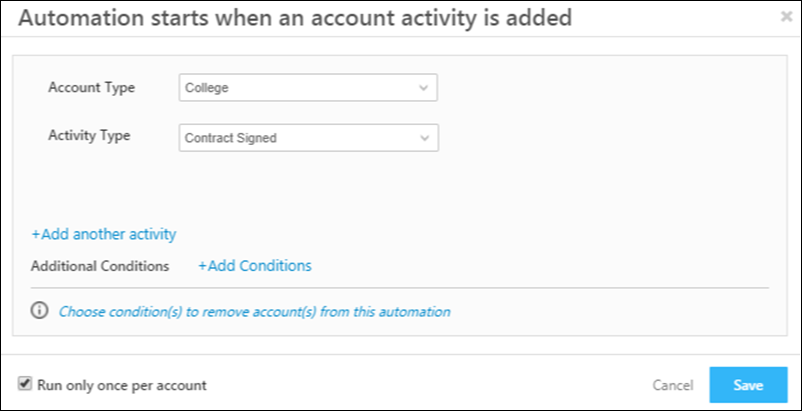
LeadSquared Getting Started Guide for Administrators

Hello, Admin. Welcome to LeadSquared.

This guide has step-by-step instructions on setting up your LeadSquared account. At the same time, you will learn how LeadSquared can help your organization.

Note: If you aren’t looking to configure LeadSquared in a live environment yet, you can create a test environment through LeadSquared Sandbox. The Sandbox duplicates your existing Live Production account, to test and evaluate LeadSquared features before subscribing to them.

1. Prerequisites

Before we begin, here are a few prerequisites –

  • LeadSquared account – You will need a paid LeadSquared account. If you do not have one, you can create one by booking a demo.
  • Missing Features – Some of the features listed here may not be available in your current plan. For more information on plans and pricing, visit https://www.leadsquared.com/
  • Account Number – Once your sign-up is complete, log into LeadSquared and note down your account number. You will need to quote this number in all communications with us.


2. Setup your Profile

Personal Settings and Organization Settings capture details about you and your organization. Some of these details are used while interacting with your leads, prospects, and customers. Further, as an administrator, you can choose your daily report delivery preferences.

The Billing and Usage section displays your LeadSquared subscription details. You can view all the features of your account and the status of their current usage. Under Manage Subscriptions, you can view the purchase history of all your orders and make further purchases.

Note: For more information on plans and pricing, visit https://www.leadsquared.com/

getting started admin My profile`

Help Article Description
Setup your personal profile This article will help you set up your personal profile.
Setup your company profile This article will help you set up your company profile
Setup your custom logo This article will help you set up your business/custom logo.
View your LeadSquared billing and usage This article will help you understand and manage your billing and usage, and your recurring and one-time subscriptions.


3. Configure your Lead Settings

Leads are your potential customers. In LeadSquared, you can track your lead’s journey from creation, through marketing and sales activities, all the way to conversion.

The lead entity is customizable. In addition to system fields (first name, email, etc.,), you can create custom Lead Fields (enrolment Id, passport number, etc.,) to capture details specific to your business use cases. Also, you can create a set of fields (using the Custom Field Sets feature) for your document collection business use cases (KYC documents, education qualifications, etc.,)

You also have the option to create a custom Lead Form that is easy to set up. It’s a quick way to capture new leads or update existing ones.

Also, when a lead gets captured, you will know the source through which it originated (for example, social media, newsletters, ads, etc.)

getting started lead details

Help Article Description
Lead Management Feature Guide This article will give you a brief overview of LeadSquared’s Lead Management feature.
Customize the Lead Details View This article will help you understand how to customize your Lead Details page.
Create your custom Lead Fields This article will help you understand how to create custom Lead Fields based on your organization’s requirements
Create a dependency between Lead Fields. This article will help you understand how to create a dependency between 2 Lead Fields. For example, the Campus field is dependent on the Department field for an account created for colleges.
Manage your Lead Stages This article will help you understand how to create different Lead Stages as the lead passes through the sales funnel.
Manage your Lead Sources This article will help you understand how to create and manage Lead Sources.
Rename a lead entity to reflect your business terminology This article will help you understand how to rename the lead entity. For example, rename “lead” to “contact”.
Create Custom Field Sets This article will help you understand how to create Custom Field Sets. For example, a custom field set for KYC Documents with fields Passport, PAN Card, Aadhar Card, and Address Proof.
Create a Lead Form This article will help you understand how to create a Lead Form.

Note: This is a basic version of a Form. You can create more powerful forms through LeadsSquared’s Dynamic Forms.


4. Lead Prioritization and Scoring

LeadSquared provides three configurable metrics to help you qualify and prioritize leads. Each of these metrics tells you something about the quality of the lead or their propensity to buy your product/service.

4.1 The Lead Score

Lead scoring helps you understand how active a lead is. LeadSquared tracks system activities (email open/clicked, website visits, etc.,) of your leads and assigns them a score based on these engagements. Higher the Lead Score, the higher the chance of your lead converting. LeadSquared also allows you to customize the lead score, by assigning numerical values to different Custom Activities along your sales pipeline.

getting started lead score

Help Article Description
How does Lead Scoring Work? This article will help you understand how lead scoring works.
Add Custom Activity Types This article will help you add custom activities for lead scoring.


4.2 The Engagement Score

The engagement score is similar to the lead score, but the key difference is that the engagement score looks at specific activities performed by/on the lead within a specified time period.

getting started engagement scoring

Help Article Description
Setup Criteria for Lead Engagement Scoring This article will help you create Lead Engagement Scoring.


4.3 The Lead Quality Criteria

The Lead Quality Criteria helps you recognize leads that match your ideal customer profile (ICP). You can set up rules to identify your ICP. For example, your ICP could be an age group between 21 and 25, working in particular locations – leads are evaluated against these rules and assigned a score.

getting started lead quality criteria

Help Article Description
Setup Lead Quality Criteria This article will help you create Lead Qualification Criteria.


5. Capture Activities on Your Leads

Once Leads are captured in your account, you can monitor their progress down the sales funnel by tracking notable interactions and events, or ‘Activities’. Activities help you understand a lead’s position in the conversion funnel, and accordingly automate nurturing and sales processes.

5.1 System/Core Activity

Some activities are available by default on your LeadSquared account. These activities are common across industries. E.g., Emails – Bounced/Link Clicked/Opened, Phone Calls, Website Visits, etc.

getting started core activities and scores

Help Article Description
Activity Management Feature Guide This article will help you understand LeadSquared’s Activity Management feature.


5.2 Custom Activities

You can also add custom activities to your LeadSquared account. This allows you to create and assign scores to new activities specific to your industry. For example, if you’re in the education industry your custom activities may be attending a seminar, completing a payment, campus visit, etc.

getting started custom activities and scores

Help Article Description
Add Custom Activities This article will help you understand how to add Custom Activity Types.


5.3 Sales Activities

The Sales Activity Management feature lets you capture important information related to each sale (e.g., product sold, sales owner, date, order value, etc.,). You can add and manage the revenue generated by your customers for different products and services offered by your organization. You can also cancel or edit sales activities to manage refunds and returns.

getting started new sales activity

Help Article Description
Sales Activity Management  This article will help you understand how to configure Sales Activities.


6. Configure Tasks for Users

Once a lead is created in your system, you can assign and manage Tasks among your users (schedule meetings, demos, site visits, etc.), and use a variety of other features to convert them into customers.

getting started tasks

Help Article Description
Tasks – Feature Guide Understand all the capabilities of the Tasks feature.
Configure your Tasks This article will help you understand and configure Tasks.
How to Create Tasks and Schedule Reminders? This article will help you understand and create Tasks and schedule reminders.


7. Manage Accounts and Opportunities

7.1 Create and Manage Your Accounts

All your B2B relationships can be managed through LeadSquared’s Accounts feature. If you work with partners, vendors, third-party services, etc., you can create accounts for them on LeadSquared and store the data you need (account details, account owners, stages, etc.). You can also add and manage your leads under these accounts.
getting started manage accounts
Help Article Description
Accounts Management Feature Guide This article will help you understand LeadSquared’s Account Management Feature
Account Settings This article will help you set up LeadSquared’s Account feature.
Accounts, Leads, and Opportunities This article will help you understand the difference between Accounts, Leads, and Opportunities.


7.2 Create and Manage Your Opportunities

Opportunities in LeadSquared represent potential deals. A lead could be interested in more than one product offered by your company. For example, a lead might be interested in buying car insurance, term insurance, and health insurance. LeadSquared’s Opportunities feature lets you manage different opportunities for the same lead without creating duplicate contacts. You can route the lead to agents specialized in different products, and create separate sales workflows.

Help Article Description
Opportunity Management Feature Guide This article will help you understand LeadSquared’s Opportunity Management Feature.
Opportunity Configuration This article will help you understand how to create forms for multiple opportunity types, configure opportunity types, and add opportunities to your leads.
Manage Opportunities This article will help you understand how to add opportunities to leads, and perform multiple actions on these opportunities such as bulk and grid updates, export opportunities and reset filters.
Accounts, Leads, and Opportunities This article will help you understand the difference between Accounts, Leads, and Opportunities.


8. Manage Your Leads Through Smart Views

To bring all your important information into one place, LeadSquared launched Smart Views. The Smart Views page gives users a personalized view of your accounts, leads, opportunities, activities, and tasks. Sales users can create their own individual smart views, but as an Admin you create smart views at the organization level and assign them to different teams.

getting started smat views

Help Article Description
Smart Views This article will help you understand Smart Views.
Smart Views for Administrators This article will help you understand how to create Smart Views as an administrator.


9. Build Workflows

9.1 Creating LeadSquared Dynamic Forms

In addition to the basic lead forms feature, the Dynamic Forms Designer feature helps you create intelligent forms to capture entire application processes (e.g, college admission applications, loan applications, etc.). You can customize forms to behave in ways specific to your use cases, and prompt users to collect the right information based on a lead’s previous inputs.

Once you’ve created a form, the Process Designer helps you choose where, and to which users you want the form to appear. You can also use it to combine multiple forms into processes.

preview form

Help Article Description
LeadSquared Dynamic Forms and Processes – Feature Guide This article will give you an overview of the Dynamic Forms and Process features
LeadSquared Forms This article will help you understand how to create a LeadSquared Dynamic Form.
LeadSquared Process Designer This article will help you organize your forms into workflows with Process Designer.


9.2 Create an Automation Workflow

The Automation feature lets you automate your entire workflow using an intuitive and easy-to-use visual designer. It’s a powerful way to push your leads to conversion. Just set it up once and watch your leads trickle down the sales funnel with minimal manual effort.

multi if else example

Help Article Description
Automation Feature Guide This feature guide will help you understand LeadSquared’s Automation feature.


9.3 Create LeadSquared Portals and Widgets

LeadSquared’s Portals are a great way to design a self-service website that helps with lead management like online applications or registration processes. LeadSquared’s Portal feature allows you to build your own online portals to capture leads and opportunities, through online forms, making the entire process paperless.

You can also create and embed Widgets on your website or landing page. An LSQ widget acts as a “lead magnet”. An example of a lead magnet is a special deal offered to customers in exchange for their contact details. It can be a discount code, webinar, white paper, ebook, template, inquiry form, or another resource.

Portal

Help Article Description
Portals Management Feature Guide This article will help you understand and create a LeadSquared Portal.
Capture Leads with LeadSquared Widgets  This article will help you create LeadSquared Enquiry Widget or Registration Widget.


10. Setup Email Campaigns

Communicating with your leads is a breeze with LeadSquared’s Email Campaigns. It’s quick and easy to design and send out email campaigns to engage and nurture leads. You can personalize the content, schedule the timing of the campaigns, and track your lead’s interactions through Campaign Reports and Analytics.

With LeadSquared’s Email Settings, you can manage subscriptions to your email campaigns, set restrictions on which users can send emails, and set restrictions on recipients by blocking email addresses or domains.

Also, LeadSquared’s List Management feature lets you create Static and Dynamic lead lists. You can leverage this feature with your email campaigns to send targeted campaigns. The Manage Lists page allows you to create, edit, and view all your lead lists in one place.

getting started email campaign

Help Article Description
Email Settings Feature Guide This article will help you understand and configure your email settings.
Email Campaign Feature Guide This article will help you set up Email Campaigns through LeadSquared
List Management Feature Guide This article will help you understand and create Lists for your email campaigns.


11. Create Users and Permissions

As an administrator, you can create LeadSquared users and grant them permissions based on their role in your organization.

After creating the users, you can group them into different sales groups based on location, business unit, or any other categorization of your choice.

Based on the reporting structure of your users, LeadSquared will also create an organizational hierarchy.

You can also group users into Teams that reflect your organization’s structure. The most powerful merit of the Teams feature is the ability to auto-check in your users. You can configure work-day templates and holiday calendars in accordance with your organization’s work schedule.

getting started users

Help Article Description
Manage Users This article will help you understand how to create and manage LeadSquared Users.
Manage User Custom Fields This article will help you create Custom Fields for your users.
Check-in/Check-out Users This article will help you understand the Check-in/Check-out feature for users.
Permission Templates Feature Overview This article will help you understand LeadSquared’s Permission Templates feature.
How to Create a Permission Template This article will help you understand how to create a Permission Template.
How to Apply Permission Templates This article will help you understand how to apply a Permission Template.
Managing Sales Groups This article will help you understand how to create and manage your LeadSquared Sales Groups.
Managing Teams This article will help you understand how to create and manage your LeadSquared Teams.
How to Set Up User/Organization Hierarchy  This article will help you understand how to create and manage your organization hierarchy.


12. Reports and Analytics

LeadSquared provides powerful features to track your reports and dive into analytics –

12.1 Create a Custom Dashboard

Your dashboard is the first page you see when you log in to your LeadSquared account. It displays all the important sales and marketing metrics and reports of your account. The dashboard is completely customizable. And, you can also add third-party reports to your LeadSquared dashboard through an external URL.

getting started dashboard

Help Article Description
Create a Custom Dashboard This article will help you create a Custom Dashboard on LeadSquared to view your reports and metrics.
Assign Custom Dashboards to Teams This article will help you assign Custom Dashboards to your Teams.
Set a Dashboard as Default  This article will help you understand how to set a Dashboard as default.


12.2 SIERA

Sales Intelligence and Efficiency through Reports and Analytics (SIERA) is LeadSquared’s new-gen self-service reporting tool. Through SIERA, you can track leads, opportunities, organization revenue, user performance, and more.

getting started SIERA

Help Article Description
SIERA Feature Guide This article will help you understand LeadSquared’s SIERA feature for viewing your reports and analytics.


12.3 LeadSquared Reports

You can use the LeadSquared Reports feature to analyze your marketing and sales business processes. It helps you track and manage the activities performed by the lead and your users, across all LeadSquared features.

Help Article Description
LeadSquared Reports This article will help you understand and create LeadSquared Reports

LeadSquared Reports


13. Integrate Your Third-Party Apps

The App Marketplace helps you extend LeadSquared’s functionality. If you use an external application that manages lead data, you can sync that data with LeadSquared. Simply download and install the respective application from the App Marketplace and start syncing the data. Once the leads are synced, you can leverage LeadSquared’s CRM features to nurture and convert your leads.

getting started app marketplace

Here are some popular apps on LeadSquared’s App Marketplace –

Help Article Description
WhatsApp Business Messaging Connector This article will help you integrate your WhatsApp business account with LeadSquared.
Email Sync Connector This article will help you integrate your Outlook or Gmail account with LeadSquared.
Facebook/Instagram Lead Ads Connector This article will help you integrate your Facebook Ads account or Instagram Ads account with LeadSquared.
Custom Lead and List Actions Connector This article will help you understand how to extend LeadSquared’s functionality and create Custom Actions (in addition to the actions available by default) on a lead, group of leads, or a list.
Gupshup SMS Connector This article helps you set up WhatsApp messaging through your LeadSquared account using Gupshup as your service provider.
Kalera SMS Connector This article will help you integrate your Kaleyra SMS with LeadSquared.
Super Receptionist Telephony Connector This article will help you integrate the Super Receptionist Telephony provider with LeadSquared.
Exotel Telephony Connector This article helps you integrate the Exotel Telephony provider with LeadSquared.
Universal Telephony Connector This article will help you integrate your cloud telephony service provider(s) with LeadSquared.
Google Forms Lead Capture Connector This article will help you integrate your Google Forms with LeadSquared.
Universal Lead Capture Connector This article will help you integrate your custom connectors with LeadSquared.
Note: LeadSquared also has extensive API Documentation for your reference.


14. Setup Website Tracking

You can start tracking your leads by installing the LeadSquared tracking script on your website.

LeadSquared’s lead tracking system helps you understand the sources from where the leads landed on your website (google search, email newsletters, social media advertisements, etc.,). These statistics give you an insight into what channels or mediums are working well for your business, and the ones that need improvement.

You can even track the leads’ web events such as page views, button clicks, and link clicks on your website.

Once you list your website under Website & Landing Page Domains, you can install the tracker. Plus, there are additional options you can use to configure your lead tracking.

getting started tracking

Help Article Description
Install the LeadSquared tracking script This article will help you install LeadSquared’s Tracking Script on your website.
Add your website and landing page domains This article will help you link your business/brand domains with your LeadSquared account.
Domain settings for email links This article will help you track links sent to your leads through email campaigns.
Control settings for multiple email opens Enabling Multiple Email Opens may help you in case the emails are forwarded in the same organization, and different people open it to trigger a higher lead score.


15. Create Landing Pages

LeadSquared’s landing page module offers powerful features to design and publish conversion-optimized Landing Pages. You can use LeadSquared’s built-in templates to easily create Landing Pages.

getting started landing pages

Help Article Description
Create and Publish a Landing Page This article will help you understand how to create and publish a landing page
Generate an SSL certificate If you’ve hosted your landing pages on custom domains (outside of LeadSquared), this article will help you obtain SSL Certificates to support these domains.
Create tracking URLs for your landing page This article will help you create tracking URLs through LeadSquared.
Manage reverse IP lookup This article will help you manage reverse IP Lookup. The Reverse IP Lookup setting allows you to automatically view the location (City, State, and Country) of a lead that’s captured from a landing page.


16. Security and Privacy

Here is how you can manage the Security and Privacy settings for your LeadSquared account –

16.1 Manage Your Security Settings

You can secure your account through LeadSquared’s security settings. You can configure the login settings, enable two-factor authentication for all or specific users, enable third-party authentication, manage password policies, manage sessions for users, and more.

login settings

Help Articles Description
Manage Login Settings This article will help you manage your Login Settings on LeadSquared.
Enable Two Factor Authentication This article will help you enable two-factor authentication on your LeadSquared account.
Authentication Profiles If two-factor authentication is enabled/disabled on your account, it is applied by default to all your users. But if you want to enable or disable this feature for only specific users, it can be done by configuring Authentication Profiles.
Enable Third Party Authentication This article will help you enable third-party authentication through Google, Okta, etc., for your LeadSquared account.
Session Management This article will help you manage login expiration time and session timeout for your LeadSquared users.


16.2 Configure Data Protection and Privacy

You have the option to configure the data protection and privacy of your lead details. It includes the option to enable cookie consent, request for email opt-in, personal data protection, and deletion of lead data backup.

getting started data protection

Help Article Description
Data Protection & Privacy Settings This article will help you manage Data Protection & Privacy Settings for your leads.


17. Marvin

Marvin is LeadSquared’s new Inside Sales Application that features significant improvements in the user experience across the platform. Marvin is designed specifically to increase the productivity of Sales Users and Sales Managers but retains similarities to the existing platform to ensure effortless adoption.

LeadSquared - Marvin - Smart Views

Help Article Description
Marvin Feature Guide This article will help you understand the impact Marvin can have on your Organization.


18. Install LeadSquared’s Mobile App

You can efficiently manage your entire field workforce with LeadSquared Mobile App. When new leads come in, you can easily distribute them to your field agents based on their availability, zip code, product, etc. You can also set tasks and meetings for the leads and assign them to your field agents as well. With instant notifications on the app, your agents will know when new leads or tasks are assigned to them and can get in touch with the lead instantly.

Agents can also instantly add leads they meet on the field using the mobile app, and edit and modify the details on the go. You will have complete visibility into your agents’ day. You will know the sales route that your agent has taken for the day, and get reports on the meetings that they have attended and the status of these meetings.

The LeadSquared Mobile App is available on iOS and Android.

getting started mobile

Help Article Description
LeadSquared Mobile App Video Tutorial This video will help you understand the LeadSquared Mobile App.
Features Supported on LeadSqaured Android and iOS This article will help you understand all the features supported on the LeadSquared Android and iOS App.
Casa – Mobile Home Builder This article will help you create and customize the homepage of the LeadSquared mobile application to reflect your business requirements.


19. Store Your Data on Mavis DB

The Mavis DB lets you create databases where you can store master data (for courses, programs, projects, etc.) right inside your LeadSquared account. Providing an easy-to-use UI, Mavis lets you define table structures, and store and manage data including text, numbers, dates, JSON, coordinates, and more. You can directly import your spreadsheets (CSV format) to create and manage tables within your databases.

In addition to the UI, Mavis API offers a powerful RESTful interface to perform operations, filter, and export your data.

LeadSquared's Mavis Database

Help Article Description
Getting Started with Mavis This article will help you understand and create a Mavis DB.


20. Improve Your Sales Performance with ACE

Ace is LeadSquared’s sales performance management suite. If your organization has a revenue goal for the current year, Ace will help you break it down into smaller goals (or targets) for your users. You can set up Goals for different sales teams in your organization and reward them when they reach their targets or exceed them. Users and Managers can track their achievements and gain insights into the best-performing teams and individuals.

incentives

Help Article Description
Goals Feature Guide This article will help you understand and create Goals for your organization.
Create an Incentive Program This article will help you understand how to create an Incentive Program.
View and Manage Incentive Programs This article will help you view and manage Incentive Programs.

Access Limits of Features

1. Feature Overview

This article lists the data limits of the various features, settings and data fields of the LeadSquared application. Note that some features may not be available in your plan. For more information, contact your LeadSquared account manager.


2. Web Application Limits

Feature or Setting Description Limit Value Customizable Comments
Settings – Unique Lead Fields Maximum of three unique fields in your account. This helps avoids creating duplicate fields. 3 No
Object Types The default Object Types allowed in an account are five. 5 Yes To increase this limit, contact your account manager, or write to support@leadsquared.com.
Settings – Unique Object Type Fields Each Object Type can have three unique fields. 3 per
Object Type
No
Settings – Customization – Custom Fields Maximum number of custom lead fields in Lead Settings. 75 Yes This limit does not include system-defined fields such as lead source, lead stage and so on.

To increase this limit, contact your account manager, or write to support@leadsquared.com.

Settings – Customization – Activity Settings Maximum number of activity fields in Activity Settings. 50 No You can create more fields by using the Custom Field Set option.
Settings – Customization – Sales Activity Settings Maximum number of Products in Manage Products
  • Default – 500
  • Maximum – 1,000
Yes To increase this limit, contact your account manager, or write to support@leadsquared.com.
Settings – Customization – Lead Stage Management Maximum number of lead stages (active) 20 Yes
Settings – Customization – Lead Stage Management Maximum number of lead stages (inactive) 5 Yes
Settings – Customization – Task Types The default maximum number of task types in Tasks. 10 Yes To increase this limit, contact your account manager, or write to support@leadsquared.com.
Manage Leads – Import Maximum file size of the import CSV file in MB
  • Default – 10MB
  • Maximum – 100MB
No To increase this limit, contact your account manager, or write to support@leadsquared.com.
Manage Leads – Import Maximum number of leads that can be updated through Lead Import
  • Default – 25,000
  • Maximum – 300,000
No To increase this limit, contact your account manager, or write to support@leadsquared.com.
Manage Leads – Export Leads Maximum number of leads that can be exported through Lead Export
  • Default – 100,000
  • Maximum – 500,000
No To increase this limit, contact your account manager, or write to support@leadsquared.com.
Manage Leads – Quick Filter Maximum number of quick filters that can be created 20 Yes The limit is per user. Every user can create max 20 filters.
Manage Leads – Bulk Update Maximum number of leads that can be bulk updated 25,000 No
Manage List – Add to List or Create List Maximum number of leads that can be added to a Static Lists 400,000 No
Manage Leads Maximum number of columns that can be added in a lead grid 20 No
Settings – Email Settings – Categories Maximum number of Email categories 20 Yes
Settings – API and Webhooks Maximum number of days upto which Webhook history records are stored
  • Webhook History – 10 days
  • v2 API Logs – 30 days
No
Lead Details – Activity History – Visitor details Maximum number of days the website and landing page visit is captured in the Lead Details page 100 No
Lead Details – Activity History – Sent Email History Maximum number of days the history of sent Emails to Leads is captured in the Lead Details page 100 No
Lead Details – Activity Stream History Maximum number of days Activity Stream (call related activities) is captured in the Lead Details page 100 No
Dashlets – Dashboard Maximum number of dashlets per dashboard 25 No
Marketing – Workflow Automations Maximum number of days up to which workflow history records are stored 10 No
Number of Lead Tabs Maximum number of tabs that can be added under Lead Details using the Custom Tab Connector app 10 No
Number of Smart View Tabs Maximum number of tabs that can be added in Smart Views 10 No Any user can add a new tab in Smart Views, but only an administrator will be allowed to create a Smart View.
Number of Lead Fields in Agent Popup Maximum number of lead fields displayed in agent pop up 10 No
Tracking cookie expiration Allows customer to adjust tracking cookie expiration   2 years Yes This setting impacts landing page’s cookie expiration 
Tasks – Number of Task Types Maximum number of task types that can be created 20 No
Tasks – Number of To-Do Task Types Maximum number of to-do types that can be created 30 No
Entity Access Sharing – Automatic Revoke After When an entity (lead) is shared with a user, and no value is added to revoke the access, the permissions on the entity is automatically revoked after the maximum number of days. 90 days No
Entity Access Sharing – Max Allowed Revoke After When an entity (lead) is shared with a user, the maximum value that can be passed after which the permission on the entity is revoked. 1 year No
Entity Access Sharing – Request Batch Size The maximum number of entities (leads) sharing request that can be made at once. 200 No
Entity Access Sharing – Max Leads that can be Shared with a User at a Time The maximum number of leads you can share with a user in a single request. 2,000
Telephony – Max Allowed Virtual Numbers Allows customer to change the number of virtual numbers for any telephony connector. 10
Automation – Enable Bulk Automation Trigger – Lead Create Allows customers to enable or disable automation for bulk lead create and set limits. 10,000 
Automation – Enable Bulk Automation Trigger – Lead Update Allows customers to enable or disable automation for bulk lead update and set limits. 10,000
Automation – Enable Bulk Automation Trigger – Add Activity Allows customer to enable or disable automation for bulk activity import and set limits  10,000
Automation – Enable Bulk Automation Trigger – Update Activity Allows customer to enable or disable automation for bulk activity update and set limits 10,000
Automation – Enable Bulk Automation Trigger – Lead Added to List  Allows customer to enable or disable automation for bulk lead add to static list and set limits  25,000 
Automation – Enable Bulk Automation Trigger – Account Create Allows customer to enable or disable automation for bulk account create and set limits  10,000
Automation – Enable Bulk Automation Trigger – Account Update  Allows customer to enable or disable automation for bulk account update and set limits  10,000 
Automation – Number of cards  Number of condition and action cards under automations. 50
 Automation – Number of Automations  The number of automations that a user can create in a single automation.  Varies based on the current plan
Automation – Number of Sub-Automations in an Automation The number of sub-automations that a user can create in under a single automation.  


3. API Limits


Any Questions?

Did you find this article helpful? Please let us know any feedback you may have in the comments section below. We’d love to hear from you and help you out!
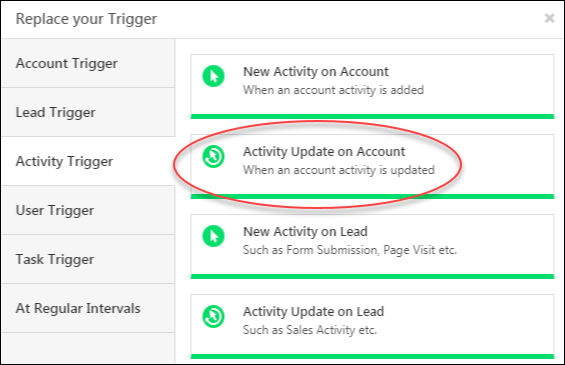
Settings: Managing Lead Sources

1. Feature Overview

Lead sources are the avenues through which you acquire leads. Common lead sources include social media, organic search, trade shows, inbound calls, etc.

Here are some examples of common lead sources.

Lead Source Description
Organic Search When Leads come through a regular search on search engines. For example, if a person comes to your website after finding it in a search result on a search engine and then submits his contact information then the source will be classified as an Organic Search. Note that it does not include Leads coming through paid online ads like Google Adwords.
Referral Sites When a Lead is captured after it visits your website or Landing Page by clicking a link to a referral site. For example, you may have published URLs of your Landing Pages on a directory listing service. The Leads coming from it will be categorized as having the Lead Source “Referral Sites”.
Direct Traffic When a person directly types the URL of your website or Landing Page and submits his information.
Social Media When Leads come through a link or post on social media sites like LinkedIn, Facebook, Twitter, etc.
Email Marketing When a Lead visits your website or Landing Page by clicking a link in your Email campaign then the Lead source is “Email Marketing”.
Pay per Click Ads When a Lead visits your website or Landing Page by clicking a search advertisement (e.g. Google Ads) that you have bought.
Trade Show You can assign the source as Trade Show for the Leads that you engaged in an event, seminar, conference, etc.
eBook The Leads that are captured as a result of form submission to download an eBook on your website or Landing Page.
Inbound Call The Leads that made a call to your company to inquire/buy your goods or services.
Outbound Call The Leads whom your sales reps called to sell your company’s goods or services.
Customer Referral The Leads that have been referred by one of your customers.
Partner Referral The Leads that have been referred by one of your business partners.
Employee Referral The Leads that have been referred by one of your employees.

In your LeadSquared account, by default, you’ll find the following lead sources –

  • Organic Search
  • Referral Sites
  • Direct Traffic
  • Social Media
  • Inbound Email
  • Inbound Phone Call
  • Outbound Phone Call
  • Email Marketing
  • Pay-per-click Ads

These lead sources are relevant to most businesses, and you cannot delete them from your account. However, you can add your own lead sources that suit your business.


2. Lead Source Configuration

To configure your lead sources, from the main menu, navigate to My>Profile>Settings>Customization>Lead Sources. Here, you can –

2.1 Add a Lead Source


To add a custom lead source to your account –

  1. Click the Add button and enter the ‘Lead Source Name’.
  2. Once you’re done with the changes, click Save at the bottom of the page.

Once you update the lead sources, you’ll be able to see the updated drop-down list in places where the lead sources are used (Add Lead Form, Lead Import, etc.).

Adding a lead source


2.2 Change Lead Source Display Order

To change the display order of lead sources by using up and down arrows. The default list is not sorted deliberately. You can sort the list according to your business needs, by using Arrow to change the order of lead sources or  Arrow to change the order of lead sources.

rearrange lead source


2.3 Delete a Lead Source

To delete a lead source, click the  icon.

Delete lead source

You can’t delete the following lead sources as they’re tracked by default –

  • Organic Search
  • Referral Sites
  • Direct Traffic
  • Social Media
  • Inbound Email
  • Inbound Phone Call
  • Outbound Phone Call
  • Pay-per-click Ads
Note: You should be careful of the impact if you delete a lead source that is already associated with leads. To prevent any data incongruity, LeadSquared does not dissociate a Lead Source from a Lead even if you delete it in from the Settings page. However, you will not be able to use the deleted lead source when you add a new lead. The lead source report will continue to show deleted lead sources as long as there are leads in the system associated with those sources.

2.4 Lead Source Properties

You can enable/disable the following properties for the lead source field.

lead field properties

Property Description
Is Mandatory Marks the field as mandatory. Users won’t be able to create a new lead without filling this field.
Show in Quick Add Includes the field in the quick add lead option.
Use in Lead Clone The field value will be populated when the lead is cloned.
Include in Mail Merge Includes this field as a mail merge option for email personalization.
Lock After Create Non-admin users won’t be able to update the value of this field once a lead is created.
Show in Import Enables the field for mapping during lead import through CSV.
Allow Auto Update When enabled, new lead sources added through APIs will automatically get added as a dropdown option.


Any Questions?

Did you find this article helpful? Please let us know any feedback you may have in the comments section below. We’d love to hear from you and help you out!
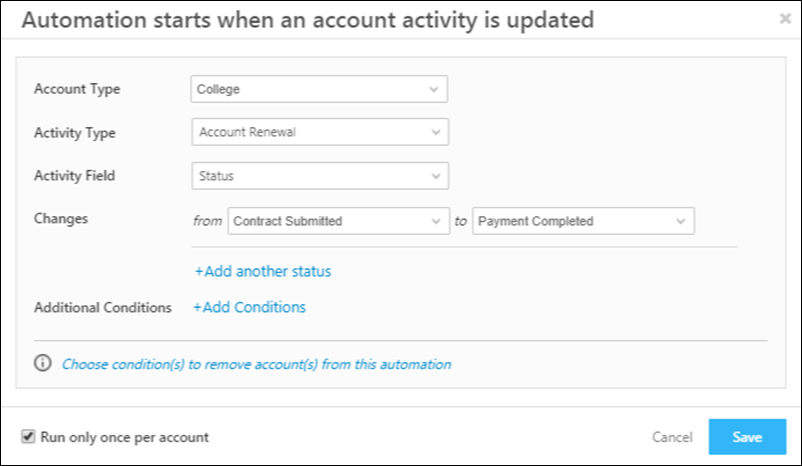
Accounts, Leads and Opportunities Access

1. Feature Overview

There are 3 major entities in LeadSquared – Leads, Opportunities, and Accounts.

Let’s use a College as an example –

  • Accounts – The college effectively manages its business (B2B) relationships by creating individual accounts for each affiliated high school, referral partner, and vendor, using Account Management.
  • Leads – Students interested in enrolling in the college’s courses are created as Leads. Using Lead Management, the college can send communications to these leads, analyze their activities, assign tasks, and drive them to conversion.
  • Opportunities – The college creates individual opportunities for the courses and programs it offers (such as MBAs, certificates, diplomas, etc.). With Opportunity Management, the college can effectively sell, cross-sell, and/or upsell these courses to existing leads.

LeadSquared Lead Management Features

Note:

  • Users (the other major entity in LeadSquared) are employees at your organization (e.g., academic and admission counselors at the community college) who log in to LeadSquared to engage with leads, close opportunities and manage accounts.
  • While the Leads feature is available by default, Accounts and Opportunities are paid features. To enable these features, contact your account manager, or write to support@leadsquared.com.

Enabling all three entities on the same LeadSquared account will result in changes to the access granted to Sales Users and Sales Groups. This article details the access rights and permissions in such cases.


2. Access to Accounts

Note: By default, all Sales Users, and all Users in a Sales Group can –

LeadSquared Lead Management Features

2.1 For Sales Users

Individual Sales Users can –

  • Create
    • New Accounts.
    • Activities on the accounts they can access.*
  • View
    • Accounts associated with leads they own.
    • Accounts associated with (leads of) opportunities they own.
    • Activities^ posted on the accounts they can access.
  • Update activities posted on accounts they own.
  • Delete
    • Activities posted on accounts they own.
    • Activities they’ve posted on an account they can access.

Note: 

  • *A user can access an account if they own leads that are associated with the account.
  • ^Activities referred to here are account activities. These are activity types created specifically for accounts and are different from lead/opportunity activities.

2.2 For Sales Groups with Lead-based Access Enabled

Note: Sales users in a group with lead-based access have the same access to accounts as individual sales users.

Sales groups can be created with lead-based access or account-based access.

LeadSquared Leads Opportunities and Accounts

Sales Users in the group can –

  • Create
    • New Accounts.
    • Activities on the accounts they can access*.
  • View
    • Accounts associated with leads they own.
    • Accounts associated with (leads of) opportunities they own.
    • Activities^ posted on the accounts they can access.
  • Update activities posted on accounts they own.
  • Delete
    • Activities posted on accounts they own.
    • Activities they’ve posted on any account.

Note: *A user can access an account if they own leads that are associated with the account.

^Activities referred to here are account activities. These are activity types created specifically for accounts and are different from lead/opportunity activities.

Group Managers who have the View all leads of a group or Modify all leads of a group permissions enabled can –

Note: In addition to permissions afforded to sales users in the group, managers get additional permissions to view the accounts (activities posted on the accounts) accessible to any user in their group.
  • Create
    • New Accounts.
    • Activities on accounts accessible* to users in the group.
  • View
    • Accounts accessible to all the users in the groups.
    • Activities^ posted on the accounts accessible to users in the group.
  • Update
    • Activities posted on accounts they own.
    • Activities they’ve posted on accounts they can access*.
  • Delete
    • Activities posted on accounts they own.
    • Activities they’ve posted on accounts they can access.

Note:

  • *A user can access an account if they own activities that are posted on the account.
  • ^Activities referred to here are account activities. These are activity types created specifically for accounts and are different from lead/opportunity activities.

LeadSquared Leads Opportunities and Accounts

2.3 For Sales Groups with Account-based Access Enabled

Sales groups can be created with lead-based access or accounts-based access.

LeadSquared Leads Opportunities and Accounts

Sales Users in a group can –

  • Create
    • New Accounts.
    • Activities on the accounts they can access.*
  • View
    • Accounts associated with leads they own.
    • Accounts associated with (leads of) opportunities they own.
    • Activities posted on the accounts they can access.
  • Update activities posted on accounts they own.
  • Delete
    • Activities posted on accounts they own.
    • Activities they’ve posted on accounts they can access*.

Note: A user can access an account if they own leads that are associated with the account.

Group Managers who have the View all accounts of a group permission enabled can –

  • Create
    • New Accounts.
    • Activities on accounts accessible to users in the group.
  • View
    • Accounts accessible to all the users in the groups.
    • Activities posted on the accounts accessible* to users in the group.
  • Update
    • Activities posted on accounts they own.
    • Activities they’ve posted on accounts they can access.
  • Delete
    • Activities posted on accounts they own.
    • Activities they’ve posted on accounts they can access.

Note: A user can access an account if they own activities that are posted on the account.

LeadSquared Leads Opportunities and Accounts

Group Managers who have the Modify all accounts of a group permission enabled can –

  • Create
    • New Accounts.
    • Activities on accounts accessible to users in the group.
  • View
    • Accounts accessible to users in the group.
    • Activities posted on the accounts accessible to users in the group.
  • Update
    • Accounts accessible to users in the group.
    • Activities posted on the accounts accessible to users in the group.
  • Delete
    • Accounts accessible to users in the group.
    • Activities posted on the accounts accessible to users in the group.

Note: A user can access an account if they own activities that are posted on the account.

LeadSquared Leads Opportunities and Accounts


3. Access to Leads

Note: When you enable account-based access, users added to the sales group can see all the leads created under the accounts they own (even the leads owned by other users). With this setting, the account is considered the parent entity, so the account owner gets access to all the leads under that account.
With lead-based access, users can only see the leads they own under their accounts (and not the leads owned by other users under the account).

LeadSquared Lead Management Features

Note: By default, all Sales Users, and all the Users in a Sales Group –

  • View, update and delete the leads they own.
  • Can create Leads.

3.1 For Sales Users

Sales Users can –

  • Create
    • New leads.
    • Activities on the leads they own.
  • View
    • Leads associated with the opportunities they own.
    • Activities posted on the leads they own and leads they can access.
  • Update activities posted on the leads they own.
  • Delete activities posted on the leads they own.

3.2 For Sales Groups with Lead-based Access Enabled

Sales groups can be created with lead-based access or accounts-based access.

LeadSquared Leads Opportunities and Accounts

Sales Users in the group can –

  • Create
    • New leads.
    • Activities on the leads they own.
  • View
    • Leads associated with the opportunities they own.
    • Activities posted on the leads they own.
  • Update activities posted on the leads they own.
  • Delete activities posted on the leads they own.

Group Managers who have the View all leads of a group permission enabled can –

  • Create
    • New leads.
    • Activities posted on leads accessible to users in the group.
  • View
    • Leads accessible to users in the groups.
    • Activities posted on leads accessible to users in the group.
  • Update activities posted on leads accessible to users in the group.
  • Delete activities posted on leads accessible to users in the group.

Note: A user can access a lead if –

LeadSquared Leads Opportunities and Accounts

Group Managers who have the Modify all leads of a group permission enabled can –

  • Create
    • New leads.
    • Activities posted on leads accessible to users in the group.
  • View
    • Leads accessible to users in the groups.
    • Activities posted on leads accessible to users in the group.
  • Update
    • Leads accessible to users in the group.
    • Activities posted on leads accessible to users in the group.
  • Delete
    • Leads accessible to users in the group.
    • Activities posted on leads accessible to users in the group.

Note: A user can access a lead if –

LeadSquared Leads Opportunities and Accounts

3.3 For Sales Groups with Account-based Access Enabled

Sales groups can be created with account-based access or accounts-based access.

LeadSquared Leads Opportunities and Accounts

Sales Users in the group can –

  • Create
    • New leads.
    • Activities on the leads they can access.
  • View
    • Leads associated with the accounts they own.
    • Leads associated with the opportunities they own.
    • Activities posted on the leads they can access.
  • Update
    • Leads associated with the accounts they own.
    • Activities posted on the leads they can access.
  • Delete
    • Leads associated with the accounts they own.
    • Activities posted on the leads they can access.

Note: A user can access an account if –

Group Managers who have the View all accounts of a group and View all leads of a group permissions enabled can –

  • Create
    • New leads.
    • Activities on leads accessible to users in the group.
  • View
    • Leads accessible to users in the groups.
    • Activities accessible to users in the group.
  • Update
    • Leads associated with the accounts they own.
    • Activities posted on leads accessible to users in the group.
  • Delete
    • Leads associated with the accounts they own.
    • Activities posted on leads accessible to users in the group.

Note: A user can access a lead if –

LeadSquared Leads Opportunities and Accounts

Group Managers who have the View all accounts of a group and Modify all leads of a group, or, Modify all accounts of a group and Modify all leads of a group permissions enabled can –

  • Create
    • New leads.
    • Activities posted on leads accessible to users in the group.
  • View
    • Leads accessible to users in the groups.
    • Activities posted on leads accessible to users in the group.
  • Update
    • Leads accessible to users in the group.
    • Activities posted on leads accessible to users in the group.
  • Delete
    • Leads accessible to users in the group.
    • Activities posted on leads accessible to users in the group.

Note: A user can access a lead if –

LeadSquared Lead Management Features


4. Access to Opportunities

Note: By default, all Sales Users, and all the Users in a Sales Group, can –

LeadSquared Lead Management Features

4.1 For Sales Users

Individual Sales Users can –

  • Create new opportunities.
  • View opportunities associated with the leads they own.
  • Update opportunities associated with the leads they own.
  • Delete opportunities associated with the leads they own.

4.2 For Sales Groups with Lead-based Access Enabled

Sales groups can be created with lead-based access or accounts-based access.

LeadSquared Leads Opportunities and Accounts

Sales Users in the group can –

  • Create new opportunities.
  • View opportunities associated with the leads they own.
  • Update opportunities associated with the leads they own.
  • Delete opportunities associated with the leads they own.

Group Managers who have the View all leads of a group permission enabled can –

  • Create new opportunities.
  • View the opportunities accessible to users in the group.
  • Update opportunities associated with the leads they own.
  • Delete opportunities associated with the leads they own.

Note: A user can access an opportunity if –

  • They own a lead on which an opportunity was created.
  • An opportunity is shared with them, which is created on a lead that’s associated with the account.

LeadSquared Leads Opportunities and Accounts

Group Managers who have the Modify all leads of a group permission enabled can –

  • Create new opportunities.
  • View opportunities associated with leads accessible to users in the group.
  • Update opportunities associated with leads accessible to users in the group.
  • Delete opportunities associated with leads accessible to users in the group.

Note: A user can access an opportunity if –

  • They own a lead on which an opportunity was created.
  • An opportunity is shared with them, which is created on a lead that’s associated with the account.

LeadSquared Leads Opportunities and Accounts

4.3 For Sales Groups with Account-based Access Enabled

Sales groups can be created with account-based access or accounts-based access.

LeadSquared Leads Opportunities and Accounts

Sales Users in the group can –

  • Create new opportunities.
  • View
    • Opportunities associated with the leads they own.
    • Opportunities associated with the leads under the accounts they own.
  • Update
    • Opportunities associated with the leads they own.
    • Opportunities associated with the leads under the accounts they own.
  • Delete
    • Opportunities associated with the leads they own.
    • Opportunities associated with the leads under the accounts they own.

Group Managers who have the View all leads of a group permission enabled can –

  • Create new opportunities.
  • View opportunities accessible to users in the group.
  • Update
    • Opportunities associated with the leads they own.
    • Opportunities associated with the leads under the accounts they own.
  • Delete
    • Opportunities associated with the leads they own.
    • Opportunities associated with the leads under the accounts they own.

Note: A user can access an opportunity if –

  • They own a lead on which an opportunity was created.
  • An opportunity is shared with them, which is created on a lead that’s associated with the account.

LeadSquared Leads Opportunities and Accounts

Group Managers who have the following sets of permissions enabled Modify all leads of a group permission enabled can –

  • Create new opportunities.
  • View opportunities accessible to users in the group.
  • Update opportunities accessible to users in the group.
  • Delete opportunities accessible to users in the group.

Note: A user can access an opportunity if –

  • They own a lead on which an opportunity was created.
  • An opportunity is shared with them, which is created on a lead that’s associated with the account.

LeadSquared Leads Opportunities and Accounts


5. FAQs

  • Can Group Managers see the leads of other Group Managers in their group?
    Yes, they can, provided the View all leads of a group permission is enabled. This access applies only to their own group and not to other groups in the LeadSquared account.


Any Questions?

If you have any questions related to this article, please leave us a comment below. We’ll be happy to help!

Referral Portal

1. Feature Overview

LeadSquared’s Referral Portal is a simple online portal for your users, resellers, affiliates, and partners to refer and track leads through the different stages of the sales funnel. You can also build models for incentives and rewards for your referrers, and display this on the portal.

All portals are responsive and can be used on mobile devices.

Note: This feature was deprecated on February 2023. If you require a similar use case, please get in touch with your account manager or write an email to support@leadsquared.com.

LeadSquared's Referral Portal

Note: This feature does not require any installation and setup from your end.


2. Prerequisites


3. Basic Functionality

The portal comes built with a dashboard to track all referrals and basic functionality like adding leads individually, and in bulk.

3.1 Add Leads Individually

LeadSquared forms are configured to enable you to add leads individually from the dashboard.

LeadSquared's Referral Portal


3.2 Bulk Leads

Upload a CSV file (containing lead data) to add leads in bulk to the Referral Portal.

LeadSquared's Referral Portal


Any Questions?

Did you find this article helpful? Please let us know any feedback you may have in the comments section below. We’d love to hear from you and help you out!
Landing Pages: Features and Benefits

LeadSquared’s Landing Page module offers powerful features to design and publish conversion optimized landing pages. It helps you design and publish custom landing pages in a matter of minutes.

Features

  • Use LeadSquared’s built-in  templates to easily create landing pages.
  • Create landing pages by selecting published landing page as a template. Do needed changes and publish it.
  • Create Landing page from scratch using Landing Page Editor.
  • Customize your landing page by including forms, media content, and rich HTML content.
  • Create lead data collection forms using the form block.
  • Insert audio-video media content to provide superior marketing experience.
  • Insert rich HTML content including images and links.
  •  Provide a variety of post form submission options, thank you message, file download, or URL redirect.
  • Collect all Leads coming from one landing page to a specified List.
  • Auto-assign a specified owner to all Leads coming from a Landing page.
  • Set custom Lead Score for every action on the landing page.
  • Insert a post submission custom script that provides you to make custom calls to any URL after form submission.
  • Create auto-response emails to Lead and notification templates to marketers.
  • Optimize the landing pages for search engines.
  • Create custom URLs for landing page. Include custom landing page URLs in marketing campaigns to direct the leads to the landing page.
  • Track same landing page using multiple tracking URLs. This is useful when you      want to track the effectiveness of your campaigns in different channels when you drive the traffic to the same landing page.
  • Compare Landing Pages on Visits, Submissions, and Unique Leads.
  • Edit and Republish a Landing page in real-time. No downtime for landing page needed.
  • Analyze Landing Page performance on traffic source and submission by looking at Landing page report.

Benefits

  • Design and publish conversion optimized landing pages very quickly
  • Publish, Unpublish, Republish in matter in minutes.
  • Capture Lead’s action, increase score, assign to list and notify marketers automatically.
  • Gain powerful insights using Landing page report and comparison.

For more information, see How to Create and Publish a Landing Page?

Email Campaign – Feature Guide

1. Feature Overview

With LeadSquared’s Email Campaign feature (navigate to Marketing>Email Campaigns), you can –

  • Design and send powerful Email Campaigns to your leads within minutes.
  • Personalize the content using email personalization mail-merge fields.
  • Schedule your mails to be sent at a later date and time.
  • Engage with your existing Leads and nurture them by sending updates, offers, greetings, or informational content.
  • Use Automation to send email campaigns based on lead behavior.
  • Track the activities of your Email recipients (leads).
  • Gain useful insights from Email Campaign Reports and Analytics.

Note:


2. Prerequisite

You must be an Administrator or a Marketing user.


3. Create and Schedule Email Campaigns


4. How to Use the Email Editor


5. Add Images and Documents

To add images and documents in your email, see Image and File Manager.


6. Email Campaign Report

To view reports of your Email Campaign, see How can I use the Email Campaign report?


7. Send Follow-up Emails to Leads

To resend emails or send follow-up emails to leads, see How to Send Follow Up Emails to Leads?


FAQs

Why is my email campaign sending 2 emails? / Email received twice from email campaign.
When you send a test email from the email campaign designer, the system sends two versions to the test recipients:

  • A plain-text version (used for spam filter checks)
  • The actual email you designed

This is expected behavior during the test phase only. When the final campaign is sent to your leads, they will only receive the designed email. The plain-text version is not sent to them.

Why can’t some leads access links in email campaigns?

  • Issue: Some leads are unable to open links in email campaigns, while others can.
  • Cause: This happens when leads are deleted from LeadSquared after the email campaign has been sent. Since email links contain tracking scripts for URL forwarding, the links become inaccessible once the lead is deleted.
  • Workaround: To restore access, recreate the deleted lead and resend the email.

Why can’t a sales user create an email campaign even after the Marketing permission is enabled via Permission Templates?
This is the expected behaviour. To create an email campaign, the user must be assigned an Administrator or Marketing User role.

Why does the email campaign report show emails as delivered even when they weren’t?
One of the reasons, among others is if the sender’s email domain is not whitelisted and is used as the “From” address, emails won’t be delivered. The report will still show them as delivered for all leads, however, but there’ll be a discrepancy because it won’t show up under open/clicked sections of the report. When troubleshooting, ignore the delivered status in the email campaign report.

Why was the email campaign not triggered for a specific lead in my list?
One possible reason could be that the lead was added to the list after the campaign was already sent.

Why are Mail Merge values not reflecting in emails sent via Automation?
 This may happen if changes in the email template were not saved. To fix this:

  1. Remove the mail merge field from the email template.
  2. Re-add the field using the mail merge drop-down.
  3. Save and publish the template.
  4. In Automation, remove the email template.
  5. Re-add the template, then save and publish the automation.


Any Questions?

We’d love to answer your questions or hear your unique use cases. Feel free to share your experiences in the comments section below.