Integrate TradeIndia with LeadSquared

1. Feature Overview

This connector periodically captures leads from your TradeIndia account and syncs them to LeadSquared. Once captured, leverage LeadSquared’s CRM features to nurture and convert leads.


2. Prerequisites

  • You must be the Administrator of your LeadSquared account.
  • You must have an active TradeIndia account.
  • This is a paid feature. To enable it, reach out to your account manager, or write to support@leadsquared.com.


3. How it Works

To pull lead details from TradeIndia to LeadSquared, configure the TradeIndia connector instance by adding your account credentials. Then, configure the sync interval, and enable sync for the connector in LeadSquared. This will initiate the information sync process.


4. Installation

4.1 Install the Connector

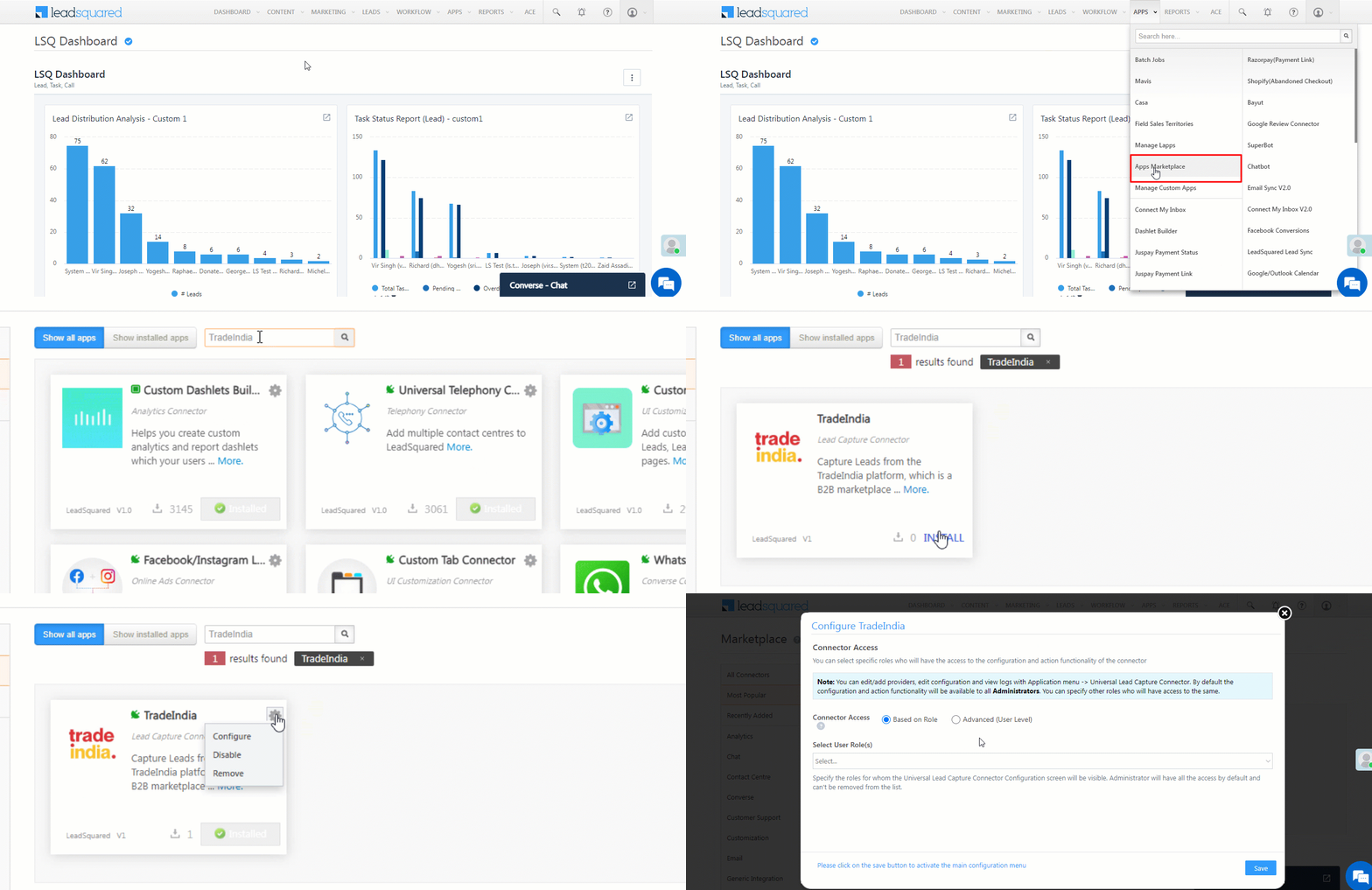
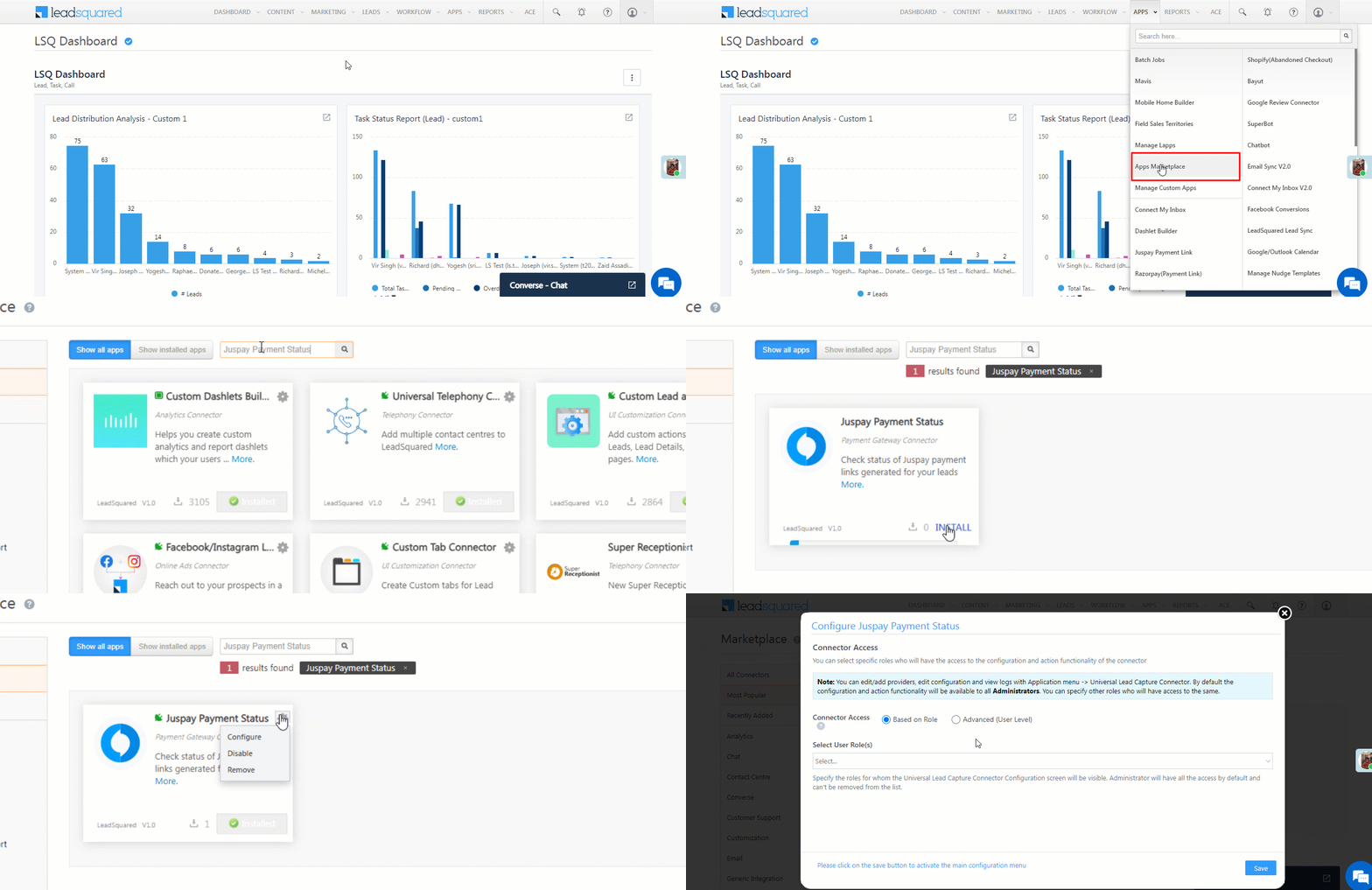
  1. Navigate to Apps>Apps Marketplace.
  2. Search for TradeIndia, and click Install.
    • Alternatively, you can find the connector on the left panel, under Lead Capture.
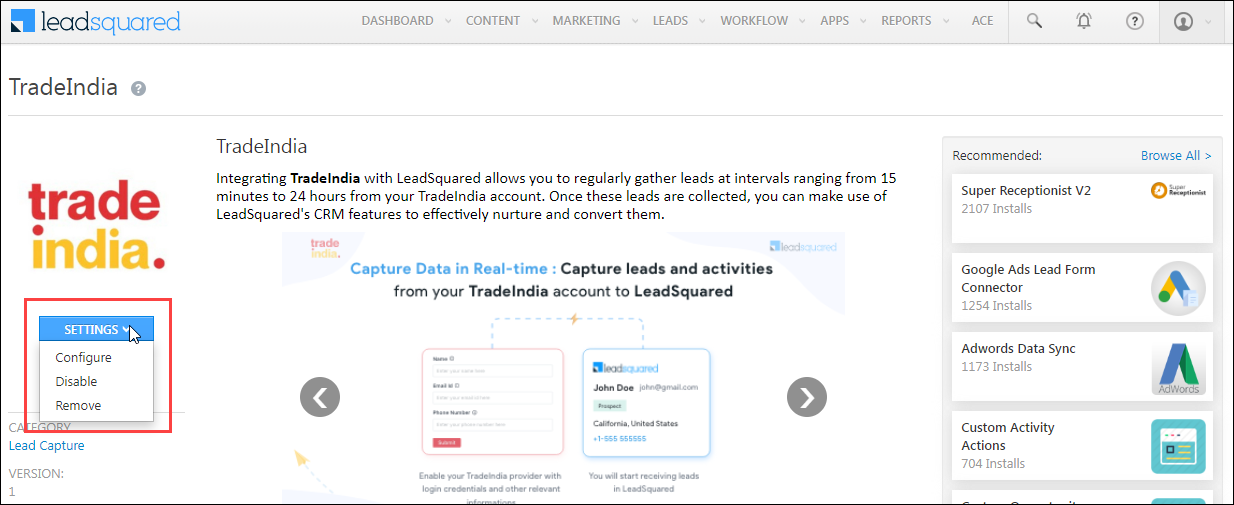
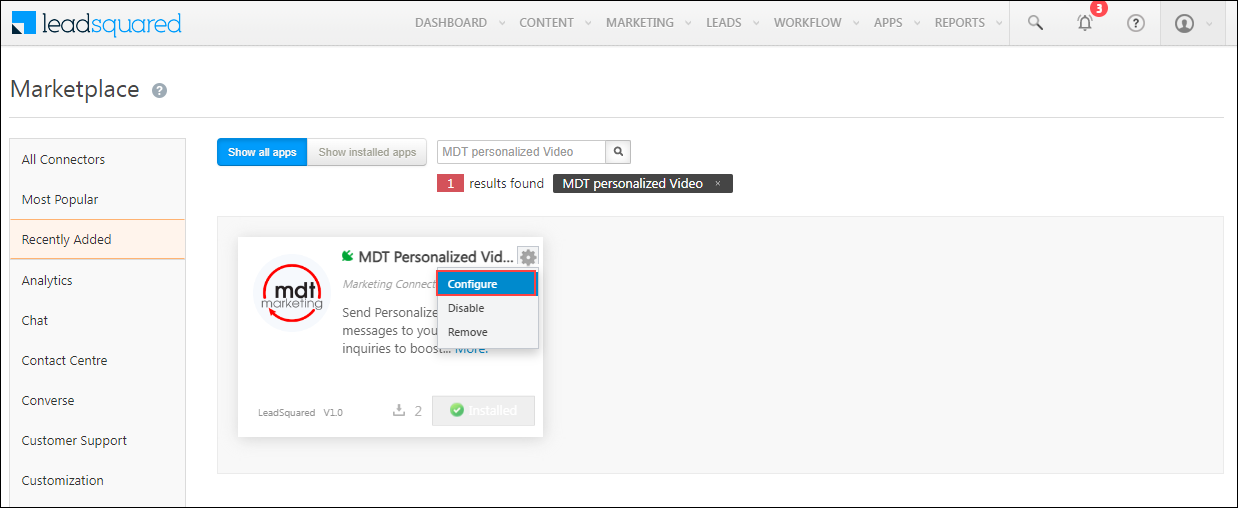
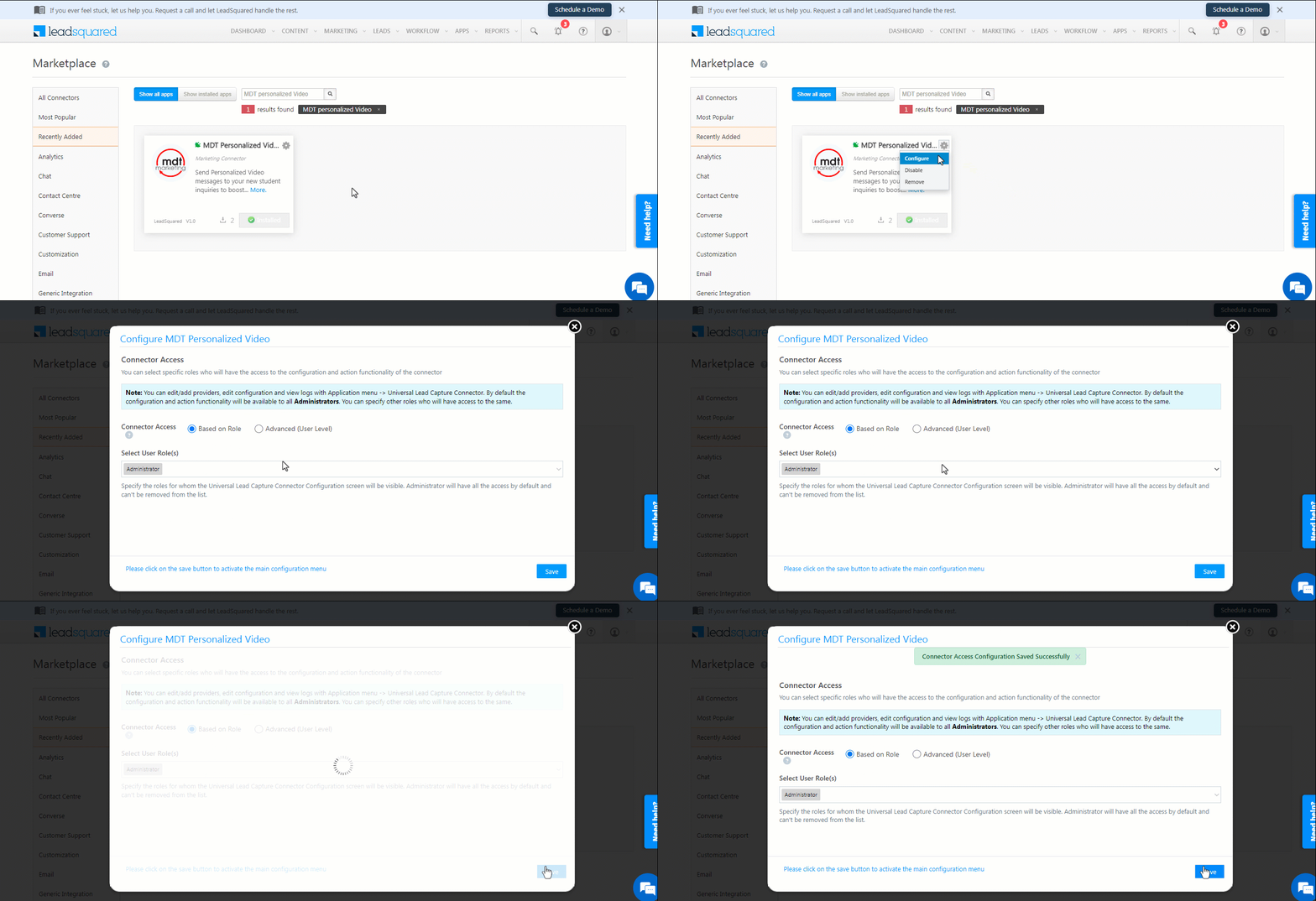
  3. Once installed, hover your cursor over , and click Configure.

TradeIndia LeadSquared Integration

4.2 Configure the Connector

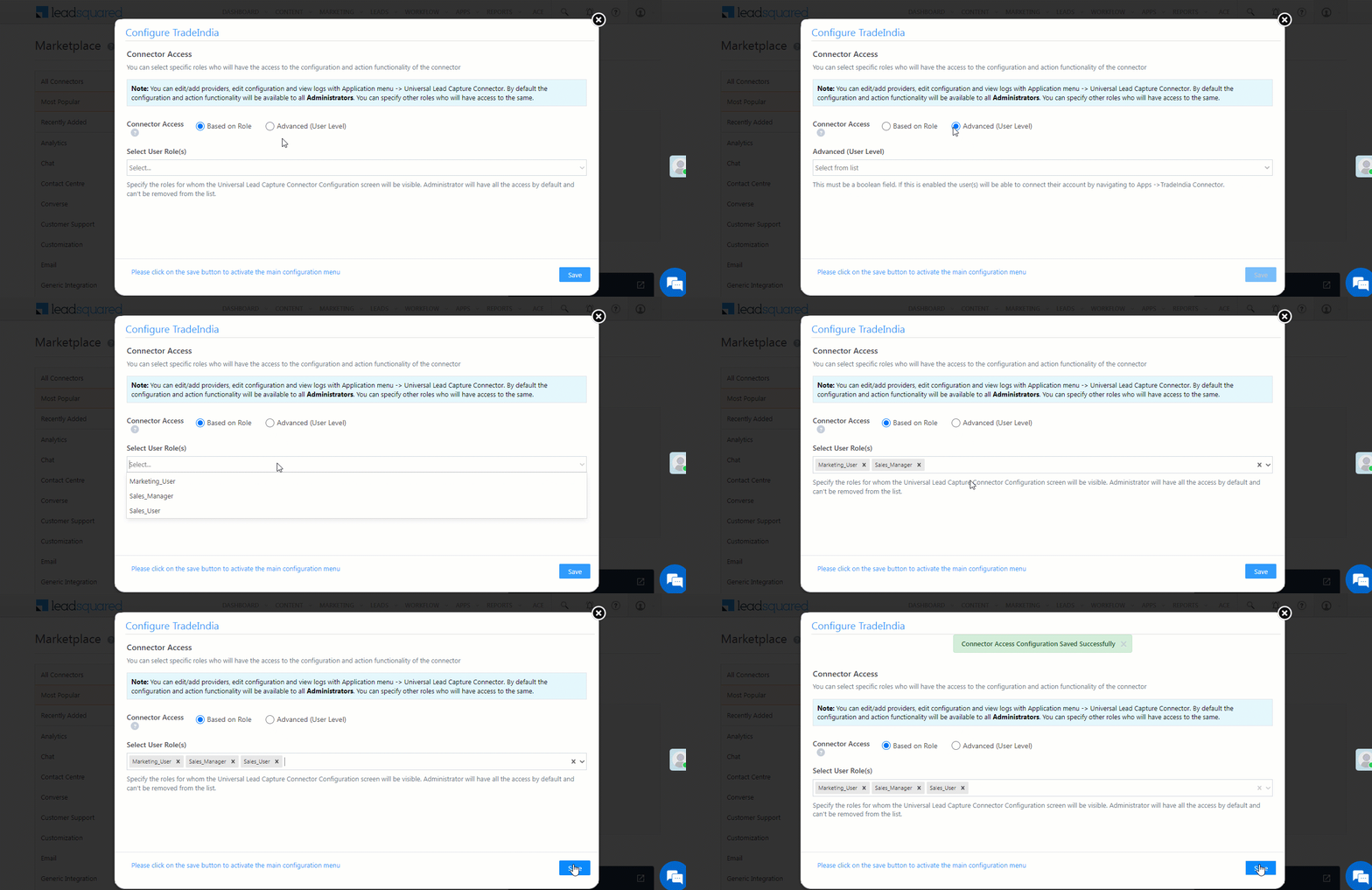
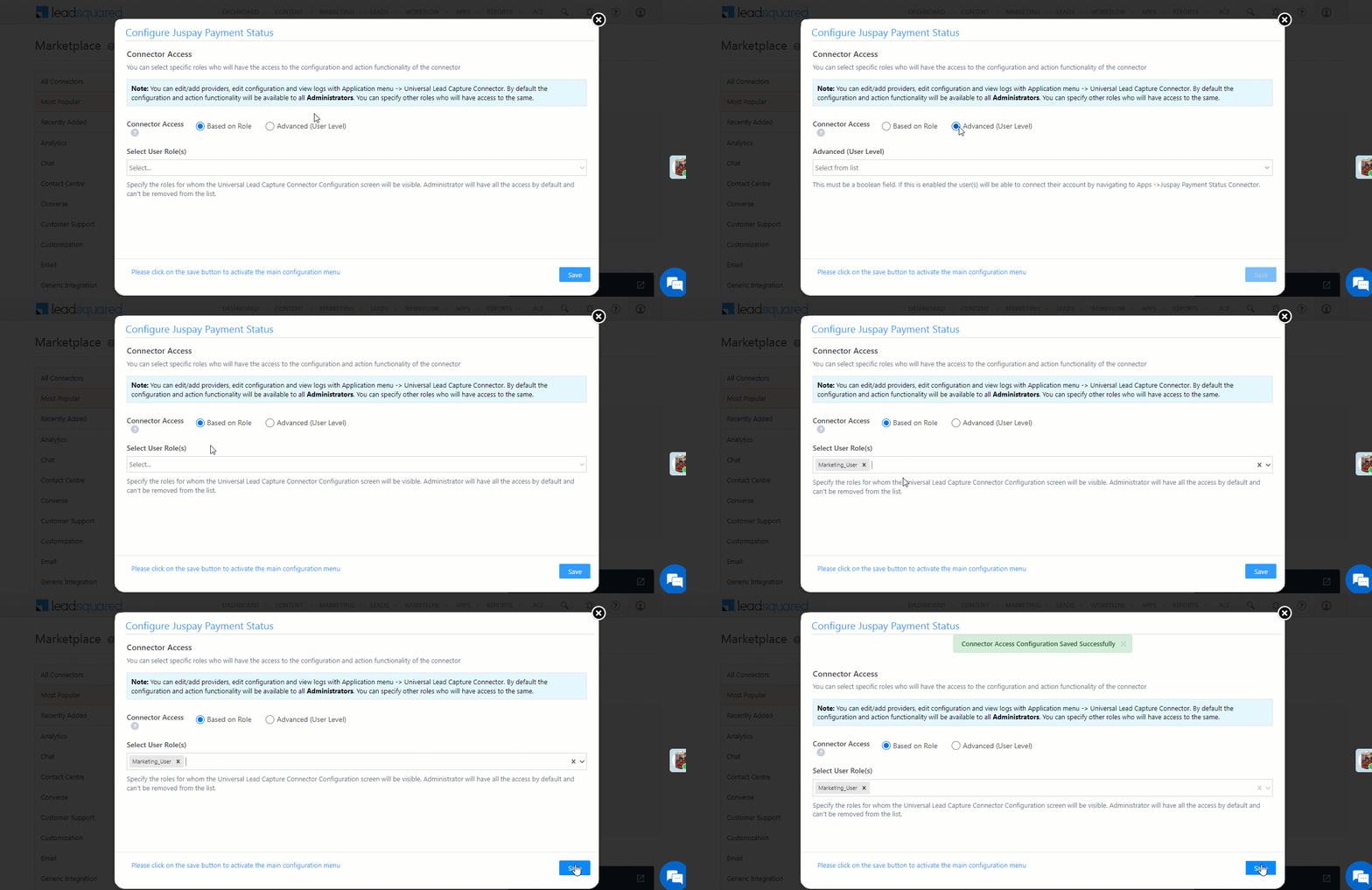
After installing the connector, on the Configure TradeIndia pop-up, set up connector access for non-Admin users in your account. Only users with granted access can view and access the connector under the Apps main menu.

  1. Select if you want to grant Connector Access that’s Based on Role or Advanced (User Level).
    • Based on Role – From the Specify Roles dropdown, select the LeadSquared user roles that can use the connector.
    • Advanced (User Level) – From the Advanced (User Level) dropdown, select a user boolean field. Based on the value entered in the selected boolean field, the user can access the connector (e.g., for the user Sam, if the “Is Employee” boolean user field contains the value “Yes”, then this user can access the connector).
  2. Once you’re done, click Save Details. To continue the configuration, refer to the below sections.
Note: By default, all Admin users will have access to the connector.

TradeIndia LeadSquared Integration


5. Admin Configuration

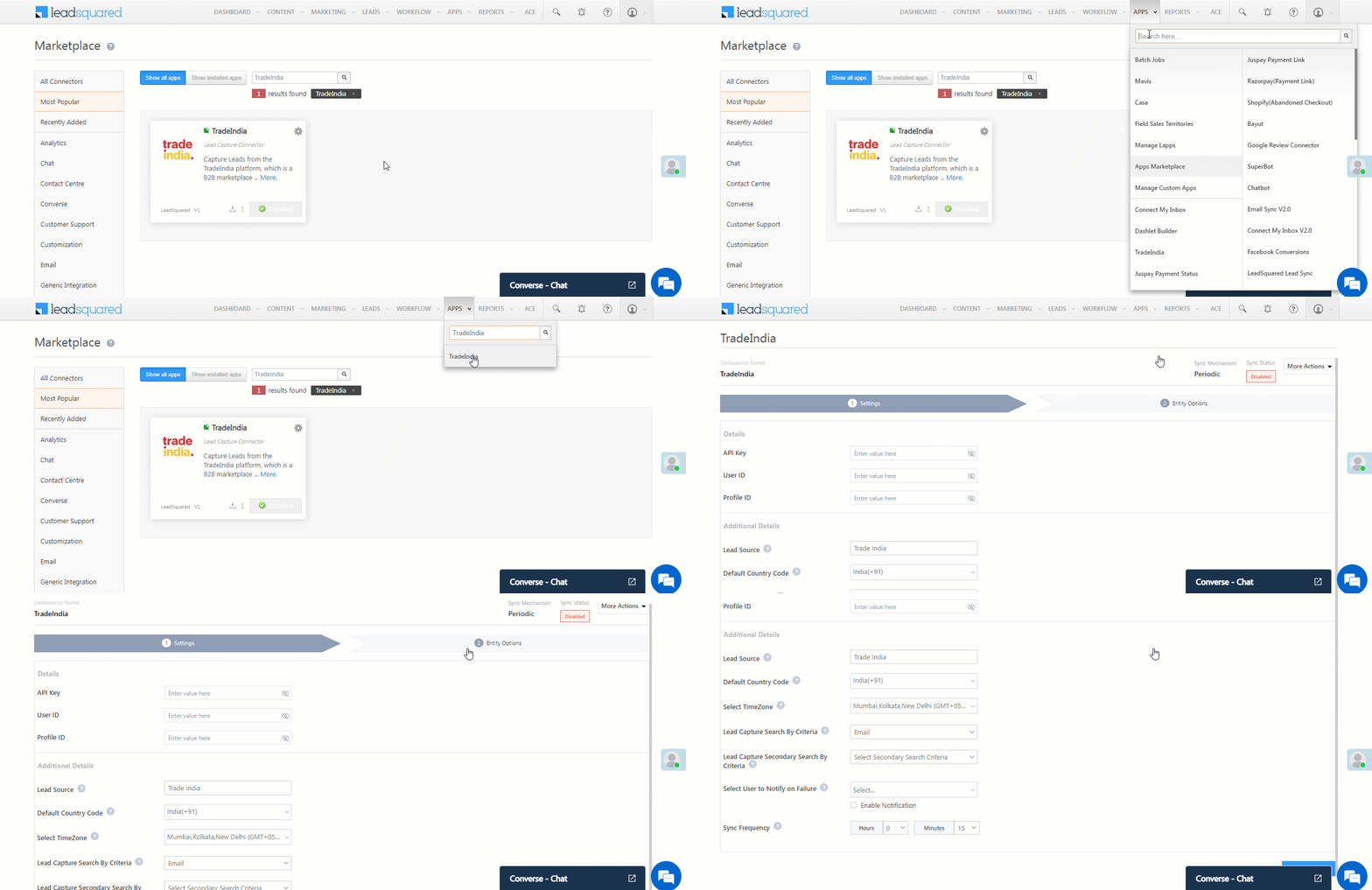
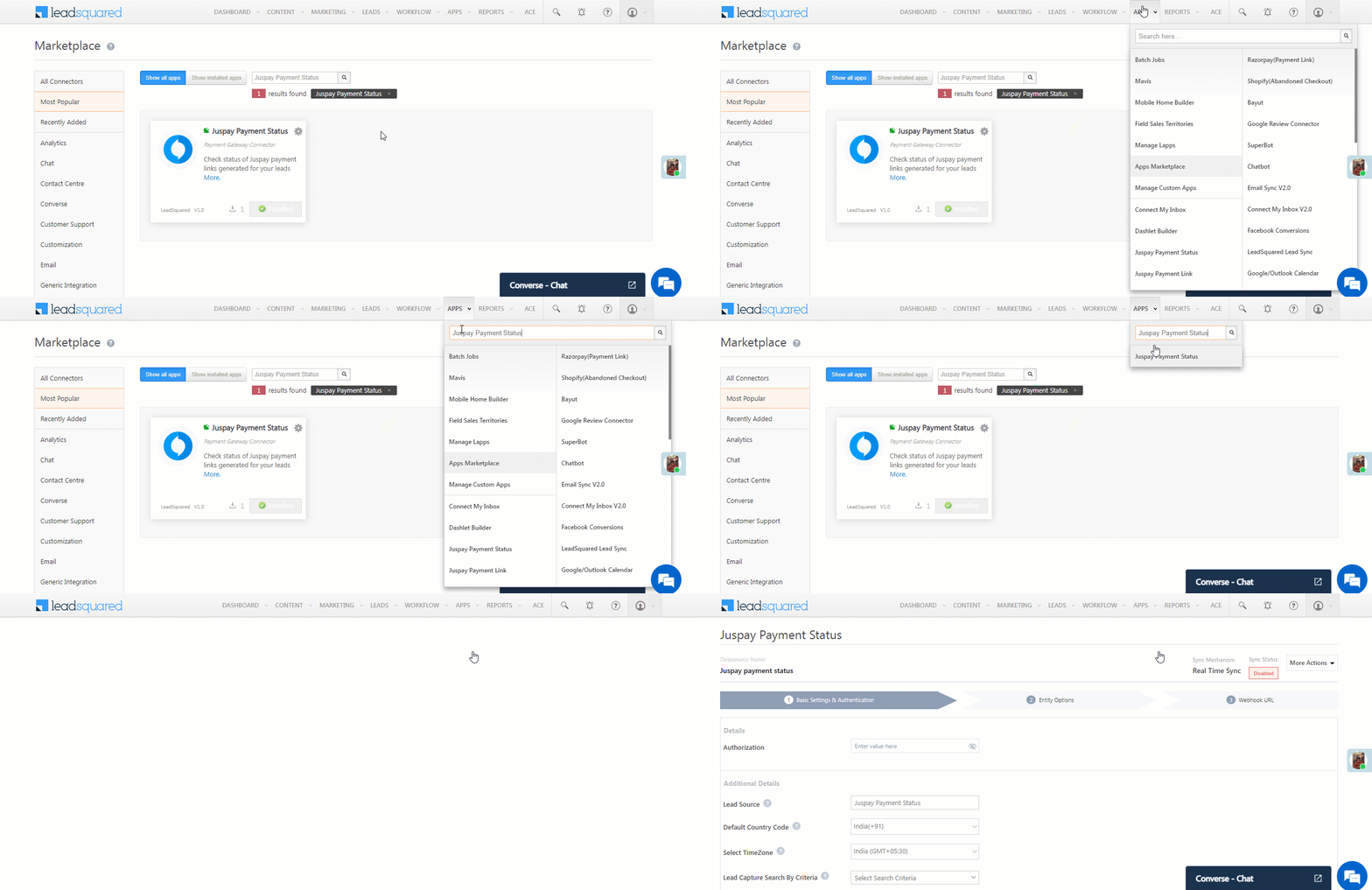
After installation, navigate to Apps>TradeIndia and configure the connector settings to pull data from TradeIndia.-

5.1 Settings

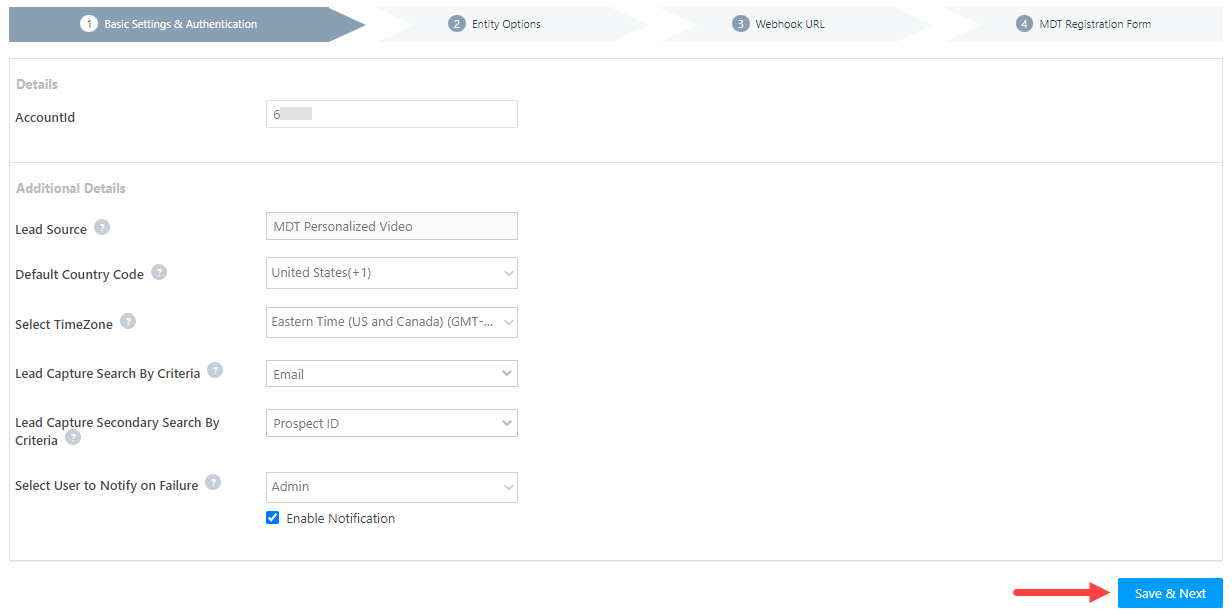
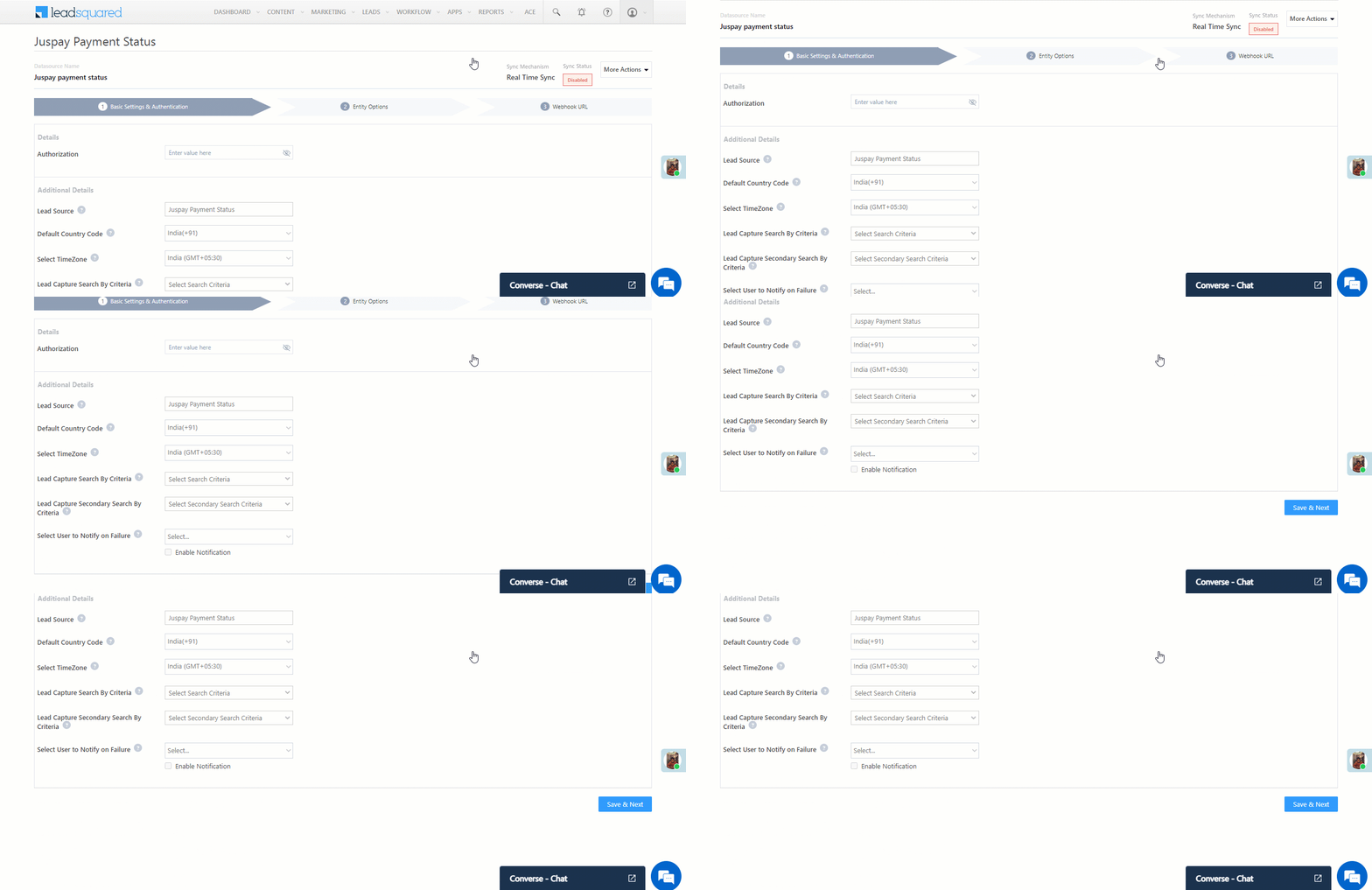
On the Settings screen, enter the following details –

TradeIndia LeadSquared Integration

Property Description
API Key Enter your TradeIndia API Key, User ID and Profile ID.
User ID
Profile ID
Lead Source Enter the lead source through which leads were captured (e.g., TradeIndia, email campaign, etc.). This information will be shown on the Lead Details page, under Lead Source.
Default Country Code If the lead’s mobile number is captured without a country code, the system will automatically append the default country code selected from the dropdown to the lead’s mobile number.
Select Time Zone Your TradeIndia account’s time zone.
Lead Capture Search By Criteria To prevent duplicate lead creation, choose a unique lead field (e.g., email ID, mobile number, PAN number, etc.) as the search key. This will be used to identify and retrieve leads from TradeIndia.

To know how to mark a LeadSquared lead field as unique, please refer to How to Make a Custom Field Unique.

Lead Capture Secondary Search By Criteria If lead identification and capture fail through the primary Search By criteria, a re-attempt will be made using the secondary Search By criteria.
Select User to Notify on Failure If there’s an error in fetching leads, the chosen user will receive a failure message via email. Select a user from the list of available users in your LeadSquared account.

To know more about the type of errors, please refer to Error Notifications.

Sync Frequency By default, a 15-minute frequency is selected to pull data from TradeIndia. Use the ‘Hours’ and ‘Minutes’ dropdowns to choose a custom interval to pull lead data.

Once you’re done entering all the details, click Save & Next.


5.2 Mapping & Manage Sync

Map Fields

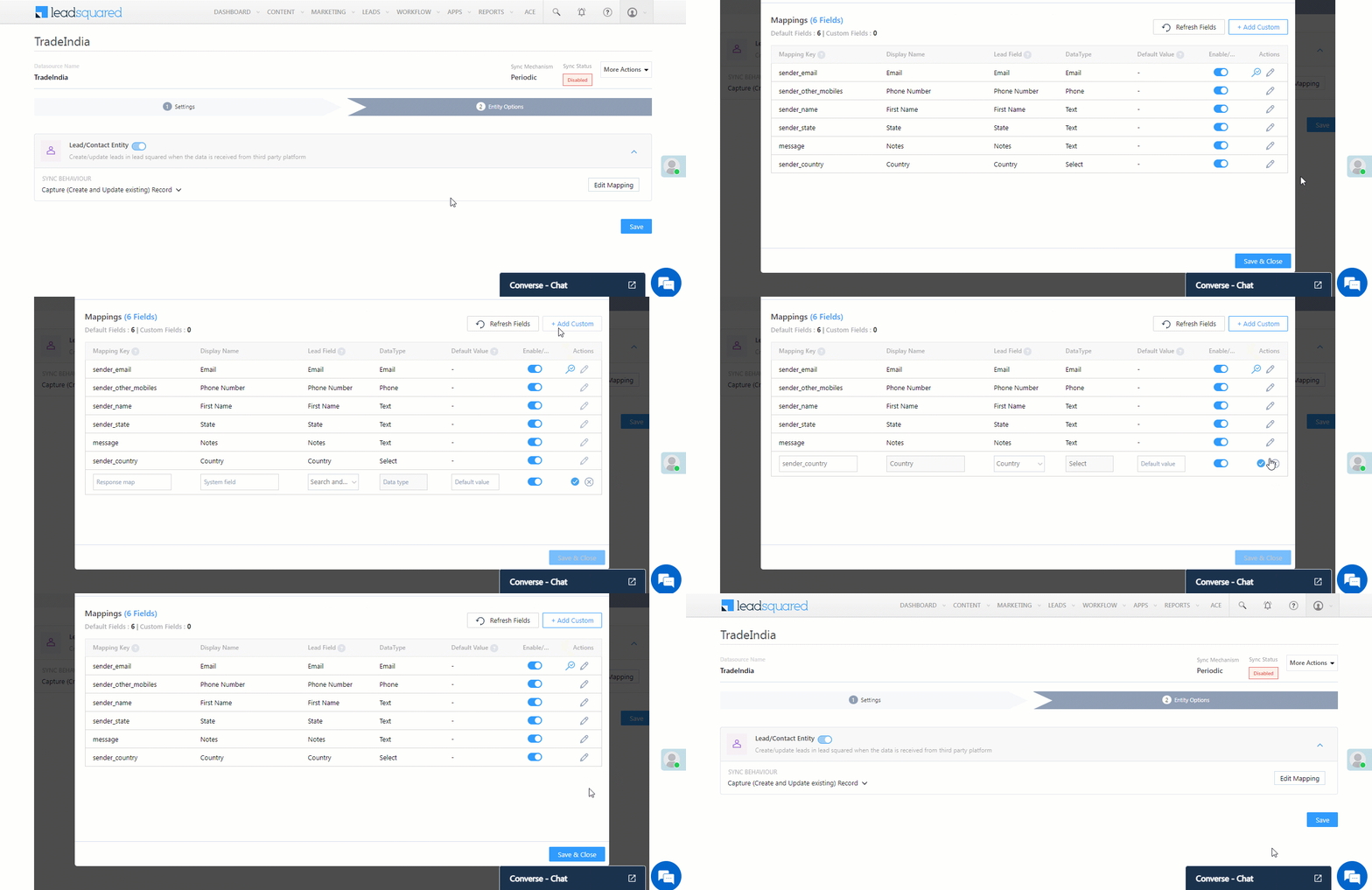
On the Mapping screen, the TradeIndia system fields mapped to the corresponding LeadSquared lead fields are visible. This mapping is carried out by default. If required, you can change or update the default field mapping.

  • To provide a default value for any field, enter the value under Default Value.
    • If data is not captured for any lead field, then the default value will get assigned to that specific field. But if the field already has an existing value, then the default value will be ignored.
  • To disable lead data capture for any field, disable the Zoom slider.
  • You can also mark and update a unique lead field as the search key from this screen, by clicking unique icon.
  • To create a custom TradeIndia field, click the Add Custom button.
    1. Once this field is created, you must map it to the relevant LeadSquared lead field.
    2. After the field is mapped, to save the custom field, click Google.
    3. To delete a custom field, click .

TradeIndia LeadSquared Integration


Enable Sync

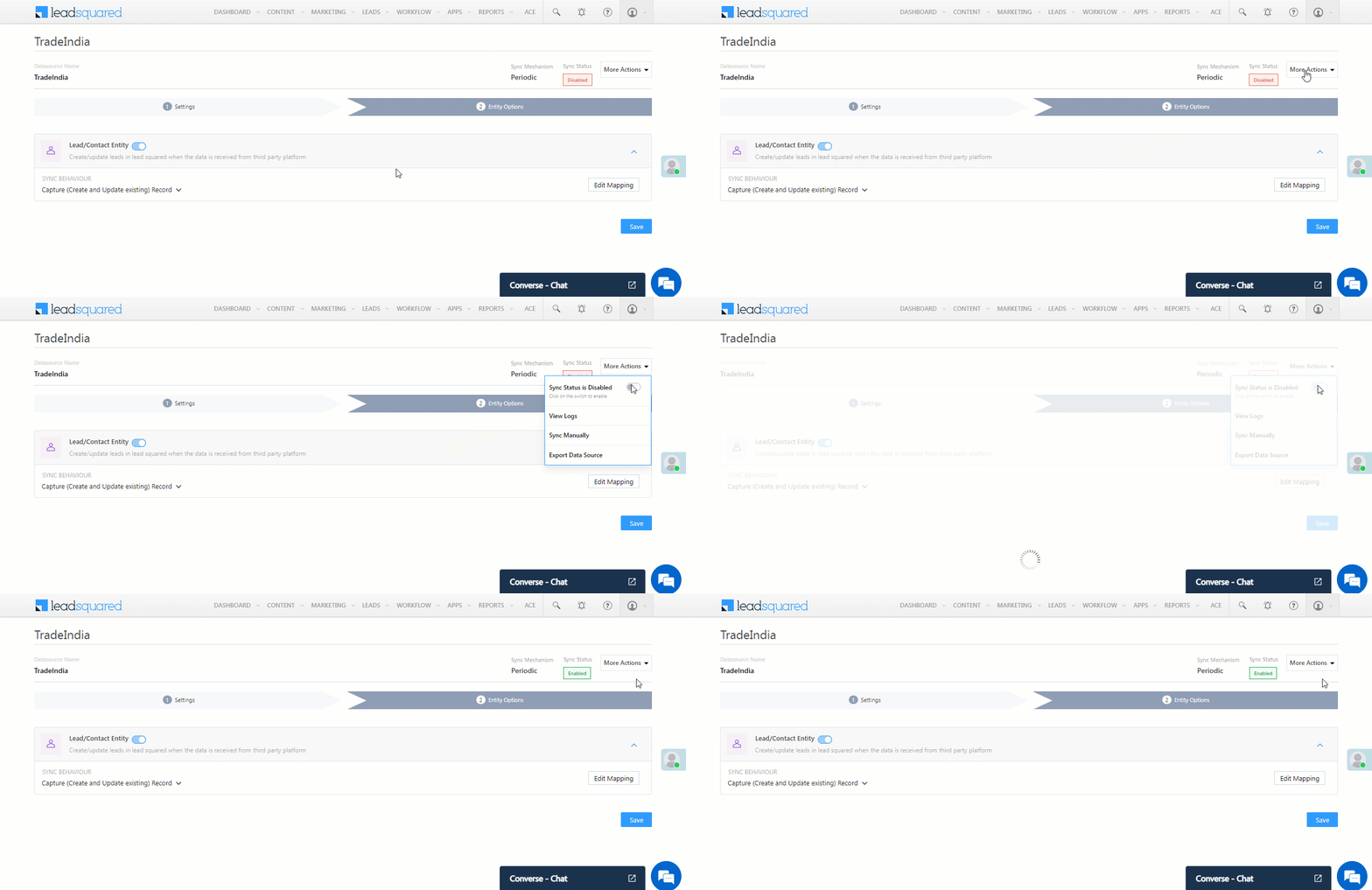
After mapping the TradeIndia fields to the corresponding LeadSquared lead fields, enable lead sync. To do this, from the More Actions dropdown, click the Slider slider, and then click Save & Close. Once the sync is enabled, LeadSquared will pull leads from TradeIndia every 15 minutes (or depending on the Sync Frequency configured).

TradeIndia LeadSquared Integration

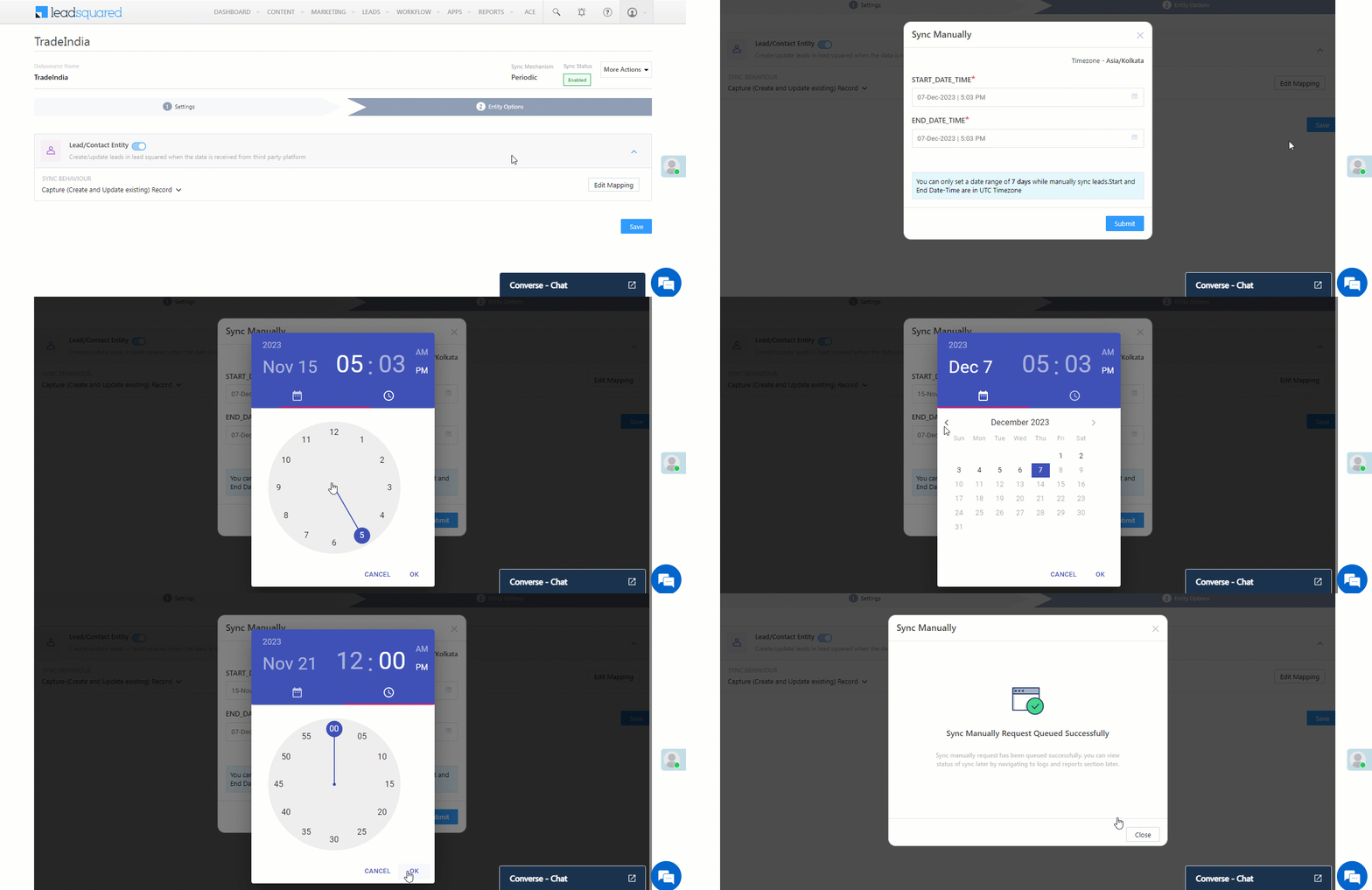
You can also manually sync leads, outside of the Sync Frequency that’s configured. This is especially useful if you have old/legacy lead data in your TradeIndia account.

  1. From the More Actions dropdown, click Sync Manually.
  2. On the Sync Manually pop-up, enter Start Date, End Date, and Time during which the lead data was captured in your TradeIndia account.
  3. Once you’re done, click Submit. The leads that were captured during the selected time frame will be synced to LeadSquared.

Note:

  • It is recommended you run a manual sync job right after you configure the connector. This will ensure all the historic lead data available on your TradeIndia account will be synced to LeadSquared.
  • The Sync Start Time & End Time must be within a date range of seven days (e.g., from 20th July to 26th July).
  • You can sync up to 4,000 leads at once.

TradeIndia LeadSquared Integration


6. View Logs

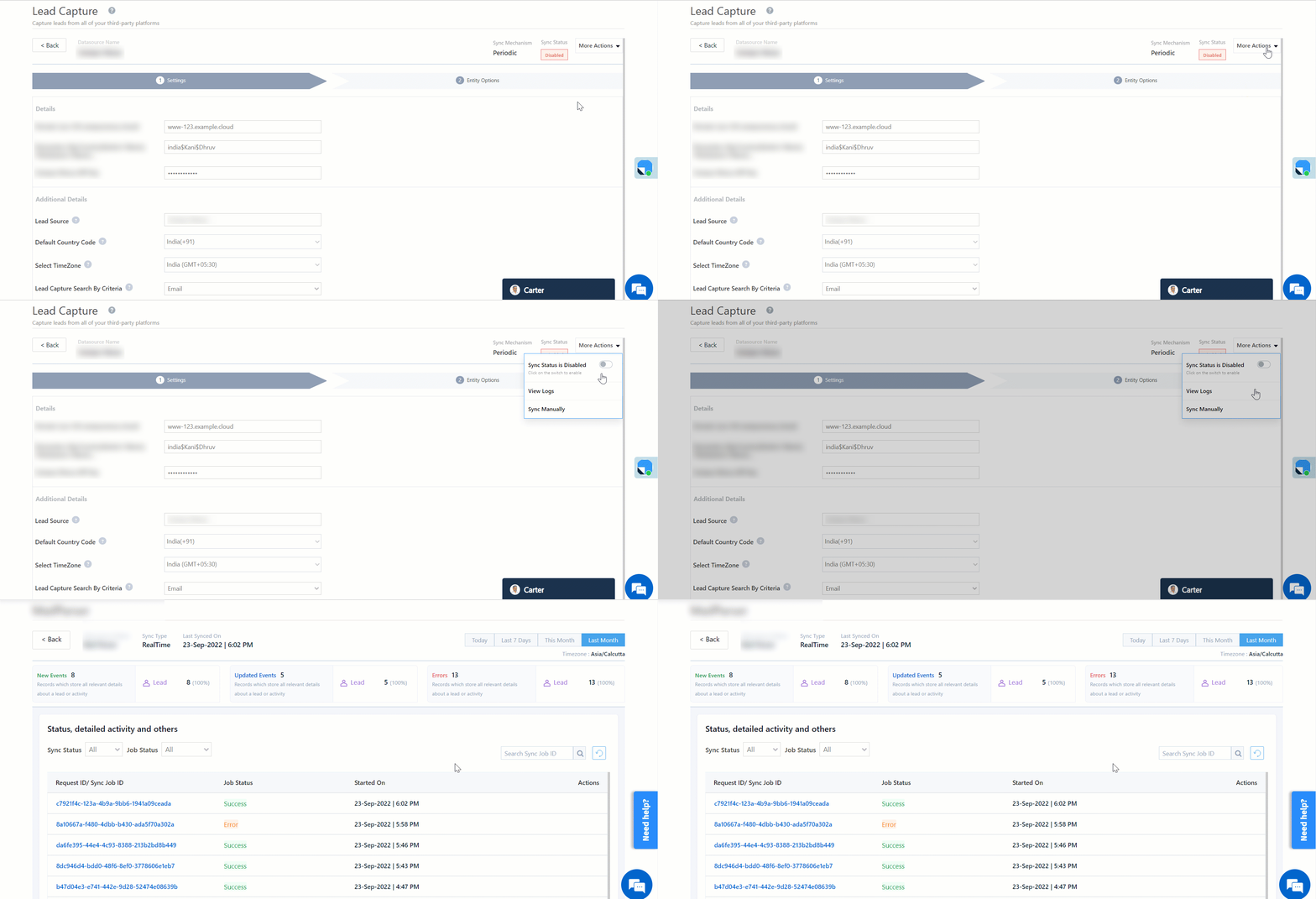
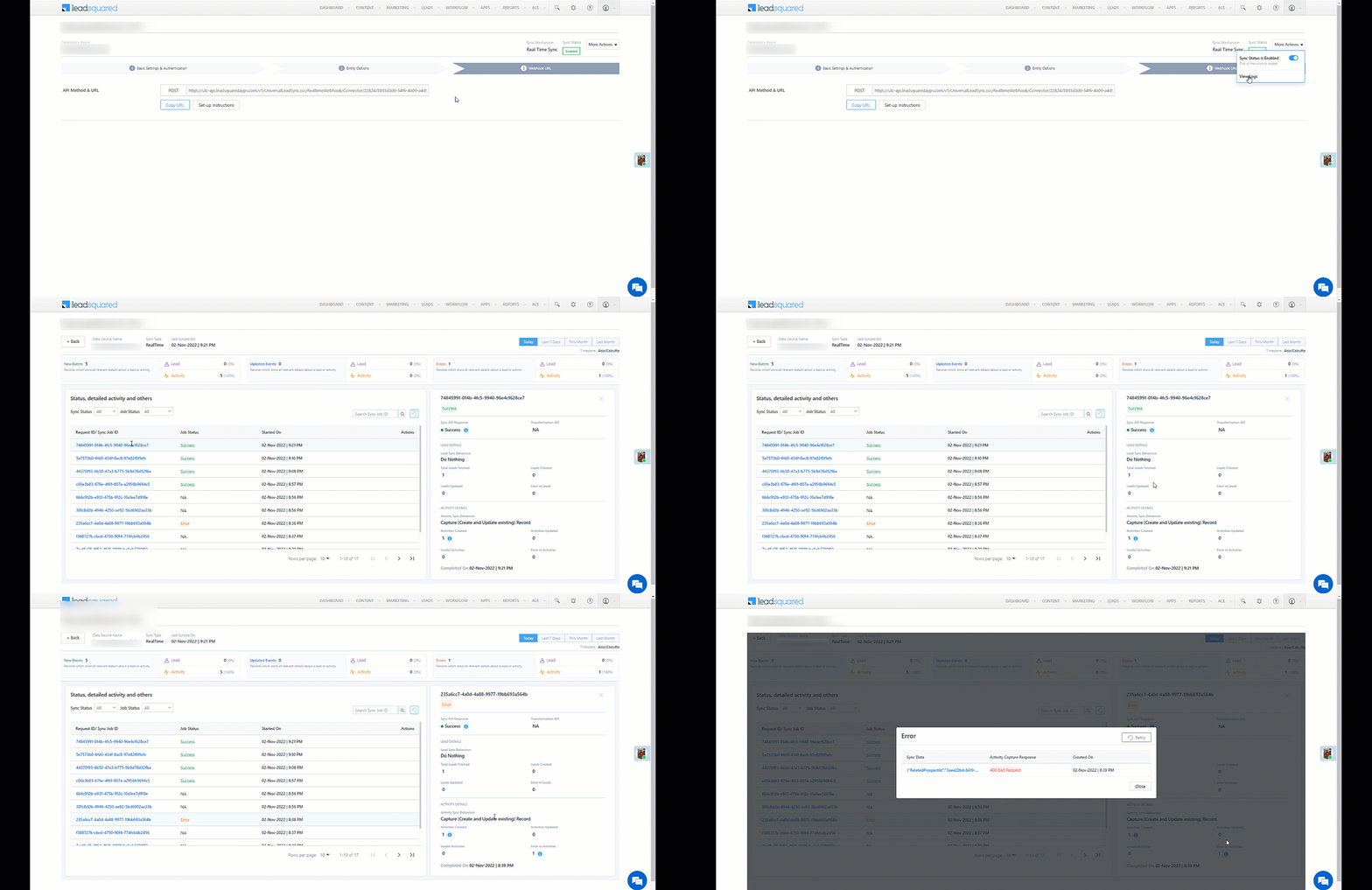
Here, you can view logs of all the sync jobs that have taken place. View new leads, updated leads, lead capture errors and total lead capture events. You can also view the lead sync response and lead capture job status.

  1. Navigate to Apps>TradeIndia.
  2. Click the More Actions dropdown and select View Logs.
  3. You can filter the logs by selecting a date range, and by selecting a Job Status (“All”, “Success” and “Failure”).
    • The maximum date range you can select is the last 60 days.
  4. You can view the sync status of the leads captured across the following tiles –
    • New Leads – List of all the new leads that LeadSquared has captured during the selected date range.
    • Updated Leads – A list of all the –
      • Duplicate leads that were created with the same Search by Criteria value (e.g., with the same Email Id, Mobile Number, etc.).
      • Leads that previously contained errors, which were fixed and synced successfully.
    • Errors – The list of leads that have not been captured due to mapping errors (e.g., when a boolean field is mapped to an integer field, etc.).
    • Total Events – A list of all the lead capture events that have taken place.
  5. To view the Sync Response details, under Sync API Response, click the response.
    • Here, you can view the response status, the API URL, the request and the response.
    • The successful responses will contain the details of the leads that have been captured from TradeIndia.
    • You can also view the lead capture response under Created, Updated and Errors, by clicking Information.
Note: For a response that contains an error, the reason for the error is listed in the response. Once you fix it, you can click the Retry button to perform the sync again.

TradeIndia LeadSquared Integration


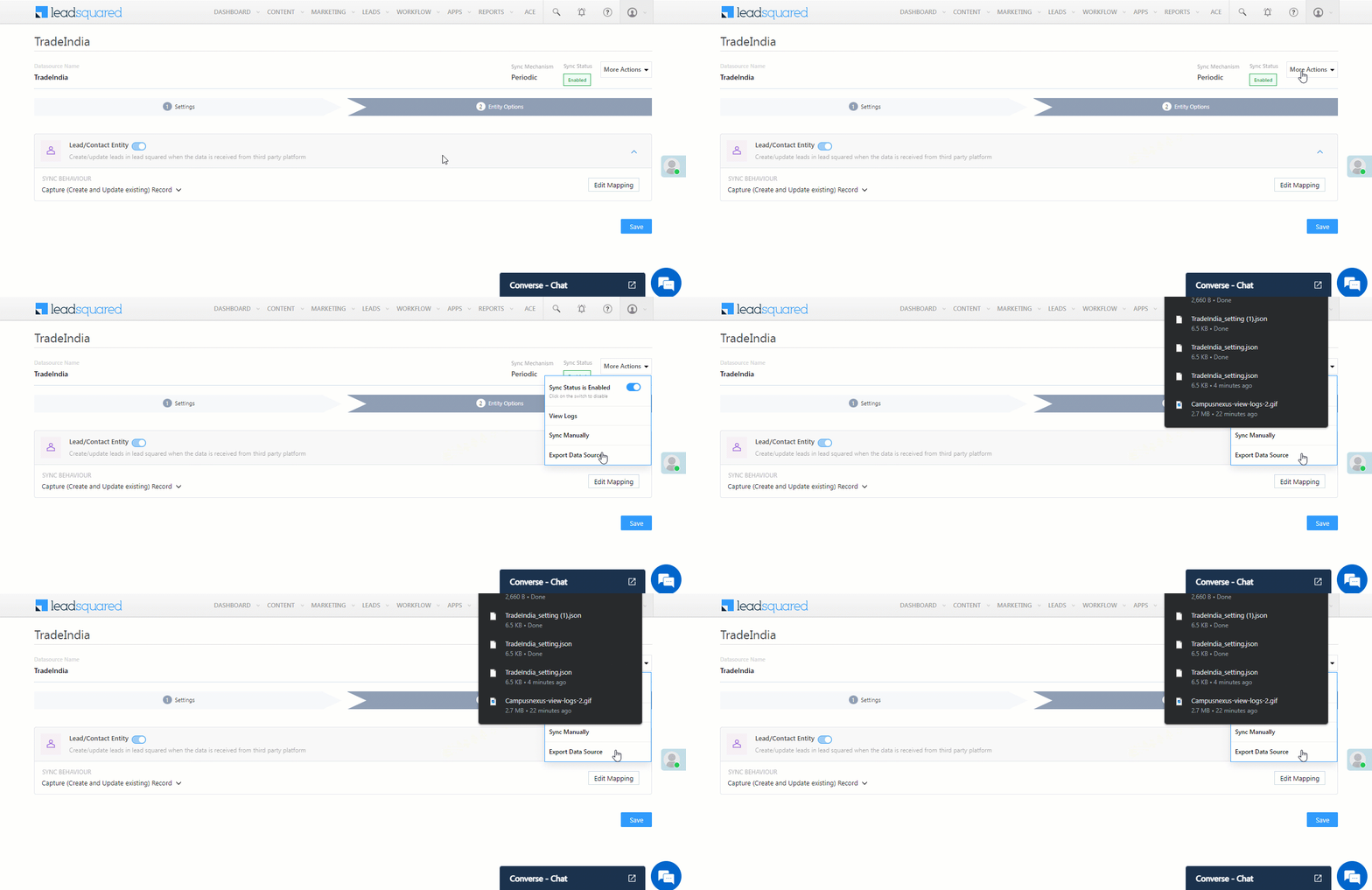
7. Export Data Source

Export Data Source exports the JSON of the data source/connector as a file to your local system.

TradeIndia LeadSquared Integration


8. Other Actions

You can edit or delete a TradeIndia connector instance you created.

  1. Navigate to Apps>Apps Marketplace and click the TradeIndia connector.
  2. On the TradeIndia connector page, click Settings.
  3. From the list of options, you can perform the following actions –
    • Add or edit Configurations
    • Disable the connector
    • Remove the connector

TradeIndia LeadSquared Integration


9. View Reports

You can view the total number of leads that have been captured from TradeIndia by referring to the Lead Source report. To know more, please refer to How to track the source of your Leads using Lead Source Report?


Any Questions?

Did you find this article helpful? Please let us know any feedback you may have in the comments section below. We’d love to hear from you and help you out!

WhatsApp Link Tracking in LeadSquared

1. Feature Overview

WhatsApp link tracking involves embedding tracking parameters in URLs shared with leads through WhatsApp messages. These parameters allow you to monitor and analyze your lead’s engagement, such as the number of clicks, geographic location of users, and other metrics. LeadSquared’s WhatsApp Integration with Gupshup supports Link Tracking, to help you better understand your lead’s behaviour.


2. Prerequisites

  • Ensure the LeadSquared Gupshup WhatsApp integration is live in your account.
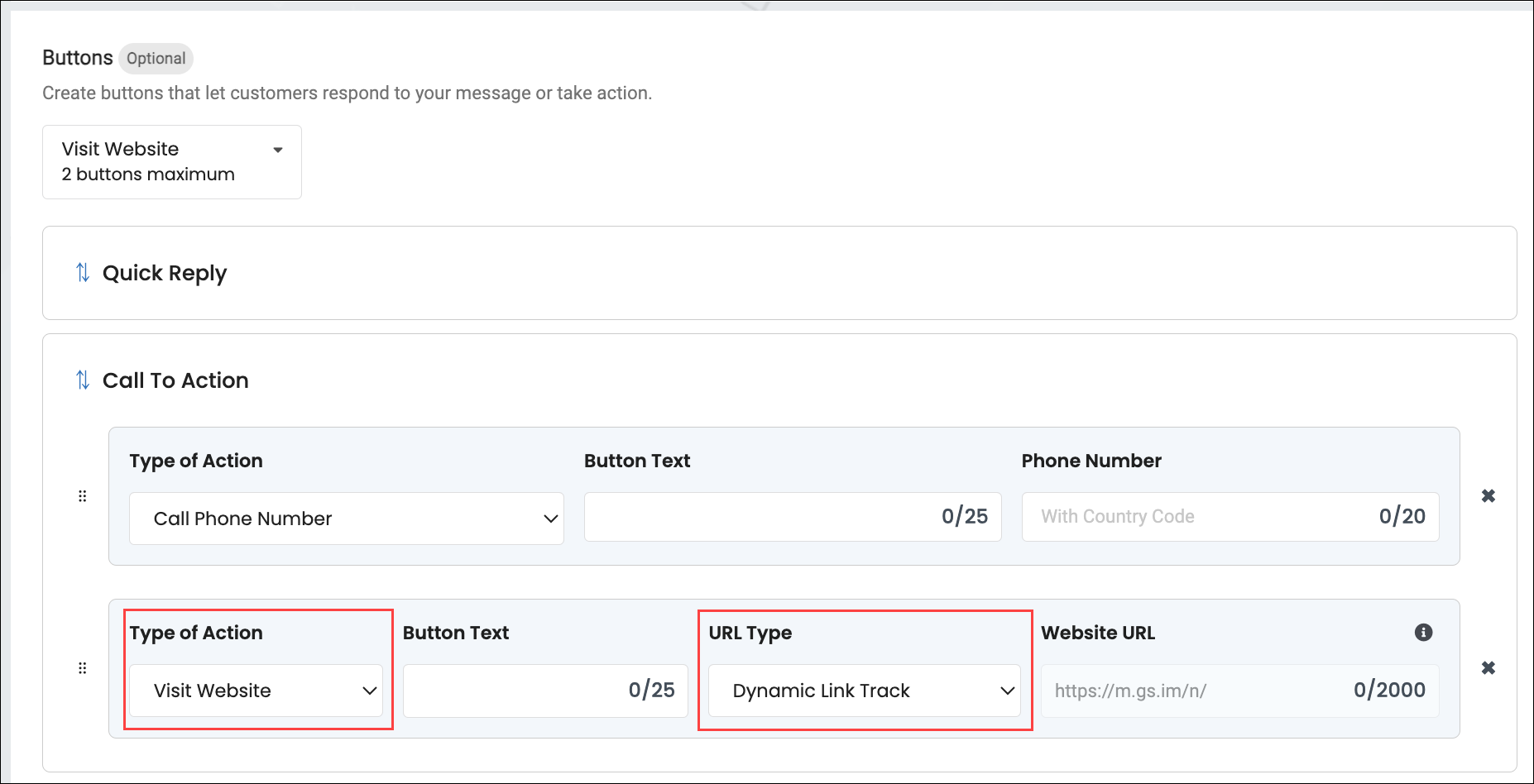
  • To track the link clicks in your WhatsApp message, when creating a template in Gupshup, select the Visit Website button, and set the URL Type to Dynamic Link Tracking. If this step is not followed, you will NOT be able to track your lead’s behaviour as intended.

WhatsApp Link Tracking Gupshup LeadSquared


3. Enable Link Tracking

To enable the link tracking feature in your LeadSquared account –

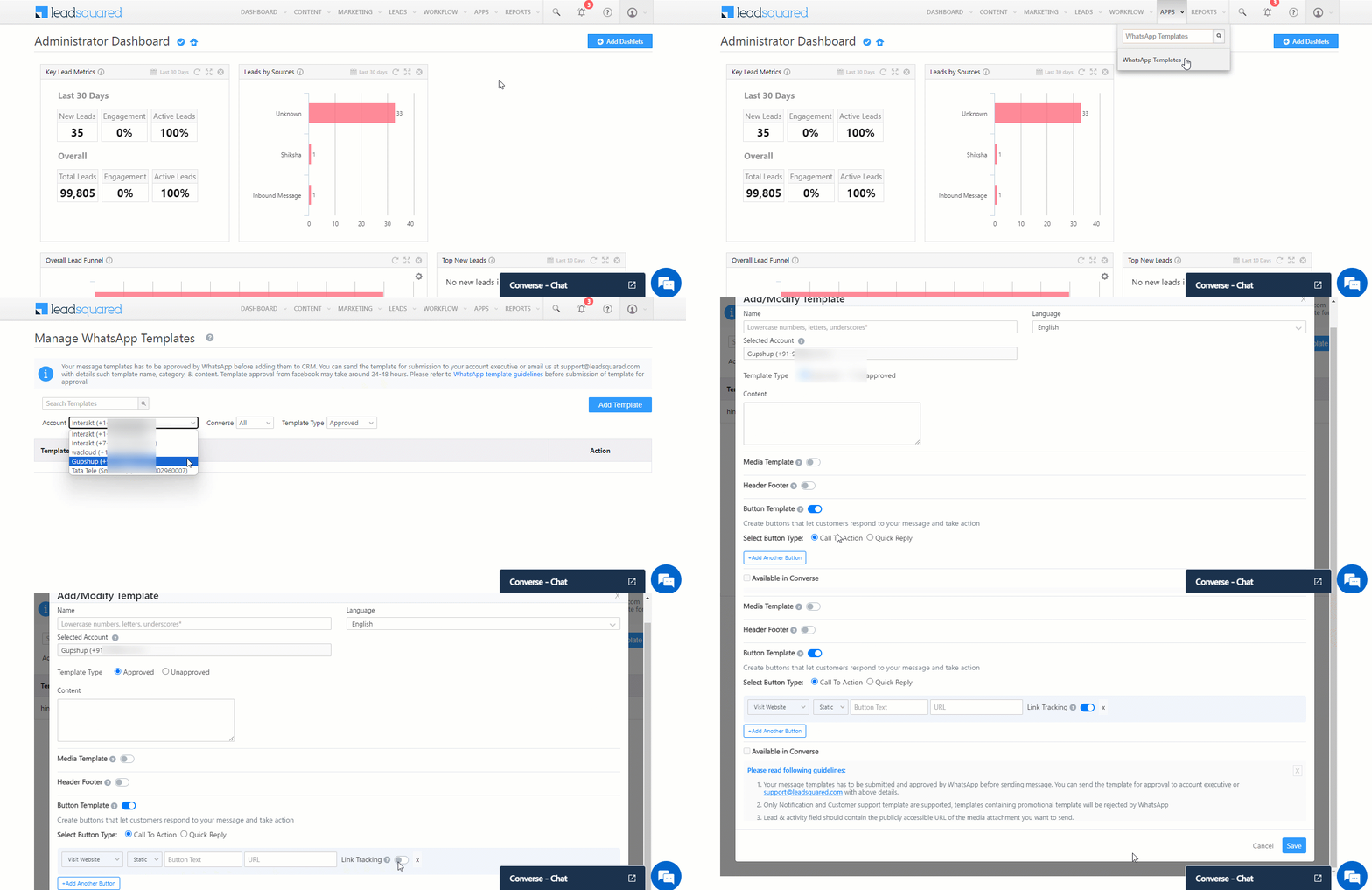
  1. Navigate to App>WhatsApp Templates.
  2. On the Manage WhatsApp Templates screen, select a Gupshup Account, and click Add Template.
    • You can alternatively edit an existing Gupshup Template.
  3. On the Add/Modify Template pop-up, add all the necessary details, and alongside Button Template, enable the Slider slider.
  4. Select Button Type as Call To Action, and click Add Another Button.
  5. Then, select Visit Website, enter the tracking URL, and alongside Link Tracking, enable the Slider slider. This will begin tracking the links shared with leads.
Note: Once you select the Visit Website CTA button, link tracking can be enabled for both Static and Dynamic button types.

WhatsApp Link Tracking Gupshup LeadSquared


4. Access Link Click Report

To view and download the Link Click Report from your Gupshup account –

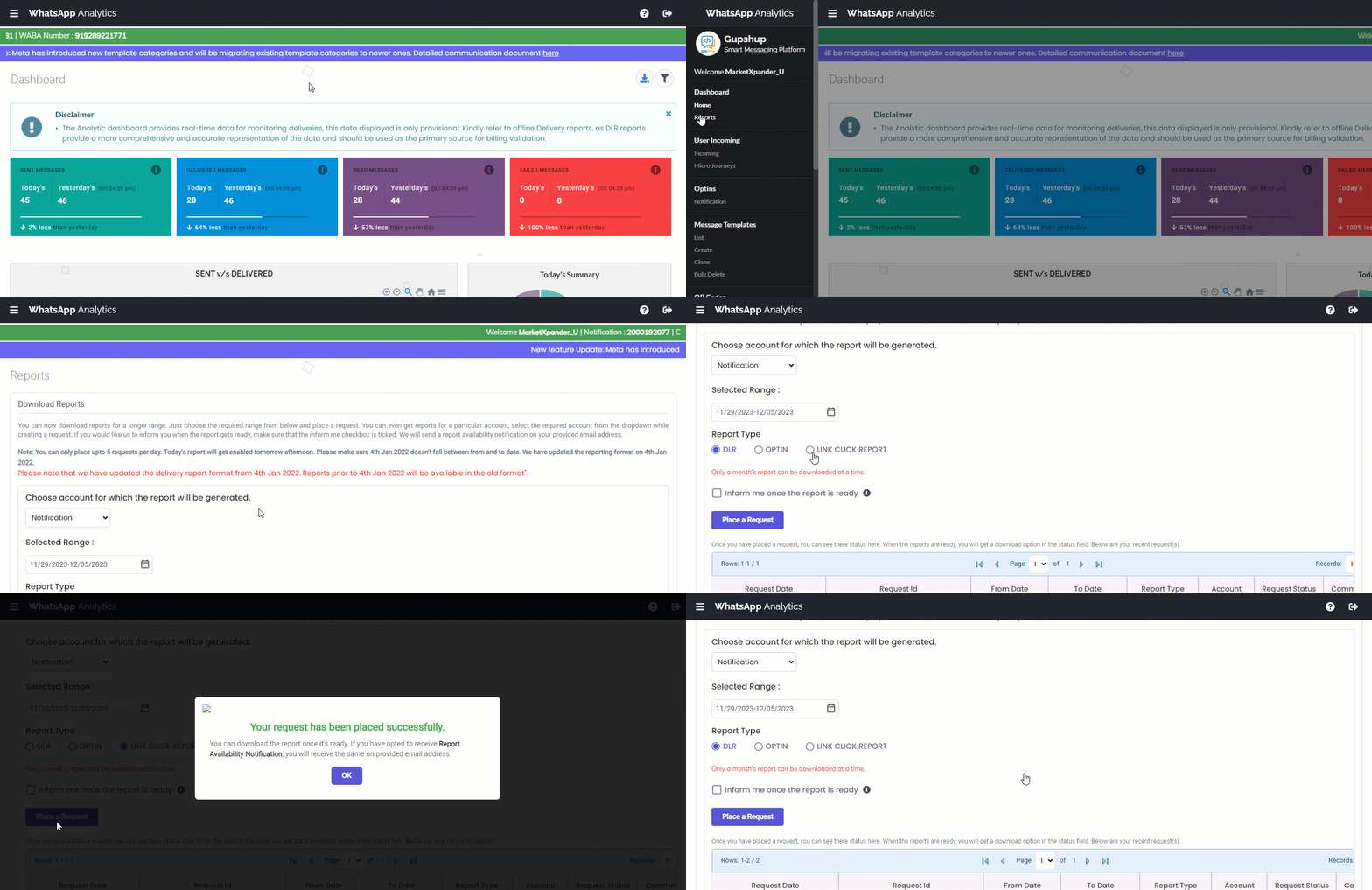
  1. Login to your Gupshup account.
  2. Alongside WhatsApp Analytics, click Gupshup menu.
  3. Under Dashboards, click Reports.
  4. On the Reports page, under
  5. Once the report is ready, you can view/download it.

WhatsApp Link Tracking Gupshup LeadSquared


Any Questions?

Did you find this article helpful? Please let us know any feedback you may have in the comments section below. We’d love to hear from you and help you out!

Property Listing UAE Connector

1. Feature Overview

Add your property details in LeadSquared (through Mavis DB) and sync data across various Dubai-based listing platforms, including Property Finder, Bayut, and Dubizzle. This simplifies managing and distributing your property advertisements, ensuring maximum exposure and up-to-date information across these platforms. The benefits of using this connector include –

  • Centralized Listing Management – Input your listing details in one place, and sync it seamlessly across all the listing platforms you choose.
  • Effortless XML Feed Generation – Generate XML sync feeds with a single click for your listing’s partners, streamlining the process and ensuring compatibility with various platforms.
  • Customizable SmartView – Enhance the visualization of your listing data by creating multiple SmartViews. Tailor these views to your preferences for an efficient and organized experience.
  • Collaboration Capabilities – Collaborate with others by inviting team members and partners. You can also restrict specific actions to maintain control over changes made to your listings.
  • Quick Filtering – Utilize quick filters for easy searching of specific listing details, making it simple to find the information you need.
  • Image Viewing Made Simple – Conveniently view property images attached to your listings.

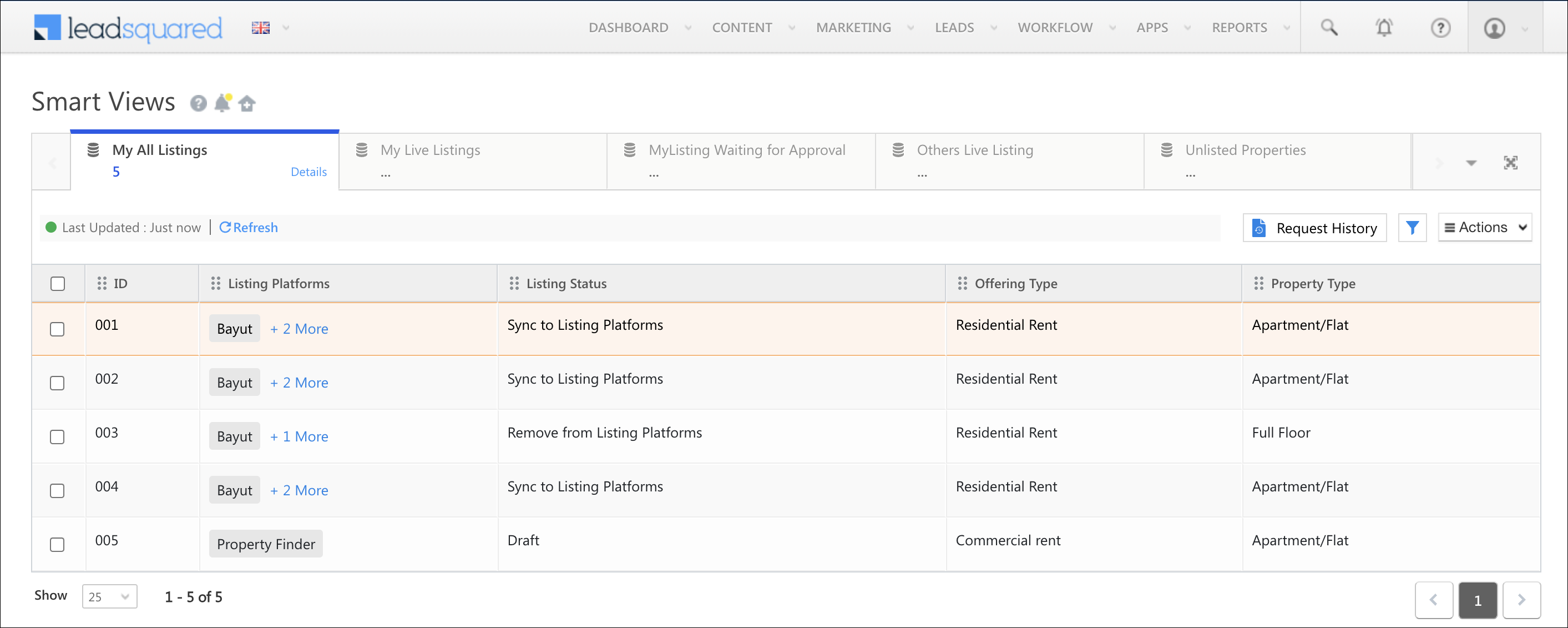
Sales Users can view, add, and update property listing details through Smart Views. Changes made will sync and reflect on property listing platforms. Once the listings are live, you can capture potential customers as leads in your LeadSquared account, monitor their activities, and convert them to customers (which is purchasing/leasing/renting the property in this case) directly from your LeadSquared account.

Property Listing UAE


2. Prerequisites

  • You must be the Administrator of your LeadSquared account to install and configure this connector.
  • This is a paid connector. To enable it, reach out to your account manager, or write to support@leadsquared.com.


3. How it Works

  1. Install the Property Listing UAE connector.
  2. During the configuration, a Mavis Table (with pre-defined schemas) is automatically created. Check and verify the table schema. If required, you may also add property listings in this step.
  3. Integrate the generated XML feed with the property listing platforms. This initiates the sync process.
  4. Create a Smart View for your Sales Users and integrate it with the Mavis Table. This allows users to add their property listings to LeadSquared and sync them across property listing platforms.
    This improves collaboration among your users and enables you to control the actions your collaborators can perform.


4. Install the Connector

  1. Navigate to Apps>Apps Marketplace.
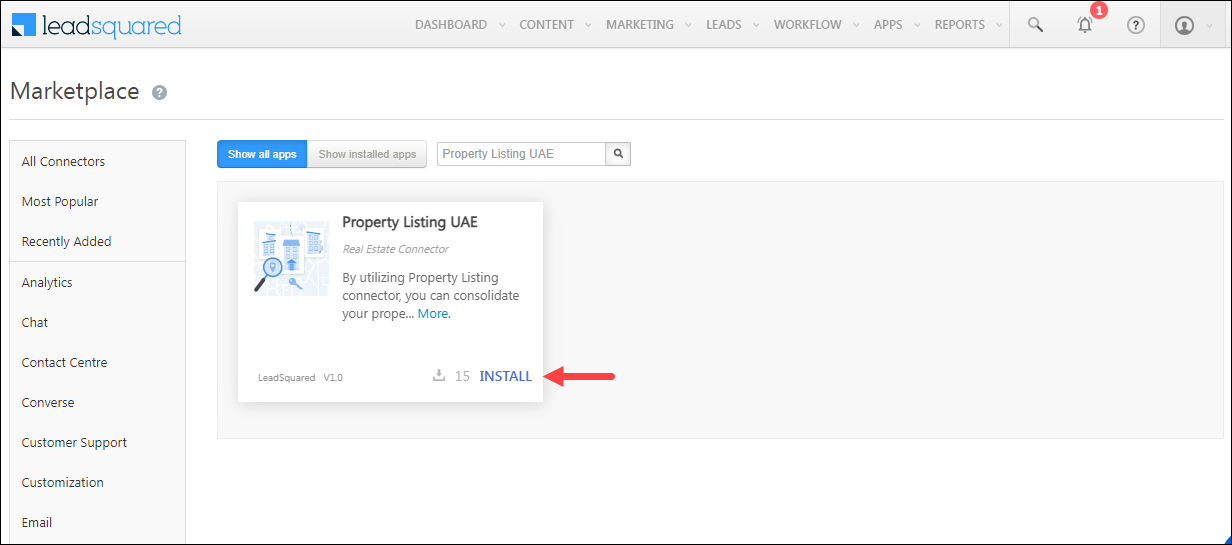
  2. Search for Property Listing UAE, and click Install.
    • Alternatively, you can find the connector on the left panel, under Real Estate.

Property Listing UAE


5. Configure the Connector

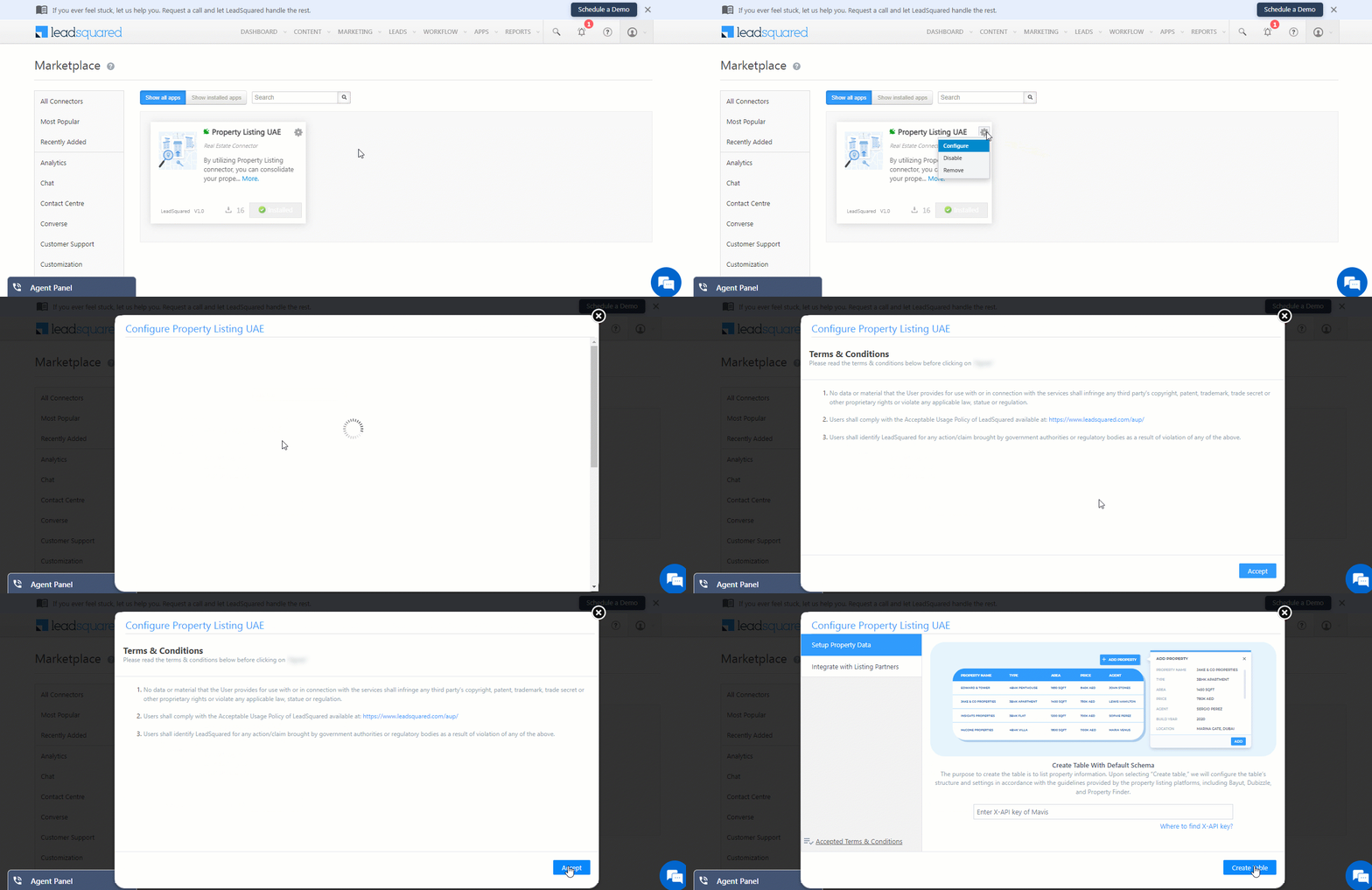
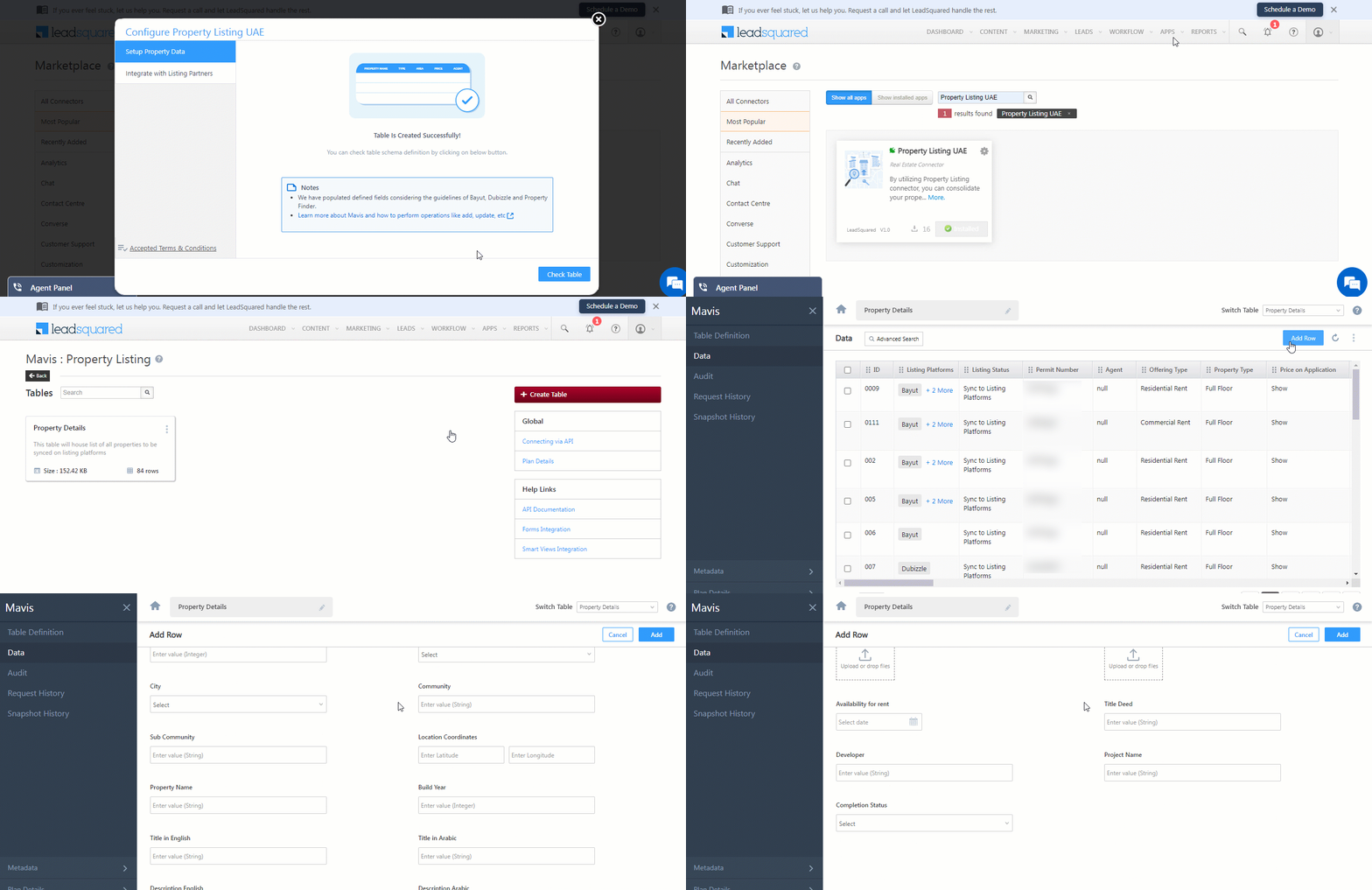
Once the connector is installed, hover your cursor over , click Configure. On the Configure Property Listing UAE screen, carefully read the Terms & Conditions, and click Accept. This is mandatory.

Property Listing UAE

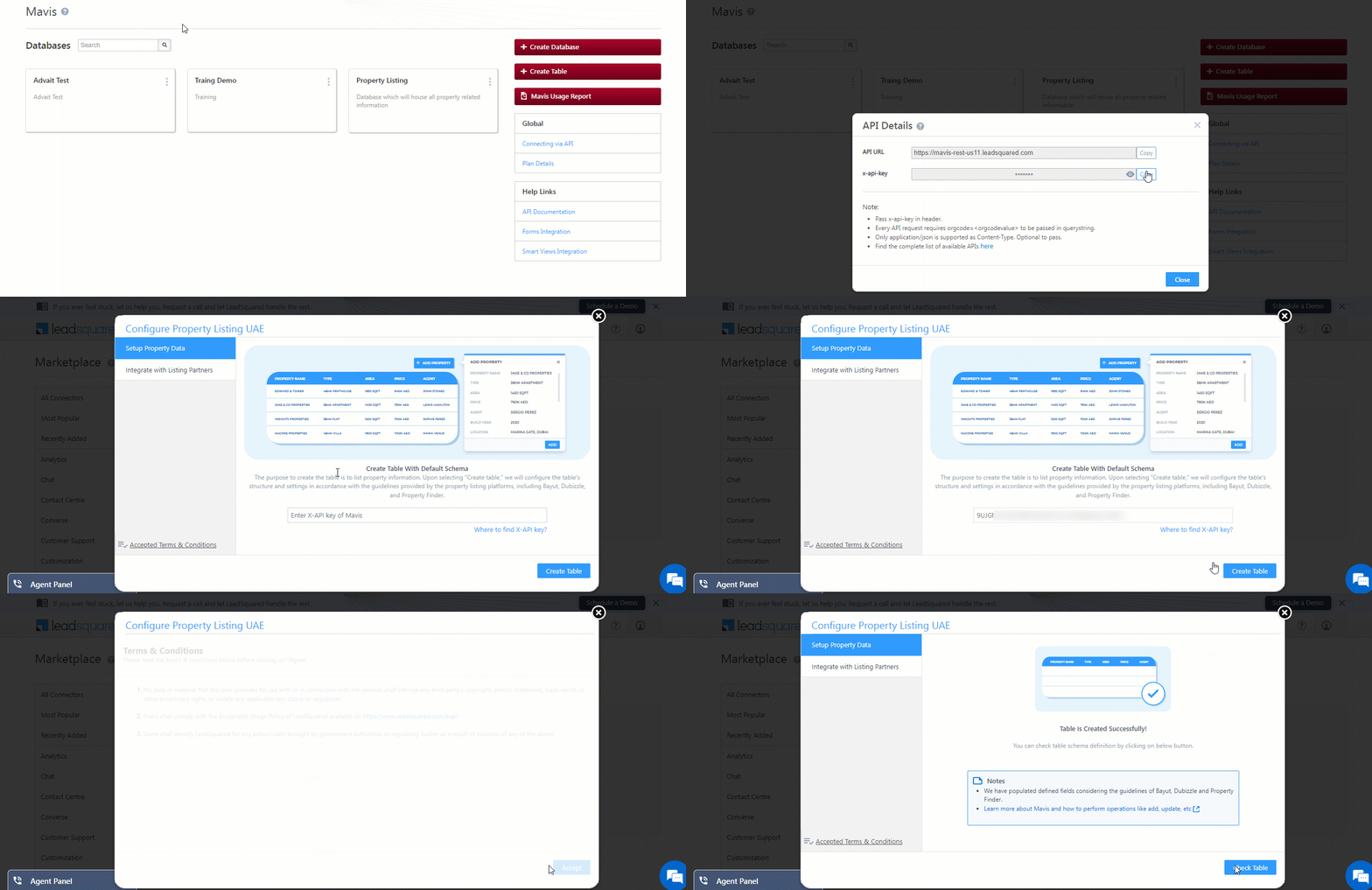
On the Setup Property Data screen, enter the Mavis x-api-key. After you’ve entered the key, click Create Table. A Mavis Table, containing all the fields required by Bayut, Dubizzle and Property Finder is automatically created.

Note:

Property Listing UAE


6. Manage Listing Details in Mavis Table

Once the table is created, to configure it, click Check Table. Alternatively, you can navigate to Apps>Mavis>Property Listing>Property Details>Data.

The columns and schema are predefined to align with Property Finder, Bayut, and Dubizzle guidelines. To add listing data, go to the Mavis Data screen and click Add Row.

The mandatory table fields are –

  • ID – A unique listing ID that can be used to identify a property listing.
  • Listing Platforms – The real-estate platforms on which you want to list the property details. You can choose all three* platforms.
  • Listing Status – The following listing statuses are available –
    • Draft – The listing details will not be synced with the selected platforms.
    • Send for Approval – When the listing is sent to an internal employee (within your organization) for approval.
    • Sync to Listing Platforms – Select this when the listing details are ready to be synced with the property listing platforms. The details will not get synced until you select this option.
    • Remove from Listing Platforms – Select this option to remove existing listing details from a platform.
  • Permit Number – The DLD permit number provided by the Government of Dubai.
  • Offering Type – Select the relevant property type for the property you’re listing.
  • Agent – The LeadSquared user handling the property.

In addition to the required fields, you can optionally fill in additional information such as Price in AED, City, Floor Size in sqft, Video Tour URL, etc.

Note:

  • *If you want to list the property on any UAE-based platforms besides Property Finder, Bayut, and Dubizzle, contact your account manager, or write to support@leadsquared.com
  • If you choose to add a video URL under View 360, this video must be pre-approved by your listing platform.

Property Listing UAE


7. Integrate with Listing Partners

Once the Mavis table is populated with the property listing data, to sync it with the real-estate listing partners of your choice –

  1. Navigate back to Apps>Apps Marketplace, and search for Property Listing UAE.
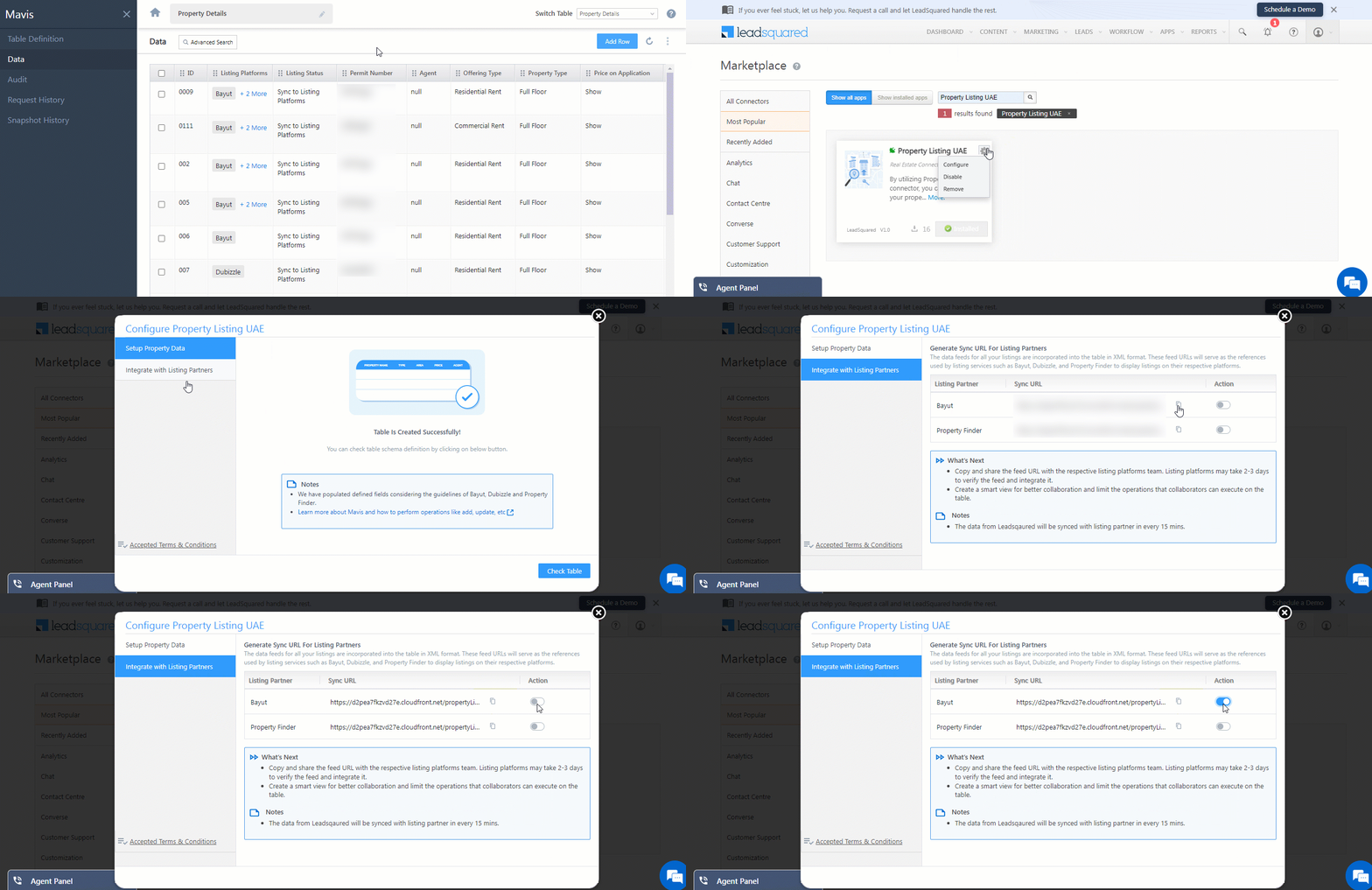
  2. Hover your cursor over , click Configure, and on the Configure Property Listing UAE pop-up, click Integrate with Listing Partners.
  3. Copy the Sync URL, and pass it on to your account manager on the listing platform side. They’ll configure it in their accounts.
  4. Once they give you a confirmation that the URL is configured, in your LeadSquared account, under Actions, enable the Slider slider. This will begin syncing the property data between your LeadSquared and listing partner’s accounts.

Note:

  • Data from your Leadsquared account will sync with the listing partner every 15 minutes.
  • Use Bayut’s Sync URL on Bahut and Dubizzle. Given that Bayut is the parent organization for both, the same URL will function for both platforms.

Property Listing UAE


8. Create Smart Views

Now create a Smart View integrated with Mavis. This enables Sales Users to view and add their property listings.

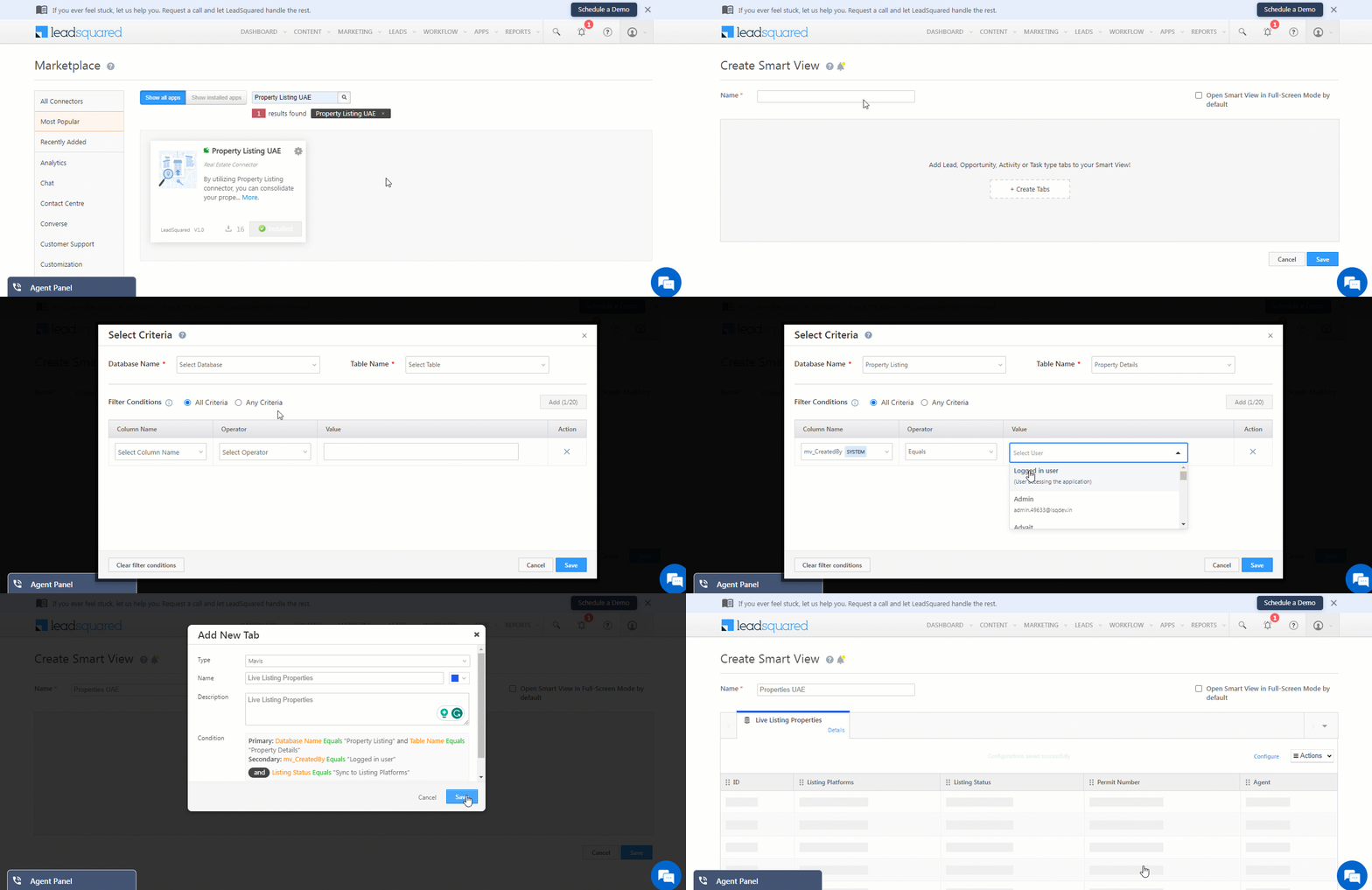
We’re creating an example Smart View that allows the logged-in Sales User to see properties assigned to them that are live on the listing platform, with the permission to only Add and Update Rows –

  1. Navigate to My Profile>Settings>Leads>Views>Smart Views.
  2. Click create icon, enter a name for the Smart View, and click Create Tabs.
  3. Choose Type as Mavis and enter a Name and Description.
  4. Click the Select Condition link.
    1. Select Property Listing as the database.
    2. Select Property Details as the table within the database.
    3. Add filter conditions to filter the data from the table. For example, you can filter the view to display live properties assigned to the logged-in users:
      • Column Name – Created By | Operator – Equals | Value – Logged in User
      • Column Name – Listing Status | Operator – Equals | Value – Sync to Listing Platforms
      • For more information on filter conditions, see filter conditions.
    4. Click Add to add more filter conditions. You can add up to 20 filter conditions by default. To increase this limit, reach out to your account manager or support@leadsquared.com.
      • For multiple filter conditions, select whether you want All Criteria (and) or Any Criteria (or) to apply.
    5. Click Save.
  5. Verify the filter conditions, then click Save.
  6. To add Actions, click Configure. We’re enabling the users to –
    • Add Rows
    • Export Rows
  7. Once you’re done, click Save.
Note: To know how to assign Smart Views to users, refer to Smart Views for Administrators.

Property Listing UAE


Any Questions?

Did you find this article helpful? Let us know your thoughts in the comments section below.

User Management – Feature Guide

1. Feature Overview

Users are the employees of your organization who have active accounts in LeadSquared (like Sales Representatives, Sales Managers, etc.). You can create users, assign them permissions, set user hierarchy based on your organization’s departmental structure, and more. This article lists the various features users can access to streamline their management process.


2. User Roles

You can control access to different features and data by assigning roles to users. Usually, one of these four roles can be assigned to a user – Admin User, Marketing User, Sales Manager, and Sales User. If required, we also support a Super Administrator user role that can control permissions given to Admin users. To know more about user roles, refer to User Roles and Access Rights.


3. User Fields

When you create users, there are a number of system fields available (such as first name, last name, etc.) to store their information. You can also create custom user fields (like their work anniversaries, gender, marital status, etc.). You can choose the data types you want the fields to accept and customize them according to your preferences. To know more, refer to Manage User Custom Fields.


4. Create and Update Users

You can create, edit and perform a range of actions on your users like –

Action Description 
Create Users Create new users in your account or update existing users.
Deactivate users Although it is not possible to delete a user, Admins can deactivate them. The deactivated user will no longer be able to log into LeadSquared.
Reset Password You can send password reset requests to users up to a maximum of 5 times a day.
Set Permissions Apply Permission Templates on users to restrict their access to sensitive data.
Change Password Admin users can change any user’s password. This is helpful when users are required to reset their passwords but haven’t received the password reset email yet.
View Lead Access You can view the lead access permissions of a user based on the Sales Groups they are part of. You can also view other details of the group like its members, group managers, etc., here.
View Automation Report If you’ve created user automations, this report shows you the path the user has taken through the automated workflow.
Configure Homepage You can select either Dashboard or Smart Views as the homepage for the user.

LeadSquared - Actions in manage users

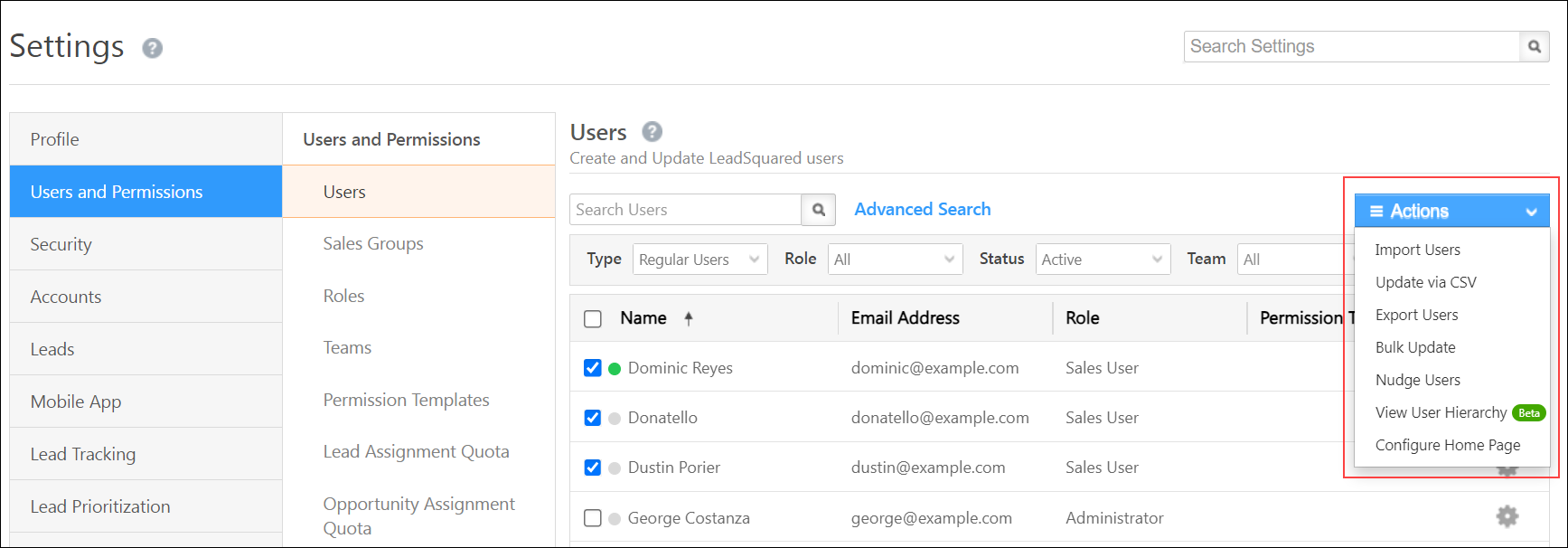
You can also perform the following bulk actions on users –

Action Description 
Import Users You can import a list of users through CSV.
Update via CSV You can update a large number of users in one go. For example, you can update the status fields to activate or deactivate users who join or leave your organization, or apply workday templates to a group of users.
Export Users You can export the list of users in your account in CSV format.
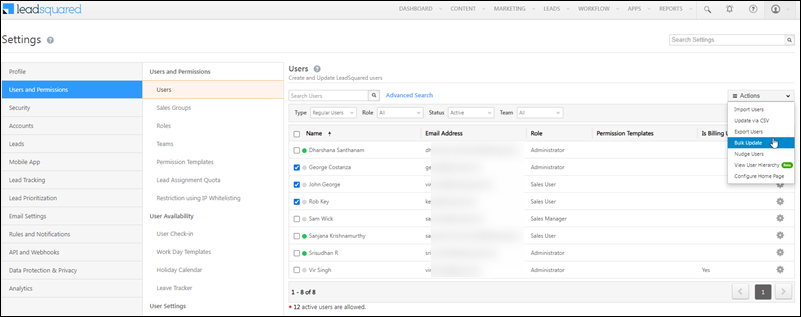
Bulk Update Unlike the update via CSV option, bulk update lets you change only a single user field.
Nudge Users You can send push notifications to your users’ desktop and mobile devices for various events (For example, Lead Creation, Upcoming Tasks, Opportunity Creation, Activity Completion, etc.) using the LeadSquared Nudges Connector. You can also create custom templates and add images to them, for custom events such as policy update announcements, upcoming holidays, etc.
View User Hierarchy You can view the hierarchy of your users based on the ‘Reporting to’ field. To know more about setting up user hierarchy, refer to How to Set Up User/Organization Hierarchy.

LeadSquared - Bulk action in manage users

To know more about creating and managing your users, refer to Manage Users.


5. Create Sales Groups

Manage your sales users by organizing them into different groups based on location, business unit or any other categorization of your choice. For example, you can organise your sales users into different sales groups based on their location and assign them leads that are in the same location. You can also assign a group manager to a sales group and set specific permissions for the data they can access.

Sales users in a group can be given –

  • Lead Based Access – Sales users can have access permissions defined only on leads within the group.
  • Account Based Access – Sales users can have access permissions defined over a combination of accounts & leads within the group.

To know more about Sales Groups, refer to Managing Lead and Account Access for Sales Users – Sales Groups.


6. Create Teams

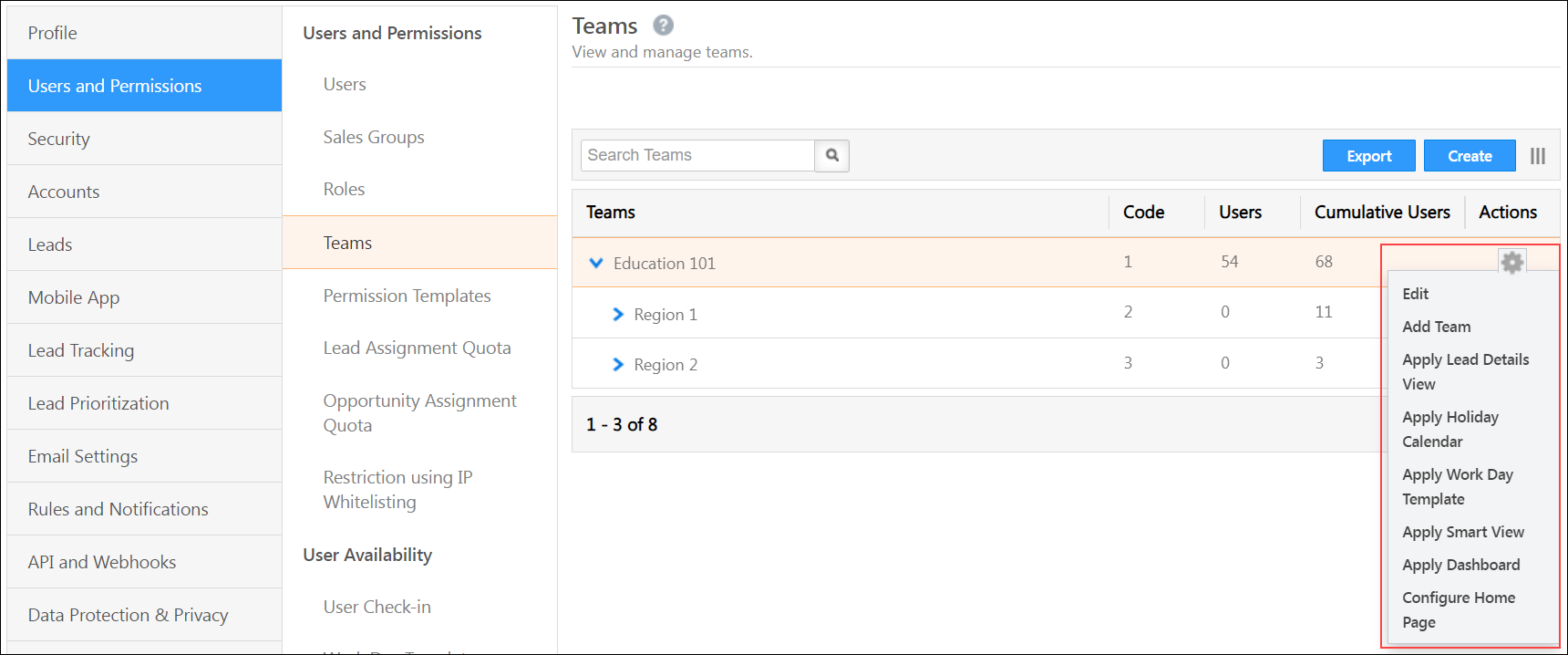
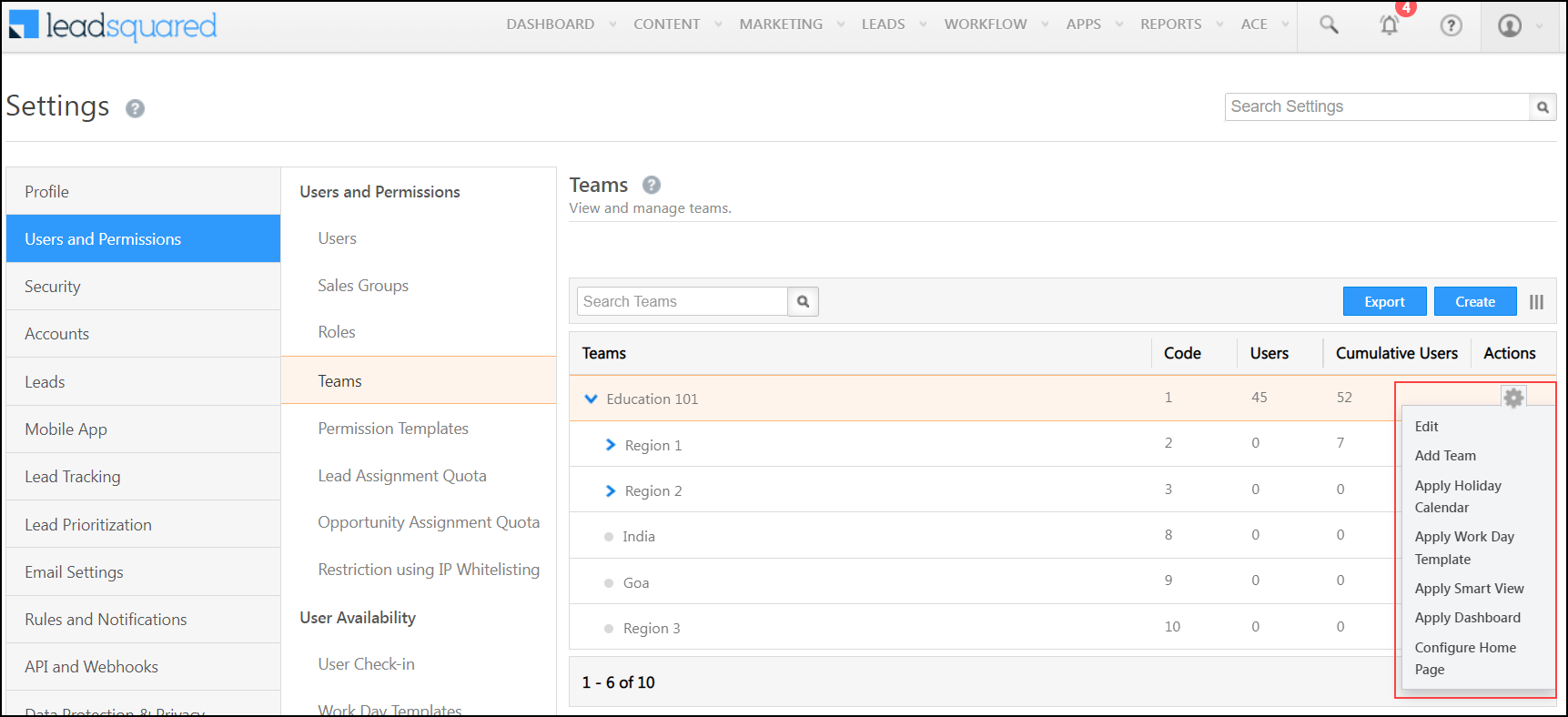
Teams reflect the structure of different departments in your organisation. With Teams, you can assign key user management and lead management features to all users in your account. Once you create teams in your LeadSquared account, you can assign them the following features –

  • Lead Details Customisation View – Based on each Team’s requirements, Admin users can customise the Tabs, Actions, Buttons and Lead vCard on the Lead Details page.
  • Work Day Templates – These templates let you define the schedule and working hours of your organization so you can automatically check-in your users.
  • Holiday Calendar – You can create your organisation’s holiday schedule and apply them to different teams across different regions.
  • Smart Views – You can create a specific Smart Views page for your team.
  • Configure Homepage – You can select either Dashboard or Smart Views to be the homepage of the team.
  • Custom Dashboards – You can create customized dashboards to track and analyze key performance metrics across teams within the organization.

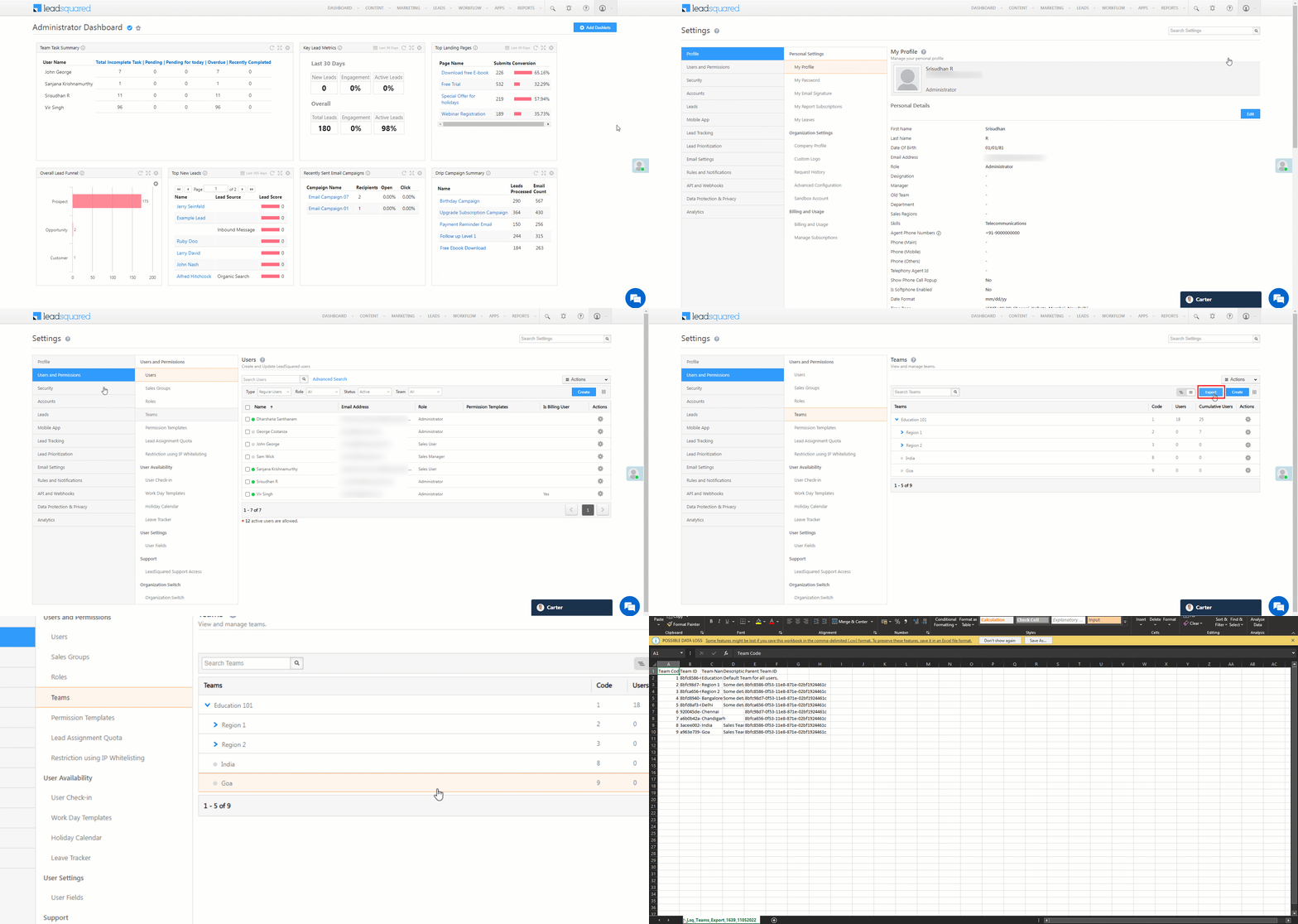
LeadSquared - Teams actions

To know more, refer to Teams.

Note: To identify the difference between sales groups and teams, refer to What is the difference between Sales Groups and Teams?


7. Permission Templates

Permission templates let you configure access rights for your users. They let you control who sees what and which users can edit, delete, export or import your data. For example, you can create permission templates to mask sensitive data (like phone numbers, email IDs, etc.), or prevent users from exporting or deleting data. To know more about creating a Permission Template, refer to Create Permission Templates. To know more about applying these templates on your users, refer to Apply Permission Templates to LeadSquared Users, Roles or Groups.


8. Lead Assignment Quota

You can set limits on the number of leads that can be assigned to users based on quotas defined at the user role level (such as Sales User, etc.), or individual user level. You can configure lead assignment quotas for daily, weekly and monthly cycles. To know more, refer to Limit the Number of Leads Assigned to a User – Lead Assignment Quotas.


9. Opportunity Management Quota

You can set limits on the number of opportunities that can be assigned to users based on quotas defined through opportunity distribution automations. You can configure opportunity assignment quotas for daily, weekly and monthly cycles. To know more, refer to Opportunity Assignment Quotas.


10. Support Access

When users raise a ticket to LeadSquared, our support team may request temporary access to your account. You can set the time period for when the account can be accessed by the support team and our team will not be able to export any leads from the account. To know more, refer to LeadSquared Support Access.


11. Organisation Switch

You can set up multiple organizations in LeadSquared and seamlessly switch between them (Agency Switch). While setting up, it’s imperative to designate one organization as the master and the others (client organizations) as children. If you have multiple organizations you’d like to create LeadSquared accounts for, reach out to support@leadsquared.com. To know more, refer to How to Manage Organization (Agency) Switch.


12. Leave Tracker

Users can apply for their own leaves while Admins can add leaves for all users. You can also use this feature to keep track of all your leaves. To know more, refer to Leave Tracker.


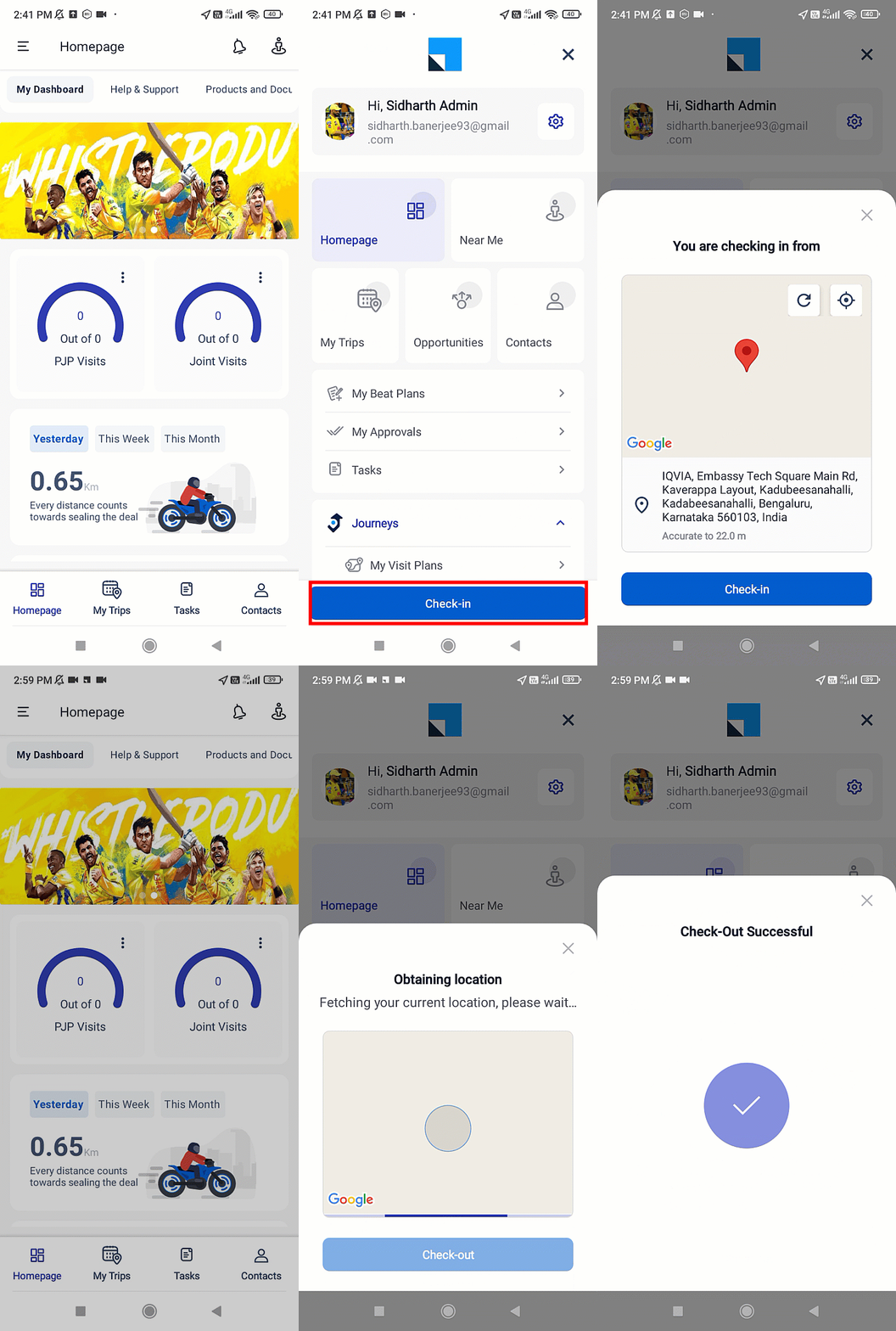
13. User Check-in and Check-out

The check-in/check-out feature lets you manage your users’ attendance and view user availability while assigning leads. You can auto check-in your users across both web and mobile platforms through lead distribution automations. You can also restrict users from checking-in and checking-out from the mobile app based on location and time preferences. To know more about setting up these restrictions, refer to Check-in/Check-out Location and Time Restrictions

Some features in LeadSquared require users to check in regularly. For example –

  • Distance Travelled Report – You can track and monitor the distance travelled by your field sales users on any particular day. The distance travelled is calculated based on the check-in/check-out activities and location coordinates identified by the LeadSquared Mobile App.
  • Location History Tracker Report – You can view a comprehensive trail of your users’ location coordinates received via the LeadSquared Mobile App throughout the day starting from the user’s check-in location.
  • Field Sales Territories – You can auto-distribute leads that are in close proximity to your users by creating territories and assigning them to a group of users. All leads inside or near the created territory will be evenly distributed among the assigned users.


14. Reports

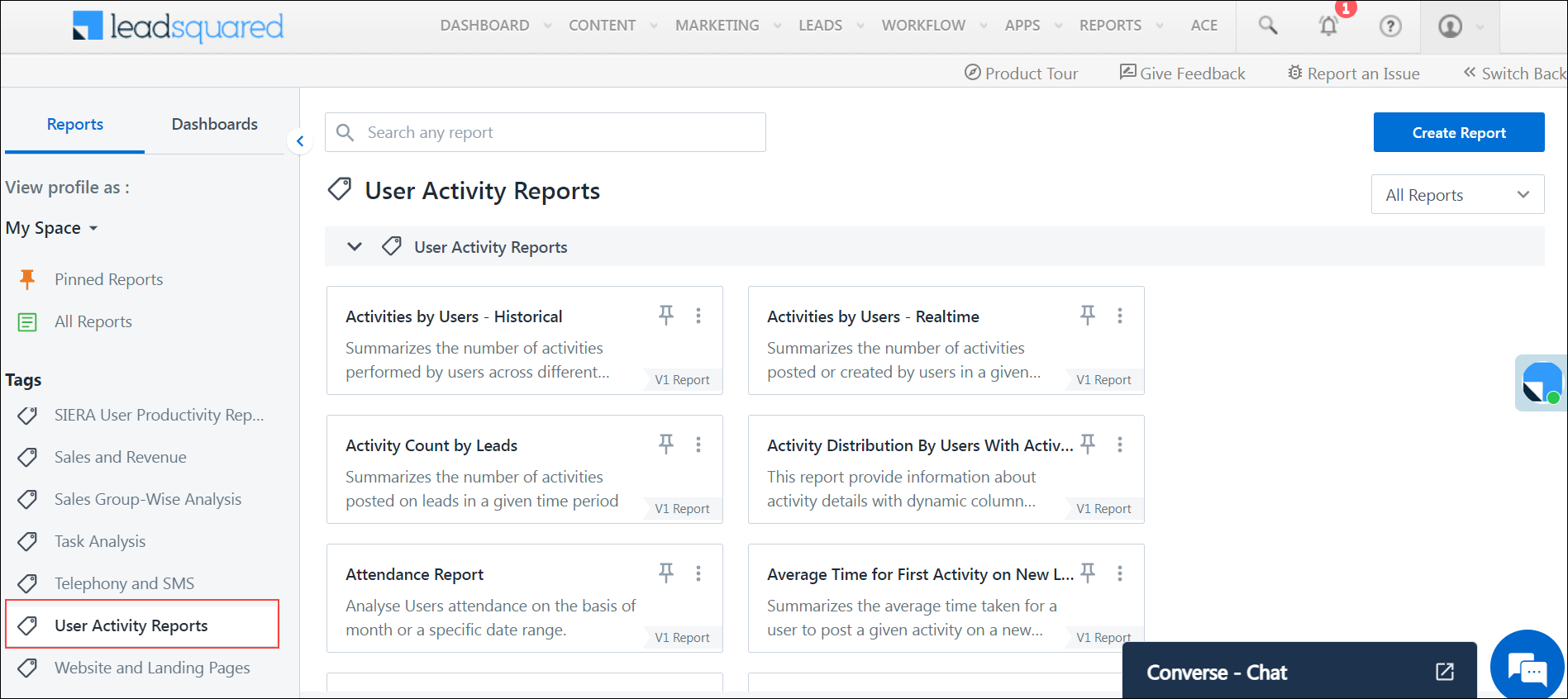
You can access lead and user analysis reports (e.g., Check-in/Check-out History Report, Automation Audit Logs, etc.) on the Reports homepage. To know more about LeadSquared Reports, refer to Report Management. You can also use LeadSquared’s SIERA feature, a new-gen self-service reporting tool, to track leads, opportunities, organization revenue, user performance, and more.

LeadSquared - User Activity Reports


15. Security

  • You can customize the password policy of your LeadSquared account (For example, minimum password length allowed, minimum special characters allowed, etc.) to comply with your organization’s policies. You can also force reset your users’ passwords to ensure they change (reset) it regularly. To know more, refer to LeadSquared Security Settings.
  •  You can regulate and limit LeadSquared product and LeadSquared APIs access only to trusted users by whitelisting user IP addresses. With this feature, you’ll be creating a list of trusted and secure IP addresses from which your users will be able to access their LeadSquared accounts. To know more, refer to Restrict User Access to LeadSquared Using IP Whitelisting.


16. Other Features

  • You can perform advanced search on users to filter them based on multiple criteria. To know more, refer to User Advanced Search.
  • Group managers can create lead automations for the users in their sales group. To know more, refer to Group Level Automation.


Any Questions?

Did you find this article helpful? Please let us know any feedback you may have in the comments section below. We’d love to hear from you and help you out!

Build an AI Help Bot

1. Feature Overview

This Chatbot addresses common queries and FAQs about your products or services. It’s designed to help reduce support load and costs by providing answers 24/7 on your support channels.

Manually create a question-answer dataset or import one in bulk from a CSV file to program the chatbot. With NLP capabilities, the chatbot can provide accurate answers even if the lead’s queries do not exactly match the dataset.

Note:

  • Add Utterances for higher answering accuracy. Utterances are the various ways a lead may ask a question while interacting with the bot. For instance, if the Question is “Which loans are being offered?” the Utterances could include “What loan types are available?” or “Loans available?”, and so on.
  • The AI Help Bot operates independently of a Journey Based Bot, and its flow cannot be integrated with the flow of a Journey Based Bot.
  • The difference between the AI Help Bot and AI Knowledge Bot is with the AI help bot, you have to manually add questions, answers, and utterances for the bot to address queries. Whereas with the AI Knowledge bot, you simply upload resources, and the bot will analyze the content to educate itself and answer any questions related to the uploaded material.
  • To know how to build a Journey Based Chatbot, refer to Build a Journey Based Chatbot.

LeadSquared Chatbot


2. Create a Bot

Begin by creating a chatbot. This is the bot your leads will interact with when they visit your website/portal. To create a bot –

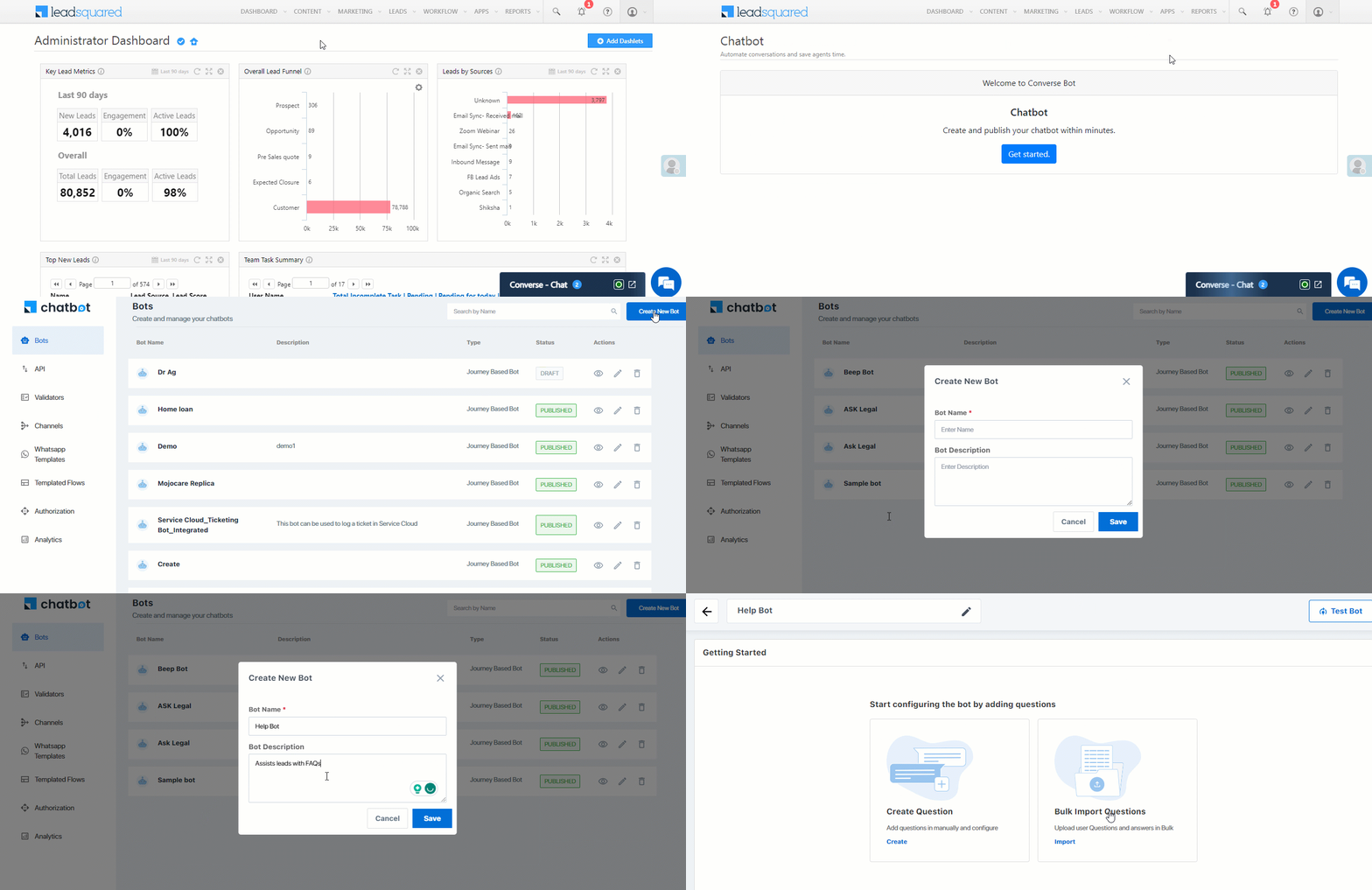
  1. On your LeadSquared account, navigate to Apps>Chatbot, and click Get Started.
  2. On the Dashboard screen, from the left panel, click Bots, and then click Create New Bot.
  3. On the Select Type pop-up, under AI Help Bot, click Select.
  4. On the Create New Bot pop-up, enter a relevant Bot Name and Description for the bot.
    • This name is only for internal identification, and NOT the actual display name of the bot. We will set the display name in a later step.
  5. Once you’re done, click Save.
Note: Once published, you can link this bot to an existing journey-based bot. If a lead asks a question not covered in the flow or triggers a fallback, the system checks this bot for answers and responds accordingly.

LeadSquared Chatbot


3. Create Question

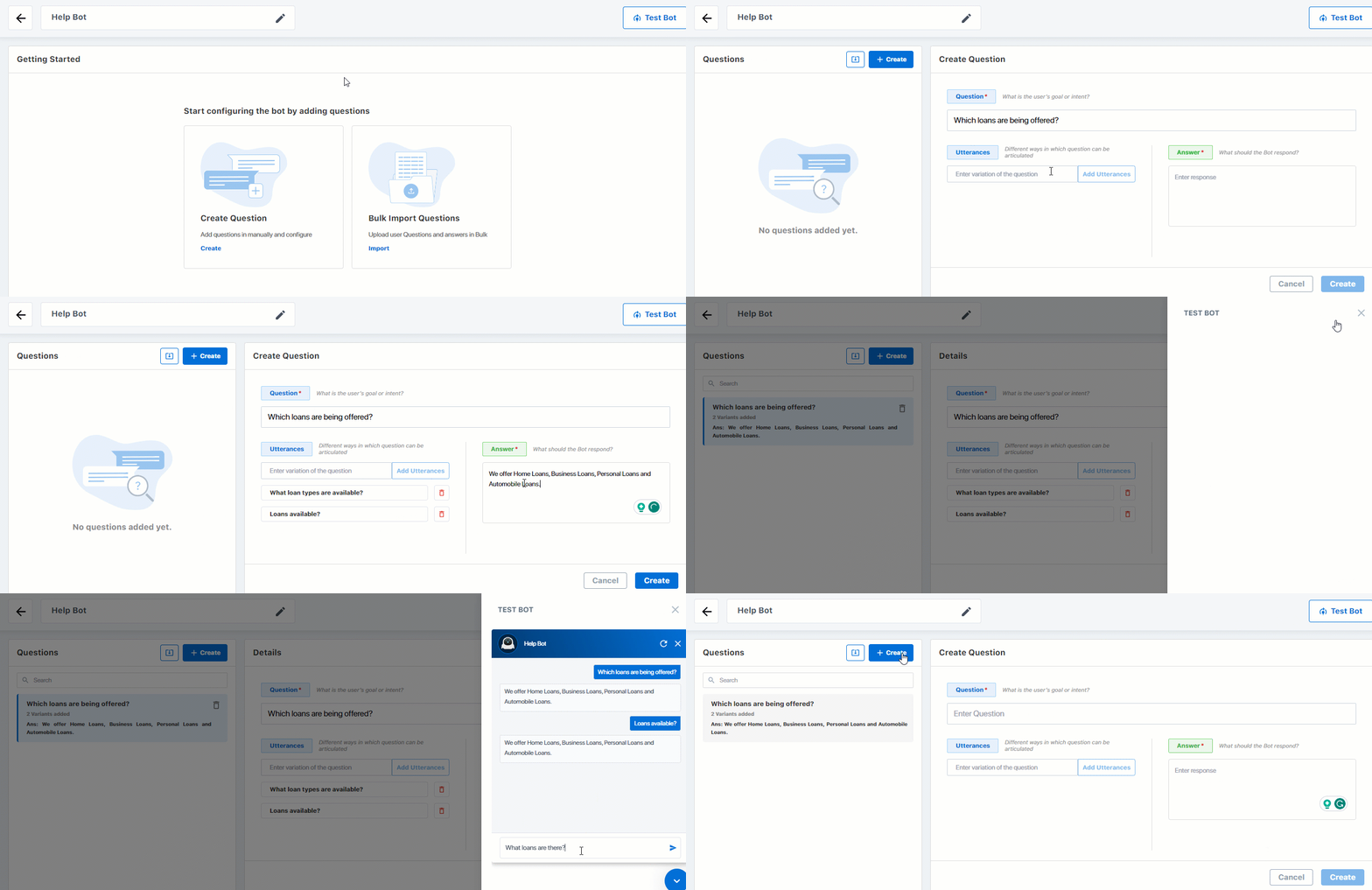
Manually add questions to the bot. Remember that the bot’s AI capabilities ensure it provides accurate answers even if the lead’s queries don’t exactly match the added Questions or Utterances.

  • Question – Enter the question you anticipate your leads will ask the bot. This is mandatory. We’re adding, “Which loans are being offered?”
  • Utterances – List various anticipated ways a lead may ask a question while interacting with the bot. For e.g., if the Question is “Which loans are being offered?”, Utterances could be “What loan types are available?” or “Loans available?” and so on. After every input, click the Add Utterances button. The more utterances you add, the better the bot gets at being able to answer similar questions posted by the lead.
  • Answer – Enter the answer for the question you’ve added. This is mandatory. We’re adding, “We offer Home Loans, Business Loans, Personal Loans, and Automobile Loans.”

Once you’re done adding a Question (along with the Answer and Utterances), click Create. Then, click Test Bot, and enter a few questions to ensure the bot is working as intended.

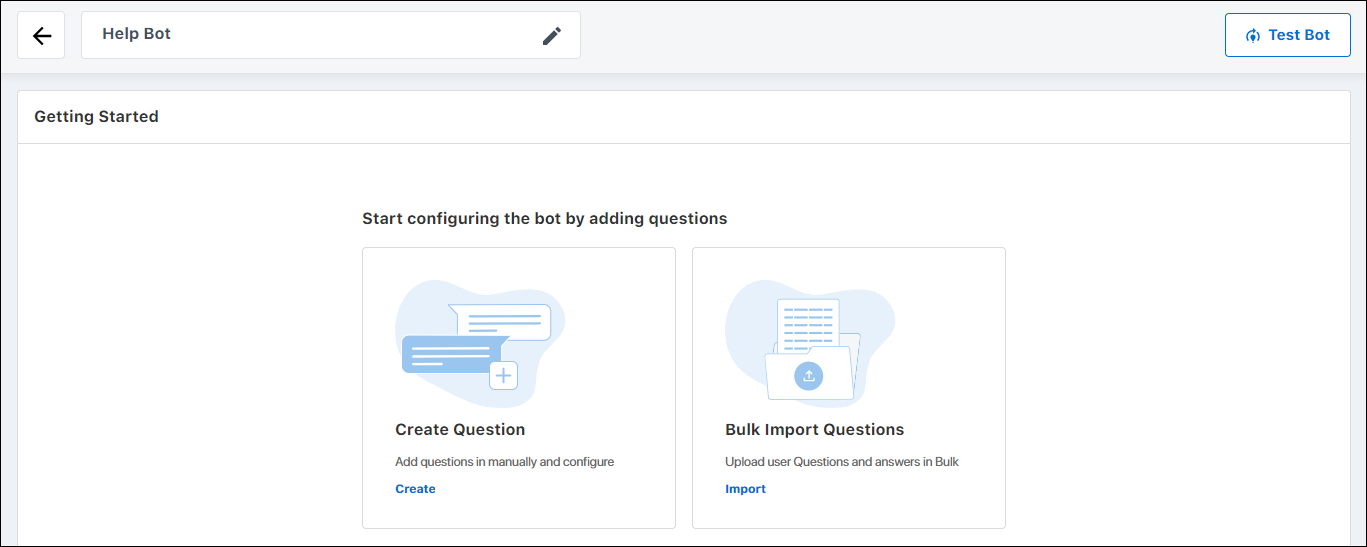
To add more questions manually, click Create.

Note: If required, you can import a CSV file that contains the list of Questions. To do this, click LeadSquared Chatbot.

LeadSquared Chatbot


4. Bulk Import Questions

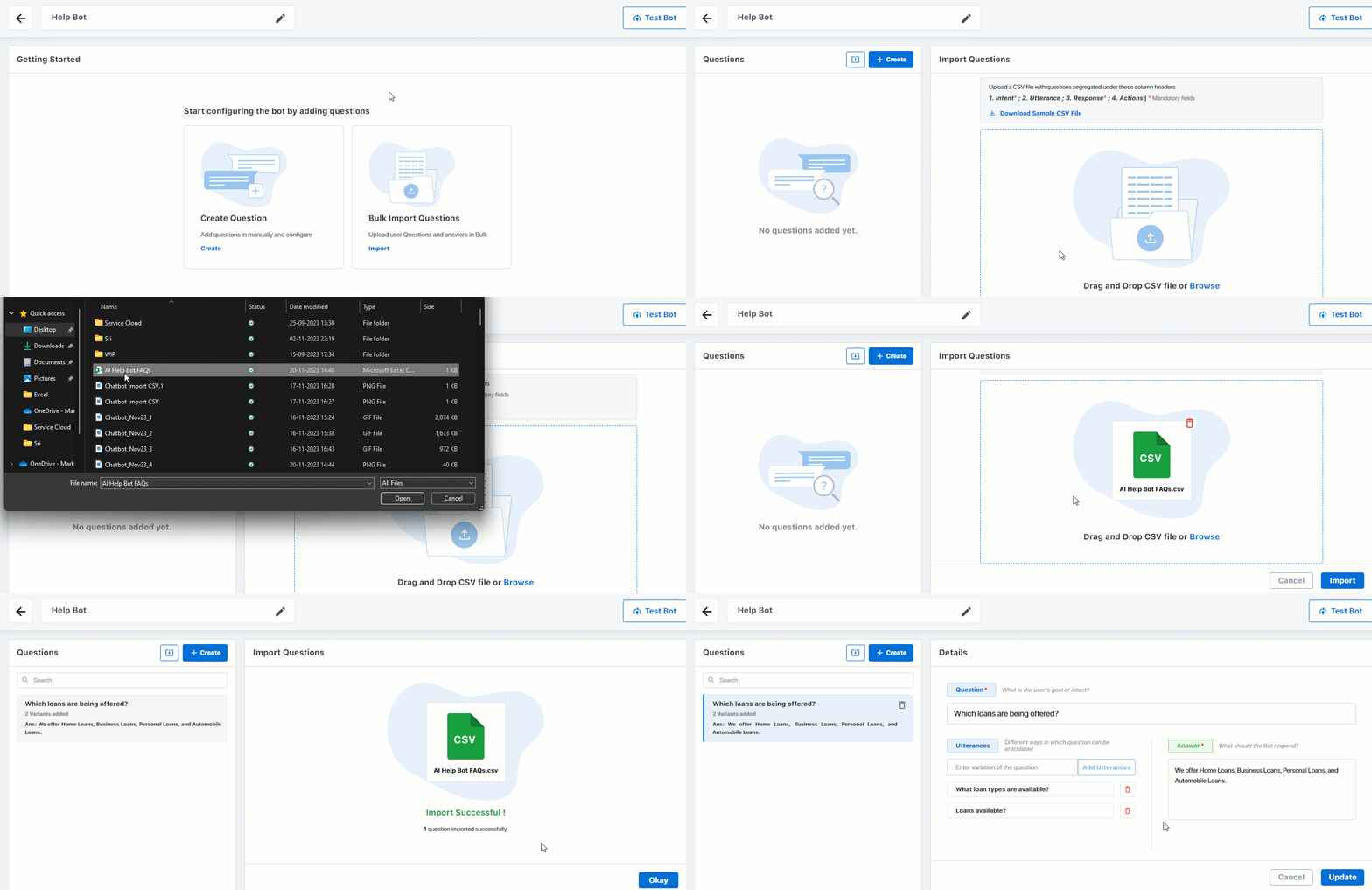
Import CSV files that contain the list of Intent (Questions), along with the Utterances and Answers. To import a file, click . If required, you can download a Sample CSV file we’ve listed under Import Questions.

Add the file under Import Questions, and click Test Bot.

Note: Ensure that the CSV file includes the Intent (Question) and Response fields.

LeadSquared Chatbot


Any Questions?

Did you find this article helpful? Please let us know any feedback you may have in the comments section below. We’d love to hear from you and help you out!

LeadSquared Converse

1. Feature Overview

LeadSquared Converse is an omni channel engagement platform that enables you to have real-time conversations with leads. Converse currently supports the following channels –

  • SMS (currently available only in the United States)
  • WhatsApp
  • Carter (LeadSquared’s in-app reminder and notifications system)

Using Converse, you’ll be able to –

  • Send and receive images, videos, GIFs, etc.
  • View conversations in the context of a lead.
  • Eliminate the need to switch between multiple applications to converse with your leads.
  • Get real-time notifications for messages sent by leads.
  • Send content-rich messages, with multi-language and emoji support.
Note: Converse is also available on the mobile app. To know more, refer to LeadSquared Converse in Mobile App.

Converse_9


2. Prerequisite

To enable LeadSquared Converse in your account, please write to support@leadsquared.com.

Note: We will be integrating LeadSquared Converse with other platforms in the near future. Check out Product Updates to know more.


3. Agent Availability

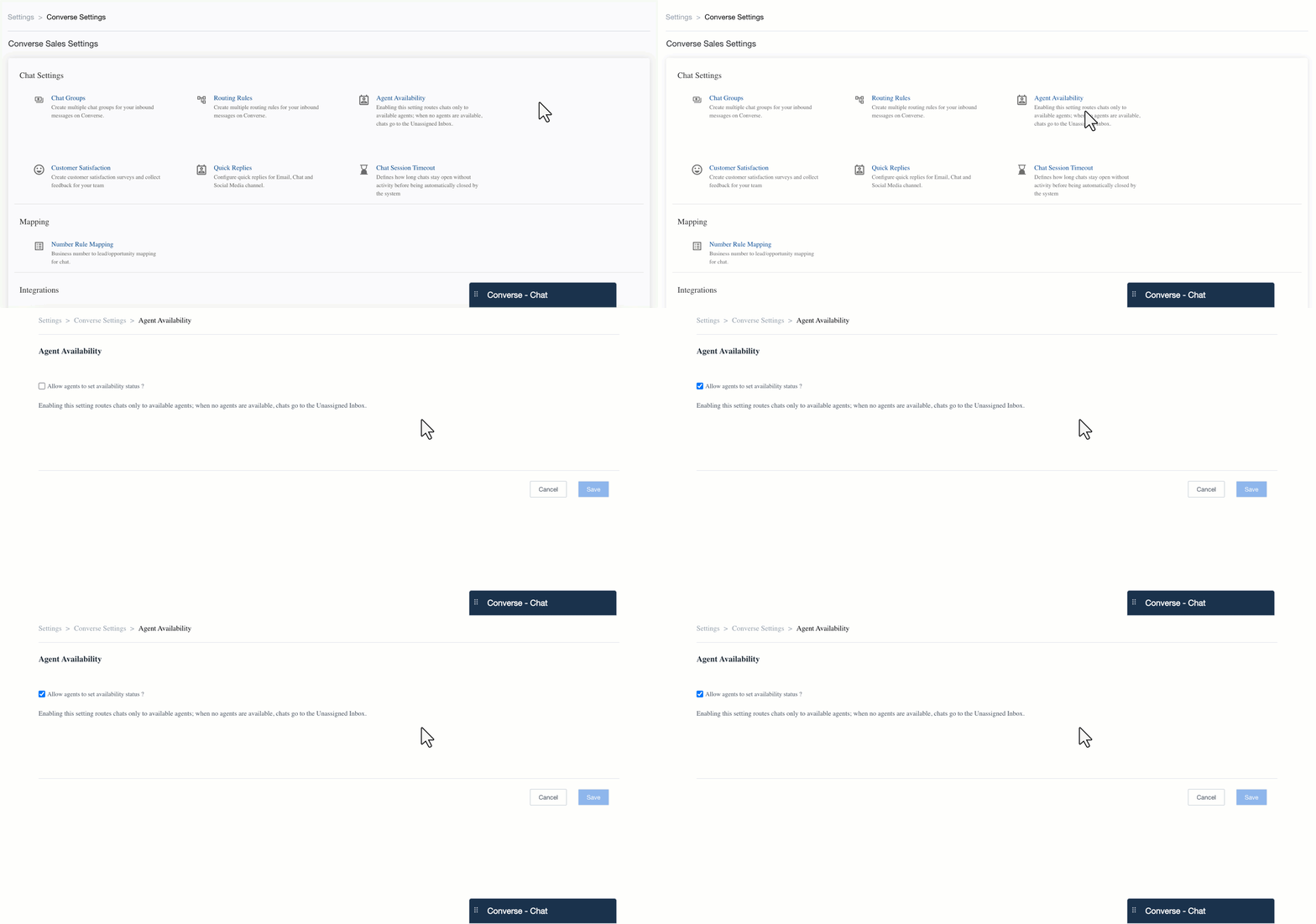
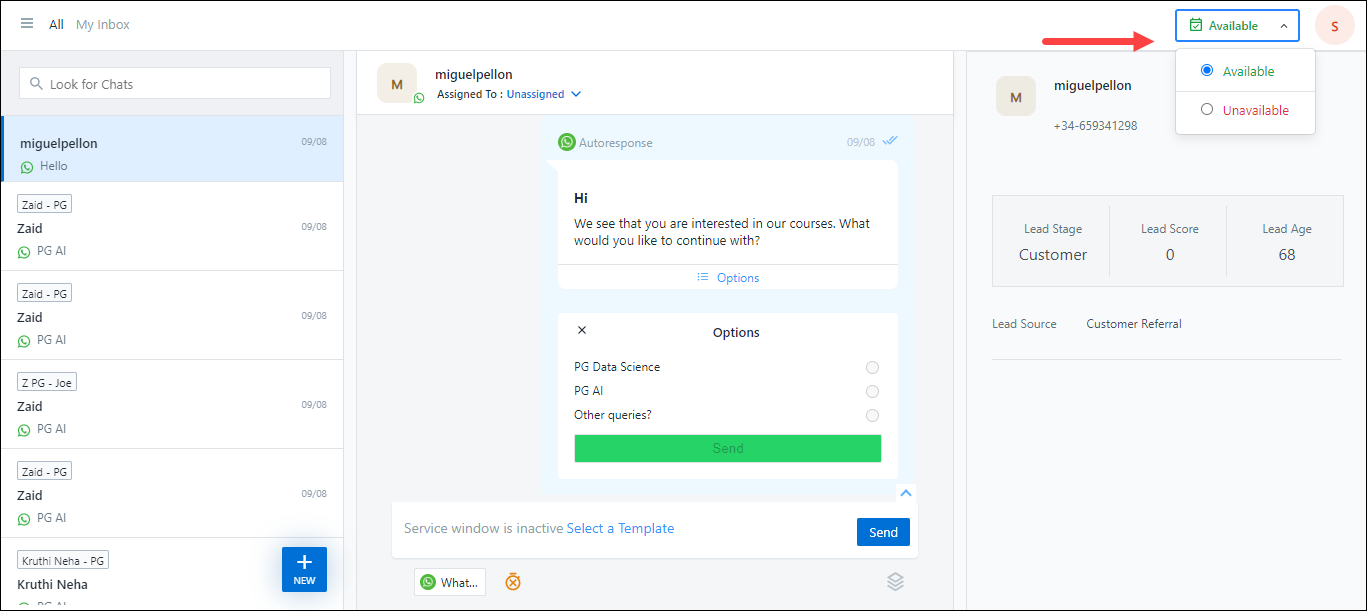
As an Admin, you can allow users to set their availability status. Based on their availability, a chat gets assigned to them. If no user is available, chats will remain unassigned.
Once any user marks themselves as available, and only if a lead sends another message, the chat gets assigned to this user.
LeadSquared Converse

To grant users permission to set their status –

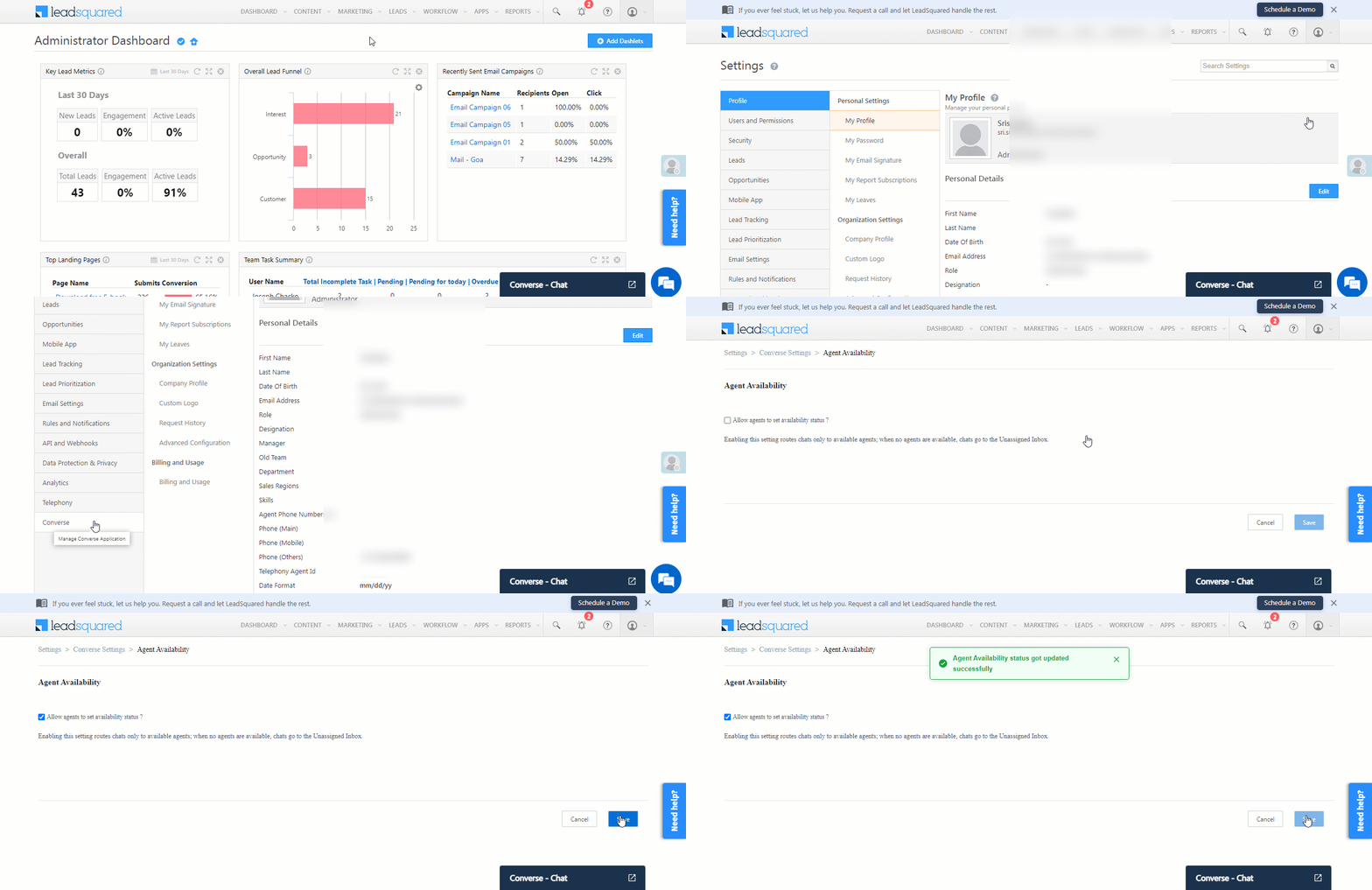
  1. Navigate to My Profile>Settings>Converse, and click Agent Availability.
  2. On the Agent Availability screen, enable the checkbox alongside Allow agents to set availability status, and click Save.

Note: Here are a few points to note regarding this setting –

  • When this setting is enabled, users must manually set their availability status. If a user forgets to switch from Available to Unavailable before logging out, chats will still be assigned to them.
  • Activation of this setting adds an additional layer to your existing Routing Rules. If you’ve configured Routing Rules, agents must mark their status as Available for a chat to be assigned to them.
    • If this setting is not enabled, chats are assigned to users based solely on the Routing Rules configured in your account (irrespective of a user’s availability).
  • If a user marks themselves as Unavailable, chats initiated before the status change will still be routed to them. However, new chats after they’re marked Unavailable will not be assigned to them.
LeadSquared Converse


4. Conversing with Leads via SMS

After LeadSquared Converse is enabled on your account –

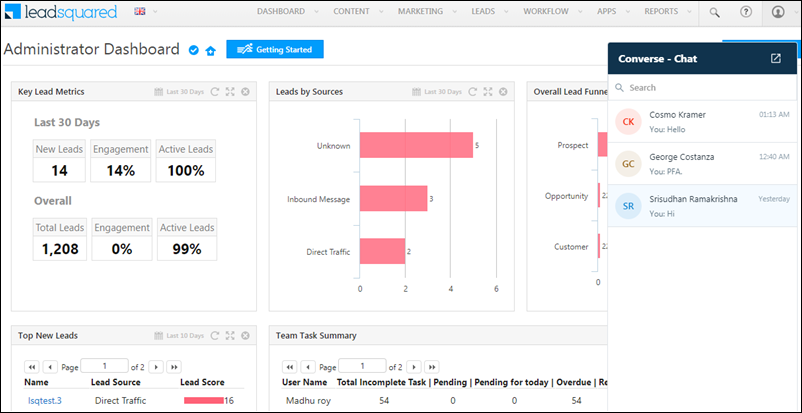
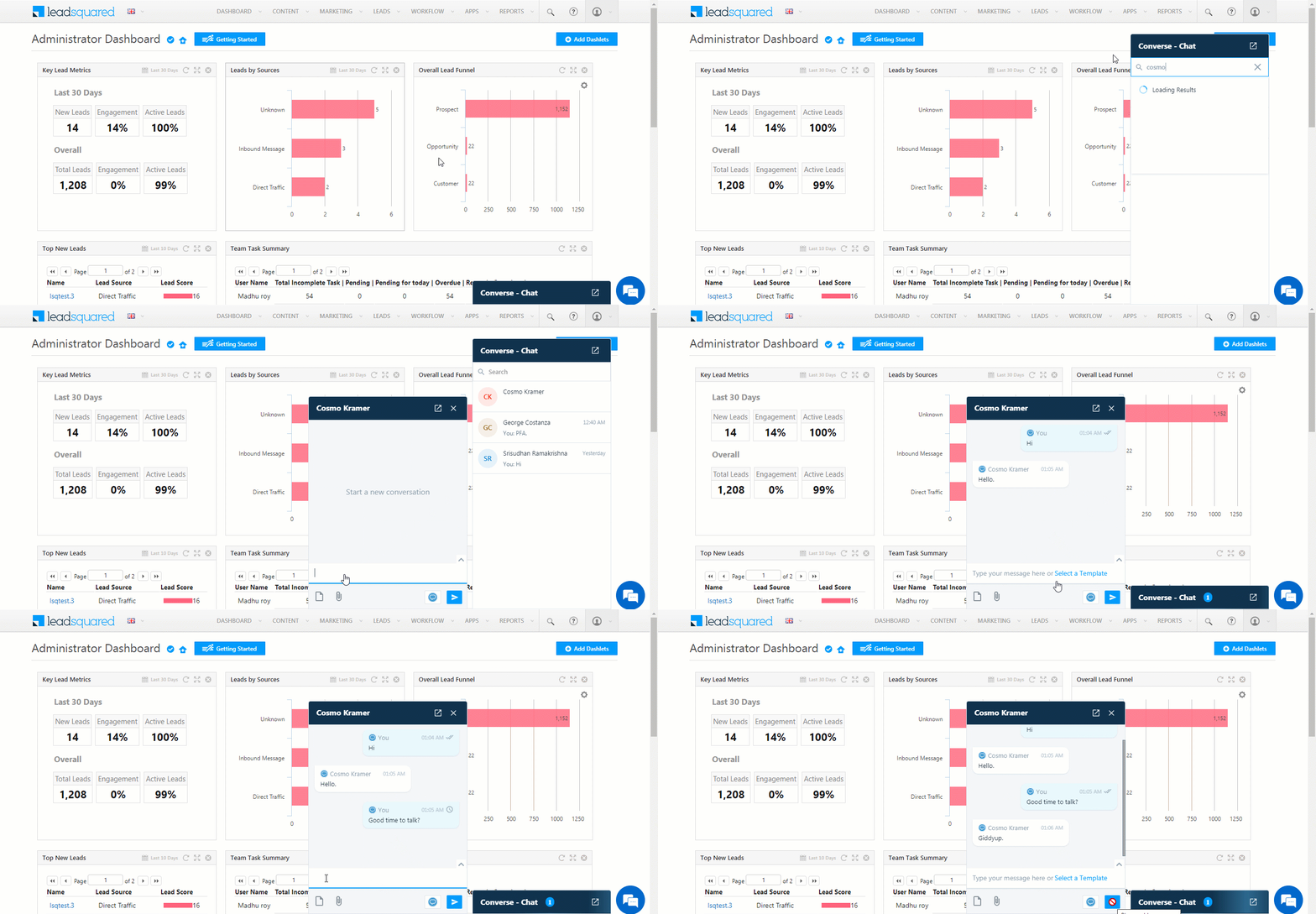
  1. Log in to your LeadSquared account, and from the main menu, click Converse – Chat.
  2. On the chat pop-up, search for the lead you want to converse with. You’ll have to type either the lead’s first name or last name, in entirety, for the lead to appear.
  3. On the chat pop-up, you can begin having a conversation with your lead. After typing your message, hit Enter, or click Send to send the message.
  4. Once the message is sent, a Single Tick single tick will be visible against the message. Once the message is delivered, it’ll change to Double Tick double ticks.
  5. Once your lead replies, you can continue the conversation.

Note:

  • Conversing with your leads via SMS is currently supported only in the US region.
  • Your account plan must support SMS integration.
  • You must have either the CTM Texting Connector or the RingCentral Texting Connector installed and configured in your account.
Converse_7


4.1 SMS Templates

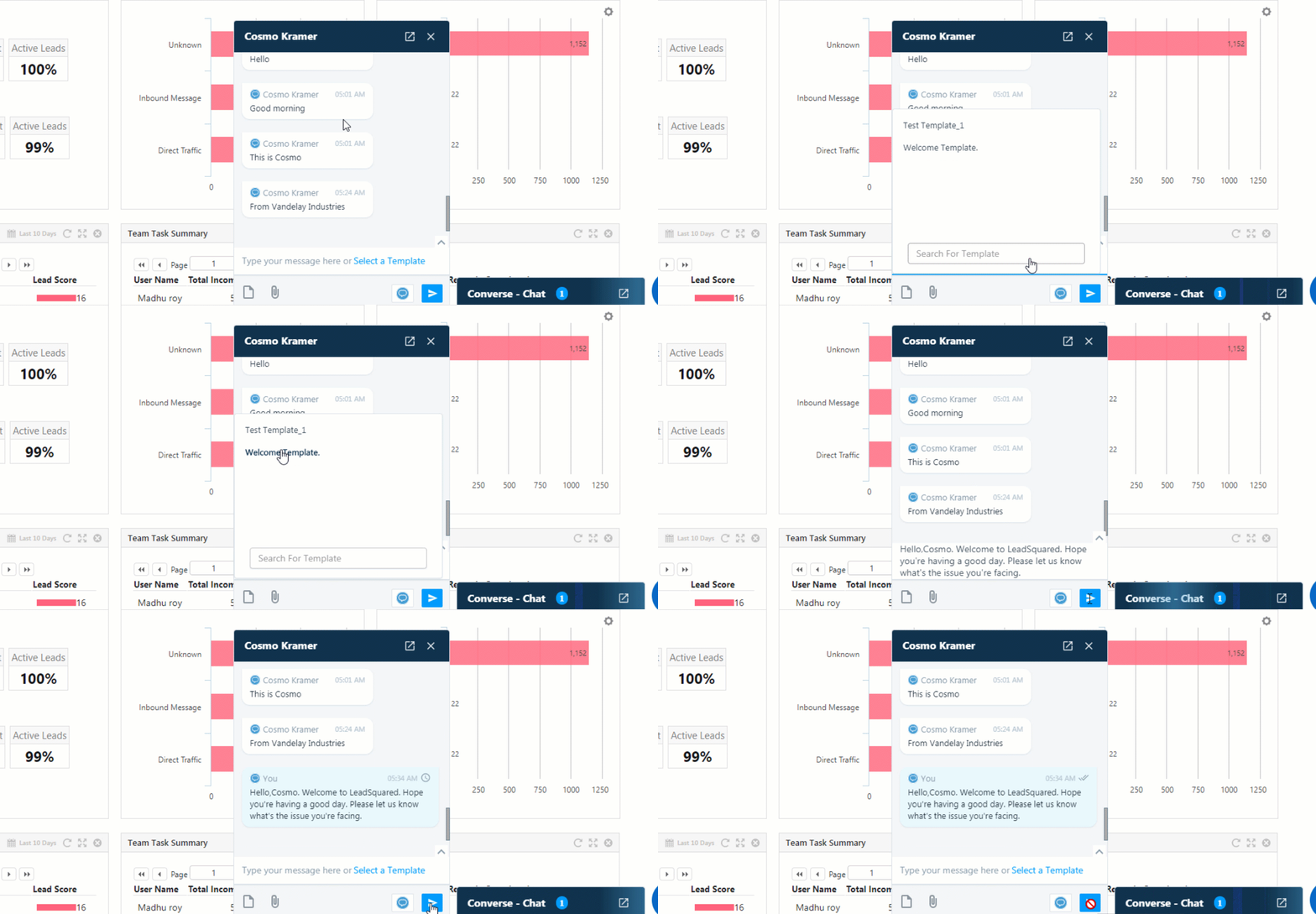
You can create customized SMS templates and attach them while conversing with your leads.

  1. On the chat pop-up, click Select a Template, or click Attach.
  2. From the list of existing templates, choose the template you wish to send to the lead.
  3. Hit Enter, or click Send to send the message.

Converse_11


4.2 Attach Files

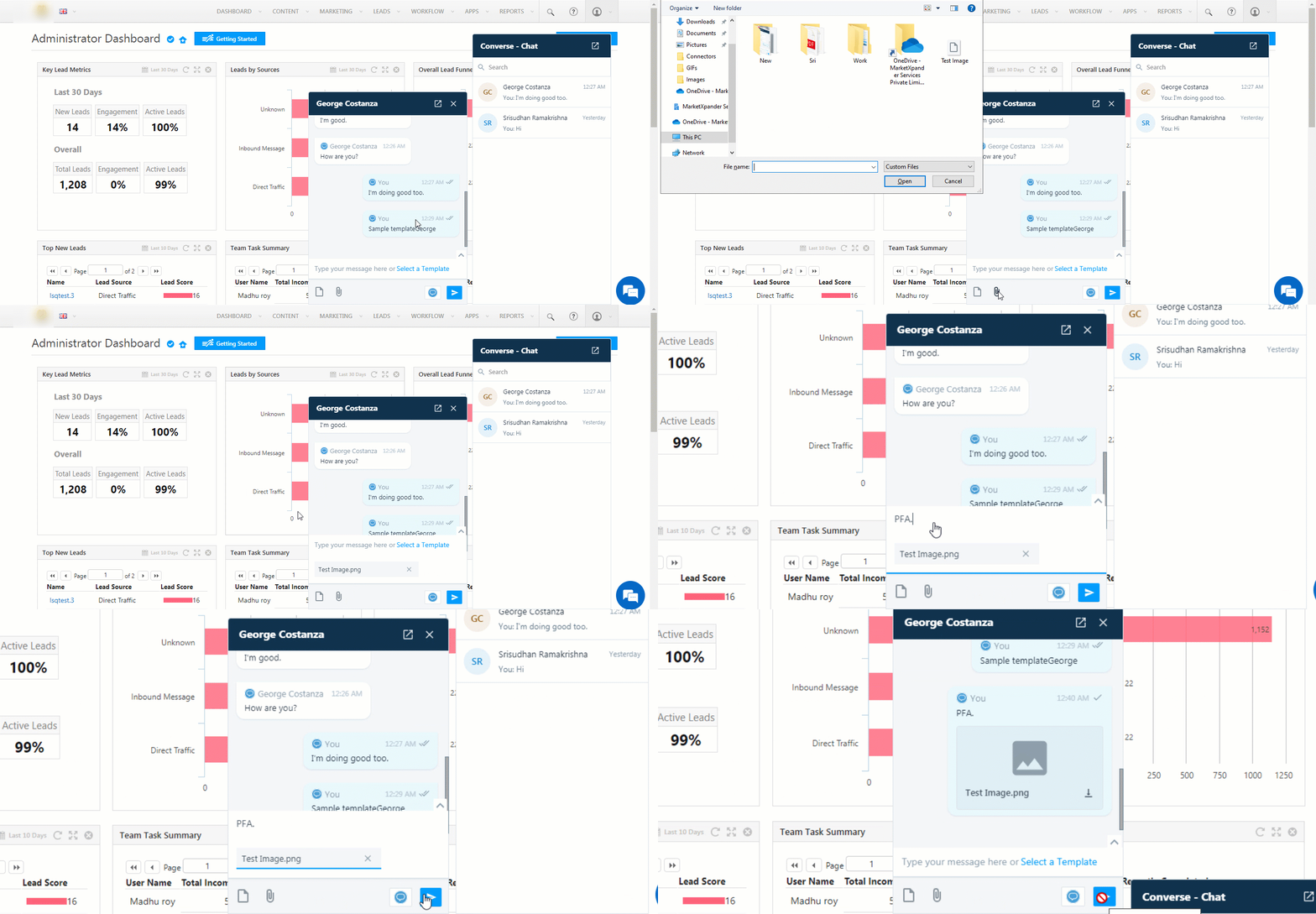
You can send and receive files while conversing with your leads.

  • To attach files, on the chat pop-up, click Attach.
  • To download files received from your leads, on the chat pop-up, under the file, click LeadSquared Converse.

Converse_6

The following file types are supported –

Connector Type Image Files Text Files Video Files Audio Files Maximum File Size Allowed
CTM Texting Connector
  • jpeg
  • png
  • jpg
  • gif
  • vcard
  • directory
  • x-vcard
NA NA 4MB
RingCentral Texting Connector
  • jpeg
  • png
  • jpg
  • gif
  • bmp
  • tiff
  • svg
  • rtf
  • mp4
  • mp3
1.5MB


4.3 Other Actions

The other actions that you can perform from the chat pop-up are –

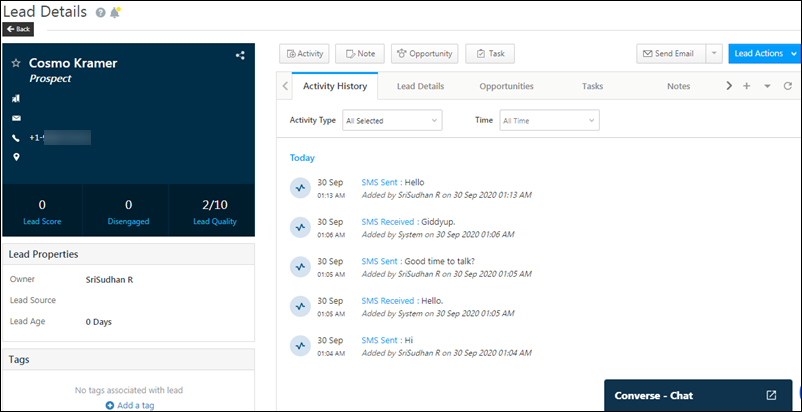
  • To navigate to the Lead Details page from the chat pop-up, click on the lead’s name. This will open the Lead Details page on a new tab.
    • On the Lead Details page, under Activity History, you can view the conversation you’ve had with the lead.
Converse_10

  • If the lead has multiple phone numbers, click Select Number to select the number you want to send the message.
  • To expand the chat window to full-screen mode, click Expand.
  • If there’s an unread message on the chat pop-up, the number of messages will show up on it.

Converse_8


4.4 Chat Filters

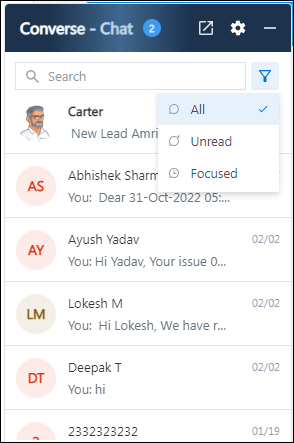
The following Converse chat filters are available when you click LeadSquared - Lead filter

  • All –  All the messages you have sent and received from leads.
  • Unread – All the unread messages you have received from your leads.
  • Focused – All the 1-on-1 chats between you and your leads. This filter will exclude conversations with leads that were initiated through bulk messages or automations.
Converse Filters


5. Conversing with Leads via WhatsApp

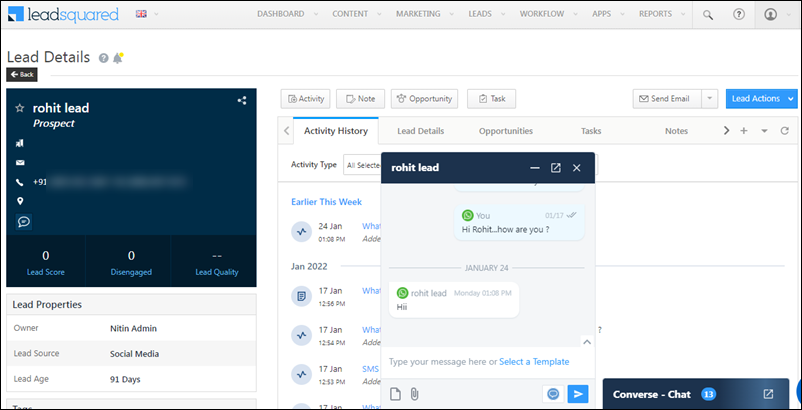
Integrating Converse with LeadSquared’s WhatsApp connector will enable your users to have real-time conversations with your leads via WhatsApp, from your LeadSquared account. Using templatized messages, you’ll be able to attach and send media files (such as images, documents, etc.) and emojis in your conversations. For more information, refer to Integrate Converse with WhatsApp.

Note: WhatsApp messages received from contacts that don’t exist as leads in your LeadSquared account will get created as new leads, and be assigned to your existing Admin users in a round-robin manner. Alternatively, you can assign these new leads in a round-robin manner to your Sales Managers and Marketing Users. To know more, refer to WhatsApp Message Routing.
LeadSquared Converse

5.1 Set-up

You must install and configure the WhatsApp connector. Once that’s done, you can integrate LeadSquared Converse with the following WhatsApp service providers –
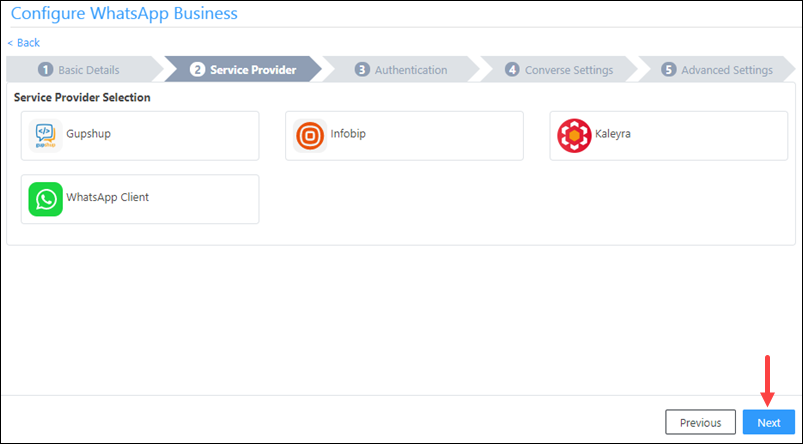
LeadSquared WhatsApp Integration


5.2 Create WhatsApp Templates

Once the connector is set-up, you must create WhatsApp templates that can be used to converse with your leads. To do this, refer to Create WhatsApp Templates in LeadSquared.

Note: Enable the Available in Converse setting when creating WhatsApp templates.
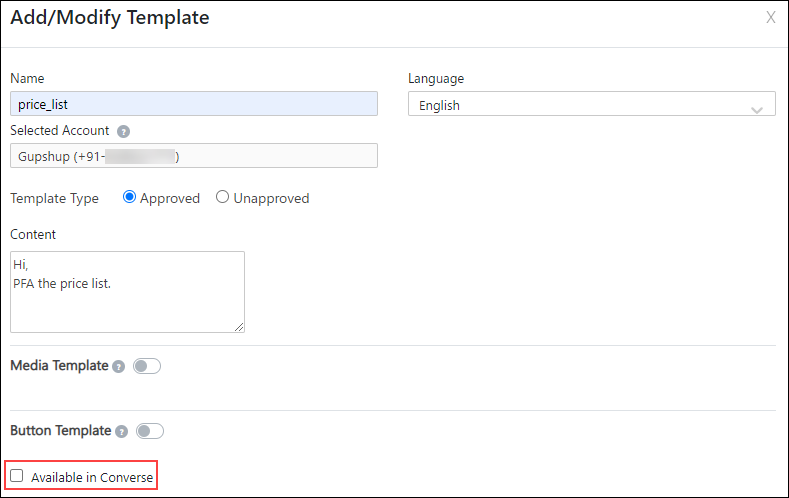
LeadSquared WhatsApp Integration


5.3 Messaging your Leads via WhatsApp

To send WhatsApp messages to your leads through Converse –

  1. Navigate to Leads>Manage Leads, and click on the lead you want to message.
  2. On the Lead Details page, on the Lead vCard, click  LeadSquared Converse.
  3. On the chat pop-up, select WhatsApp Business.
  4. From the list of approved templates, select the template you want to send, and click LeadSquared Converse Send.
  5. When the 24-hour service window is active, you can converse with your lead in real-time.
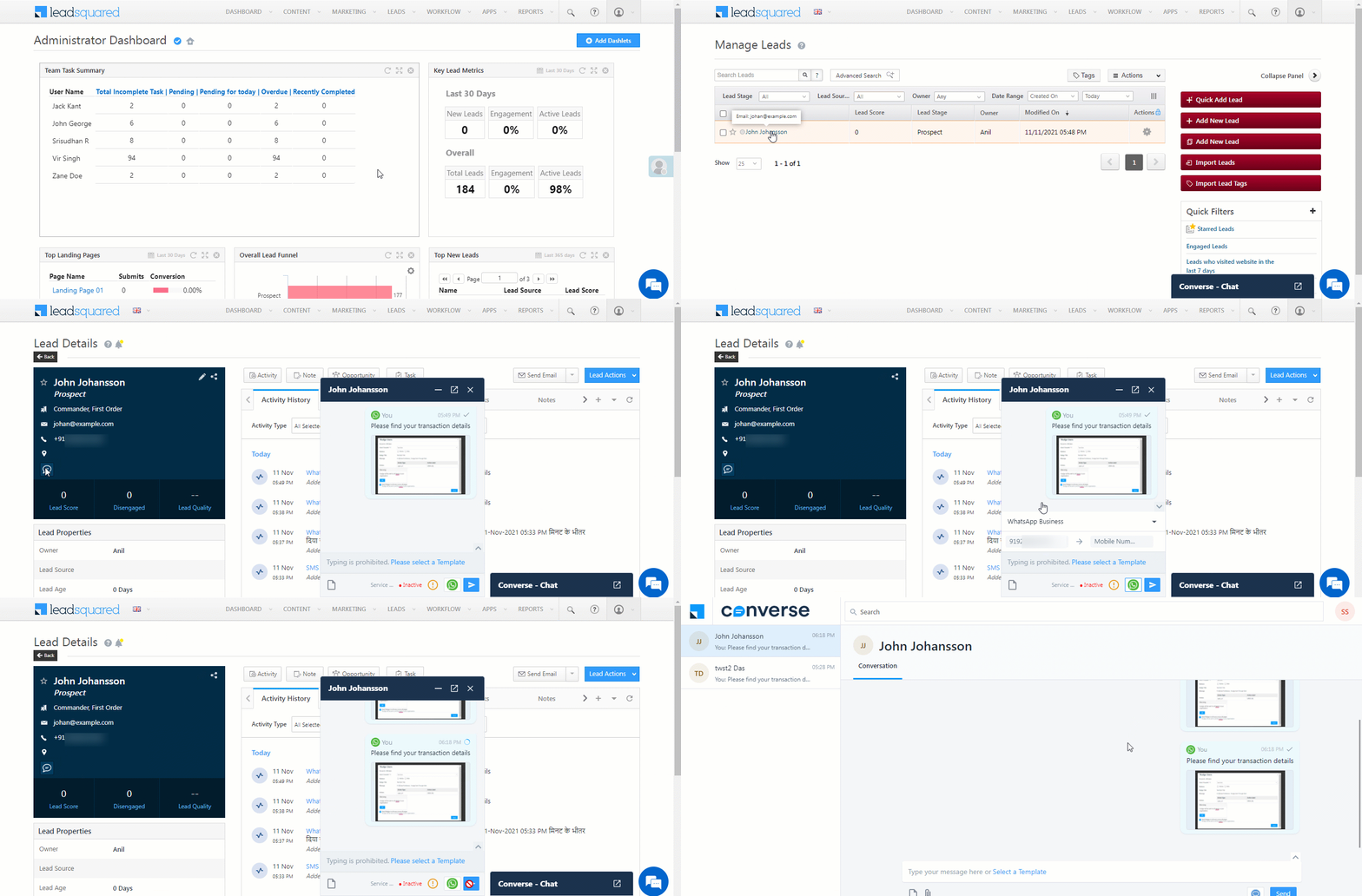
LeadSquared WhatsApp Integration


5.4 Attach Files

You can send and receive files while conversing with your leads via WhatsApp.

  • To attach files, on the chat pop-up, click Attach.
  • To download files received from your leads, on the chat pop-up, under the file, click LeadSquared Converse.

Note:

  • The file attachment and emoji banner appears only when the WhatsApp service window is active.
  • Sales Users can attach and send one media file at a time.
  • Sales Users can add captions only to image & video files.
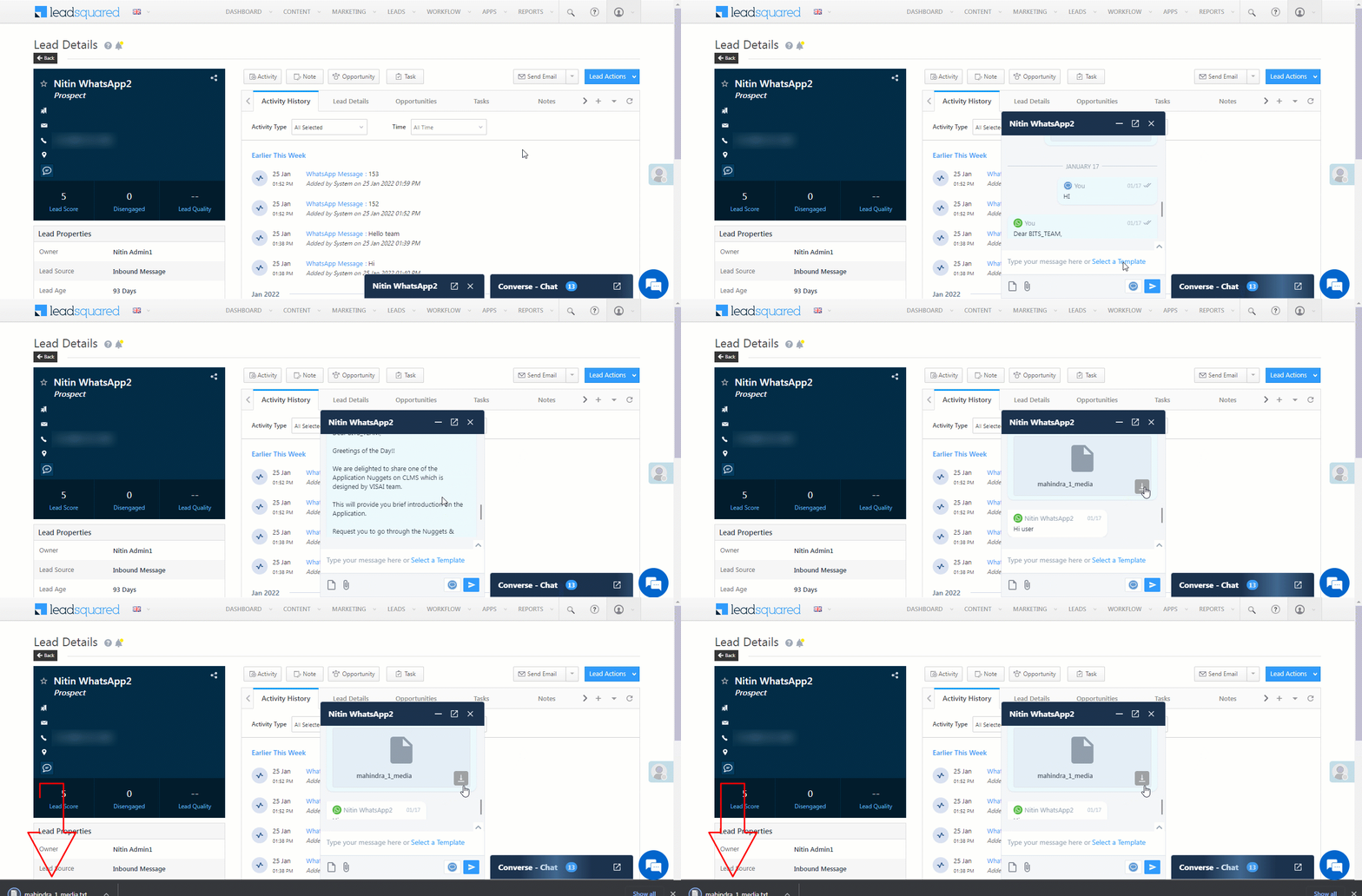
LeadSquared Converse

The following file types are supported when conversing via WhatsApp –

Image Files Video Files Audio Files Document Files Maximum File Size Allowed
  • jpeg
  • png
  • mp4
  • 3gpp
  • x-aac
  • mpeg
  • pdf
  • doc
  • xls
  • ppt
4MB

5.5 WhatsApp Message Routing

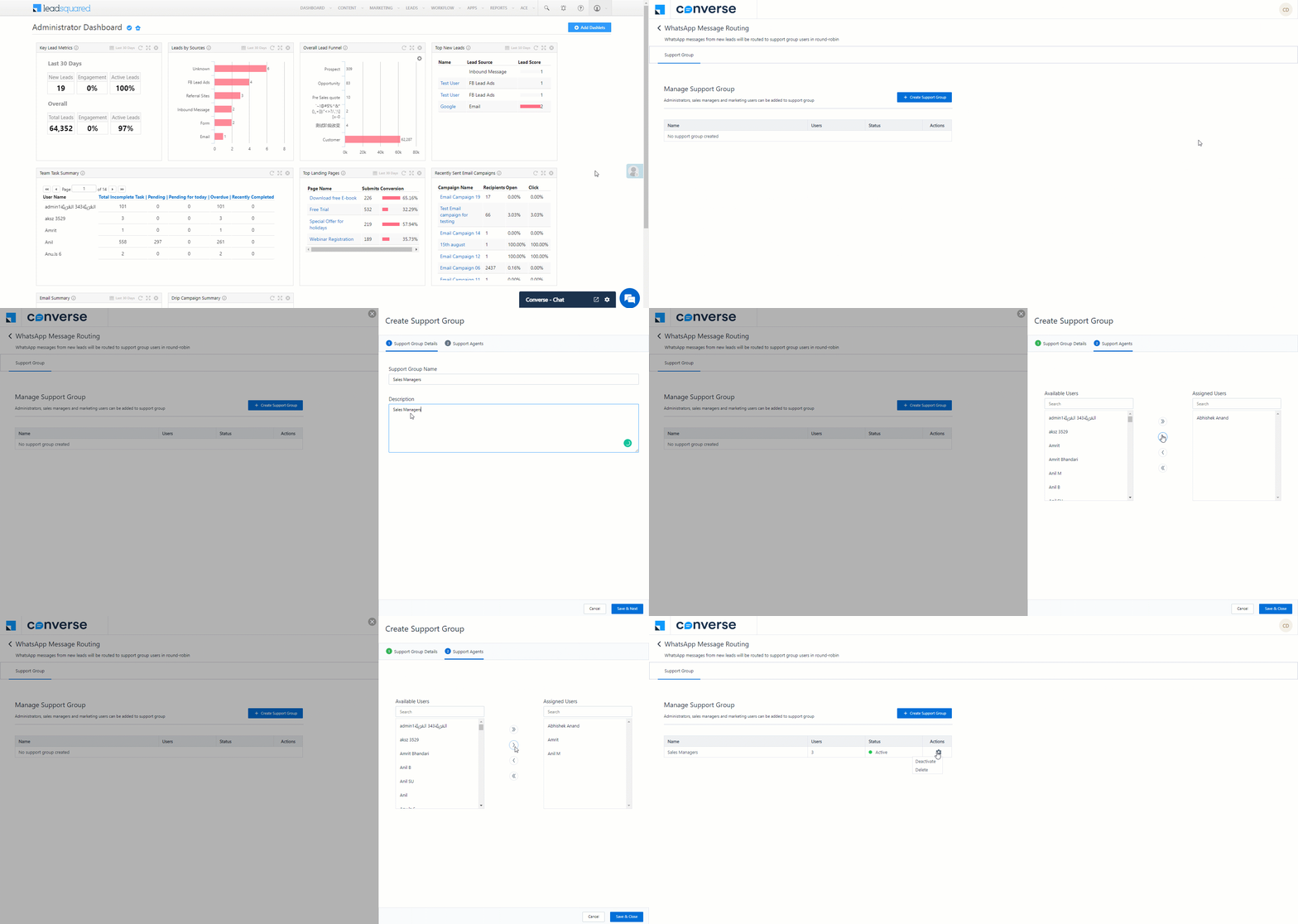
Every time a contact that doesn’t exist as a lead in your account sends a WhatsApp message, this contact is created as a new lead, and this lead is assigned in a round-robin manner to the Admin users in your account. Through this setting, in addition to Admin users, you can choose to assign these new leads to Marketing Users and Sales Managers present in your account. To do this –

  1. On the Converse chat window, click Settings.
    • Alternatively, on the chat window, click Full screen, click on the Profile Icon on the top right of your screen, and then click Message Routing.
  2. On the WhatsApp Message Routing screen, click the Create Support Group button.
  3. On the Create Support Group pop-up, enter the following details –
    • Support Group Details – Enter the Support Group Name and Description. Once you’re done, click Save & Next.
    • Support Agents – From the list of Available Users, select the Sales Managers and Marketing Users to whom you want to assign the new leads. Note that the leads will get assigned in the order of the users selected, in a round-robin manner. For e.g., if Abhishek, Amrit and Anil are the selected users, then the first lead is assigned to Abhishek, second to Amrit, third to Anil, fourth to Abhishek, and so on.
  4. Once you’re done, click Save & Close. The new leads created in your account will now be assigned to the selected users.
  5. On an existing group, click Settings to perform the following actions –
    • Deactivate the group. This will stop leads from getting assigned to the selected users, but the group will still be available, in case you want to activate it in the future.
    • Delete the group. This will stop leads from getting assigned to the selected users, and the group will get deleted.
Note: At present, you can create only one support group in your account.
LeadSquared Converse


5.6 Chat Filters

The following Converse chat filters are available when you click LeadSquared - Lead filter

  • All –  All the messages you have sent and received from leads.
  • Unread – All the unread messages you have received from your leads.
  • Focused – All the 1-on-1 chats between you and your leads. This filter will exclude conversations with leads that were initiated through bulk messages or automations.

Converse Filters


6. Quick Replies

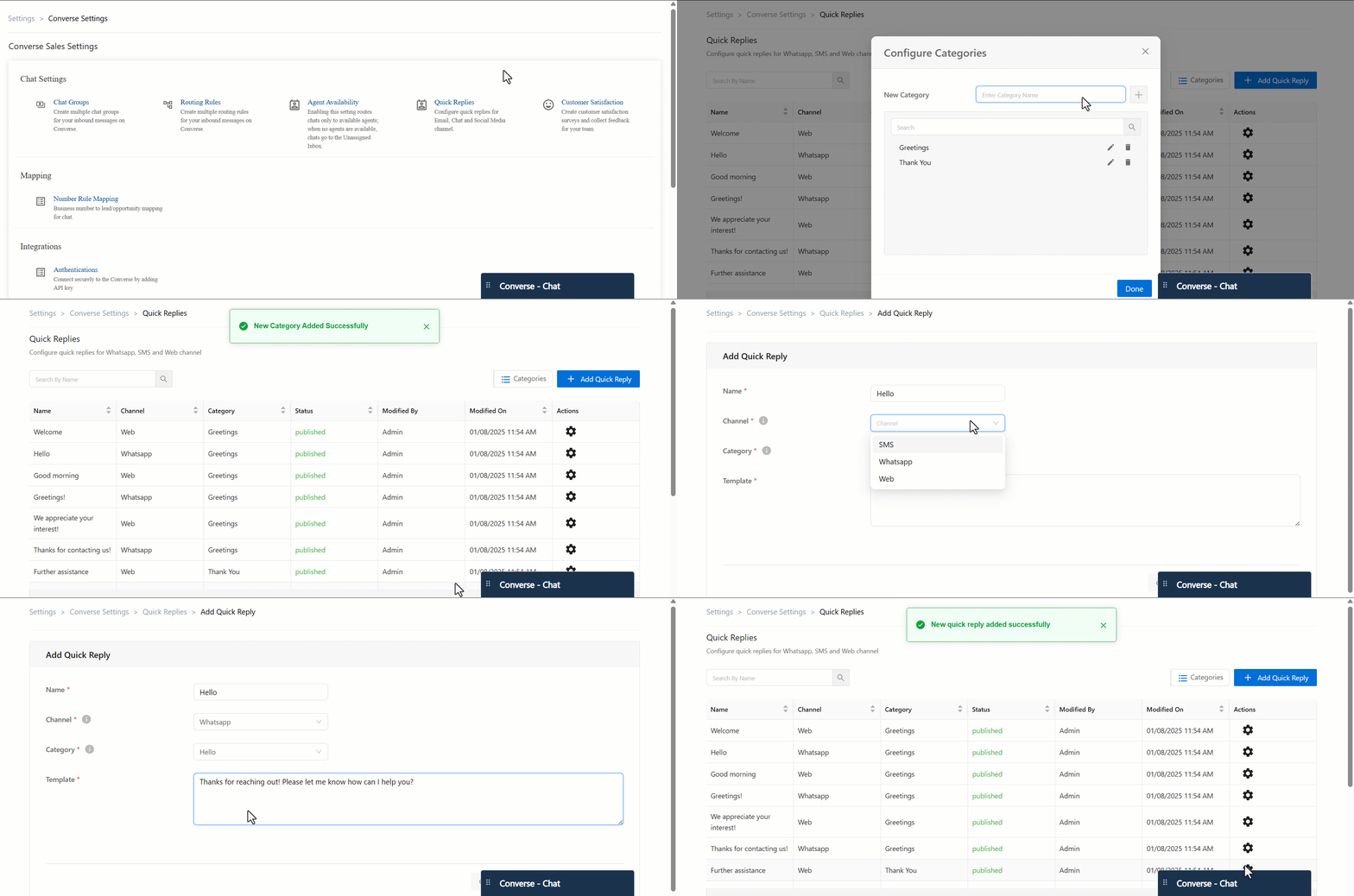
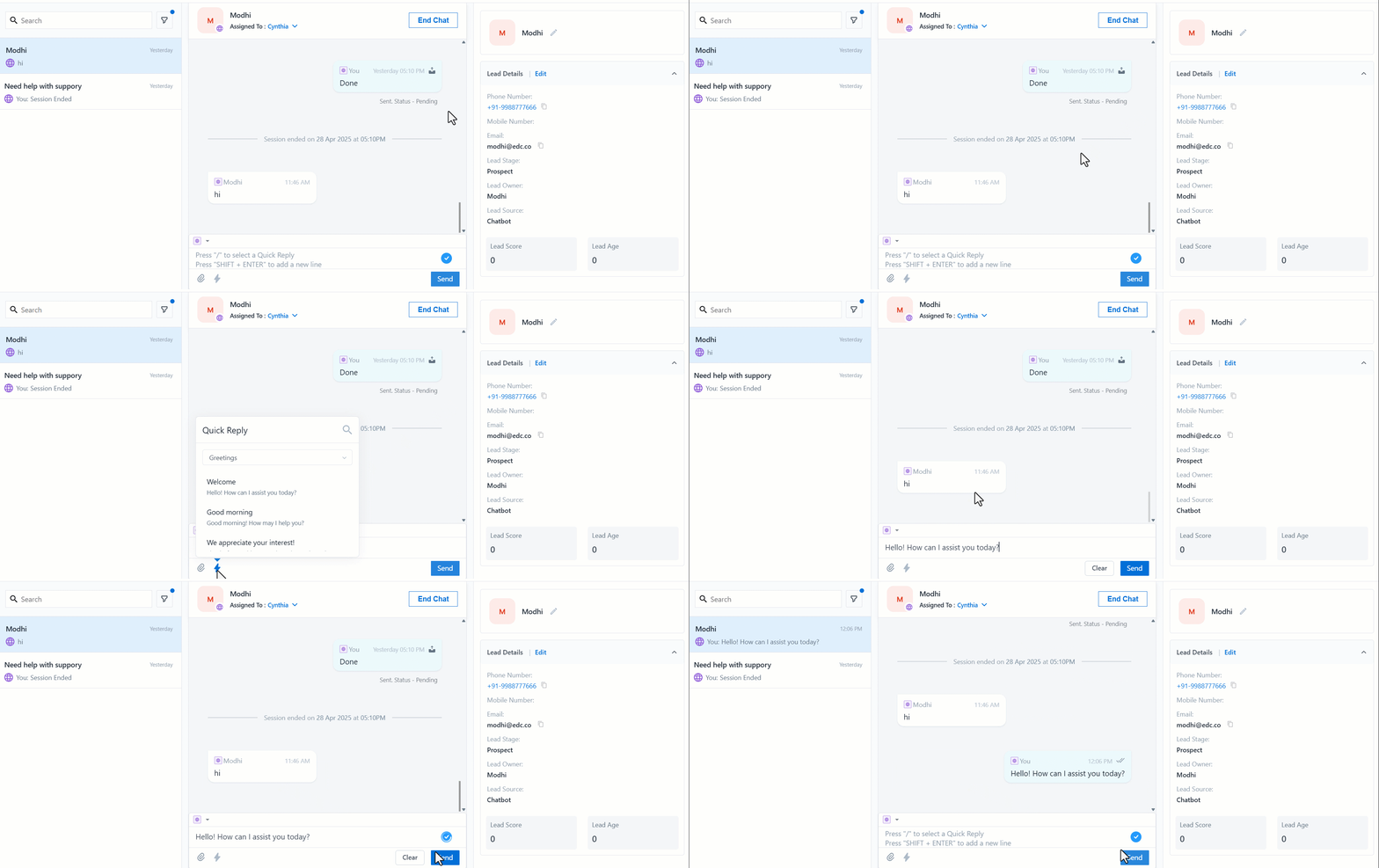
Boost agent efficiency with customizable quick replies that save time, ensure consistency, and maintain a professional tone. Admins can create and manage Quick Replies in the Converse settings, organizing them by category and optimizing responses for web, WhatsApp, and SMS.

Agents can access them directly from the chat interface, using intuitive search, category filters, preview options, and on-the-fly editing for personalized customer interactions.

  1. Navigate to My Profile>Settings>Converse Settings>Quick Replies.
  2. To create a category, click Categories and add a new one. You can group Quick Replies into different categories, such as Greetings, Thank You Replies, etc., for better organization and accessibility.
  3. Next, click + Add Quick Reply.
  4. Enter a name.
  5. Choose a channel (Web, WhatsApp, SMS).
  6. Select a Category.
  7. Enter the Template.
  8. Click Save And Publish.

configure quick replies on converse

On the Converse chat click the icon to select the quick reply based on the Category.
quick reply converse preview


7. Chat Transfer

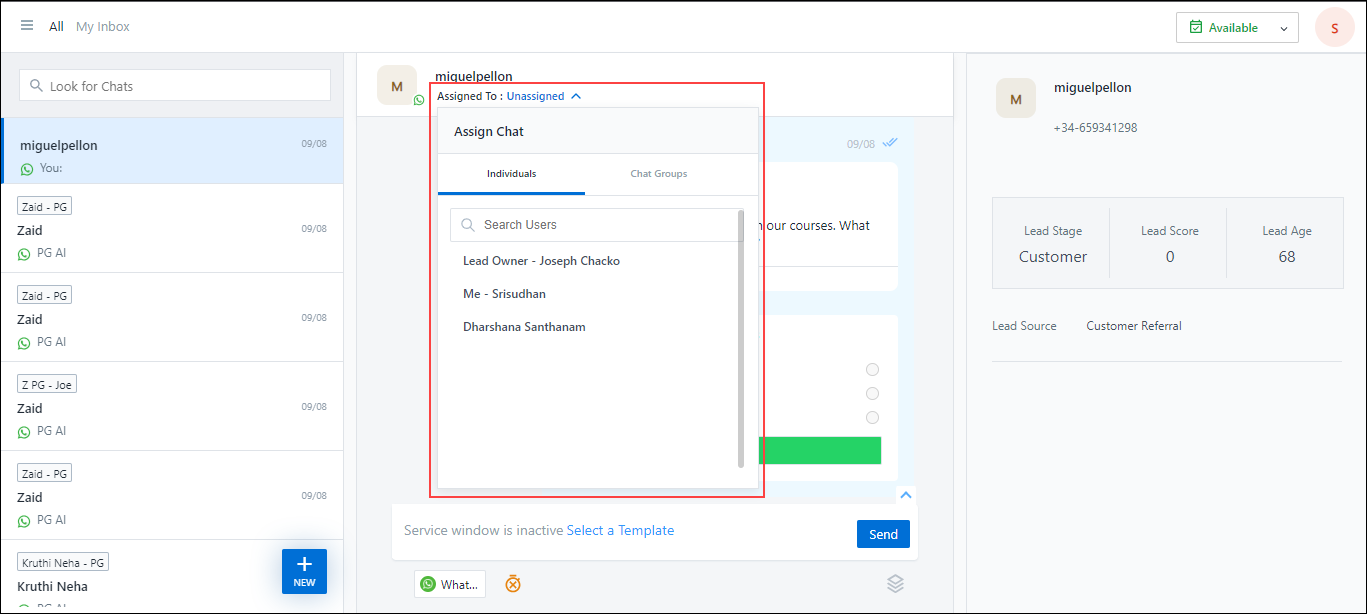
Through Converse, Sales Managers and Sales Group Managers can manually assign and transfer chats to other managers, Admins and the Lead Owner. Click Assigned to:
LeadSquared Converse

Similarly, for chats tagged to Opportunities, Sales Managers and Sales Group Managers can manually assign the chat to a different opportunity. For e.g., if a chat is tagged to the “Car Loans” opportunity type, Managers can instead tag it to the “Home Loans” opportunity type directly from the Converse window.


8. Receiving Nudges via Carter

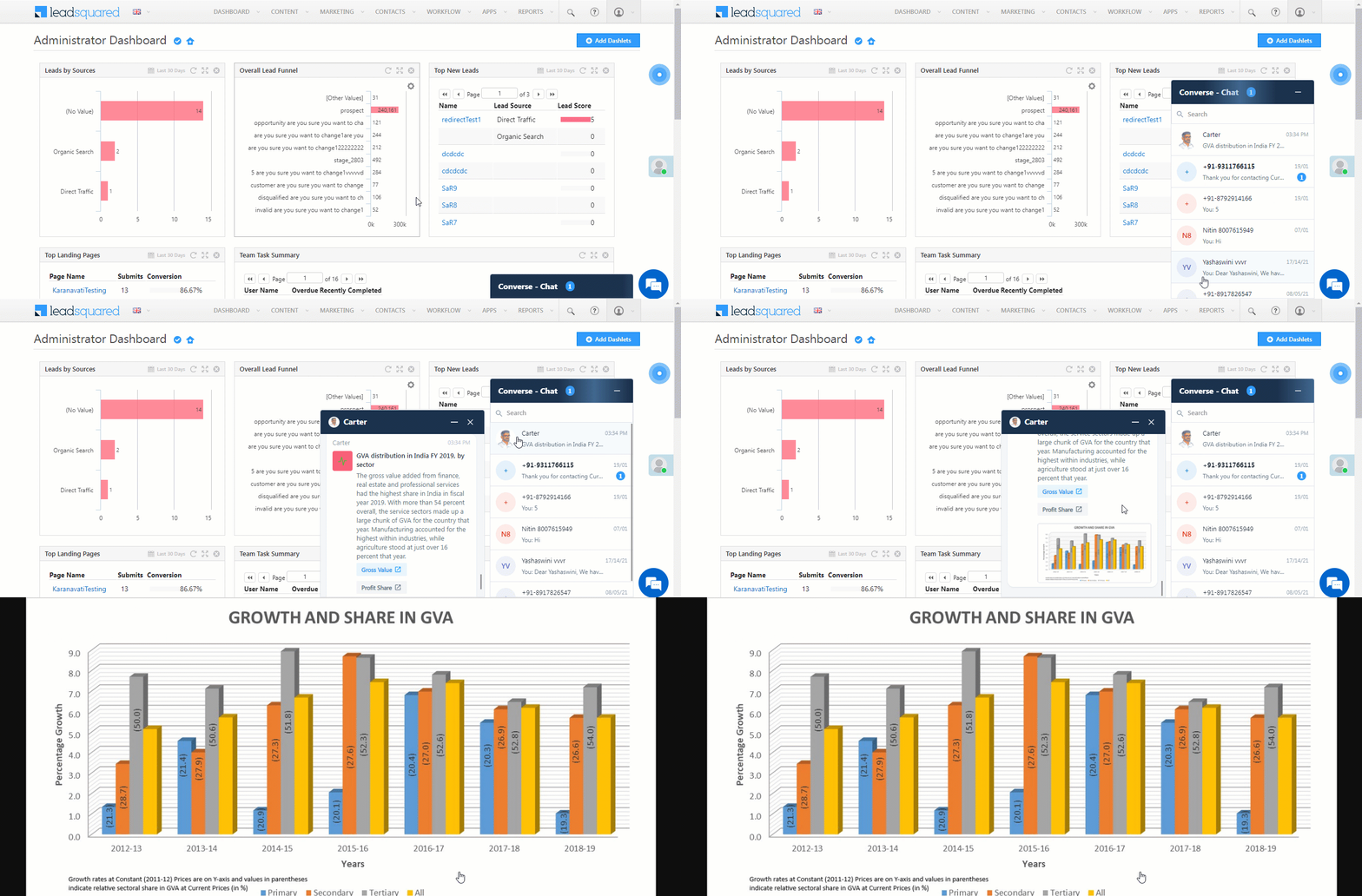
Carter is a desktop application that sends reminders and notifications to your users within the LeadSquared application. You can use Carter to send your Lead’s conversation as notifications to your users. To enable Carter on your account, refer to Configure Carter Settings.
Carter Converse Integration


9. Converse Full-Screen Mode

On the Converse full-screen mode users can view their Converse Inbox and reply to messages from leads.

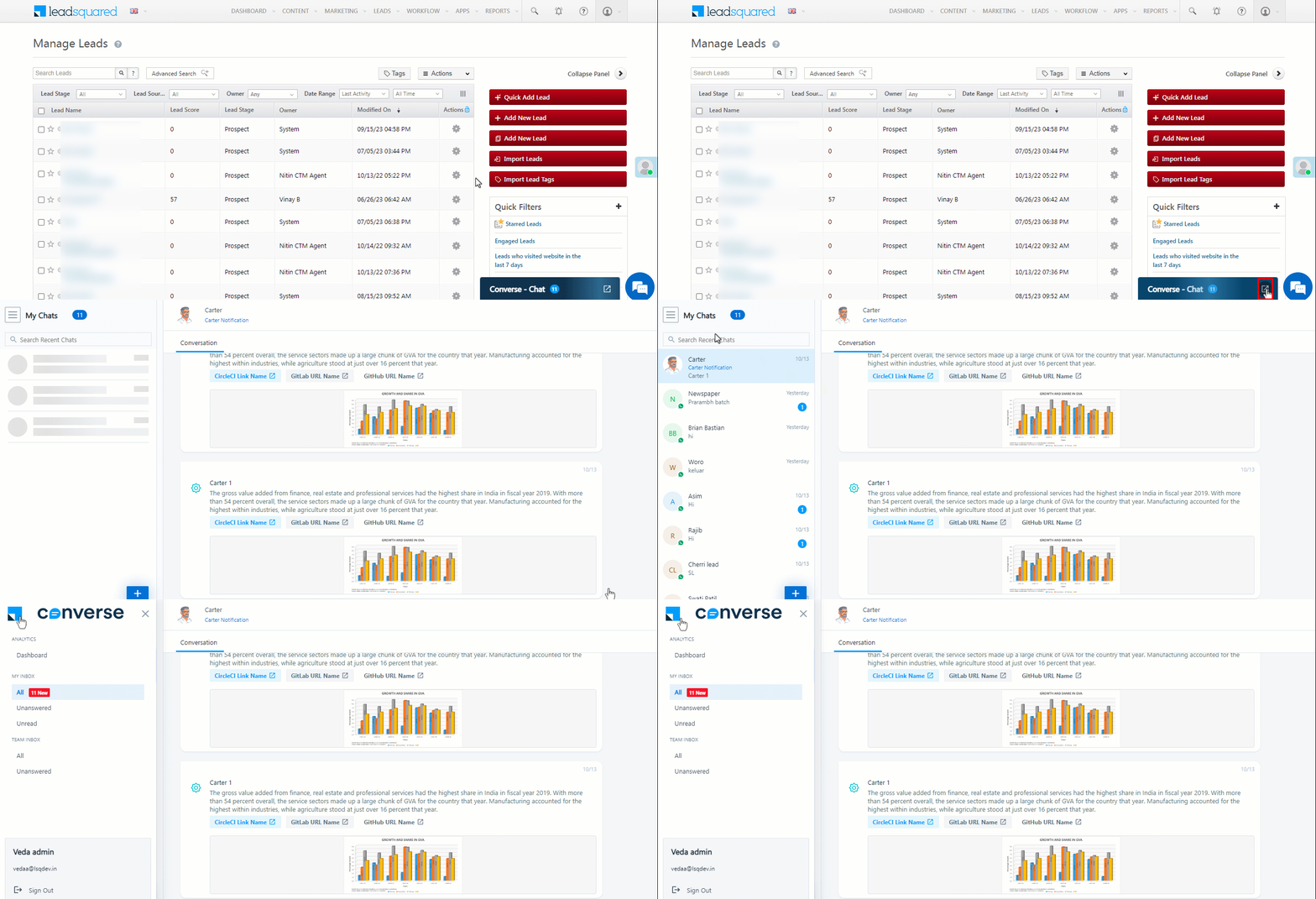
Navigate to full-screen mode –

  1. Click on the converse full screen button icon on the Converse chatbox to open full-screen mode.
  2. Next, you can click on the options to open your inbox.

Navigate to full screen

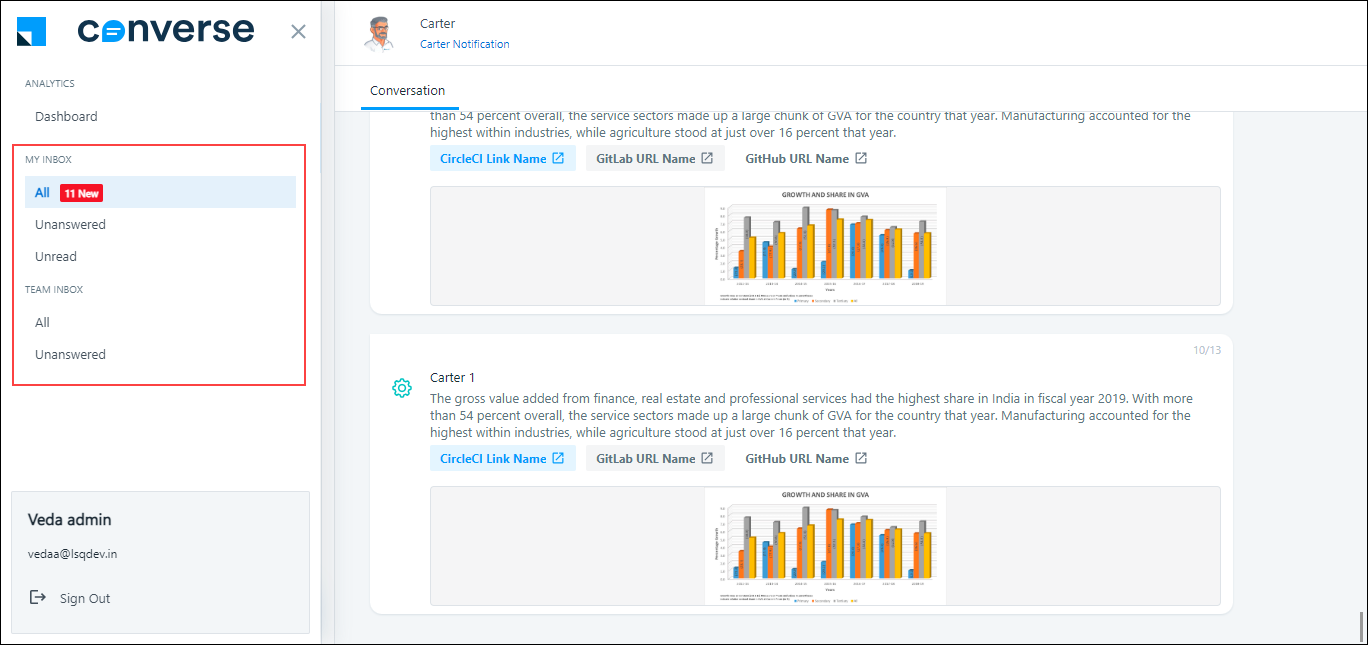
Here, users can view the following Inbox –

  • All – All messages the user has replied to, unanswered, and unread.
  • Unanswered – Messages the user has read but did not reply to.
  • Unread – Messages the user has not read.

9.1 Admin View for Converse

Admins and managers gain a 360-view of all the chats assigned to their team. They can monitor these chats, view unanswered queries, and seamlessly assign chats to their users. Additionally, Admins and Managers can also view their Converse metrics through Analytics.

Admins, Sales Managers, and Sales Group Managers (Sales users who have been made managers through the group) can view the following Team Inbox of their reportees –

  • All – All Messages the users have replied to unanswered, and unread.
  • Unanswered – Messages the users have read but did not reply to.
converse inbox

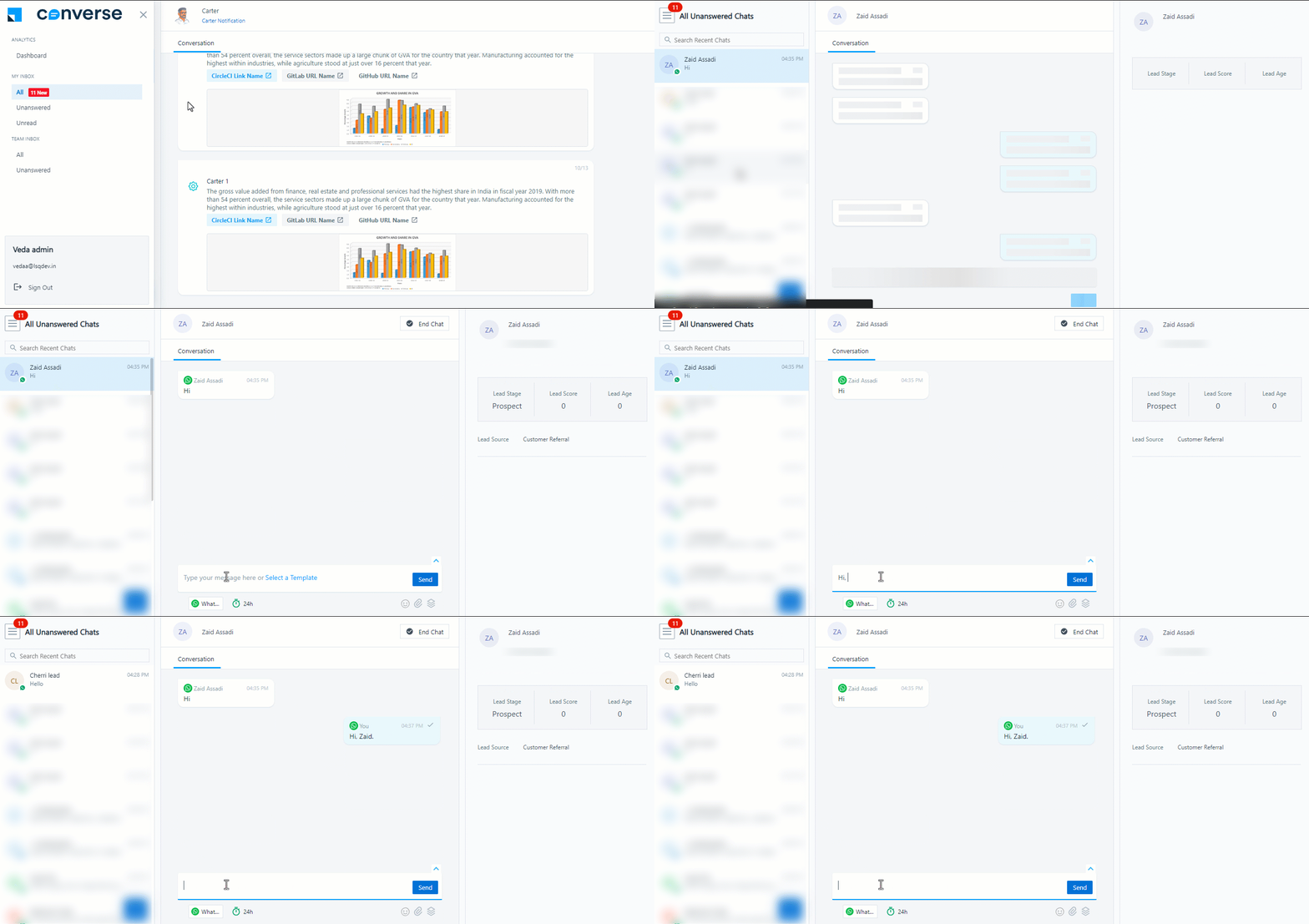
If there are unanswered messages in the Team Inbox: Admins, Sales Managers, and Sales Group Managers can reply to these messages. The chat will then show up in the Admins/Manager’s Inbox as well.
manager chat unanswered


10. Hide Lead Fields

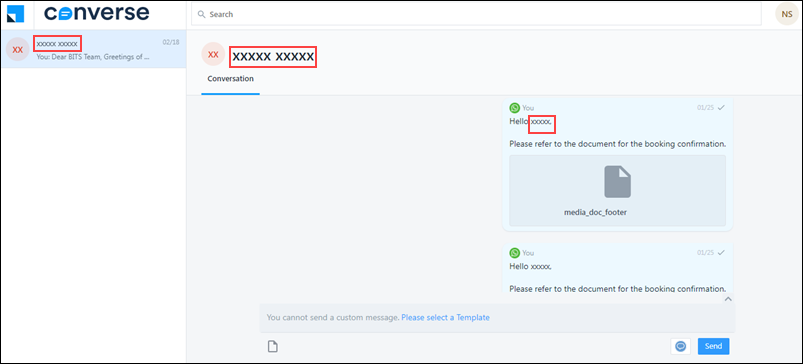
While sending messages (via SMS or WhatsApp), you can hide sensitive lead fields (such as Phone Numbers, Lead Name, etc.) from your LeadSquared users.
To hide these fields, you must create and assign Restrict Access – View Lead Permission Templates to your users, and select (configure) the Lead Fields you want to mask.

Note: Details shared over chat messages between users and leads (e.g., when lead’s send their Email Id over chat to users, etc.) will not be masked.
LeadSquared Product Updates


11. Dashboard

Admins, Managers, and Sales Managers can use the Converse Dashboard to track chat statistics, including answered/unanswered chats, response times, chat duration, individual agent performance, etc.

Navigate to the Dashboard

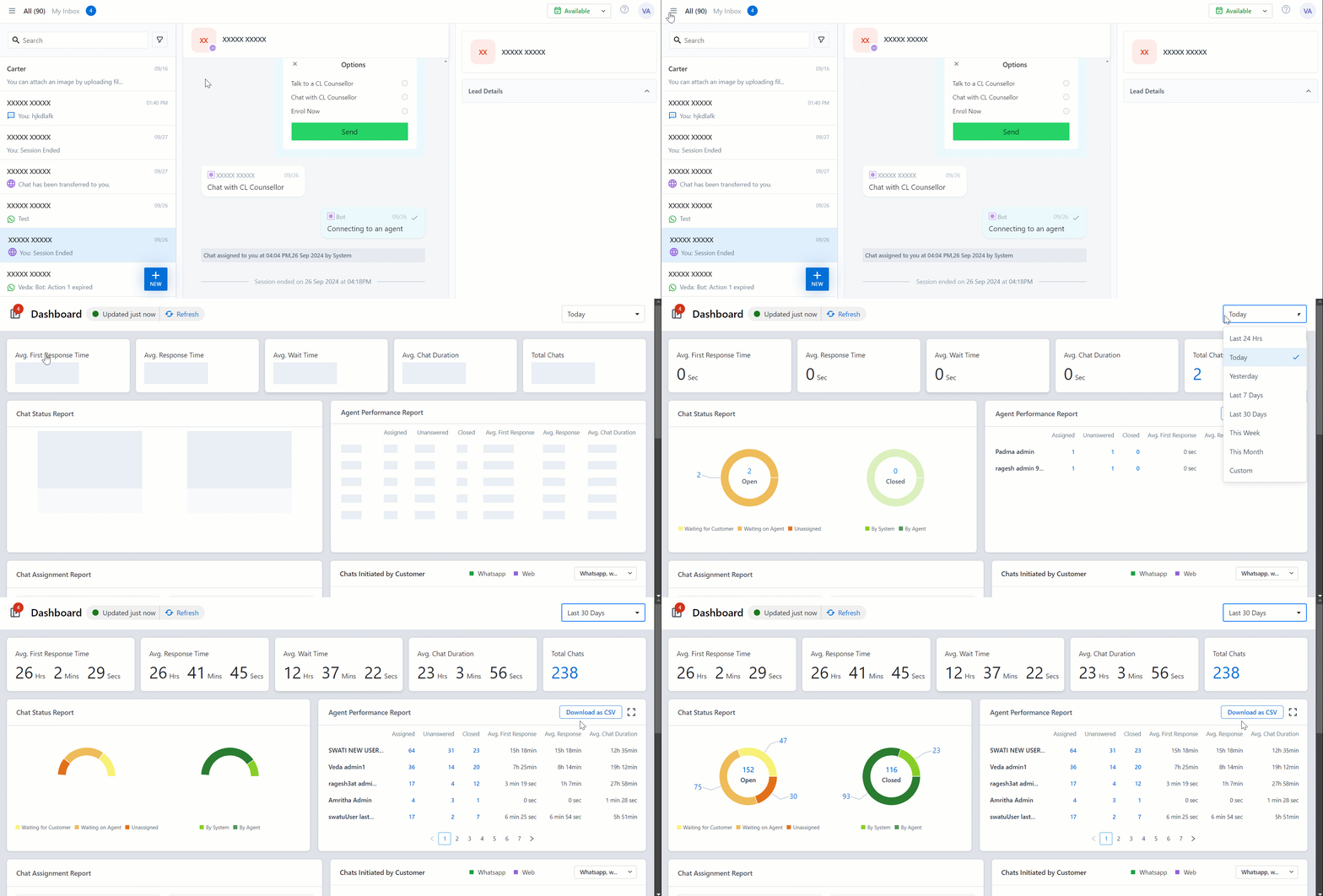
To view the Dashboard, click the converse menu icon icon, and under Analytics, select Dashboard. You can filter the time frame for the statistics using the dropdown.
converse dashboard navigation

The Dashboard contains 10 different widgets that display the following information –

Widget Description
Avg. First Response Time Average time taken by all agents to send the first response to customers/leads.
Avg. Response Time Average time taken by all agents to send a response to customers/leads.
Avg. Wait Time The average wait time refers to how long customers/leads wait for the first response from agents. For example, if a lead sends a message at 12 PM, the chat is assigned to an agent at 2 PM, and the agent responds at 2:05 PM, the average wait time is 2 hours and 5 minutes.
Avg. Chat Duration The average chat duration between all leads and agents until the chat has ended.
Total Chats All chats either assigned to the users or those the users have interacted with, even if not directly assigned.
Chat Status Report This report consists of Open and Closed chats –

Open Chats

  • Waiting for Customer: Number of chats where the agent is waiting for the customer to respond.
  • Waiting on Agent: Number of chats where the customer is waiting for the agent to respond.
  • Unassigned: Number of chats that have been unassigned to an agent.

Closed Chats

  • By System: Number of chats closed by the systems.
  • By Agent: Number of chats closed by the agent.
Agent Performance Report Individual report on each user that specifies the number of assigned, unanswered, and closed chats, and the average first response time, average response time, and average chat duration.

Admins can download this report as a CSV.

Chat Assignment Report The report provides data on the total number of unanswered chats, unassigned chats, all chats, and the chats specifically assigned to you.
Chats Initiated by Customer The total number of chats initiated by customers through WhatsApp and the web on a specific day.
Total Messages The total number of incoming and outgoing messages on a given day.
Note: You can drill down to specific chats (as highlighted in blue) in the report wherever applicable.
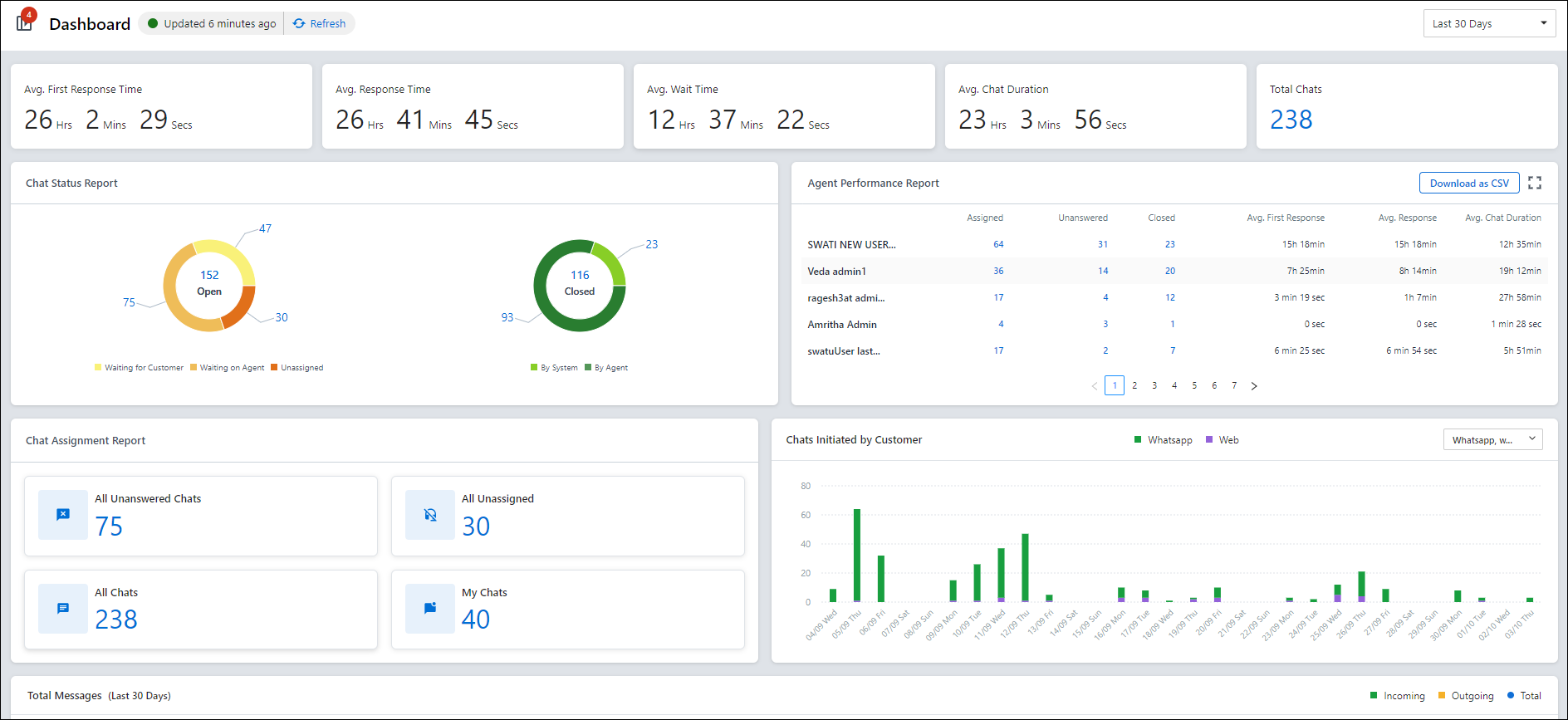
Converse Dashboard


12. End Chat

To end an active (live) chat –

  1. On the Converse tab, expand the chat window to full-screen mode by clicking Expand.
  2. On the Converse page, select the chat you want to end.
  3. Alongside the lead’s name, click End Chat.
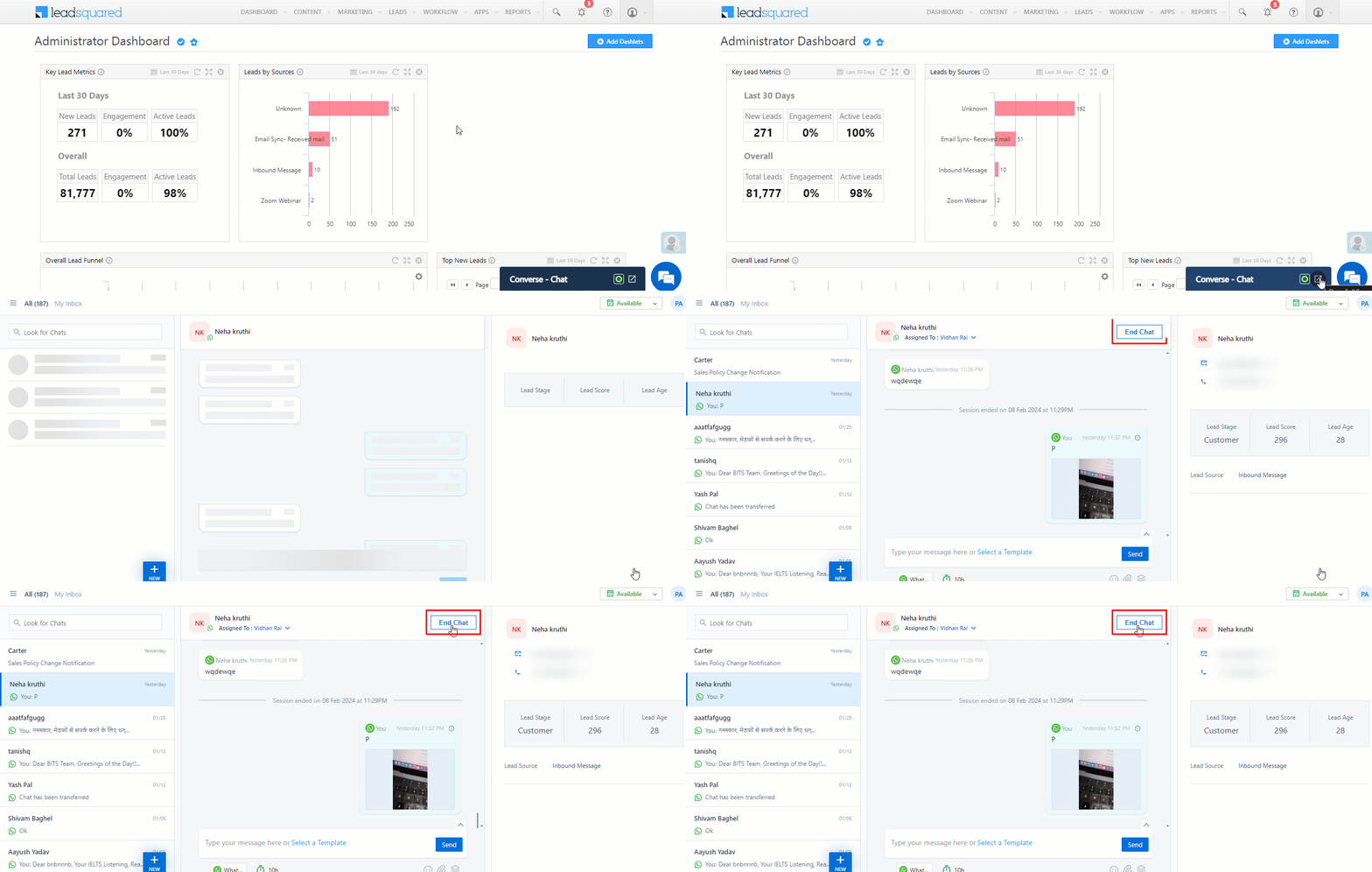
LeadSquared Converse


13. Configure CSAT Survey

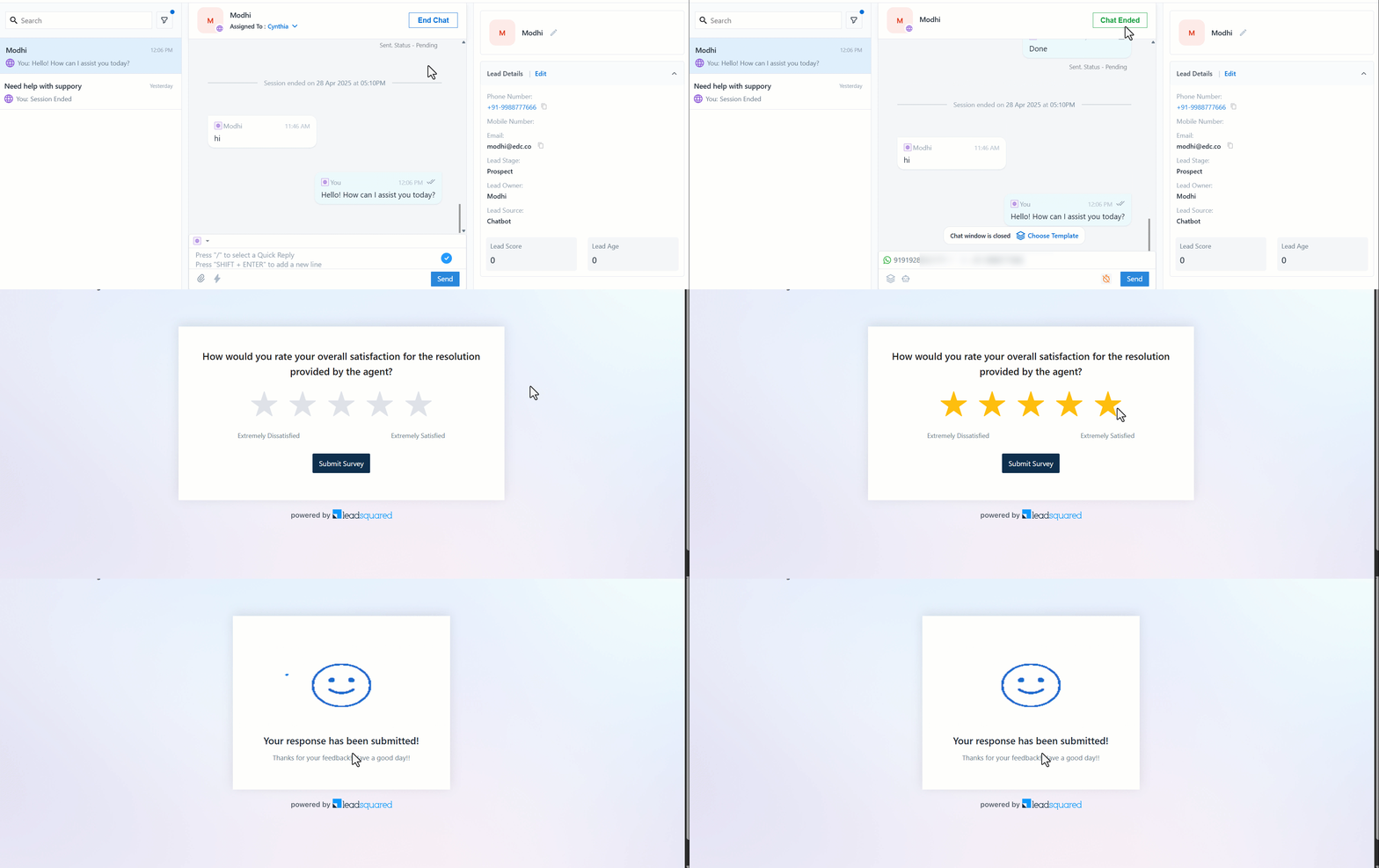
You can collect Customer Satisfaction (CSAT) feedback directly within the Converse chat window once a conversation ends, allowing customers to instantly rate their experience with the agent. This real-time feedback helps you accurately measure customer satisfaction and monitor agent performance.

How to Enable CSAT

Navigate to Settings>Converse>Chat Settings>Customer Satisfaction and click + Create New Survey.
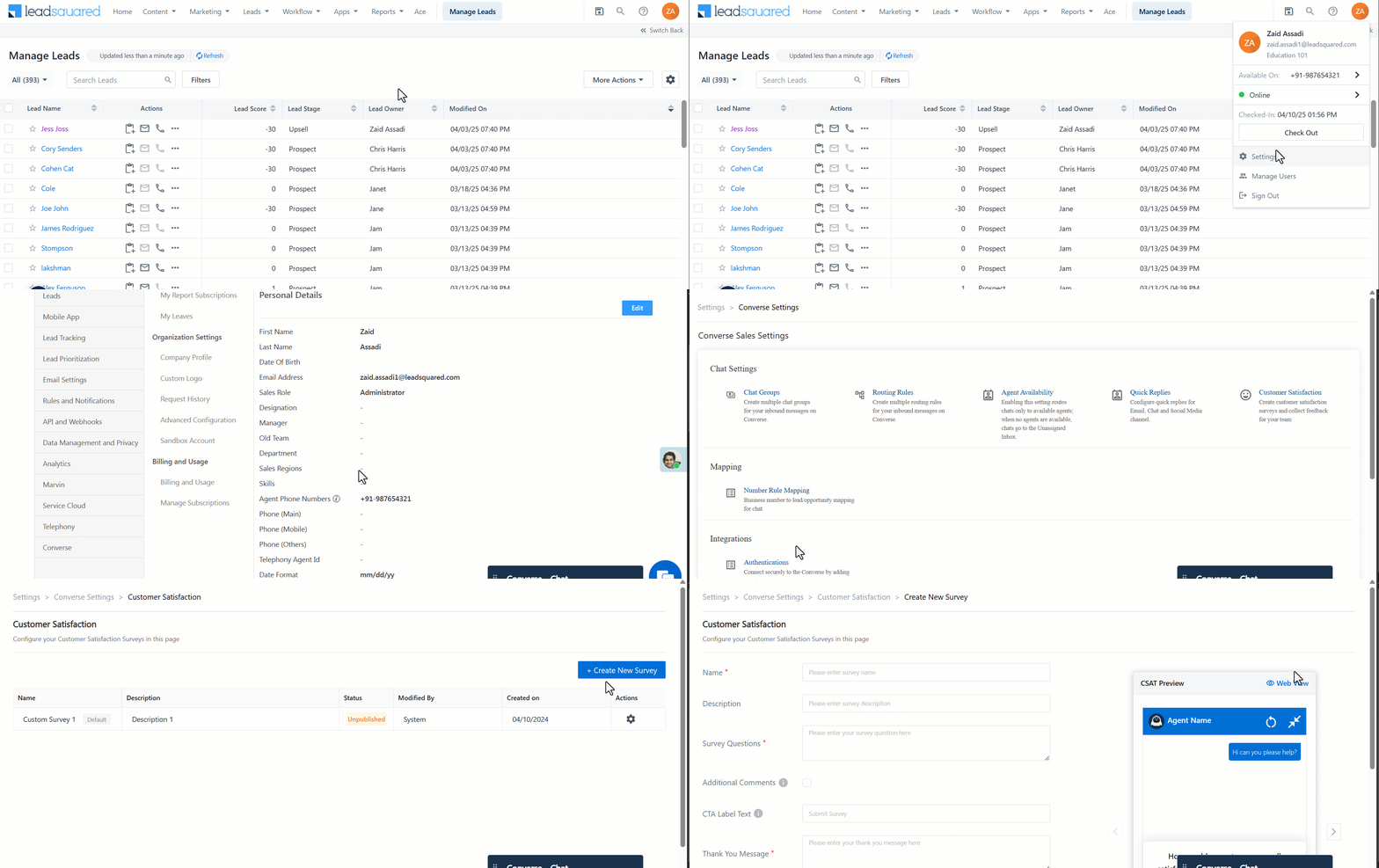
navigate to csat setting on converse

Fill in the following details (fields marked * are mandatory):

Note: As you configure the survey, a preview of the CSAT survey chat will appear on the right, updating in real-time as you modify the fields.
  • Name* – Enter a name for the survey.
  • Description – Optionally, add a short description of the survey.
  • Survey Questions* – Enter the question you’d like to ask the customer.
  • Additional Comments – Enable this option if you’d like to allow customers to provide extra feedback. (This option is not available on WhatsApp.)
  • CTA Label Text – Customize the call-to-action button text. (Not editable on WhatsApp.)
  • Thank You Message* – Enter the message that will appear after the customer submits their feedback.
  • Trigger When* – Enable Chat Closed by Agent to trigger the survey automatically when an agent ends the conversation.

Once done, click Save & Publish to make the survey live. Alternatively, click Save if you want to save it as a draft without publishing it immediately.
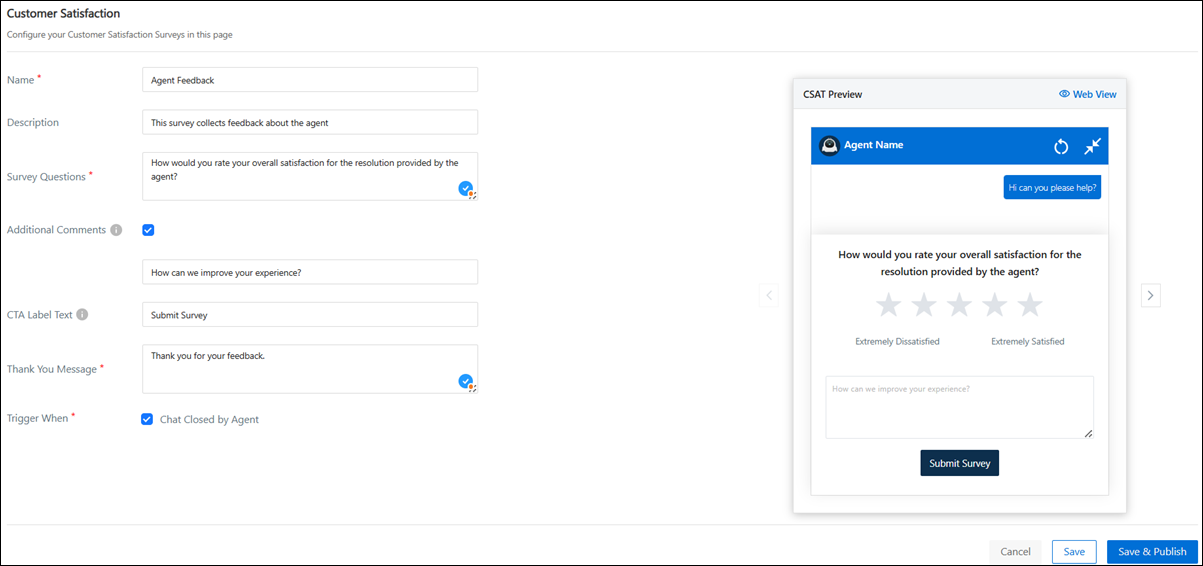
converse csat configuration

The survey will be presented to the customer once the agent clicks the End Chat button.
converse csat preview


14. Troubleshooting

In this section, we’ve listed a few errors you might encounter when using the Converse integrated with WhatsApp feature. For each error, we’ve listed the possible troubleshooting steps. In case it’s unresolved even after you try out the steps listed, contact your account manager or write to support@leadsquared.com, and we’ll resolve the issues immediately.

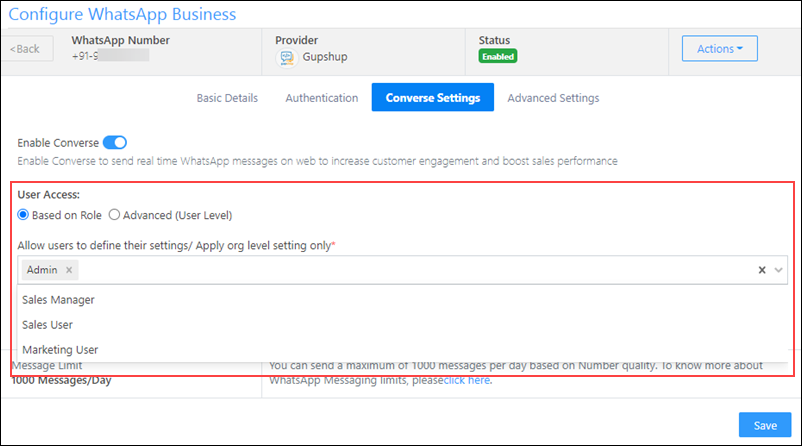
  • No Texting Channel Configured/No WhatsApp number
    This error is usually displayed when the LeadSquared user doesn’t have permission to access the Converse feature. When Configuring the WhatsApp Business Connector, on the Converse Settings tab, please ensure that User Access has been granted to all relevant users. Once this is checked, Save the configuration, and try sending a message to the lead.
LeadSquared Converse

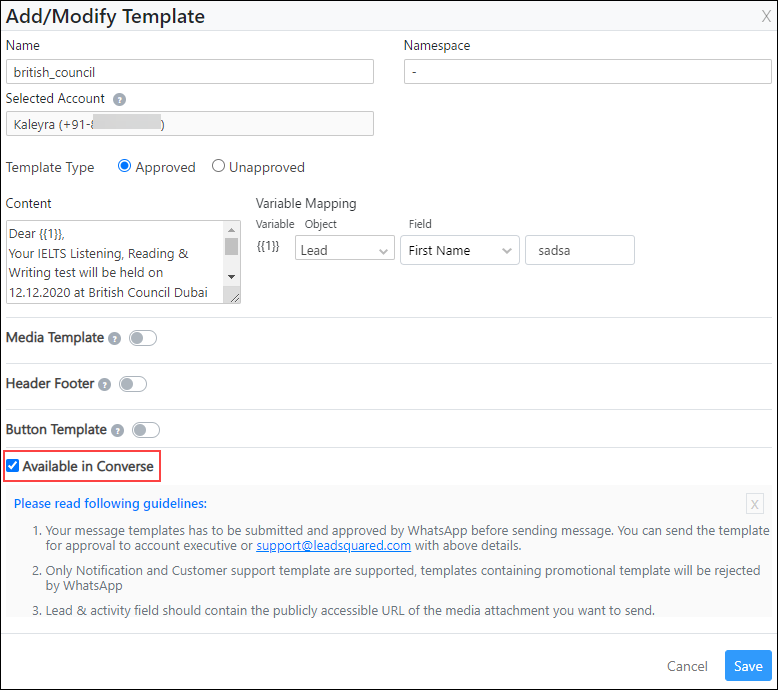
  • No Template Found
    This error is thrown when WhatsApp Templates are not enabled for Converse. To fix this, navigate to the Add/Modify Templates screen, and enable the checkbox Checkbox alongside Available in Converse. Once you save the template, try messaging your lead. This should fix the error.
LeadSquared Converse

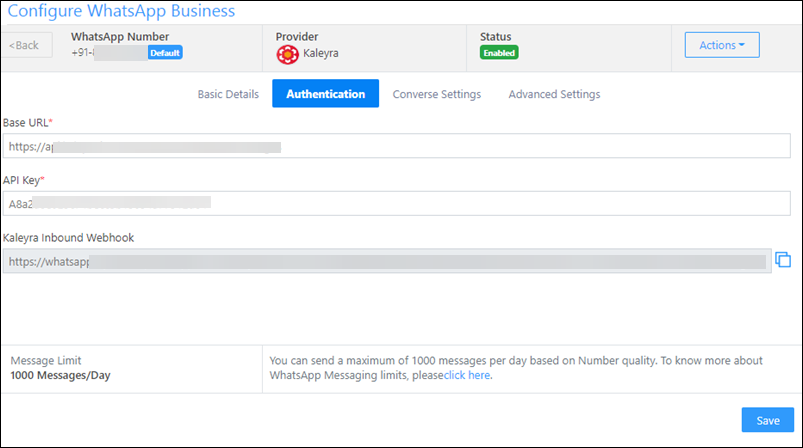
  • Unable to receive inbound messages
    In this instance, you won’t receive any incoming messages (and no error denoting this is displayed). This issue is caused because your WhatsApp connector’s Inbound Webhook is incorrectly configured in your service provider’s account, or incorrect account credentials (present under Authenticate By) are entered on the Configure WhatsApp Business pop-up in LeadSquared, under the Authentication tab. Once you’ve rectified this, try messaging your lead. This should fix the error.
LeadSquared Converse

  • Unable to receive delivery reports
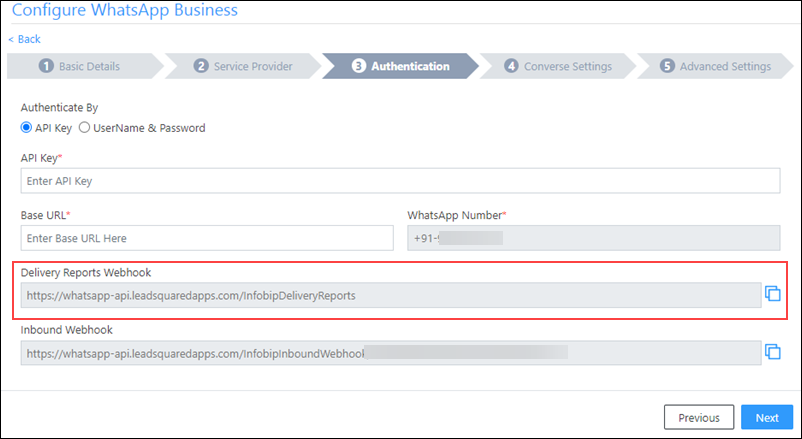
    If you’re unable to view the Delivery Reports under WhatsApp Reports, it might be because the Delivery Reports Webhook was not configured correctly in your service provider’s account. Once you’ve rectified this, try messaging your lead. This should fix the error.
LeadSquared Converse

  • Notifications not received/Messages not shown in real time until I refresh
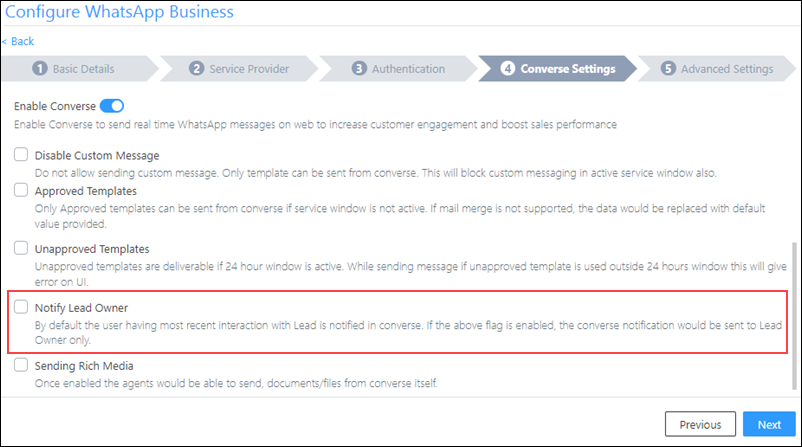
    Message notifications are only sent to one user, i.e., either the Lead Owner or to the user (other than the Lead Owner) that sent the WhatsApp message to the lead. When the Notify Lead Owner setting is enabled, only the Lead Owner will get notified. When the Notify Lead Owner setting is disabled, the user who was the last one to send a message to the lead will get notified. Depending on which user should receive the notification, on the Configure WhatsApp Business pop-up, under the Converse tab, enable or disable the Notify Lead Owner setting.
LeadSquared Converse

  • Chat not shown in Recent Contacts
    Chats are shown in under Recent Contacts only if you send or receive a message. The list of Recent Contacts is user-specific (and not account specific).


15. Keyboard Shortcuts

Maximize/minimize the Converse chat window –

  • On Windows, use alt + m
  • On Mac, use option + m


FAQs

1. What is a Customer Service Window?

WhatsApp provides a 24-hour customer service window during which you can exchange any number of free-flowing messages with the customer. This 24-hour window is calculated from the time your customer/lead last messaged you. Beyond the 24 hours, you can only send template messages pre-approved by WhatsApp to the customer/lead.

Note: The 24-hour window will open up again for another 24 hours ONLY once the customer responds to you – this is WhatsApp’s policy and LeadSquared has no control over it.

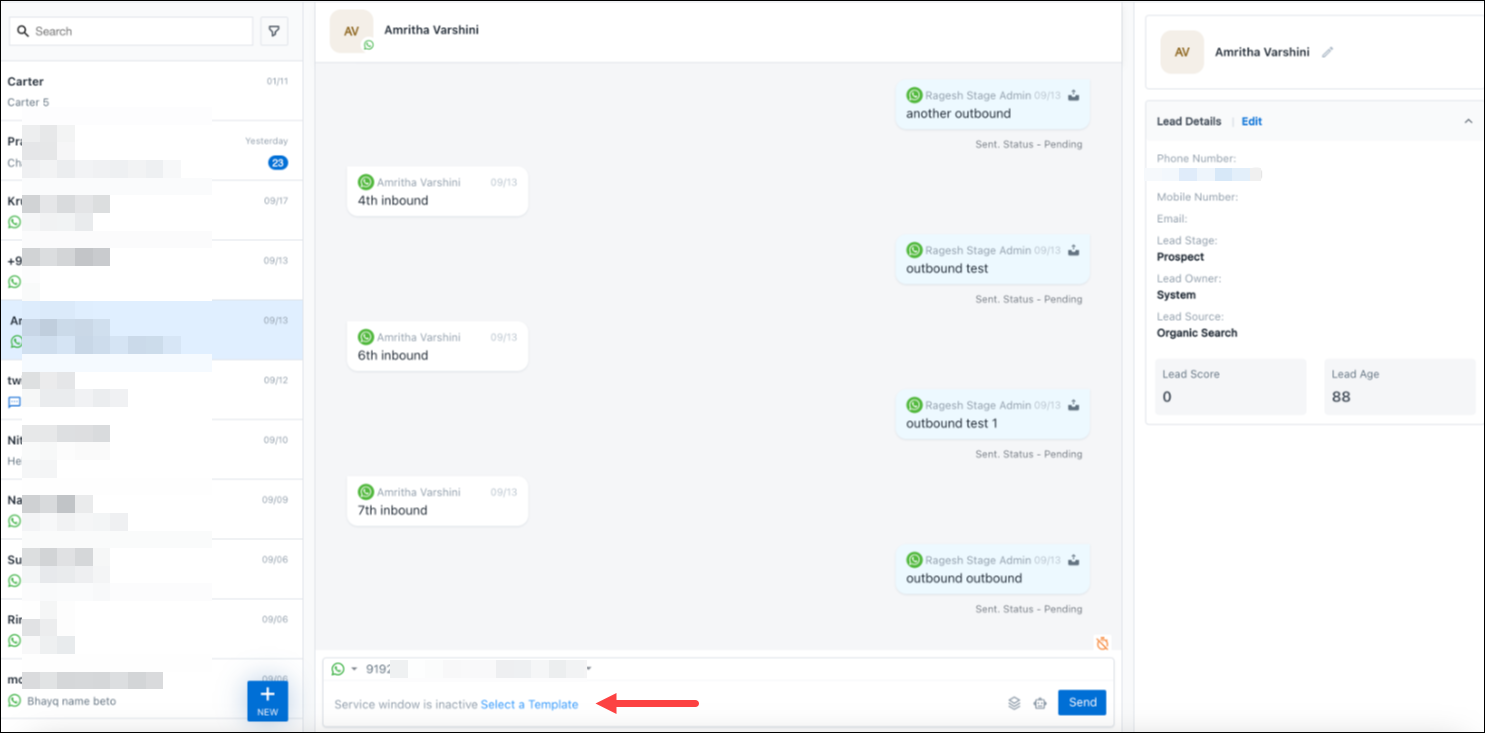
2. How do you send the template message to your customer if the Customer Service Window expires?

Click on the Select a Template button below the message box.
converse select a template button

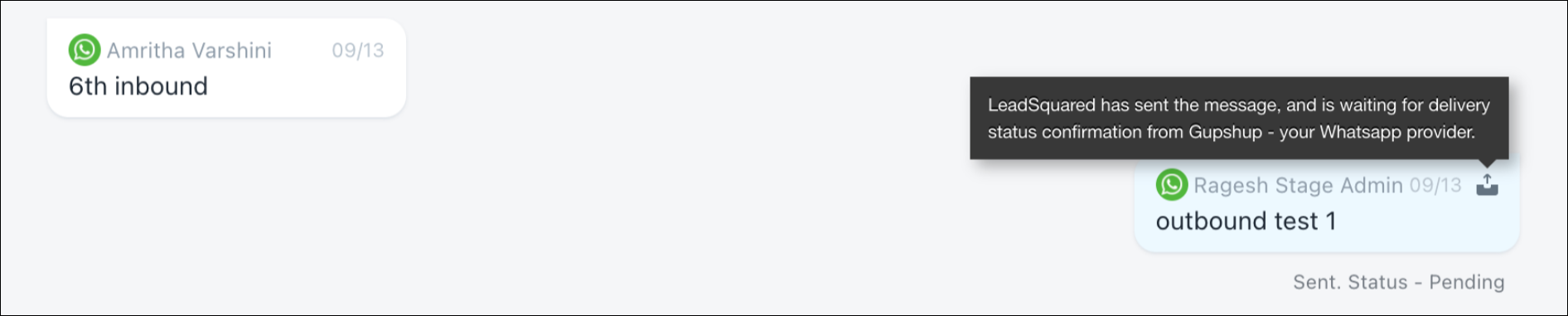
3. Why does my message still show ‘Sent, Status Pending’?

LeadSquared uses the WhatsApp business provider chosen by your organization to send your messages. ‘Sent, Status Pending‘ means LeadSquared has sent the message, and is waiting for your provider to confirm the delivery status confirmation.
converse sent status pending

4. What is a Conversation?

A conversation is defined as any number of messages exchanged within a 24-hour window between business agent and lead/customer. This means that all messages exchanged within this timeframe will count as a single conversation, regardless of the number of messages sent or received.

5. What is counted as a Conversation for billing?

Any conversation started by the agent in Converse or started by lead/customer is counted as a conversation.

In case a conversation is initiated by the business through a bulk marketing campaign/ automation then once the lead replies to this then only we will count it as a conversation.

6. Why is the Lead Owner not receiving Converse chat notifications?
If a lead sends a new message but the current Lead Owner is not receiving a notification, it’s likely because the previous user (agent or owner) did not end the chat.

  • How Converse notifications work:
    • Only one user at a time receives chat notifications — the last user who handled the chat. If the Lead Owner changes, the new owner will not start receiving messages until the previous user ends the chat.
  • To fix this:
    • Ask the previous agent/owner/admin to click the “End Chat” button in the Converse window.
    • Once the chat is ended, the new Lead Owner will start receiving notifications.
    • Repeat this step every time the Lead Owner changes, to ensure chat notifications are routed correctly.


Any Questions?

Did you find this article helpful? Please let us know any feedback you may have in the comments section below. We’d love to hear from you and help you out!

Configure Mobile App Settings from the Web Platform

1. Feature Overview

Set permissions for your LeadSquared iOS or Android mobile app, configure behaviour for offline leads, opportunities, activities, tasks, smart views and also set call, SMS and location tracking permissions for different user roles.

To learn about device permissions required by the mobile app, refer to Which device permissions does the LeadSquared Mobile App require?


2. Prerequisites

  • You must be the Administrator of your LeadSquared account.
  • Your users must have the LeadSquared mobile app installed on their mobile devices.


3. Set Permissions

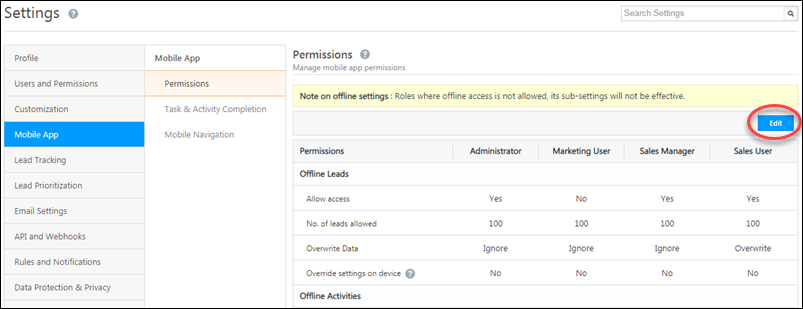
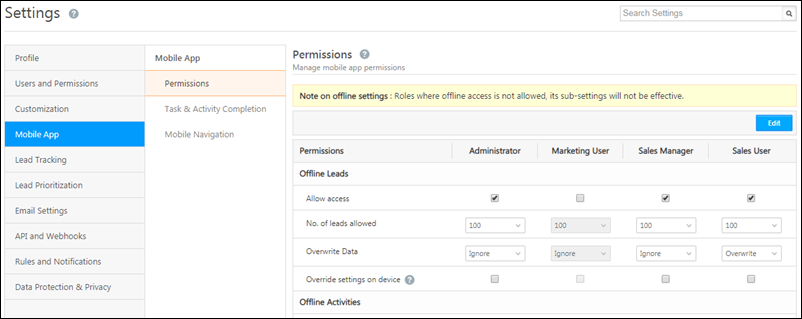
The Mobile App Permissions page is available under My Account>Settings>Mobile App>Permissions. Click Edit to open the page in edit mode and set permissions for each feature.

Note: Only the Location Tracking setting is applicable to Android and iOS devices. The other settings are applicable only to Android devices.

mobile permissions

edit mobile permissions

Here’s an explanation of each setting –

Section(s) Setting Description
Offline Leads (only applicable to Android devices) Allow Access Allows the user role access to the offline leads feature. Users granted this permission can create and update leads without internet connectivity on the LeadSquared mobile app.
No. of leads allowed The number of leads displayed to the user role while offline. Leads that have recently engaged/performed activities/been modified will be displayed.
Overwrite Data Allows a user role to Ignore or Overwrite information of leads created in offline mode.
Override settings on device Gives the user role permission to override these settings from the mobile app.
Offline Activities, Offline Tasks (only applicable to Android devices) Allow Access Allows the user role access to the offline activities and offline tasks features. Users granted this permission can create and update activities and/or tasks without internet connectivity on the LeadSquared mobile app.
Date Range The date range within which activities and/or tasks should be displayed while offline.
Overwrite Data Allows a user role to Ignore or Overwrite information of activities/tasks created in offline mode.
Override settings on device Gives the user role permission to override these settings from the mobile app.
Offline Smart Views (only applicable to Android devices) Allow Access Allows the user role access to the offline smart views features. Users granted this permission can create and update smart view tabs without internet connectivity on the LeadSquared mobile app.
No. of records per tab The number of lead/activity/task records to display per smart view tab while offline.
Overwrite Data Allows a user role to Ignore or Overwrite information of smart view tabs created in offline mode.
Override settings on device Gives the user role permission to override these settings from the mobile app.
Calls and SMS (only applicable to Android devices) Track Calls Posts inbound and outbound phone calls to leads from the user’s device as activities in LeadSquared.
Record Calls Allows you to record the inbound or outbound calls from/to leads. For more information, see How to Record Inbound/Outbound Calls for Leads in LeadSquared?
Track SMS Tracks SMS made to or received from leads as activities in LeadSquared.
Override settings on device Gives the user role permission to override these settings from the mobile app.
Location Tracking (applicable to both Android and iOS devices) Track real-time location Enables real-time location tracking when a user checks-in/checks-out of the LeadSquared mobile app. For more information, see Check-in/Check-Out for Mobile.
Track location on lead update Captures the location co-ordinates when a lead field is updated and posts an activity in LeadSquared.


4. Task and Activity Completion

Automatically post activities every time a task is completed –

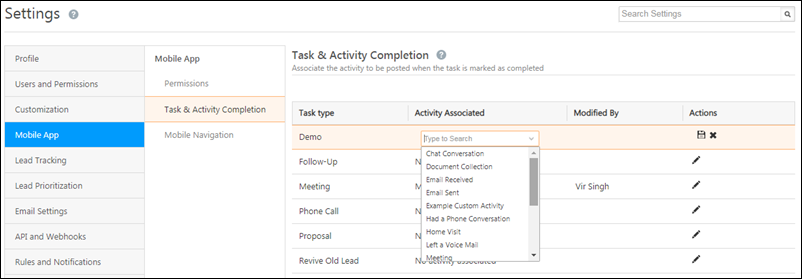
  1. Navigate to the Task & Activity Completion tab.
  2. Click the edit pencil icon icon under the Actions column, alongside any task type.
  3. Under the Activity Associated column, select the activity you want to post when the task type is completed.
  4. Alongside the Actions column, click the save  icon.

complete task and activity


5. Menu Customization

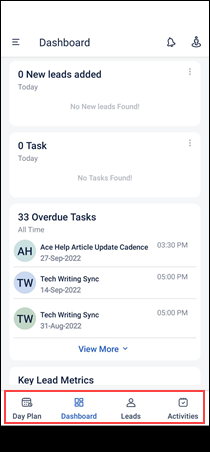
Admins can customize and choose what tabs they want to display on the bottom navbar

LeadSquared Mobile App Updates

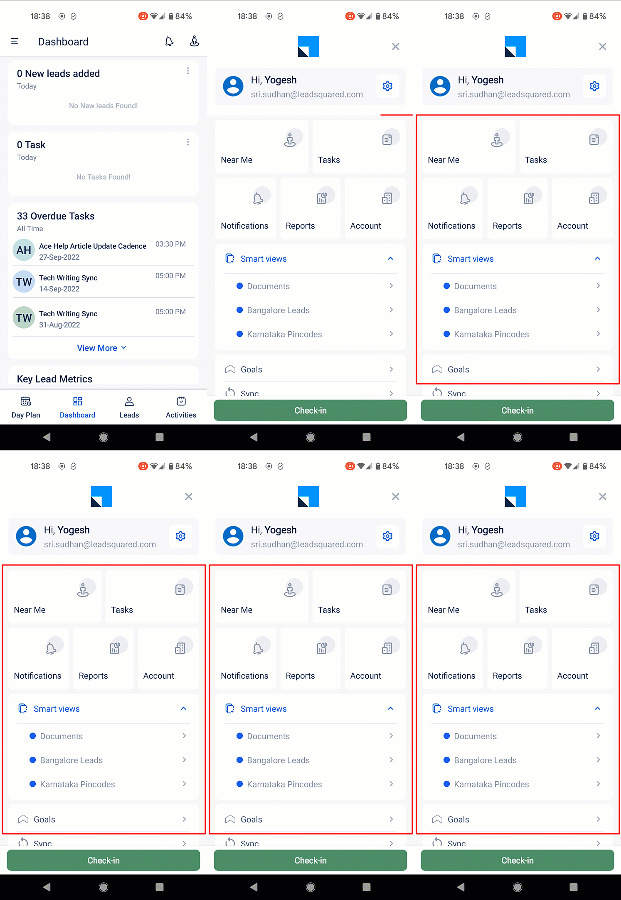
And the side menu options on the mobile app –

LeadSquared Mobile App Updates

Note: Before you customize the nav bar and side options, note that –

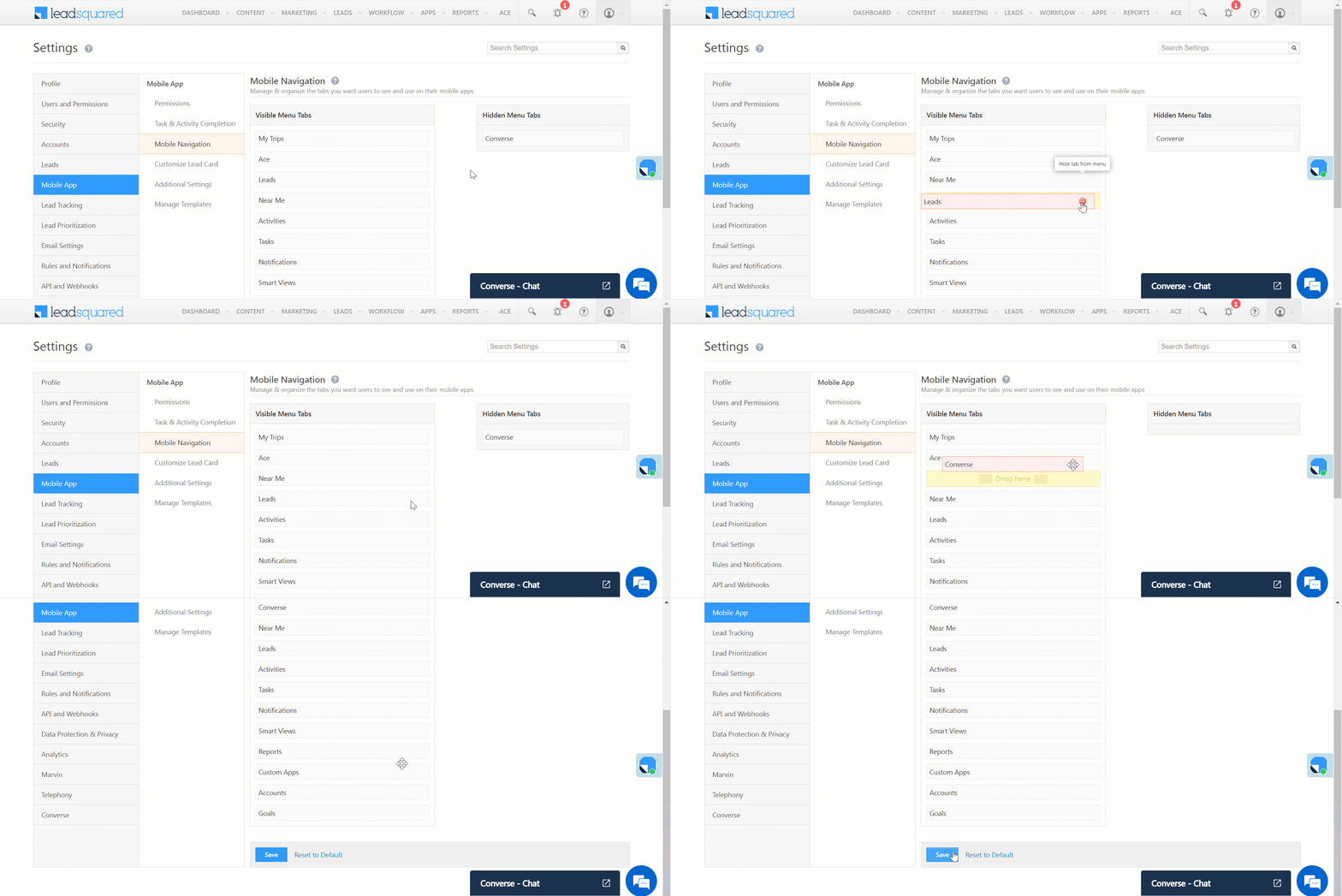
  • On the Mobile Navigation screen, the first (top) 4 tabs are displayed on the navbar, and the next 5 tabs are displayed as tiles in the side menu.
  • From the 10th tab onwards, they are displayed as options on the side menu.
  • Irrespective of which position they have on the Mobile Navigation list, Smart Views and Custom Apps will always be displayed as options on the side menu.
  • Notifications will also only be displayed on the side menu, but depending on it’s position, it will be displayed as a tile or as an option.

To customize the navbar and side menu –

  1. Navigate to My Account>Settings>Mobile App>Mobile Navigation.
  2. Drag and drop the options in order of where you want them to be displayed.
    • If you have Converse enabled in your account, you can enable it in your mobile app as well. To do so, under Hidden Menu Tabs, drag the Converse option and drop it under Visible Menu Tabs.
  3. Once you’re done, click Save.

LeadSquared - Add converse to mobile app

6. Details Customization

Based on each Team’s requirements, Admin users can customise the Tabs, Actions, and Contact Cards displayed on the mobile app’s Lead Details page. To know more, refer to Customise Lead Details View on Mobile.


7. Additional Settings

To configure Additional Settings for your mobile app, refer to Mobile App Additional Settings.


Any Questions?

If you have any questions related to mobile app permissions, please let us know in the comments section below. We’d love to hear from you!

Accounts Management – Feature Guide

The accounts feature lets you manage all your B2B relationships through LeadSquared. Create accounts for all your partners, vendors, third-party services, etc., store all the data you need (account details, account owners, stages, etc.) and add and manage your leads under these different accounts.

Note: If you’re new to the accounts feature, Account Settings is the best place to start. This article talks about the Manage Accounts page and the various actions you can perform on it. Other related articles include –


Navigation

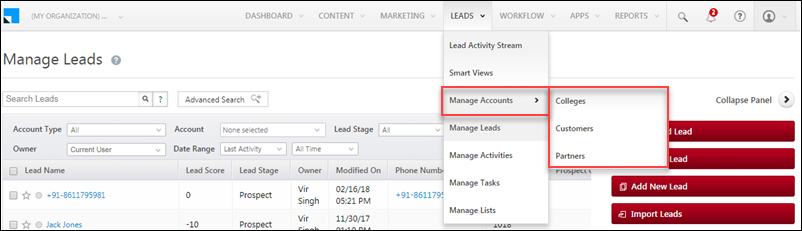
Any account type you configure will show up on your main navigation menu under Leads>Manage Accounts. Each account type you click will take you to its own Manage <Account Type Name> page (e.g., Manage Colleges, Manage Partners, etc.).

main menu>manage accounts


Add New Accounts

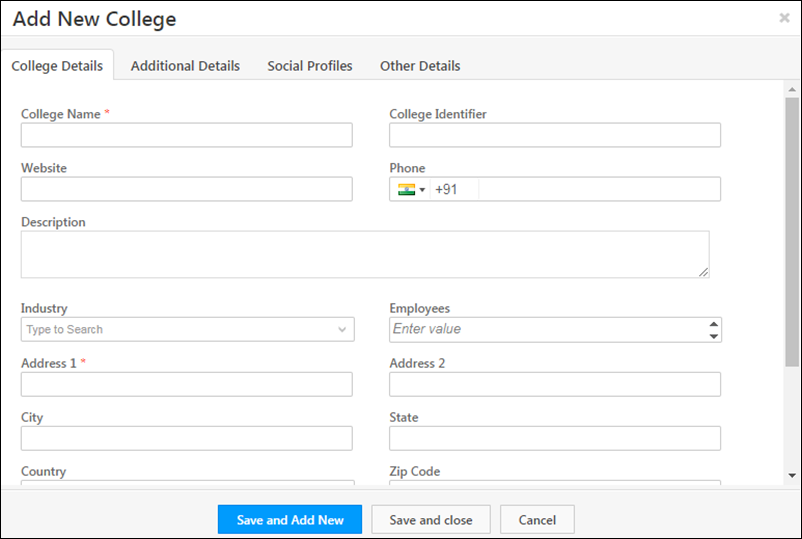
To add a new account under the current account type select the Add <Account Name> button and fill in the account details form.

new account

new account form


Import Accounts

You can import accounts through a CSV file. For detailed instructions see How to Import Accounts.


Filters

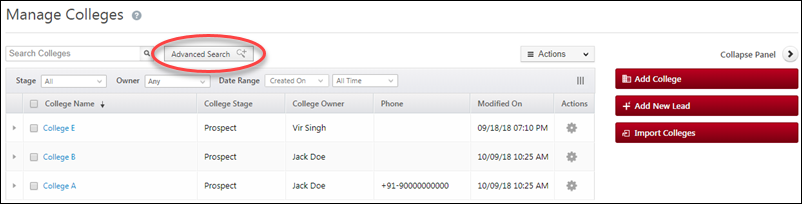
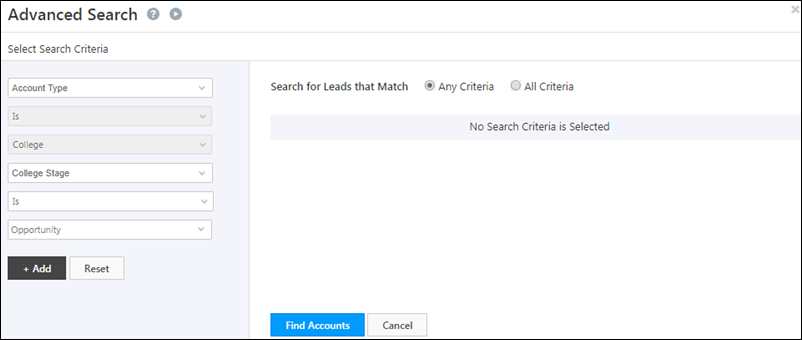
Advanced search is helpful when you have a large number of accounts. It helps you set multiple criteria to filter the accounts you need.

advanced search through accounts

You can filter based on lead, account and activity fields. In the example below, we’re looking for all ‘Colleges’ in the ‘Opportunity’ stage.

advanced search on accounts

Note: The accounts advanced search feature is not available for ESS tenants.

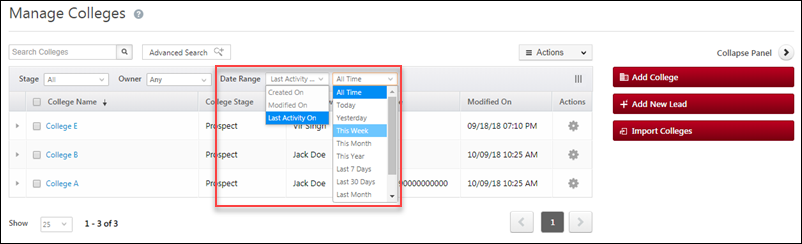
You can also use the filters available above the grid. For example, you can set the date filter to ‘Last Activity On’ – ‘This Week’, to see all accounts where accounts have been recently posted –

account last activity on


Account Actions

You can perform the following actions on a single account –

  • Edit
  • Add Lead
  • Assign Lead
  • Add Activity
  • Change Owner
  • Change Stage
  • Delete

Click the settingsSettings iconwheel alongside an account to choose an action.
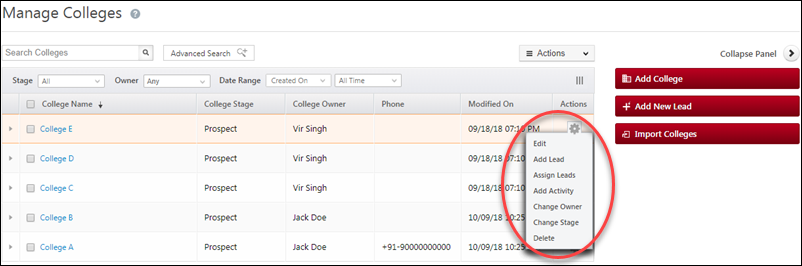
list actions, manage accounts

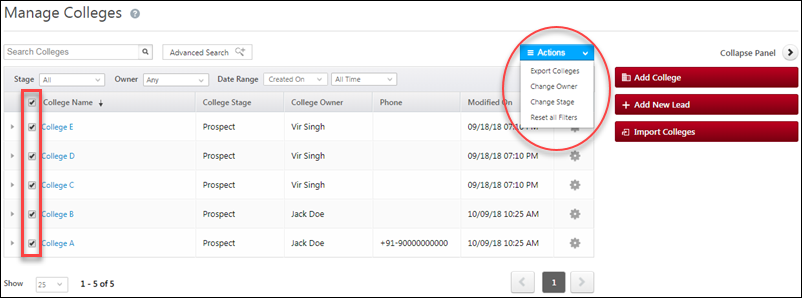
You can perform the following bulk actions on multiple accounts –

  • Export Accounts
  • Change Owner
  • Change Stage
  • Reset All Filters

Click the check-boxes alongside the account name, hover your cursor over the Actions menu, then choose an action.
Account actions

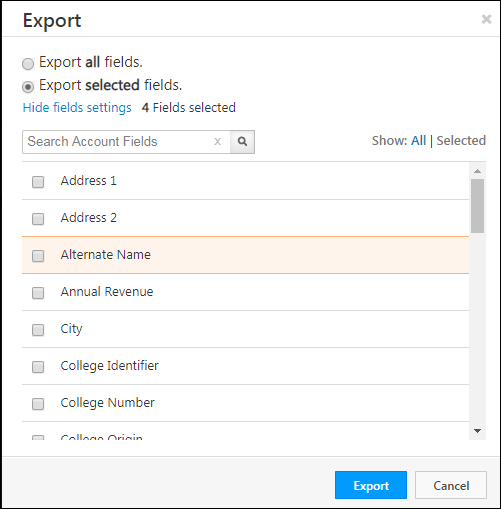
Click Export <Account Type> to export all accounts within a particular account type. You can export all fields or choose the account fields you want to export. After choosing an option, click Export.

Once the export process completes, you’ll receive a download link in your email.

Note: You can export up to 100,000 accounts. To export more accounts than that, please contact us at support@leadsquared.com and we’ll export all the records for you.

export accounts

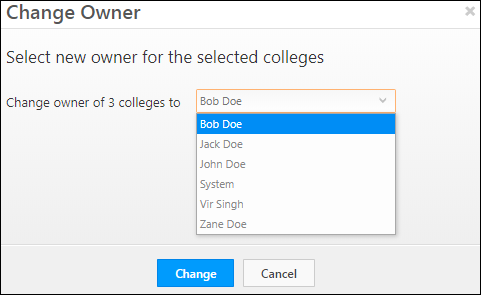
When changing the owner or stage, you’ll be prompted to select the new value.

change account owner


Add New Leads to an Account

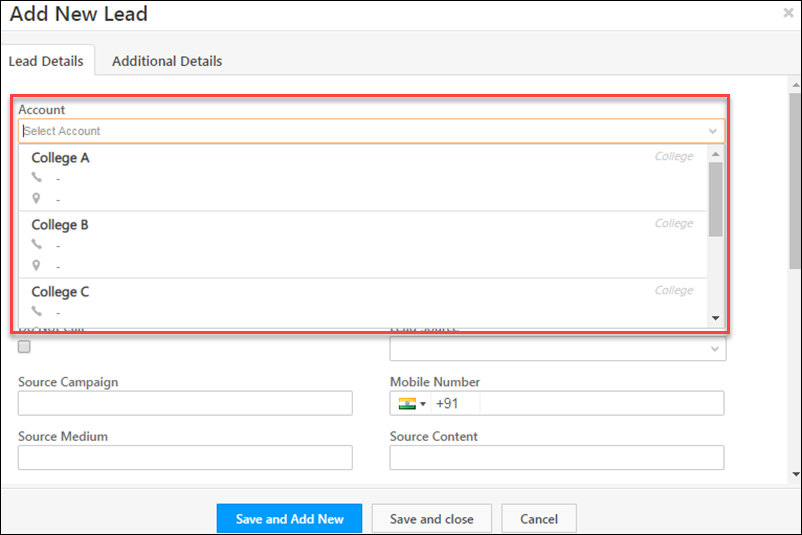
To add a new lead to an account, click Add New Lead. You’ll be prompted to select the account and then enter the lead’s details.

adding lead to account

add lead to account

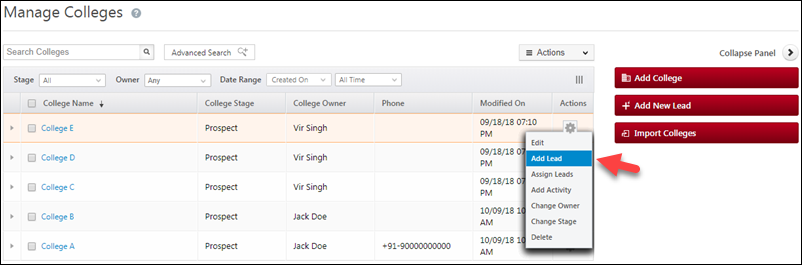
You can also select the Add Lead option from the actions list.

Add Lead list action


Assign Existing Leads to an Account

To assign existing leads to an account,

  1. You can use the bulk update option on the Manage Leads page. For more details, see the ‘Add Existing Leads to Your Accounts’ section of Account Settings.
    OR
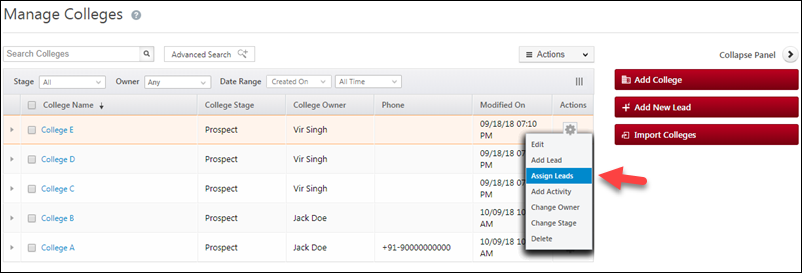
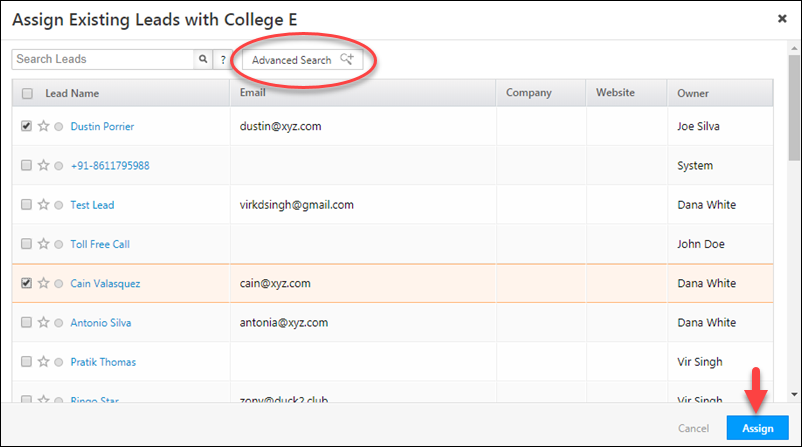
  2. Select the Assign Leads action from the actions list. Then use advanced search to find and assign leads.

assign existing leads to account

assign leads with advanced search


View Leads Within an Account

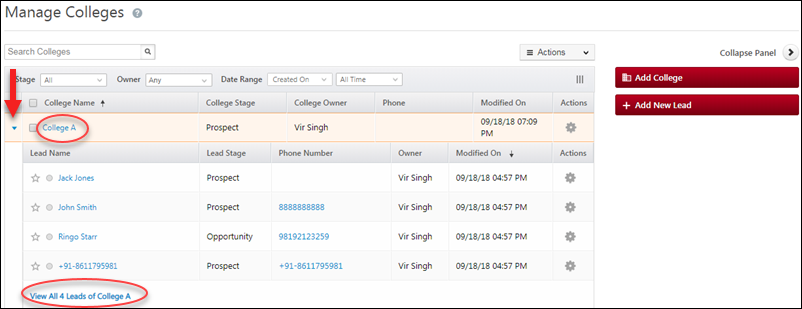
On the Manage Accounts page, click the expand button to get a quick view of some of the leads under the account.
To view all leads, click the Account Name link or the View All Leads link, this will take you to the Account Details page.

manage accounts actions

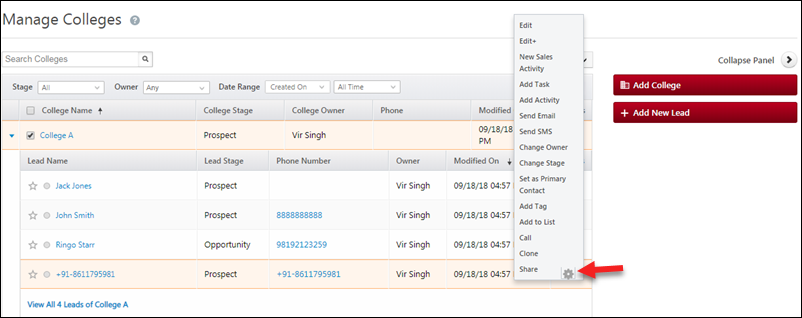
You can also perform actions on leads directly from here. Just click the settingsSettings iconwheel alongside the lead record.

lead actions on manage accounts page


View Related Leads

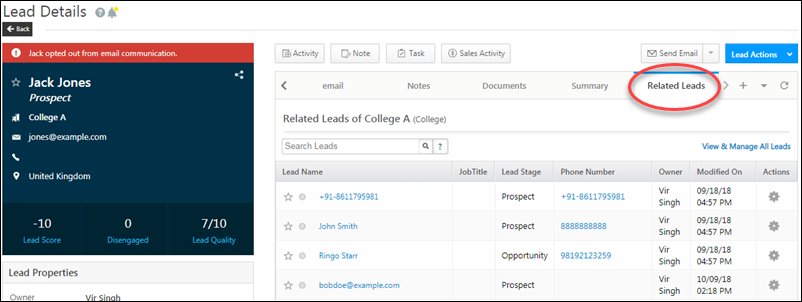
The Related Leads tab on the Lead Details page shows you other leads that belong to the same account. You can click the View & Manage All Leads link to go to the Manage Leads page and perform bulk actions on these leads.

lead details related leads


Post Activities on Accounts

See How to Add Activities to Accounts


Any Questions?

If there’s anything you want to know about the accounts feature that you couldn’t find here or if you’d like to leave some feedback, please feel free to use the comments section below. We’ll get to it asap!

Manage Users

1. Feature Overview

The Manage Users Page is where you’ll find the list of all your LeadSquared users. From here you can create, update and perform a range of actions on your users. You can also export your users to a CSV file and perform bulk updates.


2. Prerequisites

  • You must be logged in to your LeadSquared account.
  • You must be an Administrator user of your LeadSquared Account.


3. Create a User

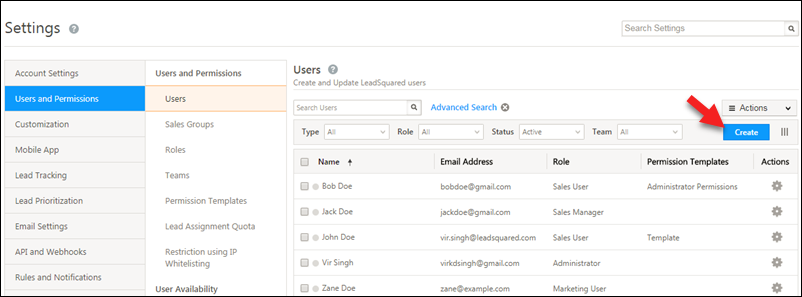
  1. Navigate to My Account>Settings>Users and Permissions>Users.
  2. To create (add) a new user, click Create.
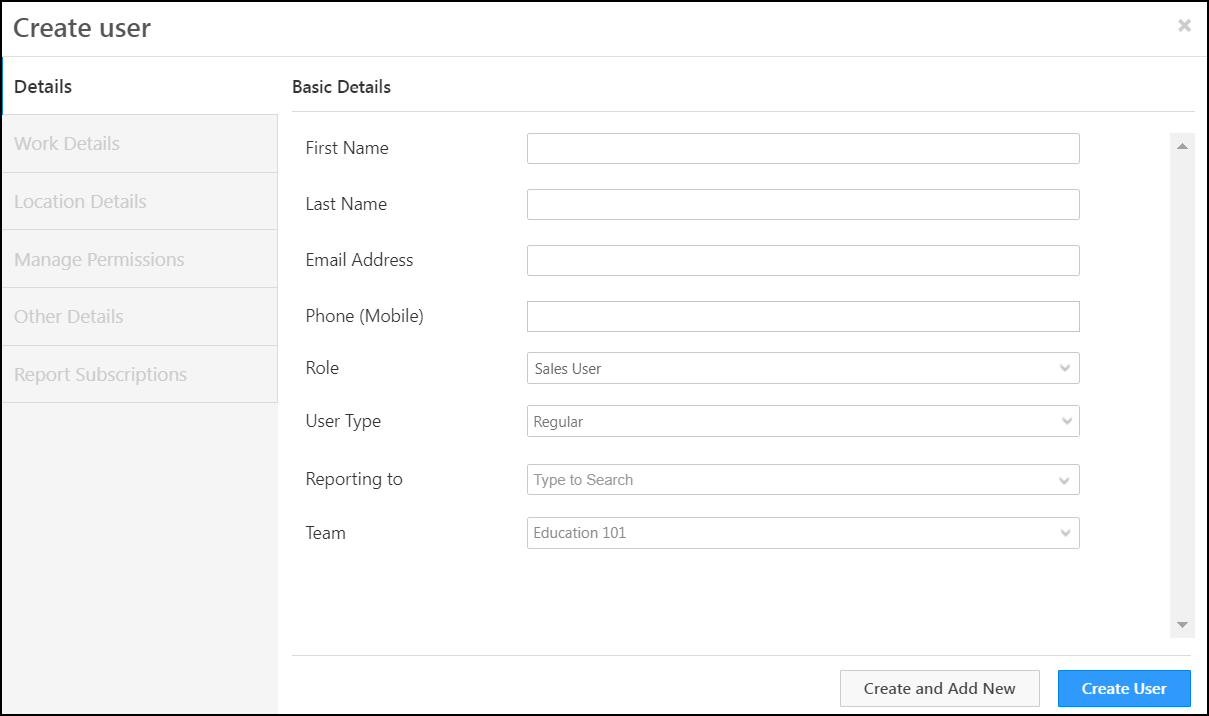
  3. On the Create User pop-up, fill in all the necessary details.

Note:

  • You can create a user by entering only first name and email address fields and clicking Save. However we recommend you enter all the relevant information that you can leverage while using other LeadSquared features like automation.
  • If your user creation limit is exceeded you can buy more users from the Manage Subscriptions page (Settings>Profile>Manage Subscriptions). If you don’t see this page on your account, contact your account manager or write to support@leadsquared.com.
    You can also view the total number of users permitted in your current plan under Billing and Usage.

create a new user


3.1 Basic Details

Provide all the basic details of the use (including the user role) here. You can also choose a reporting manager and team.

Note: 

  • The Phone (Mobile) field will be used 2-factor authentication as well as password reset actions. It can only be updated by Administrators.
  • The user type you select will determine the user’s access to different platforms –
    • A regular user can use both the LeadSquared web application as well as the mobile application.
    • A mobile user can only use the LeadSquared mobile application. 
    • A Marvin user can use both the Marvin web application as well as the mobile application.

LeadSquared - User basic setting


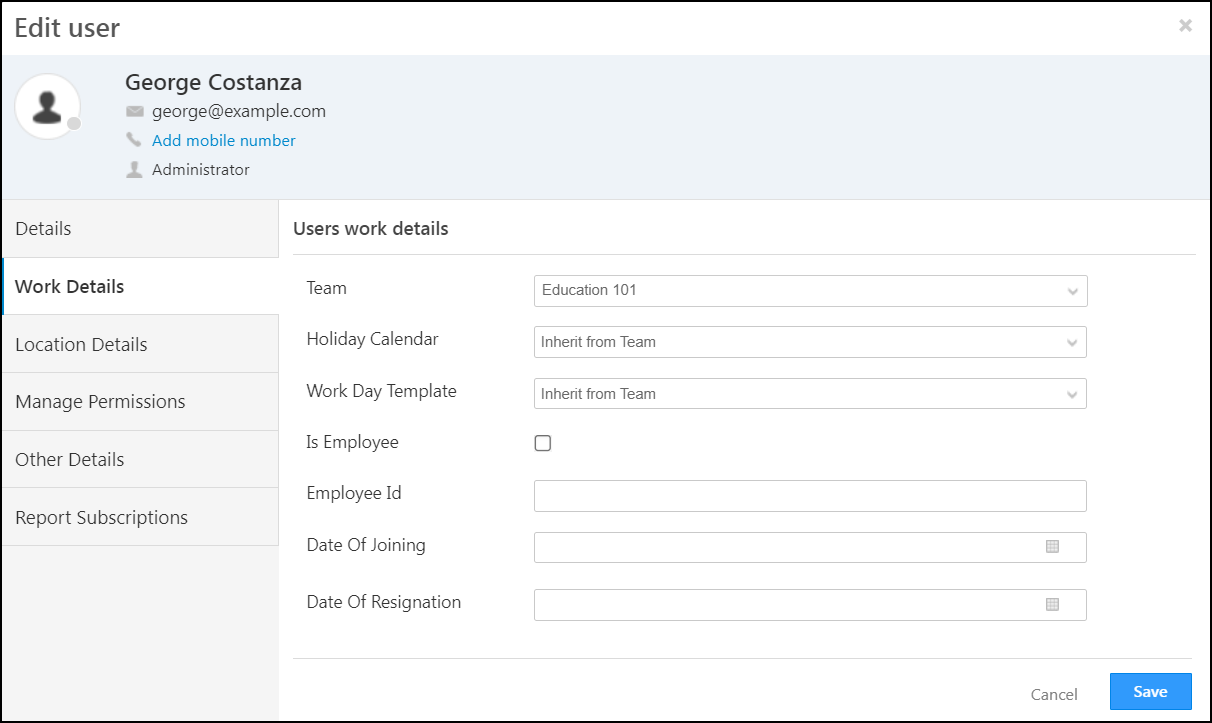
3.2 Work Details

Here, you can add the user to a team, apply a holiday calendar and a workday template. You can also add basic work details like Employee ID, Date of Joining, etc., here.

LeadSquared - user work details


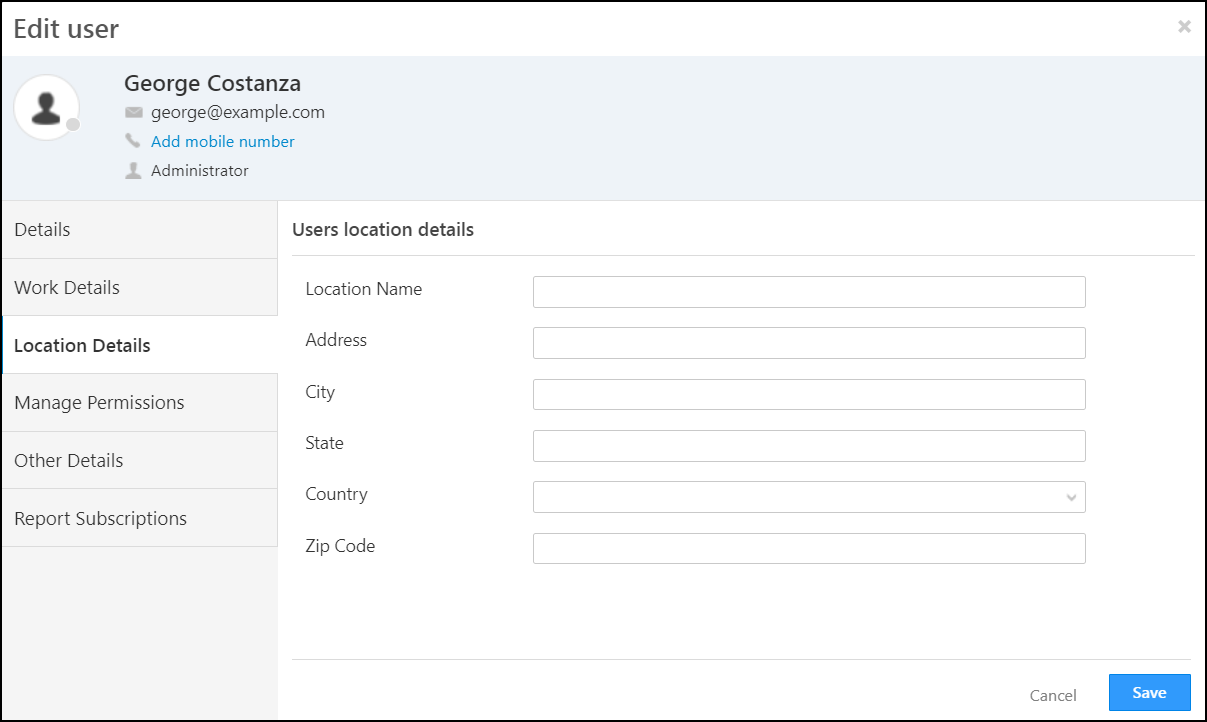
3.3 Location Details

Use this tab to enter the user’s address.

LeadSquared - user location details


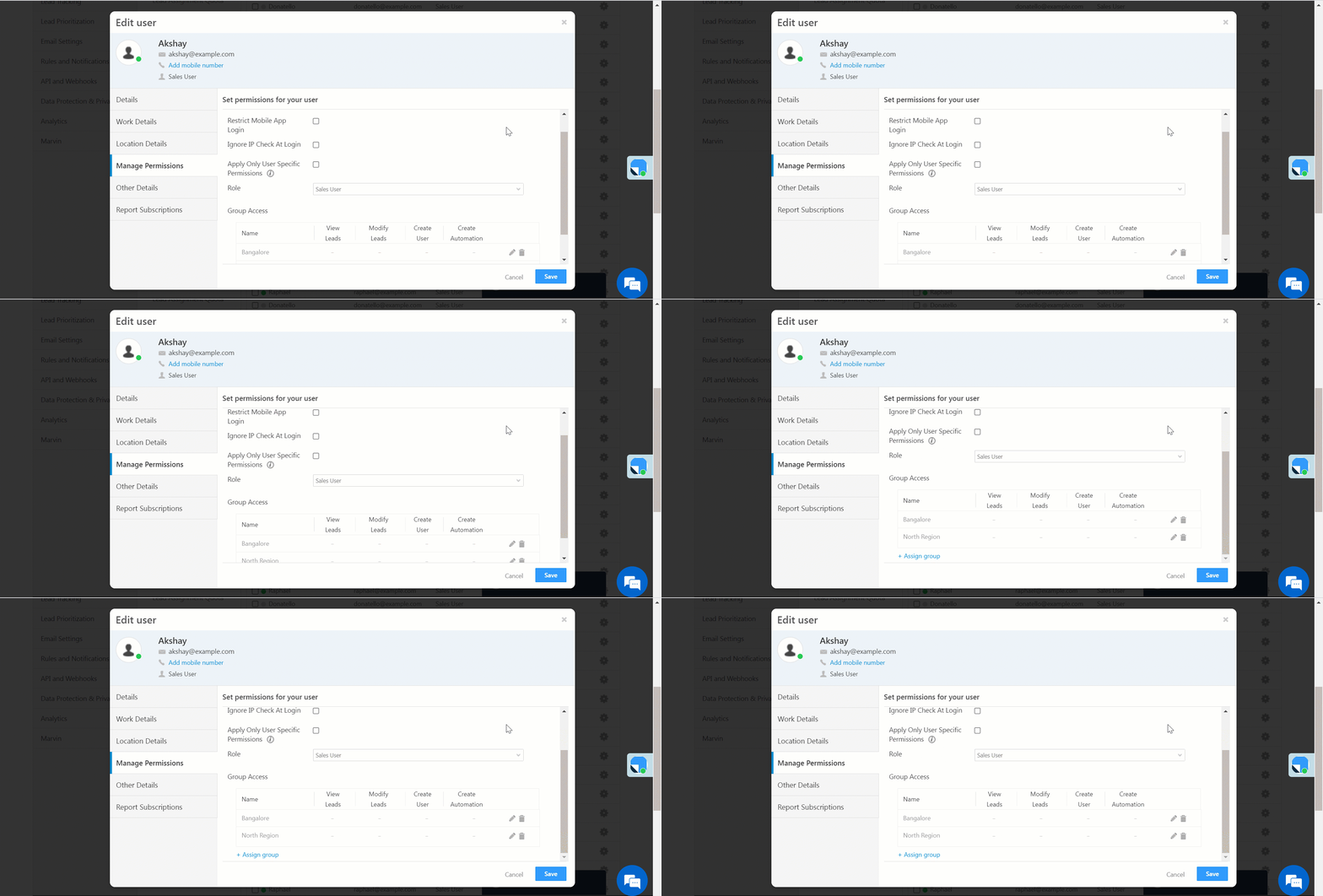
3.4 Manage Permissions

Set permissions for your user on this tab. You can also enter your user’s role (Administrator, Sales Manager, etc.) and type (Regular, Mobile, Marvin) here.

  • Restrict Mobile App Login – Restrict regular users from logging into their LeadSquared account using the mobile app.
  • Ignore IP Check At Login – If this permission is enabled, the user can login from any IP address even when IP whitelisting is enabled.
  • Apply Only User Specific Permissions -Exempt certain users (like group managers) from blanket permission templates applied at the role and group level.
  • Group Access – Give permissions to the groups the user is in to view and modify leads, create users, and create automations.

Leadsquared - Manage permissions


3.5 Other Details

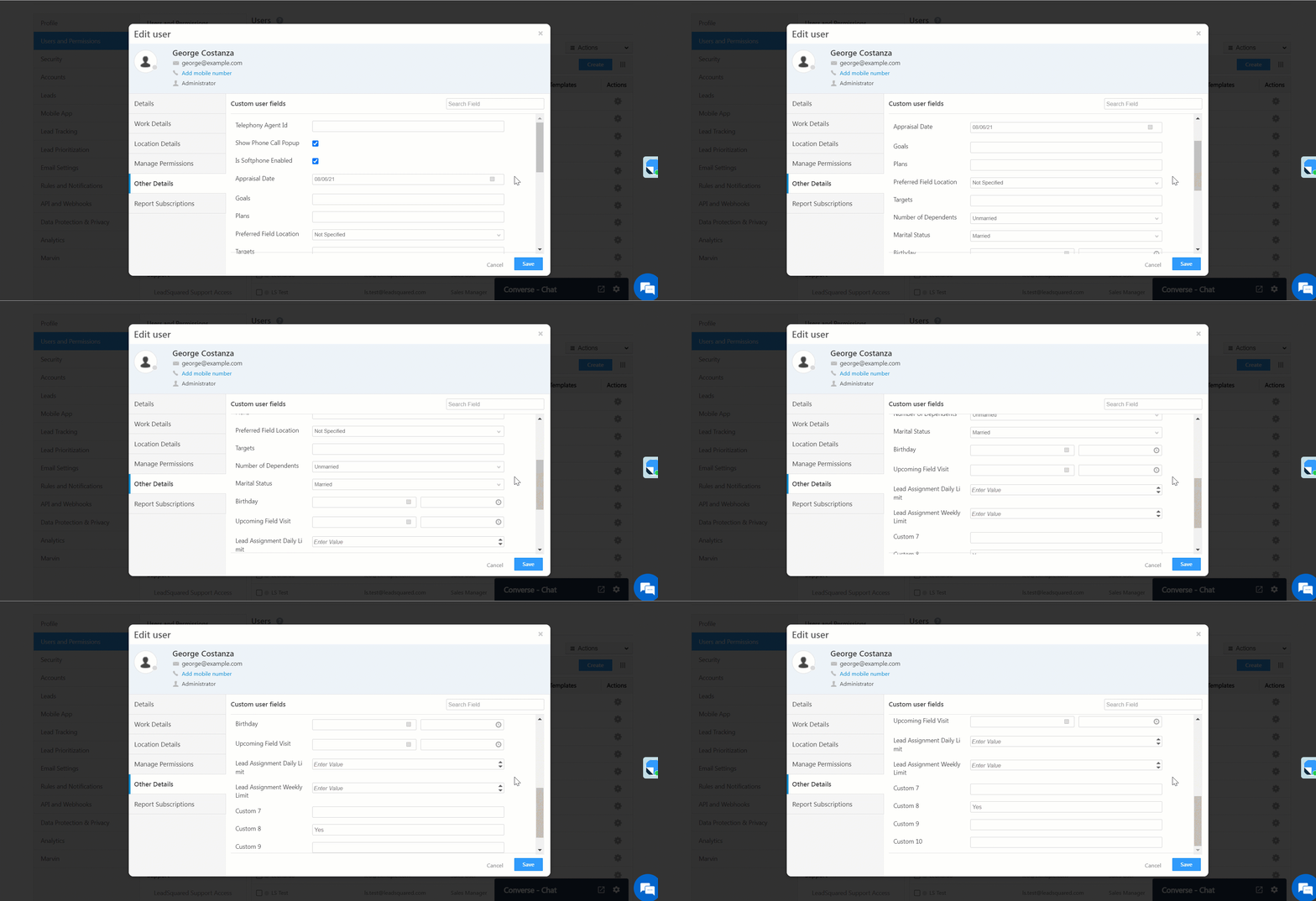
This tab lets you save custom data about your users like their birthdays, joining dates, marital status, etc. To customize and create custom fields, see Manage User Custom Fields. You can later use this information to set up automations to automatically send them greetings and notifications.

LeadSquared - user other details


3.6 Report Subscriptions

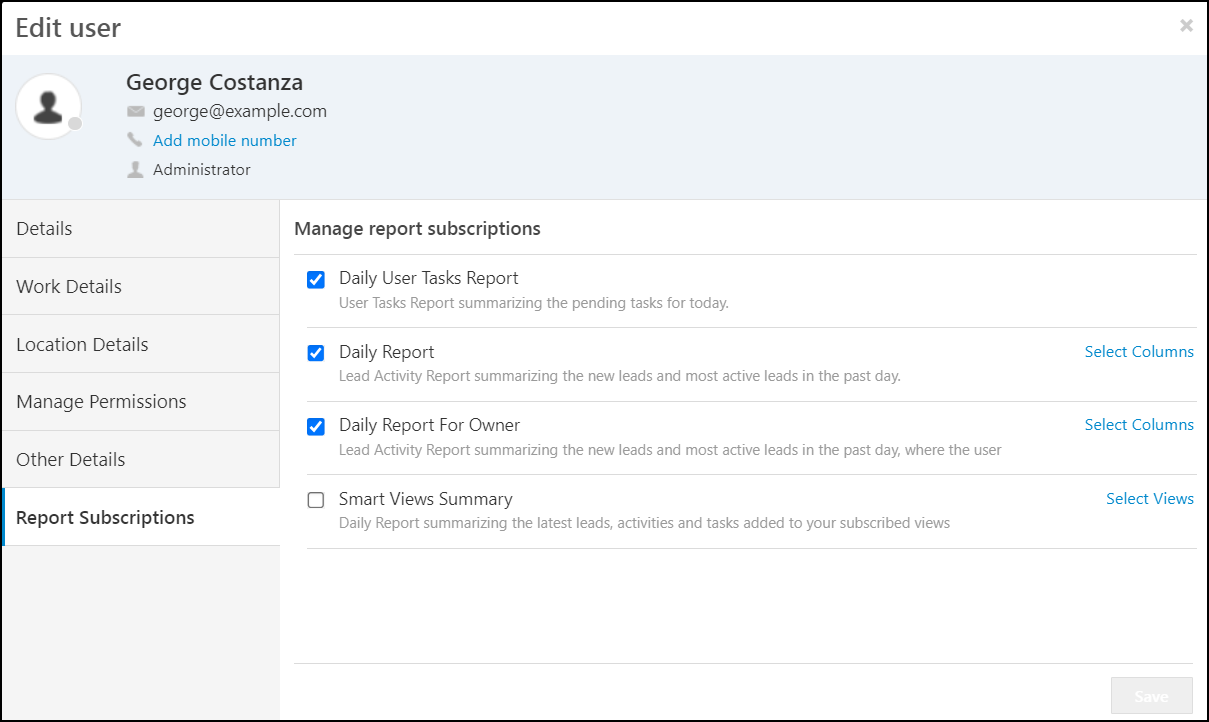
Select the reports you want the user to have access to. You can also select the columns you want displayed.

LeadSquared - user report subscriptions


4. Actions

Sales Group Managers have complete user management control over users in their sales groups. They can Activate, Deactivate, Mark Users Obsolete, and assign users to other Sales Groups. This ensures that Sales Group Managers can operate independently, without any reliance on Admin users to perform any of these actions. To enable this on your account, contact your account manager, or write to support@leadsquared.com.

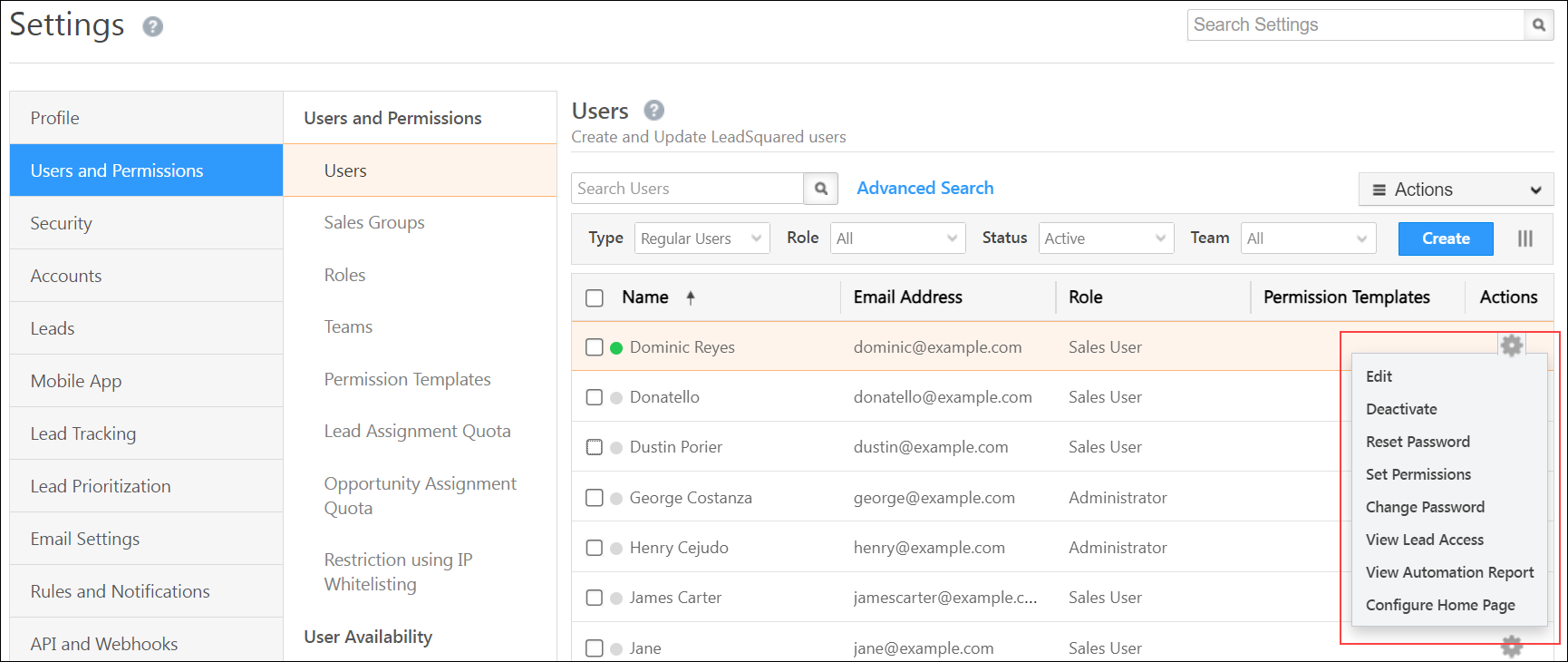
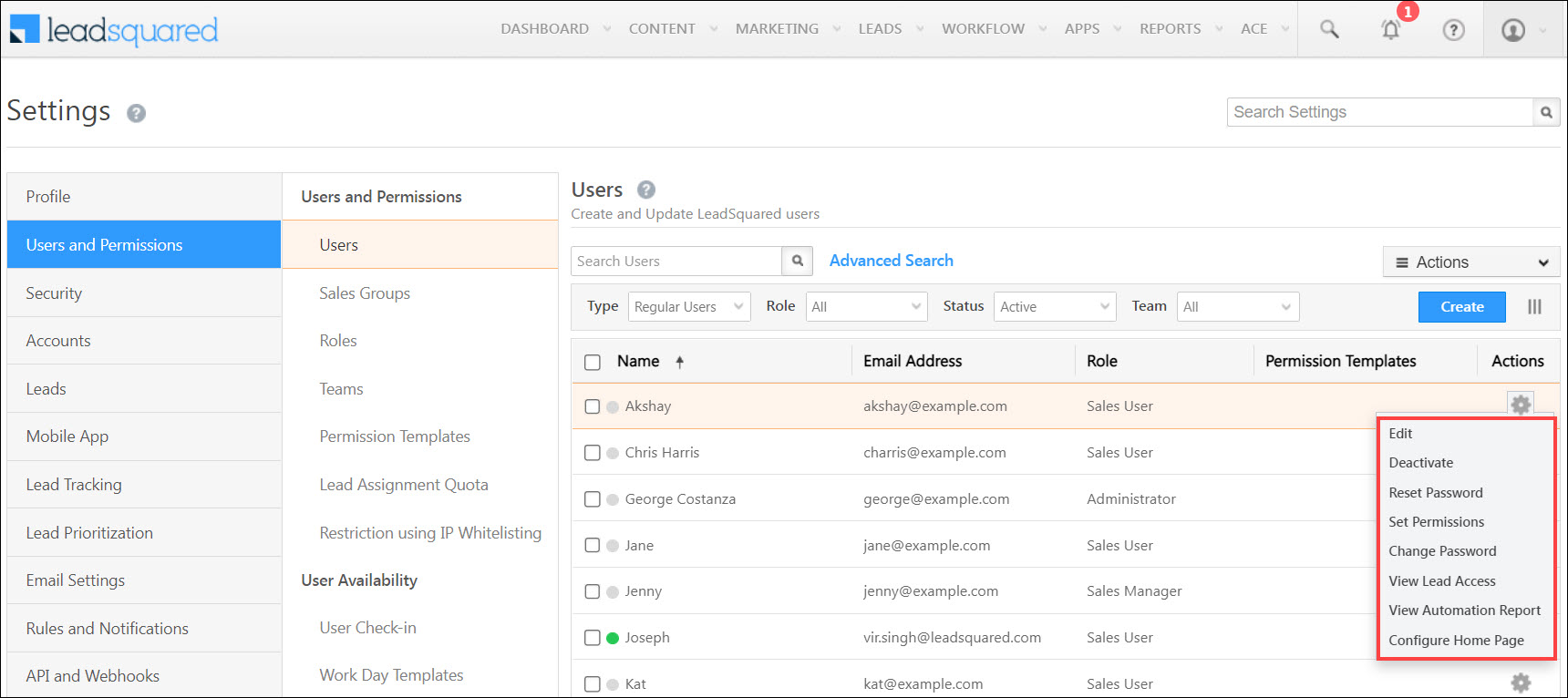
To view the list of actions you can perform on a single user, hover your cursor over Settings icon.

Action Description
Edit Edit all user fields.
Deactivate In order to preserve the integrity of your marketing history, we don’t allow you to delete users. Instead, you can deactivate them. Users who’ve been deactivated, won’t be able to log into LeadSquared.

Note: Before deactivating a user you should ensure that all leads and tasks under the user are assigned to an active user. This way you won’t miss out on critical tasks you have to perform.

Reset Password Admins can initiate the password reset process for any user including the passwords for other Admin users. For more information, see How can an Administrator user set password for other users?
Set Permissions Gives you granular control over permissions through permission templates.
Change Password Rather than allowing a user to reset their own passwords, admins can use this option to set a password for the user.
View Lead Access Allows you to view the lead access permissions of a user in accordance with the Sales Groups they are part of.
View Automation Report If you’ve setup user automations, this report shows you the path the user has taken through the automated workflow.
Configure Homepage Allows you to select either Dashboard or Smart Views as the homepage for the user.
Note: To change the email address associated with a see How to Change a User’s Email Address.

LeadSquared - Decentralization


4.1 Import User & Update Via CSV

You can import a list of users through CSV. For details see Managing Users Through CSV.

LeadSquared - import user


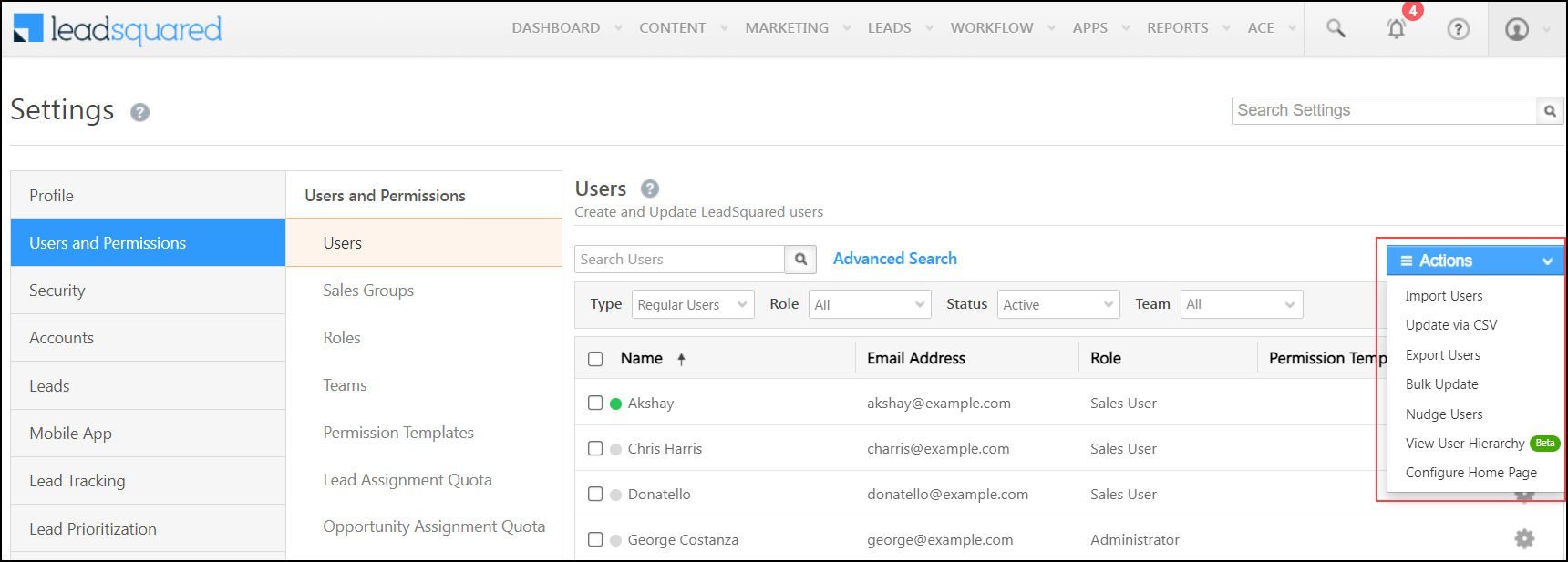
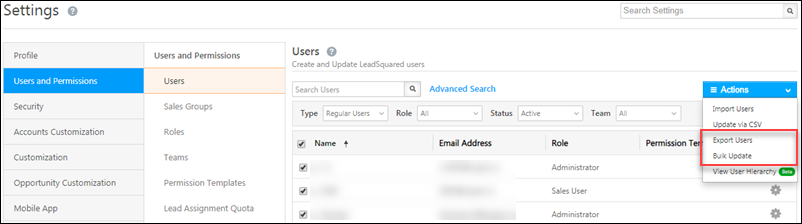
4.2 Export & Bulk Update Actions

You can export your users to a CSV file and perform a bulk update for a single user field. Both options are available under the Actions column.
Before performing a bulk update, be sure to select the checkboxes alongside the users you want to update.

Note: You can only bulk update the Team or Status field for users. To update other fields, or multiple fields at once, see Managing Users Through CSV.

export and bulk update options


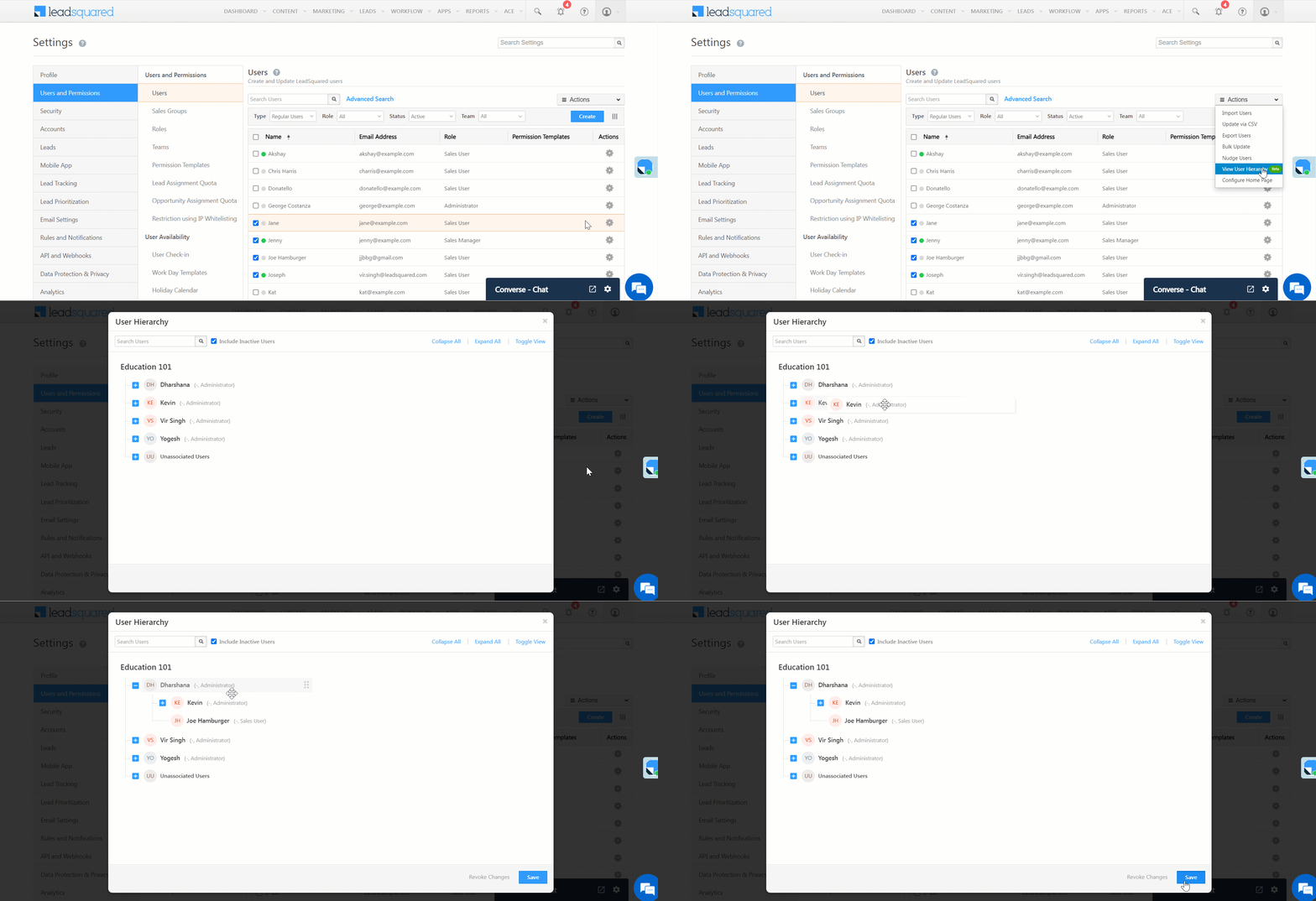
4.3 View User Hierarchy

You can view the hierarchy of your users based on the ‘Reporting to’ field. Under Actions, click View User Hierarchy. You can drag and drop users to change their reporting managers.

LeadSquared - View user heirarchy


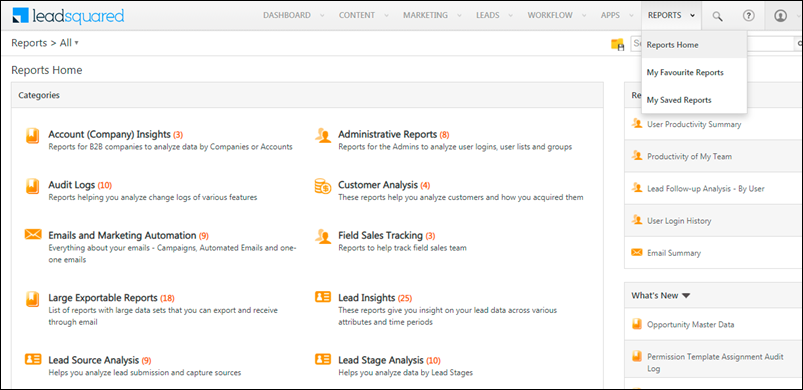
5. Reports

You can find reports and analytics on user login history, user productivity, user activities and tasks, sales groups, field sales performance and more. Navigate to the Reports page (Reports>Reports Home on the main menu), and check under Administrative Reports, Field Sales Tracking, Sales Group-Wise Analysis, Task Analysis, and User Activity Reports.

Note: Make sure to check out LeadSquared’s next gen reporting tool – SIERA.

all LeadSquared reports


FAQs

What happens when a user’s email ID is changed?
Changing a user’s email ID does not result in any data loss. All existing data, permissions, and activities remain intact. The only change is that a new welcome email will be sent to the updated email ID.


Any Questions?

We’d love to hear your feedback to help improve this article. Feel free to enter your questions or grievances in the comments section below.

Minimum Requirements for LeadSquared Mobile App

The Leadsquared mobile app is available on iOS and Android, supported on various devices complying with minimum OS requirements. This article details the minimum requirements for running the mobile app.


Supported Operating Systems and Versions

Note: The LeadSquared Mobile Application doesn’t run on rooted (jailbroken) devices . When you install the app on a rooted device, you’ll see the following error – “Parse Error: There was a problem parsing the package.” (Android devices), or “Device Not Supported” (iOS devices).


Mobile Devices

Customers can use the LeadSquared mobile app on any device that meets the supported operating systems versions and requirements. Listed below are the mobile devices used by us for automated and manual testing on the iOS and Android mobile app. Please note that LeadSquared cannot guarantee the app performance on untested devices or those with manufacturer-specific customizations. The LeadSquared mobile app supports portrait orientation only on phones.

Tested Android Devices

  • Pixel 6a
  • Samsung Galaxy S21
  • Samsung Galaxy S20
  • Samsung Galaxy S10
  • Samsung Galaxy S22
  • Samsung Galaxy A50
  • Samsung Galaxy A51
  • Samsung Galaxy S9
  • Samsung Galaxy S8
  • Samsung Galaxy S7
  • MI A3
  • MI A2
  • Redmi 5
  • Nord CE 2 Lite 5G
  • Moto G 82

Tested iOS Devices

  • iPhone 14 Pro Max
  • iPhone 14
  • iPhone 12 Pro
  • iPhone 12 Mini
  • iPhone 11 Pro
  • iPhone 11
  • iPhone X
  • iPhone Plus
  • iPhone 7
  • iPhone SE 2 Gen
  • iPhone 15 / 15 Pro / Pro Max


Network

To communicate using the mobile app, you need a stable cellular or Wi-Fi network connection. For cellular connections, at least a 3G network is required. We recommend using LTE, 5G or Wi-Fi for the best performance.
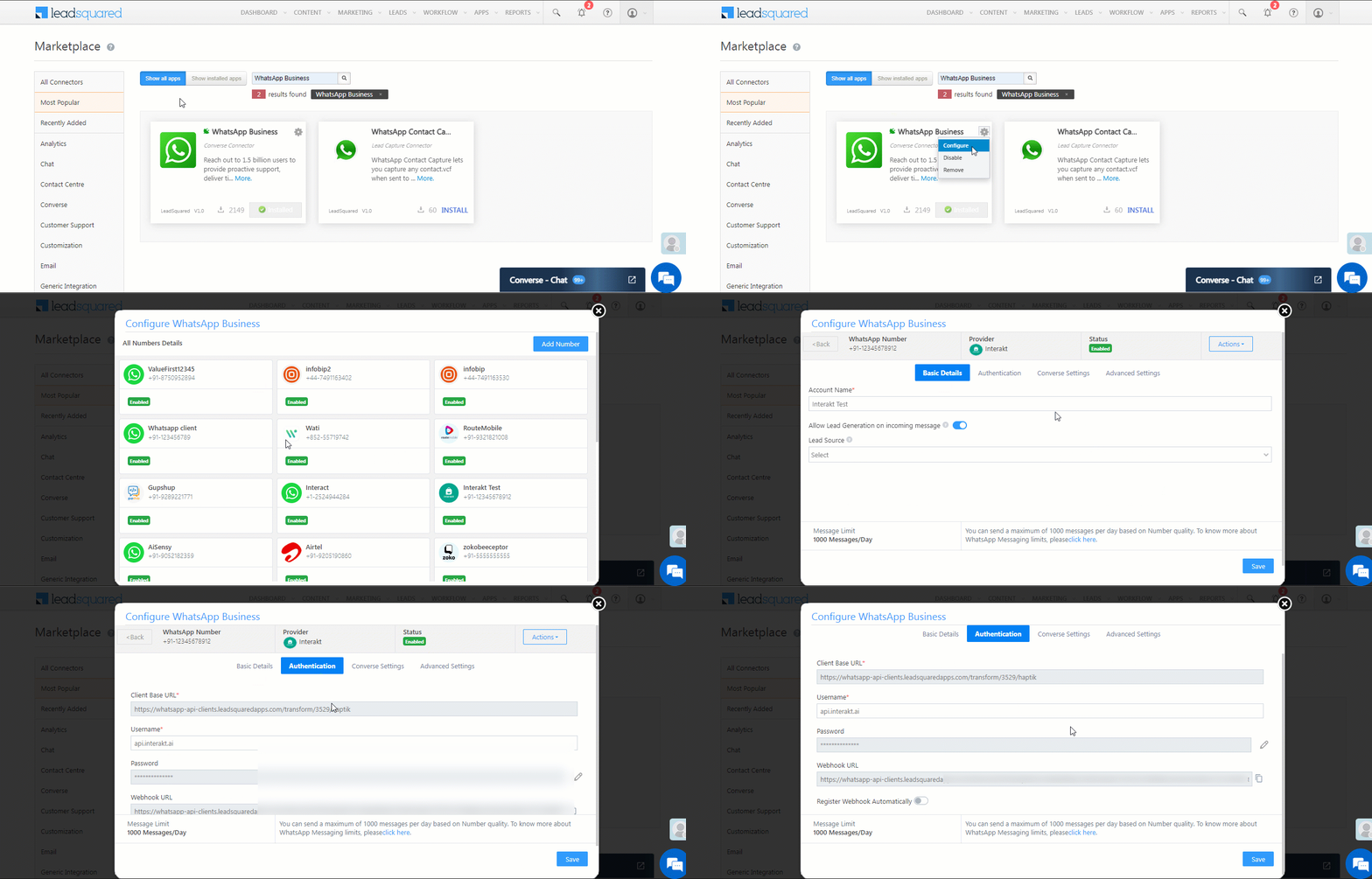
 

Mobile App Updates

LeadSquared mobile app feature updates are available to customers whose devices meet the current minimum platform requirements. Updates are released regularly. The timeframe for releasing a new major version may vary and can be affected by factors outside of Leadsquared’s control, such as new requirements from Apple or Google, or changes to the iOS or Android operating systems.

Customers can update the mobile app from the App Store or Google Play as long as their mobile devices meet LeadSquared’s current minimum mobile operating system requirements. If a device is running an older operating system, updated versions of the LeadSquared mobile app won’t appear in the App Store or Google Play.


FAQs

1. I am unable to install the mobile app despite meeting all prerequisites. What should I do?

Try the following steps to resolve the issue:

  1. Reboot the device.
  2. Reset app permissions from the device settings.
  3. Clear the Play Store / App Store cache.

These steps typically resolve common installation issues.

Measures to Ensure Higher Distance Computation Accuracy in Mobile App

Note:

  • Closing or force-quitting the LeadSquared Mobile App doesn’t save battery, as many believe. In fact, when apps run in the background, they enter battery-saving mode and use less power than relaunching the app.
  • Once users check-in on the LeadSquared Mobile App, they must avoid killing or forcibly closing the app as it may temporarily pause location tracking.

The following measures must be taken by the user to ensure significantly improved distance computation accuracy and location tracking in the LeadSquared Mobile App.

To know more about how to use location tracking in the mobile app, refer to these articles –


User Check-In/Out

Ensure that the User Check-In feature is enabled for the tenant. All mobile users must perform check-in/out daily for seamless location tracking and distance computation. Distance calculation will not be initiated for the day if the mobile user has not checked in.​ Once n your Mobile App, users must navigate to the Side Navigation and tap on Check-in when they start their day and Check-out at the end of the day.
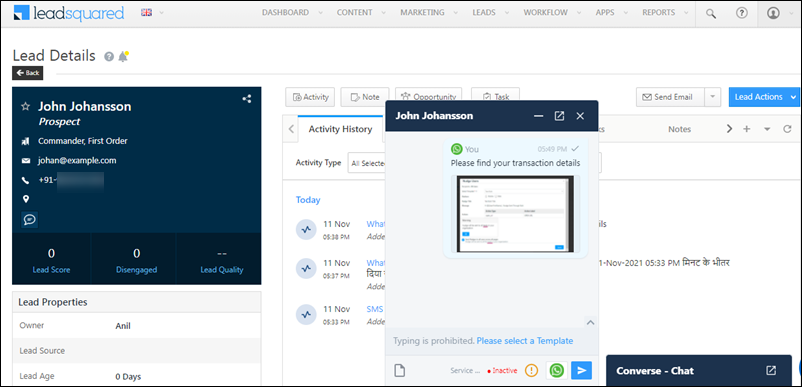
Note: Avoid switching off the device, enabling battery-saver mode or flight mode while at work, until the final Check-out of the day.
Leadsquared - Journeys

Enable Location Services

Ensure that the mobile device has its location services (GPS, Wi-Fi, or mobile data) turned on. The mobile app relies on these services to determine the device’s coordinates accurately after checking in.​

Note: Do not disable Location Services until you check out for the day.

For Android Users

Location services run in the foreground on android, it won’t pause even on closing the app, except when users Force Stop the app in the mobile Settings.

For iOS Users

Do not forcibly close the LeadSquared App when checked in. The app will send a push notification immediately to open the app and avoid interruption in location services. 

Leadsquared - Journeys


App Permissions

The LeadSquared Mobile App must have the necessary permissions to access the device’s location. Users should grant these permissions during the app installation or within the device’s settings.​ 
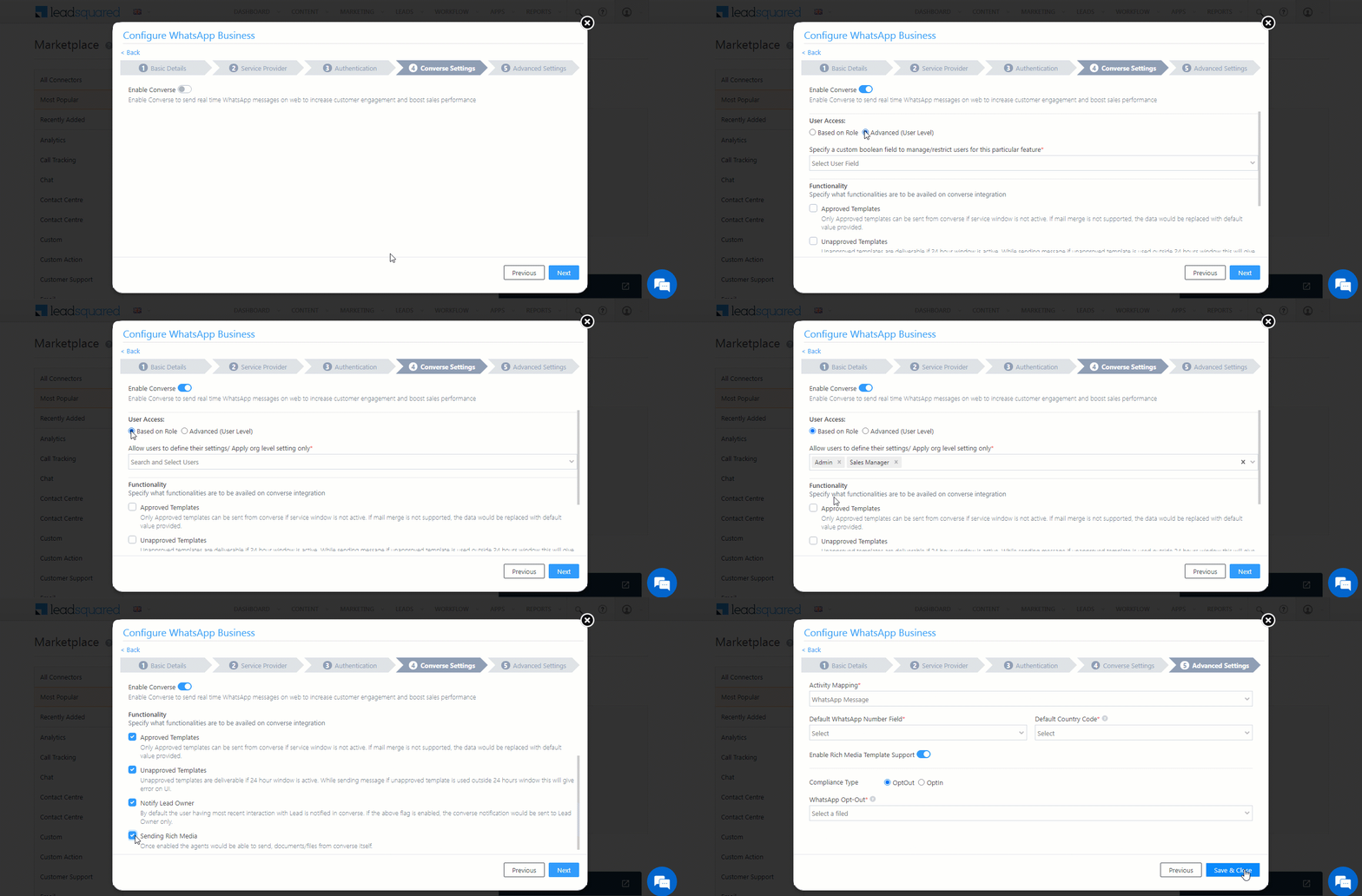
For Android Users

  1. Long press on the LeadSquared App from your Home Screen or Menu.
  2. Tap the info icon to go to App Settings.
  3. Under Permissions, allow access for Calendar, Camera, Contacts, Location, Microphone and Phone.

Leadsquared - Journeys

For iOS Users

  1. Navigate to Settings and search “LeadSquared”.
  2. Allow access for Camera, Calendars, Live Activities, Background Refresh and Mobile Data.

Leadsquared - Journeys


Location Accuracy Settings

In the device settings, users can adjust location accuracy preferences. Higher accuracy settings may use GPS and Wi-Fi for precise tracking, while lower settings might rely on mobile networks, which can be less accurate. 

For Android Users

  1. On your mobile Settings, navigate to Apps and tap on Manage Apps.
  2. Select LeadSquared from the list of apps.
  3. Tap on App Permissions and select Location.
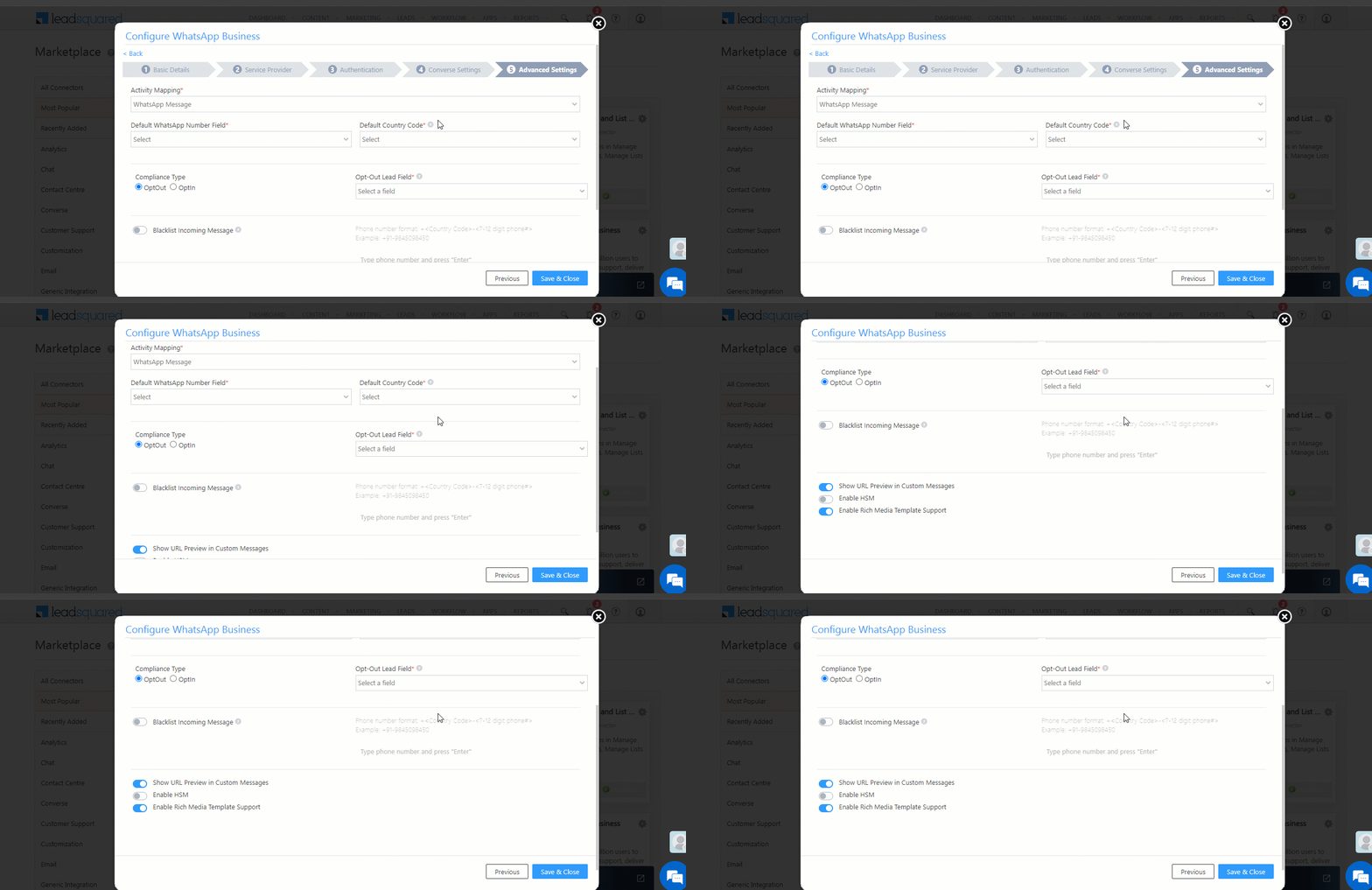
  4. From the Location Access settings, select Allow only while using the app.

Leadsquared - Journeys

For iOS Users

  1. Search Location on the mobile Settings and Navigate to Location Services.
  2. Select LeadSquared from the list of apps.
  3. Under Allow Location Access, select Always, with Precise Location enabled.

LeadSquared - iOS Location Accuracy Settings


Network Connectivity

The mobile device should preferably have an active network connection, either through mobile data or Wi-Fi. Location data may be more accurate with a strong network connection.​ 


Battery Optimization

 On your Android device, check that the mobile device’s battery optimization settings do not restrict the tracking app’s background activity. Some devices may  limit background location updates to save power.  In App Info, tap on Battery and ensure that Battery Optimization is set to Not Optimized or Unrestricted. Alternatively, if the setting is not available on App Info, search for Battery Optimization or Power Saving on the Settings page.

Leadsquared - Journeys


App Updates

 Ensure that the LSQ mobile app is up to date as we often release updates that can further improve location tracking accuracy and reliability.​ 


Background Location Permissions

If the app needs to track location in the background (when not actively in use), users may need to grant special permissions for background location access.​ If the permission is granted, users can see a Location Tracking notification on their Notification bar until they check out.

Leadsquared - Journeys


Location Hardware

Ensure that the mobile device’s GPS or location hardware is functioning correctly. Hardware issues can result in inaccurate or unreliable location data.​ 


Network Stability

For apps that send location data to a server, a stable internet connection is essential to transmit data in real time.​ 


Any Questions?

We’d love to answer your questions or hear your own unique use cases. Feel free to share your experiences in the comments section below.

LeadSquared WhatsApp Integration with Interakt

1. Feature Overview

Interakt WhatsApp self-serve solution helps you engage your customers simply, securely and reliably. Interakt facilitates customer support and other marketing efforts through WhatsApp. If you’re using Interakt APIs, this article will help you integrate with LeadSquared to avail WhatsApp messaging functionality right within the platform.

We also support WhatsApp integrations through other service providers like Infobip, Zoko, Kaleyra, Wati, and Gupshup.


2. Prerequisites

If you’re not familiar with LeadSquared’s WhatsApp integration, see WhatsApp Business Messaging Connector. For frequently asked questions, see WhatsApp Business FAQs.

  1. Get an approved WhatsApp Business Number and Account.
  2. An active Interakt account.
  3. To enable the Interakt integration on your account, contact your account manager, or write to support@leadsquared.com.


3. Installation

For installation, refer to WhatsApp Business Messaging Connector.


4. Configuration

Once the connector is installed, add and configure your WhatsApp phone numbers to the connector.

4.1 Basic Details

WhatsApp Zoko LeadSquared Integration

Field Description
WhatsApp Business Number Select the country code, and provide your WhatsApp business number. This field is mandatory.
To get your WhatsApp business number, contact your Meta account representative or support team.
Account Name Provide a relevant name for your connector. This field is mandatory.
Allow Lead Generation on incoming message EnableSlider to allow automatic lead creation when you receive messages from unknown mobile numbers.
Lead Source From the dropdown, select a lead source for your leads.

Once you’re done, click Next.


4.2 Service Provider

From the available options, select Interakt, and click Next.

Interakt LeadSquared Integration


4.3 Authentication Set-up

On this screen, enter –

Field Description
Client Base URL The base URL is listed here. This is a non-editable field.
WhatsApp Number The WhatsApp business number you provided in the Basic Details screen. This is a non-editable screen. To change the number, navigate back to the Basic Details screen, and change the number there.
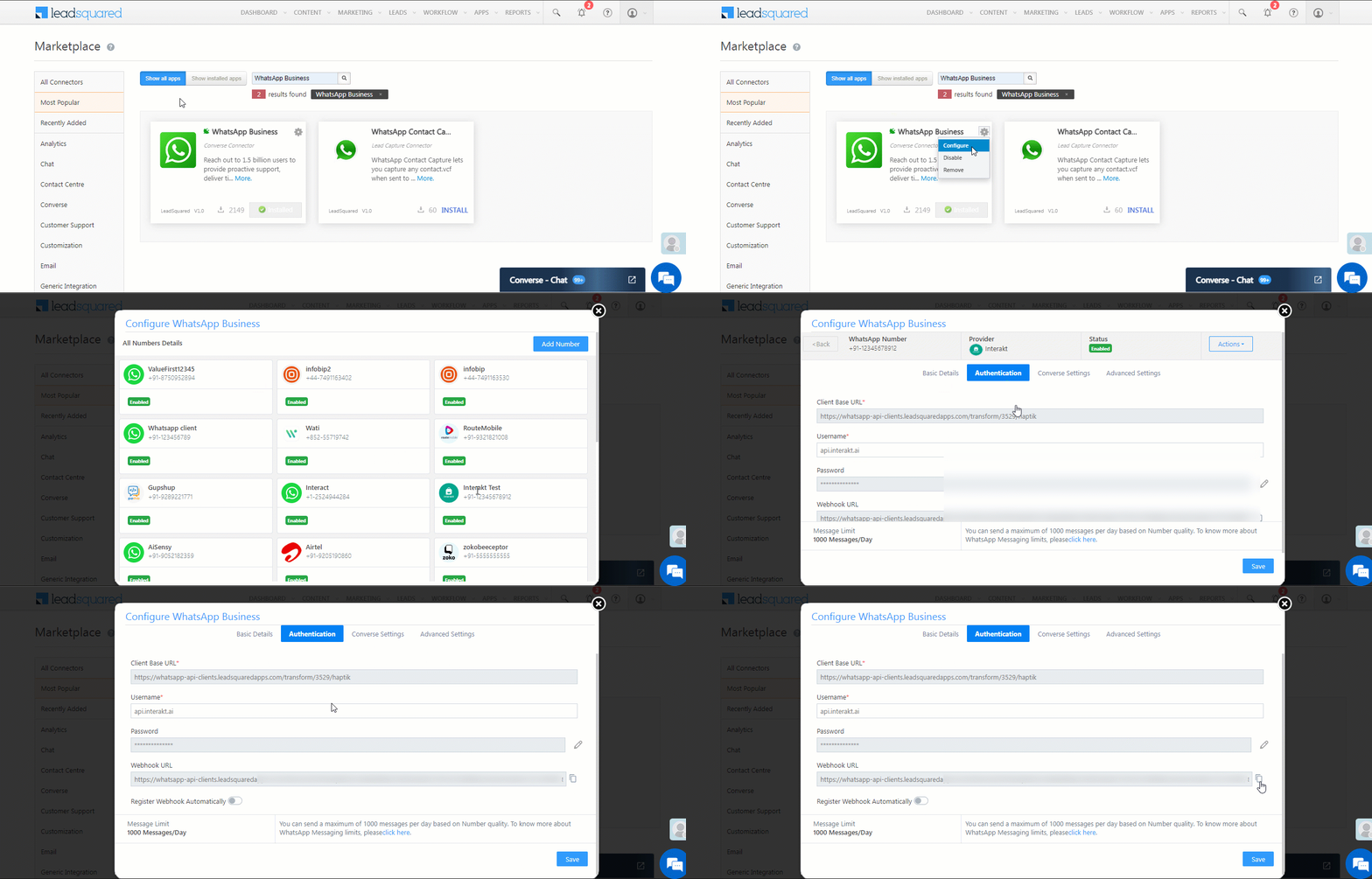
Username Pass the following value as the username – “api.interakt.ai“.
Password Enter the Interakt API Secret Key. To obtain this, from your Interakt account dashboard, go to Settings>Developer Setting>Secret Key.

Interakt LeadSquared Integration

Once you’re done entering all the details, click Next.

Once you’re done entering all the details on the LeadSquared WhatsApp configuration pop-up, click Next.


4.4 Converse Settings

LeadSquared Converse is an instant messaging feature that allows you to have real-time conversations with your leads via WhatsApp.

LeadSquared WhatsApp Integration

To integrate LeadSquared Converse with WhatsApp, complete the following steps –

  1. On the Converse Settings tab, toggle the Enable Converse Slider slider.
  2. Under User Access, grant permissions to users who can communicate with leads through the LeadSquared Converse.
    • Based on Role – From the Search and Select Users dropdown, select the LeadSquared user roles that can send messages through LeadSquared Converse.
    • Advanced (User Level) – Based on the value entered in the selected user boolean field (e.g., for the user Sam, the “Is Employee” user field contains the value “Yes”), the user will be able to send messages through LeadSquared Converse. From the Select User Field dropdown, select a relevant boolean field.
  3. Functionality – The following additional settings must be configured –
    • Approved Templates – Enable this functionality to allow your users to send approved WhatsApp templates to your leads.
    • Unapproved Templates – Enable this functionality to allow your users to send unapproved WhatsApp templates to your leads. These can only be sent if the 24-hours service window is active.
    • Notify Lead Owner* – When enabled, only lead owners will get notifications of the WhatsApp messages a lead sends. When disabled, all logged-in users will receive notifications of these WhatsApp messages.
    • Sending Rich Media – Enable this functionality to allow your users to send media files in the WhatsApp messages.

Note:

  • *Message notifications are only sent to one user, i.e., either the Lead Owner or to the user (other than the Lead Owner) that sent the WhatsApp message to the lead. When the Notify Lead Owner setting is enabled, only the Lead Owner will get notified, while the user who sent the message will not get a notification.
  • If you enable the Send Rich Media option, you must also enable the Approved Templates option. This ensures that you can add your media files to a template when messaging your leads.

LeadSquared Gupshup Integration


4.5 Advanced Settings

On this screen, provide the following details –

Interakt LeadSquared Integration

  • Activity Mapping – A LeadSquared activity field to capture your WhatsApp messages. This is the activity that will be posted every time a WhatsApp message is sent or received.
  • Default WhatsApp Number Fields – The number you set as the default phone number will be automatically selected when you’re sending a WhatsApp message to a lead. You can also select other numbers that are available from the Add Another Number dropdown.
  • Default Country Code – The default country code will be used to send messages to a phone number that’s stored in a custom field, if no country code is listed.
  • Enable Rich Media Template Support – If you want to include media files in your WhatsApp message, you must enable the Slider slider.
  • Show URL Preview in Custom Messages – Enable the sliderSlider to allow for URL previews in non-templatized WhatsApp messages.
  • Compliance Type – Here, you can select the compliance type for the WhatsApp template, by choosing either WhatsApp Opt-out or Opt-in.
  • WhatsApp Opt-out – Your leads can opt-in or out of receiving WhatsApp messages on the basis of this field. From the dropdown, select a LeadSquared lead field for the WhatsApp opt-in/opt-out functionality.
  • Blacklist Incoming Messages – If required, you can enable this option to blacklist incoming messages from specific numbers. This is useful when you want to block numbers that send inappropriate messages to your users. Once enabled, enter the phone numbers in the text box available on the right side of your screen. You can add phone numbers with 7-12 digits (excluding the country code). This option is available only when the Allow Lead Generation on incoming messages setting is enabled.
Note: You must create a custom lead field of boolean type to map to the WhatsApp opt-out functionality. For example, you may create a custom lead field called “WhatsApp Opt Out”. Leads for whom the field is selected/checked won’t receive WhatsApp messages.

Click Save & Close when you’re done.

  • If your credentials are correct, you’ll see the success message highlighted below.
  • If they were incorrect, the integration will fail.


5. Webhook Configuration

To receive incoming messages from your leads, as well as to get the delivery status (Sent, Delivered, Read, or Failed) of your outbound messages, configure the LeadSquared webhook in your Interakt account.

In LeadSquared

  1. Once the configuration is completed and saved in your LeadSquared account, a webhook is generated.
  2. To access the webhook, navigate to Apps>Apps Marketplace, search for the WhatsApp Business Connector, and click Configure.
  3. On the Configure WhatsApp Business pop-up, select the Interakt integration.
  4. On the Authentication tab, you’ll find the webhook alongside Notifications Webhook URL. Copy this webhook.

Interakt LeadSquared Integration

In Interakt

  1. Login to your Interakt account, and navigate to Settings>Developer Settings.
  2. On the Developer Settings page, under Configure Webhook, click Edit.
  3. On the Configure Webhook URL pop-up, use the webhook you copied from LeadSquared, and paste it under Webhook URL.
  4. From the options listed under Select Required Webhooks, open Template Messages Sent via API, and enable all four options available (Sent, Delivered, Read and Failed).
  5. Then, open Others, and enable the checkbox alongside Message received from customers (only on Advanced / Haptik Plan).
  6. Once you’re done, click Submit.

You should now receive incoming messages and the delivery status of your outbound messages.

LeadSquared Interakt Integration


6. Add Templates in LeadSquared

To add existing Interakt templates to your LeadSquared account –

  1. Login to your Interakt account.
  2. From the left-menu, navigate to Templates, and on the WhatsApp Templates screen, click Active.
  3. Select the templates you want to add to your LeadSquared account.
  4. Then, to add these templates to LeadSquared, refer to Adding WhatsApp Templates to LeadSquared.

Interakt LeadSquared Integration


6. Conversing with Leads via WhatsApp

Integrating Converse with LeadSquared’s WhatsApp connector will enable your users to have real-time conversations with your leads through WhatsApp. Using templatized messages, you’ll be able to attach and send media files (such as images, documents, etc.) in your conversations. To know more, refer to LeadSquared Converse.

LeadSquared WhatsApp Integration


7. Next Steps

Once the connector is successfully installed, you can proceed to add WhatsApp templates and finally message your leads. For details, see Adding WhatsApp Templates to LeadSquared.


Any Questions?

Did you find this article helpful? Please let us know any feedback you may have in the comments section below. We’d love to hear from you and help you out!

Where is the Google API key required?

Features that Require Google API Key

  • My TripsMy Trips is the LeadSquared mobile app’s day planning feature that helps users boost productivity by displaying the most efficient route and enabling the completion of the maximum number of tasks each day. This feature uses Google’s Distance Matrix API to calculate and optimize travel routes. To enable it, configure the Google API Key in your account by navigating to My Profile > Settings > Mobile App > Additional Settings. Under the Near Me section, alongside My Trips – Google Key, enter the API Key.
  • Explore (Near Me) – The Explore – Near Me feature allows users to view businesses located within 15 kilometer radius from selected location. This feature uses Google’s Places API to identify and display nearby businesses. To enable it, configure the Google API Key by navigating to My Profile > Settings > Mobile App > Additional Settings. Under the Near Me section, alongside Explore – Google Key, enter the API Key.

LeadSquared - Explore and my trips google key


Features that Do Not Require Google API Key

  • Geofencing – Enforce location-based controls using geofencing to ensure that users only perform certain actions (like check-in/out, tasks, or activities) when they are within the designated areas. 
  • Lead Addition – Map Display – The Locate Me button that populates your address in a form field based on your current location does not require Google API key. 
  • Mobile Lat-Long Capture – The user location history tracker gives visibility on the complete path taken by the user throughout the day. It shows all locations visited and activities performed by the user from Check-In to Check-Out, based on the location data received by the Mobile App. 
  • Check-In/Out – Enable hassle-free check-in and check-out processes without the need for a Google key by utilizing geofencing technology. 
  • Territories – Manage your territories with lead visualisation and automated lead assignment to sales users with the capability to restrict the user from performing any CRUD operations in locations other than the assigned geographical location.
  • Journeys – Enable your users to create plans through Journeys, a sales management feature built for the mobile app.
  • Leads (Near Me) – This feature utilizes geolocation data to display leads in close proximity to your current location, enhancing your ability to prioritize and engage with potential opportunities. 

Website Widgets

1. Feature Overview

LeadSquared’s Topbar Widget is a lead conversion tool that you can add to your website or landing pages to direct the lead’s attention to your marketing offers. This widget is easy to design and connect to your website. You can specify the web pages you want to display this widget on and it does not require any changes to be made on your website.


2. Prerequisites

  • The website domain on which you want to add the Topbar Widget should be associated with your LeadSquared account.
  •  The LeadSquared Tracking Script should be added on the relevant web pages.


3. Create a Topbar Widget

  1. From the main menu, navigate to Marketing>Website Widgets. On this page, hover your cursor over Create Widget and click Topbar.
  2. In the Name field, enter the name for widget. This is an internal name that you can use to identify the Topbar later.
  3. Click Edit to set up a message and create the design for the Topbar.
    1. On the Topbar Settings pop-up window, under Headline, enter the text you want to display in the Topbar. You can select different colours for the text and background of the widget.
    2. Under Button, enter the text you want to show on the button and the URL in the Text and Link fields respectively. You can also configure the colour of the button’s text and background.
    3. After configuring the design, click Save.
      • The design displayed on the pop-up window is in a compressed format. To view how the topbar will be displayed on the web page, once you save the design, click Edit again.
  4. Under Placement, click the dropdown alongside Visibility and select where you want to display the widget –
    • All Webpages – Displays the widget on all the webpages of the website and in all the Landing pages.
    • Specific Webpages – Displays the widget on specific pages that are added. Add URLs in the text field below the dropdown and click Add URL. Make sure to enter the complete URL (for example, www.leadsquared.com).
    • Exclude on Specific Webpages: Displays the widget on all the pages excluding the pages which are added in the exclusion list. To exclude URLs, enter them in the text field below the dropdown and click Add URL. Make sure to enter the complete URL.
  5. Under Duration, you can configure the duration of the widget displayed on your website. You can also choose to display them on specific dates.
  6. Once you’re done, click Save and Publish.
Note: You don’t have to make any changes on your website for the widget to go live.

LeadSquared - Website widgets


Any Questions?

Did you find this article helpful? Please let us know any feedback you may have in the comments section below. We’d love to hear from you and help you out!

Teams

1. Feature Overview

The LeadSquared Teams feature reflects the structure of different teams/departments in your organization. This feature is not to be confused with the Organisation Hierarchy feature that lets you leverage features like LeadSquared Goals, Reporting, and Automation on the hierarchy of users.

Once you create teams in your LeadSquared account, you can assign them the following features –

You can configure these features in accordance with your organization’s work schedule. Another powerful merit of using this feature is the ability to auto check-in your users. Once set up, your users will automatically check in and check out based on the configurations. What’s more, the leave tracker lets you track which team members are on leave so you get a complete attendance management solution.

Note: You can also create and add different mobile app homepages for different teams. To know more, refer to Casa – Mobile Home Builder.


2. Prerequisite

Enable the teams v2 UI under organisation settings.


3. Create a Team

  1. Navigate to My Account>Settings>Users and Permissions>Teams and click Create.
  2. Enter a name, description (optional) and select a parent team to set up your teams. By default, your account/organization name will be the parent team.
  3. Click Save.

LeadSquared Teams

Alternatively, you can add teams directly by clicking the settingsicon. You can also edit teams from here –
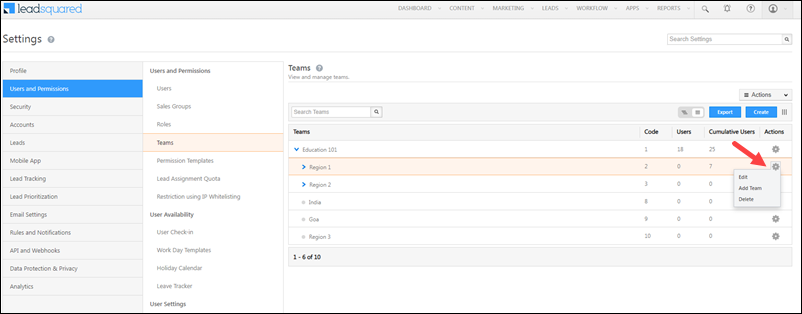
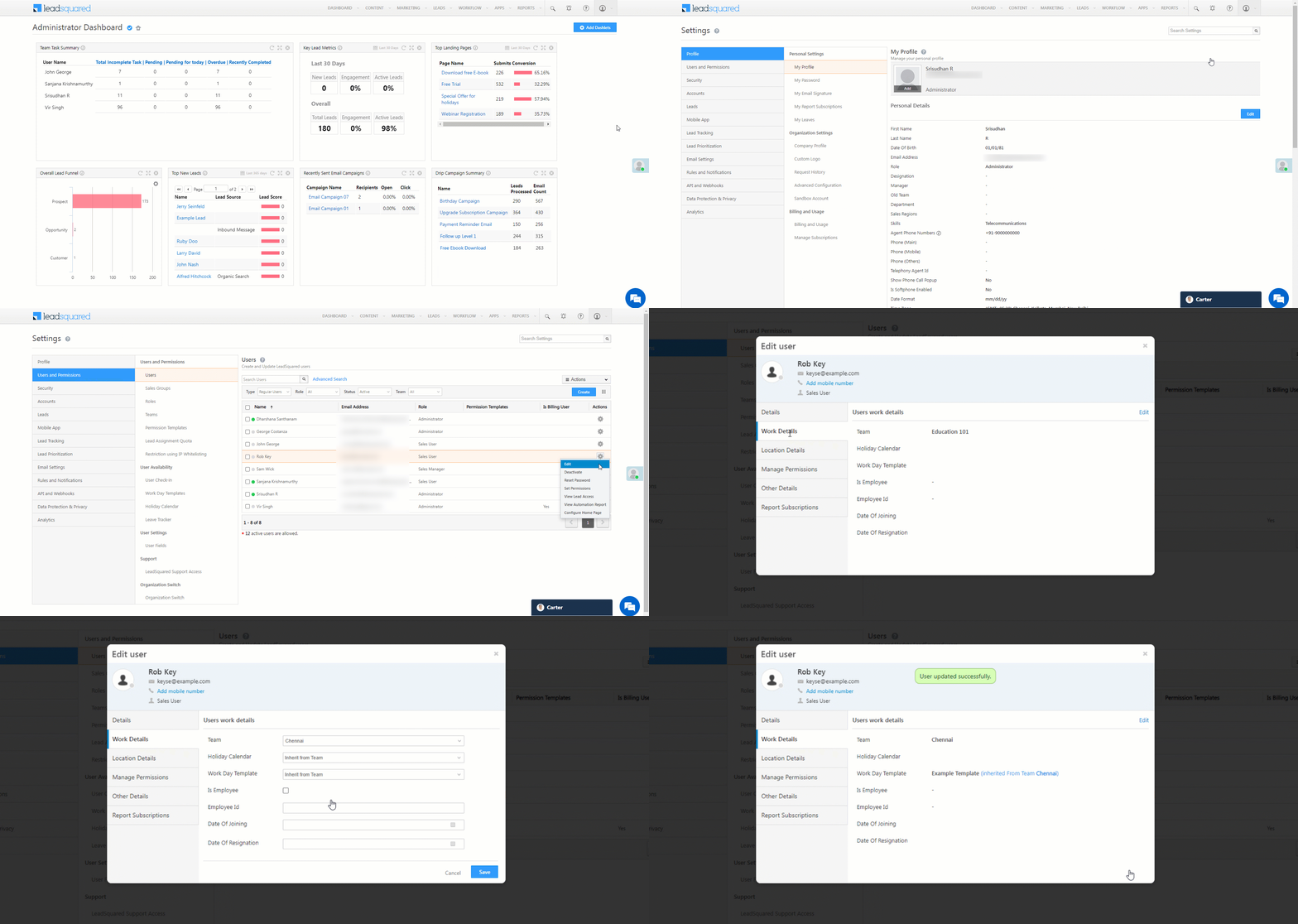
LeadSquared Teams


4. Add Users to a Team

To add a user to a team –

  1. Navigate to My Account>Settings>Users and Permissions>Users, hover over the settingsicon and click Edit for a particular user.
  2. In the Work Details tab, click Edit.
  3. In the Team drop-down, select the team you want to add the user to.
  4. Click Save when you’re done.

LeadSquared Teams

Alternatively, you can add multiple users to a team through the Bulk Update option under the Action menu –

LeadSquared Teams


5. Export Teams

You can also export existing team details (Team Code, Team ID, etc.). This will enable you to directly add users to a team (by passing the Team ID) when importing users to LeadSquared. To export a team, click Export, and on the Export Teams pop-up, click Okay.

LeadSquared Product Updates


6. Assign Features to a Team

Once you’ve created teams, you can assign different features to them –

  1. Navigate to My Account>Settings>Users and Permissions>Teams.
  2. Alongside the relevant team, hover your cursor over LeadSquared.
  3. Select the feature you wish to assign to the team –
    • Apply Holiday Calendar – Create a holiday schedule for the team in your LeadSquared account.
    • Apply Opportunity Details View – Create a specific Opportunity Details view for your team. To know more, refer to Opportunity Details View Customization.
    • Apply Work Day Template – Define the schedule and working hours of your team so you can automatically check-in your users.
    • Apply Smart View – Create a specific Smart Views page for your team.
    • Apply Dashboard – Create a specific Dashboards for your team.
    • Configure Homepage – Select either Dashboard or Smart Views to be the homepage of the team.

LeadSquared - Assign features to teams


Any Questions?

Did you find this article helpful? Please let us know any feedback you may have in the comments section below. We’d love to hear from you and help you out!

Chat Group Settings

1. Feature Overview

Incoming messages on Converse and Chatbot can be routed to a Chat Group (that consists of several users) through a Routing Rule. On LeadSquared Chatbot, You can create a Chat Group to set up a Handover Node and transfer the chat conversation to a group of agents in your organization.


2. Example Use Case

A student enrolled in a graduate computer course at a particular university also shows interest in a postgraduate course in AI or Data Science. When the student enquires about these Opportunities on Converse, they will be routed to the relevant Opportunity Owner, but if the Opportunity Owner is not available they can be routed to a Chat Group.


3. Chat Group Settings

Note: We have taken Opportunities as an example, but the same steps can be used to achieve other use cases.

You can create multiple chat groups in your account. Incoming messages can be assigned to these users in a round-robin manner. For example, we can create two Chat Groups, one to receive Opportunities for AI courses and the other to receive Opportunities for Data Science courses, both under the Postgraduate Course Opportunity Type.

  1. Navigate to Settings>Converse>Chat Group Settings.
  2. Click on + Add a New Group.
  3. Assign a set of users to this group.
  4. Enter a Group Name and Group Description.
  5. Click Save.

Group Setting Nav


Any Questions?

Did you find this article helpful? Please let us know any feedback you may have in the comments section below. We’d love to hear from you and help you out!

Routing Management

1. Feature Overview

Routing management will route the incoming message on Converse and Chatbot to the relevant Lead Owner, Opportunity Owner, Chat Group, Admin, or Specific User. On LeadSquared Chatbot, you can create a Routing Rule to set up a Handover Node and transfer the chat conversation to a group of agents in your organization.


2. Example Use Case

  • A student enrolled in a graduate computer course at a particular university also shows interest in a postgraduate course in AI or Data Science. When the student enquires about these Opportunities on Converse, they will be routed to the relevant user based on your Routing settings.
  • If a lead sends an incoming message on Converse during business time and you want to hand over the chat to a live agent, it can be achieved by setting up a Routing Rule.


3. Agent Availability

If Agent Availability is enabled, agents must set their status to Available to receive chat assignments. Chats are routed only to available agents. If no agents are available, incoming chats are routed to the Unassigned Inbox.

navigating to agent availability converse


4. Routing Management

Note:

  • We have taken Opportunities as an example, but the same steps can be used to achieve other use cases.
  • Incoming messages can be routed to the following Users –
User Description
Lead Owner The user is the Owner of the lead.
Opportunity Owner The user is the Owner of the Opportunity.
Chat Group A Chat Group that is created through Converse Settings.
Specific User Any specific user.
Admin The Admin user.
  1. Navigate to Settings>Converse Settings>Routing Management.
  2. On the Routing Management page, click + Add New Rule.
  3. Enter a Rule Name.
  4. Select your routing preference –
    1. Default Routing – When there is an incoming Opportunity, the lead will first be routed to this user/group. For example, if the customer chooses an existing opportunity, through the default rule, you can route it to the opportunity owner.
    2. Fallback 1– When the user/group in default routing is unavailable, the Opportunity will then be routed to the Fallback 1 user/group. For example, if the customer chooses a new Opportunity (there’s no Opportunity Owner associated), the Opportunity can then be routed to a Chat Group, where it will be assigned to a user via round-robin.
  5. Once done, click on the converse opp routing done icon.

Opportunity Routing Management

Note: You can create optional Fallback options by clicking the converse opp multi fallback icon. For example, if there is no Opportunity Owner or user available in the Chat Group, the Opportunity should then be routed to the Admin.
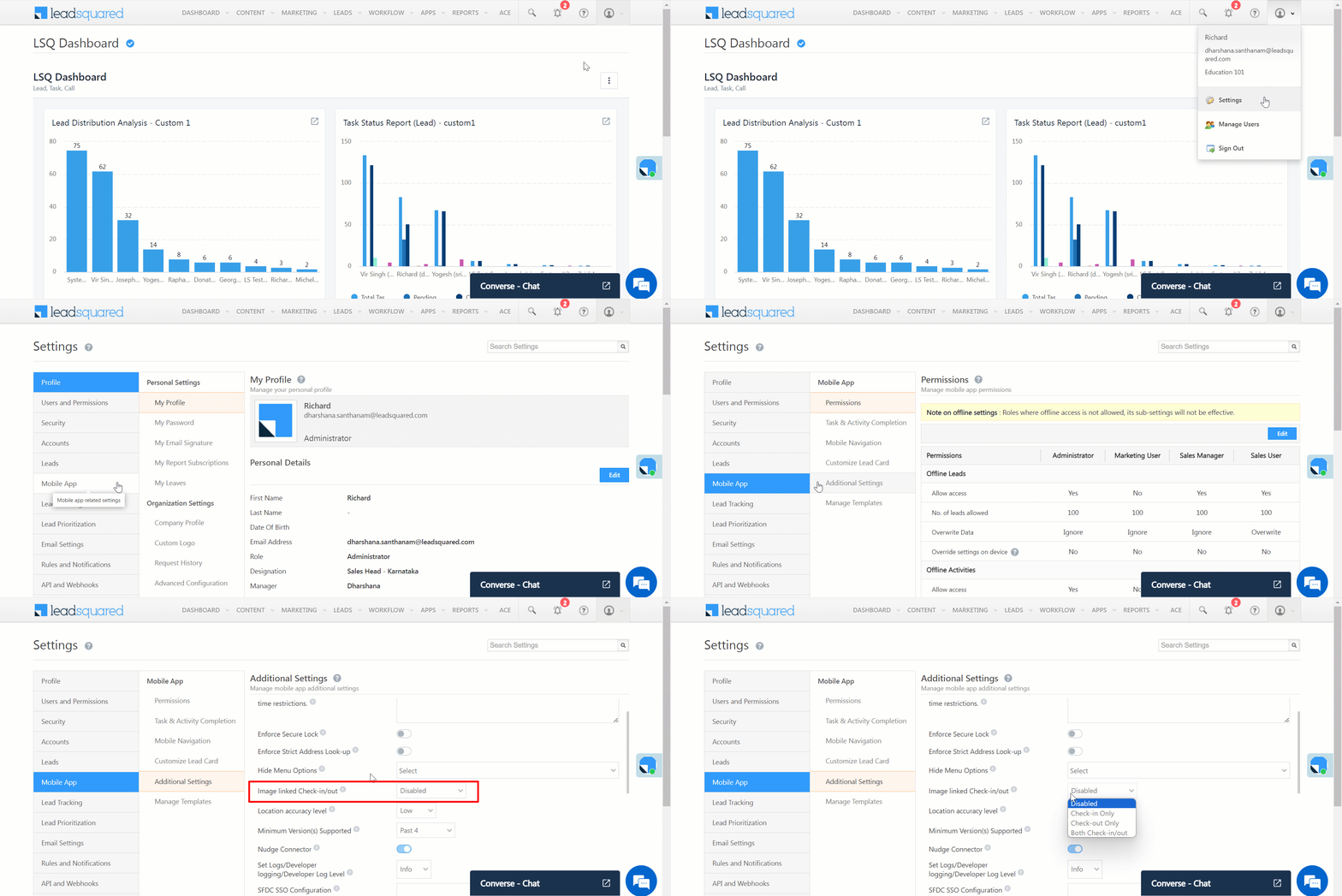
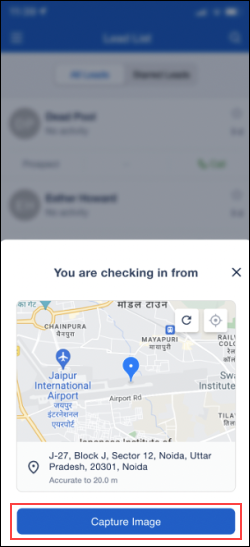
Opportunity Routing Management


Next Steps

  • Set up a Handover Node and transfer the chat conversation to a group of agents in your organization on LeadSquared Chatbot.
  • Route an incoming Opportunity to the relevant Lead Owner, Opportunity Owner, Chat Group, Admin, or Specific User on LeadSquared Converse.


Any Questions?

Did you find this article helpful? Please let us know any feedback you may have in the comments section below. We’d love to hear from you and help you out!

Image Linked Check-in and Check-out

1. Feature Overview

Admins can enable the Image linked Check-in/out setting for a more stringent approach to attendance registration. With this feature, users will be asked to capture a photo of themselves (selfie) during the check-in/check-out process.

Note: Image validation is currently not supported. The images captured during check-in/out are not included in the reports yet. To receive reports of the pictures captured by your users, contact your account manager or reach out to support@leadsquared.com.


2. Enable Image Linked Check-in and Check-out

To enable this feature –

  1. Navigate to My Profile>Settings>Mobile App>Additional Settings.
  2. Under App Related, alongside Image linked Check-in/out, click the dropdown and select the relevant option –
    • Check-in only – image capture will be mandatory only during check-in.
    • Check-out only – image capture will be mandatory only during check-out.
    • Both Check-in and Check-out – image capture will be mandatory during check-in and check-out.
Note: Set the Location Tracking Accuracy as V2-High for this feature to work.

LeadSquared - Image linked check-in and check-out


3. Face Detection During Check-in

  • When users tap the Capture Image button, the front camera opens automatically.
  • The system immediately attempts to detect a face in the image. If no face is detected within 3 seconds, an error message “Face not detected” is displayed, and the capture button remains disabled until a face is detected. This ensures that only valid selfies are captured.
  • Once a face is successfully detected, users can proceed to capture the selfie and complete the check-in or check-out process securely.

LeadSquared - Image capture


Any Questions?

Did you find this article helpful? Please let us know any feedback you may have in the comments section below. We’d love to hear from you and help you out!

How to Add Buttons to a Dynamic Form

1. Feature Overview

This article will help you add Buttons to your Dynamic Form.


2. Prerequisites

  • To create a Dynamic Form, refer to How to Create a Form.
  • The Button Special Field can be rendered only in NextGen and LeadSquared Mobile Application.


3. Use Case

Buttons on a Dynamic Form can be used to validate PAN/Aadhar cards, apply coupon codes, make payments, etc.

pan verification through button field on forms


4. Add a Button Field

  1. On the Form Designer, click on the Special Fields drop-down and add a Button field to your form.
  2. Now, you can edit its field properties –
    • Button Name – Enter the button’s field name.
    • Button Text – Enter the display name for the button.
    • Success Message – Enter a message to display on successful response.
    • Error Message – Enter a message to display on failure.
    • Hide by default – You can choose to hide the button during form load and can be made visible again through form rules.

Note: 

  • A maximum of 2 Buttons can only be used per Form. To increase the number of buttons, reach out to support@leadsquared.com.
  • Success and Error messages support personalization tags like {{Lead.FirstName}} and can be up to 150 characters.
  • A button will remain in the Success state till the conditions (if any) associated with the ‘Button on Click’ condition are re-satisfied.
  • A button will remain in a Failure state after 3 failure attempts.
  • Save Button in Form will be disabled while the Actions in Button on Click Rule are executing.

add button to form


5. Configure Button Rules

For example, the button field can be used to verify a customer’s PAN Number. Through Form rules, you can set up conditions to show the button when the PAN field has data, and on clicking the button, a Lapp is called to validate this data. The validation response can then be posted on a field in the form.

special field button pan validation rules


Any Questions?

We’d love to answer your questions or hear your own unique use cases. Feel free to share your experiences in the comments section below.

Integrate MDT Personalized Video with LeadSquared

1. Feature Overview

MDT Marketing has made it simple to deliver personalized videos to your prospective students to boost engagement and optimize conversion rates. When a new lead is created in LeadSquared, this connector pushes the lead data to MDT Marketing. MDT Marketing renders a coordinating personalized video, and the video URL is automatically appended against the lead in LeadSquared. 

These personalized videos can be applied to email and text campaigns sent to your leads.


2. Prerequisites

  • You must be the Administrator of your LeadSquared account.
  • You must have an active MDT Marketing account.
  • This is a paid feature. To enable it, reach out to your account manager, or write to support@mdtmarketing.com.


3. How it Works

To push leads from LeadSquared to your MDT account, configure the MDT Personalized Video connector. Once configured, enable the connector sync.

During configuration, a webhook URL is generated in LeadSquared. Copy this URL and configure it through LeadSquared Automation to automatically send new lead details to MDT Marketing.


4. Installation

You must first install and configure the MDT connector.

  1. Navigate to Apps>Apps Marketplace.
  2. Search for MDT Personalized Video, and click Install.
    • Alternatively, you can find the connector on the left panel, under Marketing Connector.
  3. Once installed, hover your cursor over , and click Configure.

mdt click config

4.1 Configure the connector

Once you’ve installed the connector, on the Configure MDT Personalized Video pop-up, configure the connector access for the non-Admin users in your account. Only those users for whom access is granted can view and access the connector (under the Apps main menu).

  1. Select if you want to grant Connector Access that’s Based on Role or Advanced (User Level).
    • Based on Role – From the Specify Roles dropdown, select the LeadSquared user roles that can use the connector.
    • Advanced (User Level) – From the Advanced (User Level) dropdown, select a user boolean field. Based on the value entered in the selected boolean field, the user can access the connector (e.g., for the user Sam, if the “Is Employee” boolean user field contains the value “Yes”, then this user can access the connector).
  2. Once you’re done, click Save Details. To continue the configuration, refer to the below sections.
Note: By default, all Admin users will have access to the connector.
mdt config


5. Admin Configuration

To continue the connector configuration, navigate to Apps>MDT Personalized Video.

MDT

5.1 Basic Settings

Enter the following details –

Property Description
AccountID Pass your MDT account ID here.
Lead Source Enter the lead source through which the leads were captured (e.g., MDT, email campaign, etc.). This detail will be displayed on the Lead Details page, under Lead Source.
Default Country Code If the lead’s mobile number is captured without a country code, the default country code that’s selected from the dropdown will be added to the lead’s mobile number.
Select Time Zone The time zone followed in your MDT account.
Lead Capture Search By Criteria To avoid duplicate leads, you must select one unique lead field (e.g., email Id, mobile number, PAN number, etc.) as the search key. This is used to identify the leads pushed from MDT.

To know how to mark a LeadSquared lead field as unique, please refer to How to Make a Custom Field Unique.

Lead Capture Secondary Search By Criteria If lead identification and capture through the primary Search By criteria fails, it will be re-attempted using the secondary Search By criteria.
Select User to Notify on Failure If there is an error in fetching leads, the selected user will receive a failure message via email. You can select a user from the list of all the users available in your LeadSquared account.

To know more about the type of errors, please refer to Error Notifications.

Enable Notification To ensure notification emails are sent to the selected user when there’s a failed query, enable the Checkbox checkbox.

Once you’ve entered all the details, click Save & Next.

mdt basic


5.2 Entity Options

Define the sync behavior of the connector when leads are captured.

5.2.1 Lead/Contact Entity

Lead capture is enabled by default, and it cannot be disabled.

Note: This connector simply sends your lead data to MDT Marketing and creates a personalized video. The Sync Behaviour is by default set to Do Nothing. It is recommended you don’t change this to any other setting.
Click Save & Next.

mdt lead sync

5.3 Generate Webhook URL

After you provide basic details and finish field mapping, a custom webhook URL is generated. To automate lead capture, copy this URL and configure it through Automations (refer to the next section).

After you’ve set up the webhook, click More Actions, and enable the sync job.

Note: 

  • You will find the personalized video URL under the Photo Url lead field on your lead details page.
  • To view logs of all the sync jobs that have taken place, from the More Actions dropdown, click View Logs.

mdt webhook


6. Create an Automation

Use the Webhook URL to create an automation that sends the lead details to MDT for video creation.

  1. Navigate to Workflow>Automation, click Create Automation, and select the New Lead trigger.
  2. On the Automation starts when a lead is added pop-up –
    • Click +Add Conditions.
    • The Automation should run for new leads that have an email address, so, add a criteria that checks the email lead field contains data.
    • Once you’re done, click Save.
  3. Click Add Automation, and under Custom, click Webhook.
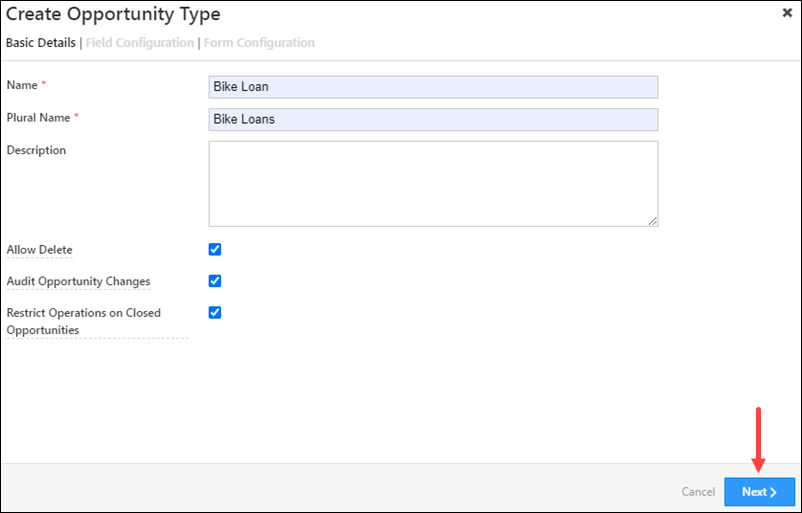
  4. On the Webhook pop-up, enter the following details –
    • Name – Enter a relevant name for the webhook.
    • URL – Select the method as https://, and paste the connector’s webhook URL that was generated in the previous step. Ensure you remove “https://” from the URL.
    • Content Type – Select application/json.
    • Save Response – You can select either Yes or No.
    • Custom Headers – You can skip this step.
    • Notify on Failure – Select which user you want to notify if the webhook fails.
    • Retry Count – The number of times you want to retry when the webhook fails.
  5. Once you’re done, click Save, and then click Publish.
Note: To know more about the Webhook action, refer to User Automation Actions – Webhook.

mdt webhook automation


7. MDT Registration Form

Next, navigate back to the MDT Personalized Video connector. On the last tab (MDT Registration Form), fill out the form to complete a one-time registration with MDT. The form will include your business details and a template for your personalized videos.

Note:

mdt registration form


8. Access Video URL

You will find the personalized video URL under the Photo Url lead field on your lead details page. Once a lead is created in LeadSquared, the Photo Url field will be populated within 10 minutes.

mdt access video


9. Other Actions

You can edit or delete the MDT connector instance that you created. To do this –

  1. Navigate to Apps>App Marketplace.
  2. Search for MDT Personalized Video.
  3. Alongside the MDT Personalized Video connector, hover your cursor over .
  4. From the list of options, you can perform the following actions –
    • Edit Configuration
    • Disable Configuration
    • Remove Configuration

mdt other actions


Any Questions?

Did you find this article helpful? Please let us know any feedback you may have in the comments section below. We’d love to hear from you and help you out!

Opportunity Configurations

1. Feature Overview

Opportunities in LeadSquared represent potential deals. Through opportunity management, you can track various aspects of deals in progress. This article will help you understand how to create forms for multiple opportunity types, configure opportunity types, and add opportunities to your leads. To know more about opportunities, refer to Opportunity Management – Feature Guide.


2. Prerequisites

You must be the Administrator of your LeadSquared account to access this feature.


3. Manage Opportunity Types

Manage all your opportunities here, and create different fields, forms, stages and statuses for each opportunity type. Hover your cursor alongside the settings icon (under the Actions column) to edit, delete or clone an opportunity type.

LeadSquared Opportunity Management


4. Create New Opportunity Types

Opportunity types are templates you can create for the various products your business offers. Once an opportunity type is created, users can add leads to opportunities, and track these to completion. Examples of  opportunity types for a bank are –

  • Home loan
  • Vehicle loan
  • Health insurance
  • Credit cards
  • Fixed Deposit

You can add and configure multiple opportunity types for your organization.

  1. From the main menu, navigate to My Profile>Settings>Opportunities.
  2. Under the Opportunity Types tab, click Create.
  3. Under Create Opportunity Type, you’ll have three tabs – Basic Details, Field Configuration and Form Configuration.

Opportunities

 4.1 Basic Details

These are the basic details that are required to create an opportunity. The fields are –

Field Name Description
Name The name for your opportunity (Car Loan, Course, etc.). This field is mandatory.
Plural Name The plural name for your opportunity (Car Loans, Courses, etc.). This field is mandatory.
Description A description to help your team understand the Opportunity better.
Allow Delete To give non-Admin users permission to delete the Opportunity, check the Checkbox checkbox.
Audit Opportunity Changes To keep a log of all the changes and updates made to the Opportunity, check the Checkbox checkbox.
Restrict Operations on Closed Opportunities To prevent non-Admin users from making updates, or posting activities/tasks to a closed opportunity, check the Checkbox checkbox.

Note:

  • You must follow the above steps to update an existing opportunity.
  • To Restrict Operations on Closed Opportunities, enable the Enables restricting Operations on Closed Opportunities (Won/Lost) Organization Setting.

Once you’re done, click Next.

LeadSquared Opportunity Management

4.2 Field Configuration

Add custom fields that have to be filled out by your users while managing opportunities.

Status Configuration

You can track the current status of the opportunity in the sales funnel through Status Configuration. To configure it, click on the Settings icon icon.

  • The three statuses available by default are “Open“, “Won” and “Lost“. You cannot delete or edit these options, and you also cannot add any other status as an option.
  • Create a list of reasons for changes in each status, under Status – Reason. You can list down multiple reasons for each status. Users can select a reason from the list every time they update an opportunity status. This will help all the stakeholders track the opportunity to completion. To configure Status – Reasons
    • Add reasons for status change –
      1. Select the status for which you want to add reasons, and click the Add button found at the bottom of the page.
      2. Add reasons that are indicative of status change.
      3. Once you’ve added a reason, click the icon to save it.
      4. Repeat the same process to add multiple reasons.
    • The number in a bracket next to the status indicates the number of reasons listed for that particular status.
    • To edit an existing reason, click the Edit icon.
    • To delete an existing reason, click the delete icon.
    • To change the order of the reasons listed, use the Up Arrow and Down Arrow arrows.
  • To enable user comments while changing the opportunity status, check Checkbox Enable Comments checkbox.*
  • To set a default status for new opportunities, from the Default Status dropdown, select the status.
  • To set a default stage for new opportunities, from the Default Stage dropdown, select the stage.
  • Once you’re done, click Save.

Note:

  • * When comments are enabled, it becomes mandatory for users to enter comments when changing the status of the opportunity (across both the UI and APIs).
  • To set a Default Status and Default Stage for new opportunities, enable the Enable Default Status And Stage Organization Setting.

LeadSquared Opportunities

Field Configuration

  • A default number of fields are pre-selected. These fields are mandatory.
  • You can use the Add Field button at the bottom of the page to select multiple custom fields, depending on your requirement.
  • Under Mandatory, tick the checkboxes for mandatory fields that your users must populate.
  • To delete a field that you’ve added, click the delete icon against the field.
  • Once you are done, click Next.

Opportunity

You can also configure opportunity dropdown fields to automatically add new dropdown values sent through APIs, opportunity imports and the Update Opportunity card in Automation. To do this –

  1. Click on the icon against a dropdown field.
  2. On the Enter Dropdown Options pop-up, click the Checkbox checkbox against Allow Auto Update.
  3. Once you’re done, click Save.

Note: The Allow Auto Update feature is not support updating the field through dynamic form rules.

Field Data Types

The following data types are available by default, which can be used to configure custom opportunity fields –

  • Number
  • String
  • DateTime
  • Dropdown
  • User

LeadSquared Opportunity Management

You can also use the following additional data types to configure custom opportunity fields. To enable these data types on your account, refer to Advanced Configurations.

  • Phone – This data type stores phone numbers.
  • Email – This data type stores email Ids.
  • Date – This data type stores dates (and not time).
  • Geolocation – This data type stores geographic locations. Any location (MG Road, Indira Nagar, etc.) entered in this field can be previewed on the Opportunity Details page.

LeadSquared Opportunity Management

  • AutoID – A unique ID is automatically generated for each opportunity. This Id can be used to bulk update, import, retrieve, and delete opportunities through the Opportunity Management APIs.

LeadSquared Opportunity Management

4.3 Form Configuration

Create forms to enable your users to capture opportunity details. To know more, refer to

In this section, you can edit two types of forms – the default form and the left panel form.

Default Form

  • Under Select Form to Edit, choose “Create”.
  • There are four mandatory fields – “Created On”, “Opportunity Name”, “Owner” and “Status”. These fields cannot be deleted.
  • You can add other custom fields, through drag and drop from the list of available fields on the right side of your page.
  • You can add multiple sections to the form. To do this, scroll to the bottom of the page and click Add Section.

Opportunity

To access the form, from the main menu, navigate to Leads>Manage Opportunities, and click the Add Opportunity button, available on the right side of the screen.

Opportunity

Left Panel Form

  • Under Select Form to Edit, choose “Left Panel”.
  • Select a colour for the tab by clicking the Opportunity dropdown.
    • Along with the VCard, this colour will be visible on the Activities History tab on the Lead Details page, to help users identify all activities associated with the opportunity.
  • The two mandatory fields are First Name and Last Name.
  • You can remove existing fields by clicking the icon.
  • You can drag and drop fields from Available Fields, on the right side of the screen. You can only add fields that are available for the Opportunity.
  • Under Available Fields, you can search from your list of Lead Fields. To do this, choose Lead Fields from the dropdown.
    Note: You cannot add Lead Fields to the VCard. You can only add it to the Related Lead section.
  • Once you’re done, click Save.

Opportunity

To access the form, from the main menu, navigate to Leads>Manage Opportunities, and click on a lead on whom the Opportunity was created. On the Lead Details page, you can find the Left Panel. To edit the opportunity, hover your cursor on the top right corner of the VCard, and click the Edit icon.

Opportunity

To know how to manage opportunities, and perform multiple actions on them, such as updates, exports and reset filters, refer to Opportunity Management.


5. FAQs

Unable to Edit or Perform Activities on Opportunities

  • Issue: I’m unable to update opportunities or perform activities on them, even though I have the necessary permissions via permission templates.
  • Possible Causes:
    • Closed Opportunity: The issue may arise if the opportunity is in a Closed status (Won or Lost), and operations are disabled on closed opportunities.
    • Advanced Configuration Settings:
      • If the Advanced Configuration setting for restricting updates on closed opportunities is enabled, users will be unable to update or post activities/tasks on closed opportunities.
  • Solution:
    • Disable the Restrict operations on closed opportunities advanced configuration setting.

LeadSquared Opportunity Management

    • Disable the Restrict Operations on Closed Opportunities setting in the opportunity type configuration

LeadSquared Opportunity Management


Any Questions?

Did you find this article helpful? Please let us know any feedback you may have in the comments section below. We’d love to hear from you and help you out!

UTC Telephony Feasibility

1. Feature Overview

This article provides a feasibility checklist for integrating the customer’s telephony provider using LeadSquared’s Universal Telephony Connector.

The article details a checklist questionnaire for UTC features, namely: Outbound Calls, Agent Popup, Agent Panel, Call Log, Call Disposition, and Call Routing. It also includes a checklist for certain general questions.

Note:  The most common features our customers request are Click2Call, Agent Popup, and Call Log.


2. General Questions

1. Checklist questions when customers are integrating with LeadSquared’s Opportunities.

Checklist Question Customer Response Follow up Questions LeadSquared Response
Is the customer looking for Opportunity Integration? Yes Is the customer okay with the activity being posted on the lead? There is nothing additional required from the customer. This is the default behavior.
Does the customer need the phone call activity to be posted on the Opportunity for outbound calls? We pass the OpportunityTelephonyMappingId to your Telephony Provider. They should be able to pass it back in the Agent Popup and Call Log requests.
Does the customer need the phone call activity to be posted on the Opportunity for inbound calls? Agent popup becomes mandatory. Your Telephony Provider needs to invoke Agent Popup with a call session ID for every call. The same session ID should be passed in the subsequent call log request.
Is the customer looking for Opportunity Integration? No Phone call activity will be posted on the lead.


2. Checklist question for whitelisting LeadSquared IPs.

Checklist Question Customer Response LeadSquared Response
Does the customer’s telephony provider have a firewall blocking LeadSquared Traffic? Yes The customer’s Telephony Provider must whitelist LeadSquared IPs.


3. Outbound Calls

1. Checklist questions when customers are automating outbound calls.

Note: During outbound calls, LeadSquared only pushes leads to the customer’s telephony provider – dialing (predictive, progressive, etc.) has to be initiated by the telephony provider.
Checklist Question Customer Response LeadSquared Response
Does the customer’s telephony provider have an API to receive a list of phone numbers? Yes, to call only 1 lead at a time. If the customer is using Opportunities, Opportunity ID should also be passed to the provider.
Yes, to call multiple leads at once.
  • Customers must check if there is a limit on the number of leads.
  • If the customer is using Opportunities, Opportunity ID must also be passed to the provider.
  • ULC is the recommended way to push leads to your Telephony Provider.
  • The Leads can also be pushed to your Telephony provider through a List.


2. Checklist question when customers are doing outbound calls manually (Click2Call).

Checklist Question Customer Response  LeadSquared Response
Does the customer need client-side manual outbound calling? Yes The customer’s telephony provider must support Javascript-based calling from the browser.


Checklist Question Customer Response LeadSquared Response Follow Up Question LeadSquared Response
Does the customer need server-side manual outbound calling? Yes
  • The customer’s telephony provider must have a ReST endpoint for calling
  • Certain telephony providers have mandatory virtual numbers. Virtual number/DID/Display Number/Caller ID are terms used interchangeably; customers should buy these from their providers and add them to the Virtual Numbers tab of UTC.


What parameters does the customer’s telephony provider need to connect the call?
  • LeadSquared has an exhustive list of mail-merge paramters.
  • If the customer is using Opportunities, Opportunity ID should also be passed to the provider.
What is the response type of the customer’s telephony provider?
  • LeadSquared supports JSON and Text.
  • Nested JSONs are not supported.


4. Agent Popup

1. Checklist questions for customers when they need Agent Popup.

Note: 

  • For Opportunities support, Agent Popup becomes mandatory in the case of inbound calls.
  • Some customers only need lead redirection instead of a screen popup.
  • The telephony provider can customize key names in the request payload through custom mapping.
Checklist Question Customer Response LeadSquared Response  Follow up Question LeadSquared Response
Does the customer’s telephony provider have the ability to call LeadSquared’s APIs at particular events? Yes, but the provider only supports GET requests.
  • The customer should have a custom code and call LeadSquared’s API to retrieve lead details by phone number.
  • The provider should open the lead details URL when the call connects.


Yes, the provider supports POST API requests. Does the customer want this ability for both inbound and outbound calling? The customer’s telephony provider should support calling LeadSquared’s Agent pop-up API in case of call events like Call Ringing or Call Connected.


Checklist Question Customer Response LeadSquared Response
How does the customer’s telephony provider identify an agent? Through Email/SIP ID/Extension
  • User Agent mapping needs to be configured.
  • The identifier should be passed in the Agent ID parameter. This is prioritized over the agent’s number.
Through phone number Pass the agent’s number in the Source or Destination numbers based on the Direction of the call.


5. Agent Panel

1. Checklist questions when the customers need an Agent Panel.

Note: Browser refresh will disconnect ongoing calls in softphone in the case of most telephony providers. Some providers will allow the call to proceed if there are multiple browser tabs already open.
Checklist Question Customer Response  LeadSquared Response
Does the customer’s telephony provider have a web app that can be used as a softphone? Yes
  • The web app needs to be integrated into LeadSquared’s Agent Panel.
  • Relevant permissions for the iframe have to be provided under the Agent Panel configuration.
  • In the case of Single-sign on/Authentication –
    • By default, separate logins are required for LeadSquared and Agent Panel.
    • Third-party authentication (OAuth2, etc.) is not available.
    • if the telephony provider has user-level tokens for authentication, then they can be stored in a user field and mail merged in the iframe URL. The provider will have to authenticate this at their end.


6. Call Log

1. Checklist questions for Call Logs.

Note:

  • The customer’s telephony providers should have the ability to interchange Source and Destination numbers based on the direction (inbound/outbound) of the call.
  • Call recordings are owned by the telephony providers. Only the URL needs to be sent in the call log request and the same is embedded in LSQ.
  • For posting on opportunities, the telephony provider should send a call log request with the same call session ID as the agent pop-up.
  • the telephony provider can customize key names in the request payload through custom mapping.


Checklist Question Customer Response LeadSquared Response
Does the customer require international calling? Yes
  • The telephony provider must have the ability in the E 164 Format. [+<CountryCode>-<PhoneNumber>] or [+<CountryCode><PhoneNumber>]
  • Enable phone formatting in the LeadSquared account. You will need to raise a support ticket to enable this feature.


Checklist Question Customer Response LeadSquared Response
Does the customer’s telephony provider have the ability to pass the start time of a call in IST? Yes Use StartTime paramater.
No Use StartTimeUTC parameter.


Checklist Question Customer Response LeadSquared Response
How does the customer’s telephony provider identify an agent? Through Email/SIP ID/Extension
  • User Agent mapping needs to be configured.
  • The identifier should be passed in the Agent ID parameter. This is prioritized over the agent’s number.
Through phone number Pass the agent’s number in the Source or Destination numbers based on the Direction of the call.


7. Call Disposition

1. Checklist questions when the customers need Call Disposition.

Checklist Question Customer Response LeadSquared Response
Does the customer want the Call Disposition feature? Yes
  • The customer’s telephony provider must have a ReST endpoint for disposition.
  • There is a list of mail merge parameters available to the customers. These are not the same as the ones available in the Click2Call feature.


8. Call Routing

1. Checklist questions when the customer needs Call Routing.

Checklist Question Customer Response LeadSquared Response
Does the customer want the Call Routing feature? Yes
  • Certain telephony providers will have a Sticky Agent/Call Routing logic at their own end. Customers are advised to check with their telephony providers.
  • If call routing has to be done through LeadSquared, then the customer’s telephony provider should have the ability to call a GET API to fetch the lead owner’s phone number.
  • If the telephony provider requires details in addition to the lead owner’s phone number, an additional flag agentinfo can be passed.
  • If the telephony provider supports IVR in their workflow, then the Virtual Number and IVR Mapping option can be used to filter Opportunities by type.


Any Questions?

Did you find this article helpful? Please let us know any feedback you may have in the comments section below. We’d love to hear from you and help you out!

LeadSquared WhatsApp Integration with DoubleTick

1. Feature Overview

DoubleTick’s WhatsApp self-serve solution helps you engage your customers simply, securely and reliably. DoubleTick facilitates customer support and other marketing efforts through WhatsApp. If you’re using DoubleTick APIs, this article will help you integrate with LeadSquared to avail WhatsApp messaging functionality right within the platform.

We also support WhatsApp integrations through other service providers like Infobip, Zoko, Kaleyra, Wati, and Gupshup.


2. Prerequisites

If you’re not familiar with LeadSquared’s WhatsApp integration, see WhatsApp Business Messaging Connector. For frequently asked questions, see WhatsApp Business FAQs.

  1. Get an approved WhatsApp Business Number and Account.
  2. An active DoubleTick account.
  3. To enable the DoubleTick integration on your account, contact your account manager, or write to support@leadsquared.com.


3. Installation

For installation, refer to WhatsApp Business Messaging Connector.


4. Configuration

Once the connector is installed, add and configure your WhatsApp phone numbers to the connector.

4.1 Basic Details

WhatsApp Zoko LeadSquared Integration

Field Description
WhatsApp Business Number Select the country code, and provide your WhatsApp business number. This field is mandatory.
To get your WhatsApp business number, contact your Meta account representative or support team.
Account Name Provide a relevant name for your connector. This field is mandatory.
Allow Lead Generation on incoming message EnableSlider to allow automatic lead creation when you receive messages from unknown mobile numbers.
Lead Source From the dropdown, select a lead source for your leads.

Once you’re done, click Next.


4.2 Service Provider

From the available options, select WhatsApp Cloud, and click Next.


4.3 Authentication Set-up

On this screen, enter –

  • Send Message URL – Pass the following URL – https://public.doubletick.io/cloud-api/messages
  • Permanent Access Token – To obtain this, login to your DoubleTick account, and navigate to Settings>Developer API, and click the Copy key button.
  • WhatsApp Business Account ID – You’re not required to pass anything here. Please leave this blank.
  • Authentication Header Template – Pass the following value – {{Token}}. Please pass this as is. Any changes made here will result in failure.
  • Get Media URL – Pass the following value – https://public.doubletick.io/cloud-api/{{mediaId}}. Please pass this as is. Any changes made here will result in failure.

Once you’re done entering all the details on the LeadSquared WhatsApp configuration pop-up, click Next.


4.4 Converse Settings

LeadSquared Converse is an instant messaging feature that allows you to have real-time conversations with your leads via WhatsApp.

LeadSquared WhatsApp Integration

To integrate LeadSquared Converse with WhatsApp, complete the following steps –

  1. On the Converse Settings tab, toggle the Enable Converse Slider slider.
  2. Under User Access, grant permissions to users who can communicate with leads through the LeadSquared Converse.
    • Based on Role – From the Search and Select Users dropdown, select the LeadSquared user roles that can send messages through LeadSquared Converse.
    • Advanced (User Level) – Based on the value entered in the selected user boolean field (e.g., for the user Sam, the “Is Employee” user field contains the value “Yes”), the user will be able to send messages through LeadSquared Converse. From the Select User Field dropdown, select a relevant boolean field.
  3. Functionality – The following additional settings must be configured –
    • Approved Templates – Enable this functionality to allow your users to send approved WhatsApp templates to your leads.
    • Unapproved Templates – Enable this functionality to allow your users to send unapproved WhatsApp templates to your leads. These can only be sent if the 24-hours service window is active.
    • Notify Lead Owner* – When enabled, only lead owners will get notifications of the WhatsApp messages a lead sends. When disabled, all logged-in users will receive notifications of these WhatsApp messages.
    • Sending Rich Media – Enable this functionality to allow your users to send media files in the WhatsApp messages.

Note:

  • *Message notifications are only sent to one user, i.e., either the Lead Owner or to the user (other than the Lead Owner) that sent the WhatsApp message to the lead. When the Notify Lead Owner setting is enabled, only the Lead Owner will get notified, while the user who sent the message will not get a notification.
  • If you enable the Send Rich Media option, you must also enable the Approved Templates option. This ensures that you can add your media files to a template when messaging your leads.

LeadSquared Gupshup Integration


4.5 Advanced Settings

On this screen, provide the following details –

Interakt LeadSquared Integration

  • Activity Mapping – A LeadSquared activity field to capture your WhatsApp messages. This is the activity that will be posted every time a WhatsApp message is sent or received.
  • Default WhatsApp Number Fields – The number you set as the default phone number will be automatically selected when you’re sending a WhatsApp message to a lead. You can also select other numbers that are available from the Add Another Number dropdown.
  • Default Country Code – The default country code will be used to send messages to a phone number that’s stored in a custom field, if no country code is listed.
  • Enable Rich Media Template Support – If you want to include media files in your WhatsApp message, you must enable the Slider slider.
  • Show URL Preview in Custom Messages – Enable the sliderSlider to allow for URL previews in non-templatized WhatsApp messages.
  • Compliance Type – Here, you can select the compliance type for the WhatsApp template, by choosing either WhatsApp Opt-out or Opt-in.
  • WhatsApp Opt-out – Your leads can opt-in or out of receiving WhatsApp messages on the basis of this field. From the dropdown, select a LeadSquared lead field for the WhatsApp opt-in/opt-out functionality.
  • Blacklist Incoming Messages – If required, you can enable this option to blacklist incoming messages from specific numbers. This is useful when you want to block numbers that send inappropriate messages to your users. Once enabled, enter the phone numbers in the text box available on the right side of your screen. You can add phone numbers with 7-12 digits (excluding the country code). This option is available only when the Allow Lead Generation on incoming messages setting is enabled.
Note: You must create a custom lead field of boolean type to map to the WhatsApp opt-out functionality. For example, you may create a custom lead field called “WhatsApp Opt Out”. Leads for whom the field is selected/checked won’t receive WhatsApp messages.

Click Save & Close when you’re done.

  • If your credentials are correct, you’ll see the success message highlighted below.
  • If they were incorrect, the integration will fail.


5. Webhook Configuration

To receive incoming messages from your leads, as well as to get the delivery status (Sent, Delivered, Read, or Failed) of your outbound messages, configure the LeadSquared webhook in your DoubleTick account.

In LeadSquared

  1. Once the configuration is completed and saved in your LeadSquared account, a webhook is generated.
  2. To access the webhook, navigate to Apps>Apps Marketplace, search for the WhatsApp Business Connector, and click Configure.
  3. On the Configure WhatsApp Business pop-up, select the DoubleTick integration.
  4. On the Authentication tab, you’ll find the webhook alongside Notifications Webhook URL. Copy this webhook.

LeadSquared Double Tick integration

In DoubleTick

  1. Login to your DoubleTick account, and navigate to Settings>Webhooks.
  2. On the Webhooks page, click New webhook.
  3. On the New webhook page, paste the webhook you copied from your LeadSquared account, and enable the checkbox alongside Raw Whatsapp Cloud API Webhook.
  4. Once you’re done, click Save Webhook.

You should now receive incoming messages and the delivery status of your outbound messages.

LeadSquared Double Tick integration


6. Add Templates in LeadSquared

To add existing DoubleTick templates to your LeadSquared account –

  1. Login to your DoubleTick account.
  2. From the left-menu, navigate to Templates.
  3. On the Templates screen, copy the templates you want to add to your LeadSquared account.
  4. Then, to add these templates to LeadSquared, refer to Adding WhatsApp Templates to LeadSquared.

LeadSquared WhatsApp DoubleTick Integration


6. Conversing with Leads via WhatsApp

Integrating Converse with LeadSquared’s WhatsApp connector will enable your users to have real-time conversations with your leads through WhatsApp. Using templatized messages, you’ll be able to attach and send media files (such as images, documents, etc.) in your conversations. To know more, refer to LeadSquared Converse.

LeadSquared WhatsApp Integration


7. Next Steps

Once the connector is successfully installed, you can proceed to add WhatsApp templates and finally message your leads. For details, see Adding WhatsApp Templates to LeadSquared.


Any Questions?

Did you find this article helpful? Please let us know any feedback you may have in the comments section below. We’d love to hear from you and help you out!

Juspay Payment Status Connector

1. Feature Overview

Once a Juspay payment link is generated using the Juspay Payment Link Generation connector, you can track the status of these payment links using the Juspay Payment Status Connector.

Note:

  • This connector only generates payment links, which can be used by existing leads in your LeadSquared account.
  • This connector DOES NOT capture and create new leads in your LeadSquared account.
  • It DOES NOT generate payment links. It only captures the payment status.

Juspay Payment LeadSquared connector


2. Prerequisites

  • You must be the Administrator of your LeadSquared account.
  • You must have an active Juspay account.
  • This is a paid feature. To enable it, reach out to your account manager, or write to support@leadsquared.com.


3. How it Works

  1. Install and configure the Juspay Payment Status connector
    As part of the connector configuration, two custom activities are automatically created – Check Juspay payment status (uses the Order ID to check the payment status) and Juspay payment status (this fetches the order and payment information from your Juspay account). When the connector is enabled, a webhook URL is generated. Copy this URL.
  2. Create an automation
    Use the New Activity on Lead Trigger, and select the Check Juspay payment status activity as the automation event trigger. Add a Webhook action to this automation, paste the connector’s webhook URL to this automation action, and publish the automation. This automation is used to generate the Juspay payment link.
  3. Post the activity
    Once the automation is published, post the Check Juspay payment status activity on the lead.

Once the Check Juspay payment status activity is posted, based on the automation you’ve set up, the Juspay Payment Status activity is automatically posted on the lead. This activity contains the order and payment details.


4. Install the Connector

  1. Navigate to Apps>Apps Marketplace.
  2. Search for Juspay Payment Status, and click Install.
    • Alternatively, you can find the connector on the left panel, under Payment Gateway.
  3. Once installed, hover your cursor over , and click Configure.


5. Configure the Connector

Once you’ve installed the connector, on the Configure Juspay Payment Status pop-up, configure the connector access for the non-Admin users in your account. Only those users for whom access is granted can view and access the connector (under the Apps main menu).

  1. Select if you want to grant Connector Access that’s Based on Role or Advanced (User Level).
    • Based on Role – From the Specify Roles dropdown, select the LeadSquared user roles that can use the connector.
    • Advanced (User Level) – From the Advanced (User Level) dropdown, select a user boolean field. Based on the value entered in the selected boolean field, the user can access the connector (e.g., for the user Sam, if the “Is Employee” boolean user field contains the value “Yes”, then this user can access the connector).
  2. Once you’re done, click Save Details. To continue the configuration, refer to the below sections.
Note: By default, all Admin users will have access to the connector.

Juspay Payment LeadSquared connector


6. Admin Configurations

To continue the connector configuration, navigate to Apps>Juspay Payment Status.

Juspay Payment LeadSquared connector

6.1 Basic Details

Enter the following details –

Juspay Payment LeadSquared connector

Property Description
Authorization
Your Juspay-merchant unique key. To obtain this, please contact your Juspay account manager.
Lead Source Enter the lead source through which the leads were captured (e.g., Juspay, email campaign, etc.). This detail will be displayed on the Lead Details page, under Lead Source.
Default Country Code If the lead’s mobile number is captured without a country code, then the default country code that’s selected from the dropdown will be added to the lead’s mobile number.
Select Time Zone The time zone of your Juspay account.
Lead Capture Search By Criteria To avoid creating duplicate leads, you must select one unique lead field (e.g., email Id, mobile number, PAN number, etc.) as the search key.

To know how to mark a LeadSquared lead field as unique, please refer to How to Make a Custom Field Unique.

Lead Capture Secondary Search By Criteria If lead identification and capture through the primary Search By Criteria fails, it will be re-attempted using the secondary Search By Criteria.
Select User to Notify on Failure If there is an error in fetching leads, the selected user will receive a failure message via email. You can select a user from the list of all the users available in your LeadSquared account.

To know more about the type of errors, please refer to Error Notifications.

Enable Notification To ensure notification emails are sent to the selected user when there’s a failed query, enable the Checkbox checkbox.

Once you’re done entering all the details, click Save & Next.


6.2 Mapping

Once you’re done with the basic settings, click Entity Options. By default, all the Juspay fields are mapped to the corresponding LeadSquared lead fields. You’ll have to complete two steps here –

  1. Enable Activity Creation* – Alongside Juspay payment status and Check Juspay payment status, click the Create Activity button.
  2. Edit Mapping – Alongside each action (Activity Entity, Payment Link Creation, and Lead/Contact Entity) click the Edit Mapping button to verify if the field mapping is accurate. Once verified, click Save & Close. This step is mandatory.
    If required, on the Edit Mapping pop-up, you can edit the field mapping –
  • To edit the Juspay mapping field name, click  , and under Mapping Key, edit the field name.
  • To change the LeadSquared lead field to which the Juspay field is mapped, click  , and from the Lead Field dropdown, select the new lead field.
  • To mark a unique lead field as the search key, click unique icon.
  • To disable an existing field mapping, alongside the field, disable the slider Zoom.
  • To map an additional field, click the Add Custom button, and add the new mapping field details.
  • To edit the Payment Link Creation API details, click  , and make the required changes.
  • If you want to capture any additional API response as part of the activity that’s posted on the lead, alongside Activity Entity, click Edit Mapping, and add the response on the Default Mapping for Activity pop-up.

Once you’re done, click Save & Next.

Note:

  • *Ensure you complete the Enable Activity Creation steps first, and only then complete the Edit Mapping steps.
  • On the Default Mapping for Activity screen, ensure the default activity is set to Juspay Payment Status.
  • You must mandatorily verify the mapping for Lead/Contact Entity, Payment Link Creation and Activity Entity, and click Save & Close for each action type (including alongside Lead/Contact Entity), in order to complete the Mapping.
  • Since this connector is capturing the payment details as an activity, the Sync Behaviour is by default set to Do Nothing. It is recommended you don’t change this to any other setting.

Juspay Payment LeadSquared connector


6.3 Webhook URL

After you provide basic details and finish field mapping, a custom webhook URL is generated. Copy this webhook URL, and use it to create an automation that will generate the payment links.

Juspay Payment LeadSquared connector


7. Create an Automation

Use the Webhook URL from the previous step to create an automation that generates the Juspay payment links.

  1. Navigate to Workflow>Automation, and click Create Automation, and select any Activity trigger. We’ve selected the New Activity on Lead trigger.
  2. On the Automation starts when an activity is added pop-up –
    • From the Select an activity dropdown, select the Check Juspay Payment Status activity.
    • Disable the checkbox alongside Run only once per lead. This is to ensure that if required, multiple payment links can be generated for the same lead.
    • Once you’re done, click Save.
  3. Click Add Automation, and under Custom, click Webhook.
  4. On the Webhook pop-up, enter the following details –
    • Name – Enter a relevant name for the webhook. We’re calling it “Check Juspay Payment Status”.
    • URL – Select the method as https://, and paste the connector’s webhook URL that was generated in the previous step. Before you paste the URL, ensure you remove “https://” from the URL.
    • Content Type – Select application/json.
    • Save Response – You can select either Yes or No.
    • Custom Headers – You can skip this step.
    • Notify on Failure – Select which user you want to notify if the webhook fails.
    • Retry Count – The number of times you want to retry when the webhook fails.
  5. Once you’re done, click Save, and then click Publish.
Note: To know more about the Webhook action, refer to User Automation Actions – Webhook.

Juspay Payment LeadSquared connector


8. Post an Activity

Once the webhook is configured in an automation, you can start posting the Check Juspay Payment Status activity on leads, which will in turn automatically post the Juspay Payment Link activity.

Note: This section is to help Sales Users check the payment status.
  1. Navigate to Leads>Manage Leads, and click on any lead.
  2. On the Lead Details page, click the Activity button. On the Add Notable Activity pop-up, enter the Order ID.
  3. Once you’re done, click Add. The Check Juspay Payment Status is posted on the lead.
  4. You’ll see the Check Juspay Payment Status activity has been posted on the lead (by the automation you set up). If you don’t see this, please refresh your page. This activity contains the payment status of the selected Order ID.

Juspay Payment LeadSquared connector


9. View Logs

Here, you can view logs of all the sync jobs that have taken place.

  1. Navigate to Apps>Check Juspay payment status, and click More Options, and then click View Logs.
  2. You can filter the logs by selecting a date range (Today, Last 7 Days, This Month, and Last Month), by selecting the Job Status (“All”, “Success” and “Failure”), and by selecting the Sync Status (All, Error, and Success).
  3. You can view the sync status of the following events –
    • New Events – List of all the new payment activities posted in your account.
    • Errors – The list of unsuccessful payment activities that have not been captured due to mapping errors (e.g., when a boolean field is mapped to an integer field, etc.).
  4. To view the Sync Response details, under Request ID/Sync Job ID, click the Id.
    • Under the right panel, you can view the response status, the API URL, the request, and the response.
    • The responses that are successful will contain the details of the leads that have been pushed by Juspay.
    • To view the lead capture response under Sync API Response, Leads Updated and Errors in Leads, click Information.

Note:

  • For a response that contains an error, the reason for the error is listed in the response. Once you fix it, you can click the Retry button to perform the sync again.
  • The current Lead/Activity Sync Behaviour will reflect in the Logs screen. This will help identify the sync that’s used (Capture or Update) for the selected Request/Sync Job Id.

Juspay Payment LeadSquared connector


Any Questions?

Did you find this article helpful? Please let us know any feedback you may have in the comments section below. We’d love to hear from you and help you out!