Email Settings – Recipients

1. Feature Overview

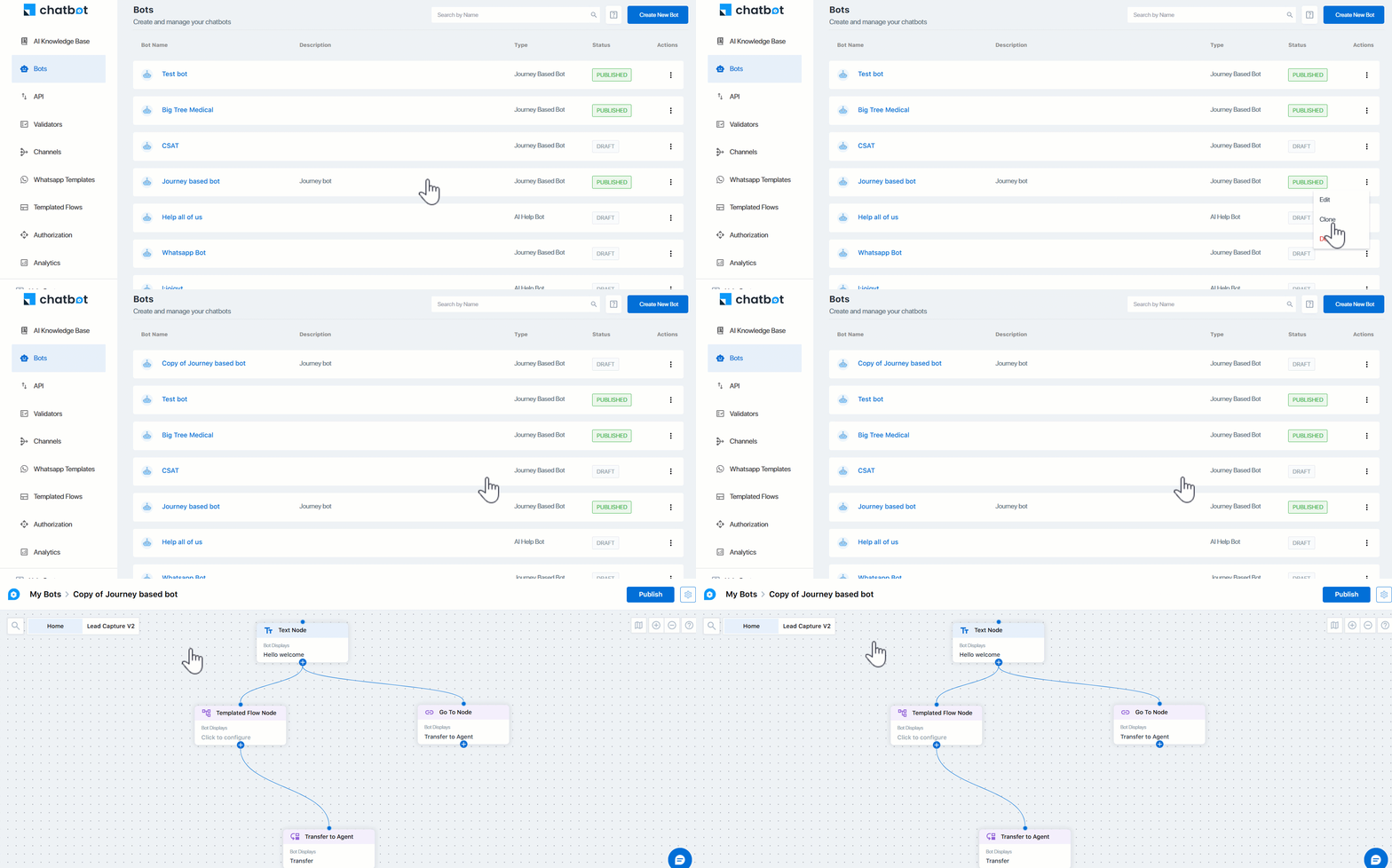
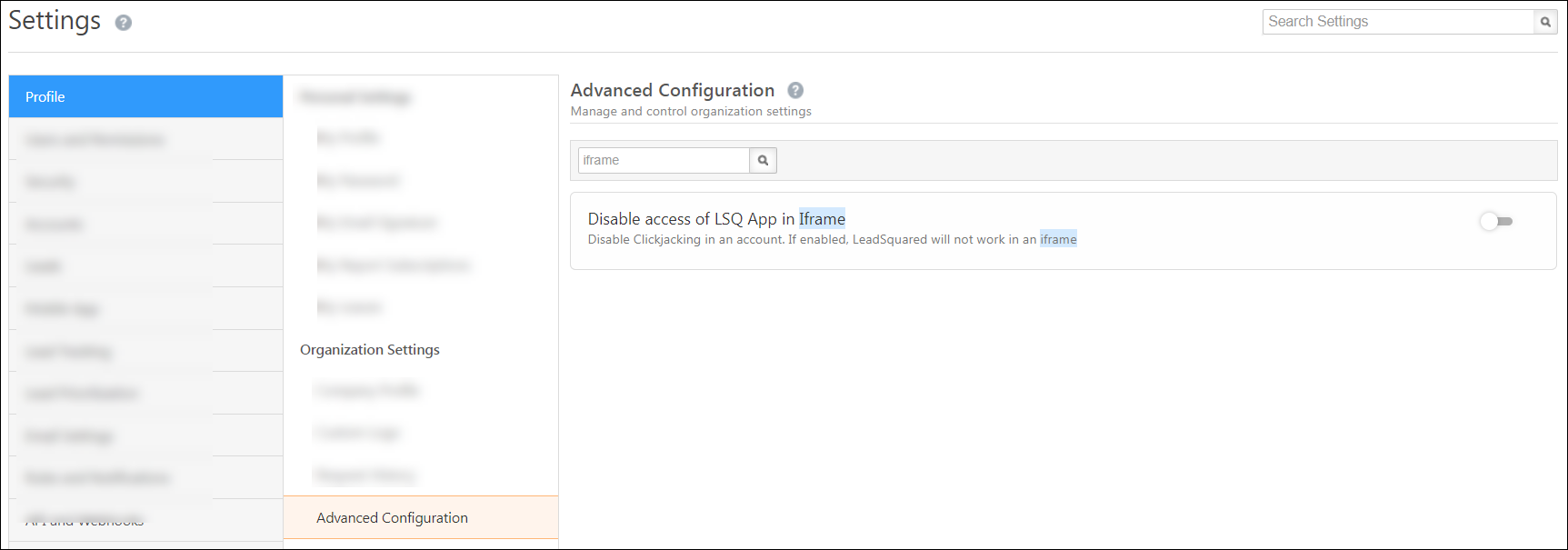
This email setting allows you to CC email addresses of contacts that aren’t leads in your system. Once you send a mail to any such contact, a lead with that email address will be automatically created in your system.

Once enabled, users can add non-lead email addresses in the CC field when sending one-to-one emails, or when sending emails through automations.

Note:

  • This setting cannot be applied for email campaigns.
  • If you have the Email Opt-In feature enabled in your account, you must disable it in order to enable the Email Recipients feature.
  • For more details on Email Settings, see Email Settings – Feature Guide.


2. Prerequisite

You must be the Admin of your LeadSquared account.


3. How it Works

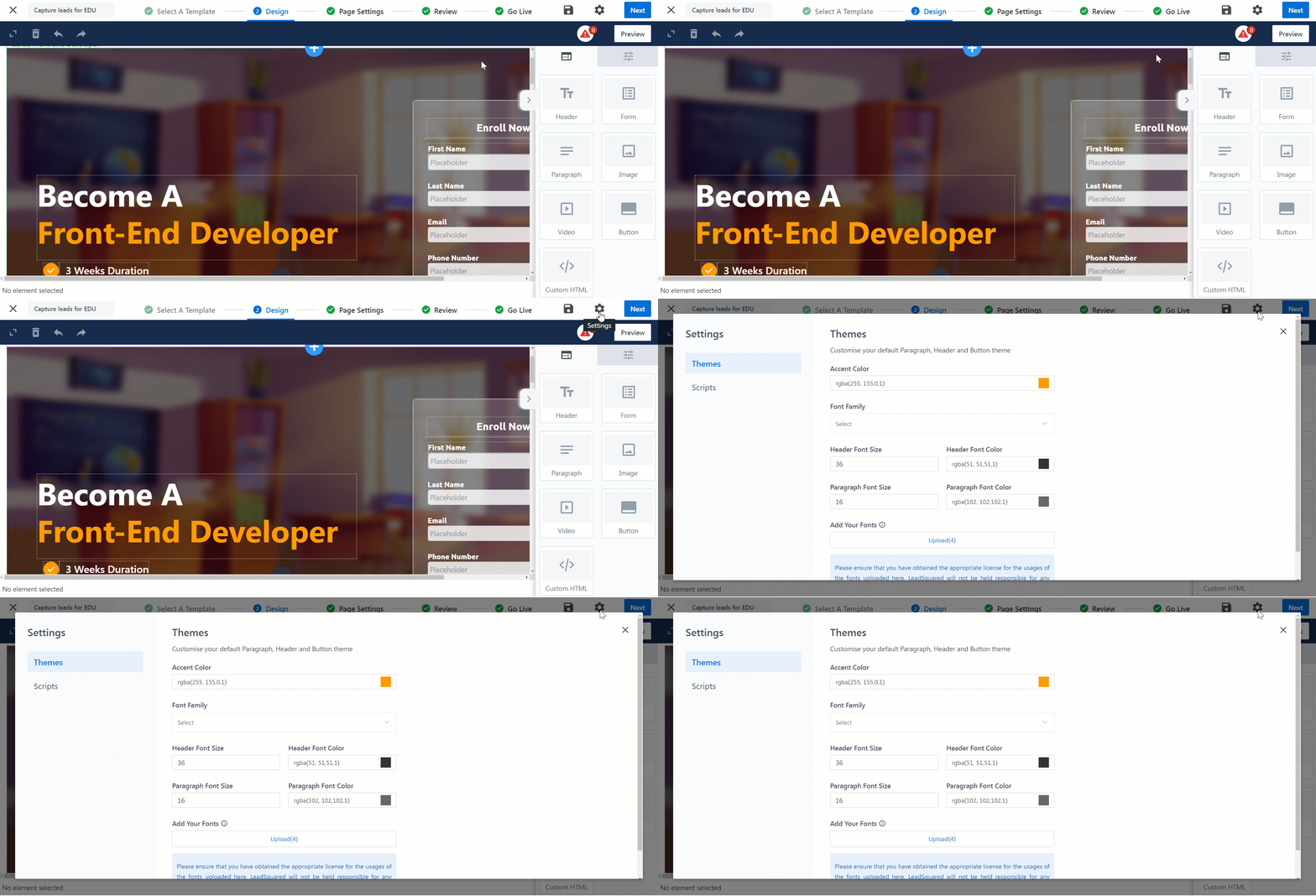
  1. From your LeadSquared account, navigate to My Profile>Settings>Email Settings>Email Recipients.
  2. Click Yes to enable this setting.

Add email recipients in LeadSquared

3.1 Sending One-To-One Emails

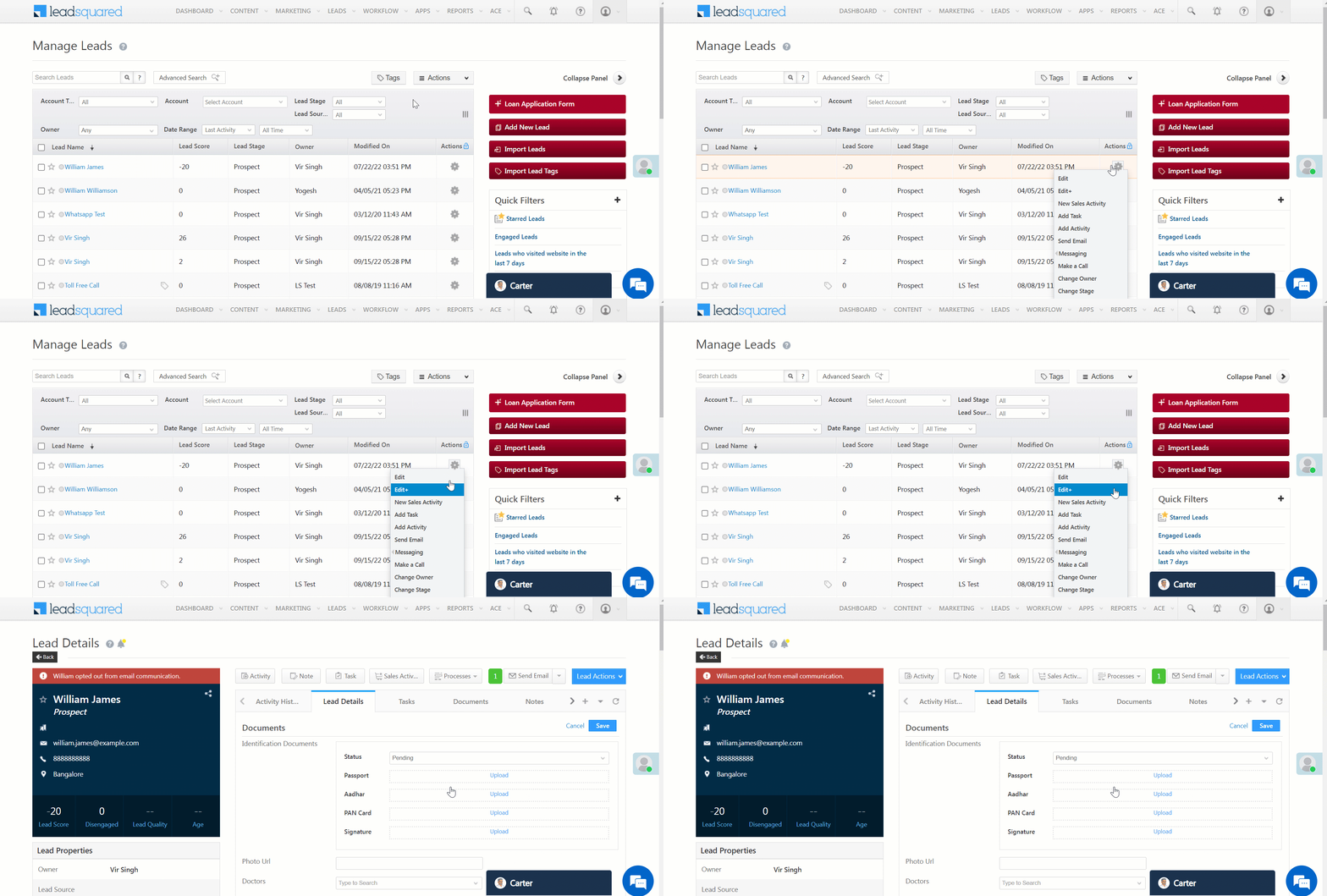
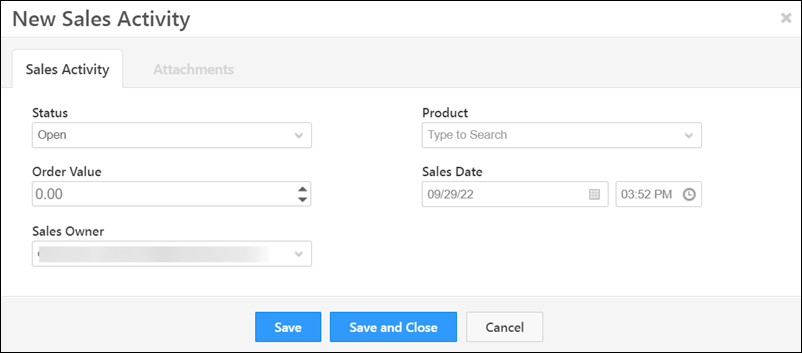
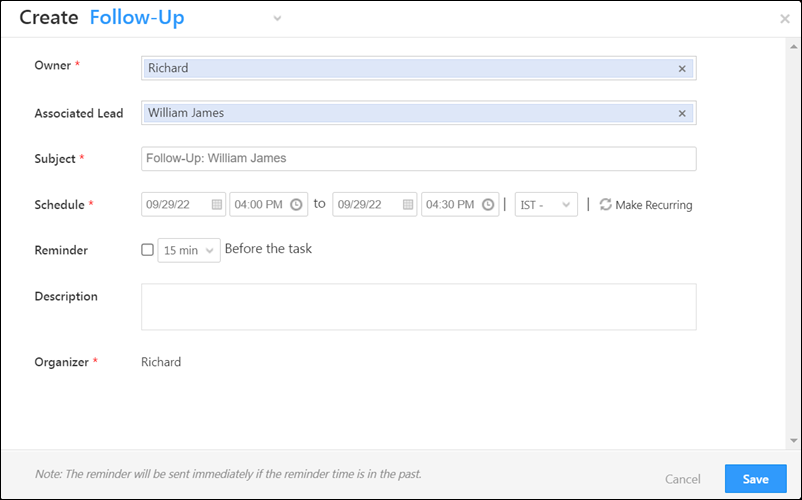
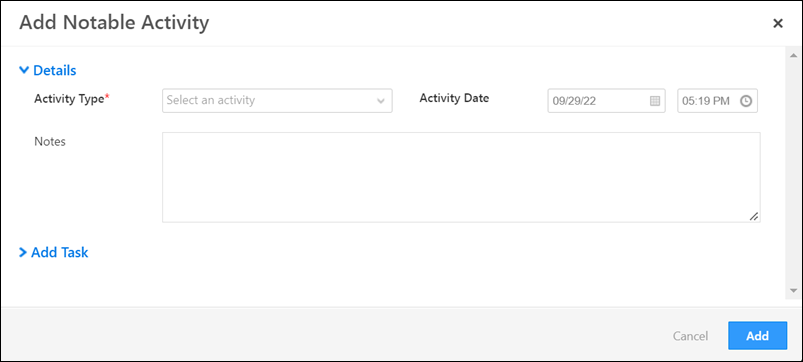
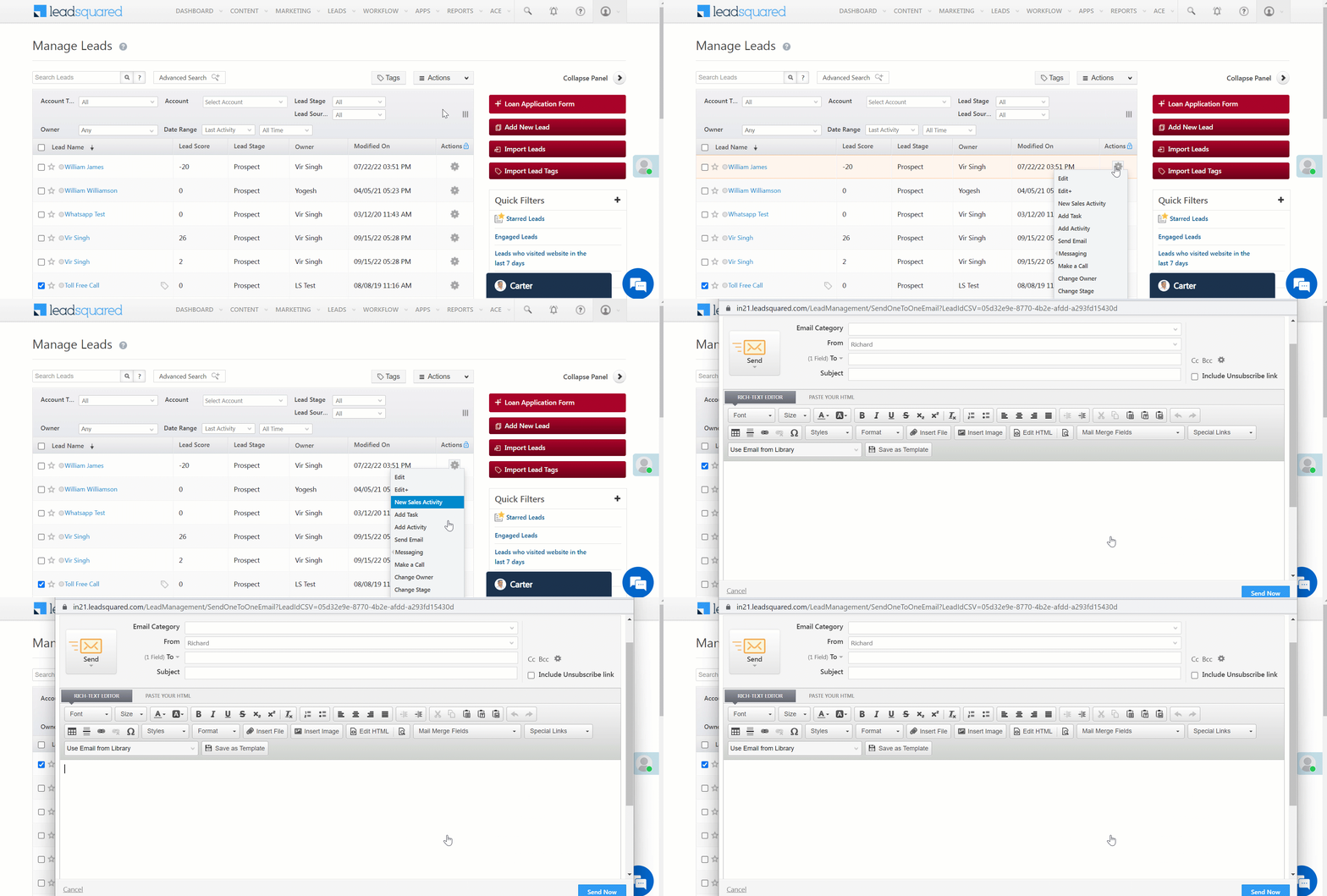
Once enabled, users will be able to include non-lead email addresses in the CC field, while sending one-to-one emails from –

Add email recipients in LeadSquared

  • Lead Details Page

Add email recipients in LeadSquared

Add email recipients in LeadSquared

3.2 Through Automation

Add email recipients in LeadSquared


Any Questions?

Did you find this article helpful? Please let us know any feedback you may have in the comments section below. We’d love to hear from you and help you out!

Email Settings – From Address Restrictions

1. Feature Overview

The Email Campaign feature allows users to send emails to leads on behalf of another user by entering a different email address in the From address section of the editor. With the From Address Restrictions setting in your LeadSquared account, you can restrict a user role from sending emails on behalf of the lead owner or any other user. This setting is different from the Restrict Email Senders setting where you can completely restrict individual users from sending emails to the leads. To know more, see Email Settings – Restrict Email Senders.

Note: For more details on Email Settings, see Email Settings – Feature Guide.


2. Prerequisite

You must be the administrator of your LeadSquared account.


3. From Address Restrictions

You can restrict a specific user role from using another user’s Email address in the From Address field of one-to-one emails, Email campaigns, Bulk Emails, etc.

3.1 Set up From Address Restrictions

  1. Navigate to My Profile>Settings>Email Settings>From Address Restrictions.
  2. Click Edit.
  3. Alongside the user role you want to restrict, click Checkbox under Restrict Lead Owner or Restrict Other Users.
    • Restrict Lead Owner – If enabled, restricts the corresponding LeadSquared user role from sending Emails on behalf of the Lead Owner.
    • Restrict Other Users – If enabled, restricts the corresponding LeadSquared user role from sending Emails on behalf of the other users in your LeadSquared CRM like Administrator, Marketing User, Sales Manager or Sales User.
  4. Click Save.
Note: To know more about the different user roles, see User Roles and Access Rights.

LeadSquared - Set up From Address Restrictions

3.2 Example Use Case

Consider a lead ‘Sam’ owned by an Admin user ‘Ethan William’. If Ethan tries to send a one-to-one Email to Sam, the From field of the Email Editor allows him to select other users in his LeadSquared system. This feature lets him send Emails on behalf of other users. The From Address Restrictions allows you restrict send Emails on behalf of the Lead Owner and other users.

LeadSquared - From Address


Any Questions?

Did you find this article helpful? Please let us know any feedback you may have in the comments section below. We’d love to hear from you and help you out!

Opportunity Details View Customization (ODVC)

1. Feature Overview

Based on each Team’s requirements, LeadSquared Admin users can customize the Tabs, Actions, Buttons, and Opportunity V-Card on the Opportunity Details page. To display different Opportunity Details page views for different teams, you can select the –

  • System tabs (Activity History, Tasks, etc.) and Custom Tabs (KYC Documents Collected, Support Tickets, etc.) you want to display to your users
  • Actions your users can perform (Send Email, Call Lead, etc.) from the Opportunity Actions dropdown
  • Quick Action Buttons
  • Opportunity fields you want to display on the Opportunity V-Card

Note:

  • This article deals with ODVC on the web app. To know more about ODVC on the mobile app, click here.
  • You can also customize the Opportunity V-Card when setting it up (from the Opportunity form customization options), but you won’t be able to assign different V-Cards for different teams there. That can only be done through the Opportunity Details View Customization (ODVC) feature described in this article.

LeadSquared - Opportunity v card


2. Prerequisites

  • You must be the Administrator of your LeadSquared account.
  • To enable this feature on your account, contact your account manager or write to support@leadsquared.com.


3. Create Opportunity Details View

  1. Navigate to My Profile>Settings>Opportunities>Opportunity Details View.
  2. Click Create.

LeadSquared - Opportunity details view customisation navigation


3.1 Details

On the Create Opportunity Details View pop-up, under the Details tab, enter the following details –

  • Name – A name for the view you’re creating. This is mandatory.
  • Opportunity Type – The opportunity type you’re creating this view for.
  • Description – A description for the view you’re creating.

Once you’re done, click Next.

LeadSquared - ODVC details


3.2 V-Card

From the Available Fields, drag and drop* Opportunity fields to the relevant V-Card section –

  • Opportunity V-Card – Add/rearrange the fields you want to add to the Opportunity V-Card.
  • Opportunity Properties – Add details of the opportunity (Owner, Modified On, etc.).
  • Lead Properties – Add details of the leads associated with the opportunity (First Name, Lead Stage, etc.).

Once you’re done, click Next.

Note:

  • *Alternatively, to add a Opportunity field, click .
  • To remove a field, click Minus.
  • To reorder a field, drag and drop the field to the desired location.
  • Opportunity fields cannot be added to Lead Properties and vice versa.
  • To find a specific field, use the Search option.

LeadSquared - V card


3.3 Tabs

Select the tabs you want to display to your users.

  • To add a tab, from the list of Available Tabs, drag and drop the tab under Selected Tabs.
    • Alternatively, alongside the tab you want to add, click.
  • To set a default tab your users will see when they open the Opportunity Details page, alongside the tab’s name, click Default.
  • To reorder the tabs, drag and drop the tab to the desired location.
  • To reset the list of selected tabs, click Reset.
  • To add a new custom tab, click Add New, and –
    1. Type – Select if it’s an Activity or a Custom tab.
    2. Tab Name – Enter a relevant name for the tab.
    3. Notable Activities – If you selected the type as Activity, choose the activity types you want to display under the tab.
    4. URL – If you selected the type as Custom, paste the URL of the page you want to display within the tab.
    5. Once you’re done, click Save.

Once you’re done, click Next.

Note:

  • All system tabs are denoted in orange.
  • All custom tabs are denoted in blue.
  • All user-created tabs are denoted in grey.

ODVC Tabs


3.4 Actions

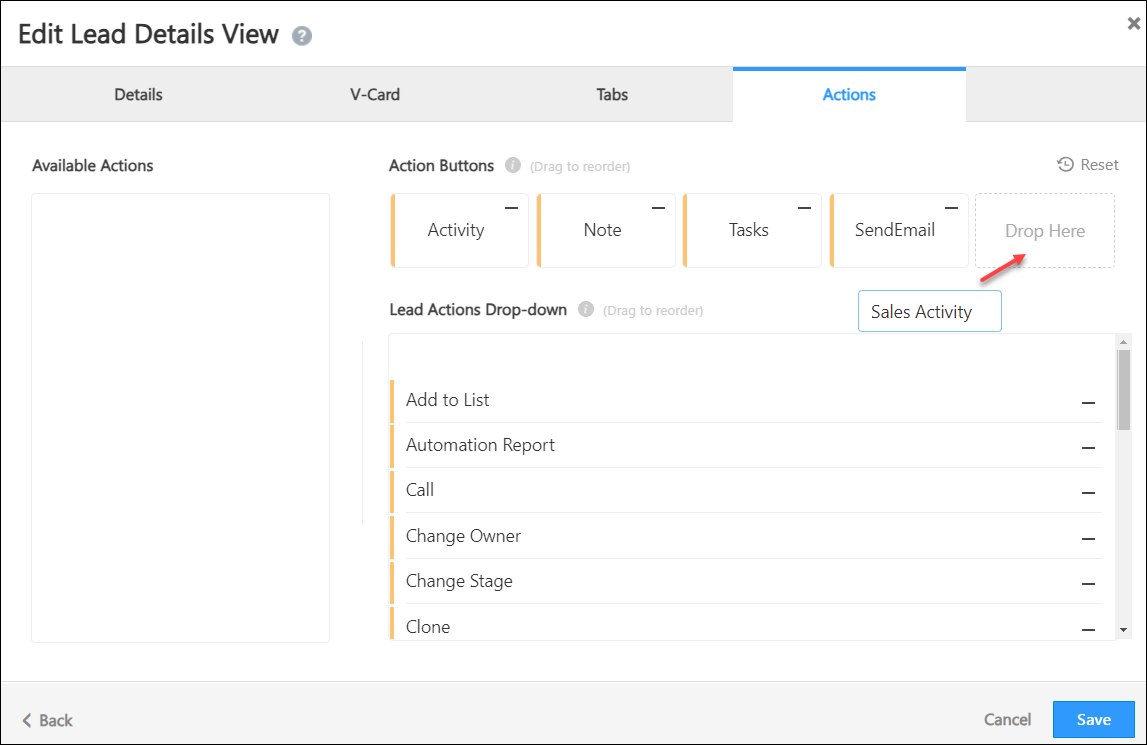
From the Available Actions, drag and drop* the desired action to –

  • Action Buttons – The button actions present on the Opportunity Details page. You can add up to five actions here.
  • Opportunity Actions Drop-down – The actions users can perform through the Opportunity Actions dropdown.

Once you’re done, click Save, and on the Confirm pop-up, click Save.

Note:

  • *Alternatively, to add an action, click .
  • To remove an action, click Minus.
  • To reorder a field, drag and drop the field to the desired location.
  • You can’t add the same action to both the Action Buttons section and the Opportunity Actions Drop-down.
  • To reset the list of selected actions, click Reset.

LeadSquared - ODVC actions


4. Assign Opportunity Details View to Teams

Once a view is created, to assign it to the relevant teams –

  1. Alongside the view you want to assign, hover your cursor over , and click Apply to Teams. You will be redirected to the Teams page.
  2. On the Teams page, alongside the team for which you want to assign the view, hover your cursor over , and click Apply Opportunity Details View.
  3. On the Apply Opportunity Details View pop-up, from the Opportunity Details View dropdown, select the view you want to assign.
  4. If you want to replace your User View Tabs (tabs created by individual sales users) with the Opportunity Details View tab, alongside Replace Opportunity Details View, enable the checkbox.
  5. Once you’re done, click Save. Now, the customised Opportunity Details view will be displayed to the relevant teams.

Note:

LeadSquared - Add ODVC to Teams


5. Other Actions

On the Opportunity Details View page, alongside a published view, hover your cursor over to perform the following actions –

  • Edit – Edit the view.
  • Clone – Click Clone to duplicate the view.
  • Delete – Click Delete to delete the view.

LeadSquared - ODVC other actions


Any Questions?

Do you have questions or issues with the content in this article? Let us know in the comments section below. We’ll get back to you asap!

How to Add and Manage Custom Activity Tabs in the Lead Details Page

1. Feature Overview

On the Lead Details page, you can create custom activity tabs to display logs for specific activity types. For example, you could create a tab that shows only Meetings, Demos, and Home Visits, making it easier to review relevant activity without scrolling through the full history.

Note: You can add up to 50 tabs on the Lead Details page. To adjust this limit for your account, contact your account manager or write to support@leadsquared.com.


2. Prerequisites

You must be an administrator of your LeadSquared account.


3. How It Works

Custom activity tabs are created and managed directly from the Lead Details page. Each tab is configured with a name and one or more activity types. One tab can be set as the default, which opens automatically whenever a Lead Details page is loaded.

Tab-level changes apply account-wide. Any tab you create, reorder, or set as default will reflect across all leads in your account, not just the lead you are currently viewing.


4. Create a Custom Activity Tab

  1. Go to Lead Management>Leads and click any lead to open the Lead Details page.
  2. On the Activity Tab manager, click the 3 dotted menu, and select + Add New Tab.
  3. In the Add New Tab  pop-up, enter a tab name and select the activity types to include.
  4. To make this the default tab on the Lead Details page, enable Set as Default Tab.
  5. Click Save.

Add custom activity tab


5. Manage Activity Tabs

  • Switch between tabs: Select a tab to move between tabs.
  • Reorder tabs: Click and drag tabs to rearrange their positions.
  • View all tabs: Click the 3 dotted menu to see all activity tabs, including any created via the Custom Tab Connector.
  • Delete a tab: Custom activity tabs can be deleted from the tab list. System tabs cannot be deleted, but their display order and visibility can be modified through Lead Details Customization.
Note: The tab list also displays custom tabs created using the Custom Tab Connector. See Custom Tab Connector for details.

manage activity tabs


Any Questions?

Did you find this article helpful? Please let us know any feedback you may have in the comments section below. We’d love to hear from you and help you out!
SSL Certificate for Landing Pages

1. Feature Overview

By default, LeadSquared’s landing pages work on https, and on our internal viewpage.co domain. But if you’ve hosted your landing pages on custom domains (outside of LeadSquared), this article will help you obtain SSL Certificates to support these domains. The certificates are also extended to email links (see Email Link Domain Settings). We use SSL certificates generated by Amazon Certificate Manager on custom domains.

Note: We currently do not support SSL certificates purchased outside of LeadSquared.


2. Prerequisites


3. How it Works

Once you add your domains and sub-domains in LeadSquared, create the SSL Certificate Request. We generate a CNAME record, which you must add to your DNS Settings. This helps us identify the domain ownership. If your domain ownership verification is successful, we generate a subsequent CNAME record, which you must again add to your DNS Settings. The new CNAME record points to the SSL Certificate obtained from Amazon Certificate Manager.

If the domain ownership verification fails, you have up to 72-hours to add the correct CNAME record, after which you must create a fresh SSL Certificate Request from LeadSquared.


4. Create SSL Request

  1. After your domains and sub-domains are listed on the Website & Landing Page Domains page, navigate to My Profile>Settings>Lead Tracking>SSL Certificate.
  2. On the SSL Certificate page, click Create.
  3. On the Request SSL Certificate pop-up, Select the Domain Name.
  4. Once the domain is selected, from the following options, Select the Sub-Domains –
    • Wild Card Certificate – The SSL Certificate is requested for all the sub-domains listed under the selected domain (including the email link domain and landing page domains).
    • Email Link – The SSL Certificate is only requested for the selected email link domain.
    • Landing Page – The SSL Certificate is only requested for the selected landing page domain.
  5. Once you’re done, click Next.

LeadSquared SSL Certificate


5. Domain Ownership Verification

Once the SSL Request is created, on the Domain Ownership Verification pop-up –

  1. Click your cursor on the Domain and Value to copy these values.
    • Alternatively, click Download to download the CNAME Record.
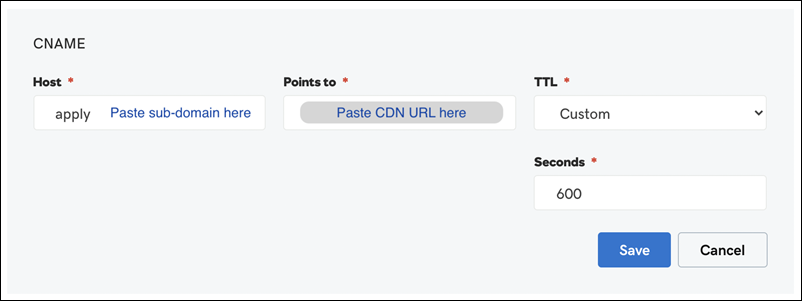
  2. Add this CNAME Record in the DNS configuration for your custom domain. For example, if your service provider is –
  3. Once the CName Record is added, on the Domain Ownership Verification pop-up, alongside “I have updated the CNAME record”, click Checkbox, and then click Done.

LeadSquared SSL Certificate

Note:

  • You have a 72-hour window to add the correct CNAME record in your DNS Settings.
  • The domain ownership verification will take up to 4-hours.
  • If the CNAME mapping is done incorrectly (typos, pointing to an incorrect domain, etc.), you’ll receive an email reminder when 48-hours and 24-hours are remaining in the 72-hour window. If the CNAME mapping isn’t done correctly by 72 hours, you must create a new SSL request in LeadSquared.

LeadSquared SSL


6. Configure SSL

If successfully verified, the status of the request will now change from Pending – View Details to Issued – Configure SSL. To approve the CNAME in LeadSquared –

  1. Click Configure SSL, and on the Configure SSL Certificate pop-up, click your cursor on Domain and New Value to copy these values.
  2. Add this new CNAME Record in the DNS configuration for your custom domain.
  3. Once this is done, navigate back to LeadSquared, and on the Configure SSL Certificate pop-up, verify all the details and click Confirm. The SSL certificate is successfully added to your landing page.

LeadSquared SSL Certificate


7. View Certificate

Once you add CNAME record in your DNS, to see all the subdomains where the certificate is added, hover your cursor over , and click View Details.

LeadSquared SSL

The SSL Certificate is now visible on your landing page.

LeadSquared SSL

Note: On the Landing Pages screen (Marketing>Landing Pages), when you click Get Landing Page URL (alongside a landing page for which you’ve set up SSL), you’ll now see both the HTTP and HTTPS URLs.

LeadSquared SSL Certificate


8. Delete Certificate

To delete existing certificates, alongside the certificate, hover your cursor over , and click Delete.

Note: When you click Delete, all the certificates obtained for the subdomains (landing page and email link domains) listed under the domain will also get deleted.

LeadSquared SSL


Any Questions?

Did you find this article helpful? Please let us know any feedback you may have in the comments section below. We’d love to hear from you and help you out!

Opportunity Card Customization

1. Feature Overview

You can customize the Opportunity card on the mobile app to show the opportunity details you want to see. Here’s what the default opportunity card looks like –

LeadSquared Opportunity Card

It can be customized to include the fields and identifiers your users need to see.


2. Prerequisites

  • You must be the Administrator of your account.
  • You must have opportunities enabled in your account. To enable opportunities in your account, please reach out to your account manager, or write to support@leadsquared.com.
  • You must be running the following versions of the mobile app –


3. Customize the Opportunity Card

To customize the opportunity card on your mobile app –

  1. Login to the LeadSquared web application.
  2. Navigate to My Profile>Settings>Mobile App>Customize Opportunity Card.
  3. Alongside the Customize Opportunity Card setting, click yes no toggle.
  4. From the Hidden Field panel on the right, drag-and-drop the lead and opportunity fields to the appropriate section (Option).
  5. Once you’re done, click Save.
Note: Custom Field Set (CFS) fields are not supported in Opportunity Card customization.

LeadSquared Opportunities


3.1 Header – Left Panel

The left panel header of the opportunity card.

  • You can display up to 3 identifier fields (such as First Name and Last Name, Created On Date, Lead City, etc.).
  • If Option 1 is blank for any opportunity, only then will Option 2 be displayed in the card.
  • If Option 1 and Option 2 are blank, the default message you set in Option 3 will be shown.

Note:

  • You can add only one lead/opportunity field to each option.
  • If you add the First Name lead field to any option, by default the Second Name lead field is also added. An exception to the previous point is made in this instance.

LeadSquared Opportunity Card


3.2 Header – Right Panel

The right panel header of the opportunity card. This section is optional.

Here, you can only add fields that contain the following data types –

  • Number
  • Date
  • Time
  • DateTime
  • Phone
  • Email
  • Boolean

You can add only one lead/opportunity field here (e.g., Expected Deal Size, Lead Score, etc.).

LeadSquared Opportunity Card


3.3 Related Details Section

Any additional details you want to display in the opportunity card. You can add up to three lead/opportunity fields here (e.g., Created By, Engagement Score, Lead Source, etc.). This section is optional.

Note: If this section is left empty, it isn’t displayed as a blank section inside the card.

LeadSquared Opportunity Card


3.4 Footer

The footer of the opportunity card. You can add up to three lead/opportunity fields here. By default, the following fields are displayed –

  • Opportunity Owner
  • Lead Email Id
  • Lead Phone Number

If you want to display other lead/opportunity fields, you must remove any of the default fields, and in it’s place, you can display other fields. You can only add fields that contain the following datatypes –

  • Dropdown
  • Number
  • Date
  • Time
  • DateTime
  • Phone
  • Email
  • Boolean

LeadSquared Opportunity Card


4. Opportunity Card on Android vs. iOS

Once you’ve customized the opportunity card, it will reflect instantly on the mobile app for all users.

  • Clicking on the email icon will redirect the user to an email platform of his choice with the email field value auto-populated in the ‘Send to’ section of the email.
  • Clicking on the phone icon will display both the call as well as SMS option. You can choose which action you want to perform.
  • If the field value is blank, then it will be displayed as a greyed-out icon.

Here’s what a customized opportunity card looks like on Android –

LeadSquared Opportunity Card

And on iOS –

LeadSquared Opportunity Card


5. Reset the Opportunity Card to Default

To revert back to the default lead card –

  1. Navigate to My Profile>Settings>Mobile App>Customize Lead Card.
  2. Alongside the Customize Opportunity Card setting, click no yes toggle.
  3. On the confirmation dialog box, click Reset Lead Card.

LeadSquared Opportunities


Any Questions?

Did you find this article helpful? Please let us know any feedback you may have in the comments section below. We’d love to hear from you and help you out!
Google Meet Connector

1. Feature Overview

From your LeadSquared account, you can schedule Google Meet meetings through the Google Meet Connector. With the LeadSquared Google Meet connector, you can directly create meetings with your leads, as well as add internal and external users to your meetings. Additionally, this connector will help you –

  • Join Google Meet meetings with your leads from anywhere, on any device
  • Automatically add meeting details to your Google Calendar, with all the necessary details such as meeting date and time, meeting URL, etc.
  • Get notifications from LeadSquared about your Google Meet meetings


2. Prerequisites

  • The Google Meet Connector is a paid feature. To enable it on your account, please write to support@leadsquared.com.
  • You must be the administrator of your LeadSquared account.
  • You must have an active Google account.

Before you connect your Google account with this connector, in your organisation’s Google Workspace, please grant access to the LeadSquared Google Meet Connector by marking it Trusted. If you don’t complete this step, you won’t be able to connect your Google Meet account with the LeadSquared app.
The steps to grant access are –

  1. Sign in to your organization’s Google Workspace as a Super Administrator, and go to Google Admin Console
  2. Navigate to Security>Access and Data Control>API Controls, and click on Manage Third-Party App Access.
  3. Click on Add New App, and search using the Client ID provided below. Once you find the LeadSquared Google Meet Connector, mark it as Trusted. To know more about this process, refer to Control which third-party & internal apps access Google Workspace data.
Note: The Client ID is 175896384397-r5fmhrd97eegi65ivun0r7jtsersuudl.apps.googleusercontent.com

Google Meet Connector


3. How it Works

Once set up, you can create and schedule Google Meet meetings with your leads and users, directly from LeadSquared.

  1. Install the connector – Begin by first installing the Google Meet Connector on your LeadSquared account.
  2. Configure the connector – Post installation, you’ll have to configure the connector with your Google account.
  3. Schedule meetings – After configuration, you can schedule Google Meet meetings with your leads and users.
  4. View Activities – After the Google Meet meeting is scheduled, you can view the meeting details.


4. Install the Connector

To install the Google Meet Connector on your LeadSquared account –

  1. From the main menu, navigate to Apps>Apps Marketplace and search for Google Meet Connector. On the connector, click Install.
    • Alternatively, you can find the connector on the left panel, under Online Meeting.
  2. Once the connector is installed, hover your cursor over the settings icon, then click Configure.

Google Meet_2


5. Configure the Connector

5.1 Google Accounts

Once the connector is installed, connect your Google account(s) to LeadSquared.

  1. On the Google Meet Connector screen, click Connect Accounts.
  2. On the Sign in with Google screen, select the Google account through which you want to set-up the connector.
  3. On the permission screens, grant access to your personal information as well as your Google calendar information.
  4. Once you’ve granted permission, click Allow. You’ll get the following message: “Successful. Please close the window.”
  5. Once your account is linked, on the Configure Google Meet Connector screen, under Primary, toggle the  Slider. This will ensure your Google account is the primary account.
    1. To delete an existing account, against the account name, click the  icon, and on the Delete Account pop-up, click Yes.
  6. Once you’re done, click Next.

Google Meet_7

Note: If you are not using G-Suite on your Google account, then your recipients will be required to login to their Google account first, in order to join the meeting. In this scenario, your recipients cannot join the meeting anonymously.


5.2 Meeting Configuration

Configure the Google Meet settings that will be used while scheduling meetings –

Google Meet_6

Field Description
Calendar Id The calendar Id of your Google Account. This the primary email Id you’ve used to configure the connector in the previous step.
Meeting Max Attendees The maximum number of attendees (up to 100 attendees) that can be added to a Google Meet.
TimeZone The time zone in which the meetings will be scheduled.
Can Add Self Enable this setting to grant permission to attendees (other than the organizer) to add themselves to an existing meeting.
Guest Can Invite others Enable this setting to grant permission to attendees (both internal and external) to be able to add anyone to the meeting.
Can See Attendees Enable this setting to grant permission to attendees (other than the organizer) to be able to view the attendees in the meeting.
Send Notifications Enable this setting to send notifications to attendees, from LeadSquared, about the creation of a new meeting. Even if this setting is disabled, some form of notification is sent from Google.
Send Updates To From the dropdown, choose to whom you want to send a notification about the update in meeting details. You can choose from Everyone, Non Calendar Guests Only or None.

Once you’ve configured the settings, click Save.


6. Schedule Google Meet Meetings

To schedule a Google Meet with your leads –

  1. From the LeadSquared main menu, navigate to Leads>Manage Leads.
  2. On a lead, hover your cursor over the Action Icon icon. From the dropdown list, hover your cursor over Online Meeting, and then click Google Meet Meeting.
  3. On the Google Meet Meeting pop-up, enter the following details –
    • The email Ids of the attendees are added by default in the Meeting Attendees field.
    • In the Meeting Topic field, enter a relevant name for the meeting. This is mandatory.
    • In the Meeting Description field, enter a brief description about the meeting.
    • Against Schedule, pick a from and to date and time for the meeting. This is mandatory.
  4. Once you’re done entering the details, click Schedule.
  5. Your Google Meet meeting URL is generated. You can share this URL with your leads and other external participants.

Google Meet_4


7. View Google Meet Meeting Details

After you have scheduled a Google Meet meeting, an activity gets automatically posted against the invited lead. You can view the meeting details in the Lead Details page.

  1. From the LeadSquared main menu, navigate to Leads>Manage Leads.
  2. Click on the lead on whom the meeting is scheduled.
  3. On the Lead Details page, under the Activity History tab, you can view the meeting details.
  4. You can edit the meeting details by clicking the  icon.

Google Meet_5


8. FAQs

1. Can we edit/cancel a meeting once it’s created?
No. Once a meeting is created, it cannot be edited or cancelled.


2. Can we change the host’s email Id while creating a meeting?
By default, the email Id of the admin who installed and configured the connector is used as the host email Id. This cannot be changed. The user’s email Id is passed as an attendee.


3. Should a user be logged into their Gmail account when scheduling a meeting?
No. The user is not required to be logged in to their Gmail account when scheduling a meeting.


Any Questions?

Did you find this article helpful? Please let us know any feedback you may have in the comments section below. We’d love to hear from you and help you out!

Facebook Retargeting Connector

1. Feature Overview

The Facebook Retargeting Connector enables you to push lists of leads (interested in a particular product or service) directly to your retargeting campaign on Facebook Ads. This will help you identify the lead’s Facebook profile, and show relevant ads through Facebook Remarketing. The features of this connector are –

  • Create Audience List – Enhance existing audience lists on Facebook Ads with new leads, and create new lists as well with the data captured through the connector.
  • Target Your Leads – Reach out to leads who are already aware of your product and service. Reconnect with them on Facebook after they leave your website.
  • Field Mapping – Sync custom lead data along with standard fields to Facebook to improve your campaign’s effectiveness.
  • Campaign Statistics – Reports of how your campaigns are performing, where your ads are showing up, and what’s the cost-split of your campaign.
  • Sync Logs – Enables debugging, and lets you view sync status along with the list of errors and error details.

To know more about what the Facebook Retargeting Connector offers, please refer to Facebook Retargeting with LeadSquared.


2. Prerequisites

  • You must have an active Facebook Ads account.
  • You must be an Administrator of your LeadSquared account and your Facebook Ad account.
  • This is a paid feature. To enable it, please write to support@leadsquared.com.


3. How it Works

To push leads from LeadSquared to your Facebook Ads account, using the Facebook Retargeting Connector connector, complete the following steps –

  1. Install the connector in LeadSquared
  2. Configure the connector in LeadSquared
    1. Connect your Facebook Ads account(s)
    2. Create an empty audience list
    3. Map relevant fields to the empty list
    4. Push leads to the list you’ve created, and sync the list with Facebook Ads
  3. View the list on your Facebook Ads account


4. Installing the Connector

To install the Facebook Retargeting Connector on your LeadSquared account –

  1. From the main menu, navigate to Apps>Apps Marketplace and search for Facebook Retargeting Connector v2.
    • Alternatively, you can find the connector on the left panel, under Online Ads.
  2. Click Install.
  3. Once the connector is installed, hover your cursor over the settings icon, then click Configure.
  4. On the Connector Access screen, you can choose to give access to all your marketing users, or only specific marketing users.
    • If you choose Specific Marketing Users, from under Specific Users, you can select the marketing users from the dropdown list.
  5. Once you’re done, click Save.

Facebook Retargetting_2


5. Configuring the Connector

5.1 Connect Ad Accounts

Once the connector is installed, connect your Facebook Ads account(s) to LeadSquared.

  1. Navigate to Apps>Facebook Retargeting Connector.
  2. On the Connect Ad Accounts page, click Connect Accounts.
  3. Click Login with Facebook, and on the login window, click the Facebook Business account through which you want to login.
    • You can also choose to login with a different account by clicking Log in to another account.
  4. On the Select Account(s) to be added pop-up, click the Checkbox against accounts from the list of accounts linked to your Facebook Business account, that you want to add. You can add multiple accounts.
  5. Once you’re done, click Connect, and then click Next.
    • To delete an existing account, against the account name, click the  icon, and on the Delete Account pop-up, click Yes.

Facebook Retargetting_3


5.2 Create Audience List

After configuring the connector, you must either create an empty audience list from LeadSquared, or sync an existing list. After creating a list, you will then have to push lead data from LeadSquared to this list. To create an audience list from LeadSquared–

  1. On the Connect Ad Accounts page, click Audience List.
  2. Under Select Account, from the available dropdown, select the Facebook Ad account under which you want to create the list, then click Create Audience.
  3. On the Create Audience List pop-up, enter a name and description for the list.
  4. From the Customer File Source dropdown, select the source from which you want to capture lead details. You can choose from the following options –
    • User_Provided_Only – Under this option, you can upload lead data captured through internal channels, such as when a user captures lead details manually, or the system captures a lead’s deatils automatically (such as when a lead visits website, lead opens emails, lead clicks on a link, etc.).
    • Partner_Provided_Only – Under this option, you can upload lead data captured through external channels, such as third-party websites and partners who’ve provided lead data.
    • Both_User_And_Partner_Provided – Under this option, you can upload lead data captured through both internal as well as external channels.
  5. Once you’re done, click Create. You’ll get a message stating, “Audience List Synced successfully”.
    • To sync an existing or new list from LeadSquared with Facebook, click Sync Now.
    • To delete an existing list, against the list name, click the  icon, and on the Delete Audience pop-up, click Yes.

Facebook Retargetting_4


5.3 Field Mapping

To map lead fields from LeadSquared to the lead fields on the Facebook Audience List –

  1. On the Connect Ad Accounts page, click Field Mapping, and then click Add Custom.
    • By default, Email and Phone fields are selected.
  2. Under Facebook Audience List fields, click the dropdown to select a Facebook field from the list of available fields.
  3. Similarly, under Lead Field, select a corresponding field in LeadSquared from which you want to push data.
  4. Once you’re done, click the Google icon, and then click Save. You’ll receive a “Field Mapping saved Successfully” message.
    • To edit an existing field, click the  icon.
    • To delete an existing field, click the  icon.

Facebook Retargetting_5

Note: For any particular lead, if there’s no country code listed for their phone numbers, then the Default Country listed is automatically picked up as the country code for that lead.


6. Sync Lists

There are two ways by which you can sync your LeadSquared list with your Facebook Ads account. You can do this manually, from the Manage Lists page, or you can do this by setting up an automation.

6.1 Manage Lists Page

After successfully mapping lead fields to the empty list that you created, you will then have to push lead details to this list. Once the list is populated, you will then have to sync your LeadSquared lists to your Facebook Ads audience list –

  1. Navigate to Leads>Manage Lists.
  2. Against the list from which you want to pull the lead details, hover your cursor the  icon, and click Facebook Retargeting.
  3. On the Facebook Retargeting pop-up, select the Facebook Ad account, and the Custom Audience List that you created, and then click Sync Now.
  4. On the confirmation pop-up, click Yes. You will receive a message stating your request has been submitted successfully.
    • It will take between 6-12 hours for the leads to reflect in your audience list on your Facebook Ads account.

Facebook Retargetting_9

Note: You can push a single LeadSquared list to multiple Facebook lists that you’ve created. But, you can only push a LeadSquared list to a Facebook list only once in a 12-hour cycle.


6.2 Automation

Alternatively, you can push the list from LeadSquared to Facebook Ads, by setting up an automation. An example of when you can use the automation feature is when a lead is created after visiting your landing page. Here, you can automatically add the lead to a list, and retarget the lead with the Facebook Ad of the product or service they’ve shown interest in.

You cannot configure the Facebook Retargeting Automation for the following triggers –

  • Activity Create on Activity
  • Activity Update on Activity
  • Task Created on Opportunity
  • Task Completed on Opportunity
  • Task Reminder on Opportunity

To set-up this automation –

  1. Navigate to Workflow>Automation, and click Create Automation. To know how to create an automation, please refer to Automation Home.
    • You can also Live Edit a published automation.
  2. After you’ve set-up an automation trigger, click Add Automation.
  3. From the dropdown, click Online Ads, and then click Facebook Retargeting Automation.
  4. On the Facebook Retargeting pop-up, from the Select Facebook Ad Account dropdown, select the Facebook Ads account to which you want to push the list.
  5. From the Search and select audience from the list dropdown, select the LeadSquared lead list to which you want to add the leads to.
  6. Once you’re done, click Save. On the Attention pop-up, click Yes.
  7. Then, click Publish. The automation is live.

Facebook Retargeting through LeadSquared

Note: If you have installed the Facebook Retargeting Connector, you must uninstall and reinstall the connector, in order to use the Facebook Retargeting Automation feature.


7. View Reports

To view the Facebook Retargeting Connector’s reports, navigate to Apps>Facebook Retargeting Connector, and click Reports.

Under Reports, you can view the details of a list that’s been pushed from LeadSquared to your Facebook Ads account. You can also view the source through which the lists were pushed to Facebook Ads, either through Automation or through a List Action.

Facebook Retargeting through LeadSquared


8. View the List on Facebook

After you’ve successfully created the list, you can view it on your Facebook Ads account. To do this –

  1. Login to your Facebook Business Account.
  2. Select the Facebook Ad account to which you’ve pushed the lead data from LeadSquared.
  3. Here, you can view the list created. To view the list summary and other details, click the list. You can find the Summary, Usage and History tabs here.

Facebook Retargetting_10


9. Possible Errors and Troubleshooting Steps

9.1 User Permissions Error

In case you get the following error messages while setting-up your account –

  • “Check if Manage Ads permission is missing for accounts” – This error shows up in LeadSquared while connecting a Facebook Ad account, when “Manage Ads Permission” is disabled for a user on that particular Facebook Ad account.

Facebook Retargetting_12

  • “200,1815066, Permission error. The User doesn’t have the permission to create ads with this ad account” – This error shows up in LeadSquared while creating Audiences,  when “Manage Ads Permission” is disabled for a user on that particular Facebook Ad account.

Facebook Retargetting_14

The troubleshooting steps for both the errors are the same –

  1. Login to your Facebook Business Account.
  2. Select the Facebook Ad account on which the error occurred.
  3. Click the Facebook Settings icon to open the Business Settings page.
  4. On the Business Settings page, select the user who faced this error, and click the Ad account listed under the user.
  5. Under Manage ad account, toggle Facebook Slider the slider. Once it’s enabled, click Save.

Facebook Retargetting_1


9.2 Terms of Service Error

In the instance where a user in LeadSquared has not yet accepted Facebook’s Terms of Service, then the following error comes up, “200, 1870090, Permissions error. To create or edit a saved audience with an uploaded customer list, please agree to the Custom Audience terms”. To resolve this error, you can –

  • Click on the link listed in the error message, and in the new TOS tab, click Accept.
  • Or, accept the TOS in your Facebook Business account, by navigating to Audiences>Create Audience>Custom Audience>Customer list, and click I Accept.

Facebook Retargetting_13


9.3 New Business Error

If you’re facing the following error message, “2654, 1870054, (#2654) Customer List Audiences Are Not Available: As accounts owned by businesses new to Facebook Products can create customer file Custom Audiences after several weeks of following our policies.” Once the wait-period is over, the issue is fixed automatically.

Facebook Retargetting_15

Notes:

  • On any of your Facebook Ad accounts, if only Manage Campaign permission is enabled, then your users should still be able to create audience lists and push leads.
  • If the same Facebook Ad account is accessed by multiple users, then the permissions and TOS for that account will get automatically configured on the user who most recently connected to the account.


Any Questions?

Did you find this article helpful? Please let us know any feedback you may have in the comments section below. We’d love to hear from you and help you out!

Lead Automation Conditions – If Lead Exists

1. Feature Overview

Use the ‘If Lead Exists’ condition to check if a lead with a defined set of parameters exists in the system. You can follow up with an action such as Merge Leads, to avoid creating duplicate leads in your account.


2. Set Up If Lead Exists

You can set up the condition at any point after the automation trigger. Scroll down under Conditions, then click If Lead Exists.

if lead exists condition

On the configuration pop-up, enter the required conditions, then click Add Condition. When you’re done adding conditions, click Set Condition.

if lead exists conditions

Note:

  • All fields configured in the IfExists card must contain a value; only then will the card be evaluated. If any configured field does not have a value, the card will fail and indicate that the specific condition is missing a value.
  • If multiple leads match your criteria, they will be sorted based on Created On date in ascending format.
  • A link to only the oldest lead will be provided in the lead level automation report.


Next Steps

You can follow up this condition with a Merge Leads action to merge duplicate leads.
For more information on any automation feature, see Automation Home.

How to Set Up Email Signatures in LeadSquared?

To create an email signature for all the email communications you’re sending from LeadSquared –

Navigate to Settings>Profile>My Email Signature. You’ll see an HTML signature box and a Text signature box.

In the HTML signature box, you can include an image, attach a file, use different fonts and styles, and even use HTML code. The text signature box allows you to create a plain text signature.

LeadSquared Email Signatures Feature

Add Leads to Zoom Webinars from LeadSquared

1. Feature Overview

In addition to the ability to create Zoom meetings from LeadSquared, the LeadSquared Zoom Meeting Connector also has a webinars feature. This enables you to host webinars, classes and sessions, depending on your business requirements. You can add up to 50,000 participants in a single webinar (depending on your Zoom webinar license), directly from your LeadSquared account.

  • Set-up the webinar and send invites to all the participants from your LeadSquared account.
  • Collect details of all the participants from the webinar.
  • Manage your Zoom webinars through LeadSquared tasks.

For setting up Zoom meetings between your leads and users, please refer to LeadSquared Zoom Connector.


2. Prerequisites

  • You must have an active Zoom account, along with the Zoom Webinar license. To obtain it, please get in touch with your Zoom account manager.
  • Call recording on Zoom is a paid feature. You can record calls through LeadSquared only if this feature is enabled on Zoom. To enable it, please get in touch with your account representative from Zoom.


3. How it Works

The steps that need to be followed while using the Webinars feature are mostly similar to the steps you follow while using the Zoom Meeting feature. Once set up, you can add leads to Zoom webinars directly from your LeadSquared account, either manually or through automation.

  1. Install the connector – You’ll have to begin by first installing the Zoom Meetings Connector on your account.
  2. Configure the connector on Zoom and LeadSquared – Post installation, you’ll have to integrate the connector with your Zoom account.
  3. Create webinars – From your Zoom account, create webinars for your leads to join.
  4. Add Leads – Once a webinar is created, you can then add leads to that webinar from your LeadSquared account. You can choose to add individual leads, multiple leads and/or leads in a list to a webinar.
  5. View Activities – Once a lead registers and joins a webinar, you’ll be able to view this as an activity, along with details of the webinar, on the Lead Details page.


4. Installation

Install the Zoom Meeting Connector from the LeadSquared App Marketplace.

  1. On the main menu, navigate to Apps>Apps Marketplace.
  2. Search for Zoom Meeting Connector.
  3. Click Install.

Zoom_Webinar_1


5. Configuration

To integrate Zoom with LeadSquared, you must obtain the Zoom API Key, API Secret Key and Event Verification Code, and use these keys to enable the Zoom Connector in LeadSquared. To activate the Zoom connector –

  1. Obtain your Zoom API Key and Zoom API Secret Key
  2. Obtain your Zoom Event Subscription Code and Secret Token
  3. Authenticate your Zoom Connector in LeadSquared
  4. Set Up the Zoom Connector in LeadSquared
  5. Map Fields in the Zoom Connector in LeadSquared
  6. Configure Default Admin Settings in LeadSquared

5.1 Obtain your Zoom API Key and Zoom API Secret Key

You can skip this section if you have already configured your Zoom account and generated the necessary keys. If you haven’t obtained these keys, you’ll have to build and configure a Zoom JWT app to generate them. To know more, refer to Create a JWT App.

  1. Navigate to the Zoom Apps Marketplace.
  2. Under JWT, click Create.
  3. In the Information tab, fill in all the required fields.
  4. Under the App Credentials tab, you’ll find the API Key and API Secret.
  5. Under the Feature tab, you’ll find the Secret Token and Verification Token.

Zoom


5.2 Authenticate Zoom Connector in LeadSquared

  1. Once you’ve obtained the following keys, copy them and continue the configuration process on LeadSquared –
    • API Key
    • API Secret
    • Secret Token*
    • Verification Token
  2. Under the Authentication tab, enter the above keys alongside the corresponding values.
  3. Once these keys are added, click Next, and continue to Set Up your Zoom Connector.
Note: *You’ll have to add the Secret Token if you’re installing the connector after 23rd October, 2022.

LeadSquared Zoom Connector


5.3 Set Up your Zoom Connector in LeadSquared

  1. The Zoom Call Activity is set to Zoom Meeting by default. This is a custom activity created by LeadSquared for Zoom calls, and it cannot be edited.
  2. For Zoom Username, if you have used the same email Id in your LeadSquared and Zoom account, you can choose Email Address as your option.
  3. Click Save.
  4. If you’re completing the Set up after 23rd October, 2022, then navigate back to the Authentication tab, and copy the Event Webhook URL.
Note: If the email Id you’ve used in Zoom is different from the one used in your LeadSquared account, you’ll have to create a custom user field and enter the Zoom email Id in that field. To know how to create a custom user field, refer to Manage User Custom Fields.

LeadSquared Zoom Connector


5.4 Generate your Zoom Event Subscription Code

In this step, you must configure the LeadSquared Event Webhook URL in your Zoom JWT app. This ensures Zoom posts data to LeadSquared for the event types you subscribe to. You can find this code under the Feature tab.

Event Subscription are the actions that are automated once an event has taken place. Examples of events are user creation or call recordings that have been completed*. The URL for these events get stored as an Activity on LeadSquared. To enable Event Subscription on Zoom –

  1. From your LeadSquared account, on the LeadSquared Zoom Configuration page, under the Authentication tab, copy the LeadSquared Event Webhook URL.
  2. Navigate to your Zoom account. Under the Feature tab, alongside Event Subscription, toggle the Zoom slider.
  3. Click the Add New Event Subscription button, and give a relevant name for the entry.
  4. On the Zoom Event Subscription page, under Event notification endpoint URL, paste the Event Webhook URL.
    • If you’re adding a new event after the 23rd October, 2022, it is mandatory for you to Validate* the webhook URL. Once the validation is successful, complete the remaining steps.
  5. Under Event Types, click on Add Events. The following events are supported in LeadSquared-
    • Participant/Host joined webinar
    • Participant/Host left webinar
    • Webinar registration has been created
    • Webinar registration has been cancelled
    • Webinar registration has been approved
    • Webinar registration has been denied
  6. Once you’ve selected the Event types, click Done.
  7. Click Save, and then click Continue. Your Event Verification Code is generated. Once you’ve completed the above steps, your Zoom JWT app is active.

Note:

  • *Before you Validate the webhook URL, ensure the connector Set Up is Saved in LeadSquared. The validation will fail if the set up is not saved.
  • If an event was created before 23rd October, 2022, and if you’re looking to edit the event after the said date, it’s recommended you create a new event, and delete the existing event (instead of editing it). Editing this event may result in you not receiving Zoom meeting updates.

Zoom Connector


5.5 Map Fields in your Zoom Connector in LeadSquared

You can automate task creations in LeadSquared for every Zoom meeting you schedule. In this section, you can map the meeting details to the corresponding task fields in LeadSquared. Once this is done, you can view these tasks and details on the Lead Details and Manage Tasks page, and track them to completion.

  1. Ensure the Zoom slider at the top of the page is active.
  2. Under Task Type, select the desired task type (we recommend Meeting). This ensures that when you schedule a Zoom meeting, a Meeting task type is created in LeadSquared.
  3. Under Meeting URL, select Location. Every time you schedule a meeting, your meeting URL gets published directly to LeadSquared.
  4. Under Invite Description, select Description. This ensures your meeting description gets published to LeadSquared.
  5. Click Next.

Zoom_Webinar_6


5.6 Configure Default Admin Settings in LeadSquared

These are additional settings that are available to you.

  1. “Generate Zoom Meeting ID Automatically” is enabled by default, and you can’t disable it.
  2. Enable “Start recording…” to ensure that all your calls get recorded. The other options can be turned on or off, depending on your requirement.
  3. Once you’re done, click Save.
  4. You’ll get a “Configurations Saved” notification on top of your screen.

Zoom_Webinar_7


5.7 Webinar Settings

You must have a webinar licence from Zoom to enable these settings on your account. To enable it, toggle the Slider slider.

  • Webinar Webhook URL – The LeadSquared webinar webhook URL that you must enter on the Zoom Event Subscription page.
  • Maximum Audience Size – The maximum number of participants in a webinar. The limit is determined by your Zoom webinar license subscription plan.
  • Select Custom Users for List – You can restrict the number of LeadSquared users who can access the webinar feature. To do this, toggle the Slider slider, and from the Select Users dropdown list, select the users for whom you want to restrict access to.
  • Create new lead when registration is complete – To create a new lead in LeadSquared when a participant registers for the webinar, toggle the slider. When leads are captured from your Zoom Webinar registrations, we’ll capture leads with the following webinar registration fields
LeadSquared Lead Field Schema Name Zoom Webinar Registration Field Name
FirstName first_name
LastName last_name
EmailAddress email
mx_City city
mx_Street1 address
mx_Country country
mx_Zip zip
mx_State state
Phone phone
Note: The Webinar Registration form fields will be captured against lead fields only if the schema names in your LeadSquared account are exactly as listed above. If you’ve made any changes to the schema name, or if a schema field is disabled on your account, the data capture won’t work as intended.

LeadSquared Zoom Integration

Once you’re done, click Finish. You’ll get a “Configurations Saved” notification on top of your screen.


6. Create Webinars

You can only create a Zoom Webinar from your Zoom account. To know how to create a webinar, please refer to Getting started with Zoom webinar. Once a webinar is created in your Zoom account (that’s linked to your LeadSquared account) you can add leads to that webinar directly from LeadSquared.


7. Add Leads to a Webinar

7.1 Individual Leads

To add an individual lead to your Zoom webinar –

  1. From the LeadSquared main menu, navigate to Leads>Manage Leads.
  2. On the Manage Leads page, against a lead, hover your cursor over the Action Icon icon. From the dropdown list, click Online Meeting, and then click Add to Zoom Webinar.
  3. On the Zoom Webinar pop-up, from the Select Webinar dropdown, select the webinar you want to add the lead to.
  4. From the Webinar Occurrences dropdown, select the date and time on which you want to schedule the webinar. This field is available only for recurring webinars.
  5. You’ll find other details of the webinar, such as webinar URL, ID, timezone, etc.
  6. Once you’re done, click Add to Zoom Webinar. Your lead will get an invite for the webinar.

Zoom_Webinar_10


7.2 Multiple Leads

To add multiple leads to your Zoom webinar –

  1. From the LeadSquared main menu, navigate to Leads>Manage Leads.
  2. On the Manage Leads page, select the leads you want to add to the webinar by checking the Checkbox box against their names.
  3. After selecting the leads, hover your cursor over the Leads button.
  4. From the dropdown list, click Online Meeting, and then click Add to Zoom Webinar.
  5. On the Zoom Webinar pop-up, from the Select Webinar dropdown, select the webinar you want to add the leads to.
  6. From the Webinar Occurrences dropdown, select the date and time on which you want to schedule the webinar. This field is available only for recurring webinars.
  7. You’ll find other details of the webinar, such as webinar URL, ID, timezone, etc.
  8. Once you’re done, click Add to Zoom Webinar. Your leads will get an invite for the webinar.

Zoom_Webinar_11


7.3 Leads in a List

To add leads in a list to your Zoom webinar –

  1. From the LeadSquared main menu, navigate to Leads>Manage Lists.
  2. On the Manage Lists page, against an existing list, hover your cursor over the Action Icon icon. From the dropdown list, click Online Meeting, and then click Add to Zoom Webinar.
  3. On the Zoom Webinar pop-up, from the Select Webinar dropdown, select the webinar to which you want to add the leads in the list.
  4. From the Webinar Occurrences dropdown, select the date and time on which you want to schedule the webinar. This field is available only for recurring webinars.
  5. You’ll find other details of the webinar, such as webinar URL, ID, timezone, etc.
  6. Once you’re done, click Add to Zoom Webinar. The leads in your list will get an invite for the webinar.
Note: The number of leads in the list will have to be within the range of the Maximum Audience Size limit, which you entered while configuring the connector.

Zoom_Webinar_12

Note: Once a lead is registered for a webinar, an invite will be sent to the lead via Zoom, if your configuration on Zoom is enabled accordingly. If this isn’t configured, then you can create an automation, based on an activity trigger, to send an invite email to the lead. To know more, refer to the Sending Invites to Leads through Automation section in the Zoom Meeting Connector article.


8. Webinar Activities

Activities are posted –

  • When a lead registers for a webinar.
  • When a lead joins/leaves a webinar.

You can filter leads based on these activities (for example, leads that attended a webinar, leads that left a webinar, etc.) and set up tasks, follow-ups and automations based on your business flow.

To view these activities, on the Lead Details page –

  1. From the main menu, navigate to Leads>Manage Leads, and click on the lead who’s been added to the Zoom webinar.
  2. On the Lead Details page, under Activity History, you’ll see  Zoom Webinar activities.
  3. Once you click on Zoom Webinar, you’ll be able to view the webinar details such as Webinar ID, Joining URL, etc.
Webinar_12


9. Zoom Webinar Automations

Through automations, you will be able to add leads directly to webinars. To know more about automations, please refer to Automation Home. Some examples of where you can automatically add leads to Zoom webinars are –
  • Automatically register leads to recurring webinars (such as daily online classes, training sessions, offline interest, etc.), based on certain triggers or activities on leads (such as form submission, stage change, etc.).
  • Register leads to webinars (both recurring and non-recurring ones) on form submissions from LeadSquared landing pages and portals.
To add leads to webinars –
  1. From the main menu, navigate to Worklow>Automation.
  2. On the automation page, you can either edit an existing automation, or to create a new automation, click on Create Automation.
  3. After creating a trigger, click the icon, then click Online Meeting, and then click Zoom Webinar.
  4. On the Zoom Webinar pop-up, from the Select User dropdown, select the user. This will show the list of webinars that user has created.
  5. From the Select Webinar dropdown, select the webinar you want to add the leads to. These are the webinars created by the user you selected in the previous step.
    • If it is a recurring webinar, then select the Webinar Occurrences from the dropdown.
  6. Click Done, and add other actions and/or conditions if required.
  7. Click Publish once you’re done.

Webinar_13

Alternatively, you can choose to use the mail merge parameters in your automation, to directly add leads to a webinar. This is helpful if your leads are signing up for webinars from your online forms (via portals, forms, webinar landing pages, etc.). The mail merge feature will allow you to automatically capture the webinar details (such as Webinar ID, etc.) to the lead or to an activity in your LeadSquared account.

You’ll have to begin by creating a custom field (see How to Create a Custom Lead Field), listed either under an activity or a lead, to map the webinar Id to the lead. You can call this custom field “Webinar ID”, and your webinar Id will be mapped to this field. Once the lead or activity trigger on which you’re creating the automation is satisfied, the lead will get added to the webinar automatically. This will also ensure that the Zoom Webinar activity is posted on the lead.

To create the webinar automation using mail merge parameters –

  1. On the Zoom Webinar pop-up, toggle the Slider slider.
    • For an existing lead who signs up for a webinar from an online form, then the form submission activity will get created inside LeadSquared, along with webinar details selected by the lead. Select the Activity trigger, and then select the “Webinar ID” parameter.
      As an example, let us look at a recurring online class that’s being conducted. A custom activity field called Webinar ID must be created in LeadSquared. Once a student signs up for the webinar, the webinar ID will be mapped to the custom field (in this case, “Webinar ID”) that’s created as an activity field. This will in turn add the student to the online class (and all subsequent classes under the same Webinar ID). The “Zoom Webinar” activity will then get posted on the student’s Lead Details page.
    • If a new lead is created (from a landing page, portal, etc.), and signs-up for a webinar, the webinar details will be part of the lead’s data. In this instance, select the Lead trigger.
      As an example, let us look at a product demo that’s being scheduled online. A custom lead field called Webinar ID must be created in LeadSquared. Once a lead signs up for a demo, the Webinar ID will be mapped to the custom field (in this case, “Webinar ID”) that’s created as a lead field. This will in turn add the lead to the webinar that’s scheduled. The “Zoom Webinar” activity will then get posted on the Lead Details page.
  2. Once you’re done, click Done.
  3. Click Publish.

Webinar_14


Troubleshooting

My Zoom Webinar Automation Card is Failing.

  • Issue: Error in the Zoom Webinar Card of the Automation – “Error in Action Trigger”.
  • Root Cause: This error usually occurs when the Zoom account or Zoom Webinar account is disconnected at the connector level.
  • Resolution: Navigate to the connector settings and reconnect to your Zoom Webinar account.

LeadSquared Zoom Integration


Any Questions?

Did you find this article helpful? Please let us know any feedback you may have in the comments section below. We’d love to hear from you and help you out!

Mavis DB – Portals Integration

1. Feature Overview

Mavis DB enables you to create databases to store master data (for courses, programs, projects, etc.) directly within your LeadSquared account. Integrating Mavis DB with LeadSquared portals makes this data easily accessible to your customers. Doing this lets you pull data from Mavis based on rules and real-time lead inputs to populate portal fields. You can also hide specific portal display cards depending on whether certain Mavis DB conditions are met.

Note: This document does not cover creating a Mavis database or a portal. It only explains how to integrate an existing Mavis DB with portals.


2. Example Use Case

Use Case 1

Let’s look at the example of a school where the fees for each grade vary based on the mode (live classes, live + recorded classes, recorded classes, etc.) and curriculum. The school stores their course data in a Mavis table with columns for monthly tuition, curriculum, grade, etc.

Mavis Portal Integration

On our Portal page, we want to display the monthly tuition for a lead interested in opting for Language as English, Grade as Year 8, and Mode as Live + Recorded.

Use Case 2

We want to display a Payment Status block on the portal to leads whose Language is English and Curriculum is British.

Note: You can set up a variety of rules, both simple and complex, to pull data from your Mavis DB for display in your portal. This article only illustrates a generic use case.

LeadSquared Mavis Portal Integration


2. Prerequisites

  • You must be an admin user.
  • Mavis DB should be enabled on your account. To get this feature, please reach out to your account manager, or write to support@leadsquared.com.
    • Once enabled, create a Mavis table from where data can be displayed.
  • Create a LeadSquared Portal.


3. How it Works

3.1 To Fetch and Display Mavis DB Data in your Portal

  1. First, create a Mavis database to store your data.
    • To create a Mavis database using APIs, see Mavis APIs.
    • To create a Mavis database using the LeadSquared web application UI, please refer to Mavis Database.
  2. Next, create a LeadSquared portal.
  3. Then, set up a rule that fetches data from your Mavis table, and displays it on the portal.
    • This action fetches the specific information (from your Mavis DB) that you want to display to your leads when they meet the configured conditions.
  4. Preview and Publish your Portal.
    • After you’ve added all the necessary rules, preview and publish the Portal.

3.2 To Display or Hide a Portal Block.

  1. Set up a rule that determines which blocks are shown to your leads.
    • This rule must contain a minimum of two conditions, and only if both conditions are met will the block be displayed to your lead. The two conditions we’ll be configuring are leads must have English as their Language and British as their Curriculum.
      • If both these conditions are satisfied, the block will be displayed to the lead.
      • If even one of these conditions is not satisfied, the block will not be displayed to the lead.
    • If even one of the conditions is not satisfied, the block will be hidden from your lead.
  2. Preview and Publish your Portal.
    • After you’ve added all the necessary rules, preview and publish the Portal.


4. Integrate Mavis with Portals

Here, we want to display the monthly tuition for a lead interested in selecting their Language as English, Grade as Year 8, and Mode as Live + Recorded.

Note: Before setting up the rule, ensure the Requires Login setting is enabled for the portal page you’re integrating with Mavis. This is mandatory, and without it, the integration will fail.
  1. On the Portals Designer screen, navigate to the page you want to integrate with your Mavis table.
  2. On the page, inside a textbox or form field, enter the ‘@’ symbol, and select Fetch Mavis Data.
  3. On the Manage Mavis Data pop-up, select the Database, Table, and Column from which you want to display the data. We want to display the data present in the Monthly Tuition column.
  4. Next, add the conditions that need to be satisfied for the data to be fetched from the Mavis table. We’re adding Language is English AND Grade is Year 8 AND Mode is Live + Recorded*.
    • We’ve configured the conditions to fetch the value if all the conditions are met. You can also configure it to fetch the value if any of the conditions are met.
    • You can also use the Mail Merge option to fetch data from lead fields. If the mail merged data satisfies the conditions, the value will be fetched from the Mavis column.
  5. Once you’re done, click Save.

Preview the portal, and click Publish. When a lead visits this page, and if they satisfy the configured conditions, the value will be fetched from the Mavis column and displayed to the lead.

Note: *You can add up to 10 filter conditions.

Mavis Portal Integration


5. Show or Hide Portal Blocks Using Mavis Data

Hide or display various blocks in your portal based on the values fetched from your Mavis table. This is useful when you want to show specific blocks only to leads that meet certain conditions.

Note: 

  • Before setting up the rule, ensure the Requires Login setting is enabled for the portal page you’re integrating with Mavis. This is mandatory, and without it, the integration will fail.
  • You can hide or display blocks only if activities are associated with the blocks you want to control. To know more, refer to Link Activities with Portal Blocks. This is mandatory, and without it, the integration won’t work.

Here, we want to show the “British Students Payment Status” portal block, for all leads who select English as their Language and British as their Curriculum.

  1. On the Portals Designer screen, navigate to the block you want to hide or display.
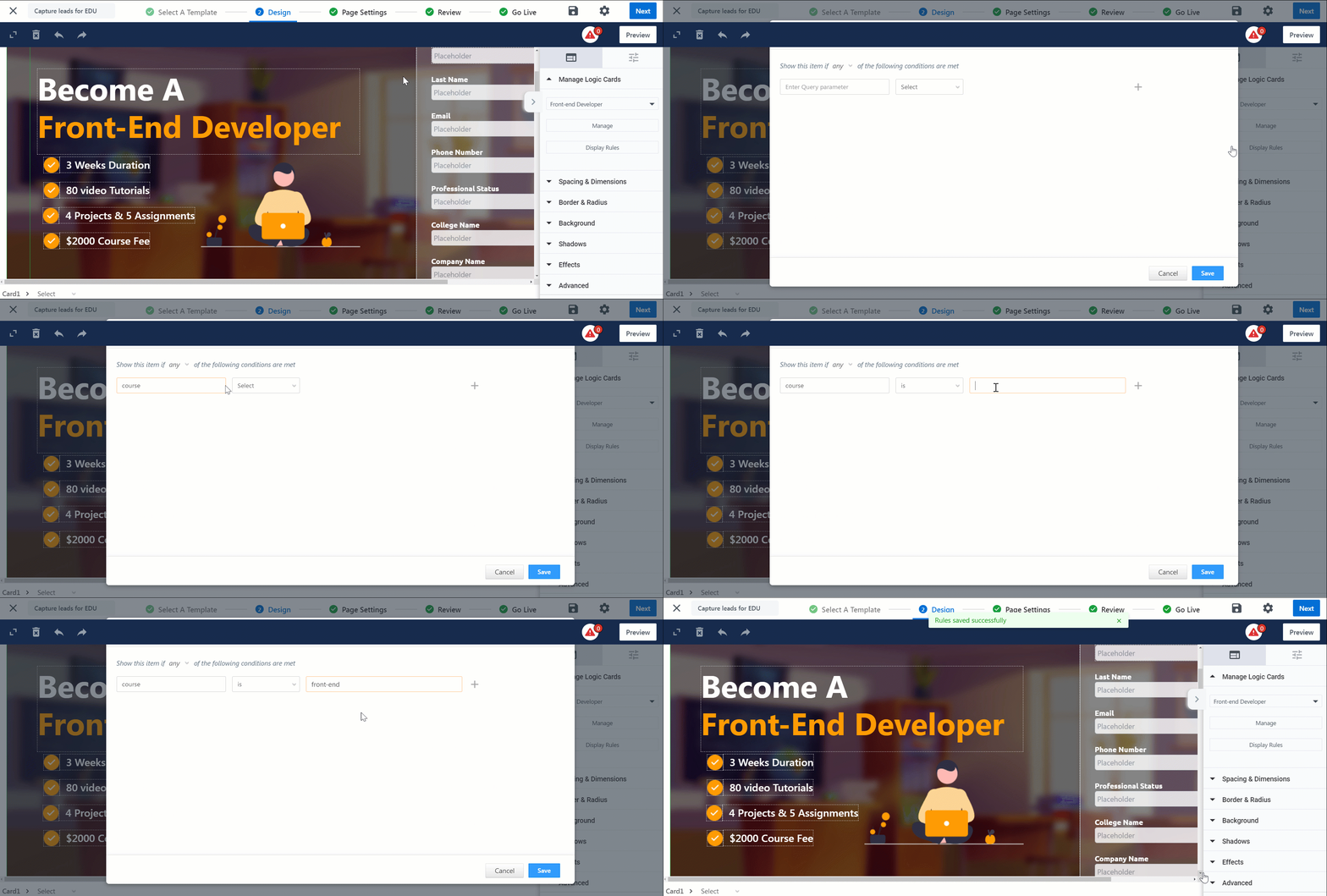
  2. Click the outer border of the Element, and from the Components panel, click Display Rules.
  3. On the Dashboard Item Display Rules pop-up, select whether you want to display the block if Any or All of the conditions you configure are satisfied.
  4. Next, on the first dropdown, select Mavis Data.
  5. Select the database, table, and column you want to display on the block. We’re selecting the Language.
  6. Next, add the filter condition that needs to be satisfied to display the block. We’re selecting Curriculum is British.
  7. Then, from the dropdown below IF, select the relevant function, and the corresponding value. We’re selecting is English.
    • The logic here is that if the Language is English and the Curriculum is British, the block will be displayed to the lead.
    • If a lead visits this portal block and their Language is English with a South African Curriculum, or Afrikaans with a British Curriculum, the block will NOT be displayed.
    • If required, you can add multiple similar conditions.
  8. Once you’re done, click Save.

Preview the portal, and click Publish. When a lead visits this page, and if they satisfy the configured conditions, this block will be displayed to them. If they don’t satisfy the configured conditions, this block will be hidden from them.

Note: When configuring conditions, you can also use the Mail Merge option to fetch data from lead fields. If the mail merged data satisfies the conditions, the block will be displayed to that lead.

Mavis Portal Integration


Any Questions?

Did you find this article helpful? Please let us know any feedback you may have in the comments section below. We’d love to hear from you and help you out!

LeadSquared Converse in Mobile App

1. Feature Overview

LeadSquared Converse is a multi-channel engagement platform that enables you to have real-time conversations with leads. If you’ve enabled Converse in your web application, it will be available on the mobile app (on both Android and iOS devices) by default.

Converse currently supports the following channels –

  • SMS (currently available only in the United States)
  • WhatsApp

Using Converse, you’ll be able to –

  • Send and receive images, videos, GIFs, etc.
  • View conversations in the context of a lead.
  • Eliminate the need to switch between multiple applications to converse with your leads.
  • Get real-time notifications for messages sent by leads.
  • Send content-rich messages, with multi-language and emoji support.


2. Prerequisites

  1. You must have LeadSquared Converse enabled in your account. To enable it, please write to support@leadsquared.com.
  2. Once Converse is enabled in your web app, to configure it, follow the steps mentioned in LeadSquared Converse.


3. Add Converse in Mobile App

If you’ve enabled Converse on the web app, it’ll be available on the mobile app as well. To add Converse on the bottom navigation bar or the side menu –

  1. Navigate to My Account>Settings>Mobile App>Mobile Navigation.
  2. Under Hidden Menu Tabs, drag the Converse option and drop it under Visible Menu Tabs. You can drag and drop the options in order of where you want them to be displayed.
  3. Once you’re done, click Save.

Note:

  • On the Mobile Navigation screen, the first (top) 4 tabs are displayed on the navbar, and the next 5 tabs are displayed as tiles in the side menu.
  • To know more about menu customization on mobile, refer to Configure Mobile App Settings from the Web Platform.

LeadSquared - Add converse to mobile app


4. Converse on Mobile App

  • If you’ve added Converse on the bottom navigation bar, you can find it there. If you’ve added Converse on the side bar-
    1. From the Dashboard, tap LeadSquared - Mobile app menu.
    2. Select Converse.
  • On the Converse page, at the top right corner of the screen, you can set your availability status. You will only receive messages if your status is available.
  • To filter your chats, tap filter icon.
  • To send a message to a lead, tap on the lead’s name. You will now be redirected to the chat-box. You can draft your own messages or select a template here.

Note:

  • When you send a WhatsApp message directly from the mobile app, the message will be sent from your phone number. However, when you send a WhatsApp message using Converse, the message will be sent from the configured WhatsApp business account. There’s less chance of your messages being marked as spam when you use a business account.
  • You must change your availability status manually. Your status will remain the same until you change it, even when you’re not using the app.
  • You will receive notifications from the mobile app whenever you get Converse messages from a lead. You can tap the notification to get redirected to the lead’s chat. Make sure your notifications are switched on for the LeadSquared mobile app.

LeadSquared - Converse in Mobile App


Any Questions?

Did you find this article helpful? Please let us know any feedback you may have in the comments section below. We’d love to hear from you and help you out!

Lead Automation Conditions – Compare

1. Feature Overview

The Compare automation action lets you compare the values of lead and activity fields and set up different courses of action based on the results. You can also use saved responses from webhooks and Lapps in your comparisons.


2. Set Up the Compare Condition

You can set up the compare condition at any point after the automation trigger. If you want to make use of a saved response from a webhook or lapp and compare it with a lead or activity field, select the Compare condition after the saved response card –

compare lead and activity fields


3. Enter the Fields You Want to Compare

Select a field to compare by typing in @<fieldname>. The auto-suggest options should help you find the field quicker. If you’ve saved the response from a webhook or lapp, the option to select it will appear below the lead and activity fields as shown below.

Note: To compare activity fields, the automation must have an activity based trigger (New Activity on a Lead, Activity Update on a Lead).

compare options


4. Choose a Data Type and Operator

When comparing fields, it is imperative to choose a data type –

comparing fields

Click the help icon to understand how the comparison for each data type works –

comparing help

Based on the data type, different operators will appear –

compare operators

Here’s what you can do with each data type –

Data Types Operators Notes
Text Equal to, Not equal to, Contains, Contains Data, Does not contain data. You can combine mail merge lead and activity fields as well as dynamic responses to create a bigger string.

For example, you can combine a lead’s first and last name.<@{Lead:FirstName,} @Lead:LastName,}>

Date Equal to, Not equal to, Before, After, Is defined, Is not defined. The date you enter must be in the format yyyy-MM-dd HH:mm:ss

For example, 2018-07-26 09:45:00

If you’re comparing a date in a dynamic response, ensure that the correct format is followed.

Number Equal to, Not equal to, Lesser than, Greater than. You can perform the following arithmetic operations with number fields –

  • + (addition)
  • – (subtraction)
  • * (multiplication)
  • / (division)
  • % (modulus)

For example., (@{Lead:Score,} + 1)/2


5. Add Multiple Conditions

You can add multiple conditions for comparison. Be sure to choose whether you want Any Condition(s) or All Condition(s) met when proceeding to the next action in your workflow.

compare add conditions


6. Choose Follow Up Actions

After setting up the condition you can choose 2 sets of follow up actions. Actions on the Yes path will trigger for leads when the Compare conditions hold true, while actions on the No path will trigger when your conditions are false.

follow up actions

Note: If the date format is incorrect, the lead will go down the No path. The automation will not fail due to incorrect date formats.


7. Example Use Case

In this example, a clothing brand is sending out discounted offers to new leads based on gender. They’re sending a particular catalog to male leads and another to female leads. Here’s how they’re doing it –

  1. Choose the New Lead automation trigger.
  2. Under the new lead trigger set up a webhook action (Custom>Webhook) and save the webhook response as a JSON file. This webhook has the lead’s gender data. For more information on how to use saved responses, see Dynamic Responses in Lead Automation.
  3. Select the Compare condition. Compare the saved response with Male. Ensure the data type is Text.
  4. Follow up the yes path with the male catalog. Follow up the no path with the female catalog.

Compare Automation Example


Any Questions?

Was this article helpful? Leave us a comment and let us know.

How to find Schema Name of a Lead field?

Navigate to My Account -> Settings -> Customization -> Lead Fields.  You will see schema name for each lead field as illustrated below.

Schema Name

Integrating Azure AD with LeadSquared

1. Feature Overview

LeadSquared offers sign-in integration with Azure Active Directory services, using OpenId Connect. After the integration, you won’t need to manage a separate set of credentials for LeadSquared, and can log in directly with your AD credentials. This integration will also enable you to seamlessly sign in to the LeadSquared mobile app as well. For information on other ADFS integrations, see ADFS Integration for Signing in to LeadSquared.

Note: 

  • When you enable ADFS integration, it is applied by default to all the users in your account. It CANNOT be disabled for specific users.
  • We support Microsoft Azure Integration through the mobile app as well. To enable it, you must be running the following app versions –


2. Prerequisites

  • You must have a Microsoft Azure Active Directory.
  • You must be an Administrator of your LeadSquared account.
  • You must use the same email Id on Azure and LeadSquared.
  • You must have the Azure AD authentication provider enabled on your LeadSquared account. To enable it, please reach out to support@leadsquared.com.


3. How it Works

  1. Create an application on Azure.
  2. Grant application access on Azure.
  3. Set up authentication on LeadSquared
  4. Test the application on LeadSquared.


4. Create an Application on Azure

To create a new application on Azure –

  1. Navigate to the Microsoft Azure portals home page, and under Manage Azure Active Directory, click View.
  2. On the left panel, click App registrations.
  3. On the App registrations page, click New registration.
  4. Enter a relevant name for the app.
  5. Under Supported account types, select “Accounts in this organizational directory only”
  6. Once you’re done, click Register.

Azure_OpenId_7


5. Authenticate Azure Application

5.1 Application Access

To grant application access to the new application you created –

  1. On the Microsoft Azure portals home page, under Manage Azure Active Directory, click View.
  2. On the left panel, click App registrations.
  3. On the App registrations page, click All applications.
  4. Under Display Name, click the application you’ve created.
  5. On the application page, on the left-panel, click Authentication.
  6. On the Authentication page, click Add a platform, and then click Web.
  7. Enter this default URL, and click Configure
    • https://login.leadsquared.com/Home/SignInWithSSO
  8. Depending on your region, enter the following additional URLs, and click Configure
    • If your LeadSquared account in the Mumbai (India) region –
      • https://login-in21.leadsquared.com/Home/SignInWithSSO
    • If your LeadSquared account is in the Hyderabad (India) region, pas
      • https://login-in22.leadsquared.com/Home/SignInWithSSO
    • If your LeadSquared account is in the USA region –
      • https://login-us11.leadsquared.com/Home/SignInWithSSO
    • If your LeadSquared account is in the Ireland region –
      • https://login-ir31.leadsquared.com/Home/SignInWithSSO
    • If your LeadSquared account is in the Canada region, pass
      • https://login-ca12.leadsquared.com/Home/SignInWithSSO
    • If your LeadSquared account is in the Singapore region, only the default URL is required. No additional URL is required.
  9. Once you’re done adding the platforms, scroll down to “enable implicit grant flow”, and select Access tokens and ID tokens by checking the Azure checkbox box.
  10. Click Save.

Azure_OpenId_2

NextGen/LeadSquared New UI

If you’re using LeadSquared’s NextGen/New UI, in addition to the steps (until step 5) listed above, the following steps must be completed –

  1. On the Authentication page, click Add a platform, and then click Single-page Application.
  2. Enter this default URL, and click Configure
    • https://marvin.leadsquared.com
  3. Depending on your region, enter the following additional URLs, and click Configure
    • If your LeadSquared account in the Mumbai (India) region –
      • https://marvin-in21.leadsquared.com
    • If your LeadSquared account is in the Hyderabad (India) region, pas
      • https://marvin-in22.leadsquared.com
    • If your LeadSquared account is in the USA region –
      • https://marvin-us11.leadsquared.com
    • If your LeadSquared account is in the Ireland region –
      • https://marvin-ir31.leadsquared.com
    • If your LeadSquared account is in the Canada region, pass
      • https://marvin-ca12.leadsquared.com
    • If your LeadSquared account is in the Singapore region, only the default URL is required. No additional URL is required.
  4. Once you’re done adding the platforms, scroll down to “enable implicit grant flow”, and select Access tokens and ID tokens by checking the Azure checkbox box.
  5. Once you’re done, click Save.

Note: 

If you’re adding iOS as a platform, configure the following –

  • Bundle IDcom.LeadSquaredNextGen.com
  • Redirect URImsauth.com.LeadSquaredNextGen.com://auth

If you’re adding Android as a platform, configure the following –

  • Package Namecom.leadsquared.nextgen
  • Signature HashidUQLW1AKxU7KMLcI1HAEFDcZIk=
  • Redirect URImsauth://com.leadsquared.nextgen/idUQLW1AKxU7KMLcI1HAEFDcZIk%3D

Inetgrate Azure AD with LeadSquared Ios Android

5.2 Single Page Application

Then, create a single page application, and configure LeadSquared’s Unified Login feature.

  1. On the Authentication page, click Add a platform, and then click Single-page Application.
  2. Enter this default URL, and click Configure
    • https://identity.leadsquared.com
  3. Depending on your region, enter the following additional URLs, and click Configure
    • If your LeadSquared account in the Mumbai (India) region –
      • https://identity-in21.leadsquared.com
    • If your LeadSquared account is in the Hyderabad (India) region, pas
      • https://identity-in22.leadsquared.com
    • If your LeadSquared account is in the USA region –
      • https://identity-us11.leadsquared.com
    • If your LeadSquared account is in the Ireland region –
      • https://identity-ir31.leadsquared.com
    • If your LeadSquared account is in the Canada region, pass
      • https://identity-ca12.leadsquared.com
    • If your LeadSquared account is in the Singapore region, only the default URL is required. No additional URL is required.
  4. Once you’re done, click Save.

5.3 Implicit Access

To grant access to your login email ID –

  1. From the Authentication page, on the left-panel, click Token configuration.
  2. On the Token Configuration page, click Add optional claim.
  3. On the right-panel, under Token type, click ID.
  4. Under Claim, select email and upn by checking the Azure checkbox box.
  5. Once you’re done, click Add.
  6. On the Add optional claim confirmation pop-up, confirm by checking the Azure checkbox box.

Azure_OpenId_3


6. Application Permissions on Azure

6.1 Grant Permissions

To grant application permissions to the new application you created –

  1. On the Microsoft Azure portals home page, click App registrations, and then click All applications.
  2. Under Display Name, click the application you’ve created.
  3. On the application page, on the left-panel, click API permissions.
  4. On the API permissions page, click Add a permission.
  5. On the Request API permissions pop-up, click Microsoft Graph, and then click Delegated permissions.
  6. Under Permissions, click the Azure Checkbox checkbox against email, profile and openid.
  7. Once you’re done, click Add permissions. This will successfully grant permissions.

Azure_OpenId_4

6.2 Grant Admin Access

To grant admin access to the new application you created –

  1. Navigate to the API permissions page, and click Grant admin consent for LeadSquared.
  2. On the confirmation pop-up, click Yes. This will successfully grant admin access.

Azure_OpenId_5


7. Authenticate the Azure Application in LeadSquared

To authenticate the application you’ve created on LeadSquared –

7.1 Obtain Client ID and OpenID from Azure

To obtain the client Id for the application you’ve created –

  1. On the Microsoft Azure portals home page, click App registrations, and then click All applications.
  2. Under Display Name, click the application you’ve created.
  3. On the application page, copy the Application (client) ID.
  4. Then, click Endpoints, and under OpenID Connect metadata, click the Azure icon to copy the token.

Azure_OpenId_6


7.2 Authentication on LeadSquared

To authenticate and activate your Azure application on LeadSquared –

  1. From your LeadSquared main menu, navigate to My Profile>Settings>Security>Authentication Provider.
  2. Against Enable Third Party Authentication Provider, toggle the enable icon slider.
  3. On the Choose Authentication Provider pop-up, select Azure AD.
  4. On the Configure Authentication Provider pop-up, enter the Application (client) ID and OpenID Connect metadata, and click Test.
  5. On the Test Authentication Provider window, click Sign in with Azure AD, and on the Microsoft pop-up, enter the password for your Microsoft Azure Id.
  6. Once you’ve signed in successfully, on the Test Authentication Provider window, click Enable.
  7. On the Enable Authentication Provider pop-up, click Yes. Your Azure OpenId login will be authenticated successfully.

Azure_OpenId_9


8. Sign-in with Azure AD Credentials

Once the set-up is complete, when you log in to your LeadSquared account (https://login.leadsquared.com/), you’ll be prompted to enter your Azure AD credentials (or choose the Microsoft account if already signed in on the browser).

Sign in to LeadSquared with Azure AD account


Any Questions?

Did you find this article helpful? Please let us know any feedback you may have in the comments section below. We’d love to hear from you and help you out!

Integrate QuikrHomes with LeadSquared

We no longer support the existing QuikrHomes connector. This won’t affect your integration if it’s already installed. But if you’re looking to build a new integration to capture leads from QuikrHomes, please refer to Integrate Your Custom Data Source with LeadSquared.

Lead Automation Actions – Sales Execution

1. Feature Overview

Here you’ll learn about sales related automation actions. These actions are all directed towards your sales users. Use this feature to –

  • Notify users when certain criteria are met.
  • Create tasks for users.
  • Automate lead and activity distribution among your users.


2. Notify Users

Allows you to send a notification email to a LeadSquared user. Click Notify UserLeadSquared Automation

By default, the notification is directed to the lead owner. You can add more LeadSquared users to the ‘To‘ field. You can also direct the notification to the activity owner or include the activity owner in the ‘Cc‘ or ‘Bcc‘ fields
You can also mail merge lead fields, owner fields, sender fields and activity fields into your email content using the mail merge option highlighted below.

LeadSquared Automation

Here’s a sample automation to notify a user when a task is overdue.

Notify User When Task is Due Automation


3. Create Tasks

Allows you to create both appointment and to-do type tasks (see Managing Task Types). Click Create Task and enter the task details.

create tasks

When creating appointment type tasks, you can also set it up as a recurring task. To do this, click Make Recurring.

LeadSquared Platform Updates

Note: You can mail merge lead and activity fields in the subject and description of the task. You can also schedule the task to be created using date-time fields from an activity (only for automations with activity triggers).


4. Distribute Leads

The distribute lead action allows you to set conditions to distribute leads among your users. To know more, please refer to Lead Distribution Automation in LeadSquared.

Choosing conditions


5. Distribute Opportunities

The distribute opportunity action allows you to set conditions to distribute opportunities among your users. To know more, please refer to Opportunity Distribution Automation.

Distribute LeadSquared Opportunities


6. Distribute Activities

Activity distribution works largely the same way as lead distribution. However, there are a few pre-conditions that must be met –


6.1 Example Use Cases

You can use this feature to distribute activities amongst users, sales groups or teams, to complete different phases of a process or steps in an implementation cycle. For example, you can distribute –

  • A ‘Document collection’ activity to a field sales team to collect identification documents.
  • An ‘Account Creation’ activity to a supervisor or manager for approval.
  • A ‘Loan Application’ activity to a risk assessment team to determine eligibility.


6.2 Distribute Activity Configurations

The Distribute Activity action appears under Sales Execution following a lead activity-based trigger.

distribute activity

When you click the Distribute Activity action, the configuration pop-up will appear. You can create multiple distribution rules consisting of various conditions.

  1. Enter the Rule Name in the space provided (Use the New Rule option to create multiple rules).
  2. Click the Choose Condition(s) link.

choose distribution conditions

Select the appropriate conditions, click Add Condition (you may add multiple conditions), then click Set Criteria. For more information on setting conditions, see How to Use Advanced Search.

set distribute activity conditions

Now assign the activity to/based on users, groups or user properties. For more information on each of these, see the ‘Distribute Leads to Users’, ‘Distribute Leads to Groups’ and ‘Distribute Leads Based on User Properties’ sections above. The process is exactly the same for activity distribution. Click Save when you’re done.

Note: You must set a default rule that will execute when no other rules match the set criteria. The default rule will automatically distribute the activity to a user you select.

distribute activity final

You can now continue to add actions or conditions to the automation.

If you distribute an activity to a user who doesn’t have permission to view a particular lead, you can use the Add Share Lead link (only for ESS tenants) to temporarily give the user lead access. For more information, see How to Share Leads for a Limited Duration.

add lead share to activity distibute


7. Distribute Tasks

Like with leads and activities, you can also distribute tasks amongst your users. The distribute task action will appear only if the automation trigger is set to ‘Task Create’ and ‘Task Reminder’.


7.1 Distribute Task Configurations

The Distribute Task action appears under Sales Execution following any of the task-based triggers mentioned above.

distribute tasks action

The distribute task card works exactly the same way as the distribute lead card (Section 4. Distribute Leads). You can set rules with multiple conditions, assign them directly to users and sales groups, or on the basis of user properties.

distribute task card


Any Questions?

Did you find this article helpful? If you have any doubts or feedback, please leave us a comment below.

Google Retargeting Connector

1. Feature Overview

When a lead interacts and shows interest in your product or service, on your website or landing pages, LeadSquared captures these leads, along with their details (such as name, phone number, email Id, etc.). Google retargeting (or remarketing) enables you to mount a sustained marketing campaign that shows only relevant ads to these leads, about the specific offering they’re interested in.

Through LeadSquared’s Google Retargeting Connector, you’ll be able to automatically send the list of leads who’ve shown interest in a particular product or service, from LeadSquared to Google Ads. These leads will get ads only for those specific products or services.

Some of the benefits of Google retargeting are –

  • Narrows down the target audience of a Google ad, to focus on only the list of leads who’ve shown interest in that specific product or service.
  • Reduces manual effort and time spent in populating Google Ads with the list of leads who’ve shown interest.
  • Up-sell and cross-sell products and services to existing customers, by showing them relevant ads.
  • Gather more information from your leads with advanced field mapping for both standard and custom fields.
  • Reduces the overall cost of a campaign, while increasing its efficiency, relevance and impact.
  • Analyse and measure the effectiveness of each campaign with detailed reports and analytics.

To know more about what the Google Retargeting Connector offers, please refer to Google Retargeting with LeadSquared.


2. Prerequisites

  • You must be an Administrator of your LeadSquared account.
  • This is a paid feature. To enable it, please write to support@leadsquared.com.
  • You must have an active Google Ads account.
  • To use this feature, your Google Ads account must fulfill a list of requirements that meet Google’s Customer Match policy.


3. How it Works

To push leads from LeadSquared to your Google Ads account, using the Google Retargeting Connector connector, you’ll have to complete the following steps –

  1. Install the connector on LeadSquared
  2. Configure the connector on LeadSquared
    1. Connect your Google Ads account(s)
    2. Create an audience list
    3. Map relevant fields to the list
    4. Sync the list with Google Ads
  3. View the list on your Google Ads account


4. Installing the Connector

To install the Google Retargeting Connector on your LeadSquared account –

  1. From the main menu, navigate to Apps>Apps Marketplace and search for Google Retargeting Connector.
    • You’ll also find the connector on the left panel, under Online Ads.
  2. Click Install.
  3. Once the connector is installed, hover your cursor over the settings icon, then click Configure.
  4. On the Connector Access screen, you can choose to give access to all your marketing users, or only specific marketing users.
    • If you choose Specific Marketing Users, from under Specific Users, you can select the marketing users from the dropdown list.
  5. Once you’re done, click Save.

Retargeting_3


5. Configuring the Connector

5.1 Connect Ad Accounts

Once the connector is installed, connect your Google Ads account(s) to LeadSquared.

  1. Navigate to Apps>Google Retargeting.
  2. On the Connect Ad Accounts page, click Connect Accounts.
  3. On the Choose an Account window, choose the Google account to which your Google Ads account is linked.
  4. Give LeadSquared access to your Google account by clicking Allow. Once you get a successful message, please close the Google window.
  5. On the Select Account(s) to be added pop-up, from the available Google Ads accounts, select the list of accounts you want to add. You can add multiple accounts.
  6. Once you’re done, click Select.
  7. Once you get a “Successfully Saved” message, click Next.

Note: To delete an existing account, against the account name, click the icon, and on the Delete Account pop-up, click Yes.

Retargeting_4


5.2 Create an Audience List

To create an audience list from the list of leads –

  1. On the Connect Ad Accounts page, click Audience List.
  2. Under Select Account, from the available dropdown, select the account under which you want to create the list, then click Create Audience.
  3. On the Create Audience List pop-up, enter a name and description for the list.
  4. Under Data to Upload, you can select the data type that should be uploaded to the list. You can choose from –
    • Email address, phone number, and/or mailing addresses.
    • User IDs
    • Mobile Device ID
  5. Once you fill in the necessary details, click Done. You’ll get a message saying, “Created Successfully.”

Retargeting_E_1

Note: To delete an existing list on the Create Audience List pop-up, against the list name, click the icon, and on the Delete Audience pop-up, click Yes.


5.3 Field Mapping

To map lead fields from LeadSquared to the lead fields on the Google Audience List –

  1. On the Connect Ad Accounts page, click Field Mapping, and then click Add Custom.
  2. Under Google Audience List fields, click the dropdown to select a field from the list of available fields.
  3. Similarly, under Lead Field, select a corresponding field in LeadSquared from which you want to push data.
  4. Once you’re done, click the Google icon, and then click Save. You’ll receive a “Field Mapping saved Successfully” message.

Retargeting_5

Notes:

  • Along with Email and Phone fields, it is mandatory to map the following fields to the relevant LeadSquared lead fields –
    • First Name
    • Last Name
    • Country
    • Zip
  • To edit an existing field, click the icon.
  • To delete an existing field, click the icon.


5.4 Sync Lists

After successfully mapping lead fields, to sync your LeadSquared lists to Google Ads –

  1. To populate lead details on this list, navigate to Leads>Manage Lists.
  2. Against the list from which you want to pull the lead details, hover your cursor the icon, and click Google Retargeting.
  3. On the Google Retargeting pop-up, select the Google Ad account, and the Custom Audience List that you created, then click Done. You will receive a message stating your request has been submitted successfully.

Retargeting_E_2

Notes:

  • You can pull lead details from a particular LeadSquared list, and map it to your Google Audience List only once every 12 hours.
  • It will take between 6-12 hours for the leads to reflect in your audience list on your Google Ads account.


5.5 View Reports

Under Reports, you can view the details of a list that’s been pushed from LeadSquared to Google Ads.

Retargeting_6


6. View the List on Google

After you’ve successfully created the list, you can view it on your Google Ads account. To do this –

  1. From your Google Ads home page, navigate to Tools & Settings>Shared Library>Audience Manager.
  2. Under Audience name, you’ll find the list that’s been pushed from LeadSquared to Google Ads.

Google Retargeting_9


Any Questions?

Did you find this article helpful? Please let us know any feedback you may have in the comments section below. We’d love to hear from you and help you out!

Rename the Opportunity Entity to Reflect Your Business Terminology

1. Feature Overview

Opportunities in LeadSquared represent potential deals. Through opportunity management, you can track various aspects of deals in progress. Users can rename “Opportunity” as per their business needs. For example, an insurance company can rename “Opportunities” as “Policies” and an education organisation can rename them as “Courses” for better adoption among users.

Note:

  • All the admin settings, reports & configurations will continue to use the keyword Opportunity. The name change will not be reflected on these pages.
  • To know more about opportunities, refer to Opportunity Management – Feature Guide.


2. Prerequisites

You must be the Administrator of your LeadSquared account.


3. Enable Opportunity Rename

  1. Navigate to My Profile>Settings>Profile>Advanced Configurations.
  2. Alongside Enable Opportunity Rename setting, slide the toggle.

LeadSquared - Enable Opportunity Rename


4. Rename Opportunity

  1. Navigate to My Profile>Settings>Opportunities>Rename Opportunities.
  2. On the Rename Opportunity tab, under Actions, click the Edit icon.
  3. On the Rename Opportunity pop-up, change the Display Name and Plural Name, and click Save.
  4. On the Confirmation pop-up, click the Confirm button.
  5. You will receive a confirmation notification at the top of the page once the name change has been accepted by the system.

Note: It will take up to one hour for the name change to reflect in your account.

LeadSquared - Rename Opportunity


Any Questions?

Did you find this article helpful? Please let us know any feedback you may have in the comments section below. We’d love to hear from you and help you out!

Opportunity Duplicate Detection

1. Feature Overview

Duplicate opportunities contain details of the same lead who shows interest in the same Opportunity Types across multiple sources, like websites, landing pages, incoming calls, etc. To prevent this, set up dedupe rules to identify duplicate opportunities, which helps optimise your users’ efforts, maintain clean data and improve reporting accuracy.

LeadSquared Opportunitites


2. Prerequisite

You must be the Administrator of your LeadSquared account to configure this feature.


3. How it Works

This feature lets you identify duplicate opportunities raised by a lead based on how often the lead shows interest in the same product or service. To do this, set rules (conditions) that are used to identify these leads. For example, identify leads that apply for the same home loan product more than once within the last 30 days. The system posts these duplicates as activities on the Opportunity Details page.


4. Use Cases

Some of the example use cases across various industries for which you can create dedupe rules are –

Industry Use Cases Example Dedupe Rule
Automobile Loans To ensure the customer is not pitched multiple loans for the same automobile. Detect a duplicate opportunity

  • if the same lead
  • with the same vehicle registration number
  • applies for an automobile loan
Health Insurance To ensure the same customer is not pitched an upgraded policy by multiple sales users. Detect a duplicate opportunity

  • if the same lead
  • applies for a health insurance
  • with a coverage amount greater than their existing policy (e.g., more than 1 crore)
  • submits the insurance form
Real Estate To ensure the same lead is not pitched the same property by multiple sales users. Detect duplicate opportunity

  • if the same Lead
  • for the same project
  • in the same locality
  • submits an application to buy the property
Education To ensure the same student is not pitched the same course by multiple sales users. Detect a duplicate opportunity

  • if the same lead
  • for the same college campus
  • and the same course they previously applied for
  • submits the admission form


5. Set Rules

To configure dedupe rules –

  1. Navigate to My Profile>Settings>Opportunities>Duplicate Detection.
  2. Against an existing Opportunity Type, click Set Rule.
  3. On the Set Rule pop-up, the first three dropdowns are preset by default, and you do not need to make any changes here.
  4. On the fourth dropdown, select the opportunity field the system uses to identify duplicate opportunities.
    • For e.g., if you select “Status” is “Open”, then Life Insurance opportunities (in our GIF) created on the same lead with the status set to Open are marked as duplicates.
  5. Then, add a lead identifier condition (e.g., Email is Lead’s Email ID). This condition is mandatory, otherwise the system cannot identify the lead on which a duplicate is created.
    • Here, use the mail merge* option to fetch data from the lead identifier field.
  6. Similarly, set as many conditions as required for your business. You can only set multiple AND conditions.
  7. Once done, click Set Rule. Then, click Save, and on the Confirm pop-up, click Save.
    • Here, you can also add multiple rules as well.
  8. Lastly, enable the dedupe rule. Once this is done, duplicate opportunities

Note:

  • *Ensure you use the mail merge option by entering the ‘@’ symbol. This dynamically pulls the value of the selected lead or opportunity field.
  • On existing rules, hover over the settings icon to –
    • Edit – Lets you update the conditions configured on a rule.
    • Disable – Lets you disable an existing rule, which allows duplicates to be created.

LeadSquared Opportunity Duplicate Detection


6. View Duplicates

To view duplicates, navigate to the Opportunity Details page, and under Activity History, view the duplicate entry.

LeadSquared Opportunitites


7. FAQs

Why Is the Opportunity Duplicate Detection Rule Not Working?

  • Issue: The duplicate detection rule for opportunities is not functioning as expected, despite being configured.
  • Possible Cause: The duplicate detection rule might be set up but not enabled for the specific opportunity type.
  • Solution:
    • Go to Settings>Opportunity>Duplicate Detection in your LeadSquared account.
    • Check if the duplicate detection rule is enabled for the relevant opportunity type. A green button indicates the rule is active.

Leadsquared Opportunity Management


Any Questions?

Did you find this article helpful? Please let us know any feedback you may have in the comments section below. We’d love to hear from you and help you out!

Opportunity Mapping in Converse

1. Feature Overview

LeadSquared’s Opportunities feature can be used to manage your potential deals. On LeadSquared Converse, Opportunities in the form of incoming messages can be automatically routed to the respective Opportunity Owners, Chat Groups, or specific users.

In this article, you will learn how to set up Opportunity mapping on Converse, and how to route those Opportunities to the correct users in your account.

Note: The configurations in this article are only required if you are chatting with the lead at an Opportunity level. If you are chatting at the lead level, then these configurations are not required.


2. Prerequisites


3. How it Works

  1. Create a routing rule that will route the incoming Opportunities to an Opportunity Owner; or a Chat Group, Admin, or Specific user, if the Opportunity Owner is unavailable.
  2. Map an Opportunity Type to your Business Number, configure auto responses for the incoming message, and apply a relevant routing rule from the previous step.

3.1 Example Use Case

This example illustrates the Opportunity mapping feature on Converse. We will use a similar example in this article –

Industry Use Case
Education A student enrolled in a graduate computer course at a particular university also shows interest in a postgraduate course in AI or Data Science. The courses the student has shown interest in are Opportunities. When the student enquires about these Opportunities on Converse, they will be routed to the relevant Opportunity Owner or Chat Group based on your Converse Opportunity settings.

converse opp working example


4. Routing Management

Routing management will route the Opportunity to the relevant Opportunity Owner or to a Chat Group, Admin, or Specific User.

4.1 Chat Group Settings

Note: Creating a Chat Group is optional. If you do not create a Chat Group, then the Opportunity can still be routed to the Opportunity Owner, Admin, or a Specific User.

You can create multiple chat groups in your account. Incoming Opportunities can be assigned to these users in a round-robin manner. For example, we can create two Chat Groups, one to receive Opportunities for AI courses and the other to receive Opportunities for Data Science courses, both under the Postgraduate Course Opportunity Type.

  1. Navigate to My Profile>Settings>Converse, and select Chat Group Settings.
  2. Click on + Add a New Group.
  3. Assign a set of users to this group.
  4. Enter a Group Name and Group Description.
  5. Click Save.

Opportunity Converse

4.2 Configure Routing Management

  1. Navigate to Settings>Converse Settings>Routing Management.
  2. On the Routing Management page, click + Add New Rule.
  3. Enter a Rule Name.
  4. Select your routing preference –
    1. Default Routing – When there is an incoming Opportunity, the lead will first be routed to this user/group. For example, if the customer chooses an existing opportunity, through the default rule, you can route it to the opportunity owner.
    2. Fallback 1– When the user/group in default routing is unavailable, the Opportunity will then be routed to the Fallback 1 user/group. For example, if the customer chooses a new Opportunity (there’s no Opportunity Owner associated), the Opportunity can then be routed to a Chat Group (we have selected the Chat Group created in section 4.1), where it will be assigned to a user via round-robin.
  5. Once done, click on the converse opp routing done icon.

Opportunity Routing Management

Note: You can create additional Fallback options by clicking the converse opp multi fallback icon. For example, if there is no Opportunity Owner or user available in the Chat Group, the Opportunity should then be routed to the Admin.

Opportunity Routing Management


5. Opportunity Mapping

Map incoming messages for the Opportunity Type to the relevant Business Number. You can configure auto-responses when the lead sends a message. Lastly, we will apply the routing rules to route each Opportunity to the correct user/chat group.

5.1 Connect to Opportunities

Here, you can connect different Opportunity Types to your Business Numbers. For example, you can map the Opportunity Types Postgraduate Course and Undergraduate Course to a single business number, and map an Opportunity Type Education Loan to a separate Business Number.

In our example, we will be mapping the Postgraduate Opportunity Type to a Business Number. Further, under the Postgraduate Opportunity Type, we will select only AI and Data Science course enquires to be routed to this number.

  1. Navigate to My Profile>Settings>Converse, and select Number Rule Mapping.
  2. From the Select Mapping Type to Continue dropdown, select Map to Opportunity.
  3. Click on Map Opportunities.
  4. On the Connect to Opportunities step, select a Business Number.
  5. Map an Opportunity Type to this Business Number.
  6. Further, you can also specify the Opportunity Fields (of dropdown datatype) and Opportunity Value(s). For example, If the Opportunity Type is Postgraduate Courses, and you have multiple listed courses, you can specify which ones will be routed to the Business number.
  7. Click Next.

Opportunity Converse

Note: You can add multiple Opportunity Types to a Business Number by clicking the converse opp multi fallback icon.

converse opp mapp multiple

5.2 Set up Autoresponses

Autoresponses are WhatsApp messages sent to your leads that present them with a list of options (Opportunities) to choose from. They allow leads to raise new inquiries (create new opportunities) or discuss an existing opportunity.

There are 3 settings to select and configure in this step –

  • Creates New Opportunity – When a lead without existing Opportunities sends an incoming message, this option will automatically create a default Opportunity Type you have selected.
  • First Response Message – The First Response Message shows a list of Opportunities for the lead to select. The lead can engage to specify which Opportunity they are interested in, and based on their response, they will be routed to an appropriate user.

first auto response

  • Second Response Message – The Second Response Message is useful when a lead with multiple existing Opportunities sends an incoming message. After the lead makes a selection in the First Response Message, the Second Response Message will trigger so the lead can specify which existing Opportunity they want to discuss. Or, they can choose to enquire about something else. Based on their response, they will be routed to the Opportunity Owner, or a specific user. In the example below, the Second Response Message shows a list of existing Opportunity Owners the lead can choose from.

second response message

5.2.1 Creates New Opportunity

When a lead without existing Opportunities sends an incoming message, this option will automatically create a default Opportunity Type you have selected.

Note: If you enable this option and select a default Opportunity type, you don’t need to configure the first and second response messages. Every time a lead sends a message, the opportunity will be auto-created in LeadSquared. However, if you have multiple opportunity types that you want to present to leads (and separate routing flows for each of them), we recommend you set up the first and second response messages.

In our example, when a lead sends an incoming message we will automatically create a Postgraduate Opportunity Type against the lead.

  1. Select Creates New Opportunity.
  2. Select the Opportunity Type that must be created under Select Default Opportunity Type.

converse opp create new opp autores 1

5.2.2 First Response Message

If configured: When a lead sends an incoming message, the First Response Message will trigger and ask the lead to select from a list of Opportunities. Based on the selection, the lead will be routed to the appropriate user or chat group.

In our example, when a lead sends an incoming message, they will be asked to choose between an AI postgraduate course or a Data Science postgraduate course.

Note:

  • If you select Creates New Opportunity (refer to section 6.2.1) and also configure the First Response Message, then an Opportunity will be automatically created based on the Opportunity the lead has selected in the First Response Message instead of the Default Opportunity Type.
  • If Creates New Opportunity is not selected, and the First Response Message is configured, then the user will have to manually create the Opportunity against the lead.
  1. Click on the configure first and second response icon to configure the First Response Message. A preview of your First Response Message will be displayed on the right-side panel.
  2. Display option as
    • List – Select this option if you want the quick responses (Opportunities) to be displayed as a list that is selectable.
      • Add list header – Enter the header name for the list.
    • Button – Select this option if you want the quick responses (Opportunities) to be displayed as button(s) that are clickable. You can only accommodate 3 quick responses. For more than 3 responses, the display option will change to a List view.
  3.  Add Message
    • Message Header – Add a header for your message, this step is optional.
    • Message – Add a message.
    • Message Footer – Add a footer for your message, this step is optional.
  4. Add Quick Responses – Once configured, Opportunities mapped with the Business Number (refer to section 6.1) will be listed as quick response options.
    1. Click on + Add Responses.
    2. From the drop-down, select the fields to be mail-merged.
  5. Add “Other queries” as an action – If you select this option, an additional quick response will be added. This can be selected by leads who cannot find the product they are looking for. You can create a specific routing rule for these leads to be routed to a different user/Chat Group (refer to section 5).
    • Option Label – You can edit the text for the additional quick response.

converse opp first response1

5.2.3 Second Response Message

The Second Response Message will trigger in the following case –

If the First Response Message is configured, and a lead with multiple existing Opportunities sends an incoming message, the First Response Message will trigger first. Once the lead submits a selection, the Second Response Message will trigger. Here, the lead can specify which one of the multiple existing Opportunities they want to discuss.

For example, if a lead has 3 existing Opportunities (one for himself, and two others for his siblings), and the lead selects AI in the First Response Message, then in the Second Response Message, he can specify if he wants to discuss his existing Opportunity, or the existing Opportunity of one of his two siblings.

Note: If the First Response Message is configured, and a lead with a single existing Opportunity (for example, AI) sends an incoming message, the First Response Message will trigger. The lead can then select an Opportunity (for example, AI) after which the lead is directly routed to the relevant Opportunity Owner. The Second Response Message will not trigger, since there’s only one opportunity.

The configuration for the Second Response Message is similar to the First Response Message (refer to section 6.2.2), but with an additional setting –

  • New Opportunity – This setting allows the lead to enquire about a different product apart from their existing Opportunity.
    • Edit Label – Enter a quick response label for the New Opportunity.
Note: Here, when you configure the Add Quick Responses option, you can map the lead’s existing Opportunities as the existing Opportunity options.

converse opp second response 2

Once you are done configuring the Set up Autoresponses section, click Next.

5.3 Set up Message Routing

In this step, you can route each Opportunity to the respective user(s). Under the Set Routing Rule dropdown, select a rule for each Product or Opportunity Types (these rules were created in section 5). Once done, click Submit.

converse opp message routing

Note: If you have selected the Creates New Opportunities setting (without configuring First or Second Response Message) or the Other queries action, then you can create a separate routing rule and apply it to them.

create new opp route


Any Questions?

Did you find this article helpful? Please let us know any feedback you may have in the comments section below. We’d love to hear from you and help you out!

Integrating Azure AD with LeadSquared Using the ROPC Approach

1. Feature Overview

LeadSquared offers sign-in integration with Azure Active Directory services, using the Resource Owner Password Credential (ROPC) approach. After integration, you won’t need to manage a separate set of credentials for LeadSquared, and can log-in directly with your AD credentials. This integration will also enable you to seamlessly sign in to the LeadSquared mobile app as well.

For information on other ADFS integrations, see ADFS Integration for Signing in to LeadSquared.

Note: When you enable ADFS integration, it is applied by default to all the users in your account. It CANNOT be disabled for specific users.


2. Prerequisites

  • You must have a Microsoft Azure Active Directory.
  • You must be an Administrator of your LeadSquared account.
  • You must use the same email Id on Azure and LeadSquared.
  • You must have the API authentication provider enabled on your LeadSquared account. To enable it, please reach out to support@leadsquared.com.


3. How it Works

  1. Create an application on Azure.
  2. Grant application access on Azure.
  3. Set up authentication on LeadSquared
  4. Test the application on LeadSquared.


4. Create an Application on Azure

Create a new non-gallery application on Azure.

  1. Navigate to the Microsoft Azure portals home page, and under Manage Azure Active Directory, click View.
  2. On the left panel, click Enterprise applications.
  3. On the Enterprise applications page, click New Application.
  4. From the available option, click Non-Gallery Application.
  5. Provide an appropriate name for the application, and click Add.

Azure


5. Authenticate Azure Application

To grant application access to the new application you created –

  1. On the Microsoft Azure portals home page, under Manage Azure Active Directory, click View.
  2. On the left panel, click App registrations.
  3. On the App registrations page, click All applications.
  4. Under Display Name, click the application you’ve created.
  5. On the application page, on the left-panel, click Authentication.
  6. On the Authentication page, scroll down to Advanced Settings, and against Default client type, click Yes.
  7. Once you’re done, click Save.

Azure


6. Application Permissions on Azure

6.1 Grant Permissions

To grant application permissions to the new application you created –

  1. On the Microsoft Azure portals home page, under Manage Azure Active Directory, click View.
  2. On the left panel, click App registrations.
  3. On the App registrations page, click All applications.
  4. Under Display Name, click the application you’ve created.
  5. On the application page, on the left-panel, click API permissions.
  6. On the API permissions page, click Add a permission.
  7. On the Request API permissions pop-up, click Microsoft Graph, and then click Delegated permissions.
  8. Under Permissions, click the Azure Checkbox checkbox against email and openid.
  9. Once you’re done, click Add permissions. This will successfully grant permissions.

Azure


6.2 Grant Admin Access

To grant admin access to the new application you created –

  1. Navigate to the API permissions page, and click Grant admin consent for LeadSquared.
  2. On the confirmation pop-up, click Yes. This will successfully grant admin access.

Azure


6.3 Add Users

To add your LeadSquared users on Azure –

  1. On the Microsoft Azure portals home page, under Manage Azure Active Directory, click View.
  2. On the left panel, click Enterprise applications.
  3. On the Enterprise applications page, under the Name column, click the application you’ve created.
  4. On the application Overview page, under Getting Started, click Assign users and groups.
  5. On the Users and groups page, click Add user.
  6. On the Add Assignment page, click Users, then select from the list of users available on the right panel, and click Select.
  7. Once you’re done, click Assign. The user is now successfully added.

Azure


7. Authenticate Azure Application in LeadSquared

To authenticate the application you’ve created on LeadSquared-

7.1 Obtain the Client Id from Azure

To obtain the client Id for the application you’ve created –

  1. On the Microsoft Azure portals home page, under Manage Azure Active Directory, click View.
  2. On the left panel, click App registrations.
  3. On the App registrations page, click All applications.
  4. Under Display Name, click the application you’ve created.
  5. On the application page, click Endpoints.
  6. Under OAuth 2.0 token endpoint (v2), click the Azure icon to copy the token.

Azure


7.2 Authentication on LeadSquared

To authenticate and activate your Azure application on LeadSquared –

  1. From your LeadSquared main menu, navigate to My Profile>Settings>Security>Authentication Provider.
  2. Against Enable Third Party Authentication Provider, toggle the enable icon slider.
  3. On the Choose Authentication Provider pop-up, select Generic API.
  4. On the Configure Authentication Provider pop-up, enter the details of the Azure API.
Field
 
Description Sample Value
Request Type Choose HTTP request method as POST. This is a mandatory field. NA
API URL Select either http:// or https:// and enter your Azure API OAuth 2.0 token endpoint (v2) URL here. This is a mandatory field. NA
Content Type Select “application/x-www-form-urlencoded” as the content type. This is a mandatory field. NA
Request Headers You can pass multiple request headers here. This is not a mandatory field. NA
Request Body Pass the following key-value pairs in the request body.
client_id The Azure application client id. This is available on the application page, and is called Application (client) ID. a2ae67ff-test-example
grant_type
This is the grant type to capture the password you’ve used to log in to your Azure account.

You must pass the value password

password
username This is the mailmerge value of the email address you’ve used to log in to your Azure account. The mailmerge field will be replaced with the actual email address when you log in. @{User:EmailAddress,}
password This is the mailmerge value of the password you’ve used to log in to your Azure account. The mailmerge field will be replaced with the actual password when you log in. @{User:Password,}
scope Scope must be specified as openid openid
response_type The type of response must be specified as token token
Success Keyword This is the success keyword that will show up in a successful response. This is a mandatory field.

You must pass the value access_token

access_token
Error Keyword The error keyword that will show up in an unsuccessful response. This is a mandatory field.

You must pass the value error

error

Azure


7.3 Test the Application on LeadSquared

  1. Once you’re done entering the values, click Test.
  2. Enter the password you used to login in to Azure on the verification screen, and click Next.
  3. Once you get the success message, click Enable.
  4. On the Enable Authentication Provider confirmation pop-up, click Yes.
  5. The Azure authentication provider is now enabled on your account. Users can now login to LeadSquared using their Azure AD credentials.

Azure


Any Questions?

Did you find this article helpful? Please let us know any feedback you may have in the comments section below. We’d love to hear from you and help you out!

Opportunity Integrations in Telephony

1. Feature Overview

The Opportunities feature can be used to manage your potential deals. Opportunities can now be integrated with the LeadSquared Generic Telephony ConnectorOzonetel v2 Connector and the Ameyo Connector.

Additionally, you can also integrate opportunities with the Universal Telephony Connector, by adding an instance of the LeadSquared Generic Telephony Connector or the Ozonetel v2 Connector. This will enable you to track phone call interactions with your leads, for each opportunity or potential deal. Once the call is completed, a call activity, with all the call details, is posted on the Opportunity Details page.


2. Prerequisites

  • You must be the Administrator of your account.
  • You must have opportunities enabled in your account. To enable opportunities in your account, please reach out to your account manager, or write to support@leadsquared.com.
  • From the Advanced Configuration settings page, the Enable Opportunity – Telephony setting must be enabled. To know more, please refer to Organization Settings – Advanced Configuration.
  • The Opportunity Telephony Mapping must be enabled on your account. To enable this setting, please reach out to your account manager, or write to support@leadsquared.com.
  • You must have either the LeadSquared Generic Telephony Connector, the Ameyo Connector or the Ozonetel v2 Connector installed in your account.


3. How it Works

To integrate opportunities with your telephony providers –

  1. Map your telephony provider’s virtual number to opportunity types in your account.
  2. Configure the telephony connector in LeadSquared.
  3. Create an agent pop-up form to capture inbound/outbound call details.

Once steps 1-3 are completed successfully, your phone call activities will now be tracked against the relevant opportunity. The activities can be viewed on the Opportunity Details page.


4. Virtual Number Mapping

As part of this configuration, you must map your virtual numbers to specific opportunity types. Let’s understand this better with the example of a bank.
The bank offers credit cards, debit cards and loans, each of which is an opportunity type. In this scenario, one unique virtual number is mapped to each opportunity type. This helps keep track of phone calls related to each opportunity.
To map your virtual number to an opportunity type –
  1. From the main menu, navigate to My Profile>Settings>Opportunities>Telephony.
  2. On the Add Mapping pop-up –
    1. Against Virtual Number, enter the virtual number of your telephony service. This field is mandatory.
    2. If there’s an IVR number you want to list, then against IVR Number, enter the number.
    3. From the Opportunity Type dropdown, select the opportunity type to which you want to map the virtual number.
  3. Once you’re done, click Save. If you want to add more agents or add telephony to different opportunity types, then click Save and Add New.

Opportunity Integrations in Telephony_1


5. Configuration

You can configure the opportunity integration in the LeadSquared Generic Telephony Connector and Ozontel v2 Connector. The following configuration steps are common for both the connectors –

  1. From the main menu, navigate to Apps>Apps Marketplace, and search for either the LeadSquared Generic Telephony Connector or the Ozonetel v2 Connector.
    • Alternatively, you can find both the connectors on the left panel, under Telephony.
  2. Against the connector name, hover your cursor over the icon, and click Configure.
  3. On the pop-up, click Call Route API, and copy the Opportunity Route API. For both the connectors, call this API to route calls directly to the opportunity owner.
  4. All the other steps remain the same, as detailed in the documentation links given above.

Opportunity Integrations in Telephony_2


6. Share Opportunities via Agent Pop-up

When configuring the Telephony Agent pop-up, you may want to grant access to opportunity details to users that are not opportunity owners. This allows them to have the relevant information available on the pop-up while conversing with leads.

Navigate to Settings>Telephony Settings>Entity share via popup and click on Configure to Enable opportunity share via agent pop-up.

telephony opportunity share

The configuration will have the following permission settings –

  • Enable – Select to enable the configuration.
  • Access Type – Define the access type for the configuration –
    • View – Non-lead owners can only view the lead details.
    • Modify – Non-lead owners can view and modify the lead details.
  • Duration In Min – Specify the duration (in minutes) of lead share allowed while the agent is on the call.

telephony opportunity share permission


7. Create Agent Pop-Up Form

Once you’ve configured the connector, you must create an agent pop-up form to enable users to capture opportunity details while on call with your leads. This will ensure that the call is mapped to the correct opportunity type, and all the relevant lead details are captured on the call. To do this, you’ll first have to create a form, then, create and publish a process, to integrate the form with the agent pop-up for incoming and outgoing calls.

7.1 Create Form

  1. From the main menu, navigate to Workflow>Manage Forms, and click Create Form.
  2. On the Create Form pop-up, under Choose the type of fields to use, you must select Opportunity Fields.
    • You can also select other fields, but the Opportunity Fields are mandatory.
  3. Then, from the Select Opportunity dropdown, select the opportunity type for which you’re creating the form.
  4. Now add the opportunity fields you want to capture using the agent pop-up during your phone calls.
  5. On the form designer, ensure that all the relevant opportunity fields (such as Associated Lead, Opporrtunity Name, Owner, Status and Stage) are present in the form. For the subsequent steps on creating the form, please refer to How to Create a Form.
  6. Once you’re done, click Publish.

Opportunity Integrations in Telephony_3

7.2 Create a Process

  1. From the main menu, navigate to Workflow>Process Designer, and click Create Process.
  2. On the Where do you want to start the process pop-up, select At Specific Work Area.
  3. On the Choose starting point pop-up, click Others. Under Available Work Areas>Telephony>Agent Popup, you must select Inbound Phone Call and Outbound Phone Call by clicking the . Once you’re done, click Save.
  4. Then, click Add process. From under Actions, click Show Form.
  5. On the Show Form, from the Select Form dropdown, select the form that was created in the previous step. To complete the rest of the process, please refer to How to Create a Process.
  6. Once you’re done, click Publish.

Opportunity Integrations in Telephony_4

Note: You can also select the Multi If/Else User condition. By doing this, you can set conditions to choose which users you want to show the pop-up to.


8. Capture Phone Calls Details

Once the agent pop-up form is published, you can now capture inbound and outbound call details on the form.

8.1 Outbound Phone Calls

To place an outbound call, and capture details –

  1. From the main menu, navigate to Leads>Manage Opportunities>Opportunity Type.
  2. On the Manage Opportunities page, under Enquiry, click on the desired opportunity.
  3. On the Opportunity Details page, under Related Lead, click the lead’s phone number.
  4. On the Confirm pop-up, click Ok. This will open the agent pop-up. Fill in the necessary details here.
  5. Once you’re done, on the pop-up, click Save.

Telephony integration for opportunities

Alternative Implementation

If you prefer to not use the pop-up form, you can alternatively pass the opportunityTelephonyMappingId code in the Click 2 Call URL, and then pass the value for this parameter in the Call Log API, to ensure the call is logged. To do this –

  1. On the configuration screen of a connector (on which the pop-up form is not configured), open the Click 2 Call tab.
  2. In the URL field, at the end of the existing URL, add the following parameter – &opportunityTelephonyMappingId=@opportunityTelephonyMappingId. This will mailmerge the opportunity telephony mapping Id when the Click 2 Call API is being called.
  3. Once you’re done, click Save.

Opportunities Telephony in LeadSquared

iv. Next, pass the @opportunityTelephonyMappingId (received from the Click 2 Call API) as a key-value pair in the post-body of the Call Log API.

Opportunities Telephony in LeadSquared

The outbound calls will now be logged automatically.

Note: Instead of opportunityTelephonyMappingId, you can now directly use the OpportunityId in the Click2Call URL and in the post data of the Call Log API. This allows the activity to be posted directly on the respective opportunity.

8.2 Inbound Phone Call

An inbound call will trigger the agent pop-up on any page within LeadSquared. On the agent pop-up, fill in the necessary details, and then click Save.

Telephony integration for opportunities


9. Telephony Logs

To view the telephony logs of all the opportunity related calls in your account, navigate to My Profile>Settings>Opportunities>Telephony.

Opportunities in LeadSquared


10. Points to Note

  • You must place a call to an opportunity from the Opportunity Details page in order for the phone call activities to be posted against the opportunity. If a call is placed to the related lead from the Lead Details page, then the opportunity details will not get captured, and the phone call activity will be posted against the lead.
    Once the call is complete, you can view the phone call activity on the Opportunity Details page.

Opportunity Integrations in Telephony_5

  • If an agent doesn’t select an opportunity type from the agent pop-up, then information collected on the call is posted only on the lead, and not the opportunity.


Any Questions?

Did you find this article helpful? Please let us know any feedback you may have in the comments section below. We’d love to hear from you and help you out!

LeadSquared Portal Designer – Create Sign Up Forms

1. Feature Overview

You can use LeadSquared forms to create registration forms (sign-up forms) on your portals. Once you create a registration form and integrate it into the Portal Designer, you can configure it to appear in different states to provide registration, login, forgot password, and reset password functionality.

The most basic registration form consists of a username/email address/phone number field and a set password field, but you can build more complex registration forms as per your requirements.

LeadSquared Portals Signup Form


2. Prerequisites

  • You should be an administrator of your LeadSquared account.
  • You must have access to the Portal’s license.
  • Forms and Processes must be enabled on your LeadSquared account.


3. How it Works

  1. First, create a portal registration form using the Forms feature.
  2. Next, integrate the form in your portal and customize its look, feel and behaviour.


4. Types of Portal Registration Forms

Portal registration forms can either have Password-based registration/log-in or OTP-based registration/log-in.

4.1 Password-based Registration Forms

Password-based registration forms can be displayed in the following ‘states’ on your portal –

  • Register – This state appears when the lead registers on your portal for the first time. All fields added to your form will be visible in this state. Here, the lead must enter their details and provide a password for their profile.

LeadSquared Portals Signup Form

  • Login – If a lead has already registered on the portal, they can click the “Already have an account? Login” link. The registration form will now be displayed in the login state, where only the unique field configured (such as email Id, PAN, mobile number, Student Id, Customer Id, etc.) and password field will be visible.

LeadSquared Portals Signup Form

  • Forgot Password – If the lead forgets the password they provided at the time of registration, then they can reset the password by clicking the ‘Forgot Password’ link on the form. This will open the Forgot Password state, where the lead must provide the unique login field details (such as email Id, PAN, mobile number, Student Id, Customer Id, etc.), which you have configured as the search key on the form. The system will then identify the email Id linked to this search key, and send a reset password link to that email Id. The lead must click on this link, and provide a new password. To modify the content sent in the forgot password email, see the Email Settings section under LeadSquared Portals Designer.

LeadSquared Portals Signup Form

  • Reset Password – The link sent to the lead’s email Id, when the lead has clicked on Forgot Password, will open the Reset Password state. Here, the lead must enter a new password for their account, and save the password once they’re done.

LeadSquared Portals Signup Form

4.2 OTP-based Registration Forms

OTP-based registration forms can be displayed in the following ‘states’ on your portal –

Note:

  • For the OTP-based registration and login to work in your Registration Form, you must enable OTP Validation on either the Email field or the Phone Number field, while creating the form.

LeadSquared Portals Signup Form

  • You must enable Register with OTP under Portal Settings, while creating the form.

LeadSquared Portals Signup Form

  • Register – This state appears when the lead registers on your portal for the first time. All fields added to your form will be visible in this state. Here, the lead must enter the OTP sent to their email Id or phone number.

LeadSquared Portals Signup Form

  • Login – If a lead has already registered on the portal, they can click the “Already have an account? Login” link. The registration form will now be displayed in the login state, to (on whichever filed the OTP Validation has been enabled) and OTP field will be visible.

LeadSquared Portals Signup Form


5. Create a Portal Registration Form

Forms can be used to create a login to your portal, by enabling password or OTP functionalities. You can also prevent junk leads and spam submissions by enabling the captcha functionality.

5.1 Enable Password and Captcha

  1. From the main menu, navigate to Workflow>Manage Forms.
  2. You can select an existing form, or create a new form by clicking Create Form. To know more, refer to How to Create a Form.
  3. On the left panel, under Special Fields, click the  icon against the Captcha and Password fields to add them to your form.
  4. On the Forms Designer page, click the Settings icon.
  5. On the Portals Settings tab, against Portal Registration Form, enable theenable icon slider.
  6. Against Search Key for Portal Registration, select a unique field (such as email or phone number). To know more, refer to How to Make a Custom Field Unique.
    Note: The search key can be any unique field in your account, which acts as the identifier for your lead’s login. For example, if your search key is set to email, then their email address would be used as their identifier (similar to a username).
  7. Once you’re done, click Publish.

Portal

5.2 Enable OTP and Captcha

  1. From the main menu, navigate to Workflow>Manage Forms.
  2. You can select an existing form, or create a new form by clicking Create Form. To know more, refer to How to Create a Form.
  3. You must add either the Phone Number or Email address field to your form. Then, click the unique field that you’ve added, and then click Validation Properties on the right side of your screen. Against Required and OTP Validation, enable the enable icon sliders.
  4. You can also choose to enable a dual-login form. You must add either Email/Phone Number or Email/Mobile Number fields to your form. Then, click the unique fields that you’ve added, and then click Validation Properties on the right side of your screen. Against Required and OTP Validation, enable the enable icon sliders for both unique fields.
  5. On the Forms Designer page, click the Settings icon.
  6. On the Portals Settings tab, against Register with OTP, enable theenable icon slider.
  7. Against Search Key for Portal Registration, select a unique field (such as the email or the phone number). To know more, refer to How to Make a Custom Field Unique.
    Note: The search key can be any unique field in your account, which acts as the identifier for your lead’s login. For example, if your search key is set to email, then their email address would be used as their identifier (similar to a username).
  8. Once you’re done, on the left panel, click the  icon against Captcha, to add it to your form.
  9. Once you’re done, click Publish.

Portals

Note: If required, you can enable password as well as OTP fields.

When you’re done, click Publish to make your form live. Published forms can be used in the Portal Designer. You can also set up an application process using a series of forms through the process designer.

sign up form


6. Integrate the Form in the Portals Designers

On the Portal Designer page, click the Elements icon LeadSquared Portal Elements, and then drag-and-drop the Signup Form.

To learn how to build a portal, please refer to LeadSquared Portals Designer.

LeadSquared Portals Signup Form

Under General, under LSQ Form, select the registration form you created in the previous section.

integrate registration form in portals


7. Customize Signup Form

The Signup Form can be customized using the following properties –

7.1 General

  • LSQ Form – From the list of published LeadSquared forms in your account, select the form you want to use as the Signup Form on your Portal.
  • Form Design – There are three default form designs available in the Portal Designer. You can select a relevant design from the Form Design dropdown.
  • Default State of form – Set the default form state as either Registration (sign-up) form or Login form, depending on how the portal is being used. For new portals, the default state can be set to ‘Registration form’, while for existing portals with a significant number of existing users, you can set it to ‘Login form’.
  • Show Form Title – To show the title of the form on your Signup Form, toggle the enable icon slider.
  • Show Tabs / Navigation – To show the tabs that hold the sections in a form, and to show navigations between different tabs in the form, toggle the enable icon slider.
  • Show Section Names – To show the names of each section within the form, toggle the enable icon slider.
  • Accent Color – Select the font colour for section headers and buttons from the gradient screen, or enter the hex code for a specific colour.
  • Font – From the dropdown, select the font you want to display on the form.

LeadSquared Portals Signup Form

7.2 States

  • Selected State – Depending on how the Portal Registration form was configured, you can configure the various actions available on the form, such as Register, Login, Forgot Password and Reset Password.
  • Enable Dual Login – Allow your lead to log in using Email and Mobile/Phone number
    • Default Mode  – Choose to enable login through password or OTP.
  • Action on Successful submission – You can configure the following actions on a successful form submission –
    • Open External Link – Add an external link, and configure if it opens in the same tab or a new tab.
      • Link – If you choose Open External Link as the Action on Successful submission, then add the URL of the website you want your lead to be redirected to, when the form is submitted.
    • Link Page – Select the portal page you want the lead to be redirected to on successful submission.
      • Page – From the dropdown, select the page or section you want your lead to be redirected to within the portal, when the form is submitted.
    • Download File – Enable your leads to download a file (like prospectus, etc.) on submission by uploading it here.
      • File – If you choose Download File as the Action on Successful submission, then under File, click Choose File, to choose a file from your Document Library.
      • Use Mail Merge Value – Alternatively, you can mail merge a custom field set (CFS) that contains a file, by selecting the CFS from the dropdown.
    • Based On Rules – This option allows you to set up rules based on the choices a lead makes. For example, if the lead chooses “City” as “New Delhi”, you can set up a condition that redirects the lead to the portal page for leads in New Delhi. Similarly, if the lead chooses “Course” as “B.Tech”, you can set up a condition to download the prospectus form for B.Tech applicants. To set up rules –
      1. From the Actions on Successful submission dropdown, select Based on Rules.
      2. Click Configure Rules, and on the Configure Rules pop-up, rename the rule.
      3. From any dropdown, choose if you want the condition to be any or all, and set up the base rule.
      4. From the Then dropdown, select the action you want to be carried out when the condition is satisfied.
    • None – No action will be taken on successful submission.
  • Query String – You can send the value of a particular field (First Name, Mobile field, etc.), by adding a mail merge parameter here. This will ensure that the field value is carried forward to the subsequent pages that have been configured.
  • Open in New Tab – This is applicable only for Open External Link and Link Page. To open the new page in a new browser tab, on a successful submission of the form, toggle the enable icon slider.
  • Header Text – Enter the form’s title here.
  • Button Text – Enter the submission button’s display text here.

dual login

7.3 Spacing & Dimensions

You can customize the space and dimensions of the entire form, as well as each individual section within the form. To customize a section, click on the outer border of that section.

  • Padding – Set the padding for the form. If you want the padding dimensions to be applicable on all sides of the layout, against All Sides, toggle the enable icon slider.
  • Margin – Set the margin width for the form. If you want the margin to be applicable on all sides of the layout, against All Sides, toggle the enable icon slider.
  • Min Height – Set a minimum height for the form. If you want the height to be applicable on all sides of the layout, against All Sides, toggle the enable icon slider.
  • Max Width – Set the maximum width for the form. If you want the width to be applicable on all sides of the layout, against All Sides, toggle the enable icon slider.

LeadSquared Portals Signup Form

7.4 Border & Radius

  • Border – Set the size, style and colour for the border around the form. If you want the border to be applicable on all sides of the selected layout, against All Sides, toggle the enable icon slider.
  • Color – Set a colour for the form’s border. You can select a colour either from the gradient screen, or enter the hex code for a specific colour.
  • Border Radius – Set the radius for the border around the form. If you want the border radius to be applicable on all sides of the layout, against All Sides, toggle the enable icon slider.

LeadSquared Portals Signup Form

7.5 Background

You can either choose to leave the form’s background blank, or set an image or background colour.

  • To set the background colour, from the dropdown, select Color. Then, choose a colour from the gradient screen, or enter the hex code for a specific colour.
  • To add an image, from the dropdown, select Image. Then, click Choose Image to choose an image from your Image Library.
  • To leave the background blank, from the dropdown, select None.

Portal Designer_E_1.1

7.6 Shadows

Set a shadow for the form.

PDesigner_8

7.7 Advanced

  • Opacity – Set the opacity for the form.
  • Hide on Mobile – To hide this layout on a mobile device, toggle the enable icon slider.

LeadSquared Portals Signup Form

7.8 Typography

Click on any section within the form to access the typography setting.

  • Font – Select the font you want to display in that section.
  • Font Size – Enter the preferred font size for the font in that section.
  • Font Weight – From the dropdown, select how thick or thin you want the font to look.

LeadSquared Portals Signup Form


8. Other Actions

To access the additional actions available on the form, click the form’s outer border.

  • To move up the Signup Form, click LeadSquared Portal Elements.
  • To move down the Signup Form, click LeadSquared Portal Elements.
  • To delete the Signup Form from the page, click LeadSquared Portal Elements.

LeadSquared Portals Signup Form


9. Login Only Forms – Hiding the Registration Form

If you want your portal to display only login forms, you can now hide the registration/sign-up form. Users will be to login, but won’t be able to register.

Note: You must call the Register User Portal API to register new users.

  1. Select the Sign-up form, and on the properties panel, click States.
  2. Choose the Register state.
  3. On the properties panel, navigate down to the Advanced tab.
  4. Enable the Hide Registration Form setting Zoom.
  5. If required, edit the CTA and form title, and publish the portal.

Hide Registration Forms on Portals


10. Troubleshooting

Why Are Dynamic Form Submissions Showing Blank Data, and Form Rules Not Triggering?

  • Issue: Dynamic form submissions are appearing with blank data, preventing form rules from being triggered.
  • Explanation: This issue usually occurs due to the portal’s form behaviour settings. Specifically, when the setting “Form behaviour when lead duplicate detected” is configured as “Don’t update any fields,” the portal blocks any updates to existing lead data, resulting in blank fields in dynamic form submissions.
  • Solution: To resolve this, modify the portal setting to allow field updates when lead duplicates are detected. This will ensure that the dynamic form submissions contain all the necessary data, allowing the form rules to trigger correctly.

Form Changes Are Not Reflecting in the Live Portal

  • Issue: Changes made to a form are not reflecting in the Live Portal. This includes:
    • New fields not appearing or removed fields still showing
    • Form rules and validation updates not applying
    • Changes to form layout not visible
  • Possible Cause: This is not a portal cache issue. By design, any changes made to a form do not auto-update in the live portal. The updates remain in draft until they are manually published.
  • Solution:
    1. Test your changes in the test environment to verify updates before deployment.
    2. Publish the updated form manually to apply the changes to the live portal.
    3. If updates are still not visible, clear browser cache and refresh the portal.


Any Questions?

Did you find this article helpful? Please let us know any feedback you may have in the comments section below. We’d love to hear from you and help you out!

Overwrite Lead Fields Through Dynamic Forms

1. Feature Overview

When a Lead Owner is filling a LeadSquared Dynamic Form, and if the lead already exists, the owner will now have the option to auto-populate the Form with the existing Lead Field details. The owner can also overwrite (or update) the existing Lead Field details through the Form submission. A unique identifier field (for example, an email or phone number) on the Form will be used to check if the lead exists.

forms overwrite Lead fields based on Unique fields


2. Prerequisites


3. Lead Owners Can Overwrite Existing Lead Fields Values

Navigate to Form Settings>Additional Settings and enable Overwrite lead field based on unique field by togglingtoggle.  You will be presented with three overwrite mechanisms for the Lead Fields on Form submission –

  1. Update All Fields – This will update all the Lead Field values that are present in the Form post the Form submission.
  2. Do Not Update – This will not update any Lead Field values post the Form submission.
  3. Update If Empty – This will update Lead Field values that were empty before the Form submission and the user has now added values for. 
Note: Permission Template settings will be respected first when overwriting any Lead Field details on the Form. If a Permission Template defines that a Sales User cannot update the Lead Fields, then the field values will be read-only after auto-populating.

forms overwrite lead fields

When an existing lead is recognized on the Form through the unique identifier, you will be presented with an option – Would you like to fill field values? Yes | No. You can hover your mouse over View Details to preview the lead details. Click Yes to auto-populate the fields. On successful Form submission, the Lead Field details will be updated according to the overwrite mechanism you have specified.

forms overwrite Lead fields based on Unique fields


Any Questions?

If you have any questions related to forms that weren’t answered here, please leave comments below. We’ll be happy to help!

Non-lead Owners Can Create Opportunities Through Dynamic Forms

1. Feature Overview

There are cases where the existing lead might be reaching out to a different Sales User to enquire about a different product. So, a Sales User who is not the lead owner can create an Opportunity on the existing lead through LeadSquared’s Dynamic Form.

Note: This functionality is also available to users on LeadSquared’s Mobile App.

forms opportunity form


2. Prerequisites


3. Non-lead Owners Can Create Opportunities Through Dynamic Forms

Navigate to Settings>Profile>Advanced Configuration and search for Allow Users without lead access to create opportunities. Click Configure

forms allow Users without lead access to create opportunities

You can select two configuration permissions –

  • Allow sales user to create Opportunity on inaccessible leadsSales users can create opportunities on leads they don’t have access to if a correct lead identifier is passed.
  • Allow sales user to update or overwrite lead fields of inaccessible leads – Sales users can update or overwrite lead fields if the correct lead identifier is passed. 

Click Save once you have selected the permissions.

Note: You can select only the first configuration permission, or the first and second configuration permission together. But, you cannot select only the second configuration permission alone.

form opportunity config permission

On your Form, Navigate to Form Settings>Additional Settings and enable Allow Non-lead Owners to create Opportunities by toggling toggle. Once enabled, Overwrite lead field based on unique fields will also enable automatically and it cannot be disabled.

forms opportunity overwrite lead field based on unique field

If you have selected Allow sales user to update or overwrite lead fields of inaccessible leads in the Advance Configuration Settings, then you can select from the three overwrite mechanisms for the Lead Fields on Form submission –

  1. Update All Fields – This will update all the Lead Field values that are present in the Form post the Form submission.
  2. Do Not Update – This will not update any Lead field value post the Form submission.
  3. Update If Empty – This will update Lead field values that are empty at the time of Form submission. 
Note: Permission Template settings will be respected first when overwriting any Lead fields on the Form. If a Permission Template defines a Sales User cannot update Lead Fields, then the field values will be read-only after auto-populating.

form opportunity overwrite lead field mechanism

When an existing lead is recognized on the Form through a unique identifier field (For example, an email or phone number), the Sales User will be presented with an option – Would you like to fill field values? Yes | No. You can hover your mouse over View Details to preview the lead details. Click Yes to auto-populate the fields. On successful Form submission, an Opportunity will be created on the existing lead, and the existing Lead Field details will be updated according to the overwrite mechanism you have specified.

forms opportunity form


4. FAQs

Why is the form not getting submitted when I mark the opportunity task as complete?

  • Issue: When marking an opportunity task as complete, users encounter the error message: “You are not authorized to update the records.” The permissions have already been verified, and the issue does not stem from user permissions.
  • Root Cause: This issue arises when the opportunity owner submits the form, which includes lead, opportunity, and activity fields, but the lead owner is a different user. The user submitting the form does not have edit access to the lead because the lead’s owner is someone else. Although the lead is shared with the user due to the opportunity, the form still attempts to update the lead fields, causing the “You are not authorized to update this record” error.
  • Solution/Workaround: To resolve this, enable the two advanced configurations – Allow sales user to create Opportunity on inaccessible leads and Allow sales user to update or overwrite lead fields of inaccessible leads described above.


Any Questions?

If you have any questions related to forms that weren’t answered here, please leave comments below. We’ll be happy to help!

Lead Details Page

1. Feature Overview

On the Lead Details page for any lead, you can view all the interactions (including activities, tasks, opportunities and notes) you’ve had with the lead, from when the lead was created, all the way to conversion. You can track the lead through various stages, and also create and modify multiple actions on the lead (such as adding custom activities, tasks, opportunities, and so on). This will ensure that all the stakeholders are on the same page when viewing your lead’s details.

To access the Lead Details page, from the main menu, navigate to Leads>Manage Leads, and click on an existing lead.

Note:

  • Restrict sales users from copying and pasting, and printing sensitive lead information from the Lead Details page and Manage Leads grid. This is to prevent the misuse and leakage of your confidential lead data. To enable this feature, contact your account manager, or write to support@leadsquared.com.
  • To customise the Lead Details page, see Lead Details Customisation.

Lead Details


2. Prerequisites


3. How it Works

From the Lead Details page, you can –

  • View and modify lead details, lead properties and lead tags to the lead.
  • View, add and modify activities, tasks, opportunities and notes to the lead.
  • Perform other lead actions such as sending emails, adding sales activity, deleting the lead, and so on.

Lead Details


4. Left Panel

4.1 Lead Details vCard

The vCard, available on the left side of the Lead Details page, allows you to view, edit and share the lead’s information.

  • To edit the lead’s details from the vCard, hover your cursor on the vCard, and click the Edit icon. After updating the details, click the icon.
  • To share the lead’s details via email, click the share-button icon. On the Share Lead Info Via Email pop-up –
    1. In the Email to field, enter the email address of the LeadSquared user with whom you want to share the lead details.
    2. In the Notes field, enter relevant information you want to share with the user.
    3. Once you’re done, click Email.

Notes:

4.2 Lead Properties

The Lead Properties view is available below the Lead vCard. Here, you can view the –

  • Lead Owner
  • Lead Source
  • Lead Age

To edit the Lead Properties, hover your cursor on this section, and click the Edit icon. Once you’ve updated the details, click the icon.

4.3 Tags

You can add tags to your leads. To add tags, this setting will have to be enabled. To enable it, navigate to My Profile>Leads>Manage Leads>Manage Tags>Lead Tag Manager.

To add tags –

  1. Click Add a tag.
  2. Once you’re done, hit Enter.

Lead Details


5. Lead Details Tabs

The tabs on the Lead Details page allows you to add and modify details across the following categories –

5.1 Activity History

In addition to default activities, you can also create custom activities to accommodate your unique requirements. To know more, refer to How to Add a Custom Activity.

The Activity History tab enables you to view the activity details on the lead and on the opportunity, and the timeline of the lead’s interaction with you, consolidated under one tab. It also allows you to filter the activities within a specific time range.

Example – A tab to view all your email activities (like Emails Opened, Emails Clicked, Emails Bounced etc.), all in one place.

Note: Owner changes that happen through automations will be displayed under Activity History along with the “Automation Name” and “Action Name” details.

You can perform the following actions –

  • Edit – To edit an existing activity, hover your cursor over the activity entry, and click the icon.
  • Delete – To delete an existing activity, hover your cursor over the activity entry, and click the Delete icon.

You can also view the lead score, added or subtracted due to the actions that your lead has taken.

Note:

  • Activities added to leads are denoted by the Activities_Leads symbol.
  • Activities added to opportunities are denoted by the Activities_Opportunity symbol.
  • To navigate to the Opportunity Details page directly from the Lead Details page, against the activity entry, hover your cursor on the right side, and click the Activities_Opportunity Details icon.

Lead Details_20

Select an Activity Type
This drop-down allows you to select the specific activity types you want to display under Activity History. Select the required activity type from the drop-down list and the display pane is filtered based on the selected activity type. You can also select the time frame for the select activity type from the Time drop-down list.

Lead Details

5.2 Lead Details

Lead details

You can view the lead’s information, such as the lead’s first name, last name job title, phone number, email and so on. To edit the Lead details, click the Edit icon. Once you’re done, click Save.

Note: The Lead Create Form configuration reflects here in the Lead Details tab. The fields, their order, and visibility in the Create Lead Form will appear the same under the Lead Details Tab, allowing users to view and edit lead details directly from here. To know more, see Configure Create Lead Form.

Lead Details

Additional Information

You can view the details of –

  • Who created the lead
  • The prospect creation and lead creation date
  • Who modified the lead details
  • The date on which the lead details were modified

To edit the Additional Information, click the Edit icon. Once you’re done, click Save.

Lead Details

5.3 Opportunities

From the Opportunities tab, you can view the opportunity details of the product or service the lead has shown interest in. If a lead has multiple opportunities (inquires, applications, etc.) you can also view them here. You can view the –

  • Opportunity Name
  • Opportunity Type
  • Opportunity Status
  • Opportunity Stage
  • Expected Deal Size

Lead Details

To view additional opportunity fields under the Opportunities tab –

  1. Click the Leadsquared - Lead Details Page icon on the right in the Opportunities tab.
  2. On the popup, click Show:All.
  3. From the list, check the boxes alongside the relevant fields and click Show Selected.

Leadsquared - Lead Details Page

To know more about Opportunities in LeadSquared, please refer to Opportunity Management – Feature Guide.

5.4 Tasks

Under this tab, you can view and modify the tasks related to the lead as well as to an opportunity. You can view who created the task, the lead owner, opportunity owner, and the task details. You can filter tasks by –

  • Due – The date on which the task was due (yesterday, last 7 days, custom date, etc.).
  • Status – The current status of the task (Completed, Overdue, Pending and All Tasks).

You can perform the following actions –

  • Edit – To edit a task, hover your cursor over the task, and click the Edit icon. Once you’re done, click Save.
  • Delete – To delete a task, hover your cursor over the task, and click the delete icon. On the pop-up, click Confirm.
Note: Tasks added to opportunities are denoted by the Tasks_Opportunity symbol.

Lead Details_21

5.5 Notes

You can view and modify notes related to the lead. You can perform the following actions –

  • Edit – To edit a note, hover your cursor over the note, and click the Edit icon. Once you’re done, click Save.
  • Delete – To delete a note, hover your cursor over the note, and click the delete icon. On the pop-up, click Confirm.

Lead Details

5.6 Documents

You can view all the documents that were uploaded to the lead. You can also perform the following actions –

  • Download – Click the Checkbox checkbox against the documents you want to download, and then click Download.
  • Delete – To delete a document that’s uploaded to a lead, against the document you want to delete, click the delete icon.

Lead Details

You can open the documents in a new browser tab for quicker verification against the lead’s details. This helps in improving the efficiency of Sales Users who verify large numbers of documents received from leads. This feature is now available by default on the Lead Details page.

Note: Supported files include images, videos, and PDFs.

5.7 Member of Lists

View all the lists the lead is part of. Clicking on any list redirects you to the List Details window.

Lead Details

5.8 Summary

This tab provides an overview of the Lead Details page. Here, you can view the following details, all in one place –

  • Lead Source
  • Source Referrer URL
  • Conversion Referrer URL
  • Website accessed
  • Source IP Address

Lead Details

5.9 Lead Share History

Under the Lead Share History tab, you can view the lead share history for any particular lead, including details such as the activity and duration the lead was shared for, as well as the lead share source (API or Automation). To enable this feature on your account, please write to support@leadsquared.com

lead share history

5.10 Custom Tabs Connector

Along with the default LeadSquared tabs, you can also create and add your own custom tabs on the Lead Details page. Custom tabs allow you to fetch and display data from external sources and third-party vendors (such as Zendesk, Freshdesk, etc.). To know how to create custom tabs, please refer to Custom Tab Connector.


6. Actions

On the Lead Details page, you can perform the following actions –

6.1 Add Activities

From the Lead Details page, you can add an activity to a lead as well as to an opportunity. To illustrate this, let’s take the example of an insurance seller. The activities that can be added on the lead are “Received Health Insurance Premium – First Installment”, “Sent Health Insurance Scheme Documents”, and so on. The activities that can be added to the opportunity are “Set Up Phone Call for Vehicle Insurance”, and so on.

To add an activity –

  1. Click the Activity Details button. This will open the Add Notable Activity pop-up.
  2. Select the desired activity from the Activity Type drop-down list.
  3. Enter the Activity Date and Notes if required.
  4. If required, you can also add opportunities and tasks to the lead.
  5. Once you’re done entering the details, click Add. You will get a confirmation once the activity is successfully added.

For more information, refer to How to add Activity to Lead(s), and the Activities section on Opportunity Details.

Lead Details_14

6.2 Add Notes

Adding notes to your lead will ensure that all the stakeholders are always up-to-date on the lead’s life-cycle. To add notes –

  1. Click the button.
  2. On the pop-up, under Description, you can add notes.
  3. To attach documents to your notes, click Attach File. The maximum file size that can be uploaded is 10 MB.
  4. Once you’re done, click Add. You will get a confirmation once the note is successfully added.

Lead Details_15

6.3 Add Opportunities

Opportunities in LeadSquared represent potential future deals from existing leads. To add an opportunity –

  1. Click the Opportunity button.
  2. On the Add Opportunity pop-up, select the Opportunity Type you want to add.
  3. Enter all the required details on the Add Opportunity form.
  4. Once you’re done, click Add. You will get a confirmation once the opportunity is successfully added.

Lead Details_16

6.4 Add Tasks

Create different tasks, specific to your business requirements, to take your lead’s journey to completion. From the Lead Details page, you can add a task to a lead as well as to an opportunity. To illustrate this, let’s take the example of an insurance seller. The tasks that can be added on the lead are “Mail Health Insurance Policy Documents”, “Visit Lead to Conduct Health Check-Up”, and so on. The tasks that can be added to the opportunity are “Inspect Lead’s Vehicle for Motor Insurance”, and so on.

  1. Hover your cursor over the Activity Details button.
  2. From the list of tasks, select the task you want to create.
  3. On the Create Task pop-up, enter the required details.
  4. Once you’re done, click Add. You will get a confirmation once the task is successfully added.

For more information on this, refer to How to create Tasks and schedule Reminders?

Lead Details_17

6.5 Tasks to do

You can view the pending tasks on this lead, in the Tasks to-do bubble. To enable this feature, please write to support@leadsquared.com.

Leads

6.6 Audit Trail

The Lead Field Audit helps you keep track of all the changes that have been made to your lead, by your users or by the system (Automation, Rules, etc.). When enabled, you can view an Audit Trails tab on the lead details page where you can view the particular lead fields that have been changed along with the time stamp and user/system that made the change. To know more, refer to Lead Field Audit. To enable this feature on your account, please write to support@leadsquared.com

Audit

6.7 Send Email

The Send Email button allows you to send one-to-one emails to your lead. Click the button, and the email editor pop-up box appears. Once you’re done creating the email, click Send Now.

Lead Details_18

6.8 Lead Actions

You can hover on the lead actions button and choose any of the actions you can perform on the lead. The actions include Add to List, Automation Report, Change Owner, Change Stage, Clone, Delete, Edit, Opt-Out, Send Email, Share and Send SMS. For information, refer to Leads – Manage Leads.

Lead Details_19


FAQs

Character Limit Error in Lead Notes or Lead Activity Stream

  • Issue –  A Character Limit Exceeded error appears even when the character count is within the allowed limit.
  • Cause – Pasting text from Word (.docx) or .aspx files may include hidden HTML formatting (fonts, styles) that inflates the actual character count beyond what is displayed.
  • Solution –
    • Method 1: Paste as Plain Text. If using Chrome, accept the popup to remove formatting when pasting.
    • Method 2: Clear Formatting Manually. Right-click the text inside the Notes field and select “Clear Formatting” before saving.

Why do activity times appear differently in the Activity History?

Activity History displays two different timestamps because we maintain two separate fields for Activities:

  1. Created On Time – This is the system-generated timestamp recorded when the activity is created. It always reflects the current time at the moment of creation. This is the time displayed on the left side of the activity entry.
  2. Activity Date Time – This is a user-defined timestamp available in the activity form and can be populated while creating activities. It appears below the activity in the history and can reflect either the current time or a past time, depending on how it was recorded.

This distinction helps differentiate when an activity was logged versus when it actually took place.


Any Questions?

Did you find this article helpful? Please let us know any feedback you may have in the comments section below. We’d love to hear from you and help you out!

Adding Custom Field Sets to Opportunities

1. Feature Overview

This article assumes that you’ve already created one or more custom field sets and are now looking to integrate them with opportunities.


2. Prerequisites

While creating a custom field set, you must select the Opportunity Integration checkbox. This will make the custom field set available for opportunity integration –

LeadSquared Custom Field Sets


3. Associate Custom Field Sets with Opportunities

After creating a custom field set, you can associate it with a new custom opportunity field. Note that you cannot associate a custom field set with an existing opportunity field. You must create a new one.

  1. Navigate to My Profile>Settings>Opportunities>Opportunity Types.
  2. Against an opportunity type, hover your cursor over the icon, and click Edit.
    • The following steps will remain the same if you are looking to associate a custom field set to a custom opportunity field in a new opportunity type that you’re creating.
  3. On the Update Opportunity Type pop-up, navigate to the Field Configuration tab, and click the Add Field button.
  4. After entering the custom opportunity field details, from the Type dropdown, select the CFS you want to associate with the field.
  5. To mark the field as mandatory, enable the Checkbox checkbox.
  6. Once you’re done, click Next, and then click Save.
Note: On the Form Configuration pop-up screen, you can customize where you want the CFS field to show up in the form.

LeadSquared Custom Field Sets


4. View Custom Field Sets

Custom fields sets will appear in all places where opportunity fields are available, such as –

4.1 Manage Opportunities and Smart Views

You can use column customization to display custom field sets on the Manage Opportunity and Smart Views pages. To do this –

  1. On the Opportunity grid, click the column customization select column icon icon.
  2. On the Select fields to view in grid pop-up, click the Checkbox checkbox alongside the custom field set you want to display, and then click Save.
  3. The selected field will now show up on the grid.

LeadSquared Custom Field Sets

4.2 Advanced Search

You can view custom field sets associated with opportunity fields from any advanced search within LeadSquared.

LeadSquared Custom Field Sets

4.3 Opportunity Details Page

You can view and edit custom fields sets from the Opportunity Details page –

LeadSquared Custom Field Sets


5. Other Actions

  • Bulk Update – You can bulk update custom field sets from the Manage Opportunity page. For more information, see the Bulk Updates section under Opportunity Management.
  • Import Custom Field Sets – You can import custom field sets through regular Opportunity Import.
  • Export Custom Field Sets – You can export custom field sets along with other lead fields from the Manage Opportunity page. For more information, see the Export Opportunity section under Opportunity Management.


Any Questions?

Did you find this article helpful? Please let us know any feedback you may have in the comments section below. We’d love to hear from you and help you out!

Smart Views – Feature Guide

1. Feature Overview

Smart Views on LeadSquared provides a centralized workspace where users can access and manage Accounts, Leads, Opportunities, Activities, and Tasks in one place. Users can create customized tabs using filters and conditions to view only the records relevant to their work upfront. Smart Views help sales teams organize records using filters, tab-based views, and sortable grids, making it easier to track tasks, monitor engagement, and prioritize actions.

Some benefits of Smart Views:

  • The feature provides a better alternative to quick filters, as you can view your saved filters as tabs and apply filters and sort the leads.
  • It automatically refreshes so your tabs are always updated.
  • It shows you the count of leads on each tab.

Users can also subscribe to Smart Views reports to receive daily summaries of records that match their configured views. For more details, see Subscribe to Smart Views Reports.

Leadsquared - Smart Views

For more details on Smart Views, refer to the following articles –

Link Description
Smart Views for Administrators For Admins to create Smart Views and assign them to teams/users
Integrate Mavis DB With Smart Views To create Mavis Smart View tabs to display data stored in Mavis DB
Marvin Smart Views Configure Smart Views in Marvin


2. How It Works

  1. Create a Smart View Tab for accounts, leads, opportunities, activities, or tasks.
  2. Use filters and search conditions to specify which records should appear in the tab.
  3. The tab displays matching records in a grid where you can view, sort and take actions.
  4. Smart Views automatically refresh to ensure the latest records appear in your tabs.


3. Permissions and Visibility

Non-admin users can create Smart View tabs from the Smart Views page for their own use. These tabs are visible only to the user who created them.

Admins, on the other hand, can create Smart View tabs from the Smart Views Settings page and assign them to specific teams, making them visible to all users within those teams. To learn more, see Smart Views for Administrators.


4. Default Tabs

You’ll see the following tabs on the Smart Views page by default – My New Leads, My Leads with Pending Tasks, My Engaged Leads and My Customers. You can search for leads and apply filters within each tab, edit the search conditions and also hide or delete the tabs you don’t want to see.

Leadsquared - Smart Views


5. Create a New Tab

Create custom Smart View tabs to organize and view records based on specific filters, conditions, and business needs. This allows you to focus on relevant data, segment records effectively, and streamline your daily workflows.

  1. Navigate to Lead Management>Smart Views.
  2. Click the plus icon on the top right corner of the Smart Views page, alongside the Smart View tab headers.
  3. In the Add New Tab popup enter –
    • Name – Enter a name for the tab.
    • Description – Describe what the tab displays.
    • Type – Set the tab up to display accounts, leads, opportunities, activities, or tasks. Select the colour of the tab.
    • Condition – Set up conditions according to your use case (E.g., leads who opened a particular email campaign, leads who visited a particular webpage, etc.).
  4. Click Add. You can set multiple conditions if required.
  5. Click Create Tab.

This example shows you how to set up a lead tab where the ‘Lead Activity’ is ‘Email Link Clicked’ –

Leadsquared - Smart Views


6. Edit or Delete Smart Views Tab

Additionally, to Edit or Delete your Smart Views tab, alongside the relevant tab name heading, click the Tab Info icon.

Leadsquared - Smart Views


7. Select Columns

You can customize the Smart Views grid to display relevant columns in the lead grid.

  1. On the Smart Views page, click the Manage Columns icon on the top-right corner of the lead grid.
  2. On the Select Columns pop-up, click the checkboxes alongside the relevant fields in Available Columns.
  3. The selected fields will be displayed on the Selected Columns section of the pop-up.
  4. Click Save.
  5. The selected field will now show up on the grid.

Leadsquared - Smart Views

You can pin columns to move them to the front of the grid and freeze them in place. Pinned columns remain visible and do not move or get hidden when scrolling through the grid. You can pin up to four columns, with two primary columns pinned by default.

  1. Click the Pin icon alongside the relevant selected column to pin it. The field will move under the Pinned Columns section.
  2. Click and hold the Move icon to reposition the field within the column as per your preference. This can also be done in the Scrollable Columns section to rearrange the fields in the grid.
  3. Once you’ve selected and pinned the columns, click Update.

Click Restore Default if you want to bring back the default view.

Leadsquared - Smart Views


8. Manage Filters

You can also add your own filters to any Smart Views tab. Note that only dropdown type fields can be used as filters. Dependent dropdown fields are also supported.

  1. On the Smart Views page, click the Filter button above the lead grid.
  2. Select the relevant default filter or click Configure Fields to add more filters to the list. Click Update to add the fields as filters.
  3. To search for entities based on the filter, click the Filter icon and select the relevant filter.
  4. Then select the value from the dropdown. Once the value is selected, click anywhere outside the dropdown to retrieve the results.

Leadsquared - NextGen UI

You can also pin your frequently used filters. Pinned filters appear next to the Filter icon. You can pin upto five filters by clicking the Pin icon alongside the relevant filter. Search for entities with this filter any time.

Leadsquared - NextGen UI


9. Subscribe to Smart Views Reports

You can subscribe to the Smart Views Daily Report that summarizes the latest accounts, leads, activities and tasks added to your smart views filters.

  1. Navigate to My Profile>Settings>Profile>My Report Subscriptions and click the checkbox alongside Smart Views Summary.
  2. Click the Select Views link to choose which smart views filters you want to be displayed in your report.

Leadsquared - Smart Views


Any Questions?

Did you find this article helpful? Let us know your thoughts in the comments section below.

How to Quickly Add Leads

1.Feature Overview

In LeadSquared, you can add leads manually or capture them automatically from external sources.

Manual lead creation is supported across multiple pages such as Manage Leads, Smart Views, List Details, Activities, and Opportunities. You can add leads using the following methods:

  • Quick Add Lead – Add a lead instantly with minimal information.
  • Add New Lead – Capture complete lead details, including documents and additional fields.
  • Import Leads – Upload multiple leads in bulk using a CSV file.

Before adding leads manually, you must configure the Lead Forms used by the Quick Add Lead and Add New Lead options. These forms define which fields appear when users create a lead.

For advanced form creation and intelligent data capture, you can also use the Forms and Process Designer to build dynamic forms for leads, activities, and opportunities.

In addition to manual entry, LeadSquared can automatically capture leads from sources such as:

For more information, see Lead Management – Feature Guide.


2. How It Works

Lead creation in LeadSquared follows this workflow:

  1. Configure Lead Forms
    Configure the fields that appear in the Quick Add Lead and Add New Lead forms.
  2. Choose a Lead Creation Method
    Add leads manually using:

    • Quick Add Lead
    • Add New Lead
    • Import Leads
  3. Capture Leads Automatically (Optional)
    Leads can also be captured automatically through integrations such as UDS, Landing Pages, Portals, or APIs.
  4. Use Dynamic Forms (Optional)
    Advanced forms created using the Forms and Process Designer can also be assigned to workflows for automated lead capture.


3. Configure Lead Forms

Before using Quick Add Lead or Add New Lead, configure the fields that should appear in the respective forms.

Both options use the Lead Forms configuration page, and the steps remain the same. The only difference is the form selected.

To configure a lead form

  1. Navigate to My Profile>Settings>Leads>Lead Forms.
  2. In the Select form to edit dropdown, choose one of the following:
    • Create Quick Add Form – Used by the Quick Add Lead button.
    • Create Lead Form – Used by the Add New Lead option.
  3. From the list of available lead fields, drag and drop the fields you want to include in the form.
  4. To remove a field, drag it back to the available fields list.
  5. Click Save.

You will see the message “Form details updated successfully.”

Leadsquared - Quick Add Leads


4. Add Leads Manually

Once the forms are configured, you can add leads manually using either Quick Add Lead or Add New Lead.

  • Quick Add Lead allows you to add leads quickly with minimal information. This is useful when capturing leads during phone calls, store visits, or events.
  • Add New Lead allows you to capture detailed information, including documents and additional fields.

To add a lead from the Manage Leads page

  1. Navigate to Lead Management>Leads.
  2. Choose one of the following options:
    • Click Quick Add Lead, or
    • Click Add New Lead.
  3. Enter the required lead details.
  4. Click Save & Close.

If you selected Add New Lead, you can also use the following tabs:

  • Lead Details – Enter personal or organizational details.
  • Documents – Upload supporting documents (for example, PAN card or passport).
  • Additional Details – Enter additional or custom lead information.

Note: You can also add leads from Smart Views, List Details, Activities, and Opportunities.

Leadsquared - Quick Add Leads


5. Import Leads

You can upload leads in bulk using a CSV file.

This option is useful when importing leads collected from:

  • Offline campaigns
  • Third-party platforms
  • External databases

To import leads:

  1. Navigate to Lead Management>Leads.
  2. Select Import Leads from the three-dotted menu.
  3. Upload the CSV file containing lead data.

For detailed instructions, see How to Import Leads to LeadSquared.

Leadsquared - Quickly Add Leads


6. Add Leads from Smart Views

You can add leads directly within a Smart Views tab.

The following options are available:

  • Quick Add Lead
  • Add New Lead
  • Import Leads

These options allow you to create or import leads while working within a specific filtered view.

Leadsquared - Quick Add Leads


7. Add Leads from the List Details Page

You can add leads directly to a list using:

  • Quick Add Lead
  • Add New Lead

This allows you to immediately associate the newly created lead with the selected list.

Leadsquared - Quick Add Leads


FAQs

1. Why is the Add New Lead or Quick Add Lead button not visible?

Ensure that these actions are enabled in the Actions Panel configuration.

  1. Navigate to Settings>Organization Settings>Advanced Configuration.
  2. Click Configure next to Actions Panel in Manage Leads/Activities/Opportunities/Smart Views Page.
  3. Ensure the following options are enabled:
    • Quick Add Lead
    • Add New Lead

For more information, see Configure Actions Panel.

2. Why is the lead’s email ID appearing in the Lead Name field?

If a lead is created without a Lead Name, LeadSquared automatically populates the Lead Name field using the lead’s:

  • Email ID, or
  • Phone number.


Any Questions?

Did you find this article helpful? Please let us know any feedback you may have in the comments section below. We’d love to hear from you and help you out!

Google Ads Lead Form Connector

1. Feature Overview

The Google Ads Lead Forms connector allows you to collect leads directly from your Google Ads. Attach a form to your campaigns and generate leads for your business in real-time on LeadSquared, by setting up webhooks and field mapping for each form. View detailed analytics and reports to measure the effectiveness of your campaigns. Some of the benefits are –

  • Receive Leads in Real-Time: Set-up web-hooks for each form to receive leads in real-time from your Google Ads campaigns.
  • Analytics and Reports: Analyse and measure the effectiveness of each campaign with detailed reports and analytics.
  • Field Mapping: Gather more information from your leads with advanced field mapping for both standard and custom fields.
  • View Logs: Detailed logs for each transaction and API request to avoid Lead Leakage.


2. Prerequisites

  • You must be an Administrator of LeadSquared.
  • You must have an active Google Ads account.


3. Installation

Install the Google Ads Lead Form Connector from the LeadSquared App Marketplace.

  1. On the main menu, navigate to Apps>Apps Marketplace and search for Google Ads Lead Form Connector. You’ll also find the connector on the left panel, under Online Ads.
  2. Click Install.
  3. Once installed, hover your cursor over the settings icon, then click Configure.


4. Configuration

Configure webhooks on Google Ads to push the lead data to LeadSquared, on events such as lead creation, lead updates, etc.

4.1 Sync Webhooks on LeadSquared

  1. On the Configure Google Ads Lead Form Connector pop-up, click the Create Form button.
  2. Under Form Name, provide a relevant name for your form.
  3. Create a custom Google Key. You can create a key with any type of characters, within the limit of 50 characters.
  4. Under Webhook URL, click Copy to Clipboard.
  5. Once you’re done, click Save.
  6. To edit the Google Key, click the icon.
  7. To delete an existing webhook, click the icon.
  8. To copy an existing webhook, click the Google icon.

Google_E_6


4.2 Field Mapping

  • Phone Number and Email fields are present by default.
  • Click Add Custom Mapping to add more lead fields.
  • Under Google Form Field, from the drop-down, select the corresponding field for each of the Lead Field.
  • Click the Google icon to save your lead field.
  • To make a field searchable (the first field that is searched for, which will mark the lead unique), click the Google icon, and ensure the Google icon is selected.
  • To remove the searchable feature from a field, follow the previous step, and un-check the Google icon.
  • To edit and change a Google Form Field, click the icon.
  • To delete a field, click the icon.
  • Once you’re done, click Save.

Google Ads_4

Note:

  • If required, you can create your own custom field (if you have selected Custom Question in Google Ads) under Google Form Field by manually entering the values. To know more, refer to Google Lead Form Webhook – Implementation.
  • We suggest you make the same field searchable that you have marked unique in your LeadSquared account. This helps prevent duplicate leads.
  • To know more about how the search key functionality works, refer to Capture Leads.


4.3 Sync Webhooks on Google Ads

  1. To create a Lead Form Asset on a new campaign or an existing campaign, refer to About lead form assets.
  2. Once you’ve created a form, ensure you pass the LeadSquared Webhook URL and Secret Key in the relevant fields. To know more, refer to the Set up a webhook integration for a lead form section in the About lead form assets article.
  3. Once the form is ready, Send Test Data to LeadSquared, and then Test and Publish the form.

Google Lead Ads Form integration with LeadSquared


5. Test and Publish Form

Once you’ve completed the above steps, you can test the webhook to see if it’s capturing data accurately.

  1. Click Send Test Data.
  2. You should get a confirmation once the data is successfully sent to LeadSquared.
  3. On the Manage Leads page, check if a lead with the test information has been created.
  4. If a lead is successfully created, you can go back to the Google Ads page and click the Save button present at the bottom of the page.
  5. Your Google Ads Lead Form Connector is now live.

Google Ads_5


6. Lead Form Report

Once the connector is live, you can view the logs and analytics of all the submissions you’ve received.

6.1 View Logs

  1. From the LeadSquared main menu, navigate to Apps>Adwords Lead Form Report, and select Logs.
  2. You can view the logs for different timeframes (such as for a day, week, month, custom dates, etc.).
  3. You can view the Form Name, End Point, Called On date, and Request Status.
  4. Click on a Lead Form to view its request and response.

Google


6.2 View Analytics

  1. From the LeadSquared main menu, navigate to Apps>Adwords Lead Form Report, and select Lead Creation Chart.
  2. You can view the analytics for different timeframes (such as for a day, week, month, custom dates, etc.).
  3. For the selected time-frame, you can view the number of
    • New Leads – New lead who’s been created in the system through the form.
    • Updated Leads – If there’s an existing lead in your system, that contains the same information (such as phone number, email address, etc.), then the lead fields in which data was captured for the first time will get updated.
    • Failed – If there’s an instance when the field mapping is not correct between LeadSquared and Google (such as incorrect Key, webhook, etc.) or when there’s a server error (such as 404 error, 500 error, etc.), then the lead details get captured on the Google form, but won’t be successfully mapped to your LeadSquared account. Such instances would show up as Failed.
    • Total Events – The total of all the above events is reflected under Total Events.

Google

Note: Custom dates can be obtained only for up to two months in the past.

New Lead Summary
This section provides information about the new leads created by individual forms. Only the top-five forms, in terms of performance, which created maximum leads, gets displayed here. In this summary, you can only view New Leads details, and not Updated Leads or Failed leads details.

Google


7. Reinstallation

After you uninstall the connector and then decide to reinstall it, you can retrieve the data that was previously captured. This option appears after you install and configure the connector, on the Sync Webhooks pop-up.

Google


8. Troubleshooting

1. Data for a particular field is not being captured from my Google Lead Ads form to LeadSquared.

This may happen when the field in your Google form is not mapped to the corresponding field in LeadSquared. Check the ‘Field Mapping’ section of the connector configuration. If the field is not mapped, click Add Custom Mapping, and add the schema against the appropriate lead field. If this doesn’t fix the issue or if the field is mapped correctly but data still isn’t captured, contact support@leadsquared.com.


Any Questions?

Did you find this article helpful? Please let us know any feedback you may have in the comments section below. We’d love to hear from you and help you out!

LeadSquared WhatsApp Integration with Gupshup

1. Feature Overview

Gupshup’s WhatsApp self-serve solutions help you engage your customers in a simple, secure, and reliable way. Gupshup facilitates customer support and other marketing efforts through WhatsApp. To know more, visit Gupshup.

LeadSquared offers WhatsApp integration to help users communicate with their leads. Our WhatsApp functionality supports integrations through different solution providers like InfobipKaleyra, WATI, Zoko and Gupshup. This article helps you set up WhatsApp messaging through your LeadSquared account using Gupshup as your service provider.


2. Prerequisites

If you’re not familiar with LeadSquared’s WhatsApp integration, see WhatsApp Business Messaging Connector. For frequently asked questions, see WhatsApp Business FAQs.

  1. Reach out to us at support@leadsquared.com regarding Gupshup WhatsApp integration.
  2. Get an Approved WhatsApp Business Number and Account.
  3. Submit Message Templates for Approval.


3. Installation

To know how to install the WhatsApp Business connector, refer to WhatsApp Business Messaging Connector.


4. Configuration

Once the connector is installed, add and configure your WhatsApp phone numbers to the connector. To do this, enter –

4.1 Basic Details

LeadSquared Gupshup integration

Field Description
WhatsApp Business Number Select the country code, and provide your WhatsApp business number. This field is mandatory.
Account Name Provide a relevant name for your connector. This field is mandatory.
Allow Lead Generation on incoming message Click Slider to allow automatic lead creation when you receive messages from unknown mobile numbers.
Lead Source From the dropdown, select a lead source for your leads.

Once you’re done, click Next.

4.2 Service Provider

Then, from the available options, select Gupshup, and click Next.

Gupshup WhatsApp Integration

4.3 Authentication Set-up

On this screen, enter the following details –

Gupshup WhatsApp Integration

Field Description
Base URL Paste the base URL in this field. Use the following – https://mediaapi.smsgupshup.com/GatewayAPI/rest
WhatsApp Number Paste your WhatsApp business number in this field, without including any special characters such as ‘+’, etc. You will have to include the country code of the number though. An example of a number would be “9199010XXXXX”, where 91 is the country code.

Contact your Account Manager from Gupshup to get your WhatsApp business number.

User Id(Two way) Paste your Gupshup user Id which was generated for two-way communication. Through two-way communication, you’ll be able to send customized messages to your customers. Contact your Account Manager from Gupshup to get your two-way user Id.
Password(Two way) Paste your Gupshup password to facilitate two-way communication. Contact your Account Manager from Gupshup to get your two-way password.
User Id(Notification) Paste your Gupshup user Id which was generated for one-way communication. Through one-way communication, you’ll be able to send templatized messages to your customers. Contact your Account Manager from Gupshup to get your user Id.
Password(Notification) Paste your Gupshup password to facilitate one-way communication. Contact your Account Manager from Gupshup to get your password.
Delivery Reports Webhook When a message is sent to your lead, three major events take place – the message getting sent (single tick on WhatsApp), the message getting delivered (double tick on WhatsApp), and the message being read (blue tick on WhatsApp). The webhook URL captures all these events, and helps you understand the current status.

The delivery reports webhook needs to be configured for the integration to be successful. To paste your LeadSquared delivery reports webhook on Gupshup, you’ll have to mail the URL to your Account Manager from Gupshup, and they’ll do the needful.

To know how to configure this webhook, refer to Delivery Reports.

Note: The webhook accepts only POST method.

Inbound Webhook The inbound webhook needs to be configured for the integration to be successful. To paste your LeadSquared inbound webhook on Gupshup, you’ll have to mail the URL to your Account Manager from Gupshup, and they’ll do the needful.

Notes:

  • The webhook accepts only POST method.
  • Only JSON format is accepted as an inbound webhook.

Once you’re done entering all the details, click Next.

4.4 Converse Settings

LeadSquared Converse is an instant messaging feature that allows you to have real-time conversations with your leads via WhatsApp.

LeadSquared WhatsApp Integration

To integrate LeadSquared Converse with WhatsApp, complete the following steps –

  1. On the Converse Settings tab, toggle the Enable Converse Slider slider.
  2. Under User Access, grant permissions to users who can communicate with leads through the LeadSquared Converse.
    • Based on Role – From the Search and Select Users dropdown, select the LeadSquared user roles that can send messages through LeadSquared Converse.
    • Advanced (User Level) – Based on the value present in the selected user boolean field (e.g., For user Sam, the “Is Employee” field contains “Yes”), the user will be able to send messages through LeadSquared Converse. From the Select User Field dropdown, select a relevant boolean field.
  3. Functionality – The following additional settings must be configured –
    • Approved Templates – Enable this functionality to allow your users to send approved WhatsApp templates to your leads.
    • Unapproved Templates – Enable this functionality to allow your users to send unapproved WhatsApp templates to your leads. These can only be sent if the 24-hours service window is active.
    • Notify Lead Owner* – When enabled, only lead owners will get notifications of the WhatsApp messages a lead sends. When disabled, all logged-in users will receive notifications of these WhatsApp messages.
    • Sending Rich Media – Enable this functionality to allow your users to send media files in the WhatsApp messages.

Note:

  • *Message notifications are only sent to one user, i.e., either the Lead Owner or to the user (other than the Lead Owner) that sent the WhatsApp message to the lead. When the Notify Lead Owner setting is enabled, only the Lead Owner will get notified, while the user who sent the message will not get a notification.
  • If you enable the Send Rich Media option, you must also enable the Approved Templates option. This ensures that you can add your media files to a template when messaging your leads.

LeadSquared Gupshup Integration

4.5 Advanced Settings

In this screen, you must map –

  • Activity Mapping – A LeadSquared activity field to your WhatsApp messages. This is the activity that will be posted every time a WhatsApp message is sent or received.
  • WhatsApp Opt-Out – A LeadSquared lead field to the WhatsApp opt-out functionality. Your leads can opt-in or out of receiving WhatsApp messages on the basis of this field.
  • Default WhatsApp Number Fields – The number you set as the default phone number will be automatically selected when you’re sending a WhatsApp message to a lead. You can also select other numbers that are available from the Add Another Number dropdown.
  • Default Country Code – The default country code will be used to send messages to a phone number that’s stored in a custom field, if no country code is listed.
  • Enable Rich Media Template Support – If you want to include media files in your WhatsApp message, you must enable the Slider slider.
  • Compliance Type – Here, you can select the compliance type for the WhatsApp template, by choosing either WhatsApp Opt-out or Opt-in.
  • WhatsApp Opt-out – From the dropdown, select a lead field for the WhatsApp opt-in/opt-out functionality. Your leads can opt-in or out of receiving WhatsApp messages on the basis of this field.

Click Save & Close when you’re done.

  • If your credentials are correct, you’ll see the success message highlighted below.
  • If they were incorrect, the integration will fail.

Note: You must create a custom lead field of boolean type to map to the WhatsApp opt-out functionality. For example, you may create a custom lead field called “WhatsApp Opt Out”. Leads for whom the field is selected/checked won’t receive WhatsApp messages.

Gupshup WhatsApp Integration

4.6 Delivery Reports

Once the Delivery Reports Webhook is generated, copy it and configure it in your Gupshup account –

  1. On your Gupshup account, navigate to WhatsApp Analytics>Integrations.
  2. On the Integrations page, under Webhooks, click Your Config, and then click WhatsApp Message Delivery Events.
  3. Under Callback Forward Method, select JSONBODY.
  4. Under Notification Callback URL, paste the webhook you’ve copied in LeadSquared.
  5. Then, under Password for Account, enter the password associated with the Gupshup account
  6. Once you’re done, click Submit. You’ll now be able to view the delivery reports in Gupshup.

LeadSquared Gupshup Integration


5. Conversing with Leads via WhatsApp

Integrating Converse with LeadSquared’s WhatsApp connector will enable your users to have real-time conversations with your leads through WhatsApp. Using templatised messages, you’ll be able to attach and send media files (such as images, documents, etc.) in your conversations. To know more, refer to LeadSquared Converse.
LeadSquared WhatsApp Integration


6. Error Codes

If your message delivery fails, you’ll receive one of the following error codes along with the reason for the failure –

Error code (id)  Error message (details)
100 An unknown exception has occurred. Please retry the request after some time
101 The parameter X is required. Please resend request.
102 Authentication failed due to invalid userId or password.
103 Authentication Failed as userid X does not exist.
104 This user with number is currently disabled. Please contact support for further details.
105 The phone number is not a valid phone number.
106 The method X is not supported.
112 The phone number field cannot be null.
123 Your account does not have sufficient credits to post this message.
124 Validity of your WhatsApp pack has expired on. You are not allowed to send messages now.
171 You are not allowed to perform this action.
175 The “INTERNATIONAL_PHONE” service is disabled for you. Kindly get the service enabled before using this action.
315 The phone number XXX is not opted in
318 Message does not match WhatsApp HSM template.
328 Invalid Media Content Type
329 HSM not supported for this msg_type
332 Interactive button template not supported for non HSM requests
333 Interactive button template mismatch
334  Message length exceeded. Max limit for type X is Y


7. Next Steps

Once the connector is successfully installed, you can proceed to add WhatsApp templates and finally message your leads. For details, see Adding WhatsApp Templates to LeadSquared.

Note: To enable link tracking for messages that contain URLs, refer to WhatsApp Link Tracking in LeadSquared.


Any Questions?

Did you find this article helpful? Please let us know any feedback you may have in the comments section below. We’d love to hear from you and help you out!

Lead Automation Actions – Custom

1. Feature Overview

This article takes you through custom actions in automation.


2. Webhooks

Use webhooks to automatically post activities to a URL of your choosing. They can be used to push data to third-party applications directly from an automation.

Click Webhook and the Webhook Properties pop-up box will appear.

Webhook update

Attribute Description
Name Enter any name for the webhook.
URL Enter the URL you want to post the data to.
Content Type Choose the format you want the data to be posted in.
Save Response Allows you to save the response from a webhook and use it to send dynamic email content or in other automation actions.
Custom Headers For security purposes, you can choose to enter a custom name-value pair in the webhook header and then reject all webhook calls where this header isn’t present.
Notify on Failure Get notified everytime a webhook fails.
Retry Count The number of times you want to retry on failure.
Note: The latest data generated using the webhook is the data retrieved just before the execution of the action you specify in the automation.

For more information on Webhooks, see Webhooks.


Call Lapp

If you’ve created a Lapp, you can call it in your automation. For more information, see Calling a Lapp from Automation.

Custom User and List Action

1. Feature Overview

The LeadSquared Custom User and List Action connector allows you to create and enable Custom Actions (apart from the default actions enabled by LeadSquared) on a user or group of users. It allows you to extend LeadSquared’s featured actions to support a variety of use-cases, such as –

  • Fetch user data from or push user data to other applications
  • Send SMS to users
  • Add an action to send a custom notification to a user, etc.


2. Prerequisites

You must be an Administrator of LeadSquared.


3. Installation

Install the Custom User and List Action connector from the LeadSquared App Marketplace.

  1. On the main menu, navigate to Apps>Apps Marketplace and search for Custom User and List Action connector.
  2. Click Install.
  3. Once installed, hover your cursor over the settings icon, then click Configure.

User Actions


4. Configuration

You can create user actions in two areas –

1. The tasks grid row action menu on the Manage Users page (and smart views). To access this, click the Settings icon icon.

User Actions

2. The bulk actions menu on the Manage Users page (and smart views). To access this, click Actions.

User Actions

To configure the connector –

  1. On the installed connector, hover your cursor over the settings icon, and click Configure.
  2. On the Configure Custom User and List Action Connector pop-up, select the area you want the action to appear from the left panel – User Grid Row Action or User Grid Bulk Action.
  3. Click Add Action.

User Actions

Enter the details of the custom action, then scroll to the bottom of the pop-up and click Save.

User Actions

Attribute Description
Action Label The display name of the action. This attribute is mandatory.
Action Type Three action types are available –

  • Show as Popup
  • Call an API
  • Open in New Window
Restricted Roles Select the internal users for whom you want to restrict the custom actions.
Callback URL Enter the HTTPs URL which will be rendered as a custom action. The URL should be of an action that accepts LeadSquared mail merge fields as parameters and passes them to an external application (e.g., a support system, another CRM or marketing system, another LeadSquared account, etc.) to get the data. Hover your cursor over the question markquestion mark iconicon to view the available mail merge fields. This attribute is mandatory.
HTTP Method GET and POST methods are supported.
Content-Type application/json is the only supported content type.
Data You can pass any data here in JSON format.

Once you’ve created a custom action it will appear as shown below.

  • Click the delete icon to delete the custom action.
  • Click the expand icon to edit the custom action.

Click the Add Action button to create more custom actions.

User Actions

Your custom user actions will now appear as configured on the Manage Users and Smart Views grid rows or bulk action menu for the chosen user.


Any Questions?

Did you find this article helpful? Please let us know any feedback you may have in the comments section below. We’d love to hear from you and help you out!

LeadSquared Zoom Connector

1. Feature Overview

From your LeadSquared account, you can directly make Zoom calls to your leads, using the LeadSquared Zoom Connector. The connector integrates your Zoom account with your LeadSquared account, and once integrated, you’ll be able to –

  • Make Zoom calls directly from your LeadSquared account.
  • Access call recordings, which are posted to leads as activities.
  • Manage your Zoom meetings and webinars through LeadSquared tasks.
  • Join meetings from anywhere, through any device such as laptops, desktops and mobile phones.


2. Prerequisites

  • You must be the Administrator of your LeadSquared account and your Zoom account.
    • All the necessary permissions must be enabled for your Zoom user.
  • Call recording on Zoom is a paid feature. You can record calls through LeadSquared only if this feature is enabled on Zoom. To enable it, please get in touch with your sales representative from Zoom.
  • To sync your Zoom webinar details with your LeadSquared account, you must first get the Webinar Settings screen enabled on your account. To do this, contact your account manager, or write to marketplaceteam@leadsquared.com.


3. How it Works

You can create and schedule Zoom meetings with your leads, and include your users, directly from LeadSquared. You can do this either manually, or through automation.

For Zoom Meetings –

  1. Install the connector – Begin by first installing the LeadSquared Zoom Connector on your LeadSquared account.
  2. Configure the connector on LeadSquared – Post installation, you’ll have to configure the connector with your LeadSquared account.
  3. Schedule meetings – After configuration, you can schedule Zoom meetings and webinars with individual leads, multiple leads as well as leads in a list.
  4. View Activities – After the Zoom meeting/webinar is completed, you can view the call details and access call recordings of the meeting on the Lead Details page.

For Zoom Webinars –

  1. Install the connector – Begin by first installing the LeadSquared Zoom Connector on your LeadSquared account.
  2. Configure the connector on LeadSquared – Post installation, you’ll have to configure the connector with your LeadSquared account.
  3. Create webinars – From your Zoom account, create webinars for your leads to join.
  4. Add Leads – Once a webinar is created, you can then add leads to that webinar from your LeadSquared account. You can choose to add individual leads, multiple leads and/or leads in a list to a webinar.
  5. View Activities – Once a lead registers and joins a webinar, you’ll be able to view this as an activity, along with details of the webinar, on the Lead Details page.


4. Installation

Install the Zoom Meeting ConnectorM from the LeadSquared App Marketplace.

  1. On the main menu, navigate to Apps>Apps Marketplace and search for Configure Zoom Meeting Connector.
  2. Click Install.
  3. Once installed, hover your cursor over the settings icon, then click Configure.

Zoom LeadSquared Integration


5. Configuration

To integrate Zoom with LeadSquared –

  1. Sign in to the connector using your Zoom account credentials.
  2. Set Up the Zoom Connector in LeadSquared
  3. Map Fields in the Zoom Connector in LeadSquared
  4. Configure Default Admin Settings in LeadSquared
  5. Enable Webinar Settings, and sign in to Zoom to use the webinars feature

5.1 Sign in to the Connector

Once installed, sign in to the Zoom Meeting Connector using your Zoom account credentials. To do this –

  1. On the Zoom Meeting Connector, hover your cursor over the settings icon, and click Configure.
  2. On the Authentication tab, click the Sign in with Zoom button.
  3. On the Sign In browser window, enter your Zoom account credentials, and click Sign In.
  4. On the “You are about to add LeadSquared” screen, click Allow. This completes the sign in process.
  5. Once you’ve successfully signed into your Zoom account, the LeadSquared App will be automatically installed in your Zoom account.

Zoom LeadSquared Integration


5.2 Set Up your Zoom Connector in LeadSquared

  1. The Zoom Call Activity is set to Zoom Meeting by default. This is a custom activity created by LeadSquared for Zoom calls, and it cannot be edited.
  2. For Zoom Username, if you have used the same email Id in your LeadSquared and Zoom account, you can choose Email Address as your option.
  3. Click Save.
Note: If the email Id you’ve used in Zoom is different from the one used in your LeadSquared account, you’ll have to use a custom user field (which are the custom user fields “mx_Custom_1”, “mx_Custom_2”, up to “mx_Custom_10”, that are available by default in your account) and enter the Zoom email Id in that field. To know how to access a custom user field, refer to Manage User Custom Fields.

Zoom LeadSquared Integration

If you’re looking to create Lapps on the Zoom Connector, contact marketplaceteam@leadsquared.com. They’ll enable the setting which will display the custom API key, which you’ll need when creating the Lapp.

LeadSquared Google Reviews Connector


5.3 Map Fields in your Zoom Connector in LeadSquared

Once you sign in to your Zoom account, you must automate task creations in LeadSquared for every Zoom meeting you schedule. In this section, you can map the meeting details to the corresponding task fields in LeadSquared. Once this is done, you can view these tasks and details on the Lead Details and Manage Tasks page, and track them to completion.

  1. On the Configure Zoom Meeting Connector tab in your LeadSquared account, ensure the Zoom slider at the top of the page is active.
  2. Under Task Type, select the desired task type (we recommend Meeting). This ensures that when you schedule a Zoom meeting, a Meeting task type is created in LeadSquared.
  3. Under Meeting URL, select Location. Every time you schedule a meeting, your meeting URL gets published directly to LeadSquared.
  4. Under Invite Description, select Description. This ensures your meeting description gets published to LeadSquared.
  5. Click Next.

Zoom


5.4 Configure Default Admin Settings in LeadSquared

  1. These are additional settings that are available to you. “Generate Zoom Meeting ID Automatically” is enabled by default, and you can’t disable it.
  2. Enable Start recording when the meeting starts automatically to ensure that all your calls get recorded. The other options can be turned on or off, depending on your requirement.
  3. Once you’re done, click Save.
  4. You’ll get a “Configurations Saved” notification on top of your screen.

Note:

  • If call recording is configured on your account, and the meeting host ends the call, the call recording stops, and subsequent calls that are placed using the same meeting link will not be recorded.
    But if you want to record multiple calls that take place on the same Zoom link, you must enable Record All Dropouts In the Meeting. This will ensure that if the host ends a call (say, at 4:05 PM), and uses the same meeting link to start another call (at 4:20 PM), then both the calls will be recorded and posted as a single activity.
  • To create and post a new meeting activity when a call starts, please enable Create New Activity when Meeting Starts.

LeadSquared Zoom Connector


5.5 Enable Webinar Settings

You must have a webinar licence from Zoom to enable these settings on your account. To enable it, toggle the Slider slider.

  • Sign-in with Zoom – On the Authentication tab, click the Sign in with Zoom button. Then, on the Sign In browser window, enter your Zoom account credentials, and click Sign In. This completes the sign-in process.
  • Maximum Audience Size – The maximum number of participants in a webinar. The limit is determined by your Zoom webinar license subscription plan.
  • Select Custom Users for List – You can restrict the number of LeadSquared users who can access the webinar feature. To do this, toggle the Slider slider, and from the Select Users dropdown list, select the users for whom you want to provide access.
  • Create new lead when registration is complete – To create a new lead in LeadSquared when a participant registers for the webinar, toggle the Slider slider. When leads are captured from your Zoom Webinar registrations, we’ll capture leads with the following webinar registration fields –
LeadSquared Lead Field Schema Name Zoom Webinar Registration Field Name
FirstName first_name
LastName last_name
EmailAddress email
mx_City city
mx_Street1 address
mx_Country country
mx_Zip zip
mx_State state
Phone phone

Note: The Webinar Registration form fields will be captured against lead fields only if the schema names in your LeadSquared account are exactly as listed above. If you’ve made any changes to the schema name, or if a schema filed is disabled on your account, the data capture won’t work as intended.

Zoom LeadSquared Integration

You can obtain an additional webhook URL for the webinars section, which can be used to build a new Universal Lead Capture (ULC) connector. This webhook can be used to create a connector to receive lead registration data regarding Zoom webinars. Along with this data, you can also add other relevant lead data to the leads captured through this webhook URL. To enable this feature on your account, contact your account manager, or mail support@leadsquared.com.

Zoom Connector


6. Schedule Zoom Meeting

6.1 For Individual Leads

To schedule a Zoom meeting for an individual lead –

  1. From the LeadSquared main menu, navigate to Leads>Manage Leads.
  2. On a lead, hover your cursor over the Action Icon icon. From the dropdown list, hover your cursor over Online Meeting, and then click Schedule Zoom Meeting.
  3. On the Zoom Meeting pop-up, enter the following details –
    • In the Meeting Topic field, enter a relevant name for the meeting.
    • Against Schedule, pick a date and time for the meeting.
    • Against Timezone, select the timezone in which you want to schedule the meeting.
    • You can either retain the default password generated, or change it if necessary.
  4. Once you’ve entered all the details, click Create.
  5. Your Zoom meeting URL is generated. You can share this URL with your leads and other external participants.

Zoom Meeting_1


6.2 For Multiple Leads

To schedule a Zoom meeting for multiple leads –

  1. From the LeadSquared main menu, navigate to Leads>Manage Leads.
  2. On the Manage Leads page, select the leads you want to add to the meeting by checking the Checkbox box against their names.
  3. After selecting the leads, hover your cursor over the Leads button.
  4. From the dropdown list, click Online Meeting, and then click Schedule Zoom Meeting.
  5. On the Zoom Meeting pop-up, enter the following details –
    • In the Meeting Topic field, enter a relevant name for the meeting.
    • Against Schedule, pick a date and time for the meeting.
    • Against Timezone, select the timezone in which you want to schedule the meeting.
    • You can either retain the default password generated, or change it if necessary.
  6. Once you’ve entered all the details, click Create.
  7. Your Zoom meeting URL is generated. You can share this URL with your leads and other external participants.

Zoom Meeting_2


6.3 For Leads in a List

To schedule a Zoom meeting for all the leads present in a list

  1. From the LeadSquared main menu, navigate to Leads>Manage Lists.
  2. On the Manage Lists page, against an existing list, hover your cursor over the Action Icon icon. From the dropdown list, click Online Meeting, and then click Schedule Zoom Meeting.
  3. On the Zoom Meeting pop-up, enter the following details –
    • In the Meeting Topic field, enter a relevant name for the meeting.
    • Against Schedule, pick a date and time for the meeting.
    • Against Timezone, select the timezone in which you want to schedule the meeting.
    • You can either retain the default password generated, or change it if necessary.
  4. Once you’ve entered all the details, click Create.
  5. Your Zoom meeting URL is generated. You can share this URL with your leads and other external participants.

Zoom Meeting_3


6.4 Sending Invites to Leads through Automation

You can send the Zoom meeting details to your leads by setting up an automation that sends them an email containing the details. For this to work, the leads in your system should have a valid email Id and phone number. If you set up the automation with Activity as a trigger, every time a Zoom meeting activity is posted, an email is sent to the lead. To send the Zoom meeting URL and other details via email –

  1. From the main menu, navigate to Workflow>Automation, and click Create Automation.
  2. Set up an automation with Activity as the trigger. To know more, refer to Send Emails through Automation.
  3. From the Select Activity list, choose “Zoom Meeting”.
  4. Click Save once you’re done.
  5. Click the Yes expand path icon under the automation, click Messaging, and then click Send Email.
  6. Select a template or opt for a blank template, as per your requirement.
  7. After selecting a template, click Edit & Use.
  8. On the email editor, you can select mail merge fields to display the details of the upcoming meeting. To understand this better, you can refer to the below example –
    Status: @{Activity:Status,}
    Zoom Topic: @{Activity:mx_Custom_1,}
    Zoom Meeting URL: @{Activity:mx_Custom_2,}
    Schedule: @{Activity:mx_Custom_3,}
    Host: @{Activity:mx_Custom_4,}
    Number of Attendees: @{Activity:mx_Custom_5,}
    Meeting Duration (in Minutes)@{Activity:mx_Custom_6,}
    Recording Share URL: @{Activity:mx_Custom_7,}
  9. Fill in the other details on the template, such as Subject, Email Category, etc. Customize the template as per your preference.
  10. Click Save, and then click Done.
  11. Your automation is saved successfully. Every time you create a Zoom meeting invite on a Lead, an email containing the meeting details is sent to the lead.

Zoom


7. View Zoom Meeting Details

 7.1 Zoom Meeting Activities and Tasks

After you have scheduled a Zoom meeting, you can view the meeting details in the Lead Details or Manage Tasks page.

Zoom Meeting Activities

  1. From the LeadSquared main menu, navigate to Leads>Manage Leads.
  2. Click on the lead whose meeting is scheduled.
  3. In the Lead Details page, under the Activity History tab, you can view the meeting details.
  4. You can edit the meeting details by clicking the icon.

Zoom


Zoom Meeting Tasks

  1. From the LeadSquared main menu, navigate to Leads>Manage Leads.
  2. Click on the lead whose meeting is scheduled.
  3. On the Lead Details page, click the Tasks tab. You can view the meeting details here.
  4. You can edit the meeting details by clicking the Edit icon.
  5. You can delete the meeting by clicking the delete icon.

Zoom

You can also view the meeting details on the Manage Tasks page

  • From the LeadSquared main menu, navigate to Leads>Manage Tasks.
  • You can view the task in both Classic List View and Calendar View.
  • In both the views, you can hover over theAction Icon icon to –
    • Delete the task
    • Change the task owner
    • Cancel the task
    • Mark the task as complete
    • Edit the task
  • In List View, you’ll have to click on View Details to view the meeting details
  • In Calendar View, you can view the meeting details on the pop-up itself

Zoom


7.2 Meeting Reminder

  • A reminder notification is sent to the LeadSquared user who set up the meeting, 30 minutes prior to the meeting.

Zoom

  • An email reminder is sent to all the internal participants from your organization 30 minutes prior to the meeting.

Zoom


8. Completed Meetings

After the Zoom meeting is completed, you can view the call details and access call recordings.

  • From the LeadSquared main menu, navigate to Leads>Manage Leads.
  • Click on the lead whose call was completed.
  • In the Lead Details page, under the Activity History tab, you can view the recording attachments along with the updated meeting details.
  • To access the recording, click the Zoom icon. This will open a new pop up, where you can access the recording files.
  • You can see the meeting status has changed from “Scheduled” to “Completed”.
  • Under the Task tab, you can see the task has been auto-completed.

Zoom


9. Zoom Meeting Automations

You can automatically create Zoom meetings for leads using automations. For example, whenever a new lead is created in your account, you can automatically create a Zoom meeting (to demo your products, onboard the lead, etc.) for that lead and assign the concerned user as the host. A task will be automatically created for the user and you can also track the lead’s behavior through Zoom meeting activities.
To know more about automations, please refer to Automation Home. Some examples of where you can automate Zoom meetings are –
  • Automated demo scheduling based on website form submission.
  • Automated scheduling of video meetings based on triggers such as lead triggers, activity triggers, task triggers, etc.
To create Zoom meetings –
  1. From the main menu, navigate to Worklow>Automation.
  2. On the automation page, you can either edit an existing automation, or to create a new automation, click on Create Automation.
  3. After creating a trigger, click the icon, then click Online Meeting, and then click Zoom Meeting.
  4. On the Zoom Meeting pop-up, enter the following details –
    1. Meeting Topic – The name for the Zoom meeting.
      • To include lead’s name as part of the meeting topic, click the Merge icon, then select the Lead trigger, and select the relevant lead name field.
    2. Schedule From – The meeting date and time from which the meeting is scheduled, as selected by the lead.
      • To use a merge field from the form the lead has filled, click the Merge icon, and then select the field from which the date and time can be mapped.
    3. Schedule To – The meeting date and time to which the meeting is scheduled, as selected by the lead.
      • To use a merge field from the form the lead has filled, click the Merge icon, and then select the field from which the date and time can be mapped.
    4. Timezone – The timezone in which the meeting is to be scheduled in.
    5. Host – The user from .
    6. Meeting Password – The meeting password that’s been generated for the Zoom meeting.
  5. Once you’ve entered the details, click Save.
    • To reset the fields to their default values, click Refresh Fields.
  6. Click Publish once you’re done.

ZoomM_Automations_1


10. Uninstall the Connector in LeadSquared

To disconnect your Zoom account from the Zoom connector –

  1. On the main menu, navigate to Apps>Apps Marketplace and search for Configure Zoom Meeting Connector.
  2. On the connector, hover your cursor over the settings icon, and click Configure.
  3. Click the Connected button, and from the list of options, click Disconnect.

Zoom Connector

Once the account is disconnected, you can uninstall the connector. To do this –

  1. On the main menu, navigate to Apps>Apps Marketplace and search for Configure Zoom Meeting Connector.
  2. On the connector, hover your cursor over the settings icon, click Disable, and then click Remove. This uninstalls the connector from your LeadSquared account.

Zoom Connector


11. Remove the App from Zoom’s Marketplace

Removing the LeadSquared app from the Zoom marketplace will result in account disconnection in the Zoom connector in LeadSquared. Once disconnected, the meeting and webinars will not be synced between Zoom and LeadSquared. We will also delete the user id data that’s stored in LeadSquared. 

To remove the LeadSquared App from the Zoom Marketplace –

  1. Login to your Zoom Account, and navigate to the Zoom App Marketplace.
  2. Click Manage, and from the left-menu, click Added Apps.
    • Alternatively, you can search for the “LeadSquared” app.
  3. Alongside the LeadSquared app, click Remove.

Zoom Connector


12. How to Raise a Support Ticket

If you’re facing any issue when using the Zoom Connector, contact your account manager, or register a ticket by writing to support@leadsquared.com. To know the support SLA, refer to LeadSquared Support Processes and SLA.

Zoom Connector


Any Questions?

Did you find this article helpful? Please let us know any feedback you may have in the comments section below. We’d love to hear from you and help you out!

How to Create a Custom Dashboard

1. Feature Overview

Dashboards present important marketing and sales metrics related to your account.
Your dashboard is the first page you see when you log in to your LeadSquared account. Each dashboard is customizable and comprises –

  • A number of dashlets (default and custom) or,
  • A custom report (configured using an external URL)

All users can create dashboards, while Admins can also share the dashboards they create with other teams.

LeadSquared Custom Dashboards

Note: To gain analytics and insights into your entire sales pipeline, learn about SIERA’s Sales User Dashboard.


2. Create Your Own Dashboard

All users can create their own dashboards –

  1. On the main menu, click Dashboard>Create New Dashboard
  2. Name your dashboard, then click Create

Dashboards you create will be displayed under the My Dashboards sections –

LeadSquared Dashboards

2.1 Add Dashlets

  1. Click the Add Dashlets button
    • Use the Select Category drop-down to filter dashlets by category or just scroll down and select the dashlets you want. Click Add when you’re done
    • To build custom lead distribution dashlets, click the Dashlet Builder button (for more information, see Custom Dashlet Builder App). If you want to display your own dashlets or reports, see the ‘Add Your Own Report’ section below.
  2. Each dashlet has options for time frame customization, refresh, expand and delete.

LeadSquared Custom Dashboards


2.2 Organize and Align Dashlets

You can drag and drop dashlets to rearrange them.

LeadSquared Dashlet

Note: Different dashlets have different default dimensions. You cannot resize dashlets.


3. Add Your Own Report

Here’s an example of an external report displayed on your LeadSquared dashboard –

LeadSquared Custom Report

Click the your own report link.

LeadSquared Custom Dashboards

Enter the following details in the pop-up and click Save when you’re done. –

  • Report URL – The URL where your report will be retrieved from.
  • Report Height – Lets you configure the display size of the report.

Note: You can even add the SIERA Dashboard to Your LeadSquared Dashboard  –

  1. Navigate to Reports>SIERA>Dashboards>All Dashboards.
  2. Click on the siera sales dashboard copy link icon icon againt the SIERA Dashboard and click Copy Embed URL.
  3. Paste the link in the Report URL field.

LeadSquared Custom Dashboards


4. Mark a Dashboard as Default

Click the following icon to set a dashboard as default –

LeadSquared Custom Dashboards


Any Questions?

If you have questions, let us know in the comments section. We’ll get back to you as soon as we can.

Lead Automation Actions – Send to Sub-Automation

1. Feature Overview

This article explores the ‘Send to Sub-Automation’ action. Use it to –

  • Keep your main automation brief and simple by sending additional steps to a sub-automation.
  • Re-use a standard sequence of steps across different automations.
  • Build a large network of automations without running out of automation cards/nodes (Only 50 nodes are allowed in a single automation).

It is available in the Marketing>Automation section as a new action in the automation condition and action card.

Note: Sub-automations created with Lead-type triggers can only be used in other automations that also have Lead-type triggers. They cannot be used in automations that are based on different trigger types, such as Activity-type triggers.

Send to Sub-Automation action

Example Use Case

Let’s take a simple example –

You’re sending out an email to all new leads.

You want to follow one long course of action (Flow A) for leads that open your email and another (Flow B) for those that don’t.
Before you branch out into Flow A or B, your automation may look something like the screenshot on your left.

The green + icon under the If/Else automation card will branch out into Flow A, your positive flow for the leads who opened your email.

The red + icon will branch out into Flow B, the negative flow for leads who didn’t open the email.

The sub-automation feature now lets you send both flows (A and B) to separate sub-automations and keep your parent automation clean. What’s more, you can re-use Flow A and B across any new automations you create.

Automation Example


2. Using Sub-Automations

To access the sub-automation option –

  1. Click the + icon under an automation card. (the green icon or the red + icon in our example).
  2. Under Actions, click Send to Sub-Automation.
  3. The Send to Sub-Automation pop-up will appear. Any sub-automation you save will be displayed here. For now, click the Create a New Sub-Automation link.
  4. A new tab will open. Click the icon (+) under the Sub-Automation node to create a sub-automation. From this point in, the process for creating the sub-automation is exactly the same as creating the main automation.
    If you’re unfamiliar with creating automations, see How to Create an Automation.
  5. Use the pencil icon in the top left corner to change the name and description of the sub-automation (Flows A and B in our example).
  6. Once you’ve laid out the steps in your sub-automation Save it if you’re going to edit it later. If you want to use it right away then Publish it. Once published, you’ll be directed back to your main automation.

Sub Automation Feature


Points to Remember

  • Only published sub-automations will show up in the Send to Sub-Automation pop-up. You can send your main automation to any sub-automation you published previously.
  • You can create sub-automations to a maximum of three levels (Main Automation>Sub 1>Sub 2>Sub 3).
  • You can create up to 500 sub-automations.

LeadSquared Sandbox

1. Feature Overview

LeadSquared Sandbox enables you to create a test environment from scratch or duplicate your existing Live Production account, to test and evaluate LeadSquared features before subscribing to them. Once the Sandbox is created, you can continue to sync your Production Account with it, to copy over the latest configurations.

Changes made in the Sandbox account will not impact the customizations and configurations, as well as the data that’s stored in your Live account. This ensures that evaluating and deploying a new feature will not affect the day-to-day work of your users. By enabling this feature, you can create a Sandbox to carry out –

  • Product testing
  • Employee training
  • Feature evaluation

LeadSquared Sandbox

The following features can be enabled for Sandbox –

Feature Limitations
Account Fields All the existing account types, along with the fields (metadata) are copied to Sandbox (both system and custom fields).
Activity Fields All the existing activity types, along with the fields (metadata) are copied to Sandbox (both system and custom fields).
Task Fields All the existing task types, along with the fields (metadata) are copied to Sandbox (both system and custom fields).
Form Fields Only fields (metadata) are copied to Sandbox (both system and custom fields). Data for these entities is not copied to Sandbox.
Lead Fields
User Fields
Automations All the Automations, regardless of their status (Draft, Published, or Unpublished), will get created as drafts in Sandbox.
Batch Jobs All the Batch Jobs created in your Production Account, regardless of their status (Draft, Published, or Unpublished), will get created as drafts in Sandbox.
Email Campaigns All the email campaigns, regardless of their status (Sent, Scheduled, Draft, etc.), will get created as drafts in Sandbox.
Email Templates All the email templates created in your Production Account, regardless of their status (Draft or Published), will get created as drafts in the Sandbox.
Feature Licenses All the features enabled in the Production Account, along with the feature limits, will be available in Sandbox.
Images All the images uploaded to the Production Account will be available in Sandbox.
Landing Pages All landing pages created in your Production Account, regardless of their status (Draft or Published), will get created as drafts in Sandbox.
Lapps All the Lapps created in your Production Account, regardless of their status (Draft, Published, or Unpublished), will get created as drafts in Sandbox.
Permission Templates All Permission Templates created in the Production Account will be available in Sandbox. You’ll have to re-assign these templates to your users in Sandbox.
Portals All Portals created in the Production Account, regardless of their status (Draft or Published), will get created as drafts in Sandbox.
Process Designers All the Processes created in the Production Account, regardless of their status (Draft, Published, or Unpublished), will get created as drafts in Sandbox.
Shared Dashboards All the Dashboards created in the Production Account will be available. You’ll have to re-assign these dashboards to relevant teams in Sandbox.
Smart Views All the Smart View created in the Production Account will be available in Sandbox. The tabs within these Smart Views will not be copied.
UI Connectors All the connectors enabled in the Production Account, will be available in Sandbox.


2. Prerequisites

  • You must be the Administrator of your LeadSquared account in order to create Sandbox accounts.
  • You can’t use an existing LeadSquared user’s email address to create a Sandbox account. You must use an alternative email address for users in Sandbox.
  • Existing lead data will not get copied to the Sandbox account. If you want to test a feature with lead data, we suggest you use dummy data. Alternatively, you can export existing lead data from your Live account and import it into your Sandbox account.

To enable this feature on your account, reach out to your account manager, or write to support@leadsquared.com.


3. Installation and Configuration

  1. From the main menu, navigate to My Profile>Settings>Profile>Organization Settings>Sandbox Account.
  2. Click Create Sandbox Account.
  3. On the Create Sandbox Account pop-up, enter the following details –
    • User Details
      • First Name – The user’s first name.
      • Last Name – The user’s last name.
      • Email Address – The user’s email address (must be different from the production account).
    • Account Features – From the Features dropdown, select the features you want to enable on the Sandbox account.
  4. Once you’re done, click Create. Your users will receive a “Welcome to LeadSquared” email once the Sandbox account is created. Follow the instructions listed in the mail to get started.

LeadSquared Sandbox


4. Sync with Sandbox

You can sync your Production account with Sandbox to copy the latest configurations from Production. This will ensure all the features you’ve selected in the previous step are enabled in Sandbox. To sync your accounts –

  1. From the main menu, navigate to My Profile>Settings>Profile>Organization Settings>Sandbox Account.
  2. Under Sandbox Account Details, click Sync Now.
  3. On the Sync Sandbox Account pop-up, from the Features dropdown, select the features you want to sync.
  4. Once you’re done, click Sync.
  5. On the confirmation pop-up, click Yes. The selected features will get synced with the Sandbox.
Note: Once synced, all existing configurations on Sandbox will be overwritten.

LeadSquared Sandbox


5. Troubleshooting

When creating the Sandbox account, you might encounter the following errors –

Error Resolution
Access denied Append Sandbox URL with ?cc=1, and refresh the page.

For e.g., pass the following URL as  https://run.leadsquared.com/Settings/ManageSandboxAccount2?cc=1.

Cannot create Sandbox account with user’s email Id. Use an alternate email Id (one that is not present in the LeadSquared system) to create the account.


Any Questions?

Did you find this article helpful? Please let us know any feedback you may have in the comments section below. We’d love to hear from you and help you out!

LeadSquared Custom Apps

1. Feature Overview

Custom Apps will now enable you to build, release and host UI apps inside LeadSquared. You can use any UI framework to build a single page/static website (the default page is index.html). The key benefits are –

  • Efficiently manage all your customizations.
  • Easily add your apps without having to depend on external help.


2. Prerequisites

  • You must be the administrator of your LeadSquared account.
  • You must have access to the Custom Apps license.

Note – If you want to access your Custom Apps license, reach out to support@leadsquared.com, or speak to your Customer Success Executive, and they will help you out.


3. Process

3.1 Create the Custom App

  1. From the LeadSquared dashboard, navigate to Apps>Manage Custom Apps.
  2. Click the Create Custom App button.
  3. Give a relevant name for the app, and add a description if required. Once you are done, click Create.

Custom Apps


3.2 Test the Custom App

You can test the custom app on the Test Environment to see if it has been deployed correctly. Once the test is successful, you can make it live.

  1. On the Custom App homepage, under Test Environment, click on Upload Code. Name the version of the zip file you are uploading.
  2. You can drag and drop the code file, or upload it by clicking Select File. You will have to keep the following points in mind while uploading a zip file –
    1. Custom Apps can be deployed to Test Environments by uploading a Custom App Build File, as a compressed zip file.
    2. The Custom App Build File can be any build file of a static website which can be hosted and deployed within Leadsquared. While React is recommended, Custom Apps support other web frameworks as well. The maximum allowed upload size for the zip file is 10 MB. If you have complex use cases which requires a larger zip file size, you can reach out to support@leadsquared.com, or your customer success manager.
    3. Leadsquared checks for the index.html file in the root of the uploaded zip file to understand the structure, runtime logic and other information about your website. Besides requiring the index.html file to be in the root of the Custom App Build File, Leadsquared puts no other restrictions on the directory structure of your website.
  3. Once you have successfully uploaded the file, under Notes, mention points that might be important to you or your team.
  4. Once you have completed all the above steps, click Deploy to Test. The file will automatically get uploaded to the Test Environment.
  5. For a couple of minutes, the Test Environment status will stay Red red.
  6. The status will automatically turn Green green. If it doesn’t, click on the Refresh refresh icon.
  7. If your Custom App is enabled in the live environment, you can click Publish to Live.

Custom Apps


3.3 Domain Settings

To host your app on the LeadSquared domain, navigate to Overview>Finishing Up>Settings, or click the Settings tab.

  1. In the Domain Settings column, enter a subdomain name for the app you’ve created.
  2. The URL for the default LeadSquared domain is “lsqcustomapps.com
  3. Once you have added the subdomain name, click Confirm.
  4. You can choose to delete the app by clicking the Delete Custom App button.

Custom Apps


4. Version History

You can view the various versions of the code that was uploaded on this app.

  • Under Actions, click the Actions icon against any version of the code.
  • To test a previous version of the code, click Publish to Test.
  • To download a previous version of the code, click Download Zip.

Custom Apps


5. Releases

  • You can check all the versions that have been uploaded to the app under the Releases tab.
  • The default selection is All Releases, but you can also filter by Test Releases and Live Releases.

Custom Apps


6. Mange Custom Apps

Existing and newly created apps will show up under Manage Custom Apps. You can use filters to search for apps on the basis of various parameters, such as when they were created, the current status and so on. You can also edit and delete apps on this page.

Custom Apps


Any Questions?

Did you find this article helpful? Please let us know any feedback you may have in the comments section below. We’d love to hear from you and help you out!

Google reCAPTCHA on Landing Pages

1. Feature Overview

On your Landing Page, for form submission, you can now use Google reCAPTCHA instead of a number-based captcha. This will reduce spam submissions on your website.


2. Prerequisites


3. Process

3.1 Generate reCAPTCHA Keys

If you have an existing API key pair from Google for your website, you can skip this section and move to the next step.

To create an API key pair, Site Key and Secret Key, for your website –

  1. Log in to your Google account.
  2. Navigate to the Google reCAPTCHA page.
  3. Click on the Admin console button on the right-top corner.
  4. Click the + icon to register your site.
  5. Give a relevant label.
  6. Select the reCAPTCHA type (v2 or v3). If you selected reCAPTCHA v2, you can further select –
    1. The I am not a robot tickbox or
    2. The Invisible reCAPTCHA badge
  7. Under domain – register all landing page domains registered in your LeadSquared account.
  8. Accept the terms and services checkbox, then click Submit.
  9. Copy the Site Key and Secret Key that have been generated.
Note – You don’t have to register your subdomains. Register your main domains, along with the main domain of your default landing pages.

3.2 Add the Keys to LeadSquared

  1. Once you’ve successfully created the API key pair for your website, navigate to Marketing>Landing Pages and click Google reCaptcha.
  2. Depending on the reCAPTCHA type you selected, choose from the options listed on the Google reCaptcha pop-up.
  3. Paste the Site Key and Secret Key in the pop-up window, and click Save.

Google reCaptcha

3.3 Link the Keys to your Landing Page

Once you have added the keys, you will have to make reCAPTCHA live on your landing page. To do this –

  1. For an existing Landing Page, hover over the icon and click on Edit from the dropdown.
    or
    For a new landing page, complete the following on Step 02, once you have added a submission form. To know more, refer to How to Create and Publish a Landing Page?
  2. Double click on your submission form.
  3. Under Special Fields, click the Add icon against Google reCaptcha.
  4. Click on Save.
  5. For an existing landing page, scroll down to the bottom of the page, click on Save and Republish.
    or
    For a new page, click on Save and Next.
  6. You will get a report stating if your page has been successfully republished.
  7. Please wait for 10 minutes, for reCAPTCHA to become live on your landing page.

Google reCaptcha

3.4 Preview reCAPTCHA

After the 10-minute window has ended, refresh your landing page. You can now view reCAPTCHA.


Troubleshooting

Why is Captcha not working on Landing Pages?
If Captcha isn’t working, check the following:

  • Ensure all Landing Page and website domains are added in the Captcha console (If you’re using an Iframe, ensure the domain for that Iframe is also added in the Captcha console).
  • After adding the domains, update the Captcha key, re-add the Captcha field in the form, save, and republish the Landing Page.


Any Questions?

Did you find this article helpful? Please let us know any feedback you may have in the comments section below. We’d love to hear from you and help you out!

Custom Opportunity Actions Connector

1. Feature Overview

The Custom Opportunities Actions connector allows you to create and add custom actions (actions apart from the default ones provided by LeadSquared) on a single opportunity or on multiple opportunities. It allows you to extend LeadSquared’s featured actions to support a variety of use-cases, such as –

  • Add an action to call on a number stored in a custom field (For e.g., “Call Parent” where parent’s number is stored in a custom field)
  • Add an action to send all the phone numbers of the opportunities in a list to a call center application for automated calling.
  • Add an action to trigger a data post on a custom Webhook.
  • Add an action to send a custom notification to opportunity owner.
  • Show all support tickets stored in external systems (like Zendesk, FreshDesk and so on) associated with the opportunity and display it as a separate window or pop-up.
Note: Custom actions will reflect on the LeadSquared mobile app as well.

Leadsquared - Custom Opportunity Actions Connector Mobile


2. Prerequisites

  • You must be the administrator of your LeadSquared account.
  • The opportunities feature must be enabled on your account. To enable it, please write to support@leadsquared.com.


3. How it Works

The connector enables you to create a custom action using a callback URL with mailmerge parameters (such as @{Opportunity:Status, }, @{Opportunity:Owner, }, etc.). You can also configure Iframe attributes to define how your action will be displayed on the Manage Opportunity and Opportunity Details page. You can use this to create single as well as bulk actions. To use the Custom Opportunity Actions connector on your account –

  • Install the connector
  • Configure the connector
  • Use the new custom action

Opportunities Action_9


4. Install the Connector

To install the Custom Opportunities Action Connector on your account –

  1. From the main menu, navigate to Apps>Apps Marketplace.
  2. In the search box, type “Custom Opportunity Actions”, and click the Search icon.
    • Alternatively, from the left panel, click UI Customization. The Custom Opportunity Actions connector is listed on this page as well.
  3. On the Custom Opportunity Actions connector, click Install.

Opportunities Action_1


5. Configure the Connector

You must configure the connector to add custom actions. To do this –

  1. Once the Custom Opportunity Actions connector is installed, hover your cursor over the icon, and click Configure.
  2. On the Configure Custom Opportunity Actions pop-up, select the area you want the action to appear from the left panel – Opportunity Grid Row Action or Opportunity Grid Bulk Action.
  3. Click Add Action.

Opportunities Action_4

Enter the details of the custom action.

Attribute Description
Action Label The display name of the action. This attribute is mandatory.
Opportunity Type The opportunity type for which you want this action to appear.
Action Type Three action types are available –

  • Show as Popup
  • Call an API
  • Open in New Window
Show Tab In To make the tab visible on your Web App and/or Mobile App, click the Checkbox checkbox.
Callback URL Enter the HTTPs URL which will be rendered as a custom action. The URL should be of an action that accepts LeadSquared mail merge fields as parameters and passes them to an external application (e.g., a support system, another CRM or marketing system, another LeadSquared account, etc.) to get the data. Click the question markquestion mark iconicon to view the available mail merge fields. This attribute is mandatory.
Iframe Attributes Pass Iframe attributes you want to render on the pop-up. Applicable only for the Show as Popup action type.
HTTP Method GET and POST methods are supported.
Content-Type application/json is the only supported content type.
Data You can pass any data here in the JSON format.

Once you’re done, scroll to the bottom and click Save.

Notes:

  • To delete an existing custom action, click the delete icon against the action’s name.
  • To edit an existing custom action, on the Configure Custom Opportunity Actions pop-up, click the Down Arrow icon and makes changes, and click then Save.

Custom Opportunity Actions_E_1


6. Use the Custom Row Action

To view the custom row action –

  1. From the LeadSquared main menu, navigate to Leads>Manage Opportunities>Opportunity Type.
  2. Against an existing opportunity, hover your cursor over the icon, and select the custom action from the dropdown list.

Opportunities Action_7


7. Use the Custom Bulk Action

To view the custom bulk action –

  1. From the LeadSquared main menu, navigate to Leads>Manage Opportunities>Opportunity Type.
  2. Select the opportunities you want to view the bulk action for, by clicking the Checkbox checkbox.
  3. Hover your cursor over the Leads button, and select the custom action from the dropdown list.


Opportunities Action_9

Note: It will take up to 30 minutes for the custom action to appear on the Manage Opportunities page.


Any Questions?

Did you find this article helpful? Please let us know any feedback you may have in the comments section below. We’d love to hear from you and help you out!

Call Tracking Metrics Texting Connector

1. Feature Overview

The CallTrackingMetrics texting connector lets you send texts to leads directly from your LeadSquared account. In addition, you’ll be able to –

  • Set up automated SMS campaigns with notifications and reminders.
  • Track incoming and outgoing SMS logs as activities.
  • Eliminate the need to switch between multiple applications to manage SMS activities.
  • Analyze the performance of your all campaigns sent through LeadSquared.

For the CallTrackingMetrics telephony integration, see LeadSquared CallTrackingMetrics Connector.

Note: MMS messages are supported.


2. Prerequisites

  • You must be an administrator user of your Leadsquared account.
  • Your account plan must support SMS integration.
  • You must have an active account with CallTrackingMetrics.


3. Installation

  1. On the main menu, navigate to Apps>Apps Marketplace and search for “Call Tracking Metrics”.*
  2. Click Install.
  3. Once installed, hover your cursor over the settings settings wheel, then click Configure.

* You can also find it under the SMS category on the left pane.

CTM Texting Installation


4. Configuration

The configuration wizard will take you through four steps – Authentication, Phone Numbers, Permissions, and Compliance.

4.1 Authentication

CallTrackingMetrics Authentication

Field Where you can find it 
Account Number In your CTM account, under Settings.

CTM account ID

Access Token In your CTM account, under Settings>Account Settings>API Integration, click show basic authentication token.

auth token CTM

Next,

  1. Copy the Incoming Message Webhook URL.
  2. In your CTM account, navigate to Settings>API Integration, then click Webhooks.
  3. Click New Webhook.
    1. Enter a name and a description.
    2. Select the Trigger as After a text message has been received.
    3. Click Save Changes.
  4. Under Callback URL paste the paste Incoming Message Webhook URL you copied from the LeadSquared configuration wizard.
  5. Click Save Changes.

Leave the remaining settings as they are.

Inbound webhook settings CTM

4.2 Phone Numbers

Phone numbers in your CTM account will be displayed here. First set a Default Company Number. This number will be used for outgoing SMS when no agent number is available.

Ctm phone number config

Ensure that the numbers shown above are added under the Agent Phone Numbers field for your users (My Profile>Manage Users>Edit User).

agent phone numbers manage users.

Click Save and proceed to the Permissions tab.

4.3 Permissions

In this step, you can assign SMS permissions at the user role level. Under Other Configurations, you may select alternate activities to assign to message and opt-out events, however, we recommend that you keep the default options. You can also use the checkbox at the bottom to prevent the system from sending messages to phone numbers without country codes.

CTM SMS Permissions

When you’re done, click Save and proceed to the Compliance step.

4.4 Compliance

Use the slider enable icon to enable or disable the compliance settings. You can use the default keywords and messages for opt-out and opt-in, or click Edit to create your own.
When leads send you a message with the specified keyword, they will be opted-out or in, and the message set here will be automatically delivered to them. Click Save when you’re done.

CTM compliance settings


5. Configure SMS Templates

Once the app is installed, you can configure SMS templates –

  1. From the main menu, navigate to Apps>Manage CTM Templates. You can create and manage all your templates on this page.
  2. Click AddTemplate.
  3. Enter the template details, then click Save.

Note: Click the mail merge code icon icon to add mail merge fields to your message.

Create CTM SMS Templates


6. Send SMS

You can now send either one-to-one or bulk SMS campaigns to your leads. When you initiate the send text action, you’ll see the following pop-up.

Send text CTM popup

Field Description
Sending Message to You can send messages to multiple numbers saved under the lead.

Send Message To Send Text popup

Multiple leads will show up while sending Bulk SMS.

bulk SMS CTM connector

From You can send the message from the main virtual number configured in the connector, or from other numbers saved under the agent. To add more numbers to an agent, navigate to My Profile>Settings>Users and Permissions and edit the user’s agent number details.

Send Text pop-up From field description

Campaign Name This option appears while sending bulk SMS. Enter a campaign name to identify different SMS campaigns.

Note: Your campaigns can be analyzed using the CTM Reports feature.

Message Body You can type your own custom message in the body and make use of templates.
Templates select template icon See section 5 above to configure SMS templates.
Mail Merge mail merge code icon Lets you select lead and user mail merge parameters.
Attachments attachment icon You can send MMS messages with attachments.

Note:

  • File names should not contain any special characters. Only period (.), dash (-) and underscore (_) are allowed.
  • Supported filetypes include – image/jpeg, image/png, image/jpg, image/gif, text/vcard, text/directory, text/x-vcard.
  • Max file size is 4 MB.

6.1 One to One SMS

You can send one to one SMS to leads from the Manage Leads and Lead Details pages.

6.1.1 Manage Leads

  1. On the main menu, navigate to Leads>Manage Leads.
  2. Under Actions, click the settingsSettings iconicon.
  3. Hover your cursor over Messaging, then click Send Text.

Send SMS from Manage Leads

6.1.2 Lead Details

On the lead details page,

  1. Hover your cursor over Lead Actions.
  2. Under Messaging, click Send Text.

Send SMS Lead Details

6.1.3 Automation

You can also send SMS to leads through automation.

  1. Navigate to Workflow>Automation.
  2. Create a new automation or edit an existing one.
  3. After selecting the type of automation and the trigger, click the add expand icon, click Messaging, then click Send Text.

For more information, see How to Send SMS through Automation.

send SMS through Automation

6.2 Bulk SMS Campaigns

Send bulk SMS to your leads from the Manage Leads or Manage Lists pages.

6.2.1 Manage Leads

  1. On the main menu, navigate to Leads>Manage Leads.
  2. Select the checkboxes alongside the leads you want to send SMS to.
  3. Under the Actions menu, hover your cursor over Messaging, then click Send Bulk Text.

Note: Use filters or the advanced search feature to find the leads you want to message.

send bulk text

6.2.2 Manage Lists

You can send bulk SMS to your lead lists from the Manage Lists page.

  1. Navigate to Leads>Manage Lists.
  2. Under Actions, click the settingsSettings iconicon.
  3. Hover your cursor over Messaging, then click Send Bulk Text.

CTM Manage Lists


7. SMS Activities

You can track your sent and received SMS from the Lead Details or Manage Activities pages. We automatically post either SMS Sent or SMS Received activities in real-time.

7.1 Lead Details

You can also click on the SMS Sent link for each activity to view more details.

CTM SMS activities

7.2 Manage Activities

You can also view the list of leads with SMS activities. Be sure to select either SMS Sent or SMS Received activities from the Activity Type drop.

Manage Activities SMS activities


8. Delivery Reports

Delivery statistics are available for both one to one and bulk SMS campaigns.

  1. On the main menu, navigate to Apps>CTM Delivery Reports.
  2. Use the tab options to view data on single or bulk SMS campaigns.

SMS CTM Delivery Reports


9. Troubleshooting

  • Issue: Inbound texts are not being pushed to LeadSquared from CallTrackingMetrics (CTM).
  • Possible Causes:
    • Incorrect webhook added on CTM.
    • Webhook trigger not configured correctly.
  • Solutions:
    • Incorrect Webhook: Verify the correct webhook in the authentication tab of the CallTrackingMetrics Texting connector.

LeadSquared Call Tracking Metrics Telephony Integration

    • Incorrect Trigger Configuration: Review the current trigger settings for the webhook and adjust them as needed.

LeadSquared Call Tracking Metrics Telephony Integration


Any Questions?

Was this article helpful? Leave us a comment and let us know.

How To Find the Root Cause of Performance Issues

1. Overview

Performance issues may have any number of underlying causes. These may be at the level of the entire LeadSquared application or a specific feature or service. When reporting an issue, it’s important to be clear on whether the issue is the result of genuine slowness, or the result of an error.
This article will help you understand the different types of performance issues you may encounter and the best way to troubleshoot each of them.

Note: Before attempting to diagnose or troubleshoot any issue, first check our status page for ongoing issues.


2. Network Issues

First, try and identify if the issue is user-specific or occurring for every user.

Ask Your Colleagues 

  • Are other sites being affected or just LeadSquared?
  • Is your entire team experiencing slowness?
  • Is the issue occurring for users on different connections? For example, if you’re using a wired connection, is the issues occurring for users on Wi-Fi as well?
  • If you have employees in other offices or working remotely, are they also experiencing the same level of performance?

If you answered ‘No’ to the questions above, you’re likely to be facing a network issue and not a LeadSquared specific problem. Many user-specific issues can be resolved by troubleshooting your internet connection, network and browser.


2.1 Troubleshooting Network & Browser Issues

  1. Ensure that your internet connection is working fine
    1. Open other websites/applications on your browser. Are other sites slow as well or is it just LeadSquared?
    2. Perform a speed test on your internet connection. Go to https://www.speedtest.net/ to check the ping, download and upload speed of your connection
  2. Check your browser
    1. Can you reproduce the issue on another web browser?
      1. LeadSquared works best with Google Chrome and Mozilla Firefox. We recommend downloading these browsers and updating them regularly.
    2. Clear your cache and cookies. This is not only a key troubleshooting tip; it may also resolve your issue altogether. Browsers retain a lot of information to help save your preferences and load faster. Due to constant updates to LeadSquared, your browser may try to load older versions of the application. This may result in slowness and other problems. Here’s how you can clear your cache and cookies –
      1. Google Chrome
      2. Mozilla Firefox
      3. Internet Explorer
      4. Safari
    3. Certain browser extensions, add-ons, and plug-ins may cause issues while rendering pages in LeadSquared. One such plug-in is “Dark Mode Extension” which causes issues with LeadSquared.
      Try to avoid such plug-ins and/or try private browsing mode and see if the issue persists.
      If disabling all extensions worked (private browsing), try adding the extensions back one by one. Once you’ve identified the extension causing the issue, report it to us at support@leadsquared.com”.
  3. Check your network and firewall configurations
    1. It’s possible that your firewall may be blocking certain LeadSquared services. Check to see if you have any network ports that are locked down.
    2. Check if any network ports are blocked.
    3. Do you have anti-virus software installed? Temporarily disable your anti-virus and see if the issue persists.
    4. Do you have another network available? Check to see if you can reproduce the issue on the other network.
  4. Flush DNS
    The DNS cache stores the IP address of each website you visit. This helps your browser find addresses quickly, enabling faster connections. However, there are good reasons to flush your DNS, such as protecting your browsing history and helping resolve certain errors. This may solve the issue you’re currently facing in LeadSquared

    1. On Windows
      1. Press the Windows key and R to open the command line.
      2. On the Run window, type CMD and press Enter.
      3. Right click on Command Prompt and click Run as administrator.
      4. In the console, type the following command: ipconfig /flushdns
      5. If the command was successful, you will see the message “Successfully flushed the DNS Resolver Cache”.
    2. On Mac, the commands to flush DNS differ depending on the version you’re running. First open Terminal, then enter the command corresponding to your OS version
      1. OS X 12 (Sierra) and later
        macbook$ sudo killall -HUP mDNSResponder;sudo killall mDNSResponderHelper;sudo dscacheutil -flushcache
      2. OS X 11 (El Capitan) and OS X 12 (Sierra)
        macbook$ sudo killall -HUP mDNSResponder
      3. OS X 10.10 (Yosemite) | Versions 10.10.4+
        macbook$ sudo dscacheutil -flushcache;sudo killall -HUP mDNSResponder
      4. OS X 10.10 (Yosemite) | Versions 10.10.1, 10.10.2, 10.10.3
        macbook$ sudo discoveryutil udnsflushcaches
      5. OS X 10.9 (Mavericks)
        macbook$ dscacheutil -flushcache; sudo killall -HUP mDNSResponder
      6. OS X 10.7 (Lion) and 10.8 (Mountain Lion)
        macbook$ sudo killall -HUP mDNSResponder
      7. OS X 10.5 (Leopard) and 10.6 (Snow Leopard)
        macbook$ dscacheutil -flushcache
      8. OS X 10.4 (Tiger)
        macbook$ lookupd -flushcache
    3. On Linux,
      1. Most current Linux distributions do not use a DNS resolver cache in the same way that Windows and Mac OS X use. To confirm which particular daemon is installed for your Linux distribution, check the website or its forum pages.


2.2 Generating a Traceroute for Troubleshooting

When troubleshooting slowness, our support team may need additional information about the path your browser takes to get to your LeadSquared instance (https://subdomain.leadsquared.com). You need to generate a traceroute to your LeadSquared instance, as well as to https://www.google.com/ to help us analyze the performance issue.

Windows

  1. Press the Windows key and R to open the command line.
  2. On the Run window, type CMD and press Enter.
  3. In the Dos window, type “tracert <subdomain>.leadsquared.com”, then press Enter.
  4. Copy the results of the traceroute.
  5. Repeat the steps with “tracert google.com”, then press Enter.
  6. Copy the results of the traceroute.
  7. Email us (support@leadsquared.com) the results of both traceroutes labeled appropriately.

Mac

  1. Open the Network Utility app (you can search for it using Spotlight).
  2. Click the Traceroute
  3. Type “https://<subdomain>.leadsquared.com”, then click Trace.
  4. Copy the results of the traceroute.
  5. Repeat the steps for “google.com”.
  6. Copy the results of the traceroute.
  7. Email us (support@leadsquared.com) the results of both traceroutes labeled appropriately.


2.3 Unresolved Issues

  • If the issue is still unresolved and can’t be reproduced on other machines, contact your IT team and reference this article.
  • If the issue is specific to one machine, it is most likely caused by a group policy setting, antivirus, or other software interfering with LeadSquared.
  • If the issue still persists, please feel free to reach out to us at support@leadsquared.com. Let us know what browsers you’ve tried, which users are experiencing the problem, detailed replication steps, and screenshots (if any).


3. Errors on the LeadSquared Platform

You may receive certain errors while using LeadSquared. These shouldn’t be confused with slowness issues. Here are some examples of errors –

Area Error Possible Cause
Entire Platform Error Processing Your Request Database issues on our side
500 Oops!
APIs 504 Database issues on our side
500 Code Issues
429 API Rate Limits. Check our API Rate Limits article to learn about your plan and steps to manage rate limits.


3.1 Troubleshooting Errors

  1. Wait for a few minutes and then re-try. Our database may be facing heavy loads. If you wait and try again your request may get processed successfully.
  2. If you’re still receiving an error, contact us at support@leadsquared.com and report the specific error(s) you’re receiving.


4. Slowness on the LeadSquared Platform

If you’ve followed all the steps above and are confident that the issue is not caused due to a problem on your side, use this guide to determine the best course of action for each issue.

  1. Is everything slow, or is it just one LeadSquared page (e.g., dashboard, manage leads, manage activities, etc.) that is experiencing issues?
  2. Is there a specific action that you’re unable to take? (For example, search is taking too long, page filters are not loading, bulk updates are not working, etc.)

Use the categories below to narrow down the issue –

4.1 Overall Platform Slowness

Pages such as Manage Leads, Manage Activities, Manage Tasks, Smart Views, Lead Details, etc. are slow.

  1. Navigation from one page to another is slow.
  2. Create, update and delete operations on leads, activities, tasks, etc. are slow.

Troubleshooting

Contact us at support@leadsquared.com

Console Information 

  1. Mention the issue type as ‘Pages Not Loading’ and include the name of the page(s)
  2. Let us know which browsers you’ve tried, which users are experiencing the problem, detailed replication steps, and any screenshots (if any).
  3. You can give us more details on the issue by sharing a screenshot of any console errors.
    1. On your browser, right-click on the page that is slow, then click Inspect. (Alternatively, you can enter Ctrl+Shift+I).
    2. Now navigate to the Console tab and take a screenshot. This will help us identify the element(s) that may be causing the issue.

console errors

Capture .har file

  1. On your browser, right-click on the page that is slow, then click Inspect. (Alternatively, you can enter Ctrl+Shift+I).
  2. Select the Network tab, then enable the Preserve log checkbox.
  3. The small red circle in the top-left of the console indicates that it is recording. If the circle is black, click on it to begin recording.
  4. Navigate the scenario or reproduce the issue. You will observe that data is being collected.
  5. Click the red circle to stop recording after the error is observed.
  6. Right-click in the list of entries loaded and select Save as HAR with Content to download the .har output file.

Note: Please select the Network Issue Troubleshooting icon on the top right corner under Sources to avoid a pause message or debugger tool message.


4.2 Automation

4.2.1 Trigger Delay

Sometimes the automation trigger may take time to fire. In these cases, leads may not immediately enter your automation based on the triggered action (new lead, lead update, activity update, etc.).

Causes
Database issues on our side.

Troubleshooting 

  1. Check if a bulk trigger is used in the automation. For example, if you have enabled the trigger on import option and import 25000 leads, it might take longer to trigger the automation for all 25000 leads. Please check the request history page to ensure that the import action is successful. 
  2. If you’re still receiving an error, contact us at support@leadsquared.com
    1. Report the issue as ‘Automation Trigger Delay’
    2. Provide details of the automation (name, link), sample leads and support access to your account.


4.2.2 Card to Card Delay

Leads in your automation may be taking time to move from one card to another.

Causes
Delays due to queuing, database issues, automation not set up optimally, etc.

Troubleshooting 

  1. Automations use a staggered re-try logic where the re-try takes place every 5 minutes up to 3 times. If you wait about 20-30 minutes, the lead may enter your automation successfully.
  2. Ensure the automation is set up optimally. One major reason for card to card slowness is too many If/Else evaluation cards stacked one below the other. A great feature to help you address this issue and optimize your automation is the Multi If/Else condition.
  3. If the issue still persists after you’ve optimized the automation, contact us at support@leadsquared.com, report the issue as ‘Automation Card to Card Delay’ and provide the automation name.


4.2.3 Delay in Wait Condition

The wait condition may sometimes execute with a delay. For example, you may have set a wait condition for 5 mins, but the wait card may execute after 10 mins, causing a delay in the automation chain. 

Causes
Delays due to queueing, database issues, etc.

Troubleshooting 
Contact us at support@leadsquared.com, report the issue as ‘Delay in Wait Condition’ and provide the automation name.


4.2.4 CRON Delay

The CRON job may sometimes execute after the configured scheduled time. 

Causes
Delays due to queueing, database issues, etc.

Troubleshooting 
Contact us at support@leadsquared.com, report the issue as ‘CRON Delay’ and provide the automation name.


4.3 Bulk Actions

You may face slowness while performing the following bulk actions –

  1. Import
  2. Export
  3. Update
  4. Delete

Causes
Your bulk action request gets queued and then executed by LeadSquared. When large numbers of records are involved, this may take some time.

Troubleshooting

  1. Each request you make gets queued. Avoid making multiple requests for the same actions.
  2. Navigate to the Request History page and check the status of the bulk update operation. Refresh the page to see the latest, updated status.
  3. Bulk delete requests are processed overnight, so you can only expect to see the refreshed data the next morning.
  4. If you still haven’t received your data, contact us at support@leadsquared.com and report the issue with –
    1. Details of import/export action + screenshots.
    2. Support access to your account.


4.4 Email Campaigns

You may face one of the following slowness issues with emails campaigns –

  1. Bulk emails (emails sent to a large number of leads)
  2. Scheduled emails
  3. Tracking

Causes

  1. If you send a large number of emails, they may take time to get delivered to all recipients.
  2. Scheduled emails may also sometimes get delayed due to database issues.
  3. LeadSquared tracks email opens, clicks and other metrics in the Email Campaign Report. This data may sometimes take time to reflect in the report.

Troubleshooting 
Contact us at support@leadsquared.com and report the exact email campaign issue. Be sure to provide the email campaign name and support access to your account.


4.5 Connectors and Telephony

Apps and connectors in the Apps Marketplace help integrate your LeadSquared account with other third-party services like SMS, cloud telephony, social media services, etc. These connectors may be slow for a number of reasons.

Causes
Many of our connectors use third-party APIs and web services. In these cases, a delay may be caused due to issues with third-party services.

Troubleshooting
Contact us at support@leadsquared.com, report the issue as ‘Connector Slowness’ with

  1. Details of the connector (name of the connector/connector Id).
  2. Sample leads and screenshots.
  3. Support access to your account.


4.6 Rules, Webhooks, and Lapps

4.6.1 Rules Delays

Rules may execute with a delay after the triggering event.

Causes
Delays due to queueing, database issues, etc.

Troubleshooting 

  1. Contact us at support@leadsquared.com, report the issue as Rules delay and provide the rule name.
  2. We suggest moving from rules to the newer and more powerful – Automation feature, to avoid issues of this type.


4.6.2 Webhook Delays

Webhook execution may be delayed at times.

Causes
Delays due to queueing, database issues, etc.

Troubleshooting
Contact us at support@leadsquared.com, report the issue as ‘Webhook Delay’.


4.6.3 Lapps Delay

Lapps may have code issues that cause delays and slowness.

Causes
Delays due to queueing, database issues, etc.

Troubleshooting 

  1. Check Lapps logs.
  2. Contact us at support@leadsquared.com, report the issue as Lapps delay and provide the Lapps details.


Any Questions?

Did you find this article helpful? Please let us know any feedback you may have in the comments section below. We’d love to hear from you and help you out!

Custom Field Sets (CFS)

1. Feature Overview

A Custom Field Set (CFS) is a reusable group of fields that can be added as a field type within a lead, activity, or opportunity. Instead of adding individual fields one by one, you define the group once and attach it wherever needed.

Common examples include:

  • KYC Documents — Passport, PAN Card, Aadhaar Card, Address Proof
  • Education Qualifications — College, Degree, Year, Grade
  • Business Address — House Number, Street, City, Zip, State, Country

This article covers how to create, configure, enable, and disable custom field sets. Once created, see the following articles to attach a CFS to your records:


2. Prerequisites

You must be an administrator to create and configure custom field sets.


3. How It Works

You create a CFS by defining a name, selecting which record types it applies to (leads, activities, or opportunities), and configuring the fields it contains. Once saved, the CFS appears as a selectable field type when you add fields to a lead, activity, or opportunity form.

For example, a field sales team collecting KYC documents could use a CFS as follows:

  1. Create a CFS called “KYC Documents” with file-type fields for Passport, PAN Card, Aadhaar Card, and Address Proof.
  2. Create an activity called “KYC Document Collection”.
  3. Add a field to that activity and select the “KYC Documents” CFS as the field type.

Field agents can then upload documents directly within the activity each time they collect KYC from a lead.


4. Create a Custom Field Set

  1. Go to My Profile>Settings>Leads>Manage Custom Field Set and click Create.
  2. Enter a Name and an optional Description.
  3. Select the record types this CFS should be available for:
    • Lead Integration — available as a lead field type.
    • Activity Integration — available as an activity field type.
    • Opportunity Integration — available as an opportunity field type.
  4. Click Next.
  5. Configure the fields for the CFS. For each field, select a Field Type from the dropdown. Supported types are Number, String, Date, DateTime, Dropdown, User, File, and Lead.
    • To make a field mandatory, select the checkbox alongside it.
    • For File or Dropdown type fields, click the settings icon to configure additional options (see Field Type Options below).
    • To capture location data, add a Geolocation CFS field. This includes Address, City, State, Country, Pin, Latitude, and Longitude by default, and supports capturing the current location via the LeadSquared mobile app.
  6. Click Save.
  7. Design the layout of the CFS by dragging and dropping fields to reorder or hide them.
  8. Click Next to finish.

The CFS will now appear in the grid. To edit it later, click the settings icon alongside it and select Edit.

Notes:

  • You can create a maximum of 30 fields per CFS.
  • You can create dependent dropdown fields within a CFS. The process is the same as creating Dependent Activity Fields. When you associate the CFS with an activity or opportunity, you can overwrite the dropdown values defined here.
  • Files uploaded through a CFS are private to the lead they are associated with. If a lead is deleted, all attached files are also deleted. Do not attach the same file to multiple leads without re-uploading it, as the file will become inaccessible if any associated lead is deleted.

how to create CFS

Field Type Options

File fields

Option Description
Max File Size Maximum file size in MB.
File Types Images, Videos, PDF, Documents, Any Documents or Images, or Custom.
Max Number of Files Up to 10 files per field.
Allow View on Mobile When enabled, users can view the CFS on the mobile app.
Override ‘Restrict File Upload’ Setting When enabled, users can upload files to this CFS even if file uploads are restricted elsewhere in the app.

Supported file types by category:

Category Formats
Images png, jpg, jpeg, bmp
PDF pdf
Videos mp4, webm
Documents doc, docx
Any Documents or Images png, jpg, jpeg, bmp, pdf, doc, docx
Custom All formats permitted except: ade, adp, bat, chm, cmd, com, cpl, exe, hta, ins, isp, jse, lib, mde, msc, msp, mst, pif, scr, sct, shb, sys, vb, vbe, vbs, vxd, wsc, wsf, wsh

Dropdown fields

Click the settings icon to configure the available dropdown values.

Note (accounts created after 17 June 2021): For CFS added to Activities and Opportunities, the following additional limits apply:

  • String fields: configurable to a max of 50 or 1,000 characters. At the 1,000-character limit, up to 10 text area fields are supported.
  • String-Content fields (rich-text editor with HTML support): up to 5 per CFS.
  • Dropdown fields: configurable to a max of 50 or 200 characters. At the 200-character limit, up to 20 fields are supported.
  • File-type fields: up to 10 per CFS.

Associate CFS with Activities


5. Enable or Disable a Custom Field Set

  • To disable a CFS: Click the settings icon alongside the CFS and select Disable.
  • To enable a disabled CFS: Filter the grid to show Inactive field sets, then click Enable alongside the CFS.
Note: Disabling a CFS does not affect records where it is already in use. It will continue to function for those leads and activities, but will no longer be available for new fields.

enable or disable cfs


6. Configure File Storage

By default, files uploaded through a CFS are stored securely in LeadSquared’s Amazon S3 account and are not publicly accessible. If you want to store files in your own Amazon S3 or Alibaba Cloud OSS account, you can configure this separately.

  1. Go to My Profile>Settings>Leads>Configure Custom Field Sets.
  2. Use the dropdown to select where files should be stored.

To connect your AWS account, see How to Store CFS Files on Your Own S3 Bucket.

configure custom field setrs


Any Questions?

Did you find this article helpful? Please let us know any feedback you may have in the comments section below. We’d love to hear from you and help you out!

API Logs

You can view the logs of all your API calls in the LeadSquared web application. This includes successful responses, as well as errors (provided the access key and secret key are correct).

  1. Navigate to My Profile>Settings>API and Webhooks>API logs.
  2. Use the search bar, or filter by API type, status, and date range.
  3. To view data that was retrieved or posted, under the Actions columns, hover your cursor over the settings Action Icon icon, then click View Data.

API logs page

Note: 

  • We only display 1000 logs at a time. Use appropriate filters to get a smaller set of results.
  • ​We only keep logs of the previous 30 days.
  • While searching, you can set a time range of a maximum of 7 days.

You can also export the logs to a CSV file – hover your cursor over the Actions menu, and click Export Logs. You can only export up to 1000 results.

export API logs

For more information visit our API Documentation.

Assign Custom Dashboards to Teams

1. Feature Overview

Admins can create customized dashboards to track and analyze key performance metrics across teams within the organization. Dashboards can be configured to display data from external analytics and BI tools (Tableau, PowerBI, Logi, etc.) to LeadSquared users.

Note: Only admins can share dashboards with other teams. However, all user roles (marketing users, sales managers, sales users) can create dashboards for themselves. Dashboards created and shared by admins are listed under ‘Shared Dashboards’, while ‘My Dashboards’ lists the ones created by other non-admin users.

LeadSquared Analytics


2. Prerequisites

  • You must be the Admin of your LeadSquared account.
  • You must create Teams in your account.


3. Create the Dashboard

Admins can create shared dashboards from the Analytics section of their Account Settings.

  1. From the main menu, navigate to Settings>Analytics>Dashboards and click the Create button.
  2. On the popup window, enter the
    1. Name for your dashboard
    2. External webpage’s URL link from where you want to pull the report. The access key and secret key are mail merge fields supported.
    3. Height for the display size of the report.
  3. On the popup window, against the View Type dropdown, you can choose Web, Mobile, or Web & Mobile.
    • If you opt for the Web & Mobile or the Mobile view, ensure the webpage for the URL is responsive. This will maintain a uniform view across platforms.
  4. Once you’ve entered all the details, click Create.


4. Assign the Dashboard to a Team

After you’ve created the dashboard, assign it to specific teams within your organization.

  1. Navigate to the Users and Permissions>Teams.
  2. Alongside the team you want to assign the dashboard to, click , then click Apply Dashboard.
    • The “Inherit from team” option will apply the dashboard assigned to the parent team.
    • Click the icon to make this the default dashboard for the team.
  3. Select the dashboard you want to assign from the dropdown.
Note: The following GIF assumes you’re using the new Teams V2 UI, which makes it easier to assign features (dashboards, workday templates, smart views, etc.,) to teams. You can enable it from Profile>Organziation Settings>Advanced Configuration. Search for Teams and enable Switch to teams UI V2.

LeadSquared Dashboards


5. Viewing the Dashboard

When your users log in to LeadSquared, they can view all the Dashboards assigned to them. Click Lea to mark a dashboard as favourite. Starred dashboards remain at the top of the list for easier access (this is especially helpful when a large number of dashboards are available to choose from).

LeadSquared Analytics


Any Questions?

Did you find this article helpful? Please let us know any feedback you may have in the comments section below. We’d love to hear from you and help you out!

LeadSquared WhatsApp Integration with Infobip

1. Feature Overview

Today, businesses communicate with customers through many different channels (SMS, Voice, Email, Mobile Messaging, Chat, etc.). Infobip offers scalable, fast and flexible solutions to help customers build and manage a single contact center platform. To learn more about Infobip, visit https://www.infobip.com
LeadSquared offers WhatsApp integration to help users communicate with their leads. Our WhatsApp functionality supports integrations through different solution providers like Infobip. This article helps you set up WhatsApp messaging through your LeadSquared account using Infobip as your service provider.


2. Prerequisites

If you’re not familiar with LeadSquared’s WhatsApp integration, see WhatsApp Business Messaging Connector. For frequently asked questions, see WhatsApp Business FAQs.

  1. Reach out to us at support@leadsquared.com regarding Infobip WhatsApp integration.
  2. Get an Approved WhatsApp Business Number and Account.
  3. Submit Message Templates for Approval.


3. Installation

To know how to install the WhatsApp Business connector, refer to WhatsApp Business Messaging Connector.


4. Configuration

Once the connector is installed, add and configure your WhatsApp phone numbers to the connector. To do this, enter –

4.1 Basic Details

LeadSquared WhatsApp Integration

Field Description
WhatsApp Business Number Select the country code, and provide your WhatsApp business number. This field is mandatory.
Account Name Provide a relevant name for your connector. This field is mandatory.
Allow Lead Generation on incoming message Click Slider to allow automatic lead creation when you receive messages from unknown mobile numbers.
Lead Source From the dropdown, select a lead source for your leads.

Once you’re done, click Next.


4.2 Service Provider

Then, from the available options, select Infobip, and click Next.

LeadSquared WhatsApp Integration


4.3 Authentication

You can authenticate your Infobip integration through an API key or through UserName and Password.

Authentication through API Key

Infobip WhatsApp Integration

  1. Generate your Infobip API Key.
    Visit Infobip help documentation and follow the instructions to generate the API Key. Enter the key you generated in the API Key (publicAPIKey) field.
  2. Visit Infobip help documentation to get your Base URL, and paste it in the Base URL field.

Note: We recommend that you generate the Infobip API Key for a period of 1 year or longer.

To ensure the WhatsApp messaging data is posted to LeadSquared, you must now configure the Inbound Webhook in your Infobip account.

  1. Copy the Inbound Webhook URL from the Configure WhatsApp pop-up.
  2. Go to  https://portal.infobip.com/ and log in.
  3. Navigate to CHANNELS AND NUMBERS > Channels > WhatsApp > Senders tab.
  4. Select the number and from ellipsis menu, select “Edit configuration”
  5. Under Inbound Configuration , click edit icon next to Default Configuration.
  6. Paste the Inbound Webhook URL (copied in Step 1) in the URL textbox. Ensure that ‘Forwarding action’ is set to ‘Forward to HTTP’.
  7. Click Configure.

LeadSquared WhatsApp Integrations


Authentication through UserName & Password

Infobip WhatsApp Integration

Alternatively, you can authenticate using your Infobip UserName and Password.

  • Enter your Infobip account number in the Phone field.
  • Visit Infobip help documentation to get your Base URL, and paste it in the Base URL field.
  • Follow the process listed above to configure the Inbound Webhook in your Infobip account.

Click Next, when you’re done.


4.4 Converse Settings

LeadSquared Converse is an instant messaging feature that allows you to have real-time conversations with your leads via WhatsApp.

LeadSquared WhatsApp Integration

To integrate LeadSquared Converse with WhatsApp, complete the following steps –

  1. On the Converse Settings tab, toggle the Enable Converse Slider slider.
  2. Under User Access, grant permissions to users who can communicate with leads through the LeadSquared Converse.
    • Based on Role – From the Search and Select Users dropdown, select the LeadSquared user roles that can send messages through LeadSquared Converse.
    • Advanced (User Level) – Based on the value present in the selected user boolean field (e.g., For user Sam, the “Is Employee” field contains “Yes”), the user will be able to send messages through LeadSquared Converse. From the Select User Field dropdown, select a relevant boolean field. To create a new user field, see Manage User Custom Fields.
  3. Functionality – The following additional settings must be configured –
    • Approved Templates – Enable this functionality to allow your users to send approved WhatsApp templates to your leads.
    • Unapproved Templates – Enable this functionality to allow your users to send unapproved WhatsApp templates to your leads. These can only be sent if the 24-hours service window is active.
    • Notify Lead Owners* – When enabled, only lead owners will get notifications of the WhatsApp messages a lead sends. When disabled, all logged-in users will receive notifications of these WhatsApp messages.
    • Sending Rich Media – Enable this functionality to allow your users to send media files in the WhatsApp message.

Note:

  • *Message notifications are only sent to one user, i.e., either the Lead Owner or to the user (other than the Lead Owner) that sent the WhatsApp message to the lead. When the Notify Lead Owner setting is enabled, only the Lead Owner will get notified, while the user who sent the message will not get a notification.
  • If you enable the Send Rich Media option, you must also enable the Approved Templates option. This ensures that you can add your media files to a template when messaging your leads.

LeadSquared Gupshup Integration


4.5 Advanced Settings

In this screen, you must map –

  • Activity Mapping – A LeadSquared activity field to your WhatsApp messages. This is the activity that will be posted every time a WhatsApp message is sent or received.
  • WhatsApp Opt-Out – A LeadSquared lead field to the WhatsApp opt-out functionality. Your leads can opt-in or out of receiving WhatsApp messages on the basis of this field.
  • Default WhatsApp Number Fields – The number you set as the default phone number will be automatically selected when you’re sending a WhatsApp message to a lead. You can also select other numbers that are available from the Add Another Number dropdown.
  • Default Country Code – The default country code will be used to send messages to a phone number that’s stored in a custom field, if no country code is listed.
  • Enable Rich Media Template Support – If you want to include media files in your WhatsApp message, you must enable the Slider slider.
  • Compliance Type – Here, you can select the compliance type for the WhatsApp template, by choosing either WhatsApp Opt-out or Opt-in.
  • WhatsApp Opt-out – From the dropdown, select a lead field for the WhatsApp opt-in/opt-out functionality. Your leads can opt-in or out of receiving WhatsApp messages on the basis of this field.

Gupshup WhatsApp Integration

Note: You must create a custom lead field of boolean type to map to the WhatsApp opt-out functionality. For example, you may create a custom lead field called “WhatsApp Opt Out”. Leads for whom the field is selected/checked won’t receive WhatsApp messages.

Click Save & Close when you’re done.

  • If your credentials are correct, you’ll see the success message highlighted below.
  • If they were incorrect, the integration will fail.


4. Conversing with Leads via WhatsApp

Integrating Converse with LeadSquared’s WhatsApp connector will enable your users to have real-time conversations with your leads through WhatsApp. Using templatised messages, you’ll be able to attach and send media files (such as images, documents, etc.) in your conversations. To know more, refer to LeadSquared Converse.

LeadSquared WhatsApp Integration


5. Next Steps

Once the connector is successfully installed, you can proceed to add WhatsApp templates and finally message your leads. For details, see Adding WhatsApp Templates to LeadSquared.


Any Questions?

Did you find this article helpful? Please let us know any feedback you may have in the comments section below. We’d love to hear from you and help you out!

How to Customize the Lead Card on Mobile?

1. Feature Overview

You can customize the lead card on the mobile app to show the lead details you want to see. Here’s what the default lead card looks like –

lead Card

It can be customized to include the fields and identifiers your users need to see.


2. Customize the Lead Card

To customize the lead card on your mobile app –

  1. Login to the LeadSquared web application
  2. Navigate to My Profile>Settings>Mobile App>Customize Lead Card.
  3. Alongside the Customize Lead Card setting, click yes no toggle.
  4. Drag and drop the fields from the hidden field column into the appropriate sections.
  5. Click Save.

lead card customization settings


2.1 Lead Identifiers

lead card lead identifier

The default lead identifiers include –

  1. Lead Name: First Name + Last Name
  2. Email Id
  3. Phone Number
  4. Default text option.

These identifiers are displayed as 4 different options. If the first option field values are blank, the second option will be displayed. For example –

lead identifiers

With the configurations in the screenshot above,

  1. If first name + last name are blank fields then option 2 – Mobile Number will be displayed as the identifier.
  2. If Mobile Number is also blank, then option 3 – Secondary Email will be displayed as the identifier.
  3. If Secondary Email is also blank, then option 4 – a static text message will be shown.

Note:

  1. All field types can be added
  2. Two fields can be added to each option. Both fields will be displayed with a space in between them.


2.2 Lead Fields

card customisation Lead Fields

You can add only one lead field here. It is also not mandatory to add a field here, you can leave the section blank.

lead fields


2.3 Lead Parameters

lead card customisation lead parameters

The lead parameters are displayed at the bottom of the lead card. It is mandatory to add at least 1 field to this section, and a maximum of 3 fields can be added.

lead parameters

Note: Only the following field types can be added to this section –

  • Single select dropdowns
    • Maximum 3 fields can be added
  • Numbers
    • Maximum 3 fields can be added
  • Email
    • Maximum 1 field can be added
    • Email Icon will be shown on the Mobile App
  • Phone number
    • Maximum 1 field can be added


3. Lead Card on Android vs. iOS

Once you’ve customized the lead card, it will reflect instantly on the mobile app for all users.

Note:

  • Clicking on the email icon will redirect the user to an email platform of his choice with the email field value auto-populated in the ‘Send to’ section of the email.
  • Clicking on the phone icon will redirect the user to the phone dialler with the field value auto-populated in the dialler.
  • If the field value is blank, then it will be displayed as a greyed out icon.

Here’s what a customized lead card looks like on Android –

lead card customization on android

iOS –

iOS lead card customization


4. Reset the Lead Card to Default

To revert back to the default lead card –

  1. Navigate to My Profile>Settings>Mobile App>Customize Lead Card.
  2. Alongside the Customize Lead Card setting, click no yes toggle.
  3. On the confirmation dialog box, click Reset Lead Card.

reset lead card dialog


Any Questions?

Was this helpful? Leave us a comment below and let us know!

Lead Distribution Automation in LeadSquared

1. Feature Overview

This article covers how the Distribute Lead card works in automations. The distribute lead action allows you to set conditions to distribute leads among your users. Example – You may want to distribute leads based on their location, interest, industry type and so on. If you’re new to the lead distribution feature we highly recommend you first understand the best way to distribute leads to your users.

With the Lead Distribution automation card, you can build a series of rules and assign leads to one specific user, groups of users, or based on user properties, in a round-robin manner. When a new lead is created in your account (or based on any other trigger), the lead distribution engine executes each rule, one by one, till the conditions defined in your rule match the new lead. Once a rule’s conditions match the lead, no more rules are executed.

When no rule matches the incoming lead, then the default rule is executed.

Note: You can define lead/opportunity distribution quotas to limit the number of leads/opportunities assigned to your users through the distribution engine. To know more, refer to


2. Create an Automation

To get started –

  1. Navigate to Workflow>Automation, and click Create Automation.
  2. From the list of available triggers, select any trigger.
  3. After selecting a trigger, click Sales Execution, and then click Distribute Lead.
  4. On the Distribute Lead pop-up, you can create lead distribution rules. Based on these rules, you can –
    • Distribute leads to users
    • Distribute leads to groups
    • Distribute leads based on user properties

LeadSquared Automation


3. Create Lead Distribution Rules

The distribute lead action allows you to set conditions to distribute leads among your users.
As an example, let’s say you want to distribute all leads from a certain city to specific users. Click the Distribute Lead action to open the Distribute Lead pop-up window.
Enter a rule name in the space provided and then click the choose conditions(s) link.

Note: When the Lead Owner is updated through the Distribute Card, automations configured to trigger on Lead Owner changes will not activate. For instance, if the owner is modified using Distribute Leads and the Update Lead Card, automations tied to the lead card update will run, but those related to changes made via the Distribute Card will be bypassed.

LeadSquared Automation

On the Select Criteria pop up, choose the lead field as City and then enter Bangalore. Next, click Add Condition.

LeadSquared Automation

Your criteria will show up as highlighted below. Click Set Criteria to proceed.

LeadSquared Automation

Now select one of the following options from the drop-down

  • Users – Select particular users to distribute the leads to.
  • Sales Groups – Select the group you want to distribute leads to.
  • User Properties – Perform an advanced search based on user attributes. For more information, see User Advanced Search.


3.1 Distributing Leads to Users

From the dropdown, select Users.

LeadSquared Automation

On the Select Users pop-up, choose the users and the sequence you want your distribution to follow.
You’ll see an Availability Status section at the bottom if you’ve enabled the Check In and Check Out feature for user management. You can toggle the between the All and Available options to distribute leads to all users or to available users only. Click Save when you’re done.

LeadSquared Automation

You can proceed to add multiple rules by using the New Rule link. You can name each rule and then re-order them by simply dragging and dropping. The rules will execute in the sequence you set up.

You must set a default rule that will execute when no other rules match the set criteria. The default rule will automatically distribute the lead to a user you select.

Note: If you’ve chosen the Available users option and the user is not available, the lead will be distributed to the user specified in your default rule.

LeadSquared Automation

Note: Evaluate on latest data assesses the distribution rule on the current lead data in your account. For example, you set a lead distribution rule where the ‘Stage is Prospect’. A lead, whose stage is ‘Prospect’, enters the automation. While passing through the automation, the lead’s stage changes to ‘Disqualified’.

  • If ‘Evaluate on latest data’ is enabled, the lead won’t be considered by the lead distribution rule (Stage is Prospect), because according to the latest data, the lead’s stage is now ‘Disqualified’.
  • If ‘Evaluate on latest data’ isn’t enabled, the lead will be considered by the lead distribution rule (Stage is Prospect), because only the data at the time the lead entered the automation will be considered (and at that time the lead’s stage was ‘Prospect’).

Your automation is now set up to distribute leads to your users based on the city lead field.

LeadSquared Automation


3.2 Distributing Leads to Sales Groups

You can distribute leads to multiple sales groups (in different regions for instance). For example, you can create 2 rules, such that Delhi leads get assigned to the Delhi sales group and Mumbai Leads get assigned to the Mumbai sales group –

  1. On the Distribute Lead pop-up, once you’ve set up the conditions for the rule, select the Groups option and click Choose groups and assignment order.
  2. The Select Groups pop-up will appear. Select the groups you want to distribute the leads to.
  3. You can also distribute leads to only the available users in a group by clicking the  option. This feature will only work if you’ve configured the Check-in/Check-Out functionality.
  4. Click Save when you’re done.
  5. Back on the Distribute Lead pop-up, you’ll have to set a default rule that will execute when no other rules match the set criteria. The default rule will automatically distribute the lead to a user you select.
  6. Click Save.

LeadSquared Automation

Note: If you don’t want leads to be distributed to the managers of a sales group, click the Exclude all group managers checkbox as shown below –

LeadSquared Automation

3.3 Distributing Leads based on User Properties

You can also distribute leads to user’s based on user properties. For instance, you can distribute leads to users based on their designation, department, Manager name etc. You can even combine multiple properties using the All Conditions (And) and Any Condition (Or) operators. So for example, you can assign leads to users who are from a particular department and have a particular designation.

In this example, we’re setting up the lead distribution such that If a lead’s state is Maharashtra then we’re assigning him to users who work out of Mumbai Or Pune –

  1. On the Distribute Lead pop-up, once you’ve set up the conditions for the rule, select the User Properties option and click Choose user properties.
  2. The Select Users pop-up will appear. You can also distribute leads to only the available users in a group by clicking the  option. This feature will only work if you’ve configured the Check-in/Check-Out functionality.
  3. Choose the operator you want to use between condition groups (AND/OR). Select the user details from the drop-down. To add another condition within the same group click the And/Or button inside the condition group box.
  4. If you want to add multiple condition groups, click Add Condition Group on the bottom left side of the pop-up.
  5. When your conditions are set up, click Set Criteria button.
  6. Back on the Distribute Lead pop-up, you’ll have to set a default rule that will execute when no other rules match the set criteria. The default rule will automatically distribute the lead to a user you select.
  7. Click Save.
Note: In the example below, instead of entering the user’s city, you can also dynamically match the lead’s city with the user’s city using mail merge. Type ‘@’ to view and select the list of user attributes.

LeadSquared Automation

Note: You can also mail merge fields while creating condition groups. For more information, see How to distribute leads to users by matching lead and user properties?


4. Assign Leads based on Lead Distribution Quota

After you have configured lead distribution in the previous step, you can further define quotas determining how many leads will be assigned to your users. To learn more, please refer to Limit the Number of Leads Assigned to a User – Lead Assignment Quotas.

4.1 Set Quotas on User Role Level

This will set limits on lead distribution on a user role level (such as sales users, admin users, marketing users). To understand this better, let’s look at the following example. Once enabled from the Settings page (Account>Settings>Users and Permissions>Lead Assignment Quota), the quotas defined at the user role level will automatically apply to the lead distribute automation.

4.2 Set Quotas on Individual User Level

This will set limits on lead distribution quotas for individual users (rather than the user role level). The organization can further define quotas for different durations (daily, weekly, monthly) for each individual users. To know more, please refer to Limit the Number of Leads Assigned to a User – Lead Assignment Quotas.

To enable this –

  1. On the Distribute Lead pop-up, check the Checkbox checkbox against Customize Lead quota at user level.
  2. Depending on your preference, choose the Custom Quota options from the dropdown. This will ensure that leads are distributed to only the users who fulfil the criteria of that specific quota.
    • You can set quotas for the daily, weekly and monthly durations. These quotas first have to be first configured under Lead Assignment Quota settings page (Account>Settings>Users and Permissions>Lead Assignment Quota).
    • For example, if you select a monthly duration, then the leads captured for that month will get distributed based on the quota you’ve set for that month.
  3. Once you’re done, click Save.

Note: The assignment quota limit for a user will apply across all automations. So for example, if a user’s quota is defined as 10, and multiple automations are set up, leads assigned from either automation will increase the assignment quota counter. Once the quota is exceeded, more leads won’t be assigned to the user from any of the automations.

LeadSquared Automation


FAQs

The leads are not getting assigned to my users/or assigned to the default user even after setting up the Lead Distribution Automation. Why could this be the case?
It could be because of one or more of the following reasons –

  • The rule conditions you’d set up were not satisfied.
  • When you’ve enabled or disabled the Evaluate on Latest Data setting. This depends on the use case you’re trying to solve, and enable/disable the setting accordingly.
  • Under Availability Status, you’ve selected Available users, and when the automation was executed, none of your users was available (online).
  • When the Lead Assignment Quota (if configured) was exceeded for all your users.


Any Questions?

Have any questions you’d like to voice? Or any experiences with this feature you’d like to share? Please feel free to start a discussion in the comments section.

Summary of LeadSquared Security Features

1. Feature Overview

LeadSquared is ISO 27001:2022 certified and HIPAA compliant. LeadSquared was built to deliver a robust and secure experience. In addition to our process and infrastructure-level safeguards, the LeadSquared application itself has a number of security-related features. This article summarizes the list of available features and describes how you can use them to protect your account.

Note: You can also download a pdf version of our security features.


2. Prerequisites

  • All security-related features (except user-level two-factor authentication) must be set up by the LeadSquared administrator user.
  • Some features listed in the article are not available on all plans. Please contact us at support@leadsquared.com for more details.


3. User Access

These features let you configure the level of access available to your users.

Feature Description Help Documentation
User Roles Each LeadSquared user role comes with its own set of restrictions for accessing features and data. Assigning roles based on how you want users to access your account. User Roles and Access Rights
Sales Groups By default, sales users can only view their own leads. However, you can give certain sales users (team leads, managers, etc.) special privileges through sales groups. Managing Lead and Account Access to Sales Users – Sales Groups
Permission Templates Permission templates give you granular level control over leads, activities and tasks. In addition, they let you control access to features like imports, exports, API, dashboards and reports.
IP Whitelisting You can whitelist the IP addresses that can access LeadSquared. Logins through suspect IPs (tors/anonymous proxies) will be automatically disabled. Restrict User Access to LeadSquared using IP Whitelisting


4. Login and Session Security

These features help secure your account by providing additional security capabilities.

Feature Description Help Documentation
Password Encryption When enabled, passwords will be encrypted and sent from the browser to the server. Users will not be able to ‘Remember Password’ and the password won’t be stored anywhere in the browser cache. LeadSquared Login Security Settings
Enable Dynamic Token for Mobile App Lets you enable an additional layer of security for communicating between the app and server.
Two Factor Authentication Two-factor authentication can be mandated for all users or configured at the individual user level. LeadSquared Security Settings – Two Factor Authentication
Authentication Provider As an alternative to logging in with your LeadSquared credentials, you can configure your account to enable log-in through the following third-party authentication providers –

  • Google
  • Active Directory Federation Services (ADFS)
  • API
LeadSquared Security Settings – Authentication Provider
Trusted Device Users can log into their LeadSquared account without verifying themselves through Two-Factor Authentication (2FA) each time Authentication – Trusted Device
Session Management Login Expiration Time –
When enabled, users will be required to log in again, after the configured time elapses. Session Timeout –
When enabled, a user who remains idle for the configured time will be automatically logged out.
LeadSquared Security Settings – Session Management
Force Logout All Users You may want to force logout users from your account for a number of possible reasons –

  • LeadSquared may have added new features/enhancements or you may have opted for additional features or a change of plan. Sometimes, this requires users to log back in.
  • If you suspect that your account has been compromised, you can force log-out all users as the first safety precaution.
  • Some users prefer not to log out of their accounts which may pose security risks.
LeadSquared Security Settings – Login Settings
Set Password Policy for users Customize the password policy of your LeadSquared account (e.g., minimum password length allowed, minimum special characters allowed, etc.) to comply with your organization’s policies. LeadSquared Security Settings – Set password Policy


5. Landing Page Security

The following security feature help secure landing pages you create using LeadSquared –

  • Google reCAPTCHA
    reCAPTCHA protects your landing pages against malicious software and spam. To learn how to embed them in your landing page forms, see Google reCAPTCHA on Landing Pages.
  • Allow submissions from registered domains only
    You can restrict the domains on which form submissions will be accepted.


6. Audit Logs

Audit logs provide numerous benefits including better transparency, record integrity and accuracy, and security of sensitive or vital information. A weekly review of audit log reports in LeadSquared will keep you on top of any activity in your account.

  • Audit Log Reports
    List of reports that help you track changes made to users, leads, automations, etc.
  • Request History
    Monitor all bulk requests such as import, export and delete, and also the history of support access requests.


7. API Security

LeadSquared APIs support Transport Layer Security (TLS) encryption. TLS is a standard that keeps an internet connection private and checks that the data sent between two systems (a server and a server, or a server and a client) is encrypted and unmodified. While using our APIs, we recommend following these best practices –
  • Keep your API keys secret
    We use access keys and secret keys (unique for each user) for authentication. These keys give you access to LeadSquared functionality and data, so they should always be kept secret.
  • IP Whitelisting
    With IP whitelisting, only requests made from specified IPs will be accepted. Whitelist the IPs you’ll be making API calls from. To learn more, see Restrict User Access to LeadSquared using IP Whitelisting.
  • Restricting API access through permission templates
    For users who don’t need access to API, we recommend disabling API access through permission templates. To learn more, see How to Create a Permission Template.
  • Reviewing API Logs
    View your API logs to check for unauthorized access. For details, see API Logs.


8. Data Protection and Privacy

These features were created with GDPR in mind. They enable you to provide transparency to your leads in relation to their data and privacy.

Feature Description Help Documentation
Cookie Consent As part of the privacy settings, you can allow end-users to control whether or not they would like to enable cookies on your website (where the LeadSquared Tracking Script has been installed) Data Protection and Privacy Settings
Email Opt-in By using the email opt-in setting together with the email opt-in automation action, you can let your leads decide whether or not they want to receive emails from your organization.
Personal Data Protection When enabled, it automatically creates a landing page in your account, that you can publish to existing leads and present them with the following options –

  • View their data
  • Remove their data
  • Update their data
  • Do Not Track


Any Questions?

We hope this article was helpful. Please leave us a comment below if you have more questions.

Check-in/Check-out Location and Time Restrictions

1. Feature Overview

You can restrict users from checking-in and checking-out from the mobile app based on location and time preferences. The feature is available on both Android and iOS.

  • Allow users to check-in/out within a defined radius around a particular latitude and longitude.
  • Prevent users from checking-in/out before a certain time or before a certain duration.
  • Use combinations of location and time to meet nuanced use cases.

Using these features, you can enable your users to check-in/out from their specific office locations at the appropriate office timings.

Note: If you’re new to the Check-in/out features, see How to Check-in/out.

LeadSquared Attendance Management


2. Prerequisites

  • This feature is not available by default. Contact us at support@leadsquared.com to enable it for your account.
  • Admins must configure and update the user custom fields that will be used to set location and time restrictions.


3. How It Works

You can set location restrictions (latitude, longitude, and radius), time restrictions (duration, specific time) or a combination of both. The restrictions are applied on the basis of defined user custom fields. These fields are mapped to location and time restriction as follows –

3.1 Location Restrictions

All location restrictions are user-specific. They can be applied in one of two ways –

  • Lat-Long-Radius geo-fencing – Users can check-in/out only within the defined latitude, longitude and radius (in meters).
    Or
  • ZipCode geo-fencing – Users can check-in/out only within the list of defined Zip Codes.

3.2 Time Restrictions

Time restrictions can either be user-specific or a general setting implemented for all users. They can be applied as any one or as a combination of both duration and fixed-time –

  • Duration – Once checked-in, users can only check-out after the defined duration has elapsed.
    For example, if the duration restriction = 8 hours, the user will be restricted from checking out before 8 hours have passed. So, if the user has checked-in at 8 AM they will be able to check-out only after 8 hours (after 4 PM).
  • After Fixed Time -Users are only allowed to check-in after a fixed time. For example, if this value is set to 10 AM, users can check-in after 10 AM (users won’t be allowed to check-in before the specified time).
  • Before Fixed Time – Users must check-in before a fixed time. For example, if this value is set to 9 AM, the user must check-in before 9AM (users won’t be allowed to check-in after the specified time).

You can allow users to check-in within a certain time frame by using both before and after fixed time restrictions (e.g., users can check-in after 7 AM but before 10 AM).

3.3 Combining Location and Time Restrictions

You can combine both location and time restrictions. For example, you can –

  • Restrict users from checking-in/out outside the office location (using lat-long-radius) and from checking-out before completing their office hours (using duration).
  • Ensure users check-in/out from one of multiple office/client locations (using zip-codes) and after a particular time (using fixed time).

According to your use case, you have the flexibility to set multiple restrictions with the option to respect “All” or “Any” conditions during check-in or check-out.


4. Set Up

Here’s the procedure you need to follow –

  1. Configure the user custom fields in your account.
  2. Populate the fields with values for each user.
  3. Contact us at support@leadsquared.com and let us know the schema names of the custom fields you want to map for the location and time restrictions.

4.1 Configure Custom Field Data Types

Here are the accepted data types for each restriction –

Restriction  Field Data Type Example Notes
Location Latitude Text or Number 12.9121
Longitude Text or Number 77.6446
Radius Text or Number 500 Radius is measured in meters (m).
ZipCodes Text 560001 | 560005 | 560017 You can enter multiple Zip Codes separated by pipes “|”
Time Duration Text or Number 8 Number of hours
Time Text 21:30 Format must be HH:MM

To configure user custom fields –

  1. Navigate to My Profile>Settings>Leads>Users>Custom Fields.
  2. Click Edit.
  3. Enter the display name (e.g., latitude, longitude, radius, etc.) and select the appropriate data type.
  4. Click Save.

user custom fields for check-in

4.2 Populate Values for Users

Next, update the values of the custom fields for the users you want to apply the check-in/out restrictions to. You can update the users manually or in bulk through CSV. For details, see

4.3 Contact Us

After completing the steps listed under sections 3.1 and 3.2, contact us at support@leadsquared.com. Let us know which fields you want to map. For example, Latitude (mx_custom_1), Longitude (mx_custom_2), etc.


5. Points to Note

  • Users will not be able to check-in/out while offline.
  • None of the restrictions in this article are supported in auto check-in/out.

5.1 Single Restriction

When only a single restriction is applied to an account and –

  • If the restriction field is blank for a particular user, check-in/out will work as normal (no restrictions will be enforced).
  • If the restriction field contains an invalid value for a user, a configuration error message will be displayed.

5.2 Multiple Restrictions

If multiple restrictions are applied on an account and –

  • If any one restriction field is blank for a user, that particular restriction will not apply to the user. The restriction check will be applied to “All” or “Any” of the remaining non-blank restrictions.
  • If all restriction fields are blank for a user, check-in/out will work as normal (no restrictions will be enforced).
  • If any of the restriction fields have an invalid value for a user, a configuration error will be displayed, but the user will be able to check-in if “Any” other condition is satisfied. In case, the “And” condition is configured, the user will be blocked from checking-in/out.
  • If all the restriction fields have invalid values for a user, a configuration error message will be shown and the user will be blocked from checking-in/out.


6. FAQs

Issue: How can I change the default check-in time for users on the LeadSquared mobile app?

Resolution:

  1. Log in to your LeadSquared account.
  2. Navigate to Settings>Mobile App>Additional Settings>Check-in/Check-out Location and Time Restriction.
  3. The textbox here allows you to enter a JSON that controls the default check-in and check-out time on the mobile app.
    1. If no data is available in the column, contact us at support@leadsquared.com to get the necessary JSON.
    2. If data is available, edit the parameter “After Fixed Time” and enter the new check-in time as needed.


Any Questions?

Was this helpful? Feel free to leave us a comment below.

Lead/Opportunity Level Check-in and Check-out on Mobile App

1. Feature Overview

The Lead and Opportunity Level Check-in/Check-out feature tracks the time a user spends on a lead or opportunity. This is different from the app-level check-in, which is meant for marking attendance. This feature provides more accurate data on the time spent on leads and opportunities, and enhances productivity analysis and reporting for managers. When Location Tracking is enabled, you can also track the location of your field user when they have checked-in at the Lead or Opportunity Level.


2. Prerequisite

You must have the LeadSquared mobile app installed in your device.


3. How It Works

First, Admins must configure the JSON on Mobile App Additional Settings in a specific format to enable check-in and check-out at lead or opportunity level. Once this setting is configured, an Lead/Opportunity Check-In button will be displayed on the opportunity and lead details pages respectively. Users can tap this to start their meeting. A timer will appear in hours, minutes, and seconds.

The check-in/out actions can be linked to either a dynamic form or a default activity form, which can be manually submitted by the user or posted in the background. The corresponding activities will be posted upon checking in and out. The duration between these two activities will serve as the time spent by the sales user on the lead or opportunity. If geofencing is enabled, the user’s current location is fetched and verified to ensure they are within the defined radius from the location of the opportunity.

Lead Level Check-In and Check-out

LeadSquared - lead level check in  LeadSquared - lead level check out

Opportunity Level Check-In and Check-out

Leadsquared - opportunity level checkin Leadsquared - opportunity level checkout


4. Enable Lead Level Check-in/Check-out

  1. Navigate to Settings>Mobile App>Additional Settings.
  2. Alongside Check In and Out Entity Level, configure the JSON using the sample code given below.
  3. Once you’re done, click Save.
{
“lead”: [
{
“entityId”: “lead”,
“checkIn”: {
“title”: “Branch Visit”,
“activityCode”: “161”,
“backgroundPost”: true
},
“checkOut”: {
“title”: “End Branch Visit”,
“formId”: “e3c67a2c-8e73-11ee-9431-0e4a094f7057”,
“backgroundPost”: false,
“checkInTimeField”: “mx_Custom_3mx_CustomObject_1”,
“checkOutTimeField”: “mx_Custom_3mx_CustomObject_2”,
“durationField”: “mx_Custom_3mx_CustomObject_3”
}
}
]
}


5. Enable Opportunity Level Check-in/Check-out

  1. Navigate to Settings>Mobile App>Additional Settings.
  2. Alongside Check In and Out Entity Level, configure the JSON using the sample code given below.
  3. Once you’re done, click Save.

Sample JSON

{
“opportunity”:[
{
“entityId”:“12001”,
“checkIn”:{
“title”:“Start Meeting”,
“activityCode”:“209”,
“backgroundPost”:true
},
“checkOut”:{
“title”:“End Meeting”,
“activityCode”:“222”,
“backgroundPost”:false,
“checkInTimeField”:“mx_Custom_1”,
“checkOutTimeField”:“mx_Custom_2”,
“durationField”:“mx_Custom_3”
}
}
]
}
activityCode The code associated with a specific Activity Type
backgroundPost Pass ‘true’ to post the activity automatically on the lead, pass ‘false’ for the user to post the activity manually on the lead
formId Id of the form displayed to the user on check-out
checkInTimeField Schema name of field where the check-in time will be stored
checkOutTimeField Schema name of the field where the check-out time will be stored
durationField Schema name of the field where the duration of the activity will be stored


6. Enable Location Tracking

When Location Tracking is enabled, you can view a user’s location data while they are checked in at the Lead or Opportunity level. In addition to tracking the time spent on a lead or opportunity, the user’s exact travel path during on-site meetings can also be monitored. This is especially valuable in industries like automotive sales, on-site product demos, and field service, where physical movement is a key part of the engagement.

To configure this –

  1. Navigate to Settings>Mobile App>Additional Settings.
  2. Alongside Check In and Out Entity Level, configure the JSON using the sample code given below.
  3. Once you’re done, click Save.

Sample JSON

{
   "lead": [
       {
           "entityId": "lead",
           "checkIn": {
               "activityCode": "209",
               "title": "Start Meeting",
               "backgroundPost": true
           },
           "checkOut": {
               "title": "End Meeting",
               "activityCode": "211",
               "checkInTimeField": "mx_Custom_3",
               "checkOutTimeField": "mx_Custom_4",
               "durationField": "mx_Custom_5",
               "backgroundPost": true
           },
           "reset": {
               "FormId": "c6f081d7-4b48-11ef-8630-0af59550b647",
               "backgroundPost": "false"
           },
           "validations": [
               {
                   "method": "userField",
                   "data": {
                       "expectedValue": "sales",
                       "userFieldSchema": "mx_Custom_8"
                   }
               }
           ],
           "enableLocationTracking": true
       }
   ]
}


Once enabled, when a user logs into the app, they must –

  1. Perform the app-level check-in from the homepage or navigation menu.
  2. Navigate to the relevant lead or opportunity details page and check-in. The location during the checked-in duration will be tracked.
  3. Once the meeting is over, check-out.

The location history of the user can be accessed from the Field Force Insights Report. This helps you gain full visibility into your field team’s movement during customer visits.


Any Questions?

Did you find this article helpful? Please let us know any feedback you may have in the comments section below. We’d love to hear from you and help you out!

What is the difference between Sales Groups and Teams?

Sales Groups and Teams are two distinct features under Users and Permissions, built for different use cases.

Note: Only admins can create and configure Sales Groups and Teams.

Sales groups are created to manage access to leads (and accounts and opportunities).

LeadSquared User Management Features

When you create a sales group you do two things –

  1. You define which sales users will be added to the group
  2. You define which sales users will be the group managers

By default, sales users can only view their own leads (leads for which they are the lead owners).
Group managers are also sales users, but they get special access to view and modify all the leads of all the users in their group (and also to add users to the group and create automations depending on your configurations).

Sales groups are usually location-based (e.g., North India, South India, etc.) but you can create them based on any use case, like sales division (pre-sales, enterprise sales, etc.), industry vertical, product type, etc.

LeadSquared Users and Permissions features

Features that work closely with sales groups –

  • Permission Templates – Add additional, more granular permissions to sales groups, like masking certain lead fields containing sensitive data and preventing users from exporting lead data.
  • Lead Distribution Automation – Automate lead distribution to sales groups depending on lead and user attributes like location, product, department, and lots more.


Teams, on the other hand, are created to assign key user management and lead management features to all users in your account (not just sales users). You can create teams based on department/vertical to reflect your organization’s structure and manage their attendance, working hours, holidays, and leaves. You can also assign key lead management features to them such as smart views, reports, and customized views of the lead details pages.

LeadSquared User Management Features

Features that work closely with teams –

  • Work Day Templates – Define the working hours of your team. This can also be leveraged in lead distribution automation for availability-based distribution
  • Holiday Calendar – Define the yearly holiday calendar for your teams.
  • Leave Tracker – Track leaves and attendance.
  • Lead Details Customisation View – Give each team a customized view of the lead details page.
  • Smart Views – Create a single work area for each team with all the lead, opportunity, activity and task information available upfront.
  • Custom Dashboards – Present each team with the key metrics and analytics they need.


Summary

Sales Group Teams
This feature is only available for Sales Users. This feature is available for all all users.
Organise your sales users into different sales groups based on their location, business unit, or any other category. Reflect the structure of different teams/departments in your organization according to their hierarchy.
Used to manage lead access to sales users. Used to manage users and leverage some lead management features like smart views and customized lead details views.

RingCentral Texting Connector

1. Feature Overview

The RingCentral texting connector lets you send texts to leads directly from your LeadSquared account. In addition, you’ll be able to –

  • Set up automated SMS campaigns with notifications and reminders.
  • Track incoming and outgoing SMS logs as activities.
  • Eliminate the need to switch between multiple applications, and manage your SMS activities in one place.

For RingCentral call integration, see RingCentral Telephony Connector.


2. Prerequisites

  • You must be an administrator user of your Leadsquared account.
  • Your account plan must support SMS integration.
  • You must have an active account with RingCentral.


3. Installation

  1. On the main menu, navigate to Apps>Apps Marketplace and search for “RingCentral Texting”.*
  2. Click Install.
  3. Once installed, hover your cursor over the settings settings wheel, then click Configure.

* You can also find it under the SMS category on the left pane.

RingCentral Texting Connector Installation


4. Configuration

First, complete the Set Up step by clicking Sign In with RingCentral.

Ring central texting app set up

Enter your RingCentral account credentials.

Signin with ringcentral

Click Authorize to give LeadSquared access to the necessary permissions.

Ringcentral texting app permissions

You’ll see the connected icon icon once you’ve successfully connected to your RingCentral account. Click Next.

ring central authentication

Fill in the required fields (see table below), then click Save.

RingCentral Texting Connector in LeadSquared

Field Description
SMS Opt-Out Field By default, the ‘Do Not SMS’ field will be considered. If this field is not available in your account, you can select a field (of boolean type) from the list. Leads for which the value of the opt-out field is set to ‘True’ will not receive any SMS.
Virtual Number Select the number that will be primarily used to send SMS, for example, the company’s main phone number. Ensure that the number is –

  • SMS enabled from your RingCentral account
  • Assigned to the user configuring the connector
Ignore Auto-creation of lead on Incoming Message from unknown numbers Enable this setting to stop automatic lead creation when you receive messages from unknown mobile numbers.
Enable Bulk Texting Enable this setting to send bulk SMS to multiple leads.
Sync Outbound Messages via Ring-Central softphone or web app Enable this setting to sync SMS sent via RingCentral softphone or the RingCentral web app, with your LeadSquared account.
MMS Feature Enable this setting to send MMS messages to your leads.


5. Configure SMS Templates

Once the app is installed, you can configure SMS templates –

  1. From the main menu, navigate to Apps>RC-SMS Templates.
  2. Click Create Template.
  3. Enter the template details, then click Save.

RingCentral Configure SMS Templates


6. Send SMS

You can now send SMS to your leads from multiple areas within the application. When you initiate the send text action, you’ll see the following pop-up –

RingCentral Texting Connector in LeadSquared

Field Description
Sending Message to You can send messages to multiple numbers saved under the lead.

Send Message To Send Text popup

From You can send the message from the main virtual number configured in the connector, or from other numbers saved under the agent. To add more numbers to an agent, navigate to My Profile>Settings>Users and Permissions and edit the user’s mobile number details.

Send Text pop-up From field description

Note: If you want to send the message from any agent number other than the main number, you’ll be prompted to sign-in to the RingCentral account associated with that number. This is a one-time activity.

Sing in to RingCentral for agent numbers

Message Body You can type your own custom message in the body and make of templates (reference 4) and mail merge fields (reference 5).
Templates select template icon See section 5 above to configure SMS templates.
Parameter Let’s you select lead and user parameters.
Mail Merge mail merge code icon Let’s you select lead and user mail merge parameters.
Attachments attachment icon You can send MMS messages with attachments.

Note:

  • File names should not contain any special characters. Only period (.), dash (-), and underscore (_) are allowed.
  • Supported filetypes include – image/jpeg, image/png, image/jpg, image/gif, text/vcard, text/directory, text/x-vcard.
  • Max file size is 4 MB.


6.1 One to One SMS from Manage Leads Page

On the Manage Leads page (from the main menu, navigate to Leads>Manage Leads) –

  1. Under Actions, click the settingsSettings iconicon.
  2. Hover your cursor over Messaging, then click Send Text.

Send SMS from Manage Leads


6.2 One to One SMS from the Lead Details Page

On the Lead Details page –

  1. Hover your cursor over Lead Actions.
  2. Under Messaging, click Send Text.

Send SMS Lead Details


6.3 SMS via Automation

You can also send SMS to leads through automation.

  1. Navigate to Workflow>Automation.
  2. Create a new automation or edit an existing one.
  3. After selecting the type of automation and the trigger, click the add expand icon, click Messaging, then click Send Text.

For more information, see How to Send SMS through Automation.

send SMS through Automation


6.4 Bulk SMS from Manage Leads Page

  1. Navigate to Leads>Manage Leads.
  2. Select the Checkbox checkboxes alongside the leads you want to send the SMS to.
  3. Hover your cursor over the Actions button, then hover it over Messaging, and click Send Bulk Text.
Note: You can also use filters or the Advanced Search feature to find the leads you want to message.

RingCentral Texting Connector in LeadSquared


6.5 Manage Lists

You can send bulk SMS to your lead lists from the Manage Lists page.

  1. Navigate to Leads>Manage Lists.
  2. Alongside the list you want to send the SMS to, hover your cursor over Settings icon.
  3. From the options available, hover your cursor over Messaging, and click Send Bulk Text.

RingCentral Texting Connector in LeadSquared


7. SMS Activities

You can track your sent and received SMS from the Lead Details or Manage Activities pages. We automatically post either SMS Sent or SMS Received activities in real-time.

7.1 Lead Details

You can also click on the SMS Sent link to view more details.

SMS Sent activity


7.2 Manage Activities

You can also view the list of leads with SMS activities. Be sure to select either SMS Sent or SMS Received activities from the Activity Type drop.

Manage Activities SMS activities

You can use the Advanced Search feature to filter SMS based on different fields, such as campaigns, date-time fields, etc.

LeadSquared Tech Alpha Connector


8. Delivery Reports

Delivery statistics are available for both one-to-one and bulk SMS campaigns.

  1. On the main menu, navigate to Apps>RC SMS Reports.
  2. Use the tab options to view data on single or bulk SMS campaigns.

RingCentral Texting Connector in LeadSquared


9. Troubleshooting

We’ve listed down a few errors you might come across when using this connector –

1. Unable to Complete Authentication

  • In your RingCentral account, ensure the user that’s performing the authentication is a Super Admin User.
  • In your RingCentral account, ensure at least one phone number is assigned to the Super Admin User that’s performing the authentication.

LeadSquared RingCentral Integration

2. Unable to Send/Receive Messages using the Agent’s Number

  • In your RingCentral account, navigate to Settings>My Profile>Agent Phone Number, and add the agent’s correct phone number.

LeadSquared RingCentral Integration

  • In your LeadSquared account, from the Send Text pop-up, each agent’s number must be authenticated at least once before they send or receive a text message for the first time.

LeadSquared RingCentral Integration

3. Leads are being created with no name.

The Ring Central Texting connector automatically creates a new lead for every inbound text. To prevent the creation of these spam leads:

Enable the ‘Ignore New Leads’ setting by checking the designated box in the connector settings.

LeadSquared Telephony Integrations

4. SMSs are not syncing between RingCentral and LeadSquared (SMS sync issues). 

Step 1: Reset the Connection

  1. Navigate to the Apps Marketplace.
  2. Configure the RingCentral Texting connector.
  3. Click on “Reset connection.”
  4. Sign in using RingCentral’s super admin credentials.
  5. Set the required configuration and save it.

Step 2: User Re-Authentication: Each user needs to re-authenticate with RingCentral by following these steps –

  1. Clear Browser Cache.
  2. Login to LeadSquared.
  3. Create a Test Lead: Open an existing test lead or create a new one.
  4. Send a Text: Navigate to the lead details page, click the “Action” menu, and select “Send Text.”
  5. Authorise LeadSquared: In the pop-up, choose your assigned phone number from the top right corner.
  6. Log in with your RingCentral account and authorise LeadSquared to send texts.
  7. After authorization, choose your assigned phone number again in the pop-up.
  8. Send a Test Message: Send a test text message to confirm the setup.
  9. Re-login: Log out and back into your LeadSquared account to complete the process.

By following these steps, the SMS sync issue will be resolved


Any Questions?

Was this article helpful? Leave us a comment and let us know.

LeadSquared Security Settings – Login Settings

1. Feature Overview

Administrator users can configure LeadSquared login settings for their users. To access these settings, navigate to My Profile>Settings>Security>Login Settings.

login settings

For information on other security-related settings, see –


2. Enable Password Encryption

To enable this setting, click the slider enable icon. When enabled, passwords will be encrypted and sent from the browser to the server. Users will not be able to ‘Remember Password’ and the password won’t be stored anywhere in the browser cache.


3. Enable Dynamic Token for Mobile App

To enable this setting, click the slider enable icon. You can add more security to your Leadsquared account on the mobile app by enabling a dynamic authentication token. When you enable this feature, you won’t be able to simultaneously log in to your account on different mobile devices. If you log in from a second device, you’ll be logged out of your account on the first device.


4. Enforce Password Reset

To enable this setting, click the slider enable icon. If an admin has changed a user’s password, this setting will require the user to reset the new password upon their next login.


5. Enable Trust Device

To enable this setting, click the slider enable icon. Users can log into their LeadSquared account without verifying themselves through Two-Factor Authentication (2FA) each time. Click on Configure to set the default expiration period for a trusted device.

To learn more, read Authentication – Trusted Device.


6. Force Logout All Users

You may want to force logout users from your account for a number of possible reasons –

  • LeadSquared may have added new features/enhancements or you may have opted for additional features or a change of plan. Sometimes, this requires users to log back in.
  • If you suspect that your account has been compromised, you can force log-out all users as the first safety precaution.
  • Some users prefer not to log out (and/or check out) of their accounts which may pose security risks.

Alongside the Force Logout All Users setting, click logout button.


7. Force Reset Password For All Users

To ensure all your users change (reset) their passwords, alongside Force Reset Password For All Users, click Reset. This will automatically log out all your users from their LeadSquared accounts. When they try logging in, they’ll be required to set new passwords for their accounts.


8. Set Password Policy For Users

You can customise and set requirements (e.g., minimum password length allowed, minimum special characters allowed, etc.) for the passwords your users create. To do this, click Configure, and enter the following details –

  • Minimum password length characters The minimum character limit for the password. This setting is mandatory. The minimum limit you can set is 6 characters.
  • Minimum upper case letter(s) from Latin alphabet (A-Z) – The minimum number of upper case letters that can be included in the password. You can allow up to 15 upper case letters in a password.
  • Minimum lower case letter(s) from Latin alphabet (a-z) – The minimum number of lower case letters that can be included in the password. You can allow up to 15 lower case letters in a password.
  • Minimum number(s) – The minimum number of numbers (0-9) that can be included in the password. You can allow up to 15 numbers in a password.
  • Minimum non-alphanumeric character(s) – The minimum number of special characters (e.g., !@#$%, etc.) that can be included in the password. You can allow up to 15 special characters in a password.
  • Maximum repeating characters – The minimum number of repeating characters (e.g., the letter ‘s’ ‘passssword’) that can be included in the password. You can allow between 2-15 repeating characters.
  • Maximum sequential numbers – The maximum number of sequential numbers (e.g. the numbers 1,2,3 or 7,8,9) that can be included in the password. You can allow between 2-15 sequential numbers.
  • Remember last password(s) to prevent password reuse – The number of last passwords (in sequential order) that cannot be set as the new password. For example, if your last four passwords were Purple, Orange, Maroon and Yellow (Purple being the newest), and if you set the value to 2, you cannot set Purple or Orange as the new password, but you can set Maroon or Yellow. You can restrict up to 10 previous passwords from being set as the new password.
  • Password expires in day(s) – The number of days for which the current password will be valid. Once the password expires, your users will be required to set a new password. The minimum number of days you can set is 1.

Once you’re done, click Save.

Note:

  • We recommend you Force Reset Password For All Users when you set your new password policy. This ensures all users comply with the new password policy requirements.
  • When a user enters an incorrect password, LeadSquared tracks the number of failed login attempts. After three consecutive invalid attempts, the user receives an email notifying them that login attempts were made from a specific IP address. From the fourth attempt onward, a CAPTCHA is displayed, and no further emails are sent regarding failed login attempts.

LeadSquared Login Settings


Any Questions?

Did you find this article helpful? Please let us know any feedback you may have in the comments section below. We’d love to hear from you and help you out!

Super Admin Users

1. Feature Overview

In the usual set up, LeadSquared users can have one of four roles – Administrator (Admin) User, Marketing User, Sales Manager and Sales User (for details, see User Roles and Access Rights).
In addition, we also support a Super Administrator user role that can control permissions given to LeadSquared admins. If you want to grant admin users permission to set up all the important account features and configurations, but also want to limit them from viewing sensitive information or exporting your data, contact us at support@leadsquared.com to enable this feature.


2. Prerequisites

You must contact us at support@leadsquared.com to get this feature enabled.


3. How It Works

Super Admins have all the permissions granted to regular Admin users, plus the ability to –

  • Convert other Admin users to Super Admins
  • Apply Permission Templates on Admin users


3.1 Converting Admins to Super Admins

Super Admins will see this additional action on the Manage Users page –

  1. Navigate to My Profile>Settings>Users and Permissions.
  2. Alongside any user, under the Actions column, hover your cursor over the settingsSettings iconwheel and click Set as Super Admin.
  3. On the confirmation dialog box, click Yes.

Set as Super Admin - Manage Users


3.2 Applying Permission Templates on Admins

Super admins will see the additional option of creating Permission Templates specifically for Admin users –

  1. Navigate to My Profile>Settings>Users and Permissions>Permission Templates.
  2. Click Create.
  3. Alongside Applicable On, click the Admins Users radio button.

Admin User Permission Templates

See Organization Switch and LeadSquared Support Access for information on those options.
Once you’ve created the permission template, you can apply to it admin users. For more information, see Permission Templates.

Apply Admin Template


Any Questions?

Was this article helpful? Leave us a comment below!

RingCentral Telephony Connector

1. Feature Overview

The RingCentral Telephony Connector lets you integrate your RingCentral account with LeadSquared. Once integrated, you’ll be able to –

  • Make calls directly from your LeadSquared account.
  • Automatically create new leads through incoming phone calls from unknown numbers.
  • Utilize the agent pop-up to store or view lead information during phone calls.
  • View your call logs as LeadSquared activities together with downloadable recordings.

For RingCentral SMS integrations, see RingCentral Texting Connector.


2. Prerequisites

  • You must be an administrator user of your Leadsquared account.
  • Your account plan must support telephony integration.
  • You must have an active account with RingCentral.


3. Installation

  1. On the main menu, navigate to Apps>Apps Marketplace and search for “RingCentral Telephony”.*
  2. Click Install.
  3. Once installed, hover your cursor over the settings settings wheel, then click Configure.

* You can also find it under the category Telephony – United States on the left pane.

RingCentral Installation


4. Configuration

First, complete the Authentication step by clicking Sign In with RingCentral.

Ringcentral configuration

Enter your RingCentral account credentials

ring central integration

Click Authorize to give LeadSquared access to the necessary permissions.

ring central permissions

After connecting to your RingCentral account, enable the Click to call and Agent Pop-up features, then click Save.

Ringcentral authentication

Note: The administrator user of your RingCentral account can create roles and assign the set of permissions required for calling (from the users page in your RingCentral account, https://service.ringcentral.com).


4.1 Adding Agent Phone Numbers

Now add the agent’s direct phone number to the corresponding user in your LeadSquared account.

  1. Navigate to My Profile>Settings.
  2. Alongside the personal details section, click Edit.
  3. Add the agent’s direct phone number in the Agent Phone Numbers field.

Note: You can add multiple agent phone numbers. While placing a call, you’ll be able to choose a number from the list you enter here.

store agent phone numbers


5. Click to Call

If you enabled click to call during configuration, you’ll now be able to call leads directly from your LeadSquared account. Note that when you place a call to a lead, first the agent receives a call and only once that call is answered does it connect to the lead.


5.1 Manage Leads Page

On the Manage Leads page, alongside the lead you want to call, hover your cursor over the settingsSettings iconwheel, then click Call.

Click to Call ringcentral


5.2 Lead Details – vCard

You can also make calls from the lead details page. Click the lead’s phone number in the vCard to initiate the call.

Click to call lead details


6. Phone Call Activities

Outbound and Inbound phone call activities will be automatically posted and you can view them on the following pages –


6.1 Manage Activities

Be sure to set the filter to ‘Outbound Phone Call’ or ‘Inbound Phone Call’ on the Manage Activities page. You can also use advanced search to set multiple search criteria.

Phone call activities


6.2 Lead Details – Activity History

Phone call activities will also be visible in the Activity History tab on the Lead Details page.

phone call activities lead details


7. Agent Pop-up

If you enable the Agent Pop-up during configuration, when you’re making inbound and outbound phone calls, you’ll see a pop-up like this –

Agent popup example

To configure the fields in the agent popup –

  1. Navigate to My Profile>Settings>Customization>Lead Forms.
  2. Select the Agent Pop-up form from the dropdown.
  3. Drag and drop the fields you want displayed in the form, then click Save.

agent popup configurations


8. RingCentral Account Settings

This section explains some of the settings needed in your RingCentral account for seamless integration. The following settings are accessible to the RingCentral Administrator user at https://service.ringcentral.com.

On the Users page, click on a particular user to configure the devices, phone numbers and other functionality –

RingCentral admin user configurations

Click Phones & Numbers>Phones and enter the agent’s direct number –

Ringcentral phone configuration

Next, navigate to Outbound Calls/Faxes>Caller ID, and configure the caller Id or display number –

Ringcentral configure caller Id

To avail the Soft Phone feature, download and install the RingCentral app. Remember to select the direct agent number while placing a RingOut call to get accurate call log details.

Finally, to ensure accurate call logs, add the agent direct number to the RingOut from Web feature –

ring central account configs


9. Troubleshooting

We’ve listed down a few errors you might come across when using this connector.

1. Unable to Complete Authentication

  • Ensure your RingCentral subscription plan is Premium or Ultimate. To know more, refer to RingCentral Plans.
  • In your RingCentral account, ensure the user performing the authentication has the following permissions –
    • Read Company CallLog
    • Read Extensions
    • Read Company Info
    • Call Recording
    • Company Call Log
    • Read Call Log
    • Read Call Recordings
    • Read Company Call Recordings
  • If the CallRecording permission is missing, then in your RingCentral account, navigate to Phone Systems>Auto-Receptionist>General Settings, and enable On Demand Call Recording.

LeadSquared RingCentral Integration


2. Error in Click2Call

If you’re facing a Click2Call error in your LeadSquared account, then –

  • Ensure the Click2Call option is enabled for the RingCentral Telephony Connector (and not any other connector) in your account.
  • On the Connector Configuration pop-up, the connection status should be “Connected”. If the status is “Not Connected”, please reauthenticate the connector by entering valid RingCentral credentials.

LeadSquared RingCentral Integration

LeadSquared RingCentral Integration


3. Call Logs are not Created

If call logs are not getting created in your LeadSquared account, then –

  • Ensure the RingCentral Telephony connector is configured with valid account credentials, and the “Connected” status is displayed after authentication.

LeadSquared RingCentral Integration

  • Configure the connector with your RingCentral account credentials only in a single LeadSquared account, as call logs will get captured only in a single account (tenant).


4. Call Recordings are Not Available

If the call recordings are not available in your LeadSquared account, then –

  • In your RingCentral account, ensure the Call Recording permission is enabled. To do this, navigate to Phone Systems>Auto-Receptionist>General Settings, and enable On Demand Call Recording.

LeadSquared RingCentral Integration

  • On the General Settings screen, under Automatic Call Recording>Extension’s Recording, click the Edit button.

LeadSquared RingCentral Integration

Then, select the users for whom inbound and outbound calls will be recorded.

LeadSquared RingCentral Integration


Any Questions?

Was this article helpful? Leave us a comment below!

Mcube Connector

You can integrate your Mcube cloud telephony account with LeadSquared using the Mcube Connector. Once installed and configured, you’ll be able to –

  • Create new leads through incoming phone calls.
  • Track incoming and outgoing calls as activities against leads.
  • Access call recordings for all phone calls.
  • Automatically view a lead’s details through the agent pop-up during incoming calls.


Prerequisites

  • You must be an administrator user of your Leadsquared account.
  • Your account plan must support telephony integration.
  • You must have an active account with Mcube cloud telephony services.


Installation

  1. On the main menu, navigate to Apps>Apps Marketplace and search for the “Mcube Connector”.
  2. Click Install.
  3. Once installed, hover your cursor over the settings settings wheel, then click Configure.

Mcube connector installation


Configuration

The configuration pop-up requires you to fill each tab on the left pane.

  • Virtual Numbers – These are the virtual numbers you use for incoming and outgoing phone calls.
  • Agent Popup – When you receive an incoming call, a pop-up will appear where you can save the lead’s information.
  • Call Log – This configuration ensures that call logs for all records are posted from Mcube to LeadSquared.
  • Click 2 Call – Allows you to initiate phone calls to leads directly from LeadSquared.

Note: The other tabs displayed on the left pane are not supported.


Virtual Numbers

Add virtual numbers, enter a tag name and click the save icon. When you’ve added the numbers you want, click Add.

virtual numbers mcube connector


Agent Popup

Next, navigate to the agent pop-up tab. Copy the Screen Popup URL.

agent pop up Mcube

You must set up an action to be performed on the call URL in the Mcube panel. Login to your Mcube account and navigate to Mcube Track>Groups>List Groups

mcube configs

Click on the edit option of the respective virtual DID & paste the screen popup URL as ‘Action Perform on Call’ URL as shown below.

Mcube panel integration

Mcube connector settings

After saving these changes, return to your LeadSquared account and click Enable.

enable agent pop-up for Mcube

For the agent pop-up to work properly, it must also be enabled at the user level. Navigate to your LeadSquared user profile and select the Show Phone Call Popup checkbox.

Enable Phone call pop-up


Call Log

Now navigate to the Call Log tab and copy the webhook URL. You’ll need to add this webhook as the hang-up URL in your Mcube panel. It will be used to post the call record details to your LeadSquared account.

call log url mcube

Paste the webhook URL in the On Hangup field –

hang up URL mcube


Click 2 Call

Navigate to the Click 2 Call tab. Here, you have to enter the API key associated with your Mcube account. This integrates your Mcube outbound call services with LeadSquared. Once configured, you’ll be able to make outbound calls directly from your LeadSquared account.

click 2 call for Mcube

You’ll find your API key in your Mcube account under Edit Profile.

Mcube API key

Once you’ve pasted the API key, be sure to first click Save, then Enable.

mcube click 2 call


Activity History

Once integrated, you can view the inbound and outbound phone call activities on the lead details page –

lead details phone call activities


Any Questions?

Feel free to leave us a comment below if you have any questions.

How to Make a Custom Field Unique

1. Feature Overview

Marking a custom field as unique helps you easily identify and differentiate leads from one another. Unique custom fields also prevent duplicate leads in the system.
As an example, assume you run an educational institution, and every student in your database has a unique student Id. In this case, you create a custom field called “Student Id”. This custom field can be used to uniquely identify students in your LeadSquared account.

Similar to student Id, a driving license number, Aadhaar number, a Social Security Number, and so on can be marked as a unique field in your LeadSquared account.

Note: By default, ‘Email’, ‘Phone’ and ‘Mobile’ system lead fields are marked unique.


2. Prerequisite

You should be an administrator of your LeadSquared account.


3. Process

3.1 Create a Custom Field

To create a new custom field –

  1. From your main menu, navigate to My Profile>Settings>Leads>Lead Settings>Lead Fields.
  2. On the top-left corner, click the Create button.
  3. Enter the following details –
Property

Description
Display Name The name of the field (first name, second name, email Id, etc.). This field is compulsory.
Include Field in Section The section in which the lead field will be visible. The options available are Lead Details, Additional Details and Hidden Fields.
Mail Merge Default Value The default value that’ll be used when the mail merge value is not provided for this field.
Data Input Type The data type of the lead field. Some of the options available are number, email Id, website, dropdown, boolean, etc.
Show As The way in which the input field will appear on the LeadSquared user interface. The options are either as a text-box or text-area.
Maximum Length The maximum number of characters which can be included in the field is 256 characters.
Lead Field Properties The additional properties which determine how the lead field behaves. Hover your cursor over each option to know more about the field.
Is Mandatory Marks the field as mandatory. Users won’t be able to create a new lead record without filling this field.
Show in Import Makes this field available for mapping during lead import through CSV.
Use in Lead Clone Makes the field available when users try to clone a lead.
Show in Quick Add Makes this field available when a user uses the Quick Add form to add a lead.
Include in Mail Merge Includes this field as a mail merge option for email personalization or automation.
Lock after Create Non-admin users won’t be able to update this field once a lead is created.

Once you’re done, click Save. Your custom field is created successfully.

Custom Fields

3.2 Mark as Unique Field

To mark an existing field as a custom field –

  1. From your main menu, navigate to My Profile>Settings>Leads>Lead Settings>Lead Fields.
  2. Change the View filter from All to Custom.
  3. Against an existing custom field, hover your cursor over the  icon, and click Mark Unique.
  4. On the pop-up, click Mark Unique.
  5. You can either save the field with No Validation, or add a Validation Format.
  6. Once you’re done, click Save.
Note: The Validation Format step is available only when marking ‘Text’ type fields unique.

Custom

3.3 Validation Format

If you chose to have a Validation Format

  • From the Field Validation dropdown, select a format from the available options (such as PAN, Aadhaar or Social Security number) if applicable, or select Custom format.
  • If you select either PAN, Aadhaar or Social Security format, enter an appropriate Validation Message to show when an incorrect entry (due to a wrong number format) is made.
  • If you select Custom format
Property Description
Validation Format To create your custom validation format, enter a correct regular expression (regex) format.
Test Input Input an entry to test if the regex format is correct.
Validation Format Enter a validation error message for when the entry is incorrect (due to incorrect format).

Once you enter the above details, press Enter. Now, click on Save.

Note:

  • You can only mark up-to three fields as unique.
  • You can only mark a custom field as unique.
  • You can only mark a field as unique once a day.

In the below example, we’re creating a custom field for email addresses –

Custom


4. Custom Actions

You can perform the following actions on a unique custom field –

Custom

4.1 Delete Uniqueness

To delete the uniqueness of an existing unique field –

  1. Change the Type filter to Unique Fields.
  2. Against the field for which you want to delete the uniqueness, hover your cursor over the icon, and click Remove Unique.
  3. On the confirmation screen, click Yes.

4.2 Mark Field as Search Key

  1. Change the View filter to Custom Fields.
  2. Against the field for which you want to delete the uniqueness, hover your cursor over the icon, and click Mark as Search Key.
  3. On the confirmation screen, click Yes.

4.3 Edit Uniqueness

  1. Change the Type filter to Unique Fields.
  2. Against the unique field for which you want to delete the uniqueness, hover your cursor over the icon, and click Edit Uniqueness.
  3. On the Edit Unique pop-up, change the fields as per your requirements.
  4. Once you’re done, click Save.

Custom


Any Questions?

Did you find this article helpful? Please let us know any feedback you may have in the comments section below. We’d love to hear from you and help you out!

Export Tasks out of LeadSquared

1. Feature Overview

Export tasks from LeadSquared directly from the Tasks page in an Excel file. This makes it easy to analyse data, share updates, and track your users’ performance offline.

Note: All user roles, including Sales users, can export tasks by default. Admins can restrict export access using Permission Templates.


2. Prerequisite

Any LeadSquared user can export tasks.


3. Export Tasks

  1. Navigate to Lead Management>Tasks, and select the List View.
  2. Select the tasks you want to export. You can choose specific tasks or export all tasks on the page.
    • To export all the tasks visible on the page, click the checkbox on the top-left corner, under the searchbox.
  3. Hover on the three-dots menu, and click Export Task.
  4. On the Export Task pop-up, choose to export –
    • All Fields – This includes all configured task fields for the selected tasks, along with key lead identifier fields.
    • Selected Fields – You can select the task and lead fields you want to export.
  5. Once you’re done, click Export. The CSV file is saved directly to your desktop.
Note:

  • You can only export tasks from the List View.
  • By default, you can export up to 100,000 tasks from your account. To increase this limit to 500,000 records, contact your account manager, or write to support@leadsquared.com.

LeadSquared Task Management


Any Questions?

We’d love to hear your thoughts on this article and the tasks feature in general. Feel free to start a conversation in the comments section below.

Custom Opportunity Tab Connector

1. Feature Overview

The custom opportunity tab allows you to fetch and display data from external sources on the Opportunity Details page. Here are some examples of what you can achieve with custom tabs –

  • Show all support tickets associated with an opportunity stored in external systems (e.g., Zendesk, FreshDesk, etc.)
  • Display the list of products added to an opportunity’s cart on an external site.
  • Create a tab for the various custom views related to an opportunity.
Note: Custom tabs will reflect on the LeadSquared mobile app as well.

LeadSquared's Custom Tabs Opportunity Connector


2. Prerequisites

  • You must be the administrator of your LeadSquared account.
  • The opportunities feature must be enabled on your account. To enable it, please write to support@leadsquared.com.


3. How it Works

The custom tab gets created on the Opportunity Details page, and displays data from external URLs. You can also pass mailmerge parameters to the URL, such as @{Opportunity:Status, }, @{Opportunity:Owner, }, etc.

To use the Custom Opportunity Tab connector on your account –

  • Install the connector
  • Configure the connector
  • Use the custom tab

Opportunities Tab_4


4. Install the Connector

To install the Custom Opportunity Tab connector on your account –

  1. From the main menu, navigate to Apps>Apps Marketplace.
  2. In the search box, type “Custom Opportunity Tab”, and click the Search icon.
    • Alternatively, from the left panel, click UI Customization. The Custom Opportunity Tab connector is listed on this page as well.
  3. On the Custom Opportunity Tabs connector, click Install.

Opportunities Tab_1


5. Configure the Connector

You must configure the connector to add custom tabs. To do this –

  1. Once the Custom Opportunity Tab connector is installed, hover your cursor over the icon, and click Configure.
  2. On the Configure Custom Opportunity Tab Connector pop-up, select the opportunity type on which you want the custom tab to appear in, from the Select Opportunity Type dropdown.
  3. Click Add Custom Tab, and enter the details of the custom tab.

Opportunities Tab_3

Attribute Description
Title The display name of the tab. This attribute is mandatory.
URL Enter the HTTPs URL which will be rendered as a custom tab. The URL should be of a tab that accepts LeadSquared mail merge fields as parameters and passes them to an external application (e.g., a support system, another CRM or marketing system, another LeadSquared account, etc.) to get the data. Click the question markquestion mark iconicon to view the available mail merge fields. This attribute is mandatory.
Show Tab In Depending on whether you want the tab to be visible on the Web App or Mobile app or both, click the Checkbox checkbox against each type.

Once you’re done, click Save.

Notes:

  • To delete an existing custom tab, click the delete icon against the tab’s name.
  • To edit an existing custom tab, makes the changes on the Configure Custom Opportunity Tab Connector pop-up, and click Save.

Opportunities Tab_5


6. Use the Custom Tab

The custom tab is now visible on the Opportunity Details page, under the opportunity type for which the tab was created. To view the tab –

  1. From the LeadSquared main menu, navigate to Leads>Manage Opportunities>Opportunity Type.
  2. Under Enquiry, click any opportunity.
  3. On the Opportunity Details page, you can now view the custom tab.

Opportunities Tab_4

Note: It will take up to 30 minutes for the custom tab to appear on the Opportunity Details page.


Any Questions?

Did you find this article helpful? Please let us know any feedback you may have in the comments section below. We’d love to hear from you and help you out!

Preview and Download Forms

1. Feature Overview

You can enable your users and leads to preview and download forms. A special ‘Preview’ field is available in the form builder, that allows them to view the information they’ve entered before form submission. It also enables them to download a PDF version of the form, to ensure all the details entered are accurate. This helps your leads avoid making errors while submitting a form, and also caters to use cases where forms need to be downloaded and physically submitted.  For example, when your leads fill college applications, when your users fill loan applications, contracts, etc.

Note:

  • You can upload your own custom HTML template to customize the look and feel of the preview form.
  • To know more about LeadSquared forms, see How to Create a Form.

Preview


2. Prerequisite

You must be an administrator of your LeadSquared account.


3. Process

To enable the preview and download option on your forms –

  1. From the main menu, navigate to Workflow>Manage Forms, and click Create Forms (for more information, refer to How to Create a Form).
  2. Once you’ve added the required fields and other details on the form, click Add Form Tab to add a new tab.
  3. Give the tab a relevant name, and from the Special Fields section on the left side, add the Preview option.
  4. Click Click to configure and configure the form through the Configure Preview properties panel.
  5. After configuring the form, click Preview, present on the top-right corner of your screen.

Note:

  • When configuring a preview and download form for the LeadSquared mobile app, enable the Use Custom Template setting.
  • Only the following settings are configurable when creating the form for the mobile app –
    • Preview Layout
    • Show Images in Preview
    • Allow Download
    • Save
    • Hide by Default

Preview

Preview Field Properties Description
Display Name Give the form preview field a relevant display name.
Show Header Toggle the enable icon slider if you choose to display the header while previewing the form.
Preview Layout Choose whether to display the form in a single-column view or two-column view while previewing a default template.
Download HTML Template If you want to customize the preview form, you can download the default HTML template and make the necessary changes.
Hide Empty Fields in Preview Toggle the enable icon slider if you want to hide empty form fields when previewing the form.
Show Images in Preview Toggle the enable icon slider if you want to display images when previewing the form.
Use Custom Template Toggle the enable icon slider if you want to use a custom HTML template. You can upload the template by clicking Upload HTML Template.
Allow Download Toggle the enable icon slider if you want to enable form download while previewing it.
Save
  • Save to Submission Activity
    When a lead submits a form, a ‘Form Submission’ activity is posted against the lead (on the lead details page). Toggle theenable icon slider to make the form available as a PDF document under the activity.
  • Save to Field
    When a lead submits a form, it is saved as a PDF file to the field that’s selected here. Only Custom Field Set Fields that accept PDF files will appear for selection here. The form will be available for download from this field.
Hide by Default Toggle the enable icon slider if you want to hide the preview form.

Once you’ve added all the necessary details, click Publish. This will make your form live.


Any Questions?

Did you find this article helpful? Please let us know any feedback you may have in the comments section below. We’d love to hear from you and help you out!

WhatsApp Business FAQs

This article lists some frequently asked questions related to LeadSquared-WhatsApp integration. To start integrating WhatsApp into your LeadSquared account, see WhatsApp Business Messaging Connector.


What are the requirements for a business to be approved for WhatsApp?

WhatsApp requires businesses to be compliant with the WhatsApp Business Solution Terms, the WhatsApp Business Solution Policy and the Commerce Policy.


What is the cost of the WhatsApp service?

The WhatsApp service is charged in by per-message fees along with set-up fees provided by solution providers. You can find more information about the cost of sending WhatsApp messages by contacting your existing solution provider or sending an email to sales@leadsquared.com.


Can I check if a lead’s phone number is enabled for WhatsApp?

After sending a message the number can be marked as WhatsApp enabled or not based on the delivery receipt from the provider.


What formatting options do I have in WhatsApp?

Your messages can be bolditalicized, struck-through, or preformatted.

Formatting Symbol Example
  • Bold
  • Asterisk (*)
  • Your total is *$10.50*.
  • Italic
  • Underscore (_)
  • Welcome to _WhatsApp_!
  • Strike-through
  • Tilde (~)
  • This is ~better~ best!
  • Code / Pre-formatted
  • Three backticks (“`)
  • “`print ‘Hello World’;“`

The text inside the formatting symbols will take on the format you choose.


Can I send messages to WhatsApp groups or manage groups?

Currently, we do not support messaging with or managing WhatsApp groups. We expect to add support for groups in the future.


What use-cases are supported by WhatsApp Business?

WhatsApp supports only two use cases: Customer Care and Notifications. Customer Care is initiated with an inbound message. When the first message is received from the lead, it opens a conversation, in which the business can reply with free-form messages. The conversation will remain open for 24hrs from the last message received from the lead. Notifications are designed for the business to send alerts and informational notifications to users. Messages sent in this use case are required to use pre-approved templates.  WhatsApp restricts marketing/promotional use cases and will not approve templates with promotional content.


What is the process to get a live number for WhatsApp?

The process includes 3 major steps:

  1. Facebook approval,
  2. Number set up
  3. Templates submission and account verification. This process is performed by our partner WhatsApp solution providers such as Kaleyra and may take 15-20 days to get a live WhatsApp business number.

For more info on the process you can get in touch with your account executive or contact us at sales@leadsquared.com


Is it possible to use an existing Landline Number or Business Mobile Number for enabling WhatsApp?

Due to technical limitations, this capability may not be supported by the WhatsApp solution provider based on country restrictions and compliance. For more information, you may contact your LeadSquared account representative or get in touch with your existing WhatsApp solution provider.

WhatsApp Business Messaging Connector

1. Feature Overview

The WhatsApp Messaging Connector enables you to integrate your WhatsApp business account with LeadSquared. Once integrated, you’ll be able to –

  • Convert more leads through WhatsApp messaging
  • Add multiple WhatsApp numbers
  • Engage in real-time conversations through LeadSquared Converse
  • Set up Automations to send notifications and reminders
  • Send personalized messages based on a lead’s preferences
  • Send marketing campaigns (bulk messages) to multiple leads, or lead lists
  • Track delivery and reads to re-engage leads and close opportunities

For frequently asked questions, see WhatsApp Business FAQs.

The following WhatsApp service providers are supported in LeadSquared –


2. Prerequisites

You must meet the following prerequisites before installing and configuring the WhatsApp Messaging Connector –

  1. Get approved WhatsApp Business numbers and accounts
  2. Submit Message Templates for approval


2.1 Get an Approved WhatsApp Business Number and Account

Approach a WhatsApp solution provider like Infobip, Kaleyra, Zoko, Wati, Gupshup or any other provider that’s supported by LeadSquared, to get your business number and account created. In case you already have an approved WhatsApp business profile with any of the solution providers we support, you can directly pass your credentials to the WhatsApp Messaging Connector.


2.2 Submit Message Templates for Approval

Message templates will be used to send notifications, alerts, updates, etc., to your leads. These will allow you to send only the template identifier along with the appropriate parameters instead of the full message content.

You must submit the templates for approval to your existing solution provider. The templates will be reviewed by WhatsApp to ensure that they don’t violate any of their policies. The approval process may take around 24-48 hours.

Once your templates are approved, add them to your LeadSquared account (on the Apps>WhatsApp Templates screen). If you face any difficulties when adding these templates, contact your account manager, or write to us at support@leadsquared.com.

Here are some guidelines you should follow while creating templates –

  • The message template name can only contain lowercase alphanumeric characters and underscores ( _ ). No other characters or white space are allowed.
  • The message content should be a string of no more than 1024 characters, with no newlines, tabs, or more than 4 consecutive spaces and variables indicated with {{#}} where the number represents the variable index. Variables must begin counting at {{1}}.

Examples
Common template categories include Account Update, Alert Update, Appointment Update, Issue Resolution, Payment Update, Personal Finance Update, etc.

Here’s what a welcome message may look like –

“Welcome {{1}}. We look forward to serving you on WhatsApp.”

And here’s a sample order confirmation message (order_confirmation can be the message name) –

“Your order {{1}} for a total of {{2}} is confirmed. The expected delivery is {{3}}.”

Note:

  • Variables (e.g., {{1}}, {{2}}) can later be replaced using Leadsquared mail merge fields like lead’s first name, lead’s course interest, lead’s product interest, etc.
  • If a lead sends you a message first, you have a 24-hour customer care window to reply. Messages sent within customer care window don’t need to follow a template. The 24-hour customer window restarts each time the lead sends a new inbound message.


3. Opt-In & Opt-Out Guidelines

You must receive an explicit opt-in before sending messages to your leads. Users must explicitly sign up to receive messages from your business by a user action, such as entering a phone number or checking a box to indicate consent. Users must be made aware of the type(s) of messaging they are signing up for.

We recommend keeping a record of customer opt-ins within CRM. Users can provide consent via any channel your business uses for communication such as Web Form, App, Email, SMS, etc. The partner and WhatsApp will monitor if the Opt-in rules are violated and will ask you to demonstrate proof of opt-in based on quality signals.
For more information, see How to Get Opt-In for WhatsApp.


4. Rate Limits and Quality Monitoring

Approved WhatsApp users are initially limited to 1,000 unique message recipients a day. Customers intending to message with more than 1,000 unique leads should gradually roll out their WhatsApp launch over the course of time.
For more information, see WhatsApp Rate Limiting.

Quality ratings show how messages have been received by your leads. To maintain high quality, follow these best practices –

  • Make sure messages follow the WhatsApp Business Policy.
  • Only send messages to customers who have opted-in to receiving messages from your business.
  • Make the messages highly personalized and useful to customers.
  • Be mindful of messaging frequency; avoid sending customers too many messages a day.

WhatsApp can increase your WhatsApp message limits based on your engagement quality and levels with your leads. When this occurs, contact your account manager and provide them with Support Access to update the new message limit on the WhatsApp Connector.

Once your account manager has access, they’ll –

  1. Navigate to Apps>Apps Marketplace, and search for the WhatsApp Business connector.
  2. Hover your cursor over , and click Configure.
  3. Select the WhatsApp account for which the rate limit needs to be changed.
  4. Alongside Message Limit, click LeadSquared WhatsApp, and from the Update Messaging Limit dropdown, select the updated limits.
  5. Once you select the updated limits, click LeadSquared WhatsApp. This is mandatory.
  6. Once done, click Save. This will update the message limit.

Note:

  • The Message Limit can only be updated through Support Access.
  • The above steps need not be carried out by you. They are mentioned for both your and LeadSquared’s internal reference.
  • Only standard WhatsApp limits can be set. Custom limits are not allowed. To know more, refer to Facebook Messaging Limits.

LeadSquared WhatsApp


5. Pricing and Availability

WhatsApp Business is available globally. Set-up fees & per-message costs vary from country to country and also depend on the type of message. Get in touch with us at sales@leadsquared.com or contact your LeadSquared account representative for more information.


6. Installation

To install the WhatsApp Messaging Connector –

  1. From the main menu, navigate to Apps>Apps Marketplace.
  2. Search for WhatsApp Business, and click Install.
    • Alternatively, you’ll find the connector listed under the Messaging tab.
  3. Once installed, hover your cursor over Settings icon and click Configure.
  4. On the Configure WhatsApp Business pop-up, click Add Number.

Integrate WhatsApp with LeadSquared


7. Configuration

Once the connector is installed, add and configure your WhatsApp phone numbers to the connector. To do this, enter –

7.1 Basic Details

LeadSquared WhatsApp Integration

Field Description
WhatsApp Business Number Select the country code, and provide your WhatsApp business number. This field is mandatory.
Account Name Provide a relevant name for your connector. This field is mandatory.
Allow Lead Generation on incoming message Click Slider to allow automatic lead creation when you receive messages from unknown mobile numbers.
Lead Source From the dropdown, select a lead source for your leads.

Once you’re done, click Next.


7.2 Service Provider

From the available options, choose a service provider –

WhatsApp LeadSquared Connector


WhatsApp Client

Authentication Set-up

Instead of directly exposing a public REST API, WhatsApp requires deploying a WhatsApp API Client. This enables end-to-end encryption, media storage and permanent connection to the WhatsApp network. When connecting WhatsApp to LeadSquared you can leverage our WhatsApp API Client hosting solution or your own hosted client for connection.

  • To get access to the WhatsApp API client hosted by LeadSquared, please contact us at sales@leadsquared.com.
  • If you already have your own hosted WhatsApp API client, enter the following details –

WhatsApp LeadSquared Connector

Field Description
Client Base URL The base URL for the API client. If you’re using the LeadSquared hosted API enter the URL provided to you.
WhatsApp Number Your WhatsApp business number.
Username Your WhatsApp business account username.
Password Your WhatsApp business account password.
Register Webhook Automatically This setting is enabled by default.
If your provider does not support automatic webhook registration, disable this setting. You can then copy the webhook, and manually configure it in your provider’s portal.

Once you’re done entering all the details, click Next.


Converse Settings

LeadSquared WhatsApp Integration


Advanced Settings

In this screen, you must map –

  • Activity Mapping – A LeadSquared activity field to your WhatsApp messages. This is the activity that will be posted every time a WhatsApp message is sent or received.
  • Default WhatsApp Number Fields – The number you set as the default phone number will be automatically selected when you’re sending a WhatsApp message to a lead. You can also select other numbers that are available from the Add Another Number dropdown.
  • Default Country Code – The default country code will be used to send messages to a phone number that’s stored in a custom field, if no country code is listed.
  • Compliance Type – Here, you can select the compliance type for the WhatsApp template, by choosing either WhatsApp Opt-out or Opt-in.
    • Opt-Out Lead Field – From the dropdown, select a lead field for the WhatsApp opt-out functionality. When selected, your leads will not receive outbound WhatsApp messages.
    • Opt-In Lead Field – From the dropdown, select a lead field for the WhatsApp opt-in functionality. When selected, your leads will receive outbound WhatsApp messages.
  • Blacklist Incoming Messages – If required, you can enable this option to blacklist incoming messages from specific numbers. This is useful when you want to block numbers that send inappropriate messages to your users. Once enabled, enter the phone numbers in the text box available on the right side of your screen. You can add phone numbers with 7-12 digits (excluding the country code). This option is available only when the Allow Lead Generation on incoming messages setting is enabled.
  • Show URL Preview in Custom Messages – When enabled, if the template contains a URL, a URL preview will be added as part of the message.
  • Enable Rich Media Template Support – If you want to include media files in your WhatsApp message, you must enable the Slider slider.
  • Enable HSM – Enable this setting ONLY if your provider expects text templates in the HSM format.

LeadSquared WhatsApp

Once you’re done entering the required details, click Save & Close.


Infobip

Infobip is a cloud communication solution that helps business manage all their communication channels through a single platform. LeadSquared offers easy WhatsApp integration through Infobip. For integration details, see LeadSquared WhatsApp Integration with Infobip.


Gupshup

Gupshup enables businesses to build engaging conversational experiences seamlessly across 30+ messaging channels using a single API. LeadSquared offers easy WhatsApp integration through Gupshup. For integration details, see LeadSquared WhatsApp Integration with Gupshup.


Kaleyra

To integrate Kaleyra with LeadSquared, refer to How to integrate Kalyera with LeadSquared.


Zoko

Zoko’s WhatsApp self-serve solution helps you engage your customers in a simple, secure and reliable way. Zoko facilitates customer support and other marketing efforts through WhatsApp. To know more, refer to LeadSquared WhatsApp Integration with Zoko.


Wati

Wati’s WhatsApp self-serve solution helps you engage your customers in a simple, secure and reliable way. Wati drive sales, support & marketing conversations through WhatsApp. To know more, refer to LeadSquared WhatsApp Integration with Wati.


Ivosights

Ivosights facilitates customer support and other marketing efforts through WhatsApp. To know more, refer to LeadSquared WhatsApp Integration with Ivosights.


WhatsApp Cloud API

To use the WhatsApp Cloud API, refer to LeadSquared WhatsApp Integration with WhatsApp Cloud API.


Airtel

Airel facilitates customer support and other marketing efforts through WhatsApp. To know more, refer to LeadSquared WhatsApp Integration with Airtel.


DoubleTick

To integrate DoubleTick with LeadSquared, refer to LeadSquared WhatsApp Integration with DoubleTick.


AiSensy

To integrate AiSensy with LeadSquared, refer to Integrate LeadSquared with WhatsApp via AiSensy.


Interakt

To integrate Interakt with LeadSquared, refer to LeadSquared WhatsApp Integration with Interakt.


Cue

To integrate Cue with LeadSquared, refer to the WhatsApp Client section that’s listed above. You can get your username and password by reaching out to the Cue support team.


Tata Tele Business Services

To integrate Tata Tele Business Services with LeadSquared, refer to LeadSquared WhatsApp Integration with Tata Tele Business Services.


Chatbot.team

To integrate Chabot.team with LeadSquared, refer to LeadSquared WhatsApp Integration with Chatbot.team.

7.3 Object Types Integration with WhatsApp

Along with leads, you can send messages to LeadSquared Object Types configured on your account. The steps remain the same as those listed in this section above, with the only difference being selecting the relevant object type from the Object Type for Inbound Messages dropdown. Once you’re done, create WhatsApp templates with object types.

LeadSquared Object Types WhatsApp


8. Integrate LeadSquared Converse with WhatsApp

LeadSquared Converse is an instant messaging feature that allows you to have real-time conversations with your leads via WhatsApp. To integrate LeadSquared Converse with WhatsApp, refer to LeadSquared Converse.

Note: Templates with interactive buttons are not supported in Converse.

LeadSquared WhatsApp Integration


9. Add Multiple WhatsApp Numbers

You can add multiple WhatsApp numbers, through which you can send messages. These numbers can be configured across different service providers. To add multiple numbers, on the Configure WhatsApp Business pop-up, click the Add Number button. The steps to add a number are the same as ones listed in the previous section.

Integrate WhatsApp with LeadSquared


10. Adding WhatsApp Templates to LeadSquared

Once your templates have been approved (see Submit Message Templates for Approval), you can add them to your LeadSquared account.

  1. On your main menu, navigate to Apps>WhatsApp Templates.*
  2. Click Add Template.
  3. Enter the Name, Namespace#, and Content of your message template.
  4. Click Save.

Note:

  • *If the option doesn’t show up on the menu, you may have to re-install the WhatsApp Connector.
  • Be sure to enter the exact template content that was approved. Characters are case-sensitive.
  • To enable link tracking for messages that contain URLs, refer to WhatsApp Link Tracking in LeadSquared.
  • #The Namespace is optional. If you don’t have a namespace value, please leave this field empty. However, if you choose to include a namespace value (or if the messages to your leads are failing due to missing namespace value), ensure that it is accurate. An incorrect value will cause the template to fail, and the message will not be sent to your leads..

Integrate WhatsApp with LeadSquared


10.1 Adding Media to WhatsApp Templates

You can add media to your WhatsApp templates.

Note:

  • If you add Media to your template, you’ll not be able to add a Header to the same template.
  • All attachment URLs must be public.
  • Templates with interactive buttons are not supported.
  1. On the WhatsApp Templates screen, click the Add Template button.
    • To add the media file against an existing template, click the icon.
  2. On the Add/Modify Template pop-up, against Media Attachments, toggle the Slider slider.
  3. To attach an image, click Image. To attach a document file, click Document. To attach a video file, click Video.
  4. Alongside Select Attachment Type, select Static.
  5. You can insert the file into the template by entering the file URL in the Details field. Alternatively, you can attach the file from your desktop by clicking the attachment icon icon , to upload it.
  6. To use this template in your LeadSquared Converse, enable the Checkbox alongside Available in Converse. This ensures the template is displayed in the Converse chat window.
  7. Once you’re done, click Save. Once the file is successfully saved, you will get a message denoting the same on the bottom-left corner.

LeadSquared WhatsApp Integration


The media file types that are supported are –

Service Providers Image File Video File Document File Text Header and Footer Button Templates
Kaleyra Supported Supported Supported Supported Supported
Infobip Supported Supported Supported Supported Supported
WhatsApp Client Supported Supported Supported Supported Supported
Gupshup Supported Supported Supported Supported Supported

The media file type formats are –

File Type Format Size
Images image/jpeg, image/png 5 MB
Videos video/mp4, video/3gpp 16 MB
Documents PDFs 100 MB
Text Header and Footer Header, text content, and footer

To know more about how to attach media to your WhatsApp templates, please refer to WhatsApp Media.


10.2 Sending Media Dynamically through Automation

You can send media attachments dynamically in WhatsApp messages to your leads, using automation. Examples of this feature in action are –

  • Travel websites that send you PDF files of your tickets when you’ve made a flight booking.
  • Insurance companies that send you PDFs with the details of your newly purchased insurance package.
  • Colleges/schools dynamically sending report cards to each student.
  • Invoices sent as attachments to customers after purchases, on renewal dates, etc.

First, you’ll need to decide where you want to store the documents/images (invoices, tickets, student reports, etc.). They can be stored in either a lead or activity field of text type. To learn how to create new custom fields for leads, see How to Create Custom Lead Fields, for activities, see How to Create Custom Activity Types.

Next, while creating a WhatsApp template, click the Dynamic radio button highlighted below and enter the following details.

  • Default File Name (only applicable to document type template) – The default file name of the attachment. For example, Invoice, Ticket, etc.
  • Object – Specify the object where the attachment URL is being stored. As mentioned above this could be either Lead or Activity.
  • Field – Specify the field in which the attachment is being stored.
  • Document Details (Default Value) – Specify a URL, or upload an attachment by clicking attachment icon and choosing a file. If the field you specify is null (if there is no URL contained in the specified field), this attachment will be sent in the WhatsApp message.

Click Save when you’re done.

WhatsApp Templates

Note: There is no validation on the URL. You must ensure that the URL contains the correct attachment type (for example, if you specify ‘image’ in the template, ensure that the URL contains an image file and not a document).

Once your template is ready, you must configure an automation to send the WhatsApp messages. Dynamic attachments cannot be sent through the regular Send Message action on the Lead Details or Manage Leads pages. After setting up the automation and selecting Messaging>WhatsApp, select the correct template configured above and you’re done (For more details see section 8.5 Automation).

whats app automation


10.3 Header and Footer

You can include additional text information in your message templates by enabling the Header Footer option. Text present on the top of the message template are Headers (“LSQ Kart” in the below image), and text present on the bottom of the message are Footers (“Thank you” in the below image).
WhatsApp Templates

Alongside Header Footer, enable the Slider slider, and add relevant text under Header and Footer. Note that the maximum character limit for each Header and Footer is 200 characters. Once you’re done, click Save.

WhatsApp Templates


10.4 Adding Button Templates

Buttons are interactive templates that enable your leads to send Quick Replies and perform Call To Actions (such as Call Phone Number and Visit Website).

Note: If you enable Button Templates, you’ll not be able to enable the Available in Converse option for the selected template.

WhatsApp Button Templates

If you created a template to perform Visit Website (that enables a lead to visit your website), you can either select a Static Button Type (for a static URL) or a Dynamic Button Type (for a dynamic URL). Templates that contain Quick Reply buttons will be considered as Static Button Types.

The Static Button will remain the same for all your leads, and no further action is required within LeadSquared. If you choose a Dynamic Button, you must configure the button, to fetch data from the relevant LeadSquared field. To enable and configure a Dynamic Button –

  1. On the Add/Modify Template pop-up, against Button Template, enable the Slider slider.
  2. Against Select Button Type, select Dynamic.
  3. Under Variable Mapping, select the Object,(Lead or Activity).
  4. From the Field dropdown, select the Lead/Activity field that contains the URL. This URL value will dynamically be added for all the messages that will be sent to your leads through automations and bulk messages.
  5. In the Default Value box, enter the default URL value. This URL value will be added by default for all the instances where a value is missing in the Lead/Activity field you selected in the previous step. The default value will be added by default to all one-on-one WhatsApp messages you send to your leads.
  6. Once you’re done, click Save.

WhatsApp Templates

If required, you can change the default value when sending a one-on-one message to a lead. To do this –

  1. Navigate to the Manage Leads page, and against the lead to whom you want to send a one-on-one message, select Messaging>WhatsApp.
  2. On the Send WhatsApp Message pop-up, select the Dynamic Button template that you created.
  3. Then, scroll down to the Dynamic Button Content Below section.
  4. In the URL field, update the default field value to the new field value.
  5. Once you’re done, click Send. The message to this specific lead will be sent with the updated URL value.

Integrate WhatsApp with LeadSquared

10.5 Adding Object Types to Templates

Once you integrate Object Types with the connector, create templates that support Object Types. The steps remain the same as those in this section, with the only change on the Body tab. Enter the message body, and from the Entity dropdown, select Object and the object type fields you want to display in your message body.

LeadSquared Object Types WhatsApp


11. Sending WhatsApp Messages to Leads

You can send one-to-one as well as bulk messages to your leads from the Manage Leads and Lead Details pages. Additionally, you can also set up an Automation to send messages to your leads.

11.1 Prerequisites


11.2 Manage Leads Page

To send a WhatsApp message to a single lead,

  1. Navigate to Leads>Manage Leads.
  2. Hover your cursor over the settingssettingswheel, then click WhatsApp (if you have multiple messaging connectors installed, the WhatsApp option will appear when you hover over Messaging).

whatsapp leads

On the Send WhatsApp Message pop-up, select a template and click Send.

Integrate WhatsApp with LeadSquared

To send WhatsApp messages in bulk (to multiple leads),

  1. Select the leads on the Manage Leads page.
  2. Hover your cursor over the Actions menu, hover over Messaging, then click WhatsApp.
  3. Select a template and click Send.

WhatsApp LeadSquared Connector


11.3 Manage Lists

You can also send messages to lists from the Manage Lists page,

  1. Navigate to Leads>Manage Lists.
  2. Alongside a list, under the Actions column, hover your cursor over the settings Settings icon wheel, under Messaging, select WhatsApp.

WhatsApp LeadSquared Connector


11.4 Lead Details Page

Click on a lead on the Manage Leads page to navigate to the Lead Details page. Hover your cursor over the Lead Actions menu, then click the WhatsApp option (if you have multiple messaging connectors installed, the WhatsApp option will appear when you hover over Messaging).

Lead details whatsapp leads


11.5 Automation

You can set up automations to send messages to your leads when certain triggers and conditions are executed.

  1. Navigate to Workflow>Automation.
  2. Click Create Automation.
  3. Choose an automation template or build one from scratch.
  4. Select a trigger*.
  5. Click the expand icon under the trigger, under Actions, click Messaging, then click WhatsApp.
  6. Choose a template, then click Save.
  7. When you’re done, click Publish to set the automation live.

* The WhatsApp messaging option appears on Lead, Opportunity, Activity, and Task triggers.

whats app automation


11.6 Service Window

On the Send WhatsApp Message pop-up, you will find the Service Window. While using this window, you should remember the following –

  • The first message you send to a lead on WhatsApp can only be a template message. Navigate to Apps>WhatsApp Templates to add or edit a template.
  • You cannot edit the template message in the Send WhatsApp Message pop-up.
  • If a lead replies to your first message, Inactive will change to Active for a 24-hours.
  • During this 24-hour window, you can send multiple customized messages, along with template messages.
  • This window will get reset every time the lead replies to a message.

Integrate WhatsApp with LeadSquared

Note: If you Add Another Number, you cannot send a custom reply, and the service window on the top-right corner of the pop-up will show N/A (not applicable).


12. Sending WhatsApp Messages to Opportunities

You can send one-to-one as well as bulk messages to your leads from the Manage Opportunities and Opportunity Details pages.

Use Case

In instances when multiple opportunities are created on the same lead, and when different WhatsApp messages are sent to the lead as well as the opportunities, the reply from the lead is posted as an activity against the last message sent to the lead/opportunity.
For e.g., on a lead called Aaron, two different opportunities are created – Home Loan and Automobile Loan. The following WhatsApp messages are sent –

Entity Message Time
Aaron (the lead) “Welcome to ABC Bank. We’re glad to serve you…” Message sent at 5 PM
Home Loan – Aaron “Thank you for showing an interest in obtaining a loan for your dream home…” Message sent at 5:15 PM
Automobile Loan – Aaron “Give wheels to your dream by taking an automobile loan at attractive interest rates…” Message sent at 5:30 PM

If Aaron responds at 5:35 PM, then irrespective of the message he chooses to reply to, the reply message activity is posted against the Automobile Loan – Aaron message that was sent at 5:30 PM. Similarly, if Aaron replied to the “Welcome…” message at 5:20 PM, the reply activity is posted against the “Thank you…” message that was sent at 5:15 PM.


12.1 Prerequisites

  • Opportunities must be enabled on your account.
  • The lead associated with the opportunity you’re messaging must have a valid WhatsApp enabled number in the Phone Number lead field.


12.2 Manage Opportunities Page

To send a WhatsApp message to a single opportunity –

  1. Navigate to Leads>Manage Opportunities.
  2. Alongside the opportunity you want to message, hover your cursor over the settingssettingswheel.
  3. From the list of available options, hover your cursor over Messaging, and click WhatsApp.

LeadSquared WhatsApp Integration

On the Send WhatsApp Message pop-up, select a template and click Send.

Integrate WhatsApp with LeadSquared

To send WhatsApp messages in bulk (to multiple opportunities),

  1. Select the leads on the Manage Opportunities page.
  2. Hover your cursor over the Actions menu, and click WhatsApp Bulk.
  3. Select a template and click Send.

LeadSquared WhatsApp Integration


12.3 Opportunity Details Page

  1. Click on an opportunity on the Manage Opportunities page.
  2. On the Opportunity Details page, hover your cursor over the Actions menu.
  3. Click the WhatsApp option.
  4. Select a template and click Send.

LeadSquared WhatsApp Integration


13. WhatsApp Message Activities

When a WhatsApp message is triggered through automation or the manage leads page, an activity of type WhatsApp Message is created against each corresponding lead.

Note: The activity type that gets posted is configurable from the WhatsApp Messaging Connector configurations (See Installation and Configuration above).

The WhatsApp Message activity has the following parameters –

Parameter Description
Status Sent Message sent by you was received by the server.
Delivered Message sent by you was delivered to lead’s device.
Read Message sent by you was read by the lead.
Failed Message sent by your business failed to send. For more information, see Whatsapp API Error Messages.
Deleted Messages sent were deleted by the lead (ideally, you should ensure that the message is deleted from your system if it was downloaded from the server).
Notes Notes in the activity will contain the template name along with the actual text that was sent to the lead.

You can view WhatsApp Message activities on the corresponding lead’s details page, in the activity stream –

view whatsapp activities

A WhatsApp message activity update notification will be posted once the delivery receipt or read receipts are received for a particular message –

whats app activity update

Click the View Activity link shown in the screenshot above to view more details –

whatsapp activity details

When a lead responds to a WhatsApp message, you’ll see an inbound activity posted on the lead details page –

whats app inbound activity


14. Receiving Inbound Attachments

We support incoming attachments for integrations configured through Kaleyra and Infobip.

No. Media Type Media Format Kaleyra  Infobip 
1 Text Character Count 4096 characters supported 2000 characters supported
2 Images JPG/JPEG Supported Supported
PNG Supported Supported
GIF Converted to Video Converted to Video
3 Audio AAC Supported Supported
MP3 Supported Supported
AMR Kaleyra account URL is displayed and file gets downloaded Need to login to Infobip portal to play audio
M4A Supported Supported
OGG Supported Supported
WAV Supported Supported
OPUS Supported Supported
12 Video MP4 Supported Supported
AVI Supported but Kaleyra account URL is displayed Need to login to Infobip portal to view video
3GP Not Supported by WhatsApp Not Supported by WhatsApp
15 Documents PDF Supported Supported
PPT(X) Supported Supported
DOC(X) Supported Supported
XLS(X) Supported Supported
TXT Supported Supported
20 Location Current Location Supported Supported
Live Location Not Supported Not Supported
Google Maps Supported Supported
23 Contact Contact Only First Name, Last Name, Contact number, Phone Type are supported. Only First Name, Last Name, Contact number, Phone Type are supported.

These attachments can be viewed from the Activity History tab on the Lead Details page.

Here’s a sample inbound message with a location attachment. A View Attachments link will appear if an inbound file has been received in (document, video, audio, or image). Clicking the link will open the following pop-up.

inbound attachments whatsapp

Click the link to view the attachment.

whatsapp attachment link

Here’s a sample message with a location attachment. Clicking the link will direct you to the location on google maps.

whatsapp messages location


15. WhatsApp Reports

These reports show the level of engagement between your business and your leads through WhatsApp. To know how to view these reports in detail, read WhatsApp Reports.

WhatsApp Connector


FAQs and Troubleshooting

Why did the WhatsApp campaign fail with a ‘TO’ number empty error?
This error occurs when the recipient’s phone number is not correctly mapped. To resolve this:

  • Open the lead record to which the message was triggered.
  • Check if the phone number is stored in the Phone Number or Mobile Number lead field.
  • Go to the WhatsApp connector settings and verify the Default WhatsApp Number Field mapping.
  • While sending the campaign, ensure the ‘TO’ field is mapped to the correct lead field configured in the WhatsApp connector.

WhatsApp Message Error: “Error occurred. Please contact support.”

This error may occur when clicking the Send WhatsApp Message button, and no template selection appears.

LeadSquared WhatsApp Integration

Possible Causes & Solutions:

  • Configuration Fetch Failure
    • This happens when the system fails to fetch the required settings.
    • Solution: Contact support@leadsquared.com for assistance.
  • V2 API Failures (UserDetails, MetaData, LeadPhoneFieldsAndNumbers, etc.)
    • This could be due to temporary API issues affecting lead, user, or opportunity details.
    • Solution: Retry after some time. API failures are temporary and cannot be fixed manually.
  • Lead Owner Inactive or Disabled
    • The system checks for an active Lead Owner to mail merge certain parameters.
    • Solution: Reactivate the Lead Owner or Bulk Update leads with a new Lead Owner.

ErrorYour message couldn’t be sent. Failed to Opt-in WhatsApp number.
You may be seeing this error because the lead has opted out of receiving your WhatsApp messages.
While configuring the Compliance Type for the connector, you selected a boolean field to opt-in/opt-out leads from WhatsApp communication.  Check the value of this field for that particular lead on the lead details page.

LeadSquared WhatsApp Integration

If that didn’t solve the problem, the error may be caused by an issue on the service provider’s end. Contact us at support@leadsquared.com if that’s the case.

Why do I see “OptIn failed error [106]” when sending WhatsApp messages?
A: This error typically occurs if your WhatsApp connector has incorrect username or password. Go to the connector settings, re-enter the correct credentials, and save.

Why does my WhatsApp message fail with “OptinFailed: non 200 response code”?
A: This also indicates an authentication issue. Verify the WhatsApp connector credentials with your provider. If needed, reconnect with the correct username and password.


Any Questions?

Was this article helpful? If you still have doubts, check out the WhatsApp Connector FAQs. Also, feel free to leave us a comment below.

How to Post Activities on Accounts?

Lead activities capture B2C activities performed on leads. You can similarly capture B2B related activities performed on your accounts. These activities help you log your interactions and track your overall journey with a particular business partner/vendor/associate.

If you’re new to the accounts feature, see Account Settings.


Example Use Cases

Here are some examples of account activities to get you started –

  • Stakeholder Meeting
  • Quotation Sent
  • Contract Signed
  • Contact Renewed
  • Van/Umbrella Activity, etc.


Create Activity Types

Step one is to create the activity types you require. Once you’ve created an activity type, you can add activities of that type to your accounts from the Manage Accounts or Account Details page.

  1. Navigate to My Profile>Settings>Accounts Customization>Custom Activities & Scores.
  2. Click the Add button.
  3. On the Add Custom Activity Type pop-up, add all relevant details (see the table below for more information).
  4. Now add custom fields related to the activity. Notes, Status and Owner fields are available by default. Click Add Field to add more custom fields. Select the Type as String, Number, DateTime, DropDown or User. You can also mark fields as mandatory. Click Next to go to the final step.
  5. Customize how you want your add/edit activity forms to appear. Drag and drop the fields you want displayed on the form from Available Fields to Activity Details. Click Add Section to add another section to the form.
  6. Click Save.

Account Activity Type Configuration

Fields on the Add Custom Activity Type form (step 1 of 3) –

 Field Description
Name Name the activity here.
Description Describe the activity here.
Account Types Use the multi-select dropdown to choose the account types you want the activity type to be applicable to.
Score Associate an account score with the activity. For example, increase the account score by 5 once a formal NDA has been signed.
Direction Inbound or Outbound.
Delete Activity Allow users to delete the activity. If you want to select CRUD permissions for specific users, see Permission Templates.
Log Activity Changes Log updates to the activity. See How to Log Activity Updates.
Allow pre-dated Activities If you check this option, users won’t be able to add activities on earlier dates.


Add Activities to Accounts

You can now add activities to your accounts from the Manage Accounts or Account Details pages.

Add Activities from the Manage Accounts Page 

  1. On the main menu, navigate to Leads>Manage Accounts and select an account type.
  2. On the Manage Accounts page, alongside the account you want to add an activity to, hover your cursor over the settingswheel, then click Add Activity.
  3. On the Add Notable Activity form, select an Activity Type from the dropdown (only your created activity types will show up here). Enter the fields relevant fields and be sure to fill in the mandatory data. Click Add to proceed.

Add Activities


Add Activities from the Account Details Page 

  1. On the Manage Accounts page, click the name of the account you want to add an activity to. This will direct you to the Account Details page.
  2. Hover your cursor over the Add Activity button, then click Account Activity.
  3. On the Add Notable Activity form, select an Activity Type from the dropdown (only your created activity types will show up here). Enter the fields relevant fields and be sure to fill in the mandatory data. Click Add to proceed.

Add activity account details


Activity History

The Activity History tab of the Account Details page displays the list of all activities posted against a particular account. You can hover your cursor over an activity and click the pencil pencil icon icon to edit or the delete icon to delete.

account activity history


Any Questions?

Did you find the answer to your question? If there’s anything more you’d like to know or feedback you want to provide, go ahead and leave a comment below.

How to Track the Up-time and Service Status of the LeadSquared Application and APIs

If you’re having trouble accessing LeadSquared APIs, web or mobile applications, there’s a chance we’re currently experiencing a temporary problem.

You can check for outages and downtime on our status site – https://status.leadsquared.com

Be sure ‘Subscribe to Updates’ to get notifications whenever incidents are encountered and resolved –

  1. Click the Subscribe to Updates button.
  2. Choose the notification medium (email, phone, RSS feed, etc).
  3. Enter relevant details, then click the Subscribe button.

subscribe to status updates


Up-Time Stats

The up-time status is the first thing you’ll see as you scroll down the status page. Click on any region to view API, web and mobile application up-time statistics. Click the View historical uptime link to view up-time statistics preceding 90 days.

The historical up-time page represents the severity of each outage (major or partial) through different colours.
Hover your cursor over any block to view details of the outage. You can use the drop-down to select different regions and also scroll through different date ranges.

outage stats

Click the Incidents tab to view the summary of all incidents.

incidents tab on status page

Click on a particular incident to view resolution and postmortem analysis details.

incident resolution


System Metrics

Scroll further down the status page to view API response times.

system metrics


Google Analytics Reports in LeadSquared

You can access Google Analytics reports right from the reports section of your LeadSquared account.
They are available at Reports>Reports Home>Website and Landing Pages.

google analytics reports

A one-time set up is required to access these reports. You must complete the following configurations in both the Google Developer Console as well as the LeadSquared web application –

  1. Create a new project in the Google Developer Console
  2. Enable Google Analytics API
  3. Generate OAuth Client ID and whitelist ‘leadsquared.com’ in both the application and for the Client ID
  4. Pass the OAuth Client ID in any Google Analytics report in the LeadSquared application, then log in and accept permissions

This article takes you through the setup procedure, step by step.


Prerequisites

  • Ensure that the user performing the setup has access to LeadSquared reports.
  • You must have a Google account with access to Google Analytics and Google Developer Console.


Create a New Project

1. In the Google Developer Console (https://console.developers.google.com), click Select a project, and create a new project when prompted.

select a project google dev console

2. Give the project a valid name (for e.g., ‘LeadSquared Embedded Reports’) and click the Create button.

create new project - google developer console


Enable Google Analytics API

1. Navigate to https://console.developers.google.com and login with the Gmail ID associated with your Google Analytics account.

google developer platform login

2. On the left pane, click API & Services.

google developers api and services

3. Click Enable APIs and Services.

enable apis and services google dev

4. You’ll be directed to the API Library page.

google api library page

5. Search for and select Google Analytics API.

google analytics api - developer console

6. Click the Enable button.

enable analytics api google developer console


Generate OAuth Client ID and Whitelist URL

1. Navigate to https://console.developers.google.com. On the left pane, click the Credentials tab, then click OAuth Consent Screen. Enter an application name (for e.g., ‘LeadSquared Embedded Reports App’)

OAuth Consent - Google Developer Platform

2. Scroll down the page and under Authorised domains, enter ‘leadsquared.com’. Click Save.

authorised domains - google developer console

3. Click the Credentials tab, then click Create Credentials and select OAuth Client ID.

oauth client ID - google developer console

4. Select the Application Type as Web Application. Enter a valid name for the OAuth Client ID. Under Authorized JavaScript origins enter this URL – https://r-sg.leadsquared.com then click Create.

Create OAuth Client ID - google developer console

5. The Client ID that gets generated must be used in the LeadSquared Reports to access the embedded Google Analytics report. Copy this Client ID.

OAuth Client


Access Google Analytics Reports in LeadSquared

1. Log in to your LeadSquared account (https://login.leadsquared.com).

2. Navigate to Reports>Reports Home.

reports home page

3. Scroll down the page and click Website and Landing Pages.

website and landing pages reports

4. Open any Google Analytics report (reports starting with ‘GA Report’).

GA reports

5. On the top right corner of the page, click the settings settings gear icon icon.

GA Report Initial Setup

6. Enter the Client ID generated in previous steps. Close the popup, then click Run Report.

GA Client Id

7. If the Client ID is correct and the URL whitelisting was done correctly, you’ll see an Access Google Analytics button. Click this button to proceed.

Access Google Analytics Reports

8. A Google Sign in pop window will appear. Log in with the same Gmail ID you used for the settings in the Google Developer Console.

login to google account LeadSquared

9. The following warning screen may appear. You can either submit a verification request to remove this screen. Or Click Advanced.

verifying app for GA reports

10. After clicking on advanced, click the Go to leadsquared.com (unsafe) link.

app verification

11. Click to Allow to grant LeadSquared the required permissions.

allow GA permissions

12. Click to confirm granting all permissions.

grant GA all permissions

13. Once the permissions are confirmed, the report will load. You can now select any Google Analytics account associated with your Gmail ID.

GA Users by Country Report

Note: This is a one-time setup. You can now load any other Google Analytics report in LeadSquared without entering your Client ID or granting permissions.


Any Questions?

If you have trouble with the setup or any feedback on the article, please share your feedback in the comments below.

Adding Custom Field Sets to Leads

Feature Overview

This article assumes that you’ve already created one or more custom field sets and are now looking to integrate them with leads.

Note: Files uploaded to a Custom Field Set are considered private to the specific lead they are associated with. If the lead is deleted, all attached files will also be deleted. Don’t attach the same file to multiple leads without re-uploading it, as the file will not be accessible for preview or download if any of the leads are deleted.


Prerequisites

While creating a custom field set, you must select the lead integration checkbox. This will make the custom field set available for lead integration –

CFS Lead Integration


Associate a Custom Field Set with Leads

After creating a custom field set, you can associate it with a new custom lead field. Note that you cannot associate a custom field set with an existing lead field. You must create a new one.

  1. Navigate to My Profile>Leads>Lead Fields and click Create.
  2. After entering the custom lead field details, in the Data Input Type dropdown, select Custom Field Set.
  3. Use the Custom Field Set Type drop-down, to select a custom field set you created. Click the settings Settings icon icon alongside the drop-down to edit the custom field set
    Note: Edits you make to a custom field set from here will not apply to the actual custom field set template you created. The edits will only apply to how the custom field set behaves with respect to this lead field.
  4. Configure the Lead Fields Properties, then click Save.

Add Custom Field Set to Lead


Customize Your Lead Forms

Once you associate a custom field set with a lead field, you can configure where you want it to appear in the layout of your lead forms.

  1. Navigate to My Profile>Settings>Leads>Lead Forms.
  2. Use the Select form to edit drop-down to select either the Create Lead Form or the Create Quick Add Form*.
  3. You can now drag and drop the custom field set to customize the form layout. If you don’t want it to appear on the form, drag and drop it to the Hidden Fields pane on the right.
  4. Click Save.

* Custom field sets are currently not supported for the ‘Create lead form on mobile’, ‘Agent popup form’ or ‘Lead vCard’.

CFS Lead Forms

The custom field set will now appear on the form as customized. Navigate to the Manage Leads page and click the Add New Lead form (or the Quick Add Lead form).

add new lead form

In this example, a custom field set for identification documents has been included in a ‘Documents’ section of the Add New Lead form.

cfs in lead form

Note that the ‘Edit Lead’ pop-up on the Manage Leads page will also display the custom field set as configured –

edit lead pop-up

CFS in edit lead popup


Viewing Custom Field Sets

Custom field sets will appear in all places where lead fields are available such as  –

Manage Leads and Smart Views

You can use column customization to display custom field sets on the Manage Leads and Smart Views pages. Click the column customization select column icon icon.

column customization CFS

Click the checkbox alongside the custom field set, then click Save.

CFS customization

The selected field will now show up on the grid –

CFS in lead grid

Advanced Search

Custom fields sets associated with lead fields are available in advanced search throughout the application –

CFS in advanced search

Lead Details Page

You can view and edit custom fields sets from the lead details page –

lead details CFS


Bulk Update

You can bulk update custom field sets from the Manage Leads page. For more information, see How to Bulk Update Lead Fields.

CFS bulk update

Note: File type fields of custom field sets will not be available for bulk update.


Import and Export

  • You can import custom field sets through regular lead import.
  • You can export custom field sets along with other lead fields from the Manage Leads page. For more information, see How to Export Leads.


Any Questions?

If you have questions related to this article, please leave us a comment below. We’re happy to help!

LeadSquared Security Settings – Session Management

The settings on the Session Management page let you configure –

Login Expiration Time

When enabled, users will be required to log in again, after the configured time elapses.


Session Timeout

When enabled, a user who remains idle for the configured time will be automatically logged out.

Note: The user will also be checked-out of LeadSquared when logged out.

To access these settings,

  1. Navigate to My Profile>Settings>Security>Session Management.
  2. Click the slider enable icon icon alongside the setting you want to enable.
  3. Set the time limit, then click Save.
Note: Session management configurations apply to both web and the mobile app.

session management

For information on other security related settings, see


Any Questions?

If you have any doubts or feedback, please leave us a comment below.

Associating Leads through Custom Field Sets

Custom Field Sets allow you to create a group of fields to capture data on a lead or an activity. If you’re new to the feature, see Custom Field Sets.
This article shows you how to use custom field sets to associate individual leads in your LeadSquared account.


Example Use Cases

Using this feature you can associate leads who are –

  • Primary and secondary applicants on insurance products
  • Applicants and guarantors on loans
  • Students and guardians for education applications
  • Patients and emergency contacts on healthcare applications


Prerequisites

  • You must be an administrator user to set up the custom field set functionality. Once set up, all users can use it.
  • Lead
  • If you’re unfamiliar with this feature, first see Custom Field Sets.


How it Works

You can associate multiple leads to an activity through a custom field set –

  1. Create a custom field set with one or more fields of ‘lead’ type. Configure the lead type (see the table below for details) field to allow access to*
    • Accessible Leads
    • All leads
  2. Associate the custom field set with an activity.
  3. When the activity is being posted through a regular or dynamic form, the option to associate a lead will now appear.
Note: While creating/editing a custom field set, ensure that only the Activity Integration checkbox is selected. If the ‘Lead Integration’ checkbox is selected, the option to create a field of lead type will not appear in the next step.

activity integration CFS

*Configuration Description
Accessible Leads Users will only be able to search for and associate leads to which they have access (as configured through permission templates and/or sales groups).
All Leads Users will be able to search for and associate all leads available in the LeadSquared account, regardless of permissions assigned through permission templates and/or sales groups.

Note: Users will only be able to search for and associate the leads within the context of the activity form. They will still not be able to view the lead details page.


Demo

Since the procedure varies for each use case, the following sections demonstrate an easy to follow example –

An education application requires information of both a student and a guardian. The education application is created as an activity in LeadSquared. Here are the steps required to associate the leads through custom field sets –

  1. While creating/editing a custom field set, add a field of ‘lead’ type.
  2. Associate the custom field set with the education application activity.
  3. Either
    • Post the activity through the default activity form that appears in Manage Activities or on the lead details page.
      OR
    • Create a dynamic form to capture the activity (Optional).
  4. When the application is being filled
    1. The activity will be posted against the student.
    2. The guardian can be selected from the lead type field in the custom field set (step 1).

The two leads will now be associated as student and guardian in the context of the education application activity.

Add a Lead Type Field to a Custom Field Set

While creating or editing a custom field set –

  1. Select the Activity integration checkbox.
  2. Add a lead type field.
  3. Click the settings settings icon, then choose Accessible Leads or All Leads.

For more details on how to create or edit a custom field set, see Custom Field Sets.

CFS adding a lead type field

Associate the Custom Field Set with the Activity

Now add the custom field set to the required activity. For the detailed procedure, see Adding Custom Field Sets to Activities.

Here we’ve added the custom field set to an ‘Education Application’ activity –

custom field sets with lead field

Post the Activity Through a Default Activity Form

You can now post the activity from the Manage Activities page or the Lead Details page. For detailed information, see How to Post Activities.

The Lead Name field lets you search for a lead using quick search parameters. Click the Add button to associate the lead.

Note: By default, First Name, Last Name, Email Address, and Phone are displayed in the quick search results. To customize the fields you want to display, contact us at support@leadsquared.com.

associate lead through activity

If you can’t find the lead you’re looking for, use the Add New option that appears under the lead field.

add new lead to associate

You’ll be directed to the Add New Lead form by default. For details, see How to Customize Lead Forms. Note that the forms mentioned here are the basic lead forms available on your settings page (My Profile>Settings>Customization>Lead Forms). Dynamic forms are discussed below.

Create a Dynamic Form to Capture the Activity

You also have the option of creating a dynamic form to capture the activity. For details, see How to Create a Form.

If you can’t find the lead you’re looking for, the Add New option will appear under the lead field.

Lead association in dynamic forms

You can customize the Add New option to display a sub-form of lead type –

  1. Select the Lead Name field.
  2. On the right-pane, under Field Properties, under Configure Sub-Form for Lead Creation, click Create New Sub-Form.
  3. Now create the sub-form with the lead fields you require (see the sub-form section in How to Create a Form).

create sub form for lead association


View and Filter Activities with Associated Leads

Once you post activities with associated leads, you can view them on the Manage Activities, Lead Details and Smart Views pages.

Note: Custom field sets shown below may be displayed differently for ESS tenants.

Manage Activities

On the Manage Activities page, you can view the associated lead in the grid. Clicking the lead name will direct you to the lead details page (provided you have access, see FAQs for more information).

Manage activities associated lead

If you don’t see the lead column at all on the grid, click the column select column icon customization icon and select the lead column.

manage activities column customization

Lead Details

You can also view and edit the activity from the Lead Details page.

lead details activity example

Smart Views

Similarly, the activities will be visible from your activity-based smart views tabs.

activities with associated leads in smart views

Advanced Search

Lead fields within the custom field set will be available for filtering through advanced search.

CFS lead fields in CFS


FAQs

Here are some frequently asked questions about this feature –

1. I’m searching for a certain lead that is not showing up on the lead association search. When I click ‘Add New’ and try to create a lead, I encounter a ‘Duplicate Lead Found’ error. Why is this happening?

You don’t have permission to view the lead, therefore it isn’t showing up on the search. However, the lead does exist in the system so you can’t enter the same email address and create a duplicate lead.

If you set the properties of the lead field within the custom field set to All Leads, you can avoid this issue.

CFS lead type field configurations

2. I set the lead field properties within the custom field set to allow access to All Leads. Does this mean, that a user can see all leads in the system regardless of the permission templates and sales groups?

No. When you set the lead field properties to allow access to all leads, the leads will only appear in the quick search option. Users will still not be able to navigate to the lead details page for these leads. You can also configure which fields you want to display in the quick search results by contacting us at support@leadsquared.com.

associate lead through activity

3. I posted an activity against a lead. The admin user in my account associated a lead to the activity to which I don’t have access. Will I be able to view the associated lead?

No, if you try and view the associated lead through Manage Activities or Smart Views, you’ll receive a ‘No Access’ notification.


Any Questions?

Please feel free to leave comments if you have additional questions. It would really help us understand your issues better.

How to Log Activity Updates?

If you’re not familiar with the custom activities feature, see How to Add a Custom Activity.

You can track changes or updates to custom activities from the Lead Details page. All you have to do is enable the configuration for the custom activities you want to track –

  1. Navigate to My Profile>Settings>Leads>Custom Activities and Scores, then click Edit alongside the custom activity you want to edit.
  2. On the Update Custom Activity Type pop-up, click the Checkbox checkbox alongside Log Activity Changes.
  3. Click Next, and then click Save.

Log Activity Changes

Once you’ve enabled the activity logging configuration, you can view these changes for a lead the activity is posted on –

  1. Navigate to the Lead Details page for a lead where the activity is posted.
  2. On the Activity History tab, click the filter icon (on the right side).
  3. In the Notable Activity Type drop-down, under Logs click the Activity Change Logs checkbox.
  4. You’ll now see the activity update history under the Activity History tab.

Lead Details Activity History

To log Sales Activity changes –

  1. Navigate to My Profile>Leads>Sales Activity Settings.
  2. Enable the Checkbox checkbox alongside Log Activity Changes.
  3. Click Save.

Sales Activity Log

Manage Tasks for Admins

1. Feature Overview

This article explains how to configure and use different task types in LeadSquared. You’ll also learn how to create custom task types based on your business needs. For example, you can add a “Collect KYC Documents” task to a lead or an “Inspect Vehicle for Motor Insurance” task to an opportunity. You can also configure reminders, fields, and forms for each task type.

LeadSquared has two task types:

  • Appointments are scheduled meetings between LeadSquared users and leads, with a defined start and end time.
  • To-dos are tasks assigned to users without fixed start or end times but with an expected completion timeframe. Unlike appointments, to-dos may or may not involve direct lead interaction.
Note: This article is to help Admin users create task types. Once tasks are configured, your users can start posting them on leads and opportunities. To know more, see Create Tasks and Schedule Reminders.
Appointments To-dos
Have a definite start and end date and time (e.g., 14 November 2018, 2 p.m. to 4 p.m.). They don’t have a specific start and end time.

But, they can be set to be completed within a date range (e.g., tomorrow, this week, this month) without defining an exact time.

Examples include meetings, webinars, demos, and presentations. Examples include follow-ups on old leads, cold calls, in-field address verification, and similar tasks that don’t need a set time.
Appear on both the classic list and calendar views on the Manage Tasks and Smart Views pages. Appear on the classic list view and in the right pane of the calendar view.
There are a few system Appointments. There are no system To-dos.


2. Prerequisite

You must be an Admin user to create and customise task types.


3. How it Works

This article lists the task types you can create and configure in your account, and explains how you can customize each one for your business. There are two task types: Appointments and To Dos.

You can create custom tasks that match your business needs. To create a task type, configure a few basic settings such as Name, Reminder, and Location. Your account also includes a few system tasks by default, such as Meeting, Phone Calls, Proposal, Pitch, and Demo. You can edit these tasks as required. After you configure the tasks, your users can add them to leads and opportunities, and work towards completing them. Admins can also add tasks to leads and opportunities, and use LeadSquared Automations to automate task creation.


4. Create a New Appointment Task Type

To access Appointments, navigate to My Account>Settings>Leads>Configure Task Types>Appointments. Here, you can edit existing Appointments and create new ones. In this section, we show you how to create a new Appointment.

LeadSquared Task Management

4.1 Configure Appointment Details

  1. On the Appointments page, click Create.
  2. On the Configure tab, enter the following details –
    • Name – Enter a relevant name. This is mandatory.
      • You can also choose a relevant colour for the task based on its urgency, such as using shades of red for high-priority tasks.
    • Calendar Invites – You can enable calendar invites for the organizer, lead owner, and leads. The system sends invites as .ics files that work with iCalendar clients such as Outlook, Google Calendar, Apple Calendar, and Lotus Notes. You can also customise the email content by clicking Configure Content.
    • Set default duration for the appointment – Select a default duration for the task from the dropdown. You can override it while creating the task.
    • Conflict – Select Allowed to create more than one Appointment in the same time slot. For example, you can create two Appointments at 5 PM.
    • Reminder – When enabled, the system sends an email reminder to the task owner before the task is due. The default reminder goes out 15 minutes before the task time, which you can change while creating the task.
    • Include Location – When enabled, this lets you capture a location directly in a task field using maps.
      • Geofence Appointment Location* – If Include Location is set to Yes, you can geofence the appointment so users complete it only when they are within a specific distance from the lead’s location. To know more, refer to LeadSquared’s Geofencing.
      • Geofence Range – Defines the radius, in meters, within which the task must be completed. For example, if you select 100 meters, users must be within 100 m of the lead’s location to complete the task.
    • Open Completed Tasks – Lets you reopen a task that has already been completed.
    • Timer in Mobile App – When enabled, a Start Task button appears in the mobile app. When clicked, it tracks the time taken to complete the task. To know more, refer to Task Timer in LeadSquared Mobile App.
  3. Once you’re done, click Create.

The task type is now created. In the following sections, you can configure the task fields and their layout.

Note: *This feature applies when users complete tasks through the LeadSquared mobile app.

LeadSquared Tasks

4.2 Task Fields

Task fields store and display information specific to a particular task.

  • On this tab, you’ll see several system-created task fields.
    • You can’t delete them, but you can mark them as mandatory or optional.
  • You can also create custom task fields by clicking Add Field, setting a name and data type (number, text, date-time, or dropdown), and clicking Save.

LeadSquared Tasks

4.3 Form Layout

All task fields are displayed in a form that users fill out while working on a task. You can select and reorder these fields as needed.

  1. On the Form Layout tab, drag and drop the fields you want to display in the task creation form.
    • You can expand and contract the size of a task field.
  2. Click Add Section to include multiple sections in the form.
  3. Once you’re done, click Save. This completes the task creation process.

Note: Mandatory fields cannot be removed from the form.

LeadSquared Tasks

4.4 Set as Default

You must mark one Appointment task type as the default. This task appears by default in the Add Task form when users add a task to a lead or an opportunity.

LeadSquared Task Management


5. Create a New To-do Task Type

To access To-dos, navigate to My Account>Settings>Leads>Configure Task Types>To-Dos. Here, you can edit existing To-dos and create new ones. In this section, we show you how to create a new To-do task.

LeadSquared Task Management

5.1 Configure To-do Details

  1. On the To-do page, click Create.
  2. On the Configure tab, enter the following details –
    • Name – Enter a relevant name. This is mandatory.
    • Set default due date for To-Do – Select a default completion due date for the task from the dropdown. This applies to all to-dos by default, and you can override it while creating the task.
    • Default Effort Estimate – Configure the estimated time it would take for your users to complete the task.
    • Reminder – When enabled, the system sends an email reminder to the task owner before the task is due. The default reminder goes out 15 minutes before the task time, which you can change while creating the task.
    • Include Location – When enabled, this lets you capture a location directly in a task field using maps.
      • Geofence Appointment Location – If Include Location is set to Yes, you can geofence the appointment so users complete it only when they are within a specific distance from the lead’s location.
      • Geofence Range – Defines the radius, in meters, within which the task must be completed. For example, if you select 100 meters, users must be within 100 m of the lead’s location to complete the task.
    • Open Completed Tasks – Lets you reopen a task that has already been completed.
    • Timer in Mobile App – When enabled, a Start Task button appears in the mobile app. When clicked, it tracks the time taken to complete the task. To know more, refer to Task Timer in LeadSquared Mobile App.
  3. Once you’re done, click Create.

The task type is now created. In the following sections, you can configure the task fields and their layout.

LeadSquared Task Management

5.2 Task Fields

Task fields store and display information specific to a particular task.

  • On this tab, you’ll see several system-created task fields.
    • You can’t delete them, but you can mark them as mandatory or optional.
  • You can also create custom task fields by clicking Add Field, setting a name and data type (number, text, date-time, or dropdown), and clicking Save.

LeadSquared Task Management

5.3 Form Layout

All task fields are displayed in a form that users fill out while working on a task. You can select and reorder these fields as needed.

  1. On the Form Layout tab, drag and drop the fields you want to display in the task creation form.
    • You can expand and contract the size of a task field.
  2. Click Add Section to include multiple sections in the form.
  3. Once you’re done, click Save. This completes the task creation process.

Note: Mandatory fields cannot be removed from the form.

LeadSquared Task Management


6. Update a Task Type

The steps to update an existing system task type and a custom task, including Appointments and To Dos, are the same. To update a task type –

  1. Navigate to My Account>Settings>Leads>Configure Task Types, and select Appointments or To-dos.
  2. Alongside the task type you want to update, hover your cursor on the settings wheel, and click Edit.
  3. On the Edit pop-up, update the relevant details. You can make changes across the Configure, Task Fields and Form Layout tabs.
  4. Once you’re done, click Save & Close.

LeadSquared Task Management


7. Next Steps


Any Questions?

Did this article give you what you were looking for? Have any unique use cases you’d like to share? We’d love to hear from you in the comments section below.

LeadSquared Support Processes and SLA

Incident Support SLA

Already have a LeadSquared account? Reach us on our support channels below.

1. Support Channels

Official Channels Details
Support over Email support@leadsquared.com ; mobile.support@leadsquared.com
Submit ticket via web https://help.leadsquared.com/ > Contact Support
Support Over Call India: 080-468-01265; North America: +1-732-385-3546
Note: Writing to support@leadsquared.com is the fastest way to get support.


2. Support Timings

Region Support Time Support Coverage
Asia Pacific (APAC) Mon to Fri: 8 a.m. – 11 p.m. IST

Sat & Sun: 9 a.m. – 9 p.m. IST

Weekdays – 15×5

Weekends – 12×2

Europe, the Middle East, and Africa (EMEA) Mon to Fri 24×5
United States of America (USA) Mon to Fri 24×5


3. Incident Support Ticket Severity Classification

Severity Level Definition Examples
Urgent (1) Critical production issue that severely impacts your use of the service. The situation halts your business operations and no procedural workaround exists
  • Service is down or unavailable.
  • Data corrupted or lost and must be restored from backup.
  • Your business operations have been severely disrupted.
High (2) Major functionality is impacted, or significant performance degradation is experienced. Temporary workaround is available.
  • Service is operational but highly degraded performance to the point of major impact on usage.
  • Important features of the Software as a Service offering are unavailable.
  • Operations can continue in a restricted fashion.
Medium (3) There is a partial, non-critical loss of use of the service with a medium-to-low impact on your business, but your business continues to function.
  • Impaired operations of some components but allows the user to continue using the software.
  • Short-term workaround is available, but not scalable.
Low (4) Inquiry regarding a routine technical issue; information requested on application capabilities, navigation, installation, or configuration; bug affecting a small number of users. Acceptable workaround is available.
  • General usage questions.
  • Training issues (Internal, Customers).
  • Documentation related queries, FAQ’s


5. Incident Support Ticket SLA

Standard Support SLA –

Incident Classification First Response1 SLA Resolution Time2 SLA
Urgent (1) 30 mins 6 hours
High (2) 2 hours 1 business day3
Medium (3) 4 hours 2 business days
Low (4) 8 hours 3 business days

Premium Support SLA –

Incident Classification First Response1 SLA Resolution Time2 SLA
Urgent (1) 15 mins 4 hours
High (2) 1 hour 8 hours
Medium (3) 2 hours 1 business day3
Low (4) 4 hours 2 business days

1First Response is a response given by a human to a support incident. It is not the default automated response.

2Resolution would mean a reasonable workable solution has been provided for the incident that restores the states of the application to pre-incident state from user experience perspective. It may be a workaround or temporary resolution in some cases where a larger fix may happen later.

3Business Days and Business Hours. Business hours are the time during the working hours of the LeadSquared user. One business day may consist of some business hours on the working day the ticket is raised and the remaining hours on the next working day.

Note: These SLAs will not be applicable in the case of a Business Continuity Process/Plan (BCP) or Disaster Recovery (DR) situation. For Recovery Time Objective (RTO), Recovery Point Objective (RPO), and Maximum Tolerable Period of Disruption (MTD), please request for the BCP plan document at security@leadsquared.com.


6. Plan-wise Support

Plan Web Support Email Support Phone Support
Lite Yes Yes No
Pro Yes Yes No
Super Yes Yes Yes
Basic Yes Yes No
Standard Yes Yes Yes
Enterprise Yes Yes Yes


7. Escalation

First level contact support@leadsquared.com
First Escalation level1.escalation@leadsquared.com
Second Escalation level2.escalation@leadsquared.com
Final Escalation level3.escalation@leadsquared.com

Lead Automation Actions – Merge Leads

1. Feature Overview

The Merge Lead action helps you to avoid creating duplicate leads.


2. Prerequisites

The Merge Leads action must be preceded by an If Lead Exists condition, and must follow the Yes expand path under the condition.


3. Set Up Merge Leads

Click the Yes expand path icon under the If Lead Exists condition, click Lead Actions, then click Merge Lead.

Merge Lead action

In the configurations pop-up, select the appropriate Parent Lead and Merge by options. Since the lead will be merged in our system, you can additionally use the Add Webhook option, to post the lead data to a URL.

merge lead popup

Attribute Description
Parent Lead
  • Lead identified by If Exists – The lead matching the criteria set in the If Lead Exists condition will become the parent lead. The lead triggering the automation will become the child lead. The child lead will be merged into or overwritten by the parent lead.
  • Lead triggering the automation – The lead triggering the automation will become the parent lead. The lead matching the criteria set in the If Lead Exists condition will become the child lead. The child lead will be merged into or overwritten by the parent lead.
Merge By
  • Overwriting – The parent field will be overwritten by the child field. You may choose to overwrite only empty fields or select the fields you want to overwrite
  • Appending – The child field will be appended to the parent field.

Hover your cursor over theinformation icon icon for more details –

merge example

To learn more about automation features, see Automation Home.

Lead Automation Conditions – Wait

Feature Overview

The wait condition lets you delay an action or condition for a specified period. A few of the many applications of this feature are listed here –

  • Delay sending emails to avoid flooding a lead’s inbox.
  • Wait till a lead score exceeds ‘x’ number and then change the lead stage.
  • Wait a certain amount of time to see if a lead has performed an activity (Email opened, email link clicked, etc.) and then send a follow-up email.
  • Wait till a lead’s stage changes from ‘Opportunity’ to ‘Customer’ and then send ‘Customer-only’ discount emails.
  • Send email campaigns on specific occasions (birthdays, festivals, etc.).
  • Wait till a sales user has sold a product and then send a thank you email.

Note: Daylight savings are accounted for when you choose a specific date and time to wait until. This functionality is configured for all time zones that observe daylight savings. You can edit your time zone and other profile settings under My Profile>Settings>My Profile.


2. Set Wait Condition

LeadSquared Automation Conditions

Click the Wait condition highlighted above to see the Set Wait Condition pop-up.

LeadSquared Automation Conditions

Here you can specify the time period to delay the action in two different ways –

1. For a Specific Amount of Time

Allows you to enter the time delay in minutes, hours, days, weeks, months and years. In addition to this, you can also set the exact day of the week and time of day that you want to wait before the next action. Use the highlighted checkbox to pick a day and set a time.

LeadSquared Automation Conditions

2. Until a Specific Date & Time

Allows you to enter the date and time till which the succeeding activity will be delayed. Click the checkbox highlighted below to use this feature.

LeadSquared Automation Conditions

If you are giving an Email action, you have the option to give another condition called Wait Until. This condition allows you to delay until an Email activity is satisfied by the Lead in order to proceed to another action.

To add the Wait Until condition:

After an Email action, click Wait Until under Conditions. The Set Wait Until Condition pop-up box appears.

LeadSquared Automation Conditions

wait until card continue exit

Here you can specify the Email condition and the Email Campaign which the Lead should satisfy in order to proceed to the next action.

set wait until2

set wait until3

You can also define the time within which the selected action (Email Opened) should be performed. If the action isn’t performed within the defined time, you can choose to continue with the next action or exit the automation.

wait until card continue exit

Note: You can add multiple conditions here. Select Any Condition, if you want your Lead to satisfy any one of the conditions that you provide. Select All Condition, if you want the Lead to satisfy all the conditions that you provide.

Click Save when you’re done.

3. Set Wait Condition (Advanced)

In addition to the Set Wait Condition, you also have the option to use the Set Wait Condition (Advanced). The difference between the two conditions is on the Set Wait Condition (Advanced), you can configure a timezone of your choice when setting up the condition. This is useful when your LeadSquared account follows a particular timezone, but leads are present across multiple timezones.

To set the timezone –

  1. On the Set Wait Condition (Advanced) pop-up, alongside Set Time Zone, enable the checkbox Checkbox.
  2. From the timezone dropdown, select the timezone you want to set.
    1. Alternatively, you can Use mail merge option to mail merge the relevant timezone lead field.
    2. Once you select the mail merge field, set a default timezone. This will be applied when there’s no value in the selected mail merge field.
  3. Once you’re done, enter the other details, and click Save. The rest of the steps to set the condition are the same as the ones listed above.

Note: The Set Wait Condition (Advanced) card is available for automations set-up using the following triggers –

  • Lead
  • Opportunity
  • Accounts
  • Activity
  • Tasks
  • Users

Wait Until Condition Advanced_1


4. Example

A sample image of an automation with the Wait Until condition is given below:

LeadSquared Automation Conditions

Here, after the new lead is created, an Email is sent to the Lead. After this, a Wait Until condition to wait until the Lead opens the first Email is given. If the Lead opens the Email, the Lead Stage of the Lead is updated to ‘Opportunity’.


5. FAQs

Can I subtract days from a “Date and Time” field in automation? What’s the Rule Syntax for Subtracting Days from a Date-Time Field in Automation. 

You can only subtract or add the number of hours, not days to/from a date-time field in the Wait automation card. The syntax is as follows – @{Lead:mx_Subscription_End_Date,}+24

LeadSquared Automation Wait Card

Schedule Automations At Regular Intervals

1. Feature Overview

Schedule your automations to be triggered at regular intervals. You can set up an automation to run every morning and distribute leads based on user availability. You can trigger automations for leads, users, opportunities and non-entities like Lapps. To know more about creating automations, refer to Automation – Feature Guide.


2. Prerequisite

You must be the Administrator of your LeadSquared account.


3. Schedule Automations At Regular Intervals

  1. Navigate to Workflow>Automation and click Create Automation.
  2. Select a blank template and then select At Regular Intervals.
  3. On the Automation starts at regular intervals pop-up window, enter the following data –
    • Triggers for: Select the entity you want to trigger the automation for – Leads, Users, Opportunities or No Entities.
    • Schedule: Select how you want to schedule the automation – hourly, daily, weekly, or monthly.  You can then select how often you want the automation to be triggered. For example, you can schedule it to be triggered every 2 days at 11 am.
    • Inclusion criteria: Click Add Conditions to select the criteria required to include the relevant entities. The criteria will differ based on the entity you’ve selected. The gif below uses the example of  triggering an automation for all leads in India.
    • Notify on failure: Select the user you wish to notify if the automation does not get triggered.

Click Save and build your automation.

Note:

  • There is an entity limit for the inclusion criteria you set. If you’ve selected the automation to be triggered for Leads, the number of leads that satisfy the inclusion criteria must be within the limit. If not, the automation will not get triggered. Be default the limits are: Hourly- 2500, Daily – 25000, Weekly – 25000, Monthly – 25000. To change this limit, contact your account manager or reach out to support@leadsquared.com.
  • If there no leads that satisfy the inclusion criteria, the automation will not get triggered.
  • Only the Triggers for and Schedule field will be available for non entities.

LeadSquared - Schedule Automations At Regular Intervals


4. Troubleshooting

Issue: The At Regular Interval (CRON) Automation did not trigger on any leads

Issue Description: The automation did not trigger over any leads with the trigger action set to “At Regular Interval,” even though the leads satisfy the inclusion criteria set in the trigger card.

Root Cause: The automation’s trigger action, “At Regular Interval,” has a lead limit of 25,000. If the number of leads satisfying the inclusion criteria exceeds 25,000 at the set interval, the automation will not trigger on any leads.

Solution: Reach out to your account manager to see if a workaround is possible or write to us at support@leadsquared.com.


Any Questions?

Did you find this article helpful? Please let us know any feedback you may have in the comments section below. We’d love to hear from you and help you out!

How to Create an Account Automation?

With account automation, you can create workflows around your B2B relationships. You can notify account owners to take action when new accounts are added, when an account’s stage changes or when important events such as renewals or stakeholder meetings are due.

If you’re new to the accounts feature, see Account Settings. For basic information on automation, see Automation Home.


Account Automation Triggers

To create an account based automation,

  1. On the main menu, navigate to Worklow>Automation.
  2. Click Create Automation.
  3. Choose the Build from Scratch option from the list of templates
  4. Select an Account Trigger.

account automation triggers

For more information, see Triggers in Account Automation.


Account Automation Conditions

Conditions in account automation are the same as those in lead automations.

For more information, see

Note: The Multi If/Else condition is not available for account automation.


Account Automation Actions

To know more, please refer to Account Automation Actions.


Any Questions?

If you have any questions or feedback related to this article, please leave us a comment below.

Lead Automation – Account Update Actions

This automation action enables you to update account fields. You can directly choose a value or use the mail merge option. For example, you can automatically change the stage of an account (from say, ‘Prospect’ to ‘Customer’) when a lead’s stage changes.


Prerequisites

  • You must be the Administrator of your LeadSquared account.
  • Account actions are only available when the automation is set up on lead and account based triggers.


Set Up Account Action

You can either set up the trigger on a new automation, or on an existing one.

  1. From the main menu, navigate to Workflow>Automation.
  2. Click an existing automation, or click the Create Automation button.
  3. Select a Lead based trigger (new lead, update lead, etc.). To know more, see How to Create a Lead Automation.
  4. Once you’re done, click Save.
  5. Click the Yes expand path icon under the automation, click Account Actions, and then click Update Account.

Automation

6. Under Account Type, select the account type from the list. To know more, refer to Account Settings.
7. Under Account Field, select the field you want to update.
8. Under Value, you can directly choose a value, or use the mail merge option to dynamically merge a value at run-time.
9. Click Save once you’re done.
10. Publish the automation to make it live on your account.

Automation


Any Questions?

Did you find this article helpful? Please let us know any feedback you may have in the comments section below. We’d love to hear from you and help you out!

ADFS Integration for Signing in to LeadSquared

1. Feature Overview

LeadSquared offers sign-in integration with a self-hosted Active Directory Federation Services (ADFS) server.

ADFS is a Microsoft service that allows you to log-in to web applications using your Active Directory (AD) credentials. After integration, you won’t need to manage a separate set of credentials for LeadSquared, and can log-in directly with your AD credentials.

To integrate, you must complete the following steps –

  1. Add a Relying Party Trust to your ADFS server
  2. Obtain the Certificate Thumbprint
  3. Configure LeadSquared Authentication Provider settings

To integrate Azure AD with LeadSquared, see Integrating Azure AD with LeadSquared using ROPC Approach.

Note: When you enable ADFS integration, it is applied by default to all the users in your account. It CANNOT be disabled for specific users.


2. Prerequisites

  • You must be a LeadSquared administrator user.
  • You must set up an Active Directory instance, where all users have an email address attribute and the email address is the same as their LeadSquared account.
  • ADFS service must be installed and configured.
  • A Global SSL certificate and the thumbprint for that certificate.

Note: This article does not explain the process of installing and configuring ADFS. For installation details, please refer to Active Directory Federation Services.


3. Adding a Relying Party Trust

1. Open the ADFS Management console (Server Mangager>Tools>ADFS Management).
open adfs console

2. Under the Actions pane, click Add Relying Party Trust.
add relying party trust

3. You’ll now see the welcome page of the Add Relying Party Trust Wizard. Click Start.
add trust wizard

4. Now click Enter data about relying party manually radio button, then click Next.
adfs configs

5. Enter a display name of your choice, then click Next.
adding display name

6. Select AD FS profile and click Next.
adfs profile

7. Leave the certificate settings here as their defaults and just click Next.
default certificate settings

8. No action is required here, click Next.
config url settings

9. Add a Relying party trust identifier depending on the region your account was created –

  • https://run.leadsquared.com for accounts created in the Singapore region.
  • https://us11.leadsquared.com for accounts created in the US region.
  • https://in21.leadsquared.com for accounts created in the India (Mumbai) region.
  • https://in22.leadsquared.com for accounts created in the India (Hyderabad) region.
  • https://ir31.leadsquared.com for accounts created in the Ireland region.
  • https://ca12.leadsquared.com for accounts created in the Canada region.

Click Next.ADFS Integration add URL

10. Select the I do not want to configure multifactor… checkbox, then click Next.
multifactor adfs settings

11. Keep the default setting (Permit all users to access…) and click Next.
ADFS auth rules

12. The configurations are now complete. Click Next to continue.
adfs trust config summary

13. The relying party trust has now been added. Click Close to proceed to the Edit Claim Rules dialog.
add claim rules

14. Click the Add Rule button.
add new claim rules to ADFS

15. Click Next to create a Send LDAP Attributes as Claims rule.
claim rules

16. Enter a name for the claim rule, select the Attribute store as Active Directory (this is where the LDAP attributes will be extracted from), then map the LDAP attributes to the outgoing claim type as shown below. Click Finish when you’re done.
configuring adfs claim rules

17. Now click OK.
continue with claim rules

18. Now navigate to ADFS Management>Relying Party Trusts, You can see all relying party trusts here. If required, you can edit claims by clicking Edit claim rules. You may also change identifiers by clicking Properties.
edit existing relying party trust

19. Navigate to ADFS>Service>Endpoints, and ensure that the following endpoint is enabled /adfs/services/trust/13/usernamemixed
enable adfs endpoints


4. ADFS Certificate Thumbprint

1. Navigate to ADFS>Service>Certificates.
adfs certificate

2. Right-click the certificate under Token-signing, then click View Certificate.
adfs cert

3. On the Certificate pop-up, navigate to the Details tab, then copy the Thumbprint value of the certificate. You will need to paste this value in the LeadSquared Authentication Provider wizard as instructed below.
certificate thumbprint value


5. LeadSquared Authentication Provider Settings

This section assumes that you’ve completed the steps described above on the ADFS server side. Now log-in to the LeadSquared application and follow these steps –

  1. Navigate to My Profile>Settings>Security>Authentication Provider.
  2. Click the slider enable authentication to Enable Third Party Authentication Provider.
  3. On the Choose Authentication Provider window, click Active Directory.
  4. Alongside ADFS URL, enter your server URL. Be sure to choose the correct protocol  – as either http:// or https://
  5. Now paste the value of the Certificate Thumbprint (see Step 3 under the ADFS Certificate Thumbprint section above).
  6. Click Test.
  7. Now enter your Active Directory password and click Next.
  8. Once the password is verified, you’ll receive a success message. Click Enable, then click Yes on the Enable Authentication Provider pop-up.

Your LeadSquared account has now been integrated with your Active Directory.

ADFS as Auth Provider

Note:

  • The next time you log in to your LeadSquared account, you must enter your AD credentials*.
  • To disable the integration, just click the slider enable authentication alongside Enable Third Party Authentication Provider on the Authentication Provider Settings page.

*The email address of your LeadSquared users may be different from the AD user. For example, you may have your employee Id as the AD login.  If this is the case, you can create a custom user field to store these login Ids.
When a LeadSquared user logs in with the regular email address, we’ll internally pick the value from the custom field and send it to your AD for authentication. Please reach out to support@leadsquared.com to enable this feature.


6. FAQs

1. Why are users unable to log in to the LeadSquared application when ADFS is configured?

  • Issue Description: Users are facing an error while trying to log in to the LeadSquared application, even when entering the correct credentials.
  • Root Cause: This error typically occurs when the client side’s Active Directory (AD) is failing. The login authentication is handled by ADFS (Active Directory Federation Services), not by LeadSquared.
  • Solution: Please reach out to your internal IT team, as the issue is related to your ADFS configuration.

2. Can we disable ADFS for specific users?

  • Issue Description: Can ADFS can be disabled for specific users.
  • Solution: If ADFS is enabled, it is applied to all users by default. It cannot be disabled for specific users because it is enabled at the account  level.


Any Questions?

Did you find the content here helpful? Leave a comment below and we’ll be happy to address your doubts.

LeadSquared Security Settings – Two-factor Authentication 2FA

1. Feature Overview

Two-factor authentication (also known as 2FA or Multi-factor authentication) lets you add an additional layer of security to your account. With 2FA, you’ll need to provide another form of authentication in addition to your username and password to access your account. It’s a great way to protect yourself against brute force attacks and hacks even when your password has been compromised.

Note:

  • This article explains how admins and users can enable 2FA for their own accounts. However, if you’re an admin and want to enforce 2FA for specific users or across your entire organization, you can do so using the Authentication Profiles feature. Alternatively, you can contact support@leadsquared.com.
  • With the Trusted Devices feature, users can log into their LeadSquared account without verifying themselves through Two-Factor Authentication (2FA) each time.


2. Prerequisites

  • To enable 2FA using mobile, you must ensure that the correct mobile number is saved under your user details. To edit an existing mobile number or add a new one please contact your LeadSquared administrator.
  • Likewise, 2FA can also be enabled through email. To change the email address of your LeadSquared account, contact your administrator.


3. How It Works

With 2FA, you’ll be required to enter –

  1. Your username and password
  2. An OTP sent to your mobile device, email, or generated through an app such as Google Authenticator*

*Other Time-based OTP (TOTP) authenticator apps on Android/iOS devices such as Microsoft Authenticator, Duo, Authy, etc. are also supported.

Note: 2FA is enabled by default for Admins, Sales Managers, and Marketing Users. For Sales Users, it can be enabled by each individual or at the account level by the admin user.


4. Setting Up Two Factor Authentication

Two-Factor Authentication is mandated by default for Admins, Marketing users, and Sales Managers. These users will be prompted to set up their preferred method of authentication while logging in to their accounts.

2fa login

If you choose the Google Authenticator option, you’ll see a QR code and a key. Use these to configure your LeadSquared account in the app you’re using (Google Authenticator, Microsoft Authenticator, Authy, etc.). Then enter the current OTP in the space provided and click Enable.

google auth config

Note: To remove the mandatory 2FA for your account, please get in touch with your account manager or contact support@leadsquared.com

For more details, see LeadSquared Security Settings – Login Settings.

4.1 Sales User Level

Alternatively, Sales Users can set up two-factor authentication for their own accounts –

  1. From the main menu, navigate to My Profile>Settings>Security>Two Factor Authentication.
  2. Click the slider enable authenticationto enable two-factor authentication*.
  3. Select either the SMS, Email, or Google Authenticator option.
  4. Enter the OTP received on your mobile or email, then click Enable.

Multi-factor Auth

* You can disable two-factor authentication at any time.

If you want to change the configuration from to SMS, Email or Google Authenticator at any time, click the Change link –

change 2fa config


5. Logging In With 2FA

After setting up 2FA, you’ll be prompted to enter your OTP the next time you log in –

OTP on login

If you don’t receive an OTP, you can re-send it after the 5-minute count-down elapses.


6. Reports

You can access the Two-Factor Authentication report on the UI. It gives you details of users with 2FA enabled versus those with 2FA disabled. You can also see the provider (SMS, Email) used and the list of users with details such as phone numbers and email addresses.

Note: The report can be accessed by Admins, Marketing Users and Sales Managers.

To view the report,

1. On the main menu, navigate to Reports>Reports Home.

reports home

2. Type ‘Two Factor Authentication‘ into the search bar and then select the report from the auto-suggestions –

2fa report search

3. Hover your cursor over each chart or navigate between the tabs for more details.

2fa UI report


7. FAQs

1. I entered the OTP incorrectly 3 times and am now locked out of my account. What do I do?
LeadSquared automatically locks you out of your account after 3 invalid attempts. However, you can retry after 30 mins.

2. I’m locked out of my account and can’t get a new OTP. What should I do?
This may happen if you’ve lost your phone or can’t access your email. Don’t worry though, just contact us at support@leadsquared.com.

3. What else can I do to strengthen my account security?
There are many ways to improve the security of your account. Here are a few basic tips –

  • Change your passwords frequently.
  • Don’t re-use passwords.
  • Don’t share your account’s password with anyone.
  • Don’t click the links on suspicious or unexpected emails.
  • Be careful of what you download from the internet.
  • Beware of phishing attempts.

4. Is 2FA enabled by default for all users?

2 Factor Authentication is enabled by default for Admins, Sales Managers, and Marketing Users. It is not enabled by default for Sales Users.

5. How can Admins and Managers disable or turn off 2FA?

You will need to contact support@leadsquared.com.

6. How can Admins enable 2FA for specific users or at the org level? 

To enable 2FA for specific users or at the org level, you can use the Authentication Profiles feature. Or, you can send a request to support@leadsquared.com.

7. Can 2FA be modified by the admin after it is set by the sales user?

The specific 2FA configuration cannot be modified by the admin, but the admin can disable 2FA for each user in the Manage Users page.


8. Troubleshooting

1. I enabled Two factor authentication (2FA), but it isn’t working for a mobile user in my organization.

Ensure you add the user’s correct mobile number in the user profile. Once added, 2FA should work as expected. If you still face issues, contact support@leadsquared.com.


Any Questions?

Did this article answer your question? If not, leave a comment below and we’ll get back to you ASAP.

How to Send Follow Up Emails to Leads?

1. Feature Overview

Nurture your leads by sending them follow-up emails. After you’ve sent an email campaign to a list of leads –

  • Resend the same email to those who haven’t opened it.
  • Send a new email campaign to those who have opened the previous one.
Note: To know more about how to send email campaigns, see Create and Schedule Email Campaigns.


2. Prerequisite

  • You must be the Administrator or the Marketing user of your account.
  • You must have already sent an email campaign.


3. Resending Emails to Leads

If any of your leads haven’t opened your email campaign, you can resend it by cloning the email. To do so –

  1. Navigate to Marketing>Email Campaign.
  2. Alongside the email, you need to resend, click LeadSquared and select Clone.
  3. A copy of the email campaign will be created. Open the campaign and complete steps 1 & 2.
  4. In step 3, under Suppression Lists, click Create Suppression List and create a list of leads who have opened the mail.
  5. Complete steps 4 & 5.
Note: When you clone an email campaign, it retains the recipient list in step 3. Leave it as it is.

LeadSquared - Resending Emails to Leads


4. Sending Follow-Up Emails to Leads

Send follow-up emails to leads who have opened your previous email campaign. To do so –

  1. Navigate to Marketing>Email Campaign and click Create Email Campaign.
  2. Complete steps 1 & 2 of the email campaign.
  3. In step 3, under Recipient Lists, click Create Recipient List and create a list of leads who have opened the mail (using the criteria Lead Activity is Email Opened, and select the Email Campaign).
  4. Complete steps 4 & 5.

LeadSquared - Sending Follow-Up Emails to Leads


Any Questions?

We’d love to answer your questions or hear your own unique use cases. Feel free to share your experiences in the comments section below.

How to Import Accounts?

You can import accounts to LeadSquared through a CSV* file. Here are some things you need to consider before beginning the import process –

  • You can only import accounts pertaining to one account type (e.g., colleges, partners, vendors, etc.).
    For example, you can import multiple entries of a ‘College’ account type activity but you can’t import both ‘College’ and ‘Vendor’ account types with one CSV file.
  • How the fields in your CSV will match the fields of that account type. You’ll have to do the mapping after uploading the file.

*Max file size allowed – 10 MB. Max rows allowed 25000.

To learn more about accounts, see Account Settings.


Prerequisites

  • The Accounts Feature must be installed and at least one account type should be available.
  • The Account Name field is mandatory. You must include it in the CSV file you upload.


Import Accounts

1. Download the Sample CSV File

  1. On the Manage Accounts page, click the Import Accounts button.
  2. The Import Account wizard will appear. Click the Download Sample CSV link.

The sample file will now be downloaded (to the downloads folder or any location you’ve configured for your browser’s downloads). View the file to understand how to structure the CSV you want to upload.


2. Upload Your CSV File 

  1. On the Import Account wizard, either click the select a file from your computer link or directly drag and drop the CSV file into the area demarcated by the dotted line.
  2. Once the file has been uploaded, click Next.

Import CSV


3. Map the CSV File Columns to the Account Type Fields – 

  1. Map the fields in the CSV file to the account type fields. Choose the appropriate field in the CSV that matches the identifiers in the account type fields (For example, College Name, College Owner, College Source, etc.).
  2. Click Next when you’re done.

account import fields


4. Review the Validation Report
The validation report will show you errors in your mapping configurations. You can –

  1. Fix these errors and re-upload the CSV
    or
  2. Ignore the errors and continue. If you do so, accounts won’t be created for the rows which contained errors.

import validation review


5. Set Import Rules
Set import rules on how you want to handle duplicates –

  • Ignore duplicates
    If you select this option, duplicate records will not be imported. This is the default option that is pre-selected.
  • Overwrite duplicates
    If you select this option, the CSV file data will overwrite the data in your LeadSquared account.
  • Update empty fields of duplicates
    With this option, only empty fields of the duplicate records in LeadSquared will be updated with the data in the  CSV file.

You can also set the default owner –

  • If the account specified in your CSV is missing an owner, the selected user will be assigned as the account owner.
  • It won’t be overridden if you’ve mentioned an account owner in your CSV file (for example, that user X is the account owner for account A1).

Click Next when you’re finished.

set rules for account import


6. Check the Status of Your Import
Your import request is now successfully queued. Click the link shown below to view the status of the import. You’ll also be notified by email once the import is complete.
You can now choose to import another file or proceed to the Manage Accounts page.

import status accounts

Here’s an example of the email you’ll receive in your inbox. Click the link to download a summary report CSV.

account email

The “Import Status” and “Import Message” columns give you details on what happened with each account.

account details


Any Questions?

If you have trouble importing accounts or wish to give us feedback on this article, feel free to post a comment below.

What is LeadSquared’s Data Archival Policy?

LeadSquared archives most of the data elements of your LeadSquared CRM in order to keep performance optimized.

Here are some measures we take to ensure better performance –

  • Visitors and associated visits are stored only for 100 days. They are deleted from your LeadSquared CRM after 100 days.
  • The records of sent emails which are not clicked or opened are archived after 180 days. This means that a ‘Sent Email’ record which does not correspond to an open or click from a lead does not appear in the Lead Activity History after 180 days.
  • Webhook history records and workflow automation records are stored only for 10 days in your LeadSquared CRM.
  • “SMS Sent” activities posted against leads in your account are preserved till they are deleted or till leads are deleted. However, the SMS Billing and Usage reports will show data only for the last 6 months.
  • Location history data is stored only for the last 6 months.

Send Quick Emails

1. Feature Overview

LeadSquared’s Email feature enables you to send personalized, one-to-one emails to leads directly from multiple touchpoints within the platform or through automation workflows. It supports useful communication capabilities such as attachments, scheduling and CC/BCC recipients.

This feature helps sales and marketing teams engage leads contextually and maintain consistent communication. Admins can control access to email-related capabilities through Email Settings and configure permissions for different users across the account. To learn more, see Email Settings – Feature Guide.

Note: To send email campaigns to lists of leads, see Create and Schedule Email Campaigns.

Leadsquared - One-To-One Emails


2. Prerequisite

You must have permissions enabled to send emails to leads.


3. How It Works

Users can send emails to leads either manually or through automation:

  • One-to-one emails can be sent from various sections like Manage Leads, Lead Details, Smart Views, or Manage Lists. These can be sent instantly or scheduled for later.
  • Automated emails can be configured within workflows to trigger based on user-defined conditions.
  • Once sent, emails (including attachments) are tracked under the lead’s Activity History for visibility.


3. Send Emails to Leads

Send personalized, one-to-one emails to individual or multiple leads directly from different pages on the platform, such as Manage Leads, Lead Details, Smart Views, and Manage Lists. You can compose, send, or schedule emails based on your business needs, making it easy to engage leads contextually at any stage of the sales process.

3.1 From Manage Leads Page

  1. Navigate to Lead Management>Leads.
  2. Alongside the relevant lead, click the Send Email icon.
  3. Once you’re done drafting the email –
    • If you need to send the email immediately, click Send.
    • If you wish to schedule the email delivery for a later time, click the Schedule Email icon.

Leadsquared - One-To-One Emails

To send email to multiple leads –

  1. Click the checkboxes alongside the relevant leads.
  2. Click the Send Email button on top of the lead grid.

Leadsquared - One-To-One Emails

3.2 From Lead Details Page

  1. Navigate to Lead Management>Leads.
  2. Click the name of the relevant lead to view the lead’s details.
  3. Click Email.
  4. From the dropdown box, select Send Email if you need draft an email to send immediately.
  5. Once you’re done drafting the email –
    • If you need to send the email immediately, click Send.
    • If you wish to schedule the email delivery for a later time, click the Schedule Email icon.

Leadsquared - One-To-one Emails

You can view and cancel the emails that you have scheduled to send later on the Lead Details page.

  1. Click Email.
  2. Select View Scheduled Email.
  3. You can see the details of the scheduled email on a pop-up.
  4. To cancel the email, click Cancel on the pop-up.

Leadsquared - One-To-One Emails

3.3 From Leads Quick View

Click the relevant lead row to open the quick view. You can send emails to the lead from here.

Leadsquared - One-To-One Emails

3.4 From Smart Views Page

  1. Navigate to Lead Management>Smart Views.
  2. Alongside the relevant lead, click the Actions icon and select Send Email from the dropdown.
  3. Once you’re done drafting the email –
    • If you need to send the email immediately, click Send.
    • If you wish to schedule the email delivery for a later time, click the Schedule Email icon.

Leadsquared - One-To-One Emails

3.5 From Manage Lists

  1. Navigate to Lead Management>Manage Lists.
  2. Alongside the relevant list, click the Send Email icon.
  3. Once you’re done drafting the email, send a Test Email to yourself or others to make sure your content renders correctly.
  4. Then –
    • If you need to send the email immediately, click Send Now.
    • If you wish to schedule the email delivery for a later time, click the Schedule Email icon.
Note: You can send emails to leads from the List Details page as well.

Leadsquared - One-To-One Emails


4. Send Emails through Automation

Automate email delivery by configuring workflows that trigger emails based on lead actions or conditions.

  1. Navigate to Workflow>Automation and click Create Automation or open an existing automation.
  2. Click the plus icon and under Messaging, click Send Email.
  3. Choose an Email template or design your own email from scratch.
  4. Once you’re done, save or publish the automation.

Leadsquared - One-To-One Emails


5. Send Files As Attachments

When sending one-to-one emails to your leads, use the Attachment button to attach files to the email (uploaded to the Images and Documents Library or through lead notes). Click –

  • Upload New to upload a document or image from your device.
  • Documents to open all the files uploaded to the Document Library.
  • Images to open all the images uploaded to the Image Library.
  • Lead Documents to open specific documents uploaded with relevance to that particular lead (for instance, from the Add Lead Form or Notes), captured in the Lead’s Details page.
Note: This feature is not available by default. To enable this on your account, contact your account manager, or write to support@leadsquared.com.

Leadsquared - One-To-One Emails

Once the mail is delivered, you can view the attachment on the Lead Details page, under the Activity History tab.

Leadsquared - One-To-One Emails


6. CC/BCC other leads in your email

To keep relevant stakeholders informed, you can include additional recipients in your emails using CC or BCC option.

  1. On the email designer, next to the To address, click CC or BCC.
  2. Enter the email addresses of the relevant leads on the CC or BCC field.
Note: A lead is captured with the lead origin “Web:Email:One2One” when a new email id (email Id of a lead that doesn’t exist in LeadSquared) is passed in CC while sending an email to an existing lead.

Leadsquared - One-To-One Emails


Troubleshooting

YouTube Video Preview Glitch in One-to-One Email

  • Issue: A YouTube video was added to an email template created using the Visual Designer (Email Campaigns feature). While the video preview appears correct in the test email, it becomes glitched when sending a one-to-one email.
  • Cause: The Visual Designer is designed for email campaigns and not for one-to-one emails. When a template created in the Visual Designer is used for a one-to-one email, it opens in the Rich Text Editor, which may alter the formatting and cause display issues with the video preview.
  • Solution: To ensure the video preview appears correctly in one-to-one emails, create the template using the HTML Editor or Rich Text Editor, as these are compatible with one-to-one emails.


Any Questions?

Did you find this article helpful? Please let us know any feedback you may have in the comments section below. We’d love to hear from you and help you out!

LeadSquared Call and SMS Tracker App

Important: Effective from Android v20.6 and above, Call & SMS Tracking features are available directly on the LeadSquared Mobile App (downloadable from the Google Play Store). However, to enable the Call Recording feature, the Call & SMS Tracker App described in this article must be installed separately.

1. Feature Overview

Previously, the Call and SMS Tracker App described in this article, provided call and SMS tracking features (posting calls and SMS as activities against relevant leads). Now the Call and SMS Tracker App only provides call recording functionality. To enable call recording, download the app from the section below. Recorded calls will be available against the Phone Call activities on your leads for listening and downloading.

Note:

  • Call recording is not guaranteed on all devices due to voice recording restrictions imposed by certain operating systems. If it does not function on your device, it is likely due to these OS limitations.
  • This app is only an assistant to the main LeadSquared app available on the Play Store. Its purpose is to enable Call Recording functionality.
  • To automatically record calls, on the Permissions page, under Call and SMS, enable the Record Calls permission.


2. Prerequisite

  • You must have an Android mobile device. The call recording feature is not supported on iOS devices.
  • Only install this app once you have updated the main LeadSquared Mobile App to the latest version.
  • You can check the version number by navigating to the main menu of the app and selecting Setting icon –

LeadSquared app version


3. Install Call and SMS Tracker App

To start tracking call and SMS activities on your LeadSquared mobile app, download our Call and SMS tracker app –

Download the latest version now

Once you click the download app button above, you may be prompted with a request to ‘Install Apps from Unknown Sources’. This is required to allow your default browser to download apps from the web.

You can also enable this permission from your device settings –

  1. On your device, navigate to Settings.
  2. Search for Unknown Sources. Then enable Allow installation of apps from unknown sources.

Depending on your device the setting may look like this –

apps from unknown sources chrome permissions for apps

Or like this –

LeadSquared - Install unknown apps

Once you install the app, first login to your LeadSquared account –

call and SMS app permissions

Be sure to accept all permissions so calls that were recorded can be stored in your device.


4. Enable Call Recording on Your Device

You can record your users’ inbound/outbound calls for review and quality control. The calls are automatically posted as activities in the Activity History section of the Lead Details page. Recorded calls can also be downloaded.

Note:

  • This feature may not be supported in some mobile phones as it is device dependent. If it is not supported on your mobile, reach out to your account manager or write to support.
  • If you’re using Xiaomi mobile phone, enable call recording through Mobile device settings.

To enable call recording on your device –

  1. From the dashboard, tap LeadSquared - Mobile app menu.
  2. Tap Setting icon and then tap Call and SMS.
  3. Under Call Settings, enable the Record Calls Permission.

LeadSquared - Enable Call Recording on Your Device


5. Set Call Recording Permissions on Web App

  1. From the main menu, navigate to My Profile>Settings>Mobile App>Permissions.
  2. Click Edit.
  3. Under Calls and SMS, set these permissions under the specific user roles to record calls –
    • Track Calls.
    • Record Calls –
      • No Calls –  No call activities are recorded.
      • All Calls – All call activities are recorded.
    • Track SMS.
    • Override settings on device – If enabled, the call and sms permissions set by the Admin will override the mobile device level settings enabled by the users.
  4. Click Save.
Note: To know more about setting mobile app permissions on the web platform, see Configure Mobile App Settings from the Web Platform.

LeadSquared - Set Call Recording Permissions on Web App


6. View Recorded Activities

6.1 On the Web App

  1. Navigate to Lead>Manage Leads.
  2. Click on a relevant lead and open the Lead Details page.
  3. On the Lead Details tab, click Activity History.
  4. Alongside the call activity,
    • To download the recording, click Cloud Calling.
    • To listen to the recording, click LeadSquared CTM Telephony.
Note: The recorded calls are stored in mp4 format.

LeadSquared - View Recorded Activities


6.2 On the Mobile App

  1. Navigate to the relevant Lead Details page.
  2. Tap Activity History.
  3. Tap on the relevant outbound call activity.
  4. On the Activity Details page, alongside Recording, tap LeadSquared - Listen to Recording icon.

LeadSquared - View call recording on mobile


7. FAQs

Why can’t I select required Call & SMS permissions in the LeadSquared Mobile App?

  • Issue: Users are unable to select the required call settings in the LeadSquared Mobile App.
  • Root Cause: Effective from Android v20.6 and above, Call & SMS Tracking features are available directly on the LeadSquared Mobile App. Unless users require the call recording feature, they don’t need to install the Call & SMS tracker.
    This issue is typically caused when the “Track calls” option is disabled in the mobile app settings of the web application.

LeadSquared Mobile App Call & SMS Settings

  • Solution: To resolve this –
    1. Go to Settings in the web application.
    2. Navigate to Mobile App>Permissions>Call and SMS.
    3. Ensure that the required permissions for tracking calls and SMS are all enabled.

LeadSquared Mobile App Call & SMS Settings


Any Questions?

Did you find this article helpful? Please let us know any feedback you may have in the comments section below. We’d love to hear from you and help you out!

Why aren’t emojis showing up in my email campaigns?

Our emails (campaigns or 1 to 1 emails) don’t support emojis. If you’ve added emojis to an email campaign, either by copy-pasting it from a different application or through your HTML code, they won’t show up on your live email campaigns.

Although they may show up on the test emails you send, we suggest you remove them, as the content after the emoji won’t get sent or may get erased from the email body once the campaign goes live.

How to distribute leads to users by matching lead and user properties?

The Distribute Lead card in automation lets you choose the users you want to distribute leads to in one of 3 ways –

  1. Users
  2. Groups
  3. User Properties

Options 1. and 2., let you directly select the users or groups of users you want to distribute leads to.
Option 3 lets you select user properties like city, department etc.

You can also use option 3 – User Properties to mail merge fields (lead, activity*, owner, forms and process designer fields).
*Activity fields can be mail merged only for automations with activity based triggers.

For example, lets say your business operates in 200 cities. You want to distribute leads to users based on city (Bangalore leads to Bangalore users). You don’t have to create 200 if/else conditions to distribute your leads across these cities. Instead, you can use a single Lead Distribution card – all you have to do is match the user’s city field to the lead’s city field as shown below –

In the Distribute Lead card, select the User Properties option from the drop-down, then click Choose user properties.

lead distribution automation

Instead of specifying the city as say, Bangalore, you can mail merge the lead city – @{Lead:mx_City,} and at run time the lead’s city will be dynamically selected and matched with the user’s. While setting up a condition group, type ‘@‘ to select a field to mail merge.

mail merging lead conditions in user advanced search

For more information on lead distribution, see Lead Distribution Automation.

Update Existing Opportunity through Forms when Duplicate Opportunity is Detected

1. Feature Overview

If a Sales User or a Lead attempts to create an Opportunity through Dynamic Forms, and the Opportunity is identified as a Duplicate (based on the configured Duplication logic for that Opportunity Type), the Form will display an error message stating “Duplicate Opportunity detected.”

Now, the feature explained in this article will allow the Form to be Submitted when a duplicate opportunity is detected while simultaneously updating the existing opportunity. 

For example, consider a student who has enrolled in a Data Science certification course for the Summer intake. But, due to certain reasons, the student wants to change their intake to Spring. The existing Data Science opportunity (with the Summer intake) can now be updated to the Spring intake through Dynamic Forms.

overview


2. Prerequisites


3. Update Existing Opportunity when Duplicate Opportunity is Detected

Navigate to Form Settings>Additional Settings and enable Allow Form Submission when Duplicate Opportunity is Detected by togglingtoggle.  You will be presented with three Form behaviors when a duplicate Opportunity is detected –

  1. Update All Fields – Once the Form is submitted, this will update all the Opportunity Field values present in the Form.
  2. Do Not Update – Once the Form is submitted, this will not update any Opportunity Field values present in the Form.
  3. Update If Empty – Once the Form is submitted, this will update Opportunity Field values that were empty before the Form submission and the user has now added values for.
    1. For example, if an Opportunity Field City did not have a value, then through the Form, you can update the value for the City Field. But, no other field that has an existing value can be updated.
Note: In our example in the Feature Overview section, we have selected the Update All Fields option. This will allow us to update the existing Opportunity with the updated fields submitted through the Dynamic Form.

update setting


Any Questions?

If you have any questions that weren’t answered here, please leave comments below. We’ll be happy to help!

Store CFS Files on Your Own Amazon S3 Bucket

1. Feature Overview

All files uploaded through custom field sets are securely stored in the LeadSquared Amazon S3 account and are not publicly available. However, if you prefer, you can configure the custom field set to store files in your own Amazon S3 account.

To learn more about CFS fields, see Custom Field Sets.


2. S3 Bucket Configuration

Before connecting your Amazon S3 bucket with LeadSquared, ensure –

1. The bucket is created in the same region as your LeadSquared account. The following are the valid LeadSquared regions –

    • ap-south-1
    • ap-southeast-1
    • us-east-1

2. Add the following policy to the S3 bucket –

"Version":"2012-10-17",
"Statement":[
{
"Sid":"VisualEditor0",
"Effect":"Allow",
"Action":[
"s3:DeleteObjectTagging",
"s3:GetObjectRetention",
"s3:DeleteObjectVersion",
"s3:GetObjectVersionTagging",
"s3:PutObjectVersionTagging",
"s3:ListBucket",
"s3:DeleteObjectVersionTagging",
"s3:GetObjectLegalHold",
"s3:ReplicateObject",
"s3:GetObjectVersionTorrent",
"s3:PutObject",
"s3:GetObjectAcl",
"s3:GetObject",
"s3:PutObjectVersionAcl",
"s3:GetObjectVersionAcl",
"s3:PutObjectTagging",
"s3:GetObjectVersionForReplication",
"s3:DeleteObject",
"s3:PutObjectAcl",
"s3:ReplicateDelete",
"s3:GetObjectVersion"
]
}
]
}

3. The bucket settings under the Permissions tab are set as follows –

Storing files securely on LeadSquared

4. Add the following CORS configuration to the bucket –

[
{
"AllowedHeaders": ["*"],
"AllowedMethods": ["GET","HEAD"],
"AllowedOrigins": ["https*"],
"ExposeHeaders": [],
"MaxAgeSeconds": 3000
},
{
"AllowedHeaders": ["*"],
"AllowedMethods": ["GET","HEAD"],
"AllowedOrigins": [
"http*"
],
"ExposeHeaders": [],
"MaxAgeSeconds": 3000
},
{
"AllowedHeaders": ["*"],
"AllowedMethods": ["GET","HEAD"],
"AllowedOrigins": [
"*"
],
"ExposeHeaders": [],
"MaxAgeSeconds": 3000
}
]


3. Connect Your S3 Bucket to LeadSquared

On your LeadSquared account –

  1. Navigate to My Profile>Settings>Leads>Configure Custom Filed Sets.
  2. From the Authentication Type drop-down, select either Access Key and Secret Key or Cross Account IAM Role (Amazon’s recommended authentication method).

For Access Key and Secret Key based authentication

Enter the Access Key and Secret Key associated with your Amazon S3 storage. For more information, see Managing Access Keys on AWS.

For IAM Role based authentication (Amazon’s recommended authentication method)

Enter the Amazon Resource Names (ARNs) identified with your S3 bucket –

  • The Role ARN must be created as follows –
    • Format: arn:partition:service:region:account-id:resource-type/lsq-resource-*
    • Example: arn:aws:iam:234567898765:role/lsq-resource-file-upload
  • Copy and add the ARN mentioned on the UI to your role Trust Relationship.

LeadSquared Custom Field Set File Storage

For more information, see Amazon Resource Names (ARNs) Reference.
Note: It takes 5 minutes to reflect your new storage configuration.

Any Questions?

Did you find the content in this article helpful? Feel free to leave doubts/questions in the comment section below. We’ll get back to you as soon as possible.

How to Setup SMS Verification (OTP) In Landing Pages

1. Feature Overview

You can verify phone numbers entered in your landing page forms using the SMS Verification/One Time Password (OTP) feature. It’ll help you reduce erroneous form submissions as well as junk leads in your LeadSquared account.

If you’re new to landing pages and the LeadSquared landing page designer, see Video Tutorial on Responsive Landing Pages.


2. Prerequisites

  1. When setting up the Company name, ensure the name meets the sender name character restrictions set by your SMS provider. For e.g., if your SMS provider is Gupshup, the sender name must be less than 30 characters, and it shouldn’t contain special characters like ‘<‘ and ‘>’.
  2. You must be an Administrator or Marketing User of your LeadSquared account to create landing pages.
  3. This feature is not available by default. If you want it enabled for your account, contact us at support@leadsquared.com.


3. Procedure

1. Navigate to Marketing>Landing Pages and click Create Landing Page.

create new landing page

2. On Step 2 of the landing page creation wizard (landing page editor), click the highlighted button to add a form block. Next, double click on the form itself to open the form editor.
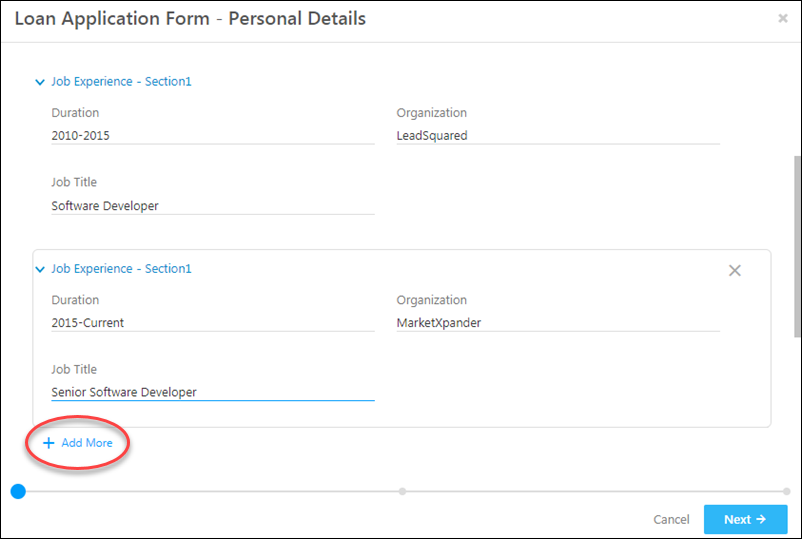
form block

3. Now click the Phone Number field, then click the Verify by SMS checkbox under the Lead Field Properties section. Click Save.

Note: You should mark the phone number field as mandatory so leads can’t submit the form without entering their phone numbers. The Is Mandatory option is available above the Verify by SMS checkbox under Lead Field Properties.
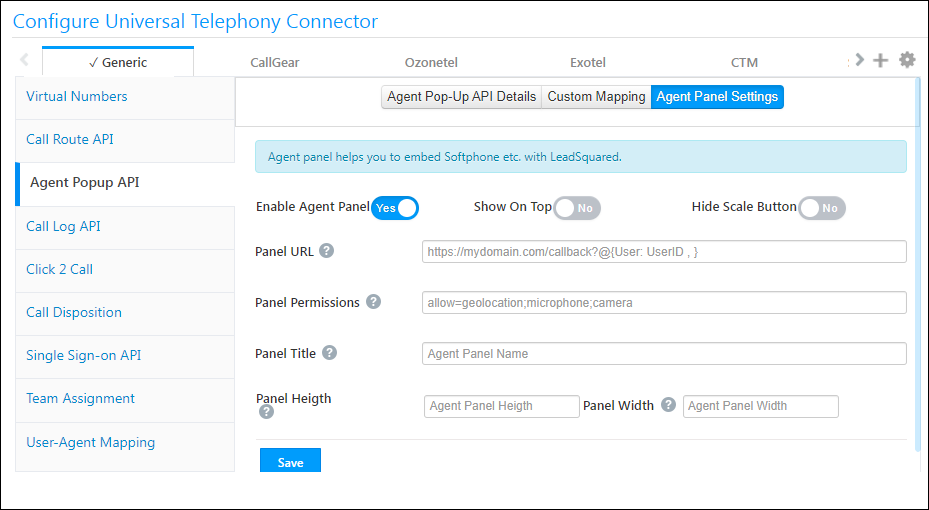
verify by SMS feature

Advance through the remaining steps on the landing page creation wizard. Once your landing page is published and a lead enters their phone number, they’ll receive an OTP. If they enter it correctly they can proceed to submit the form.

OTP verification


Troubleshooting

Why am I not receiving OTPs on my landing pages?

  • Issue: OTPs not getting delivered on landing page.
  • Solution: If all configurations are correct and you’re still not receiving OTPs, the issue might be due to a long ‘Company name’ in your organization’s profile. If your company name exceeds 35 characters, OTPs won’t be sent. To fix this, go to Settings>Profile >Organization Settings>Company Profile, click Edit, and enter a company name with fewer than 35 characters.


Any Questions?

Was this article helpful? If you need more clarity or had trouble implementing this feature, we’d love to help you out. Go ahead and start a discussion in the comments section below.

How to Send and Receive SMS Using Call Tracking Metrics

1. Feature Overview

Note: This article will soon be removed. We launched a new Call TrackingMetrics SMS Connector for quicker and easier SMS integration.

We have a number of apps to help you integrate with Call Tracking Metrics (CTM) telephony services. You can find these apps and more in the Apps Marketplace.

First, you need to integrate your CTM account with LeadSquared using the Call Tracking Metrics app (see LeadSquared Call Tracking Metrics Connector). That will take care of your incoming and outgoing calls and post them as activities you can track in your LeadSquared account.

This article will help you integrate incoming and outgoing text messages (SMS) sent through CTM, with your LeadSquared account.


2. Outgoing Text Messages

The LeadSquared SMS Marketing App allows you to send text messages to your leads. You can integrate your CTM account with LeadSquared and send text messages once you install and configure the app.

  1. From the main menu, navigate to Apps>Apps Marketplace.
  2. Search for the “SMS Marketing App”, then click Install.
  3. Once installed, hover your cursor over the settingsSettings iconwheel, then click Configure.
  4. On the Configure SMS Marketing App pop-up, from the Select SMS Account Type dropdown, select the Global (Call Tracking Metrics) option.
  5. Enter your Call Tracking Metrics Tracking Number, Account Number, Access Key and Secret Key. This information will be available in your Call Tracking Metrics portal. Use the check-boxes to –
    • Prevent sending messages to leads without country codes in their phone numbers.
    • Send messages only from the lead owner’s phone number.
  6. Select the Activity Type as SMS Sent. This will ensure that any text messages you send your leads appear and can be tracked in their activity history.
  7. Click Save Settings.

Send SMS using Call Tracking Metrics

Once installed and configured, you can send text messages to leads

To a single lead –

SMS to one lead

To multiple leads –

bulk SMS

  • From the lead details page.

sms to a single lead

manage lists

  • From the List Details page.

list details page


3. Incoming Text Messages

You can capture incoming text messages received in your CTM account as activities against your leads. First, install the CTM Incoming SMS tracker from the apps marketplace –

  1. From the main menu, navigate to Apps>Apps Marketplace.
  2. Search for the “CTM Incoming SMS Tracker”, then click Install.
  3. Once installed, hover your cursor over the settingsSettings iconwheel, then click Configure.
  4. On the Configure SMS Incoming Tracker pop-up, the SMS Received activity is already selected by default. Click Save Settings.
  5. Copy the displayed URL.

Received SMS Tracker CTM

Now create a webhook in your CTM account using the URL you just copied.

  1. Navigate to https://app.calltrackingmetrics.com/webhooks
  2. Add a new webhook with the following details –
    1. Name  – LeadSquared Incoming SMS Tracker
    2. Trigger – After a text message is received
    3. Callback URL – This is the URL you copied from the LeadSquared CTM Incoming SMS Tracker app.
    4. Leave the remaining configurations as they are.
  3. Save the new webhook.

CTM Incoming SMS webhook

In your CTM account, now navigate to Texts>Text Numbers. Ensure that the tracking numbers you’re using are moved to the box on the right (assigned tracking numbers) for both incoming and outgoing text messages.
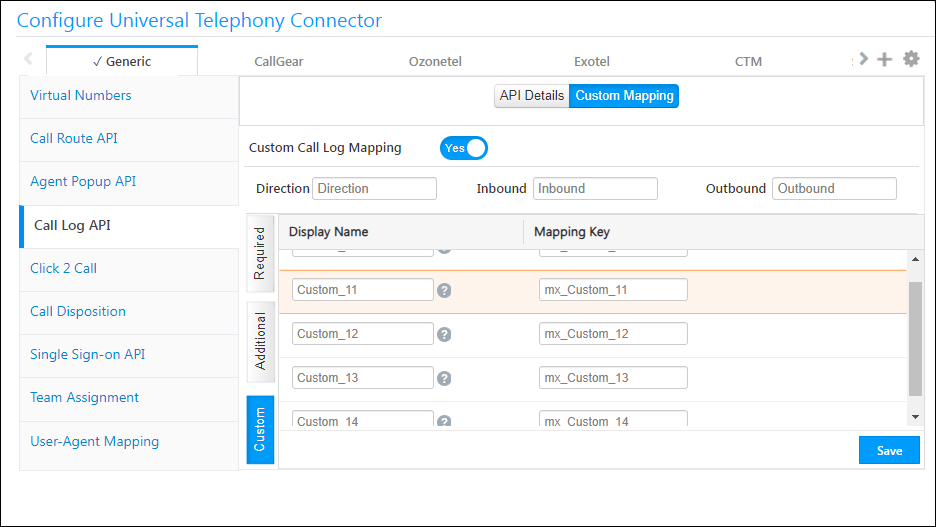
Text message configurations CTM

Incoming texts in your CTM account will now be posted as activities against your leads. You can view the details in the Activity History tab of the corresponding Lead’s Details page.

CTM Incoming texts


Any Questions?

If you have any questions related to CTM SMS integration, please feel free to share them in the comments section below. We’ll be on it ASAP!

Permission Templates

1. Feature Overview

Permission templates let you configure access rights for your users. They let you control who sees what and which users can edit, delete, export or import your data.
You can set up access control in 2 quick steps –

  1. Create a permission template to control access to features and actions.
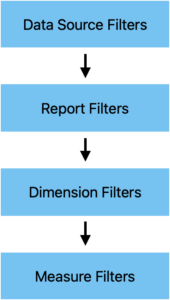
  2. Apply that template at the user, role, or sales group level.
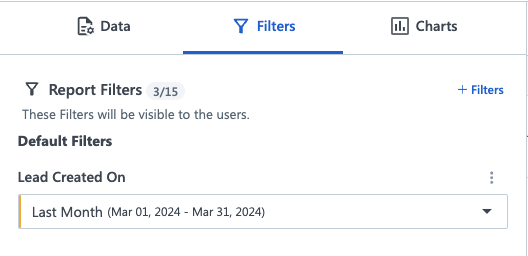
Also see –


Example Use Cases

With permission templates, you can restrict users from –

  • Viewing, creating, editing, deleting, exporting and importing leads
  • Viewing, creating, editing, deleting, exporting and importing opportunities
  • Viewing, creating, editing, deleting, exporting and importing accounts*
  • Creating, activating, editing and deactivating users#
  • Viewing, creating, editing, deleting and exporting activities
  • Viewing, creating, editing and deleting tasks
  • Accessing accounts, dashboards, reports, custom apps and APIs

You can also configure partial access and allow users to view/edit only certain lead fields/activity fields/tasks.

Note:


2. Prerequisites

  • You should be an administrator user.
  • The permission template feature is available on select plans. For more information, contact sales@leadsquared.com.
  • To enable opportunities on your account, please write to support@leadsquared.com.


3. How to Access Permission Templates

From your dashboard, navigate to My Profile>Settings>Users and Permissions>Permission Templates

Permission Templates_1


Related Articles


Any Questions?

Did you find this article helpful? Please let us know any feedback you may have in the comments section below. We’d love to hear from you and help you out!

App Tabs – Feature Guide

1. Feature Overview

Managing multiple leads, opportunities, and accounts often requires opening many browser tabs, making it difficult to track follow-ups, switch between work areas, and prevent accidental tab closures. If you have the NextGen UI enabled in your LeadSquared Web App, with the App Tabs feature, open and view multiple entity details pages (lead, opportunity, account and ticket) within a single browser window, without overcrowding your browser. The feature is available in key work areas like Smart Views, Manage Leads and Manage Tasks and lets you navigate between entity details pages from different work areas simultaneously.

This helps you:

  • Work on multiple leads simultaneously without losing track
  • Quickly switch across Smart Views, Manage Leads, Manage Tasks and other pages to view leads
  • Maintain context while performing parallel sales tasks

Note:

  • You can open a maximum of ten app tabs.
  • If you are a Softphone user, then this functionality is mandatory for you to avoid any call disruption. Ensure that the Disable Opening of Entity Details in Marvin is turned off in the Advanced Configuration settings. This ensures incoming calls automatically open the lead’s detail page in an app tab, offering instant context for conversations.

Leadsquared - App Tabs


2. Prerequisite

This feature is available only on NextGen UI. Reach out to support@leadsquared.com to get this enabled.


3. How It Works

You can open multiple entity details within the same tab from the Smart Views, Manage Leads, Manage Tasks, Manage Opportunities, Manage Accounts and Manage Activities pages.

  1. Enable App Tabs on your LeadSquared Web App.
  2. From your LeadSquared Dashboard, navigate to any of the entity list pages (Smart Views, Manage Leads, Manage Opportunities or Manage Accounts page).
  3. You will see the Main Menu (Smart Views, Leads, Activities, Tasks, etc.) on top of the page.
  4. On any of these pages, click the relevant entity. This could be a lead, opportunity or account.
  5. A tab with the entity name will be created on top of the page.
  6. To open another entity details tab, click on the relevant primary tab and repeat the same.
  7. You can open entity tabs from across Smart Views, Manage Leads, Manage Opportunities and Manage Accounts pages simultaneously.

Note:

  • The selected tabs will be visible across Smart Views, Manage Leads, Manage Tasks and all entity details pages.
  • When you open an entity details page, it now reloads each time, instead of staying preloaded.


4. Enable App Tabs

To view multiple entity details within the same tab, you must enable a setting. To do this –

  1. From your LeadSquared Dashboard, navigate to Settings>Profile>Advanced Configuration.
  2. In the search tab, look for Enable App Tabs.
  3. Click the slider alongside the Enable App Tabs setting to enable it. The feature will be enabled once you log out and log back in.

Leadsquared - App Tabs


5. Open App Tabs

You can clearly view multiple entity details from Manage Leads, Smart Views, Manage Tasks, Manage Opportunities, Manage Activities and Manage Accounts pages. Here, we’ve described the process of adding app tabs from the Manage Leads Page –

  1. From your LeadSquared Dashboard, navigate to the Manage Leads page.
  2. You will see the primary ‘Leads’ tab highlighted on top of the page.
  3. Click on the relevant lead. You will be directed to its details page.
  4. A tab with the lead name will be created on top of the page.
  5. To open another lead details tab, click the primary tab and repeat the same.

Leadsquared - App Tabs


6. App Tab Behaviors

6.1 App Tab View

The app tabs adjust dynamically based on your device’s display scale. For example, if you’ve opened ten tabs but only five are visible, you can access the remaining two tabs through a dropdown by hovering over the More Leadsquared - App Tabs icon on the top-right corner of the screen. This dropdown also indicates the total number of tabs you’ve added. For instance, if you have added ten tabs, it will display “10/10 Tabs Added”.

Leadsquared - App Tabs

6.2 App Tab Movement

As noted earlier, you can open up to ten app tabs alongside the primary tab. The first app tab you open will appear directly next to the primary tab. When you open additional tabs, the existing tabs shift to the right to make room for the most recently opened tab, which always appears next to the primary tab. In this way, the oldest tab gradually moves to the far right, while the newest tab remains on the left.

Leadsquared - App Tabs

6.3 Close an App Tab

You can close an app tab by clicking the Close Leadsquared - App Tabs icon alongside the entity name.

Leadsquared - App Tabs

Alternatively, if you try to open more than ten app tabs, the rightmost tab will automatically close, and the tab preceding it will shift into the last position. You will also see a message on top of the page saying you’ve reached the maximum tab limit of 10 and the last entity tab will be closed to accommodate the new tab.

Leadsquared - App Tabs


Any Questions?

Did you find this article helpful? Please let us know any feedback you may have in the comments section below. We’d love to hear from you and help you out!

Disable Sales Activity Access

1. Feature Overview

The Sales Activity Management feature lets you capture key details about each sale (e.g., product sold, sales owner, date, order value, etc.). This article shows you how to disable user access to this feature. This prevents users from adding new sales activities while allowing them to view and edit existing ones. It can also completely remove access to sales activities in your account, including existing activities.

LeadSquared Sales Activity


2. Prerequisite

You must be the Adminstrator to disable this feature.


3. Disable the Sales Activity

  1. Navigate to My Profile>Settings>Profile>Advanced Configuration. To know more about this page, refer to Organization Settings – Advanced Configuration.
  2. Alongside Disable Sales Activity, click Configure.
  3. On the Configure Sales Activity pop-up, enable the checkbox Checkbox  next to the action you want to restrict the user from performing –
    • Restrict users from adding a new Sales Activity – Users won’t be able to add new sales activities, but can view and edit existing activities.
    • Remove complete access to Sales Activity – Sales Activities will be completely removed from your account, including existing activities that are posted on your leads.
  4. Once you’re done, click Save. The setting is applied across your account.

Note:

  • The Remove Complete access to Sales Activity setting is permanent. Once existing activities are removed, they cannot be retrieved. Enable this setting only when you’re sure of your decision.
  • Before configuring this setting, ensure Sales Activities are not linked to any forms, portals, dashboards, etc. You cannot disable Sales Activities if they are linked to any active workflows in your account.

LeadSquared Sales Activity


Any Questions?

Did you find this article helpful? Please let us know any feedback you may have in the comments section below. We’d love to hear from you and help you out!

Lead Automation Conditions – Wait Until Activity

The ‘Wait Until Activity’ condition lets you wait until activities are performed before taking an action. You can choose to wait until a single activity occurs or you can set and/or conditions to include multiple activities.

Wait until activity


Business Use Cases

To illustrate this feature, imagine you have 2 teams – sales and legal. You want to set up an automation such that when a sales member meets a lead and posts a custom activity (Meeting) you want to create a task for the legal team. Let’s assume that the legal team’s task is dynamic and it could take anywhere between 1 to 5 days. In this case, rather than using the regular Wait Condition (which defines a fixed period), you can set up a ‘Wait Until Activity’ condition so you can take action (say send an email to the lead) only once the legal team completes their task and posts an activity (E.g., Contract Created).


Setting up the Condition

  1. Access an existing automation or create a new one by navigating to Marketing>Automation.
  2. Select the Wait Until Activity under Automation Conditions.
  3. Choose between Any Activity (OR) or All Activities (AND).
  4. Under the When drop-down fields, select the activity you want to set up. Click the Add Another Activity link to add multiple activities. In the example below, we’ve set up ‘Form Submitted on Website’ or ‘Email Open’.
  5. Select if you want to continue the next action in the automation or exit the automation if the activities aren’t performed within a certain amount of time (customizable in minutes, hours, days, weeks, months, or years).
  6. Once you’re done, click Save. Then, add an action to the condition.

Wait until activity

Note: The ‘Wait Until Activity’ automation card must be followed by an action.