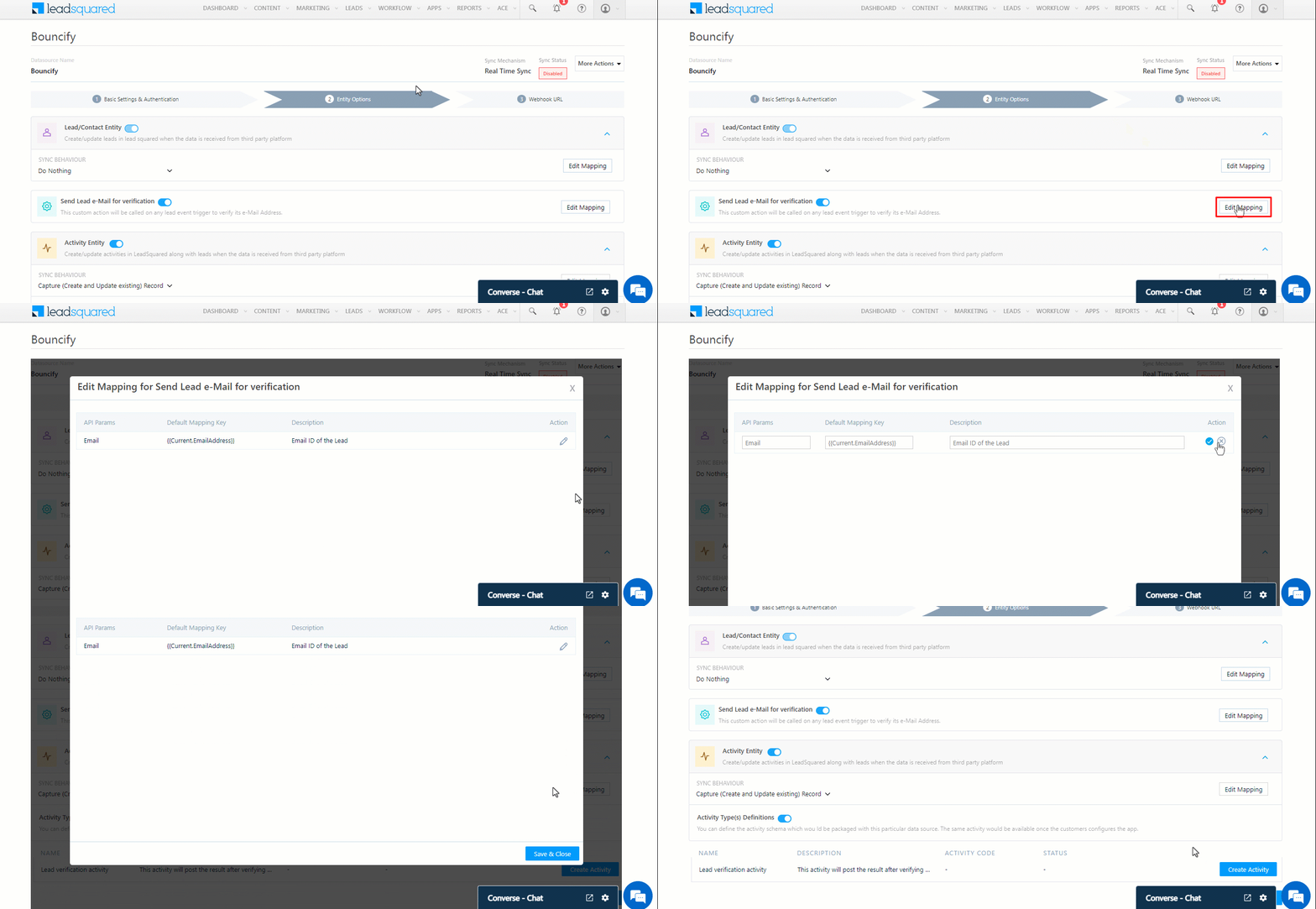
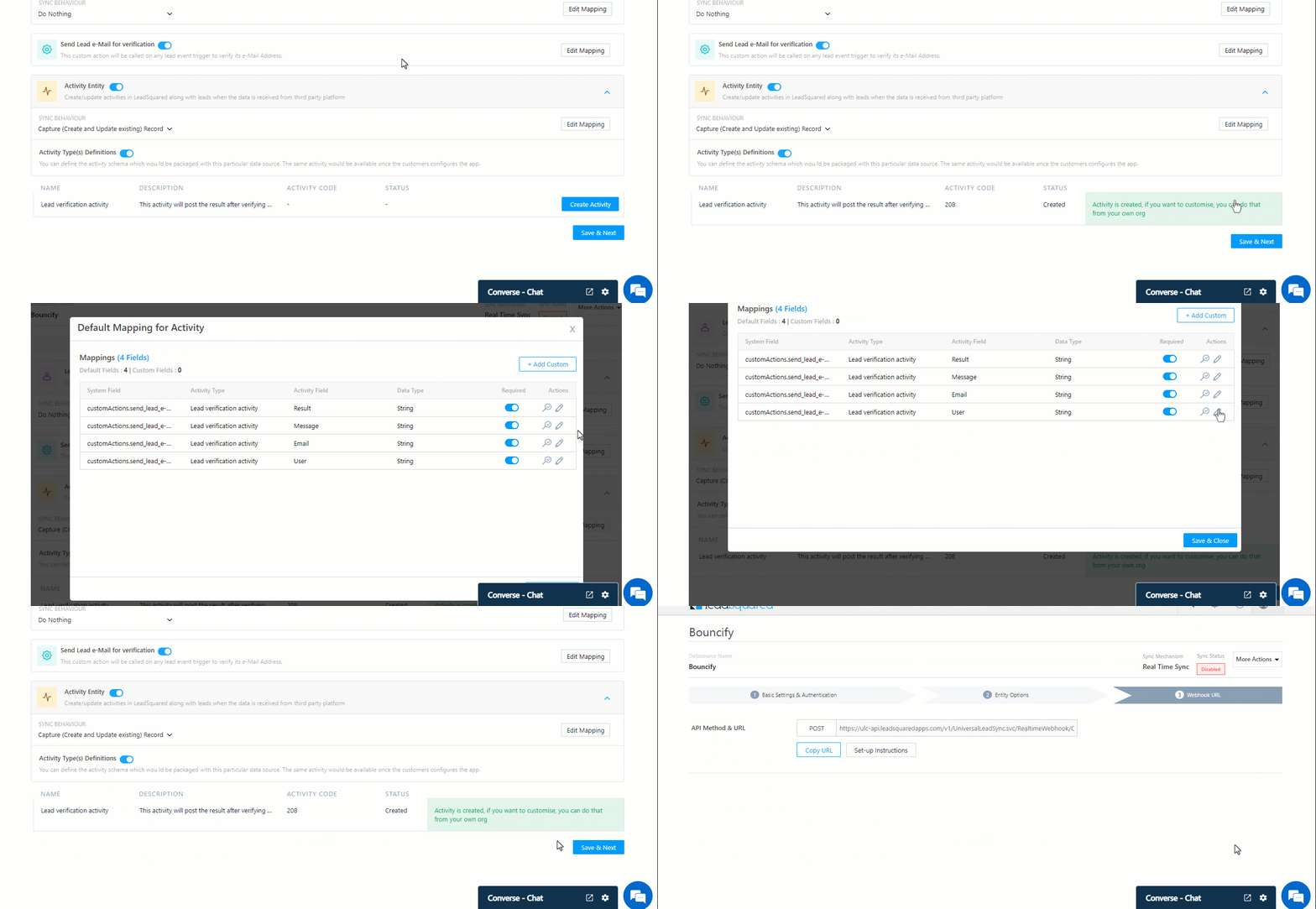
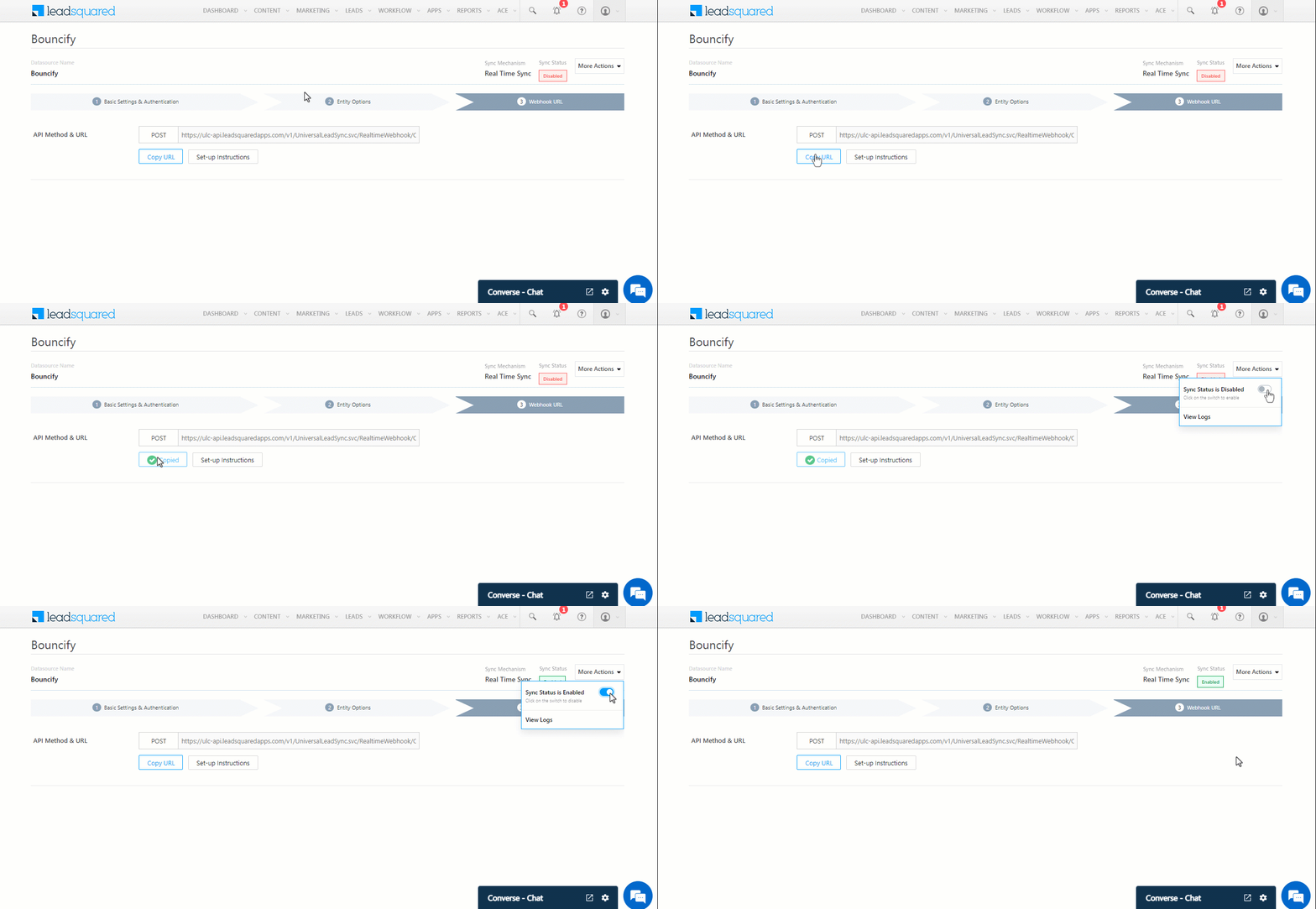
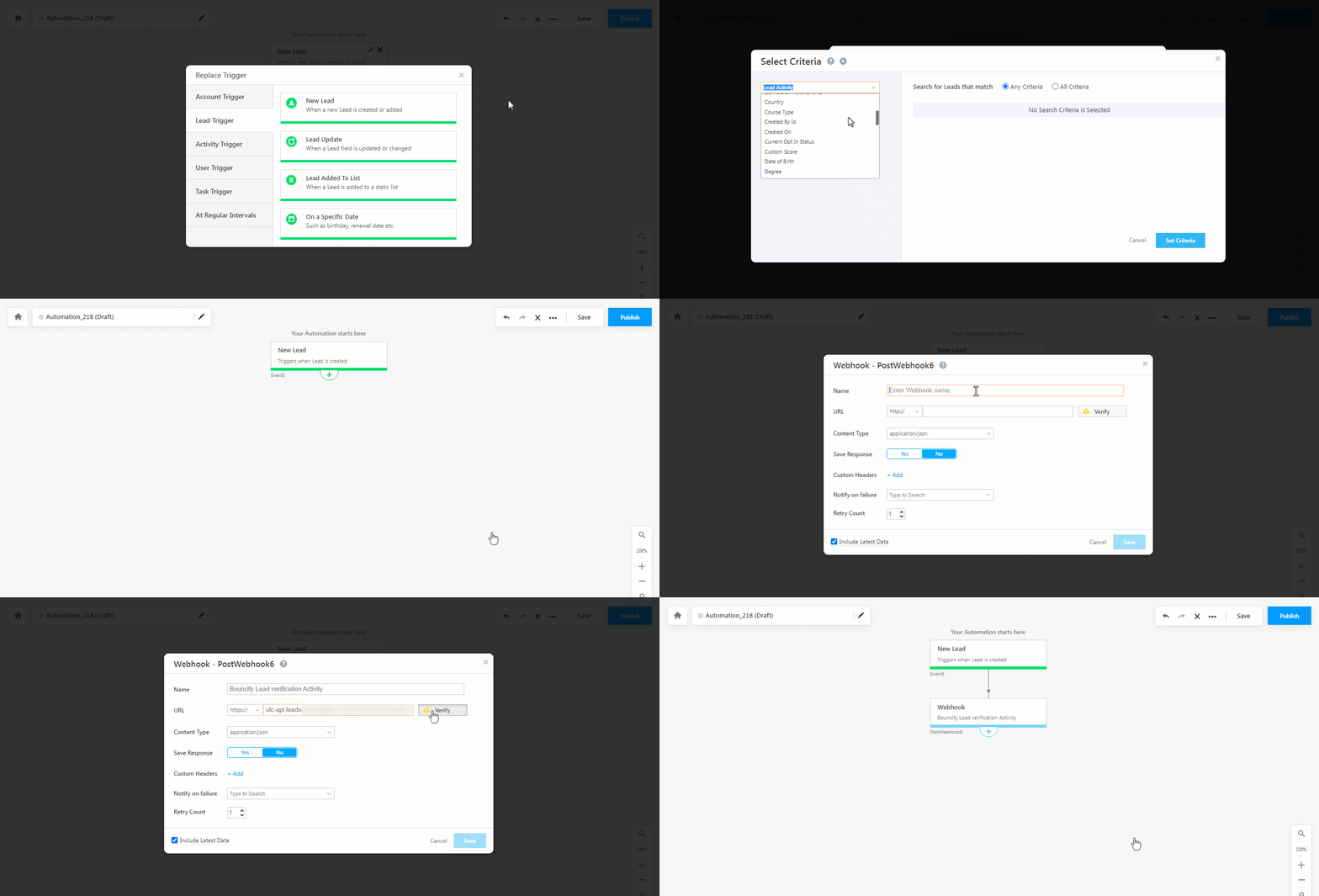
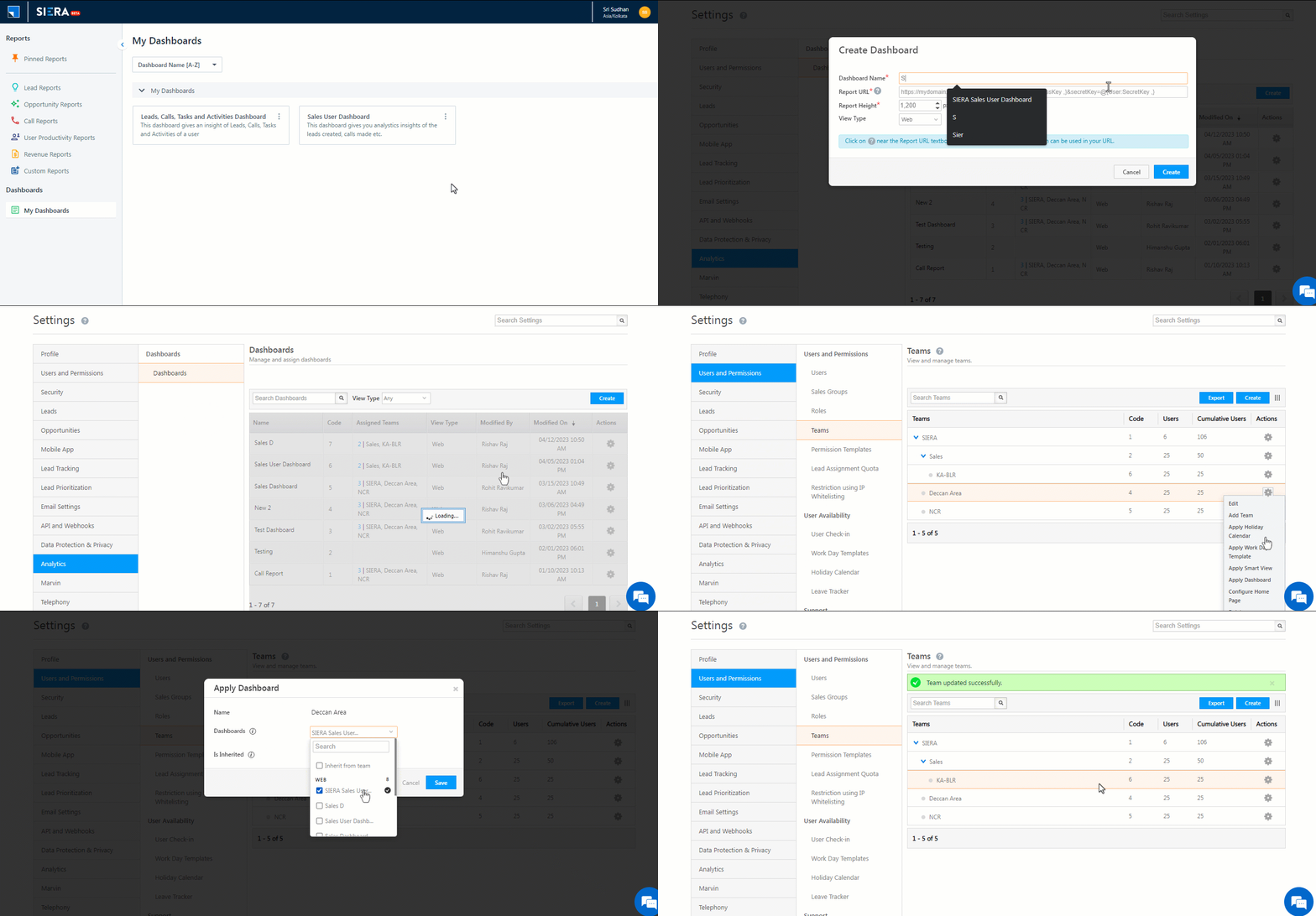
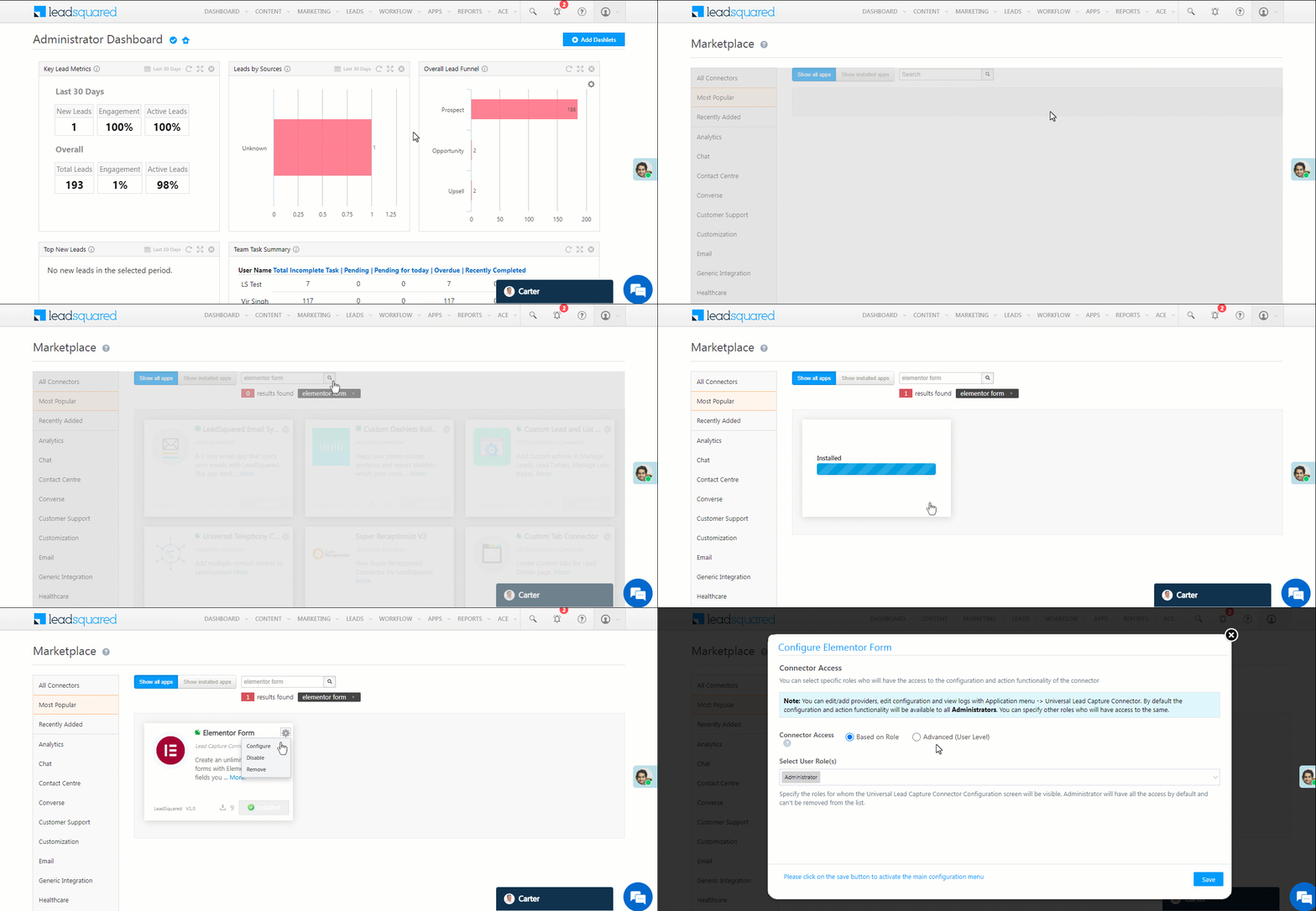
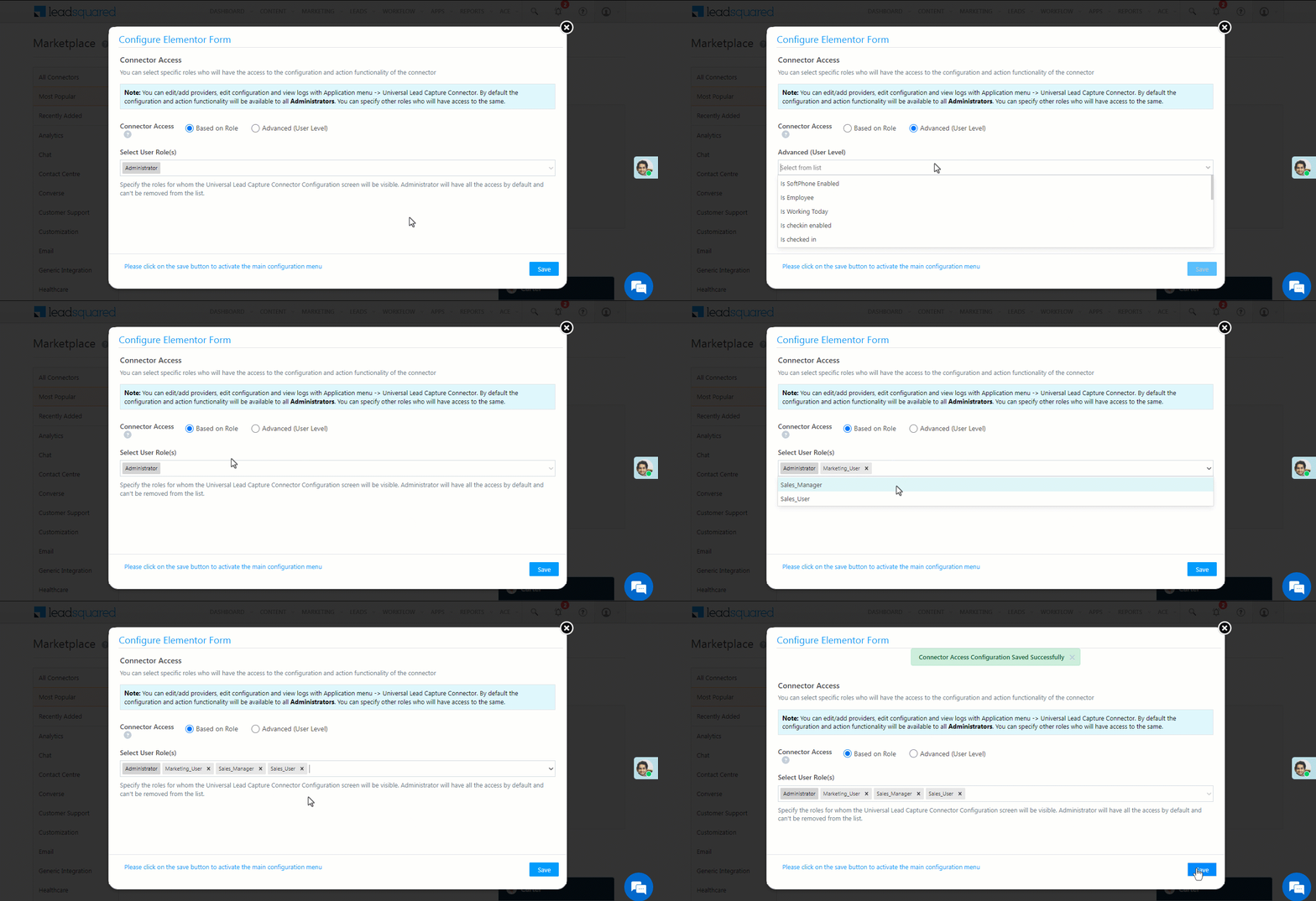
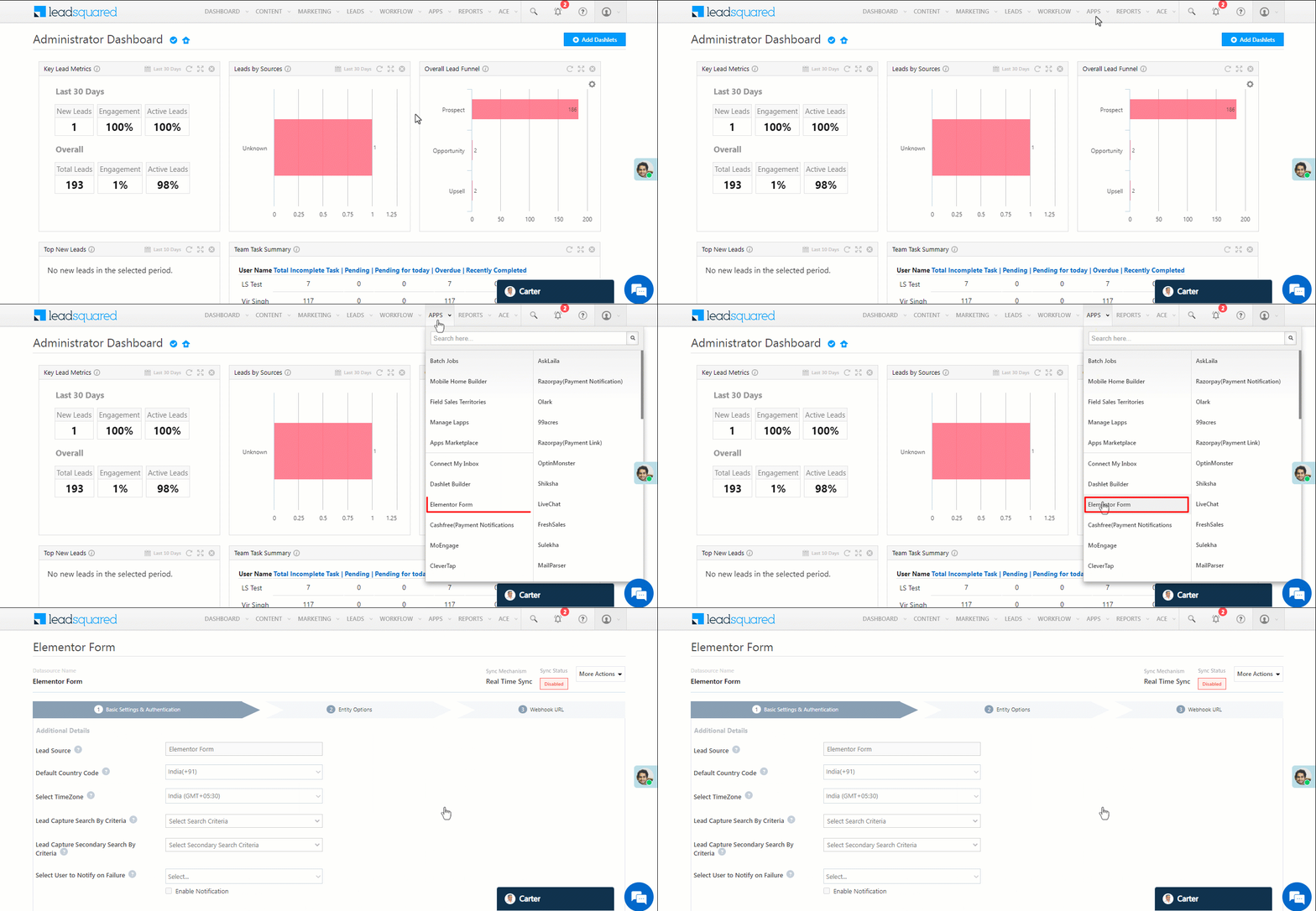
Teams

1. Feature Overview

The LeadSquared Teams feature reflects the structure of different teams/departments in your organization. This feature is not to be confused with the Organisation Hierarchy feature that lets you leverage features like LeadSquared Goals, Reporting, and Automation on the hierarchy of users.

Once you create teams in your LeadSquared account, you can assign them the following features –

You can configure these features in accordance with your organization’s work schedule. Another powerful merit of using this feature is the ability to auto check-in your users. Once set up, your users will automatically check in and check out based on the configurations. What’s more, the leave tracker lets you track which team members are on leave so you get a complete attendance management solution.

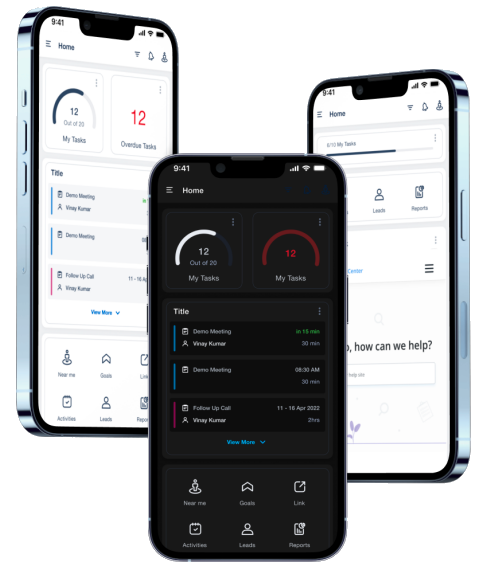
Note: You can also create and add different mobile app homepages for different teams. To know more, refer to Casa – Mobile Home Builder.


2. Prerequisite

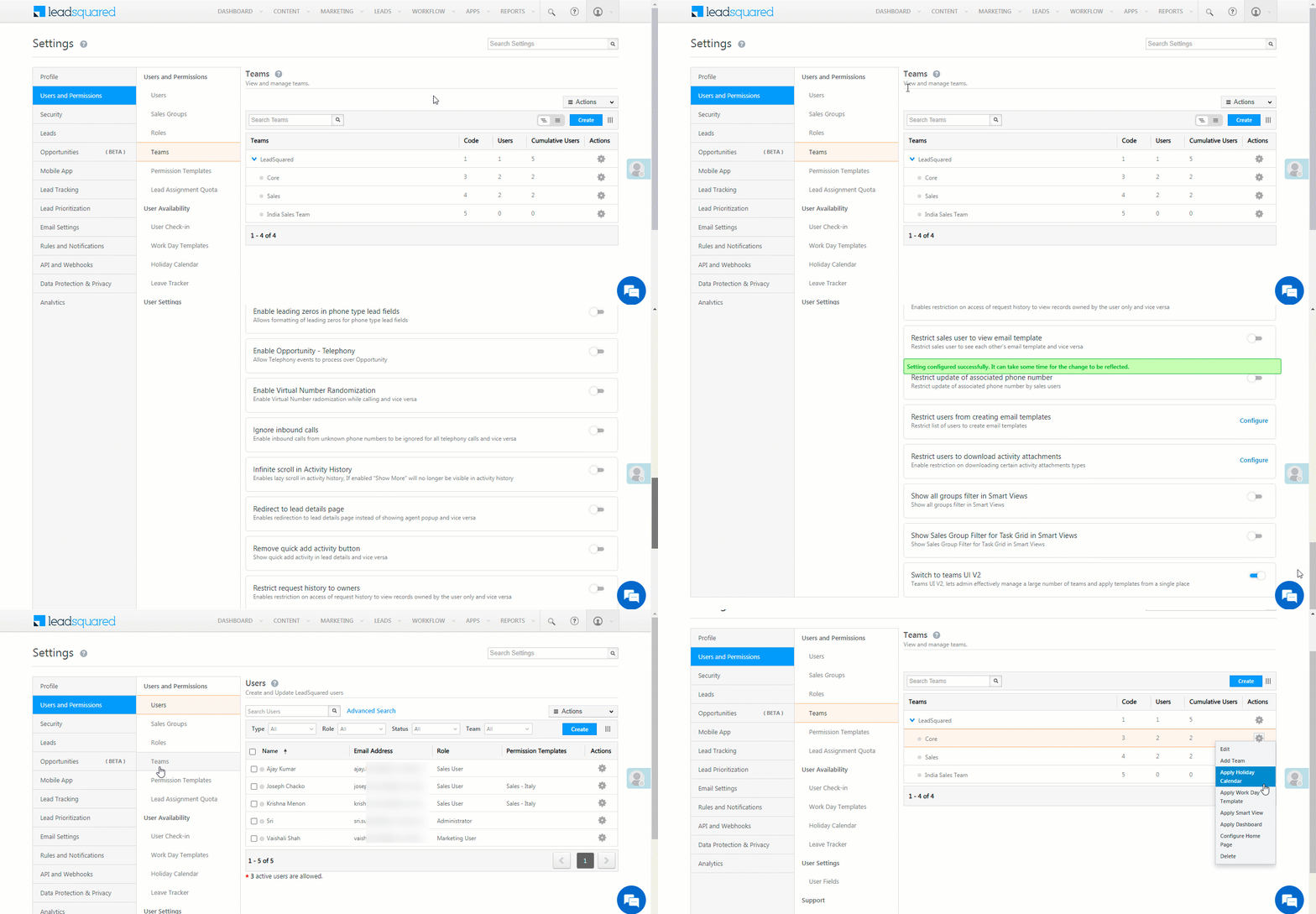
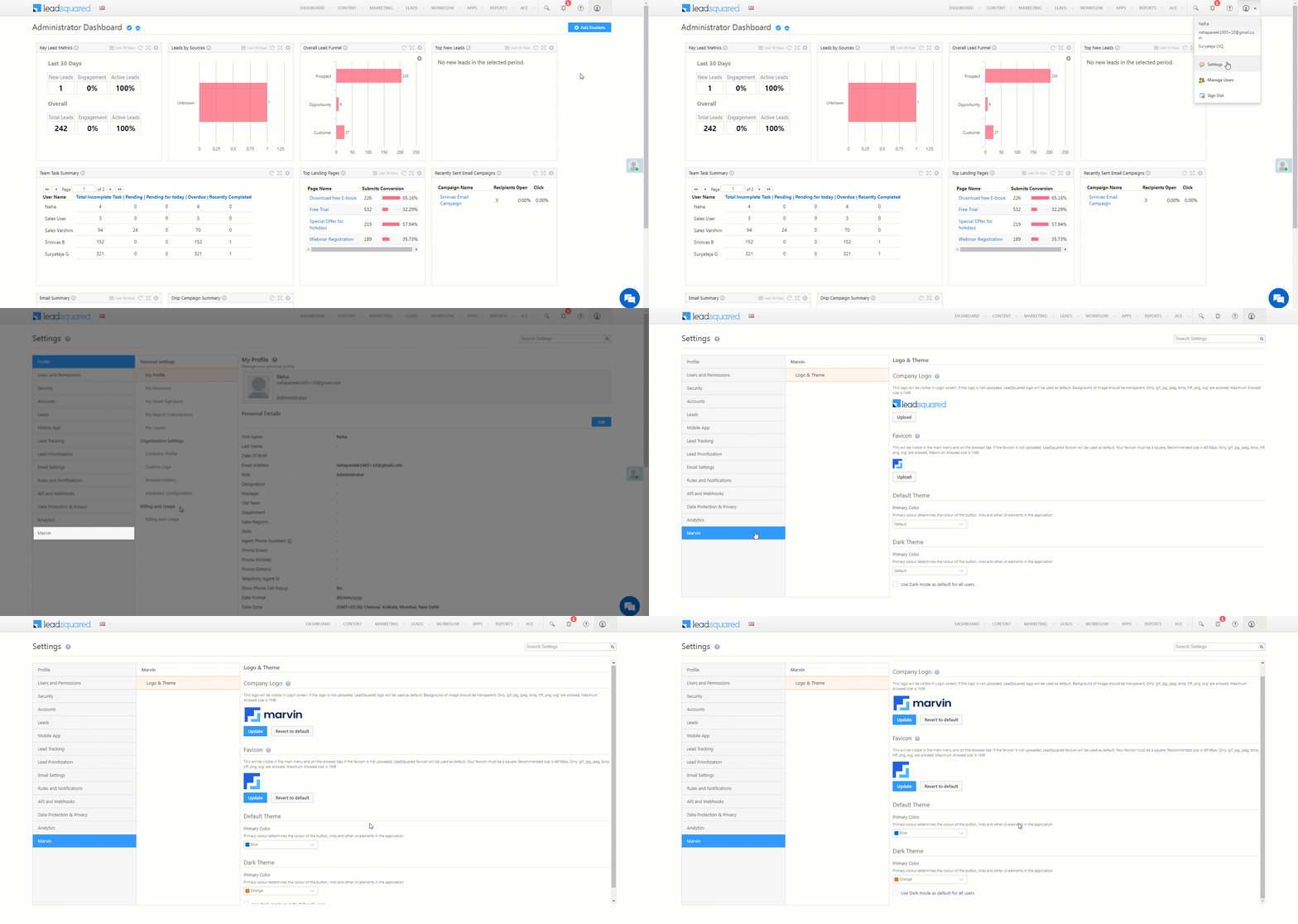
Enable the teams v2 UI under organisation settings.


3. Create a Team

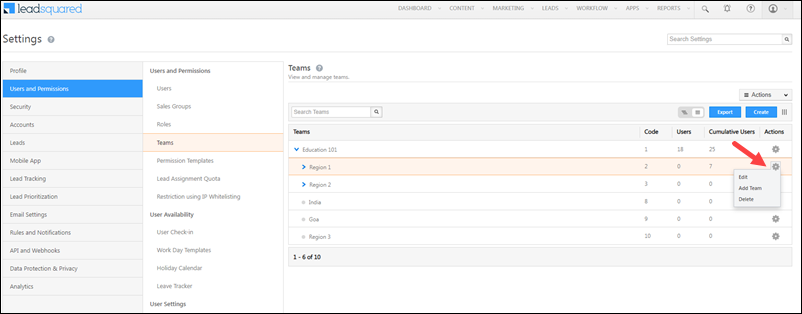
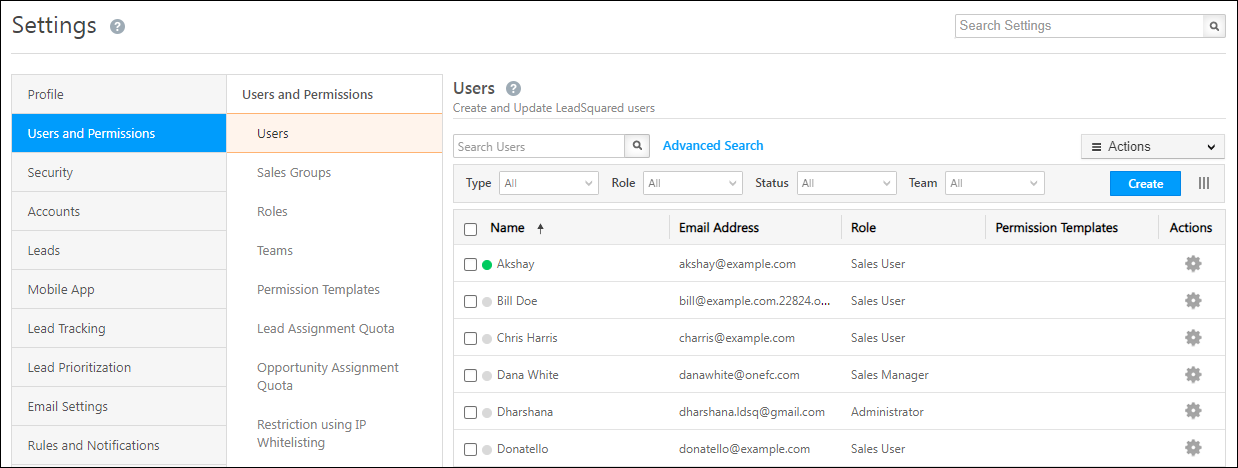
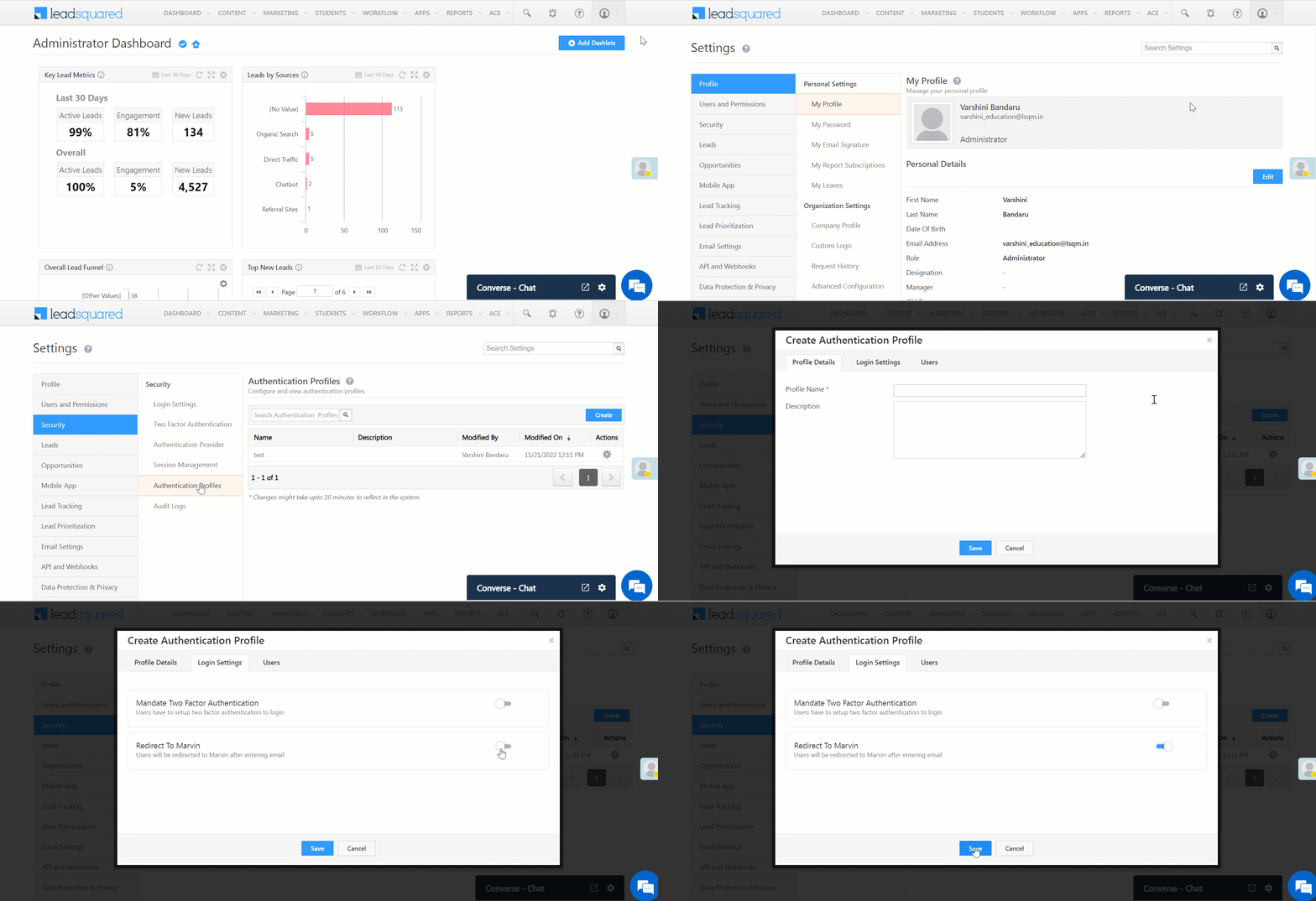
  1. Navigate to My Account>Settings>Users and Permissions>Teams and click Create.
  2. Enter a name, description (optional) and select a parent team to set up your teams. By default, your account/organization name will be the parent team.
  3. Click Save.

LeadSquared Teams

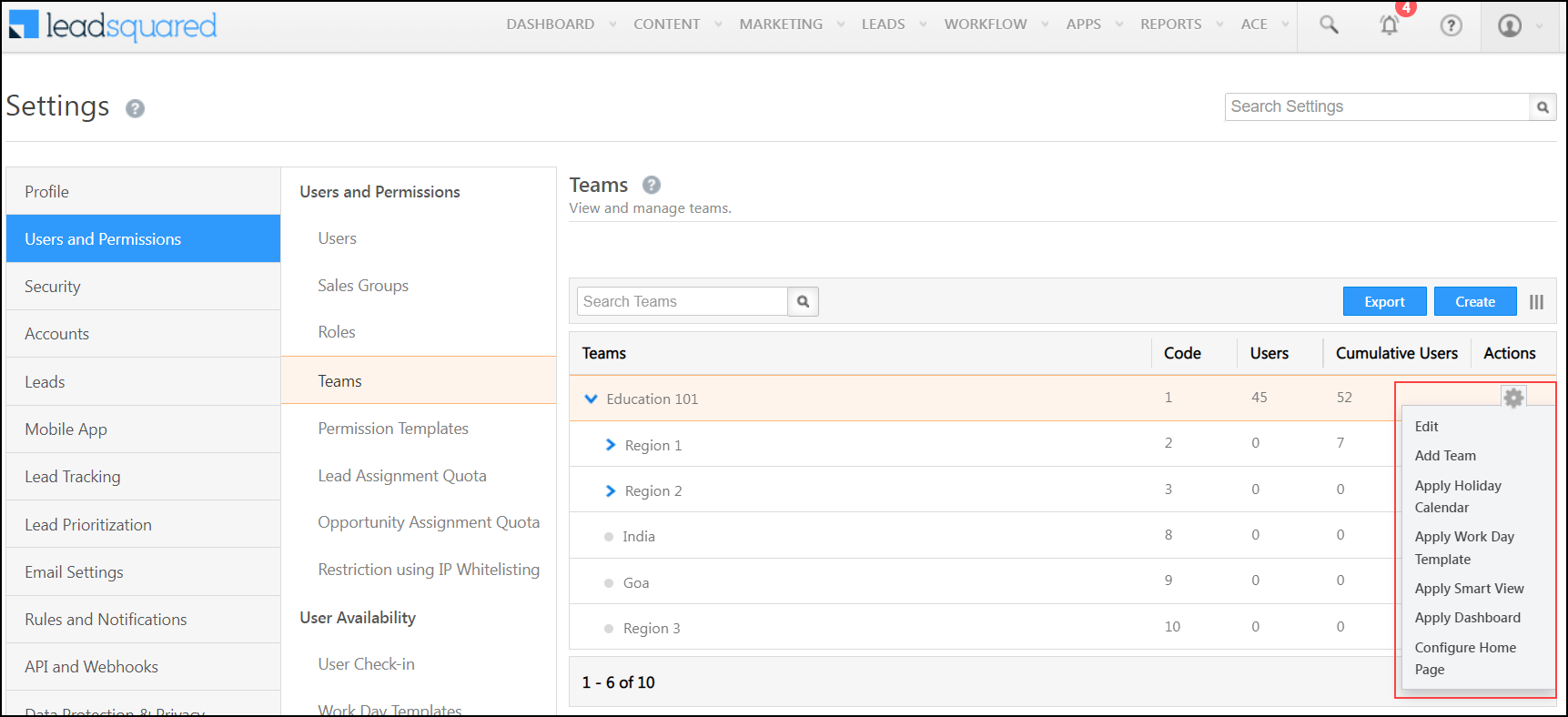
Alternatively, you can add teams directly by clicking the settingsicon. You can also edit teams from here –

LeadSquared Teams


4. Add Users to a Team

To add a user to a team –

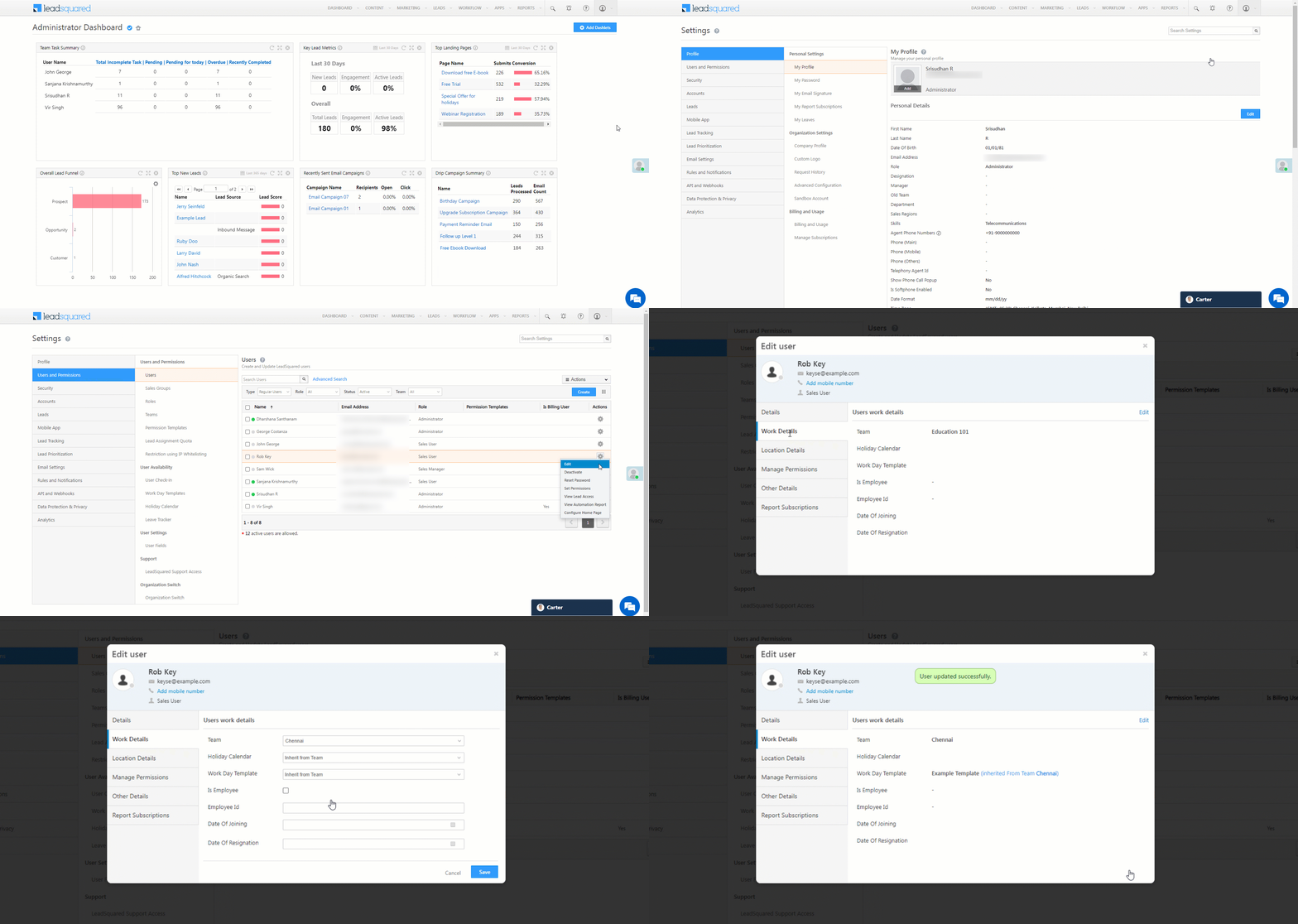
  1. Navigate to My Account>Settings>Users and Permissions>Users, hover over the settingsicon and click Edit for a particular user.
  2. In the Work Details tab, click Edit.
  3. In the Team drop-down, select the team you want to add the user to.
  4. Click Save when you’re done.

LeadSquared Teams

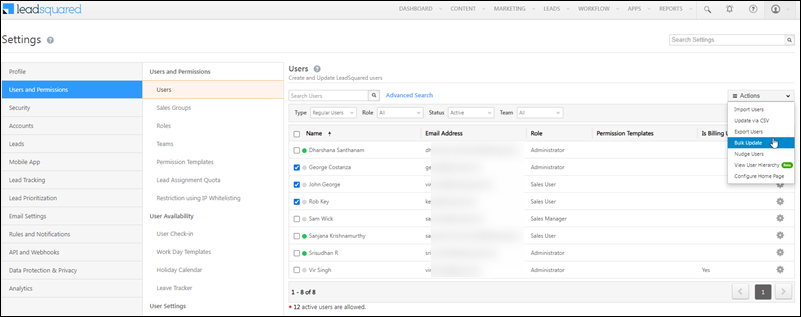
Alternatively, you can add multiple users to a team through the Bulk Update option under the Action menu –

LeadSquared Teams


5. Export Teams

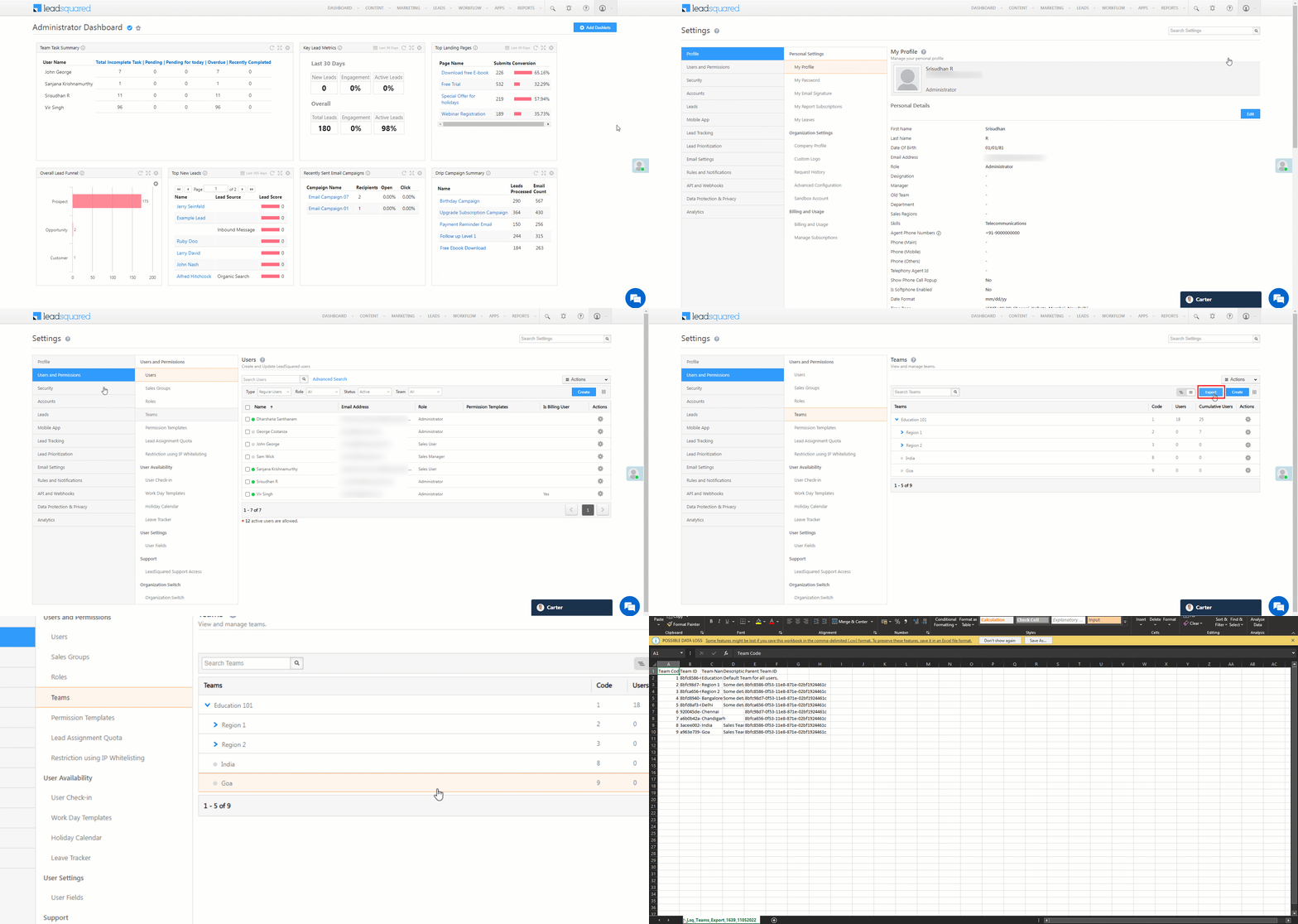
You can also export existing team details (Team Code, Team ID, etc.). This will enable you to directly add users to a team (by passing the Team ID) when importing users to LeadSquared. To export a team, click Export, and on the Export Teams pop-up, click Okay.

LeadSquared Product Updates


6. Assign Features to a Team

Once you’ve created teams, you can assign different features to them –

  1. Navigate to My Account>Settings>Users and Permissions>Teams.
  2. Alongside the relevant team, hover your cursor over LeadSquared.
  3. Select the feature you wish to assign to the team –
    • Apply Holiday Calendar – Create a holiday schedule for the team in your LeadSquared account.
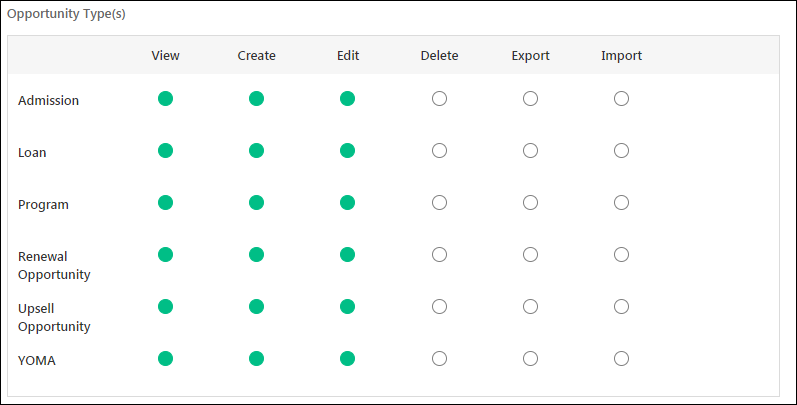
    • Apply Opportunity Details View – Create a specific Opportunity Details view for your team. To know more, refer to Opportunity Details View Customization.
    • Apply Work Day Template – Define the schedule and working hours of your team so you can automatically check-in your users.
    • Apply Smart View – Create a specific Smart Views page for your team.
    • Apply Dashboard – Create a specific Dashboards for your team.
    • Configure Homepage – Select either Dashboard or Smart Views to be the homepage of the team.

LeadSquared - Assign features to teams


Any Questions?

Did you find this article helpful? Please let us know any feedback you may have in the comments section below. We’d love to hear from you and help you out!

Chat Group Settings

1. Feature Overview

Incoming messages on Converse and Chatbot can be routed to a Chat Group (that consists of several users) through a Routing Rule. On LeadSquared Chatbot, You can create a Chat Group to set up a Handover Node and transfer the chat conversation to a group of agents in your organization.


2. Example Use Case

A student enrolled in a graduate computer course at a particular university also shows interest in a postgraduate course in AI or Data Science. When the student enquires about these Opportunities on Converse, they will be routed to the relevant Opportunity Owner, but if the Opportunity Owner is not available they can be routed to a Chat Group.


3. Chat Group Settings

Note: We have taken Opportunities as an example, but the same steps can be used to achieve other use cases.

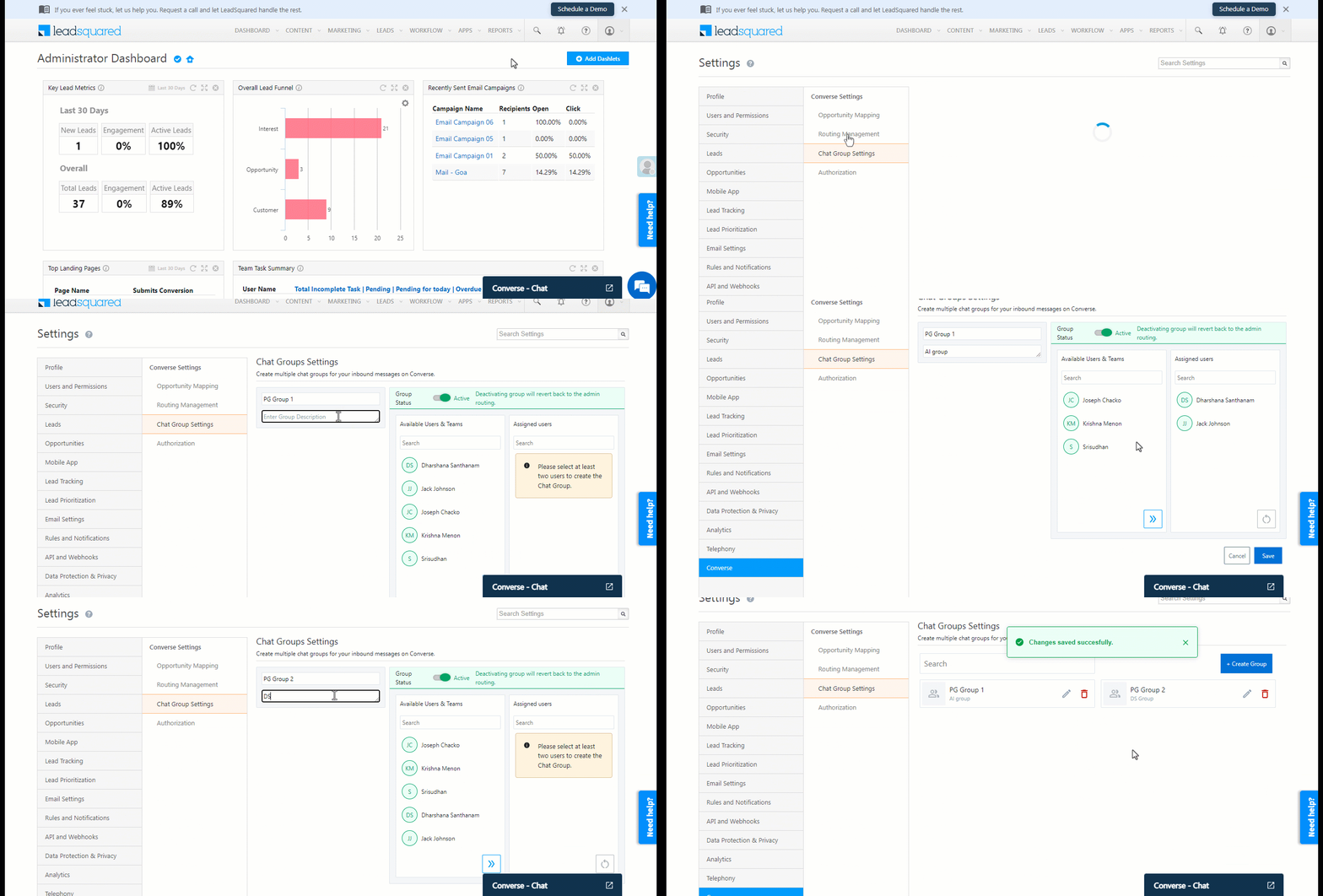
You can create multiple chat groups in your account. Incoming messages can be assigned to these users in a round-robin manner. For example, we can create two Chat Groups, one to receive Opportunities for AI courses and the other to receive Opportunities for Data Science courses, both under the Postgraduate Course Opportunity Type.

  1. Navigate to Settings>Converse>Chat Group Settings.
  2. Click on + Add a New Group.
  3. Assign a set of users to this group.
  4. Enter a Group Name and Group Description.
  5. Click Save.

Group Setting Nav


Any Questions?

Did you find this article helpful? Please let us know any feedback you may have in the comments section below. We’d love to hear from you and help you out!

Routing Management

1. Feature Overview

Routing management will route the incoming message on Converse and Chatbot to the relevant Lead Owner, Opportunity Owner, Chat Group, Admin, or Specific User. On LeadSquared Chatbot, you can create a Routing Rule to set up a Handover Node and transfer the chat conversation to a group of agents in your organization.


2. Example Use Case

  • A student enrolled in a graduate computer course at a particular university also shows interest in a postgraduate course in AI or Data Science. When the student enquires about these Opportunities on Converse, they will be routed to the relevant user based on your Routing settings.
  • If a lead sends an incoming message on Converse during business time and you want to hand over the chat to a live agent, it can be achieved by setting up a Routing Rule.


3. Agent Availability

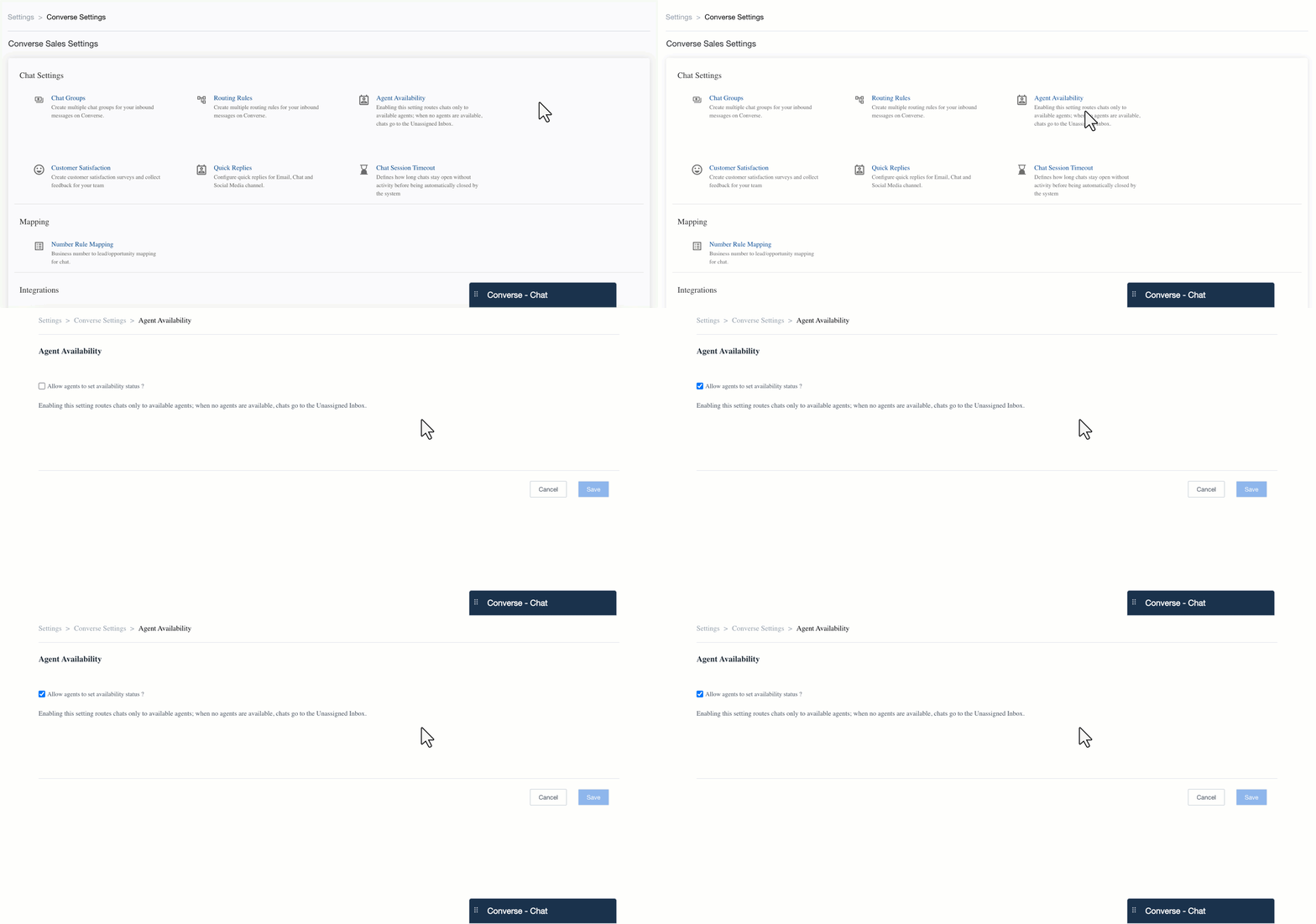
If Agent Availability is enabled, agents must set their status to Available to receive chat assignments. Chats are routed only to available agents. If no agents are available, incoming chats are routed to the Unassigned Inbox.

navigating to agent availability converse


4. Routing Management

Note:

  • We have taken Opportunities as an example, but the same steps can be used to achieve other use cases.
  • Incoming messages can be routed to the following Users –
User Description
Lead Owner The user is the Owner of the lead.
Opportunity Owner The user is the Owner of the Opportunity.
Chat Group A Chat Group that is created through Converse Settings.
Specific User Any specific user.
Admin The Admin user.
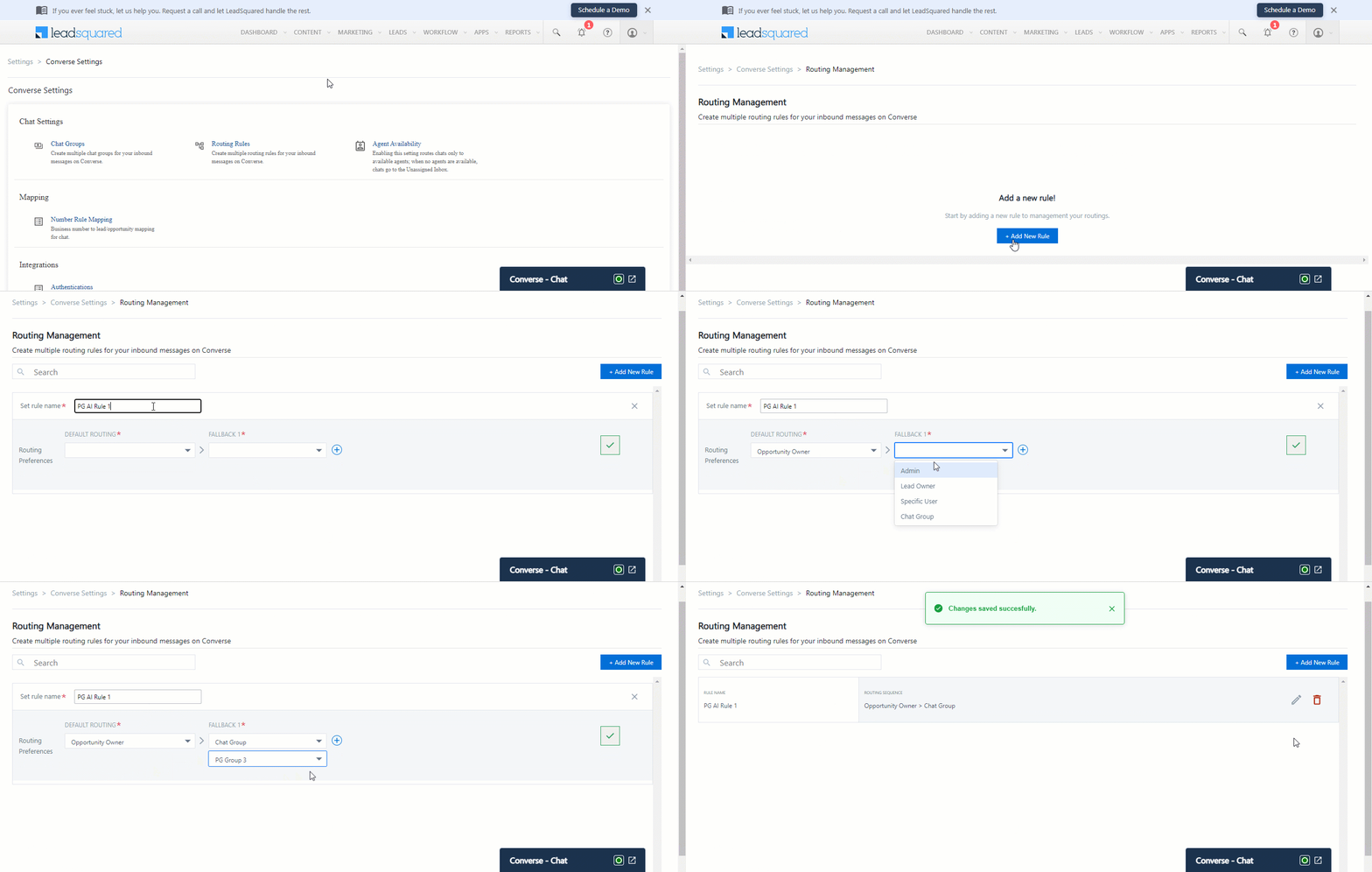
  1. Navigate to Settings>Converse Settings>Routing Management.
  2. On the Routing Management page, click + Add New Rule.
  3. Enter a Rule Name.
  4. Select your routing preference –
    1. Default Routing – When there is an incoming Opportunity, the lead will first be routed to this user/group. For example, if the customer chooses an existing opportunity, through the default rule, you can route it to the opportunity owner.
    2. Fallback 1– When the user/group in default routing is unavailable, the Opportunity will then be routed to the Fallback 1 user/group. For example, if the customer chooses a new Opportunity (there’s no Opportunity Owner associated), the Opportunity can then be routed to a Chat Group, where it will be assigned to a user via round-robin.
  5. Once done, click on the converse opp routing done icon.

Opportunity Routing Management

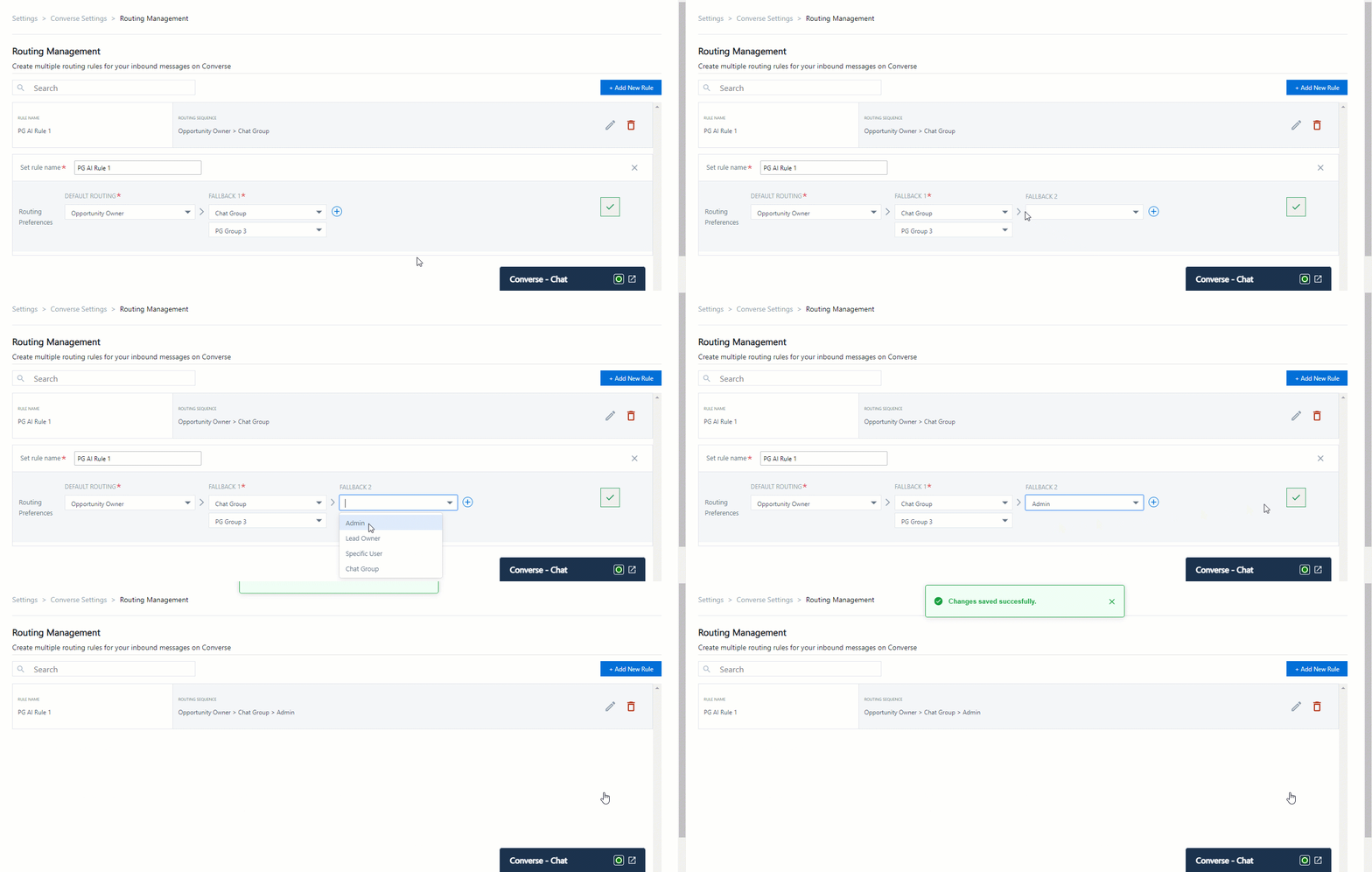
Note: You can create optional Fallback options by clicking the converse opp multi fallback icon. For example, if there is no Opportunity Owner or user available in the Chat Group, the Opportunity should then be routed to the Admin.

Opportunity Routing Management


Next Steps

  • Set up a Handover Node and transfer the chat conversation to a group of agents in your organization on LeadSquared Chatbot.
  • Route an incoming Opportunity to the relevant Lead Owner, Opportunity Owner, Chat Group, Admin, or Specific User on LeadSquared Converse.


Any Questions?

Did you find this article helpful? Please let us know any feedback you may have in the comments section below. We’d love to hear from you and help you out!

Image Linked Check-in and Check-out

1. Feature Overview

Admins can enable the Image linked Check-in/out setting for a more stringent approach to attendance registration. With this feature, users will be asked to capture a photo of themselves (selfie) during the check-in/check-out process.

Note: Image validation is currently not supported. The images captured during check-in/out are not included in the reports yet. To receive reports of the pictures captured by your users, contact your account manager or reach out to support@leadsquared.com.


2. Enable Image Linked Check-in and Check-out

To enable this feature –

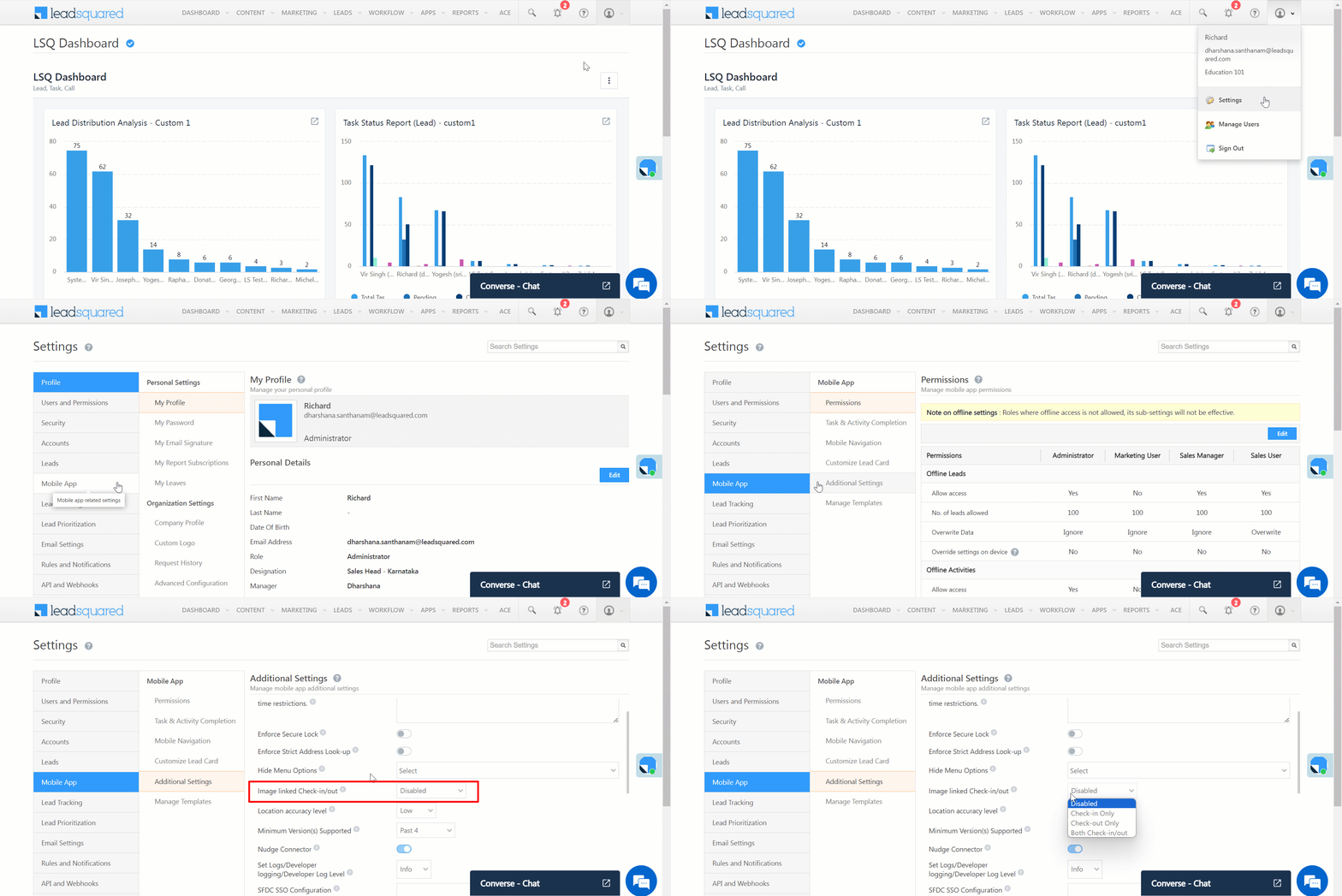
  1. Navigate to My Profile>Settings>Mobile App>Additional Settings.
  2. Under App Related, alongside Image linked Check-in/out, click the dropdown and select the relevant option –
    • Check-in only – image capture will be mandatory only during check-in.
    • Check-out only – image capture will be mandatory only during check-out.
    • Both Check-in and Check-out – image capture will be mandatory during check-in and check-out.
Note: Set the Location Tracking Accuracy as V2-High for this feature to work.

LeadSquared - Image linked check-in and check-out


3. Face Detection During Check-in

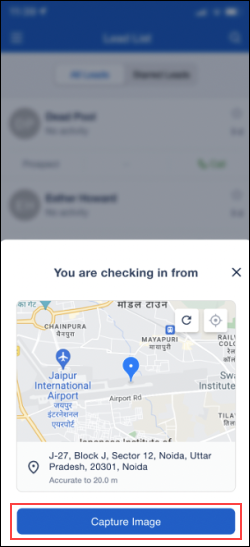
  • When users tap the Capture Image button, the front camera opens automatically.
  • The system immediately attempts to detect a face in the image. If no face is detected within 3 seconds, an error message “Face not detected” is displayed, and the capture button remains disabled until a face is detected. This ensures that only valid selfies are captured.
  • Once a face is successfully detected, users can proceed to capture the selfie and complete the check-in or check-out process securely.

LeadSquared - Image capture


Any Questions?

Did you find this article helpful? Please let us know any feedback you may have in the comments section below. We’d love to hear from you and help you out!

How to Create a Process

1. Feature Overview

The process designer lets you organize your forms into workflows. You can create workflows for any business process such as loan/insurance application, KYC collection, education applications, medical applications, etc.

After you’ve created one or more forms, use the process designer to –

  1. Choose the work area (Manage Forms page, Manage Activities page, Smart Views, etc.) where you want to display your forms.
  2. Set conditions on users (show forms to particular teams, roles, sales groups, etc.) and form field values.
  3. Chain together multiple forms to create processes.

If you haven’t created any forms yet, see How to Create a Form.


2. Prerequisites

  • You must be an administrator user to use the process designer.
  • You must create and publish forms to use in the process designer.


3. Example Use Case

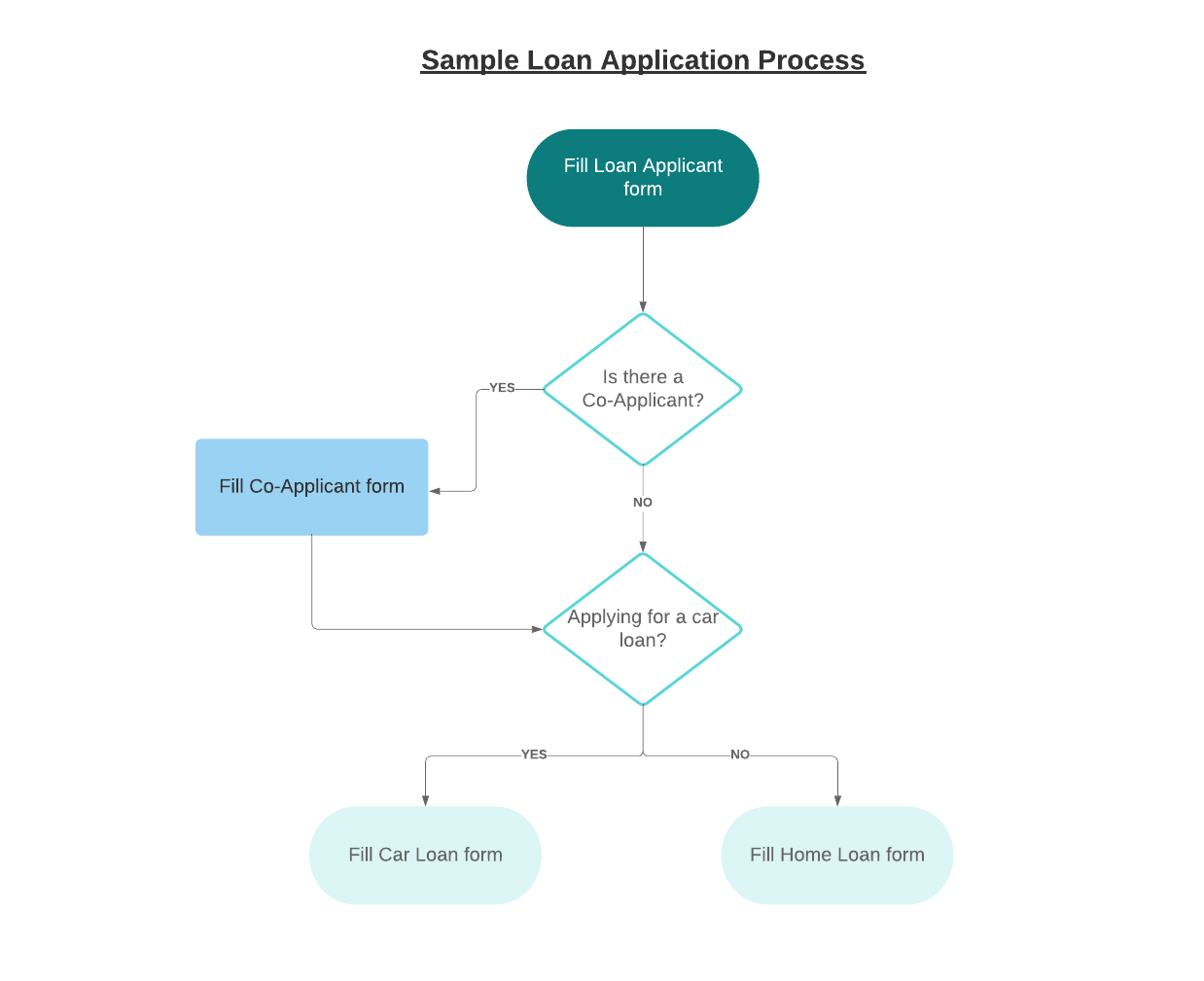
This example takes the use case of a simplified loan application process.
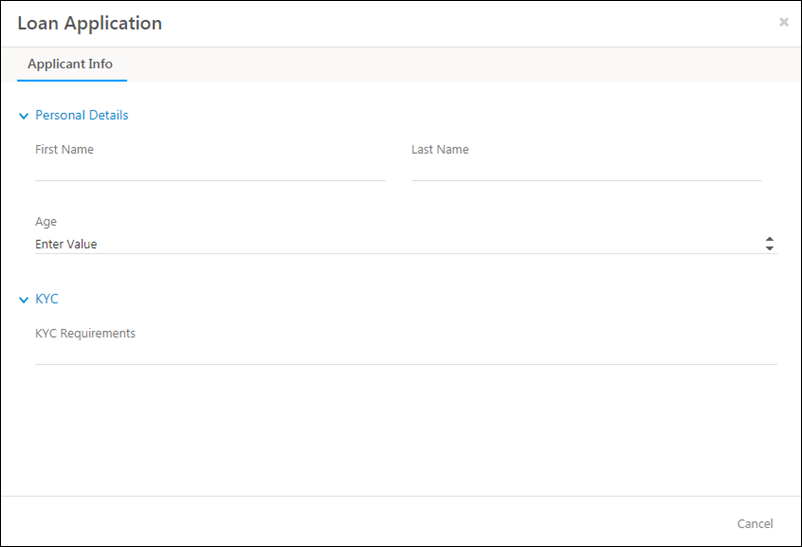
Let’s assume we’ve created the following forms  –

  1. Loan Applicant form
  2. Co-Applicant form
  3. Car Loan form
  4. Home Loan form

Using the process designer, we can chain these forms together to create the following process –

Process Designer Use Case


4. Manage Processes

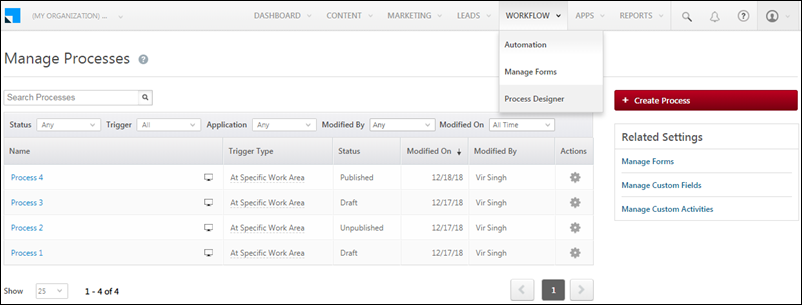
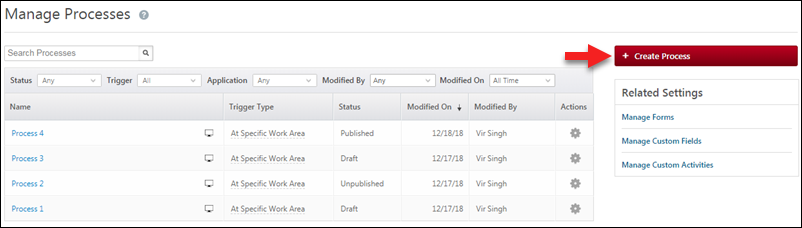
To access the Manage Processes page, navigate to Workflow>Process Designer.

All the processes you create will appear here. You can search for a process or filter by status, trigger, application, modified by and modified on dates. The settingsSettings iconicon under the Actions column allows you to edit, delete, clone, rename or publish a process.

Process Designer Home


5. Create a Process

Click the Create Process button to create a new process.

Create a new process

Now choose a trigger –

  • At Specific Work Area
    This option lets you create a button on a specific page (Manage Leads, Lead Details, etc.) to trigger the process.
  • On Task Complete
    The process will be triggered before a user marks a task complete.

Process Designer Trigger


5.1 At Specific Work Area

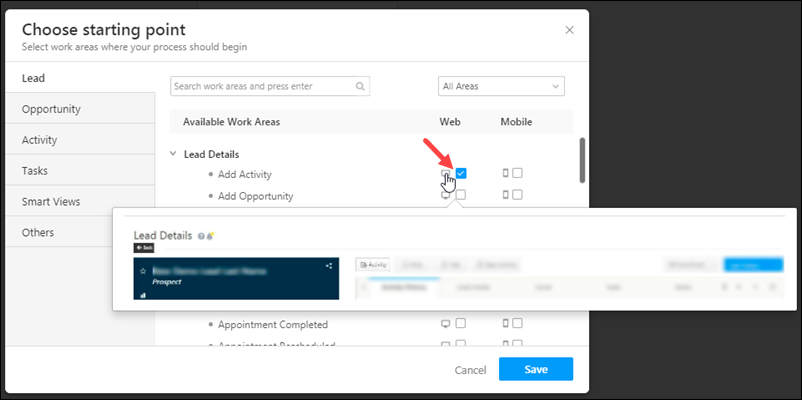
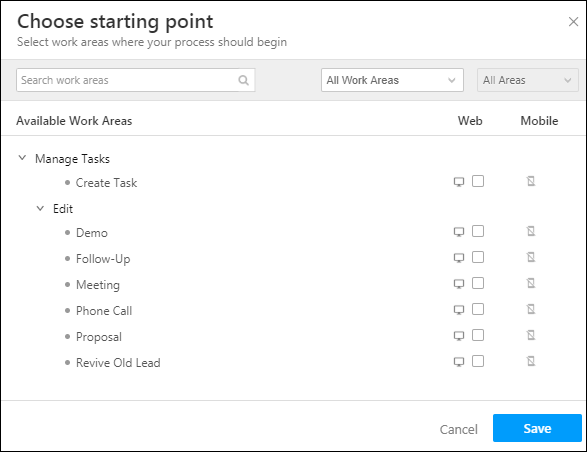
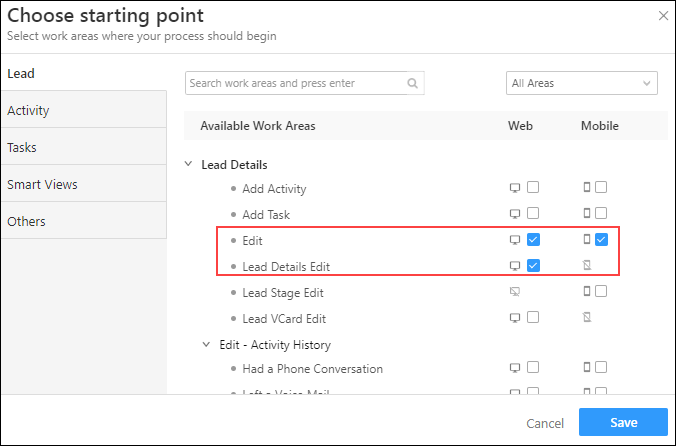
If you select the At Specific Work Area trigger you can choose the page or area you want the process to be initiated from. You can choose multiple work areas to begin a process from.

  1. Under the Available Work Areas section, click on a work area, then click the checkboxes alongside Web or Mobile.
    Be sure to hover your cursor over the desktop PC icon and mobile mobile icon icons to view a screenshot of the work area where you’re placing the starting point of the process.
  2. Select all the work areas you want,  then click Save.

Processes_1

Note: You can also integrate a process into your custom portal. To learn more, see LeadSquared Portal Designer.

Agent Pop-up
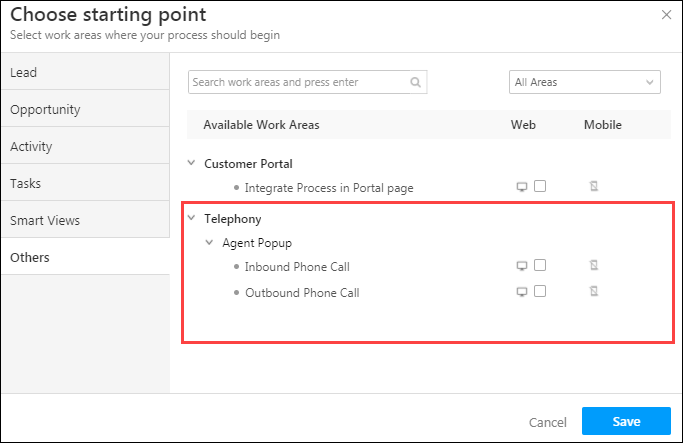
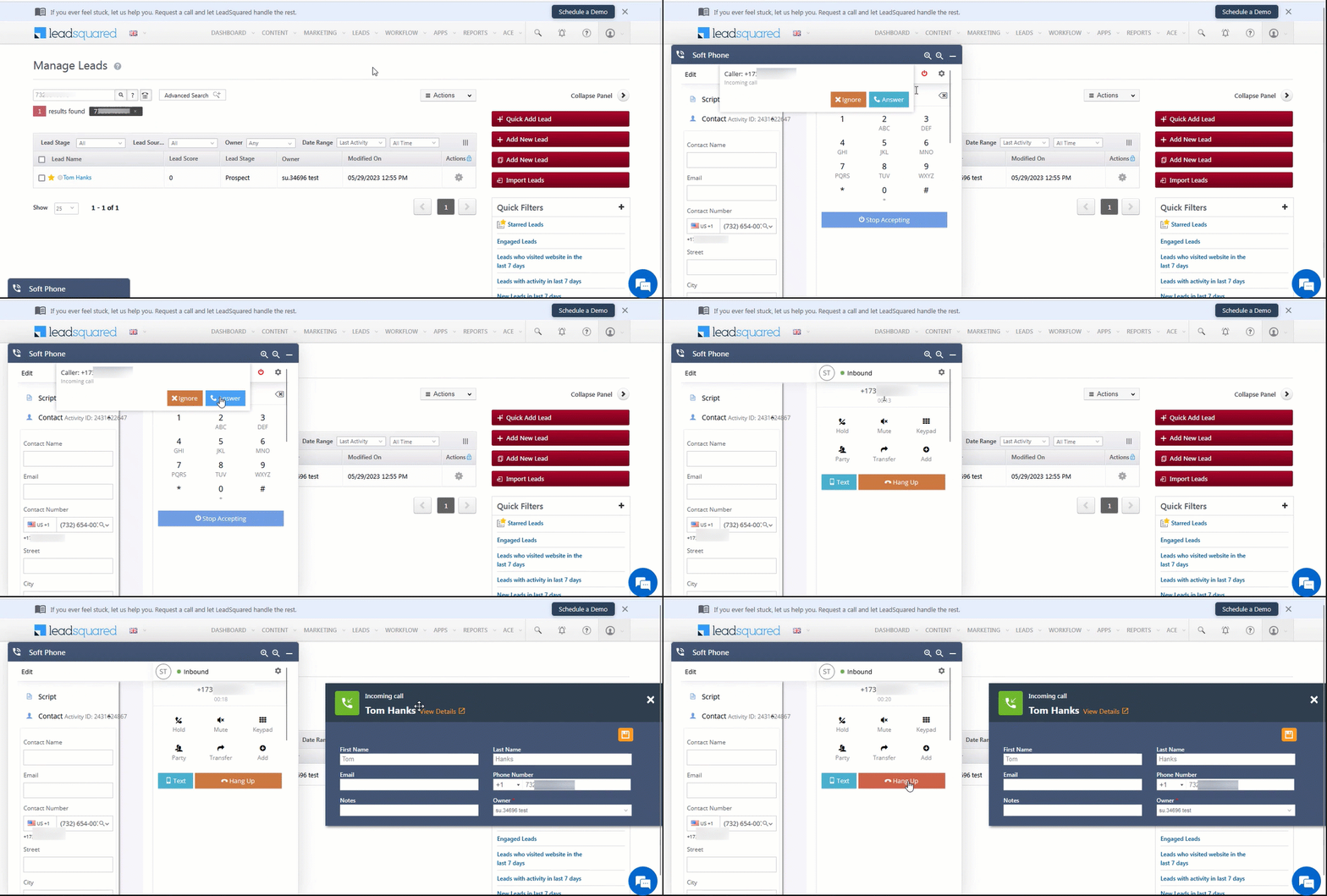
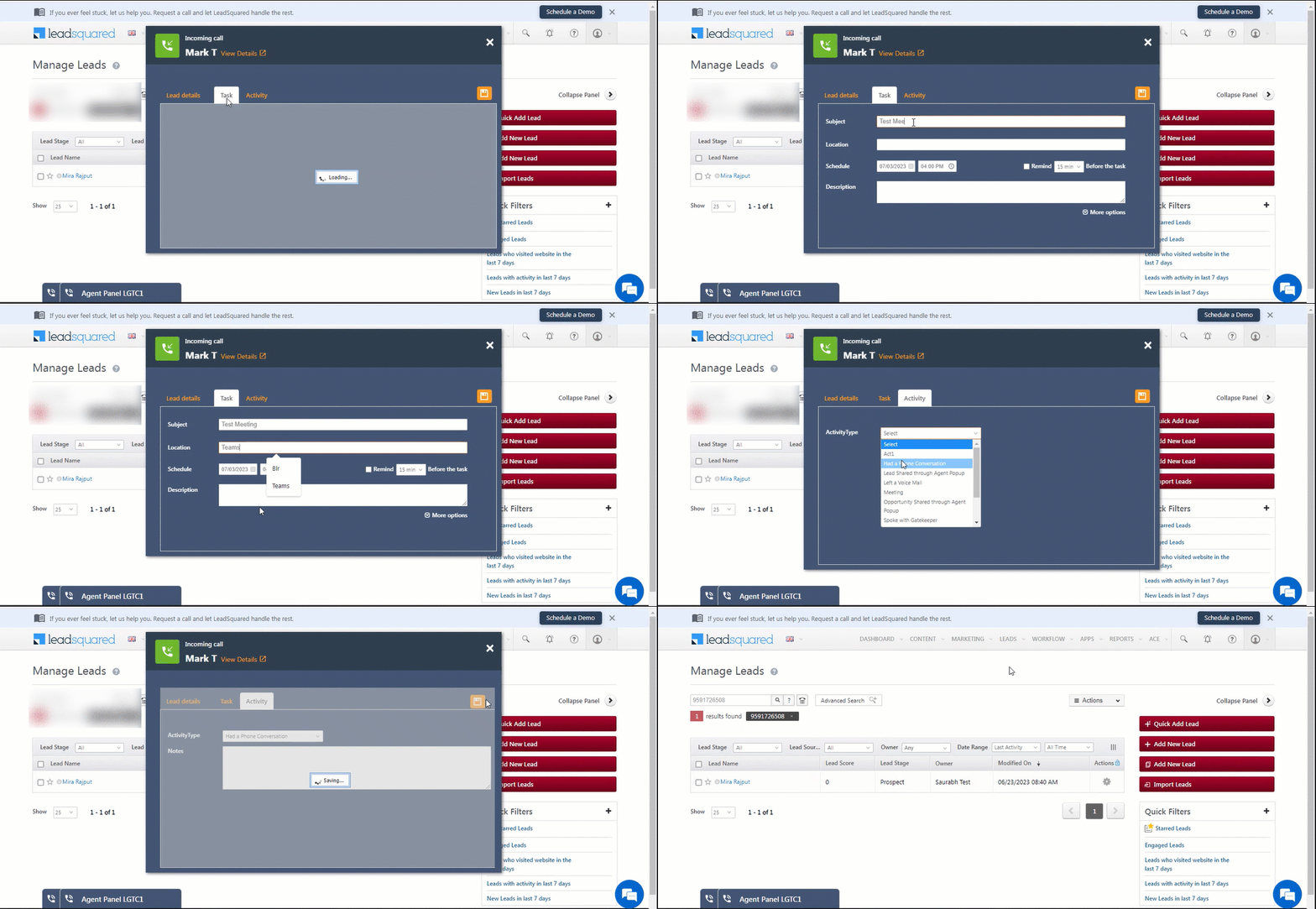
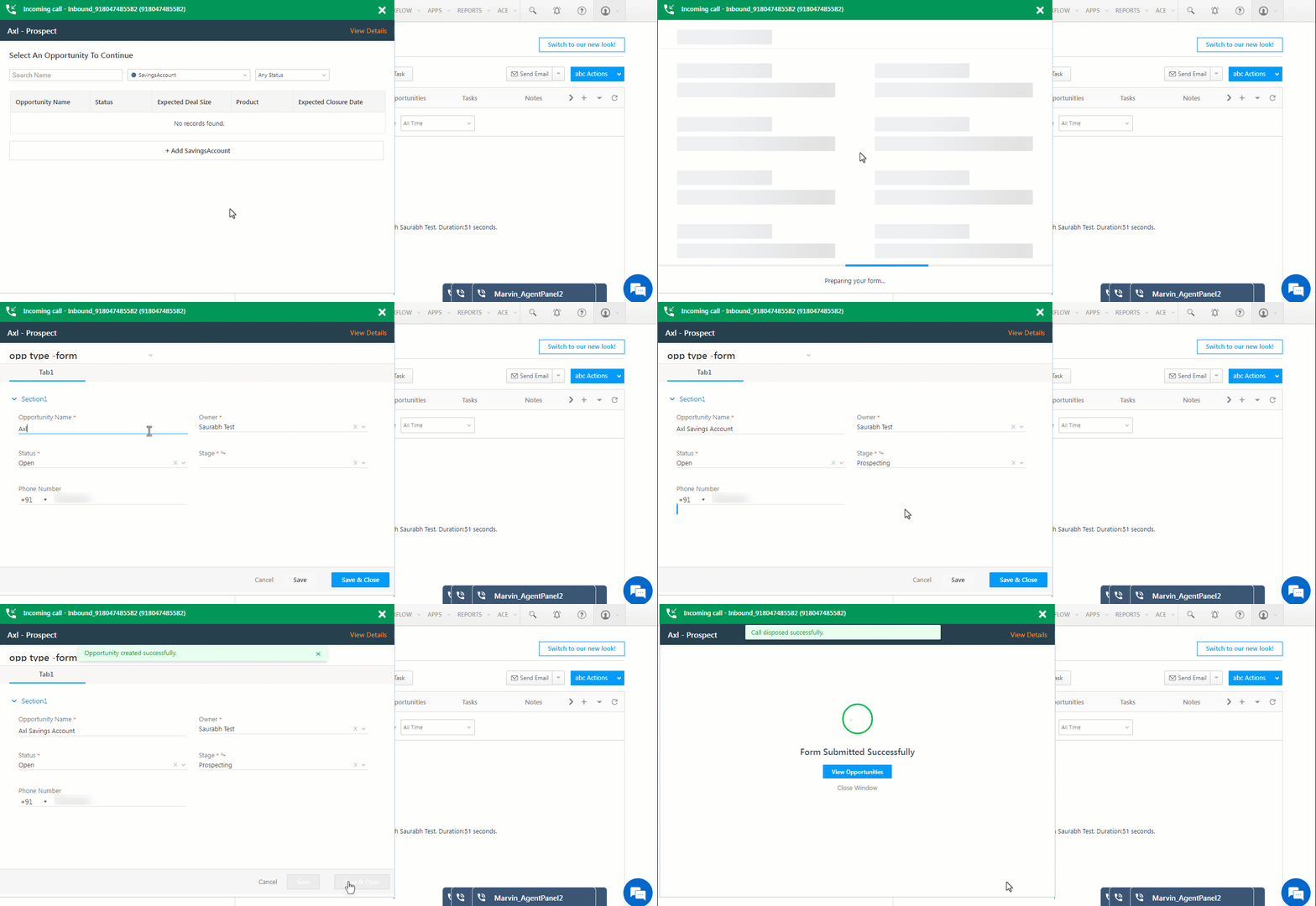
You can trigger a process from the Agent pop-up for inbound and outbound phone calls. Just select the appropriate option under Others>Telephony>Agent pop-up work area>Inbound Phone Call/Outbound Phone Call.

Note: Forms linked to the Telephony work area must have Phone Number or Mobile Number fields in the first tab.

Processes_2

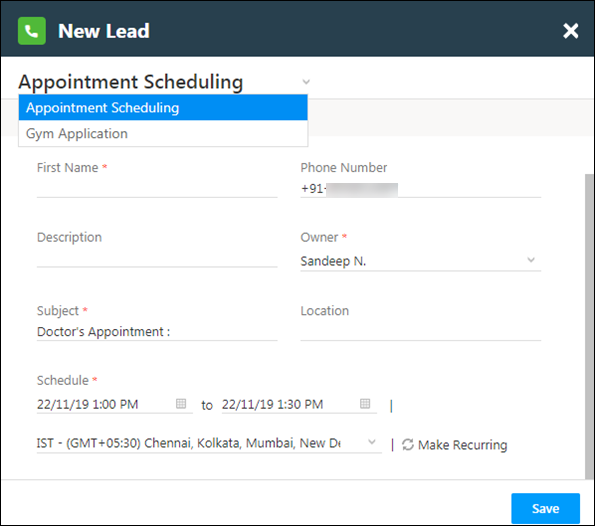
You can display multiple forms on the agent pop-up to help users switch between applications (car loan, home loan, personal loan forms, etc.). This requires you to setup multiple processes.

Processes_3


5.2 On Task Complete

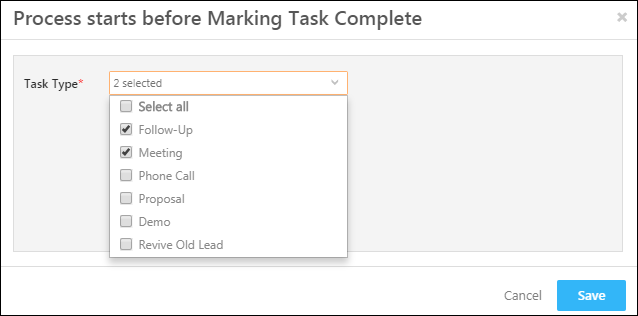
The On Task Complete trigger allows you to start the process when a user attempts to mark a task type complete. You must select the task types you want to initiate the process on by clicking the corresponding check-boxes. Click Save when you’re done.

Trigger process on task complete

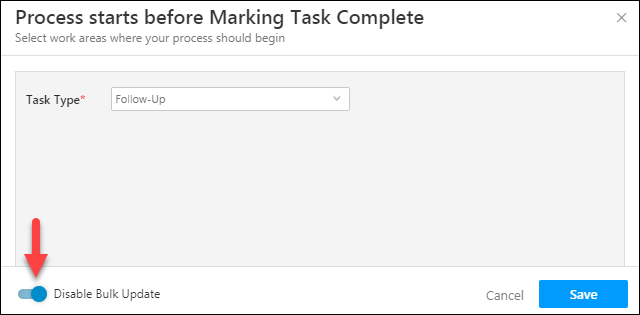
Note: When tasks are updated (completed) in bulk from the Manage Leads or Smart Views page, the process configured on a certain task type may not trigger. To ensure that users can’t bulk update and complete a task type you’ve used as a trigger for a process, click the Disable Bulk Update option –

bulk update tasks

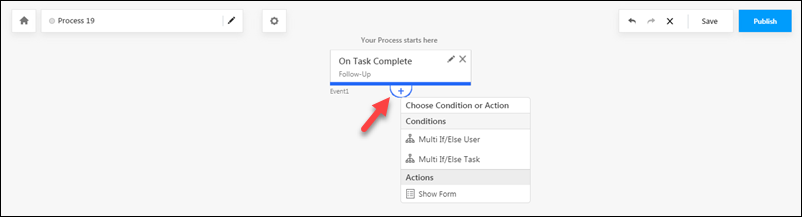
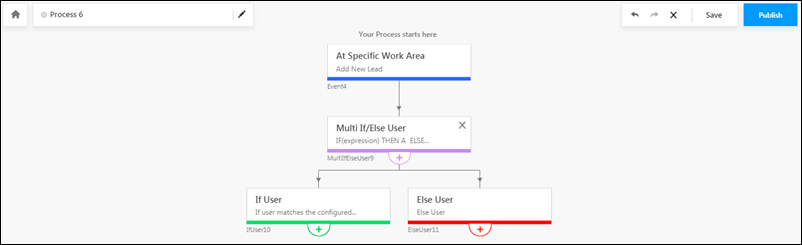
After setting a trigger, click the add add icon icon to view the subsequent conditions and actions.

adding process conditions


5.3 User Conditions

You can set up multiple conditions to choose which users can see your forms and processes. You can set up these conditions on any user attribute including role, team, sales group, etc.

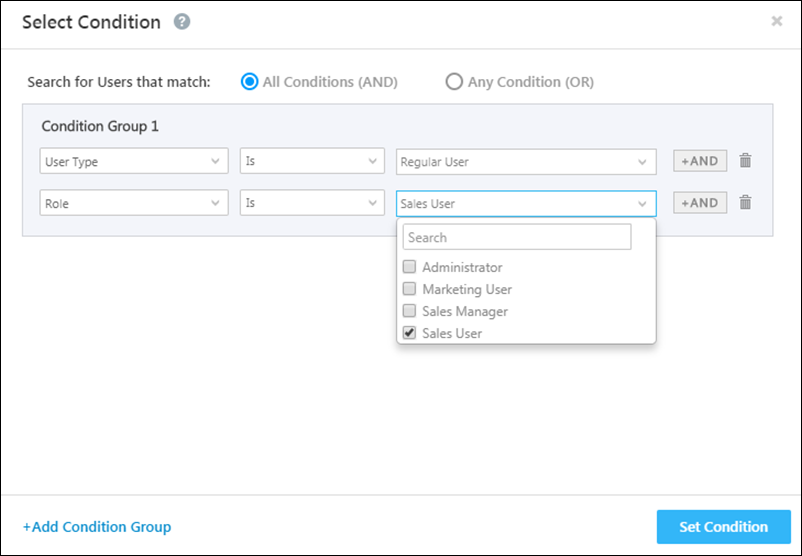
  1. Under Conditions, click the Multi If/Else User option.
  2. You can create condition groups and set up multiple conditions. For more information, see User Advanced Search.
  3. Click Set Condition when you’re done.

create condition groups

The process will branch out into a Yes path and a No path.

Automation condition path

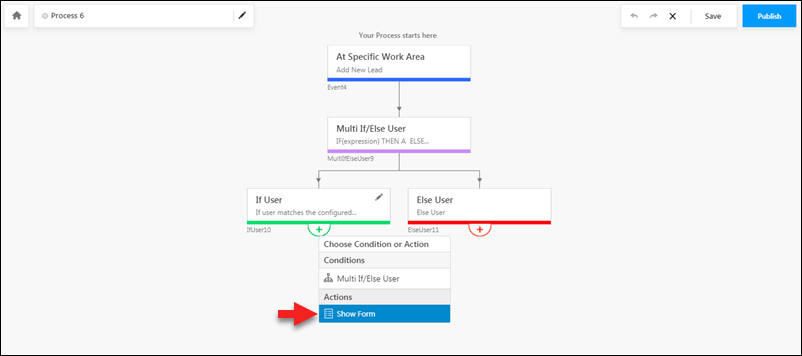
Click the add icon under each path to continue the process.

5.4 Show Form Action

Click the Show Form action to display a published form at any point in your process.

show form action process designer

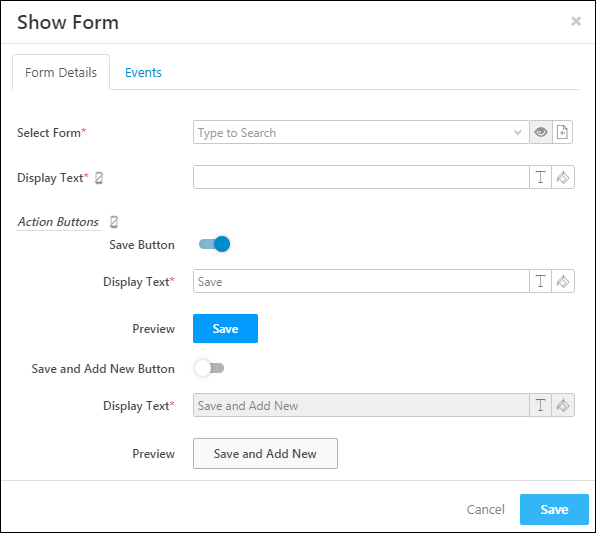
The Show Form pop-up has 2 tabs.
The Form Details tab lets you choose the form you want to display, how you want the initiate process button to look in the work areas you selected and also how you want the action buttons within the form to appear.

show form -form details

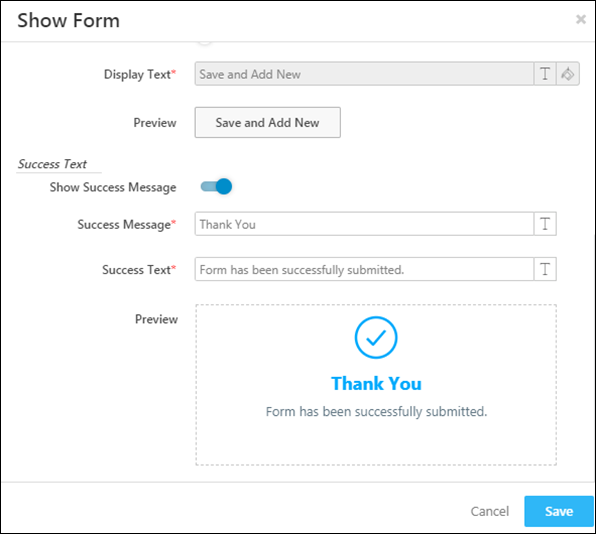
You can also display a success message when the form is successfully submitted. Scroll down to the Success Text section, and enter the success message and text.

Form Submission Success Message

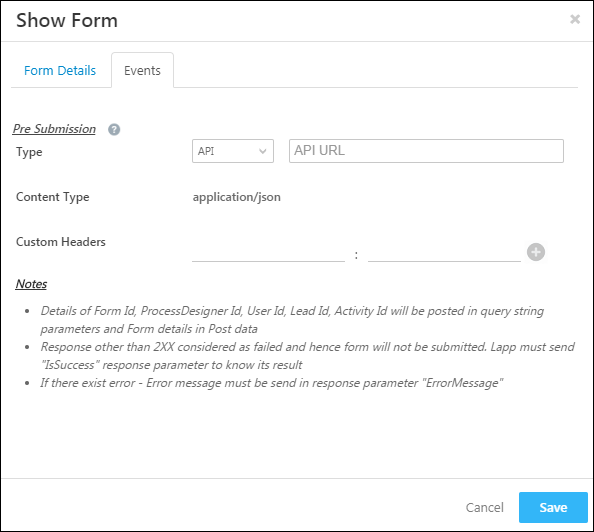
The Events tab lets you call Lapps or an external API before a form is submitted. You can use this as a final validation for a form submission. Read the notes carefully.

The API or Lapp should return 200 OK as the response code and content like {“IsSuccess”:true} or {“IsSuccess”:false,”ErrorMessage”:”Your personal details and passport details do not match. Please check”}

show form events tab

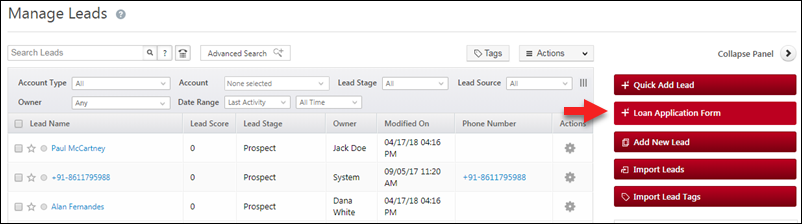
After selecting a form and setting all the configurations, click Save. Here’s an example of how the initiate process or open form button will appear –

display form button


5.5 Adding More Forms to the Process

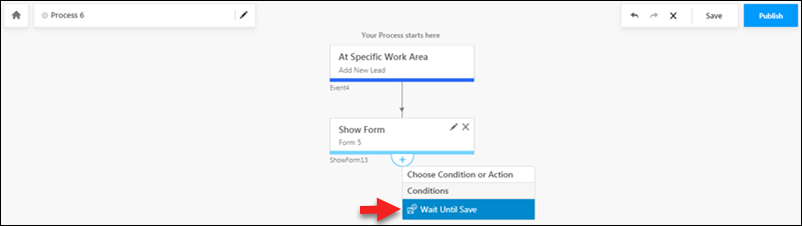
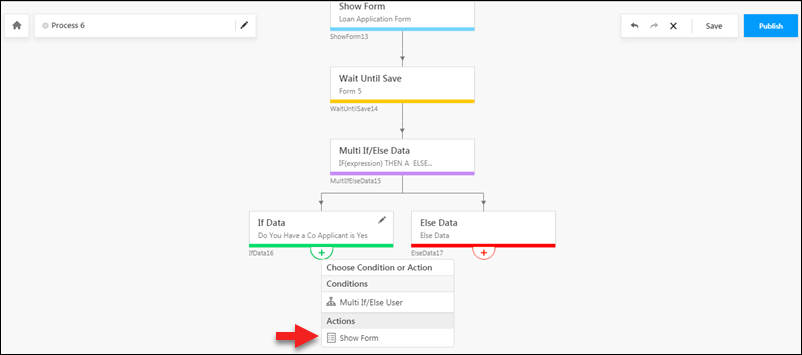
After you’ve added a Show Form action, you must select the Wait Until Save option before you can add more conditions or actions to the process.

wait till save

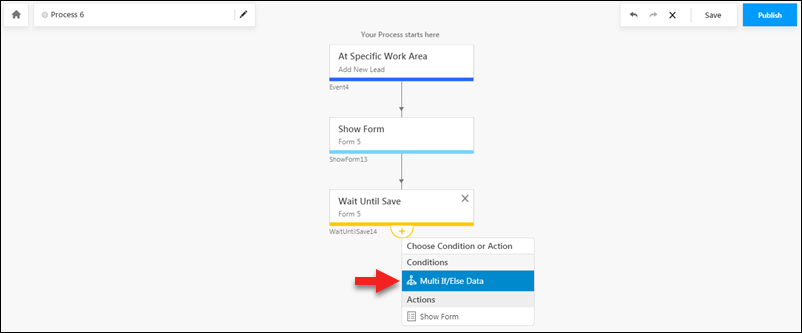
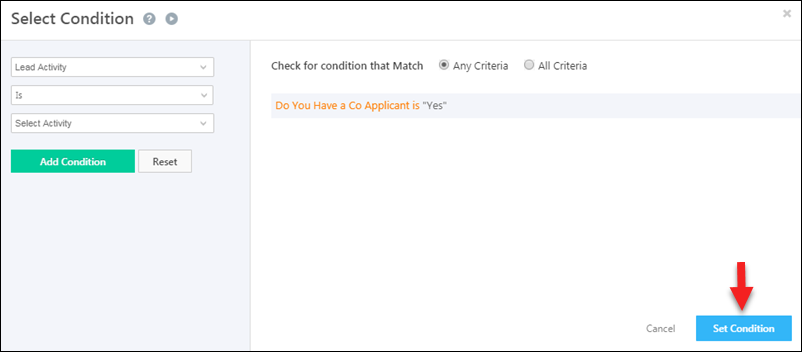
Following the Wait Until Save condition, you can choose conditions based on the form fields of the previous form you’ve selected.
For example, if you’ve included a field in your previously chosen form called ‘Do you have a co-applicant’. You can now use the Multi If/Else Data condition to check if the field value is ‘Yes’, If the value is ‘Yes’ you can show the ‘Co-Applicant’ form.

conditions on previous form

Use the advanced search feature to set conditions on the fields of the form you selected in your previous Show Form action. For more details, see How to Use Advanced Search.
When you’re done, click Set Condition.

form field conditions

You can now show another form when these conditions are matched.

show more forms


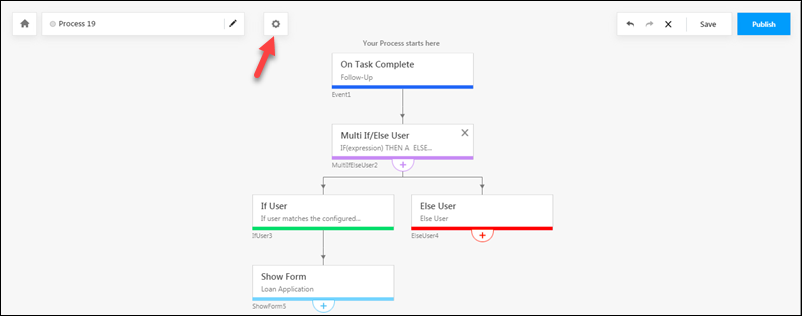
5.6 Process Settings

Click the settingsSettings iconicon to access the process settings.

process settings

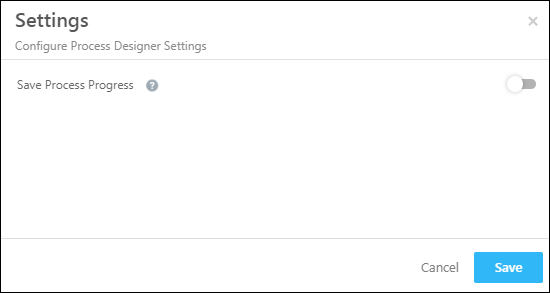
The Save Process Progress setting allows you to save the progress of all the forms in your process. It allows users to pick up where they left off, whether that’s in a particular section of the first form, or in some form further down the process.

Process designer settings


5.7 Save & Publish

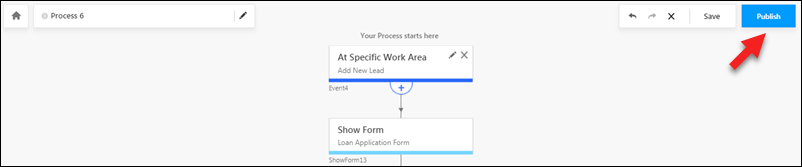
Although your process gets auto-saved, it’s good practice to click the Save button to ensure you don’t lose your work. Click Publish when you’re done creating the process.

save and publish process

Note: Changes to a process may take up to 5 minutes to reflect.


6. Demo

The following process follows a simple two-form flow. The first form is a simple loan application form. If the user marks the ‘Do You Have a Co-Applicant’ field as ‘Yes’ in this form, the process we created will trigger the second ‘Co-applicant’ form to appear.

sample process


6.1 Form Submission Activity

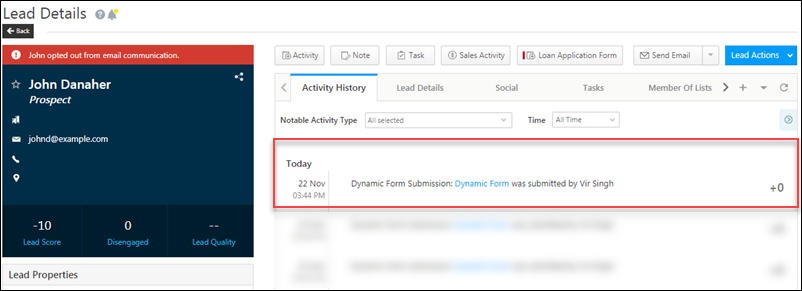
An activity is posted against every form submission, to help you maintain an audit trail for each important change. You can view these activities on the Lead Details page –

form submission activity

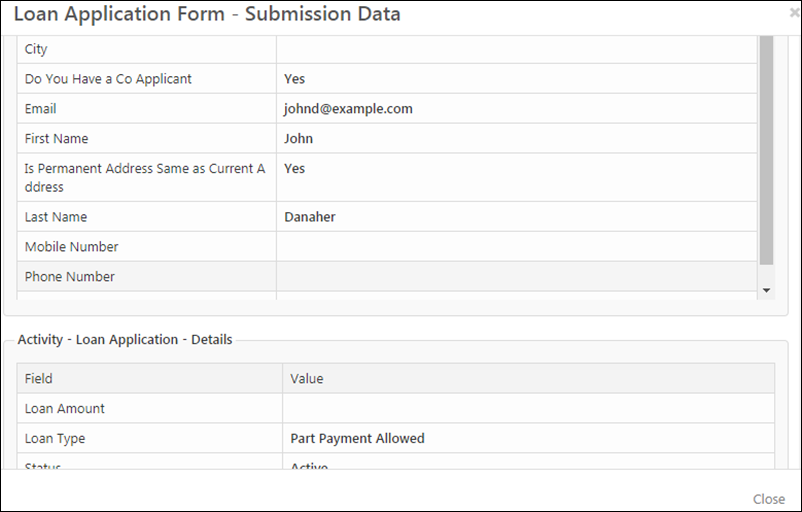
Click the activity to view details –

form activity submission data


Any Questions?

If you have a question that this article did not answer, please let us know in the comments section below. We’ll be happy to improve the content and help you with any doubts you have.

Integrate MDT Personalized Video with LeadSquared

1. Feature Overview

MDT Marketing has made it simple to deliver personalized videos to your prospective students to boost engagement and optimize conversion rates. When a new lead is created in LeadSquared, this connector pushes the lead data to MDT Marketing. MDT Marketing renders a coordinating personalized video, and the video URL is automatically appended against the lead in LeadSquared. 

These personalized videos can be applied to email and text campaigns sent to your leads.


2. Prerequisites

  • You must be the Administrator of your LeadSquared account.
  • You must have an active MDT Marketing account.
  • This is a paid feature. To enable it, reach out to your account manager, or write to support@mdtmarketing.com.


3. How it Works

To push leads from LeadSquared to your MDT account, configure the MDT Personalized Video connector. Once configured, enable the connector sync.

During configuration, a webhook URL is generated in LeadSquared. Copy this URL and configure it through LeadSquared Automation to automatically send new lead details to MDT Marketing.


4. Installation

You must first install and configure the MDT connector.

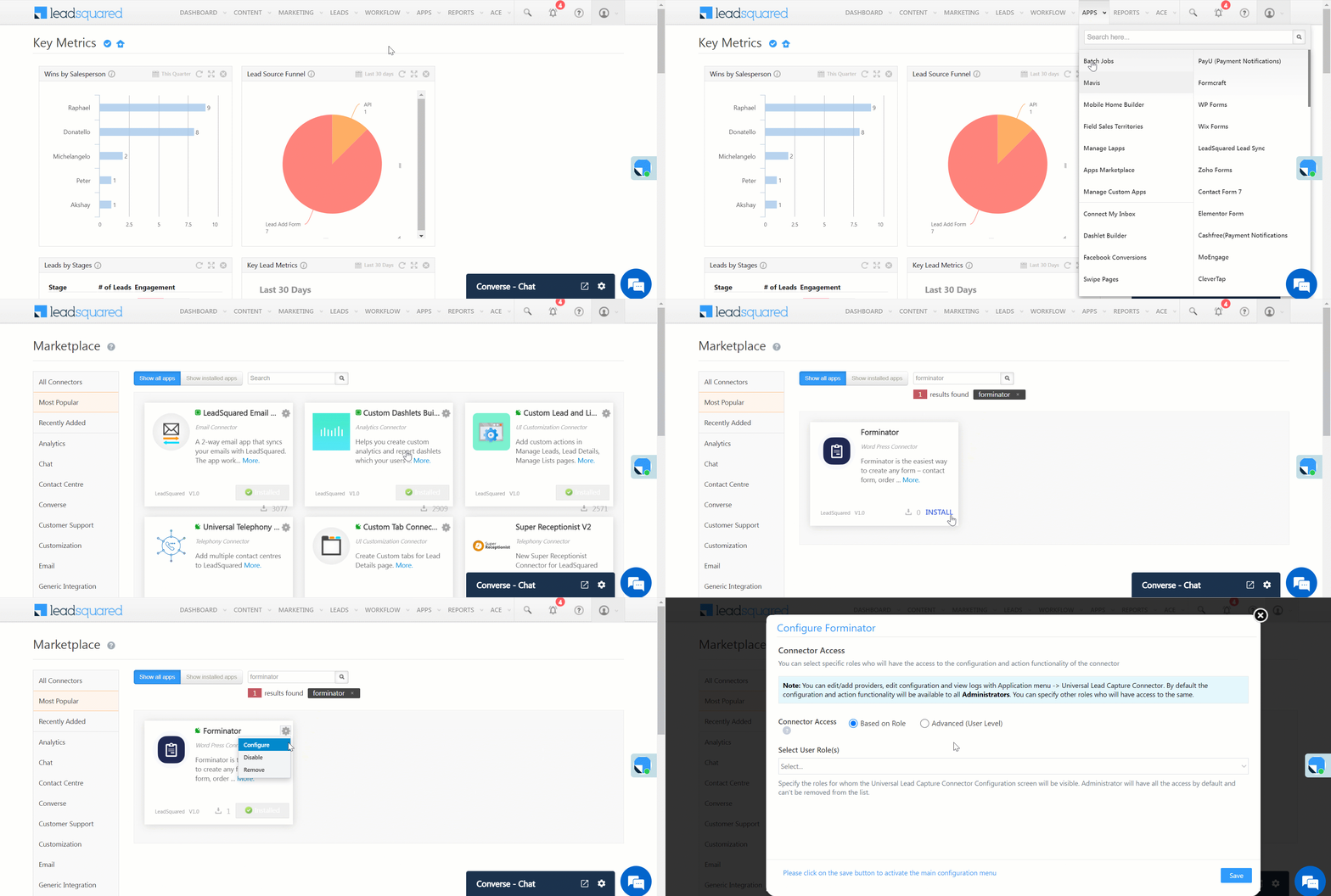
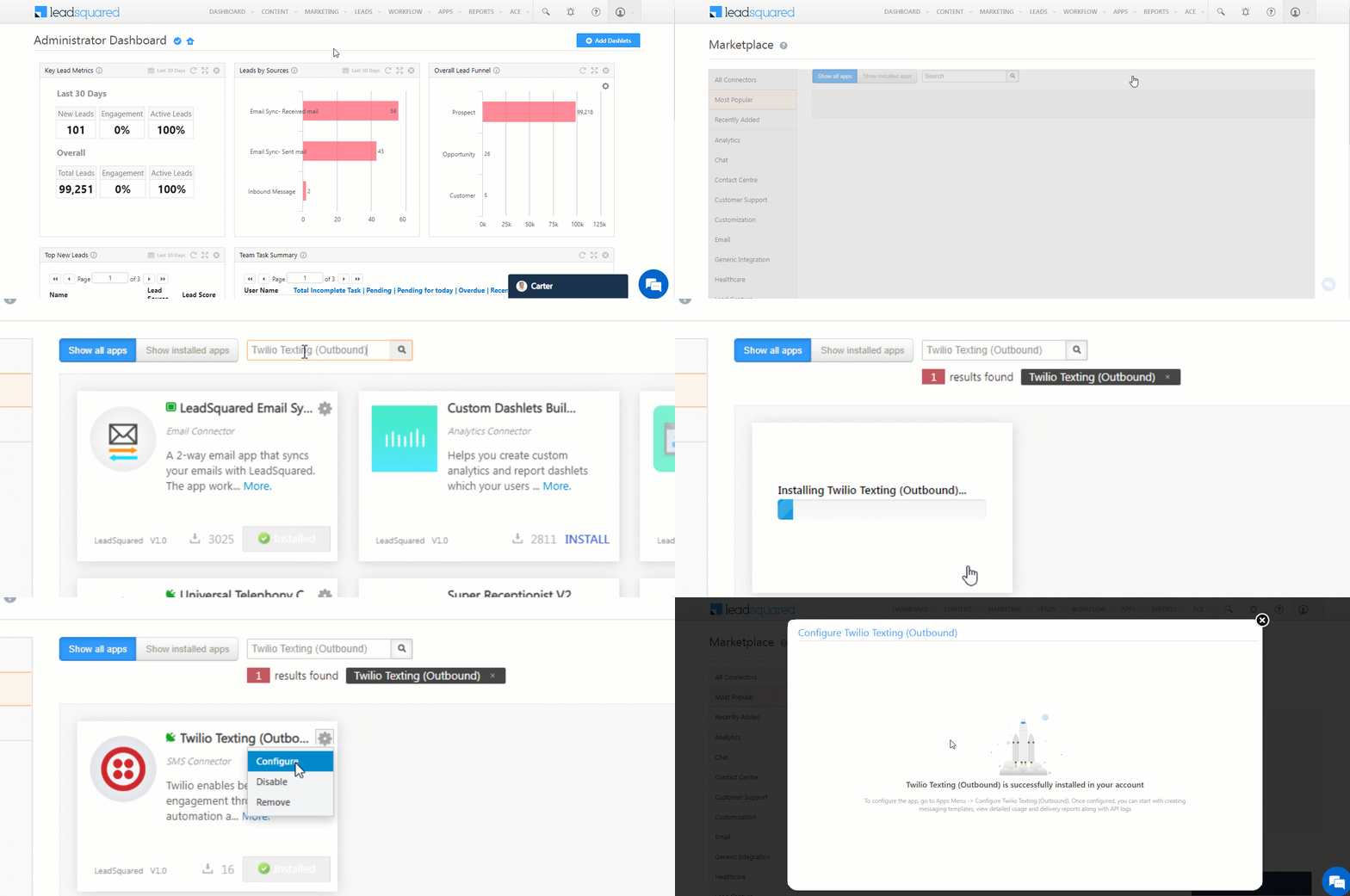
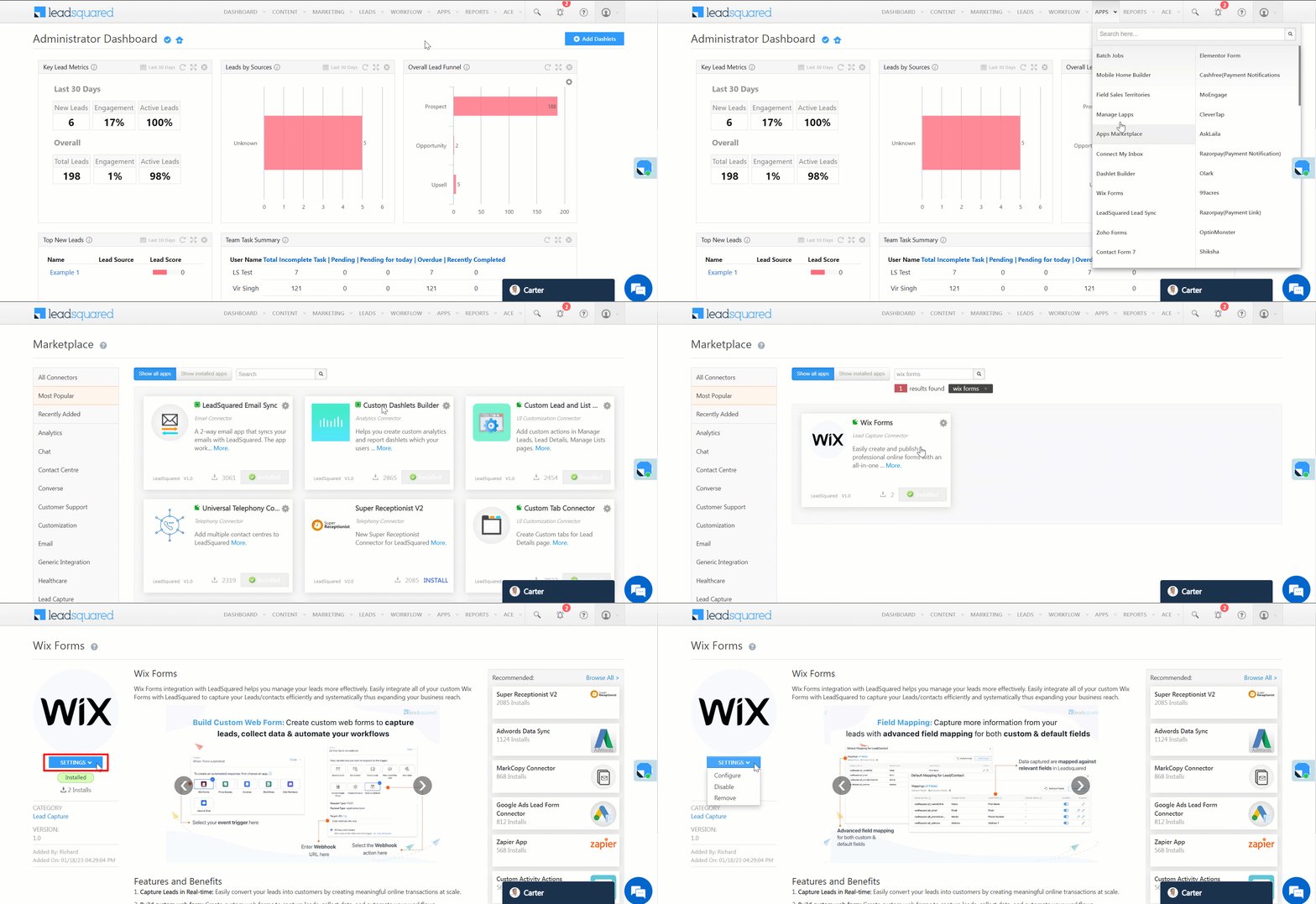
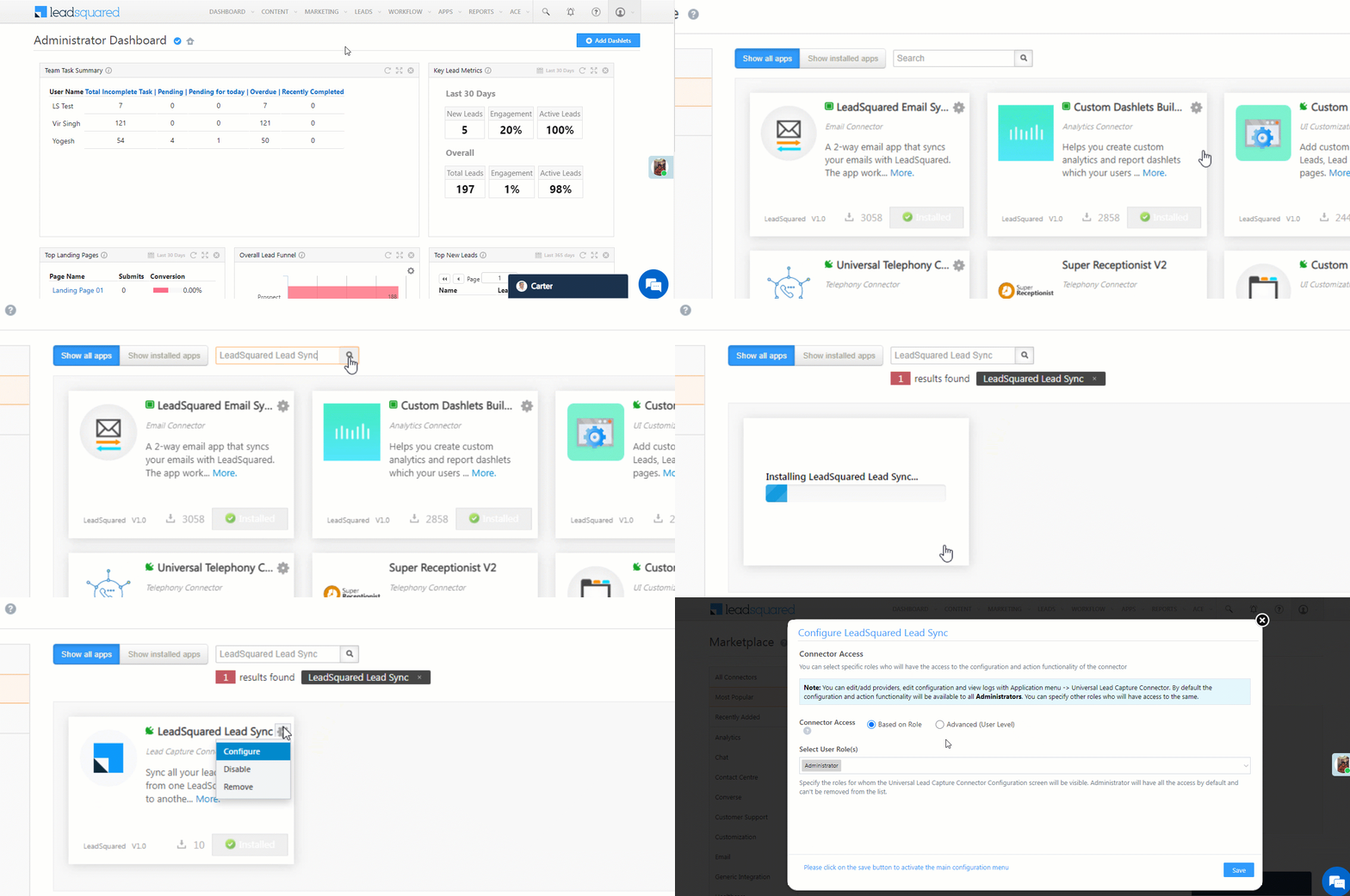
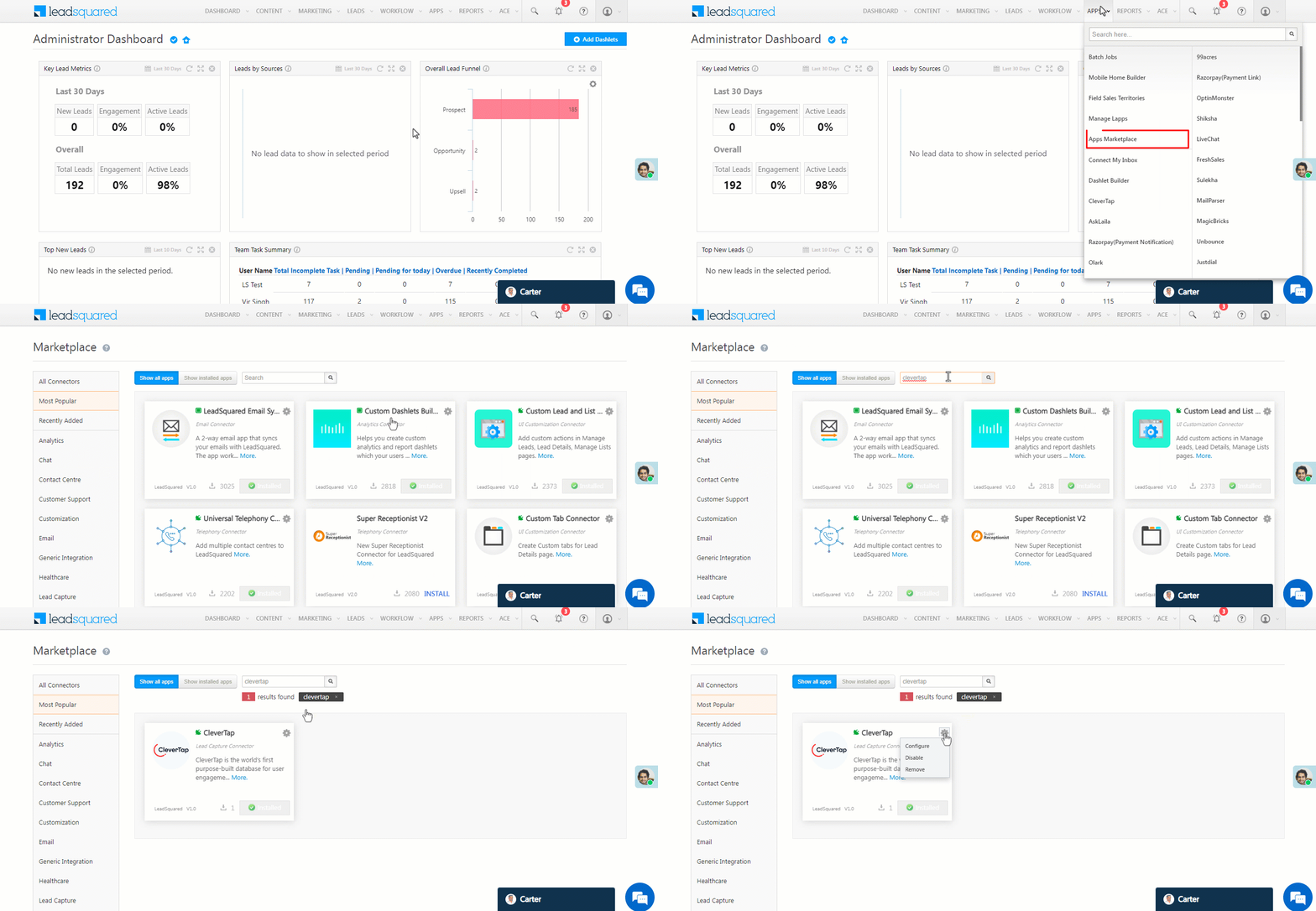
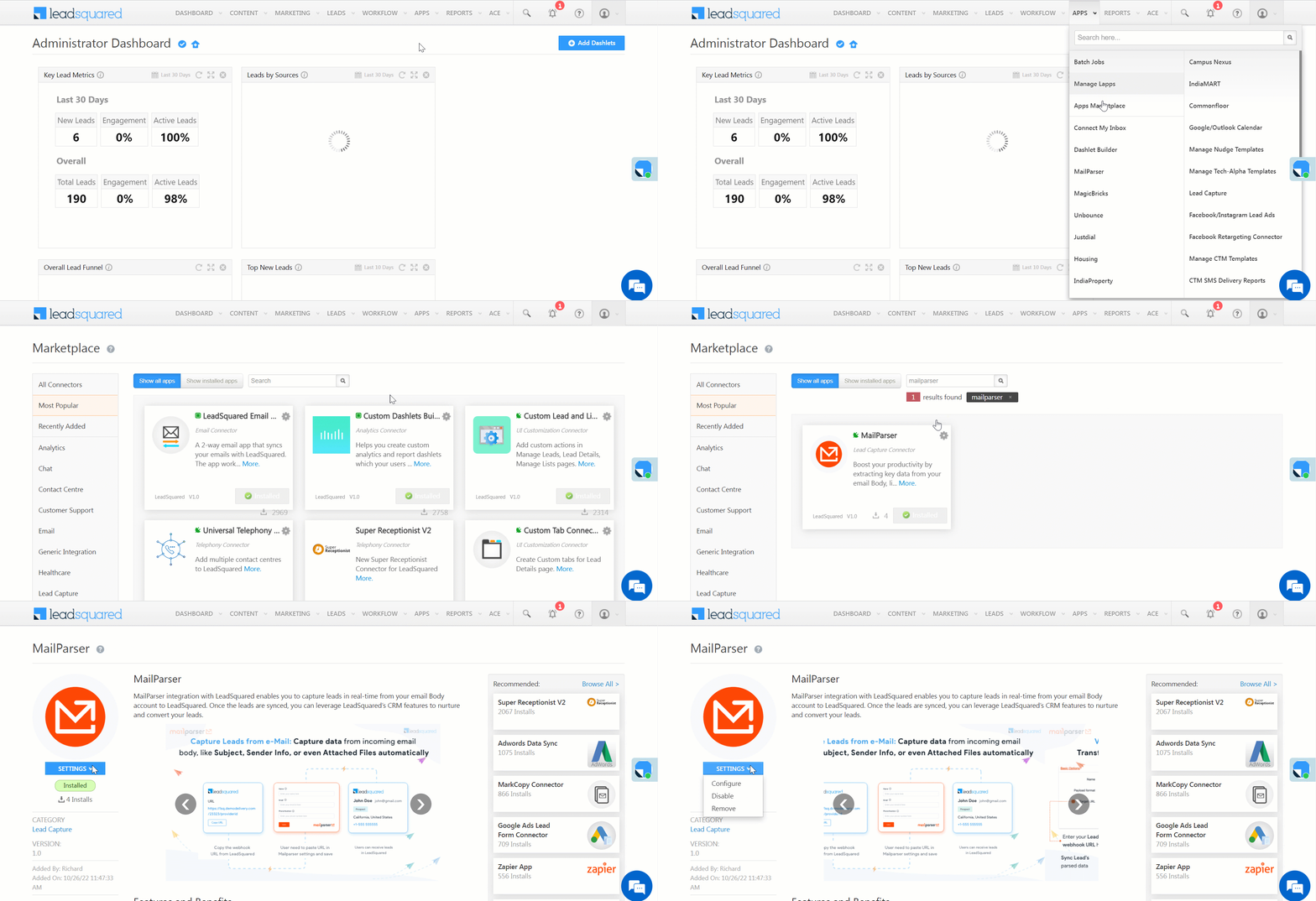
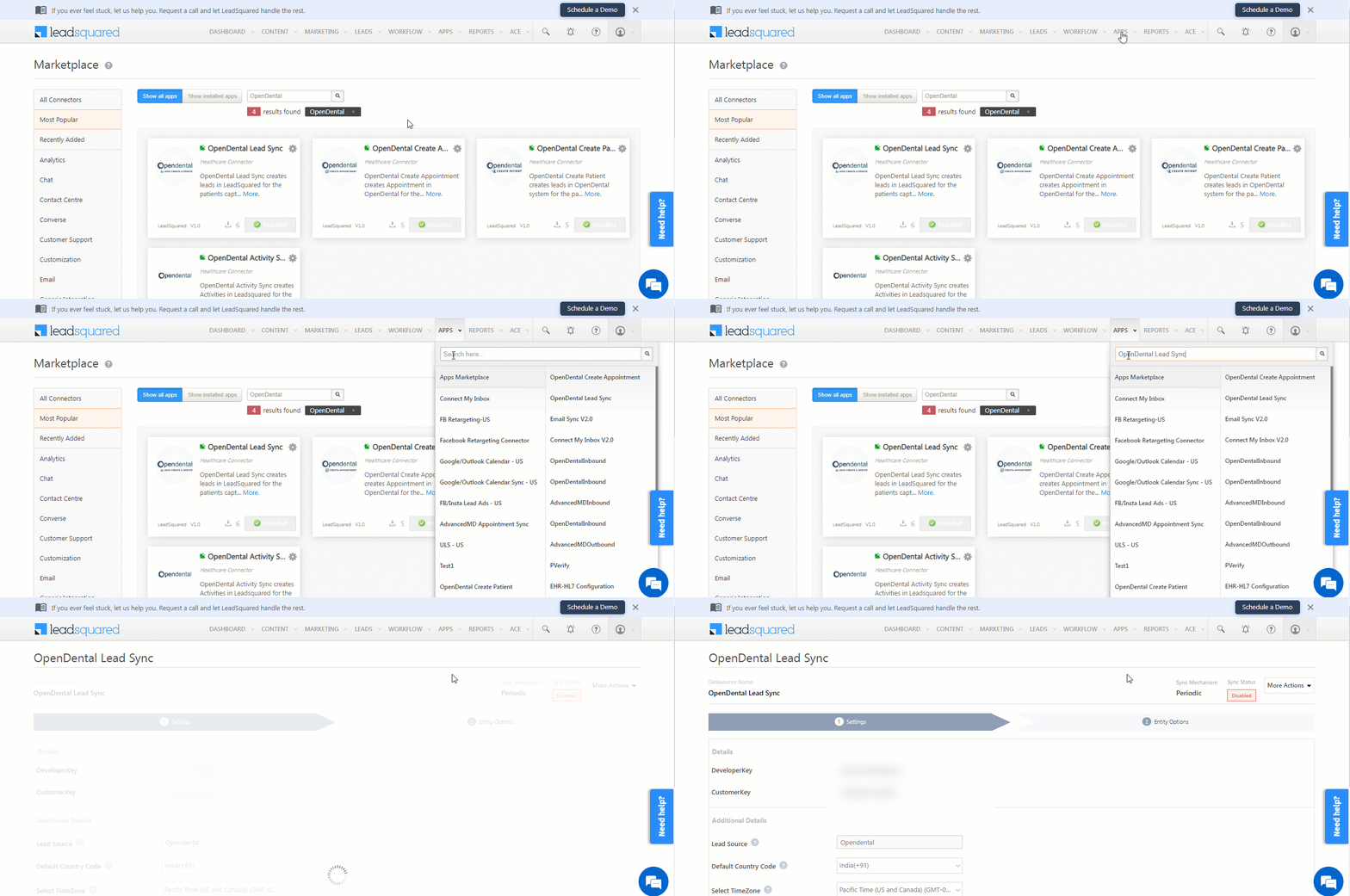
  1. Navigate to Apps>Apps Marketplace.
  2. Search for MDT Personalized Video, and click Install.
    • Alternatively, you can find the connector on the left panel, under Marketing Connector.
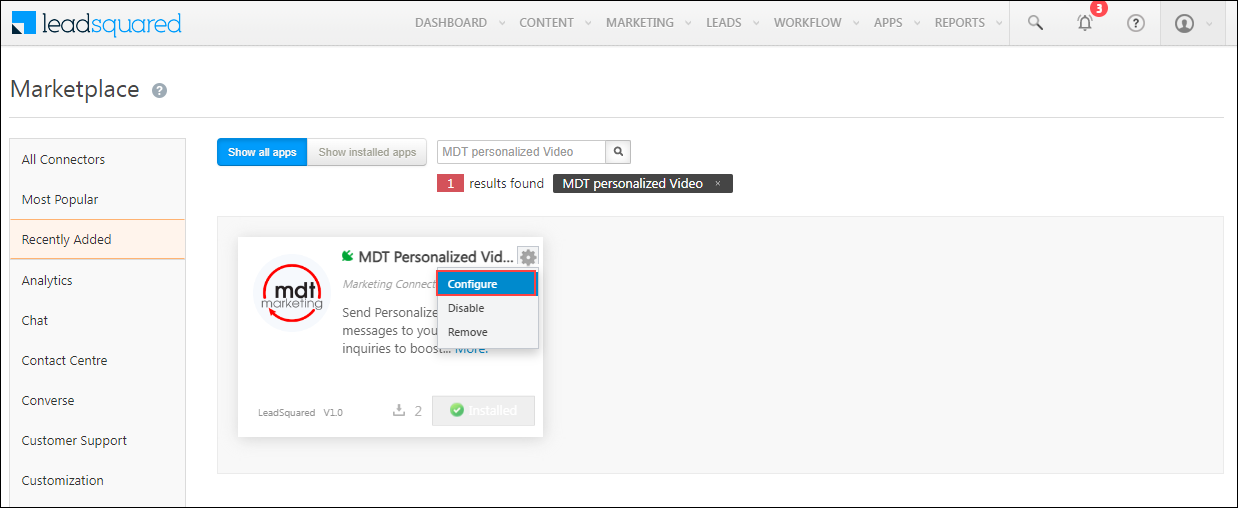
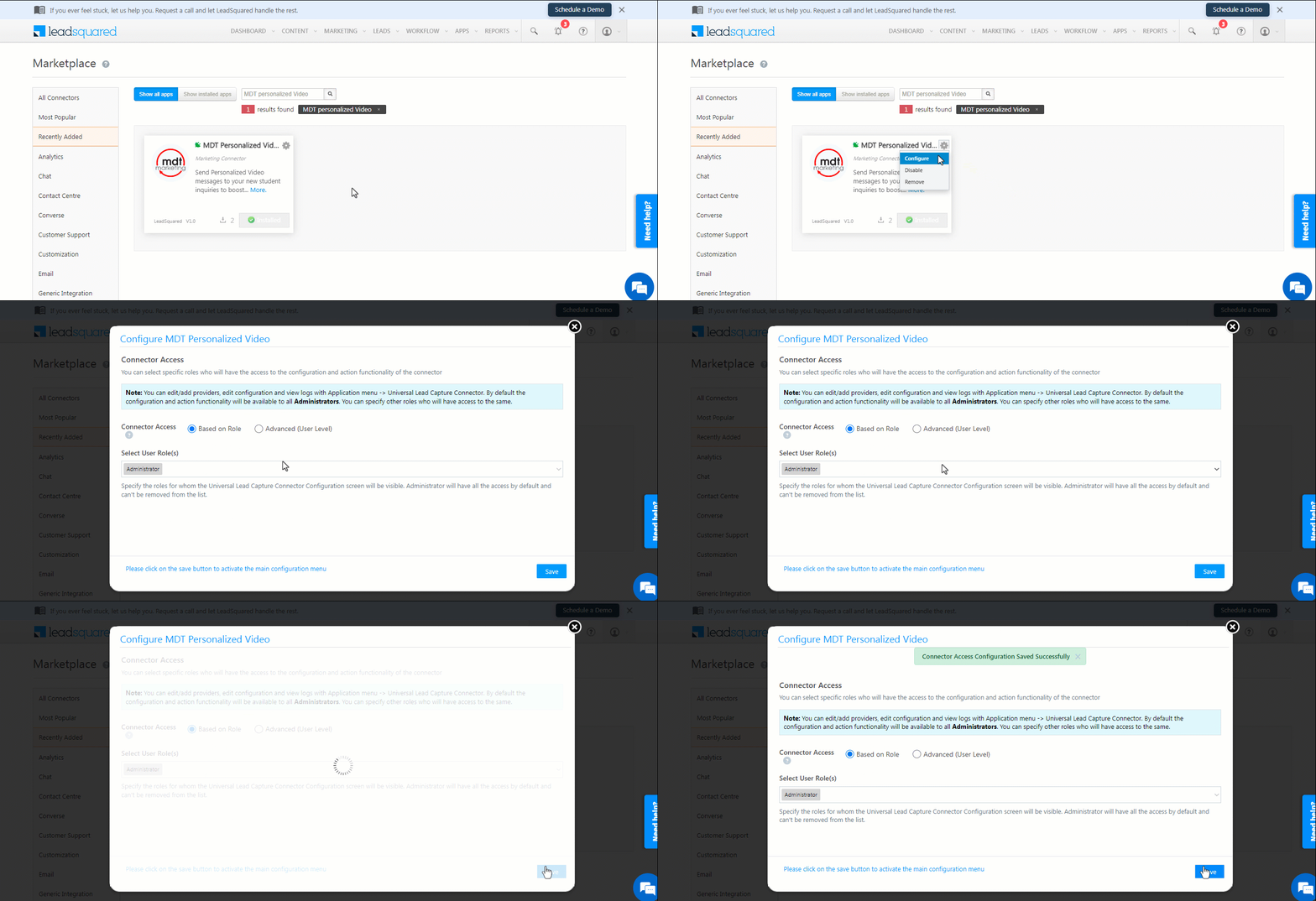
  3. Once installed, hover your cursor over , and click Configure.

mdt click config

4.1 Configure the connector

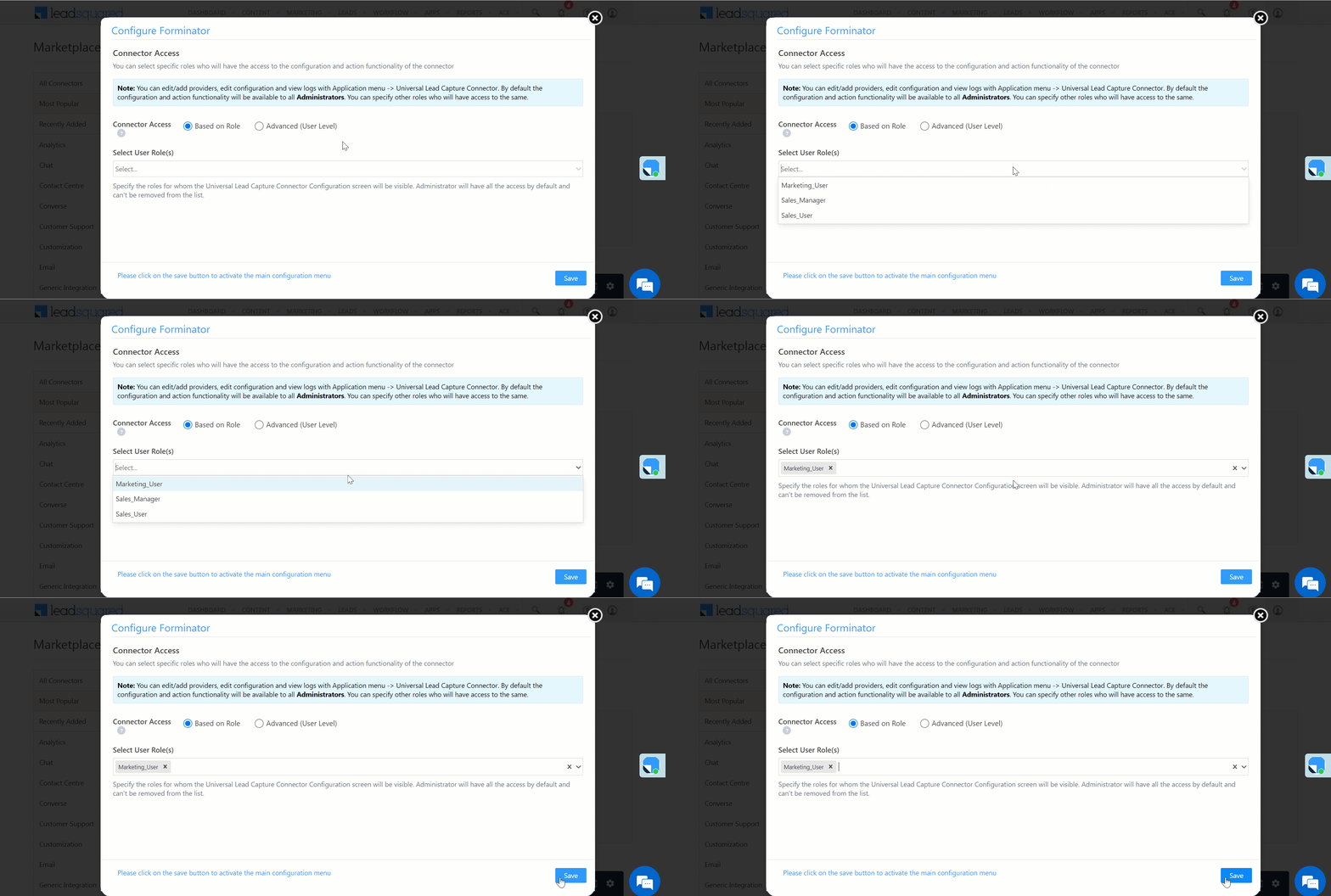
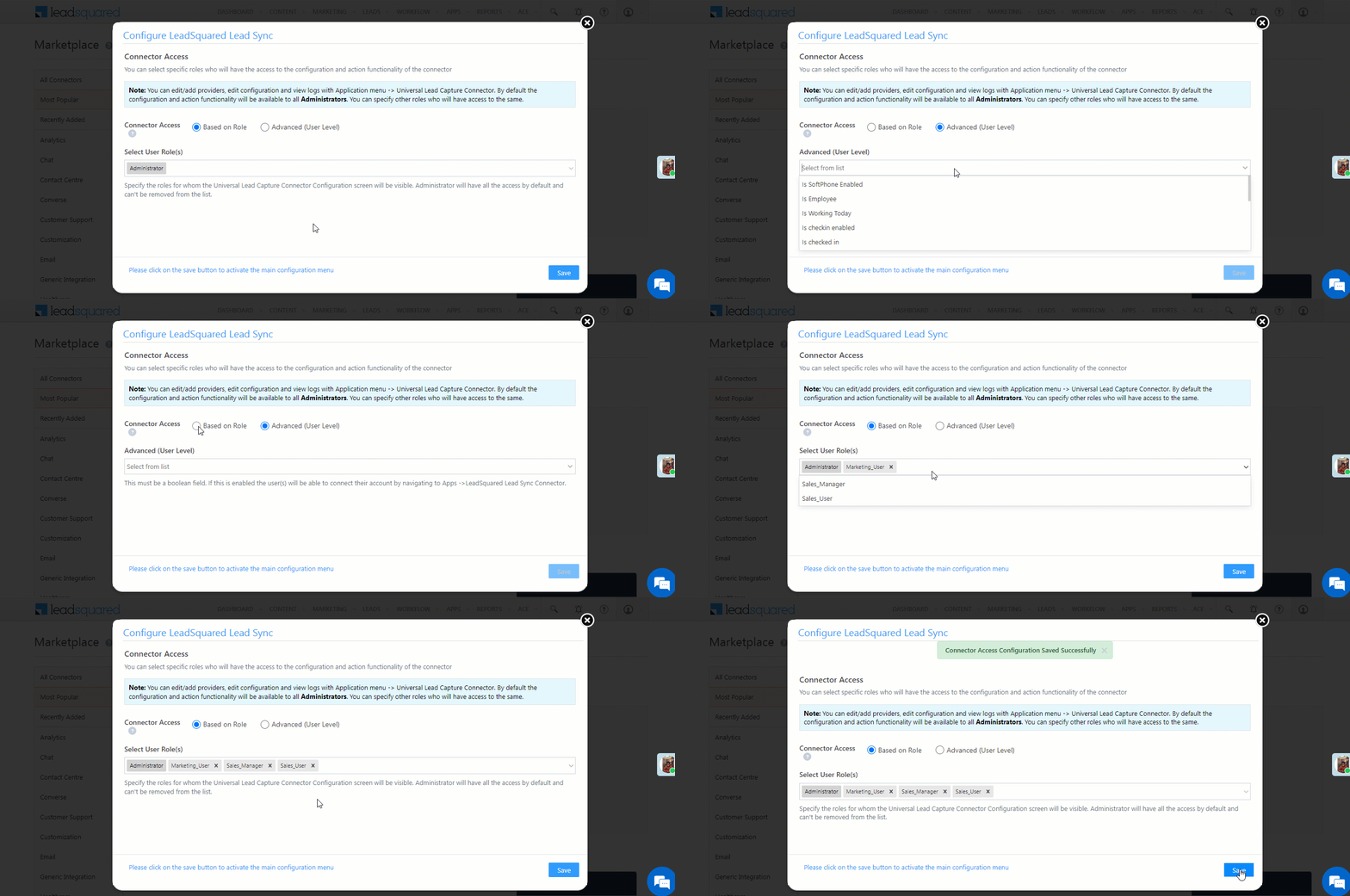
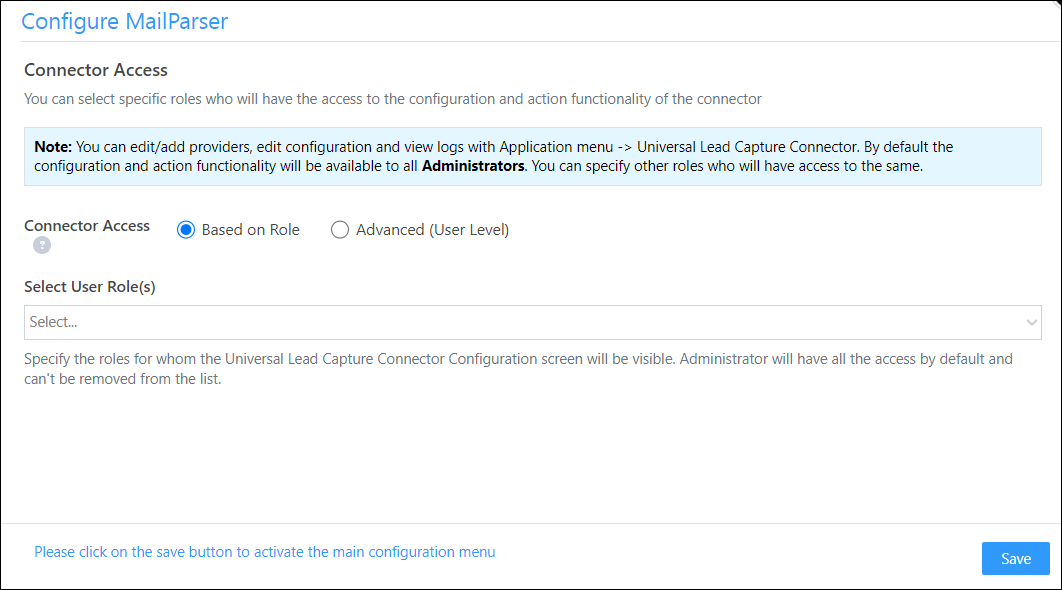
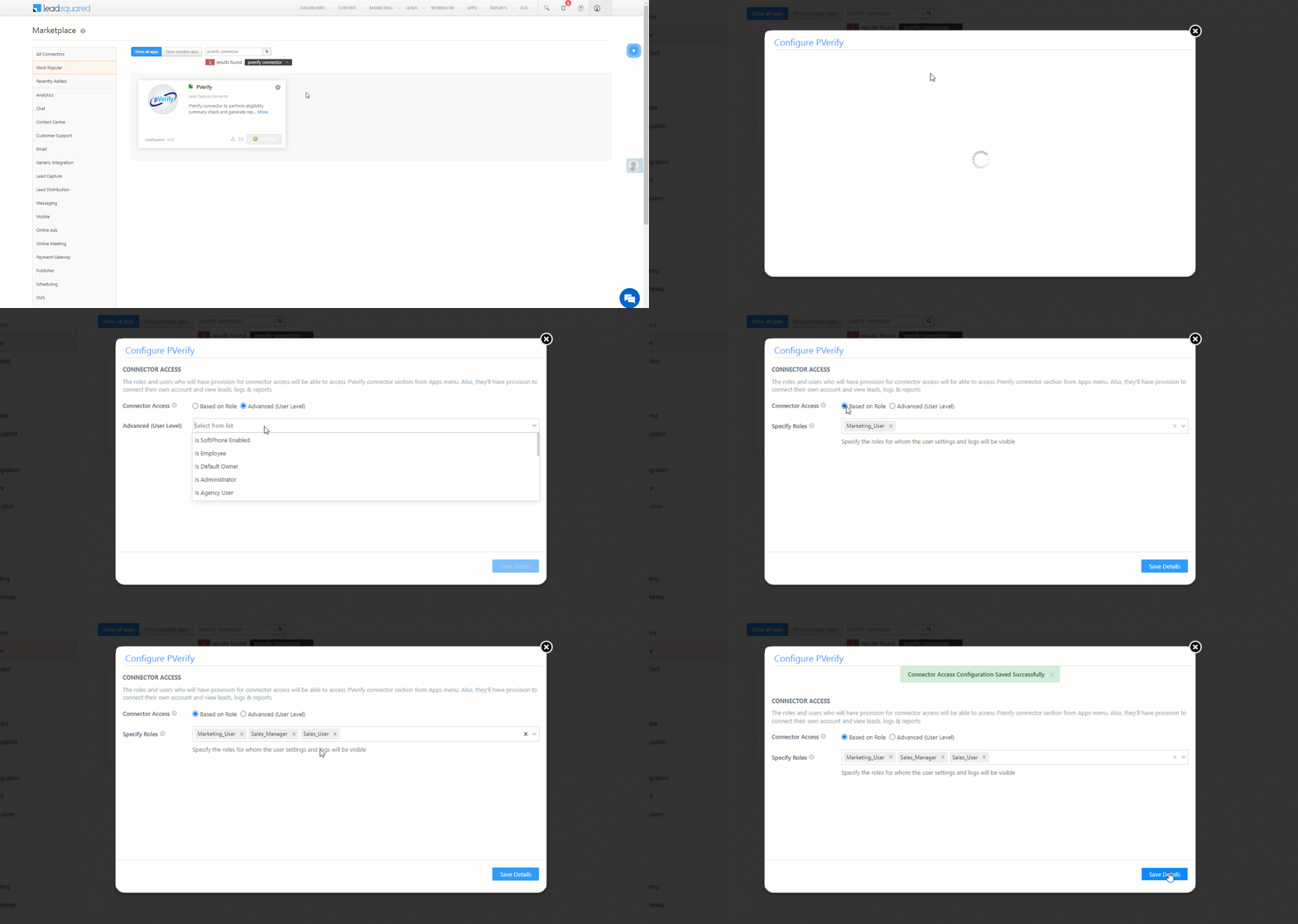
Once you’ve installed the connector, on the Configure MDT Personalized Video pop-up, configure the connector access for the non-Admin users in your account. Only those users for whom access is granted can view and access the connector (under the Apps main menu).

  1. Select if you want to grant Connector Access that’s Based on Role or Advanced (User Level).
    • Based on Role – From the Specify Roles dropdown, select the LeadSquared user roles that can use the connector.
    • Advanced (User Level) – From the Advanced (User Level) dropdown, select a user boolean field. Based on the value entered in the selected boolean field, the user can access the connector (e.g., for the user Sam, if the “Is Employee” boolean user field contains the value “Yes”, then this user can access the connector).
  2. Once you’re done, click Save Details. To continue the configuration, refer to the below sections.
Note: By default, all Admin users will have access to the connector.
mdt config


5. Admin Configuration

To continue the connector configuration, navigate to Apps>MDT Personalized Video.

MDT

5.1 Basic Settings

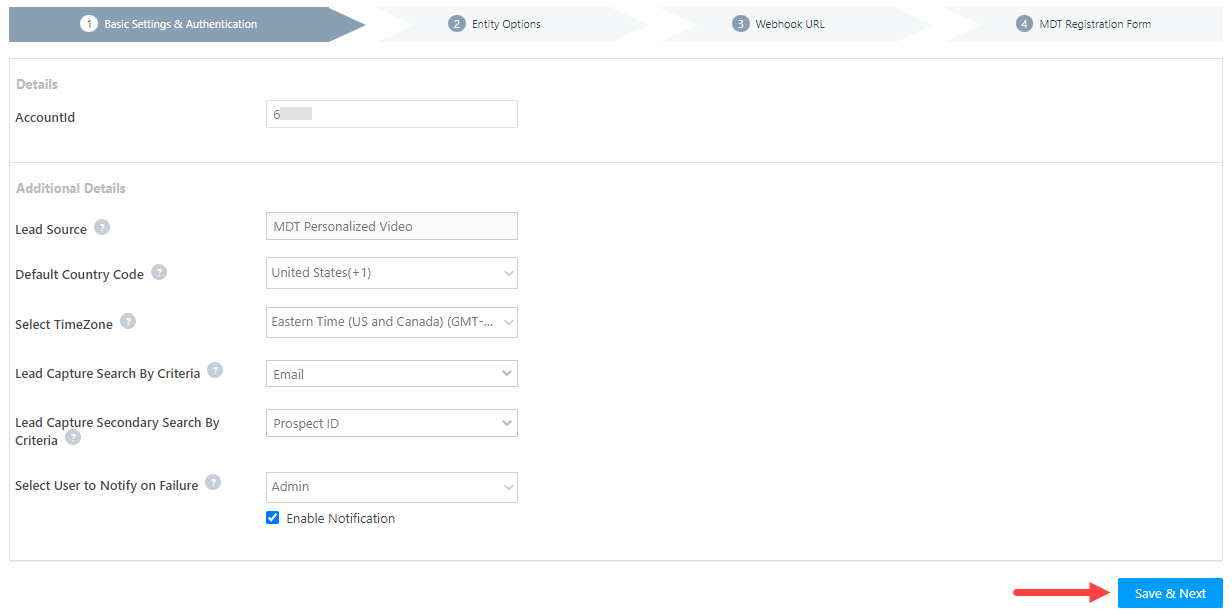
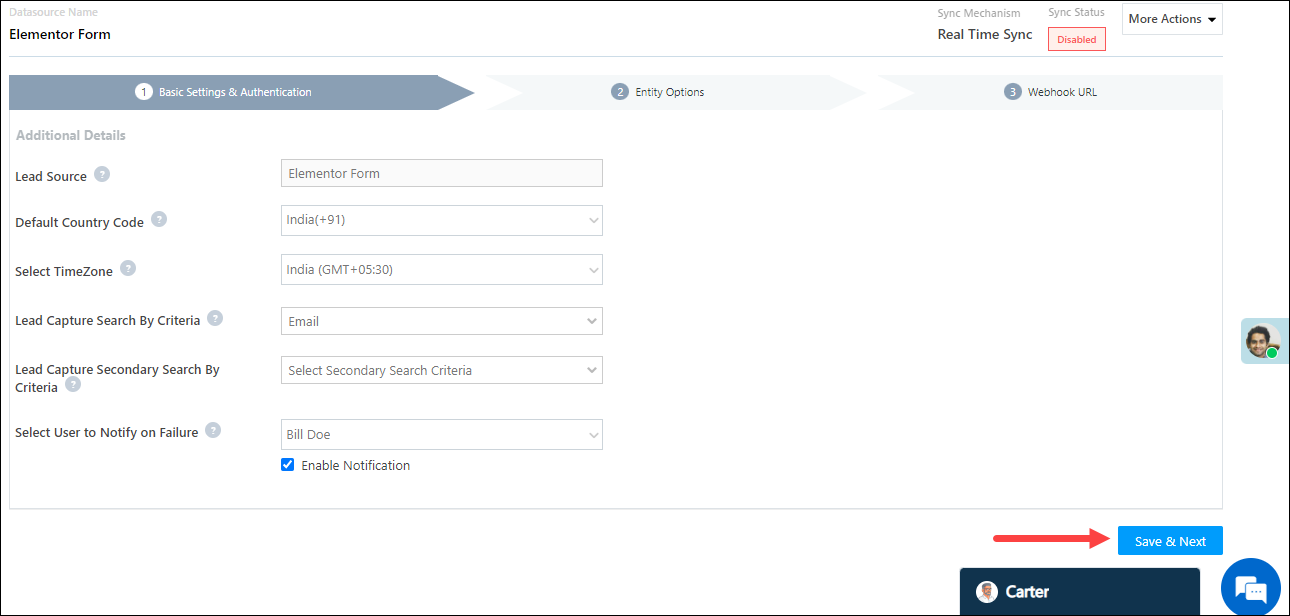
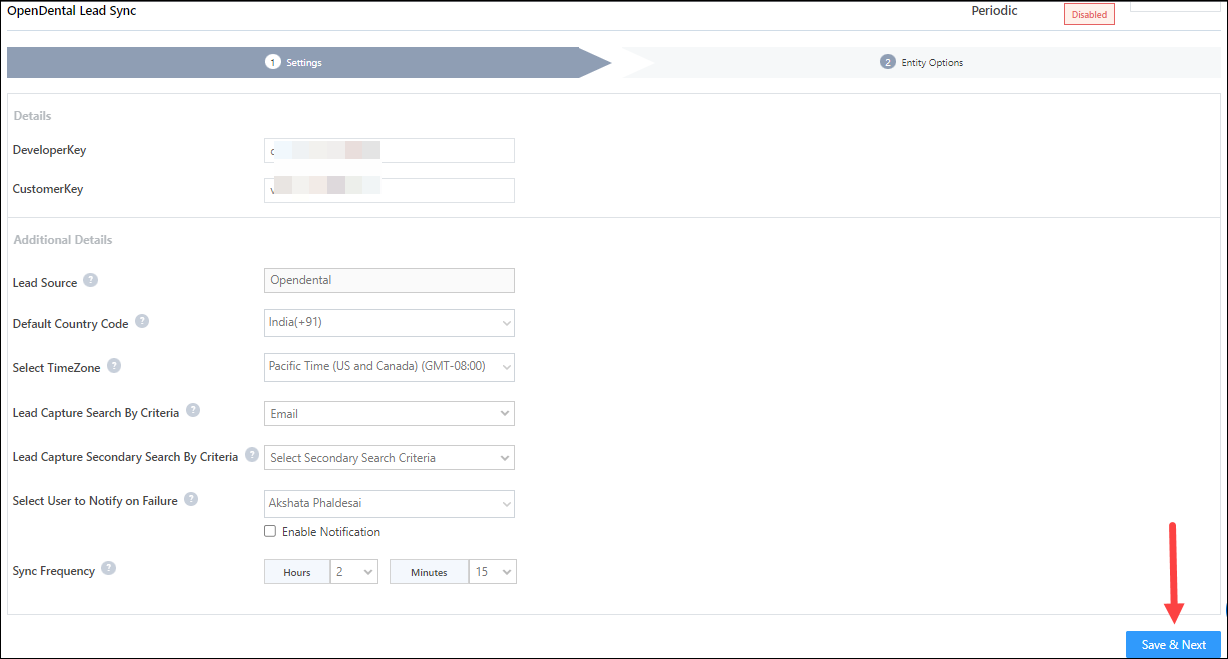
Enter the following details –

Property Description
AccountID Pass your MDT account ID here.
Lead Source Enter the lead source through which the leads were captured (e.g., MDT, email campaign, etc.). This detail will be displayed on the Lead Details page, under Lead Source.
Default Country Code If the lead’s mobile number is captured without a country code, the default country code that’s selected from the dropdown will be added to the lead’s mobile number.
Select Time Zone The time zone followed in your MDT account.
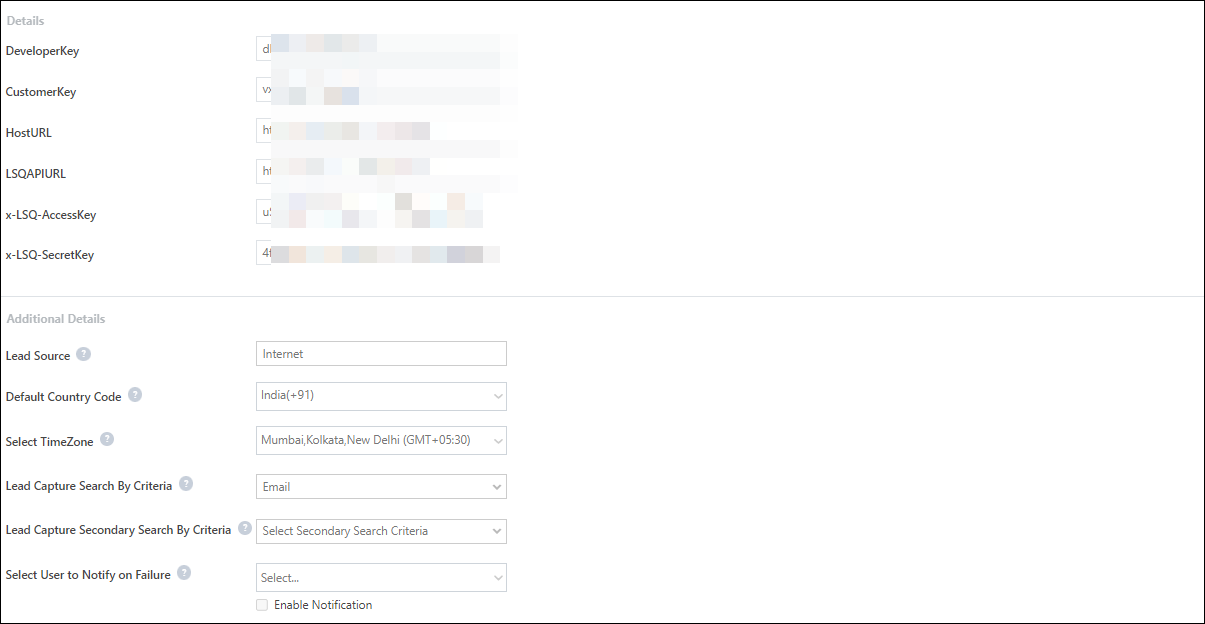
Lead Capture Search By Criteria To avoid duplicate leads, you must select one unique lead field (e.g., email Id, mobile number, PAN number, etc.) as the search key. This is used to identify the leads pushed from MDT.

To know how to mark a LeadSquared lead field as unique, please refer to How to Make a Custom Field Unique.

Lead Capture Secondary Search By Criteria If lead identification and capture through the primary Search By criteria fails, it will be re-attempted using the secondary Search By criteria.
Select User to Notify on Failure If there is an error in fetching leads, the selected user will receive a failure message via email. You can select a user from the list of all the users available in your LeadSquared account.

To know more about the type of errors, please refer to Error Notifications.

Enable Notification To ensure notification emails are sent to the selected user when there’s a failed query, enable the Checkbox checkbox.

Once you’ve entered all the details, click Save & Next.

mdt basic


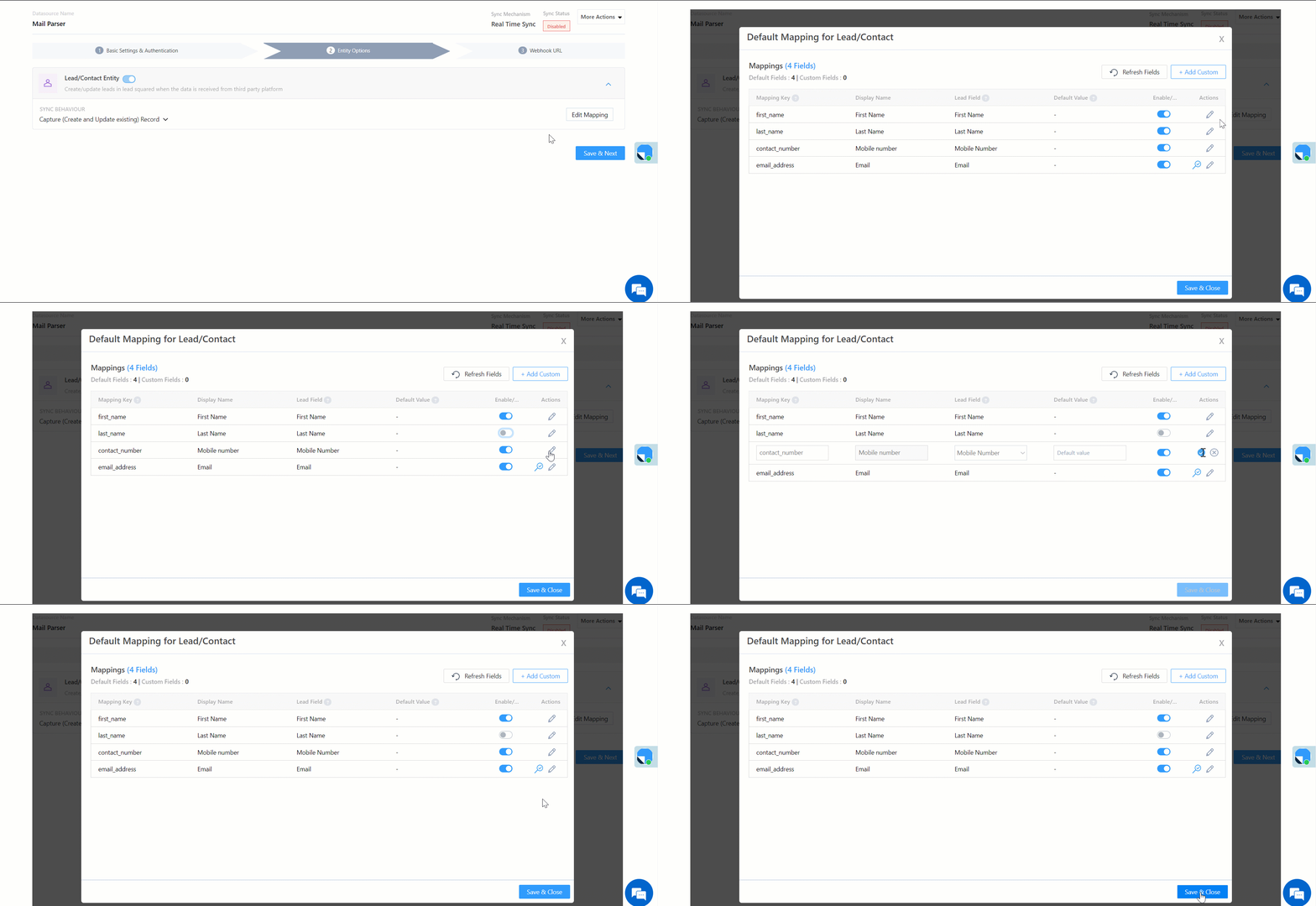
5.2 Entity Options

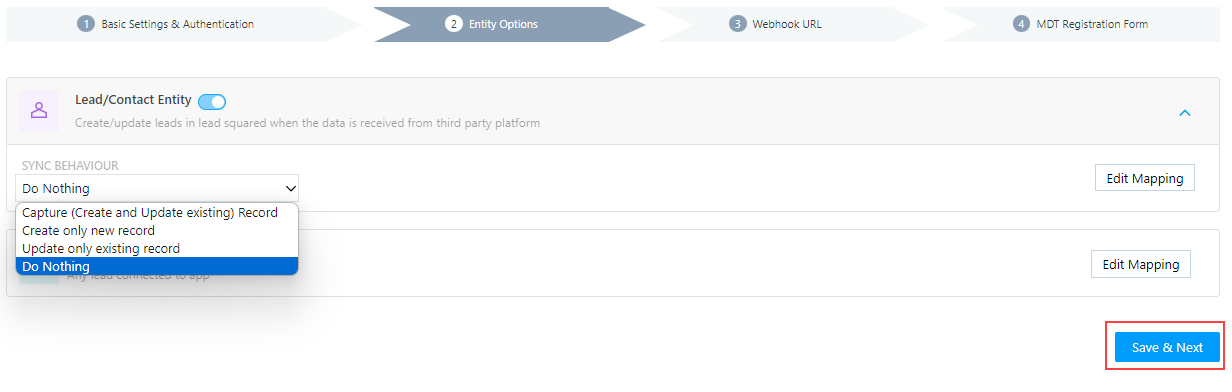
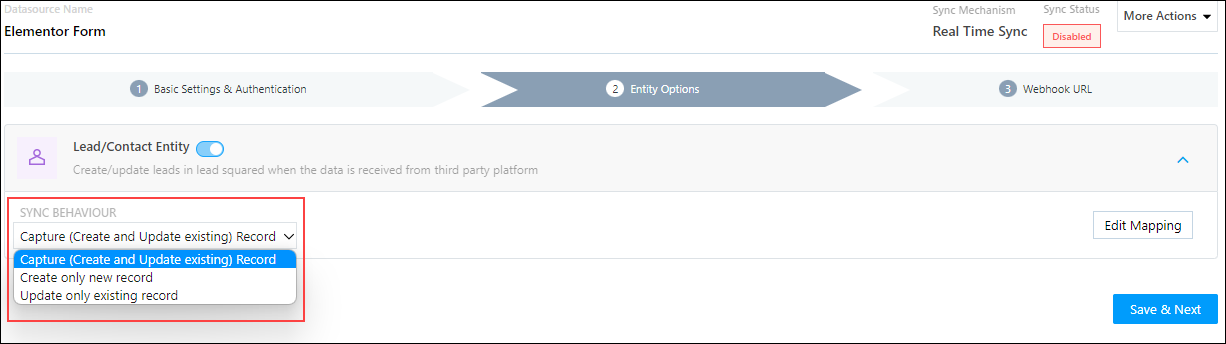
Define the sync behavior of the connector when leads are captured.

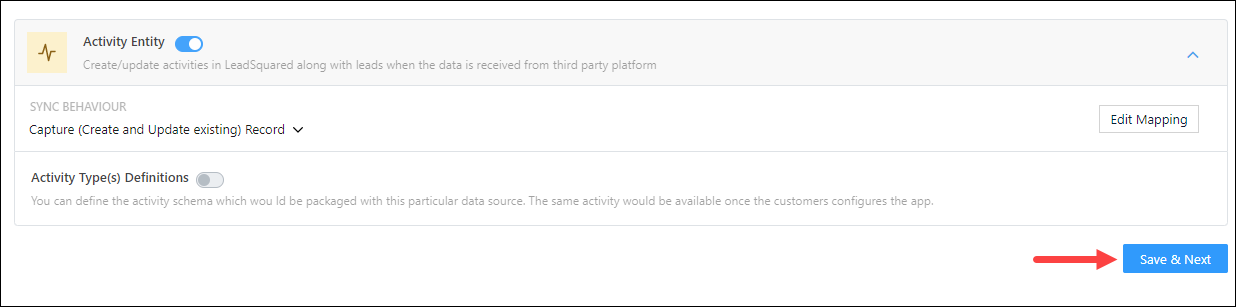
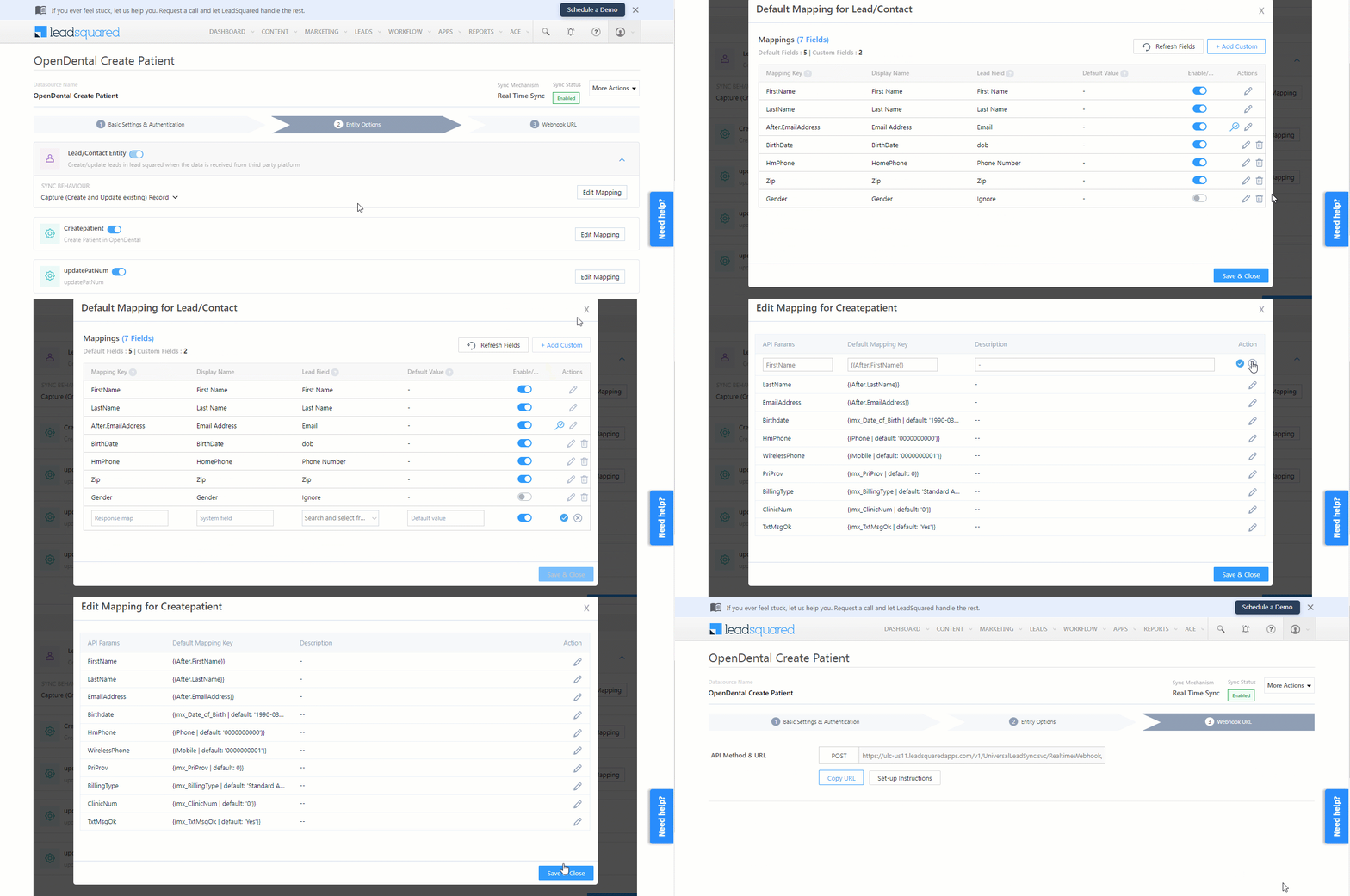
5.2.1 Lead/Contact Entity

Lead capture is enabled by default, and it cannot be disabled.

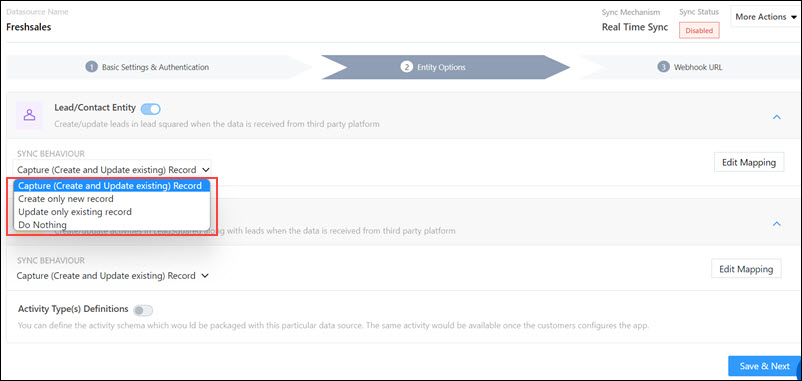
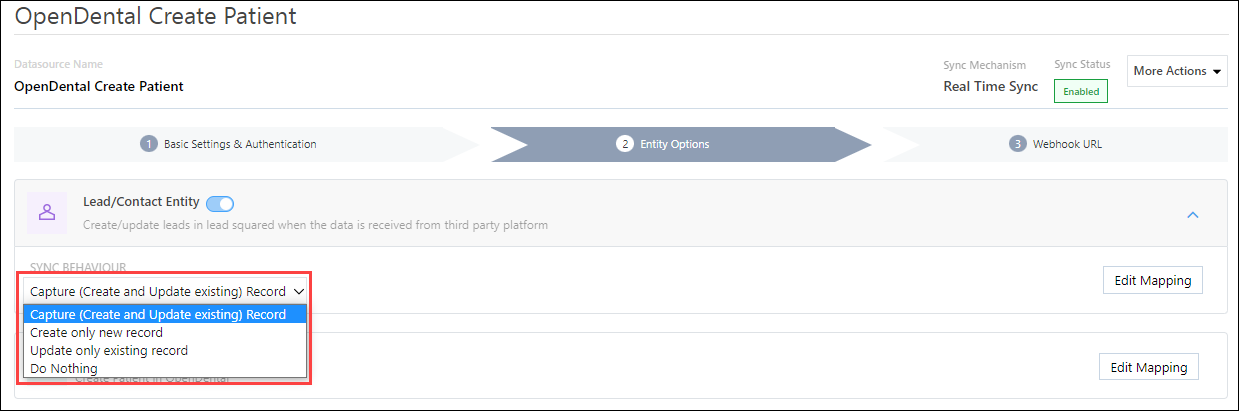
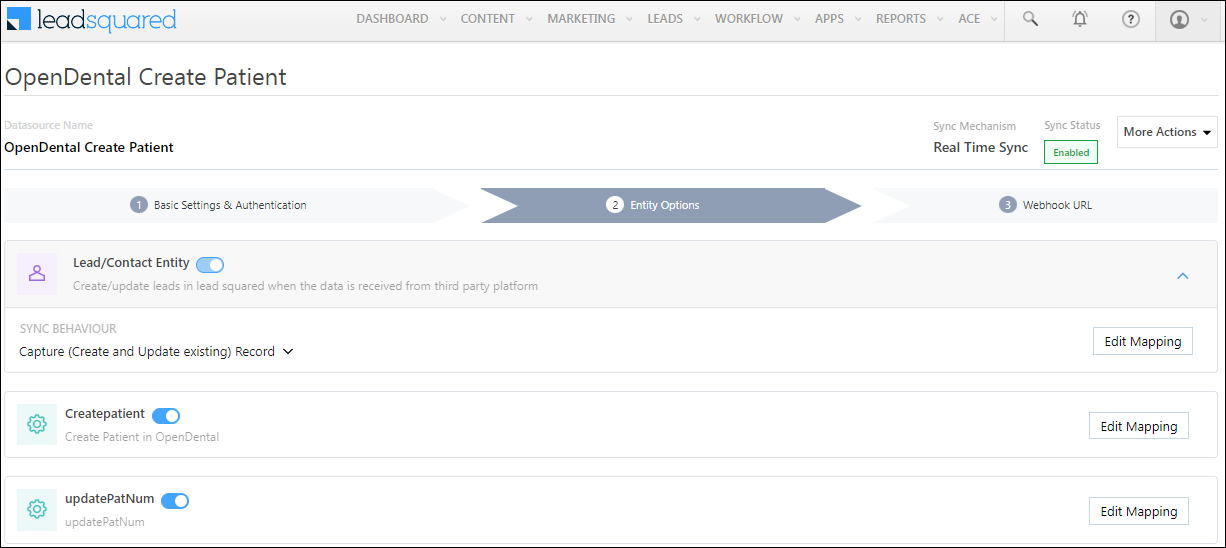
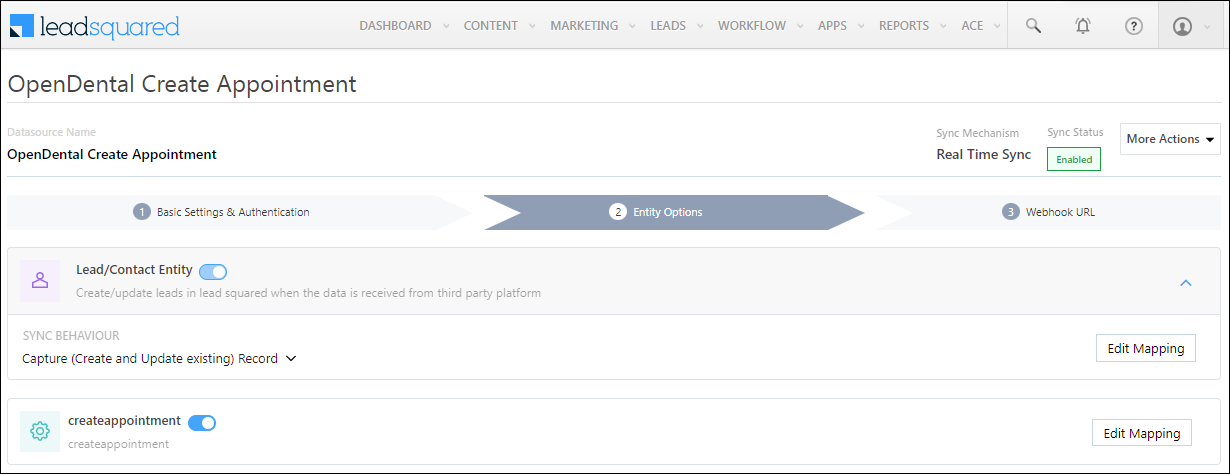
Note: This connector simply sends your lead data to MDT Marketing and creates a personalized video. The Sync Behaviour is by default set to Do Nothing. It is recommended you don’t change this to any other setting.
Click Save & Next.

mdt lead sync

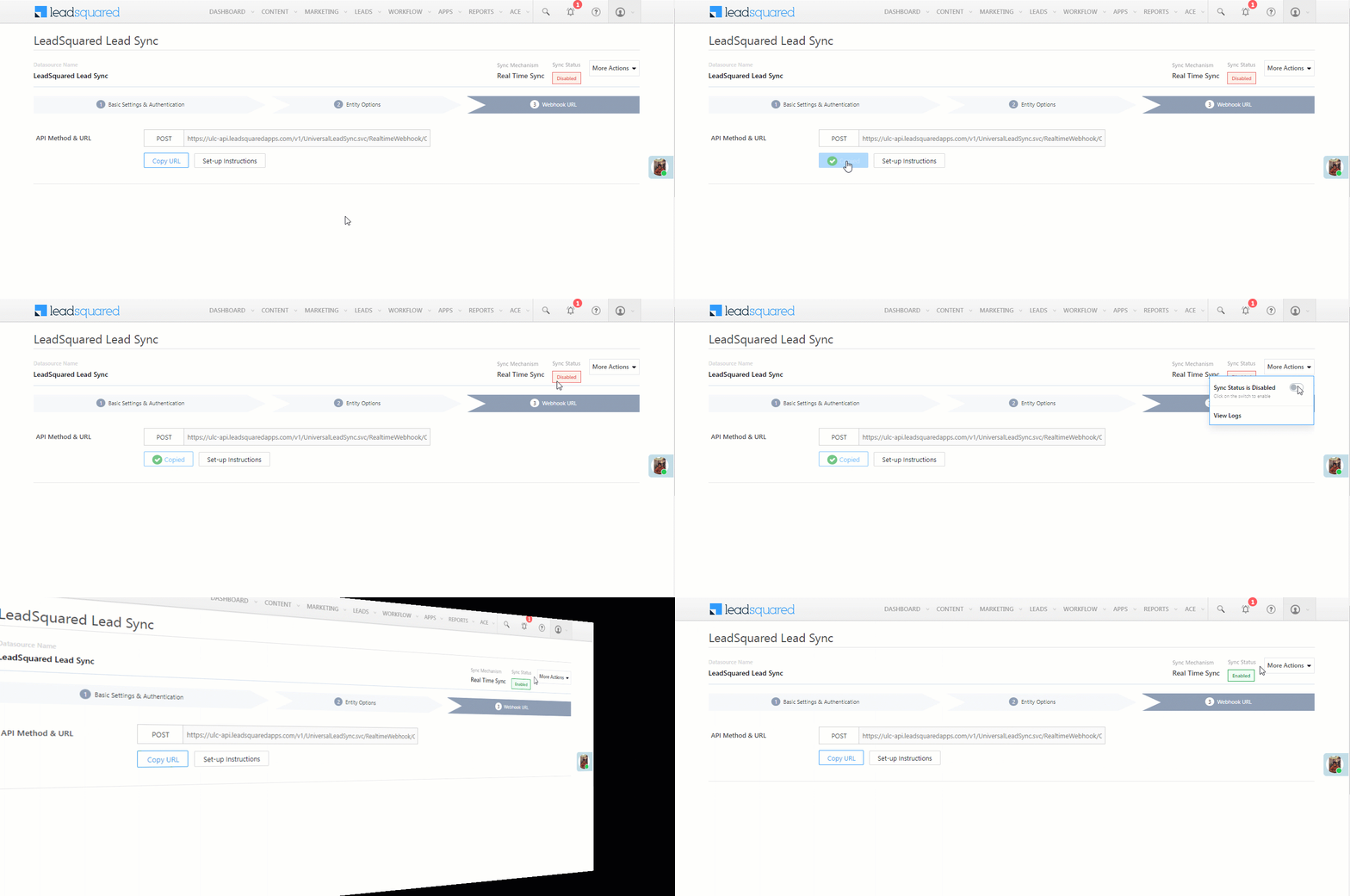
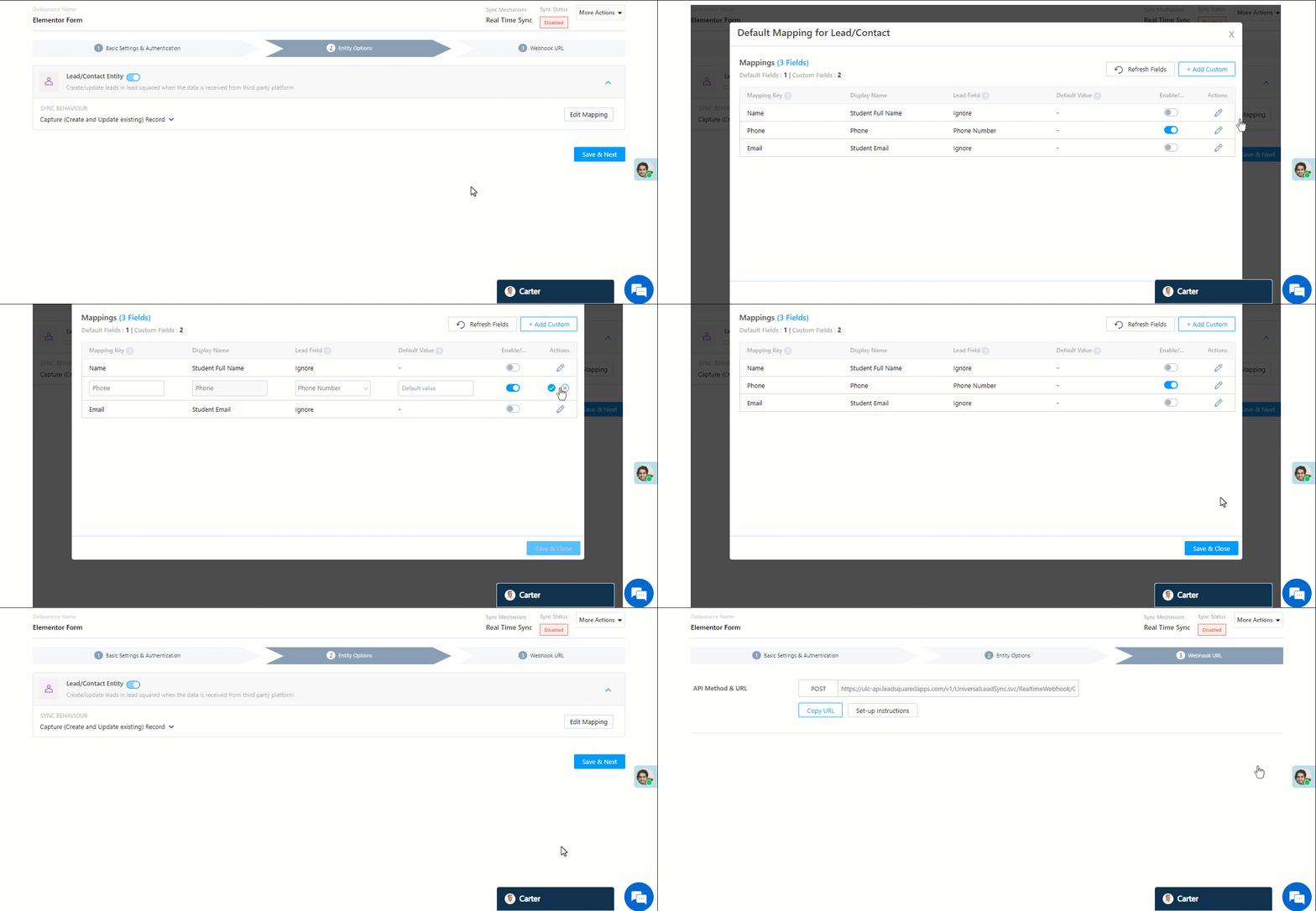
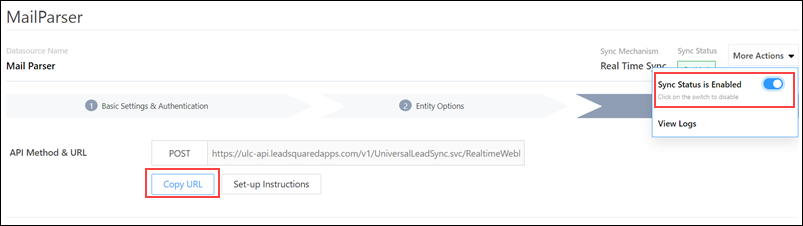
5.3 Generate Webhook URL

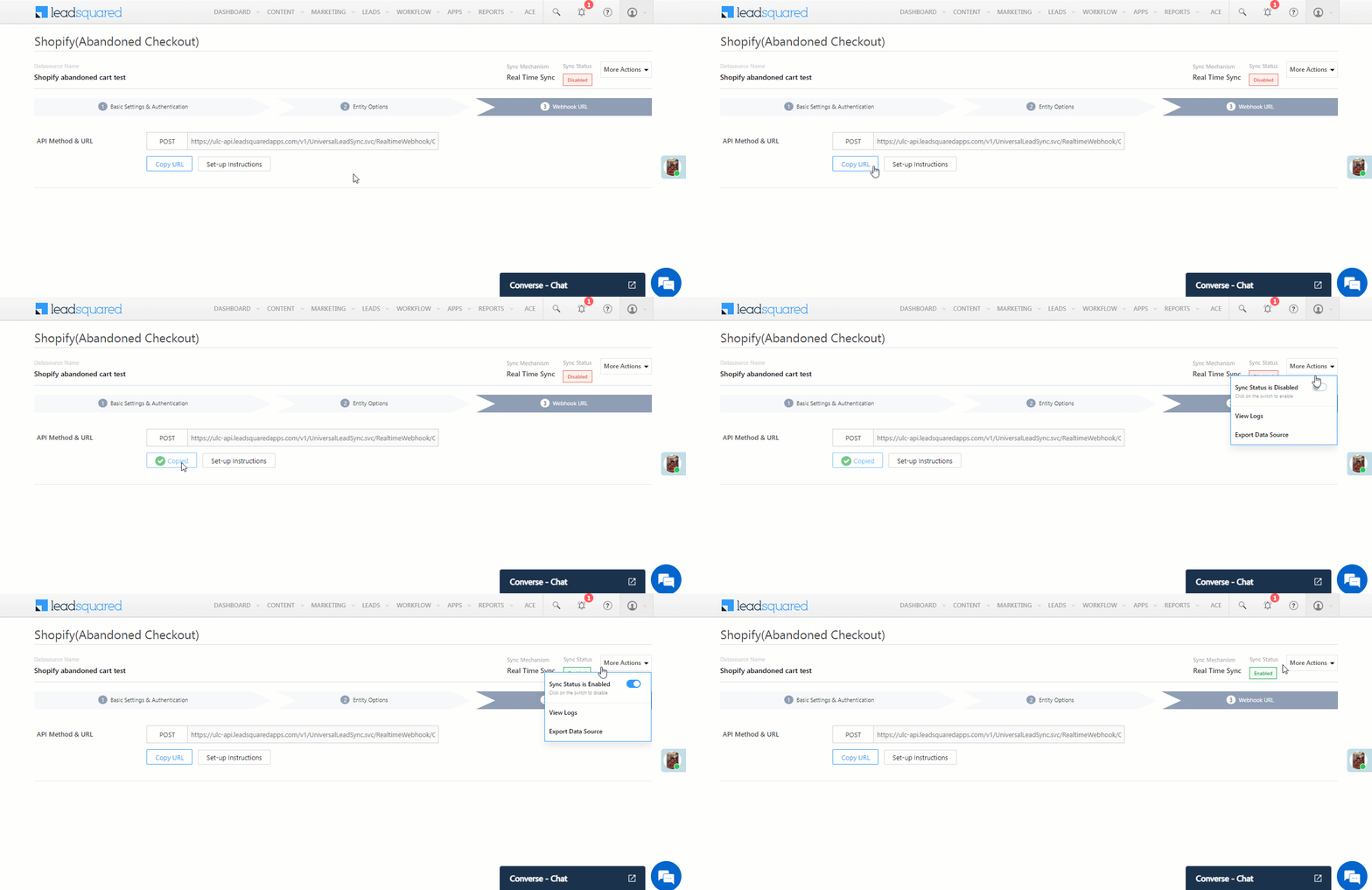
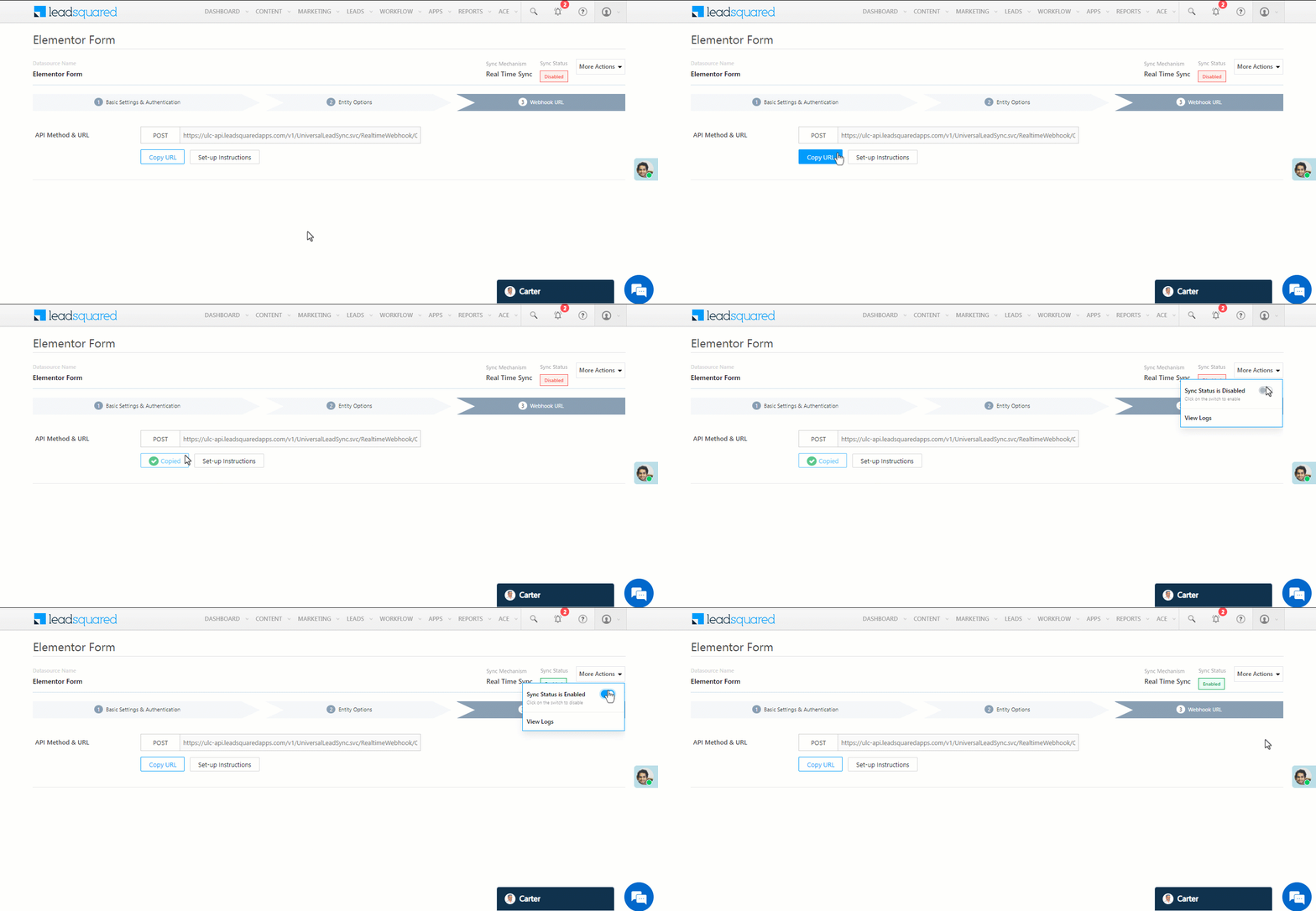
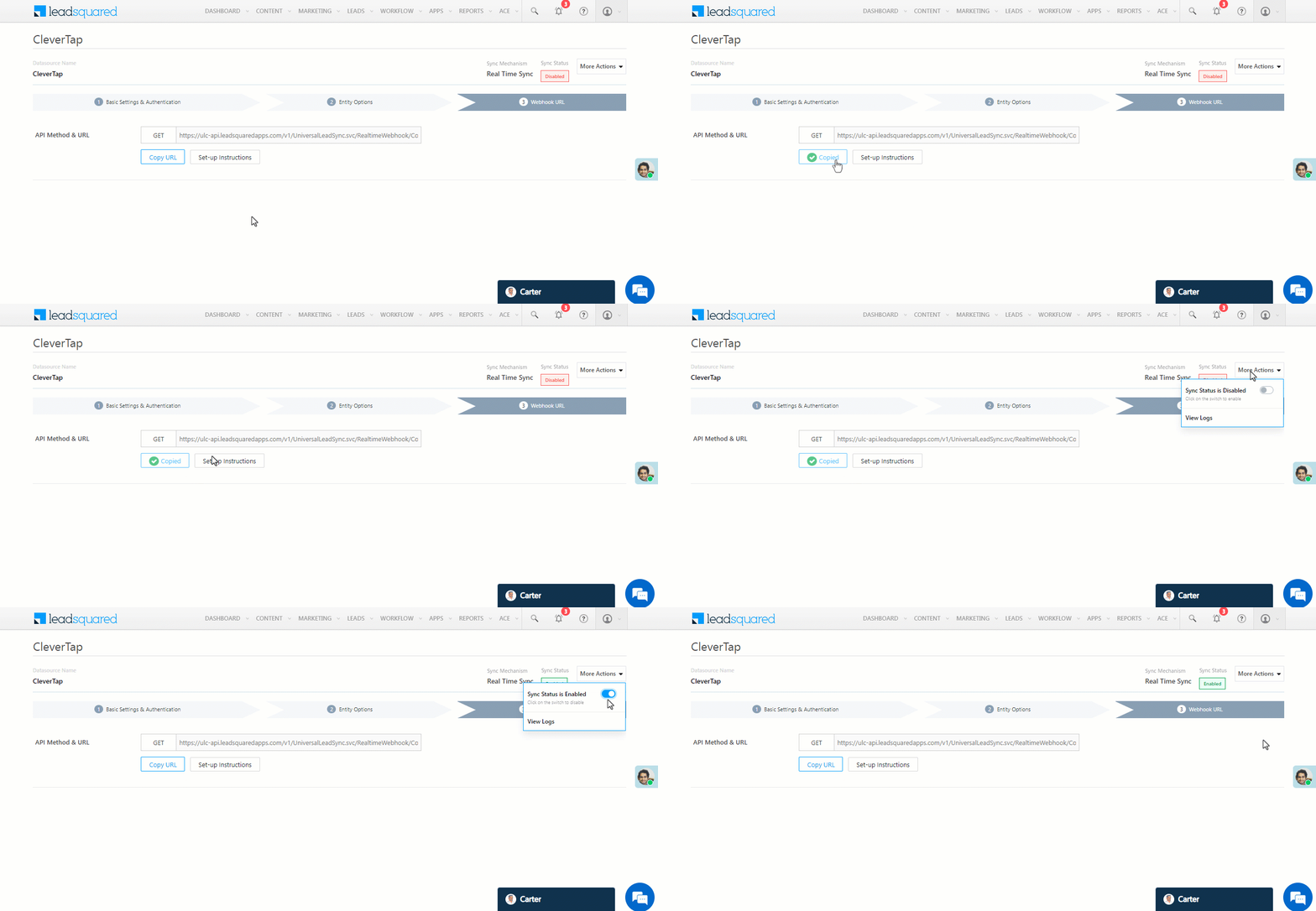
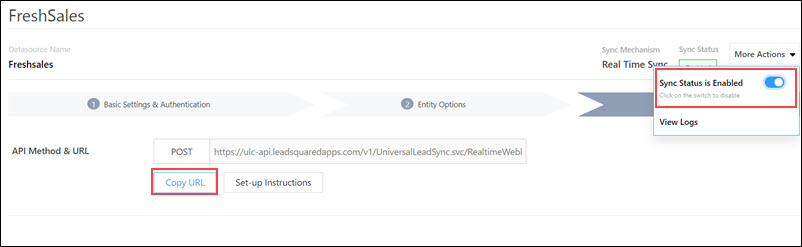
After you provide basic details and finish field mapping, a custom webhook URL is generated. To automate lead capture, copy this URL and configure it through Automations (refer to the next section).

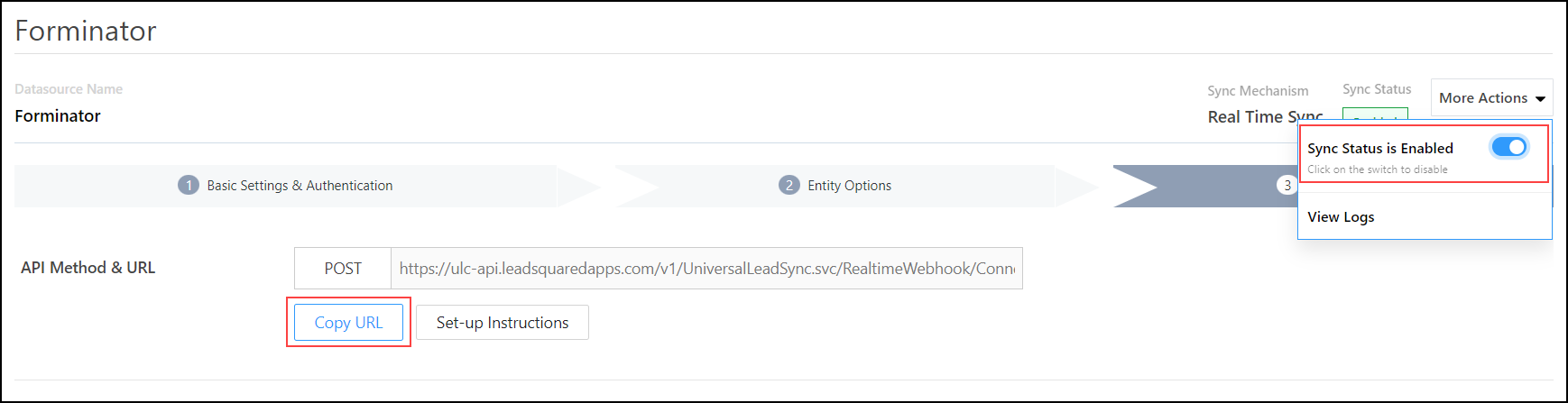
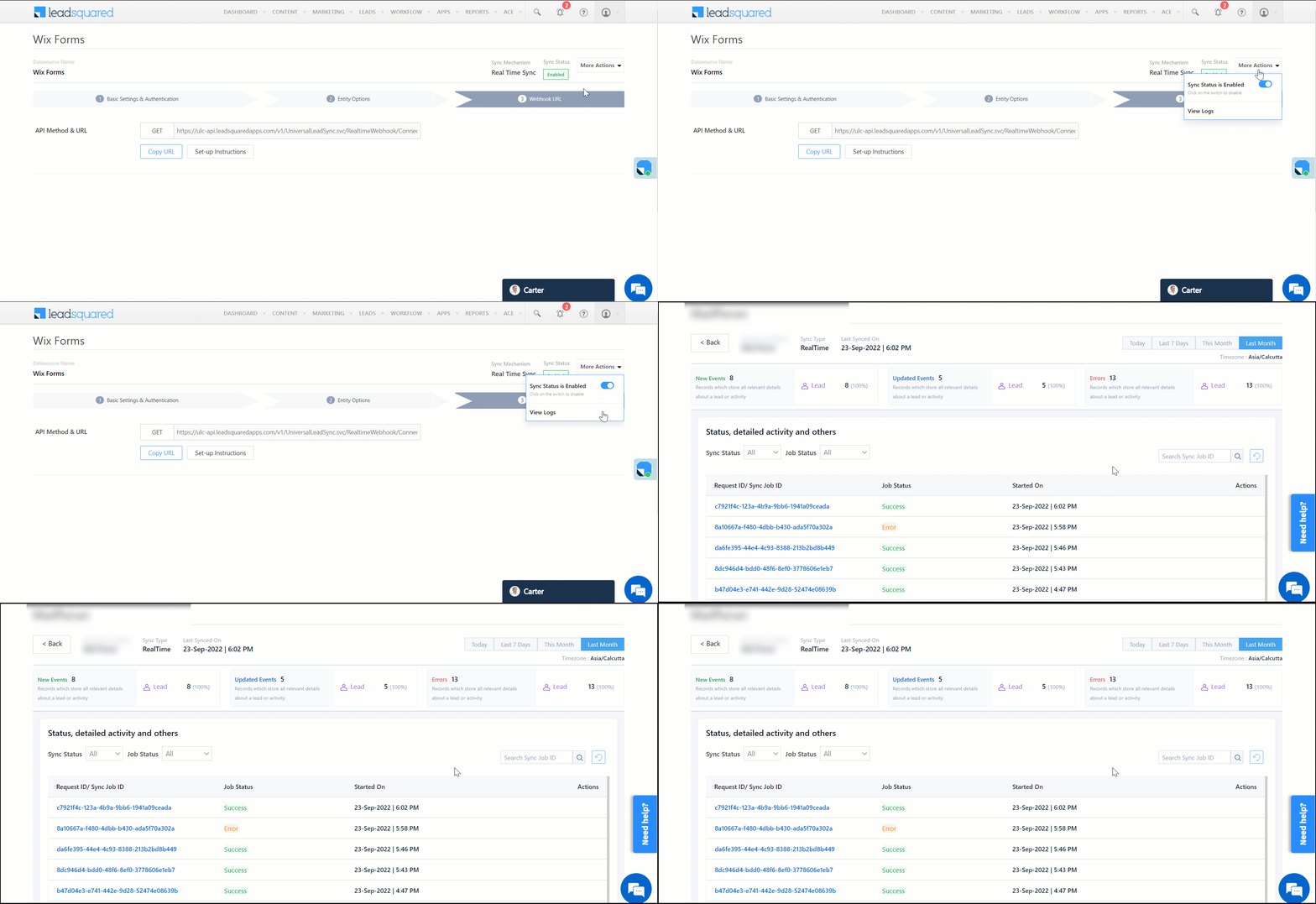
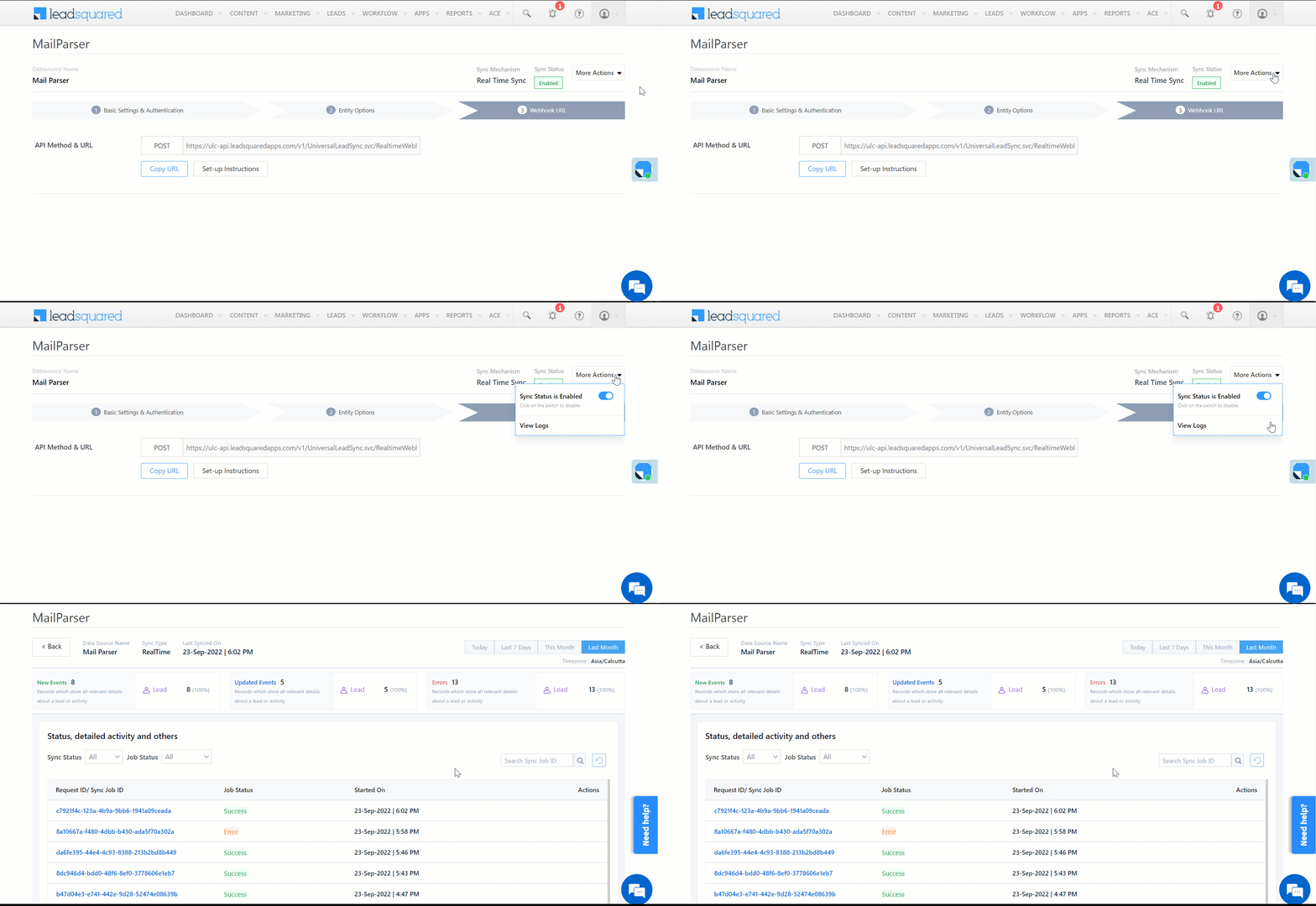
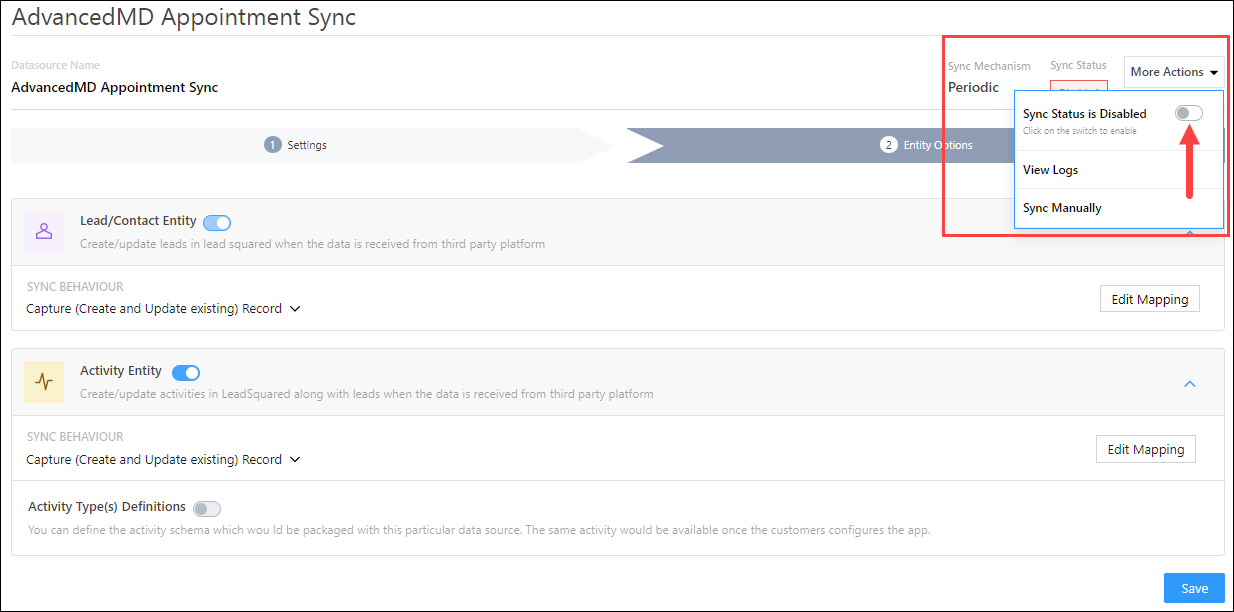
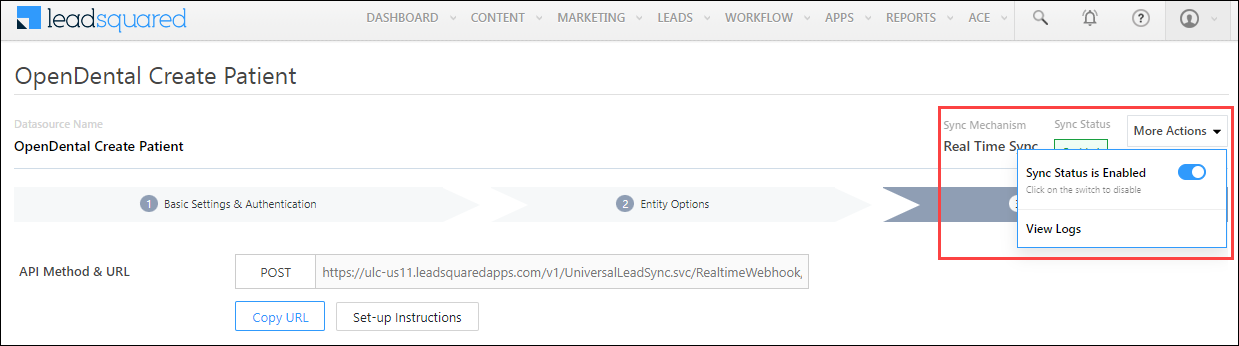
After you’ve set up the webhook, click More Actions, and enable the sync job.

Note: 

  • You will find the personalized video URL under the Photo Url lead field on your lead details page.
  • To view logs of all the sync jobs that have taken place, from the More Actions dropdown, click View Logs.

mdt webhook


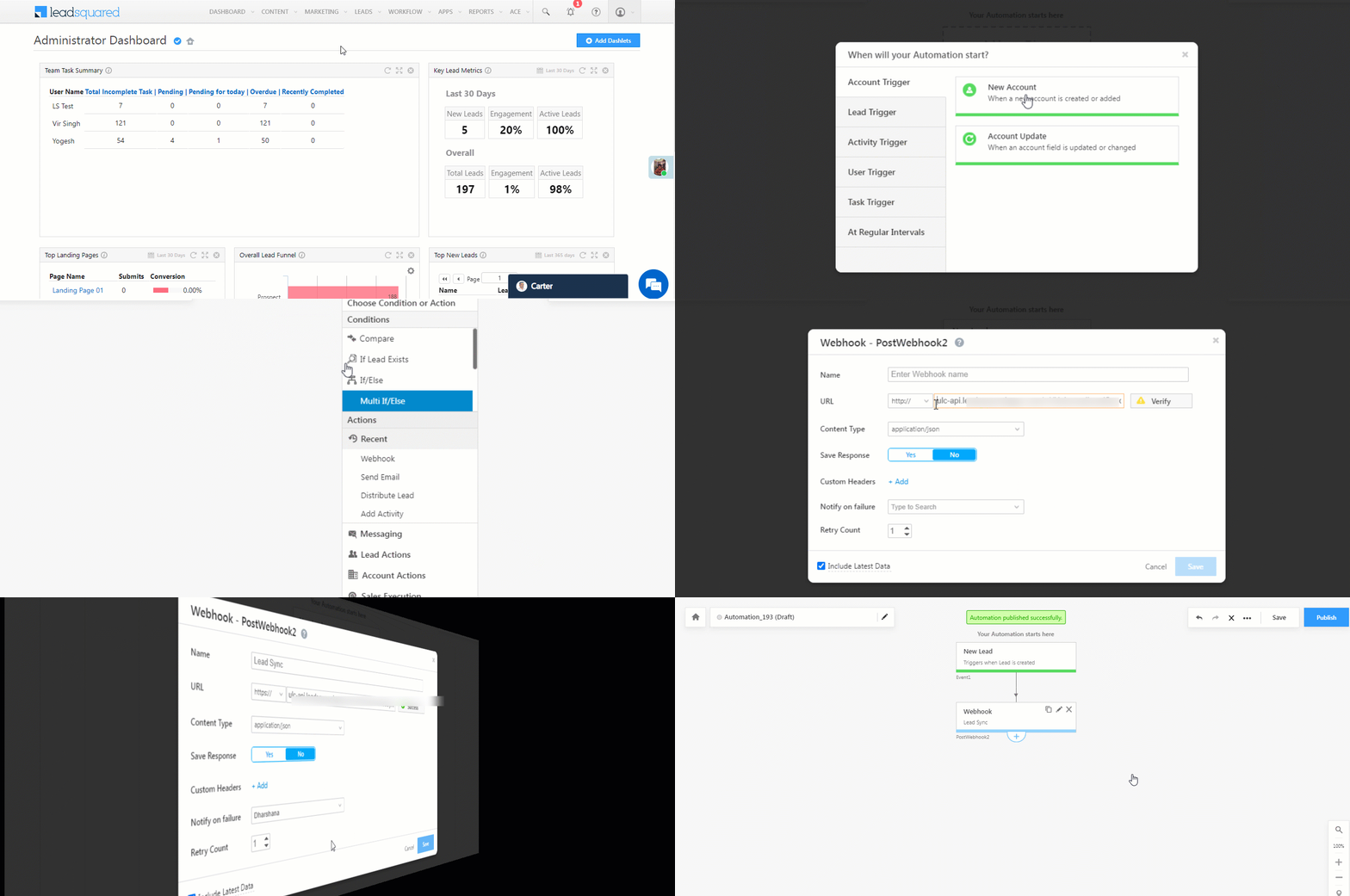
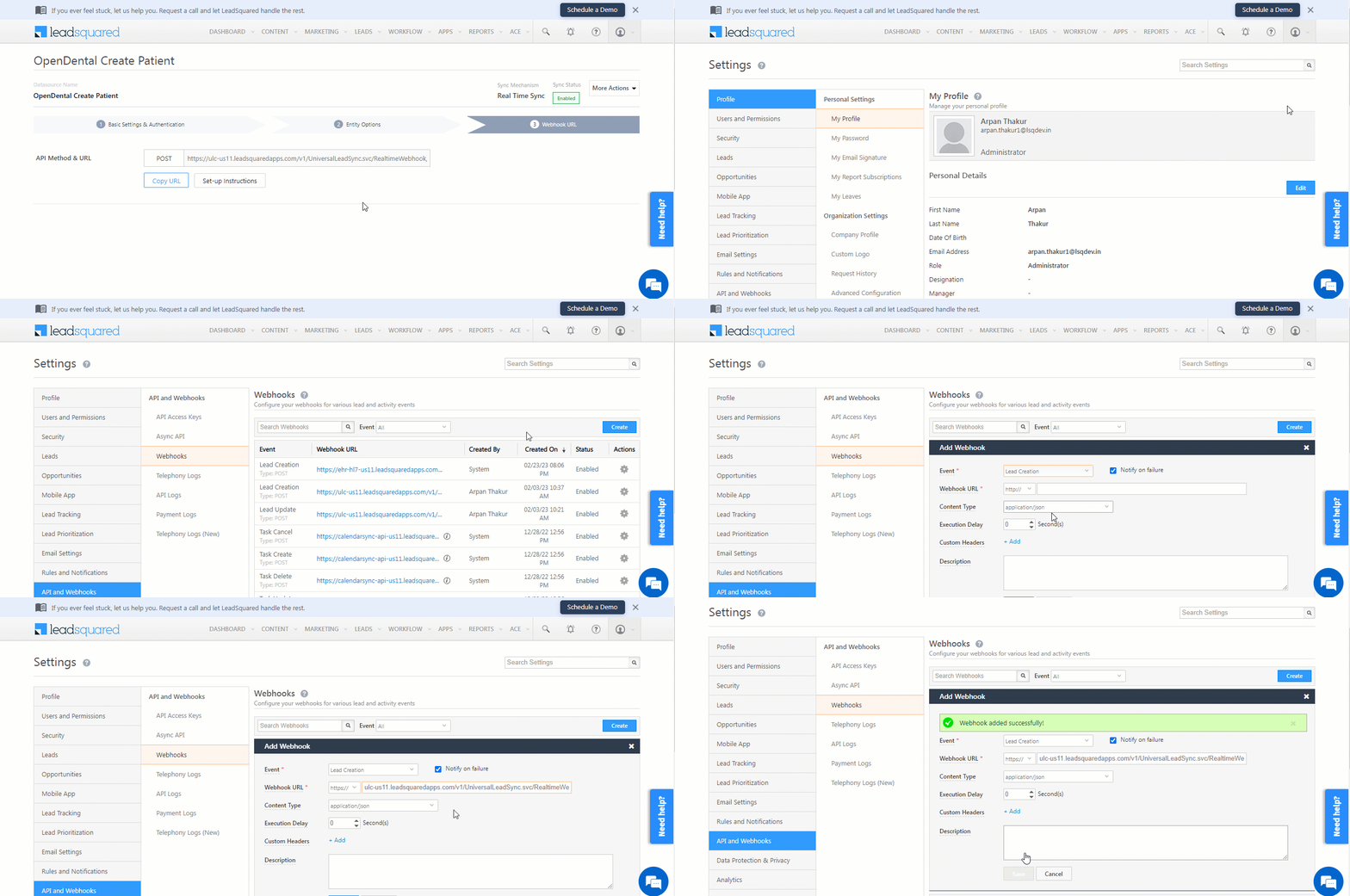
6. Create an Automation

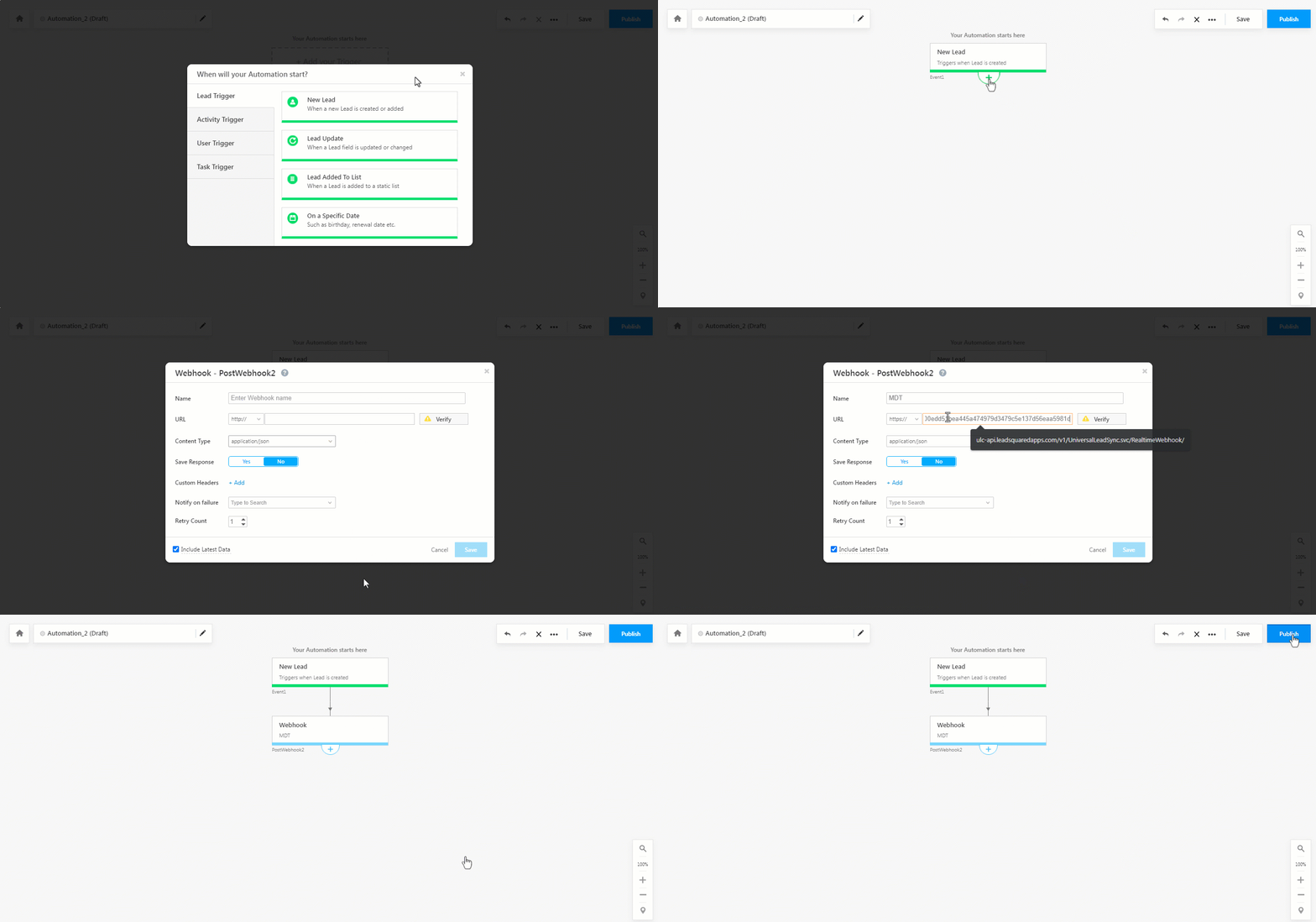
Use the Webhook URL to create an automation that sends the lead details to MDT for video creation.

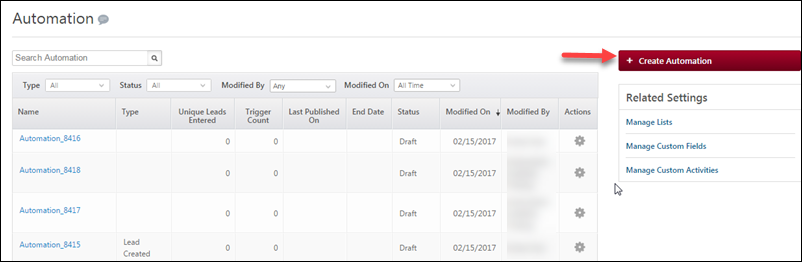
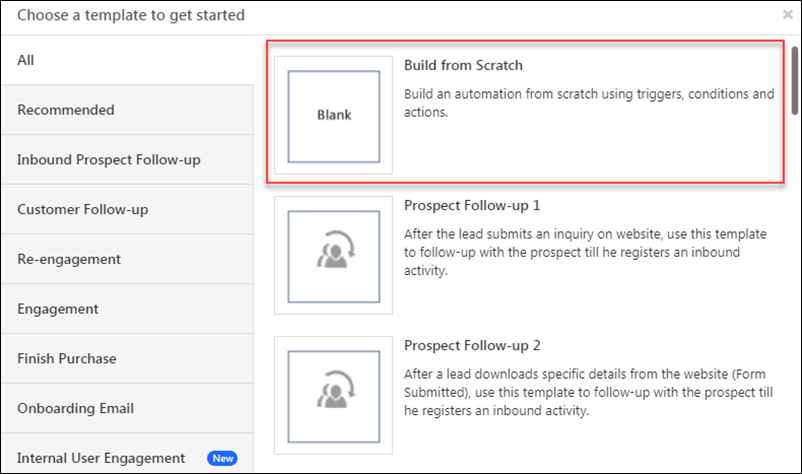
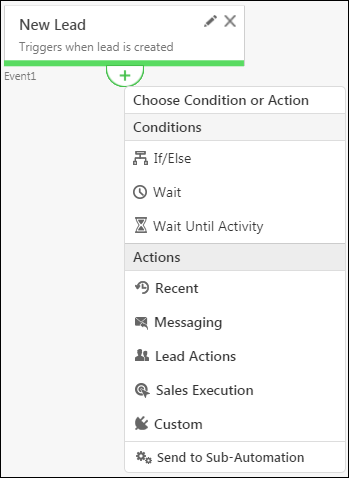
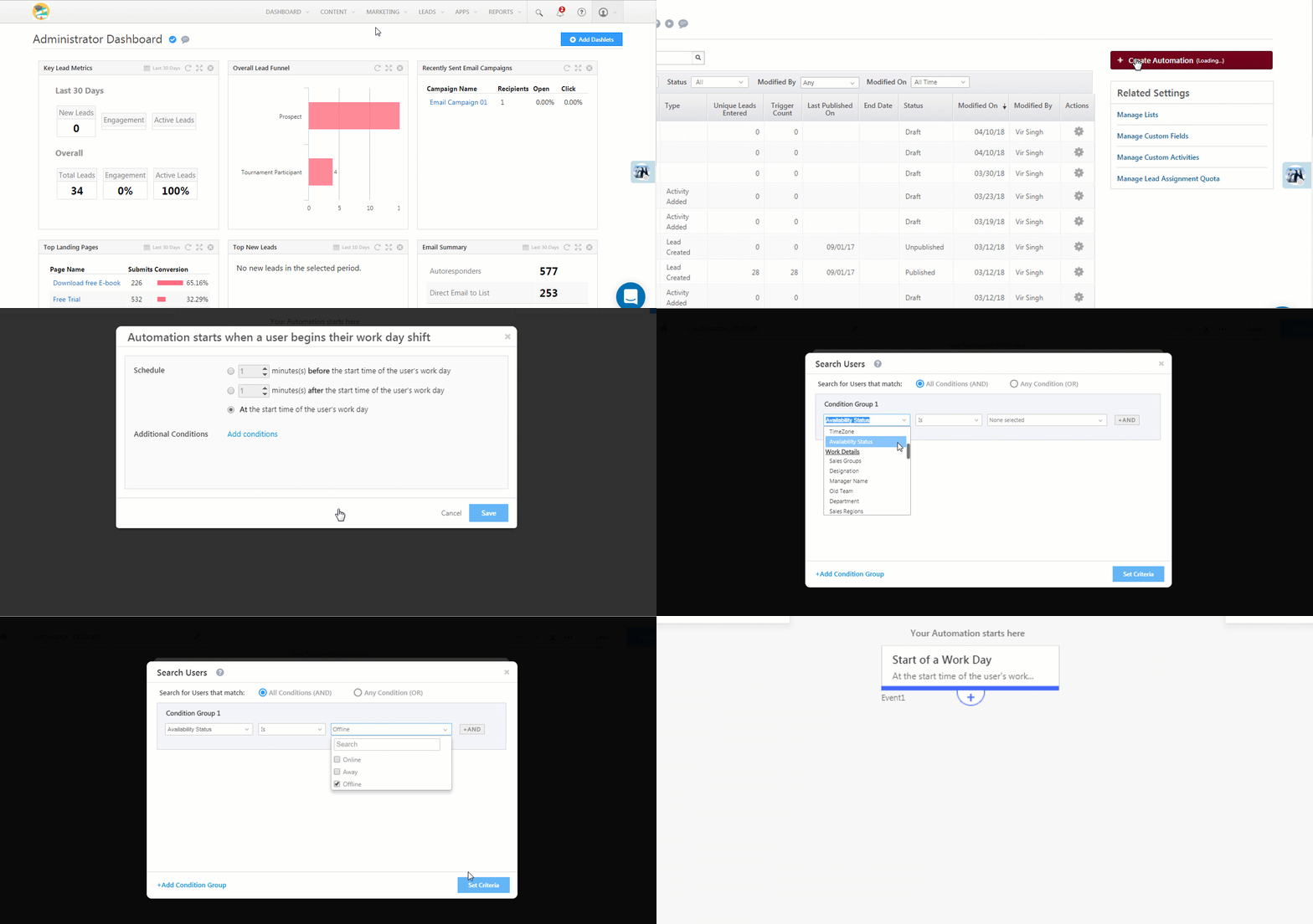
  1. Navigate to Workflow>Automation, click Create Automation, and select the New Lead trigger.
  2. On the Automation starts when a lead is added pop-up –
    • Click +Add Conditions.
    • The Automation should run for new leads that have an email address, so, add a criteria that checks the email lead field contains data.
    • Once you’re done, click Save.
  3. Click Add Automation, and under Custom, click Webhook.
  4. On the Webhook pop-up, enter the following details –
    • Name – Enter a relevant name for the webhook.
    • URL – Select the method as https://, and paste the connector’s webhook URL that was generated in the previous step. Ensure you remove “https://” from the URL.
    • Content Type – Select application/json.
    • Save Response – You can select either Yes or No.
    • Custom Headers – You can skip this step.
    • Notify on Failure – Select which user you want to notify if the webhook fails.
    • Retry Count – The number of times you want to retry when the webhook fails.
  5. Once you’re done, click Save, and then click Publish.
Note: To know more about the Webhook action, refer to User Automation Actions – Webhook.

mdt webhook automation


7. MDT Registration Form

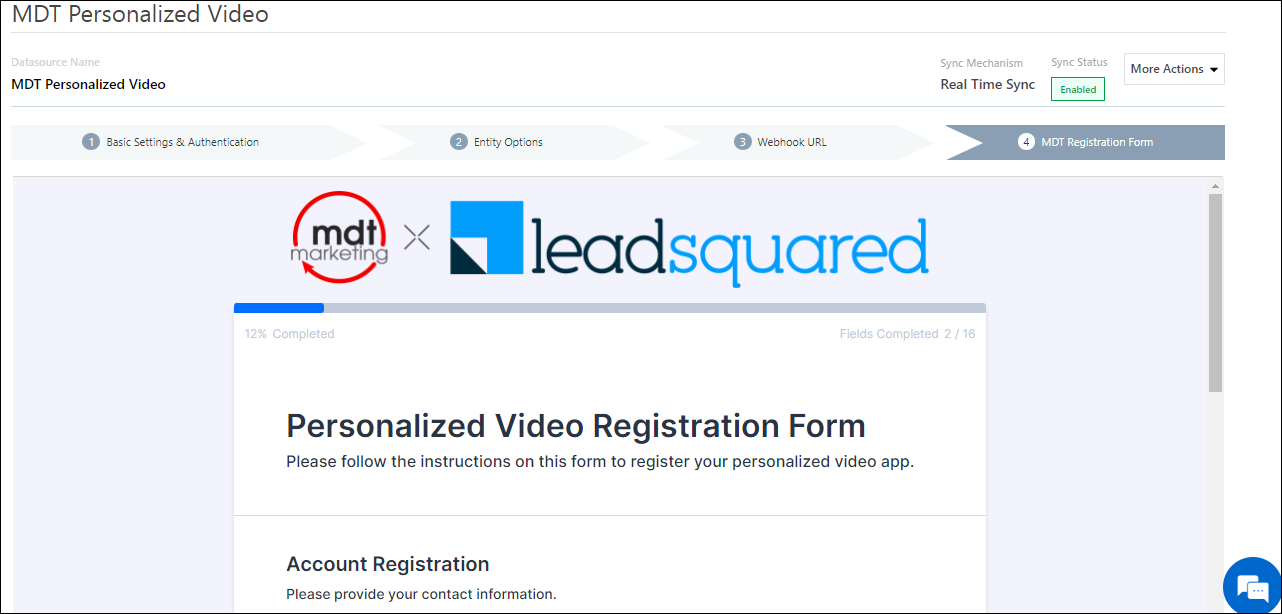
Next, navigate back to the MDT Personalized Video connector. On the last tab (MDT Registration Form), fill out the form to complete a one-time registration with MDT. The form will include your business details and a template for your personalized videos.

Note:

mdt registration form


8. Access Video URL

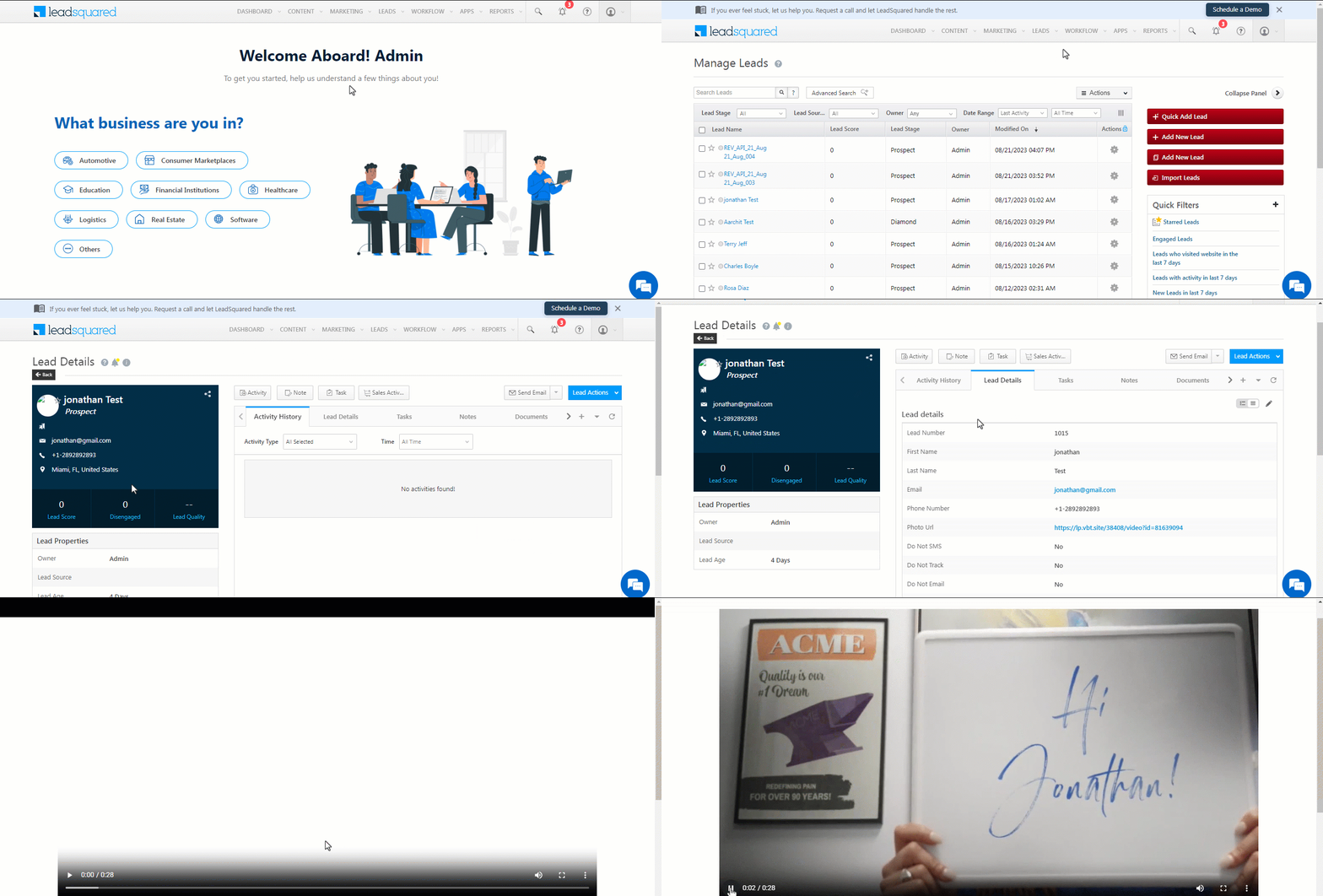
You will find the personalized video URL under the Photo Url lead field on your lead details page. Once a lead is created in LeadSquared, the Photo Url field will be populated within 10 minutes.

mdt access video


9. Other Actions

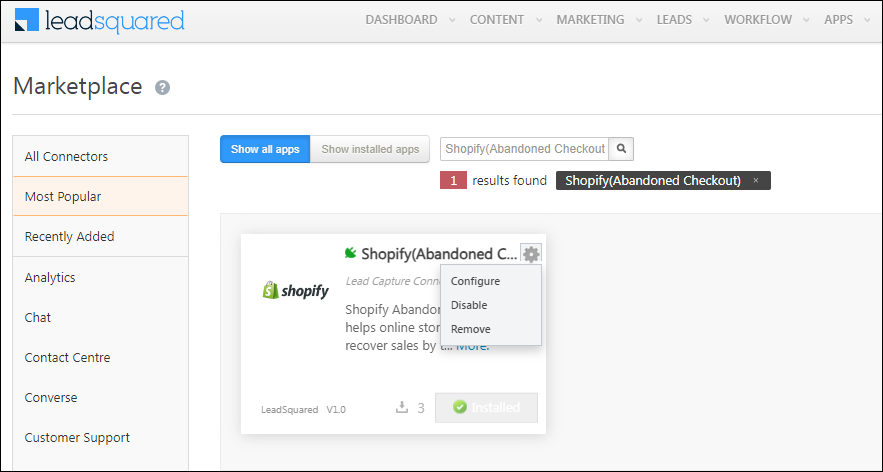
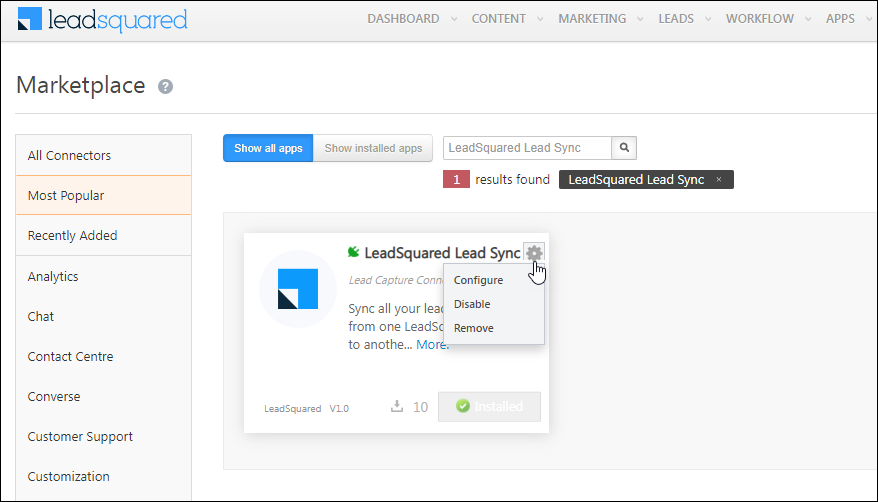
You can edit or delete the MDT connector instance that you created. To do this –

  1. Navigate to Apps>App Marketplace.
  2. Search for MDT Personalized Video.
  3. Alongside the MDT Personalized Video connector, hover your cursor over .
  4. From the list of options, you can perform the following actions –
    • Edit Configuration
    • Disable Configuration
    • Remove Configuration

mdt other actions


Any Questions?

Did you find this article helpful? Please let us know any feedback you may have in the comments section below. We’d love to hear from you and help you out!

Opportunity Configurations

1. Feature Overview

Opportunities in LeadSquared represent potential deals. Through opportunity management, you can track various aspects of deals in progress. This article will help you understand how to create forms for multiple opportunity types, configure opportunity types, and add opportunities to your leads. To know more about opportunities, refer to Opportunity Management – Feature Guide.


2. Prerequisites

You must be the Administrator of your LeadSquared account to access this feature.


3. Manage Opportunity Types

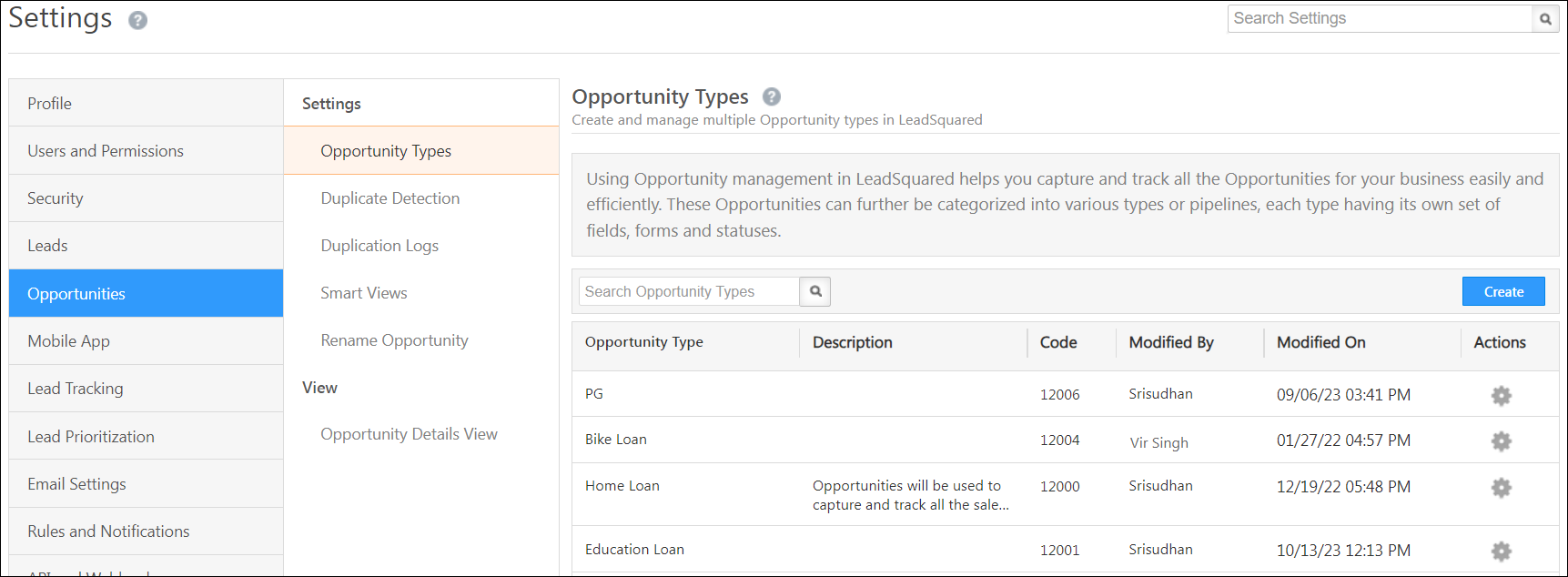
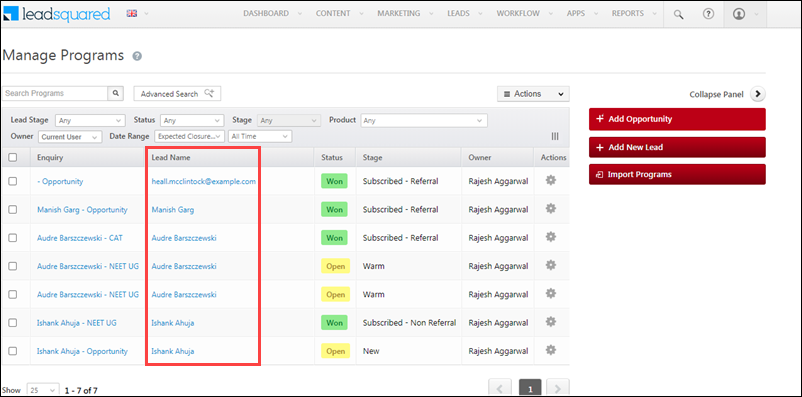
Manage all your opportunities here, and create different fields, forms, stages and statuses for each opportunity type. Hover your cursor alongside the settings icon (under the Actions column) to edit, delete or clone an opportunity type.

LeadSquared Opportunity Management


4. Create New Opportunity Types

Opportunity types are templates you can create for the various products your business offers. Once an opportunity type is created, users can add leads to opportunities, and track these to completion. Examples of  opportunity types for a bank are –

  • Home loan
  • Vehicle loan
  • Health insurance
  • Credit cards
  • Fixed Deposit

You can add and configure multiple opportunity types for your organization.

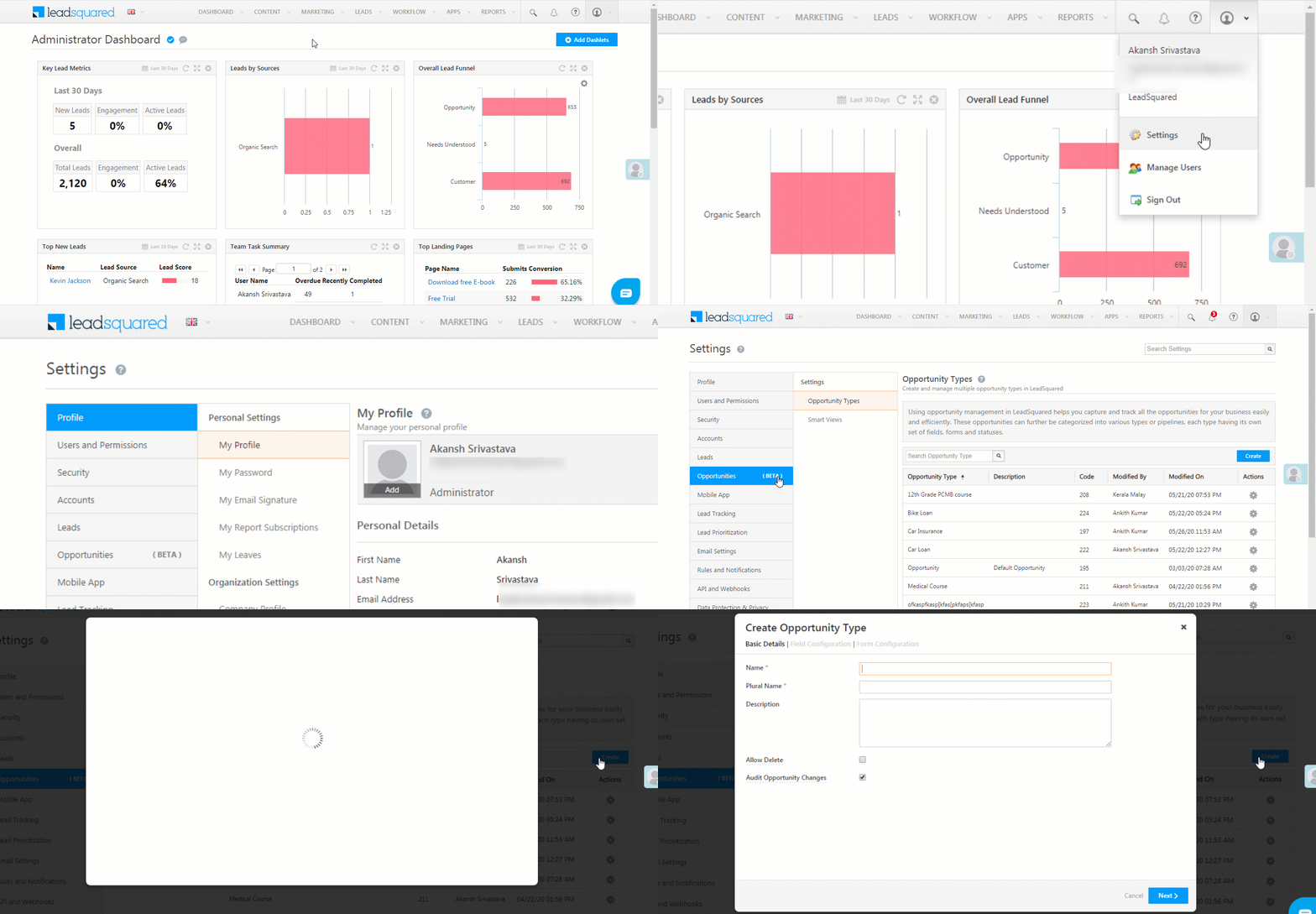
  1. From the main menu, navigate to My Profile>Settings>Opportunities.
  2. Under the Opportunity Types tab, click Create.
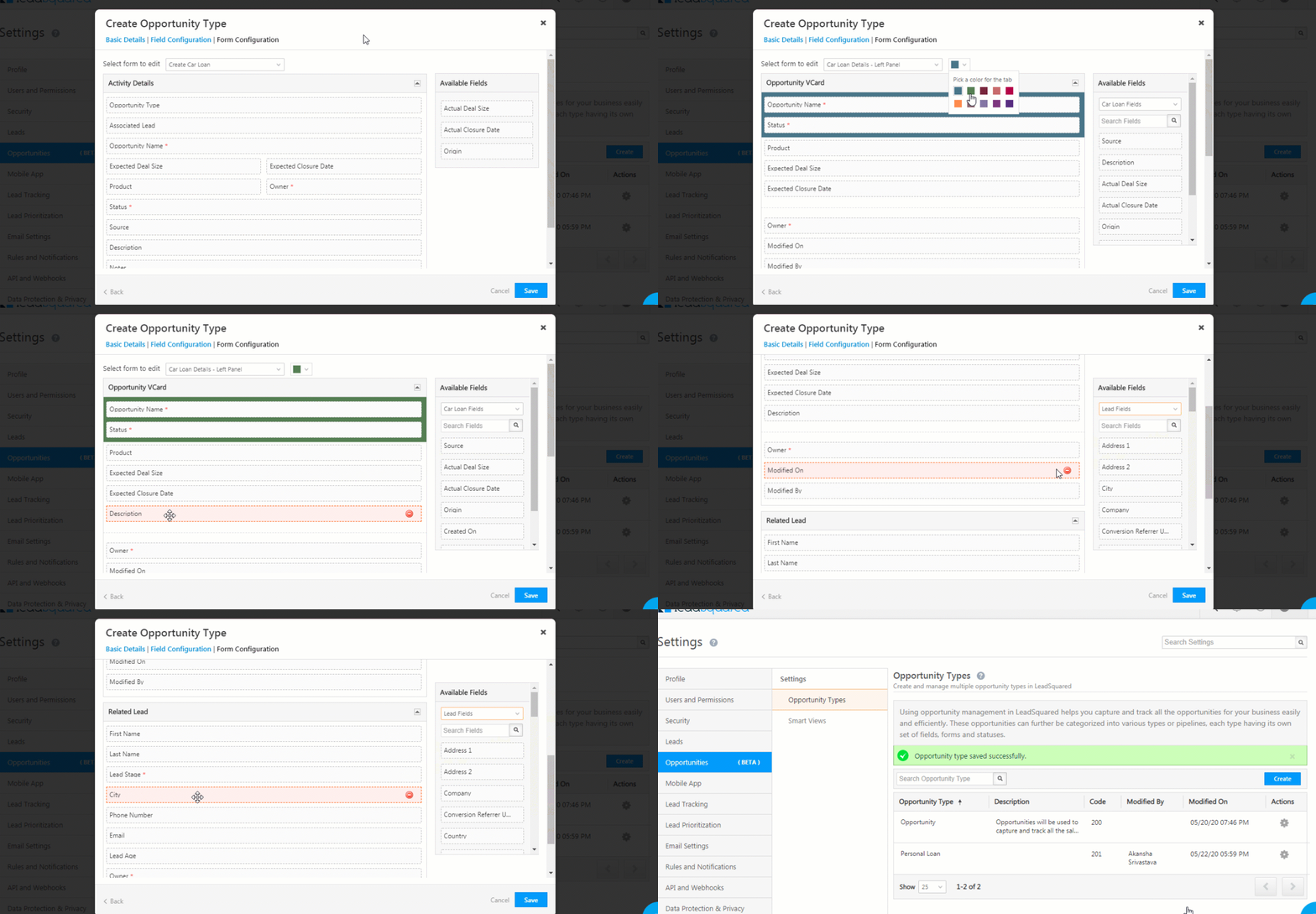
  3. Under Create Opportunity Type, you’ll have three tabs – Basic Details, Field Configuration and Form Configuration.

Opportunities

 4.1 Basic Details

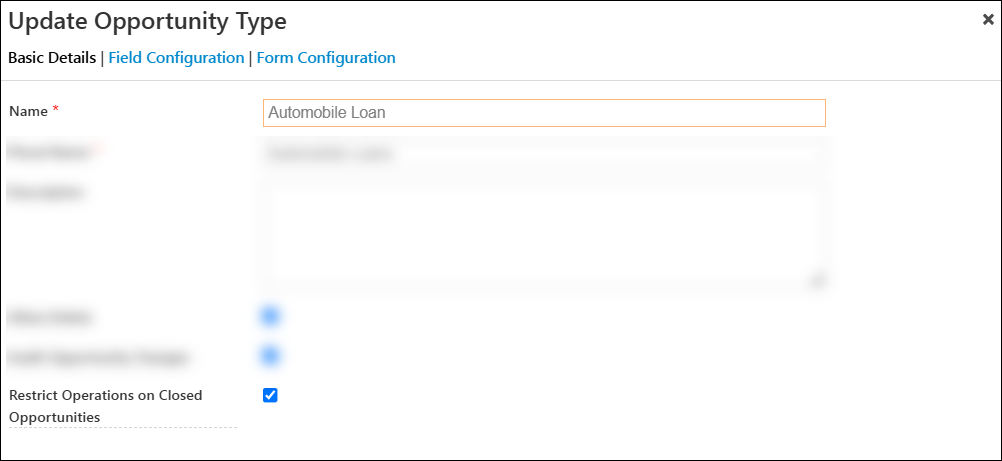
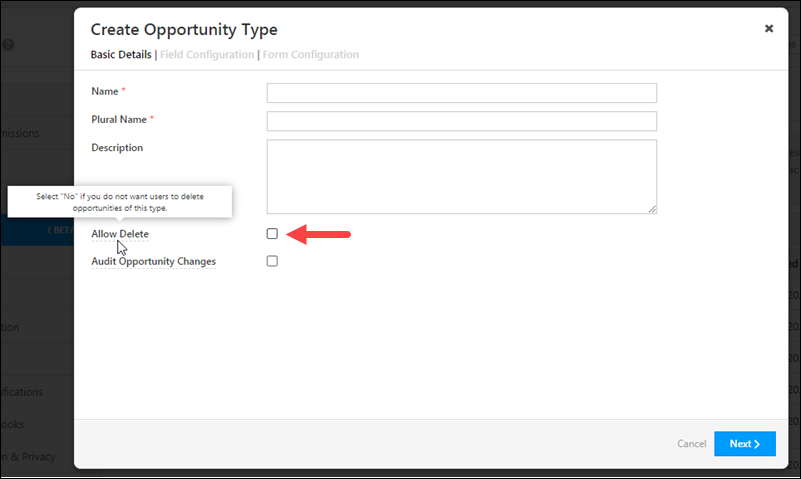
These are the basic details that are required to create an opportunity. The fields are –

Field Name Description
Name The name for your opportunity (Car Loan, Course, etc.). This field is mandatory.
Plural Name The plural name for your opportunity (Car Loans, Courses, etc.). This field is mandatory.
Description A description to help your team understand the Opportunity better.
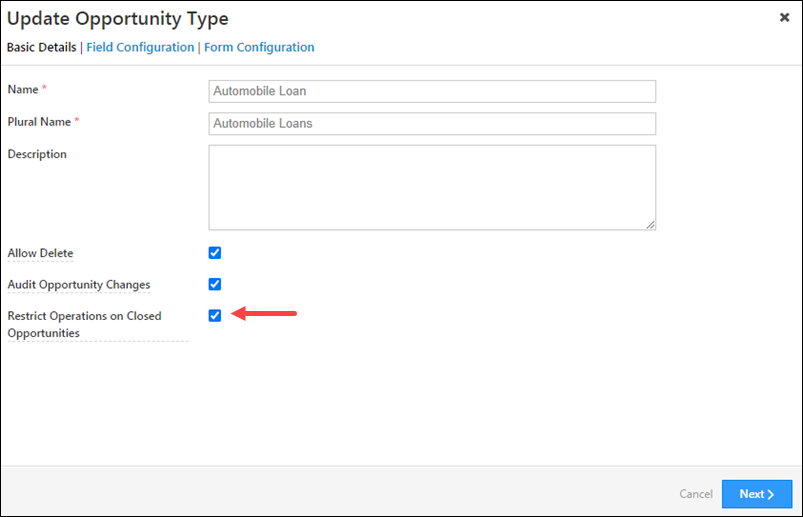
Allow Delete To give non-Admin users permission to delete the Opportunity, check the Checkbox checkbox.
Audit Opportunity Changes To keep a log of all the changes and updates made to the Opportunity, check the Checkbox checkbox.
Restrict Operations on Closed Opportunities To prevent non-Admin users from making updates, or posting activities/tasks to a closed opportunity, check the Checkbox checkbox.

Note:

  • You must follow the above steps to update an existing opportunity.
  • To Restrict Operations on Closed Opportunities, enable the Enables restricting Operations on Closed Opportunities (Won/Lost) Organization Setting.

Once you’re done, click Next.

LeadSquared Opportunity Management

4.2 Field Configuration

Add custom fields that have to be filled out by your users while managing opportunities.

Status Configuration

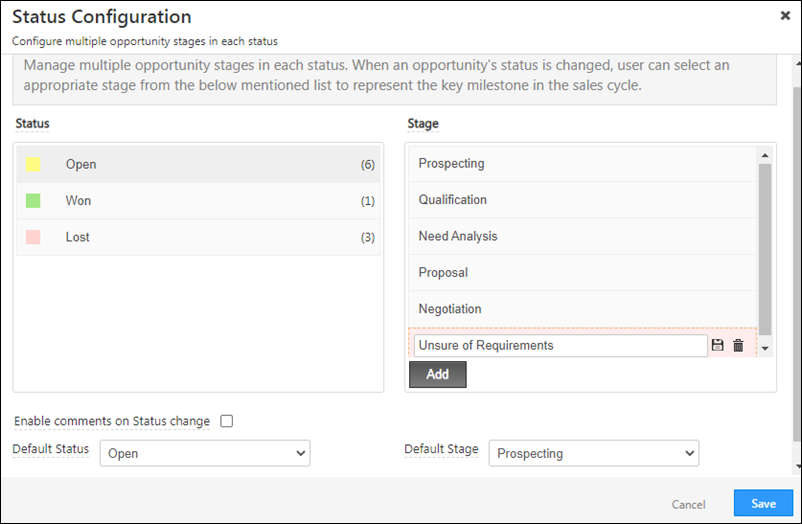
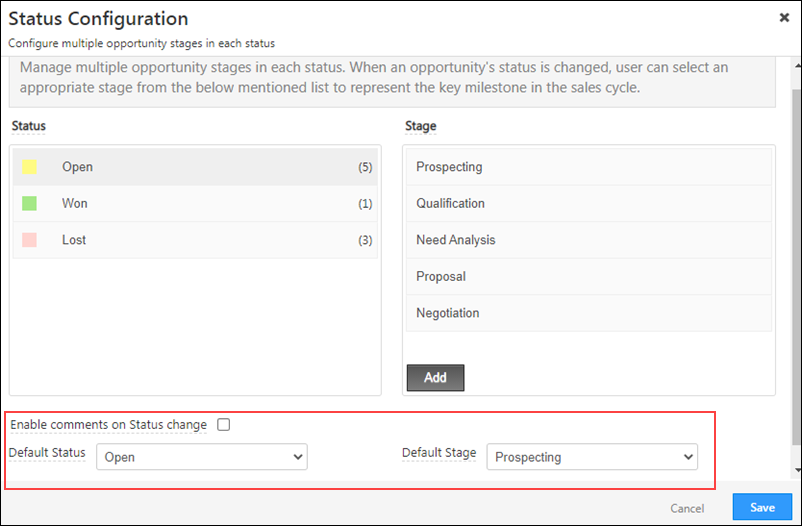
You can track the current status of the opportunity in the sales funnel through Status Configuration. To configure it, click on the Settings icon icon.

  • The three statuses available by default are “Open“, “Won” and “Lost“. You cannot delete or edit these options, and you also cannot add any other status as an option.
  • Create a list of reasons for changes in each status, under Status – Reason. You can list down multiple reasons for each status. Users can select a reason from the list every time they update an opportunity status. This will help all the stakeholders track the opportunity to completion. To configure Status – Reasons
    • Add reasons for status change –
      1. Select the status for which you want to add reasons, and click the Add button found at the bottom of the page.
      2. Add reasons that are indicative of status change.
      3. Once you’ve added a reason, click the icon to save it.
      4. Repeat the same process to add multiple reasons.
    • The number in a bracket next to the status indicates the number of reasons listed for that particular status.
    • To edit an existing reason, click the Edit icon.
    • To delete an existing reason, click the delete icon.
    • To change the order of the reasons listed, use the Up Arrow and Down Arrow arrows.
  • To enable user comments while changing the opportunity status, check Checkbox Enable Comments checkbox.*
  • To set a default status for new opportunities, from the Default Status dropdown, select the status.
  • To set a default stage for new opportunities, from the Default Stage dropdown, select the stage.
  • Once you’re done, click Save.

Note:

  • * When comments are enabled, it becomes mandatory for users to enter comments when changing the status of the opportunity (across both the UI and APIs).
  • To set a Default Status and Default Stage for new opportunities, enable the Enable Default Status And Stage Organization Setting.

LeadSquared Opportunities

Field Configuration

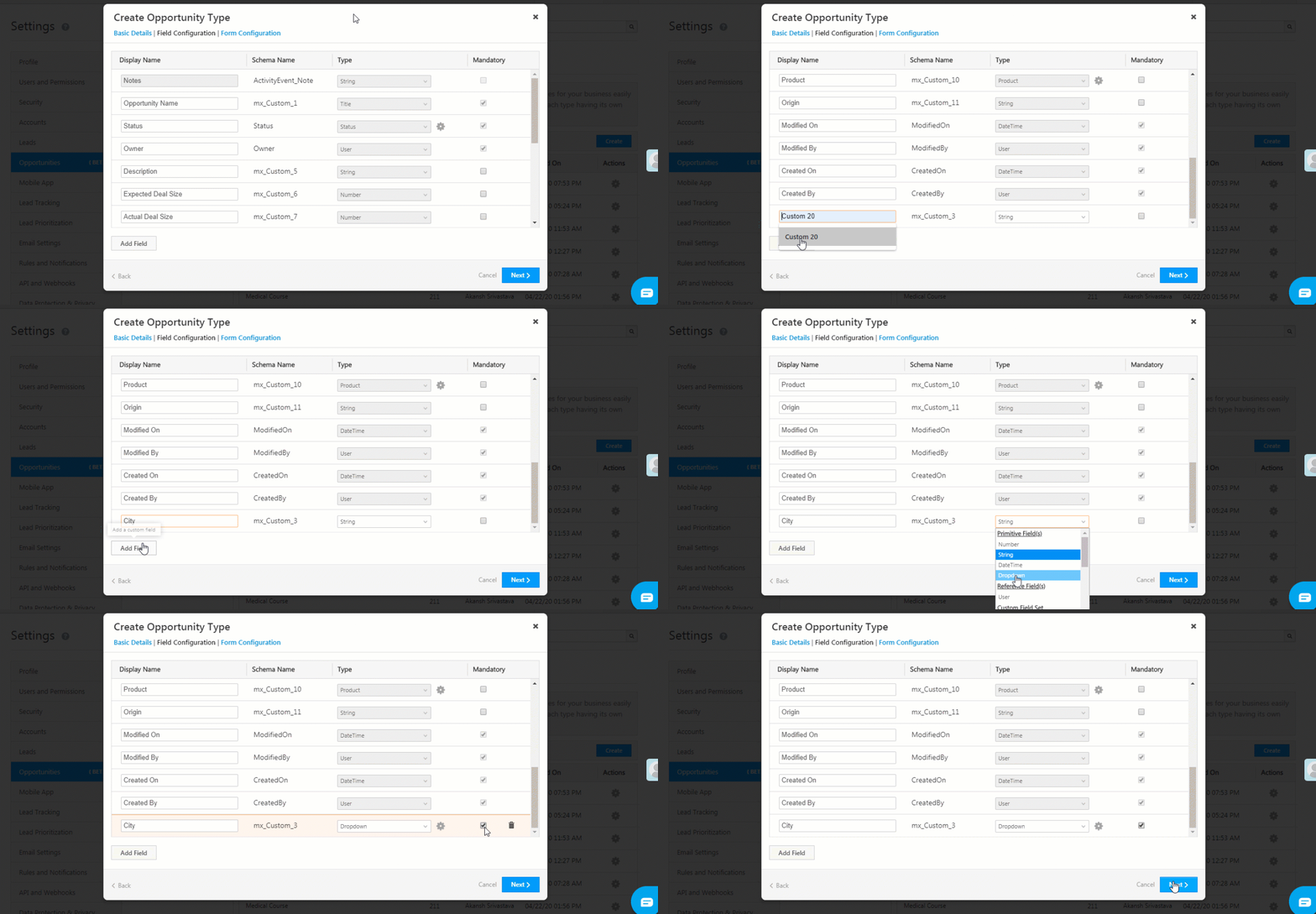
  • A default number of fields are pre-selected. These fields are mandatory.
  • You can use the Add Field button at the bottom of the page to select multiple custom fields, depending on your requirement.
  • Under Mandatory, tick the checkboxes for mandatory fields that your users must populate.
  • To delete a field that you’ve added, click the delete icon against the field.
  • Once you are done, click Next.

Opportunity

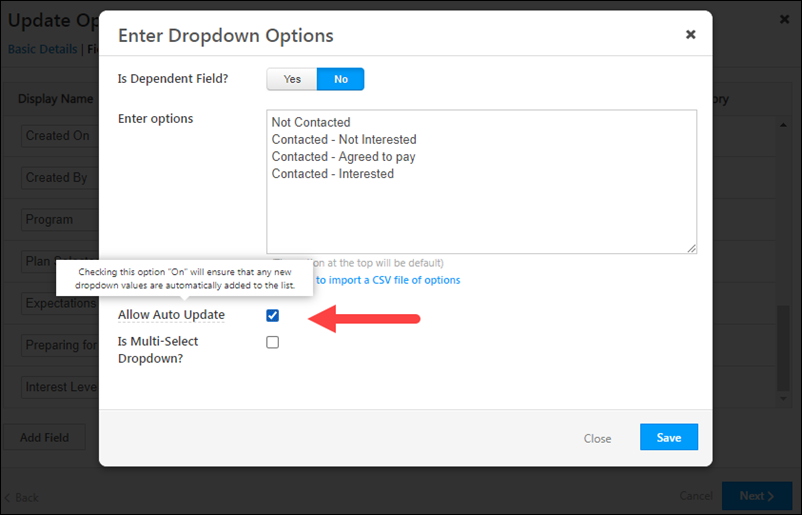
You can also configure opportunity dropdown fields to automatically add new dropdown values sent through APIs, opportunity imports and the Update Opportunity card in Automation. To do this –

  1. Click on the icon against a dropdown field.
  2. On the Enter Dropdown Options pop-up, click the Checkbox checkbox against Allow Auto Update.
  3. Once you’re done, click Save.

Note: The Allow Auto Update feature is not support updating the field through dynamic form rules.

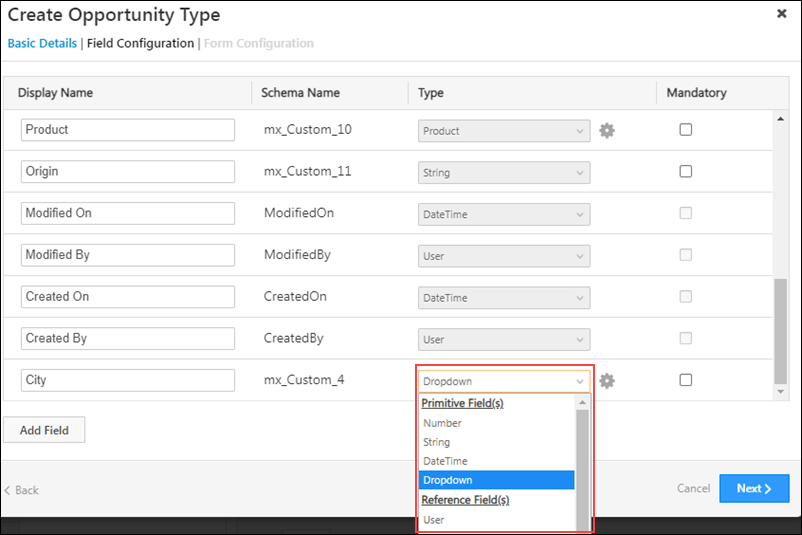
Field Data Types

The following data types are available by default, which can be used to configure custom opportunity fields –

  • Number
  • String
  • DateTime
  • Dropdown
  • User

LeadSquared Opportunity Management

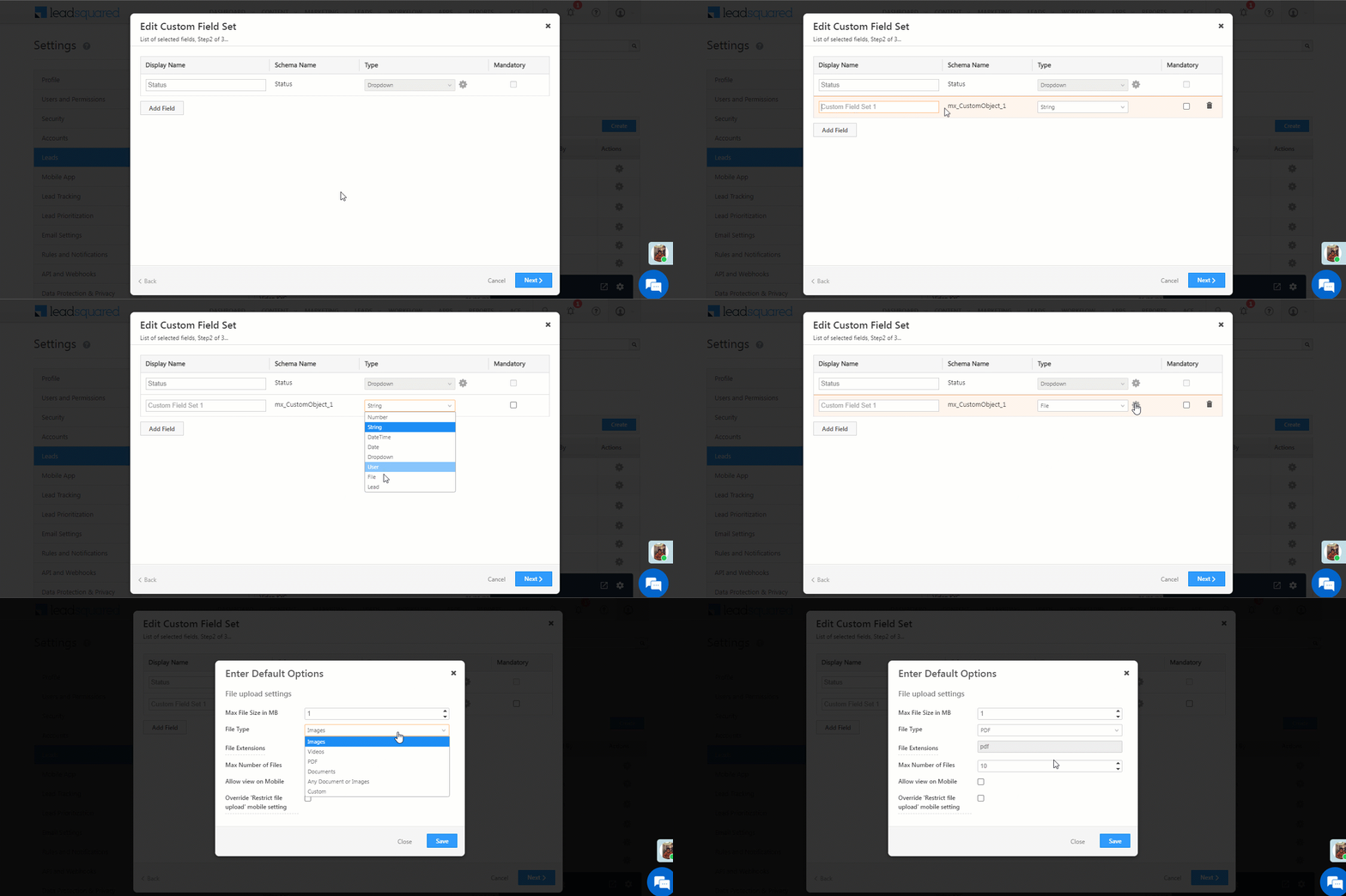
You can also use the following additional data types to configure custom opportunity fields. To enable these data types on your account, refer to Advanced Configurations.

  • Phone – This data type stores phone numbers.
  • Email – This data type stores email Ids.
  • Date – This data type stores dates (and not time).
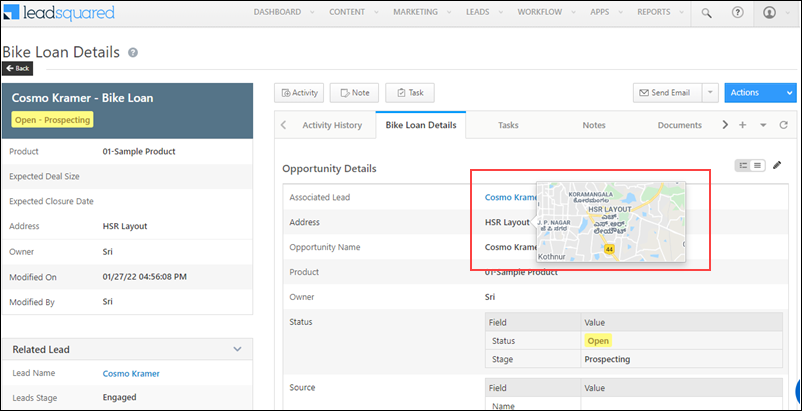
  • Geolocation – This data type stores geographic locations. Any location (MG Road, Indira Nagar, etc.) entered in this field can be previewed on the Opportunity Details page.

LeadSquared Opportunity Management

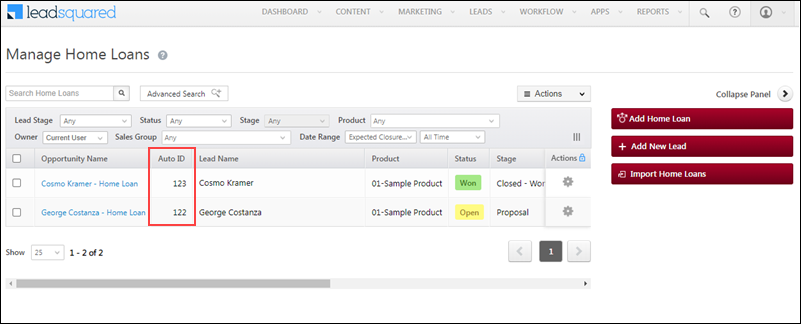
  • AutoID – A unique ID is automatically generated for each opportunity. This Id can be used to bulk update, import, retrieve, and delete opportunities through the Opportunity Management APIs.

LeadSquared Opportunity Management

4.3 Form Configuration

Create forms to enable your users to capture opportunity details. To know more, refer to

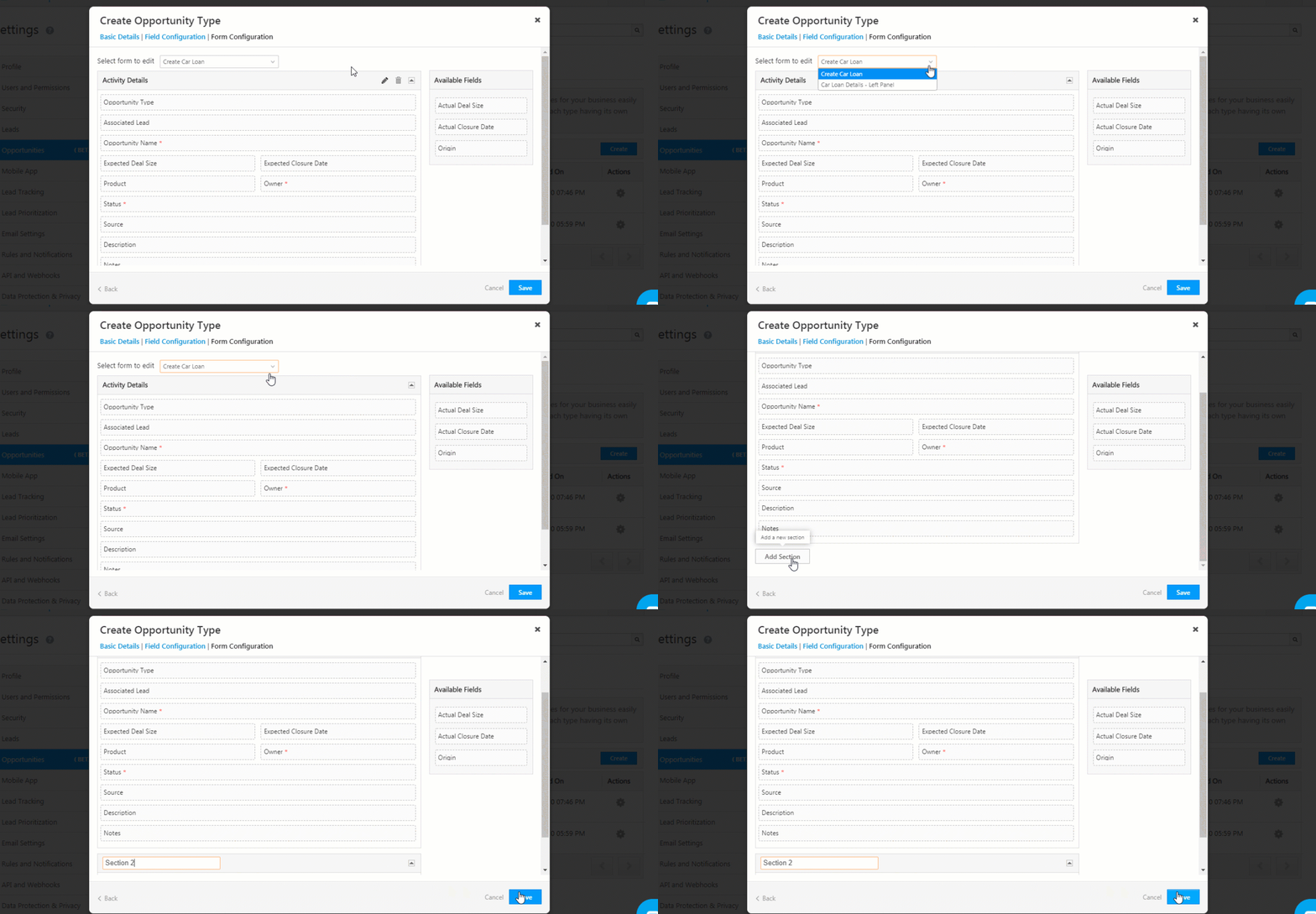
In this section, you can edit two types of forms – the default form and the left panel form.

Default Form

  • Under Select Form to Edit, choose “Create”.
  • There are four mandatory fields – “Created On”, “Opportunity Name”, “Owner” and “Status”. These fields cannot be deleted.
  • You can add other custom fields, through drag and drop from the list of available fields on the right side of your page.
  • You can add multiple sections to the form. To do this, scroll to the bottom of the page and click Add Section.

Opportunity

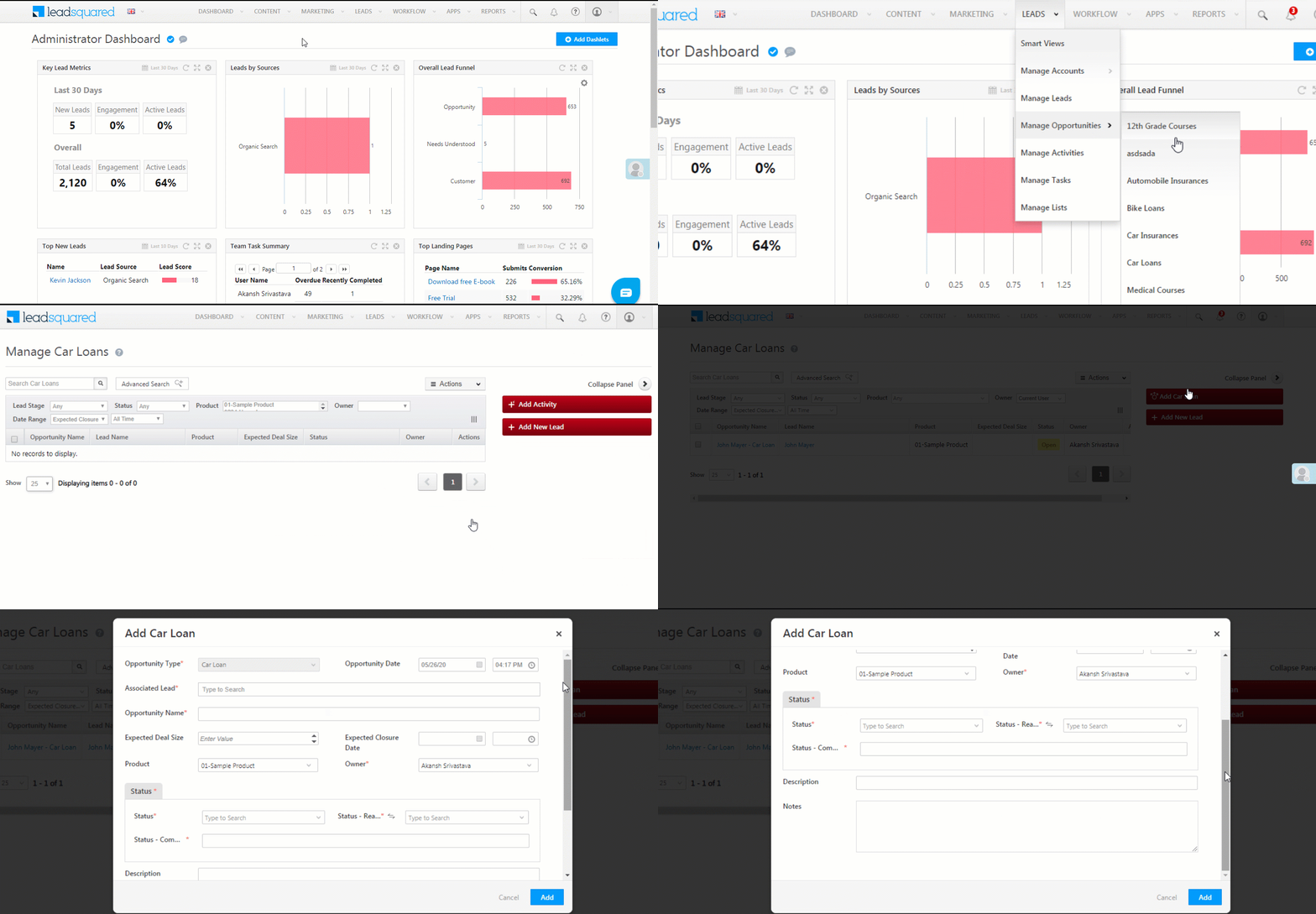
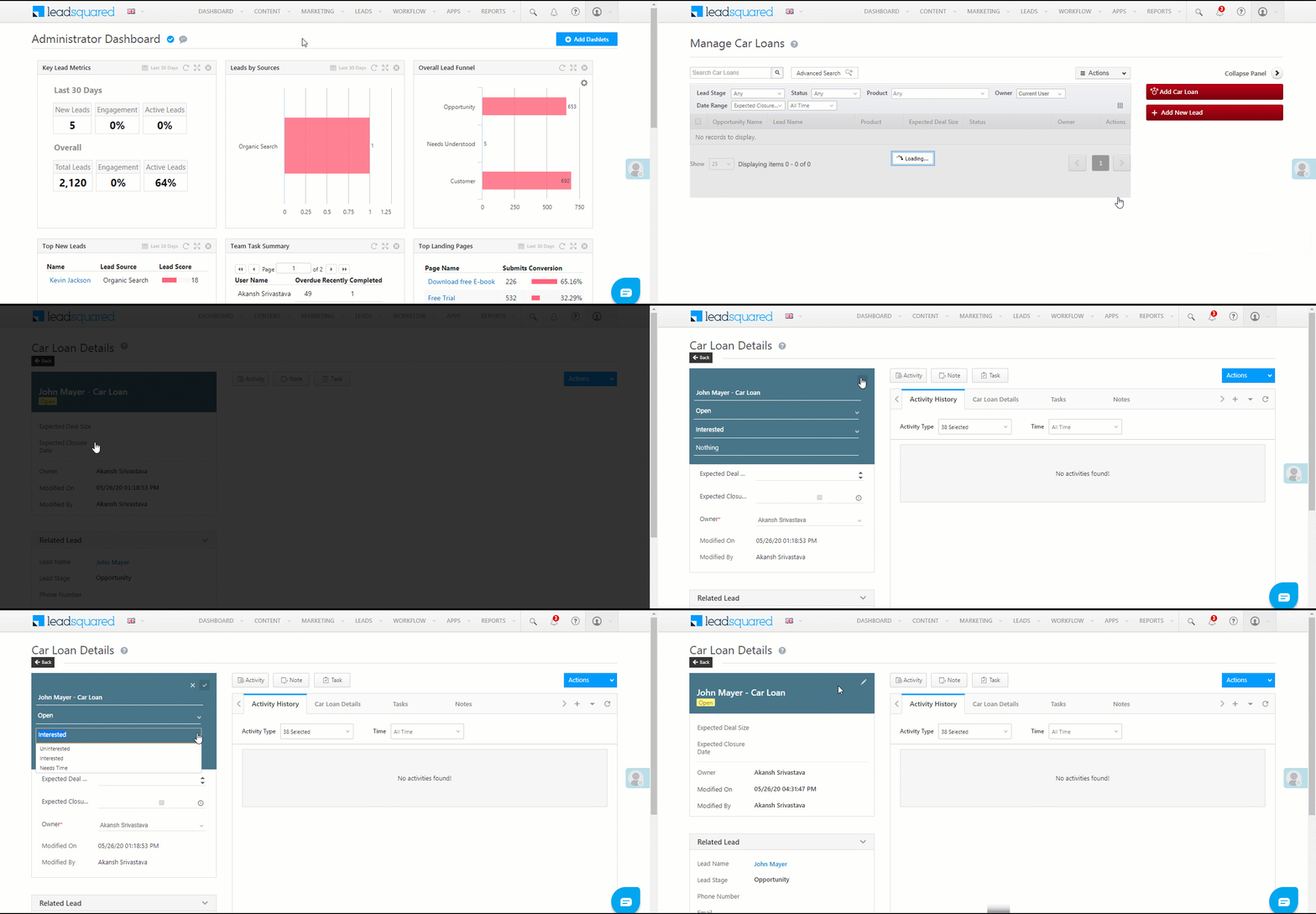
To access the form, from the main menu, navigate to Leads>Manage Opportunities, and click the Add Opportunity button, available on the right side of the screen.

Opportunity

Left Panel Form

  • Under Select Form to Edit, choose “Left Panel”.
  • Select a colour for the tab by clicking the Opportunity dropdown.
    • Along with the VCard, this colour will be visible on the Activities History tab on the Lead Details page, to help users identify all activities associated with the opportunity.
  • The two mandatory fields are First Name and Last Name.
  • You can remove existing fields by clicking the icon.
  • You can drag and drop fields from Available Fields, on the right side of the screen. You can only add fields that are available for the Opportunity.
  • Under Available Fields, you can search from your list of Lead Fields. To do this, choose Lead Fields from the dropdown.
    Note: You cannot add Lead Fields to the VCard. You can only add it to the Related Lead section.
  • Once you’re done, click Save.

Opportunity

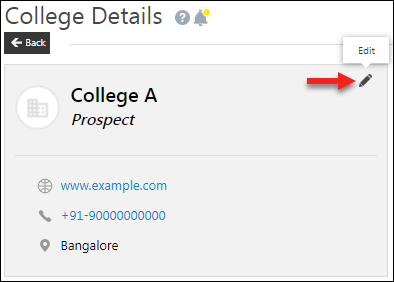
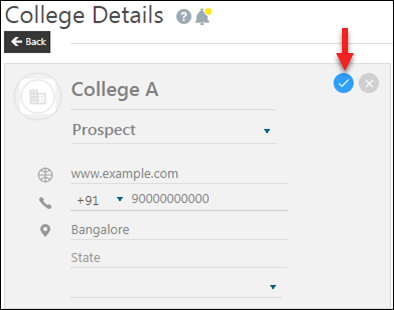
To access the form, from the main menu, navigate to Leads>Manage Opportunities, and click on a lead on whom the Opportunity was created. On the Lead Details page, you can find the Left Panel. To edit the opportunity, hover your cursor on the top right corner of the VCard, and click the Edit icon.

Opportunity

To know how to manage opportunities, and perform multiple actions on them, such as updates, exports and reset filters, refer to Opportunity Management.


5. FAQs

Unable to Edit or Perform Activities on Opportunities

  • Issue: I’m unable to update opportunities or perform activities on them, even though I have the necessary permissions via permission templates.
  • Possible Causes:
    • Closed Opportunity: The issue may arise if the opportunity is in a Closed status (Won or Lost), and operations are disabled on closed opportunities.
    • Advanced Configuration Settings:
      • If the Advanced Configuration setting for restricting updates on closed opportunities is enabled, users will be unable to update or post activities/tasks on closed opportunities.
  • Solution:
    • Disable the Restrict operations on closed opportunities advanced configuration setting.

LeadSquared Opportunity Management

    • Disable the Restrict Operations on Closed Opportunities setting in the opportunity type configuration

LeadSquared Opportunity Management


Any Questions?

Did you find this article helpful? Please let us know any feedback you may have in the comments section below. We’d love to hear from you and help you out!

UTC Telephony Feasibility

1. Feature Overview

This article provides a feasibility checklist for integrating the customer’s telephony provider using LeadSquared’s Universal Telephony Connector.

The article details a checklist questionnaire for UTC features, namely: Outbound Calls, Agent Popup, Agent Panel, Call Log, Call Disposition, and Call Routing. It also includes a checklist for certain general questions.

Note:  The most common features our customers request are Click2Call, Agent Popup, and Call Log.


2. General Questions

1. Checklist questions when customers are integrating with LeadSquared’s Opportunities.

Checklist Question Customer Response Follow up Questions LeadSquared Response
Is the customer looking for Opportunity Integration? Yes Is the customer okay with the activity being posted on the lead? There is nothing additional required from the customer. This is the default behavior.
Does the customer need the phone call activity to be posted on the Opportunity for outbound calls? We pass the OpportunityTelephonyMappingId to your Telephony Provider. They should be able to pass it back in the Agent Popup and Call Log requests.
Does the customer need the phone call activity to be posted on the Opportunity for inbound calls? Agent popup becomes mandatory. Your Telephony Provider needs to invoke Agent Popup with a call session ID for every call. The same session ID should be passed in the subsequent call log request.
Is the customer looking for Opportunity Integration? No Phone call activity will be posted on the lead.


2. Checklist question for whitelisting LeadSquared IPs.

Checklist Question Customer Response LeadSquared Response
Does the customer’s telephony provider have a firewall blocking LeadSquared Traffic? Yes The customer’s Telephony Provider must whitelist LeadSquared IPs.


3. Outbound Calls

1. Checklist questions when customers are automating outbound calls.

Note: During outbound calls, LeadSquared only pushes leads to the customer’s telephony provider – dialing (predictive, progressive, etc.) has to be initiated by the telephony provider.
Checklist Question Customer Response LeadSquared Response
Does the customer’s telephony provider have an API to receive a list of phone numbers? Yes, to call only 1 lead at a time. If the customer is using Opportunities, Opportunity ID should also be passed to the provider.
Yes, to call multiple leads at once.
  • Customers must check if there is a limit on the number of leads.
  • If the customer is using Opportunities, Opportunity ID must also be passed to the provider.
  • ULC is the recommended way to push leads to your Telephony Provider.
  • The Leads can also be pushed to your Telephony provider through a List.


2. Checklist question when customers are doing outbound calls manually (Click2Call).

Checklist Question Customer Response  LeadSquared Response
Does the customer need client-side manual outbound calling? Yes The customer’s telephony provider must support Javascript-based calling from the browser.


Checklist Question Customer Response LeadSquared Response Follow Up Question LeadSquared Response
Does the customer need server-side manual outbound calling? Yes
  • The customer’s telephony provider must have a ReST endpoint for calling
  • Certain telephony providers have mandatory virtual numbers. Virtual number/DID/Display Number/Caller ID are terms used interchangeably; customers should buy these from their providers and add them to the Virtual Numbers tab of UTC.


What parameters does the customer’s telephony provider need to connect the call?
  • LeadSquared has an exhustive list of mail-merge paramters.
  • If the customer is using Opportunities, Opportunity ID should also be passed to the provider.
What is the response type of the customer’s telephony provider?
  • LeadSquared supports JSON and Text.
  • Nested JSONs are not supported.


4. Agent Popup

1. Checklist questions for customers when they need Agent Popup.

Note: 

  • For Opportunities support, Agent Popup becomes mandatory in the case of inbound calls.
  • Some customers only need lead redirection instead of a screen popup.
  • The telephony provider can customize key names in the request payload through custom mapping.
Checklist Question Customer Response LeadSquared Response  Follow up Question LeadSquared Response
Does the customer’s telephony provider have the ability to call LeadSquared’s APIs at particular events? Yes, but the provider only supports GET requests.
  • The customer should have a custom code and call LeadSquared’s API to retrieve lead details by phone number.
  • The provider should open the lead details URL when the call connects.


Yes, the provider supports POST API requests. Does the customer want this ability for both inbound and outbound calling? The customer’s telephony provider should support calling LeadSquared’s Agent pop-up API in case of call events like Call Ringing or Call Connected.


Checklist Question Customer Response LeadSquared Response
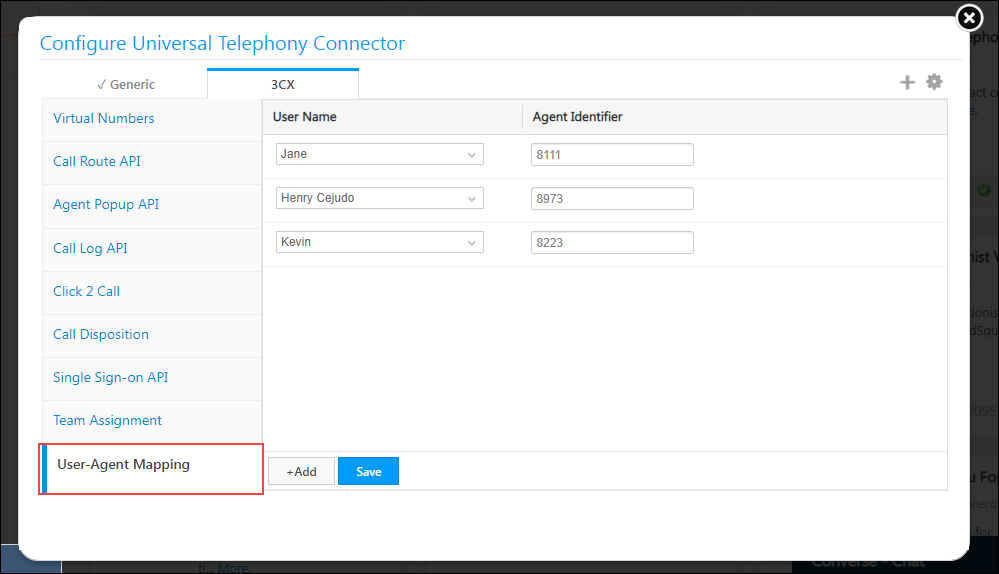
How does the customer’s telephony provider identify an agent? Through Email/SIP ID/Extension
  • User Agent mapping needs to be configured.
  • The identifier should be passed in the Agent ID parameter. This is prioritized over the agent’s number.
Through phone number Pass the agent’s number in the Source or Destination numbers based on the Direction of the call.


5. Agent Panel

1. Checklist questions when the customers need an Agent Panel.

Note: Browser refresh will disconnect ongoing calls in softphone in the case of most telephony providers. Some providers will allow the call to proceed if there are multiple browser tabs already open.
Checklist Question Customer Response  LeadSquared Response
Does the customer’s telephony provider have a web app that can be used as a softphone? Yes
  • The web app needs to be integrated into LeadSquared’s Agent Panel.
  • Relevant permissions for the iframe have to be provided under the Agent Panel configuration.
  • In the case of Single-sign on/Authentication –
    • By default, separate logins are required for LeadSquared and Agent Panel.
    • Third-party authentication (OAuth2, etc.) is not available.
    • if the telephony provider has user-level tokens for authentication, then they can be stored in a user field and mail merged in the iframe URL. The provider will have to authenticate this at their end.


6. Call Log

1. Checklist questions for Call Logs.

Note:

  • The customer’s telephony providers should have the ability to interchange Source and Destination numbers based on the direction (inbound/outbound) of the call.
  • Call recordings are owned by the telephony providers. Only the URL needs to be sent in the call log request and the same is embedded in LSQ.
  • For posting on opportunities, the telephony provider should send a call log request with the same call session ID as the agent pop-up.
  • the telephony provider can customize key names in the request payload through custom mapping.


Checklist Question Customer Response LeadSquared Response
Does the customer require international calling? Yes
  • The telephony provider must have the ability in the E 164 Format. [+<CountryCode>-<PhoneNumber>] or [+<CountryCode><PhoneNumber>]
  • Enable phone formatting in the LeadSquared account. You will need to raise a support ticket to enable this feature.


Checklist Question Customer Response LeadSquared Response
Does the customer’s telephony provider have the ability to pass the start time of a call in IST? Yes Use StartTime paramater.
No Use StartTimeUTC parameter.


Checklist Question Customer Response LeadSquared Response
How does the customer’s telephony provider identify an agent? Through Email/SIP ID/Extension
  • User Agent mapping needs to be configured.
  • The identifier should be passed in the Agent ID parameter. This is prioritized over the agent’s number.
Through phone number Pass the agent’s number in the Source or Destination numbers based on the Direction of the call.


7. Call Disposition

1. Checklist questions when the customers need Call Disposition.

Checklist Question Customer Response LeadSquared Response
Does the customer want the Call Disposition feature? Yes
  • The customer’s telephony provider must have a ReST endpoint for disposition.
  • There is a list of mail merge parameters available to the customers. These are not the same as the ones available in the Click2Call feature.


8. Call Routing

1. Checklist questions when the customer needs Call Routing.

Checklist Question Customer Response LeadSquared Response
Does the customer want the Call Routing feature? Yes
  • Certain telephony providers will have a Sticky Agent/Call Routing logic at their own end. Customers are advised to check with their telephony providers.
  • If call routing has to be done through LeadSquared, then the customer’s telephony provider should have the ability to call a GET API to fetch the lead owner’s phone number.
  • If the telephony provider requires details in addition to the lead owner’s phone number, an additional flag agentinfo can be passed.
  • If the telephony provider supports IVR in their workflow, then the Virtual Number and IVR Mapping option can be used to filter Opportunities by type.


Any Questions?

Did you find this article helpful? Please let us know any feedback you may have in the comments section below. We’d love to hear from you and help you out!

LeadSquared WhatsApp Integration with DoubleTick

1. Feature Overview

DoubleTick’s WhatsApp self-serve solution helps you engage your customers simply, securely and reliably. DoubleTick facilitates customer support and other marketing efforts through WhatsApp. If you’re using DoubleTick APIs, this article will help you integrate with LeadSquared to avail WhatsApp messaging functionality right within the platform.

We also support WhatsApp integrations through other service providers like Infobip, Zoko, Kaleyra, Wati, and Gupshup.


2. Prerequisites

If you’re not familiar with LeadSquared’s WhatsApp integration, see WhatsApp Business Messaging Connector. For frequently asked questions, see WhatsApp Business FAQs.

  1. Get an approved WhatsApp Business Number and Account.
  2. An active DoubleTick account.
  3. To enable the DoubleTick integration on your account, contact your account manager, or write to support@leadsquared.com.


3. Installation

For installation, refer to WhatsApp Business Messaging Connector.


4. Configuration

Once the connector is installed, add and configure your WhatsApp phone numbers to the connector.

4.1 Basic Details

WhatsApp Zoko LeadSquared Integration

Field Description
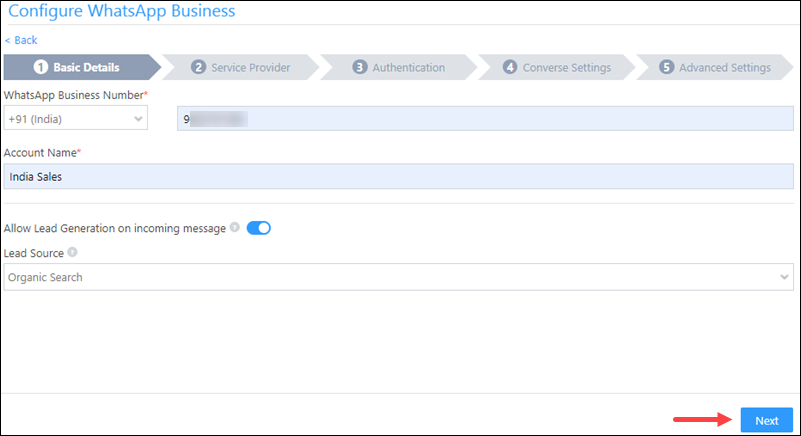
WhatsApp Business Number Select the country code, and provide your WhatsApp business number. This field is mandatory.
To get your WhatsApp business number, contact your Meta account representative or support team.
Account Name Provide a relevant name for your connector. This field is mandatory.
Allow Lead Generation on incoming message EnableSlider to allow automatic lead creation when you receive messages from unknown mobile numbers.
Lead Source From the dropdown, select a lead source for your leads.

Once you’re done, click Next.


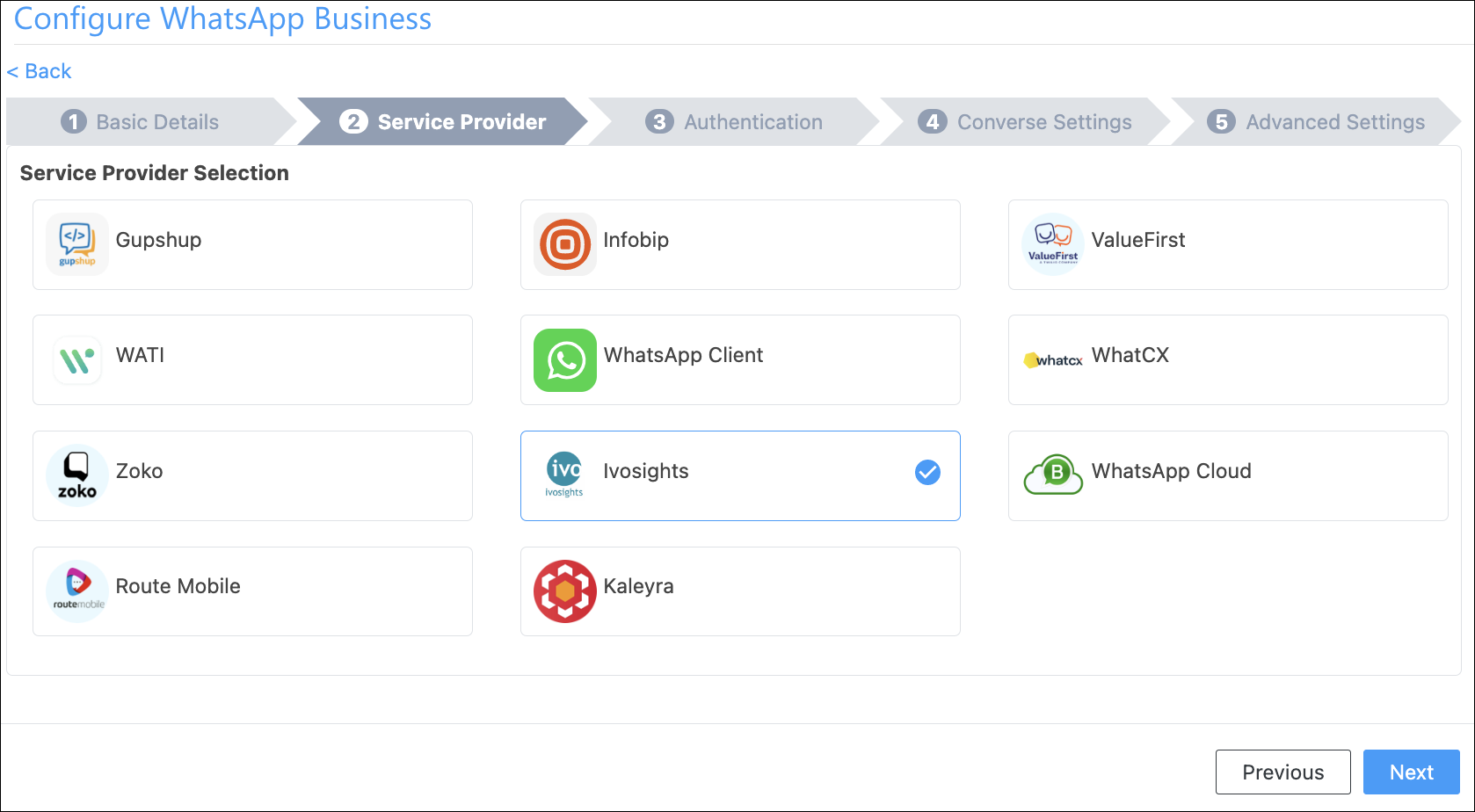
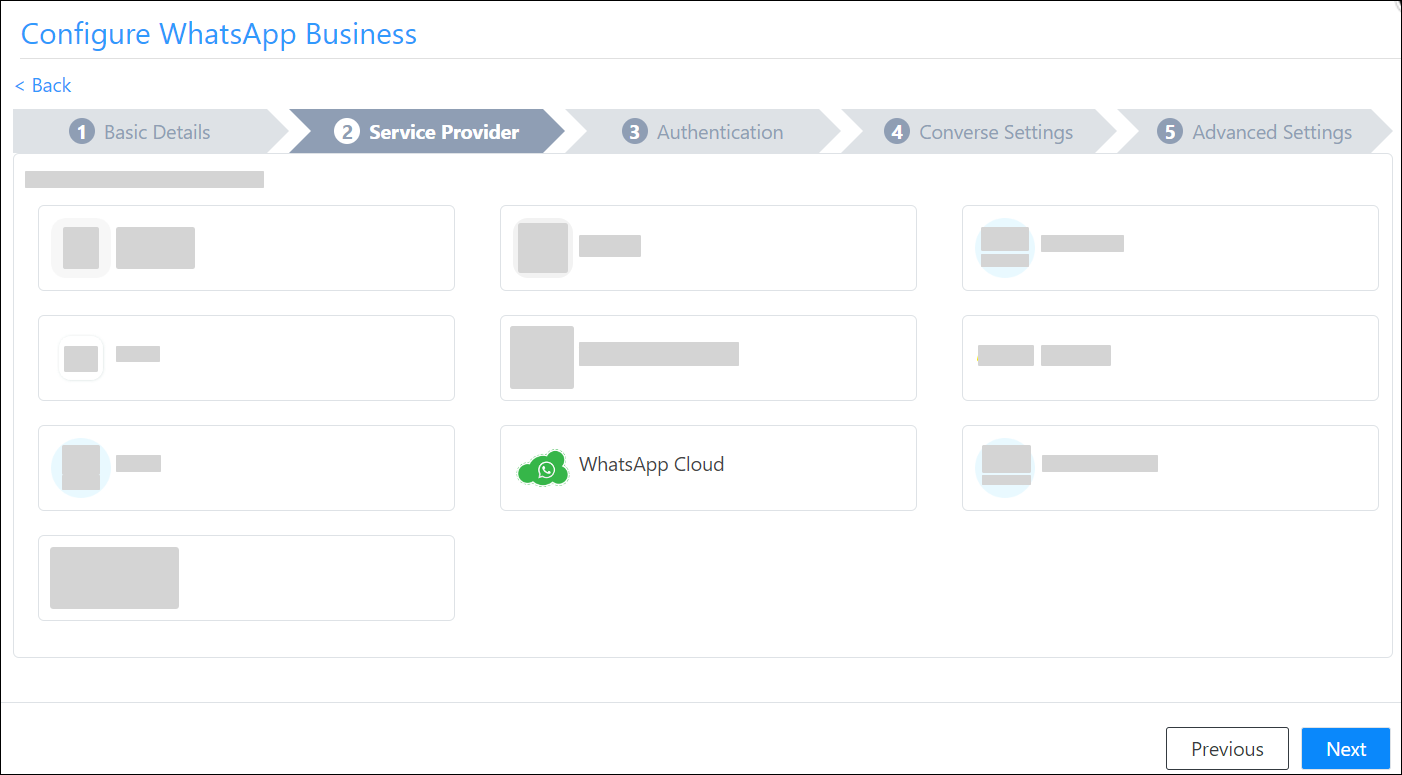
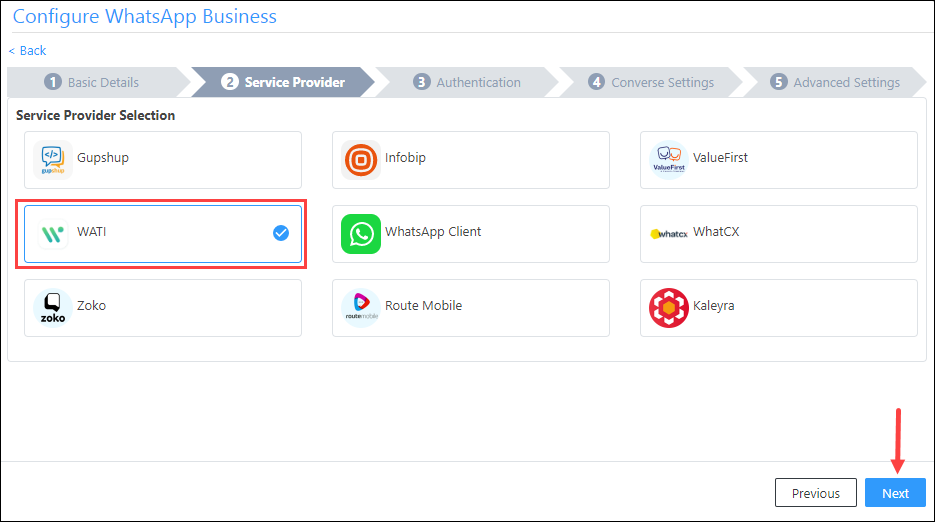
4.2 Service Provider

From the available options, select WhatsApp Cloud, and click Next.


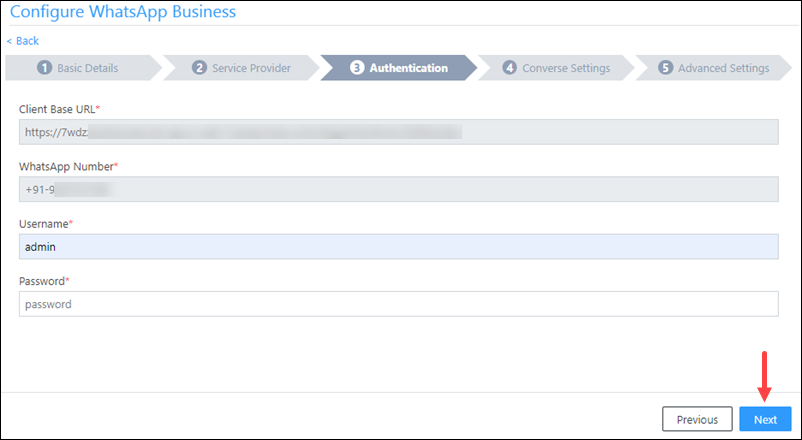
4.3 Authentication Set-up

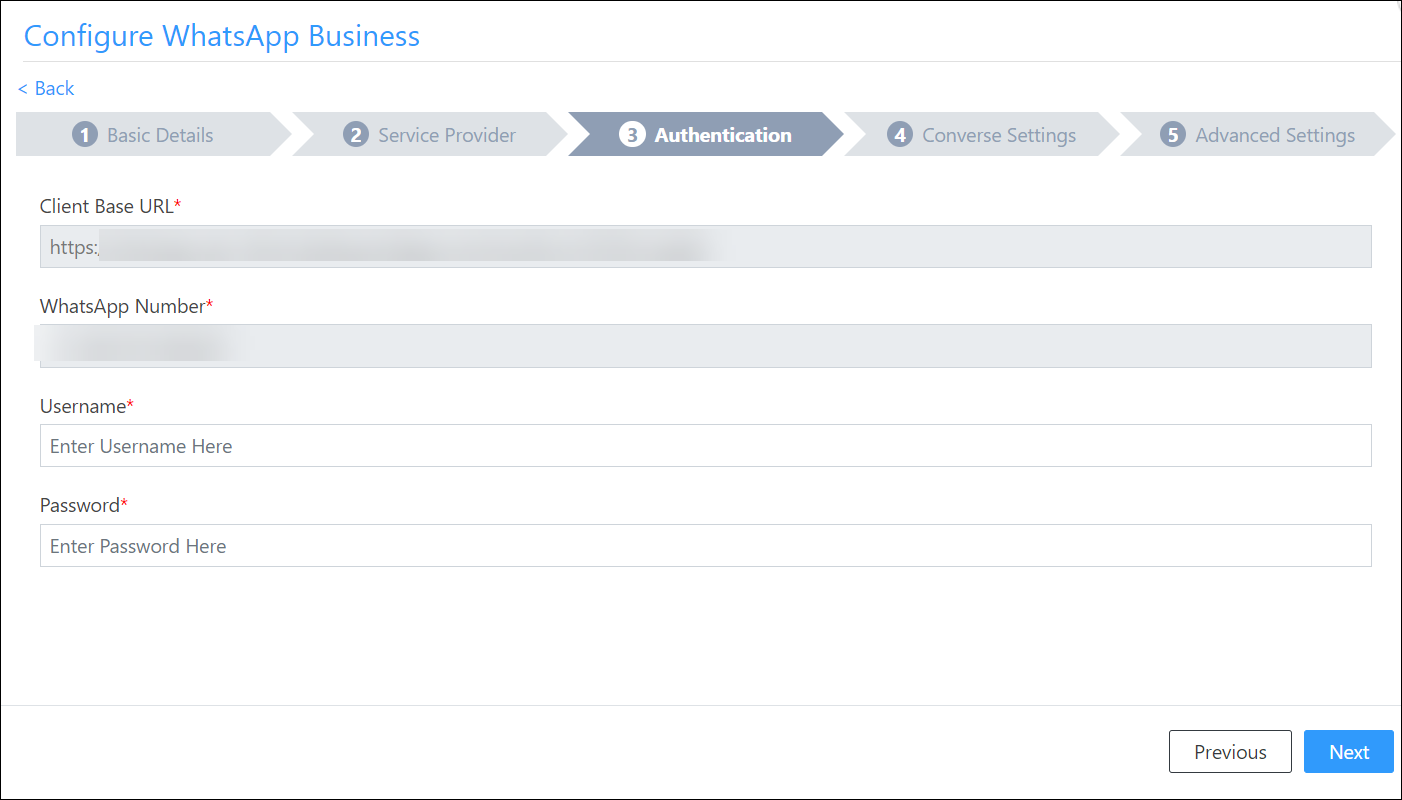
On this screen, enter –

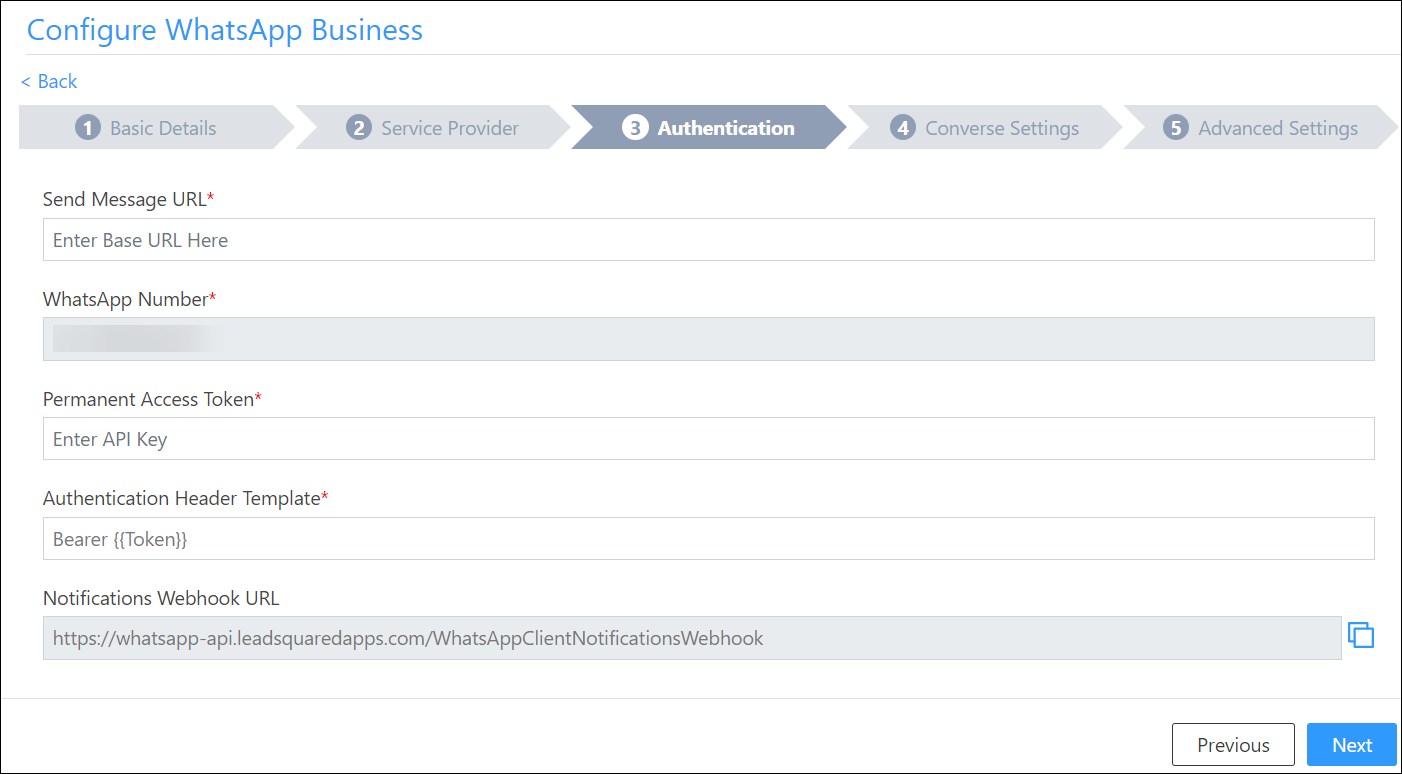
  • Send Message URL – Pass the following URL – https://public.doubletick.io/cloud-api/messages
  • Permanent Access Token – To obtain this, login to your DoubleTick account, and navigate to Settings>Developer API, and click the Copy key button.
  • WhatsApp Business Account ID – You’re not required to pass anything here. Please leave this blank.
  • Authentication Header Template – Pass the following value – {{Token}}. Please pass this as is. Any changes made here will result in failure.
  • Get Media URL – Pass the following value – https://public.doubletick.io/cloud-api/{{mediaId}}. Please pass this as is. Any changes made here will result in failure.

Once you’re done entering all the details on the LeadSquared WhatsApp configuration pop-up, click Next.


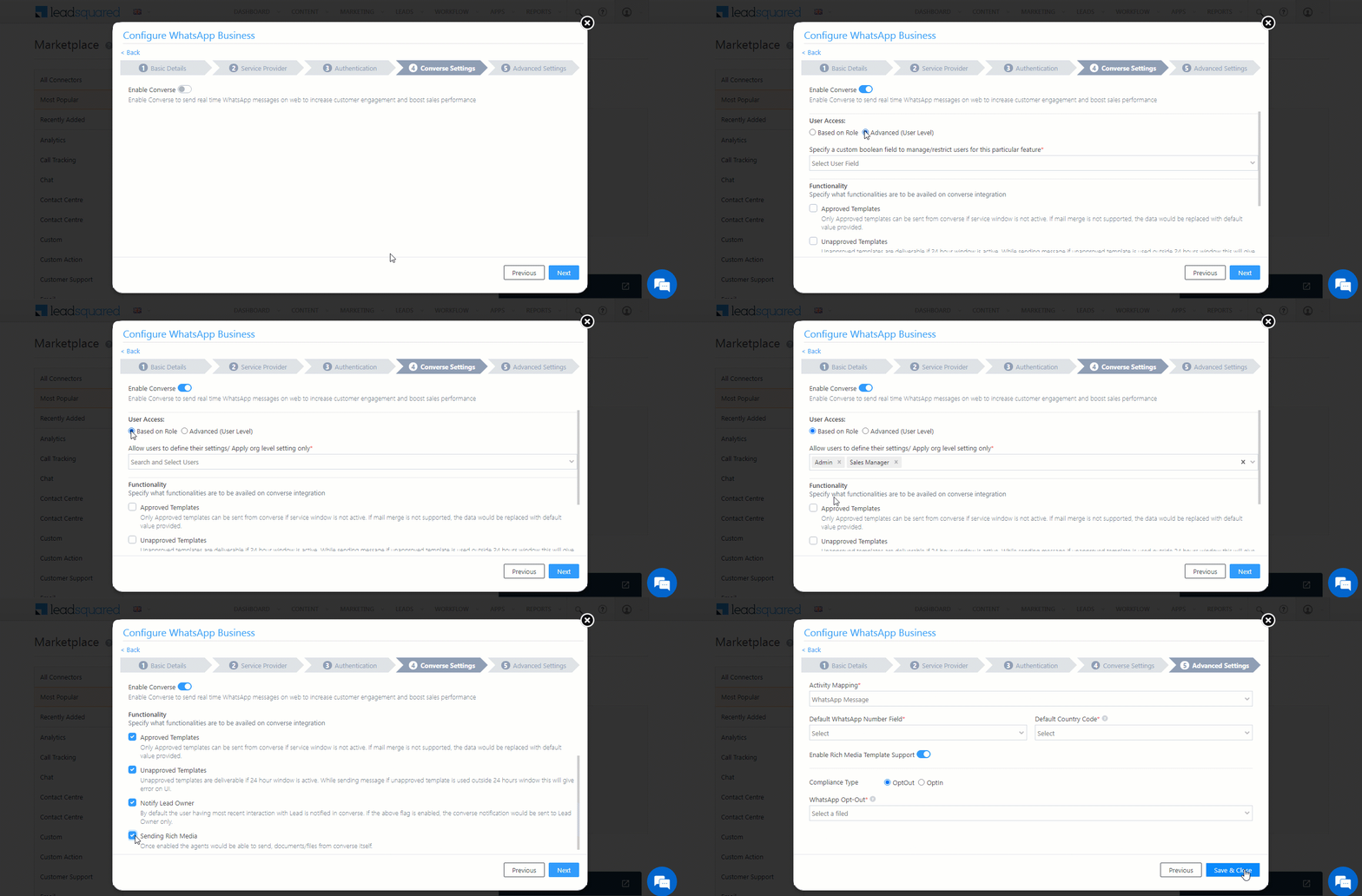
4.4 Converse Settings

LeadSquared Converse is an instant messaging feature that allows you to have real-time conversations with your leads via WhatsApp.

LeadSquared WhatsApp Integration

To integrate LeadSquared Converse with WhatsApp, complete the following steps –

  1. On the Converse Settings tab, toggle the Enable Converse Slider slider.
  2. Under User Access, grant permissions to users who can communicate with leads through the LeadSquared Converse.
    • Based on Role – From the Search and Select Users dropdown, select the LeadSquared user roles that can send messages through LeadSquared Converse.
    • Advanced (User Level) – Based on the value entered in the selected user boolean field (e.g., for the user Sam, the “Is Employee” user field contains the value “Yes”), the user will be able to send messages through LeadSquared Converse. From the Select User Field dropdown, select a relevant boolean field.
  3. Functionality – The following additional settings must be configured –
    • Approved Templates – Enable this functionality to allow your users to send approved WhatsApp templates to your leads.
    • Unapproved Templates – Enable this functionality to allow your users to send unapproved WhatsApp templates to your leads. These can only be sent if the 24-hours service window is active.
    • Notify Lead Owner* – When enabled, only lead owners will get notifications of the WhatsApp messages a lead sends. When disabled, all logged-in users will receive notifications of these WhatsApp messages.
    • Sending Rich Media – Enable this functionality to allow your users to send media files in the WhatsApp messages.

Note:

  • *Message notifications are only sent to one user, i.e., either the Lead Owner or to the user (other than the Lead Owner) that sent the WhatsApp message to the lead. When the Notify Lead Owner setting is enabled, only the Lead Owner will get notified, while the user who sent the message will not get a notification.
  • If you enable the Send Rich Media option, you must also enable the Approved Templates option. This ensures that you can add your media files to a template when messaging your leads.

LeadSquared Gupshup Integration


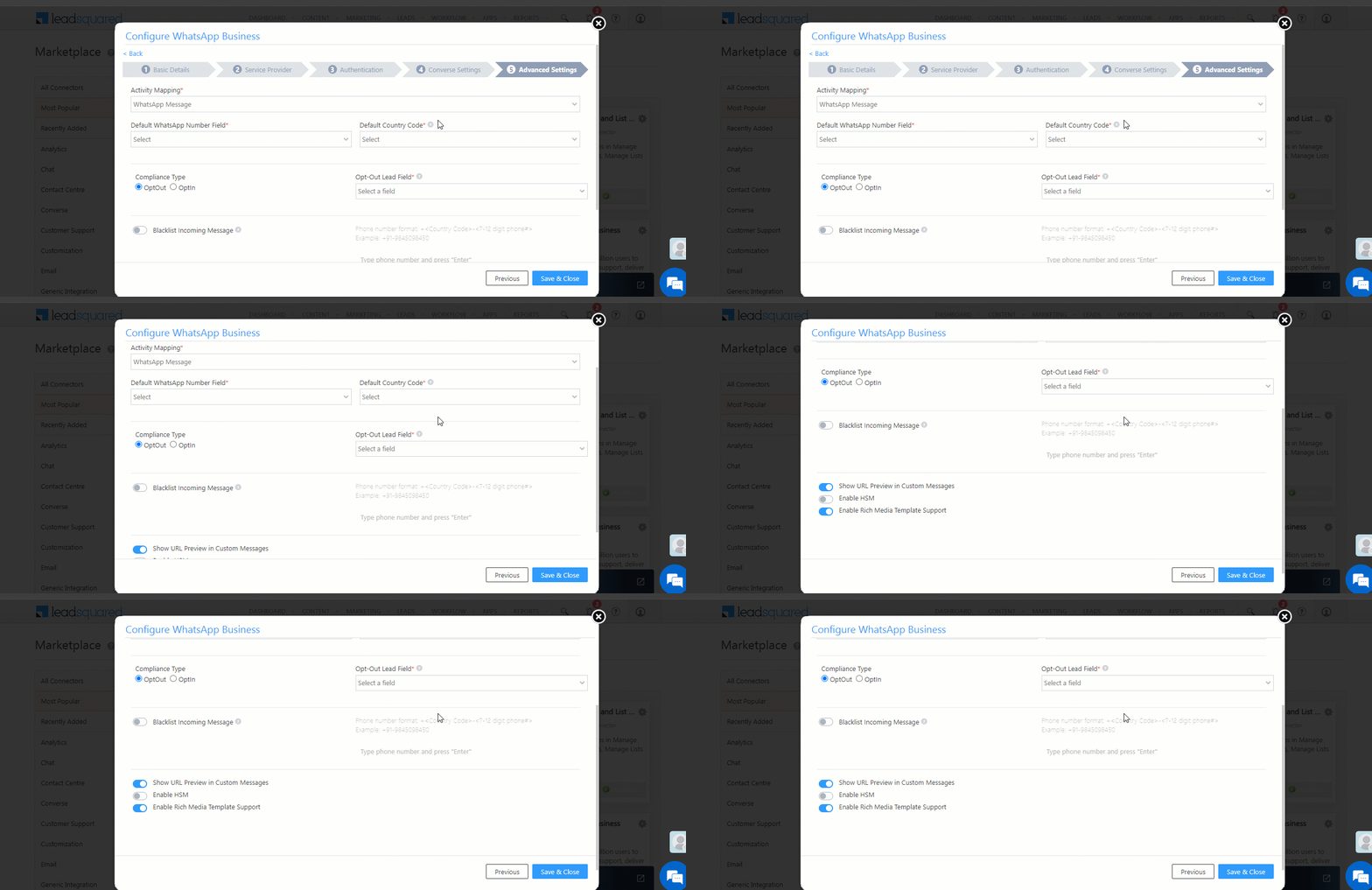
4.5 Advanced Settings

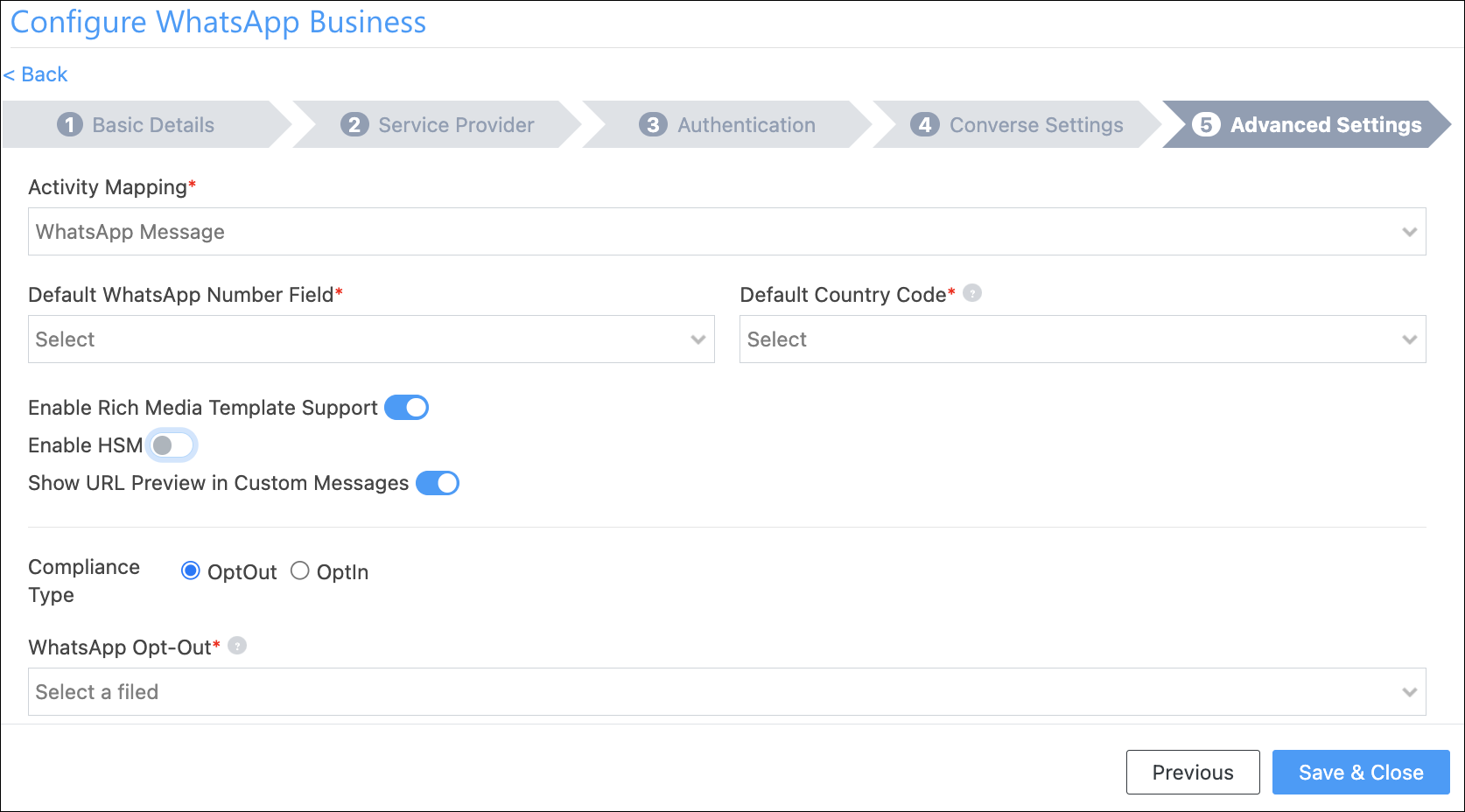
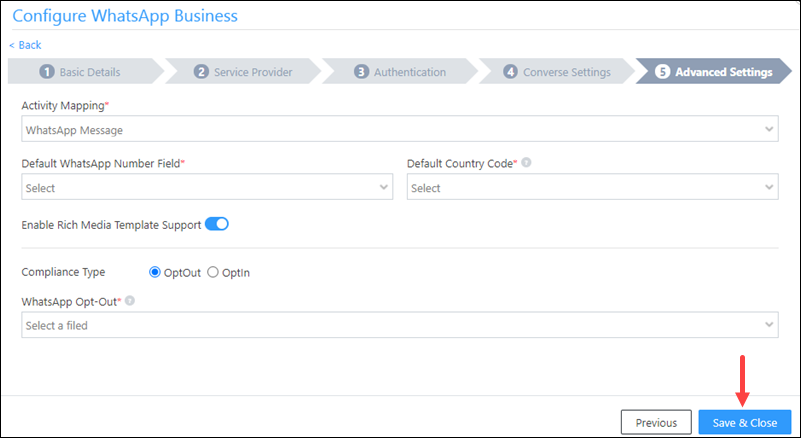
On this screen, provide the following details –

Interakt LeadSquared Integration

  • Activity Mapping – A LeadSquared activity field to capture your WhatsApp messages. This is the activity that will be posted every time a WhatsApp message is sent or received.
  • Default WhatsApp Number Fields – The number you set as the default phone number will be automatically selected when you’re sending a WhatsApp message to a lead. You can also select other numbers that are available from the Add Another Number dropdown.
  • Default Country Code – The default country code will be used to send messages to a phone number that’s stored in a custom field, if no country code is listed.
  • Enable Rich Media Template Support – If you want to include media files in your WhatsApp message, you must enable the Slider slider.
  • Show URL Preview in Custom Messages – Enable the sliderSlider to allow for URL previews in non-templatized WhatsApp messages.
  • Compliance Type – Here, you can select the compliance type for the WhatsApp template, by choosing either WhatsApp Opt-out or Opt-in.
  • WhatsApp Opt-out – Your leads can opt-in or out of receiving WhatsApp messages on the basis of this field. From the dropdown, select a LeadSquared lead field for the WhatsApp opt-in/opt-out functionality.
  • Blacklist Incoming Messages – If required, you can enable this option to blacklist incoming messages from specific numbers. This is useful when you want to block numbers that send inappropriate messages to your users. Once enabled, enter the phone numbers in the text box available on the right side of your screen. You can add phone numbers with 7-12 digits (excluding the country code). This option is available only when the Allow Lead Generation on incoming messages setting is enabled.
Note: You must create a custom lead field of boolean type to map to the WhatsApp opt-out functionality. For example, you may create a custom lead field called “WhatsApp Opt Out”. Leads for whom the field is selected/checked won’t receive WhatsApp messages.

Click Save & Close when you’re done.

  • If your credentials are correct, you’ll see the success message highlighted below.
  • If they were incorrect, the integration will fail.


5. Webhook Configuration

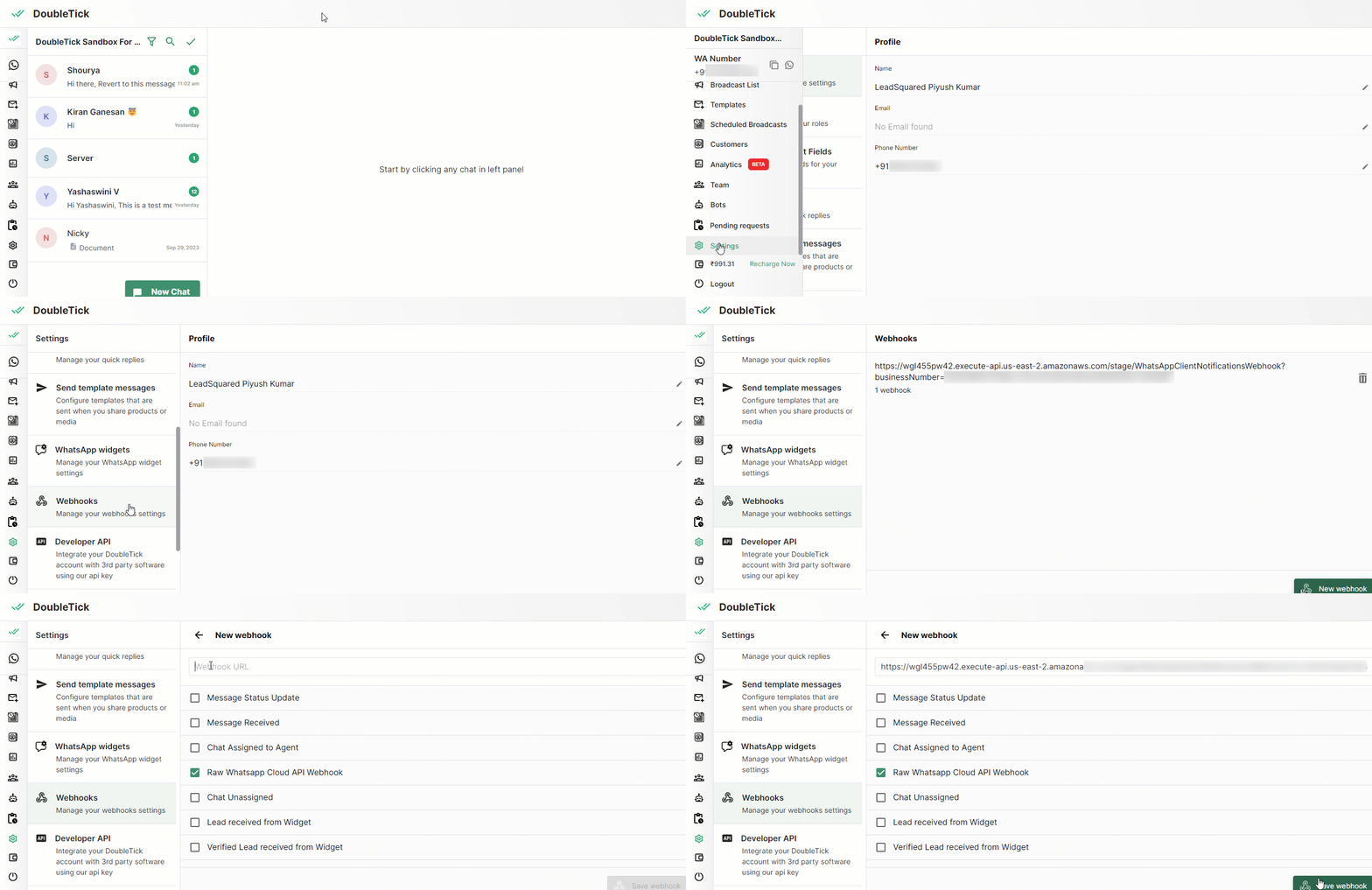
To receive incoming messages from your leads, as well as to get the delivery status (Sent, Delivered, Read, or Failed) of your outbound messages, configure the LeadSquared webhook in your DoubleTick account.

In LeadSquared

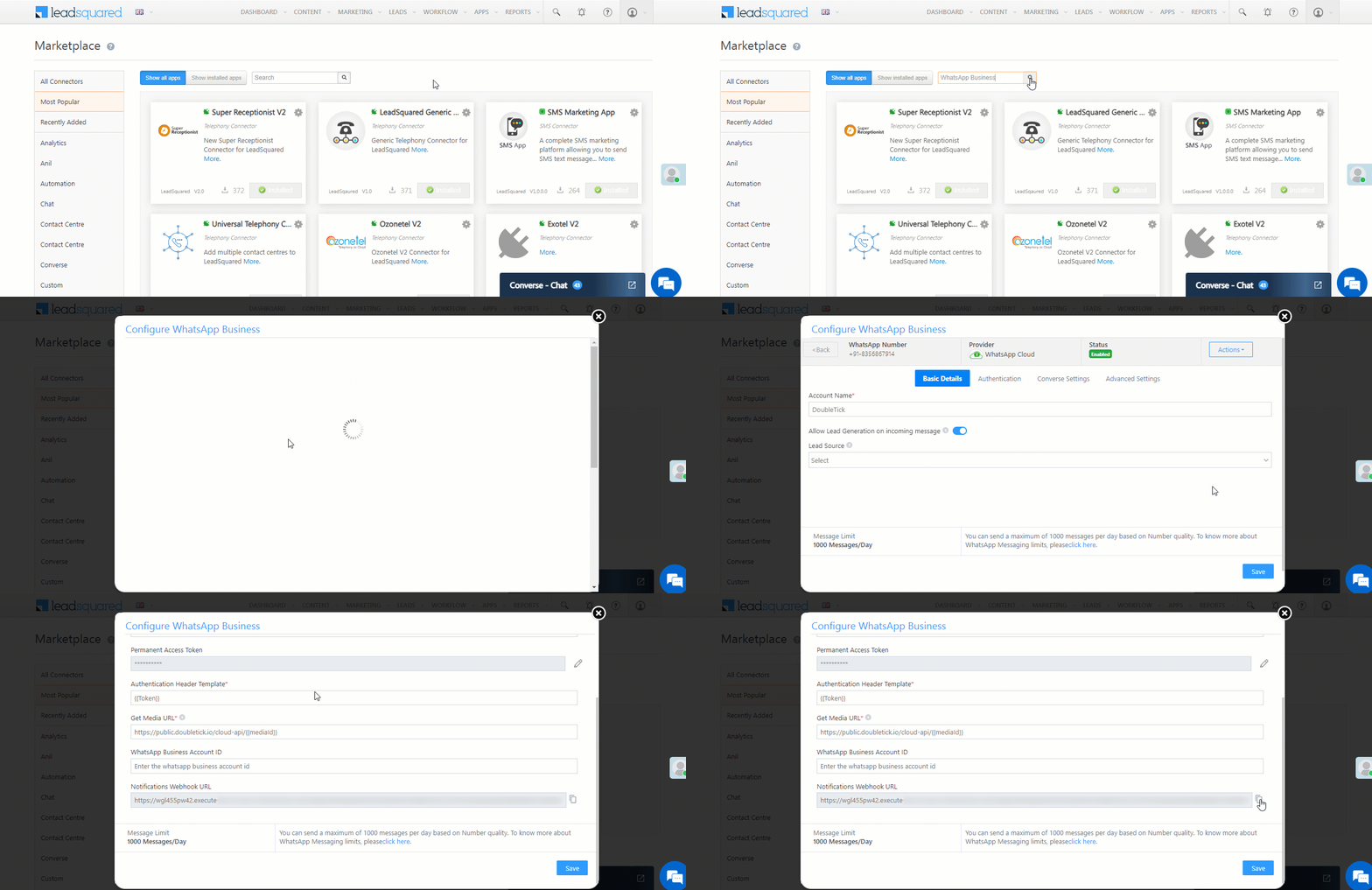
  1. Once the configuration is completed and saved in your LeadSquared account, a webhook is generated.
  2. To access the webhook, navigate to Apps>Apps Marketplace, search for the WhatsApp Business Connector, and click Configure.
  3. On the Configure WhatsApp Business pop-up, select the DoubleTick integration.
  4. On the Authentication tab, you’ll find the webhook alongside Notifications Webhook URL. Copy this webhook.

LeadSquared Double Tick integration

In DoubleTick

  1. Login to your DoubleTick account, and navigate to Settings>Webhooks.
  2. On the Webhooks page, click New webhook.
  3. On the New webhook page, paste the webhook you copied from your LeadSquared account, and enable the checkbox alongside Raw Whatsapp Cloud API Webhook.
  4. Once you’re done, click Save Webhook.

You should now receive incoming messages and the delivery status of your outbound messages.

LeadSquared Double Tick integration


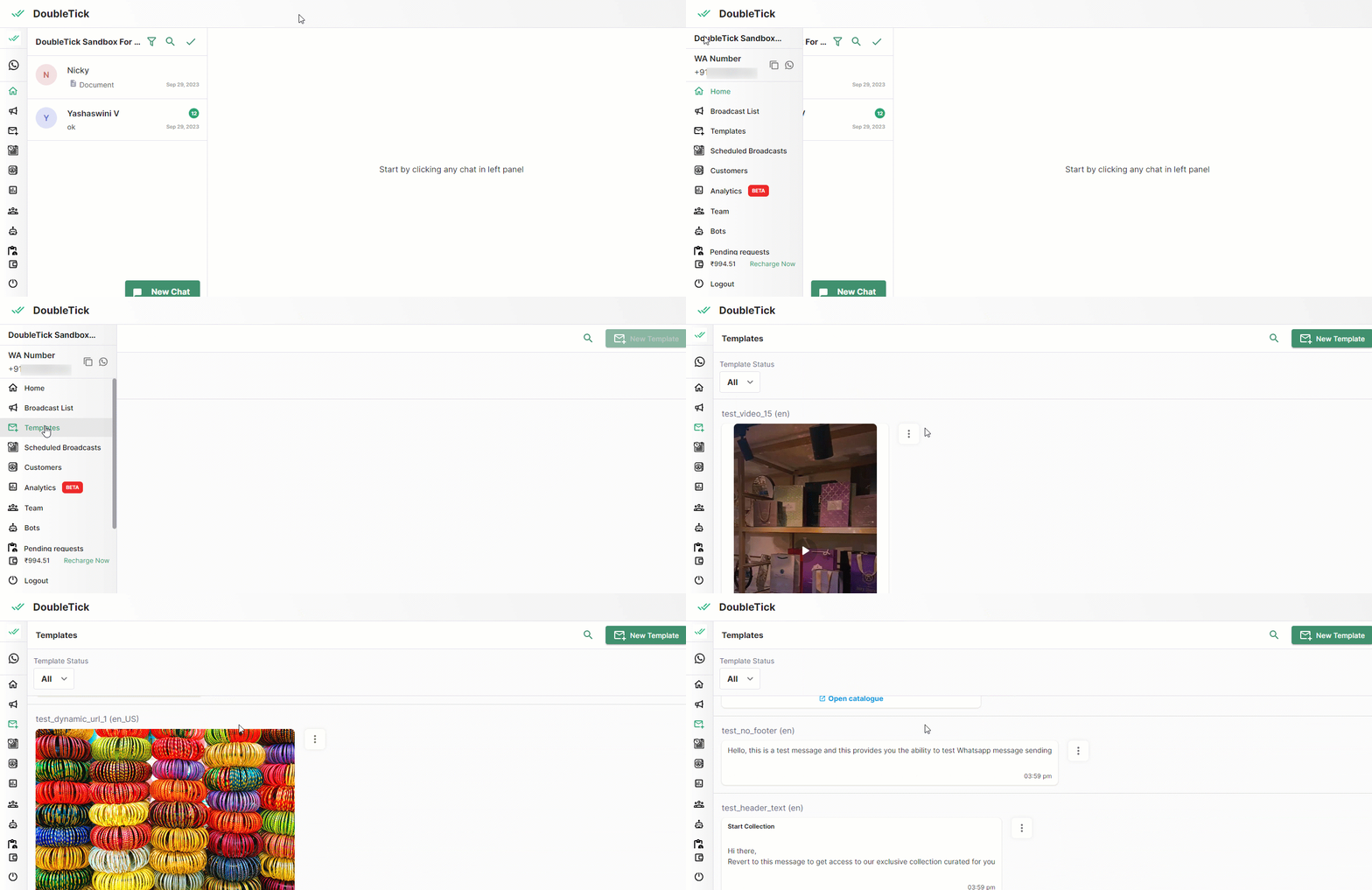
6. Add Templates in LeadSquared

To add existing DoubleTick templates to your LeadSquared account –

  1. Login to your DoubleTick account.
  2. From the left-menu, navigate to Templates.
  3. On the Templates screen, copy the templates you want to add to your LeadSquared account.
  4. Then, to add these templates to LeadSquared, refer to Adding WhatsApp Templates to LeadSquared.

LeadSquared WhatsApp DoubleTick Integration


6. Conversing with Leads via WhatsApp

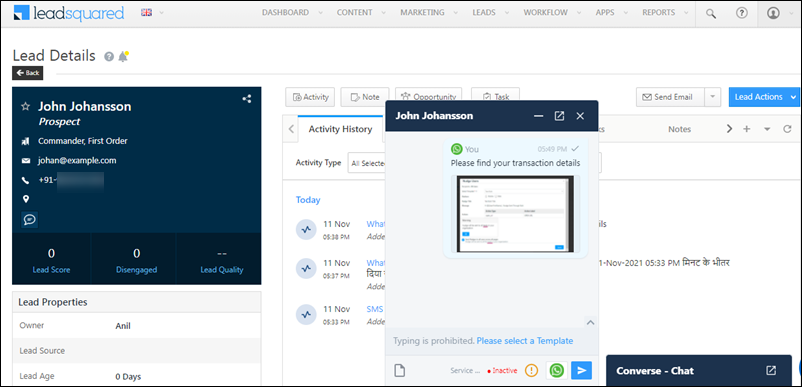
Integrating Converse with LeadSquared’s WhatsApp connector will enable your users to have real-time conversations with your leads through WhatsApp. Using templatized messages, you’ll be able to attach and send media files (such as images, documents, etc.) in your conversations. To know more, refer to LeadSquared Converse.

LeadSquared WhatsApp Integration


7. Next Steps

Once the connector is successfully installed, you can proceed to add WhatsApp templates and finally message your leads. For details, see Adding WhatsApp Templates to LeadSquared.


Any Questions?

Did you find this article helpful? Please let us know any feedback you may have in the comments section below. We’d love to hear from you and help you out!

Juspay Payment Status Connector

1. Feature Overview

Once a Juspay payment link is generated using the Juspay Payment Link Generation connector, you can track the status of these payment links using the Juspay Payment Status Connector.

Note:

  • This connector only generates payment links, which can be used by existing leads in your LeadSquared account.
  • This connector DOES NOT capture and create new leads in your LeadSquared account.
  • It DOES NOT generate payment links. It only captures the payment status.

Juspay Payment LeadSquared connector


2. Prerequisites

  • You must be the Administrator of your LeadSquared account.
  • You must have an active Juspay account.
  • This is a paid feature. To enable it, reach out to your account manager, or write to support@leadsquared.com.


3. How it Works

  1. Install and configure the Juspay Payment Status connector
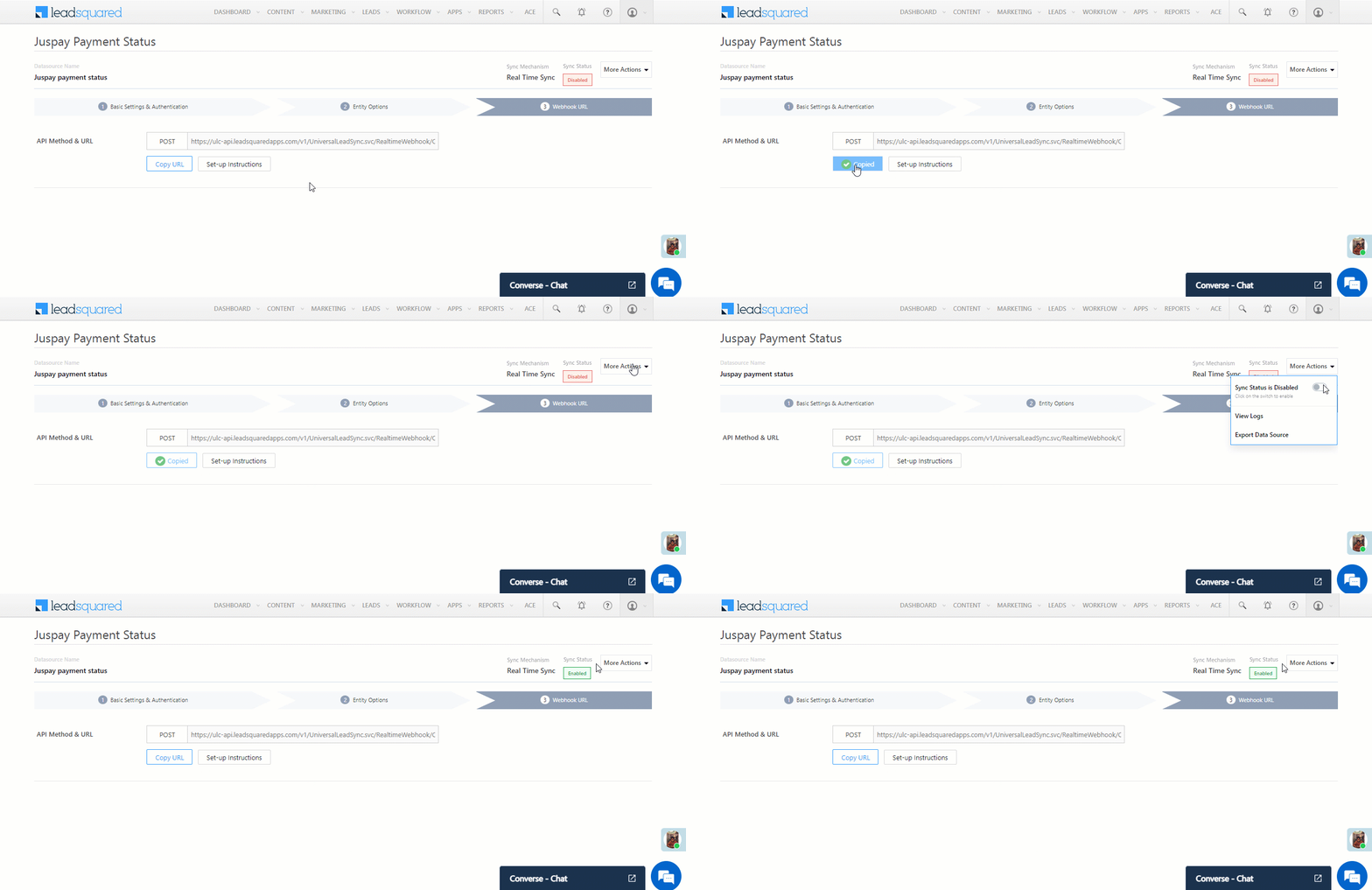
    As part of the connector configuration, two custom activities are automatically created – Check Juspay payment status (uses the Order ID to check the payment status) and Juspay payment status (this fetches the order and payment information from your Juspay account). When the connector is enabled, a webhook URL is generated. Copy this URL.
  2. Create an automation
    Use the New Activity on Lead Trigger, and select the Check Juspay payment status activity as the automation event trigger. Add a Webhook action to this automation, paste the connector’s webhook URL to this automation action, and publish the automation. This automation is used to generate the Juspay payment link.
  3. Post the activity
    Once the automation is published, post the Check Juspay payment status activity on the lead.

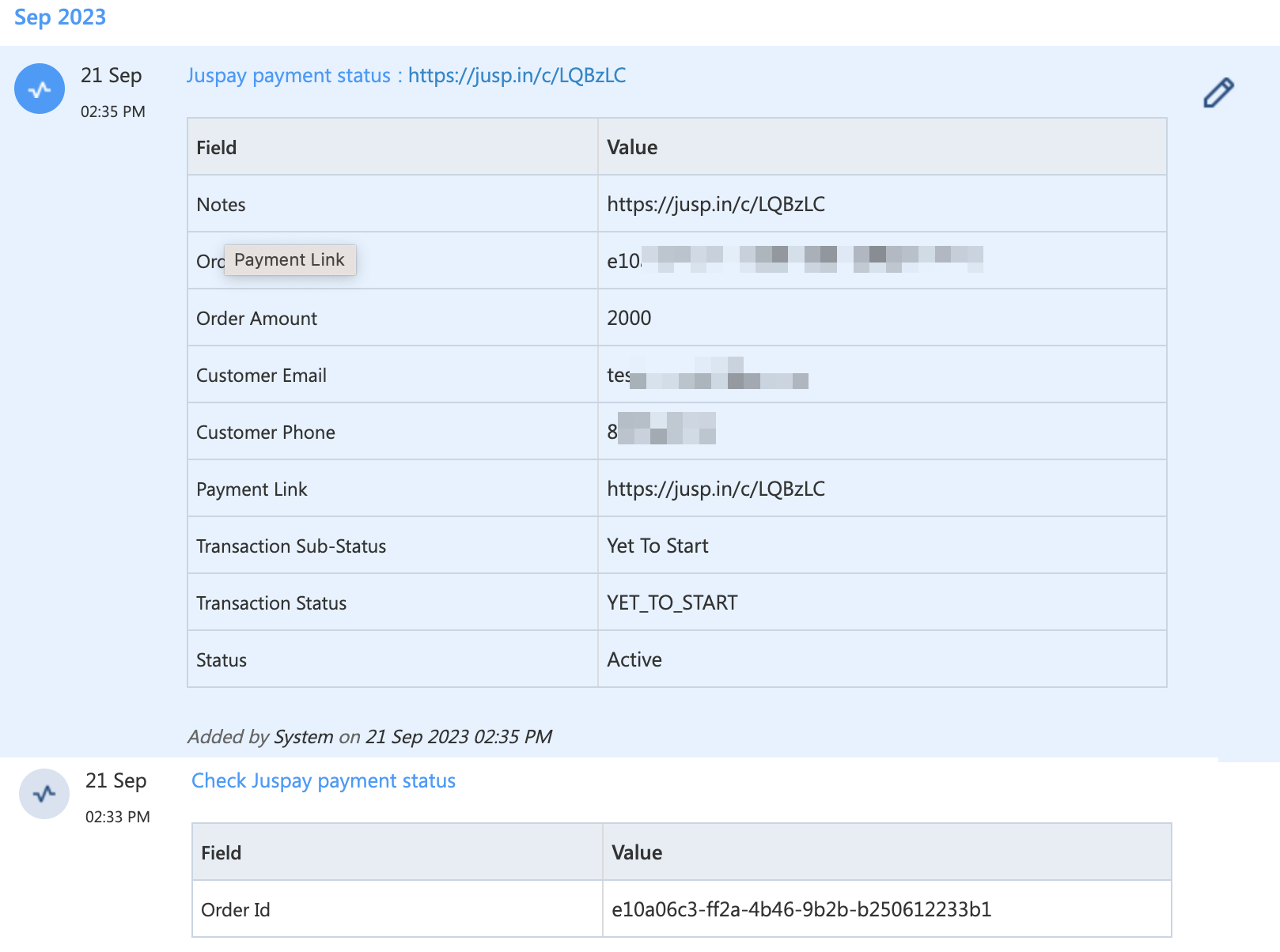
Once the Check Juspay payment status activity is posted, based on the automation you’ve set up, the Juspay Payment Status activity is automatically posted on the lead. This activity contains the order and payment details.


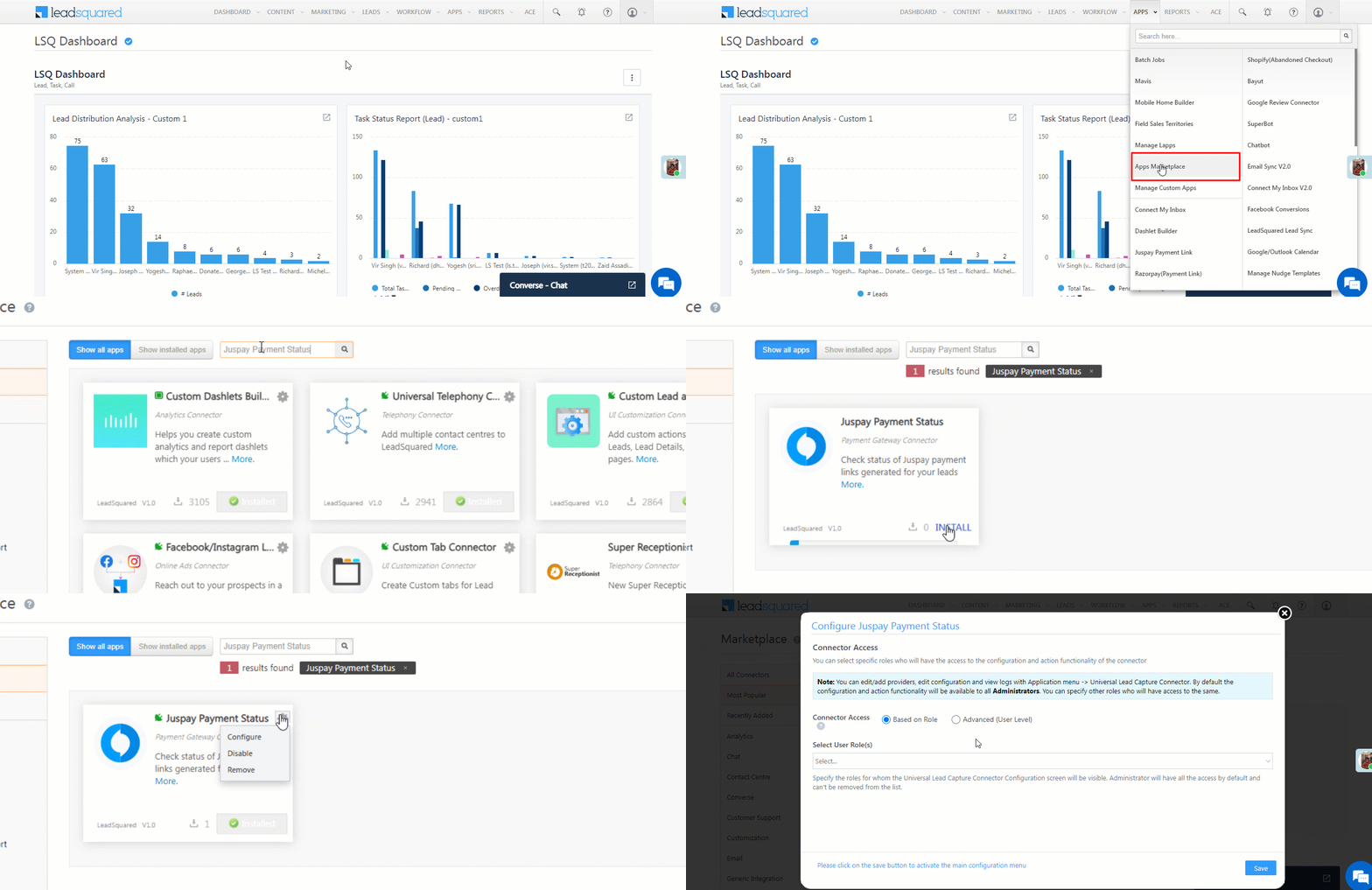
4. Install the Connector

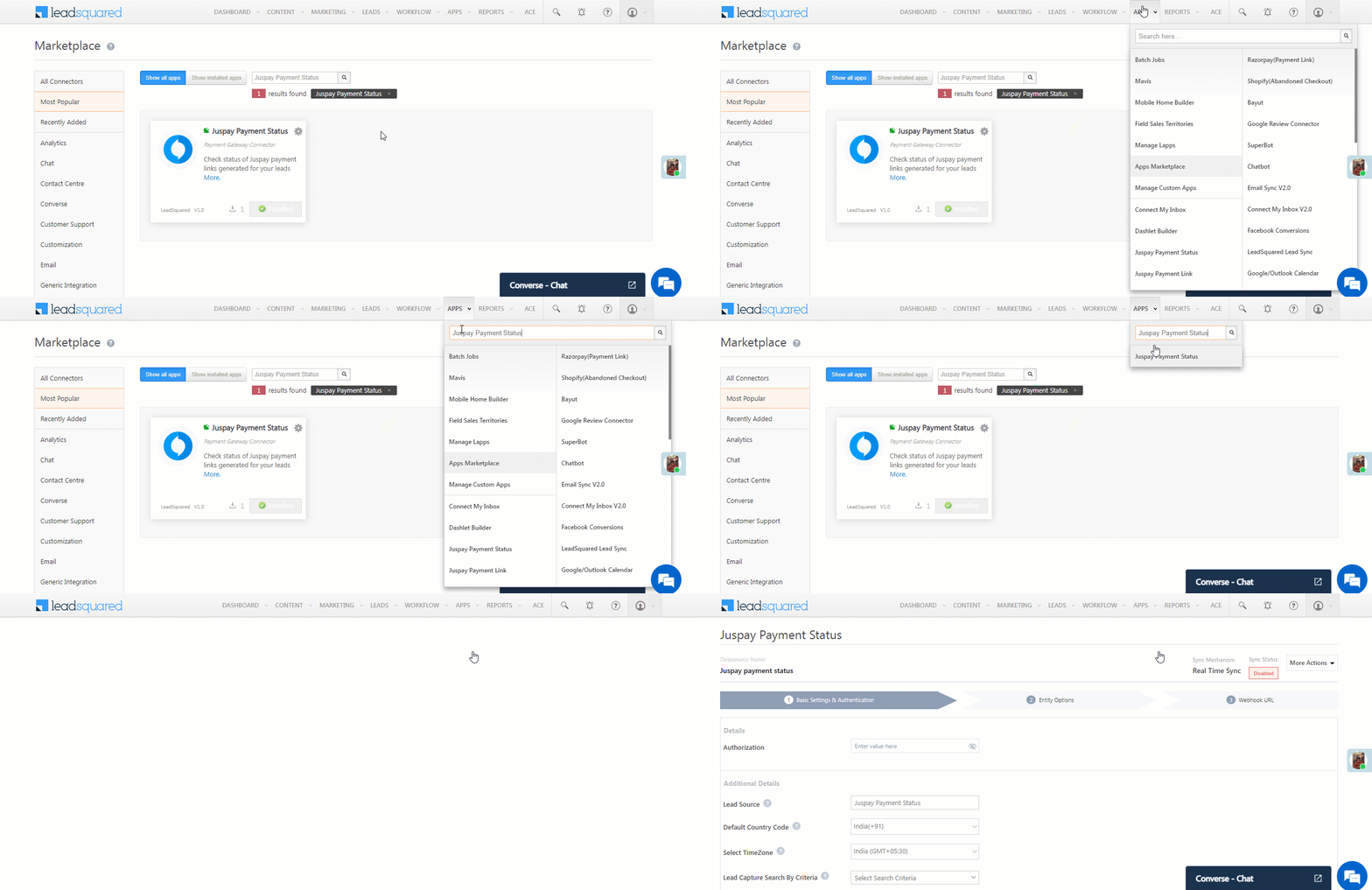
  1. Navigate to Apps>Apps Marketplace.
  2. Search for Juspay Payment Status, and click Install.
    • Alternatively, you can find the connector on the left panel, under Payment Gateway.
  3. Once installed, hover your cursor over , and click Configure.


5. Configure the Connector

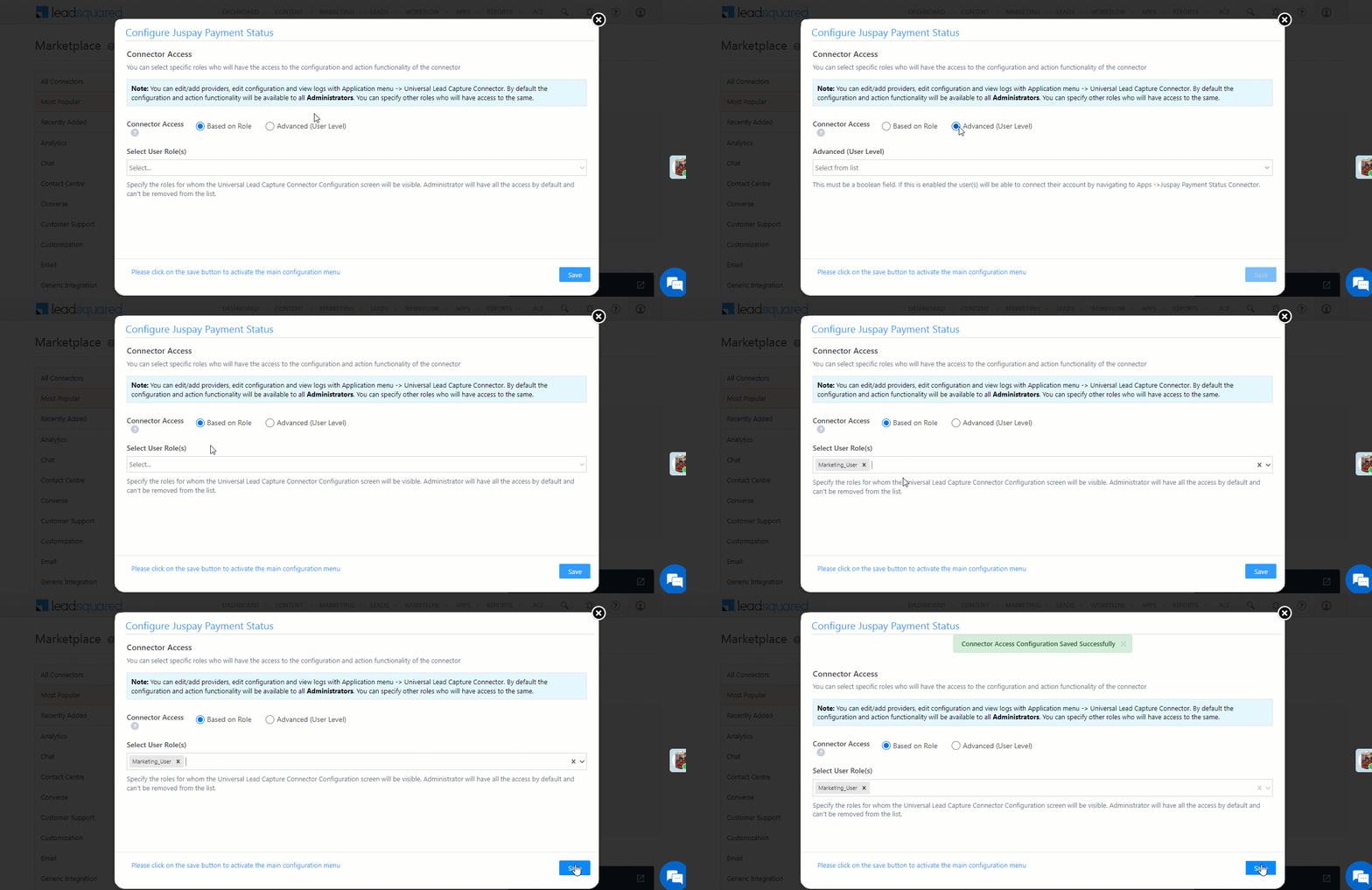
Once you’ve installed the connector, on the Configure Juspay Payment Status pop-up, configure the connector access for the non-Admin users in your account. Only those users for whom access is granted can view and access the connector (under the Apps main menu).

  1. Select if you want to grant Connector Access that’s Based on Role or Advanced (User Level).
    • Based on Role – From the Specify Roles dropdown, select the LeadSquared user roles that can use the connector.
    • Advanced (User Level) – From the Advanced (User Level) dropdown, select a user boolean field. Based on the value entered in the selected boolean field, the user can access the connector (e.g., for the user Sam, if the “Is Employee” boolean user field contains the value “Yes”, then this user can access the connector).
  2. Once you’re done, click Save Details. To continue the configuration, refer to the below sections.
Note: By default, all Admin users will have access to the connector.

Juspay Payment LeadSquared connector


6. Admin Configurations

To continue the connector configuration, navigate to Apps>Juspay Payment Status.

Juspay Payment LeadSquared connector

6.1 Basic Details

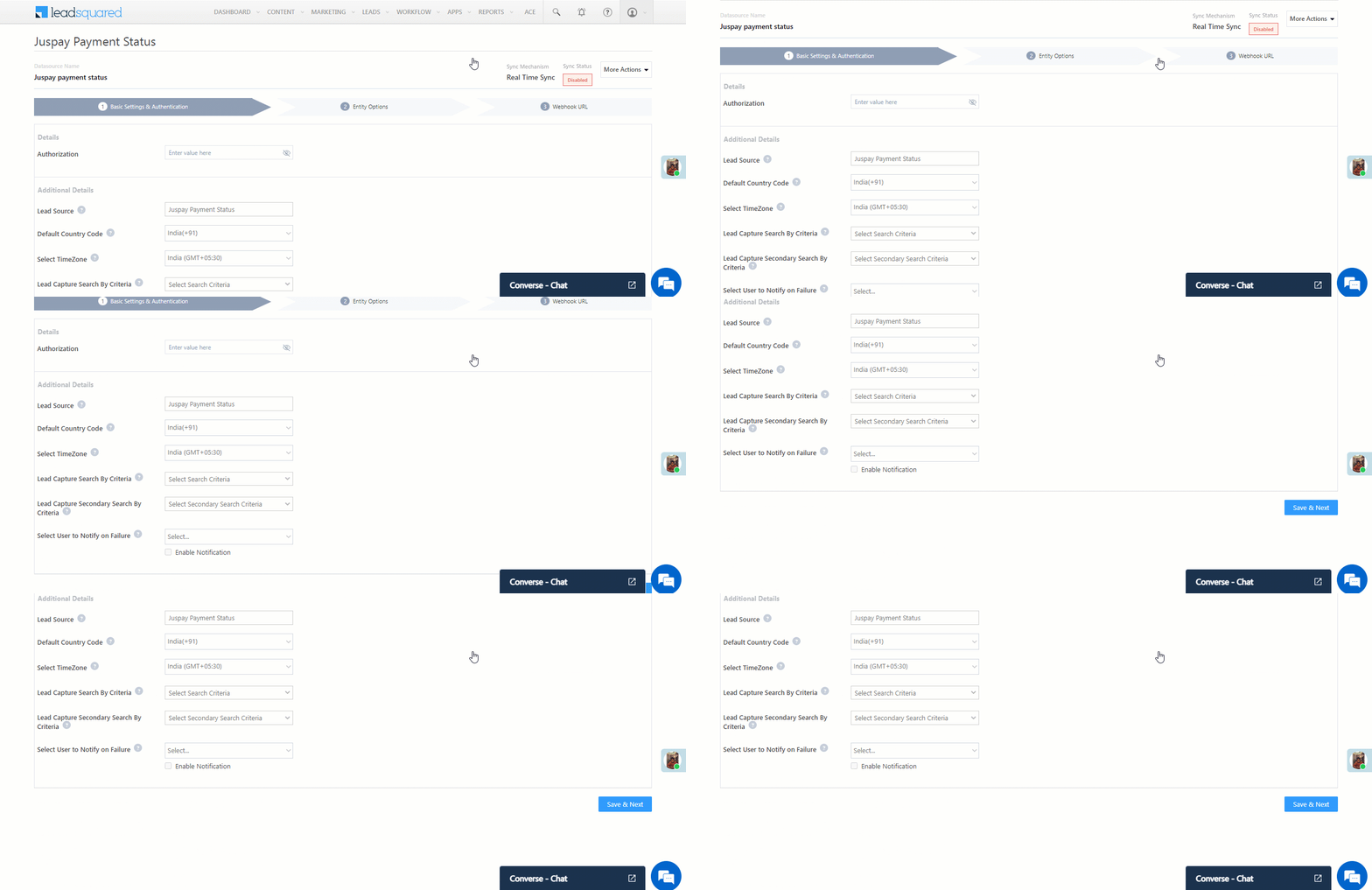
Enter the following details –

Juspay Payment LeadSquared connector

Property Description
Authorization
Your Juspay-merchant unique key. To obtain this, please contact your Juspay account manager.
Lead Source Enter the lead source through which the leads were captured (e.g., Juspay, email campaign, etc.). This detail will be displayed on the Lead Details page, under Lead Source.
Default Country Code If the lead’s mobile number is captured without a country code, then the default country code that’s selected from the dropdown will be added to the lead’s mobile number.
Select Time Zone The time zone of your Juspay account.
Lead Capture Search By Criteria To avoid creating duplicate leads, you must select one unique lead field (e.g., email Id, mobile number, PAN number, etc.) as the search key.

To know how to mark a LeadSquared lead field as unique, please refer to How to Make a Custom Field Unique.

Lead Capture Secondary Search By Criteria If lead identification and capture through the primary Search By Criteria fails, it will be re-attempted using the secondary Search By Criteria.
Select User to Notify on Failure If there is an error in fetching leads, the selected user will receive a failure message via email. You can select a user from the list of all the users available in your LeadSquared account.

To know more about the type of errors, please refer to Error Notifications.

Enable Notification To ensure notification emails are sent to the selected user when there’s a failed query, enable the Checkbox checkbox.

Once you’re done entering all the details, click Save & Next.


6.2 Mapping

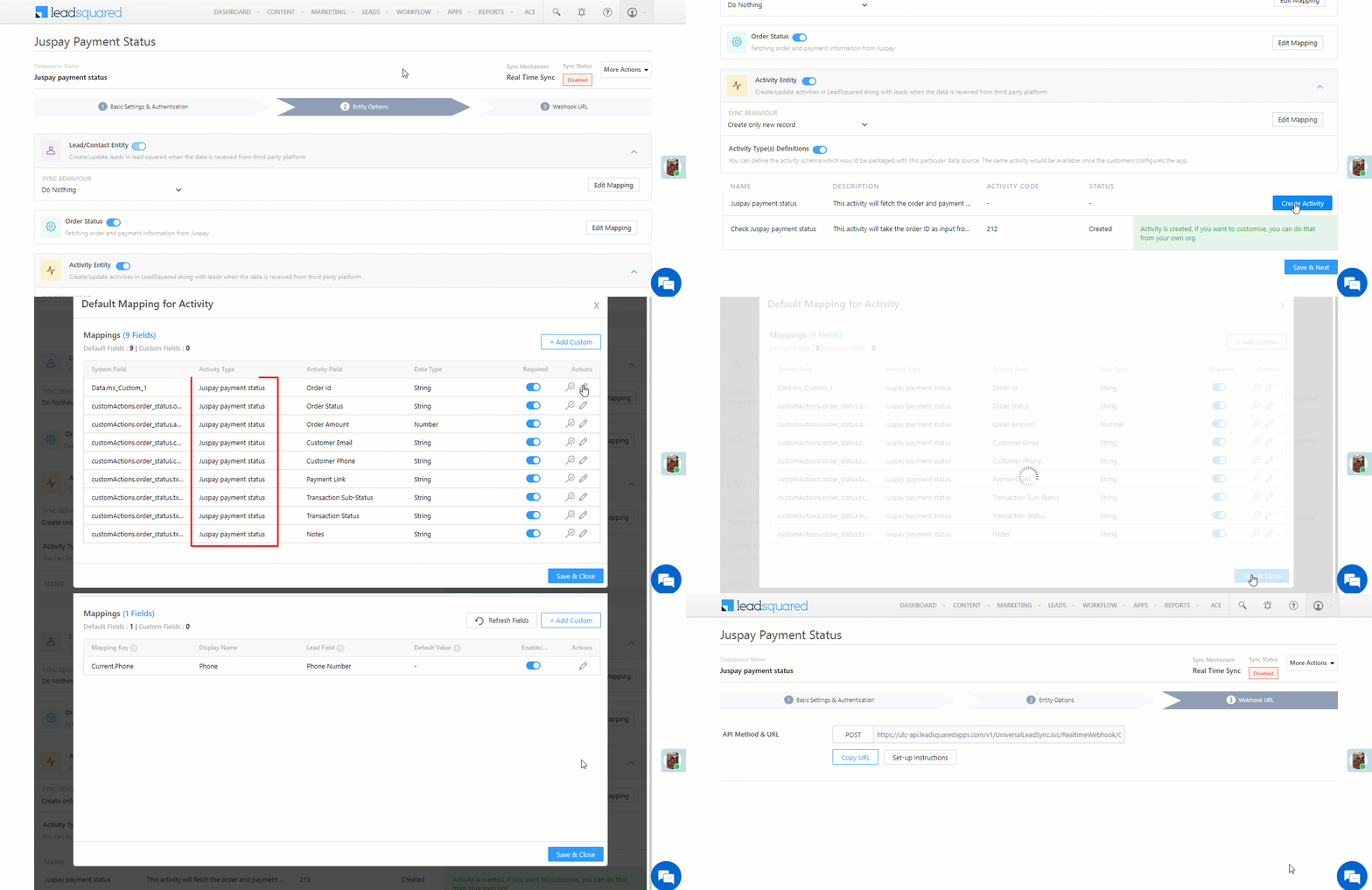
Once you’re done with the basic settings, click Entity Options. By default, all the Juspay fields are mapped to the corresponding LeadSquared lead fields. You’ll have to complete two steps here –

  1. Enable Activity Creation* – Alongside Juspay payment status and Check Juspay payment status, click the Create Activity button.
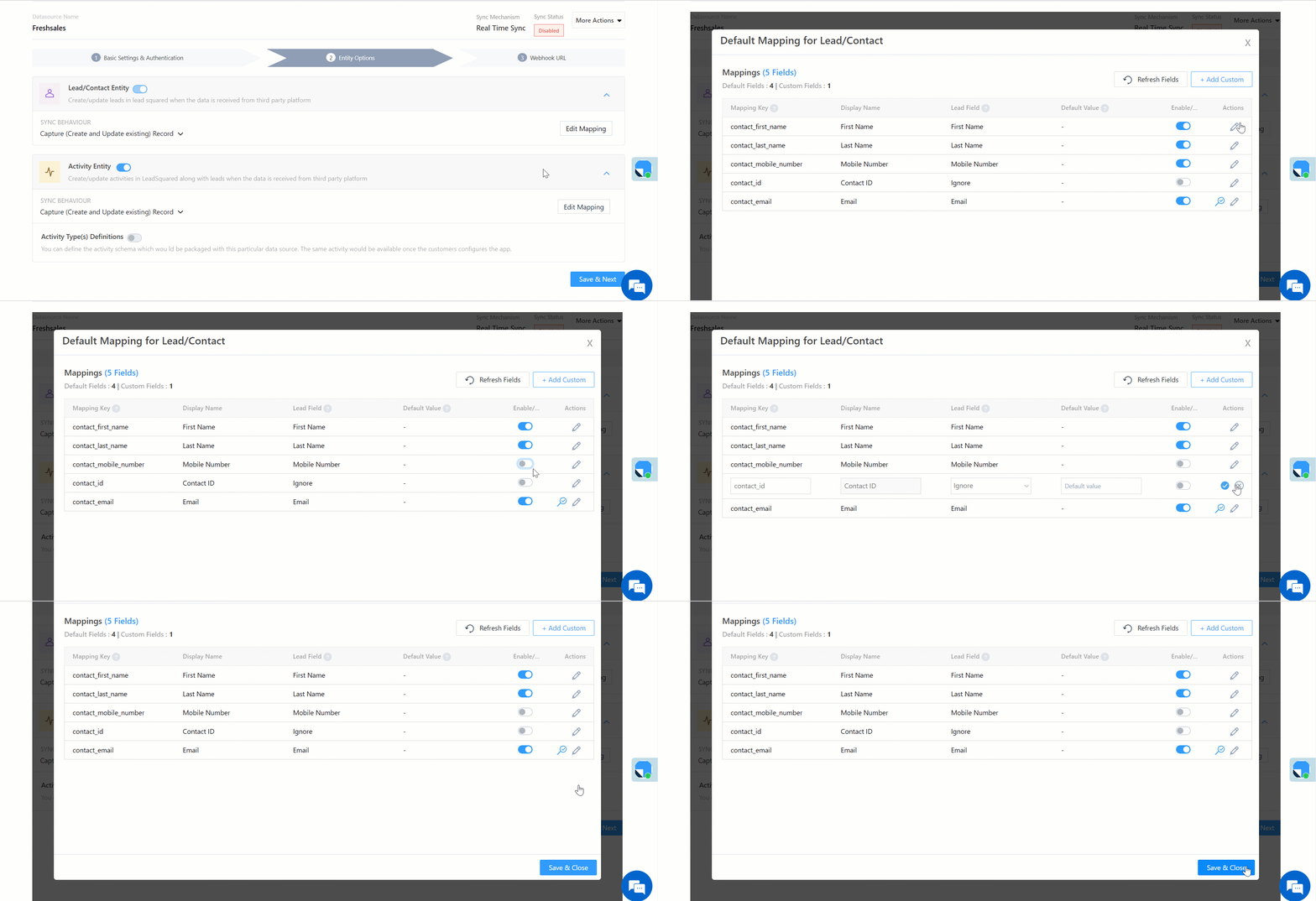
  2. Edit Mapping – Alongside each action (Activity Entity, Payment Link Creation, and Lead/Contact Entity) click the Edit Mapping button to verify if the field mapping is accurate. Once verified, click Save & Close. This step is mandatory.
    If required, on the Edit Mapping pop-up, you can edit the field mapping –
  • To edit the Juspay mapping field name, click  , and under Mapping Key, edit the field name.
  • To change the LeadSquared lead field to which the Juspay field is mapped, click  , and from the Lead Field dropdown, select the new lead field.
  • To mark a unique lead field as the search key, click unique icon.
  • To disable an existing field mapping, alongside the field, disable the slider Zoom.
  • To map an additional field, click the Add Custom button, and add the new mapping field details.
  • To edit the Payment Link Creation API details, click  , and make the required changes.
  • If you want to capture any additional API response as part of the activity that’s posted on the lead, alongside Activity Entity, click Edit Mapping, and add the response on the Default Mapping for Activity pop-up.

Once you’re done, click Save & Next.

Note:

  • *Ensure you complete the Enable Activity Creation steps first, and only then complete the Edit Mapping steps.
  • On the Default Mapping for Activity screen, ensure the default activity is set to Juspay Payment Status.
  • You must mandatorily verify the mapping for Lead/Contact Entity, Payment Link Creation and Activity Entity, and click Save & Close for each action type (including alongside Lead/Contact Entity), in order to complete the Mapping.
  • Since this connector is capturing the payment details as an activity, the Sync Behaviour is by default set to Do Nothing. It is recommended you don’t change this to any other setting.

Juspay Payment LeadSquared connector


6.3 Webhook URL

After you provide basic details and finish field mapping, a custom webhook URL is generated. Copy this webhook URL, and use it to create an automation that will generate the payment links.

Juspay Payment LeadSquared connector


7. Create an Automation

Use the Webhook URL from the previous step to create an automation that generates the Juspay payment links.

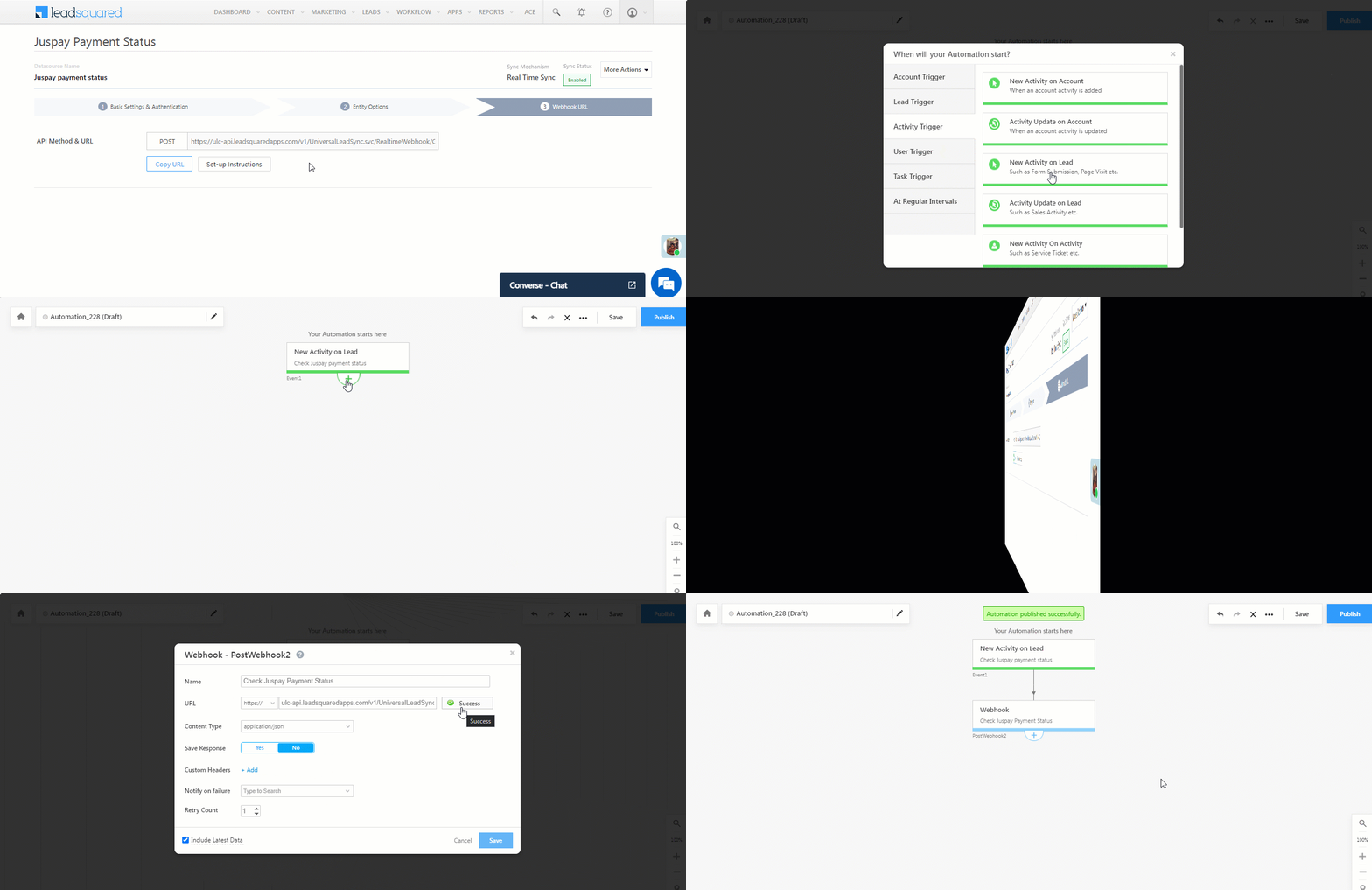
  1. Navigate to Workflow>Automation, and click Create Automation, and select any Activity trigger. We’ve selected the New Activity on Lead trigger.
  2. On the Automation starts when an activity is added pop-up –
    • From the Select an activity dropdown, select the Check Juspay Payment Status activity.
    • Disable the checkbox alongside Run only once per lead. This is to ensure that if required, multiple payment links can be generated for the same lead.
    • Once you’re done, click Save.
  3. Click Add Automation, and under Custom, click Webhook.
  4. On the Webhook pop-up, enter the following details –
    • Name – Enter a relevant name for the webhook. We’re calling it “Check Juspay Payment Status”.
    • URL – Select the method as https://, and paste the connector’s webhook URL that was generated in the previous step. Before you paste the URL, ensure you remove “https://” from the URL.
    • Content Type – Select application/json.
    • Save Response – You can select either Yes or No.
    • Custom Headers – You can skip this step.
    • Notify on Failure – Select which user you want to notify if the webhook fails.
    • Retry Count – The number of times you want to retry when the webhook fails.
  5. Once you’re done, click Save, and then click Publish.
Note: To know more about the Webhook action, refer to User Automation Actions – Webhook.

Juspay Payment LeadSquared connector


8. Post an Activity

Once the webhook is configured in an automation, you can start posting the Check Juspay Payment Status activity on leads, which will in turn automatically post the Juspay Payment Link activity.

Note: This section is to help Sales Users check the payment status.
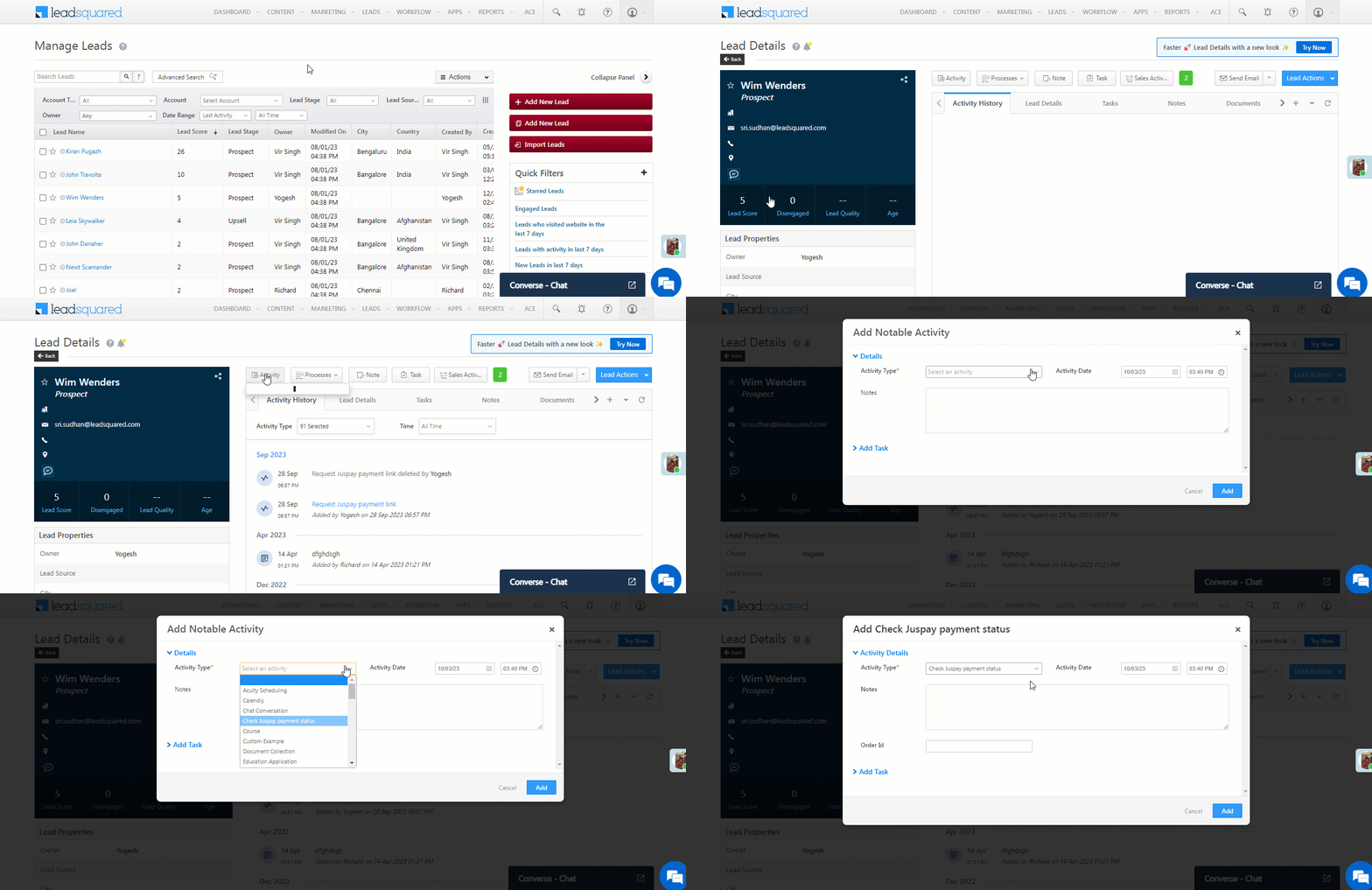
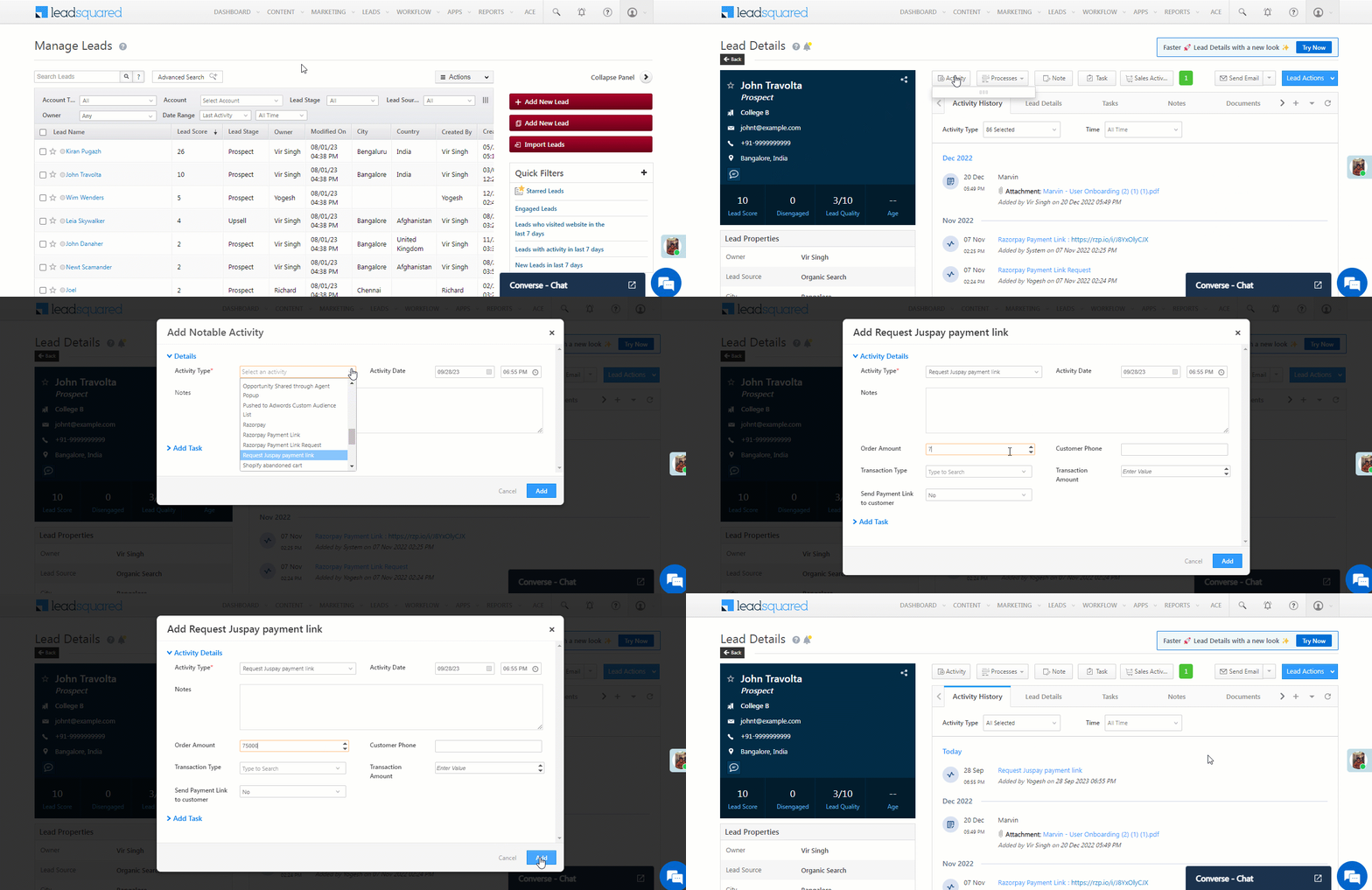
  1. Navigate to Leads>Manage Leads, and click on any lead.
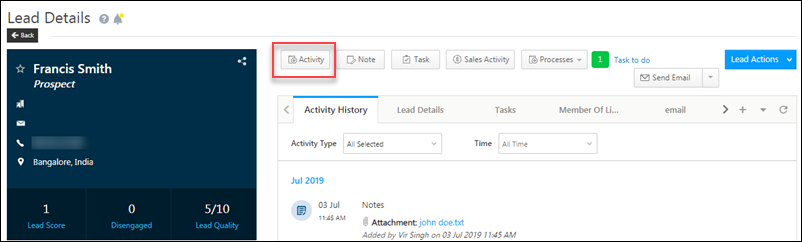
  2. On the Lead Details page, click the Activity button. On the Add Notable Activity pop-up, enter the Order ID.
  3. Once you’re done, click Add. The Check Juspay Payment Status is posted on the lead.
  4. You’ll see the Check Juspay Payment Status activity has been posted on the lead (by the automation you set up). If you don’t see this, please refresh your page. This activity contains the payment status of the selected Order ID.

Juspay Payment LeadSquared connector


9. View Logs

Here, you can view logs of all the sync jobs that have taken place.

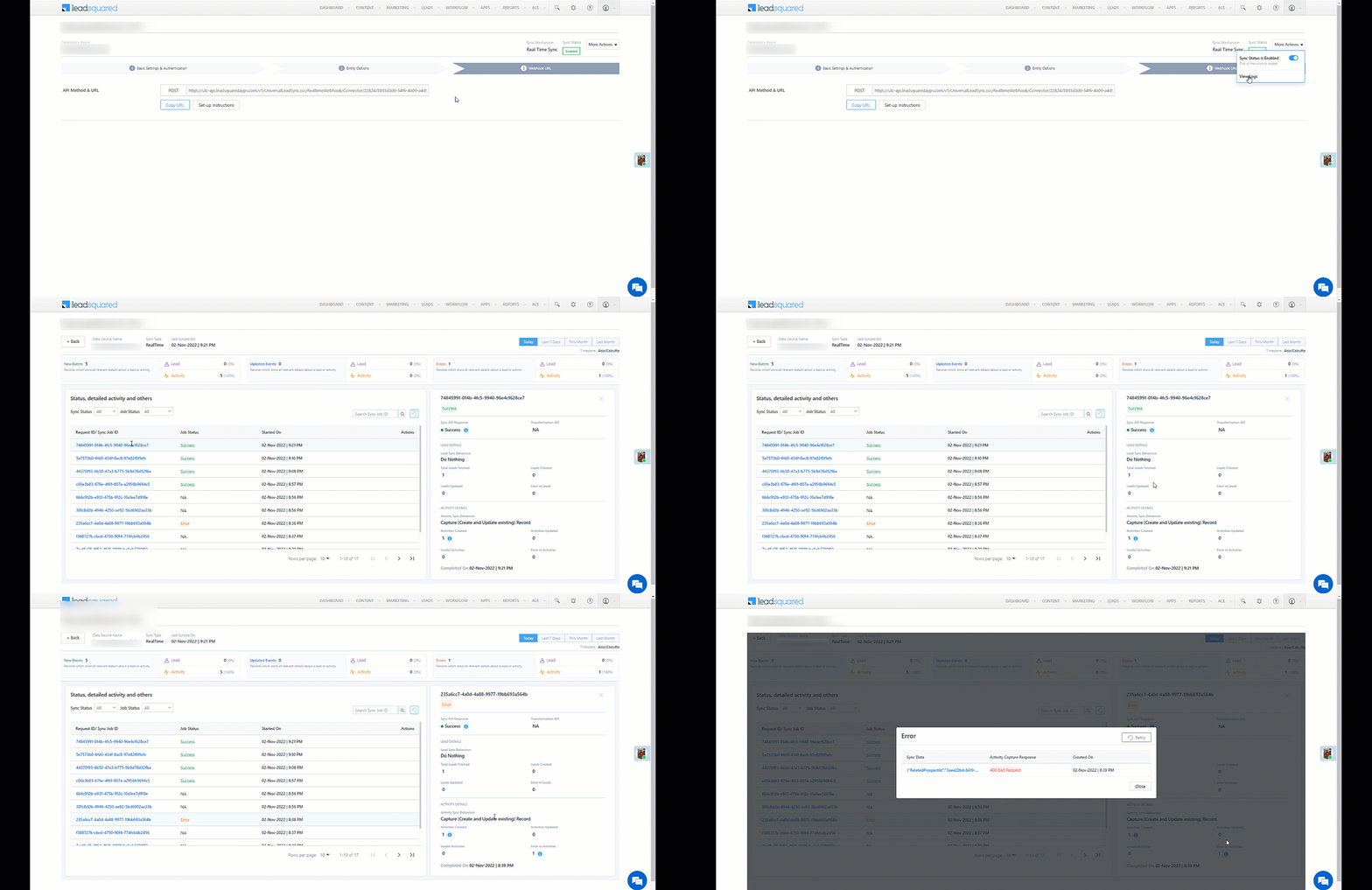
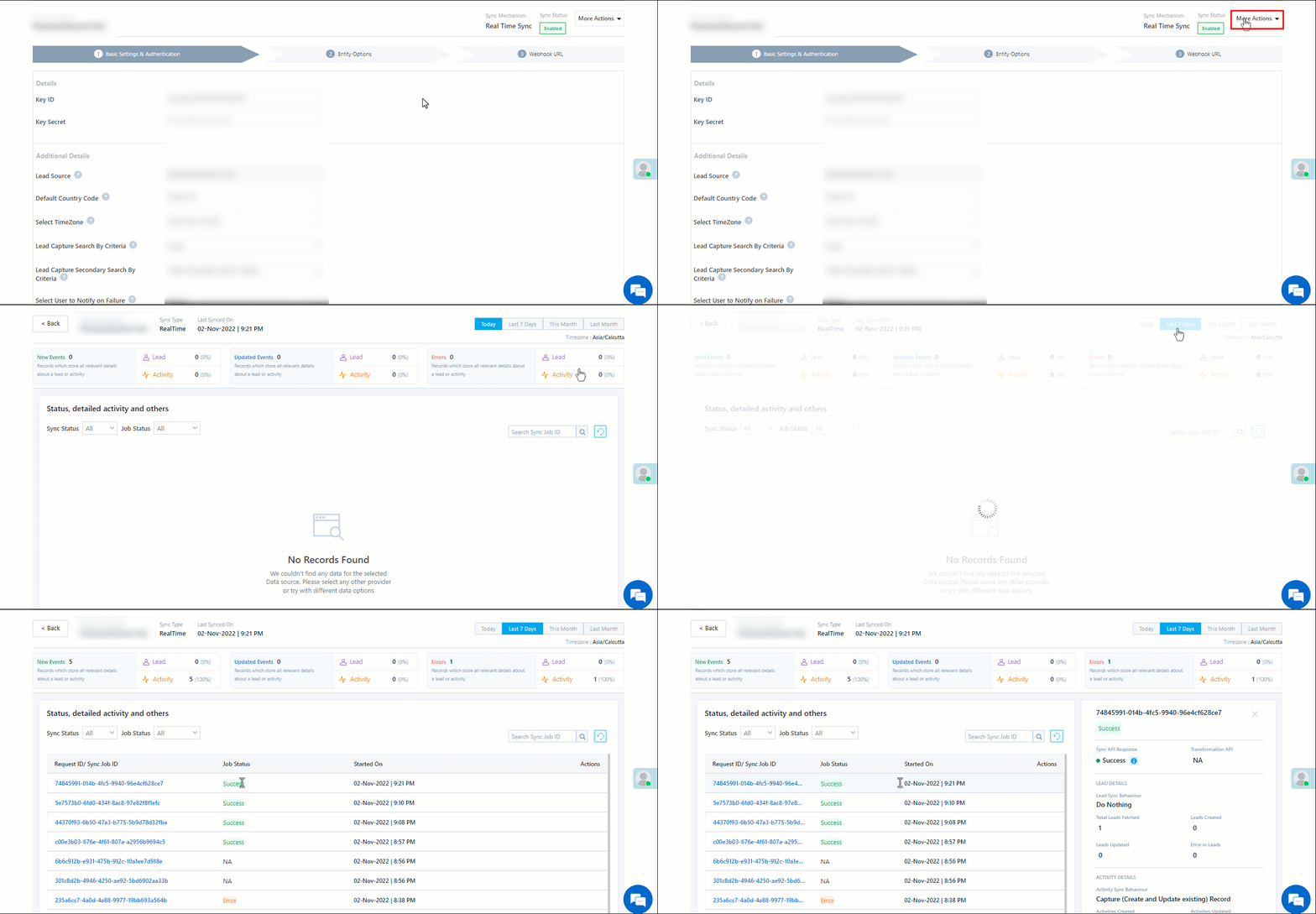
  1. Navigate to Apps>Check Juspay payment status, and click More Options, and then click View Logs.
  2. You can filter the logs by selecting a date range (Today, Last 7 Days, This Month, and Last Month), by selecting the Job Status (“All”, “Success” and “Failure”), and by selecting the Sync Status (All, Error, and Success).
  3. You can view the sync status of the following events –
    • New Events – List of all the new payment activities posted in your account.
    • Errors – The list of unsuccessful payment activities that have not been captured due to mapping errors (e.g., when a boolean field is mapped to an integer field, etc.).
  4. To view the Sync Response details, under Request ID/Sync Job ID, click the Id.
    • Under the right panel, you can view the response status, the API URL, the request, and the response.
    • The responses that are successful will contain the details of the leads that have been pushed by Juspay.
    • To view the lead capture response under Sync API Response, Leads Updated and Errors in Leads, click Information.

Note:

  • For a response that contains an error, the reason for the error is listed in the response. Once you fix it, you can click the Retry button to perform the sync again.
  • The current Lead/Activity Sync Behaviour will reflect in the Logs screen. This will help identify the sync that’s used (Capture or Update) for the selected Request/Sync Job Id.

Juspay Payment LeadSquared connector


Any Questions?

Did you find this article helpful? Please let us know any feedback you may have in the comments section below. We’d love to hear from you and help you out!

Juspay Payment Link Generation in LeadSquared

1. Feature Overview

This connector generates Juspay payment links (that support UPI, DC, CC, Net banking, Wallets, and BNPL payment methods) directly from your LeadSquared account. Your leads can use these links to make payments (e.g., for registrations, purchases, etc.). This connector also enables you to split large payments into multiple, affordable payment amounts, which leads can utilize. This payment is posted as an activity against the lead in LeadSquared.

Note:

  • This connector only generates payment links, which can be used by existing leads in your LeadSquared account. This connector DOES NOT capture and create new leads in your LeadSquared account.
  • Once a payment link is generated, you can check the payment status using the Juspay Payment Status Connector.

Juspay Payment LeadSquared connector


2. Prerequisites

  • You must be the Administrator of your LeadSquared account.
  • You must have an active Juspay account.
  • This is a paid feature. To enable it, reach out to your account manager, or write to support@leadsquared.com.


3. How it Works

  1. Install and configure the Juspay Payment link connector
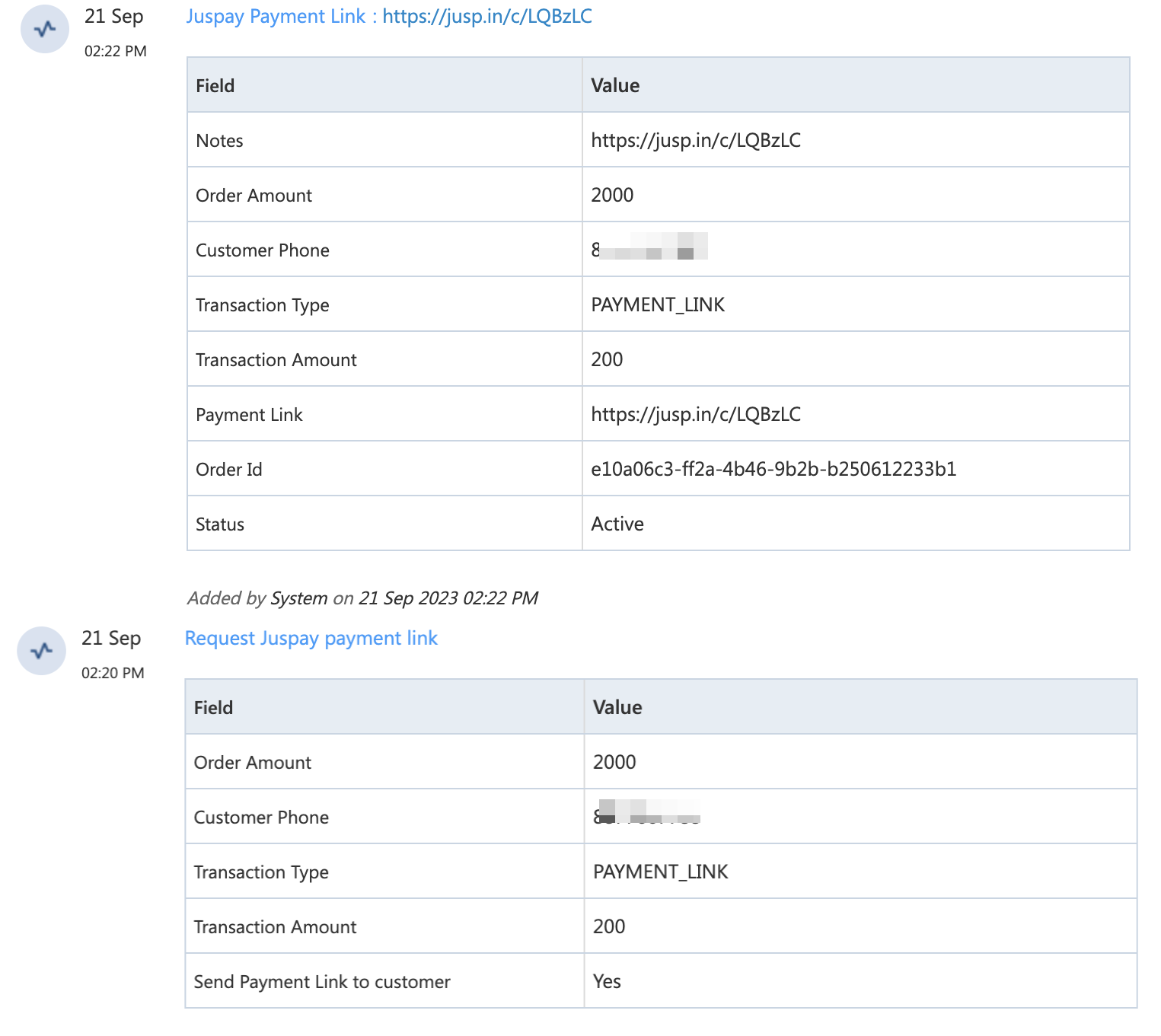
    As part of the connector configuration, two custom activities are automatically created – Request Juspay Payment Link (sends the payment activity details to your Juspay account) and Juspay Payment Link (generates the payment link). When the connector is enabled, a webhook URL is generated. Copy this URL.
  2. Create an automation
    Use the New Activity on Lead Trigger, and select the Request Juspay Payment Link activity as the automation event trigger. Add a Webhook action to this automation, paste the connector’s webhook URL to this automation action, and publish the automation. This automation is used to generate the Juspay payment link.
  3. Post the activity
    Once the automation is published, post the Request Juspay Payment Link activity on the lead. The Request Juspay Payment Link activity is similar to a sales activity, and it can be used when the lead is about to make a payment for the services or products you offer.

Once the Request Juspay Payment Link activity is posted, based on the automation you’ve set up, the Juspay Payment Link activity is automatically posted on the lead. This activity contains the payment link URL which the lead can use to make the payment. Share this link with your lead, which they’ll use to complete the payment for the services or products you offer.

Note: To reduce manual intervention, set up additional automations to share the payment link with the lead. For example, when the Juspay Payment Link activity is posted, send the lead an email or WhatsApp message with the payment link.


4. Install the Connector

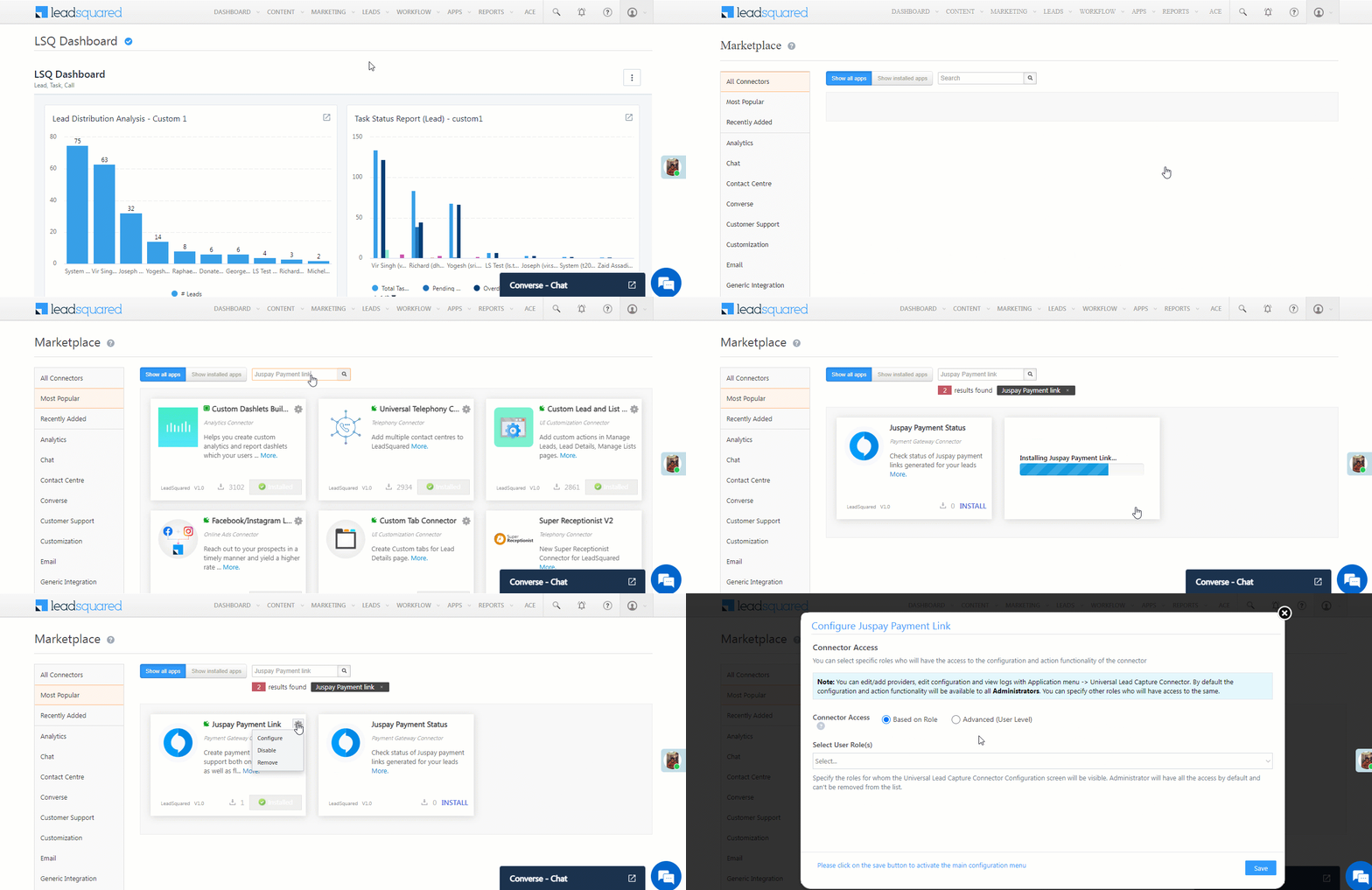
  1. Navigate to Apps>Apps Marketplace.
  2. Search for Juspay Payment Link, and click Install.
    • Alternatively, you can find the connector on the left panel, under Payment Gateway.
  3. Once installed, hover your cursor over , and click Configure.

Juspay Payment LeadSquared connector


5. Configure the Connector

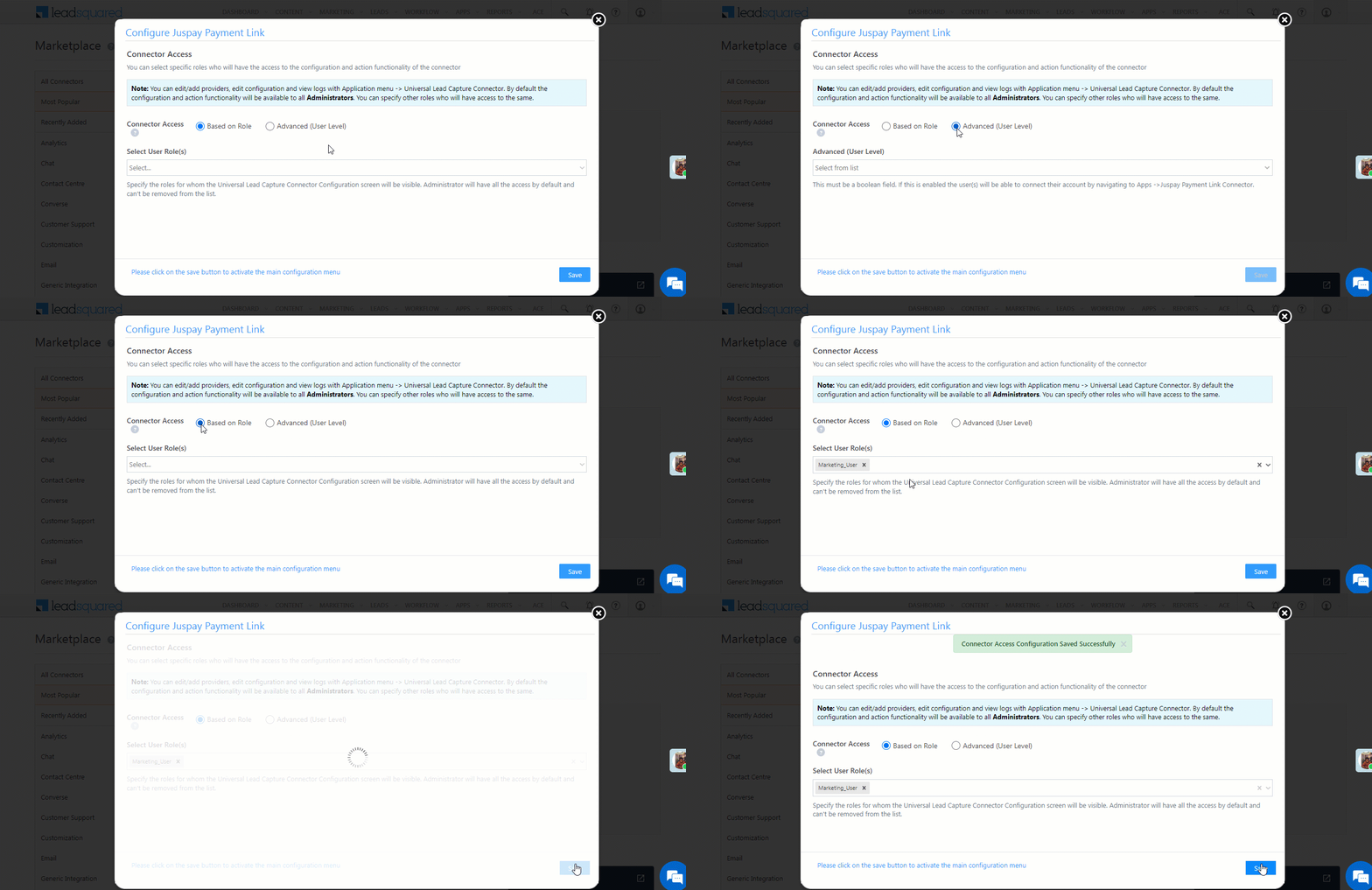
Once you’ve installed the connector, on the Configure Juspay Payment link pop-up, configure the connector access for the non-Admin users in your account. Only those users for whom access is granted can view and access the connector (under the Apps main menu).

  1. Select if you want to grant Connector Access that’s Based on Role or Advanced (User Level).
    • Based on Role – From the Specify Roles dropdown, select the LeadSquared user roles that can use the connector.
    • Advanced (User Level) – From the Advanced (User Level) dropdown, select a user boolean field. Based on the value entered in the selected boolean field, the user can access the connector (e.g., for the user Sam, if the “Is Employee” boolean user field contains the value “Yes”, then this user can access the connector).
  2. Once you’re done, click Save Details. To continue the configuration, refer to the below sections.
Note: By default, all Admin users will have access to the connector.

Juspay Payment LeadSquared connector


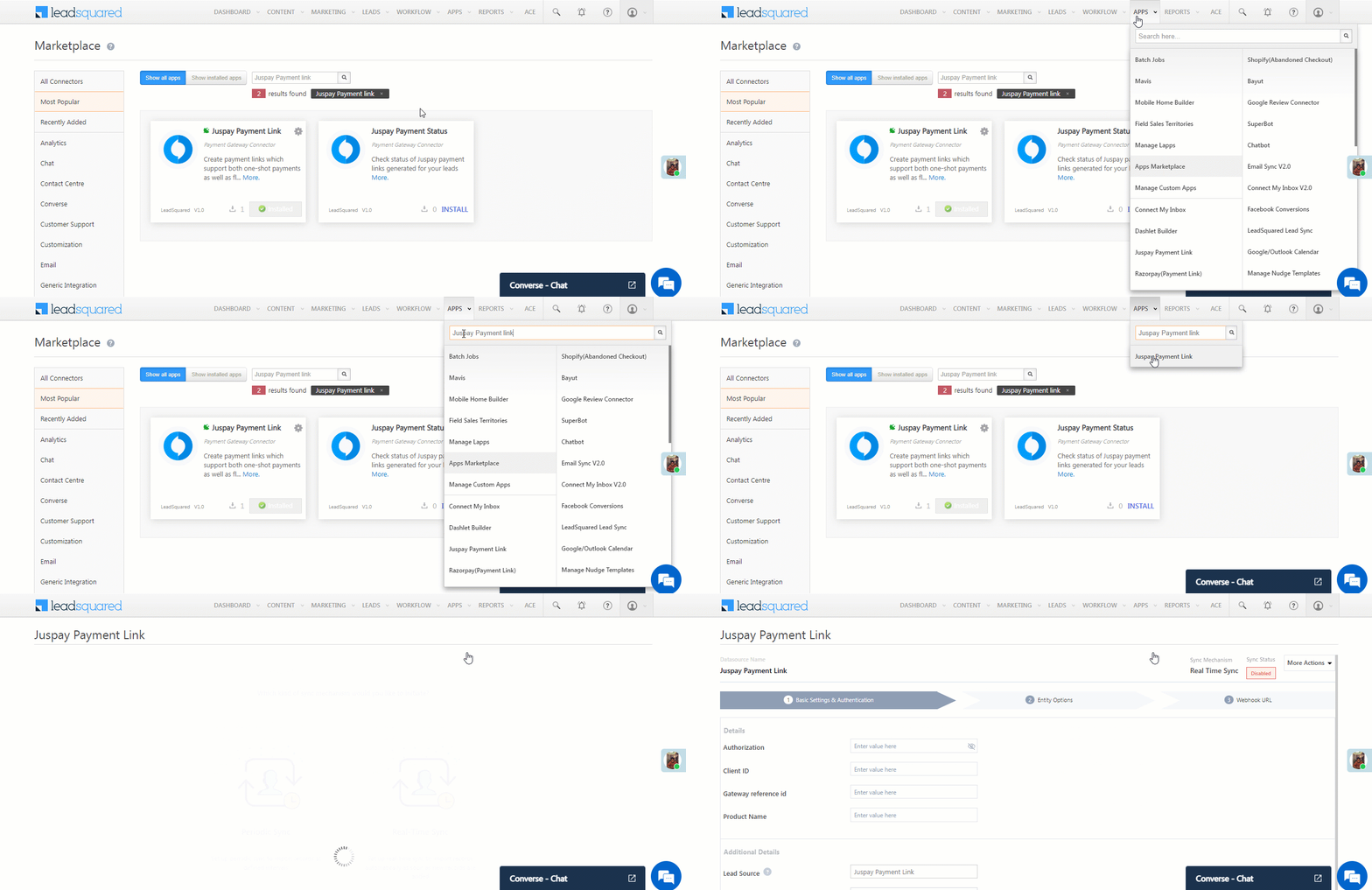
6. Admin Configurations

To continue the connector configuration, navigate to Apps>Juspay Payment link.

Juspay Payment LeadSquared connector

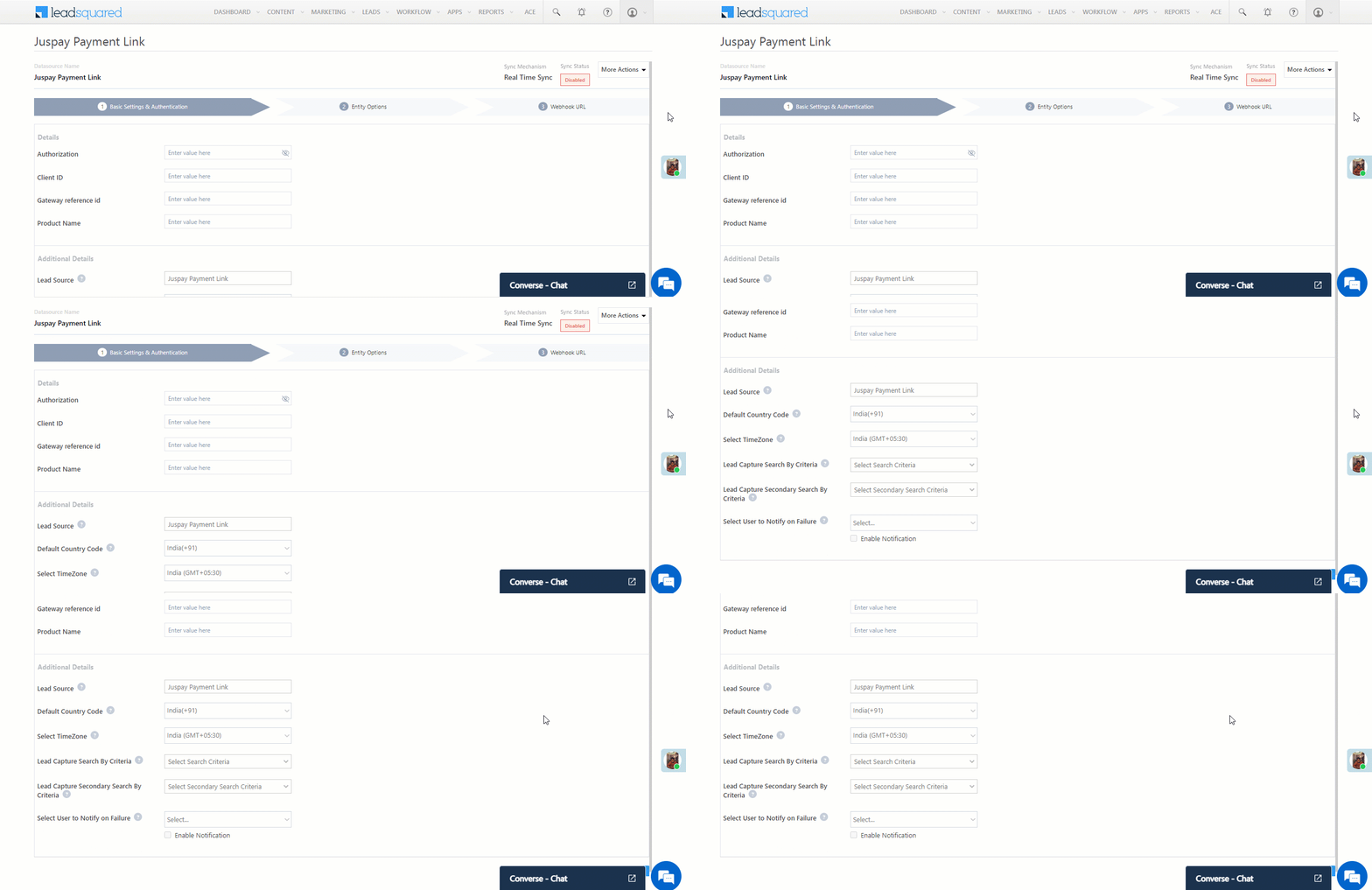
6.1 Basic Details

Enter the following details –

Juspay Payment LeadSquared connector

Property Description
Authorization
Your Juspay-merchant unique key. To obtain this, please contact your Juspay account manager.
Client ID
Your Juspay account’s Client ID. To obtain this, please contact your Juspay account manager.
Gateway reference id
Your Juspay gateway reference ID. To obtain this, please contact your Juspay account manager.
Product Name
The product (e.g., Aligner Kit) for which you’re generating payment links.
Lead Source Enter the lead source through which the leads were captured (e.g., Juspay, email campaign, etc.). This detail will be displayed on the Lead Details page, under Lead Source.
Default Country Code If the lead’s mobile number is captured without a country code, then the default country code that’s selected from the dropdown will be added to the lead’s mobile number.
Select Time Zone The time zone of your Juspay account.
Lead Capture Search By Criteria To avoid creating duplicate leads, you must select one unique lead field (e.g., email Id, mobile number, PAN number, etc.) as the search key.

To know how to mark a LeadSquared lead field as unique, please refer to How to Make a Custom Field Unique.

Lead Capture Secondary Search By Criteria If lead identification and capture through the primary Search By Criteria fails, it will be re-attempted using the secondary Search By Criteria.
Select User to Notify on Failure If there is an error in fetching leads, the selected user will receive a failure message via email. You can select a user from the list of all the users available in your LeadSquared account.

To know more about the type of errors, please refer to Error Notifications.

Enable Notification To ensure notification emails are sent to the selected user when there’s a failed query, enable the Checkbox checkbox.

Once you’re done entering all the details, click Save & Next.

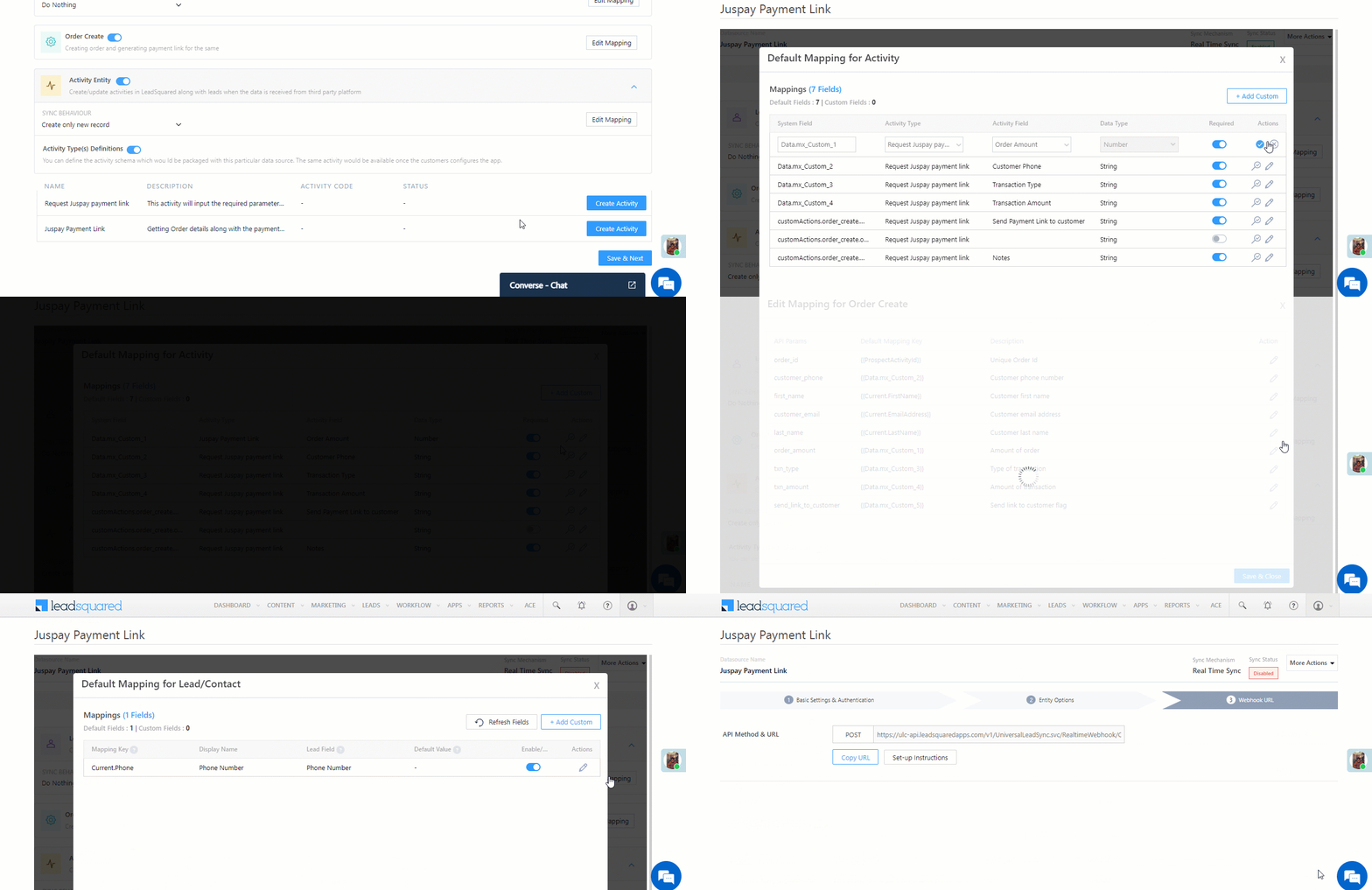
6.2 Mapping

Once you’re done with the basic settings, click Entity Options. By default, all the Juspay fields are mapped to the corresponding LeadSquared lead fields. You’ll have to complete two steps here –

  1. Enable Activity Creation* – Alongside Juspay Payment Link and Request Juspay payment link, click the Create Activity button.
  2. Edit Mapping – Alongside each action (Activity Entity, Payment Link Creation, and Lead/Contact Entity) click the Edit Mapping button to verify if the field mapping is accurate. Once verified, click Save & Close. This step is mandatory.
    If required, on the Edit Mapping pop-up, you can edit the field mapping –
  • To edit the Juspay mapping field name, click  , and under Mapping Key, edit the field name.
  • To change the LeadSquared lead field to which the Juspay field is mapped, click  , and from the Lead Field dropdown, select the new lead field.
  • To mark a unique lead field as the search key, click unique icon.
  • To disable an existing field mapping, alongside the field, disable the slider Zoom.
  • To map an additional field, click the Add Custom button, and add the new mapping field details.
  • To edit the Payment Link Creation API details, click  , and make the required changes.
  • If you want to capture any additional API response as part of the activity that’s posted on the lead, alongside Activity Entity, click Edit Mapping, and add the response on the Default Mapping for Activity pop-up.

Once you’re done, click Save & Next.

Note:

  • *Ensure you complete the Enable Activity Creation steps first, and only then complete the Edit Mapping steps.
  • On the Default Mapping for Activity screen, ensure the default activity is set to Juspay Payment Link.
  • You must mandatorily verify the mapping for Lead/Contact Entity, Payment Link Creation and Activity Entity, and click Save & Close for each action type (including alongside Lead/Contact Entity), in order to complete the Mapping.
  • Since this connector is capturing the payment details as an activity, the Sync Behaviour is by default set to Do Nothing. It is recommended you don’t change this to any other setting.

Juspay Payment LeadSquared connector

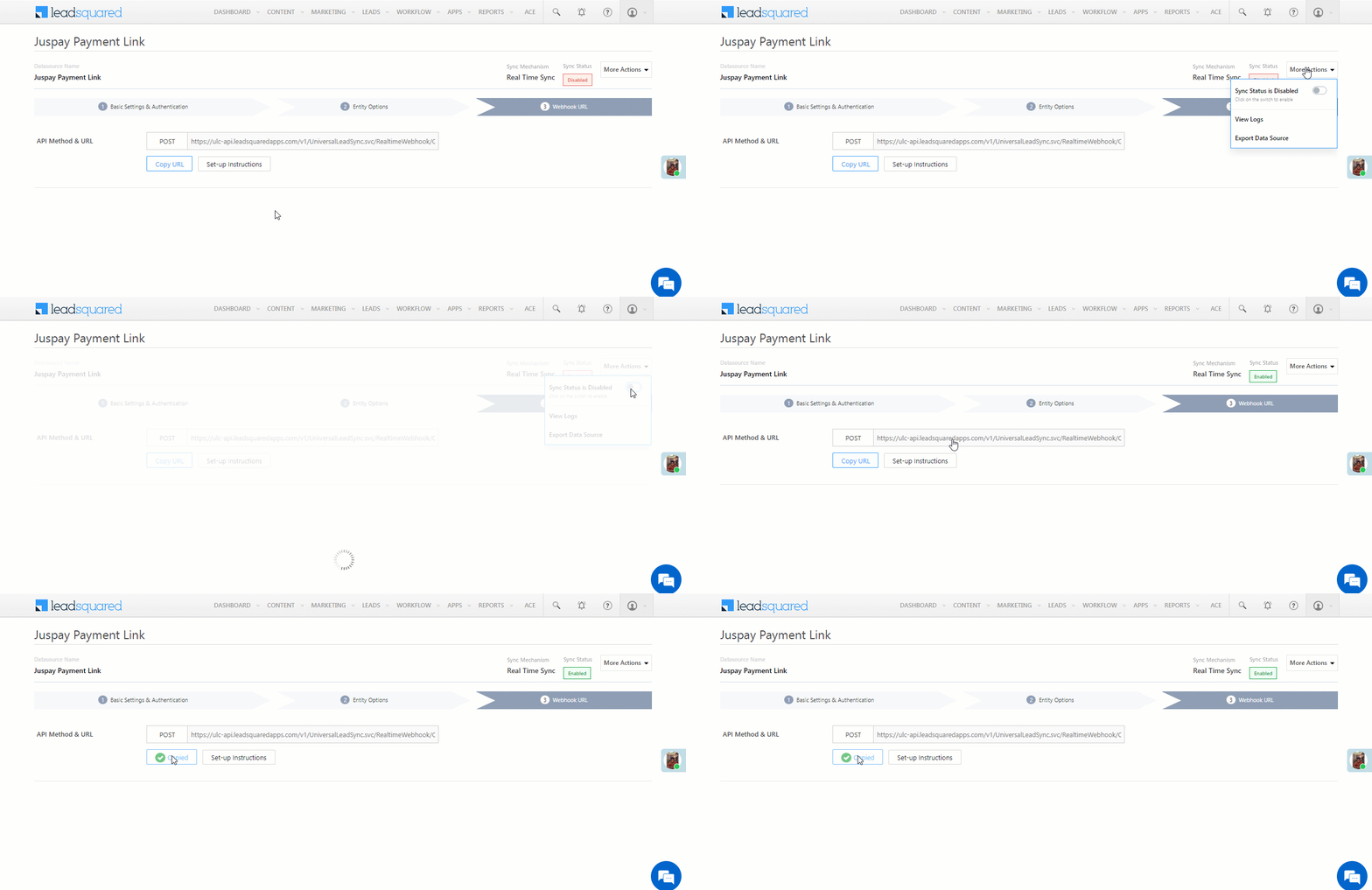
6.3 Webhook URL

After you provide basic details and finish field mapping, a custom webhook URL is generated. Copy this webhook URL, and use it to create an automation that will generate the payment links.

Juspay Payment LeadSquared connector


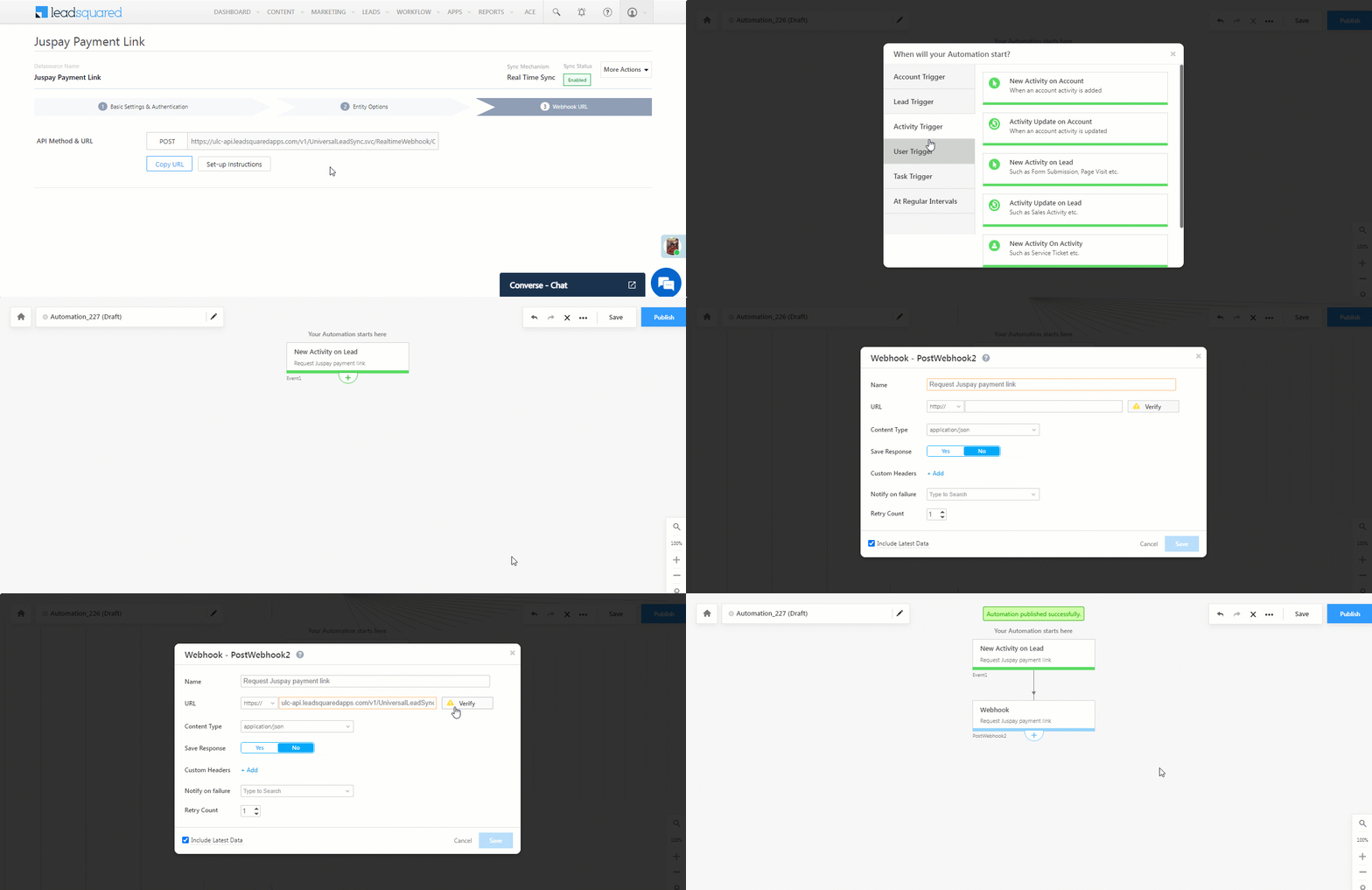
7. Create an Automation

Use the Webhook URL from the previous step to create an automation that generates the Juspay payment links.

  1. Navigate to Workflow>Automation, and click Create Automation, and select any Activity trigger. We’ve selected the New Activity on Lead trigger.
  2. On the Automation starts when an activity is added pop-up –
    • From the Select an activity dropdown, select the Request Juspay payment link activity.
    • Disable the checkbox alongside Run only once per lead. This is to ensure that if required, multiple payment links can be generated for the same lead.
    • Once you’re done, click Save.
  3. Click Add Automation, and under Custom, click Webhook.
  4. On the Webhook pop-up, enter the following details –
    • Name – Enter a relevant name for the webhook. We’re calling it “Request Juspay payment link”.
    • URL – Select the method as https://, and paste the connector’s webhook URL that was generated in the previous step. Before you paste the URL, ensure you remove “https://” from the URL.
    • Content Type – Select application/json.
    • Save Response – You can select either Yes or No.
    • Custom Headers – You can skip this step.
    • Notify on Failure – Select which user you want to notify if the webhook fails.
    • Retry Count – The number of times you want to retry when the webhook fails.
  5. Once you’re done, click Save, and then click Publish.
Note: To know more about the Webhook action, refer to User Automation Actions – Webhook.

Juspay Payment LeadSquared connector


8. Post an Activity

Once the webhook is configured in an automation, you can start posting the Request Juspay Payment Link activity on leads, which will in turn automatically post the Juspay Payment Link activity. This activity contains the  –

  • Order Amount
  • Customer Phone
  • Transaction Type
  • Transaction Amount
  • Send Payment Link to Customer
Note: This section is to help Sales Users generate the payment link for their leads.
  1. Navigate to Leads>Manage Leads, and click on any lead.
  2. On the Lead Details page, click the Activity button. On the Add Notable Activity pop-up, enter the following mandatory details –
    • Activity Type – From the dropdown, select Request Juspay Payment Link.
    • Activity Date – Select a date and time for the activity.
    • Amount – Enter the value of the transaction (e.g., 75,000).
    • The other fields are optional.
  3. Once you’re done, click Add. The Juspay Payment Link Request is posted on the lead.
  4. You’ll see the Juspay Payment Link activity has been posted on the lead (by the automation you set up). If you don’t see this, please refresh your page. This activity contains the Payment Link, along with the other details mentioned above. You can share this payment link with your leads.
Note: To reduce manual intervention, set up additional automations to share the payment link with the lead. For example, when the Juspay Payment Link activity is posted, send the lead an email or WhatsApp message with the payment link.

Juspay Payment LeadSquared connector


9. View Logs

Here, you can view logs of all the sync jobs that have taken place.

  1. Navigate to Apps>Juspay Payment link, and click More Options, and then click View Logs.
  2. You can filter the logs by selecting a date range (Today, Last 7 Days, This Month, and Last Month), by selecting the Job Status (“All”, “Success” and “Failure”), and by selecting the Sync Status (All, Error, and Success).
  3. You can view the sync status of the following events –
    • New Events – List of all the new payment activities posted in your account.
    • Errors – The list of unsuccessful payment activities that have not been captured due to mapping errors (e.g., when a boolean field is mapped to an integer field, etc.).
  4. To view the Sync Response details, under Request ID/Sync Job ID, click the Id.
    • Under the right panel, you can view the response status, the API URL, the request, and the response.
    • The responses that are successful will contain the details of the leads that have been pushed by Juspay.
    • To view the lead capture response under Sync API Response, Leads Updated and Errors in Leads, click Information.

Note:

  • For a response that contains an error, the reason for the error is listed in the response. Once you fix it, you can click the Retry button to perform the sync again.
  • The current Lead/Activity Sync Behaviour will reflect in the Logs screen. This will help identify the sync that’s used (Capture or Update) for the selected Request/Sync Job Id.

Juspay Payment LeadSquared connector


Any Questions?

Did you find this article helpful? Please let us know any feedback you may have in the comments section below. We’d love to hear from you and help you out!

Automation Audit Logs

You can track updates made to your automations through Automation Audit Logs. Not only can you see who changed what and when, you can also see visual representations of previous versions.


Navigation

To view automation audit logs, from the main menu, navigate to Reports>Reports Home>Audit Logs.

automation audit report

Next, select Audit Logs and then click Automation Audit Log.

automation changes log


Using the Report

You can select which automation you want to view and the date range you want to see the change log for. Once selected, click Show Data.

select automation and range

The change log also shows you a visual representation of previous versions of your automation so you can see exactly what was changed. Click Show under the Change Detail column in the Change Log table –

Automation change log

show automation changes


Any Questions

If you have any questions or concerns related to this article, we’d love to discuss them with you in the comments section below!

WhatsApp Reports

1. Feature Overview

These reports offer insights into your business’s engagement level with leads you’ve communicated with through WhatsApp. They include various data points, such as the total number of messages sent, messages sent through automations, and both incoming and outgoing messages. The following reports are available –

  • Usage Reports – This report shows logs of outgoing messages sent and incoming messages received, categorized by source (bulk, automation, one-to-one, and Converse). It also includes template-wise logs, based on the templates available in your account.
  • Delivery Reports – In this report, you can access individual message logs for both incoming and outgoing messages. For outgoing messages, it displays message status (Awaited, Sent, Delivered, Read, Failed, and Others) along with general information like transaction ID and lead ID.

To access these reports, navigate to Apps>WhatsApp Reports.

LeadSquared WhatsApp Reports


2. Usage Reports

The Usage Report contains logs of outgoing messages sent and incoming messages received. You can view and filter this report using the following data points –

  • Templates – View and filter the report based on the templates used for sending outbound messages.
  • Message Source/User Wise – Filter the reports based on the following message sources –
    • Automation – When WhatsApp message campaigns are triggered to your leads through an automation.
    • Bulk – When WhatsApp messages are sent to multiple leads either by selecting leads from the Manage Leads page or by sending messages to all leads in a list.
    • One-to-one – For individual WhatsApp messages sent to specific leads.
    • Converse – When WhatsApp messages are sent to leads through Converse.
  • Select Date – Choose the time interval for which you want to view the sent messages. The date range can be up to 60 days in the past.
  • Cumulative – This option renders the report as a pie chart.
  • Timeline – This option renders the report as a bar graph. When you select this option, the 10 most used templates will automatically be displayed in the graph.

In addition to these filters, you can also perform the following actions –

  • Refresh – Updates the report with the latest data when you refresh it.
  • Export – Provides two options for exporting the report –
    • Summary Report – Contains a brief summary of all the details present on your dashboard.
    • Detailed Report – Contains a detailed breakdown of all the details available on your dashboard.
Note: When a user exports a report, they’ll receive a download link option via email, sent to the email ID of the logged-in user.

LeadSquared WhatsApp Reports


3. Delivery Reports

The Delivery Report contains individual message logs for all Incoming and Outgoing Messages.

Under Outgoing Messages, you can filter the report by the following data points –

Message Source – Filter the report based on the following message sources –

  • Automation
  • Bulk
  • One-to-one
  • Converse

3.1 Sent Successfully

Messages appear under this category when they have been successfully sent from LeadSquared to the WhatsApp provider.

WhatsApp Delivery Report

  • Message Status – Filter each message source by the following message status –
    • Awaited – When the message is pushed successfully to the WhatsApp provider, but we are yet to receive the delivery report. In this case, the WhatsApp provider may have delivered the message to the lead but LeadSquared has not received any delivery update/report from the provider.
    • Sent – When WhatsApp servers receive the outbound message, and it is successfully sent to the lead. However, due to certain factors (like the lead’s mobile not being connected to the internet), the message is yet to be delivered to the lead.
    • Delivered – When the outbound message is successfully delivered to the lead.
    • Read – When the lead reads the received message.
    • Failed – If the outbound message remains in WhatsApp’s servers for more than 30 days without being delivered to your lead, it is considered as failed.
    • Other – Certain service providers send statuses (like error, etc.) outside of the ones listed above. You’ll be able to view those statuses under this column.
  • Once you filter by message status, click on the template name to view the following details –
    • General Info – Displays the “From” number, transaction, lead, and sender ID, the template used for the message, and the date on which the message was sent. It also contains a masked version of the lead’s phone number.

WhatsApp Delivery Reports

    • Delivery – Shows the message delivery status and time for messages with Awaited, Sent, Delivered, and Read statuses.

LeadSquared WhatsApp Delivery Reports

    • Integration – Displays the following details for messages with Awaited, Sent, Delivered, and Read statuses –
      • Activity Status – When a WhatsApp message is sent, a LeadSquared activity is created. This section contains the activity created and updated status, status description, and the message sent activity’s ID.
      • Converse Status – If Converse is enabled on your LeadSquared account, and it’s integrated with the WhatsApp connector, you can view the Converse activity created and updated status, status description, and the message’s Converse ID.
      • Automation Details – If your message was sent using an automation, you can view the Automation ID and Automation Action ID.
    • Provider APIs – Your WhatsApp service provider integrates their APIs with LeadSquared’s WhatsApp connectors to send and receive messages. Click to view the API request sent from LeadSquared and the response received from the WhatsApp provider. You can also copy the cURL data to your clipboard.

WhatsApp Delivery Report

Here’s an example of navigating the report –

LeadSquared WhatsApp Reports

Under Incoming Messages, you can view the following details –

  • By default, you can view the –
    • Total messages received
    • Messages received successfully
    • Messages that weren’t received due to various errors
  • When you click on a message, you can view the following details –
    • General Info – Displays the “From” and “To” numbers, transaction, lead, and provider message ID, the lead who sent the message, and the date on which the message was sent. It also contains a masked version of the lead’s phone number.
    • Reception – Displays the message receipt status, and a status description.
    • Integration – Displays the following details for messages with Awaited, Sent, Delivered, and Read statuses –
      • Activity Status – Contains the activity created and updated status, status description, and the message sent activity’s ID.
      • Converse Status – If Converse is enabled on your account and integrated with the WhatsApp connector, you can view the Converse activity created and updated status, status description, and the message’s Converse ID.

LeadSquared WhatsApp Connector

3.2 Errors

Messages under this category threw errors either at the LeadSquared end or at the WhatsApp provider’s end.

WhatsApp Delivery Reports

Click the message instance under the Template/Message column or click Error under the Sent Status column to view more details –

WhatsApp Delivery Reports


FAQs

In the downloaded WhatsApp report, what’s the difference between the “Sent Status” and “Sent” columns?

LeadSquared WhatsApp Reports

When “Sent Status” = Yes, it means that the message has been successfully pushed from LeadSquared’s end to the WhatsApp Provider (for example, GupShup, Kaleyra, etc.) When “Sent” = Yes, it means that WhatsApp’s servers received the outbound message, and it is successfully sent to the lead. However, the message is yet to be delivered to the lead’s phone (e.g., the lead’s mobile might not be connected to the internet). It’s equivalent to a single tick when we send a WhatsApp message.


Any Questions?

Did you find this article helpful? Please let us know any feedback you may have in the comments section below. We’d love to hear from you and help you out!

Location History Tracker Report

1. Feature Overview

Monitor and track the daily activities performed by your field sales users using the Location History Tracker Report. In this report, you can also view a comprehensive trail of your users’ location coordinates received via the LeadSquared Mobile App throughout the day.

Based on the location coordinates received and the activities performed during the day, you can

  • View the entire route taken by the user from the moment they check-in till check-out. 
  • View the total distance travelled by the field sales user for any given date.
  • View the user’s last recorded location. This allows you to determine where the user was located and at what time they were last observed to be moving or engaged in activities before they eventually checked out for the day. This data is only visible for the present day i.e., Today. 


2. Prerequisites

  • You must have the LeadSquared Mobile app installed on your device, and location permission access must be enabled. To know more, please refer to Location Tracking on LeadSquared Mobile.
  • Enable Location Insights on your account. To do so, contact your account manager or write to us at support@leadsquared.com.
  •  Admins must enable location tracking permissions for their users. To do so, navigate to Settings>Mobile App>Permissions. Under Location Tracking, enable all the permissions.
  •  Enable user check-in in your account for location tracking and distance calculation. To do so, navigate to Settings>Users and Permissions>User Check-in and enable the Show check-in widget to web users setting.
  •  All mobile users must Check-In/Check-Out daily for the system to effectively track their location and calculate the distance travelled during the day. Distance calculation will not be initiated for the day if the mobile user has not checked in.
  • To get data with highest location accuracy, refer to Measures to Ensure Higher Distance Computation Accuracy in Mobile App.


3. Location History Tracker Report

To view the Location History Tracker Report, navigate to Reports>Reports Home>Field Sales Tracking>Location History Tracker. On this page, based on your user role and organisational hierarchy, you can view the location history of your users/teams/groups for the selected date.

  • To select a user, team or sales group, click the Filter By dropdown and select the relevant option.
  • To choose a user, team or sales group from the available options, click the Choose dropdown and select the relevant option.
  • To view a user’s detailed location history on the selected date, click on the user card.
  • To filter out the locations where the user checked-in, checked-out, or recorded activities, click filter icon.
  • The time the user was last observed to be moving or engaged in activities before they eventually checked out for the day is displayed below the date range filter. This data is only visible for the present day i.e. Today.

Note: 

  • No location data or distance will be captured for the days the user has not checked in on mobile.
  • The system will store and display only up to 90 days’ location data for a single tenant while accessing the report.

LeadSquared - Location history tracker


4. Settings

To view the settings, on the bottom left corner of the page, click mobile settings icon. On this page, you can configure the following advanced setting –

  • Metric for distance – You can set the metric for distance as Kilometres and metres (km, m) or Miles and yards (mi, yd). Your selection will be applied to all distance related metric across journeys and reports.

Note: 

  • LeadSquared’s Proprietary Distance Computation Algorithm (Recommended) utilizes location coordinates from the mobile device of a checked-in user to estimate the distance travelled fairly accurately for any given day.
  • The Google Direction Maps API records the latitude and longitude coordinates and returns the distance travelled by your users, by assuming a specific path of travel.

Leadsquared - distance travelled report advanced settings


Any Questions?

We’d love to answer your questions or hear your unique use cases. Feel free to share your experiences in the comments section below.

Import External Data from Mavis into SIERA

1. Feature Overview

You can now import external data stored in Mavis into SIERA and use it in your SIERA reports and dashboards. This enhancement allows you to combine third-party campaign data (e.g., from Facebook Ads, Google Ads) with your LeadSquared data for deeper performance insights.


2. Prerequisites


3. Use Case

Suppose you run marketing campaigns on platforms like Facebook or Google Ads and want to analyze them in SIERA alongside your lead and opportunity data.

With this feature, you can:

  • Import campaign performance data into Mavis.
  • Select the required fields to sync into SIERA.
  • Build reports or dashboards in SIERA that merge Mavis data (impressions, clicks, spend, etc.) with your CRM data (leads, opportunities, stages, etc.).


4. Prepare Data in Mavis

Note: Syncing data on Mavis with SIERA is not enabled by default. To enable it, contact support@leadsquared.com.
  1. In Mavis, navigate to the database and select a table.
  2. Go to the Reports section.
  3. Choose the columns you want to sync with SIERA (e.g., Campaign Name, Start Date, End Date, Impressions, Clicks, Spend). Synced column data will be accessible for report creation.
  4. Save your selection.

configure Mavis table for SIERA


5. Import Mavis Data into SIERA

1. Navigate to SIERA.
2. Create a new Report (or edit an existing one).
3. In the Data Source selector, locate the Mavis section.
4. Select the relevant dataset (e.g., Ad Performance Data).
5. The chosen fields from Mavis will appear as available columns for your report.

import mavis data into SIERA


6. Build the Report

Example Scenario 

You’ve imported Facebook Ads campaign data into Mavis with fields for Campaign Name, Impressions, Clicks, and Spend. Now, you want to build a summary report to calculate CTR (click-through rate) and CPC (cost per click).

Follow these steps –

  1. Add the required rows (e.g., Campaign Name, Impressions, Clicks, Spend).
  2. Create calculated fields for KPIs, such as:
    • Click-Through Rate (CTR) = Sum of Clicks / Sum of Impressions
    • Cost Per Click (CPC) = Sum of Spend / Sum of Clicks
  3. Format numeric fields (e.g., set decimal places as needed).
  4. Preview the report.
Note: You can further enhance this report to calculate KPIs such as spend per lead, or campaign performance by lead stage or opportunity status. Use SIERA’s Join feature to combine Mavis data with other internal data sources.

build report with mavis data


7. Create Dashboards

Once the report is ready and saved, you can add it to your SIERA dashboard.

add mavis data report to siera dashboard


FAQs

1. What types of external data can I bring into SIERA through Mavis?
Any data you can store in Mavis (For example, ad performance metrics from platforms like Facebook Ads, Google Ads, or other marketing tools).

2. Can I use this with both Summary and List reports?
Yes. However, KPI calculations and aggregations are available only in Summary reports.

3. How often is the data refreshed?
Data availability depends on the Mavis sync schedule for your connected sources.


Any Questions?

Did you find this article helpful? Please let us know any feedback you may have in the comments section below. We’d love to hear from you and help you out!

LeadSquared Telephony – Feature Guide

1. Feature Overview

LeadSquared’s Telephony helps you integrate your cloud telephony provider with your LeadSquared account – all the major contact centers, telephony, and IVR tools like Exotel, Ozonetel, Ameyo, CTM, and more, are supported.

You can capture your leads, both online and offline, and route them instantly to your internal call center reps. The leads can be distributed in a round-robin manner by location, the products they are interested in, lead sources, the language they speak, agent performance, availability, and much more.

LeadSquared will also present a detailed analysis report on all the calls dialed and received by your sales reps, including their respective call recordings. This way, you will never lose track of your conversations.


Call center sales CRM - lead capture and assignment


2. Benefits of Integrating Telephony with CRM

Unlock the full potential of your CRM with a telephony integration –

1. Reach potential customers faster

A CRM with an integrated telephony system will neatly organize the available data on your leads. You will also have the option to call your leads with the click of a button. This saves the hassle for a sales rep to manually look up lead details and dial their numbers.

2. Reduce your costs

An integrated telephony system negates the need for a physical phone. A call center without an integrated telephony system will have higher expenditure on its physical infrastructure and maintenance.

3. Improve your performance through call analysis

With a telephony-integrated CRM, the performance of your sales reps will be aggregated into a report. You will know the total inbound and outbound calls made in a specific time frame, the duration of the calls,  a view of where your leads are in your pipeline, etc.

And, you will have the option to record your sales calls. Listening to these calls is a great way to identify gaps in your sales process.

4. Build a distributed team

A telephony-integrated CRM system makes it possible to build a globally distributed team. The system will be intelligent enough to recognize and route the calls to the correct sales rep based on their skill sets. The system will also be capable of scaling quickly to handle large call volumes.


3. LeadSquared Telephony Features

Take a look at what is possible with LeadSquared Telephony –

Call leads with a single click

With Click 2 Call, you can save time and call your leads straight from LeadSquared. You can place an outbound phone call just by clicking the lead’s phone number on the Manage Leads or Lead Details pages.

click 2 call

Connect the lead with the right sales rep with real-time notification

With Call Route, incoming calls from existing leads are automatically routed to the respective lead owner. The sales rep will also receive a real-time notification through the Agent Popup. The pop-up will display the lead’s details if the lead exists in your account, or displays an empty form that sales reps can use to capture the new lead.

telephony incoming call

Specify an action after the call

Call Disposition allows a sales rep to take a specific action once the call ends. For example, the sales rep can set up a task for a follow-up call, or push the lead to the billing team.

telephony call disposition

Connect with customers for upsell/cross-sell opportunities

Leadsquared’s Opportunities feature can be used to manage potential deals. This will enable you to track phone call interactions with your leads, and the sales rep can enter details for each opportunity or potential deal. Once the call is completed, a call activity, with all the call details, is posted on the Opportunity Details page.

Opporunity routing


4. Reporting

The SIERA Call Analysis Report helps Sales Managers monitor call center metrics and agent productivity within their teams. Sales users can use the report to track their total calls (inbound, outbound, connected, unanswered, missed) and talk time. You can also listen to the call recordings through the report.

Siera filters


5. How it Works

1. Integrate Your Telephony Provider with UTC

The Universal Telephony Connector (UTC) lets you integrate your cloud telephony service provider(s) with LeadSquared.

2. Configure Opportunity Integrations in Telephony

The Opportunities feature on LeadSquared Telephony can be used to manage your potential deals (upsell/cross-sell).

3. Configure Advanced Configurations for Telephony

This article will help you configure advanced settings for your Telephony account.

4. Analyze Your Calls with SIERA’s Call Analysis Report

The Call Analysis Report in SIERA helps Sales Managers monitor call center metrics and agent productivity within their teams.


Any Questions?

Did you find this article helpful? Please let us know any feedback you may have in the comments section below. We’d love to hear from you and help you out!

Integrate Shopify Abandoned Checkout with LeadSquared

1. Feature Overview

This connector captures real-time lead information about e-commerce customers who add items to their carts on Shopify but do not complete the purchase on the check-out page due to various reasons. The data captured includes cart details such as abandoned checkout URL, product ID, product name, and price. This information is then mapped in real-time to your LeadSquared account. Once the leads are synced, you can utilize LeadSquared’s CRM features to nurture and convert these leads effectively.


2. Prerequisites

  • You must be the Administrator of your LeadSquared account.
  • You must have an active Shopify account.


3. How it Works

Capture lead data from your Shopify account in LeadSquared by configuring the Shopify connector. Once configured, enable the connector sync.

During configuration, a webhook URL is generated in LeadSquared. Copy this URL and configure it in your Shopify account.


4. Install the Connector

  1. Navigate to Apps>Apps Marketplace.
  2. Search for Shopify(Abandoned Checkout), and click Install.
    • Alternatively, you can find the connector on the left panel, under Lead Capture.
  3. Once installed, hover your cursor over , and click Configure.

Shopify LeadSquared Integration


5. Configure the Connector

Once you’ve installed the connector, on the Configure Shopify(Abandoned Checkout) pop-up, configure the connector access for the non-Admin users in your account. Only those users for whom access is granted can view and access the connector (under the Apps main menu).

  1. Select if you want to grant Connector Access that’s Based on Role or Advanced (User Level).
    • Based on Role – From the Specify Roles dropdown, select the LeadSquared user roles that can use the connector.
    • Advanced (User Level) – From the Advanced (User Level) dropdown, select a user boolean field. Based on the value entered in the selected boolean field, the user can access the connector (e.g., for the user Sam, if the “Is Employee” boolean user field contains the value “Yes”, then this user can access the connector).
  2. Once you’re done, click Save Details. To continue the configuration, refer to the below sections.
Note: By default, all Admin users will have access to the connector.

Shopify LeadSquared Integration


6. Admin Configurations

To continue the connector configuration, navigate to Apps>Shopify(Abandoned Checkout).

Shopify LeadSquared Integration

6.1 Basic Details

Enter the following details –

Property Description
Lead Source Enter the lead source through which the leads were captured (e.g., Shopify, email campaign, etc.). This detail will be displayed on the Lead Details page, under Lead Source.
Default Country Code If the lead’s mobile number is captured without a country code, then the default country code that’s selected from the dropdown will be added to the lead’s mobile number.
Select Time Zone The time zone followed in your Shopify account.
Lead Capture Search By Criteria To avoid creating duplicate leads, you must select one unique lead field (e.g., email Id, mobile number, PAN number, etc.) as the search key.

To know how to mark a LeadSquared lead field as unique, please refer to How to Make a Custom Field Unique.

Lead Capture Secondary Search By Criteria If lead identification and capture through the primary Search By Criteria fails, it will be re-attempted using the secondary Search By Criteria.
Select User to Notify on Failure If there is an error in fetching leads, the selected user will receive a failure message via email. You can select a user from the list of all the users available in your LeadSquared account.

To know more about the type of errors, please refer to Error Notifications.

Enable Notification To ensure notification emails are sent to the selected user when there’s a failed query, enable the Checkbox checkbox.

Once you’re done entering all the details, click Save & Next.


6.2 Mapping

Once you’re done with the basic settings, click Entity Options. By default, all the Shopify fields are mapped to the corresponding LeadSquared lead fields. You’ll have to complete two steps here –

  1. Enable Activity Creation* – Alongside Shopify abandoned cart, click the Create Activity button.
  2. Edit Mapping – Alongside each action (Activity Entity and Lead/Contact Entity) click the Edit Mapping button to verify if the field mapping is accurate. Once verified, click Save & Close. This step is mandatory.
    If required, on the Edit Mapping pop-up, you can edit the field mapping –

    • To edit the Shopify mapping field name, click  , and under Mapping Key, edit the field name.
    • To change the LeadSquared lead field to which the Shopify field is mapped, click  , and from the Lead Field dropdown, select the new lead field.
    • To mark a unique lead field as the search key, click unique icon.
    • To disable an existing field mapping, alongside the field, disable the slider Zoom.
    • To map an additional field, click the Add Custom button, and add the new mapping field details.
    • If you want to capture any additional responses as part of the activity that’s posted on the lead, alongside Activity Entity, click Edit Mapping, and add the response on the Default Mapping for Activity pop-up.

Once you’re done, click Save & Next.

Note:

  • *Ensure you complete the Enable Activity Creation steps first, and only then complete the Edit Mapping steps.
  • You must mandatorily verify the mapping for Lead/Contact Entity, and Activity Entity, and click Save & Close for each action type, in order to complete the Mapping.
  • Since this connector is capturing the payment details as an activity, the Sync Behaviour is by default set to Do Nothing. It is recommended you don’t change this to any other setting.

Shopify LeadSquared Integration


6.3 Webhook URL

After you provide basic details and finish field mapping, a custom webhook URL is generated. Copy this webhook URL, and use it to create a webhook in your Shopify account.

Shopify LeadSquared Integration


7. View Logs

Here, you can view logs of all the sync jobs that have taken place.

  1. Navigate to Apps>Shopify(Abandoned Checkout), and click More Options, and then click View Logs.
  2. You can filter the logs by selecting a date range (Today, Last 7 Days, This Month, and Last Month), by selecting the Job Status (“All”, “Success” and “Failure”), and by selecting the Sync Status (All, Error, and Success).
  3. You can view the sync status of the following events –
    • New Events – List of all the new payment activities posted in your account.
    • Errors – The list of unsuccessful payment activities that have not been captured due to mapping errors (e.g., when a boolean field is mapped to an integer field, etc.).
  4. To view the Sync Response details, under Request ID/Sync Job ID, click the Id.
    • Under the right panel, you can view the response status, the API URL, the request, and the response.
    • The responses that are successful will contain the details of the leads that have been pushed by Razorpay.
    • To view the lead capture response under Sync API Response, Leads Updated and Errors in Leads, click Information.

Note:

  • For a response that contains an error, the reason for the error is listed in the response. Once you fix it, you can click the Retry button to perform the sync again.
  • The current Lead/Activity Sync Behaviour will reflect in the Logs screen. This will help identify the sync that’s used (Capture or Update) for the selected Request/Sync Job Id.

google forms view logs


8. Other Actions

You can edit or delete the Shopify(Abandoned Checkout) connector that you created. To do this –

  1. Navigate to Apps>Apps Marketplace and search for the Shopify(Abandoned Checkout) connector.
  2. On the Shopify connector, click Settings.
  3. From the list of options, you can perform the following actions –
    • Edit Configurations
    • Disable the connector
    • Remove the connector

Shopify LeadSquared Integration


9. View Reports

You can view the total number of leads that have been pulled from Shopify, by referring to the Lead Source report. To know more, please refer to How to track the source of your Leads using Lead Source Report?


Any Questions?

Did you find this article helpful? Please let us know any feedback you may have in the comments section below. We’d love to hear from you and help you out!

Integrate SuperReceptionist (Knowlarity) with LeadSquared Telephony

1. Feature Overview

SuperReceptionist by Knowlarity is a cloud-based VoIP (Voice over Internet Protocol) phone system. Once you integrate your Knowlarity account with LeadSquared through the Universal Telephony Connector Generic Instance, you can –

  • Make calls and automatically track the calls in Lead Activity History.
  • Utilize the Agent Popup to store or view lead information during phone calls.
  • Automatically create new leads through incoming phone calls from unknown numbers.
  • View your call logs as LeadSquared activities together with downloadable recordings.
  • Manage your potential deals (upsells/cross-sells) through the Opportunities feature.


2. Prerequisites

  • You must be an administrator user of your LeadSquared account.
  • Your account plan must support Telephony integration.
  • You must have an active admin account with Knowlarity.
  • You must have a calling plan with Knowlarity.
  • You must purchase an SR number (virtual number) through Knowlarity.
  • Your Knowlarity account must be KYC verified (On SuperReceptionist, navigate to Account>Settings>KYC).


3. Configure SuperReceptionist

3.1 Add Agents on SuperReceptionist

Add Agent(s) to your SuperRecpetionist account who will receive and make calls –

  1. Navigate to Settings>Agents.
  2. Click on Add Agent.

knowlarity create agent

Fill in details about your Agent. Fields marked (*) are mandatory. Once done, click Save.

knowlarity add agent

3.2 Create a Call Group.

Navigate to Settings>Call Groups and click Add Call Group.

If an Agent does not pick up an incoming call, then the call will be redirected to the available agents in the call group you have created –

knowlarity call group


4. Enable and Configure LeadSquared on SuperReceptionist

Navigate to Settings>Integrations on SuperReceptionist and enable LeadSquared UTC. Next, Click on the knowlarity plugin edit icon on the plugin to configure LeadSquared.

knowlarity lsq plugin

Here, you will need to enter LeadSquared’s Agent Popup URL and Call Log URL. Follow the steps in the next section of this article to find the URLs.

Note: You can fill in the rest of the fields as required. Please contact Knowlarity for information on the fields and features on this page.

knowlarity lsq config


5. Install and Configure UTC

This section will show you how to install UTC and configure its features for SuperReceptionist.

5.1 Install UTC

On LeadSquared, navigate to Apps>Apps Marketplace, search for the Universal Telephony Connector, and click Install.

Installing the connector

Next –

  1. Hover the cursor over the settings Settings icon icon and click Configure.
  2. Click the3cx add new connector icon to add a new connector.
  3. Select LeadSquared Generic Telephony Connector as the Connector Type.
  4. Name the connector and click Add.

5.2 Agent Popup API  and Call Log API URL

Now, you can navigate to the Agent Popup API and Call Log API tab to copy the URLs. Paste these URLs into the LeadSquared configuration page on SuperReceptionist.

knowlarity agent and call log

Note: make sure you enable Agent Popup as well.

knowlarity enable agent pop up

5.3 Configure Virtual Numbers

Navigate to the Virtual Numbers tab to add one or more virtual numbers (or SR numbers). You will need to purchase these numbers from Knowlarity.

Once done, click on the callgear virtual number save icon to save the numbers.

knowlarity sr numbers

5.4 Configure Call Route API

The Call Route API automatically routes incoming calls from existing leads to the respective Lead Owner in your LeadSquared account. The API (Lead Route V2) must be configured as a hook on SuperReceptionist.

Note: Please get in touch with Knowlarity to configure this API.
knowlarity call route

5.5 Configure Click 2 Call

Navigate to the Click 2 Call tab and configure the following settings –

Parameter Value
Method Server Side API
URL https://konnect.knowlarity.com/konnect/makecall/?knumber=@VirtualNumberWithCC&api_key={api_key}&customer=@PhoneNumberWithCountryCode&agent=@AgentNumberWithCC&integration=leadsquaredV2

Note:

  • This URL is a sample template. Some parameters included in the URL could change. Contact Knowlarity for more information.
  • Replace the api_key value with your SuperReceptionist API key. For example, api_key=6666.
HTTP Method GET
Response Keyword Success
Response Type Text
Enable Select this value to enable Click 2 Call

Once done, click Save.

knowlarity c2c


Any Questions?

Did you find this article helpful? Let us know your thoughts in the comments section below.

How to Deploy the LeadSquared Tracking Script on Your Website?

Here’s a short tutorial on installing the LeadSquared Tracking Script –

Note:


Assigning a Lead Score for Visits to a Specific Webpage or Landing Page

To track and assign a specific lead score when a lead visits a particular webpage or landing page on your website, follow these steps:

Step 1: Locate Your Website Tracking Script

By default, the LeadSquared website tracking script looks like this:

<!--LeadSquared Tracking Code Start--> 
<script type="text/javascript" src="http://web.mxradon.com/t/Tracker.js"></script> 
<script type="text/javascript"> 
 pidTracker('3894'); 
</script> 
<!--LeadSquared Tracking Code End-->

Step 2: Insert the Score Assignment Line

To assign a specific score (e.g., 20) when a lead visits this page, add the following line within the tracking script:

Asc = 20;

Step 3: Update the Tracking Script

After inserting the score assignment, your updated script should look like this:

<!--LeadSquared Tracking Code Start-->
<script type="text/javascript" src="http://web.mxradon.com/t/Tracker.js"></script>
<script type="text/javascript">
Asc = 20;
pidTracker('3094');
</script>
<!--LeadSquared Tracking Code End-->

Now, whenever a lead visits this page, their score will increase by 20.


Any Questions

If you have any questions about the LeadSquared Tracking Script, leave us a comment below. We’ll get back to you asap!

Integrate Bayut with LeadSquared

1. Feature Overview

This connector periodically captures leads from your Bayut account to LeadSquared. Once the leads are synced, you can leverage LeadSquared’s CRM features to nurture and convert your leads.


2. Prerequisites

  • You must be the Administrator of your LeadSquared account.
  • You must have an active Bayut account.
  • This is a paid feature. To enable it, reach out to your account manager, or write to support@leadsquared.com.


3. How it Works

To pull lead data from your Bayut account to your LeadSquared account, configure the Bayut connector instance, and add your Bayut account credentials. Once this is done, enable sync for the connector instance in LeadSquared. This will begin the lead capture process.


4. Installation

  1. Navigate to Apps>Apps Marketplace.
  2. Search for Bayut, and click Install.
    • Alternatively, you can find the connector on the left panel, under Lead Capture.
  3. Once installed, hover your cursor over , and click Configure.

Bayut LeadSquared Connector


5. Configure the Connector

Once you’ve installed the connector, on the Configure Bayut pop-up, configure the connector access for the non-Admin users in your account. Only those users for whom access is granted can view and access the connector (under the Apps main menu).

  1. Select if you want to grant Connector Access that’s Based on Role or Advanced (User Level).
    • Based on Role – From the Specify Roles dropdown, select the LeadSquared user roles that can use the connector.
    • Advanced (User Level) – From the Advanced (User Level) dropdown, select a user boolean field. Based on the value entered in the selected boolean field, the user can access the connector (e.g., for the user Sam, if the “Is Employee” boolean user field contains the value “Yes”, then this user can access the connector).
  2. Once you’re done, click Save Details. To continue the configuration, refer to the below sections.
Note: By default, all Admin users will have access to the connector.

Bayut LeadSquared Connector


6. Admin Configuration

After installation, navigate to Apps>Bayut and configure the connector settings in order to pull data from Bayut.

6.1 Basic Details

Enter the following details –

Bayut LeadSquared Connector

Property Description
API Key Enter your Bayut API Key here.
Lead Source Enter the lead source through which the leads were captured (e.g., Bayut , email campaign, etc.). This detail will be displayed on the Lead Details page, under Lead Source.
Default Country Code If the lead’s mobile number is captured without a country code, then the default country code that’s selected from the dropdown will be added to the lead’s mobile number.
Select Time Zone The time zone of your Bayut account.
Lead Capture Search By Criteria To avoid duplicate leads, you must select one unique lead field (e.g., email Id, mobile number, PAN number, etc.) as the search key. This will be used to identify the leads pulled from Bayut.

To know how to mark a LeadSquared lead field as unique, please refer to How to Make a Custom Field Unique.

Lead Capture Secondary Search By Criteria If lead identification and capture through the primary Search By criteria fails, it will be re-attempted using the secondary Search By criteria.
Select User to Notify on Failure If there is an error in fetching leads, the selected user will receive a failure message via email. You can select a user from the list of all the users available in your LeadSquared account.

To know more about the type of errors, please refer to Error Notifications.

Enable Notification Enable the Checkbox checkbox to ensure notification emails are sent to the selected user when there’s a failed query.
Sync Frequency By default, we’ve selected a 15-minute frequency to pull data from Bayut. You can use the ‘Hours’ and ‘Minutes’ dropdowns to select a custom interval, based on which lead data will be pulled.

Once you’re done entering all the details, click Save.

6.2 Mapping & Manage Sync

On the Entity Options screen, click Edit Mapping. The Bayut system fields mapped to the corresponding LeadSquared lead fields are visible. This mapping is carried out by default. If required, you can change or update the default field mapping.

  • To provide a default value for any field, enter the value under Default Value.
    • If the data provider doesn’t send data for any lead field, then the default value will get assigned to that specific field. But if the field already has an existing value, then the default value will be ignored.
  • To disable lead data capture for any field, disable the Zoom slider.
  • You can also mark and update a unique lead field as the search key from this screen, by clicking unique icon.
  • To create a custom Bayut field, click the Add Custom button.
    1. Once this field is created, you must map it to the relevant LeadSquared lead field.
    2. After the field is mapped, to save the custom field, click Google.
    3. To delete a custom field, click .

On this page, define the Sync Behaviour of the connector when leads are captured –

  • Capture (Create and Update existing) Record – Leads that only exist in your Bayut account (but not in your LeadSquared account) will get created in LeadSquared. Leads that exist in both your Bayut and LeadSquared accounts will get updated.
  • Create only new record – Leads that only exist in your Bayut account (but not in your LeadSquared account) will get created in LeadSquared.
  • Update only existing record – Leads that exist in both your Bayut and LeadSquared accounts will get updated in LeadSquared.

Once you’re done, click Save.

Bayut LeadSquared Connector


7. View Logs

Here, you can view logs of all the sync jobs that have taken place. View New Events (New Leads), Updated Events (Updated Leads), and Errors (when capturing leads).

  1. Navigate to Apps>Bayut.
  2. Click the More Actions dropdown and select View Logs.
  3. You can filter the logs by selecting a date range (Today, Last 7 Days, This Month, and Last Month), by selecting the Job Status (“All”, “Success” and “Failure”), and by selecting the Sync Status (All, Error, and Success).
  4. You can view the sync status of the following events –
    • New Events – List of all the new leads created in LeadSquared during the selected date range.
    • Updated Events – A list of all the –
      • Duplicate leads that were created with the same Search by Criteria value (e.g., with the same Email Id, Mobile Number, etc.).
      • Leads that previously contained errors, which were fixed and synced successfully.
    • Failed – The list of leads that have not been captured due to mapping errors (e.g., when a boolean field is mapped to an integer field, etc.).
  5. To view the Sync Response details, under Request ID/Sync Job ID, click the Id.
    • Under the right panel, you can view the response status, the API URL, the request, and the response.
    • The responses that are successful will contain the details of the leads that have been pulled from Bayut.
    • To view the lead capture response under Sync API Response, Leads Updated and Errors in Leads, click Information.

Note:

  • For a response that contains an error, the reason for the error is listed in the response. Once you fix it, you can click the Retry button to perform the sync again.
  • The current Lead Sync Behaviour will reflect in the Logs screen. This will help identify the sync that’s used (Capture or Update) for the selected Request/Sync Job Id.

google forms view logs


8. Other Actions

You can edit or delete the Bayut connector that you created. To do this –

  1. Navigate to Apps>Apps Marketplace and search for the Bayut  connector.
  2. On the Bayut connector, click Settings.
  3. From the list of options, you can perform the following actions –
    • Edit Configurations
    • Disable the connector
    • Remove the connector

Bayut LeadSquared Integration


9. View Reports

You can view the total number of leads that have been pulled from Bayut, by referring to the Lead Source report. To know more, please refer to How to track the source of your Leads using Lead Source Report?


Any Questions?

Did you find this article helpful? Please let us know any feedback you may have in the comments section below. We’d love to hear from you and help you out!

SIERA Lead Distribution Reports

1. Feature Overview

Use SIERA to create views that help users perform lead flow analysis, and track users, leads, opportunities, etc. To know more, refer to SIERA Feature Guide.

This article details on how sales managers and marketing users can use lead distribution reports in SIERA –

  • Lead Assignment Status Analysis.
  • Lead Conversion Analysis.
  • Lead Flow Analysis by Source.


2. Prerequisite

SIERA is a paid feature. To enable it for your account, contact your account manager or support@leadsquared.com.


3. Lead Report Use Cases

3.1 Lead Assignment Status Analysis

Analyse the lead assignment status of your users based on dates, lead stages, and other filters of your choice. You can use this report to find the answers to these questions –

  • How are leads assigned to you based on certain filters?
  • Are there any agents who have unusually high/low leads assigned?
  • Are there any agents who have no leads assigned at all?

Take a look at the current lead assignment status of your team. View the lead assignment by different dates, stages or other filters of your choice.

  1. From the SIERA homepage, navigate to Lead Reports>Lead Distribution Analysis.
  2. In the Filters section, click +Filters to apply any filter of your choosing. In the gif below, no filters were applied to view the total lead assignment status.

lead assisgnment status

3.2 Lead Conversion Analysis

Analyse the leads assigned to your users based on lead stage. You can use this report to find the answers to these questions –

  • What is the present pipeline of your leads?
  • Which user has the most lead conversion?

With the customization features offered in SIERA reports, users can add Stage fields as a filter. In this case, users can add leads at a specific lead stage as a filter in the report. With the filter value of Opportunity, we can view the reports of all opportunities.

  1. From the SIERA homepage, navigate to Lead reports>Lead Distribution Analysis (Tabular).
  2. In the Filters section, under Lead Stage, select only Opportunity. Deselect all other stages.
  3. Click Apply Filters.
  4. You can now view all the opportunities under each owner. To view the report of opportunities under a specific owner, click the number beside the Owner Name.

lead conversion analysis

To save this report –

  1. Click Back.
  2. On the left side of the screen, click Report Views.
  3. Click Create New View and enter the name of your report.
  4. Click Save.

save opp report


3.3 Lead Flow Analysis by Source

Users can analyse the lead flow into the system from different sources. The report can be used to analyse trends in the system and prepare for such cases in the future. You can use this report to find the answers to these questions –

  • How many leads are your sources providing?
  • What are the worst and best performing leads as per conversion?
  1. From the SIERA homepage, navigate to Lead Reports>Lead Distribution Analysis.
  2. On the left side of your screen, click Visualise.
  3. Under Row Grouping, click +Fields.
  4. Under Lead, click + add siera  next to Lead Source. Remove any other Row field already added.
  5. Click Apply Settings.
  6. Scroll down and click the data to view a summary of all the leads created.

Note: SIERA also supports date fields in reports. With this feature, users can add any date field into a report and select the date format – Hour, Day, Date, Week, Month, Quarter or Year. You can discover trends in your weekly lead flow reports and prepare for such cases in the future.

lead source report


Any Questions?

Did you find this article helpful? Please let us know any feedback you may have in the comments section below. We’d love to hear from you and help you out!

How to Add Buttons to a Dynamic Form

1. Feature Overview

This article will help you add Buttons to your Dynamic Form.


2. Prerequisites

3. Use Case

Buttons on a Dynamic Form can be used to validate PAN/Aadhar cards, apply coupon codes, make payments, etc.

pan verification through button field on forms


2. Add a Button Field

  1. On the Form Designer, click on the Special Fields drop-down and add a Button field to your form.
  2. Now, you can edit its field properties –
    • Button Name – Enter the button’s field name.
    • Button Text – Enter the display name for the button.
    • Hide by default – You can choose to hide the button during form load and can be made visible again through form rules.

Note: 

  • A maximum of 2 Buttons can only be used per Form. To increase the number of buttons, reach out to support@leadsquared.com.
  • A button will remain in the Success state till the conditions (if any) associated with the ‘Button on Click’ condition are re-satisfied.
  • A button will remain in a Failure state after 3 failure attempts.
  • Save Button in Form will be disabled while the Actions in Button on Click Rule are executing.

add a button to your form

3. Configure Button Rules

For example, the button field can be used to verify a customer’s PAN Number. Through Form rules, you can set up conditions to show the button when the PAN field has data, and on clicking the button, a Lapp is called to validate this data. The validation response can then be posted on a field in the form.

special field button pan validation rules


Any Questions?

We’d love to answer your questions or hear your own unique use cases. Feel free to share your experiences in the comments section below.

LeadSquared’s Near Me Feature

1. Feature Overview

From the LeadSquared mobile app, through Leads – Near Me, you can view all the leads present within a 15-kilometre radius from your location. This helps you plan your journey for the days when you have to meet leads to complete various tasks (Meetings, KYC Verifications, etc.) and activities (Sales Activities, Home Visits, etc.).

Leadsquared - Leads Near Me

Additionally, through Explore – Near Me, you can also view businesses located within a 5-kilometre radius. This helps you save time when identifying and reaching out to potential customers. For e.g., a salesperson can use this feature to identify all the supermarkets present in HSR Layout, Bangalore. You can also save this business as a lead.

Leadsquared - Explore Near Me


2. Prerequisites

  • You must be an Administrator User in order to configure this feature.
  • To accurately display leads near you, leads must contain valid data in the Address field.
  • Users must have the LeadSquared app installed on their mobile devices, and location permission access must be enabled. To know more, please refer to Location Tracking on LeadSquared Mobile.
  • In order to use the Explore – Near Me feature, you must –


3. Leads – Near Me

3.1 View Leads

To view the leads near you –

  1. Open the LeadSquared mobile app, tap the Leadsquared - Near Me hamburger icon, and then tap Near Me.
    • Alternatively, from the top-right corner of the homepage, tap the Leadsquared - Near Me Near Me icon.
  2. On the Near Me screen, the Leads view is displayed by default.
  3. Under Leads, you can view the list of leads near you.
    •  To view the following options, tap Three dots menu –
      • Change Location – Tap to change the location in which you’re searching for leads.
      • Settings – Tap to enable/disable the Cluster View for leads.
    • To increase the search radius, tap the default value of 1km, and select the new radius from the available options.
    • To add new leads, tap the Leadsquared - Near Me add leads icon, enter the relevant details and submit.
  4. To view the lead’s details, tap the relevant lead icon. Additionally, tap Leads Menu to perform the following actions on the lead –
    • Add Activity
    • Add Task
    • Add Opportunity

3.2 Customize Lead Icons

You can customize lead icons displayed on the Leads Near Me page on the LeadSquared Mobile App.

  1. On your LeadSquared Web App, navigate to Field Sales Suite>Journeys.
  2. Click the LeadSquared - journeys settings icon Settings icon.
  3. Set up unique shapes and colours for different Lead Stages or Lead Lists to recognize leads within their assigned territories.
  4. Click Confirm to save the changes.

Leadsquared - Near Me

These unique lead icons will be visible on your Mobile App.

Leadsquared - Leads Near Me


4. Explore – Near Me

Important: You must have access to your Google Map API Key to use this feature.

To view businesses near you –

  1. Open the LeadSquared mobile app, tap the Leadsquared - Near Me hamburger icon and then tap Near Me.
    • Alternatively, from the top-right corner of the homepage, tap Leadsquared - Near Me.
  2. On the Near Me screen, tap Explore.
  3. If you’ve already saved Explore Keywords (Schools, Pharmacies, etc.), tap an existing word.
  4. Else, from the top-right corner, tap the Leadsquared - Near Me search icon, and search for the business type you’re looking for.
  5. Tap Explore Near Me on the relevant business type to perform the following actions –
    • Tap Phone Call Explore Near Me to call the business. This will work only if they’ve updated their number on Google.
    • Save as Lead – Tap to save this business as a lead.
    • Directions – Tap to view directions to the business location through Google Maps.
  6. To increase the search radius, tap the default value of 750m, and select the new radius from the available options.
Note: To show search suggestions to your users (e.g., when they type “Hos”, the search results will show a list of all the places that contain the words “Hos” in their title, like Hosmat Hospital, Manipal Hospital, etc.), enable the Explore – Suggestive Search Additional Setting.

Leadsquared - Near Me

You can also search for businesses outside of the radius defined. To do this, move the screen outside the blue circle, and tap Search this area.

Leadsquared - Near Me


5. FAQs

How does the near me feature in the mobile app fetch the location of leads?

The ‘Near Me’ feature uses the Latitude and Longitude fields on the lead’s record to determine its location. To ensure this feature works correctly, both fields must contain valid coordinate values.


Any Questions?

Did you find this article helpful? Please let us know any feedback you may have in the comments section below. We’d love to hear from you and help you out!

How to Add Tasks to a Form

1. Feature Overview

You can create leads, opportunities, activities, and tasks all through the same dynamic form. Including tasks in your forms will help you create a task on the go while simultaneously creating a lead and/or activity.

  • Create both to-do and appointment type tasks through forms
  • View the task calendars of users while creating tasks. This helps you see the availability of your users and schedule tasks accordingly.
  • Set maximum/minimum dates, and use regex to set custom logic (e.g., date is after 7 days, etc.)


2. Prerequisites

  • You must be an administrator user in your LeadSquared account
  • See How to Create Tasks to configure tasks that match your requirements
  • If you’re new to Forms and Processes, see How to Create a Form


3. Adding Tasks to a Form

While creating a form from the Manage Forms page (Workflow>Manage Forms), on the Create Form pop-up, click Task Fields and select the task type. Follow the remaining steps as mentioned in How to Create a Form.

Create form pop-up


3.1 Displaying the Task Calendar (Optional)

The most powerful feature you get with adding tasks to your forms is the ‘Check Availability’ calendar. Using it, you can simultaneously see the calendars of all selected users and schedule tasks at the appropriate time.

  1. Click the Schedule field.
  2. On the right pane, select Field Properties, click Show Calendar, then click Configure.
  3. Use advanced search to select the users you want to view in the calendar. Click Search when you’re done.*
  4. Now click Preview at the top of the form.
  5. Alongside the Schedule field, click Check Availability.

* While configuring the calendar view, you can also mail merge values of fields included in the form to help filter your users. For example, if you’re filtering users by city, you can mail merge the value of the lead’s city to show only those users that are available in the lead’s city.

You can now schedule tasks based on the availability of your users. Please note, the availability will be shown in accordance with the configured workday template.

display task calendar on forms

Note: When submitting the form, it is mandatory to fill the Owner, Subject, Location and Schedule fields. If no lead fields are included in the form, it is also mandatory to pass the Associated Lead field.


3.2 Setting a Custom Date Range (Optional)

You can customize the schedule field to accept values

  1. Click the Schedule field.
  2. On the right pane, click the Validation Properties.
  3. Set a minimum and maximum date and/or set your own regex logic.

Adding Tasks to Forms


4. Adding the Form to a Process

Once you’ve published the form, you can add it to a process and display it in the appropriate work area. There are a number of task-related work areas available in the process designer. You can find them under Manage Tasks

Manage Tasks in Process Designer

For more information on the process designer, see How to Create a Process.


Any Questions?

Please leave a comment below and we’ll get back you

Account Details

The Account Details page is where you’ll find all information related to a specific account. You can perform actions on the account, see all associated leads, create tasks, add activities and lots more…

If you’re new to the accounts feature, these articles will help –


Account Vcard and Properties

The account Vcard shows you the account stage and contact information. To edit the Vcard hover your cursor over it and clicking the editpencil iconicon.

edit vcard

change vcard

Note: If you’re using a telephony connector and have click2call enabled, you can just click the phone number on the Vcard to initiate a phone call.

You can also edit the Account Properties section shown below –

account properties

And configure the fields you want to see in the Account Properties tab. To do this –

  1. Navigate to My Account>Settings>Accounts Customization>Account Settings.
  2. Alongside the account type you want to configure, hover your cursor over the settingsSettings iconwheel, then click Edit.
  3. Click Next to navigate to step 3 of 3. Use the dropdown to select the Account Properties option.
  4. Drag and drop the fields you want from the available fields section to the account properties section.
  5. Click Save.

configure account properties


Account Actions

You can perform the following actions on an account –

  • Change Owner
  • Change Stage
  • Edit
  • Delete

Hover your cursor over the <Account Name> Actions menu, then choose the action.

Actions on an account

You can also navigate to the <Account Name> Details tab and edit the account details from there.

edit account info


Lead Actions

To perform actions on leads, hover your cursor over the settingsSettings iconwheel alongside a lead and choose an action.

actions on leads in account

To add a new lead to the account, add an existing lead, post an activity on a lead or create a task, just click the corresponding quick add buttons.

account details action buttons

If you want to perform bulk actions on all leads in an account, click the View & Manage All Leads link. This will direct you to the Manage Leads page where the account filters will be set to the current account by default. You can select leads in bulk, then choose an action.

bulk updates from account details


Available Tabs

You can navigate between the different tabs on the account details page. Each tab gives you a specific category of information related to the account.

account details page tabs

Activity History
This tab displays the list of all activities posted on the account along with the corresponding account score. You can click on an activity to see more details. You can also click the pencilpencil iconicon that appears alongside an activity to edit it.

account activity history

Leads
The leads tab shows you the list of leads in the account.

  • Use the quick search box to quickly find a particular lead
  • click the View and Manage Leads link to go to the Manage Leads page with the account filters applied
  • Click on Select Columns to configure the columns you want to view
  • Click on a particular lead’s name to go to the Lead Details page
  • Click the gearSettings iconicon under the Actions column to perform actions on a lead

leads tab in account details

Lead Activity History
Use this tab to view the activity history of a particular lead in the account. Select a lead from the dropdown and filter the lead’s activities by activity type and time.

activity history

<Account Name> Details
You can edit all details of the account type here.

edit account details tab

Sales Activities
View all the sales activities posted on leads in the account here.

sales activity tab in account details

Opportunities

If you have enabled both Account and Opportunity management in your LeadSquared account, you will be able to view the opportunities associated with that account in the Opportunities tab. However, if you do not have access to a lead associated with that account, you will not be able to see the opportunities associated with that lead.

LeadSquared - Opportunities tab in Account Details


Any Questions?

If you have any questions related to this article or the accounts feature in general, don’t hesitate to type them in to the comments section below. We’re here to help!

Import Activities

1. Feature Overview

In addition to activities posted on leads when they perform an action, activities manually added by your users, and activities added through automations, you can also import activities into LeadSquared using a CSV file and post them on any lead and opportunity. This is useful when you want to post bulk activities, such as adding the Webinar Attended activity to 1,000 leads.


2. How it Works

  1. On a CSV file, add activity fields with data, along with lead or opportunity identifiers.
  2. Upload it to your LeadSquared account and map the file to the relevant activity fields.
  3. A Validation Report displays whether the import was successful.
  4. After a successful import, the activities are posted to the lead/opportunity.


3. Upload the CSV File

  1. Navigate to Lead Management>Activities.
  2. Hover your cursor on the three dots menu on the top-right corner, and click Import Activities.
  3. On the Import Activities via CSV pop-up, under the Upload File tab, select whether you want to Import to Lead or Import to Opportunity.
  4. Then, download the sample CSV file, and populate it with the relevant activity fields data*.
    • Alternatively, you can use a blank file and populate it with relevant data in the format available on the sample file.
  5. Once done, upload the file to LeadSquared and click Next.

Note:

  • *The CSV file you upload must include one mandatory lead or opportunity identifier.
    • For leads, the lead identifier field should be a unique lead field from your account (such as Lead Number, Prospect Id, etc.).
    • For opportunities, the unique identifier can be the –
    • For Sales Activities  –
      • Sales Owner is mandatory. Pass the User ID or the user’s email address.
      • Product is mandatory. Obtain the Product ID from the Get Products API or the product SKU from the UI under the ID column.
      • Order is mandatory.
  • Only CSV file type files are supported.
  • The maximum file size is 30MB, and the maximum number of rows allowed in the file is 25,000.
  • You can add multiple activity fields in the same file, exceeding the three fields available in the sample file.

Activity Import


4. Map Fields

On the Map Fields tab –

  1. Select the activity type to which you want to import activities.
  2. Map the CSV fields (under the Field in CSV file column) to the LeadSquared activity fields (under Mapped With).
    • The first row, marked in grey, is the lead or opportunity identifier. Choose the CSV field that matches the identifiers in the activity type fields (Lead Number, OpportunityId, etc.).
  3. Once you’re done, click Next.

Note:

  • To map your CSV file rows to CFS fields, pass the data as <Activity Field Name> – <CFS Field Name>.
    • For example, if the activity display name is “KYC Collection” and the CFS name is “Street Address Line 1”, name the CSV field as “KYC Collection – Street Address Line 1”.
  • Ensure you choose the correct date format. If the date format does not match, the import fails.

LeadSquared Activity Import


5. Validation Report

A Validation Report is generated, and it displays the status of your field mapping.

  1. If there are errors, fix them in the file and re-upload it.
  2. Under Activity Import Rules, select the system’s behaviour when duplicate activities are identified.
    • Ignore Duplicates – The system ignores duplicates in the file, and no new duplicate activities are created.
    • Overwrite Duplicates – The system overwrites existing duplicates with data from the new activities.
    • Update empty fields of duplicates – The system ignores existing duplicate fields that contain data and updates only empty fields with data from the new activities.
  3. From the List & Owner dropdown, select a LeadSquared user as the default Activity Owner. If your CSV does not contain an Activity Owner, the system marks this user as the owner by default.
  4. Once you’re done, click Import.
  5. Then, you receive an email confirmation, and the system posts the activities on your lead or opportunity.
Note: *If your CSV file contains an Activity Owner field, the system considers it the owner and ignores the default option you select from the List & Owner dropdown.

LeadSquared Activity Import


Any Questions?

Did you find this article helpful? Please let us know any feedback you may have in the comments section below. We’d love to hear from you and help you out!

Opportunity Details Page

1. Feature Overview

Opportunities in LeadSquared represent potential deals. On the Opportunity Details page, you can add details pertaining to the opportunity, add activities, tasks and notes to the opportunity, and track the opportunity to completion. This will also enable all the stakeholders to be up-to-date on the current status of the opportunity.

Note:


2. Prerequisites

  • You must be the Administrator of your LeadSquared account.
  • You must have the opportunities feature enabled on your account. To enable it, please write to support@leadsquared.com


3. Activities

You can add and track activities on your opportunities from the Opportunity Details page. You can add activities from the list of activities you’ve created. An example of this is –

  • Enquiry phone call
  • Opened email
  • Clicked on advertisement

To know how to create custom activities, refer to How to Add a Custom Activity.

3.1 Add Activities

  1. From the LeadSquared main menu, navigate to Leads>Manage Opportunities>Opportunity Type.
  2. Under Enquiry, click any existing opportunity.
  3. On the Opportunity Details page, click the Activity Details button.
  4. On the Add Notable Activity pop-up, from the Activity Type dropdown, select an activity.
  5. You can add an activity date and additional activity details in the pop-up.
  6. Once you’re done, click Add. You’ll get a notification once the activity is successfully added.

Opportunity Details_E

3.2 Activity History

Under Activity History, you can see the list of changes that have been made. The changes are recorded for the following –

Audit History

  • Change in status – Every time there’s a change in the opportunity status.
  • Change in source – Every time there’s a change in the opportunity’s source.
  • Change in owner – Every time there’s a change in the opportunity’s owner.
  • Notes – Every time a note is added.
  • To edit an existing activity, hover your cursor on the right side of an entry, and click the  icon.
  • To delete an existing activity, hover your cursor on the right side of an entry, and click the Delete icon.

3.3 Activity Actions

You can use the Actions dropdown available on the top right corner to make changes to the activity.

Property Description 
Edit To make edits to the activities that have been posted on the opportunity.
Change Owner To change the current owner the opportunity is tagged to.
Change Status To update the current status of the opportunity, along with stating a reason and adding comments as to why the status has changed.

3.4 Opportunity Details

The opportunity fields can be updated under the Opportunity Details tab. These are the fields that were included when the opportunity was created. To know how to add or remove fields from the opportunity form, refer to Opportunity Configurations.

Once you’ve updated the opportunity fields, click Save.


4. Tasks

You can add and track tasks on your opportunities from the Opportunities Details page. You can add tasks from the list of tasks you’ve created. Examples of tasks are –

  • To-do lists
  • Set-up meeting
  • Collect documents

To know how to set up custom tasks, refer to How to Create Tasks and Schedule Reminders.

4.1 Add Tasks

  1. From the LeadSquared main menu, navigate to Leads>Manage Opportunities>Opportunity Type.
  2. Under Enquiry, click any existing opportunity.
  3. On the Opportunity Details page, hover your cursor over the Activity Details button.
  4. From the list of available tasks, choose a task.
  5. In the Create Task pop-up, enter all the required details.
  6. Once you’re done, click Save. You’ll get a notification once the task is successfully added.

Opportunity

4.2 View Tasks

Under the Tasks tab, the logs of all the completed and pending tasks are available.

  • To edit an existing note, hover your cursor on the right side of an entry, and click the Edit icon.
  • To delete an existing note, hover your cursor on the right side of an entry, and click the delete icon.


5. Notes

Add notes to the opportunity to ensure all the stakeholders are on the same page at any given time.

5.1 Add Notes

  1. From the LeadSquared main menu, navigate to Leads>Manage Opportunities>Opportunity Type.
  2. Under Enquiry, click any existing opportunity.
  3. On the Opportunity Details page, click the button.
  4. In the Add Note pop-up, add relevant notes.
  5. Click Attach File to upload relevant files to the opportunity. The maximum file size you can upload is 10 MB.
  6. Once you’re done, click Save. You’ll get a notification once the note is successfully added.

Opportunity

5.2 View Notes

Under the Notes tab, a record of all the notes that were added is available.

  • To edit an existing note, hover your cursor on the right side of an entry, and click the Edit icon.
  • To delete an existing note, hover your cursor on the right side of an entry, and click the delete icon.


6. Documents

On the Documents tab, view all the documents that were uploaded to the opportunity. To download a document –

  1. Click the Checkbox checkbox against a document.
  2. Click the Download icon against the document name, to download the file.
    • Alternatively, you can click the Download button on the top-right corner of the page.

Opportunity Details_U_1

You can open the documents in a new browser tab for quicker verification against the opportunity’s details. This helps in improving the efficiency of Sales Users who verify large numbers of documents received from opportunities. This feature is now available by default on the Opportunity Details page.

Note: Supported files include images, videos, and PDFs.

LeadSquared - Open doc in new tab - Opportunity details


7. Send Emails

From the Opportunity Details page, you can send one-to-one emails to your leads, as well as view scheduled emails. To do this, click the Send Email Button button.

You can also view all the activities related to the email (incoming emails, sent emails, bounced emails, and emails marked as spam), as well as reply to emails, from the Activity History tab.

Note: To enable this feature, please reach out to your account manager, or write to support@leadsquared.com.

LeadSquared Opportunity Management


8. View Support Tickets

View Service CRM support tickets tagged to opportunities directly from the Opportunity Details page. This provides full context at a glance and eliminates the need to switch between tabs. To enable this feature –

  1. Install and configure the Custom Opportunity Tab Connector in your account.
  2. During configuration, contact your account manager to get the URL to add to the connector to display tickets.
  3. Once the connector is configured, tickets tagged to the opportunity will automatically be displayed on the Opportunity Details page.

LeadSquared Service CRM


9. Troubleshooting

Why can’t I see the Opportunity Details tab on the lead details page?

If you can’t see the Opportunity Details tab on the lead details page, it may be that your admin has either removed or not added the Opportunity Details tab through the Lead Details View Customization (LDVC) feature. Request your admin to navigate to the Lead Details View feature and add ‘Opportunity Details’ under the ‘Tabs’ section.


Any Questions?

Did you find this article helpful? Please let us know any feedback you may have in the comments section below. We’d love to hear from you and help you out!

Report Management

1. Feature Overview

LeadSquared’s Report Management is aimed to help admins configure appropriate reports for their users. Each team/group/individual has their own requirements, goals, and KPIs to track. This creates a need for their own set of reports and dashboards for analysis and insights. While some reports may be common and may be needed by all users, certain reports will need to be accessed by a select few. 

Report Management home 1


2. Prerequisites

You will need to be an Administrator to configure Report Management.


3. LeadSquared Reports

Navigate to Reports>Reports Home.

report management nav


4. LeadSquared Report Profiles

LeadSquared Report Profiles lets you manage report and dashboard access for your users. Using Profiles, you will be able to design the report listing page for all your users.

Every user gets a reporting workspace called My Space. This is where all the reports available for the user will be listed. The report list will show only the available reports as per the profiles. If a user is assigned multiple profiles, the My Space will contain reports from all the profiles the user has been assigned.

Report Management my space 1

Profiles act as a layer between reports and users. It has four parameters –

Parameter Description
Sharing criteria An admin can define the sharing criteria for a profile. This can be set to Everyone, None, or User list/Teams/Groups/Roles.
Reports/Dashboards List An admin can define the list of reports and dashboards for a profile. Any user with access to the profile will see the reports and dashboards from this list.
Pin Reports/Dashboards for a profile Admins can also pin reports and dashboards to a profile. If a report or a dashboard is pinned for a profile, the user will find these reports and dashboards in the pinned section. Users can pin more reports and dashboards for their use, however, they will not be able to unpin a report or a dashboard that has been pinned in the profile.
Set Dashboards as home Admins can also set dashboards as home. When a user moves to the dashboard section, by default the Home Dashboard will open. Multiple Dashboards can be added as home dashboards and users can navigate among them.


5. Report Management Use Cases

Consider the organization structure below. Each team will require its own reports, including reports that can be accessed by the whole org.

report management hierarchy

For example, let us consider the organization requires the following reports –

  • Common Reports for all users
  • Admin Reports
  • Sales Team Reports
    • Central Team Reports
    • Regional Team Reports
  • Marketing Team Reports
    • Central Marketing Reports
    • Regional Marketing Reports

To handle this, LeadSquared Profiles give users access to restrict reports at User Role, Team, Groups, and User Levels. We can create the following profiles –

  • Common Profile – This profile will contain reports that will be needed for all users irrespective of their roles, teams, or department
  • Sales Profile – This profile will contain reports that will be needed for all Sales Users or the Sales Team
    • Central Sales Profile – This profile will contain reports that will be needed for all Sales Users of the Central Sales Team
    • Regional Sales Profile – This profile will contain reports that will be needed for all Sales Users of the Regional Sales Team
  • Marketing Profile – This profile will contain reports that will be needed for all Marketing Users or the Marketing Team
  • Admin Profile – This profile will contain reports that will be needed for all Admin Users or the Admin Team

report management reports structure

5.1 Advantages of Report Management With Profiles

  • Makes it easy to share reports – A new report can be easily shared by adding it to the respective profiles. For example, if a new report is needed for all users, you can add the report to the Common Profile.
  • Makes it easy to investigate reporting access – Admins can view any profile and identify the reports under them as well as the sharing criteria.
  • Remove report clutter – Reports that are not required can be removed from the profiles. This will reduce report clutter on the listing page.
  • Restore system reports – System reports that have been removed from the profiles can always be restored. This is available in the Default Profile.
  • Accommodate new report types – If a new report is needed to be shared with Central Sales Team and Mumbai Regional Sales Team, the reports can be added to a new profile, and sharing criteria can be set as Sales Group 1

report management sales group 1

  • Report Archival – If a  report is not required by users, but needs to be archived for the future, we can create a new Profile, add the reports there and set the sharing criteria to None. This profile can work as an archive for future use.

report management archive profile


6. Creating Profiles

This section will show you how to create and configure Profiles on Report Management

6.1 Creating a Profile for Everyone

The reports added to this Profile will be shared with all users –

  1. Click the drop-down under View profile as.
  2. Click on the report management new profileicon.
  3.  Enter a name for the Profile.
  4. Under the Profile will be shared to option, select Everyone.
  5. Select the reports you would like to share with all users.
  6. Once done, click Apply & Save Profile.
  7. You will now find this profile in the drop-down under View profile as.

report management creating public profile 1

6.2 Creating Profiles for a Specific Team

The reports added to this Profile will be shared with specific teams –

  1. Click the drop-down under View profile as.
  2. Click on the report management new profileicon.
  3.  Enter a name for the Profile.
  4. Under the Profile will be shared to option, select Only specific teams, roles, groups, or users.
  5. Under the Share the profile with option, select who you would like to share the reports with.
  6. Select the reports you would like to share.
  7. Once done, click Apply & Save Profile.
  8. You will now find this profile in the drop-down under View profile as.

report management team profile 1

Note: You can also add reports to profiles from tags in bulk.

report management add reports in bulk 1

6.3 Adding Dashboards to a Profile

You can add dashboards to new or existing profiles –

  1. Either create a new profile by clicking the report management new profileicon or edit an existing profile by clicking the report management edit profile icon.
  2. Under Select the reports or dashboards to add to the profile click the Dashboards tab.
  3. Select the dashboards you would like to add to the profile.
  4. Click Apply & Save Profile.

report management adding dashboard to profile 1

6.4 Pinning Reports and Dashboards in a Profile

Once you pin a report or dashboard, it will show up in the Pinned Reports or Pinned Dashboards tab –

  1. Either create a new profile by clicking the report management new profileicon or edit an existing profile by clicking the report management edit profile icon.
  2. On a report or dashboard, click on the report management pin icon to pin it.
  3. Click Apply & Save Profile.

report management pin report dash 1

Note: You can also click on the report management home dashboard icon on a dashboard to add the dashboard to Home on your profile. You can set multiple dashboards as Home and they will show up on Home Dashboards.

report management home dash 1

6.5 Creating Archive Profiles

If any non-system report is not needed by users but needs to be archived for the future, we can create a new Profile, add the reports there and set the sharing criteria to None. This profile can work as an archive for any future use.

report management archive profile 1


FAQs

1. Who can create and assign profiles?

Only admins can create, edit, delete, and assign profiles.

2. What happens when a user has no profile assigned to them?

In the absence of a profile, users will see all the reports in the system, provided they have access to reports through permission templates.

3. What reports can admins view?

Admins also get to see reports that are assigned to them on the report listing page. This will be available to them under the My Space tab. Admins also have the privilege of viewing –

  • Default Profile – The default report is a store of all reports that LeadSquared provides. Any user with access to reports but without a profile will be able to see reports from this list.
  • Profile List – List of profiles created in the system. Admin can view any profile to check the sharing criteria and list of available reports inside them.


Any Questions?

If you have any questions related to Report Management that weren’t answered here, please leave comments below. We’ll be happy to help!

Integrate CallGear with LeadSquared Telephony

1. Feature Overview

CallGear is a cloud-based VoIP (Voice over Internet Protocol) phone system. Once you integrate your CallGear account with LeadSquared through the Universal Telephony Connector, you can –

  • Make calls and automatically track the calls in Lead Activity History.
  • Utilize the Agent Popup to store or view lead information during phone calls.
  • Automatically create new leads through incoming phone calls from unknown numbers.
  • View your call logs as LeadSquared activities together with downloadable recordings.


2. Prerequisites

  • You must be an administrator user of your LeadSquared account.
  • Your account plan must support Telephony integration.
  • You must have an active admin account with CallGear.
  • You must have the integrations package available with your CallGear account; for more information, contact CallGear.


3. Enable LeadSquared on CallGear

  1. Log in to CallGear through an admin account.
  2. Open the developer console on your browser and enter the following code –  localStorage.setItem('e1fc9436f005a0221435075f8bbdddca', '*')

callgear console

Next,

  1. Refresh the page on your browser.
  2. Navigate to Settings>Marketplace, under the LeadSquared logo press Enable.
  3. Now press Add.

You will now see the following fields –

callgear enable lsq

To find your LeadSquared API Access Key, Secret Key, and Host URL: navigate to Settings>API and Webhooks>API Access Keys on LeadSquared. For help, read Where can I find my LeadSquared API Host URL, Access Key, and Secret Key?

You can find the Call Log URL and Agent Popup URL by following the steps in the next section.


4. Install and Configure UTC

On LeadSquared, navigate to Apps>Apps Marketplace, search for the Universal Telephony Connector, and click Install.

Installing the connector

Next –

  1. Hover the cursor over the settings Settings icon icon and click Configure.
  2. Click the3cx add new connector icon to add a new connector.
  3. Select LeadSquared Generic Telephony Connector as the Connector Type.
  4. Name the connector as CallGear and click Add.

callgear utc config

4.1 Agent Popup API  and Call Log API URL

Now, you can navigate to the Agent Popup API and Call Log API tab to copy the URLs. Paste these URLs into the LeadSquared configuration page on CallGear.

callgear agent and call url

Note: make sure you enable Agent Popup as well.

callgear enable agent popup

4.2 Configure Virtual Numbers

Navigate to the Virtual Numbers tab to add one or more virtual numbers (these numbers will be provided by CallGear). If the agent (employee) in CallGear doesn’t have a SIP line connected (navigate to, CallGear account>Employees>your agent’s name>sip line with the outbound number) then Click 2 Call will be made from this number.

Once done, click on the callgear virtual number save to save the numbers.

callgear virtual numbers

4.3 Configure Call Route API

The Call Route API automatically routes incoming calls from existing leads to the respective Lead Owner in your LeadSquared account. The API (Lead Route V2) must be configured as a hook on CallGear.

Note: Please get in touch with CallGear to configure this API.

callgear call route api

4.4 Configure Click 2 Call

Navigate to the Click 2 Call tab and configure the following settings –

Parameter Value
Method Server Side API
URL https://leadsquared.callgear.com/click2call
HTTP Method POST
Response Keyword EVENT_RECEIVED
Request Type JSON
Data Template {"agent_email": "@agentEmail", "customer_number": "@PhoneNumberWithCountryCode", "app_id": xxxx}

Note: Replace the app_id value with your CallGear app id. For example, "app_id": 6666.
Response Type Text
Enable Select this value to enable Click 2 Call

Once done, click Save.

callgear click2call

4.5 Configure User-Agent Mapping

Navigate to the User-Agent Mapping tab, click + Add, and map your users with their respective CallGear email addresses or extension numbers. Once you do, users will be able to Click 2 Call and see the Agent Popup widget for inbound and outbound calls. Once done, click Save.

callgear user-agent mapping


Any Questions?

Did you find this article helpful? Please let us know any feedback you may have in the comments section below. We’d love to hear from you and help you out!

LeadSquared WhatsApp Integration with Airtel

1. Feature Overview

Airtel’s WhatsApp self-serve solution helps you engage your customers simply, securely and reliably. Airtel facilitates customer support and other marketing efforts through WhatsApp.

LeadSquared offers WhatsApp integration to help users communicate with their leads. Our WhatsApp functionality supports integrations through other solution providers like InfobipKaleyra, and Gupshup. This article helps you set up WhatsApp messaging through LeadSquared using Airtel as your service provider.


2. Prerequisites

If you’re not familiar with LeadSquared’s WhatsApp integration, see WhatsApp Business Messaging Connector. For frequently asked questions, see WhatsApp Business FAQs.

  1. Reach out to us at support@leadsquared.com regarding Airtel WhatsApp integration.
  2. Get an approved WhatsApp Business Number and Account.
  3. Submit Message Templates for Approval. To know how to do this, refer to Add WhatsApp Templates to LeadSquared.


3. Installation

To know how to install the WhatsApp Business connector, refer to WhatsApp Business Messaging Connector.


4. Configuration

Once the connector is installed, add and configure your WhatsApp phone numbers to the connector.

4.1 Basic Details

WhatsApp Zoko LeadSquared Integration

Field Description
WhatsApp Business Number Select the country code, and provide your WhatsApp business number. This field is mandatory.
To get your WhatsApp business number, contact your Airtel account representative.
Account Name Provide a relevant name for your connector. This field is mandatory.
Allow Lead Generation on incoming message EnableSlider to allow automatic lead creation when you receive messages from unknown mobile numbers.
Lead Source From the dropdown, select a lead source for your leads.

Once you’re done, click Next.


4.2 Service Provider

From the available options, select Airtel and click Next.

WhatsApp Airtel integration


4.3 Authentication Set-up

On this screen, enter –

LeadSquared WhatsApp Airtel Connector

Field Description
Client Base URL The base URL is listed here. This is a non-editable field.
WhatsApp Number The WhatsApp business number you provided in the Basic Details screen. This is a non-editable screen. To change the number, navigate back to the Basic Details screen, and change the number there.
Customer ID Enter your customer ID. To obtain it, contact your Airtel customer support executive.
Username The value you’ll have to enter here is a combination of your Airtel account username, along with the WhatsApp Business phone number linked to your WhatsApp business account (with the country code included).

For e.g., if your WhatsApp account username is “LeadSquared”, your country code is +91 (for India) and the WhatsApp Business phone number associated with your account is 9999999999, then the username you enter here would be LeadSquared-#-919999999999.
Make sure you enter the hyphen (-) and the hashtag (#) when passing the username.

Password Enter the API Key provided by Airtel.

Once you’re done entering all the details, click Next.


4.4 Converse Settings

LeadSquared Converse is an instant messaging feature that allows you to have real-time conversations with your leads via WhatsApp.

LeadSquared WhatsApp Integration

To integrate LeadSquared Converse with WhatsApp, complete the following steps –

  1. On the Converse Settings tab, toggle the Enable Converse Slider slider.
  2. Under User Access, grant permissions to users who can communicate with leads through the LeadSquared Converse.
    • Based on Role – From the Search and Select Users dropdown, select the LeadSquared user roles that can send messages through LeadSquared Converse.
    • Advanced (User Level) – Based on the value entered in the selected user boolean field (e.g., for the user Sam, the “Is Employee” user field contains the value “Yes”), the user will be able to send messages through LeadSquared Converse. From the Select User Field dropdown, select a relevant boolean field.
  3. Functionality – The following additional settings must be configured –
    • Approved Templates – Enable this functionality to allow your users to send approved WhatsApp templates to your leads.
    • Unapproved Templates – Enable this functionality to allow your users to send unapproved WhatsApp templates to your leads. These can only be sent if the 24-hours service window is active.
    • Notify Lead Owner* – When enabled, only lead owners will get notifications of the WhatsApp messages a lead sends. When disabled, all logged-in users will receive notifications of these WhatsApp messages.
    • Sending Rich Media – Enable this functionality to allow your users to send media files in the WhatsApp messages.

Note:

  • *Message notifications are only sent to one user, i.e., either the Lead Owner or to the user (other than the Lead Owner) that sent the WhatsApp message to the lead. When the Notify Lead Owner setting is enabled, only the Lead Owner will get notified, while the user who sent the message will not get a notification.
  • If you enable the Send Rich Media option, you must also enable the Approved Templates option. This ensures that you can add your media files to a template when messaging your leads.

LeadSquared Gupshup Integration


4.5 Advanced Settings

On this screen, provide the following details –

  • Activity Mapping – A LeadSquared activity field to your WhatsApp messages. This is the activity that will be posted every time a WhatsApp message is sent or received.
  • Default WhatsApp Number Fields – The number you set as the default phone number will be automatically selected when you’re sending a WhatsApp message to a lead. You can also select other numbers that are available from the Add Another Number dropdown.
  • Default Country Code – The default country code will be used to send messages to a phone number that’s stored in a custom field, if no country code is listed.
  • Enable Rich Media Template Support – If you want to include media files in your WhatsApp message, you must enable the Slider slider.
  • Enable HSM – Disable the Slider slider.
  • Compliance Type – Here, you can select the compliance type for the WhatsApp template, by choosing either WhatsApp Opt-out or Opt-in.
  • WhatsApp Opt-out – Your leads can opt-in or out of receiving WhatsApp messages on the basis of this field. From the dropdown, select a LeadSquared lead field for the WhatsApp opt-in/opt-out functionality.

LeadSquared - Ivosights Advanced Settings

Note: You must create a custom lead field of boolean type to map to the WhatsApp opt-out functionality. For example, you may create a custom lead field called “WhatsApp Opt Out”. Leads for whom the field is selected/checked won’t receive WhatsApp messages.

Click Save & Close when you’re done.

  • If your credentials are correct, you’ll see the success message highlighted below.
  • If they were incorrect, the integration will fail.


5. Conversing with Leads via WhatsApp

Integrating Converse with LeadSquared’s WhatsApp connector will enable your users to have real-time conversations with your leads through WhatsApp. Using templatised messages, you’ll be able to attach and send media files (such as images, documents, etc.) in your conversations. To know more, refer to LeadSquared Converse.
LeadSquared WhatsApp Integration


6. WhatsApp Templates

To configure WhatsApp templates, refer to Adding WhatsApp Templates to LeadSquared. While configuring templates in the LeadSquared portal , the Template ID has to be copied from the Airtel portal and pasted in the “Namespace” field.

Airtel portal

WhatsApp Airtel integration

LeadSquared portal – 

LeadSquared - ivosights modify template


Any Questions?

Did you find this article helpful? Please let us know any feedback you may have in the comments section below. We’d love to hear from you and help you out!

Integrate 3CX with LeadSquared Telephony

1. Feature Overview

3CX is an open-platform, VoIP (Voice over Internet Protocol) phone system that works on-premise or in the cloud. Once you integrate your 3CX account with LeadSquared, you can –

  • Make calls and automatically track the calls in Lead Activity History.
  • Open lead details automatically when an inbound call is received.
  • Automatically create new leads through incoming phone calls from unknown numbers.
  • View your call logs as LeadSquared activities.


Note: 

  • Since 3CX only supports GET requests for contact lookup, the Agent Popup functionality will be limited. Once a call connects, the user will not see a screen pop-up; instead, the user will be redirected to LeadSquared’s Lead Details page on a separate tab if they are logged in.
  • The Click2Call functionality for 3CX is available through their web softphone or desktop softphone. You will need to install the 3CX Click2Call extension – currently, the extension is only supported on the Google Chrome web browser.
  • Opportunity integration is currently not supported due to limitations with 3CX.
  • Call recordings are not supported out of the box on 3CX—this is a limitation on the provider’s end. Enabling this feature will require a custom workaround; please contact support@leadsquared.com.
  • In the latest version of 3CX, there aren’t separate portals for admin and web client, there’s a single common portal.


2. Prerequisites

  • You must be an administrator user of your LeadSquared account.
  • Your account plan must support Telephony integration.
  • You must have an active admin account with 3CX.
  • You will need to install the 3CX Click2Call extension on the Chrome Webstore for Click2Call functionality.


3. Install and Configure UTC

On LeadSquared, navigate to Apps>Apps Marketplace, search for the Universal Telephony Connector, and click Install.

Installing the connector

Next –

  1. Hover the cursor over the settings Settings icon icon and click Configure.
  2. Click the3cx add new connector icon to add a new connector.
  3. Select LeadSquared Generic Telephony Connector as the Connector Type.
  4. Name the connector as 3CX and click Add.

3cx telephony config


4. Configure User-Agent Mapping

Once you get the phone extensions from 3CX for the sales users (agents), map each user against their respective extensions in the User-Agent Mapping section of UTC. Once done, click Save.

3cx telephony user agent mapping


5. Configure Click2Call

The Click2Call feature lets your sales reps/agents place an outbound phone call by clicking the lead’s phone number on the Manage Leads or Lead Details pages. Currently, the 3CX Click2Call extension is only supported on Google Chrome.

Install the 3CX Click2Call extension from the Chrome Webstore.

3cx c2c install

Select an option for Which 3CX App to launch

  • The Desktop App option will open any clickable phone number on the 3CX Desktop App for dialing.

3cx c2c desktop app

  • The Web Client option will open any clickable phone number on the 3CX web client for dialing. You will need to enter your web client URL – for example, https://example.pbx:5001/webclient.

3cx webclient


6. Configure Call Log

All inbound and outbound calls made through your Telephony account can be logged in LeadSquared by setting up Call Logs. These logs will be posted to LeadSquared as incoming/outgoing phone call activities.

You must configure settings at both LeadSquared and 3CX for this functionality to work –

6.1 Upload LeadSquared Template on 3CX

You must also upload the LeadSquared template on your 3CX account to configure the Call Log functionalities –

  1. Download this template.
  2. Unzip the template.
  3. On your 3CX admin console, navigate to Settings>CRM.
  4. Upload the LeadSquared_3CX_UTC XML file.


6.2 Call Log Configuration for 3CX

Enter the following parameters on 3CX –

Parameter Description
Access Key, Secret Key, and API host Your Access Key, Secret Key, and API host will allow you to use LeadSquared’s API. For help, read Where can I find my LeadSquared API Host URL, Access Key, and Secret Key?
Web host Enter your LeadSquared web host URL. For example, https://ir31.leadsquared.com/


7. FAQs

1. How can I troubleshoot integration issues in 3CX?

  •  In LeadSquared – For contact lookup, you can look up the V2 API logs and look for Retrieve leads by phone number (Click on View Data for RetrieveLeadByPhoneNumber).
  • API logs page
  • In 3CX – On the 3CX admin console, navigate to Dashboard>Activity Log>Settings and turn on Verbose Logging.
  • 3cx console activity logs
  • 3cx enable verbose
    • Additionally, to download the logs, click on the email icon next to Support Info, and select 3cxSystemService.log
      3cx console support info

2. Why isn’t my 3CX web client placing a call?

One common reason might be when the phone number includes a “+” or “-” (for example, +91-9876543210). This could be a problem with the 3CX settings, and you will need to get in touch with the 3CX support team.

3. Why is the contact URL (lead redirect) not working?

You can try one or all of the following resolutions –

  • If you have a popup blocker on your browser, try disabling it –
  • 3CX switch off pop up blocker
  • On the 3CX admin console, navigate to Advanced>Contacts>Options. In the Match at least X number of characters option, reduce the value by 1. For example, if the value is 7, reduce it to 6 –
  • 3cx admin config
  • On the 3CX web client, navigate to Settings>Integration, Under CRM Integration select Open Contact URL using Server Side CRM Integration – 
  • 3cx open contact url


Any Questions?

Did you find this article helpful? Please let us know any feedback you may have in the comments section below. We’d love to hear from you and help you out!

Google Reviews Connector

1. Feature Overview

The Google Reviews Connector captures and syncs customer reviews from your business’s Google page to your LeadSquared account. From LeadSquared, send personalized responses to customers based on their review sentiment (Positive and Negative) using predefined templates or Chat GPT. Additionally, you can invite leads to share their reviews, boosting your business’s visibility and online ratings. All of this allows you to view and manage your reviews from one place. Other advantages of this connector include –

  • Sync and Manage Reviews – Sync all your Google My Business (GMB) reviews, along with the business locations in which these reviews were posted.
  • Reply to Customers – Easily reply to reviews from LeadSquared, either manually, or by using predefined reply templates or Chat GPT. This ensures a reply from the business owner is sent to your customers as soon as they post a review.
  • Leverage ChatGPT – Generate contextual replies using Chat GPT for tailored responses to each review.
  • Invites for Reviews –  Send review invitation links to leads, encouraging more feedback about your business.
  • Analyze Your Reviews – Identify common words across all reviews to gauge overall customer sentiment.


2. Prerequisites

  • You must be the Administrator of your LeadSquared account to install and configure this connector.
  • This is a paid feature. To activate it, contact your account manager or email support@leadsquared.com.
    • There are additional costs involved if you’re looking to integrate Chat GPT with the connector. To know more, contact your account manager or email support@leadsquared.com.


3. How it Works

This connector sync all the reviews posted on your Google My Business account with your LeadSquared account. You can access and respond to these reviews from the connector’s dashboard.

  1. First, install and configure the connector. When completing the configuration –
    1. Link your GMB account with the connector, and if you have multiple businesses across different locations, select the businesses you want to sync.
    2. Verify if a review link URL is generated, which can be shared with your leads for posting reviews about your business.
    3. Choose a communication channel to post an auto-response to your customers. This can be done by setting up a default review template for Positive and Negative reviews, or by using Chat GPT to generate contextual replies.
  2. Once the connector is configured, navigate to the Google Review Connector screen to –
    1. Create and configure review templates by adding relevant content for each template type. While this step is optional, it is highly recommended you add review templates as they simplify the task of responding to customer reviews.
    2. Monitor and respond to customer reviews promptly to address any grievances and provide timely resolutions.

If needed, you can also share review link URLs directly with your leads via email from the Lead Details page.


4. Installation

  1. Navigate to Apps>Apps Marketplace.
  2. Search for Google Reviews Connector, and click Install.
    • Alternatively, you can find the connector on the left panel, under Analytics.
  3. Once installed, hover your cursor over , and click Configure.

LeadSquared Google Reviews Connector


5. Configure the Connector

5.1 Configure Business API

Here, link your Google My Business (GMB) account with the connector.

  1. On the Google Reviews Connector pop-up, go to the Configure Business API tab and click Connect Account.
  2. On the Sign in with Google pop-up, choose the Google account linked to your GMB account. Ensure all required permissions are granted, and click Continue.
  3. Once you’re redirected back to LeadSquared’s Google Reviews Connector pop-up, click Save & Next.
Note: Once you’ve signed in, you’ll see the associated GMB is checked by default on the Google Reviews Connector pop-up. You’re NOT required to check the box alongside the user profile linked to the GMB account (“Sri Sudhan R” in the below GIF).

LeadSquared Google Reviews Connector


5.2 Configure Locations

Here, select the businesses linked to your GMB account you want to sync with the Google Reviews Connector. You will only be able to view reviews posted on the synced business locations. Alongside a business location you want to sync, enable the LeadSquared Google Reviews Connector slider.

  • To refresh the location list that’s visible, alongside Google Locations, click .
  • If you have multiple locations, use the search bar to enter keywords (such as the locality name) to find a specific business.
  • If you have multiple GMB accounts linked to the connector, use the dropdown menu to select other GMB accounts. All businesses listed under the selected accounts will be visible here.

Once you’re done, click Save & Next.

LeadSquared Google Reviews Connector

5.3 Configure Review Invites

The connector automatically generates review links for each business, which you can share with your leads. If you prefer to share a shortened URL (using tools such as Bitly, TinyURL, etc.), click on LeadSquared Google Reviews Connector edit to add the URL. When your leads receive these links, they can post reviews about your business.

Once you’re done reviewing the link/adding a new link, click Save & Next.

LeadSquared Google Reviews Connector


5.4 Configure Auto Reply

To automate replies to your customers, alongside Configure Auto Reply, enable the Slider slider. You can choose to send replies through pre-defined templates, or through Chat GPT.

  • If you select Templates, refer to Configure Templates to add and configure your Templates.
  • If you select Chat GPT, no further configuration steps are required from your end. Contextual responses will be auto-generated using Chat GPT.

Once you’ve selected the channel, you can choose up to 10 users from the Notify Users on Auto Reply dropdown to receive email notifications whenever an automated reply is sent to a customer. Once you’re done, click Save & Next. This completes the connector configuration process.

Note: 

  • You’ll be charged for each individual response that’s generated through Chat GPT, and the total number of responses generated will be totalled and billed every month.
    • Note that you will be charged for a generated response even if you don’t end up using it as a reply to your customer.
  • This entire section is optional. You can choose to skip it, and click Save & Close. However, this means you’ll need to manually type out replies whenever you want to respond to a customer’s review.
  • Selecting users to notify when an automated reply is posted is also optional. You can choose to skip it, and click Save & Close.

LeadSquared Google Reviews Connector


6. Connector Dashboard

Once the connector is installed and configured, navigate to Apps>Google Review Connector. On the Google Review Connector page, to view all the reviews posted on your business –

  1. On the top-right corner of your screen, click LeadSquared Google Reviews Connector.
  2. From the options available, click Sync Now.
  3. Refresh the page after a couple of minutes, and you’ll be able to view all the reviews posted on the businesses synced with the connector.

LeadSquared Google Reviews Connector


6.1 Configure Templates

If you’ve chosen to configure auto replies using Templates, you’ll have to follow the steps listed below to configure these templates –

  1. On the top-right corner of your screen, click LeadSquared Google Reviews Connector.
  2. From the options available, click Configure Templates.
  3. The steps to configure a Positive Template and a Negative Template are the same.
    • If a customer rates your business 4 or 5 stars, the Positive Template will be sent as the response.
    • If a customer rates your business 3, 2 or 1 star, the Negative Template will be sent as the response.
  4. Enter the response text in the textbox. To mail merge a customer’s name, click LeadSquared Google Reviews Connector. This will pick up the customer’s name stored in their Google account.
  5. Once you’re done, click Save Changes.
  6. You can add multiple templates, and set one template each (under Positive and Negative) as the primary template. To do this, alongside the template, click LeadSquared Google Reviews Connector, and then click Save Changes.
Note: You can add up to 3 templates under each sentiment (which amounts to 6 templates in total).

LeadSquared Google Reviews Connector


6.2 Filters

You can apply the following filters to your reviews –

  • Review Rating – Filter reviews based on their ratings.
  • Select Date – Filter reviews by when they were posted. The options available are Last 24 Hours, Last 7 Days, Last Month and All.
  • Location – Filter reviews specific to each business location synced with the connector.
  • Reply Status – Filter by reviews that have not received a response yet.
  • Sentiment – Filter reviews based on their associated sentiment. Our advanced metrics determine whether a review is Positive or Negative.

Once you’ve applied filters, click Search.

LeadSquared Google Reviews Connector


6.3 Graphs

You can view the following graphs about your reviews –

  • Tag Cloud – Shows a list of the most frequently used words across all reviews synced with the connector.
  • Ratings – Presents a bar graph representing reviews categorized by their assigned ratings. Hover your cursor over each bar to view the number of reviews posted for each specific star rating.
  • Sentiment – Displays a pie chart illustrating reviews categorized by their associated sentiment. Hover your cursor over each section to see the number of reviews posted for each specific sentiment.

LeadSquared Google Reviews Connector


6.4 Send a Reply

From the dashboard screen, here’s how you can send replies to your customers –

  1. Under a customer’s review, click Add Reply.
  2. You’ll see two options to post a Response from the Admin
    • Use Template – The textbox will be auto-populated with the primary review template you’ve configured. You can edit this response if necessary. If you have multiple templates saved for the sentiment associated with the review, you can choose a preferred template from the dropdown.
    • Generate GPT Reply – Chat GPT will generate an appropriate response, which will get auto-populated in the textbox. You can edit this response if required.
  3. Once you’re satisfied with the response, to post the reply to your customer’s review, click Save. The Leadsquared users you selected when Configuring the Auto Reply will get a notification once the response is posted.

LeadSquared Google Reviews Connector


6.5 Other Actions

  • To find reviews containing specific keywords, enter these keywords in the search box.
  • After sending a response to a customer, you have the option to either Delete or Edit the sent response.

LeadSquared Google Reviews Connector


7. Share Review Link with Leads

To share review links (you added when Configuring Review Invites) with your leads by email, follow these steps –

  1. Navigate to Leads>Manage Leads, and click on the lead you want to share the invite link with.
  2. From the Lead Actions menu, hover your cursor over Custom Actions, and click Ask Reviews.
  3. On the Ask Reviews pop-up, provide the following details –
    • Location – From the dropdown, select the business location for which you’re requesting the review.
    • Review URL – The URL link for the review. This field is auto-populated and cannot be edited from this screen.
    • Email – The lead’s email address. This field is auto-populated and cannot be edited from this screen.
    • Subject – Enter the subject line for the email (e.g., “Please Review Our Business”, etc.).
    • Description – Enter the email body (e.g., “Please post a review using this link…”, etc.).
  4. Once you’re done, click Send Email. The review link will be sent to your lead.

LeadSquared Google Reviews Connector

Note:

  • To edit the lead’s email address, close the Ask Reviews pop-up and make changes to the email ID on the Lead Details page.
  • To edit the review link, navigate to Apps>Apps Marketplace, and on the Google Reviews Connector, click Configure, and on the Configure Review Invites tab, edit LeadSquared Google Reviews Connector the email ID.

LeadSquared Google Reviews Connector


8. FAQs

  • Is Chat GPT available as part of the connector’s basic offering?
    No, Chat GPT is not available as part of the connector’s basic offering. The basic offering allows you to connect your GMB account with your LeadSquared account and create reply templates. However, if you want to use Chat GPT, there will be additional charges for each generated response. Integrating Chat GPT with the connector does not require any additional steps.


  • When will I be charged for using Chat GPT?
    You will incur charges for every response generated through Chat GPT. Even if your user generates three responses but only uses one as a reply to your customer, you will still be billed for all three responses generated. The total number of responses generated in each calendar month will be calculated, and you will be billed accordingly. You can monitor your monthly Chat GPT usage on the dashboard to track your usage.

LeadSquared Google Reviews Connector


Any Questions?

Did you find this article helpful? Please let us know any feedback you may have in the comments section below. We’d love to hear from you and help you out!

How to Migrate to the Zoom OAuth App

Important:

  • This article covers steps to migrate from Zoom’s JWT app to Zoom’s OAuth app. Only the Zoom authentication method has changed in the LeadSquared Zoom connector, while everything else remains the same.
  • If your LeadSquared account has any custom logic implemented for Zoom Meetings or Zoom Webinars, do not migrate before reaching out to your account manager. They’ll review your connector, and make necessary changes for you to migrate to the new app.
  • Zoom plans to deprecate the JWT App feature on 1st September, 2023. Post that, the JWT App you used to integrate with the LeadSquared Zoom Meeting Connector will not function, and your Zoom meeting and webinars will not get synced with LeadSquared.

Zoom LeadSquared Integration

1. Feature Overview

This article lists down steps to help you migrate from the Zoom JWT App to the Zoom OAuth App. This is mandated by Zoom. We recommend you migrate to the Zoom OAuth app because of the following reasons –

  • Security Enhancement – The new OAuth app is built using OAuth to authorize user credentials.
  • Deprecation of the JWT method – Zoom is deprecating the JWT method. To know more, refer to JWT App Type Deprecation FAQs.
Note: This article is applicable only to accounts where the LeadSquared Zoom Meeting Connector was installed and configured before 1st June, 2023.

What happens if the JWT app stops working and you haven’t migrated to the new OAuth connector?

  • LeadSquared won’t receive updates from Zoom for any future dated meeting created from LeadSquared. The meeting start and end activities won’tt be posted once the JWT app is deprecated.
  • You won’t be able to schedule new Zoom meetings from LeadSquared.
  • In case of webinars, lead registrations won’t be captured in LeadSquared.
  • Sales Users won’t be able to add leads to Webinars.
  • Webinar participants joined/left activities won’t be posted in LeadSquared. Task creation won’t work.
  • Also, any custom implementation setup on top of Zoom Meetings/Webinars might get affected.


2. Migration Steps in LeadSquared

  1. On your LeadSquared account, navigate to Apps>Apps Marketplace, and search for the Zoom Meeting Connector.
  2. Hover your cursor over the settings icon, and click Configure.
  3. On the Configure Zoom Meeting Connector pop-up, click the Sign in with Zoom button, and use your Zoom account credentials to sign in to the connector.
  4. Once you successfully sign in, your Zoom account will get connected to the Leadsquared Zoom Meeting Connector.
    1. If you’re using the Zoom Webinar feature, then navigate to the Webinar Settings tab, and repeat the steps listed above in this section.

Note:

  • Signing in through the Authentication tab will only capture your Zoom Meeting details, and this WILL NOT automatically capture Zoom Webinar details. If you want to capture Webinar details, it is mandatory to navigate to the Webinar Settings tab and sign in using your Zoom credentials.
  • If you use two different Zoom accounts for Meetings and Webinars, you can sync both these accounts with the Zoom Meeting Connector, by signing in with the relevant Zoom credentials on the Authentication and Webinar Settings tabs.
  • You can use the same Zoom account credentials to sign in on the Authentication tab and the Webinar Settings tab.
  • If you’re the owner of multiple LeadSquared accounts, and if the Zoom Meeting Connector is installed in more than one account, ensure you authenticate each Zoom Meeting Connector using different Zoom account credentials.
    • If you use the same Zoom account credentials to authenticate all the connectors, then you’ll automatically be logged out of all the connectors, except for the last connector you authenticated with your Zoom account details.

LeadSquared Zoom Connector


3. Migration Steps in Zoom

Once you’ve signed in to the LeadSquared Zoom Meeting Connector using your Zoom account credentials, navigate to the Zoom Marketplace.

3.1 View the LeadSquared Apps

On the Zoom Marketplace, search and view the LeadSquared Apps –

  • LeadSquared –  This app is to manage your Zoom Meetings in LeadSquared. Once you sign in to Zoom from the LeadSquared Zoom Meeting Connector, this app will automatically get connected to your Zoom account.  You can read more about this in the Zoom marketplace.
  • Webinar for LeadSquared – This app is to manage your Zoom Webinars in LeadSquared. Once you sign in to Zoom from the Zoom Webinars tab on the Zoom Meeting Connector, this app will automatically get connected to your Zoom account.

LeadSquared Zoom Connector


3.2 Action required in Zoom Marketplace

  • With the introduction of the OAuth app, you don’t need to manually add event triggers and webhooks for Meetings/Webinars (like it was previously required in the Zoom JWT app). Now, the meeting/webinar app automatically gets installed in your Zoom account, as soon as you sign in to the LeadSquared Zoom Meeting Connector.
  • Event notification triggers are pre-subscribed, and no action is required from your end for either of the apps (LeadSquared and Webinar for LeadSquared).


3.3 Deactivating the JWT app from Zoom’s Marketplace

  1. After you’ve successfully connected your Zoom account with the LeadSquared Zoom Meeting connector, test the integration by creating a test meeting/webinar from your Zoom account. This is to ensure the connection is stable and working as expected
  2. Once you’re satisfied with the test results, navigate to the Zoom Marketplace.
  3. Under the Manage section, alongside the Zoom LeadSquared JWT app you’d previously created, click remove.
    • To identify the JWT app, on the Created Apps section, under the Type column, search for JWT.
  4. Then, navigate to the Activation tab, and alongside the JWT app, click Deactivate Your App.
Note: If you don’t deactivate the JWT app, duplicate leads will be captured in your LeadSquared account, and duplicate Zoom meeting and webinar activities will be posted.

LeadSquared Zoom Connector


4. FAQs

  • In your Zoom connector, who can sign in to integrate the LeadSquared connector with your Zoom account?
    Only a Zoom Admin user, with all required permissions, can sign in to the Zoom Meeting connector. If you face any issues (such as the one listed in the below image), please contact your Zoom account manager, and they’ll help you out.

Zoom LeadSquared Integration


  • How much time will it take to migrate to the upgraded OAuth app?
    It should only take a few minutes to migrate, since the only action required from your end is to Sign in to the LeadSquared app using your Zoom credentials.


  • Is it mandatory to deactivate the JWT app that you had previously created in Zoom?
    Yes, Zoom have announced that they’ll deprecate the JWT app on 30th May, 2023. If the JWT app is not deactivated, it may cause issues with your integration. Using both integrations in parallel will result in duplicate leads and activities getting created.


  • What are the names of the new Zoom OAuth apps created by LeadSquared?
    There are two new apps created by LeadSquared are –

    • LeadSquared – This is to integrate Zoom Meetings with LeadSquared.
    • Webinar for LeadSquared – This is to integrate Zoom Webinars with Webinars.


  • Do you have to install the new LeadSquared apps on my Zoom Developer account?
    No, these apps are automatically installed when you sign in to the Zoom Meeting Connector (in your LeadSquared account) using your Zoom account credentials.


  • Are any actions required from your end once the LeadSquared apps are installed on your Zoom account?
    No, no further action is required from your end.


  • Can I sign in using two use Zoom accounts in the Zoom Meeting Connector?
    It is mandatory to sign in using at least one Zoom account with LeadSquared. But you can use two different accounts to sign in on the Authentication tab and Webinar Settings tab. Please ensure the user licenses are available and valid for each account.


  • Your organization has multiple LeadSquared accounts (tenants), and you use Zoom in more than one account. What should you do?
    • You can install the Zoom Meeting Connector on all your LeadSquared accounts. But you need to ensure you sign in on the Webinar Settings tab for each connector using different Zoom user accounts. For e.g., if you’ve signed in to the Webinar Settings tab in your LeadSquared account 1 using the Zoom credentials for john@example.com, then you cannot use the same account when signing in on the Webinar Settings tab in your LeadSquared account 2. You’ll have to use different Zoom credentials here (e.g., smith@example.com).
    • If you’ve used the same Zoom credentials (john@example.com in our example) when signing in to different LeadSquared accounts, then the last account on which you’ve signed in will remain connected (LeadSquared account 2 in our example), while the previous accounts (LeadSquared account 1 in our example) will get disconnected from Zoom Webinars.


Any Questions?

Did you find this article helpful? Please let us know any feedback you may have in the comments section below. We’d love to hear from you and help you out!

Integrate Bouncify with LeadSquared

1. Feature Overview

This connector sends leads from your LeadSquared account to your Bouncify account. The connector will verify a lead’s email address and then from the response, LeadSquared will post an activity against the lead. 


2. Prerequisites

  • You must be the Administrator of your LeadSquared account.
  • You must have an active Bouncify account.
  • This is a paid feature. To enable it, reach out to your account manager, or write to support@leadsquared.com.


3. How it Works

To push leads from LeadSquared to your Bouncify account, configure the Bouncify connector. Once configured, enable the connector sync.

During configuration, a webhook URL is generated in LeadSquared. Copy this URL and configure it in your Bouncify account.


4. Installation

You must first install and configure the Bouncify connector.

  1. Navigate to Apps>Apps Marketplace.
  2. Search for Bouncify, and click Install.
    • Alternatively, you can find the connector on the left panel, under Verifications.
  3. Once installed, hover your cursor over , and click Configure.

bouncify install

4.1 Configure the connector

Once you’ve installed the connector, on the Configure Bouncify pop-up, configure the connector access for the non-Admin users in your account. Only those users for whom access is granted can view and access the connector (under the Apps main menu).

  1. Select if you want to grant Connector Access that’s Based on Role or Advanced (User Level).
    • Based on Role – From the Specify Roles dropdown, select the LeadSquared user roles that can use the connector.
    • Advanced (User Level) – From the Advanced (User Level) dropdown, select a user boolean field. Based on the value entered in the selected boolean field, the user can access the connector (e.g., for the user Sam, if the “Is Employee” boolean user field contains the value “Yes”, then this user can access the connector).
  2. Once you’re done, click Save Details. To continue the configuration, refer to the below sections.
Note: By default, all Admin users will have access to the connector.
bouncify config


5. Admin Configuration

To continue the connector configuration, navigate to Apps>Bouncify.

bouncify admin config

5.1 Basic Settings

Enter the following details –

Property Description
API Key Pass your Bouncify account’s API Key here.
Lead Source Enter the lead source through which the leads were captured (e.g., Bouncify, email campaign, etc.). This detail will be displayed on the Lead Details page, under Lead Source.
Default Country Code If the lead’s mobile number is captured without a country code, the default country code that’s selected from the dropdown will be added to the lead’s mobile number.
Select Time Zone The time zone followed in your Bouncify account.
Lead Capture Search By Criteria To avoid duplicate leads, you must select one unique lead field (e.g., email Id, mobile number, PAN number, etc.) as the search key. This is used to identify the leads pushed from Bouncify.

To know how to mark a LeadSquared lead field as unique, please refer to How to Make a Custom Field Unique.

Lead Capture Secondary Search By Criteria If lead identification and capture through the primary Search By criteria fails, it will be re-attempted using the secondary Search By criteria.
Select User to Notify on Failure If there is an error in fetching leads, the selected user will receive a failure message via email. You can select a user from the list of all the users available in your LeadSquared account.

To know more about the type of errors, please refer to Error Notifications.

Enable Notification To ensure notification emails are sent to the selected user when there’s a failed query, enable the Checkbox checkbox.

Once you’ve entered all the details, click Save & Next.

bouncify basic settings save


5.2 Entity Options

Define the sync behavior of the connector when leads are captured.

5.2.1 Lead/Contact Entity

Based on the Lead Capture Search By criteria (email Id, phone number, etc.), LeadSquared identifies and captures leads from your Bouncify account. Lead capture is enabled by default, and it cannot be disabled. The following options are available to configure the connector’s Sync Behaviour –

  • Capture (Create and Update existing) Record – Leads that only exist in your Bouncify account (but not in your LeadSquared account) will get created in LeadSquared. Leads that exist in both your data provider and LeadSquared accounts will get updated.
  • Create only new record – Leads that only exist in your Bouncify account (but not in your LeadSquared account) will get created in LeadSquared.
  • Update only existing record – Leads that exist in both your Bouncify account and LeadSquared accounts will get updated in LeadSquared.
  • Do nothing – Leads do not get created or updated by syncing.
Note: This connector takes your lead details and verifies them. After which, LeadSquared will use that data to post an Activity against the lead. So, the Sync Behaviour is by default set to Do Nothing. It is recommended you don’t change this to any other setting.

bouncify lead sync

5.2.2 Mapping

On the Mapping screen, the Bouncify system fields mapped to the corresponding LeadSquared lead fields are visible. This mapping is carried out by default. If required, you can change or update the default field mapping.

  • To provide a default value for any field, click  , enter the value under Default Value, and click Google.
    • If the data provider doesn’t send data for any lead field, then the default value will get assigned to that specific field. But if the field already has an existing value, then the default value will be ignored.
  • To disable lead data capture for any field, disable the Zoom slider.
  • You can also mark and update a unique lead field as the search key from this screen, by clicking unique icon.
  • To create a custom Bouncify field, click the Add Custom button.
    1. Once this field is created, you must map it to the relevant LeadSquared lead field.
    2. After the field is mapped, to save the custom field, click Google.
    3. To delete a custom field, click .

Once you’re done, click Save & Next.

Note: Based on the lead fields configured in your Bouncify account, add or update the lead fields in LeadSquared.

bouncify lead mapping


5.2.3 Send Lead e-Mail for verification

You can use this action to send the lead’s email address for verification.

  1. On the Mapping screen, click    if you need to edit the API Params, Default Mapping Key, and Description.
  2. click Save & Close.

bouncify send email mapping


5.2.4 Activity Entity

Once leads are captured to LeadSquared, you can post custom activities to these leads (e.g., Ticket Creation, Chat Transcript, etc.). These activities will help users keep track of the lead’s journey to conversion.

Note: Ensure you complete the Enable Activity Creation steps first, and only then complete Edit Mapping. Alongside Lead verification activity click the Create Activity button. Ensure that in the activity entity, the activity type is Lead verification activity

To post activities to the leads captured from Bouncify, against Activity Entity, enable the Slider slider. The following options are available to configure the connector’s Sync Behaviour when activities are synced to LeadSquared –

  • Capture (Create and Update existing) Record – New activities will get posted to the lead in LeadSquared while existing activities will get updated.
  • Create only new record – Only new activities will get posted to leads in LeadSquared.
  • Update only existing record – Only existing activities on the leads captured will get updated in LeadSquared.

Once done, click Save & Next.

bouncify activity mapping

5.3 Generate Webhook URL

After you provide basic details and finish field mapping, a custom webhook URL is generated. To automate lead capture, copy this URL and configure it on your Bouncify account.

After you’ve set up the webhook, click More Actions, and enable the sync job. This ensures that through the webhook, lead data from Bouncify is pushed to LeadSquared.

Note: To view logs of all the sync jobs that have taken place, from the More Actions dropdown, click View Logs.

bouncify webhook url


6. Create an Automation

Use the Webhook URL to create an automation that sends a lead’s email address to Bouncify for verification.

  1. Navigate to Workflow>Automation, click Create Automation, and select the New Lead trigger.
  2. On the Automation starts when a lead is added pop-up –
    • Click +Add Conditions.
    • The Automation should run for new leads that have an email address, so, add a criteria that checks the email lead field contains data.
    • Once you’re done, click Save.
  3. Click Add Automation, and under Custom, click Webhook.
  4. On the Webhook pop-up, enter the following details –
    • Name – Enter a relevant name for the webhook. We’re calling it “Bouncify Lead verification Activity”.
    • URL – Select the method as https://, and paste the connector’s webhook URL that was generated in the previous step. Ensure you remove “https://” from the URL.
    • Content Type – Select application/json.
    • Save Response – You can select either Yes or No.
    • Custom Headers – You can skip this step.
    • Notify on Failure – Select which user you want to notify if the webhook fails.
    • Retry Count – The number of times you want to retry when the webhook fails.
  5. Once you’re done, click Save, and then click Publish.
Note: To know more about the Webhook action, refer to User Automation Actions – Webhook.

bouncify automation


7. View Logs

Here, you can view logs of all the sync jobs that have taken place. View New Events (New Leads), Updated Events (Updated Leads), and Errors (when capturing leads).

  1. Navigate to Apps>Bouncify.
  2. From the More Actions dropdown, click View Logs.
  3. You can filter the logs by selecting a date range (Today, Last 7 Days, This Month, and Last Month), by selecting the Job Status (“All”, “Success” and “Failure”), and by selecting the Sync Status (All, Error, and Success).
  4. You can view the sync status of the following events –
    • New Events – List of all the new leads that have been created in LeadSquared during the selected date range.
    • Updated Events – A list of all the –
      • Duplicate leads that were created with the same Search by Criteria value (e.g., with the same Email Id, Mobile Number, etc.).
      • Leads that previously contained errors, which were fixed and synced successfully.
    • Failed – The list of leads that have not been captured due to mapping errors (e.g., when a boolean field is mapped to an integer field, etc.).
  5. To view the Sync Response details, under Request ID/Sync Job ID, click the Id.
    • Under the right panel, you can view the response status, the API URL, the request, and the response.
    • The responses that are successful will contain the details of the leads that have been pushed from Bouncify.
    • To view the lead capture response under Sync API Response, Leads Updated and Errors in Leads, click Information.

Note:

  • For a response that contains an error, the reason for the error is listed in the response. Once you fix it, you can click the Retry button to perform the sync again.
  • The current Lead Sync Behaviour will reflect in the Logs screen. This will help identify the sync that’s used (Capture or Update) for the selected Request/Sync Job Id.

google forms view logs


8. Other Actions

You can edit or delete the Bouncify connector instance that you created. To do this –

  1. Navigate to Apps>App Marketplace.
  2. Search for Bouncify.
  3. Alongside the Bouncify connector, hover your cursor over .
  4. From the list of options, you can perform the following actions –
    • Edit Configuration
    • Disable Configuration
    • Remove Configuration

bouncify more actions


9. View Reports

You can view the total number of leads that have been pushed by Bouncify, by referring to the Lead Source report. To know more, please refer to How to track the source of your Leads using Lead Source Report?

Integrate LeadSquared with Google Forms


Any Questions?

Did you find this article helpful? Please let us know any feedback you may have in the comments section below. We’d love to hear from you and help you out!

Integrate SuperBot with LeadSquared

1. Feature Overview

This connector sends lead details like name, phone number, etc., to your SuperBot account.


2. Prerequisites

  • You must be the Administrator of your LeadSquared account.
  • You must have an active SuperBot account.
  • This is a paid feature. To enable it, reach out to your account manager, or write to support@leadsquared.com.


3. How it Works

To push leads from LeadSquared to your SuperBot account, configure the SuperBot connector. Once configured, enable the connector sync.

During the configuration, a webhook URL is generated in LeadSquared. Copy this URL and configure it in your Automation.


4. Installation

You must first install and configure the SuperBot connector.

  1. Navigate to Apps>Apps Marketplace.
  2. Search for SuperBot, and click Install.
    • Alternatively, you can find the connector on the left panel, under Telephony.
  3. Once installed, hover your cursor over , and click Configure.

Superbot install

4.1 Configure the connector

Once you’ve installed the connector, on the Configure SuperBot pop-up, configure the connector access for the non-Admin users in your account. Only those users for whom access is granted can view and access the connector (under the Apps main menu).

  1. Select if you want to grant Connector Access that’s Based on Role or Advanced (User Level).
    • Based on Role – From the Specify Roles dropdown, select the LeadSquared user roles that can use the connector.
    • Advanced (User Level) – From the Advanced (User Level) dropdown, select a user boolean field. Based on the value entered in the selected boolean field, the user can access the connector (e.g., for the user Sam, if the “Is Employee” boolean user field contains the value “Yes”, then this user can access the connector).
  2. Once you’re done, click Save Details. To continue the configuration, refer to the below sections.
Note: By default, all Admin users will have access to the connector.
superbot configure


5. Admin Configuration

To continue the connector configuration, navigate to Apps>SuperBot.

superbot admin config

5.1 Basic Settings

Enter the following details –

Property Description
Api Key Pass your SuperBot account’s API Key here.
Campaign ID Pass your SuperBot campaign ID here.
SuperBot ID Pass your SuperBot ID here.
Lead Source Enter the lead source through which the leads were captured (e.g., SuperBot, email campaign, etc.). This detail will be displayed on the Lead Details page, under Lead Source.
Default Country Code If the lead’s mobile number is captured without a country code, the default country code that’s selected from the dropdown will be added to the lead’s mobile number.
Select Time Zone The time zone followed in your SuperBot account.
Lead Capture Search By Criteria To avoid duplicate leads, you must select one unique lead field (e.g., email Id, mobile number, PAN number, etc.) as the search key. This is used to identify the leads pushed from Superbot.

To know how to mark a LeadSquared lead field as unique, please refer to How to Make a Custom Field Unique.

Lead Capture Secondary Search By Criteria If lead identification and capture through the primary Search By criteria fails, it will be re-attempted using the secondary Search By criteria.
Select User to Notify on Failure If there is an error in fetching leads, the selected user will receive a failure message via email. You can select a user from the list of all the users available in your LeadSquared account.

To know more about the type of errors, please refer to Error Notifications.

Enable Notification To ensure notification emails are sent to the selected user when there’s a failed query, enable the Checkbox checkbox.

Once you’ve entered all the details, click Save & Next.

Superbot basic settings save


5.2 Entity Options

Define the sync behavior of the connector when leads are captured.

5.2.1 Lead/Contact Entity

Based on the Lead Capture Search By criteria (email Id, phone number, etc.), LeadSquared identifies and captures leads from your SuperBot account. Lead capture is enabled by default, and it cannot be disabled. The following options are available to configure the connector’s Sync Behaviour –

  • Capture (Create and Update existing) Record – Leads that only exist in your SuperBot account (but not in your LeadSquared account) will get created in LeadSquared. Leads that exist in both your data provider and LeadSquared accounts will get updated.
  • Create only new record – Leads that only exist in your SuperBot account (but not in your LeadSquared account) will get created in LeadSquared.
  • Update only existing record – Leads that exist in both your SuperBot account and LeadSquared accounts will get updated in LeadSquared.
  • Do nothing – Leads do not get created or updated by syncing.
Note: This connector sends lead details like Name, Phone number, etc., to SuperBot. So, the Sync Behaviour is by default set to Do Nothing. It is recommended you don’t change this to any other setting.

superbot lead sync

5.2.2 Mapping

On the Mapping screen, the SuperBot system fields mapped to the corresponding LeadSquared lead fields are visible. This mapping is carried out by default. If required, you can change or update the default field mapping.

  • To provide a default value for any field, click  , enter the value under Default Value, and click Google.
    • If the data provider doesn’t send data for any lead field, then the default value will get assigned to that specific field. But if the field already has an existing value, then the default value will be ignored.
  • To disable lead data capture for any field, disable the Zoom slider.
  • You can also mark and update a unique lead field as the search key from this screen, by clicking unique icon.
  • To create a custom SuperBot field, click the Add Custom button.
    1. Once this field is created, you must map it to the relevant LeadSquared lead field.
    2. After the field is mapped, to save the custom field, click Google.
    3. To delete a custom field, click .

Once you’re done, click Save & Next.

superbot lead mapping

5.2.3 Send details to SuperBot API

You can use this action to send Lead details like Name, Phone Number, etc to SuperBot API using this custom action.

  1. On the Mapping screen, click    if you need to edit the API Params, Default Mapping Key, and Description.
  2. click Save & Close.
  3. Once you are done, click Save & Next.

superbot send lead details


5.3 Generate Webhook URL

After you provide basic details and finish field mapping, a custom webhook URL is generated. To automate lead capture, copy this URL and configure it on your SuperBot account.

After you’ve set up the webhook, click More Actions, and enable the sync job. This ensures that through the webhook, lead data from SuperBot is pushed to LeadSquared.

Note: To view logs of all the sync jobs that have taken place, from the More Actions dropdown, click View Logs.

superbot webhook url


6. Create an Automation

Use the Webhook URL to create an automation that sends lead details like Name, Phone number, etc., to SuperBot. 

  1. Navigate to Workflow>Automation, click Create Automation, and select an appropriate trigger. We will be selecting the New Lead trigger.
  2. Click Add Automation, and under Custom, click Webhook.
  3. On the Webhook pop-up, enter the following details –
    • Name – Enter a relevant name for the webhook. We’re calling it “Send Lead Details to SuperBot”.
    • URL – Select the method as https://, and paste the connector’s webhook URL that was generated in the previous step. Ensure you remove “https://” from the URL.
    • Content Type – Select application/json.
    • Save Response – You can select either Yes or No.
    • Custom Headers – You can skip this step.
    • Notify on Failure – Select which user you want to notify if the webhook fails.
    • Retry Count – The number of times you want to retry when the webhook fails.
  4. Once you’re done, click Save, and then click Publish.
Note: To know more about the Webhook action, refer to User Automation Actions – Webhook.

superbot automation


7. View Logs

Here, you can view logs of all the sync jobs that have taken place. View New Events (New Leads), Updated Events (Updated Leads), and Errors (when capturing leads).

  1. Navigate to Apps>SuperBot.
  2. From the More Actions dropdown, click View Logs.
  3. You can filter the logs by selecting a date range (Today, Last 7 Days, This Month, and Last Month), by selecting the Job Status (“All”, “Success” and “Failure”), and by selecting the Sync Status (All, Error, and Success).
  4. You can view the sync status of the following events –
    • New Events – List of all the new leads that have been created in LeadSquared during the selected date range.
    • Updated Events – A list of all the –
      • Duplicate leads that were created with the same Search by Criteria value (e.g., with the same Email Id, Mobile Number, etc.).
      • Leads that previously contained errors, which were fixed and synced successfully.
    • Failed – The list of leads that have not been captured due to mapping errors (e.g., when a boolean field is mapped to an integer field, etc.).
  5. To view the Sync Response details, under Request ID/Sync Job ID, click the Id.
    • Under the right panel, you can view the response status, the API URL, the request, and the response.
    • The responses that are successful will contain the details of the leads that have been pushed from SuperBot.
    • To view the lead capture response under Sync API Response, Leads Updated and Errors in Leads, click Information.

Note:

  • For a response that contains an error, the reason for the error is listed in the response. Once you fix it, you can click the Retry button to perform the sync again.
  • The current Lead Sync Behaviour will reflect in the Logs screen. This will help identify the sync that’s used (Capture or Update) for the selected Request/Sync Job Id.

google forms view logs


8. Other Actions

You can edit or delete the SuperBot connector instance that you created. To do this –

  1. Navigate to Apps>App Marketplace.
  2. Search for SuperBot.
  3. Alongside the SuperBot connector, hover your cursor over .
  4. From the list of options, you can perform the following actions –
    • Edit Configuration
    • Disable Configuration
    • Remove Configuration

superbot extra


Any Questions?

Did you find this article helpful? Please let us know any feedback you may have in the comments section below. We’d love to hear from you and help you out!

How to Create a Lead Automation?

Lead automation lets you set up workflows that automatically execute based on a lead’s behaviour. It only needs to be set up once and requires no manual intervention thereafter.
Once you’ve created and published an automation, be sure to view the Automation Report. It’ll give you insights into the leads entering and transitioning through your automation as well as its overall performance.

For detailed information on the Automation feature, see Automation Home.

The following topics are covered in this article:

  • Creating a lead automation
  • Lead automation triggers
  • Conditions and actions
  • Automation reports
  • Sample lead automations


Creating an Automation

From the Automation window, click Create Automation. The Choose a template pop-up will appear.

create automation

You can build an automation from scratch as well as from preset templates for common workflows. If you build an automation from scratch you’ll first have to choose an automation trigger.

new automation

Here, the New Lead trigger is selected –

New lead trigger.

Theedit button button on the top-left corner of the automation window allows you to add the following details:

  • Name – The name of your automation (E.g., Welcome email workflow).
  • Description – Enter a brief description for your automation (E.g., Welcome email and follow-up)
  • Starts On – Enter the specific date to start the automation.
  • Ends On – Enter the specific date to end the automation.

edit popup

Thebutton below the trigger allows you to add Conditions and Actions to the trigger.

Actions and conditions


Triggers

Triggers_1

For more information, see Triggers in Lead Automation.

Note: To perform bulk updates through automation, contact your billing team or reach out to support@leadsquared.com.


Conditions and Actions

For detailed information on the various conditions and actions, see –


Publishing an Automation

Once you add the required conditions and actions to your Automation:

publish

  1. Click Save. The automation will get saved as a draft.
  2. Click PublishPublishing an automation sets it live. Leads will begin entering your automation in the next few minutes. Click Yes to confirm your decision to publish the automation.

publish2

You can still make changes to a published automation using the Live Edit option –

edit and publish

Note: Changes that can be made are only to the content. Additional actions/conditions cannot be added. To unpublish and stop the automation, click Unpublish.


Cloning a Node

You can clone or create an automation node/card using the clone button –

Once the card is copied, you can reuse it in the same automation. Click  and the paste option will appear –

An image of a sample automation created using the procedure above is given below:

final automation

In the above image, the trigger or starting point is Lead Creation. After a time period of 1 day (Wait condition), if the Lead visits your web page (If/Else condition), an Email is sent to the Lead ( Yes criteria). If the Lead does not visit your web page after 1 day (No criteria), a notification Email is sent to your LeadSquared user to follow up.


Automation Reports

Reports allow you to analyze the performance of your automation. It gives you details like the number of leads who entered the automation, the number of exit actions completed and so on. For more information, see  Automation Report.

To access the Report of a published Automation:

From the Automation window, click View Report under Actions against any published automation. The Automation reports window will appear –

summary

Note: The “Exit Actions Completed” count in the Automation Report refers to leads who have successfully completed all steps in the automation and reached the final card. This is not the same as leads who are removed due to the “Remove Leads from Automation” condition in the trigger. Those leads are stopped from entering or progressing in the automation based on specific criteria and do not count towards the Exit Actions Completed metric.

You can also view the automations that a lead is part of from the Lead Details window –

Document Designer

1. Feature Overview

LeadSquared’s Document Designer is a DIY feature that lets you create document templates (such as Application Forms, Fee Receipts, etc.). When a lead fills out a form on your Portal, their data is automatically populated into the document template. This template can then be previewed and downloaded by your leads from the portal.

Through this feature, you can create documents from scratch, or build documents using pre-existing templates available by default in your account. This gives you complete control over the look and feel of the documents hosted on your website, and helps streamline the entire document generation process. What’s more, you can make real-time updates and changes to live document templates on your own, without having to depend on the LeadSquared support team. This will help increase efficiency, and reduce turn-around time (TAT).

Note: This connector is currently available only for customers in India and the USA.

LeadSquared Document Designer


2. Prerequisites

  • This is a paid feature. To enable it, contact your account manager, or write to support@leadsquared.com.
  • You must be an Admin user to install this feature and create document templates.


3. How it Works

Choose to integrate either Activities, Opportunities or Leads with the Documents you generate. The fields of the selected entity type will be available for mail merging in the generated document.

Note: You can also choose to create lead-based templates. To do this, select Activities or Opportunities, and follow the steps listed below. The important thing to note here is, after you select either of the entity types available (Activities or Opportunities), DO NOT integrate any of the corresponding Activity or Opportunity fields with the template. Instead, select and integrate the relevant lead fields with the template.

If you choose to Mail Merge Activity fields –

Before you install the Document Designer app, Create a Custom Activity that’ll be posted when a lead performs an action on your website/Portal (e.g., Application Submission, etc.). To generate payment receipts, you can choose to integrate a system-generated Payment Activity.

When creating the custom activity, it’s recommended you include the below two fields in the activity. Alternatively, you can also choose to create these as lead fields in your account –

  • A String type field to store the document generation status.
  • A Custom Field Set (CFS) field with the Type set to File and the File Type set to PDF to store the URL of the generated document.

LeadSquared Document Designer

  1. Once the custom activity is created, install the connector, and select Activity as the entity type. When configuring the form design, you can choose to create a template from scratch or edit a pre-existing template.
  2. After preparing the document design, Publish it. During the publishing process, choose the CFS PDF file type custom activity field you created to store the document URL. Additionally, select the String type activity field you created to store and display the document generation status.
  3. After publishing the document, a webhook URL is generated. Use this URL to configure an Automation using the custom activity you created as the trigger. Add a webhook card to this automation, and pass the webhook URL. This ensures that whenever the custom activity is posted, the webhook is triggered, leading to the generation of the document.
  4. Add the CFS field (from the custom activity) to the portal/website (either directly to the portal code or by adding a block using the Portal Designer), where your leads can preview and download the document.

If you choose to Mail Merge Opportunity fields –

Before you install the Document Designer app, it’s recommended you have an Opportunity type that contains the following fields. Alternatively, you can also choose to create these as lead fields in your account –

  • A String type field to store the document generation status.
  • A Custom Field Set (CFS) field with the Type set to File and the File Type set to PDF to store the URL of the generated document.

LeadSquared Document Designer

  1. Once the opportunity is created/updated with the fields mentioned above, install the connector, and select Opportunity as the entity type. When configuring the form design, you can choose to create a template from scratch or edit a pre-existing template.
  2. After preparing the document design, Publish it. During the publishing process, choose the CFS PDF file type opportunity field you created to store the document URL. Additionally, select the String type opportunity field you created to store and display the document generation status.
  3. After publishing the document, a webhook URL is generated. Use this URL to configure an Automation using any trigger on the opportunity you created/updated. Add a webhook card to this automation, and pass the webhook URL. This ensures that whenever the automation is triggered, the webhook is triggered, leading to the generation of the document.
  4. Add the CFS field (from the opportunity) to the portal/website (either directly to the portal code or by adding a block using the Portal Designer), where your leads can preview and download the document.
Note: For demonstration purposes, we used the Activity entity type to set up and configure the connector and automation. The steps to configure Opportunities as the entity type remain the same, unless specified otherwise.


4. Install the Connector

Before you create document templates, you must install the Document Designer connector in your account –

  1. Navigate to Apps>Apps Marketplace.
  2. Search for Document Designer, and click Install.
    • Alternatively, you can find the connector on the left panel, under Generic Integration.
  3. Once installed, hover your cursor over , and click Configure. On the Configure Document Designer pop-up, click Open Document Designer.

LeadSquared Document Designer


5. Create Document Templates

Once the connector is installed, to design the document generation process –

  1. Navigate to Apps>Document Designer.
  2. On the Document Designer page, click the New Template button.
  3. On the Create Document Template pop-up, enter the following details –
    • Template Name – An internal display name for the template.
    • Select Entity – Select the LeadSquared entity whose fields you want to use for mail-merging with the document. You can choose between Activity and Opportunity.
      • Activity – Select the custom activity you created to store the generated document and its status.
      • Opportunity – Select the opportunity you created/updated, where you’ll store the generated document and its status.
  4. Once you’re done, click Continue.
  5. You can either choose to build a document from scratch, or you can edit and modify a pre-existing template. We’ll be editing a pre-existing template and selecting the Application Form template.
  6. Then, Select Page Size. You can choose between the A4 format or US Letter Size format.

Note:

  • If you choose to integrate leads with the template, select either Activity or Opportunity from the Select Entity dropdown. However, ensure you integrate lead fields only with the template in the subsequent steps listed below.
  • The components required to create a template from scratch are similar to the components present when editing a template. You can refer to the steps listed below if you’re looking to create a template from scratch.

LeadSquared Document Designer


6. Add Components

Configure the components you want to add to your document.

6.1 Header

The header is the top-bar section in the document. Edit and configure the header to reflect your organization’s details.

LeadSquared Document Designer

Header Design
From the options listed under Header Design Styles, select the background design style and the background colour of the Header. From the colour picker, select the background colour. Alternatively, you can enter the hex code of the colour of your choice.

LeadSquared Document Designer

Logo
The logo that’s displayed in the document header. To change the header logo, click LeadSquared Document Designer, and enter the Image URL of the new logo.

Note: Only URLs of images uploaded to the Images and Documents library are supported.

LeadSquared Document Designer

Header Text
Configure the Heading and Body display text present on the form header.

  • Heading Text – The header display text. Only alpha-numeric characters are supported. You can add up to 40 characters in the Header (including spaces), and 100 characters in the Body (including spaces).
  • Font Family – From the dropdown, select the header text font.
  • Font Size – Configure the header text font size.
  • Colour – From the colour picker, select the font colour. Alternatively, you can enter the hex code of the colour of your choice.
  • Style – You can also change the text style to Bold, Italics and Underline.

LeadSquared Document Designer

Add Fields
You can display data present in lead/activity fields directly on the document. For e.g., you can select the Gender lead field to dynamically display the lead’s gender. You can select custom and system lead fields, but only custom activity fields.

Note: You can also edit and update the Label Name (field name).

LeadSquared Document Designer

Special Fields

Here, you can choose to display the date on which the document was generated.

LeadSquared Document Designer

6.2 Section

A section is used to display text content, along with lead/activity field details. Each section contains a Heading and Subheading text box, and under each subheading, you can add lead/activity fields. You can add and configure multiple sections. You can also mail merge lead/activity fields to dynamically display data stored in these fields.

LeadSquared Document Designer

Section Heading
Enter and configure the header text for a section.

  • Heading Text – The header display text. Only alpha-numeric characters are supported. You can add up to 40 characters in the Header (including spaces).
  • Font Family – From the dropdown, select the header text font.
  • Font Size – Configure the header text font size.
  • Colour – From the colour picker, select the font colour. Alternatively, you can enter the hex code of the colour of your choice.

LeadSquared Document Designer

Section Subheading Text
Select the lead/activity fields you want to display as a part of the section (e.g., First Name, Phone Number, etc.). The subheading text is similar to the header text, where you can change the subheading of a section.

LeadSquared Document Designer

6.3 Text

The Text component allows you to display simple text data on the document. The rich text editor allows you to modify the text as per your preference. You can also add a Table to the document through the Text component.

LeadSquared Document Designer

6.4 Image

This component allows you to display an image in the document. You can mail merge an image type field that’s a part of the lead or custom activity or add the Image URL that’s uploaded to the Images and Documents library.

Once you’ve added the image, you can align it as per your preference.

Note: For images added using the Image URL option, resizing an image will result in the height changing proportionally to the change in width, and vice versa. You cannot adjust the height and width independently of each other.

LeadSquared Document Designer

6.5 Declaration

This component displays your lead’s declaration. We’ve provided a templatized version of a declaration. You can make modifications to the declaration, add lead/activity fields, and change the declaration layout.

LeadSquared Document Designer

Custom Layout

In addition to the templates provided, you can create a Custom Layout for the Declaration by adding Lead and Activity/Opportunity Fields, along with Signature fields. Arrange these fields either side-by-side or one below the other. You can include up to three fields in one row and resize them as needed.

LeadSquared Document Designer

6.6 Line

Lets you add a line break line between different components. You can change the line colour, by picking a colour from the colour picker. Alternatively, you can enter the hex code of the colour of your choice. You can also change the line thickness.

LeadSquared Document Designer

6.7 Footer

Here you can add plain text content (e.g., college address, contact details, etc.) to the document’s footer. The footer also comes with a default line, which you can edit and modify. You can also add page numbers and logos to the footer.

Footer Text
Enter and configure the footer text.

  • Footer Text – The footer display text. Only alpha-numeric characters are supported. You can add up to 50 characters in the footer.
  • Font Family – From the dropdown, select the footer text font.
  • Font Size – Configure the header text font size.
  • Colour – From the colour picker, select the font colour. Alternatively, you can enter the hex code of the colour of your choice.
  • Style – You can also change the text style to Bold, Italics and Underline.

Line
Configure the line present above the footer text. You can change the line colour, by picking a colour from the colour picker. Alternatively, you can enter the hex code of the colour of your choice. You can also change the line thickness.

LeadSquared Document Designer

6.8 Margins & Border

You can add margins and borders to the following components –

  • Section
  • Text
  • Image
  • Declaration
Note: You can add borders and margins to the container that holds the components listed above.
  • Margin – Configure the margin width and dimensions for the selected component. If you want the margin to be applicable on all sides of the layout, against All Sides, toggle the enable icon slider.
  • Border – Set the thickness, style (Solid or Dashed), and colour for the border around the selected component. Choose a colour from the colour-picker or enter a hex code of your choice.

LeadSquared Document Designer

6.9 Other Actions

You can perform the following actions on a component –

  • Move the component up/down.
  • Add a similar component.
  • Delete the component.
  • Add an additional component* on the right. You can add the following components side-by-side –
    • Section
    • Text
    • Image
    • Declaration
  • The document designer auto-saves your progress every 20 seconds.
  • You can also break the page using the Break the Page action.
Note: *You can place any of the components mentioned next to each other (e.g., you can place an Image component next to a Declaration component).

LeadSquared Document Designer

You can also resize the component when you’ve added two components side-by-side.

LeadSquared Document Designer

6.10 Preview Document

You can preview the document anytime during the document creation process. Click Preview, and select a lead whose details are visible on the document.

LeadSquared Document Designer


7. Publish the Template

Once the document is ready, publish it to your account.

Note: Before you publish the document, ensure the following activity fields are added to the Custom Activity on which you’re setting up the document –

  • A String type field.
  • A Custom Field Set (CFS) field, with the Type set to File, and the File Type set to PDF.
  1. On the top-right corner, click Publish.
  2. On the Publish Template pop-up, select the following –
    • Store the document – From the dropdown, select the CFS PDF type field you’ve integrated with the custom activity. Once generated, the document is stored in this CFS field, from where the lead can view and download the document.
    • Document generation status – From the dropdown, select the String type activity field that’s part of the custom activity. The document generation status is stored in this field.
  3. Once you’re done, click Publish.

LeadSquared Document Designer

Once the document is published, a webhook URL and token value are generated. Use these URLs to set up the automation in the next step.

LeadSquared Document Designer


8. Set up the Automation

This automation is set up using the custom activity as the trigger. Every time the activity is posted, the webhook URL (which was generated after the document was published) generates a document for the lead.

Note:

  • In this section, we’ve chosen an Activity trigger, but you can set up the automation using a lead, activity, or opportunity trigger. The steps listed below will remain similar for all three entities.
  • If you choose an activity trigger, you can integrate only an activity-based document template with the automation. Likewise, if you select a lead or opportunity trigger, you can integrate only a lead-based or opportunity-based document template with the automation.
  1. Navigate to Workflow>Automation, click Create Automation, and select New Activity on Lead as the trigger.
  2. From the Select an activity dropdown, choose the custom activity you created, and click Save.
    • Disable the “Run Only Once Per Lead” setting.*
  3. Click Add Automation, and under Custom, click Webhook.
  4. On the Webhook pop-up, enter the following details –
    • Name – Enter a relevant name for the webhook. We’re calling it “Document Generation”.
    • URL – Select the method as https://, and paste the connector’s webhook URL that was generated. Before you paste the URL, ensure you remove “https://” from the URL.
    • Content Type – Select application/json.
    • Save Response – You can select either Yes or No.
    • Custom Headers – Click Add, and enter the following details that were generated in the previous step
      • Name – Enter the name (“templateToken”) present under Custom Headers.
      • Value – Enter the value present under Custom Headers.
    • Notify on Failure – Select which user you want to notify if the webhook fails.
    • Retry Count – The number of times you want to retry when the webhook fails.
  5. Once you’re done, click Save, and then click Publish.

Each time the automation is triggered, the webhook generates a document, and this file is stored in the CFS PDF-type field within the custom activity/opportunity.

Note:

  • *It is recommended you disable the “Run Only Once Per Lead” setting when selecting the automation trigger. This is to ensure the automation triggers even when the lead is looking to generate a document multiple times.
  • To know more about the Webhook action, refer to User Automation Actions – Webhook.

LeadSquared Document Designer


9. Manage Templates

Once the document template is published, you can perform the following actions from the Manage Templates screen –

  • Copy Webhook URL – This lets you copy the webhook URL directly from the dashboard screen.
  • Clone – This lets you clone the entire template.
  • Rename – This lets you change the internal display name.
  • Live Edit – This lets you make changes to a live document template, without having to unpublish the template.
  • Tags – This lets you add tags to the templates created in your account.
  • Unpublish – This lets you unpublish the template.
  • Delete – This lets you delete the template.
  • Version History– Automatically displays the version number of the template, and displays the name of the user that made the changes to the template.

LeadSquared Document Designer


10. Tags

Ease internal document identification for your users by adding tags to each of the document templates you’ve created. Users can also filter and search by the tags assigned to a template.

For example, if there’s a university with multiple campuses, create a tag with the Category set to Campus 1. Then, create a list of tag Values corresponding to the courses offered in that campus, such as Science, Commerce, and Arts. Assign the appropriate tag to the relevant document template.

10.1 Create Tags

  1. On the Manage Templates screen, click the Tags button LeadSquared Document Designer.
  2. On the Filter By Tags pop-up, click Manage all Tags.
  3. On the Manage Tags screen, click New Tag Category.
  4. On the Create Tags pop-up, enter a relevant Category (Campus 1 in our example) and add relevant Values (Science, Commerce and Arts in our example).
  5. Once you’re done, click Save.t

Note:

  • You can add up to 20 tag categories.
  • Under a category, you can add up to 50 values.

LeadSquared Document Designer

10.2 Assign tags

  1. On the Manage Templates screen, hover your cursor over LeadSquared Document Designer, and click Tags.
  2. On the Tags pop-up, from the list of options available, Select Tag Category and Select Tag Values.
  3. Once you’re done, click Add, and then click Save. The selected tags will be added to the template.

LeadSquared Document Designer


11. Next Steps

When the automation fires, the document is generated and stored in the CFS PDF-type activity field. To display the document to your leads, you must include the CFS PDF in the Portal

Note: If you’re unable to integrate the CFS field with your portal,  please contact documentdesigner.support@leadsquared.com.


Any Questions?

Did you find this article helpful? Please let us know any feedback you may have in the comments section below. We’d love to hear from you and help you out!

Integrate Consent Management App with LeadSquared

1. Feature Overview

When you collect sensitive information about your leads (as part of KYC processes, etc.), which may include their identification documents, address proof, credit score, etc., you need to receive consent from the lead to collect this data. Recording the lead’s consent is helpful for audits and lets you stay compliant with government rules and regulations.

Once you integrate the Consent Management App with LeadSquared, you can use LeadSqured Dynamic Forms to trigger a consent approval email to collect sensitive data belonging to the lead. If the lead provides or denies their consent, it will be captured as an Activity on the Lead Details page.

consent management demo


2. Prerequisites

  • You must be the Administrator of your LeadSquared account to install and configure this connector.
  • This is a paid feature. To enable it, reach out to your account manager, or write to support@leadsquared.com.


3. How it Works

First, install and configure the Consent Management connector. Then, create a Dynamic Form to facilitate the actual consent approval from your leads. You can use Form Rules to trigger the consent approval and map the response from the lead as an Activity.

The Consent Management App requires the following steps –

  1. Install and configure the Consent Management connector
    1. Create a consent purpose and enter the relevant details (Consent Name, Consent Text, Company Logo, etc.,). You can create multiple consent approval flows to maintain approvals for different KYC/document collection processes.
    2. Map the Lead Field with the Email ID Attribute. This mapping is required to send a consent approval email to the lead.
  2. Create a Dynamic Form to trigger the consent approval 
    1. Add the lead fields to the Form.
    2. Use the Initiate Lead Consent details from the Consent Management connector to create a Form Rule on this Form. This rule is used to trigger the consent management process.
    3. Publish the Form.


4. Install the Connector

  1. From your LeadSquared account, navigate to Apps>Apps Marketplace.
  2. Search for Consent Management, and click Install.
    • Alternatively, you can find the connector on the left panel, under Verifications.
  3. Once installed, hover your cursor over , and click Configure.

consent management install


5. Configure the Connector

Click on Consent management add to add a Consent Purpose. The configuration has two steps –

5.1 Page Configuration

You can enter the following details on your Consent Page Configuration –

*Mandatory fields.

Page Configuration Field Description
Consent Name* Name of the consent capture configuration.
Consent Purpose* Purpose of the consent collection from the lead. There is a 100 character limit to this field.
Company Logo* Your company’s logo. This logo will be visible on the consent page UI.
Primary Colour* Enter a Primary Colour as a hex code – you could match the colour of your company branding
Consent Text* The consent approval text displayed to the lead. There is a 500 character limit to this field.
Link to Terms & Conditions Link to the Terms & Conditions page of your company.
Support Email Address Your company’s support email address. This address will be shown to the lead when they withdraw their consent.

To take a look at how your landing page will look, click Preview. Once you’re satisfied, click Next.

Consent management app configure 1

5.2 Communication Configuration

Configure the consent communication and mapping.

5.2.2 Consent Posting

Choose where the consent activity should be posted: at the lead level or for a specific opportunity.

For instance, selecting Lead will apply the consent to the lead and all subsequent opportunities associated with it. On the other hand, selecting a specific opportunity will restrict the consent to that particular opportunity only.

consent posting lead or opportunity

5.2.3 Communication Mode

The consent communication can be sent via either Email or SMS.

Note: You can enable only one method at a time—Email or SMS, but not both.

Email

When the Email option is enabled, you can map the email to be sent to an entity field in either a Lead or an Activity under the Email Mapping section.

Note:

  • For Lead and Opportunity, the entity field must support the Email data type.
  • If Activity is selected as the Entity in Email Mapping, the supported data type must be String.

consent management email communication

SMS

When the SMS option is enabled:

  1. Map the SMS to an entity field in either a Lead or an Activity under the Mobile Number Mapping section.
  2. Configure the SMS Connector’s X-API Key and SMS Template ID, as provided by your telephony/SMS provider.
    • For example, if you’re using Gupshup, you can find the X-API Key under the Advanced tab on the configuration screen in LeadSquared (it will be visible once when you generate the key). Additionally, ensure that you whitelist your APIs and country code in the Whitelist section.

finding the sms x api key and whitelist ips

  1. In the Map Template Variable section:
    • Map the Reference Number (OTP) as var1.
    • Map the Consent Capture URL as var2.
    • Note: When creating the SMS template, the category must be set to OTP, and Source Availability must be Send API.

configuring sms template for consent management

Review the SMS Template’s Rendered View to ensure proper mapping.

Note: 

  • For Lead and Opportunity, the entity field must support the Phone Number data type.
  • If Activity is selected as the Entity in Phone Number Mapping, the supported data type must be String and must follow the +91-xxxxxxxxx format.

consent management sms communication

Once done, click Save.

Note: When saved –

  • The configuration for Consent Setup and Consent Posting is locked.
  • Only the Company Logo and Primary Color can be modified on the first page.
  • Changes to the Consent Posting Entity (Lead, Opportunity) are no longer allowed.

5.3 Initiate Lead Consent

Once the Consent Management App is successfully configured, the Initiate Lead Consent API details are generated. This internally created API is used to trigger the consent approval process. Copy Copy these API details and use them to create a Form Rule. For more information, refer to the Create a Dynamic Form section.

Note:

  • consenterName is a mandatory parameter.
  • consenterID, consenterAddress, and customIdentifier are Optional. These fields can be mapped in the form and serve as identifiers for the consenter, the individual providing consent, or the reason for obtaining consent.

initiate consent

5.4 Trigger Multiple Consent Processes

You can trigger multiple consent processes. For example, you can create a consent process to perform KYC and a separate consent process to fetch CIBIL Scores. You can define the Consent Purpose for each process. The Consent Purpose will be visible to the lead on the consent email and on the Consent Capture Link.
consent management multiple trigger config


6. Create Custom Lead Fields for the Form

Before you configure a Form to initiate the consent approval process, create the following lead fields –

Note: To know how to create lead fields, refer to How to Create Custom Lead Fields.
Custom Lead Field Description
Trigger Consent Approval Create a consent approval trigger to trigger a consent email to the lead. Set the Data Input Type to Dropdown or Boolean, and add the options Yes or No.
Response This field will capture the response once the API is triggered. Set the Data Input Type to Text.
Status This field will capture the status of the consent approval from the lead –

  • INITIATED – Consent has neither been given nor denied.
  • ACTIVE – Consent is given.
  • DENIED – Consent is denied.

Set the Data Input Type to Text.

Consent Capture Link This field will display the URL of the consent capture landing page sent to the lead. Set the Data Input Type to Text.

consent management custom fields


7. Create a Dynamic Form for the Consent Approval Process

Note: If you’re new to the Forms and Processes feature, see How to Create a Form. This section assumes you have some familiarity with setting up forms and form rules.

Create a Dynamic Form and add the Custom Lead Fields.

Consent management fields form

Next, create a Form Rule for the trigger field. This is set up using the following example rule –

If ‘Trigger consent process to collect Aadhaar details’ is true,
Then Set Value of Field ‘Consent Approval Response’, ‘Consent Approval Status’, and ‘Consent Capture Link’ using Data From API – POST <API URL, post data obtained from Initiate Lead Consent> and map the specific response parameters to set the field values.

consent management form rules config

Once a consent email is generated, the consent capture link will expire 72 hours (3 days) after being generated. If a response has not been captured in this time frame, then a new consent email will need to be triggered.

consent management capture link

Note: You can trigger multiple consent processes through a single Dynamic Form.

consent management multi-trigger


Next Steps

When you’re done, Publish the form. Next –


Any Questions?

Did you find this article helpful? Please let us know any feedback you may have in the comments section below. We’d love to hear from you and help you out!

LeadSquared Getting Started Guide for Administrators

Hello, Admin. Welcome to LeadSquared.

This guide has step-by-step instructions on setting up your LeadSquared account. At the same time, you will learn how LeadSquared can help your organization.

Note: If you aren’t looking to configure LeadSquared in a live environment yet, you can create a test environment through LeadSquared Sandbox. The Sandbox duplicates your existing Live Production account, to test and evaluate LeadSquared features before subscribing to them.

1. Prerequisites

Before we begin, here are a few prerequisites –

  • LeadSquared account – You will need a paid LeadSquared account. If you do not have one, you can create one by booking a demo.
  • Missing Features – Some of the features listed here may not be available in your current plan. For more information on plans and pricing, visit https://www.leadsquared.com/
  • Account Number – Once your sign-up is complete, log into LeadSquared and note down your account number. You will need to quote this number in all communications with us.


2. Setup your Profile

Personal Settings and Organization Settings capture details about you and your organization. Some of these details are used while interacting with your leads, prospects, and customers. Further, as an administrator, you can choose your daily report delivery preferences.

The Billing and Usage section displays your LeadSquared subscription details. You can view all the features of your account and the status of their current usage. Under Manage Subscriptions, you can view the purchase history of all your orders and make further purchases.

Note: For more information on plans and pricing, visit https://www.leadsquared.com/

getting started admin My profile`

Help Article Description
Setup your personal profile This article will help you set up your personal profile.
Setup your company profile This article will help you set up your company profile
Setup your custom logo This article will help you set up your business/custom logo.
View your LeadSquared billing and usage This article will help you understand and manage your billing and usage, and your recurring and one-time subscriptions.


3. Configure your Lead Settings

Leads are your potential customers. In LeadSquared, you can track your lead’s journey from creation, through marketing and sales activities, all the way to conversion.

The lead entity is customizable. In addition to system fields (first name, email, etc.,), you can create custom Lead Fields (enrolment Id, passport number, etc.,) to capture details specific to your business use cases. Also, you can create a set of fields (using the Custom Field Sets feature) for your document collection business use cases (KYC documents, education qualifications, etc.,)

You also have the option to create a custom Lead Form that is easy to set up. It’s a quick way to capture new leads or update existing ones.

Also, when a lead gets captured, you will know the source through which it originated (for example, social media, newsletters, ads, etc.)

getting started lead details

Help Article Description
Lead Management Feature Guide This article will give you a brief overview of LeadSquared’s Lead Management feature.
Customize the Lead Details View This article will help you understand how to customize your Lead Details page.
Create your custom Lead Fields This article will help you understand how to create custom Lead Fields based on your organization’s requirements
Create a dependency between Lead Fields. This article will help you understand how to create a dependency between 2 Lead Fields. For example, the Campus field is dependent on the Department field for an account created for colleges.
Manage your Lead Stages This article will help you understand how to create different Lead Stages as the lead passes through the sales funnel.
Manage your Lead Sources This article will help you understand how to create and manage Lead Sources.
Rename a lead entity to reflect your business terminology This article will help you understand how to rename the lead entity. For example, rename “lead” to “contact”.
Create Custom Field Sets This article will help you understand how to create Custom Field Sets. For example, a custom field set for KYC Documents with fields Passport, PAN Card, Aadhar Card, and Address Proof.
Create a Lead Form This article will help you understand how to create a Lead Form.

Note: This is a basic version of a Form. You can create more powerful forms through LeadsSquared’s Dynamic Forms.


4. Lead Prioritization and Scoring

LeadSquared provides three configurable metrics to help you qualify and prioritize leads. Each of these metrics tells you something about the quality of the lead or their propensity to buy your product/service.

4.1 The Lead Score

Lead scoring helps you understand how active a lead is. LeadSquared tracks system activities (email open/clicked, website visits, etc.,) of your leads and assigns them a score based on these engagements. Higher the Lead Score, the higher the chance of your lead converting. LeadSquared also allows you to customize the lead score, by assigning numerical values to different Custom Activities along your sales pipeline.

getting started lead score

Help Article Description
How does Lead Scoring Work? This article will help you understand how lead scoring works.
Add Custom Activity Types This article will help you add custom activities for lead scoring.


4.2 The Engagement Score

The engagement score is similar to the lead score, but the key difference is that the engagement score looks at specific activities performed by/on the lead within a specified time period.

getting started engagement scoring

Help Article Description
Setup Criteria for Lead Engagement Scoring This article will help you create Lead Engagement Scoring.


4.3 The Lead Quality Criteria

The Lead Quality Criteria helps you recognize leads that match your ideal customer profile (ICP). You can set up rules to identify your ICP. For example, your ICP could be an age group between 21 and 25, working in particular locations – leads are evaluated against these rules and assigned a score.

getting started lead quality criteria

Help Article Description
Setup Lead Quality Criteria This article will help you create Lead Qualification Criteria.


5. Capture Activities on Your Leads

Once Leads are captured in your account, you can monitor their progress down the sales funnel by tracking notable interactions and events, or ‘Activities’. Activities help you understand a lead’s position in the conversion funnel, and accordingly automate nurturing and sales processes.

5.1 System/Core Activity

Some activities are available by default on your LeadSquared account. These activities are common across industries. E.g., Emails – Bounced/Link Clicked/Opened, Phone Calls, Website Visits, etc.

getting started core activities and scores

Help Article Description
Activity Management Feature Guide This article will help you understand LeadSquared’s Activity Management feature.


5.2 Custom Activities

You can also add custom activities to your LeadSquared account. This allows you to create and assign scores to new activities specific to your industry. For example, if you’re in the education industry your custom activities may be attending a seminar, completing a payment, campus visit, etc.

getting started custom activities and scores

Help Article Description
Add Custom Activities This article will help you understand how to add Custom Activity Types.


5.3 Sales Activities

The Sales Activity Management feature lets you capture important information related to each sale (e.g., product sold, sales owner, date, order value, etc.,). You can add and manage the revenue generated by your customers for different products and services offered by your organization. You can also cancel or edit sales activities to manage refunds and returns.

getting started new sales activity

Help Article Description
Sales Activity Management  This article will help you understand how to configure Sales Activities.


6. Configure Tasks for Users

Once a lead is created in your system, you can assign and manage Tasks among your users (schedule meetings, demos, site visits, etc.), and use a variety of other features to convert them into customers.

getting started tasks

Help Article Description
Tasks – Feature Guide Understand all the capabilities of the Tasks feature.
Configure your Tasks This article will help you understand and configure Tasks.
How to Create Tasks and Schedule Reminders? This article will help you understand and create Tasks and schedule reminders.


7. Manage Accounts and Opportunities

7.1 Create and Manage Your Accounts

All your B2B relationships can be managed through LeadSquared’s Accounts feature. If you work with partners, vendors, third-party services, etc., you can create accounts for them on LeadSquared and store the data you need (account details, account owners, stages, etc.). You can also add and manage your leads under these accounts.
getting started manage accounts
Help Article Description
Accounts Management Feature Guide This article will help you understand LeadSquared’s Account Management Feature
Account Settings This article will help you set up LeadSquared’s Account feature.
Accounts, Leads, and Opportunities This article will help you understand the difference between Accounts, Leads, and Opportunities.


7.2 Create and Manage Your Opportunities

Opportunities in LeadSquared represent potential deals. A lead could be interested in more than one product offered by your company. For example, a lead might be interested in buying car insurance, term insurance, and health insurance. LeadSquared’s Opportunities feature lets you manage different opportunities for the same lead without creating duplicate contacts. You can route the lead to agents specialized in different products, and create separate sales workflows.

Help Article Description
Opportunity Management Feature Guide This article will help you understand LeadSquared’s Opportunity Management Feature.
Opportunity Configuration This article will help you understand how to create forms for multiple opportunity types, configure opportunity types, and add opportunities to your leads.
Manage Opportunities This article will help you understand how to add opportunities to leads, and perform multiple actions on these opportunities such as bulk and grid updates, export opportunities and reset filters.
Accounts, Leads, and Opportunities This article will help you understand the difference between Accounts, Leads, and Opportunities.


8. Manage Your Leads Through Smart Views

To bring all your important information into one place, LeadSquared launched Smart Views. The Smart Views page gives users a personalized view of your accounts, leads, opportunities, activities, and tasks. Sales users can create their own individual smart views, but as an Admin you create smart views at the organization level and assign them to different teams.

getting started smat views

Help Article Description
Smart Views This article will help you understand Smart Views.
Smart Views for Administrators This article will help you understand how to create Smart Views as an administrator.


9. Build Workflows

9.1 Creating LeadSquared Dynamic Forms

In addition to the basic lead forms feature, the Dynamic Forms Designer feature helps you create intelligent forms to capture entire application processes (e.g, college admission applications, loan applications, etc.). You can customize forms to behave in ways specific to your use cases, and prompt users to collect the right information based on a lead’s previous inputs.

Once you’ve created a form, the Process Designer helps you choose where, and to which users you want the form to appear. You can also use it to combine multiple forms into processes.

preview form

Help Article Description
LeadSquared Dynamic Forms and Processes – Feature Guide This article will give you an overview of the Dynamic Forms and Process features
LeadSquared Forms This article will help you understand how to create a LeadSquared Dynamic Form.
LeadSquared Process Designer This article will help you organize your forms into workflows with Process Designer.


9.2 Create an Automation Workflow

The Automation feature lets you automate your entire workflow using an intuitive and easy-to-use visual designer. It’s a powerful way to push your leads to conversion. Just set it up once and watch your leads trickle down the sales funnel with minimal manual effort.

multi if else example

Help Article Description
Automation Feature Guide This feature guide will help you understand LeadSquared’s Automation feature.


9.3 Create LeadSquared Portals and Widgets

LeadSquared’s Portals are a great way to design a self-service website that helps with lead management like online applications or registration processes. LeadSquared’s Portal feature allows you to build your own online portals to capture leads and opportunities, through online forms, making the entire process paperless.

You can also create and embed Widgets on your website or landing page. An LSQ widget acts as a “lead magnet”. An example of a lead magnet is a special deal offered to customers in exchange for their contact details. It can be a discount code, webinar, white paper, ebook, template, inquiry form, or another resource.

Portal

Help Article Description
Portals Management Feature Guide This article will help you understand and create a LeadSquared Portal.
Capture Leads with LeadSquared Widgets  This article will help you create LeadSquared Enquiry Widget or Registration Widget.


10. Setup Email Campaigns

Communicating with your leads is a breeze with LeadSquared’s Email Campaigns. It’s quick and easy to design and send out email campaigns to engage and nurture leads. You can personalize the content, schedule the timing of the campaigns, and track your lead’s interactions through Campaign Reports and Analytics.

With LeadSquared’s Email Settings, you can manage subscriptions to your email campaigns, set restrictions on which users can send emails, and set restrictions on recipients by blocking email addresses or domains.

Also, LeadSquared’s List Management feature lets you create Static and Dynamic lead lists. You can leverage this feature with your email campaigns to send targeted campaigns. The Manage Lists page allows you to create, edit, and view all your lead lists in one place.

getting started email campaign

Help Article Description
Email Settings Feature Guide This article will help you understand and configure your email settings.
Email Campaign Feature Guide This article will help you set up Email Campaigns through LeadSquared
List Management Feature Guide This article will help you understand and create Lists for your email campaigns.


11. Create Users and Permissions

As an administrator, you can create LeadSquared users and grant them permissions based on their role in your organization.

After creating the users, you can group them into different sales groups based on location, business unit, or any other categorization of your choice.

Based on the reporting structure of your users, LeadSquared will also create an organizational hierarchy.

You can also group users into Teams that reflect your organization’s structure. The most powerful merit of the Teams feature is the ability to auto-check in your users. You can configure work-day templates and holiday calendars in accordance with your organization’s work schedule.

getting started users

Help Article Description
Manage Users This article will help you understand how to create and manage LeadSquared Users.
Manage User Custom Fields This article will help you create Custom Fields for your users.
Check-in/Check-out Users This article will help you understand the Check-in/Check-out feature for users.
Permission Templates Feature Overview This article will help you understand LeadSquared’s Permission Templates feature.
How to Create a Permission Template This article will help you understand how to create a Permission Template.
How to Apply Permission Templates This article will help you understand how to apply a Permission Template.
Managing Sales Groups This article will help you understand how to create and manage your LeadSquared Sales Groups.
Managing Teams This article will help you understand how to create and manage your LeadSquared Teams.
How to Set Up User/Organization Hierarchy  This article will help you understand how to create and manage your organization hierarchy.


12. Reports and Analytics

LeadSquared provides powerful features to track your reports and dive into analytics –

12.1 Create a Custom Dashboard

Your dashboard is the first page you see when you log in to your LeadSquared account. It displays all the important sales and marketing metrics and reports of your account. The dashboard is completely customizable. And, you can also add third-party reports to your LeadSquared dashboard through an external URL.

getting started dashboard

Help Article Description
Create a Custom Dashboard This article will help you create a Custom Dashboard on LeadSquared to view your reports and metrics.
Assign Custom Dashboards to Teams This article will help you assign Custom Dashboards to your Teams.
Set a Dashboard as Default  This article will help you understand how to set a Dashboard as default.


12.2 SIERA

Sales Intelligence and Efficiency through Reports and Analytics (SIERA) is LeadSquared’s new-gen self-service reporting tool. Through SIERA, you can track leads, opportunities, organization revenue, user performance, and more.

getting started SIERA

Help Article Description
SIERA Feature Guide This article will help you understand LeadSquared’s SIERA feature for viewing your reports and analytics.


12.3 LeadSquared Reports

You can use the LeadSquared Reports feature to analyze your marketing and sales business processes. It helps you track and manage the activities performed by the lead and your users, across all LeadSquared features.

Help Article Description
LeadSquared Reports This article will help you understand and create LeadSquared Reports

LeadSquared Reports


13. Integrate Your Third-Party Apps

The App Marketplace helps you extend LeadSquared’s functionality. If you use an external application that manages lead data, you can sync that data with LeadSquared. Simply download and install the respective application from the App Marketplace and start syncing the data. Once the leads are synced, you can leverage LeadSquared’s CRM features to nurture and convert your leads.

getting started app marketplace

Here are some popular apps on LeadSquared’s App Marketplace –

Help Article Description
WhatsApp Business Messaging Connector This article will help you integrate your WhatsApp business account with LeadSquared.
Email Sync Connector This article will help you integrate your Outlook or Gmail account with LeadSquared.
Facebook/Instagram Lead Ads Connector This article will help you integrate your Facebook Ads account or Instagram Ads account with LeadSquared.
Custom Lead and List Actions Connector This article will help you understand how to extend LeadSquared’s functionality and create Custom Actions (in addition to the actions available by default) on a lead, group of leads, or a list.
Gupshup SMS Connector This article helps you set up WhatsApp messaging through your LeadSquared account using Gupshup as your service provider.
Kalera SMS Connector This article will help you integrate your Kaleyra SMS with LeadSquared.
Super Receptionist Telephony Connector This article will help you integrate the Super Receptionist Telephony provider with LeadSquared.
Exotel Telephony Connector This article helps you integrate the Exotel Telephony provider with LeadSquared.
Universal Telephony Connector This article will help you integrate your cloud telephony service provider(s) with LeadSquared.
Google Forms Lead Capture Connector This article will help you integrate your Google Forms with LeadSquared.
Universal Lead Capture Connector This article will help you integrate your custom connectors with LeadSquared.
Note: LeadSquared also has extensive API Documentation for your reference.


14. Setup Website Tracking

You can start tracking your leads by installing the LeadSquared tracking script on your website.

LeadSquared’s lead tracking system helps you understand the sources from where the leads landed on your website (google search, email newsletters, social media advertisements, etc.,). These statistics give you an insight into what channels or mediums are working well for your business, and the ones that need improvement.

You can even track the leads’ web events such as page views, button clicks, and link clicks on your website.

Once you list your website under Website & Landing Page Domains, you can install the tracker. Plus, there are additional options you can use to configure your lead tracking.

getting started tracking

Help Article Description
Install the LeadSquared tracking script This article will help you install LeadSquared’s Tracking Script on your website.
Add your website and landing page domains This article will help you link your business/brand domains with your LeadSquared account.
Domain settings for email links This article will help you track links sent to your leads through email campaigns.
Control settings for multiple email opens Enabling Multiple Email Opens may help you in case the emails are forwarded in the same organization, and different people open it to trigger a higher lead score.


15. Create Landing Pages

LeadSquared’s landing page module offers powerful features to design and publish conversion-optimized Landing Pages. You can use LeadSquared’s built-in templates to easily create Landing Pages.

getting started landing pages

Help Article Description
Create and Publish a Landing Page This article will help you understand how to create and publish a landing page
Generate an SSL certificate If you’ve hosted your landing pages on custom domains (outside of LeadSquared), this article will help you obtain SSL Certificates to support these domains.
Create tracking URLs for your landing page This article will help you create tracking URLs through LeadSquared.
Manage reverse IP lookup This article will help you manage reverse IP Lookup. The Reverse IP Lookup setting allows you to automatically view the location (City, State, and Country) of a lead that’s captured from a landing page.


16. Security and Privacy

Here is how you can manage the Security and Privacy settings for your LeadSquared account –

16.1 Manage Your Security Settings

You can secure your account through LeadSquared’s security settings. You can configure the login settings, enable two-factor authentication for all or specific users, enable third-party authentication, manage password policies, manage sessions for users, and more.

login settings

Help Articles Description
Manage Login Settings This article will help you manage your Login Settings on LeadSquared.
Enable Two Factor Authentication This article will help you enable two-factor authentication on your LeadSquared account.
Authentication Profiles If two-factor authentication is enabled/disabled on your account, it is applied by default to all your users. But if you want to enable or disable this feature for only specific users, it can be done by configuring Authentication Profiles.
Enable Third Party Authentication This article will help you enable third-party authentication through Google, Okta, etc., for your LeadSquared account.
Session Management This article will help you manage login expiration time and session timeout for your LeadSquared users.


16.2 Configure Data Protection and Privacy

You have the option to configure the data protection and privacy of your lead details. It includes the option to enable cookie consent, request for email opt-in, personal data protection, and deletion of lead data backup.

getting started data protection

Help Article Description
Data Protection & Privacy Settings This article will help you manage Data Protection & Privacy Settings for your leads.


17. Install LeadSquared’s Mobile App

You can efficiently manage your entire field workforce with LeadSquared Mobile App. When new leads come in, you can easily distribute them to your field agents based on their availability, zip code, product, etc. You can also set tasks and meetings for the leads and assign them to your field agents as well. With instant notifications on the app, your agents will know when new leads or tasks are assigned to them and can get in touch with the lead instantly.

Agents can also instantly add leads they meet on the field using the mobile app, and edit and modify the details on the go. You will have complete visibility into your agents’ day. You will know the sales route that your agent has taken for the day, and get reports on the meetings that they have attended and the status of these meetings.

The LeadSquared Mobile App is available on iOS and Android.

getting started mobile

Help Article Description
LeadSquared Mobile App Video Tutorial This video will help you understand the LeadSquared Mobile App.
Features Supported on LeadSqaured Android and iOS This article will help you understand all the features supported on the LeadSquared Android and iOS App.
Casa – Mobile Home Builder This article will help you create and customize the homepage of the LeadSquared mobile application to reflect your business requirements.


18. Store Your Data on Mavis DB

The Mavis DB lets you create databases where you can store master data (for courses, programs, projects, etc.) right inside your LeadSquared account. Providing an easy-to-use UI, Mavis lets you define table structures, and store and manage data including text, numbers, dates, JSON, coordinates, and more. You can directly import your spreadsheets (CSV format) to create and manage tables within your databases.

In addition to the UI, Mavis API offers a powerful RESTful interface to perform operations, filter, and export your data.

LeadSquared's Mavis Database

Help Article Description
Getting Started with Mavis This article will help you understand and create a Mavis DB.


19. Improve Your Sales Performance with ACE

Ace is LeadSquared’s sales performance management suite. If your organization has a revenue goal for the current year, Ace will help you break it down into smaller goals (or targets) for your users. You can set up Goals for different sales teams in your organization and reward them when they reach their targets or exceed them. Users and Managers can track their achievements and gain insights into the best-performing teams and individuals.

incentives

Help Article Description
Goals Feature Guide This article will help you understand and create Goals for your organization.
Create an Incentive Program This article will help you understand how to create an Incentive Program.
View and Manage Incentive Programs This article will help you view and manage Incentive Programs.

LeadSquared WhatsApp Integration with Ivosights

1. Feature Overview

Ivosights’ WhatsApp self-serve solution helps you engage your customers simply, securely and reliably. Ivosights facilitates customer support and other marketing efforts through WhatsApp.

LeadSquared offers WhatsApp integration to help users communicate with their leads. Our WhatsApp functionality supports integrations through other solution providers like InfobipKaleyra, and Gupshup. This article helps you set up WhatsApp messaging through LeadSquared using Ivosights as your service provider.


2. Prerequisites

If you’re not familiar with LeadSquared’s WhatsApp integration, see WhatsApp Business Messaging Connector. For frequently asked questions, see WhatsApp Business FAQs.

  1. Reach out to us at support@leadsquared.com regarding Ivosights WhatsApp integration.
  2. Get an approved WhatsApp Business Number and Account.
  3. Submit Message Templates for Approval. To know how to do this, refer to Add WhatsApp Templates to LeadSquared.


3. Installation

To know how to install the WhatsApp Business connector, refer to WhatsApp Business Messaging Connector.


4. Configuration

Once the connector is installed, add and configure your WhatsApp phone numbers to the connector.

4.1 Basic Details

WhatsApp Zoko LeadSquared Integration

Field Description
WhatsApp Business Number Select the country code, and provide your WhatsApp business number. This field is mandatory.
To get your WhatsApp business number, contact your Ivosights account representative.
Account Name Provide a relevant name for your connector. This field is mandatory.
Allow Lead Generation on incoming message EnableSlider to allow automatic lead creation when you receive messages from unknown mobile numbers.
Lead Source From the dropdown, select a lead source for your leads.

Once you’re done, click Next.


4.2 Service Provider

From the available options, select Ivosights and click Next.

LeadSquared - Ivosights Service Provider


4.3 Authentication Set-up

On this screen, enter –

LeadSquared - Ivosights authentication setup

Field Description
Client Base URL The base URL is listed here. This is a non-editable field.
WhatsApp Number The WhatsApp business number you provided in the Basic Details screen. This is a non-editable screen. To change the number, navigate back to the Basic Details screen, and change the number there.
Username LeadSquared-IvoSight
Password Enter the API Key provided by Ivosights.

Once you’re done entering all the details, click Next.


4.4 Converse Settings

LeadSquared Converse is an instant messaging feature that allows you to have real-time conversations with your leads via WhatsApp.

LeadSquared WhatsApp Integration

To integrate LeadSquared Converse with WhatsApp, complete the following steps –

  1. On the Converse Settings tab, toggle the Enable Converse Slider slider.
  2. Under User Access, grant permissions to users who can communicate with leads through the LeadSquared Converse.
    • Based on Role – From the Search and Select Users dropdown, select the LeadSquared user roles that can send messages through LeadSquared Converse.
    • Advanced (User Level) – Based on the value entered in the selected user boolean field (e.g., for the user Sam, the “Is Employee” user field contains the value “Yes”), the user will be able to send messages through LeadSquared Converse. From the Select User Field dropdown, select a relevant boolean field.
  3. Functionality – The following additional settings must be configured –
    • Approved Templates – Enable this functionality to allow your users to send approved WhatsApp templates to your leads.
    • Unapproved Templates – Enable this functionality to allow your users to send unapproved WhatsApp templates to your leads. These can only be sent if the 24-hours service window is active.
    • Notify Lead Owner* – When enabled, only lead owners will get notifications of the WhatsApp messages a lead sends. When disabled, all logged-in users will receive notifications of these WhatsApp messages.
    • Sending Rich Media – Enable this functionality to allow your users to send media files in the WhatsApp messages.

Note:

  • *Message notifications are only sent to one user, i.e., either the Lead Owner or to the user (other than the Lead Owner) that sent the WhatsApp message to the lead. When the Notify Lead Owner setting is enabled, only the Lead Owner will get notified, while the user who sent the message will not get a notification.
  • If you enable the Send Rich Media option, you must also enable the Approved Templates option. This ensures that you can add your media files to a template when messaging your leads.

LeadSquared Gupshup Integration


4.5 Advanced Settings

On this screen, provide the following details –

  • Activity Mapping – A LeadSquared activity field to your WhatsApp messages. This is the activity that will be posted every time a WhatsApp message is sent or received.
  • Default WhatsApp Number Fields – The number you set as the default phone number will be automatically selected when you’re sending a WhatsApp message to a lead. You can also select other numbers that are available from the Add Another Number dropdown.
  • Default Country Code – The default country code will be used to send messages to a phone number that’s stored in a custom field, if no country code is listed.
  • Enable Rich Media Template Support – If you want to include media files in your WhatsApp message, you must enable the Slider slider.
  • Enable HSM – Disable the Slider slider.
  • Compliance Type – Here, you can select the compliance type for the WhatsApp template, by choosing either WhatsApp Opt-out or Opt-in.
  • WhatsApp Opt-out – Your leads can opt-in or out of receiving WhatsApp messages on the basis of this field. From the dropdown, select a LeadSquared lead field for the WhatsApp opt-in/opt-out functionality.

LeadSquared - Ivosights Advanced Settings

Note: You must create a custom lead field of boolean type to map to the WhatsApp opt-out functionality. For example, you may create a custom lead field called “WhatsApp Opt Out”. Leads for whom the field is selected/checked won’t receive WhatsApp messages.

Click Save & Close when you’re done.

  • If your credentials are correct, you’ll see the success message highlighted below.
  • If they were incorrect, the integration will fail.


5. Conversing with Leads via WhatsApp

Integrating Converse with LeadSquared’s WhatsApp connector will enable your users to have real-time conversations with your leads through WhatsApp. Using templatised messages, you’ll be able to attach and send media files (such as images, documents, etc.) in your conversations. To know more, refer to LeadSquared Converse.
LeadSquared WhatsApp Integration


6. WhatsApp Templates

To configure WhatsApp templates, refer to Adding WhatsApp Templates to LeadSquared. While configuring templates in the LeadSquared portal , the Template ID has to be copied from the Ivosights portal and pasted in the “Namespace” field.

Ivosights portal

LeadSquared - ivosights message template

LeadSquared portal – 

LeadSquared - ivosights modify template


Any Questions?

Did you find this article helpful? Please let us know any feedback you may have in the comments section below. We’d love to hear from you and help you out!

Create Custom Validators for the Chatbot

1. Feature Overview

This article helps you create custom validators (regex) to validate the details captured through the Chatbot. While Phone and Email validators are available by default in your account, this article helps you create validators for other lead details you’ll capture (like Pin Codes, Social Security Numbers, PAN Cards, etc.).

LeadSquared Chatbot


2. Prerequisite

  • You must be an Admin user of your account.
  • You must install and enable the Chatbot feature on your account.


3. Add Validators

  1. On the Chatbotscreen, from the left-menu, navigate to the Validators tab.
  2. Click the Add Validator button, and on the New Validator pop-up, enter the following details –
    • Name – An internal display name for the regex. This will show up when Creating a Node, under the Validate User Input dropdown.
    • Regex – The regex for the information you’re looking to validate. We’re adding the regex for pin codes.
    • Message – The failure message sent to your lead when they input incorrect values.
  3. Once you’re done, click Save.

Note: You can search for validators by applying the following search filters –

  • Starts with
  • Contains
  • Not contains
  • Ends with
  • Equals
  • Not equals

LeadSquared Chatbot


Any Questions?

Did you find this article helpful? Please let us know any feedback you may have in the comments section below. We’d love to hear from you and help you out!

Configure Chatbot Channel

1. Feature Overview

Once you’ve built a chatbot, you must add it to a channel. We support three channels – WhatsApp, Web, and Mobile SDKs.
The WhatsApp channel lets you integrate your chatbot with your WhatsApp business account. The Web channel lets you integrate the chatbot on a portal/landing page/website/mobile apps of your choice.

Note: For the mobile SDK, the following are supported –

  • Android
  • iOS
  • React Native

LeadSquared Chatbot


2. Prerequisites

  • You must install and configure the Chatbot feature.
  • If you’re integrating the chatbot with WhatsApp, you must have a WhatsApp Business account with a service provider supported by LeadSquared.
  • If you’re integrating the chatbot with Web, prior developer experience is required.


3. Integrate the Chatbot with WhatsApp

Note: Before you integrate the chatbot with your WhatsApp , the following steps must be completed in LeadSquared. This is mandatory.

  1. On the Chatbot screen, from the left-menu, navigate to the Channels tab.
  2. Click WhatsApp, and then click the Add Configurations button.
  3. On the Publish WhatsApp Channel pop-up, choose the WhatsApp number and bot you want to integrate.
  4. Once you’re done, click Publish. The chatbot is integrated with your WhatsApp Business account, and your leads can now interact with the chatbot through WhatsApp.

LeadSquared Chatbot


4. WhatsApp Templates

You can create message templates for both Web and WhatsApp chatbots. When creating a node, you can add a Template Message Node, and use the content present in these templates as the response to your leads. The WhatsApp template’s content must be approved by your service provider.

Note: While the web template can be used on any web-based chatbot, the WhatsApp template can only be used if you have a WhatsApp Business account with either Gupshup or Kaleyra.

To create a new template –

  1. From the left-menu, click WhatsApp Templates.
  2. On the Whatsapp Templates screen, click the Create New Template button.
  3. On the Create New Template pop-up, enter the following details for a WhatsApp Template
    • Template Name – Enter a relevant name for the template. This will be used to internally identify the template.
    • Name – Enter the template name. This is mandatory.
    • Message Type – Select the message type from the following options. This is mandatory –
      • Text – This lets you send text- as the message content. Select the Button Type from the following options –
        • None
        • Quick Reply
        • CTA (if you select this, pass the button URL)
      • Image – This lets you send an image as the message content. In the Media URL box, pass the image URL.
      • Video – This lets you send a video as the message content. In the Media URL box, pass the video URL.
      • Document – This lets you send a document as the message content. In the Media URL box, pass the document URL.
    • Header – The header text of the message.
    • Body Text – Enter the text for the message body.
    • Body Parameters – If you’re using this template in a chat flow that contains an API, you can fetch response parameters from the API, and display it in this field. To do this, pass the response parameters (e.g., “EmailAddress”, etc.) within {{}} (e.g., {{EmailAddress}}, etc.).
    • Enter the mailmerge parameters that are contained in the message body.
    • Footer – Enter the footer for the message body.
  4. For a Web Template, enter the message in the Body Text.
    • From the Buttons dropdown, select if you want the button in the template to perform a website open action or a phone call action.
  5. Once you’re done, click Save. These templates will now be available to use when you’re building the chatbot.

LeadSquared Chatbot


5. Integrate the Chatbot with Web

  1. On the Chatbot screen, from the left menu, navigate to the Channels tab.
  2. Click Web, and from the right panel, click Add New Configurations.
  3. On the Web pop-up, enter the following details –
    • Bot Title – The external display name for the chatbot. This is what your leads will see when they interact with the bot.
    • Bot Subtitle – If required, you can add a subtitle for the bot. Your leads can see this when they interact with the bot.
    • Bot Logo – You can add a bot logo. To do this, add an image URL of the logo.
    • Select Bot – From the list of chatbots you’ve created, select the bot you want to integrate with WhatsApp.
    • Whitelist URL – Enter the website URL on which the bot is going to be integrated. This is to ensure the LeadSquared servers don’t block the website in which the bot is integrated. This is mandatory.
    • Help Text – Help text on the bot, to help your lead initiate the chat. For e.g., the help text can read, “Send ‘Hi’ to begin the conversation”.
    • Theme Color – The overall theme color for the bot. You can enter the hex code of a color, or select one from the colour picker.
    • Font Color – The font color of the messages sent through the bot. You can enter the hex code of a color, or select one from the colour picker.
    • Position – Configure the position of the chatbot on your website. The values you enter here are pixels to the right and bottom of the screen where you want to display the chatbot.
    • Automatically expand Bot on page visit – When enabled, the chatbot screen will automatically expand when the lead lands on the website on which the bot is integrated.
    • Disable input box for interactive messages – When selected, the chat input box for interactive messages will be disabled. This ensures the lead can only select an input from options provided in the interactive message.
    • Show Powered by Converse – Disable this checkbox if you don’t want to display the Converse branding on your chatbot.
  4. Once you’ve entered the details, click Save.
  5. Once the channel is saved, click LeadSquared Chatbot to copy the chatbot script. Embed this script into the header of the website on which you want to integrate the chatbot. Once this is done, the chatbot is live on your website.

LeadSquared Chatbot


6. Integrate Chatbot with Mobile SDK

The steps to integrate the chatbot with a mobile SDK are similar to those for integrating it with a webpage. However, you must also complete the additional steps listed below –

  1. On the Chatbot home screen, click Authorization.
  2. Under Generate API Key, alongside SDK, click Generate.
    • You don’t have to copy this key. No further action is required on this screen.
  3. Navigate to Channels, and click SDK.
  4. On the SDK screen, click Add Configurations. To know how to set up the configurations, refer to Integrate the Chatbot with Web.
    • If you have an existing SDK configuration, verify if the details are correct. To do this, click LeadSquared - edit territory allocation.
  5. Once the SDK is configured, alongside the bot you configured, click LeadSquared Chatbot. On the SDK Parameters for Scheduling pop-up, all the parameters, and use it in the SDK*.
Note: *To obtain the detailed SDK documentation, contact your account manager, or write to support@leadsquared.com.

LeadSquared Chatbot


7. Integrate Chatbot with LeadSquared Portals

Integrate a published bot with a LeadSquared Portal. Once integrated, leads can interact with the chatbot directly from the portal page. During these interactions, the bot captures the visitor’s information and the logged-in user’s details.

  1. On the Chatbot screen, from the left menu, click Channels, and then click Web.
  2. Alongside the bot you want to integrate with the Portal, under Actions, click LeadSquared Chatbot .
  3. In the pop-up, click to LeadSquared Chatbot copy the HTML script displayed on the left side, under Add the below script in the head of your HTML page.
  4. Next, from your LeadSquared dashboard, navigate to Workflow>Manage Portals, open the portal you want to integrate with the bot, and access the Portal Designer screen.
  5. On the Portal Designer, click Configurations, and under Script, paste the script.
  6. Navigate back to the Chatbot screen, and now copy the HTML script displayed on the right side, Add the below HTML tag in your page.
  7. Then, navigate to the Portal Designer, and under End of Body, paste the script.
  8. Once you’re done, Publish the portal. The chatbot is now live on your LeadSquared portal.

LeadSquared Chatbot


8. Integrate Chatbot with Landing Pages

Integrate a published bot with a LeadSquared Landing Page. Once integrated, leads can interact with the chatbot directly from the landing page. During these interactions, the bot captures the visitor’s information and the logged-in user’s details.

  1. On the Chatbot screen, from the left menu, click Channels, and then click Web.
  2. Alongside the bot you want to integrate with the Portal, under Actions, click LeadSquared Chatbot .
  3. In the pop-up, click to LeadSquared Chatbot copy the HTML script displayed on the left side, under Add the below script in the head of your HTML page.
  4. Next, from your LeadSquared dashboard, navigate to Marketing>Landing Pages, and edit a published landing page.
    • You can also integrate the bot when creating a new landing page, by following the steps listed below.
  5. Navigate to the Page Settings tab (Step 4 on the top-bar), under Embed JavaScript, select Inside Head, and paste the chatbot script into the textbox.
  6. Navigate back to the Chatbot screen, and now copy the HTML script displayed on the right side, Add the below HTML tag in your page.
  7. Then, navigate to Landing Pages, and under Start of Body, paste the script.
  8. Once you’re done, Publish the landing page. The chatbot is now live on your landing page.

LeadSquared Chatbot


9. Integrate the Chatbot with WordPress

You can integrate a published bot with a WordPress page. Once integrated, leads can interact with the chatbot directly from this page. During these interactions, the bot captures the visitor’s information and the logged-in user’s details.

  1. On the Chatbot screen, from the left menu, click Channels, and then click Web.
  2. Alongside the bot you want to integrate with the Portal, under Actions, click LeadSquared Chatbot .
  3. In the pop-up, click to LeadSquared Chatbot copy the HTML script displayed on the left side, under Add the below script in the head of your HTML page.
  4. On your WordPress page, navigate to the Code Editor, and paste the chatbot’s HTML script.
  5. Navigate back to the Chatbot screen, and now copy the HTML script displayed on the right side, Add the below HTML tag in your page.
  6. Then, navigate back to the WordPress page, and on the Code Editor, paste the HTML script.
  7. Once you’re done, save and publish your page. The bot will now be displayed on your page.

LeadSquared Chatbot


Any Questions?

Did you find this article helpful? Please let us know any feedback you may have in the comments section below. We’d love to hear from you and help you out!

Integrate APIs with the Chatbot

1. Feature Overview

This article helps you integrate LeadSquared APIs and external APIs with the Chatbot. Through the Chatbot, you can leverage these APIs to perform a variety of actions like capturing lead and opportunity details, creating tasks, posting activities, displaying lists of cities, clinics, products, etc.

Note: In this article, we’ve integrated a LeadSquared API with the chatbot. The steps to integrate an external API are the same.


2. Prerequisites


3. How it Works

In this article, we’re using the Create a Lead API as an example to illustrate how to integrate a LeadSquared API with the chatbot. When integrating the LeadSquared APIs with the chatbot –

In the chatbot API menu

1. Add the API to the chatbot API menu

    • Once you add the API details (Parameters, Headers, Authorization and Body when available), test the API.
    • When you’re adding the API Request Body, ensure it follows the same order in which you’re capturing details in the chatflow. For e.g., if you’re capturing lead details in the order of Phone Number, First Name and Email Address in the chatbot, then the API Request Body should also be in this sequence.

2. After you add and test the API, map a response attribute as the Response Variable.

    • The response variable can be used to set up conditions in a chatbot node. You can configure the chatbot to present different responses based on each condition.
    • In our example, using the Create a Lead API, we’ve added the Id from the API response as the Response Variable. We’ve used it to set up a condition where we verify if a new lead was created, and present different chatbot responses for a new lead and an existing lead.

Return to the bot builder

3. Create an API Node and test if the chatbot works as intended.

Return to the chatbot API menu

4. Map the chatbot intents (lead inputs – Email Address, First Name, Phone, etc.) to the corresponding API request attributes.

Edit the API request body and replace the values with {{intent}}, {{intent-1}}, {{intent-2}}, depending on where the intents (lead inputs) are configured in the chatbot flow.

In our example, we’ll replace the “Value” of “Attribute”:”EmailAddress” with {{intent}}. Similarly, we replace the “Value” of “Attribute”:”FirstName” with {{intent-1}}, and replace the “Value” of “Attribute”:”Phone” with {{intent-2}}. This maps the chatbot intent to the corresponding attributes in the API request body.

LeadSquared Chatbot


4. Add APIs to the Chatbot API Menu

We’re using the Create a Lead API as an example here.

  1. On your LeadSquared account, navigate to Apps>Chatbot, and click Get Started.
  2. On the Dashboard screen, from the left panel, click API, and on the top right corner, click Add API.
  3. Enter the following details –
    • API Name – An identifier for the API. This will be used to identify the API when you’re creating Nodes. This is mandatory.
    • Request Details – The API URL. Ensure you pass the correct API host along with the request URL. Append the Access Key and Secret Key to the URL. This is mandatory.
    • API Method – Set GET or POST as the API method. This is mandatory.
    • Params – Enter the API (the Access Key, Secret Key, etc.).
    • Authorization – Enter the authorization tokens if available.
    • Headers – Enter the API header key as Content-Type, and set the value as application/json. This is mandatory.
    • Body – Enter the API body if available. In the body, ensure you pass all the fields you’re capturing data for through the chatbot. We’re passing the following attributes, which you can modify according to your requirements –
      [
      {
      “Attribute”:”Phone”,
      “Value”:”8887888887″
      },
      {
      “Attribute”:”FirstName”,
      “Value”:”Steve”
      },
      {
      “Attribute”:”EmailAddress”,
      “Value”:”steve@example.com”
      }
      ]
  4. Once you’ve entered all the necessary details, click Test API.
  5. When the response is successful, under Response Variables, use”$” to access the response attribute to map as the Response Variable. For e.g., if you’re choosing “Id” as the variable in the Create a Lead API, it should be mapped to “$.Message.Id”.*
  6. Once you’re satisfied with the API, click Save.

LeadSquared Chatbot

Next, go ahead and set up the API node in the bot-builder. When configuring a node, you can view the list of all the API variables added to the chatbot.

LeadSquared Chatbot


5. Map the Chatbot Intents to the API Request Attributes

Note: Complete this step only AFTER you set up an API Node chat flow.

Once you’ve set up the API Node, map the intents configured in the chatbot (phone, first name, and email address) to the corresponding API request attributes. In the example we’ve used, we’re capturing the following lead details in sequential order –

  • Phone Number
  • First Name
  • Email Address

To map these attributes –

  1. On the Chatbot Dashboard screen, from the left panel, click API.
  2. Search for the API you’ve selected when creating the API Node. We’ve created our API node using the Create a Lead API (which we named “Lead Capture”).
    • You can also search and filter by the Request Type and Request URL.
    • You can click Filter Conditions to apply conditions (Contains, Equals, etc.) when searching for the API.
  3. Alongside the API, under Actions, click Edit edit, and on the Add New API pop-up, navigate to Body.
  4. When adding and testing the API (in the previous section), we added dummy values for each attribute. Replace these values with the following –
    • For the intent captured through the API node (Email Address), replace the existing value with {{intent}}. In our example, we added the API Node when capturing the EmailAddress, so we’ll replace the dummy email Id value with {{intent}}.
    • For the previous intent (minus 1) from the API node, replace the existing value with {{intent-1}}. In our example, the intent captured before the email Id is FirstName, so we’ll replace the dummy name with {{intent-1}}.
    • For the previous intent (minus 2) from the API node, replace the existing value with {{intent-2}}. In our example, the intent captured two levels before the email Id is Phone, so we’ll replace the dummy phone number with {{intent-2}}.
    • Do this for subsequent key-value pairs ({{intent-3}}, {{intent-4}}, etc.) present in your API. This is done to ensure that we’re dynamically capturing the lead details for all the leads entering the system.
  5. Once you’re done, click Save.

LeadSquared Chatbot


Next Steps

Return to the Bot-Builder to learn how to continue building a chat bot.


Any Questions?

Did you find this article helpful? Please let us know any feedback you may have in the comments section below. We’d love to hear from you and help you out!

Build a Journey Based Chatbot (v1)

Important: Refer to this article if the Chatbot feature was enabled on your account before 28th August 2024. If it was enabled on or after 29th August 2024, refer to Build a Journey-Based Chatbot (v2).

1. Feature Overview

Once you’ve installed the Chatbot connector in your account, set up chat flows using the bot builder.

There are multiple components involved in creating a chatbot and you can customize each component down to a granular level for your use case. In the chat flow created below, we’ve utilized all the available components (different types of nodes, APIs, buttons, etc.).

The set-up process and chat flow differ from use-case to use-case. To show you how to build and use the chatbot feature, we’ve taken a generic education industry use case to build a website chatbot. Even if the use case you’re looking to solve is different from the one listed here, you can still understand the function of each component, and use this document as a reference when building your own chatbot.

Note:

  • This article helps you create a Journey Based chatbot flow that can be integrated with a website. The steps to integrate the Chatbot with WhatsApp are also similar (unless stated otherwise). You can use this article as a reference to build your Chatbot integration with WhatsApp.
  • To know how to create an AI Help Bot, refer to Chatbot – AI Help Bot.
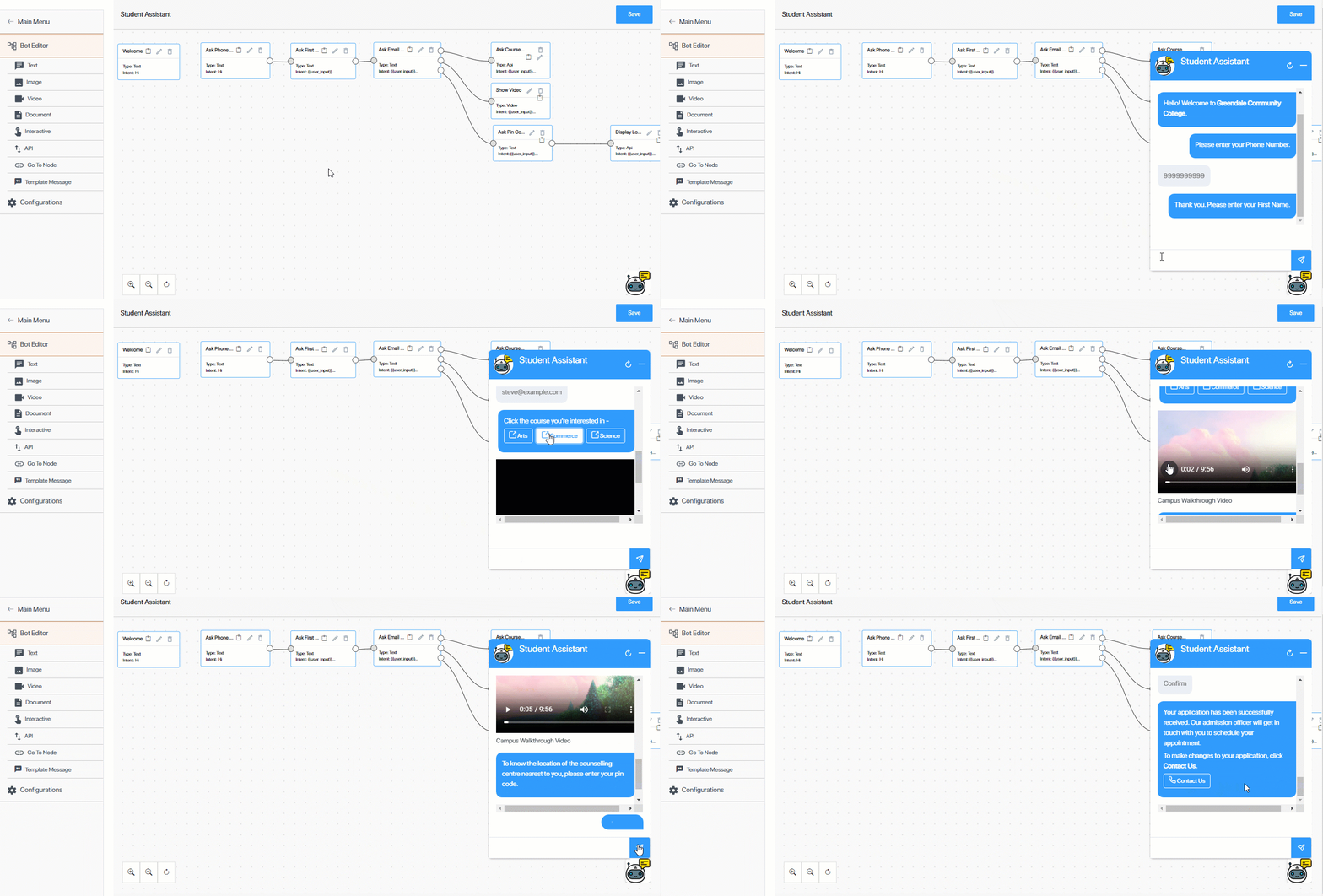
LeadSquared Chatbot


2. Prerequisites


3. How it Works

While you can create chat flows to cover multiple use cases, in this article, we’re looking at how you can create a flow for education institutes to display their courses and other offerings to potential students on their website/portal.

Example Use Case – Student Assistant Chat Flow

In this article, we’ve built a Journey Based Chatbot, and we’ve covered a scenario where new leads interact with the chatbot on an education portal/website. Through the chatbot (by integrating the Create a Lead API), we’ll capture the student’s phone numbers, names and email addresses, and use these details to create a new lead in our LeadSquared account.

Once these details are captured, the chatbot sends a list of courses that are available. From the given options, students select the courses they’re interested in. For the selected courses, the chatbot sends website links where the students can learn more about the course. Along with these links, the chatbot also sends a campus walkthrough video to the lead.

Then, the chatbot captures the lead’s pin code to show the nearest admission office to the lead (for which we’ve integrated an external API), where the lead can schedule an appointment with the admission officer. Once the lead confirms their admission center, the flow comes to an end, with the chatbot informing the lead that someone will soon get in touch with them to schedule an appointment.
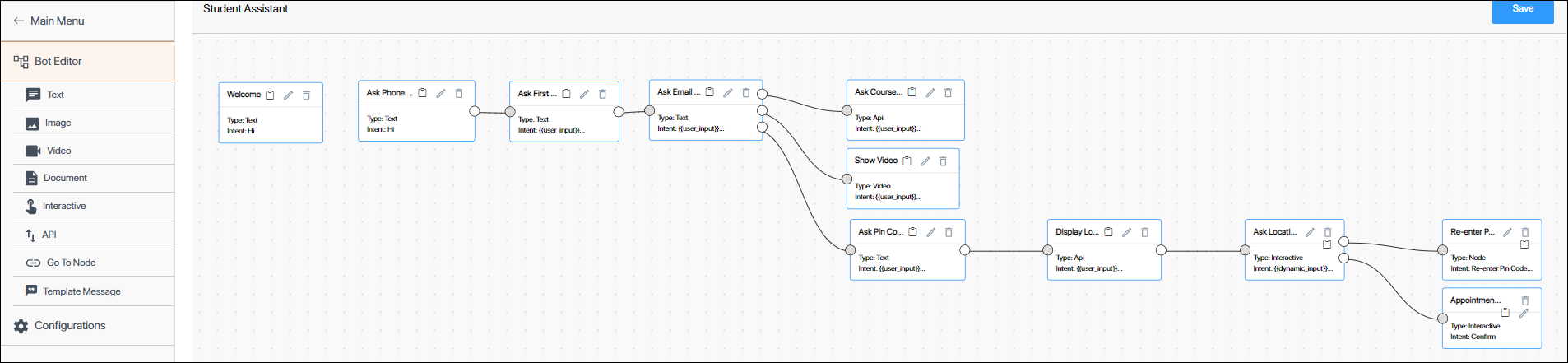
LeadSquared Chatbot

The steps we’ve followed to create the chatbot for the above use case are –

  1. Create a bot by providing a name and description.
  2. Create a Text Node to ask for the lead’s Phone Number.
  3. Create a Text Node to ask for the lead’s First Name.
    • Set up validation to validate the phone number captured in the previous step.
  4. Create a Text Node to ask for the lead’s Email Address.
  5. Create an API Node to capture the lead details in your LeadSquared account.
    • Set up validation to validate the Email Address captured in the previous step.
    • Before you do this, ensure you’ve added LeadSquared APIs to the chatbot. For this article, we’re using the Create a Lead API as an example to demonstrate how to create an API Node.
  6. Create an Image/Document/Video Node to share marketing material with the lead.
  7. Create a Text Node to ask for the lead’s pin code.
  8. Create an API node using an external API to display the locations under the pin code entered.
  9. Create an Interactive Node to confirm lead’s location.
    1. Create a Go To Node, and re-direct the lead back to the Ask Pin Code Node where the lead enters their pin. If required, the lead can change their pin code in this step.
    2. Create a Final Interactive Node where the appointment confirmation is sent to the lead. On this node, we’ve also given the lead an option to call the admission office from the chatbot.
Note: The set-up process we’ve followed is for demonstration purposes only. There are multiple ways in which you can set up the chatbot to achieve the same use case we’ve illustrated. We recommend you use this article to understand how to create a chatbot.


4. Create a Bot

Begin by creating a chatbot. This is the bot your leads will interact with when they visit your website/portal. To create a bot –

  1. On your LeadSquared account, navigate to Apps>Chatbot, and click Get Started.
  2. On the Dashboard screen, from the left panel, click Bots, and then click Create New Bot.
  3. On the Select Type pop-up, under Journey Based Bot, click Select.
  4. On the Create New Bot pop-up, enter a relevant Bot Name and Description for the bot.
    • This name is only for internal identification, and NOT the actual display name of the bot. We will set the display name in a later step.
  5. Once you’re done, click Save.

LeadSquared Chatbot


5. Create Text Nodes to Collect Lead Details

Once the chatbot is created, we’ll create the chat flow. A chat flow is a set of nodes (messages) grouped together in sequential order. A node is a single message that’s part of the chat flow.
A Text node is when the response to the lead is sent in the form of a simple text message.

5.1 Create a Welcome Text Node

In this step, we’re creating a Text Node (message) to greet the lead when they interact with the chatbot for the first time.

Aim – To greet the lead when they use the chatbot.

  • Lead Input Message – Hi
  • Chatbot Response – Hello! Welcome to Greendale Community College.
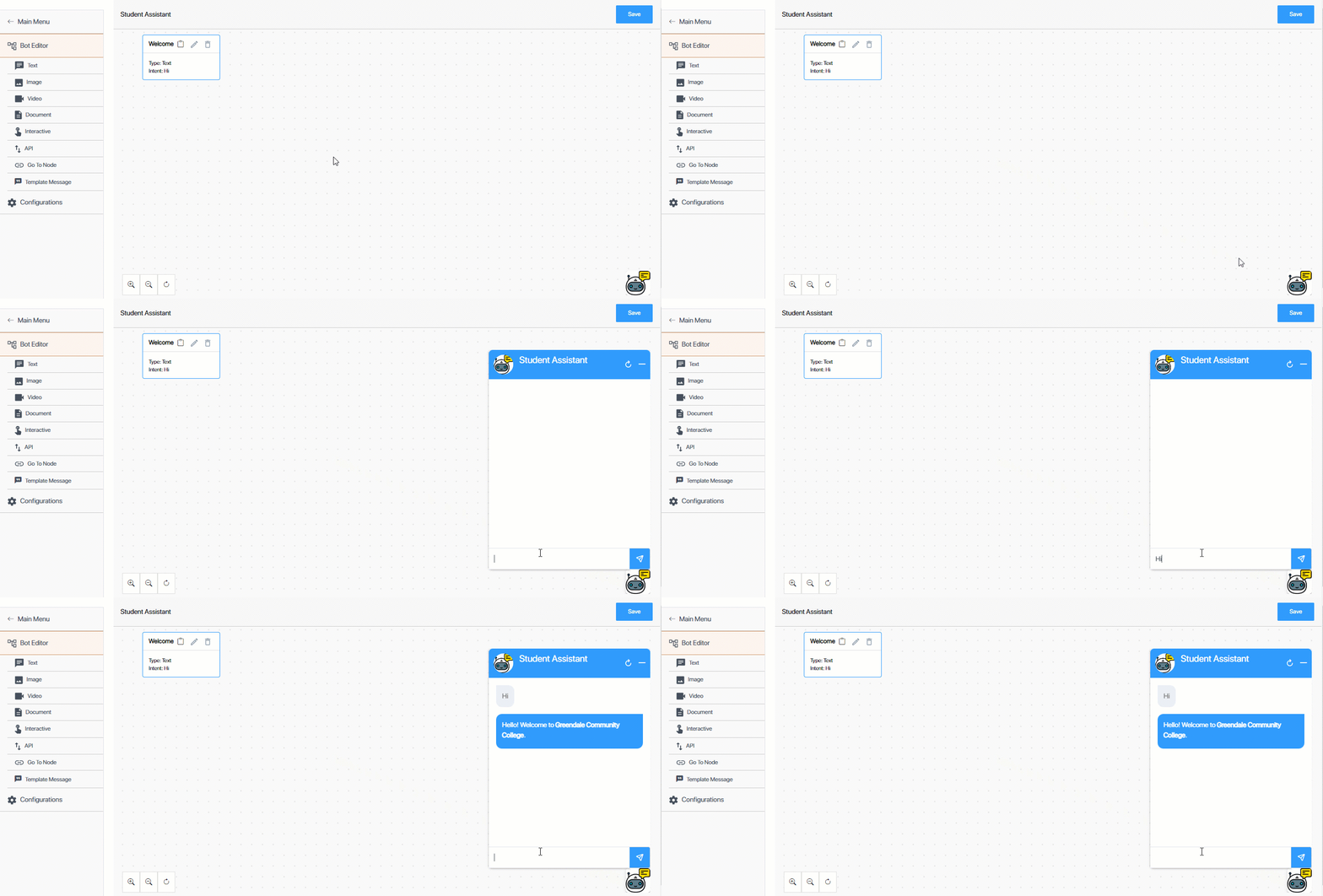
LeadSquared Chatbot

  1. From the Bot Editor screen, click Text.
  2. On the Text Node right panel, enter the following Node Configurations
    • Node name – Provide an internal display name for the node. We’re calling it “Welcome”.
    • Previous node – Since this is the first node we’re creating in the chat flow, we won’t select anything here.
      But if you’re creating a node further down the chat flow, you can select a previous node. An example of a sequence of two text nodes would be if the first node’s response is, “Welcome to Greendale Community College”, and the second node’s response is, “Greendale Community College (GCC) is an open-admissions college located in Greendale County, Colorado.”
    • Intent – The inputs (messages) received by the chatbot are known as intent. These inputs can be sent by a lead or by an API. Examples of intent sent by a lead could be “Hi”, “My order number is 445”, etc. Since we’re creating the first node in a sequence, we’ll hardcode* our intent as “Hi”. This means every time a lead sends “Hi” on the chatbot, the response we configure in the next step will be sent as a reply to the lead. To know about the other intent types available, refer to the Glossary.
    • Final Node – Since this is the first node in our chat flow, we won’t be checking this box.
    • Multi Node Response – A multi-node response is when you send a sequence of responses to a single message from the lead. For example, the lead sends the message ‘Hi’ and the bot responds with two messages – ‘Welcome’ and ‘Please enter your Phone Number’.
      We’ll check this box, because for the intent ‘Hi’, we’re sending a greetings message, along with a follow-up message asking for the lead’s phone number.
      Since this is the first node in the multi-node sequence, once you select the checkbox, ensure the value is set to 1.
  3. Once you’ve set up the Node Configurations, configure the Bot Response. This is the response your lead receives when they message the bot. In our example, we’re going to enter the following response – “Hello! Welcome to Greendale Community College.”
  4. To preview this response, click Preview. After you preview the response, make changes if required. Once you’re done, click Save.
  5. To check if the Intent and Response are set up correctly, click the emulator  Chatbot Icon. Then, enter the Intent message. If the Response is the same as the one you configured, the node is working fine.

Note:

  • *When you want to hardcode the intent, you have to enter the value in the box under Intent. You’re NOT required to tick any of the other options (Dynamic Intent and User Input) that are available.
  • You can configure the chatbot to send a greeting message to the lead as soon as the chatbot is launched (and without the lead having to input a message). To configure this feature on your account, contact your account manager, or write to support@leadsquared.com.
  • You can stylise the response using Italics, Bold and Strikethrough.
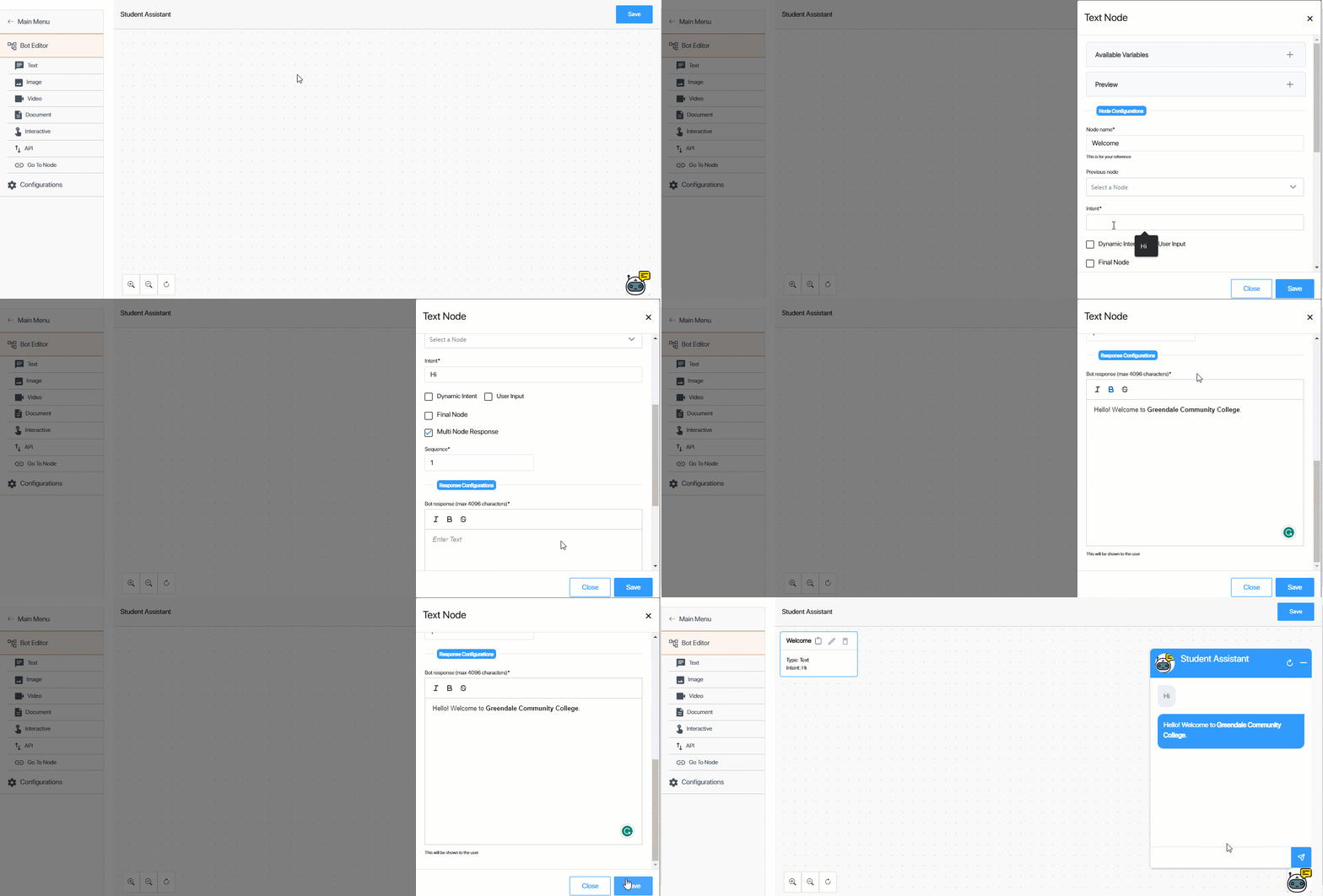
LeadSquared Chatbot

5.2 Ask for Phone Number

Through this Text node, we’ll ask the lead for their Phone Number. This node is the second in the line of multi-response nodes, and the Response message will be sent on the same Intent message the lead enters (‘Hi’) in the previous step.

Aim – To ask the lead for their Phone Number.

  • Lead Input Message – Hi
  • Chatbot Response – Please enter your Phone Number.
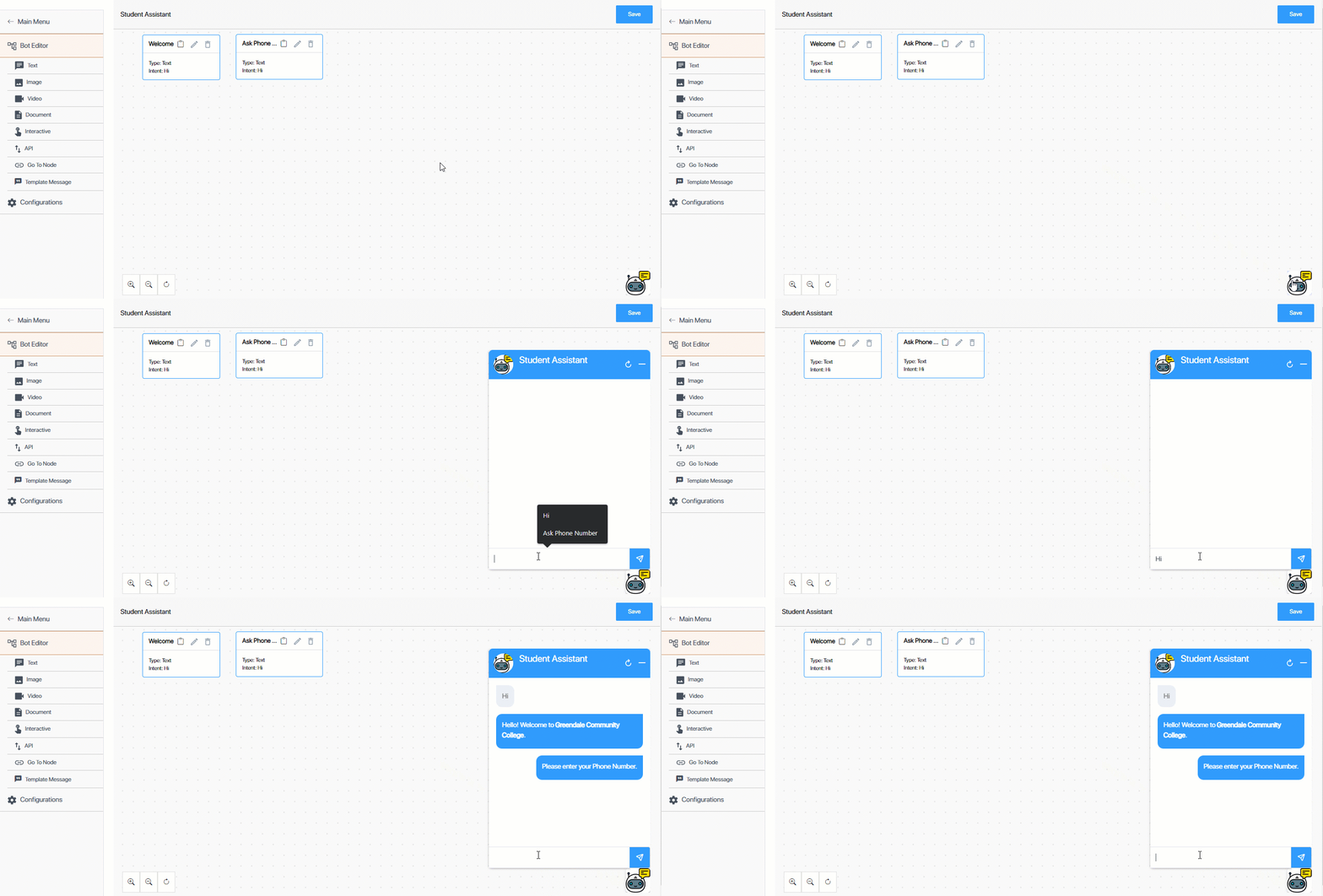
LeadSquared Chatbot

  1. From the Bot Editor screen, click Text.
  2. On the Text Node right panel, enter the following Node Configurations
    • Node name – Provide an internal display name for the node. We’re calling it “Ask Phone Number”.
    • Previous node – We will not be selecting a previous node because this node is part of the Multi Node sequence that we’re setting up on the first intent message (“Hi”).
    • Intent – We will continue to use “Hi” as the Intent.
    • Final Node – We won’t be checking this box.
    • Multi Node Response – We will be checking this box, and entering the value 2. This is because it’s the second response to the Intent message. Number subsequent multi node responses in sequential order (3, 4, 5, and so on).
  3. Once you’ve set up the Node Configurations, configure the Bot Response. In our example, we’ll enter the following response – “Please enter your phone number.”
  4. To preview this response, click Preview. After you preview the response, make changes if required. Once you’re done, click Save.
  5. To check if the Intent and Response are set up correctly, click the emulator Chatbot Icon. Then, enter the Intent message. If the Response is the same as the one you configured, the node is working fine.
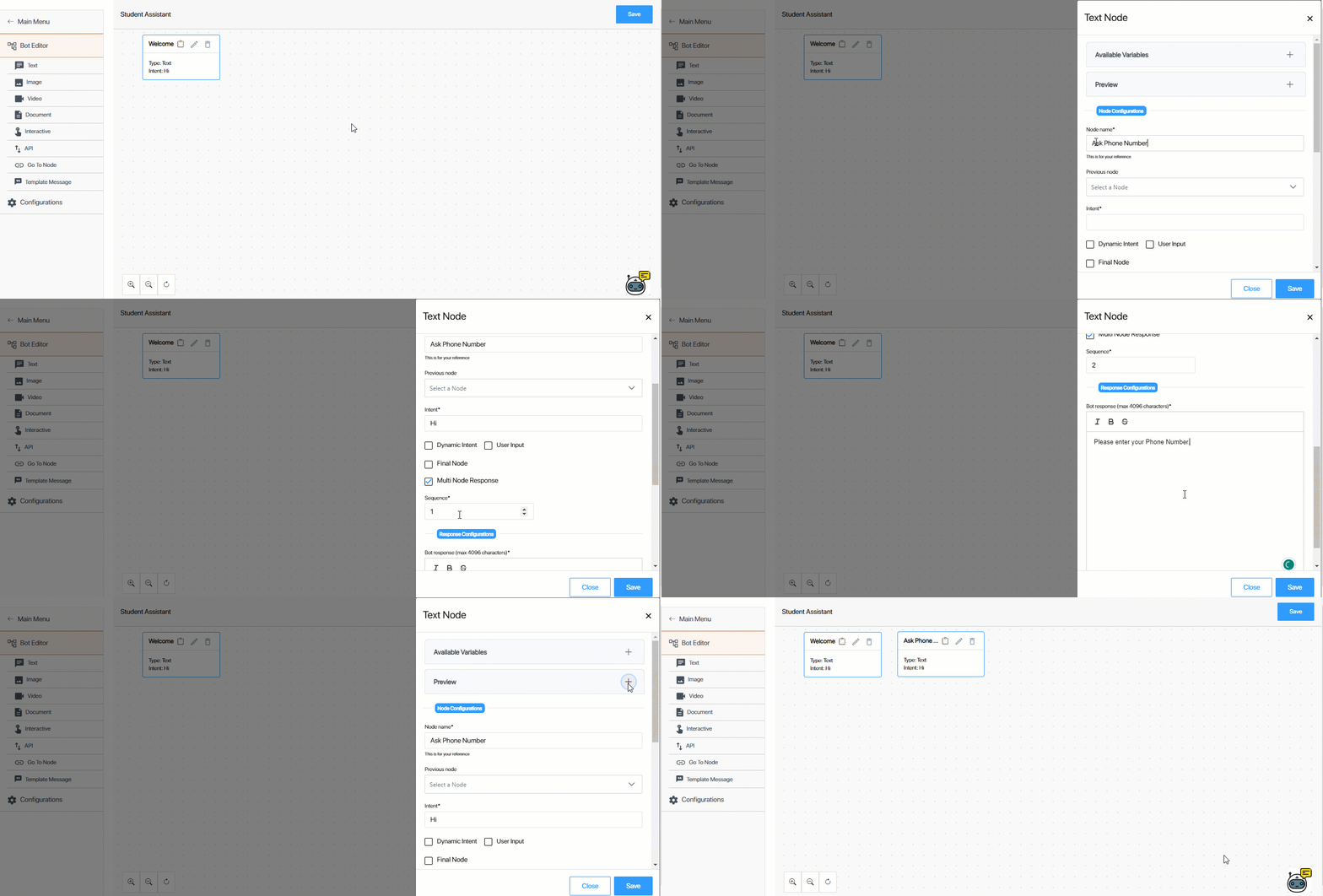
LeadSquared Chatbot

5.3 Ask for First Name

Through this Text node, we’ll ask the lead for their First Name. The Intent message for this node is the Phone Number {{user_input}} the lead input in the previous step. In this node, we’ll also validate the phone number the lead provided.

Aim – To validate the Phone Number captured in the previous step, and ask the lead for their First Name.

  • Lead Input Message – 9999999999 (in our example)
  • Chatbot Response – Thank you. Please enter your First Name.
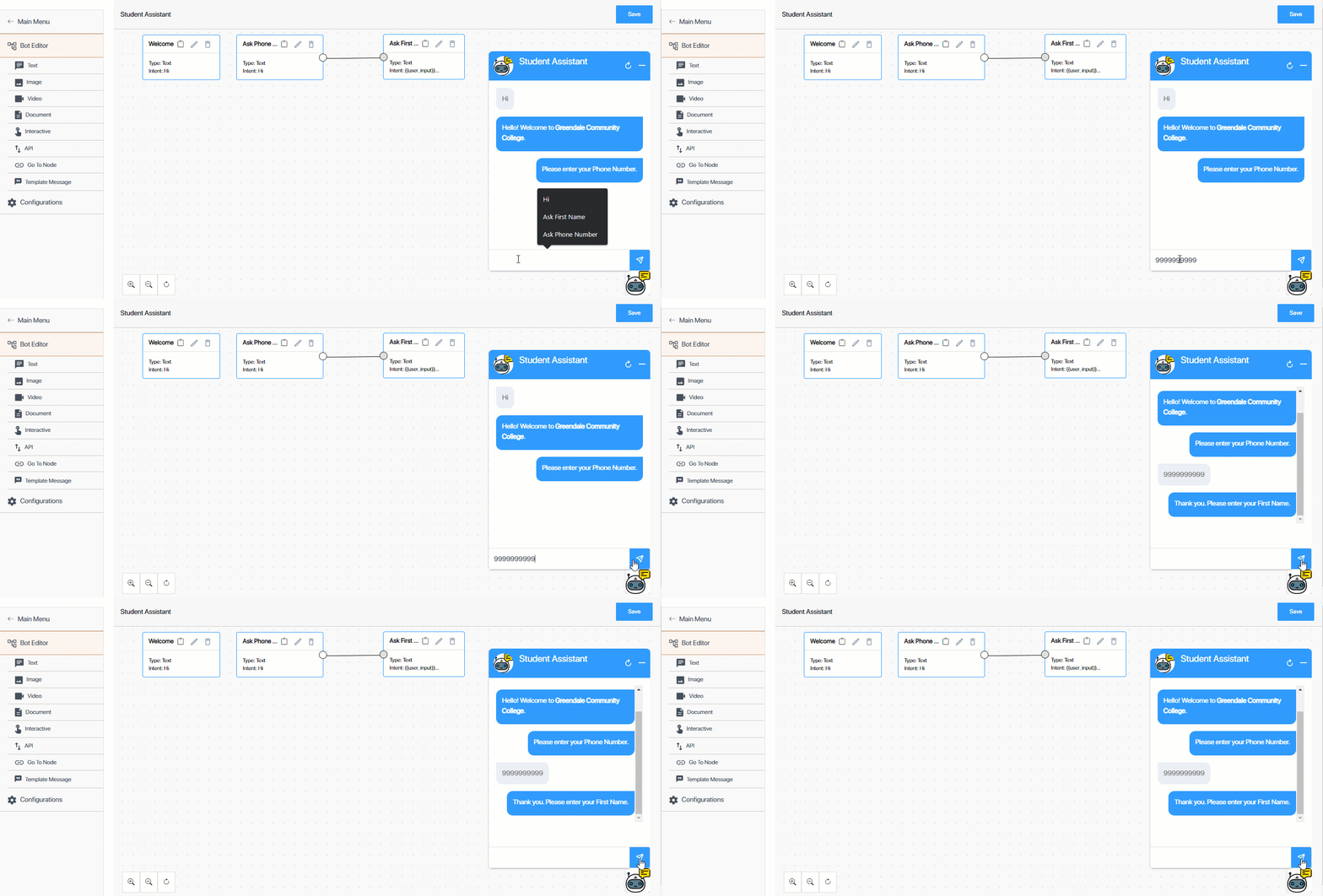
LeadSquared Chatbot

  1. From the Bot Editor screen, click Text.
  2. On the Text Node right panel, enter the following Node Configurations
    • Node name – Provide an internal display name for the node. We’re calling it “Ask First Name”.
    • Previous node – Since the lead would’ve responded (Intent) with their phone number in the previous step, we’ll now select the Previous Node as “Ask Phone Number”. This means the response we configure in this step will only be sent after the lead responds to the previous message.
    • Intent – Since the phone number entered is going to be unique to each lead, we’ll select User Input. This means that any value the lead provides will be considered as user intent.
      • Validate User Input – For phone numbers, email, and other unique lead fields, select this checkbox to validate the lead’s response, to ensure you’re not collecting junk values. Since we’re validating the phone number in this step, from the validator dropdown, select PHONE. This validator is available by default. To view the regex that defines a phone number, and to know more about validators, refer to Create Custom Validators for the Chatbot.
    • Final Node – We won’t be checking this box.
    • Multi Node Response – We won’t be checking this box.
  3. Once you’ve set up the Node Configurations, configure the Bot Response. In our example, we’re going to enter the following response – “Thank you for your response. Please enter your First Name.”
  4. To preview this response, click Preview. After you preview the response, make changes if required. Once you’re done, click Save.
  5. To check if the Intent and Response are set up correctly, click the emulator Chatbot Icon. Then, enter the Intent message. If the Response is the same as the one you configured, the node is working fine.
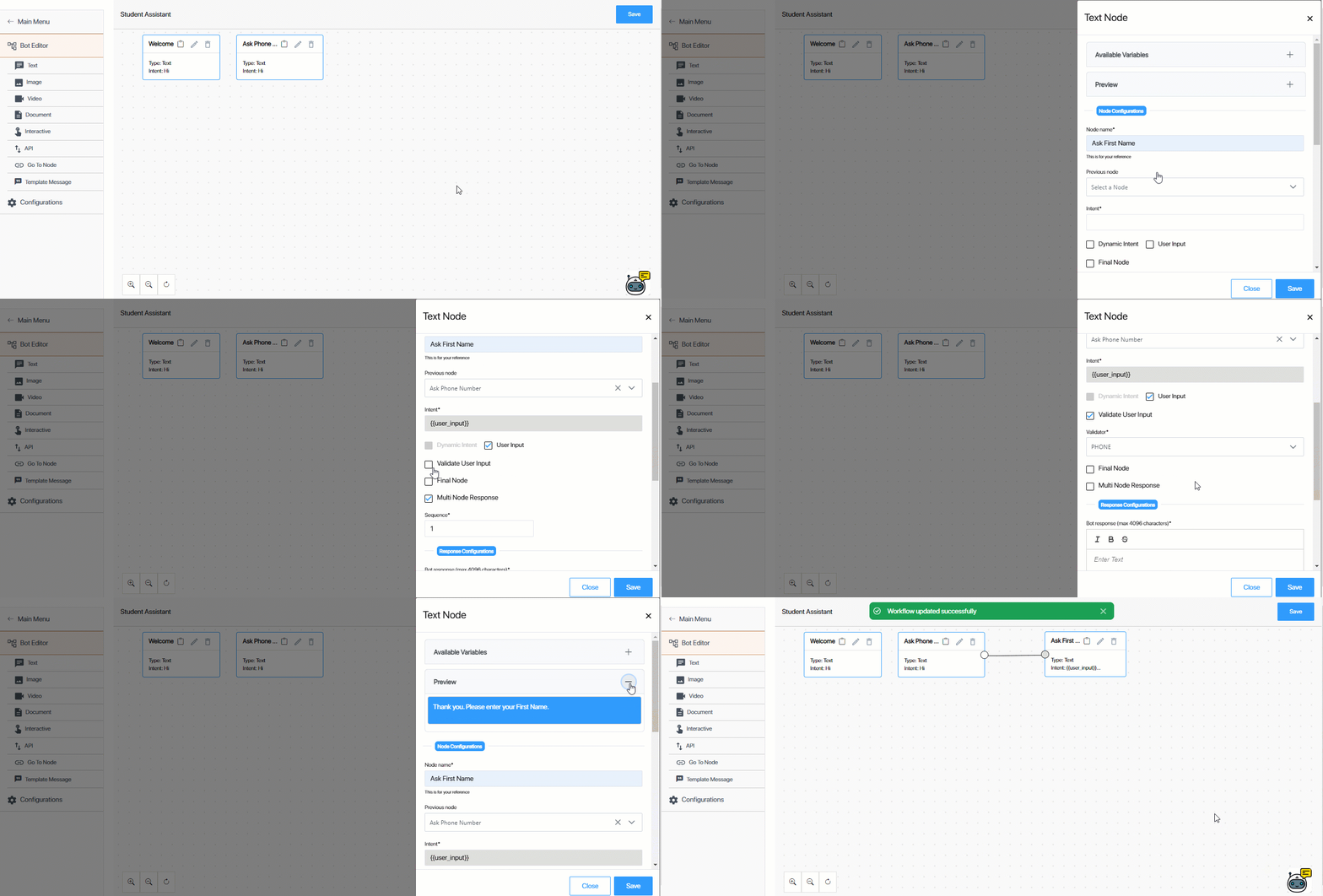
LeadSquared Chatbot

If the lead enters an invalid phone number, they’ll get the following error message –
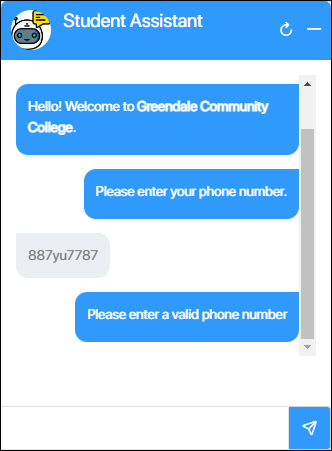
LeadSquared Chatbot

5.4 Ask for Email Address

Through this Text node, we’ll ask the lead for their Email Address. The Intent message for this node is the First Name {{user_input}} the lead provided in the previous step.

Aim – To ask the lead for their Email Address.

  • Lead Input Message – Steve (in our example)
  • Chatbot Response – Thank you. Please enter your Email Address.
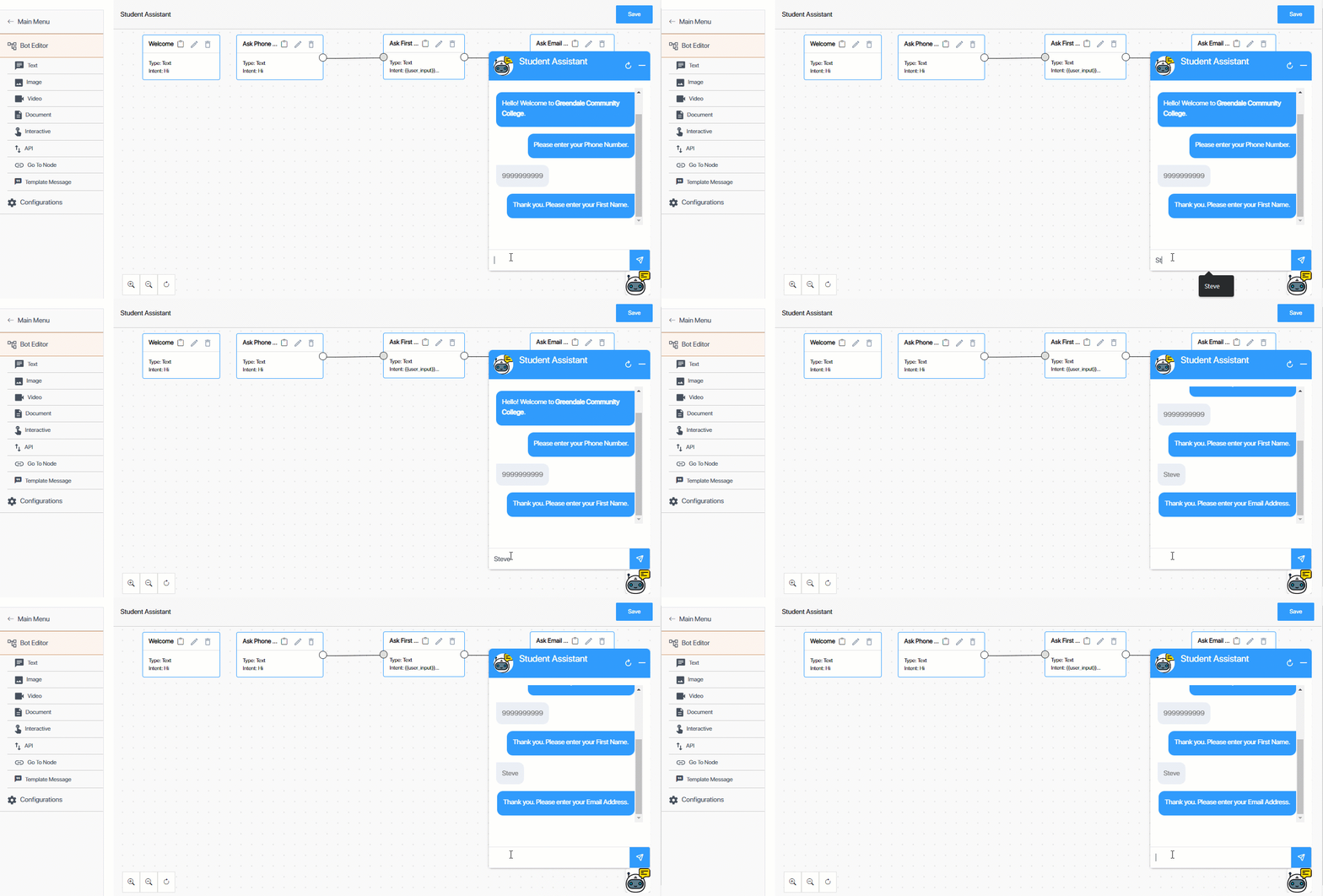
LeadSquared Chatbot

  1. From the Bot Editor screen, click Text.
  2. On the Text Node right panel, enter the following Node Configurations
    • Node name – Provide an internal display name for the node. We’re calling it “Ask Email Address”.
    • Previous node – Since the lead would’ve responded (Intent) with their First Name in the previous step, we’ll now select the Previous Node as “Ask First Name”.
    • Intent – Since the name entered is going to be unique to each lead, we’ll select User Input. This means that any value the lead provides will be considered as user intent.
      • Validate User Input – We won’t tick this box (because a name doesn’t contain any validations).
    • Final Node – We won’t be checking this box.
    • Multi Node Response – We won’t be checking this box.
  3. Once you’ve set up the Node Configurations, configure the Bot Response. In our example, we’re going to enter the following response – “Thank you. Please enter your Email Address.” We’re asking for the lead’s email address, for which we’ll set up an API node to capture all the lead’s details (phone, name, and email address) we’ve gathered thus far.
  4. To preview this response, click Preview. After you preview the response, make changes if required. Once you’re done, click Save.
  5. To check if the Intent and Response are set up correctly, click the emulator Chatbot Icon. Then, enter the Intent message. If the Response is the same as the one you configured, the node is working fine.
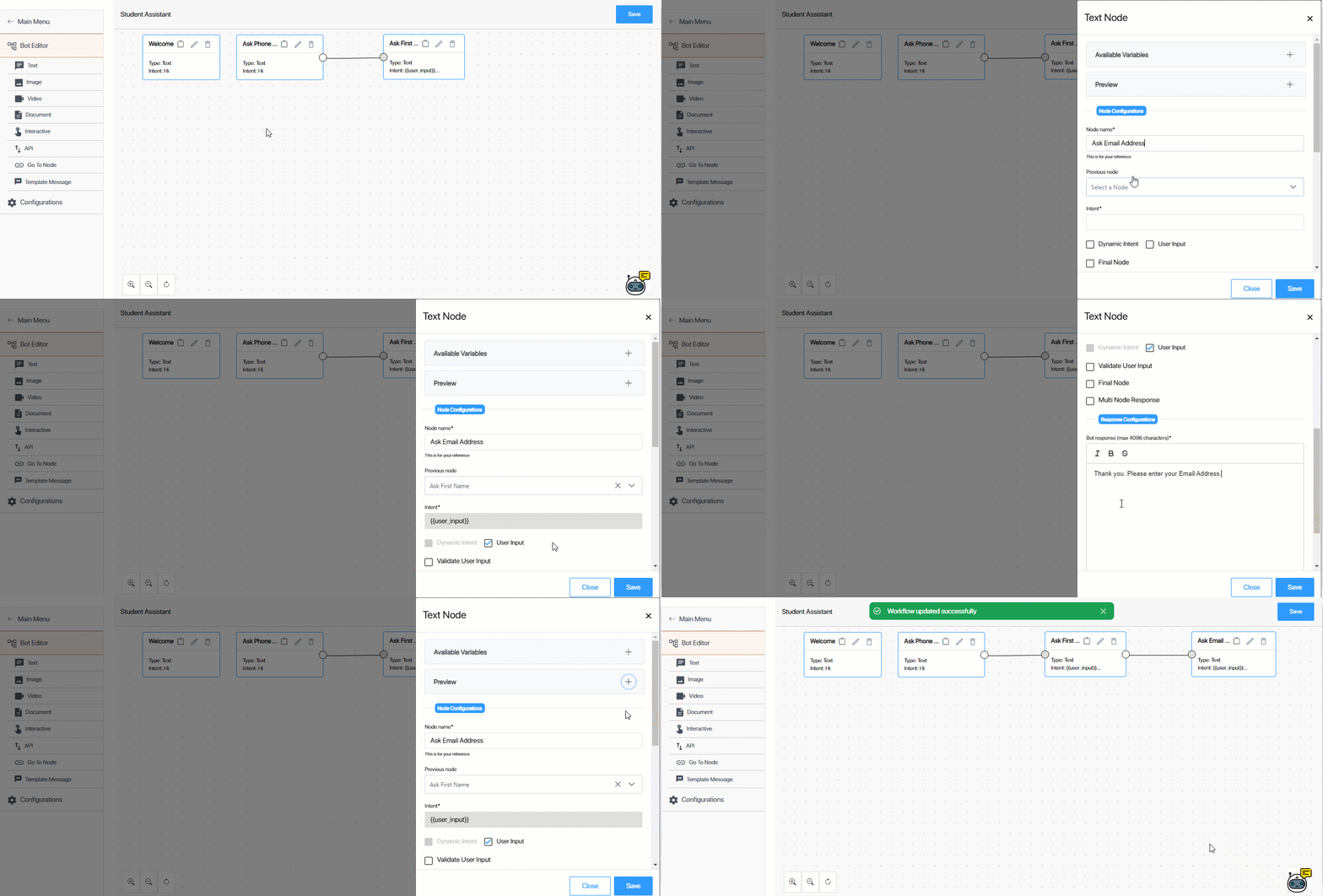
LeadSquared Chatbot


6. Create an API Node using a LeadSquared API

An API node contains an API (either LeadSquared APIs or any external APIs) integrated either to capture details from the chatbot (e.g., Lead Name, Lead Number, etc.), or display details to the lead (e.g., Pincodes, List of Hospitals, etc.). The Response you set up through an API node can be a simple Text response, or an Interactive Response, under which you can display Button options or List options.

Here, we’re creating an API node to create a lead in our LeadSquared account (through the Create a Lead API). In this node, we’ll add an interactive response that displays the courses offered as buttons (which will direct the lead to the landing page URL for each course).

The Intent message for this node is the Email Address {{user_input}} the lead input in the previous step, which we’ll also validate in this step.

Aim – To validate the Email Address captured in the previous step. To integrate the Create a Lead API with the node and display the courses offered.

  • Lead Input Message – steve@example.com (in our example)
  • Chatbot Response
    • For a new lead* – “Click the course you’re interested in.”
    • For an existing lead – “It looks like we already have your details. Please get in touch with our Admin office to know the status of your application.”

Note:

  • The Create a Lead API returns an Id only when a new lead is created. So we’re using the response variable ‘Id’ from the Create a Lead API to set up a condition to verify if a new lead was created or if the lead already exists in our LeadSquared account.
  • Before creating an API node, adding and setting up APIs (both LeadSquared APIs and external APIs are supported) on the Chatbot is mandatory. To know how to do this, refer to Integrate APIs with the Chatbot.
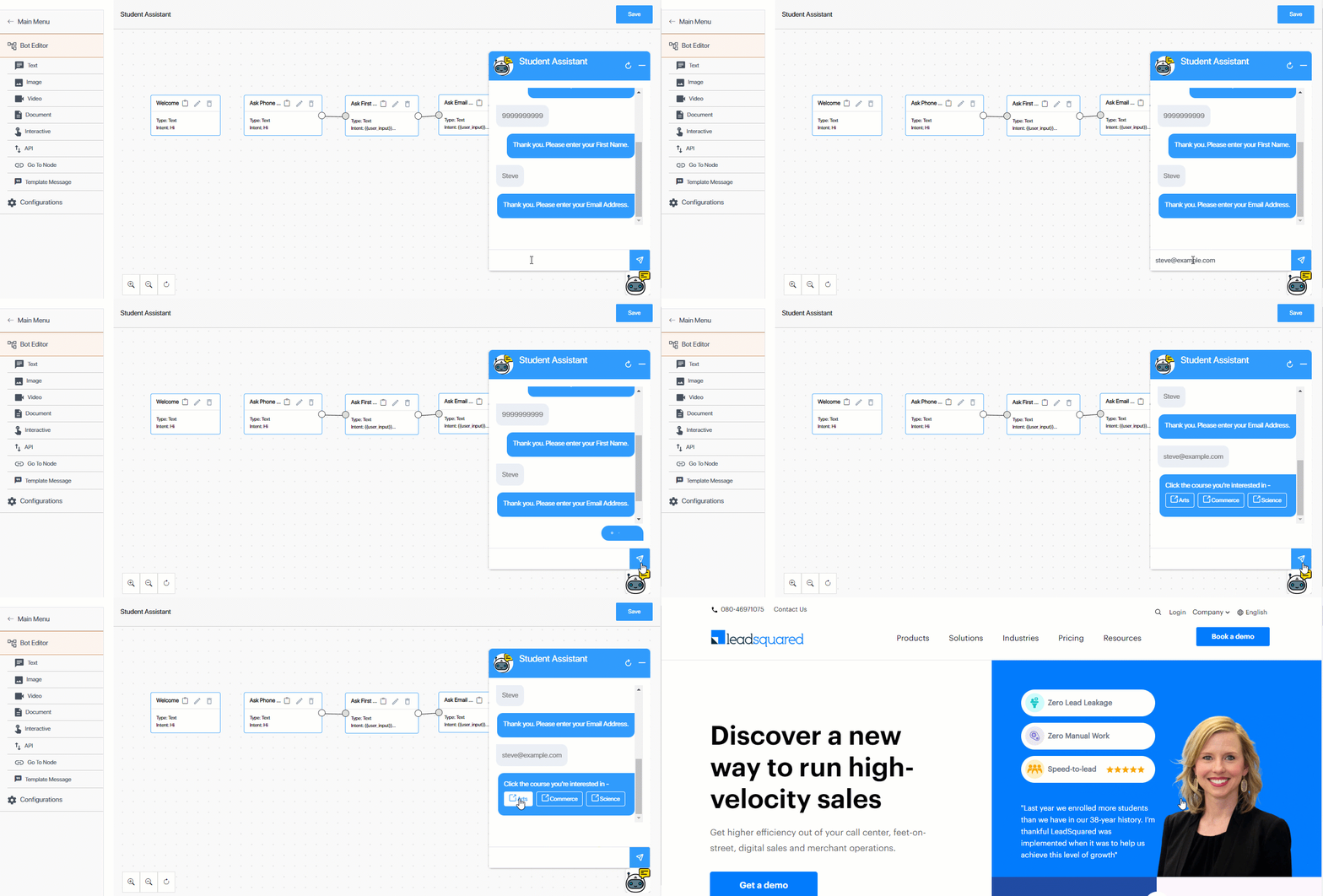
LeadSquared Chatbot

6.1 Node Configurations

In this step, we’re configuring how the node behaves when the user inputs their email Id.

  1. From the Bot Editor screen, click API.
  2. On the API Node right panel, enter the following Node Configurations
    • Node name – Provide an internal display name for the node. We’re calling it “Ask Course Preference”.
    • Previous node – Since the lead would’ve responded (Intent) with their email Id in the previous step, we’ll select the Previous Node as “Ask Email Address”.
    • Intent – Since the email Id entered is going to be unique to each lead, we’ll select User Input. The chatbot will accept a valid email Id as the response here.
      • Validate User Input – For phone numbers, email, and other unique lead fields, select this checkbox to validate the lead’s response, to ensure you’re not collecting junk values. From the validator dropdown, select EMAIL. This is available by default. To view the regex that defines an email address, and to know more about validators, refer to Create Custom Validators for the Chatbot.
    • Final Node – We won’t be checking this box.
    • Multi Node Response – We want to share our marketing materials and set up a CTA in the subsequent nodes. So, we’ll select this box, and set the value to 1. This is because this node is the first in a new multi-node sequence.
  3. Once you’ve set up the Node Configurations, complete the Response Configurations.
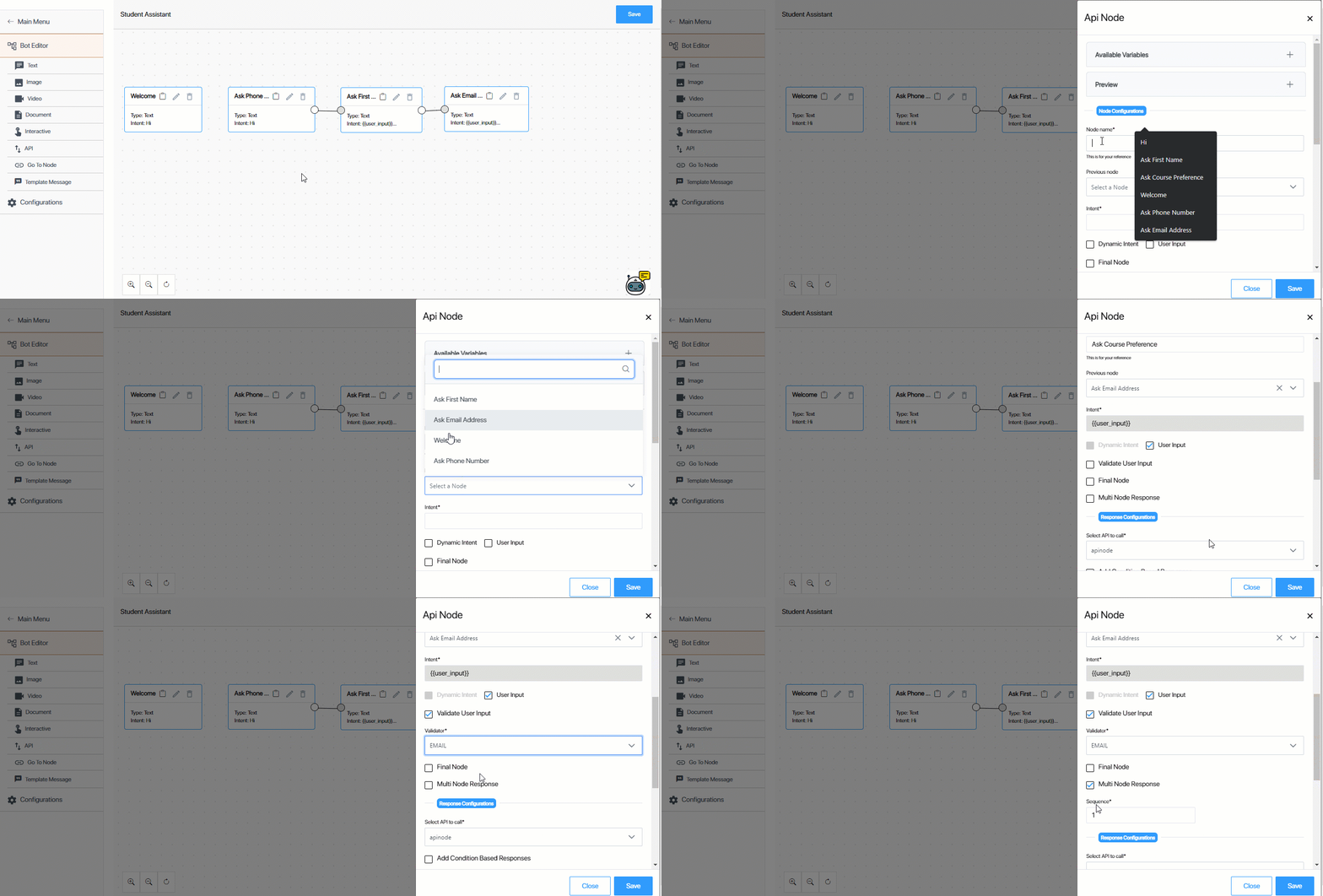
LeadSquared Chatbot

6.2 Response Configurations

In this step, from the list of APIs you’ve integrated with the chatbot, select the API you want to call when this node fires. Once the API is selected, we’re configuring a response using text and interactive nodes.

If required, you can add conditions based on the API response. In our example, we’re configuring –

  • An interactive response if the lead doesn’t exist in our LeadSquared account.
  • Text response if the lead exists in our LeadSquared account.
  1. From the Select API to call dropdown, select the API you want to integrate with this API node. We’re selecting the Create a Lead API (which we’ve named “Lead Capture” on the chatbot).
  2. If required, you can select Add Condition-Based Responses. We’re selecting the checkbox to identify if a lead already exists in our account, and for these leads, we’ll display a different response.
    • From the Variable Name dropdown, we’re selecting Id. The Id here is the lead Id generated when a new lead is created. This is the response variable we added when integrating the API with the chatbot.
      • To view the list of variables configured in the Chatbot, click Available Variables.
    • From the Conditions dropdown, we’re selecting Exists. To add multiple Conditions, click Add Condition.
  3. Response (If the conditions are true) – The response your lead sees when the API response fulfills the Conditions set in the previous step. This means if the API response returns a lead Id (which means the lead was created through the API call), we’ll display this chatbot response. In our example, we’re going to select Interactive, and then select Buttons and configure actions the lead can perform.
    • Header – The response header that’ll be displayed. This is optional. You can set an Image, Document, Video or Text as the response header.
    • Body – Enter the text response that’ll be sent to your leads. We’re entering – “Click the course you’re interested in -“
    • Under Button Configurations, select the button action (Text, Visit Website, Call Phone Number, or Download), and enter a display name for the button. We’re entering the names of courses we offer, and a Visit Website action for each course, which will redirect the lead to the corresponding landing page.
      • If you’ve selected the action Visit Website or Download, enter a valid URL link.
      • If you’ve selected the action Call Phone Number, enter a valid phone number.
    • Footer – You can display any relevant text information in the footer. This is optional.
  4. Response (If the conditions are false) – The response your lead sees when the API response does not fulfill the Conditions set in step 2 (of this section). This means if the API response does not return a lead Id (which may indicate that the lead already exists in our account), we’ll display this response. In our example, we’re going to select Text.
    • Under Bot Response, we’re entering the following response – “It looks like we already have your details. Please get in touch with our Admin office to know the status of your application.”
  5. To preview this response, click Preview. After you preview the response, make changes if required. Once you’re done, click Save.
  6. To check if the Intent and Response are set up correctly, click the emulator Chatbot Icon. Then, enter the Intent message. If the Response is the same as the one you configured, the node is working fine.
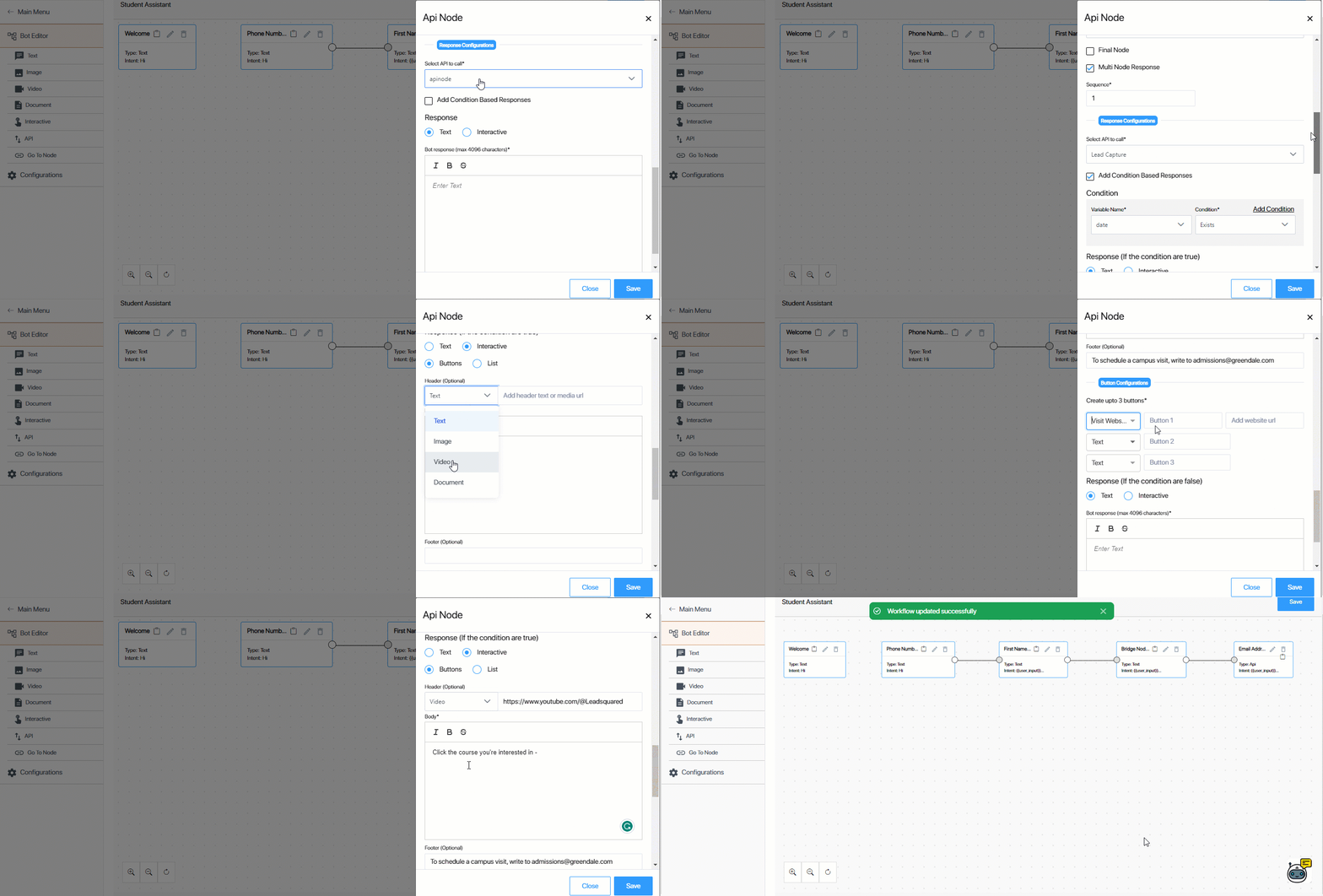
LeadSquared Chatbot

Note:

  • It is optional to Add Condition Based Responses. If you don’t add conditions, only one chatbot response will be shown to leads.
  • When you’re entering a website URL (for Visit Website buttons), ensure the URL contains “https://”. For e.g., the URL should be – “https://www.leadsquared.com/”.
  • If you configure an Interactive response, and then select Buttons, you can add up to three buttons. If you select Lists, you can add up to 10 lists.
  • If you set an Interactive response, and then select List, you’ll get the Action Button Text field.
    • If you’re integrating the chatbot with WhatsApp, it’s mandatory to input a value here (e.g., “Select an option”), since this is a prerequisite from WhatsApp’s end.
    • But, if you’re integrating the chatbot on web, then you can input a dummy value here, since the button won’t be displayed to your lead on the chatbot.

The Response (If the condition are false) sent to a lead will look like this –
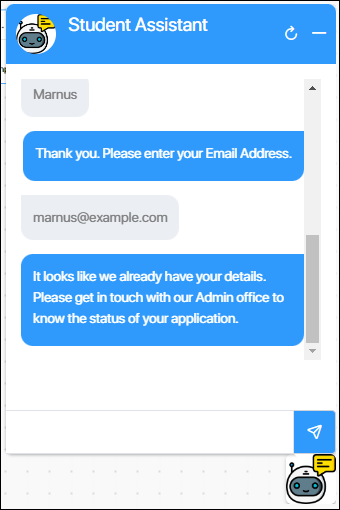
LeadSquared Chatbot


7. Create an Image/Document/Video Node

An Image/Document/Video node shares the URL of these three media types as the chatbot response. The steps to set up an Image Node, Video Node and Document Node are the same.

We’re setting up a Video Node to share a campus walkthrough video. We’ll send this response once the lead successfully inputs their Email Id. We’re setting up this node as the 2nd node in the multi-response sequence.

Aim – To share a video/image/document with the lead.

  • Lead Input Message – steve@example.com (in our example)
  • Chatbot Response – Video/image/document.
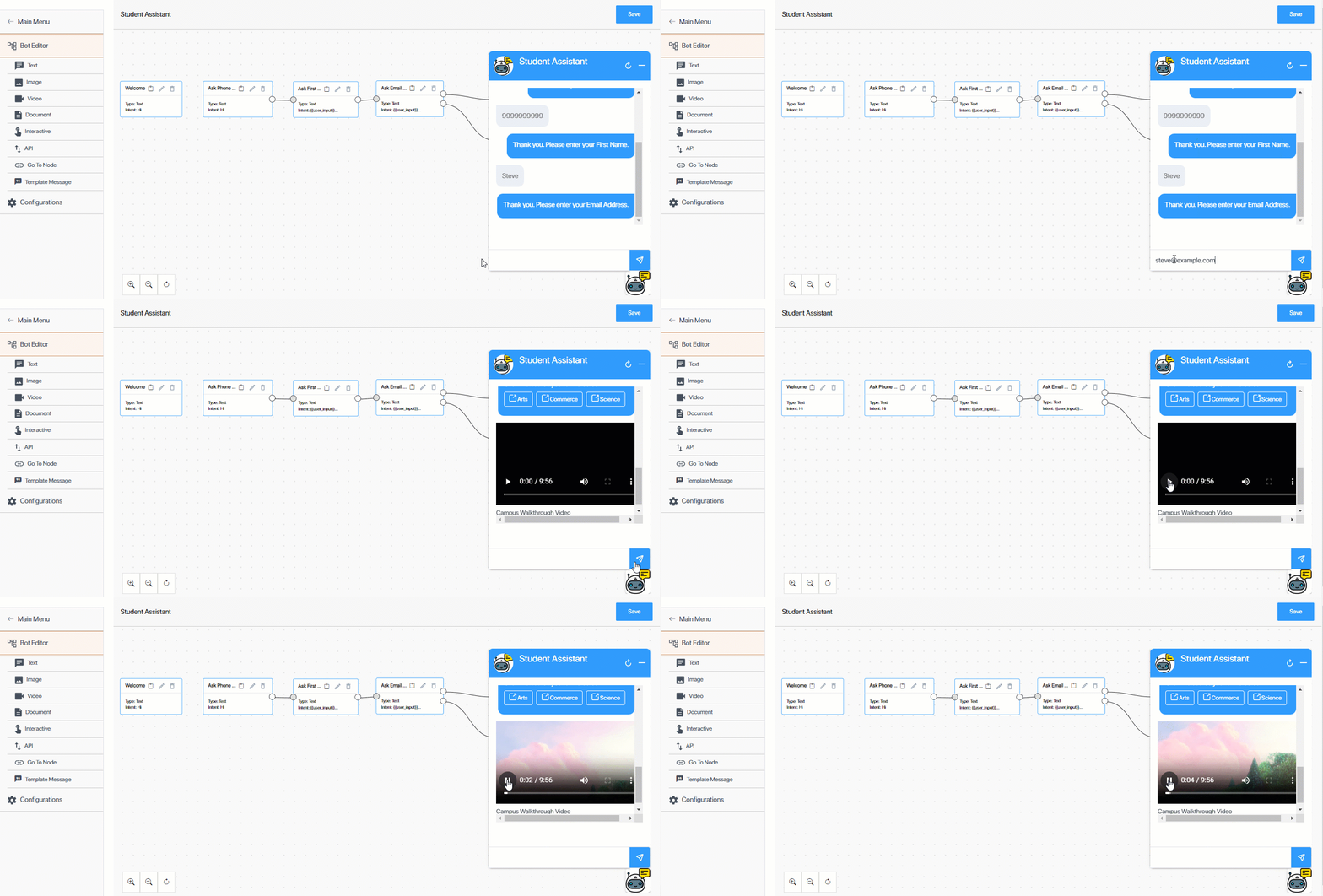
LeadSquared Chatbot

  1. From the Bot Editor screen, click Video.
  2. On the Video Node right panel, enter the following Node Configurations
    • Node name – Provide an internal display name for the node. We’re calling it “Show Walkthrough Video”.
    • Previous node – Since we’re building this node based on the lead’s response when we ask their email Id, we’ll select the Previous Node as “Ask Email Address”.
    • Intent – Since the email Id entered is going to be unique to each lead, we’ll select User Input.
      • Validate User Input – We won’t select anything here, since the email validation happened in the Node Configurations step.
    • Final Node – We won’t be checking this box.
    • Multi Node Response – Since the Input for this node to trigger continues to be the lead’s email Id, we’ll select this box, and we’ll set the value to 2.
  3. Once you’ve set up the Node Configurations, configure the Bot Response URL. Enter the document/video/image URL.
    • If required, you can add a Caption. This is optional.
  4. To preview this response, click Preview. After you preview the response, make changes if required. Once you’re done, click Save.
  5. To check if the Intent and Response are set up correctly, click the emulator Chatbot Icon. Then, enter the Intent message. If the Response is the same as the one you configured, the node is working fine.

Note:

  • The following image formats are supported –
    • PNG
    • JPEG
    • JPG
    • GIF
  • Only video URLs with .mp4 extensions are supported.
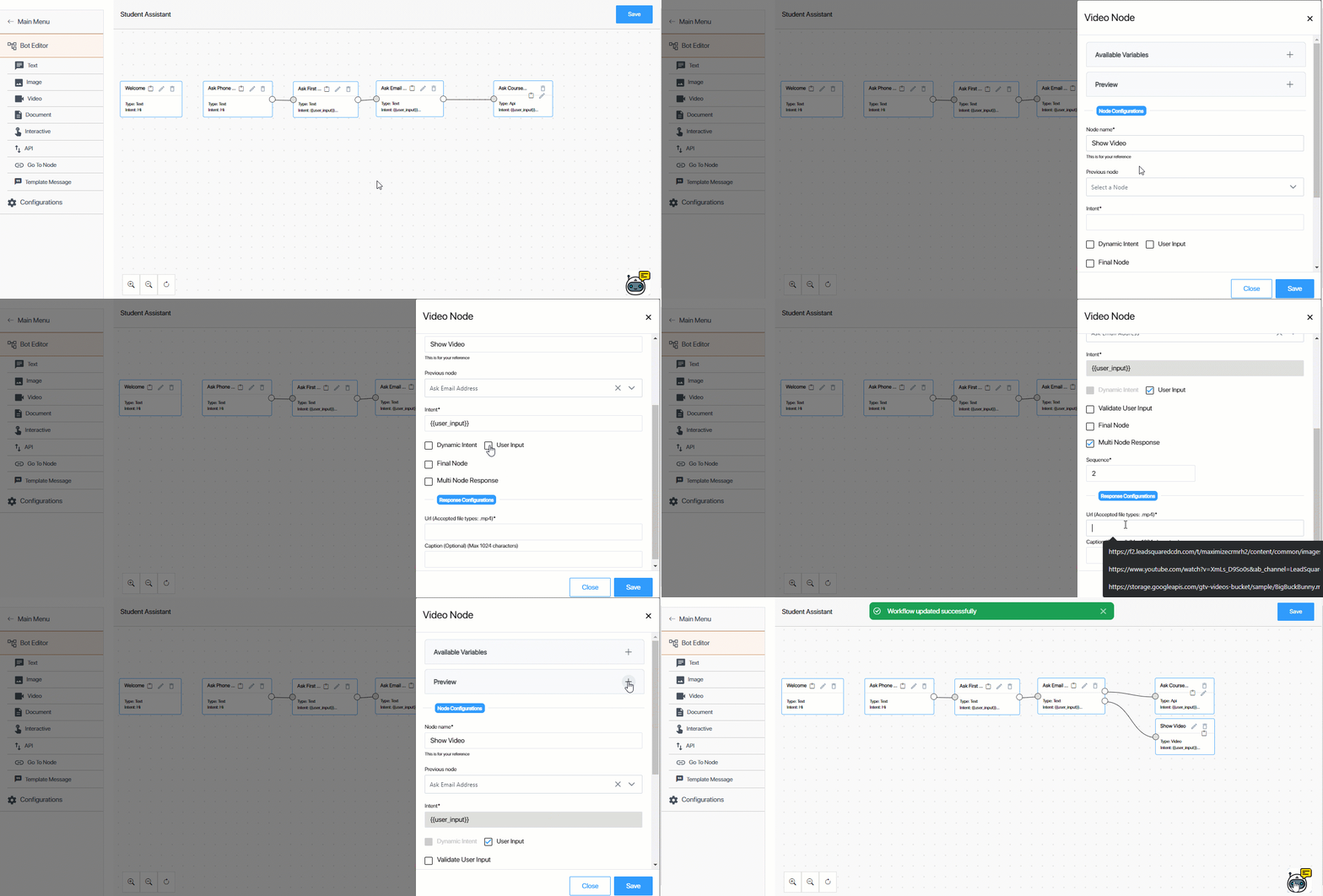
LeadSquared Chatbot


8. Create a Text Node to Collect Lead Pin code

Next, we’re creating a Text node to ask for the lead’s pin code. Based on the pin code, we’ll show the nearest counselling centre.

Aim – To ask the lead for their pin code.

  • Lead Input Message – steve@example.com (in our example)
  • Chatbot Response – To know the location of the counseling center nearest to you, please enter your pin code.
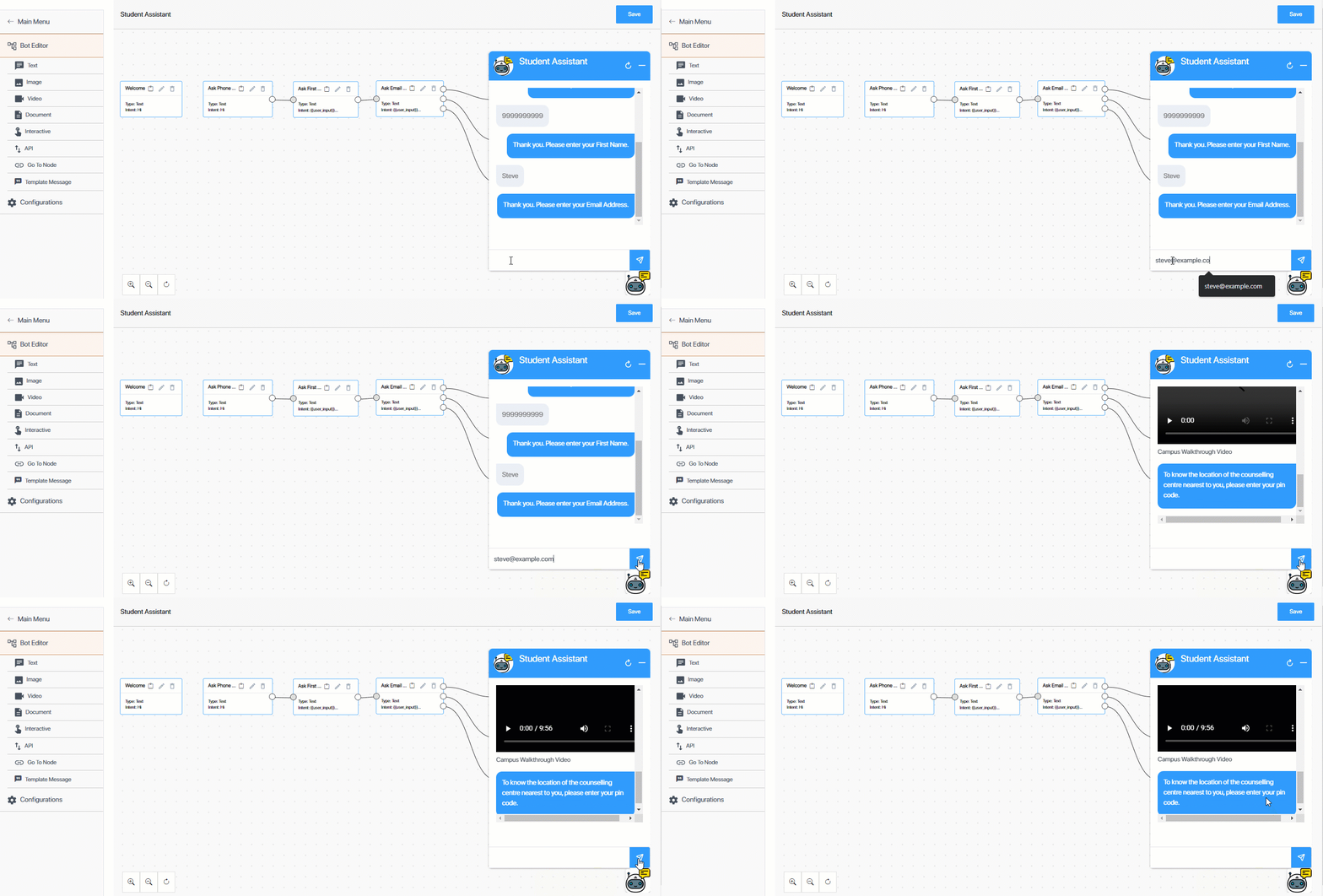
LeadSquared Chatbot

  1. From the Bot Editor screen, click Text.
  2. On the Text Node right panel, enter the following Node Configurations
    • Node name – Provide an internal display name for the node. We’re calling it “Ask Pin Code”.
    • Previous node – Since the lead would’ve responded (Intent) with their email Id in the previous step, we’ll now select the Previous Node as “Ask Email Address”.
    • Intent – Since the email Id entered is going to be unique to each lead, we’ll select User Input.
      • Validate User Input – We won’t select anything here, since the email validation happened in the Node Configurations step.
    • Final Node – We won’t be checking this box.
    • Multi Node Response – Since the Input for this node to trigger continues to be the lead’s email Id, we’ll select this box, and we’ll set the value to 3.
  3. Once you’ve set up the Node Configurations, configure the Bot Response. In our example, we’re going to enter the following response – “To know the location of the counselling centre nearest to you, please enter your pin code.” We’re asking for the lead’s pin code, for which we’ll set up the API node to show the nearest location in the next section.
  4. To preview this response, click Preview. After you preview the response, make changes if required. Once you’re done, click Save.
  5. To check if the Intent and Response are set up correctly, click the emulator Chatbot Icon. Then, enter the Intent message. If the Response is the same as the one you configured, the node is working fine.
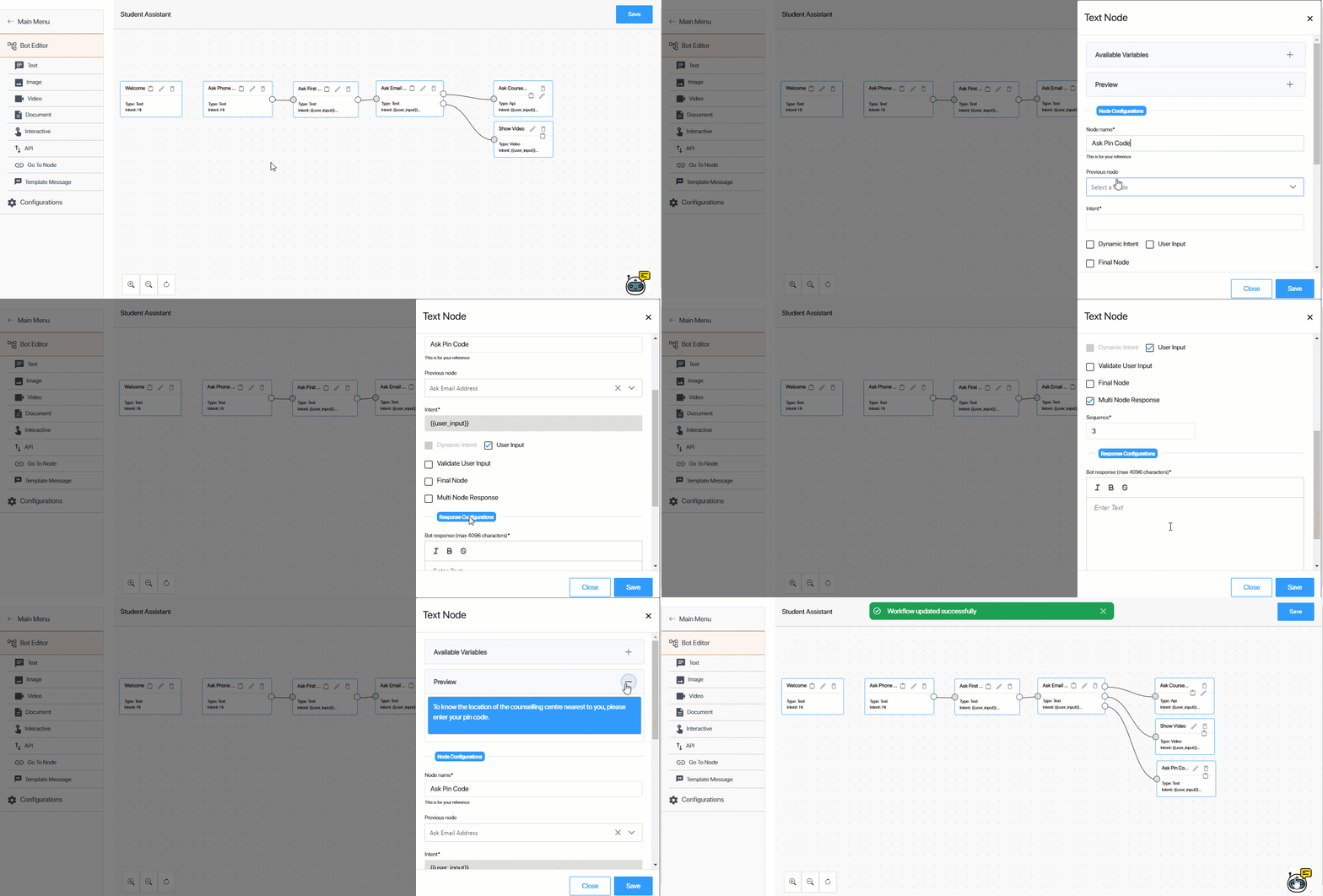
LeadSquared Chatbot


9. Create an API Node using an External API

Here, we’re creating an API node to display location based on the pin code entered in the previous step. We’re using an external (non-LeadSquared) API to pull this data.

The Intent message for this node is the Pin Code {{user_input}} the lead input in the previous step. We’ll set up an Interactive Response in this step, through which we’ll ask the lead to pick their location.

Note: Before creating an API node, adding and setting up APIs (both LeadSquared APIs and external APIs are supported) on the Chatbot is mandatory. To know how to do this, refer to Add APIs to the Chatbot.

Aim – To display locations based on the pin code captured in the previous step, and get confirmation if the location is accurate.

  • Lead Input Message – 560098 (in our example)
  • Chatbot Response (If the condition are true) – Select and confirm your location.
  • Chatbot Response (If the condition are false) – Invalid pin code.
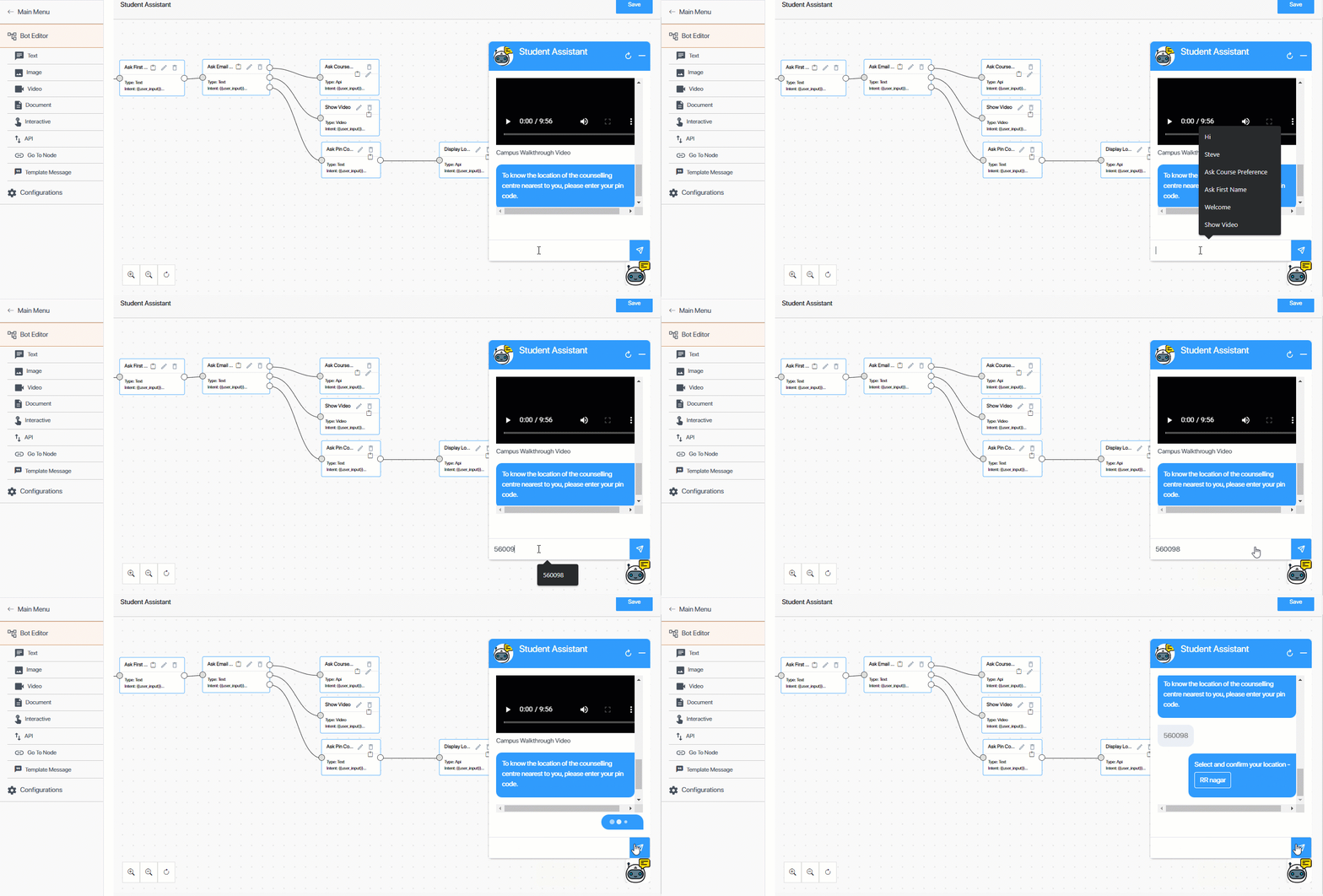
LeadSquared Chatbot

In this step, we’re configuring how the node behaves when the user inputs their pin code. The steps listed here are the same as the Configure an API Node section. You can skip reading the steps if you’re familiar with the API node set-up process.

  1. From the Bot Editor screen, click API.
  2. On the API Node right panel, enter the following Node Configurations
    • Node name – Provide an internal display name for the node. We’re calling it “Display Location”.
    • Previous node – Since the lead would’ve responded (Intent) with their pin code in the previous step, we’ll select the Previous Node as “Ask Pin Code”.
    • Intent – Since the pin code entered is going to be different for each lead, we’ll select User Input.
      • Validate User Input – If you’ve created a custom validation, you can select it here. We’ve created a validator for Pin Codes. To know how to set up regex validations, refer to Create Custom Validators for the Chatbot.
    • Final Node – We won’t be checking this box.
    • Multi Node Response – We won’t be entering anything here.
  3. From the Select API to call dropdown, select the API you want to integrate with this API node. We’re selecting an external API that we added to the chatbot.
  4. If required, you can select Add Condition-Based Responses. We’re selecting the checkbox to identify if the pin code is valid.
    • From the Variable Name dropdown, we’re selecting Pincode, and from the Conditions dropdown, we’re selecting Exists. To add multiple Conditions, click Add Condition.
  5. Response (If the conditions are true) – The response your lead sees when the API response fulfills the Conditions set in the previous step. This means if the API returns a location for the pin code, we’ll display this location as our response. In our example, we’re going to select Interactive, and then select Buttons to list down the pin code location.
    • Header – The response header that’ll be displayed. This is optional. You can set an Image, Document, Video or Text as the response header.
    • Body – Enter the text response that’ll be sent to your leads. We’re entering – “Select and confirm your location -“.
    • Under Button Configurations, select the button action (Text, Visit Website, Call Phone Number, or Download), and enter a display name for the button. We’re entering – “{{Pincode}}”. We’re doing this to pull the location data from the API response, and dynamically display this on the chatbot.
    • Footer – You can display any relevant text information in the footer. This is optional.
  6. Response (If the condition are false) – The response your lead sees when the API response does not fulfill the Conditions set in step 2 (of this section). This means if the API response does not return the pin code, we’ll display this response. In our example, we’re going to select Text.
    1. Under Bot Response, we’re entering the following response – “Invalid pin code.”
  7. To preview this response, click Preview. After you preview the response, make changes if required. Once you’re done, click Save.
  8. To check if the Intent and Response are set up correctly, click the emulator Chatbot Icon. Then, enter the Intent message. If the Response is the same as the one you configured, the node is working fine.
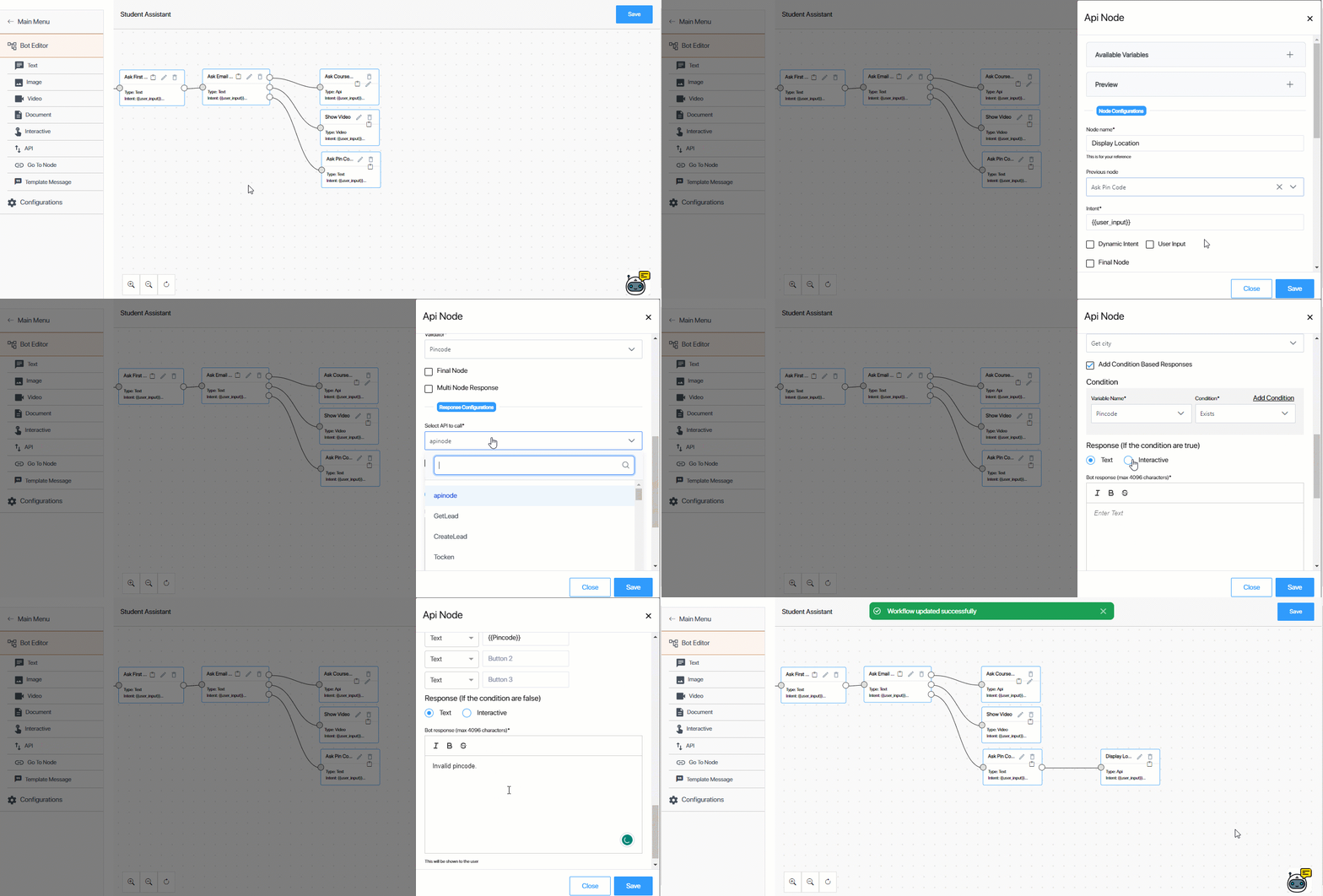
LeadSquared Chatbot


10. Create an Interactive Node

As the name suggests, an Interactive node presents multiple options to the lead, and propmts them to select an option to continue the chat flow process. Interactive nodes allow you to give the lead options to Call, Visit a Website and View an Image.

The following data types can be displayed on an Interactive node –

  • Text
  • Image
  • Video
  • Document

And the following Button actions can be configured –

  • View Text
  • Visit a Website
  • Call a Phone Number
  • Download (a file)

You can also add up to 10 Lists as options.

In our Interactive node, we’re creating two Text buttons, and dynamically display the location based on the lead’s pin code.  We’ll also give the lead an option to either confirm and schedule their appointment or to re-enter a different pin code.

Aim – To give the lead the option to confirm their location, or re-enter their pin code.

  • Lead Input Message – 560098 (in our example)
  • Chatbot Response – Confirm if you’d like to schedule an appointment in our {{intent}} admission office.
    • Button 1 – Confirm.
    • Button 2 – Re-enter Pin Code.

LeadSquared Chatbot

  1. From the Bot Editor screen, click Interactive.
  2. On the Interactive Node right panel, enter the following Node Configurations
    • Node name – Provide an internal display name for the node. We’re calling it “Ask Location Confirmation”.
    • Previous node – Since the lead would’ve selected their location preference in the previous step, we’ll select the Previous Node as “Display Location”.
    • Intent – To dynamically display the lead’s location as part of your text response, select Dynamic Intent. This displays data present in an API as part of the response (e.g., Confirm if you’d like to schedule an appointment in our {{RR Nagar}} admission office.)
    • Final Node – We won’t be checking this box.
    • Multi Node Response – We won’t be entering anything here.
  3. Under Response Configurations, configure the response to your lead –
    • Header – The response header that’ll be displayed. This is optional. You can set an Image, Document, Video or Text as the response header.
    • Body – Enter the text response that’ll be sent to your leads. We’re entering – “Confirm if you’d like to schedule an appointment in our {{intent}} admission office.” Over here, {{intent}} is the location name (RR Nagar in our example) that’ll be dynamically pulled from the API response and displayed to the lead.
    • Footer – You can display any relevant text information in the footer. This is optional.
  4. Under Button Configurations, select the button action (Text, Visit Website, Call Phone Number, or Download), and enter a display name for the button. You can add up to three buttons.
    We’re creating two Text buttons – “Confirm” and “Re-enter Pin Code”.
  5. To preview this response, click Preview. After you preview the response, make changes if required. Once you’re done, click Save.
  6. To check if the Intent and Response are set up correctly, click the emulator Chatbot Icon. Then, enter the Intent message. If the Response is the same as the one you configured, the node is working fine.
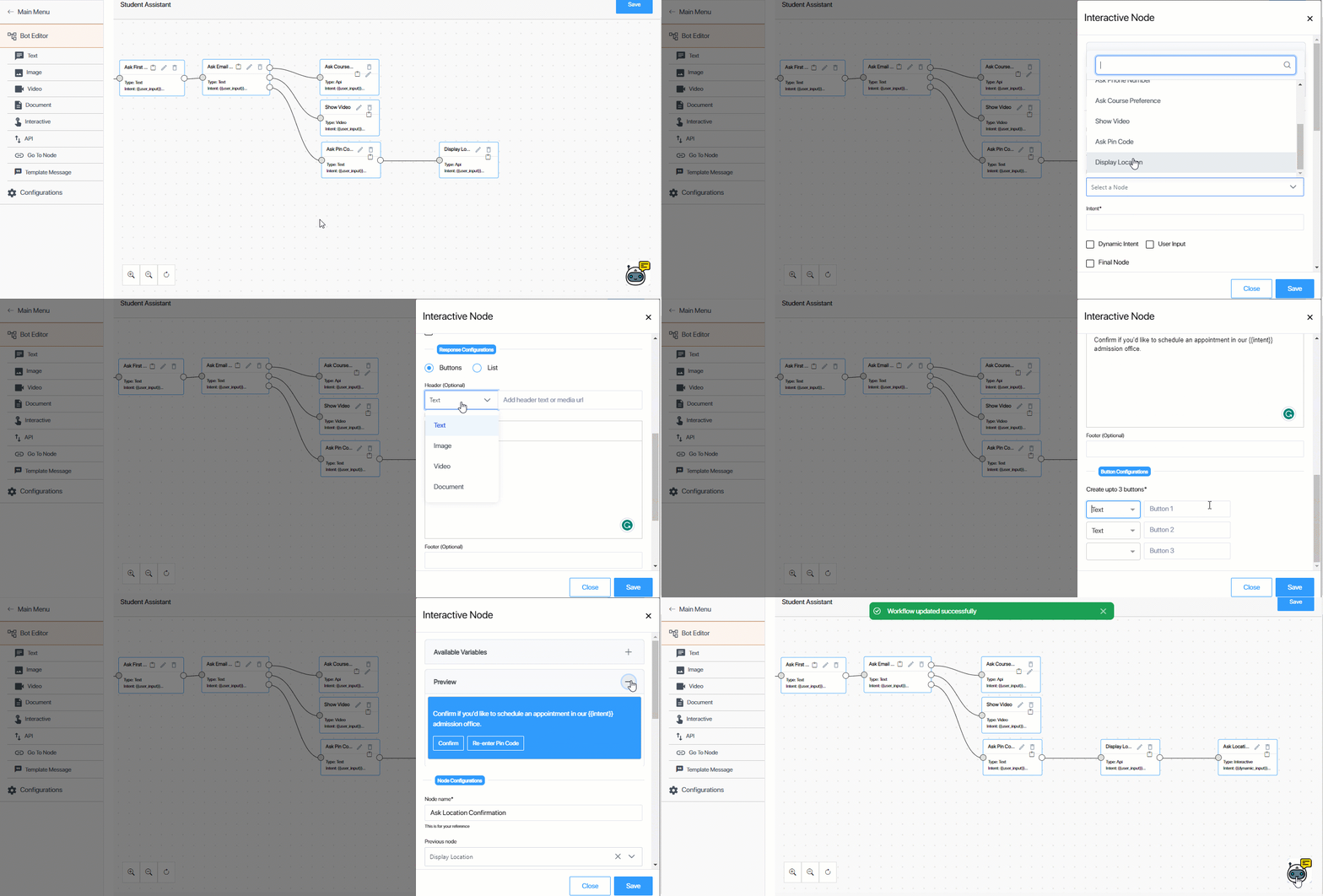
LeadSquared Chatbot


11. Create a Go To Node

A Go To Node redirects to a different node in the chat flow process (for example, if you want the node to restart and go to the first message). This is useful when you want to take the lead back to the main menu, or to re-enter certain details.

We’re creating a Go To Node to redirect the lead back from the “Ask Location Confirmation” (when they select Re-enter Pin Code) to the “Ask Pin Code” node, where they can re-enter their pin code.

Aim – To give leads the option to re-enter their pin codes.

  • Lead Input Message – 560098 (in our example)
  • Chatbot Response – Redirects to the “Ask Pin Code” node.
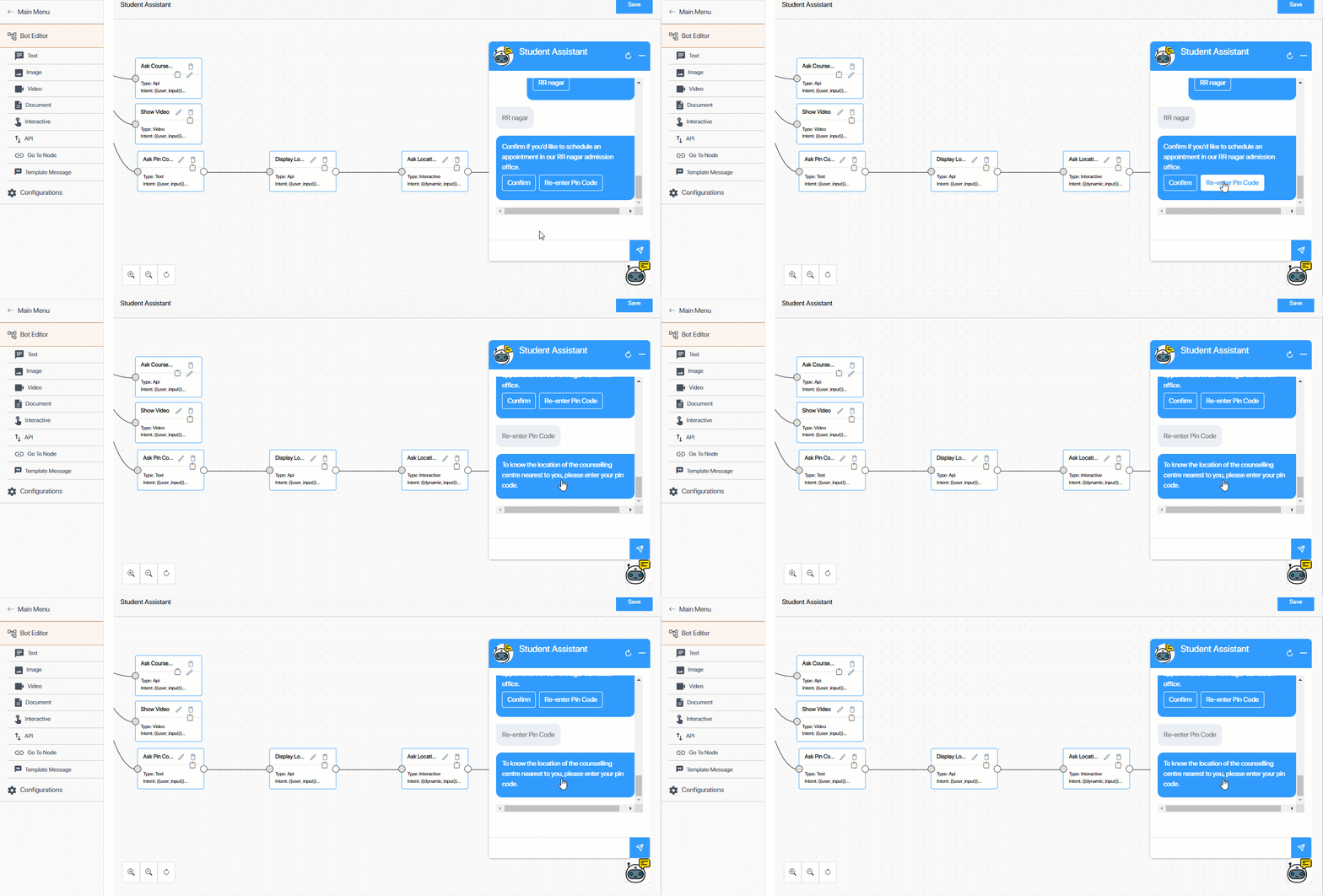
LeadSquared Chatbot

  1. From the Bot Editor screen, click Go To Node.
  2. On the Interactive Node right panel, enter the following Node Configurations
    • Node name – Provide an internal display name for the node. We’re calling it “Re-enter Pin Code”.
    • Previous node – Since this node is built on the lead’s selection in the previous node, we’re selecting the “Ask Location Confirmation” node.
    • Intent – Both the buttons configured in the previous node are visible here. We’re selecting “Re-enter Pin Code” as the intent.
    • Final Node – We won’t be checking this box.
  3. Under Response Configuration, from the Go To Node dropdown, we’re selecting “Ask Pin Code”. This will redirect the lead to the selected node.
  4. Once you’re done, click Save.
  5. To check if the Intent and Response are set up correctly, click  Chatbot Icon. Then, enter the Intent message. If the Response is the same as the one you configured, the node is working fine.
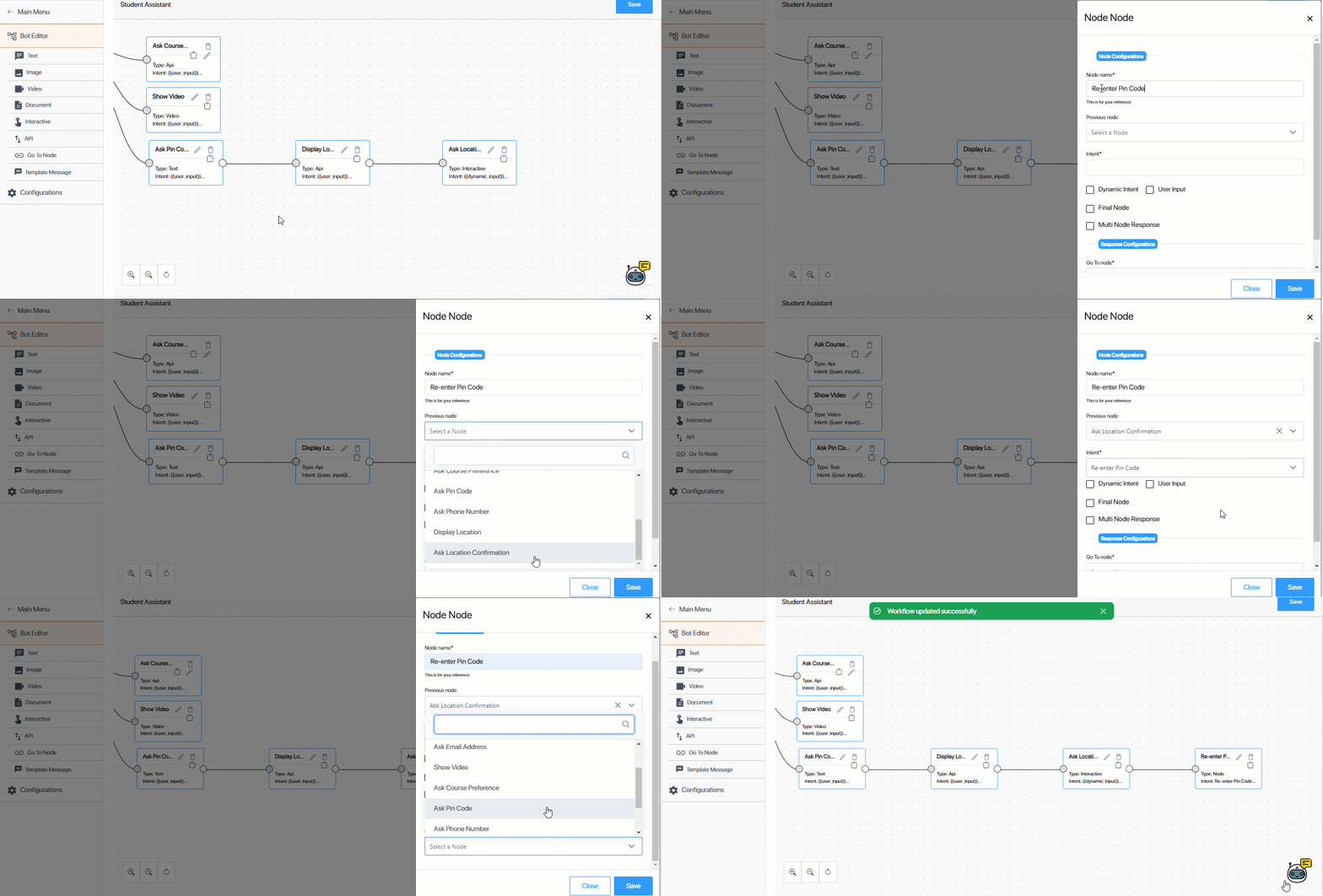
LeadSquared Chatbot


12. Create a Final Interactive Node

This is the final node in our chat flow. We’re creating a Text node to inform our leads about the next step in their admission process.

Aim – To inform leads about the next steps in their admission process.

  • Lead Input MessageConfirm button click.
  • Chatbot Response – Your application has been successfully received. Our admission officer will get in touch with you to schedule your appointment. To make changes to your application, click Contact Us.
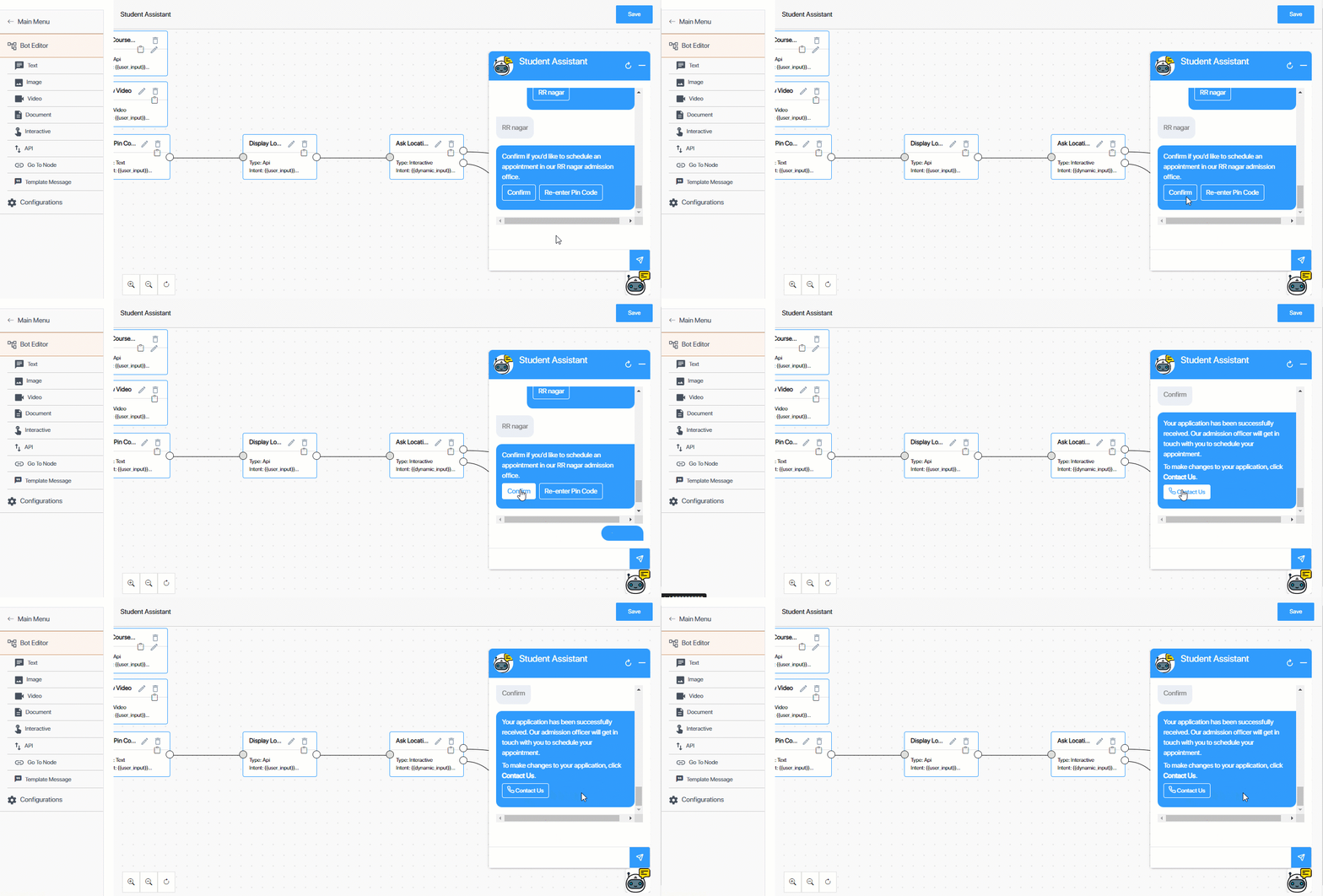
LeadSquared Chatbot

  1. From the Bot Editor screen, click Interactive.
  2. On the Interactive Node right panel, enter the following Node Configurations
    • Node name – Provide an internal display name for the node. We’re calling it “Appointment Confirmation Final Node”.
    • Previous node – Since the lead would’ve confirmed their location preference in the previous step, we’ll select the Previous Node as “Ask Location Confirmation”.
    • Intent – Since we’re displaying this node’s message only when the lead confirms their location (in the previous node), from the intent dropdown, select “Confirm”.
    • Final Node – Since this is the last node in the chat flow, we’ll be checking this box.
    • Multi Node Response – We won’t be entering anything here.
  3. Under Response Configurations, configure the response to your lead –
    • Header – The response header that’ll be displayed. You can set an Image, Document, Video or Text as the response header. This is optional.
    • Body – Enter the text response that’ll be sent to your leads. We’re entering – “Your application has been successfully received. Our admission officer will get in touch with you to schedule your appointment. To make changes to your application, click Contact Us.”
    • Footer – You can display any relevant text information in the footer. This is optional.
  4. Under Button Configurations, select the button action (Text, Visit Website, Call Phone Number, or Download), and enter a display name for the button. You can add up to three buttons.
    We’re creating one Call Phone Number button – “Contact Us”, and we’re entering our contact details.
  5. To preview this response, click Preview. After you preview the response, make changes if required. Once you’re done, click Save.
  6. To check if the Intent and Response are set up correctly, click the emulator Chatbot Icon. Then, enter the Intent message. If the Response is the same as the one you configured, the node is working fine.

Once you’ve set up the nodes, carry out the Configurations to complete the chat flow creation process.
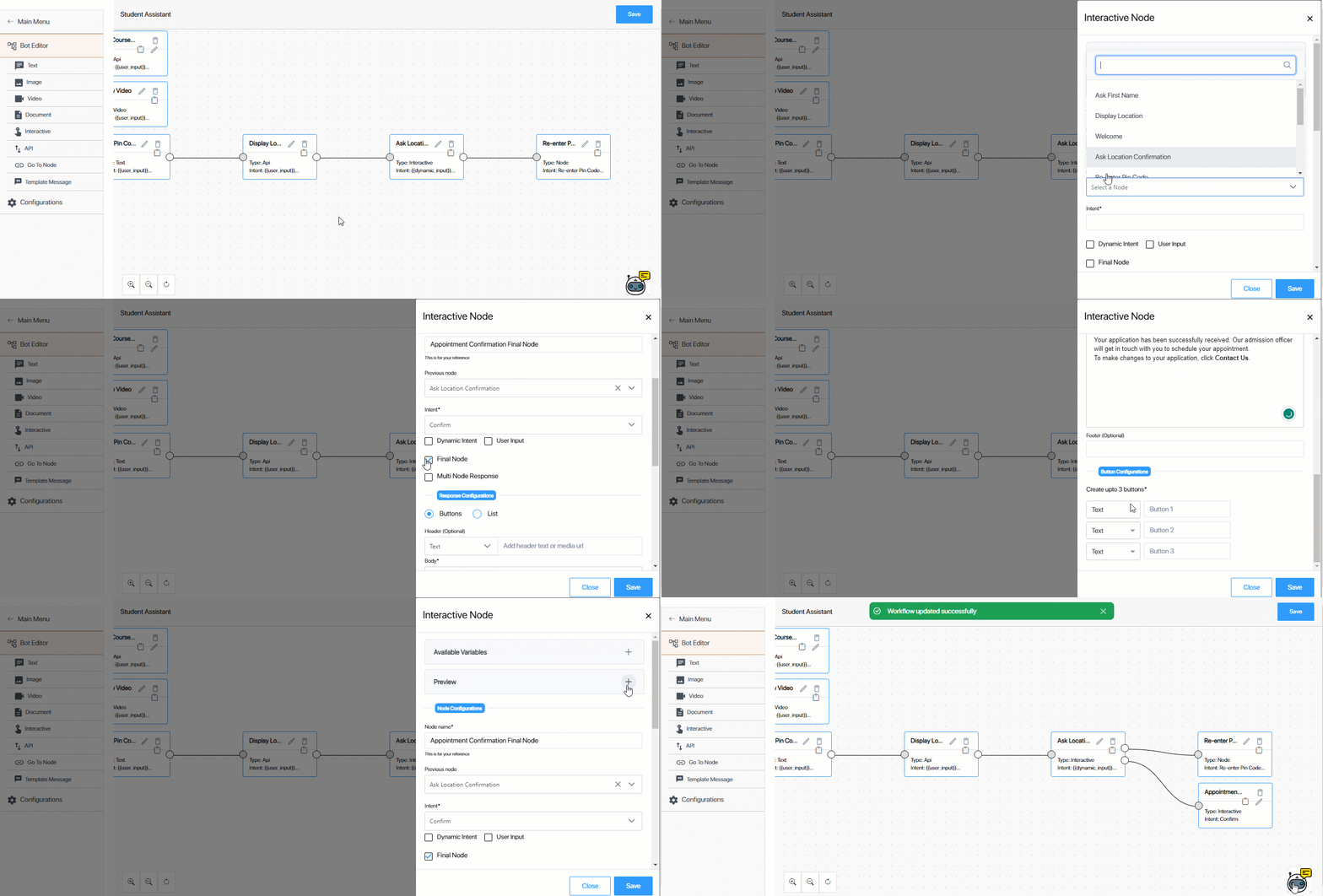
LeadSquared Chatbot


13. Create a Handover Node

The handover node transfers the chat conversation to an agent in your organization, using LeadSquared Converse. This allows direct communication with an agent, especially when the chatbot can’t address certain queries, or when a lead requests to speak with an agent. This section isn’t included in the example flow from the previous sections because a lead can request agent assistance at any point during the conversation.

Note: Before you configure the Handover Node, ensure you’ve created a Chat Group and set up a Routing Rule.

Aim – To hand over the chat to a live agent.

  • Lead Input Message – Talk to the counsellor.
  • Chatbot Response – An agent will shortly address your concerns.
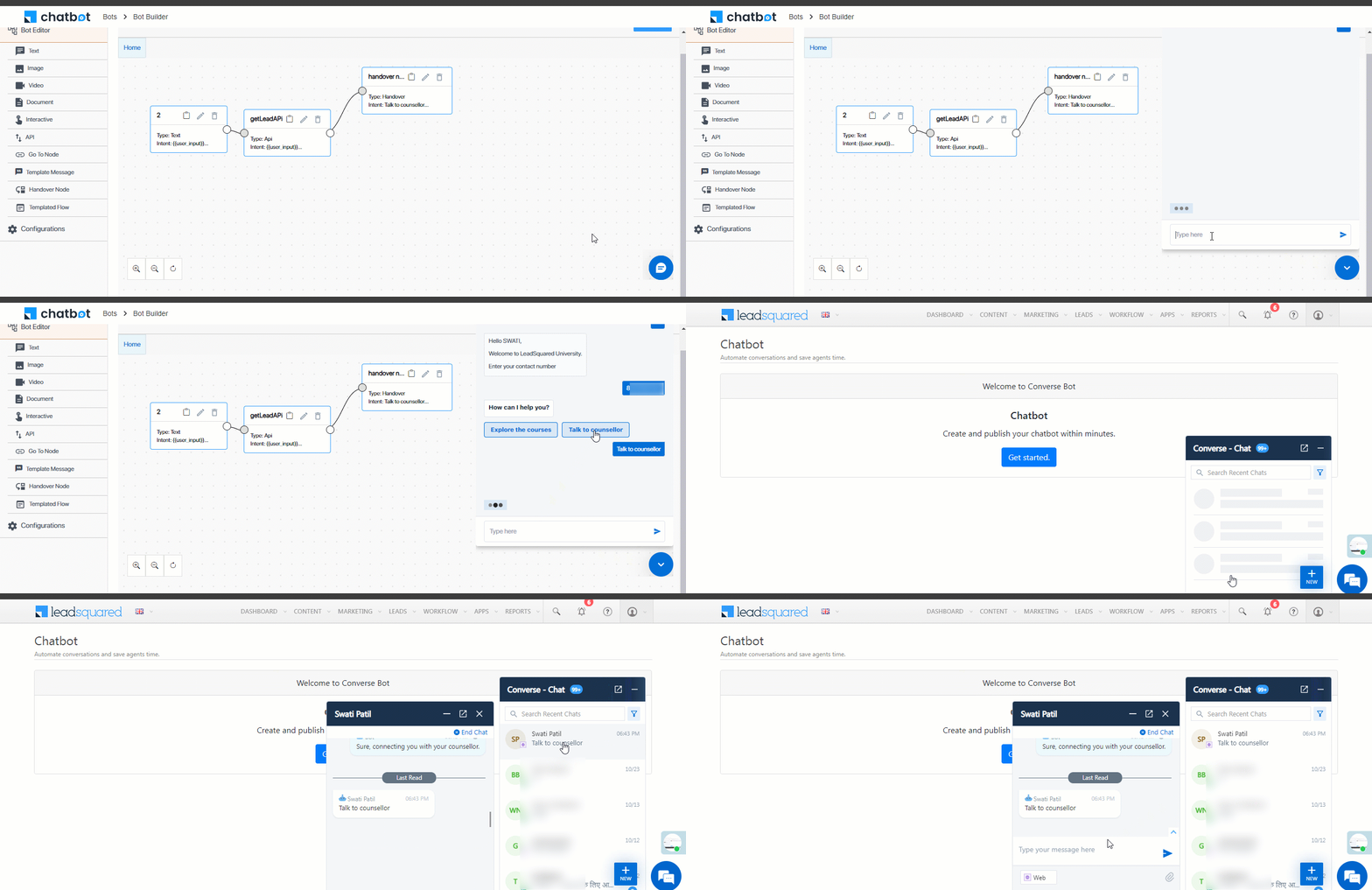
LeadSquared Chatbot

  1. From the Bot Editor screen, click Handover Node.
  2. On the Handover Node right panel, enter the following Node Configurations –
    • Node name – Provide an internal display name for the node. We’re calling it “Handover Node”.
    • Previous node – Depending on when you want to hand the conversation to a live agent, select a relevant node from the list of previous nodes.
    • Intent* – Enter a relevant hardcoded intent message (like, “Talk to an agent”, etc.).
    • Final Node – Depending on where you’re inserting this node into your chat flow, you can choose to select it as the Final Node.
    • Multi Node Response – We’re not entering anything here. But depending on the use-case you’re looking to solve, you can chose to configure this, or skip it.
  3. Select a Routing Rule – From the list of routing rules available in your account, select a rule based on which you want to hand over the chat to an agent.
    • If you haven’t previously created a rule, click Create routing rule to create a new rule.
  4. Add Condition Based Responses – You can set-up conditions based on when you want to hand over the chat to an agent. For e.g., you can set-up a condition to ensure the handover is done only during your business days (Monday-Friday), and during your working hours (9 AM to 6 PM). Once you enable the checkbox –
    • Select Work Days – Select the days of the week during which you want the agent handover to take place.
    • Time Range Picker – Select the time range between which you want the agent handover to take place.
    • Add Conditions – You can use the AND/OR operators to add multiple conditions to determine when the handover happens.
  5. Under Response, configure the response to your lead –
    • Response (If the conditions are true) – If the conditions are met (e.g., the lead sends the intent message within the working hours you’ve configured), the response you configure here is sent to your lead. The response we’ll send is “An agent will shortly address your concerns.”
    • Response (If the conditions are false) – If the conditions are not met (e.g., the lead sends the intent message outside the working hours you’ve configured), the response you configure here is sent to your lead. The response we’ll send is “To get your concerns resolved, please contact us Monday to Friday, between 9 AM to 6 PM.”
    • You can also send an interactive response. To know more about the options available when you chose this, refer to Create an Interactive Node.
  6. To preview this response, click Preview. After you preview the response, make changes if required. Once you’re done, click Save.
  7. To check if the Intent and Response are set up correctly, click the emulator Chatbot Icon. Then, enter the Intent message. If the Response is the same as the one you configured, the node is working fine.
Note: *Alternatively, you can select User Input, which would result in the chat getting handed over to an agent whenever a lead sends a message.
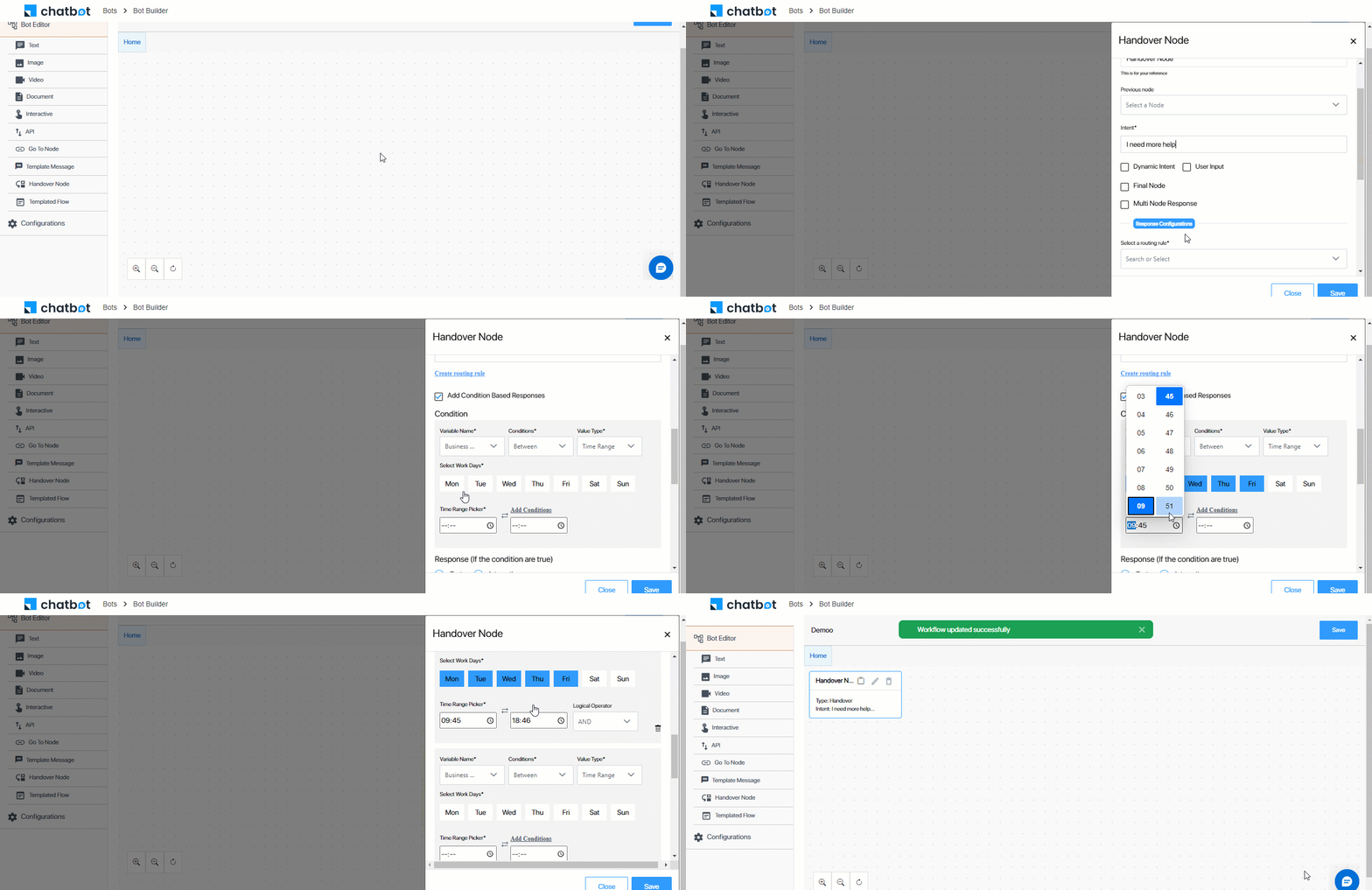
LeadSquared Chatbot


14. Template Message

This option allows you to create a node using a Web or WhatsApp message template. When creating the node, choose a template from the list of templates available in your account. Creating this node follows a process similar to that of a Text Node. Instead of entering the response content, select a relevant template from the Select Template dropdown.
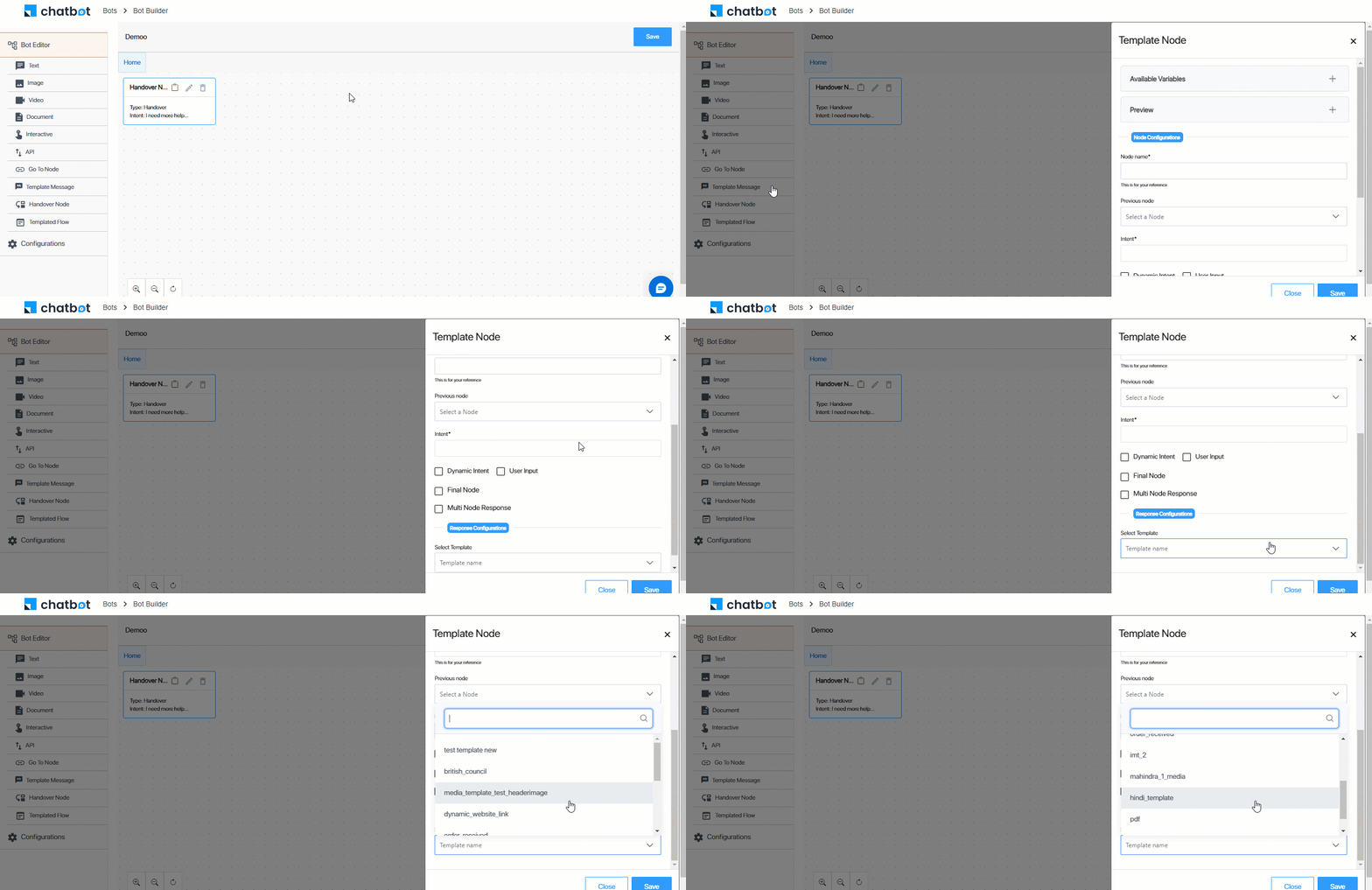
LeadSquared Chatbot


15. Templated Flow

From the list of template flows available in your account, choose a relevant template you want to use when building the chatbot. After choosing the template, you can modify both the flow and the nodes in it to suit your use case.
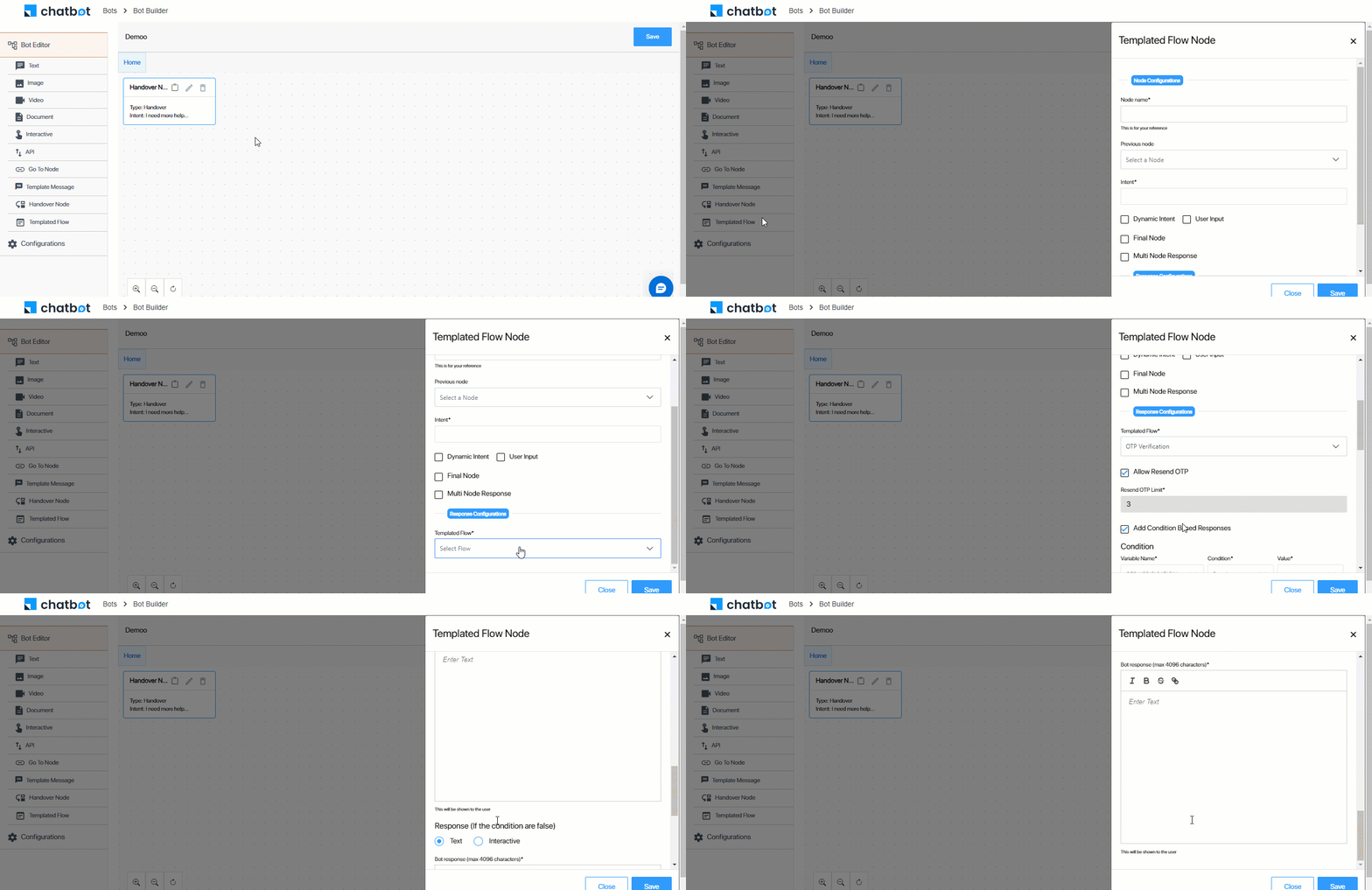
LeadSquared Chatbot


16. Configurations

To complete the chatbot set-up, navigate to the Configurations screen.
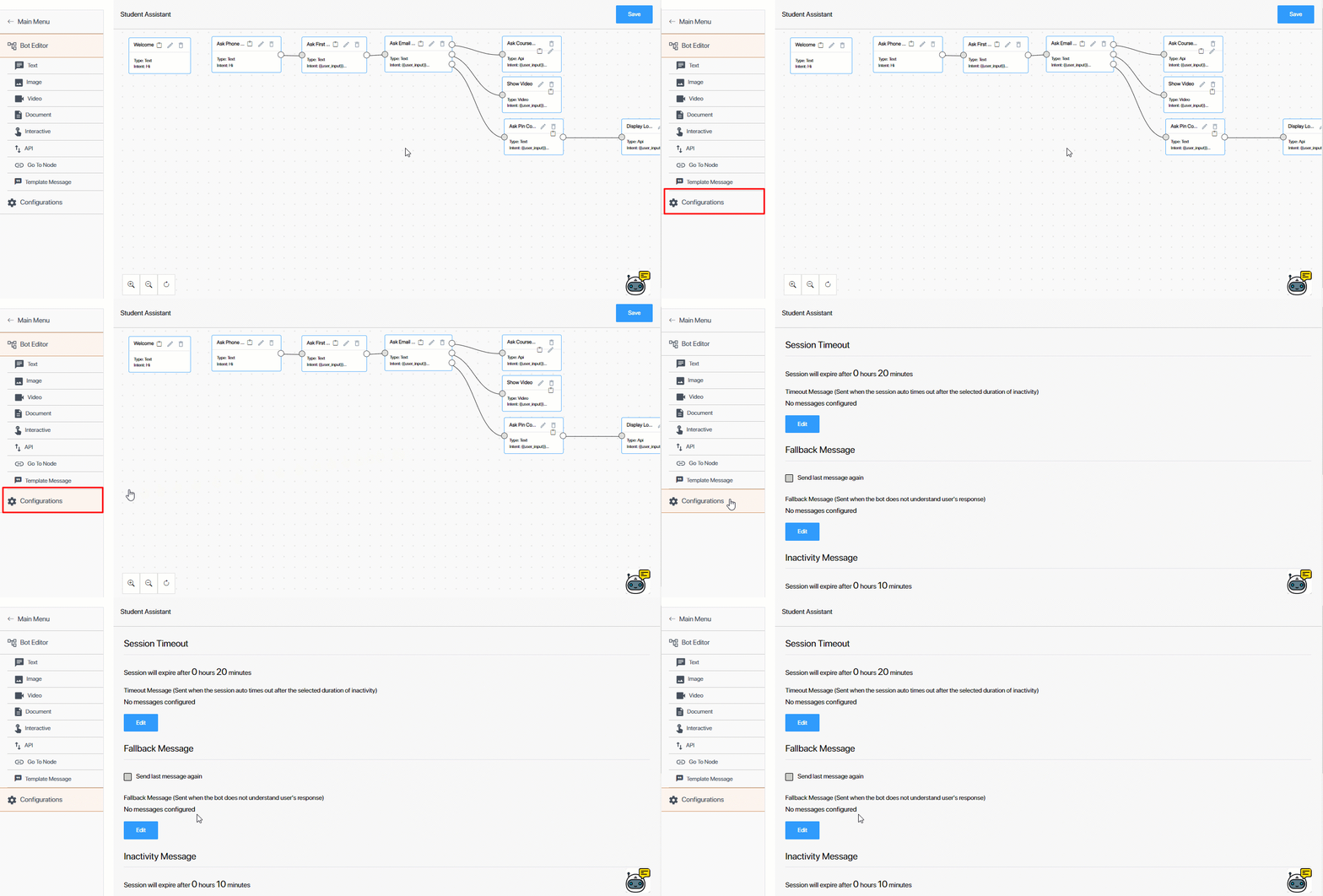
LeadSquared Chatbot

16.1 Session Timeout

Configure the message you’ll send to the lead when the chat session ends because the lead hasn’t sent any message for a specified time period.
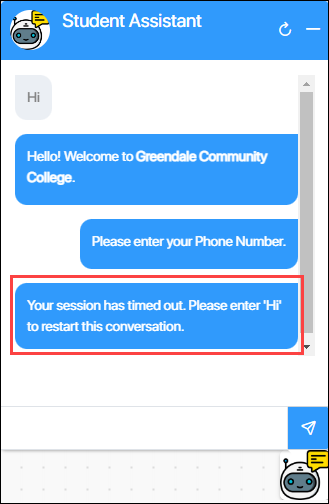
LeadSquared Chatbot

Click Edit to –

  • Set the hours and minutes of inactivity after which you want to display the message to your lead.
  • Add the timeout message the lead receives after the session times out.
  • To add multiple timeout messages, click .

Once you’re done, click Save.

LeadSquared Chatbot

16.2 Fallback Message

Fallback messages are sent when the chatbot doesn’t understand the lead’s message.
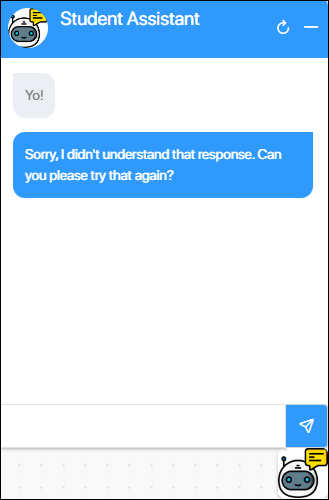
LeadSquared Chatbot

Click Edit to –

  • To send the previous chatbot message as the fallback message, enable the Azure Checkbox checkbox.
  • Add the fallback message the lead receives when the bot does not understand the lead’s response.
  • To add multiple timeout messages, click .

Once you’re done, click Save.
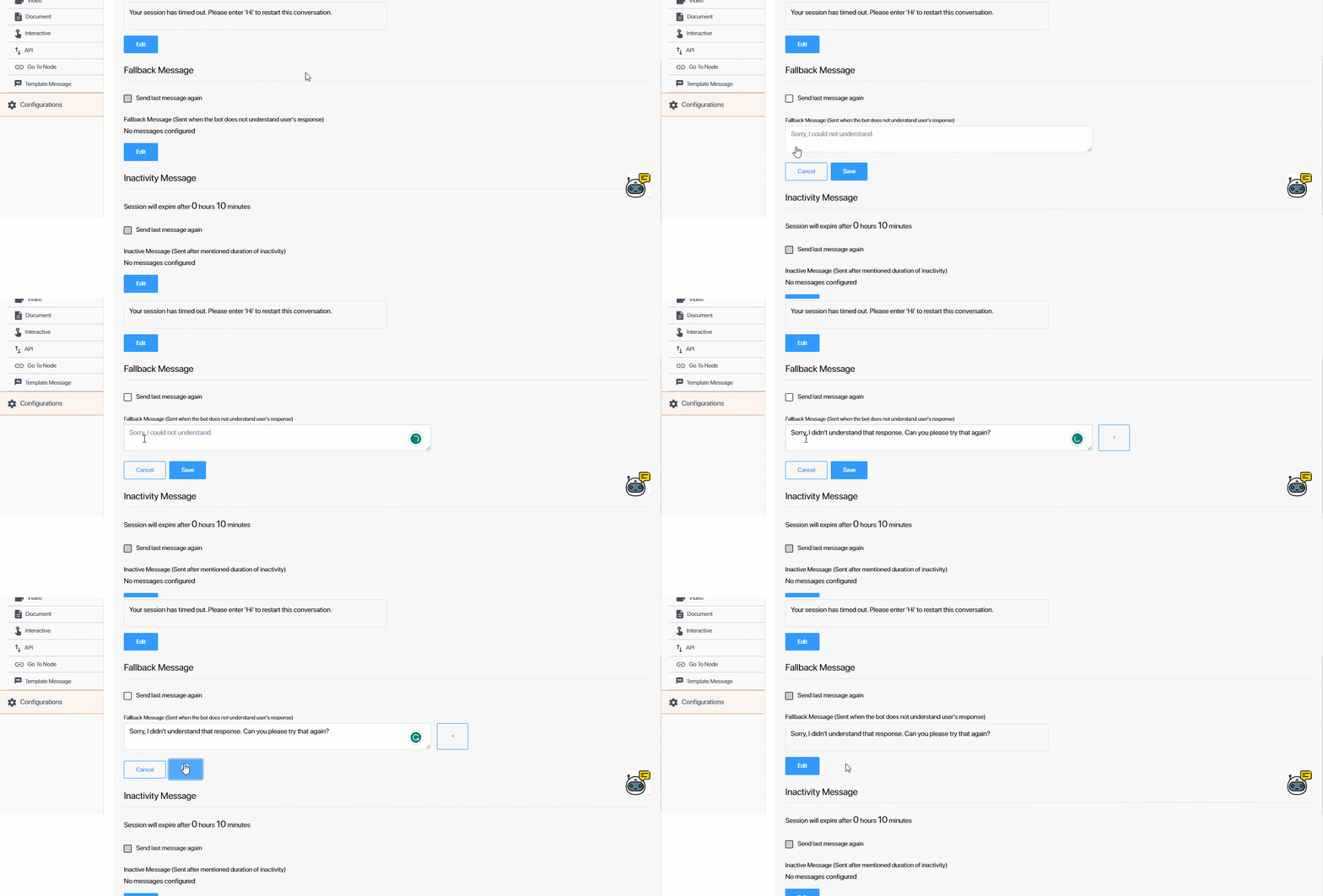
LeadSquared Chatbot

16.3 Inactivity Message

Configure the message the chatbot sends to the lead when the lead is inactive on the chatbot and hasn’t sent any message for a specified time period. This message is a reminder to the lead, to let them know the session is idle.
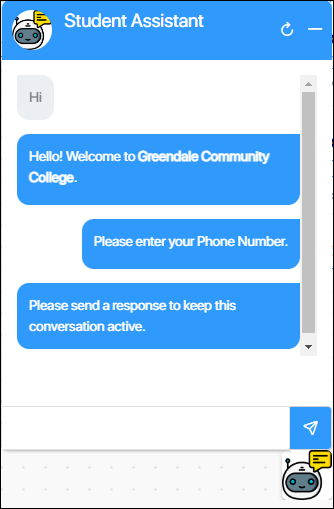
LeadSquared Chatbot

Click Edit to –

  • To send the previous chatbot message as the inactivity message, enable the Azure Checkbox checkbox.
  • Set the hours and minutes of inactivity after which you want to display the message to your lead.
  • Add the timeout message the lead receives after the session times out.
  • To add multiple timeout messages, click .

Once you’re done, click Save.

Note: The Inactivity Message is sent after a few minutes of inactivity, as a reminder to the lead. The Session Timeout message is sent after a longer period of inactivity, and to let the lead know that the session has been terminated. The inactivity period configured for Inactivity Message should be lesser than that of the time configured for the Session Timeout message.
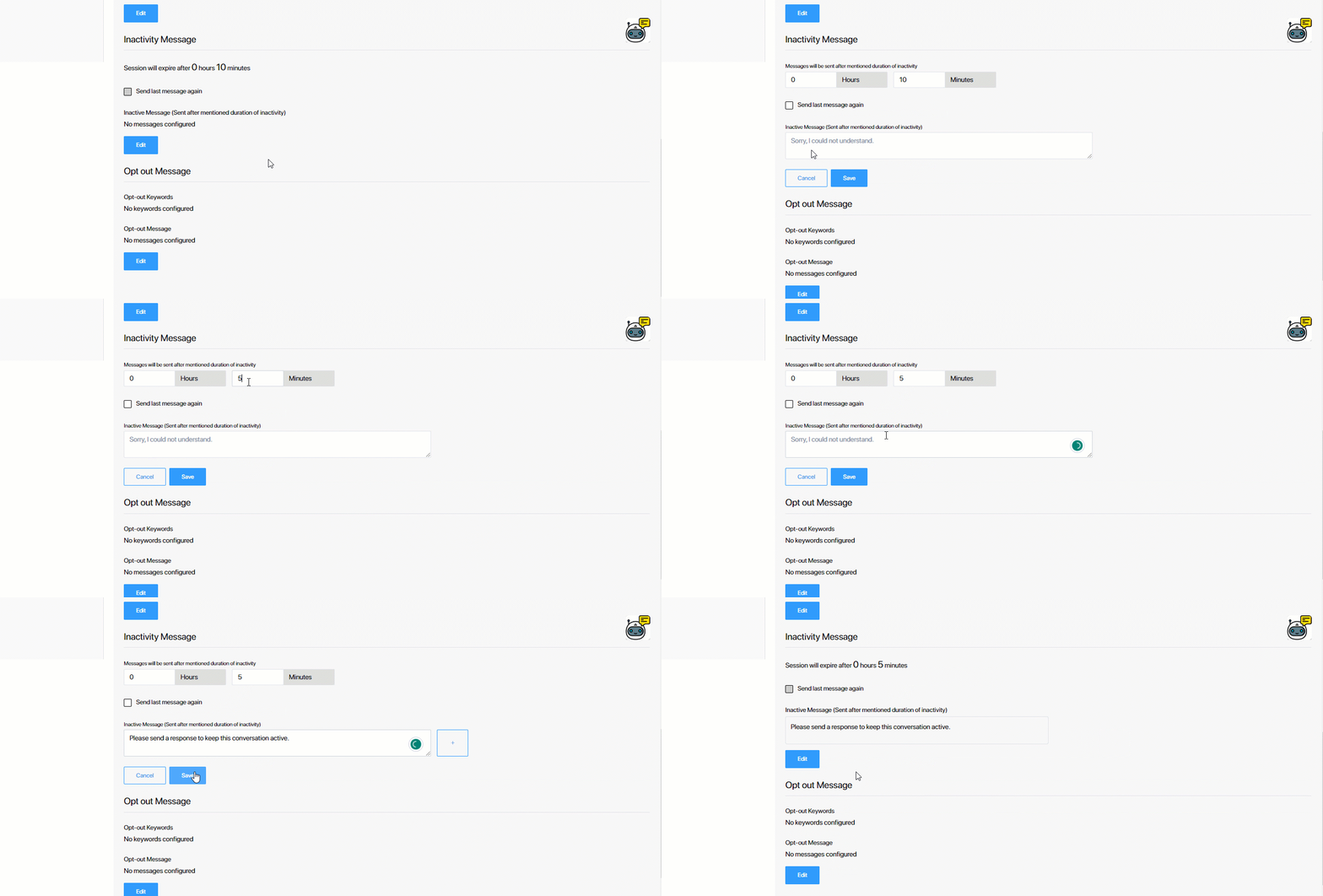
LeadSquared Chatbot

16.4 Opt-out Messages

When a lead sends any of the keywords configured here as an input message, the lead automatically opted out of further interactions with the chatbot. Click Edit to add the list of keywords. In the Opt-out Message box, configure the message you want to send as the chatbot response once the lead has opted out of the conversation.

Once you’re done, click Save.
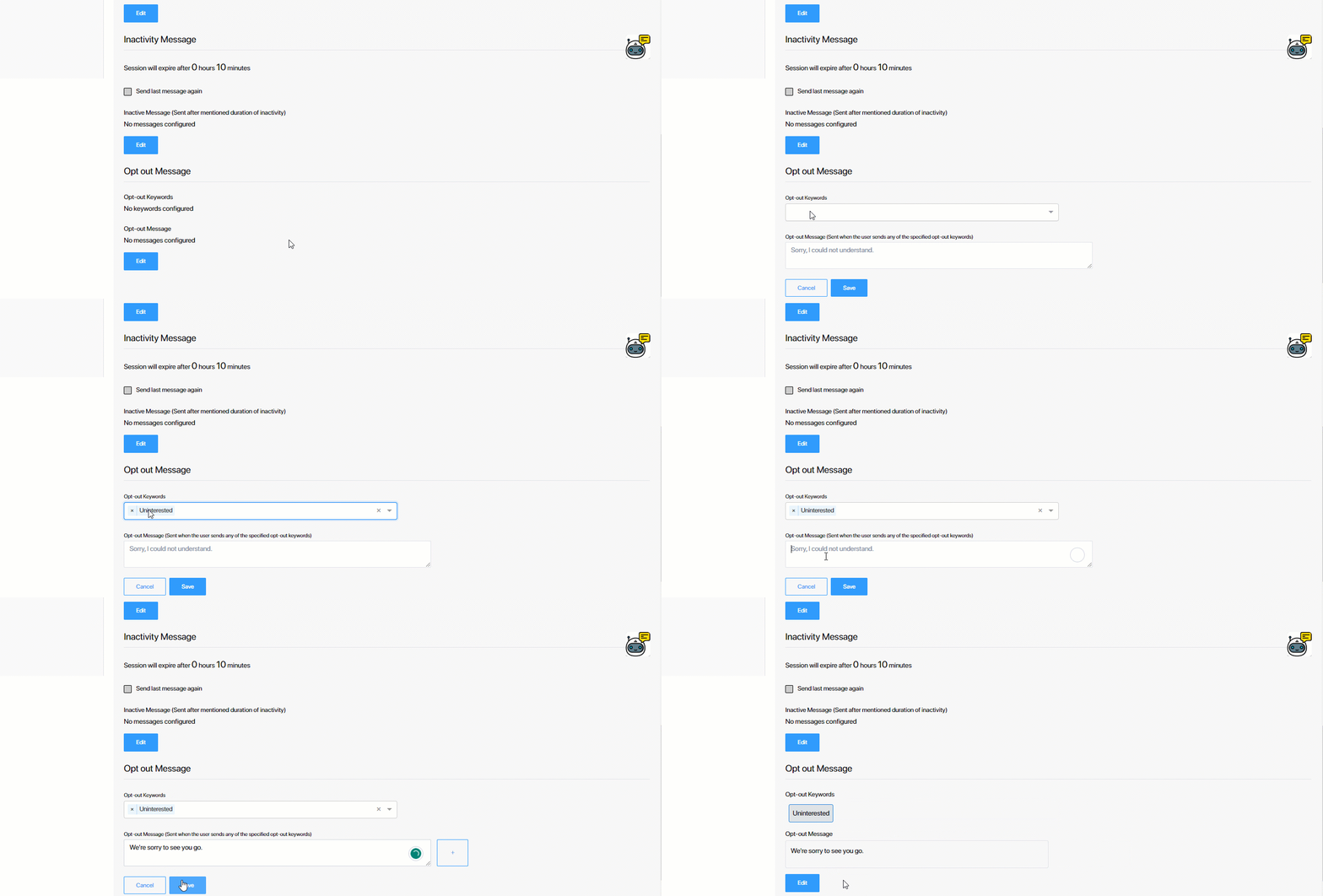
LeadSquared Chatbot

16.5 Restart Message

When a lead enters a configured keyword, the chatbot restarts the journey from the first message. To set up keywords, click Edit, enter them (e.g., “main menu”, “restart”, “begin again”), press Enter on your keyboard, and click Save.

LeadSquared Chatbot

16.6 Link FAQ Chatbot

You can link an FAQ Bot or a AI Knowledge Base Chatbot to the journey-based bot. If a lead asks a question that is not covered or triggers a fallback response, the system checks the linked bot for answers and responds accordingly. Use the Link FAQ Bot dropdown to link the bot, and then click Save.

Note: When this setting is enabled, the bot first checks the linked FAQ bot for an answer. If it can’t find one, it sends the fallback message configured in your account.
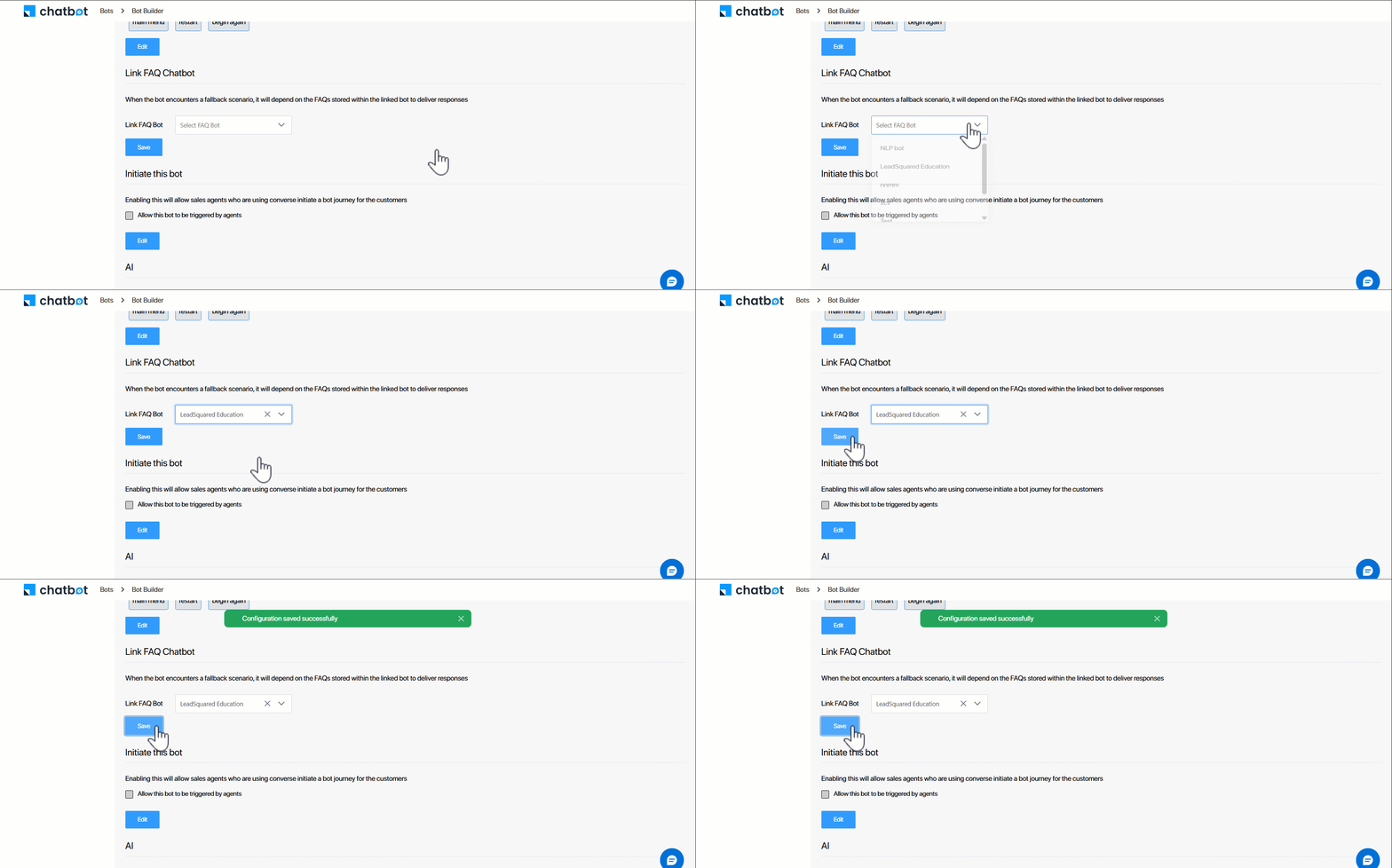
LeadSquared Chatbot


17. List of Templated Flows

We’ve provided a list of chatbot flows, designed to solve specific use cases, which can be imported into the bot builder. Once you’ve imported a template, you can customize it to reflect your business requirements. Currently, we have the OTP Verification template available, which allows you to create a bot for verifying OTPs entered by leads. To use a Templated Flow –

  1. Navigate to the Chatbot home page, and from the left-menu, click Templated Flow.
  2. On the Explore Templated Flows screen, for the template you want to use, click Import Template.
  3. From the Select a BOT dropdown, you can –
    • Import into a New Bot – You can create a bot from scratch, and import this template into the new bot. When you select this, enter a Bot Name (which is mandatory) and Bot Description.
    • Import into an Existing Bot – You can select an existing bot to import the template to.
  4. Once you’re on the bot builder screen, you can modify the template, and the nodes in the template, to meet your requirements. To know how to build a chatbot, refer to Build a Chatbot.
LeadSquared Chatbot


18. Other Actions

On the bot builder screen, you can search for a node using the node name, the user intent, the buttons configured and the Bot Display.
LeadSquared Service CRM


19. Next Steps

After you’ve set up the chat flow, you must configure the chatbot channel. To know how to do this, refer to Configure Chatbot Channel.


Any Questions?

Did you find this article helpful? Please let us know any feedback you may have in the comments section below. We’d love to hear from you and help you out!

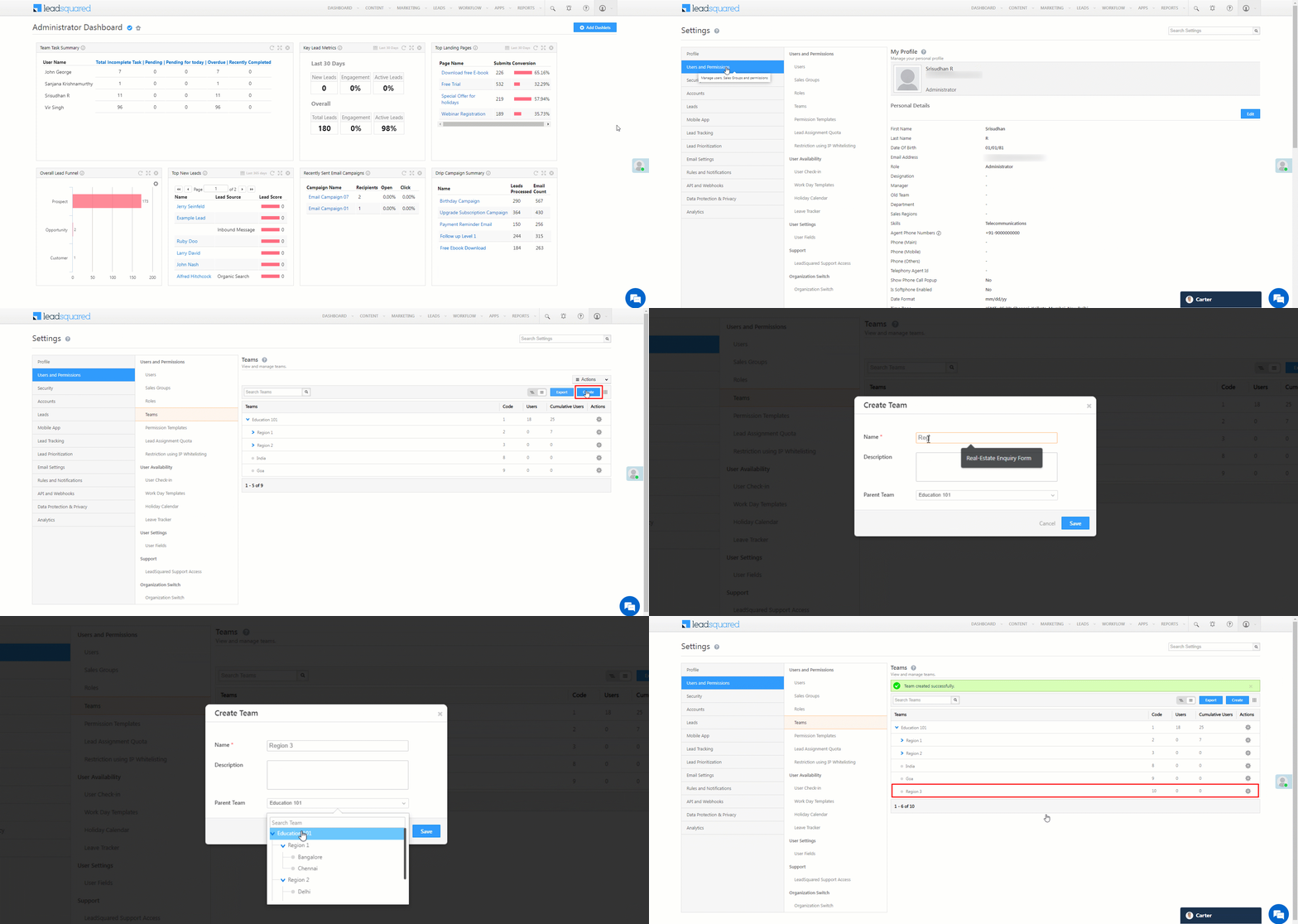
LeadSquared Chatbot – Feature Guide

1. Feature Overview

LeadSquared’s Chatbot is a no-code, menu-driven bot builder through which you can create multiple chat flows to address lead queries swiftly and efficiently, while reducing your user’s efforts and workload. Chatbots are especially useful to automate answers to common enquiries, improve user productivity, and engage your leads 24*7 (including outside business hours).

There are two types of chatbots you can build –

  • Journey Based Chatbot – A chatbot that takes your lead on a journey to achieve specific goals (like generate a loan proposal document, course broucher, etc.).
  • AI Help Bot – A help bot that answers FAQs and other queries posted by your leads. This is especially useful in reducing support load, and to also ensure your leads get their queries resolved even outside business hours.
  • AI Knowledge Bot – An AI-powered chatbot that enhances a journey-based bot by answering questions outside the configured chat flow. It learns from the knowledge bases and resources you provide, including open-ended content like documents and website links.

You can integrate the chatbot with both WhatsApp and websites/portals. When integrated with WhatsApp, your leads can message the chatbot through WhatsApp. When integrated with a website, your lead can message the chatbot directly from the website.

LeadSquared Chatbot


2. Use Cases

The Chatbot is designed to address and resolve multiple use cases across various industries. Some of these use cases are listed below –

Use Case Solution
Capture Lead Details Map the chatbot to lead fields in your LeadSquared account. When a visitor on the chatbot enters their details (name, phone number, email, etc.), they are created as new leads in your account.
Engage Leads When visitors send messages outside business hours, the chatbot can engage them by recording their queries and providing relevant information. This ensures there’s no lead leakage, and that leads are engaged round the clock.
Provide Demos Use APIs to create chat flows containing video, image and PDF links that host your product/service demo (such as admission brochures, loan application forms, college campus walkthrough videos, etc.).
Collect Lead Documents Use the chatbot to automate lead document collection by mapping the chatbot to document lead fields in your account. When the lead submits relevant documents (e.g., marks cards, Aadhaar cards, salary slips, etc.) through the chatbot, the documents are automatically stored in your account.
Schedule Appointments Integrate LeadSquared Task APIs in the chat flow to automate task creation. When a lead is interested in receiving a demo, they can schedule it directly through the chatbot. This will also reduce the effort your users will have to put in when they create appointments with leads.


3. Prerequisites

  • This is a paid feature. To enable it on your account, contact your account manager, or write to support@leadsquared.com.
  • If you’re enabling integrating the chatbot with WhatsApp, we currently support WhatsApp Business accounts set up using Kaleyra or Gupshup. If you’ve set up your WhatsApp Business account using any other provider, please contact your account manager, and we’ll integrate your WhatsApp account with the chatbot.


4. Installation

  1. Navigate to Apps>Apps Marketplace.
  2. Search for LeadSquared Chatbot, and click Install.
    • Alternatively, you can find the connector on the left panel, under Chat.
  3. Once installed, hover your cursor over , and click Get Started.

To continue with the set-up process, and to create chat flows, refer to Build a Website Chatbot.

LeadSquared Chatbot


5. Glossary

When you’re creating a chatbot, you’ll come across a few terms for the first time on the LeadSquared platform. In this section, we’ve explained what each of these terms stands for –

Chatbot
A bot that has real-time conversations with your leads based on the chat flow you’ve created. Each chatbot is unique to solving a specific requirement. You can create multiple chatbots to solve multiple use cases. There are two types of chatbots – Journey Based Chatbot and AI Help Bot.


Journey Based Chatbot
This chatbot is used to help a lead achieve a specific goal (e.g., OTP verification, KYC check, etc.).


AI Help Bot
This chatbot is used to address common queries and FAQs the lead might have when using your product (e.g., queries about a loan like eligibility, loan tenure, etc.).


Chat flow
A set of nodes (messages) grouped together in sequential order. You can create multiple chat flows under each chatbot, and each of these chat flows can be interconnected with each other.


Node
A single message that’s part of the chat flow. Each node uses Text, Image, Video, Document, Interactive, or API as the base on which it’s built.

  • Text – This node sends a simple text message as the chatbot response.
  • Image – This node sends an image URL as the chatbot response.
  • Video – This node sends a video URL as the chatbot response.
  • Document – This node sends a document URL as the chatbot response.
  • Interactive – This node sends buttons and/or lists as options, from which the lead can choose a response.
  • API – This node contains an API (either LeadSquared APIs or any external APIs) integrated with the chatbot, either to capture details from the chatbot (e.g., Lead Name, Lead Number, etc.), or display details to the lead (e.g., Pincodes, List of Hospitals, etc.).

You can use multiple nodes (including multiple types like Text, Videos, API, etc.) to build a chat flow.


Intent
The inputs (messages) received by the chatbot is known as intent. These inputs can be sent by a lead or by an API. Examples of intent could be “Hi”, “My order number is 445”, etc. There are three types of Intents –

  • Hardcoded Intent – This is when you want to send a reply through the chatbot only for a message from a lead that’s an exact match to the intent you’ve created. For example, if you want the bot response to be “Welcome to…” only when the lead sends “Hi”, you can hardcode the intent with the word “Hi”.
  • User Input – This is when you want to reply for any message the lead sends, and when hardcoding the potential lead message won’t be required. For example, if you want the bot response to be, “Please enter your name”, and different leads enter different names, you want all the lead inputs to be valid. That’s when the bot will accept any input from the user, and send the response you’re configuring here, like “Thank you for giving us your name. Can you please proceed with your phone number?”
  • Dynamic Intent – This is when the inputs are received dynamically from an API response. For example, enter the node’s response as, “Select the city you’re residing in”, and configure an API to fetch a list of all Indian cities. Along with the “Select the city…” message, the lead will also get the list of Indian cities, from which they can select the city they’re in.


Bot Response
The response (reply) sent by the chatbot to your lead. You can add URLs, API response and text as the response.


6. Next Steps

  1. First, build a chatbot.
  2. To create validators, refer to Create Custom Validators for the Chatbot.
  3. Then, select a channel and integrate the chatbot with a website or WhatsApp. To do this, refer to Configure Chatbot Channels.
  4. To integrate LeadSquared APIs with the bot, refer to Integrate APIs with the Chatbot.
  5. To gain insights, refer to Chatbot Analytics.


Any Questions?

Did you find this article helpful? Please let us know any feedback you may have in the comments section below. We’d love to hear from you and help you out!

Using the Call Analysis Report in SIERA

1. Feature Overview

The Call Analysis Report in SIERA helps Sales Managers monitor call centre metrics and agent productivity within their teams. Sales users can use the report to track their total calls (inbound, outbound, connected, unanswered, missed) and talk time.


2. Prerequisites

SIERA is a paid feature. To enable it for your account, contact your account manager or support@leadsquared.com.


3. Call Analysis Report

To view the SIERA Call Analysis Report, navigate to Reports>SIERA>Reports>All Repots and search for Call Analysis Report.

new nav

3.1 Filters

Use this section to filter your report

Filter Description
Called On Date range on which the call was made
Sales Groups Use this to apply filters on specific Sales Groups
Owner Name Use this filter to apply filters on specific agents

Siera filters

Note: Apart from the above filters, you can choose and add up to 15 filters to the report. Click on filter icon to add more filters to your report. All the filters are multi-select filters which enable multiple values to be selected at once.

more filters

3.2 Data

Use this section to modify the rows and columns in your report –

  1. Select the Data tab.
  2. click on fields icon to choose the fields you would like to group and click Apply Settings.
  3. You can drag and drop the fields to change the order.
  4. In order to clear the groupings, click on the x delete icon for the fields and click  Apply Settings.
Note: You can add up to 3 rows and 1 column groupings.

Siera data

3.2.2 Pre-defined values

The Visualize section also has a set of pre-defined values.

  1. You can change the order by dragging the field box and clicking Apply Settings.
  2. You can delete a field from the view by clicking on the x delete icon next to the field and clicking Apply Settings.
  3. Click values icon to add a pre-defined value from the PRE-DEFINED section and click Apply Settings.
Note: Refer to section 4 for the descriptions of the pre-defined values.

siera pre-defined value

3.2.3 Additional Values

Apart from the pre-defined values, you can add additional values to the view –

  1. Click on values icon.
  2. You can select values from Lead, Opportunity, and Activity by clicking the + add icon.
  3. Once you select a value, you can click on the Edit icon to configure it.
  4. You can change the Display Name.
  5. Select an aggregator for the value.
  6. Click Save Changes.
  7. Once done, click Apply Settings.
Notes: Refer to the table below for the aggregator options.
Aggregator Description
Sum Displays the summation of all the values.
Max Displays the maximum value.
Min Displays the minimum value.
Count Displays the number of values.
Count Unique Displays the number of unique values.

siera additional values

3.3 Report Views

You can create and share multiple reports based on pre-set filter conditions. The filter values and groupings are saved and the data refreshes when the report view is opened.

  1. Select Report Views.
  2. Click Create New View.
  3. Enter a name for the report and click Save.
  4. Under My Views, you can only see the Report Views you have created.
  5. Alongside the view you want to share, click SIERA, and click Share View.
  6. To stop sharing a Report View, click SIERA, and click Stop Sharing.

siera report views

3.4 Quick Export

To enhance your experience while using SIERA, you can perform the Quick Export action to export all the data that’s present on the current report page you’re on. You can export this page as a CSV file and as an Excel file. This export happens instantaneously, without any reliance on the Export History tab. You can Quick Export the summary as well as the drill-down reports.

Note: You can restrict certain users from exporting the report by creating and applying Permission Templates.

SIERA quick export

3.5 Export

You can also perform the Export action to export all the rows across the entire report. You can export this page as a CSV file. Once you’ve performed the Export action, the report is queued as a link on the Export History tab. Once the file is rendered, you can download the report.

Note:

  • You can only Export up to 1,000 rows through this action.
  • You can restrict certain users from exporting the report by creating and applying Permission Templates.

SIERA export


4. Call Analysis Metrics

call analysis metric

4.1 Call Volume Analysis

Metric Description
Calls Total calls during the date range selected (Inbound + Outbound)
Calls Connected Total answered calls in the date range (Inbound answered + Outbound answered)
Unique Leads Total unique leads attempted in the date range (Inbound + Outbound)
Unique Leads Connected Total unique leads connected in the date range (Inbound answered + Outbound answered)
Outbound Calls Total calls dialled by the agents
Outbound Answered Calls Total calls answered by the leads
Inbound Calls Total calls answered by the agents


4.2 Call Duration Analysis

Metric Description
Total Call Duration Total call duration for Inbound and Outbound calls
Average Call Duration Total call duration for Inbound and Outbound calls/Number of calls
Calls < 2 minutes Total answered calls with call duration < 2 minutes (Inbound + Outbound)
Calls > 2 minutes and < 5 minutes Total answered calls with call duration > 2 minutes and < 5 minutes (Inbound + Outbound)
Calls > 5 minutes and < 10 minutes Total answered calls with call duration > 5 minutes and < 10 minutes (Inbound + Outbound)
Calls > 10 minutes Total answered calls with call duration < 10 minutes (Inbound + Outbound)


4.3 Not Connected Analysis

Metric Description
Inbound Missed Calls Total inbound calls from the leads not answered
Outbound Unanswered Calls Total outbound calls not answered by the leads


5. Call Analysis Use-Cases

5.1 New Leads Dialled Today

With the customization features offered in SIERA reports, users can add date fields as a filter. In this case, users can add leads Created On as a filter in the report. With the filter value of Today, we can identify the calls made for leads that were created today.

Steps –

  1. In the Filters section, click on filter icon.
  2. Search for Created On date field under the Leads entity, and select it using the + add siera icon.
  3. Select the value of Today and click on Apply Filters.

new leads dialled

Click on Report Views and save the report configuration.

new leads dialled


5.2 Total Call Duration for Answered Calls

Total call duration includes the total calls dialled. In order to exclude the ringer for missed calls, users can add Status as a filter to exclude these missed calls.

Steps –

  1. In the Filters section, click on filter icon.
  2. Search for the Status field under the Activity entity, and select it using the + add siera icon
  3. Deselect the Missed and NotAnswered status.

total call duration for answerd calls

Click on Report Views and save the report configuration.

total call duration for answerd calls


5.3 Call Recordings

Click on any call measure, for example, Connected Calls, to drill down to the lead level. Use the Call Recording URL to listen to the call recordings.

call recording


Any Questions?

Did you find this article helpful? Please let us know any feedback you may have in the comments section below. We’d love to hear from you and help you out!

Opportunity Permissions

1. Feature Overview

Opportunities in LeadSquared represent your potential deals. You can configure and grant opportunity permissions to your users across –

  • Role Level – The opportunity permissions are available by default to all the users present in your organization, and require no further configuration from your end.
  • Sales Groups – The opportunity permissions are available by default to the Sales Managers and Sales Users present in a sales group. These permissions grant special access to Sales Managers. Depending on the permissions given to them, they can view, modify and delete the opportunities owned by the Sales Users who report to them.
  • Permission Templates – For a permission template, the opportunity permissions will have to be configured at the opportunity type level. Through this, you can restrict user access to an opportunity type, enable field masking (in order to protect sensitive data such as PAN number, Social Security Number, health records, etc.), and grant opportunity import and opportunity export access to users.

Permissions help ensure that only authorized users will be able to access relevant opportunities.


2. Prerequisites

  • You must be the Administrator of your account.
  • You must have opportunities enabled in your account. To enable opportunities in your account, please write to support@leadsquared.com.
Note: You must enable the delete opportunity option while creating an opportunity type. On the Create Opportunity Type pop-up, against Allow Delete, click the . To know how to create an opportunity type, please refer to Opportunity Configurations.

Permissions for opportunities


3. Opportunity Permission across User Roles

Opportunity permissions are available to all the users in your organization by default. There are four user types available –

  • Administrator Users
  • Marketing Users
  • Sales Managers
  • Sales Users

To know more about user roles, please refer to User Roles and Access Rights.


3.1 Administrator Users

For Administrator users, the following permissions are available by default –

Permission Type Description
Create Administrators will be able to add new opportunities to all the leads in the system.
View Administrators will be able to view all the opportunities that exist in the system.
Modify Administrators will be able to edit and modify all the opportunities that exist in the system.
Delete Administrators will be able to delete any opportunity that exists in the system.


3.2 Marketing Users

For Marketing users, the following permissions are available by default –

Permission Type Description
Create Marketing users will be able to add new opportunities to all the leads in the system.
View Marketing users will be able to view all the opportunities that exist in the system.
Modify Marketing users will be able to edit and modify all the opportunities that exist in the system.
Delete Marketing users will be able to delete any opportunity that exists in the system.


3.3 Sales Managers

For Sales Managers, the following permissions are available by default –

Permission Type Description
Create Sales Managers will be able to add new opportunities to all the leads in the system.
View Sales Managers will be able to view all the opportunities that exist in the system.
Modify Sales Managers will be able to edit and modify all the opportunities that exist in the system.
Delete Sales Managers will be able to delete any opportunity that exists in the system.


3.4 Sales Users

For Sales Users, the following permissions are available by default –

Permission Type Description
Create Sales Users will only be able to add new opportunities to only accessible leads. Accessible leads are –

  • Leads associated with opportunities where the user is the opportunity owner.
  • Any lead where the user is the lead owner.
View Sales Users will only be able to view –

  • All the opportunities for which the user is the opportunity owner.
  • All the opportunities associated with the lead, where the user is the lead owner.
Modify Sales Users will only be able to modify accessible opportunities. Accessible opportunities are –

  • All the opportunities for which the user is the opportunity owner.
  • All the opportunities associated with the lead, where the user is the lead owner.
Delete Sales Users will only be able to delete accessible opportunities. Accessible opportunities are –

  • All the opportunities for which the user is the opportunity owner.
  • All the opportunities associated with the lead, where the user is the lead owner.


4. Opportunity Permission across Sales Groups

Permissions are available by default to sales groups, depending on how they’ve been configured, and the access granted to the group. Under each sales group, there are Group Managers and Sales Users. To know more about sales groups, please refer to Managing Lead and Account Access for Sales Users – Sales Groups.

4.1 Group Managers in a Sales Group

Group managers in a group have either of the following access-

  • Group Managers with a view all leads of the group access
  • Group Managers with a modify all leads of the group access

Depending on the existing access permissions a Group Manager has, the following permissions are available by default –


4.1.1 Group Managers with a View All Leads Access

Permission Type Description
Create Group managers will only be able to add new opportunities to accessible leads. Accessible leads are –

  • Leads associated with opportunities where the group manager is the opportunity owner.
  • Any lead where the group manager is the lead owner.
View Group managers will only be able to view –

  • All the opportunities for which the group manager is the opportunity owner.
  • All the opportunities associated with the lead, where the group manager is the lead owner.
  • All the opportunities that are accessible to the sales users who report to the group manager.
Modify Group managers will only be able to modify accessible opportunities. Accessible opportunities are –

  • All the opportunities for which the group manager is the opportunity owner.
  • All the opportunities associated with the lead, where the group manager is the lead owner.
Delete Group managers will only be able to delete accessible opportunities. Accessible opportunities are –

  • All the opportunities for which the group manager is the opportunity owner.
  • All the opportunities associated with the lead, where the group manager is the lead owner.


4.1.2 Group Managers with Modify All Leads Access

Permission Type Description
Create Group managers will only be able to add new opportunities to accessible leads. Accessible leads are –

  • Leads associated with opportunities where the group manager is the opportunity owner.
  • Any lead where the group manager is the lead owner.
View Group managers will only be able to view –

  • All the opportunities for which the group manager is the opportunity owner.
  • All the opportunities associated with the lead, where the group manager is the lead owner.
  • All the opportunities that are accessible to the sales users who report to the group manager.
Modify Group managers will only be able to modify accessible opportunities. Accessible opportunities are –

  • All the opportunities for which the group manager is the opportunity owner.
  • All the opportunities associated with the lead, where the group manager is the lead owner.
  • All the opportunities that are accessible to the sales users who report to the group manager.
Delete Group managers will only be able to delete accessible opportunities. Accessible opportunities are –

  • All the opportunities for which the group manager is the opportunity owner.
  • All the opportunities associated with the lead, where the group manager is the lead owner.
  • All the opportunities that are accessible to the sales users who report to the group manager.


4.2 Sales Users in a Sales Group

For the Sales Users in a group, the following permissions are available by default –

Permission Type Description
Create Sales Users will only be able to add new opportunities to accessible leads. Accessible leads are –

  • Leads associated with opportunities where the user is the opportunity owner.
  • Any lead where the user is the lead owner.
View Sales Users will only be able to view –

  • All the opportunities for which the user is the opportunity owner.
  • All the opportunities associated with the lead, where the user is the lead owner.
Modify Sales Users will only be able to modify accessible opportunities. Accessible opportunities are –

  • All the opportunities for which the user is the opportunity owner.
  • All the opportunities associated with the lead, where the user is the lead owner.
Delete Sales Users will only be able to delete accessible opportunities. Accessible opportunities are –

  • All the opportunities for which the user is the opportunity owner.
  • All the opportunities associated with the lead, where the user is the lead owner.


5. Permission Templates

Through Permission Templates, you can add and configure permissions to each opportunity type in your account. You can also enable field masking through permission templates. This will help protect client sensitive informartion (such as Aadhaar Number, Social Security Number, etc.) from your users.

You can grant permissions for the following permission types –

  • View – Allows users to view the opportunities under the opportunity type.
  • Create – Allows users to add a new opportunity under the opportunity type.
  • Edit – Allows users to edit an opportunity under the opportunity type.
  • Delete – Allows users to delete an opportunity under the opportunity type.
  • Export – Allows users to export opportunities under the opportunity type.
  • Import – Allows users to import opportunities under the opportunity type.

To know more, please refer to How to Create a Permission Template?

Permissions_2


Any Questions?

Did you find this article helpful? Please let us know any feedback you may have in the comments section below. We’d love to hear from you and help you out!

Telephony Advanced Configuration Through General Settings

1. Feature Overview

You can configure advanced settings for Telephony through the General Settings page. This article explains each of these settings in detail.


2. Prerequisites

  • Settings on this page are only accessible by LeadSquared Admin users.
  • Certain settings are available only if the associated feature is enabled on your account. Contact us at support@leadsquared.com if you want to enable new features on your account.


3. General Settings

Navigate to Settings>Telephony>General Settings.

telephony general settings


You will find the following configurations –

  • Allow International formats for Exotel Virtual Numbers

Enables you to configure international phone numbers in the Virtual Numbers (Caller Id) field of the Exotel V2 connector.

product updates sept 2021

  • Configure telephony ignore rules

When enabled, this setting will ignore calls from unknown numbers. This works across all telephony providers. Logs of ignored calls will still be posted in your account. To view telephony logs,  navigate to My Profile>Settings>API and Webhooks>Telephony Logs.

  • Disable Agent Popup in Multiple Tabs

When enabled, the Agent pop-up will only be displayed on the active browser tab (when LeadSquared is open on multiple tabs).

  • Disable Opening of Entity Details in Marvin

Lead or opportunity details will not open automatically when receiving an incoming call on Marvin.

  • Enable agent panel access by Teams

Restrict access to the agent panel (softphone) so that only agents belonging to the mapped team(s) can use the virtual number for calling. Agents outside the assigned team(s) will not see or access the softphone.

  • Enable Async APIs for Telephony (Capras)

For customers using the Exotel Telephony connector, once you enable this setting, you can use LeadSquared’s Async API framework to ensure more reliable call logs posting for outbound calls. To know more, refer to Exotel Connector.

  • Enable Default Opening of Disposition Form in Marvin

While on call, the first dynamic form will automatically open without needing to click the Disposition button.

  • Enable formatting of non-unique phone type lead fields

When enabled, phone type lead fields that are not marked unique, will be processed and formatted as follows –

+cc-<phone number>

For this to work, the default country code must be defined from the Company Profile settings (Settings>Profile>Organization Settings>Company Profile and define ‘Default Country Code’ field).

define default country code

  • Enable leading zeros in phone type lead fields

When enabled, users can create phone numbers with zero as the first digits. This is helpful for phone numbers in certain countries that support zeros as the first digit of the phone number.

  • Enable Showing Telephony Provider Errors Instead of Default LSQ Error

In the case of Click2Call, LeadSquared Telephony errors will be replaced with your telephony provider-specific errors in the Telephony logs.

  • Enable new phone number format setting

Once enabled, international phone numbers will be formatted in the cc+phonenumber format. 

  • Enable Virtual Number Randomization

In telephony connectors, where multiple virtual numbers are configured, the setting randomizes the virtual number with every call placed by an agent.

Virtual Number Randomization

  • Ignore Inbound Calls

When enabled, all incoming calls from unknown numbers received through any configured telephony connector (through the call log or agent pop-up) will be ignored. This ensures that users can focus only on calls with existing leads.

  • Redirect to lead details page

Enables you to redirect to the Lead Details page, instead of seeing the agent popup, while making or receiving calls from a lead.

  • Post phone call activities on opportunities resolved based on DID and IVR mapping
    • If this setting is enabled, opportunities will be created when a valid Virtual Number and IVR mapped to an opportunity type are passed through the Call Log API.
    • If the lead is already associated with a Lost/Won opportunity (of the same or a different type), the system will create a new Open opportunity—provided a valid Virtual Number and IVR are passed, and the default status of that opportunity type is set to Open.

3.1 NextGen Telephony Settings

The following settings let you configure frequently used backend controls for NextGen Telephony

Settings Description
NextGen – Disable the ‘Add Lead’ Button in the Telephony Bar Prevent users from adding new leads by disabling the “Add Lead” button in the Telephony bar
NextGen – Disable the ‘Call Disposition’ Button in the Telephony Bar Restrict access to call disposition by disabling the “Call Disposition” button in the Telephony bar.
NextGen – Show Only ‘Open Opportunities’ in Opportunity Grid Limit the Opportunity Grid to display only Open Opportunities, hiding all other statuses.
NextGen – Show Only Save and Dispose Button in Call Disposition Form Simplify the Call Disposition form by showing only the “Save and Dispose” button.
NextGen – Mask Unknown Phone Numbers in Telephony Bar Hide unknown phone numbers in the Telephony bar to help protect customer confidentiality.
NextGen – Disable the ‘Add Opportunity’ Button in the Telephony Bar Prevent users from adding new opportunities by disabling the “Add Opportunity” button in the Opportunity Grid.

Leadsquared - Telephony


Any Questions?

Did you find this article helpful? Please let us know any feedback you may have in the comments section below. We’d love to hear from you and help you out!

Add Signature Fields to Forms

1. Feature Overview

This feature enables you to add a signature field to your form and collect online signatures from your users. It can be used to collect signatures on forms for applications, registrations, terms of service agreements, etc.

signature in forms

To know more about LeadSquared forms, see How to Create a Form.


2. Prerequisite

You must be an Administrator user of your LeadSquared account.


3. How It Works

Fields where the data type is file/image, can be used as signature fields in the form builder.

  1. First, create a custom field set with an image type field.
  2. Next, associate the custom field set with an activity or lead.
  3. Add the custom field set to your form, and configure the image type field as a signature field.


3.1 Create a Custom Field Set with an Image Type Field

Create a custom fieldset with at least one field of type file/image. For details, see Custom Field Set.


3.2 Associate the Custom Field Set with a Lead or Activity

For more information, see


3.3 Add the Custom Field Set to Your Form and Configure the Image Field

  1. Create a new form or edit an existing one (for more information, see How to Create a Form). If you associated the custom field set to an activity, be sure to include the relevant activity type in your form.
  2. Add the custom field set to your form.
  3. Select the field (image type) you want to use to collect signatures. On the Configure Field properties pane on the right, click Special Properties.
  4. Click enable icon to enable Use As Signature.
  5. On the top right of the page, click Preview. Click the signature field to input a signature. End users can –
    • Click Clear to erase the signature.
    • Click Confirm to save the signature.
    • Click Update to sign again.
  6. Click Publish when you’re done.

Signature on Forms


Any Questions?

If you have any questions related to this feature, please leave a comment below. We’ll be happy to help.

Auto-Fill Date and Time on Dynamic Forms

1. Feature Overview

This feature will help you auto-fill the Date, DateTime, or Time values on the Dynamic form.


2. Prerequisites

  • You must enable Dynamic Forms on your account.
  • This feature works on fields of data type: Date, DateTime, and Time.
  • The feature is only supported on Marvin.


3. Auto-Fill Date and Time as Default Value

To auto-fill date and time values in forms:

  1. Select a field with a data type of Date, DateTime, or Time.
  2. In the Field Properties tab, choose from the following under Set Default Date as:
    • None: No auto-fill.
    • Custom Date: Specify a custom date to auto-fill.
    • Current Date: The form’s filing date will be auto-filled.

auto-fill date time on forms


4. Calculate and Auto-Fill Date and Time based on Form Rules

Use Form Rules to calculate and auto-fill Date and Time values. For example, you can set a rule to auto-fill a Renewal Date as 1 year from the current date upon form load.

calculate date and time based on form rules


Any Questions?

We’d love to answer your questions or hear your own unique use cases. Feel free to share your experiences in the comments section below.

Entity Share Option for Telephony

1. Feature Overview

When configuring the Telephony Agent pop-up, you may want to grant access to lead and opportunity details to users that are not lead/opportunity owners. This allows them to have the relevant information available on the pop-up while conversing with leads. This article will help you enable the Entity Share option through the Agent Pop-up.


2. Prerequisites

You must be an Admin user to configure the Entity Share option.


3. Entity Share Through Agent Pop-up

Navigate to Settings>Telephony Settings>Entity share via popup. You will be presented with the following configurations –

  • Enable lead share via agent pop-up – This configuration allows a non-lead owner to view and/or edit the lead’s details while on a call.
  • Enable Opportunity share via agent pop-up – This configuration allows a non-lead owner to view and/or edit Opportunities while on a call.

Click on Configure to enable them.

telephony entity share

Both configurations have the following permission settings –

  • Enable – Select to enable the configuration.
  • Access Type – Define the access type for the configuration –
    • View – Non-lead owners can only view the lead details.
    • Modify – Non-lead owners can view and modify the lead details.
  • Duration In Min – Specify the duration (in minutes) of lead share allowed while the agent is on the call.

telephony lead share permission


Any Questions?

Did you find this article helpful? Please let us know any feedback you may have in the comments section below. We’d love to hear from you and help you out!

LeadSquared WhatsApp Integration with WhatsApp Cloud API

1. Feature Overview

The WhatsApp Cloud API (hosted by Meta) enables you to send and receive WhatsApp messages without the cost of hosting your own servers. If you’re using WhatsApp Cloud API, this article will help you integrate with LeadSquared to avail WhatsApp messaging functionality right within the platform.

We also support WhatsApp integrations through other service providers like Infobip, Zoko, Kaleyra, Wati, and Gupshup.


2. Prerequisites

If you’re not familiar with LeadSquared’s WhatsApp integration, see WhatsApp Business Messaging Connector. For frequently asked questions, see WhatsApp Business FAQs.

  1. Get an approved WhatsApp Business Number and Account.
  2. To enable the WhatsApp Cloud API integration on your account, contact your account manager, or write to support@leadsquared.com.
  3. Submit Message Templates for Approval. To know how to do this, refer to Add WhatsApp Templates to LeadSquared.


3. Installation

For installation, refer to WhatsApp Business Messaging Connector.


4. Configuration

Once the connector is installed, add and configure your WhatsApp phone numbers to the connector.

4.1 Basic Details

WhatsApp Zoko LeadSquared Integration

Field Description
WhatsApp Business Number Select the country code, and provide your WhatsApp business number. This field is mandatory.
To get your WhatsApp business number, contact your Meta account representative or support team.
Account Name Provide a relevant name for your connector. This field is mandatory.
Allow Lead Generation on incoming message EnableSlider to allow automatic lead creation when you receive messages from unknown mobile numbers.
Lead Source From the dropdown, select a lead source for your leads.

Once you’re done, click Next.


4.2 Service Provider

From the available options, select WhatsApp Cloud and click Next.

LeadSquared Whatsapp Integration


4.3 Authentication Set-up

On this screen, enter –

LeadSquared Whatsapp Integration

Send Message URL – This URL is available in your Meta Developer Dashboard, under the App where you’ve configured WhatsApp Cloud API, in the sample Curl request to send and receive messages –

  1. Navigate to your Meta Dashboard (https://developers.facebook.com/apps/), and select the concerned App.
  2. Under Products>WhatsApp, click Getting Started.
  3. Under Send and receive messages, scroll down to Step 2: Send messages with the API.
  4. From the sample Curl request, copy the URL. For example –https://graph.facebook.com/v16.0/120345067891011/messages
  5. Paste this URL under Send Message URL in the configuration pop-up in your LeadSquared account.

LeadSquared WhatsApp Integration

WhatsApp Number – WhatsApp number provided by your Meta business account.

This is the WhatsApp business number you provided in the Basic Details screen. It’s a non-editable field. To change the number, navigate back to the Basic Details screen, and change it there.

Permanent Access Token – Generate a system user access token from your Meta Business Account.

  1. Navigate to your Meta Business Account (https://business.facebook.com/settings/people).
    1. Under Users, click System users, then click Add to create a new system user.
    2. Under System user role, select Admin.
  2. Select the system user you just created, and click Add assets.
    1. Select the concerned App (where you configured WhatsApp Cloud API functionality), and under Full control, enable the Manage App permission.
    2. Click Generate token, select the concerned App from the dropdown, and set Token expiration to Permanent.
    3. Under Available permissions, enable whatsapp_business_messaging and whatsapp_business_management, then click Generate token.
  3. Copy and save this token in a separate file on your system. This token won’t be visible in the dashboard later.
  4. Paste the token under Permanent Access Token in the configuration pop-up in your LeadSquared account

For more information, see Create a Permanent Access Token (Meta documentation).

LeadSquared WhatsApp Integration

Authentication Header Template – API header used to authenticate WhatsApp API calls.

Leave this field as is. This value is used in the header of the WhatsApp API calls for sending messages from your LeadSquared account.

Get Media URL – If you’re a WhatsApp Cloud user, please leave this field empty. However, if you’re using a third-party service provider that utilizes WhatsApp Cloud, then provide the URL where your service provider store media files sent by leads. This URL allows LeadSquared to access media files sent by your leads, enabling you to access these files directly from your LeadSquared account. To obtain this URL, reach out to your service provider’s account representative.

Notifications Webhook URL – Configure this webhook in your Meta app to get alerted when you receive a message or when a message’s status has changed.

Follow the instructions listed in the Configure a Webhook (Meta documentation).

  1. Navigate to your Meta Dashboard (https://developers.facebook.com/apps/), and select the concerned App.
  2. Under Products>WhatsApp, click Configuration.
  3. Then, find the webhooks section and click Configure a webhook.
    1. Callback URL – Copy the webhook URL from the LeadSquared WhatsApp configuration pop-up, under Notifications Webhook URL, and paste it here.
    2. Verify Token – Enter the following string – LSQCloudApi 
  4. Click Verify and save.

LeadSquared WhatsApp Integration

Once you’re done entering all the details on the LeadSquared WhatsApp configuration pop-up, click Next.


4.4 Converse Settings

LeadSquared Converse is an instant messaging feature that allows you to have real-time conversations with your leads via WhatsApp.

LeadSquared WhatsApp Integration

To integrate LeadSquared Converse with WhatsApp, complete the following steps –

  1. On the Converse Settings tab, toggle the Enable Converse Slider slider.
  2. Under User Access, grant permissions to users who can communicate with leads through the LeadSquared Converse.
    • Based on Role – From the Search and Select Users dropdown, select the LeadSquared user roles that can send messages through LeadSquared Converse.
    • Advanced (User Level) – Based on the value entered in the selected user boolean field (e.g., for the user Sam, the “Is Employee” user field contains the value “Yes”), the user will be able to send messages through LeadSquared Converse. From the Select User Field dropdown, select a relevant boolean field.
  3. Functionality – The following additional settings must be configured –
    • Approved Templates – Enable this functionality to allow your users to send approved WhatsApp templates to your leads.
    • Unapproved Templates – Enable this functionality to allow your users to send unapproved WhatsApp templates to your leads. These can only be sent if the 24-hours service window is active.
    • Notify Lead Owner* – When enabled, only lead owners will get notifications of the WhatsApp messages a lead sends. When disabled, all logged-in users will receive notifications of these WhatsApp messages.
    • Sending Rich Media – Enable this functionality to allow your users to send media files in the WhatsApp messages.

Note:

  • *Message notifications are only sent to one user, i.e., either the Lead Owner or to the user (other than the Lead Owner) that sent the WhatsApp message to the lead. When the Notify Lead Owner setting is enabled, only the Lead Owner will get notified, while the user who sent the message will not get a notification.
  • If you enable the Send Rich Media option, you must also enable the Approved Templates option. This ensures that you can add your media files to a template when messaging your leads.

LeadSquared Gupshup Integration


4.5 Advanced Settings

On this screen, provide the following details –

Interakt LeadSquared Integration

  • Activity Mapping – A LeadSquared activity field to capture your WhatsApp messages. This is the activity that will be posted every time a WhatsApp message is sent or received.
  • Default WhatsApp Number Fields – The number you set as the default phone number will be automatically selected when you’re sending a WhatsApp message to a lead. You can also select other numbers that are available from the Add Another Number dropdown.
  • Default Country Code – The default country code will be used to send messages to a phone number that’s stored in a custom field, if no country code is listed.
  • Enable Rich Media Template Support – If you want to include media files in your WhatsApp message, you must enable the Slider slider.
  • Show URL Preview in Custom Messages – Enable the sliderSlider to allow for URL previews in non-templatized WhatsApp messages.
  • Compliance Type – Here, you can select the compliance type for the WhatsApp template, by choosing either WhatsApp Opt-out or Opt-in.
  • WhatsApp Opt-out – Your leads can opt-in or out of receiving WhatsApp messages on the basis of this field. From the dropdown, select a LeadSquared lead field for the WhatsApp opt-in/opt-out functionality.
  • Blacklist Incoming Messages – If required, you can enable this option to blacklist incoming messages from specific numbers. This is useful when you want to block numbers that send inappropriate messages to your users. Once enabled, enter the phone numbers in the text box available on the right side of your screen. You can add phone numbers with 7-12 digits (excluding the country code). This option is available only when the Allow Lead Generation on incoming messages setting is enabled.
Note: You must create a custom lead field of boolean type to map to the WhatsApp opt-out functionality. For example, you may create a custom lead field called “WhatsApp Opt Out”. Leads for whom the field is selected/checked won’t receive WhatsApp messages.

Click Save & Close when you’re done.

  • If your credentials are correct, you’ll see the success message highlighted below.
  • If they were incorrect, the integration will fail.


5. Sync Templates

You can sync your existing WhatsApp templates directly with LeadSquared from your WhatsApp Business accounts. This reduces the time and effort needed for copying and pasting template data. To sync existing templates –

  1. In your LeadSquared account, navigate to Apps>Apps Marketplace, and search for the WhatsApp Business Connector.
  2. On the connector, hover your cursor over LeadSquared - Settings icon, and click Configure, and select the WhatsApp Cloud account for which you want to sync templates.
  3. On the Authentication tab, enter your WhatsApp Business Account’s ID. This is the account from which you want to sync templates with LeadSquared. Once you’re done, click Save.
  4. Then, navigate to Apps>WhatsApp Templates, and from the Account dropdown, select the WhatsApp Cloud account for which you want to sync templates.
  5. On the top-right side, click the Sync Account button that’s available. This will sync the existing templates in your WhatsApp Cloud account with your LeadSquared account.

Note: 

  • We use the template name as a unique key. If a template already exists in LeadSquared’s WhatsApp templates, it won’t be synchronized from the business account. If you wish to sync such templates, kindly delete them first from your LeadSquared account, and then proceed with the synchronization. Please note that you will need to define the mail merge fields, media files, and URLs again after deletion.
  • Newly synced templates will have the WhatsApp Template Error icon under Action. This means the templates need to be reviewed by you before you Save them. This is to ensure the template fields are mapped to the correct LeadSquared fields. Once this is done, you can begin using this template to send WhatsApp messages to your leads.

LeadSquared WhatsApp


6. Conversing with Leads via WhatsApp

Integrating Converse with LeadSquared’s WhatsApp connector will enable your users to have real-time conversations with your leads through WhatsApp. Using templatized messages, you’ll be able to attach and send media files (such as images, documents, etc.) in your conversations. To know more, refer to LeadSquared Converse.

LeadSquared WhatsApp Integration


7. Next Steps

Once the connector is successfully installed, you can proceed to add WhatsApp templates and finally message your leads. For details, see Adding WhatsApp Templates to LeadSquared.


Any Questions?

Did you find this article helpful? Please let us know any feedback you may have in the comments section below. We’d love to hear from you and help you out!

Make Calls and Send SMS Using the Mobile App

1. Feature Overview

Make outbound calls and send SMS to leads directly from the LeadSquared Mobile App. Select pre-existing SMS templates to be used or write your own message.

Note: 

  • Outbound calls from the mobile app requires an active mobile connection.
  • To initiate calls from the web app, refer to Make Calls on Your Phone Using the Web Platform.
  • From iOS devices, you can make and receive calls and SMS, but call and SMS tracking (in the lead’s activity history) and call recording is not supported.


2. Prerequisite

  • You must install the latest version of the LeadSquared mobile app
  • You must be logged into the LeadSquared mobile app.


3. Make Outbound Calls

On the LeadSquared mobile app, you can make calls using these methods –

3.1 Through Swipe Action

  1. Tap Leads.
  2. Once you can view the Leads page, swipe right on the relevant lead name card.
  3. Select Call.

LeadSquared - make calls through swipe action


3.2 On Lead Details Page

  • On the mobile app –
    1. Tap Leads.
    2. Tap on a name card to view the Lead Details page.
    3. Tap Contact and select Call.

LeadSquared - Make calls through contact icon

  • Alternatively –
    1. Tap Leads.
    2. Tap on a name card to view the Lead Details page.
    3. On the bottom of the screen, tap more icon.
    4. Tap Make a Call.

Note: You can also make calls from these pages –

  • Smart Views.
  • Accounts.
  • Opportunities.
  • Activity Details.
  • Task Details.
  • Leads Near Me.
  • Lead Notifications.

LeadSquared - make calls using More icon


4. Send SMS

4.1 Through Swipe Action

On the LeadSquared mobile app –

  1. Tap Leads.
  2. Once you can view the Leads page, swipe left on the relevant lead name card.
  3. Select Message.
  4. On the Messaging screen, you can either type your own message or choose from the available templates. To use an SMS template, tap Add icon.
  5. Alongside the relevant template, tap View. Then, tap Select.
  6. Tap Send icon.
  7. You will receive a notification about carrier charges that may be applied. Click Ok.

LeadSquared - Send SMS using swipe action


4.2 On Lead Details Page

  1. Tap Leads.
  2. Tap on a name card to view the Lead Details page.
  3. Tap Contact and select Send SMS.


Alternatively –

  1. On the bottom of the screen, tap more icon.
  2. Then, tap Send SMS.
  3. To use an SMS template, tap Select a template.
  4. Tap Send SMS.
Note: This is a custom feature. To enable this in your account, contact your account manager or write to  support@leadsquared.com.

LeadSquared - Send sms through Leads


5. Send SMS to Multiple Leads

To send SMS to multiple leads –

  1. Once you’re on the Manage Leads or Smart Views page, long press on a lead card to select it.
  2. Then, tap all the lead cards you wish to select.
  3. Tap Three dots.
  4. Select Send SMS.
  5. Type your message and tap Send icon.
  6. You will receive a notification about carrier charges that may be applied. Click Ok.

LeadSquared - Send SMS to Multiple Leads


Any Questions?

We’d love to answer your questions or hear your own unique use cases. Feel free to share your experiences in the comments section below.

Triggers in User Automation

A trigger is the starting point of an automation. Users can enter the automation based on 3 triggers –

  • On a Specific Date
  • Start of a Workday
  • End of a Workday


On a Specific Date

Use this trigger to initiate your automation on a specific date.
It works best for sending greetings on special occasions like birthdays, joining dates, anniversaries etc.

Note: You have to create these dates (birthdays, joining dates, etc.) as custom fields of type date-time for your users if you want to use this trigger. For more information, see Manage User Custom Fields.

Example Use Case

Let’s say you want to send a warm greeting to all your users on their birthdays. Here’s how you do it –

  1. From the main menu, navigate to Marketing>Automation and click the Create Automation button.
  2. On the Choose a Template pop-up, select the Build From Scratch option.
  3. Select the On a Specific Date trigger
    • In the User Field drop-down, select Birthday. You have to create ‘Birthday’ as a custom field of type date-time from the Manage User Custom Fields page.
    • You can Schedule the automation to trigger on the day of the event at a particular time, a number of days before the event and also repeat the trigger annually (great for birthdays).
    • Use the Additional Conditions link if you want to set more conditions, like setting the Is Working Today field to True for instance. In that case, your message won’t be sent to users who are on leave.
  4. Click Save when you’re done.

Once your trigger is set up, use the Notify User action to set up the birthday email. For more information on actions, see

On a Specific Date Trigger


Start of a Workday

You can trigger an automation at the start of each workday.
This works best for automatically checking-in your users at the start of their shifts.

Note: This trigger works according to the Workday Templates you define. If you’re unfamiliar with the auto check-in/check-out features, see LeadSquared Teams. The article introduces you to the teams feature and links to the workday templates, holiday calendar and leave tracker features that give you a complete attendance and leave management solution for your users.

Example Use Case

Let’s assume you want to automatically check-in your users at the start of a workday (we’re assuming you’ve already set up a workday template). Follow these steps –

  1. From the main menu, navigate to Marketing>Automation and click the Create Automation button.
  2. On the Choose a Template pop-up, select the Build From Scratch option.
  3. Select the Start of a Workday trigger
    1. You can choose to Schedule the automation to trigger minutes before or after the start of the workday, or at the exact start time of the workday. This is helpful if, for example, you want to send users a reminder to check-in if they’re available earlier than their regular shift timing.
    2. Use the Additional Conditions link if you want to set more conditions. For example, you can set a condition to only check-in users who are offline. In this way, you’ll avoid attempting to check-in users who’ve already checked themselves in manually. To do this, set the Availability Status field to Offline.
  4. Click Save.

Start of a workday trigger


End of a Workday

You can trigger an automation at the end of each workday.
This works best for automatically checking-out your users at the end of their shifts.

Note: This trigger works according to the Workday Templates you define. If you’re unfamiliar with the auto check-in/check-out features, see LeadSquared Teams. The article introduces you to the teams feature and links to the workday templates, holiday calendar and leave tracker features that give you a complete attendance and leave management solution for your users.

Example Use Case

Let’s assume you want to automatically check-out your users at the end of a workday (we’re assuming you’ve already set up a workday template). Here’s what you have to do –

  1. From the main menu, navigate to Marketing>Automation and click the Create Automation button.
  2. On the Choose a Template pop-up, select the Build From Scratch option.
  3. Select the End of a Workday trigger
    1. You can choose to Schedule the automation to trigger minutes before or after the end of the workday, or at the end time of the workday. This is helpful if, for instance, you want to send users a reminder to check-out before the workday is over.
    2. Use the Additional Conditions link if you want to set more conditions. For example, you can set a condition to only check-in users who are Online and Away. In this way, you’ll avoid attempting to check-in users who’ve already checked themselves in manually. To do this, set the Availability Status field to Online and Away.
  4. Click Save.

End of a workday trigger

Integrate Forminator with LeadSquared

1. Feature Overview

This connector captures leads from Forminator on your WordPress account to LeadSquared. You can configure the connector to capture leads in real-time from your WordPress Forminator. Once the leads are captured, you can leverage LeadSquared’s CRM features to nurture and convert your leads.


2. Prerequisites

  • You must be the Administrator of your LeadSquared account.
  • You must have the Forminator plugin installed in your WordPress account.
  • This is a paid feature. To enable it, reach out to your account manager, or write to support@leadsquared.com.


3. How it Works

To push lead data from your WordPress Forminator Forms to your LeadSquared account, configure the Forminator connector instance. Once configured, enable the connector sync.

During configuration, a webhook URL is generated in LeadSquared. You can copy the LeadSquared Webhook URL and configure it in your WordPress account. Once configured, the lead capture process is initiated.


4. Installation

You must first install and configure the Forminator connector.

  1. Navigate to Apps>Apps Marketplace.
  2. Search for Forminator, and click Install.
    • Alternatively, you can find the connector on the left panel, under Word Press.
  3. Once installed, hover your cursor over , and click Configure.

LeadSquared - Forminator installation


4.1 Configure the connector

Once you’ve installed the connector, on the Configure Forminator pop-up, configure the connector access for the non-Admin users in your account. Only those users for whom access is granted can view and access the connector (under the Apps main menu).

  1. Select if you want to grant Connector Access that’s Based on Role or Advanced (User Level).
    • Based on Role – From the Specify Roles dropdown, select the LeadSquared user roles that can use the connector.
    • Advanced (User Level) – From the Advanced (User Level) dropdown, select a user boolean field. Based on the value entered in the selected boolean field, the user can access the connector (e.g., for the user Sam, if the “Is Employee” boolean user field contains the value “Yes”, then this user can access the connector).
  2. Once you’re done, click Save Details. To continue the configuration, refer to the below sections.
Note: By default, all Admin users will have access to the connector.
LeadSquared - Forminator initial configurations


5. Admin Configuration

To continue the connector configuration, navigate to Apps>Forminator.

LeadSquared - Forminator navigation


5.1 Basic Settings

Enter the following details –

Property Description
Lead Source Enter the lead source through which the leads were captured (e.g.,Forminator, email campaign, etc.). This detail will be displayed on the Lead Details page, under Lead Source.
Default Country Code If the lead’s mobile number is captured without a country code, the default country code that’s selected from the dropdown will be added to the lead’s mobile number.
Select Time Zone The time zone followed in your WordPress account.
Lead Capture Search By Criteria To avoid duplicate leads, you must select one unique lead field (e.g., email Id, mobile number, PAN number, etc.) as the search key. This is used to identify the leads pushed from Forminator.

To know how to mark a LeadSquared lead field as unique, please refer to How to Make a Custom Field Unique.

Lead Capture Secondary Search By Criteria If lead identification and capture through the primary Search By criteria fails, it will be re-attempted using the secondary Search By criteria.
Select User to Notify on Failure If there is an error in fetching leads, the selected user will receive a failure message via email. You can select a user from the list of all the users available in your LeadSquared account.

To know more about the type of errors, please refer to Error Notifications.

Enable Notification To ensure notification emails are sent to the selected user when there’s a failed query, enable the Checkbox checkbox.

Once you’ve entered all the details, click Save & Next.

LeadSquared - Forminator basic settings


5.2 Entity Options

Define the sync behavior of the connector when leads are captured.

5.2.1 Lead/Contact Entity

Based on the Lead Capture Search By criteria (email Id, phone number, etc.), LeadSquared identifies and captures leads from Forminator. Lead capture is enabled by default, and it cannot be disabled. The following options are available to configure the connector’s Sync Behaviour –

  • Capture (Create and Update existing) Record – Leads that only exist in your WordPress account (but not in your LeadSquared account) will get created in LeadSquared. Leads that exist in both your data provider and LeadSquared accounts will get updated.
  • Create only new record – Leads that only exist in your WordPress account (but not in your LeadSquared account) will get created in LeadSquared.
  • Update only existing record – Leads that exist in both your WordPress account and LeadSquared accounts will get updated in LeadSquared.

LeadSquared - Forminator sync behaviour

5.2.2 Mapping

On the Mapping screen, the Forminator system fields mapped to the corresponding LeadSquared lead fields are visible. This mapping is carried out by default. If required, you can change or update the default field mapping.

  • To provide a default value for any field, click  , enter the value under Default Value, and click Google.
    • If the data provider doesn’t send data for any lead field, then the default value will get assigned to that specific field. But if the field already has an existing value, then the default value will be ignored.
  • To disable lead data capture for any field, disable the Zoom slider.
  • You can also mark and update a unique lead field as the search key from this screen, by clicking unique icon.
  • To create a custom Forminator field, click the Add Custom button.
    1. Once this field is created, you must map it to the relevant LeadSquared lead field.
    2. After the field is mapped, to save the custom field, click Google.
    3. To delete a custom field, click .

Once you’re done, click Save & Next.

Note:

  • Based on the lead fields configured in your Forminator, and the use case you’re trying to solve, add or update the lead fields mapped in LeadSquared.
  • If you face an error when carrying out the field mapping, refer to How to Map Entity Options for Lead Capture.

LeadSquared - forminator mapping


5.3 Generate Webhook URL

After you provide basic details and finish field mapping, a custom webhook URL is generated. To automate lead capture, copy this URL and configure it on your WordPress account. To know how to do this, refer to the next section.

After you’ve set up the webhook, click More Actions, and enable the sync job. This ensures that through the webhook, lead data from Forminator is pushed to LeadSquared.

Note: To view logs of all the sync jobs that have taken place, from the More Actions dropdown, click View Logs.

LeadSquared - Forminator generate webhook


6. Add Webhook to WordPress Form

Once the LeadSquared webhook is generated, add and configure this webhook on your WordPress Form.

6.1 Install Forminator Plugin

  1. In your WordPress account, hover your mouse over the Plugins option and click on Add New.
  2. Type Forminator in the search box.
  3. Click Install Now.

LeadSquared - forminator wordpress plugin


6.2 Create a Form and Configure the Webhook

  1. Once you install the plugin, navigate to the left side of your screen. Under the Forminator plugin, click Integrations.
  2. Alongside Webhook, click add plus. Then, click Activate.
  3. On the left side of your screen, under the Forminator plugin, click Forms.
  4. Alongside the form you’ve created, click Edit.
  5. Click Integrations. Alongside Webhook, click Settings icon.
  6. Enter the webhook URL you copied in section 5.3.
  7. Click Save.

LeadSquared - Forminator webhook


7. View Logs

Here, you can view logs of all the sync jobs that have taken place. View New Events (New Leads), Updated Events (Updated Leads), and Errors (when capturing leads).

  1. Navigate to Apps>Forminator.
  2. From the More Actions dropdown, click View Logs.
  3. You can filter the logs by selecting a date range (Today, Last 7 Days, This Month, and Last Month), by selecting the Job Status (“All”, “Success” and “Failure”), and by selecting the Sync Status (All, Error, and Success).
  4. You can view the sync status of the following events –
    • New Events – List of all the new leads that have been created in LeadSquared during the selected date range.
    • Updated Events – A list of all the –
      • Duplicate leads that were created with the same Search by Criteria value (e.g., with the same Email Id, Mobile Number, etc.).
      • Leads that previously contained errors, which were fixed and synced successfully.
    • Failed – The list of leads that have not been captured due to mapping errors (e.g., when a boolean field is mapped to an integer field, etc.).
  5. To view the Sync Response details, under Request ID/Sync Job ID, click the Id.
    • Under the right panel, you can view the response status, the API URL, the request, and the response.
    • The responses that are successful will contain the details of the leads that have been pushed from Forminator.
    • To view the lead capture response under Sync API Response, Leads Updated and Errors in Leads, click Information.

Note:

  • For a response that contains an error, the reason for the error is listed in the response. Once you fix it, you can click the Retry button to perform the sync again.
  • The current Lead Sync Behaviour will reflect in the Logs screen. This will help identify the sync that’s used (Capture or Update) for the selected Request/Sync Job Id.

google forms view logs


8. Other Actions

You can edit or delete the Forminator connector instance that you created. To do this –

  1. Navigate to Apps>App Marketplace.
  2. Search for Forminator.
  3. Alongside the Forminator connector, hover your cursor over .
  4. From the list of options, you can perform the following actions –
    • Edit Configuration
    • Disable Configuration
    • Remove Configuration

LeadSquared - forminator other actions


9. View Reports

You can view the total number of leads that have been pushed by Forminator, by referring to the Lead Source report. To know more, please refer to How to track the source of your Leads using Lead Source Report?


Any Questions?

Did you find this article helpful? Please let us know any feedback you may have in the comments section below. We’d love to hear from you and help you out!

Use Mobile App to Capture Text from Images

1. Feature Overview

Through the LeadSquared mobile app, you can extract text information from important documents (e.g., Passport, Aadhaar Card, PAN card, etc.), and store this information against relevant lead fields. This will reduce human errors that occur when entering important information (such as Aadhaar numbers, PAN numbers, etc.).


2. Prerequisite

In order to access this feature, you must be running the following versions of the mobile app –


3. Extract and Store Information

  1. Open a lead form (core or custom) on your mobile device, and from the top-right corner, tap LeadSquared Scan Documents.
  2. Then, you can either –
    • Take a picture – Take a new photo using your mobile camera.
    • Browse Files – Use an existing image from your device storage.
  3. Once the image is selected, resize the image to cover only the text data you want to capture.
  4. The text recognized by your device is listed sequentially at the bottom of your screen.
    • If the required text data is not captured, tap on the Scan Icon LeadSquared iOS icon to re-initiate text capture.
  5. Once you’re satisfied with the text that’s captured, tap and hold the text to Copy.
  6. Then, paste the text you’ve copied in the relevant form fields.
Note: By default, the mobile app enables you to capture text from images. To disable this feature across the mobile app, disable the Text Recognition Mobile App Additional Setting. Once disabled, you’ll not be able to view the LeadSquared Scan Documents icon.

LeadSquared Android App Updates


4. Use Auto Text Recognition to Scan Business Cards

You can now use auto text recognition to scan business cards and automatically map them against the relevant lead fields. Keep in mind that this feature is only available to scan business cards that include mobile number and email ID, and the details must be recognised by the mobile app.

  1. Open a lead form (core or custom) on your mobile device, and from the top-right corner, tap LeadSquared Scan Documents.
  2. Then, you can either –
    • Take a picture – Take a new photo using your mobile camera.
    • Browse Files – Use an existing image from your device storage.
  3. Once the image is selected, resize the image to cover only the text data you want to capture.
  4. The text recognized by your device is automatically stored  against relevant lead fields.
    • If the required text data is not captured, tap Scan Icon LeadSquared iOS again to re-initiate text capture.
  5. You can now review the details recorded. On this page, if the data captured is incorrect, under the relevant lead field, tap the Scanned Text dropdown. Now, select the correct information.
  6. Click Submit. You will now be redirected to the Add Lead form. On this page, to view all the details captured from the card, tap Scan Icon LeadSquared iOS. A text copy of the details captured will be displayed.

LeadSquared - Text Recognition in Mobile App


Any Questions?

Do you have questions or issues with the content in this article? Let us know in the comments section below. We’ll get back to you asap!

LeadSquared WhatsApp Integration with WATI

1. Feature Overview

WATI’s WhatsApp self-serve solution helps you engage your customers in a simple, secure and reliable way. WATI drive sales, support & marketing conversations through WhatsApp.

LeadSquared offers WhatsApp integration to help users communicate with their leads. Our WhatsApp functionality supports integrations through other solution providers like Infobip, Zoko, Kaleyra, and Gupshup. This article helps you set up WhatsApp messaging through LeadSquared using WATI as your service provider.


2. Prerequisites

If you’re not familiar with LeadSquared’s WhatsApp integration, see WhatsApp Business Messaging Connector. For frequently asked questions, see WhatsApp Business FAQs.

  1. To enable the Wati integration on your account, contact your account manager, or write to support@leadsquared.com.
  2. Get an approved WhatsApp Business Number and Account.
  3. Submit Message Templates for Approval. To know how to do this, refer to Add WhatsApp Templates to LeadSquared.


3. Installation

To know how to install the WhatsApp Business connector, refer to WhatsApp Business Messaging Connector.


4. Configuration

Once the connector is installed, add and configure your WhatsApp phone numbers to the connector.

4.1 Basic Details

WhatsApp Zoko LeadSquared Integration

Field Description
WhatsApp Business Number Select the country code, and provide your WhatsApp business number. This field is mandatory.
To get your WhatsApp business number, contact your WATI account representative.
Account Name Provide a relevant name for your connector. This field is mandatory.
Allow Lead Generation on incoming message EnableSlider to allow automatic lead creation when you receive messages from unknown mobile numbers.
Lead Source From the dropdown, select a lead source for your leads.

Once you’re done, click Next.


4.2 Service Provider

From the available options, select Wati and click Next.

Wati Integration with LeadSquared


4.3 Authentication Set-up

On this screen, enter –

WhatsApp Zoko LeadSquared Integration

Field Description
Client Base URL The base URL is listed here. This is a non-editable field.
WhatsApp Number The WhatsApp business number you provided in the Basic Details screen. This is a non-editable screen. To change the number, navigate back to the Basic Details screen, and change the number there.
Username Your WATI account’s API endpoint, without the “https://”.

For example, if your API Endpoint is https://live-server-184.wati.io, the username would be live-server-184.wati.io.

To obtain your WATI API Endpoint –

  1. Login to your WATI account
  2. Click on API Docs. Here you’ll find the API Endpoint.
Password Your WATI account’s Access Token without the “Bearer” and the space after “Bearer”.

For example, if your Access Token is “Bearer ghFhbGciOiJIUzI1NiIsInR5cCI6IkpXVCJ9”, enter the password as “ghFhbGciOiJIUzI1NiIsInR5cCI6IkpXVCJ9“.

To get the Access Token –

  1. Login to your WATI account
  2. Click on API Docs. You’ll find Access Token here.

Once you’re done entering all the details, click Next.


4.4 Converse Settings

LeadSquared Converse is an instant messaging feature that allows you to have real-time conversations with your leads via WhatsApp.

LeadSquared WhatsApp Integration

To integrate LeadSquared Converse with WhatsApp, complete the following steps –

  1. On the Converse Settings tab, toggle the Enable Converse Slider slider.
  2. Under User Access, grant permissions to users who can communicate with leads through the LeadSquared Converse.
    • Based on Role – From the Search and Select Users dropdown, select the LeadSquared user roles that can send messages through LeadSquared Converse.
    • Advanced (User Level) – Based on the value entered in the selected user boolean field (e.g., for the user Sam, the “Is Employee” user field contains the value “Yes”), the user will be able to send messages through LeadSquared Converse. From the Select User Field dropdown, select a relevant boolean field.
  3. Functionality – The following additional settings must be configured –
    • Approved Templates – Enable this functionality to allow your users to send approved WhatsApp templates to your leads.
    • Unapproved Templates – Enable this functionality to allow your users to send unapproved WhatsApp templates to your leads. These can only be sent if the 24-hours service window is active.
    • Notify Lead Owner* – When enabled, only lead owners will get notifications of the WhatsApp messages a lead sends. When disabled, all logged-in users will receive notifications of these WhatsApp messages.
    • Sending Rich Media – Enable this functionality to allow your users to send media files in the WhatsApp messages.

Note:

  • *Message notifications are only sent to one user, i.e., either the Lead Owner or to the user (other than the Lead Owner) that sent the WhatsApp message to the lead. When the Notify Lead Owner setting is enabled, only the Lead Owner will get notified, while the user who sent the message will not get a notification.
  • If you enable the Send Rich Media option, you must also enable the Approved Templates option. This ensures that you can add your media files to a template when messaging your leads.

LeadSquared Gupshup Integration


4.5 Advanced Settings

On this screen, provide the following details –

  • Activity Mapping – A LeadSquared activity field to capture your WhatsApp messages. This is the activity that will be posted every time a WhatsApp message is sent or received.
  • Default WhatsApp Number Fields – The number you set as the default phone number will be automatically selected when you’re sending a WhatsApp message to a lead. You can also select other numbers that are available from the Add Another Number dropdown.
  • Default Country Code – The default country code will be used to send messages to a phone number that’s stored in a custom field, if no country code is listed.
  • Enable Rich Media Template Support – If you want to include media files in your WhatsApp message, you must enable the Slider slider.
  • Compliance Type – Here, you can select the compliance type for the WhatsApp template, by choosing either WhatsApp Opt-out or Opt-in.
  • WhatsApp Opt-out – Your leads can opt-in or out of receiving WhatsApp messages on the basis of this field. From the dropdown, select a LeadSquared lead field for the WhatsApp opt-in/opt-out functionality.
Note: You must create a custom lead field of boolean type to map to the WhatsApp opt-out functionality. For example, you may create a custom lead field called “WhatsApp Opt Out”. Leads for whom the field is selected/checked won’t receive WhatsApp messages.

Click Save & Close when you’re done.

  • If your credentials are correct, you’ll see the success message highlighted below.
  • If they were incorrect, the integration will fail.

Gupshup WhatsApp Integration


5. Create WhatsApp Templates

Once the connector is successfully installed, proceed to add WhatsApp templates from your WATI account.

When you’re creating a template in WATI, you must fulfil the following naming conventions for the templates to work as intended in LeadSquared –

If your template contains media files (Images, documents and videos), then –

  1. Navigate to Header.
  2. Add the media file.
  3. In the textbox that appears, type “{{attachmentLink}}“.

Wati Integration with LeadSquared

If your template body contains variables (e.g., {{name}}, {{orderNumber}}, etc.), then –

  1. Navigate to the Body.
  2. Type the content.
  3. Type the variable as {{1}} for the 1st variable, {{2}} for the second variable, and so on.
    For e.g., if your message is, “Hi {{name}}, please find the shipping details of your {{orderNumber}}…”, then you’ll have to type this out as, “Hi {{1}}, please find the shipping details of your {{2}}…”

Wati Integration with LeadSquared

If your template contains a Call to Action button with the Visit Website action, and the type is set to Dynamic, then –

  1. Go to the Button.
  2. From the dropdown, select Call to Action.
  3. Visit website is selected by default.
  4. Type out the display text- for the button.
  5. From the dropdown present under Visit Website, select Dynamic.
  6. Then, type out the static part of the website URL, and for the dynamic part of the URL, append {{buttonLink}}.

Wati Integration with LeadSquared

If your template contains variables or buttons with a Dynamic Visit Website as a CTA, then provide a default value for each variable in the Sample Content section at the bottom of the Template Create/Template Edit screen.

Wati Integration with LevadSquared

To add a WATI template to your LeadSquared account, refer to Adding WhatsApp Templates to LeadSquared.


6. Conversing with Leads via WhatsApp

Integrating Converse with LeadSquared’s WhatsApp connector will enable your users to have real-time conversations with your leads through WhatsApp. Using templatised messages, you’ll be able to attach and send media files (such as images, documents, etc.) in your conversations. To know more, refer to LeadSquared Converse.

LeadSquared WhatsApp Integration


7. Important Points

  • Delivery Status is currently not available for the messages sent through the WATI integration on the WhatsApp connector.
    • This means the Sent/Read/Delivered status for a sent message will NOT be available in your WhatsApp reports.
    • Additionally, the single tick, double tick and blue tick for WhatsApp messages sent from Converse will NOT be visible.
  • When sending non-templatized custom messages to your leads, you can only send text messages to your leads. Custom media files cannot be sent during these conversations.

Wati Integration with LevadSquared


Troubleshooting

WATI Inbound Webhook Getting Disabled for Inbound Messages

  • Issue: WATI (WhatsApp provider) webhook gets automatically disabled in the WATI portal when receiving an inbound message from a lead. Even if re-enabled, it gets disabled again after some time.
  • Cause: This occurs because LeadSquared does not support delivery report notifications from WATI. If the webhook is configured to track events like “Message Sent”, it may cause conflicts, leading to the webhook being disabled.
  • Solution:
    • Ensure that only the “Message Received” event is enabled in the webhook settings.
    • Disable delivery notifications like “Message Sent”.
    • Refer to the screenshot below for the correct webhook configuration.

LeadSquared WhatsApp Integrations


Any Questions?

Did you find this article helpful? Please let us know any feedback you may have in the comments section below. We’d love to hear from you and help you out!

View and Manage Incentive Programs

1. Feature Overview

This article will show you how to view the incentive calculations, approve incentive payouts, and manage the progress of the incentive program.

Note: LeadSquared’s Incentives feature lets you set up an incentive program for your sales teams. Before you continue with this article, you must first Create an Incentive Program.


2. Prerequisites

  • You must have a published incentive program.
  • Only Admins and the assigned Approvers can approve or reject the rewards.


3. How it Works

Approvers

Approvers will have access to the Approval, Dashboard, and My Incentives tabs on the Incentives page. They must approve all the eligible incentives of the users before they can be paid out –

  1. Navigate to Ace>Incentives>Approval to approve the incentives.
    1. Once you select an incentive program, you can view the reward calculation for all the users in the program.
    2. Select a user to either approve or reject the reward.
  2. The Dashboard will give you a complete picture of your team’s eligible incentives, approved incentives, the incentives that are paid out, and pending payouts.

incentives approver view


Admins

An Admin will have access to all Incentive features.

  1. An Admin can approve incentives on the Approvers’ behalf.
  2. Only Admins can make payouts to the users.
    1. Navigate to Ace>Incentives>Payout to get detailed information on the payouts that are pending.
    2. Select a user to make a payout for.
  3. The Dashboard gives Admins a complete picture of their organization’s eligible incentives, approved incentives, the incentives that are paid out, and pending payouts.

incentives admin view


Sales User

Sales Users will only have access to the My Incentives page. Here, users can keep track of their approval requests and payouts.

incentives user view


4. Incentive Approval

Navigate to the user approval page –

  1. Navigate to Ace>Incentives>Approval.
  2. Select an Incentive Program.
  3. Select a Cycle.
  4. Select a user.

Note:

  • The Approval page can only be accessed by Admins and Approvers.
  • Admins can approve incentives on behalf of the Approvers.

Incentive approval nav

Click on No. of Criteria Achieved. Here, you can view the Program Criteria achieved by the user. You can view further information regarding the Achieved Value and the Incentive they are eligible for based on reward calculation.

incentives criteria achieved

The Approval Status displays the approval stage for the user. In the following example, we have 2 approvers. The Eligible Amount (based on reward calculation) for the user is Rs. 32.63k You can enter the entire amount as the Approved Amount, or choose an appropriate amount. To reject the entire amount, enter 0 (zero). Next, enter a Remark and click Forward to Stage 2.

incentives first stage

As a higher-stage approver, you can override the decisions taken by the lower-stage approver. You can edit the amount that has been approved in the 1st stage – the approval or rejection from the last stage will be final. Once you are satisfied with the approved amount, click Proceed to move to the Payout stage.

incentives second stage

Note: An approver in a higher stage can also send back the approval to a lower stage.

incentives send back to stage 1


5. Incentive Payout

Navigate to the payout page –

  1. Navigate to Ace>Incentives>Payout.
  2. You can filter the page by User View or Program View.
  3. Select a user.
Note: The Payout page can only be accessed by Admin users.

incentives payout nav

Here, you can view the incentive amount that has been approved. Once you have paid out the incentive to the user, you can enter the payment details on this page and click Proceed with Payout – the Payout Status will be updated to Paid Out. If you have paid only a part of the approved amount, the Payout Status will still reflect as Pending.

incentive paid out

Note: You can also request a re-approval of the incentive from the last stage approver. Click Send Back to Approval. This option is not available if a partial amount has been paid out.

incentives payout send back to approver

You can also make payouts to the users through an Excel file. To do this, click Payout Using Excel. You can use the Sample File to add the payouts.

incentive payout excel


6. Incentive Dashboard

The incentive dashboard gives you a breakdown of the progress of the incentive programs.

Navigate to Ace>Incentives>Dashboard.

Note: The Incentive Dashboard can only be viewed by Admins and Approvers.

incentive nav dashboard

Select a Time Frequency for the total incentive breakdown in that time frame. If you are an Admin user, you can also select a specific Manager.

incentives dashboard 1

You can also drill down further into the incentive programs under the User View and Program View.

incentives dashboard 3


7. My Incentives

Navigate to Ace>Incentives>My Incentives. The My Incentives page displays all the payout requests and the approval requests for the respective user. This helps the sales users track all their achievements and keep a check on the rewards that need to be disbursed.

Note: The My Incentives page can be accessed by all users that are a part of the incentive program.

incentives my incentives


8. LeadSquared Mobile App – Incentives

You can also track the progress of your Incentive Programs through the LeadSquared Mobile App. The Mobile App will have three different views: Admin user view, Sales Manager view, and Sales User view.

Note: You cannot edit or create Incentive Programs through the LeadSquared Mobile App.

Incentives Admin View

Navigate to the LeadSquared Ace tab by clicking on the ace icon icon. Next, click on the Ace options icon and select Incentives.

Incentives mobile nav

On the Dashboard, you can view all the Incentive Programs assigned to a Manager. You can select a specific Manager through the dropdown.

Incentives pick manager

You can click on thegoals filter icon to apply a Time Frequency Filter.

Incentives time frequency

As an Admin, you can view the Eligible Incentive, Approved Incentive, Total Payout Done, and Pending for Payout statistics for all Incentive programs, or an Incentive program assigned to a specific Manager.

incentives payout admin

You can toggle between the statistics of individual users by selecting User View or individual Incentive programs by selecting Program View.

incentives user program

Select a user or a program to drill down into its details and progress.

Incentives program view

Incentives Sales Manager View

If you log in as a Sales Manager, you can view the progress of your Incentive through the Dashboard (programs where you are the Manager) and My Incentives (if you are part of a program) tabs.

manager view

incentives Sales User View

If you log in as a Sales User, you view the progression of all the Incentive programs you are a part of through the My Incentives tab.

incentives user view


Any Questions?

Did you find this article helpful? Please let us know any feedback you may have in the comments section below. We’d love to hear from you and help you out.

Integrate Facebook Conversions with LeadSquared

1. Feature Overview

This connector uses the Facebook Conversion API to transfer lead data (for leads captured through the Facebook Lead Ads Connector) from your LeadSquared account back to your Meta Business Suite. This connector also syncs custom events that happen during a lead’s journey (such as changes in the lead stage, etc.) with your Meta account. All of this helps optimise targeted ads, decreases the cost per action for each lead, and measures outcomes and performance across Meta technologies.

To know how this connector helps you optimize your Meta campaigns, refer to the Benefits of using the Conversions API to send website events.

Note: This connector syncs lead data for leads that were captured only through the Facebook Lead Ads Connector.


2. Prerequisites

  • You must be the Administrator of your LeadSquared account.
  • You must have an active Facebook Ads account.
  • You must install and configure the Facebook Lead Ads Connector. After the connector is installed, you must map the relevant Facebook fields to LeadSquared. Refer to the next section to know more.
  • This is a paid feature. To enable it, reach out to your account manager, or write to support@leadsquared.com.


3. Steps to be Completed on the Facebook Lead Ads Connector

Before you install and configure the Facebook Conversions Connector, you must complete the following steps when configuring the Facebook Lead Ads Connector.

  • For this connector to work as intended, you’ll need the Lead Gen ID for all the leads you want to sync with your Meta business account.
  • When configuring the connector, on the Default Mapping screen, map the Lead Gen ID field to a text (string) type lead field, and map the Created Time field to a DateTime lead field. To know how to create a string and DateTime lead field, refer to How to Create Custom Lead Fields.

Facebook Conversions Connector

  • When configuring the connector, on the LeadGen Forms screen, click the Connect LeadGen Forms button to verify if the Lead Gen ID and Created Time are mapped to the correct fields.

LeadSquared Facebook Integration


4. How it Works

Before you complete any of the steps listed below, ensure the Facebook Lead Ads Connector is installed and configured in your account. After the connector is installed, you must map the relevant Facebook fields to LeadSquared. Refer to Steps to be Completed on the Facebook Lead Ads Connector.

  1. Install and configure the Facebook Conversions connector
    As part of the connector configuration, a custom activity is automatically created – Facebook Conversion API. This activity is used to send lead data to the Facebook Conversion API.
    Once the connector is enabled, a webhook URL is generated. Copy this URL (you’ll use this while setting up Automation 2).
  2. Create three automations – Create the following automations to identify and push lead data to your Meta account.
    1. Automation 1 – This automation is used to identify the leads captured through the Facebook Lead Ads connector. Use the Lead Create/Lead Update trigger, and add the condition Lead Gen ID contains Data. Then, add an Add Activity card to this automation, and select Facebook Conversion API as the activity. This ensures every time a lead is captured through the Facebook Lead Ads Connector (which is identified by the Lead Gen ID), the Facebook Conversion API activity is posted on the lead.
      To set up the automation, refer to the First Automation.
    2. Automation 2 – This automation is used to transfer lead data to your Meta account. Use the New Activity on Lead trigger, and select the Facebook Conversion API activity. Then, add a webhook card to this automation, and pass the webhook URL that was generated when the connector was configured in your account. This ensures that every time the Facebook Conversion API activity is posted on a lead, the webhook is triggered, which sends the lead data back to your Meta account.
      To set up the automation, refer to the Second Automation.
    3. Automation 3 – This automation is used to identify custom event changes that happen during your lead’s journey in the sales funnel. This automation trigger will depend on the use case you’re trying to solve. We’re using the example of sending data to our Meta account when there’s a Lead Stage change in LeadSquared. We’ll use the Lead Update trigger, with the condition Lead Stage changes from Prospect to Customer. Then, we’ll add an Add Activity card to this automation, and select Facebook Conversion API as the activity. This ensures every time the Lead Stage changes, the activity is posted on the lead, and the lead stage change data is sent to your Meta account (through the webhook configured in your second automation). You can choose to send similar custom event data that’s generated during a lead’s journey in the sales funnel.
      To set up the automation, refer to the Third Automation.

Other example use cases for automation 3 (for the lead behavior data we can send back to Meta) –

  • Opportunity stage change
  • Pricing page visit
  • Payment activity tha’s posted and so on.


5. Installation

To install the Facebook Conversions connector –

  1. Navigate to Apps>Apps Marketplace.
  2. Search for Facebook Conversions, and click Install.
    • Alternatively, you can find the connector on the left panel, under Online Ads.
  3. Once installed, hover your cursor over , and click Configure.

Facebook Conversions Connector


6. Configure the connector

Once you’ve installed the connector, on the Configure Facebook Conversions pop-up, configure the connector access for the non-Admin users in your account. Only those users for whom access is granted can view and access the connector (under the topbar Apps menu).

  1. Select if you want to grant Connector Access that’s Based on Role or Advanced (User Level).
    • Based on Role – From the Specify Roles dropdown, select the LeadSquared user roles that can use the connector.
    • Advanced (User Level) – From the Advanced (User Level) dropdown, select a user boolean field. Based on the value entered in the selected boolean field, the user can access the connector (e.g., for the user Sam, if the Is Employee boolean user field contains the value “Yes”, then this user can access the connector).
  2. Once you’re done, click Save Details. To continue the configuration, refer to the below sections.
Note: By default, all Admin users will have access to the connector.

Facebook Conversions Connector


7. Admin Configuration

To continue the connector configuration, navigate to Apps>Facebook Conversions.

Facebook Conversions Connector

7.1 Basic Settings

Enter the following details –

Property Description
Pixel_ID Enter your Meta Business Suite’s Pixel ID.
Access_Token Enter your Meta Business Suite’s Access Token.
Lead Source Enter the lead source through which the leads were captured (e.g., Facebook, email campaign, etc.).
Default Country Code If the lead’s mobile number is captured without a country code, then the default country code that’s selected from the dropdown will be added to the lead’s mobile number.
Select Time Zone The time zone that’s followed in your Meta account.
Lead Capture Search By Criteria To avoid transferring duplicate leads, you must select one unique lead field (e.g., email Id, mobile number, etc.) as the search key.

To know how to mark a LeadSquared lead field as unique, please refer to How to Make a Custom Field Unique.

Lead Capture Secondary Search By Criteria If lead identification through the primary Search By criteria fails, it will be re-attempted using the secondary Search By criteria.
Select User to Notify on Failure If there is an error identifying and transferring leads, the selected user will receive a failure message via email. You can select a user from the list of all the users available in your LeadSquared account.

To know more about the type of errors, please refer to Error Notifications.

Enable Notification Enable the Checkbox checkbox to ensure notification emails are sent to the selected user when there’s a failed query.

Once you’re done entering all the details, click Save & Next.

Facebook Conversions Connector

7.2 Mapping

Once you’ve entered the Basic Settings, click Entity Options. By default, all the Facebook Conversion API fields are mapped to the relevant LeadSquared lead fields.

Note: In this step, you’ll have to click all three Edit Mapping buttons, and on the Edit Mapping pop-ups, even if you don’t make any changes, you’ll have to click Save & Close. This step is mandatory.

i. Lead/Contact Entity – Since this connector is transferring lead details from LeadSquared to your Meta account, the Sync Behaviour should be set to Do Nothing. It is recommended you don’t change this to any other setting.
The lead field mapping is carried out by default. To view/edit the mapping, click Edit Mapping. On the Default Mapping for Lead/Contact pop-up –

      • To edit the Facebook mapping for lead fields name, click  , and under Mapping Key, edit the field name.
      • To change the LeadSquared lead field to which the Facebook field is mapped, click  , and from the Lead Field dropdown, select the new lead field.
      • To mark a unique lead field as the search key, click unique icon.
      • To disable an existing field mapping, alongside the field, disable the slider Zoom.
      • To map an additional field, click the Add Custom button, and add the new mapping field details.
      • Once you’re done editing the mapping, click Save & Close.
        • If you didn’t make any changes, you can skip the instructions above, and directly click Save & Close.

LeadSquared Facebook Integration

ii. Facebook Conversions – This action is set up to trigger the Facebook Conversions API. The API mapping is carried out by default. To view/edit the mapping, click Edit Mapping. On the Edit Mapping for Facebook Conversion pop-up –

    • To edit the default mapping, alongside the field you want to edit, click  .
    • Once you’re done editing the mapping, click Save & Close.
      • If you didn’t make any changes, you can directly click Save & Close.
Note: When mapping values, append the default Liquid expression (e.g., {{ Data.mx_Custom_2 | default: " " }}) after the appropriate schema key. For example:
"Data.mx_Custom_2":{{ Data.mx_Custom_2 | default:" "}}
 This is mandatory.

LeadSquared Facebook Integration

iii. Activity Entity – In this step, we add a dummy activity (any activity will do) and click the Save & Close button (we’re adding the Meta Activity as an example in this step).
While the configurations on this step will not impact the connector behavior (since we’ll disable the slider), it is still mandatory to complete the actions listed to proceed.
Set the Sync Behaviour to Capture, and click Edit Mapping. On the Default Mapping for Activity pop-up –

    1. Click the Add Custom button, and under the fields listed below, enter the following details –
      • System Field – Meta Activity.
      • Activity Type – Chat conversation.
      • Activity Fields – Note.
      • RequiredDisable the Required field. The slider should look like this Slider once disabled.
      • Under Actions, click Google.
    2. Then, click Save & Close.

Facebook Conversions Connector

iv. Activity Type(s) Definitions – This creates the custom activity type based on which you’ll set up an automation to transfer lead data to your Meta account. Click Create Activity. The custom activity called Facebook Conversion API is created.
v. Once all the steps listed above are completed, click Save & Next.

Facebook Conversions Connector

7.3 Webhook URL

After you provide basic details and finish field mapping, a custom webhook URL is generated. Copy this webhook URL, and use it to create an automation that will push the lead conversion data to your Meta account.

Facebook Conversions Connector


8. Create Automations

Set up three automations –

  • The first automation is used to identify the leads captured through the Facebook Lead Ads Connector.
  • The second automation is used to send lead data to your Meta account.
  • The third automation is used to identify custom event data (like Lead Stage change, etc.) that occurs during a lead’s journey.

8.1 First Automation

This automation is used to identify leads captured through the Facebook Lead Ads Connector, based on  Lead Gen ID. Once the leads are identified, set the automation to post the Facebook Conversion API activity on these leads.

  1. Navigate to Workflow>Automation, and click Create Automation, and select the trigger as Lead Create/Lead Update.
  2. On the Automation starts when a Lead is created pop-up –
    1. Click Add Condition.
    2.  On the Select Criteria pop-up, set Lead Gen ID Contains Data, and click Add Condition.
  3. Once you’re done, click Set Criteria, and click Save.

Facebook Conversions Connector

iv. Then, click Add Automation, and under Lead Actions, click Add Activity. From the Activity Type dropdown, select Facebook Conversion API. On the Add Activity pop-up, click Add an additional field to add the following fields –

    • Event Name – It is mandatory to pass the event name as Raw Fb Lead Event.
    • Lead ID – Mail merge the Lead Gen ID @{Lead:mx_Lead_Gen_ID,} to identify the leads captured through the Facebook Lead Ads Connector.
    • Custom Data – In this field, pass the following –
      {"event_source":"crm","lead_event_source":"LeadSquared"}
    • Note – In this field, pass the following –
      {"event_source":"crm","lead_event_source":"LeadSquared"}
    • Email Mail merge – Mail merge this to the email lead field. We’ve gone with @{Lead:EmailAddress,}. If the lead’s email is stored in a different lead field in your account, mail merge that field here.
    • Time Stamp – You can mail merge this to any date field available in your account.

v. Once you’re done, click Save, and then click Publish.

Facebook Conversions Connector

8.2 Second Automation

This automation is used to ensure every time the Facebook Conversion API activity is posted on the lead, the webhook URL (which was generated when the connector was configured) transfers lead data to your Meta account.

  1. Navigate to Workflow>Automation, click Create Automation, select New Activity on Lead as the trigger.
  2. From the Select an activity dropdown, choose Facebook Conversion API and click Save.
  3. Click Add Automation, and under Custom, click Webhook.
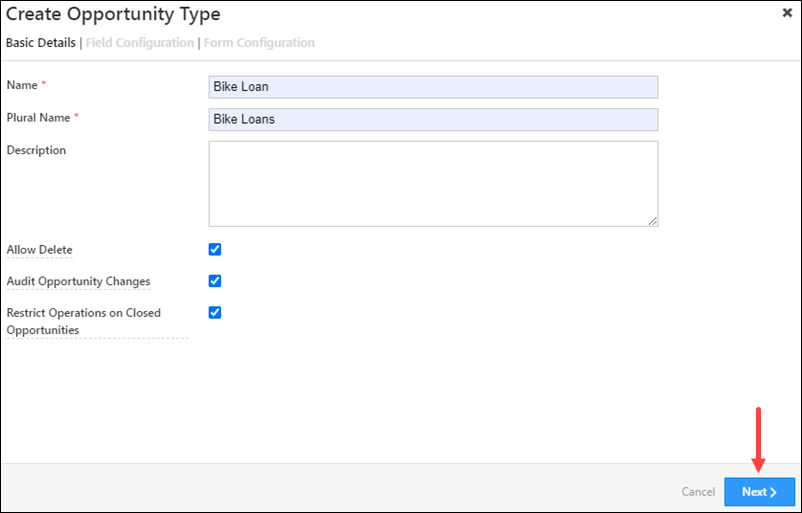
  4. On the Webhook pop-up, enter the following details –
    • Name – Enter a relevant name for the webhook. We’re calling it Facebook Conversion.
    • URL – Select the method as https://, and paste the connector’s webhook URL that was generated. Before you paste the URL, ensure you remove https:// from the URL.
    • Content Type – Select application/json.
    • Save Response – You can select either Yes or No.
    • Custom Headers – You can skip this step.
    • Notify on Failure – Select which user you want to notify if the webhook fails.
    • Retry Count – The number of times you want to retry when the webhook fails.
  5. Once you’re done, click Save, and then click Publish.

Every time the automation is triggered, this webhook will push lead data to your Meta account.

Note: To know more about the Webhook action, refer to User Automation Actions – Webhook.

Facebook Conversions Connector

8.3 Third Automation

This automation is used to identify custom events that occur during your lead’s journey in the sales funnel. Examples of custom events are Lead Stage change, Payment activity posted, etc. You can set up the automation trigger to identify the event for which you want to send data. We’re setting up the automation to trigger when the Lead Stage changes from Prospect to Customer. This lead conversion (change) data for the selected lead is transferred to your Meta account.

Note: If the third automation is lead-dependent, the event trigger should include the additional condition Lead Gen ID Contains Data. This is to ensure the automation triggers only for leads captured through the Facebook Lead Ads connector (and NOT from any other lead source).

  • Navigate to Workflow>Automation, and click Create Automation, and select a relevant trigger.
    1. We’ve selected Lead Update.
  • On the Automation starts when a Lead is Updated pop-up –
    1. From the Lead Field dropdown, select Lead Stage.
    2.  We’re setting the stages as Prospect (From) to Customer (To).
  • Once you’re done, click Save.
Note: Select any trigger/condition here depending on your use case and the lead journey/event data you want to send to your Meta account.

Facebook Conversions Connector

iv. Then, click Add Automation, and under Lead Actions, click Add Activity. From the Activity Type dropdown, select Facebook Conversion API. On the Add Activity pop-up, click Add an additional field to add the following fields –

    • Event Name – It is mandatory to pass the event name as Second Event – Custom Sales Event.
      • Note – If you need to pass a dynamic event name, you can use a mail merge here, just like any other field. For e.g., to send the Lead Stage as the event name, please pass the following mail merge value –
        @{Lead:ProspectStage,}
    • Lead ID – Mail merge the Lead Gen ID @{Lead:mx_Lead_Gen_ID,} to identify the leads captured through the Facebook Lead Ads Connector.
    • Custom Data – In this field, pass the following –
      {"event_source":"crm","lead_event_source":"LeadSquared","Lead_stage":"Customer"}

      The event_source must remain as crm, but the other key-value pairs can change depending on the use case you’re trying to solve.

    • Note – In this field, pass the following –
      {"event_source":"crm","lead_event_source":"LeadSquared","Lead_stage":"Customer"}

      The event_source must remain as crm, but the other key-value pairs can change depending on the use case you’re trying to solve.

    • Email Mail merge – Mail merge this to the email lead field. We’ve gone with @{Lead:EmailAddress,}. If the lead’s email is stored in a different lead field in your account, mail merge that field here.
    • Time Stamp – You can mail merge this to any date field available in your account.

v. Once you’re done, click Save, and then click Publish.

Facebook Conversions Connector


9. View Logs

Here, you can view logs of all the sync jobs that have taken place. View New Events (New Leads), Updated Events (Updated Leads), and Errors (when capturing leads).

  1. Navigate to Apps>Facebook Conversions.
  2. From the More Actions dropdown, click View Logs.
  3. You can filter the logs by selecting a date range (Today, Last 7 Days, This Month, and Last Month), by selecting the Job Status (“All”, “Success” and “Failure”), and by selecting the Sync Status (All, Error, and Success).
  4. You can view the sync status of the following events –
    • New Events – List of all the new leads that have been created in LeadSquared during the selected date range.
    • Updated Events – A list of all the –
      • Duplicate leads that were created with the same Search by Criteria value (e.g., with the same Email Id, Mobile Number, etc.).
      • Leads that previously contained errors, which were fixed and synced successfully.
    • Failed – The list of leads that have not been captured due to mapping errors (e.g., when a boolean field is mapped to an integer field, etc.).
  5. To view the Sync Response details, under Request ID/Sync Job ID, click the Id.
    • Under the right panel, you can view the response status, the API URL, the request, and the response.
    • The responses that are successful will contain the details of the leads that have been pushed from Swipe Pages.
    • To view the lead capture response under Sync API Response, Leads Updated and Errors in Leads, click Information.

Note:

  • For a response that contains an error, the reason for the error is listed in the response. Once you fix it, you can click the Retry button to perform the sync again.
  • The current Lead Sync Behaviour will reflect in the Logs screen. This will help identify the sync that’s used (Capture or Update) for the selected Request/Sync Job Id.

google forms view logs


10. Other Actions

You can edit or delete the Swipe Pages connector instance that you created. To do this –

  1. Navigate to Apps>App Marketplace.
  2. Search for Facebook Conversions Connector.
  3. Alongside the connector, hover your cursor over .
  4. From the list of options, you can perform the following actions –
    • Edit Configuration
    • Disable Configuration
    • Remove Configuration

Facebook Conversions Connector


Any Questions?

Did you find this article helpful? Please let us know any feedback you may have in the comments section below. We’d love to hear from you and help you out!

Integrate Swipe Pages with LeadSquared

1. Feature Overview

This connector captures leads from your Swipe Pages account to LeadSquared. You can configure the connector to capture leads in real-time from your Swipe Pages account. Once the leads are captured, you can leverage LeadSquared’s CRM features to nurture and convert your leads.


2. Prerequisites

  • You must be the Administrator of your LeadSquared account.
  • You must have an active Swipe Pages account with a Startup plan or above.
  • This is a paid feature. To enable it, reach out to your account manager, or write to support@leadsquared.com.


3. How it Works

To push lead data from Swipe Pages to your LeadSquared account, configure the Swipe Pages connector instance. Once configured, enable the connector sync.

During configuration, a webhook URL is generated in LeadSquared. Copy this URL and configure it in your Swipe Pages account. Once configured, the lead capture process is initiated.


4. Installation

You must first install and configure the Swipe Pages connector.

  1. Navigate to Apps>Apps Marketplace.
  2. Search for Swipe Pages, and click Install.
    • Alternatively, you can find the connector on the left panel, under Lead Capture.
  3. Once installed, hover your cursor over , and click Configure.

swipe pages install

4.1 Configure the connector

Once you’ve installed the connector, on the Configure Swipe Pages pop-up, configure the connector access for the non-Admin users in your account. Only those users for whom access is granted can view and access the connector (under the Apps main menu).

  1. Select if you want to grant Connector Access that’s Based on Role or Advanced (User Level).
    • Based on Role – From the Specify Roles dropdown, select the LeadSquared user roles that can use the connector.
    • Advanced (User Level) – From the Advanced (User Level) dropdown, select a user boolean field. Based on the value entered in the selected boolean field, the user can access the connector (e.g., for the user Sam, if the “Is Employee” boolean user field contains the value “Yes”, then this user can access the connector).
  2. Once you’re done, click Save Details. To continue the configuration, refer to the below sections.
Note: By default, all Admin users will have access to the connector.
swipe pages config


5. Admin Configuration

To continue the connector configuration, navigate to Apps>Swipe Pages.

swipe pages admin config

5.1 Basic Settings

Enter the following details –

Property Description
Lead Source Enter the lead source through which the leads were captured (e.g., Swipe Pages, email campaign, etc.). This detail will be displayed on the Lead Details page, under Lead Source.
Default Country Code If the lead’s mobile number is captured without a country code, the default country code that’s selected from the dropdown will be added to the lead’s mobile number.
Select Time Zone The time zone followed in your Swipe Pages account.
Lead Capture Search By Criteria To avoid duplicate leads, you must select one unique lead field (e.g., email Id, mobile number, PAN number, etc.) as the search key. This is used to identify the leads pushed from Swipe Pages.

To know how to mark a LeadSquared lead field as unique, please refer to How to Make a Custom Field Unique.

Lead Capture Secondary Search By Criteria If lead identification and capture through the primary Search By criteria fails, it will be re-attempted using the secondary Search By criteria.
Select User to Notify on Failure If there is an error in fetching leads, the selected user will receive a failure message via email. You can select a user from the list of all the users available in your LeadSquared account.

To know more about the type of errors, please refer to Error Notifications.

Enable Notification To ensure notification emails are sent to the selected user when there’s a failed query, enable the Checkbox checkbox.

Once you’ve entered all the details, click Save & Next.

swipe pages basic settings save


5.2 Entity Options

Define the sync behavior of the connector when leads are captured.

5.2.1 Lead/Contact Entity

Based on the Lead Capture Search By criteria (email Id, phone number, etc.), LeadSquared identifies and captures leads from your Swipe Pages account. Lead capture is enabled by default, and it cannot be disabled. The following options are available to configure the connector’s Sync Behaviour –

  • Capture (Create and Update existing) Record – Leads that only exist in your Swipe Pages account (but not in your LeadSquared account) will get created in LeadSquared. Leads that exist in both your data provider and LeadSquared accounts will get updated.
  • Create only new record – Leads that only exist in your Swipe Pages account (but not in your LeadSquared account) will get created in LeadSquared.
  • Update only existing record – Leads that exist in both your Swipe Pages account and LeadSquared accounts will get updated in LeadSquared.

swipe pages lead sync

5.2.2 Mapping

On the Mapping screen, the Swipe Pages system fields mapped to the corresponding LeadSquared lead fields are visible. This mapping is carried out by default. If required, you can change or update the default field mapping.

  • To provide a default value for any field, click  , enter the value under Default Value, and click Google.
    • If the data provider doesn’t send data for any lead field, then the default value will get assigned to that specific field. But if the field already has an existing value, then the default value will be ignored.
  • To disable lead data capture for any field, disable the Zoom slider.
  • You can also mark and update a unique lead field as the search key from this screen, by clicking unique icon.
  • To create a custom Swipe Pages field, click the Add Custom button.
    1. Once this field is created, you must map it to the relevant LeadSquared lead field.
    2. After the field is mapped, to save the custom field, click Google.
    3. To delete a custom field, click .

Once you’re done, click Save & Next.

Note: Based on the lead fields configured in your Swipe Pages account, add or update the lead fields in LeadSquared.

swipe pages lead mapping


5.3 Generate Webhook URL

After you provide basic details and finish field mapping, a custom webhook URL is generated. To automate lead capture, copy this URL and configure it on your Swipe Pages account.

After you’ve set up the webhook, click More Actions, and enable the sync job. This ensures that through the webhook, lead data from Swipe Pages is pushed to LeadSquared.

Note: To view logs of all the sync jobs that have taken place, from the More Actions dropdown, click View Logs.

swipe pages webhook


6. View Logs

Here, you can view logs of all the sync jobs that have taken place. View New Events (New Leads), Updated Events (Updated Leads), and Errors (when capturing leads).

  1. Navigate to Apps>Swipe Pages.
  2. From the More Actions dropdown, click View Logs.
  3. You can filter the logs by selecting a date range (Today, Last 7 Days, This Month, and Last Month), by selecting the Job Status (“All”, “Success” and “Failure”), and by selecting the Sync Status (All, Error, and Success).
  4. You can view the sync status of the following events –
    • New Events – List of all the new leads that have been created in LeadSquared during the selected date range.
    • Updated Events – A list of all the –
      • Duplicate leads that were created with the same Search by Criteria value (e.g., with the same Email Id, Mobile Number, etc.).
      • Leads that previously contained errors, which were fixed and synced successfully.
    • Failed – The list of leads that have not been captured due to mapping errors (e.g., when a boolean field is mapped to an integer field, etc.).
  5. To view the Sync Response details, under Request ID/Sync Job ID, click the Id.
    • Under the right panel, you can view the response status, the API URL, the request, and the response.
    • The responses that are successful will contain the details of the leads that have been pushed from Swipe Pages.
    • To view the lead capture response under Sync API Response, Leads Updated and Errors in Leads, click Information.

Note:

  • For a response that contains an error, the reason for the error is listed in the response. Once you fix it, you can click the Retry button to perform the sync again.
  • The current Lead Sync Behaviour will reflect in the Logs screen. This will help identify the sync that’s used (Capture or Update) for the selected Request/Sync Job Id.

google forms view logs


7. Other Actions

You can edit or delete the Swipe Pages connector instance that you created. To do this –

  1. Navigate to Apps>App Marketplace.
  2. Search for Swipe Pages.
  3. Alongside the Swipe Pages connector, hover your cursor over .
  4. From the list of options, you can perform the following actions –
    • Edit Configuration
    • Disable Configuration
    • Remove Configuration

swipe pages other actions


8. View Reports

You can view the total number of leads that have been pushed by Swipe Pages, by referring to the Lead Source report. To know more, please refer to How to track the source of your Leads using Lead Source Report?

Integrate LeadSquared with Google Forms


Any Questions?

Did you find this article helpful? Please let us know any feedback you may have in the comments section below. We’d love to hear from you and help you out!

Integrate PayU with LeadSquared

1. Feature Overview

This connector captures leads and activities (such as payment data, payment status, etc.) in real time from your PayU account to LeadSquared. Once the leads and activities are synced, you can leverage LeadSquared’s CRM features to nurture and convert your leads.


2. Prerequisites

  • You must be the Administrator of your LeadSquared account.
  • You must have an active PayU account.
  • This is a paid feature. To enable it, reach out to your account manager, or write to support@leadsquared.com.


3. How it Works

To push lead and activity data from PayU to your LeadSquared account, configure the PayU connector instance. Once configured, enable the connector sync.

During configuration, a webhook URL is generated in LeadSquared. Copy this URL and set it up in your PayU account. Once it’s set up, the activity and lead capture process are initiated.

For e.g., let’s look at two use cases –

  • New Lead – John does not exist as a lead in LeadSquared. On a third-party portal, he makes a payment through PayU. Once the payment is completed, John is captured as a new lead in your LeadSquared account, and an activity is posted with the payment details.
  • Existing Lead – Paul is an existing lead in LeadSquared. On a third-party portal, he makes a payment through PayU. Once the payment is completed, a payment activity is posted against Paul in LeadSquared.


4. Installation

You must first install and configure the PayU connector.

  1. Navigate to Apps>Apps Marketplace.
  2. Search for PayU (Payment Notifications), and click Install.
    • Alternatively, you can find the connector on the left panel, under Payment Gateway.
  3. Once installed, hover your cursor over , and click Configure.

payu install

4.1 Configure the connector

Once you’ve installed the connector, on the Configure PayU (Payment Notifications) pop-up, configure the connector access for the non-Admin users in your account. Only those users for whom access is granted can view and access the connector (under the Apps main menu).

  1. Select if you want to grant Connector Access that’s Based on Role or Advanced (User Level).
    • Based on Role – From the Specify Roles dropdown, select the LeadSquared user roles that can use the connector.
    • Advanced (User Level) – From the Advanced (User Level) dropdown, select a user boolean field. Based on the value entered in the selected boolean field, the user can access the connector (e.g., for the user Sam, if the “Is Employee” boolean user field contains the value “Yes”, then this user can access the connector).
  2. Once you’re done, click Save Details. To continue the configuration, refer to the below sections.
Note: By default, all Admin users will have access to the connector.
payu config


5. Admin Configuration

To continue the connector configuration, navigate to Apps>PayU (Payment Notifications).

payu admin config

5.1 Basic Settings

Enter the following details –

Property Description
Lead Source Enter the lead source through which the leads were captured (e.g., PayU, email campaign, etc.). This detail will be displayed on the Lead Details page, under Lead Source.
Default Country Code If the lead’s mobile number is captured without a country code, then the default country code that’s selected from the dropdown will be added to the lead’s mobile number.
Select Time Zone The time zone followed in your PayU account.
Lead Capture Search By Criteria This is used to identify existing leads who made the payment using PayU.

This is also used to avoid creating duplicate leads. You must select one unique lead field (e.g., email Id, mobile number, PAN number, etc.) as the search key. This will be used to identify the leads pushed from PayU.

Lead Capture Secondary Search By Criteria If lead identification and capture through the primary Search By criteria fails, it will be re-attempted using the secondary Search By criteria.
Select User to Notify on Failure If there is an error identifying and capturing leads who made the payment, the selected user will receive a failure message via email. You can select a user from the list of all the users available in your LeadSquared account.

To know more about the type of errors, please refer to Error Notifications.

Enable Notification Enable the Checkbox checkbox to ensure notification emails are sent to the selected user when there’s a failed query.

Once you’re done entering all the details, click Save & Next.

payu basic settings save


5.2 Entity Options

Define the sync behavior of the connector when payment activities and leads are captured.

5.2.1 Lead/Contact Entity

Based on the Lead Capture Search By criteria (email Id, phone number, etc.), LeadSquared identifies and captures leads from your PayU account. Lead capture is enabled by default, and it cannot be disabled.  The following options are available to configure the connector’s Sync Behaviour –

  • Capture (Create and Update existing) Record – Leads that do not exist in your LeadSquared account will get created. Leads that currently exist in your LeadSquared account will get updated.
  • Create only new record – Leads that do not exist in your LeadSquared account will get created.
  • Update only existing record – Leads that currently exist in your LeadSquared account will get updated.

Note:

  • A lead is classified as a new lead or an existing lead based on the Lead Capture Search By Criteria you’ve selected in the previous section.

payu lead sync

5.2.2 Mapping

On the Mapping screen, the PayU system fields mapped to the corresponding LeadSquared lead/activity fields are visible. This mapping is carried out by default. If required, you can change or update the default field mapping.

  • To provide a default value for any field, click  , enter the value under Default Value, and click Google.
    • If the data provider doesn’t send data for any lead/activity field, then the default value will get assigned to that specific field. But if the field already has an existing value, then the default value will be ignored.
  • To disable lead data capture for any field, disable the Zoom slider.
  • You can also mark and update a unique lead field as the search key from this screen, by clicking unique icon.
  • To create a custom PayU field, click the Add Custom button.
    1. Once this field is created, you must map it to the relevant LeadSquared lead field.
    2. After the field is mapped, to save the custom field, click Google.
    3. To delete a custom field, click .
Note: To map the payment data to a custom activity, select the activity type from the Activity Field Mapping screen.

payu lead mapping

5.2.3 Activity Entity

To post payment activities on leads, against Activity Entity, enable the Slider slider. The following options are available to configure the connector’s Sync Behaviour when activities are posted in LeadSquared –

  • Capture (Create and Update existing) Record – New activities will get posted to the lead in LeadSquared, while existing activities will get updated.
  • Create only new record – Only new activities will get posted to leads in LeadSquared.
  • Update only existing record – Only existing activities on the leads captured will get updated in LeadSquared.

By default, your payment data is mapped to the “PayU” activity.

Note: An activity is classified as a new activity or an existing activity based on the Lead Capture Search By Criteria you’ve selected in the previous section.
Once you’re done, click Save & Next.

payu activity mapping


5.3 Generate the Webhook URL

After you provide basic details and finish field mapping, a custom webhook URL is generated. To automate lead and activity capture, copy this URL and set it up on your PayU account.

After you’ve set up the webhook, click More Actions, and enable the sync job. This ensures payment data from PayU will be pushed to LeadSquared using the webhook.

payu webhook

Note: To view logs of all the sync jobs that have taken place, from the More Actions dropdown, click View Logs.


6. View Logs

Here, you can view logs of all the sync jobs that have taken place. View New Events (New Leads and Activities), Updated Events (Updated Leads and Activities), and Errors (when capturing leads and activities).

  1. Navigate to Apps>PayU (Payment Notifications).
  2. From the More Actions dropdown, click View Logs.
  3. You can filter the logs by selecting a date range (Today, Last 7 Days, This Month, and Last Month), by selecting the Job Status (“All”, “Success” and “Failure”), and by selecting the Sync Status (All, Error, and Success).
  4. You can view the sync status of the following events –
    • New Events – List of all the new leads and activities that have been created in LeadSquared during the selected date range.
    • Updated Events – A list of all the –
      • Duplicate leads that were created with the same Search by Criteria value (e.g., with the same Email Id, Mobile Number, etc.).
      • Duplicate payment activities posted on the same lead, using the same Search by Criteria value (e.g., with the same Email Id and the same Payment Id, etc.).
      • Leads and activities that previously contained errors, which were fixed and synced successfully.
    • Errors – The list of leads and activities that have not been captured due to mapping errors (e.g., when a boolean field is mapped to an integer field, etc.).
  5. To view the Sync Response details, under Request ID/Sync Job ID, click the Id.
    • Under the right panel, you can view the response status, the API URL, the request, and the response.
    • The responses that are successful will contain the details of the leads that have been pushed by PayU.
    • To view the lead capture response under Sync API Response, Leads Updated and Errors in Leads, click Information.

Note:

  • For a response that contains an error, the reason for the error is listed in the response. Once you fix it, you can click the Retry button to perform the sync again.
  • The current Lead/Activity Sync Behaviour will reflect in the Logs screen. This will help identify the sync that’s used (Capture or Update) for the selected Request/Sync Job Id.

Razorpay view logs


8. Other Actions

You can edit or delete the PayU connector instance that you created. To do this –

  1. Navigate to Apps>App Marketplace.
  2. Search for PayU (Payment Notifications).
  3. Alongside the PayU connector, hover your cursor over .
  4. From the list of options, you can perform the following actions –
    • Edit Configuration
    • Disable Configuration
    • Remove Configuration

payu other actions


9. View Reports

You can view the total number of leads that have been pushed by PayU, by referring to the Lead Source report. To know more, please refer to How to track the source of your Leads using Lead Source Report?

Integrate LeadSquared with Razorpay


Any Questions?

Did you find this article helpful? Please let us know any feedback you may have in the comments section below. We’d love to hear from you and help you out!

Payment Logs

1. Feature Overview

This article will show you how to access the logs for payment transactions through a Form in the LeadSquared web application.


2. Prerequisites

You must be the Administrator of your LeadSquared account.


3. Access Payment Logs

  1. Navigate to My Profile>Settings>API and Webhooks>Payment Logs.
  2. The logs will be displayed with a Transaction Id, Event Type, DateTime, and Status in a list view.
  3. Under Actions, click on View Data to view the response given by the Payment Gateway to validate the success or failure status.

payment logs nav

Note: 

  • We only display 1000 logs at a time. Use appropriate filters to get a smaller set of results.
  • ​We only keep logs of the previous 30 days.
  • While searching, you can set a time range of a maximum of 7 days.

You can also export the logs to a CSV file – hover your cursor over the Actions menu and click Export Logs. You can only export up to 1000 results.

payment logs actions

For more information visit our API Documentation.


Any Questions?

Did you find this article helpful? Please let us know any feedback you may have in the comments section below. We’d love to hear from you and help you out!

Integrate WP Forms with LeadSquared

1. Feature Overview

This connector captures leads from your WP Forms on your WordPress account to LeadSquared. You can configure the connector to capture leads in real-time from your WordPress WP Forms. Once the leads are captured, you can leverage LeadSquared’s CRM features to nurture and convert your leads.


2. Prerequisites

  • You must be the Administrator of your LeadSquared account.
  • You must have an active Elite Plan in your WP Forms account,
  • You must have the WP Forms plugin installed in your WordPress account.
  • Once the WP Forms plugin is installed (and you’ve added your license key, under settings), you must install the Webhooks Add-on.
  • This is a paid feature. To enable it, reach out to your account manager, or write to support@leadsquared.com.


3. How it Works

To push lead data from your WordPress WP Form to your LeadSquared account, install and configure the WP Forms connector from LeadSquared Apps Marketplace. Once configured, enable the connector sync.

During configuration, a webhook URL is generated in LeadSquared. Copy this URL. Later, you’ll configure this webhook URL in the WP Form (on your WordPress account).

On your WordPress account –

  1. Install the WP Forms plugin.
  2. Navigate to the Settings tab and enter your license key.
  3. Enable the Webhook Add-on, under Add-ons.

Finally, configure the LeadSquared Webhook URL (you obtained from the WPForms connector on LeadSquared) in the desired WP Forms, using the webhooks add-on. Once set up, leads will be captured to LeadSquared from all forms where the webhooks are configured.


4. Installation

You must first install and configure the WP Forms connector.

  1. Navigate to Apps>Apps Marketplace.
  2. Search for WP Forms, and click Install.
    • Alternatively, you can find the connector on the left panel, under Lead Capture.
  3. Once installed, hover your cursor over , and click Configure.

LeadSquared - wp forms installation

4.1 Configure the connector

Once you’ve installed the connector, on the Configure WP Forms pop-up, configure the connector access for the non-Admin users in your account. Only those users for whom access is granted can view and access the connector (under the Apps main menu).

  1. Select if you want to grant Connector Access that’s Based on Role or Advanced (User Level).
    • Based on Role – From the Specify Roles dropdown, select the LeadSquared user roles that can use the connector.
    • Advanced (User Level) – From the Advanced (User Level) dropdown, select a user boolean field. Based on the value entered in the selected boolean field, the user can access the connector (e.g., for the user Sam, if the “Is Employee” boolean user field contains the value “Yes”, then this user can access the connector).
  2. Once you’re done, click Save Details. To continue the configuration, refer to the below sections.
Note: By default, all Admin users will have access to the connector.
LeadSquared - wp forms initial configurations


5. Admin Configuration

To continue the connector configuration, navigate to Apps>WP Forms.

LeadSquared - wp forms navigation

5.1 Basic Settings

Enter the following details –

Property Description
Lead Source Enter the lead source through which the leads were captured (e.g., WP Forms, email campaign, etc.). This detail will be displayed on the Lead Details page, under Lead Source.
Default Country Code If the lead’s mobile number is captured without a country code, the default country code that’s selected from the dropdown will be added to the lead’s mobile number.
Select Time Zone The time zone followed in your WP Forms account.
Lead Capture Search By Criteria To avoid duplicate leads, you must select one unique lead field (e.g., email Id, mobile number, PAN number, etc.) as the search key. This is used to identify the leads pushed from WP Forms.

To know how to mark a LeadSquared lead field as unique, please refer to How to Make a Custom Field Unique.

Lead Capture Secondary Search By Criteria If lead identification and capture through the primary Search By criteria fails, it will be re-attempted using the secondary Search By criteria.
Select User to Notify on Failure If there is an error in fetching leads, the selected user will receive a failure message via email. You can select a user from the list of all the users available in your LeadSquared account.

To know more about the type of errors, please refer to Error Notifications.

Enable Notification To ensure notification emails are sent to the selected user when there’s a failed query, enable the Checkbox checkbox.

Once you’ve entered all the details, click Save & Next.

LeadSquared - wp forms basic settings


5.2 Entity Options

Define the sync behavior of the connector when leads are captured.

5.2.1 Lead/Contact Entity

Based on the Lead Capture Search By criteria (email Id, phone number, etc.), LeadSquared identifies and captures leads from your WP Forms account. Lead capture is enabled by default, and it cannot be disabled. The following options are available to configure the connector’s Sync Behaviour –

  • Capture (Create and Update existing) Record – Leads that only exist in your WP Forms account (but not in your LeadSquared account) will get created in LeadSquared. Leads that exist in both your data provider and LeadSquared accounts will get updated.
  • Create only new record – Leads that only exist in your WP Forms account (but not in your LeadSquared account) will get created in LeadSquared.
  • Update only existing record – Leads that exist in both your WP Forms account and LeadSquared accounts will get updated in LeadSquared.

LeadSquared - wp forms sync behaviour


5.2.2 Mapping

On the Mapping screen, the WP Forms system fields mapped to the corresponding LeadSquared lead fields are visible. This mapping is carried out by default. If required, you can change or update the default field mapping.

  • To provide a default value for any field, click  , enter the value under Default Value, and click Google.
    • If the data provider doesn’t send data for any lead field, then the default value will get assigned to that specific field. But if the field already has an existing value, then the default value will be ignored.
  • To disable lead data capture for any field, disable the Zoom slider.
  • You can also mark and update a unique lead field as the search key from this screen, by clicking unique icon.
  • To create a custom WP Form field, click the Add Custom button.
    1. Once this field is created, you must map it to the relevant LeadSquared lead field.
    2. After the field is mapped, to save the custom field, click Google.
    3. To delete a custom field, click .

Once you’re done, click Save & Next.

Note:

  • Based on the lead fields configured in your Contact Form 7, and the use case you’re trying to solve, add or update the lead fields mapped in LeadSquared.
  • If you face an error when carrying out the field mapping, refer to How to Map Entity Options for Lead Capture.

LeadSquared - wp forms edit mapping


5.3 Generate Webhook URL

After you provide basic details and finish field mapping, a custom webhook URL is generated. To automate lead capture, copy this URL and configure it on your WordPress account. To know how to do this, refer to the next section…

After you’ve set up the webhook, click More Actions, and enable the sync job. This ensures that through the webhook, lead data from WP Forms is pushed to LeadSquared.

Note: You must have an elite plan to perform webhook integration. To know more, refer to Pricing.

LeadSquared - wp forms sync


6. Add Webhook to WordPress WP Forms Plugin

Once the LeadSquared webhook is generated, add and configure this webhook on your WordPress WP Form plugin.

6.1 Install WP Forms Plugin

First, download the WP Forms plugin zip file from your WP Forms account. Next, upload and activate the WP Forms plugin –

  1. In your WordPress account, hover your mouse over the Plugins option and click on Add New.
  2. At the top of the page, click the Upload Plugin button. Upload the zip file you downloaded from your Wp Forms account.
  3. Click Install Now. Then click Activate.
Note: For more details, see Install and Activate WP Forms Plugin.
LeadSquared Integrations


6.2 Add Your License Key

  1. Once you install the plugin, on the left tab, click WP Forms, then click Settings.
  2. Enter your license key and click Verify Key.
LeadSquared Integrations


6.3 Install Webhooks Add-on and Configure the Webhook

Note: You must first enter your license key under the WP Forms settings, before you can enable the webhook add-on.
  1. Hover your cursor over WP Forms and select Addons.
  2. Search for Webhooks Addon and click Install Addon.
  3. Click Activate.
  4. Under WP Forms, click All Forms.
  5. Select a form and click Settings.
  6. Select Webhooks and click Add New Webhook.
  7. Enter the relevant details and click Save.
LeadSquared - wp forms Configure Webhook


7. View Logs

Here, you can view logs of all the sync jobs that have taken place. View New Events (New Leads), Updated Events (Updated Leads), and Errors (when capturing leads).

  1. Navigate to Apps>WP Forms.
  2. From the More Actions dropdown, click View Logs.
  3. You can filter the logs by selecting a date range (Today, Last 7 Days, This Month, and Last Month), by selecting the Job Status (“All”, “Success” and “Failure”), and by selecting the Sync Status (All, Error, and Success).
  4. You can view the sync status of the following events –
    • New Events – List of all the new leads that have been created in LeadSquared during the selected date range.
    • Updated Events – A list of all the –
      • Duplicate leads that were created with the same Search by Criteria value (e.g., with the same Email Id, Mobile Number, etc.).
      • Leads that previously contained errors, which were fixed and synced successfully.
    • Failed – The list of leads that have not been captured due to mapping errors (e.g., when a boolean field is mapped to an integer field, etc.).
  5. To view the Sync Response details, under Request ID/Sync Job ID, click the Id.
    • Under the right panel, you can view the response status, the API URL, the request, and the response.
    • The responses that are successful will contain the details of the leads that have been pushed from WP Forms.
    • To view the lead capture response under Sync API Response, Leads Updated and Errors in Leads, click Information.

Note:

  • For a response that contains an error, the reason for the error is listed in the response. Once you fix it, you can click the Retry button to perform the sync again.
  • The current Lead Sync Behaviour will reflect in the Logs screen. This will help identify the sync that’s used (Capture or Update) for the selected Request/Sync Job Id.

LeadSquared - wp forms view logs


8. Other Actions

You can edit or delete the WP Forms connector instance that you created. To do this –

  1. Navigate to Apps>App Marketplace.
  2. Search for WP Forms.
  3. Alongside the WP Forms connector, hover your cursor over .
  4. From the list of options, you can perform the following actions –
    • Edit Configuration
    • Disable Configuration
    • Remove Configuration

LeadSquared - wp forms other actions


9. View Reports

You can view the total number of leads that have been pushed by WP Forms, by referring to the Lead Source report. To know more, please refer to How to track the source of your Leads using Lead Source Report?


Any Questions?

Did you find this article helpful? Please let us know any feedback you may have in the comments section below. We’d love to hear from you and help you out!

Integrate Formcraft with LeadSquared

1. Feature Overview

This connector captures leads from Formcraft on your WordPress account to LeadSquared. You can configure the connector to capture leads in real-time from your WordPress Formcraft account. Once the leads are captured, you can leverage LeadSquared’s CRM features to nurture and convert your leads.


2. Prerequisites

  • You must be the Administrator of your LeadSquared account.
  • You must have the Formcraft plugin installed in your WordPress account.
  • This is a paid feature. To enable it, reach out to your account manager, or write to support@leadsquared.com.


3. How it Works

To push lead data from your WordPress Formcraft to your LeadSquared account, configure the Formcraft connector instance. Once configured, enable the connector sync.

During configuration, a webhook URL is generated in LeadSquared. Once you install the Formcraft to Webhook plugin on WordPress, you can copy the LeadSquared Webhook URL and configure it in your WordPress account. Once configured, the lead capture process is initiated.


4. Installation

You must first install and configure the Formcraft connector.

  1. Navigate to Apps>Apps Marketplace.
  2. Search for Formcraft, and click Install.
    • Alternatively, you can find the connector on the left panel, under Word Press.
  3. Once installed, hover your cursor over , and click Configure.

LeadSquared - Formcraft installation


4.1 Configure the connector

Once you’ve installed the connector, on the Configure Formcraft pop-up, configure the connector access for the non-Admin users in your account. Only those users for whom access is granted can view and access the connector (under the Apps main menu).

  1. Select if you want to grant Connector Access that’s Based on Role or Advanced (User Level).
    • Based on Role – From the Specify Roles dropdown, select the LeadSquared user roles that can use the connector.
    • Advanced (User Level) – From the Advanced (User Level) dropdown, select a user boolean field. Based on the value entered in the selected boolean field, the user can access the connector (e.g., for the user Sam, if the “Is Employee” boolean user field contains the value “Yes”, then this user can access the connector).
  2. Once you’re done, click Save Details. To continue the configuration, refer to the below sections.
Note: By default, all Admin users will have access to the connector.
LeadSquared - Formcraft initial configurations


5. Admin Configuration

To continue the connector configuration, navigate to Apps>Formcraft.

5.1 Basic Settings

Enter the following details –

Property Description
Lead Source Enter the lead source through which the leads were captured (e.g., Formcraft, email campaign, etc.). This detail will be displayed on the Lead Details page, under Lead Source.
Default Country Code If the lead’s mobile number is captured without a country code, the default country code that’s selected from the dropdown will be added to the lead’s mobile number.
Select Time Zone The time zone followed in your WordPress account.
Lead Capture Search By Criteria To avoid duplicate leads, you must select one unique lead field (e.g., email Id, mobile number, PAN number, etc.) as the search key. This is used to identify the leads pushed from Formcraft.

To know how to mark a LeadSquared lead field as unique, please refer to How to Make a Custom Field Unique.

Lead Capture Secondary Search By Criteria If lead identification and capture through the primary Search By criteria fails, it will be re-attempted using the secondary Search By criteria.
Select User to Notify on Failure If there is an error in fetching leads, the selected user will receive a failure message via email. You can select a user from the list of all the users available in your LeadSquared account.

To know more about the type of errors, please refer to Error Notifications.

Enable Notification To ensure notification emails are sent to the selected user when there’s a failed query, enable the Checkbox checkbox.

Once you’ve entered all the details, click Save & Next.

LeadSquared - Formcraft basic settings


5.2 Entity Options

Define the sync behavior of the connector when leads are captured.


5.2.1 Lead/Contact Entity

Based on the Lead Capture Search By criteria (email Id, phone number, etc.), LeadSquared identifies and captures leads from Formcraft. Lead capture is enabled by default, and it cannot be disabled. The following options are available to configure the connector’s Sync Behaviour –

  • Capture (Create and Update existing) Record – Leads that only exist in your WordPress account (but not in your LeadSquared account) will get created in LeadSquared. Leads that exist in both your data provider and LeadSquared accounts will get updated.
  • Create only new record – Leads that only exist in your WordPress account (but not in your LeadSquared account) will get created in LeadSquared.
  • Update only existing record – Leads that exist in both your WordPress account and LeadSquared accounts will get updated in LeadSquared.

LeadSquared - formcraft sync behaviour


5.2.2 Mapping

On the Mapping screen, the Formcraft system fields mapped to the corresponding LeadSquared lead fields are visible. This mapping is carried out by default. If required, you can change or update the default field mapping.

  • To provide a default value for any field, click  , enter the value under Default Value, and click Google.
    • If the data provider doesn’t send data for any lead field, then the default value will get assigned to that specific field. But if the field already has an existing value, then the default value will be ignored.
  • To disable lead data capture for any field, disable the Zoom slider.
  • You can also mark and update a unique lead field as the search key from this screen, by clicking unique icon.
  • To create a custom Formcraft field, click the Add Custom button.
    1. Once this field is created, you must map it to the relevant LeadSquared lead field.
    2. After the field is mapped, to save the custom field, click Google.
    3. To delete a custom field, click .

Once you’re done, click Save & Next.

Note:

  • Based on the lead fields configured in your Formcraft form, and the use case you’re trying to solve, add or update the lead fields mapped in LeadSquared.
  • If you face an error when carrying out the field mapping, refer to How to Map Entity Options for Lead Capture.

LeadSquared - formcraft edit mapping


5.3 Generate Webhook URL

After you provide basic details and finish field mapping, a custom webhook URL is generated. To automate lead capture, copy this URL and configure it on your WordPress account. To know how to do this, refer to the next section…

After you’ve set up the webhook, click More Actions, and enable the sync job. This ensures that through the webhook, lead data from Formcraft is pushed to LeadSquared.

Note: To view logs of all the sync jobs that have taken place, from the More Actions dropdown, click View Logs.

LeadSquared - formcraft copy url


6. Add Webhook to WordPress Formcraft Plugin

Once the LeadSquared webhook is generated, add and configure this webhook on your WordPress Formcraft plugin.

6.1 Install Formcraft Plugin

  1. In your WordPress account, hover your mouse over the Plugins option and click on Add New.
  2. Type Formcraft in the search box.
  3. Click Install Now.
  4. Click Activate.
Note: For more details on how to install the Formcraft plugin in your WordPress, see How to Register Your Plugin.

LeadSquared - formcraft Install Plugin


6.2 Configure the Webhook

  1. On the left side of the screen, click Formcraft and create a new form.
  2. Open the custom form you created and click Settings.
  3. Scroll to the bottom.
  4. Under Send data to Custom URL, enter the webhook URL and method.
Note: For more details, refer to Send Data to Custom URL.

LeadSquared Integrations


7. View Logs

Here, you can view logs of all the sync jobs that have taken place. View New Events (New Leads), Updated Events (Updated Leads), and Errors (when capturing leads).

  1. Navigate to Apps>Formcraft.
  2. From the More Actions dropdown, click View Logs.
  3. You can filter the logs by selecting a date range (Today, Last 7 Days, This Month, and Last Month), by selecting the Job Status (“All”, “Success” and “Failure”), and by selecting the Sync Status (All, Error, and Success).
  4. You can view the sync status of the following events –
    • New Events – List of all the new leads that have been created in LeadSquared during the selected date range.
    • Updated Events – A list of all the –
      • Duplicate leads that were created with the same Search by Criteria value (e.g., with the same Email Id, Mobile Number, etc.).
      • Leads that previously contained errors, which were fixed and synced successfully.
    • Failed – The list of leads that have not been captured due to mapping errors (e.g., when a boolean field is mapped to an integer field, etc.).
  5. To view the Sync Response details, under Request ID/Sync Job ID, click the Id.
    • Under the right panel, you can view the response status, the API URL, the request, and the response.
    • The responses that are successful will contain the details of the leads that have been pushed from Formcraft.
    • To view the lead capture response under Sync API Response, Leads Updated and Errors in Leads, click Information.

Note:

  • For a response that contains an error, the reason for the error is listed in the response. Once you fix it, you can click the Retry button to perform the sync again.
  • The current Lead Sync Behaviour will reflect in the Logs screen. This will help identify the sync that’s used (Capture or Update) for the selected Request/Sync Job Id.

google forms view logs


8. Other Actions

You can edit or delete the Formcraft connector instance that you created. To do this –

  1. Navigate to Apps>App Marketplace.
  2. Search for Formcraft.
  3. Alongside the Formcraft connector, hover your cursor over .
  4. From the list of options, you can perform the following actions –
    • Edit Configuration
    • Disable Configuration
    • Remove Configuration

LeadSquared - Formcraft other atcions


9. View Reports

You can view the total number of leads that have been pushed by Formcraft, by referring to the Lead Source report. To know more, please refer to How to track the source of your Leads using Lead Source Report?


Any Questions?

Did you find this article helpful? Please let us know any feedback you may have in the comments section below. We’d love to hear from you and help you out!

Incentives Formula Builder

1. Feature Overview

With the Incentives Formula Builder, you can create tailored calculations that address complex use cases, meeting the specific needs of an enterprise. For example, you can create a program to adjust the commission through additional rewards or penalties based on the targets achieved by the users.

formula builder


2. Prerequisites

You must know how to configure Goals and Incentives.


3. Example Use Case

Suppose a user has earned a commission of Rs. 6000 from the initial incentive program (Home Loan Sales).

Referring to the table below, if the user has achieved less than 70% of their target (as per the Goal), a -10% penalty will be applied to the commission. Consequently, their final commission would total Rs. 5,400.

However, if they’ve attained a target between 116% and 200%, they receive a reward of 10% on their commission. In this scenario, their final commission would amount to Rs. 6,600.

Target Achieved Reward or Penalty
Less than 70% -10%
Between 70% and 100% 0%
Between 101% and 115% +10%
Between 116% and 200% +15%
Greater than 200% +20%


Configure Formula Builder

Follow the steps below to recreate the above use case –

Note: 

  • You must have an Incentive program that’s been configured to calculate commission.
  • You must have a Goal configured to calculate the sales targets achieved by the users.

Create a new incentive program, and add the Goal used to calculate the targets achieved by the users.

Add goals

In the Criteria & Rewards Section, click on + Add Program Criteria, and add a condition stating Home Loan Achicement (Target) is less than 70%.

condition 1

Next, let’s add the penalty to the above condition –

  1. Click Add Reward.
  2. Select Formula Builder and click Done.
  3. On the Formula Builder, under Metric, search for the Incentive program that calculated the commissions.
  4. Select the Calculated Incentive rewards.
  5. Select a particular Cycle.
  6. Under the Operator tab select the multiplication Operation.
  7. Under the static tab select 0.9 as the value (similar to -10%).
  8. Click Add Reward.

From the above steps, the reward formula should look similar to this – Home Loan 1>Calculated Incentive>#3 :1st Jan 2024 - 31st Jan 2024 * 0.9

Similarly, you can add other conditions, and their respective rewards and penalties.

For example,

  • Reward Formula when Target is between 70% and 100% (0% penalty)- Home Loan 1>Calculated Incentive>#3 :1st Jan 2024 - 31st Jan 2024
  • Reward Formula when Target is between 101% and 115% (+10% reward) – Home Loan 1>Calculated Incentive>#3 :1st Jan 2024 - 31st Jan 2024 / 1.1


add reward


Any Questions?

If you have questions, you can start a discussion in the comments section below. We’ll get back to you ASAP!

Organization Settings – Advanced Configuration

1. Feature Overview

The advanced configuration page enables you to manage settings related to key features for your organization. Once enabled, settings are applied globally (for all users) across your LeadSquared account. This article explains each of these settings in detail.


2. Prerequisites

  • Settings on this page are only accessible by LeadSquared Admin users.
  • Certain settings are available only if the associated feature is enabled on your account. Contact us at support@leadsquared.com if you want to enable new features on your account.


The Advanced Configuration page is available under Settings>Profile>Organization Settings>Advanced Configuration.

LeadSquared Product Updates


4. Settings

  • Allow Date Field in CFS

When enabled, admin users can create date type fields within Custom Field Sets. One of the primary use cases for Custom Field Sets is to upload files and documents (for KYC, loan approvals, education assessments, etc.). This setting will help users capture dates associated with these document collection activities.

CFS Date type fields

  • Allow International formats for Exotel Virtual Numbers

Enables you to configure international phone numbers in the Virtual Numbers (Caller Id) field of the Exotel V2 connector.

product updates sept 2021

  • Allow LOS in CFS

When enabled, admin users can add a large number of values (see Large Options Set) to drop-down type fields within Custom Field Sets. This is helpful if you want to create drop-downs with a large number of values like a list of schools/colleges, a list of doctors/hospitals, multiple locations/cities, etc. Once enabled, while associating the CFS with a lead or activity, you can upload a CSV file with the list of options instead of creating them manually.

CFS LOS

  • Allow only one user to “Mark a Task Complete” via Dynamic Forms

When enabled, two users will not be able to mark a task as complete from a dynamic form at the same time. Only a single user can mark a task as complete.

LeadSquared Platform Updates

  • Allow sales group functionality to sales manager
    When enabled, Sales Manager user roles will be able to access the Sales Groups Settings page to create, manage and delete sales groups.

LeadSquared Product Updates

Once you enable this setting, ensure the following permissions are given to your Sales Managers –

  1. Navigate to the My Profile>Settings>Users and Permissions>Users, and create or edit a user.
  2. Click Manage Permissions, click Edit, and from the Manage Users dropdown, select Sales Manager.
  3. Alongside Allow Sales Group Access, enable the Checkbox checkbox.
  4. Once you’re done, click Save.

LeadSquared Product Updates

  • Allow smart view task grid reload

When enabled, the Smart Views task grid automatically reloads once a task is marked as complete.

Advanced Settings_3

  • Allow User Hierarchy Management

Once enabled, admin users can create and update user hierarchies from the Manage Users page. The user hierarchy UI gives users a simple drag and drop interface to organize users according to their reporting managers (based on the ‘Reporting To’ user field). For more details see Manage Users.

Note: To enable this feature on your account, reach out to your account manager, or write to support@leadsquared.com.

user hierarchy

  • Allow users to save dynamic forms as Drafts

Enable this setting to access the Save as Drafts feature which enables users to save their progress while filling out Dynamic Forms, allowing them to pause and return later to complete and submit the form. To know more, see Save a Dynamic Form as a Draft.

Note: This is available only on NextGen.
  • Allow Users without lead access to create opportunities

When the ‘Allow Sales User to Create Opportunity on Inaccessible Leads’ setting is enabled, users will be able to view all leads in the associated field search results, ensuring no relevant lead is missed during opportunity creation. Additionally, even when both ‘Allow Sales User to Create Opportunity on Inaccessible Leads’ and ‘Allow Sales User to Update or Overwrite Lead Fields of Inaccessible Leads’ settings are enabled, the system will allow users to search for leads but will restrict them from modifying lead fields.

  • Avoid edit conflicts on Email Campaign Page
    When enabled, multiple users will not be able to edit an Email Campaign at the same time. An error notification will be displayed to subsequent users who try to edit the campaign.
  • Avoid edit conflicts on Landing Pages
    When enabled, multiple users will not be able to edit a Landing Page at the same time. An error notification will be displayed to subsequent users who try to edit the page.
  • Change Owner of Opportunity Tasks on Opportunity Owner change
    Once enabled, every time there’s a change in the opportunity owner, pending and overdue tasks on that opportunity will be automatically assigned to the new owner.
  • Check-in/Check-out status configuration
    Allows you to configure status names and status colours for user check-in and check-out. To know more, please refer to User Management Features: Check-In and Check-Out.

Advanced settings configurations

The statues configured here will reflect on the Check-In/Check-Out widget.

Check-in and check-out

    • Configure Actions Panel in Manage Leads/Activities/Opportunities/Smart Views Page

Configure the Action Panel to hide the following Quick Add action buttons –

    • On the Manage Leads page – Quick Add Lead, Add New Lead and Add New Lead (in a new tab)
    • On the Manage Activities page – Add Activity and Add New Lead
    • On the Manage Opportunities page – Add Opportunity and Add New Lead
    • On the Smart Views page – Across all the Add Activity, Add Lead and Add Opportunity buttons.

To hide these buttons –

  1. Click Configure.
  2. On the Configure Actions Panel pop-up, from the respective entity tabs, uncheck the Checkbox checkboxes for the buttons you want to hide.
  3. Once you’re done, click Save.

In the below example, we’ve configured the Action Panel to hide the Quick Add Lead button on the Manage Leads page.

LeadSquared Platform Updates

  • Configure Activity Process Button in Lead Details

Configure the display name of the Processes button, present on the Add Activity process on the Lead Details page. If you’ve configured a process to show different forms on the Lead Details page, this setting will allow you to change the display name of the button that triggers the process.  To know how to add a process, please refer to How to Create a Process.

LeadSquared Advanced Configuration

  • Configure Agent Popup Grid

Admins can customize the columns in both Lead and Opportunity grids within the Agent Popup to align with their business requirements. Additionally, they can choose to disable the grids if needed.

  1. Click Configure.
  2. Select Enable Lead/Opportunity Grid in the Lead or Opportunity Tab.
  3. Select the Columns under their respective Schema Name.
Note: The ordering of the columns in the Agent Popup is based on the order of clicking in the Configure Agent Popup Grid settings. Make sure to click on the columns in the desired sequence to arrange them accordingly.

agent pop up grid customization

  • Configure Custom Fields for User On-Boarding in Mobile App

When enabled, users who don’t have access to email inboxes can still sign-up for their LeadSquared account. This setting can help you onboard external vendors, delivery partners, or third-party service providers. To know more, please refer to Sign-up Users Without Access to Email Inboxes.

  • Configure Smart Views

Allows you to configure the number of custom filters you can set on a Smart Views tab, along with the auto refresh rate (intervals) for these Smart Views tabs.

LeadSquared Product Updates

Note that you can set a maximum of 15 filters per tab.

product updates sept 2021

  • Configure telephony ignore rules

When enabled, this setting will ignore calls from unknown numbers. This works across all telephony providers. Logs of ignored calls will still be posted in your account. To view telephony logs,  navigate to My Profile>Settings>API and Webhooks>Telephony Logs.

  • Configure User Deactivation rules

Let’s you restrict your Admins from deactivating users with associated leads/opportunities. To do this –

  1. Search for Configure User Deactivation rules, and click Configure.
  2. On the User Deactivation Rules pop-up, enable the checkbox Checkbox to restrict deactivation –
    • If user has associated Leads
    • If user has associated open Opportunities
  3. Once you’re done, click Save.

Deactivate Users

  • Disable ‘Delete all Leads’ static List Action

This setting hides the Delete all Leads action on the List Details page. It helps prevent accidental lead deletion.

delete all leads list details page

  • Disable Access of LSQ app in Iframe

This is a security setting that disables clickjacking in your LeadSquared account. When enabled, LeadSquared won’t work in an Iframe.

  • Disable Agent Popup in Multiple Tabs

When enabled, the Agent pop-up will only be displayed on the active browser tab (when LeadSquared is open on multiple tabs).

  • Disable Lead Notes Feature

When enabled, users won’t be able to add notes to a lead -the Add Note button and Notes tab on the Lead Details page won’t be visible. This setting is helpful to prevent users from adding notes to leads and encouraging them to adhere to a defined business process (adding details in activities, forms, etc.). However, notes created via API will still be posted against leads.

Add Notes Disabled

  • Disable Opening of Entity Details in Marvin

By default, the Lead or Opportunity details page opens automatically for incoming calls in Marvin. Turn this on if you prefer not to open the details page automatically.

  • Enable Async APIs for Telephony (Capras)

For customers using the Exotel Telephony connector, once you enable this setting, you can use LeadSquared’s Async API framework to ensure more reliable call logs posting for outbound calls. To know more, refer to Exotel Connector.

  • Enable Auto Check-In on Login
    When enabled, users logging in to their LeadSquared accounts will be automatically checked in. This setting can be enabled only if user check-in is configured on your account. To know how to configure it, refer to User Management Features: Check-In and Check-Out.
Note: The Auto Check-in on Login feature only works if the user has checked out the previous day. If a user remains checked in overnight without checking out, the system will not register an automatic check-in the next day.

LeadSquared Platform Updates

  • Enable Auto Check-out on Sign-out

Users can now automatically check-out of LeadSquared while logging out. When this setting is enabled, users will only get the option to ‘Check-out and Log-out’ while signing out of LeadSquared. This allows Admins and Managers to view an accurate report of the users’ Check-in and Check-out history.

  • Enable Automation Mail Merge as per ‘From’ User’s Time Zone in Email Cards
    When a user is in a different timezone, and the LeadSquared account is configured in a different timezone, and a mail merge date/time field is included in the Send Email automation card, the account’s timezone is automatically applied to the date/time value of the field.
    For example, a user’s timezone is configured to Pacific Time (PT) and the LeadSquared account is configured to Eastern Time (ET). When a date/time mail merge field is added in the Send Email automation card like an application interview date field, the value of the field is automatically set to the account timezone (ET) instead of the user’s timezone (PT). This may result in the lead receiving an unintended application interview date/time in the email.
    Once enabled this setting applies the user’s timezone to the mail sent through the automation card.
  • Enable change of Opportunity owner on Lead owner change
    When enabled, the new lead owner will automatically become the opportunity owner for all child opportunities under the lead.
  • Enable Call Log Optimization
    The Call Log API for telephony integrations can now be optimized for better performance.
  • Disable Report Subscriptions
    Disables the Daily Reports subscription for all users in your account.

LeadSquared Advanced Configurations

  • Disable Sales Activity
    Click Configure to –

    • Restrict users from adding a new Sales Activity – When selected, users in your account will not be able to add any new Sales Activities. They can continue to view and edit existing Sales Activities.
    • Remove complete access to Sales Activity – When selected, users in your account will not be able to add new Sales Activities. Additionally, they will also not be able to view and edit existing Sales Activities.

To know more, refer to Disable Sales Activity Access.

Disable Sales Activity

  • Disable Task Type configuration for non-admin roles
    Restricts Marketing Users and Sales Manager roles from viewing, creating and configuring task types.

LeadSquared Product Updates

  • Enable anchor tag for lead name
    When enabled, the lead name link that redirects to the Lead Details page in the Manage Opportunities grid will be available. You can disable this to reduce clutter, if users are working specifically on opportunities.

Settings_3

  • Enable Default Status And Stage
    This setting allows you to set a default status and stage for new opportunities. To configure statuses and stages, please refer to Opportunity Configurations.

LeadSquared Platform Updates

  • Enable default tab for all users
    This setting allows you to set a default tab (such as Activity History, Tasks, etc.) for all users on the Lead Details page. To do this, against the setting, click Configure, and select the default tab you want to display.

LeadSquared's Advanced Configuration

  • Enable Email Notification on Automation Failure

Select the list of users who’ll receive an automation failure email notification. To do this, click Configure, and on the Notify Users on Automation Failure pop-up –

  1. Under Notify, on automation failure, if you want to notify the
    • User who created the automation, enable the checkbox.
    • User who modified the automation, enable the checkbox.
  2. To view the list of users in your account by user role type, from the Filter by Role dropdown, select the role type.
  3. From the list of Available Users, select the users you want to notify, and click Right Arrow.
  4. Once you’re done, click Save. The selected users will receive a notification of automation failure.

LeadSquared Product Updates

  • Enable Enhanced Data Type For Opportunity

Enable this setting to Configure Opportunity Fields using the following data types –

    • Phone
    • Email
    • Date
    • Geolocation
    • Auto ID


  • Enable formatting of non-unique phone type lead fields

When enabled, phone type lead fields that are not marked unique, will be processed and formatted as follows –

+cc-<phone number>

For this to work, the default country code must be defined from the Company Profile settings (Settings>Profile>Organization Settings>Company Profile and define ‘Default Country Code’ field).

define default country code

  • Enable full screen mode of lead details

When enabled, if a user clicks on a lead from a Smart Views tab, the Lead Details page will open in full-screen mode.

Lead details full page view

  • Enable Hiding Opportunity Activities of other users
    When enabled, the opportunity owner will not be able to view the activities posted on the opportunity by other users, under the Activity History tab on the Opportunity Details and Lead Details pages. For e.g., when there is a change in opportunity owners, this setting can be used to hide past activities from the new owner.
  • Enable Lead Capture
    When enabled, lead capture activities (captured by the Lead Capture API) posted for duplicate leads, are visible on the Lead Details page, under Activity History.

lead capture duplicate activities

  • Enable leading zeros in phone type lead fields

When enabled, users can create phone numbers with zero as the first digits. This is helpful for phone numbers in certain countries that support zeros as the first digit of the phone number.

  • Enable new phone number format setting

Once enabled, international phone numbers will be formatted in the cc+phonenumber format. 

  • Enable Opportunity – Telephony

When enabled, opportunities are integrated with telephony connectors. This allows users to perform telephony events on opportunities. To know more, please refer to Opportunity Integrations in Telephony.

  • Enable Permission Templates for Account Management

Once enabled, Admin users can set Permission Templates to restrict your users from Viewing, Creating, Editing, Deleting, Exporting and Importing individual Accounts.

LeadSquared Product Updates

  • Enable Opportunity Sharing
    When enabled, you can share opportunities with your users for a defined duration, using the Opportunity Share feature and Share an Opportunity API.
  • Enable quick filters on manage opportunities page
    When enabled, on the Manage Opportunities page, you can create and save quick filters using the Advanced Search feature.

LeadSquared Product Updates

  • Enable Sending Emails Via Opportunity
    When enabled, you can send emails to your leads from the Opportunity Details page.

LeadSquared Product Updates

  • Enable Virtual Number Randomization

In telephony connectors, where multiple virtual numbers are configured, the setting randomizes the virtual number with every call placed by an agent.

Virtual Number Randomization

  • Restrict Operations on Closed Opportunities (Won/Lost)

This setting restricts users from performing any updates, or posting any activities/tasks on a closed opportunity. Once enabled, you can configure individual opportunities to restrict user operations. To know more, please refer to Opportunity Configurations.

Note: This is also applicable on the LeadSquared Mobile App.

LeadSquared Platform Updates

  • Entity Access through Opportunity ownership
    When enabled, users can view 2,000 or more opportunities that have been assigned to them.

  • Ignore Inbound Calls

When enabled, all incoming calls from unknown numbers received through any configured telephony connector (through the call log or agent pop-up) will be ignored. This ensures that users can focus only on calls with existing leads.

  • Infinite scroll in Activity History

When enabled, the Show More button gets disabled and infinite scrolling is enabled under Activity History tab on the Lead Details page.

Settings_1

  • Load inactive tabs in Smart Views

When you navigate between Smart Views tabs, they sometimes take a moment to load. This setting saves you time, by pre-loading data for inactive Smart Views tabs in the background.

load inactive smart views tabs in background

  • Redirect to lead details page

Enables you to redirect to the Lead Details page, instead of seeing the agent popup, while making or receiving calls from a lead.

  • Remove Quick Add Activity Button

When enabled, the Quick Add Activity Button (on the Lead Details page) won’t appear if processes are configured to show dynamic forms in Lead Details>Add Activity. This helps eliminate clutter and ensures that users adhere to processes where dynamic forms have been configured.

add activity button

  • Restrict all mobile users as email senders
    When enabled, LeadSquared Mobile App users will not appear as the sender in the “From” email dropdowns, across email campaigns, one-to-one emails, automation emails, and landing page auto-response emails. However, mobile users can continue to send emails even after this setting is enabled.
  • Restrict request history to owners
    Users will only be able to view their own requests (lead delete, lead export, etc.), and not requests made by other users, under Request History.

Notes:

  • For customers with Super Admin enabled –
    • Only Super Admins will be able to toggle the setting
    • Only Super Admins will be able to see everyone’s records
  • In non-Super Admin accounts –
    • Only admins will be able to toggle the setting
    • Only admins will be able to see everyone’s records
  • Restrict sales user to view email template
    When enabled, sales users sending emails will only be able to see their own email templates, and not email templates of other users.

Settings_2

  • Restrict update of associated phone number
    When enabled, only admin users will be able to update to the ‘Agent Phone Numbers’ associated with a user. If disabled, all other user roles will be able to update the ‘Agent Phone Numbers’ associated with their own user profiles.

edit associate agent phone numbers

  • Restrict users from creating email templates
    This allows you to restrict specific users from creating email templates.
  • Restrict users to download activity attachments
    Restricts your users from downloading audio files that are added as activity attachments. When enabled, your users will still be able to access and listen to the audio files. To enable this setting, click Configure, and select the audio file types for which you want to restrict user downloads.

LeadSquared Advanced Configuration

  • Show all groups filter in Smart Views
    For lead tabs in Smart Views, Admin, Marketing and Sales Manager roles can see leads belonging to all sales groups, using the sales group filter. By default, sales users can only see leads belonging to his/her own group.

sales group dropdown in smart views

This setting allows sales users to view all sales groups (even the ones that they’re not a part of) in the sales group filter.

Show all groups filter in Smart Views

  • Show Only Opportunity Related Forms In Agent Popup
    When your users (agents) receive inbound calls, if only a single LeadSquared Form is configured to capture opportunity details and linked to an opportunity to agent pop-up (using the Process Designer), this form is automatically displayed to them. Enabling this setting ensures your users don’t have to manually select this form through the Agent Popup.
    Note that if more than one form is linked to the agent pop-up, even after this setting is enabled, your users will have to manually select a form through the Agent Popup.
  • Show Only Relevant Opportunities Under a Lead to Sales User
    When enabled, sales users will only be able to view opportunities for which they are the opportunity owner, on the Lead Details page.


  • Show Sales Group Filter for Opportunity Grid in Smart Views
    When enabled, on the Opportunities Smart Views tab, sales users can filter opportunities by the sales groups they are a part of. To allow sales users to view the opportunities of sales groups they are not a part of, enable the Show all groups filter in Smart Views setting.

sales group filter for smart views opp type tabs

  • Show Sales Group Filter for Task Grid in Smart Views
    Once enabled, you can filter tasks by sales groups, on task tabs of Smart Views. If you want your sales users to view the tasks of other groups, first enable the Show all groups filter in Smart Views settings.

LeadSquared Product Updates

  • Switch to teams UI V2
    We’ve enhanced the user interface for the Teams settings page. The new interface will remove the Bulk Actions button present on the top-right corner of your screen, and will instead allow you to perform actions on an individual level for each team. This makes it easier and quicker to perform actions like Apply Holiday Calender, Workday Templates, Smart Views, etc.

LeadSquared Advanced Configuration

  • Enable Webhooks for Opportunity
    Once enabled, Admin users can now configure webhooks for opportunity events and keep track of the triggered webhooks.

LeadSquared - opportunity webhook

  • Enable ‘Reply To’ header in One to One Send Email
    When enabled, users can direct replies to one-on-one and bulk emails to a specific user by adding them to the Reply To header during email composition.

LeadSquared - Reply to in platform


Any Questions?

Did you find this article helpful? Please let us know any feedback you may have in the comments section below. We’d love to hear from you and help you out!

LeadSquared SMS Connectors – USA

1. Feature Overview

LeadSquared SMS Connectors facilitates customer support and other marketing efforts through simple, secure and reliable text messages. This connector lets you integrate popular SMS providers with your LeadSquared account to send automated, one-to-one and bulk SMSes to leads and opportunities in the USA, directly from LeadSquared.

Note: In this article, we’ve used Twilio as an example to demonstrate the installation and set-up process.


2. Prerequisites

  • To enable an SMS provider’s connector on your account, contact your account manager or write to support@leadsquared.com.
  • You must be an administrator user of your Leadsquared account.
  • Your account plan must support SMS integration.


3. How it Works

Set up the connector by providing your SMS provider’s account details (Transactional and Promotional usernames, API Keys and Tokens, passwords, etc.). Once it’s set up, create and configure the SMS templates you’ll be using to message your leads. After these templates are configured, send SMSes to your leads.


4. Install the Connector

To install the Twilio connector on your account –

  1. From the main menu, navigate to Apps>Apps Marketplace.
  2. Search for Twilio Texting (Outbound), and click Install.
    • Alternatively, you can find the connector on the left panel, under SMS.
  3. Then, click Configure.
  4. On the Configure Twilio Texting (Outbound)  pop-up, no further action is required on this page. To configure the connector, navigate to Apps>Configure Twilio Texting (Outbound).

Twilio LeadSquared Integration


5. Configure the Connector

Once the connector is installed, navigate to Apps>Configure Twilio Texting (Outbound), and provide the following details –

5.1 Authentication

Enter your Twilio account credentials –

  • Username – Your Twilio account username.
  • Password – Your Twilio account API key.

Once you’re done, click Save & Next.

Twilio LeadSquared Integration


5.2 Activity Creation

When SMSes are sent to your lead, an activity is posted automatically against that lead. Here, configure the activity creation method for the SMS activity.

  • Async API – This is the recommended method. If you’ve selected this method, enter your LeadSquared account’s Async API URL and API Key. To obtain both these values, navigate to My Profile>Settings>API and Webhooks>Async API.
  • Sync API – This method is selected by default. To post limited SMS activities against your lead, select Sync API.

Note:

  • Through the Sync API method, the activity creation process happens without any delays. But activity creation or tracking may fail during peak hours and when there’s high traffic to our servers. To work around this potential issue, we recommend you use the Async API method.
  • Async APIs must be enabled on your LeadSquared account for the Async method to work.

Twilio LeadSquared Integration


5.3 Sender Management

To add your Twilio account’s Sender IDs, click Add New, and on the Add Sender ID pop-up, enter the following details –

  • Sender ID – Enter your Twilio phone number from which you’ll send messages to your leads. To know how to obtain a number, refer to Twilio Phone Numbers.
  • Name – A name to identify the Sender ID (e.g., Promotional, Transactional, etc.). This is primarily for internal reference. This is optional.
  • Sender Distribution – Select the users to whom the Sender ID will be assigned –
    • Based on Role – Select the LeadSquared user roles (e.g., Administrator, Marketing User, etc.) to whom you want to assign the Sender ID.
    • Advanced (User Level) – Select a boolean user field that’s configured in your account. If the selected user field contains the value “True” for any user, the Sender ID will be assigned to them.
  • Advanced Sender ID Distribution options – In instances where individual Twilio phone numbers are assigned to each of your users (agents), enable this setting to send messages from the phone numbers mapped to your users. Once enabled, select the LeadSquared user field in which the phone numbers are stored.

To add multiple Sender IDs, repeat the steps mentioned above. Once you’re done, click Save, and click Save & Next.

Twilio LeadSquared Integration


5.4 Permissions

Grant users permissions to perform the following actions:

  • Send single and bulk SMS
  • Manage reports (viewing reports)
  • Send MMS
  • Converse

These actions will be configured and available on the following pages –

  • Manage Leads page grid
  • Manage Opportunities page grid
  • Lead List
  • Automation Page
Note: We used the Send SMS Bulk action as an example to demonstrate this section. Configure the other actions following the same steps, unless stated otherwise.

You can also configure permission you want to grant users for managing templates and reports. This action will be configured on the following pages –

  • Manage Templates (the Twilio template creation screen)
  • Manage Reports (the Twilio SMS Reports screen)
  1. Under Functionality, click on the page for which you want to configure the permissions.
  2. On the Send SMS pop-up, provide the following details –
    • Action Label – Enter the display name of the SMS action (e.g., Send Text – Twilio, Send Bulk Text – Twilio, etc.). The limit on the number of characters you can add is 25.
    • Campaign Size – This is applicable only when sending bulk SMSes. You can send SMSes to up to 200 leads through the Lead Grid, and up to 400,000 bulk SMSes through the Manage Lists page in one go.
    • Permission – Select if you want to enable users to Send SMS based on their user role or based on the values entered in a user boolean field.
      • Based on Role – Select the LeadSquared user roles based on which you want to grant Send SMS permissions.
      • Advanced (User Level) – Select a boolean user field that’s configured in your account. If the selected user field contains the value “True” for any user, they’ll be able to access the Send SMS action.
  3. To disable the action for your users on any page, under Enable/Disable, disable the Zoom slider. The action cannot be disabled for the Manage Templates and Manage Reports screens.
Note: To configure the send SMS action on the Manage Opportunities grid, copy the Configurable Action Url, and use it to create a new Custom Opportunity Actions. To know more, contact your account manager or write to suport@leadsquared.com.

LeadSquared Twilio Integration


5.5 Advanced Settings

Compliance

The SMSes you send to your leads must meet regulatory compliances mandated in the US. You can either choose Opt-out or Opt-in as the compliance type. Once you select the type, from the list of boolean lead fields (e.g., ‘Do Not SMS’) available in your account, select an opt-out/opt-in field.
Leads for whom the value of the Opt-out field is set to ‘True’ will not receive any SMS. Alternatively, leads for whom the value of the Opt-in field is set to ‘True’ will receive SMSes.

Twilio LeadSquared Integration

Date and Time Related Details

  • Timezone – Select the timezone your LeadSquared account should follow when sending SMSes to leads.
  • Date/Time Format – Select the date and time format your LeadSquared account should follow when sending SMSes to leads.

Twilio LeadSquared Integration

You can define business hours during which SMSes can be sent to your leads. This step is optional.

  1. Alongside Business Hours, enable the Slider slider.
  2. From the Schedule dropdowns, define the business hours.
  3. From the Select Sender IDs dropdown, select the senders to whom this business hour definition will be applied.
Note: If Business Hours are defined, your users will not be able to send any messages outside these defined hours.

Twilio LeadSquared Integration

Other Details

From the Other Phone Field dropdown, select the default phone field in which the lead’s phone number is stored in your account. Once you’re done, click Save & Close.

Note: To ensure a higher deliverability rate for your SMS campaigns, ensure phone control validations are enabled for this phone number field. To learn more, see Control Phone Number Format.

Twilio LeadSquared Integration


6. Manage Templates

After the Twilio connector is set up, add SMS templates which you’ll be using to message your leads.

  1. Navigate to Apps>Manage Templates. This is the action label name you’ve configured for the Manage Templates screen (e.g., Manage Templates – Twilio, etc.).
  2. On the Manage Templates – Twilio screen, click Add Template.
  3. On the Add/Edit Template pop-up, enter the following details –
    • Category – Select the LeadSquared category type for the SMS template.
      • Lead – Select this if you’re using this template to send messages to leads (e.g., offers, promotions, etc.).
      • Opportunity – Select this if you’re using this template to send messages to opportunities (e.g., offers, promotions, etc.).
      • Activity – Select this if you’re using this template to send notifications about an activity (e.g., Payments, Document Collections, etc.).
      • Task – Select this if you’re using this template to send notifications about a task (e.g., Appointment Reminders, Follow Ups, etc.).
      • User – Select this if you’re using this template to send messages to users (e.g., Reminders, Company Wide Announcements, etc.).
    • Template Name – Provide a name for the template.
    • Source Availability – Select if the template should be available to send Single SMS, Bulk SMSes and SMS through Automations. You can select all three sources if required. It is mandatory to select at least one source.
    • Content – Enter the content of the message you want to send to your lead here.
      • Add Variable – To add mail merge fields, click Add Variable. Variables in LeadSquared are defined as {{var}} i.e, the variable name is enclosed within two curly brackets.  If the approved template contains a mail merge field “{#var#}”, then the LeadSquared mail merge value can only replace “{#var#}”, without changing anything else in the template. For e.g., “Hi {#var#}, hope you’re doing well!” can only be replaced by, “Hi @{Lead:FirstName,}, hope you’re doing well!”. We also support Custom Variables. You can use this to mail merge custom variables like the Company Name, website URLs, etc.
  4. Once you’re done entering all the details, click Save.

Twilio LeadSquared Integration

On the Manage Templates screen –

  • To edit an existing template, alongside the template, click .
  • To delete an existing template, alongside the template, click .
  • You can sort and filter existing templates by –
    • Sender ID
    • Last Modified By user
    • Category

Twilio LeadSquared Integration


7. Send Single SMS

To send a one-to-one SMS to your leads –

  1. Navigate to Leads>Manage Leads.
  2. Alongside the lead you want to message, hover your cursor over . From the available options, under Messaging, click the messaging action label you’ve configured (e.g., Send Text – Twilio, etc.).
  3. On the Send Text pop-up –
    • Select the Sender Id through the From dropdown.
    • Under Message Body, either
      • Click Select a Template, and from the list of available templates, select the one you want to use,
        OR
      • Type out the message you want to send to your leads.
    • If there are custom variables available, check if the relevant values are mapped to each variable.
  4. Once you’re done, click Send.
Note: The steps to send one-to-one SMS to your opportunities are the same as the ones listed above. To message your opportunities, navigate to Leads>Manage Opportunities.

LeadSquared Gupshup Integration

Alternatively, you can also send one-to-one SMSes from the Lead Details page. To do this, hover your cursor over the Lead Actions button, and under the Messaging option, click the messaging action label you’ve configured (e.g., Send Text – Twilio, etc.).

LeadSquared Gupshup Integration

You can convert the message into an MMS by sending an image or GIF file. To send an MMS, on the Send Text pop-up, click attachment icon,  and you can –

  • Upload File – Attach a file to the message. The maximum supported file size is 4MB.
  • Enter URL – Paste the image or GIF URL.
  • From Lead Field – Mailmerge a lead field that contains the image file you want to attach to the message.
  • From User Field – Mailmerge a user field that contains the image file you want to attach to the message.
Note: Currently, only image and GIF files are supported.

LeadSquared Twilio Integration


8. Send Bulk SMS

You can send bulk SMSes to your leads from the Manage Leads page and the Manage Lists page.

8.1 Manage Leads Page

  1. Navigate to Leads>Manage Leads.
  2. Alongside the leads you want to send the SMS to, select the Checkbox checkboxes..
  3. Hover your cursor over the Actions menu. From the available options, under Messaging, click the messaging action label you’ve configured (e.g., Send Bulk Texts – Twilio, etc.).
  4. On the Send Bulk Text pop-up, enter the following details –
    • Campaign Details
      • Alongside Sending messages to…, check if the correct number field has been selected. You can select multiple number lead fields.
      • From the From dropdown, select the Sender Id.
      • Alongside Campaign Name, provide a relevant name for the SMS campaign.
      • Under Message Body, either
        • Click Select a Template, and from the list of available templates, select the one you want to use. Alternatively, to select a template, click select template icon.
          OR
        • Type out the message you want to send to your leads.
      • Once you’re done, click Save & Next.
    • Custom Params
      • If there are custom variables available in the template, check if the relevant values are mapped to each variable.
      • To edit the value for a variable, click .
      • Once you’re done, click Save & Next.
    • Review and Send – On this tab, review if all the SMS details are correct.
  5. Once all the details are verified, click Send.
  6. On the send SMS confirmation screen, click Yes. The SMS is sent to all the selected leads.

LeadSquared Gupshup Integration


8.2 Manage Lists Page

  1. Navigate to Leads>Manage Lists.
  2. Alongside the list you want to send the SMS to, hover your cursor over Settings icon. From the available options, under Messaging, click the messaging action label you’ve configured (e.g., Send Bulk Texts – Twilio, etc.).
    • Alternatively, open a list and from the List Actions menu, click Messaging, and click the action label you’ve configured.
  3. On the Send Bulk Text pop-up, enter the following details –
    • Campaign Details
      • Alongside Sending messages to…, check if the correct number field has been selected. You can select multiple number lead fields.
      • From the From dropdown, select the Sender Id.
      • Alongside Campaign Name, provide a relevant name for the SMS campaign.
      • Under Message Body, either
        • Click Select a Template, and from the list of available templates, select the one you want to use. Alternatively, to select a template, click select template icon.
          OR
        • Type out the message you want to send to your leads
      • Once you’re done, click Save & Next.
    • Custom Params
      • If there are custom variables available in the template, check if the relevant values are mapped to each variable.
      • To edit the value for a variable, click .
      • Once you’re done, click Save & Next.
    • Review and Send – On this tab, review if all the SMS details are correct.
  4. Once all the details are verified, click Send.
  5. On the send SMS confirmation screen, click Yes. The SMS is sent to all the selected leads.

LeadSquared Gupshup Integration


9. SMS via Automation

To send SMS via Automations

  1. Navigate to Workflow>Automation.
  2. Create a new automation, or edit an existing one.
  3. After selecting the type of automation and the trigger, click the add expand icon, click Messaging, and click the messaging action label you’ve configured (e.g., Send Automation Texts – Twilio, etc.).
  4. After entering the required details and selecting a template or typing the message content, click Send SMS.
    • To mail merge multiple LeadSquared phone fields, click the Add Another Number button. Filter by the entity type under which the phone field is present, and use the search box to find and add the field. In the example below, we’ve mail merged the Lead Owner phone field to the automation.
  5. Publish the automation.

For more information, see How to Send SMS through Automation.

Note: You can send SMS via automation through this connector only for automations created using a Lead, Opportunity, Activity, Task, or User triggers.

LeadSquared SMS Connectors


10. Message via Converse

When this permission is enabled, send SMSes to your leads via LeadSquared Converse.

  1. Navigate to Leads>Manage Leads.
  2. Alongside the lead you want to message, hover your cursor over . From the available options, click Converse.
  3. To enable the Service Window, Select a Template.
  4. From the list of approved templates, select a relevant template, and click .
  5. Once the lead replies, you’ll be able to converse with them in real time.

LeadSquared Twilio Integration


11. View Reports

To view the reports and logs of all the SMSes sent through the Twilio connector –

  1. Navigate to Apps>Manage Reports – Twilio.
  2. You can sort the report by the following filters –
    • Usage Reports – The logs of the total one-to-one as well as bulk messages sent through the connector.
      • Templates – Filter the reports on the basis of the templates used when sending the messages.
      • Message Source/User Wise – Filter the reports on the basis of the message source (Automation, Bulk and One-to-one messages).
      • Select Date – Select the time interval for which you want to view the SMS logs data. You can select a maximum date range of up to 90-days in the past.
      • Cumulative – This will render the report as a pie chart.
      • Timeline – This will render the report as a bar graph.
      • For pie charts, to populate the details section, click any part of the chart.
      • For bar graphs, if you delete any element, the display of the graph gets updated accordingly.

LeadSquared Gupshup Integration

    • Campaign Reports – The logs of all the bulk messages sent through the connector. This option will only show up if the connector supports bulk messaging.
      • Select Date – Select the time interval for which you want to view the SMS logs data. You can select a maximum date range of up to 90-days in the past.
      • Status – Filter by the campaign status (All, Success, Error, and Partial Error).
      • To view detailed logs of a campaign, click on the campaign. Alternatively, click the View icon. On the Batch Details screen, you can perform the following actions –
        • To view the API details, under Batch ID (the List Id), click the entry.
        • To view the status of the messages triggered, under Triggered, alongside the Batch Id you want to view the details for, click the number.
      • Message Triggered – The total number of leads to whom the messages were triggered.
      • Sent – The total number of successful messages sent to the SMS provider.
      • Messages Billable – Every block of 160 characters in a SMS is considered as a one SMS. For e.g., if you send one SMS that contains 340 characters, it is considered as 3 messages (160+160+20) under the Messages Billable header.
      • Error – Any internal LeadSquared errors (e.g., server errors, etc.) that cause the Send SMS action to fail will get logged under the Errors column.
      • Invalid – The following scenarios when sending SMSes will get logged under the Invalid column –
        • Formatting issues with the lead’s phone numbers
        • Empty or missing lead phone numbers
        • Sending SMS outside the configured Business Hours
      • Opted Out – The total number of messages sent to leads who have opted out of receiving messages.

Note: To download/export a report, under Actions, click download icon. The report contains the Lead Id, Phone Numbers, Opportunity Id, Message Content, Status Message, Message Type and Message Count of all the leads to whom the message was sent.

LeadSquared Gupshup Integration

Alternatively, click on the Batch Id to download a report that contains the Lead Phone Number and Message content of the SMS sent to leads.

LeadSquared Gupshup Integration


12. SMS Activities

You can track the SMS sent, from the Lead Details and Manage Activities pages. We automatically post SMS Sent activities in real-time.

12.1 Lead Details

To view more details, click the SMS Sent link for each activity.

LeadSquared Tech Alpha Connector


12.2 Manage Activities

You can also view the list of leads with SMS activities. Be sure to select SMS Sent from the Activity Type drop.

LeadSquared Tech Alpha Connector

You can use the Advanced Search feature to filter SMS based on different fields, such as campaigns, date-time fields, etc.

LeadSquared Tech Alpha Connector


Any Questions?

Did you find this article helpful? Please let us know any feedback you may have in the comments section below. We’d love to hear from you and help you out!

Integrate Wix Forms with LeadSquared

1. Feature Overview

This connector captures leads and tasks in real-time from your Wix Forms account to LeadSquared. Once the leads are synced, you can leverage LeadSquared’s CRM features to nurture and convert your leads.


2. Prerequisites

  • You must be the Administrator of your LeadSquared account.
  • You must have an active Wix Forms account.
  • This is a paid feature. To enable it, reach out to your account manager, or write to support@leadsquared.com.


3. How it Works

To push lead data from Wix Forms to your LeadSquared account, configure the Wix Forms connector instance. Once configured, enable the connector.

During configuration, a webhook URL is generated in LeadSquared. Copy this URL and set it up in your Wix Forms account. To know how to do this, refer to Wix Automations. Once it’s set up, the lead capture process is initiated. You can also initiate data transfer by including a piece of code in the console displayed while publishing the website.


4. Installation

  1. Navigate to Apps>Apps Marketplace.
  2. Search for Wix Forms, and click Install.
    • Alternatively, you can find the connector on the left panel, under Lead Capture.
  3. Once installed, hover your cursor over , and click Configure.

LeadSquared - Wix forms installation


5. Configure the Connector

Once you’ve installed the connector, on the Configure Wix Forms pop-up, configure the connector access for the non-Admin users in your account. Only those users for whom access is granted can view and access the connector (under the Apps main menu).

  1. Select if you want to grant Connector Access that’s Based on Role or Advanced (User Level).
    • Based on Role – From the Specify Roles dropdown, select the LeadSquared user roles that can use the connector.
    • Advanced (User Level) – From the Advanced (User Level) dropdown, select a user boolean field. Based on the value entered in the selected boolean field, the user can access the connector (e.g., for the user Sam, if the “Is Employee” boolean user field contains the value “Yes”, then this user can access the connector).
  2. Once you’re done, click Save Details. To continue the configuration, refer to the below sections.
Note: By default, all Admin users will have access to the connector.

LeadSquared - Wix forms initial configuration


6. Admin Configuration

After installation, navigate to Apps>Wix Forms and configure the connector settings in order to pull data from Wix Forms.

6.1 Basic Details

Enter the following details –

LeadSquared - Wix forms basic details

Property Description
Lead Source Enter the lead source through which the leads were captured (e.g., Wix Forms, email campaign, etc.). This detail will be displayed on the Lead Details page, under Lead Source.
Default Country Code If the lead’s mobile number is captured without a country code, then the default country code that’s selected from the dropdown will be added to the lead’s mobile number.
Select Time Zone The time zone followed in your Wix Forms account.
Lead Capture Search By Criteria To avoid duplicate leads, you must select one unique lead field (e.g., email Id, mobile number, PAN number, etc.) as the search key. This will be used to identify the leads pushed from Wix Forms.

To know how to mark a LeadSquared lead field as unique, please refer to How to Make a Custom Field Unique.

Lead Capture Secondary Search By Criteria If lead identification and capture through the primary Search By criteria fails, it will be re-attempted using the secondary Search By criteria.
Select User to Notify on Failure If there is an error in fetching leads, the selected user will receive a failure message via email. You can select a user from the list of all the users available in your LeadSquared account.

To know more about the type of errors, please refer to Error Notifications.

Enable Notification To ensure notification emails are sent to the selected user when there’s a failed query, enable the Checkbox checkbox.

Once you’ve entered all the details, click Save & Next.


6.2 Entity Options

Once you’re done entering the Basic Details, click Entity Options. Define the sync behaviour of the connector when leads are captured.

Lead/Contact Entity

Based on the Lead Capture Search By criteria selected (email Id, phone number, etc.), LeadSquared identifies and captures leads from your Wix Forms account. Lead capture is enabled by default, and it cannot be disabled.

Select one of the following options to configure the connector’s Sync Behaviour

  • Capture (Create and Update existing) Record – Leads that only exist in your Wix Forms account (but not in your LeadSquared account) will get created in LeadSquared. Leads that exist in both your Wix Forms and LeadSquared accounts will get updated.
  • Create only new record – Leads that only exist in your Wix Forms account (but not in your LeadSquared account) will get created in LeadSquared.
  • Update only existing record – Leads that exist in both your Wix Forms and LeadSquared accounts will get updated in LeadSquared.

LeadSquared - Wix forms entity options

Edit Mapping

Once you configure the Sync Behaviour, you’ll have to ensure the field mapping is accurate. To do this, click Edit Mapping. On the Default/Edit Mapping screen, the Wix Forms system fields mapped by default to the corresponding LeadSquared lead fields are visible. If required, you can change or update the default field mapping.

  • To provide a default value for any field, click  , enter the value under Default Value, and click Google.
    • If the data provider doesn’t send data for any lead field, then the default value will get assigned to that specific field. But if the field already has an existing value, then the default value will be ignored.
  • To disable lead data capture for any field, disable the Zoom slider.
  • To mark a unique lead field as the search key, click Mark Unique.
  • To create a custom Wix Forms lead field, click the Add Custom button.
    1. Once this field is created, you must map it to the relevant LeadSquared lead field.
    2. After the field is mapped, to save the custom field, click Google.
    3. To delete a custom field, click .

Note:

  • Based on the lead fields configured in your Wix form, and the use case you’re trying to solve, add or update the lead fields mapped in LeadSquared.
  • If you face an error when carrying out the field mapping, refer to How to Map Entity Options for Lead Capture.

LeadSquared - Wix forms edit mapping


6.3 Generate Lead Transfer

You can push data from Wix Forms to LeadSquared by either one of the following –

  • Generating a webhook URL to automate data transfer.
  • Including a piece of code in your website to initiate data transfer.

Generate Webhook URL 

After you provide basic details and finish field mapping, a custom webhook URL is generated. To automate lead capture, copy this URL and set it up on your Wix Forms account. To know more, refer to Wix Automations.

After you’ve set up the webhook, click More Actions, and enable the sync job. This ensures lead data from Wix Forms will be pushed to LeadSquared using the webhook.

LeadSquared - Wix forms enable sync

Data Transfer Code 

Add this code while publishing your website to push data from Wix Forms to LeadSquared –

export function wixForms1_wixFormSubmitted(data) {

    // This function was added from the Properties & Events panel. To learn more, visit http://wix.to/UcBnC-4

    // Add your code for this event here:

    var fields = data.fields;

    var json_data= {};

    fields.forEach(field_val => {

        json_data[field_val.fieldName] = field_val.fieldValue;

    });

    console.log(data);

    var xhttp = new XMLHttpRequest();

    xhttp.onreadystatechange = function() {

         if (this.readyState == 4 && this.status == 200) {

             console.log(this.responseText);

         }

    };

    xhttp.open("POST", "https://example.com"true);

    xhttp.setRequestHeader("Content-type", "application/json");

    xhttp.send(JSON.stringify(json_data));


}

Note: The event included in the code (wixFormSubmitted in the example above) may differ depending on each form’s trigger. For more details, refer to Getting Started with Velo.


7. View Logs

Here, you can view logs of all the sync jobs that have taken place. View New Events (New Leads), Updated Events (Updated Leads), and Errors (when capturing leads).

  1. Navigate to Apps>Wix Forms.
  2. Click the More Actions dropdown and select View Logs.
  3. You can filter the logs by selecting a date range (Today, Last 7 Days, This Month, and Last Month), by selecting the Job Status (“All”, “Success” and “Failure”), and by selecting the Sync Status (All, Error, and Success).
  4. You can view the sync status of the following events –
    • New Events – List of all the new leads that have been created in LeadSquared during the selected date range.
    • Updated Events – A list of all the –
      • Duplicate leads that were created with the same Search by Criteria value (e.g., with the same Email Id, Mobile Number, etc.).
      • Leads that previously contained errors, which were fixed and synced successfully.
    • Failed – The list of leads that have not been captured due to mapping errors (e.g., when a boolean field is mapped to an integer field, etc.).
  5. To view the Sync Response details, under Request ID/Sync Job ID, click the Id.
    • Under the right panel, you can view the response status, the API URL, the request, and the response.
    • The responses that are successful will contain the details of the leads that have been pushed from Wix Forms.
    • To view the lead capture response under Sync API Response, Leads Updated and Errors in Leads, click Information.

Note:

  • For a response that contains an error, the reason for the error is listed in the response. Once you fix it, you can click the Retry button to perform the sync again.
  • The current Lead Sync Behaviour will reflect in the Logs screen. This will help identify the sync that’s used (Capture or Update) for the selected Request/Sync Job Id.

LeadSquared - Wix forms view logs


8. Other Actions

You can edit or delete the Wix Forms connector instance that you created. To do this –

  1. Navigate to Apps>Apps Marketplace and click the Wix Forms connector.
  2. On the Wix Forms connector page, click Settings.
  3. From the list of options, you can perform the following actions –
    • Add or edit Configurations
    • Disable the connector
    • Remove the connector

LeadSquared - Wix forms other actoins


9. View Reports

You can view the total number of leads that have been pushed by Wix Forms, by referring to the Lead Source report. To know more, please refer to How to track the source of your Leads using Lead Source Report?


Any Questions?

Did you find this article helpful? Please let us know any feedback you may have in the comments section below. We’d love to hear from you and help you out!

LeadSquared Lead Sync Connector

1. Feature Overview

This connector syncs leads and activities between two LeadSquared accounts. In instances where your business uses two LeadSquared accounts to store leads, this connector will sync leads from account 1 to account 2, and vice versa. For example –

  • In the healthcare industry, when you store lead data in one LeadSquared account, and patient data (a lead that’s converted into a paying customer) in a different LeadSquared account.
  • In the real estate industry, when you store all the available properties’ data in one account, and all the sold properties’ data in a different account.


2. Prerequisites

  • You must be the Administrator of your LeadSquared account to install and configure this connector.
  • This is a paid feature. To enable it, reach out to your account manager, or write to support@leadsquared.com.
  • Developer knowledge is required to configure this connector.
  • The Webhooks User Automation Action must be enabled on the alternate LeadSquared account from which you want to capture and sync leads.


3. How it Works

This connector requires actions on both the LeadSquared accounts. For simplicity, we’ll refer to the account to which you want to sync leads as the destination account, and the account from which you’re pushing leads as the source account.

The following actions need to be carried out on the destination account

  1. Install and configure the LeadSquared Lead Sync connector.
  2. Once configured, enable the connector sync.
  3. During configuration, a webhook URL is generated in the destination account. Copy this URL and configure it in your source account.

To enable the lead sync process in your LeadSquared source account, you must use the webhook URL generated to set up an automation using a New Lead or Lead Update trigger. Once the automation is published, every time a lead is created or updated, the automation triggers and pushes leads from the source account to the destination account.


4. Installation

These actions need to be carried out on the destination account.

  1. Navigate to Apps>Apps Marketplace.
  2. Search for LeadSquared Lead Sync, and click Install.
    • Alternatively, you can find the connector on the left panel, under Lead Capture.
  3. Once installed, hover your cursor over , and click Configure.

Lead Sync Connector


5. Configuration

These actions also need to be carried out on the destination account.

On the Configure LeadSquared Lead Sync pop-up, configure the connector access for the non-Admin users in your account. Only those users for whom access is granted can view and access the connector (under the Apps main menu).

  1. Select if you want to grant Connector Access that’s Based on Role or Advanced (User Level).
    • Based on Role – From the Specify Roles dropdown, select the LeadSquared user roles that can use the connector.
    • Advanced (User Level) – From the Advanced (User Level) dropdown, select a user boolean field. Based on the value entered in the selected boolean field, the user can access the connector (e.g., for the user Sam, if the “Is Employee” boolean user field contains the value “Yes”, then this user can access the connector).
  2. Once you’re done, click Save Details. To continue the configuration, refer to the below sections.
Note: By default, all Admin users will have access to the connector.
Lead Sync Connector


6. Admin Configuration

These actions also need to be carried out on the destination account.

To continue the connector configuration, navigate to Apps>LeadSquared Lead Sync.

Lead Sync Connector

6.1 Basic Settings

Enter the following details –

Property Description
Lead Source Enter the lead source through which the leads were captured (e.g., LeadSquared 2nd Account, etc.). This detail will be displayed on the Lead Details page, under Lead Source.
Default Country Code If the lead’s mobile number is captured without a country code, then the default country code that’s selected from the dropdown will be added to the lead’s mobile number.
Select Time Zone The time zone followed in your other LeadSquared account.
Lead Capture Search By Criteria To avoid creating duplicate leads in your account, you must select one unique lead field (e.g., email Id, mobile number, PAN number, etc.) as the search key. This is used to identify the leads pushed from the other LeadSquared account.

To know how to mark a LeadSquared lead field as unique, please refer to How to Make a Custom Field Unique.

Lead Capture Secondary Search By Criteria If lead identification and capture through the primary Search By criteria fails, it will be re-attempted using the secondary Search By criteria.
Select User to Notify on Failure If there is an error identifying and capturing leads who made the payment, the selected user will receive a failure message via email. You can select a user from the list of all the users available in your LeadSquared account.

To know more about the type of errors, please refer to Error Notifications.

Enable Notification Enable the Checkbox checkbox to ensure notification emails are sent to the selected user when there’s a failed query.

Once you’re done entering all the details, click Save & Next.

Lead Sync Connector


6.2 Entity Options

Define the sync behavior of the connector when leads and activities are captured.

6.2.1 Lead/Contact Entity

Based on the Lead Capture Search By criteria (email Id, phone number, etc.), LeadSquared identifies and captures leads from your alternative LeadSquared account. Lead capture is enabled by default, and it cannot be disabled.  The following options are available to configure the connector’s Sync Behaviour –

  • Capture (Create and Update existing) Record – Leads that do not exist in your LeadSquared account will get created. Leads that currently exist in your LeadSquared account will get updated.
  • Create only new record – Leads that do not exist in your LeadSquared account will get created.
  • Update only existing record – Leads that currently exist in your LeadSquared account will get updated.
  • Do Nothing – When a lead is created or updated in your alternative LeadSquared account, no action will be performed in this account.

Note: A lead is classified as a new lead or an existing lead based on the Lead Capture Search By Criteria you’ve selected in the previous section.

Lead Sync Connector

Edit Mapping

Once you configure the Sync Behaviour, you’ll have to ensure the field mapping is accurate. To do this, click Edit Mapping. On the Default/Edit Mapping screen, the default LeadSquared fields mapped from the alternative account to the present account are visible. If required, you can change or update the default field mapping.

  • To provide a default value for any field, click  , enter the value under Default Value, and click Google.
    • If the alternative LeadSquared account doesn’t send data for any lead field, then the default value will get assigned to that specific field. But if the field already has an existing value, then the default value will be ignored.
  • To disable lead data capture for any field, disable the Zoom slider.
  • To mark a unique lead field as the search key, click Mark Unique.
  • To create a custom lead field, click the Add Custom button.
    1. Once this field is created, you must map it to the relevant lead field.
    2. After the field is mapped, to save the custom field, click Google.
    3. To delete a custom field, click .

Lead Sync Connector


6.2.2 Activity Entity

To post activities on leads, against Activity Entity, enable the Slider slider. The following options are available to configure the connector’s Sync Behaviour when activities are posted in LeadSquared –

  • Capture (Create and Update existing) Record – New activities will get posted against the lead in your primary LeadSquared account, while existing activities will get updated.
  • Create only new record – Only new activities will get posted to the leads in the primary LeadSquared account.
  • Update only existing record – Only existing activities on the leads will get updated in the primary LeadSquared account.

Note:

  • When Activity Entity is enabled, ensure the field mapping is accurate. To know more, refer to the previous section Edit Mapping.
  • An activity is classified as a new activity or an existing activity based on the Lead Capture Search By Criteria you’ve selected in the previous section.

Once you’re done, click Save & Next.

Lead Sync Connector


6.3 Webhook URL

After you provide basic details and finish field mapping, a custom webhook URL is generated. To automate lead and activity capture, copy this URL and use it to set up an automation on your alternative LeadSquared account. To know more, refer to User Automation Actions – Webhook.

After you’ve set up the webhook, click More Actions, and enable the sync job. This ensures leads from your alternative LeadSquared account are captured in this account.

Lead Sync Connector


7. Actions to Be Completed on the Source Account

These actions need to be carried out on the LeadSquared source account.

Once the webhook URL is generated in the destination account, copy the URL, and use it to create an automation on the source account, using the User Automation Actions – Webhook.

  1. On the LeadSquared account (2), navigate to Workflow>Automation.
  2. Create a automation using a New Lead or Lead Update trigger.*
  3. Click Add Automation, and under Actions, click Webhook.
  4. On the Webhook – PostWebhook pop-up, alongside URL, paste the Webhook URL generated in the previous section. Ensure you select the method as “https://”, and remember to remove the same from the URL when you’re pasting it.
  5. Once the URL is added, click Verify. Once it’s successfully verified, enter the other details. To know more, refer to User Automation Actions – Webhook.
  6. Once all the mandatory details are entered, click Save, and then click Publish. This will begin the lead sync process, and every time a lead is created/updated in this account, the lead will get pushed to your destination account.
*Note: For example, for the real-estate use case, you can use the lead update trigger to call the webhook when the lead stage updates from ‘opportunity won’ to ‘post purchase’. The webhook will fire and sync the lead from the source account (containing available properties) to the destination account (containing sold properties).

Lead Sync Connector


8. View Logs

On the destination account, you can view logs of all the sync jobs that have taken place. View New Events (New Leads), Updated Events (Updated Leads), and Errors (when capturing leads).

  1. Navigate to Apps>LeadSquared Lead Sync.
  2. From the More Actions dropdown, click View Logs.
  3. You can filter the logs by selecting a date range (Today, Last 7 Days, This Month, and Last Month), by selecting the Job Status (“All”, “Success” and “Failure”), and by selecting the Sync Status (All, Error, and Success).
  4. You can view the sync status of the following events –
    • New Events – A list of all the new leads that have been created in LeadSquared during the selected date range.
    • Updated Events – A list of all the –
      • Duplicate leads that were created with the same Search by Criteria value (e.g., with the same Email Id, Mobile Number, etc.).
      • Leads that previously contained errors, which were fixed and synced successfully.
    • Failed – The list of leads that have not been captured due to mapping errors (e.g., when a boolean field is mapped to an integer field, etc.).
  5. To view the Sync Response details, under Request ID/Sync Job ID, click the Id.
    • Under the right panel, you can view the response status, the API URL, the request, and the response.
    • The responses that are successful will contain the details of the leads that have been pushed from MoEngage.
    • To view the lead capture response under Sync API Response, Leads Updated and Errors in Leads, click Information.

Note:

  • For a response that contains an error, the reason for the error is listed in the response. Once you fix it, you can click the Retry button to perform the sync again.
  • The current Lead Sync Behaviour will reflect in the Logs screen. This will help identify the sync that’s used (Capture or Update) for the selected Request/Sync Job Id.

google forms view logs


9. Other Actions

You can edit or delete the LeadSquared Lead Sync connector –

  1. Navigate to Apps>App Marketplace, and search for LeadSquared Lead Sync.
  2. Alongside the LeadSquared Lead Sync connector, hover your cursor over .
  3. From the list of options, you can perform the following actions –
    • Edit Configuration
    • Disable Configuration
    • Remove Configuration

Lead Sync Connector


Any Questions?

Did you find this article helpful? Please let us know any feedback you may have in the comments section below. We’d love to hear from you and help you out!

How to Map Entity Options for Lead Capture

1. Feature Overview

In addition to the default lead capture connectors (99acres, Zendesk Chat, Google Forms, Zoom Webinars, etc.) listed on your account, you can also build your own custom connectors to capture leads and activities from other data sources.

This document will show you how to map the Entity Options on Lead Capture.

Note: To learn how to build a custom real-time and periodic sync connector, click here.


2. Prerequisites

  • You must be the Administrator of your LeadSquared account.
  • You must have developer experience. The custom connector requires API integration.
  • API to facilitate periodic lead sync from the third-party application to LeadSquared. The API must allow leads to be fetched by date range. The API must satisfy the following conditions –
    • Only REST APIs are supported.
    • Only GET and POST methods are supported.
    • The API must return data in JSON and form-data formats.
    • Authentication must be passed through the API (using the header or query string). Complex authentication methods such as OAuth are not supported.


3. Mapping Lead or Contact Entity

1. In the View Logs section of your connector, click on a Job Status and then click on the Information icon under Sync API Response. Click Copy This Snippet.

ULC copy logs

2. Paste your payload into JSON Path Finder. Copy the desired mapping key from the path location. For example, if the path is x.Current.Phone, the mapping key will be Current.Phone.

ULC pathfinder

3. Once you configure the Sync Behaviour, click Edit Mapping and click on the + Add Custom button.

ULC lead sync

4. Paste the mapping key into the Response Map field. Next, type in a Display Name, and map the field with a valid LeadSquared field from the Lead Field drop-down.

ULC lead mapping

5. Click on the Google icon under Actions, and click Save & Close to save your lead mapping.

ulc lead mapping save


4. Mapping Custom Actions Entity

1. In the View Logs section of your connector, click on a Job Status and then click on the Information icon under Sync API Response. Click Copy This Snippet.

ULC copy logs

2. Paste your payload into JSON Path Finder. Copy the desired mapping key from the path location. For example, if the path is x.Current.Phone, the mapping key will be Current.Phone.

ULC pathfinder

3. On LeadSquared, Alongside Call Custom Actions, enable Slider, and click Add Custom Action.

ULC add custom

4. Enter a Name and Description for the custom action, and click Save & Next.

ulc custom actions basic

5. In Param Mapping, click on the  + Add Custom button. Define the API Param based on the payload required to be posted in API. Enter the mapping key you copied into the Default Mapping Key field. The mapping key needs to be enclosed between 2 curly braces: {{Current.Phone}}.

Note: Select the Editable option if you would like to allow your users to edit the parameter details. To enhance performance, we recommend that you only edit the Mapping Key, and let all the other details remain as is.

ulc activity mapping 2

6. In Define API Schema, you can define the Body as { "Key": "{{API Param}}" }. For example, { "phone_number": "{{phone_number}}" }.

ulc custom actions body 1


5. Mapping Activities Entity

5.1 Mapping the activity entity when you are receiving data

1. In the View Logs section of your connector, click on a Job Status and then click on the Information icon under Sync API Response. Click Copy This Snippet.

ULC copy logs

2. Paste your payload into JSON Path Finder. Copy the desired mapping key from the path location. For example, if the path is x.Current.Phone, the mapping key will be Current.Phone.

ULC pathfinder

3. Once you configure the Sync Behaviour, click Edit Mapping.

ulc activity sync

4. Click on + Add Custom button. Paste the mapping key into the System Field and map the field with a valid LeadSquared field in LSQ Mapping. Choose the Data Type and click the Google icon. Click Save & Close to save the mapping.

ulc activity mapping 1

5.2 Mapping the activity entity when you send a sample request and receive a response through Custom Actions

Consider the following sample request and sample response –

Sample Request :

{

"phone_number" : "9987675643",

"country" : "India"

}

Sample Response:

{

"Message" : "Indian Number",

"Success" : "True"

}


1. First, copy the Action Key from a Custom Action mapping.

ulc activity action key

2. Append the value of a key from the sample response to the Action Key (ActionKey.status), and paste it into the System Field in activity mapping. For example, customActions.demo.Success.

Map the field with a valid LeadSquared field in LSQ Mapping and select the Data Type from the drop-down. click the Google icon.

ulc mapping acvity new

3. Click Save & Close to save the activity mapping.

ulc mapping activity save new


6. Map Payload of form-data Type

In addition to mapping data transferred in the JSON format between LeadSquared and your data provider, you can also map data transferred in the form-data format. This can be done from the Entity Options tab, similar to how you would map fields through the Edit Mapping action.

Listed below are some examples of key-value pairs, and how to map them –

  • Single key-value pair – When there’s a single key-value pair, pass the key as the Mapping Key. In the example listed below, where the key-value pair is “submissionID”:”5819011515519341517″, use “submissionID” as the MappingKey.

LeadSquared Custom Data Source

  • Nested key-value pair – When there’s a nested key-value pair, pass the key as the Mapping Key, with a ‘rawRequest.’ prefixing the key. In the example listed below, where the key-value pair is “q22_emaillead”:”testeefd@kdfdf.cok”, pass “rawRequest.q22_emaillead” as the MappingKey.

LeadSquared Custom Lead Source

  • Double Nested key-value pair – When there are two layers of a nested key-value pair, pass both the keys as the Mapping Key, with a ‘rawRequest.’ prefixing the key. In the example listed below, where the key-value pair is “q16_mobilelead”:{“full”:”+91-984-xxx-3882″}, pass “rawRequest.q16_mobilelead.full” as the MappingKey.

LeadSquared Custom Lead Source


Any Questions?

Did you find this article helpful? Please let us know any feedback you may have in the comments section below. We’d love to hear from you and help you out!

Integrate Zoho Forms with LeadSquared

1. Feature Overview

This connector captures leads from your Zoho Forms account to LeadSquared. You can configure the connector to capture leads in real-time from your Zoho Forms account. Once the leads are captured, you can leverage LeadSquared’s CRM features to nurture and convert your leads.


2. Prerequisites

  • You must be the Administrator of your LeadSquared account.
  • You must have an active Zoho Forms account.
  • This is a paid feature. To enable it, reach out to your account manager, or write to support@leadsquared.com.


3. How it Works

To push lead data from Zoho Forms to your LeadSquared account, configure the Zoho Forms connector instance. Once configured, enable the connector sync.

During configuration, a webhook URL is generated in LeadSquared. Copy this URL and configure it in your Zoho Forms account. Once configured, the lead capture process is initiated.


4. Installation

You must first install and configure the Zoho Forms connector.

  1. Navigate to Apps>Apps Marketplace.
  2. Search for Zoho Forms, and click Install.
    • Alternatively, you can find the connector on the left panel, under Lead Capture.
  3. Once installed, hover your cursor over , and click Configure.

Zoho Forms install

4.1 Configure the connector

Once you’ve installed the connector, on the Configure Zoho Forms pop-up, configure the connector access for the non-Admin users in your account. Only those users for whom access is granted can view and access the connector (under the Apps main menu).

  1. Select if you want to grant Connector Access that’s Based on Role or Advanced (User Level).
    • Based on Role – From the Specify Roles dropdown, select the LeadSquared user roles that can use the connector.
    • Advanced (User Level) – From the Advanced (User Level) dropdown, select a user boolean field. Based on the value entered in the selected boolean field, the user can access the connector (e.g., for the user Sam, if the “Is Employee” boolean user field contains the value “Yes”, then this user can access the connector).
  2. Once you’re done, click Save Details. To continue the configuration, refer to the below sections.
Note: By default, all Admin users will have access to the connector.
Zoho forms config


5. Admin Configuration

To continue the connector configuration, navigate to Apps>Zoho Forms.

zoho forms admin config

5.1 Basic Settings

Enter the following details –

Property Description
Lead Source Enter the lead source through which the leads were captured (e.g., Zoho Forms, email campaign, etc.). This detail will be displayed on the Lead Details page, under Lead Source.
Default Country Code If the lead’s mobile number is captured without a country code, the default country code that’s selected from the dropdown will be added to the lead’s mobile number.
Select Time Zone The time zone followed in your Zoho Forms account.
Lead Capture Search By Criteria To avoid duplicate leads, you must select one unique lead field (e.g., email Id, mobile number, PAN number, etc.) as the search key. This is used to identify the leads pushed from Zoho.

To know how to mark a LeadSquared lead field as unique, please refer to How to Make a Custom Field Unique.

Lead Capture Secondary Search By Criteria If lead identification and capture through the primary Search By criteria fails, it will be re-attempted using the secondary Search By criteria.
Select User to Notify on Failure If there is an error in fetching leads, the selected user will receive a failure message via email. You can select a user from the list of all the users available in your LeadSquared account.

To know more about the type of errors, please refer to Error Notifications.

Enable Notification To ensure notification emails are sent to the selected user when there’s a failed query, enable the Checkbox checkbox.

Once you’ve entered all the details, click Save & Next.

zoho forms basic settings


5.2 Entity Options

Define the sync behavior of the connector when leads are captured.

5.2.1 Lead/Contact Entity

Based on the Lead Capture Search By criteria (email Id, phone number, etc.), LeadSquared identifies and captures leads from your Zoho Forms account. Lead capture is enabled by default, and it cannot be disabled. The following options are available to configure the connector’s Sync Behaviour –

  • Capture (Create and Update existing) Record – Leads that only exist in your Zoho Forms account (but not in your LeadSquared account) will get created in LeadSquared. Leads that exist in both your data provider and LeadSquared accounts will get updated.
  • Create only new record – Leads that only exist in your Zoho Forms account (but not in your LeadSquared account) will get created in LeadSquared.
  • Update only existing record – Leads that exist in both your Zoho Forms account and LeadSquared accounts will get updated in LeadSquared.

zoho forms lead sync

5.2.2 Mapping

On the Mapping screen, the Zoho Forms system fields mapped to the corresponding LeadSquared lead fields are visible. This mapping is carried out by default. If required, you can change or update the default field mapping.

  • To provide a default value for any field, click  , enter the value under Default Value, and click Google.
    • If the data provider doesn’t send data for any lead field, then the default value will get assigned to that specific field. But if the field already has an existing value, then the default value will be ignored.
  • To disable lead data capture for any field, disable the Zoom slider.
  • You can also mark and update a unique lead field as the search key from this screen, by clicking unique icon.
  • To create a custom Zoho Forms field, click the Add Custom button.
    1. Once this field is created, you must map it to the relevant LeadSquared lead field.
    2. After the field is mapped, to save the custom field, click Google.
    3. To delete a custom field, click .

Once you’re done, click Save & Next.

Note:

  • Based on the lead fields configured in your Zoho Form, and the use case you’re trying to solve, add or update the lead fields mapped in LeadSquared.
  • If you face an error when carrying out the field mapping, refer to How to Map Entity Options for Lead Capture.

zoho forms lead mapping


5.3 Generate Webhook URL

After you provide basic details and finish field mapping, a custom webhook URL is generated. To automate lead capture, copy this URL and configure it on your Zoho Forms account.

After you’ve set up the webhook, click More Actions, and enable the sync job. This ensures that through the webhook, lead data from Zoho Forms is pushed to LeadSquared.

Note: To view logs of all the sync jobs that have taken place, from the More Actions dropdown, click View Logs.

zoho forms webhook


6. View Logs

Here, you can view logs of all the sync jobs that have taken place. View New Events (New Leads), Updated Events (Updated Leads), and Errors (when capturing leads).

  1. Navigate to Apps>Zoho Forms.
  2. From the More Actions dropdown, click View Logs.
  3. You can filter the logs by selecting a date range (Today, Last 7 Days, This Month, and Last Month), by selecting the Job Status (“All”, “Success” and “Failure”), and by selecting the Sync Status (All, Error, and Success).
  4. You can view the sync status of the following events –
    • New Events – List of all the new leads that have been created in LeadSquared during the selected date range.
    • Updated Events – A list of all the –
      • Duplicate leads that were created with the same Search by Criteria value (e.g., with the same Email Id, Mobile Number, etc.).
      • Leads that previously contained errors, which were fixed and synced successfully.
    • Failed – The list of leads that have not been captured due to mapping errors (e.g., when a boolean field is mapped to an integer field, etc.).
  5. To view the Sync Response details, under Request ID/Sync Job ID, click the Id.
    • Under the right panel, you can view the response status, the API URL, the request, and the response.
    • The responses that are successful will contain the details of the leads that have been pushed from Zoho Forms.
    • To view the lead capture response under Sync API Response, Leads Updated and Errors in Leads, click Information.

Note:

  • For a response that contains an error, the reason for the error is listed in the response. Once you fix it, you can click the Retry button to perform the sync again.
  • The current Lead Sync Behaviour will reflect in the Logs screen. This will help identify the sync that’s used (Capture or Update) for the selected Request/Sync Job Id.

google forms view logs


7. Other Actions

You can edit or delete the Zoho Forms connector instance that you created. To do this –

  1. Navigate to Apps>App Marketplace.
  2. Search for Zoho Forms.
  3. Alongside the Zoho Forms connector, hover your cursor over .
  4. From the list of options, you can perform the following actions –
    • Edit Configuration
    • Disable Configuration
    • Remove Configuration

zoho forms other actions


8. View Reports

You can view the total number of leads that have been pushed by Zoho Forms, by referring to the Lead Source report. To know more, please refer to How to track the source of your Leads using Lead Source Report?

Integrate LeadSquared with Google Forms


Any Questions?

Did you find this article helpful? Please let us know any feedback you may have in the comments section below. We’d love to hear from you and help you out!

Features Supported on the LeadSquared Android and iOS Apps

1. Feature Overview

The majority of LeadSquared features are available across the web and mobile apps. This article lists all the features supported on the Android and iOS apps.

Note: While most of the features are supported on both platforms, there are a few exceptions (e.g., due to app/play store compliance requirements, etc.).


2. Prerequisite

You must be running the latest versions of the mobile app –


3. Login

Feature Android iOS
Log in to the LeadSquared app using the email Id and password used when signing up with LeadSquared. green tick icon green tick icon
Sign in to the app using your Google credentials.

Your Gmail Id and the email Id registered on LeadSquared must be the same to use this feature. To know more, see LeadSquared Security Settings – Authentication Provider.

green tick icon green tick icon
Sign in to the app using your Azure AD credentials. To know more, see Integrating Azure AD with LeadSquared. green tick icon green tick icon
Sign in to the app using your Okta credentials. To know more, see LeadSquared Security Settings – Authentication Provider. green tick icon green tick icon
Support for new user registration and sign-up directly from the mobile app. green tick icon red cross
Reset a forgotten password. To know more, see What to Do If You Forgot Password?. green tick icon green tick icon
Login using two-factor authentication through SMS, Email or Google Authenticator.  To know more, see LeadSquared Security Settings – Two-factor Authentication. green tick icon green tick icon
Users can set their passwords directly from the mobile app. To know more, see Configure Passwords on Mobile. green tick icon green tick icon
After user registration, when users log in to the mobile app for the first time, they’ll receive an OTP for verification. Once verified, users can set the password for their LeadSquared account. To know more, see Configure Passwords on Mobile green tick icon green tick icon


4. Logout

Feature Android iOS
Support for users to log out from the LeadSquared app. green tick icon green tick icon
Support for users to check out and log out from the app. green tick icon green tick icon
Users on static tokens will be auto logged out in case of deactivated account, deactivated user, password change, suspended account, and expired account. green tick icon green tick icon
Users on dynamic tokens will be auto logged out in case of expired session, force logout, deactivated account, deactivated user, password change, suspended account, and expired account. green tick icon green tick icon


5. Check-in and Check-out

Feature Android  iOS
Check-in/check-out without location tracking green tick icon green tick icon
Check-in/check-out with location tracking green tick icon green tick icon
Location restrictions based on –

  • Latitude, longitude and radius.
  • Zipcode.
green tick icon green tick icon
Check-in/check-out based on time –

  • After a fixed time.
  • Before a fixed time.
  • After a fixed duration.
green tick icon green tick icon
Work area check-in/check-out validation. green tick icon green tick icon
Work area field value validation. green tick icon green tick icon
Auto check-in/check-out. green tick icon green tick icon
Offline check-in/check-out. red cross red cross


6. Leads

Feature Android iOS
Access to view all leads and starred leads in your LeadSquared account. green tick icon green tick icon
Access to perform the lead search action (Partial Search, Strict Search, etc.) on the Leads screen. green tick icon green tick icon
Allows you to sort all leads based on  lead fields. green tick icon green tick icon
Allows you to filter leads based on the last update, Lead Stage, Lead Source, Lead Owner, and Activities. green tick icon green tick icon
Add New Lead button allows you to Quick Add leads in your account using default or dynamic forms green tick icon green tick icon
Support to perform default Call and Message actions when the lead card is swiped left or right. green tick icon green tick icon
Support to Add Task when the lead card is swiped left or right. red cross green tick icon
Support to perform customised left and right swipe actions. To know more about customising swipe actions, see Mobile App Additional Settings. green tick icon green tick icon
Support for lead card customization. To know more, see How to Customize the Lead Card on Mobile? green tick icon green tick icon
Support for the actions that can be performed when a single lead is selected (e.g., Call, Share, Add Activity, Post Note, Assign Owner, Send SMS, Email, Add Task, Add Tags, Delete, and Customs Actions). green tick icon green tick icon
Support for the actions that can be performed when multiple leads are selected (e.g., Assign Owner, Send SMS, Add Tag, Change Lead Stage). green tick icon green tick icon
Support for recording and tracking lead calls and SMS. green tick icon red cross
Lead details pop-up while making a lead call. green tick icon red cross
Unknown lead pop-up during calls. green tick icon red cross
Support for lead cloud call green tick icon green tick icon
Support for leads offline. green tick icon red cross


7. Lead Details

Feature Android iOS
Support to edit leads on the Lead Details page. green tick icon green tick icon
View About, Activity History, Opportunities, Social Profile, Task and Custom tabs. green tick icon green tick icon
Use the Notes tab to –

  • Add notes with/without attachments.
  • Edit notes with/without attachments.
  • Disable Lead Notes.
  • Enter voice inputs. 
  • Delete notes.
  • Download and view attachments.
green tick icon green tick icon
Use the Documents tab to –

  • Attach files to lead Activities and Notes.
  • Create and attach files to custom field set in Lead Details and Activities. 
  • Download and view attachments.
green tick icon green tick icon
On the bottom of the Lead Details page, you can –

  • Add task.
  • Add opportunity.
  • Add activities.
  • Add notes.
  • Share lead.
  • Update lead location.
  • Perform custom actions.
green tick icon green tick icon
Contact cards can be used to –

  • Update lead Stage.
  • Contact leads through Call, Cloud call, SMS, WhatsApp, WhatsApp Business.
  • Email Leads
  • Find the location of the leads.
  • Star/unstar leads.
green tick icon green tick icon
The sections in Lead Details page is used to –

  • View the lead metrics.
  • View the key lead details.
  • View the custom sections configured on the web app.
  • View the lead tags.
green tick icon green tick icon
Support for custom options in Lead List filter. green tick icon green tick icon


8. Opportunities

Feature Android iOS
View list of opportunities on the app. green tick icon green tick icon
View default cards. green tick icon green tick icon
Support to perform card customization for opportunities. green tick icon green tick icon
Perform default card swipe actions (add activity, add task). green tick icon green tick icon
Perform call action by swiping on the opportunity default card. red cross green tick icon
Perform customizable card swipe action (call, message, add acticity, add task). green tick icon green tick icon
Support for the actions that can be performed when a single opportunity is selected (call, change status, change owner, message, email) green tick icon green tick icon
Support for the actions that can be performed when multiple opportunities are selected (change status, change owner, SMS, email, custom actions configured through connectors). green tick icon green tick icon
Add Opportunities button allows you to Quick Add opportunities in your account using default or dynamic forms green tick icon green tick icon
Support to search for opportunities using their details in the Opportunities List page. green tick icon green tick icon
Allows you to sort and filter your opportunities based on

  • Owner.
  • Status.
  • Stage.
  • Product.
  • Date range.
  • Lead stage.
  • Sales group.
green tick icon green tick icon


9. Opportunity Details

Feature Android iOS
View tabs with the opportunities’ Details, Activity History, Tasks, Notes, Documents. Also view custom tabs on this page. green tick icon green tick icon
Support to edit an opportunity. green tick icon green tick icon
Perform the following actions on the bottom sheet of the page –

  • Add task.
  • Add activity.
  • Call.
  • Add notes.
  • Directions.
  • Email.
  • Message.
  • Any custom action.
green tick icon green tick icon
Edit the status of the opportunity. green tick icon green tick icon
Support to change owner and delete opportunity. green tick icon green tick icon
Support to perform long tap actions on the opportunity tab under lead details  (Edit, Add Activity, Add Task, Delete). green tick icon green tick icon
Support to perform card swipe actions on the Opportunities page (Add Task, Add Activity). red cross green tick icon
View opportunities offline red cross red cross
Record outbound call activities in opportunity cloud calling. green tick icon green tick icon
Record inbound call activities in opportunity cloud calling. green tick icon red cross


10. Accounts

Feature Android iOS
Support to view accounts type lists on the app. green tick icon green tick icon
Allow default view of account cards. green tick icon green tick icon
Perform swipe actions on the account card (Add activity, Assign lead). green tick icon green tick icon
Support for the actions that can be performed when a single account is selected (Edit, Change Owner, Change Stage, Delete). green tick icon green tick icon
Support for the actions that can be performed when multiple accounts are selected (Change Owner, Change Stage). green tick icon green tick icon
Perform default, strict and partial search on accounts. green tick icon green tick icon
Support to sort and filter accounts based on Stage, Owner and Date Range. green tick icon green tick icon
Add Account button allows you to Quick Add opportunities in your account using default forms. green tick icon green tick icon


11. Account Details

Feature Android iOS
View tabs with the account’s Details, Activity History, Leads, and Sales Activity. Also view custom tabs on this page. green tick icon green tick icon
Support to edit accounts. green tick icon green tick icon
Support to change owner and delete the account. green tick icon green tick icon
Support to perform the following actions on the bottom sheet of the page –

  • Add Task.
  • Add Activity.
  • Add Lead.
  • Assign Lead.
  • Add Sales Activity.
  • Change Stage.
green tick icon green tick icon
Support to view accounts offline. red cross red cross


12. Activities

12.1 Activity List

Feature Android iOS
Support to view My Activities and All Activities on the Activity tab. green tick icon green tick icon
Support to select specific activity types. green tick icon green tick icon
Support to view default activity cards (Lead Activity Cards, Opportunity Activity Cards). green tick icon green tick icon
Support for the actions that can be performed when a single activity card is selected (Call, Email, Send SMS, Assign Owner, Change Status, Cancel/Delete). green tick icon green tick icon
Support to perform Assign Owner and Change Status actions when multiple activity cards are selected. green tick icon green tick icon
Support to message leads when multiple activity cards are selected.  red cross green tick icon
Support to search for specific activities. green tick icon green tick icon
Support to filter activities based on –

  • Lead Stage.
  • Status.
  • Lead Owner.
  • Product (only for sales activities).
  • Date Range.
green tick icon green tick icon
Add Activity button allows you to Quick Add activities in your account using default or dynamic forms. green tick icon green tick icon


12.2 Settings for Add Activity

Feature Android  iOS
Support to hide default activity form. green tick icon green tick icon
Support to show both default and dynamic activities forms together. green tick icon green tick icon
Support to hide the default activity form if a dynamic activity form is created with the same activity type. green tick icon green tick icon


12.3 Activity Types

Feature Android  iOS
Support for the following activity types –

  • System activities.
  • Custom activities.
  • Sales activities.
  • Accounts activities (this activity is account specific).
  • Activity Audio Recording through default forms.
  • Cloud Call Activities for inbound/outbound calls.
green tick icon green tick icon
Support for the following activity types –

  • Call tracking activities (with/without recording).
  • SMS tracking activities.
  • Inbound cloud call activities.
green tick icon red cross


13. Activity Details

Feature Android  iOS
View tabs with Activity Details and Attachments. green tick icon green tick icon
Support to view cards list in the lead, account and opportunity type Activity History tab. green tick icon green tick icon
Support to perform Edit and Delete card long tap actions. green tick icon green tick icon
Filter leads by activity type. green tick icon green tick icon
Support to edit activities. green tick icon green tick icon
Support to delete or cancel activities. green tick icon red cross
Support to view Lead/Opportunity Details vCard red cross green tick icon
Support to perform Call and Email actions on the bottom sheet of the page green tick icon red cross
Support to identify and view Activity Location. green tick icon green tick icon
Support to view and add Activities offline. green tick icon red cross
Support for Call tracking activities with/without recording. green tick icon red cross
Support for SMS tracking activities. green tick icon red cross
View the following in the Lead Activity History tab –

  • List of lead cards.
  • Card long tap actions – edit and delete.
  • Activity type filter.
green tick icon green tick icon
View the following in the Opportunity Activity History tab –

  • List of lead cards.
  • Activity type filter.
green tick icon green tick icon
View the following in the Accounts Activity History tab –

  • List of lead cards.
  • Activity type filter.
green tick icon green tick icon
Perform Activity geofencing green tick icon green tick icon
Support for Hide Browsed File setting. green tick icon green tick icon


14. Tasks

Feature Android iOS
Support for Pending, Overdue, Completed and Cancelled task cards. green tick icon green tick icon
Support to use a navigator and select the range of the tasks (days, weeks, or months). green tick icon green tick icon
Show Complete and Cancelled task buttons. green tick icon green tick icon
Sort and filter tasks by –

  • Distance.
  • Due date.
  • Priority.
  • Task types.
  • Status.
green tick icon green tick icon
Show tasks in calendar view. green tick icon red cross
Add Task button allows you to Quick Add tasks in your account using default or dynamic forms. You can also –

  • Use Location field google search ability.
  • Map Lead location to task.
green tick icon green tick icon
Support to create follow up task action. red cross green tick icon
Complete task action icon on task cards. green tick icon green tick icon
Support for colour coded task cards. green tick icon green tick icon
Support for these card swipe actions on Pending Tasks –

  • Edit.
  • Delete.
  • Cancel.
  • Call.
  • SMS.
red cross green tick icon
Support for these card swipe actions on Overdue Tasks –

  • Edit.
  • Delete.
  • Call.
  • SMS.
red cross green tick icon
Support for these card swipe actions on Completed Tasks –

  • Edit.
  • Delete.
  • Open.
  • Call.
  • SMS.
red cross green tick icon
Support for these card swipe actions on Cancelled Tasks –

  • Delete.
  • Call.
  • SMS.
red cross green tick icon
Support for these card long tap actions on Pending Tasks –

  • Edit.
  • Delete.
  • Cancel.
green tick icon red cross
Support for these card long tap actions on Overdue Tasks –

  • Edit.
  • Delete.
green tick icon red cross
Support for these card long tap actions on Overdue Tasks –

  • Edit.
  • Delete.
  • Open.
green tick icon red cross
Support for Delete card long tap actions on Cancelled Tasks. green tick icon red cross


15. Task Details

Feature Android iOS
Lead or Opportunity vCard on Task Details page green tick icon green tick icon
Support to edit tasks. green tick icon green tick icon
Mark Completete button. green tick icon green tick icon
View Lead and Opportunity Details on the task tab. green tick icon green tick icon
Support for geofencing task completion. green tick icon green tick icon
Support for Task-Activity association flow. green tick icon green tick icon
View recurring tasks. green tick icon green tick icon
Add and view tasks offline. green tick icon red cross


16. Lead Smart Views

Feature Android iOS
Sort and filter your lead smart views based on –

  • Lead stage.
  • Lead source.
  • Owner.
  • Last updated.
  • Custom Options created via tenant setting.
green tick icon green tick icon
Support to search your Smart Views. green tick icon green tick icon
Add Lead button on Smart Views page to Quick Adds leads using default or dynamic forms. green tick icon green tick icon
Support to perform default Call and Message actions when the lead card is swiped left or right. green tick icon green tick icon
Support to Add Task when the lead card is swiped left or right. red cross green tick icon
Support for the actions that can be performed when a single lead is selected (Call, Share, Add Activity, Post Note, Assign Owner, Send SMS, Email, Add Task, Add Tags, Delete, and Customs Actions). green tick icon green tick icon
Support for the actions that can be performed when multiple leads are selected (Assign Owner, Send SMS, Add Tag, Change Lead Stage). green tick icon green tick icon
View lead Smart Views offline green tick icon red cross
Custom Smart Views green tick icon green tick icon


17. Opportunity Smart Views

Feature Android  iOS
Sort and filter leads based on –

  • Custom Options.
  • Owner.
  • Status.
  • Stage.
  • Product.
  • Date Range.
  • Lead Stage.
  • Sales group.
green tick icon green tick icon
Support to search your Smart Views. green tick icon green tick icon
Add Opportunity button on Smart Views page to Quick Adds opportunities using default or dynamic forms. green tick icon green tick icon
Perform default card swipe actions (add activity, add task). green tick icon green tick icon
Perform call action by swiping on the opportunity card. red cross green tick icon
Perform customizable card swipe action (call, message, add acticity, add task). green tick icon green tick icon
Support for the actions that can be performed when a single opportunity is selected (call, change status, change owner, message, email) green tick icon green tick icon
Support for the actions that can be performed when multiple opportunities are selected (change status, change owner, SMS, email, custom actions configured through connectors). green tick icon green tick icon
View opportunities Smart Views offline. red cross red cross


18. Account Smart Views

Feature Android  iOS
Filter leads based on –

  • Account stage.
  • Account owner.
  • Date range.
green tick icon green tick icon
Support to search your Smart Views. green tick icon green tick icon
Add Account button on Smart Views page to Quick Adds accounts using default or dynamic forms. green tick icon green tick icon
Perform swipe actions on the account card (Add activity, Assign lead). green tick icon green tick icon
Support for the actions that can be performed when a single account is selected (Edit, Change Owner, Change Stage, Delete). green tick icon green tick icon
Support for the actions that can be performed when multiple accounts are selected (Change Owner, Change Stage). green tick icon green tick icon
View account Smart Views offline. red cross red cross


19. Activity Smart Views

Feature Android iOS
Filter activities. red cross red cross
Support to search your Smart Views. green tick icon green tick icon
Add Activity button on Smart Views page to Quick Adds activities using default or dynamic forms. green tick icon green tick icon
Support to view default activity cards (Lead Activity Cards, Opportunity Activity Cards). green tick icon green tick icon
Support for the actions that can be performed when a single activity card is selected (Call, Email, Send SMS, Assign Owner, Change Status, Cancel/Delete). green tick icon green tick icon
Support to perform Assign Owner and Change Status actions when multiple activity cards are selected. green tick icon green tick icon
Support to message leads when multiple activity cards are selected.  red cross green tick icon
View activity Smart Views offline. green tick icon red cross


20. Task Smart Views

Feature Android  iOS
Filter your leads based on –

  • Lead stage.
  • Task owner.
  • Date range.
green tick icon green tick icon
Support to search your Smart Views. red cross red cross
Add Task button on Smart Views page to Quick Adds tasks using default or dynamic forms. green tick icon green tick icon
Support for these card swipe actions on Pending Tasks –

  • Edit.
  • Delete.
  • Cancel.
  • Call.
  • SMS.
red cross green tick icon
Support for these card swipe actions on Overdue Tasks –

  • Edit.
  • Delete.
  • Call.
  • SMS.
red cross green tick icon
Support for these card swipe actions on Completed Tasks –

  • Edit.
  • Delete.
  • Open.
  • Call.
  • SMS.
red cross green tick icon
Support for these card swipe actions on Cancelled Tasks –

  • Delete.
  • Call.
  • SMS.
red cross green tick icon
Support for these card long tap actions on Pending Tasks –

  • Edit.
  • Delete.
  • Cancel.
green tick icon red cross
Support for these card long tap actions on Overdue Tasks –

  • Edit.
  • Delete.
green tick icon red cross
Support for these card long tap actions on Overdue Tasks –

  • Edit.
  • Delete.
  • Open.
green tick icon red cross
Support for Delete card long tap actions on Cancelled Tasks. green tick icon red cross
View task Smart Views offline green tick icon red cross


21. Dashboards

Feature Android iOS
Non customizable default dashboard. green tick icon green tick icon
Support to create custom dashboards with web pages and reports. green tick icon green tick icon
Support for the following dashlets –

  • New lead added dashlet.
  • Pending task dashlet.
  • Overdue task dashlet.
green tick icon green tick icon
Customizable homepage –

  • Support for Task Counter widgets as a Speedometer, Fuel Bar or Numeric data.
  • Support for Task List widgets.
  • Support for Web views widgets.
  • Support for Launcher widgets.
  • Support for Banner widgets.
  • Support for Lead List widgets.
  • Support for Lead Shortcut widgets.
  • Support for team based homepage distribution.
green tick icon green tick icon
View Key Lead metrics or My Lead metrics. green tick icon green tick icon
Apply filters on your dashlets. green tick icon green tick icon
Support for a notification icon in the title bar. green tick icon green tick icon
Support for a Near Me icon in the title bar. green tick icon green tick icon
Offline dashboard. red cross red cross
Offline homepage. red cross red cross


22. Settings and Navigation

Feature Android  iOS
Customize side menu and bottom bar through tenant settings. green tick icon green tick icon
Add/change user profile picture. green tick icon red cross
View profile information. green tick icon green tick icon
Set app language. green tick icon green tick icon
Access battery usage settings. green tick icon green tick icon
Make calls and send SMS. green tick icon red cross
Receive notifications. green tick icon green tick icon
Use app offline. green tick icon red cross
Use SMS templates. green tick icon green tick icon
Set your homescreen green tick icon green tick icon
Sync your data. green tick icon red cross
Apply tags. green tick icon green tick icon
Apply for leaves. green tick icon green tick icon
Settings for Other Details. green tick icon red cross
Add or change the company logo. green tick icon green tick icon
Menu options for –

  • Leads.
  • Tasks.
  • Activities.
  • Accounts.
  • Opportunities.
  • Notifications.
  • Leads Near Me.
  • Reports.
  • Custom App.
  • Smart Views.
  • Dashboard.
  • Goals.
  • Pending recording.
  • Help and feedback.
green tick icon green tick icon
Menu options for –

  • Day plan.
  • Sync.
green tick icon red cross
Check-in/check-out button. green tick icon green tick icon
Mobile settings customization. green tick icon green tick icon


23. Notifications and Nudges

Feature Android iOS
Push Notifications configured via the old Notification connector. green tick icon green tick icon
Push notifications for Lead Created event with actions – Call and Add task. green tick icon green tick icon
Push notifications for Lead Assigned event with actions – Call and Add task. green tick icon green tick icon
Push notifications for Task Created event with actions – View Task. green tick icon green tick icon
Push notifications for Task Reminders with actions – Call and Add task. green tick icon green tick icon
Filter these options in push notifications screen within the app – 

  • Lead.
  • Task.
  • Show All.
green tick icon green tick icon
Filter these options in push notifications screen within the app – 

  • Shared Leads.
  • Task Summary.
green tick icon red cross
Delete option in the notification screen within the app green tick icon green tick icon
In other notifications not configured through a connector –

  • Display leads shared.
  • Auto check-in and auto check-out.
green tick icon green tick icon
Overdue task summary in local notifications. green tick icon green tick icon
Task completion reminder in local notifications. green tick icon green tick icon
Nudges connector. green tick icon green tick icon


24. Near Me

Feature Android iOS
 Leads Near Me. green tick icon green tick icon
Territory management. green tick icon green tick icon
Explore tenant settings. green tick icon green tick icon
Search. green tick icon green tick icon
Default and custom filter options. green tick icon green tick icon
Add lead. green tick icon green tick icon
Change location. green tick icon green tick icon
Pin view and cluster view. green tick icon green tick icon
‘Search this area’ option. green tick icon green tick icon
Offline Near Me features. red cross red cross


25. Reports

Feature Android iOS
View reports list. green tick icon green tick icon
Bookmark reports. green tick icon green tick icon
Remove bookmarked reports. green tick icon green tick icon
View custom built user-specific Location History Report. green tick icon green tick icon
View users’ real-time location reports. green tick icon green tick icon
View users’ location history reports. green tick icon green tick icon
View field sales activity tracker reports. green tick icon green tick icon


26. Mobile App Web Settings

Feature Android iOS 
Allow access, override settings and data on –

  • Offline Leads.
  • Offline Activities.
  • Offline Tasks.
  • Offline Smart Views.
green tick icon red cross
Track and record your calls. green tick icon red cross
Track your SMS. green tick icon red cross
Override call and SMS settings on your device. green tick icon red cross
Track your lead’s real time location. green tick icon green tick icon
Track location on lead up. green tick icon green tick icon
View navigation to the lead location on your device. green tick icon green tick icon
Customise lead and opportunity cards on your device. green tick icon green tick icon
Support for navigation on the device. green tick icon green tick icon


27. Mobile App Additional Settings

27.1 App Related

Feature Android iOS
Take screenshots while using the LeadSquared mobile app. green tick icon red cross
Enforce secure lock in your mobile app. green tick icon green tick icon
Enforce strict address look-up. green tick icon red cross
Hide the menu options on the mobile app. green tick icon green tick icon
Use Nudge connector. green tick icon green tick icon
Perform SFDC SSO Configuration. green tick icon green tick icon
View all items using an action in the side menu. green tick icon green tick icon
Apply check-in/check-out time and location restrictions green tick icon green tick icon


27.2 Attachments

Feature Android iOS
Compress your images. green tick icon green tick icon
Restrict file uploads on the mobile app. green tick icon green tick icon


27.3 Forms

Feature Android iOS
Activity Audio Recording. green tick icon green tick icon
Open i-frame link on Forms. green tick icon green tick icon
Perform OTP verification on Forms. green tick icon green tick icon
Perform geofencing. green tick icon green tick icon
Set ‘current location’ option in lead address section. green tick icon green tick icon
Perform text recognition. green tick icon green tick icon
Work area validation. green tick icon green tick icon


27.4 Gesture Actions

Feature Android iOS
Swipe left and right on lead cards. green tick icon green tick icon
Swipe left and right on opportunity cards. green tick icon green tick icon


27.5 Lead

Feature Android iOS
Hide lead age on the mobile app. green tick icon green tick icon


27.6 Near Me

Feature Android iOS
Explore Google Key. green tick icon green tick icon
Explore Keywords. green tick icon green tick icon
Explore Suggestive Search. green tick icon green tick icon
Apply custom filters on leads. green tick icon green tick icon
Switch to v2. green tick icon green tick icon


27.7 Search

Feature Android iOS
Perform partial search on leads. green tick icon green tick icon
Set your Search Preference. green tick icon green tick icon


28. Other Modules

Feature Android iOS
Access custom apps configured via connectors. green tick icon green tick icon
View Goals. green tick icon green tick icon
View Day Plans. green tick icon green tick icon
Perform manual sync or auto sync (every 4-8 hours). green tick icon green tick icon
Enfore app lock. green tick icon green tick icon
Allow optional (scheduled) or forced (immediate) app updates. green tick icon green tick icon
Set Permission Templates for –

  • Lead.
  • Activity.
  • Task.
  • Opportunity.
  • Accounts.
  • Bulk Action Restrictions.
green tick icon green tick icon
Support for default or dynamic forms in mobile app to –

  • Import contacts.
  • Perform text recognition.
green tick icon green tick icon


29. Offline Features

29.1 Lead Details

Feature Android iOS
Edit leads through default forms. green tick icon red cross
View the following tabs on the Lead Details page –

  • About.
  • Activity History (if offline activity history is enabled).
  • Tasks (if offline tasks are enabled).
green tick icon red cross
Perform the following actions on the bottom sheet –

  • Add Task (if offline tasks are enabled).
  • Add Activity Add task (if offline activitiesare enabled).
  • Update lead location.
green tick icon red cross
View the following on the Contact Card –

  • Contact.
  • Star/Unstar.
  • Directions.
  • Update lead stage option.
green tick icon red cross
View the following sections on the Lead Details page –

  • Lead metrics section.
  • Key details section.
  • Custom sections (configured in default form from web).
  • Tags section.
green tick icon red cross


29.2 Lead List

Feature Android iOS
View leads offline (limit can be customised through Tenant setting). green tick icon red cross
Star/Unstar leads. green tick icon red cross
Add and edit leads through default forms. green tick icon red cross
Support for these actions that can be performed when a single lead is selected –

  • Call.
  • Add activity through default forms.
  • Assign owner.
  • Send SMS.
  • Add tasks through default forms.
green tick icon red cross
Support for these actions that can be performed when multiple leads are selected –

  • Assign owner.
  • Change stage.
  • Send SMS.
green tick icon red cross
Search for leads(only using email, first name and last name). green tick icon red cross
Apply lead filters. green tick icon red cross


Any Questions?

Did you find this article helpful? Please let us know any feedback you may have in the comments section below. We’d love to hear from you and help you out!

Integrate Contact Form 7 with LeadSquared

1. Feature Overview

This connector captures leads from Contact Form 7 (CF7) on your WordPress account to LeadSquared. You can configure the connector to capture leads in real-time from your WordPress Contact Form. Once the leads are captured, you can leverage LeadSquared’s CRM features to nurture and convert your leads.


2. Prerequisites

  • You must be the Administrator of your LeadSquared account.
  • You must have the Contact Form 7 plugin installed in your WordPress account.
  • You must have the CF7 to Webhook plugin installed in your WordPress account.
  • This is a paid feature. To enable it, reach out to your account manager, or write to support@leadsquared.com.


3. How it Works

To push lead data from your WordPress Contact Form to your LeadSquared account, configure the Contact Form 7 connector instance. Once configured, enable the connector sync.

During configuration, a webhook URL is generated in LeadSquared. Once you install the CF7 to Webhook plugin on WordPress, you can copy the LeadSquared Webhook URL and configure it in your WordPress account. Once configured, the lead capture process is initiated.


4. Installation

You must first install and configure the Contact Form 7 connector.

  1. Navigate to Apps>Apps Marketplace.
  2. Search for Contact Form 7, and click Install.
    • Alternatively, you can find the connector on the left panel, under Word Press.
  3. Once installed, hover your cursor over , and click Configure.

contact form 7 install

4.1 Configure the connector

Once you’ve installed the connector, on the Configure Contact Form 7 pop-up, configure the connector access for the non-Admin users in your account. Only those users for whom access is granted can view and access the connector (under the Apps main menu).

  1. Select if you want to grant Connector Access that’s Based on Role or Advanced (User Level).
    • Based on Role – From the Specify Roles dropdown, select the LeadSquared user roles that can use the connector.
    • Advanced (User Level) – From the Advanced (User Level) dropdown, select a user boolean field. Based on the value entered in the selected boolean field, the user can access the connector (e.g., for the user Sam, if the “Is Employee” boolean user field contains the value “Yes”, then this user can access the connector).
  2. Once you’re done, click Save Details. To continue the configuration, refer to the below sections.
Note: By default, all Admin users will have access to the connector.
contact form 7 config


5. Admin Configuration

To continue the connector configuration, navigate to Apps>Contact Form 7.

contact form 7 admin config

5.1 Basic Settings

Enter the following details –

Property Description
Lead Source Enter the lead source through which the leads were captured (e.g., Contact Form 7, email campaign, etc.). This detail will be displayed on the Lead Details page, under Lead Source.
Default Country Code If the lead’s mobile number is captured without a country code, the default country code that’s selected from the dropdown will be added to the lead’s mobile number.
Select Time Zone The time zone followed in your WordPress account.
Lead Capture Search By Criteria To avoid duplicate leads, you must select one unique lead field (e.g., email Id, mobile number, PAN number, etc.) as the search key. This is used to identify the leads pushed from Contact Form 7.

To know how to mark a LeadSquared lead field as unique, please refer to How to Make a Custom Field Unique.

Lead Capture Secondary Search By Criteria If lead identification and capture through the primary Search By criteria fails, it will be re-attempted using the secondary Search By criteria.
Select User to Notify on Failure If there is an error in fetching leads, the selected user will receive a failure message via email. You can select a user from the list of all the users available in your LeadSquared account.

To know more about the type of errors, please refer to Error Notifications.

Enable Notification To ensure notification emails are sent to the selected user when there’s a failed query, enable the Checkbox checkbox.

Once you’ve entered all the details, click Save & Next.

contact form 7 basic settings


5.2 Entity Options

Define the sync behavior of the connector when leads are captured.

5.2.1 Lead/Contact Entity

Based on the Lead Capture Search By criteria (email Id, phone number, etc.), LeadSquared identifies and captures leads from Contact Form 7. Lead capture is enabled by default, and it cannot be disabled. The following options are available to configure the connector’s Sync Behaviour –

  • Capture (Create and Update existing) Record – Leads that only exist in your WordPress account (but not in your LeadSquared account) will get created in LeadSquared. Leads that exist in both your data provider and LeadSquared accounts will get updated.
  • Create only new record – Leads that only exist in your WordPress account (but not in your LeadSquared account) will get created in LeadSquared.
  • Update only existing record – Leads that exist in both your WordPress account and LeadSquared accounts will get updated in LeadSquared.

contact form 7 lead sync

5.2.2 Mapping

On the Mapping screen, the Contact Form 7 system fields mapped to the corresponding LeadSquared lead fields are visible. This mapping is carried out by default. If required, you can change or update the default field mapping.

  • To provide a default value for any field, click  , enter the value under Default Value, and click Google.
    • If the data provider doesn’t send data for any lead field, then the default value will get assigned to that specific field. But if the field already has an existing value, then the default value will be ignored.
  • To disable lead data capture for any field, disable the Zoom slider.
  • You can also mark and update a unique lead field as the search key from this screen, by clicking unique icon.
  • To create a custom Contact Form 7 field, click the Add Custom button.
    1. Once this field is created, you must map it to the relevant LeadSquared lead field.
    2. After the field is mapped, to save the custom field, click Google.
    3. To delete a custom field, click .

Once you’re done, click Save & Next.

Note:

  • Based on the lead fields configured in your Contact Form 7, and the use case you’re trying to solve, add or update the lead fields mapped in LeadSquared.
  • If you face an error when carrying out the field mapping, refer to How to Map Entity Options for Lead Capture.

contact form 7 lead mapping


5.3 Generate Webhook URL

After you provide basic details and finish field mapping, a custom webhook URL is generated. To automate lead capture, copy this URL and configure it on your WordPress account. To know how to do this, refer to the next section.

After you’ve set up the webhook, click More Actions, and enable the sync job. This ensures that through the webhook, lead data from Contact Form 7 is pushed to LeadSquared.

Note: To view logs of all the sync jobs that have taken place, from the More Actions dropdown, click View Logs.

contact form 7 webhook


6. Add Webhook to WordPress Contact Form

Once the LeadSquared webhook is generated, add and configure this webhook on your WordPress Contact Form.

6.1 Install Contact Form 7 Plugin

Note: Contact Form 7 supports WordPress version 6.0 and higher.
  1. In your WordPress account, hover your mouse over the Plugins option and click on Add New.
  2. Type Contact Form 7 in the search box.
  3. Click Install Now.

contact form 7 plugin


6.2 Install CF7 to Webhook plugin

Note: CF7 to Webhook supports WordPress Version 4.7 and higher.
  1. In your WordPress account, hover your mouse over the Plugins option and click on Add New.
  2. Type CF7 to Webhook in the search box.
  3. Click Install Now.

cf7 plugin


6.3 Create a Contact Form and Configure the Webhook

Note: The steps documented in this section will have to be carried out on every new lead capture Contact Form you create.
  1. Hover your mouse over the Contact plugin and create a new form by clicking the Add New option (you can edit an existing form by clicking the Contact Forms option).
  2. On the Form tab, Enter a title for the form and configure your form template.
  3. Once done, click on the Webhook tab.
  4. Select the Send to Webhook option.
  5. Paste the LeadSquared webhook URL into Webhook URL.
  6. Click Save.
Note: You must install the CF7 to Webhook plugin to enable the Webhook configuration on WordPress.
contact form 7 add webhook


6.4 Add UTM parameters to your Contact Form

The Urchin Tracking Module (UTM) parameters will help you track the source from which your leads arrived on your Contact Form.

In the Contact Forms plugin, On the Form tab, add the following UTM tags –

[hidden utm_campaign default:get]
[hidden utm_source default:get] 
[hidden utm_medium default:get]
[hidden utm_term default:get]
[hidden utm_content default:get]
[hidden gclid default:get]

contact form 7 add utm tags

Next, click on the Webhook tab. Under Data sent to Webhook, make sure the following parameters are included –

"utm_campaign": "??????",
"utm_source": "??????",
"utm_medium": "??????",
"utm_term": "??????",
"utm_content": "??????",
"gclid": "??????"

Once done, click Save.

contact form 7 utm data sent


7. View Logs

Here, you can view logs of all the sync jobs that have taken place. View New Events (New Leads), Updated Events (Updated Leads), and Errors (when capturing leads).

  1. Navigate to Apps>Contact Form 7.
  2. From the More Actions dropdown, click View Logs.
  3. You can filter the logs by selecting a date range (Today, Last 7 Days, This Month, and Last Month), by selecting the Job Status (“All”, “Success” and “Failure”), and by selecting the Sync Status (All, Error, and Success).
  4. You can view the sync status of the following events –
    • New Events – List of all the new leads that have been created in LeadSquared during the selected date range.
    • Updated Events – A list of all the –
      • Duplicate leads that were created with the same Search by Criteria value (e.g., with the same Email Id, Mobile Number, etc.).
      • Leads that previously contained errors, which were fixed and synced successfully.
    • Failed – The list of leads that have not been captured due to mapping errors (e.g., when a boolean field is mapped to an integer field, etc.).
  5. To view the Sync Response details, under Request ID/Sync Job ID, click the Id.
    • Under the right panel, you can view the response status, the API URL, the request, and the response.
    • The responses that are successful will contain the details of the leads that have been pushed from Contact Form 7.
    • To view the lead capture response under Sync API Response, Leads Updated and Errors in Leads, click Information.

Note:

  • For a response that contains an error, the reason for the error is listed in the response. Once you fix it, you can click the Retry button to perform the sync again.
  • The current Lead Sync Behaviour will reflect in the Logs screen. This will help identify the sync that’s used (Capture or Update) for the selected Request/Sync Job Id.

google forms view logs


8. Other Actions

You can edit or delete the Contact Form 7 connector instance that you created. To do this –

  1. Navigate to Apps>App Marketplace.
  2. Search for Contact Form 7.
  3. Alongside the Contact Form 7 connector, hover your cursor over .
  4. From the list of options, you can perform the following actions –
    • Edit Configuration
    • Disable Configuration
    • Remove Configuration

contact form 7 other actions


9. View Reports

You can view the total number of leads that have been pushed by Contact Form 7, by referring to the Lead Source report. To know more, please refer to How to track the source of your Leads using Lead Source Report?

Integrate LeadSquared with Google Forms


Any Questions?

Did you find this article helpful? Please let us know any feedback you may have in the comments section below. We’d love to hear from you and help you out!

SIERA Sales User Dashboard

1. Feature Overview

SIERA’s Sales User Dashboard gives you analytics and insights into your entire sales pipeline. The dashboard will give you a birds-eye view of your Call Metrics, Activity Metrics, Lead Metrics, and Task Metrics. You can filter each of these metrics to a specific date range and click on different widgets on the report for further data.

siera sales user dashboard


2. Prerequisites

SIERA is a paid feature. To enable it for your account, contact your account manager or siera.support@leadsquared.com.


3. Sales User Dashboard

Navigate to Reports>SIERA>Dashboards>All Dashboards and click Sales User Dashboard.

Siera sales nav new


4. Filter Your Sales User Dashboard

Click Filter to set a date range for metrics on your dashboard.

4.1 Called Date Range

The default date range for this filter is Today. The Called Date Range filter affects the following metrics –

Metric Description
Total Calls Total calls dialed (Inbound + Outbound) in the date range
Total Call Duration The summation of call duration of all calls dialed in the date range
Average Call Duration The average call duration dialed (Total Call Duration / Total Calls) in the date range
Calls Connected Total calls answered (Inbound + Outbound) in the date range
Inbound Missed Calls Total inbound calls missed by the agent in the date range
Outbound Unanswered Calls Total outbound calls not answered by the lead in the date range
Hourly Call Data The hour-wise calls dialed by the agent in the date range
Call Status Breakup Total calls distributed by their status in the date range. 
Leads Called Total leads where the agent attempted to call in the date range
Leads Answered Total unique leads who answered the call in the date range

siera called date range filter


4.2 Leads Added Date Range Filter

The default date range for this filter is Today. The Leads Added Date Range filter affects the following  metrics –

Metric Description
Leads Added Total new leads created and assigned to the agent

siera leads added date range filter


4.3 Day-wise Call Date Range Filter

The default date range for this filter is the Current Week. The Day-wise Call Date Range filter affects the following metrics –

Metric Description
Day-wise Call Total number of calls placed each day in the date range

siera day-wise date range filter


4.4 Lead Pipeline Date Range Filter

The default date range for this filter is the Current Year. The Lead Pipeline Date Range filter affects the following metrics –

Metric Description
Lead Pipeline Date Range Total number of leads in different stages of your lead pipeline in the date range

siera lead pipeline date range


4.5 Activity Created Date Range Filter

The default date range for this filter is Today. The Activity Created Date Range filter affects the following  metrics –

Metric Description
Activity Created Date Range Displays a distribution of all the activities done by the agent on their leads in the date range

siera activity date range filter


4.6 Task Created Date Range Filter

The default date range for this filter is the Current Year. The Task Created Date Range filter affects the following metrics –

Metric Description
Total Tasks Total tasks created and assigned to the lead in the date range
Overdue Tasks Total tasks overdue in the date range
Tasks Completed Today Total tasks completed today in the date range
Tasks Due Today Total tasks due today in the date range
Tasks Due Tomorrow Total tasks due tomorrow in the date range
Tasks Due This Week Total tasks due this week in the date range
Pending & Overdue Task Distribution Displays a distribution of tasks assigned to an agent by the different tasks type and overdue and pending status

siera task created date range filter


5. Filter Behaviour

When filtering your sales dashboard, you will come across the following filter behaviors –

  • Selecting a filter on a metric highlights the widgets it will impact. 
  • Once a filter is applied, the siera filtered icon symbol will appear on the widgets it has impacted. The symbol will be visible for 5 seconds.
  • If a filter is applied by the user, the widgets will show the siera number of filters icon icon along with the subscript of the total filters applied. Clicking on the  siera number of filters icon  icon, shows the filters applied to the widgets. 

siera sales dashboard filter behaviour


6. Dashboard Drilldown and Report Redirection

All Widgets can be drilled down at lead, task, activity, or call level to get the exact details​ or data. Clicking on the siera drill down icon redirects the user to the report from where the data is fetched. 

siera sales dashboard drill down


7. Add the Sales User Dashboard as Your Custom Report

You can add the SIERA Sales User Dashboard to Your LeadSquared Dashboard  –

  1. Navigate to Reports>SIERA>Dashboards>All Dashboards.
  2. Click on the siera sales dashboard copy link icon icon againt the Sales User Dashboard and click Copy Embed URL.
  3. Paste the link as an external report on the LeadSquared dashboard.
Note: You will need to create a custom dashboard on LeadSquared. Once done, you can add the SIERA Sales User Dashboard as your own report.

siera sales dashboard custom report


8. Add the Sales User Dashboard as a Custom Report For Your Users

You can add the SIERA Sales User Dashboard to your users’ LeadSquared Dashboard –

  1. Navigate to Reports>SIERA>Dashboards>All Dashboards.
  2. Click on the siera sales dashboard copy link icon icon againt the Sales User Dashboard and click Copy Embed URL.
  3. Navigate to Settings>Analytics>Dashboards.
  4. Create a dashboard and paste the URL from the previous step.
  5. Navigate to Settings>Users and Permissions>Teams.
  6. Under Actions, Hover your mouse over theseria sales user dashboard actions icon for a Team and click Apply Dashboard.
  7. From the Dashboards drop-down, select the Dashboard you created.
  8. Click Save.
Note: For more information on custom dashboards for Teams, you can read the help article on Assigning Custom Dashboards to Teams.

siera add dashboard for users


Any Questions?

If you have questions, let us know in the comments section. We’ll get back to you as soon as we can.

Integrate Elementor Form with LeadSquared

1. Feature Overview

This connector captures leads from your Elementor Form to LeadSquared. You can configure the connector to capture leads in real-time from your Elementor account. Once the leads are captured, you can leverage LeadSquared’s CRM features to nurture and convert your leads.


2. Prerequisites

  • You must be the Administrator of your LeadSquared account.
  • You must have an active Elementor account with the Forms feature.
  • This is a paid feature. To enable it, reach out to your account manager, or write to support@leadsquared.com.


3. How it Works

To push lead data from the Elementor Form to your LeadSquared account, configure the Elementor Form connector instance. Once configured, enable the connector sync.

During configuration, a webhook URL is generated in LeadSquared. Copy this URL and configure it in your Elementor account. Once configured, the lead capture process is initiated.


4. Installation

You must first install and configure the Elementor Form connector.

  1. Navigate to Apps>Apps Marketplace.
  2. Search for Elementor Form, and click Install.
    • Alternatively, you can find the connector on the left panel, under Lead Capture.
  3. Once installed, hover your cursor over , and click Configure.

elementor form install

4.1 Configure the connector

Once you’ve installed the connector, on the Configure Elementor Form pop-up, configure the connector access for the non-Admin users in your account. Only those users for whom access is granted can view and access the connector (under the Apps main menu).

  1. Select if you want to grant Connector Access that’s Based on Role or Advanced (User Level).
    • Based on Role – From the Specify Roles dropdown, select the LeadSquared user roles that can use the connector.
    • Advanced (User Level) – From the Advanced (User Level) dropdown, select a user boolean field. Based on the value entered in the selected boolean field, the user can access the connector (e.g., for the user Sam, if the “Is Employee” boolean user field contains the value “Yes”, then this user can access the connector).
  2. Once you’re done, click Save Details. To continue the configuration, refer to the below sections.
Note: By default, all Admin users will have access to the connector.
elementor form config


5. Admin Configuration

To continue the connector configuration, navigate to Apps>Elementor Form.

elementor form admin config

5.1 Basic Settings

Enter the following details –

Property Description
Lead Source Enter the lead source through which the leads were captured (e.g., Elementor Form, email campaign, etc.). This detail will be displayed on the Lead Details page, under Lead Source.
Default Country Code If the lead’s mobile number is captured without a country code, the default country code that’s selected from the dropdown will be added to the lead’s mobile number.
Select Time Zone The time zone followed in your Elementor account.
Lead Capture Search By Criteria To avoid duplicate leads, you must select one unique lead field (e.g., email Id, mobile number, PAN number, etc.) as the search key. This is used to identify the leads pushed from Elementor Form.

To know how to mark a LeadSquared lead field as unique, please refer to How to Make a Custom Field Unique.

Lead Capture Secondary Search By Criteria If lead identification and capture through the primary Search By criteria fails, it will be re-attempted using the secondary Search By criteria.
Select User to Notify on Failure If there is an error in fetching leads, the selected user will receive a failure message via email. You can select a user from the list of all the users available in your LeadSquared account.

To know more about the type of errors, please refer to Error Notifications.

Enable Notification To ensure notification emails are sent to the selected user when there’s a failed query, enable the Checkbox checkbox.

Once you’ve entered all the details, click Save & Next.

Elementor form basic settings save


5.2 Entity Options

Define the sync behavior of the connector when leads are captured.

5.2.1 Lead/Contact Entity

Based on the Lead Capture Search By criteria (email Id, phone number, etc.), LeadSquared identifies and captures leads from your Elementor Form account. Lead capture is enabled by default, and it cannot be disabled. The following options are available to configure the connector’s Sync Behaviour –

  • Capture (Create and Update existing) Record – Leads that only exist in your Elementor Form account (but not in your LeadSquared account) will get created in LeadSquared. Leads that exist in both your data provider and LeadSquared accounts will get updated.
  • Create only new record – Leads that only exist in your Elementor Form account (but not in your LeadSquared account) will get created in LeadSquared.
  • Update only existing record – Leads that exist in both your Elementor Form account and LeadSquared accounts will get updated in LeadSquared.

elementor form lead sync behaviour

5.2.2 Mapping

On the Mapping screen, the Elementor Form system fields mapped to the corresponding LeadSquared lead fields are visible. This mapping is carried out by default. If required, you can change or update the default field mapping.

  • To provide a default value for any field, click  , enter the value under Default Value, and click Google.
    • If the data provider doesn’t send data for any lead field, then the default value will get assigned to that specific field. But if the field already has an existing value, then the default value will be ignored.
  • To disable lead data capture for any field, disable the Zoom slider.
  • You can also mark and update a unique lead field as the search key from this screen, by clicking unique icon.
  • To create a custom Elementor Form field, click the Add Custom button.
    1. Once this field is created, you must map it to the relevant LeadSquared lead field.
    2. After the field is mapped, to save the custom field, click Google.
    3. To delete a custom field, click .

Once you’re done, click Save & Next.

Note:

  • Based on the lead fields configured in your Elementor Form, and the use case you’re trying to solve, add or update the lead fields mapped in LeadSquared.
  • If you face an error when carrying out the field mapping, refer to How to Map Entity Options for Lead Capture.

elementor form lead mapping


5.3 Generate Webhook URL

After you provide basic details and finish field mapping, a custom webhook URL is generated. To automate lead capture, copy this URL and configure it on your Elementor Form account.

After you’ve set up the webhook, click More Actions, and enable the sync job. This ensures that through the webhook, lead data from the Elementor Form is pushed to LeadSquared.

Note: To view logs of all the sync jobs that have taken place, from the More Actions dropdown, click View Logs.

Elementor form webhook


6. View Logs

Here, you can view logs of all the sync jobs that have taken place. View New Events (New Leads), Updated Events (Updated Leads), and Errors (when capturing leads).

  1. Navigate to Apps>Elementor Form.
  2. From the More Actions dropdown, click View Logs.
  3. You can filter the logs by selecting a date range (Today, Last 7 Days, This Month, and Last Month), by selecting the Job Status (“All”, “Success” and “Failure”), and by selecting the Sync Status (All, Error, and Success).
  4. You can view the sync status of the following events –
    • New Events – List of all the new leads that have been created in LeadSquared during the selected date range.
    • Updated Events – A list of all the –
      • Duplicate leads that were created with the same Search by Criteria value (e.g., with the same Email Id, Mobile Number, etc.).
      • Leads that previously contained errors, which were fixed and synced successfully.
    • Failed – The list of leads that have not been captured due to mapping errors (e.g., when a boolean field is mapped to an integer field, etc.).
  5. To view the Sync Response details, under Request ID/Sync Job ID, click the Id.
    • Under the right panel, you can view the response status, the API URL, the request, and the response.
    • The responses that are successful will contain the details of the leads that have been pushed from the Elementor Form.
    • To view the lead capture response under Sync API Response, Leads Updated and Errors in Leads, click Information.

Note:

  • For a response that contains an error, the reason for the error is listed in the response. Once you fix it, you can click the Retry button to perform the sync again.
  • The current Lead Sync Behaviour will reflect in the Logs screen. This will help identify the sync that’s used (Capture or Update) for the selected Request/Sync Job Id.

google forms view logs


7. Other Actions

You can edit or delete the Elementor Form connector instance that you created. To do this –

  1. Navigate to Apps>App Marketplace.
  2. Search for Elementor Form.
  3. Alongside the Elementor Form connector, hover your cursor over .
  4. From the list of options, you can perform the following actions –
    • Edit Configuration
    • Disable Configuration
    • Remove Configuration

elementor form other actions


8. View Reports

You can view the total number of leads that have been pushed by Elementor, by referring to the Lead Source report. To know more, please refer to How to track the source of your Leads using Lead Source Report?

Integrate LeadSquared with Google Forms


Any Questions?

Did you find this article helpful? Please let us know any feedback you may have in the comments section below. We’d love to hear from you and help you out!

LeadSquared Security Settings – Audit Logs

1. Feature Overview

View the audit history of all changes/modifications made to different feature sets in your account. The audit trail displays information related to the date/time, author/user, and modification activity.

You can view any of the following audit types –

  • App and Connectors Audit Report – Displays the audit report of all the actions made on the apps and connectors in your account (e.g., enabling/disabling a connector).
  • Lead Field Changes Audit Log – Displays all the modifications made on lead fields (e.g., modifying the schema name of lead fields).
  • Permission Template Assignment Audit Log – Displays the assignment or removal of permission templates on users.
  • Product Audit Report – Displays the modifications made to the products in your account (e.g., adding a new product).
  • Deleted Automations Audit Report – Displays information on all deleted automations.
  • Sales Group Audit Report – Displays the modifications made to sales groups in your account.
  • User Deactivation History – Displays the audit trail of deactivated users.
Note: In accordance with the updated data retention policy, Lead Field Changes Audit Logs will be retained for a maximum of three months. Older data will not be available beyond this period.


2. Prerequisite

You must be the Administrator of your LeadSquared account.


3. Audit logs

Navigate to Settings>Security>Audit Logs.

  • Under Audit Type, click the dropdown and select the audit type you wish to view.
  • Under Audit Logged In, select the time period during which the reports you’re searching for were created.
  • Under Start Date and End Date, select the dates of your search.
  • Under Products, select the products to search for the modifications made on that product.
  • To clear all the filters you’ve applied, on the top right corner of the screen, click Clear Filters.
  • To export all the reports you’ve filtered out, click Export.
Note: Under Product Audit Report, once the reports are displayed, click on one to view the modifications made in code.

LeadSquared - Audit Logs


4. FAQs

Why Does the Date/Time Differ Between Lead Properties and Lead Audit Trail?

  • Issue: The date and time displayed in the Lead Properties differ from the date and time shown in the Lead Audit Trail.
  • Explanation:
    • In the Lead Audit Trail, the date and time are shown in UTC format (Coordinated Universal Time).
    • In the Lead Properties, the date and time are rendered in the account timezone format (e.g., IST – Indian Standard Time, UTC +5:30).
    • This discrepancy occurs because the Lead Audit Trail always logs changes in UTC for consistency, while the Lead Properties display information in the account’s configured time zone for user convenience.
  • Common Scenarios Addressed:
    • Different time zones for Lead Properties vs. Audit Trail.
    • Audit Trail showing UTC time, while Lead Properties display local time (IST).
    • Clarification on date/time discrepancies in LeadSquared’s Lead details.

This behaviour is by design to maintain standardization in the Audit Trail while offering localized time visibility in the Lead Properties.


Any Questions?

Did you find this article helpful? Please let us know any feedback you may have in the comments section below. We’d love to hear from you and help you out!

Integrate Cashfree with LeadSquared

1. Feature Overview

This connector captures leads and activities (such as payment data, payment status, etc.) in real time from your Cashfree account to LeadSquared. Once the leads and activities are synced, you can leverage LeadSquared’s CRM features to nurture and convert your leads.


2. Prerequisites

  • You must be the Administrator of your LeadSquared account.
  • You must have an active Cashfree account.
  • This is a paid feature. To enable it, reach out to your account manager, or write to support@leadsquared.com.


3. How it Works

To push lead and activity data from Cashfree to your LeadSquared account, configure the Cashfree connector instance. Once configured, enable the connector sync.

During configuration, a webhook URL is generated in LeadSquared. Copy this URL and set it up in your Cashfree account. Once it’s set up, the activity and lead capture process are initiated.

For e.g., let’s look at two use cases –

  • New Lead – John does not exist as a lead in LeadSquared. He makes a payment through a third-party portal. Once the payment is completed, John is captured as a new lead in your LeadSquared account, and an activity is posted with the payment details.
  • Existing Lead – Paul is an existing lead in LeadSquared. He makes a payment through a third-party portal. Once the payment is completed, a payment activity is posted against Paul in LeadSquared.


4. Installation

You must first install and configure the Cashfree connector.

  1. Navigate to Apps>Apps Marketplace.
  2. Search for Cashfree (Payment Notifications), and click Install.
    • Alternatively, you can find the connector on the left panel, under Payment Gateway.
  3. Once installed, hover your cursor over , and click Configure.

LeadSquared - cashfree installation

4.1 Configure the connector

Once you’ve installed the connector, on the Configure Cashfree (Payment Notifications) pop-up, configure the connector access for the non-Admin users in your account. Only those users for whom access is granted can view and access the connector (under the Apps main menu).

  1. Select if you want to grant Connector Access that’s Based on Role or Advanced (User Level).
    • Based on Role – From the Specify Roles dropdown, select the LeadSquared user roles that can use the connector.
    • Advanced (User Level) – From the Advanced (User Level) dropdown, select a user boolean field. Based on the value entered in the selected boolean field, the user can access the connector (e.g., for the user Sam, if the “Is Employee” boolean user field contains the value “Yes”, then this user can access the connector).
  2. Once you’re done, click Save Details. To continue the configuration, refer to the below sections.
Note: By default, all Admin users will have access to the connector.
LeadSquared - cashfree configurations


5. Admin Configuration

To continue the connector configuration, navigate to Apps>Cashfree (Payment Notifications).

LeadSquared - cashfree admin configurations

5.1 Basic Settings

Enter the following details –

Property Description
Lead Source Enter the lead source through which the leads were captured (e.g., Cashfree, email campaign, etc.). This detail will be displayed on the Lead Details page, under Lead Source.
Default Country Code If the lead’s mobile number is captured without a country code, then the default country code that’s selected from the dropdown will be added to the lead’s mobile number.
Select Time Zone The time zone followed in your Cashfree account.
Lead Capture Search By Criteria This is used to identify existing leads who made the payment using Cashfree.

This is also used to avoid creating duplicate leads. You must select one unique lead field (e.g., email Id, mobile number, PAN number, etc.) as the search key. This will be used to identify the leads pushed from Cashfree.

Lead Capture Secondary Search By Criteria If lead identification and capture through the primary Search By criteria fails, it will be re-attempted using the secondary Search By criteria.
Select User to Notify on Failure If there is an error identifying and capturing leads who made the payment, the selected user will receive a failure message via email. You can select a user from the list of all the users available in your LeadSquared account.

To know more about the type of errors, please refer to Error Notifications.

Enable Notification Enable the Checkbox checkbox to ensure notification emails are sent to the selected user when there’s a failed query.

Once you’re done entering all the details, click Save & Next.

LeadSquared - Cashfree settings

5.2 Entity Options

Define the sync behavior of the connector when payment activities and leads are captured.

5.2.1 Lead/Contact Entity

Based on the Lead Capture Search By criteria (email Id, phone number, etc.), LeadSquared identifies and captures leads from your Cashfree account. Lead capture is enabled by default, and it cannot be disabled.  The following options are available to configure the connector’s Sync Behaviour –

  • Capture (Create and Update existing) Record – Leads that do not exist in your LeadSquared account will get created. Leads that currently exist in your LeadSquared account will get updated.
  • Create only new record – Leads that do not exist in your LeadSquared account will get created.
  • Update only existing record – Leads that currently exist in your LeadSquared account will get updated.
  • Do nothing – Leads do not get created or updated by syncing.

Note: A lead is classified as a new lead or an existing lead based on the Lead Capture Search By Criteria you’ve selected in the previous section.

LeadSquared - Cashfree Lead or contact entity

5.2.2 Mapping

On the Mapping screen, the Cashfree system fields mapped to the corresponding LeadSquared lead/activity fields are visible. This mapping is carried out by default. If required, you can change or update the default field mapping.

  • To provide a default value for any field, click  , enter the value under Default Value, and click Google.
    • If the data provider doesn’t send data for any lead/activity field, then the default value will get assigned to that specific field. But if the field already has an existing value, then the default value will be ignored.
  • To disable lead data capture for any field, disable the Zoom slider.
  • You can also mark and update a unique lead field as the search key from this screen, by clicking unique icon.
  • To create a custom Cashfree field, click the Add Custom button.
    1. Once this field is created, you must map it to the relevant LeadSquared lead field.
    2. After the field is mapped, to save the custom field, click Google.
    3. To delete a custom field, click .
Note: To map the payment data to a custom activity, select the activity type from the Activity Field Mapping screen.
LeadSquared - Cashfree mapping


5.2.3 Activity Entity

To post payment activities on leads, against Activity Entity, enable the Slider slider. The following options are available to configure the connector’s Sync Behaviour when activities are posted in LeadSquared –

  • Capture (Create and Update existing) Record – New activities will get posted to the lead in LeadSquared, while existing activities will get updated.
  • Create only new record – Only new activities will get posted to leads in LeadSquared.
  • Update only existing record – Only existing activities on the leads captured will get updated in LeadSquared.

By default, your payment data is mapped to the “Cashfree” activity.

Note: An activity is classified as a new activity or an existing activity based on the Lead Capture Search By Criteria you’ve selected in the previous section.
Once you’re done, click Save & Next.

LeadSquared - Cashfree activity entity

5.3 Generate the Webhook URL

After you provide basic details and finish field mapping, a custom webhook URL is generated. To automate lead and activity capture, copy this URL and set it up on your Cashfree account.

After you’ve set up the webhook, click More Actions, and enable the sync job. This ensures payment data from Cashfree will be pushed to LeadSquared using the webhook.

Note: To configure the webhook URL, and enable other settings required to push leads from your Cashfree account to LeadSquared, refer to the Setup Instructions.

LeadSquared - Cashfree enable sync


6. View Logs

Here, you can view logs of all the sync jobs that have taken place. View New Events (New Leads and Activities), Updated Events (Updated Leads and Activities), and Errors (when capturing leads and activities).

  1. Navigate to Apps>Cashfree (Payment Notifications).
  2. From the More Actions dropdown, click View Logs.
  3. You can filter the logs by selecting a date range (Today, Last 7 Days, This Month, and Last Month), by selecting the Job Status (“All”, “Success” and “Failure”), and by selecting the Sync Status (All, Error, and Success).
  4. You can view the sync status of the following events –
    • New Events – List of all the new leads and activities that have been created in LeadSquared during the selected date range.
    • Updated Events – A list of all the –
      • Duplicate leads that were created with the same Search by Criteria value (e.g., with the same Email Id, Mobile Number, etc.).
      • Duplicate payment activities posted on the same lead, using the same Search by Criteria value (e.g., with the same Email Id and the same Payment Id, etc.).
      • Leads and activities that previously contained errors, which were fixed and synced successfully.
    • Errors – The list of leads and activities that have not been captured due to mapping errors (e.g., when a boolean field is mapped to an integer field, etc.).
  5. To view the Sync Response details, under Request ID/Sync Job ID, click the Id.
    • Under the right panel, you can view the response status, the API URL, the request, and the response.
    • The responses that are successful will contain the details of the leads that have been pushed by Cashfree.
    • To view the lead capture response under Sync API Response, Leads Updated and Errors in Leads, click Information.

Note:

  • For a response that contains an error, the reason for the error is listed in the response. Once you fix it, you can click the Retry button to perform the sync again.
  • The current Lead/Activity Sync Behaviour will reflect in the Logs screen. This will help identify the sync that’s used (Capture or Update) for the selected Request/Sync Job Id.

LeadSquared - Cashfree view logs


8. Other Actions

You can edit or delete the Cashfree connector instance that you created. To do this –

  1. Navigate to Apps>App Marketplace.
  2. Search for Cashfree (Payment Notifications).
  3. Alongside the Cashfree connector, hover your cursor over .
  4. From the list of options, you can perform the following actions –
    • Edit Configuration
    • Disable Configuration
    • Remove Configuration

LeadSquared - Cashfree other actions


9. View Reports

You can view the total number of leads that have been pushed by Cashfree, by referring to the Lead Source report. To know more, please refer to How to track the source of your Leads using Lead Source Report?


Any Questions?

Did you find this article helpful? Please let us know any feedback you may have in the comments section below. We’d love to hear from you and help you out!

IDfy Connector for KYC

1. Feature Overview

IDfy offers Know Your Client (KYC) verification solutions for lending, financial, banking, HR, insurance and payment services. Integrate LeadSquared with IDfy to leverage their KYC verification services directly from your LeadSquared account.

Once integrated, you can use LeadSquared Forms and LeadSquared Portals to seamlessly verify KYC details like PAN, Aadhaar, Address, Mobile, etc.

Note: The intended audience for this article is the implementation team and the IDfy point of contact. Your involvement (as a LeadSquared customer) is not required for the connector setup and technical configuration. Post setup, sales users can refer to Initiate the KYC Process using the IDfy Connector.

Example Use Cases

You can carry out video KYC verifications when a lead –

  • Applies for a home loan/educational loan/personal loan/ automobile loan, etc.
  • Applies for a new credit card
  • Opens a Demat account
  • Re-authenticates their credit card

LeadSquared IDfy Integration


2. Prerequisites

  • This is a paid feature. To enable it, contact your account manager, or write to support@leadsquared.com.
  • You must be the Administrator of your LeadSquared account to install and configure this connector.
  • You must have an IDfy Account with access to their API collection for the required services.
  • In instances where 2-way KYC configurations need to be set up, the IDfy team will have to share the customer account specific Agent Portal login link.
  • In instances where you’re setting up Aadhaar/PAN document fetch via Digilocker configurations, you’ll require a Secret ID (secret key) from IDfy.


3. How it Works

First, install and configure the IDfy connector. Then, create a dynamic Form to facilitate the actual KYC verification for your users. Using Form Rules, trigger the KYC verification, and map the response from IDfy to display the KYC data to the end user. Once the form is created, set up a Process that displays the Form to your user when they perform an Edit action on the Lead Details page.

The IDfy integration requires the following steps –

  1. Install and configure the IDfy connector
    1. Select the configuration type (such as RBI Compliant 2-way Video KYC, etc.).
    2. Once the connector is configured, the Initiate KYC API Details and Webhook API Details are generated. Copy the –
      • Initiate KYC API Details, and use it to create a Form Rule in your LeadSquared account.
      • Webhook API Details, and pass it on to the IDfy account executive.
  2. Create a dynamic form to trigger the KYC
    1. Add the lead fields to the Form.
    2. Use the Initiate KYC API Details to create a Form Rule on this Form. This rule is used to trigger the Video KYC process.
    3. Publish the Form.
  3. Create a Process to display the Form to your users
    • Create the Process on a Lead Details Edit action.
Note: Once you’re done, your users can initiate the KYC Verification action from the Lead Details page. To know more, refer to Initiate the KYC Process using the IDfy Connector.

IDfy integration with LeadSquared


4. Install the Connector

  1. From your LeadSquared account, navigate to Apps>Apps Marketplace.
  2. Search for IDfy Connector, and click Install.
    • Alternatively, you can find the connector on the left panel, under Verifications.
  3. Once installed, hover your cursor over , and click Configure.

IDfy integration with LeadSquared


5. Configure the Connector

The LeadSquared implementation team will carry out the steps listed in this section. Please assist them by providing the required details.

5.1 API Authentication

Obtain the following details from your IDfy account, and pass them to your LeadSquared account manager –

  • Account ID – Your IDfy account’s ID. To obtain this, contact your IDfy account manager.
  • API Key – Your IDfy account’s API key. To obtain this, refer to IDfy’s API suite.
  • Secret ID (optional) – Secret key provided by your IDfy account. This is required only if you plan to use Digilocker services (Aadhaar/PAN document fetch via Digilocker).

Once you’re done, click Next.

LeadSquared IDfy KYC Integration


5.2 Configurations

LeadSquared has created a set of pre-defined configurations, each of which is designed to help you comply with a specific use case. Choose the configuration that’s best suited for your organization –

Note: The configurations listed below are RBI/SEBI compliant.
Configuration Type Configuration Components
RBI Compliant 2-way Video KYC Choose this when verifications have to be carried out by leads along with assistance from your users/agents.

Your leads need to complete the following verification –

  • Digilocker KYC
  • Provide consent and allow microphone, camera and location permissions

Your leads and users have to carry out the following verifications together –

  • Assisted video KYC (security questions, liveliness check and PAN screenshot capture)
  • Wet signature comparison
SEBI Compliant 1-way Video KYC Choose this when the lead needs to carry out the KYC on their own, without assistance from any user/agent from your organization. Your leads need to complete the following verification and provide the following details –

  • Capture PAN details
  • Proof of address (POA)
    • Aadhaar
    • Driving Licence
    • Passport
    • Voters ID
  • Selfie and wet signature
  • Self video KYC with review
RBI Compliant 1-way Video KYC Choose this when only the lead needs to carry out the KYC on their own, without assistance from any user in your organization. This configuration package consists of –

  • Digilocker verification
  • Self Video KYC (carried out by the lead)
RBI Compliant 2-way Video KYC with pre-verified Aadhaar Choose this when verifications have to be carried out by leads along with assistance from your users/agents.

Your leads need to complete the following verification –

  • On camera introduction
  • Provide consent and allow microphone, camera and location permissions

Your leads and users together have to carry out the assisted video KYC.

Aadhaar document fetch via Digilocker Fetches the following Aadhaar details from the lead’s Digilocker account, and populates the mapped lead fields in LeadSquared –

  • Name
  • City
  • Date of Birth
  • Gender
  • File Download URL

Once set up, your lead receives a link via email. On clicking the link they’re directed to a page to enter their Digilocker credentials. On successful authentication, the lead’s Aadhaar details are fetched and the corresponding lead fields are populated.

PAN document fetch via Digilocker Fetches the following PAN details from the lead’s Digilocker account, and populates the mapped lead fields in LeadSquared –

  • Name
  • Date of Birth
  • Gender
  • File Download URL

Once set up, your lead receives a link via email. On clicking the link they’re directed to a page to enter their Digilocker credentials. On successful authentication, the lead’s Aadhaar details are fetched and the corresponding lead fields are populated.

Once you’ve selected the configuration type best suited to solve your requirement, share the following details with your LeadSquared account manager –

  • Configuration Name – A display name for the selected configuration (e.g., RBI Compliant VKYC for Home Loan, etc.).
  • IDfy Configuration Type – The configuration type you’ve selected (e.g., RBI Compliant 2-way Video KYC). Depending on the regulatory compliance you want to opt for, choose from the RBI/SEBI options available.
  • IDfy Configuration ID – Contact your IDfy account manager to obtain the configuration ID for the configuration type (e.g., RBI Compliant 2-way Video KYC) you’ve selected.

Once all your details are entered, click Next.

Note: You can choose to build multiple configurations if required. For example, if you want to carry out RBI Compliant 2-way Video KYC and SEBI Compliant 1-way Video KYC, this can also be achieved.

IDfy integration with LeadSquared


5.3 Request Mapping

For the selected configuration type, map the attributes required by IDfy with the corresponding LeadSquared lead fields.

  1. Each IDfy Attribute is displayed using a relevant name (e.g., First Name, Date of Birth, etc.) along with the attribute’s data type (e.g., text, date, etc.).
  2. The Input* requirements for each field are specified.
  3. By default, the Entity is set to Lead**. This requires you to map the attributes to lead fields only.
  4. Under Entity Fields, map the attribute to the relevant LeadSquared custom or system lead field (e.g., First Name, Date of Birth, etc.).
  5. If you’ve selected RBI Compliant 2-way Video KYC or RBI Compliant 2-way Video KYC with pre-verified Aadhaar as the configuration type, your users will require the answers to the security questions they’re going to ask the lead (such as “What is the name of the city you are located in?”, etc.). Your user will use these answers to verify the lead. Under Security Question, map the Question to the corresponding lead field in which the correct answers are stored for each lead.
  6. Once you’re done, click Next.

Note:

  • *For all the attributes, the Regular Expression (Regex) is specified.  You can copy Copy the expression and use it in the LeadSquared form (under field properties) to validate the data present in a field.
  • **Only the Lead entity is supported. Activities, opportunities, accounts, etc. are not supported.
  • To map the Request attribute to a LeadSquared lead field, we recommend you create a Custom Lead Field that follows the same data type as the attribute field. Also, ensure all the Request attributes are mapped to a corresponding LeadSquared lead field.
  • The IDfy attributes displayed here depend on the configuration type you’ve selected. Each configuration type has a different set of attributes that need to be mapped.

IDfy integration with LeadSquared


5.4 Response Mapping

For the selected configuration type, map the response sent from IDfy to the corresponding lead fields in LeadSquared. The response is stored in the selected fields.

  1. Each IDfy Response Node is displayed using a relevant name (e.g., First Name, Date of Birth, etc.) along with the response’s data type (e.g., text, decimal, etc.). Alongside the node, hover your cursor over Icons to view the details of the response.
  2. Under Entity Fields, map the response to the relevant LeadSquared custom or system lead field (e.g., First Name, Video KYC Status, Date of Birth, etc.).
  3. Once you’re done, click Save. This completes the connector set-up process.
Note: To map the Response Node to a LeadSquared lead field, we recommend you create a Custom Lead Field that follows the same data type as the attribute field.

IDfy integration with LeadSquared


5.5 Initiate KYC API Details

Once the request and response fields are successfully mapped to your LeadSquared account, the Initiate KYC API Details are generated. This is an internally created API that’s used to trigger the video KYC process. Copy Copy this API’s details, and add use it to create a Form Rule. This is covered in more detail in the Create a Dynamic Form section.

IDfy integration with LeadSquared


5.6 Webhook API Details

Copy Copythe Webhook API Details (the URL, Method and Header), and share it with your IDfy SPOC. They’ll use these details to send the video KYC response back to your LeadSquared account.

Note: Webhook API details are not generated for Digilocker services (Aadhaar/Pan document fetch).

IDfy integration with LeadSquared


6. Create Custom Lead Fields for the Form

Before you create and configure a Form to initiate the KYC process, create the following lead fields –

Note: To know how to create lead fields, refer to How to Create Custom Lead Fields.
  • Trigger Video KYC – Set the Data Input Type to Dropdown, and add the options True and False.
    • Alternatively, this lead field can also be created as a checkbox.
  • Email Status – Set the Data Input Type to Text.

IDfy integration with LeadSquared


7.  Create a Dynamic Form for the KYC Process

Note: If you’re new to the Forms and Processes feature, see How to Create a Form. This section assumes you are familiar with setting up forms and form rules.

Once you’ve configured the connector, set up a seamless KYC process for the end-user using dynamic forms –

  1. Create a new form or edit an existing one. For more details, see How to Create a Form.
  2. Add the lead/activity/opportunity fields required for KYC to the form.
    • Ensure these fields were mapped correctly during the connector configuration and testing.
    • Add the Regex to the field-level validation properties.
  3. Add the relevant rules.

Example

In this example, we’re setting up a dynamic form using IDfy’s SEBI Compliant 1-way Video KYC configuration.

We’re using a multi-step form for this example. In the first step, we’re capturing the lead’s First and Last Name, DOB, and Email.

IDfy integration with LeadSquared

In the second step, add the Trigger Video KYC and Email Status fields to the form, and create a Form Rule using this field.

IDfy integration with LeadSquared

This rule is set up using the following example –

If ‘Trigger Video KYC’ is True,
Then Set Value of Field ‘Email Status’ using Data From API – POST <paste the API URL and Body data obtained from the Initiate KYC API Details screen> and map the message node from the response in the summary screen.

When the agent triggers the video KYC from the form, this rule ensures that a link to complete the video KKYC is generated and delivered to the lead via email. The ‘Email Status’ field is populated with the deliverability status of the email.

Alternatively, if you choose to store the ‘capture_link’ in your account (in case you want to share it with your leads manually), alongside ‘Email Status’, pass data.capture_link.

In this case, in addition to the link to complete the video KYC verification being sent to the lead via email, the ‘Email Status’ field is also populated with the KYC verification link. This link can also be shared manually by the agent with the lead if required.

IDfy integration with LeadSquared

Once you’re done, Publish the form.


8. Create a Process

Once the Form is published, use it to Create a Process. When you’re creating a Process, remember to –

  • Create the process At a Specific Work Area
  • Choose the starting point as Edit and/or Lead Details Edit under Lead Details.

Once the Process is set up, Publish it.

Note: This is to ensure the lead exists in your LeadSquared account, which allows us to map the response to the correct lead using the Lead ID.

IDfy integration with LeadSquared


9. Next Steps

Once the connector is installed, and the Forms and Processes are set up, your sales users can start initiating the KYC process for your leads. To know more, refer to Initiate the KYC Process using the IDfy Connector.


Any Questions?

Did you find this article helpful? Please let us know any feedback you may have in the comments section below. We’d love to hear from you and help you out!

Initiate the KYC Process using the IDfy Connector

1. Feature Overview

This article is to help end users initiate the KYC Process for your leads.

Note: This article is intended for the agent (LeadSquared user) initiating/performing the KYC process. It is assumed that the IDfy Connector has already been installed and configured in your LeadSquared account.


2. Prerequisites

  • The IDfy Connector must be installed and configured in your account.
  • If your end user is working on a 2-way KYC process, they must be logged in to the IDfy Agent Portal, and their Status must be set to Online.

IDfy integration with LeadSquared


3. Initiate KYC

To initiate the KYC Process for a lead –

  1. Navigate to Leads>Manage Leads, and click on the lead you want to carry out the KYC process.
  2. On the Lead Details page, hover your cursor over the Lead Actions button, and click on the initiate KYC action that was created on your account.
  3. On the KYC Form, enter the relevant details, and from the Trigger Video KYC dropdown, select True.
  4. Once you’re done, depending on how the Form was configured, you’ll be able to view the Email Status or the capture link.
Note: To know more, refer to All you must know about a Video KYC Process.

Example – SEBI Compliant 1-way Video KYC

IDfy integration with LeadSquared

An email link to complete the KYC verification is sent to your lead. If a 2-way KYC verification flow is configured the agent must login to the IDfy agent portal to perform the video KYC process.

IDfy integration with LeadSquared


Example – Aadhar Document Fetch via Digilocker

LeadSquared IDfy KYC Integration

A link to authenticate the Digilocker account is sent to the lead’s email address.

LeadSquared KYC Integration IDFy

The lead’s details will be updated with the Aadhaar information from Digilocker.

LeadSquared Idfy KYC Integration


Any Questions?

Did you find this article helpful? Please let us know any feedback you may have in the comments section below. We’d love to hear from you and help you out!

Bot Filtering of Email Engagement Activities

1. Feature Overview

Email engagement metrics like opens and clicks help measure campaign performance, and additionally trigger marketing workflows in your organization. However, some of these interactions may be generated by automated systems rather than real recipients. Bot Filtering automatically excludes suspected bot-generated email activities from your campaign reports, ensuring more accurate engagement metrics.


2. Why Use Bot Filtering

Certain privacy and security systems automatically scan incoming emails and links. This can result in artificial opens or clicks being recorded. Common sources of such automated activity include Apple Mail Privacy Protection, Mimecast and other corporate email security filters. These automated interactions can inflate open and click rates, trigger workflows unintentionally, skew campaign performance analysis and impact marketing decisions. Bot Filtering helps eliminate this by excluding suspected bot activity from your email campaign reports.


3. Prerequisites

This feature is not available by default. Reach out to support@leadsquared.com to get this enabled.


4. How It Works

Once Bot Filtering is enabled –

  1. Navigate to Marketing>Email Campaign.
  2. Click the Actions icon alongside the relevant campaign and select View Report.

A message will appear at the top of the report – Bot Filtering Enabled: This excludes bot-generated activities, allowing you to generate accurate metrics based on genuine user interactions.

All email performance metrics in the report will automatically exclude suspected bot-generated opens and clicks. Bot engagements are also filtered from all Email Reports in the Reports page, Automation Email Reports and Activity History tab on the Lead Details page.

Leadsquared - Bot Filtering


Any Questions?

Did you find this article helpful? Please let us know any feedback you may have in the comments section below. We’d love to hear from you and help you out!

Marvin – Feature Guide

1. Feature Overview

Marvin is LeadSquared’s new Inside Sales Application that features significant improvements in the user experience across the platform. Marvin is designed specifically to increase the productivity of Sales Users and Sales Managers but retains similarities to the existing platform to ensure effortless adoption.

With Marvin, your sales team can –

  • Load Smart Views 60% faster.
  • Open and Save forms 50% faster.
  • Instantly add leads, activities, opportunities, and tasks at the click of a button.
  • View more leads and tasks with the improved layout.
  • Update lead search filters based on their requirements.
  • Switch between leads on the same browser tab to access multiple lead details at once.
  • Automatically view the relevant lead details when they receive an incoming call from the lead.

Note:

  • Once enabled, your Sales Users and Sales Managers can directly log into https://marvin.leadsquared.com.
  • The language displayed in Marvin can be changed from English to any of these available options –
    • Hindi.
    • Indonesian.
    • Portuguese Brazilian.
    • Spanish Latin America.
    • Vietnamese.
    • Arabic.
  • To know more about how to change language on Marvin, see Languages Available in LeadSquared.

LeadSquared - Marvin - Smart Views


2. Prerequisite

To enable Marvin in your account, contact your account manager, or write to support@leadsquared.com.


3. Login

You can log into Marvin using your LeadSquared account credentials. Once logged in, users can check-in through the pop-up window displayed in the gif below. After checking in, the user’s availability is set to ‘Online’ by default. Users can manually mark their availability as ‘Away’.

On the bottom left of your screen, click My Profile –

  • To change your availability status, hover your cursor over your status. Then select the relevant status.
  • To check-out of Marvin, click Check-Out.
  • To sign out of Marvin, click Sign Out.
Note: Lead distribution automations can be configured to assign leads only to ‘Online’ users.

LeadSquared - Marvin - login


4. Settings

View your profile, request history and personalise your account on the Settings page.

  1. On the bottom left of your screen, click My Profile.
  2. Click Settings.
  3. To view your profile, click My Profile.
  4. To view your request history, click Request History.
  5. Under Personalisation tab,
    • To change the language used in Marvin, click the dropdown under Language and select the relevant option.
    • To change the theme, click the dropdown under Theme and select the relevant option.
  6. To enable the usage of keyboard shortcuts, slide the button next to Enable Shortcuts.
  7. The Email Signature tab lets you create your signature in HTML as well as Text formats.
  8. Under the Security tab,
    • To change your password, click Reset Password.
    • To enable Two Factor Authentication, click on the button alongside Enable Two Factor Authentication. From the popup box, choose the relevant Two Factor Authentication Provider to allow you to login with. The authentication provider can be edited anytime by clicking LeadSquared - edit alongside Authentication Provider.

LeadSquared - Marvin settings


5. Admin Configurations

5.1 User Redirection

When a user with Marvin enabled in their account logs into the regular platform, you can immediately redirect them to Marvin by enabling the user redirection setting –

  1. Navigate to My Profile>Settings>Security>Authentication Profiles.
  2. Click Create.
  3. Click Login Settings.
  4. Enable Redirect To Marvin.

LeadSquared - Enable user redirection (Marvin)


5.2 Customise Logos and Themes

Administrators can customise Marvin’s company logo and theme by navigating to Settings>Marvin>Logo & Theme.

  • To change the logo displayed in your account, under Company Logo, click Update.
  • To change your company’s icon on the main menu and browser tab, under Favicon, click Update.
  • To change the colour of the buttons, links, and other UI elements in the application, under Primary Colour, click the dropdown and select a colour.
  • To set the theme as dark mode for all the users in your organisation, click the checkbox next to Use Dark mode as default for all users.

LeadSquared's Marvin


5.3 Restriction Templates

Customise Marvin work areas and enable/disable features based on organisation workflow using Restriction Templates.

  1. Navigate to My Profile>Settings>Marvin>Restriction Templates.
  2. Click Create.
  3. Alongside the relevant feature group, click Icons.
  4. Alongside the relevant feature, click the circle to enable access.
  5. Click Save.
  6. To apply the template on users once you create it –
    1. Alongside the template, click LeadSquared - three dots ,and then click Apply Template.
    2. Select the users you wish to apply the template on and click Right Arrow.
    3. Click Save.
Note: Sensitive lead and opportunity fields that are masked through permission templates on the platform will automatically be masked on Marvin as well.

LeadSquared - Marvin restriction templates


6. Smart Views

The Smart Views tab in Marvin has been designed to load 60% faster to improve the efficiency of sales users and managers. It has been redesigned to promote easier navigation within the platform and allows 40% more row visibility. Once you’ve worked on a lead and navigate back to the Smart Views page, the colour of the row with the lead changes. The user can then identify the leads they have worked on.

Once logged in, you can access Smart Views immediately on the default landing page. All Smart Views tabs are displayed vertically to make switching between tabs easier. With this feature, you can now –

  • View your leads in any order (alphabetical, highest/lowest lead score, lead stage, etc.).
  • Add and manage filters to be added on leads.
  • Configure tabs in Smart Views.
  • Change row height (small, medium, large, or extra large) for customised display of addresses, dates and other details.
  • Navigate to a specific page of Smart View by entering the page number in the page search dropdown.

Note:

  • You can also add multiple Smart Views tabs and manage them. You can create an Opportunities tab here to view and manage your opportunities.
  • The Smart Views tabs added on Marvin will not be reflected on the regular platform. However, Smart Views tabs created on the regular platform will be reflected on Marvin as well.
  • If you have Account type Smart View tabs created in your platform account, they will reflect in Marvin as well.

LeadSquared - Marvin smart views


7. Dashboard

To view your shared dashboards, on the left side of the page, click

LeadSquared - dashboard icon. The structure of the dashlets here are similar to those in the regular platform.

LeadSquared - Marvin dashboard


8. SIERA

8.1 Reports

If you have SIERA enabled in your account, click  to view your SIERA reports.

You can organize and find your Reports through Tags. Reports can be tagged and re-tagged by Administrators –

  1. Click on the  icon.
  2. Select Edit Tag(s).
  3. Select your tag(s).
  4. Click Save.


8.2 Dashboard

SIERA’s Sales User Dashboard gives you analytics and insights into your entire sales pipeline. The dashboard will give you a bird-eye view of your Call Metrics, Activity Metrics, Lead Metrics, and Task Metrics.

LeadSquared - Marvin siera reports


9. Apps and Integrations

To view all the apps enabled in your account, click

LeadSquared - apps icon. Admins can choose to restrict this feature for all sales users by configuring restriction templates on the regular platform.

LeadSquared - Marvin apps


10. Lead Search

Lead Search has now been simplified with the new Marvin user interface. You can access a lead’s details from multiple pages across the platform. You can also use keyboard shortcuts to trigger search action.

  • To search for the leads in your account, on the left-most tab, click Search. Alternatively, press Ctrl/Cmd + k.
  • Once the search bar displays all results, hover over the relevant lead name and you can perform actions on the lead (call, quick add, or email) by clicking the relevant icons next to the lead name.
  • To view the entire list of search results, press Enter on your keyboard or click View all results.
  • You can change the arrangement of the leads displayed by –
    • Alphabetical order.
    • Highest/lowest lead score.
    • Lead stage.
    • Lead owner.
    • Last modified record.
  • Once you click on a lead, a new Lead Details tab will be created within the Marvin browser tab. Now, you can switch between different lead details tabs without exiting the current one.

LeadSquared - Marvin Lead Search


11. Advanced Search

You can perform advanced search to filter and find all leads across your account based on multiple criteria. To perform advanced search –

  1. On the Smart Views tab, click .
  2. Select Add New Tab.
  3. On the Types and Details page, enter the relevant details and click Next.
  4. On the Set Condition page, click Add Condition. You can now enter the criteria required for your lead search.
  5. Once you’re done, click Create Tab.
Note: To know more about advanced search, refer to How to Use Advanced Search?

LeadSquared - Marvin advanced search


12. Lead Details

The familiar yet redesigned Lead Details page in Marvin allows you to open multiple lead details tabs on the same Marvin browser. This simplifies navigation between multiple leads without having to exit the current page. With the new Overview tab on this page, users can get insight on –

  • Upcoming or overdue tasks.
  • Recent conversations initiated with the lead.
  • Activities posted on the lead.

To view the Lead Details page, double click a lead’s name on Smart Views or the Search page. On this page –

  • To edit the lead v-card on this page, alongside the lead name, click 99Acres.
  • To share the lead with another user, alongside the lead name, click share icon.
  • You can perform the following actions on the lead by clicking the relevant button alongside the lead name –
    • Add activities.
    • Add tasks.
    • Add notes.
    • Add sales activities.
    • Send email to lead.
    • Create processes.

LeadSquared - Marvin lead details


13. Add leads

To add new leads through your Marvin account –

  • On the Smart Views page, click Quick Add Lead and fill the form with the lead’s details.
  • On the left most tab, click LeadSquared - quick add, then select Lead. Fill the form with the lead’s details. You can also add Opportunities the same way.

LeadSquared - Marvin add new lead


14. Tasks

You can now add LeadSquared Appointments and To-do Tasks instantly on Marvin.

  • To add new tasks –
    1. On the Smart Views tab, click My Tasks.
    2. Click Create and enter the relevant details for your task.
  • Alternatively, on the left most tab, click LeadSquared - quick add. Then select Task. Fill the form with relevant details and save your task.
  • On the My Tasks page, to view task details, click the empty area in each row with the task ID.

LeadSquared - Marvin add task


15. Help

For information on how to use Marvin, on the left side of the page, click

help icon.

  • Contact Support – You will be redirected to the LeadSquared helpsite.
  • Keyboard Shortcuts – View a list of all the keyboard shortcuts supported on Marvin here.
  • Product Tour – A quick product tour will be displayed to acquaint you with Marvin’s features.
  • Help Center – You will be redirected to the Marvin help article.

LeadSquared - Marvin help


16. Make Calls

Marvin supports telephony integrations to allow sales users to seamlessly manage call centre actions. The telephony connectors supported in Marvin are –

To call a lead –

  • On the Smart Views page, alongside the lead’s name, click LeadSquared - three dots. Then, click Call.
  • On the Lead Details page, click the lead’s phone number.
  • On the search bar, enter the lead name. Once you find the relevant lead, click LeadSquared - call.

The new non-intrusive call pop-up is now placed at the bottom of the screen. You can view the lead details and other information on Marvin while on a call with a lead.

LeadSquared - Marvin call


17. Converse

Converse lets you have real-time conversations with your leads through –

  • SMS (currently available only in the United States).
  • WhatsApp.
  • Carter (LeadSquared’s internal reminder and notifications system).

You can send and receive images, view previous conversations and more using this feature.

Note: This feature is supported in both Marvin web application and mobile application.

LeadSquared - Marvin Converse


Any Questions?

We’d love to answer your questions or hear your own unique use cases. Feel free to share your experiences in the comments section below.

Integrate CleverTap with LeadSquared

1. Feature Overview

This connector captures leads from your CleverTap account to LeadSquared. You can configure the connector to capture leads in real-time from your CleverTap account. Once the leads are captured, you can leverage LeadSquared’s CRM features to nurture and convert your leads.


2. Prerequisites

  • You must be the Administrator of your LeadSquared account.
  • You must have an active CleverTap account.
  • This is a paid feature. To enable it, reach out to your account manager, or write to support@leadsquared.com.


3. How it Works

To push lead data from CleverTap to your LeadSquared account, configure the CleverTap connector instance. Once configured, enable the connector sync.

During configuration, a webhook URL is generated in LeadSquared. Copy this URL and configure it in your CleverTap account. Once configured, the lead capture process is initiated.


4. Installation

You must first install and configure the CleverTap connector.

  1. Navigate to Apps>Apps Marketplace.
  2. Search for CleverTap, and click Install.
    • Alternatively, you can find the connector on the left panel, under Lead Capture.
  3. Once installed, hover your cursor over , and click Configure.

clevertap install

4.1 Configure the connector

Once you’ve installed the connector, on the Configure CleverTap pop-up, configure the connector access for the non-Admin users in your account. Only those users for whom access is granted can view and access the connector (under the Apps main menu).

  1. Select if you want to grant Connector Access that’s Based on Role or Advanced (User Level).
    • Based on Role – From the Specify Roles dropdown, select the LeadSquared user roles that can use the connector.
    • Advanced (User Level) – From the Advanced (User Level) dropdown, select a user boolean field. Based on the value entered in the selected boolean field, the user can access the connector (e.g., for the user Sam, if the “Is Employee” boolean user field contains the value “Yes”, then this user can access the connector).
  2. Once you’re done, click Save Details. To continue the configuration, refer to the below sections.
Note: By default, all Admin users will have access to the connector.
clevertap config


5. Admin Configuration

To continue the connector configuration, navigate to Apps>CleverTap.

clevertap admin config

5.1 Basic Settings

Enter the following details –

Property Description
Lead Source Enter the lead source through which the leads were captured (e.g., CleverTap, email campaign, etc.). This detail will be displayed on the Lead Details page, under Lead Source.
Default Country Code If the lead’s mobile number is captured without a country code, the default country code that’s selected from the dropdown will be added to the lead’s mobile number.
Select Time Zone The time zone followed in your CleverTap account.
Lead Capture Search By Criteria To avoid duplicate leads, you must select one unique lead field (e.g., email Id, mobile number, PAN number, etc.) as the search key. This is used to identify the leads pushed from CleverTap.

To know how to mark a LeadSquared lead field as unique, please refer to How to Make a Custom Field Unique.

Lead Capture Secondary Search By Criteria If lead identification and capture through the primary Search By criteria fails, it will be re-attempted using the secondary Search By criteria.
Select User to Notify on Failure If there is an error in fetching leads, the selected user will receive a failure message via email. You can select a user from the list of all the users available in your LeadSquared account.

To know more about the type of errors, please refer to Error Notifications.

Enable Notification To ensure notification emails are sent to the selected user when there’s a failed query, enable the Checkbox checkbox.

Once you’ve entered all the details, click Save & Next.

clevertap basic settings save

5.2 Entity Options

Define the sync behavior of the connector when leads are captured.

5.2.1 Lead/Contact Entity

Based on the Lead Capture Search By criteria (email Id, phone number, etc.), LeadSquared identifies and captures leads from your CleverTap account. Lead capture is enabled by default, and it cannot be disabled. The following options are available to configure the connector’s Sync Behaviour –

  • Capture (Create and Update existing) Record – Leads that only exist in your CleverTap account (but not in your LeadSquared account) will get created in LeadSquared. Leads that exist in both your data provider and LeadSquared accounts will get updated.
  • Create only new record – Leads that only exist in your CleverTap account (but not in your LeadSquared account) will get created in LeadSquared.
  • Update only existing record – Leads that exist in both your CleverTap account and LeadSquared accounts will get updated in LeadSquared.

clevertap lead sync

5.2.2 Mapping

On the Mapping screen, the CleverTap system fields mapped to the corresponding LeadSquared lead fields are visible. This mapping is carried out by default. If required, you can change or update the default field mapping.

  • To provide a default value for any field, click  , enter the value under Default Value, and click Google.
    • If the data provider doesn’t send data for any lead field, then the default value will get assigned to that specific field. But if the field already has an existing value, then the default value will be ignored.
  • To disable lead data capture for any field, disable the Zoom slider.
  • You can also mark and update a unique lead field as the search key from this screen, by clicking unique icon.
  • To create a custom CleverTap field, click the Add Custom button.
    1. Once this field is created, you must map it to the relevant LeadSquared lead field.
    2. After the field is mapped, to save the custom field, click Google.
    3. To delete a custom field, click .

Once you’re done, click Save & Next.

Note: Based on the lead fields configured in your CleverTap account, add or update the lead fields in LeadSquared.

clevertap lead mapping

5.3 Generate Webhook URL

After you provide basic details and finish field mapping, a custom webhook URL is generated. To automate lead capture, copy this URL and configure it on your CleverTap account.

After you’ve set up the webhook, click More Actions, and enable the sync job. This ensures that through the webhook, lead data from CleverTap is pushed to LeadSquared.

Note: To view logs of all the sync jobs that have taken place, from the More Actions dropdown, click View Logs.

clevertap webhook


6. View Logs

Here, you can view logs of all the sync jobs that have taken place. View New Events (New Leads), Updated Events (Updated Leads), and Errors (when capturing leads).

  1. Navigate to Apps>CleverTap.
  2. From the More Actions dropdown, click View Logs.
  3. You can filter the logs by selecting a date range (Today, Last 7 Days, This Month, and Last Month), by selecting the Job Status (“All”, “Success” and “Failure”), and by selecting the Sync Status (All, Error, and Success).
  4. You can view the sync status of the following events –
    • New Events – List of all the new leads that have been created in LeadSquared during the selected date range.
    • Updated Events – A list of all the –
      • Duplicate leads that were created with the same Search by Criteria value (e.g., with the same Email Id, Mobile Number, etc.).
      • Leads that previously contained errors, which were fixed and synced successfully.
    • Failed – The list of leads that have not been captured due to mapping errors (e.g., when a boolean field is mapped to an integer field, etc.).
  5. To view the Sync Response details, under Request ID/Sync Job ID, click the Id.
    • Under the right panel, you can view the response status, the API URL, the request, and the response.
    • The responses that are successful will contain the details of the leads that have been pushed from CleverTap.
    • To view the lead capture response under Sync API Response, Leads Updated and Errors in Leads, click Information.

Note:

  • For a response that contains an error, the reason for the error is listed in the response. Once you fix it, you can click the Retry button to perform the sync again.
  • The current Lead Sync Behaviour will reflect in the Logs screen. This will help identify the sync that’s used (Capture or Update) for the selected Request/Sync Job Id.

google forms view logs


7. Other Actions

You can edit or delete the Clevertap connector instance that you created. To do this –

  1. Navigate to Apps>App Marketplace.
  2. Search for CleverTap.
  3. Alongside the CleverTap connector, hover your cursor over .
  4. From the list of options, you can perform the following actions –
    • Edit Configuration
    • Disable Configuration
    • Remove Configuration

clevertap other actions


8. View Reports

You can view the total number of leads that have been pushed by CleverTap, by referring to the Lead Source report. To know more, please refer to How to track the source of your Leads using Lead Source Report?

Integrate LeadSquared with Google Forms


Any Questions?

Did you find this article helpful? Please let us know any feedback you may have in the comments section below. We’d love to hear from you and help you out!

Customise Lead Details View on Mobile

1. Feature Overview

Based on each Team’s requirements, Admin users can customise the Tabs, Actions, and Contact Cards displayed on the mobile app’s Lead Details page. To display different Lead Details page views for different teams, you can select the –

  • System tabs (Activity History, Tasks, etc.) and Custom Tabs (KYC Documents Collected, Support Tickets, etc.) you want to display to your users
  • Actions your users can perform (Send Email, Call Lead, etc.) from the Lead Actions dropdown
  • Quick Action Buttons
  • Lead fields you want to display on the Lead vCard
Note: This article deals with Lead Details customization on the mobile app. To know more about Lead Details customization on the web app, click here.

LeadSquared - lead-details-customisation-mobile-app


2. Prerequisite

You must have the latest version of the LeadSquared mobile app enabled in your account.


3. Lead Details Customisation on Mobile App

To customise the lead details view on the mobile app –

  1. Navigate to My Account>Settings>Mobile App>Details Customization and click Enable.
  2. Enter the name and description of your view.
  3. Select the view to be customized – TabsActions, or Contact Card.
  4. Under Available Tabs/Actions, alongside the field you wish to add, click add icon. You can add both system and custom fields. To search for any field, enter the field name under Search Fields.
  5. To preview the customised fields, alongside Selected Tabs, hover your cursor over view on mobile.
  6. Click Save View.
Note: The customized view will be applied on the accounts of all users under the tenant.

LeadSquared - Lead Details Customisation on Mobile app


Any Questions?

Do you have questions or issues with the content in this article? Let us know in the comments section below. We’ll get back to you asap!

Integrate Jotform with LeadSquared

1. Feature Overview

This connector captures leads from your Jotform account to LeadSquared. You can configure the connector to capture leads in real-time from your Jotform account. Once the leads are captured, you can leverage LeadSquared’s CRM features to nurture and convert your leads.


2. Prerequisites

  • You must be the Administrator of your LeadSquared account.
  • You must have an active Jotform account.
  • This is a paid feature. To enable it, reach out to your account manager, or write to support@leadsquared.com.


3. How it Works

To push lead data from Jotform to your LeadSquared account, configure the Jotform connector instance. Once configured, enable the connector sync.

During configuration, a webhook URL is generated in LeadSquared. Copy this URL and configure it in your Jotform account. Once configured, the lead capture process is initiated.


4. Installation

You must first install and configure the Jotform connector.

  1. Navigate to Apps>Apps Marketplace.
  2. Search for Jotform, and click Install.
    • Alternatively, you can find the connector on the left panel, under Lead Capture.
  3. Once installed, hover your cursor over , and click Configure.

Jotform install

4.1 Configure the connector

Once you’ve installed the connector, on the Configure Jotform pop-up, configure the connector access for the non-Admin users in your account. Only those users for whom access is granted can view and access the connector (under the Apps main menu).

  1. Select if you want to grant Connector Access that’s Based on Role or Advanced (User Level).
    • Based on Role – From the Specify Roles dropdown, select the LeadSquared user roles that can use the connector.
    • Advanced (User Level) – From the Advanced (User Level) dropdown, select a user boolean field. Based on the value entered in the selected boolean field, the user can access the connector (e.g., for the user Sam, if the “Is Employee” boolean user field contains the value “Yes”, then this user can access the connector).
  2. Once you’re done, click Save Details. To continue the configuration, refer to the below sections.
Note: By default, all Admin users will have access to the connector.
Jotform config


5. Admin Configuration

To continue the connector configuration, navigate to Apps>Jotform.

Jotform admin config

5.1 Basic Settings

Enter the following details –

Property Description
Lead Source Enter the lead source through which the leads were captured (e.g., Jotform, email campaign, etc.). This detail will be displayed on the Lead Details page, under Lead Source.
Default Country Code If the lead’s mobile number is captured without a country code, the default country code that’s selected from the dropdown will be added to the lead’s mobile number.
Select Time Zone The time zone followed in your Jotform account.
Lead Capture Search By Criteria To avoid duplicate leads, you must select one unique lead field (e.g., email Id, mobile number, PAN number, etc.) as the search key. This is used to identify the leads pushed from Jotform.

To know how to mark a LeadSquared lead field as unique, please refer to How to Make a Custom Field Unique.

Lead Capture Secondary Search By Criteria If lead identification and capture through the primary Search By criteria fails, it will be re-attempted using the secondary Search By criteria.
Select User to Notify on Failure If there is an error in fetching leads, the selected user will receive a failure message via email. You can select a user from the list of all the users available in your LeadSquared account.

To know more about the type of errors, please refer to Error Notifications.

Enable Notification To ensure notification emails are sent to the selected user when there’s a failed query, enable the Checkbox checkbox.

Once you’ve entered all the details, click Save & Next.

Jotform basic settings save

5.2 Entity Options

Define the sync behavior of the connector when leads are captured.

5.2.1 Lead/Contact Entity

Based on the Lead Capture Search By criteria (email Id, phone number, etc.), LeadSquared identifies and captures leads from your Jotform account. Lead capture is enabled by default, and it cannot be disabled. The following options are available to configure the connector’s Sync Behaviour –

  • Capture (Create and Update existing) Record – Leads that only exist in your Jotform account (but not in your LeadSquared account) will get created in LeadSquared. Leads that exist in both your data provider and LeadSquared accounts will get updated.
  • Create only new record – Leads that only exist in your Jotform account (but not in your LeadSquared account) will get created in LeadSquared.
  • Update only existing record – Leads that exist in both your Jotform account and LeadSquared accounts will get updated in LeadSquared.

Jotform lead sync

5.2.2 Mapping

On the Mapping screen, the Jotform system fields mapped to the corresponding LeadSquared lead fields are visible. This mapping is carried out by default. If required, you can change or update the default field mapping.

  • To provide a default value for any field, click  , enter the value under Default Value, and click Google.
    • If the data provider doesn’t send data for any lead field, then the default value will get assigned to that specific field. But if the field already has an existing value, then the default value will be ignored.
  • To disable lead data capture for any field, disable the Zoom slider.
  • You can also mark and update a unique lead field as the search key from this screen, by clicking unique icon.
  • To create a custom Jotform field, click the Add Custom button.
    1. Once this field is created, you must map it to the relevant LeadSquared lead field.
    2. After the field is mapped, to save the custom field, click Google.
    3. To delete a custom field, click .

Once you’re done, click Save & Next.

Note: Based on the lead fields configured in your Jotform account, add or update the lead fields in LeadSquared.

Jotform lead mapping

5.3 Generate Webhook URL

After you provide basic details and finish field mapping, a custom webhook URL is generated. To automate lead capture, copy this URL and configure it on your Jotform account.

After you’ve set up the webhook, click More Actions, and enable the sync job. This ensures that through the webhook, lead data from Jotform is pushed to LeadSquared.

Note: To view logs of all the sync jobs that have taken place, from the More Actions dropdown, click View Logs.

Jotform webhook url


6. View Logs

Here, you can view logs of all the sync jobs that have taken place. View New Events (New Leads), Updated Events (Updated Leads), and Errors (when capturing leads).

  1. Navigate to Apps>Jotform.
  2. From the More Actions dropdown, click View Logs.
  3. You can filter the logs by selecting a date range (Today, Last 7 Days, This Month, and Last Month), by selecting the Job Status (“All”, “Success” and “Failure”), and by selecting the Sync Status (All, Error, and Success).
  4. You can view the sync status of the following events –
    • New Events – List of all the new leads that have been created in LeadSquared during the selected date range.
    • Updated Events – A list of all the –
      • Duplicate leads that were created with the same Search by Criteria value (e.g., with the same Email Id, Mobile Number, etc.).
      • Leads that previously contained errors, which were fixed and synced successfully.
    • Failed – The list of leads that have not been captured due to mapping errors (e.g., when a boolean field is mapped to an integer field, etc.).
  5. To view the Sync Response details, under Request ID/Sync Job ID, click the Id.
    • Under the right panel, you can view the response status, the API URL, the request, and the response.
    • The responses that are successful will contain the details of the leads that have been pushed from Jotform.
    • To view the lead capture response under Sync API Response, Leads Updated and Errors in Leads, click Information.

Note:

  • For a response that contains an error, the reason for the error is listed in the response. Once you fix it, you can click the Retry button to perform the sync again.
  • The current Lead Sync Behaviour will reflect in the Logs screen. This will help identify the sync that’s used (Capture or Update) for the selected Request/Sync Job Id.

google forms view logs


7. Other Actions

You can edit or delete the Jotform connector instance that you created. To do this –

  1. Navigate to Apps>App Marketplace.
  2. Search for Jotform.
  3. Alongside the Jotform connector, hover your cursor over .
  4. From the list of options, you can perform the following actions –
    • Edit Configuration
    • Disable Configuration
    • Remove Configuration

Jotform other actions


8. View Reports

You can view the total number of leads that have been pushed by Jotform, by referring to the Lead Source report. To know more, please refer to How to track the source of your Leads using Lead Source Report?

Integrate LeadSquared with Google Forms


Any Questions?

Did you find this article helpful? Please let us know any feedback you may have in the comments section below. We’d love to hear from you and help you out!

Lead Location Updater

Note: The Lead Location Updater App has been deprecated and replaced by the Lead Location Update setting documented here.

1. Feature Overview

The Lead Location Updater updates the location coordinates (Latitude and Longitude) of a lead based on the data present in the following address fields:

  • mx_Street1
  • mx_Street2
  • mx_City
  • mx_State
  • mx_Country
  • mx_Zip

Every time new leads (without latitude or longitude coordinates) are added or bulk imported to Leadsquared, the locations from the combination of the above address fields are identified and converted into coordinates using the Google Geocoding API. This article details how to set up the Lead Location Updater in your account.

Leadsquared - Lead Location Updater


2. Prerequisites


3. Set Up Lead Location Updater

Once you procure the Google API Key –

  1. Navigate to Field Sales Suite>Settings>Advanced.
  2. Under Google Maps Platform API Key, enter your procured API Key and enable the Lead Location Update checkbox.
  3.  Click Confirm to save the changes you’ve made.

Note:

  • To verify if your API Key is working properly, test it using this on PostMan.
  • mx_Street1 field is mandatory for the Lead Location Updater to update the Latitude and Longitude fields. mx_Zip is not mandatory but is recommended for better accuracy.
  • If the value of mx_Street1 field is updated but the lead already has some data in the Latitude and Longitude fields, such leads will not be updated with new coordinates.
  • The time to update the latitude and longitude fields of a lead may vary based on the total number of leads to be updated. Higher number of leads require more time for the update process.
  • To test this feature after set up, go to Manage Leads and add one lead with a random address without the location coordinates. In approximately 15 minutes, the latitude and longitude fields of the lead will be updated automatically.
  • For any audit reports to be made available on SIERA for this feature, reach out to your account manager or drop a mail to support@leadsquared.com.

Leadsquared - Lead Location Updater


Any Questions?

Did you find this article helpful? Please let us know any feedback you may have in the comments section below. We’d love to hear from you and help you out!

Field Sales Territories for Admins and Sales Managers

1. Feature Overview

Auto-distribute leads that are in close proximity to your users using Field Sales Territories. Create territories within a geography and assign sales users/teams/groups to them. All leads inside or near this territory will be evenly distributed among the assigned users. With the Territories feature, you can –

  • Carve out territories within a city using a pin code or draw the territories on the map.
  • Create sub-territories within the main one.
  • Auto-distribute leads within the relevant territories among sales users.
  • Reallocate leads within a territory to other users.
  • View leads in different locations on the map.
  • Assign Sales Managers to monitor different territories.
  • Allow/restrict sales users from adding new leads beyond their assigned territories.
  • Track the progress of the sales users within the territory.

Note:


2. Prerequisites

  • You must be an Administrator or a Sales Manager to manage territories.
  • This is a paid feature. To enable this feature on your account, contact your account manager, or write to support@leadsquared.com.
  • Before you get started, enable Lead – Switch to v2 on Mobile App Additional Settings.


3. How it Works

  1. Create an Activity – Create a custom activity FieldSales-Lead Distribution with the details given in this article. This activity will be posted on the Lead Details page whenever a new lead gets distributed by Territories.
  2. Create an Automation – Create an automation for lead distribution. Add a webhook action to this automation with the details mentioned in this article. This automation is used to distribute leads among users in a particular territory. You can configure the automation to distribute all leads or only system owned leads.
  3. Add Territories – Create new territories by drawing or selecting a region on the map. Then, assign users/sales groups/sales teams to these territories. You can also create parent-child territories or sub-territories. Now, configure the Territories settings.
  4. Distribute Leads – Once you’re done creating territories, the leads will automatically be distributed among the assigned users based on their proximity. If multiple users are assigned to a territory, the leads are distributed in a round-robin manner. You can reallocate leads to different lead owners after they’re distributed.


4. Create an Activity

Create a custom activity with the following details –

Field  Details
Name FieldSales-Lead Distribution 
Description Field Sales Lead Distribution activity type
Score 0
Direction Inbound
Delete Activity Uncheck 
Track Location Uncheck 
Log Activity Changes Checked 
Allow pre-dated Activities Checked 
Show in Activity List Checked 
Allow Attachments Uncheck 
Quick Add Uncheck 
Lock Activity Checked. Select Marketing User, Sales Manager, Sales User 
Note: To know more about how to create a custom activity, refer to How to Add Custom Activity Types.

LeadSquared - Add custom activity - Lead distribution


5. Create an Automation

  1. Navigate to Workflow>Automation and click Create Automation.
  2. On the pop-up window, click Build from Scratch. Then, under Lead Trigger, click New Lead.
  3. On the next window, check Trigger on Import and click Save.
  4. Once you can view the Automation screen, click .
  5. Click Custom and select Webhook. On the webhook form, fill the following details –
    • Name – FieldSales LeadDistribution. 
    • URL – https://fieldsales-in21.leadsquared.com/api/distribution/v1/orgid/lead. Click on Verify icon beside the URL and wait for a Success message. 
    • Custom Header Name – Authorization.
    • Custom Header Value – You can find this value on the bottom of the General Settings page.
    • Notify on failure Add the user to be notified if the automation fails.
    • Retry Count – 2 (Optional).
  6. Click Save.
  7. On the automation page, click Publish.

Note:

  • In the place of orgid, enter your organization ID.
  • While adding a webhook, you must create a https URL. Your content type must be application/json.
  • To know more about creating an automation, refer to Automation – Feature Guide.
  • For more information on Webhooks, see Webhooks.

LeadSquared - Add an automation


6. Add Territories

To draw or select territories –

  1. Navigate to Apps>Field Sales Territories and click Add.
  2. Enter the Territory Name.
  3. To draw a territory on the map yourself, click Draw. To select an entire area or pin code as your territory, click Select.
    • If you click Draw, you can draw your territories using the icons at the bottom of the map.
    • If you click Select,  you can enter a pin code under Area to select your territory.
  4. Pick a colour to represent the territory.
  5. Under Assign Users, Sales Groups, and Sales Team, select and assign users, teams, sales managers or sales groups to the territories. Click Reset to remove the assignment.
  6. To assign a time limit to the territories, enable Seasonal Allocation and enter the expiry date.
  7. The toolbar on the map allows you to perform the following actions –

LeadSquared - Toolbar

Icon Action
LeadSquared - pan mode Lets you drag the map and view different locations.
LeadSquared - circle Lets you draw a circle on the map.
LeadSquared - Free hand draw Lets you freehand draw your territories.
LeadSquared - draw straight Lets you draw a territory with straight lines.
LeadSquared - Erase Lets you erase all your unsaved territories.
LeadSquared - Merge Lets you merge two overlapping territories.
LeadSquared - remove overlap Lets you save the overlapping portion of two territories and erase the other parts.
LeadSquared - remove new Lets you erase the new territory drawn on top of the old one and the overlapping portion.
LeadSquared - Undo Undo button.
LeadSquared - Redo Redo button.
LeadSquared - Move icon bar Lets you drag and move the icon bar anywhere on the map.

Note: 

  • The search bar on the map only presents a location pin on the map. The Area bar under the Select section outlines the location you searched for on the map.
  • If you assign multiple users to a territory, leads will be distributed among them in a round-robin manner.
  • Only Administrators and Sales Managers can view the colours of the territories they created. The territories displayed to Sales Users are uniform in colour.

LeadSquared - Add New Territories


7. Create Sub-Territories

You can create parent-child territories (or sub-territories) by drawing them within/over another territory. There can be a total of 5 sub-territories for every territory. Users can be assigned to the sub-territory even after it is created. If no user is assigned to the leads inside a sub-territory, the leads will be distributed to the users assigned to the parent territory.

Note: When created, leads are first tagged to the smallest sub-territory.

LeadSquared - Create sub territories


8. Map Actions

You can perform these actions using the icons displayed on the right side of the map –

Icon Action
LeadSquared - Zoom in Zoom in.
LeadSquared - Zoom out Zoom out.
LeadSquared - pegman Drag and drop the icon on the map to open street view. You can view the images of the location from various angles using this feature.
Leadsquared - Hide leads Lets you hide leads. Click the same button again to view the hidden leads.
LeadSquared - Lead filter You can filter leads based on the lead list, stage, and date range.

LeadSquared - Map actions


9. Instant Lead Allocation

For leads whose location coordinates are stored in LeadSquared, Admins and Sales Managers can draw a territory and then allocate leads within that territory to a specific user.

This feature is helpful to change the lead owner when a user is deactivated (leaves an organization).

  1. On the Field Sales Territories page, click Instant Allocation icon.
  2. Draw a territory on the map. All the leads within the territory you’ve drawn will be displayed on the right side of the screen.
  3. Next to the leads you don’t want to reallocate, click close icon.
  4. Click Next.
  5. In the Lead Owner Name box, enter the name of the new lead owner.
  6. Click Allocate.

Note:

  • Changing lead owners is also possible through bulk updates. However, the Instant Lead Allocation feature allows you to change the owenr directly on the map.
  • Only 50 leads can be reallocated at once.
  • You can only perform one reallocation at a time.

LeadSquared - Territories - instant allocation


10. Manage Areas

Once you’ve added your territories, you can view them on the left side of your screen under Areas.

  • To search for specific territories, use the Search bar.
  • To filter/sort your territories, click LeadSquared - Filter areas.
  • To get a detailed view of your territories and their hierarchy (parent-child territories), enable Expand All Areas.
  • Alongside the relevant territory, click Three dots.
    • To edit your territory, click Edit.
    • To clone your territory, click Clone. You can reuse territories by cloning and customising them according to your requirements.
    • To permanently delete your territory, click Delete.

LeadSquared - Manage Areas


11. Manage Users

Once you’ve allocated users to your territories, you can view them on the left side of your screen under Users.

  • To search for specific a user, use the Search bar.
  • To filter/sort your users, click LeadSquared - Filter areas.
  • To get a detailed view of the territories and leads assigned to the users, enable Expand All Users.
  • To edit the allocation of territories to users, click LeadSquared - edit territory allocation.

LeadSquared - Manage Users


12. Settings

Navigate to the bottom left corner of the screen. To export the details of all your territories, assigned users, and leads, click Export.  To view the settings, click LeadSquared - Settings.

LeadSquared - Territories

12.1 General Settings

In General settings –

  • To group leads based on their geographical properties, enable Show Cluster View.
  • To change your map’s theme, select any theme under Map Theme Selection.
  • You can also customise the colours and pins to indicate different lead stages and lead lists.
Note: The customised pins will only be visible to the Admins and Sales Managers on the web app.

LeadSquared - Territories - general settings

12.2 Territories Settings

Click Territories to view the territory settings.

  • To copy the lead distribution token, alongside Token for lead distribution, click Copy. This token must be used as the Custom Header Value when you create an automation for lead distribution.
  • Under Territory Selection Mode, you can enable/disable grid view on the territories page. This setting lets you create territories in grids. Once you enable it, you can use the toolbar shown below to draw territories. To draw a territory in grid view, click draw in grid view.

LeadSquared - Grid mode toolbar

  • You can allow/restrict your sales users and sales managers from creating, editing or deleting leads beyond their assigned territories by enabling/disabling Restrict lead creation beyond territory.
  • Under Lead Distribution, you can choose to distribute leads based on their zipcode or lat/long.
    • Zipcode based lead distribution – Distribution will only work for leads having a zip code and for territories created with zip codes.
    • Latitude/Longitude based lead distribution – Distribution will only work for leads with geo-coordinates. There are no restriction on territory creation mode.

Note:

  • Enabling/disabling grid view will delete all the territories and allocations already created.
  • You can only create territories as grids after enabling grid view.

LeadSquared - Territories - grid view

12.2.1 Bulk Import Territories

To import territories as a .csv file in your LeadSquared account –

  1. On the Field Sales Territories page, click Settings.
  2. Under Territories, you can view the Import Territories from File section.
  3. Click Download Sample and ensure that your file has the same format as the sample .csv file.
  4. Click Upload.
  5. If you get an error notification, click Download to view the territories with errors.

Note:

  • Only Admins can import territories.
  • 75 territories can be imported at one go.
  • All territories must have unique names. You cannot add new territories with names identical to the old territories. You will have the option to either change the territory’s name or replace the older territory with the new one.

LeadSquared - Territories - bulk import

12.2.2 Define a Sales Region

You can also define a Sales Region for Sales Managers to add territories in –

  1. Enter the Sales Manager’s name under Defining Sales Region and click Select/Draw.
  2. Enter the Sales Region name.
  3. To draw a Sales Region on the map yourself, click Draw. To select an entire area or pin code as your Sales Region, click Select.
    • If you click Draw, you can draw your regions using the icons at the bottom of the map.
    • If you click Select,  you can enter a pin code under Area to select your regions.
    • To find previously created Sales Regions, enter the Sales Region Name under History.
  4. Click Assign.
Note: The Sales Managers can only add territories within the defined Sales Region.

LeadSquared - Territories - Sales Region

12.3 Advanced Settings

On this page, you can configure the following advanced settings –

12.3.1 Google Maps Platform API Key

Enter your Google Maps Platform API Key here. You can choose to use this key for Distance Calculation and/or Journeys

12.3.2 Metric for distance

You can see the metric for distance as Kilometers and meters (km, m) or Miles and yards (mi, yd). Your selection will be applied to all distance related metric across journeys and reports.

LeadSquared - Territories - advanced settings

12.3.3 Rename Territories

  1. On the Territories page, click Leadsquared - Settings.
  2. On the Settings page, click Advanced.
  3. Under Rename Modules, alongside Territories, click LeadSquared edit.
  4. Enter the relevant display name and the plural term for it.
  5. Once you’re done, click Check icon.
  6. To save changes, on the top right corner of the page, click Confirm.

Leadsquared - Rename Modules


Any Questions?

We’d love to answer your questions or hear your unique use cases. Feel free to share your experiences in the comments section below.

How to Migrate to the New Email Sync connector?

1. Feature Overview

This article lists down steps to help you migrate from the old LeadSquared Email Sync connector to the new Email Sync connector. We recommend you migrate to the new Email Sync connector because of the following reasons –

  • Security Enhancement – The new Email Sync connector is built using OAuth (and not the IMAP method) to authorize user credentials. This ensures LeadSquared doesn’t store your email credentials on our servers, and instead, your account gets authorised directly by Google/Microsoft.
  • Deprecation of the IMAP method – The IMAP method is an obsolete way to access emails, because of which Outlook has deprecated this method from their end. There’s a possibility that Google will also do the same.
  • Region-specific Compliance – The new connector is published in each of LeadSquared’s servers across different regions (see Mandatory IPs to Whitelist). The user data is stored in the region in which you have opted to host your organisation’s data. This ensures you meet local compliance mandated by your region.

Email Sync Connector


2. What’s New

  • A secure and seamless way to sync your email account with LeadSquared.
  • An improved Admin dashboard to help you view the user dashboard, user connection status, organization-level sync data, and user-level sync data.
  • An upgraded User dashboard that displays the lead capture data, logs, and activities.
  • Complete control over the sync directions, with the added ability to temporarily pause sync at the organization as well as user level.
  • Capture and sync historical emails that were sent within the last 60 days.
  • Flexibility around configuration to sync only relevant emails.

Email Sync Connector


3. Prerequisites

  • Only Admins can install the Email Sync connector and uninstall the old Email Sync connector.
  • You must have an existing Microsoft Outlook or Gmail account to connect using the OAuth method.
  • You must be an existing user of the LeadSquared Email Sync connector.
  • Before you begin the migration process, get the Email Sync connector enabled on your account. To do this, contact your account manager, or write to support@leadsquared.com.


4. Migration Steps

  1. Install and configure the Email Sync connector on your account.
  2. Once the connector is configured, you can either sync your own email account with the connector, or get a few of your Sales Users to sync their accounts with the Email Sync connector.
    • It’s highly recommended you connect only a few email accounts initially, before rolling it out to all the users in your organization. This is to ensure you’re familiar with the email sync process, and to test out if the emails are getting synced with LeadSquared.
  3. Once emails are getting synced as expected, Disable and Remove the old LeadSquared Email Sync connector from your account.
    Email Sync Connector
  4. After the old connector is uninstalled, get the remaining Sales Users in your organization to sync their email accounts with the Email Sync connector. If you’re facing any issues when syncing your email accounts with LeadSquared, contact your account manager, or write to support@leadsquared.com.


5. FAQs

  • Which email providers are supported in the Email Sync connector?
    Outlook and Gmail are the two email providers that are currently supported. If we add more providers in the future, we’ll let you know.


  • What happens if I do not migrate to the Email Sync connector, and instead choose to use the old connector?
    In this instance, all the emails you receive after 31st March 2023 will NOT get synced with your LeadSquared account.


  • What happens if I install the Email Sync connector and sync email accounts with it, but I do not uninstall the old connector?
    It is mandatory to uninstall the old Email Sync connector as soon as you sync a couple of email accounts to the Email Sync connector. If you do not uninstall the old connector, emails will be synced through both connectors, and duplicate records will get created in your LeadSquared account.


  • Will I lose existing email activities when I migrate to the Email Sync v2.0 connector?
    No, all your existing email activities, captured across the old and new connectors, will be visible on the Lead Details page for the respective leads.


  • Will I be able to sync emails received or sent during the migration process?
    Yes, users will be able to sync emails sent and received during the last 7 days, after they activate the connector sync.

How to Get the Slug for MSG91 Templates

If you’re using MSG91 as the service provider when setting up the LeadSquared SMS Connector, we require the slug that’s generated on your MSG91 account to create a template in LeadSquared. To obtain this slug from your MSG91 account, follow the below steps –

  1. Create an SMS Template*
  2. Create an SMS Campaign

Once the campaign is created, use the Campaign Name as the slug when creating the template in LeadSquared.

Note:

  • *When creating an SMS Template in LeadSquared, provide the exact Variable Names, as they’re configured when creating an SMS Template (flow) in your MSG91 account.
  • It is mandatory to use only one MSG91 template (flow) when creating an MSG91 Campaign.

LeadSquared SMS Connector

Integrate MoEngage with LeadSquared

1. Feature Overview

This connector captures leads from your MoEngage account to LeadSquared. You can configure the connector to capture leads in real-time from your MoEngage account. Once the leads are captured, you can leverage LeadSquared’s CRM features to nurture and convert your leads.


2. Prerequisites

  • You must be the Administrator of your LeadSquared account.
  • You must have an active MoEngage account.
  • This is a paid feature. To enable it, reach out to your account manager, or write to support@leadsquared.com.


3. How it Works

To push lead data from MoEngage to your LeadSquared account, configure the MoEngage connector instance. Once configured, enable the connector sync.

During configuration, a webhook URL is generated in LeadSquared. Copy this URL and configure it in your MoEngage account. Once configured, the lead capture process is initiated.


4. Installation

You must first install and configure the MoEngage connector.

  1. Navigate to Apps>Apps Marketplace.
  2. Search for MoEngage, and click Install.
    • Alternatively, you can find the connector on the left panel, under Lead Capture.
  3. Once installed, hover your cursor over , and click Configure.

MoEngage install1

4.1 Configure the connector

Once you’ve installed the connector, on the Configure MoEngage pop-up, configure the connector access for the non-Admin users in your account. Only those users for whom access is granted can view and access the connector (under the Apps main menu).

  1. Select if you want to grant Connector Access that’s Based on Role or Advanced (User Level).
    • Based on Role – From the Specify Roles dropdown, select the LeadSquared user roles that can use the connector.
    • Advanced (User Level) – From the Advanced (User Level) dropdown, select a user boolean field. Based on the value entered in the selected boolean field, the user can access the connector (e.g., for the user Sam, if the “Is Employee” boolean user field contains the value “Yes”, then this user can access the connector).
  2. Once you’re done, click Save Details. To continue the configuration, refer to the below sections.
Note: By default, all Admin users will have access to the connector.
MoEngage config 1


5. Admin Configuration

To continue the connector configuration, navigate to Apps>MoEngage.

MoEngage admin config1

5.1 Basic Settings

Enter the following details –

Property Description
Lead Source Enter the lead source through which the leads were captured (e.g., MoEngage, email campaign, etc.). This detail will be displayed on the Lead Details page, under Lead Source.
Default Country Code If the lead’s mobile number is captured without a country code, the default country code that’s selected from the dropdown will be added to the lead’s mobile number.
Select Time Zone The time zone followed in your MoEngage account.
Lead Capture Search By Criteria To avoid duplicate leads, you must select one unique lead field (e.g., email Id, mobile number, PAN number, etc.) as the search key. This is used to identify the leads pushed from MoEngage.

To know how to mark a LeadSquared lead field as unique, please refer to How to Make a Custom Field Unique.

Lead Capture Secondary Search By Criteria If lead identification and capture through the primary Search By criteria fails, it will be re-attempted using the secondary Search By criteria.
Select User to Notify on Failure If there is an error in fetching leads, the selected user will receive a failure message via email. You can select a user from the list of all the users available in your LeadSquared account.

To know more about the type of errors, please refer to Error Notifications.

Enable Notification To ensure notification emails are sent to the selected user when there’s a failed query, enable the Checkbox checkbox.

Once you’ve entered all the details, click Save & Next.

MoEngage basic settings save

5.2 Entity Options

Define the sync behavior of the connector when leads are captured.

5.2.1 Lead/Contact Entity

Based on the Lead Capture Search By criteria (email Id, phone number, etc.), LeadSquared identifies and captures leads from your MoEngage account. Lead capture is enabled by default, and it cannot be disabled. The following options are available to configure the connector’s Sync Behaviour –

  • Capture (Create and Update existing) Record – Leads that only exist in your MoEngage account (but not in your LeadSquared account) will get created in LeadSquared. Leads that exist in both your data provider and LeadSquared accounts will get updated.
  • Create only new record – Leads that only exist in your MoEngage account (but not in your LeadSquared account) will get created in LeadSquared.
  • Update only existing record – Leads that exist in both your MoEngage account and LeadSquared accounts will get updated in LeadSquared.

MoEngage sync behaviour

5.2.2 Mapping

On the Mapping screen, the MoEngage system fields mapped to the corresponding LeadSquared lead fields are visible. This mapping is carried out by default. If required, you can change or update the default field mapping.

  • To provide a default value for any field, click  , enter the value under Default Value, and click Google.
    • If the data provider doesn’t send data for any lead field, then the default value will get assigned to that specific field. But if the field already has an existing value, then the default value will be ignored.
  • To disable lead data capture for any field, disable the Zoom slider.
  • You can also mark and update a unique lead field as the search key from this screen, by clicking unique icon.
  • To create a custom MoEngage field, click the Add Custom button.
    1. Once this field is created, you must map it to the relevant LeadSquared lead field.
    2. After the field is mapped, to save the custom field, click Google.
    3. To delete a custom field, click .

Once you’re done, click Save & Next.

Note: Based on the lead fields configured in your MoEngage account, add or update the lead fields in LeadSquared.

MoEngage lead mapping

5.3 Generate Webhook URL

After you provide basic details and finish field mapping, a custom webhook URL is generated. To automate lead capture, copy this URL and configure it on your MoEngage account.

After you’ve set up the webhook, click More Actions, and enable the sync job. This ensures that through the webhook, lead data from MoEngage is pushed to LeadSquared.

Note: To view logs of all the sync jobs that have taken place, from the More Actions dropdown, click View Logs.

MoEngage webhook


6. View Logs

Here, you can view logs of all the sync jobs that have taken place. View New Events (New Leads), Updated Events (Updated Leads), and Errors (when capturing leads).

  1. Navigate to Apps>MoEngage.
  2. From the More Actions dropdown, click View Logs.
  3. You can filter the logs by selecting a date range (Today, Last 7 Days, This Month, and Last Month), by selecting the Job Status (“All”, “Success” and “Failure”), and by selecting the Sync Status (All, Error, and Success).
  4. You can view the sync status of the following events –
    • New Events – List of all the new leads that have been created in LeadSquared during the selected date range.
    • Updated Events – A list of all the –
      • Duplicate leads that were created with the same Search by Criteria value (e.g., with the same Email Id, Mobile Number, etc.).
      • Leads that previously contained errors, which were fixed and synced successfully.
    • Failed – The list of leads that have not been captured due to mapping errors (e.g., when a boolean field is mapped to an integer field, etc.).
  5. To view the Sync Response details, under Request ID/Sync Job ID, click the Id.
    • Under the right panel, you can view the response status, the API URL, the request, and the response.
    • The responses that are successful will contain the details of the leads that have been pushed from MoEngage.
    • To view the lead capture response under Sync API Response, Leads Updated and Errors in Leads, click Information.

Note:

  • For a response that contains an error, the reason for the error is listed in the response. Once you fix it, you can click the Retry button to perform the sync again.
  • The current Lead Sync Behaviour will reflect in the Logs screen. This will help identify the sync that’s used (Capture or Update) for the selected Request/Sync Job Id.

google forms view logs


7. Other Actions

You can edit or delete the MoEngage connector instance that you created. To do this –

  1. Navigate to Apps>App Marketplace.
  2. Search for MoEngage.
  3. Alongside the MoEngage connector, hover your cursor over .
  4. From the list of options, you can perform the following actions –
    • Edit Configuration
    • Disable Configuration
    • Remove Configuration

MoEngage other actions


8. View Reports

You can view the total number of leads that have been pushed by MoEngage, by referring to the Lead Source report. To know more, please refer to How to track the source of your Leads using Lead Source Report?

Integrate LeadSquared with Google Forms


Any Questions?

Did you find this article helpful? Please let us know any feedback you may have in the comments section below. We’d love to hear from you and help you out!

Scheduling Reports on SIERA

1. Feature Overview

Schedule the delivery of your SIERA report to your LeadSquared email address. Admins can schedule reports for themselves or other users, while non-admin users can schedule reports for themselves.


2. Prerequisites

SIERA is a paid feature. To enable it, contact your account manager or send an email to support@leadsquared.com.


3. Scheduling SIERA Reports

On an SIERA report, click on the siera 3 dotted icon icon and select Schedule Report.

Navigate to schedule a report on siera

Set up your Schedule Configuration for SIERA report delivery:

  • Start Date: Choose the date when SIERA should begin sending scheduled reports.
  • Scheduled Time: Select a time slot from the drop-down; the report will be sent within that time frame. The timezone used will be as configured on your LeadSquared account.
  • Frequency: Specify how often you’d like to receive the reports.
    • Daily: Receive reports on each selected day.
    • Weekly: Reports are sent on a weekly basis starting from the specified Start Date and as defined in –
      • Repeat Every: Choose how often to receive the report (e.g., every week, every 2, 3, or 4 weeks).
    • Monthly: Reports are sent every month based on –
      • On Day: Choose a date for the report to be sent monthly. If you’ve chosen 31: some months have fewer than 31 days, for these months, the occurrence will fall on the last day of the month.
      • On The: Select a specific day (e.g., “First Monday” of the month).
  • End Date: Define when the scheduling will stop. The respective report will not be sent after this date.
  • Export Format: Currently, only CSV format is supported for exports.

configurations for scheduling siera reports

You can schedule reports either for yourself or, if you’re an admin, you can schedule them for others. When scheduling for others, you have the flexibility to choose recipients based on Teams, Roles, Groups, or Users.

Once done, click Schedule.

Note:

  • If you’re a sales user, when you schedule your report, you will only receive your data.
  • When admins schedule reports for others, all users included in the schedule will have access to the report as displayed to the admin, including data on all users within the report. To restrict certain data visibility, admins can apply filters to the report before scheduling it.

siera schedule for others

The schedule limit for yourself and the account as a whole is mentioned under Schedule Configuration –

User Limit – The number of active reports you can schedule for yourself or others.

Account Limit – The total number of active reports users and admins can schedule.

To understand the report schedule limitations on your account, contact support@leadsquared.com.

report schedule limit


4. Manage Scheduled Reports

Once a report is scheduled, it will appear under the Scheduled Reports section on SIERA.

Note: A scheduled report will become inactive in the following scenarios:

  • The Owner of the scheduled report is deactivated.
  • The report itself is deleted.
  • A user/admin stops the report.
  • The schedule reaches its End Date.
  • If the report is scheduled for multiple users, and all users are deactivated.

scheduled reports section siera

You can filter the scheduled reports by clicking Filters.

filter scheduled reports on SIERA

You can edit an active or inactive report by clicking the Edit button.

Note: The last user to edit a scheduled report will automatically become the new owner of that report.

Edit a scheduled report on SIERA

To view the edit log, click History.

scheduled report history on SIERA

To stop a scheduled report, click Stop.

stop a scheduled report on siera


Any Questions?

Did you find this article helpful? Please let us know if you have questions or feedback in the comments section below. We’d love to hear from you and help you out!

Integrate MailParser with LeadSquared

1. Feature Overview

This connector captures leads in real-time from your MailParser account to LeadSquared. Once the leads are synced, you can leverage LeadSquared’s CRM features to nurture and convert your leads.


2. Prerequisites

  • You must be the Administrator of your LeadSquared account.
  • You must have an active MailParser account.


3. How it Works

To push lead data from MailParser to your LeadSquared account, configure the MailParser connector instance. Once configured, enable the connector.

During configuration, a webhook URL is generated in LeadSquared. Copy this URL and set it up in your MailParser account. To know how to do this, refer to What is a MailParser Webhook? Once it’s set up, the lead capture process is initiated.


4. Installation

  1. Navigate to Apps>Apps Marketplace.
  2. Search for MailParser, and click Install.
    • Alternatively, you can find the connector on the left panel, under Lead Capture.
  3. Once installed, hover your cursor over , and click Configure.

LeadSquared - Mailparser installation


5. Configure the Connector

Once you’ve installed the connector, on the Configure MailParser pop-up, configure the connector access for the non-Admin users in your account. Only those users for whom access is granted can view and access the connector (under the Apps main menu).

  1. Select if you want to grant Connector Access that’s Based on Role or Advanced (User Level).
    • Based on Role – From the Specify Roles dropdown, select the LeadSquared user roles that can use the connector.
    • Advanced (User Level) – From the Advanced (User Level) dropdown, select a user boolean field. Based on the value entered in the selected boolean field, the user can access the connector (e.g., for the user Sam, if the “Is Employee” boolean user field contains the value “Yes”, then this user can access the connector).
  2. Once you’re done, click Save Details. To continue the configuration, refer to the below sections.
Note: By default, all Admin users will have access to the connector.
LeadSquared - MailParser initial configurations


5. Admin Configurations

After installation, navigate to Apps>MailParser and configure the connector settings in order to pull data from MailParser.

5.1 Basic Details

Enter the following details –

LeadSquared - Mailparser settings

Property Description
Lead Source Enter the lead source through which the leads were captured (e.g., MailParser, email campaign, etc.). This detail will be displayed on the Lead Details page, under Lead Source.
Default Country Code If the lead’s mobile number is captured without a country code, then the default country code that’s selected from the dropdown will be added to the lead’s mobile number.
Select Time Zone The time zone of your MailParser account.
Lead Capture Search By Criteria To avoid duplicate leads, you must select one unique lead field (e.g., email Id, mobile number, PAN number, etc.) as the search key. This will be used to identify the leads pushed from MailParser.

To know how to mark a LeadSquared lead field as unique, please refer to How to Make a Custom Field Unique.

Lead Capture Secondary Search By Criteria If lead identification and capture through the primary Search By criteria fails, it will be re-attempted using the secondary Search By criteria.
Select User to Notify on Failure If there is an error in fetching leads, the selected user will receive a failure message via email. You can select a user from the list of all the users available in your LeadSquared account.

To know more about the type of errors, please refer to Error Notifications.

Once you’re done entering all the details, click Save & Next.


5.2 Mapping

Once you’re done with the basic settings, click Entity Options. On this screen, the MailParser system fields mapped to the corresponding LeadSquared lead fields are visible. This mapping is carried out by default. If required, you can change or update the default field mapping.

  • To provide a default value for any field, click  , enter the value under Default Value, and click Google.
    • If the data provider doesn’t send data for any lead field, then the default value will get assigned to that specific field. But if the field already has an existing value, then the default value will be ignored.
  • To disable lead data capture for any field, disable the Zoom slider.
  • You can also mark and update a unique lead field as the search key from this screen, by clicking unique icon.
  • To create a custom MailParser field, click the Add Custom button.
    1. Once this field is created, you must map it to the relevant LeadSquared lead field.
    2. After the field is mapped, to save the custom field, click Google.
    3. To delete a custom field, click .

Once you’re done mapping, click Save & Next.

LeadSquared - MailParser mapping


5.3 Webhook URL

After you provide basic details and finish field mapping, a custom webhook URL is generated. To automate lead capture, copy this URL and configure it in your MailParser account (reach out to your account manager from MailParser). For more instructions, refer to What is a MailParser Webhook?

After you’ve configured the URL, click More Actions, and enable the sync job. This ensures the data will be pushed to LeadSquared using the webhook configured in MailParser.

Note: To know how to configure this Webhook URL in your MailParser account, please get in touch with your account manager from MailParser.

LeadSquared - Mailparser sync


6. View Logs

Here, you can view logs of all the sync jobs that have taken place. View new leads, updated leads, lead capture errors and total lead capture events. You can also view the lead sync response and lead capture job status.

  1. Navigate to Apps>MailParser.
  2. Click the More Actions dropdown and select View Logs.
  3. You can filter the logs by selecting a date range, and by selecting a Job Status (“All”, “Success” and “Failure”).
    • The maximum date range you can select is the last 60 days.
  4. You can view the sync status of the leads captured across the following tiles –
    • New Leads – List of all the new leads that have been pushed to LeadSquared during the selected date range.
    • Updated Leads – A list of all the –
      • Duplicate leads that were created with the same Search by Criteria value (e.g., with the same Email Id, Mobile Number, etc.).
      • Leads that previously contained errors, which were fixed and synced successfully.
    • Errors – The list of leads that have not been captured due to mapping errors (e.g., when a boolean field is mapped to an integer field, etc.).
    • Total Events – A list of all the lead capture events that have taken place.
  5. To view the Sync Response details, under Sync API Response, click the response.
    • Here, you can view the response status, the API URL, the request and the response.
    • The responses that are successful will contain the details of the leads that have been pushed by MailParser.
    • You can also view the lead capture response under Created, Updated and Errors, by clicking Information.
Note: For a response that contains an error, the reason for the error is listed in the response. Once you fix it, you can click the Retry button to perform the sync again.

LeadSquared - Mailparser view logs


7. Other Actions

You can edit or delete the MailParser connector instance that you created. To do this –

  1. Navigate to Apps>Apps Marketplace and click the MailParser connector.
  2. On the MailParser connector page, click Settings.
  3. From the list of options, you can perform the following actions –
    • Add or edit Configurations
    • Disable the connector
    • Remove the connector

LeadSquared - Mailparser other actions


8. View Reports

You can view the total number of leads that have been pushed by MailParser, by referring to the Lead Source report. To know more, please refer to How to track the source of your Leads using Lead Source Report?


Any Questions?

Did you find this article helpful? Please let us know any feedback you may have in the comments section below. We’d love to hear from you and help you out!

Integrate FreshSales with LeadSquared

1. Feature Overview

This connector captures leads and tasks in real-time from your FreshSales account to LeadSquared. Once the leads are synced, you can leverage LeadSquared’s CRM features to nurture and convert your leads.


2. Prerequisite

  • You must be the Administrator of your LeadSquared account.
  • You must have an active FreshSales account.
  • This is a paid feature. To enable it, reach out to your account manager, or write to support@leadsquared.com.


3. How it Works

To push lead data from FreshSales to your LeadSquared account, configure the FreshSales connector instance. Once configured, enable the connector.

During configuration, a webhook URL is generated in LeadSquared. Copy this URL and set it up in your FreshSales account. To know how to do this, refer to Workflows. Once it’s set up, the lead capture process is initiated.


4. Installation

  1. Navigate to Apps>Apps Marketplace.
  2. Search for FreshSales, and click Install.
    • Alternatively, you can find the connector on the left panel, under Lead Capture.
  3. Once installed, hover your cursor over , and click Configure.

LeadSquared - Freshsales installation


5. Configure the Connector

Once you’ve installed the connector, on the Configure FreshSales pop-up, configure the connector access for the non-Admin users in your account. Only those users for whom access is granted can view and access the connector (under the Apps main menu).

  1. Select if you want to grant Connector Access that’s Based on Role or Advanced (User Level).
    • Based on Role – From the Specify Roles dropdown, select the LeadSquared user roles that can use the connector.
    • Advanced (User Level) – From the Advanced (User Level) dropdown, select a user boolean field. Based on the value entered in the selected boolean field, the user can access the connector (e.g., for the user Sam, if the “Is Employee” boolean user field contains the value “Yes”, then this user can access the connector).
  2. Once you’re done, click Save Details. To continue the configuration, refer to the below sections.
Note: By default, all Admin users will have access to the connector.

LeadSquared - Freshsales configurations

6. Admin Configuration

After installation, navigate to Apps>FreshSales and configure the connector settings in order to pull data from FreshSales.

6.1 Basic Details

Enter the following details –

LeadSquared - Freshsales settings

Property Description
Lead Source Enter the lead source through which the leads were captured (e.g., FreshSales, email campaign, etc.). This detail will be displayed on the Lead Details page, under Lead Source.
Default Country Code If the lead’s mobile number is captured without a country code, then the default country code that’s selected from the dropdown will be added to the lead’s mobile number.
Select Time Zone The time zone followed in your FreshSales account.
Lead Capture Search By Criteria To avoid duplicate leads, you must select one unique lead field (e.g., email Id, mobile number, PAN number, etc.) as the search key. This will be used to identify the leads pushed from FreshSales .

To know how to mark a LeadSquared lead field as unique, please refer to How to Make a Custom Field Unique.

Lead Capture Secondary Search By Criteria If lead identification and capture through the primary Search By criteria fails, it will be re-attempted using the secondary Search By criteria.
Select User to Notify on Failure If there is an error in fetching leads, the selected user will receive a failure message via email. You can select a user from the list of all the users available in your LeadSquared account.

To know more about the type of errors, please refer to Error Notifications.

Enable Notification To ensure notification emails are sent to the selected user when there’s a failed query, enable the Checkbox checkbox.

Once you’ve entered all the details, click Save & Next.


6.2 Entity Options

Define the sync behaviour of the connector when leads are captured.

Lead/Contact Entity

Based on the Lead Capture Search By criteria selected (email Id, phone number, etc.), LeadSquared identifies and captures leads from your FreshSales account. Lead capture is enabled by default, and it cannot be disabled.

Select one of the following options to configure the connector’s Sync Behaviour

  • Capture (Create and Update existing) Record – Leads that only exist in your FreshSales account (but not in your LeadSquared account) will get created in LeadSquared. Leads that exist in both your FreshSales and LeadSquared accounts will get updated.
  • Create only new record – Leads that only exist in your FreshSales account (but not in your LeadSquared account) will get created in LeadSquared.
  • Update only existing record – Leads that exist in both your FreshSales and LeadSquared accounts will get updated in LeadSquared.
  • Do nothing – Leads do not get created or updated by syncing.

LeadSquared - Lead or contact entity

Edit Mapping

Once you configure the Sync Behaviour, you’ll have to ensure the field mapping is accurate. To do this, click Edit Mapping. On the Default/Edit Mapping screen, the FreshSales system fields mapped by default to the corresponding LeadSquared lead fields are visible. If required, you can change or update the default field mapping.

  • To provide a default value for any field, click  , enter the value under Default Value, and click Google.
    • If the data provider doesn’t send data for any lead field, then the default value will get assigned to that specific field. But if the field already has an existing value, then the default value will be ignored.
  • To disable lead data capture for any field, disable the Zoom slider.
  • To mark a unique lead field as the search key, click Mark Unique.
  • To create a custom FreshSales lead field, click the Add Custom button.
    1. Once this field is created, you must map it to the relevant LeadSquared lead field.
    2. After the field is mapped, to save the custom field, click Google.
    3. To delete a custom field, click .

LeadSquared - FreshSales mapping


6.3 Generate the Webhook URL

After you provide basic details and finish field mapping, a custom webhook URL is generated. To automate lead capture, copy this URL and set it up on your FreshSales account. To know more, refer to  Workflows.

After you’ve set up the webhook, click More Actions, and enable the sync job. This ensures lead data from FreshSales will be pushed to LeadSquared using the webhook.

LeadSquared - Freshsales sync


7. View Logs

Here, you can view logs of all the sync jobs that have taken place. View New Events (New Leads), Updated Events (Updated Leads), and Errors (when capturing leads).

  1. Navigate to Apps>FreshSales.
  2. Click the More Actions dropdown and select View Logs.
  3. You can filter the logs by selecting a date range (Today, Last 7 Days, This Month, and Last Month), by selecting the Job Status (“All”, “Success” and “Failure”), and by selecting the Sync Status (All, Error, and Success).
  4. You can view the sync status of the following events –
    • New Events – List of all the new leads that have been created in LeadSquared during the selected date range.
    • Updated Events – A list of all the –
      • Duplicate leads that were created with the same Search by Criteria value (e.g., with the same Email Id, Mobile Number, etc.).
      • Leads that previously contained errors, which were fixed and synced successfully.
    • Failed – The list of leads that have not been captured due to mapping errors (e.g., when a boolean field is mapped to an integer field, etc.).
  5. To view the Sync Response details, under Request ID/Sync Job ID, click the Id.
    • Under the right panel, you can view the response status, the API URL, the request, and the response.
    • The responses that are successful will contain the details of the leads that have been pushed from FreshSales.
    • To view the lead capture response under Sync API Response, Leads Updated and Errors in Leads, click Information.

Note:

  • For a response that contains an error, the reason for the error is listed in the response. Once you fix it, you can click the Retry button to perform the sync again.
  • The current Lead Sync Behaviour will reflect in the Logs screen. This will help identify the sync that’s used (Capture or Update) for the selected Request/Sync Job Id.

LeadSquared - FreshSales view logs


8. Other Actions

You can edit or delete the FreshSales connector instance that you created. To do this –

  1. Navigate to Apps>Apps Marketplace and click the FreshSales connector.
  2. On the FreshSales connector page, click Settings.
  3. From the list of options, you can perform the following actions –
    • Add or edit Configurations
    • Disable the connector
    • Remove the connector

LeadSquared - FreshSales other actions


9. View Reports

You can view the total number of leads that have been pushed by FreshSales, by referring to the Lead Source report. To know more, please refer to How to track the source of your Leads using Lead Source Report?


Any Questions?

Did you find this article helpful? Please let us know any feedback you may have in the comments section below. We’d love to hear from you and help you out!

Razorpay Payment Link Generation in LeadSquared

1. Feature Overview

This connector generates Razorpay payment links directly from your LeadSquared account. Your leads can use these links to make payments (e.g., for registrations, purchases, etc.). This payment is posted as an activity against the lead in LeadSquared.

Note:

Razorpay Payment Link generation


2. Prerequisites

  • You must be the Administrator of your LeadSquared account.
  • You must have an active Razorpay account.


3. How it Works

  1. Install and configure the Razorpay(Payment link) connector
    As part of the connector configuration, two custom activities are automatically created – Razorpay Payment Link Request (sends the payment activity details to your Razorpay account) and Razorpay Payment Link (generates the payment link). When the connector is enabled, a webhook URL is generated. Copy this URL.
  2. Create an automation
    Use any activity trigger, and select the Razorpay Payment Link Request activity as the automation event trigger. Add a Webhook action to this automation, paste the connector’s webhook URL to this automation action, and publish the automation. This automation is used to generate the Razorpay payment link.
  3. Post the activity
    Once the automation is published, post the Razorpay Payment Link Request activity on the lead. The Razorpay Payment Link Request activity is similar to a sales activity, and it can be used when the lead is about to make a payment for the services or products you offer.

Once the Razorpay Payment Link Request activity is posted, based on the automation you’ve set up, the Razorpay Payment Link activity is automatically posted on the lead. This activity contains the payment link URL which the lead can use to make the payment. Share this link with your lead, which they’ll use to complete the payment for the services or products you offer.

Note: To reduce manual intervention, set up additional automations to share the payment link with the lead. For example, when the Razorpay Payment Link activity is posted, send the lead an email or WhatsApp message with the payment link.


4. Install the Connector

  1. Navigate to Apps>Apps Marketplace.
  2. Search for Razorpay(Payment link), and click Install.
    • Alternatively, you can find the connector on the left panel, under Payment Gateway.
  3. Once installed, hover your cursor over , and click Configure.

Razorpay Payment Link generation


5. Configure the Connector

Once you’ve installed the connector, on the Configure Razorpay (Payment link) pop-up, configure the connector access for the non-Admin users in your account. Only those users for whom access is granted can view and access the connector (under the Apps main menu).

  1. Select if you want to grant Connector Access that’s Based on Role or Advanced (User Level).
    • Based on Role – From the Specify Roles dropdown, select the LeadSquared user roles that can use the connector.
    • Advanced (User Level) – From the Advanced (User Level) dropdown, select a user boolean field. Based on the value entered in the selected boolean field, the user can access the connector (e.g., for the user Sam, if the “Is Employee” boolean user field contains the value “Yes”, then this user can access the connector).
  2. Once you’re done, click Save Details. To continue the configuration, refer to the below sections.
Note: By default, all Admin users will have access to the connector.

Razorpay Payment Link generation


6. Admin Configurations

To continue the connector configuration, navigate to Apps>Razorpay (Payment link).

Razorpay Payment Link generation

6.1 Basic Details

Enter the following details –

Razorpay Payment Link generation

Property Description
Key ID Your Razorpay account’s API keys. To know how to obtain them, refer to Razorpay API Keys.
Key Secret
Lead Source Enter the lead source through which the leads were captured (e.g., Razorpay, email campaign, etc.). This detail will be displayed on the Lead Details page, under Lead Source.
Default Country Code If the lead’s mobile number is captured without a country code, then the default country code that’s selected from the dropdown will be added to the lead’s mobile number.
Select Time Zone The time zone of your Razorpay account.
Lead Capture Search By Criteria To avoid creating duplicate leads, you must select one unique lead field (e.g., email Id, mobile number, PAN number, etc.) as the search key.

To know how to mark a LeadSquared lead field as unique, please refer to How to Make a Custom Field Unique.

Lead Capture Secondary Search By Criteria If lead identification and capture through the primary Search By Criteria fails, it will be re-attempted using the secondary Search By Criteria.
Select User to Notify on Failure If there is an error in fetching leads, the selected user will receive a failure message via email. You can select a user from the list of all the users available in your LeadSquared account.

To know more about the type of errors, please refer to Error Notifications.

Enable Notification To ensure notification emails are sent to the selected user when there’s a failed query, enable the Checkbox checkbox.

Once you’re done entering all the details, click Save & Next.


6.2 Mapping

Once you’re done with the basic settings, click Entity Options. By default, all the Razorpay fields are mapped to the corresponding LeadSquared lead fields. You’ll have to complete two steps here –

  1. Enable Activity Creation* – Alongside Razorpay Payment Link and Razorpay Payment Link Request, click the Create Activity button.
  2. Edit Mapping – Alongside each action (Activity Entity, Payment Link Creation, and Lead/Contact Entity) click the Edit Mapping button to verify if the field mapping is accurate. Once verified, click Save & Close. This step is mandatory.
    If required, on the Edit Mapping pop-up, you can edit the field mapping –
  • To edit the Razorpay mapping field name, click  , and under Mapping Key, edit the field name.
  • To change the LeadSquared lead field to which the Razorpay field is mapped, click  , and from the Lead Field dropdown, select the new lead field.
  • To mark a unique lead field as the search key, click unique icon.
  • To disable an existing field mapping, alongside the field, disable the slider Zoom.
  • To map an additional field, click the Add Custom button, and add the new mapping field details.
  • To edit the Payment Link Creation API details, click  , and make the required changes.
  • If you want to capture any additional API response as part of the activity that’s posted on the lead, alongside Activity Entity, click Edit Mapping, and add the response on the Default Mapping for Activity pop-up.

Once you’re done, click Save & Next.

Note:

  • *Ensure you complete the Enable Activity Creation steps first, and only then complete the Edit Mapping steps.
  • You must mandatorily verify the mapping for Lead/Contact Entity, Payment Link Creation and Activity Entity, and click Save & Close for each action type, in order to complete the Mapping.
  • Since this connector is capturing the payment details as an activity, the Sync Behaviour is by default set to Do Nothing. It is recommended you don’t change this to any other setting.

Razorpay Payment Link generation


6.3 Webhook URL

After you provide basic details and finish field mapping, a custom webhook URL is generated. Copy this webhook URL, and use it to create an automation that will generate the payment links.

Razorpay Payment Link generation


7. Create an Automation

Use the Webhook URL from the previous step to create an automation that generates the Razorpay payment links.

  1. Navigate to Workflow>Automation, and click Create Automation, and select any Activity trigger. We’ve selected the New Activity on Lead trigger.
  2. On the Automation starts when an activity is added pop-up –
    • From the Select an activity dropdown, select Razorpay Payment Link Request/Custom activity (the custom activity you might have created for this connector).
    • Disable the checkbox alongside Run only once per lead. This is to ensure that if required, multiple payment links can be generated for the same lead.
    • Once you’re done, click Save.
  3. Click Add Automation, and under Custom, click Webhook.
  4. On the Webhook pop-up, enter the following details –
    • Name – Enter a relevant name for the webhook. We’re calling it “Razorpay Payment Link Generation”.
    • URL – Select the method as https://, and paste the connector’s webhook URL that was generated in the previous step. Before you paste the URL, ensure you remove “https://” from the URL.
    • Content Type – Select application/json.
    • Save Response – You can select either Yes or No.
    • Custom Headers – You can skip this step.
    • Notify on Failure – Select which user you want to notify if the webhook fails.
    • Retry Count – The number of times you want to retry when the webhook fails.
  5. Once you’re done, click Save, and then click Publish.
Note: To know more about the Webhook action, refer to User Automation Actions – Webhook.

Razorpay Payment Link generation


8. Post an Activity

Once the webhook is configured in an automation, you can start posting the Razorpay Payment Link Request activity on leads, which will in turn automatically post the Razorpay Payment Link activity. This activity contains the  –

  • Payment link
  • Payment amount (in INR/USD/Euro/SGD)
  • Payment status
  • Payment ID
Note: This section is to help Sales Users generate the payment link for their leads.
  1. Navigate to Leads>Manage Leads, and click on any lead.
  2. On the Lead Details page, click the Activity button. On the Add Notable Activity pop-up, enter the following mandatory details –
    • Activity Type – From the dropdown, select Razorpay Payment Link Request.
    • Activity Date – Select a date and time for the activity.
    • Amount – Enter the value of the transaction (e.g., 75,000).
    • Currency – Only INR, USD, Euro and SGD are supported. Select either of these options.
    • The Description and Reference ID fields are optional.
  3. Once you’re done, click Add. The Razorpay Payment Link Request is posted on the lead.
  4. You’ll see the Razorpay Payment Link activity has been posted on the lead (by the automation you set up). If you don’t see this, please refresh your page. This activity contains the Payment Link, along with the other details mentioned above. You can share this payment link with your leads.
Note: To reduce manual intervention, set up additional automations to share the payment link with the lead. For example, when the Razorpay Payment Link activity is posted, send the lead an email or WhatsApp message with the payment link.

Razorpay Payment Link generation


9. View Logs

Here, you can view logs of all the sync jobs that have taken place.

  1. Navigate to Apps>Razorpay (Payment link), and click More Options, and then click View Logs.
  2. You can filter the logs by selecting a date range (Today, Last 7 Days, This Month, and Last Month), by selecting the Job Status (“All”, “Success” and “Failure”), and by selecting the Sync Status (All, Error, and Success).
  3. You can view the sync status of the following events –
    • New Events – List of all the new payment activities posted in your account.
    • Errors – The list of unsuccessful payment activities that have not been captured due to mapping errors (e.g., when a boolean field is mapped to an integer field, etc.).
  4. To view the Sync Response details, under Request ID/Sync Job ID, click the Id.
    • Under the right panel, you can view the response status, the API URL, the request, and the response.
    • The responses that are successful will contain the details of the leads that have been pushed by Razorpay.
    • To view the lead capture response under Sync API Response, Leads Updated and Errors in Leads, click Information.

Note:

  • For a response that contains an error, the reason for the error is listed in the response. Once you fix it, you can click the Retry button to perform the sync again.
  • The current Lead/Activity Sync Behaviour will reflect in the Logs screen. This will help identify the sync that’s used (Capture or Update) for the selected Request/Sync Job Id.

Razorpay Payment Link generation


10. How to Disable Partial Payments

Razorpay allows customers to make partial payments. If required, you can do this to disable partial payments for your leads –

Note: By default, the PartialPayment value is set to True, and this automatically enables partial payment when generating the link.
  1. Navigate to Apps>Razorpay(Payment link).
  2. On the Entity Options tab, alongside Payment Link Creation, click Edit Mapping.
  3. On the Edit Mapping for Payment Link Creation pop-up, alongside PartialPayment, click , and set the value to false.
  4. In addition to this, edit the first_min_partial_amount value to 0.
  5. Once you’re done, click Save & Close. If you’ve set the value to “false”, partial payment links will not get generated for your leads.

RazorPay LeadSquared

You can also disable partial payment link generation only for certain purchases. To do this –

  1. Navigate to My Profile>Settings>Leads>Custom Activities, and add search for the Razorpay Payment Link Request activity.
  2. Edit this activity, and add a Dropdown field containing the options “true” and “false”. Give this field a relevant name (like “Partial Payment Link”). To know how to add fields to a custom activity, refer to How to Add Custom Activity Types.
  3. On the Edit Mapping for Payment Link Creation pop-up, alongside PartialPayment, enter the schema name as the value. This ensures the partial payment links will not be generated when “false” is selected.
  4. Once you’re done, click Save & Close.

RazorPay LeadSquared


Any Questions?

Did you find this article helpful? Please let us know any feedback you may have in the comments section below. We’d love to hear from you and help you out!

AdvancedMD Connector

1. Feature Overview

AdvancedMD is a comprehensive medical office management software. LeadSquared’s no-code AdvancedMD connectors sync leads between your AdvancedMD and LeadSquared accounts.

Note:

  • This connector is currently only available for healthcare domain customers in the US.
  • Depending on your use case, install and configure any or both of the following AdvancedMD connectors –
    • AdvancedMD Lead Sync – Uses patients in your AdvancedMD account to periodically create and update leads in your LeadSquared account.
    • AdvancedMD Create Patient – Uses leads in your LeadSquared account to create and update patients in real-time in your Appointment Sync connector.

AdvancedMD LeadSquared


2. Prerequisites

  • You must be the Administrator of your LeadSquared account to install and configure this connector.
  • This is a paid connector. To enable it, reach out to your account manager, or write to support@leadsquared.com.


3. How it Works

This is a simple, out-of-the-box connector that doesn’t require an elaborate setup process. Once the connector access is enabled on your account, install the connector. Then, configure the connector with the relevant AdvancedMD details, and ensure the field mappings are accurate. This completes the connector set-up and leads/patients will be synced between AdvancedMD and LeadSquared.


4. Install the AdvancedMD Connector(s)

Note: The steps listed below are the same for the following connectors –

  • AdvancedMD Lead Sync
  • AdvancedMD Create Patient

We’ve used the AdvancedMD Lead Sync connector to demonstrate the installation process.

  1. Navigate to Apps>Apps Marketplace.
  2. Search for AdvancedMD Lead Sync, and click Install.
    • Alternatively, you can find the connector on the left panel, under Lead Capture.
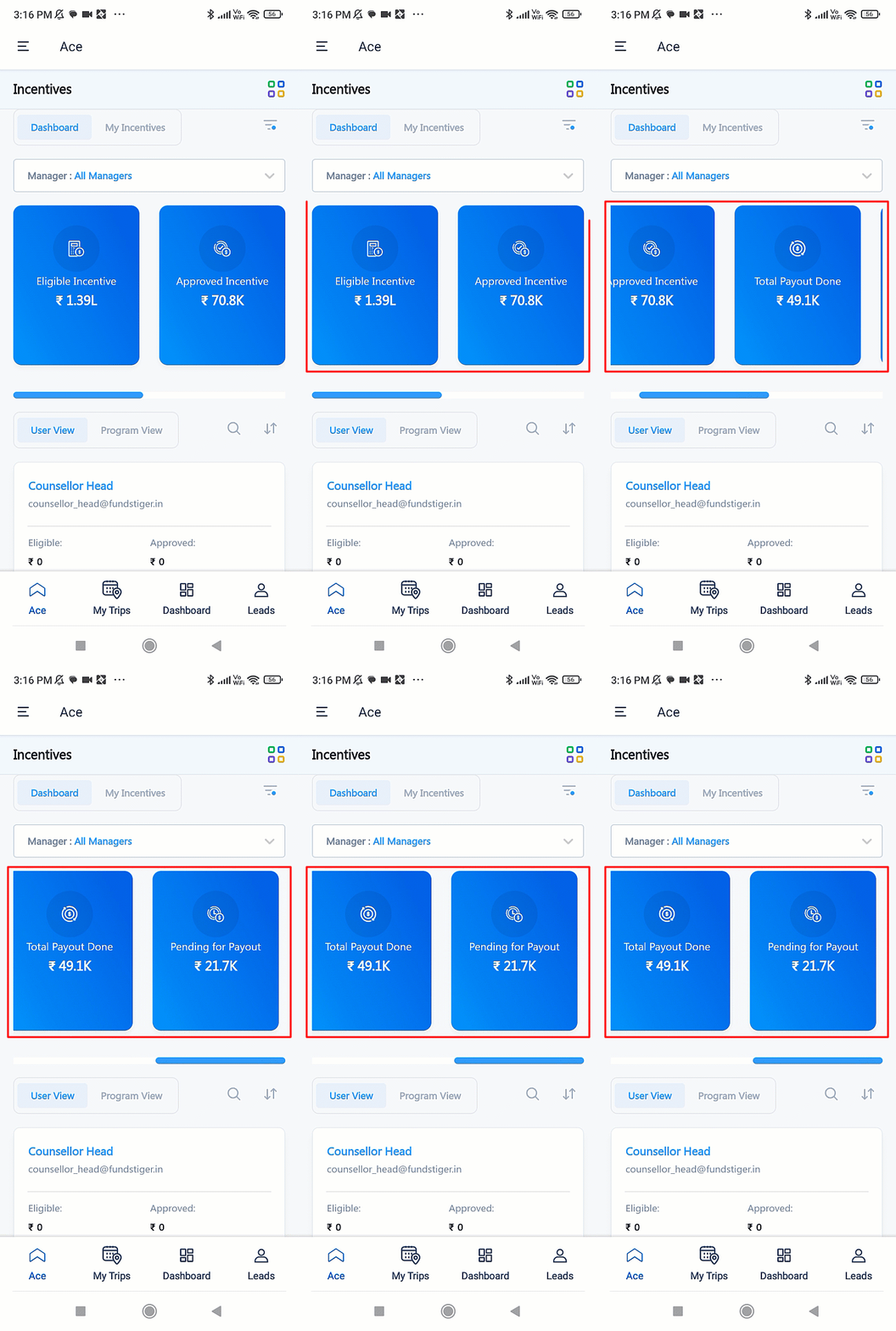
  3. Once installed, hover your cursor over , and click Configure. On the Configure AdvancedMD screen, you can ignore the Connector Access tab, and directly click Save Details. This completes the connector set-up process.

Note:

  • Only Admin users can install the connector.
  • You do not have to provide Connector Access for any of your users. Once installed, by default, all your users will be able to create and view leads through this connector.

AdvancedMD LeadSquared


5. Admin Configuration

To continue the connector configuration, navigate to Apps>AdvancedMD Appointment Sync.

AdvancedMD Integration with LeadSquared

5.1 Basic Settings

Enter the following details –

Property Description
Username The username provided by your AdvancedMD team.
Officecode The unique office code shared by the AdvancedMD team.
App Name Enter the name of the application created in your AdvancedMD account.
authURL To obtain these, reach out to your AdvancedMD account manager.
Password
baseURL
forView
columnId
Lead Source Enter the lead source through which the leads were captured (e.g., AdvancedMD, email campaign, etc.). This detail will be displayed on the Lead Details page, under Lead Source.
Default Country Code If the lead’s mobile number is captured without a country code, then the default country code that’s selected from the dropdown will be added to the lead’s mobile number.
Select Time Zone The time zone that’s followed in your AdvancedMD account.
Lead Capture Search By Criteria This is used to identify existing leads who made the payment using AdvancedMD.

This is also used to avoid creating duplicate leads. You must select one unique lead field (e.g., email Id, mobile number, etc.) as the search key. This will be used to identify the leads pushed from AdvancedMD.

Lead Capture Secondary Search By Criteria If lead identification and capture through the primary Search By criteria fails, it will be re-attempted using the secondary Search By criteria.
Select User to Notify on Failure If there is an error identifying and capturing leads who made the payment, the selected user will receive a failure message via email. You can select a user from the list of all the users available in your LeadSquared account.

To know more about the type of errors, please refer to Error Notifications.

Enable Notification Enable the Checkbox checkbox to ensure notification emails are sent to the selected user when there’s a failed query.

Once you’re done entering all the details, click Save & Next.

AdvancedMD Integration with LeadSquared


5.2 Entity Options

Define the sync behaviour of the connector when payment activities and leads are captured.

5.2.1 Lead/Contact Entity

Based on the Lead Capture Search By criteria (email Id, phone number, etc.), LeadSquared identifies and captures leads from your AdvancedMD account. Lead capture is enabled by default, and it cannot be disabled.  The following options are available to configure the connector’s Sync Behaviour –

  • Capture (Create and Update existing) Record – Leads not existing in your LeadSquared account will be created. Leads that currently exist in your LeadSquared account will get updated.
  • Create only new record – Leads not existing in your LeadSquared account will be created.
  • Update only existing record – Leads that currently exist in your LeadSquared account will get updated.
  • Do nothing – Leads do not get created or updated by syncing.

Note: A lead is classified as a new lead or an existing lead based on the Lead Capture Search By Criteria you’ve selected in the previous section.

AdvancedMD Integration with LeadSquared


5.2.2 Mapping

When you click Edit Mapping, on the Mapping pop-up, the AdvancedMD system fields mapped to the corresponding LeadSquared lead/activity fields are visible. This mapping is carried out by default. If required, you can change or update the default field mapping.

  • To provide a default value for any field, click  , enter the value under Default Value, and click Google.
    • If the data provider doesn’t send data for any lead/activity field, then the default value will get assigned to that specific field. But if the field already has an existing value, then the default value will be ignored.
  • To disable lead data capture for any field, disable the Zoom slider.
  • You can also mark and update a unique lead field as the search key from this screen, by clicking unique icon.
  • To create a custom AdvancedMD field, click the Add Custom button.
    1. Once this field is created, you must map it to the relevant LeadSquared lead field.
    2. After the field is mapped, to save the custom field, click Google.
    3. To delete a custom field, click .
Note: To map the payment data to a custom activity, select the activity type from the Activity Field Mapping screen.
AdvancedMD Integration with LeadSquared


5.2.3 Activity Entity

Once leads are captured to LeadSquared, you can post custom activities to these leads (e.g., Appointment Created, etc.). These activities will help users keep track of the lead’s journey to conversion.

To post activities to the leads captured from AdvancedMD, against Activity Entity, enable the Slider slider. The following options are available to configure the connector’s Sync Behaviour when activities are synced to LeadSquared –

  • Capture (Create and Update existing) Record – New activities will get posted to the lead in LeadSquared, while existing activities will get updated.
  • Create only new record – Only new activities will get posted to leads in LeadSquared.
  • Update only existing record – Only existing activities on the leads captured will get updated in LeadSquared.
Note: An activity is classified as a new activity or an existing activity based on the Lead Capture Search By Criteria you’ve selected in the previous section.
Once you’re done, click Save.
AdvancedMD Integration with LeadSquared
Then, click More Actions, and enable the sync job. This ensures patient data from AdvancedMD will be pushed to LeadSquared.
AdvancedMD Integration with LeadSquared


6. Create Leads

If you’ve installed the AdvancedMD Create Patient connector, the leads you create in LeadSquared are created as patients in your AdvancedMD account. To know how to create leads, refer to How to Create Leads.


7. View Leads

If you’ve installed the AdvancedMD Lead Sync connector, to view the leads captured in your LeadSquared account –

  1. Navigate to Leads>Manage Leads.
  2. Click on a lead that’s been captured/updated from your AdvancedMD account.
  3. On the Lead Details page, you can view the lead’s information.
Note: To configure the lead source for the leads captured through this connector (e.g., AdvancedMD, Healthcare leads, etc.), contact your account manager, or write to support@leadsquared.com.


Any Questions?

Did you find this article helpful? Please let us know any feedback you may have in the comments section below. We’d love to hear from you and help you out!

Open Dental Connector

1. Feature Overview

Open Dental is a comprehensive dental practice management software. LeadSquared’s no-code Open Dental connectors syncs leads and activities (appointments) between your Open Dental and LeadSquared accounts.

Note:

  • This connector is currently only available for healthcare domain customers in the US.
  • Depending on your use case, install and configure any or all of the following Open Dental connectors –
    • OpenDental Lead Sync – Uses patients in your Open Dental account to periodically create and update leads in your LeadSquared account.
    • OpenDental Create Patient – Uses leads in your LeadSquared account to create and update patients in real-time in your Open Dental account.
    • OpenDental Create Appointment – When you post a Docs Appointment activity on a lead in your LeadSquared account, then these activity details are automatically captured and created as an appointment in real-time in your Open Dental account.

OpenDental LeadSquared


2. Prerequisites

  • You must be the Administrator of your LeadSquared account to install and configure this connector.
  • This is a paid connector. To enable it, reach out to your account manager, or write to support@leadsquared.com.


3. How it Works

This is a simple, out-of-the-box connector that doesn’t require an elaborate setup process. Once the connector access is enabled on your account, install the connector. Then, configure the connector with the relevant Open Dental details, and ensure the field mappings are accurate.

For the OpenDental Create Patient and OpenDental Create Appointment connectors, a webhook URL is generated. Use this URL to set up a webhook in your LeadSquared account to push lead data to your Open Dental account.

This completes the connector set-up and leads/patients will be synced between Open Dental and LeadSquared.


4. Install the OpenDental Connector(s)

Note: The steps listed below are the same for the following connectors –

  • OpenDental Lead Sync
  • OpenDental Create Patient
  • OpenDental Create Appointment

We’ve used the OpenDental Lead Sync connector to demonstrate the installation process.

  1. Navigate to Apps>Apps Marketplace.
  2. Search for OpenDental Lead Sync, and click Install.
    • Alternatively, you can find the connector on the left panel, under Lead Capture.
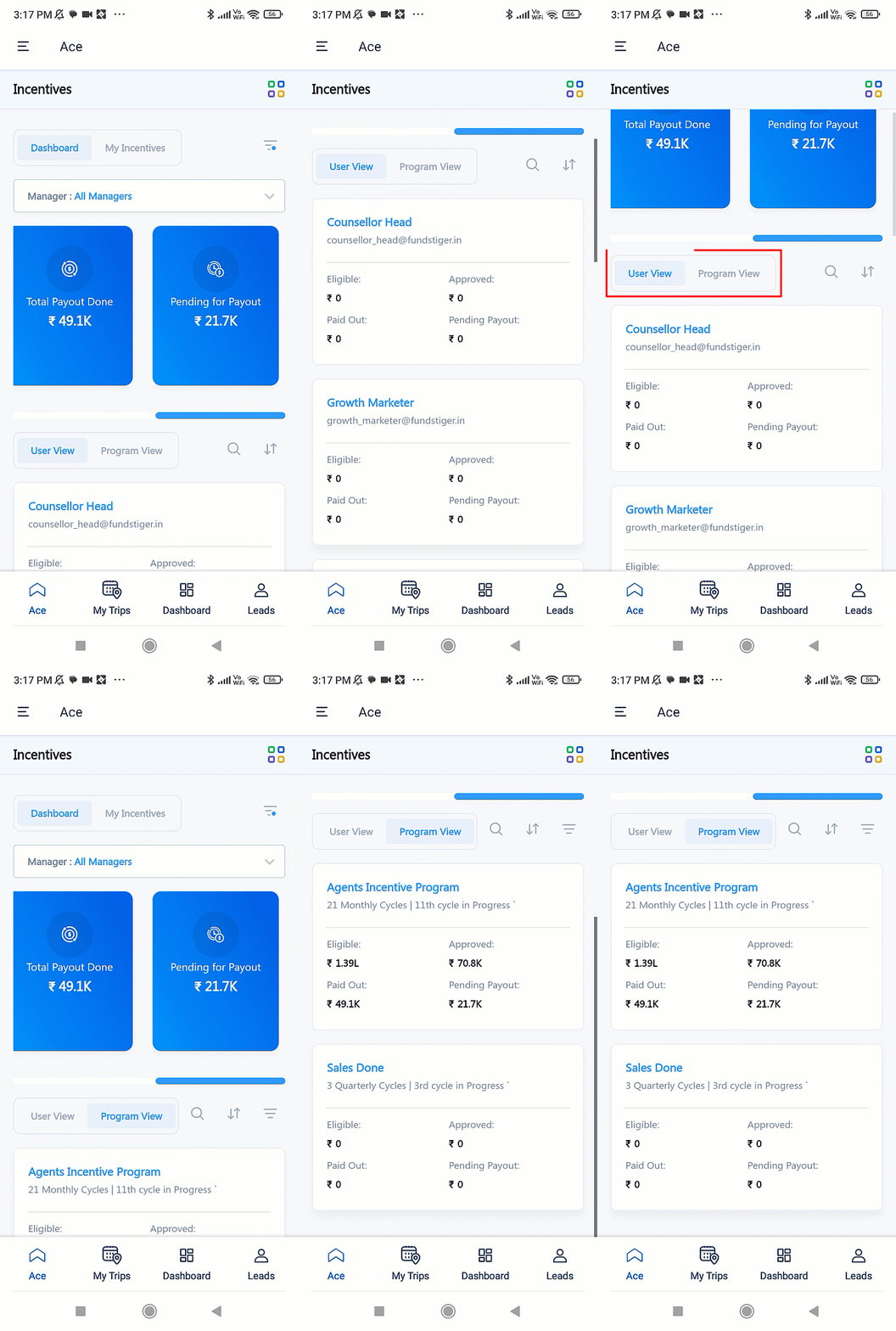
  3. Once installed, hover your cursor over , and click Configure. On the Configure Open Dental screen, you can ignore the Connector Access tab, and directly click Save Details. This completes the connector set-up process.

Note:

  • Only Admin users can install the connector.
  • You do not have to provide Connector Access for any of your users. Once installed, by default, all your users will be able to create and view leads and activities through this connector.

OpenDental LeadSquared


5. Admin Configuration – Open Dental Create Patient and Create Appointment

Depending on the connector you’re configuring, navigate to Apps>OpenDental Create Patient or Apps>OpenDental Create Appointment. The steps used to configure both connectors are mostly common, unless specified otherwise.

OpenDental integration with LeadSquared

5.1 Basic Settings

Enter the following details –

Note: The details required for the Open Dental Create Patient and Open Dental Create Appointments connectors are the same.

Property Description
DeveloperKey Your Open Dental account’s developer key, customer key and API URL. To know more, refer to Open Dental API set-up.
CustomerKey
HostURL
LSQAPIURL Enter your LeadSquared account’s Host URL, Access Key and Secret Key. To obtain these, refer to Where can I find my LeadSquared API Host URL, Access Key and Secret Key?
x-LSQ-AccessKey
x-LSQ-SecretKey
Lead Source Enter the lead source through which the leads were captured (e.g., Open Dental, email campaign, etc.).
Default Country Code If the lead’s mobile number is captured without a country code, then the default country code that’s selected from the dropdown will be added to the lead’s mobile number.
Select Time Zone The time zone that’s followed in your Open Dental account.
Lead Capture Search By Criteria The identifier used to push leads to your Open Dental account.
Lead Capture Secondary Search By Criteria If lead identification and transfer through the primary Search By criteria fails, it will be re-attempted using the secondary Search By criteria.
Select User to Notify on Failure If there is an error identifying and pushing leads, the selected user will receive a failure message via email. You can select a user from the list of all the users available in your LeadSquared account.

To know more about the type of errors, please refer to Error Notifications.

Enable Notification Enable the Checkbox checkbox to ensure notification emails are sent to the selected user when there’s a failed query.

Once you’re done entering all the details, click Save & Next.

OpenDental integration with LeadSquared


5.2 Entity Options

Define the sync behaviour of the connector when activities and leads are transferred to your Open Dental account.

Lead/Contact Entity

Based on the Lead Capture Search By criteria (email Id, phone number, etc.), LeadSquared identifies and pushes leads to your Open Dental account. Lead capture is enabled by default, and it cannot be disabled.  The following options are available to configure the connector’s Sync Behaviour –

  • Capture (Create and Update existing) Record – Patients (leads) not existing in your Open Dental account will be created. Patients that currently exist in your Open Dental account will get updated.
  • Create only new record –Patients (leads) not existing in your Open Dental account will be created.
  • Update only existing record – Patients (leads) that currently exist in your Open Dental account will get updated.
  • Do nothing – Leads do not get created or updated in your Open Dental account.

Note: A lead is transferred using the Lead Capture Search By criteria you set up in the previous step. An existing lead in your Open Dental account will also be identified using this criteria.

OpenDental integration with LeadSquared

Actions

Configure the actions performed when the connector is configured.

  • Createpatient – When enabled, patient details are transferred to your Open Dental account.
  • updatePatNum – This should be enabled to update the patient number in the relevant LeadSquared lead field.

OpenDental integration with LeadSquared

  • createappointment – When enabled, the activities from your LeadSquared account is captured as an appointment in your Open Dental account.

OpenDental integration with LeadSquared


Mapping

When you click Edit Mapping, on the Mapping pop-up, the Open Dental system fields mapped to the corresponding LeadSquared lead/activity fields are visible. This mapping is carried out by default. If required, you can change or update the default field mapping.

  • To provide a default value for any field, click  , enter the value under Default Value, and click Google.
  • To disable lead data transfer for any field, disable the Zoom slider.
  • You can also mark and update a unique lead field as the search key from this screen, by clicking unique icon.
  • To transfer lead data to a custom Open Dental field –
    1. Click the Add Custom button, and create a new field.
    2. Then, must map it to a relevant LeadSquared lead field.
    3. Once the field is mapped, click Google.
      • To delete a custom field, click .

Once you’re done, click Save & Next.
OpenDental integration with LeadSquared

5.3 Generate Webhook URL

After you provide basic details and finish field mapping, a custom webhook URL is generated. To automate lead transfer, copy this URL and use it to create a webhook in your LeadSquared account.

After you’ve set up the webhook, click More Actions, and enable the sync job. This ensures that through the webhook, patient data from LeadSquared is pushed to Open Dental.

Note: To view logs of all the sync jobs that have taken place, from the More Actions dropdown, click View Logs.

OpenDental integration with LeadSquared


5.4 Create a Webhook

Once the URL is generated, use it to create a webhook in your LeadSquared account. To do this –

  1. Copy the webhook URL.
  2. Navigate to  My Account>Settings>API and Webhooks>Webhooks.
  3. Click Create, and enter the following details –
    • Type – Select Webhook.
    • Event – Depending on the use case you’re looking to solve, select Lead Creation or Lead Update.
      • Notify on Failure – Select if you want to be notified if the webhook fails.
    • Webhook URL – Select the method as https://, and paste the connector’s webhook URL that was generated in the previous step. Before you paste the URL, ensure you remove “https://” from the URL.
    • Content Type – Select application/json.
    • Execution Delays – If required, set a delay (in seconds) between the time the event occurs and the data is pushed to your Open Dental account.
    • Custom Headers – You can skip this step.
    • Description – If required, enter a description for the webhook.
  4. Once you’re done, click Save. The webhook will now push lead data from your LeadSquared account to your Open Dental account.

OpenDental integration with LeadSquared


6. Admin Configuration – Open Dental Lead Sync

To capture lead data from your Open Dental account to your LeadSquared account, navigate to Apps>OpenDental Lead Sync.

OpenDental integration with LeadSquared

6.1 Basic Details

Property Description
DeveloperKey Your Open Dental account’s developer key and customer key. To know more, refer to Open Dental API set-up.
CustomerKey
Lead Source Enter the lead source through which the leads were captured (e.g., Open Dental, email campaign, etc.). This detail will be displayed on the Lead Details page, under Lead Source.
Default Country Code If the lead’s mobile number is captured without a country code, then the default country code that’s selected from the dropdown will be added to the lead’s mobile number.
Select Time Zone The time zone that’s followed in your Open Dental account.
Lead Capture Search By Criteria This is used to identify existing leads captured using Open Dental.

This is also used to avoid creating duplicate leads. You must select one unique lead field (e.g., email Id, mobile number, etc.) as the search key. This will be used to identify the leads pushed from Open Dental.

Lead Capture Secondary Search By Criteria If lead identification and capture through the primary Search By criteria fails, it will be re-attempted using the secondary Search By criteria.
Select User to Notify on Failure If there is an error identifying and capturing leads, the selected user will receive a failure message via email. You can select a user from the list of all the users available in your LeadSquared account.

To know more about the type of errors, please refer to Error Notifications.

Enable Notification Enable the Checkbox checkbox to ensure notification emails are sent to the selected user when there’s a failed query.
Sync Frequency By default, we’ve selected a 15-minute frequency to push lead data to Open Dental. You can use the ‘Hours’ and ‘Minutes’ dropdowns to select a custom interval, based on which lead data will be pushed.

OpenDental integration with LeadSquared


6.2 Entity Options

Define the sync behaviour of the connector when leads (patients) are from your Open Dental account are captured in your LeadSquared account.

Lead/Contact Entity

Based on the Lead Capture Search By criteria (email Id, phone number, etc.), LeadSquared captures data from your Open Dental account. Lead capture is enabled by default, and it cannot be disabled.  The following options are available to configure the connector’s Sync Behaviour –

  • Capture (Create and Update existing) Record – Leads not existing in your LeadSquared account will be created. Leads that currently exist in your LeadSquared and Open Dental accounts will get updated.
  • Create only new record – Leads that do not exist in your LeadSquared account will be created.
  • Update only existing record – Leads that currently exist in your LeadSquared account will get updated.

Once you’re done, click Save. Then, click More Actions, and enable the connector sync. This will begin transferring lead data to your LeadSquared account.

Note: A lead is classified as a new lead or an existing lead based on the Lead Capture Search By Criteria you’ve selected in the previous section.

OpenDental integration with LeadSquared


7. Create Leads

If you’ve installed the OpenDental Create Patient connector, the leads you create in LeadSquared are created as patients in your Open Dental account. To know how to create leads, refer to How to Create Leads.


8. View Leads

If you’ve installed the OpenDental Lead Sync connector, to view the leads captured in your LeadSquared account –

  1. Navigate to Leads>Manage Leads.
  2. Click on a lead that’s been captured/updated from your Open Dental account.
  3. On the Lead Details page, you can view the lead’s information.
Note: To configure the lead source for the leads captured through this connector (e.g., Open Dental, Healthcare leads, etc.), contact your account manager, or write to support@leadsquared.com.

OpenDental LeadSquared


9. Post an Activity

If you’ve installed the OpenDental Create Appointment connector, you can sync the appointment activity from LeadSquared to your Open Dental account. To do this, you must post a Docs Appointment activity on the lead. To know how to add an activity, refer to Add Activities.

OpenDental LeadSquared


Any Questions?

Did you find this article helpful? Please let us know any feedback you may have in the comments section below. We’d love to hear from you and help you out!

Connect Your Outlook/Gmail Inbox with LeadSquared

Important: Through this connector, you can only sync emails from GSuite (under Gmail) and Office 365 (under Outlook) with your LeadSquared account. You CANNOT connect your personal Gmail and Outlook accounts.

1. Feature Overview

This connector captures sent and received emails from your Outlook/Gmail accounts and posts them as activities in LeadSquared. It also creates new leads for emails sent to/received from contacts not present in your LeadSquared account. This ensures you can view important emails in your LeadSquared account, without having to navigate between different apps.

Note:

  • Only the emails in the “Inbox” and “Sent” folders will be synced. No other email folder will be considered for synchronization.
  • This article is to help any user sync their email account with the Email Sync Connector. If you’re an Admin User looking to install and configure this connector, refer to Outlook/Gmail Email Sync Connector Set-up for Admin Users.

Email Sync Connector


2. Prerequisites


3. Sync Your Email Account with LeadSquared

To connect your Outlook/Gmail account to LeadSquared –

  1. From the main menu, navigate to Apps>Connect My Inbox v2.0.
  2. Click Get Started.

Email Sync Connector


4. Authorisation

Authorize your email provider to connect with LeadSquared.

  1. Next to the email provider’s name, click the Sign in button.
  2. Enter your login details, and Accept the necessary permissions. Your email provider is synced to the connector.
  3. Click Next.

Email Sync Connector

If you’re signing in using Outlook, you will have to reauthenticate the sign-in when you change your Outlook account’s password.

Note: Reauthentication is not required if you’ve signed in using Gmail.

Email Sync Connector


5. Outbound Email Settings

Select which outbound (sent) emails should be captured and synced with your LeadSquared account.

Note:

  • For Activity Details, the activity will get posted as Email Sent.
  • The Activity Details and Capture New Leads are read-only settings, and users (including Admins) will NOT be able to make any changes there.

5.1 Sync Behaviour

As a Sales User, you will not be able to edit any of the Admin settings under this section. For e.g., if your Admin has selected Outbound Email with Specific keywords, then you (the Sales User) cannot change it to All Outbound Emails.

But if Outbound Email with Specific keywords is selected, while you cannot edit the Admin Defined Keywords, you can add your own keywords under User Defined Keywords. This is applicable only to you, and NOT to any other user in your account.

  • Admin Defined Keywords – Only those sent emails that contain at least one of the keywords entered here (e.g., Offer, Marketing, etc.) by your Admin, will get synced to your LeadSquared account. If you’re an Admin looking to define keywords, refer to Admin Sync Behaviour. As a Sales User, you will NOT be able to add, remove or edit these keywords.
  • User Defined Keywords* – In addition to the Admin Defined Keywords, Sales Users can add their own set of keywords which will be used to sync mails. If an email contains any one Admin or User Defined keyword, we’ll sync it with your LeadSquared account. After you enter the keywords, hit ENTER. You can enter a single (Festival), or multiple keywords (Diwali Festival). In case of multiple keywords, separate each keyword by hitting the ENTER or TAB key.
    • Check Keywords In – Choose in which part of the email (Subject or Body) the keyword should be present for the email to get synced. It’s mandatory to select at least one of the options listed below. If required, select both options –
      • Subject – When selected, only if at least one keyword is present in the email’s subject line, the email is synced to LeadSquared.
      • Body – When selected, only if at least one keyword is present in the email’s content body, the email is synced to LeadSquared.
    • All Outbound Emails – All the emails sent from your account will get automatically synced to your LeadSquared account, without having any dependency on keywords.

Note:

  • *You’ll be able to add keywords only if your Admin has configured the connector using the Outbound Email with Specific Keywords setting.
  • If you enter a statement as a keyword (“Festive Offer 2022” in the example below), then all the words in that statement should be present in the email in order for it to get synced with LeadSquared. The statement is considered as case-insensitive (e.g., festive offer 2022 would also be considered), but the words, order and spaces in the statement must be an exact match. In case you want individual words in the statement to be considered when syncing emails, we recommend you enter each word in the statement as a separate keyword (e.g., “Festive”, “Offer”, “2022”, etc.)
  • You can add special characters when entering your Keywords.

Email Sync Connector


5.2 Exclude Emails

You can exclude syncing emails sent to certain domains (such as service request emails to domains like LeadSquared.com, Zoho.com, etc.) and individuals (such as emails to internal employees, senior management, employees from other teams, etc.). This is to ensure that only relevant emails are captured and synced in your LeadSquared account.

As a Sales User, you will not be able to add or edit the list of domains under Admin Excluded Domains/Individuals, or the corresponding settings. However, you can add your own list of domains under User Excluded Domains/Individuals. This is applicable only to you, and NOT to any other user in your account.

  • User Exclude Domains/Individuals – To exclude emails sent to individuals, enter their email Id (e.g., CEO@example.com, etc.), and to exclude emails sent to certain domains, enter only the domain name (e.g., leadsquared.com, etc.). Add multiple email Ids and domain names. Once you’ve entered them, hit the ENTER key.
  • Applicable to Recipients* – Select if the email Ids and/or domains you’ve entered should be in the “To”, “Cc” or “Bcc” fields for the email to get excluded. For e.g., if you’ve entered CEO@example.com and selected “Cc” as the Applicable to Recipients option, then every time you add CEO@example.com in a mail’s Cc field, that mail will NOT get synced to your LeadSquared account. If you’re choosing to Exclude Emails, then it’s mandatory to select at least one Applicable to Recipients option.

Note:

  • You’ll be able to add domains under User Exclude Domains/Individuals only if your Admin User has enabled the User Excluded Domains/Individuals setting.
  • *Note that if you choose to exclude emails sent to CEO@example.com, and under Applicable to Recipients, you chose “Cc”, then in instances when you include the CEO@example.com email Id in the “To” or “Bcc” fields, these emails WILL get synced to your LeadSquared account. If you want the Exclude Emails option to apply to all the emails sent to the email Id/domains entered, select all three options available – “To”, “Cc” and “Bcc”.

Email Sync Connector


5.3 Activity Details

This is a read-only setting. This setting can only be configured by your Admin. To know more about this setting, refer to Activity Details. To change these settings, contact your Admin.


5.4 Capture New Leads

This is a read-only setting. This setting can only be configured by your Admin. To know more about this setting, refer to Capture New Leads. To change these settings, contact your Admin. To continue with the set-up, click Next.

Email Sync Connector


6. Inbound Email Settings

These settings govern the connector’s behaviour when you get inbound (receive) emails. The steps to configure the Inbound Email Settings are the same as the previous section. To know more, refer to Outbound Email Settings. Once you’re done, click Next.

Note:

  • For Activity Details, the activity will get posted as Email Received.
  • For Applicable to Recipients, Email Information – Inbound Email and Capture Leads From, the “Bcc” option won’t be applicable.

Email Sync Connector


7. Activate Sync

Once all the settings are configured, to sync your LeadSquared and email provider account, click Activate Sync, and to complete the set-up, click Save & Close.

Note: To sync emails received in the last 7 days, before you configured the connector, click Sync Last 7 Days Emails.

Email Sync Connector


8. Email Logs

Once your connector is synced, you can view logs of all the emails that have been synced between LeadSquared and your email provider’s accounts. You can filter these logs by Activity Details or Lead Capture Details.

  • Date Range Filter – You can filter the logs by Today, Yesterday, Last 7 Days, Last 30 Days and Custom Date. If you select Custom Date, you can select up to a maximum of 60 days in the past.
  • Use the search bar to find a lead or activity using the Lead Id, Lead Name or email Subject.
  • To delete your synced account within the connector, click , and click Delete Account.
  • To disable sync for your account, under SYNC STATUS, disable the Zoom slider. This ensures that while the sync is disabled, your email account is still connected to LeadSquared.
  • To edit your account’s sync settings, click the Settings button.

Email Sync Connector


9. View Synced Emails

To view the email sync activities, navigate to Leads>Manage Leads, and click on an existing lead on which the activity is posted. On the Lead Details page, you can view the activity under the Activity History tab.

Email Sync Connector

9.1 Activity Details

To view the Activity Details that are posted on a lead, under Email Subject, click on the email’s name for which you want to view the details. To know how to capture the details on the mail as an activity, refer to Activity Details.

Email Sync Connector


9.2 Lead Details

To view a lead (either an existing one or a new one), under Lead Name, click the lead you want to view. This will redirect you to the Lead Details page, where you can view the Email Sent/Email Received activity that’s posted on the lead.

Email Sync Connector


9.3 Manage Activities Page

You can also view the activities from the Manage Activities page. To do this, navigate to Leads>Manage Activities, and filter the Activity Type by Email Sent or Email Received.

Email Sync Connector


Any Questions?

Did you find this article helpful? Please let us know any feedback you may have in the comments section below. We’d love to hear from you and help you out!

Email Sync Connector Set-up for Admin Users

Important: Through this connector, you can only sync emails from GSuite (under Gmail) and Office 365 (under Outlook) with your LeadSquared account. You CANNOT connect your personal Gmail and Outlook accounts.

1. Feature Overview

This connector syncs emails (sent and received) in your Outlook/Gmail with your LeadSquared account. It posts emails between your users (sales reps) and leads as activities against existing leads. When you send or receive an email from a contact that doesn’t exist in LeadSquared, the connector creates them as new leads in your account. All of this ensures you can view important emails in your LeadSquared account, without having to navigate between different apps. This connector –

  • Sync Emails with Leads – Capture and sync emails with leads, capture email attachments, and view them as activities on the Lead Details page.
  • Capture New Leads – Creates new leads for emails sent to/received from contacts not present in your LeadSquared account.
  • Selective Sync – Ability to configure filters (such as recipient and sender address, email domain, subject line, etc.) based on which sent and received emails are synced with LeadSquared. For e.g., you choose to not sync emails received from a “linkedin.com” domain.
  • User Management – Ability to view, disable sync and view the logs of all the users who’ve synced their email accounts with LeadSquared.
  • View Logs – View detailed logs for each lead & mail sent.

Note:

  • Only the emails in the “Inbox” and “Sent” folders will be synced. No other email folder will be considered for synchronization.
  • This article is to help Admin Users install and configure the Email Sync Connector. If you’re a Sales User who’s looking to sync your Gmail/Outlook account with LeadSquared, refer to Connect your Outlook/Gmail Account with LeadSquared.

Email Sync Connector


2. Prerequisites

  • You must be the Administrator of your LeadSquared account to install and configure this connector.
  • You must have an existing Microsoft Outlook or Gmail account.
  • This is a paid feature. To enable it, reach out to your account manager, or write to support@leadsquared.com.
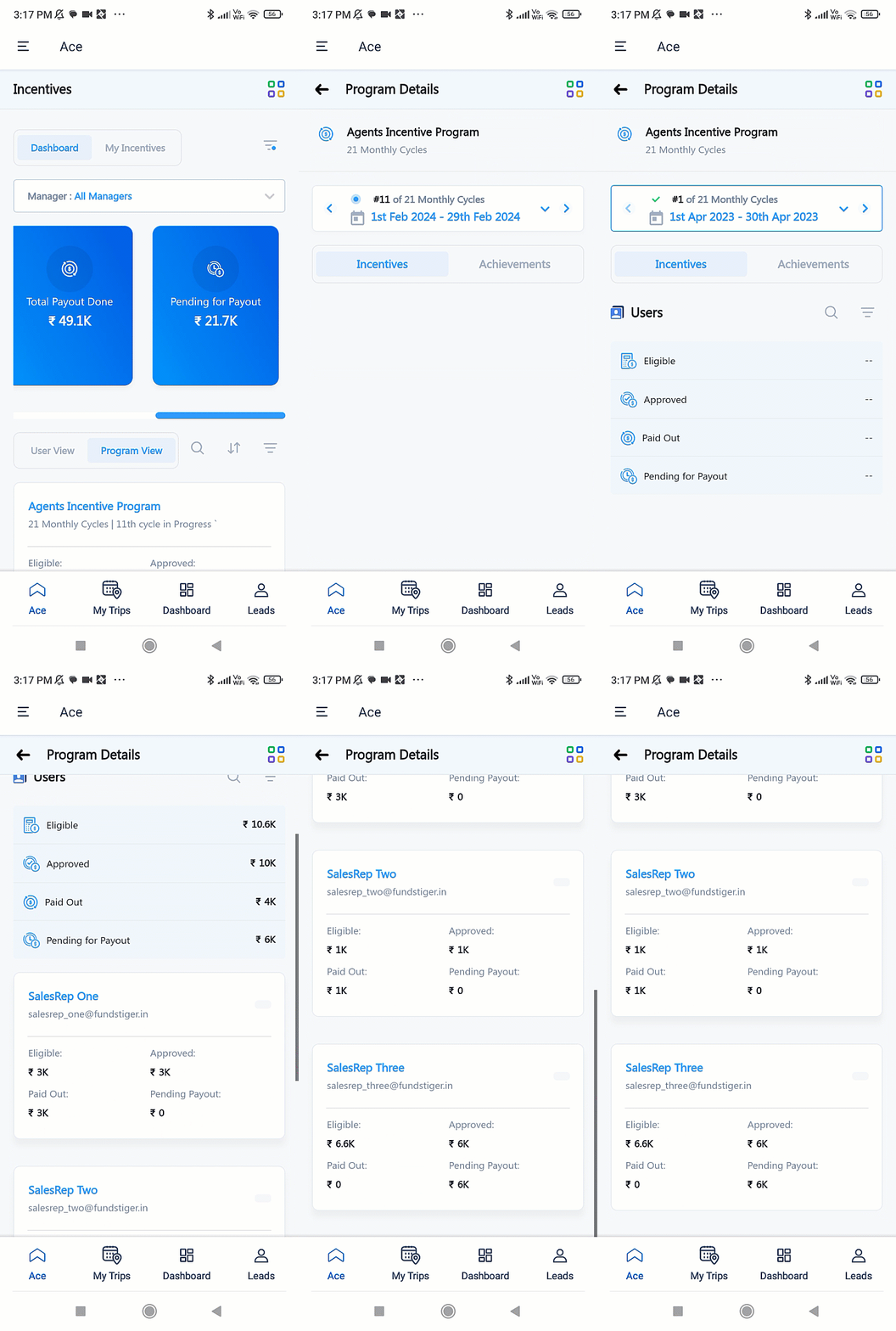
 

3. How it Works

This connector syncs emails sent and received from your email provider’s account (either Outlook or Gmail) with your LeadSquared account. These emails are posted as activities on your leads. For e.g., when you send an email to the lead John Smith, this email is posted as an Email Sent activity on John’s Lead Details page. And similarly, when John sends an email to you, this email is posted as an Email Received activity on John’s Lead Details page.

The Admin user must complete the following steps –

  1. Install the connector.
  2. Select the list of users that can access the connector settings, and grant permissions to these users.
  3. Select the email provider you want to sync emails from.
  4. Configure the actions the connector performs when emails are sent (outbound) and received (inbound) by your users.
  5. Configure additional connector settings, and grant access to users who can sync and connect their email accounts with LeadSquared

Once configured by the admin, each user in the account must –

  1. Connect their email account with the connector.
  2. Activate the Sync.


4. Install the Connector

  1. Navigate to Apps>Apps Marketplace.
  2. Search for Email Sync, and click Install.
    • Alternatively, you can find the connector on the left panel, under Email.
  3. Once installed, hover your cursor over , and click Configure.
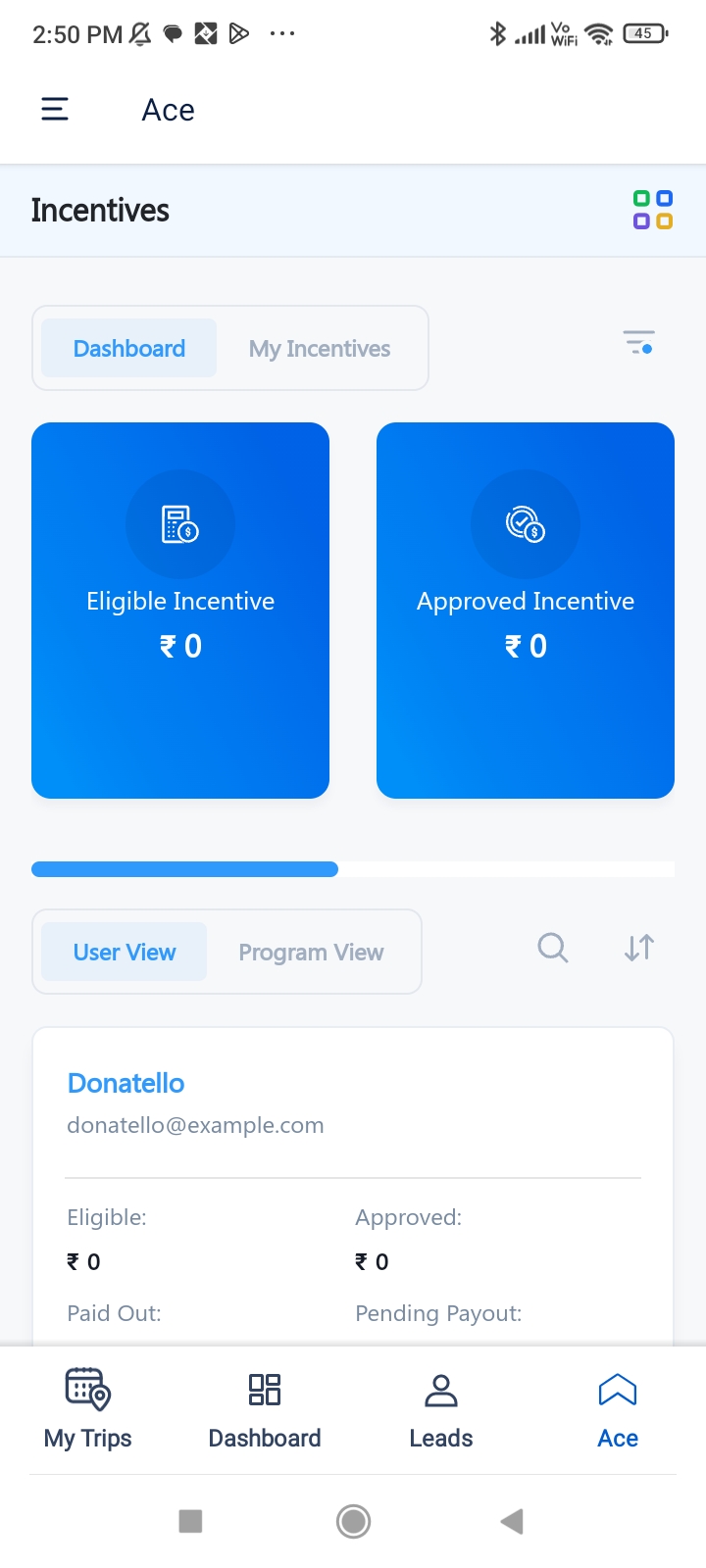
Email Sync LeadSquared


5. Configure the Connector

5.1 Security & Compliance

This is a read-only screen, and you won’t be able to change any of the details displayed here. This screen displays the region in which your LeadSquared account is hosted and the email Retention Period for which the synced emails are stored in LeadSquared. Once you’ve verified the details, click Next.
Note: The Retention Period only affects the emails synced and stored in LeadSquared. This does NOT affect the emails present in your email account.

Email Sync Connector


5.2 Connector Access

Once you’ve installed the connector, on the Connector Access tab, configure the connector settings access for the non-Admin users in your account.
Users (e.g., sales managers) you grant access to can select the list of other users (e.g., sales reps/agents) that can sync their email accounts with LeadSquared.

  1. Select if you want to grant Connector Access that’s Based on Role or Advanced (User Level).
    • Based on Role – From the Specify Roles dropdown, select the LeadSquared user roles that can access the connector settings.
    • Advanced (User Level) – From the Advanced (User Level) dropdown, select a user boolean field. Based on the value entered in the selected boolean field, the user can access the connector (e.g., for the user Sam, if the “Is Employee” boolean user field contains the value “Yes”, then this user can access the connector).
  2. Once you’re done, click Save & Next. To continue the configuration, refer to the below sections.

Note:

  • By default, all Admin users will have access to configure the connector settings.
  • Connector Access does NOT have to be granted to Sales Users who want to sync their email accounts with LeadSquared. Instead, to select the list of users that can sync their email account, see Connect My Inbox access.
Email Sync Connector


6. Admin Configuration

To continue the connector configuration, navigate to Apps>Email Sync v2.0.

Note: We’ve configured the connector by choosing Outlook as the email provider. The steps to configure the connector using Gmail are the same as the steps listed below, unless noted otherwise.
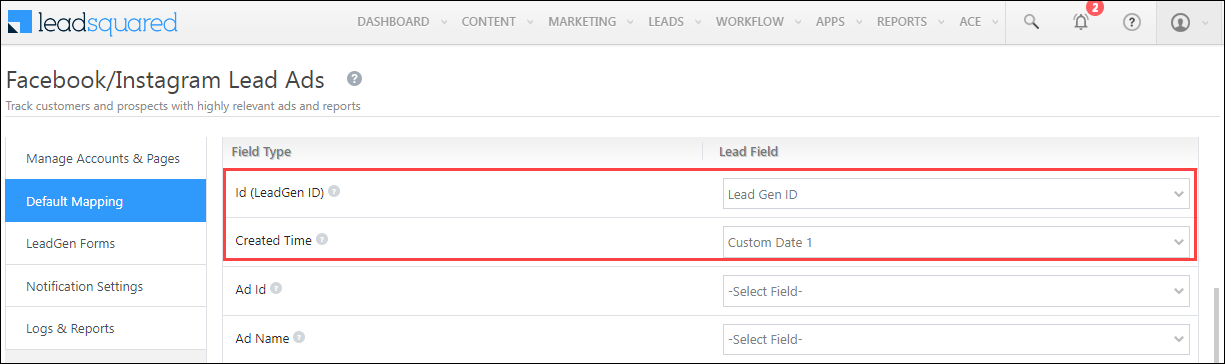
Email Sync Connector


7. Provider Selection
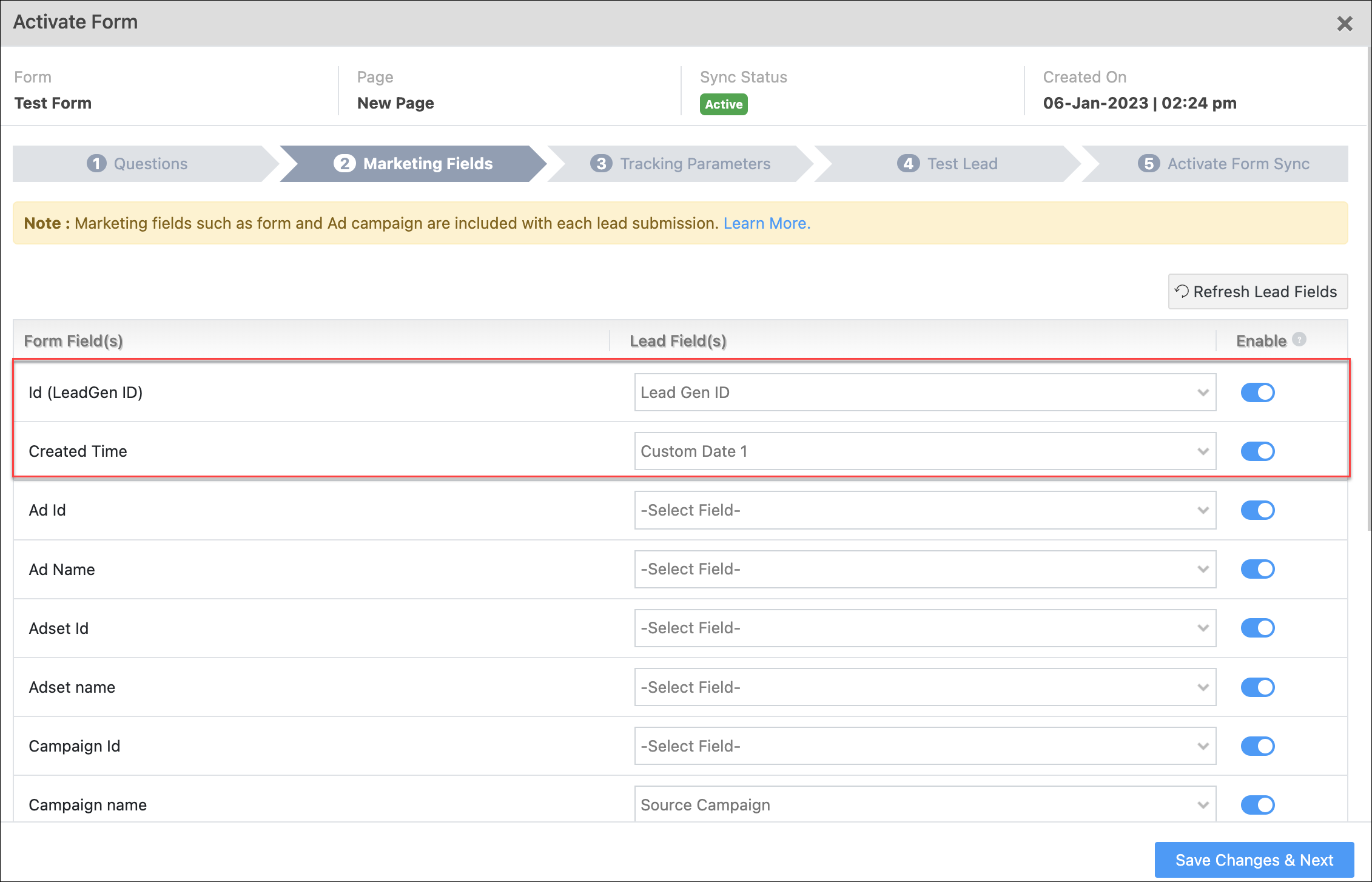
Select, sync and configure your email provider.

Note: You can only select and configure one email provider.
  1. From the options listed under Choose Email Provider, select your preferred provider.
  2. Once you’re done, click Next.

Email Sync Connector

If you’ve selected Gmail, then ensure you mark the LeadSquared Email Sync connector as a trusted application in your organization’s Google Workspace. To know how to do this, refer to Control which third-party & internal apps access Google Workspace data. Once the connector is authorized, in your LeadSquared account, click Mark as Complete, and then click Next.

Email Sync Connector


8. Outbound Email Settings

These settings govern the connector’s behaviour when users send emails (outbound) from their Gmail/Outlook accounts.

Note:

  • Sales Users in your organization cannot edit the Outbound and Inbound Email settings. Keep in mind the settings configured here are final for all your Sales Users, and only Admin users can edit existing settings.
  • You can choose to disable the Sync Outbound Emails setting. To do this, disable the sliderSlider, and on the Warning pop-up, click Yes. This will NOT sync any of the sent emails to your LeadSquared account.

8.1 Sync Behaviour

Select which emails your users send should be captured and synced with your LeadSquared account.

  • Outbound Email with Specific keywords – Only those sent emails that contain at least one of the keywords entered here (e.g., Offer, Marketing, etc.) will get synced to your LeadSquared account.
    • Admin Defined Keywords – After you enter the keywords, hit ENTER. You can enter a single, or multiple keywords. In case of multiple keywords, separate each keyword by hitting the ENTER or TAB key. Your users will NOT be able to edit the Admin Defined Keywords, and these keywords will be applied to all your users. If you’ve selected this option, by default your users can view the User Defined Keywords tab when they’re syncing their email accounts with LeadSquared. This enables your users to add their own list of keywords.
    • Check Keywords In – Choose in which part of the email (Subject or Body) the keyword should be present for the email to get synced. It’s mandatory to select at least one of the options listed below. If required, select both options –
      • Subject – When selected, only if at least one keyword is present in the email’s subject line, the email is synced to LeadSquared.
      • Body – When selected, only if at least one keyword is present in the email’s content body, the email is synced to LeadSquared.
    • All Outbound Emails – All the emails sent from your user’s account will get automatically synced to your LeadSquared account, without having any dependency on keywords.

Note:

  • If you enter a statement as a keyword (“Festive Offer 2022” in the example below), then all the words in that statement should be present in the email in order for it to get synced with LeadSquared. The statement is considered as case-insensitive (e.g., festive offer 2022 would also be considered), but the words, order and spaces in the statement must be an exact match. In case you want individual words in the statement to be considered when syncing emails, we recommend you enter each word in the statement as a separate keyword (e.g., “Festive”, “Offer”, “2022”, etc.)
  • You can add special characters when entering your Keywords.

Email Sync Connector


8.2 Exclude Emails

You can exclude syncing emails sent to certain domains (such as service request emails to domains like LeadSquared.com, Zoho.com, etc.) and individuals (such as emails to internal employees, senior management, employees from other teams, etc.). This is to ensure only relevant emails are captured and synced in your LeadSquared account.

  • Admin Excluded Domains/Individuals – To exclude emails sent to certain domains, enter only the domain name (e.g., leadsquared.com, etc.). To exclude emails sent to individuals, enter their email Id (e.g., CEO@example.com, etc.). Add multiple email Ids and domain names. Once you’ve entered them, hit the ENTER key.
  • Applicable to Recipients* – Select if the email Ids and/or domains you’ve entered should be in the “To”, “Cc” or “Bcc” fields for the email to get excluded. For e.g., if you’ve entered CEO@example.com and selected “Cc” as the Applicable to Recipients option, then every time you add CEO@example.com in a mail’s Cc field, that mail will NOT get synced to your LeadSquared account. If you’re choosing to Exclude Emails, then it’s mandatory to select at least one Applicable to Recipients option.
  • User Excluded Domains/Individuals – When enabled, your Sales Users will be able to add their own set of domains for which they wish to exclude email sync.
*Note: If you exclude emails sent to CEO@example.com, and under Applicable to Recipients, you chose “Cc”, then in instances when you include the CEO@example.com email Id in the “To” or “Bcc” fields, these emails WILL get synced to your LeadSquared account. If you want the Exclude Emails option to apply to all the emails sent to the email Id/domains entered, select all three options available – “To”, “Cc” and “Bcc”.

Email Sync Connector


8.3 Activity Details

Each outbound email is posted as an Email Sent activity against the lead (on the Lead Details page) in your LeadSquared account. You can view the details of the email in this activity. By default, the From (sender) and To (receiver) details are posted under the Email Sent activity. In addition to these two fields, you can choose to capture details and email content from the following email elements –

  • Cc – Recipients in the Cc field.
  • Bcc – Recipients in the Bcc field.
  • Subject – The subject line of the email.
  • Body – The email body’s content.
  • Attachment – If the email contains an attachment file, then this file is posted under the Email Sent activity. The following file types are supported –
    • Inline
    • PDF
    • Word
    • JPG
    • PNG
    • HTML
    • Excel
    • Zip
    • JSON
    • MKV
    • MPG
    • MP3
    • MP4
    • Rich Text Format
    • AVI
Note: You will NOT be able to rename the Activity Type. It’ll be Email Sent by default.

Email Sync Connector


8.4 Capture New Leads

Emails sent to addresses that don’t exist in your LeadSquared account are captured and created as new leads. To capture new leads, enable the Slider slider, and configure the following settings –

  • Capture Leads From* – If the email Id present in any of the selected options – “To”, “Cc” and “Bcc”, does not exist in LeadSquared, then a new lead gets created. If the Capture New Leads option is enabled, then it’s mandatory to select at least one option here.
  • Lead Search By Criteria – By default, Email is selected as the search key. If necessary, you can update the search criteria to an email-type custom lead field created in your account. Note that only one search criteria can be configured in your account at any given time.
  • Lead Source – From the list of default and custom lead sources available in your account, select the lead source through which the leads were captured (e.g., Inbound Email, Email Sent, etc.). This detail will be used to identify the source on the Lead Details page, under Lead Source. To create a new lead source, enter the name of the new lead source, and hit ENTER. This lead source will start reflecting once an email sync activity is posted against a lead.
*Note: If you choose to capture new leads, and under Capture Leads From, you chose “To”, then in instances when you include an email Id in the “Cc” or “BCC” fields, a new lead will NOT get created in your LeadSquared account. If you want the Capture New Leads functionality to apply to all the emails sent to the contact’s email Id, select all three options available – “To”, “Cc” and “Bcc”.

Email Sync Connector

Once you’re done, click Next.

Email Sync Connector


9. Inbound Email Settings

These settings govern the connector’s behaviour when users receive emails (inbound) in their Gmail/Outlook accounts.

The steps to configure the Inbound Email Settings are the same as the previous section. To know more, refer to Outbound Email Settings. Once you’re done, click Next.

Note:

  • You can choose to disable the Sync Inbound Emails setting. To do this, disable the sliderSlider, and on the Warning pop-up, click Yes. This will NOT sync any received emails to your LeadSquared account.
  • For Activity Details, the activity will get posted as Email Received.

Email Sync Connector

10. Advanced Settings

Configure the following settings before you start using the connector –

10.1 Connect My Inbox access

Grant access to users to connect and sync their email accounts with LeadSquared. Only users for whom access is granted can view and access the connector (under the Apps main menu).

  • Based on Role – From the Specify Roles dropdown, select the LeadSquared user roles that can connect their email accounts to LeadSquared. By default, all the Sales and Marketing users are selected here. If required, the Admin user can remove the user type to whom they don’t want to give Connect My Inbox access.
  • Advanced (User Level) – From the Advanced (User Level) dropdown, select a user boolean field. Based on the value entered in the selected boolean field, the user can connect their email accounts to LeadSquared (e.g., for the user Sam, if the “Is Employee” boolean user field contains the value “Yes”, then this user can access the connector).
Note: By default, all Admin users will have access to connect their email accounts using this connector.

Email Sync Connector


10.2 Disable Sync for All Users

When enabled, email sync will be disabled for all the users who have connected their email accounts to LeadSquared, and no new users will be able to connect and sync their email accounts either. To enable this setting, enable the Slider slider, and on the Warning pop-up, click Yes. This setting can be used in instances where the Admin is testing the connector, if there’s a security breach, etc.

Note: Disabling sync will be applied to all users, including Admins.

Email Sync Connector


10.3 Disable Sync for Internal Emails

When enabled, emails sent and received internally within your organization will not be synced with the connector. Your organization is identified based on the email domain you enter. This is to ensure only lead-related emails are synced with your LeadSquared account. Once enabled, enter your organization’s email domain (e.g., leadquared.com, etc.), and hit ENTER. You can add multiple domains.

Email Sync Connector

Note: To capture internal mails sent between your users, click How it Works, and enable the checkbox alongside Capture Email communication between internal users.

LeadSquared Email Sync


10.4 Complete Set-up

Once you’re done, click Save & Complete. This complete’s the Admin set-up and configuration process, and your users can now sync their email accounts with LeadSquared.

Email Sync Connector


11. User Management

Once your users have synced their email accounts to LeadSquared, alongside a user, click theicon to perform the following actions –

Email Sync Connector

11.1 View Dashboard

The dashboard contains the logs of all the user emails that have been synced between LeadSquared and your user’s email account. You can filter these logs by Activity Details or Lead Capture Details.

  • Date Range Filter – You can filter the logs by Today, Yesterday, Last 7 Days, Last 30 Days and Custom Date. If you select Custom Date, you can select up to a maximum of 60 days in the past.
  • Use the search bar to find a lead or activity using the Lead Id, Lead Name or email Subject.
  • To delete your synced account within the connector, click , and click Delete Account.
  • To disable sync for your account, under SYNC STATUS, disable the Zoom slider. This ensures that while the sync is disabled, your email account is still connected to LeadSquared.

Email Sync Connector


11.2 Deactivate Sync

To deactivate email sync between your user’s email account and LeadSquared, click Deactivate Sync, and on the confirmation pop-up, click Yes, Continue. This will only temporarily deactivate the user’s account, and they can activate the sync (Sync Staus) whenever they choose to.

Email Sync Connector


11.3 Remove Account

This action deletes a user’s email account from the connector. Click Remove Account, and on the confirmation pop-up, click Yes, Continue.

Email Sync Connector


FAQs

I’m currently using the legacy Email Sync App. Should I migrate to this connector?
Yes, it is highly recommended you migrate to this connector, for an enhanced user experience. Note that Outlook support is soon to be discontinued on the legacy connector, and if you’re looking to sync your Outlook account with LeadSquared, then it’s mandatory that you migrate to the new connector. To know more, refer to Outlook’s Basic Authentication Deprecation in Exchange Online – September 2022 Update.

What happens if I send or receive an email from someone that doesn’t exist as a lead in my LeadSquared account?
If the Capture New Leads setting is enabled, this contact gets created as a new lead in your account.

Does this connector support bi-directional email sync between my email provider and LeadSquared accounts?
No. Currently, the connector only supports email sync from your email account to your LeadSquared account. Emails sent from your LeadSquared account will NOT get synced with your email provider’s account. If this changes in the future, we’ll update the article accordingly.

Is email sync supported for other email providers (such as Yahoo, ProtonMail, iCloud Mail, etc.)?
No. Email sync is currently only supported for Gmail and Outlook.

How will my lead be identified by the LeadSquared system?
We’ll use the Lead Search By Criteria (and in extension, the lead’s Email Address) to identify and capture leads.

How do I control which users can connect their email account’s to LeadSquared?
Let’s look at the following example –

  • Bob is an Admin user.
  • John and Paul are Sales Managers, and George and Ringo are Marketing Users.
  • Frodo, Samwise, Aragorn and Legolas are Sales Users reporting to John.
    • When configuring Connector Access, Bob grants access to only Sales Managers. This means that only the selected users (the Sales Managers in this example, John and Paul) can carry out the connector’s Admin Configuration and subsequent steps.
    • When carrying out the configuration, on the Connect My Inbox access screen, John can select the users who can sync their email accounts with LeadSquared. Here, he selects Sales Users. This allows Frodo, Samwise, Aragorn and Legolas to now sync their email accounts with LeadSquared. Similarly, Paul (Sales Manager) can also carry out this configuration for his team.

Will internal emails get captured?
Yes, internal emails will get captured, as long as the Disable Sync for Internal Emails setting is disabled.

Can sales users edit the Activity Details and Capture New Leads settings?
No. Sales users cannot edit any of the Inbound and Outbound Email settings.


Troubleshooting

  • Issue: I want to enable the “Allow non-lead email address(es) in the CC field” setting, but I don’t want junk or unwanted leads to be created in my LeadSquared account.
    The screenshot shows the “Allow non-lead email address(es) in the CC field” setting under Settings>Email Settings>Email Recipients.

LeadSquared Email Settings

  • Solution: To prevent this, make sure the “Cc and Bcc” options are unchecked under the “Capture New Lead” setting for both outbound and inbound emails in the Email Sync configuration.

LeadSquared Email Sync for Google and Outlook


Any Questions?

Did you find this article helpful? Please let us know any feedback you may have in the comments section below. We’d love to hear from you and help you out!

pVerify Healthcare Insurance Verification Connector Set-up for Sales Users

1. Feature Overview

Once the pVerify Connector is installed in your account, you can –

  • View Comprehensive Reports – Containing all the necessary details like copay amounts, insurance plan details, active or inactive status, network status, etc.
  • Download Reports – Navigate to the Lead Details page to download the insurance eligibility report as a PDF file.
  • Reduces Turnaround Time – Capture copay details and co-insurance details for multiple services (in-office visits, physical therapy, doctor’s lab services, etc.) in a single verification request.
Note: This article is to help Sales Users view insurance eligibility reports directly in their LeadSquared accounts. Admin Users can also follow the steps listed below to view these reports.

LeadSquared pVerify Integration


2. Prerequisite

Admin Users must install and configure the pVerify Healthcare Insurance Verification Connector in your LeadSquared account.


3. View Insurance Eligibility Reports

Activity History Tab

  1. Navigate to Leads>Manage Leads, and click on a lead you want to generate the report for.
  2. On the Lead Details page, hover your cursor over the Lead Actions menu, and under Custom Actions, click on the report view action created in your account (e.g., Generate Reports).
  3. Refresh the page after a couple of minutes. Filter by the Insurance Eligibility Report custom activity type, which is posted as an activity under the Activity History tab.
  4. To view the report, click View Files.
  5. To download the report, click Download.

pVerify LeadSquared Connector

Documents Tab

Alternatively, on the Lead Details page, you can view the Insurance Eligibility Report from the Documents tab. To download the selected report, hover your cursor on the report, and click Download.

pVerify LeadSquared Connector


Any Questions?

Did you find this article helpful? Please let us know any feedback you may have in the comments section below. We’d love to hear from you and help you out!

pVerify Healthcare Insurance Verification Connector Set-up for Admin Users

1. Feature Overview

pVerify is a real-time medical insurance eligibility verification service provider. Through this connector, once you’ve synced your LeadSquared and pVerify accounts, you can view and download a lead’s insurance eligibility report directly from LeadSquared. Once installed, this connector enables you to –

  • View Comprehensive Reports – Containing all the necessary details like copay amounts, insurance plan details, active or inactive status, network status, etc.
  • Download Reports – From the Lead Details page, download the insurance eligibility report as a PDF file.
  • Reduces Turnaround Time – Capture copay details and co-insurance details for multiple services (in-office visits, physical therapy, doctor’s lab services, etc.) in a single verification request.

Note:

LeadSquared pVerify Integration


2. Prerequisites

  • You must be the Administrator of your LeadSquared account to install and configure this connector.
  • This is a paid connector. To enable it, reach out to your account manager, or write to support@leadsquared.com.
  • Create two Custom Lead Fields, and label them as MemberID and NPI. Ensure both these fields are created as number data type fields.


3. How it Works

  1. Once the connector access is enabled on your account, install the connector and configure connector access for your users.
  2. Once configured, a webhook URL is generated internally. To obtain the webhook, contact your account manager or write to support@leadsquared.com.
  3. Next, call the webhook URL from the Custom Lead Action Connector to capture the insurance eligibility details from pVerify, and post it against a lead in your LeadSquared account.


4. Install the Connector

  1. Navigate to Apps>Apps Marketplace.
  2. Search for the pVerify Connector, and click Install.
    • Alternatively, you can find the connector on the left panel, under Lead Capture.
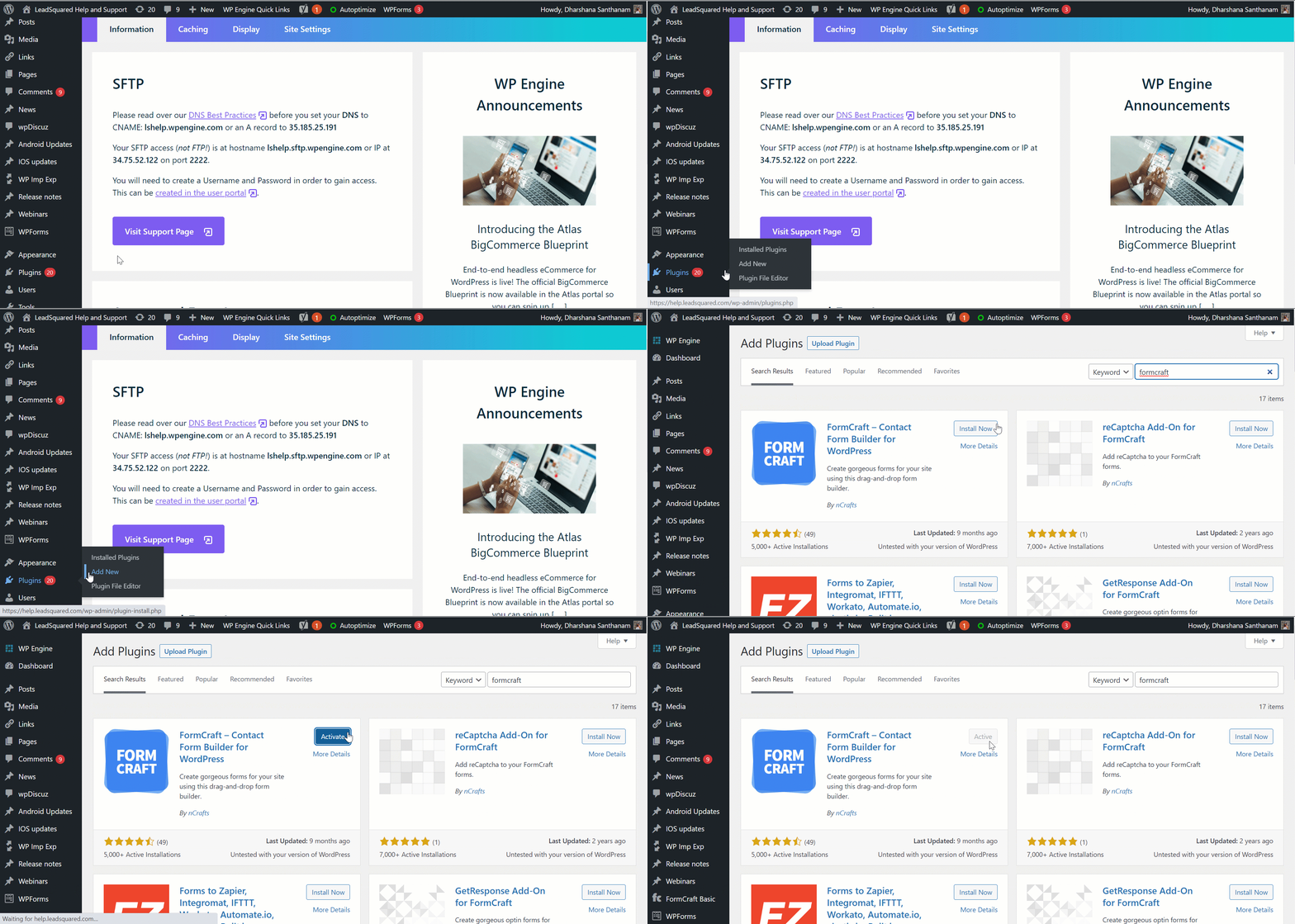
  3. Once installed, hover your cursor over , and click Configure.
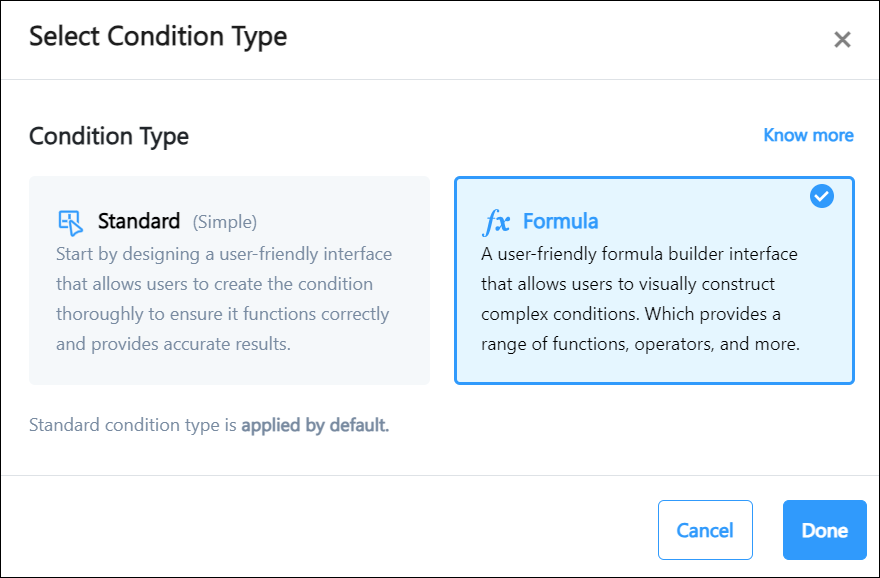
pVerify LeadSquared Connector


5. Configure the Connector

Once you’ve installed the connector, on the Configure pVerify pop-up, configure the connector access for the non-Admin users in your account. Only users for whom access is granted can view and access the connector (from the Apps main menu).

  1. Select if you want to grant Connector Access that’s based on the User Role or the values entered in a User Field.
    • Based on Role – From the Specify Roles dropdown, select the LeadSquared user roles that can use the connector.
    • Advanced (User Level) – From the Advanced (User Level) dropdown, select a user boolean field. Based on the value entered in the selected boolean field, the user can access the connector (e.g., for the user Sam, if the “Is Employee” boolean user field contains the value “Yes”, then this user can access the connector).
  2. Once you’re done, click Save Details.
Note: By default, all Admin users will have access to the connector.

pVerify LeadSquared Connector


6. Create Custom Actions

Once the connector is configured, a webhook URL is generated. Call this webhook URL using the Custom Lead and List Actions Connector, and create a lead action to fetch and display the eligibility report on the Lead Details page.

Note:

  • To obtain the connector’s webhook URL, contact your account manager, or write to support@leadsquared.com.
  • Before you carry out the steps listed below, create two Custom Lead Fields, and label them as MemberID and NPI. Ensure both these fields are created as number data type fields.
  1. Navigate to Apps>Apps Marketplace, and search for Custom Lead and List Actions.
    • To learn how to install the connector, refer to Installation.
  2. Alongside the connector, hover your cursor over , and click Configure.
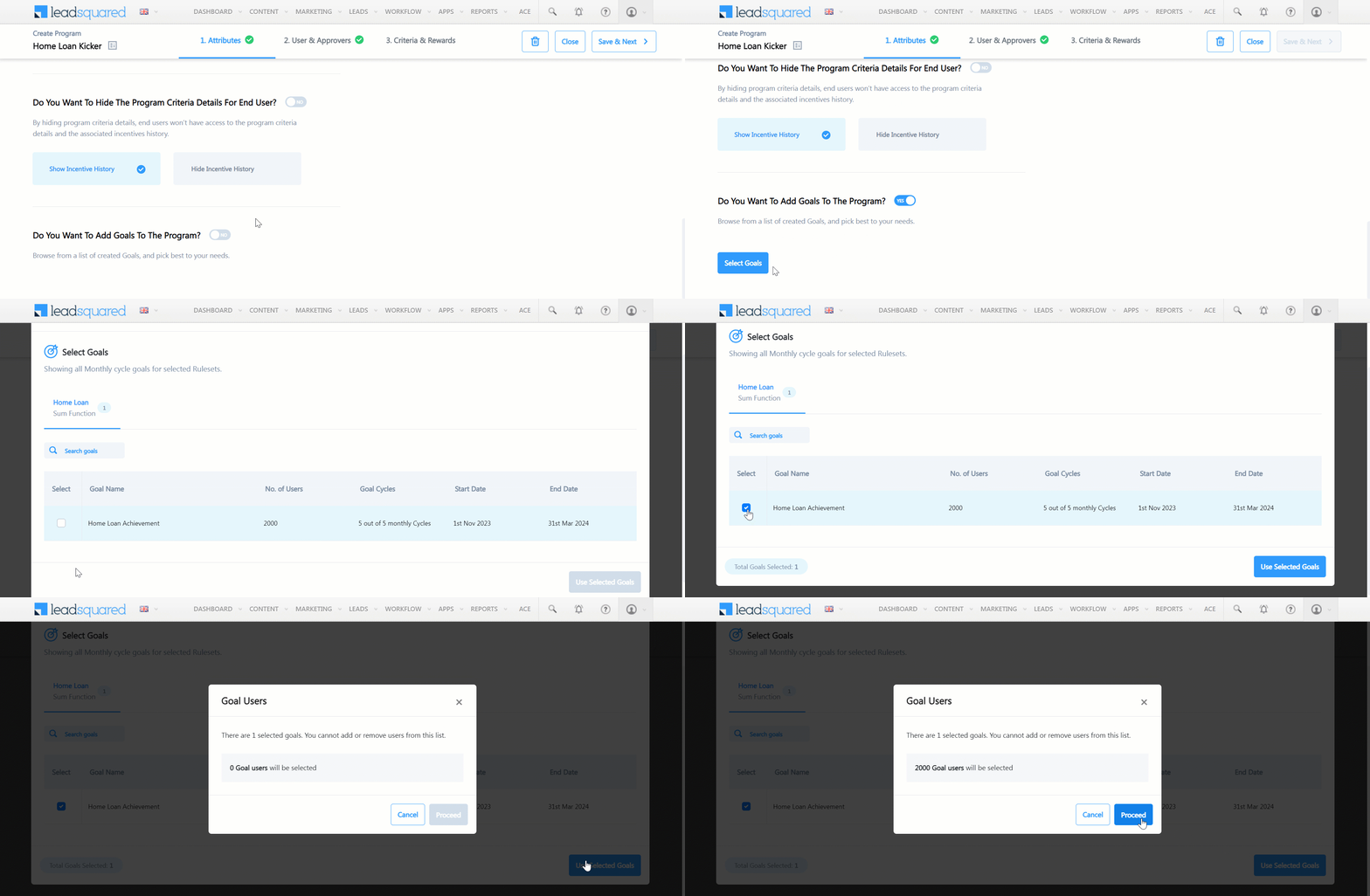
  3. On the Configure Custom Lead and List Actions pop-up, click the Add Action button. Enter the following details –
    • Action Label – Enter a display name for the custom action (e.g., Generate Report).
    • Action Type – Select Call an API. We’ll be using the webhook URL to get the report details from your pVerify account.
    • Show in Tab – Select Web App.
    • Callback URL – Enter the connector’s webhook URL. To obtain this URL, contact your account manager, or write to support@leadsquared.com.
    • HTTP Method – Select Post.
    • Data* – Pass the parameters listed below to generate the report –

{
"name": "@{Lead:FirstName,}",
"email": "@{Lead:EmailAddress,}",
"phone": "@{Lead:Phone,}",
"leadId": "@{Lead:ProspectAutoId,}",
"dob": "@{Lead:mx_Date_of_Birth,}",
"lastName": "@{Lead:LastName,}",
"npi": "@{Lead:mx_npi,}",
"memberId": "@{Lead:mx_MemberId,}"
}

Once you’re done, click Save. This completes the connector installation and configuration.
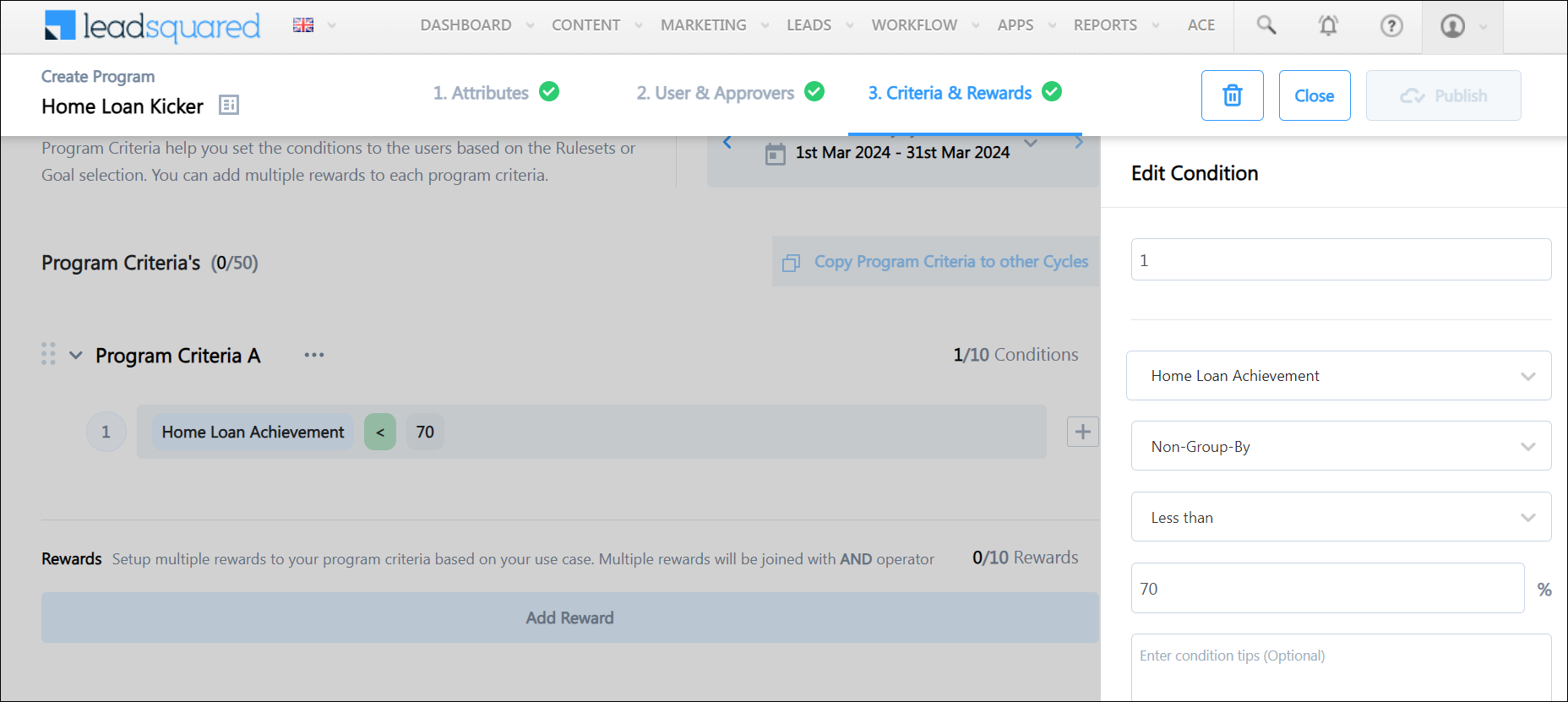
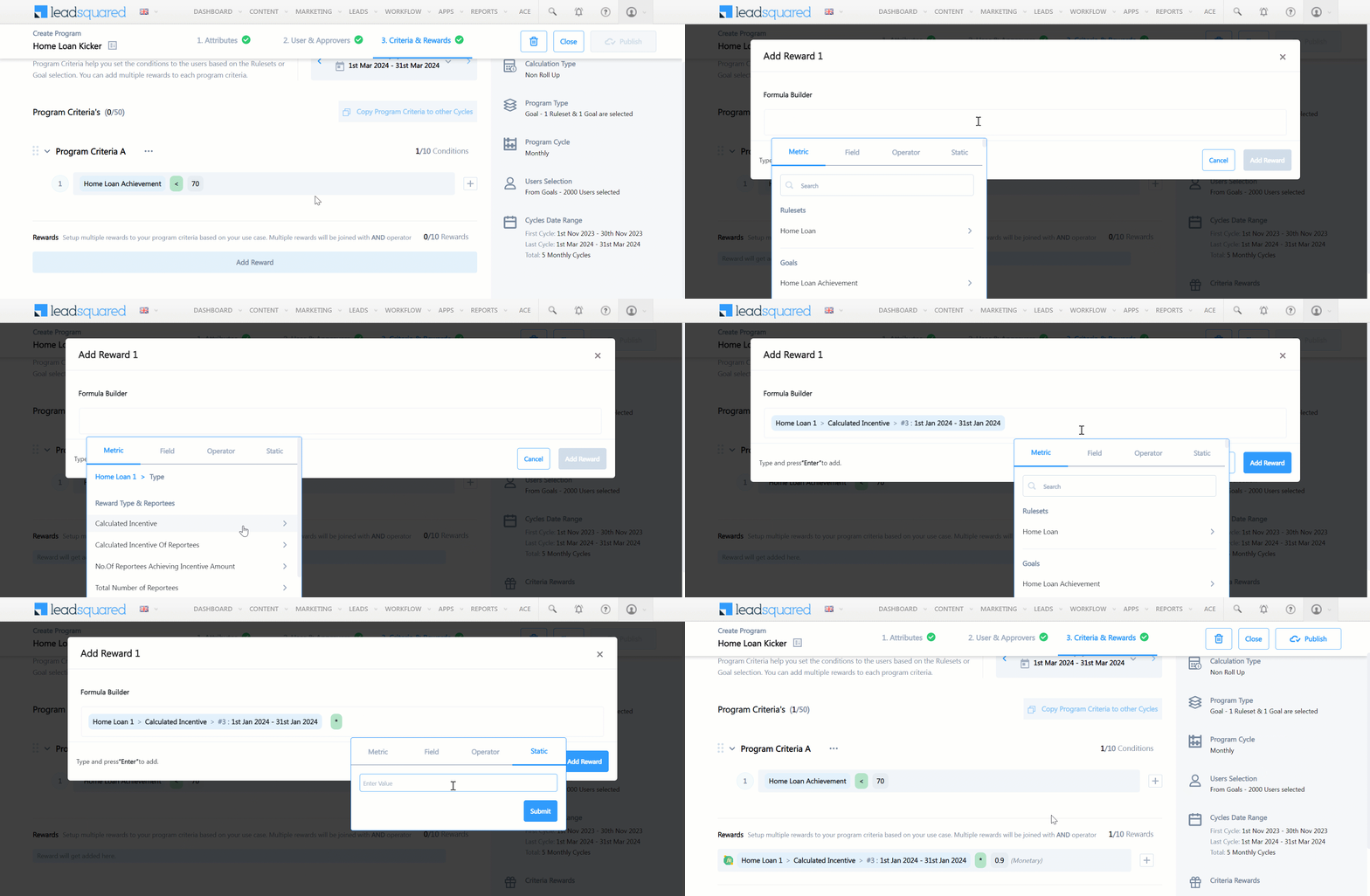
Note: For the parameters passed under Data, ensure you’re passing the correct schema name for the NPI and MemberID lead fields. We’ve passed example values for these two fields in the example above.

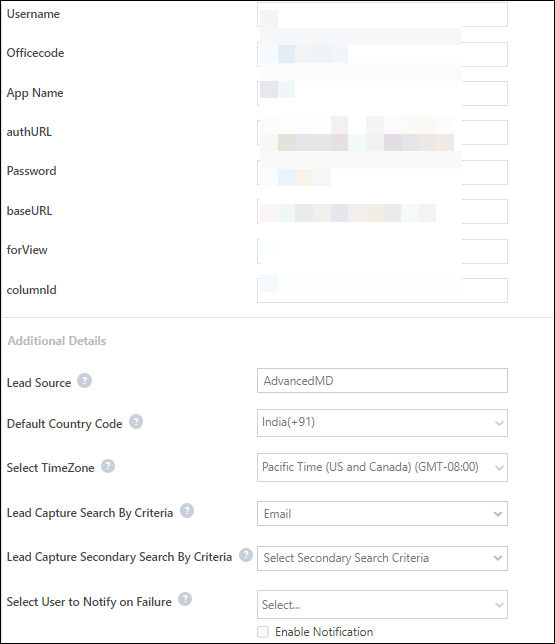
pVerify LeadSquared Connector


Next Steps

Once the connector is installed and configured, to view the insurance eligibility reports, refer to pVerify Healthcare Insurance Verification Connector Set-up for Sales Users.


Any Questions?

Did you find this article helpful? Please let us know any feedback you may have in the comments section below. We’d love to hear from you and help you out!