Telephony FAQs & Troubleshooting

1. Feature Overview

This article will help you troubleshoot issues relating to the LeadSquared Telephony feature.


2. Prerequisites

  • You must be an Administrator user to access connector configurations and settings.
  • Some technical experience is required to understand the format of the data and configure the connector with your telephony provider.
  • The table below outlines the distinction between APIs/URLs provided by LeadSquared and those provided by your telephony provider. LeadSquared’s APIs/URLs are accessible through the UTC configuration page, while your telephony provider’s APIs must be obtained directly from them. If you encounter any issues with an API, please get in touch with the respective API owner.
LeadSquared APIs Telephony Provider APIs
Call Route API (Lead/Opportunity routing)

The Call Route API directs incoming calls from existing leads to the corresponding Lead or Opportunity owner in your LeadSquared account.  

Note: LeadSquared does not automatically route calls to owners. Instead, it provides the Lead/Opportunity Owner details to your telephony provider, who then routes the call accordingly
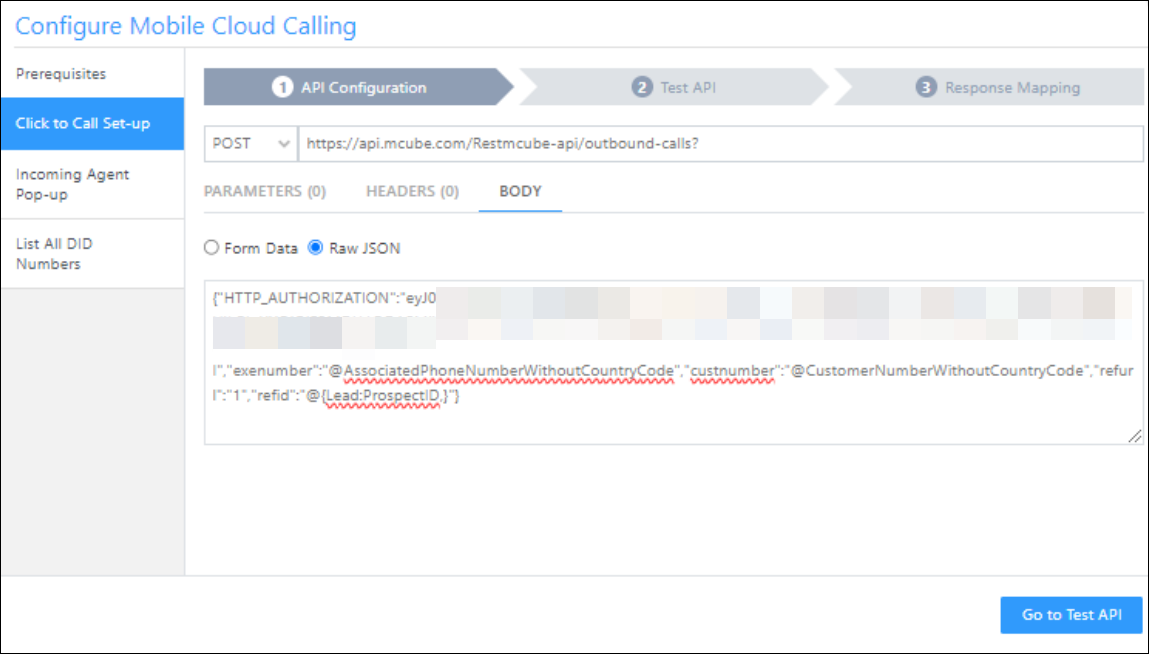
Click2Call APIThe Click2Call feature allows your sales reps or agents to initiate outbound calls by simply clicking on a lead’s phone number in the Manage Leads or Lead Details pages
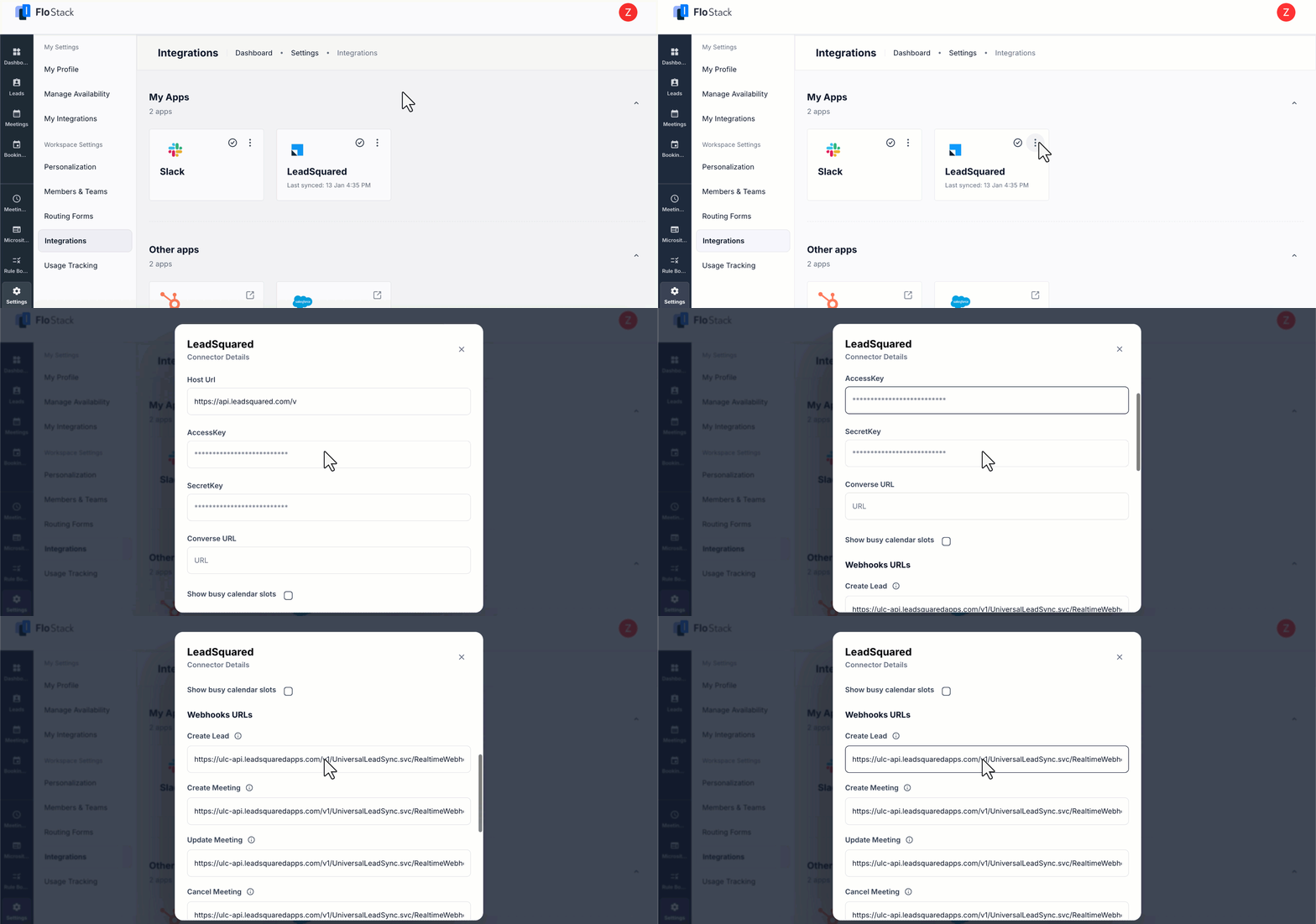
Agent Popup APIThis API logs all inbound and outbound calls made through your telephony account into LeadSquared, ensuring comprehensive call tracking. Agent Panel URL Agent Panel URL allows you to embed your provider’s Softphone into LeadSquared. 
Call Log API – All inbound and outbound calls made through your Telephony account can be logged in LeadSquared by setting up Call Logs Call DispositionCall disposition allows users to record specific information related to a phone call once it ends.
Single SignOn API This API enables embedding LeadSquared within your telephony provider’s portal. 


3. General Telephony Issues

1. Are API rate limits applicable to telephony/UTC?

The V2 API rate limits do not apply to telephony/UTC APIs. However, since telephony is a shared infrastructure between multiple accounts: in case of an extremely high number of concurrent requests, there is a possibility of throttling the requests via rate limiting, please contact support@leadsquared.com for details.

2. Can I restrict leads from being created on inbound calls from unknown numbers?

Yes. Navigate to Settings>Telephony>Telephony Settings>General Settings and enable Ignore inbound calls.
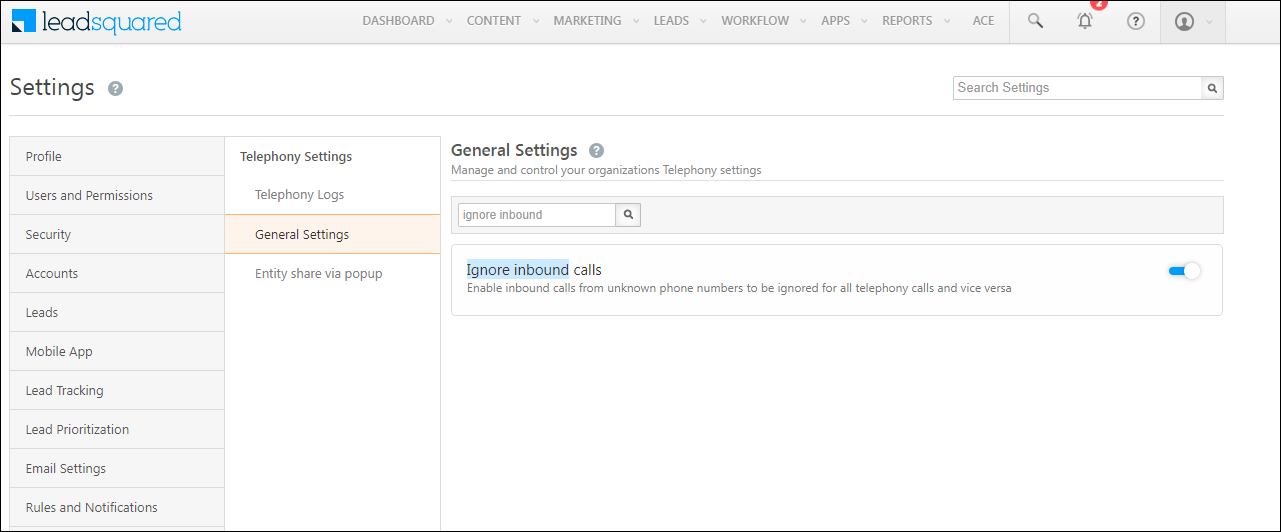
ignore inbound calls

3. Can I restrict leads from getting created on outbound calls to non-existing numbers?

Yes. Navigate to Settings>Telephony>Telephony Settings>General Settings and search for Configure telephony ignore rules. Click on Configure and select Call Log under the Outbound Rule(s) dropdown. Once done, click Save.
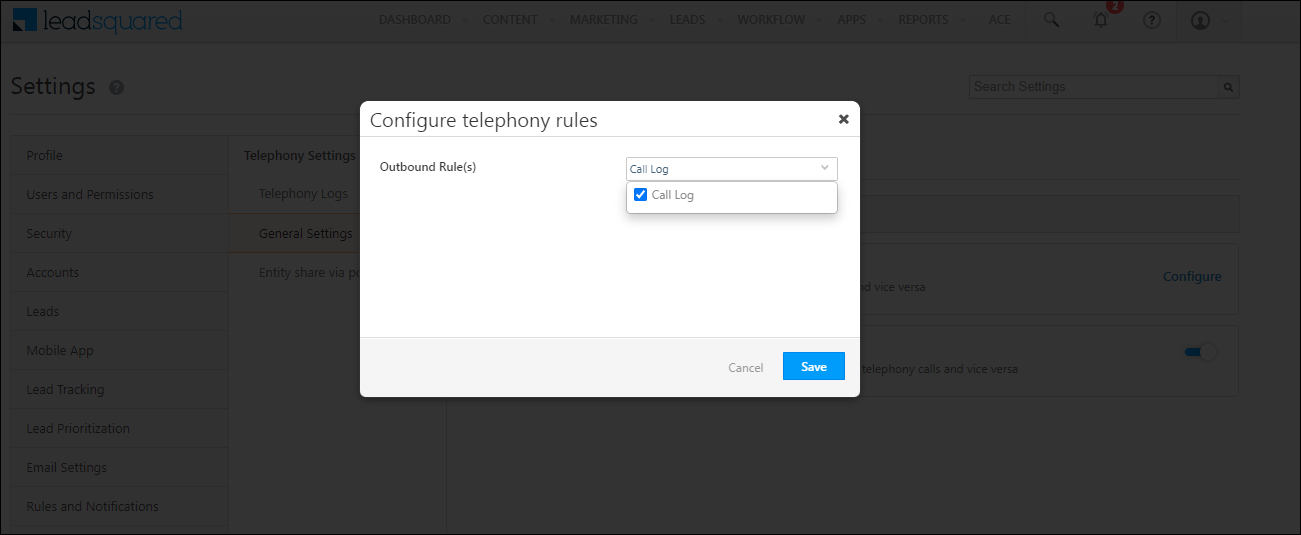
outbound rules

4. Why is the Opportunity Route API returning an empty response?

It could be due to one or more of the following reasons –

  • Make sure Opportunity is enabled on your account.
  • Check if the Opportunity owner is System – in this case, no phone number will be returned.
  • Opportunity Route works only on Open Opportunities; if the status is Won or Closed, you will receive an empty response.

5. Why is the lead source for an inbound call not being reflected?

Verify the entity modifying the lead source: If it is the Agent Pop-up, make sure the Lead Source field is part of the Agent Pop-up Form.
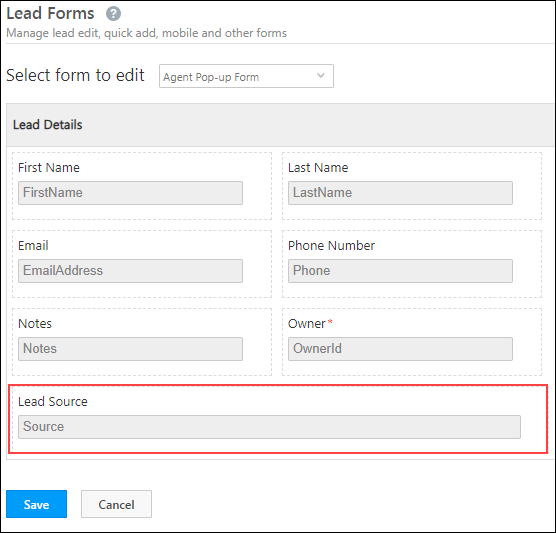
agent pop up lead source field

6. Why is my telephony provider not receiving traffic from LeadSquared?

This can happen if the provider has restrictions on incoming traffic in their firewall. The provider must whitelist LeadSquared IPs. Reach out to support@leadsquared.com for the list of IPs.

7. How to enable Opportunities for Telephony?

  1. To enable Opportunities in your account, please reach out to your account manager, or write to support@leadsquared.com.
  2. From the Advanced Configuration settings page, the Enable Opportunity – Telephony setting must be enabled. To know more, please refer to Organization Settings – Advanced Configuration.

For more information, read the article Opportunity Integration in Telephony.

8. In the case of inbound and outbound calls, which number is the lead’s and agent’s?

  • Inbound Calls – The Source Number is the lead’s number and the Destination Number is the agent’s number.
  • Outbound Calls – The Source Number is the agent’s number and the Destination Number is the lead’s number.

9. What should I do if I experience call drops during a session? 

Call drops are typically caused by issues on the telephony provider’s end. Please contact your provider’s support team for more help in resolving the issue.

10. How can I improve call quality during my calls? 

Call quality issues are often related to your telephony provider. We recommend contacting your provider’s support team to investigate and address the problem.

11. Why is a Lead First Assigned to “System” and Then Reassigned After a Call? Why is my lead assigned to “System” when captured through a missed inbound call?

When a lead is created via a missed inbound call, it is initially assigned to System because no user was available to answer the call at that moment. The system automatically reassigns the lead to the respective activity owner after a successful inbound or outbound call. This ensures the lead is assigned to the user who last interacted with them.

Also, this is true for both inbound and outbound calls. Regardless of whether the lead calls in again or a user calls the lead, the ownership updates to reflect the latest interaction.

Example Scenario:

  1. A lead is captured in the system through a missed inbound call and assigned to System.
  2. The lead places another call, which is answered by User 1.
  3. The system automatically reassigns the lead to User 1 after the call.

This is the system’s default behavior and ensures leads are assigned to the correct user based on the most recent interaction.


4. Agent Popup

1. Why is the Agent Popup not displayed?

Verify Connector Configuration

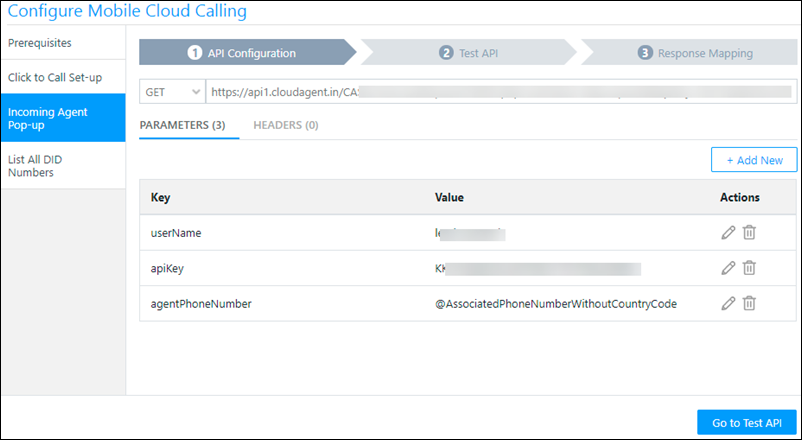
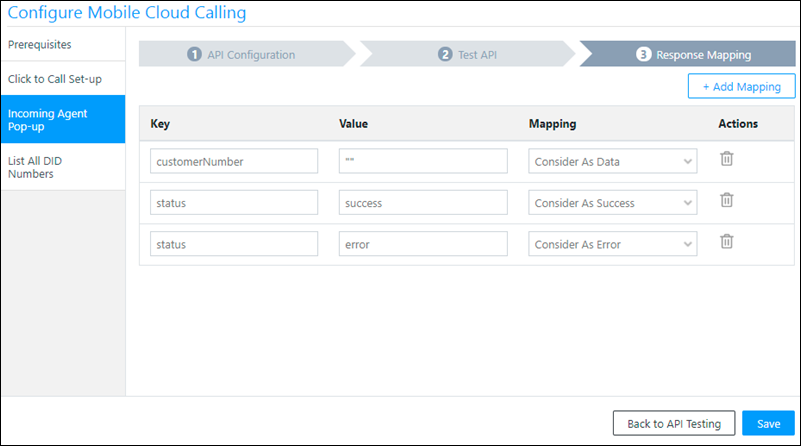
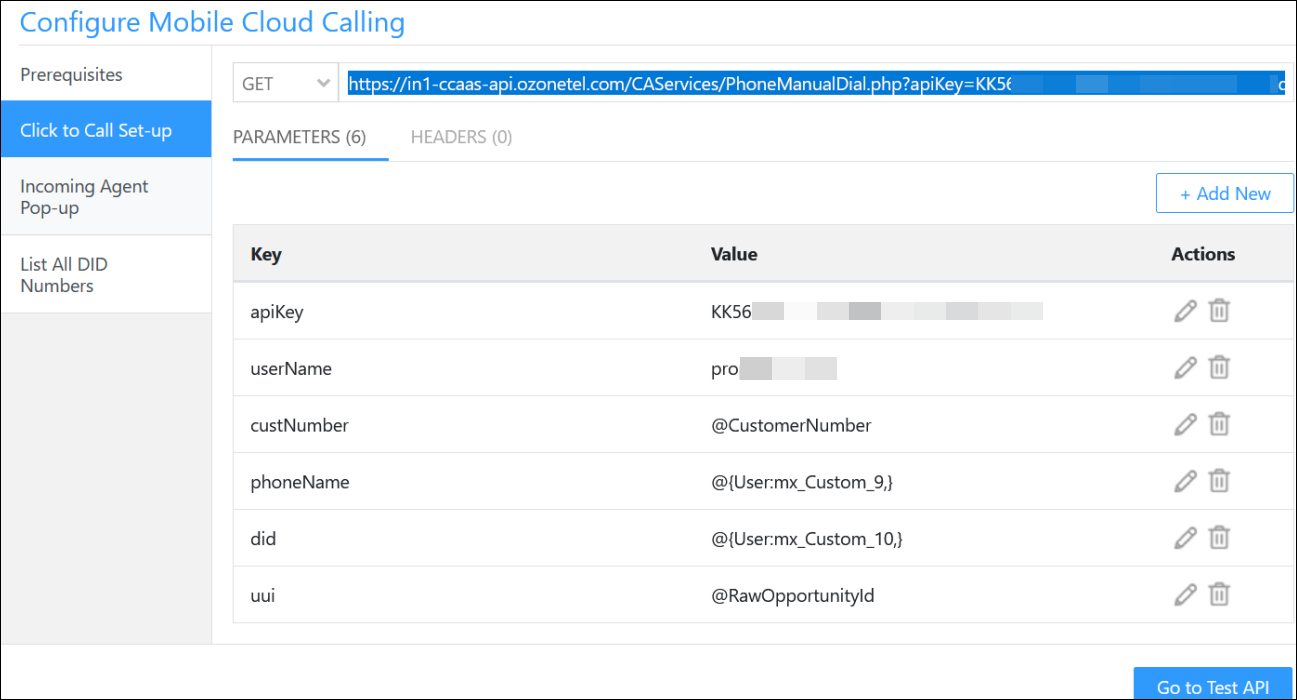
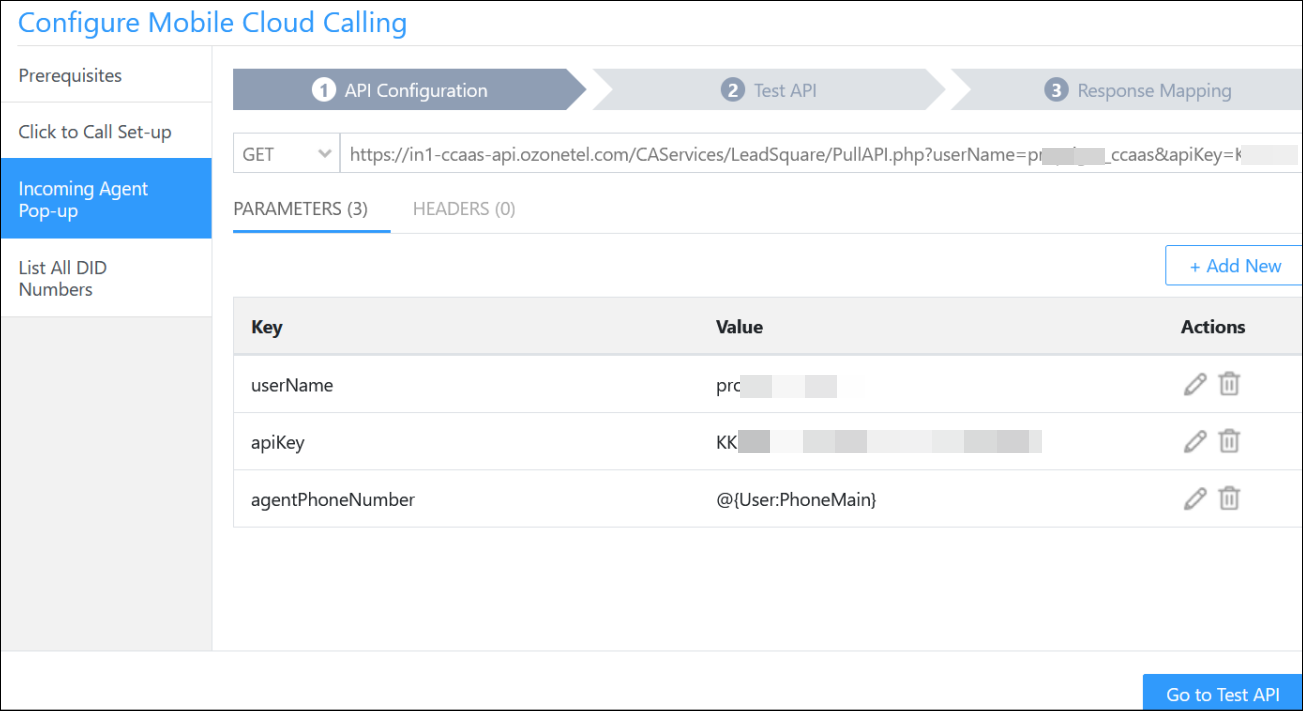
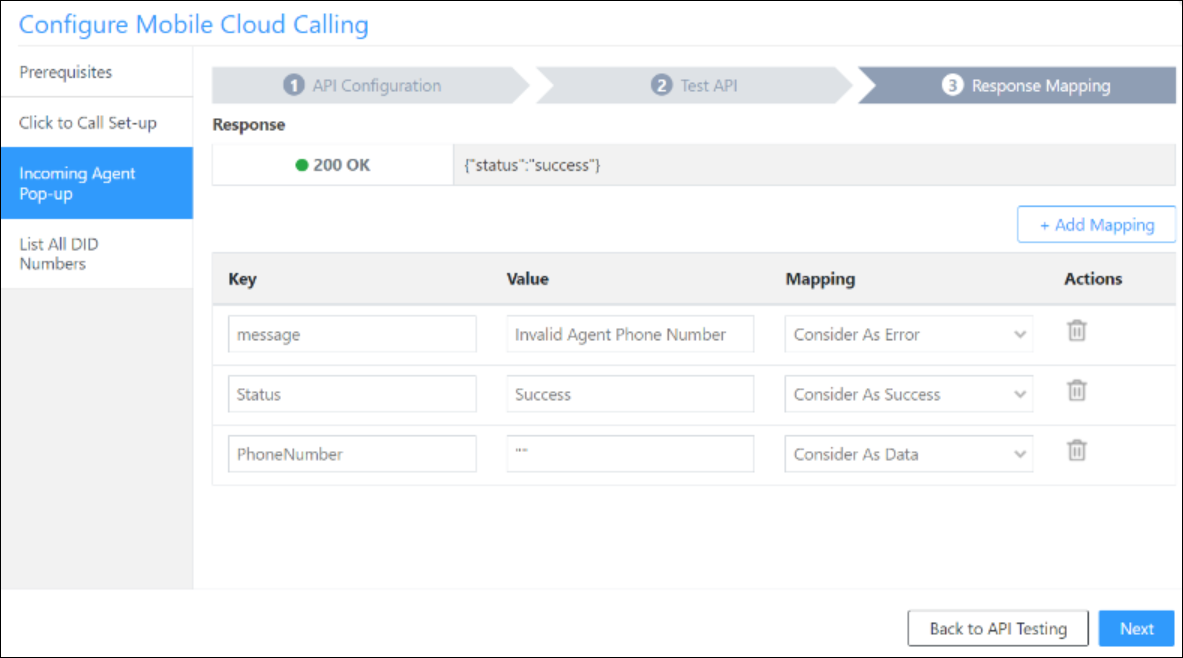
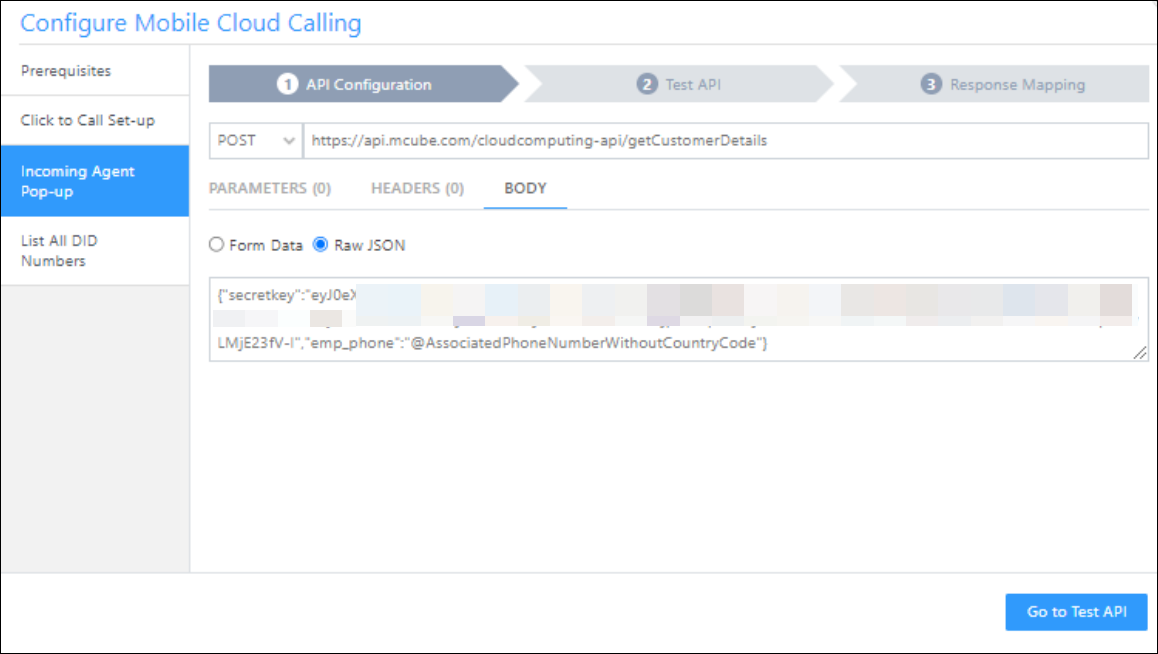
Ensure the Agent Popup is enabled on the connector configuration page. The settings may differ based on your telephony provider. Check that the Agent Pop-up API is correctly configured and activated. This example pertains to the Universal telephony connector

agent popup

Check API Calls

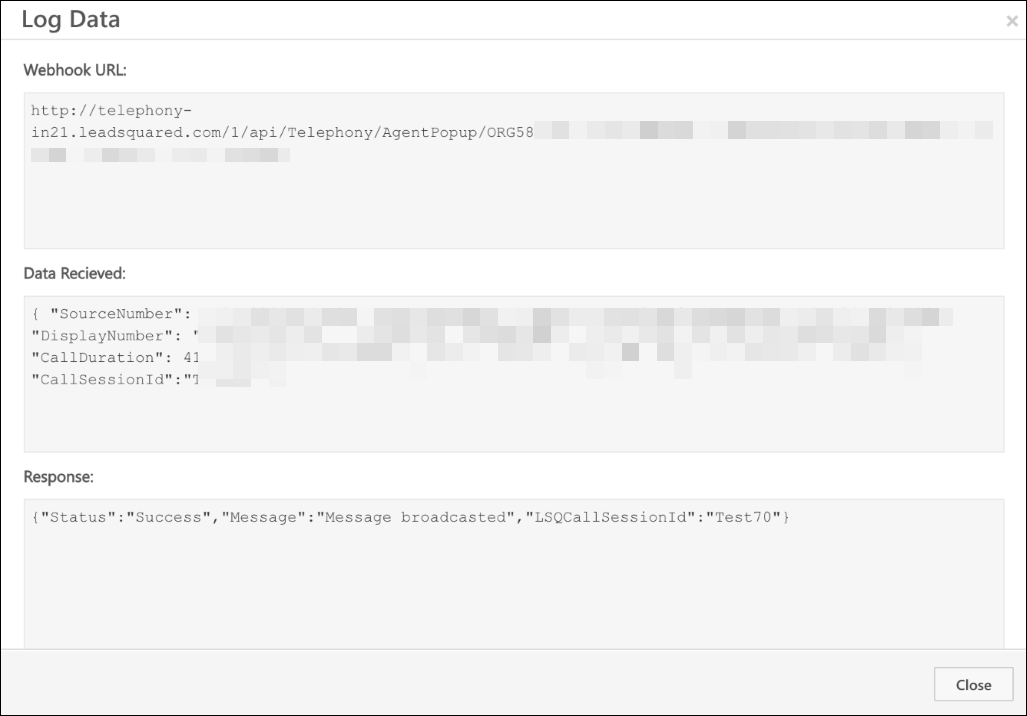
Verify that your telephony provider is correctly calling the Agent Popup API. If the API is not being called, the popup will not appear. Navigate to Settings>Telephony>Telephony Logs to check the status. 
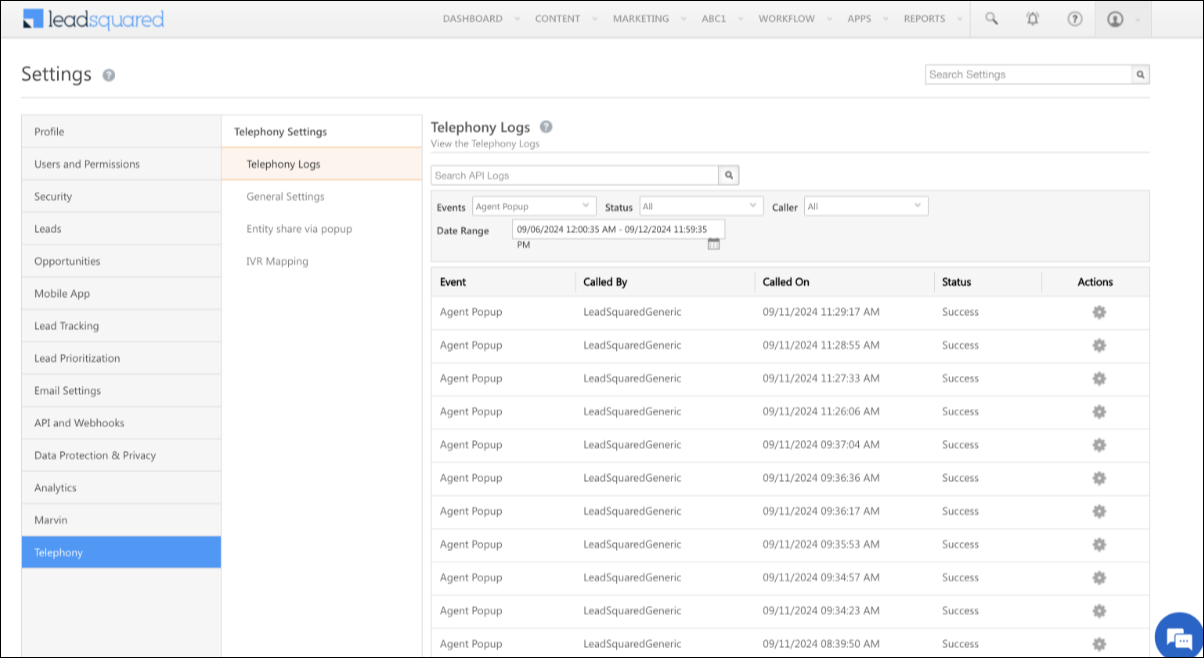
log data success agent pop up utc

log data success agent popup utc

Check User Profile Settings

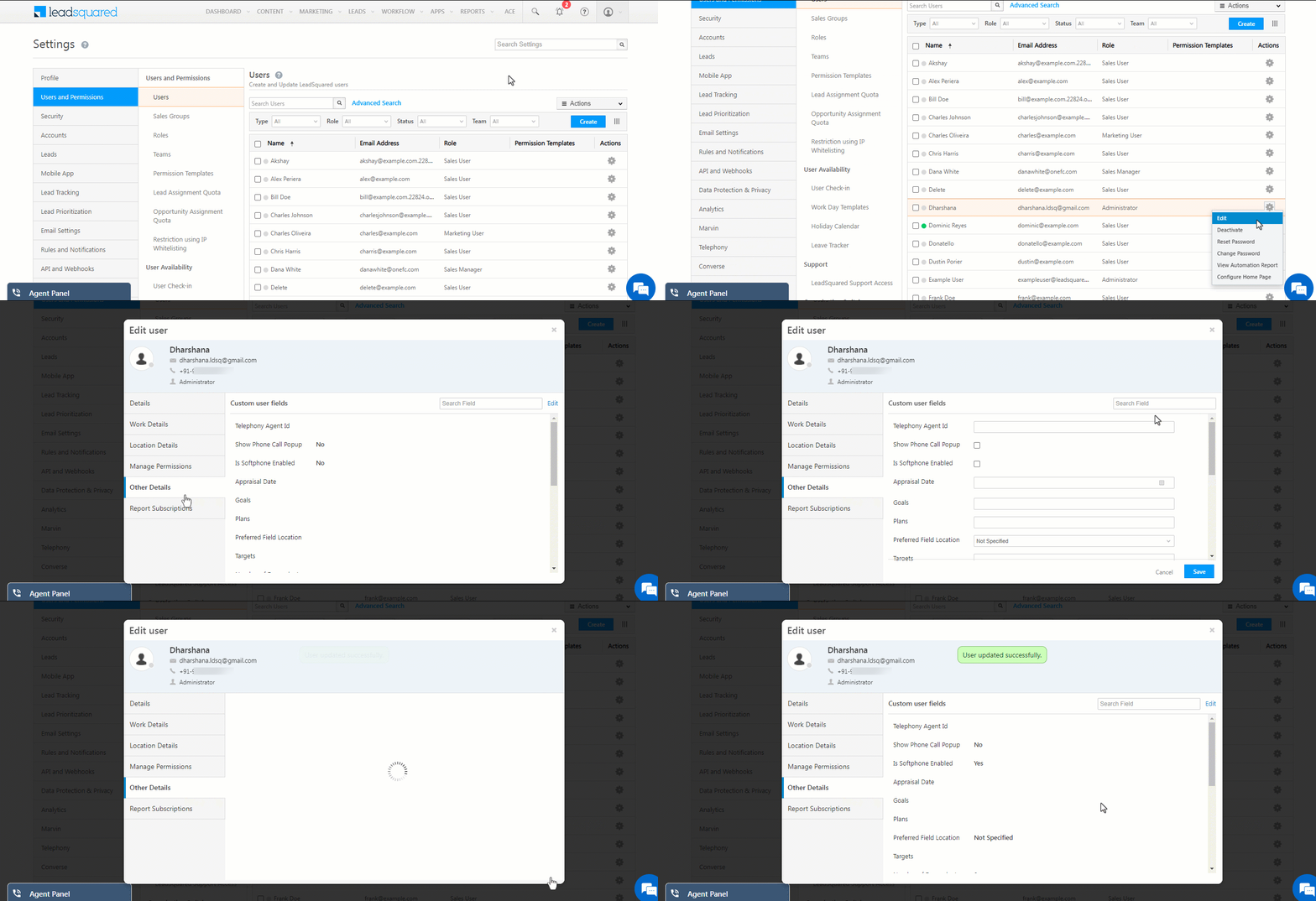
For admin users: Ensure that the Show Phone Call Popup setting is enabled in the user’s profile by navigating to My Profile>Manage Users. 
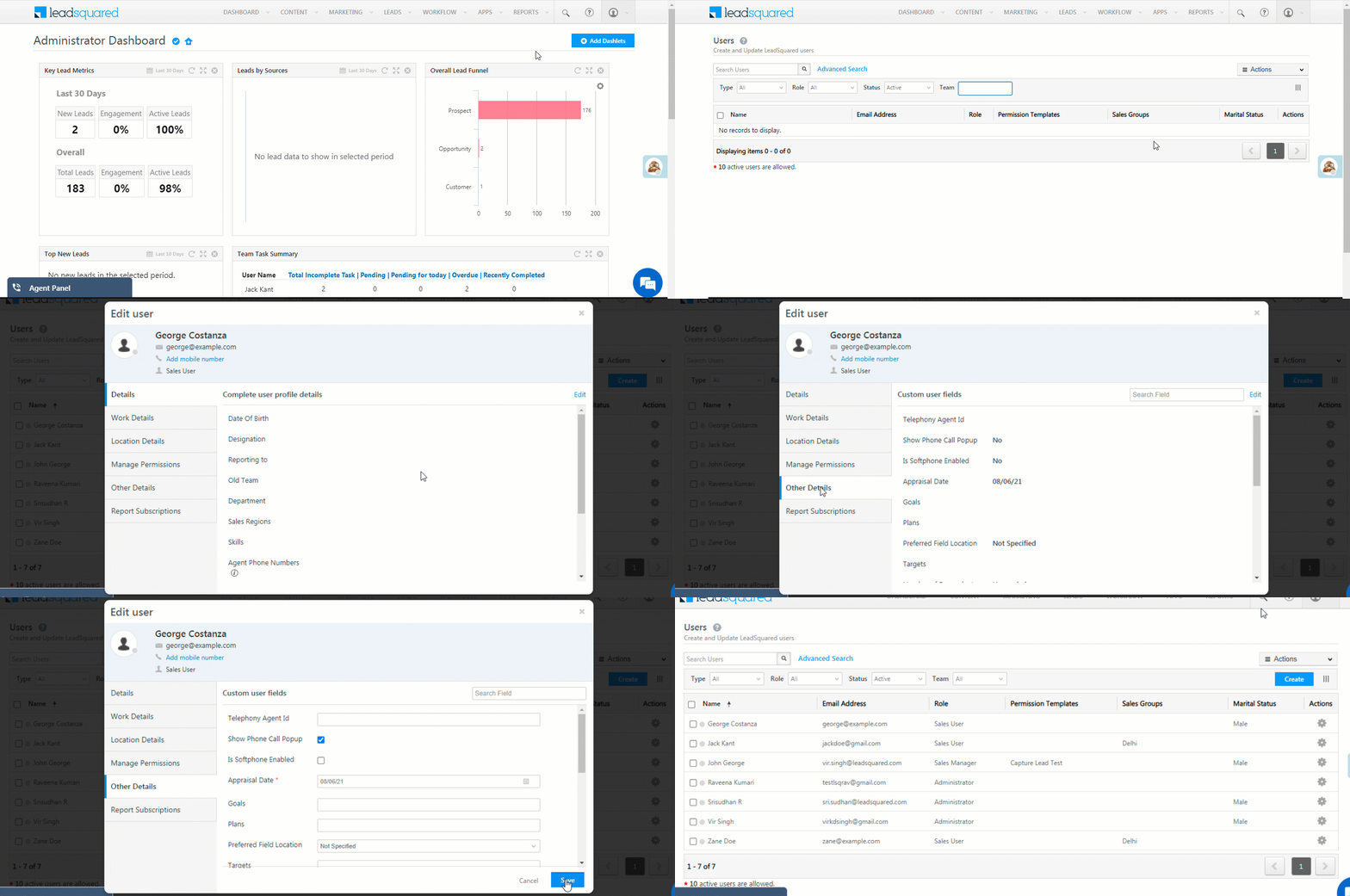
Enable Show Phone Call Popup

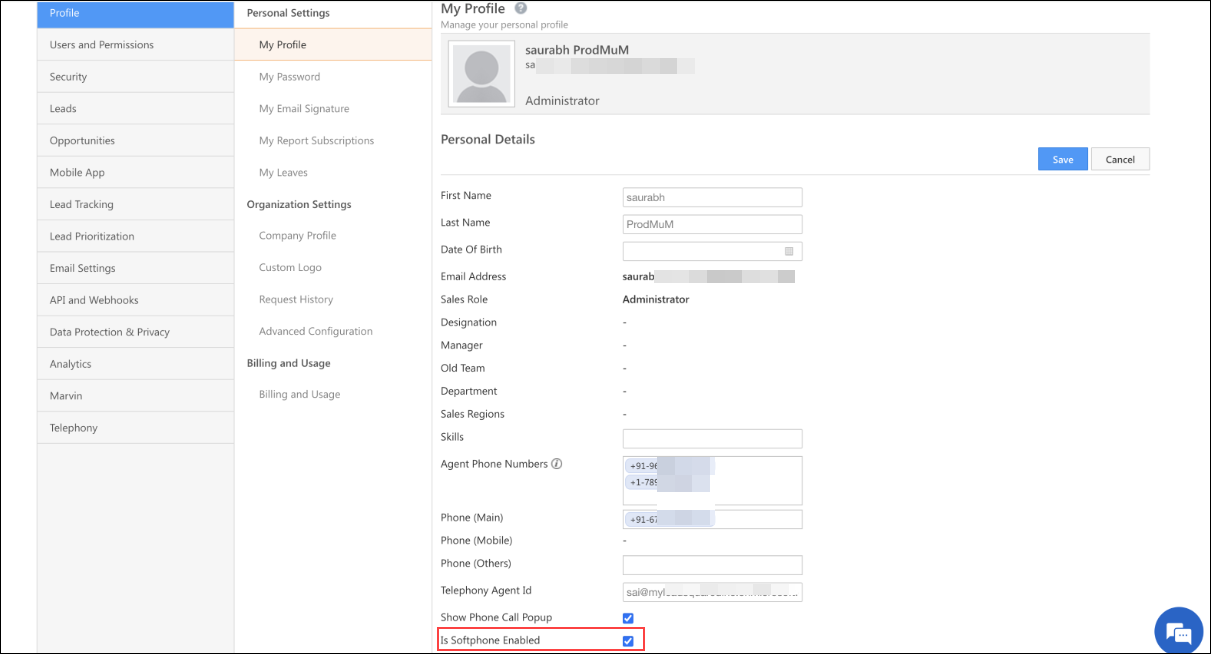
For non-admin users: Ensure that the Show Phone Call Popup setting is enabled in the user’s profile by navigating to My Profile>Personal Details.

non admin user show phone call pop up

Verify Agent Phone Numbers

Confirm that agent phone numbers are correctly added to their profiles. If the agent’s phone number was changed recently, it could take some time for the cache to be updated, please report to support@leadsquared.com. 
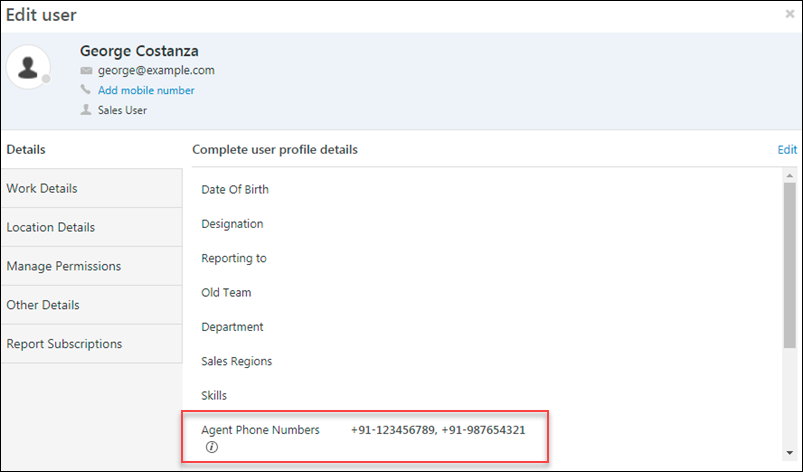
troubleshooting agent popup

Verify Lead Phone Numbers

Check the format of the lead’s phone number to ensure it is correct. If country code is specified, it should be in the +CC-PhoneNumber format. If not using CC, send only the phone number in the request.

Verify User-Agent Mapping in UTC

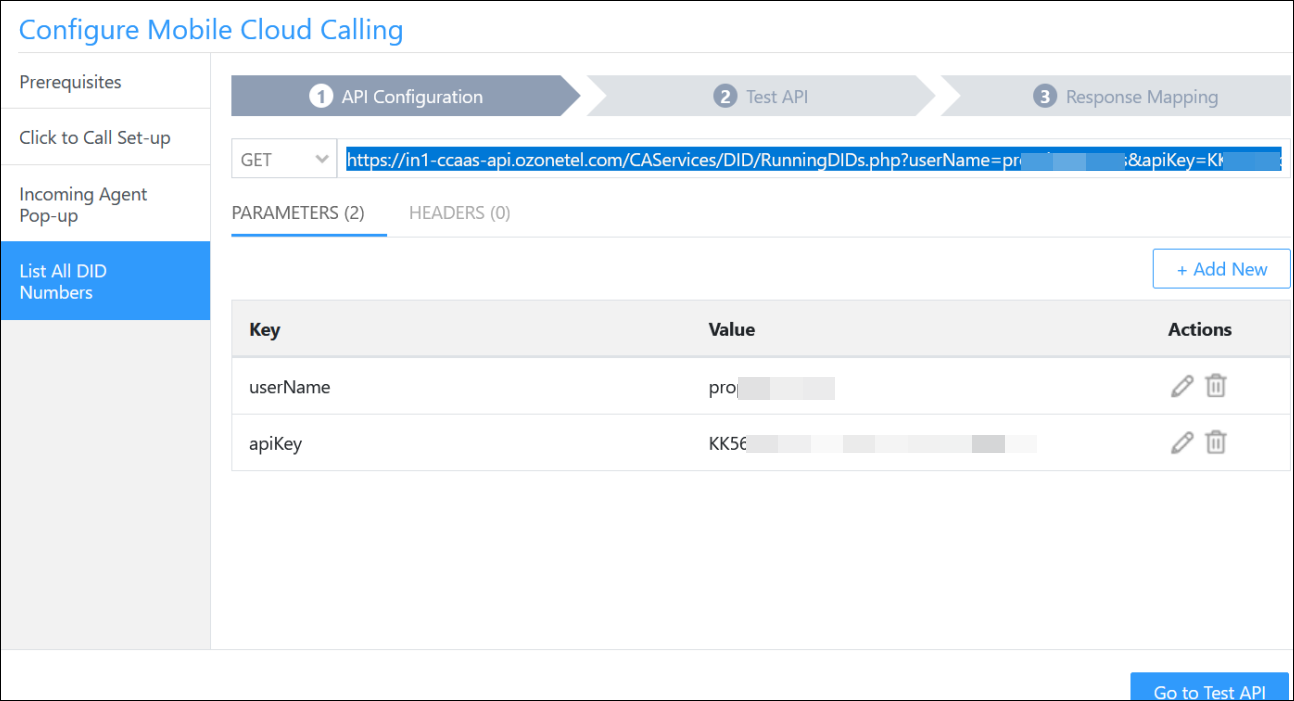
Instead of the agent’s phone number, if the agent has to be identified via a unique identifier (email, extension, etc.), please configure user-agent mapping in the UTC connector for each agent. Verify that the value configured for the agent is being sent in the AgentId parameter in the agent popup API requests. This mapping helps identify the correct agent when the Agent’s Phone Number or Source Number is not stored in LeadSquared. 
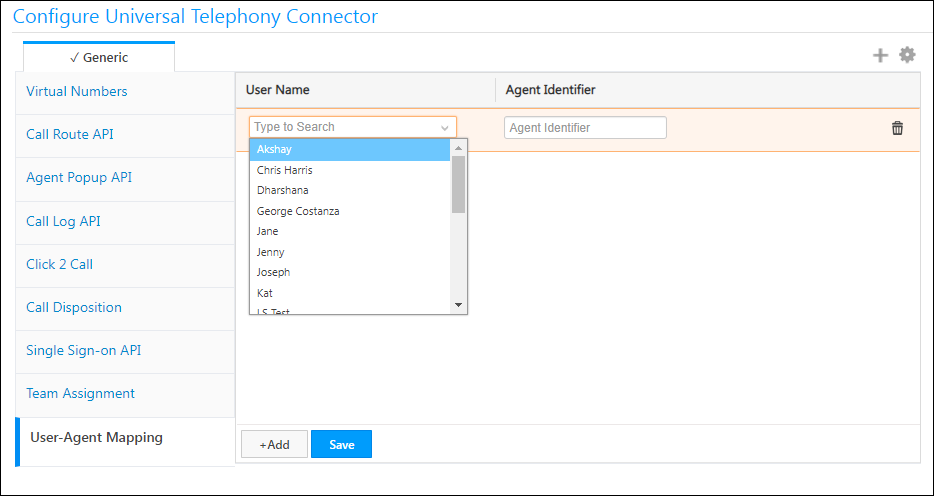
LeadSquared Telephony Integrations

Ensure Dynamic Forms Configuration

Note that opportunity-level agent popup is supported only via Dynamic/Custom Forms. The default agent popup does not support opportunities. Make sure you have set up a Dynamic Form for Opportunity Telephony. 
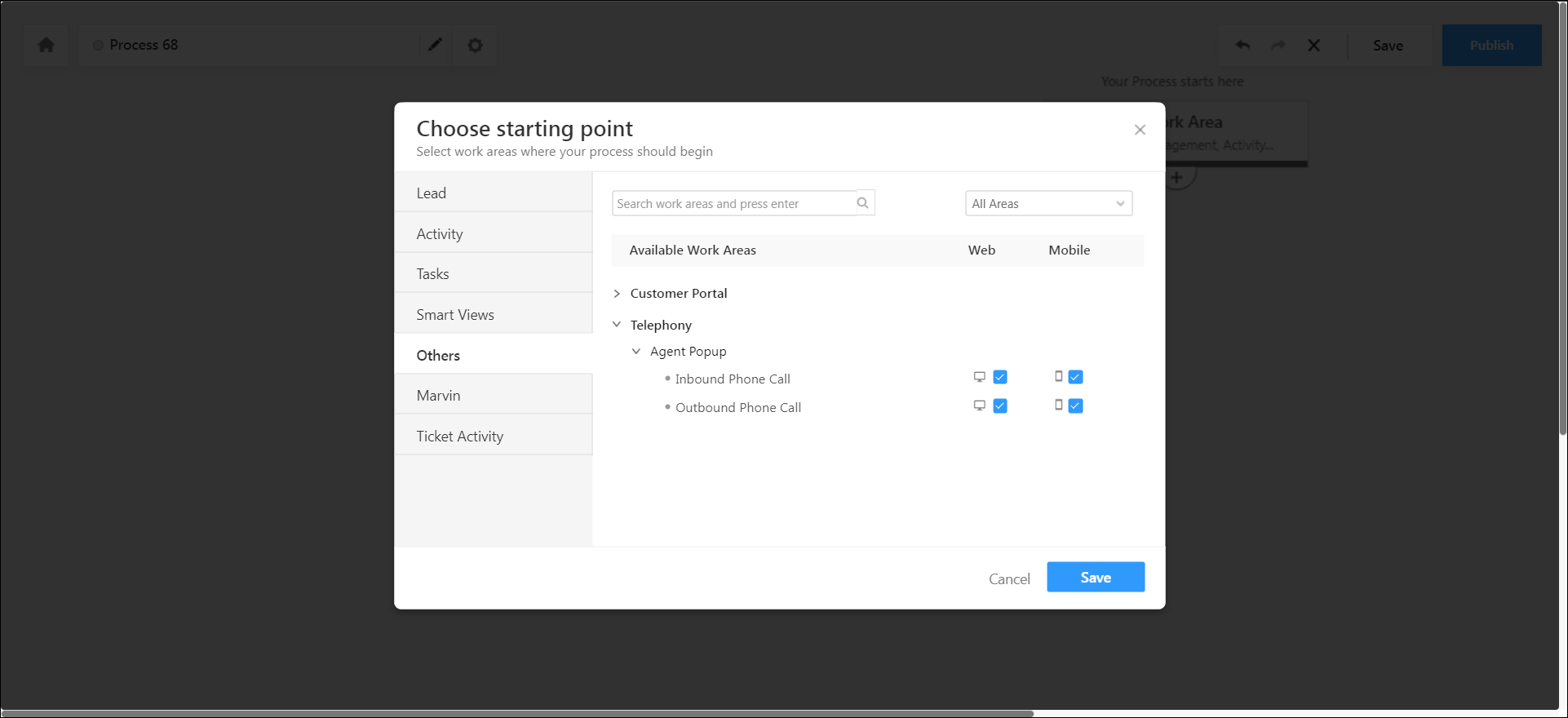
opportunity dynamic form

Web Socket Traffic Blocked

The Agent Popup might not be displayed if web socket traffic is blocked by your firewall. Please contact support@leadsquared.com for assistance. 

Clear Browser Cache

This issue could also be due to a problem with the browser cache. Clearing the cache should resolve the problem.

If you have checked all possible issues and the Agent Popup is still not displayed, we have an Auto-Retry and Manual Retry mechanism for the Agent Popup. For more information, please reach out to our support team – support@leadsquared.com. 

2. Why are multiple Agent Popups being displayed?

By default, the Agent Popup appears on all open browser tabs. To restrict the popup to only the active LeadSquared tab, follow these steps: 

Ensure that your telephony provider is not calling the Agent Popup API multiple times, as this can also cause multiple popups to appear.
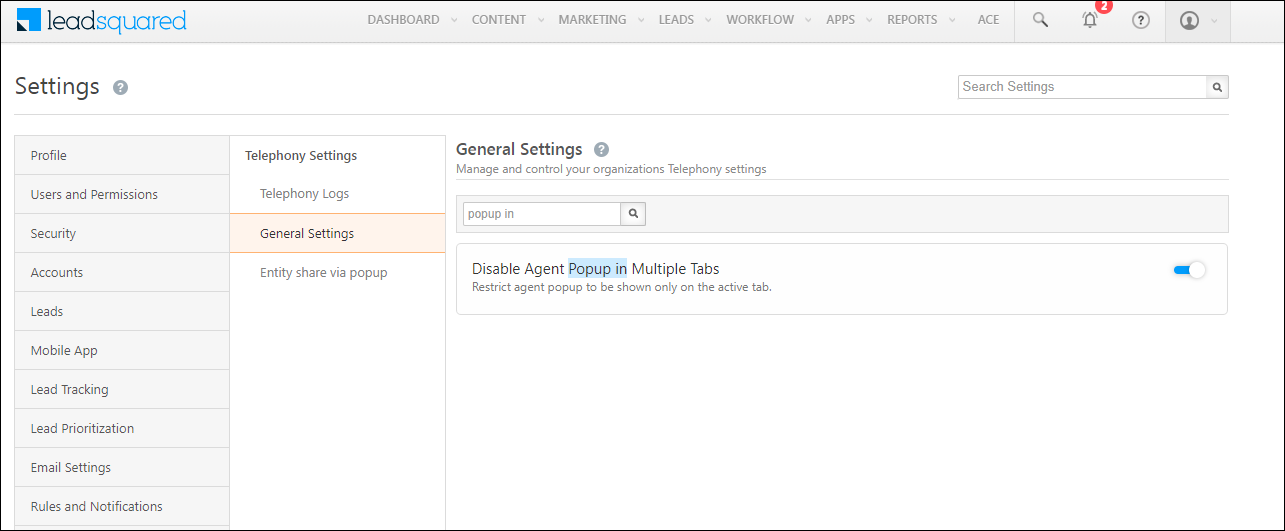
popup multiple tabs

3. Why is there a delay before the Agent Popup appears?

In the API logs, check the timestamp of the agent popup API request to determine if the delay is from the provider’s end.

4. Why is phone number masking not working?

Verify if phone number masking has been applied correctly via permission templates.

5. Does the agent popup support lead ID?

Yes. The parameter to be used is LeadId. Use the parameter @leadId .

6. Does the agent popup support Opportunities?

Yes, Agent Popup supports Opportunities. The configuration may vary depending on the call direction. Refer to Opportunity Integrations in Telephony for details or UTC Feasibility.

utc feasbility for opportunities

7. Does the agent popup support OpportunityID? 

No, It supports OpportunityTelephonyMappingId.

8.  Why is the agent popup showing lead details instead of opportunities?

  • Verify if Opportunity Telephony is enabled for your account.
  • Ensure that @OpportunityTelephonyMappingId is correctly passed in the request.

9. Can the customer’s telephony provider call LeadSquared’s APIs at particular events? If so, does the provider only support GET requests?  

The customer should have a custom code and call LeadSquared’s API to retrieve lead details by phone number. The provider should open the lead details URL when the call connects. 

10. Can the customer’s telephony provider call LeadSquared’s APIs at particular events? If so, does the provider only support POST requests? 

Yes, And, If the customer wants this ability for both inbound and outbound calling. Then, the customer’s telephony provider should support calling LeadSquared’s Agent pop-up API in case of call events like Call Ringing or Call Connected. 

11. Is sharing a lead with another agent (non-lead owner) possible via agent popup?

Yes. To configure this option, read our help article on Entity Share Option for Telephony.

12. How does the customer’s telephony provider identify an agent? 

  • Through Email/SIP ID/Extension: User-agent mapping needs to be configured. The identifier should be passed in the Agent ID parameter, which takes priority over the agent’s number.
  • Through phone number: Pass the agent’s number in the Source or Destination numbers based on the direction of the call. 

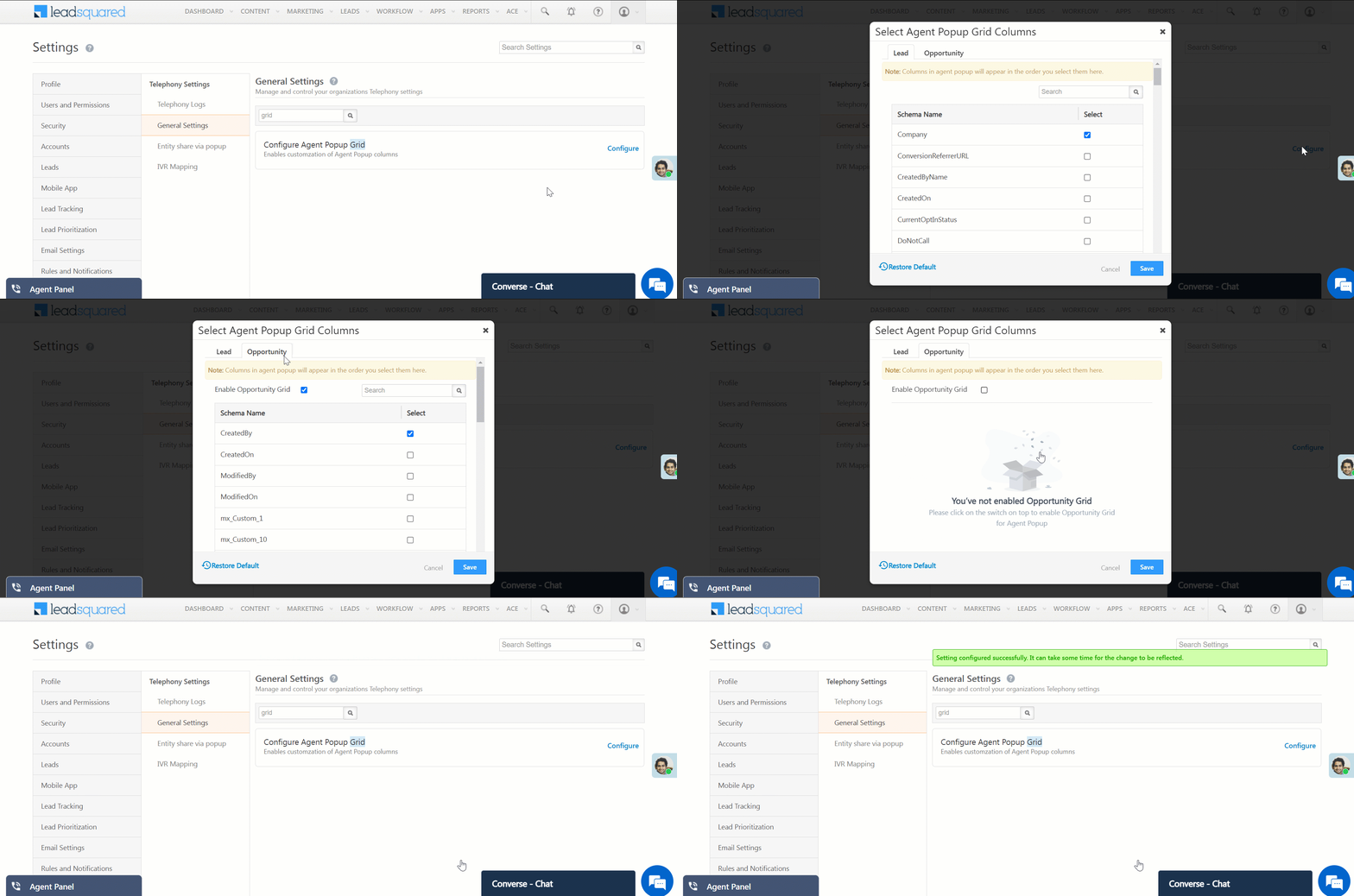
13. I’m using a custom form for the Agent Popup, but it forces me to create an opportunity before displaying the form. How can I restrict this? 

Navigate to Settings>Telephony>Telephony Settings>General Settings and configure the Configure Agent Popup Grid option to disable Opportunity Grid. If you still require assistance, please contact support@leadsquared.com.

disable opportunity agent pop up grid


​​​​5. Agent Panel

1. Why is the Agent Panel not displayed?

For admin users: Ensure that the Is Softphone Enabled setting is enabled in the user’s profile by navigating to My Profile>Manage Users.

enable softphone

For non-admin users: Ensure that the Is Softphone Enabled setting is enabled in the user’s profile by navigating to My Profile>Personal Details.

user is soft phone enabled

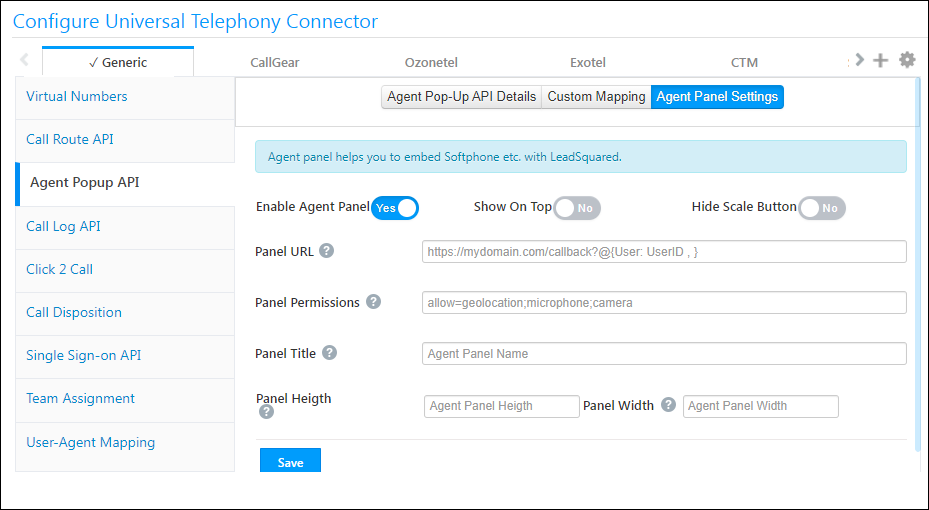
Verify Agent Panel Settings: Confirm that the Agent Panel is enabled in the Agent Panel Settings within UTC.

agent panel

2. Can we customize the Agent Panel?

Yes, at present, the following customizations are possible:

  • Enable Agent Panel – You must enable this option for the Agent Panel to show up.
  • Show On Top – The panel will be displayed on top and all other windows will be behind.
  • Hide Scale Button – Hides the magnifying option.
  • Panel URL – You can configure external URLs.
  • Panel Permissions – You must allow at least geolocation and microphone for the panel to work.
  • Panel Title, Height, Width – Adjust the panel’s title, height, and width.

agent panel

3. Why is the Agent Panel not loading?

The origin application should allow itself to be embedded within an external iframe. If not, the panel will not load (e.g. google.com). Check if the X-Frame-Options in the provider’s app allows this. 

4. Does the Agent Panel URL support mail merge?

Yes, the Agent Panel URL supports standard user mail merge fields. For more details, visit Agent Panel Mail Merge Fields.

agent panel mail merge

5. Why does my VoIP call end when I refresh the page? 

When you make a computer-to-computer call (VoIP) and refresh the page, the connection will break – this is a known issue. There are workarounds available for a few connectors like Ozonetel and CTM, for help, contact support@leadsquared.com.

6. Does the customer’s telephony provider have a web app that can be used as a softphone? 

Yes, the web app can be used as a softphone, but it needs to be integrated into LeadSquared’s Agent Panel. Relevant permissions for the iframe must be provided under the Agent Panel configuration. 

  • For Single Sign-On (SSO) or authentication: 
    • By default, separate logins are required for LeadSquared and the Agent Panel. 
    • Third-party authentication (OAuth2, etc.) is not available. 
  • If the telephony provider has user-level tokens for authentication, these can be stored in a user field and mail merged into the iframe URL. The provider will need to handle authentication on their end. 


6. Call Log

1. The customer is using international calling. When a call log gets posted, +91 gets prefixed as the country code. How do I ensure the correct country code is prefixed?

For international calling, custom formatting logic needs to be enabled. This can be configured through the backend, please contact support@leadsquared.com.

2. Does call log support opportunities?

Yes. The configuration for this can change based on the call direction. Refer to Opportunity Integrations in Telephony for details or UTC Feasibility.
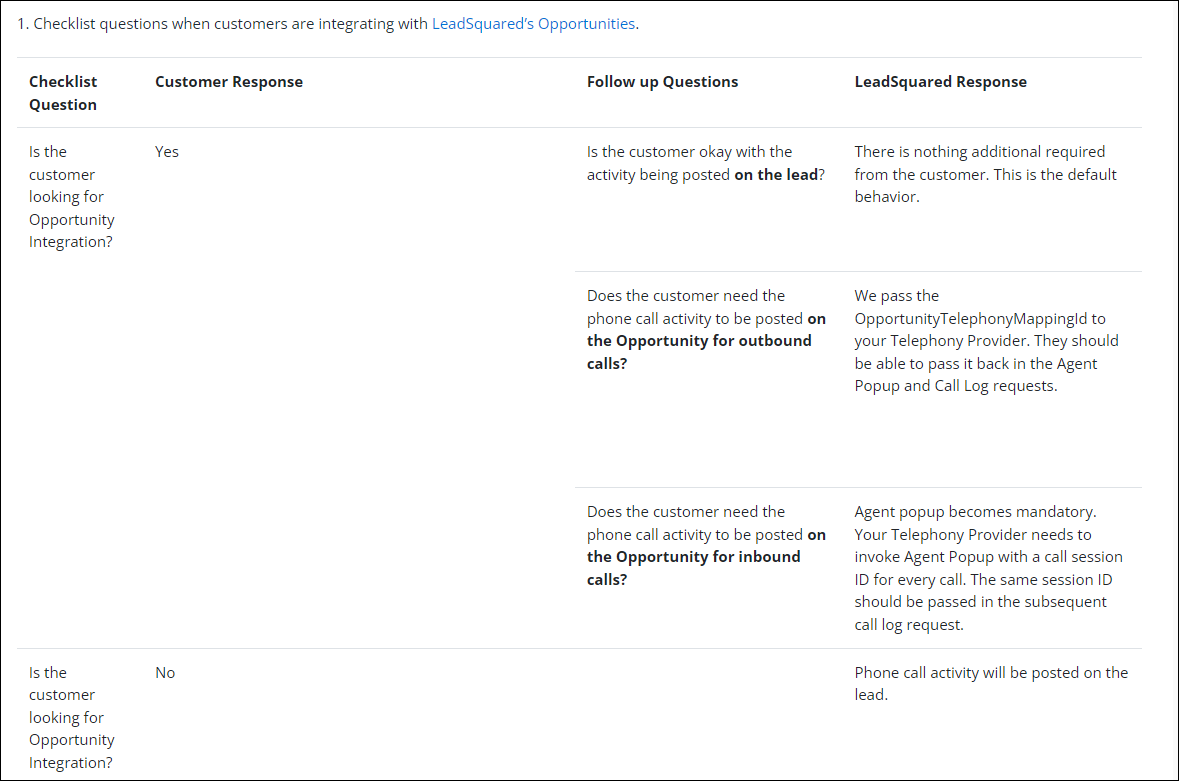
utc feasbility for opportunities

3. When there is an Opportunity, will the call log be posted on the Lead or Opportunity? 

  • Outbound call – If the provider passes the OpportunityId back to LeadSquared, it will be posted on the Opportunity.
  • Inbound callIn this case, the provider must have called LeadSquared’s Agent Popup API with the same Call Session ID for the call log to be posted on the selected opportunity in the popup.

4. Why are calls not being displayed in Activity History even though I can see them in the Manage Activities screen?

  • Activity History will only show successful or voicemail calls – failed calls will not be shown.
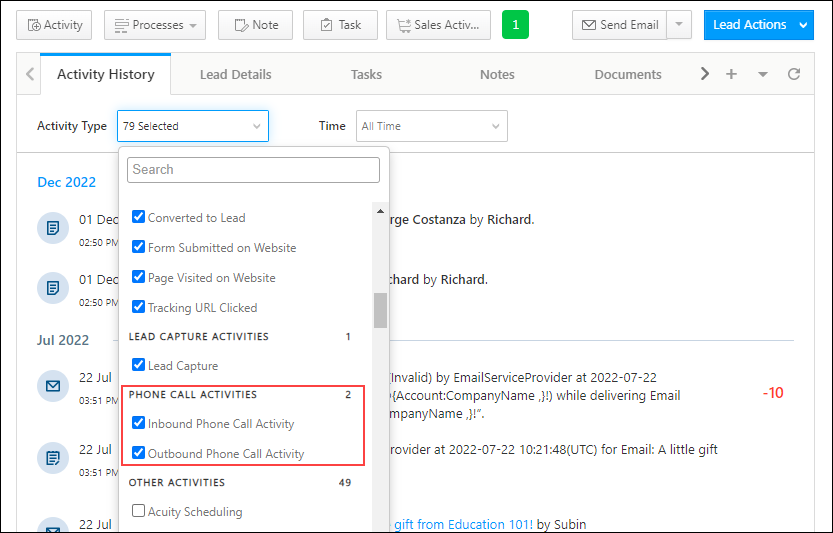
  • Make sure Phone Call Activities are enabled in the Activity History tab on the Manage Leads Details page.

activity history enabled

5. Why is the call log missing? I do not see activity being created on the lead. 

  • Check Telephony Logs: Verify that your telephony provider is correctly calling the Call log API by navigating to Settings> Telephony>Telephony Logs. If the API is not being called, the call log will not appear. 
  • Validate Request Data: Ensure the request data is valid. Common issues include incorrect Caller ID formats. 
  • Verify Call Log URL: Ensure the URL for posting the call log is correct. 
  • Consider Posting Delays: Sometimes, call logs are posted late by the provider. 
  • Check StartTime: Activity is based on the StartTime value in the API payload, not when the log is received. StartTime should be in IST; use StartTimeUTC for UTC values. 
  • Validate Phone Number Format: Verify that the telephony provider is passing the phone number in the correct format within the call log. An incorrect format can prevent the log from being recorded. If a country code is included, ensure a hyphen separator is used, such as +91-9611795983.

6. What is the time format of StartTime parameter in Call log API? 

Call log API expects StartTime to be in IST by default. If you need to post it in UTC time, please use the StartTimeUTC parameter instead. 

7. Does the call log support LeadId, OpportunityId, and OpportunityTelephonyMappingId?

Yes, it supports all three.

8. What is the difference between Raw Call Status and Call Status?

Raw Call Status is the actual value passed by the provider, while Call Status is the converted/mapped value in LeadSquared.

9. Why is an inbound call being displayed as outbound in the activity history?

Verify that the value of the Direction property in the call log request is Inbound. All other values get converted to outbound.

10. The phone number in the customer’s account is not unique. If there is more than one lead with the same phone number, how do I ensure that the call log does not create an activity for both leads?

  • The call log will post an activity against the most recently modified lead.
  • If the lead ID is passed in the call log request by the telephony provider, then the activity will be created only on that lead. Pass the lead ID as a mail merge parameter in the Click 2 Call URL and the same can be passed back by the provider for outbound calls. There is no way to ensure this for inbound calls.
  • You can also set phone control to avoid creating duplicate leads.

11. Why is the call log failing with this error message “Duplicate entry <number> for key ‘UQ_Prospect_Base_Phone'”?

Navigate to Settings>Telephony>Telephony Settings>General Settings and enable Enable leading zeros in phone type lead fields.

12. Why is a missed call being reported as voicemail?

This is dependent on the direction of the call. Verify if the call direction (inbound/outbound) is being sent correctly.

13. Why am I unable to play or download call recordings?

Here are some things to check: 

  • Access Issues: Confirm that you have the correct permissions and access the recording URL. 
  • URL Security: Make sure the recording URL uses HTTPS, as some browsers require this for secure access. 
  • Provider Confirmation: Verify with your telephony provider that the recording was successfully sent. 
  • Delay in Delivery: Be aware that there may be delays in receiving call recordings from your telephony provider.

14. Why am I not able to play or download call recordings in Chrome and Edge browsers?

Check if the recording has insecure (HTTP) URLs. Google Chrome and Microsoft Edge only support HTTPS URLs.

15.  I have sent call notes in the call log request but I am not able to find them in the UI or via the advanced search. Why?

The call/activity notes field is a system field for which the setting to display in the advance search form is restricted. An alternative is to use a custom field with the display name as call notes. This will show on the UI and is searchable as well.

16. Why is the lead getting reassigned to a different agent after an inbound call?

Check if there is an Automation that is triggering this.

17. Can I map the source number in inbound calls to the lead’s mobile number instead of the phone number? I do not want to create a duplicate lead if the source matches the mobile. 

By default, we check the lead’s phone as well as mobile numbers before creating a lead 

18. Why did the call log API change the owner of the lead when an outbound call was made by an agent?

​​​​If the owner of the lead is System and an agent makes an outbound call to this lead, the call log API automatically makes this agent, the new owner of the lead. If you would like to override this default behavior, contact support@leadsquared.com.

19. Why is the call recording duration not matching the call duration in the activity?

Check the Telephony Logs for the call log request. The call duration and the recording are both pushed by the provider. If there is a mismatch, you will need to contact your telephony provider.

20. I need to pass additional data/custom fields in the call log. How do I proceed?

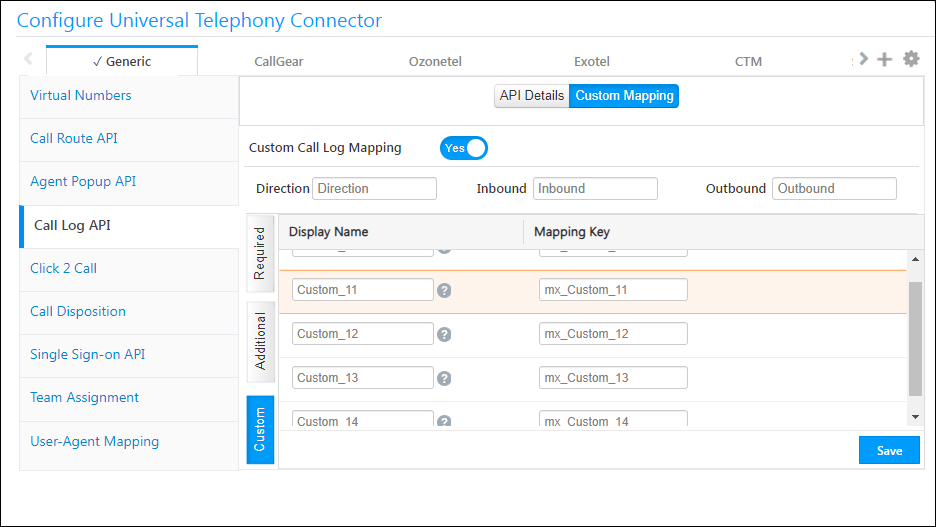
Apart from the defined fields, LeadSquared supports up to five custom fields currently. Telephony providers can use the following parameter names – mx_Custom_10, mx_Custom_11, mx_Custom_12, mx_Custom_13, mx_Custom_14. You can assign Display Names for them, and they are also searchable in advanced search.

custom mapping

21. How does the provider’s call status map to our system’s call statuses? 

  • When the provider sends “answered”, “answer”, or “received”, it is mapped to Answered status on our end. 
  • When the provider sends “voicemail”, it is mapped to VoiceMail status on our end. 
  • When the provider sends “rejected”, it is mapped to Rejected status on our end. 
  • When the provider sends “cancel” or “missed”: 
    • For inbound calls, it is mapped to Missed status. 
    • For outbound calls, it is mapped to NotAnswered status. 
  • For all other statuses, we show CallFailure on our end. 

22. Why is the outbound call activity shown as “system”?
When a lead is created through a missed call activity and no users are available at the time, the system automatically marks the activity as “system”. This is the default product behaviour.

23. How to Capture DTMF and IVR Digits Pressed by Callers in LeadSquared?

  • Scenario: You want to capture DTMF values (digits pressed by callers in the IVR) and store them in the Phone Call Activity for leads.
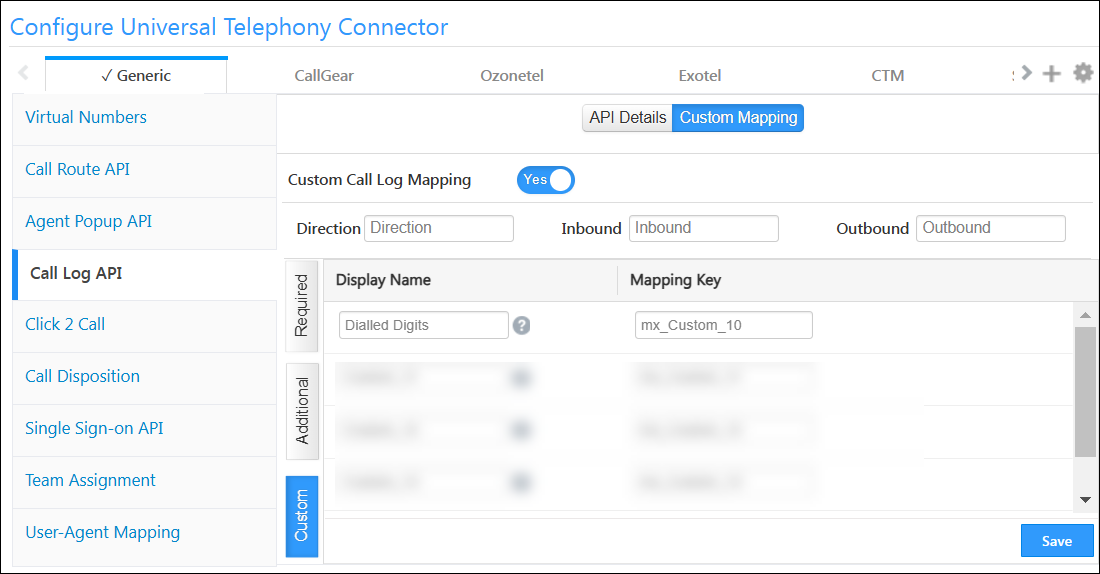
  • Solution: You can achieve this by enabling Custom Call Log Mapping through the UTC Connector. Follow these steps to configure it:
    1. Navigate to UTC Connector in LeadSquared. You must set this up in the default instance.
    2. Locate the Call Log API section and enable Custom Mapping.
    3. Under Custom Mapping, select the Custom option to capture additional data provided by your telephony provider.
      1. You can use the fields mx_Custom_10 up till mx_Custom_14 as these are activity fields reserved for telephony data. Add an appropriate display name, e.g., “Dialled Digits”.
      2. Now your telephony provider can provide the data through the schema name you’ve used.

Mapping Data to Lead Fields:
If you want to capture this data in a Lead Field, you can use Automation. Set up automation to transfer data from the activity field to the lead field using the Mail Merge option.

LeadSquared Telephony Integrations


7. Click 2 Call

1. Does the Click2Call URL support the passing of custom headers in the request?

Yes, as long as they are not part of the standard browser HTTP headers list.

2. Does Click2Call support mail merge parameters?

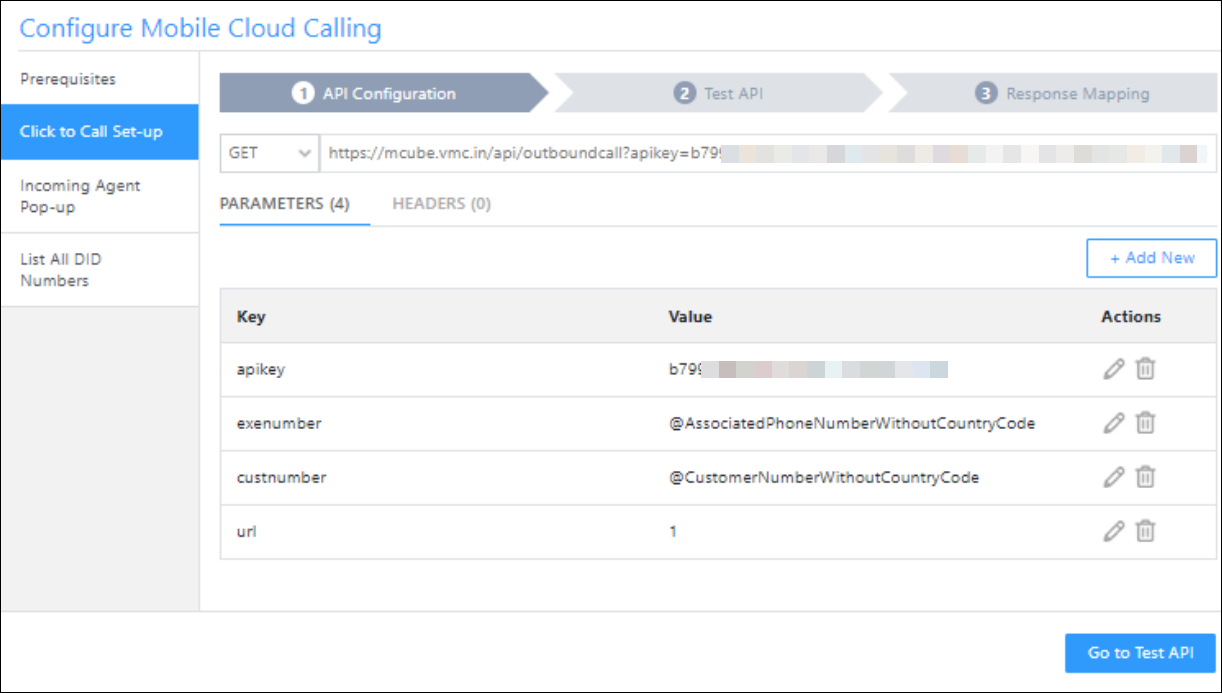
Yes, Click 2 Call supports mail merge for standard user and lead field parameters. For more information, read, Click 2 Call Mail Merge Fields. 

c2c param

3. Why does Click 2 Call show an error?

  • Check Telephony Logs: Review the Telephony Logs for details. 
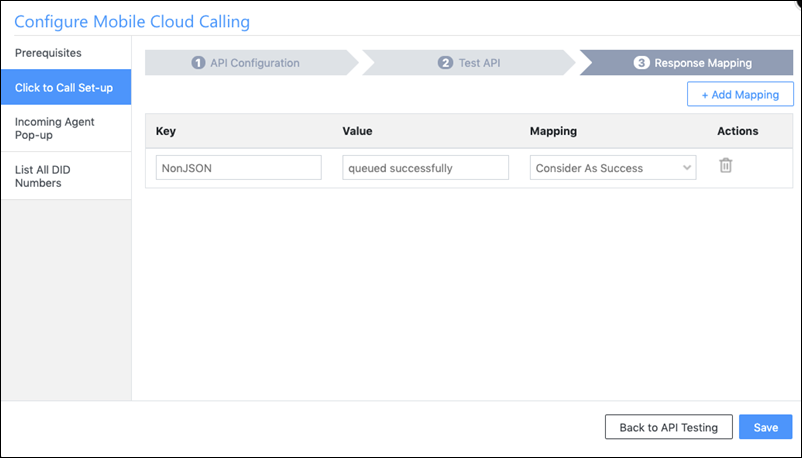
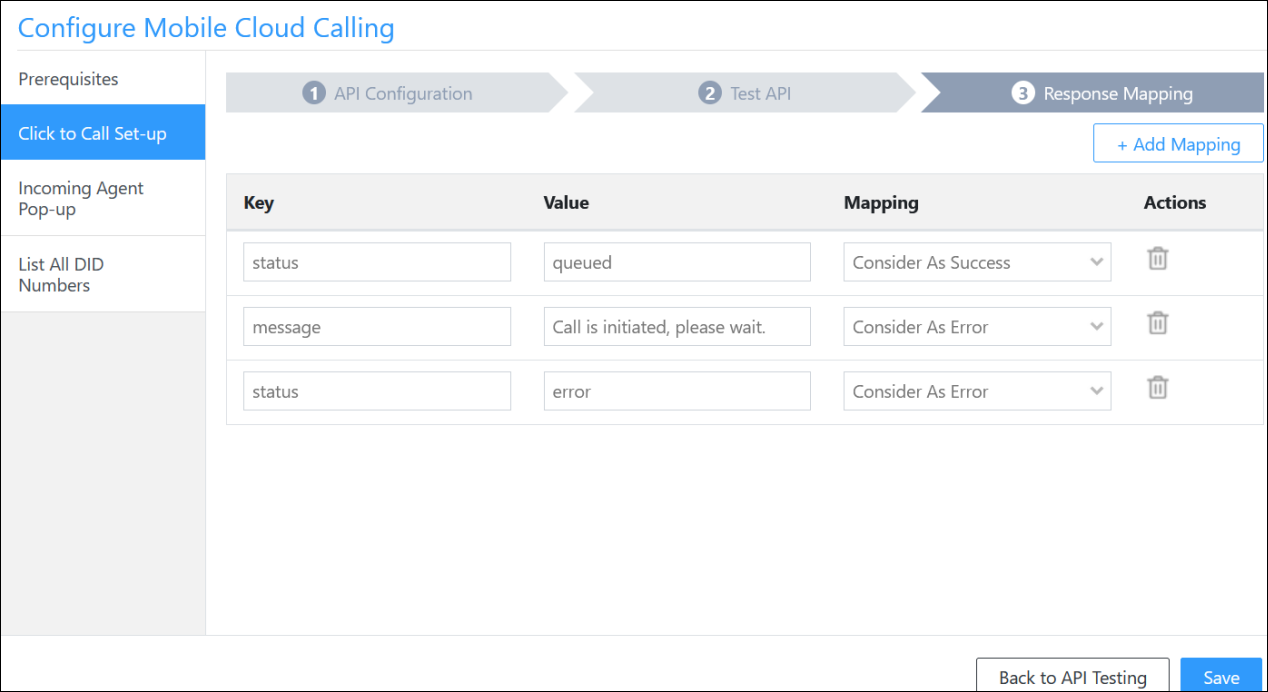
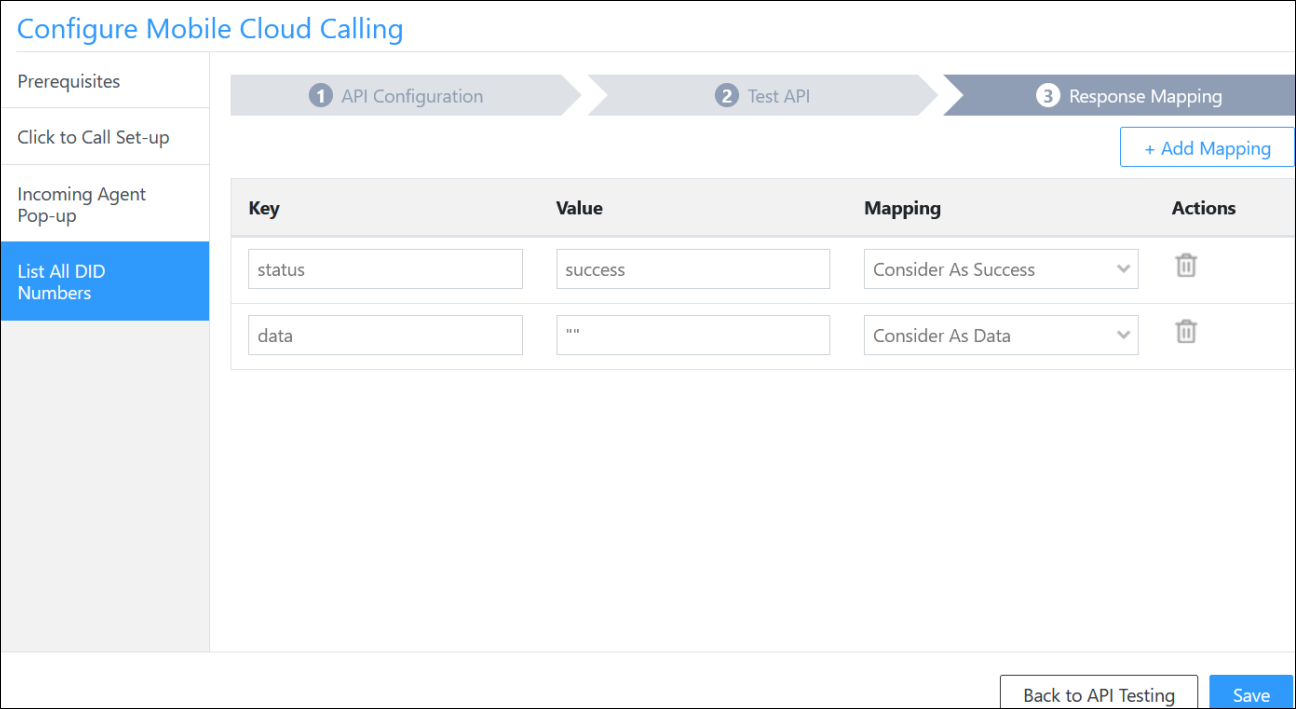
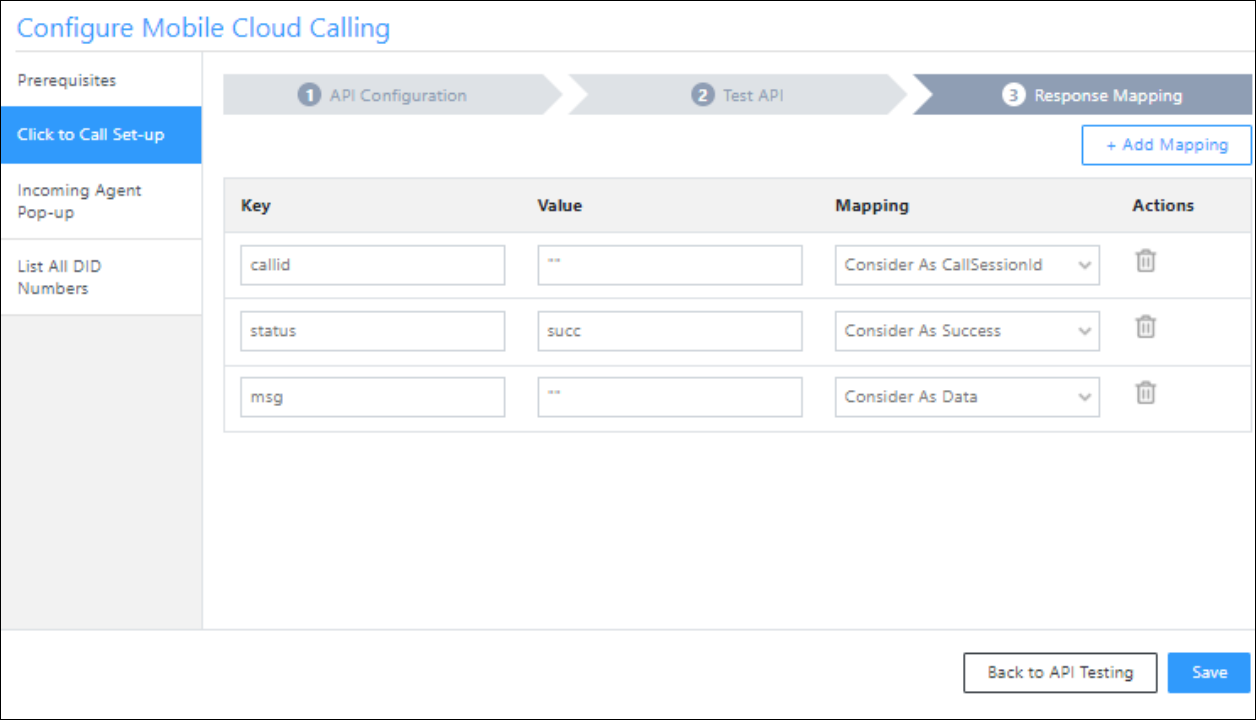
  • Verify Provider Response: The Click2Call APIs are managed by your telephony provider. Ensure that the response message from the provider matches the expected configuration keyword. 

4. Why am I seeing “Failed to initiate call” or “Call not connected” errors? 

Here are some things to check: 

  • Permissions: Verify that you have the required permissions set up with your telephony provider. 
  • Login Status: Ensure you are logged into the telephony provider’s portal. 
  • Agent Phone Number: Confirm that your agent phone number is correctly added and configured. 
  • Availability Status: Check that your status is set to “Available” in the telephony provider portal. 
  • Mapping Accuracy: Ensure that the phone number and email are correctly mapped in the telephony provider’s system. 
  • API Issues: Investigate potential issues with the telephony provider’s API that might affect call initiation. 
  • Duplicate Calls: Avoid making multiple calls to the same lead, as this can cause errors. 
  • DND Status: Verify that the lead is not marked as Do Not Disturb (DND). 
  • Number Restrictions: Note that calls to Alaska numbers may be blocked by CTM. 
  • Virtual Number: Ensure the virtual number is correctly mapped in the connector, functioning as expected, and has not expired. If the number has expired or is not working as expected, contact your telephony provider for further assistance.

5. Why does the Click 2 Call feature show a blank screen?

If you are using UTC, check if the instance for which Click 2 Call is configured has been set as the default instance.

c2c mark instance default

6. Why is Click 2 Call not picking up the old virtual number and not the updated one?

After updating and saving the virtual number, save the Click 2 Call configuration. You might also need to log out and log back in.

7. Is it possible for Click 2 Call to support both Indian and international numbers in the same account?

Yes, contact support@leadsquared.com to enable formatter logic. Click 2 Call will then use the format +CC-PhoneNumber for calling.

8. Can I filter virtual numbers? 

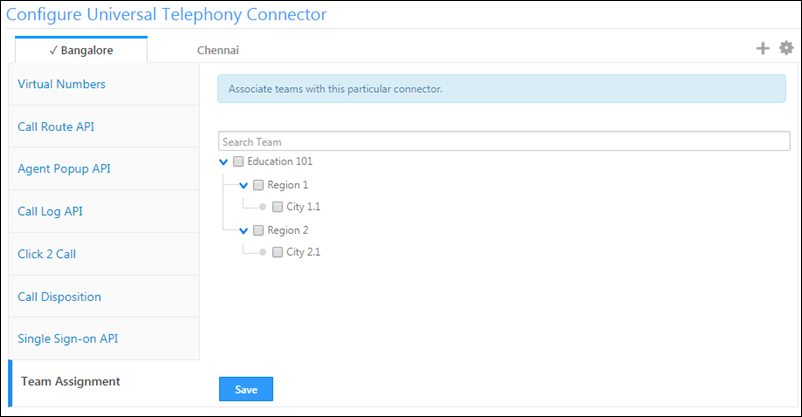
Yes, it can be done through Team Assignment.

utc assignment


8. Call Disposition

1. Why is the agent email address not being mail merged?

It is not supported by default. To enable it, contact support@leadsquared.com.


9. Call Route

1. Can the Call Route API return additional details of the agent and not just the phone number?

Yes, pass agentInfo=true in the Lead Route V2 API. This will return additional details of the agent.

2. Why is the sticky agent feature not working as expected? 

The sticky agent issue may arise due to several factors related to the provider’s workflow. Below are some potential reasons: 

  • The provider’s workflow is not handling empty responses properly. 
  • The originally assigned agent was busy, so the call was redirected to another agent according to the workflow. 
  • An incorrect phone number (8-digit) was sent by the provider, causing the routing to fail. 
  • The provider is routing calls to the wrong agent. 

We recommend reviewing the provider’s workflow and ensuring the correct parameters are being sent and handled


10. Ozonetel Telephony Connector

Note: Since Ozonetel now only supports their CCAAS offering, this connector is no longer supported. We recommend integrating CCAAS via UTC Generic. 

1. Is bulk add-to-campaign action supported (for over 200 numbers)?

Yes, this is supported.

2. I need to support opportunities. How do I proceed?

  • By passing OpportunityMappingId in the UUI parameter. Prefix OM$ before the value.
  • By passing OpportunityId in the UUI parameter. Prefix O$ before the value

Refer to Opportunity Integrations in Telephony for details.

3.  How do I pass lead ID?

Pass the lead ID in the UUI parameter. Prefix L$ before the value.

4. I want to add custom mail merge parameters to my Click 2 Call request. Is it possible?

This can be done through the backend, please contact support@leadsquared.com. Please note that any change made via the backend would be lost if the configuration is saved in the connector UI.
5. I want the agents to see only the virtual numbers (campaigns) assigned to them when making calls. Is this possible?

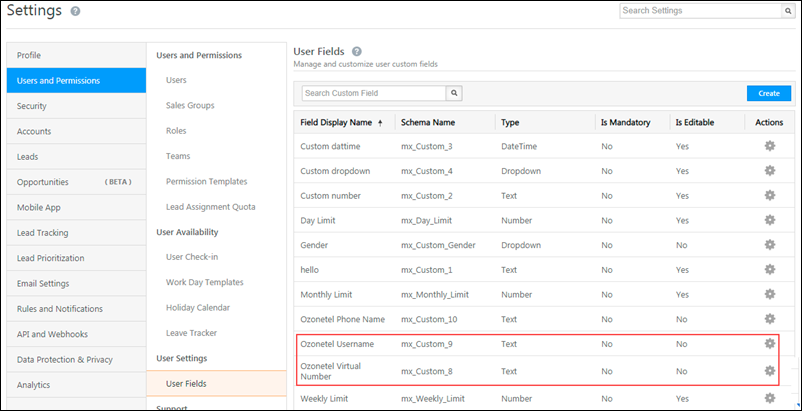
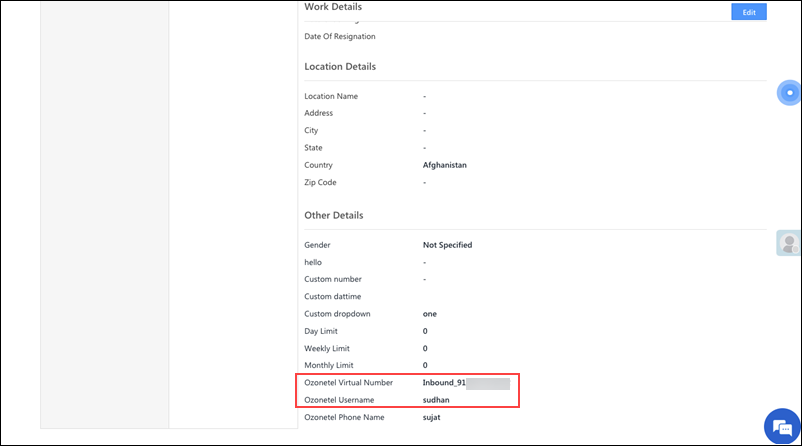
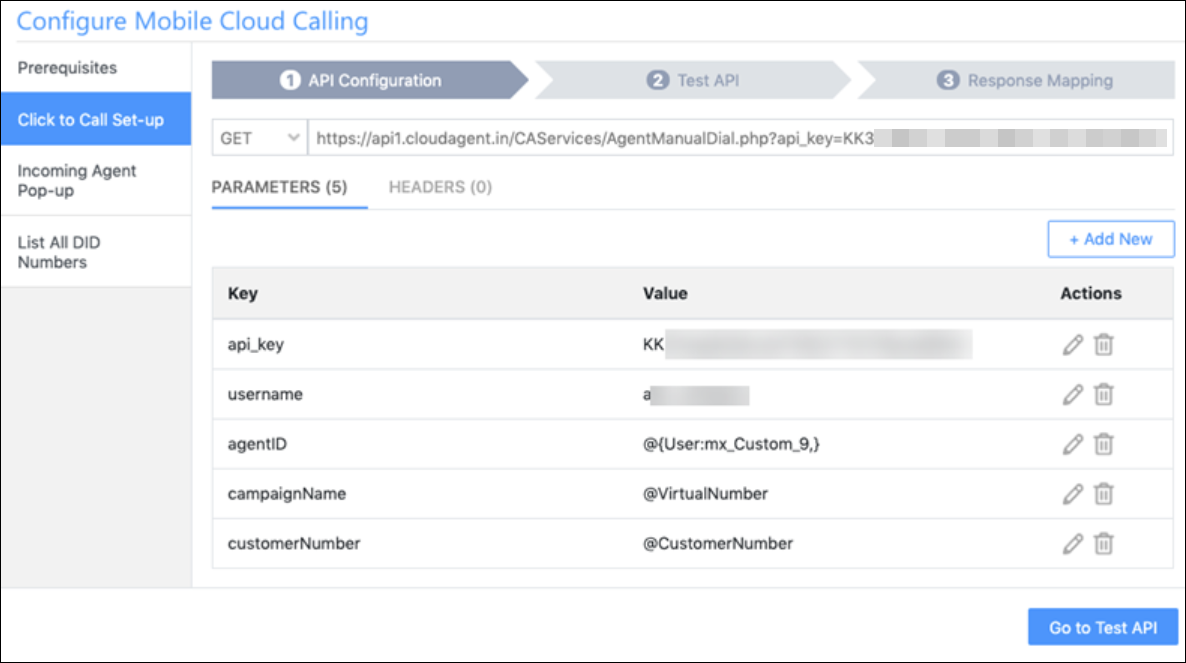
Yes, the campaign needs to be saved in one of the user custom fields. The connector Click 2 Call setting then needs to be updated to enable the filtering of virtual numbers by this field.

6. Ozonetel says that an older call disposition API is no longer supported after Aug 2021. Will the customer be affected?

We support the latest version of the Call Disposition API.

7. Why did my automation card for “Send to campaign” fail?

Please check the response from Ozonetel, this should mostly be an error from their API.

8. Why is the call log being posted multiple times?

Please check if Ozonetel is pushing this more than once. There is also a backend flag to restrict multiple requests with the same UCID, please contact support@leadsquared.com.

9. I have multiple automation cards pushing the lead to the same campaign. How do I ensure that there are no duplicates?

  • Make sure that the “Check Duplicate” flag in the connector configuration is on.
  • If this has been enabled recently, the changes may not have been reflected because of caching issues. Please log out and log in.

10. Why did the lead owner get changed automatically after an inbound call?

Check the telephony logs. There have been instances where Ozonetel has passed some data in the call log with a lot of arrows to indicate call transfers. You will need to get in touch with Ozonetel.


11. Exotel Telephony Connector

Note: We recommend integrating Exotel via UTC Generic.

1. Why don’t I see call logs in LeadSquared even though Exotel has posted them from their end? 

Exotel has a client-side timeout limit for API requests. Many of their requests time out even before reaching our load balancer. We have discussed this with them and they have increased this limit on their end.

2. Is there an async version of the call log API available?

Yes, the Exotel call log API supports this. To use the async version, the Enable Async APIs for Telephony (Capras) setting needs to be enabled in the Telephony General Settings. For more details, see Post a Call Log Async API.

3. Can I use international numbers in the CallerId (Virtual number) field?

Yes, Allow International formats for Exotel Virtual Numbers is an opt-in feature in the Telephony General Settings.

4. Why is the agent popup failing with this message “Agent Popup Not broadcasted”?

Check the call status. For the Agent Popup to work, the call status should be busy.


Any Questions?

Did you find this article helpful? Please let us know any feedback you may have in the comments section below. We’d love to hear from you and help you out!
Writing Expressions using SIERA Expression Builder

1. Feature Overview

This article helps you understand the process behind writing Expression through the SIERA Expression Builder. Admins can create custom expressions that can be used to easily retrieve and manipulate data on any report.

Note: This article will only explain the expression-building process. To find a list of expressions you can use, read this article – SIERA Expression Builder.


2. Prerequisites

SIERA is a paid feature. To enable it for your account, contact your account manager or support@leadsquared.com.


3. Filter Hierarchy in SIERA

Before you start writing expressions in SIERA, it is important to understand how filters work in SIERA and their hierarchy.

SIERA supports filters at the data level. Sometimes, you might expect SIERA to execute filters in one order, but the order of operations dictates that they be executed in a different order – which gives you unexpected results.

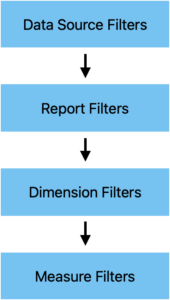
SIERA follows the current filter hierarchy from top to bottom –


SIERA filter hierarchy


4. Example Use Case

We’ll use a couple of use cases to showcase the process –

4.1 Example 1

Build a report that gives total leads and conversions from all Sources in the last month.

Data Source – We’ll use the Lead Data Source to build our report. The Lead Data Source has all the lead information but you can’t filter the Data Source here.

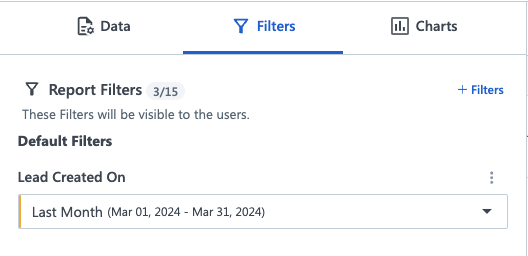
Report Filter – We’ll need to filter for last month’s leads. We can use the filter of Created On (this field stores the lead created date) and set the value to Last Month. This is our 2nd level of filter and will be applied first (as there is no Data Source filter). Using this filter will bring only leads created in the last month in the query and a lead not matching the criteria will be ignored in the report.

SIERA Report Filter

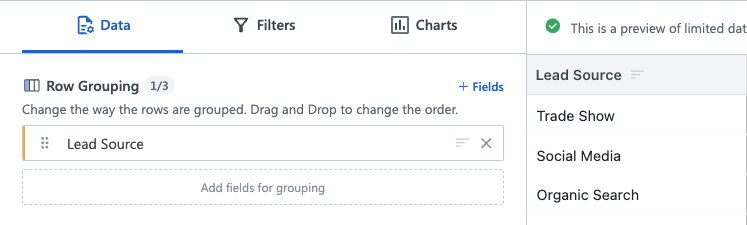
Setting Dimensions – Now add Lead Source as a Row Grouping. This step adds each Lead Source as a row. This is our 3rd level of filter. This filter will be applied after the Data Source Filter and Report Filter. And, will be applied in each row. For instance, in the below screenshot, the first row is ‘Trade Show’. Any measure added will be filtered for ‘Trade Show’ in the corresponding row.

SIERA Setting Dimensions

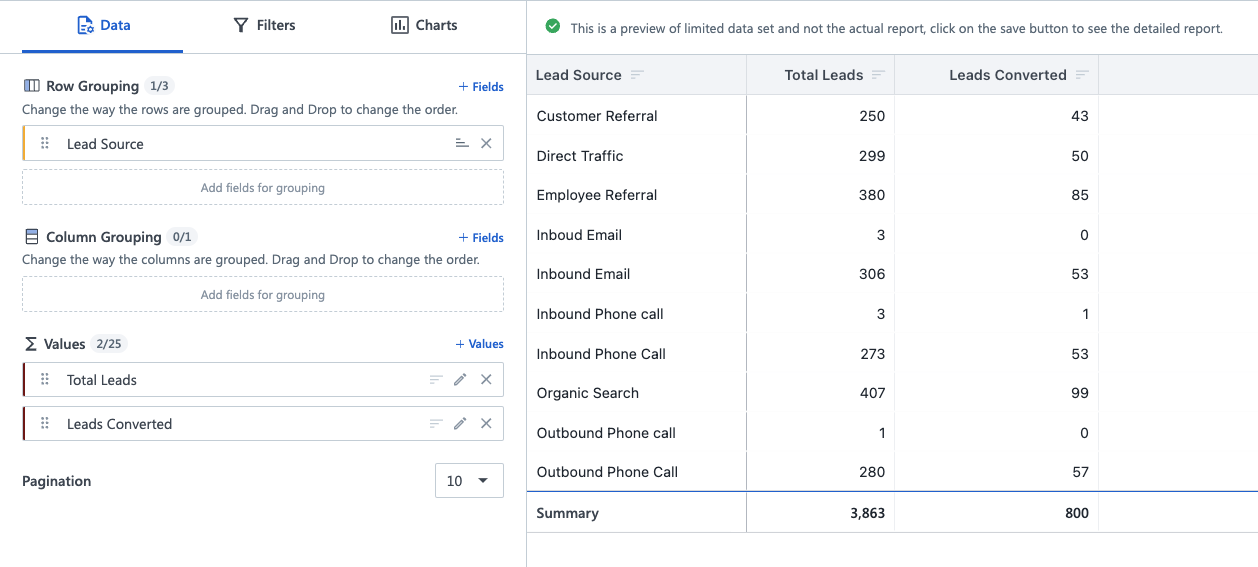
Adding Measures – Now, in the values section let’s add our measures. We will add the following measures –

  1. Total Leads – CountDistinct(`Lead.ProspectID`)
  2. Leads Converted – CountDistinctIf(`Lead.ProspectID`, `Lead.ProspectStage` in ['Paid', 'Customer'])

The first expression has a count function and no condition (this means no filter in this expression). While the second expression has a condition of Lead.ProspectStagein ['Paid', 'Customer'](this has a filter of Lead Stage either Paid or Customer).

All of the filters applied in the data source are in the order of –

  1. Data Source Filter – No filters (all lead data)
  2. Report Filter – Leads created in the last month
  3. Dimension Filter – Each row is filtered by a Lead Source
  4. Measure Filter – The first measure has no filter while the second measure has a filter of the lead stage. This is applied at the end of each row.


4.2 Example 2

Let’s consider the above example, but focus on leads from India.

Let’s say this data is stored in a lead field mx_Country – to get the report we need to apply this filter. This can be applied as a Report Filter, Dimension Filter, or Measure Filter (currently custom data sources cannot be created, hence we cannot add a filter at the Data Source level).


5. Writing an Expression

Now that we understand the order of operation of filters, we can begin to create expressions.

Expressions in SIERA are of 3 types –

  • Aggregated ExpressionsAn aggregate expression uses an aggregate function to summarize a selected metric. These include expressions like Count, CountDistinct, Sum, Min, Max, and Avg.
    • For example, if we want to get a count of leads, we can use the expression Count(<field name>)
  • Conditional ExpressionsConditional expressions use aggregate functions along with conditions.
    • For example, if you want to Count leads only if they are from Google and Facebook, using an expression of Count() will not work. In this case, we can use CountIf(<condition>).
  • Calculated ValuesCalculated Values are a combination of 2 or more expressions (aggregated or conditional) on arithmetic functions like +, , *, or /.
    • For example, if we want the percentage of leads from Google and Facebook over total leads, we can use (Countif(<condition>)/Count(<field name>))*100. Calculated Values do not support drill-down in the reports or dashboards. 

For more details on the aggregated functions supported and their syntax, you can read the Expression Builder – functions and syntax page.


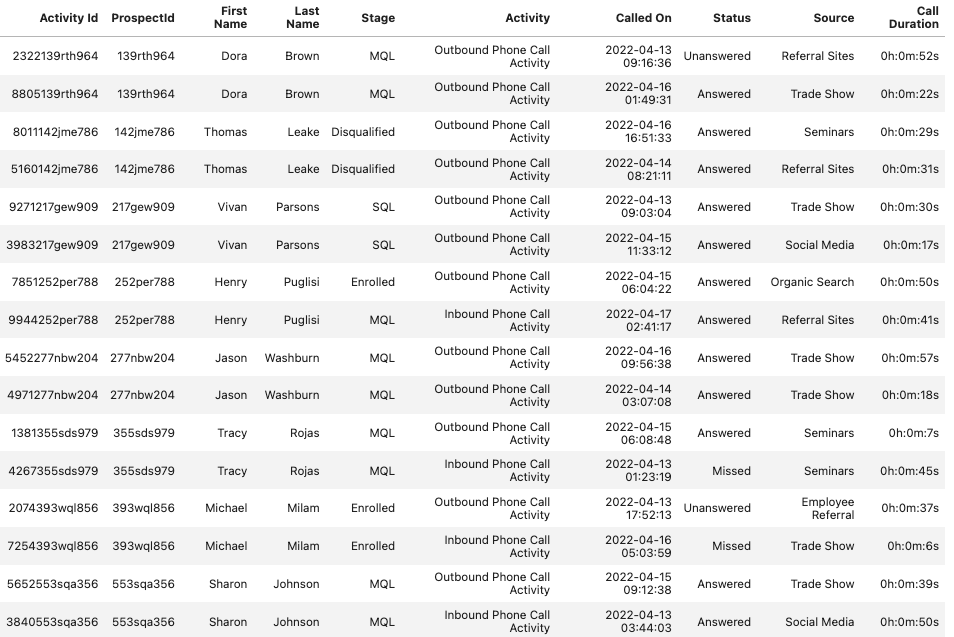
Consider this table as an example –

siera count vs countdistinct

The table has data on Phone calls on leads. Phone calls can be of 2 types – Outbound and Inbound, and multiple calls can be done on a lead. Since each row represents one call, the values in the Activity Id column are unique – while ProspectId can be repeated (as multiple activities can be done on a lead).

Now, if we have to count the total calls made, we can use either of the following expressions –

Count(`ActivityId`) or CountDistinct(`ActivityId`)

If we want to count unique leads where the calls have been made, we will have to use Count Distinct

CountDistinct(`Prospect Id`)

Note: Count calculates rows, while CountDistinct removes duplicates first and then counts the rows. So while counting unique leads, CountDistinct will remove the 2 instances of Dora Brown and count it as 1.


7. Counting Leads, Activities, Tasks and Opportunities in SIERA

  • To count leads:
    • Display name – Prospect Id
    • Data source name – Leads
    • Example – Count(`Leads.Prospect Id`)
  • To count tasks:
    • Display name – TaskId
    • Data source name – All Tasks
    • Example – Count(`All Tasks.TaskId`)
  • To count activities:
    • Display name – ActivityId
    • Data source name – All Activities
    • Example – Count(`All Activities.ActivityId`)
  • To count opportunities:
    • Display name – Opportunity Id
    • Data source name – All Opportunities
    • Example – Count(`All Opportunities.Opportunity Id`)


8. Metafields in SIERA

Some special fields, like metafields, need special handling – especially when writing expressions. Fields like Activity Name, Opportunity Name, User Name, and Task Type are examples of metafields.

Here’s why metafields are different –

Take an example of a field like City. Let’s say we change a dropdown option from Madras to Chennai. Changing the name will not change the field value for all the leads where City was set to Madras.

However, take Activity Type for instance. If we were to change the name of an activity from Meeting to Physical Meeting, this would change the activity name in all places where the activity was Meeting to Physical Meeting.

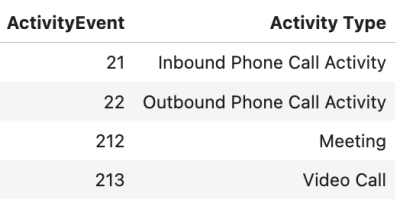
This happens because in the database, the value of Activity Type against each lead is not the display name, but a different field –

meta fields in siera 1

meta fields in siera

In the above example, the activity table has a field – ActivityEvent which is mapped to the display name of the Activity in a separate table. This is an example of a metafield. This is why changing the display name of the activity changes the values across the system, however, changing the value of a field like Lead Stage will not.

In the system data sources provided in SIERA, the meta fields have been handled in fields and groupings. This means, that if we search for Activity Type in an activity data source, we will find the fields.

meta fields in siera activity type

However, the metafields work differently in Expression Builder. Expression Builder works on the core database which doesn’t contain metafields display names.

Let’s say we want to write an expression that counts activities when the Activity is Auction and Interview Scheduled. As there is no field called Activity Type in the core database, we can’t use the condition of ActivityType. Instead, we need to use the condition through their metafields.

Field Name Metafield Schema Name Display Name Entity
Activity Type ActivityEvent ActivityEvent Activity
Opportunity Type ActivityEvent ActivityEvent Opportunity
Task Type TaskType TaskType Task

From the table above, we now know the metafield for Activity Type is ActivityEvent. So the expression will be –

CountDistinctIf(`Activity.ActivityId`, `Activity.ActivityEvent` in [202, 103])

We are equating ActivityEvent with 202 and 103. To get the values corresponding to each Activity Type, navigate to Settings>Lead>Custom Activities & Scores and look for the column Code against the Activity Type.

siera expressions custom scores and activities 1

Note: To get the ActivityEvents for core activities, please reach out to siera.support@leadsquared.com

Similarly for Opportunity Type, you can go to Settings>Opportunities>Opportunity Types and use the column Code for writing expressions.

siera expressions custom scores and activities 2


9. User Fields in SIERA

The base tables in SIERA store the user IDs. User IDs are also meta fields and similar to the above, we will have to use their meta fields while writing expressions. There are multiple user fields for an entity, for example, in the Activity Data Source you will have –

  • Lead Owner
  • Lead Created By
  • Activity Owner
  • Activity Created By
  • Opportunity Owner
  • Opportunity Created By
  • Task Owner

To write expressions with user IDs, you can use the following mapping –

Field Name Metafield Schema Name Display Name Entity
Lead Owner OwnerId Owner Lead
Opportunity Owner Owner Owner Opportunity
Activity Owner OwnerId Owner Activity
Task Owner OwnerId Owner Task
Lead Created By CreatedBy Created By Id Lead
Opportunity Created By CreatedBy CreatedBy Opportunity
Activity Created By CreatedBy CreatedBy Activity

To get the values for the user IDs, export the user data from Manage Users, and refer to the column User Id.


Any Questions?

Did you find this article helpful? Please let us know any feedback you may have in the comments section below. We’d love to hear from you and help you out!
Integrate Property Finder WhatsApp With LeadSquared

1. Feature Overview

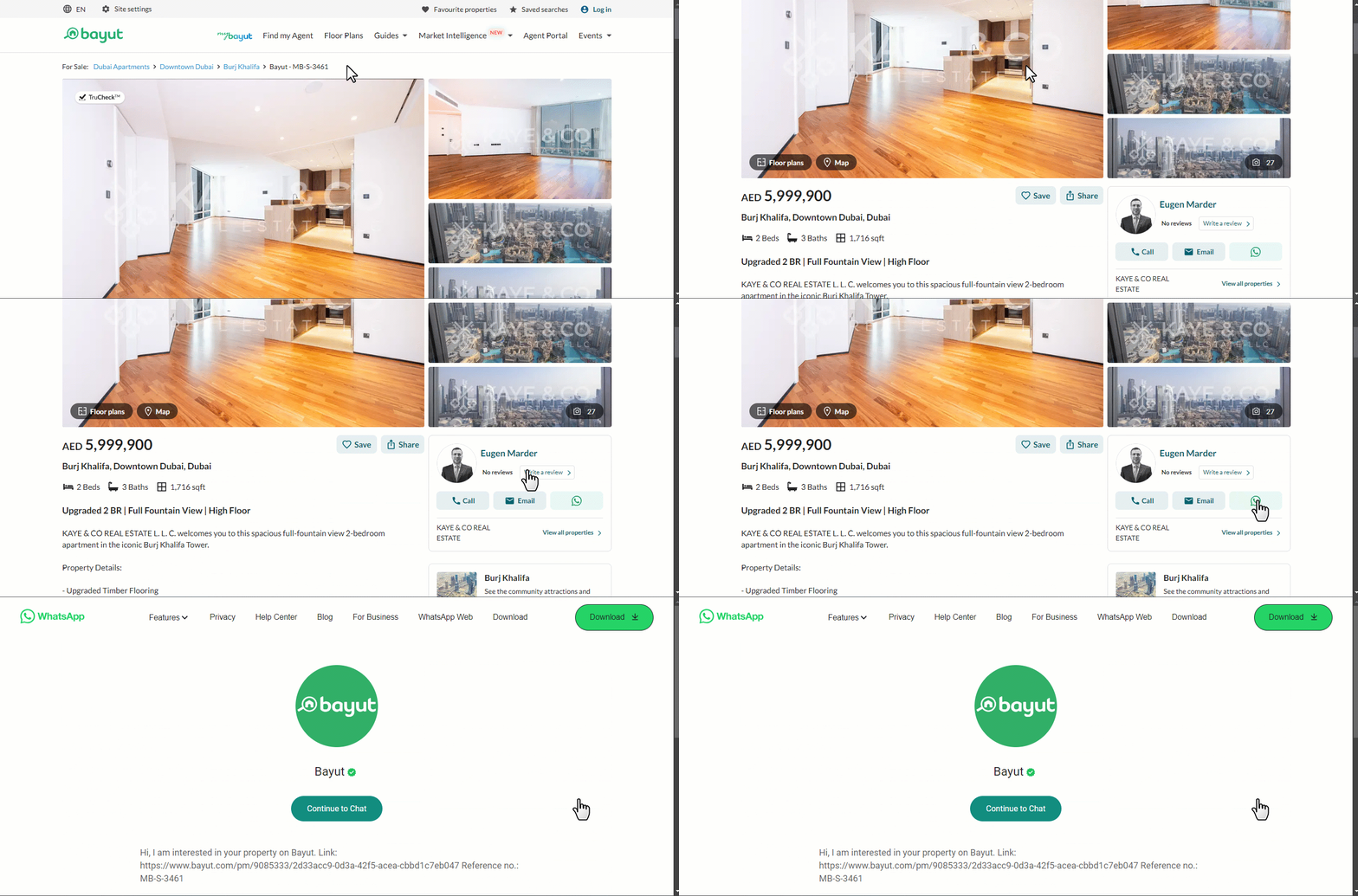
When a lead clicks the WhatsApp button on your Property Finder property listing page, their details are automatically captured, and a new lead is created in your LeadSquared account through this connector. The connector also generates a WhatsApp conversation link, enabling you to chat with the lead. Once the lead is created, leverage LeadSquared’s CRM features to work towards closing the deal.

UAE Property Listing Connectors LeadSquared WhatsApp


2. Prerequisites


3. How it Works

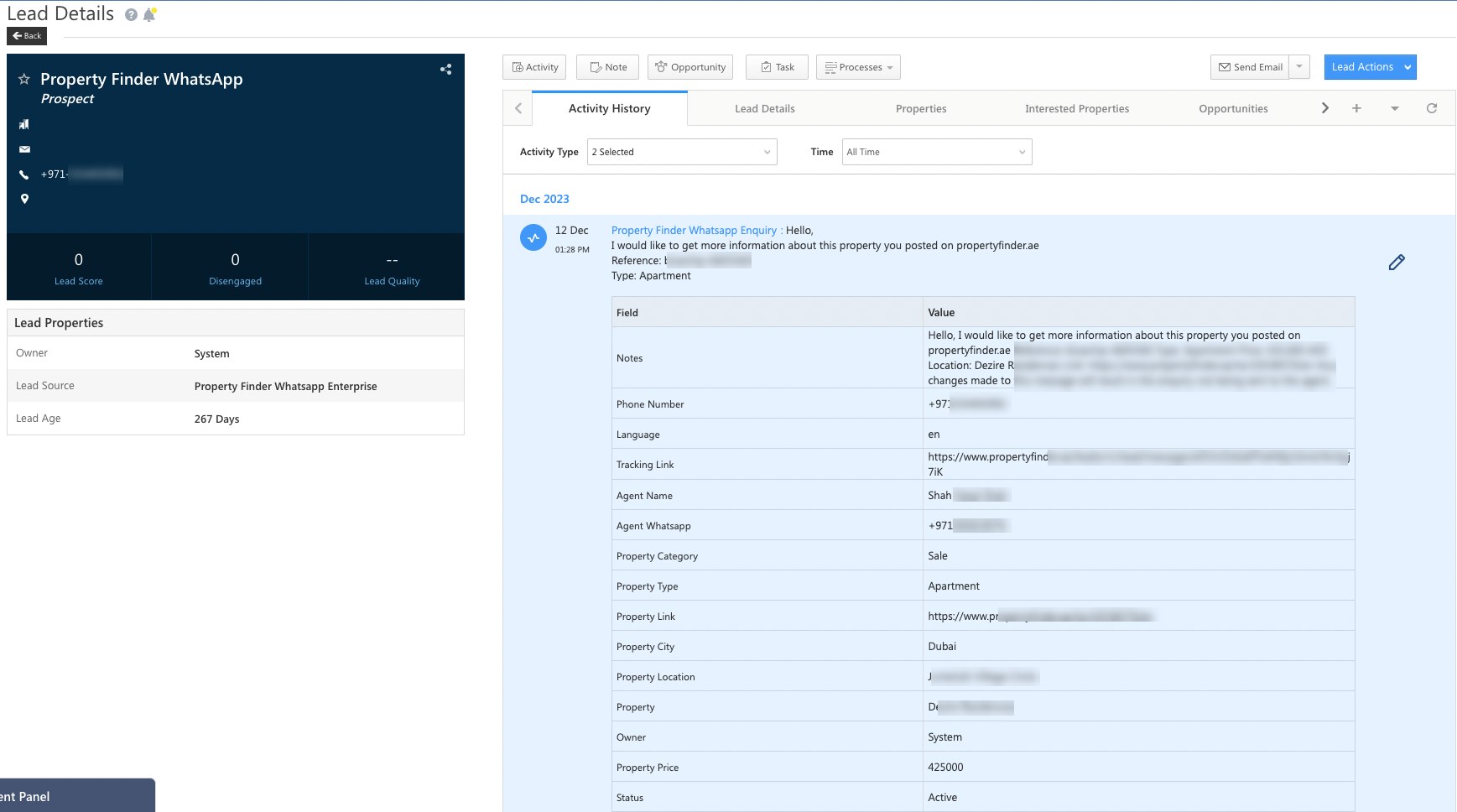
Through your Property Finder property listing page, leads can chat with your listing agents via WhatsApp. When a lead clicks this option, the connector pulls their details in real time to LeadSquared, and also creates a WhatsApp chat link. This link is posted under the Property Finder WhatsApp Enquiry activity on the Lead Details page. Your users can use this link to chat with the leads, ensuring that WhatsApp conversations are tracked and tagged correctly in LeadSquared.

  1. In LeadSquared, install the connector and select the users that can access it.
  2. Next, configure the connector. During this step, create the Property Finder WhatsApp Enquiry activity, and verify the field mapping.
  3. A webhook URL is generated. Contact your Property Finder (PF) account manager to integrate this URL into your PF account. Once integrated, lead details will sync between both accounts.
  4. Then, enable connector sync. This completes the setup. Every time a lead clicks the WhatsApp chat option, their lead details are captured in LeadSquared, and a WhatsApp chat link is generated.


4. Install the Connector

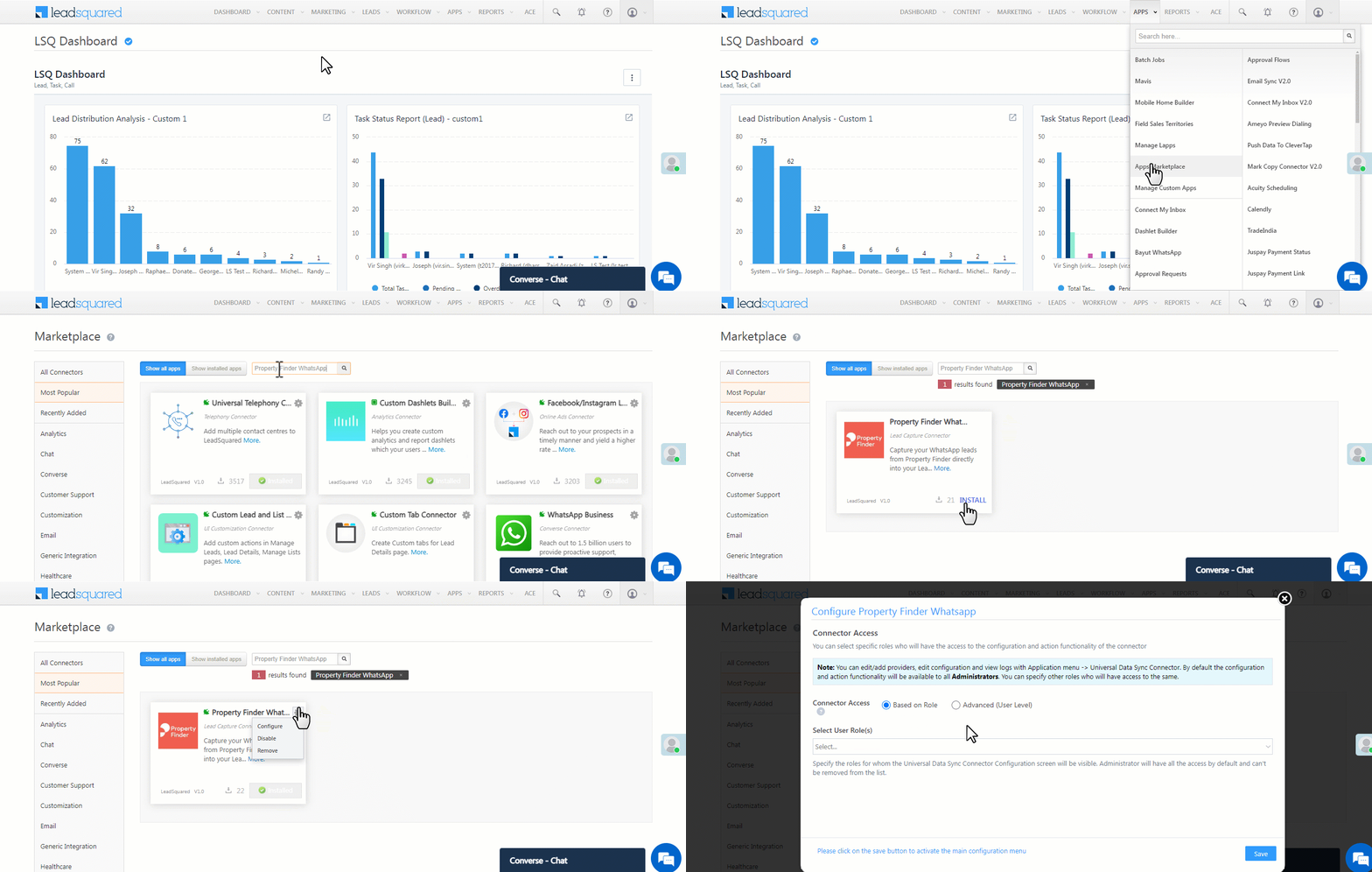
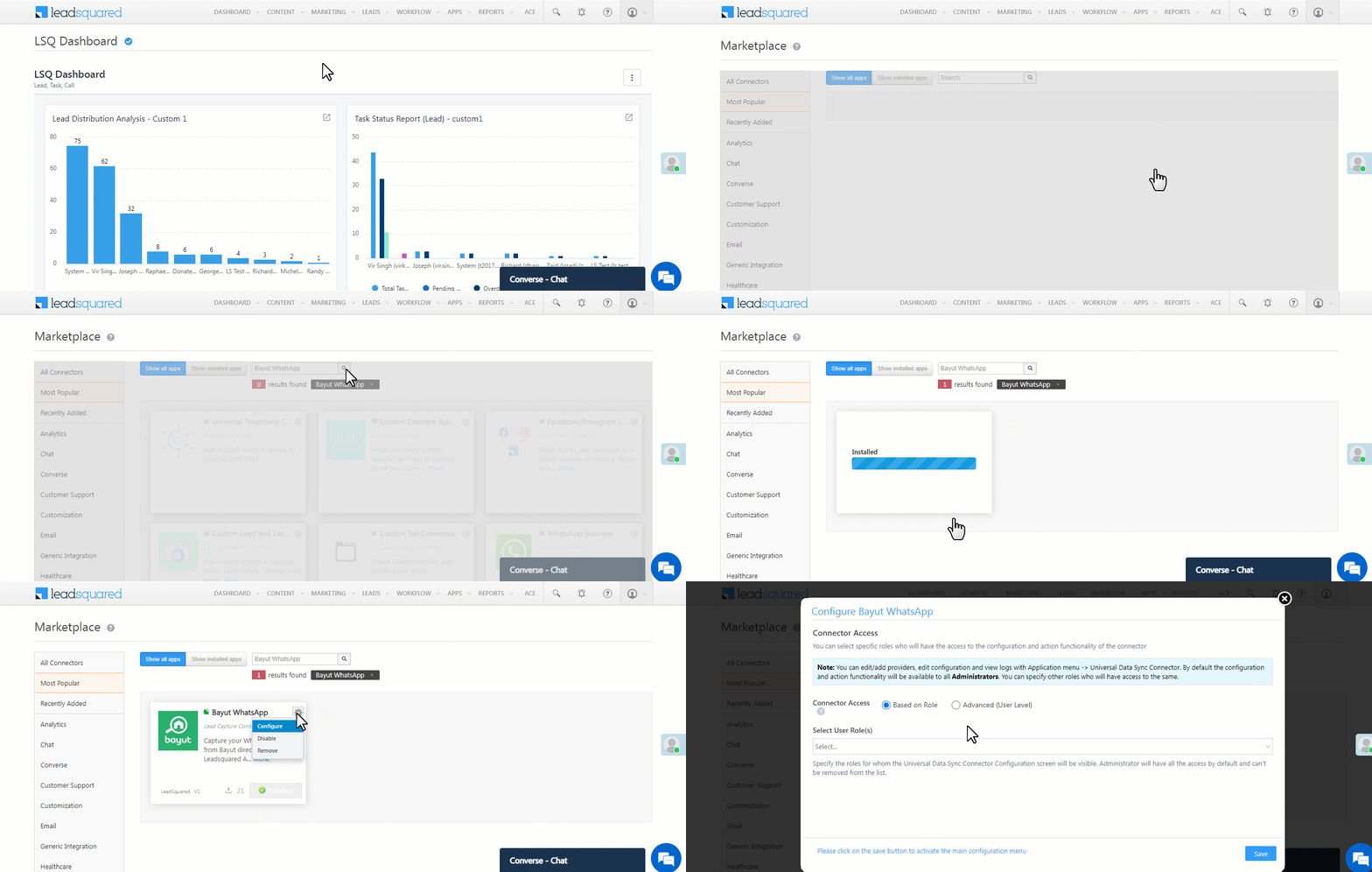
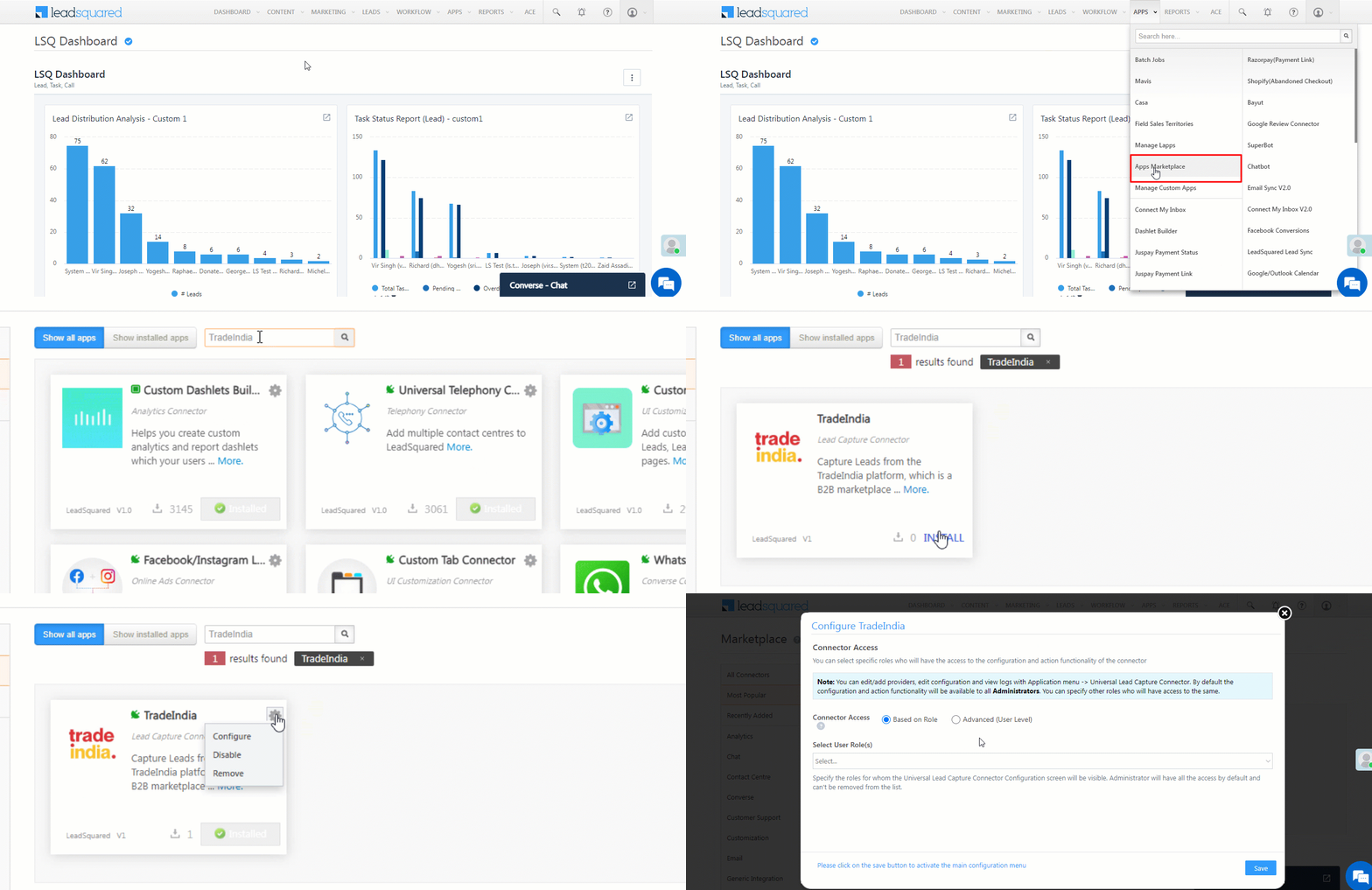
  1. Navigate to Apps>Apps Marketplace.
  2. Search for Property Finder WhatsApp, and click Install.
    • Alternatively, you can find the connector on the left panel, under Lead Capture.
  3. Once installed, hover your cursor over , and click Configure.

Property Finder WhatsApp LeadSquared integration


5. Configure the Connector

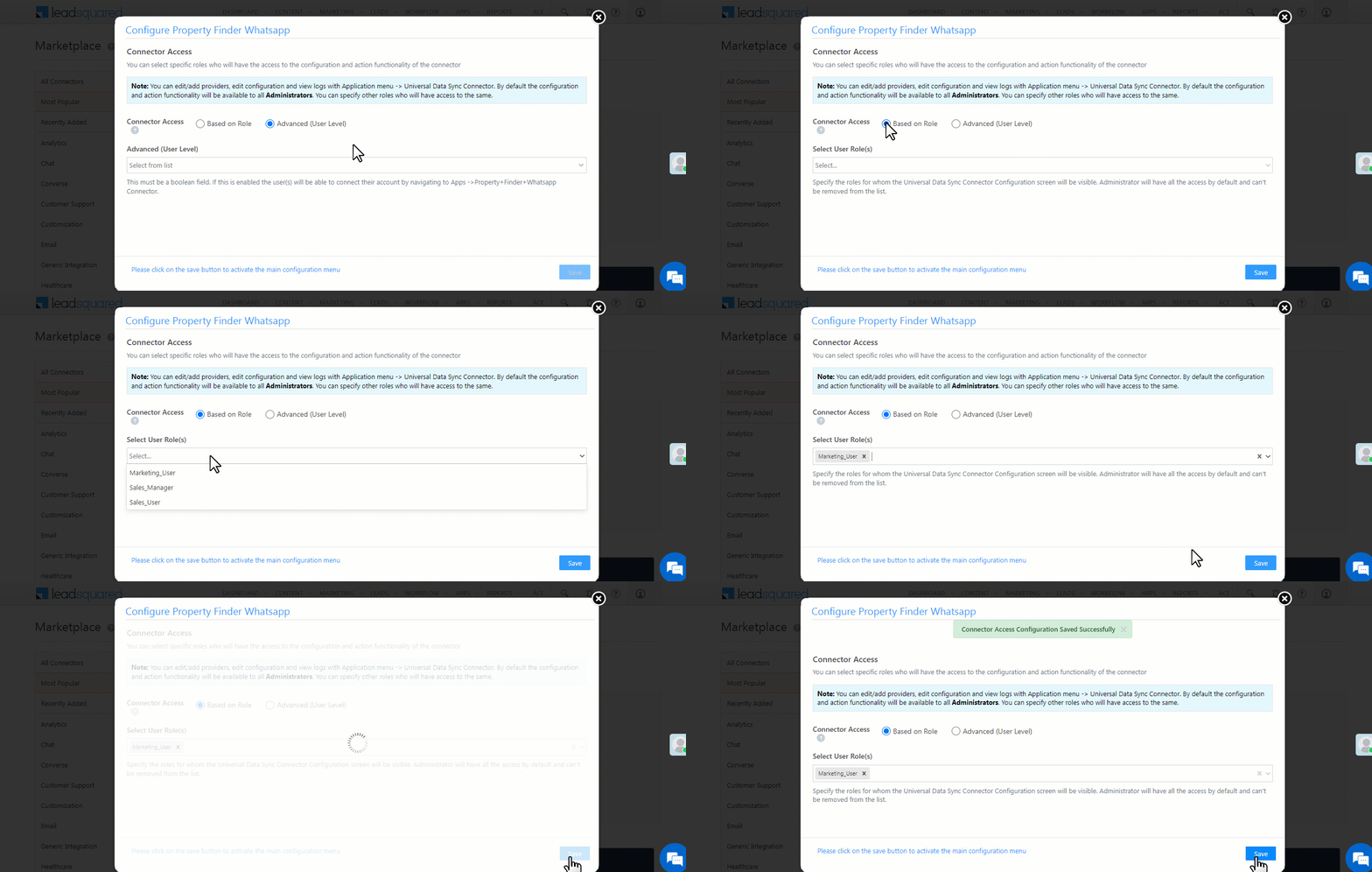
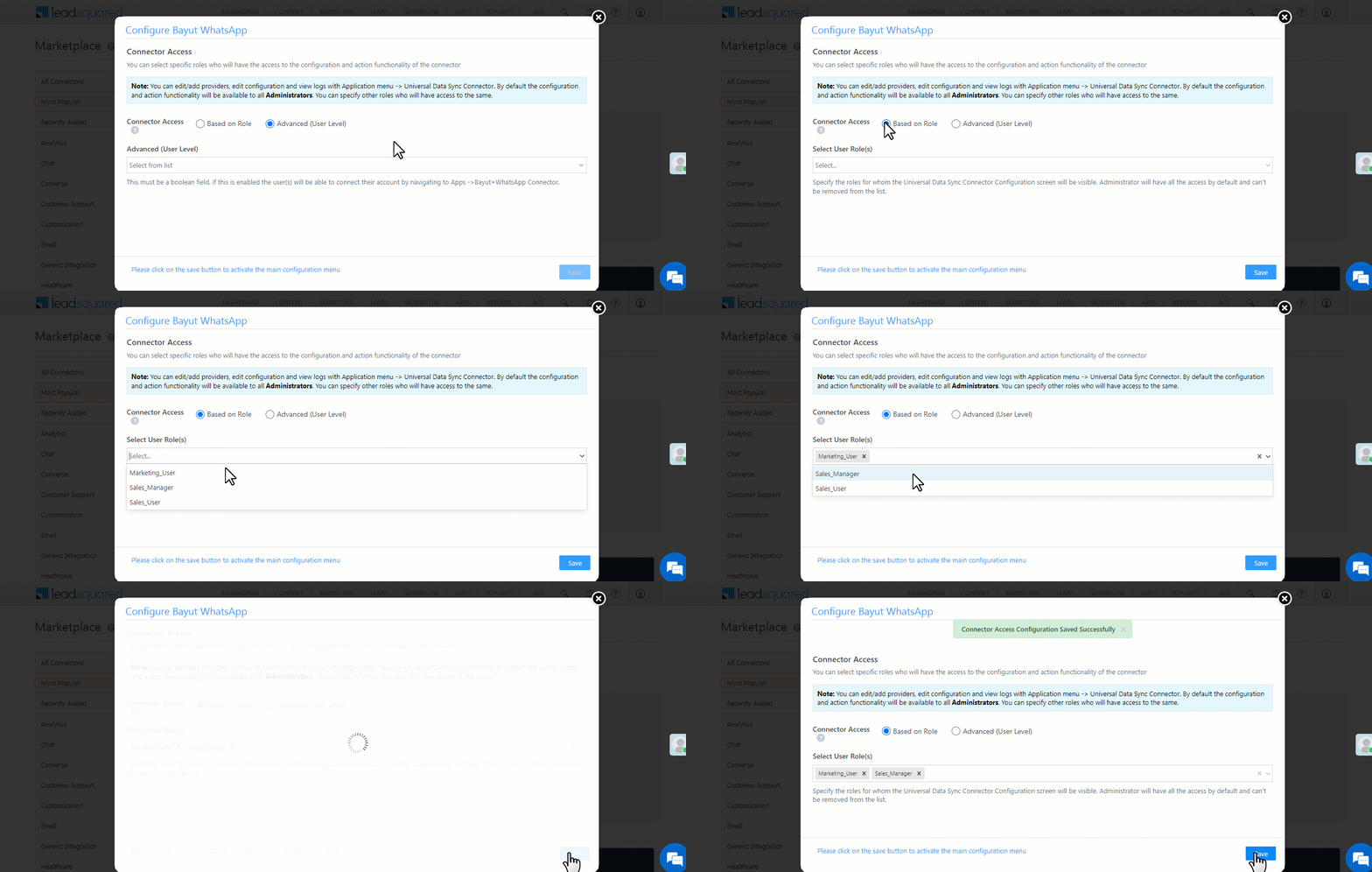
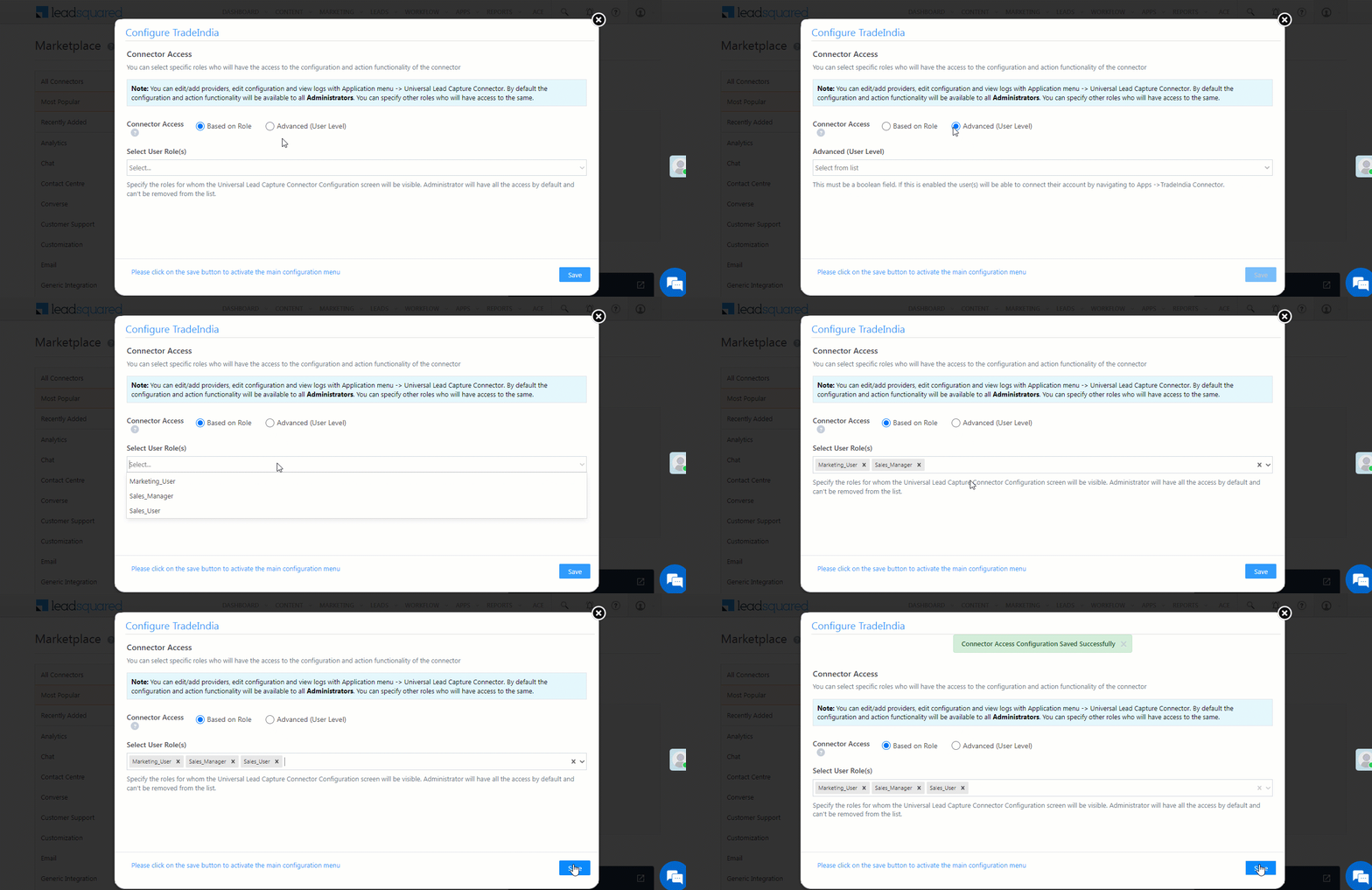
After installing the connector, configure access for non-admin users in your account on the Configure Property Finder WhatsApp pop-up if you want to give them access to configure it. Only users with granted access can view and use the connector under the Apps main menu.

  1. Select whether to grant connector access based on Role or at the Advanced (User Level).
    • Based on Role – From the Specify Roles dropdown, choose the LeadSquared user roles that can use the connector.
    • Advanced (User Level) – From the Advanced (User Level) dropdown, select a user boolean field. Access to the connector will be granted based on the value in this field (e.g., if the “Is Employee” boolean user field contains “Yes” for the user Sam, then Sam can access the connector).
  2. Once you’re done, click Save Details. Continue with the configuration by referring to the following sections.
Note: By default, all Admin users have access to the connector.

Property Finder WhatsApp LeadSquared integration


6. Admin Configuration

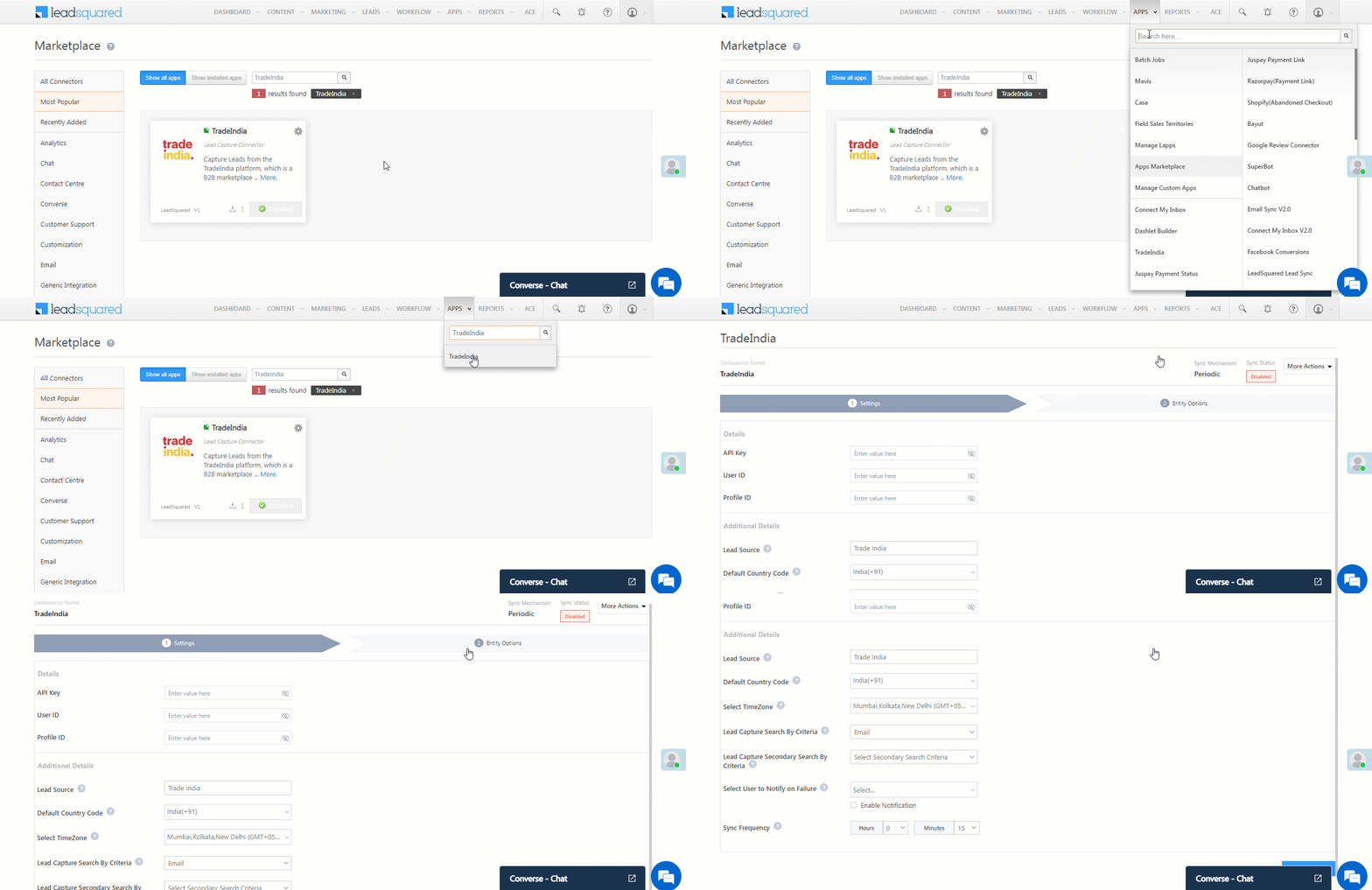
After installation, navigate to Apps>Property Finder Whatsapp to complete the connector set-up.

Bayut WhatsApp LeadSquared integration

6.1 Basic Details

Enter the following details –

Field Description
API Key Enter your Property Finder API Key here.
Lead Source Enter the lead source through which the leads were captured (e.g., Property Finder, email campaign, etc.). This detail will appear on the Lead Details page under Lead Source.
Default Country Code Select a default country code. If the lead’s mobile number is captured without a country code, the default country code is added to the lead’s mobile number.
Select Time Zone The time zone of your Property Finder account. This is set to Dubai by default.
Lead Capture Search By Criteria To avoid duplicate lead creation, select one unique lead field (e.g., mobile number/phone number) as the search key. Leads will be searched by the value mapped to this field. If a matching lead is found, it will be updated. Otherwise, a new lead will be created.

To know how to mark a LeadSquared lead field as unique, please refer to How to Make a Custom Field Unique.

Lead Capture Secondary Search By Criteria If lead identification and capture through the primary Search By criteria fails, the system will reattempt using the secondary Search By criteria.
Select User to Notify on Failure If there’s an error in fetching leads, the selected user will receive a failure message via email. Choose a user from the list of available users in your LeadSquared account.

To know more about the type of errors, please refer to Error Notifications.

Enable Notification Enable the Checkbox checkbox to ensure notification emails are sent to the selected user when there’s a failed query.

Once you’re done entering all the details, click Save.

6.2 Mapping

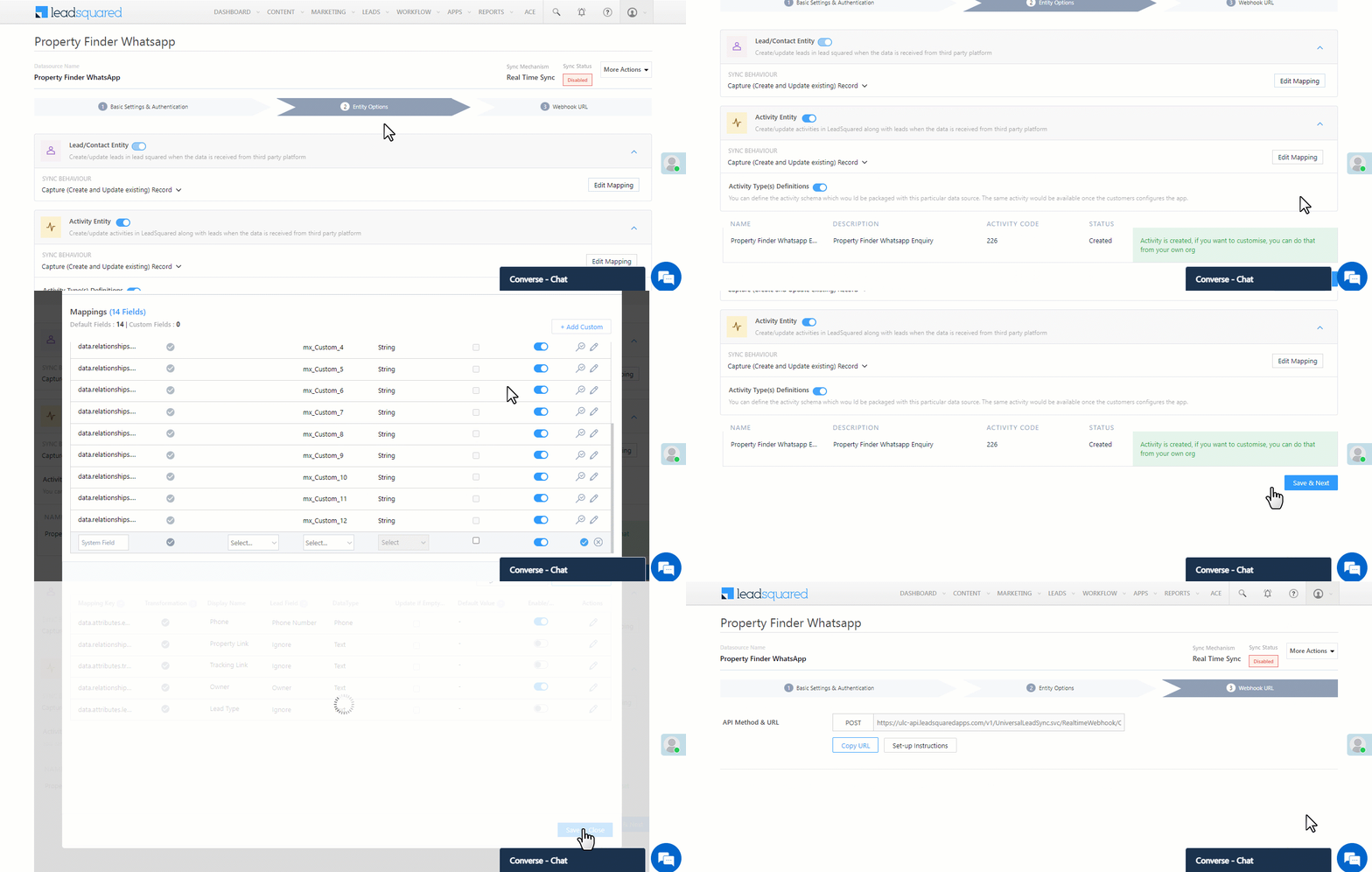
After completing the basic settings, click Entity Options. All Property Finder WhatsApp fields are mapped to the corresponding LeadSquared lead fields by default –

Note:

  • FIRST, complete the Property Finder WhatsApp Enquiry Create Activity step.
  • Then, click Edit Mapping under Activity Entity and Lead/Contact Entity. Verify the mapping, and click Save & Close.
  • Both steps are mandatory. If you don’t complete the steps in the order listed above, the connector won’t work.
  • The Lead/Contact Sync Behaviour and Activity Sync Behaviour are set to Capture (Create and Update existing) Record by default. It is recommended you DO NOT change this.
  1. Activity Type(s) Definitions – Alongside Property Finder WhatsApp Enquiry, click Create Activity.
  2. Edit Mapping – Next to each action (Activity Entity and Lead/Contact Entity), click both the Edit Mapping buttons to verify the field mapping is accurate. Once verified, you must click Save & Close. This is mandatory.
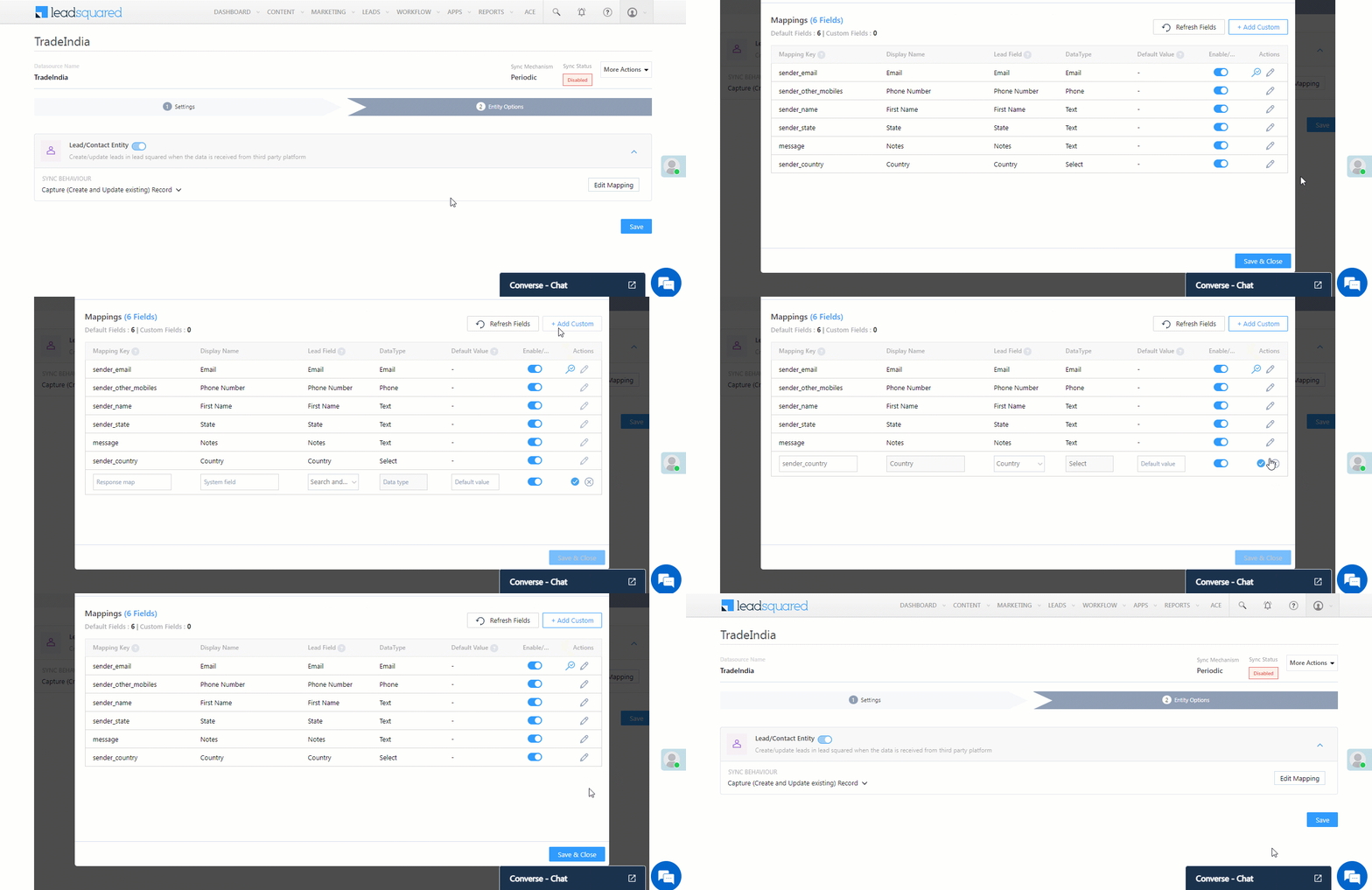
    • If required, on the Edit Mapping pop-up, you can edit the field mapping –
      • To edit the default mapping field name, click the edit button , and under Mapping Key, update the field name.
      • To change the LeadSquared lead field to which the Property Finder WhatsApp field is mapped, click the edit button , and from the Lead Field dropdown, select the new lead field.
      • To mark a unique lead field as the search key, click unique icon.
      • To disable an existing field mapping, alongside the field, disable the slider Zoom.
      • Click the Update if Empty checkbox if you don’t want to update the value of a field every time the sync takes place.
        • This helps prevent re-updating fields like first name, last name, etc.
    • To map an additional field, click the Add Custom button, and add the new mapping field details.
    • If you want to capture any additional responses as part of the activity that’s posted on the lead, alongside Activity Entity, click Edit Mapping, and add the response on the Default Mapping for Activity pop-up.
  3. Once you’re done, click Save & Next.

Property Finder WhatsApp LeadSquared integration

6.3 Webhook URL

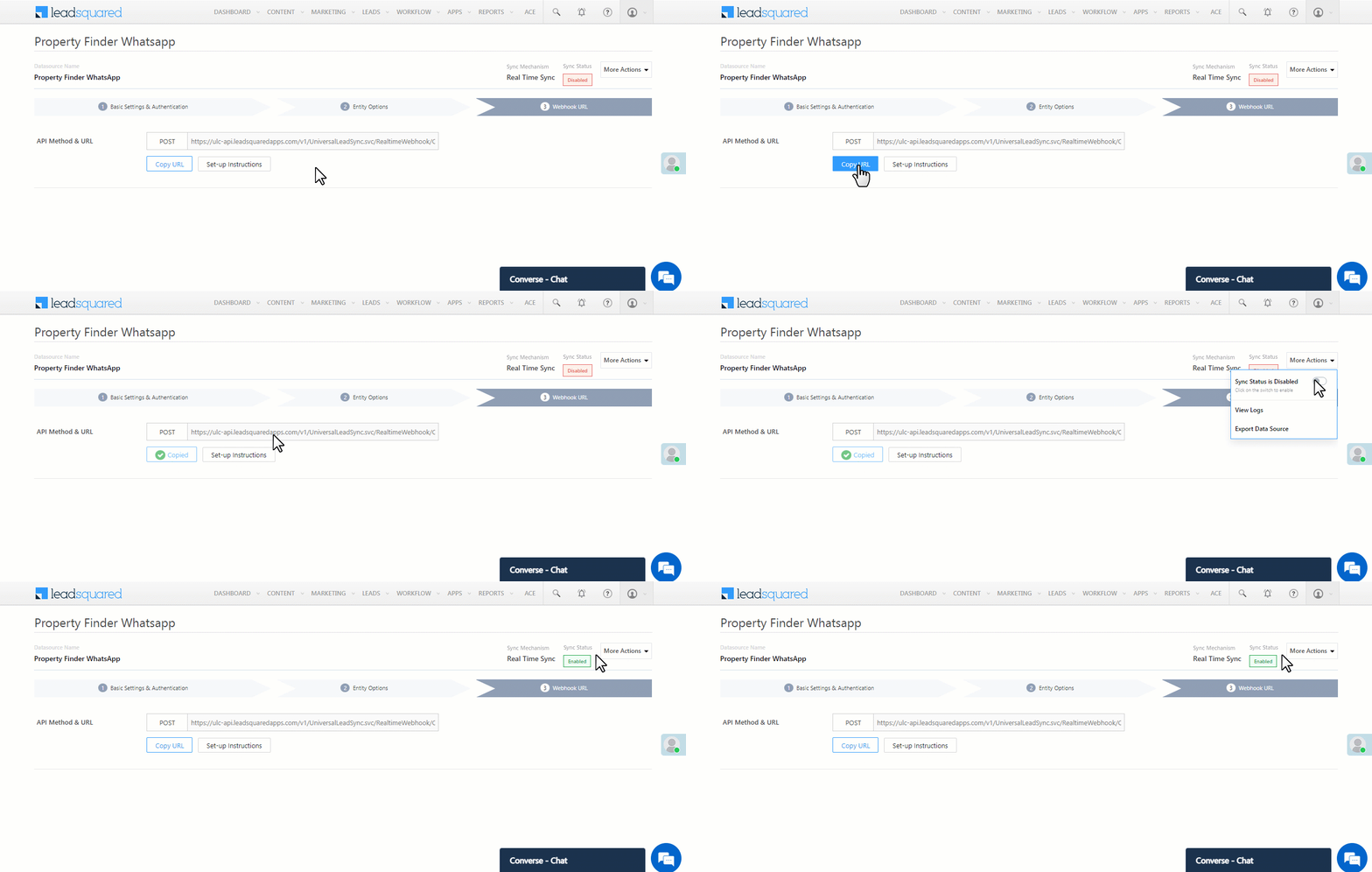
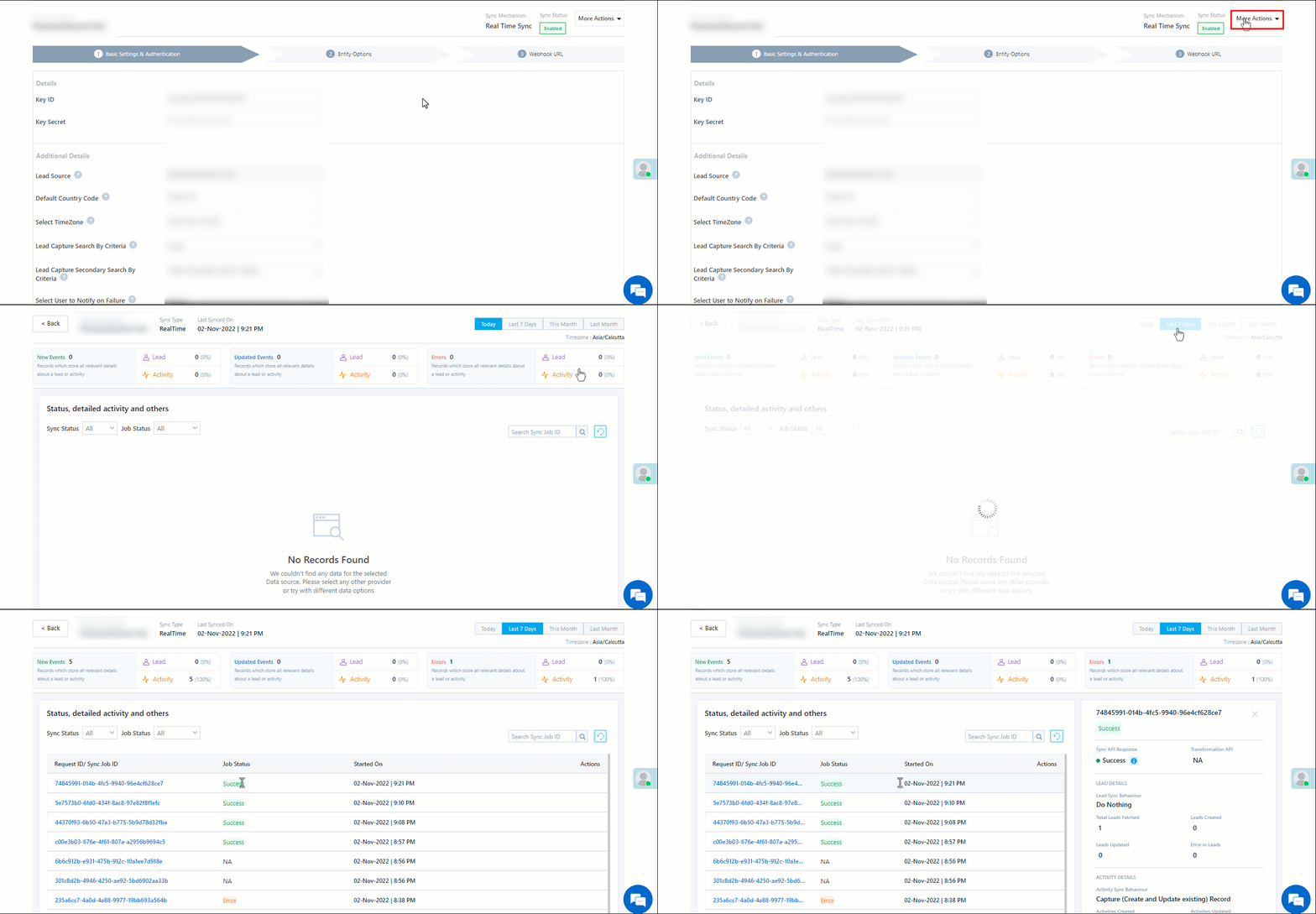
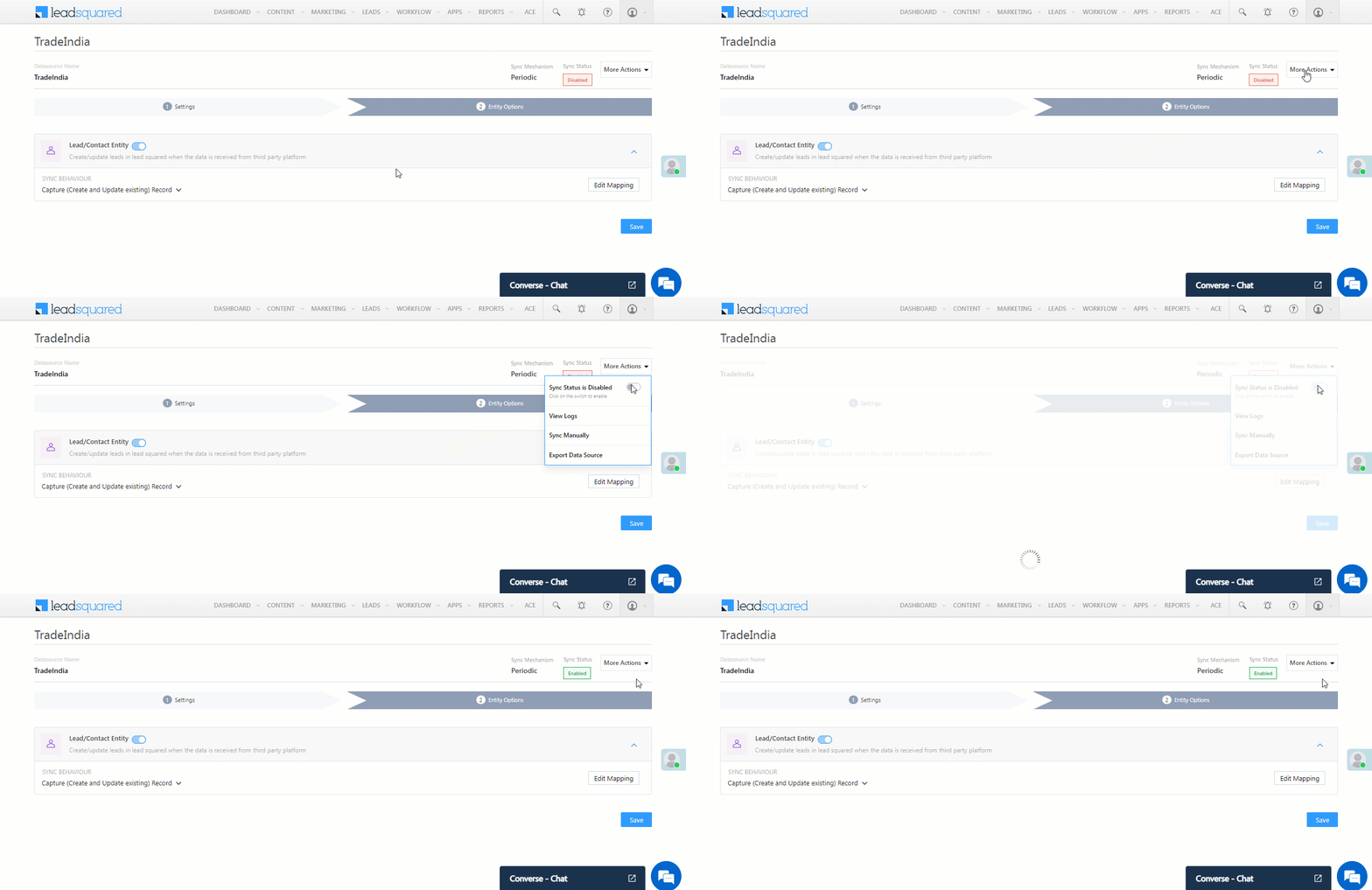
After you provide basic details and finish field mapping, a custom webhook URL is generated. Provide the webhook URL to the Property Finder tech team, and they’ll use it to integrate your Property Finder account with LeadSquared. Once they confirm the webhook integration is live, click the More Actions button, and alongside Sync Status, enable the Slider slider. The connector is now live.

Note: After implementing the webhook in Property Finder, your users (sales reps) will no longer receive WhatsApp messages on their devices for Property Finder leads originating from WhatsApp inquiries.

Each time a lead clicks the WhatsApp button on the Property Finder property listing page, their details are captured in LeadSquared, and a WhatsApp conversation link is generated as part of the Property Finder WhatsApp Enquiry activity. Your users can use this link to chat with leads through WhatsApp.

Once you’re done, click Save & Next.

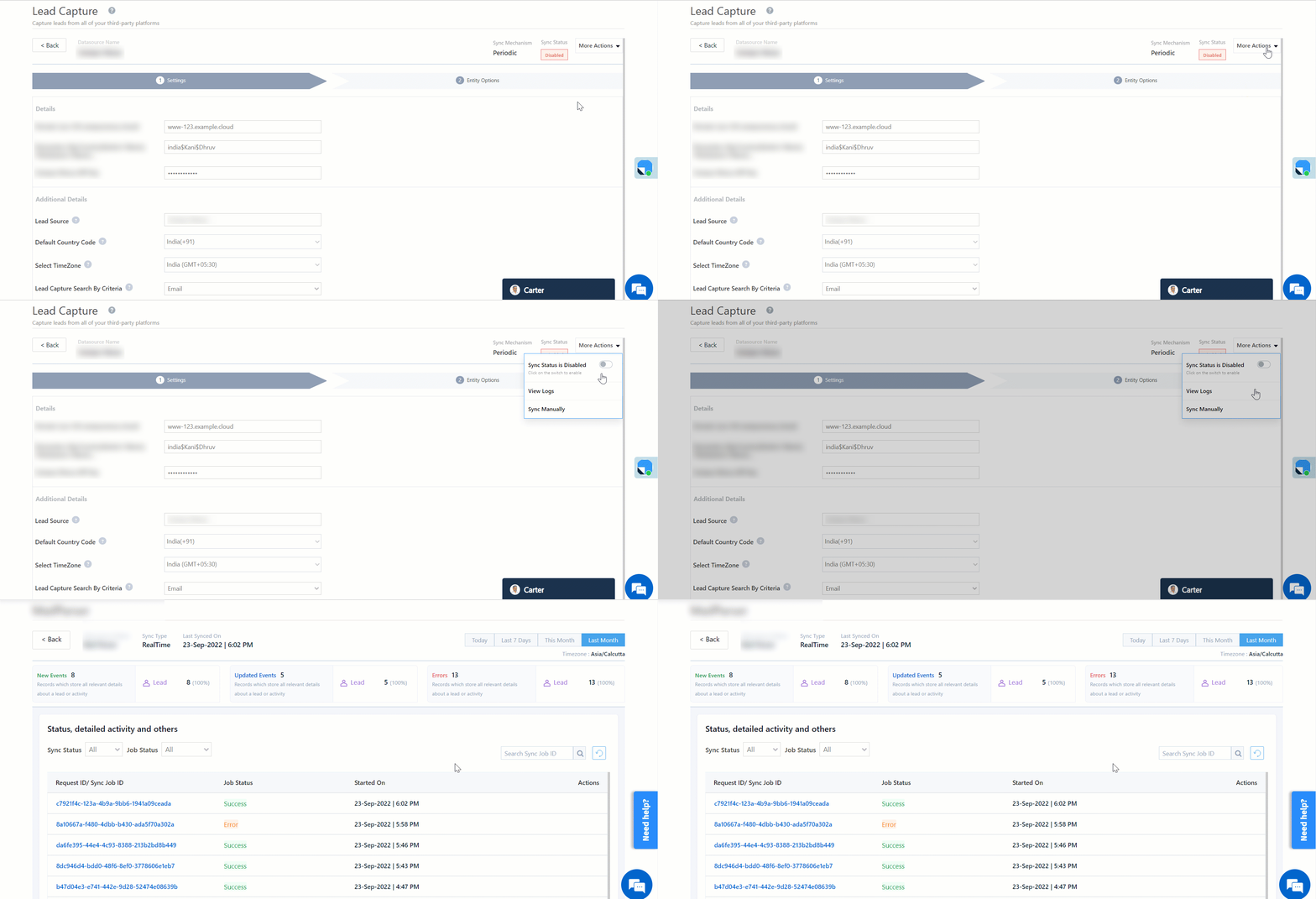
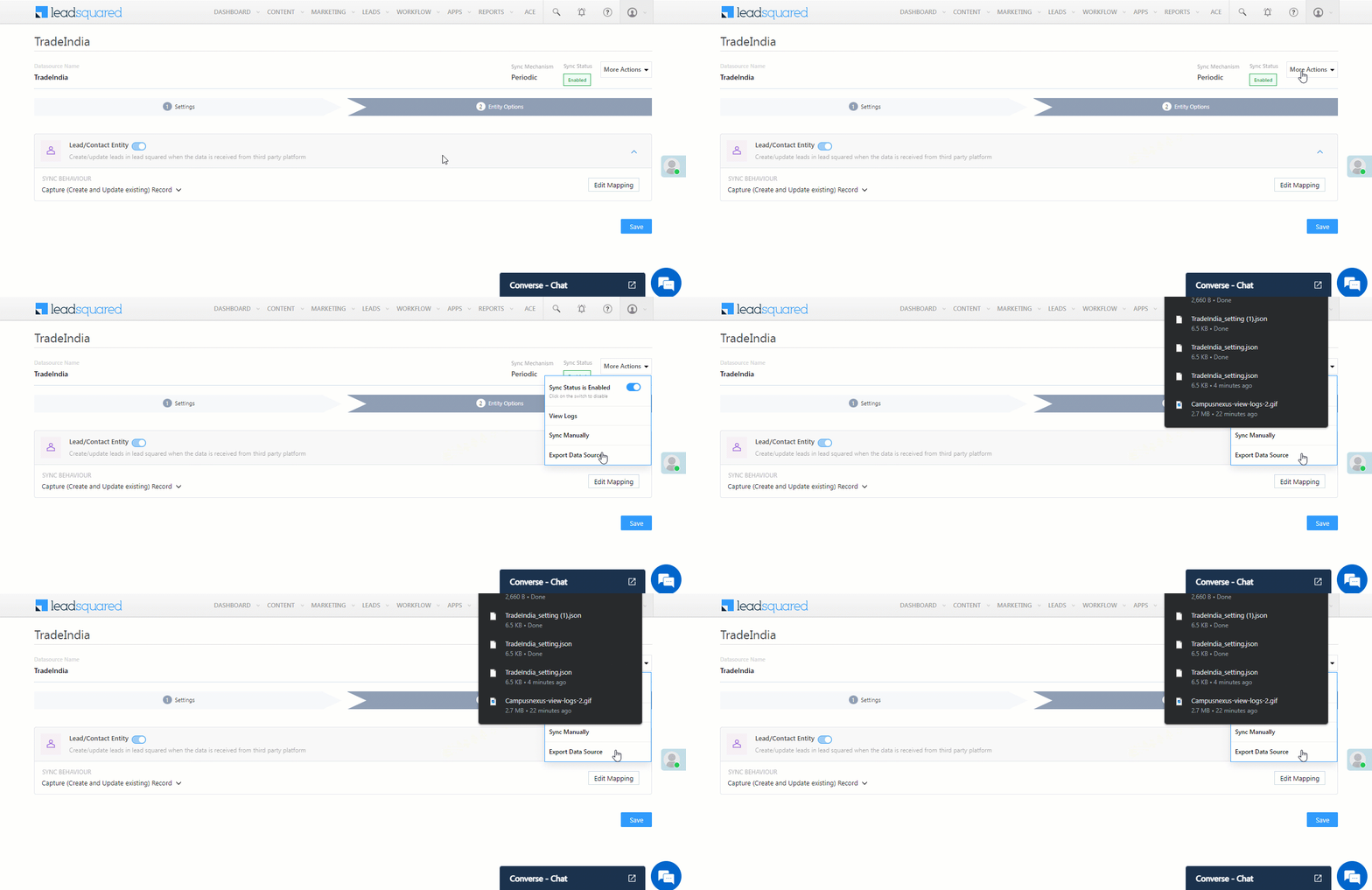
Note: On the More Actions menu, you can perform the following actions –

  • View Logs lets you view the logs of all the sync jobs that have taken place.
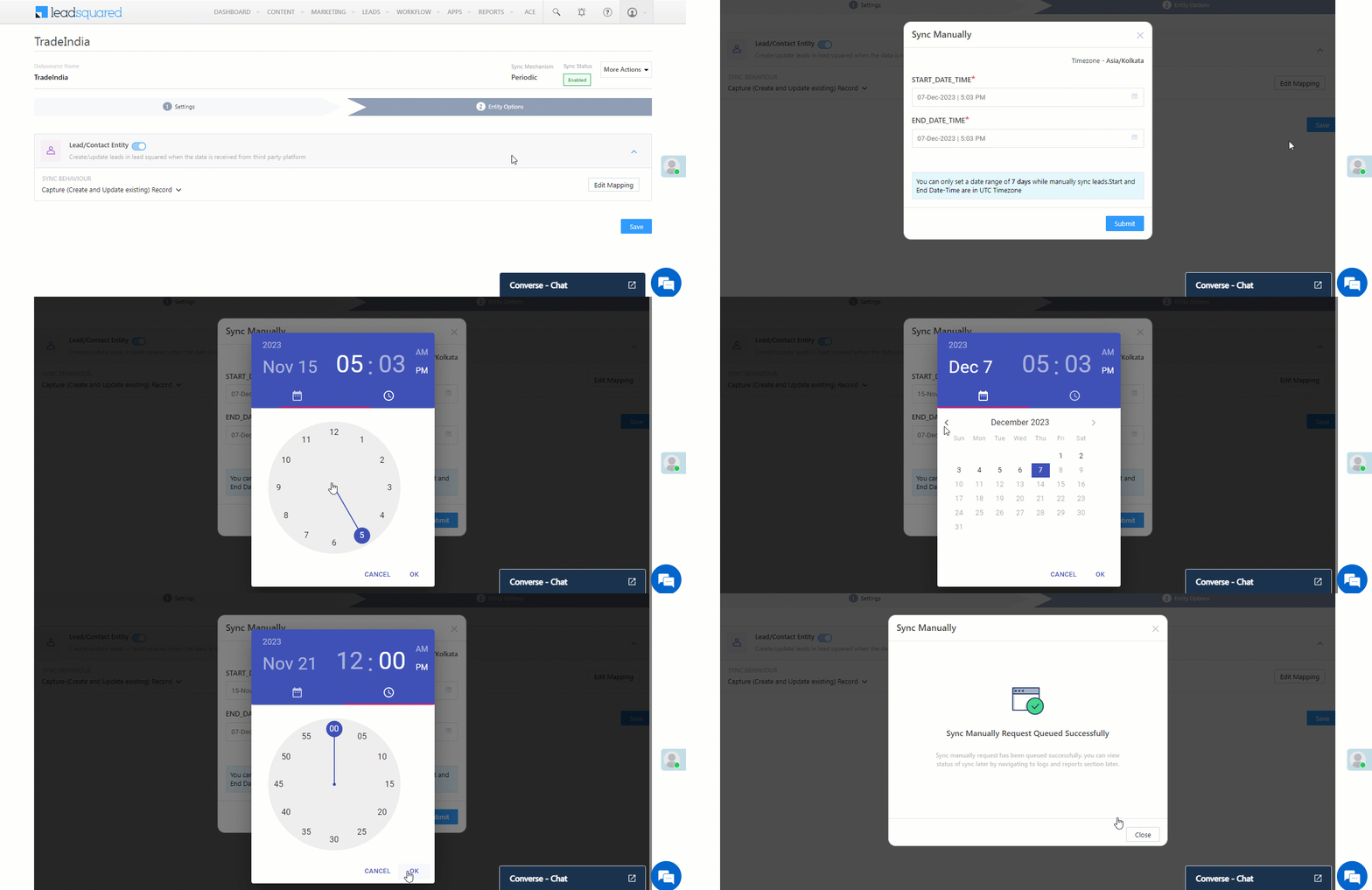
  • Sync Manually lets you perform a manual sync to transfer data between your Property Finder and LeadSquared accounts.

Property Finder WhatsApp LeadSquared integration


7. View Activities

To view the Property Finder WhatsApp Enquiry activity, navigate to Leads>Manage Leads, and click on the lead where the activity is posted. On the Lead Details page, view the activity under the Activity History tab.  You’ll also find the WhatsApp conversation link under this activity. Copy the WhatsApp conversation link, and paste it in a new web tab to begin the WhatsApp conversation with the lead.

LeadSquared Property Finder Integration


8. View Logs

Here, you can view logs of all the sync jobs that have taken place.

  1. Navigate to Apps>Property Finder WhatsApp, and click More Actions, and click View Logs.
  2. You can filter the logs by selecting a date range (Today, Last 7 Days, This Month, and Last Month), by selecting the Job Status (“All”, “Success” and “Failure”), and by selecting the Sync Status (All, Error, and Success).
  3. You can view the sync status of the following events –
    • New Events – List of all the new payment activities posted in your account.
    • Errors – The list of unsuccessful payment activities that have not been captured due to mapping errors (e.g., when a boolean field is mapped to an integer field, etc.).
  4. To view the Sync Response details, under Request ID/Sync Job ID, click the Id.
    • Under the right panel, you can view the response status, the API URL, the request, and the response.
    • Successful responses will contain details of the leads pushed by Property Finder.
    • To view the lead capture response under Sync API Response, Leads Updated and Errors in Leads, click Information.

Note:

  • For a response that contains an error, the reason for the error is listed in the response. Once you fix it, you can click the Retry button to perform the sync again.
  • The current Lead/Activity Sync Behaviour will reflect in the Logs screen. This will help identify the sync that’s used (Capture or Update) for the selected Request/Sync Job Id.

google forms view logs


9. Other Actions

You can edit or delete the Property Finder WhatsApp connector that you created. To do this –

  1. Navigate to Apps>Apps Marketplace and search for the Property Finder WhatsApp connector.
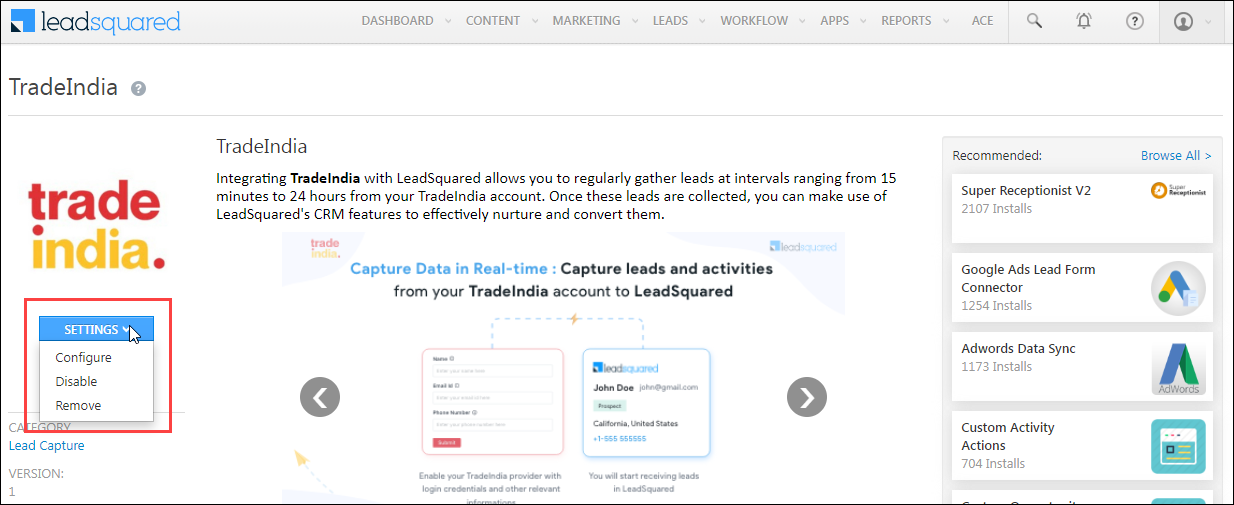
  2. On the Property Finder WhatsApp connector, click Settings.
  3. From the list of options, you can perform the following actions –
    • Edit Configurations
    • Disable the connector
    • Remove the connector

Property Finder WhatsApp LeadSquared integration


10. View Reports

You can view the total number of leads that have been pulled from Property Finder WhatsApp, by referring to the Lead Source report. To know more, please refer to How to track the source of your Leads using Lead Source Report?


Any Questions?

Did you find this article helpful? Please let us know any feedback you may have in the comments section below. We’d love to hear from you and help you out!
Integrate Bayut WhatsApp With LeadSquared

1. Feature Overview

When a lead clicks the WhatsApp button on your Bayut property listing page, their details are automatically captured, and a new lead is created in your LeadSquared account through this connector. The connector also generates a WhatsApp conversation link, enabling you to chat with the lead. Once the lead is created, leverage LeadSquared’s CRM features to work towards closing the deal.

LeadSquared Dubizzle Integration


2. Prerequisites

  • You must be the Administrator of your LeadSquared account.
  • You must have an active Bayut account.
  • This is a paid feature. To enable it, reach out to your account manager, or write to support@leadsquared.com.


3. How it Works

Through your Bayut property listing page, leads can chat with your listing agents via WhatsApp. When a lead clicks this option, the connector periodically pushes their details to LeadSquared, and also creates a WhatsApp chat link. This link is posted under the Bayut WhatsApp Enquiry activity on the Lead Details page. Your users can use this link to chat with the leads, ensuring that WhatsApp conversations are tracked and tagged correctly in LeadSquared.

  1. In LeadSquared, install the connector and select the users that can access it.
  2. Next, configure the connector. During this step, create the Bayut WhatsApp Enquiry activity, and verify the field mapping.
  3. Then, enable connector sync. This completes the setup. Every time a lead clicks the WhatsApp chat option, their lead details are captured in LeadSquared, and a WhatsApp chat link is generated.


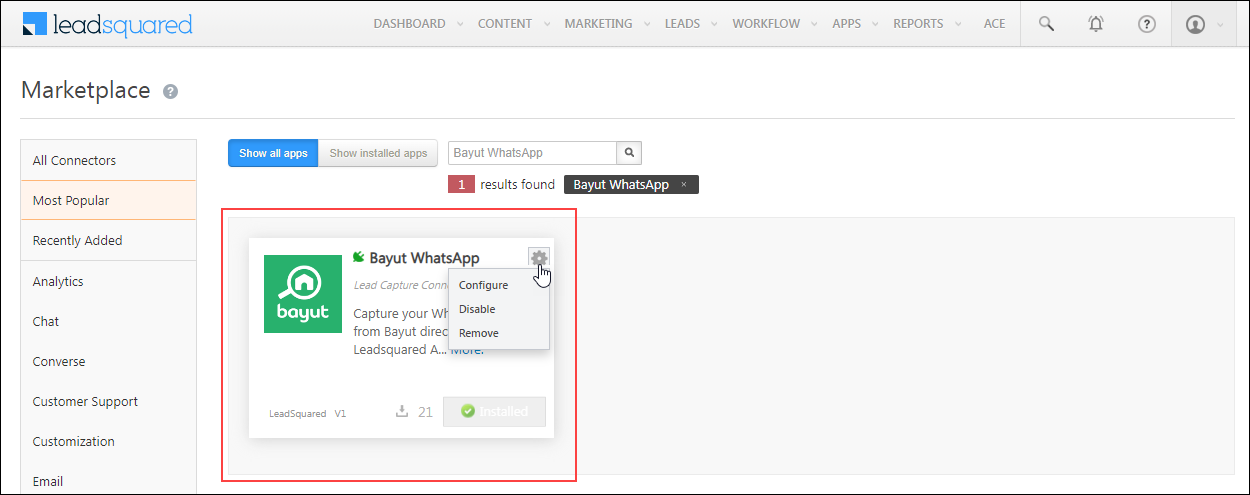
4. Install the Connector

  1. Navigate to Apps>Apps Marketplace.
  2. Search for Bayut WhatsApp, and click Install.
    • Alternatively, you can find the connector on the left panel, under Lead Capture.
  3. Once installed, hover your cursor over , and click Configure.

Bayut WhatsApp LeadSquared integration


5. Configure the Connector

After installing the connector, configure access for non-Admin users (if you want to give access to these users) in your account on the Configure Bayut WhatsApp pop-up. Only users with granted access can view and use the connector under the Apps main menu.

  1. Select whether to grant connector access based on Role or at the Advanced (User Level).
    • Based on Role – From the Specify Roles dropdown, choose the LeadSquared user roles that can use the connector.
    • Advanced (User Level) – From the Advanced (User Level) dropdown, select a user boolean field. Access to the connector will be granted based on the value in this field (e.g., if the “Is Employee” boolean user field contains “Yes” for the user Sam, then Sam can access the connector).
  2. Once you’re done, click Save Details. Continue with the configuration by referring to the following sections.
Note: By default, all Admin users have access to the connector.

Bayut WhatsApp LeadSquared integration


6. Admin Configuration

After installation, navigate to Apps>Bayut Whatsapp to complete the connector set-up.

Bayut WhatsApp LeadSquared integration

6.1 Basic Details

Enter the following details –

Field Description
API Key Enter your Bayut API Key here.
Lead Source Enter the lead source through which the leads were captured (e.g., Bayut, email campaign, etc.). This detail will appear on the Lead Details page under Lead Source.
Default Country Code Select a default country code. If the lead’s mobile number is captured without a country code, the default country code is added to the lead’s mobile number.
Select Time Zone The time zone of your Bayut account. This is set to Dubai by default.
Lead Capture Search By Criteria To avoid duplicate lead creation, select one unique lead field (e.g., mobile number/phone number) as the search key. Leads will be searched by the value mapped to this field; if a matching lead is found, it will be updated; otherwise, a new lead will be created.

To know how to mark a LeadSquared lead field as unique, please refer to How to Make a Custom Field Unique.

Lead Capture Secondary Search By Criteria If lead identification and capture through the primary Search By criteria fails, the system will reattempt using the secondary Search By criteria.
Select User to Notify on Failure If there’s an error in fetching leads, the selected user will receive a failure message via email. Choose a user from the list of available users in your LeadSquared account.

To know more about the type of errors, please refer to Error Notifications.

Enable Notification Enable the Checkbox checkbox to ensure notification emails are sent to the selected user when there’s a failed query.
Sync Frequency By default, the system pulls data from Bayut every 15 minutes. You can customize this interval using the ‘Hours’ and ‘Minutes’ dropdowns to adjust the frequency at which lead data is pulled.

Once you’re done entering all the details, click Save.

6.2 Mapping

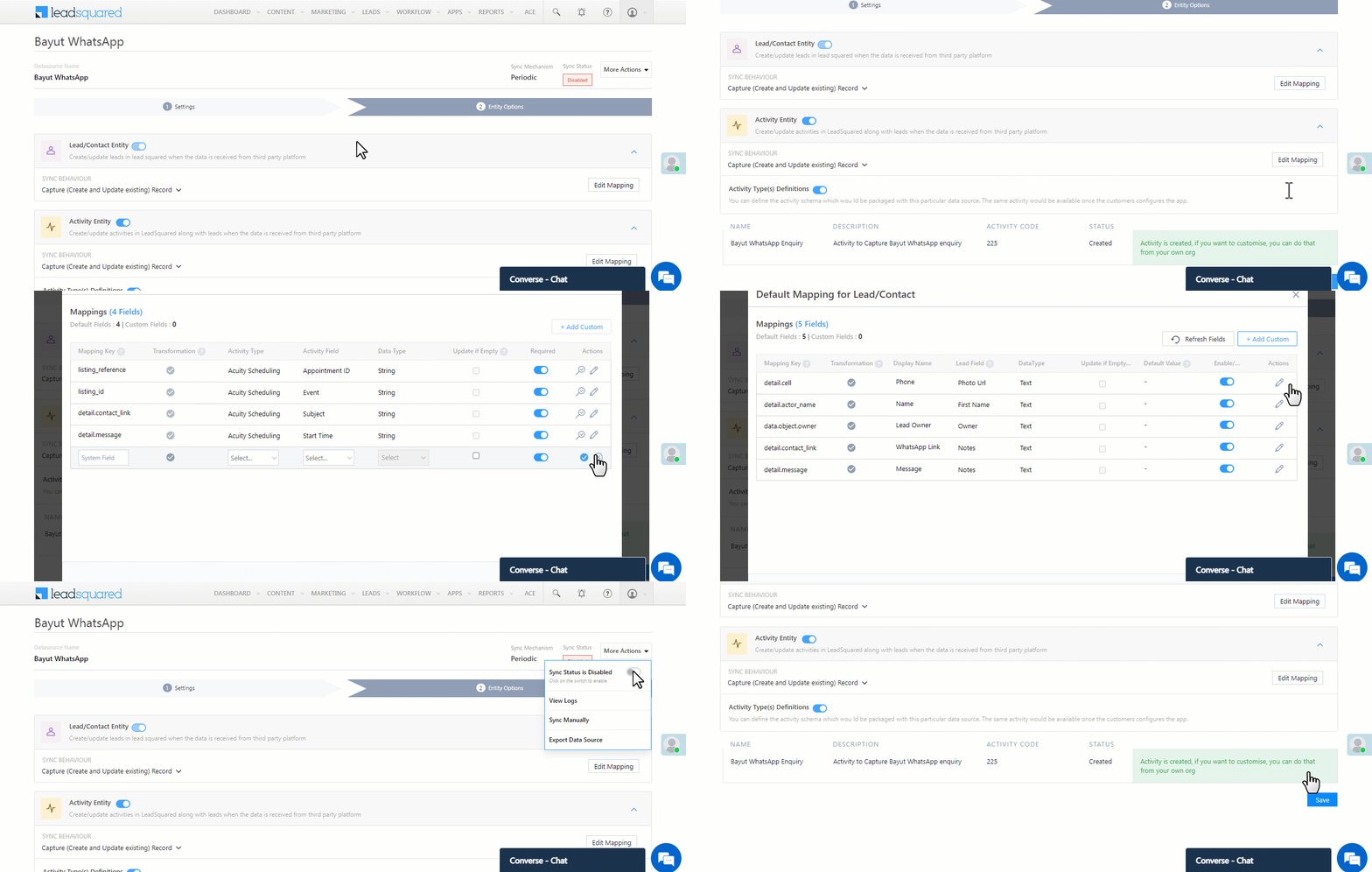
After completing the basic settings, click Entity Options. All Bayut WhatsApp fields are mapped to the corresponding LeadSquared lead fields by default –

Note:

  • FIRST, complete the Bayut WhatsApp Enquiry Create Activity step.
  • Then, click Edit Mapping under Activity Entity and Lead/Contact Entity. Verify the mapping, and click Save & Close.
  • Both steps are mandatory. If you don’t complete the steps in the order listed above, the connector won’t work.
  • The Lead/Contact Sync Behaviour and Activity Sync Behaviour are set to Capture (Create and Update existing) Record by default. It is recommended you DO NOT change this.
  1. Activity Type(s) Definitions – Alongside Bayut WhatsApp Enquiry, click Create Activity.
  2. Edit Mapping – Next to each action (Activity Entity and Lead/Contact Entity), click both the Edit Mapping buttons to verify the field mapping is accurate. Once verified, you must click Save & Close. This is mandatory.
    • If required, on the Edit Mapping pop-up, you can edit the field mapping –
      • To edit the default mapping field name, click the edit button , and under Mapping Key, update the field name.
      • To change the LeadSquared lead field to which the Bayut WhatsApp field is mapped, click the edit button , and from the Lead Field dropdown, select the new lead field.
      • To mark a unique lead field as the search key, click unique icon.
      • To disable an existing field mapping, alongside the field, disable the slider Zoom.
      • Click the Update if Empty checkbox if you don’t want to update the value of a field every time the sync takes place.
        • This helps prevent re-updating fields like first name, last name, etc.
    • To map an additional field, click the Add Custom button, and add the new mapping field details.
    • If you want to capture any additional responses as part of the activity that’s posted on the lead, alongside Activity Entity, click Edit Mapping, and add the response on the Default Mapping for Activity pop-up.
  3. Then click the More Actions button, and alongside Sync Status, enable the Slider slider.
  4. Once you’re done, click Save.
    • The connector is now live. Each time a lead clicks the WhatsApp button on the Bayut property listing page, their details are captured in LeadSquared, and a WhatsApp conversation link is generated as part of the Bayut WhatsApp Enquiry activity. Your users can use this link to chat with leads through WhatsApp.

Once you’re done, click Save & Next.

Note: On the More Actions menu, you can perform the following actions –

  • View Logs lets you view the logs of all the sync jobs that have taken place.
  • Sync Manually lets you perform a manual sync to transfer data between your Bayut and LeadSquared accounts.
  • Export Data Source lets you export the JSON of the data source/connector as a file to your local system.

Bayut WhatsApp LeadSquared integration


7. View Activities

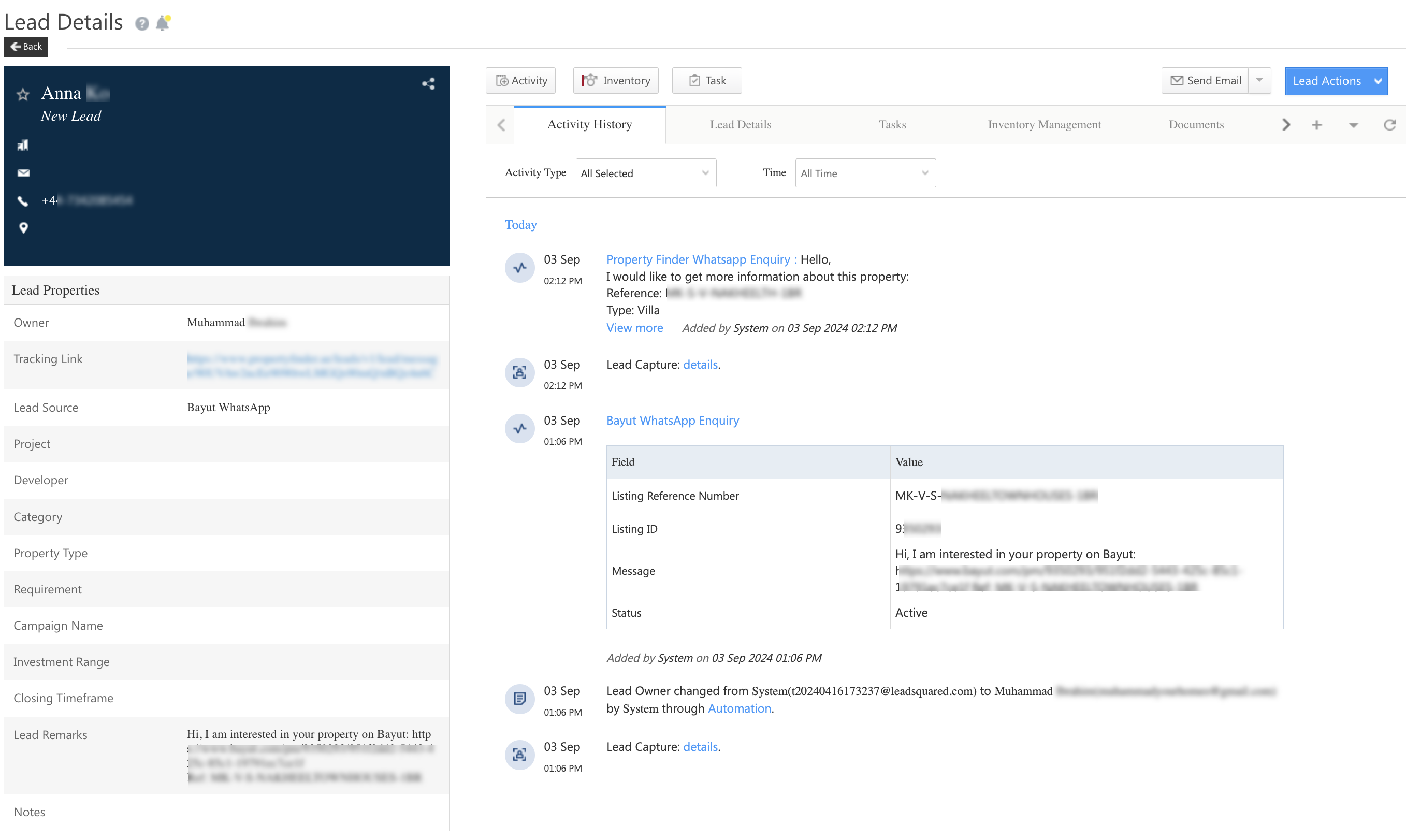
To view the Bayut WhatsApp Enquiry activity, navigate to Leads>Manage Leads, and click on the lead where the activity is posted. On the Lead Details page, view the activity under the Activity History tab. You’ll also find the WhatsApp conversation link under this activity.

LeadSquared Bayut Integration


8. View Logs

Here, you can view logs of all the sync jobs that have taken place.

  1. Navigate to Apps>Bayut WhatsApp, and click More Actions, and click View Logs.
  2. You can filter the logs by selecting a date range (Today, Last 7 Days, This Month, and Last Month), by selecting the Job Status (“All”, “Success” and “Failure”), and by selecting the Sync Status (All, Error, and Success).
  3. You can view the sync status of the following events –
    • New Events – List of all the new payment activities posted in your account.
    • Errors – The list of unsuccessful payment activities that have not been captured due to mapping errors (e.g., when a boolean field is mapped to an integer field, etc.).
  4. To view the Sync Response details, under Request ID/Sync Job ID, click the Id.
    • Under the right panel, you can view the response status, the API URL, the request, and the response.
    • Successful responses will contain details of the leads pushed by Bayut.
    • To view the lead capture response under Sync API Response, Leads Updated and Errors in Leads, click Information.

Note:

  • For a response that contains an error, the reason for the error is listed in the response. Once you fix it, you can click the Retry button to perform the sync again.
  • The current Lead/Activity Sync Behaviour will reflect in the Logs screen. This will help identify the sync that’s used (Capture or Update) for the selected Request/Sync Job Id.

google forms view logs


9. Other Actions

You can edit or delete the Bayut WhatsApp connector that you created. To do this –

  1. Navigate to Apps>Apps Marketplace and search for the Bayut WhatsApp connector.
  2. On the Bayut WhatsApp connector, click Settings.
  3. From the list of options, you can perform the following actions –
    • Edit Configurations
    • Disable the connector
    • Remove the connector

Bayut WhatsApp LeadSquared integration


10. View Reports

You can view the total number of leads that have been pulled from Bayut WhatsApp, by referring to the Lead Source report. To know more, please refer to How to track the source of your Leads using Lead Source Report?


Any Questions?

Did you find this article helpful? Please let us know any feedback you may have in the comments section below. We’d love to hear from you and help you out!
Integrate Dubizzle WhatsApp With LeadSquared

1. Feature Overview

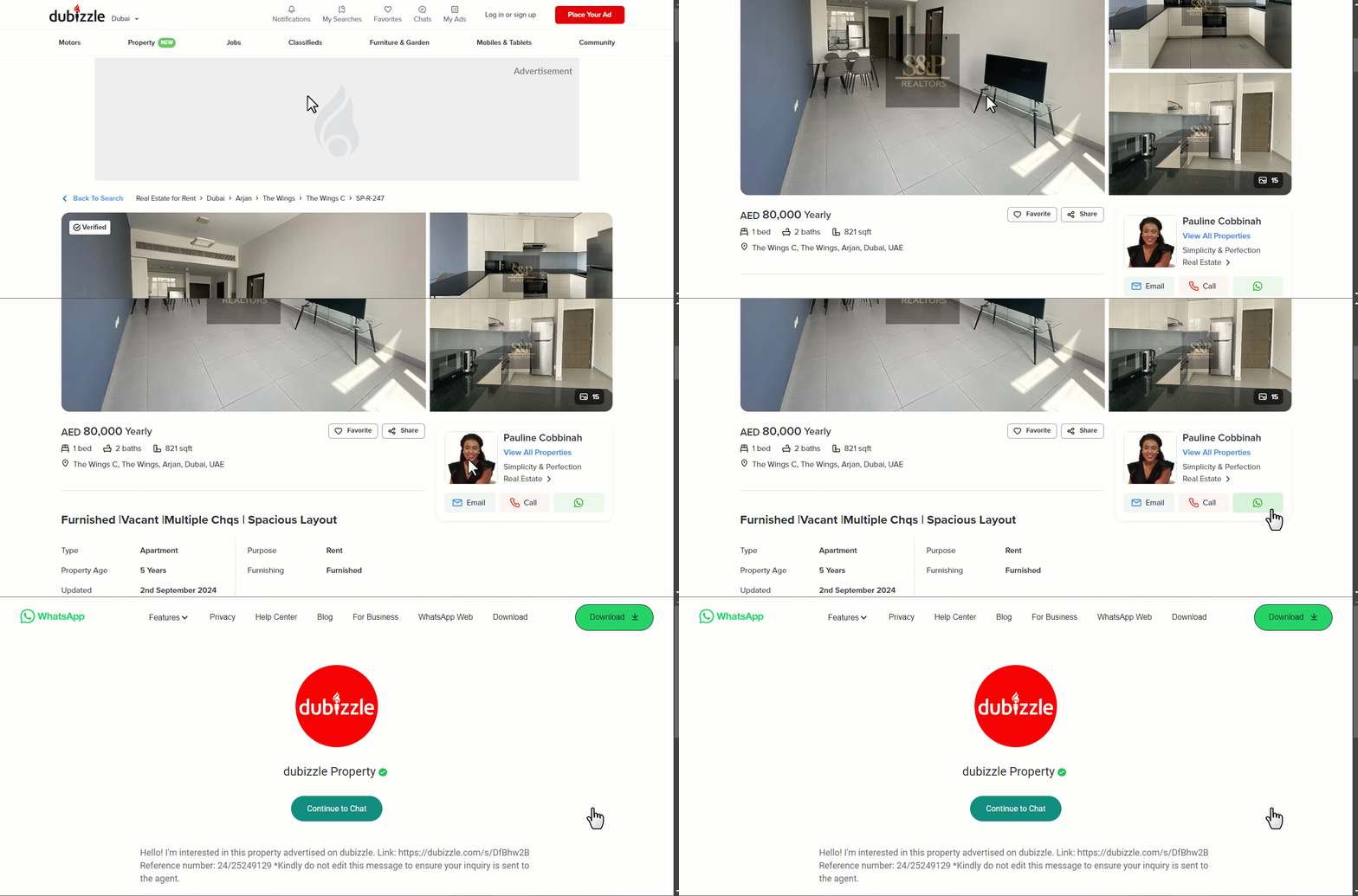
When a lead clicks the WhatsApp button on your Dubizzle property listing page, their details are automatically captured, and a new lead is created in your LeadSquared account through this connector. The connector also generates a WhatsApp conversation link, enabling you to chat with the lead. Once the lead is created, leverage LeadSquared’s CRM features to work towards closing the deal.

LeadSquared Dubizzle Integration


2. Prerequisites

  • You must be the Administrator of your LeadSquared account.
  • You must have an active Dubizzle account.
  • This is a paid feature. To enable it, reach out to your account manager, or write to support@leadsquared.com.


3. How it Works

Through your Dubizzle property listing page, leads can chat with your Listing Agents through WhatsApp. When a lead clicks this option, the connector pulls their details in real time to LeadSquared, and also creates a WhatsApp chat link. This link is posted under the Dubizzle WhatsApp Enquiry activity on the Lead Details page. Your users can use this link to chat with the leads, ensuring that WhatsApp conversations are tracked and tagged correctly in LeadSquared.

  1. In LeadSquared, install the connector and select the users that can access it.
  2. Next, configure the connector. During this step, create the Dubizzle WhatsApp Enquiry activity, and verify the field mapping.
  3. A webhook URL is generated. Contact your Dubizzle account manager to integrate this URL into your Dubizzle account. Once integrated, lead details will sync from Dubizzle to LeadSquared.
  4. Then, enable connector sync. This completes the setup. Every time a lead clicks the WhatsApp chat option, their lead details are captured in LeadSquared, and a WhatsApp chat link is generated.


4. Install the Connector

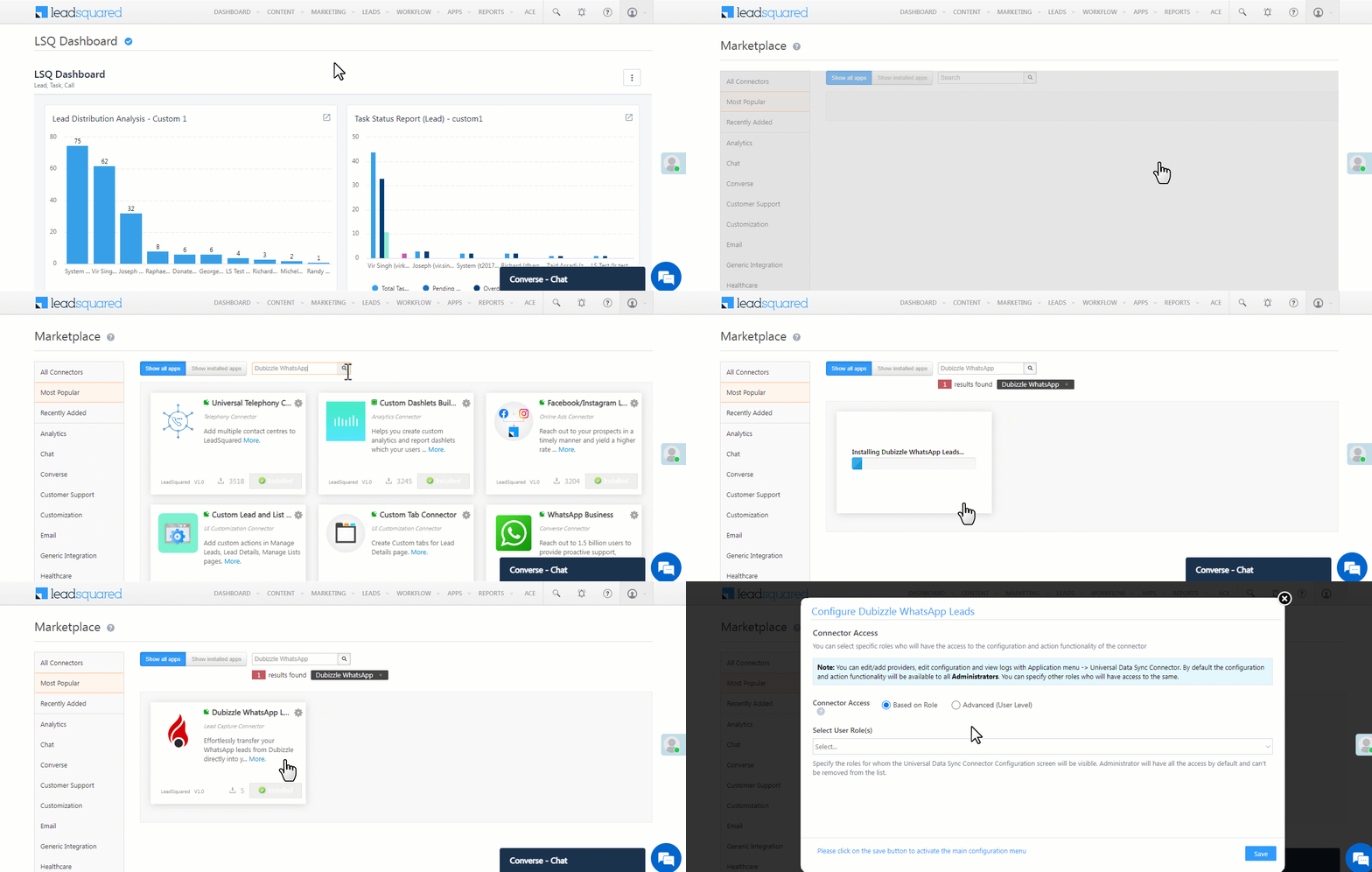
  1. Navigate to Apps>Apps Marketplace.
  2. Search for Dubizzle WhatsApp, and click Install.
    • Alternatively, you can find the connector on the left panel, under Lead Capture.
  3. Once installed, hover your cursor over , and click Configure.


5. Configure the Connector

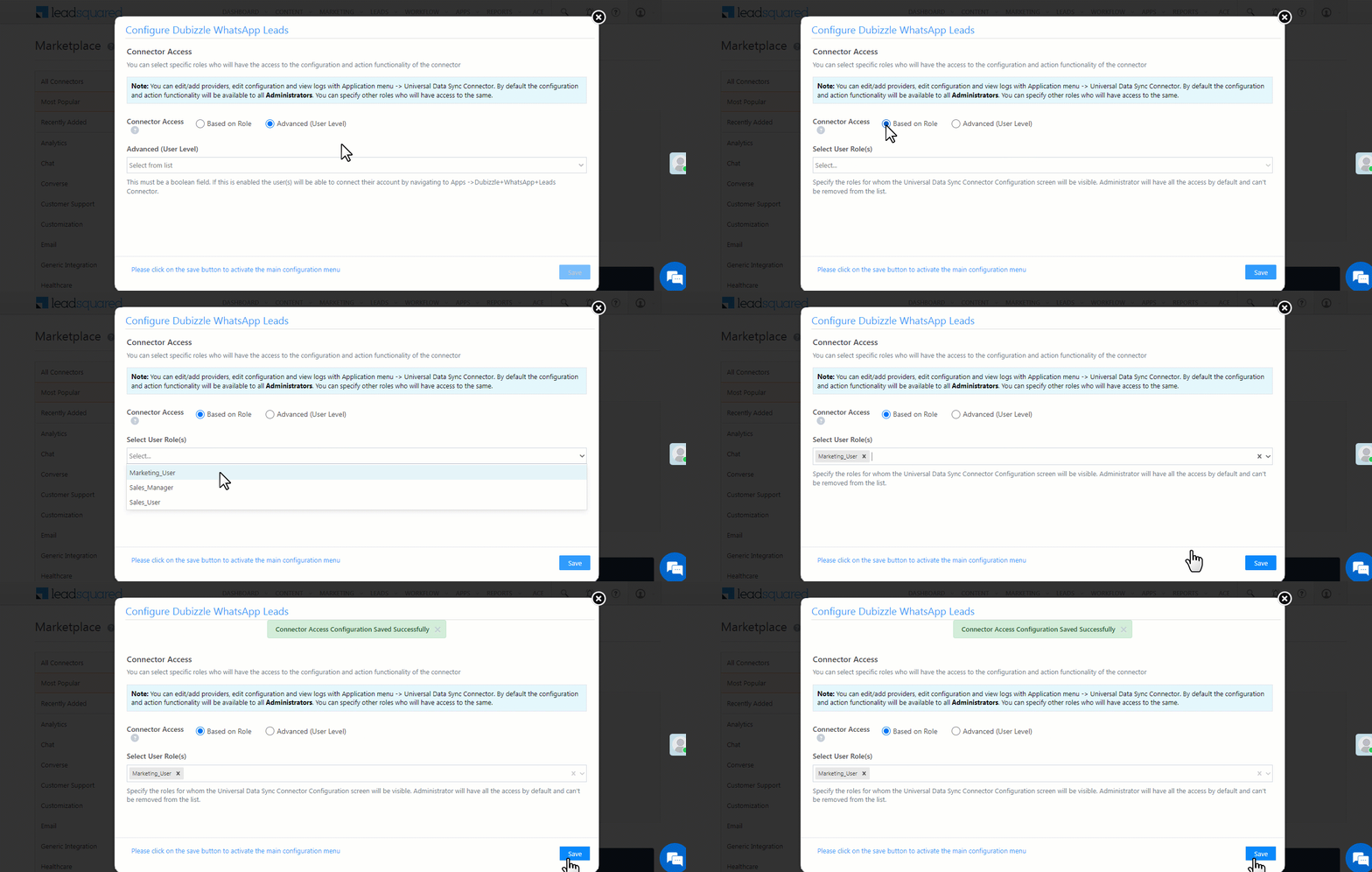
After installing the connector, configure access for non-Admin users (if you want to grant connector access to these users) in your account on the Configure Dubizzle WhatsApp pop-up. Only users with granted access can view and use the connector under the Apps main menu.

  1. Select whether to grant connector access based on Role or at the Advanced (User Level).
    • Based on Role – From the Specify Roles dropdown, choose the LeadSquared user roles that can use the connector.
    • Advanced (User Level) – From the Advanced (User Level) dropdown, select a user boolean field. Access to the connector will be granted based on the value in this field (e.g., if the “Is Employee” boolean user field contains “Yes” for the user Sam, then Sam can access the connector).
  2. Once you’re done, click Save Details. Continue with the configuration by referring to the following sections.
Note: By default, all Admin users have access to the connector.


6. Admin Configuration

After installation, navigate to Apps>Dubizzle Whatsapp to complete the connector set-up.

6.1 Basic Details

Enter the following details –

Field Description
Lead Source Enter the lead source through which the leads were captured (e.g., Dubizzle, email campaign, etc.). This detail will appear on the Lead Details page under Lead Source.
Default Country Code Select a default country code. If the lead’s mobile number is captured without a country code, the default country code is added to the lead’s mobile number.
Select Time Zone The time zone of your Dubizzle account. This is set to Dubai by default.
Lead Capture Search By Criteria To avoid duplicate lead creation, select one unique lead field (e.g., mobile number/phone number) as the search key. Leads will be searched by the value mapped to this field. If a matching lead is found, it will be updated, otherwise, a new lead will be created.

To know how to mark a LeadSquared lead field as unique, please refer to How to Make a Custom Field Unique.

Lead Capture Secondary Search By Criteria If lead identification and capture through the primary Search By criteria fails, the system will reattempt using the secondary Search By criteria.
Select User to Notify on Failure If there’s an error in fetching leads, the selected user will receive a failure message via email. Choose a user from the list of available users in your LeadSquared account.

To know more about the type of errors, please refer to Error Notifications.

Enable Notification Enable the Checkbox checkbox to ensure notification emails are sent to the selected user when there’s a failed query.

Once you’re done entering all the details, click Save.

6.2 Mapping

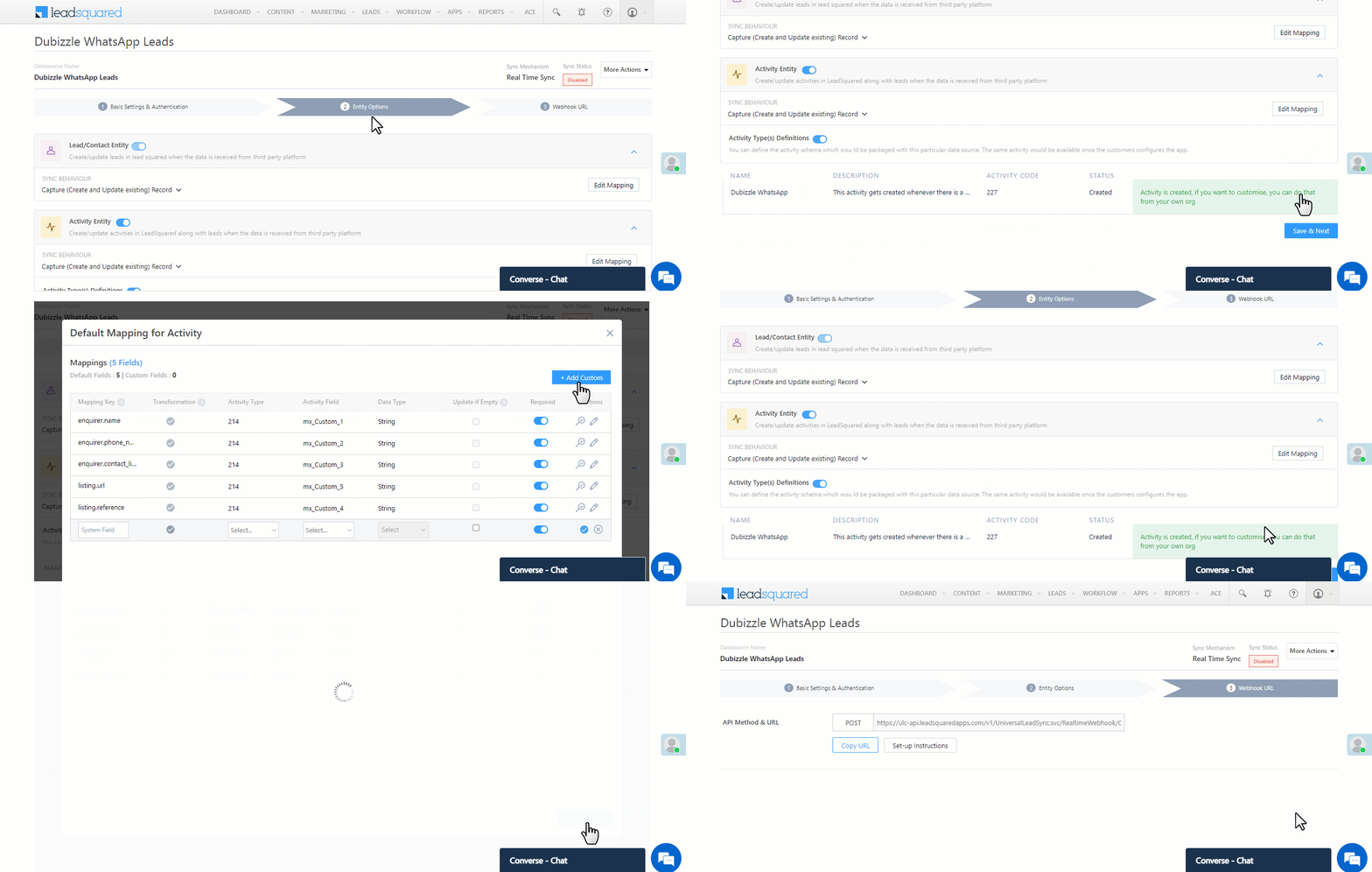
After completing the basic settings, click Entity Options. All Dubizzle WhatsApp fields are mapped to the corresponding LeadSquared lead fields by default –

Note:

  • FIRST, complete the Dubizzle WhatsApp Enquiry Create Activity step.
  • Then, click Edit Mapping under Activity Entity and Lead/Contact Entity. Verify the mapping, and click Save & Close.
  • Both steps are mandatory. If you don’t complete the steps in the order listed above, the connector won’t work.
  • The Lead/Contact Sync Behaviour and Activity Sync Behaviour are set to Capture (Create and Update existing) Record by default. It is recommended you DO NOT change this.
  1. Activity Type(s) Definitions – Alongside Dubizzle WhatsApp Enquiry, click Create Activity.
  2. Edit Mapping – Next to each action (Activity Entity and Lead/Contact Entity), click both the Edit Mapping buttons to verify the field mapping is accurate. Once verified, you must click Save & Close. This is mandatory.
    • If required, on the Edit Mapping pop-up, you can edit the field mapping –
      • To edit the default mapping field name, click the edit button , and under Mapping Key, update the field name.
      • To change the LeadSquared lead field to which the Dubizzle WhatsApp field is mapped, click the edit button , and from the Lead Field dropdown, select the new lead field.
      • To mark a unique lead field as the search key, click unique icon.
      • To disable an existing field mapping, alongside the field, disable the slider Zoom.
      • Click the Update if Empty checkbox if you don’t want to update the value of a field every time the sync takes place.
        • This helps prevent re-updating fields like first name, last name, etc.
    • To map an additional field, click the Add Custom button, and add the new mapping field details.
    • If you want to capture any additional responses as part of the activity that’s posted on the lead, alongside Activity Entity, click Edit Mapping, and add the response on the Default Mapping for Activity pop-up.
  3. Once you’re done, click Save & Next.

Dubizzle WhatsApp LeadSquared integration

6.3 Webhook URL

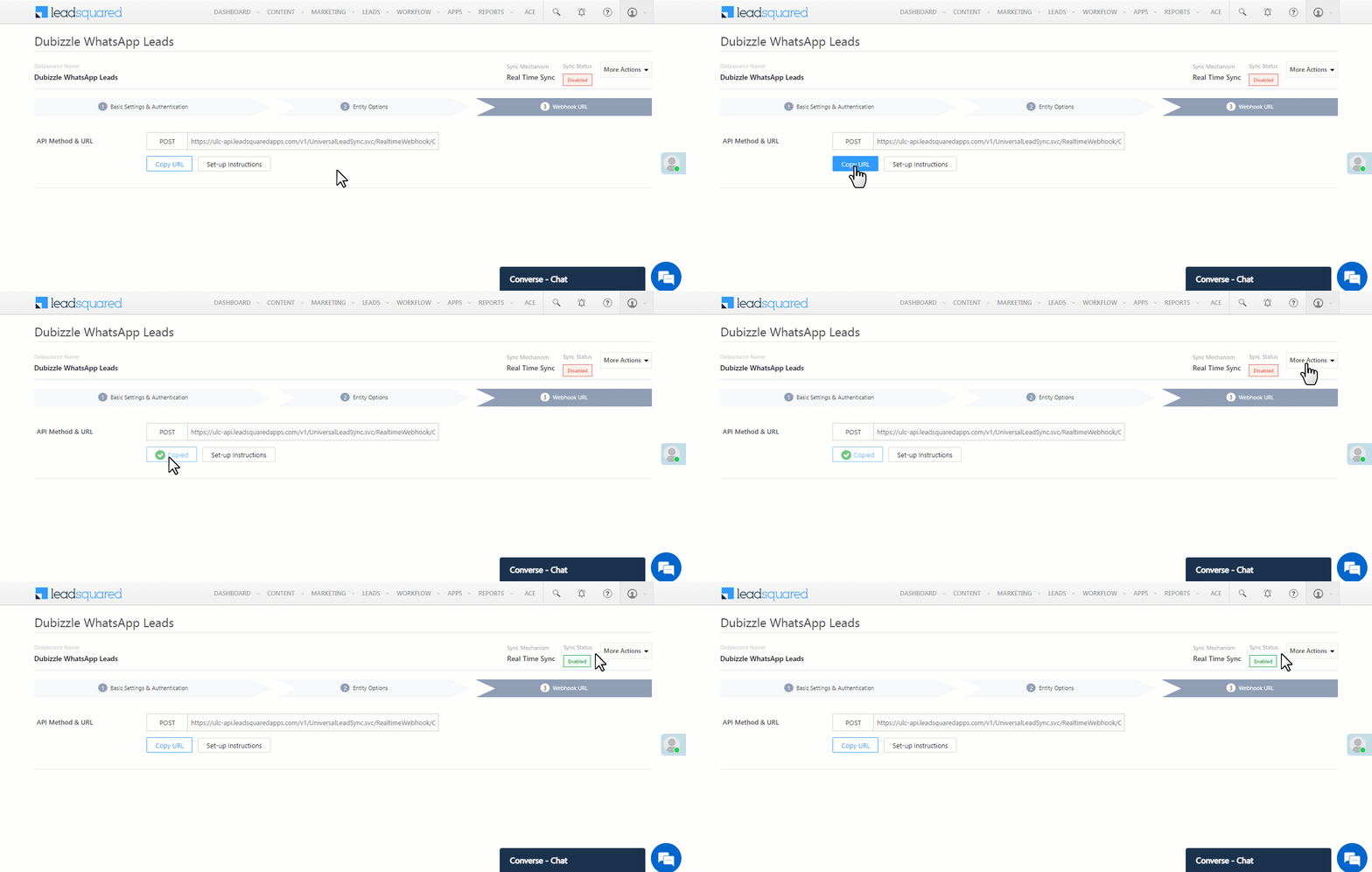
After you provide basic details and finish field mapping, a custom webhook URL is generated. Provide the webhook URL to the Dubizzle tech team, and they’ll use it to integrate your Dubizzle account with LeadSquared. Once they confirm the webhook integration is live, click the More Actions button, and alongside Sync Status, enable the Slider slider. The connector is now live.

Once the webhook URL is generated, contact your Dubizzle account manager to integrate it into your Dubizzle account. Once integrated, lead details will sync from Dubizzle to LeadSquared.

Once you’re done, click Save & Next.

Note: On the More Actions menu, you can perform the following actions –

  • View Logs lets you view the logs of all the sync jobs that have taken place.
  • Sync Manually lets you perform a manual sync to transfer data between your Dubizzle and LeadSquared accounts.
  • Export Data Source lets you export the JSON of the data source/connector as a file to your local system.

Dubizzle WhatsApp LeadSquared integration


7. View Activities

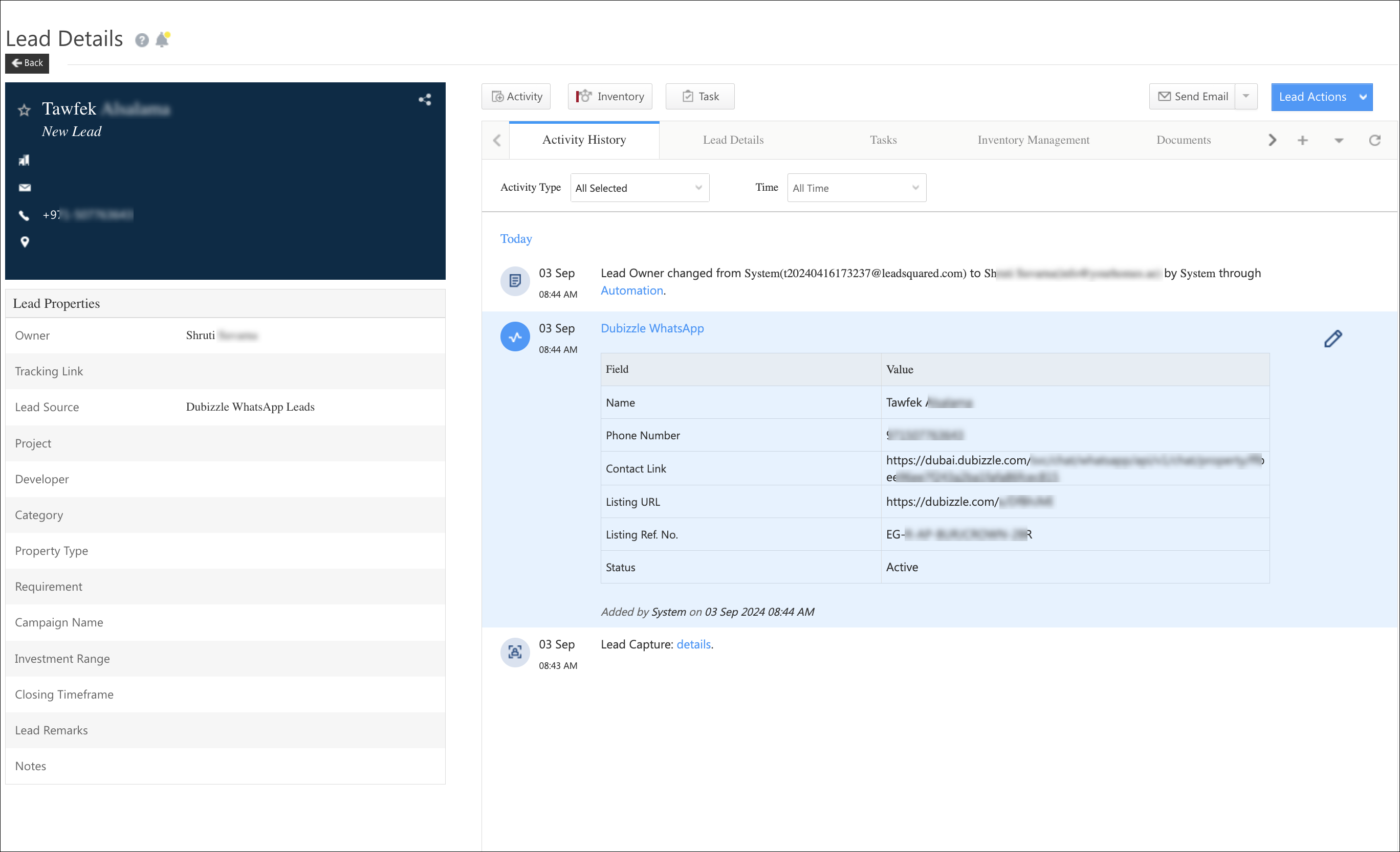
To view the Dubizzle WhatsApp Enquiry activity, navigate to Leads>Manage Leads, and click on the lead where the activity is posted. On the Lead Details page, view the activity under the Activity History tab. You’ll also find the WhatsApp conversation link under this activity. Copy the link and paste it into a new web tab to start the WhatsApp conversation with the lead.

LeadSquared Dubizzle Integration


8. View Logs

Here, you can view logs of all the sync jobs that have taken place.

  1. Navigate to Apps>Dubizzle WhatsApp, and click More Actions, and click View Logs.
  2. You can filter the logs by selecting a date range (Today, Last 7 Days, This Month, and Last Month), by selecting the Job Status (“All”, “Success” and “Failure”), and by selecting the Sync Status (All, Error, and Success).
  3. You can view the sync status of the following events –
    • New Events – List of all the new payment activities posted in your account.
    • Errors – The list of unsuccessful payment activities that have not been captured due to mapping errors (e.g., when a boolean field is mapped to an integer field, etc.).
  4. To view the Sync Response details, under Request ID/Sync Job ID, click the Id.
    • Under the right panel, you can view the response status, the API URL, the request, and the response.
    • Successful responses will contain details of the leads pushed by Dubizzle.
    • To view the lead capture response under Sync API Response, Leads Updated and Errors in Leads, click Information.

Note:

  • For a response that contains an error, the reason for the error is listed in the response. Once you fix it, you can click the Retry button to perform the sync again.
  • The current Lead/Activity Sync Behaviour will reflect in the Logs screen. This will help identify the sync that’s used (Capture or Update) for the selected Request/Sync Job Id.

google forms view logs


9. Other Actions

You can edit or delete the Dubizzle WhatsApp connector that you created. To do this –

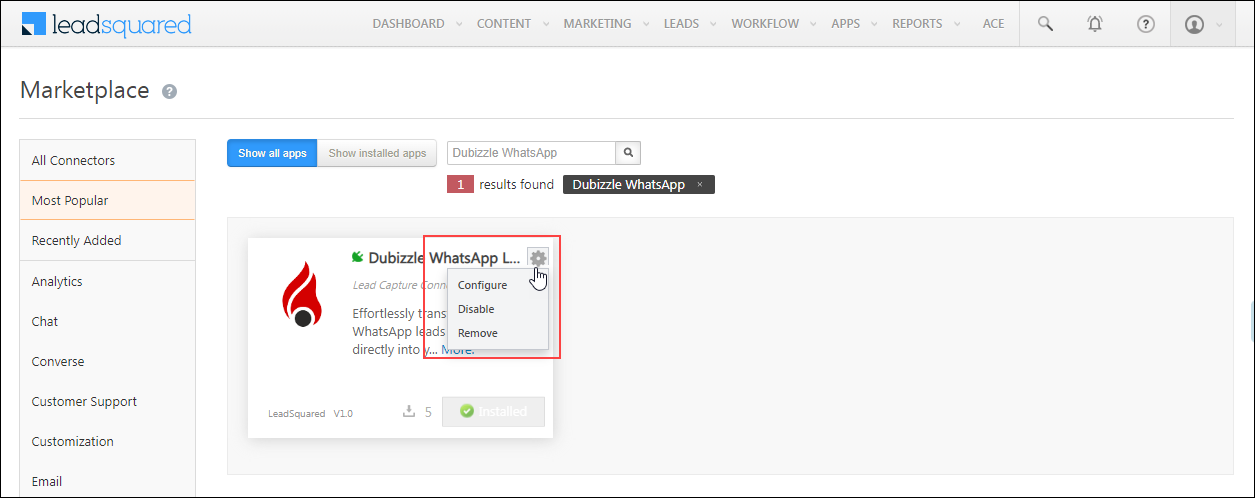
  1. Navigate to Apps>Apps Marketplace and search for the Dubizzle WhatsApp connector.
  2. On the Dubizzle WhatsApp connector, click Settings.
  3. From the list of options, you can perform the following actions –
    • Edit Configurations
    • Disable the connector
    • Remove the connector

Dubizzle WhatsApp LeadSquared integration


10. View Reports

You can view the total number of leads that have been pulled from Dubizzle WhatsApp, by referring to the Lead Source report. To know more, please refer to How to track the source of your Leads using Lead Source Report?


Any Questions?

Did you find this article helpful? Please let us know any feedback you may have in the comments section below. We’d love to hear from you and help you out!
How To Automatically Change the Task Owner When the Lead Owner Changes?

You can automatically change the task owner when you change the lead owner for a lead or set of leads. This feature isn’t available on your account by default. Contact us at support@leadsquared.com to enable it.

Note: The task owner must be the same as the lead owner before the lead owner is changed. If the task owner and lead owner are different prior to changing the lead owner, the feature may not work as expected.

How to Create a Form

1. Feature Overview

The Forms (also called Dynamic Forms) and Process Designer features help your users create intelligent forms to capture lead and opportunity data that are relevant to their departments, products, or processes.
You can customize forms to behave in ways specific to your use cases, and prompt users to collect the right information based on a lead’s previous inputs.

  • If you’re new to the forms and processes feature, see Forms and Processes – Feature Guide.
  • Once you’ve created a form, the Process Designer helps you choose where, and to which users you want the form to appear. You can also use it to combine multiple forms into processes, see How to Create a Process.
Note: Account-level fields cannot be added to dynamic forms, and dynamic forms cannot be deployed in the Account module.


2. Prerequisites

  • You must be an administrator user to create and edit forms.
  • To access opportunities, you must have the opportunities feature enabled on your account. To enable it, please write to support@leadsquared.com.


3. Manage Forms

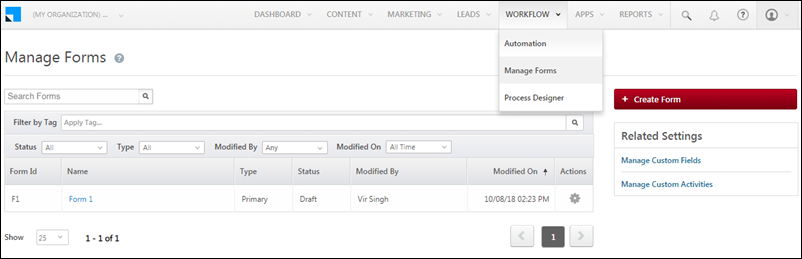
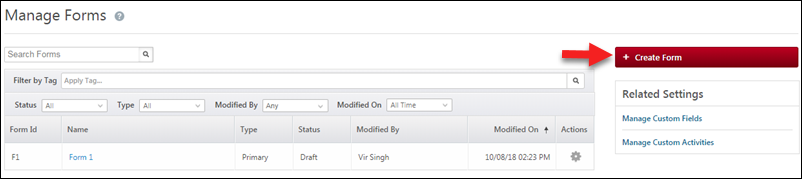
To access the Manage Forms page, navigate to Workflow>Manage Forms.

All forms you create will appear on the grid. You can search for a form, filter by tags, and even filter on the basis of status, type, modified by and modified on dates. The settingsSettings iconicon under the Actions column allows you to edit, delete, add tag, clone, rename or publish a form and test a published form.

Manage Forms

Click the Create Form button to create a new form.

new form

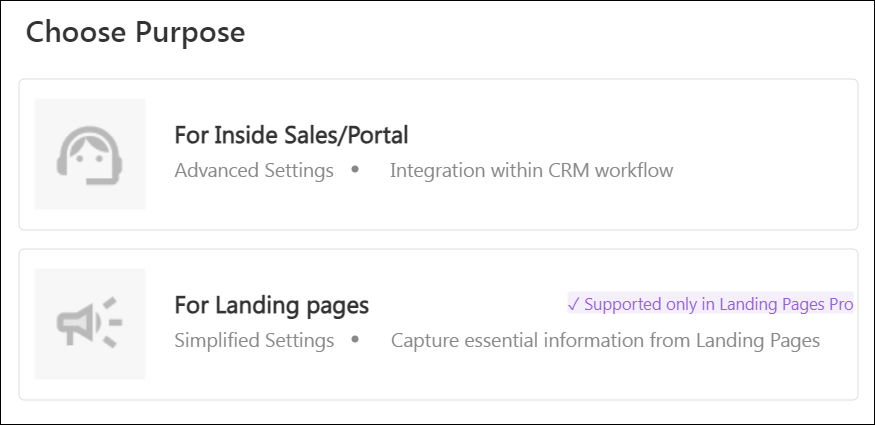
Select the form purpose –

  • For Inside Sales/Portal – Select this option if you’re creating a general-purpose form and a form for LeadSquared Portals.
  • For Landing Pages – Select this option only if you’re creating a form for Landing Pages Pro.
Note: You can refer to this article to configure both types of Forms, but this article mainly discusses the configuration for Inside Sales/Portal.

choose form purpose


3.1 Form Settings

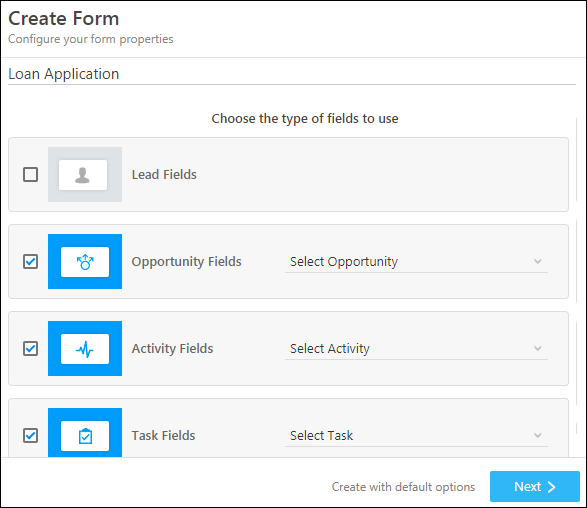
On the Create Form pop-up –

  1. First, give your form a name.
  2. Then choose whether you want the form to contain lead fields, opportunity fields, activity fields, and/or task fields. If you choose to include opportunity, activity and/or task fields, you must select an opportunity, activity and/or task type.
  3. Click Next.

Alternatively, you could click the Create with default options link at the bottom to create a form with only lead fields.

Note:

  • If you choose to add opportunity/task/activity types to your forms, you must add at least one field from the opportunity/task/activity to your form.
  • You can also use Custom Fields Sets to provide document upload functionality to your forms.
  • Check user availability and schedule tasks on the go, see How to Add Tasks to a Form.

Forms_1

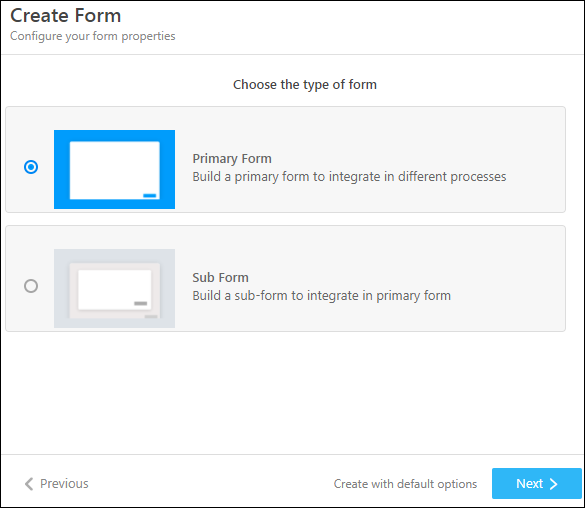
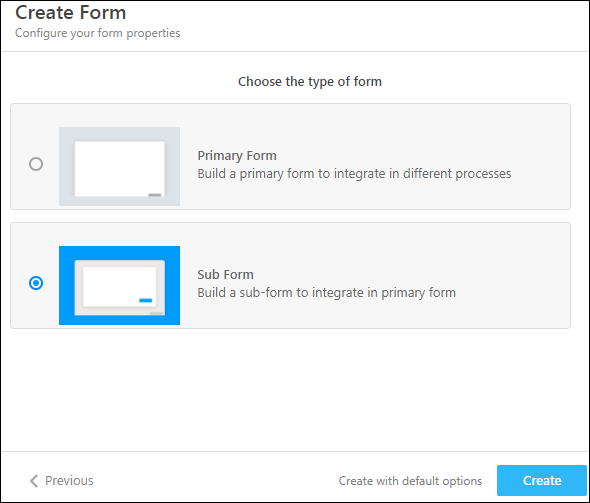
Now choose the type of form you want to create –

  • Primary Form – This is the main form that will appear on the Manage Forms grid. You can use the Process Designer to combine primary forms into processes.
  • Sub Form – A sub-form can be integrated into a primary form. It will show up on the Manage Forms grid.

Click Next, when you’re done.

Forms_2

Now choose how you want your form to flow. Choose between –

  • Single Step Form – All tabs will be visible upfront. You can switch between tabs, and save & exit while on any tab.
  • Multi Step Form – Users will only see one tab at a time. You can only save and exit the form at the last step.
  • Form Save Option – You can choose to save the form only after the final step, or save it after each step.

Then click Create.

Forms_3


3.2 Rename Your Form and Change the Settings

The form editor lets you design your form, configure properties, create rules, save and finally publish to live.
To change the form name, click the editpencil iconicon alongside the form name at the top of the form editor.

edit the form name

You can change some of the form properties you selected in the previous steps in the form settings menu. Click the wheelSettings iconicon to open the settings menu.

Form properties

Add/remove lead, opportunity, activity and task fields, change the activity or task type, determine if the activity and task are associtated with a lead or an opportunity, adjust the placement of the labels and add tags that you can later filter your forms by.

Forms_4

Click the Additional Settings tab for more options.

Form Edit_1

Set the form as single-step or multistep.

  • Save form at each step – When enabled, for multi-step forms, the form is automatically saved at the end of each step.
  • Enable Tab Progress Bars – Displays a visual progress bar across tabs in multi-step forms, indicating completion progress within the bar as you fill the fields within a single tab.
  • Use as Multi-Step Form – When enabled, you can use the form as a multi-step form.
  • Save Previous Tab Data – When enabled, the data stored in the current, as well as previous form tab, is automatically saved when a lead moves on to the next tab. This ensures that dependent fields (set up using form rules) in previous tabs of the form are saved, when values in the current tab are updated.
  • Call Pre-Submission Event in Each Tab – Runs pre-submission events after each tab submission instead of only once at final form submission. Useful for validating data or triggering actions step-by-step.
  • Tabs Placement – Choose whether you want to display the tabs on the top of your form or on the left side. If you choose to place them on the left side, they will still render at the top on mobile devices.
  • Save hidden fields – When you set the value of a particular field and do not want leads to change it (for example, College Course = Bachelors of Technology), you can hide the field in your form. However, this value (e.g., Bachelors of Technology) will not get saved by default for the lead. Enabling the ‘Save hidden fields’ option will ensure that the field value is saved for every form submission.
  • Allow Creation of Duplicate Leads in this Form – When enabled, the form bypasses duplicate validation and updates existing leads with matching unique identifiers. This is commonly used in portal forms and works only if the following portal form settings are configured:
    • Search Key for Portal (Refer below for Portal Form settings)
    • Avoid Creation of Duplicate Leads (Refer below for Portal Form settings)
      • Also, dedup rule must not be configured/should be disabled on the respective Opportunity Type.
  • Overwrite lead fields based on unique fields – When you enable this option and enter a phone number/email Id (or whichever field is marked unique in your account) of an existing lead, you will be prompted to auto-populate the lead’s details.
  • Apply set value rule actions on read-only fields – It allows you to use the set value rule actions on read-only fields.
  • Apply set value rule actions on form load – When a previously filled form is opened in ‘Edit’ mode, this setting allows you to refresh data for fields where you have configured the Set Value action. For eg, you may want to fetch the latest credit score of a lead, through API, every time the form is opened.
  • Format mailmerge data – This setting is applicable when the Form needs to call a LeadSquared Lapp or an API and pass DateTime field values and Boolean field values. When the setting is enabled, irrespective of the Date Format setting in the User Profile (dd/mm/yy, mm/dd/yy, or dd/mm/yyyy), the Form will convert the date value from the setting format to a standard format which is, dd/mm/yyyy hh:mm:ss and send it to the API or Lapp. Similarly, it converts the boolean field value as either true or false.
  • Server Validation – When enabled, field validation happens at the server-side as well.
  • Close Form immediately after saving – Improves the performance of a form, and closes the form faster after it is saved.
  • Allow readonly fields updation if empty – Allows existing rules to update readonly fields only if they are empty.
  • Post only modified fields – Improves the performance of large forms, where only modified fields are posted in Edit mode.
  • Enable Async Processing – Ensures that payment activities are posted to LeadSquared even if the end user is experiencing internet issues. For details, see Asnyc Payment Processing.
  • Remove Close Button (Not available in Marvin/NextGen) – Removes the close or exit button from the form interface to prevent users from exiting before completing the form.
  • Ungroup CFS fields – Ungroups Custom field sets associated with leads/opportunities/activities in the form and allows you to re-arrange the CFS fields throughout the form. This setting cannot be undone once enabled.
  • Quick Validation – Form fields are immediately validated (when the user switches focus to the next field). This can be used to validate critical form fields on the go (like PAN, Social Security, etc.).
  • Error Message Duration – Sets the duration (in seconds) for which error messages remain visible on the form before disappearing.
  • Allow Form Submission when Duplicate Opportunity is Detected – This will allow the Form to be submitted when a duplicate opportunity is detected while simultaneously updating the existing opportunity. For details, see Update Existing Opportunity through Forms when Duplicate Opportunity is Detected

Click Portal Settings to use your form as a registration form for your portals. To know more, please refer to Portal Registration Forms.

LeadSquared Forms

  • Portal Registration Form – To use this form as a registration form on your LeadSquared Portal, enable this enable icon slider.
  • Search Key for Portal – Select a unique field (e.g., Email Id, Phone Number, etc.) to mark as the search key. You can also use custom fields that are unique. To know more, please refer to How to Make a Custom Field Unique.
  • Avoid Creation of Duplicate Leads – To prevent duplicate leads from being created through your registration form, enable this enable icon slider.
  • Enable Portal Publisher Tracking – Third-party lead providers (e.g., CollegeDunia, Sulekha, etc.) can track the status of the leads they’ve shared with you when this setting is enabled. This setting is a prerequisite to set up the Publisher Connector.


3.3 Design Your Form

This section details how to create and configure the tabs, sections, and fields in your form.

Adjust Form Properties

  1. Click the top section of your form.
  2. You can adjust the form properties on the right pane. These include the form title, form logo, description help text and even a help URL you can direct users to.

Forms_8

Change the Tab Name
Click on a tab to change the display name using the tab properties panel on the right side of the page.

Change tab properties

Click the Add button highlighted below to add a new tab to the form.

adding tabs to form

Adjust Section Properties and Add/Remove Sections
Click a section to edit the section properties using the pane on the right of your screen. You can edit the section’s display name, add help text and a help URL. You can also choose to hide the section if necessary. You can also add/remove and re-order sections using the buttons that appear.

Forms_9

Add Fields to a Section
Lead, activity and special fields show up on the left pane. You can add fields to a section by simply dragging the field from the left pane and dropping it into a section. Alternatively, you can use the add button alongside each field. You can search for a particular field or simply scroll down to locate it.
Once you’ve added fields to a section, drag and drop them to re-order, expand or collapse. Click the cancel icon to remove a field from a section.

How to add fields to a form

Special Fields
Using special fields you can add –

  • Labels – Labels can be used for placeholder values or text.
  • Horizontal Line – You can place a divider on your Form through a Horizontal Line.
  • Sub-Forms – You can build a Sub-Form to integrate into your primary Form.
  • Iframes – An Iframe can be used to load an HTML page within your Form.
  • Payment – The Payment field can be used to add a Payment Gateway to collect payments on your Form. For more details, see How to Add a Payment Gateway to a Form.
  • Preview – This field can be used to preview the information being entered before Form submission, and to download a PDF version of the Form. For more details, see Preview and Download Forms.
  • Password & Captcha – Password and Captcha fields are used while creating Portal Registration Forms.
  • Grid – The Grid field is only applicable while viewing the Form on a Mobile. Grids contain Tiles, that can be used to insert external links to websites, apps, and Sub-Forms.
  • ButtonAdd button fields to your Form.

Drag and drop a special field into a section, then click on the field to configure its properties on the right pane.
In the example below, we’ve added an Iframe to render some URL on the form. Type @ in the Iframe URL field to mail merge lead and activity fields. For example, you can mail merge Lead Id and Activity Id fields to push data to a lead or activity.

iframe in forms


Adjust Field Properties
When you click on a field you’ve added to a section, the field properties will become editable on the right pane. There are 3 sets of properties you can edit – label, control and validation properties.

Label properties allow you to change the field’s display name, add help text, add a default value, a place holder value, make the form read-only if required, and hide/show the field label.

Note: If a field is set to read-only, validations like Required/Mandatory will not apply. Users can still save the form without filling in these fields.

Forms_10

Validation Properties
Click Validation Properties for field validation configurations like minimum and maximum length, regex, setting the field as required or mandatory and custom error messages.

field level validations in forms

OTP Validation

Phone and Email fields have an OTP validation option. When users are filling the form, they’ll have to enter an OTP to verify that the email or phone provided is valid –

  • This can be done with the default LeadSquared service provider option by enabling the OTP validation option.
  • Or it can be done through your own SMS service provider or domain, using Lapps. In which case you must also enable the Send OTP via Lapp option and then choose a Lapp.

otp validation in forms

Date fields allow you to set different validations such as minimum/maximum dates and also dynamic date ranges (e.g, After next 7 days, etc.)

date validation properties

Preview the Form
It’s always good practice to keep previewing your form as you build it. The preview option is available on the right side of the top menu of the page.

form preview

preview form

Note: If there are misalignments among the fields in your form, you can enable full-screen mode for your forms by sending an email to support@leadsquared.com, or getting in touch with your account manager.

full screen form update


4. Create a Sub-Form

You can create a sub-form from the form creation wizard.

Forms_11

Or directly from the form editor.

  1. On the left pane, click Special Fields.
  2. Next, drag the Sub-Form special field into the appropriate section in your form.

new sub form

On the right pane, select an existing form from the drop-down or click Create New.

configure sub form

A sub-form editor will open in a new tab in your browser. Create the sub-form the same way you created your primary form. Click Publish when you’re done.

Add more of the same activity
You can add multiple instances of the same activity type, each time with different fields. For example,

  • Let’s say you have an activity type called ‘Job Experience’ with the fields ‘Duration’, ‘Organization’ and ‘Job Title’.
  • You want this activity multiple times, each time with different fields to represent different phases of a candidate’s job experience.
    • For example, each time the job experience ‘Duration’ field will vary (2010-2015, 2015-2017, 2017-2019), etc.
    • Accordingly, the ‘Organization’ and ‘Job Title’ fields will also change.

To achieve this –

Create a sub-form with the required activity type (e.g. job experience, education experience, etc.), then click the settings Settings icon icon.

sub form example

Click Additional Settings, then click the slider enable icon icon alongside the Enable Add More setting.

enable add more activities

You can then add multiple instances of the same activity through the form. These activities will be posted against the associated lead and can be viewed on the lead details page.

add more activities to sub form


5. Create Form Rules

Rules let you configure the behaviour of your form. You can show/hide and set values for fields based on certain conditions. You can also show/hide tabs, sections and sub-forms.

Here are some common use cases you can tackle using rules –

Capture Multiple Addresses
  1. Create a field ‘Is your permanent address the same as your mailing address?’
  2. Create a ‘Permanent Address’ sub-form with fields Address 1, Address 2, City, State, Zip, Country
  3. Create a rule where if the field ‘Is your permanent address the same as your mailing address’ is false then show ‘Permanent Address’ sub-form to capture the lead’s permanent address.
Capture Co-Applicant information
  1. Create a tab called ‘Co-Applicant Information’ with fields to capture the co-applicant’s personal details, KYC details etc.
  2. Create a field called ‘Do you have a co-applicant’
  3. Create a rule where if the field ‘Do you have a co-applicant’ is false then hide the ‘Co-Applicant Information’ tab.
Making fields Mandatory
  1. Set up a field called ‘Identification Type’, with options for say, ‘Passport’ and ‘Pan Card’
  2. If ‘Passport’ is selected, make a ‘Passport Number’ field mandatory
  3. If ‘Pan Card’ is selected, make a ‘Pan Card Number’ field mandatory

Note: You can also set conditions on multiple fields. For example, if ‘Gender’ is ‘Male’ and ‘Age Group’ is ‘Adult’ then show a ‘Men’s Clothing Preferences’ sub-form to capture clothing preferences.

To create a rule click the Rules tab on the top menu. Then click Add Rule.

Rule create

You can set multiple conditions and multiple action per rule by clicking the addadd plusicon. You can add multiple rules as well by clicking the Add Rule button. Be sure to select if you want the action to proceed if all rules are met or if any 1 rule is met.

rule all or any

Use the fields provided to set up your conditions and actions.

  • Conditions can either be set up on form load or fields. For fields, conditions will vary based on the data type of the field you’re setting conditions on. For example –
    • Number fields will give you options like ‘Greater than equal to’, ‘Is Between’ etc.
    • Drop-down fields will let you choose between pre-defined options.
    • Text fields will give you options such as ‘Contains’, ‘Does Not Contain’ etc.
    • You can also select form – on load condition for use cases such as configuring drop-down fields before the page is loaded.
  • Actions will trigger when your condition(s) are met. You can trigger actions like –
    • Show
    • Hide
    • Set Value*
    • Make Read Only
    • Make Mandatory

*If you’re using the action Set Value, you can set the value of a field –

  • Through API data
  • Mail Merge lead/activity fields
  • Data from Lapps
  • Perform calculations on numeric fields
Note: For the ‘Set Value’ action to trigger fields you’ve marked as ‘Read-Only’, you must enable the ‘Apply set value rule actions on read-only fields’ Additional Setting (under the settings icon on the top navbar of your form). If not enabled, the value you’ve set will not auto populate when the end-user fills the form.

rules calculate

Note: You can set values for multiple fields through API and Lapps –

rules lapp

You can also search for Rules by entering the Rule name or Field name (format ex: @Phone Number) into the search box and access the Rule quickly.

Rulesets search feature


6. Save and Publish

Your form auto-saves as you create it but you can also click Save manually. When you’re satisfied with the design and rules of your form, click Publish.

save and publish form

On publishing a form, you can either go back to list of forms on the Manage Forms page or directly to creating a process through the Process Designer.

publish a form

Note: You can also integrate a form into your custom portal. To learn more, see LeadSquared Portal Designer.


7. Process Designer

Once you’ve published your forms, the process designer will help you integrate them into your workflows, chain them together to create processes, show them to specific users and do lots more. See How to Create a Process.


8. FAQs

Can I test a Sub-form directly?
Sub-forms do not have a standalone test option. To test a sub-form, assign it to a primary form and test it through that primary form.

Why can’t I mark a field as mandatory in form rules?

  • Issue: Unable to Mark a Field as Mandatory via Form Rules
  • Explanation: If the field is not visible in the dropdown for the “Make Mandatory” action, it is likely a Unique Field.
  • Solution: Unique Fields cannot be selected for Rule Actions. You must make the field mandatory  – add it to the form, select the field and then under Validation Properties enable Required.


9. Troubleshooting

“Invalid OTP for Phone, Please Re-Verify” Error During Form Submission

  • Issue: After entering and verifying the phone number with an OTP, an error appears during form submission: “Invalid OTP for Phone, Please Re-Verify.”
  • Explanation: This error occurs when the OTP for the phone number is verified, but the form submission is delayed for more than 15 minutes. The OTP validation process happens twice: When the phone number is entered and verified with the OTP and when the form is submitted. Since the OTP is only valid for 15 minutes, if the form is not submitted within that time, it will prompt the error.
  • Solution: To avoid this issue, ensure the form is submitted within 15 minutes of verifying the phone number with the OTP.
“You are not authorised to update this record” Error During Form Submission
  • Issue: Users who don’t have direct access to a lead receive the error “You are not authorized to update this record” when attempting to update lead records via a dynamic form on mobile.
  • Root Cause: This occurs because users lack the necessary permissions to update or create records for leads they cannot directly access.
  • Solution: Enable the “Allow Users without lead access to create opportunitiesadvanced configuration setting to allow users to update or create records for leads they do not have direct access to.

LeadSquared Dynamic Forms

Form Rules Are Not Working for Read-Only Fields. The ‘On Form Load’ Rules Are Not Working.

  • Explanation: This happens because specific settings required to enable these functionalities are not active in the form configuration.
  • Solution: To resolve this, ensure the following settings are enabled from Form Settings>Additional Settings.
    1. Apply set value rule actions on read-only fields: Ensures that values for read-only fields are set based on the defined rules.
    2. Apply set value rule actions on form on load: Ensures that rules configured to run when the form loads are executed correctly.
  • Key Issues Addressed:
    • Read-only field rules not working on LeadSquared mobile app.
    • “On Form Load” rules failing in LeadSquared forms.
    • Troubleshooting form rules for mobile apps in LeadSquared.
    • LeadSquared mobile app form rules issue.
    • Enable rules for read-only fields in LeadSquared forms.

These steps should resolve the issue and ensure form rules work seamlessly on the mobile app.

“Form Submission Not Allowed” Error

  • Issue: When submitting a form, the error “Form submission not allowed” appears.
  • Cause: This happens when the “Save process progress” setting in the Process Designer settings and the “Restrict unwanted multiple submissions” options are enabled in the From Designer settings. These settings prevent multiple submissions of the form for the same lead. If the form is reopened and submitted again for the same lead, the error is triggered.
  • Solution: Check if these options are enabled in the Process Designer. If multiple submissions are required, disable the “Restrict unwanted multiple submissions” option.

“Associated Opportunity must be present in the Form” Error in Form Creation

  • Issue: When publishing a form, the error “Associated Opportunity must be present in the Form” appears, even if:
    • No opportunity-related field is explicitly added.
    • An activity field is used, but no opportunity fields are manually selected.
  • Cause: This occurs when the form contains a Sub-form where an Activity is selected and associated with an Opportunity. Unlike the primary form, the sub-form does not auto-populate the Opportunity field. If the Opportunity field is not manually added in either the Sub-form or the Primary form, the error is triggered.
  • Solution: To fix this, add the Opportunity field in either the Sub-form or the Primary form. This ensures the system correctly maps the associated opportunity and allows the form to be published.

“Assigned section is missing” error while Creating a Form

  • Issue: When attempting to publish a form, the following error appears: “Assigned section (section 1) is missing.” (The section number may vary).
  • Cause: This happens when a section was used in form rules but was later removed from the form. Even though the section no longer exists, its reference remains in the form rules, causing the error during publishing.
  • Solution: Remove the missing section from the form rules. Once the reference is removed, the form can be published successfully.

Read-Only Fields Not Updating in Forms

  • Issue: Read-only fields in a form are not updating when a set-value rule is applied.
  • Cause: By default, set-value rules do not update fields that are marked as read-only.
  • Solution: Enable Apply set value rule actions on read-only fields in the Additional Settings of the form. Note that this issue is about updating a read-only field using a set-value rule.

Rule Trigger Field is Read-Only in Forms

  • Issue: A form rule is not executed when its trigger field is set to read-only.
  • Cause: If the trigger field is read-only, the rule will not execute. This is the expected product behaviour.
  • Solution: To ensure the rule executes, the trigger field must be editable. Note that this issue is about a rule failing to execute because the trigger field is read-only.

Read-Only Fields Are Editable in the Form

  • Issue: Even if a field is set as read-only from the properties panel, it remains editable in the form’s create mode.
  • Solution: The Properties Panel setting makes the field read-only only in edit mode (not in create mode). A Form Rule can be used to make the field read-only in both create and edit modes.


Any Questions?

If you have any questions related to forms that weren’t answered here, please leave comments below. We’ll be happy to help!

I Can’t See the Sales Activity Button on the Lead Details Page

Use the Lead Details View Customization feature to add the Sales Activity Button to the Lead Details page.

  1. Navigate to My Profile>Settings>Leads>Lead Details View.
  2. Click Create, or edit the sample view.
  3. Navigate the Actions tab, and drag the Sales Activity action to the list of action buttons.

LeadSquared Lead Management Customization

Once saved, apply the Lead Details View to a team. When a user from that team logs in to LeadSquared, they’ll now see the Sales Activity button on the Lead Details page.

LeadSquared Lead Management Customization

Landing Pages Pro Designer

1. Feature Overview

LeadSquared’s Landing Pages Pro (LPP) Designer enables you to build customized landing pages to capture leads and opportunities. You can create a landing page without writing a single line of code.


2. Prerequisites

  • This feature is specifically for Landing Pages Pro. Landing Pages Pro is a paid feature. To enable it, contact your account manager, or send an email to support@leadsquared.com.
  • To capture Leads or Opportunities, you must first create the relevant forms using Dynamic Forms.


3. Getting Started

3.1 Select an Existing Template

To select from the list of templates –

  1. Create a Landing Page on Landing Pages Pro –
    1. From the LeadSquared dashboard, navigate to  Marketing>Landing Pages Pro.
    2. Click the + Create New Landing Page button.
  2. Select a relevant Industry from the options on the left panel.
  3. Preview a template by clicking the Preview button, and select a template by clicking the Select button.
  4. Enter a Page Name.
  5. Assign the landing page to a group.
    1. To add a new Landing Page Group, select +Add New Group from the dropdown. This option lets you categorize and group your landing pages.
  6.  Optionally, you can add relevant Marketing Tags to the landing page.
  7. Click Create.

Landing page pro select a template

3.2 Build from Scratch

Alternatively, you can choose to build your own landing page from scratch in minutes.

Click on Start From Scratch. On the designer, you can –

  1. Click on Add Design Block  or the add section icon icon to add a section.
  2. Choose from a wide range of industry-specific templates and pre-designed sections (hero banners, testimonials, forms, sliders, etc.).
  3. Customize if required.

create lpp in minutes from scratch

3.3 Save and Reuse Sections

You can save any section or element you create (e.g., a testimonial block, a call-to-action banner, or a lead capture form) and reuse it across any Portal and Landing Pages Pro.

For example, If you’ve created a custom header with your brand’s logo and navigation, select that element and click on the save section icon icon to Save Section. Now, you can apply it to all future pages from the Saved Sections panel in the designer.

save and reuse sections on lpp


4. Layouts

The page layout is divided into the following –

  • Section – This is the base layout of a particular section on the page. This will hold the rows and columns, which will help you manage the structure of your content.
  • Rows and Columns – Rows contain columns, which in turn contain various elements. Rows are stacked vertically, while columns are stacked horizontally. Using rows and columns together, you will be able to arrange your content on the designer.

PDesigner_2


5. Elements

The elements that go inside each layout are –

  • Header – The header for the selected layout. This can either be the overall page header or an individual section’s header.
  • Paragraph – The text content that is present within a layout, for a specific section.
  • Image – To add an image within the selected layout, click Choose Image, and upload an image. To make the image interactive, configure an action by clicking Action on Click/Tap.
  • Video – To add a video within the selected layout, enter the video’s URL under Video URL. To autoplay the video when a cursor is hovered over it, toggle the enable icon slider.
  • Button – You can add a button within a layout, and under Action on Click/Tap, you can configure what happens when the button is clicked/tapped.
  • Custom HTML – This feature gives you a code editor to add any custom HTML code to your landing page. To do this, drag and drop a Custom HTML block. On the outer box, click HTML Code, and add your HTML code.
  • Form – You can choose to add a LeadSquared Dynamic form within a section on the webpage.

lpp design elements


6. Action Tool Bar

You can use the following action on Sections, Rows, and Columns –

  • Hide on device – This feature lets you control how layouts display on desktop or mobile. You can hide or show specific sections based on the device to create a cleaner, more tailored user experience. Select an element, choose the device to hide it from, and preview your layout to ensure it looks right on both desktop and mobile.
  • Move Up – Shift the selected Section, Row, or Column upward.
  • Move Down – Shift the selected Section, Row, or Column downward.
  • Move Left– Shift the selected Section, Row, or Column to the left.
  • Move Right– Shift the selected Section, Row, or Column to the right.
  • Clone – Create a duplicate of the element.
  • Delete – Remove the selected Section, Row, or Column.

Note:

  • The Hide on Device feature is available for backward compatibility but is no longer recommended. Instead, use the Mobile Editor for a cleaner and more intuitive layout experience
  • You can only have one form on a landing page. However, if you hide a form on one device, you can add another form to the page and hide it on the alternate device.

Action Toolbar


7. Properties

Each layout listed above can be customized by using the following properties –

lpp properties

7.1 General

The General property varies on some elements –

7.1.1 General Property on Navbar 

  • Variant – Create various variants of the navbar by clicking Manage Variants and clone an existing variant.
  • Navbar Behavior on Scroll – Set the navbar behavior while scrolling through the page, to either remain sticky on the top, scroll with the rest of the page, or fade out while scrolling through the page.
  • Overlap navigation bar – By enabling this option, the nav bar will blend with the next block.
  • Logo Position in Mobile – Choose how you want the logo to be positioned on the mobile device version of the page. It can either be to the left of the screen or the center of the screen.
  • Menu Icon Position in Mobile – Choose how you want the main menu to be positioned on the mobile device version of the page. It can either be to the left or right of the mobile device screen.
  • Menu Icon Color – Pick a color for the menu icon from the gradient screen, or enter the hex code for a specific color.

lpp properties for navbar

7.1.2 General Property on Forms

The properties of a Form are –

  • LSQ Form – Select the form from the dropdown.
  • Action On Submission – You can configure actions on a successful form submission. Each action can be a Common Action, or you can configure actions Based on Rules –
    • Common Action – If you select this option, the action will apply to all leads on Form submission.
    • Based On Rules – This option allows you to set-up rules based on the choices a lead makes. For example, if the lead chooses “City” as “New Delhi”, you can set up a condition that redirects the lead to the landing page for leads in New Delhi. Similarly, if the lead chooses “Course” as “B.Tech”, you can set up a condition to download the prospectus form for B.Tech applicants
    • You can configure the following actions –
      • Thank You Message – Configure a message displayed to the lead on successful Form submission.
      • Download File – Enable users to download a file (like prospectus, etc.) on submission by uploading it here.
      • Open WebPage – Leads can be redirected to an external URL or a published Landing Page on submission.
  • Form Design – Choose the form design From the dropdown.
  • Show Form Title – To show the title of the Form on your landing page, toggle the enable icon slider.
  • Show Tabs/Navigation – To show the sections within the Form, toggle the enable icon slider.
  • Show Section Names – To show the names of the sections within the Form, toggle the enable icon slider.
  • Show Input Field Labels – To show the input field labels on the placeholder, toggle the  enable icon slider.
  • Accent Color – Select the color of the Save button and tabs From the gradient screen, or enter the hex code for a specific color.
  • Form Validation Color – Select the color that will indicate a field as mandatory.
  • Font – Select the font you want to display on the Form.

lpp properties for forms

7.1.2 General Property on Buttons and Links

The properties of buttons and links are –

  • Action on Click/Tap – This determines the button’s/link’s behavior when it is clicked or tapped on. You can choose from any of the following actions –
    • Open External Link – Add the external link you want the lead to be redirected to –
      • Link – Add the URL of the website you want your lead to be redirected to when the button/link is clicked.
      • Open in New Tab – To open the link on a new tab, enable the enable icon slider.
      • Render as – To render the action as a button, select Button.  To render the action as a link, select Link.

lpp general properties for buttons and links 1

    • Download File – Enable your leads to download a file (like prospectus, etc.) when they click the button/link.
      • Upload File – Click Choose File, upload the file, or select the file from your media library, which is automatically downloaded when your lead performs the action.
      • Use Mail Merge Values – Alternatively, you can mail merge a custom field set (CFS) that contains a file, by selecting the CFS from the dropdown.
      • Render as – To render the action as a button, select Button.  To render the action as a link, select Link.

lpp general properties for buttons and links 2

    • Scroll – Scroll to a particular section on the Landing Page
      • Select Scroll Destination – Select a section from the drop-down menu.
      • Render as – To render the action as a button, select Button.  To render the action as a link, select Link.

lpp general properties for buttons and links 3

    • None – If you want no actions to be performed, choose None.
      • Render as – To render the action as a button, select Button.  To render the action as a link, select Link.

lpp general properties for buttons and links 4

7.2 Spacing & Dimensions

  • Padding – Set the padding for the selected layout. If you want the padding dimensions to be applicable on all sides of the layout, against All Sides, toggle the enable icon slider.
  • Margin – Set the margin width for the selected layout. If you want the margin to be applicable on all sides of the layout, against All Sides, toggle the enable icon slider.
  • Min Height – Set a minimum height for the selected layout. If you want the height to be set automatically, against Auto, toggle the enable icon slider.
  • Max Width – Set the maximum width for the selected layout. If you want the height to be set automatically, against Auto, toggle the enable icon slider.

lpp spacing and dimensions properties

7.3 Alignment

The content inside a column layout can be aligned left, center, or right.

lpp properties alignment

7.4 Border & Radius

  • Border – Set the size, style, and color for the border around the selected layout. If you want the border to be applicable on all sides of the selected layout, against All Sides, toggle the enable icon slider.
  • Border Radius – Set the radius for the border around the selected layout. If you want the border radius to be applicable on all sides of the layout, against All Sides, toggle the enable icon slider.

lpp border and radius properties

7.5 Background

You can either choose to leave the section’s background blank, set an image, or add a background color.

  • Image – To add an image, from the dropdown, select Image. Then, click on Choose Image to choose an image from your Image Library.
  • Color – To set the background color, from the dropdown, select Color. Then, choose a color from the gradient screen, or enter the hex code for a specific color.
  • Gradient – Select Gradient to add a consistent visual theming.
  • Slide Show – Select Slide Show to extend the idea of a hero image, allowing you to present multiple images in a sequence. Click Manage Slides to add more slides. Slide Show can only be applied on a section layout.
  • None – To leave the background blank, from the dropdown, select None.

You also have the option to add a Background Overlay. It enhances the readability of the text and reduces visual stress for viewers. You can enable Background Overlay by toggling enable icon the slider. It has 2 options –

  • Color Overlay – A color filter that puts a tint on the selected element to make the text more readable. Choose a color from the gradient screen, or enter the hex code for a specific color.
  • Blur Overlay – Customize the intensity of the blur to be added to the background.

add background on landing pages pro

7.6 Shadows

Set a shadow for the specified layout.

lpp shadow properties

7.7 Effects

Under the Effects tab, you can enable the Hover and Parallax effect.

7.7.1 Hover Effect

With this effect, when you move your cursor over a button, it will animate.

Click on Manage Effect. You can choose from the following three effects when you hover over a button –

  • Shadow Effect – Display a shadow around the button.
  • Color Effect – Animate using color transition.
  • Shrink & Grow Animation – The button will animate by shrinking in size and re-sizing to the original.

lpp hover effect

7.7.2 Parallax Effect

With the Parallax effect, make your background images dynamic and reactive to scroll movements. It works by creating an illusion of depth and movement as users scroll down the page.

  1. Select a background image.
  2. Select the Effects tab in the right-hand panel.
  3. Enable the Parallax effect.

lpp parallax effect

7.8 Advanced

  • Display – It determines the CSS display behavior of a specific layout.
    • Block – Displays a layout as a block element.
    • Flex – Displays a layout as a block-level flex container.
    • Inline – Displays a layout as an inline element.
    • Inline Block – Displays a layout as an inline-level block container.
    • Inline Flex – Displays a layout as an inline-level flex container.

lpp properties advanced


8. Actions

You can perform the following additional actions on the landing page designer  –

  • To completely clear the landing page designer canvas, click the delete icon icon.
  • To undo the changes you recently made, click the Undo icon.
  • To redo the changes you recently made, click the Redo icon.
  • To save your progress with the changes you made, click the Save icon.
  • To preview the page, click Preview.


9. Themes

Customize your default Paragraph, Header, and Button theme through Settings by clicking the lpp settings icon icon.
lpp settings theme


10. Mobile Editor

To help you create fully responsive and mobile-first designs, the Landing Pages Pro Designer includes a Mobile Editor. This feature lets you switch to mobile view and customize the layout specifically for mobile devices, ensuring a smooth experience for the majority of your audience.

Beyond cosmetic changes, the Mobile Editor allows you to tailor functional behavior—for instance, you can design distinct user journeys on mobile and desktop. You might choose to present a simplified, app-like experience on mobile while offering a more feature-rich layout on desktop.

Note:

  • The older Hide on Mobile and Hide on Desktop options are no longer recommended. Instead, use the Mobile Editor for a cleaner and more intuitive layout experience.
  • A default mobile version is automatically generated based on your desktop design, so using the Mobile Editor is optional. You only need to use it when you want to fine-tune the mobile layout or create a different experience tailored specifically for mobile users.
  • Mobile layouts are only visible to users accessing the page on mobile devices. This view is not supported on Tablets.

navigate to mobile editor on LPP

Key Capabilities

Here are some capabilities of the mobile editor –

Full Editing Support

The mobile editor offers the same drag-and-drop functionality as the desktop editor, allowing you to add, rearrange, or delete components in mobile view. Once a section is edited in mobile, it becomes independent of its desktop counterpart, future changes made on desktop won’t affect it unless reverted.

making changes to LPP with mobile editor

Section Sync and Revert Behavior

When a section is edited in mobile view, it becomes independent of the desktop version and is marked with an orange border to indicate it is out of sync.

You can click on an individual section to revert it, or you can revert the entire mobile layout at any time to restore alignment with the latest desktop design.

revert changes on the mobile editor for lpp

Note: Headers and footers remain in sync across both desktop and mobile views—any changes made to them on desktop will automatically reflect in mobile. If you need different headers or footers on mobile, you can create separate variants directly within the mobile editor.

creating footer header variations on mobile editor for lpp

Preview Your Design

Click on Preview to preview and test your mobile design.

preview mobile design for LPP


Any Questions?

Did you find this article helpful? Please let us know any feedback you may have in the comments section below. We’d love to hear from you and help you out!
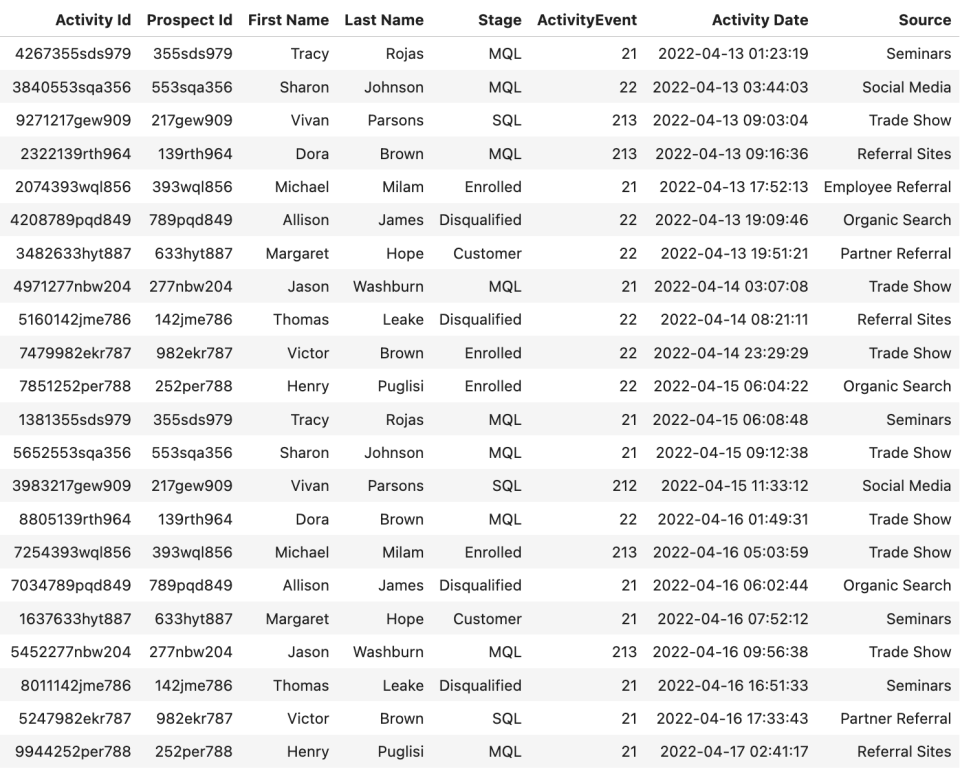
Use Custom Domains For Portals

1. Feature Overview

You can host Portals built with LeadSquared on –

  1. Our default domain – lsqportal.com. For more details, see Portal Configurations.
  2. Your own custom business/brand sub-domain (e.g., applications.mybusiness.com).

This article describes how you can host a portal on your own custom domain.

portal custom domain


2. Prerequisites

  1. You must be a LeadSquared Administrator user.
  2. You must first list the domain on the Website & Landing Page Domains page. For details, see Adding More Website Domains.
  3. Access to your Domain Name Service (DNS) provider’s account (GoDaddy, Hostgator, Bluehost, etc.).


3. How It Works

Create 2 CNAME records in your DNS provider’s account – one pointing to a certificate manager for HTTPS security, and the other pointing to the actual sub-domain for your portal (e.g. applications.mybusiness.com).
The setup requires you to go back and forth between the portal domain settings in your LeadSquared account and the CNAME record settings in your DNS provider’s account.

This section provides a summary of the setup, the following sections elaborate on each step –

  1. Create and configure the sub-domain in your LeadSquared account.
  2. A Name and Value will be generated. Copy the values, and use them to create a CNAME record in your DNS provider’s account. This step sets up a HTTPS certificate to ensure better security for your portal (for more details, see Why HTTPS matters).
  3. Come back to your LeadSquared account, and verify that the settings in your DNS (for the HTTPS certificate) have taken effect.
  4. After successful verification, you’ll receive a CDN URL from us. Create a new CNAME record for the sub-domain using the CDN URL.
  5. Your portal is now live and ready to use.


4. Configure the Sub-domain in LeadSquared

  1. On the main menu, navigate to Workflow>Manage Portals and select your portal.
  2. On the top navigation bar, select the Settings tab.
  3. On the left menu, select Domain.
  4. Disable the Use LSQ Domain slider Slider .
  5. Select a domain from the drop-down and enter the sub-domain name.
  6. Click Confirm
  7. Copy the generated CNAME Name and Value.

select domain step in custom domains


5. Create a CNAME Record for HTTPS Certificate

In this step, you’ll create a CNAME record in your DNS that points to a Certificate Manager and creates a Transport Layer Security (TLS) certificate for your domain. TLS is a security protocol that uses encryption to protect the transfer of data to and from your portal.

Here is some documentation for popular DNS providers –

  1. GoDaddy: Add a CNAME record
  2. Namecheap: How to Create a CNAME Record For Your Domain
  3. Dreamhost: Adding a Custom DNS record
  4. Bluehost: DNS Management: How to Add, Edit, or Delete DNS Entries

Log in to your Domain Name Service provider’s account (GoDaddy, Hostgator, Bluehost, etc.).

  1. Click on the DNS settings for the selected URL and create a new CNAME record entry. Paste the above values in the Name (or Host) and Value (or Target) fields, respectively.
  2. Select the minimum TTL value available.
  3. Save the record.
  4. Successful configurations may take some time to reflect.

Here’s an example from a GoDaddy.com account –

CNAME record in GoDaddy


6. Verify the Settings in LeadSquared

Navigate back to your LeadSquared account and on the Portal Domain Setting page, click Verify

cname verified success

Note: The request for CNAME record entries is valid for only 72 hours. You must complete the steps below within the window. If you miss it, click Regenerate CNAME, and copy the new Name and Value.

custom domain cname 72 hours expired

After successful verification, you’ll receive a CDN URL. Copy this URL and use it to create a CNAME record for the sub-domain.

verify cdn


7. Create a CNAME record for the Sub-Domain

Note: If your portal is not published to the Live environment, you won’t be able to configure the next step.  You’ll see the following prompt on the Portal Dashboard page. Click on “Complete Domain Linking” to proceed.

complete domain linking on portals

Finally, map the sub-domain with the portal –

  1. In your DNS provider’s account, click the DNS settings for the selected URL and create a new
    CNAME record entry.
  2. Paste the sub-domain name (e.g. ‘applications’ from applications.mybusiness.com) the Name (or Host) and CDN URL in the Value (or Target) fields, respectively.
  3. Select the minimum TTL value available and save the record.

Here’s an example from a GoDaddy.com account –

Sub domain final configs CDN URL portals

Your portal is now live.

cdn verified last step


8. Troubleshooting Frequent Issues

1. Why isn’t my cname setup getting verified?

If you’re using GoDaddy or Hostinger, ensure that the domain is not mapped to .leadroot.com. For example, in the image below, remove .leadroot.com from the CNAME:Name field.  

troubleshooting leadroot lpp

2. I added the CNAME records in my DNS, but when I try and verify the settings in LeadSquared, I get an “Invalid Certificate Id” error. What’s causing the issue?

There are 2 reasons why this error may occur

  1. The request for entries for CNAME records are valid only for 72hrs. If you try and verify the domain outside this window, you’ll receive an “Invalid Certificate Error“. To resolve the issue, unlink the sub-domain name and reconfigure the domain setup in Portal Designer.
  2. Certificate Authority Authorization (CAA) DNS records configured in your domain provider’s settings are blocking LeadSquared from issuing an HTTPS certificate. To resolve this –
    1. Remove the custom domain setup from Portal Designer.
    2. Follow the steps in the Amazon CAA issues article to allow LeadSquared to issue a certificate.
    3. Remove the CNAME mapping for the portal (if already added) in your DNS provider’s settings.
    4. Reconfigure the domain setup in the LeadSquared Portal Designer.

3. When I try and add the CNAME record in my DNS provider’s account, I get a “Not able to add CNAME record” error. How do I fix the issue?

This error may be the result of a duplicate CNAME record. If the CNAME record was already created in your DNS settings, delete it, then add the new record.

4. What do I do if my DNS provider is cPANEL?

  1. If any sub-domain is present, delete it first.
  2. Then create a new CNAME record in the root domain.

5. How do I regenerate CNAME?

Click Regenerate CNAME, and copy the new Name and Value

Please note, that this is only possible if your portal is not in Published status.


Any Questions?

Leave us a comment below. We’d love to help you out!

How to Dynamically Change Content in Landing Pages Pro and Portals

1. Feature Overview

This article will help you configure your Landing Page or Portals to display multiple variations of the same page to different target audiences.

In the example below, the landing page is designed for students enrolling in a full-stack developer course. However, the same page can dynamically display content for a front-end developer course by adding a query parameter to the landing page URL.

Note: The configuration below takes Landing Pages Pro as a working example, the set up remains the same on Portals.

example of dynamic change of content on lpp


2. Prerequisites

  • This feature is specifically for Landing Pages Pro and Portals. Landing Pages Pro and Portals are a paid feature. To enable it, contact your account manager, or send an email to support@leadsquared.com.
  • To capture Leads or Opportunities, you must first create the relevant forms using Dynamic Forms.


3. Use Cases

This feature can be used across industries, for example –

Industry Use-case
Lending Dynamically change content based on the loan product the lead is looking for.
Education Dynamically change content based on the course the lead is looking for.
Generic Dynamically change content based on product offers and discounts.


4. Add Logic Cards

Logic Cards will help you dynamically change the content –

  1. Click on a Card/Section on your landing page.
  2. In the Manage Logic Cards tab, click on the Manage button.
Note: If you cannot find the Manage Logic Cards tab, you might need to convert that Section to a logic card. Click on the Section, and in the  lpp advanced tab tab, click Convert to Logic Card.

navigate to manage logic cards on lpp

Next –

  1. to add a logic card, click on the logic card clone icon icon to clone the existing logic card.
  2. Optionally, you can rename the logic card.
  3. Select the Card/Section, and in the Manage Logic Cards tab, select the newly created logic card from the drop-down menu.

add a logic card on lpp

Now, change the content on the Card for a particular target audience. In the example below, we’re creating content specific to leads looking for a ‘Front-End Development’ course.

changed content lpp


5. Configure Logic Card Rules

Once the Logic Card and its content are in place, you need to set up the rule for when to display it –

  1. In the Manage Logic Cards section, select the newly created Logic Card.
  2. Click the Display Rules button.
  3. Enter the query parameter and its value for which, when the condition is met, the page will dynamically show the content you’ve created in the Logic Card.
    1. For example, www.example.com/edu?course=front-end
    2. If needed, add multiple rules and choose if All or Any of the rules must be satisfied.
  4. Once done, click Save.

logic card display rules


6. Go Live

Once you publish the Landing Page or Portal, any query parameter that matches the logic card rule(s) will result in a dynamic content change.

example of dynamic change of content on lpp


Any Questions?

Did you find this article helpful? Please let us know any feedback you may have in the comments section below. We’d love to hear from you and help you out!
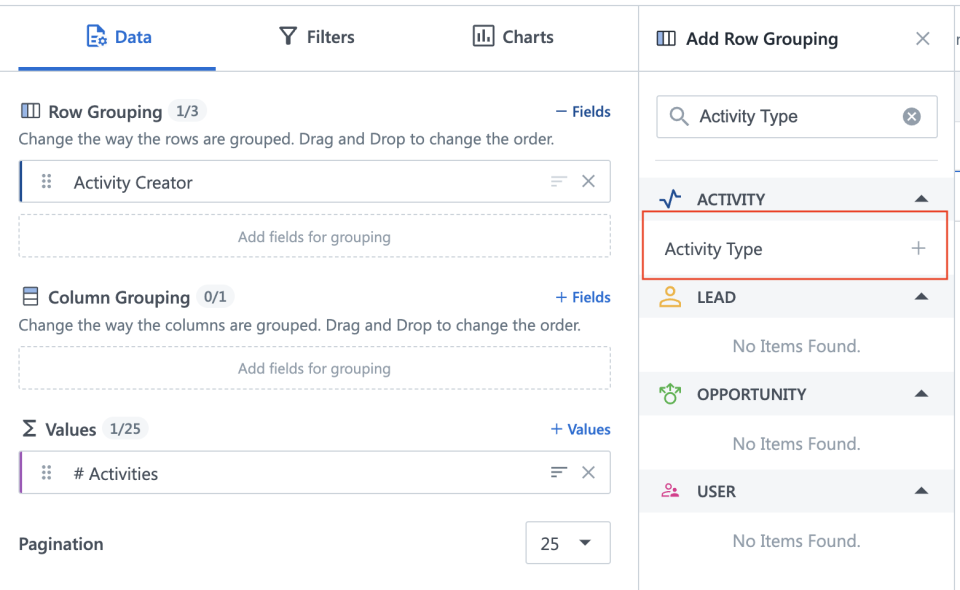
Mobile Cloud Calling Set Up for Ozonetel Cloud Agent

1. Overview

This article will help you set up Ozonetel Cloud Agent with LeadSquared Mobile Cloud Calling connector.


2. Prerequisites

Before integrating your telephony provider, you must read the prerequisites and install the connector by referring to this article – Mobile Cloud Calling.


3. Set up for Ozonetel Cloud Agent

Sample APIs for Ozonetel are listed below. To get the APIs, along with your api_key and username, please reach out to your Ozonetel support executive.

Before starting the API configuration, you must ensure the following two custom user fields are available on your LeadSquared account –

  • Ozonetel Username
  • Virtual Number Campaign (Ozonetel Campaign).

LeadSquared Cloud Calling Connector

Make a note of the schema names of the fields for the fields created (ie mx_Custom_9 and mx_Custom_8 in the above example). This would be required while configuring the Click2Call API. To know how to create user custom fields, see Manage User Custom Fields.

To find your Ozonetel Agent ID and Ozonetel Virtual Number, navigate to My Profile>Settings>Profile>My Profile.

LeadSquared Cloud Calling Connector

Property Description
Ozonetel Agent ID The Ozonetel Agent ID of the agent, that was used to log-in to the agent portal.
Ozonetel Virtual Number The Virtual Number/Campaign Name through which the cloud call will be initiated.
Note: The data in the Ozonetel Agent ID and Ozonetel Virtual Number fields have to be populated by an admin or a user for each agent who’s using the Mobile Cloud Calling functionality.

Connector Set-up 

1) Click2Call API Set-up

Navigate to Click2Call API Set-up screen to configure the Ozonetel Click2Call API. There are two methods by which you can configure the Ozonetel Click2Call API –

  • Agent Manual Dial API
    For Click2Call to work with Manual Dial API, you must be logged into your Ozonetel account, and the user status must be marked as “Ready”, and the user must be online, for the campaign used. If you don’t want the user to log-in to the Ozonetel account, please refer to the Offline Ozonetel API set-up for more details.
Method API
GET https://api1.cloudagent.in/CAServices/AgentManualDial.php?api_key=xxxxx&username=lead_squared&agentID=@{User:TelephonyAgentId,}&campaignName=@VirtualNumber&customerNumber=@CustomerNumber

Query Parameters –

Parameter Description Mapping
api_key Your Ozonetel API key. To obtain this, please log in to your Ozonetel account, or reach out to your Ozonetel support executive. To add the API key, click , and type in the API key.
username The username listed on your Ozonetel account. To add a username, click , and type in the username.
agentID The telephony agent ID of your LeadSquared user. Map the agentID to the user field that contains the Agent username, which in the example listed above is “@{User:mx_Custom_9}”.
campaignName The Ozonetel virtual DID number linked to your LeadSquared account. Map this variable to “@VirtualNumber”, which in turn picks up the campaignName from the user field (which is Ozonetel Virtual Number in the example listed above).
customerNumber The customer’s (lead’s) phone number to which the virtual call is being placed. Map this variable to the “@CustomerNumber ” option. The phone number is passed with country code, in the “+91-XXXX” format, via this variable, when Click2Call is placed.

click2call mobile cloud calling ozonetel

  • Phone Manual Dial API
    As an alternative, you can use the below API to place a call manually. Here, your user won’t be required to log in to their Ozonetel account. To enable this API for your account, please contact your Ozonetel Account representative for more details.
Method API
GET https://api1.cloudagent.in/CAServices/PhoneManualDial.php?apiKey=XXXXX&userName=XXXX&custNumber=XXXX&phoneName=XXX&did=XXXX

Query Parameters –

Parameter Description Mapping
api_key Your Ozonetel API key. To obtain this, please log in to your Ozonetel account, or reach out to your Ozonetel support executive. To add the API key, click , and type in the API key.
username The username listed on your Ozonetel account. To add a username, click , and type in the username.
did The number from which calls are dialed out. Map this variable to “@VirtualNumber”, which in turn picks up the campaignName from the user field (which is Ozonetel Virtual Number in the example listed above).
phoneName Name of the offline agent to which Outbound calls are to be assigned Map the phoneName to the user field that contains the phoneName username, which in the example listed above is “@{User:mx_Custom_10}”.
customerNumber The customer’s (lead’s) phone number to which the virtual call is being placed. Map this variable to the “@CustomerNumber ” option. The phone number is passed with country code, in the “+91-XXXX” format, via this variable, when Click2Call is placed.

Note:

  • You can use our Offline Click2call API (PhoneManual dial) in order to remove the need to log in to our toolbar/agent panel. This API triggers a call to Agent’s mobile number and customer number.
  • The callback URL will remain the same. Campaign=Offlkine is one of the key params we can observe in the logs.
  • Auto dialers can be set Offline from Admin and it dials to the agent’s mobile number configured in the Skill.
  • If a customer calls back, we can set up an Offline Inbound Campaign, and route the call to the available number in the Skill.

For more information, please refer to Ozonetel API Document.


Response Mapping for the Ozonetel Click2Call API –

Key Value Mapping
NonJSON queued successfully Consider As Success

LeadSquared Cloud Calling Connector

2) Incoming Agent Pop-up

Navigate to the Incoming Agent Pop-up screen to configure the Ozonetel Incoming Agent Pop-up API.

Method API
GET https://api1.cloudagent.in/CAServices/LeadSquare/PullAPI.php?userName=lead_squared&apiKey=xxxxx&agentPhoneNumber=@AssociatedPhoneNumberWithoutCountryCode
Query Parameters –
Parameter Description Mapping
api_key Your Ozonetel API key. To obtain this, please log in to your Ozonetel account, or reach out to your Ozonetel support executive. To add the API key, click , and type in the API key.
username The username listed on your Ozonetel account. To add a username, click , and type in the username.
agentPhoneNumber The LeadSquared user’s Ozonetel agent phone number. From the dropdown, map the agentPhoneNumber to the user field that contains the Agent phone number, which in the example listed above is “@AssociatedPhoneNumberWithoutCountryCode”.

LeadSquared Cloud Calling Connector

Response Mapping for the Incoming Agent Pop-up API –

Key Value Mapping
customerNumber "" Consider As Data
status success Consider As Success
status error Consider As Error

LeadSquared Cloud Calling Connector


3) List All DID Numbers

Navigate to the List All DID Numbers screen to configure the Ozonetel List All DID Numbers API.

Method API
Get https://api1.cloudagent.in/CAServices/DID/RunningDIDs.php?userName=lead_squared&apiKey=xxxxx

Query Parameters –

Parameter Description Mapping
username The username listed on your Ozonetel account. To add a username, click , and type in the username.
api_key Your Ozonetel API key. To obtain this, please log in to your Ozonetel account, or reach out to your Ozonetel support executive. To add the API key, click , and type in the API key.

LeadSquared Cloud Calling Connector

Response Mapping for the List All DID Numbers API –

Key Value Mapping
status success Consider As Success
data "" Consider As Data

LeadSquared Cloud Calling Connector


Any Questions?

If you have a question that this article did not answer, please let us know in the comments section below. We’ll be happy to improve the content and help you with any doubts you have.

Mobile Cloud Calling Set Up for Ozonetel CCaaS

1. Overview

This article will help you set up Ozonetel CCaaS with LeadSquared Mobile Cloud Calling connector.


2. Prerequisites

Before integrating your telephony provider, you must read the prerequisites and install the connector by referring to this article – Mobile Cloud Calling.


3. Set Up for Ozonetel

Sample APIs for Ozonetel are listed below. To get the APIs, along with your api_key and username, please reach out to your Ozonetel support executive.

Before starting the API configuration, you must ensure the following two custom user fields are available on your LeadSquared account –

  • Ozonetel Username
  • Virtual Number Campaign (Ozonetel Campaign).

LeadSquared Cloud Calling Connector

Make a note of the schema names of the fields for the fields created (ie mx_Custom_9 and mx_Custom_8 in the above example). This would be required while configuring the Click2Call API. To know how to create user custom fields, see Manage User Custom Fields.

To find your Ozonetel Agent ID and Ozonetel Virtual Number, navigate to My Profile>Settings>Profile>My Profile.

LeadSquared Cloud Calling Connector

Property Description
Ozonetel Agent ID The Ozonetel Agent ID of the agent, that was used to log-in to the agent portal.
Ozonetel Virtual Number The Virtual Number/Campaign Name through which the cloud call will be initiated.
Note: The data in the Ozonetel Agent ID and Ozonetel Virtual Number fields have to be populated by an admin or a user for each agent who’s using the Mobile Cloud Calling functionality.

Connector Set-up 

1) Click2Call API Set-up

Navigate to Click2Call API Set-up screen to configure the Ozonetel CCaaS Click2Call API –

Method API
GET https://in1-ccaas-api.ozonetel.com/CAServices/PhoneManualDial.php?apiKey=APIKeyFromOzonetelAccount&userName=AccountNameFromOzonetelPortal&custNumber=@CustomerNumber&phoneName=AgentPhoneNameWithinOzonetelPortal&did=VirtualNumber/DID%20numberFromOzonetelPortal&uui=Lead/OpportunityId

Query Parameters –

Parameter Description
apiKey Pass your Ozonetel API key.
userName Ozonetel account name.
custNumber
  • Lead number to whom the call is dialed.
  • You can map this variable to the “@CustomerNumber ” option. The phone number is passed with the country code, in the “+91-XXXX” format, via this variable, when Click2Call is placed.
phoneName
  • The name of the agent within the Ozonetel account.
  • Map the phoneName to the user field that contains the phoneName username, which in the example listed below is “@{User:mx_Custom_10}”.
did
  • Virtual Number or DID from Ozonetel.
  • In the example below, this variable is mapped to “@{User:mx_Custom_10}”, which in turn picks up the campaignName from the user field (which is Ozonetel Virtual Number in the example listed below).
uui
  • The Lead Id or Opportunity Id.
  • In the example below, the variable is mapped to “@RawOpportunityId“.

ozonetel click2call ccaas api

Response Mapping for Ozonetel Click2Call API  –

Key Value Mapping
status queued Consider As Success
message Call is initiated, please wait. Consider As Error
status error Consider As Error

ozonetel ccaas click2call response mapping

2) Incoming Agent Pop-up

Navigate to the Incoming Agent Pop-up screen to configure the Ozonetel CCaaS Incoming Agent Pop-up API.

Method API
GET API: https://in1-ccaas-api.ozonetel.com/CAServices/LeadSquare/PullAPI.php?userName=AccountNameFromOzonetelPortal&apiKey=AccountAPIFromOzonetelPortal&agentPhoneNumber=@{User:PhoneMain}
Query Parameters –
Parameter Description
apiKey Your Ozonetel API key. To obtain this, please log in to your Ozonetel account, or reach out to your Ozonetel support executive.
userName The username is listed on your Ozonetel account.
agentPhoneNumber
  • The LeadSquared user’s Ozonetel agent phone number.
  • From the dropdown, map the agentPhoneNumber to the user field that contains the Agent phone number, which in the example listed below is “@{User:PhoneMain}”.

ozonetel ccaas incoming agent pop-up api

Response Mapping for the Incoming Agent Pop-up API –

Key Value Mapping
message Invalid Agent Phone Number Consider As Error
Status Success Consider As Success
PhoneNumber "" Consider As Data

ozonetel ccaas incoming agent pop up response mapping

3) List All DID Numbers

Navigate to the List All DID Numbers screen to configure the Ozonetel CCaaS List All DID Numbers API.

Method API
GET https://in1-ccaas-api.ozonetel.com/CAServices/DID/RunningDIDs.php?userName=AccountNameFromozonetelPortal&apiKey=AccountAPIKeyFromOoznetelPortal

Query Parameters –

Parameter Description
userName The username is listed on your Ozonetel account.
apiKey Your Ozonetel API key. To obtain this, please log in to your Ozonetel account, or reach out to your Ozonetel support executive.

ozonetel ccaas list all did api

Response Mapping for the List All DID Numbers API –

Key Value Mapping
status success Consider As Success
data "" Consider As Data

ozonetel ccaas list all did api response mapping


Any Questions?

If you have a question that this article did not answer, please let us know in the comments section below. We’ll be happy to improve the content and help you with any doubts you have.

Mobile Cloud Calling Set Up for MCube

1. Overview

This article will help you set up MCube with LeadSquared Mobile Cloud Calling connector.

Note: International calling is not supported on this connector.


2. Prerequisites

Before integrating your telephony provider, you must read the prerequisites and install the connector by referring to this article – Mobile Cloud Calling.


3. Set Up for MCube

There are two types of configurations available for MCube –

  • MCube Cloud Offering – Configure this API if you want to enable support for softphone telephony.
  • MCube VMC offering – This version does not support a softphone.


4. MCube Cloud Calling Offering

1) Click2Call API

Navigate to the Click to Call Set-up screen to configure the MCube Cloud Offering Click2Call API –

Note: This API is specifically for domestic calling.
Method API
POST https://api.mcube.com/Restmcube-api/outbound-calls

In Body, pass the following payload –

Parameter Description
HTTP_AUTHORIZATION Pass the token, this is account-specific and should be unique for each customer Mcube account.
exenumber
  • Agent number to dial from.
  • Map the exenumber to the field that contains the Agent phone number,  “@AssociatedPhoneNumberWithoutCountryCode”.
custnumber
  • Lead number to whom the call is dialed.
  • You can map this variable to the “@CustomerNumberWithoutCountryCode” option.
refurl This is a static variable and should always be 1.
refid
  • This is the lead ID. 
  • In the example below, the variable is mapped to “@{Lead:ProspectID}“.

mcube c2c cloud offering

Response Mapping for MCube Cloud Offering Click2Call  –

Key Value Mapping
called "" Consider As CallSessionId
status succ Consider As Success
msg "" Consider As Data

mcube cloud calling c2c response mapping

2) Incoming Agent Pop-up

Navigate to the Incoming Agent Pop-up screen to configure the MCube Cloud Offering Incoming Agent Pop-up API.

Method API
POST https://api.mcube.com/cloudcomputing-api/getCustomerDetails

In Body, pass the following payload –

Parameter Description
secretkey Pass your MCube secret key.
emp_phone
  • Employee or DID number.
  • From the dropdown, map the exenumber to the field that contains the Agent phone number,  “@AssociatedPhoneNumberWithoutCountryCode”.
mcube cloud agent pop up

Response Mapping for MCube Cloud Offering Incoming Agent Pop-up  –

Key Value Mapping
customernumber "" Consider As Data
status success Consider As Success

agent pop up response

3) List All DID Numbers

Navigate to the List All DID Numbers screen to configure the MCube Cloud Offering List All DID Numbers API.

Method API
POST https://config.mcube.com/cloudcomputing-api/commondids

In Body, pass the following payload –

Parameter Description
secretkey Pass your MCube secret key.

list all did

Response Mapping for MCube Cloud Offering List All DID Numbers  –

Key Value Mapping
status success Consider As Success
Didnumber "" Consider As Data

list all did response


5. MCube VMC Offering

1) Click2Call API

Note: This API is specifically for domestic calling.

Navigate to the Click to Call Set-up screen to configure the MCube VMC Offering Click2Call API –

Method API
GET https://mcube.vmc.in/api/outboundcall?apikey=xxxxxef3a942e649f4abxxxxxxxxxxxx&exenumber=xxx3767xxx&custnumber=xxx0999xxx&url=1

Query Parameters –

Parameter Description
apikey Your MCube API key.
exenumber
  • DID number to dial from.
  • From the dropdown, map the exenumber to the field that contains the Agent phone number,  “@AssociatedPhoneNumberWithoutCountryCode”.
custnumber
  • Lead number to whom the call is dialed.
  • You can map this variable to the “@CustomerNumberWithoutCountryCode” option.
url This is a static variable and should always be 1.

MCube VMC cloud calling c2c

Response Mapping for MCube VMC Offering Click2Call  –

Key Value Mapping
msg success Consider As Success
callid "" Consider As CallSessionId

MCube VMC cloud calling c2c response

2) Incoming Agent Pop-up

Navigate to the Incoming Agent Pop-up screen to configure the MCube VMC Incoming Agent Pop-up API.

Method API
Get https://mcube.vmc.in/api/getCustmerdetails?apiKey=xxxxxxxxxx42e649f4ab6dxxxxxxxxxx&agentPhoneNumber=xxx376xxxx

Query Parameters –

Parameter Description
apiKey Pass your MCube API key.
agentPhoneNumber
  • Agent or DID number.
  • From the dropdown, map the exenumber to the field that contains the Agent phone number,  “@AssociatedPhoneNumberWithoutCountryCode”.

Response Mapping for MCube VMC Offering Incoming Agent Pop-up  –

Key Value Mapping
status success Consider As Success
status error Consider As Error
data "" Consider As Data

MCube VMC incoming agent response

3) List All DID Numbers

Navigate to the List All DID Numbers screen to configure the MCube VMC Offering List All DID Numbers API.

Method API
GET http://mcube.vmc.in/api/getBusinessNumbers?apiKey=xxxxxxxxxx42e649f4ab6dxxxxxxxxxx

Query Parameters –

Parameter Description
apiKey Pass your MCube API key.

MCube VMC cloud calling list all did numbers

Response Mapping for MCube VMC Offering List All DID Numbers  –

Key Value Mapping
status success Consider As Success
data "" Consider As Data

MCube VMC cloud calling list all did response


Any Questions?

If you have a question this article did not answer, please let us know in the comments section below. We’ll be happy to improve the content and help you with any doubts.

Automations Associated with Email Templates in Email Library

1. Feature Overview

Email templates created via the Email Library can be used in Automations. In certain cases, you will be making minor edits to these email templates. These minor changes could be the date of a webinar, names of speakers, etc. In such situations, updates made to an email template do not automatically synchronize with the associated automations. To address this issue, the Manage Associated Automations feature allows users to easily locate the specific automation and email card linked to a particular template. Users are then directed to access the automation to manually make required edits to the template.

Note: The edits made on an email template via the Email Library will not automatically reflect in the automation. You must make the changes manually.


2. Prerequisites

You must be the Admin or a marketing user to get access to the Manage Associated Automations popup. Sales users may or may not have access to edit automations depending on the access for group-level automation.


3. How it Works

Once this feature is enabled,

  1. For new automations, email templates used in the Send Email card will be linked and available to view in the Manage Associated Automations popup.
  2. For existing automations, users must perform a one-time reselection activity by editing the email card in the automation, selecting the relevant email template from the list, and saving it. The automation will now be linked and visible under the Manage Associated Automations popup.

Note: If an email template associated with an automation is unpublished on the Email Library, the previously linked automation will still be displayed under Manage Associated Automations.


3. View Associated Automations

All the automations associated with an email template are displayed in a popup box. To view them –

  1. Navigate to Content>Email Library
  2. Click seria sales user dashboard actions alongside the relevant email template.
  3. Click Manage Associated Automation. A popup of the list of automations and email cards in which that email template was used will be displayed.
  4. When you click on the relevant Automation Name, the automation will open in a separate tab. When you click on the relevant Email Card Name, the Email card will be highlighted.

Note: If there are no automations associated with the email template, a popup message that says, “No Automations and Email Cards are associated with the email template” will be displayed.

Leadsquared - Email Library Automation


4. Edit Email Template

You can make changes to an email template that is associated with an automation. To edit and save an email template –

  1. Navigate to Manage Associate Automation popup and click on the relevant Email Card Name.
  2. On the Email card, click LeadSquared Service CRM to make the required changes in the email template.
  3. Click Done to save and sync the edited email template with the associated automation.

LeadSquared - Email Library Automation


5. Edit Automation From Email Template Editors

An informational banner will be accessible in all Email Template editors, containing a link to view associated automations. Click the link to open a popup box displaying a list of automations associated with that specific template.

Leadsquared - Email Library Automation


6. Unpublished Automations

Under Unpublish Automation, if you select Completely stop automation for all leads within the workflow, the link between the automation and the email template breaks. The Manage Associated Automations popup of that email template will not display the automation. However, if you select Stop new leads from entering the automation, it remains visible as linked to the email template.

Note:

  • Only the published as well as unpublished automations that are still processing existing Leads will be displayed in the Manage Associated Automations popup.
  • If the completely unpublished automation is republished, then it will be displayed in the Manage Associated Automations popup of the previously linked email templates.

Leadsquared - Email Library Automation


7. Troubleshooting

Error: “You don’t have sufficient permissions to access Automations. Please contact Administrator.”

If you encounter this error message, it means you need to contact your LeadSquared administrator for assistance in obtaining the necessary access rights. Admins and marketing users can view linked automations in the Manage Associated Automations popup. Sales users may or may not have access to edit automations depending on the access for group-level automation.

LeadSquared - Email Library Automations


Any Questions?

We’d love to answer your questions or hear your own unique use cases. Feel free to share your experiences in the comments section below.

The Advanced Search ‘And’ Condition Is Displaying Incorrect Results for Leads – Opportunity Type Conditions

Consider the following example –

There are 2 opportunities (Automobile Loans) posted on a lead (Ankur Singh) –

  • Opportunity 1 – Status: Open, Owner: George
  • Opportunity 2 – Status: Won, Owner: John

LeadSquared Opportunity Management

On the Manage Leads Page, we’ll run an advanced search to find all leads with opportunities (of type Automobile Loan) where the Status is Open And the Owner is John

LeadSquared Opportunity Management

The result returns one lead – Ankur Singh.

LeadSquared Opportunity Management

This is the expected behaviour –

  1. The advanced search checks the first condition (Opportunity Type is Automobile loan and Status is Open) and finds the lead – Ankur Singh.
    AND
  2. The advanced search then checks the second condition (Opportunity Type is Automobile loan and Owner is John) and returns the lead – Ankur Singh.

Although there is no single Opportunity under the lead that meets both conditions (Status is Open and Owner is John), the lead Ankur Singh has 2 opportunities that satisfy the conditions individually.

Opportunity 1 (Status: Open, Owner: John) satisfies condition 1 (Status is Open) and Opportunity 2 (Status: Won, Owner: John) satisfies condition 2 (Owner is John). Therefore the lead Ankur Singh is returned as a result.

Note: It may be expected that lead no lead is returned here, because no single opportunity meets both conditions, however, the lead advanced search –

  1. Returns results satisfying the first condition
  2. Then returns results satisfying the second condition
  3. And finally, takes the intersection of the results of both conditions. In our example, Ankur Singh satisfies these conditions.

Alternatively, if the OR condition was used instead, many leads would be returned. All leads with opportunities with Status Open will be returned, and all leads  with opportunities owned by John will also be returned.

LeadSquared Opportunity Management

For more information on Advanced Search, see How to Use Advanced Search.

Mobile Cloud Calling Set Up for Knowlarity

1. Overview

This article will help you set up Knowlarity with LeadSquared Cloud Calling.


2. Set up Knowlarity

To configure Knowlarity as the telephony provider, please refer to Knowlarity Set-up.

Build Portals and Landing Pages Pro in Minutes

1. Feature Overview

With the enhanced Portals and Landing Pages Pro (LPP) designer, you can now create professional, responsive pages much faster. The new designer includes ready-made and reusable sections and design elements, so you spend less time designing from scratch and more time focusing on content and conversions.


2. Prerequisite


3. Ready-Made Templates

Reduce turnaround time by starting with a pre-built design instead of building from scratch. Choose from a wide range of industry-specific templates and pre-designed sections (hero banners, testimonials, forms, sliders, etc.).

On the designer, you can –

  1. Click the add section icon icon to add a section.
  2. Select a pre-built template.
  3. Customize if required.

And, the Mobile editor lets you design for desktop and mobile independently, ensuring an optimized experience across devices.

creating portals in minutes


4. Save and Reuse Sections

You can now save any section or element you create (e.g., a testimonial block, a call-to-action banner, or a lead capture form) and reuse it across any Portals and Landing Pages Pro.

  • Build once and reuse across projects.
  • Access saved sections from the “Saved Sections” panel in the designer.
  • Maintain brand consistency while saving effort on repetitive design work.

Example

If you’ve created a custom header with your brand’s logo and navigation, select that element and click on the save section icon icon to Save Section. Now, you can apply it to all future pages from the Saved Sections panel in the designer.

portals save sections


Any Questions?

Did you find this article helpful? Please let us know any feedback you may have in the comments section below. We’d love to hear from you and help you out!
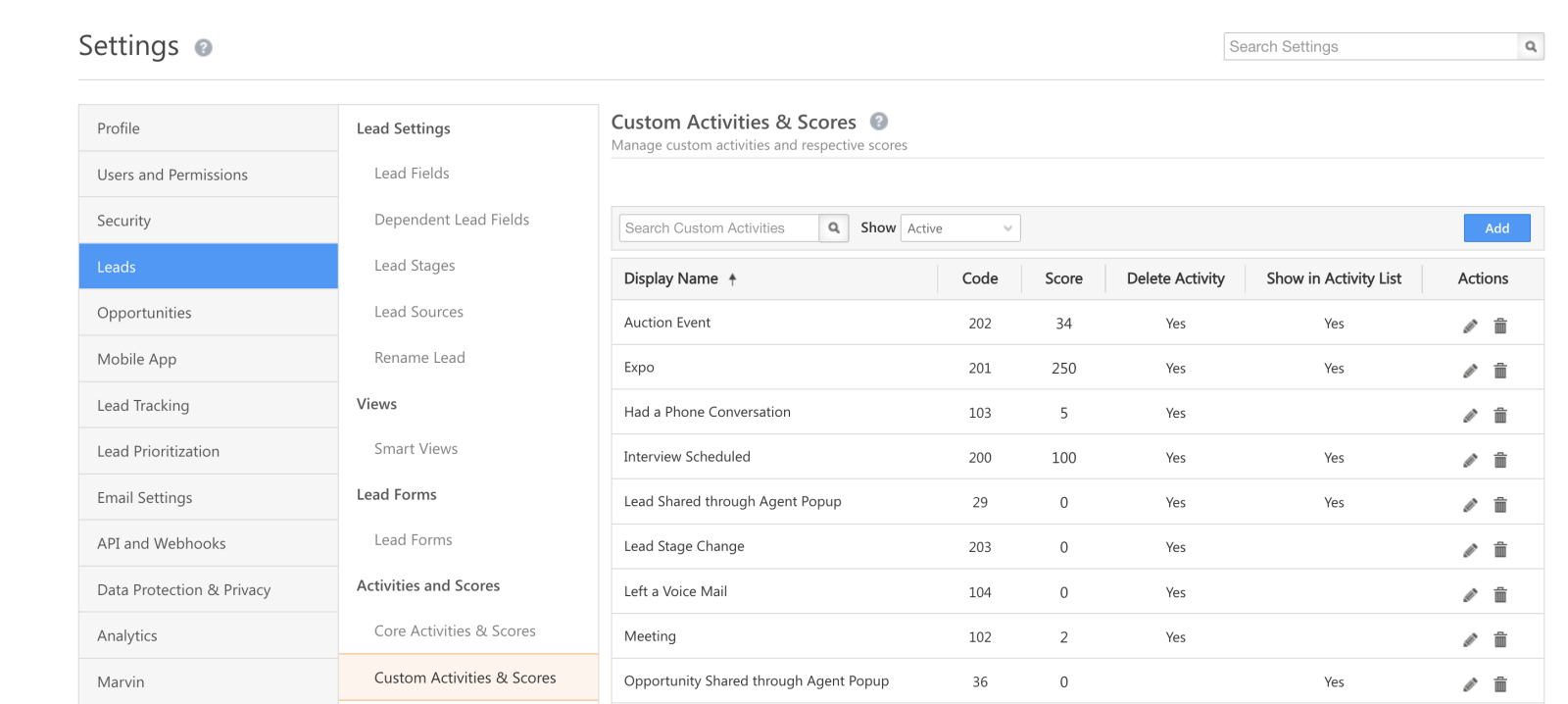
Email Parser (AI Powered) Connector

1. Feature Overview

The Email Parser connector extracts personally identifiable information (PII) of potential leads from inbound emails, and creates them as leads in your LeadSquared account. You can capture emails from Gmail, Outlook and other email providers. This connector streamlines processes, reduces manual data entry, prevents errors in lead creation, and improves efficiency.

  • AI-Powered Content Parser – Leverages advanced artificial intelligence (AI) algorithms to capture lead data, ensuring precise parsing of PII information.
  • Capture Leads in Real-Time – Capture information from emails as leads in LeadSquared using AI.
  • Capture Attachments – Capture and store email attachments in the Lead/Activity CFS field.


2. Prerequisites

  • You must be the Administrator of your LeadSquared account.
  • This is a paid connector. To enable it, reach out to your account manager, or write to support@leadsquared.com.


3. How it Works

This connector parses information from inbound emails and uses this to create new leads in your LeadSquared account.

  1. Install and configure the Email Parser (AI Powered) connector
    Install the connector on your account, and add relevant details to configure it.
  2. Enter the Prompt
    When configuring the connector, provide a prompt to identify and parse lead data from your inbound emails. LeadSquared runs this text prompt and uses advanced AI capabilities to capture data from these emails. Some example prompts are listed below.
  3. Share webhook
    Once you’ve entered the prompt and approved the lead mapping, a webhook URL is generated. Share this URL with your account manager, or send it to us at support@leadsquared.com.
  4. Set up auto-forwarding in your email client
    Once we receive the webhook URL, we’ll share an email ID with you. Set up an auto-forwarding rule on your email client to forward inbound emails to this email ID. We will then parse details from these emails to create new leads in your LeadSquared account.


4. Install the Connector

  1. Navigate to Apps>Apps Marketplace.
  2. Search for Email Parser(AI Powered), and click Install.
    • Alternatively, you can find the connector on the left panel, under Email.
  3. Once installed, hover your cursor over , and click Configure.

LeadSquared Email Parser


5. Configure the Connector

After installing the connector, configure access for non-Admin users in your account through the Configure Email Parser (AI Powered) pop-up. Only users with granted access can view and access the connector under the Apps menu.

  1. Select if you want to grant Connector Access that’s Based on Role or Advanced (User Level).
    • Based on Role – From the Specify Roles dropdown, select the LeadSquared user roles that can access the connector.
    • Advanced (User Level) – From the Advanced (User Level) dropdown, select a user boolean field. Based on the value in the selected boolean field, the user can access the connector. For example, for the user Sam, if the “Is Employee” boolean user field contains the value “Yes”, then this user can access the connector.
  2. Once you’re done, click Save Details. To continue the configuration, refer to the below sections.
Note: By default, all Admin users will have access to the connector.

LeadSquared Email Parser


6. Create the Prompt

To capture lead details from inbound emails, create a prompt, and pass it in LeadSquared. We pass this prompt and use AI to parse information from the email. This information is sent back to LeadSquared and is used to create a new lead.

Below are sample inbound emails, the details we want to capture from these emails, and the corresponding prompts. Use these examples as a guide to create your own prompts, which you’ll add to LeadSquared (as shown in the next section).

Email Sample What We Want to Capture Prompt
“Hello, Ali,

A customer just tried to reach you through the LeadSquared number, but you missed their call. Here are their details for you to follow up:

Date: April 13, 2024
Time: 10:25:30 PM
Caller Number: +91 9876543210

Remember, good follow-up makes for a memorable customer experience and will likely help you close better.

Good luck,

-The LeadSquared Team”

Here, this email is sent to the lead owner, Ali. Ali is listed in the ‘To’ section, and the company’s support email ID is in the ‘CC’ section. The lead’s phone number is mentioned in the email body. We want to parse the –

  • Lead’s phone number
extract valid NAME in JSON from text, don’t create your own data. Give data in Lead key only, if available.:
“Hello, Matthew

Shyam is interested in speaking to you about your property listed on your platform.

Ref No: S-PA01–DIP-VD2-5BR1
Name: Shyam
Telephone: 9879879870
Email: sam@example.com
Message: Hi! I saw your ad with property reference number S-PA01–DIP-VD2-5BR1 on LeadSquared. When is it available for viewing? Thanks.”

Here, this email is sent to the lead owner, Matthew. The lead’s name, email, phone number and property reference are mentioned in the email body. We want to parse the –

  • Lead’s name
  • Lead’s phone number
  • Lead’s email
  • Property reference ID
extract valid NAME, EMAIL, PHONE and REFERENCE ID in JSON from text, don’t create your own data. Give data in Lead key only, if available.:
“Dear Team,

Greetings.

Please find the attached RX DETAILS of the below-mentioned patient:
Patient Name: ANEESHA GHOSH
Age / Gender: 32 YEARS / FEMALE
Health Problem: Nodular lesion in right eye with minimal asymmetry of pituitary.
City: Kolkata
State: West Bengal
Country: India
Aadhaar Number: 111122223333
Phone: 9988776655
Phone: 9922334411
Address: 27B, Camac Street, 700016

Kindly suggest the cost estimation and the Ophthalmologist’s opinion. URGENT!

Best Wishes,
Kapil Munjal
Health Insurance Corp.”

Here, this email is sent to the support team by the insurer. We want to parse the –

  • Patient Name
  • Age
  • Aadhaar
  • Address
  • Multiple Phone Numbers

We DON’T WANT to parse –

  • Attendant
  • State
  • Country
  • City
extract valid details like NAME, AADHAAR, AGE, DOB, EMAIL, multiple PHONE and ADDRESS without STATE and COUNTRY in JSON from text for patient and attendant, don’t create your own data.:


7. Admin Configurations

After creating the email prompt, to continue the connector configuration, navigate to Apps>Email Parser(AI Powered).

7.1 Basic Details

Enter the following details –

LeadSquared Email Parser

Property Description
Prompt
Pass the prompt you’ve created.
Lead Source Enter the lead source through which the leads were captured (e.g., email parser, email campaign, etc.). This detail will be displayed on the Lead Details page, under Lead Source.
Default Country Code If the lead’s mobile number is captured without a country code, the default country code selected from the dropdown will be automatically added to the lead’s mobile number.
Select Time Zone The time zone followed in your account.
Lead Capture Search By Criteria To avoid creating duplicate leads, select one unique lead field (e.g., email ID, mobile number, PAN number) as the search key.

To know how to mark a LeadSquared lead field as unique, please refer to How to Make a Custom Field Unique.

Lead Capture Secondary Search By Criteria If lead identification and capture through the primary Search By Criteria fail, it will be re-attempted using the secondary Search By Criteria.
Select User to Notify on Failure Choose a user from the list of all users available in your LeadSquared account. If there’s an error in fetching leads, the user selected here will receive a failure message via email.

To know more about the type of errors, please refer to Error Notifications.

Enable Notification To ensure notification emails are sent to the selected user when there’s a failed query, enable the Checkbox checkbox.

Once you’re done entering all the details, click Save & Next.


7.2 Entity Options

Once you’re adding the basic details and email prompt, click Entity Options. By default, the following email fields are mapped to the corresponding LeadSquared lead fields –

  • Lead Name
  • Email
  • Phone Number
  • Lead Owner Email Address

The Lead Sync Behaviour is set to Capture (Create and Update existing) Record by default. It is recommended you DO NOT change this.

It is mandatory to click Edit Mapping under Lead entities, and on the Default Mapping pop-up, click Save & Close. This step must be completed even if you don’t update any of the lead mappings.

However, if you choose to capture more lead details from the email, or if you want to create a new activity using the content from the email, under Lead/Contact Entity or Activity Entity, click Edit Mapping. On the Default Mapping pop-up, you can edit the existing mapping or add custom lead/activity mapping. To know how to do this, refer to How to Map Entity Options for Lead Capture.

Once you’re done, click Save & Next.

LeadSquared Email Parser


7.3 Webhook URL

After you provide basic details and finish field mapping, click More Actions, and enable the sync job. A custom webhook URL is generated. Share this webhook with your LeadSquared account manager, or mail us at support@leadsquared.com. Once we receive it, we’ll share an email ID with you. Use that to set up the auto-forwarding rule in the next section.

LeadSquared Email Parser


8. Set up Auto-forwarding

Your LeadSquared account manager will share an email ID with you. In your email client (Gmail, Outlook, etc.), set up an auto-forwarding rule that sends all inbound emails to this ID. Based on the prompt you provided, we’ll use AI to parse details from these emails and create new leads in your LeadSquared account.


9. View Logs

Here, you can view logs of all the sync jobs that have taken place. View New Events (New Leads), Updated Events (Updated Leads), and Errors (when capturing leads).

  1. Navigate to Apps>Email Parser(AI+Powered).
  2. From the More Actions dropdown, click View Logs.
  3. You can filter the logs by selecting a date range (Today, Last 7 Days, This Month, and Last Month), by selecting the Job Status (“All”, “Success” and “Failure”), and by selecting the Sync Status (All, Error, and Success).
  4. You can view the sync status of the following events –
    • New Events – List of all the new leads that have been created in LeadSquared during the selected date range.
    • Updated Events – A list of all the –
      • Duplicate leads that were created with the same Search by Criteria value (e.g., with the same Email Id, Mobile Number, etc.).
      • Leads that previously contained errors, which were fixed and synced successfully.
    • Failed – The list of leads that have not been captured due to mapping errors (e.g., when a boolean field is mapped to an integer field, etc.).
  5. To view the Sync Response details, under Request ID/Sync Job ID, click the Id.
    • Under the right panel, you can view the response status, the API URL, the request, and the response.
    • The responses that are successful will contain the details of the leads that have been pushed from your email client.
    • To view the lead capture response under Sync API Response, Leads Updated and Errors in Leads, click Information.

Note:

  • For a response that contains an error, the reason for the error is listed in the response. Once you fix it, you can click the Retry button to perform the sync again.
  • The current Lead Sync Behaviour will reflect in the Logs screen. This will help identify the sync that’s used (Capture or Update) for the selected Request/Sync Job Id.

LeadSquared Email Parser


10. Other Actions

You can edit or delete the Email Parser connector instance that you created. To do this –

  1. Navigate to Apps>App Marketplace.
  2. Search for Email Parser(AI+Powered).
  3. Alongside the connector, hover your cursor over .
  4. From the list of options, you can perform the following actions –
    • Edit Configuration
    • Disable Configuration
    • Remove Configuration

LeadSquared Email Parser


Any Questions?

Did you find this article helpful? Please let us know any feedback you may have in the comments section below. We’d love to hear from you and help you out!
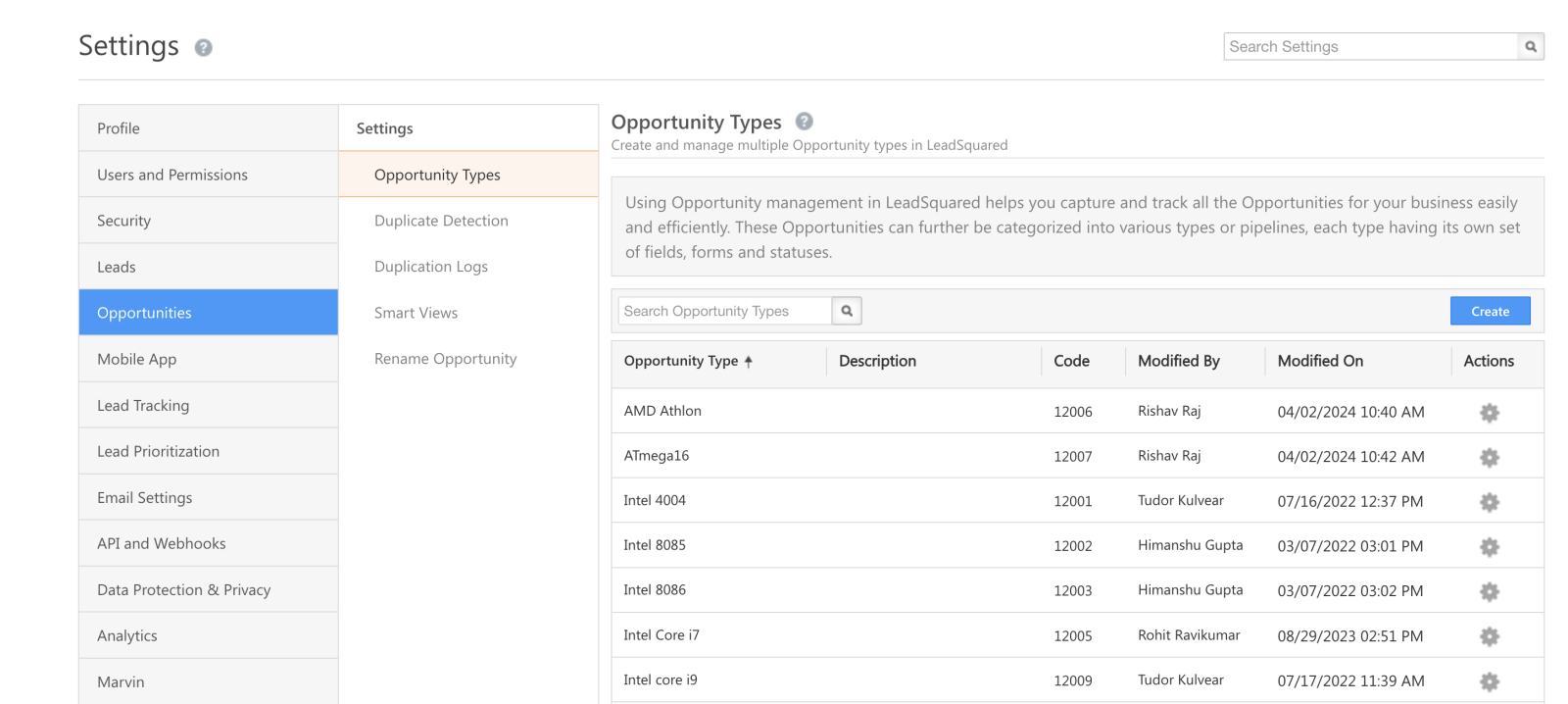
Create Custom Columns in SIERA

1. Feature Overview

You can create Custom Columns in the Data Source section of SIERA reports. A custom column lets you build new fields by writing expressions that combine existing columns, apply conditions, or transform values.

This makes your reports more flexible by allowing you to model business-specific logic without altering the underlying data.

Once a custom column is created, it can be applied in multiple areas of your report:

  • Row/Column Grouping → Categorize data by your custom logic.
  • Values → Use them inside other custom measures using Expression Builder.
  • Filters → Apply custom logic to refine report data.
  • Drill-Down → Add as drillable fields for deeper exploration.
  • List Report Fields → Display custom fields directly in list-style reports.


2. Prerequisites


3. Example Use Cases

Here are a few example use cases for custom columns in SIERA –

  • Create a column that flags leads as High Priority if their Lead Score > 50, otherwise mark them as Low Priority.
  • Combine two numeric fields (e.g., Lead Score and Engagement Score) and display one of them based on a condition.
  • Build a dynamic column that returns Yes/No depending on whether a lead meets specific criteria.


4. Creating a Custom Column

Follow these steps to create custom columns –

  1. In the report builder, navigate to the Data Source section.
  2. Select the Custom Columns tab and click + New Column.
  3. Enter a Column Name and build your Expression using the Expression Builder.
  4. Click Save.
  5. The new column will appear under the Custom category in the Additional Panel.

While building the expression, you can reference existing fields, apply conditions (`IF` statements), and use supported functions.

For example:

If('Leads.Lead Score' > 10, 'Yes', 'No')

This expression creates a column that outputs Yes if the Lead Score is greater than 10, otherwise No.

Note:

  • You can create a maximum of 5 custom columns.
  • Permissions applied to source fields are respected.

Create custom columns in SIERA


FAQs

1. Can I use a custom column in multiple places in the same report?
Yes. Once saved, it’s available in grouping, values, filters, drill-downs, and list reports.

2. What happens if I mix data types in my expression?
The output defaults to String unless all outputs are consistently numeric or date-time.

3. Are custom columns available in sub-queries?
Yes. You can create them inside a query, and they will be available in the main report if included in the query grouping.

4. Do custom columns affect source data?
No. They are report-level transformations and do not alter the underlying database.

What Is the Maximum Character Limit Supported for Activity and Opportunity Fields?

By default, activity or opportunity fields of string (text) type, support a maximum of 200 characters.

To increase this limit you can create a custom field set and associate it with the activity or opportunity. When creating a custom field set, add string fields and click the gear icon alongside the field to increase the limit to 1000 characters or 65,000 characters (by selecting the content option).

LeadSquared Custom Fields Sets

When you associate the CFS with a lead or an opportunity, you can now use the string fields to store data with more 1000 or 65,000 characters (based on your configuration of the CFS string field).

For more information on CFS, see Custom Fields Sets.

Some Activities on a Lead Are Not Visible in the Activity History Page. Why Is This Happening?

This issue might be caused by filters applied on the Activity History page, a delay in syncing, or permissions settings.

Try adding “&showahv1” to the URL. Alternatively, enable all activities from the filter on the Activity History page.

LeadSquared Lead Management

Check the permission templates to ensure activities are not hidden from users.

If you’re still unable to see the activities, contact us at support@leadsquared.com. For more details on activities, see Activity Management – Feature Guide.

Why Am I Getting a “Lead ID Doesn’t Exist” Error When Performing an Action on a Lead?

This error may occur if the lead has been deleted. The lead details page may still be visible but when you try and edit or perform an action on the lead, you encounter the “Lead Id Doesn’t Exist” error. Try waiting for some time and then checking back later. If this doesn’t fix the issue, reach out to us at support@leadsquared.com.

For more information on leads, see Lead Management – Feature Guide.

Why Am I Getting a “List ID Does Not Exist” Error When I Open My Static List?

This error may occur when your static list has more than 400,000 (4 lakh) leads. Reach out to support@leadsquared.com and share the List Id if you encounter this error.

LeadSquared Lead List Management

For more information on lists, see List Management – Feature Guide.

Note: It is recommended to avoid creating lists with more than 400,000 leads.

Smart Views for Administrators

1. Feature Overview

Administrators can create Smart Views and assign them to teams to display relevant records users see in their workspace. By configuring Smart View tabs for entities such as Accounts, Leads, Opportunities, Activities, and Tasks, admins can ensure that each team accesses only the data relevant to their work. Smart Views assigned to teams are available on both web and mobile, making them especially useful for teams that primarily work from the mobile app.

Note: If you’re unfamiliar with the Smart Views feature, see Smart Views – Feature Guide. To learn more about teams, see Teams.

As an admin, you can manage smart views by navigating to My Profile>Settings>Leads>Views>Smart Views.

Leadsquared - Smart Views for Administrators


2. Prerequisites

  • You must be the Admin of your LeadSquared account.
  • You must create Teams in your account.


3. How It Works

Smart Views allow administrators to control which records users see by assigning relevant Smart View tabs to teams.

  • Create Smart View Tabs – Admins create Smart View tabs for leads, opportunities, activities, or tasks, and configure filters, columns, and actions.
  • Assign to Teams – The Smart View tab is assigned to the required team.
  • User Access – Users in that team can access the assigned Smart View on both web and mobile, allowing them to view only the records relevant to their work.

This helps teams focus on the most relevant data and work more efficiently.


4. Create a New Smart View

To create the first Smart View tab –

  1. Navigate to My Profile>Settings>Leads>Views>Smart Views and click Create.
  2. Enter a name for the new smart view tab, then click Create Tabs. You can add Lead, Opportunity, Activity and Task type tabs.
  3. Create the smart view tab and click Save.

The following example shows a new Smart Views tab for ‘Bangalore Leads’ –

Leadsquared - Smart Views for Administrators

Apart from this, a non-admin user can create new Smart View tabs relevant to them from the Smart Views page.

  1. Navigate to Lead Management>Smart Views from your LeadSquared Dashboard.
  2. On the top-right corner of the Smart Views list tab, click the Add New Tab icon.
  3. Enter the relevant details and click Create Tab.

To learn more, see Smart Views – Feature Guide.

Note:

Leadsquared - Smart Views for Administrators

4.1 Configure Quick Actions and Menu Actions

When you create or edit a Smart View tab, you can configure the actions you want a user to take on the particular entity.

  1. On the Smart Views settings page, under the Actions column, click the Configure button.
  2. Now, from the pop-up, select/deselect the Quick Actions and Menu Actions you want to display, then click Save.
  3. The actions will now appear on the Smart Views page.
Note: You can also configure Lead Actions on task tabs. This will help you use task tabs as a single work area.

Leadsquared - Smart Views

4.2 Arrange Columns

You can reorder columns for any tab by clicking the Manage Columns icon on the top-right corner of the grid. Click the checkbox alongside the relevant fields under Select Lead Columns. Then simply drag and rearrange the fields under Reorder Selected Columns in the appropriate place.

Additionally, you can also pin columns. Pinning a column moves it to the front of the grid and freezes it in place. Pinned columns remain visible and do not move or get hidden when scrolling through the grid. You can pin upto four columns, with two primary columns pinned by default. Click the Pin icon alongside the Selected Column, and drag and rearrange the fields as required.

Leadsquared - Smart Views

4.3 Manage Filters 

  1. Navigate to Settings>Leads>Smart Views.
  2. Under Actions, alongside the relevant Smart View, click Edit
  3. Navigate to the tab and click Manage Filters.
  4. Select the required filters and alongside the Enable filter options for mobile users setting, click the checkbox.
  5. Click Save.

Note:

  • A maximum of 5 fields can be selected as filters.
  • The following datatype fields are displayed for lead field and activity field filters –
    • Dropdown
    • Date
    • Date-time

Leadsquared - Smart Views for Administrators


5. Assign a Smart View Tab to a Team

Once you’ve created a smart view tab, you can assign it to a team.

  1. Navigate to My Profile>Settings>Users and Permissions>Teams.
  2. Alongside the team you want to assign the Smart View tab to, click the Actions icon.
  3. Click Apply Smart View.
  4. In the dropdown, alongside the Smart View section, select the smart view you want to assign the team.
    • Click the checkbox alongside Replace Smart View if you wish to replace the previous Smart View that was assigned to the team. This will also replace the Smart View for any children teams that were inheriting the previous Smart View.
  5. Once done, click Save.
Note: The following GIF assumes you’re using the new Teams V2 UI, which makes it easier to assign features (dashboards, workday templates, smart views, etc.,) to teams. You can enable it from Profile>Organization Settings>Advanced Configuration, search for ‘Teams’ and enable Switch to teams UI V2.

Leadsquared - Smart Views for Administrators


6. Set Smart Views as Home Page

In LeadSquared, Dashboards are the default homepage for all users and teams. Administrators can change this by setting Smart Views as the homepage. This allows users to immediately access the records relevant to their work such as Accounts, Leads, Opportunities, Activities, or Tasks when they log in.

Note: A Smart View must first be created and assigned to a team before it can be set as a homepage. For more information, see Assign a Smart View Tab to a Team.

6.1 Set Smart Views as Homepage for Teams

You can assign Smart Views as the homepage for an entire team so that all users in that team see the Smart Views page when they log in.

  1. Navigate to My Profile>Settings>Users and Permissions>Teams.
  2. Hover over the Actions icon next to the relevant team and click Configure Home Page.
  3. In the Configure Home Page pop-up, select Smart Views from the Select Page dropdown and click Save.

Leadsquared - Smart Views As Home Page

6.2 Set Smart Views as Homepage for Individual Users

Administrators can also assign Smart Views as the homepage for specific users.

  1. Navigate to My Profile>Settings>Users and Permissions>Users.
  2. Select the users by clicking the checkbox next to their names.
  3. Click Bulk Actions above the user grid.
  4. Select Configure Home Page.
  5. In the Configure Home Page pop-up, select Smart Views from the Select Page dropdown and click Save.

Leadsquared - Smart Views as Homepage


7. FAQs

1. Why does the tab I created from admin settings reference a different activity after assignment?

This issue may arise when View permissions are applied to that particular entity for the user to whom the tab is assigned. Verify the permission template for View permissions. This is applicable to tasks, opportunities, and accounts as well. 

2. Why aren’t the filters configured in Manage Filters applied to LeadSquared’s platform Smart Views while creating an activity tab from settings?

Manage Filters for activity tabs is exclusively applicable to NextGen UI and Marvin. To customize filters for activity tabs, ensure that the NextGen UI is enabled for the tenant.


Any Questions?

We’d love to answer your questions or hear your own unique use cases. Feel free to share your experiences in the comments section below.

LeadSquared WhatsApp Integration with Tata Tele Business Services

1. Feature Overview

Tata Tele Business Services‘s WhatsApp self-serve solutions help you engage your customers in a simple, secure, and reliable way. Tata Tele Business Services facilitates customer support and other marketing efforts through WhatsApp. To know more, visit Tata Tele Business Services.

LeadSquared offers WhatsApp integration to help users communicate with their leads. Our WhatsApp functionality supports integrations through different solution providers like InfobipKaleyra, WATI, Zoko and Gupshup. This article helps you set up WhatsApp messaging through your LeadSquared account using Tata Tele Business Services as your service provider.


2. Prerequisites

If you’re not familiar with LeadSquared’s WhatsApp integration, see WhatsApp Business Messaging Connector. For frequently asked questions, see WhatsApp Business FAQs.

  1. To enable the Tata Tele Business Services WhatsApp integration on your account, contact your account manager, or write to support@leadsquared.com.
  2. Get an Approved WhatsApp Business Number and Account.
  3. Submit Message Templates for Approval.


3. Installation

To know how to install the WhatsApp Business connector, refer to WhatsApp Business Messaging Connector.


4. Configuration

Once the connector is installed, add and configure your WhatsApp phone numbers to the connector. To do this, enter –

4.1 Basic Details

LeadSquared Gupshup integration

Field Description
WhatsApp Business Number Paste your WhatsApp business number in this field, without including any special characters such as ‘+’, etc. You will have to include the country code of the number though. An example of a number would be “9199010XXXXX”, where 91 is the country code.

Contact your Account Manager from Tata Tele Business Services to get your WhatsApp business number.

Account Name Provide a relevant name for your connector. This field is mandatory.
Allow Lead Generation on incoming message Click Slider to allow automatic lead creation when you receive messages from unknown mobile numbers.
Lead Source From the dropdown, select a lead source for your leads.

Once you’re done, click Next.

4.2 Service Provider

Then, from the available options, select Tata Tele Business Services, and click Next.

LeadSquared Tata Teleservices integration

4.3 Authentication Set-up

On this screen, enter the following details –

LeadSquared Tata Teleservices integration

Field Description
Send Message URL This is a read-only field, and no action is required from your end.
WhatsApp Number The WhatsApp number you entered in the previous section is auto populated here.
Permanent Access Token Paste your Tata Tele Business Services access token. To know how to obtain it, refer to Tata Tele Business Services WhatsApp Details.
Authentication Header Template* In this field, pass the following value – {{Token}}
Get Media URL Paste this URL here –
https://wb.omni.tatatelebusiness.com/whatsapp-cloud/media/download/{{mediaId}}
WhatsApp Business Account ID Enter your WhatsApp Business Account ID here. This is optional.

Once you’re done entering all the details, click Next.

4.4 Converse Settings

LeadSquared Converse is an instant messaging feature that allows you to have real-time conversations with your leads via WhatsApp.

LeadSquared WhatsApp Integration

To integrate LeadSquared Converse with WhatsApp, complete the following steps –

  1. On the Converse Settings tab, toggle the Enable Converse Slider slider.
  2. Under User Access, grant permissions to users who can communicate with leads through the LeadSquared Converse.
    • Based on Role – From the Search and Select Users dropdown, select the LeadSquared user roles that can send messages through LeadSquared Converse.
    • Advanced (User Level) – Based on the value present in the selected user boolean field (e.g., For user Sam, the “Is Employee” field contains “Yes”), the user will be able to send messages through LeadSquared Converse. From the Select User Field dropdown, select a relevant boolean field.
  3. Functionality – The following additional settings must be configured –
    • Approved Templates – Enable this functionality to allow your users to send approved WhatsApp templates to your leads.
    • Unapproved Templates – Enable this functionality to allow your users to send unapproved WhatsApp templates to your leads. These can only be sent if the 24-hours service window is active.
    • Notify Lead Owner* – When enabled, only lead owners will get notifications of the WhatsApp messages a lead sends. When disabled, all logged-in users will receive notifications of these WhatsApp messages.
    • Sending Rich Media – Enable this functionality to allow your users to send media files in their WhatsApp messages.

Note:

  • *Message notifications are only sent to one user, i.e., either the Lead Owner or to the user (other than the Lead Owner) that sent the WhatsApp message to the lead. When the Notify Lead Owner setting is enabled, only the Lead Owner will get notified, while the user who sent the message will not get a notification.
  • If you enable the Send Rich Media option, you must also enable the Approved Templates option. This ensures that you can add your media files to a template when messaging your leads.

LeadSquared Gupshup Integration

4.5 Advanced Settings

In this screen, you must map –

  • Activity Mapping – A LeadSquared activity field to your WhatsApp messages. This is the activity that will be posted every time a WhatsApp message is sent or received.
  • WhatsApp Opt-Out – A LeadSquared lead field to the WhatsApp opt-out functionality. Your leads can opt-in or out of receiving WhatsApp messages on the basis of this field.
  • Default WhatsApp Number Fields – The number you set as the default phone number will be automatically selected when you send a WhatsApp message to a lead. You can also select other available numbers from the “Add Another Number” dropdown.
  • Default Country Code – The default country code will be used to send messages to a phone number that’s stored in a custom field, if no country code is listed.
  • Enable HSM – Disable the Slider slider.
  • Enable Rich Media Template Support – If you want to include media files in your WhatsApp message, you must enable the Slider slider.
  • Show URL Preview in Custom Messages – Enable the sliderSlider to allow for URL previews in non-templatized WhatsApp messages.
  • Compliance Type – Here, you can select the compliance type for the WhatsApp template, by choosing either WhatsApp Opt-out or Opt-in.
  • WhatsApp Opt-out – From the dropdown, select a lead field for the WhatsApp opt-in/opt-out functionality. Your leads can opt-in or out of receiving WhatsApp messages on the basis of this field.
  • Blacklist Incoming Messages – Enable this option to blacklist incoming messages from specific numbers. This is useful when you want to block numbers that send inappropriate messages to your users. Once enabled, enter the phone numbers in the text box available on the right side of your screen. You can add phone numbers with 7-12 digits (excluding the country code). This option is available only when the Allow Lead Generation on incoming messages setting is enabled.
Note: Create a custom lead field of boolean type to map to the WhatsApp opt-out functionality. For example, you may create a custom lead field called “WhatsApp Opt Out”. Leads for whom the field is selected/checked won’t receive WhatsApp messages.

Click Save & Close when you’re done.

  • If your credentials are correct, you’ll see the success message highlighted below.
  • If they were incorrect, the integration will fail.
Note: Once you save the Advanced Settings, a webhook URL is generated. Use this URL to integrate your LeadSquared and Tata Tele Business Services accounts, as shown in the section below.

LeadSquared Tata Teleservices integration


5. Configure the Webhook in Tata Tele Business Services

To receive inbound messages from customers, and to capture delivery status and reports, add the webhook URL (generated in LeadSquared) to your Tata Tele Business Services account. Once the Send Message URL is generated –

  1. On your LeadSquared account, on the Configure WhatsApp Business pop-up, from the Authentication tab, copy the Notifications Webhook URL.
  2. Once you log in to your Tata Tele Business Services account, on the left panel, click Integrations, and then click the Integration tab.
  3. Here, click LeadSquared, and the click Enable.
  4. On the right panel, paste the URL.
  5. Once you’re done, click Save. This completes the integration process.

LeadSquared WhatsApp Tata Teleservices


6. Conversing with Leads via WhatsApp

Integrating Converse with LeadSquared’s WhatsApp connector will enable your users to have real-time conversations with your leads through WhatsApp. Using templatised messages, you’ll be able to attach and send media files (such as images, documents, etc.) in your conversations. To know more, refer to LeadSquared Converse.
LeadSquared WhatsApp Integration


7. Next Steps

Once the connector is successfully installed, you can proceed to add WhatsApp templates and finally message your leads. For details, see Adding WhatsApp Templates to LeadSquared.

Note: To enable link tracking for messages that contain URLs, refer to WhatsApp Link Tracking in LeadSquared.


Any Questions?

Did you find this article helpful? Please let us know any feedback you may have in the comments section below. We’d love to hear from you and help you out!
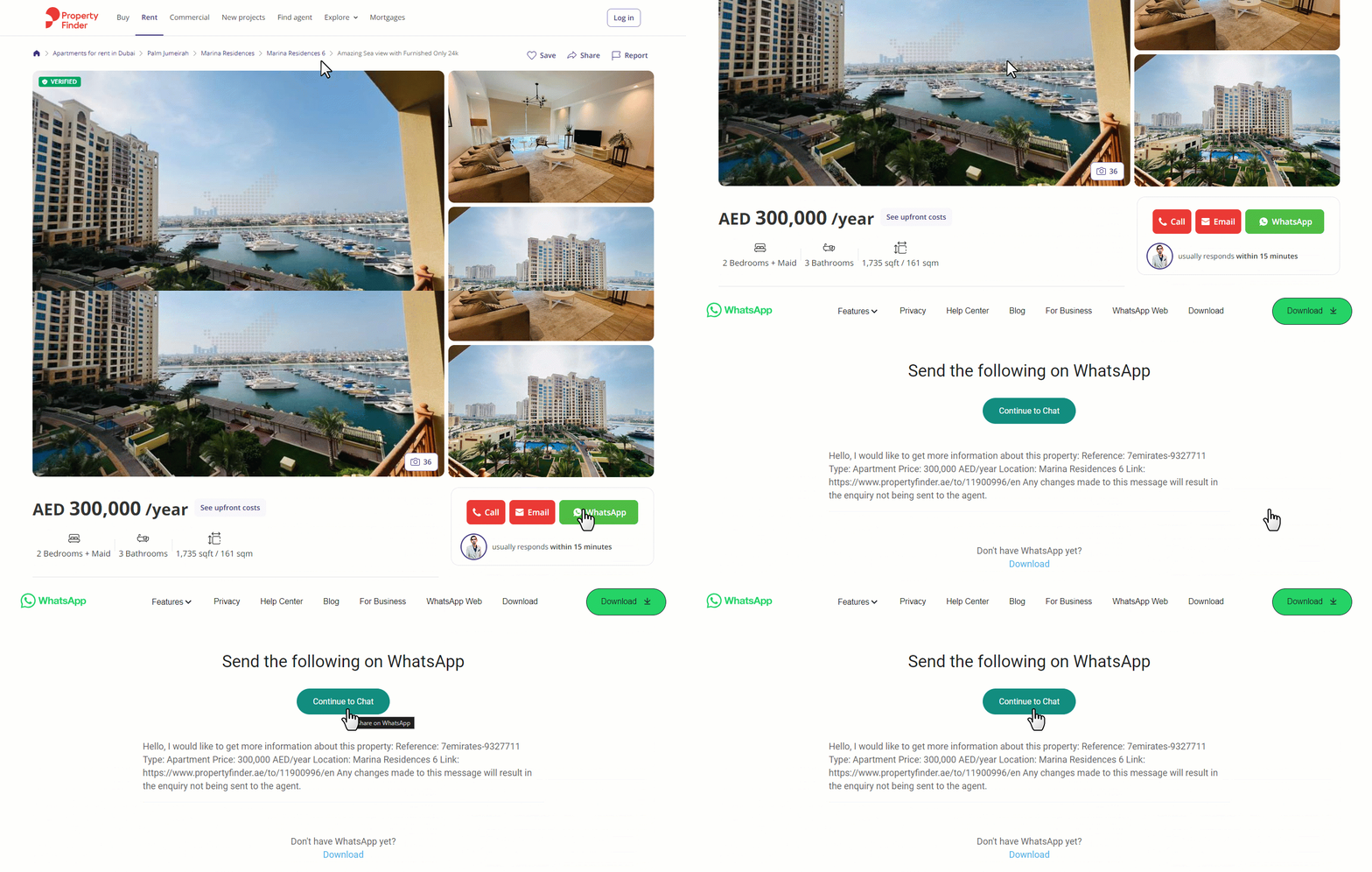
Mobile App Permissions

The LeadSquared app requests for Location Access, Storage and Calendar access permissions after installation. These permissions only need to be granted once and ensure that the essential features of the app run smoothly and without interruption.

For settings and permissions related to features within the app, see Configure Mobile App Settings from the Web Platform.

Permission Description Why we require it
Location Access Allows the app access to your device’s location services. We require location data permissions to run the following features –

  • Location tracking and Check-in/Check-out allow you to manage your field sales operations by tracking the attendance, location and travel path of your users.
  • The Leads Near Me feature shows you locations and routes to leads in your vicinity, so you can plan and execute your tasks efficiently.
  • In addition, LeadSquared also has a geo-fence feature that prevents users from completing tasks outside a specified perimeter.
Storage Permissions Gives the app access to your device’s storage.


This permission allows the LeadSquared app to store data (pictures, files, app logs, etc.) on your phone.
Calendar Access Allows the apps to access your device’s calendar.


Tasks are synced to your calendar to send you updates and notifications that help you stay on top of your sales.
Camera (Optional) Allows the app to use the camera on the device to take pictures. While creating leads or activities using custom field sets, you can either upload attachments from your device or click a picture of important documents, forms, etc. related to the lead/activity.

Note that this permission can be removed from your app settings with no operational side effects.

Battery Optimization (Android) Manages your device’s apps to conserve battery. Some devices may limit background location updates to save power. Check that the mobile device’s battery optimization settings do not restrict the tracking app’s background activity. 


Convert Speech to Text on the Mobile App

1. Feature Overview

Field Sales Users can add notes on their leads, opportunities, tasks, and activities on the go using the Speech to Text Converter. While adding notes, users can record themselves speaking the relevant content which will be converted to text. This text can then be edited accordingly.


2. Prerequisite

You must have the LeadSquared mobile app installed on your device.


3. Convert Speech to Text on Lead and Opportunity Detail Notes

  1. On the mobile app, navigate to the relevant Lead or Opportunity Details page.
  2. Tap Notes. On the bottom of the page, tap Add Note.
  3. On the Add Note page, tap Mic icon. Now, you can say what you need to record on the Notes. Once you’re done speaking, the speech will be converted to text on this page. You can edit your notes once the conversion is over.
  4. Once you’re done, tap Save.

LeadSquared - Convert Speech to text on Lead Details


4. Convert Speech to Text on Activity and Task Notes

  1. While creating an activity or a task, tap the Notes section.
  2. Now, tap the microphone icon above your keypad. You can now speak and record your speech as text.
  3. Edit your text notes as you wish and submit the form.
Note: You can only add speech to text Notes on Activities and Tasks while creating them.

LeadSquared - Convert Speech to Text on Activities


Any Questions?

Did you find this article helpful? Please let us know any feedback you may have in the comments section below. We’d love to hear from you and help you out!

Why Am I Still Receiving Reminders for a Task Type Even After I Disabled Reminders?

Check when the task was created compared to when you turned off reminders. If the task was created before you turned off reminders, you might still get reminders. But if the task was created after, you shouldn’t get reminders. This helps make sure reminders match your current settings and you don’t get notified for tasks you don’t need reminders for anymore.

For more information, see How to Create Tasks and Schedule Reminders.

What Are the Maximum Number of Leads That Can Be Shared with a User?

Using the lead share feature, you can share a maximum of 2,000 leads with a user.

To know more, see How to Share Leads with Users.

Why Is Lead Source Not Getting Updated with the Lead Capture API?

If the lead was created earlier with a previous call to the Lead Capture API, the source field won’t get updated in subsequent calls. We prevent the source field from being updated to maintain the original lead source.

To learn more, see Capture Leads API.

What Are the Maximum Number of Leads I Can Bulk Update?

You can bulk update a maximum of 25,000 leads at a go. Increasing this limit may cause performance issues, but if you require the functionality, reach out to us at support@leadsquared.com.

For more information on bulk updates, see How to Bulk Update Lead Fields.

What Are the Maximum Number of Leads That Can Be Added to the Static List? Why is the List Details Page Breaking?

A maximum of 400,000 (4 lakh) leads can be added to a static list. If you add more than 400,000 leads to a static list, the list details page may break due to a time-out error while retrieving the list of leads.

To learn more about lists, see List Management – Feature Guide.

Why Is the Sales Group Manager Unable to Edit, Mark Complete, or Delete Tasks Assigned to Members of the Same Group?

By default, even if Sales Group Managers have ‘modify lead’ privileges, they cannot alter any tasks.

If you wish to allow them to update tasks (edit, delete, mark complete) of their group members, reach out to us at support@leadsquared.com and we can enable this functionality through a back-end setting.

To learn more about Sales Groups, see Managing Lead Access through Sales Groups.

Can I use both Reporting Manager and Sales Group Hierarchy Features

No, you can use only one feature. By default, LeadSquared accounts come with the Sales Group feature enabled. If you wish to change this to the Reporting Manager feature, please contact us at support@leadsquared.com.

  • The Sales Groups feature lets you manage your sales users by organizing them into different groups based on location, business unit or any other categorization of your choice. To learn more, see Manage Sales Groups.
  • The Reporting Manager feature lets you create a hierarchy of users to reflect your organization structure. To learn more see, View User Hierarchy.

Journeys Feature Guide

1. Feature Overview

Journeys is a field sales management feature built for the mobile app. It enables all sales users to create a Plan (Beat Plan, PJP etc.) in just two simple steps by defining the plan duration (i.e. Start Date & End Date) and adding the relevant leads/lead templates alongside each date in the plan duration. Users can also send plans for approval to their respective managers if required. Once a plan is published or approved, the configured To-Dos will be created against the added leads. The plan execution can then be tracked by users through My Trips, Tasks, Task Smart Views, etc., on the LeadSquared mobile app.

LeadSquared - Journeys marketing


2. Set Up and Configure Journeys

The Setting up Journeys on the Web App article is mainly for Admins to enable/disable high level configurations for Journeys. This is the first step in using Journeys. Once you’ve configured the Journeys settings for your account, you can start creating and managing Plans.


3. Manage Plans on Web App

Admins and Managers can create, approve, and reject users’ plans on the Manage Plans page. Plans can be created by selecting leads manually or through lead templates. Manage Plans on Journeys for Web Users deals with creating and managing various Plans on the web app.


4. Manage Plans on Mobile App

Manage Plans on the Mobile App deals with creating and managing various Plans on the mobile app. The plan execution can then be tracked through My Trips, Tasks, Task Smart Views, etc., on the LeadSquared mobile app. This allows field sales users to streamline their tasks and plan the best route possible.


5. Manage Lead Templates on Web App

Lead Templates are a logical group of leads created based on similar properties like geographical proximity. Manage Lead Templates on Web App details how you can use lead templates to create plans instead of manually selecting each lead.


Any Questions?

We’d love to answer your questions or hear your own unique use cases. Feel free to share your experiences in the comments section below.

Can I Delete a User?

In order to preserve the integrity of your account history, we don’t allow you to delete users. However, you can deactivate users after which they’ll no longer be able to log into LeadSquared. You can even mark de-activated users obsolete and then re-use their email addresses to create new users.

To learn more, see How to Deactivate Users.

Can I increase the maximum characters for the Notes fields?

No, the maximum limit (2,000 characters) can’t be increased for the Notes Lead field or the Notes Activity field.

For more information see, How to Create a Lead Fields and How to Create an Activity Field.

Why can I see a sales user under the Modified By column in the Opportunity Settings Page?

Only admins can access the Opportunity Types Configuration page. However there are instances when sales users appear under the Modified By column on the Opportunity settings page –

LeadSquared Opportunity Management

This occurs when the allow auto update setting is enabled for a drop-down field within an Opportunity Type.
With the Allow Auto Update setting enabled, when a sales user enters a new value/option while filling the drop down field (through a form, opportunity import or API call), the opportunity type is modified and the user’s name appears under the Modified By column on the Opportunity Settings page.

LeadSquared Opportunity Management

How to Filter Duplicate Opportunities of an Opportunity Type?

There is no direct way to filter duplicate opportunities of a particular opportunity type through advanced search. However, you can export the opportunities and compare them in the CSV file.

To know more, see Export Opportunities.

Why did the Opportunity Capture API create a Lead but throw an error when creating the Opportunity?

This is the expected behaviour. In the opportunity capture flow, a lead is created first, and then an opportunity is created. So even if opportunity creation fails, a lead is still created.

To know more, see Opportunity Capture API.

Is the Opportunity Origin updated automatically like the Lead Origin Field?

No, the opportunity origin field is not updated automatically. It’s a string field that takes the value sent via the API payload or via CSV import.

For more information, see Opportunity API and Import Opportunities.

Can I update the Created On field of an Opportunity?

Yes. First, reach out to us at support@leadsquared.com to enable this feature. Once enabled, you can use the following API endpoints to updated the Created On opportunity date field –

What is the maximum character length supported for Lead and Activity fields?

The maximum character limit for custom lead fields is 1,000 characters (for ‘Text’ type fields displayed as ‘Text Areas’). However, the Notes system lead field supports 2,000 characters.

For Activity fields of text type, the maximum limit is 200 characters.

For more information, see How to Create a Custom Lead Field and How to Create a Activity Fields.

What are the maximum export limits for Leads, Activities, Opportunities and Tasks?

By default, you can export a maximum of 100,000 (1 lakh) Leads, Activities, Opportunities and Tasks. This limit can be extended to 500,000 (5 lakh). To increase the limit contact us at support@leadsquared.com. Note that increasing this limit may incur additional charges due to the required infrastructure changes.

For more information, see Export your Data From LeadSquared.

What is the maximum number of Leads and Opportunities I can import?

By default, you can import a maximum of 25,000 leads or opportunities at a time. This limit can be increased to 300,000. To increase the limit, contact us at support@leadsquared.com. Note that increasing this limit may incur additional charges due to the required infrastructure changes.

For more information, see How to Import Leads and How to Import Opportunities.

Can I create more than 100 Opportunity or Activity Fields?

No, you cannot create more than 100 Activity or opportunity fields. We suggest creating Custom Field Sets and associating them with Opportunities or Activities if you need more fields.

Setting up Journeys on the Web App

1. Feature Overview

Journeys addresses sales planning and scheduling use cases like Beat Planning or Permanent Journey Planning (PJP) across industries. Sales representatives or teams are often assigned specific geographic areas or customer segments they are responsible for. Beat planning or PJP involves determining the most effective way to cover these areas to maximize sales opportunities. This includes considerations such as the location of potential clients, the density of businesses or customers in a given area, and the travel efficiency of the sales team.

Journeys enables all sales users to create a Plan (Beat Plan, PJP etc.) in just two simple steps by defining the plan duration (i.e. Start Date & End Date) and adding the relevant leads/lead templates. Users can also send plans for approval to their respective managers if required. Once a plan is published or approved, the configured To-Dos will be created against the added leads.


2. Prerequisites


3. How It Works

Admins must first enable and configure Journeys on the Web application. Once configured, sales users can create plans on the mobile app and submit them for approval to their managers, if required. Once managers approve the plans, they will be reflected on the following pages on the mobile app –

Users can then follow their plans while performing their assigned tasks.

Note: On the web platform, users have access based on their hierarchy. Admin users and Sales managers can view the plans made by all users. Certain sales users also have access to these plans based on their hierarchy. For example, if Sales Users A and B are reporting to Sales User C, C can view the plans of A and B but not anyone else. However, sales users A and B will only be able to view their own plans.


4. Journeys Settings

Settings on Journeys can only be configured by Admin users.

  1. From the main menu, navigate to Apps>Journeys and on the bottom left corner of the page, click LeadSquared - journeys settings icon.
  2. On the Settings page, click Journeys.
  3. Configure the following settings and once you’re done, click Confirm.

4.1 General Settings

The look of the map and lead icons on Journeys can be customized. On your LeadSquared Web App, navigate to Apps>Journeys>Settings>General to edit these settings.

  • Map Theme Selection

To customize the Journeys map theme in your LeadSquared Web App, you need to be an Admin, Sales Manager, Sales Group Manager, or Reporting Manager. You can choose from seven pre-designed map color themes, and the selected theme will be applied across all users.

Leadsquared - Journeys Settings

  • Customized Lead Icons

As an admin, you can customize the lead icons displayed in the Journeys feature. Assign distinct shapes and colors to represent different Lead Stages or Lead Lists, making it easy to quickly identify leads within the designated territories of the users.

Leadsquared - Journeys Settings


4.2 Journeys Settings

  • Define Default To-Do Task Type

You must first define the default To-Do task type here. Alongside the setting, click the To-Do Task Type dropdown and select the relevant task type. Appointments are not supported as task types on Journeys since they require a specific start and end time which may clash with the other tasks of the day. Once you select a To-Do task type, you can set custom rules and define relevant task types for each lead stage/activity/territory. For example, if Lead A and Lead B are in different lead stages, they will be added to different To-Do task types based on your configuration even if they’re on the same Plan. To set custom rules –

  1. Click Add Custom Rule.
  2. Alongside Primary Lead Field, select the Lead Field you want to add conditions to. Only Mandatory Lead Fields of Dropdown Data Type lead fields will be displayed as options.
  3. Under Conditions, select the relevant value and under To-Do Task Type, select the task type you want to associate with this value.
  4. To add more rules, click Add Custom Rule.
  5. Click Save.
  6. Once you create custom rules-
    1. To delete them, click Delete icon.
    2.  To edit them, click edit.

Note:

  • Plans cannot be published until a To-Do Task type is defined by the Admin.
  • Ensure that the To-Do Task Type chosen here is not restricted for creation under Permission Templates for the Journey users. The task configured here must not be deleted from the platform settings as it may impact the task creation after plan approval.
  • You can add a maximum of 5 custom rules.

LeadSquared - Define Default To-Do Task Type

  • Enable Approvals

In the LeadSquared Web App, by navigating to Apps>Journeys>Settings>Journeys and selecting Templates and Approvals, admins can enable Approvals. If you enable this setting, all the plans created by users will be displayed to their respective managers for approval. Managers can approve or reject these plans. Only the approved plans will be added to the users’ tasks.

Additionally, admins can enable the Auto-Approve Pending Plans setting, which automatically updates plans to Approved status on both the My Plans and My Approvals pages for easy tracking. Auto-approved plans are marked with the “Auto-Approved” status, including the exact date and time of approval. Sales managers and admins can edit these auto-approved plans, with the editor’s name, date, and time of changes clearly displayed in the updated status. Joint Meetings are disabled by default in auto-approved plans to streamline workflow.

Note:

  • Admin users and Sales Managers can approve or reject the plans made by all users. Sales users also have access to these plans based on their hierarchy. For example, if Sales User X is acting as a manager to two other sales users – User Y and User Z, X can approve or reject the plans of users Y and Z, but not anyone else.
  • Approvals is an optional setting.
  • To enable Joint Meetings, you must enable Approvals.
  • Managers can only add leads to a plan if it’s a created using Lead Templates.
  • Changing the user hierarchy after setting up Journeys will result in loss of data.
  • While managers can be allowed to remove leads from plans, they cannot add leads to a plan.
  • Once enabled, Approvals cannot be disabled again.

Leadsquared - Journeys Settings

  • Enable Templates

If you enable this setting, users will be able to create Templates by grouping leads with shared attributes, which can be used to create Plans and Trips. To also allow users to add the same lead to multiple templates, alongside Allow users to add the same lead in more than one template, clickAzure checkbox. Once enabled, Templates cannot be disabled again.

Note: This setting must be enabled to access Lead Templates.
LeadSquared - Enable templates
  • Enable Joint Meetings

When this setting is enabled, users will be able to plan joint meetings with their respective managers/reportees while creating or approving a plan. To define the To-Do Task Type of this joint meeting, click the To-Do Task Type dropdown. Now, select your option.

Note: Approvals must be enabled to use this feature.
LeadSquared - Enable joint meetings

  • Define Quota & Force Minimum Quota

Within the Define Quota settings, administrators can specify the minimum number of leads a sales user must cover in a day. By default, this quota is set to 10 leads per day for all users. This flexible quota can range between 1 to 40 leads daily. Admins have the option to enforce a standard minimum lead requirement across users by enabling the Force Minimum Quota feature. The setting is disabled by default and can only be enabled once a quota is defined. While creating or editing a plan on the LeadSquared Mobile App, users can clearly see the number of leads they have added versus the minimum quota. While submitting a plan, if the users have not met the specified minimum lead quota, the system will block submission and notify the user of the shortcoming. Quotas are managed disregarding days designated as holidays or blocked.

Note: This is an optional setting.
Leadsquared - Minimum Quota Enforcement
Users can view lead chips on planned days to easily track whether their quota is being met. Plans that have met the quota will display a grey lead chip, while plans where the lead quota has not been met will show a red lead chip. The user can add leads appropriately.
Leadsquared - Minimum Quota      Leadsquared - Minimum Quota

  • Day Blocking Configuration

With this setting, you can define and manage a predefined set of reasons that users can select to block their days in a plan, such as for leave, holidays, training or other purposes. You can add a maximum of 10 reasons for day blocking here. You can also associate a To-Do task with the day blocking reason. For example, if you’re blocking a day for a Sales Meeting, you can associate a Sales Meeting task to it. Upon blocking the day, the task will automatically be created against the relevant users. To know more about using this feature, refer to Manage Plans on the Mobile App.

LeadSquared - Day Blocking Configuration

  • Restrict Overlapping Plan Date Ranges

To prevent users from creating plans with date ranges that overlap plans already published, approved, or pending, alongside Restrict Overlapping Plan Date Ranges, click the toggle.

LeadSquared - Restrict overlapping plan dates

4.3 Process Compliance Settings

This feature allows Admins to set a plan submission window, default plan duration and working days for users while creating plans on the LeadSquared Web App. On your LeadSquared Dashboard, navigate to Apps>Journeys>Settings>Journeys to enable these settings.

  • Set Monthly Plan Submission Window – By enabling this setting, the admins can specify a monthly time window during which users can submit their plans. The admins can select the start date and end date from the relevant dropdowns. This will reflect for all users. If this is enabled, any attempt to create a plan outside this window would not be acceptable.
  • Setting Default Plan Duration & Force Duration – Admins can enable Default Plan Duration for users to configure the default number of days in a plan. This can be:
    • Custom –  Selecting a value between 1 to 31 days. For instance, if 10 is entered on March 1st, then the last date of the plan will be March 10th.
    • Current Week – The default End Date would be the upcoming Sunday of the week containing the Start Date. If you select Sunday as the Start Date, the End Date will be the same.
    • Current Month – The default End Date would be the last date of the month. If the selected Start Date is already the month’s last date, it will reflect as both Start and End Date.

When a user logs into the LeadSquared Mobile App and selects a start date, the app automatically displays the end date based on the duration enabled by the admin. The user can change the end date as per their requirement. However, if the Default Plan Duration and Force Duration are enabled, the end date becomes non-editable.

  • Setting Working Days Template – Admins can enable force workday template on the LeadSquared Web App. When a user creates a plan, the app automatically displays the workday template assigned to the user and makes it non-editable. The users can modify the template if the setting is disabled.
Note: This setting is not honored when a user clones or edits a plan, allowing them to make changes to the working days template as needed.
  • Set Lead Frequency Per Plan Admins can set a maximum lead frequency count to restrict how many times the same lead can be added to a lead-based plan from My Plans and My Approvals. Once a lead has been added the maximum number of times allowed (as configured in Journeys Settings), the Add button for that lead will be disabled during the plan creation as well as edit process.
Note: While editing a plan created before the setting was enabled, if a lead has been added more times than the new limit, those entries will be retained. However, the plan cannot be updated until the user manually removes the extra instances to meet the new limit.

Leadsquared - Journeys

4.4 Advanced Settings

On your LeadSquared Web App, navigate to Apps>Journeys>Settings>Advanced.

  • Rename Plans

To rename the Plan entity –

  1. On the Journeys page, click mobile settings icon.
  2. On the left side of the screen, under Settings, select Advanced.
  3. Under Rename Modules, alongside Plans, click edit.
  4. Enter the relevant display name and the plural term for it.
  5. Once you’re done, click Check icon.

LeadSquared - Rename Plans


  • User Access Hierarchy

Previously, managers in the higher positions could access all the plans created by all users under them. Now, you can define the hierarchy for accessing Plans, Templates, Trips, Approvals, and Notifications. You can either choose Direct Reporting where you can access only those who directly report to you, or All Accessible Users where you can access all users who are directly or indirectly reporting to you. To toggle between this,

  1. Navigate to Apps>Journeys>Settings>Advanced.
  2. Under User Access Hierarchy, toggle between Direct Reporting or All Accessible Users as required.
  3. Once you make the change, click Confirm on the top-right corner of the page.

Leadsquared - Journeys Settings


5. Add Lead Ownership Change Webhook

Create a webhook to update your pre-existing plans and lead templates according to lead ownership changes made on the LeadSquared platform. For example, if user A was assigned 10 leads and someone updates the lead owner of these leads to user B, you can automatically update this information on the platform by creating a webhook.

  1. Navigate to Settings>API and Webhooks>Webhooks and click Create
  2. Enter the following details –
    • Type – Webhook
    • Event – Lead Ownership Change
    • Webhook URL – https://fieldsales-in21.leadsquared.com/api/journey/v1/(EnterOrgId)/lead/owner
      • The orgid included in the URL refers to the organisation ID, which is the same as your LeadSquared Account Number. You can find this ID on the bottom of your screen.
    • Content Type – application/json
    • Execution Delay – 0 Seconds
    • Custom Header Name – Authorization
    • Custom Header Value – 
      • Navigate to Journeys>Settings>Advanced.
      • Alongside Field Sales Token for Automation, click Copy
      • Paste that value under Custom Header Value.
  3. Enter a description for the webhook.
  4. Click Save.

LeadSquared - Lead Owner Change Webhook


6. Add Lead Deletion Webhook

Create a webhook to automatically update your pre-existing plans and lead templates when a lead gets deleted on the LeadSquared platform.

  1. Navigate to Settings>API and Webhooks>Webhooks and click Create
  2. Enter the following details –
    • Type – Webhook
    • Event – Lead Delete
    • Webhook URL – https://fieldsales-in21.leadsquared.com/api/journey/v1/(EnterOrgID)/leads?eventType=delete
      • The orgid included in the URL refers to the organisation ID, which is the same as your LeadSquared Account Number. You can find this ID on the bottom of your screen.
    • Content Type – application/json
    • Execution Delay – 0 Seconds
    • Custom Header Name – Authorization
    • Custom Header Value – 
      • Navigate to Journeys>Settings>Advanced.
      • Alongside Field Sales Token for Automation, click Copy
      • Paste that value under Custom Header Value.
  3. Enter a description for the webhook.
  4. Click Save.

LeadSquared - Lead Delete Webhook


7. Add Journeys to Mobile App

Once you’re done configuring the Journeys settings, add it to the mobile app’s navigation menu.

  1. On the side panel of the CASA landing page, click Menu builder icon. Then, alongside the menu you want to add Journeys to, click edit.
  2. On the right side of the page, click Side Navigation.
  3. To add Journeys to the mobile app’s navigation bar, under Available Menu Tabs, alongside Journeys, click Add icon.
  4. To rearrange the tabs, drag and drop them in the desired order.
  5. Once you’re done building the menu, click Publish.

LeadSquared - Add Journeys to Mobile Navigation


Any Questions?

We’d love to answer your questions or hear your own unique use cases. Feel free to share your experiences in the comments section below.

Manage Plans on Journeys for Web Users

1. Feature Overview

Plans in LeadSquared are structured visit schedules created for sales users to manage their field activities over a specific date range. They help organize which leads a sales user should visit, on which days, and what tasks they need to complete during those visits.

Plans can be created by selecting leads manually or through lead templates (Beats). Admins and Managers approve and reject users’ plans as well as create new plans on the Manage Plans page. Admins can also delete irrelevant plans. Once a plan is published or approved, the configured To-Dos will be created against the added leads. The plan execution can then be tracked by users through My Trips, Tasks, Task Smart Views, etc., on the LeadSquared mobile app.

Note:

  • Only Admins, Sales Managers, Reporting Managers and Sales Group Managers can access Journeys on the Web App. Sales users can access plans on the Mobile App.
  • To know more about Lead Templates, refer to Manage Lead Templates on Web App.

Leadsquared - Journeys


2. Prerequisite


3. How It Works

Plans help managers organize and monitor field visits for their sales users through a structured workflow:

  • Create a Plan: Admins or managers create plans for users by selecting a date range and adding leads either manually or through lead templates (Beats).
  • Submit or Publish the Plan: The plan can be submitted for approval or published directly (depending on configuration).
  • Review: Admins and managers review submitted plans and either approve or reject them. Rejected plans are sent back to the user for edits.
  • Task Creation: Once a plan is approved or published, the configured To-Dos are automatically created for the assigned leads.
  • Plan Execution: Sales users execute their visits through the LeadSquared mobile app using My Trips, Tasks, and Smart Views.
  • Tracking and Management: Admins and managers can monitor, edit, export, or delete plans from the Manage Plans page when required.

This workflow ensures field visits are planned in advance, properly approved, and easily tracked during execution.


4. Create Plans for Users

To create plans for your users –

  1. Navigate to Field Sales Suite>Journeys>Manage Plans.
  2. Click Create. Under Select User, select the user you want to assign this plan to.
  3. Enter the Date Range of the plan and select the relevant working days for the user.
  4. Under Create Plan With, you can choose to create this plan by searching for leads manually or using a pre-existing lead template (Beats). Once you select the relevant option, click Next.

Leadsquared - Journeys

4.1 Create Plans with Lead Templates

  1. Once you land on the Create Template (Beat) Plan page, on the left side, select a Template.
  2. To add the Template to a date on the plan, select the date. On the relevant date, a number denoting the leads already assigned to the user on that particular day (i.e., user’s task load) is displayed. The number mentioned above each date represents the number of tasks assigned. Clicking the number will open a popup with a list view of the tasks.
  3. Repeat this process to add Templates on all the dates added. Any holiday falling within the plan duration will automatically be blocked.
  4. To add a lead to the plan, click the relevant date. Alongside the lead name, click the plus icon.  Once added, you can create a joint meeting for this lead with your user by sliding the Joint Meet toggle. When this setting is enabled, users will be able to plan joint meetings with their respective managers/reportees while creating or approving a plan.
  5. Any holiday falling within the plan duration will automatically be blocked. To delete a plan for the day or add a day block, alongside the date, click Three dots and select the relevant option.
  6. Once you’re done, click Submit for Approval or Publish.

Leadsquared - Journeys

4.2 Create Plans with Leads

  1. On the left side of the page, you can view the dates of the plan. The number mentioned above each date represents the number of tasks assigned. Clicking the number will open a list view of the tasks on the right side of the page.
    On the right side of the page, you can also view all the leads assigned to the selected user.  And you can view the distance between each lead on the map and plan accordingly.
  2. To add a lead to the plan, alongside the lead name, click the plus icon.  Once added, you can create a joint meeting for this lead with your user by sliding the Joint Meet toggle.
    • You can also add leads by drawing on the map. On the bottom of the map, select how you want to draw the area on the map – Freehand, Polygon, or Circle. Once you draw a territory, the leads assigned to the user within that will be added to the selected day’s plan.
  3. To delete a plan for the day or add a day block, alongside the date, click Three dots and select the relevant option.
  4. Once you’re done, click Submit for Approval or Publish.
Note: Only leads with location will be displayed on the map.

Leadsquared - Journeys


5. Approve or Reject Plans

As an Admin, Sales Manager, Reporting Manager or Sales Group Manager, you can approve or reject lead-based as well as template-based plans submitted by your users.

  1. In Journeys, on the Manage Plans page, under Pending, you can view all the plans you haven’t approved or rejected yet.
  2. To filter specific plans, click the Filter icon and choose relevant filters.
  3. To view the details of a plan, click on it. The number of leads added on the plan for each day will be visible on the calendar. Click on a day’s lead count to view added leads.
    • To view the lead’s details, click on the lead name. You will now be directed to the Lead Details page on a new tab.
  4. To create a joint meeting for any of the leads, under the relevant lead name, slide the Joint Meet toggle. Then, click Update.
  5. Once you’re done reviewing the plan, click Approve or Reject. If you click Reject, you must write a comment on why you’ve rejected the plan. Approved and rejected plans move from Pending to the All section. In All, view all plans, including Pending, Approved, and Rejected ones. The rejected plans are sent back to the user to edit if they have not expired.

Note: Plans must be approved/rejected on or before their start date. For instance, if a user’s plan begins on February 3rd, the manager must approve it by that date at the latest. If no action is taken by the 3rd, the plan will expire. If Auto-Approval is enabled by the admin in the Journeys settings, the pending plans will be approved automatically on the day of the plan.

Leadsquared - Journeys


6. Edit Pending or Approved Plans

Pending or approved plans submitted by your users can be edited to add or remove leads, block a day or revoke a user’s holiday.

Note: You must be an Admin, Sales Manager, Reporting Manager or Sales Group Manager.

6.1 Edit Pending Plans

You can edit plans that are pending for approval to ensure that the user’s plan is optimized.

  1. Navigate to Manage Plans on Journeys.
  2. Select the relevant plan in the Pending status.
  3. Click the Edit icon and you will be redirected to the Edit Plan page.
  4. Here, you can make the relevant changes to the plan and click Update Plan.

Leadsquared - Journeys

6.2 Edit Approved Plans

You can also edit plans that are already approved. This lets you reduce or increase tasks for your user based on their existing plan.

  1. Navigate to Manage Plans on Journeys.
  2. Toggle from Pending to All.
  3. Select the relevant plan in the Approved status.
  4. Click the Edit icon and you will be redirected to the Edit Plan page.
  5. Once you’ve made the relevant edits to the plan, click Update Plan.

Leadsquared - Journeys


7. Import Lead-Based Plans for Users

Note: This setting will be visible only if you are an admin.

As an admin, you can bulk upload lead-based plans for your users. To enable this, you must complete a One-Time Setup by selecting a primary unique identifier for each lead (e.g., email, phone number, first name, etc.) to be used when importing plans. A unique lead identifier is a unique piece of information used to distinguish one lead from another in a database. It helps identify existing leads and prevents creating duplicate leads in your account. You can update or change this unique identifier at any time after the initial setup.

  1. Navigate to Field Sales Suite>Journeys>Manage Plans.
  2. Click the Settings gear icon at the bottom-left corner of the page and select Import.
  3. You will see a dropdown under Set Unique Lead Identifier containing all the lead fields that are marked as unique on your LeadSquared account.
  4. From the dropdown, select the relevant option.
  5. Click Confirm.

Leadsquared - Journeys

You will be redirected to the Import Plan page. Before you move forward with your plan import, ensure that you have exported your leads. To learn more, see How to Export Your Leads/Lead Details? . Once the lead details CSV is downloaded, open the file in MS Excel.

Then, to import lead-based plans for users,

  1. On Journeys, select the Start Date and End Date of the plan you are about to create.
  2. Click Download Sample and open the file in MS Excel.
  3. From the previously downloaded lead details CSV file, take the unique identifier of the lead and the email ID of the user you are creating the plan for.
  4. Ensure that –
    • You have not added, removed, modified the column headers in the CSV file or change the file format.
    • The plan dates are formatted as DD/MM/YYYY and fall within the plan duration selected in the Import Plan page.
    • You are adding the correct unique lead identifier against the planned dates and users.
    • The leads are correctly mapped either to the Admin or the user added for generating the plans.
    • The user email IDs are active users in LeadSquared User Management.

5. Once you have saved the file, on the Import Plan page in Journeys, click Browse Files and select the relevant CSV file for import.

Leadsquared - Journeys

To ensure that the plan file has been imported,

  1. Click the Refresh icon alongside History.
  2. If the status says “Successful”, then your plan has been created. If it says “Failed”, this could mean that there is an error in the file.
  3. To understand errors in your plan file and make corrections, click the Download icon and download the report.

Leadsquared - Journeys

The possible errors could be –

Reason Error
Lead not found “Lead does not exist. Please check if the Lead ID is incorrect or the Lead is deleted.”
Multiple errors “Error found in one or more planned dates for this user.”
Date falls outside duration “Planned date is outside the planned duration. Please remove this date from the plan and upload the file again.”
User not found “User does not exist. Please check if the user is inactive or the email is incorrect.”
Users limit surpassed “Total number of unique users exceeded the limit of 100.”
Daily lead limit surpassed “Maximum leads per day exceeded the limit of 40.”

Note:

  • Individual plans will be created for each user based on the provided Start Date and End Date. For example, if 30 user email IDs are added, 30 separate plans will be generated with the specified start and end dates.
  • If no leads are assigned to plan dates within the plan duration or if the dates are omitted in the file, those dates will be left empty.
  • Only 100 Individual Plans can be uploaded via Import at one time.
  • Templates, Joint Meetings, Minimum Quota, Overlapping Date Ranges Restrictions, Day Blocking, Default Plan Duration and Workday Templates are currently not supported in this feature.


8. Export Plans

Admins can export plans created by users directly from the LeadSquared web app. They can choose to export plans created by all users or limit the export to specific sales groups or teams. Additionally, admins can filter the export by the date range when the plans were created and by their status.

Note: To learn more about Sales Groups and Teams on LeadSquared, see What is the difference between Sales Groups and Teams?

To export plans –

  1. In Journeys, navigate to Manage Plans and click Export.
  2. On the Export Plans pop-up, select the Users Groups whose plans you want to export. You can choose All Users, Sales Groups, or Teams. If you select Sales Groups or Teams, you can choose multiple options using the multi-select dropdown.
  3. Select the Date Range for the plans. The date range is based on when the plans were created, not the plan start date. You can choose to export the data from the Last 30 Days, This Month, or a Custom date range (Upto 90 days).
  4. Select the relevant Plan Statuses from the multi-select dropdown. The available options include Approved, Auto-Approved, Pending, Not Submitted, Published, and Rejected.
  5. After selecting the required options, click Export. On the Export Request Queued pop-up, click Okay.

Leadsquared - Journeys

8.1 View Export Request and Download CSV

Once your export request is queued –

  1. Navigate to Settings>Request History on Journeys. You can view your Journeys Data Export here.
  2. Click the Download Report icon under Action to download the data as a CSV file.

Leadsquared - Journeys


9. Delete Plans

Admins can delete incorrect or irrelevant plans created by users to clean up data when Approvals is enabled or disabled.

9.1 Delete Plans when Approvals is disabled

Admins can permanently delete a submitted plan from Journeys in the web app. When a plan is deleted, all tasks created for the planned leads are also deleted.

To delete a plan –

  1. In Journeys on the web app, select the plan you want to delete.
  2. Click the Delete icon at the top of the plan grid.

In the confirmation popup, click Delete Plan to permanently delete the plan and its associated tasks.

Leadsquared - Journeys

9.2 Delete Plans when Approvals is enabled

In this scenario, Admins can only delete the plans that are rejected. Approved plans cannot be deleted.

Leadsquared - Journeys


Any Questions?

We’d love to answer your questions or hear your own unique use cases. Feel free to share your experiences in the comments section below.

If I have more than 1 lakh leads, what order or criteria will they be exported?

Only the first 1 lakh leads will be exported based on the sorted column on the grid.

For more information on lead export, see How to Export Your Leads/Lead Details.

Why can’t I export selected/chosen leads from the Manage Leads grid?

You can’t export selected leads. All leads on the Manage Leads grid are exported in keeping with the export limits.
To export specific leads, instead of selecting them randomly from the grid –

  1. Apply a filter or perform an advanced search or a quick search and then try to export.
  2. Only the results of the quick search, quick filters and advanced search will be exported.

For more information on lead export, see How to Export Your Leads/Lead Details.
To learn about Advanced Search, see How to Use the Advanced Search Feature.

Manage Lead Templates on Web App

1. Feature Overview

Lead Templates are a logical group of leads created based on similar properties like geographical proximity. Users can add these templates to plans instead of adding leads individually for each date in a plan. To know more about Plans, refer to Setting up Journeys on the Web App.


2. Prerequisite

  • Users must have the latest version of the LeadSquared mobile app installed on their devices.
  • Users must have Journeys enabled in their account. To enable this feature, reach out to support@leadsquared.com.
  • Users must enable Templates on Journeys settings.


3. Create Lead Templates

  1. Navigate to Apps>Journeys. On the left-most side of your screen, click Beats icon.
  2. Click Create.

3.1 Set-up Lead Templates

  1. Under Select User, select the user you want to assign this template to. To display all available leads, uncheck the Show only assigned user’s contacts checkbox.
  2. Under Details, enter the template name and give it a description.
  3. You can pick a colour for this template to distinguish it from the rest.
  4. Click Next.

3.2 Select Contacts

  1. Under All Contacts, alongside the lead you wish to add, click Black add icon.
  2. You can also add leads by drawing on the map. On the bottom of the map, select how you want to draw the area on the map – Freehand , Polygon, or Circle. Once you draw a territory, the leads within that will be added to the template.
  3. To filter the leads, click and choose relevant filters.
  4. To view the leads you’ve added, click the ‘N’ of 10 Added section.
  5. To delete a lead from the template, click Delete icon.
  6. Once you’re done, click Save.
    • If you want to delete the template you’ve worked on before saving it, click Discard.

LeadSquared - Create Beats


4. Manage Lead Templates on Web App

  1. Navigate to Apps>Journeys. On the left-most side of your screen, click Beats icon.
  2. On the left side of the page, all saved templates will be displayed.
  3. To filter the templates, click and choose relevant filters.
  4. To view a template’s details, click on the relevant card. All the leads added in that template will now be displayed. To view a lead’s details, click on the lead name.
  5. To reassign this template to a different user, click Reassign. On the Reassign template pop-up, select the user you want to assign it to.
  6. To edit the template, click edit.
  7. To delete the template, click Delete Portal Designer.
    • You can also edit, delete, or reassign templates directly on the template card by clicking Three dots.

LeadSquared - Manage Beats


Rename Lead Templates

To rename the Lead Template entity –

  1. On the Journeys page, click mobile settings icon.
  2. On the left side of the screen, under Settings, select Advanced.
  3. Under Rename Modules, alongside Templates, click edit.
  4. Enter the relevant display name and the plural term for it.
  5. Once you’re done, click Check icon.

LeadSquared - Rename Templates


Any Questions?

We’d love to answer your questions or hear your own unique use cases. Feel free to share your experiences in the comments section below.

UTC Mail Merge Fields

1. Feature Overview

This article lists the various mail merge fields available in the Universal Telephony Connector (UTC).


2. Prerequisites

  • The Universal Telephony Connector is a paid connector, to enable it contact support@leadsquared.com.
  • You must be an Administrator user to access the connector configuration.


3. Click2Call Mail Merge Fields

Note: The following click 2 call parameters have been deprecated –

  • @customerNumber
  • @agentNumber
  • @virtualNumber

Refer to the table below for alternatives.

Fields  Description
Virtual Number Fields –
@VirtualNumberWithoutCC Virtual Number/Display Number/Caller ID/DID without country code
@VirtualNumberWithCC Virtual Number/Display Number/Caller ID/DID with country code
@VirtualNumberTag Tag Configured for Virtual Number/Display Number/Caller ID/DID
Entity Fields 
@entityId This parameter is dynamic and gets resolved based on the calling context to either LeadID, OpportunityID, or TicketID.
Opportunity Fields – 

Note: Only the following 3 Opportunity fields are available for Mail-Merge.
@opportunityId Opportunity Id
@opportunityType Opportunity Type
@opportunityTelephonyMappingId Opportunity – Telephony Mapping Id
Activity Fields – 
@{Activity:ActivityEvent_Note, } Activity notes
@{Activity:Status, } Activity status
@{Activity:Owner, } Activity owner
@{Activity:mx_Custom_1, } Custom activity field
@{Activity:mx_Custom_2, } Custom activity field
@{Activity:mx_Custom_3, } Custom activity field
@{Activity:mx_Custom_4, } Custom activity field
@{Activity:mx_Custom_5, } Custom activity field
@{Activity:mx_Custom_6, } Custom activity field
@{Activity:mx_Custom_7, } Custom activity field
@{Activity:mx_Custom_8, } Custom activity field
@{Activity:mx_Custom_9, } Custom activity field
@{Activity:mx_Custom_10, } Custom activity field
 Lead Fields –
@{Lead:FirstName, } Lead’s first name
@{Lead:LastName, } Lead’s last name
@{Lead:EmailAddress, } Lead’s email address
@{Lead:Source, } Lead’s source
@{Lead:Notes, } Notes on the lead
@{Lead:Phone, } Lead’s phone number
@{Lead:Mobile, } Lead’s mobile number
@{Lead:Website, } Lead’s website
@{Lead:Company, } Lead’s company
@{Lead:JobTitle, } Lead’s job title
@{Lead:Score, } Lead’s score
@{Lead:CreatedOn, } Lead creation date
@{Lead:ModifiedOn, } Lead modified date
@{Lead:LeadConversionDate, } Lead conversion date
@{Lead:mx_Street1, } Lead’s address 1
@{Lead:mx_Street2, } Lead’s address 2
@{Lead:mx_City, } Lead’s city
@{Lead:mx_State, } Lead’s state
@{Lead:mx_Country, } Lead’s country
@{Lead:mx_Zip, } Lead’s zip code
@{Lead:OwnerIdName, } Lead owner
@{Lead:OwnerIdEmailAddress, } Lead owner’s email id
@{Lead:CreatedByName, } Lead created by
@{Lead:ModifiedByName, } Lead modified by
@{Lead:SourceCampaign, } Source campaign
@{Lead:SourceContent, } Source content
@{Lead:EngagementScore, } Engagement score
@{Lead:Revenue, } Lead value
@{Lead:TwitterId, } Lead’s Twitter id
@{Lead:FacebookId, } Lead’s Facebook ID
@{Lead:LinkedInId, } Lead’s LinkedIn ID
@{Lead:SkypeId, } Lead’s Skype ID
@{Lead:GTalkId, } Lead’s Google Talk ID
@{Lead:GooglePlusId, } Lead’s Google Plus ID
@{Lead:PhotoUrl, } Photo URL
@{Lead:CurrentOptInStatus, } The current opt-in status
@{Lead:OptInDate, } Lead opt-in date
@{Lead:OptInDetails, } Lead opt-in details
@{Lead:LastOptInEmailSentDate, } The last opt-in email date
@{Lead:LeadAge, } Lead’s age
@leadId Lead Id
@leadPhone Lead Phone number without country code
@PhoneNumberWithCountryCode Lead Phone number with country code
@CountryCode Lead’s country code
@{Lead:ProspectAutoId,} Lead identification number
Account Fields –
@{Account:City , } Account’s city
@{Account:CompanyName , } Account’s company name
@{Account:Country , } Account’s Country
@{Account:Fax , } Account’s fax number
@{Account:Phone , } Account’s phone number
@{Account:State , } Account’s state
@{Account:Street1 , } Account’s street address 1
@{Account:Street2 , } Account’s street address 2
@{Account:TimeZone , } Account’s time zone
@{Account:Website , } Account’s website
@{Account:Zip , } Account’s zip code
@{Account:ShortCode , } Account’s shortcode
@{Account:Plan , } Account’s plan
User Fields – 
@{User:EmailAddress , } Agent’s email address
@{User:FirstName , } Agent’s first name
@{User:FullName , } Agent’s full name
@{User:LastName , } Agent’s last name
@{User:MiddleName , } Agent’s middle name
@{User:AssociatedPhoneNumbers , } Agent’s associated phone numbers
@{User:UserId , } Agent’s user Id
@{User:AccessKey , } Agent’s access key
@AgentNumberWithCC Agent Number with country code
@AgentNumberWithoutCC Agent Number without country code
@agentName User Name
@agentEmail User Email Address
@{User:TeamId,} Team Id
@{User:GroupIds,} Comma-separated IDs of groups that the user belongs to


4. Call Disposition Mail Merge Fields

Fields Description
@agentNumber Agent’s number
@customerNumber Customer’s number
@virtualNumber Virtual number
@agentName Agent’s name
@agentId Agent’s ID
@callSessionId Call session ID
@ucid UCID
@campaignId Campaign ID
@notes Call notes
@comments Comments
@date Date
@dispositionValue Configured disposition value
@{User:emailAddress,} Agent’s email address
@{User:FirstName,} Agent’s first name
@{User:FullName,} Agent’s full name
@{User:LastName,} Agent’s last name
@{User:MiddleName,} Agent’s middle name
@{User:AssociatedPhoneNumbers,} Agent’s associated phone number
@{User:UserId,} User Id
@{User:AccessKey,} Agent’s Access Key
@{User:SecretKey,} Agent’s Secret Key


5. Agent Panel Mail Merge Fields

Fields Description
@{User:Address,} Agent’s address
@{User:AssociatedPhoneNumbers,} Agent’s associated phone numbers
@{User:AutoUserId,}
@{User:Availability,} Agent’s availability
@{User:AvailabilityStatus,} Agent’s availability status
@{User:CheckinCheckoutHistoryId,} Agent’s check-in check-out history Id
@{User:City,} Agent’s City
@{User:Country,} Agent’s Country
@{User:CreatedBy,} Created By
@{User:CreatedOn,} Created On
@{User:mx_Custom_1,} Custom Agent field 1
@{User:mx_Custom_2,} Custom Agent field 2
@{User:mx_Custom_3,} Custom Agent field 3
@{User:mx_Custom_4,} Custom Agent field 4
@{User:mx_Custom_5,} Custom Agent field 5
@{User:mx_Custom_6,} Custom Agent field 6
@{User:mx_Custom_7,} Custom Agent field 7
@{User:mx_Custom_8,} Custom Agent field 8
@{User:mx_Custom_9,} Custom Agent field 9
@{User:DateFormat,} Date Format
@{User:DateOfBirth,} Agent’s date of birth
@{User:DateOfJoining,} Agent’s date of joining
@{User:DateOfResignation,} Agent’s date of resignation
@{User:DeletionStatusCode,} Deletion status code
@{User:Department,} Agent’s department
@{User:Designation,} Agent’s designation
@{User:EmailAddress,} Agent’s email address
@{User:EmployeeId,} Agent’s employee Id
@{User:FirstName,} Agent’s first name
@{User:mx_Custom_Gender,} Agent’s gender
@{User:HolidayCalendarId,} Agent’s holiday calendar Id
@{User:ImportId,} Agent’s import Id
@{User:IsAdministrator,} Is Agent an administrator
@{User:IsAgencyUser,} Is Agent an agency user
@{User:IsBillingUser,} Is billing user
@{User:IsCheckedIn,} Is Agent checked in
@{User:IsCheckInEnabled,} Is check-in enabled
@{User:IsDefaultOwner,} Is default owner
@{User:IsEmailSender,} Is email sender
@{User:IsEmployee,} Is employee
@{User:IsPhoneCallAgent,} Is phone call agent
@{User:IsSoftPhoneEnabled,} Is the agent’s softphone enabled
@{User:IsWorkingToday,} Is the agent working today
@{User:LastCheckedIpAddress,} Last checked IP address
@{User:LastCheckedOn,} Agent’s last checked on
@{User:LastName,} Agent’s last name
@{User:ManagerUserId,} User ID of agent’s manager
@{User:MiddleName,} Agent’s middle name
@{User:ModifiedBy,} Modified by
@{User:ModifiedOn,} Modified on
@{User:ModifyAllLeadsOfGroup,} Modify all leads of group
@{User:OfficeLocationName,} Agent’s office location
@{User:Team,} Agent’s team
@{User:TemplateNames,} Permission templates
@{User:PhoneMain,} Agent’s main phone
@{User:PhoneMobile,} Agent’s mobile phone
@{User:PhoneOthers,} Agent’s other phone numbers
@{User:PhotoUrl,} Agent’s photo URL
@{User:Role,} Agent’s role
@{User:Groups,} Agent’s group
@{User:SalesRegions,} Agent’s sales regions
@{User:Signature_Html,} Agent’s signature HTML
@{User:Signature_Text,} Agent’s signature text
@{User:Skills,} Agent’s skills
@{User:State,} Agent’s state
@{User:StatusCode,} Agent’s status code
@{User:StatusReason,} Agent’s status reason
@{User:TeamId,} Agent’s team Id
@{User:TelephonyAgentId,} Telephony Agent’s Id
@{User:TimeZone,} Agent’s timezone
@{User:UserID,} Agent’s user ID
@{User:UserType,} Agent’s user type
@{User:ViewAllLeadsOfGroup,} View all leads of group
@{User:WorkDayTemplateId,} Workday template Id
@{User:ZipCode,} Agent’s zip code


Any Questions?

Did you find this article helpful? Please let us know any feedback you may have in the comments section below. We’d love to hear from you and help you out!

Manage Access for Email Templates

1. Feature Overview

This feature allows users to restrict access to certain email templates in the application. You can restrict access to specific users, roles, groups, or just yourself. Only the selected users will be able to view these templates on the Email Library. You can manage access on the Email Library or while creating/editing an email template. Once this feature is enabled, an Accessible To column will be added on the Email Library grid to display the number of users who can access that template.

Some of the use cases for this feature are –

  • Data Security – By restricting access, unauthorized personnel can be prevented from viewing or using these templates. This helps in protecting organization’s data and maintain compliance with data privacy regulations.
  • Control Over Branding and Messaging – Access restrictions can help maintain consistency in branding and messaging, preventing unauthorized changes that could harm the company’s image.
  • Enhanced User Experience – With access restrictions, a cleaner and more streamlined user interface can be presented for each user by showing them only the templates relevant to their role.
  • Compliance and Legal Requirements – Access restrictions allow to control who can send emails with certain templates, ensuring compliance with legal requirements and reducing the risk of non-compliance.
Note: Email Templates are accessible to everyone by default.

LeadSquared - Manage email template access


2. Prerequisites

  • You must be the creator of the email template or an Admin/Super Admin to manage access for that template.


3. Manage Access for Email Templates on Email Library

  1. Navigate to Content>Email Library.
  2. Alongside the relevant Email Template, hover your cursor over LeadSquared - Settings icon and select Manage Access.
  3. On the pop-up window, under Accessible To, click the dropdown and select one of these options –
    • Everyone
    • Only Admins/Only Me
    • Specific User(s)
    • Specific Role(s)
    • Specific Group(s)
  4. To assign access to the relevant entity, select them and click Right Arrow. To remove them from the Assigned Users list, click Left Arrow icon.
  5. Click Save.
Note: The ‘Only Admins’ option will only be displayed to Admin users.

LeadSquared - Manage Access for Email Templates

3.1 View User Access

Once you’re done configuring access to users, you can view the number of users who can access the template under the Accessible To column. Click on the value displayed here to view the entities that have access to this template. Admins/creators of the template can also manage access to the template on this pop-up window.

LeadSquared - Accessible To


4. Template Access in Email Editor

Upon clicking the Use Template button in the Email Editor, only the templates accessible to the user will be displayed. In case the logged in user does not have access to any templates, they’ll receive a “No records to display” message.

LeadSquared - Use Template in Email Editor


Any Questions?

Did you find this article helpful? Please let us know any feedback you may have in the comments section below. We’d love to hear from you and help you out!

Join Data Sources on SIERA Report Builder

1. Feature Overview

The SIERA Report Builder supports advanced data modeling capabilities through Joins and Sub-Query Joins. These features allow users to combine multiple data sources, apply cross-entity filters, and build complex expressions across nested queries.

  • Use Joins to merge fields across related entities such as Leads, Tasks, Activities, Opportunities, and more.
  • Use Sub-Query Joins to go a step further—filter, aggregate, and group data within independent sub-queries before linking the result to the main report.

This article covers both standard joins and the sub-query join capability, with practical examples and configuration steps.


2. Prerequisites


3. Join Functionality

SIERA Report Builder allows you to combine data from multiple entities using the Join feature. This is useful for generating consolidated reports across related data sources like Leads, Opportunities, Tasks, Activities, etc.

There are four types of joins available:

  • Left Outer Join: Returns all records from the left entity and matching records from the right.
  • Inner Join: Returns only records that match in both entities.
  • Right Outer Join: Returns all records from the right entity and matching records from the left.
  • Full Outer Join: Returns all records where there’s a match in either entity.

Use-Case

Here are some common use cases for SIERA’s Join feature –

Use Case Tables/Data Sources Join Join Condition Expected Output
Find all closed-won opportunities and their associated accounts.
  • Opportunities (Opportunity ID, Name, Account ID, Status, Amount)
  • Accounts (Account ID, Account Name, Industry)
Inner Join
Opportunities INNER JOIN Accounts ON Opportunities.AccountID = Accounts.AccountID
Lists only won opportunities along with the associated account details.
Show all tasks, even those not assigned to a user.
  • Tasks (Task ID, Title, Due Date, Assigned User ID)
  • Users (User ID, Name, Role)
Left Join
Tasks LEFT JOIN Users ON Tasks.AssignedUserID = Users.UserID
  • Includes all tasks.
  • Tasks without assigned users will have NULL values in the “AssignedUser” column.
Show all contacts, even if they haven’t attended a meeting.
  • Meetings (Meeting ID, Subject, Contact ID, Date)
  • Contacts (Contact ID, Name, Email, Company)
Right Join
Meetings RIGHT JOIN Contacts ON Meetings.RelatedProspectId = Contacts.RelatedProspectId
  • Every contact appears in the report.
  • Contacts who haven’t attended any meetings will have NULL values for meetings.
Get a full view of all invoices and payments, including unpaid invoices and orphaned payments.
  • Invoices (Invoice ID, Customer ID, Amount, Due Date)
  • Payments (Payment ID, Invoice ID, Amount Paid, Payment Date)
Full Outer Join
Invoices FULL OUTER JOIN Payments ON Invoices.RelatedProspectId = Payments.RelatedProspectId
  • Includes all invoices, whether paid or unpaid.
  • Includes all payments, even if they aren’t linked to an invoice.

4. Creating a Join

For example, When you use a Left Outer Join between Leads and Activities, it retrieves all Leads that match a filter (e.g., Created On) but only includes Activities linked to these specific leads:

  1. Click the edit icon icon against Data Source.
  2. Click the Add icon icon.
  3. Select the Join as: Leads Left Outer Join with All Activites.
  4. The On function would be: ProspectID = RelatedProspectID.
    • Here, we are matching the lead ID stored as ProspectID in the Lead Data Source with the lead ID stored as RelatedProspectID in the Activity Data Source. This ensures that activities are correctly associated with their respective leads. For more details on Report Builder Data Sourcesrefer to this article.
  5. Click Save.

Now, you can add the related activity fields to your report.

Note:

  • You can create up to three joins between different entities.
  • Once an entity is joined, you can also utilize its related fields to build custom values, enabling more refined data analysis and reporting.

Report builder data sources


5. Data Source Join Fields for Accurate Data Retrieval

This table illustrates the appropriate join fields for different data sources to ensure accurate data retrieval.

Data Source 1 Data Source 2 Join Field for Data Source 1 Join Field for Data Source 2 Comments
Leads Activities/ Custom Activity
ProspectID
RelatedProspectId
Leads Opportunity/ Custom Opportunity
ProspectID
RelatedProspectId
Leads Task/ Custom Task
ProspectID
RelatedEntityId
Leads LandingPage
RelatedLandingPageId
WebContentId
Leads Accounts/ Custom Accounts
RelatedCompanyId
CompanyId
Leads AccountsActivity/ Custom AccountsActivity
RelatedCompanyId
RelatedCompanyId
All Activities/ Custom Activities Opportunity/ Custom Opportunity
OpportunityProspectActivityId
ProspectActivityId
All Activities/ Custom Activities LandingPage
RelatedLandingPageId
WebContentId
All Activities/ Custom Activities Task/ Custom Task
OpportunityProspectActivityId
If Activity & Task are performed on the Opportunity.
OpportunityRelatedProspectId
If Activity & Task are performed on the Lead.
RelatedProspectId
RelatedEntityId
If Opportunity is not enabled.
Opportunity/ Custom Opportunity Task/ Custom Task
ProspectActivityId
OpportunityProspectActivityId
Opportunity/ Custom Opportunity LandingPage
RelatedLandingPageId
WebContentId
Accounts/ Custom Accounts AccountsActivity/ Custom AccountsActivity
CompanyId
RelatedCompanyId


6. Sub-Query Joins (Advanced Joins)

Sub-Query Joins allow you to nest an entire query within your main report, enabling you to group, filter, and aggregate data across multiple entities before joining it back to the primary data source. This unlocks advanced reporting use cases that aren’t possible with standard joins—such as applying multi-stage filters, custom expressions, or deep aggregations across related datasets.

 Key capabilities

  • Up to three joins per sub-query.
  • Use filters, aggregations, and custom expressions inside sub-queries.
  • Join a sub-query back to the main report.
  • Use sub-query expressions in the main report (e.g., date differences).
  • Supports pagination to limit data returned from sub-queries.
  • Custom columns are also available in sub-queries.

Use Cases

Here are some use-cases for the Sub-Query feature –

  • Visitor to Customer Analysis: Analyze how many website visitors convert into customers, segmented by source.
  • Time Taken to Win a Customer: Calculate the time difference between lead creation to conversion date.
  • Leads With and Without Activities: Count leads with at least one activity and leads with no activities.


7. Rules for Creating a Sub-Query

  • A sub-query can include grouping, which can be used to join with another sub-query or the root query. The grouped field becomes available for use in the next step (if applicable).
  • A sub-query may exclude grouping, allowing it to be used as a NOT IN query.
  • A sub-query can include joins, meaning it can join with one or more tables or other queries.
  • A sub-query can include filters, which may appear in additional filters or as report-level filters based on configuration.
  • A sub-query can include measures, which can be reused in other queries and will become fields in subsequent steps (if applicable).


8. Creating a Sub Query Join

Let’s walk through a real example: counting leads with at least one activity and leads with no activities.

Example Use Case: Leads With and Without Activities

Configuration Steps

  1. Edit the Data Source: From the main report builder, click the Edit icon next to your data source.
  2. Create a New Query: Click New Query to define a sub-query. This query will process the necessary joins and aggregations.
  3. Set Up Sub-Query Layers: Create the following sub-queries:
    • Query 2 (Leads Layer): Select the Leads data source.
    • Group by:
      • Owner
      • Prospect ID
    • Query 3 (Activities Layer): Select the All Activities data source.
    • Group by:
      • ActivityId
      • RelatedProspectId
      • ActivityEvent
  4. Query 1 (Join Layer): Join Query 2 (Leads) with Query 3 (Activities).
    • Join Type: Left Join
    • Join Condition: Prospect ID = RelatedProspectID
    • Group Query 1 by:
      • Owner
      • Prospect ID
    • Create Custom Expressions in the Query to count activities
      • Activity Count: CountDistinctIf(`Query 3.ActivityId`, `Query 3.ActivityId` != '')
  5. Click Save.

Creating subquery join

Use Query Output in the Main Builder

In the main custom expression builder, use the following expressions to segment leads:

  • Leads With Activities: CountDistinctIf(`Query 1.Prospect ID`, `Query 1.Activity Count` > 0)
  • Leads Without Activities: CountDistinctIf(`Query 1.Prospect ID`, `Query 1.Activity Count` < 1)

These expressions reference data already grouped and aggregated in the sub-query, making them far more powerful than what is possible using basic joins alone.

show activities for sub query join in expressions


Any Questions?

Did you find this article helpful? Please let us know any feedback you may have in the comments section below. We’d love to hear from you and help you out!

Combining Query Results Using Union in Analytics Report Builder

1. Feature Overview

The Union and Union All options in the Analytics Report Builder allow you to combine the results of two or more queries into a single dataset by stacking rows vertically.

Unlike Joins, which merge related tables side-by-side (column-wise), Union combines datasets that share the same structure and appends them together (row-wise).

Union is useful when you want to consolidate similar data from multiple sources into one unified report.


2. Prerequisites


3. When to Use Union

Use Union when you want to:

  • Merge similar datasets into one report
  • Combine data from parallel entities (e.g., Leads and Activities)
  • Create unified workload or engagement reports
  • Append filtered query results together
  • Avoid relational joins where no direct relationship is required

3.1 Union vs Union All

Option

Behavior

Union

  • Combines datasets and removes duplicate rows.
  • Use Union when you want automatic deduplication.

Union All

  • Combines datasets and retains all rows, including duplicates.
  • Use Union All when every record must be counted (recommended for volume-based reports).

3.2 Important Rules for Using Union

Union can only be applied between queries, not base tables.

Before applying Union, ensure:

  • Both queries return the same number of columns
  • Columns appear in the same order
  • Corresponding columns use compatible data types
  • Business meaning of each column matches across queries

If these conditions are not met, Analytics will show a validation error when saving the report.


4. Union Configuration

4.1 Use Case

For example, let’s say you want to combine Lead Source information from:

  • Leads table
  • Activities table

The goal is to create a single dataset that shows all sources (from both Leads and Activities) in one report. This combines Lead Source at the lead level with Traffic Source from activities (for example, form submissions or other interactions), so both the lead’s origin and activity-driven sources are included in one dataset—allowing you to see where the lead originally came from and how the lead interacted later.

Step 1: Create Query 1 (Leads)

  1. Click + New Query
  2. Select Leads as the data source
  3. Add the following rows:
    • Lead Source
    • Prospect ID
  4. Apply required filters, such as Created On (date range)
  5. Save the query

Step 2: Create Query 2 (Activities)

  1. Click + New Query
  2. Select All Activities as the data source
  3. Add the following rows in the same order as Query 1:
    • Traffic Source
    • Related Prospect ID
  4. Apply filters such as:
    • Activity Event
    • Created On (date range)
  5. Save the query

Step 3: Apply Union

  1. In the Data Source section, Under Combine Tables, select Union or Union All
  2. Choose:
    • Query 1 (Leads)
    • Query 2 (Activities)

If both queries follow the validation rules, the union will execute successfully and combine the datasets into a single result.

creating a union in analytics

4.2 Showing Query Filters in the Main Report

You can control query-level filters from the main report page:

  1. Edit the query
  2. Go to Filters
  3. Click the three-dot menu on a filter
  4. Enable Show this filter in the main report page

This allows centralised filtering after union is applied. You

Note: User filters cannot be exposed.

query filters in the main report


FAQs

1. Can I use Union directly on tables?

No. Union works only between queries.

2. What happens if column data types do not match?

The report will fail validation and show an error.

3. Which column names appear in the final report?

Column display names are inherited from the left-hand (primary) query.


Any Questions?

We’d love to hear your feedback to help improve this article. Feel free to enter your questions or in the comments section below.

Customize Opportunity Details View on Mobile

1. Feature Overview

Based on each Team’s requirements, LeadSquared Admin users can customize the Tabs, Actions, Buttons, and Opportunity V-Card on the Opportunity Details page. To display different Opportunity Details page views for different teams, you can select the –

  • System tabs (Activity History, Tasks, etc.) and Custom Tabs (KYC Documents Collected, Support Tickets, etc.) you want to display to your users
  • Actions your users can perform (Send Email, Call Lead, etc.) from the Opportunity Actions dropdown
  • Quick Action Buttons
  • Opportunity fields you want to display on the Opportunity V-Card
Note: This article deals with Opportunity Details View Customization (ODVC) on the mobile app. To know more about ODVC on the web app, click here.


2. Prerequisite

You must have the latest version of the LeadSquared mobile app enabled in your account.


3. Opportunity Details View Customization (ODVC)

To customise the opportunity details view (ODVC) on the mobile app –

  1. Navigate to My Account>Settings>Mobile App>Details Customization and click Enable.
  2. Alongside Customize details for, click the dropdown and select Opportunities. Then, select the Opportunity Type. If customization is disabled for that particular Opportunity type, click Enable again.
  3. Enter the name and description of your view.
  4. Select the view to be customized – Tabs or Actions.
  5. Under Available Tabs/Actions, alongside the field you wish to add, click add icon. You can add both system and custom fields. To search for any field, enter the field name under Search Fields.
  6. To preview the customised fields, alongside Selected Tabs, hover your cursor over view on mobile.
  7. Click Save View.
Note: The customized view will be applied on the accounts of all users under the tenant.

LeadSquared - ODVC on mobile


Any Questions?

Do you have questions or issues with the content in this article? Let us know in the comments section below. We’ll get back to you asap!

Smart Views FAQs and Troubleshooting

How can I switch back to the old Smart Views UI?

To switch to the old Smart Views UI, click here.


Why do I see a malfunction error in Smart Views?

This error occurs when the data fetch API fails. It may occur if any custom lead/opportunity field value in the Smart Views condition has been deleted from the system. To confirm, navigate to Lead Field settings and check if any custom fields added in the Smart Views condition has been deleted. 

LeadSquared - Smart Views Malfunction Error


Why does the activity tab I created from admin settings refer a different activity after assignment?

This issue may arise when view permissions for the activity are restricted for the user. Navigate to Permission Templates and check the permissions set for the user. This is applicable to tasks, opportunities, and accounts as well. 

Activity permission template

LeadSquared - View permissions for activity


How to Configure the Refresh Interval in Smart Views? Smart View Data Auto-Refresh Not Working Automatically

  • Issue: When a user performs an action on the Smart Views page (e.g., calling a lead or filling a disposition form), the updated data does not automatically reflect in the Smart View. The user must manually refresh the page to see the changes.
  • Solution: LeadSquared supports the auto-refresh of data on Smart Views. However, the auto-refresh interval is configurable and may need adjustment for timely updates. To know more, click here.
    By reducing the refresh interval, the updated data will reflect more frequently without requiring manual refreshes. This resolves issues such as:

    • Smart View data not updating automatically.
    • Need to manually refresh Smart View after actions.


Why aren’t the filters configured in Manage Filters applied to LeadSquared’s platform Smart Views while creating an activity tab?

When the Admin configures a Smart Views tab for an activity type, they will be able to add additional filters on the Manage Filters tab. However, the filters added will only be displayed on the new Smart Views UI and Marvin.


Why aren’t the filters and columns I added in the old Smart Views UI reflected in the new UI after switching?

When transitioning to the new UI, all data, including tabs, filters, and columns, is initially synchronized. However, subsequent customizations made by the user will not be synced. You’ll need to add filters and columns separately in the new UI.


How do I access tab details in the new Smart Views UI?

To know more, click here.


Why can’t I reorder columns in the new Smart Views UI by dragging and dropping them?

To reorder columns in the new UI –

  1. Click LeadSquared Service CRM. Then, click Select Columns.
  2. Under Selected Columns, drag and drop the columns to arrange them in your preferred order.

LeadSquared - Rearrange Columns in Smart Views New UI


Smart Views tabs are loading very slow, how can this be addressed?

There may be many possible causes for slowness issues on Smart Views, including your internet connection speed, browser settings, issues on the LeadSquared side, etc. However, you can enable the ‘Load inactive tabs in Smart Views’ advanced setting to optimise performance by preloading data for inactive tabs in the background.

Triggers in Lead, Opportunity, Activity and Task Automations

1. Feature Overview

A trigger defines when leads enter your automation.

LeadSquared Automation

Note:

  • Once an automation is triggered 50 times for a lead within a single day, it will automatically terminate. This is done to prevent any potential looping.
  • For information on data posted by each trigger, see Automation Triggers – Data Posted.
  • The User Trigger lets you decide when users, not leads, enter your automation (see Triggers in User Automation).
  • To enable opportunities on your account, please write to support@leadsquared.com.
  • To perform bulk updates through automation, contact your billing team or reach out to support@leadsquared.com.

You can choose any of the following triggers –


Category Trigger Example Use Case
Lead Trigger New Lead Triggers the automation when a new lead is created in your LeadSquared account.

  • Send an opt-in email for further email communication.
  • Send the lead a welcome email.
  • Automatically distribute new leads to your users.

Note: You can also trigger the automation on lead import. There’s a Trigger on Import checkbox available in the lead create dialog box.

trigger automation on lead import

Lead Update Triggers an automation when one or more lead fields are updated.

  • Send the lead an email when the lead stage changes from, say, prospect to customer.
  • Send the lead owner an email when the lead’s score increases.
  • Notify the lead owner if a lead’s location changes.
Note: A Lead Update trigger that updates the Owner will not trigger when the lead owner is changed through the distributed lead card. This is done to improve performance and avoid looping.
Lead Added to List Triggers when a lead is added to a list.

  • Add leads with low engagement to a separate list and send them specific nurturing emails.
  • When a lead is added to a ‘Priority’ list, update the lead stage to ‘Customer’.

Note:

  • You can also manually trigger an automation from a static list using the checkbox below.

Automation

  • Once you publish this automation, the ‘Trigger Automation’ option will appear under list actions on the list details page (for the static lists selected in the automation trigger).

trigger automation from list details page

On a Specific Date Triggers on a chosen date.

  • Send emails on special occasions like birthdays, holidays, etc.
  • Set up a customer retention process on renewal dates.
Opportunity Trigger New Opportunity Triggers an automation when a new opportunity is created or added to an existing lead in your account.

  • Send an opt-in email to the lead for further email communication.
  • Automatically distribute new opportunities to your users and/or teams.
Opportunity Update Triggers an automation when one or more opportunity fields are updated or changed.

  • Send the lead an email when the opportunity status changes from, say, open to won.
  • Send the opportunity owner an email when the opportunity stage changes.
On a Specific Date Triggers on a chosen date.

  • Send emails on special occasions like birthdays, holidays, etc.
  • Set up a customer retention process on renewal dates.
Activity Trigger New Activity on Lead Triggers when a lead performs an activity or set of activities.

  • Send a thank you email when a lead submits a form.
  • Automatically add leads to a list if they open a particular email campaign.
  • Send a special offer email to a lead who’s viewed your pricing page.
Activity Update on Lead Triggers when an activity posted on a lead gets updated. This trigger only includes custom and sales activities.

  • When a sales activity is added to a lead, update the lead stage to ‘customer’.
  • When a custom activity (e.g., site visit) status is updated to ‘complete’, send the lead an email.
New Activity on Opportunity Triggers when a lead under an opportunity performs an activity or set of activities.

  • Send a reminder when the lead’s free trial period ends.
  • Schedule communication to be sent once the lead agree’s to a meeting.
Activity Update on Opportunity Triggers when an activity posted on an opportunity gets updated. This trigger only includes custom activities.

  • Send communication for when an appointment is rescheduled.
  • Notify the opportunity owner when an activity is completed.
New Activity on Activity Triggers when an activity is posted on an existing activity.

  • Notify sales users when an activity on activity is posted.
  • Create tasks (like meetings, phone calls, etc.) related to the activity.
  • Change the lead status when an activity on activity is posted.
Task Trigger Task Created on Lead Triggers when a task is created on a lead.

  • Notify users with a personalized email with all the available mail merge fields.
Task Updated on Lead Triggers when a task is updated on a lead.

  • Notify users when the meeting schedule with a lead gets updated.
Task Reminder for Lead Triggers when a task reminder is created.

  • Send emails to users reminding them to collect certain lead details or documents related to the task.
Task Completed on Lead Triggers on the completion of a task.

  • Post an activity once a task is completed. You can then create a follow-up task for a different team. For example, once the sales team has completed a task, post an activity and then create a task for the accounts team.
Task Created on Opportunity Triggers when a task is created on an opportunity.

  • Notify users with a personalized email when an appointment is scheduled with the lead.
Task Updated on Opportunity Triggers when a task is updated on an opportunity.

  • Notify users with a personalized email when a meeting schedule is updated with the lead/opportunity.
Task Completed on Opportunity Triggers on the completion of a task.

  • Post an activity once a task is completed. You can then create a follow-up task for a different team. For example, once the sales team has completed a task, post an activity and then create a task for the accounts team.
Task Reminder for Opportunity Triggers when a task reminder is created.

  • Send emails to users reminding them to collect documents related to the opportunity.
At Regular Intervals At Regular Intervals Triggers at defined recurring intervals

  • If you’re using another third-party system or application, set up and automation to push bulk data (lead, activity, task information, etc.) from Leadsquared at regular intervals.
  • Keep 2 accounts or systems in sync by triggering webhooks or lapps to run at defined intervals.
  • Set up an automation to run every morning and distribute leads based on user availability.
  • Run an automation every day to update a lead field.


2. Exit Conditions

After selecting an automation trigger, you can setup exit conditions. Leads will be removed from your automation when these exit conditions are met.

Note: The automation checks to see if the exit conditions are met before executing any action. If they are met, the next action will not be performed on that lead.

For example, let’s say you want to set up an automation that sends nurturing emails to leads to convert them to customers. You can set up an exit condition so that all leads who become customers (Lead Stage = Customer) are removed from the automation and stop receiving the nurturing emails.

Click the Choose conditions(s) to remove lead(s) from this automation link highlighted below.

exit conditions

Next, select the conditions based on which you want leads to exit the automation.

automation exit conditions


3. Examples

Example 1: Activity Update on Lead
Here’s an example where the Activity Update on Lead trigger is selected.
The Sales Activity is selected as the Activity Type and Sales Owner is selected as the Activity Field. The automation starts when the sales owner value changes from ‘Any’ to ‘Any’.

For all automation triggers, you can also set up additional conditions to make your automation more versatile. Using this functionality, you can use multiple conditions to trigger your automation.
As an example, say you want to start your automation when a new lead is created but only if the new lead created is from Bengaluru. You can set this up by adding additional conditions to the automation trigger.


Example 2: On a Specific Date
Select this trigger to start your automation on a specific date. The specific date can be the ‘created on’ date of your lead or the date of the first landing page submission. This could be used as a condition to send a welcome email when a lead is created/submits on a landing page.

Note: All timings related to date based triggers automatically reflect the user’s time zone and not Coordinated Universal Time (UTC).

Select the lead field as –

  • Created On – This is the date on which a lead is created in your LeadSquared account.
  • First Landing Page Submission Date – This is the date on which the first landing page submission of a lead occurs.
  • Lead Conversion Date – This is the date on which a visitor is converted into a lead in your LeadSquared account.

You can schedule the automation to start when the date condition is satisfied. You can also specify the time you want to trigger the automation at. You can also use Repeat Annually to trigger the automation on the same day every year.

Note: Additional Conditions can also be provided to check the leads entering into the automation.


Example 3: Lead Update

lead update

As an example, Lead Update is the starting point of this automation. When the Lead City changes, after a Wait condition of one day, an email is sent to the lead with the details of the location. If the Lead opens the Email, another \email is sent to the Lead with more details. If the email is not opened after one day, a notification is sent to the lead owner to contact the Lead.


Example 4: New Activity on Lead

new activity on lead

New Activity on Lead is the starting point of this automation. When a lead satisfies the Met in Tradeshow activity, a Wait condition of one day is provided. After one day, if the activity of the lead is Inbound Phone Call Activity, an email is sent to the lead with the product details. If not, the lead owner is notified with the lead name and lead phone number to follow-up.


Example 5: Lead Added to List

added to a list

When a Lead is added to a Starred Lead list, the Lead Stage is changed to Premium User. Once the Lead Stage is updated, an email is sent to the lead with the benefits of being a premium user of your product.


Example 6: At Regular Intervals

This automation is set up to post the activity data of certain leads to another application.

cron example

It triggers for leads at 9 a.m. every day and pushes any activity that has been posted on leads the previous day.

cron job


Any Questions?

Did you find this article helpful? Please let us know any feedback you may have in the comments section below. We’d love to hear from you and help you out!

Automation – Feature Guide

The Automation feature lets you automate your entire workflow using an intuitive and easy to use visual designer. It’s a powerful way to push your leads to conversion! Just set it up once and watch your leads trickle down the sales funnel with minimal manual effort.

Here are some examples of what you can achieve through automation –

  • Send automated campaigns to leads and follow up based on their behaviour.
  • Nurture leads with the right messages depending on their engagement.
  • Automatically distribute leads to users/groups based on location, interests, products, etc.
  • Automatically check-in/check-out your users, create tasks and alerts based on their availability and send them automated messages on special occasions.
  • Use Lapps and webhooks to pull/push data and automate processes you perform in third-party applications.
  • And lots more…


Automation Types

You can set up different types of automations based on the automation trigger you select –

Account Lets you automate workflows around your B2B relationships and activities.
Lead Lets you automate your lead conversion workflow through engagement, nurturing, sales management, etc.
Opportunity Lets you automate your opportunity capture workflow through engagement, nurturing, sales management, etc.
Activity Lets you automate workflows when activities are posted or updated against accounts, leads or opportunities.
Tasks Lets you automate workflows when tasks are posted or updated against accounts, leads or opportunities.
User Lets you automate the workflow of your users and lead distribution through check-in/check-out functionality. work day and hour availability, holiday/leave management, etc.
At Regular Intervals Lets you trigger automated workflows at specified intervals.

If you’re new to the automation feature, we recommend you go through this article first.

Account Automation
Lead, Opportunity, Activity, and Task Automations
User Automation
Automation Audit Report
See who changed what and when, as well as previous versions of your automations.
Note: Once an automation is triggered 50 times for a lead within a single day, it will automatically terminate. This is done to prevent any potential looping.


Automation Basics

Automations have three key components –

  • Triggers
    The starting point of your automation. When a new lead is created for instance.
  • Conditions
    An if/else or wait until condition that is usually followed by an action. Wait until a lead opens an email for example.
  • Actions
    An action to perform once a condition is met, such as adding a lead to a list or sending an email once a condition is met.

Automation Basics


Navigation

From your main menu, navigate to Workflow>Automation.

automation navigation

From this page, you can –

  • Create new automations.
  • Filter existing automations by Type, Status, Modified By and Modified On.
  • Use the SettingsSettings iconicon alongside an existing automation to Publish, Edit, Rename, Clone or Delete the automation.


Unplishing Automation

When unpublishing an Automation, you have two options to choose from:

  • Immediate  Unpublish the automation right away, stopping all leads currently in the workflow.
  • Delayed – Unpublish after all leads in the workflow are processed, but no new leads will enter.

unpublishing automations

Delayed automations will appear as Unpublished* and cannot be deleted until all leads are processed. Alternatively, you can convert it to an Immediate unpublish to delete it.

Note: After twelve months, all Delayed unpublish automations will automatically convert to Immediate unpublish.

deleting unpublished automations


Automation Reports


Any Questions?

Do you have a workflow you would love to automate? Let us know in the comments. We’re happy to help!

Why do I see a malfunction error in Smart Views?

This error occurs when the data fetch API fails. It may occur if any field or value in the smart views condition has been deleted from the system.

How do I access tab details in the new Smart Views UI?

In the new UI, tab details have been relocated.

  • To view the tab details, alongside the tab name, click LeadSquared - Info icon.
  • You can also delete or edit the tab details on the Tab info pop-up.

LeadSquared - Tab Info in Smart Views New UI

Why aren’t the filters and columns I added in the old Smart Views UI reflected in the new UI after switching?

When transitioning to the new UI, all data, including tabs, filters, and columns, is initially synchronized. However, subsequent customizations made by the user will not be synced. You’ll need to add filters and columns separately in the new UI.

How to Configure the Refresh Interval in Smart Views?

To configure the refresh interval in Smart Views, you must be the Admin of your LeadSquared account.

  1. Navigate to Settings>Profile>Advanced Configuration.
  2. Alongside Configure Smart Views, click Configure. You can configure the refresh interval over here.

LeadSquared - Configure Refresh Interval in Smart Views Tabs

Task Timer in LeadSquared Mobile App

1. Feature Overview

Field Sales Users can track the time spent on each task to record their activities on the mobile app accurately. This eliminates the need for users to add multiple activities for a single lead. With these recordings, managers can get insight into optimizing users’ daily plans. This setting is available for both Appointments and To-Dos.


2. Prerequisite

You must install the latest version of the LeadSquared Mobile App in your mobile device.


3. Enable Task Timer

To enable task timer for Appointments –

  1. Navigate to My Profile>Settings>Leads>Configure Task Types>Appointments.
  2. Under Other Details, alongside Timer in Mobile App, select Enable.
  3. Click Save and Close.

To enable task timer for To-Dos –

  1. Navigate to My Profile>Settings>Leads>Configure Task Types>To-Dos.
  2. Under Other Details, alongside Timer in Mobile App, select Enable.
  3. Click Save and Close.

LeadSquared - Enable Task Timer for Appointments and To-Dos


4. Task Timer on Mobile App

Once you’ve enabled Task Timer, a Start button will be displayed on task cards on the mobile app. Once you tap it, the timer will start recording and a Mark Complete button will be displayed. Both these buttons are disabled for other tasks (across all task views) until the current one is marked complete. If the time taken to complete the task is within the allotted task duration, it will be displayed in green. If the user exceeds the allotted duration, the time taken will be displayed in red. A sticky nav bar at the bottom of the page displays details of the started task for quick access.

The timer runs in the background, and button disablement applies across all task views. The task’s Start status and timer will be retained through app kills, device restarts, and offline periods. Tapping Mark Complete will stop the timer and update the server. If a form is associated with the task, the timer will stop upon form submission. Reopening a completed task will reset the Start button.

Once you’re done with the task, your task duration will be recorded on the Task Details page.

Note:

  • Geofencing is available for both Start and Mark Complete buttons.
  • This setting is also supported on My Trips.
  • Users with iOS devices will be able to view a live tracker for their current task on the notifications bar. By tapping on this notification, users will be redirected to the Task Details page.
  • Users’ task duration will not be available on the web app. To receive this data on the web app via curated reports, please write to support@leadsquared.com.

LeadSquared - View Lead Details on Plans

Any Questions?

We’d love to answer your questions or hear your unique use cases. Feel free to share your experiences in the comments section below.

Triggers in Account Automation

A trigger is the starting point of your automation. You can start an automation when –

  • A New Account is Added
  • An Account is Updated
  • A New Activity is Posted on an Account
  • An Activity is Updated on an Account

If you’re new to account automation, see How to Create an Account Automation.

account triggers


New Account

This option triggers your automation when a new account is created. Here are some examples of use cases you can automate –

  • Update an account field when a new account is added.
  • Notify an account owner when a new account is added.

Once you select the New Account trigger, choose an Account Type and set Additional Conditions.

new account trigger

Note: You can also set exit conditions to remove an account from the automation.

For example, if you want accounts from a certain account field (say, City) to enter your automation, you could set it up using the additional conditions.

account criteria


Account Update

This option triggers your automation when an account is updated (account field is changed). Here are some examples of use cases you can automate –

  • Notify an account owner to take action when the account stage changes from prospect to opportunity
  • Notify users when stakeholder meetings, renewals or other important activities are posted on accounts.

Similarly, when you select the Account Update trigger, you’ll have to select an Account Type and add Additional Conditions.

account update trigger

Note: The Run only once per account checkbox lets you run the automation for the account only once (for example, the account will enter the automation when the stage changes the first time. Subsequent stage changes will not trigger the automation again).


New Activity on Account

Use this feature to trigger an automation when a new activity is posted on an account. Here are some examples of how you can use this trigger –

  • Change the account stage to say, ‘Opportunity’ when a ‘Proposal Sent’ activity is posted.
  • Notify the account owner when a new ‘Stakeholder Meeting’ activity is posted.

Navigate to the Activity Trigger tab, then click New Activity on Account.

new account activity trigger

Choose the Account Type and Activity Type from the respective drop-downs. Click the +Add another activity link to add more activities. If you choose multiple activities, the automation will trigger when any one of the activities are posted.

account activity new


Activity Update on Account

This option lets you trigger an automation when an account activity is updated. For example, you can trigger an automation when –

  • The date of a ‘Stakeholder Meeting’ activity is changed. In this case, you can set your automation up to notify the account owner of the new date.
  • Notify the account owner when the status of a ‘Renewal Activity’ has changed from say, ‘Contract Submitted’ to ‘Payment Completed’.

activity update trigger

Choose the Account Type, Activity Type, Activity Field (the automation will trigger based on an update in this field).

update account trigger


Next Steps

Now that you’ve learned how to set up an account based automation trigger, explore the documentation for


Any Questions?

Was this article helpful? Let us know your doubts in the comments section below.

Large Exportable Reports

1. Feature Overview

The Large Exportable Reports (LER) feature can be used to export large data sets from LeadSquared, for example, large volumes of lead, activity, and opportunity data.

LER overview


2. Prerequisites

  • To enable Large Exportable Reports, reach out to your account manager, or contact support@leadsquared.com.
  • You must have access to the reports you’re exporting.
  • By default, each account can export 5 reports a day. To increase the default limit, get in touch with your account manager, or contact support@leadsquared.com.


3. Large Exportable Reports

Navigate to Reports>Reports Home, and under Tags, select Large Exportable Reports.

LER nav

At present, only the following Large Exportable Reports are available –

Report Description
Activity Count by Leads To get the activity distribution of leads across the selected activities for the selected time range.
Activity list by Leads Download a list of activities by leads
Activity list by Leads (All Fields) An exportable, downloadable version of the activity list by leads, including all custom fields.
Activity List by Opportunity
Report to download activity details on opportunities along with lead and opportunity fields
All Activities by Opportunity
Report to download activity details of multiple activity types on opportunities, including lead and opportunity fields.
All Leads
Download a large number of leads with specific fields in a given date range.
All leads with filters
An exportable version of all leads reports with the source filter.
Check-in and Check-out History
Download all user check-in and check-outs.
Day Attendance Report This report allows administrators and managers to download attendance reports for a day.
Large Exportable Report Request History
See the list of all export requests made in your account in this report.
Lead Stage Change Analysis This report helps you export a large data set of lead-owner-wise lead stage change analysis from a given stage to any other stage in a selected period.
Lead Stage Change History
This Report lets you download the lead stage history.
Leads Not Contacted
This report helps you export a large data set of leads generated in a time-period that haven’t been contacted by your sales team.
Leads with No Opportunities To analyze Leads with no opportunities.
Leads with pending Tasks Exportable/downloadable version of leads with pending tasks.
Opportunities with No Tasks
Analyse opportunities with no tasks.
Opportunity Master Data
This report lets you download a large number of Opportunities with specific fields in a given date range.

Next, follow the steps below to export a report –

  1. Select a Large Exportable Report.
  2. Apply filters, select fields, and the date range for the data.
  3. Click View Sample Output to get a snapshot of the data (this is a sample and will not include all the data).
  4.  In the Report Recipient field, enter the email address to which the report will sent.
  5. Click Run and Email.
  6. Next, click Submit Report.

Note: To ensure your exported report contains accurate data

  1. Apply filters before exporting.
  2. Click View Sample Output to preview the data. Skipping this may result in incorrect data.
  3. Click Run and Email to generate and download the report.
LER export

You will receive the link to download the report on the email address you’ve specified on Report Recipient.

Download report

If you select Large Exportable Report Request History report, you can find all the reports that have been exported. You can download individual reports from here as well.

LER export history


4. FAQs

1. Why Are Fewer Leads Showing Up in My Export File Compared to the Report UI?

  • Issue: If the number of leads in your export file is less than what appears in the report UI, it’s likely due to the export limit.
  • Explanation: There is a limit of 10,000 records that can be exported in one go from any report. If the report is not marked as “Large Exportable,” the maximum number of leads you can export is 10,000. This limit cannot be increased.
  • Alternatives:
    • Use Large Exportable Reports – As described in this article, these allow exporting more data at once.
    • Export in Batches – Split your report and export in batches where the number of leads does not exceed 10,000 per batch.

2. What is the Default Limit for Exports in LeadSquared?

The default limit for large exports is 5 per account. This limit applies to the entire customer account, not to individual users.

3. Why do Large Exportable Reports take time to complete?
Large Exportable Reports are processed sequentially in a queue shared across all customers. Completion time varies depending on report size, queue volume, and the request time.

4. How can I get Large Exportable Report data faster?

  • Download off-hours: Try downloading reports during non-business hours for faster processing.
  • Batch Job Approach: For regular reports needed during business hours, consider setting up a Batch Job. This fetches report data independently (without the shared queue) and transforms it into an Excel file, which can be scheduled and sent directly to a designated point of contact.


Any Questions?

Did you find this article helpful? Please let us know any feedback you may have in the comments section below. We’d love to hear from you and help you out!

Facebook/Instagram Lead Ads Connector (v2)

1. Feature Overview

The LeadSquared Facebook/Instagram Lead Ads connector sets up a seamless transfer of your lead data from Facebook Ads and Instagram Ads accounts to your LeadSquared account. It allows you to track all your leads from Facebook in real-time, by syncing your Facebook LeadGen form with LeadSquared. This removes the need to constantly download a CSV file from Facebook, and upload it to LeadSquared.

To know more about the connector, please click here.

Note:

  • You must have an active Facebook ads page with a LeadGen form on it. To know more, please refer to Facebook Instant Forms.
  • By default, you can sync (add) up to 50 forms from your Facebook Ads account with your LeadSquared account. If you want to increase the limit to more than 50 forms, contact your account manager, or write to support@leadsquared.com.
  • To enable lead data transfer between Instagram Ads and LeadSquared, you must link your Instagram Ads account to your Facebook Ads account. To know more, please refer to Add or remove an Instagram account from your Facebook Page and Add an Instagram Account to Your Business Manager.
    • Once your accounts are linked, you must select the Instagram account every time you create a new Facebook ad. This ensures that your ad is displayed across Facebook and Instagram, and lead capture takes place in both places.

LeadSquared Facebook Instagram Integration


2. Prerequisites


3. How it Works

To push leads from LeadSquared to your Facebook/Instagram Ads account, using the Facebook/Instagram Lead Ads connector, complete the following steps –

  1. Install the Facebook/Instagram Lead Ads Connector
  2. Connect your Facebook and Instagram Ad accounts to LeadSquared
  3. Connect your Ad Pages to LeadSquared
  4. Map the default Facebook LeadGen form fields to the corresponding LeadSquared lead fields
  5. Connect your Facebook LeadGen form to LeadSquared
    1. Link the custom form fields to the corresponding LeadSquared lead fields
    2. If required, link the marketing fields to LeadSquared lead fields
    3. If required, link the form tracking parameter to a LeadSquared lead field
    4. Create a test lead on Facebook, and ensure the lead data is pushed to LeadSquared
    5. Activate the LeadGen form to transfer lead data from Facebook to LeadSquared


4. Install the Connector

To install the Facebook/Instagram Lead Ads connector on your account –

  1. From the main menu, navigate to Apps>Apps Marketplace.
  2. Search for Facebook/Instagram Lead Ads, and click Install.
    • Alternatively, you can find the connector on the left panel, under Online Ads.
  3. Once the connector is installed, hover your cursor over the settings icon, and click Configure.
  4. On the Configure Facebook/Instagram Lead Ads pop-up, from the Select Role dropdown, choose the user roles for which you want to give connector configuration and actions permission.
    • If you choose to not give permissions to other user roles, then skip this step, and directly click Save.
  5. Once you’re done, click Save. The connector is successfully installed.

LeadSquared Facebook Instagram Integration


5. Connect Ad Accounts

Once the connector is installed, connect your Facebook Ads account(s) to LeadSquared.

  1. Navigate to Apps>Facebook/Instagram Lead Ads.
  2. On the Manage Accounts & Pages tab, click Connect Accounts, and then click Login with Facebook.
  3. On the pop-up, log in to your Facebook Business account.
  4. On the pop-up, select all the Facebook ad pages linked to your Facebook Business account, and click Next.
  5. Ensure all the permissions are granted, and then click Done.
  6. Then, on the You’ve now linked LSQ Lead Ads Connector to Facebook pop-up, click OK.
  7. On the Connect Account pop-up, you can see that the Facebook Business Account is now successfully linked to LeadSquared.

Note: You can connect multiple Facebook Business Accounts using the steps given above, by clicking the Connect Accounts button.

LeadSquared's Facebook Lead Ads Connector


6. Connect Pages

Once you’ve connected the Facebook Business account(s), from the list of Ad Pages, choose the Pages you want to sync with LeadSquared.

  1. On the Connect Account pop-up, click Next.
  2. On the Select Page(s) to be added pop-up, against the Ad Page you want to link, check the Checkbox checkbox.
  3. Then, click Connect.
  4. To view the page(s) that you have added, click Pages. Here, you can view all the Ad Pages you have connected to LeadSquared.
  5. Once you have connected the Ad Pages to LeadSquared, click Next.

LeadSquared's Facebook Lead Ads Connector

To connect pages across multiple Facebook Business accounts –

  1. On the Pages screen, click the Connect Pages button.
  2. From the Select Account pop-up, select the Facebook Business Account from which you want to connect Ad Pages.
  3. The other steps remain the same as listed above.

LeadSquared's Facebook Lead Ads Connector


7. Default Field Mapping

After you’ve connected an Ad Page, you must then map the Facebook LeadGen form fields present on that page, to the corresponding LeadSquared lead fields.

Note: To avoid errors, ensure each Facebook form field is uniquely mapped to a corresponding LeadSquared field.

7.1 Marketing Fields

Every Facebook form has custom marketing data (like Form Id, Ad Id, Campaign Id etc.), and this data is present within Marketing Fields. All the marketing details are captured as an activity in LeadSquared, but if you want to store this data on the Lead Details page, then you can map the Facebook form fields to any LeadSquared lead field or custom field. This data can be used to compare two or more forms, see how efficient each form is, and so on.

LeadSquared's Facebook Lead Ads Connector

Note: By default, Campaign Name is mapped to the Source Campaign lead field. To map the other fields, please refer to the steps below.

By default, when a Facebook LeadGen form submission takes place (and when a new lead is created or updated in LeadSquared), the marketing fields are captured as an activity and posted on the Lead Details page. The activity is called Facebook Lead Ads Submissions, and it contains the details of all the marketing fields (such as Form ID, Ad Set ID, Campaign ID, etc.).

LeadSquared's Facebook Lead Ads Connector

7.2 Default Field Types

Facebook has a set of default lead capture fields, which are common across all their forms. You must map these lead capture fields to the corresponding LeadSquared lead fields. This mapping will reflect across all the Facebook LeadGen forms you connect with LeadSquared.

Note: Only default Facebook fields show up here. If you have created custom fields, it will show up in the next step, under Activate Form.

To map the fields –

  1. Map each Field Type (Facebook LeadGen Form field) to the relevant LeadSquared lead field, by selecting the field from the Lead Field dropdown options.
    • If you choose to not map a particular field, then choose None from the dropdown options.
  2. Some of the Field Type fields are automatically mapped to a LeadSquared lead field. If the mapping is accurate, then you can let it be as such.
  3. The data type for the LeadSquared Lead Field that you’ve selected is listed under Lead Field Data Type. This will ensure that you’re mapping the Facebook form field to the correct data type.
  4. Once you’ve mapped all the fields, click Save and Next.

LeadSquared's Facebook Lead Ads Connector


8. Connect LeadGen Form

To send lead data from Facebook to LeadSquared, you must link an active Facebook LeadGen form to LeadSquared. The field mapping you completed in the previous step will reflect here by default.

Note: An active form is a form that’s less than 90 days old. If the form is older than that, please create a duplicate form, and link that to LeadSquared.
  1. On the LeadGen Forms tab, click Connect LeadGen Form(s).
  2. On the Sync Active Forms pop-up, select the Account and Page that contains the form you’re looking to link.
  3. Against Created On, filter by the date range during which the form was created.
  4. Then, enter the form name in the Search Forms search box.
  5. Against the form you’re looking to connect, check the Checkbox checkbox, and click Connect Forms.
  6. Your form is now synced to LeadSquared.

LeadSquared's Facebook Lead Ads Connector

8.1 Activate Form – Questions

You must map custom LeadGen form fields (if they are present in the form) to the corresponding LeadSquared lead fields. To learn how to create custom lead fields in LeadSquared, see How to Create Custom Lead Fields.

  1. On the LeadGen Forms screen, click the Activate button.
    • Alternatively, if there are unmapped fields that need to be mapped, then click the hyperlink under Mapping.
  2. On the Activate Form pop-up, on the Questions tab, if there are unmapped custom fields, map it to the corresponding LeadSquared lead field from the Lead Field(s) dropdown.
    • To disable a Facebook form field, and not capture that data in the lead creation process, you can leave the lead fields blank, or you can disable the Zoom slider.
  3. Once you’re done, click Save Changes & Next.

LeadSquared's Facebook Lead Ads Connector

8.2 Activate Form – Marketing Fields

On this screen, you can choose to store the marketing data (Form Id, Campaign Id, etc.) present in the form’s Marketing Fields in your LeadSquared lead fields.

  1. Against the Form Field(s), from the Lead Fields dropdown, choose the lead field in which you want to store the marketing data.
    • If you do not wish to store the data in your lead fields, you can leave the lead fields blank, or you can disable the Zoom slider.
  2. Once you’re done, click Save Changes & Next.

LeadSquared's Facebook Lead Ads Connector

8.3 Activate Form – Tracking Parameters

If you’ve added tracking parameters to your Facebook form, those parameters will show up on this screen. You can choose to store the default tracking parameter value in a lead field. This will help you identify which leads have been created through the tracking parameter (source) that you have listed.

  1. Against the Default Value, from the Lead Fields dropdown, choose the lead field in which you want to store the tracking parameter data.
    • If you do not wish to store the data in your lead fields, you can leave the lead fields blank, or you can disable the Zoom slider.
  2. Once you’re done, click Save Changes & Next.

LeadSquared's Facebook Lead Ads Connector

Note: To know how to set-up tracking parameters on your Facebook form, please refer to Set up tracking parameters for your lead ads.

8.4 Test Lead

To create a test lead through Facebook, navigate to Lead Ads Testing Tool. To know more, please refer to Facebook Lead Ads Testing Tool.

Once you’ve created a test lead, to know if the test lead data is successfully pushed to LeadSquared –

  1. On the Facebook Lead Ads Connector page, navigate to the Logs & Reports tab.
  2. Select the Account, Page and Form in which you created the test lead.
  3. Change the date range to Today. In a couple of minutes, you’ll then be able to view the test lead that was created.
  4. If the test lead you created has been successfully pushed to LeadSquared, you can view the details here.
  5. Then, go back to the Activate Form pop-up, and on the Test Lead tab, click Save Changes & Next.

LeadSquared's Facebook Lead Ads Connector

Note: Once the test lead is visible on the Logs & Reports tab, click the Lead ID link, or navigate to the Manage Leads page to confirm that the test lead and all the lead data has been successfully captured by LeadSquared.

LeadSquared's Facebook Lead Ads Connector

8.5 Activate Form Sync

Once you have created a test lead, and confirmed that the test lead is being pushed to LeadSquared, you must activate the form. To do this, click Activate Form. Once the form is activated, the Sync Status will change to Active.

Your form can now actively capture leads from Facebook, and send lead data to LeadSquared.

LeadSquared's Facebook Lead Ads Connector

8.6 Additional Actions

You can perform the following additional actions on the LeadGen tab.

  • To deactivate a LeadGen form but retain the form configuration, under Actions, click Deactivate.
  • To delete a LeadGen form, under Actions, click the icon.
  • To configure additional settings, under Actions, click LeadSquared's Facebook Lead Ads Connector. On the Additional Configuration pop-up, you can configure the following settings –
    • Lead Source – Select the source you want to enter in the Lead Source lead field for all the leads generated through this form.
    • Add lead to list – If you want to add all the leads generated through this form to a lead list, then select the lead list from the dropdown. To know more, see How to Create a Lead List.
    • Search By – If required, set a primary search key (e.g., Email Address, Mobile Number, etc.) for all the leads generated through this form.
    • Secondary Search By – If required, set a secondary search key for all the leads generated through this form. This is a fall-back option, for a situation where the primary search key value is not provided by the lead.

LeadSquared's Facebook Lead Ads Connector


9. Notification Settings

There are various errors (e.g., “Failed to create activity”, “Invalid Phone Format”, etc.) you might encounter when using this connector, which may temporarily break the lead capture process. To fix these errors, please refer to the Errors section under Troubleshooting – Other Issues.

If required, these errors can be consolidated and emailed to you as a daily report. These reports will provide a view of all the errors captured across the Facebook forms linked to your pages. You can add up to 10 LeadSquared users to receive the error reports.

LeadSquared Facebook Integration

To receive these reports –

  1. Navigate to the Notification Settings tab, and enable the Slider slider.
  2. From the Select Recipients dropdown, add the list of LeadSquared users who can receive the reports.
    • These reports will be sent to the email Ids configured in your LeadSquared accounts.
  3. Then, select the time you want to receive these reports. The errors captured over the past 24-hours (00:00-23:59 GMT) will be sent at the time you have selected.
  4. Once you’re done, please click Save & Next.
Note: Once configured, you will begin receiving email reports from the next day, at the selected time.

LeadSquared Facebook Integration


10. Logs & Reports

10.1 View Logs

Here, you can view the lead request logs received by LeadSquared for new leads, updated leads,  lead capture error, and unprocessed leads, for each LeadGen form. Select the Account, Page and Form for which you want to view the logs. On these screens, you can filter logs by date range, Lead Detail Response and Lead Capture Logs. You can also search for a lead using the LeadGen ID.

  • New Leads – All the new leads that have been pushed to LeadSquared.
  • Leads Updated – Existing leads’ whose lead details have been updated through this Facebook form.
  • Errors – Leads that haven’t been pushed to LeadSquared, because of an error during lead capture. The reason for this error is listed under Status Reason. Once the error is rectified, to capture the lead details, under Actions, click the Refresh icon.
  • Unprocessed – Certain leads remain unprocessed due to the Facebook Business account being inactive, or due to permissions-related issues. Once you’ve rectified these errors, click Process Leads Now. This will process all the leads in bulk. You can perform this action only once every 24-hours.

LeadSquared's Facebook Lead Ads Connector

10.2 Sync Missing Leads

In instances when lead data is not pushed from Facebook to LeadSquared (for e.g., when updated Facebook T&C has not been accepted, when the annual Data Use Checkup developer policies are not accepted, when Facebook servers are down, when the API is broken, etc.), you can manually fetch the data once all the issues are rectified and all the policies are accepted. This will capture and sync the lead data to specific lead fields within LeadSquared. To do this –

  1. Navigate to the Logs & Reports section.
  2. Select the Account, Page and Form within which leads have not been synced.
  3. Click the Sync Manually button.
  4. On the Sync Missing Lead(s) pop-up, enter the date range for which leads have not been synced. The date range must not exceed the last seven days.
  5. Once you’ve selected the date range, click Sync. Missed lead data from Facebook will be synced to the relevant lead fields in LeadSquared.

Note:

  • Manual sync cannot be performed at the account level. It can only be performed on the form level, so please select a form in order to carry out a manual sync.
  • If you want to sync missed leads for a date range that exceeds the last seven days, please reach out to your account manager, or write to support@leadsquared.com.

LeadSquared's Facebook Lead Ads Connector


11. Troubleshooting

Facebook Lead Sync Fails Due to Terms and Conditions

  • Issue: Leads are not syncing from Facebook because of terms and conditions not being accepted.
  • Root Cause: The same Facebook Ad Account is authenticated by multiple users, but only one accepted Facebook’s Terms and Conditions.
  • What You Need to Know:
    • Only the user who accepted the Facebook Lead Ads Terms and Conditions can push leads.
    • If another user re-authenticates the same Ad Account without accepting the terms, lead sync will fail.
    • All users linked to the Ad Account must accept the terms to avoid sync issues.
    • Avoid re-authenticating the same Ad Account with multiple users unnecessarily.
    • Once authenticated, other LSQ users can sync audiences under the account without needing to re-authenticate.

Tip: Always verify that the authenticating user has accepted the terms at Facebook’s Terms Page.

2. Full Control Permissions

When connecting your Facebook Business Account, you must ensure all permissions are granted, or you may get one of the following errors –

  • On the Manage Accounts & Pages tab, the Subscription Status will show as Failed. This means that leads won’t be pushed to LeadSquared.
  • If a user tries to send a test lead using the Facebook Ad Page link, the ad page won’t be available.

To rectify these errors, and to grant the Manage Page Permission –

1.1 Verify if Users have Manage Page Permission

  1. On your Facebook Business Account page, from the left-panel, click Settings, and then click Business settings.
  2. On the Business settings screen, under Accounts, click Pages.
  3. Under Pages, select the page that you have added to LeadSquared.
  4. Then, click on the user profile for which you want to check if permissions are granted, and scroll down to Full control.
  5. Against Everything, ensure the LeadSquared's Facebook Lead Ads Connector slider is enabled.

LeadSquared Facebook

1.2 Grant Manage Page Permissions to Users

If the Full Control permissions are not enabled for a user –

  1. On your Facebook Business Account page, from the left-panel, click Settings, and then click Business settings.
  2. On the Business settings screen, under Users, click People.
  3. Under People, in the search box, click Add, and on the Invite People pop-up, enter the email address of the users you want to grant the permissions to.
  4. Then, on the Assign Access pop-up, select the page for which you want to grant the Manage Page permission, and click Invite.
  5. Once the user accepts the invitation they have received, they’ll have access to the page.

LeadSquared Facebook

2. Lead Access Permission

If the Lead Access setting is not enabled, your lead transfer will not get processed in LeadSquared. Under Logs & Reports, you will get a “100 Bad Request error”, and the leads will reflect as Unprocessed. To rectify this error, you must grant Lead Access permission.

  1. On your Facebook Business Account page, from the left-panel, click Settings, and then click Business settings.
  2. On the Business settings screen, under Integrations, click Lead Access.
  3. Select the page you have added to LeadSquared.
  4. On the page tab, under People, click the Assign People button.
  5. On the Add People and set permissions pop-up, select the users to whom you want to grant Lead Access permission.
  6. Once you’ve selected the users, click Assign. Your users can now access your leads’ information.

LeadSquared's Facebook Lead Ads Connector

3. Assigned CRM Set-Up

If the Assign CRM setting is not enabled, you will not receive lead data, or existing lead updates, in real-time. To enable this setting –

  1. On your Facebook Business Account page, from the left-panel, click Settings, and then click Business settings.
  2. On the Business settings screen, under Integrations, click Lead Access.
  3. Select the page you have added to LeadSquared.
  4. On the page tab, under CRMs, click the Assign CRM button.
    • Ensure that the LSQ Lead Ads Connector app is listed under Apps. If it’s not listed, then please authenticate the connector again on LeadSquared.
  5. On the Add CRMs and set permissions pop-up, you will see a list of all the CRMs that are connected to your Facebook Page, along with LSQ Lead Ads Connector.
  6. Against LSQ Lead Ads Connector, click the checkbox, and then click Assign.

LeadSquared's Facebook Lead Ads Connector

4. App Permissions

When connecting your Facebook Business Account to LeadSquared, if any of the following permissions were not enabled (in step 5. Connect Ad Accounts), then lead data transfer will not take place successfully –

  • Show a list of the Pages you manage
  • Access leads for your Pages
  • Read content posted on the Page
  • Manage accounts, settings and webhooks for a Page
  • Create and manage ads for your Page

To enable seamless lead transfer, you must re-authenticate the account in Facebook Lead Ads Connector by providing all the permissions. To do this –

  1. Log in to your Facebook account, and navigate to Settings & Privacy>Settings.
  2. From the left-panel, click Business Integration.
  3. Then, select the LSQ Lead Ads Connector, and click View and Edit to enable the permissions.
  4. Once you’re done, click Save.

LeadSquared's Facebook Lead Ads Connector

5. Other Issues

Apart from the ones listed above, you might encounter other issues when working on this connector. These issues will be listed on the Logs & Reports tab, under the Errors section or the Unprocessed section.

LeadSquared Facebook connector

Under the Errors section, the following issues are listed –

Errors Resolutions
Either form is inactive or not saved
  1. Please navigate to Facebook/Instagram Lead Ads>LeadGen Forms.
  2. Select your Account and Page from the respective dropdowns.
  3. Then, for the form that’s saved as a Draft, click the Activate button.
  4. Once the form is in the Active state, navigate to Logs & Reports>Errors, and click the Refresh Refresh button. The form will now start capturing leads.
Failed to create activity The activity will be created only when the Facebook Lead Ads Submission activity type is Active. To ensure this –

  1. Please navigate to My Profile>Settings>Leads>Custom Activities & Scores.
  2. From the Show dropdown, filter by Inactive.
  3. Against the Facebook Lead Ads Submissions activity, click the LeadSquared Facebook connector icon. The activity is now Active.
  4. Once this is rectified, navigate to Logs & Reports>Errors, and click the Refresh button.
Attribute “CreatedOn” is ReadOnly. Cannot update the attribute. A read-only LeadSquared field cannot be updated with any other value. Please select a different field on the Default Mapping tab, as well as on the LeadGen Forms mapping tab.
Once this is rectified, navigate to Logs & Reports>Errors, and click the Refresh button.
Invalid Phone Format Invalid phone format received, no action required from your end.
Invalid Data Invalid data sent from Facebook. Please check the Logs & Reports tab for more details.
Phone number should be of at least 7 digits Invalid phone format received, no action required from your end.
Attribute “ProspectActivityDate_Min” cannot be updated Default and LeadGen Form mapping is not allowed with system fields. Please select a custom field, and map it to either form.
Once this is rectified, navigate to Logs & Reports>Errors, and click the Refresh button.
Invalid Owner Id Default and LeadGen Form mapping is not allowed with system fields. Please select a custom field, and map it to the form.
Once this is rectified, navigate to Logs & Reports>Errors, and click the Refresh button.
A Lead with the same email Id/phone number already exists Duplicate lead received, no action required.
Either of FirstName, LastName, EmailAddress, Phone, Mobile, TwitterId, FacebookId, LinkedInId, SkypeId, GTalkId, GooglePlusId is required. Cannot create Lead A primary lead identifier is missing. Please ensure that at least one lead identifier is mapped to the Default and/or the LeadGen Form.
Once this is rectified, navigate to Logs & Reports>Errors, and click the Refresh button.
There was an error processing the request. Please contact administrator. Please navigate to Logs & Reports>Errors, and retry the lead capture process.
503 Service Unavailable Please navigate to Logs & Reports>Errors, and retry the lead capture process.

Under the Unprocessed section, the following issues are listed –

Unprocessed Reasons Resolution
Error validating access token: The session has been invalidated because the user changed their password or Facebook has changed the session for security reasons. Facebook Authentication has either expired or is missing. Please authenticate the Facebook Ad account that’s linked to your LeadSquared account, and ensure that the required permissions (Manage Leads, CRM Access, Lead Access, etc.), are intact. To know how to rectify this, please refer to the Troubleshooting steps listed above.
Once this is rectified, navigate to Logs & Reports>Unprocessed, and click the Refresh button.
Unsupported get request. Object with ID ‘771XXXXXXX0’ does not exist, cannot be loaded due to missing permissions, or does not support this operation. Facebook Authentication has either expired or is missing. Please authenticate the Facebook Ad account that’s linked to your LeadSquared account, and ensure that the required permissions (Manage Leads, CRM Access, Lead Access, etc.), are intact. To know how to rectify this, please refer to the Troubleshooting steps listed above.
Once this is rectified, navigate to Logs & Reports>Unprocessed, and click the Refresh button.
The user must be an administrator, editor, or moderator of the page in order to impersonate it. If the page business requires Two Factor Authentication, the user also needs to enable Two Factor Authentication. Please ensure that the user connected to this page has admin access. You can grant admin access from your Facebook account, by navigating to Page Settings.
Once this is rectified, navigate to Logs & Reports>Unprocessed, and click the Refresh button.


12. FAQs

1. If you’ve changed your Facebook account’s password, what should you do on this connector?
Users who’ve changed their passwords must reconnect their Facebook account, along with all the pages to this connector. Until this is done, the connector will stop working as intended.

2. If you’re unable to see all the lead details on this connector, what can you do to fix it?
One of the reasons could be that you don’t have Admin access to the Facebook account, or the page you’ve connected to the connector. To know more, refer to Information included when you download your leads and Ad account permissions by role.

3. Why aren’t my users’ pages getting listed in the connector?
After a user’s page is migrated to the New Pages experience in Meta, to ensure their pages are listed in the connector, the user must be listed under Manage>Professional Dashboard>Your Tools>Page access>People with Facebook access. This can be verified at https://www.facebook.com/

LeadSquared Facebook

When the user’s name is not available under People with Facebook access, the Page will not be listed in the connector. Suppose a user (e.g., John) isn’t listed under People with Facebook access, any other user (e.g., Paul) that’s listed on this page must log in to their (Paul’s) Facebook account (https://www.facebook.com/), and navigate to Page Access, and over here, they should add and grant full access to the user (John).

LeadSquared Facebook

Then, the user (John) will get an invite notification, to access the page, on their Facebook account. They must click on the notification, and then click Review Invitation. Once they Accept the invite, they’ll have access to the page.

Facebook LeadSquared Integration

Once they accept it, they’ll (John) need to navigate to New Page experience>Page access>People with Facebook access, and verify if they have access to the page. Once they have access, the issue is resolved. In case none of the users in your organization are listed under the People with Facebook access, as an Admin, you can give full page access to any of the users in your organization. Then, follow the steps listed above to give them access to the page. To know more, refer to About the new Pages experience on Facebook.

4. Status: 190 Bad Request

  • Issue: Leads from Facebook Lead Ads are not being pushed to LeadSquared, and users are seeing a “190 Bad Request” error, with the following error message “You cannot access the app till you log in to www.facebook.com and follow instructions given.”
  • Cause: This issue occurs due to security checkpoints at Meta’s (Facebook’s) end, which may result in the user’s account being temporarily locked. This can prevent successful lead push from Facebook Lead Ads to LeadSquared.
  • Solution: To resolve this issue, the user must reach out to Meta’s support team to get their account unblocked. Once the account is unblocked, the leads should start flowing into LeadSquared again, resolving the Bad Request error and allowing for successful processing of unprocessed leads.

LeadSquared Meta (Facebook) Integration


Any Questions?

Did you find this article helpful? Please let us know any feedback you may have in the comments section below. We’d love to hear from you and help you out!

Create an Incentive Program

1. Feature Overview

Use LeadSquared’s Incentives feature to set up program criteria and rewards to incentivize your sales teams. Once set up, LeadSquared will track and automatically calculate payouts based on each sales rep’s achievements toward their targets. Once the rewards have been calculated, managers can review and approve or reject the rewards through the Incentives dashboard.


2. Prerequisites

  • Only Admins can create an incentive program.
  • To create an incentive program through Rulesets, you must have a published Ruleset.
  • To create an incentive program through Goals, you must have a published Goal.
  • Ensure that the Organization Hierarchy for your organization is set up.


3. How it Works

As an example, consider a team of 6 people. Kevin is the Admin and Splinter is the Sales Manager. The Sales Users are Donatello, Leonardo, Michelangelo, and Raphael.

incentives hirar

Kevin can set up an Incentive program for the Sales Users based on certain Program Criteria (for example, revenue generated, leads generated, etc.). If they satisfy the criteria, their rewards will be calculated and sent to Splinter and Kevin for approval.

incentive end calc show

There are 2 ways to create an incentive program –

  1. Through Rulesets
  2. Through Published Goals

Rulesets are the fundamental building blocks from which you can build Goals and Incentive programs. If you’re already using LeadSquared’s Goals feature, you can build incentive programs directly on published goals (where you just need to define the rewards and payouts for the sales reps).

You can also build an incentive program from scratch, by first creating a new ruleset (where you define and measure the required sales performance metrics) and then creating the incentive program (where you define the rewards and payouts).

To create an incentive program –

  1. On the Incentives page, click on Create a Program and enter the program details.
  2. Select the Rulesets, Calculation type, and Program duration.
  3. Next, select the users you would like to incentivize. If you have chosen to build the program on top of a Goal, the users from the Goal will be automatically inherited into the incentives program.
  4. Select the approvers for the incentive program.
  5. Set up the Program Criteria and Rewards for the users.
  6. Publish the program.


4. Create an Incentive Program Through Rulesets

Navigate to Ace>Incentives>Manage Program>Create Program.

Ace Incentives nav

Enter a Program Name and Program Description. Once done, click Create.

Incentives name description

You can upload a document that further details the incentive program by clicking Choose File – it can be a policy document, sales deck, presentation, etc. This step is optional. To proceed without an attachment, click Proceed Without Attachment.

Incentives additional info without attachments


5. Configure the Program Attributes

Here, you’ll select a Ruleset that will later be used to define the rewards. For example, if you select a ‘Revenue’ rule set here, the rewards will be calculated on the revenue metric defined in your ruleset.

Click Select Rulesets. You can select up to 5 Rulesets. Once done, click Use Selected Rulesets.

Note: Rulesets are used to define and measure a variety of sales performance metrics. To learn more, see How to Create a Ruleset.

Incentives select rulesets

Next, you must select a Calculation Type.

incentives rollup vs non rollup

  • Roll Up – In a Roll Up calculation, the result will be the summation of the achievements of the entire team in the hierarchy.
    • For Example, the reward is paid out to the users based on the total revenue generated by the entire team.
  • Non Roll Up – In a Non Roll Up calculation, the result will depend only on the individual achievements of the users.
    • For example, the reward is paid out to the users based on the revenue generated individually.

incentives non roll up

Set the Program Duration.

  1. Select the Program Cycle – The total reward will be calculated based on the completion of each cycle. For example, if you want to reward users based on their daily achievements, select Daily.
  2. Select the First Cycle Date Range – Select the start date for the program.
  3. Select the Last Cycle Date Range – Select the end date for the program.

Note:

  • If you select Weekly as your Goal Cycle duration –
    • By default the starting day of the week is Monday. This cannot be changed to a different day.
    • You can set the Cycle Start Date to Monday for the present week, even if your current day is Wednesday.
  • If you select Monthly as your Goal Cycle duration, you can set the Cycle Start Date to any day in the current month only. For example, if the current date is 10th February, you can set the Cycle Start Date to 1st February (but not 25th January).
  • The maximum Goal Cycle duration for –
    • Daily is 700 Goal Cycles.
    • Weekly is 104 Goal Cycles.
    • Biweekly is 52 Goal Cycles.
    • Monthly is 24 Goal Cycles.
    • Quarterly is 10 Goal Cycles.
    • Yearly is 16 Goal Cycles.
    • Custom is 700 Days (to configure a Custom Cycle for the Incentive Program, refer to this article).

In the following example, the Incentive Program will have a Daily Program Cycle. The First Cycle of the program will start and end on the 1st of February. On completion of the first cycle, the rewards (if any) can be disbursed. The program will repeat until its Last Cycle, which is on the 11th of May.

incentives program duration

Select the number of Buffer Days for each Cycle. Buffer Days lets users edit or revise their tasks and activities in the event of a missed deadline, resulting in more accurate reward calculations.

Note:

  • Daily, Weekly, and Biweekly cycles can have buffer days from 0 to 30 days.
  • Monthly, Quarterly, and Yearly cycles can have buffer days from 0 to 90 days.

incentives buffer days

Click Save & Next to move to the next stage.

incentives attributes save


6. Select the Program Users and Approvers

Program users are sales users eligible for the incentives. Approvers are usually team leads and sales managers (or someone higher up in the organization hierarchy) who can edit, reject or approve the incentive.

Select a cycle through the dropdown and add the users who will be part of the program.

Note: You can add different users to each cycle. So for example, you can add John and Frank to the first cycle and add John and Sally to the next cycle.

incentives select users

You can also copy the users to different cycles –

  1. Click Copy Users to Selected Cycles.
  2. You can click on the Filter option to select a specific year you want to copy to.
  3. Next, select the cycles where the users will be added – you can select individual cycles or all cycles.
  4. Once done, click Copy Users to Selected Cycles.

Incentives copy users

Note: You can also import users through an Excel file. To do this, click Add Users Using Excel. You can use the Sample File to add the users.

incentives excel import

Next, you must select the user(s) who will be responsible for approving the rewards once they are calculated –

  1. Click Edit to select the approvers.
  2. You can change the Stage 1 approver by clicking the Change button.
  3. Enter the name or email address of the approver.
  4. Click on Add Stage + if you would like to add an additional approver.
  5. Once done, click Save & Next.

Note:

  • You can have a minimum of 1 and a maximum of  3 approvers.
  • The reward approval must pass through all stages of approvers.
  • An approver in a higher stage can override a decision made by the approver in a previous stage.
    • For example, if a Stage 1 approver has rejected a payout, the Stage 2 approver can override and approve the payout.
  • Admin users can approve or reject rewards on behalf of all the assigned approvers.

incentives approvers


7. Set Up the Program Criteria and Rewards

Each cycle can have a different Program Criteria. For example, you can define a 0.5% commission on the first cycle and a 1% commission on the next cycle.

To add a criteria, click + Add Program Criteria. Next, click on Add Condition.

Note: To learn how to create Criteria’s & Reward’s through the Incentive Formula Builder, refer to this article.

Incentives add criteria

Add a condition –

  1. Select a Ruleset for the condition
  2. Select the conditional operator.
  3. Enter the desired value.
  4. Click Add Conditions.
  5. To add an additional condition, click on the additional condition icon icon.
Note: You can create up to 10 conditions in a Program Criteria.

In the following example, we have added 2 conditions. To achieve Condition 1, the user must generate revenue between Rs. 1 Lakh and 1.5 Lakhs. And to achieve Condition 2, the user must generate between 5 and 10 leads.

Incentives criteria single

Once you have set up the conditions, you must set a Condition Pattern. It can be either an AND or an OR operator.

Operator Description
AND To receive an award all conditions wrapped with an AND operator must be satisfied.
OR To receive an award either one condition wrapped with an OR operator must be satisfied.

In the following example, we have selected an AND operator. Hence, both condition 1 and condition 2 must be met to satisfy Program Criteria A.

Incentives conditional pattern

Next, you can configure Rewards

  1. Click Add Reward.
  2. Select the reward calculation.
  3. Enter the reward value.
  4. Select a Ruleset if the reward value is dependent on a particular Ruleset.
  5. Click Add Reward.
  6. To add an additional reward, click on the additional condition icon icon.
Reward Calculation Description Example
Fixed The reward is a fixed amount. A fixed payout of Rs. 1000
Percentage The reward is a percentage of the achievement generated by the user. 5% of the total revenue generated by the user.
Percentage Slab The reward is a specific percentage in a slab. For revenue between Rs. 1 Lakh and Rs. 2 Lakhs –

  1. The user will get a reward of 5% of the revenue if they have generated between Rs. 1 Lakhs and Rs. 1.5 Lakhs.
  2. Addtionally, the user will get a reward of 6% of the revenue if they have generated between Rs. 1.5 Lakhs and Rs. 2 Lakhs.
Multiplier The reward is a multiple of the achievement generated by the user. For each lead generated, the user will get Rs. 100.
Multiplier Slab The reward is a specific multiplier in a slab. For leads generated between 1 and 10 –

  1. The user will get a reward of Rs. 100 for each lead they have generated between 1 and 5 leads.
  2. Additionally, the user will get Rs. 200 for each lead they have generated between 5 and 10.
Note: You can create up to 10 rewards in a Program Criteria.

In the following example, we have set up 2 rewards. Reward 1 is a percentage slab of 5% and 6% for revenue generated between Rs. 1 Lakh and 1.5 Lakhs. And Reward 2 is a multiplier of Rs. 100 for each lead generated between 5 and 10. Each time a user meets the conditions of Program Criteria A, the rewards are calculated.

incentives rewards 3

You can also configure Custom Rewards for your users, such as vouchers, travel experiences, gadgets, and more. To do this, first create a custom reward by navigating to the ACE Settings page and selecting Custom Rewards. Once created, the reward will be available for selection in the Rewards section when configuring your incentive program.

configure custom rewards for incentive program

If you would like to add additional incentives for the users, you can add an additional program criteria which can be triggered once Progam Criteria A is met. The steps are the same as above.

Incentives program criteria b

Click Publish to publish the incentive program.

Incentives publish


8. Create an Incentive Program Through Goals

If you have a Goal set up for your organization or team, you can also build an Incentive Program for it –

8.1 Program Attributes

  1. In the Attributes section, set up the Rulesets, Calculation Type, and Program Duration (refer to section 5 for a detailed walkthrough of the Attributes setup).
  2. Toggle the switch incentives through programs yes for Do You Want To Add Goals To The Program?
  3. Click Select Goals.
  4. The Goals matching the program attributes will be shown.
  5. Select the Goals for the incentive program.
  6. Click Use Selected Goals.
  7. Click Proceed.
Note: You can select multiple Goals in an incentive program.

Incentives through goals


8.2 Users & Approvers

The users are automatically inherited from the Goal. To make any changes to the user list, you will need to edit the list in your Goal configuration.

Note: Refer to section 7 to set up Criteria & Rewards.

incentives goals 2


Next Steps

The View and Manage Incentives article will show you how to view the Incentive calculations, approve payouts, and manage the progress of the Incentive program.


Any Questions?

Did you find this article helpful? Please let us know any feedback you may have in the comments section below. We’d love to hear from you and help you out.

How Can I Switch Back to LeadSquared’s Legacy UI?

If you’ve enabled the latest LeadSquared UI on the Manage Leads, Manage Opportunities, Smart Views and Lead Details pages –

To change back to LeadSquared’s old User Interface (UI), on the top right corner of any of these screens, click Switch Back.

LeadSquared - Switch to Old UI

How to Embed Videos in Landing Pages

1. Feature Overview

This article will help you add external videos on LeadSquared Landing Pages. You can link audio, video, and slide shows hosted outside LeadSquared by providing the embedded HTML code.


2. Prerequisites

You should be an Administrator or Marketing User of your LeadSquared account.


3. Procedure

For instance, let’s consider adding a YouTube video on the Landing Page –

  1. On the Landing Page Builder, add a media block by clicking on the media icon  icon.
  2. Copy the HTML iframe from YouTube for the respective video.
  3. Hover your mouse over the media block settings and click Edit.
  4. Paste the HTML iframe.
  5. Click Save.

Add Video


Any Questions?

Did you find this article helpful? Please let us know any feedback you may have in the comments section below. We’d love to hear from you and help you out!

Approvals Connector

1. Feature Overview

Leadsquared’s Approvals Flow Connector lets Admins set up seamless approval workflows between users and their respective managers, based on specific criteria. For example, an Admin can configure conditions necessitating approval for loan applications exceeding a threshold. In such cases, when a user inputs an amount surpassing this threshold, the relevant manager(s) will receive notifications, allowing them to either approve or reject the loan application.


2. Prerequisites

  • You must be the Administrator of your LeadSquared account to install and configure this connector.
  • This is a paid connector. To enable it, reach out to your account manager, or write to support@leadsquared.com.
  • You must enable Lead Sharing. To enable this, contact support@leadsquared.com.
  • You must enable Opportunity Sharing on the Advanced Configuration page.
  • To use the Approvals feature on Opportunities, you must install the Custom Opportunity Tab connector. The Approval request will appear in the custom Opportunity tab.


3. UseCase

The Approvals feature can be used across industries –

Industry Use-case
Manufacturing
  • Discount approval in quotations
  • Reseller credit limit approval
Lending
  • Loan approval before disbursement
  • Deviation approval
Education
  • Document verification and approval
Generic
  • Expense approval

Example Use-case

In this article, we’ll set up an Approval Flow based on the following use case –

The Approval Flow triggers whenever the requested Rate of Interest on a home loan application from Bangalore is below 8.5%. The system will first notify the user’s L1 manager, and then the L2 manager of the approval request. If both managers approve the application, the Home Loan Status is marked as Won (or approved). Conversely, if either manager rejects the application, the Home Loan Status is marked Lost (or rejected).

Approval flow


4. Install and Configure Approvals Connector

Follow these steps to install and configure the Approval Flow Connector –

4.1 Install the Connector

  1. Navigate to APPS>Apps Marketplace and search for Approvals.
    • Alternatively, you can also find the App under the Generic Integration sub-category.
  2. Click Install.

Approvals Nav

4.2 Configure the connector

You can configure the following settings –

4.2.1 Deviation Tagging

Note: This option is only relevant for Loan Origination System (LOS) features. Customers who aren’t using this feature can ignore this setting.

When enabled, users can tag a flow as either an Approval or a Deviation. In lending processes, deviations occur when a loan application doesn’t meet one or more standard criteria (e.g., age, credit score, etc.) but is still eligible for review and approval. Tagging a flow as a Deviation helps lenders track and process such cases separately.

4.2.2 Opportunity-Level Approvals (Custom Opportunity Tab Requirement)

To use the Approvals feature on Opportunities, you must install the Custom Opportunity Tab connector. The Approval request will appear in the custom Opportunity tab.

Once you install the connector, obtain the Connector ID of this tab and enter the ID in this page (Contact support@leadsquared for help).

approvals configure screen


5. Create and Configure Approval Flows

Follow these steps to create and configure your Approval Flows –

5.1 Enter Basic Details about the Approval Flow

  1. Navigate to APPS>Approval Flows.
  2. Click + Add New Approval.
  3. Approval Flow Name – Give your Approval Flow a name.
  4. Approval Type – Select either Approval or Deviation (Deviation is relevant only for the Loan Origination System feature).
  5. Trigger Entity – Select a Trigger Entity from these options –
    • Leads – Select this option to trigger the Flow on Leads.
    • Opportunities – Select this option to trigger the Flow on Opportunities.
      • Opportunity Type – Select the Opportunity Type.
      • Primary Field – Only changes made to this field will trigger an approval, provided the other conditions are met.
      • Requestor – It lists all custom user-type fields from Opportunity Type (e.g., Sales User, Credit User, Operations User). Whatever value exists in that field during the trigger becomes the requester. If the field is not selected, then default requester is the Opportunity Owner.
    • Activities – Select this option to trigger the Flow on Activities.
      • Activity Type – Select the Activity Type.
      • If the chosen Activity is linked to an Opportunity, then select the respective Opportunity Type (this step is optional).
  6. Primary Trigger Field – Once you’ve selected a Trigger Entity, you must select a Trigger Field within that Entity. The Approval Flow will trigger based on the value entered into this field.
  7. Approval Trigger On – Decide when to activate this flow –
    • Record Creation – When lead details are initially created.
    • Record Edit – When the details are edited post-lead creation.
    • You can choose to select both of the above options.
  8. Description – Give a brief description of the Approval flow; this step is optional.
  9. Allow Discasrding a Request – Discard lets approvers close an approval request without approving or rejecting it. If multiple approvers exist, the first person to discard ends the flow.

create flow with basic details

5.2 Add Rules to Your Approval Flow

Click on the + Add Rule button and enter the following details on the Approval Rule –

  1. Rule Name (mandatory step) – Give your Rule a name.
  2. Primary Trigger Condition (mandatory step) – Choose a condition that compares the value in the Primary Trigger Field (from the earlier section) with a specific threshold triggering the Approval Flow. For example, if the primary Trigger Field, Rate of Interest, is Less Than 8.5, the Approval Flow will be triggered.
  3. Additional Conditions (optional step) – Specify one or more additional conditions that must be met to trigger the Approval flow. You can specify if all the additional conditions must be met, or if any one condition should be met. For example, City Equals To Bangalore. You can create a maximum of 10 additional conditions in a rule.
  4. Approver Matrix (mandatory step) – Select the Approvers for the flow, with a maximum limit of 6 approvers.
    • Level Managers – A Level 1 Manager is the immediate manager of the user as described in the Manage Users page. A Level 2 Manager is the manager of the Level 1 Manager, and the hierarchy continues accordingly until Level 6.
    • Specific users – Specific users on LeadSquared.
    • Teams & Sales Group – When you select a Team or Sales Group as an approver, you’ll see a new field called Assignment Method, which lets you choose one of the following options:
      • All Users – The request is sent to all users in the selected Team or Group. Any member can self-assign and approve the request.
      • As per Hierarchy – The system automatically assigns the request to the relevant user based on their reporting hierarchy.
        • For example, if the approver is set to the CXO Team, the system checks the requester’s reporting structure and assigns the request to the CXO who falls within that hierarchy. This is useful when user hierarchies differ across departments or when the exact approver level (L1, L2, etc.) may vary.
    • User Fields – It lists all custom user-type fields from the Opportunity Type. Whatever value exists in the user field at the time the request is triggerd will be the approver.
  5. Default Approver (mandatory step) – Specify a default Approver. A request will get assigned to the default approver if an approver is not found at any level as per the Approver Matrix.
  6. Once done, click Save.
Note: You can create a maximum of 10 rules. Each rule can have a different approval matrix. For example, you can create a separate Approval Matrix when City Equals To Bangalore and City Equals Chennai.

create a rule

Note: In the Primary Trigger Condition and Additional Conditions, you have the option to compare values between two fields by selecting the Field option. For example, you can compare a fixed Rate of Interest field with a Desired Rate of Interest field to establish specific trigger criteria for the flow.

Approvals field comparison

5.3 Final Approval and Rejection Action

In this step, we will specify the resulting action when the manager(s) approve or reject the Approval Request.

5.3.1 Final Approval Action 

If the request is approved, then under Action Type, we will select the Home Loan Status field and select the Action Value as Won.

5.3.2 Final Rejection Action 

If the request is rejected, then under Action Type, we will select the Home Loan Status field and select the Action Value as Lost.

Once done, click Save & Publish.

Approvals final action


6. Approval Flow

When a user triggers the Approval Request, the approver(s) will receive a notification on the LeadSquared platform and through email to approve or reject the request. Approvers can take one of three actions, depending on their role and configuration:

  • Approve or Reject
  • Forward Approval
  • Assign to Me
  • Return Request
  • Discard Request

6.1 Approve or Reject an Approval Request

When a user triggers an approval flow, the assigned approver(s) receive a notification within the LeadSquared platform and via email to act on the request.

To review and take action:

  1. Navigate to Apps>Approval Requests.
  2. You’ll see all requests categorized as Pending, Approved, or Rejected.
  3. On a pending request, click Approve or Reject.
  4. Add a remark and click Submit.

Approval Flow Behavior:

  • If a first-level approver rejects the request, it’s closed and no further approvers are notified.
  • If a first-level approver approves, the next approver in the flow is notified to review it.

approving a request

Note: The Approval request can also be approved or rejected through the Approvals tab on the Opportunity Details page.

approve or reject flow from approvals tab

6.2 Forward an Approval Request

Approvers can forward an approval request to another user when the request requires review or action from someone else.

To forward a request:

  1. In the More dropdown, select Forward on a pending request.
  2. Select the user to whom you want to forward the request.
  3. Add a remark explaining the reason for forwarding.
  4. Click Submit.

Once forwarded, the selected user becomes the active approver for that request. The original approver can still view the request status but cannot take further action unless it’s reassigned.

forward an approval request

6.3 Assign to Me (for Team or Sales Group Approvals)

When an approval flow is configured to assign requests to All Users within a Team or Sales Group, the request appears in every member’s Approval Requests list.

Any member can take ownership by clicking Assign to Me.

Behavior details:

  • Once a user clicks Assign to Me, the request is locked for that user, and other members see a message like:
    “<User Name> has self-assigned this request.”
  • The assigned user can either Approve, Reject, or Assign Back to Team if they want to return it to the group pool.
  • After being assigned back, the request becomes visible and available for self-assignment to all team or group members again.

assign to me flow

6.4 Return a Request

Return is an action that lets approvers send the request back to the requester instead of rejecting it.

Typical Use Cases

  1. Correction Required
    • Loan amount incorrectly entered (e.g., 1 Cr 10L vs 1 Cr 1L). Approver returns with remark: “Correct loan amount.”
  2. Modification on rates
    • Customer wants 9.8% ROI.  But the business needs the interest to be at 10%, so the Approver returns stating: “Update ROI to 10%.”

return the approval request

Once corrected, requester clicks Resend, and the request goes back to the previous approver.

resend after update

6.5 Discard a Request

Discard lets approvers close an approval request without approving or rejecting it. If multiple approvers exist, the first person to discard ends the flow.

discarding the request

Note: To view the record or details about the Approval Request, you can click on the lead name.

approval record


7. Re-Evaluate Approvals and Deviations

The Re-evaluate option allows users to validate whether the approvals or deviations currently triggered on an opportunity are still relevant based on the latest rules.

Use case

Over time, admins may:

  • Modify approval/deviation rules
  • Delete rules
  • Add new conditions
  • Change thresholds

For example, a customer had agreed for a loan of Rs. 50,00,000 but re-estimates and comes back with a request of Rs. 55,00,000

This can cause existing approval requests on an opportunity to become obsolete, incorrect, or missing. The Re-evaluate button ensures that the opportunity always reflects the correct and updated approval flow.

Impact

  • Maintains data accuracy when rules are edited.
  • Prevents approvers from seeing outdated or invalid requests.
  • Ensures that all approvals on an opportunity match the latest business policies.
  • Reduces manual cleanup when rules evolve.

How It Works

From the Approvals tab on an opportunity, users can click Re-evaluate.

When re-evaluation is triggered, the system performs the following automatically:

1. Deletes obsolete items

Any approval requests or deviation-based approval activities that are no longer valid (due to rule change or rule deletion) are removed.

2. Regenerates correct activities

If new or updated rules are now applicable, the system:

  • Creates fresh approval requests
  • Creates linked approval activities

3. Ensures rule accuracy

The updated set of approvals now reflects the current active approval rules and conditions.

approvals re-evaluate


8. Approval Request Summary

By default, the request summary displays the field defined in the Primary Field/Condition. However, you can add more fields by navigating to the Approval Flow, clicking Options>Request Summary, and selecting the additional fields you want to include.

Approval request summary


9. Approval Summary

Once an Approval Flow is Published, you can navigate back to the Approval flow to view the flow’s summary, make changes, unpublish, or rename the flow.

Approval Flow Summary


10. Enable Approvals on the LeadSquared Mobile App

Approvals can also be accessed and managed directly from the LeadSquared Mobile App. Follow the steps below to enable the Approvals section on mobile.

1. Add the Approvals Screen in CASA

The Approvals module for mobile is configured through CASA, not directly from the mobile app.

To make Approvals visible on mobile:

  1. Navigate to CASA.
  2. Create or Edit a Menu.
  3. Create a New Tab on the Bottom or Side Navigation.
  4. Configure the following
    • Icon – Select an appropriate icon for the app
    • Label – Enter the label/name for the tab
    • Navigate To – Select the External option
    • Launch – Copy and paste one of the following URL based on your region:
      • India Region
        https://apv-ui.lending.leadsquared.com/approvalRequestDashboard?X-LSQ-AccessKey=@{User:AccessKey,}&X-LSQ-SecretKey=@{User:SecretKey,}&userId=@{User:UserId,}&userFullname=@{User:FullName,}&orgShortCode=@{Account:ShortCode,}&X-LSQ-Mobile-AuthKey=@{User:DynamicToken,}&X-LSQ-Mobile-RegionId=@{User:RegionId,}
      • Singapore Region
        https://apv-ui-sgp.lending.leadsquared.com/approvalRequestDashboard?X-LSQ-AccessKey=@{User:AccessKey,}&X-LSQ-SecretKey=@{User:SecretKey,}&userId=@{User:UserId,}&userFullname=@{User:FullName,}&orgShortCode=@{Account:ShortCode,}&X-LSQ-Mobile-AuthKey=@{User:DynamicToken,}&X-LSQ-Mobile-RegionId=@{User:RegionId,}
  5. Publish the changes.

Once published, the Approvals option becomes available in the mobile app for all users.

setting up new tab in casa for approvals

2. Log in to the LeadSquared Mobile App

After publishing:

  1. Open the LeadSquared Mobile App.
  2. Log in with your regular credentials.
  3. You will now see Approval Requests in the navigation (based on where you added it).

navigating to approval flow on mobile

3. Mobile Capabilities

Approvers can perform all approval actions directly from the mobile interface, including:

  • Approve
  • Reject
  • Forward
  • View approval trail
  • Return or discard (where applicable)

This ensures that approval workflows continue smoothly even when users are away from the web platform.

approving a request on mobile


Any Questions?

Did you find this article helpful? Please let us know any feedback you may have in the comments section below. We’d love to hear from you and help you out!

Opportunity Management – Feature Guide

1. Feature Overview

Opportunities in LeadSquared represent your potential deals (for e.g. – cross-sells, up-sells, and other sales opportunities).

Let’s take the example of an insurance company. John Doe has an existing health insurance policy, and he’s shown interest in opting for other insurance policies, such as term insurance, motor insurance and home insurance. The policies he’s shown an interest in are opportunities.

You can now create multiple opportunities on John Doe, to represent term insurance, motor insurance and home insurance. Each of these opportunities will represent different sales opportunities (cross-sells and up-sells). Each opportunity type can be treated as a separate sales pipeline, where you can define different rules and processes (different fields, stages, activities, tasks and automations). Which means, the process you have in place to sell a term insurance policy can be different from the one you have in place to sell a home insurance policy. Your sales users,  from the term, motor and home insurance verticals, can work simultaneously on John Doe to convert the deal.

Here are a few more examples –

Industry Examples of Opportunities
Online Education A student enrolled for a course on AI, also shows interest in Data Analysis, Machine Learning and Python. The courses he’s shown interest in are opportunities.
Schools and Universities Parents who have two kids, and want both their kids to be admitted in different classes in the same institution. Each of the two kids represents two separate opportunities for the institution.
Loans A customer who has an existing home loan, is also looking to take a personal loan and car loan. The loans he’s shown interest in are opportunities.
Credit Cards A customer who has a Gold credit card has shown interest in upgrading to a Platinum credit card. This up-sell represents an opportunity for the credit card lender.

Here are some of the feature highlights of opportunities in LeadSquared –

Opportunity_2

Opportunity_3


2. Prerequisites

  • You must be the Administrator of your LeadSquared account.
  • To enable opportunities in your account, please write to support@leadsquared.com


3. Getting Started

3.1 Opportunity Configuration

After enabling opportunities in your account, you must configure opportunities types –

  1. From the main menu, navigate to My Profile>Settings>Opportunities.
  2. Under the Opportunity Types tab, click Create.
  3. Under Create Opportunity Type, you’ll have three tabs – Basic Details, Field Configuration and Form Configuration.

To know more about how to configure opportunities, please refer to Opportunity Configurations.

Opportunities

3.2 Opportunity Management

Once you configure and create different opportunity types, it’ll show up on the Opportunities Management page. On this page, you can perform various actions, such as how to add opportunities to leads, how to perform bulk and grid updates, how to export opportunities and reset filters. To access the Opportunity Management page, from the main menu, navigate to Leads>Manage Opportunities>Opportunity Type. To know more, please refer to Opportunity Management.

3.3 Opportunity Details

To view various details on an opportunity type, click on the opportunity to access the Opportunity Details page. On this page, you can add details pertaining to the opportunity, add activities, tasks and notes to the opportunity, and track the opportunity to completion. To access the Opportunity Details page –

  1. From the main menu, navigate to Leads>Manage Opportunities>Opportunity Type.
  2. Under Enquiry, click any existing opportunity. This will open the Opportunity Details page.

To know more, please refer to Opportunity Details. To customise your Opportunity Details page, refer to Opportunity Details View Customization.

Opportunity Details


4. Related Articles

To know more about opportunities in detail, you can refer to the following articles –

Opportunity Configuration Add and configure opportunities for your organization.
Manage Opportunities Add opportunities to leads, import opportunities and perform other actions on the leads.
Opportunity Details Add activities, tasks and notes, and track them on an opportunity.
Duplicate Detection Set automations and rules to detect and remove duplicate leads.
Opportunity Permissions Configure and grant opportunity permissions to your users across role level, sales groups and permission templates.
Import Opportunities Import opportunities to LeadSquared through a CSV file.
Export Opportunities Export opportunities to a CSV file.
Opportunity Card Customization Customize the Opportunity Card to only show specific opportunity and lead fields (e.g., Opportunity Name, Expected Deal Size, etc.) to your users.
Custom Opportunity Actions Connector Create and add custom actions on opportunities.
Custom Opportunity Tab Connector Create and add custom tabs on opportunities.
Adding Custom Field Sets to Opportunities Associate Custom Field Sets with Opportunities.
Opportunity Integrations in Telephony Integrate telephony providers with Opportunities.
Opportunity Management APIs Access APIs to create, retrieve, update and delete opportunities, and related resources (duplicate activities, opportunity notes, etc.).

You can use advanced features like creating automations, agent pop-up for phone call integration, etc., on your opportunities.


5. Opportunities on Mobile

From the LeadSquared Android or iOS mobile app, you can add new opportunities, update existing opportunities, and add opportunities to leads.

Note: To access opportunities on mobile, forms must be enabled for mobile. To know more, please refer to Forms and Processes on Mobile.

Once you’ve enabled Opportunities on the web application, it is automatically enabled on your mobile app as well. To change the position of the Opportunities option on your mobile navigation menu, navigate to My Profile>Settings>Mobile App>Mobile Navigation.

MU_04_09_1

5.1 View Opportunities

To view the available opportunities, tap the Hamburger icon, and then tap Opportunities. All the opportunity types in your account will be listed on the Opportunities screen.

Android

5.2 Add Opportunities from the Opportunities Screen

To add an opportunity from the Opportunities screen –

  1. Tap the Hamburger icon, and then tap Opportunities.
  2. On the Opportunities screen, from the list of available opportunities, tap the opportunity type under which you want to add a new opportunity, and then tap Add Opportunity.
  3. On the Add Opportunity screen, from the Associated Lead dropdown, select the lead to whom you want to add the opportunity.
  4. Fill in the other necessary fields.
    • From the Owner, dropdown, you can assign the opportunity to any user within your organization.
  5. Once you’re done, tap Submit.

Opportunities Mobile_1

5.3 Add Opportunities from the Lead Details Screen

To add an opportunity from the Lead Details screen –

  1. Tap the Hamburger icon, and then tap Leads.
  2. On the Lead List screen, tap the lead on whom you want to add the opportunity.
  3. On the Lead Details screen, then navigate to the Opportunities tab, and click the Call Recording icon.
  4. On the Opportunity form screen, enter the required details.
  5. Once you’re done, click Submit.

Opportunities Mobile_2

5.4 Actions

The following actions can be performed on the Opportunities page –

  • Swipe – By swiping an existing opportunity card from right-to-left, you’ll be able to add Activities and Tasks directly from the Opportunites page.
  • Long Press – By long-pressing an existing opportunity card, you’ll be able to call, send an SMS and/or send an email to the lead, along with updating the opportunity owner to a different user within your organization.

Opportunities Mobile_3


6. FAQs


Any Questions?

Did you find this article helpful? Please let us know any feedback you may have in the comments section below. We’d love to hear from you and help you out!

Integrate Flostack with UDS

1. Feature Overview

The FloStack–UDS integration lets you automatically sync key lead interactions—such as appointments, reschedules, cancellations, callback requests, and microsite information—from FloStack into LeadSquared.

All FloStack actions are pre-configured in UDS, so you only need to authenticate and complete field mappings. Once configured, new appointment bookings, updates, and microsite events flow directly into LeadSquared without any manual intervention.

The integration ensures that:

  • Leads created or updated in FloStack are reflected accurately in LeadSquared
  • Appointment lifecycle events stay in sync (create, update, cancel)
  • Callback requests raised on FloStack become actionable tasks
  • Personalized FloStack microsites can be stored on the lead record
  • Lead assignment configured inside FloStack is automatically pushed to LeadSquared

This helps admissions, counseling, or sales teams engage leads quickly and consistently, using the same data generated from FloStack’s routing and booking journeys.

How the Integration Works

FloStack sends data to UDS each time a relevant event occurs.

UDS then:

  1. Identifies the lead using the configured unique field
  2. Selects the appropriate action
  3. Creates/updates the Lead, Activity, or Task based on mapping
  4. Processes the sync in real time.


2. Available Pre-Configured UDS Actions

Once you search for “FloStack” in the UDS App, you will see the following actions already configured:

  • Create Appointments 
  • Update Appointments 
  • Cancel Appointments 
  • Call Back Request
  • Microsite Creation & Lead Owner Assignment

Each action serves a specific use case in the FloStack workflow.

flostack uds overview


3. Create Appointments

3.1 What this action does

Captures appointment bookings from FloStack microsites and creates corresponding LeadSquared records.

Triggered When

A user books a new appointment on a FloStack microsite.

3.2 Basic Settings & Authentication

Enter the following details –

Field Description
Lead Source Enter the lead source through which the leads were captured (e.g., Flostack). This detail will appear on the Lead Details page under Lead Source.
Default Country Code Select a default country code. If the lead’s mobile number is captured without a country code, the default country code is added to the lead’s mobile number.
Select Time Zone The time zone of your Flostack account.
Lead Capture Primary Search By Criteria To avoid duplicate lead creation, select one unique lead field (e.g., mobile number/email) as the search key. Leads will be searched by the value mapped to this field. If a matching lead is found, it will be updated. Otherwise, a new lead will be created. To know how to mark a LeadSquared lead field as unique, please refer to How to Make a Custom Field Unique.
Lead Capture Secondary Search By Criteria If lead identification and capture through the primary Search By criteria fails, the system will reattempt using the secondary Search By criteria.
Select User to Notify on Failure If there’s an error in fetching leads, the selected user will receive a failure message via email. Choose a user from the list of available users in your LeadSquared account.To know more about the type of errors, please refer to Error Notifications.
Enable Notification Enable the Checkbox checkbox to ensure notification emails are sent to the selected user when there’s a failed query.

Supports custom unique fields and composite keys (email + phone) as search keys. Once you’re done entering all the details, click Save.

3.2 Configuration Breakdown

  • Lead/Contact Entity
    • Sync Behavior: The Capture (Create and Update existing record) behavior is recommended. LeadSquared will search for an existing lead (by email/phone). If not found, it creates one.
    • Edit Mapping: Use this to map FloStack appointment fields (name, phone, email, UTM parameters, custom attributes, etc.) to LeadSquared Lead fields.
  • Task Operations
    • Create Task: Enabled. Creates an appointment task for the lead owner based on FloStack details (date, time, meeting type).
    • Edit Mapping: Task mappings for standard appointment tasks are preloaded. Use the Edit Mapping to view mappings, but note these mappings are locked in the default packaged action.
    • Note:
      • To change task schema or add fields, clone the app and edit the clone.
      • FloStack sends a Meeting ID, UDS uses this to relate tasks to activities for updates/cancels.
  • Activity Entity
    • Activity Type(s) Definitions: Alongside FloStack Appointment, click Create Activity.
    • Sync Behaviour Options: The Create + Update (recommended) – UDS creates an “Appointment” activity and updates it on subsequent events.
    • Edit Mapping: Map incoming appointment attributes to the Activity fields. You can add custom activity mappings.

flostack create appointments


4. Update Appointments

4.1 What this action does

Updates existing appointment records in LeadSquared when the appointment is modified (rescheduled, advisor changed, etc.) from FloStack.

Triggered When
A user reschedules or edits an existing appointment on a FloStack microsite.

4.2 Basic Settings & Authentication

Enter the following details –

Field Description
Lead Source  This detail will appear as Update Appointments from Flostack on the Lead Details page under Lead Source.
Default Country Code Select a default country code. If the lead’s mobile number is captured without a country code, the default country code is added to the lead’s mobile number.
Select Time Zone The time zone of your Flostack account.
Lead Capture Primary Search By Criteria To avoid duplicate lead creation, select one unique lead field (e.g., mobile number/email) as the search key. Leads will be searched by the value mapped to this field. If a matching lead is found, it will be updated. Otherwise, a new lead will be created. To know how to mark a LeadSquared lead field as unique, please refer to How to Make a Custom Field Unique.
Lead Capture Secondary Search By Criteria If lead identification and capture through the primary Search By criteria fails, the system will reattempt using the secondary Search By criteria.
Select User to Notify on Failure If there’s an error in fetching leads, the selected user will receive a failure message via email. Choose a user from the list of available users in your LeadSquared account.To know more about the type of errors, please refer to Error Notifications.
Enable Notification Enable the Checkbox checkbox to ensure notification emails are sent to the selected user when there’s a failed query.

Supports custom unique fields and composite keys (email + phone) as search keys. Once you’re done entering all the details, click Save.

4.3 Configuration Breakdown

  • Lead/Contact Entity
    • Sync Behavior: Do Nothing is recommended. Lead creation/update is not required since the lead already exists.
  • Task Operations
    • Get Task ID: Enabled. Performs an advanced search to locate the appointment task using the Meeting ID.
    • Update Task: Enabled. Applies updated appointment details (new time, rescheduled date, status changes).
    • Note:
      • To change task schema or add fields, clone the app and edit the clone.
  • Activity Entity
    • Activity Type(s) Definitions: Alongside FloStack Appointment, click Create Activity.
    • Sync Behavior Options:Update only existing record is recommended. Updates the same activity created during appointment creation.
    • Edit Mapping: Map incoming appointment attributes to the Activity fields. You can add custom activity mappings.

flostack update appointments


5. Cancel Appointments

5.1 What this action does

Marks appointments as cancelled in LeadSquared when a prospect cancels via the FloStack microsite.

Triggered When
A user cancels a previously booked appointment.

5.2 Basic Settings & Authentication

Enter the following details –

Field Description
Lead Source  This detail will appear as Update Appointments from Flostack on the Lead Details page under Lead Source.
Default Country Code Select a default country code. If the lead’s mobile number is captured without a country code, the default country code is added to the lead’s mobile number.
Select Time Zone The time zone of your Flostack account.
Lead Capture Primary Search By Criteria To avoid duplicate lead creation, select one unique lead field (e.g., mobile number/email) as the search key. Leads will be searched by the value mapped to this field. If a matching lead is found, it will be updated. Otherwise, a new lead will be created. To know how to mark a LeadSquared lead field as unique, please refer to How to Make a Custom Field Unique.
Lead Capture Secondary Search By Criteria If lead identification and capture through the primary Search By criteria fails, the system will reattempt using the secondary Search By criteria.
Select User to Notify on Failure If there’s an error in fetching leads, the selected user will receive a failure message via email. Choose a user from the list of available users in your LeadSquared account.To know more about the type of errors, please refer to Error Notifications.
Enable Notification Enable the Checkbox checkbox to ensure notification emails are sent to the selected user when there’s a failed query.

Supports custom unique fields and composite keys (email + phone) as search keys. Once you’re done entering all the details, click Save.

5.3 Configuration Breakdown

  • Lead/Contact Entity
    • Sync Behavior: Do Nothing is recommended. No lead updates are required for cancellations.
  • Task Operations
    • Get Task ID: Enabled. Retrieves the appointment task mapped to the Meeting ID.
    • Cancel Task: Enabled. Cancels the appointment task for the lead owner.
    • Edit Mapping: Task mappings for cancellation are preloaded/locked. Clone the app to edit mappings.
  • Activity Entity
    • Activity Type(s) Definitions: Alongside FloStack Appointment, click Create Activity.
    • Sync Behavior: Create and Update record is recommended. Update the original appointment activity status to “Cancelled” and also capture any cancellation event as an activity if you want a separate audit trail.
    • Edit Mapping: Map cancellation reason, cancelled timestamp, and any notes to activity fields.

flostack cancel appointments


6. Call Back Request

6.1 What this action does

Creates a callback task and logs an activity whenever a prospect requests a callback from the FloStack microsite.

Triggered When
A user clicks “Request Callback” or submits a callback form on a FloStack microsite.

6.2 Basic Settings & Authentication

Enter the following details –

Field Description
Lead Source  This detail will appear as Flostack Call Back Request on the Lead Details page under Lead Source.
Default Country Code Select a default country code. If the lead’s mobile number is captured without a country code, the default country code is added to the lead’s mobile number.
Select Time Zone The time zone of your Flostack account.
Lead Capture Primary Search By Criteria To avoid duplicate lead creation, select one unique lead field (e.g., mobile number/email) as the search key. Leads will be searched by the value mapped to this field. If a matching lead is found, it will be updated. Otherwise, a new lead will be created. To know how to mark a LeadSquared lead field as unique, please refer to How to Make a Custom Field Unique.
Lead Capture Secondary Search By Criteria If lead identification and capture through the primary Search By criteria fails, the system will reattempt using the secondary Search By criteria.
Select User to Notify on Failure If there’s an error in fetching leads, the selected user will receive a failure message via email. Choose a user from the list of available users in your LeadSquared account.To know more about the type of errors, please refer to Error Notifications.
Enable Notification Enable the Checkbox checkbox to ensure notification emails are sent to the selected user when there’s a failed query.

Supports custom unique fields and composite keys (email + phone) as search keys. Once you’re done entering all the details, click Save.

6.3 Configuration Breakdown

  • Lead/Contact Entity
    • Sync Behaviour: Create + Update is recommended. Callback requests often originate from prospects who may not yet exist in CRM; create if new, update if existing so the task is associated with correct lead.
    • Edit Mapping: Map contact info, preferred callback time window, page source, and any form fields to Lead fields.
  • Task Operations
    • Create Task: Enabled. Creates a Callback task for the owner.
    • Edit Mapping: Default callback task mappings are preloaded and locked. To add/modify task fields, clone the app and edit the clone.
  • Activity Entity
    • Activity Type(s) Definitions: Alongside FloStack Call Back Request, click Create Activity.
    • Sync Behaviour: Create only is recommended. Every callback event triggers a new activity.
    • Edit Mapping: Map callback metadata: timestamp, preferred time, reason, page URL, UTMs, etc.

flostack call back request


7. Microsite Creation & Lead Owner Assignment

7.1 What this action does

Updates lead records with:

  • A personalized FloStack microsite URL
  • The assigned lead owner (as routed by FloStack)

Typical use cases

  • Website form leads entering FloStack journeys
  • Walk-in or call leads where you later want to send a personalized microsite
  • Automations that require the Microsite URL field (e.g., email/SMS triggers)

You can configure automations in LeadSquared to instantly send the personalized microsite link to the lead.

7.2 Basic Settings & Authentication

Enter the following details –

Field Description
Lead Source  This detail will appear as Flostack: Microsite Link Generated on the Lead Details page under Lead Source.
Default Country Code Select a default country code. If the lead’s mobile number is captured without a country code, the default country code is added to the lead’s mobile number.
Select Time Zone The time zone of your Flostack account.
Lead Capture Primary Search By Criteria To avoid duplicate lead creation, select one unique lead field (e.g., mobile number/email) as the search key. Leads will be searched by the value mapped to this field. If a matching lead is found, it will be updated. Otherwise, a new lead will be created. To know how to mark a LeadSquared lead field as unique, please refer to How to Make a Custom Field Unique.
Lead Capture Secondary Search By Criteria If lead identification and capture through the primary Search By criteria fails, the system will reattempt using the secondary Search By criteria.
Select User to Notify on Failure If there’s an error in fetching leads, the selected user will receive a failure message via email. Choose a user from the list of available users in your LeadSquared account.To know more about the type of errors, please refer to Error Notifications.
Enable Notification Enable the Checkbox checkbox to ensure notification emails are sent to the selected user when there’s a failed query.

Supports custom unique fields and composite keys (email + phone) as search keys. Once you’re done entering all the details, click Save.

7.3 Configuration Breakdown

  • Lead/Contact Entity
    • Sync Behaviour: Capture (Create and Update existing record) is recommended. Ensures leads entering through FloStack microsites are added/updated.
    • Edit Mapping: Map microsite URL, owner email, and other custom metadata to Lead fields.
  • Activity Entity
    • Activity Type(s) Definitions: Alongside Flostack Microsite URL Generated, click Create Activity.
    • Sync Behaviour: Create + Update is recommended. Create activity on microsite generation and update if the microsite is re-generated or modified.
    • Edit Mapping: Map microsite metadata to activity fields.

flostack microsite creation and lead owner assignment


8. Configuration in FloStack

Navigate to Settings>Workspace Settings>Integrations in FloStack, select LeadSquared and enter:

  • Your LeadSquared Host URL, Access Key, and Secret Key
  • UDS Webhook URLs
    • Create Lead (Microsite Creation & Lead Owner Assignment Webhook URL)
    • Create Meeting (Create Appointments Webhook URL)
    • Update Meeting (Update Appointments Webhook URL)
    • Cancel Meeting (Cancel Appointments Webhook URL)
    • Request Callback (Call Back Request Webhook URL)

This configuration will allow FloStack to trigger the corresponding UDS actions.

uds integration with flostack


Any Questions?

Did you find the content in this article helpful? Feel free to leave doubts/questions in the comment section below. We’ll get back to you as soon as possible.

Lead 360 – Feature Guide

1. Feature Overview

With Lead 360, you can fully customize the Lead Details Page on the LeadSquared Mobile App (including fields, details, and actions). This feature is available when Casa is enabled on your account and helps you build comprehensive Lead Details Pages that give users a clear view of each lead’s journey.

  • Configure the page layout with either widgets or tabs, allowing you to present lead data in a more visual way.
  • Preview the page in real time before publishing it.
  • Create and assign different Lead Details views to specific teams.
Note: If Casa is not enabled, you can still customize the Lead Details Page using the Details Customization setting on the LeadSquared Web App, but with limited functionality compared to Lead 360.

Leadsquared - Lead 360          Leadsquared - Lead 360           Leadsquared - Lead 360


2. Prerequisites

  • This feature is available only if Casa is enabled on your account. To enable Casa, reach out to support@leadsquared.com.
  • You must be an Admin to configure the Lead Details Page using Lead 360.


3. How It Works

With Casa enabled, the Lead 360 page brings together all lead information in a single, customizable view on the LeadSquared Mobile App. It is made up of three main components:

  • Quick View Card – Displays key identifiers, fields, and quick actions at the top of the page for instant context.
  • Page Layout – Organizes detailed lead interactions. You can choose between:
    • Classic Menu Tabs (a tab-based layout for tasks, activities, notes, etc.)
    • Custom Landing Page (a widget-based layout with tile or detailed views).
  • Actions Panel – Lets you add and arrange actions (e.g., call, email, WhatsApp) for faster engagement.

Once configured, you can preview your layout and then publish it either as the default view for all users or assign it to specific teams.


4. Access Lead 360

  1. On your LeadSquared Web App, navigate to Apps>Casa.
  2. From the left menu, select Lead 360 under Mobile.
  3. On the Lead 360 Configurations page, select Create New.

Leadsquared - Lead360


5. Customize the Quick View Card

The Quick View Card appears at the top of the page and can be customized to show key lead details. This helps users quickly identify and act on important information. In the example given below –

  • Identifier –  First Name and Last Name of the lead
  • Fields – Role, Lead Stage, Division, Department
  • Quick Actions – Share Lead, Directions, Email Lead, Call Lead

Leadsquared - Lead 360

To configure the quick view card –

1. Select Identifier – Choose the best identifier for your business use case (e.g., Name, Email).

  • Click the Click To Add Field button to add the identifier for the leads.
  • In the Add Lead Identifier panel, you can add upto 4 preferred identifiers and click Add. For a particular lead, if the first preference is unavailable, the system will display the next available field.
  • Click the Leadsquared - Lead 360 edit icon if you want to make changes to your identifier fields.

Note:

  • First A and First B are identifier fields that are displayed together. For example, you can select First Name and Last Name, or First Name and Email. The two chosen fields will appear side by side.
  • You must add at least 2 identifier fields (First A and Fourth mandatorily).

Leadsquared - Lead 360

2. Display Fields – Show up to 4 lead fields on the card

  • Search and select the relevant fields from the All Fields panel.
  • To remove a field, click the Leadsquared - Lead 360 delete icon alongside the relevant field.

Leadsquared - Lead 360

  • Enable the Show in List Card toggle to display the configured fields in the Smart Views and Lead list pages.

Leadsquared - Lead 360

3. Configure Quick Actions – Configure up to 4 actions from the given options

  • Under Card Actions, hover over the widgets to view their labels. The actions are Call, SMS, WhatsApp, WhatsApp Business, Email, Star, Change Stage or Directions.
  • Select the relevant actions you want to display in the card.
  • To remove a quick action, hover over the added widget and click the Leadsquared - Lead 360 delete icon.

Leadsquared - Lead 360

  • Enable the Show in List Card toggle to display the configured actions in the Smart Views and Lead list pages.

Leadsquared - Lead 360


6. Configure the Page Layout

You can customize the main Lead Details Page to display key interactions with the lead. You can configure the page in two ways:

  • Classic Menu Tabs – Display lead information in a tabbed layout.
  • Custom Landing Page – Use widgets for a more visual layout.

Select Page from the leftmost panel. On the Create Page panel, hover over Custom Landing Page or Classic Menu Tabs to preview how your configured page will appear with each option.

Leadsquared - Lead 360

6.1 Configure Classic Menu Tabs

You can add both system and custom tabs to the page. Once added, you can scroll horizontally to navigate between them. In the example below, the configured tabs include Tasks, Details, Activities, etc.

Leadsquared - Lead 360

To configure Classic Menu Tabs –

  1. Click the arrow in the Classic Menu Tabs box on the Create Page panel.
  2. From the Menu Items list, select the relevant tabs. The available tabs are Activities, Tasks, Notes, Documents, Social Profile, About and Approvals.

Leadsquared - Lead 360

To add a custom link as a tab –

  1. Click Add Custom Menu.
  2. On the right side Custom Menu panel, enter a name for the tab and the link. Then, click Add.

Leadsquared - Lead 360

Click the Try Widgets button to configure the page using widgets instead of tabs.

Note: If you navigate to the Widgets page from the Classic Menu Tabs page, the changes you made to the Page section will not be retained.

Leadsquared - Lead 360

6.2 Custom Landing Page

You can add widgets from the available options or create custom widgets. You can choose to display the widgets in the Tile or Detailed view. The widgets can be configured with either an icon or an image. All widgets appear below the lead card, and tapping one navigates to the relevant screen (e.g., tapping an Opportunity widget opens the Opportunity List).

In the example shown, the image on the left is configured with Tile View while the image on the right is configured with Detailed View. This is described in the section below.

Leadsquared - Lead 360         Leadsquared - Lead 360

To configure widgets –

  1. Click the arrow in the Custom Landing Page box on the Create Page panel.
  2. Click the plus icon alongside the relevant item in the left side widgets panel.
  3. On the configuration panel that opens on the right side –
    • Enter a name or label for the widget.
    • Select the Widget Type.
      • Tile View – The widgets are displayed as tiles with an icon or an image (you can upload the relevant image from your device)
      • Detailed View – Each widget shows the three most recently modified entities
    • Configure the widget as required and click Save.

Leadsquared - Lead 360

To add a custom link as a widget –

  1. Click Add Custom Widget.
  2. On the right side Custom Menu panel, enter a name for the widget and configure the Widget Type as required.
  3. Enter the relevant link and click Save.

Leadsquared - Lead 360


7. Set Up Actions

You can quickly add and rearrange actions as required to engage with leads. Select Actions from the leftmost panel and begin customizing. In the example given below, the configured actions are Call, SMS, Update Location, Add Notes and Add Activity.

Leadsquared - Lead 360

To configure the Actions –

  1. Select the relevant items from the left side Actions panel. The action is directly added to the page.
  2. To edit the name and icon of an action, hover over the relevant action on the right side Quick Actions panel and click the Leadsquared - Lead 360 edit icon and make the relevant changes.
  3. To delete an action, hover over it and click the Leadsquared - Lead 360 delete icon.
  4. Once you’ve added all the necessary actions, you can rearrange them through a drag and drop action using the Leadsquared - Lead 360 icon.

Leadsquared - Lead 360


8. Preview & Publish the Details Page

Once you’ve configured the details page, you can enable the Preview Mode toggle to view the card, tab, and action arrangement. If you’re satisfied, you can Publish it as the default view or assign it team-wise.

Leadsquared - Lead 360


Any Questions?

Did you find this article helpful? Please let us know any feedback you may have in the comments section below. We’d love to hear from you and help you out!

Wildcard Search Limitations

1. Feature Overview

Advanced searches performed with wildcard operators (Contains, Does not contain, Starts with, and Ends with) on fields with 500 characters or more (for example, Lead and Activity Notes fields) are rate-limited to prevent performance issues on your LeadSquared account. By default, the rate limit is 3 wildcard searches per minute per user in the account. If the number of wildcard searches exceeds this limit, users will see the errors documented below while using the advanced search feature.

What is Wildcard Search?

Wildcard search refers to the advanced search functionality in LeadSquared that allows users to search fields with 500 characters or more using operators such as Starts with, Ends with, Contains, and Does Not Contain.

What is the Rate Limit?

Wildcard searches are rate limited at 3 searches per user per minute. This limit ensures optimal system performance and prevents misuse of the wildcard search feature.

How Does This Impact Users?

  1. If a user exceeds the limit of 3 searches per minute, they’ll receive a message with a helpful link to learn more about wildcard searches on the respective page.
  2. Users will not be able to perform bulk operations, such as Bulk Update or Export etc, when wildcard search is applied on Manage Lead/Opportunity/Activities and Smart Views grids.
  3. Users will be unable to create Dynamic and Refreshable lists with wildcard conditions.


2. Wildcard Search Limitations

Rate limits are applied on all pages with Advanced Search –

Note:

  • Users cannot perform bulk actions across pages (such as Export, Bulk Update, Add to List, Bulk Add Activity, etc.) filtered via wildcard operators in Advanced Search.
  • Users cannot create dynamic or refreshable lists with wildcard operators.
  • These limitations only apply to fields with 500 characters or more.

LeadSquared - Wildcard Rate Limiting


3. Bulk Actions on WildCard Advanced Searches

As mentioned, when you try to perform an advanced search using a wildcard operator on a field with 500 characters or more, you won’t be able to use bulk actions such as Export, Bulk Update, Add to List, etc.

In this example. we’re performing a ‘Does Not Contain’ advanced search on the ‘Notes’ field. After getting the results, when we try to export the leads, as a result of the wild card rate limits, we encounter the error – “You cannot ‘Export Leads’ with wildcard operators within advanced search”.

Note: If you’re storing notes/data that’s less than 200 characters, we suggest using a custom text type field instead of the lead/activity notes in order to avoid this limitation.

LeadSquared Advanced Search Rate Limits


Any Questions?

Did you find this article helpful? Please let us know any feedback you may have in the comments section below. We’d love to hear from you and help you out!

Manage Plans on the Mobile App

1. Feature Overview

Journeys enables all sales users to create a Plan (Beat Plan, PJP etc.) in just two simple steps by defining the plan duration (i.e. Start Date & End Date) and adding the relevant leads. Users can also send plans for approval to their respective managers if required. Once a plan is published or approved, the configured To-Dos will be created against the added leads. The plan execution can then be tracked through My Trips, Tasks, Task Smart Views, etc., on the LeadSquared mobile app. 

This article explains how you can create, edit and approve plans through the LeadSquared mobile app.

LeadSquared - journeys


2. Prerequisites

  • Journeys must be configured on the web app. To know more, refer to Setting up Journeys on the Web App.
  • Journeys must be added to the side navigation menu on the mobile app.


3. How It Works

Admins must first enable and configure Journeys on the Web application. Once configured, sales users can create plans on the mobile app and submit them for approval to their managers, if required. Users can access all published plans on the My Plans page.

Once managers approve the plans, it will be reflected on the following pages on the mobile app –

Users can then follow their plans while performing their assigned tasks.


4. Create Plans

  1. From the dashboard, tap LeadSquared - Mobile app menu. On the side menu, under Journeys, tap My Plans.
  2. To create a new plan, tap Create plan icon.
  3. Under Select Date Range, tap calendar icon to select your start and end dates on the calendar.
    • Start Date – The start date of the planned period, starting from the current date and extending up to 90 days.
    • End Date – The end date of the planned period, extending up to 31 days from the selected start date.
  4. If admins have enabled Default Plan Duration, users will be designated a range of days in a plan. When a user selects a start date, the app auto-fills the end date based on the admin-set duration. The user can adjust the end date unless Force Duration is enabled, making it non-editable.
  5. Under Working Days, select your official working days. By default, the working days are set based on the user’s Workday Template. If Force Workday Template is enabled on the Journeys Settings, you cannot modify the workdays in a plan duration.
  6. Under Create Plan With, you can choose to create this plan by searching for leads manually or using a pre-existing lead template. Once you select the relevant option, tap Next.
  7. On the relevant date, a number denoting the leads already assigned to the user on that particular day is displayed. The number mentioned above each date represents the number of tasks assigned (task load). Tapping the number will open a popup with a list view of the existing tasks.

4.1 Create Plans with Leads

  1. Alongside each date, tap Dotted add icon. Any holiday falling within the plan duration will automatically be blocked. However, you can click Dotted add icon alongside the date to add leads.
  2. To add leads, alongside the relevant lead, tap Black add icon.
    • Only the leads accessible to the logged-in user will be available for planning. Leads will be displayed based on the configured lead access hierarchy.
    • To request your manager for a joint meet with a lead you’ve added, enable the toggle beside Joint Meet.
  3. Search for leads on the search box. To filter your leads, tap Filter icon.
  4. If Define Quota is enabled, admins can set a defined minimum number of leads that a user can cover each day. If Force Minimum Quota is enabled, all users must comply to a standard minimum number of  leads. If users haven’t met the minimum lead quota, the system blocks plan submission and notifies them.
  5. Tap Next. You will now receive a summary of your plan with the total number of tasks and unique leads you’ve added. Once you’ve reviewed it, tap Submit For Approval or Publish.

Note:

  • You can add more leads to your plan till you meet the daily quota configured by your Admin. If no quota has been assigned, you can add up to 40 leads to your plan in one day.
  • To preview the plans you’ve created, on the side menu, under Journeys, tap My Plans. Then, tap the plan you wish to view.
  • If Approvals are disabled in your account, the plans will get published immediately.
  • If Approvals are enabled in your account, the plans will get published once your Manager approves them.

Leadsquared -Journeys

4.2 Create Plans with Lead-Based Smart Views

Create plans focusing on the most relevant leads by choosing from Lead-Based Smart Views or Lead Types.

  1. Alongside each date, tap Dotted add icon. Any holiday falling within the plan duration will automatically be blocked. However, you can click Dotted add icon alongside the date to add leads.
  2. Click All Leads dropdown to view Lead-Based Smart Views or Lead Types.
  3. Select the relevant Smart Views.
  4. To add leads from the specific Smart Views, alongside the relevant lead, tap Black add icon.
  5. Click Next to view a summary of your Plan. Once you’re done, click Submit for Approval or Publish.

Leadsquared - Lead Based Smart Views

4.3 Create Plans with Lead Templates

  1. Alongside each date, tap Dotted add icon. Any holiday falling within the plan duration will automatically be blocked. However, you can click Dotted add icon alongside the date to add leads.
  2. Tap on the relevant lead template to select it. Once selected, you can tap on the template to view the leads added.
    • On this card, to remove a lead from the plan, alongside the lead, uncheck the box.
    • To create a joint meeting for a particular lead, alongside the lead, enable the Joint Meet toggle. Once you’re done, click Save.
  3. Click Next to view a summary of your Plan. Once you’re done, click Submit for Approval or Publish.

LeadSquared - Create Plans using Templates on Mobile App


5. Block Days on the Plan

Block specific days or even half days (first half or second half) on your plans for planned leave or official activities. Blocked days will be displayed to your manager, allowing them to view and approve the plan with this information. To block a day on the plan –

  1. From the dashboard, tap LeadSquared - Mobile app menu. On the side menu, under Journeys, tap My Plans.
  2. To create a new plan, tap Create plan icon.
  3. Under Select Date Range, tap calendar icon to select your start and end dates on the calendar. Under Working Days, select your official working days.
  4. Under Create Plan With, you can choose to create this plan by searching for leads manually or using a pre-existing lead template. Once you select the relevant option, click Next. Tap Next.
  5. Alongside the date you wish to block, tap Dotted add icon. On the top right corner of the page, tap Block Day.
  6. Select your reason for blocking the day (Leave, Meeting, Training, Holiday, etc.). Then select if you want to block the Full Day, First Half or Second Half.
  7. Proceed adding leads on the other days of the plan and save it. If you’ve blocked half-day, you can still add leads to the rest of the day. You can view your blocked days on the plan preview.
Note: If you’ve already added a few leads for the day and then tap on Full Day blocking, the system will remove all the selected leads and override the selection with the block day reason selected. If the user deletes the block day later, the user will have to start adding the leads from the beginning. However, with First Half or Second Half blocking, the leads remain in the plan.

leadsquared - Day Blocking on Journeys


6.Manage Lead Templates on Mobile App

6.1 Create and View Templates

    1. From the dashboard, tap LeadSquared - Mobile app menu. On the side menu, under Journeys, tap My Templates.
    2. Tap the Leadsquared - Journeys Add Template icon.
    3. Fill in the relevant details in the popup and select the leads to be added in the template.
  1. You can view all the available lead templates on this page.
  2. To view the leads on the template, tap the lead template.
  3. On this pop-up, to view a lead’s details, tap the lead name.
Note: If you try to add more than 40 leads, you’ll receive a toast message indicating the limit has been reached.

Leadsquared - Journeys

6.2 Edit & Delete Templates

You can edit and delete templates that you’ve created directly from the mobile app. However, templates that are created by someone else and assigned to you cannot be modified. To edit your templates –

  1. Once you’ve navigated to My Templates, tap on any template you’ve created.
  2. Tap Edit Template to update template details or task assignments.
  3. Once done, tap Save to apply your changes.

Leadsquared - Journeys

To delete your templates –

  1. From the Template Preview Page, tap the Delete icon.
  2. Confirm the deletion in the popup “Are you sure you want to delete this template? This action cannot be undone.” The template will be deleted.

Leadsquared - Journeys


7. Clone Plans

You can clone existing Approved or Published plans to reduce the time and effort of creating new plans. All scheduling patterns are copied forward, saving you time when recurring plans are needed. However, you can modify the date range and leads if required. To clone a plan –

  1. Open your ideal Approved or Published plan from My Plans on the LeadSquared Mobile App. You can view the status and the summary of the full plan.
  2. Tap the Leadsquared - Journeys Clone Plan icon on the top right corner of the screen.
  3. Customize the plan as required with the date range. You can either stick to the same date range of the original plan or modify it. Tap Next.
  4. View all the leads added to the original plan and modify the plan if required. Tap Next.
  5. View the summary of the plan and tap Submit for Approval if everything looks good.

Leadsquared - Journeys


8. Approve Plans

Managers can approve/reject their users plans on the mobile app –

  1. From the dashboard, tap LeadSquared - Mobile app menu. On the side menu, under Journeys, tap My Approvals.
  2. Tap the relevant plan. You will now see a summary of the plan created.
    • To bulk approve plans, long press a plan card. Then, select all the other plans you wish to bulk approve.
    • For plans containing Joint Meetings, a confirmation pop-up will appear, providing options to cancel or proceed with approval.
    • Upon confirming, the selected plans will be approved, and the associated Joint Meet Tasks and other Journey Tasks will be created for both the approver and the requester. 
  3. Alongside the dates added in the plan, the number of leads added for that day will be displayed. Tap on these leads to view the details of the leads added. You can also choose to opt out of Joint Meetings here by sliding the Joint Meet toggle.
  4. The number mentioned above each date in the pending plans represents the number of tasks assigned (task load). Tapping the number will open a popup with a list view of the existing tasks.
  5. To approve or reject the plan, on the bottom of the page, select the relevant option. While rejecting a plan, enter a comment and tap Reject.

Note:

  • Expired plans cannot be selected in bulk to ensure that only active plans are processed.
  • Plans must be approved/rejected on or before their start date. For instance, if a user’s plan begins on February 3rd, the manager must approve it by that date at the latest. If no action is taken by the 3rd, the plan will expire. If Auto-Approval is enabled by the admin in the Journeys settings, the pending plans will be approved automatically on the day of the plan.

Leadsquared - Journeys


9. Edit Pending or Approved Plans

Pending or approved plans submitted by your users can be edited to add or remove leads, block a day or revoke a user’s holiday.

Note: While editing a plan, you can select the most relevant leads by choosing from Lead-Based Smart Views.

9.1 Edit Pending Plans

You can edit plans that are pending for approval to ensure that the user’s plan is optimized.

  1. Navigate to My Plans on Journeys.
  2. Select the relevant plan marked with Pending status.
  3. Tap Leadsquared - Journeys and you will be redirected to the Edit Plan page.
  4. Here, you can make the relevant changes to the plan and click Update Plan.

Leadsquared - Journeys

9.2 Edit Approved Plans

Alternatively, Admin, Sales Manager, Reporting Manager or Sales Group Manager can edit the Pending as well as Approved plans.

  1. Navigate to My Approvals on Journeys.
  2. Select the relevant plan.
  3. Tap Leadsquared - Journeys and you will be redirected to the Edit Plan page.
  4. Here, you can make the relevant changes to the plan and click Update Plan.

Leadsquared - Journeys


10. Use Plans on Mobile

Once you’ve created your plans, you can view them on the My Plans page. On the right side of each plan, a message will be displayed to indicate whether the plan has been approved, rejected or pending for approval. Once the plan is published, the To-Do Tasks for journeys will be created immediately based on the plan. The To-Dos created will immediately be reflected on the following pages –

LeadSquared - Using Journeys on Mobile


11. Notifications

To receive notifications on your mobile, you must enable Notifications in your phone settings. Notifications are sent when –

  • A Reporting Manager or Sales Manager receives a plan for approval from a user.

Leadsquared - Pending Approval

  • Your plan is approved or rejected from the LeadSquared Web App or Mobile App.

Leadsquared - Plan Approved

  • Your manager or admin has assigned a plan to you from the LeadSquared Web App or Mobile App.

Leadsquared - Plan Assigned


Any Questions?

We’d love to answer your questions or hear your own unique use cases. Feel free to share your experiences in the comments section below.

Automation Reports

1. Feature Overview

Once you’ve published an automation, you can check its performance in real-time by accessing the automation report. You’ll get insights into leads who’ve –

  • Entered the automation.
  • Transitioned through the various steps (action cards) or taken a certain course of action.
  • Exited the automation successfully or stalled at a certain step.

You can use this real-time feedback to tailor your automations to ensure you’re reaching your goals.

Automation Report Page

Note: This report shows the performance of the entire Automation. You can also check how an Automation has executed on a specific Lead, Opportunity, or Account through –


2. Accessing the Automation Report

To access the report –

  1. From your dashboard, navigate to Marketing>Automation.
  2. In the automation listing grid, hover the mouse over the wheel icon alongside the automation you want to view the report for, then click View Report.
Note: You can only view reports for published automations.

Automation Report Navigation


3. Report Insights

The left side of the automation report page tells you how many unique leads have entered your automation based on the trigger you’ve set. It shows you how many leads have exited or transitioned through the steps or stages and also gives you the created on and published on date and time of the automation.

You can also apply date filters to view leads entering or transitioning through the automation within a specific time frame.

Note: The Exit Actions Completed metric counts only those leads who reached the final step of the automation. If a lead exited early due to a condition or another exit path, they will not be counted here.

report details

You can also view metrics on each automation card and the specific leads at a certain stage of the automation. To do so, click the graph icon alongside the automation card. Then click View Leads to see the list of leads who are at that particular step in the automation –

View List of Leads


4. Export Lead List for an Automation Card

To view and export the list of leads that have entered a specific card in a published automation –

  1. Navigate to the published automation, hover your cursor over LeadSquared - Settings icon, and click View Report.
  2. On the automation card for which you want to view the list of leads, click the bar graph icon Automation Report Icon, and then click View Leads.
  3. On the Automation_ Report Details page, hover your cursor over , and click Export Leads.
    • If needed, you can select specific leads to export by clicking the checkbox Checkbox next to their names.
  4. On the Export Leads pop-up, select the lead fields you want to export, and click Export.
  5. To view the export status, on the Export Report pop-up, click “here”. This will redirect you to the Request History page.
  6. Once the export request status is successful, hover your cursor over LeadSquared - Settings icon, and click Download Lead Export. You can view the lead list that was exported.

Note:

  • The card-wise list of leads, opportunities and accounts in the automation report will only store data for the previous 90 days. This applies to ‘User’ and ‘At Regular Interval’ automations as well.
  • The count of leads that entered each card will still be visible after 90 days. The lead list, however, will not display data prior to the last 90 days.

LeadSquared Automation Report


5. Email Reports

You can view email reports for automations that contain Send Email action cards –

Email Automation Card

The report gives you detailed information on your emails, including delivery rates, bounce rates, open rates, click rates and lots more.

You’ll see the View Email Report option for these automations when you hover the mouse over the wheel icon alongside the automation on the grid.

View Automation Email report


6. Export Lead List from an Email Report

To export the lead list from the Email Report –

  1. Navigate to the published automation, hover your cursor over LeadSquared - Settings icon, and click View Email Report.
  2. Click , and select the date range for which you want to export the leads.
  3. Then, hover your cursor over , and click Export Leads.
    • If needed, you can select specific leads to export by clicking the checkbox Checkbox next to their names.
  4. On the Export Leads pop-up, select the lead fields you want to export, and click Export.
  5. To view the export status, on the Export Report pop-up, click “here”. This will redirect you to the Request History page.
  6. Once the export request status is successful, hover your cursor over LeadSquared - Settings icon, and click Download Lead Export. You can view the lead list that was exported.
Note: The lead list will not show data prior to the last 90 days.

LeadSquared Automation Report


7. Lead, Opportunity, and Accounts Automation Reports

The Lead, Opportunity, And Automation-Level Automation Report displays how an Automation has executed on a specific lead, opportunity, or account. The report provides a timestamp for when each event was triggered and the completion time of each action card, and the resulting outcomes.

7.1 Lead Automation Report

To access the automation report for a particular lead –

  1. Navigate to Leads>Manage Leads>Lead Details Page.
  2. Under the Lead Actions menu, click Automation Report.
  3. All Automation executed on the lead will be displayed; open a report by clicking View Report.

lead report nav

The basic details about the lead are provided on the left side of the report page. You will also find links to the Lead Details page and to view the entire Automation Report.

report left info

On this drop-down, all Automation executed on the respective lead will be displayed.

dropdown automation

You can click on the info icon next to the trigger and action cards to see how the Automation was executed on the lead at each stage.

card details

7.2 Opportunity Automation Report

To access the automation report for a particular Opportunity-

  1. Navigate to Leads>Manage Opportunities>Opportunity Type>Opportunity Details Page.
  2. Under the Actions menu, click Automation Report.
  3. All Automation executed on the Opportunity will be displayed; open a report by clicking View Report.

opp report nav

The basic details about the Opportunity are provided on the left side of the report page. You will also find links to the Opportunity Details pageLead Details page, and the link to the entire  Automation Report.

details

On this drop-down, all Automation executed on the respective Opportunity will be displayed.

more automations

You can click on the info icon next to the trigger and action cards to see how the Automation was executed on the Opportunity at each stage.

each card automation

7.3 Account Automation Report

To access the automation report for a particular Account-

  1. Navigate to Leads>Manage Accounts>Account Type>Account Details Page.
  2. Under the Actions menu, click Automation Report.
  3. All Automation executed on the Account will be displayed; open a report by clicking View Report.

Account report nav

The basic details about the Account are provided on the left side of the report page. You will also find links to the Accounts Details page, and the link to the entire Automation Report.

accounts details

On this drop-down, all Automation executed on the respective Account will be displayed.

different automations

You can click on the info icon next to the trigger and action cards to see how the Automation was executed on the Account at each stage.

account card details


8. Troubleshooting

Unable to Create Opportunity via Automation

  • Issue: Why am I getting the following error message when I try and create an opportunity via automation – “Duplicate detection engine failed marked opportunity duplicate but failed to return conflicted Opportunity Id. Failure message: field value for field name: ‘mx_custom_19’ of datatype: ‘String’ is mandatory”.
  • Root Cause: The issue occurs because the option to Enable comments on status change is enabled in the Opportunity type configuration. Due to this, the ‘Comment’ field which is “mx_custom_19” is mandatory, and you must add a comment when changing the status of the opportunity. “mx_custom_19” is a system-reserved field used to capture comments on stage changes under “Opportunity Status.”
  • Solution: To resolve the issue –
    • Provide a value for the ‘Comment’ field while creating the opportunity through automation.
    • If you don’t want to mandate comments on status changes for the opportunity, disable the Enable comments on status change setting for the Opportunity Type.

LeadSquared Opportunity Management


9. FAQs

What does “Exit Actions Completed” mean in the Automation Report?

The Exit Actions Completed count in the Automation Report refers to leads who have successfully completed all steps in the automation, reaching the final card.
This is not the same as the Remove Leads from Automation condition set in the trigger. That condition is used to stop a lead from entering or progressing further in the automation based on specific criteria. It does not contribute to the “Exit Actions Completed” number.


Why is the number of leads in “Exit Actions Completed” lower than the number who entered the automation?

Not all leads who enter an automation will reach the final step. The Exit Actions Completed metric only counts leads who completed the entire flow and reached the last step. If a lead exits the automation earlier, due to a conditions set in the trigger, in other condition cards, or via another exit path, they will not be counted in this metric.

Why can’t I see the automation report for a specific lead or opportunity? / Automation report missing for lead or opportunity / Can’t find triggered automation for a lead

If you’re unable to find the automation report for a specific lead or opportunity, it’s usually due to one of the following reasons:

  • Mismatch in trigger type and details page
    Automations are triggered either by leads or by opportunities:

    • If the automation has a lead-based trigger, its report will appear on the Lead Details page.
    • If it has an opportunity-based trigger, it will appear on the Opportunity Details page.
      Check that you’re viewing the report on the correct entity page.
  • Data older than 90 days is not retained
    Automation reports are only available for automations that were triggered in the last 90 days from today. If the automation ran before that, its report will no longer be visible.


Any Questions?

Do you have questions or issues with the content of this article? Let us know in the comments section below. We’ll get back to you ASAP!

Automation Usage Report

1. Feature Overview

The Automation Usage Report gives you a report of all the automations that have been executed. The Automation Usage Report also displays the number of executions in each automation and the total number of executions in all automations. You can filter these automations by their date range to view the reports of automations executed during a specific time period.

Note: For more details on automations, see –


2. Prerequisite

You must be the Administrator of your LeadSquared account.


3. Automation Usage Report

Navigate to Workflow>Automations and under Related Settings, click Automation Usage Report.

  • To view the report of automations created within a particular date range, next to Date Range, click the dropdown.
  • You can view the execution count of the automations in thousands (K), lakhs (L), millions (M) and crores (Cr). To select the relevant count, click the dropdown next to Execution Count In.
  • Your top 5 automations within the selected date range are displayed as a pie chart based on their execution count.
  • A list of all your published automations are displayed below the pie chart.
  • You can view the reports
    • Automation-wise – This view displays a list of all the executed automations within the selected date range. To view a day-wise list of the executions, click on the arrow before the automation name. To view a specific automation, click on the name of the automation.
    • Day-wise – This view displays all the dates when automations were executed and the total number of executions on that day. To view the automations executed on a particular day, click on the relevant date. To view a specific automation, click on the name of the automation. You can arrange the dates in ascending or descending order.
  • To export the Automation Usage Report for a particular date range, click Export. The exported file will display the Automations, their execution count, and the dates when they were executed. The date field will follow the same format (mm/dd/yyyy or dd/mm/yyyy) set in the user’s device.

LeadSquared - automation usage report


4. FAQs

What is an automation execution?

Each trigger and action executed within an automated workflow (automation) is an automation execution. An example of a trigger within an automation is ‘New Lead Created’, ‘New Activity Created on Lead’ and an action executed within an automation can be ‘Update Lead’, ‘Send Email’, ‘Send SMS’, ‘Add Activity’, ‘Create Task’ etc. For instance, if an automation is created to send an email to every new lead created, New Lead Created will be the trigger for the automation and Send Email will be the action executed.

LeadSquared - Executions in Automation

How is automation execution calculated?

If one lead goes through an automation with five automation cards (each card represents a particular action within an automation), then five automation executions are counted. Similarly, if hundred leads go through the same automation with five cards then five hundred automation executions are counted. Let’s consider the example used in the FAQ above. If one lead goes through this automation, both the trigger and action cards are executed and hence, there are 2 automation executions. If 50 leads go though this automation, then the trigger and action cards are both executed 50 times each and hence, there are 100 automation executions.


Any Questions?

Did you find this article helpful? Please let us know any feedback you may have in the comments section below. We’d love to hear from you and help you out!

ACE Dashboard

1. Feature Overview

The Ace Dashboard serves as a central hub for tracking key performance metrics across all Goals, Incentives, and Leaderboards within the ACE suite. It provides a comprehensive, real-time view of individual and team performance, ensuring managers and users can easily track progress without navigating multiple sections.

ACE Dashboard overview


2. Prerequisites


3. Dashboard Functionalities

Navigate to Ace>Dashboard to view the Ace Dashboard.

Navigate to ace dashboard

Note: The Dashboard feature can be enabled or disabled from the settings page.

enable or disable ace dashboard

3.1 Hierarchy & User Reports

Managers can directly access their direct reports from the dashboard by clicking the direct reportees icon icon, this eliminates the need to navigate to Manage Users to check the hierarchy. Clicking on a team member’s name expands their detailed performance view, including:

  • Goals (Target vs. Achievement breakdown)
  • Incentives (Eligible vs. Approved payouts)
  • Leaderboard standing (User’s rank comparison)

ace dashboard user hierarchy

3.2 Dashboard Widgets

The ACE dashboard consists of multiple widgets that provide detailed insights into various performance aspects. Users can add, remove, or rearrange these widgets based on their requirements.

To edit the Dashboard –

  1. Click the icon.
  2. Toggle the Edit Page Layout option.
  3. Select ace dashboard manage widgets Manage Widgets.
  4. Select any widget to show on the dashboard.
    • Additionally, you can toggle the Display on Mobile option to display the widgets on the mobile app as well.
  5. You can save the dashboard for yourself or, if you’re an admin or manager, save it for all users in your hierarchy.
    • When selecting Save to All Users, you can either –
      • Save as Default – Set this configuration as the default for all users. Users can apply the changes by clicking Reset to Default in their dashboard settings.
      • Apply Changes Instantly – Instantly overwrites all user preferences with this configuration. Users will see the updated dashboard without needing to reset.
Note: The ACE Dashboard is also available to view on the LeadSquared Mobile App, but some widgets might not be available on the mobile view.

rearrange widgets and add widgets

3.2.1 Access & Permissions

  • Users: Can view only the My Achievement section, which focuses on their personal progress.
  • Admins & Managers: Have access to both My Achievement and Team Achievement, allowing them to view, compare, and manage performance across their reporting hierarchy.

ace dashboard team vs my achievement


4. Manage Widgets for My Achievement

The My Achievement section shows widgets that are accessible to Admins, Managers, and Users to track their personal progress.

All the available widgets in this section are listed below.

4.1 Total Pending Approval Widget

View the total pending approval incentives across all programs, along with the trend from last month.


4.2 Total Pending Payout Widget

View the total pending payout incentives across all programs, along with the trend from last month.


4.3 Total Earned Incentive Widget

View the total pending payout incentives across all programs, along with the trend from last month.


4.4 User Details Widget

User details include the goals, incentives, and leaderboard you are part of.


4.5 Goal Breakdown Widget

Automatically breaks down goals by cycle. Users can hover over data points for milestone progress, viewing current achievements, required progress, and remaining effort.


4.6 Ruleset Association Widget

Get a rapid overview of associated goals, incentive programs, and leaderboards according to the selected ruleset, with more useful details.


4.7 Compare Goals Widget

Easily compare multiple goals with the same cycle type. Access average, and required achievement details for convenient comparison.


4.8 Milestone View for Goal Widget

With quick view, you can easily access daily targets and required run rate information presented in a gamified interface.


4.9 Leaderboard Cycle Comparison Widget

Compare your rank and achievement details with other cycles from the same leaderboard and view trend details.


4.10 Incentive Cycle Comparision Widget

Compare your reward details with other cycles from the same incentive program and view trend details.


4.11 Goal Cycle Comparision Widget

Compare your achievement details with other cycles from the same goal and view trend details.


4.12 Incentive Rewards Overview Widget

Compare the monetary and non-monetary rewards of each incentive program you are part of.


4.13 Payout Trend Widget

Track your total payout trend for the selected and previous time periods across all incentives and leaderboards.


4.14 My Incentive Program Widget

Add an incentive program that is important to you and stay updated with eligible details and smart insights for the same.


4.15 Achievement v/s Incentive Calculation Widget

View achievement details for each metric within a single program, including the number of criteria achieved and the calculated incentive.


4.16 My Goals Widget

Access goal details and find out when they’re ending, whether it’s today, this week, this month, or next month.


4.17 Smart Insights Widget

Delivers real-time performance alerts, showing target gaps, required sales to meet goals, and peer comparisons (e.g., “Most team members have achieved X%, you are behind by Y%”). Encourages proactive goal completion with timely nudges.


5. Manage Widgets for Team Achievement

The Team Achievement section shows widgets that are accessible to Admins and Managers to track their team’s progress.

All the available widgets in this section are listed below.

5.1 Total Pending Approval Widget

View the total pending approval incentives across all programs, along with the trend from last month.


5.2 Total Pending Payout Widget

View the total pending payout incentives across all programs, along with the trend from last month.


5.3 Total Earned Incentive Widget

View the total pending payout incentives across all programs, along with the trend from last month.


5.4 Goal Breakdown Widget

Break down large goals into milestones and track your progress with daily targets and required run rate information to stay on track.


5.5 Ruleset Association Widget

Shows all Goals, Incentives, and Leaderboards linked to a rule set, helping managers understand target and reward structures within a specific policy.


5.6 Milestone View for Goal Widget

With quick view, you can easily access daily targets and required run rate information presented in a gamified interface.


5.7 Achievement v/s Incentive Calculation Widget

View achievement details for each metric within a single program, including the number of criteria achieved and the calculated incentive.


5.8 Smart Insights Widget

Delivers real-time performance alerts, showing target gaps, required sales to meet goals and peer comparisons. Encourages proactive goal completion with timely nudges.


5.9 Goals Overview

Shows all active goals for a user or team in one view, enabling managers to sort by performance and compare up to five goals side by side, reducing manual progress checks.


5.10 Goals Contribution

Quickly access information about goal contributions from both you and your team in a convenient view.


5.11 Leaderboard View Widget

View your rank and achievement details, along with the top 3 performers of a leaderboard. Pin any 3 leaderboards to receive real-time updates.


5.12 Goal User Comparision Widget

Compare the goal achievements of up to 5 users and track trends to identify who is lagging behind and who is performing the best.


5.13 Incentive Trends for User Widget

Compare the calculated incentives of up to 5 users and track trends to identify who is receiving more or less incentive in each cycle.


5.14 Eligible vs. Approved vs. Paid Out Widget

Compare the eligible, approved, and paid-out incentives across each cycle for any incentive program (e.g., eligible for $100, approved for $80, paid $50).


Any Questions?

Did you find this article helpful? Please let us know any feedback you may have in the comments section below. We’d love to hear from you and help you out!

Ameyo Preview Dialing Connector

1. Feature Overview

This connector transfers lead data in real-time from your LeadSquared account to your Ameyo account.


2. Prerequisites

  • You must be the Administrator of your LeadSquared account.
  • You must have an active Ameyo account.
  • This is a paid feature. To enable it, reach out to your account manager, or write to support@leadsquared.com.


3. How it Works

To push leads from LeadSquared to your Ameyo account, set up the Push data to Ameyo connector. Once configured, activate the connector sync.

During configuration, a webhook URL is generated in LeadSquared. Copy this URL and use it to configure an automation in your LeadSquared account. This automation will automatically push lead data from your LeadSquared account to your Ameyo account.


4. Installation

You must first install and configure the Ameyo connector.

  1. Navigate to Apps>Apps Marketplace.
  2. Search for Push data to Ameyo, and click Install.
    • Alternatively, you can find the connector on the left panel, under Telephony.
  3. Once installed, hover your cursor over , and click Configure.

4.1 Configure the connector

Once you’ve installed the connector, on the Configure Ameyo pop-up, configure the connector access for the non-Admin users in your account. Only users with access granted can view and access the connector under the Apps menu.

  1. Select if you want to grant Connector Access that’s Based on Role or Advanced (User Level).
    • Based on Role – From the Specify Roles dropdown, select the LeadSquared user roles that can use the connector.
    • Advanced (User Level) – In the Advanced (User Level) dropdown, choose a user boolean field. The user’s access to the connector is determined by the value in the selected boolean field. For example, for the user Sam, if the “Is Employee” boolean user field contains the value “Yes”, Sam can access the connector.
  2. Once you’re done, click Save Details. To continue the configuration, refer to the below sections.
Note: By default, all Admin users will have access to the connector.


5. Admin Configuration

To continue the connector configuration, navigate to Apps>Push data to Ameyo.

Ameyo LeadSquared integration

5.1 Basic Settings

Enter the following details –

Property Description
Hash-Key Pass your Ameyo account credentials.
Policy Name
Host
Lead Source Enter the lead source through which the leads were captured (e.g., Ameyo, email campaign, etc.). This detail will be displayed on the Lead Details page, under Lead Source.
Default Country Code If the lead’s mobile number is captured without a country code, the default country code that’s selected from the dropdown will be added to the lead’s mobile number.
Select Time Zone The time zone followed in your Ameyo account.
Lead Capture Search By Criteria To avoid duplicate leads, you must select one unique lead field (e.g., email Id, mobile number, PAN number, etc.) as the search key. This is used to identify the leads pushed from Ameyo.

To know how to mark a LeadSquared lead field as unique, please refer to How to Make a Custom Field Unique.

Lead Capture Secondary Search By Criteria If lead identification and capture through the primary Search By criteria fails, it will be re-attempted using the secondary Search By criteria.
Select User to Notify on Failure If there is an error in fetching leads, the selected user will receive a failure message via email. You can select a user from the list of all the users available in your LeadSquared account.

To know more about the type of errors, please refer to Error Notifications.

Enable Notification To ensure notification emails are sent to the selected user when there’s a failed query, enable the Checkbox checkbox.

Once you’ve entered all the details, click Save & Next.


5.2 Entity Options

Define the sync behavior of the connector when leads are captured.

5.2.1 Lead/Contact Entity
Since this connector pushes lead data from LeadSquared, the Sync Behaviour is by default set to Do Nothing. It is recommended you don’t change this to any other setting.

5.2.2 Mapping

On the Edit Mapping for Ameyo screen, the Ameyo system fields mapped to the corresponding LeadSquared lead fields are visible. This mapping is carried out by default. If required, you can change or update the default field mapping.

  • To provide a default value for any field, click  , enter the value under Default Value, and click Google.
    • If the data provider doesn’t send data for any lead field, then the default value will get assigned to that specific field. But if the field already has an existing value, then the default value will be ignored.
  • To disable lead data capture for any field, disable the Zoom slider.
  • You can also mark and update a unique lead field as the search key from this screen, by clicking unique icon

Once you’re done, click Save & Next.

Ameyo LeadSquared integration


5.3 Generate Webhook URL

A custom webhook URL is generated after providing basic details and completing field mapping. Copy this webhook URL and use it to create an automation that will transfer lead data to your Ameyo account.

After you’ve set up the webhook, click More Actions, and enable the sync job. This ensures that through the webhook, lead data from Ameyo is pushed to LeadSquared.

Note: To view logs of all the sync jobs that have taken place, from the More Actions dropdown, click View Logs.

Ameyo LeadSquared integration


6. Create an Automation

Use the Webhook URL to create an automation that send lead data to Ameyo.

  1. Navigate to Workflow>Automation, click Create Automation, and select a relevant trigger. We’re going with the New Lead trigger.
  2. Click Add Automation, and under Custom, click Webhook.
  3. On the Webhook pop-up, enter the following details –
    • Name – Enter a relevant name for the webhook. We’re calling it “Ameyo Lead Transfer Activity”.
    • URL – Select the method as https://, and paste the connector’s webhook URL that was generated in the previous step. Ensure you remove “https://” from the URL.
    • Content Type – Select application/json.
    • Save Response – You can select either Yes or No.
    • Custom Headers – You can skip this.
    • Notify on Failure – Select which user you want to notify if the webhook fails.
    • Retry Count – The number of times you want to retry when the webhook fails.
  4. Once you’re done, click Save, and then click Publish.
Note: To know more about the Webhook action, refer to User Automation Actions – Webhook.

Ameyo LeadSquared integration


7. View Logs

Here, you can view logs of all the sync jobs that have taken place. View New Events (New Leads), Updated Events (Updated Leads), and Errors (when transferring leads).

  1. Navigate to Apps>Ameyo.
  2. From the More Actions dropdown, click View Logs.
  3. You can filter the logs by selecting a date range (Today, Last 7 Days, This Month, and Last Month), by selecting the Job Status (“All”, “Success” and “Failure”), and by selecting the Sync Status (All, Error, and Success).
  4. You can view the sync status of the following events –
    • New Events – List of all the new leads that have been created in LeadSquared during the selected date range.
    • Updated Events – A list of all the –
      • Duplicate leads that were created with the same Search by Criteria value (e.g., with the same Email Id, Mobile Number, etc.).
      • Leads that previously contained errors, which were fixed and synced successfully.
    • Failed – The list of leads that have not been captured due to mapping errors (e.g., when a boolean field is mapped to an integer field, etc.).
  5. To view the Sync Response details, under Request ID/Sync Job ID, click the Id.
    • Under the right panel, you can view the response status, the API URL, the request, and the response.
    • The successful responses will contain the details of the leads that have been pushed from Ameyo.
    • To view the lead capture response under Sync API Response, Leads Updated and Errors in Leads, click Information.

Note:

  • For a response that contains an error, the reason for the error is listed in the response. Once you fix it, you can click the Retry button to perform the sync again.
  • The current Lead Sync Behaviour will reflect in the Logs screen. This will help identify the sync that’s used (Capture or Update) for the selected Request/Sync Job Id.

google forms view logs


8. Other Actions

You can edit or delete the Ameyo connector instance that you created. To do this –

  1. Navigate to Apps>App Marketplace, and search for Ameyo.
  2. Alongside the Ameyo connector, hover your cursor over .
  3. From the list of options, you can perform the following actions –
    • Edit Configuration
    • Disable Configuration
    • Remove Configuration

Ameyo LeadSquared integration


9. View Reports

You can view the total number of leads that have been pushed by Ameyo, by referring to the Lead Source report. To know more, please refer to How to track the source of your Leads using Lead Source Report?


Any Questions?

Did you find this article helpful? Please let us know any feedback you may have in the comments section below. We’d love to hear from you and help you out!

Mark Copy v2.0 Connector

1. Feature Overview

When conducting business interactions via email clients like Gmail, Outlook, and Apple email, capture the sender and recipient details as leads in LeadSquared through the Markcopy Connector. This connector captures the “From Email Address” and “To Email Address”, and posts the email as an activity in your LeadSquared account.

Note: If you’re using the older version of the Mark Copy connector, it is mandatory to migrate to the latest version since support for the previous version has been discontinued. To migrate, contact your account manager, or write to support@leadsquared.com.


2. Prerequisites

  • You must be the Administrator of your LeadSquared account to install and configure this connector.
  • This is a paid connector. To enable it, reach out to your account manager, or write to support@leadsquared.com.


3. How it Works

In LeadSquared

This connector effortlessly captures lead details from your emails without requiring an elaborate setup process. Once connector access is enabled on your account, install and configure the connector. Once the connector is enabled, an email ID is generated.

In your email client (Gmail, Outlook, etc.)

For outbound emails, include this email ID in the CC or BCC fields in your email client when sending emails to your leads. For inbound emails, create an auto-forward rule in your email client to forward these emails to the generated email ID. This process captures lead details and posts the email as an activity in your LeadSquared account.


4. Install the Connector

  1. Navigate to Apps>Apps Marketplace.
  2. Search for Mark Copy Connector v2.0, and click Install.
    • Alternatively, you can find the connector on the left panel, under Email.
  3. Once installed, hover your cursor over , and click Configure.


5. Configure the Connector

Once you’ve installed the connector, on the Mark Copy Connector v2.0 pop-up, configure the connector access for the non-Admin users in your account. Only those users for whom access is granted can view and access the connector (under the Apps main menu).

  1. Select if you want to grant Connector Access that’s Based on Role or Advanced (User Level).
    • Based on Role – From the Specify Roles dropdown, select the LeadSquared user roles that can use the connector.
    • Advanced (User Level) – From the Advanced (User Level) dropdown, select a user boolean field. Based on the value entered in the selected boolean field, the user can access the connector (e.g., for the user Sam, if the “Is Employee” boolean user field contains the value “Yes”, then this user can access the connector).
  2. Once you’re done, click Save Details. To continue the configuration, refer to the below sections.
Note: By default, all Admin users will have access to the connector.

Mark Copy LeadSquared integration


6. Admin Configurations

To continue the connector configuration, navigate to Apps>Mark Copy Connector v2.0.

Mark Copy LeadSquared integration

6.1 Basic Details

Enter the following details –

Property Description
Lead Source Enter the lead source through which the leads were captured (e.g., Mark Copy, email campaign, etc.). This detail will be displayed on the Lead Details page, under Lead Source.
Default Country Code If the lead’s mobile number is captured without a country code, then the default country code that’s selected from the dropdown will be added to the lead’s mobile number.
Select Time Zone The time zone followed in your Mark Copy account.
Lead Capture Search By Criteria To avoid creating duplicate leads, you must select one unique lead field (e.g., email Id, mobile number, PAN number, etc.) as the search key.

To know how to mark a LeadSquared lead field as unique, please refer to How to Make a Custom Field Unique.

Lead Capture Secondary Search By Criteria If lead identification and capture through the primary Search By Criteria fails, it will be re-attempted using the secondary Search By Criteria.
Select User to Notify on Failure If there is an error in fetching leads, the selected user will receive a failure message via email. You can select a user from the list of all the users available in your LeadSquared account.

To know more about the type of errors, please refer to Error Notifications.

Enable Notification To ensure notification emails are sent to the selected user when there’s a failed query, enable the Checkbox checkbox.

Once you’re done entering all the details, click Save & Next.


6.2 Mapping

Once you’re done with the basic settings, click Entity Options. By default, all the Mark Copy fields are mapped to the corresponding LeadSquared lead fields. You’ll have to complete two steps here –

  1. Activity Type(s) Definitions* – Alongside Email Sent – MCC and Email Received – MCC, click the Create Activity button.
  2. Edit Mapping – Alongside each action (Activity Entity and Lead/Contact Entity) click the Edit Mapping button to verify if the field mapping is accurate. Once verified, click Save & Close. This step is mandatory.
    If required, on the Edit Mapping pop-up, you can edit the field mapping –

    • To edit the Mark Copy mapping field name, click  , and under Mapping Key, edit the field name.
    • To change the LeadSquared lead field to which the Mark Copy field is mapped, click  , and from the Lead Field dropdown, select the new lead field.
    • To mark a unique lead field as the search key, click unique icon.
    • To disable an existing field mapping, alongside the field, disable the slider Zoom.
    • Click the Update if Empty checkbox if you don’t want to update the value of a field every time the sync takes place.
      • This is helpful to prevent re-updating important/sensitive identification-related fields like Social Security Numbers, PAN Card numbers, etc.
    • To map an additional field, click the Add Custom button, and add the new mapping field details.
    • If you want to capture any additional responses as part of the activity that’s posted on the lead, alongside Activity Entity, click Edit Mapping, and add the response on the Default Mapping for Activity pop-up.

Once you’re done, click Save & Next.

Note:

  • *Ensure you complete the Create Activity steps first, and only then complete the Edit Mapping steps.
  • You must mandatorily verify the mapping for Lead/Contact Entity, and Activity Entity, and click Save & Close for each action type, to complete the Mapping.
  • When an email sent/received activity is posted, an automatic corresponding invalid activity is generated. This occurs because the email activity can only be categorized as either email sent or email received, and not both. Since both activities are triggered by the movement of the email, the invalid activity is posted. You can ignore this, and it doesn’t impact the connector’s functionality.

Mark Copy LeadSquared integration


6.3 Mark Copy – Configuration

Click More Actions, and enable the sync job. Once enabled, under How to extract information from Email, a custom email ID is generated for your account.

Copy this ID and utilize it to capture lead details in your LeadSquared account.

  • For inbound emails, set up an auto-forward rule to send these mails to the generated email ID.
  • For outbound emails, paste this email ID in the CC or BCC fields.

This process captures lead details and posts the email as an activity in your LeadSquared account.


7. Steps in your Email Client

Complete the following steps in your email client account (Outlook, Gmail, etc.) –

7.1 To Capture Inbound Emails as Leads

  1. Set up an auto-forward rule in your email client to send a copy of the email to your Mark Copy email ID.
  2. The sender becomes a lead, and the email is recorded as a Lead Activity.

7.2 To Capture Outbound Emails as Leads

  1. Paste the Mark Copy email ID in the CC or BCC of your outbound emails.
  2. The recipients in the “To” field become leads, and the email is recorded as a Lead Activity. Note that addresses in CC or BCC are not considered for lead creation.
  3. Emails sent using Mark Copy are not trackable, meaning open and click events on such emails are not captured.
  4. If a recipient’s reply is copied to the Mark Copy email ID, the reply is also captured as a Lead Activity in LeadSquared.

LeadSquared Mark Copy Connector


8. View Activities

To view the email activity, navigate to Leads>Manage Leads, and click on the lead where the activity is posted. On the Lead Details page, view the activity under the Activity History tab.

LeadSquared Mark Copy Connector


9. View Logs

Here, you can view logs of all the sync jobs that have taken place.

  1. Navigate to Apps>Mark Copy, and click More Options, and then click View Logs.
  2. You can filter the logs by selecting a date range (Today, Last 7 Days, This Month, and Last Month), by selecting the Job Status (“All”, “Success” and “Failure”), and by selecting the Sync Status (All, Error, and Success).
  3. You can view the sync status of the following events –
    • New Events – List of all the new payment activities posted in your account.
    • Errors – The list of unsuccessful payment activities that have not been captured due to mapping errors (e.g., when a boolean field is mapped to an integer field, etc.).
  4. To view the Sync Response details, under Request ID/Sync Job ID, click the Id.
    • Under the right panel, you can view the response status, the API URL, the request, and the response.
    • The successful responses will contain the details of the leads that have been pushed by MarkCopy.
    • To view the lead capture response under Sync API Response, Leads Updated and Errors in Leads, click Information.

Note:

  • For a response that contains an error, the reason for the error is listed in the response. Once you fix it, you can click the Retry button to perform the sync again.
  • The current Lead/Activity Sync Behaviour will reflect in the Logs screen. This will help identify the sync that’s used (Capture or Update) for the selected Request/Sync Job Id.

google forms view logs


10. Other Actions

You can edit or delete the Mark Copy connector that you created. To do this –

  1. Navigate to Apps>Apps Marketplace and search for the Mark Copy connector.
  2. On the Mark Copy connector, click Settings.
  3. From the list of options, you can perform the following actions –
    • Edit Configurations
    • Disable the connector
    • Remove the connector

LeadSquared Mark Copy Connector


11. View Reports

You can view the total number of leads that have been pulled from Mark Copy, by referring to the Lead Source report. To know more, please refer to How to track the source of your Leads using Lead Source Report?


Any Questions?

Did you find this article helpful? Please let us know any feedback you may have in the comments section below. We’d love to hear from you and help you out!

Push Data to CleverTap

1. Feature Overview

This connector transfers lead data in real time from your LeadSquared account to your CleverTap account.


2. Prerequisites

  • You must be the Administrator of your LeadSquared account.
  • You must have an active CleverTap account.
  • This is a paid feature. To enable it, reach out to your account manager, or write to support@leadsquared.com.


3. How it Works

To push leads from LeadSquared to your CleverTap account, set up the Push data to CleverTap connector. Once configured, activate the connector sync.

During configuration, a webhook URL is generated in LeadSquared. Copy this URL and use it to configure an automation in your LeadSquared account. This automation will automatically push lead data from your LeadSquared account to your CleverTap account.


4. Installation

You must first install and configure the CleverTap connector.

  1. Navigate to Apps>Apps Marketplace.
  2. Search for Push data to CleverTap, and click Install.
    • Alternatively, you can find the connector on the left panel, under Marketing.
  3. Once installed, hover your cursor over , and click Configure.

4.1 Configure the connector

Once you’ve installed the connector, on the Configure CleverTap pop-up, configure the connector access for the non-Admin users in your account. Only users with access granted can view and access the connector under the Apps menu.

  1. Select if you want to grant Connector Access that’s Based on Role or Advanced (User Level).
    • Based on Role – From the Specify Roles dropdown, select the LeadSquared user roles that can use the connector.
    • Advanced (User Level) – In the Advanced (User Level) dropdown, choose a user boolean field. The user’s access to the connector is determined by the value in the selected boolean field. For example, for the user Sam, if the “Is Employee” boolean user field contains the value “Yes”, Sam can access the connector.
  2. Once you’re done, click Save Details. To continue the configuration, refer to the below sections.
Note: By default, all Admin users will have access to the connector.

Clevertap LeadSquared integration


5. Admin Configuration

To continue the connector configuration, navigate to Apps>Push data to CleverTap.

Clevertap LeadSquared integration

5.1 Basic Settings

Enter the following details –

Property Description
CleverTap Account ID Pass your CleverTap account credentials.
CleverTap Passcode
Lead Source Enter the lead source through which the leads were captured (e.g., CleverTap, email campaign, etc.). This detail will be displayed on the Lead Details page, under Lead Source.
Default Country Code If the lead’s mobile number is captured without a country code, the default country code that’s selected from the dropdown will be added to the lead’s mobile number.
Select Time Zone The time zone followed in your CleverTap account.
Lead Capture Search By Criteria To avoid duplicate leads, you must select one unique lead field (e.g., email Id, mobile number, PAN number, etc.) as the search key. This is used to identify the leads pushed from CleverTap.

To know how to mark a LeadSquared lead field as unique, please refer to How to Make a Custom Field Unique.

Lead Capture Secondary Search By Criteria If lead identification and capture through the primary Search By criteria fails, it will be re-attempted using the secondary Search By criteria.
Select User to Notify on Failure If there is an error in fetching leads, the selected user will receive a failure message via email. You can select a user from the list of all the users available in your LeadSquared account.

To know more about the type of errors, please refer to Error Notifications.

Enable Notification To ensure notification emails are sent to the selected user when there’s a failed query, enable the Checkbox checkbox.

Once you’ve entered all the details, click Save & Next.


5.2 Entity Options

Define the sync behavior of the connector when leads are captured.

5.2.1 Lead/Contact Entity
Since this connector pushes lead data from LeadSquared, the Sync Behaviour is by default set to Do Nothing. It is recommended you don’t change this to any other setting.

5.2.2 Mapping

On the Edit Mapping for Clevertap Call back disposition screen, the CleverTap system fields mapped to the corresponding LeadSquared lead fields are visible. This mapping is carried out by default. If required, you can change or update the default field mapping.

  • To provide a default value for any field, click  , enter the value under Default Value, and click Google.
    • If the data provider doesn’t send data for any lead field, then the default value will get assigned to that specific field. But if the field already has an existing value, then the default value will be ignored.
  • To disable lead data capture for any field, disable the Zoom slider.
  • You can also mark and update a unique lead field as the search key from this screen, by clicking unique icon

Once you’re done, click Save & Next.

Clevertap LeadSquared integration

5.3 Generate Webhook URL

A custom webhook URL is generated after providing basic details and completing field mapping. Copy this webhook URL and use it to create an automation that will transfer lead data to your CleverTap account.

After you’ve set up the webhook, click More Actions, and enable the sync job. This ensures that through the webhook, lead data from CleverTap is pushed to LeadSquared.

Note: To view logs of all the sync jobs that have taken place, from the More Actions dropdown, click View Logs.

Clevertap LeadSquared integration


6. Create an Automation

Use the Webhook URL to create an automation that send lead data to CleverTap.

  1. Navigate to Workflow>Automation, click Create Automation, and select a relevant trigger. We’re going with the New Lead trigger.
  2. Click Add Automation, and under Custom, click Webhook.
  3. On the Webhook pop-up, enter the following details –
    • Name – Enter a relevant name for the webhook. We’re calling it “CleverTap Lead verification Activity”.
    • URL – Select the method as https://, and paste the connector’s webhook URL that was generated in the previous step. Ensure you remove “https://” from the URL.
    • Content Type – Select application/json.
    • Save Response – You can select either Yes or No.
    • Custom Headers – You can skip this.
    • Notify on Failure – Select which user you want to notify if the webhook fails.
    • Retry Count – The number of times you want to retry when the webhook fails.
  4. Once you’re done, click Save, and then click Publish.
Note: To know more about the Webhook action, refer to User Automation Actions – Webhook.

Clevertap LeadSquared integration


7. View Logs

Here, you can view logs of all the sync jobs that have taken place. View New Events (New Leads), Updated Events (Updated Leads), and Errors (when transferring leads).

  1. Navigate to Apps>CleverTap.
  2. From the More Actions dropdown, click View Logs.
  3. You can filter the logs by selecting a date range (Today, Last 7 Days, This Month, and Last Month), by selecting the Job Status (“All”, “Success” and “Failure”), and by selecting the Sync Status (All, Error, and Success).
  4. You can view the sync status of the following events –
    • New Events – List of all the new leads that have been created in LeadSquared during the selected date range.
    • Updated Events – A list of all the –
      • Duplicate leads that were created with the same Search by Criteria value (e.g., with the same Email Id, Mobile Number, etc.).
      • Leads that previously contained errors, which were fixed and synced successfully.
    • Failed – The list of leads that have not been captured due to mapping errors (e.g., when a boolean field is mapped to an integer field, etc.).
  5. To view the Sync Response details, under Request ID/Sync Job ID, click the Id.
    • Under the right panel, you can view the response status, the API URL, the request, and the response.
    • The successful responses will contain the details of the leads that have been pushed from CleverTap.
    • To view the lead capture response under Sync API Response, Leads Updated and Errors in Leads, click Information.

Note:

  • For a response that contains an error, the reason for the error is listed in the response. Once you fix it, you can click the Retry button to perform the sync again.
  • The current Lead Sync Behaviour will reflect in the Logs screen. This will help identify the sync that’s used (Capture or Update) for the selected Request/Sync Job Id.

google forms view logs


8. Other Actions

You can edit or delete the CleverTap connector instance that you created. To do this –

  1. Navigate to Apps>App Marketplace.
  2. Search for CleverTap.
  3. Alongside the CleverTap connector, hover your cursor over .
  4. From the list of options, you can perform the following actions –
    • Edit Configuration
    • Disable Configuration
    • Remove Configuration

Clevertap LeadSquared integration


9. View Reports

You can view the total number of leads that have been pushed by CleverTap, by referring to the Lead Source report. To know more, please refer to How to track the source of your Leads using Lead Source Report?


Any Questions?

Did you find this article helpful? Please let us know any feedback you may have in the comments section below. We’d love to hear from you and help you out!

Automation Failure Report

1. Feature Overview

The Automation Failure Report gives you details on why your automation failed and displays all the action cards that failed in an automation. You can view the reason for failure and retry these cards after making the relevant changes. You can also view the entity-level automation summary directly from this page. To know more about Automation, refer to Automation – Feature Guide.

Note: The Automation Failure Report will not display leads that have been deleted or merged.


2. Prerequisite

You must be the Administrator of your LeadSquared account.


3. Automation Failure Report

To view the Automation Failure Report –

  1. Navigate to Workflow>Automation.
  2. Under Related Settings, select Automation Failure Report.
  3. On this page, you can view all the failed automations. To filter the reports based on a date range, click the dropdown next to Date Range.
  4. To view the failed cards in the automation and the reason for failure, click the automation.
  5. To retry all the failed cards in the automation, alongside the name of the automation, hover your cursor on LeadSquared. Then, click Retry All.
  6. To retry a specific failed card in the automation, alongside the card, click Retry Icon.
  7. To view the entity for which the automation failed, click on the entity. You will be redirected to the entity level report of the automation. On this page –
    • To view the reason for failure of execution, on the failed card, click information.
    • To retry the failed card in the automation, click retry icon.

Note:

  • In the Entity Level Automation Report – 
    • Green arrows between the cards denote successful execution of the card.
    • Dotted lines between the cards denote that the execution is still under progress.
    • Red arrows between the cards denote failed execution of the card.
  • Once you retry the failed card, if they’re successful, they will be removed from the failure report.

LeadSquared - Automation failure report


4. Enable Email Notifications on Automation Failure

Notify relevant users through email when the automation fails. An email notification is sent to selected users on the first failure of a particular automation per day. To enable this setting –

  1. Navigate to My Profile>Settings>Profile>Advanced Configuration.
  2. Search for the Enable Email Notification on Automation Failure setting.
  3. Alongside this setting, click Configure.
  4. To filter the available users based on their role, alongside Filter By Role, click the dropdown.
  5. Select the relevant users under Available Users and click Right Arrow.
  6. To unselect any users from being notified, click their name under Users to be Notified and click Left Arrow icon.
  7. Click Save.

Note: Upto 20 users can be selected as the recipients for the Automation Failure Notification.

LeadSquared - Enable User Notification on Failed Automation


FAQs

Why does the Automation failure report show “Error in Evaluating multi If/Else due to datatype mismatch“.
If a field used in the Multi If/Else condition is later removed from Activity Fields in settings but is still referenced in the automation, the automation will fail at the If/Else card. Check if any fields used in the If/Else condition have been deleted from Activity Fields. If found, update or remove them from the automation to resolve the issue.


Any Questions?

Did you find this article helpful? Please let us know any feedback you may have in the comments section below. We’d love to hear from you and help you out!

Create Leaderboards

1. Feature Overview

Use LeadSquared Leaderboards to increase the overall productivity and revenue of your organization. The Leaderboards feature revolves around gamification – mundane tasks like calling prospects, setting meetings, and closing deals turn into fun activities for your sales users. Based on the criteria and targets you have set (for example, revenue targets), your users will be ranked against each other on their achievements and can be rewarded based on their final ranks.

overview main


2. Prerequisites

  • Only Admins can create Leaderboards.
  • To create Leaderboards through Rulesets, you must have a published Ruleset.
  • To create Leaderboards through Goals, you must have a published Goal.
  • Ensure that the Organization Hierarchy for your organization is set up.


3. Create Leaderboards Through Rulesets

  1. Navigate to Ace>Leaderboard>Manage Leaderboard>Create Leaderboard.
  2. Enter a Program Name and Program Description. Once done, click Create.

create


4. Configure the Leaderboard Attributes

Here, you’ll select a Ruleset that will later be used to define the rewards. For example, if you select a ‘Revenue’ rule set here, the rewards will be calculated on the revenue metric defined in your ruleset.

Click Select Rulesets. You can select up to 5 Rulesets. Once done, click Use Selected Rulesets.

Note: Rulesets are used to define and measure a variety of sales performance metrics. To learn more, see How to Create a Ruleset.
leaderboard select ruleset

Next, you must select a Calculation Type.

incentives rollup vs non rollup

  • Roll Up – In a Roll Up calculation, the result will be the summation of the achievements of the entire team in the hierarchy.
    • For Example, the reward is paid out to the users based on the total revenue generated by the entire team.
  • Non Roll Up – In a Non Roll Up calculation, the result will depend only on the individual achievements of the users.
    • For example, the reward is paid out to the users based on the revenue generated individually.

leaderboard calculation type

Set the Leaderboard Duration.

  1. Select the Leaderboard Cycle – The total reward will be calculated based on the completion of each cycle. For example, if you want to reward users based on their daily achievements, select Daily.
  2. Select the First Cycle Date Range – Select the start date for the leaderboard program.
  3. Select the Last Cycle Date Range – Select the end date for the leaderboard program.

Note:

  • If you select Weekly as your Leaderboard Cycle duration –
    • By default the starting day of the week is Monday. This cannot be changed to a different day.
    • You can set the Cycle Start Date to Monday for the present week, even if your current day is Wednesday.
  • If you select Monthly as your Leaderboard Cycle duration, you can set the Cycle Start Date to any day in the current month only. For example, if the current date is 10th February, you can set the Cycle Start Date to 1st February (but not 25th January).
  • The maximum Goal Cycle duration for –
    • Daily is 700 Goal Cycles.
    • Weekly is 104 Goal Cycles.
    • Biweekly is 52 Goal Cycles.
    • Monthly is 24 Goal Cycles.
    • Quarterly is 10 Goal Cycles.
    • Yearly is 16 Goal Cycles.
    • Custom is 700 Days (to configure a Custom Cycle for the Leaderboard, refer to this article).

In the following example, the Leaderboard Program will have a Daily Cycle. The First Cycle of the program will start and end on the 15th of May. On completion of the first cycle, the rewards (if any) can be disbursed. The program will repeat until its Last Cycle, which is on the 22nd of August.

leaderboard cycle

Select the number of Buffer Days for each Cycle. Buffer Days let users edit or revise their tasks and activities in the event of a missed deadline, resulting in more accurate reward calculations.

Note:

  • DailyWeekly, and Biweekly cycles can have buffer days from 0 to 30 days.
  • MonthlyQuarterly, and Yearly cycles can have buffer days from 0 to 90 days.

leaderboard buffer days

Click Save & Next to move to the next stage.

leaderboard save next 1st


5. Select the Leaderboard Users and Approvers

Program users are sales users eligible for the incentives. Approvers are usually team leads and sales managers (or someone higher up in the organization hierarchy) who can edit, reject or approve the incentive.

There are three ways to add your users –

Note: You can add different users to each cycle. So for example, you can add John and Frank to the first cycle and add John and Sally to the next cycle.

1. Type of Selection

Select a cycle through the dropdown and add the users who will be part of the program.

leaderboard select users


2. Add Users Using Excel

You can import users through an Excel file. To do this, click Add Users Using Excel. You can use the Sample File to add the users.

leadboards add users excel

3. Create Leaderboard Groups

You can also add users by selecting user attributes to create Leaderboard Groups. For example, you can create two Leaderboard Groups by selecting the users’ Sales Regions.
  1. Click Create Leaderboard Groups.
  2. Select the User Attribute you want to group the users by.
  3. Add the users from the User Attribute that you have selected. You need a minimum of two groups.
  4. Click Done.
Note: It is not possible to have different User attributes for different Leaderboard cycles.
leaderboard user groups

Next, you can copy the users that you have added to different cycles –

  1. Click Copy Users to Selected Cycles.
  2. You can click on the Filter option to select a specific year you want to copy to.
  3. Next, select the cycles where the users will be added – you can select individual cycles or all cycles.
  4. Once done, click Copy Users to Selected Cycles.

leaderboard copy users to different cycles

Now, you must select the user(s) who will be responsible for approving the rewards once they are calculated –

  1. Click Edit to select the approvers.
  2. You can change the Stage 1 approver by clicking the Change button.
  3. Enter the name or email address of the approver.
  4. Click on Add Stage + if you would like to add an additional approver.
  5. Once done, click Save & Next.

Note:

  • You can have a minimum of 1 and a maximum of  3 approvers.
  • The reward approval must pass through all stages of approvers.
  • An approver in a higher stage can override a decision made by the approver in a previous stage.
    • For example, if a Stage 1 approver has rejected a payout, the Stage 2 approver can override and approve the payout.
  • Admin users can approve or reject rewards on behalf of all the assigned approvers.

leaderboard add approvers


6. Set Up Rewards and Targets

6.1 Minimum Achievement Target

Set a Minimum Achievement Target. Rank Based Rewards and Group Rewards will only be disbursed when they reach the target. This step is optional and it can be left blank.

leaderboard minimum target

6.2 Winners & Trophies

Select the winning ranks for the award trophies.

leaderboards winner config

6.3 Group Target

You can now set the Group Target and Reward. If the team as a whole reaches the defined target, then they will be eligible for a reward.

  1. Enter a target.
  2. Toggle Mandatory Group Target leaderboard toggle to make the target mandatory – if the Group Target is not met, then Leaderboard winners will not receive their group and rank rewards.
  3. Next, you can configure Rewards
    1. Click Add Reward.
    2. Select the reward calculation.
    3. Enter the reward value.
    4. Click Add Reward.
    5. To add an additional reward, click on the leaderboard add reward icon.
Reward Calculation Description Example
Fixed The reward is a fixed amount. A fixed payout of Rs. 1000
Percentage of Achievement The reward is a percentage of the achievement generated by the user. 5% of the total revenue generated by the user.
Multiplier The reward is a multiple of the achievement generated by the user. For each lead generated, the user will get Rs. 100.

leaderboard group target

6.4 Tie Breaker

If multiple users have reached the same target, and you would like to reward only one, then you can consider configuring a Tie Breaker. For now, this configuration has the Fastest Achiever option – the user who reaches their target first will take the rank.

leaderboard tie breaker

6.5 Rank Based Rewards

Next, you can set the rank-based rewards based on the Leaderboard. You can set the reward for –

  • Individual Rank – You can configure the rewards for each rank individually.
  • Multiple Ranks – You can configure the rewards for a range of ranks.

Once you have selected a rank, you can add the rewards –

Reward Calculation Description Example
Fixed The reward is a fixed amount. A fixed payout of Rs. 1000
Percentage of Achievement The reward is a percentage of the achievement generated by the user. 5% of the total revenue generated by the user.
Multiplier The reward is a multiple of the achievement generated by the user. For each lead generated, the user will get Rs. 100.

leaderboard rank awards

You can also configure Custom Rewards for your users, such as vouchers, travel experiences, gadgets, and more. To do this, first create a custom reward by navigating to the ACE Settings page and selecting Custom Rewards. Once created, the reward will be available for selection in the Rewards section when configuring your Leaderboard.

configure custom rewards on leaderboard

6.6 Compare KPIs

Leaderboards support additional KPI columns, allowing users and admins to compare performance across multiple key metrics alongside the primary leaderboard rankings.

Adding KPIs to a Leaderboard

User’s who are configuring the Leaderboard can select up to five KPIs. These KPIs appear as individual columns on the leaderboard, helping track specific performance parameters that may or may not contribute to the primary KPI selected in Step 1.

For example, if the main rule set measures overall achievement, you can include KPIs such as:

  • Calls Connected
  • Meetings Done
  • Walk-ins
  • Face to Face Meetings

multimetric leaderboard

To publish the Leaderboard program, click Publish.

leaderboard publish


7. Create Leaderboards through Goals

If you have a Goal set up for your organization or team, you can also build a Leaderboard for it –

7.1 Program Attributes

  1. In the Attributes section, set up the RulesetsCalculation Type, and Program Duration (refer to section 4 for a detailed walkthrough of the Attributes setup).
  2. Toggle the switch incentives through programs yes for Connect Goals With Leaderboard.
  3. Click +Add Goals.
  4. The Goals matching the program attributes will be shown.
  5. Select the Goals for the Leaderboard.
  6. Click Use Selected Goals.
  7. Click Yes, Use Selected Goals.
Note: You can select multiple Goals in a Leaderboard.

goals leaderboard

7.2 User & Groups

The users are automatically inherited from the Goal. To make any changes to the user list, you will need to edit the list in your Goal configuration.

Note: Refer to section 6 to set up Rewards & Targets.

goals users


Next Steps

The View and Manage Leaderboards article will show you how to view the Leaderboards calculations, approve payouts, and manage the progress of the Leaderboard program.


Any Questions?

Did you find this article helpful? Please let us know any feedback you may have in the comments section below. We’d love to hear from you and help you out!

View and Manage Leaderboards

1. Feature Overview

This article will show you how to view the Leaderboards calculations, approve payouts, and manage the progress of the Leaderboards.

Note: LeadSquared Leaderboards helps you increase the overall productivity and revenue of your organization through gamification. Before you continue with this article, you must first Create a Leaderboard.


2. Prerequisites

  • You must have a published Leaderboard.
  • Only Admins and the assigned Approvers can approve or reject the rewards.


3. How it Works

Approvers

Approvers will have access to the ApprovalDashboard, and My Boards tabs on the Leaderboards page. They must approve all the eligible rewards of the users before they can be paid out –

  1. Navigate to Ace>Leaderboards>Approval to approve the rewards.
    1. Once you select a Leaderboard, you can view the reward calculation for all the users in the Leaderboard.
    2. Select a user to either approve or reject the reward.
  2. The Dashboard will give you a complete picture of your team’s eligible rewards, approved rewards, the rewards that are paid out, and pending payouts.

leaderboard approver view

Admins

An Admin will have access to all Leaderboard features.

  1. An Admin can approve rewards on the Approvers’ behalf.
  2. Only Admins can make payouts to the users.
    1. Navigate to Ace>Leaderboards>Payout to get detailed information on the payouts that are pending.
    2. Select a user to make a payout for.
  3. The Dashboard gives Admins a complete picture of their organization’s eligible rewards, approved rewards, the rewards that are paid out, and pending payouts.

leaderboard admin view

Sales User

Sales Users will only have access to the My Boards page. Here, they can keep track of their approval requests, payouts, and showcase the rewards and recognition they have received.

my boards view

Note: Under Leaderboard Settings, admins and super admins can enable or disable the Earnings Breakdown section across all leaderboards. When disabled, payout and earnings data are hidden from all users.

disable earnings summary


4. Reward Approval

Navigate to the user approval page –

  1. Navigate to Ace>Leaderboards>Approval.
  2. Select a Leaderboard.
  3. Select a Cycle.
  4. Select a user.

Note:

  • The Approval page can only be accessed by Admins and Approvers.
  • Admins can approve rewards on behalf of the Approvers.

leaderboard approval nav

Click on No. of Criteria Achieved. Here, you can view the Leaderboard Reward Criteria achieved by the user. You can view further information regarding the Achieved Value and the Rewards they are eligible for based on reward calculation.

leaderboard criteria achieved

The Approval Status displays the approval stage for the user. In the following example, we have 2 approvers. Stage 1 needs to be approved first. The Eligible Amount (based on reward calculation) for the user is Rs. 2,160. You can enter the entire amount as the Approved Amount, or choose an appropriate amount. To reject the entire amount, enter 0 (zero). Next, enter a Remark and click Forward to Stage 2.

1st stage approval

In Stage 2, as higher-stage approver, you can override the decisions taken by the lower-stage approver. You can edit the amount that has been approved in the 1st stage – the approval or rejection from the last stage will be final. Once you are satisfied with the approved amount, click Proceed to move to the Payout stage.

2nd stage approval

Note: An approver in a higher stage can also send back the approval to a lower stage.

send back approval


5. Leaderboards Payout

Navigate to the payout page –

  1. Navigate to Ace>Leaderboard>Payout.
  2. You can filter the page by User View or Program View.
  3. Select a user.
Note: The Payout page can only be accessed by Admin users.

payout nav

Here, you can view the rewards that have been approved. Once you have paid out the rewards, you can enter the payment details on this page and click Proceed with Payout – the Payout Status will be updated to Paid Out. If you have paid only a part of the approved amount, the Payout Status will still reflect as Pending.

leaderboard approval payout done

Note: You can also request a re-approval of the rewards from the last stage approver. Click Send Back to Approval. This option is not available if a partial amount has been paid out.

payout send back

You can also make payouts to the users through an Excel file. To do this, click Payout Using Excel. You can use the Sample File to add the payouts.

payout using excel


6. Leaderboards Dashboard

The Leaderboards Dashboard gives you a breakdown of the progress of the Leaderboards.

Navigate to Ace>Leaderboards>Dashboard.

Note: The Leaderboards Dashboard can only be viewed by Admins and Approvers.

dashboard nav

Select a Time Frequency for the total breakdown in that time frame. If you are an Admin user, you can also select a specific Manager.

dashboard time frequence

You can also drill down further into the Leaderboards under the User View and Program View.

dashboard user prog view


7. My Boards

Navigate to Ace>Leaderboards>My Boards. The My Boards page displays all the payout requests, approval requests, rewards received, collectable showcase, and their ranking in the Leaderboards for the respective user. This helps the sales users track all their achievements and keep a check on the rewards that need to be disbursed.

Note: The My Boards page can be accessed by all users that are a part of the Leaderboard.
My boards

 
In the Board Standings view:

  • The leaderboard ranks users based on the main rule set.
  • Two column groups—Rules and KPIs—are displayed:
    • Rules show the individual rules within the selected rule set.
    • KPIs show the additional metrics configured.
  • Users can sort the leaderboard by any KPI column to view performance for that specific metric.

This enables admins and team members to analyze rankings not only by the overall score but also by individual KPIs.

view kpi leaderboard


8. LeadSquared Mobile App – Leaderboards

You can also track the progress of your LeadSquared Leaderboards through the LeadSquared Mobile App. The Mobile App will have three different views: Admin user view, Sales Manager view, and Sales User view.

Note: You cannot edit or create Leaderboards through the LeadSquared Mobile App.

Leaderboards Admin View

Navigate to the LeadSquared Ace tab by clicking on the ace icon icon. Next, click on the Ace options icon and select Leaderboards.

Leaderboard mobile nav

On the Dashboard, you can view all the Leaderboards assigned to a Manager. You can select a specific Manager through the dropdown.

Leaderboard mobile managers

You can click on thegoals filter icon to apply a Time Frequency Filter.

Leaderboard mobile filter

As an Admin, you can view the Eligible rewards, Approved rewards, Total Payout Done, and Pending for Payout statistics for all Leaderboards, or a Leaderboard assigned to a specific Manager.

Dashboard stats

You can toggle between the statistics of individual users by selecting User View or individual Leaderboards by selecting Board View.

leaderboard user board view

Select a user or a Leaderboard to drill down into its details and progress.

Leaderboard drilldown

Leaderboard Sales Manager View

If you log in as a Sales Manager, you can view the progress of your Leaderboard through the Dashboard (Leaderboards where you are the Manager) and My Boards (if you are part of a Leaderboard) tabs.

Leaderboard mobile Manager View

Leaderboard Sales User View

If you log in as a Sales User, you view the progression of all the Leaderboards you are a part of through the My Boards tab.

Leaderboards sales user view

Any Questions?

Did you find this article helpful? Please let us know any feedback you may have in the comments section below. We’d love to hear from you and help you out.

Integrate TradeIndia with LeadSquared

1. Feature Overview

This connector periodically captures leads from your TradeIndia account and syncs them to LeadSquared. Once captured, leverage LeadSquared’s CRM features to nurture and convert leads.


2. Prerequisites

  • You must be the Administrator of your LeadSquared account.
  • You must have an active TradeIndia account.
  • This is a paid feature. To enable it, reach out to your account manager, or write to support@leadsquared.com.


3. How it Works

To pull lead details from TradeIndia to LeadSquared, configure the TradeIndia connector instance by adding your account credentials. Then, configure the sync interval, and enable sync for the connector in LeadSquared. This will initiate the information sync process.


4. Installation

4.1 Install the Connector

  1. Navigate to Apps>Apps Marketplace.
  2. Search for TradeIndia, and click Install.
    • Alternatively, you can find the connector on the left panel, under Lead Capture.
  3. Once installed, hover your cursor over , and click Configure.

TradeIndia LeadSquared Integration

4.2 Configure the Connector

After installing the connector, on the Configure TradeIndia pop-up, set up connector access for non-Admin users in your account. Only users with granted access can view and access the connector under the Apps main menu.

  1. Select if you want to grant Connector Access that’s Based on Role or Advanced (User Level).
    • Based on Role – From the Specify Roles dropdown, select the LeadSquared user roles that can use the connector.
    • Advanced (User Level) – From the Advanced (User Level) dropdown, select a user boolean field. Based on the value entered in the selected boolean field, the user can access the connector (e.g., for the user Sam, if the “Is Employee” boolean user field contains the value “Yes”, then this user can access the connector).
  2. Once you’re done, click Save Details. To continue the configuration, refer to the below sections.
Note: By default, all Admin users will have access to the connector.

TradeIndia LeadSquared Integration


5. Admin Configuration

After installation, navigate to Apps>TradeIndia and configure the connector settings to pull data from TradeIndia.-

5.1 Settings

On the Settings screen, enter the following details –

TradeIndia LeadSquared Integration

Property Description
API Key Enter your TradeIndia API Key, User ID and Profile ID.
User ID
Profile ID
Lead Source Enter the lead source through which leads were captured (e.g., TradeIndia, email campaign, etc.). This information will be shown on the Lead Details page, under Lead Source.
Default Country Code If the lead’s mobile number is captured without a country code, the system will automatically append the default country code selected from the dropdown to the lead’s mobile number.
Select Time Zone Your TradeIndia account’s time zone.
Lead Capture Search By Criteria To prevent duplicate lead creation, choose a unique lead field (e.g., email ID, mobile number, PAN number, etc.) as the search key. This will be used to identify and retrieve leads from TradeIndia.

To know how to mark a LeadSquared lead field as unique, please refer to How to Make a Custom Field Unique.

Lead Capture Secondary Search By Criteria If lead identification and capture fail through the primary Search By criteria, a re-attempt will be made using the secondary Search By criteria.
Select User to Notify on Failure If there’s an error in fetching leads, the chosen user will receive a failure message via email. Select a user from the list of available users in your LeadSquared account.

To know more about the type of errors, please refer to Error Notifications.

Sync Frequency By default, a 15-minute frequency is selected to pull data from TradeIndia. Use the ‘Hours’ and ‘Minutes’ dropdowns to choose a custom interval to pull lead data.

Once you’re done entering all the details, click Save & Next.


5.2 Mapping & Manage Sync

Map Fields

On the Mapping screen, the TradeIndia system fields mapped to the corresponding LeadSquared lead fields are visible. This mapping is carried out by default. If required, you can change or update the default field mapping.

  • To provide a default value for any field, enter the value under Default Value.
    • If data is not captured for any lead field, then the default value will get assigned to that specific field. But if the field already has an existing value, then the default value will be ignored.
  • To disable lead data capture for any field, disable the Zoom slider.
  • You can also mark and update a unique lead field as the search key from this screen, by clicking unique icon.
  • To create a custom TradeIndia field, click the Add Custom button.
    1. Once this field is created, you must map it to the relevant LeadSquared lead field.
    2. After the field is mapped, to save the custom field, click Google.
    3. To delete a custom field, click .

TradeIndia LeadSquared Integration


Enable Sync

After mapping the TradeIndia fields to the corresponding LeadSquared lead fields, enable lead sync. To do this, from the More Actions dropdown, click the Slider slider, and then click Save & Close. Once the sync is enabled, LeadSquared will pull leads from TradeIndia every 15 minutes (or depending on the Sync Frequency configured).

TradeIndia LeadSquared Integration

You can also manually sync leads, outside of the Sync Frequency that’s configured. This is especially useful if you have old/legacy lead data in your TradeIndia account.

  1. From the More Actions dropdown, click Sync Manually.
  2. On the Sync Manually pop-up, enter Start Date, End Date, and Time during which the lead data was captured in your TradeIndia account.
  3. Once you’re done, click Submit. The leads that were captured during the selected time frame will be synced to LeadSquared.

Note:

  • It is recommended you run a manual sync job right after you configure the connector. This will ensure all the historic lead data available on your TradeIndia account will be synced to LeadSquared.
  • The Sync Start Time & End Time must be within a date range of seven days (e.g., from 20th July to 26th July).
  • You can sync up to 4,000 leads at once.

TradeIndia LeadSquared Integration


6. View Logs

Here, you can view logs of all the sync jobs that have taken place. View new leads, updated leads, lead capture errors and total lead capture events. You can also view the lead sync response and lead capture job status.

  1. Navigate to Apps>TradeIndia.
  2. Click the More Actions dropdown and select View Logs.
  3. You can filter the logs by selecting a date range, and by selecting a Job Status (“All”, “Success” and “Failure”).
    • The maximum date range you can select is the last 60 days.
  4. You can view the sync status of the leads captured across the following tiles –
    • New Leads – List of all the new leads that LeadSquared has captured during the selected date range.
    • Updated Leads – A list of all the –
      • Duplicate leads that were created with the same Search by Criteria value (e.g., with the same Email Id, Mobile Number, etc.).
      • Leads that previously contained errors, which were fixed and synced successfully.
    • Errors – The list of leads that have not been captured due to mapping errors (e.g., when a boolean field is mapped to an integer field, etc.).
    • Total Events – A list of all the lead capture events that have taken place.
  5. To view the Sync Response details, under Sync API Response, click the response.
    • Here, you can view the response status, the API URL, the request and the response.
    • The successful responses will contain the details of the leads that have been captured from TradeIndia.
    • You can also view the lead capture response under Created, Updated and Errors, by clicking Information.
Note: For a response that contains an error, the reason for the error is listed in the response. Once you fix it, you can click the Retry button to perform the sync again.

TradeIndia LeadSquared Integration


7. Export Data Source

Export Data Source exports the JSON of the data source/connector as a file to your local system.

TradeIndia LeadSquared Integration


8. Other Actions

You can edit or delete a TradeIndia connector instance you created.

  1. Navigate to Apps>Apps Marketplace and click the TradeIndia connector.
  2. On the TradeIndia connector page, click Settings.
  3. From the list of options, you can perform the following actions –
    • Add or edit Configurations
    • Disable the connector
    • Remove the connector

TradeIndia LeadSquared Integration


9. View Reports

You can view the total number of leads that have been captured from TradeIndia by referring to the Lead Source report. To know more, please refer to How to track the source of your Leads using Lead Source Report?


Any Questions?

Did you find this article helpful? Please let us know any feedback you may have in the comments section below. We’d love to hear from you and help you out!

WhatsApp Link Tracking in LeadSquared

1. Feature Overview

WhatsApp link tracking involves embedding tracking parameters in URLs shared with leads through WhatsApp messages. These parameters allow you to monitor and analyze your lead’s engagement, such as the number of clicks, geographic location of users, and other metrics. LeadSquared’s WhatsApp Integration with Gupshup supports Link Tracking, to help you better understand your lead’s behaviour.


2. Prerequisites

  • Ensure the LeadSquared Gupshup WhatsApp integration is live in your account.
  • To track the link clicks in your WhatsApp message, when creating a template in Gupshup, select the Visit Website button, and set the URL Type to Dynamic Link Tracking. If this step is not followed, you will NOT be able to track your lead’s behaviour as intended.

WhatsApp Link Tracking Gupshup LeadSquared


3. Enable Link Tracking

To enable the link tracking feature in your LeadSquared account –

  1. Navigate to App>WhatsApp Templates.
  2. On the Manage WhatsApp Templates screen, select a Gupshup Account, and click Add Template.
    • You can alternatively edit an existing Gupshup Template.
  3. On the Add/Modify Template pop-up, add all the necessary details, and alongside Button Template, enable the Slider slider.
  4. Select Button Type as Call To Action, and click Add Another Button.
  5. Then, select Visit Website, enter the tracking URL, and alongside Link Tracking, enable the Slider slider. This will begin tracking the links shared with leads.
Note: Once you select the Visit Website CTA button, link tracking can be enabled for both Static and Dynamic button types.

WhatsApp Link Tracking Gupshup LeadSquared


4. Access Link Click Report

To view and download the Link Click Report from your Gupshup account –

  1. Login to your Gupshup account.
  2. Alongside WhatsApp Analytics, click Gupshup menu.
  3. Under Dashboards, click Reports.
  4. On the Reports page, under
  5. Once the report is ready, you can view/download it.

WhatsApp Link Tracking Gupshup LeadSquared


Any Questions?

Did you find this article helpful? Please let us know any feedback you may have in the comments section below. We’d love to hear from you and help you out!

Property Listing UAE Connector

1. Feature Overview

Add your property details in LeadSquared (through Mavis DB) and sync data across various Dubai-based listing platforms, including Property Finder, Bayut, and Dubizzle. This simplifies managing and distributing your property advertisements, ensuring maximum exposure and up-to-date information across these platforms. The benefits of using this connector include –

  • Centralized Listing Management – Input your listing details in one place, and sync it seamlessly across all the listing platforms you choose.
  • Effortless XML Feed Generation – Generate XML sync feeds with a single click for your listing’s partners, streamlining the process and ensuring compatibility with various platforms.
  • Customizable SmartView – Enhance the visualization of your listing data by creating multiple SmartViews. Tailor these views to your preferences for an efficient and organized experience.
  • Collaboration Capabilities – Collaborate with others by inviting team members and partners. You can also restrict specific actions to maintain control over changes made to your listings.
  • Quick Filtering – Utilize quick filters for easy searching of specific listing details, making it simple to find the information you need.
  • Image Viewing Made Simple – Conveniently view property images attached to your listings.

Sales Users can view, add, and update property listing details through Smart Views. Changes made will sync and reflect on property listing platforms. Once the listings are live, you can capture potential customers as leads in your LeadSquared account, monitor their activities, and convert them to customers (which is purchasing/leasing/renting the property in this case) directly from your LeadSquared account.

Property Listing UAE


2. Prerequisites

  • You must be the Administrator of your LeadSquared account to install and configure this connector.
  • This is a paid connector. To enable it, reach out to your account manager, or write to support@leadsquared.com.


3. How it Works

  1. Install the Property Listing UAE connector.
  2. During the configuration, a Mavis Table (with pre-defined schemas) is automatically created. Check and verify the table schema. If required, you may also add property listings in this step.
  3. Integrate the generated XML feed with the property listing platforms. This initiates the sync process.
  4. Create a Smart View for your Sales Users and integrate it with the Mavis Table. This allows users to add their property listings to LeadSquared and sync them across property listing platforms.
    This improves collaboration among your users and enables you to control the actions your collaborators can perform.


4. Install the Connector

  1. Navigate to Apps>Apps Marketplace.
  2. Search for Property Listing UAE, and click Install.
    • Alternatively, you can find the connector on the left panel, under Real Estate.

Property Listing UAE


5. Configure the Connector

Once the connector is installed, hover your cursor over , click Configure. On the Configure Property Listing UAE screen, carefully read the Terms & Conditions, and click Accept. This is mandatory.

Property Listing UAE

On the Setup Property Data screen, enter the Mavis x-api-key. After you’ve entered the key, click Create Table. A Mavis Table, containing all the fields required by Bayut, Dubizzle and Property Finder is automatically created.

Note:

Property Listing UAE


6. Manage Listing Details in Mavis Table

Once the table is created, to configure it, click Check Table. Alternatively, you can navigate to Apps>Mavis>Property Listing>Property Details>Data.

The columns and schema are predefined to align with Property Finder, Bayut, and Dubizzle guidelines. To add listing data, go to the Mavis Data screen and click Add Row.

The mandatory table fields are –

  • ID – A unique listing ID that can be used to identify a property listing.
  • Listing Platforms – The real-estate platforms on which you want to list the property details. You can choose all three* platforms.
  • Listing Status – The following listing statuses are available –
    • Draft – The listing details will not be synced with the selected platforms.
    • Send for Approval – When the listing is sent to an internal employee (within your organization) for approval.
    • Sync to Listing Platforms – Select this when the listing details are ready to be synced with the property listing platforms. The details will not get synced until you select this option.
    • Remove from Listing Platforms – Select this option to remove existing listing details from a platform.
  • Permit Number – The DLD permit number provided by the Government of Dubai.
  • Offering Type – Select the relevant property type for the property you’re listing.
  • Agent – The LeadSquared user handling the property.

In addition to the required fields, you can optionally fill in additional information such as Price in AED, City, Floor Size in sqft, Video Tour URL, etc.

Note:

  • *If you want to list the property on any UAE-based platforms besides Property Finder, Bayut, and Dubizzle, contact your account manager, or write to support@leadsquared.com
  • If you choose to add a video URL under View 360, this video must be pre-approved by your listing platform.

Property Listing UAE


7. Integrate with Listing Partners

Once the Mavis table is populated with the property listing data, to sync it with the real-estate listing partners of your choice –

  1. Navigate back to Apps>Apps Marketplace, and search for Property Listing UAE.
  2. Hover your cursor over , click Configure, and on the Configure Property Listing UAE pop-up, click Integrate with Listing Partners.
  3. Copy the Sync URL, and pass it on to your account manager on the listing platform side. They’ll configure it in their accounts.
  4. Once they give you a confirmation that the URL is configured, in your LeadSquared account, under Actions, enable the Slider slider. This will begin syncing the property data between your LeadSquared and listing partner’s accounts.

Note:

  • Data from your Leadsquared account will sync with the listing partner every 15 minutes.
  • Use Bayut’s Sync URL on Bahut and Dubizzle. Given that Bayut is the parent organization for both, the same URL will function for both platforms.

Property Listing UAE


8. Create Smart Views

Now create a Smart View integrated with Mavis. This enables Sales Users to view and add their property listings.

We’re creating an example Smart View that allows the logged-in Sales User to see properties assigned to them that are live on the listing platform, with the permission to only Add and Update Rows –

  1. Navigate to My Profile>Settings>Leads>Views>Smart Views.
  2. Click create icon, enter a name for the Smart View, and click Create Tabs.
  3. Choose Type as Mavis and enter a Name and Description.
  4. Click the Select Condition link.
    1. Select Property Listing as the database.
    2. Select Property Details as the table within the database.
    3. Add filter conditions to filter the data from the table. For example, you can filter the view to display live properties assigned to the logged-in users:
      • Column Name – Created By | Operator – Equals | Value – Logged in User
      • Column Name – Listing Status | Operator – Equals | Value – Sync to Listing Platforms
      • For more information on filter conditions, see filter conditions.
    4. Click Add to add more filter conditions. You can add up to 20 filter conditions by default. To increase this limit, reach out to your account manager or support@leadsquared.com.
      • For multiple filter conditions, select whether you want All Criteria (and) or Any Criteria (or) to apply.
    5. Click Save.
  5. Verify the filter conditions, then click Save.
  6. To add Actions, click Configure. We’re enabling the users to –
    • Add Rows
    • Export Rows
  7. Once you’re done, click Save.
Note: To know how to assign Smart Views to users, refer to Smart Views for Administrators.

Property Listing UAE


Any Questions?

Did you find this article helpful? Let us know your thoughts in the comments section below.

User Management – Feature Guide

1. Feature Overview

Users are the employees of your organization who have active accounts in LeadSquared (like Sales Representatives, Sales Managers, etc.). You can create users, assign them permissions, set user hierarchy based on your organization’s departmental structure, and more. This article lists the various features users can access to streamline their management process.


2. User Roles

You can control access to different features and data by assigning roles to users. Usually, one of these four roles can be assigned to a user – Admin User, Marketing User, Sales Manager, and Sales User. If required, we also support a Super Administrator user role that can control permissions given to Admin users. To know more about user roles, refer to User Roles and Access Rights.


3. User Fields

When you create users, there are a number of system fields available (such as first name, last name, etc.) to store their information. You can also create custom user fields (like their work anniversaries, gender, marital status, etc.). You can choose the data types you want the fields to accept and customize them according to your preferences. To know more, refer to Manage User Custom Fields.


4. Create and Update Users

You can create, edit and perform a range of actions on your users like –

Action Description 
Create Users Create new users in your account or update existing users.
Deactivate users Although it is not possible to delete a user, Admins can deactivate them. The deactivated user will no longer be able to log into LeadSquared.
Reset Password You can send password reset requests to users up to a maximum of 5 times a day.
Set Permissions Apply Permission Templates on users to restrict their access to sensitive data.
Change Password Admin users can change any user’s password. This is helpful when users are required to reset their passwords but haven’t received the password reset email yet.
View Lead Access You can view the lead access permissions of a user based on the Sales Groups they are part of. You can also view other details of the group like its members, group managers, etc., here.
View Automation Report If you’ve created user automations, this report shows you the path the user has taken through the automated workflow.
Configure Homepage You can select either Dashboard or Smart Views as the homepage for the user.

LeadSquared - Actions in manage users

You can also perform the following bulk actions on users –

Action Description 
Import Users You can import a list of users through CSV.
Update via CSV You can update a large number of users in one go. For example, you can update the status fields to activate or deactivate users who join or leave your organization, or apply workday templates to a group of users.
Export Users You can export the list of users in your account in CSV format.
Bulk Update Unlike the update via CSV option, bulk update lets you change only a single user field.
Nudge Users You can send push notifications to your users’ desktop and mobile devices for various events (For example, Lead Creation, Upcoming Tasks, Opportunity Creation, Activity Completion, etc.) using the LeadSquared Nudges Connector. You can also create custom templates and add images to them, for custom events such as policy update announcements, upcoming holidays, etc.
View User Hierarchy You can view the hierarchy of your users based on the ‘Reporting to’ field. To know more about setting up user hierarchy, refer to How to Set Up User/Organization Hierarchy.

LeadSquared - Bulk action in manage users

To know more about creating and managing your users, refer to Manage Users.


5. Create Sales Groups

Manage your sales users by organizing them into different groups based on location, business unit or any other categorization of your choice. For example, you can organise your sales users into different sales groups based on their location and assign them leads that are in the same location. You can also assign a group manager to a sales group and set specific permissions for the data they can access.

Sales users in a group can be given –

  • Lead Based Access – Sales users can have access permissions defined only on leads within the group.
  • Account Based Access – Sales users can have access permissions defined over a combination of accounts & leads within the group.

To know more about Sales Groups, refer to Managing Lead and Account Access for Sales Users – Sales Groups.


6. Create Teams

Teams reflect the structure of different departments in your organisation. With Teams, you can assign key user management and lead management features to all users in your account. Once you create teams in your LeadSquared account, you can assign them the following features –

  • Lead Details Customisation View – Based on each Team’s requirements, Admin users can customise the Tabs, Actions, Buttons and Lead vCard on the Lead Details page.
  • Work Day Templates – These templates let you define the schedule and working hours of your organization so you can automatically check-in your users.
  • Holiday Calendar – You can create your organisation’s holiday schedule and apply them to different teams across different regions.
  • Smart Views – You can create a specific Smart Views page for your team.
  • Configure Homepage – You can select either Dashboard or Smart Views to be the homepage of the team.
  • Custom Dashboards – You can create customized dashboards to track and analyze key performance metrics across teams within the organization.

LeadSquared - Teams actions

To know more, refer to Teams.

Note: To identify the difference between sales groups and teams, refer to What is the difference between Sales Groups and Teams?


7. Permission Templates

Permission templates let you configure access rights for your users. They let you control who sees what and which users can edit, delete, export or import your data. For example, you can create permission templates to mask sensitive data (like phone numbers, email IDs, etc.), or prevent users from exporting or deleting data. To know more about creating a Permission Template, refer to Create Permission Templates. To know more about applying these templates on your users, refer to Apply Permission Templates to LeadSquared Users, Roles or Groups.


8. Lead Assignment Quota

You can set limits on the number of leads that can be assigned to users based on quotas defined at the user role level (such as Sales User, etc.), or individual user level. You can configure lead assignment quotas for daily, weekly and monthly cycles. To know more, refer to Limit the Number of Leads Assigned to a User – Lead Assignment Quotas.


9. Opportunity Management Quota

You can set limits on the number of opportunities that can be assigned to users based on quotas defined through opportunity distribution automations. You can configure opportunity assignment quotas for daily, weekly and monthly cycles. To know more, refer to Opportunity Assignment Quotas.


10. Support Access

When users raise a ticket to LeadSquared, our support team may request temporary access to your account. You can set the time period for when the account can be accessed by the support team and our team will not be able to export any leads from the account. To know more, refer to LeadSquared Support Access.


11. Organisation Switch

You can set up multiple organizations in LeadSquared and seamlessly switch between them (Agency Switch). While setting up, it’s imperative to designate one organization as the master and the others (client organizations) as children. If you have multiple organizations you’d like to create LeadSquared accounts for, reach out to support@leadsquared.com. To know more, refer to How to Manage Organization (Agency) Switch.


12. Leave Tracker

Users can apply for their own leaves while Admins can add leaves for all users. You can also use this feature to keep track of all your leaves. To know more, refer to Leave Tracker.


13. User Check-in and Check-out

The check-in/check-out feature lets you manage your users’ attendance and view user availability while assigning leads. You can auto check-in your users across both web and mobile platforms through lead distribution automations. You can also restrict users from checking-in and checking-out from the mobile app based on location and time preferences. To know more about setting up these restrictions, refer to Check-in/Check-out Location and Time Restrictions

Some features in LeadSquared require users to check in regularly. For example –

  • Distance Travelled Report – You can track and monitor the distance travelled by your field sales users on any particular day. The distance travelled is calculated based on the check-in/check-out activities and location coordinates identified by the LeadSquared Mobile App.
  • Location History Tracker Report – You can view a comprehensive trail of your users’ location coordinates received via the LeadSquared Mobile App throughout the day starting from the user’s check-in location.
  • Field Sales Territories – You can auto-distribute leads that are in close proximity to your users by creating territories and assigning them to a group of users. All leads inside or near the created territory will be evenly distributed among the assigned users.


14. Reports

You can access lead and user analysis reports (e.g., Check-in/Check-out History Report, Automation Audit Logs, etc.) on the Reports homepage. To know more about LeadSquared Reports, refer to Report Management. You can also use LeadSquared’s SIERA feature, a new-gen self-service reporting tool, to track leads, opportunities, organization revenue, user performance, and more.

LeadSquared - User Activity Reports


15. Security

  • You can customize the password policy of your LeadSquared account (For example, minimum password length allowed, minimum special characters allowed, etc.) to comply with your organization’s policies. You can also force reset your users’ passwords to ensure they change (reset) it regularly. To know more, refer to LeadSquared Security Settings.
  •  You can regulate and limit LeadSquared product and LeadSquared APIs access only to trusted users by whitelisting user IP addresses. With this feature, you’ll be creating a list of trusted and secure IP addresses from which your users will be able to access their LeadSquared accounts. To know more, refer to Restrict User Access to LeadSquared Using IP Whitelisting.


16. Other Features

  • You can perform advanced search on users to filter them based on multiple criteria. To know more, refer to User Advanced Search.
  • Group managers can create lead automations for the users in their sales group. To know more, refer to Group Level Automation.


Any Questions?

Did you find this article helpful? Please let us know any feedback you may have in the comments section below. We’d love to hear from you and help you out!

Build an AI Help Bot

1. Feature Overview

This Chatbot addresses common queries and FAQs about your products or services. It’s designed to help reduce support load and costs by providing answers 24/7 on your support channels.

Manually create a question-answer dataset or import one in bulk from a CSV file to program the chatbot. With NLP capabilities, the chatbot can provide accurate answers even if the lead’s queries do not exactly match the dataset.

Note:

  • Add Utterances for higher answering accuracy. Utterances are the various ways a lead may ask a question while interacting with the bot. For instance, if the Question is “Which loans are being offered?” the Utterances could include “What loan types are available?” or “Loans available?”, and so on.
  • The AI Help Bot operates independently of a Journey Based Bot, and its flow cannot be integrated with the flow of a Journey Based Bot.
  • The difference between the AI Help Bot and AI Knowledge Bot is with the AI help bot, you have to manually add questions, answers, and utterances for the bot to address queries. Whereas with the AI Knowledge bot, you simply upload resources, and the bot will analyze the content to educate itself and answer any questions related to the uploaded material.
  • To know how to build a Journey Based Chatbot, refer to Build a Journey Based Chatbot.

LeadSquared Chatbot


2. Create a Bot

Begin by creating a chatbot. This is the bot your leads will interact with when they visit your website/portal. To create a bot –

  1. On your LeadSquared account, navigate to Apps>Chatbot, and click Get Started.
  2. On the Dashboard screen, from the left panel, click Bots, and then click Create New Bot.
  3. On the Select Type pop-up, under AI Help Bot, click Select.
  4. On the Create New Bot pop-up, enter a relevant Bot Name and Description for the bot.
    • This name is only for internal identification, and NOT the actual display name of the bot. We will set the display name in a later step.
  5. Once you’re done, click Save.
Note: Once published, you can link this bot to an existing journey-based bot. If a lead asks a question not covered in the flow or triggers a fallback, the system checks this bot for answers and responds accordingly.

LeadSquared Chatbot


3. Create Question

Manually add questions to the bot. Remember that the bot’s AI capabilities ensure it provides accurate answers even if the lead’s queries don’t exactly match the added Questions or Utterances.

  • Question – Enter the question you anticipate your leads will ask the bot. This is mandatory. We’re adding, “Which loans are being offered?”
  • Utterances – List various anticipated ways a lead may ask a question while interacting with the bot. For e.g., if the Question is “Which loans are being offered?”, Utterances could be “What loan types are available?” or “Loans available?” and so on. After every input, click the Add Utterances button. The more utterances you add, the better the bot gets at being able to answer similar questions posted by the lead.
  • Answer – Enter the answer for the question you’ve added. This is mandatory. We’re adding, “We offer Home Loans, Business Loans, Personal Loans, and Automobile Loans.”

Once you’re done adding a Question (along with the Answer and Utterances), click Create. Then, click Test Bot, and enter a few questions to ensure the bot is working as intended.

To add more questions manually, click Create.

Note: If required, you can import a CSV file that contains the list of Questions. To do this, click LeadSquared Chatbot.

LeadSquared Chatbot


4. Bulk Import Questions

Import CSV files that contain the list of Intent (Questions), along with the Utterances and Answers. To import a file, click . If required, you can download a Sample CSV file we’ve listed under Import Questions.

Add the file under Import Questions, and click Test Bot.

Note: Ensure that the CSV file includes the Intent (Question) and Response fields.

LeadSquared Chatbot


Any Questions?

Did you find this article helpful? Please let us know any feedback you may have in the comments section below. We’d love to hear from you and help you out!

LeadSquared Converse

1. Feature Overview

LeadSquared Converse is an omni channel engagement platform that enables you to have real-time conversations with leads. Converse currently supports the following channels –

  • SMS (currently available only in the United States)
  • WhatsApp
  • Carter (LeadSquared’s in-app reminder and notifications system)

Using Converse, you’ll be able to –

  • Send and receive images, videos, GIFs, etc.
  • View conversations in the context of a lead.
  • Eliminate the need to switch between multiple applications to converse with your leads.
  • Get real-time notifications for messages sent by leads.
  • Send content-rich messages, with multi-language and emoji support.
Note: Converse is also available on the mobile app. To know more, refer to LeadSquared Converse in Mobile App.

Converse_9


2. Prerequisite

To enable LeadSquared Converse in your account, please write to support@leadsquared.com.

Note: We will be integrating LeadSquared Converse with other platforms in the near future. Check out Product Updates to know more.


3. Agent Availability

As an Admin, you can allow users to set their availability status. Based on their availability, a chat gets assigned to them. If no user is available, chats will remain unassigned.
Once any user marks themselves as available, and only if a lead sends another message, the chat gets assigned to this user.

LeadSquared Converse

To grant users permission to set their status –

  1. Navigate to My Profile>Settings>Converse, and click Agent Availability.
  2. On the Agent Availability screen, enable the checkbox alongside Allow agents to set availability status, and click Save.

Note: Here are a few points to note regarding this setting –

  • When this setting is enabled, users must manually set their availability status. If a user forgets to switch from Available to Unavailable before logging out, chats will still be assigned to them.
  • Activation of this setting adds an additional layer to your existing Routing Rules. If you’ve configured Routing Rules, agents must mark their status as Available for a chat to be assigned to them.
    • If this setting is not enabled, chats are assigned to users based solely on the Routing Rules configured in your account (irrespective of a user’s availability).
  • If a user marks themselves as Unavailable, chats initiated before the status change will still be routed to them. However, new chats after they’re marked Unavailable will not be assigned to them.

LeadSquared Converse


4. Conversing with Leads via SMS

After LeadSquared Converse is enabled on your account –

  1. Log in to your LeadSquared account, and from the main menu, click Converse – Chat.
  2. On the chat pop-up, search for the lead you want to converse with. You’ll have to type either the lead’s first name or last name, in entirety, for the lead to appear.
  3. On the chat pop-up, you can begin having a conversation with your lead. After typing your message, hit Enter, or click Send to send the message.
  4. Once the message is sent, a Single Tick single tick will be visible against the message. Once the message is delivered, it’ll change to Double Tick double ticks.
  5. Once your lead replies, you can continue the conversation.

Note:

  • Conversing with your leads via SMS is currently supported only in the US region.
  • Your account plan must support SMS integration.
  • You must have either the CTM Texting Connector or the RingCentral Texting Connector installed and configured in your account.

Converse_7


4.1 SMS Templates

You can create customized SMS templates and attach them while conversing with your leads.

  1. On the chat pop-up, click Select a Template, or click Attach.
  2. From the list of existing templates, choose the template you wish to send to the lead.
  3. Hit Enter, or click Send to send the message.

Converse_11


4.2 Attach Files

You can send and receive files while conversing with your leads.

  • To attach files, on the chat pop-up, click Attach.
  • To download files received from your leads, on the chat pop-up, under the file, click LeadSquared Converse.

Converse_6

The following file types are supported –

Connector Type Image Files Text Files Video Files Audio Files Maximum File Size Allowed
CTM Texting Connector
  • jpeg
  • png
  • jpg
  • gif
  • vcard
  • directory
  • x-vcard
NA NA 4MB
RingCentral Texting Connector
  • jpeg
  • png
  • jpg
  • gif
  • bmp
  • tiff
  • svg
  • rtf
  • mp4
  • mp3
1.5MB


4.3 Other Actions

The other actions that you can perform from the chat pop-up are –

  • To navigate to the Lead Details page from the chat pop-up, click on the lead’s name. This will open the Lead Details page on a new tab.
    • On the Lead Details page, under Activity History, you can view the conversation you’ve had with the lead.

Converse_10

  • If the lead has multiple phone numbers, click Select Number to select the number you want to send the message.
  • To expand the chat window to full-screen mode, click Expand.
  • If there’s an unread message on the chat pop-up, the number of messages will show up on it.

Converse_8


4.4 Chat Filters

The following Converse chat filters are available when you click LeadSquared - Lead filter

  • All –  All the messages you have sent and received from leads.
  • Unread – All the unread messages you have received from your leads.
  • Focused – All the 1-on-1 chats between you and your leads. This filter will exclude conversations with leads that were initiated through bulk messages or automations.

Converse Filters


5. Conversing with Leads via WhatsApp

Integrating Converse with LeadSquared’s WhatsApp connector will enable your users to have real-time conversations with your leads via WhatsApp, from your LeadSquared account. Using templatized messages, you’ll be able to attach and send media files (such as images, documents, etc.) and emojis in your conversations. For more information, refer to Integrate Converse with WhatsApp.

Note: WhatsApp messages received from contacts that don’t exist as leads in your LeadSquared account will get created as new leads, and be assigned to your existing Admin users in a round-robin manner. Alternatively, you can assign these new leads in a round-robin manner to your Sales Managers and Marketing Users. To know more, refer to WhatsApp Message Routing.

LeadSquared Converse

5.1 Set-up

You must install and configure the WhatsApp connector. Once that’s done, you can integrate LeadSquared Converse with the following WhatsApp service providers –

LeadSquared WhatsApp Integration


5.2 Create WhatsApp Templates

Once the connector is set-up, you must create WhatsApp templates that can be used to converse with your leads. To do this, refer to Create WhatsApp Templates in LeadSquared.

Note: Enable the Available in Converse setting when creating WhatsApp templates.

LeadSquared WhatsApp Integration


5.3 Messaging your Leads via WhatsApp

To send WhatsApp messages to your leads through Converse –

  1. Navigate to Leads>Manage Leads, and click on the lead you want to message.
  2. On the Lead Details page, on the Lead vCard, click  LeadSquared Converse.
  3. On the chat pop-up, select WhatsApp Business.
  4. From the list of approved templates, select the template you want to send, and click LeadSquared Converse Send.
  5. When the 24-hour service window is active, you can converse with your lead in real-time.

LeadSquared WhatsApp Integration


5.4 Attach Files

You can send and receive files while conversing with your leads via WhatsApp.

  • To attach files, on the chat pop-up, click Attach.
  • To download files received from your leads, on the chat pop-up, under the file, click LeadSquared Converse.

Note:

  • The file attachment and emoji banner appears only when the WhatsApp service window is active.
  • Sales Users can attach and send one media file at a time.
  • Sales Users can add captions only to image & video files.

LeadSquared Converse

The following file types are supported when conversing via WhatsApp –

Image Files Video Files Audio Files Document Files Maximum File Size Allowed
  • jpeg
  • png
  • mp4
  • 3gpp
  • x-aac
  • mpeg
  • pdf
  • doc
  • xls
  • ppt
4MB

5.5 WhatsApp Message Routing

Every time a contact that doesn’t exist as a lead in your account sends a WhatsApp message, this contact is created as a new lead, and this lead is assigned in a round-robin manner to the Admin users in your account. Through this setting, in addition to Admin users, you can choose to assign these new leads to Marketing Users and Sales Managers present in your account. To do this –

  1. On the Converse chat window, click Settings.
    • Alternatively, on the chat window, click Full screen, click on the Profile Icon on the top right of your screen, and then click Message Routing.
  2. On the WhatsApp Message Routing screen, click the Create Support Group button.
  3. On the Create Support Group pop-up, enter the following details –
    • Support Group Details – Enter the Support Group Name and Description. Once you’re done, click Save & Next.
    • Support Agents – From the list of Available Users, select the Sales Managers and Marketing Users to whom you want to assign the new leads. Note that the leads will get assigned in the order of the users selected, in a round-robin manner. For e.g., if Abhishek, Amrit and Anil are the selected users, then the first lead is assigned to Abhishek, second to Amrit, third to Anil, fourth to Abhishek, and so on.
  4. Once you’re done, click Save & Close. The new leads created in your account will now be assigned to the selected users.
  5. On an existing group, click Settings to perform the following actions –
    • Deactivate the group. This will stop leads from getting assigned to the selected users, but the group will still be available, in case you want to activate it in the future.
    • Delete the group. This will stop leads from getting assigned to the selected users, and the group will get deleted.
Note: At present, you can create only one support group in your account.

LeadSquared Converse


5.6 Chat Filters

The following Converse chat filters are available when you click LeadSquared - Lead filter

  • All –  All the messages you have sent and received from leads.
  • Unread – All the unread messages you have received from your leads.
  • Focused – All the 1-on-1 chats between you and your leads. This filter will exclude conversations with leads that were initiated through bulk messages or automations.

Converse Filters


6. Quick Replies

Boost agent efficiency with customizable quick replies that save time, ensure consistency, and maintain a professional tone. Admins can create and manage Quick Replies in the Converse settings, organizing them by category and optimizing responses for web, WhatsApp, and SMS.

Agents can access them directly from the chat interface, using intuitive search, category filters, preview options, and on-the-fly editing for personalized customer interactions.

  1. Navigate to My Profile>Settings>Converse Settings>Quick Replies.
  2. To create a category, click Categories and add a new one. You can group Quick Replies into different categories, such as Greetings, Thank You Replies, etc., for better organization and accessibility.
  3. Next, click + Add Quick Reply.
  4. Enter a name.
  5. Choose a channel (Web, WhatsApp, SMS).
  6. Select a Category.
  7. Enter the Template.
  8. Click Save And Publish.

configure quick replies on converse

On the Converse chat click the icon to select the quick reply based on the Category.

quick reply converse preview


7. Chat Transfer

Through Converse, Sales Managers and Sales Group Managers can manually assign and transfer chats to other managers, Admins and the Lead Owner. Click Assigned to:

LeadSquared Converse

Similarly, for chats tagged to Opportunities, Sales Managers and Sales Group Managers can manually assign the chat to a different opportunity. For e.g., if a chat is tagged to the “Car Loans” opportunity type, Managers can instead tag it to the “Home Loans” opportunity type directly from the Converse window.


8. Receiving Nudges via Carter

Carter is a desktop application that sends reminders and notifications to your users within the LeadSquared application. You can use Carter to send your Lead’s conversation as notifications to your users. To enable Carter on your account, refer to Configure Carter Settings.

Carter Converse Integration


9. Converse Full-Screen Mode

On the Converse full-screen mode users can view their Converse Inbox and reply to messages from leads.

Navigate to full-screen mode –

  1. Click on the converse full screen button icon on the Converse chatbox to open full-screen mode.
  2. Next, you can click on the options to open your inbox.

Navigate to full screen

Here, users can view the following Inbox –

  • All – All messages the user has replied to, unanswered, and unread.
  • Unanswered – Messages the user has read but did not reply to.
  • Unread – Messages the user has not read.

9.1 Admin View for Converse

Admins and managers gain a 360-view of all the chats assigned to their team. They can monitor these chats, view unanswered queries, and seamlessly assign chats to their users. Additionally, Admins and Managers can also view their Converse metrics through Analytics.

Admins, Sales Managers, and Sales Group Managers (Sales users who have been made managers through the group) can view the following Team Inbox of their reportees –

  • All – All Messages the users have replied to unanswered, and unread.
  • Unanswered – Messages the users have read but did not reply to.

converse inbox

If there are unanswered messages in the Team Inbox: Admins, Sales Managers, and Sales Group Managers can reply to these messages. The chat will then show up in the Admins/Manager’s Inbox as well.

manager chat unanswered


10. Hide Lead Fields

While sending messages (via SMS or WhatsApp), you can hide sensitive lead fields (such as Phone Numbers, Lead Name, etc.) from your LeadSquared users.
To hide these fields, you must create and assign Restrict Access – View Lead Permission Templates to your users, and select (configure) the Lead Fields you want to mask.

Note: Details shared over chat messages between users and leads (e.g., when lead’s send their Email Id over chat to users, etc.) will not be masked.

LeadSquared Product Updates


11. Dashboard

Admins, Managers, and Sales Managers can use the Converse Dashboard to track chat statistics, including answered/unanswered chats, response times, chat duration, individual agent performance, etc.

Navigate to the Dashboard

To view the Dashboard, click the converse menu icon icon, and under Analytics, select Dashboard. You can filter the time frame for the statistics using the dropdown.

converse dashboard navigation

The Dashboard contains 10 different widgets that display the following information –

Widget Description
Avg. First Response Time Average time taken by all agents to send the first response to customers/leads.
Avg. Response Time Average time taken by all agents to send a response to customers/leads.
Avg. Wait Time The average wait time refers to how long customers/leads wait for the first response from agents. For example, if a lead sends a message at 12 PM, the chat is assigned to an agent at 2 PM, and the agent responds at 2:05 PM, the average wait time is 2 hours and 5 minutes.
Avg. Chat Duration The average chat duration between all leads and agents until the chat has ended.
Total Chats All chats either assigned to the users or those the users have interacted with, even if not directly assigned.
Chat Status Report This report consists of Open and Closed chats –

Open Chats

  • Waiting for Customer: Number of chats where the agent is waiting for the customer to respond.
  • Waiting on Agent: Number of chats where the customer is waiting for the agent to respond.
  • Unassigned: Number of chats that have been unassigned to an agent.

Closed Chats

  • By System: Number of chats closed by the systems.
  • By Agent: Number of chats closed by the agent.
Agent Performance Report Individual report on each user that specifies the number of assigned, unanswered, and closed chats, and the average first response time, average response time, and average chat duration.

Admins can download this report as a CSV.

Chat Assignment Report The report provides data on the total number of unanswered chats, unassigned chats, all chats, and the chats specifically assigned to you.
Chats Initiated by Customer The total number of chats initiated by customers through WhatsApp and the web on a specific day.
Total Messages The total number of incoming and outgoing messages on a given day.
Note: You can drill down to specific chats (as highlighted in blue) in the report wherever applicable.

Converse Dashboard


12. End Chat

To end an active (live) chat –

  1. On the Converse tab, expand the chat window to full-screen mode by clicking Expand.
  2. On the Converse page, select the chat you want to end.
  3. Alongside the lead’s name, click End Chat.

LeadSquared Converse


13. Configure CSAT Survey

You can collect Customer Satisfaction (CSAT) feedback directly within the Converse chat window once a conversation ends, allowing customers to instantly rate their experience with the agent. This real-time feedback helps you accurately measure customer satisfaction and monitor agent performance.

How to Enable CSAT

Navigate to Settings>Converse>Chat Settings>Customer Satisfaction and click + Create New Survey.

navigate to csat setting on converse

Fill in the following details (fields marked * are mandatory):

Note: As you configure the survey, a preview of the CSAT survey chat will appear on the right, updating in real-time as you modify the fields.
  • Name* – Enter a name for the survey.
  • Description – Optionally, add a short description of the survey.
  • Survey Questions* – Enter the question you’d like to ask the customer.
  • Additional Comments – Enable this option if you’d like to allow customers to provide extra feedback. (This option is not available on WhatsApp.)
  • CTA Label Text – Customize the call-to-action button text. (Not editable on WhatsApp.)
  • Thank You Message* – Enter the message that will appear after the customer submits their feedback.
  • Trigger When* – Enable Chat Closed by Agent to trigger the survey automatically when an agent ends the conversation.

Once done, click Save & Publish to make the survey live. Alternatively, click Save if you want to save it as a draft without publishing it immediately.

converse csat configuration

The survey will be presented to the customer once the agent clicks the End Chat button.

converse csat preview


14. Troubleshooting

In this section, we’ve listed a few errors you might encounter when using the Converse integrated with WhatsApp feature. For each error, we’ve listed the possible troubleshooting steps. In case it’s unresolved even after you try out the steps listed, contact your account manager or write to support@leadsquared.com, and we’ll resolve the issues immediately.

  • No Texting Channel Configured/No WhatsApp number
    This error is usually displayed when the LeadSquared user doesn’t have permission to access the Converse feature. When Configuring the WhatsApp Business Connector, on the Converse Settings tab, please ensure that User Access has been granted to all relevant users. Once this is checked, Save the configuration, and try sending a message to the lead.

LeadSquared Converse

  • No Template Found
    This error is thrown when WhatsApp Templates are not enabled for Converse. To fix this, navigate to the Add/Modify Templates screen, and enable the checkbox Checkbox alongside Available in Converse. Once you save the template, try messaging your lead. This should fix the error.

LeadSquared Converse

  • Unable to receive inbound messages
    In this instance, you won’t receive any incoming messages (and no error denoting this is displayed). This issue is caused because your WhatsApp connector’s Inbound Webhook is incorrectly configured in your service provider’s account, or incorrect account credentials (present under Authenticate By) are entered on the Configure WhatsApp Business pop-up in LeadSquared, under the Authentication tab. Once you’ve rectified this, try messaging your lead. This should fix the error.

LeadSquared Converse

  • Unable to receive delivery reports
    If you’re unable to view the Delivery Reports under WhatsApp Reports, it might be because the Delivery Reports Webhook was not configured correctly in your service provider’s account. Once you’ve rectified this, try messaging your lead. This should fix the error.

LeadSquared Converse

  • Notifications not received/Messages not shown in real time until I refresh
    Message notifications are only sent to one user, i.e., either the Lead Owner or to the user (other than the Lead Owner) that sent the WhatsApp message to the lead. When the Notify Lead Owner setting is enabled, only the Lead Owner will get notified. When the Notify Lead Owner setting is disabled, the user who was the last one to send a message to the lead will get notified. Depending on which user should receive the notification, on the Configure WhatsApp Business pop-up, under the Converse tab, enable or disable the Notify Lead Owner setting.

LeadSquared Converse

  • Chat not shown in Recent Contacts
    Chats are shown in under Recent Contacts only if you send or receive a message. The list of Recent Contacts is user-specific (and not account specific).


15. Keyboard Shortcuts

Maximize/minimize the Converse chat window –

  • On Windows, use alt + m
  • On Mac, use option + m


FAQs

1. What is a Customer Service Window?

WhatsApp provides a 24-hour customer service window during which you can exchange any number of free-flowing messages with the customer. This 24-hour window is calculated from the time your customer/lead last messaged you. Beyond the 24 hours, you can only send template messages pre-approved by WhatsApp to the customer/lead.

Note: The 24-hour window will open up again for another 24 hours ONLY once the customer responds to you – this is WhatsApp’s policy and LeadSquared has no control over it.

2. How do you send the template message to your customer if the Customer Service Window expires?

Click on the Select a Template button below the message box.

converse select a template button

3. Why does my message still show ‘Sent, Status Pending’?

LeadSquared uses the WhatsApp business provider chosen by your organization to send your messages. ‘Sent, Status Pending‘ means LeadSquared has sent the message, and is waiting for your provider to confirm the delivery status confirmation.

converse sent status pending

4. What is a Conversation?

A conversation is defined as any number of messages exchanged within a 24-hour window between business agent and lead/customer. This means that all messages exchanged within this timeframe will count as a single conversation, regardless of the number of messages sent or received.

5. What is counted as a Conversation for billing?

Any conversation started by the agent in Converse or started by lead/customer is counted as a conversation.

In case a conversation is initiated by the business through a bulk marketing campaign/ automation then once the lead replies to this then only we will count it as a conversation.

6. Why is the Lead Owner not receiving Converse chat notifications?
If a lead sends a new message but the current Lead Owner is not receiving a notification, it’s likely because the previous user (agent or owner) did not end the chat.

  • How Converse notifications work:
    • Only one user at a time receives chat notifications — the last user who handled the chat. If the Lead Owner changes, the new owner will not start receiving messages until the previous user ends the chat.
  • To fix this:
    • Ask the previous agent/owner/admin to click the “End Chat” button in the Converse window.
    • Once the chat is ended, the new Lead Owner will start receiving notifications.
    • Repeat this step every time the Lead Owner changes, to ensure chat notifications are routed correctly.


Any Questions?

Did you find this article helpful? Please let us know any feedback you may have in the comments section below. We’d love to hear from you and help you out!

Configure Mobile App Settings from the Web Platform

1. Feature Overview

Set permissions for your LeadSquared iOS or Android mobile app, configure behaviour for offline leads, opportunities, activities, tasks, smart views and also set call, SMS and location tracking permissions for different user roles.

To learn about device permissions required by the mobile app, refer to Which device permissions does the LeadSquared Mobile App require?


2. Prerequisites

  • You must be the Administrator of your LeadSquared account.
  • Your users must have the LeadSquared mobile app installed on their mobile devices.


3. Set Permissions

The Mobile App Permissions page is available under My Account>Settings>Mobile App>Permissions. Click Edit to open the page in edit mode and set permissions for each feature.

Note: Only the Location Tracking setting is applicable to Android and iOS devices. The other settings are applicable only to Android devices.

mobile permissions

edit mobile permissions

Here’s an explanation of each setting –

Section(s) Setting Description
Offline Leads (only applicable to Android devices) Allow Access Allows the user role access to the offline leads feature. Users granted this permission can create and update leads without internet connectivity on the LeadSquared mobile app.
No. of leads allowed The number of leads displayed to the user role while offline. Leads that have recently engaged/performed activities/been modified will be displayed.
Overwrite Data Allows a user role to Ignore or Overwrite information of leads created in offline mode.
Override settings on device Gives the user role permission to override these settings from the mobile app.
Offline Activities, Offline Tasks (only applicable to Android devices) Allow Access Allows the user role access to the offline activities and offline tasks features. Users granted this permission can create and update activities and/or tasks without internet connectivity on the LeadSquared mobile app.
Date Range The date range within which activities and/or tasks should be displayed while offline.
Overwrite Data Allows a user role to Ignore or Overwrite information of activities/tasks created in offline mode.
Override settings on device Gives the user role permission to override these settings from the mobile app.
Offline Smart Views (only applicable to Android devices) Allow Access Allows the user role access to the offline smart views features. Users granted this permission can create and update smart view tabs without internet connectivity on the LeadSquared mobile app.
No. of records per tab The number of lead/activity/task records to display per smart view tab while offline.
Overwrite Data Allows a user role to Ignore or Overwrite information of smart view tabs created in offline mode.
Override settings on device Gives the user role permission to override these settings from the mobile app.
Calls and SMS (only applicable to Android devices) Track Calls Posts inbound and outbound phone calls to leads from the user’s device as activities in LeadSquared.
Record Calls Allows you to record the inbound or outbound calls from/to leads. For more information, see How to Record Inbound/Outbound Calls for Leads in LeadSquared?
Track SMS Tracks SMS made to or received from leads as activities in LeadSquared.
Override settings on device Gives the user role permission to override these settings from the mobile app.
Location Tracking (applicable to both Android and iOS devices) Track real-time location Enables real-time location tracking when a user checks-in/checks-out of the LeadSquared mobile app. For more information, see Check-in/Check-Out for Mobile.
Track location on lead update Captures the location co-ordinates when a lead field is updated and posts an activity in LeadSquared.


4. Task and Activity Completion

Automatically post activities every time a task is completed –

  1. Navigate to the Task & Activity Completion tab.
  2. Click the edit pencil icon icon under the Actions column, alongside any task type.
  3. Under the Activity Associated column, select the activity you want to post when the task type is completed.
  4. Alongside the Actions column, click the save  icon.

complete task and activity


5. Menu Customization

Admins can customize and choose what tabs they want to display on the bottom navbar

LeadSquared Mobile App Updates

And the side menu options on the mobile app –

LeadSquared Mobile App Updates

Note: Before you customize the nav bar and side options, note that –

  • On the Mobile Navigation screen, the first (top) 4 tabs are displayed on the navbar, and the next 5 tabs are displayed as tiles in the side menu.
  • From the 10th tab onwards, they are displayed as options on the side menu.
  • Irrespective of which position they have on the Mobile Navigation list, Smart Views and Custom Apps will always be displayed as options on the side menu.
  • Notifications will also only be displayed on the side menu, but depending on it’s position, it will be displayed as a tile or as an option.

To customize the navbar and side menu –

  1. Navigate to My Account>Settings>Mobile App>Mobile Navigation.
  2. Drag and drop the options in order of where you want them to be displayed.
    • If you have Converse enabled in your account, you can enable it in your mobile app as well. To do so, under Hidden Menu Tabs, drag the Converse option and drop it under Visible Menu Tabs.
  3. Once you’re done, click Save.

LeadSquared - Add converse to mobile app

6. Details Customization

Based on each Team’s requirements, Admin users can customise the Tabs, Actions, and Contact Cards displayed on the mobile app’s Lead Details page. To know more, refer to Customise Lead Details View on Mobile.


7. Additional Settings

To configure Additional Settings for your mobile app, refer to Mobile App Additional Settings.


Any Questions?

If you have any questions related to mobile app permissions, please let us know in the comments section below. We’d love to hear from you!

Accounts Management – Feature Guide

The accounts feature lets you manage all your B2B relationships through LeadSquared. Create accounts for all your partners, vendors, third-party services, etc., store all the data you need (account details, account owners, stages, etc.) and add and manage your leads under these different accounts.

Note: If you’re new to the accounts feature, Account Settings is the best place to start. This article talks about the Manage Accounts page and the various actions you can perform on it. Other related articles include –


Navigation

Any account type you configure will show up on your main navigation menu under Leads>Manage Accounts. Each account type you click will take you to its own Manage <Account Type Name> page (e.g., Manage Colleges, Manage Partners, etc.).

main menu>manage accounts


Add New Accounts

To add a new account under the current account type select the Add <Account Name> button and fill in the account details form.

new account

new account form


Import Accounts

You can import accounts through a CSV file. For detailed instructions see How to Import Accounts.


Filters

Advanced search is helpful when you have a large number of accounts. It helps you set multiple criteria to filter the accounts you need.

advanced search through accounts

You can filter based on lead, account and activity fields. In the example below, we’re looking for all ‘Colleges’ in the ‘Opportunity’ stage.

advanced search on accounts

Note: The accounts advanced search feature is not available for ESS tenants.

You can also use the filters available above the grid. For example, you can set the date filter to ‘Last Activity On’ – ‘This Week’, to see all accounts where accounts have been recently posted –

account last activity on


Account Actions

You can perform the following actions on a single account –

  • Edit
  • Add Lead
  • Assign Lead
  • Add Activity
  • Change Owner
  • Change Stage
  • Delete

Click the settingsSettings iconwheel alongside an account to choose an action.

list actions, manage accounts

You can perform the following bulk actions on multiple accounts –

  • Export Accounts
  • Change Owner
  • Change Stage
  • Reset All Filters

Click the check-boxes alongside the account name, hover your cursor over the Actions menu, then choose an action.

Account actions

Click Export <Account Type> to export all accounts within a particular account type. You can export all fields or choose the account fields you want to export. After choosing an option, click Export.

Once the export process completes, you’ll receive a download link in your email.

Note: You can export up to 100,000 accounts. To export more accounts than that, please contact us at support@leadsquared.com and we’ll export all the records for you.

export accounts

When changing the owner or stage, you’ll be prompted to select the new value.

change account owner


Add New Leads to an Account

To add a new lead to an account, click Add New Lead. You’ll be prompted to select the account and then enter the lead’s details.

adding lead to account

add lead to account

You can also select the Add Lead option from the actions list.

Add Lead list action


Assign Existing Leads to an Account

To assign existing leads to an account,

  1. You can use the bulk update option on the Manage Leads page. For more details, see the ‘Add Existing Leads to Your Accounts’ section of Account Settings.
    OR
  2. Select the Assign Leads action from the actions list. Then use advanced search to find and assign leads.

assign existing leads to account

assign leads with advanced search


View Leads Within an Account

On the Manage Accounts page, click the expand button to get a quick view of some of the leads under the account.
To view all leads, click the Account Name link or the View All Leads link, this will take you to the Account Details page.

manage accounts actions

You can also perform actions on leads directly from here. Just click the settingsSettings iconwheel alongside the lead record.

lead actions on manage accounts page


View Related Leads

The Related Leads tab on the Lead Details page shows you other leads that belong to the same account. You can click the View & Manage All Leads link to go to the Manage Leads page and perform bulk actions on these leads.

lead details related leads


Post Activities on Accounts

See How to Add Activities to Accounts


Any Questions?

If there’s anything you want to know about the accounts feature that you couldn’t find here or if you’d like to leave some feedback, please feel free to use the comments section below. We’ll get to it asap!

Manage Users

1. Feature Overview

The Manage Users Page is where you’ll find the list of all your LeadSquared users. From here you can create, update and perform a range of actions on your users. You can also export your users to a CSV file and perform bulk updates.


2. Prerequisites

  • You must be logged in to your LeadSquared account.
  • You must be an Administrator user of your LeadSquared Account.


3. Create a User

  1. Navigate to My Account>Settings>Users and Permissions>Users.
  2. To create (add) a new user, click Create.
  3. On the Create User pop-up, fill in all the necessary details.

Note:

  • You can create a user by entering only first name and email address fields and clicking Save. However we recommend you enter all the relevant information that you can leverage while using other LeadSquared features like automation.
  • If your user creation limit is exceeded you can buy more users from the Manage Subscriptions page (Settings>Profile>Manage Subscriptions). If you don’t see this page on your account, contact your account manager or write to support@leadsquared.com.
    You can also view the total number of users permitted in your current plan under Billing and Usage.

create a new user


3.1 Basic Details

Provide all the basic details of the use (including the user role) here. You can also choose a reporting manager and team.

Note: 

  • The Phone (Mobile) field will be used 2-factor authentication as well as password reset actions. It can only be updated by Administrators.
  • The user type you select will determine the user’s access to different platforms –
    • A regular user can use both the LeadSquared web application as well as the mobile application.
    • A mobile user can only use the LeadSquared mobile application. 
    • A Marvin user can use both the Marvin web application as well as the mobile application.

LeadSquared - User basic setting


3.2 Work Details

Here, you can add the user to a team, apply a holiday calendar and a workday template. You can also add basic work details like Employee ID, Date of Joining, etc., here.

LeadSquared - user work details


3.3 Location Details

Use this tab to enter the user’s address.

LeadSquared - user location details


3.4 Manage Permissions

Set permissions for your user on this tab. You can also enter your user’s role (Administrator, Sales Manager, etc.) and type (Regular, Mobile, Marvin) here.

  • Restrict Mobile App Login – Restrict regular users from logging into their LeadSquared account using the mobile app.
  • Ignore IP Check At Login – If this permission is enabled, the user can login from any IP address even when IP whitelisting is enabled.
  • Apply Only User Specific Permissions -Exempt certain users (like group managers) from blanket permission templates applied at the role and group level.
  • Group Access – Give permissions to the groups the user is in to view and modify leads, create users, and create automations.

Leadsquared - Manage permissions


3.5 Other Details

This tab lets you save custom data about your users like their birthdays, joining dates, marital status, etc. To customize and create custom fields, see Manage User Custom Fields. You can later use this information to set up automations to automatically send them greetings and notifications.

LeadSquared - user other details


3.6 Report Subscriptions

Select the reports you want the user to have access to. You can also select the columns you want displayed.

LeadSquared - user report subscriptions


4. Actions

Sales Group Managers have complete user management control over users in their sales groups. They can Activate, Deactivate, Mark Users Obsolete, and assign users to other Sales Groups. This ensures that Sales Group Managers can operate independently, without any reliance on Admin users to perform any of these actions. To enable this on your account, contact your account manager, or write to support@leadsquared.com.

To view the list of actions you can perform on a single user, hover your cursor over Settings icon.

Action Description
Edit Edit all user fields.
Deactivate In order to preserve the integrity of your marketing history, we don’t allow you to delete users. Instead, you can deactivate them. Users who’ve been deactivated, won’t be able to log into LeadSquared.

Note: Before deactivating a user you should ensure that all leads and tasks under the user are assigned to an active user. This way you won’t miss out on critical tasks you have to perform.

Reset Password Admins can initiate the password reset process for any user including the passwords for other Admin users. For more information, see How can an Administrator user set password for other users?
Set Permissions Gives you granular control over permissions through permission templates.
Change Password Rather than allowing a user to reset their own passwords, admins can use this option to set a password for the user.
View Lead Access Allows you to view the lead access permissions of a user in accordance with the Sales Groups they are part of.
View Automation Report If you’ve setup user automations, this report shows you the path the user has taken through the automated workflow.
Configure Homepage Allows you to select either Dashboard or Smart Views as the homepage for the user.
Note: To change the email address associated with a see How to Change a User’s Email Address.

LeadSquared - Decentralization


4.1 Import User & Update Via CSV

You can import a list of users through CSV. For details see Managing Users Through CSV.

LeadSquared - import user


4.2 Export & Bulk Update Actions

You can export your users to a CSV file and perform a bulk update for a single user field. Both options are available under the Actions column.
Before performing a bulk update, be sure to select the checkboxes alongside the users you want to update.

Note: You can only bulk update the Team or Status field for users. To update other fields, or multiple fields at once, see Managing Users Through CSV.

export and bulk update options


4.3 View User Hierarchy

You can view the hierarchy of your users based on the ‘Reporting to’ field. Under Actions, click View User Hierarchy. You can drag and drop users to change their reporting managers.

LeadSquared - View user heirarchy


5. Reports

You can find reports and analytics on user login history, user productivity, user activities and tasks, sales groups, field sales performance and more. Navigate to the Reports page (Reports>Reports Home on the main menu), and check under Administrative Reports, Field Sales Tracking, Sales Group-Wise Analysis, Task Analysis, and User Activity Reports.

Note: Make sure to check out LeadSquared’s next gen reporting tool – SIERA.

all LeadSquared reports


FAQs

What happens when a user’s email ID is changed?
Changing a user’s email ID does not result in any data loss. All existing data, permissions, and activities remain intact. The only change is that a new welcome email will be sent to the updated email ID.


Any Questions?

We’d love to hear your feedback to help improve this article. Feel free to enter your questions or grievances in the comments section below.

Minimum Requirements for LeadSquared Mobile App

The Leadsquared mobile app is available on iOS and Android, supported on various devices complying with minimum OS requirements. This article details the minimum requirements for running the mobile app.


Supported Operating Systems and Versions

Note: The LeadSquared Mobile Application doesn’t run on rooted (jailbroken) devices . When you install the app on a rooted device, you’ll see the following error – “Parse Error: There was a problem parsing the package.” (Android devices), or “Device Not Supported” (iOS devices).


Mobile Devices

Customers can use the LeadSquared mobile app on any device that meets the supported operating systems versions and requirements. Listed below are the mobile devices used by us for automated and manual testing on the iOS and Android mobile app. Please note that LeadSquared cannot guarantee the app performance on untested devices or those with manufacturer-specific customizations. The LeadSquared mobile app supports portrait orientation only on phones.

Tested Android Devices

  • Pixel 6a
  • Samsung Galaxy S21
  • Samsung Galaxy S20
  • Samsung Galaxy S10
  • Samsung Galaxy S22
  • Samsung Galaxy A50
  • Samsung Galaxy A51
  • Samsung Galaxy S9
  • Samsung Galaxy S8
  • Samsung Galaxy S7
  • MI A3
  • MI A2
  • Redmi 5
  • Nord CE 2 Lite 5G
  • Moto G 82

Tested iOS Devices

  • iPhone 14 Pro Max
  • iPhone 14
  • iPhone 12 Pro
  • iPhone 12 Mini
  • iPhone 11 Pro
  • iPhone 11
  • iPhone X
  • iPhone Plus
  • iPhone 7
  • iPhone SE 2 Gen
  • iPhone 15 / 15 Pro / Pro Max


Network

To communicate using the mobile app, you need a stable cellular or Wi-Fi network connection. For cellular connections, at least a 3G network is required. We recommend using LTE, 5G or Wi-Fi for the best performance.


Mobile App Updates

LeadSquared mobile app feature updates are available to customers whose devices meet the current minimum platform requirements. Updates are released regularly. The timeframe for releasing a new major version may vary and can be affected by factors outside of Leadsquared’s control, such as new requirements from Apple or Google, or changes to the iOS or Android operating systems.

Customers can update the mobile app from the App Store or Google Play as long as their mobile devices meet LeadSquared’s current minimum mobile operating system requirements. If a device is running an older operating system, updated versions of the LeadSquared mobile app won’t appear in the App Store or Google Play.


FAQs

1. I am unable to install the mobile app despite meeting all prerequisites. What should I do?

Try the following steps to resolve the issue:

  1. Reboot the device.
  2. Reset app permissions from the device settings.
  3. Clear the Play Store / App Store cache.

These steps typically resolve common installation issues.

Measures to Ensure Higher Distance Computation Accuracy in Mobile App

Note:

  • Closing or force-quitting the LeadSquared Mobile App doesn’t save battery, as many believe. In fact, when apps run in the background, they enter battery-saving mode and use less power than relaunching the app.
  • Once users check-in on the LeadSquared Mobile App, they must avoid killing or forcibly closing the app as it may temporarily pause location tracking.

The following measures must be taken by the user to ensure significantly improved distance computation accuracy and location tracking in the LeadSquared Mobile App.

To know more about how to use location tracking in the mobile app, refer to these articles –


User Check-In/Out

Ensure that the User Check-In feature is enabled for the tenant. All mobile users must perform check-in/out daily for seamless location tracking and distance computation. Distance calculation will not be initiated for the day if the mobile user has not checked in.​ Once n your Mobile App, users must navigate to the Side Navigation and tap on Check-in when they start their day and Check-out at the end of the day.

Note: Avoid switching off the device, enabling battery-saver mode or flight mode while at work, until the final Check-out of the day.
Leadsquared - Journeys

Enable Location Services

Ensure that the mobile device has its location services (GPS, Wi-Fi, or mobile data) turned on. The mobile app relies on these services to determine the device’s coordinates accurately after checking in.​

Note: Do not disable Location Services until you check out for the day.

For Android Users

Location services run in the foreground on android, it won’t pause even on closing the app, except when users Force Stop the app in the mobile Settings.

For iOS Users

Do not forcibly close the LeadSquared App when checked in. The app will send a push notification immediately to open the app and avoid interruption in location services. 

Leadsquared - Journeys


App Permissions

The LeadSquared Mobile App must have the necessary permissions to access the device’s location. Users should grant these permissions during the app installation or within the device’s settings.​ 

For Android Users

  1. Long press on the LeadSquared App from your Home Screen or Menu.
  2. Tap the info icon to go to App Settings.
  3. Under Permissions, allow access for Calendar, Camera, Contacts, Location, Microphone and Phone.

Leadsquared - Journeys

For iOS Users

  1. Navigate to Settings and search “LeadSquared”.
  2. Allow access for Camera, Calendars, Live Activities, Background Refresh and Mobile Data.

Leadsquared - Journeys


Location Accuracy Settings

In the device settings, users can adjust location accuracy preferences. Higher accuracy settings may use GPS and Wi-Fi for precise tracking, while lower settings might rely on mobile networks, which can be less accurate. 

For Android Users

  1. On your mobile Settings, navigate to Apps and tap on Manage Apps.
  2. Select LeadSquared from the list of apps.
  3. Tap on App Permissions and select Location.
  4. From the Location Access settings, select Allow only while using the app.

Leadsquared - Journeys

For iOS Users

  1. Search Location on the mobile Settings and Navigate to Location Services.
  2. Select LeadSquared from the list of apps.
  3. Under Allow Location Access, select Always, with Precise Location enabled.

LeadSquared - iOS Location Accuracy Settings


Network Connectivity

The mobile device should preferably have an active network connection, either through mobile data or Wi-Fi. Location data may be more accurate with a strong network connection.​ 


Battery Optimization

 On your Android device, check that the mobile device’s battery optimization settings do not restrict the tracking app’s background activity. Some devices may  limit background location updates to save power.  In App Info, tap on Battery and ensure that Battery Optimization is set to Not Optimized or Unrestricted. Alternatively, if the setting is not available on App Info, search for Battery Optimization or Power Saving on the Settings page.

Leadsquared - Journeys


App Updates

 Ensure that the LSQ mobile app is up to date as we often release updates that can further improve location tracking accuracy and reliability.​ 


Background Location Permissions

If the app needs to track location in the background (when not actively in use), users may need to grant special permissions for background location access.​ If the permission is granted, users can see a Location Tracking notification on their Notification bar until they check out.

Leadsquared - Journeys


Location Hardware

Ensure that the mobile device’s GPS or location hardware is functioning correctly. Hardware issues can result in inaccurate or unreliable location data.​ 


Network Stability

For apps that send location data to a server, a stable internet connection is essential to transmit data in real time.​ 


Any Questions?

We’d love to answer your questions or hear your own unique use cases. Feel free to share your experiences in the comments section below.

LeadSquared WhatsApp Integration with Interakt

1. Feature Overview

Interakt WhatsApp self-serve solution helps you engage your customers simply, securely and reliably. Interakt facilitates customer support and other marketing efforts through WhatsApp. If you’re using Interakt APIs, this article will help you integrate with LeadSquared to avail WhatsApp messaging functionality right within the platform.

We also support WhatsApp integrations through other service providers like Infobip, Zoko, Kaleyra, Wati, and Gupshup.


2. Prerequisites

If you’re not familiar with LeadSquared’s WhatsApp integration, see WhatsApp Business Messaging Connector. For frequently asked questions, see WhatsApp Business FAQs.

  1. Get an approved WhatsApp Business Number and Account.
  2. An active Interakt account.
  3. To enable the Interakt integration on your account, contact your account manager, or write to support@leadsquared.com.


3. Installation

For installation, refer to WhatsApp Business Messaging Connector.


4. Configuration

Once the connector is installed, add and configure your WhatsApp phone numbers to the connector.

4.1 Basic Details

WhatsApp Zoko LeadSquared Integration

Field Description
WhatsApp Business Number Select the country code, and provide your WhatsApp business number. This field is mandatory.
To get your WhatsApp business number, contact your Meta account representative or support team.
Account Name Provide a relevant name for your connector. This field is mandatory.
Allow Lead Generation on incoming message EnableSlider to allow automatic lead creation when you receive messages from unknown mobile numbers.
Lead Source From the dropdown, select a lead source for your leads.

Once you’re done, click Next.


4.2 Service Provider

From the available options, select Interakt, and click Next.

Interakt LeadSquared Integration


4.3 Authentication Set-up

On this screen, enter –

Field Description
Client Base URL The base URL is listed here. This is a non-editable field.
WhatsApp Number The WhatsApp business number you provided in the Basic Details screen. This is a non-editable screen. To change the number, navigate back to the Basic Details screen, and change the number there.
Username Pass the following value as the username – “api.interakt.ai“.
Password Enter the Interakt API Secret Key. To obtain this, from your Interakt account dashboard, go to Settings>Developer Setting>Secret Key.

Interakt LeadSquared Integration

Once you’re done entering all the details, click Next.

Once you’re done entering all the details on the LeadSquared WhatsApp configuration pop-up, click Next.


4.4 Converse Settings

LeadSquared Converse is an instant messaging feature that allows you to have real-time conversations with your leads via WhatsApp.

LeadSquared WhatsApp Integration

To integrate LeadSquared Converse with WhatsApp, complete the following steps –

  1. On the Converse Settings tab, toggle the Enable Converse Slider slider.
  2. Under User Access, grant permissions to users who can communicate with leads through the LeadSquared Converse.
    • Based on Role – From the Search and Select Users dropdown, select the LeadSquared user roles that can send messages through LeadSquared Converse.
    • Advanced (User Level) – Based on the value entered in the selected user boolean field (e.g., for the user Sam, the “Is Employee” user field contains the value “Yes”), the user will be able to send messages through LeadSquared Converse. From the Select User Field dropdown, select a relevant boolean field.
  3. Functionality – The following additional settings must be configured –
    • Approved Templates – Enable this functionality to allow your users to send approved WhatsApp templates to your leads.
    • Unapproved Templates – Enable this functionality to allow your users to send unapproved WhatsApp templates to your leads. These can only be sent if the 24-hours service window is active.
    • Notify Lead Owner* – When enabled, only lead owners will get notifications of the WhatsApp messages a lead sends. When disabled, all logged-in users will receive notifications of these WhatsApp messages.
    • Sending Rich Media – Enable this functionality to allow your users to send media files in the WhatsApp messages.

Note:

  • *Message notifications are only sent to one user, i.e., either the Lead Owner or to the user (other than the Lead Owner) that sent the WhatsApp message to the lead. When the Notify Lead Owner setting is enabled, only the Lead Owner will get notified, while the user who sent the message will not get a notification.
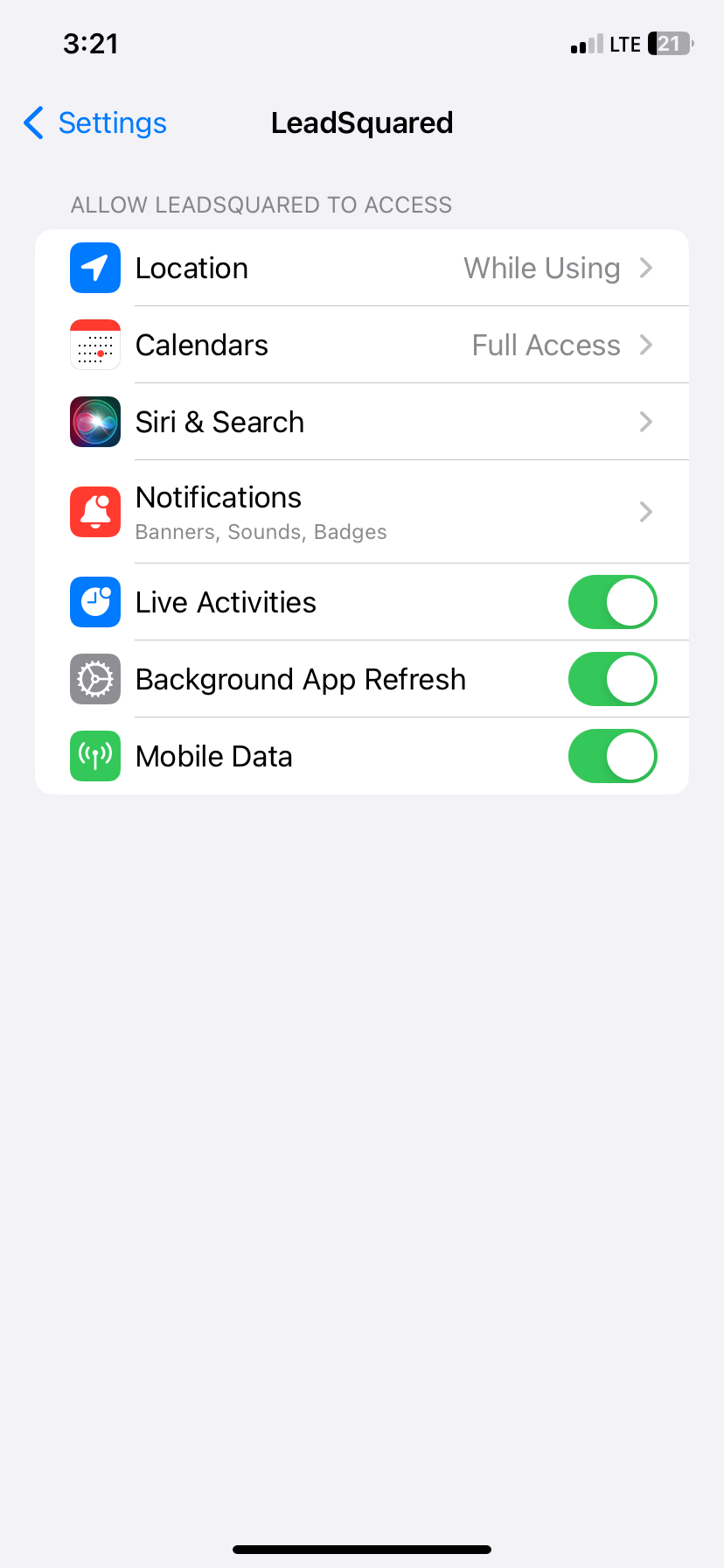
  • If you enable the Send Rich Media option, you must also enable the Approved Templates option. This ensures that you can add your media files to a template when messaging your leads.
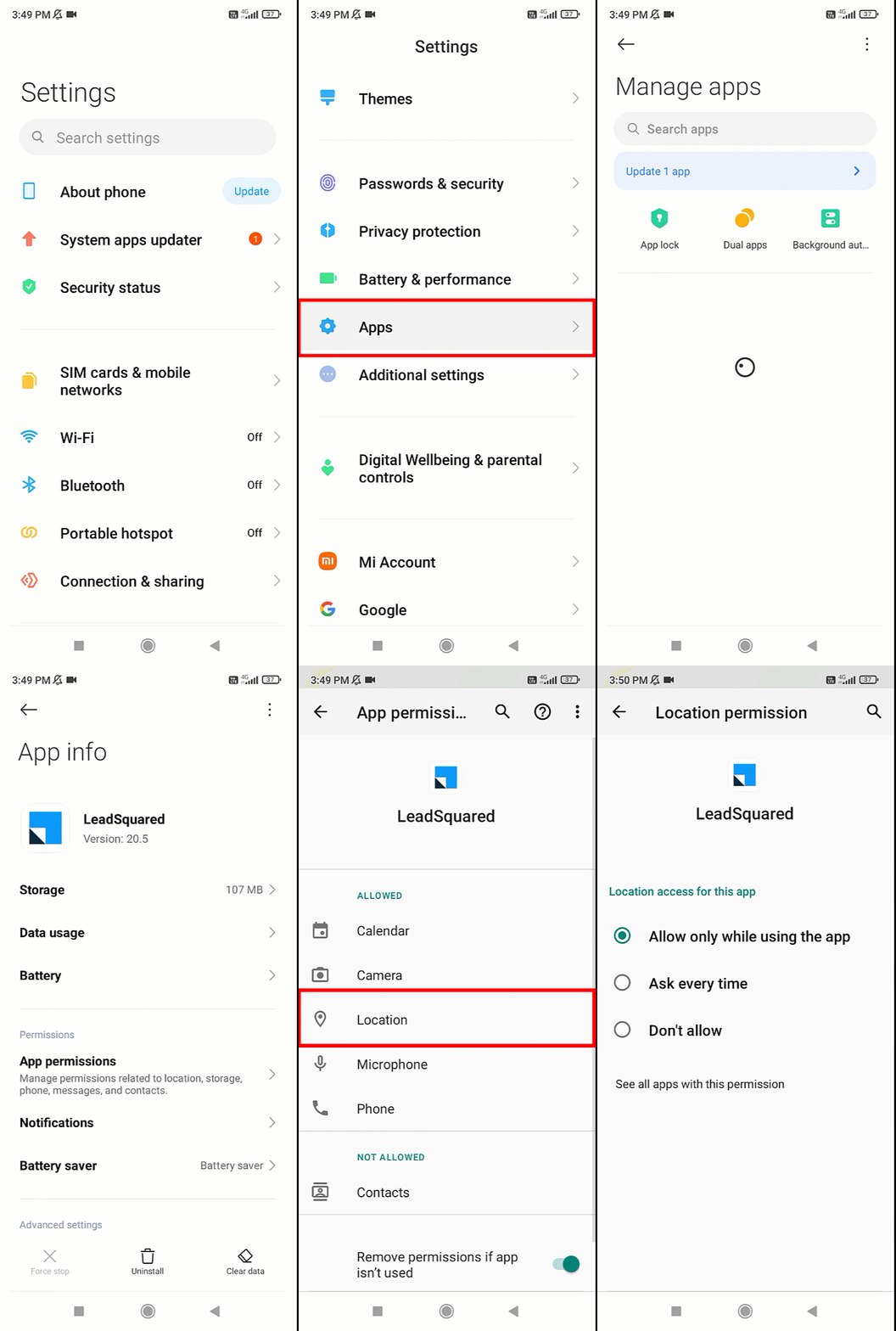
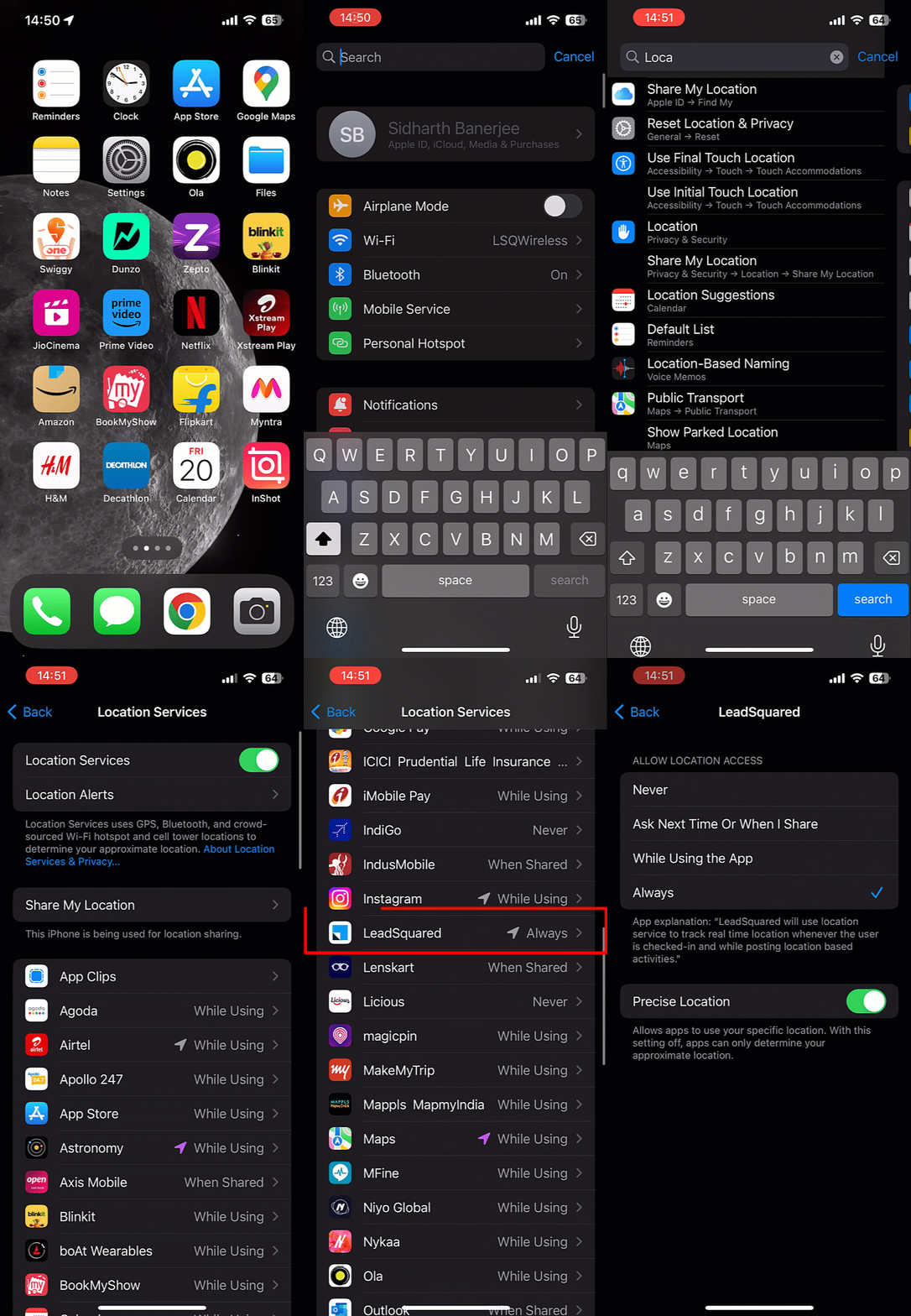
LeadSquared Gupshup Integration


4.5 Advanced Settings

On this screen, provide the following details –

Interakt LeadSquared Integration

  • Activity Mapping – A LeadSquared activity field to capture your WhatsApp messages. This is the activity that will be posted every time a WhatsApp message is sent or received.
  • Default WhatsApp Number Fields – The number you set as the default phone number will be automatically selected when you’re sending a WhatsApp message to a lead. You can also select other numbers that are available from the Add Another Number dropdown.
  • Default Country Code – The default country code will be used to send messages to a phone number that’s stored in a custom field, if no country code is listed.
  • Enable Rich Media Template Support – If you want to include media files in your WhatsApp message, you must enable the Slider slider.
  • Show URL Preview in Custom Messages – Enable the sliderSlider to allow for URL previews in non-templatized WhatsApp messages.
  • Compliance Type – Here, you can select the compliance type for the WhatsApp template, by choosing either WhatsApp Opt-out or Opt-in.
  • WhatsApp Opt-out – Your leads can opt-in or out of receiving WhatsApp messages on the basis of this field. From the dropdown, select a LeadSquared lead field for the WhatsApp opt-in/opt-out functionality.
  • Blacklist Incoming Messages – If required, you can enable this option to blacklist incoming messages from specific numbers. This is useful when you want to block numbers that send inappropriate messages to your users. Once enabled, enter the phone numbers in the text box available on the right side of your screen. You can add phone numbers with 7-12 digits (excluding the country code). This option is available only when the Allow Lead Generation on incoming messages setting is enabled.
Note: You must create a custom lead field of boolean type to map to the WhatsApp opt-out functionality. For example, you may create a custom lead field called “WhatsApp Opt Out”. Leads for whom the field is selected/checked won’t receive WhatsApp messages.

Click Save & Close when you’re done.

  • If your credentials are correct, you’ll see the success message highlighted below.
  • If they were incorrect, the integration will fail.


5. Webhook Configuration

To receive incoming messages from your leads, as well as to get the delivery status (Sent, Delivered, Read, or Failed) of your outbound messages, configure the LeadSquared webhook in your Interakt account.

In LeadSquared

  1. Once the configuration is completed and saved in your LeadSquared account, a webhook is generated.
  2. To access the webhook, navigate to Apps>Apps Marketplace, search for the WhatsApp Business Connector, and click Configure.
  3. On the Configure WhatsApp Business pop-up, select the Interakt integration.
  4. On the Authentication tab, you’ll find the webhook alongside Notifications Webhook URL. Copy this webhook.

Interakt LeadSquared Integration

In Interakt

  1. Login to your Interakt account, and navigate to Settings>Developer Settings.
  2. On the Developer Settings page, under Configure Webhook, click Edit.
  3. On the Configure Webhook URL pop-up, use the webhook you copied from LeadSquared, and paste it under Webhook URL.
  4. From the options listed under Select Required Webhooks, open Template Messages Sent via API, and enable all four options available (Sent, Delivered, Read and Failed).
  5. Then, open Others, and enable the checkbox alongside Message received from customers (only on Advanced / Haptik Plan).
  6. Once you’re done, click Submit.

You should now receive incoming messages and the delivery status of your outbound messages.

LeadSquared Interakt Integration


6. Add Templates in LeadSquared

To add existing Interakt templates to your LeadSquared account –

  1. Login to your Interakt account.
  2. From the left-menu, navigate to Templates, and on the WhatsApp Templates screen, click Active.
  3. Select the templates you want to add to your LeadSquared account.
  4. Then, to add these templates to LeadSquared, refer to Adding WhatsApp Templates to LeadSquared.

Interakt LeadSquared Integration


6. Conversing with Leads via WhatsApp

Integrating Converse with LeadSquared’s WhatsApp connector will enable your users to have real-time conversations with your leads through WhatsApp. Using templatized messages, you’ll be able to attach and send media files (such as images, documents, etc.) in your conversations. To know more, refer to LeadSquared Converse.

LeadSquared WhatsApp Integration


7. Next Steps

Once the connector is successfully installed, you can proceed to add WhatsApp templates and finally message your leads. For details, see Adding WhatsApp Templates to LeadSquared.


Any Questions?

Did you find this article helpful? Please let us know any feedback you may have in the comments section below. We’d love to hear from you and help you out!

Where is the Google API key required?

Features that Require Google API Key

  • My TripsMy Trips is the LeadSquared mobile app’s day planning feature that helps users boost productivity by displaying the most efficient route and enabling the completion of the maximum number of tasks each day. This feature uses Google’s Distance Matrix API to calculate and optimize travel routes. To enable it, configure the Google API Key in your account by navigating to My Profile > Settings > Mobile App > Additional Settings. Under the Near Me section, alongside My Trips – Google Key, enter the API Key.
  • Explore (Near Me) – The Explore – Near Me feature allows users to view businesses located within 15 kilometer radius from selected location. This feature uses Google’s Places API to identify and display nearby businesses. To enable it, configure the Google API Key by navigating to My Profile > Settings > Mobile App > Additional Settings. Under the Near Me section, alongside Explore – Google Key, enter the API Key.

LeadSquared - Explore and my trips google key


Features that Do Not Require Google API Key

  • Geofencing – Enforce location-based controls using geofencing to ensure that users only perform certain actions (like check-in/out, tasks, or activities) when they are within the designated areas. 
  • Lead Addition – Map Display – The Locate Me button that populates your address in a form field based on your current location does not require Google API key. 
  • Mobile Lat-Long Capture – The user location history tracker gives visibility on the complete path taken by the user throughout the day. It shows all locations visited and activities performed by the user from Check-In to Check-Out, based on the location data received by the Mobile App. 
  • Check-In/Out – Enable hassle-free check-in and check-out processes without the need for a Google key by utilizing geofencing technology. 
  • Territories – Manage your territories with lead visualisation and automated lead assignment to sales users with the capability to restrict the user from performing any CRUD operations in locations other than the assigned geographical location.
  • Journeys – Enable your users to create plans through Journeys, a sales management feature built for the mobile app.
  • Leads (Near Me) – This feature utilizes geolocation data to display leads in close proximity to your current location, enhancing your ability to prioritize and engage with potential opportunities. 

Website Widgets

1. Feature Overview

LeadSquared’s Topbar Widget is a lead conversion tool that you can add to your website or landing pages to direct the lead’s attention to your marketing offers. This widget is easy to design and connect to your website. You can specify the web pages you want to display this widget on and it does not require any changes to be made on your website.


2. Prerequisites

  • The website domain on which you want to add the Topbar Widget should be associated with your LeadSquared account.
  •  The LeadSquared Tracking Script should be added on the relevant web pages.


3. Create a Topbar Widget

  1. From the main menu, navigate to Marketing>Website Widgets. On this page, hover your cursor over Create Widget and click Topbar.
  2. In the Name field, enter the name for widget. This is an internal name that you can use to identify the Topbar later.
  3. Click Edit to set up a message and create the design for the Topbar.
    1. On the Topbar Settings pop-up window, under Headline, enter the text you want to display in the Topbar. You can select different colours for the text and background of the widget.
    2. Under Button, enter the text you want to show on the button and the URL in the Text and Link fields respectively. You can also configure the colour of the button’s text and background.
    3. After configuring the design, click Save.
      • The design displayed on the pop-up window is in a compressed format. To view how the topbar will be displayed on the web page, once you save the design, click Edit again.
  4. Under Placement, click the dropdown alongside Visibility and select where you want to display the widget –
    • All Webpages – Displays the widget on all the webpages of the website and in all the Landing pages.
    • Specific Webpages – Displays the widget on specific pages that are added. Add URLs in the text field below the dropdown and click Add URL. Make sure to enter the complete URL (for example, www.leadsquared.com).
    • Exclude on Specific Webpages: Displays the widget on all the pages excluding the pages which are added in the exclusion list. To exclude URLs, enter them in the text field below the dropdown and click Add URL. Make sure to enter the complete URL.
  5. Under Duration, you can configure the duration of the widget displayed on your website. You can also choose to display them on specific dates.
  6. Once you’re done, click Save and Publish.
Note: You don’t have to make any changes on your website for the widget to go live.

LeadSquared - Website widgets


Any Questions?

Did you find this article helpful? Please let us know any feedback you may have in the comments section below. We’d love to hear from you and help you out!